14+
for age
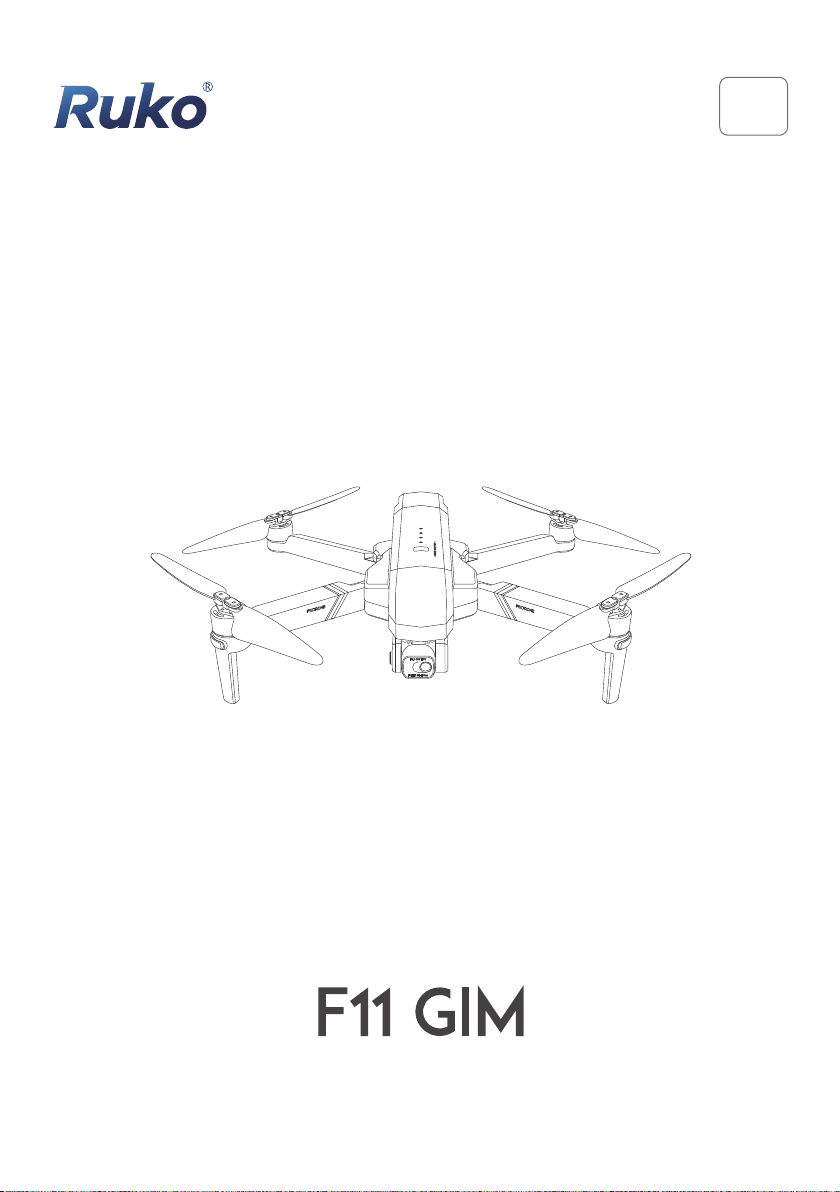
User Manual
v1.0


Copyright ©2021 Ruko All Rights Reserved.
Contents
1
1 Using This Manual
2 Product Profile
1.1 Legend
1.2 Read Before the First Flight
1.3 Download the RUKO DRONE App
1.4 Video Tutorials
2.1 Important
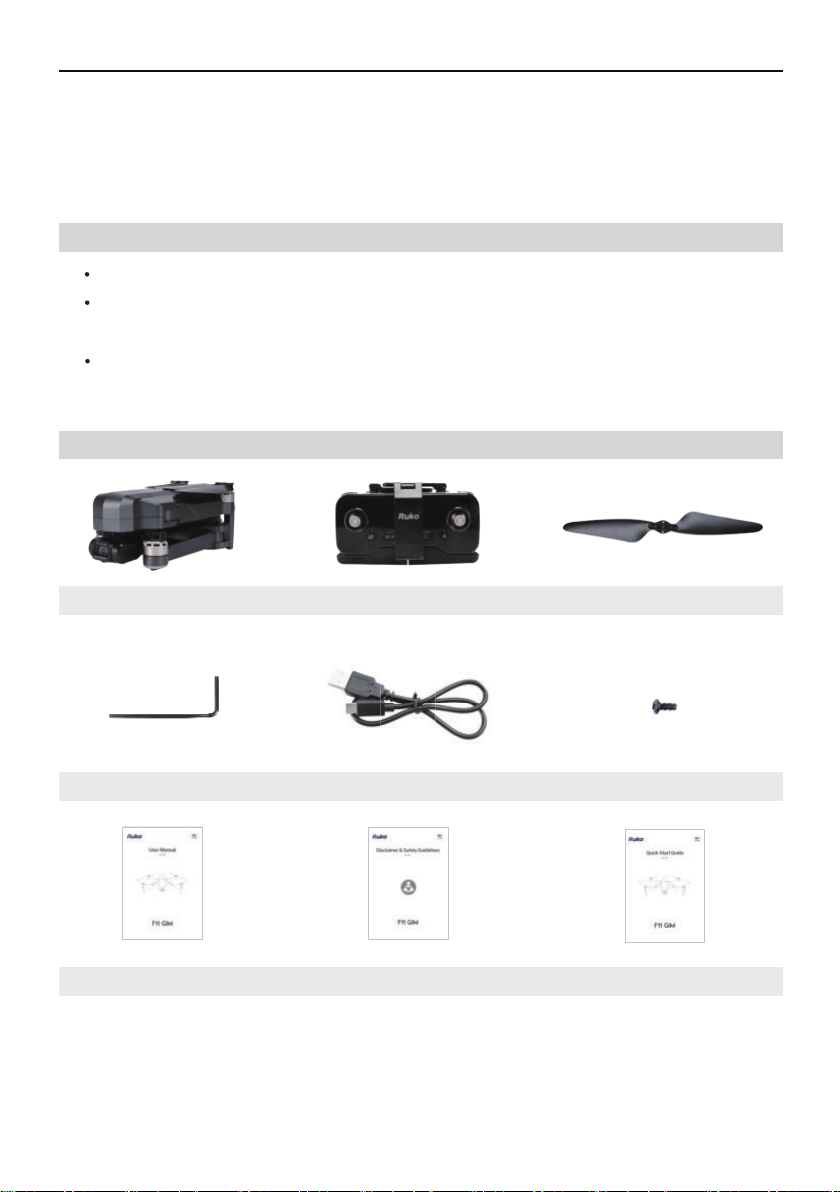
2.2 Product List
2.3 Preparing the Aircraft
2.4 Aircraft Diagram
2.5 Transmitter Diagram
3
3
3
3
3
4
4
4
5
5
6
3 Aircraft
3.1 Three Gears Speed of the Aircraft
3.2 Calibration and Aircraft Status Indicator
3.3 Return to Home
3.4 Intelligent Flight Mode (Waypoint/Follow
/Surround/Gesture)
3.5 Propellers
3.6 Intelligent Flight Battery
3.7 Camera Overview
8
8
8
9
11
14
15
18

4 Transmitter
4.1 Transmitter Profile
4.2 Using the Transmitter
4.3 Communication Range of Transmitter
4.4 Linking the Transmitter
19
19
20
24
25
Copyright ©2021 Ruko All Rights Reserved.
2
5 Ruko Drone App
5.1 Home
5.2 Camera View
25
25
26
6 Flight
6.1 Flight Environment Requirements
6.2 Pre-Flight Checklist
6.3 Calibration Before Flight
6.4 Starting/Stopping the Motors
6.5 Automatic Take-off / Automatic Landing
6.6 How to take off the Ruko F11GIM Drone
6.7 Aerial Photography Tips & Tricks
30
30
31
31
36
36
38
38
7 Appendix
7.1 Specifications
7.2 Accessories Support
7.3 Common Problems and Solutions
39
39
41
42
Copyright ©2021 Ruko All Rights Reserved. 3
Read the following documents before using the Ruko F11 GIM
User Manual
Quick Start Guide
Disclaimer and Safety Guidelines
It is recommended to watch all tutorial videos on the official website and read the Disclaimer
and Safety Guidelines before using for the first time. Prepare for the first flight before
reviewing the Quick Start Guide and refer to this User Manual for more information.
1.1 Legend
1.2 Read Before the First Flight
Recommend Warning Hints & Tips
Reference
1 Using This Manual
Make sure to use RUKO DRONE App during flight.
Scan the QR code on the right to download the
latest version of the app.
Make sure to use RUKO DRONE App during flight. Scan the QR code on the right to download
the latest version of the app. RUKO DRONE App supports Android 6.0 or higher, iOS 10.0.2
or higher, dual-band wifi (2.4GHz) and 5.8GHz phones.
Visit the following link to watch the tutorial videos to ensure
correct and safe use of the product.
https://www.ruko.net/pages/video
1.3 Download the RUKO DRONE App
1.4 Video Tutorials
①
②
③
F11GIM User Manual
F11GIM User Manual
2.1 Important
The Ruko F11 GIM is NOT a toy and is not suitable for people under the age of 14.
It requires correct assembly and debugging to avoid any accident before every flight.
Inappropriate use of the product could result in personal injury or property damages.
In the event of a problem during use. operating, or maintenance, please feel free to contact
the Tech Support [email protected]
Aircraft with Battery Transmitter
Screw
User Manual Safety and Disclaimer Guidelines Quick Start Guide
Propeller
USB Charging CableScrewdrive
Copyright ©2021 Ruko All Rights Reserved.4
2.2 Product list
Thank you for purchasing from Ruko. Please read all instructions and warnings carefully before
operating. Please also keep this instruction manual for future reference and maintenance.
2 Product Profile
F11GIM User Manual
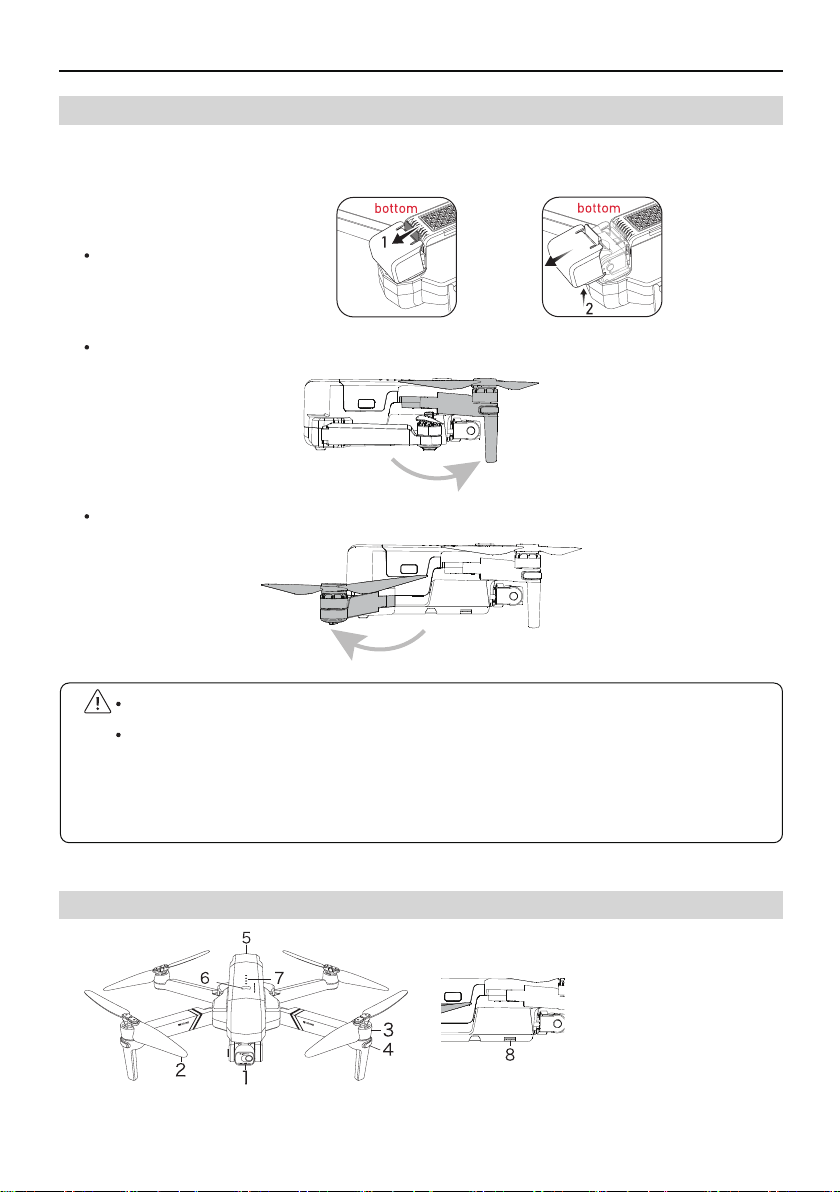
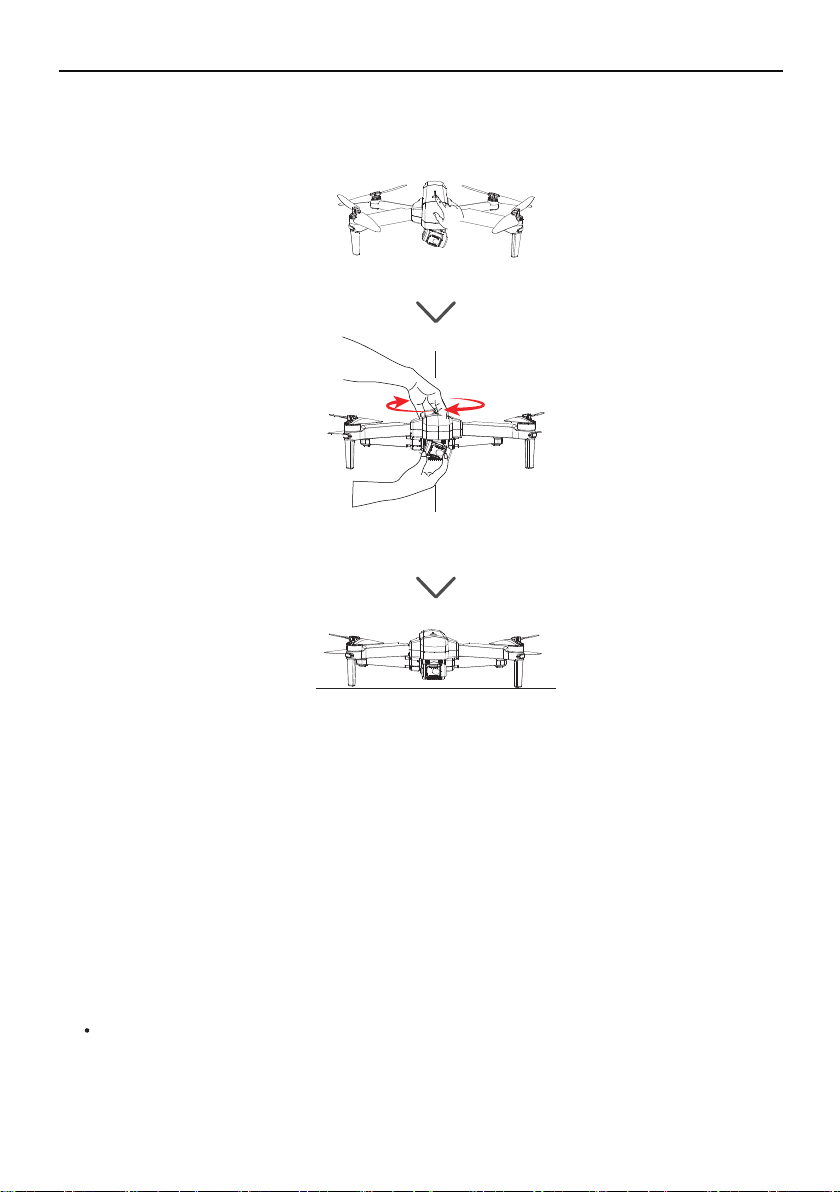
Unfold the front arms
Take off the Gimbal Cover
Unfold the rear arms and then unfold all the propellers
Gimbal
Propeller
Motor
Copyright ©2021 Ruko All Rights Reserved. 5
Unfold the front arms before unfolding the rear arms.
Before powering on the aircraft, ensure that the front and rear arms are extended and
the camera is placed on the horizontal ground. Ensure that there is sufficient space
under the camera to prevent the camera angle from being stuck to the ground during
the self-check.
All aircraft arms are folded before the aircraft is packaged. Follow the steps below
to unfold the aircraft arms.
2.4 Aircraft Diagram
2.3 Preparing the Aircraft
①
②
③
LED indicator Light
Intelligent battery
Power button
④
⑤
⑥
F11GIM User Manual
Copyright ©2021 Ruko All Rights Reserved.6
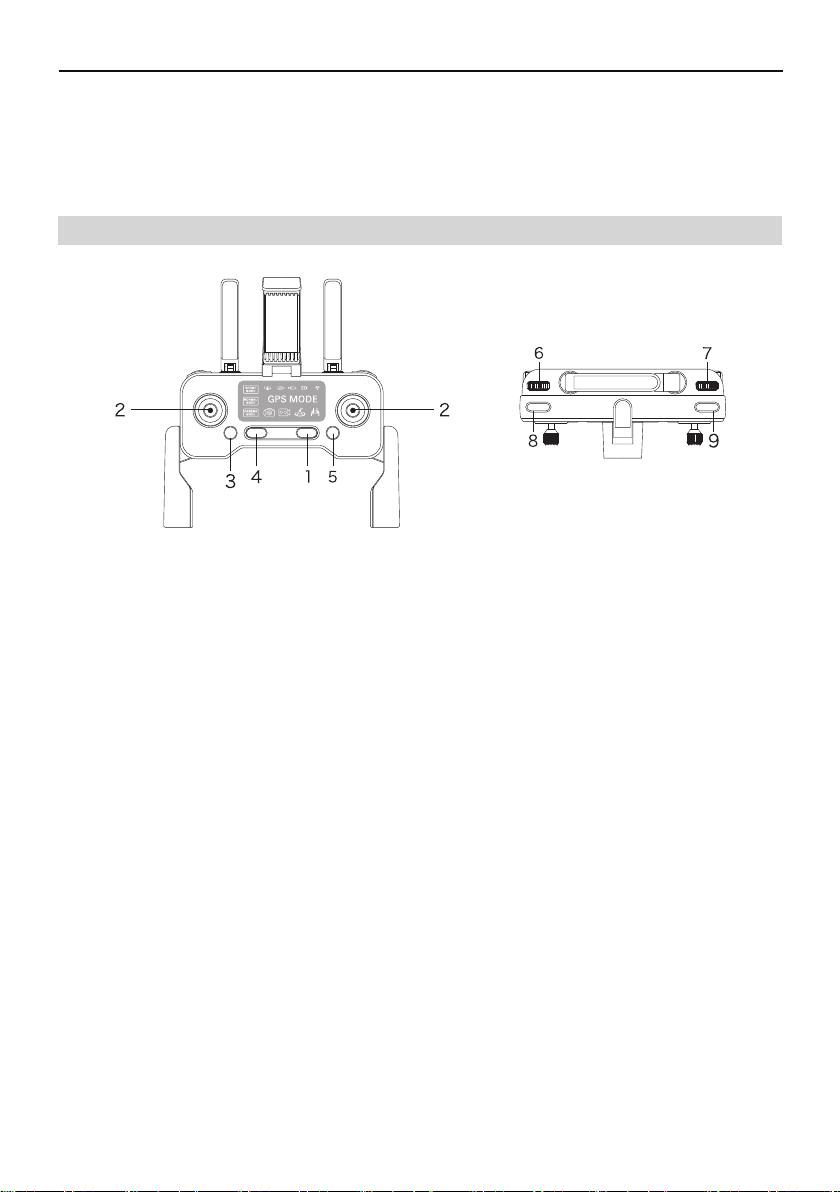
Power Button
Short-press once to start; Short-press + long-press for more than 2 seconds to turn off the
Transmitter.
Control Sticks
Mode 1: (Default mode ) Use a control stick to control Aircraft movements. The left control
stick is the throttle lever, which can adjust the Aircraft's altitude and nose direction. The right
control sticks is a directional stick that controls the Aircraft's flight direction (forward/back/
left/right).
Mode 2: Control stick functions in reverse to the Mode 1.
Adjust the Aircraft Speed
Three different kinds of speed mode: Camera mode, Normal mode, Sport mode.
Emergency Landing
Press and hold the button for 3 seconds to make the aircraft land in an emergency effective
within 49.21 feet(15 meters height). After pressing the emergency stop button, the aircraft
will lose power and fall out of sky directly. It is recommended to use it only in an emergency
to avoid loss.
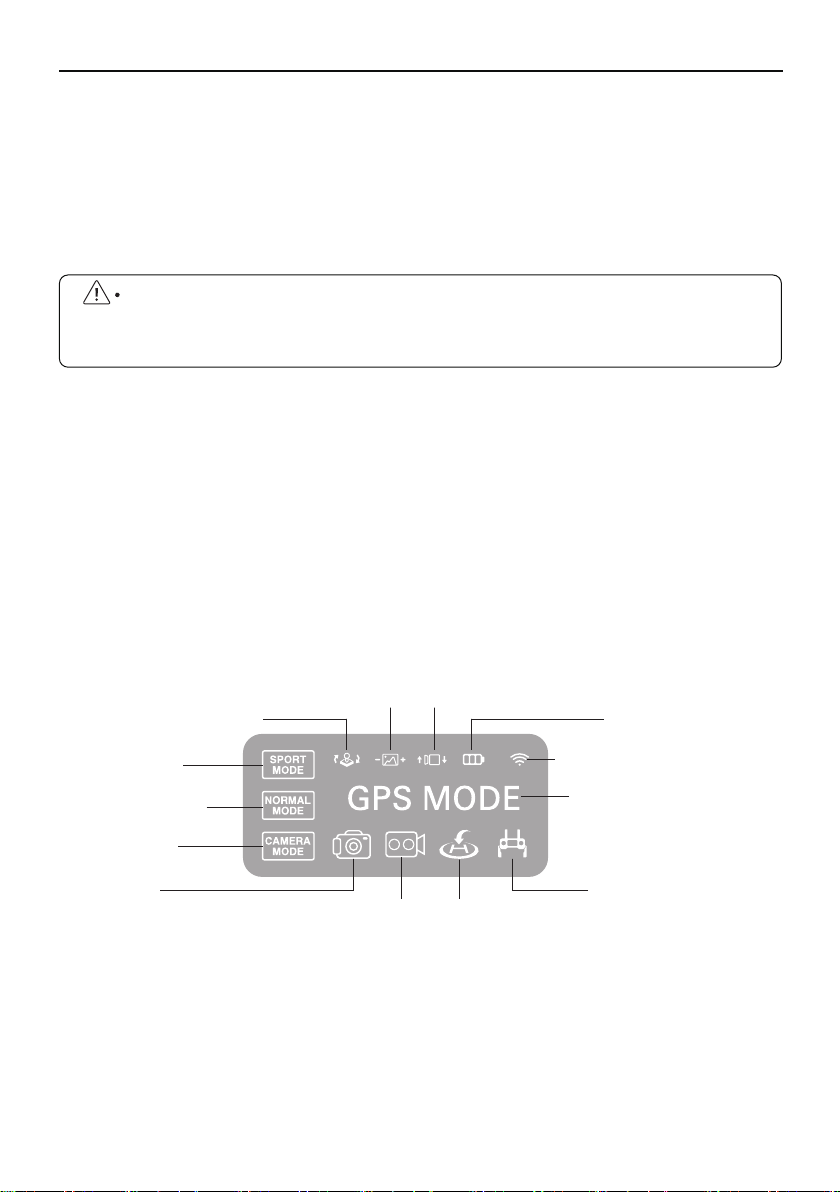
2.5 Transmitter Diagram
①
②
③
④
⑦
⑧
⑨
Battery Level LED
Camera SD Card Slot
Landing Gear
F11GIM User Manual
Copyright ©2021 Ruko All Rights Reserved. 7
Click once to RTH mode
Press the button to let the Aircraft automatically return to the take-off position (Due to GPS
signal problems (commercial class), the landing position may be slightly different from the
take-off position. The deviation range is about in 10 feet(3 meter) diameter); Press the RTH
button once again to cancel the intelligent return.
Adjust the Camera Zoom
Rotate the left wheel to adjust the camera zoom in and out.
Adjust the Camera Angle
Rotate the right wheel to adjust the camera lens to downwards and upwards.
Shutter Button
Press once to take a picture.
Record Button
Press once to start recording, and press again to stop recording.
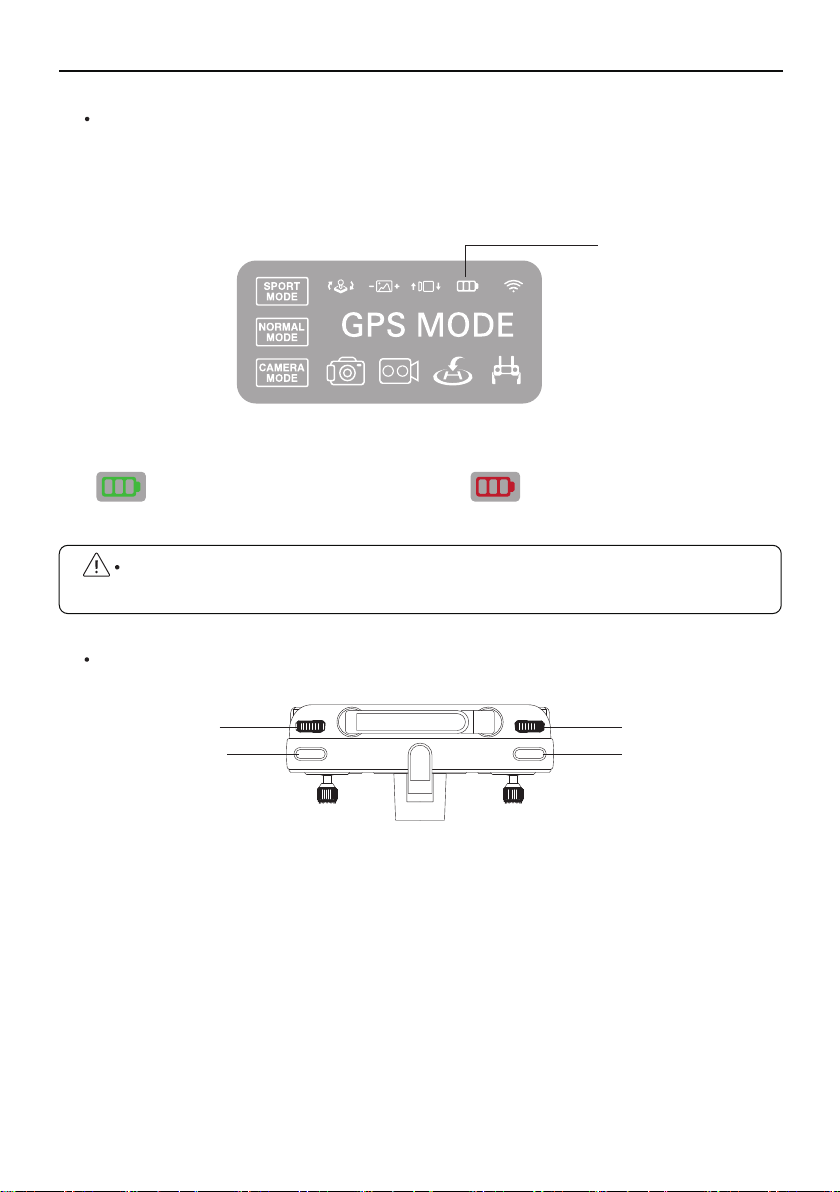
Tips: When the transmitter is in low battery , the charging indicator light on the transmitter
will turn red and keep flashing, now you need to charge the transmitter.
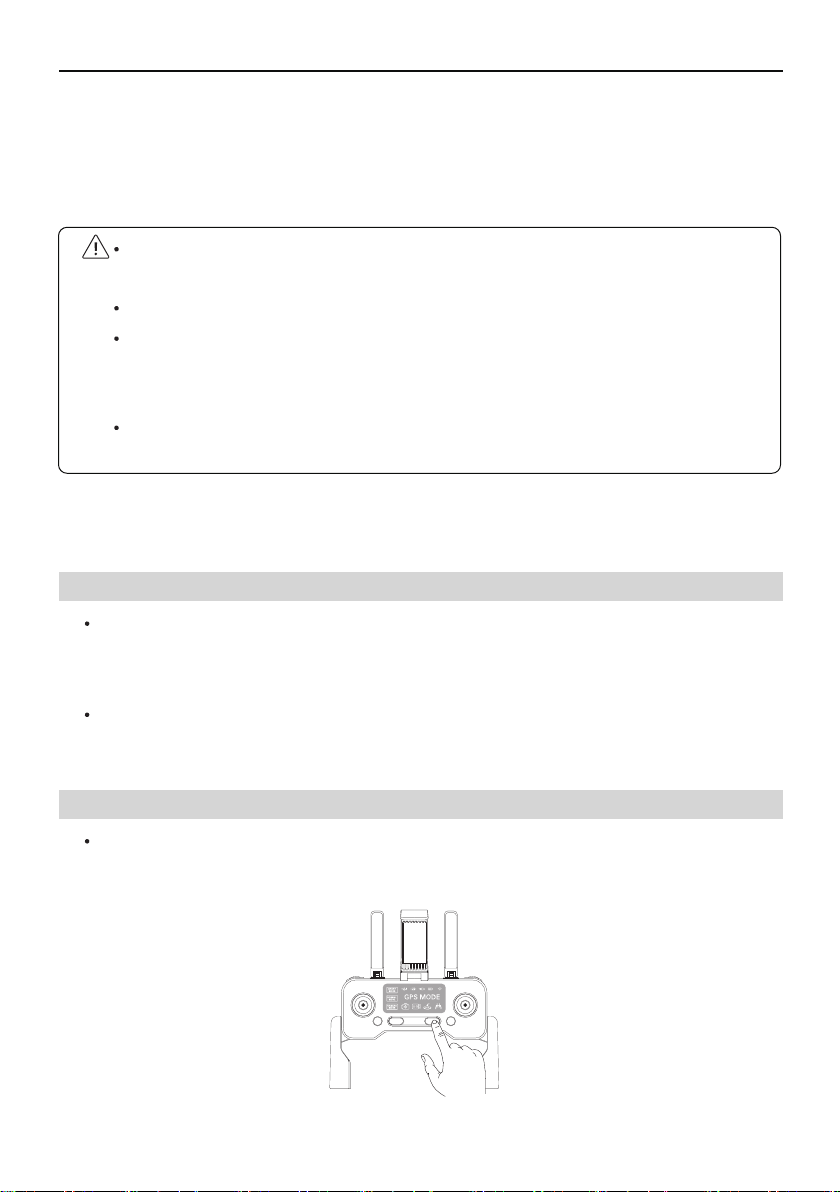
Press and hold the button for 3 seconds to turn off the GPS(GPS is turned on by default
when starting up the Aircraft. Do not turn it off when flying outdoors in case the Aircraft
is lost); Hold down the button for another 3 seconds to turn on the GPS.
⑤
⑥
⑦
⑧
⑨
Left/right stick switch
High speed
Medium speed
Low speed
Shooting
Recording
Low battery indicator
GPS mode and attitude
mode switch
Repeater signal indicator
RTH
Zoom in and out Controls the camera’s tilt
Charging indicator
F11GIM User Manual
The F11 GIM has three speed ranges: 14.76 ft/s, 29.53 ft/s, and 39.37 ft/s. The default speed
is medium speed. Turn the speed wheel to the right to adjust the flight speed up to 39.37 ft/s,
and turn the wheel to the left to slow the Aircraft down to 14.76 ft/s, which provides diverse
flight experience and meets various needs with speed.
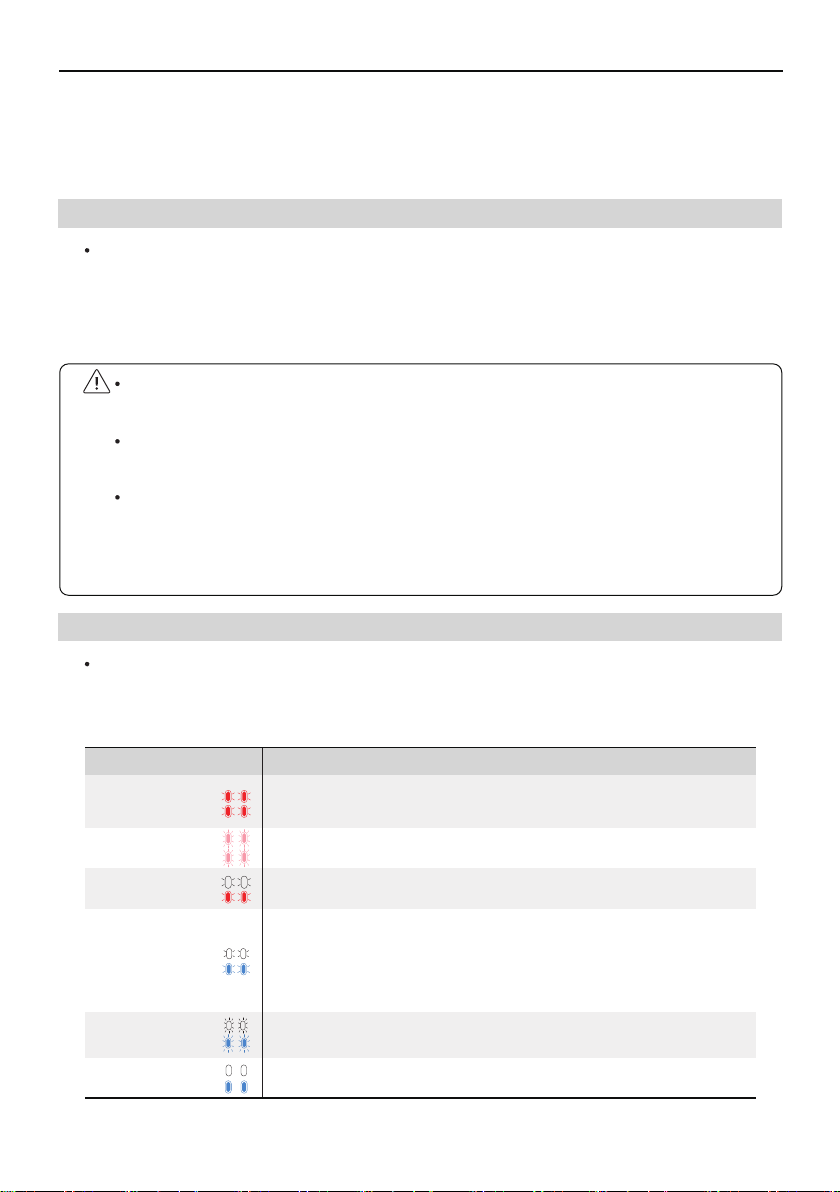
The F11 GIM Aircraft's status indicator is located above the nose landing gear to indicate the
current status of the flight control system. Please refer to the following table for the status
of the flight control system represented by different blinking modes.
Copyright ©2021 Ruko All Rights Reserved.8
F11 GIM aircraft is mainly composed of a flight controller, communication system, video
downlink system, propulsion system, and an intelligent flight battery.
3 Aircraft
3.1 Three Gears Speed of the Aircraft
3.2 Calibration and Aircraft Status Indicator
Front and rear
red lights
Four pink
lights
The front is white
and the back is blue
The front is white
and the back is blue
The front is white
and the back is blue
The front is white
and the back is red
Blinking back and forth
3 times per second
Compass calibration is required.
Blinking slowly back and forth
blinking twice per second
Aircraft low battery warning
White and blue are blinking
blinking twice every second
blinking once every second
White and blue are
blinking fast
White and blue always turn on
Gyroscope/level calibration is required.
GPS signal is detected and take-off
conditions are met.
Searching for GPS
Blinking twice per second indicates
GPS signal has not been found.
Blinking once per second indicates that
GPS signal is detected but the
conditions for takeoff are not met.
The Transmitter has not been paired
with the Aircraft( by pushing the left
control stick up and down.
Continuous blinking
of red light
Color of light Blinking status of the indicator Conditions
When wind speed is high, high speed flight should be maintained to improve wind
resistance effect.
When flying with fast gear, the pilot should reserve at least 9.8ft of braking distance to
ensure flight safety when flying in windy conditions.
When using the fast gear for flight, the power of the aircraft will be greatly improved,
and the operation of the remote lever on the Transmitter will lead to the large flight
action of the Aircraft. During the actual flight, the pilot reserves enough flying space
to ensure the safety of the flight.
F11GIM User Manual
The Return to Home (RTH)function brings the aircraft back to the last recorded Home Point.
There are three types of RTH: Smart RTH, Low Battery RTH, and Signal Disconnection RTH.
If you activate the RTH function under the condition that the Aircraft successfully recorded
the Home Point and GPS signal is good, the Aircraft will automatically return to the Home
Point and land.
Copyright ©2021 Ruko All Rights Reserved. 9
3.3 Return to Home
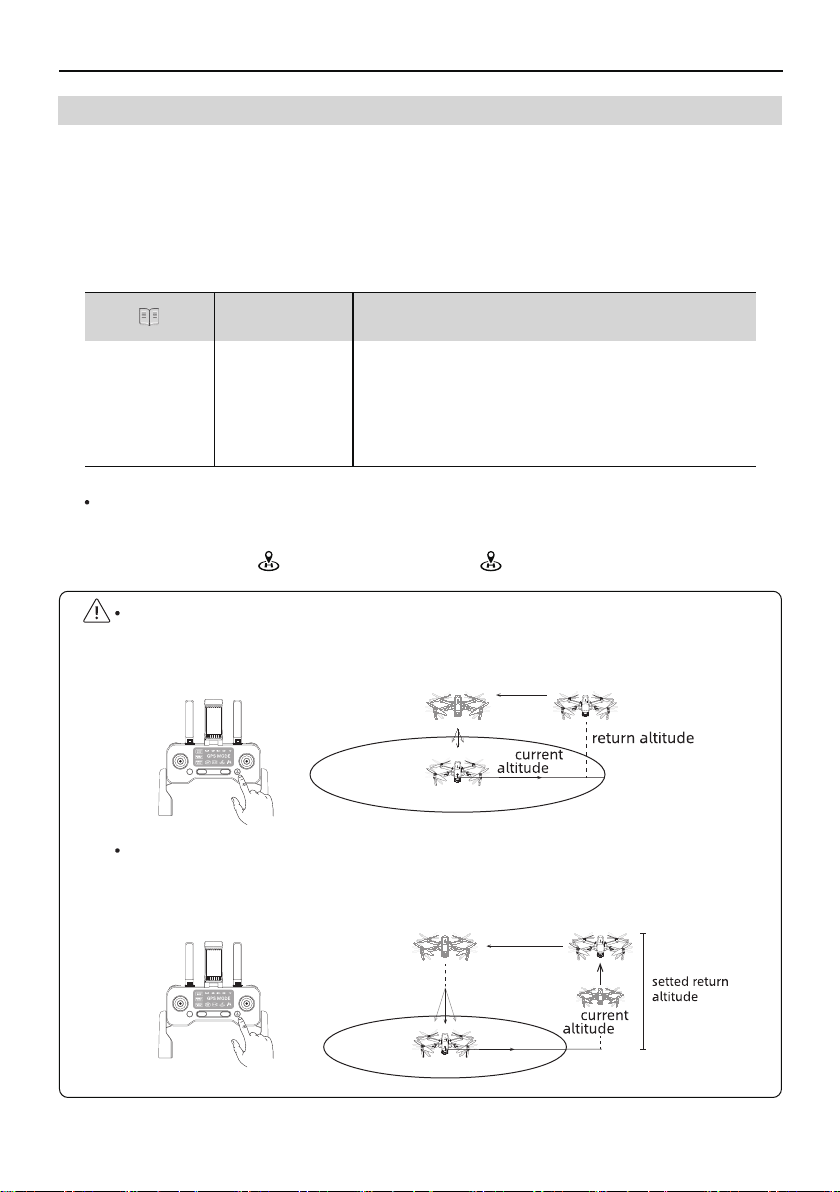
Smart RTH
When the pilot needs the Aircraft to return home automatically, he can click the smart RTH
button on Transmitter or tap the return home icon on the Ruko Drone App to activate RTH.
When the Aircraft executes smart RTH within a radius of 98 feet (30 meters), and the
Aircraft will return fromthe current altitude to the take-off point. (Pay attention to
maintaining the flying height to avoid hitting people or obstacles)
When the Aircraft returns to the Home Point beyond the 98 feet (30 meters) radius, if the
return altitude is not set and the aircraft is flying below 65 feet (20 meters), it will
automatically fly up to the default return altitude of 65 feet (20 meters) before returning
home.
Home Point
When flying outdoors, the GPS signal icon is displayed with 3
bars or more for the first time, and the take-off location will
record the Aircraft's current position as the Home Point.
During the flight, if the Aircraft lands at a new location, the point
from which you retook off will become the latest Home Point,
and the Aircraft will return to the latest Home Point.
Using five bars
of signal
GPS Description
<98ft
>98ft
16ft
16ft
16ft
65ft
F11GIM User Manual
Copyright ©2021 Ruko All Rights Reserved.10
Low Battery RTH
When the intelligent flight battery is too low or there is not enough power to return home,
the user should land the Aircraft as soon as possible to avoid damage to the Aircraft or
other dangers.
In order to prevent unnecessary dangers due to insufficient battery power, when the Aircraft
battery power is low, the intelligent low battery return home function will be automatically
triggered. According to the remaining power after returning, there are 2 situations after
returning:
Must pay attention to the flight altitude when the battery is low. Avoid hitting obstacles
due to the low flying altitude when returning home with the second-level low battery.
The remaining power after returning is related to the return distance, wind speed, and
wind direction.
First-level low battery: the Aircraft returns to the point 98 feet(30 meters) above the take
off point and hover. After hovering, you can continue flying the Aircraft at a height of 98 feet
(30 meters) and within a radius of 98 feet(30 meters).
Second-level low battery: the Aircraft will fly directly from the current altitude to the point
98 feet(30 meters) above the Home Point and then descend to the ground.
①
②
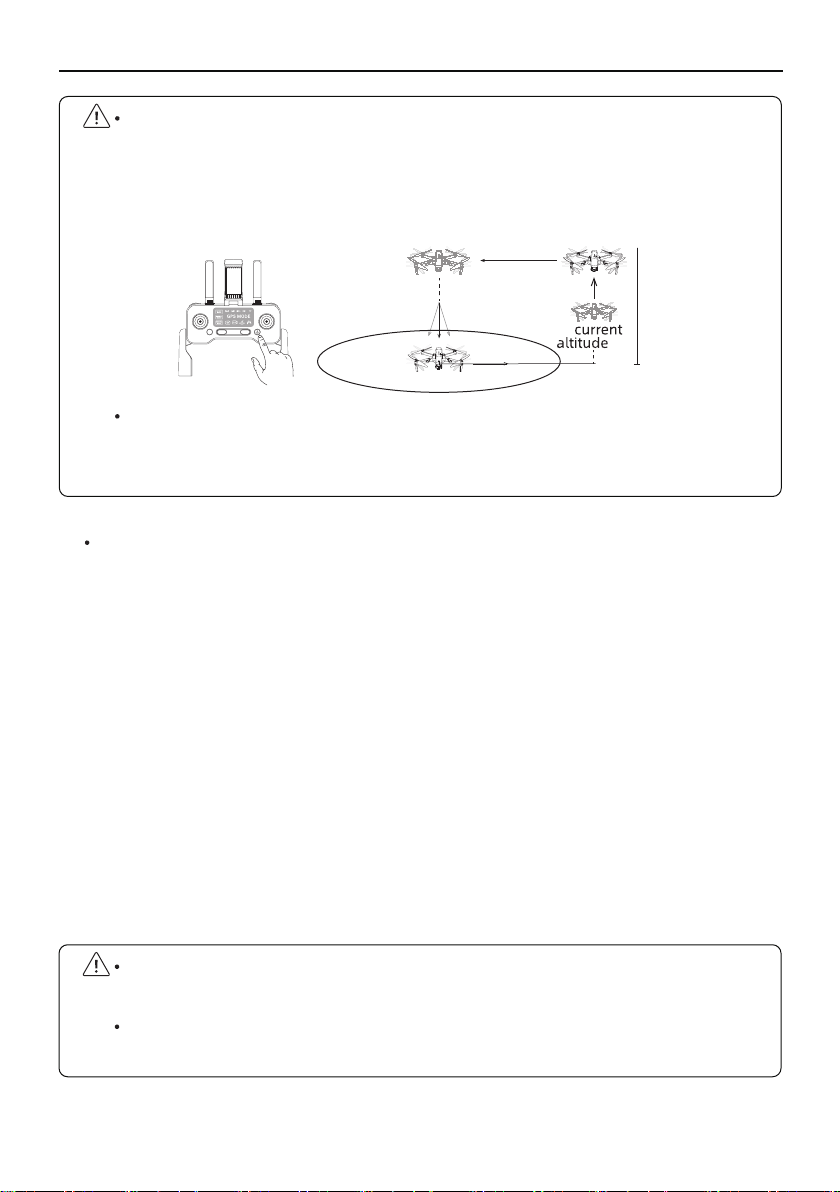
When the Aircraft returns home 98.43 feet(30 meters) away, if the RTH altitude is set
(before flight), the Aircraft will ascend to the altitude already set before returning to the
take-off point, if the current altitude of the Aircraft is lower than the RTH altitude. The
Aircraft will return to the Home Point from the current altitude,if the current altitude of the
Aircraft higher than the RTH altitude.
The Aircraft is not equipped with obstacle avoidance function. Please judge the flight
status reasonably during the flight. Avoid obstacles in time, and set the corresponding
flight and return altitude according to the flight environment.
>98ft
16ft
setting
altitude
F11GIM User Manual
F11 GIM has four intelligent flight modes: Route rules, follow mode, surround mode and gesture
mode. According to the user's shooting needs, the operation can be completed by one click,
which is simple and fast.
Route rules: Aircraft flies along the path marked on the app.
Image Follow:Aircraft will follow the object's in circle movement to rotate.
Follow Mode: Aircraft will lock onto the user and can track user’s movement as he moves.
Surround Mode: Aircraft orbits around the point already set on the app at a
certain distance.
Gesture Mode: Aircraft takes photos or videos according to the manipulation commands
of different gestures.
Copyright ©2021 Ruko All Rights Reserved. 11
3.4 Intelligent Flight Mode
Lost Signal RTH
When the Transmitter has low battery or is turned off or loses signal for 6 seconds, the
Aircraft will enter the auto-return mode and return to the take-off point. If the signal is
recovered during the return home process, the Aircraft will stop returning and rebind
with the Transmitter signal, and the Transmitter can control the Aircraft again at this
time. Automatic Return to Home process when signal is lost:
Aircraft stores its position when taking off after the GPS signal is successfully received,
and records it as the Home Point;
Trigger RTH (triggered by low battery of Transmitter, signal loss, etc.);
After triggering the Return-to-Home function, the Aircraft adjusts the nose direction and
starts to return home;
The Aircraft automatically flies to the top of the home point, then starts to land, and
completes the home return.
①
②
③
④
F11GIM User Manual
Make sure the size of the frame isn't too large, so as to ensure the recognition is
achievable.
Route Rules
Make sure you have downloaded RUKO DRONE App on your phone;
Connect your smartphone to the Aircraft’s WiFi;
After the Aircraft takes off, in GPS mode, tap on the app ;
You can find a red circle on the map (limited flight range). Mark the points (up to 16) which
you plan to fly the Aircraft along within the circle;
If you want to reset the marked point or flight path, you can tap "Delete Single Point" or
"Delete All";
Confirm that the marked points are correct and tap "Go" button. The Aircraft will start
Waypoint Flight.
Image Follow
Make sure you have downloaded RUKO DRONE App on your phone;
Connect your smartphone to the Aircraft’s WiFi;
After the Aircraft takes off in an open environment with good GPS signal, ensure that the
flight range is within 32-164 feet(10-50 meters) for the best effect;
Tap the icon on the app interface, and then click the "Image Follow" icon to enter the
follow mode;
Tap on the object or person plans to track, and then tap to confirm the selection;
Aircraft will rotate following the object's in circle movement.
Copyright ©2021 Ruko All Rights Reserved.12
Push the right joystick to cancel the waypoint flight function.
①
①
③
③
④
④
⑤
⑤
⑥
⑥
②
②
Follow Mode
Ensure that the RUKO DRONE App has been downloaded and installed on the smartphone;
Turn on the GPS positioning of the smartphone to connect to the Aircraft WiFi;
After the Aircraft takes off in an open environment with good GPS signal, ensure that
the flight range is within 32-164 feet(10-50 meters) for the best effect;
Tap the icon on the app interface, and then click the "GPS Follow" icon to enter the
follow mode;
"Follow me mode is ready" will be displayed on the app interface and the Aircraft turns
on the “follow mode”. The aircraft tracks your movement as you move.
①
③
④
⑤
②
Tap the icon on the app interface again to exit the "Follow Me" mode.
⑥
Copyright ©2021 Ruko All Rights Reserved. 13
F11GIM User Manual
If the surrounding radius is less than 6 feet (2 meters), the aircraft will automatically fly
up to 6 feet (2 meters).
Press the camera and video buttons at the same time to activate the “surround mode”.
Surround Mode
Make sure the RUKO DRONE App has been downloaded and installed on the smartphone;
Connect your smartphone to Aircraft WiFi;
After the Aircraft takes off, fly it in GPS mode;
Press the camera and video buttons on the Transmitter at the same time to activate the
"surround mode" and set the current position of the Aircraft as the center point;
Move the direction joystick to set the flight radius of the Aircraft (within the range of
6 -328 feet ( 2-100m).) Push the stick downwards to increase the flight radius and push the
stick upwards to decrease the radius;
Press the camera and video buttons on the Transmitter again, and the aircraft will start to
fly around the radius set in step 3;
Move the direction joystick to cancel the point of interest mode.
Use the mode in a well-lit environment. Tap the button again to exit the gesture mode.
Gesture mode can only be activated with the right hand.
Gesture Mode
Make sure you have downloaded and installed the RUKO DRONE App on your smartphone;
connect your smartphone to Aircraft's WiFi;
After the Aircraft takes off, use it in GPS mode;
Open the app, tap the button on the app interface, and tap the "Ges photo" button.
In this mode, raise your right hand to shoulder height and make a "scissors hand" pose to
take pictures;
Tap the "Ges record" button. In this mode, raise your right hand to shoulder height and
show your palm to the camera to turn on the recording mode.
①
①
②
②
③
③
④
④
⑤
⑥
⑦
The GPS follow-me function only works when the GPS signal is strong. Please avoid high
buildings, trees, and areas where WIFI signal might be interfered.
Aircraft is not equipped with obstacle avoidance function. Please use it in open areas free
of obstacles.
F11GIM User Manual
3.5 Propellers
Copyright ©2021 Ruko All Rights Reserved.14
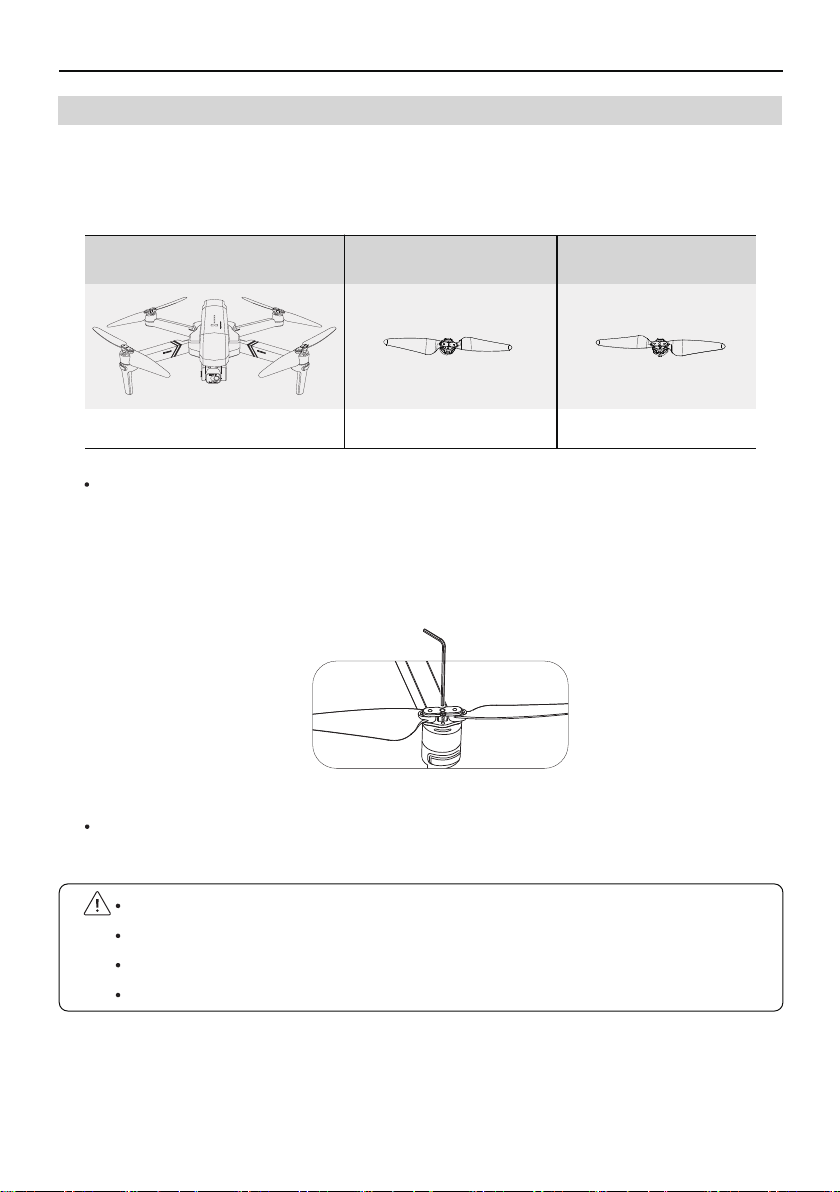
Installation location
Installed to the motor with A
mark on the arm
Installed to the motor with B
mark on the arm
Mark A Propellers Mark B
Attaching the Propellers
Taking the camera direction as the front, the left front arm and right rear arm must be
equipped with propellers marked with A; the right front arm and left rear arm must be
equipped with propellers marked with B. Use a screwdriver to install and make sure the
screws are tightened.
Detaching the Propellers
Use the screwdriver to detach the propellers from the motors.
Please use the propellers provided by Ruko, and do not mix propellers of different types.
Please check whether the propeller is installed correctly and tightly before each flight.
Before each flight, please check to make sure that the propellers are in good condition.
Make sure that the ESC emits a tone after the Aircraft is powered on.
The propellers on the adjacent motors of the F11 GIM are forward and reverse propellers. The
two propellers on the same motor are the same, and the propellers are marked with A and B
respectively. The rotation directions of the propellers with the same mark are different.
B
B
A
A
A
A
B
B
F11GIM User Manual
Copyright ©2021 Ruko All Rights Reserved. 15
3.6 Intelligent Flight Battery
Battery Features
Balance Protection: Automatically balance the internal battery cell voltage to protect
the battery.
Overcharge Protection: Overcharge will seriously damage the battery. When the battery
is full, remove the charger device in time.
Over-discharge Protection: Over-discharge will seriously damage the battery. When the
battery is not used for flight, the battery will automatically discharge to protect the
battery life.
Short Circuit Protection: When the battery detects a short circuit, the output will be cut
off to protect the battery.
Easy Charging: No need for a dedicated power adapter, just Android charger and USB
charging head.
Using the Battery
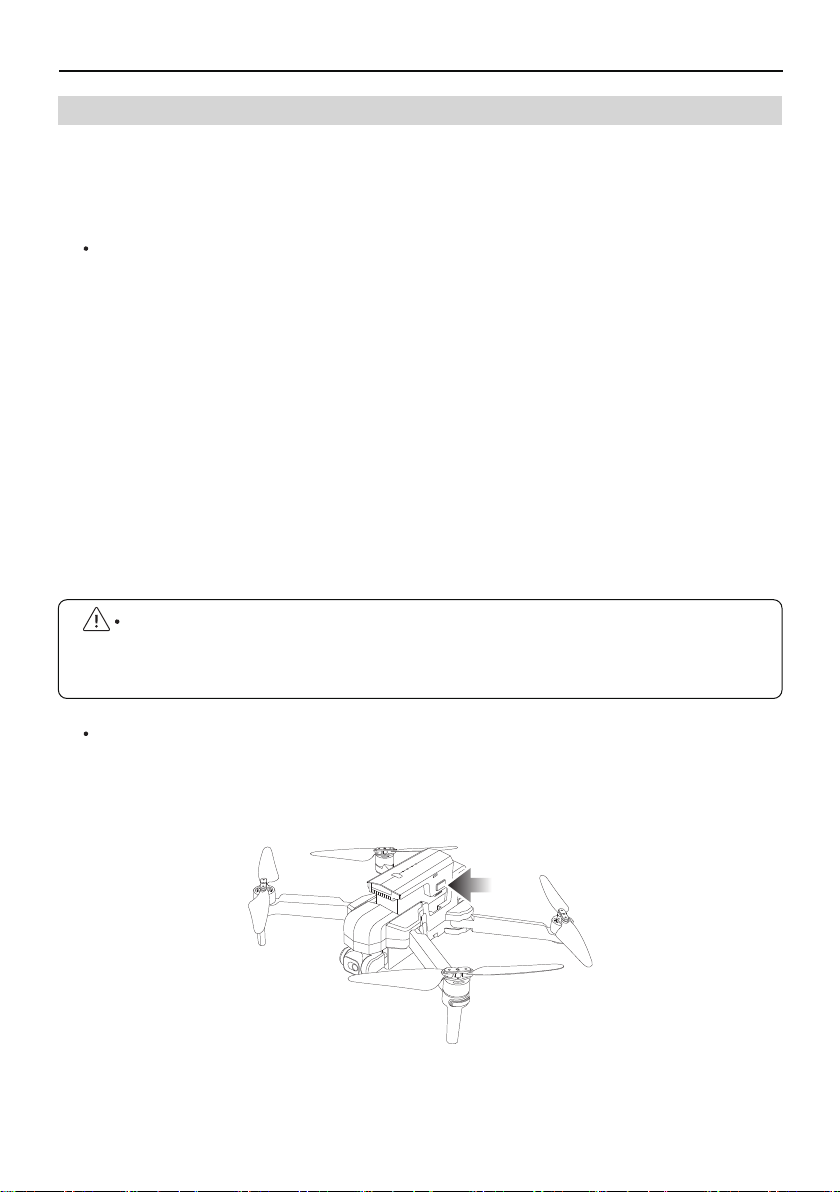
Install the Intelligent Flight Battery into the battery compartment and push it down
until you hear a "click" from the battery buckle, indicating that it pops up and locks.
Make sure the battery is in place.
To remove the battery, press the buckles on both sides of the battery and pull it out of
the battery compartment.
Please read carefully and strictly abide by Ruko's Requirements in this Manual,
Disclaimer and Safety Summary, and stickers on the battery surface before using the
battery. The user shall bear the consequences caused by failure to use it as required.
The F11 GIM intelligent flight battery has a capacity of 2500mAh, a rated voltage of 11.1 V, and
with charge and discharge management functions. This battery uses high-energy and large
-capacity batteries to increase the flight time of the Aircraft.
F11GIM User Manual
Copyright ©2021 Ruko All Rights Reserved.16
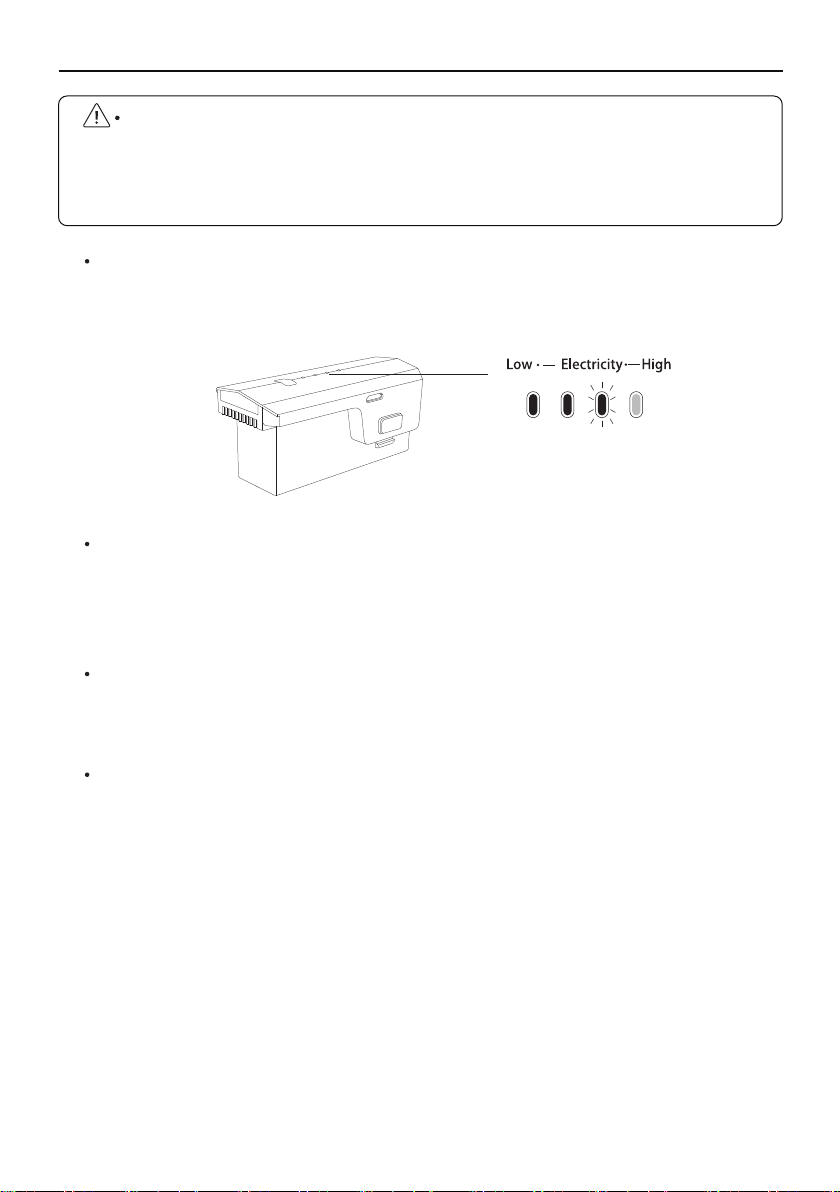
Checking Battery Level
Press and hold the power button, after the indicator light turns on to the fourth, release
the power button to check the current battery level
.
Powering On
Press and hold the power button for 3 seconds, release the power button after the
indicator light turns on to the fourth. When turned on, the power indicator shows the
current battery power.
Powering Off
Press and hold the power button for 3 seconds, release the power button after all
the indicator lights are off; after turning off, the indicator lights are all off.
Low Temperature Notice
When using the battery in a low temperature environment (0°C to 5°C), make sure
that the battery is fully charged. The discharge capacity of the battery will be
reduced when working in a low temperature environment.
In a low temperature environment, due to the battery output power limitation, the
Aircraft's wind resistance and flight performance will be reduced. Please be careful.
You need to be extra cautious when flying in low-temperature and high-altitude
environments.
Do not install the battery into the Aircraft or remove the battery from the Aircraft when
the battery power is turned on. Otherwise, the poor contact of the battery interface
during the operation may cause the battery to short-circuit and burn the Aircraft. The
battery must be installed or removed with the battery power turned off.
F11GIM User Manual
Copyright ©2021 Ruko All Rights Reserved. 17
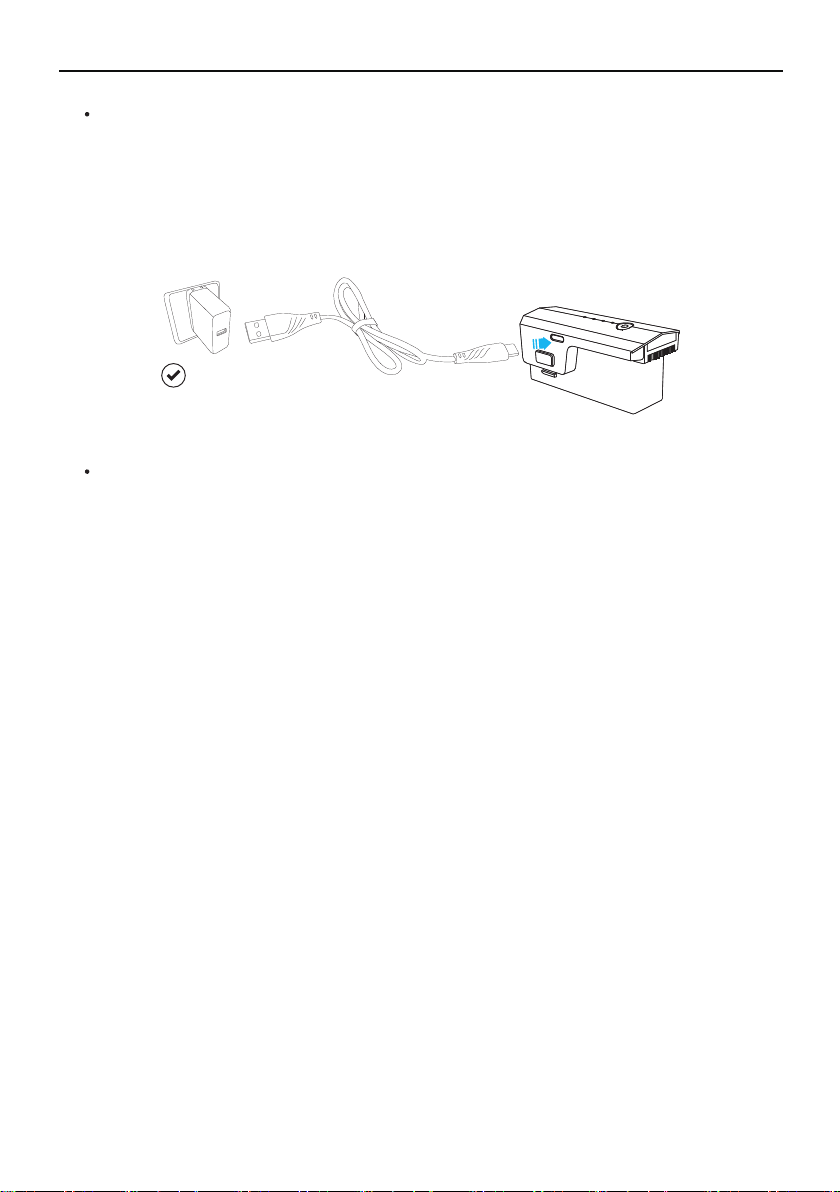
Charging the Battery
Before using the Intelligent Flight Battery, be sure to fully charge it. Please use a 5V/3A
USB charging plug. In the charging state, the battery power indicator will flash and indicate
the current charge level; when the fourth indicator light is always on, it indicates that the
charging is complete. After charging is complete, please remove the charger in time.
Daily Preservation Advice
It is recommended to charge and discharge it once a month, do not store with a full
charge, keep 50%-60% of the power, the storage temperature is 10-40°C, and the
best storage temperature is 19-21°C.
If water enters the battery and the battery protection board fails, the battery cannot
be used normally. Do not use the battery in rain or in a humid environment, as this
may cause the battery to self-ignite or even explode.
If the battery is squeezed, deformed and dropped from a high altitude, it is forbidden
to use it again.
Prolonged exposure to high temperatures is forbidden. High temperatures will cause
the internal pressure of the battery to become too high and cause an explosion.
The positive and negative poles are short-circuited for a long time (such as water
coming out of the battery contacts, short-circuit caused by foreign objects in the
hair, etc.). If it exceeds 30 minutes, the protection board IC will fail and disconnect,
and the battery cannot be used normally.
It is forbidden to use fast chargers that exceed the battery's rated power for charging.
It is recommended to use a 5V/3A charger.
If the Aircraft has not been used for a month, the battery must be removed to prevent
the battery from being discharged for a long time.
Original charging cable
USB Adapter
≤15W
(5V/3.0A)
F11GIM User Manual
Copyright ©2021 Ruko All Rights Reserved.
18
3.7 Camera Overview
Camera overview
The camera uses an upgraded 5GHz Wi-Fi FPV real-time
transmission function, equipped with 2-Axis Gimbal 4K
EIS , 100°FOV lens and a 80° adjustable camera, which
can stably shoot 4K ultra-clear videos and images,
providing you with a broad field of vision for unforgettable moments.
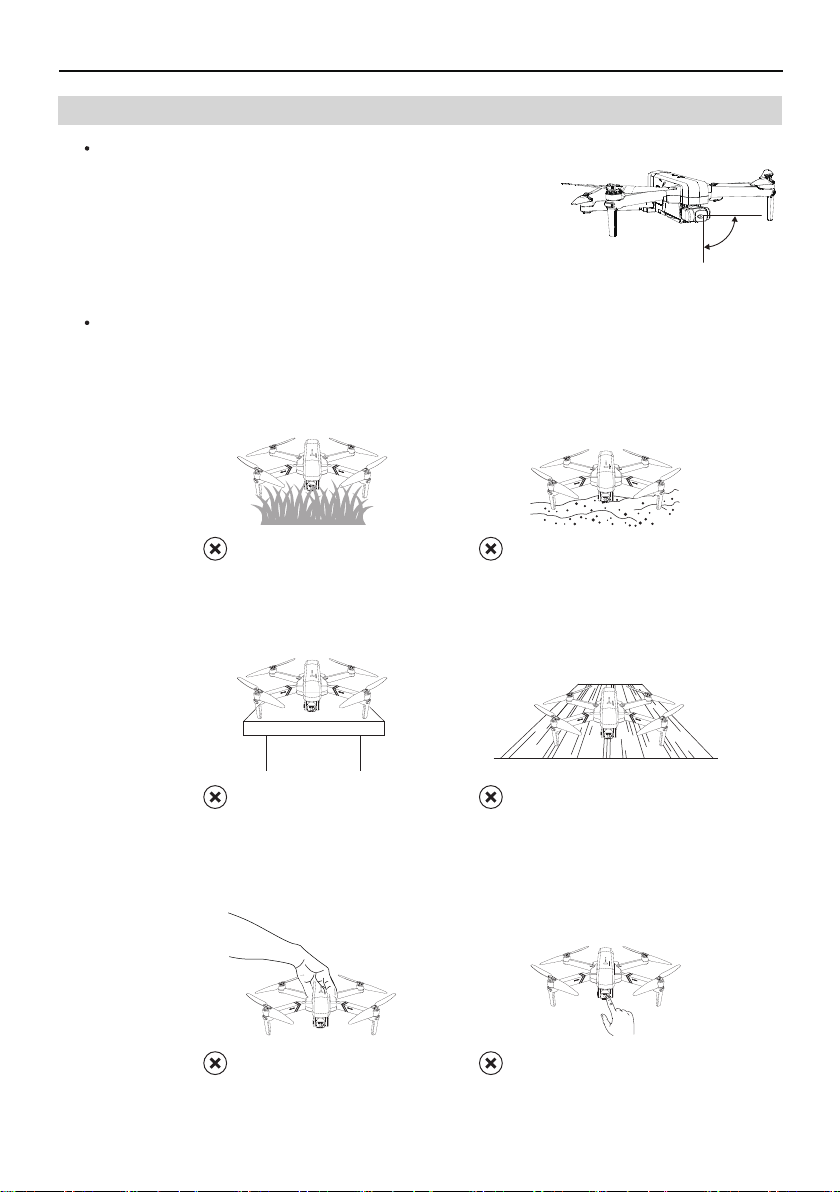
Camera Guideline
Please take off the gimbal camera cover before flight.
When taking off from grass or sand, please place the aircraft on the landing pad or
cardboard to keep it level.
Do not turn on the aircraft when it is on desk or hollow wooden floor. They will amplify the
small vibrations into high-frequency vibrations, which will cause the gimbal cannot work.
Do not interfere with the gimbal by external forces or pick up the aircraft during calibration.
Otherwise, the gimbal will stop to work.
①
②
③
④
On the sand
On the grass
On the hollow wooden floor
On the desk
Picking up the Aircraft
(during self-inspection)
Touching the camera
0°
-80°
F11GIM User Manual
Copyright ©2021 Ruko All Rights Reserved. 19
Do not place the Aircraft on rough ground and turn it on, coz the camera will adjust up
and down for self-calibration, please place it on a horizontal position to make sure there is
enough gap under the camera, otherwise the camera would be stuck.
If the camera is stuck, please place the aircraft on horizontal position without obstacles
and restart the Aircraft. then check if it can make self-calibration, or make gyroscope
calibration to check camera self-calibration.
If not, turn off the Aircraft, then move the camera up and down by hand. If still stuck,
please contact us for technical support.
The Gimbal cannot work during the compass and Gyro calibration. Put the Aircraft on a level
surface after calibration, then the gimbal will start to work after 20 seconds.
⑥
⑦
⑧
Storing Photos and Videos
F11 GIM is equipped with a micro SD card slot for storage space expansion.
Card speed: 10M/s;
⑤
Before Start
During Compass and Gyro calibration
Put on a level surface and wait for 20 seconds
Copyright ©2021 Ruko All Rights Reserved.
20
4.1 Transmitter Profile
F11 GIM Transmitter uses the 2.4 GHz frequency band, and the Transmitter distance is up to
4000FT (unobstructed and interference-free environment). The foldable handle can stably
place the mobile device, and the maximum adjustable width is 3.1 inches.
Transmitter built-in 300mAh capacity battery, charging time is 40 minutes, the longest
working time is about 10 hours.
4.2 Using the Transmitter
Press the power button once to turn on the Transmitter.
Short press and then long press the button to turn the Transmitter off. If the battery level
is too low, charge before use.
4 Transmitter
F11GIM User Manual
Check whether the capacity of the memory card is sufficient. If the capacity of the
memory card is insufficient, videos and pictures cannot be stored.
If you cannot save pictures or videos, try formatting the memory card.
Do not insert or remove the micro SD card when the Aircraft is turned on. Plugging or
unplugging the micro SD card or removing the battery while the power is on during
recording may cause damage to the micro SD card and loss of stored data.
You must turn on the Aircraft and connect to the Aircraft WiFi to copy or download the
photos or videos stored in the Aircraft memory card to the phone.
File format: support FAT32 format;
Memory capacity: a memory card with a memory capacity of 128G or less.
The phone and the memory card store photos and videos at the same time. If you want a
clearer video, please download the video files in the memory card.
F11GIM User Manual
Controlling the Camera
Copyright ©2021 Ruko All Rights Reserved. 21
Camera Zoom
Shutter Button
Camera Angle
Record Button
Camera Zoom: Rotate the left wheel to adjust the camera zoom in and out.
Camera Angle: Rotate the right wheel to adjust the camera lens to downwards and upwards.
Shutter Button: Press once to take a picture.
Record Button: Press once to start recording, and press again to stop recording.
Charging the Battery
Connect the Transmitter Micro USB interface to the charger for charging. It is forbidden to
use fast chargers that exceed the rated power of the battery. It is recommended to use
5V/3A chargers, do not use more than 5V/3A chargers.
Transmitter's light description
Green light on: Charging is complete
The Transmitter cannot be turned on during charging, and the Transmitter can be turned
on after unplugging the charging cable.
Charging indicator
Red light on: Charging
F11GIM User Manual
Copyright ©2021 Ruko All Rights Reserved.
22
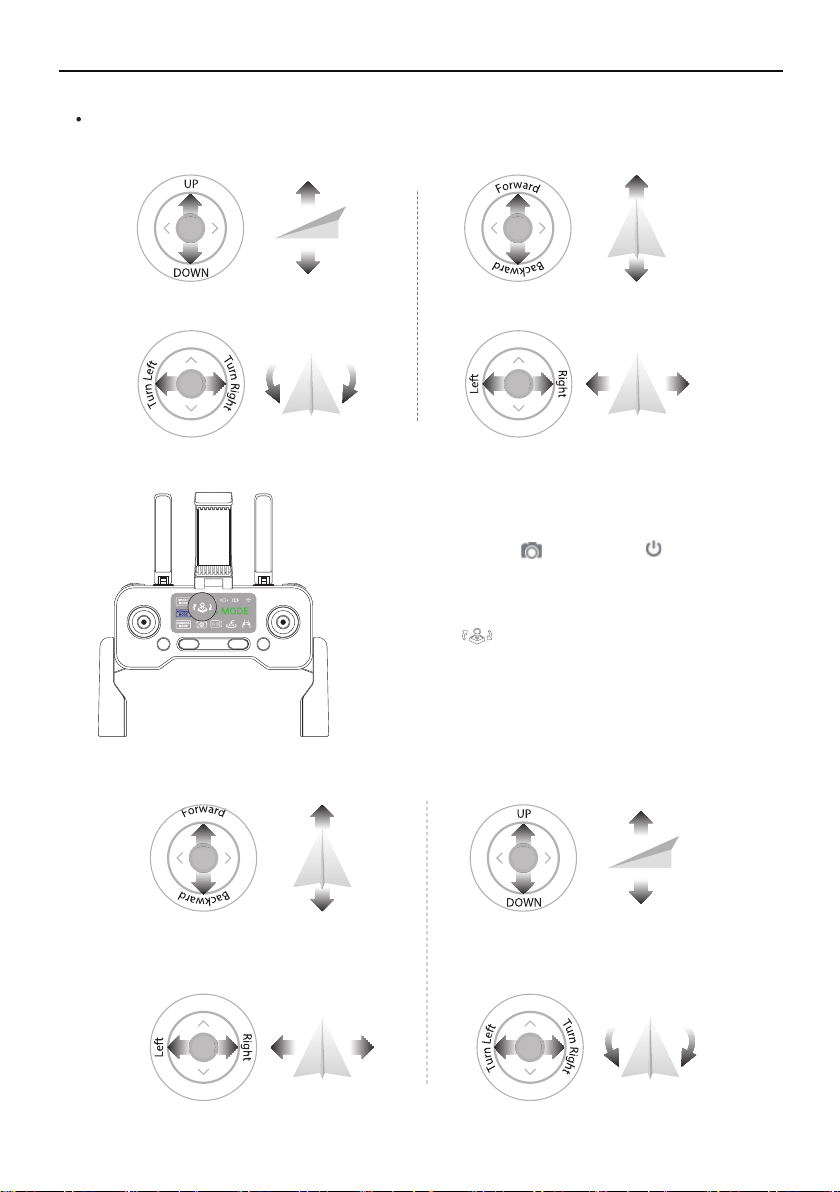
Switch Remote Controller Stick Mode-Mode 2:
②
Joystick Control Aircraft
Remote Controller Stick Mode-Mode 1 (Default Mode):
①
Right stick
Throttle Joystick
Left Joystick
Direction Joystick
(In Mode 1, indicator will be blue; In Mode 2, it will
be trun off)
Power off the remote control.
Keep pressing the , clicking the once.
Note: Once restart, the controller will back to default
mode - Mode 1.
F11GIM User Manual
Copyright ©2021 Ruko All Rights Reserved. 23
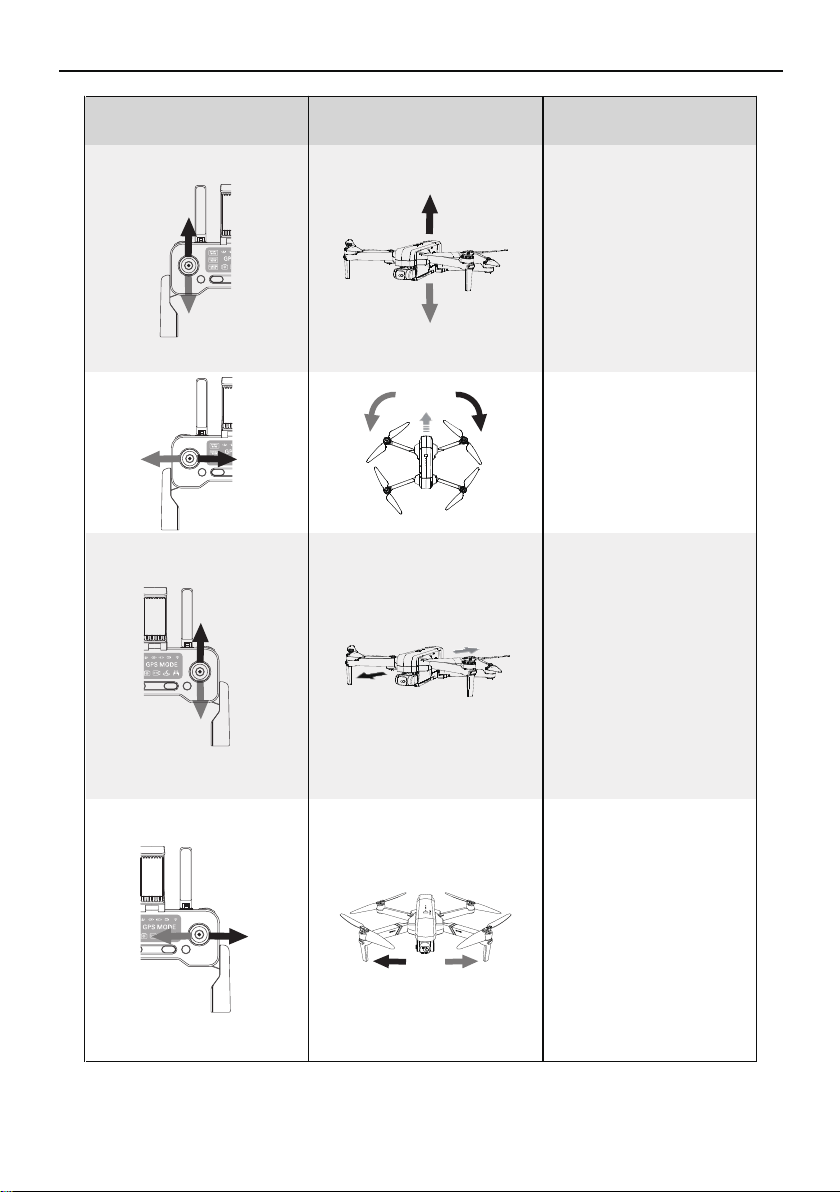
Aircraft DirectionTransmitter (Defalut Mode)
Remarks
Push up/down the throttle stick to
control the aircraft up and down.
Push up and the Aircraft rises. Pull
down the lever and the Aircraft
lowers. When released, the
joystick is in the middle position
and the Aircraft remains hovering.
When the aircraft takes off, the
throttle lever must be pushed up
and the aircraft takes off off the
ground (please push the stick
slowly to prevent the aircraft from
suddenly rush up).
Push up/down the direction bar to
control the aircraft to fly back and
forth.
Push the stick up and the Aircraft
leans forward and flies forward.
Pull down the lever, the Aircraft
tilts backwards and flies
backwards. The aircraft's front
and rear directions remain level in
the neutral position. The joystick
offset corresponds to the angle of
the Aircraft's front and rear tilt.
The greater the offset, the greater
the tilt angle and the faster the
flight speed.
Push the throttle stick left/right to
control the aircraft heading.
Push the stick to the left and the
Aircraft will rotate counterclock-
wise. Push the stick to the right
and the Aircraft rotates clockwise.
In the neutral position, the angular
velocity of rotation is zero, and the
Aircraft does not rotate.
Push the direction stick left/right
to control the aircraft to fly left
and right.
Hit the stick to the left, the
Aircraft tilts to the left and flies to
the left. Hit the stick to the right,
the Aircraft tilts to the right and
flies to the right. The left and right
directions of the Aircraft remain
horizontal in the middle position.
The joystick offset corresponds to
the angle of the Aircraft left and
right tilt. The greater the offset,
the greater the tilt angle and the
faster the flight speed.
F11GIM User Manual
4.3 Communication Range of Transmitter
Copyright ©2021 Ruko All Rights Reserved.24
The forward direction of the Aircraft is based on the direction of the nose.
Smart RTH Button
Tap the smart RTH button on the Transmitter, and the Aircraft will activate the automatic
return home function. Tap it again to exit the smart return home. The aircraft is hovering
in the mid-air of the return home. At this time, you can operate the joystick to control
the Aircraft.
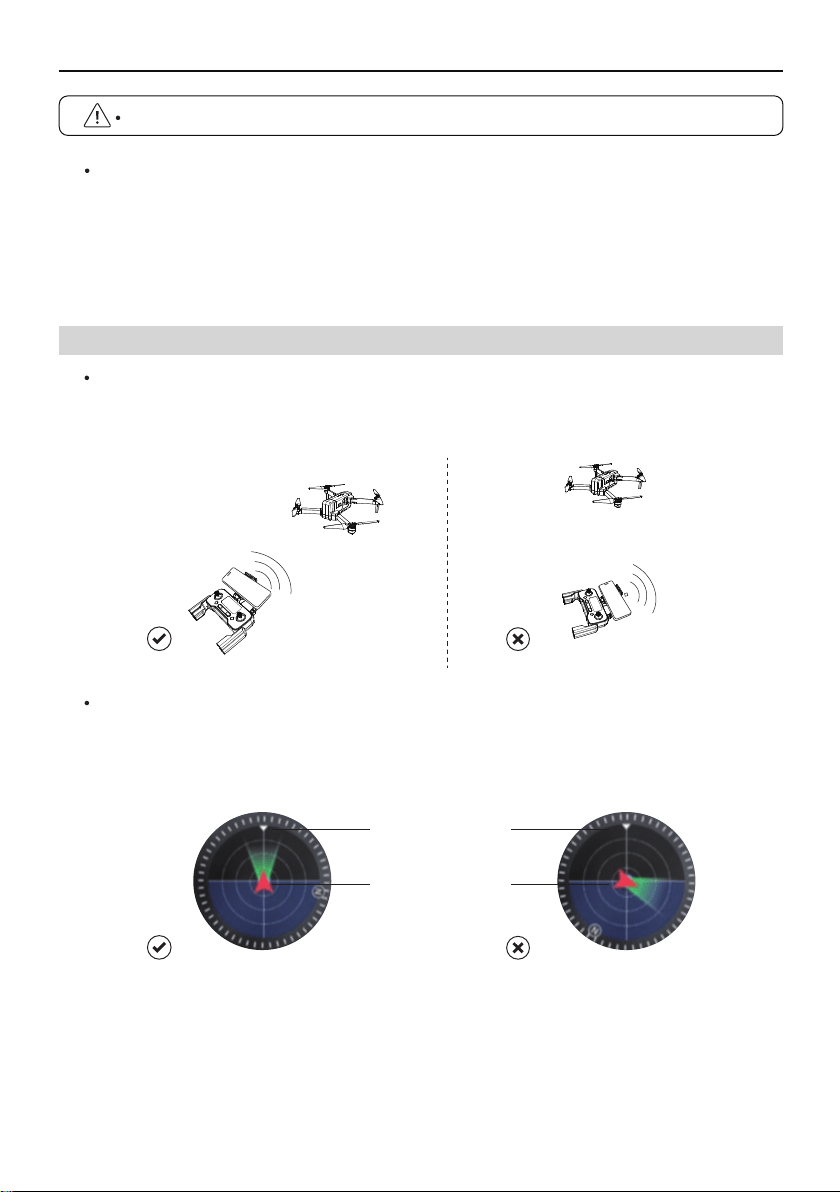
When controlling the Aircraft, the position and distance between the Transmitter and the
Aircraft should be adjusted in time, and the antenna position should be adjusted to ensure
that the Aircraft is always within the best communication range.
Install the mobile phone into the Transmitter bracket, refer to the aircraft flight direction
of the Attitude Indicator in the app, and the Attitude Indicator points straight ahead
(perpendicular to the coordinates), indicating that the Transmitter is facing the Aircraft.
Aircraft
orientation
Remote controller
position
F11GIM User Manual
Copyright ©2021 Ruko All Rights Reserved.
25
4.4 Linking the Transmitter
5.1 Home
After running RUKO DRONE App, enter the homepage.
5 Ruko Drone App
If the connection is successfully, the Aircraft light will turn pink.
Before each flight, check the power of the Transmitter. The Transmitter will "beep" when
the battery is low. The Transmitter will automatically shut down after 10 minutes of
inactivity. Toggle the joystick or press any button to restore the Transmitter to its normal
working state.
When using the Transmitter handle to hold a mobile device, be sure to press it firmly to
prevent the mobile device from slipping off.
Keep the battery at around 3.8-3.9V, and recharge it every 1 month or so to keep the
battery active.
Before each aircraft flight, you need to link with the Transmitter. After the linking is successful,
you can control the flight of the Aircraft. The steps for the pairing are as follows:
• Turn on Aircraft
• Turn on Transmitter
• Flick the left stick of Transmitter up and down, and after the Aircraft emits a beep, it means
the linking is successful.
• Connect your mobile phone to Aircraft’s WiFi "RUKO-GIM-******", tap the app to enter the
control interface; the mobile phone screen displays information such as the Transmitter’s
battery signal and camera screen.
F11 GIM
F11GIM User Manual
②
Copyright ©2021 Ruko All Rights Reserved.26
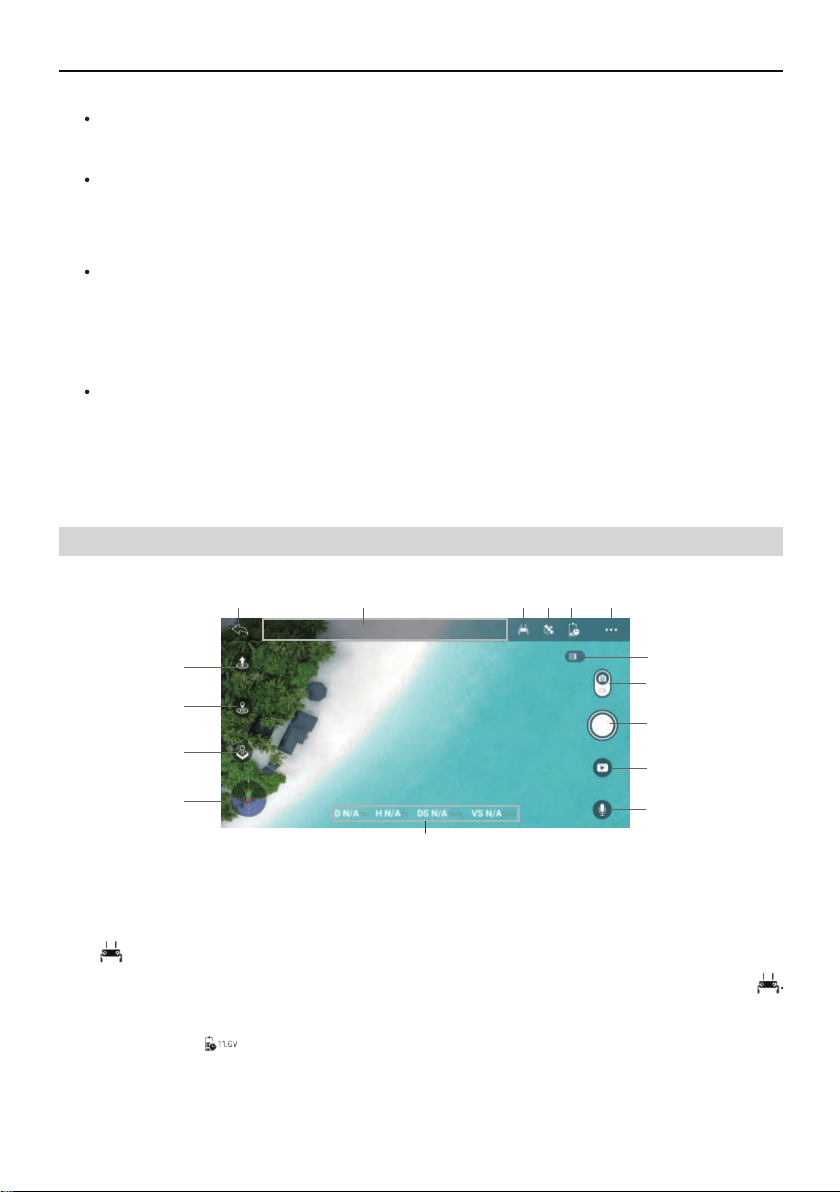
5.2 Camera View
CONTROLS
Operate the Aircraft through the app page buttons to realize the functions of the Aircraft.
Flight Log
Long press the blank space of the app home page and choose the date to share the flight
log.
LEARN TO FLY
Click to enter the flight YouTube video website, where you can view the flight guidance of
the corresponding product.
GUIDE
Click to view Help manual, Instructions videos and Quick Start.
Long press the position of the non-function icon on the app homepage to enter the flight
log interface, and click the file to share and send.
Transmitter Battery Display
When the mobile phone is not connected to the Aircraft’s WiFi, this icon is Transmitter .
After the mobile phone is connected to the Aircraft’s WiFi, this icon is the Transmitter real
-time voltage .
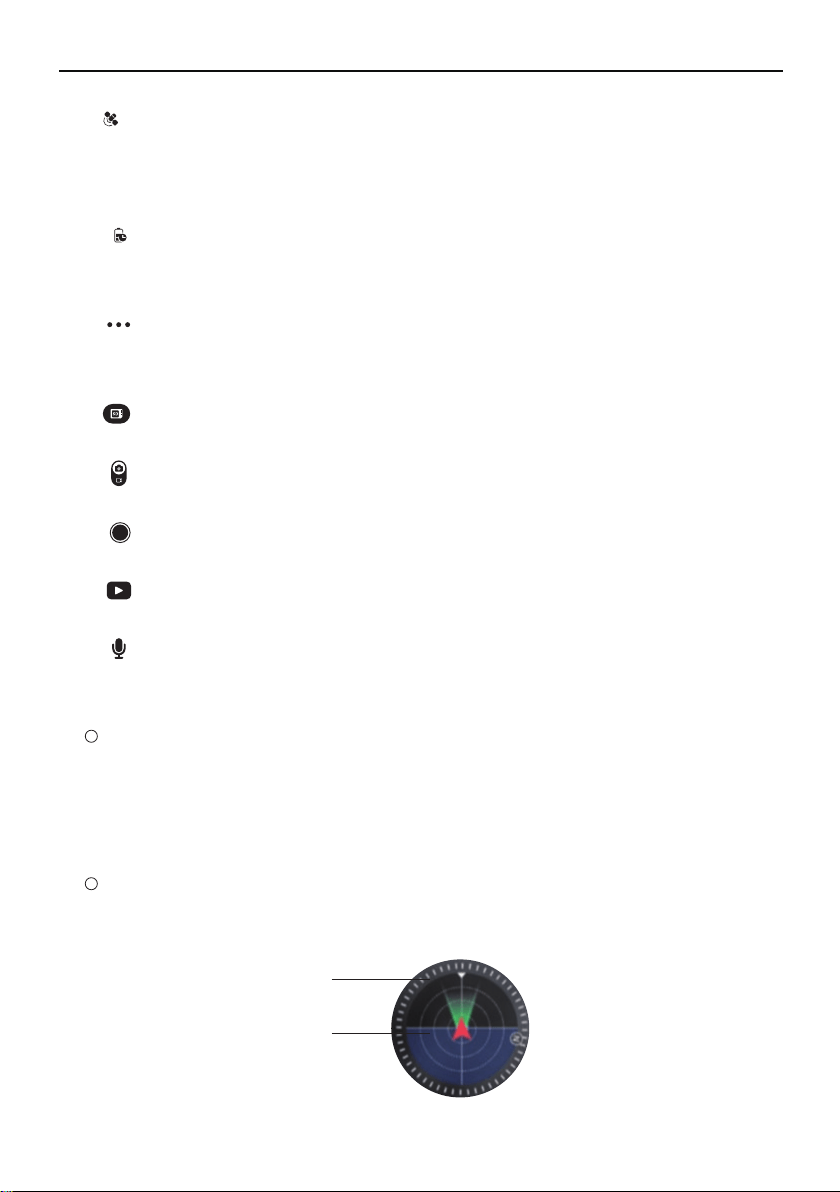
①
Aircraft Status Indicator Bar
In flight: Display the flight status of the Aircraft and various warning information.
1 2 3 4 5
6
7
8
9
10
11
12
13
15
14
16
12
11
F11GIM User Manual
Copyright ©2021 Ruko All Rights Reserved. 27
③
GPS Status
Used to display the GPS signal strength, 3 bars indicate that the GPS signal meets the
flight requirements, 1 or 2 bars indicate that the GPS signal is weak, and the flight position
needs to be changed.
④
Intelligent Flight Battery Information Bar
Display the current intelligent flight battery power and voltage, and the power progress
bar displays.
⑤
System Settings
System settings include flight range settings, data recording, English and metric unit
switching, route display, reminder information and voice prompt settings.
⑥
SD Card
Check the SD card capacity and formatting.
⑦
Shooting Mode
Choose to take a picture or record a video.
⑧
Shutter / Record Button
Tap to start shooting photos or recording video.
⑨
Playback
Tap to enter playback and preview photos and videos as soon as they are captured.
Recording
Tap this button to trigger the mobile phone end of the app to start/stop recording the
voice.
⑩
Flight Status Parameters
D N/A: Flying distance
H N/A: Flying height
DS N/A: Flying speed
VS N/A: Ascent/decrease speed
Attitude Indicator
Display information of the orientation of the aircraft, and position of the
Transmitter .
Aircraft
orientation
Remote controller
position
Back
Tap to return to the home screen.
17
16
15
14
13
F11GIM User Manual
Copyright ©2021 Ruko All Rights Reserved.28
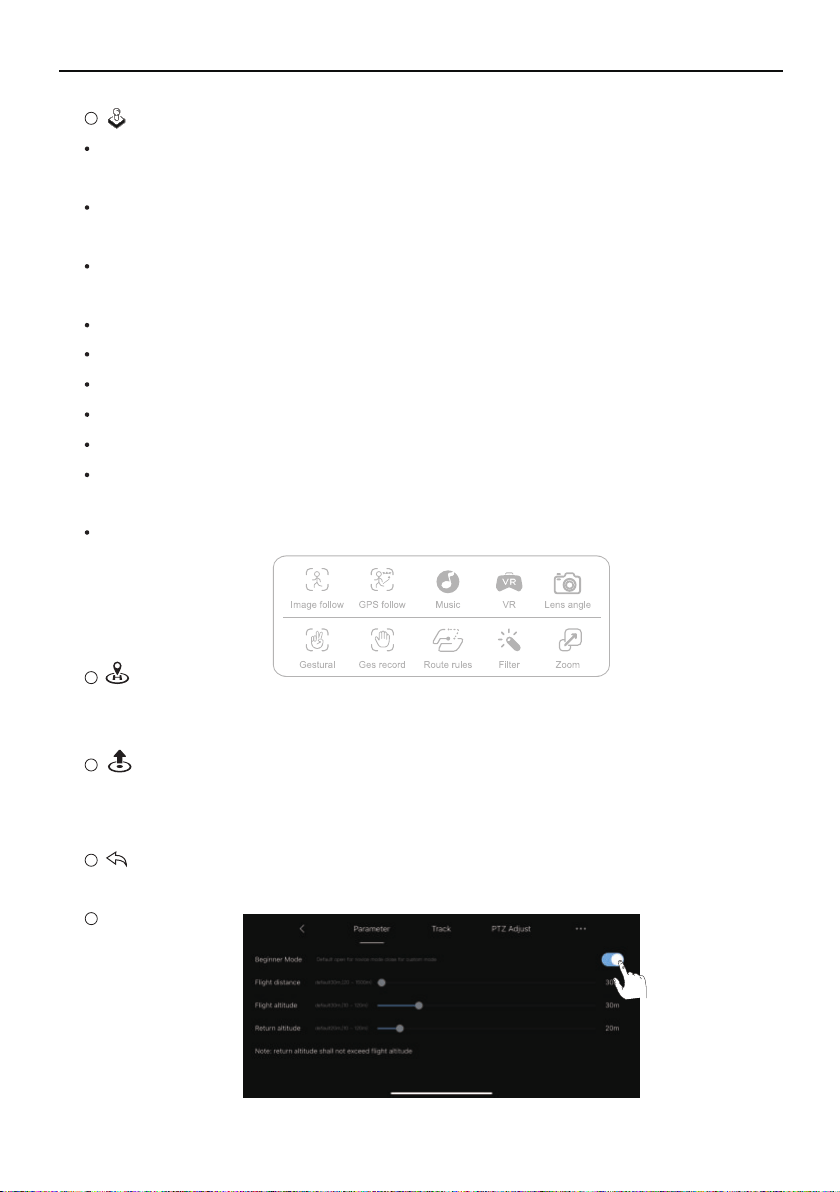
More Features
Image Follow: Tap the Image follow function, aircraft will follow the object's in circle
movement.
GPS Follow: Tap to start the follow me function, the Aircraft will use the GPS in the
smartphone to follow you.
Music: Add music to the video. Click to enter the music page, select the page and enter
the video shooting.
VR split screen: Click this button to use the VR glasses function.
Lens Angle: Click this button to adjust the camera lens to downwards and upwards.
Zoom: Click the button to use the zoom function, up to 5 times zoom.
Gesture to take photos: Tap this icon to use gestures to control Aircraft to take photos.
Gesture recording: Tap this icon to use gestures to control Aircraft recording.
Route planning: Click the change icon to enter the map, select a waypoint on the map,
and the Aircraft will follow the waypoint to fly. Up to 16 waypoints can be set.
Filter: Tap to select a different filter mode to take photos or videos.
Auto Takeoff / Landing
Click to expand the control panel, long press to make the Aircraft take off or land
automatically.
RTH
Tap to initiate Smart RTH and have the aircraft return to the last recorded Home
Point and turn off the motors.
Parameter
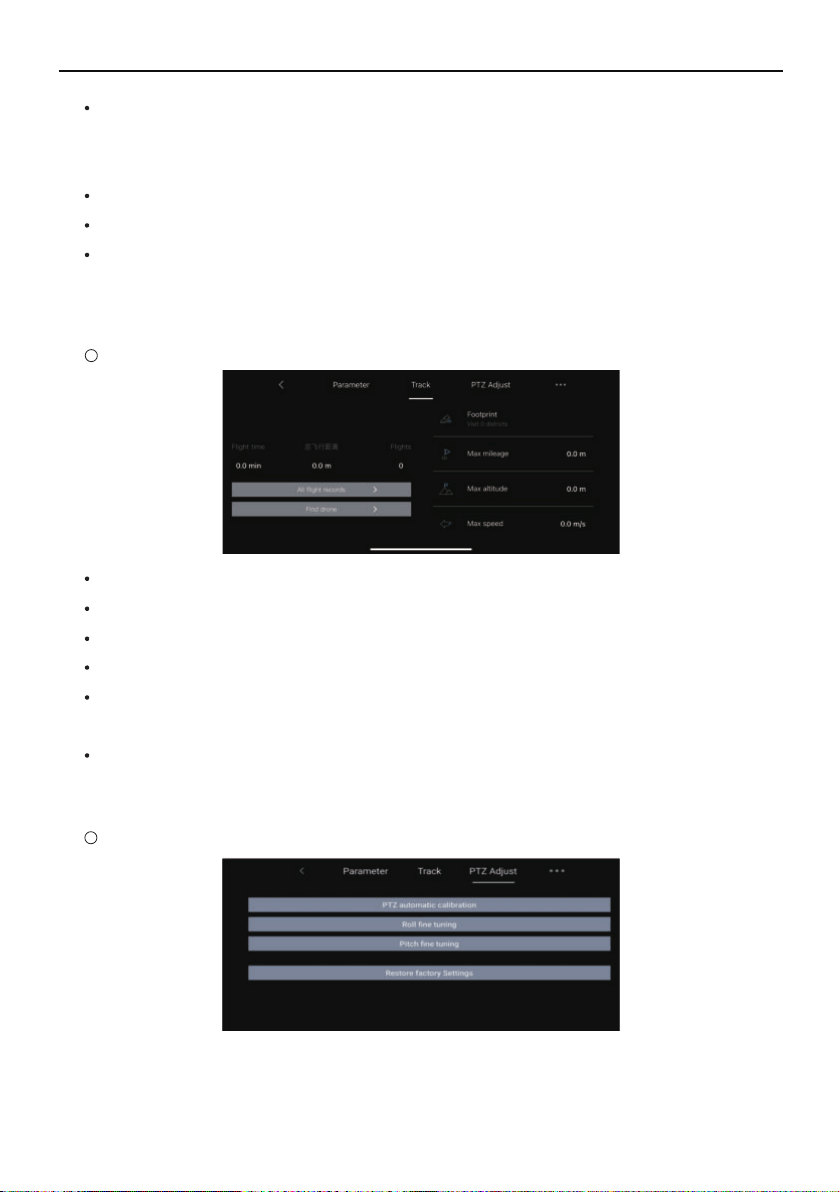
Footprint: The total number of aircraft flying areas.
Longest mileage: The longest mileage for a single flight.
Maximum altitude: The highest single flight altitude.
Maximum speed: The fastest single flight speed.
All flight records: The date, location, distance, duration and maximum altitude of
each flight.
Find Drone: When the drone has connected with app,and drone GPS signal is strong,
the drone's location can be recorded in the app.
Access to "PTZ adjust",click "Restore factory settings",the gimbal will back to
factory setting.
19
18
F11GIM User Manual
Copyright ©2021 Ruko All Rights Reserved. 29
Beginner mode: In this mode, the aircraft’s farthest flight distance and altitude is 98ft, and
the return altitude is 65ft, so that the aircraft can fly more safely within sight. Slide to
closing the beginner mode as the above picture and then enter the custom mode.
Flight distance: Set the longest distance to fly.
Flight altitude: Set the maximum flight altitude.
Return altitude: Set the flight altitude for the aircraft to return in a straight line
using the RTH function. When setting the flight altitude, you should consider higher
than the obstacles on the return route to avoid collision with the aircraft.
Track
PTZ Adjust
20
After the installation preparation is complete, please conduct flight training or training first.
It is recommended to conduct training in the beginner mode. Please choose a suitable flight
environment when flying. The flying altitude is limited to 393ft, and the local laws and
regulations must be strictly observed during flight. Please be sure to read the F11GIM
Disclaimer and Safety Summary, and understand the safety precautions before flying.
6.1 Flight Environment Requirements
6 Flight
F11GIM User Manual
Before using the RUKO DRONE App, make sure that the phone has sufficient power.
When you use the RUKO DRONE App on your mobile phone, please focus on controlling
the Aircraft. Do not answer incoming calls, send and receive text messages or use other
mobile phone functions during the flight.
The map used in the map interface needs to be downloaded from the Internet. Before
using this function, do not connect to the Aircraft WiFi, and connect the mobile device to
the Internet to cache the map.
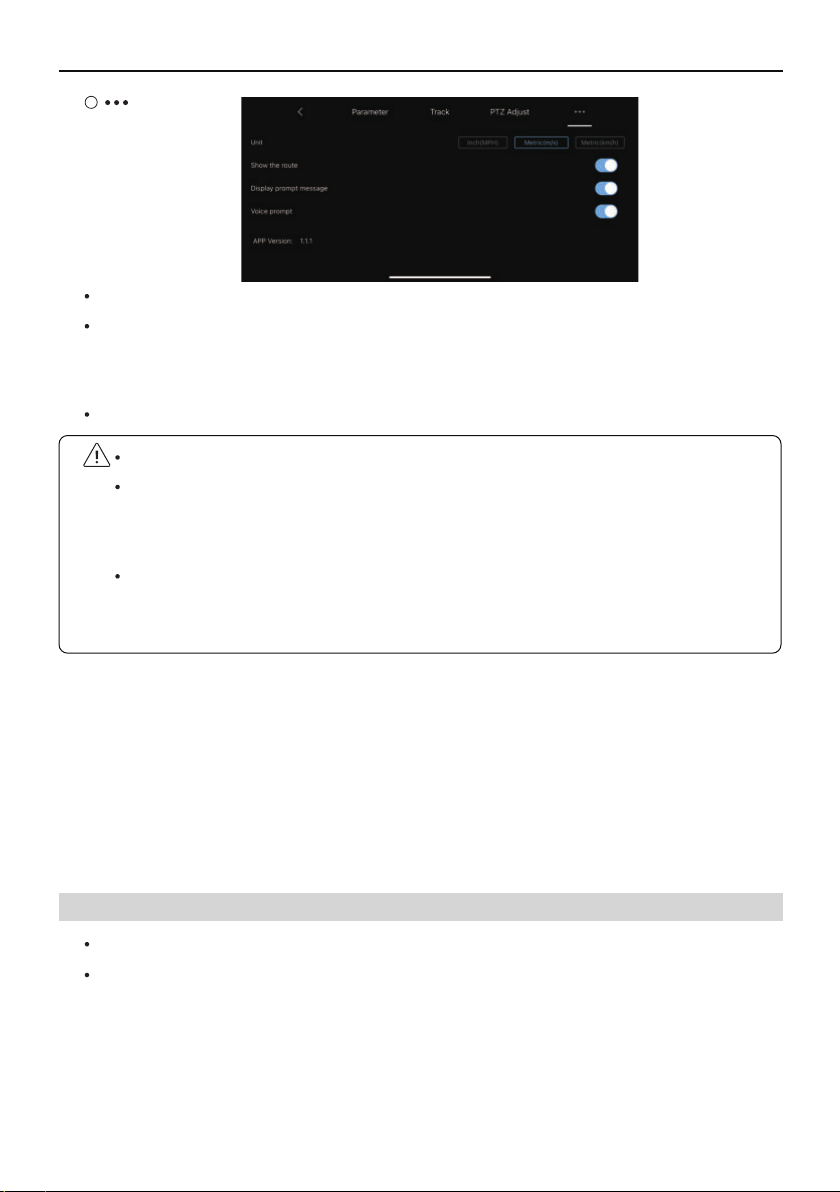
Unit: Switch between metric and imperial measurement units.
Show route: Turn on or off all flight records of map tracks in the track menu.
Display prompt message: Turn on or off the Aircraft status prompt message in the
APP.
Voice prompt: Turn on or off the aircraft status voice prompt of the app.
Do not fly in severe weather such as strong wind, snow, rain, and fog.
Choose an open place with no obstructions around as the flying field. The compass and GPS
signals on the Aircraft will be interfered by buildings, mountains, and trees. It is recommended
to fly in an open space with a diameter of 32 ft without interference. It is recommended
that the flight altitude be greater than 49 ft to avoid ground obstacles and other signal
interference from the ground.
Copyright ©2021 Ruko All Rights Reserved.30

F11GIM User Manual
Copyright ©2021 Ruko All Rights Reserved.
31
Aircraft needs to carry out a series of calibration work before flying, the main purpose is to
avoid the accident that the aircraft loses control and crashes caused by the inaccurate GPS
signal during the flight.
6.2 Pre-Flight Checklist
Whether the Transmitter, Intelligent Flight Battery, and mobile device are fully charged.
Make sure that the Aircraft arms are fully extended. Make sure that the battery compartment
cover is fastened firmly and the intelligent flight battery is installed firmly.
Ensure that the propeller is free from damage, aging, deformation, no foreign matter
entanglement, and secure installation.
Please make sure that GPS is turned on to avoid that it would be lost please fly outdoor in
an open place.
Whether the 4 motors can start normally after power-on, and whether the rotation speeds
are consistent.
Connect drone WiFi with your phone, make sure that you have connected the WIFI name.
"RUKO-GIM-******" exactly after app access right and Internets permission with your phone.
Make sure the camera is clean.
If you need to replace parts, be sure to use original parts. The use of non-original accessories
may cause danger to the safe use of the Aircraft.
For details on accessory support, please refer to the accessory support page in the appendix
of the user manual.
6.3 Calibration Before Flight
When flying, keep in sight and control, and stay away from obstacles, crowds, etc. When
flying on the water surface, please be more than 9 ft above the water surface.
The Transmitter may be interfered by high-voltage lines, communication base stations or
transmission towers. Please fly away from these areas.
Please fly below 6561 ft above sea level to ensure that the Air pressure setting function of
the Aircraft can work normally.
When GPS is active, the Aircraft can achieve stable hovering, intelligent return to home,
and intelligent flight functions. When the GPS function fails, these functions cannot be
implemented. The Aircraft will be unable to hover, drifting away in the direction of the wind.
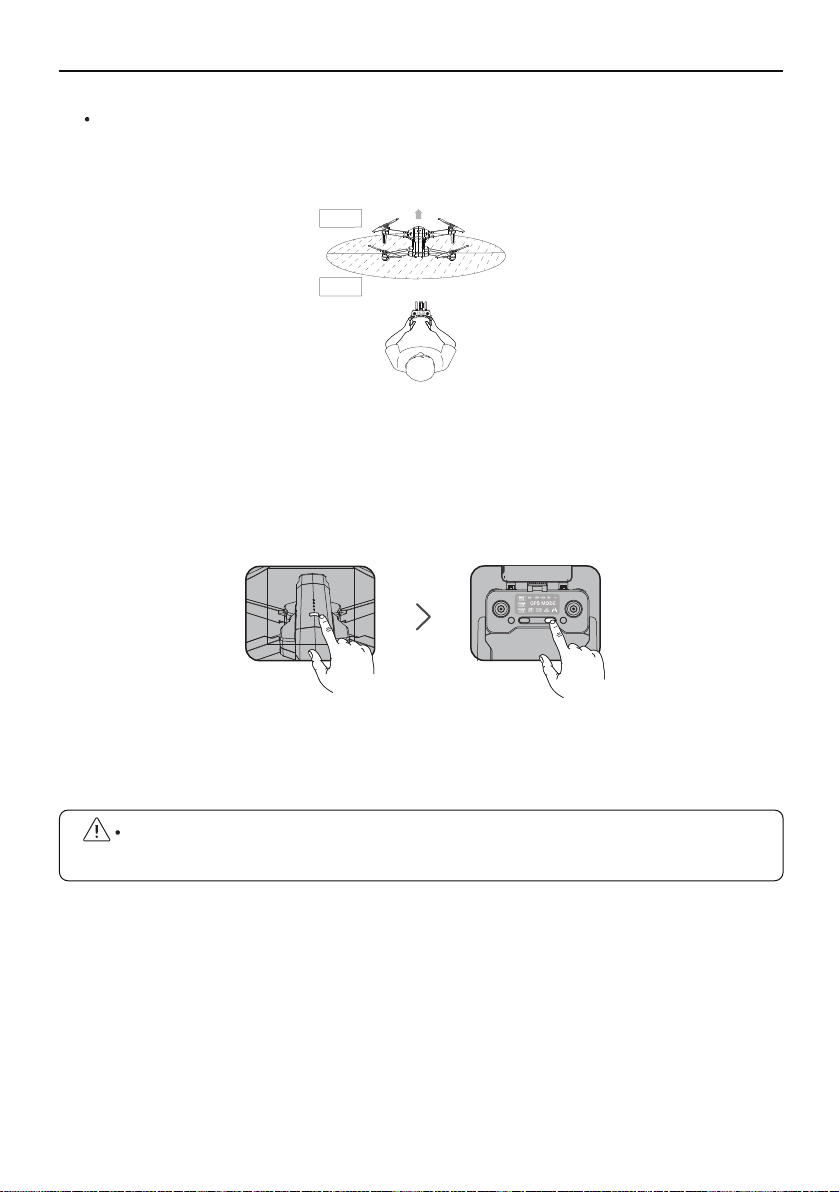
Long press the power button of Aircraft, the motor light will be on and you will hear
a beeping sound, indicating that the Aircraft has been turned on;
Short press the Transmitter power button once to turn on the Transmitter switch;
Aircraft and Transmitter connects successfully, all lights flashing white and blue then
turn to flashing white and pink.
F11GIM User Manual
Copyright ©2021 Ruko All Rights Reserved.32
Match the Aircraft with the transmitter and mobile phone
Take off the gimbal cover and unfold the four arms of the Aircraft , then place them
on an open level ground with the nose facing forward and the tail facing the pilot.
①
②
④
An open space with a diameter of 32 ft and no interferences.
d
>32ft
Front
B
ack
Please make sure turn on the Aircraft firstly and then the transmitter. Otherwise, they
will not pair successfully.
③
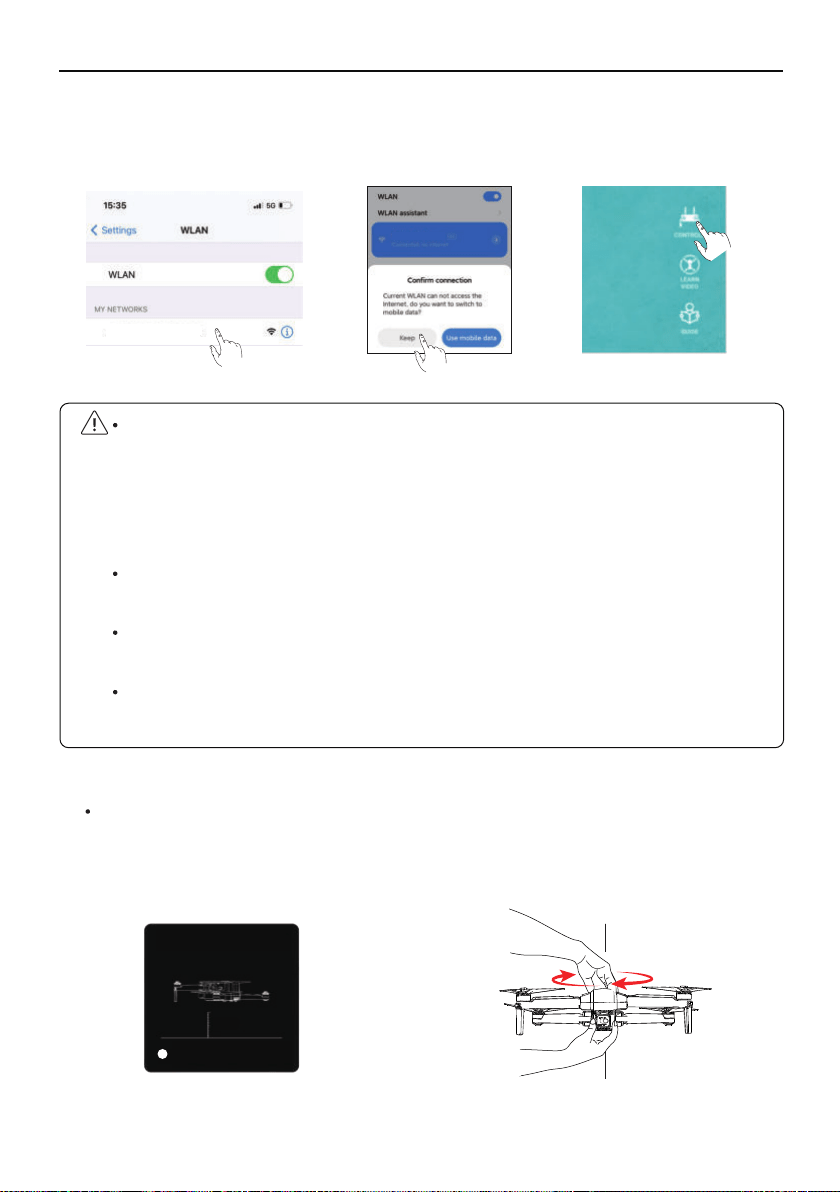
At this time, you need to follow the prompts to pick up the Aircraft at a distance of 3.28
ft from the ground and rotate the Aircraft horizontally for 1-2 laps until the app interface prompts
to enter the vertical calibration.
F11GIM User Manual
Copyright ©2021 Ruko All Rights Reserved. 33
①
Connect the mobile phone to Aircraft's WiFi (name: RUKO-GIM-****** ), click on the app to
enter the control interface
.
⑤
Calibrate the compass
When the Android phone is connected to Aircraft WiFi (named RUKO-GIM-******), as the
Aircraft WiFi has no network, wait for about 10-40 seconds on the phone Wifi setting
page, the phone will pop up the network setting option to ask whether to continue to
connect to Aircraft wifi, please set it continue to use Aircraft wifi, so as not to cause the
APP to be unable to see the image transmission screen.
Please turn off the VPN switch of the phone to avoid the app not being able to see the
image transmission screen.
If the mobile phone is set to priority on internet speed and the app cannot see the image
transmission screen, please set the mobile phone to airplane mode and try.
Aircraft image transmission WiFi is 5.8G, mobile phone WLAN function must be
supported; dual-band WiFi, 2.4G+5.8G, can be applied.
GeomagneticHor Calibration
Plaese place the aircraft 1 meter high
on the groud and rotate it
horizontally for 2-3times .
3.28ft
1
RUKO-GIM-******
RUKO-GIM-******
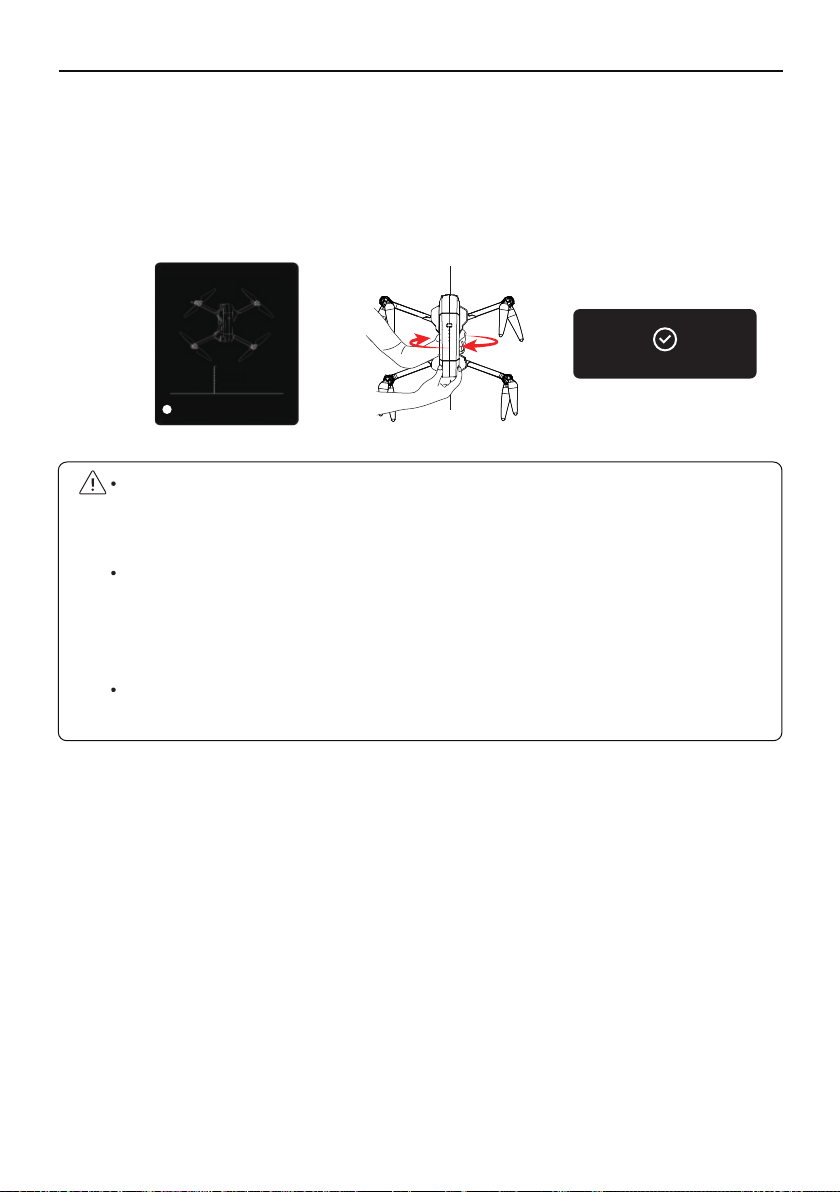
Pick up the Aircraft at a distance of 3.28 ft from the ground, and rotate the Aircraft 1-2 laps
vertically with the camera facing upwards until the prompt of vertical calibration on the app
interface disappears. After the compass calibration is completed, place the Aircraft on a level
ground. At this time, the front arm of the Aircraft has a white light and the rear arm has a blue
light, and the app prompts that the compass calibration is complete.
F11GIM User Manual
Copyright ©2021 Ruko All Rights Reserved.34
②
The aircraft must be calibrated with the compass every time it is turned on before it can
take off. After the aircraft is turned on and the frequency is turned on, the aircraft can be
calibrated in steps ① and ②.
When the Aircraft is flying in a circle or out of control in a complex environment, the
aircraft compass calibration is not standard or interfered. Please land the Aircraft
manually in time to manually calibrate the Aircraft (refer to the first step of calibrating
the compass).
When calibrating the Aircraft, please open the arm to avoid the influence of the magnetic
field of the motor.
GeomagneticHor Calibration
Please place the airctaft 1 meter high on
the ground, nose up, and rorate it 2-3
times.
3.28ft
2
Geocalibration finished!
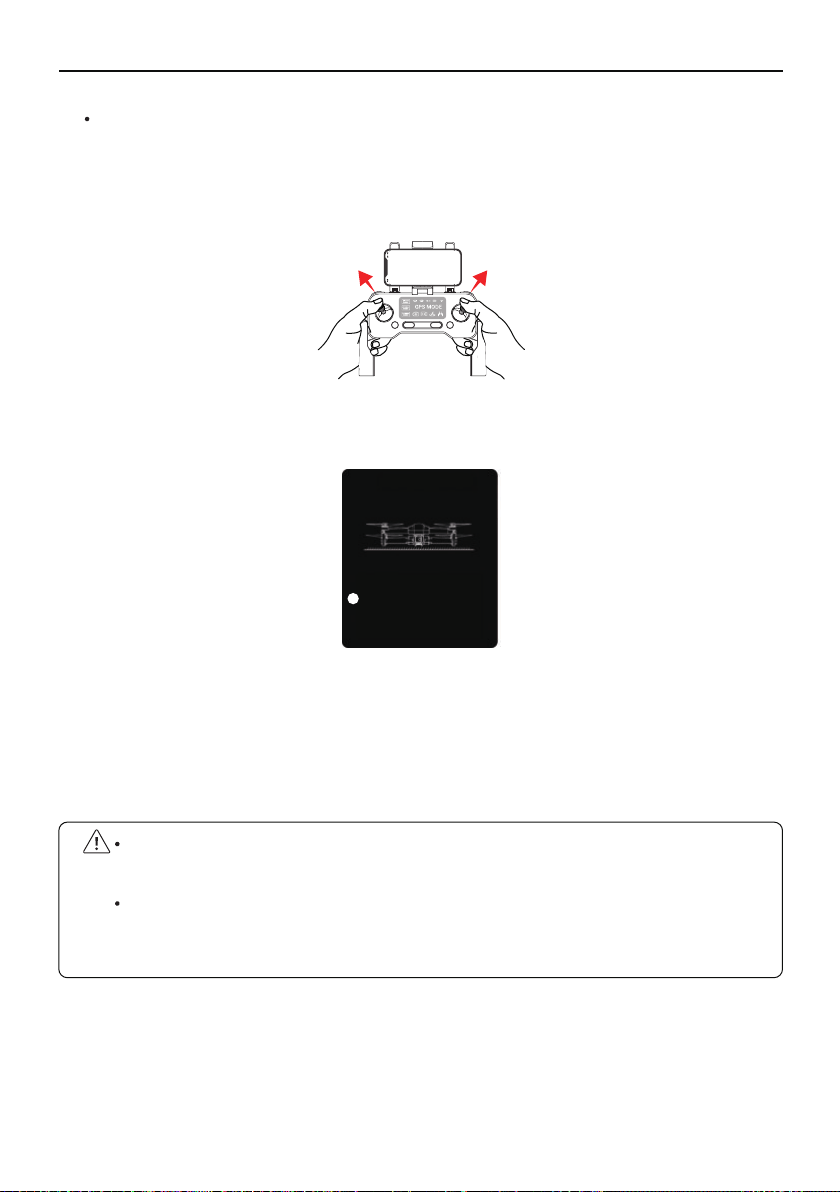
⑤
The APP prompts that the level calibration is successful, the front light becomes steady white,
and the rear light becomes steady blue; indicating that the calibration is complete.
When the calibration is completed,the gimbal will start to work after 20 seconds. "Fly" is
displayed in the app, and you can now prepare to take off.
④
F11GIM User Manual
Calibrate the gyroscope/level
Make sure that the Aircraft is placed on a level ground and there is enough space
under the camera.
Push the left and right joysticks to the "11 o'clock" and "1 o'clock" positions respectively.
①
②
③
The front white and back blue lights flash quickly, the camera rotates up and down again for
self-checking, and the App displays horizontal calibration.
When the Aircraft's flight state is tilted and unstable, please land the Aircraft on a level
ground for gyroscope/horizontal calibration.
When Aircraft resets the gyroscope/horizontal calibration, the camera will also swing up
and down again for self-checking to ensure that there is enough space at the bottom of
the camera.
Copyright ©2021 Ruko All Rights Reserved.
35
The aircraft is placed on the
horizontal ground, search GPS satellite
signal, search white blue light slow
flashing, signal search success, the
aircraft white blue light is always
bright, indicating star search success,
you can fly.
Level Calibration
1
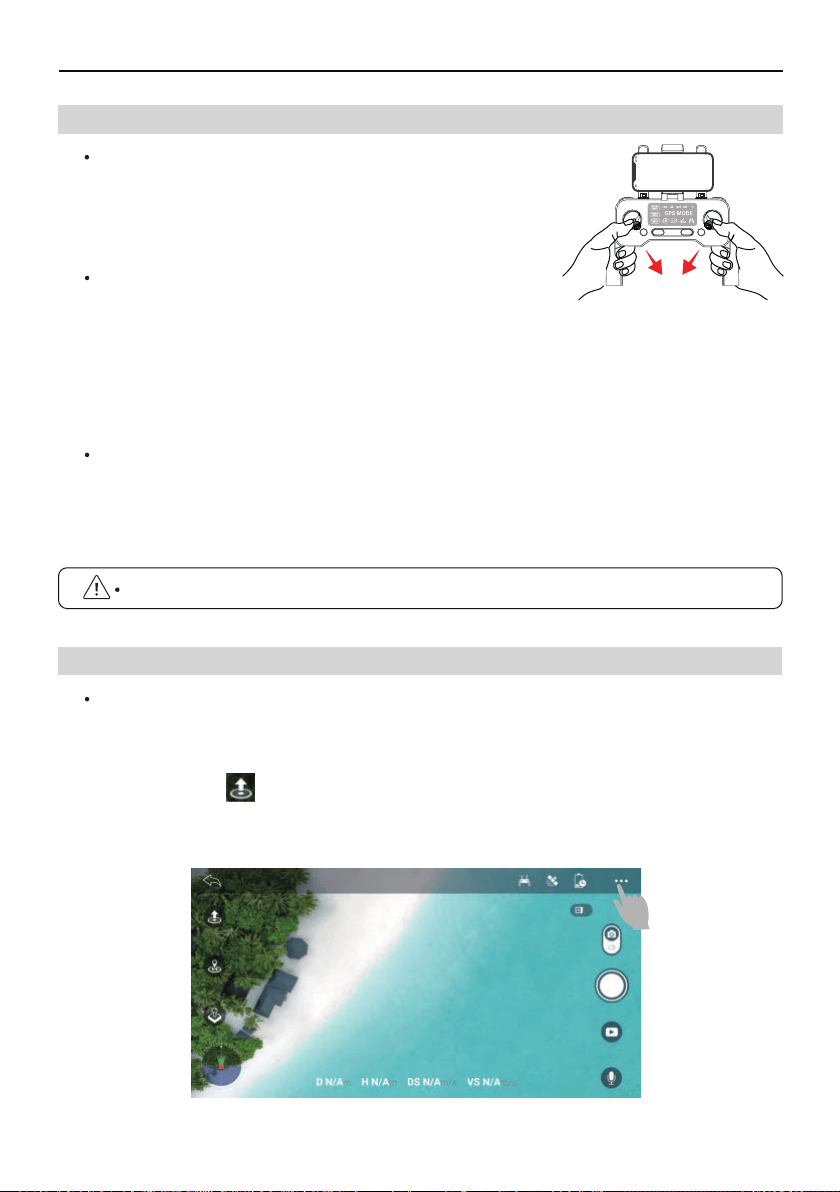
Take-off
After the Aircraft is calibrated, users can use the take-off function:
Method 1: Start the motor after confirming the safe take-off conditions.
Tap One-key Take-off button on the App to take off.
The Aircraft will take off automatically and hover at a distance of 4 ft from the
ground.
③
6.4 Starting/Stopping the Motors
6.5 Take-off / Landing
①
②
Please choose a flat ground to land.
Starting the Motors
Push the joysticks into 5 & 7’o clock position to start the motor.
Stopping the Motors
After the motor starts rotating, there are two ways to stop:
Method 1: After the Aircraft takes off, push the throttle stick to the lowest position and
operate the Aircraft to land until the motor stops, then release the joystick.
Method 2: When the flight is not taking off, Push the joysticks into 5 & 7’o clock position
to start the motor. After the motor is turned off, please release the joystick immediately.
Copyright ©2021 Ruko All Rights Reserved.36
F11GIM User Manual
Manually Land the Aircraft
When you need to manually land the Aircraft, continue to push the Transmitter throttle
lever downwards. Do not release the throttle lever during landing until the Aircraft lands
and the motors stop.
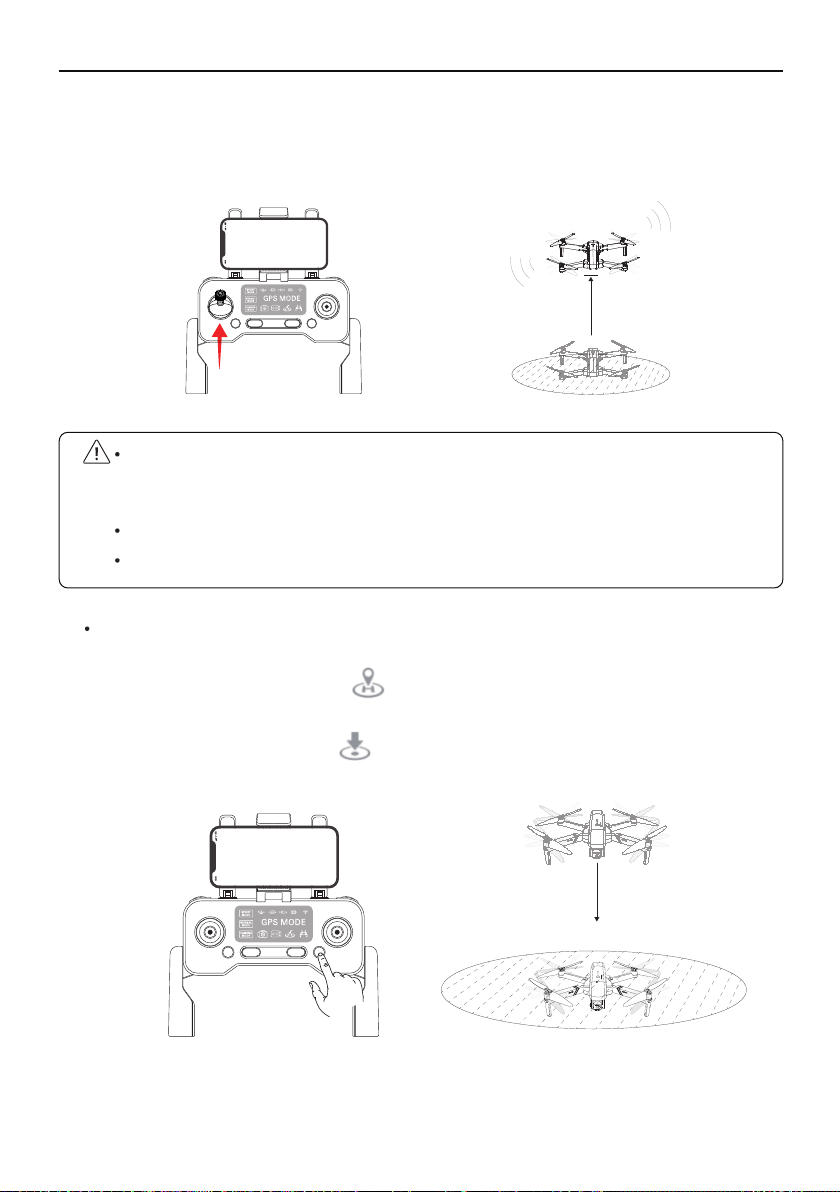
Method 2:Press the land button on the app, the drone will land directly.
Method 3:Keep pulling Throttle Joystick down until the drone lands and motors stop.
Copyright ©2021 Ruko All Rights Reserved.
37
F11GIM User Manual
Landing
After the Aircraft takes off, users can choose to use the landing function:
Method 1:Press the RTH button , drone will return to the Home Point. Pleas e refer to
user manual (page 7 ) for more details.
It is recommended to fly in an open space with a diameter of 10 meters without
interference;
The flying height must be higher than ground obstacles to avoid collision;
It is recommended that the flight altitude be greater than 15 meters to avoid other signal
interference from the ground.
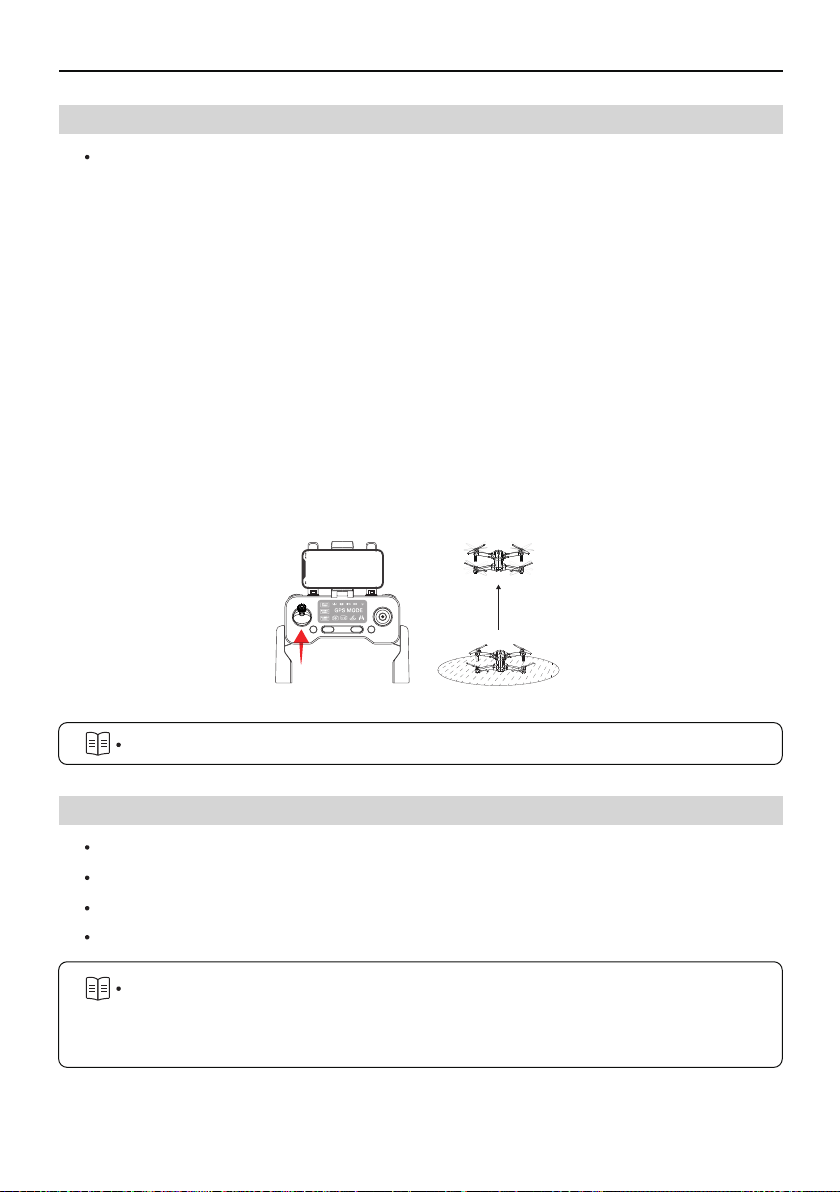
Method 2: Start the motor after confirming the safe take-off conditions.
Push the left joystick to 12 o’clock position to take off.
The Aircraft will take off under your control.
③
①
②
4ft
F11GIM User Manual
6.6 How to take off the Ruko F11 GIM Drone
Copyright ©2021 Ruko All Rights Reserved.38
6.7 Aerial Photography Tips & Tricks
Basic Flight Steps
Place the Aircraft on a flat and open ground with the nose facing forward and the tail
facing the pilot.
Power on the Aircraft.
Turn on the power of Transmitter to pair with Aircraft automatically.
Connect the mobile phone to Aircraft's WiFi "RUKO-GIM-******", open the RUKO DRONE
App, and enter the camera interface.
After the compass and gyroscope calibration is completed, the status indicator is always
white before and blue, and the motor is started.
Slowly push the throttle stick upward to let the Aircraft take off smoothly.
Pull down the throttle stick to lower the Aircraft.
After landing, pull the throttle stick to the lowest position and hold it until the motor stops.
Turn off the power of Aircraft and Transmitter in turn after shutdown.
③
①
②
Awareness of flight safety is very important for the safety of you, the surrounding
people and the environment. Please read the "Safety and Disclaimer Guidelines"
carefully.
For more detailed instructions, please refer to chapter 6.1 ~ 6.4
④
⑤
⑥
⑦
⑧
⑨
Perform pre-flight inspection.
It is recommended to take photos or videos in low-speed or medium-speed gear.
Choose sunny and less windy weather for shooting.
Push the stick as little as possible during the flight to make the Aircraft fly smoothly.

7.1 Specifications
7 Appendix
Parameter
Model: F11 GIM Weight (including battery): 585g/20.6oz
Flight time: About 28 minutes (under a constant-speed flight in a no-wind environment)
WiFi distance: 1900-3900ft (outdoor, unobstructed, independent)
Motor model: 1806
Recovery: Enabled
Operating temperature range: 32 degrees Celsius to 104 degrees Celsius (0 degrees Celsius
to 40 degrees Celsius)
Satellite system GPS/glonas
Size: 6.9 * 4.1 * 3.15 IN (Folding) / 17.71 * 15.94 * 3.15 IN (Unfolding)
Intelligent Flight Battery
Capacity: 2500mAh The maximum charging time is about 5 hours (depending on the charging
power)
Voltage 11.W Battery type: Lipo
Charging temperature range: 32° to 104°F (-10° to 40°C)
Energy: 27.75Wh
Net weight: 195g/6.8oz
Maximum charging power: 15W
Gimbal Stabilization
Mechanical Range:Tilt About -100° to +70°, Roll About -35° to +35°
Controll Range: Adjusted angle of camera (up and down): About -80° to +0°
Camera
Lens: FOV 100°
Still photography mode: Single lens
Video recording mode: UHD
Photo: JPG
Video: MP4
Supported File Systems: FAT32
Supported SD card: up to 128GB (not included)
Operating temperature: 32° to 104°F (0 to 40° C)
Supported SD Cards: Micro SD card (Class 10/U1 or later) 32G-128G
Copyright ©2021 Ruko All Rights Reserved.
39
F11GIM User Manual
F11GIM User Manual
APP/Live View
Mobile application: RUKO DRONE
Real-time view working frequency: 5GHzISM
Real-time quality: (depending on product configuration)
Compatible mobile phones: Support dual-band WIFI (2.4GHz and 5GHz)
Latency: Low-latency video (depending on the conditions and required actions of the
mobile device)
Mobile phone system required: 9.0 or higher, Android 5.0 or higher
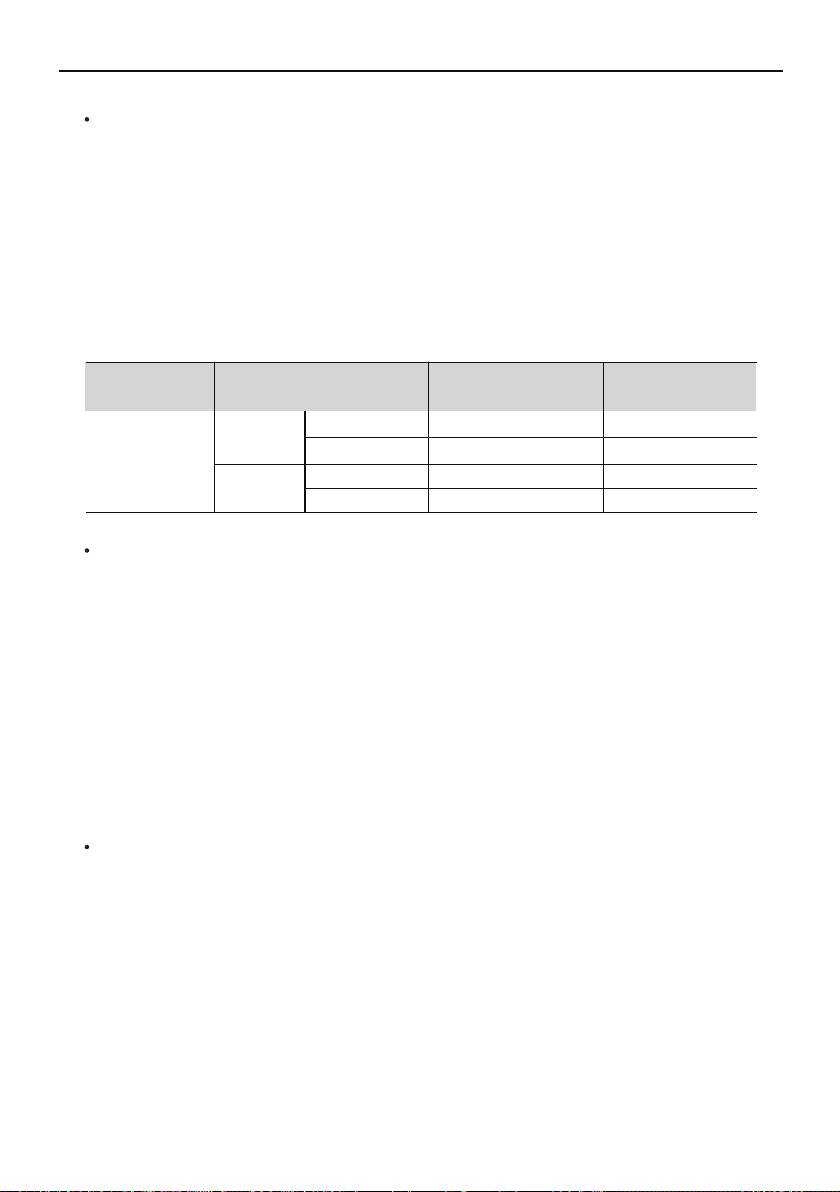
4K
SD card
Phone
Photo 3840X2160P
1280X720P
3840X2160P
30fps
30fps3840X2160P
Video
Photo
Video
Storage methodConfiguration
Resolution Nitroso formate
Transmitter
Working frequency: 2.4GHz
Capacity: 300mAh
Working voltage: 3.7V
Maximum transmission distance: 3900 feet
Maximum charging time: 300mAh lithium battery -50 minutes
Transmitter Time: About 10 hours
Mobile device bracket: 2 inches to 3.2 inches smart phone (mobile phone width)
Working temperature: 32 degrees Celsius to 104 degrees Celsius
USB Cable
Compatible Charger (not included): Output currency 5V/3A
Rated power: ≤15W
Copyright ©2021 Ruko All Rights Reserved.
40
Copyright ©2021 Ruko All Rights Reserved. 41
F11GIM User Manual
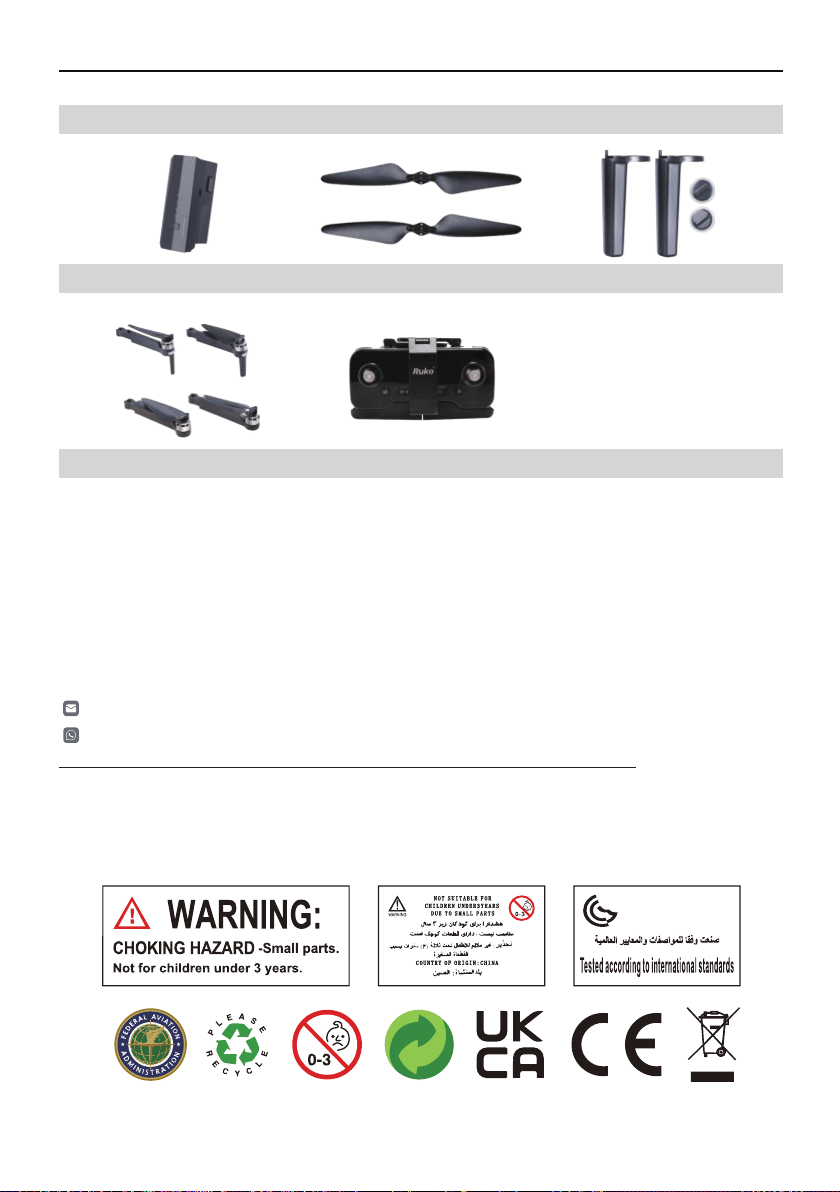
All of the above accessories can be searched and purchased on Amazon, and you can enter
the Ruko store to buy them yourself.
Be sure to use original accessories. The use of non-original accessories may cause danger
to the safe use of the Aircraft.
7.2 Accessories Support
Transmitter
Battery Landing Gear
Arm
Propeller
CONTACT US FOR MORE TECH SUPPORT
+1 ( 949 ) 394 - 4635 ( Available from 6pm to 3am PDT)
Printed in China.
Copyright ©2021 Ruko All Rights Reserved.42
F11GIM User Manual
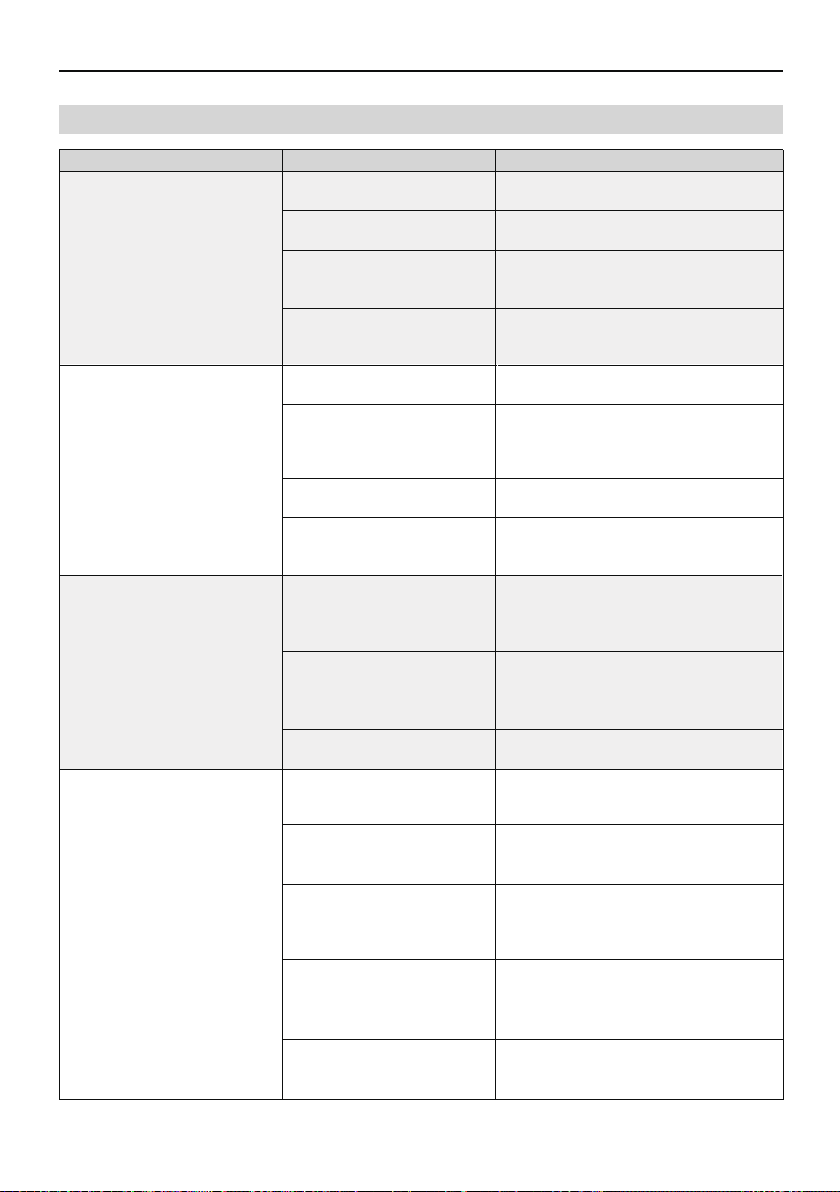
7.3 Common Problems and Solutions
The gyroscope is not
calibrated
Question Reason Solutions
The motors cannot be started
GPS signal is unstable. Flying
near buildings and in
obstructed places
The Transmitter signal is
interfered or the Aircraft
exceeds the range of remote
control
When Fly from the grass, the
gimbal touches the grass
When fly from the wooden
floor, vibration will be
transmitted through the floor
Please fly the Aircraft outdoors without
interference, and ensure that it is within a
controllable range
Please manually land the drone in time and
calibrate the compass. Please make sure to
fly away from the buildings, trees, power
lines, and signal towers
Put the drone on landing pad or cardboard
to prevent the gimbal from hitting with
other objects
Take off the drone from the place without
vibrations
Put the Aircraft on the level ground without
touching. The gimbal will star to work after
40 seconds
Turn on the drone on the place without
vibrations
Compass interference
Out of control, spinning around
on its own, abnormal sound
The Gimbal is not working
Replace the propellers with new ones
The propellers become
deformed and incomplete
The gimbal is interfered by
external forces or the drone is
picked up during self-inspec-
tion
When turning on the drone on
the desk, the desk will amplify
the subtle vibrations into
high-frequency vibrations
The compass is in calibrating
Put the Aircraft on level ground after
compass calibration. The gimbal will start
to work after 20 seconds
Please fly the Aircraft in an open area
free of obstacles within the circle of
radius 32.81 ft(10 meters)
Turn on the Aircraft in an open area
with strong GPS signal
The Aircraft has low battery. Please
charge the battery in time
The compass is not calibrated. Please refer
to the "Calibration Before Flight" section of
the user manual
Push the left and right joysticks simultane-
ously to 5 o'clock and 7 o'clock for 2
seconds
Weak GPS signal
The red light stays on
The pink light stays on
The left and right joystick
are not in place
Please fly the Aircraft above 9.84ft(3
meters)
Place the Aircraft on a horizontal surface
and conduct gyroscope/horizontal
calibration. Please refer to the "Calibration
Before Flight" section of the user manual
Unstable flight
Flying too low, affected by
Aircraft airflow
The propellers become
deformed and incomplete
Replace the propellers with new ones
F11GIM User Manual
Copyright ©2021 Ruko All Rights Reserved. 43
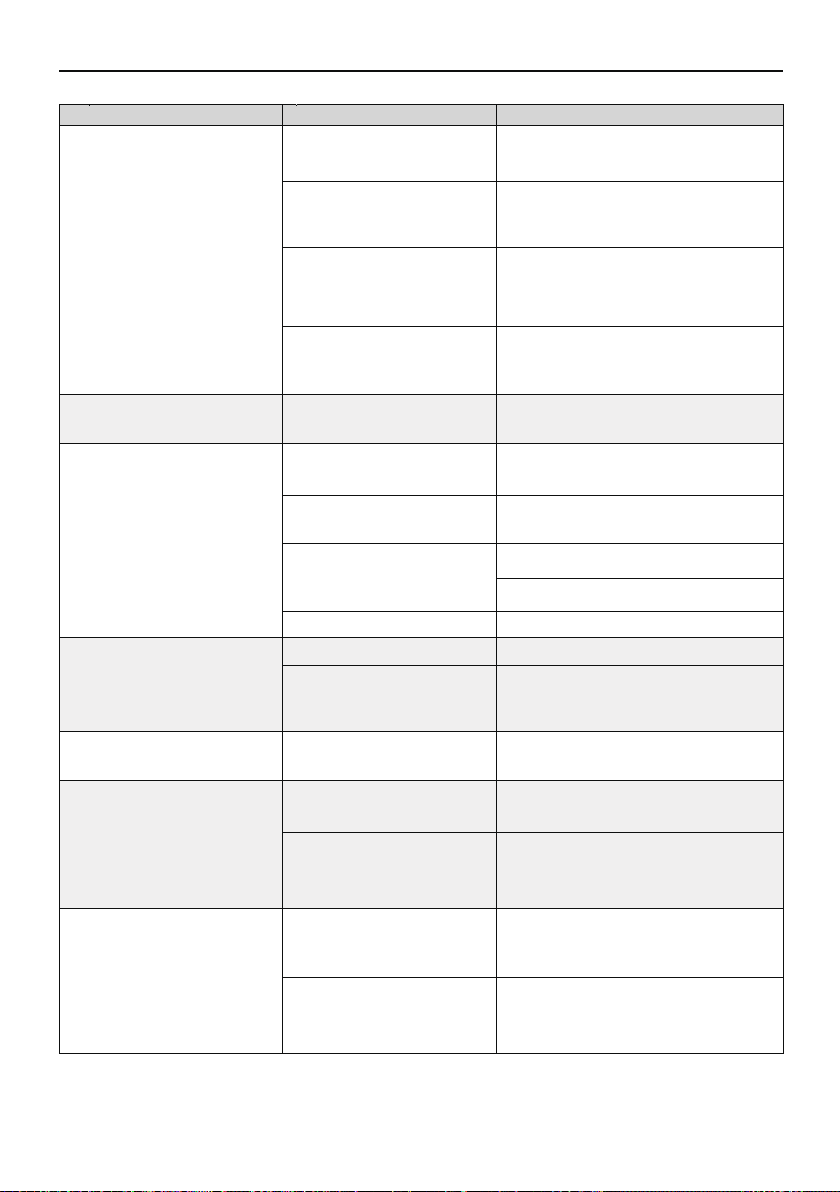
The phone is a single band
Question Reason Solutions
Turning on the drone indoors
Under the tree, next to the
building, in an obstructed place
Please stay away from obstacles for more
than 32.81 feet(10 meters), and search for
GPS signals in an open area
GPS signal is weak
App does not display the
interface
APP crashes or functions
abnormally
Phone cannot connect to Wi-Fi
The WiFi name is not displayed
in the list
GPS signals cannot be found indoors.
Please search for GPS signals in an open
place outdoors
Connect your mobile device to the Wi-Fi :
Ruko-GIM-******
Android 6.0 and above, IOS 10.02 and
above
Set the Wi-Fi correctly
Turn the phone to airplane mode
Turn off the VPN switch
Download the correct App
Provide mobile phone version and model,
we will adapt and solve it
Try connecting a few more times or
restart the phone
The phone is not connected to
Wi-Fi
The phone version is too low
When connecting to the
drone’ s WiFi, the network is
not set or set incorrectly
VPN switch is turned on
Wrong app downloaded
A few mobile phone versions
are old and incompatible with
APP
It is the first time to connect
your phone to the Wi-Fi
Use the dual band devices that support
both 2.4 GHz and 5 GHz/5.8 GHz
WiFi has not been activated
Wait for about 30 seconds after turning on
the Aircraft and keep refreshing the Wi-Fi
list while the Wi-Fi is activated
Video freezes, image
transmission distance is short
Video is not clear
if use APP storage, the pixels
are 1920×720P
Insert the memory card and storage the
video on the memory card
The Aircraft is out of Wi-Fi
range
Fly the Aircraft within the range of the
Wi-Fi
Fly the Aircraft in an unobstructed open
area free of buildings, high-voltage wires
and signal towers
WiFi image transmission signal
interference
The transmitter and the mobile
phone are not pointed at the
direction of the drone
Point the Transmitter and the mobile
device at the flying direction of the Aircraft
to maintain the strongest signal connec-
tion
Phone performance freezes
Close unused apps running in the
background to maintain the best
performance of the phone
Copyright ©2021 Ruko All Rights Reserved.44
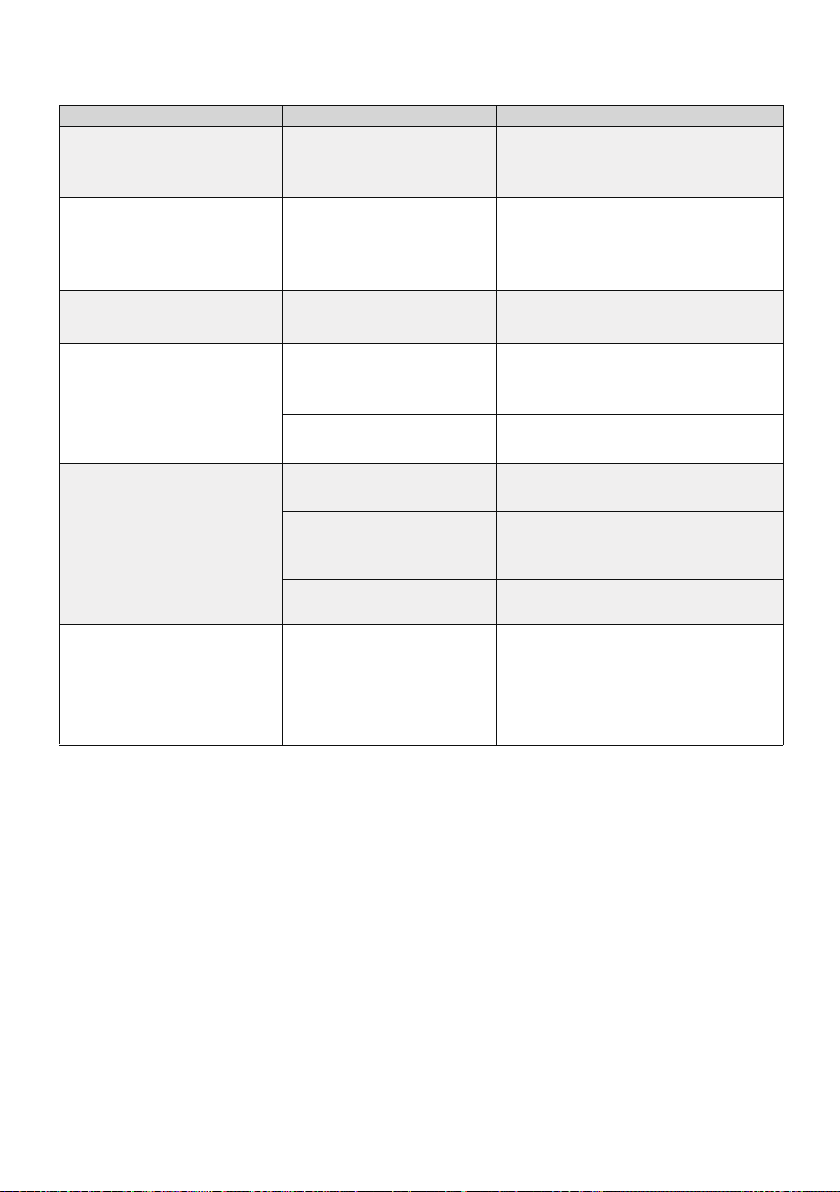
The wrong sequence for
turning on the equipments
Fully charged with the correct USB charger
before flying
Please don't turn off GPS suddenly during
outdoor flight. Switch back to GPS mode in
time
Correct pairing steps: 1. Turn on the
Aircraft. 2. Turn on the Transmitter
GPS signal was turned off
during the flight
The phone cannot connect to
the Transmitter due to the
wrong sequence for turning on
the equipments
The correct sequence is:
1.Turn on the Aircraft firstly 2. turn on the
Transmitter 3. Connect the Wif
The Aircraft cannot be paired
with the Transmitter
Unable to return home, drifting
and flying away
App always says the
Transmitter has low battery
Cannot charge battery/Cannot
fully charge battery
Short battery life
Please use the original factory charging
cable to charge
Use a mobile USB charger that ensures
constant stable voltage output(5V) and
amperage output(2-3A)
Using inferior charging cables
Flying in windy weather
Flying in cold weather
Flying in windy weather will accelerate
power loss
We tested all Aircraft before
shipping
The product has slight marks
In low temperatures, the chemical reaction
of the lithium battery is slowed down and
the energy cannot be fully released
In order to give you the best experience,
we tested functions of all Aircraft before
shipping. Therefore, it is inevitable that
there will be slight traces. However, it can
be guaranteed that all Aircraft are 100%
brand new
The battery is not fully charged
Using inferior charger or
charging on the computer
with unstable voltage output
Question Reason Solutions


rukotoy.com