please contact Customer Support at
www.blaupunkt-australia.com.au
Manual Scan
Channel Edit
Signal Information
Lock System
20
20
OSD Language
Audio Language
Subtitle
Teletext
Blue Screen
Mode Setting
Time Settings
PVR Settings
First Time Setup
Reset
22
22
20
21
Setup Setting
22
22
22
22
22
23
23
23
22
please contact Customer Support at
www.blaupunkt-australia.com.au
Manual Scan
Channel Edit
Signal Information
Lock System
20
20
OSD Language
Audio Language
Subtitle
Teletext
Blue Screen
Mode Setting
Time Settings
PVR Settings
First Time Setup
Reset
22
22
20
21
Setup Setting
22
22
22
22
22
23
23
23
22
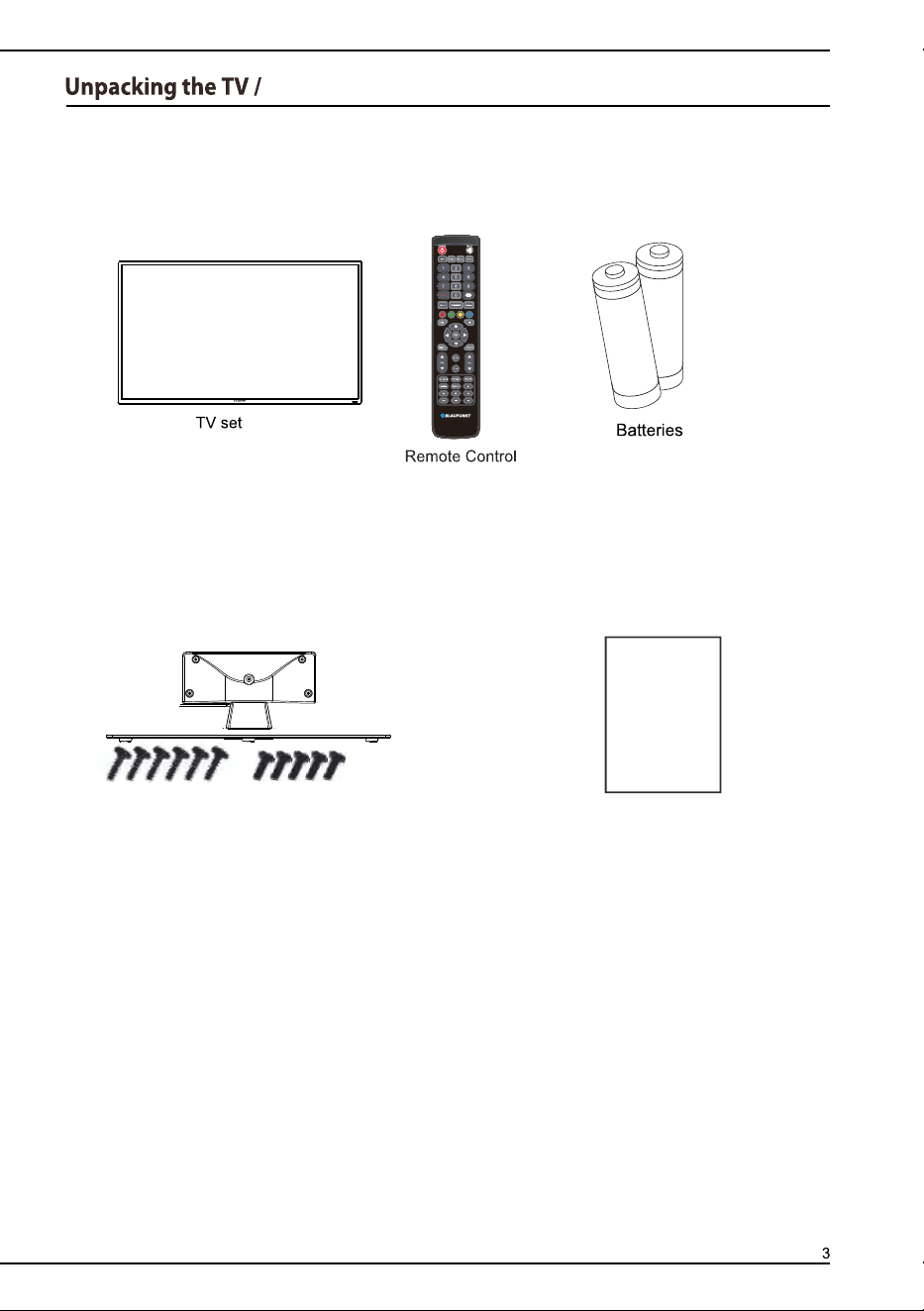
BM4*14
BB 4*12
Neck/Stand / Screws
User Manual
User Manual
Accessories
24
25
26
27
28
29
30
31
33
33
34-35
36
36
36
37
38
39
Viewing Texts
31
42
BM4*14
BB 4*12
Neck/Stand / Screws
User Manual
User Manual
Accessories
24
25
26
27
28
29
30
31
33
33
34-35
36
36
36
37
38
39
Viewing Texts
31
42
123
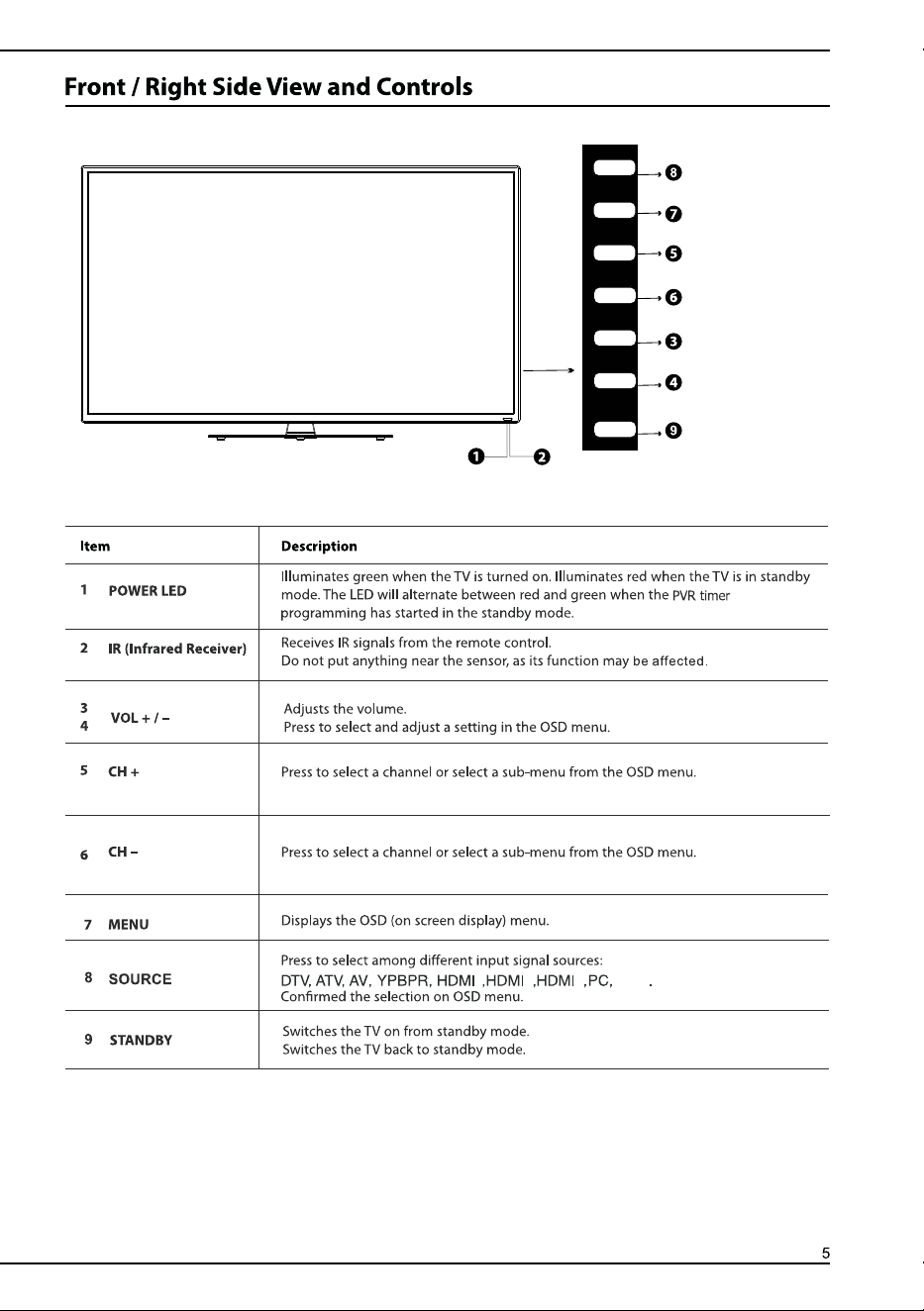
SOURCE
CH+
CH-
VOL-
VOL+
MENU
STANDBY
USB
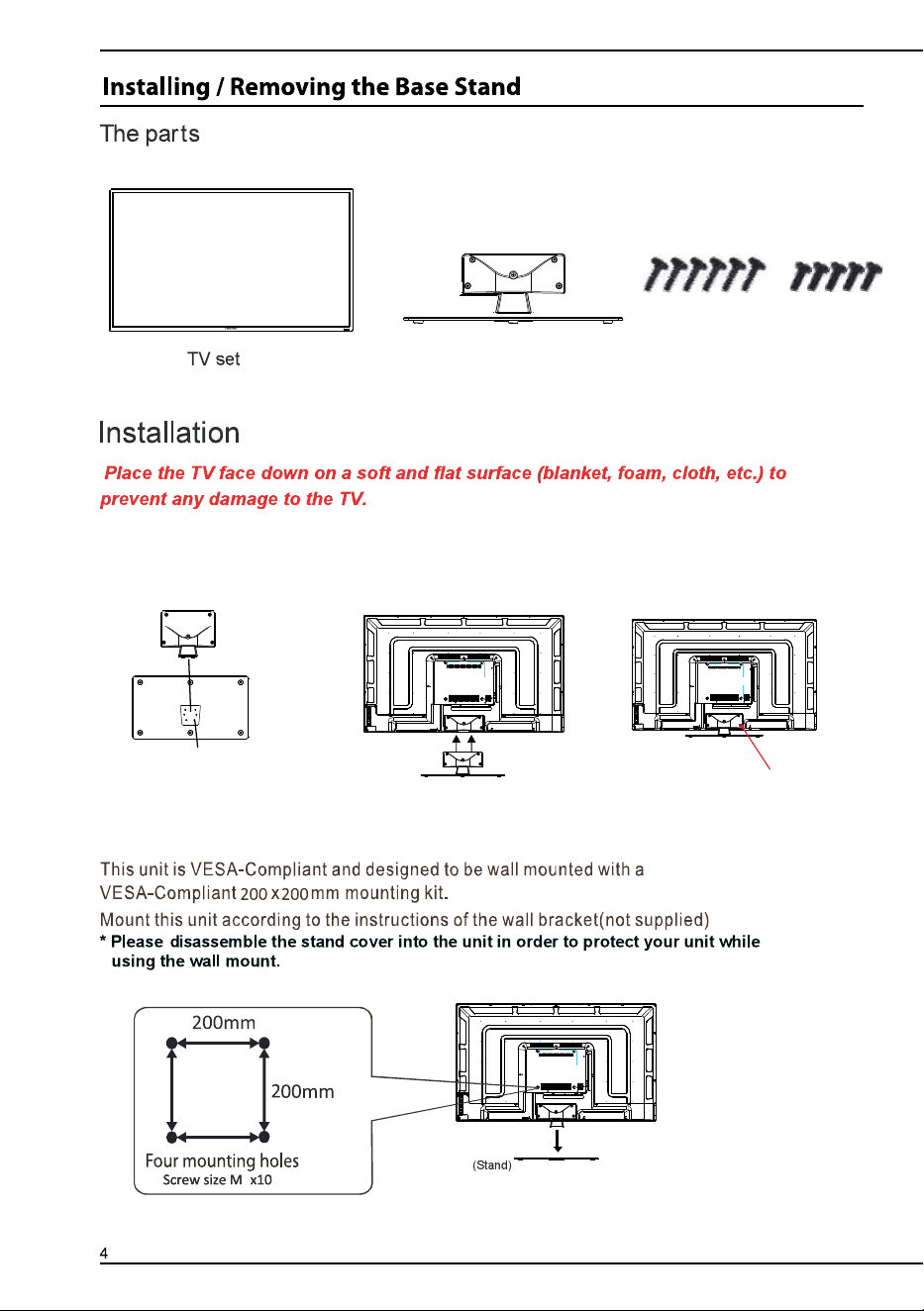
Screws
Neck/Stand
image 1
image 2
image 3
Fix the neck to the stand with
6 pcs BB4*12 screws as image 1.
2.Fix the neck to the
TV unit as image 2.
3.Insert 5 pcs BM4*14
screws as image 3
6
BM4*14
BB 4*12
BB4x12(6pcs)
BM4x14(5pcs)
123
SOURCE
CH+
CH-
VOL-
VOL+
MENU
STANDBY
USB
Screws
Neck/Stand
image 1
image 2
image 3
Fix the neck to the stand with
6 pcs BB4*12 screws as image 1.
2.Fix the neck to the
TV unit as image 2.
3.Insert 5 pcs BM4*14
screws as image 3
6
BM4*14
BB 4*12
BB4x12(6pcs)
BM4x14(5pcs)
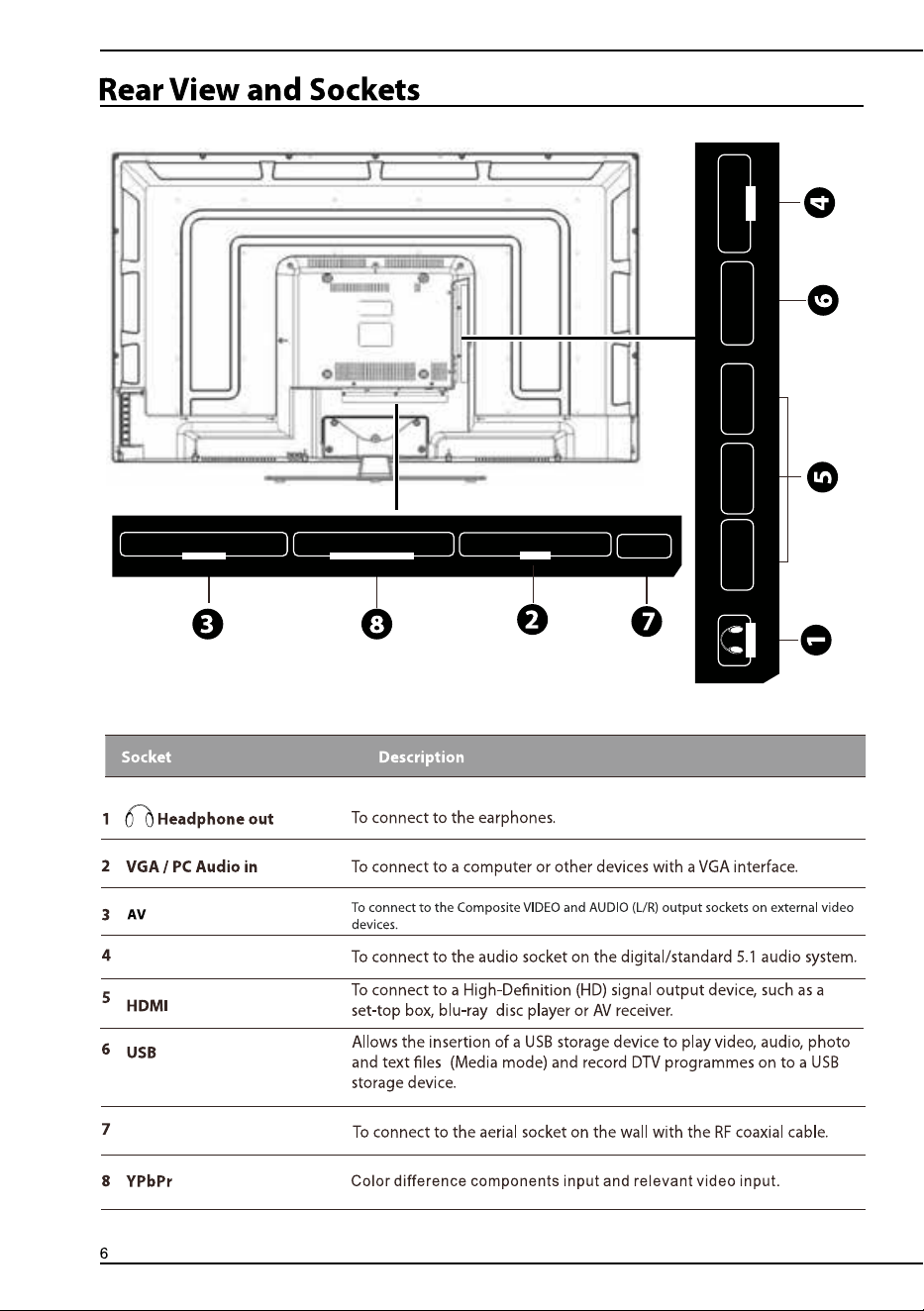
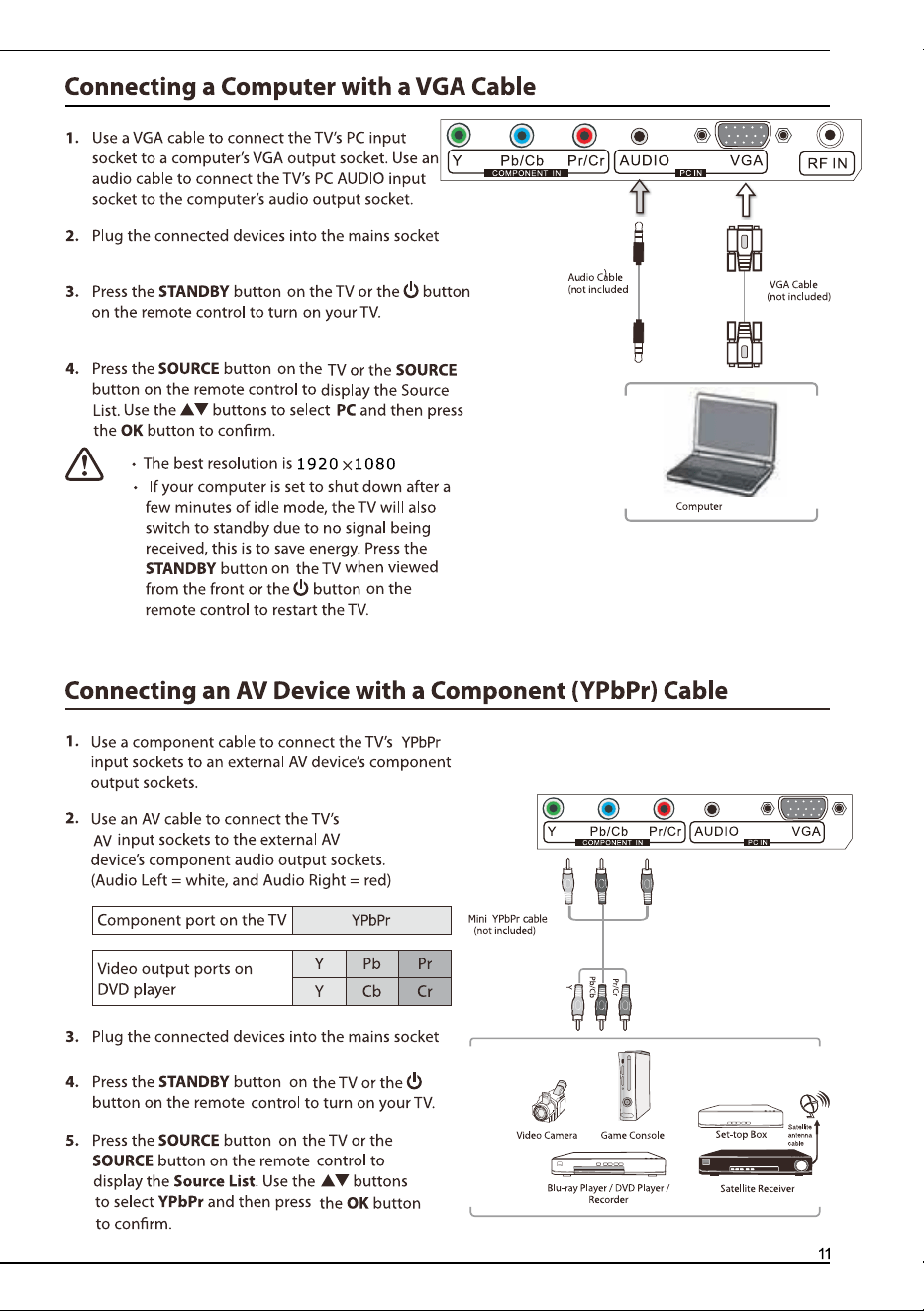
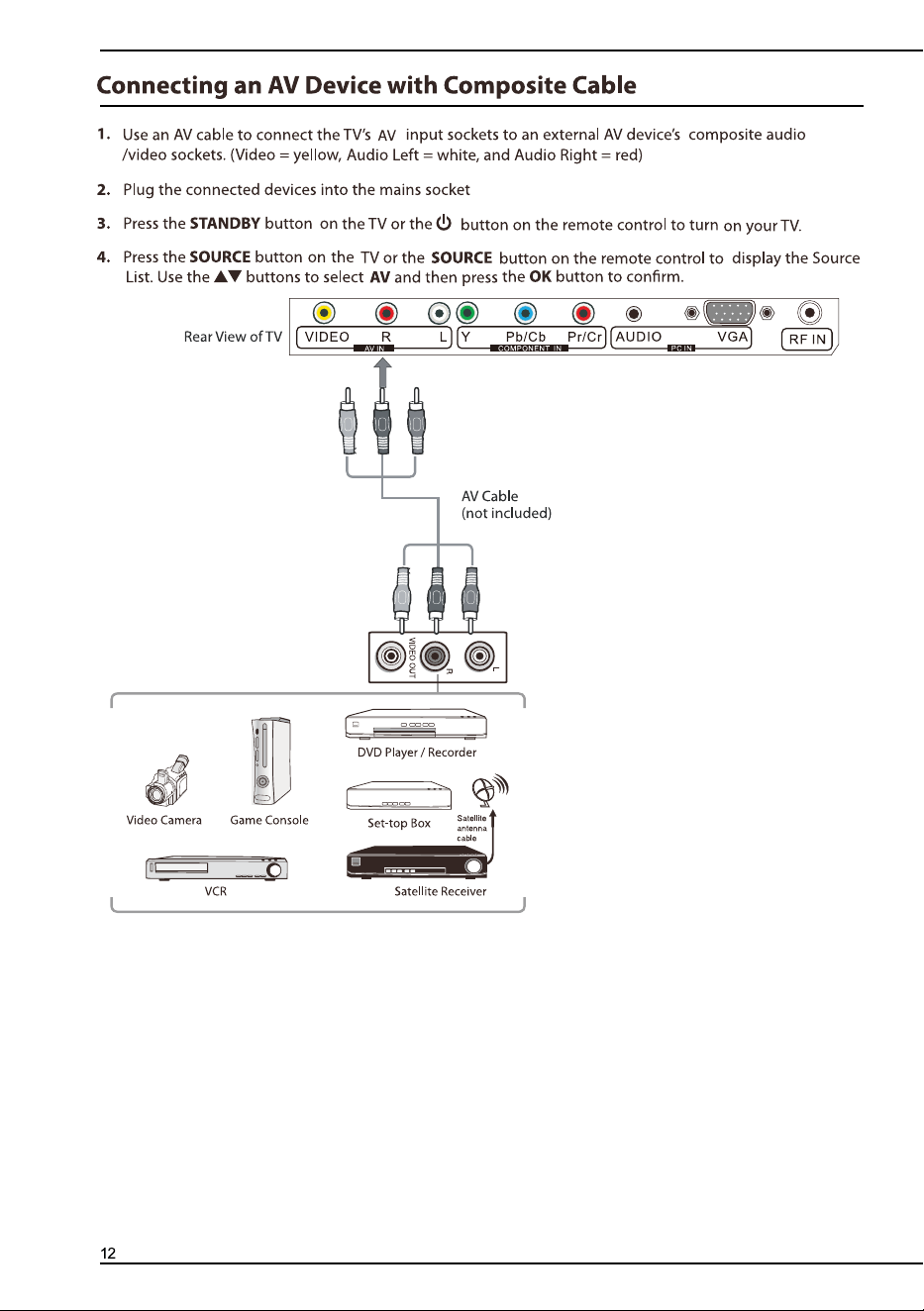
RLVIDEO
AV IN
Y
COMPONENT IN
Pb/Cb Pr/Cr
PC IN
AUDIO VGA
RF IN
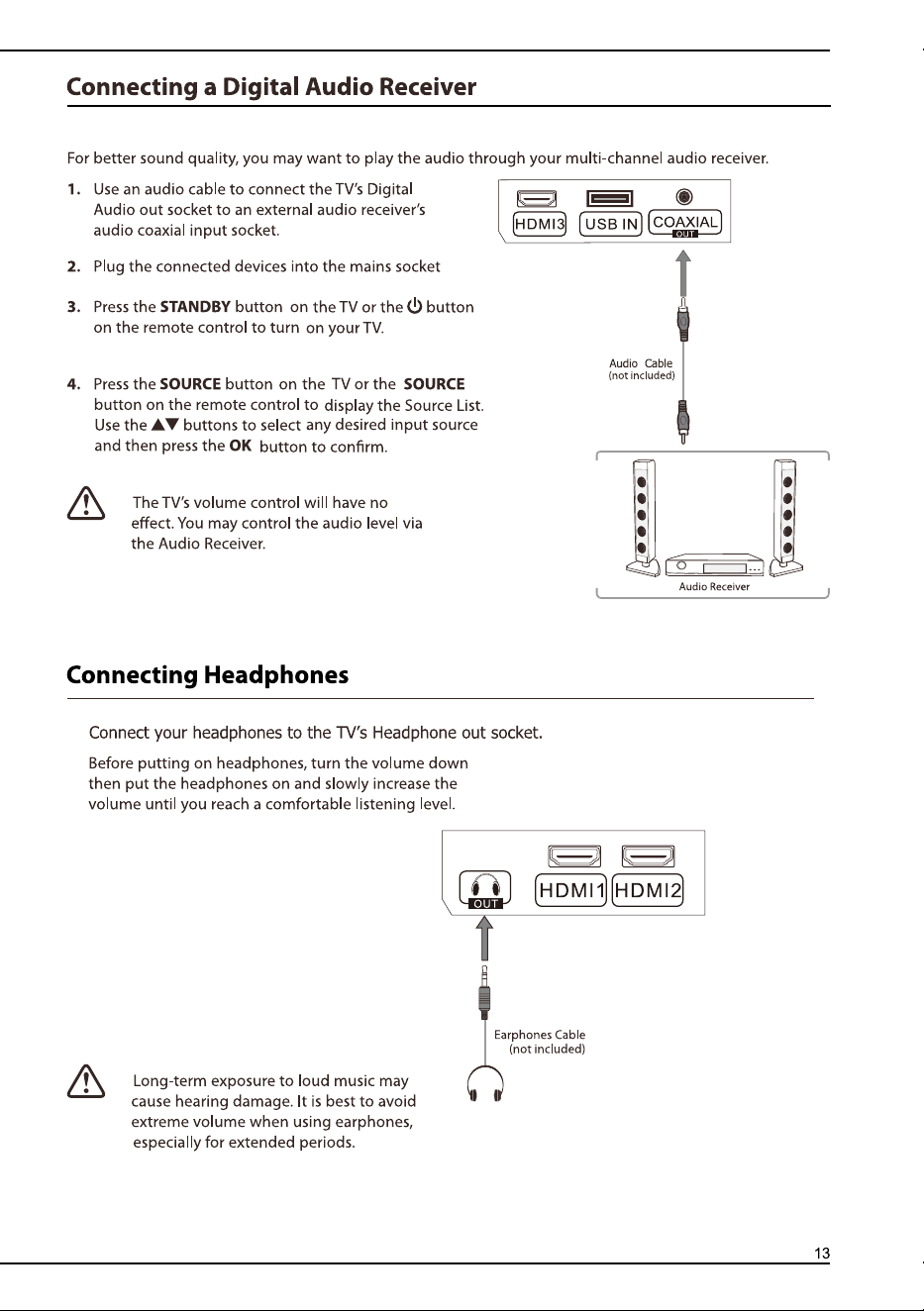
OUT
HDMI
1
HDMI
2
HDMI3
USB IN
O
U
T
COAXIAL
R
F I
N
C
O
AXIA
L
RLVIDEO
AV IN
Y
COMPONENT IN
Pb/Cb Pr/Cr
PC IN
AUDIO VGA
RF IN
OUT
HDMI
1
HDMI
2
HDMI3
USB IN
O
U
T
COAXIAL
R
F I
N
C
O
AXIA
L
Rec Start to record
Back to Firsttime
setup menu
USB
D-Setup
Pause/Play/Timeshift
Evenlist Enter the scheduled
recording list.
Enter the DVD setup menu
(Not used on this Mode).
Select your favourite program.
DVD Eject (Not used on this Mode).
Nicam key
Lock System
Press this button to select
the picture mode directly
Stop
MUTE
Freeze
Press this button to select the sound
mode directly
Use in Text ,DTV and TV
Press this button to view the detail
information of the signal in ATV/DTV
mode
Press this button for mute sound,
press this button again for resume
audio listening
press this button to hold the
picture,press again for cancel hold.
Remote Code:807F
Rec Start to record
Back to Firsttime
setup menu
USB
D-Setup
Pause/Play/Timeshift
Evenlist Enter the scheduled
recording list.
Enter the DVD setup menu
(Not used on this Mode).
Select your favourite program.
DVD Eject (Not used on this Mode).
Nicam key
Lock System
Press this button to select
the picture mode directly
Stop
MUTE
Freeze
Press this button to select the sound
mode directly
Use in Text ,DTV and TV
Press this button to view the detail
information of the signal in ATV/DTV
mode
Press this button for mute sound,
press this button again for resume
audio listening
press this button to hold the
picture,press again for cancel hold.
Remote Code:807F
RLVIDEO
RLVIDEO
1
2
3
123
YPbPr
SOURCE
USB
USB
21
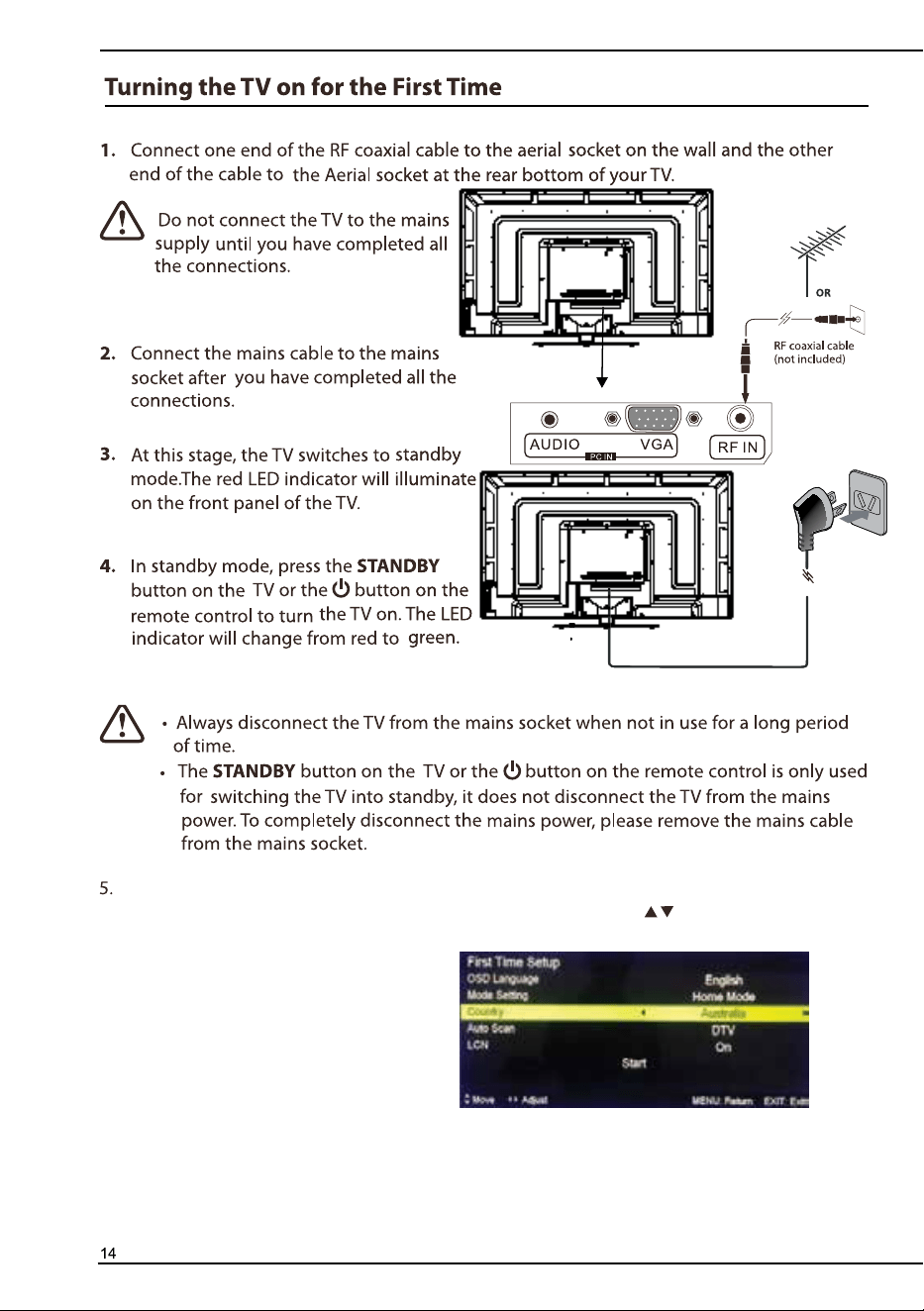
If this is the first time you are turning on the TV and there are no programs in the TV memory,
The
First time
setup menu will appear on the screen, press the button to select the
following options to finish the first
time setup.
1. OSD language : Select your language.
2.Mode setting :
Select the TV mode.
3.Country : Select your country
4.Auto scan: Select your TV service.
5.LCN : Set the LCN to ON/OFF.
Ensure your aerial , cable or dish is plugged in to the TV ,then select the start option and
press OK button , the TV will start to install the service you have selected.
1
2
3
123
YPbPr
SOURCE
USB
USB
21
If this is the first time you are turning on the TV and there are no programs in the TV memory,
The
First time
setup menu will appear on the screen, press the button to select the
following options to finish the first
time setup.
1. OSD language : Select your language.
2.Mode setting :
Select the TV mode.
3.Country : Select your country
4.Auto scan: Select your TV service.
5.LCN : Set the LCN to ON/OFF.
Ensure your aerial , cable or dish is plugged in to the TV ,then select the start option and
press OK button , the TV will start to install the service you have selected.
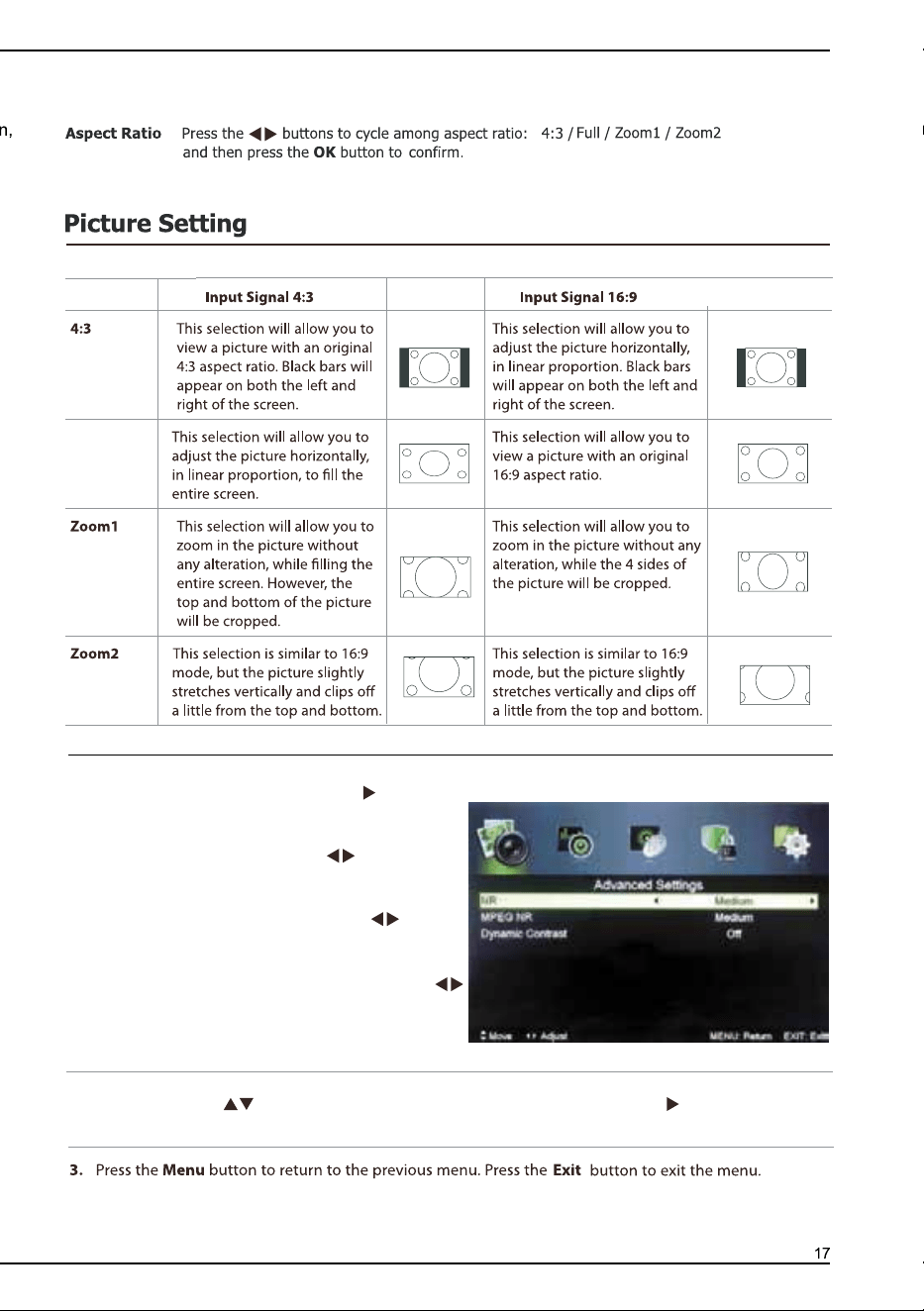
Advanced Settings
Press OK button or button to
activate the advaned setting
menu.
NR: Press the button to
select the NR mode from
Medium/Strong/off/Weak.
MEPG NR: Press the button
to select the MEPG NR mode from
Medium/Strong/off/Weak.
Dynamic Contrast: Press the
button to select the Dynamic
Contrast: mode from Medium/
Strong/off/Weak.
eh t r e t ne o t no t t ub r o KO eh t s s e r p neh t , no i t po sgn i t t e s CP t ce l e s o t no t t ub eh t s s e r P
FULL
PC setting
) edom CP no e l ba l i ava y l n
O
( t e s o t u n em b u s
Personal
Saturation
Hue
Hue
,
,
,
,
,
and then press the OK button to confirm.
and then press the OK button to confirm.
and then press the OK button to confirm.
and then press the OK button to confirm.
and then press the OK button to confirm.
Advanced Settings
Press OK button or button to
activate the advaned setting
menu.
NR: Press the button to
select the NR mode from
Medium/Strong/off/Weak.
MEPG NR: Press the button
to select the MEPG NR mode from
Medium/Strong/off/Weak.
Dynamic Contrast: Press the
button to select the Dynamic
Contrast: mode from Medium/
Strong/off/Weak.
eh t r e t ne o t no t t ub r o KO eh t s s e r p neh t , no i t po sgn i t t e s CP t ce l e s o t no t t ub eh t s s e r P
FULL
PC setting
) edom CP no e l ba l i ava y l n
O
( t e s o t u n em b u s
Personal
Saturation
Hue
Hue
,
,
,
,
,
and then press the OK button to confirm.
and then press the OK button to confirm.
and then press the OK button to confirm.
and then press the OK button to confirm.
and then press the OK button to confirm.
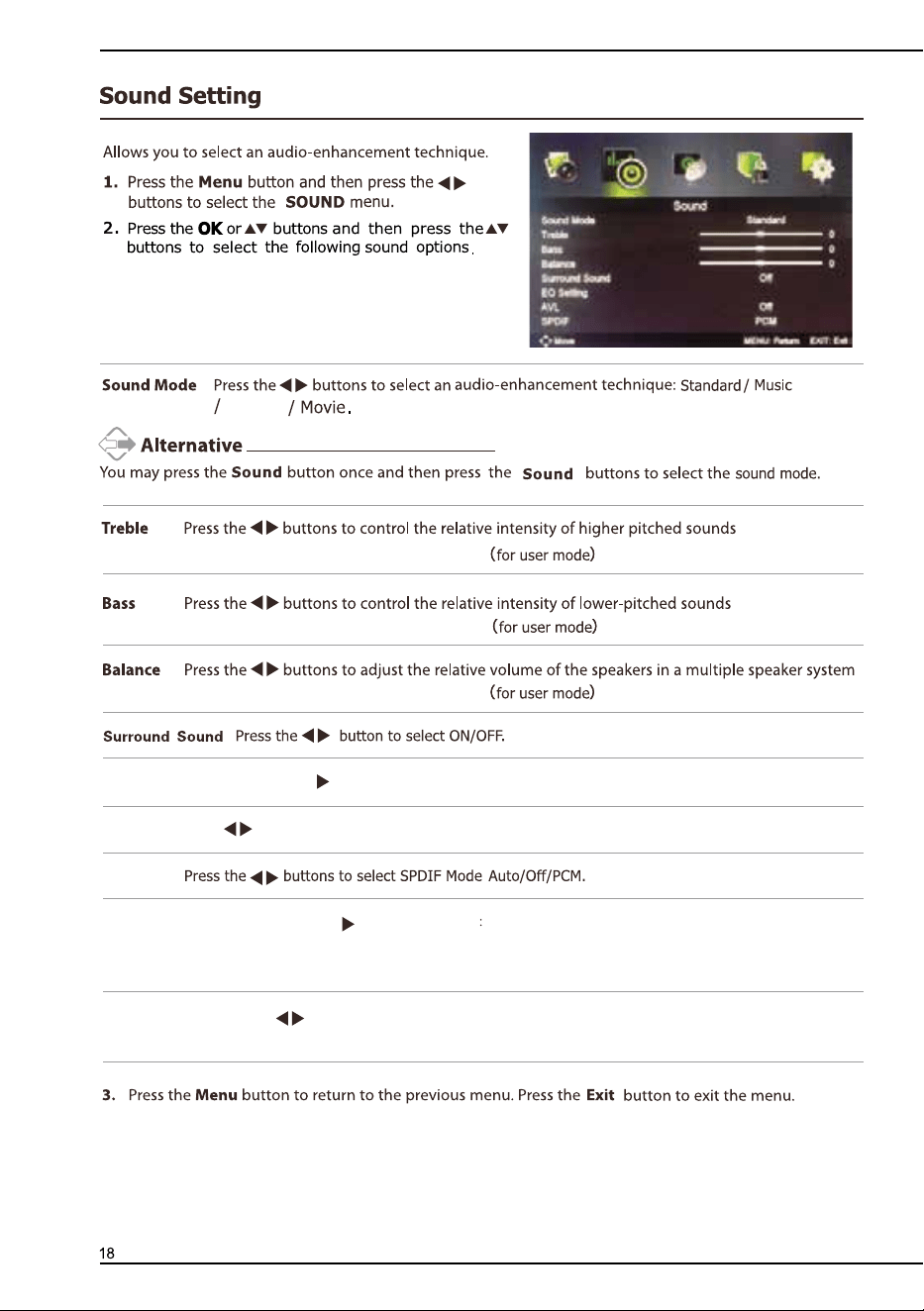
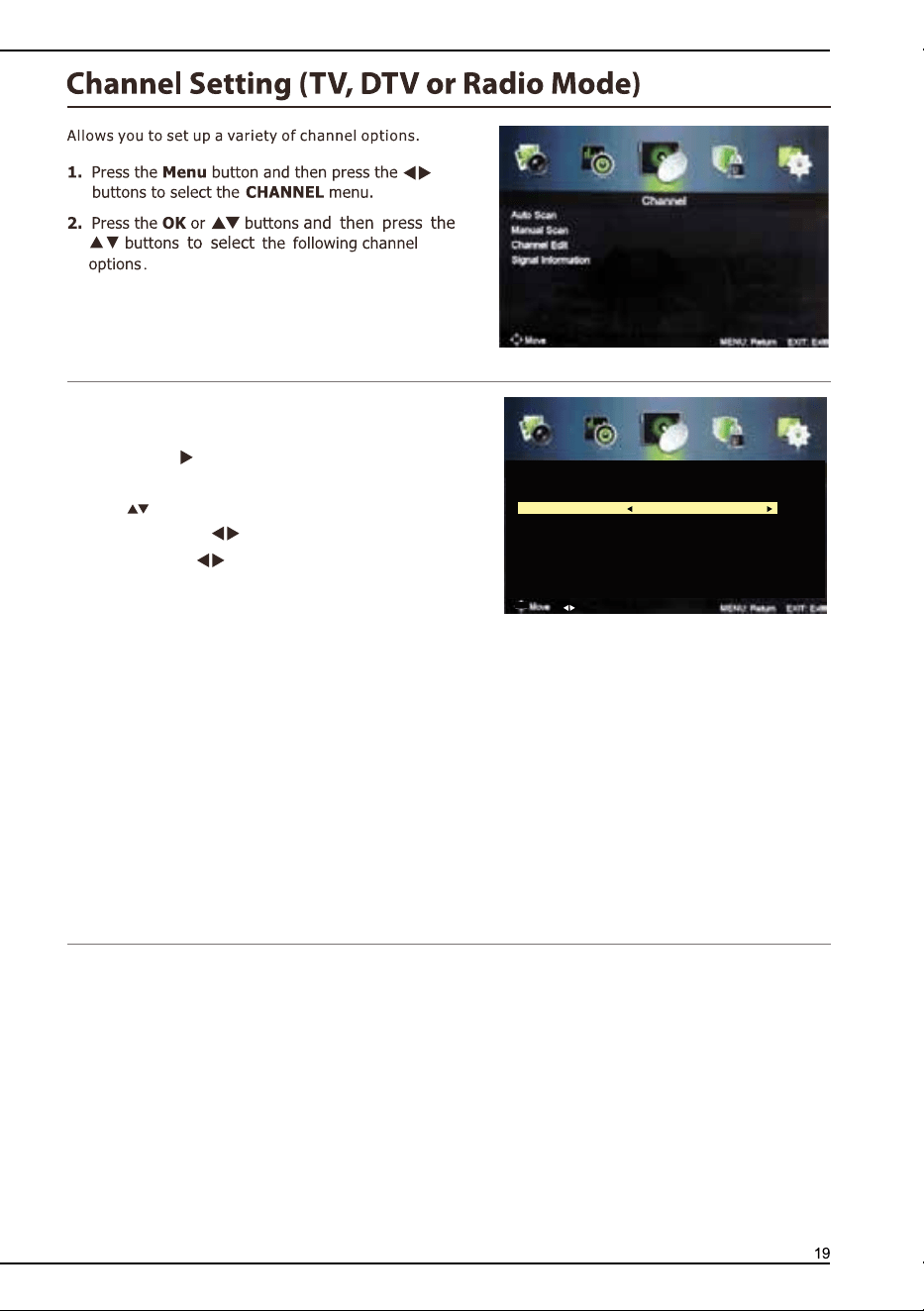
Auto Scan
To select auto scan mode ( DTV/ATV/ DTV+ATV)
1. Press
OK
or button to enter Auto scan Menu .
2. Press button to highlight country and mode options.
Country: Press the button to select your country.
Mode :Press the button to cycle among the TV
mode: ATV/DTV/DTV+ATV.
ATV mode: Select ATV to scan all available analogue
channels and store them, To exist the tuning menu
by press Exit, To skip the tuning menu by press the menu button.
DTV mode: Select DTV to scan all available DTV channels and store them. To exist the tuning menu by
press Exit, To skip the tuning menu by press the menu button
ATV+DTV: Select ATV+DTV to scan all available DTV and ATV channels and store it. To exist the tuning
menu by press Exit, To skip the tuning menu by press the menu button
3. Press the Start button for Auto scan your service.
4. Press the Menu button to return back to the main menu.
5. Press the Exit button to exit the menu.
Adjust
Auto Scan
Country New Zealand
Mode DTV
Start
Personal
EQ setting Press the OK or button to activate the EQ setting Menu.
AVL Press the button to select ON/OFF.
SPDIF
Audio Description Press OK or button to enter the Audio description menu to set the
Audio mode to ON/OFF.
Sound Type Press the button to cycle among sound type:stereo/Dual l/Dual ll/ Mixed.
,
,
,
and then press the OK button to confirm.
and then press the OK button to confirm.
and then press the OK button to confirm.
Auto Scan
To select auto scan mode ( DTV/ATV/ DTV+ATV)
1. Press
OK
or button to enter Auto scan Menu .
2. Press button to highlight country and mode options.
Country: Press the button to select your country.
Mode :Press the button to cycle among the TV
mode: ATV/DTV/DTV+ATV.
ATV mode: Select ATV to scan all available analogue
channels and store them, To exist the tuning menu
by press Exit, To skip the tuning menu by press the menu button.
DTV mode: Select DTV to scan all available DTV channels and store them. To exist the tuning menu by
press Exit, To skip the tuning menu by press the menu button
ATV+DTV: Select ATV+DTV to scan all available DTV and ATV channels and store it. To exist the tuning
menu by press Exit, To skip the tuning menu by press the menu button
3. Press the Start button for Auto scan your service.
4. Press the Menu button to return back to the main menu.
5. Press the Exit button to exit the menu.
Adjust
Auto Scan
Country New Zealand
Mode DTV
Start
Personal
EQ setting Press the OK or button to activate the EQ setting Menu.
AVL Press the button to select ON/OFF.
SPDIF
Audio Description Press OK or button to enter the Audio description menu to set the
Audio mode to ON/OFF.
Sound Type Press the button to cycle among sound type:stereo/Dual l/Dual ll/ Mixed.
,
,
,
and then press the OK button to confirm.
and then press the OK button to confirm.
and then press the OK button to confirm.

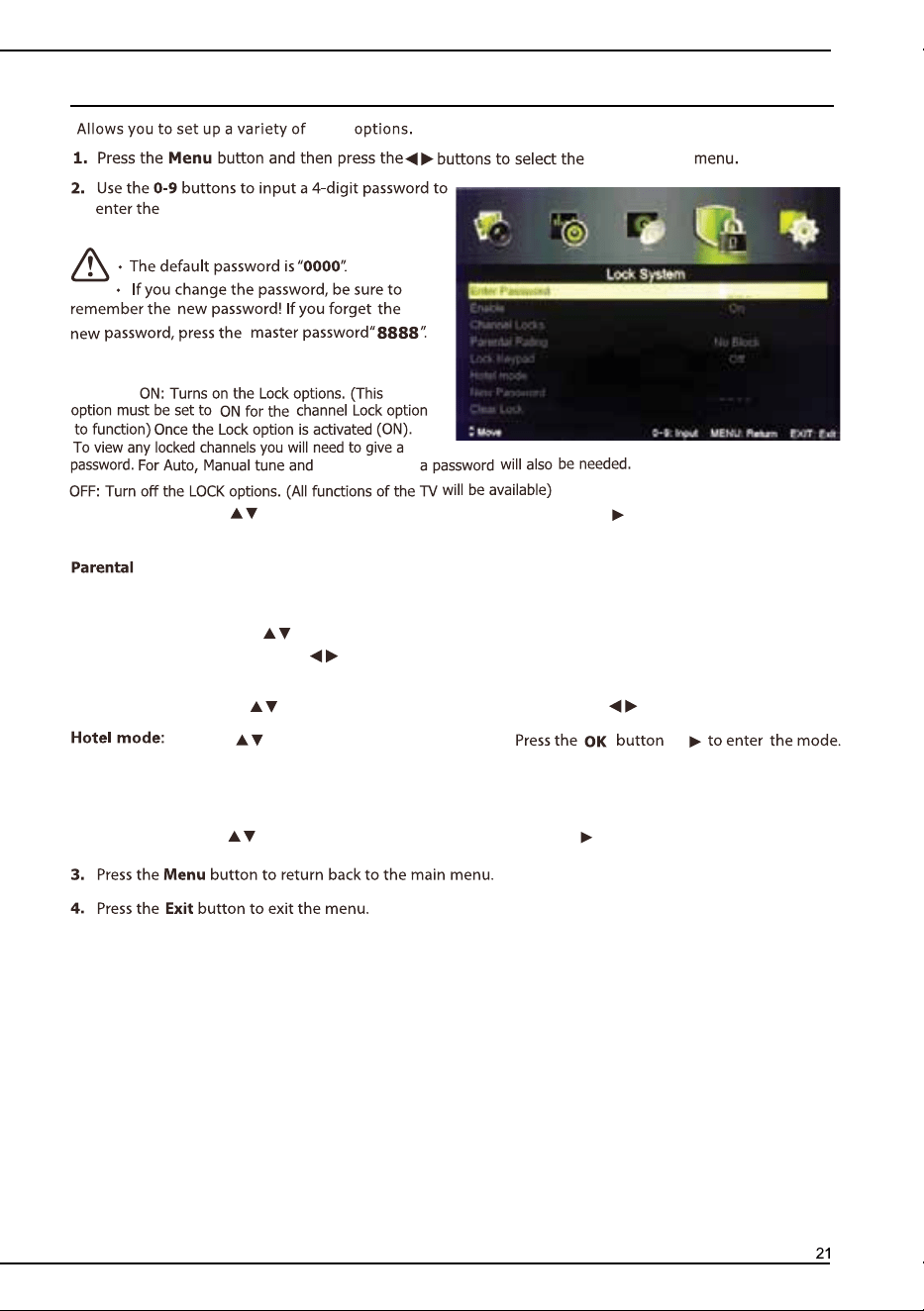
Lock system
Enable:
Rating:
Channel Locks:
Lock Keypad:
channel edit
Lock System
Lock options.
Lock
Press button to select channel Locks,then press OK or button to enter sub-menu.
to lock channel according to then instruction.
Set to prevent it from being used by your children, or other unexpected usage.
Press the button to select Lock Keypad, then press the button to select ON/OFF
Press the button to select the Parental Rating,
then press the button to select No Block / Block G+.../Block ALL+.
or
New password: Use the 0-9 button to input 4-digit as the new password, then repeat the 4-digit to confirm
the new password.
Clear Lock: Press ok or button to clear the Lock.
Press the button to select Hotel mode ,then
Press the button to select Clear lock ,then
No block: Turn off parental lock.
Block G+ - Block All+: Turn on Parental Lock and set the parental rating level to show
programs below the level, while a password controls access to higher-level programs.
Channel edit
1. Press OK or button to enter Channel edit Menu .
2.
Signal Information
Press the OK or button to see the detail information about the signal. Only available when there is
signal on DTV mode.
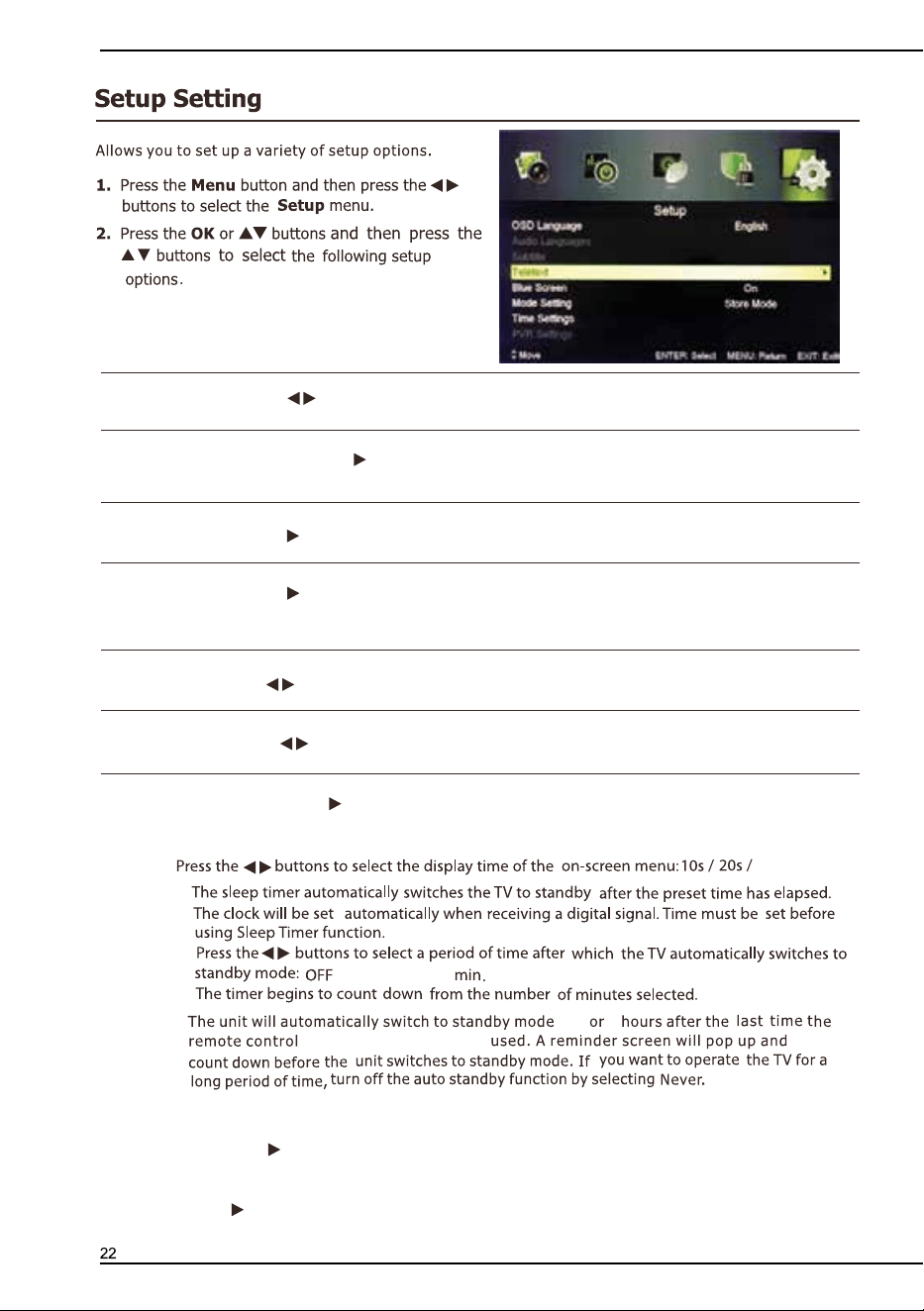
Digital Manual Scan
1.
2. Press button to select the Manual scan mode.
Digital Manual Scan:
Press ok or button to enter
Manual scan screen,select a channel number by
pressing the button or using the number buttons
on the remote control,then press the start to begin
the search. To exit the tuning menu by press Exit.
Analog Manual Scan: Press ok or button to enter
Analog Manual scan screen.
edit
Press the
OK or button to enter Digital Manual
scan screen,select a channel number by press
the button or using the number Buttons on the
remote control.the Frequency and Strength of the
signal indication bars are below,if the strength is too
weak, the TV may fail to tune into this channel.
then press the start to begin the search.
then press the button to select the following options.
Analog Scan: Input the channel frequency by using the number buttons on the remote control.
Channel to save: Store the current channel
Start: Press this button to begin the search.,and press the Exist button to exit the tuning menu.
3.Press the Menu button to return back to the mani menu.
4.Press the Exit button to exit the Menu.
Lock system
Enable:
Rating:
Channel Locks:
Lock Keypad:
channel edit
Lock System
Lock options.
Lock
Press button to select channel Locks,then press OK or button to enter sub-menu.
to lock channel according to then instruction.
Set to prevent it from being used by your children, or other unexpected usage.
Press the button to select Lock Keypad, then press the button to select ON/OFF
Press the button to select the Parental Rating,
then press the button to select No Block / Block G+.../Block ALL+.
or
New password: Use the 0-9 button to input 4-digit as the new password, then repeat the 4-digit to confirm
the new password.
Clear Lock: Press ok or button to clear the Lock.
Press the button to select Hotel mode ,then
Press the button to select Clear lock ,then
No block: Turn off parental lock.
Block G+ - Block All+: Turn on Parental Lock and set the parental rating level to show
programs below the level, while a password controls access to higher-level programs.
Channel edit
1. Press OK or button to enter Channel edit Menu .
2.
Signal Information
Press the OK or button to see the detail information about the signal. Only available when there is
signal on DTV mode.
Digital Manual Scan
1.
2. Press button to select the Manual scan mode.
Digital Manual Scan:
Press ok or button to enter
Manual scan screen,select a channel number by
pressing the button or using the number buttons
on the remote control,then press the start to begin
the search. To exit the tuning menu by press Exit.
Analog Manual Scan: Press ok or button to enter
Analog Manual scan screen.
edit
Press the
OK or button to enter Digital Manual
scan screen,select a channel number by press
the button or using the number Buttons on the
remote control.the Frequency and Strength of the
signal indication bars are below,if the strength is too
weak, the TV may fail to tune into this channel.
then press the start to begin the search.
then press the button to select the following options.
Analog Scan: Input the channel frequency by using the number buttons on the remote control.
Channel to save: Store the current channel
Start: Press this button to begin the search.,and press the Exist button to exit the tuning menu.
3.Press the Menu button to return back to the mani menu.
4.Press the Exit button to exit the Menu.
First time setup:
Press ok or button to activate the first time setup menu.
Reset:
Press ok or button to select the factory reset item, then select the YES to set.
OK
OSD language: Press the button to select the menu language.
Audio Language:
Press the OK or button to select the Audio language sub-menu
Subtitle:
Teletext:Press the OK or button to enter teletext menu to adjust telext settings
( Only available on ATV and DTV mode)
Blue screen :
Press the button to select ON/OFF.
Mode setting: Press the button to select store mode /home mode.
Time settings:Press the OK or button to enter Time Setting menu.,and select the following time
setup options.
OSD Time:
Sleep Timer:
Auto Sleep:
3,4 5
/5/15/...120/240
Time Zone: Press OK or button to enter the region menu, select your region and confirm it by
press OK button.
Time: Press OK or button to enter the Time menu to adjust the time.
30s/60s/off.
to select the Audio language.
Press the OK or button to enter sub-menu to select the subtitle language.
If you want to cancel the Auto sleep when the reminder screen pop up,
press any buttons can cancel it.
were
/ button on TV unit
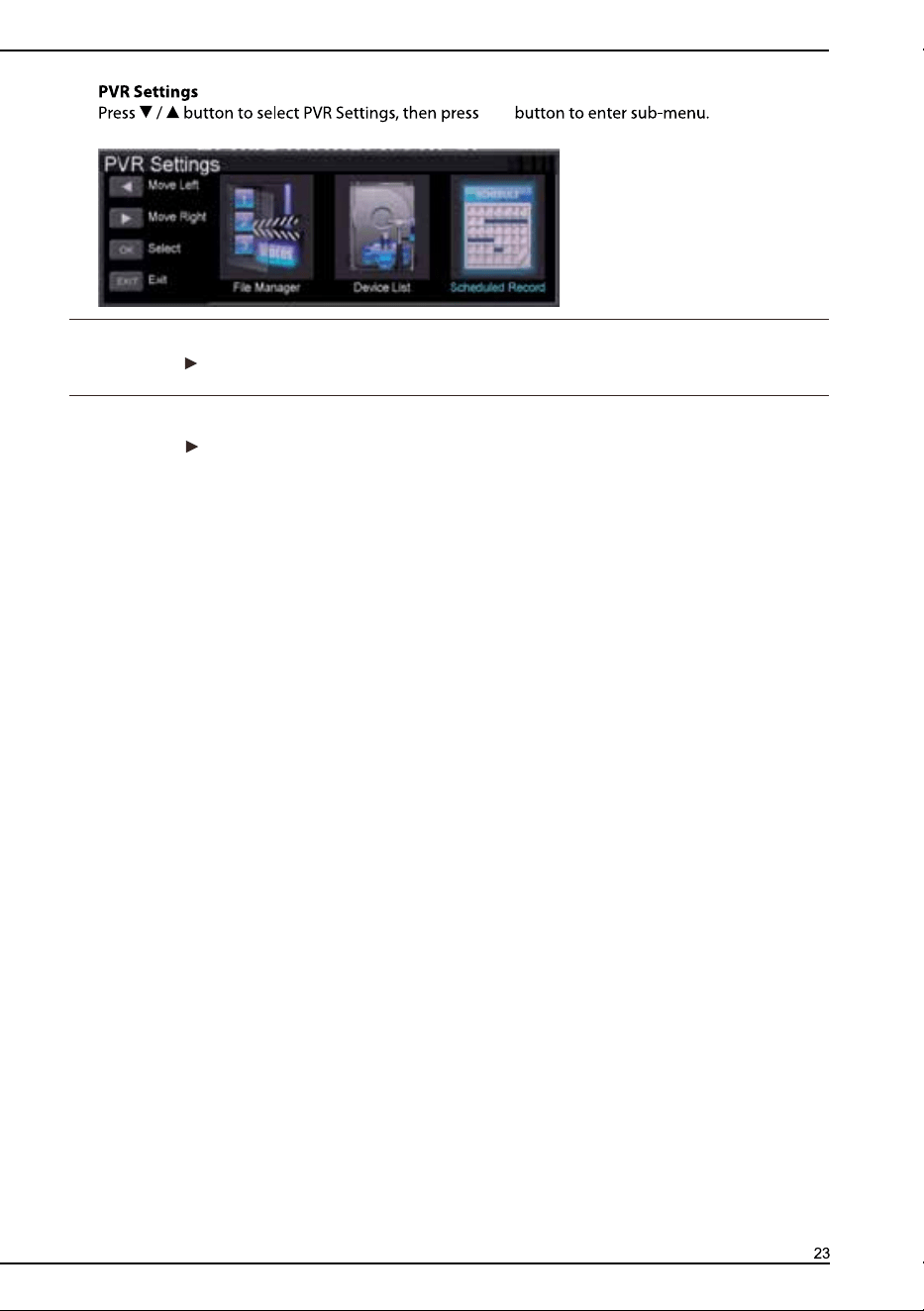
First time setup:
Press ok or button to activate the first time setup menu.
Reset:
Press ok or button to select the factory reset item, then select the YES to set.
OK
OSD language: Press the button to select the menu language.
Audio Language:
Press the OK or button to select the Audio language sub-menu
Subtitle:
Teletext:Press the OK or button to enter teletext menu to adjust telext settings
( Only available on ATV and DTV mode)
Blue screen :
Press the button to select ON/OFF.
Mode setting: Press the button to select store mode /home mode.
Time settings:Press the OK or button to enter Time Setting menu.,and select the following time
setup options.
OSD Time:
Sleep Timer:
Auto Sleep:
3,4 5
/5/15/...120/240
Time Zone: Press OK or button to enter the region menu, select your region and confirm it by
press OK button.
Time: Press OK or button to enter the Time menu to adjust the time.
30s/60s/off.
to select the Audio language.
Press the OK or button to enter sub-menu to select the subtitle language.
If you want to cancel the Auto sleep when the reminder screen pop up,
press any buttons can cancel it.
were
/ button on TV unit
USB
USB
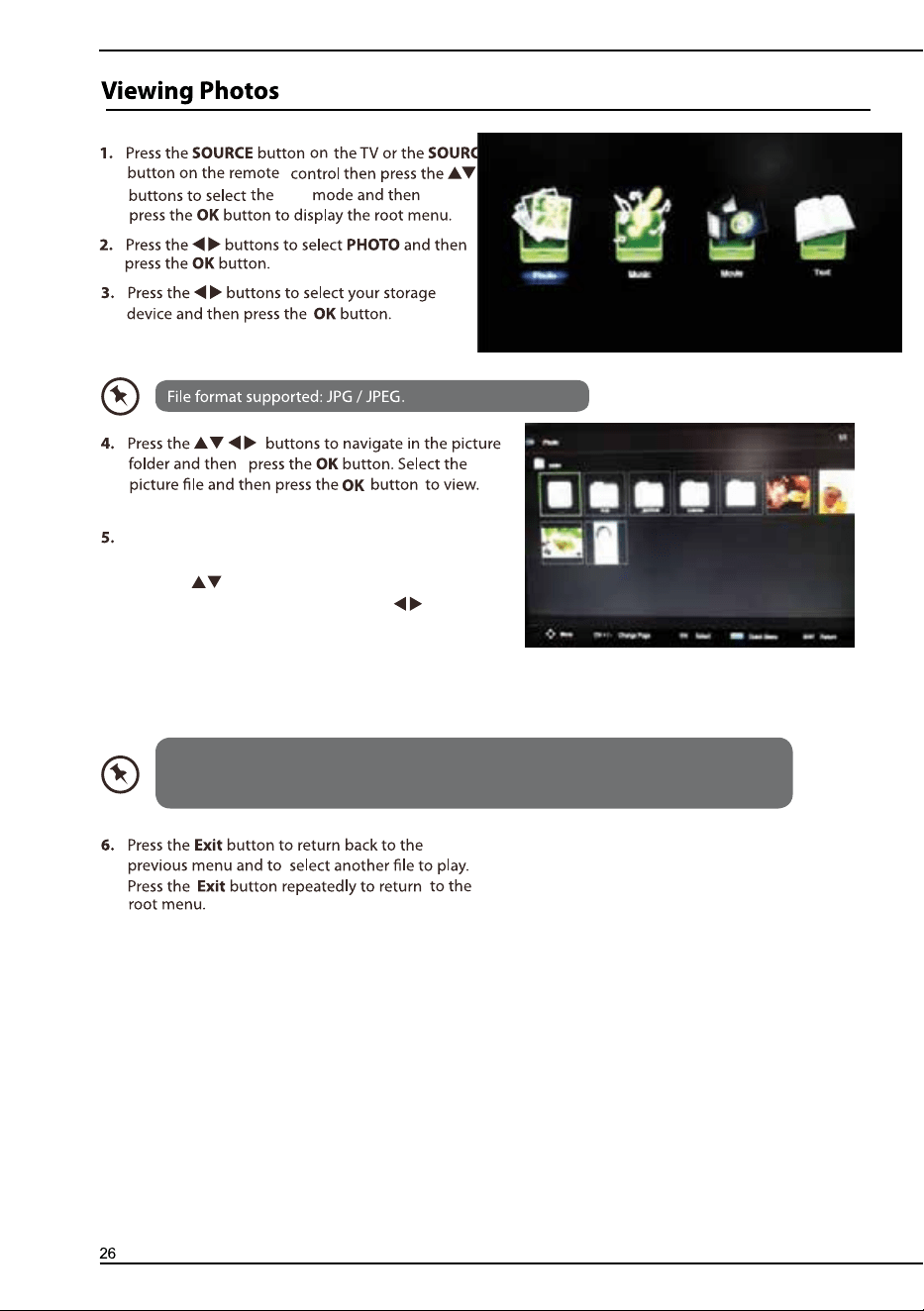
USB
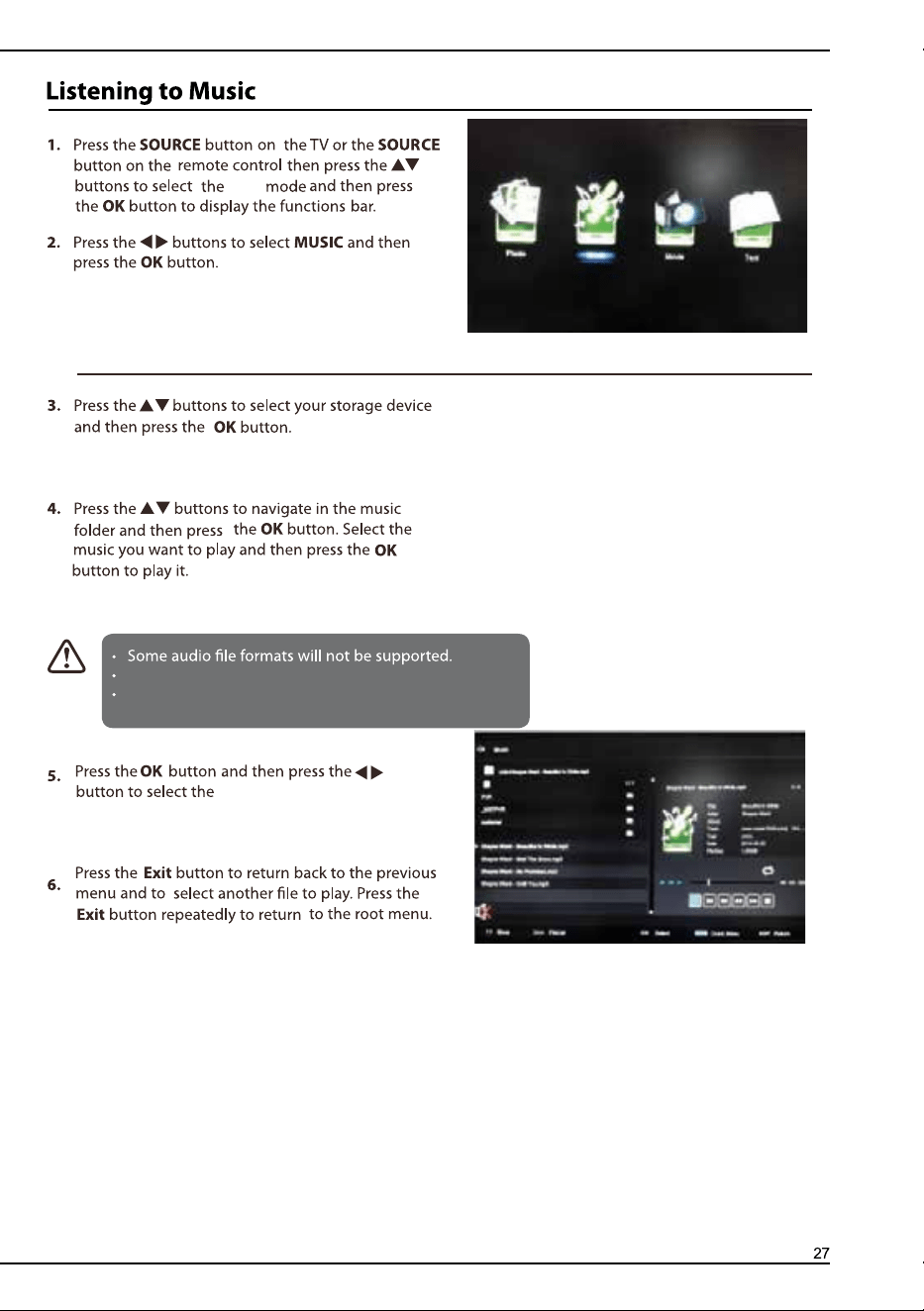
Supported file formats: MP3/AAC/M4A/WAV.
Supported Audio decoder:MPEG-1 layer3/MPEG-2
layer3 /AAC/HE-AAC V1/HE-AAC V2/LPCM/ADPCM
Play/Prev./Next/FB/FF/Plause.
press the blue button to enter the Quick Menu.
USB
Press the Info button to display the function bar,
press the ok to play/pause the picture,
press the button to rotate the picture when the
picture in pause condition,press the button to
view the Pre./Next picture.press the blue button to
enter the Quick Menu.
If this folder also contains music files,you can select a music
to play on music menu, then back to view your photo,
so that you can listen to the music at the same time while viewing your photo.
USB
Supported file formats: MP3/AAC/M4A/WAV.
Supported Audio decoder:MPEG-1 layer3/MPEG-2
layer3 /AAC/HE-AAC V1/HE-AAC V2/LPCM/ADPCM
Play/Prev./Next/FB/FF/Plause.
press the blue button to enter the Quick Menu.
USB
Press the Info button to display the function bar,
press the ok to play/pause the picture,
press the button to rotate the picture when the
picture in pause condition,press the button to
view the Pre./Next picture.press the blue button to
enter the Quick Menu.
If this folder also contains music files,you can select a music
to play on music menu, then back to view your photo,
so that you can listen to the music at the same time while viewing your photo.
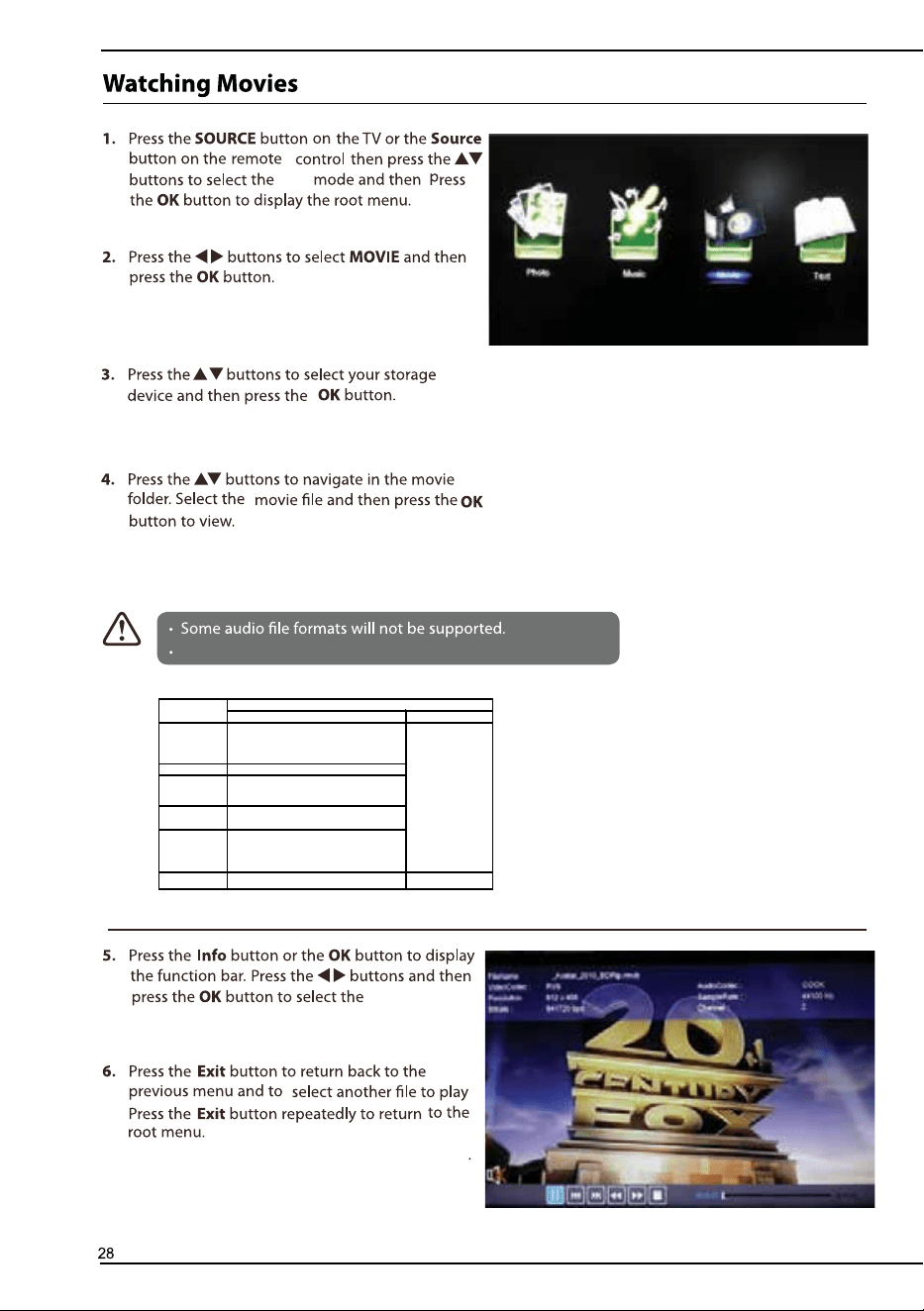
USB
press the button to view Pre./Next
page,press the number button on the remote
control to view the page directly, press the
button to view the Pre./Next text file.press the
blue button to enter the Quick Menu.
Only supported TXT format.
If this folder also contains music files,you can select a music to play on music menu,
then back to view your text,
so that you can listen to the music at the same time
.
USB
Play/Prev./
Next/FB/FF/Plause.
press the blue button to enter the Quick Menu.
Supported file formats and decoder is as follow:
Video Audio
AVI
MPEG-1/MPEG-2 MP/MPEG-4 SP/MPEG-4
ASP/MPEG-4 XVID/H.264 MP@Level
4/H.264 HP@Level 4
MPEG MPEG-1 MP/MPEG-2 MP
MPEG4
MPEG-4 SP/MPEG-4 ASP/MPEG-4 XVID/H.264
MP@Level 4/H.264 HP@Level 4
TS
MPEG-1/MPEG-2 MP/H.264 MP@Level 4/H.264
HP@Level 4
MKV
MPEG-1/MPEG-2 MP/MPEG-4 SP/MPEG-4
ASP/MPEG-4 XVID/H.264 MP@Level 4/H.264
HP@Level 4
FLV H.264 MP@Level 4/H.264 HP@Level 4
Decoder
File format
MPEG-1
Layer2/MPEG-1
Layer3/MPEG-2
Layer3/AC -3/AAC-
LC/HE-AAC V1/HE-AAC
V2
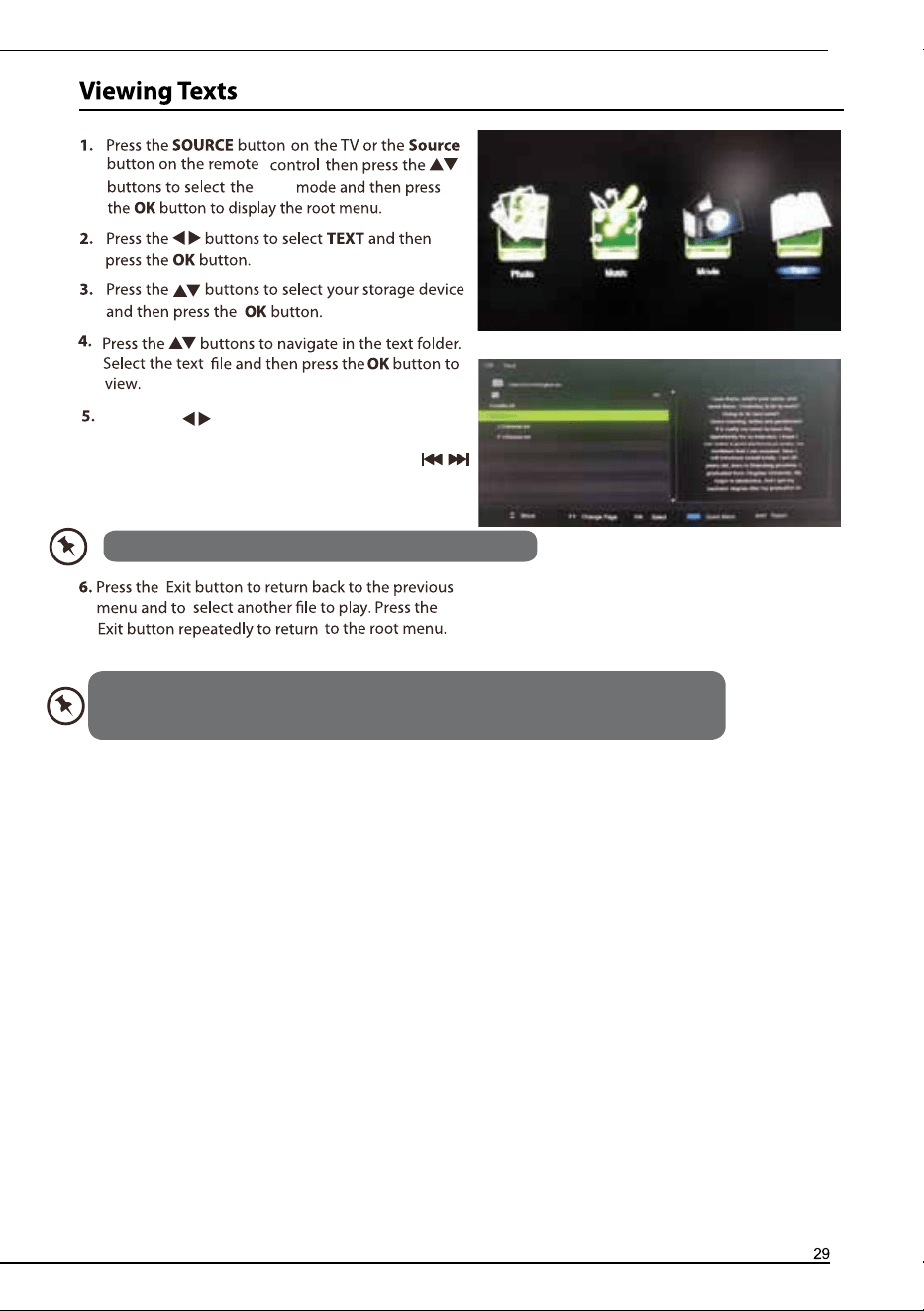
USB
press the button to view Pre./Next
page,press the number button on the remote
control to view the page directly, press the
button to view the Pre./Next text file.press the
blue button to enter the Quick Menu.
Only supported TXT format.
If this folder also contains music files,you can select a music to play on music menu,
then back to view your text,
so that you can listen to the music at the same time
.
USB
Play/Prev./
Next/FB/FF/Plause.
press the blue button to enter the Quick Menu.
Supported file formats and decoder is as follow:
Video Audio
AVI
MPEG-1/MPEG-2 MP/MPEG-4 SP/MPEG-4
ASP/MPEG-4 XVID/H.264 MP@Level
4/H.264 HP@Level 4
MPEG MPEG-1 MP/MPEG-2 MP
MPEG4
MPEG-4 SP/MPEG-4 ASP/MPEG-4 XVID/H.264
MP@Level 4/H.264 HP@Level 4
TS
MPEG-1/MPEG-2 MP/H.264 MP@Level 4/H.264
HP@Level 4
MKV
MPEG-1/MPEG-2 MP/MPEG-4 SP/MPEG-4
ASP/MPEG-4 XVID/H.264 MP@Level 4/H.264
HP@Level 4
FLV H.264 MP@Level 4/H.264 HP@Level 4
Decoder
File format
MPEG-1
Layer2/MPEG-1
Layer3/MPEG-2
Layer3/AC -3/AAC-
LC/HE-AAC V1/HE-AAC
V2
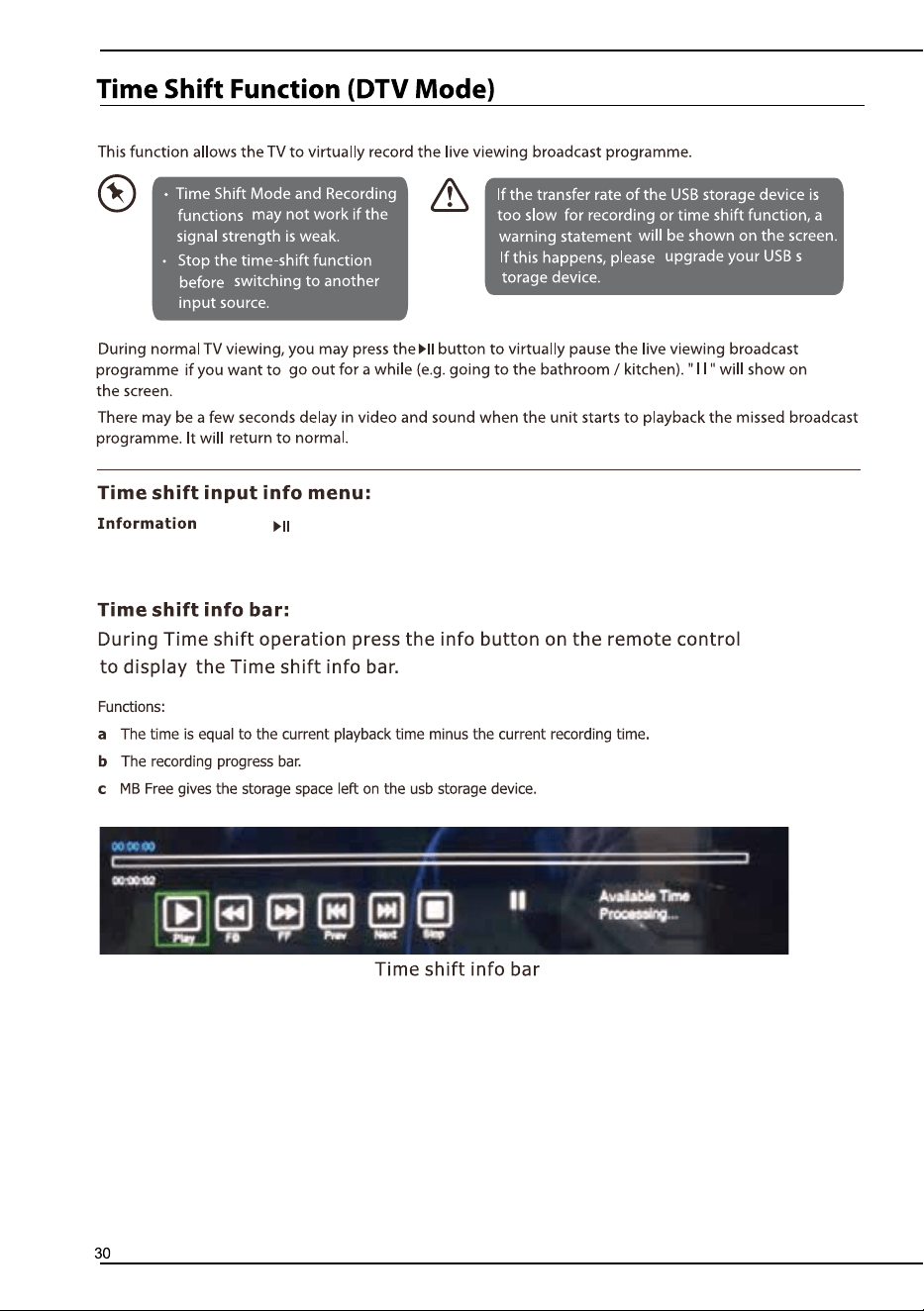
:
Frequency
C
End Time
,
,
,
1.Press the evenlist button enter scheduled record
setting lists,you can also enter the scheduled record
list via press the PVR button to enter PVR Settings,
then select the scheduled Record.
Press the OK button to select the following options.
Onec/Daily/Weekly/Weekday/off.
Press the buttons to select
the channel.
Press the buttons to select the
Year/Month/Date,then press the number buttons on the remote to adjust the Hour and
Minutes ,then select save to finish the adjustment of the Start Time.
Press the buttons to select the Year/Month/Date,then press the number buttons on
the remote to adjust the Hour and Minutes ,then select save to finish the adjustment of
the End Time.
.
Press the button to display time shift bar.
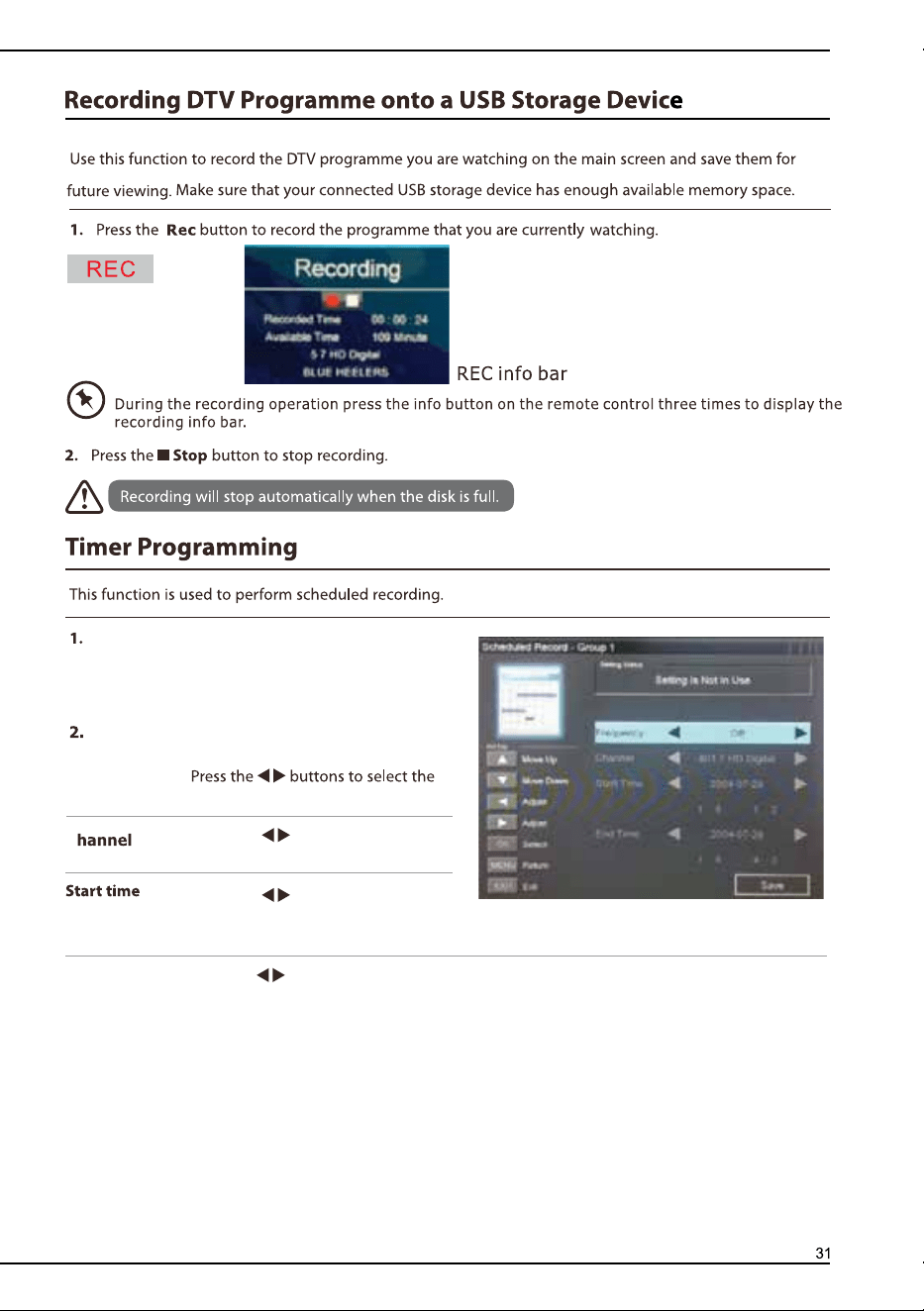
:
Frequency
C
End Time
,
,
,
1.Press the evenlist button enter scheduled record
setting lists,you can also enter the scheduled record
list via press the PVR button to enter PVR Settings,
then select the scheduled Record.
Press the OK button to select the following options.
Onec/Daily/Weekly/Weekday/off.
Press the buttons to select
the channel.
Press the buttons to select the
Year/Month/Date,then press the number buttons on the remote to adjust the Hour and
Minutes ,then select save to finish the adjustment of the Start Time.
Press the buttons to select the Year/Month/Date,then press the number buttons on
the remote to adjust the Hour and Minutes ,then select save to finish the adjustment of
the End Time.
.
Press the button to display time shift bar.

:
Enter the master password “8888”in the Lock system,
then select clear lock option to clear your previous password .
:
Enter the master password “8888”in the Lock system,
then select clear lock option to clear your previous password .
1920 x 1080
/Dot to Dot/Full
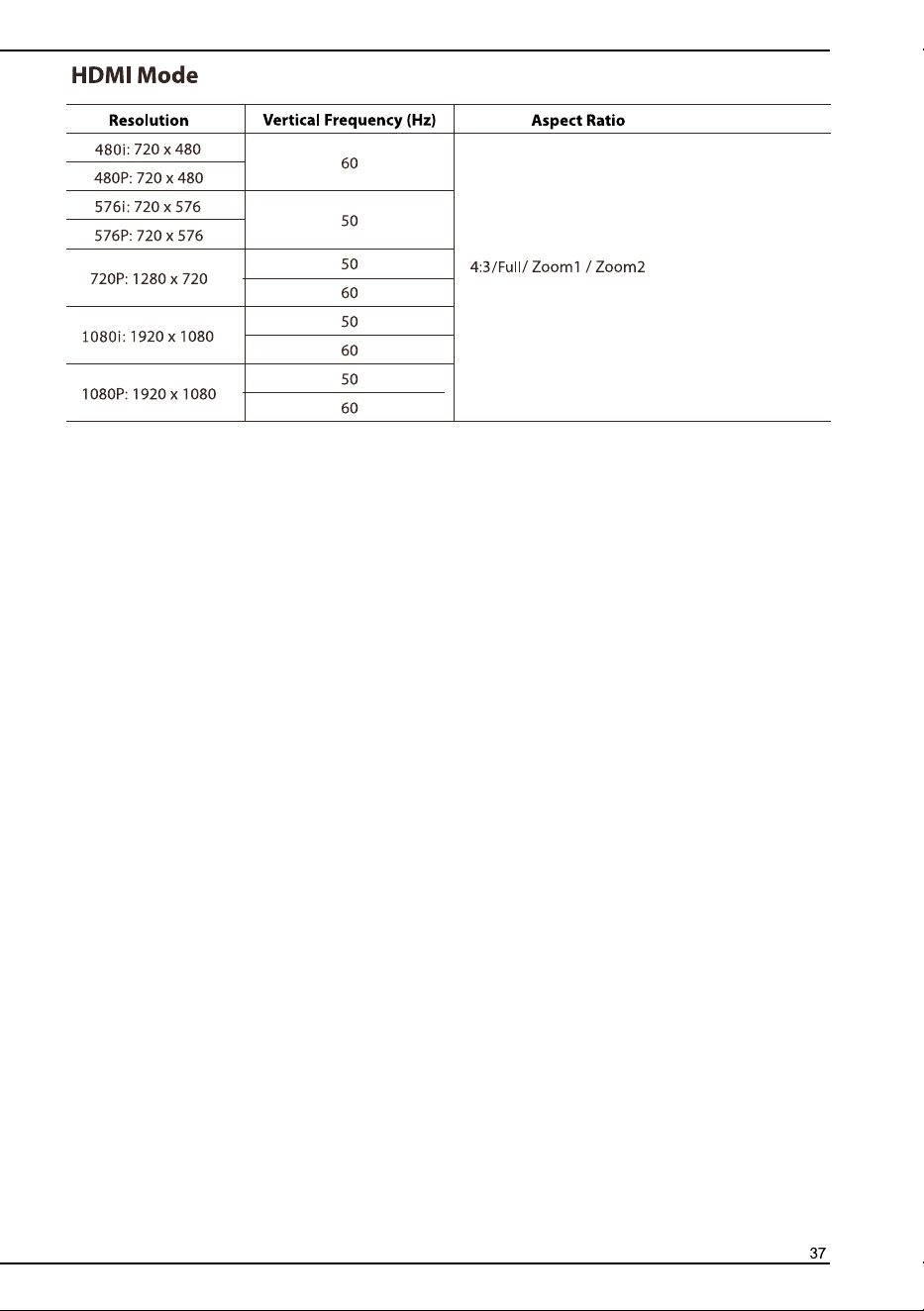
1920 x 1080
/Dot to Dot/Full
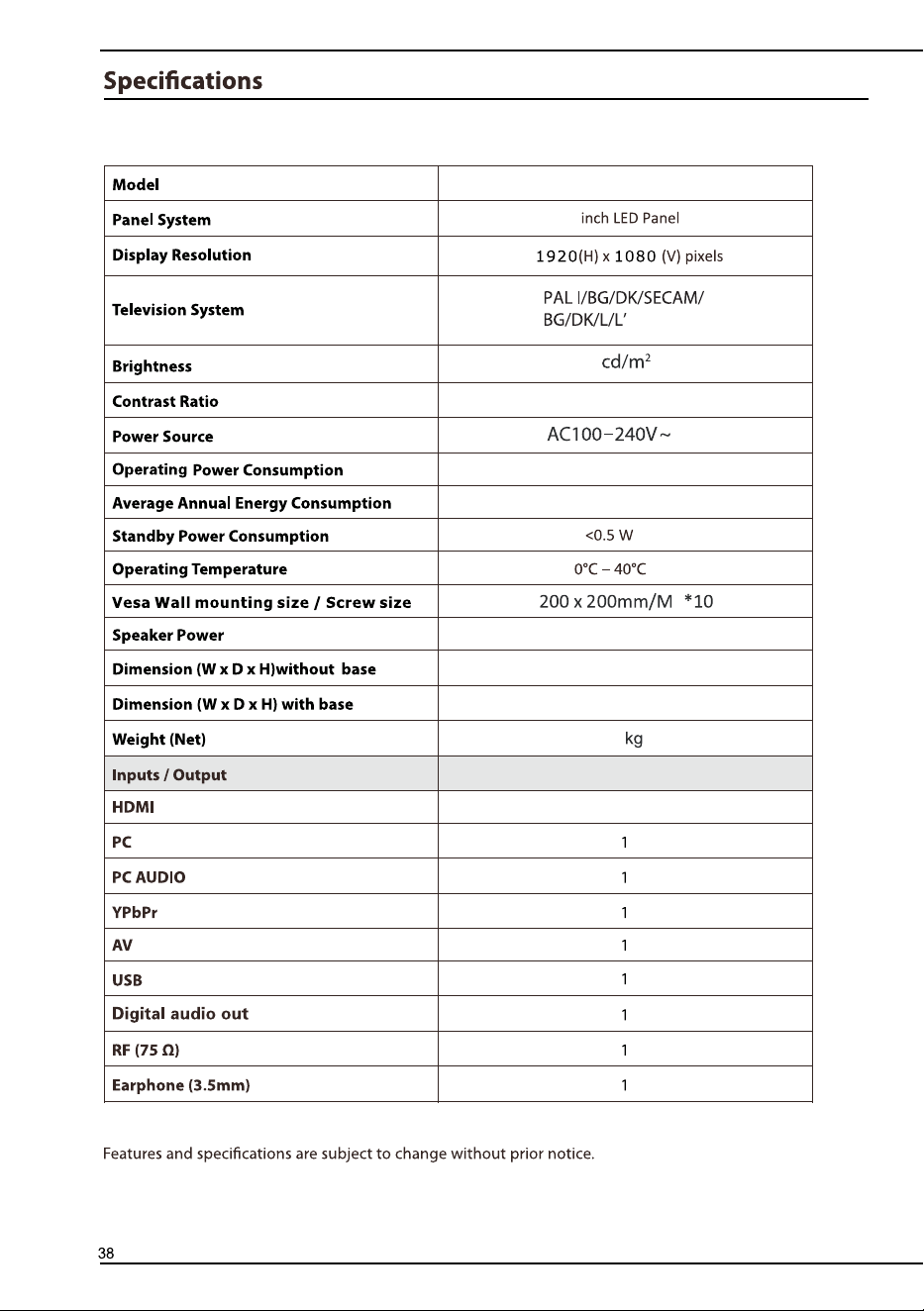
BP4820FHD
4
8
"
MAX
5000:1
300
120W
293k
6
Wh
7W+7W
1095.9x250x683.2mm
1095.9x92.1x641.4mm
13.6
3
BP4820FHD
4
8
"
MAX
5000:1
300
120W
293k
6
Wh
7W+7W
1095.9x250x683.2mm
1095.9x92.1x641.4mm
13.6
3


For more information and Customer support visit:
www.blaupunkt-australia.com.au