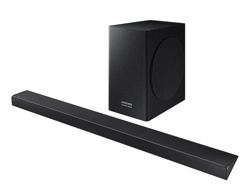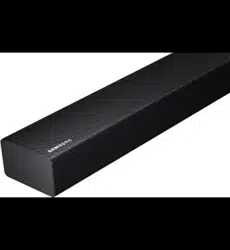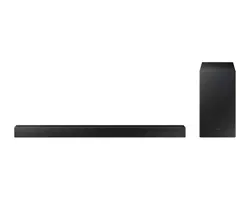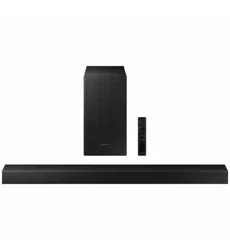

HW-S50B
Imagine the possibilities
Thank you for purchasing this Samsung product.
To receive more complete service, please register
your product at www.samsung.com/register
FULL MANUAL

ENG - 2
SAFETY INFORMATION
SAFETY WARNINGS
TO REDUCE THE RISK OF ELECTRIC SHOCK, DO
NOT REMOVE THE COVER (OR BACK).
NO USER-SERVICEABLE PARTS ARE INSIDE.
REFER SERVICING TO QUALIFIED SERVICE
PERSONNEL.
Refer to the table below for an explanation of
symbols which may be on your Samsung product.
CAUTION
RISK OF ELECTRIC SHOCK.
DO NOT OPEN.
This symbol indicates that high voltage
is present inside. It is dangerous to
make any kind of contact with any
internal part of this product.
This symbol indicates that this product
has included important literature
concerning operation and maintenance.
Class II product : This symbol indicates
that it does not require a safety
connection to electrical earth (ground).
If this symbol is not present on a
product with a power cord, the product
MUST have a reliable connection to
protective earth (ground).
AC voltage : This symbol indicates that
the rated voltage marked with the
symbol is AC voltage.
DC voltage : This symbol indicates that
the rated voltage marked with the
symbol is DC voltage.
Caution, Consult instructions for use :
This symbol instructs the user to
consult the user manual for further
safety related information.
WARNING
• To reduce the risk of re or electric shock, do
not expose this appliance to rain or moisture.
CAUTION
• TO PREVENT ELECTRIC SHOCK, MATCH WIDE
BLADE OF PLUG TO WIDE SLOT, FULLY INSERT.
• This apparatus shall always be connected to a
AC outlet with a protective grounding
connection.
• To disconnect the apparatus from the mains,
the plug must be pulled out from the mains
socket, therefore the mains plug shall be
readily operable.
• Do not expose this apparatus to dripping or
splashing. Do not put objects lled with
liquids, such as vases on the apparatus.
• To turn this apparatus off completely, you
must pull the power plug out of the wall
socket. Consequently, the power plug must
be easily and readily accessible at all times.
Wiring the Main Power Supply
Plug (UK Only)
IMPORTANT NOTICE
The mains lead on this equipment is supplied with
a moulded plug incorporating a fuse. The value of
the fuse is indicated on the pin face of the plug
and if it requires replacing, a fuse approved to
BS1362 of the same rating must be used.
Never use the plug with the fuse cover removed.
If the cover is detachable and a replacement is
required, it must be of the same colour as the fuse
tted in the plug. Replacement covers are
available from your dealer. If the tted plug is not
suitable for the power points in your house or the
cable is not long enough to reach a power point,
you should obtain a suitable safety approved
extension lead or consult your dealer for assistance.

ENG - 3
However, if there is no alternative to cutting off the
plug, remove the fuse and then safely dispose of
the plug. Do not connect the plug to a mains
socket as there is a risk of shock hazard from the
bared exible cord. Never attempt to insert bare
wires directly into a mains socket. A plug and fuse
must be used at all times.
IMPORTANT
The wires in the mains lead are coloured in
accordance with the following code:– BLUE =
NEUTRAL BROWN = LIVE As these colours may not
correspond to the coloured markings identifying
the terminals in your plug, proceed as follows:– The
wire coloured BLUE must be connected to the
terminal marked with the letter N or coloured
BLUE or BLACK. The wire coloured BROWN must
be connected to the terminal marked with the
letter L or coloured BROWN or RED.
WARNING : DO NOT CONNECT EITHER WIRE TO
THE EARTH TERMINAL WHICH IS MARKED WITH
THE LETTER E OR BY THE EARTH SYMBOL ,
OR COLOURED GREEN OR GREEN AND YELLOW.
PRECAUTIONS
1. Ensure that the AC power supply in your
house complies with the power
requirements listed on the identication
sticker located on the bottom of your
product. Install your product horizontally, on
a suitable base (furniture), with enough
space around it for ventilation (7~10 cm).
Make sure the ventilation slots are not
covered. Do not place the unit on ampliers
or other equipment which may become hot.
This unit is designed for continuous use. To
fully turn off the unit, disconnect the AC plug
from the wall outlet. Unplug the unit if you
intend to leave it unused for a long period of
time.
2. During thunderstorms, disconnect the AC
plug from the wall outlet. Voltage peaks due
to lightning could damage the unit.
3. Do not expose the unit to direct sunlight or
other heat sources. This could lead to
overheating and cause the unit to
malfunction.
4. Protect the product from moisture (i.e.
vases), and excess heat (e.g. a replace) or
equipment creating strong magnetic or
electric elds. Unplug the power cable from
the AC wall socket if the unit malfunctions.
Your product is not intended for industrial
use. It is for personal use only. Condensation
may occur if your product has been stored in
cold temperatures. If transporting the unit
during the winter, wait approximately
2 hours until the unit has reached room
temperature before using.
5. The battery used with this product contains
chemicals that are harmful to the
environment. Do not dispose of the battery
in the general household trash. Do not
expose the battery to excess heat, direct
sunlight, or re. Do not short circuit,
disassemble, or overheat the battery.
CAUTION : Danger of explosion if the battery
is replaced incorrectly. Replace only with the
same or equivalent type.

ENG - 4
CONTENTS
01 Checking the Components 6
02 Product Overview 7
Front Panel / Top Panel of the Soundbar ------------------------- 7
Bottom Panel of the Soundbar ------------------------- 8
03 Using the Remote Control 9
Inserting Batteries before using the Remote Control (AAA batteries X 2) ------------------------- 9
How to Use the Remote Control
-------------------------
9
Using the Hidden Buttons (Buttons with more than one function)
-------------------------
14
Output specications for the different sound effect modes
-------------------------
14
Adjusting the Soundbar volume with a TV remote control ------------------------- 15
04 Connecting the Soundbar 16
Connecting Electrical Power
-------------------------
16
Connecting the Samsung Wireless Rear Kit and Subwoofer to your
Soundbar
-------------------------
16
05 Using a wired connection to the TV 17
Method 1. Connecting with HDMI
-------------------------
17
Method 2. Connecting using an Optical Cable
-------------------------
19
06 Using a wireless connection to the TV 21
Connecting via Bluetooth
-------------------------
21

ENG - 5
07 Connecting an External Device 23
Connecting using an Optical Cable
-------------------------
23
08 Connecting a USB Storage Device 24
09 Connecting a Mobile Device 26
Connecting via Bluetooth
-------------------------
26
Using Tap Sound
-------------------------
31
10 Installing the Wall Mount 32
Installation Precautions
-------------------------
32
Wallmount Components
-------------------------
32
11 Installing the Soundbar in front of TV 34
12 Software Update 35
Reset
-------------------------
36
13 Troubleshooting 37
14 Licence 38
15 Open Source Licence Notice 39
16 Important Notes About Service 39
17 SpecicationsandGuide 40
Specications
-------------------------
40
ENG - 6
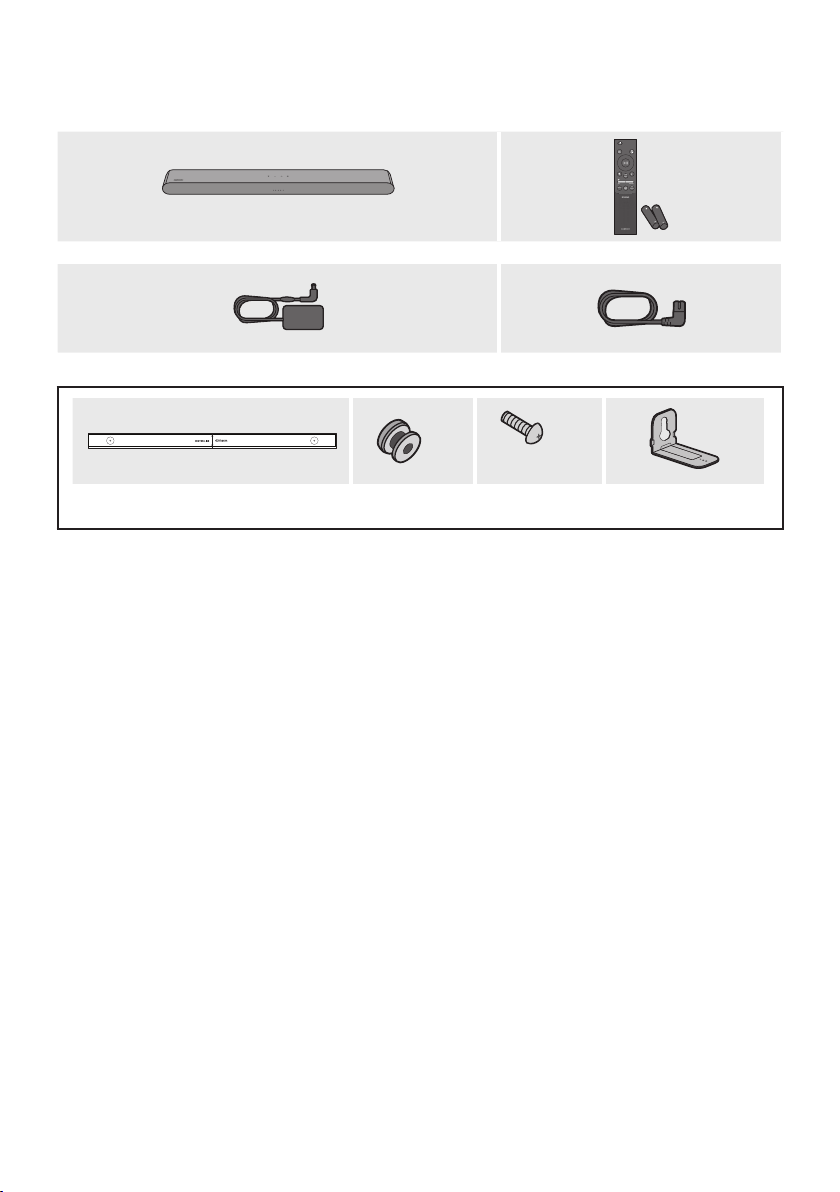
01 CHECKING THE COMPONENTS
SOUND
MODE
WOOFER
TONE
CONTROL
CH LEVEL
Soundbar Main Unit Soundbar Remote Control
/ Batteries
AC/DC Adapter (Soundbar)
Power Cord (Soundbar)
x 2
(M4 x L10)
x 2
x 2
Wall Mount Guide Holder-Screw Screw Bracket-Wall Mount
• For more information about the power supply and power consumption, refer to the label attached
to the product. (Label: Bottom of the Soundbar Main Unit)
• To purchase additional components or optional cables, contact a Samsung Service Centre or
Samsung Customer Care.
• For more information about the wallmount see page 32.
• Design, specications are subject to change without prior notice.
• The appearance of the accessories may differ slightly from the illustrations above.
ENG - 7
02 PRODUCT OVERVIEW
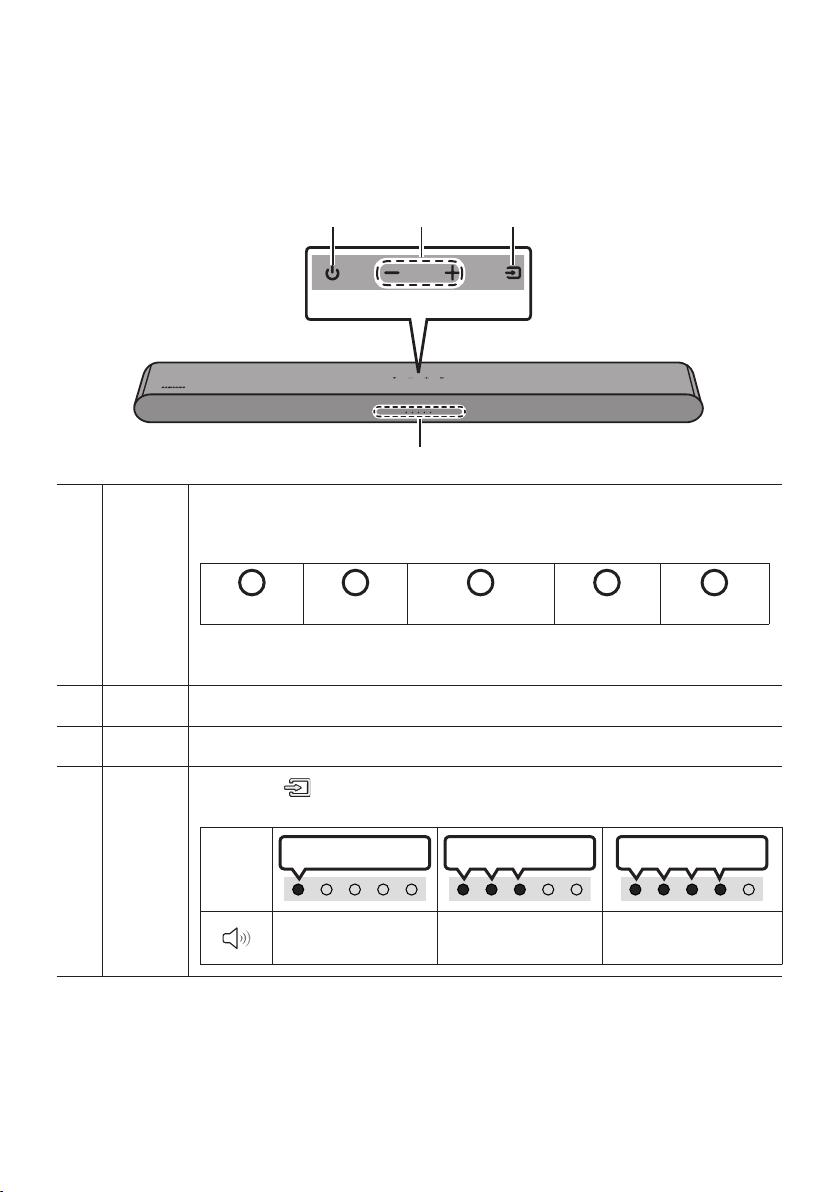
Front Panel / Top Panel of the Soundbar
Top Panel
LED
indicator
The LED Indicator ashes, glows, or changes colour depending on the Soundbar's current
mode or status. The colour of the LED indicator and the number of lights indicate the active
mode as described below.
W
White LED
W
White LED
M
Multicolour LED
W
White LED
W
White LED
• The Multicolour LED changes to White, Cyan, Green, Red, Yellow, Orange, Purple and
Blue depending on the mode or status.
Power Turns the power on and off.
Volume Adjusts the volume.
Source
• Press the (Source) button to change the mode. Each time you change the mode,
the LED lights in white and then turns off.
LED
Indicator
White On -> Off White On -> Off White On -> Off
“Digital Audio In” or
“TV ARC”
“Bluetooth” “USB”
ENG - 8
• When you plug in the AC cord, the power button will begin working in 4 to 6 seconds.
• When you turn on this unit, there will be a 4 to 5 second delay before it produces sound.
• If you hear sounds from both the TV and Soundbar, go to the Settings menu for the TV audio and
change the TV speaker to External Speaker.
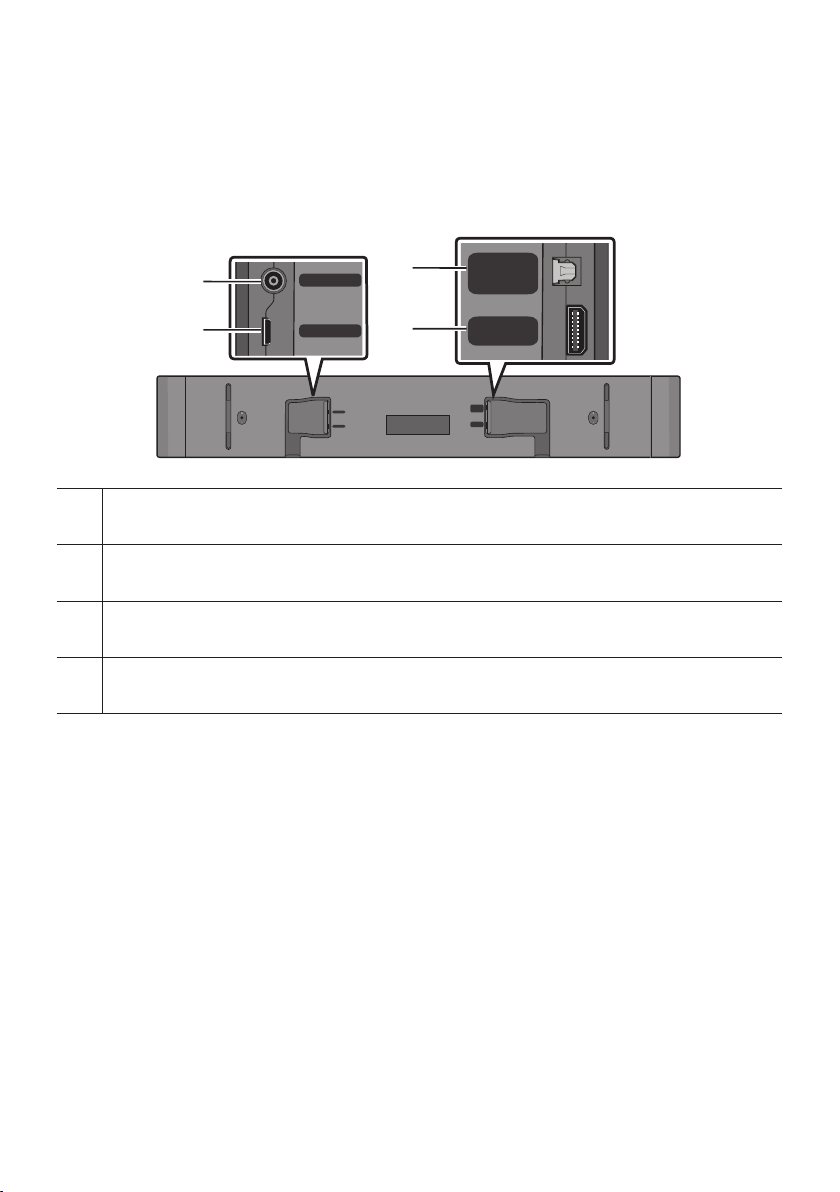
Bottom Panel of the Soundbar
USB (5V 0.5A)
DC 19V
DIGITAL
AUDIO IN
(OPTICAL)
HDMI
(ARC)
DIGITAL
AUDIO IN
(OPTICAL)
HDMI
(ARC)
USB (5V 0.5A)
DC 19V
DIGITAL
AUDIO IN
(OPTICAL)
HDMI
(ARC)
USB (5V 0.5A)
DC 19V
DC 19V (Power Supply In)
Connect the AC/DC power adapter.
USB (5V 0.5A)
Connect a USB device here to play music les stored on the USB device through the Soundbar.
DIGITAL AUDIO IN (OPTICAL)
Connect to the digital (optical) output of an external device.
HDMI (ARC)
Connect to the HDMI (ARC) port on a TV.
• When disconnecting the power cable of the AC/DC power adapter from a wall outlet, pull the plug.
Do not pull the cable.
• Do not connect this unit or other components to an AC outlet until all connections between
components are complete.
ENG - 9
03 USING THE REMOTE CONTROL
Inserting Batteries before using the Remote Control (AAA batteries X 2)
Slide the back cover in the direction of the arrow
until it is completely removed.
Insert 2 AAA batteries (1.5V) oriented so that their
polarity is correct. Slide the back cover back into
position.
How to Use the Remote Control
SOUND
MODE
WOOFER
TONE
CONTROL
CH LEVEL
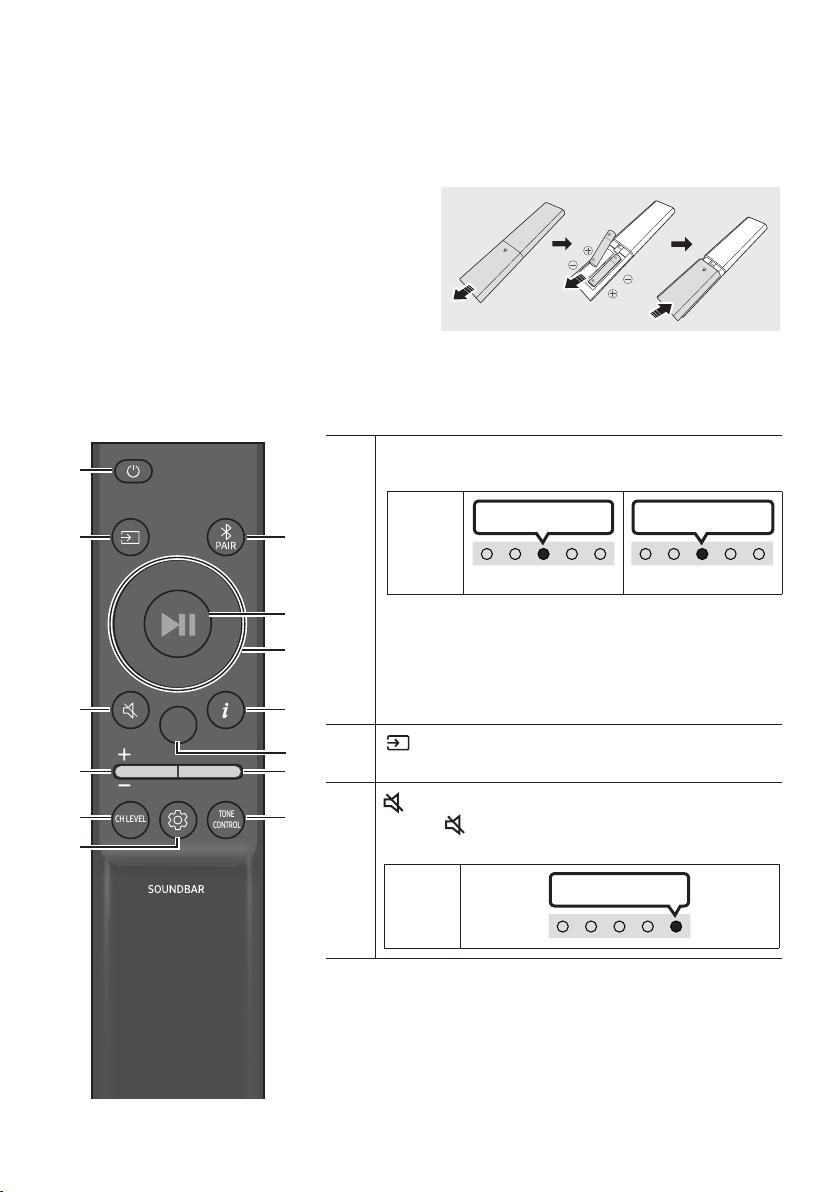
Power
Turns the Soundbar on and off.
LED
Indicator
Cyan Blinks X1
On
Off
Red Blinks X3
• Auto Power Down Function
The unit turns off automatically in the following
situations:
– In “Digital Audio In” or “TV ARC” / “Bluetooth” /
“USB” mode if there is no audio signal for 20 minutes.
(Source)
Press to select a source connected to the Soundbar.
(Mute)
Press the (Mute) button to mute the sound.
Press it again to unmute the sound.
LED
Indicator
Blinks X Repeatly
ENG - 10
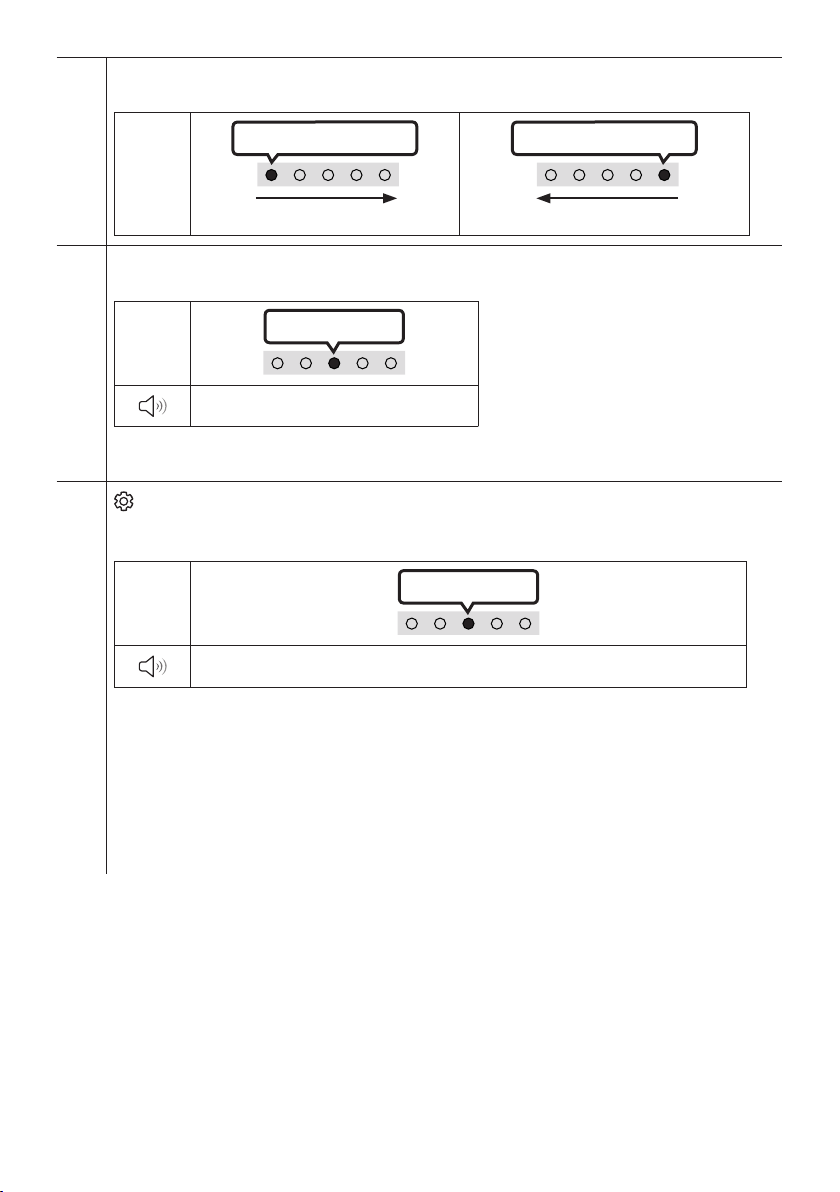
Volume
Push the button up or down to adjust the volume.
LED
Indicator
White moves to right X1
Volume Up
White moves to left X1
Volume Down
CH LEVEL
By pressing the button, you can adjust the volume of the each speaker.
LED
Indicator
White Blinks X1
“Centre Level”
– If the Rear Speakers (sold separately) are connected, the setting “Rear Level” is supported. To adjust
the volume of the “Rear Level” between -6 to +6 by using the Up/Down buttons.
(Sound Control)
By pressing the button, you can set the audio function. The desired item can be adjusted using the Up/
Down buttons. Each time the mode changes, the Multicolour LED blinks in white.
LED
Indicator
White Blinks X1
“Sync” “Night mode” “Voice enhancement”
– If the video on the TV and audio from the Soundbar are not synchronised, select “Sync” in Sound
Control, and then set the audio delay between 0~300 milliseconds by using the Up/Down buttons.
(Not available in “USB” or “Bluetooth”mode.)
– “Sync” is only supported for some functions.
– “Night mode” and “Voice enhancement” are not supported in “DTS Virtual:X” sound mode.
– “Night mode” is optimised for night time viewing with the settings adjusted to bring the volume
down but keep the dialog clear.
– “Voice enhancement” makes it easier to hear spoken dialog in movies and TV.
ENG - 11
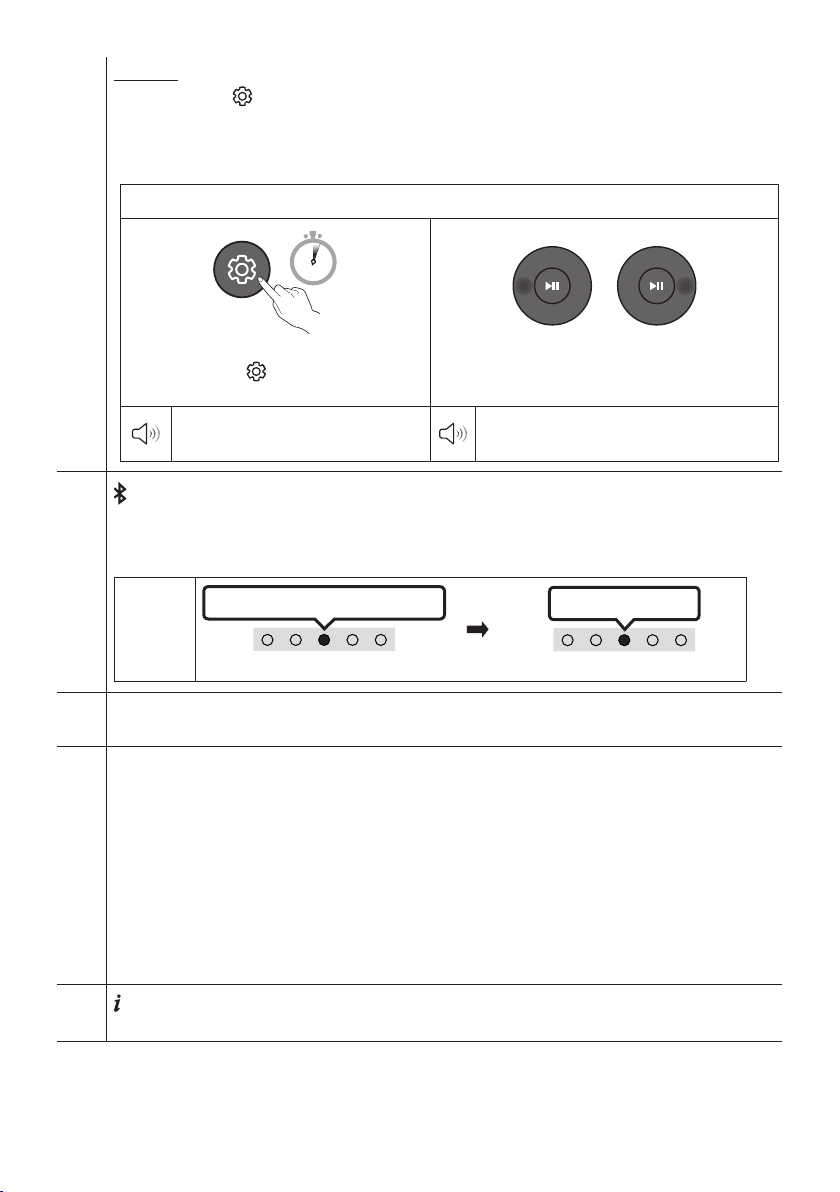
7 Band EQ
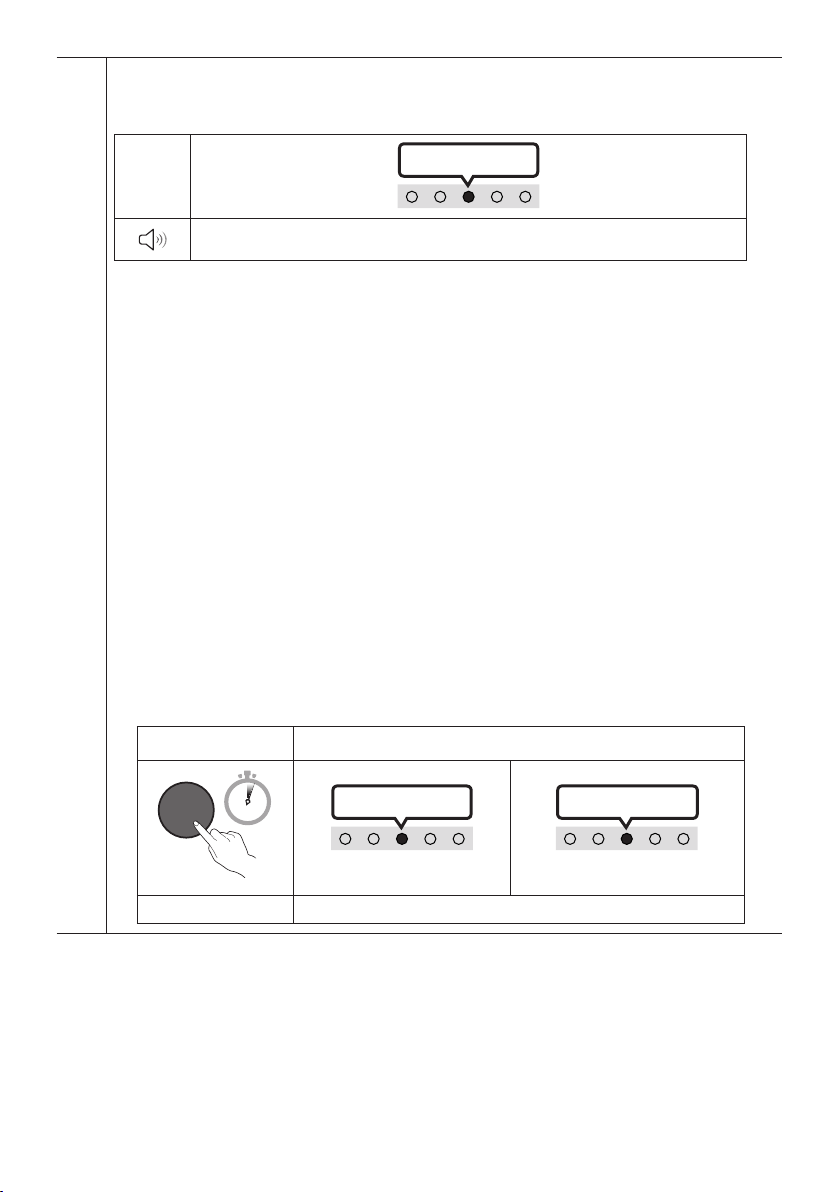
Press and hold the (Sound Control) button for about 5 seconds to adjust the sound for each frequency
band. 150Hz, 300Hz, 600Hz, 1.2kHz, 2.5kHz, 5kHz, and 10kHz are selectable using the Left/Right buttons
and each can be adjusted to a setting between -6 to +6 using the Up/Down buttons. (Make sure the Sound
mode is set to "Standard".)
7 Band EQ
VOL WOOFER
SOUND
MODE
PAIR
5 Sec
Press and hold the (Sound Control) button
for about 5 seconds.
Using the Left/Right buttos and each can be
adjusted to setting between -6 to+6.
“150Hz”
“150Hz” “300Hz” “600Hz” “1.2kHz”
“2.5kHz” “5kHz” “10kHz”
Bluetooth PAIR
Switch the Soundbar to Bluetooth pairing mode.
When you press the button, the LED display changes as shown below.
• Until pairing is complete, the Multicolour LED changes as Red → Green → Blue in turn.
LED
Indicator
Red → Green → Blue Blinks
Pairing
Connection is complete
Cyan Blinks X3
p (Play / Pause)
You can also play or pause music by pressing the button in "USB" mode.
Up/Down/Left/Right
Press Up/Down/Left/Right on the button to select or set functions.
• Repeat
To use the Repeat function in “USB” mode, press the Up button.
• Music Skip
Press the Right button to select the next music le. Press the Left button to select the previous music
le.
• ID SET
Press and hold the Up button for 5 seconds to complete ID SET (when connecting to a wireless
subwoofer or wireless rear speakers).
(Info)
Press the button to display information about the current function. (See page 7.)
ENG - 12
SOUND MODE
By pressing the button, you can select the desired audio mode. Each time the mode changes, the
Multicolour LED blinks in white. (The sound mode may differ with the TV model.)
LED
Indicator
White Blinks X1
“DTS Virtual:X” “Standard” “Music” “Game” “Adaptive Sound”
– DTS Virtual:X
Immersive 3D sound from any content.
– Standard
Outputs the original sound.
– Music
Provides more natural and room lling sound for music content.
– Game
Provides stereoscopic sound to immerse you in the action while gaming.
– Adaptive Sound
Analyzes the content in real time and automatically provides the optimal sound eld based on the
characteristics of the content.
• Bluetooth Power On/Off
This feature automatically turns the Soundbar on when it receives a connection request from a
previously connected TV or Bluetooth device. The setting is On by default.
– Press and hold the SOUND MODE button for more than 5 seconds to turn off the Bluetooth Power
function.
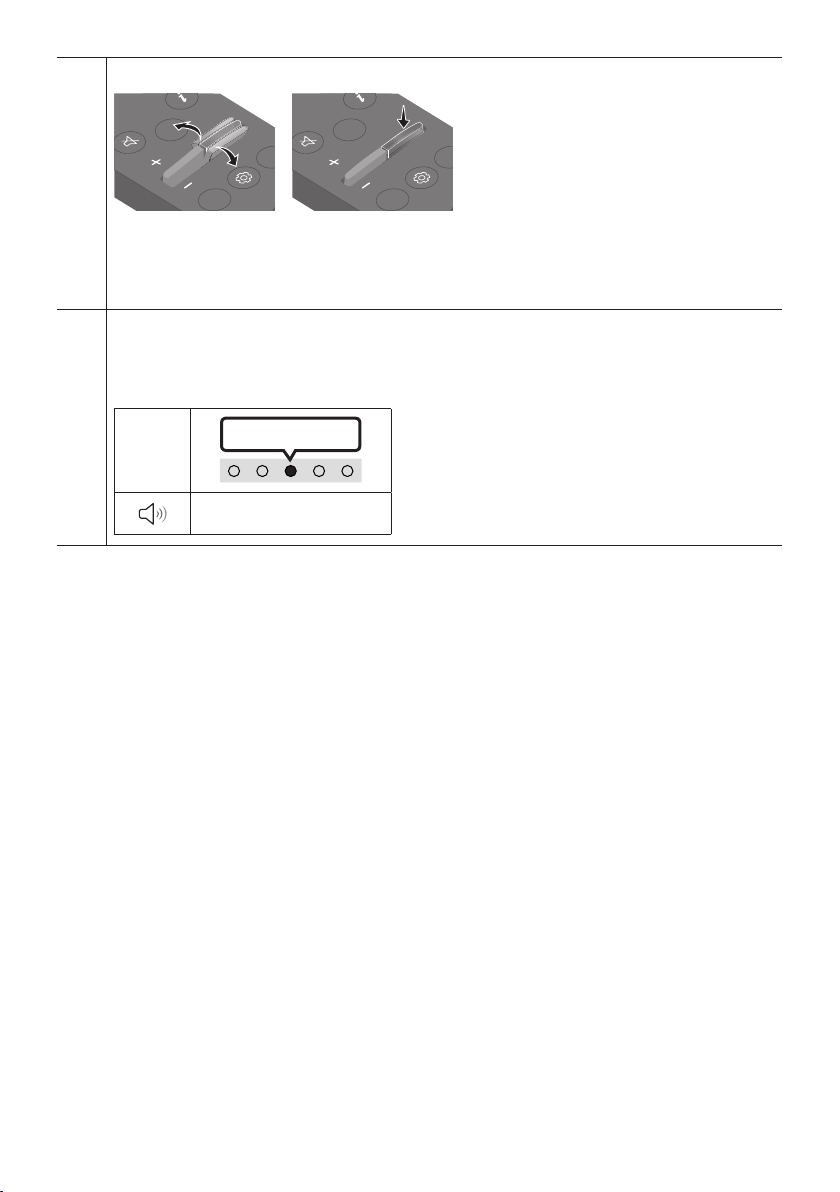
• DRC (Dynamic Range Control) On/Off
Lets you apply dynamic range control to Dolby Digital tracks. Press and hold the SOUND MODE
button for more than 5 seconds while the Soundbar is powered off to turn DRC (Dynamic Range
Control) on or off. With the DRC turned on, loud sound is reduced. (The sound may be distorted.)
SOUND MODE button LED Indicator
VOL WOOFER
SOUND
MODE
PAIR
5 Sec
Cyan Blinks X1
On (Default)
Off
Red Blinks X1
DRC On/Off Toggle On Off
ENG - 13
WOOFER (BASS) LEVEL
CH LEVEL
TONE
CONTROL
WOOFER
SOUND
MODE
CH LEVEL
TONE
CONTROL
WOOFER
SOUND
MODE
CH LEVEL
TONE
CONTROL
WOOFER
SOUND
MODE
CH LEVEL
TONE
CONTROL
WOOFER
SOUND
MODE
When subwoofer is connected, push the button up or down to adjust the woofer level to -12 or between -6
to +6. When subwoofer is disconnected, push the button up or down to adjust the bass level between -6 to
+6.
To set the woofer (bass) volume level to 0 (Default), press the button. (If Soundbar connected to
wireless subwoofer (sold separately)).
TONE CONTROL
By pressing the button, you can adjust the volume of the treble or bass sound. The desired item can be
adjusted using the Up/Down buttons. (This feature is available in all sound modes except “Standard”
mode.)
LED
Indicator
White Blinks X1
“Treble” “Bass”

ENG - 14
Using the Hidden Buttons (Buttons with more than one function)
Hidden Button
Reference page
Remote Control Button Function
WOOFER (Up) TV remote control On/Off page 15
Left TV Auto connect On/Off page 22
Up ID SET page 11
(Sound Control)
7 Band EQ page 11
SOUND MODE
DRC On/Off page 12
Bluetooth Power On/Off page 12
PAIR
Bluetooth Multi connection On/Off page 29
Outputspecicationsforthedifferentsoundeffectmodes
Effect Input
Output
With Soundbar only With Subwoofer Only
With Subwoofer &
Wireless Rear Speaker Kit
DTS Virtual:X
2.0 ch 3.0 ch 3.1 ch 5.1 ch
5.1 ch 3.0 ch 3.1 ch 5.1 ch
Standard
2.0 ch 2.0 ch 2.1 ch 2.1 ch
5.1 ch 3.0 ch 3.1 ch 5.1 ch
Music
2.0 ch 3.0 ch 3.1 ch 5.1 ch
5.1 ch 3.0 ch 3.1 ch 5.1 ch
Game
2.0 ch 3.0 ch 3.1 ch 5.1 ch
5.1 ch 3.0 ch 3.1 ch 5.1 ch
Adaptive Sound
2.0 ch 3.0 ch 3.1 ch 5.1 ch
5.1 ch 3.0 ch 3.1 ch 5.1 ch
• The Samsung Wireless Rear Speaker Kit, and Subwoofer can be purchased separately.
To purchase a Kit or the Subwoofer, contact the vendor you purchased the Soundbar from.
ENG - 15
Adjusting the Soundbar volume with a TV remote control
Adjust the Soundbar volume using the TV’s remote control.
• This function can be used with IR remote controls only. Bluetooth remote controls (remote
controls that require pairing) are not supported.
• Set the TV speaker to External Speaker to use this function.
• Manufacturers supporting this function:
Samsung, VIZIO, LG, Sony, Sharp, PHILIPS, PANASONIC, TOSHIBA, Hisense, RCA
TV remote control On/Off
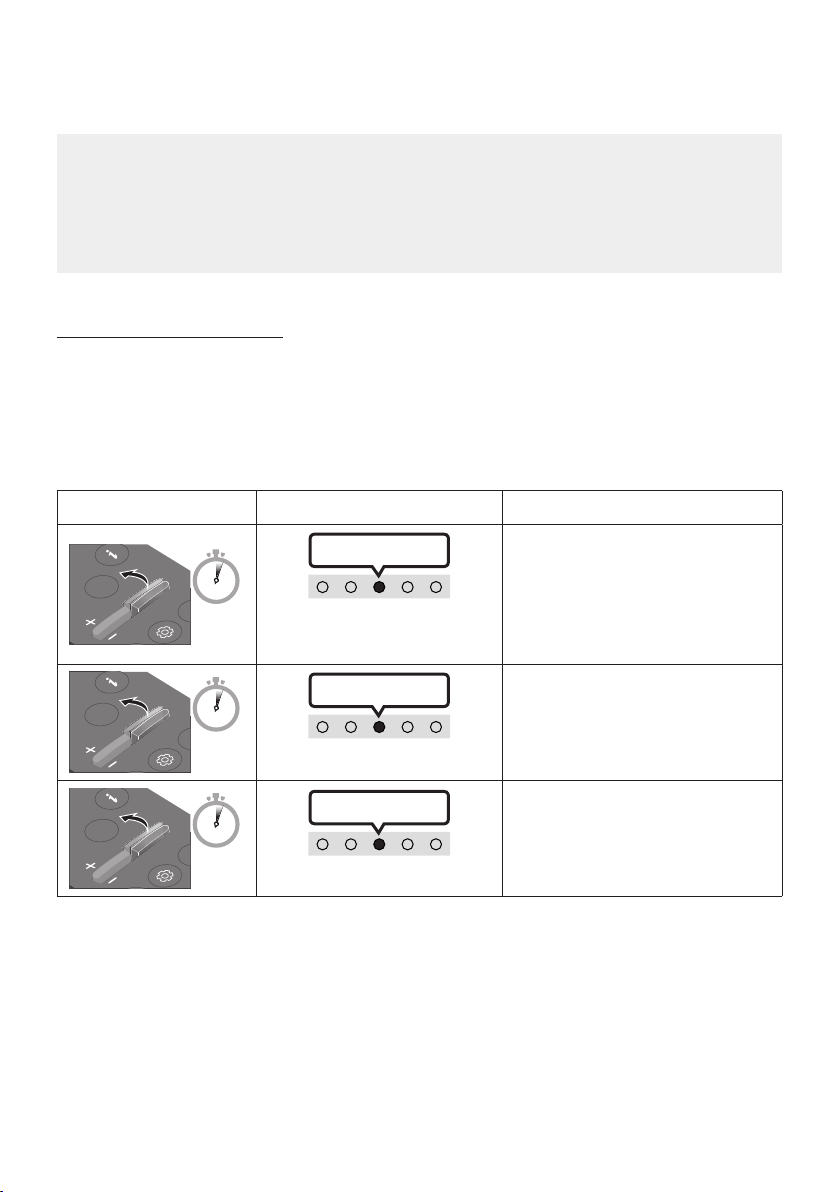
1. Turn Off the Soundbar.
2. Push up and hold the WOOFER button for 5 seconds.
Each time you push the WOOFER button up and hold it for 5 seconds, the mode switches in the
following order: “Off-TV Remote” (Default mode), “Samsung-TV Remote”, “All-TV Remote”.
The LED indicator status changes each time the mode is changed, as shown below.
Remote Control Button LED Indicator Status
SOUND
MODE
WOOFER
CH LEVEL
TONE
CONTROL
5 Sec
"Off-TV Remote"
(Default mode)
Red Blinks X1
Disable the TV remote control.
SOUND
MODE
WOOFER
CH LEVEL
TONE
CONTROL
5 Sec
"Samsung-TV Remote"
Cyan Blinks X1
Enable a Samsung TV’s IR remote
control.
SOUND
MODE
WOOFER
CH LEVEL
TONE
CONTROL
5 Sec
"All-TV Remote"
Blue Blinks X1
Enable a third-party TV’s IR remote
control.
ENG - 16
04 CONNECTING THE SOUNDBAR
Connecting Electrical Power
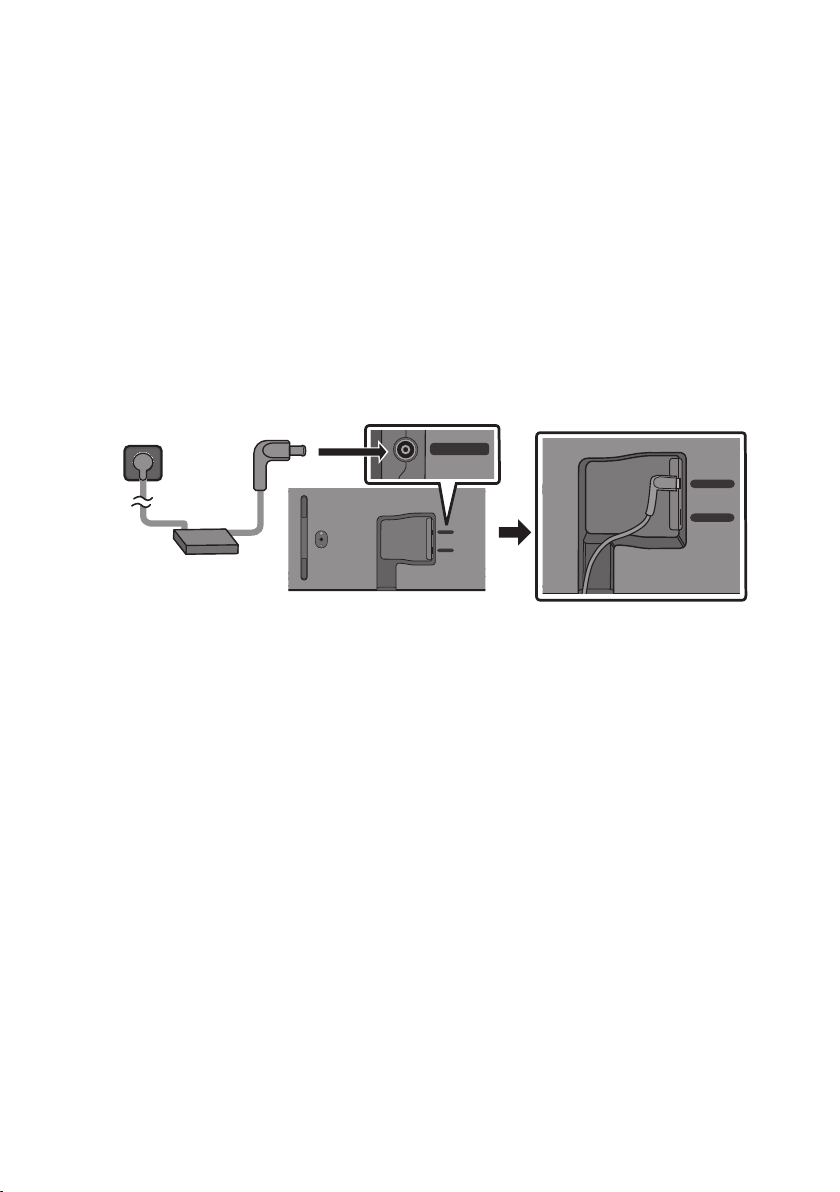
Use the power components to connect the Soundbar to an electrical outlet in the following order:
• For more information about the required electrical power and power consumption, refer to the
label attached to the product. (Label: Bottom of the Soundbar Main Unit)
1. First connect the power cable to the AC/DC adapter.
Connect the AC/DC adapter (with the power cable) to the Soundbar.
2. Connect the power cord to a wall socket.
Bottom of the Soundbar Main Unit
USB (5V 0.5A)
DC 19V
DIGITAL
AUDIO IN
(OPTICAL)
HDMI
(ARC)
DIGITAL
AUDIO IN
(OPTICAL)
HDMI
(ARC)
USB (5V 0.5A)
DC 19V
Power Cord
AC/DC Adapter
USB (5V 0.5A)
DC 19V
NOTES
• If you unplug and reconnect the power cord when the product is turned on, the Soundbar turns on
automatically.
• Make sure to rest the AC/DC Adapter at on a table or the oor. If you place the AC/DC Adapter so
that it is hanging with the AC cord input facing upwards, water or other foreign substances could
enter the Adapter and cause the Adapter to malfunction.
Connecting the Samsung Wireless Rear Kit and Subwoofer to your
Soundbar
Expand to true wireless surround sound by connecting the Samsung Wireless Rear Speaker Kit
(SWA-9100S, sold separately) and Wireless Subwoofer (SWA-W510, sold separately) to your Soundbar.
For detailed information on connections, see the Samsung Wireless Rear Speaker Kit and Wireless
Subwoofer manual.
ENG - 17
05 USING A WIRED CONNECTION TO THE TV
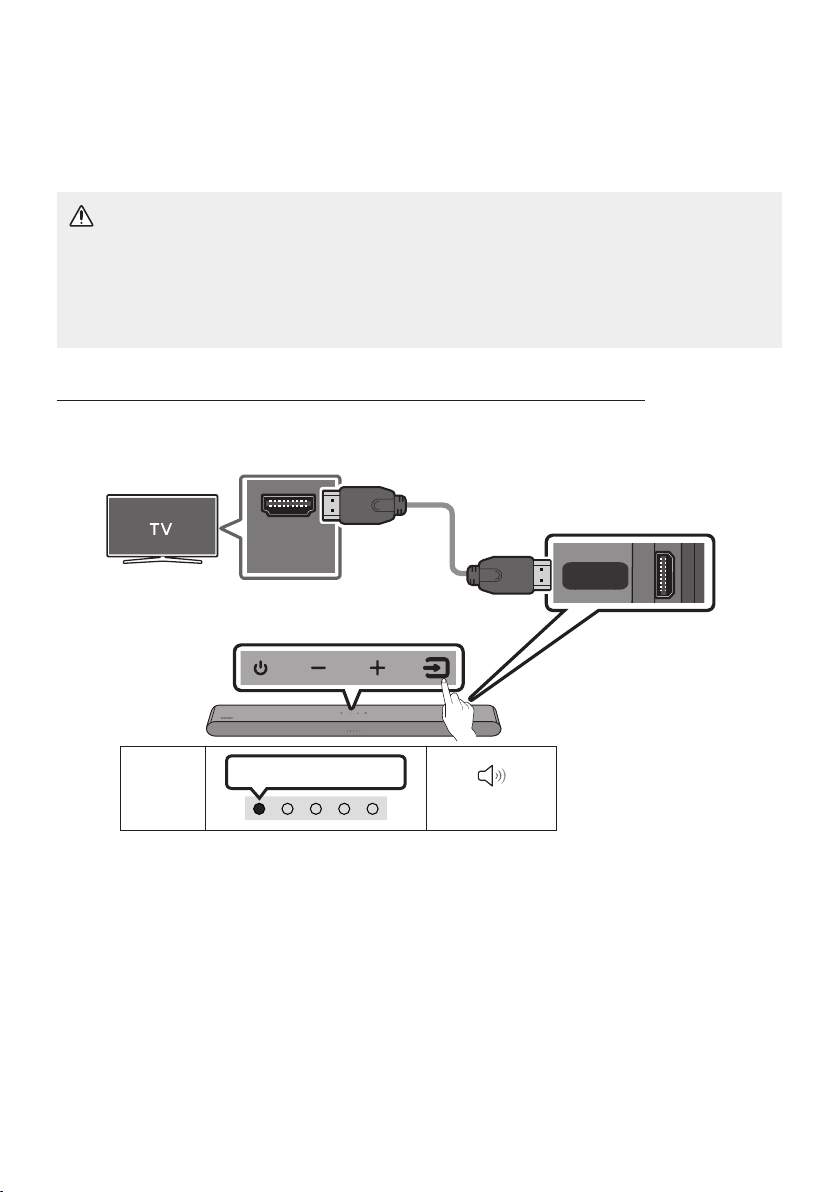
Method 1. Connecting with HDMI
CAUTION
• When both the HDMI cable and optical cable are connected, the HDMI signal is received rst.
• To connect the HDMI cable between the TV and Soundbar, be sure to connect the terminals
marked ARC. Otherwise, the TV sound may not be output.
• The recommended cable is High Speed HDMI Cable with Ethernet.
Connecting the TV that supports HDMI ARC (Audio Return Channel)
HDMI IN
(ARC)
DIGITAL
AUDIO IN
(OPTICAL)
HDMI
(ARC)
Connect to the HDMI IN (ARC) or
(eARC) port of your TV.
HDMI Cable
(not supplied)
Bottom of the
Soundbar
Connect to the HDMI (ARC) port of
the Soundbar main unit.
Top of the Soundbar
LED
Indicator
White On -> Off
“TV ARC”
1. With the Soundbar and TV turned off, connect the HDMI cable (not supplied) as shown in the
gure.
2. Turn on the Soundbar and TV.
3. TV sound is output from the Soundbar.

ENG - 18
• When the TV sound is not output, press the top panel of the Soundbar or the (Source)
button on the remote control to select the “Digital Audio In” mode.
• When the sound is not output, check the HDMI Cable (not supplied) connection again.
• Use the volume buttons on the TV’s remote control to change the volume on the Soundbar.
NOTES
• When you connect the TV that supports the HDMI ARC (Audio Return Channel) to the Soundbar
with an HDMI cable, you can transmit the digital video and audio data without connecting a
separate optical cable.
• We recommend you use a coreless HDMI cable if possible. If you use a cored HDMI cable, use one
whose diameter is less than 14 mm.
• This function is not available if the HDMI cable does not support ARC.
• When the audio in a broadcast is encoded in Dolby Digital and the “Digital Output Audio Format” on
your TV is set to PCM, we recommend that you change the setting to Dolby Digital. When the
setting on the TV is changed, you will experience better sound quality. (The TV menu may use
different words for Dolby Digital and PCM depending on the TV manufacturer.)
ENG - 19
Method 2. Connecting using an Optical Cable
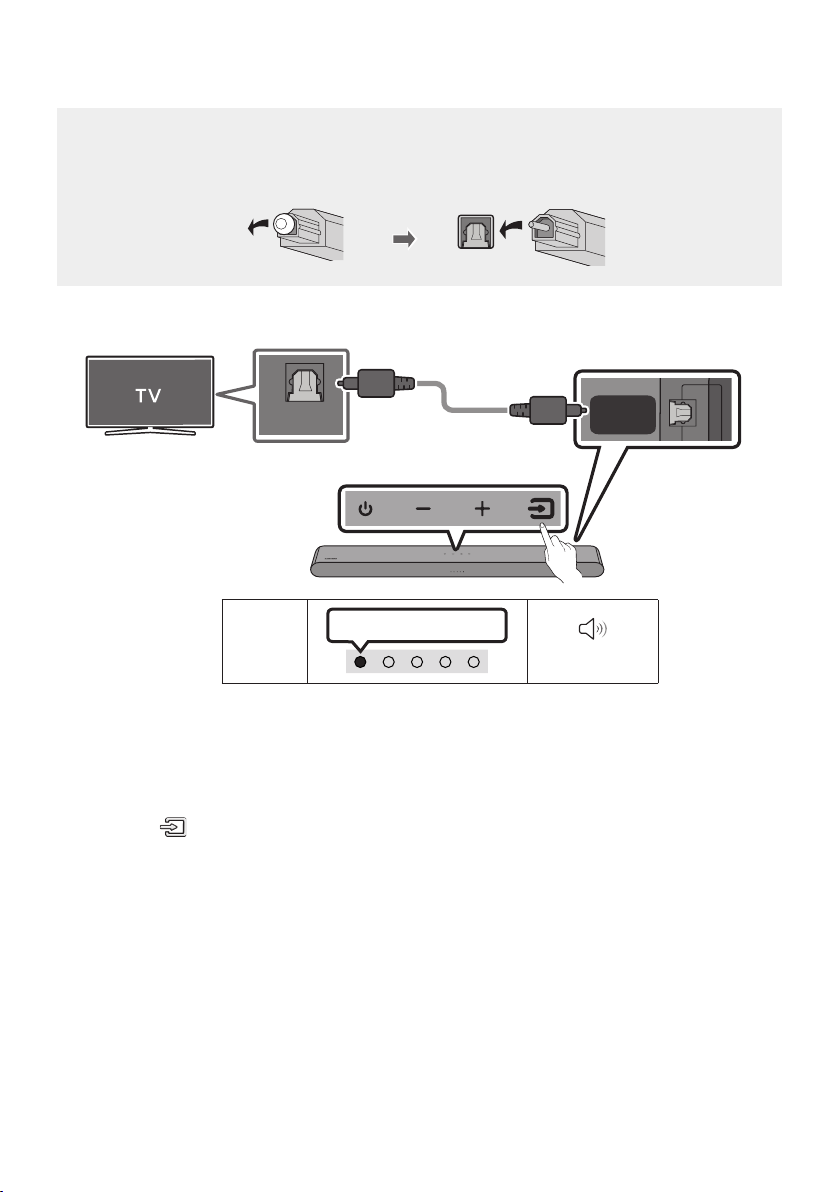
Pre-connection Checklist
• When both the HDMI cable and optical cable are connected, the HDMI signal is received rst.
• When you use an optical cable and the terminals have covers, be sure to remove the covers.
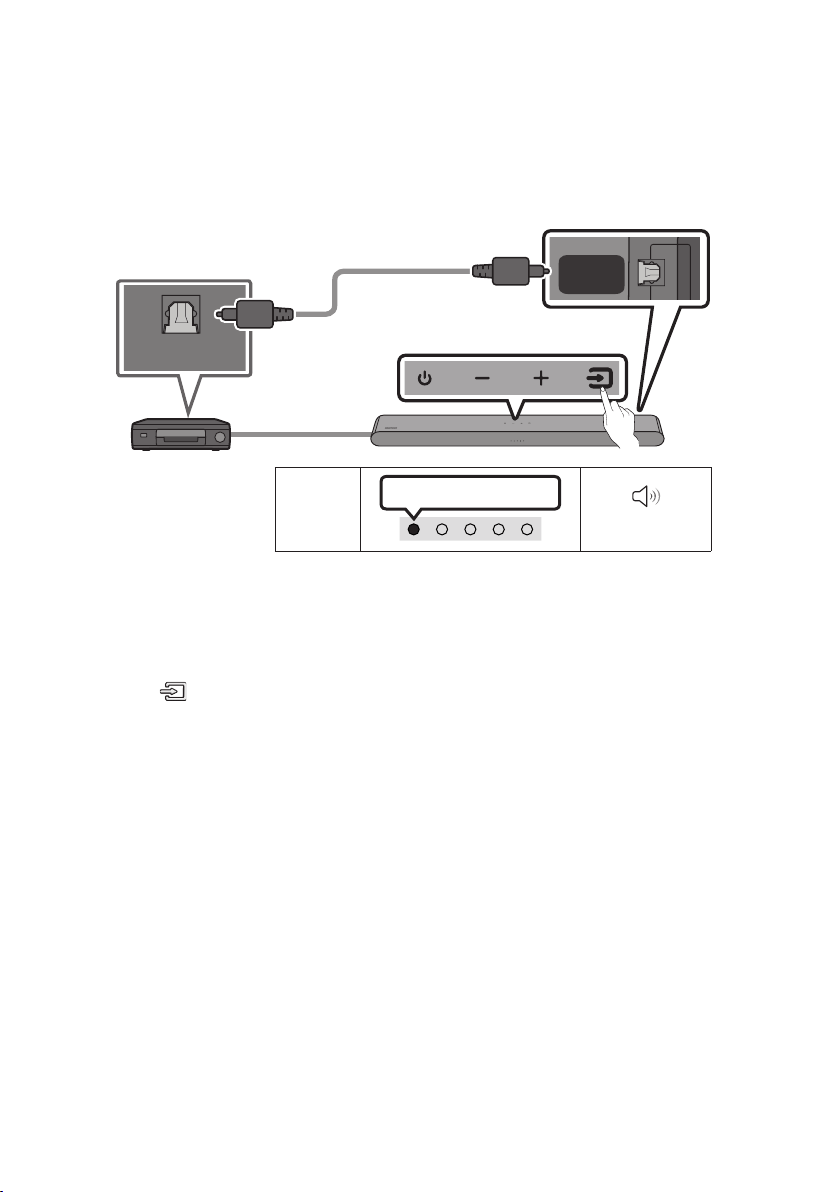
LED
Indicator
White On -> Off
“Digital Audio In”
DIGITAL
AUDIO IN
(OPTICAL)
HDMI
(ARC)
OPTICAL OUT
Bottom of the
Soundbar
Optical Cable (not supplied)
Top of the Soundbar
1. With the TV and Soundbar turned off, connect the DIGITAL AUDIO IN (OPTICAL) port on the
Soundbar and the OPTICAL output port on the TV with the optical cable (not supplied), as shown in
the gure.
2. Turn on the Soundbar and TV.
3. Press the (Source) button on the top panel or remote control, and then select the “Digital
Audio In” mode.
4. The TV sound is output from the Soundbar.
ENG - 20
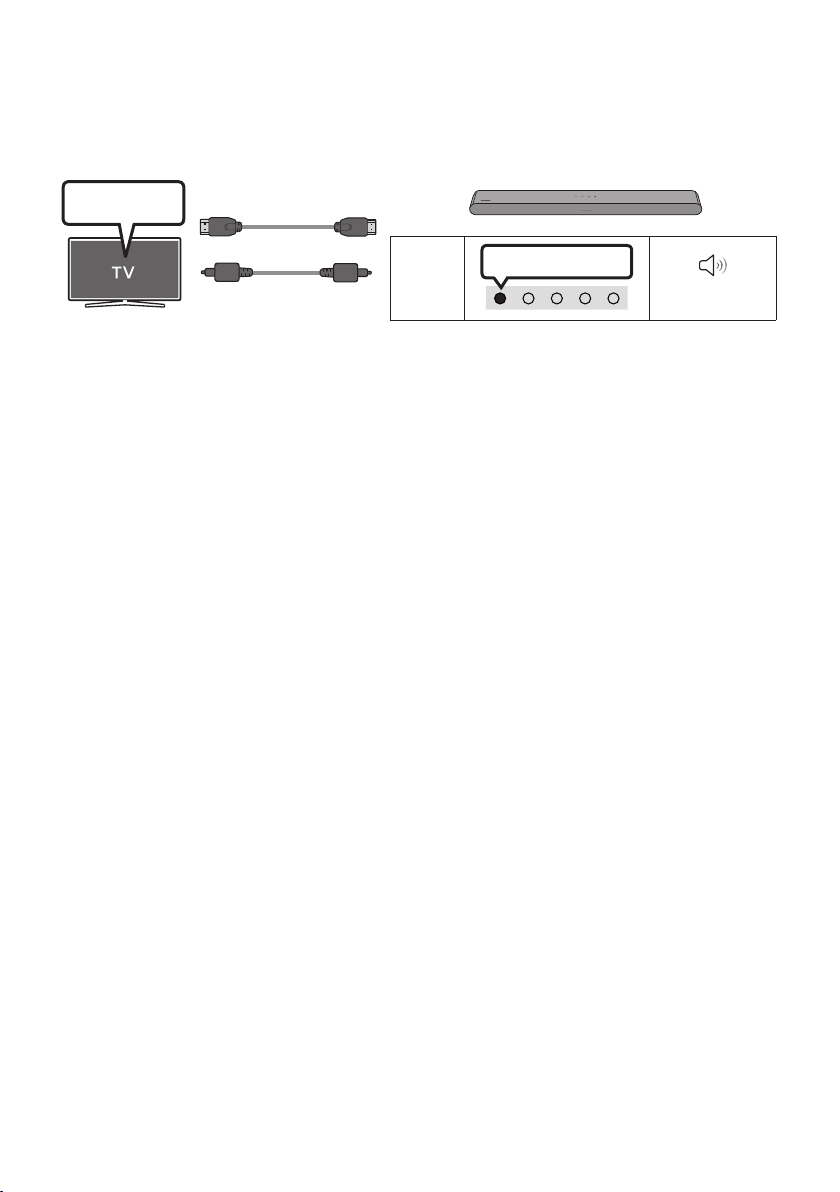
Using the Q-Symphony Function
For Q-Symphony, the Soundbar syncs with a Samsung TV to output sound through two devices for
optimum surround effect. When the Soundbar is connected, the menu, “TV+Soundbar” appears under
the Sound Output menu of the TV. Select the corresponding menu.
LED
Indicator
White On -> Off
“Digital Audio In”
TV Menu
OR
Optical Cable (not supplied)
HDMI Cable (not supplied)
• TV menu example: TV + [AV] Soundbar series name (HDMI)
NOTES
• It can operate according to the Codec supported by TV.
• This function is supported only when the HDMI Cable (not supplied) or Optical Cable (not supplied)
is connected.
• The message displayed may differ with the TV model.
• This function is available in some Samsung TVs and some Soundbar models.
ENG - 21
06 USING A WIRELESS CONNECTION TO THE TV
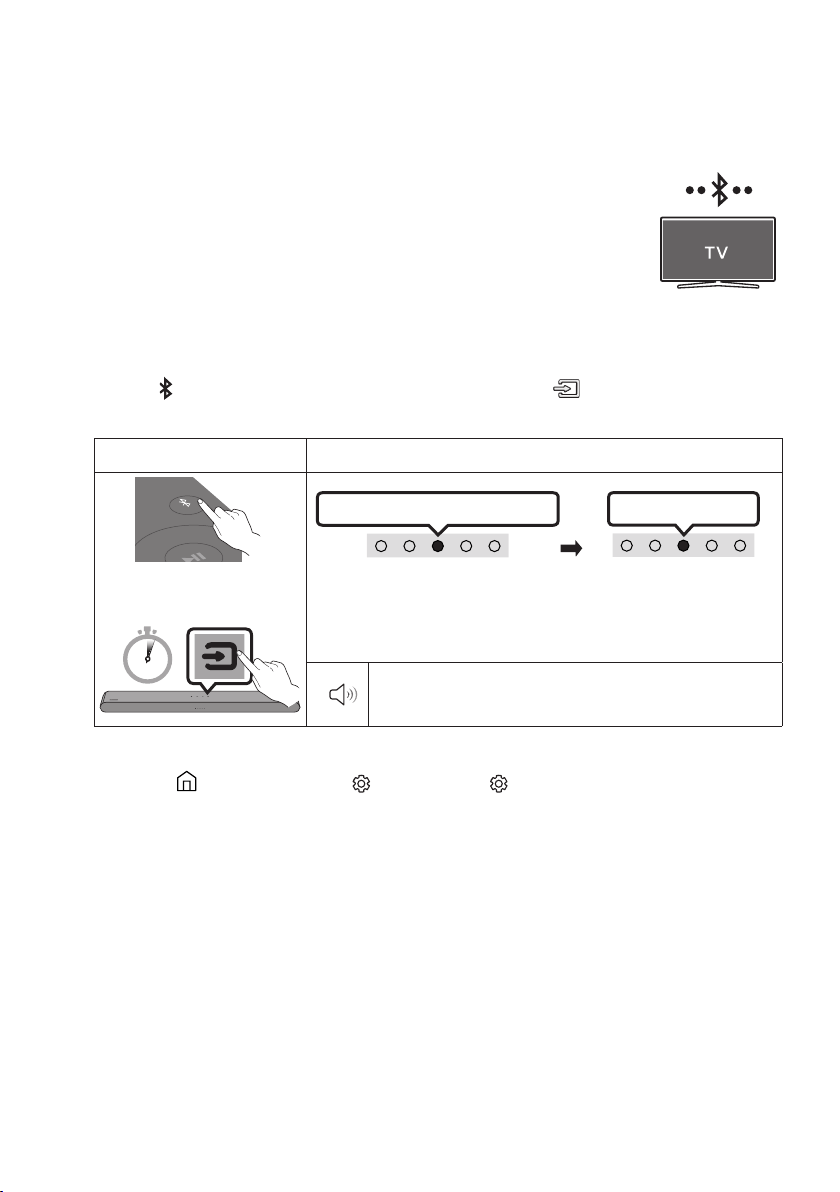
Connecting via Bluetooth
When a Samsung TV is connected using Bluetooth, you can hear stereo sound
without the hassle of cables.
• Only one Samsung TV can be connected at a time.
• Samsung TV that supports Bluetooth can be connected.
Check the specications of your TV.
The initial connection
1. Press the PAIR button on the Soundbar remote control or press (Source) button on the
Soundbar top panel to enter the "Bluetooth" mode.
Bluetooth Pairing button LED Indicator
SOUND
MODE
PAIR
OR
Red → Green → Blue Blinks
Pairing
Connection is complete
Cyan Blinks X3
When in “Bluetooth” mode
5 Sec
• Until pairing is complete, the Multicolour LED changes as Red →
Green → Blue in turn.
“Ready to connect via Bluetooth.”
2. Select Bluetooth mode on the Samsung TV.
(e.g. Home ( ) → Menu → Settings ( ) → All Settings ( ) Sound Sound Output
Bluetooth Speaker List [AV] Soundbar S5B-Series (Bluetooth))
3. Select “[AV] Soundbar S5B-Series” from the list on TV’s screen.
An available Soundbar is indicated with “Needs pairing” or “Paired” on the TV’s Bluetooth device
list. To connect the Samsung TV to the Soundbar, select the message, and then establish a
connection.
4. You can now hear Samsung TV sound from the Soundbar.
• If there is a connection log between the Soundbar and Samsung TV, the Soundbar is
automatically connected by changing its mode to “Bluetooth”.
ENG - 22
If the device fails to connect
• If you have an existing Soundbar (e.g., [AV] Soundbar S5B-Series) on the list of speakers on the
Samsung TV, delete it.
• Then repeat steps 1 through 3.
Disconnecting the Soundbar from the Samsung TV
Press the (Source)
button on the top panel or on the remote control to select the mode other than
“Bluetooth”.
• Disconnecting takes time because the Samsung TV must receive a response from the Soundbar.
(The time required may differ, depending on the Samsung TV model.)
TV Auto connect On/Off
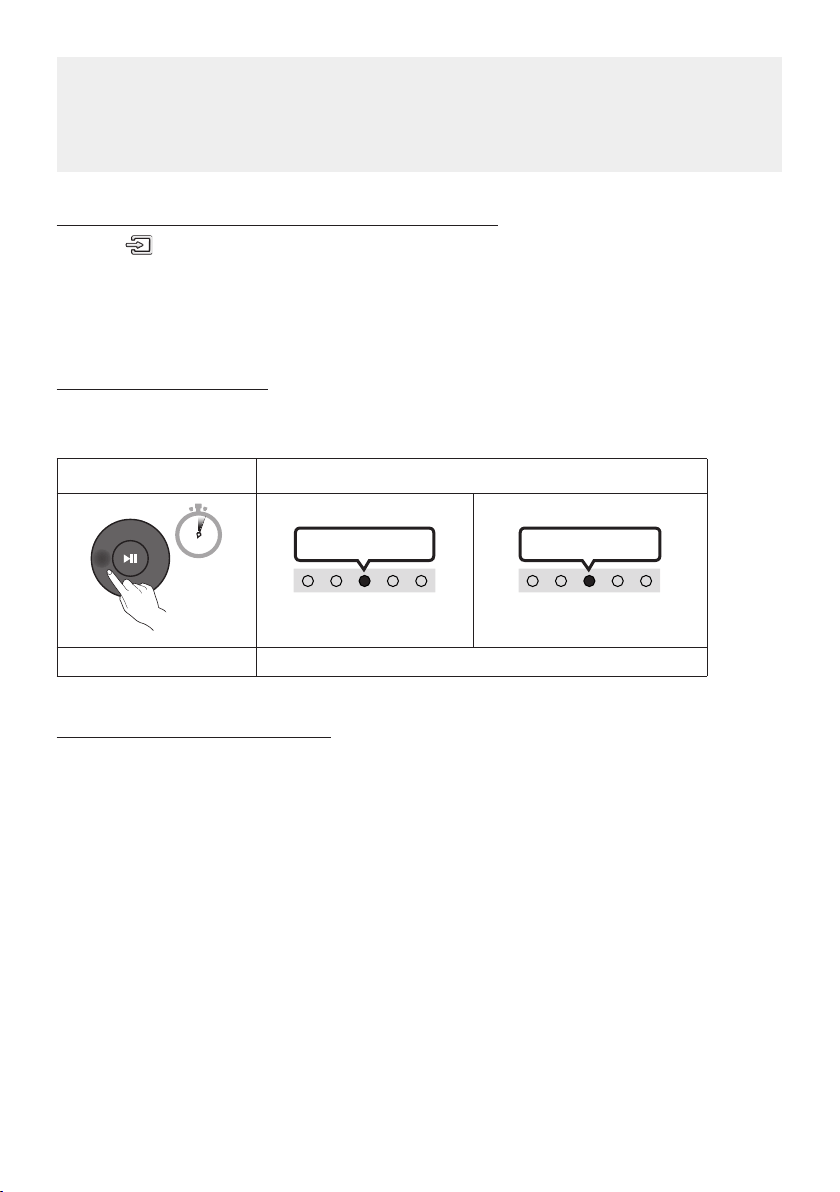
To cancel the automatic Bluetooth connection between the Soundbar and TV, press the
Left button on
the remote control for 5 seconds with the Soundbar in “Bluetooth Ready” status. (Toggle On → Off)
Left button LED Indicator
5 Sec
Cyan Blinks X1
On (Default)
Off
Red Blinks X1
Bluetooth Ready Toggle On Off
Notes on Bluetooth connection
• Locate a new device within 1 m to connect via Bluetooth communication.
• If asked for a PIN code when connecting a Bluetooth device, enter <0000>.
• The Soundbar automatically turns off after 20 minutes in the Ready state.
• The Soundbar may not perform Bluetooth search or connection correctly under the following
circumstances:
– If there is a strong electrical eld around the Soundbar.
– If several Bluetooth devices are simultaneously paired with the Soundbar.
– If the Bluetooth device is turned off, not in place, or malfunctions.
• Electronic devices may cause radio interference. Devices that generate electromagnetic waves
must be kept away from the Soundbar main unit - e.g., microwaves, wireless LAN devices, etc.
ENG - 23
07 CONNECTING AN EXTERNAL DEVICE
Connecting using an Optical Cable
LED
Indicator
White On -> Off
“Digital Audio In”
- AUDIO -
R L
OPTICAL OUT
DIGITAL
AUDIO IN
(OPTICAL)
HDMI
(ARC)
Bottom of the Soundbar
Optical Cable
(not supplied)
Top of the Soundbar
BD / DVD player / Set-top
box / Game console
1. With the external device and Soundbar turned off, connect the DIGITAL AUDIO IN (OPTICAL) port
on the Soundbar and the OPTICAL output port on the external device with the optical cable (not
supplied), as shown in the gure.
2. Turn on the Soundbar and external device.
3. Press the (Source) button on the top panel or remote control, and then select the “Digital
Audio In” mode.
4. The external device sound is output from the Soundbar.
ENG - 24
08 CONNECTING A USB STORAGE DEVICE
You can play music les located on USB storage devices through the Soundbar.
USB (5V 0.5A)
DC 19V
DIGITAL
AUDIO IN
(OPTICAL)
HDMI
(ARC)
DIGITAL
AUDIO IN
(OPTICAL)
HDMI
(ARC)
USB (5V 0.5A)
DC 19V
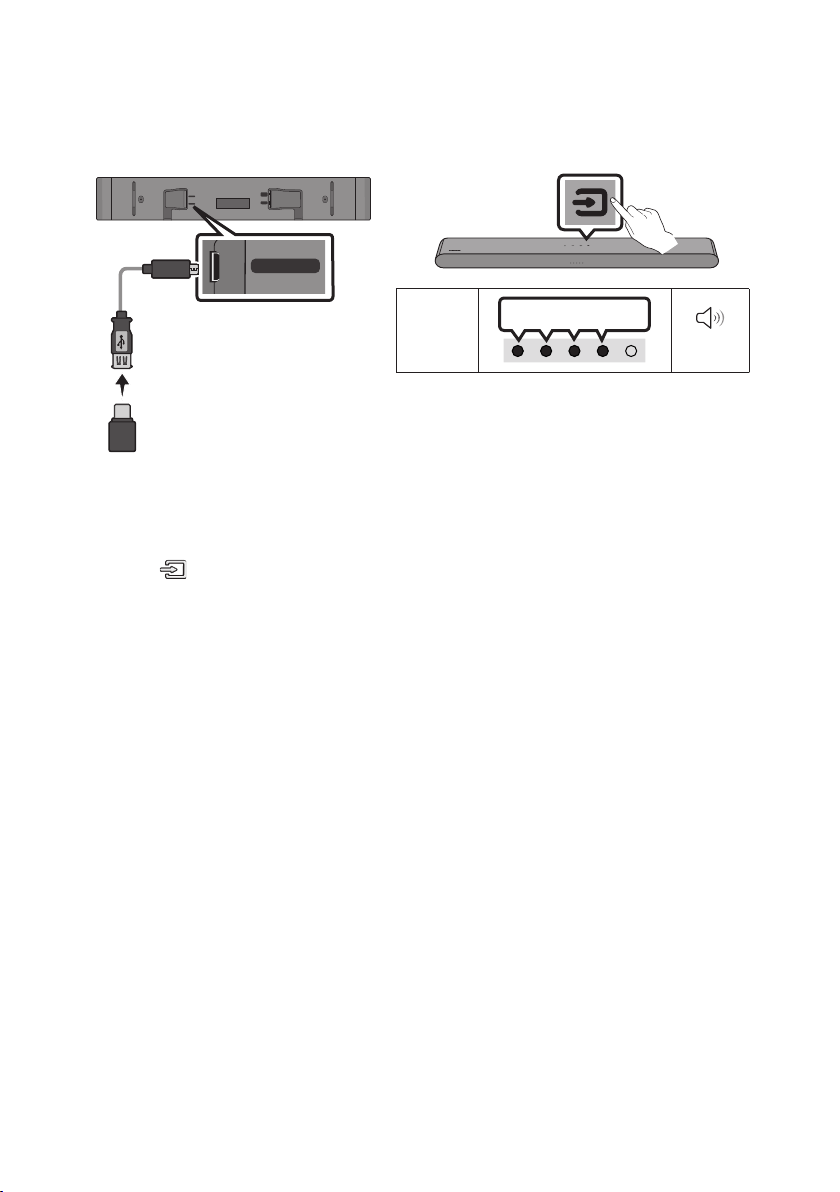
LED
Indicator
White On -> Off
“USB”
Micro USB to
USB adapter Cable
(not supplied)
1. Connect the Soundbar with the USB stick by the USB adapter cable above.
• The Micro USB to USB adapter cable is sold separately. To purchase, contact a Samsung Service
Centre or Samsung Customer Care.
2. Press the (Source) button on the top panel or remote control, and then select the “USB” mode.
3. Play music les from the USB storage device through the Soundbar.
• The Soundbar automatically turns off (Auto Power Down) if no USB device has been connected
for more than 20 minutes.

ENG - 25
File Format Type Compatibility list
Extension Codec Sampling Rate Bit Rate
*.mp3 MPEG 1 Layer2 16kHz ~ 48kHz 80kbps~320kbps
MPEG 1 Layer3 16kHz ~ 48kHz 80kbps~320kbps
MPEG 2 Layer3 16kHz ~ 48kHz 80kbps~320kbps
MPEG 2.5 Layer3 16kHz ~ 48kHz 80kbps~320kbps
*.wma Wave_Format_MSAudio1 16kHz ~ 48kHz 56kbps~128kbps
Wave_Format_MSAudio2 16kHz ~ 48kHz 56kbps~128kbps
*.aac AAC 16kHz ~ 96kHz 48kbps~320kbps
A AC-LC 16kHz ~ 96kHz
128kbps~192kbps
5.1ch 320kbps
HE-AAC 24kHz ~ 96kHz
48kbps~64kbps
5.1ch 160kbps
*.wav - 16kHz ~ 48kHz up to 3000kbps
*.ac FLAC 32kHz ~ 192kHz 162kbps ~ 8,100kbps
*.aiff AIFF 32kHz ~ 192kHz 1,024kbps ~ 9,216kbps
*.ogg OGG 1.1.0 16kHz ~ 48kHz 50kbps~500kbps
• If there are too many folders (about 200) and les (about 2000) stored on the USB device, it may
take the Soundbar some time to access and play les.
• The Soundbar only supports USB devices with FAT16 (~2GB), FAT32 (~2TB) or NTFS (~2TB) le
systems.
ENG - 26
09 CONNECTING A MOBILE DEVICE
Connecting via Bluetooth
When a mobile device is connected using Bluetooth, you can hear stereo sound
without the hassle of cables.
• When you connect a paired Bluetooth device with the Soundbar off, the
Soundbar automatically turns on.
The initial connection
• When connecting to a new Bluetooth device, make sure the device is within 1 m distance.
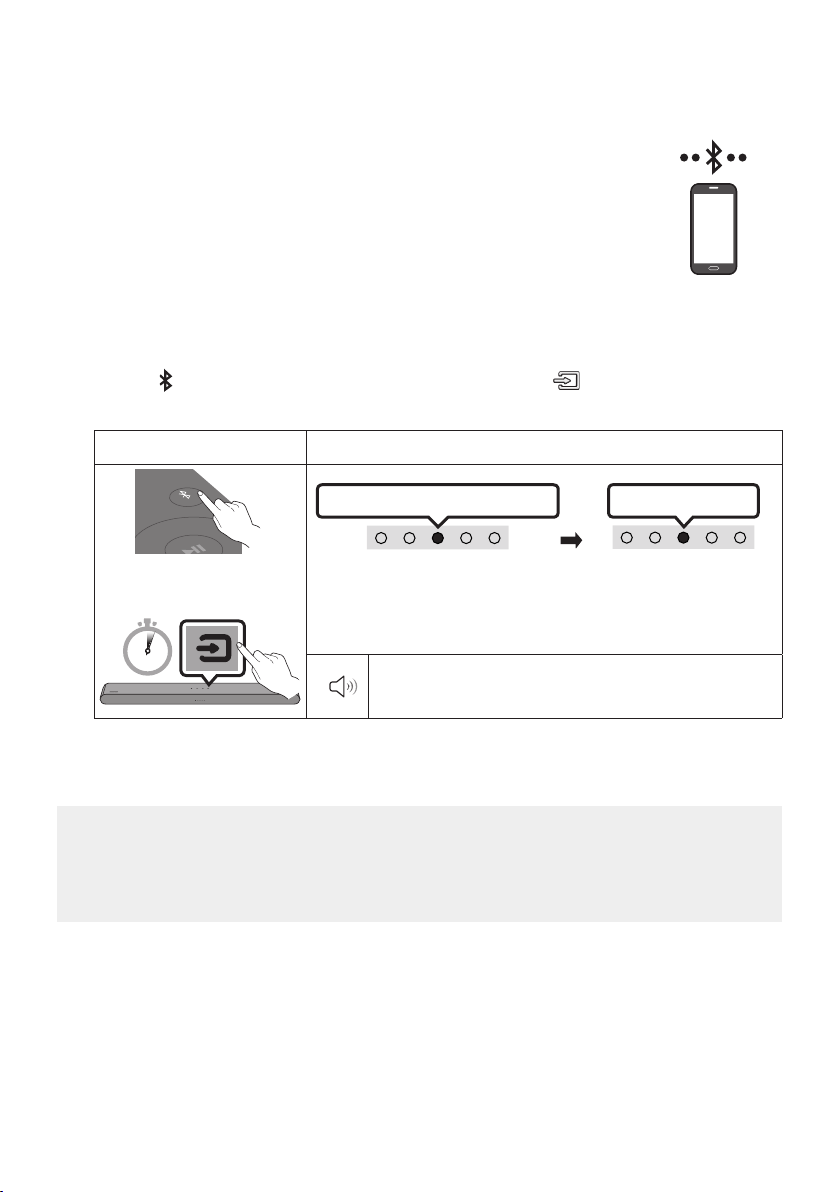
1. Press the PAIR button on the Soundbar remote control or press (Source) button on the
Soundbar top panel to enter the "Bluetooth" mode.
Bluetooth Pairing button LED Indicator
SOUND
MODE
PAIR
OR
Red → Green → Blue Blinks
Pairing
Connection is complete
Cyan Blinks X3
When in “Bluetooth” mode
5 Sec
• Until pairing is complete, the Multicolour LED changes as Red →
Green → Blue in turn.
“Ready to connect via Bluetooth.”
2. On your device, select “[AV] Samsung Soundbar S5B-Series” from the list that appears.
3. Play music les from the device connected via Bluetooth through the Soundbar.
If the device fails to connect
• If you have an existing Soundbar (e.g., [AV] Samsung Soundbar S5B-Series) on the list of
speakers on the Mobile device, delete it.
• Then repeat steps 1 and 2.
mobile device

ENG - 27
Notes on Bluetooth connection
• Locate a new device within 1 m to connect via Bluetooth communication.
• If asked for a PIN code when connecting a Bluetooth device, enter <0000>.
• The Soundbar automatically turns off after 20 minutes in the Ready state.
• The Soundbar may not perform Bluetooth search or connection correctly under the following
circumstances:
– If there is a strong electrical eld around the Soundbar.
– If several Bluetooth devices are simultaneously paired with the Soundbar.
– If the Bluetooth device is turned off, not in place, or malfunctions.
• Electronic devices may cause radio interference. Devices that generate electromagnetic waves
must be kept away from the Soundbar main unit - e.g., microwaves, wireless LAN devices, etc.
• The Soundbar supports SBC data (44.1kHz, 48kHz).
• Connect only to a Bluetooth device that supports the A2DP (AV) function.
• You cannot connect the Soundbar to a Bluetooth device that supports only the HF (Hands Free)
function.
• When connecting the Soundbar to a Bluetooth device, place them as close to each other as possible.
• The farther the Soundbar and Bluetooth device are from each other, the lower the sound quality
will become.
The Bluetooth connection may break when the devices are out of the effective range.
• The Bluetooth connection may not function as intended in areas with poor reception.
• A Bluetooth device may experience noise or malfunction under in the following conditions:
– When the body is in contact with the signal transceiver on the Bluetooth device or Soundbar
– In corners or when there is an obstacle in proximity, such as a wall or partition, where electrical
changes may occur.
– When exposed to radio interferences by other products operating on the same frequency
ranges, such as medical equipment, microwave ovens, and wireless LAN devices.
– Obstacles such as doors and walls may still impact the sound quality even when the devices
are within the effective range.
• Note that your Soundbar cannot be paired with other Bluetooth devices while using the Bluetooth
option.
• This wireless device may cause electrical interference during operation.
ENG - 28
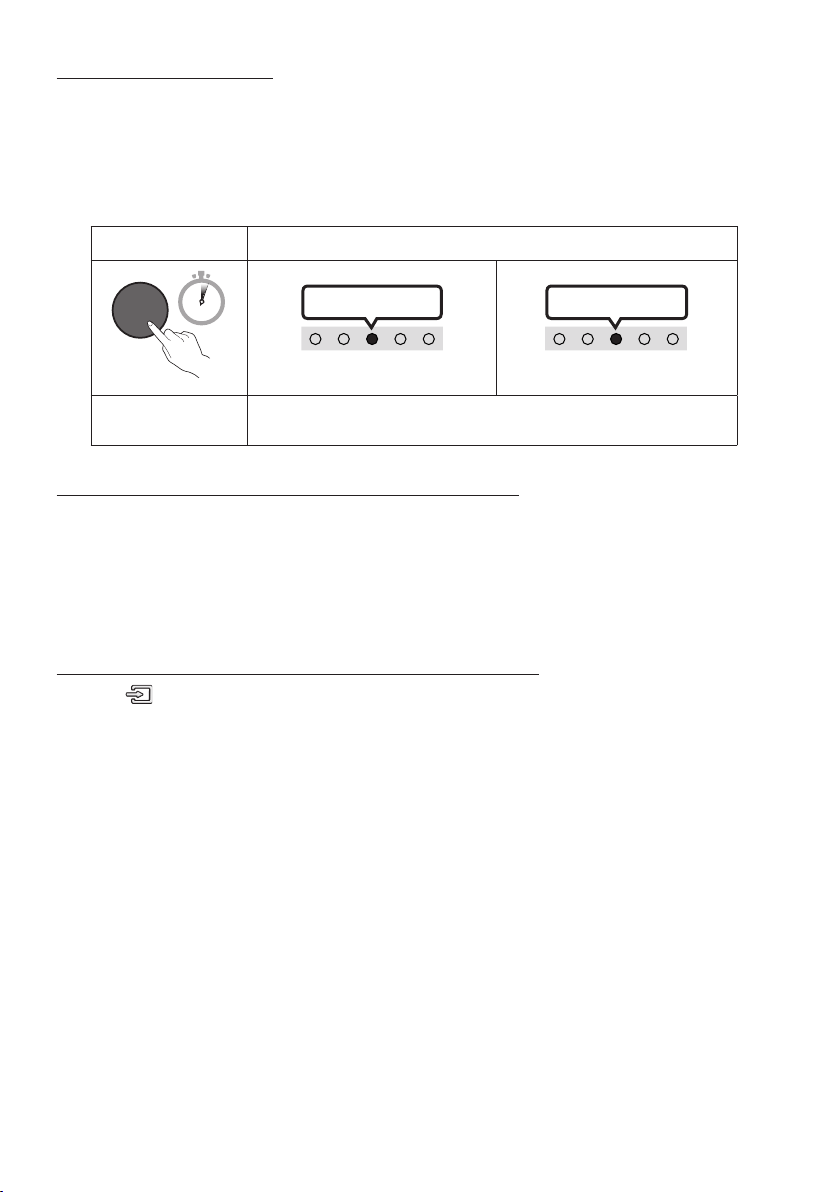
Bluetooth Power On/Off
If a previously paired Bluetooth device tries to pair with the Soundbar when the Bluetooth Power On
function is on and the Soundbar is turned off, the Soundbar turns on automatically.
1. Press and hold the SOUND MODE button for more than 5 seconds on the remote while the
Soundbar is turned on.
2. Multicolour LED indicator on the Soundbar blinks "Cyan”.
SOUND MODE button LED Indicator
VOL WOOFER
SOUND
MODE
PAIR
5 Sec
Cyan Blinks X1
On (Default)
Off
Red Blinks X1
Bluetooth Power
On/Off
Toggle On Off
Disconnecting the Bluetooth device from a Soundbar
You can disconnect a Bluetooth device from the Soundbar. For instructions, see the Bluetooth device’s
user manual.
• The Soundbar will be disconnected.
• If the Soundbar is disconnected from the Bluetooth device, the multicolour LED indicator on the
Soundbar blinks "Red” three times.
Disconnecting the Soundbar from the Bluetooth device
Press the (Source)
button on the top panel or on the remote control to select the mode other than
“Bluetooth”.
• Disconnecting takes time because the Bluetooth device must receive a response from the
Soundbar. (Disconnection time may differ, depending on the Bluetooth device)
ENG - 29
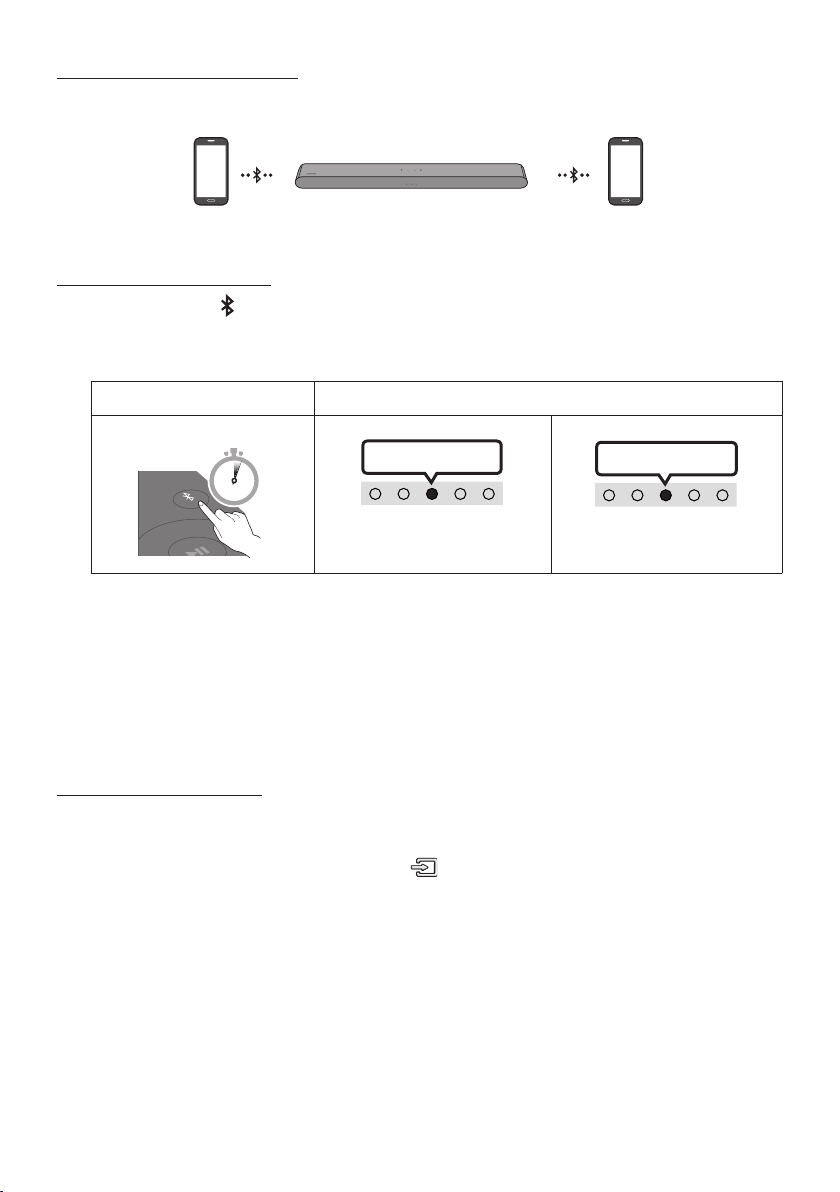
Bluetooth Multi connection
The Soundbar can be connected to 2 Bluetooth devices at the same time.
Bluetooth device A Bluetooth device B
TV Auto connect On/Off
1. Press and hold the PAIR button for more than 5 seconds on the remote while the Soundbar is
turned off.
2. Multicolour LED indicator on the Soundbar blinks "Cyan”.
Bluetooth Pairing button LED Indicator
When in standby mode
SOUND
MODE
PAIR
5 Sec
Cyan Blinks X1
Multi connection On (Default)
Multi connection Off
Red Blinks X1
3. Connect the Soundbar to up to two Bluetooth devices. (See page 26)
4. Play music from one of the connected Bluetooth devices while two devices are connected.
5. If music is played from the Bluetooth device “B” while playing from the device “A”, the music is
started playing on the device “B” and automatically being stopped/paused playback on the device
“A”.
6. In versions prior to AVRCP V1.4, the switching time of the device playing music may be delayed.
Bluetooth Multi Pairing
How to pair multiple devices to the Soundbar
1. Turn on the Soundbar.
2. Only in “Bluetooth” mode, press and hold the (Source) button on the top of the Soundbar for
more than 5 seconds for the Soundbar to go into “Bluetooth Pairing” mode, then on the Bluetooth
device side, switch Bluetooth on, and select the Soundbar from the list of available devices, the
Soundbar will automatically connect to the Bluetooth device.
3. A 2nd Bluetooth device can be paired and connected to the Soundbar using the same method.
If you attempt to connect a 3rd device, a connected device that is not playing audio will lose its
Bluetooth connection, but will still be paired with the Soundbar.
4. Using the same method, you can pair up to 8 Bluetooth devices, but only the last 2 will stay
connected to the Soundbar at the same time.

ENG - 30
NOTES
• Connect the Soundbar to up to two Bluetooth devices.
• Play music from one of the connected Bluetooth devices while two devices are connected.
• If music is played from the Bluetooth device “B” while playing from the device “A”, the music is
started playing on the device “B” and automatically being stopped/paused playback on the device
A”.
• In versions prior to AVRCP V1.4, the switching time of the device playing music may be delayed.
• The device can be switched by notication or alarm on some devices.
• Some devices do not support Bluetooth multi connection.
• “Bluetooth Pairing” mode stops when no device is paired within 3 minutes.
• Switching devices may take about 7 seconds on some apps.
• If you attempt to connect a 3rd Bluetooth device, the A or B devices will be disconnected.
(A device that is not currently playing will be disconnected.)
• Only 1 Samsung TV, or 2 Bluetooth devices can be connected to the Soundbar at one time.
• The Soundbar will be disconnected from Bluetooth devices when it receives a connection request
from a Samsung TV.
ENG - 31
Using Tap Sound
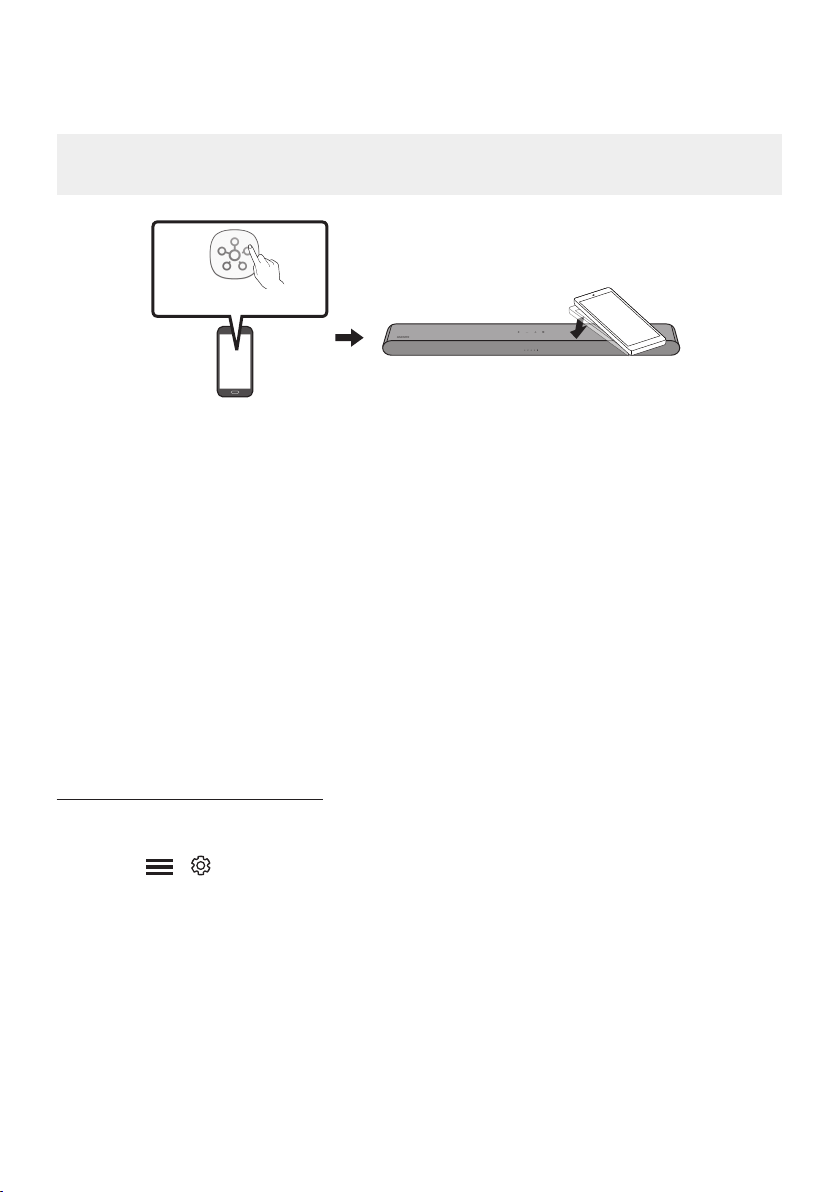
Tap the Soundbar with your mobile device to play audio from the mobile device through the Soundbar.
• This function may not be supported, depending on the mobile device.
• This function is only compatible on Samsung mobile devices with Android 8.1 or later.
Mobile device
SmartThings App
Top of the Soundbar
1. Turn on the Tap Sound function on your mobile device.
• For details on how to turn on the function, refer to “Enable the Tap Sound function” below.
2. Tap the Soundbar with the mobile device. Select “Start now” in the displayed message window.
A connection is established between the mobile device and Soundbar via Bluetooth.
3. Play audio from the mobile device through the Soundbar.
• This function connects a mobile device to the Soundbar via Bluetooth by detecting vibration
that occurs when the device touches the Soundbar.
• Make sure the mobile device does not tap a sharp corner of the Soundbar. The Soundbar or
mobile device may become scratched or damaged.
• It is recommended that the mobile device be covered with a case. Lightly tap the wide area in
the upper portion of the Soundbar, without using excessive force.
• To use this function, update the SmartThings app to the latest version.
The function may not be supported, depending on the app version.
Enable the Tap Sound function
Use the SmartThings app to turn on the Tap View, Tap Sound function.
1. On the mobile device, run the SmartThings app.
2. Select ( → ) in the SmartThings app screen displayed on the mobile device.
3. Set “Tap View, Tap Sound” to On to allow the function to work when a mobile device moves close to
the Soundbar.
NOTES
• When the mobile device is in power-saving mode, the Tap Sound function does not work.
• The Tap Sound function may not work if there are devices near the Soundbar that cause radio
interference such as electric devices. Make sure devices that may cause radio interference are
placed at a sufcient distance away from the Soundbar.
ENG - 32
10 INSTALLING THE
WALL MOUNT
Installation Precautions
• Install on a vertical wall only.
• Do not install in a place with high
temperature or humidity.
• Verify whether the wall is strong enough to
support the product’s weight. If not, reinforce
the wall or choose another installation point.
• Purchase and use the xing screws or
anchors appropriate for the kind of wall you
have (plaster board, iron board, wood, etc.). If
possible, x the support screws into wall
studs.
• Purchase wall mounting screws according to
the type and thickness of the wall you want to
mount the Soundbar on.
– Diameter: M5
– Length: 35 mm or longer recommended.
• Connect cables from the unit to external
devices before you install the Soundbar on
the wall.
• Make sure the unit is turned off and
unplugged from the power source before you
install it. Otherwise, it may cause an electric
shock.
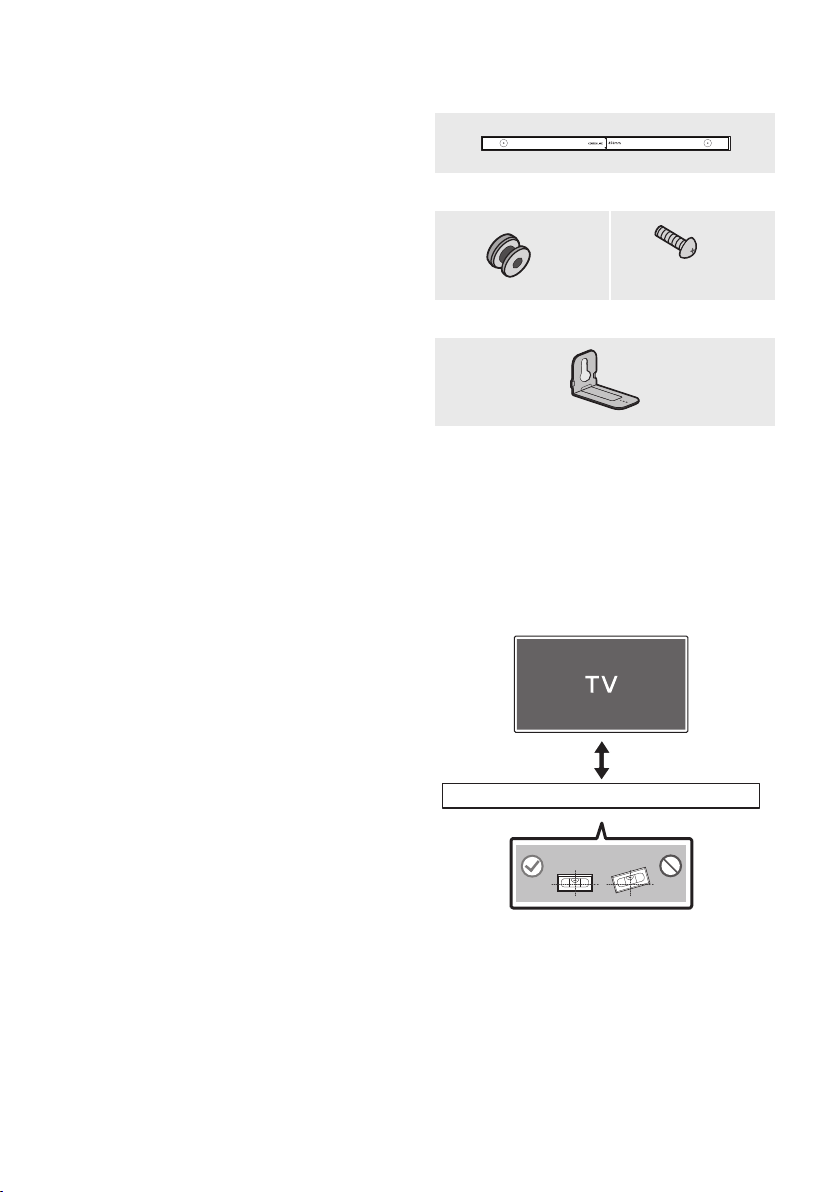
Wallmount Components
Wall Mount Guide
x 2
(M4 x L10)
x 2
Holder-Screw Screw
x 2
Bracket-Wall Mount
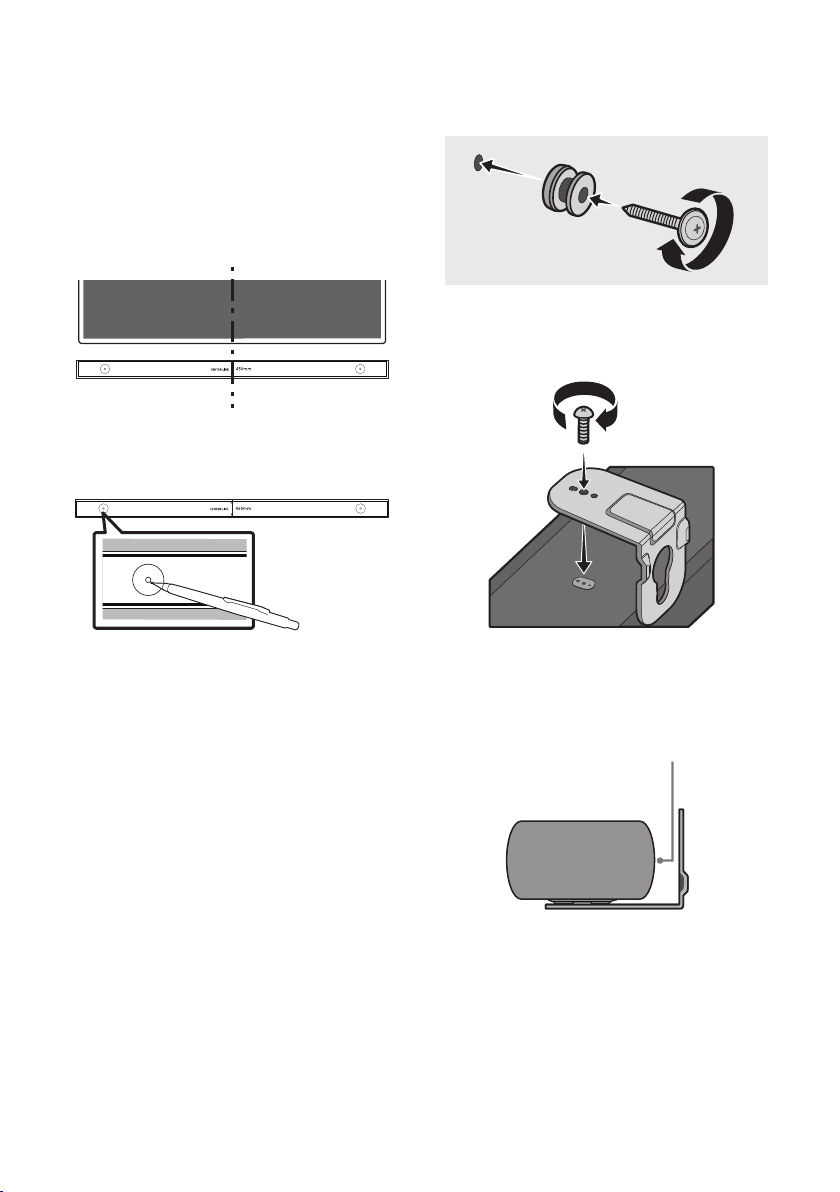
1. Place the Wall Mount Guide against the wall
surface.
• The Wall Mount Guide must be level.
• If your TV is mounted on the wall, install
the Soundbar at least 5 cm below the TV.
5 cm or more
ENG - 33
2. Align the Wall Mount Guide’s Centre Line
with the centre of your TV (if you are
mounting the Soundbar below your TV), and
then x the Wall Mount Guide to the wall
using tape.
• If you are not mounting below a TV, place
the Centre Line in the centre of the
installation area.
Centre Line
3. Use a pen to mark the positions of the holes
and remove the Wall Mount Guide.
4. Using an appropriately sized drill bit, drill a
hole in the wall at each marking.
• If the markings do not correspond to the
positions of studs, make sure you insert
appropriate anchors into the holes before
you insert the support screws. If you use
anchors, make sure the holes you drill are
large enough for the anchors you use.
5. Push a screw (not supplied) through each
Holder-Screw, and then screw each screw
rmly into a support screw hole.
(Not supplied)
6. Install the 2 Bracket-Wall Mounts in the
correct orientation on the bottom of the
Soundbar using 2 Screws.
• When assembling, make sure the hanger
part of the Bracket-Wall Mounts are
located behind the rear of the Soundbar.
Rear of Soundbar
Right end of Soundbar
ENG - 34
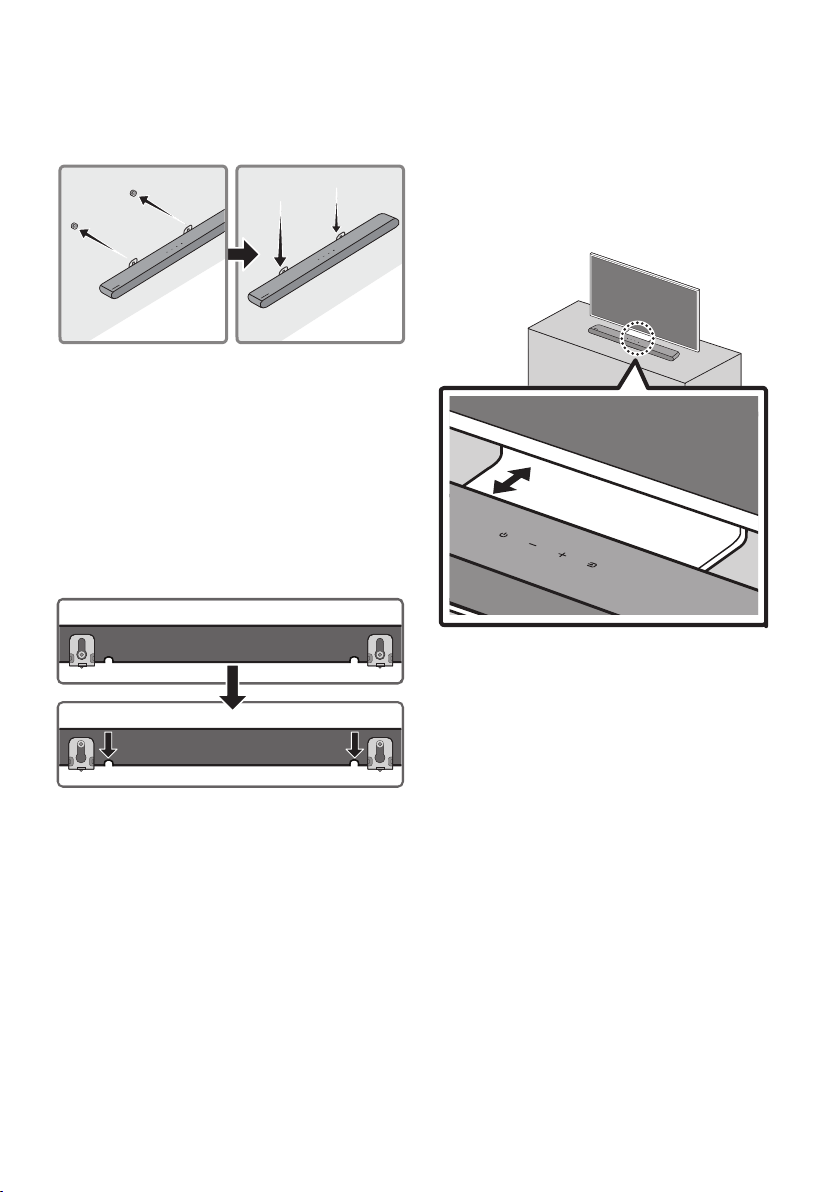
7. Install the Soundbar with the attached
Bracket-Wall Mounts by hanging the
Bracket-Wall Mounts on the Holder-Screws
on the wall.
8. Slide the Soundbar down as shown below so
that the Bracket-Wall Mounts rest securely
on the Holder-Screws.
• Insert the Holder-Screws into the wide
(bottom) part of the Bracket-Wall
Mounts, and then slide the Bracket-Wall
Mounts down so that the Bracket-Wall
Mounts rest securely on the
Holder-Screws.
11 INSTALLING THE
SOUNDBAR IN
FRONT OF TV
3cm or more
Align the centre of the Soundbar to the centre of
the TV as illustrated in the image.
Place the Soundbar at least 3cm away from the
TV.
NOTES
• Make sure the Soundbar is placed on a at
and solid surface.
• Insufcient gap from the TV may cause
acoustic problems.
ENG - 35
12 SOFTWARE
UPDATE
Important: After upgrading, keep the original
Settings.
USB (5V 0.5A)
DC 19V
DIGITAL
AUDIO IN
(OPTICAL)
HDMI
(ARC)
DIGITAL
AUDIO IN
(OPTICAL)
HDMI
(ARC)
USB (5V 0.5A)
DC 19V
Micro USB to
USB adapter Cable
(not supplied)
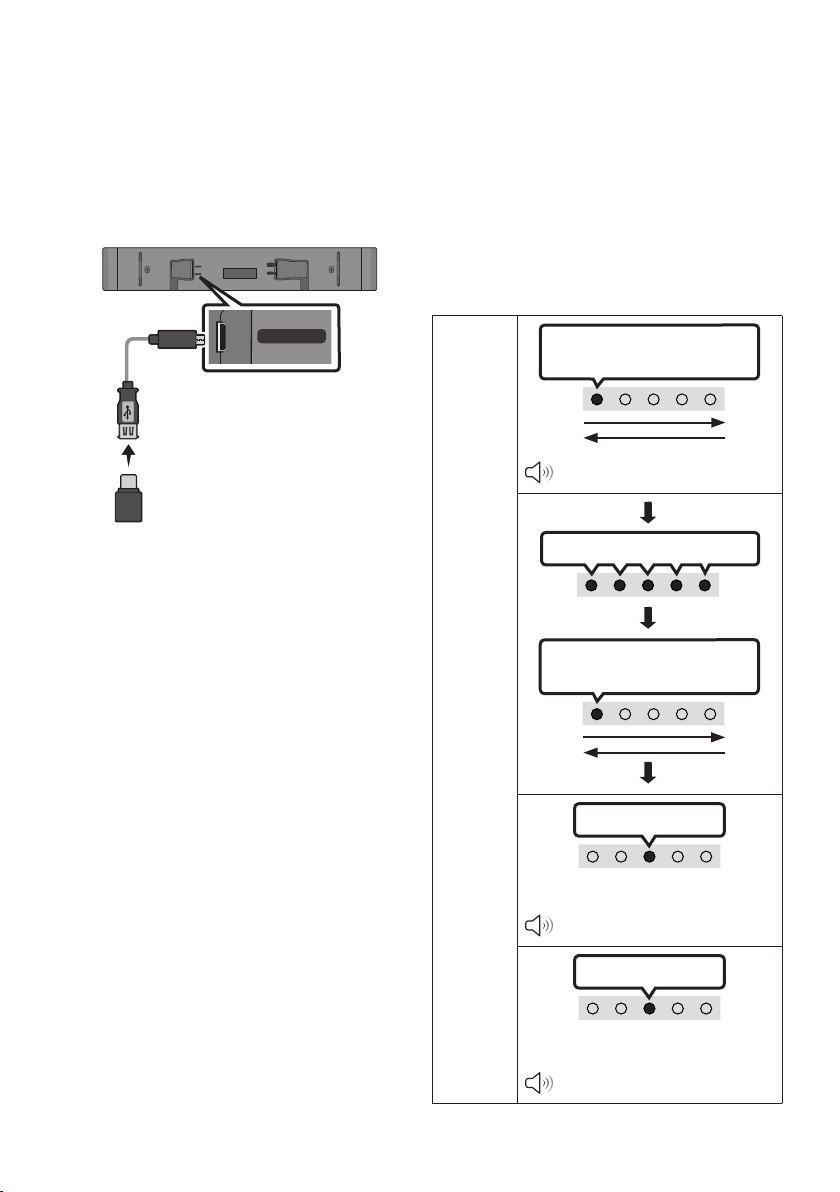
1. Connect a USB memory stick to the USB port
on your computer.
Important: Make sure there are no music
les on the USB memory stick drive. This
may cause the rmware update to fail.
2. Go to (samsung.com)
select Enter Model
Number and enter the model of your
Soundbar. Select manuals and downloads
and download the latest software le.
3. Save the downloaded software to a USB
memory stick and select “Extract Here” to
unzip the folder.
4. Turn on the Soundbar and connect the USB
memory stick containing the software
update to the female port on a Micro USB
adapter cable. Connect the cable to the USB
port on the Soundbar.
5. Plug USB into Soudbar and switch to USB
source, the software will update
automatically and will complete update
within 2 minutes. During the update process,
the 5 LEDs will start ashing in a loop, and
then the 5 LEDs will all be bright white, and
then the 5 LEDs will ash in a loop again.
When the update is complete, the cyan
indicator blinks 3 times, and the soundbar
automatically restarts.
LED
Indicator
White moves from left to right
and right to left X 1
“Start the software update.”
5 LEDs display White
White moves from left to right
and right to left X 1
Cyan Blinks X3
Software Update Finish
“The software update is complete.”
Red Blinks X3
Software Update Failed
“The software update failed.”
ENG - 36
• This product has a DUAL BOOT function.
If the rmware fails to update, you can
update the rmware again.
IfLEDsequenceashingisnot
displayed
1. Turn off the Soundbar, disconnect and then
reconnect the USB storage device that
contains the update les to the Soundbar’s
USB port.
2. Disconnect the Soundbar’s power cord,
reconnect it, and then turn on the Soundbar.
NOTES
• The rmware update may not work properly
if audio les supported by the Soundbar are
stored in the USB storage device.
• Do not disconnect the power or remove the
USB device while updates are being applied.
The main unit will turn off automatically after
completing the rmware update.
• After upgrading, keep the original Settings.
(include Volume, sound eld, etc.)
– When the rmware update is complete,
the soundbar automatically turns on, and
the Voice UI comes out.
If the software update fails, check if the
USB stick is defective.
• Mac OS users should use MS-DOS (FAT) as the
USB format.
• Updating via USB may not be available,
depending on the USB storage device
manufacturer.
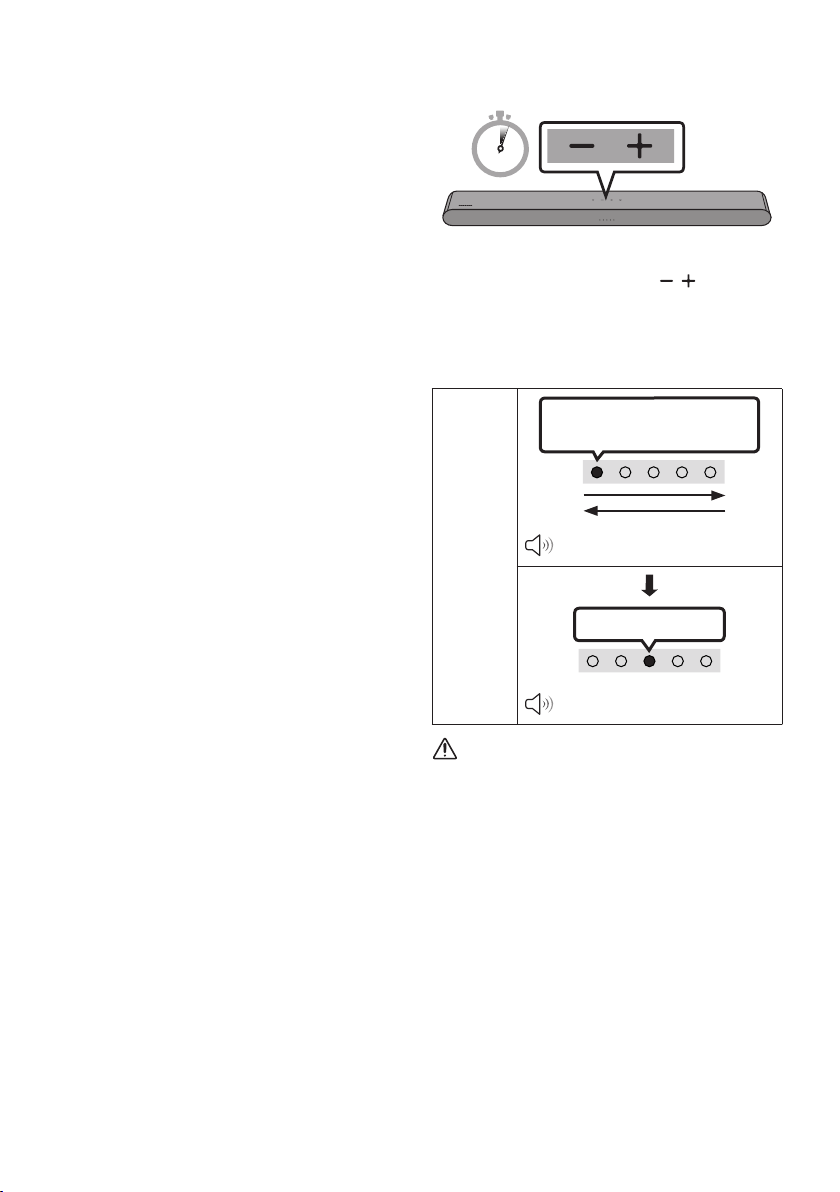
Reset
5 Sec
With the Soundbar on, press the (Volume)
buttons on the body at the same time for at least
5 seconds. The LED display changes as shown
below and then the Soundbar is reset.
LED
Indicator
White moves from left to right
and right to left
“Start the factory reset.”
Cyan Blinks X3
“The factory reset is complete.”
CAUTION
• All the settings of the Soundbar are reset.
Be sure to perform this only when a reset is
required.
ENG - 37
13 TROUBLESHOOTING
Before seeking assistance, check the following.
Soundbar does not turn on.
; Check whether the power cord of the
Soundbar is correctly inserted into the
outlet.
Soundbar works erratically.
; After removing the power cord, insert it
again.
; Power cycle the external device and try
again.
; If there is no signal, the Soundbar
automatically turns off after a certain
period of time. Turn on the power.
(See page 9.)
Remote control does not work.
; Point the remote directly at the Soundbar.
; Replace the batteries with new ones.
Soundbar does not output any sound.
; The volume of the Soundbar is too low or
muted. Adjust the volume.
; When any external device (STB, Bluetooth
device, mobile device, etc.) is connected,
adjust the volume of the external device.
; For sound output of the TV, select
Soundbar. (Samsung TV: Home ( ) →
Menu → Settings ( ) → All Settings ( )
→ Sound → Sound Output → Select
Soundbar)
; The cable connection to the Soundbar may
not be loose. Remove the cable and
connect again.
; Remove the power cord completely,
reconnect, and turn the power on.
; Reset the product and try again.
(See page 36.)
If
the TV is not connected via HDMI (ARC).
; Check whether the HDMI cable is correctly
connected to the ARC terminal.
(See page17)
; Connection may not be possible due to the
connected external device (set-top box,
game machine, etc.). Directly connect the
Soundbar.
; HDMI-CEC may not be activated on the TV.
Turn on the CEC on the TV menu. (Samsung
TV: Home ( ) → Menu → Settings ( ) →
All Settings ( ) → Connection → External
Device Manager → Anynet+ (HDMI-CEC)
ON)
Soundbar does not connect via Bluetooth.
; When connecting a new device, switch to
Bluetooth Pairing for connection. (Press the
PAIR button on the remote control or
press the (Source) button on the body
for at least 5 seconds.)
; If the Soundbar is connected to another
device, disconnect that device rst to
switch the device.
; Reconnect it after removing the Bluetooth
speaker list on the device to connect.
(Samsung TV: Home ( ) → Menu →
Settings ( ) → All Settings ( ) → Sound
→ Sound Output → Bluetooth Speaker List)
; Remove and reconnect the power plug,
then try again.
; Reset the product and try again.
(See page 36.)
ENG - 38
Sound drops out when connected via
Bluetooth.
; If your device that is connected via
Bluetooth moves too far away from the
Soundbar, it may cause the sound to drop
out. Move the device closer to the
Soundbar.
; If a part of your body is in contact with the
Bluetooth transceiver or the product is
installed on metal furniture, sound may
drop out. Check the installation
environment and conditions for use.
Bluetooth multi connection does not work.
; When the TV is connected to the soundbar,
Bluetooth multi connection may not
operate. Disconnect the Soundbar from the
TV and try again.
; Check whether the Bluetooth Multi
connection setting is turned on.
(Refer to the "Soundbar does not connect
via Bluetooth." section.)
; Disconnect the device currently playing,
pair with the device that you want to
connect, and reconnect the previous
device.
; If the sound is inaudible even after
connecting properly, refer to the "Sound
drops out when connected via Bluetooth."
section.
Soundbar does not turn on automatically with
the TV.
; When you turn off the Soundbar while
watching TV, power synchronization with
the TV is disabled. First turn off the TV.
14 LICENCE
Manufactured under license from Dolby
Laboratories. Dolby, Dolby Audio and the
double-D symbol are trademarks of Dolby
Laboratories Licensing Corporation.
* This product does not support Dolby Atmos®.
For DTS patents, see http://patents.dts.com.
Manufactured under license from DTS, Inc.
(for companies headquartered in the U.S./
Japan/Taiwan) or under license from DTS
Licensing Limited (for all other companies).
DTS, Digital Surround, and the DTS logo are
registered trademarks or trademarks of DTS,
Inc. in the United States and other countries.
© 2021 DTS, Inc. ALL RIGHTS RESERVED.
The terms HDMI and HDMI High-Denition
Multimedia Interface, and the HDMI Logo are
trademarks or registered trademarks of HDMI
Licensing Administrator, Inc. in the United
States and other countries.
The Bluetooth® word mark and logos are
registered trademarks owned by Bluetooth SIG, Inc.
and any use of such marks by Samsung Electronics
Co., Ltd. is under license. Other trademarks and
trade names are those of their respective owners.

ENG - 39
[ENERGY STAR]
ENERGYSTARqualiedmodelonly
– Your Samsung product is ENERGY STAR
qualied in its factory default setting.
Change to certain features, settings and
functionality in this product can change the
power consumption, possibly beyond the
limits required for ENERGY STAR
qualication.
– Environmental Protection Agency and
Department of Energy. ENERGY STAR is a
joint program of the Government agencies,
designed to promote energy efcient
products and practices.
Refer to www.energystar.gov for more
information of the ENERGY STAR Program.
ENERGYSTARqualiedmodelonly
(Applicable to Thin Client models only)
As an ENERGY STAR® Partner, SAMSUNG has
determined that this product meets the
ENERGY STAR® guidelines for energy
efciency.
– The ENERGY STAR Program has been to
reduced greenhouse gas emissions and
save energy through voluntary labeling.
– Power management setting of this product
have been enabled by default, and have
various timing setting from 1 minutes to 5
hours.
– The product can wake with a button press
on the chassis from sleep mode.
ENERGYSTARqualiedmodelonly(Theother
models)
– As an ENERGY STAR Partner, Samsung has
determined that this product or product
models meets the ENERGY STAR guideline
for energy efciency.
15 OPEN SOURCE
LICENCE NOTICE
To send inquiries and requests for questions
regarding open sources, contact Samsung Open
Source (http://opensource.samsung.com)
16 IMPORTANT
NOTES ABOUT
SERVICE
• Figures and illustrations in this User Manual
are provided for reference only and may differ
from actual product appearance.
• An administration fee may be charged if
either
(a) an engineer is called out at your request
and there is no defect with the product (i.e.
where the user manual has not been read).
(b) you bring the unit to a repair centre and
there is no defect with the product (i.e.
where the user manual has not been read).
• You will be informed of the administration fee
amount before a technician visits.

ENG - 40
17 SPECIFICATIONS AND GUIDE
Specications
Model Name HW-S50B / HW-S56B
USB 5V/0.5A
Weight 2.4 kg
Dimensions (W x H x D) 670.0 x 62.3 x 105.0 mm
Operating Temperature Range +5°C to +35°C
Operating Humidity Range 10 % ~ 75 %
AMPLIFIER
Rated Output power
(30W x 2) + (30W x 2) + 20W
Supported play formats
DTS, Dolby® Digital (DTS Virtual Surround is
played in DTS format.)
LPCM 2ch, Dolby Audio™ (supporting Dolby®
Digital), DTS, DTS Virtual:X
WIRELESS DEVICE OUTPUT POWER The transmitting power is 9 dBm.
Overall Standby Power Consumption (W) 0.5W
Bluetooth
Port deactivation method
Press and hold the SOUND MODE button for
more than 5 seconds to turn off Bluetooth Power
function.
NOTES
• Samsung Electronics Co., Ltd reserves the right to change the specications without notice.
• Weight and dimensions are approximate.

ENG - 41
Hereby, Samsung declares that this radio equipment is in compliance with Directive 2014/53/EU and the
relevant UK statutory requirements.
The full text of the declaration of conformity is available at the following internet address:
http://www.samsung.com go to Support and enter the model name.
This equipment may be operated in all EU countries and in the UK.
[Correct disposal of batteries in this product]
(Applicable in countries with separate collection systems)
This marking on the battery, manual or packaging indicates that the batteries in this product should not be
disposed of with other household waste at the end of their working life. Where marked, the chemical
symbols Hg, Cd or Pb indicate that the battery contains mercury, cadmium or lead above the reference
levels in EC Directive 2006/66.
If batteries are not properly disposed of, these substances can cause harm to human health or the
environment.
To protect natural resources and to promote material reuse, please separate batteries from other types of
waste and recycle them through your local, free battery return system.
Correct Disposal of This Product
(Waste Electrical & Electronic Equipment)
(Applicable in countries with separate collection systems)
This marking on the product, accessories or literature indicates that the product and its electronic
accessories (e.g. charger, headset, USB cable) should not be disposed of with other household waste at the
end of their working life. To prevent possible harm to the environment or human health from uncontrolled
waste disposal, please separate these items from other types of waste and recycle them responsibly to
promote the sustainable reuse of material resources.
Household users should contact either the retailer where they purchased this product, or their local
government ofce, for details of where and how they can take these items for environmentally safe
recycling.
Business users should contact their supplier and check the terms and conditions of the purchase contract.
This product and its electronic accessories should not be mixed with other commercial wastes for disposal.
For information on Samsung’s environmental commitments and product specic regulatory obligations
e.g. REACH, WEEE, Batteries, visit:
www.samsung.com/uk/aboutsamsung/sustainability/environment/our-commitment/data/
COMMISSION REGULATION (EU) 2019/1782
Ecodesign requirements for external power supplies :
www.samsung.com/global/ecodesign_component

This Samsung product is warranted for the period of
twelve (12) months from the original date of purchase,
against defective materials and workmanship. In the
event that warranty service is required, you should return
the product to the retailer from whom it was purchased.
However, Samsung Authorised Dealers and Authorised
Service Centres in other EC Countries will comply with
the warranty on the terms issued to purchasers in the
country concerned. In case of difculty, details of our
Authorised Service Centres are available from:
Samsung Electronics U.K. Ltd
Samsung Customer Support Centre
Selectapost38,Shefeld,S973FJ
United Kingdom
United Kingdom
Tel : 0333 000 0333
www.samsung.com/uk/support
EIRE
Tel : 0818 717100
www.samsung.com/ie/support
@ WARRANTY CONDITIONS
1. The warranty is only valid if, when warranty service
is required, the warranty card is fully and properly
completed and is presented with the original invoice
or sales slip or conrmation, and the serial number
on the product has not been defaced.
2. Samsung’s obligations are limited to the repair or, at
its discretion, replacement of the product or the
defective part. Repaired or replaced products may
include new and or refurbished components and
equipment.
3. Warranty repairs must be carried out by Authorised
Samsung Dealers or Authorised Service Centres. No
re-imbursement will be made for repairs carried out
by non Samsung Dealers and, any such repair work
and damage to the products caused by such repair
work will not be covered by this warranty.
4. This product is not considered to be defective in
materials nor workmanship by reason that it
requires adaptation in order to conform to national
or local technical or safety standards in force in any
Country other than the one for which the product
was originally designed and manufactured. This
warranty will not cover, and no re-imbursement will
be made for such adaptation nor any damage which
may result.
5. This warranty covers none of the following:
a) Periodic check ups, maintenance and repair or
replacement of parts due to normal wear and
tear.
b) Cost relating to transport, removal or installation
of the product.
c) Misuse, including the failure to use this product for
its normal purposes or incorrect installation.
d) Damage caused by Lightning, Water, Fire, Acts of
God, War, Public Disturbances, incorrect mains
voltage, improper ventilation or any other cause
beyond the control of Samsung.
6. This warranty is valid for any person who legally
acquired possession of the product during the
warranty period.
7. The consumers’ statutory rights in any applicable
national legislation whether against the retailer
arising from the purchase contract or otherwise are
not affected by this warranty. Unless there is
national legislation to the contrary, the rights under
this warranty are the consumers’ sole rights and
Samsung, its subsidiaries and distributors shall not
be liable for indirect or consequential loss or any
damage to disc based media, removable memory or
any other related equipment or material.
8. Samsung shall honour warranties for all EU
specication products purchased by a consumer
within the following European countries listed.
– UK, Republic of Ireland, Germany, France,
Italy, Malta, Spain, Portugal, The
Netherlands, Belgium, Luxembourg,
Denmark, Sweden, Finland, Poland,
Hungary, Czech Republic, Slovakia, Austria,
Slovenia, Croatia, Estonia, Latvia, Lithuania,
Greece, Cyprus, Romania, Bulgaria,
Switzerland, Norway, Lichtenstein and
Iceland.
SAMSUNG ELECTRONICS (U.K.) LTD.
-2-
UNITED KINGDOM
EIRE
This Samsung product is warranted for the period of twelve (12) months from the origi-
nal date of purchase, against defective materials and workmanship. In the event that
warranty service is required, you should return the product to the retailer from whom it
was purchased. However, Samsung Authorised Dealers and Authorised Service Centres
in other EC Countries will comply with the warranty on the terms issued to purchasers in
the country concerned. In case of difficulty, details of our Authorised Service Centres are
available from:
Samsung Electronics U.K. Ltd. Customer Care CentrePO Box 479
GATESHEAD NE9 9BJ United Kingdom
United Kingdom
Tel : 0330 SAMSUNG (7267864)
Fax: 03307260001
www.samsung.com
Eire
Tel : 0818 717100
Fax: +44 117 915 6736
www.samsung.com
■WARRANTY CONDITIONS
1.
The warranty is only valid if, when warranty service is required, the warranty card is fully
and properly completed and is presented with the original invoice or sales slip or confir-
mation, and the serial number on the product has not been defaced.
2.
Samsung’s obligations are limited to the repair or, at its discretion, replacement of
the product or the defective part.
3. Warranty repairs must be carried out by Authorised Samsung Dealers or
Authorised Service Centres. No re-imbursement will be made for repairs carried
out by non Samsung Dealers and, any such repair work and damage to the prod-
ucts caused by such repair work will not be covered by this warranty.
4.
This product is not considered to be defective in materials nor workmanship by
reason that it requires adaptation in order to conform to national or local technical
or safety standards in force in any Country other than the one for which the product
was originally designed and manufactured. This warranty will not cover, and no re-
imbursement will be made for such adaptation nor any damage which may result.
5. This warranty covers none of the following:
a) Periodic check ups, maintenance and repair or replacement of parts due to
normal wear and tear.
b)
Cost relating to transport, removal or installation of the product.
c)
Misuse, including the faiure to use this product for its normal
purposes or incorrect installation.
d)
Damage caused by Lightning, Water, Fire, Acts of God, War, Public
Disturbances, incorrect mains voltage, improper ventilation or any other cause
beyond the control of Samsung.
6. This warranty is valid for any person who legally acquired
possession of the product during the warranty period.
7.
The consumers statutory rights in any applicable national legislation
whether against
the retailer arising from the purchase contract or otherwise are not affected by this
warranty. Unless there is national legislation to the contrary, the rights under this
warranty are the
consumers sole rights and Samsung, its subsidiaries and distribu-
tors shall not be liable for indirect or consequential loss or any damage to records,
compact discs, videos or audio taper or any other related equipment or material
.
SAMSUNG ELECTRONICS (U.K.) LTD.
-2-
UNITED KINGDOM
EIRE
This Samsung product is warranted for the period of twelve (12) months from the origi-
nal date of purchase, against defective materials and workmanship. In the event that
warranty service is required, you should return the product to the retailer from whom it
was purchased. However, Samsung Authorised Dealers and Authorised Service Centres
in other EC Countries will comply with the warranty on the terms issued to purchasers in
the country concerned. In case of difficulty, details of our Authorised Service Centres are
available from:
Samsung Electronics U.K. Ltd. Customer Care CentrePO Box 479
GATESHEAD NE9 9BJ United Kingdom
United Kingdom
Tel : 0330 SAMSUNG (7267864)
Fax: 03307260001
www.samsung.com
Eire
Tel : 0818 717100
Fax: +44 117 915 6736
www.samsung.com
■WARRANTY CONDITIONS
1.
The warranty is only valid if, when warranty service is required, the warranty card is fully
and properly completed and is presented with the original invoice or sales slip or confir-
mation, and the serial number on the product has not been defaced.
2.
Samsung’s obligations are limited to the repair or, at its discretion, replacement of
the product or the defective part.
3. Warranty repairs must be carried out by Authorised Samsung Dealers or
Authorised Service Centres. No re-imbursement will be made for repairs carried
out by non Samsung Dealers and, any such repair work and damage to the prod-
ucts caused by such repair work will not be covered by this warranty.
4.
This product is not considered to be defective in materials nor workmanship by
reason that it requires adaptation in order to conform to national or local technical
or safety standards in force in any Country other than the one for which the product
was originally designed and manufactured. This warranty will not cover, and no re-
imbursement will be made for such adaptation nor any damage which may result.
5. This warranty covers none of the following:
a) Periodic check ups, maintenance and repair or replacement of parts due to
normal wear and tear.
b)
Cost relating to transport, removal or installation of the product.
c)
Misuse, including the faiure to use this product for its normal
purposes or incorrect installation.
d)
Damage caused by Lightning, Water, Fire, Acts of God, War, Public
Disturbances, incorrect mains voltage, improper ventilation or any other cause
beyond the control of Samsung.
6. This warranty is valid for any person who legally acquired
possession of the product during the warranty period.
7.
The consumers statutory rights in any applicable national legislation
whether against
the retailer arising from the purchase contract or otherwise are not affected by this
warranty. Unless there is national legislation to the contrary, the rights under this
warranty are the
consumers sole rights and Samsung, its subsidiaries and distribu-
tors shall not be liable for indirect or consequential loss or any damage to records,
compact discs, videos or audio taper or any other related equipment or material
.
SAMSUNG ELECTRONICS (U.K.) LTD.
-2-
UNITED KINGDOM
EIRE
This Samsung product is warranted for the period of twelve (12) months from the origi-
nal date of purchase, against defective materials and workmanship. In the event that
warranty service is required, you should return the product to the retailer from whom it
was purchased. However, Samsung Authorised Dealers and Authorised Service Centres
in other EC Countries will comply with the warranty on the terms issued to purchasers in
the country concerned. In case of difficulty, details of our Authorised Service Centres are
available from:
Samsung Electronics U.K. Ltd. Customer Care CentrePO Box 479
GATESHEAD NE9 9BJ United Kingdom
United Kingdom
Tel : 0330 SAMSUNG (7267864)
Fax: 03307260001
www.samsung.com
Eire
Tel : 0818 717100
Fax: +44 117 915 6736
www.samsung.com
■WARRANTY CONDITIONS
1.
The warranty is only valid if, when warranty service is required, the warranty card is fully
and properly completed and is presented with the original invoice or sales slip or confir-
mation, and the serial number on the product has not been defaced.
2.
Samsung’s obligations are limited to the repair or, at its discretion, replacement of
the product or the defective part.
3. Warranty repairs must be carried out by Authorised Samsung Dealers or
Authorised Service Centres. No re-imbursement will be made for repairs carried
out by non Samsung Dealers and, any such repair work and damage to the prod-
ucts caused by such repair work will not be covered by this warranty.
4.
This product is not considered to be defective in materials nor workmanship by
reason that it requires adaptation in order to conform to national or local technical
or safety standards in force in any Country other than the one for which the product
was originally designed and manufactured. This warranty will not cover, and no re-
imbursement will be made for such adaptation nor any damage which may result.
5. This warranty covers none of the following:
a) Periodic check ups, maintenance and repair or replacement of parts due to
normal wear and tear.
b)
Cost relating to transport, removal or installation of the product.
c)
Misuse, including the faiure to use this product for its normal
purposes or incorrect installation.
d)
Damage caused by Lightning, Water, Fire, Acts of God, War, Public
Disturbances, incorrect mains voltage, improper ventilation or any other cause
beyond the control of Samsung.
6. This warranty is valid for any person who legally acquired
possession of the product during the warranty period.
7.
The consumers statutory rights in any applicable national legislation
whether against
the retailer arising from the purchase contract or otherwise are not affected by this
warranty. Unless there is national legislation to the contrary, the rights under this
warranty are the
consumers sole rights and Samsung, its subsidiaries and distribu-
tors shall not be liable for indirect or consequential loss or any damage to records,
compact discs, videos or audio taper or any other related equipment or material
.
SAMSUNG ELECTRONICS (U.K.) LTD.
© 2022 Samsung Electronics Co., Ltd. All rights reserved.
Contact SAMSUNG WORLD WIDE
If you have any questions or comments relating to Samsung products, please contact the SAMSUNG customer
care Centre.
Country
Samsung Service Centre
Web Site
`
Europe
UK 0333 000 0333
www.samsung.com/uk/
support
IRELAND (EIRE) 0818 717100
www.samsung.com/ie/
support
GERMANY 06196 77 555 77
www.samsung.com/de/
support
FRANCE 01 48 63 00 00
www.samsung.com/fr/
support
ITALIA 800-SAMSUNG (800.7267864)
www.samsung.com/it/
support
SPAIN 91 175 00 15
www.samsung.com/es/
support
PORTUGAL
210 608 098
Dias úteis das 9h às 20h
www.samsung.com/pt/
support
LUXEMBURG 261 03 710
www.samsung.com/be_
fr/support
NETHERLANDS 088 90 90 100
www.samsung.com/nl/
support
BELGIUM 02-201-24-18
www.samsung.com/be/
support (Dutch)
www.samsung.com/
be_fr/support (French)
NORWAY 21629099
www.samsung.com/no/
support
DENMARK 707 019 70
www.samsung.com/dk/
support
FINLAND 030-6227 515
support
SWEDEN 0771-400 300
www.samsung.com/se/
support
POLAND
801-172-678* lub +48 22 607-93-33*
pl/support/
HUNGARY 0680SAMSUNG (0680-726-7864)
www.samsung.com/hu/
support
AUSTRIA 0800 72 67 864 (0800-SAMSUNG)
www.samsung.com/at/
support
SWITZERLAND 0800 726 786
www.samsung.com/ch/
support (German)
www.samsung.com/
ch_fr/support (French)
Country
Samsung Service Centre
Web Site
CZECH 800 - SAMSUNG (800-726786)
www.samsung.com/cz/
support
SLOVAKIA 0800 - SAMSUNG (0800-726 786)
www.samsung.com/sk/
support
CROATIA 072 726 786
www.samsung.com/hr/
support
BOSNIA 055 233 999
www.samsung.com/
support
NORTH
MACEDONIA
023 207 777
www.samsung.com/mk/
support
MONTENEGRO 020 405 888
www.samsung.com/
support
SLOVENIA
www.samsung.com/si/
support
SERBIA 011 321 6899
www.samsung.com/rs/
support
KOSOVO 038 40 30 90
www.samsung.com/
support
ALBANIA 045 620 202
www.samsung.com/al/
support
BULGARIA
www.samsung.com/bg/
support
ROMANIA
0800872678 - Apel gratuit
www.samsung.com/ro/
support
CYPRUS
8009 4000 only from landline, toll
free
www.samsung.com/gr/
support
GREECE
80111-SAMSUNG (80111 726 7864) only
from land line
(+30) 210 6897691 from mobile and
land line
LITHUANIA 8-800-77777
www.samsung.com/lt/
support
LAT VIA 8000-7267
www.samsung.com/lv/
support
ESTONIA 800-7267
www.samsung.com/ee/
support