
Operation manual
©ZOOM Corporation
Reproduction or duplication of this manual without
permission, in whole or in part, is prohibited.
Usage and safety precautions
02
Usage and safety precautions
03
H2n
Handy Recorder
Usage and safety precautions
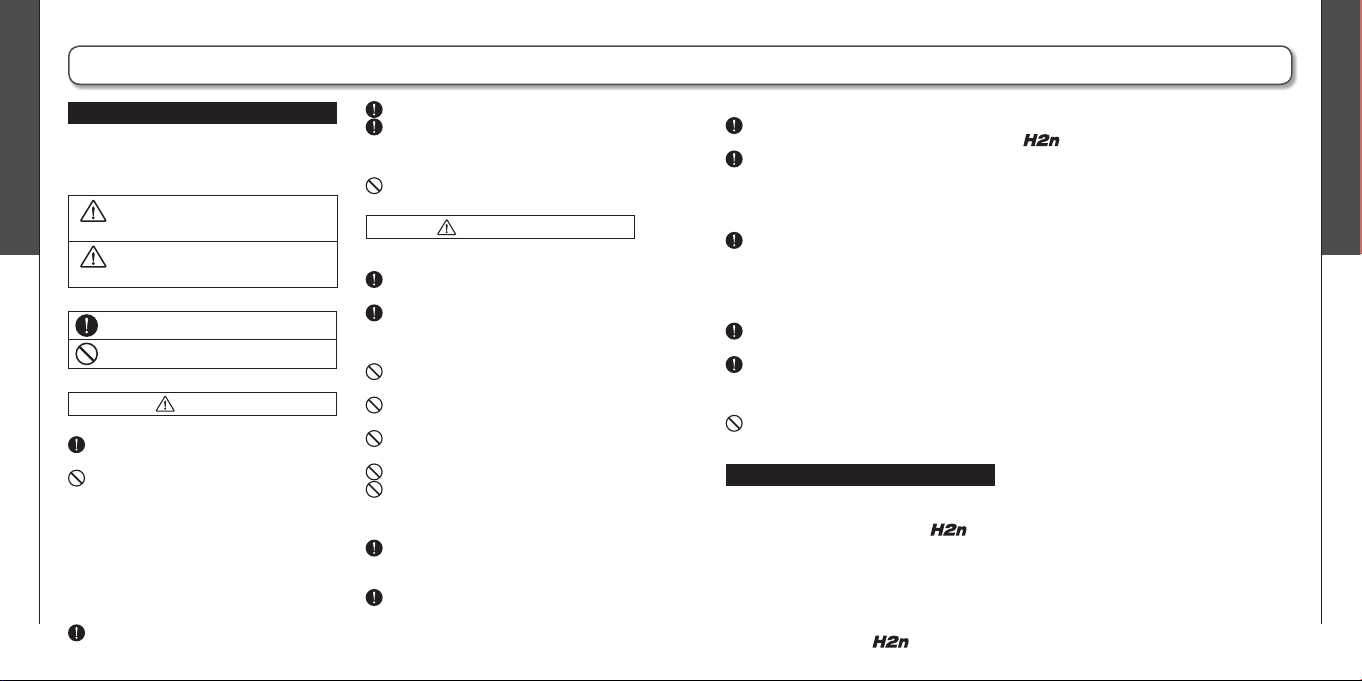
SAFETY PRECAUTIONS
In this manual, symbols are used to highlight
warnings and cautions that you must read to
prevent accidents. The meanings of these symbols
are as follows:
Warning
Something that could cause serious
injury or death.
Caution
Something that could cause injury or
damage to the equipment.
Other symbols
Required (mandatory) actions
Prohibited actions
Warning
Operation using an AC adapter
Use only a ZOOM AD-17 (sold separately) AC
adapter with this unit.
Do not use do anything that could exceed the
ratings of outlets and other electrical wiring
equipment. Before using the equipment in
a foreign country or other region where the
electrical voltage differs from that indicated
on the AC adapter, always consult with a shop
that carries ZOOM products beforehand and
use the appropriate AC adapter.
Operation using batteries
Use 2 conventional 1.5-volt AA batteries
(alkaline or nickel-metal hydride).
Read battery warning labels carefully.
Always close the battery compartment cover
when using the unit.
Alterations
Never open the case or attempt to modify the
product.
Precautions
Product handling
Do not drop, bump or apply excessive force to
the unit.
Be careful not to allow foreign objects or
liquids to enter the unit.
Operating environment
Do not use in extremely high or low tempera-
tures.
Do not use near heaters, stoves and other
heat sources.
Do not use in ver y high humidity or near
splashing water.
Do not use in places with excessive vibrations.
Do not use in places with excessive dust or
sand.
AC adapter handling
When disconnecting the AC adapter from an
outlet, always pull the body of the adapter
itself.
During lightning storms or when not using
the unit for a long time, disconnect the power
plug from the AC outlet.
Battery handling
Inst all the batteries with the correct +/-
orientation.
Use a specifi ed battery type. Do not mix new
and old batteries or different brands or types
at the same time. When not using the unit
for an extended period of time, remove the
batteries from the unit.
If a battery leak should occur, wipe the battery
compartment and the battery terminals
carefully to remove all battery residue.
Connecting cables with input and output
jacks
Always turn the power OFF for all equipment
before connecting any cables.
Always disconnect all connection cables and
the AC adapter before moving the unit.
Volume
Do not use the product at a loud volume for a
long time.
Usage Precautions
Interference with other electrical equip-
ment
In consideration of safety, the
has
been designed to minimize the emission of
electromagnetic radiation from the device and to
minimize external electromagnetic interference.
However, equipment that is very susceptible to
interference or that emits powerful electromagnetic
waves could result in interference if placed nearby.
If this occurs, place the
and the other
device farther apart. With any type of electronic
device that uses digital control, including the
, electromagnetic interference could cause
malfunction, corrupt or destroy data and result in
other unexpected trouble. Always use caution.
Cleaning
Use a soft cloth to clean the panels of the unit if
they become dirty. If necessary, use a damp cloth
that has been wrung out well. Never use abrasive
cleansers, wax or solvents, including alcohol,
benzene and paint thinner.
Malfunction
If the unit becomes broken or malfunctions,
immediately disconnect the AC adapter, turn the
power OFF and disconnect other cables. Contact
the store where you bought the unit or ZOOM
service with the following information: product
model, serial number and specific symptoms
of failure or malfunction, along with your name,
address and telephone number.
Copyrights
•Windows, Windows Vista, Windows XP and
Windows 7 are trademarks or registered trademarks
of Microsoft Corporation. •Macintosh and Mac OS
are trademarks or registered trademarks of Apple
Inc. •The SD and SDHC logos are trademarks.
•The use of MPEG Layer-3 audio compression
technology is licensed from Fraunhofer IIS and
Sisvel SpA.
* All other product names, trademarks and company names
in this document are the property of their respective
owners.
Introduction
04
Introduction
05
H2n
Handy Recorder
Introduction
Thank you very much for purchasing a ZOOM
Handy Recorder.
The features of the
include the following.
• Four-channel recording captures sound in 360°
The built in microphones are divided into mid-side (MS) mics on the rear side
and XY mics on the front side. This independent placement allows you to record
sound coming from every direction. This unrestricted range means you can
record diverse sound sources in all kinds of conditions.
• New microphone array allows control of stereo width
The MS mic includes a directional mid mic that covers the front and a
bidirectional side mic that covers both sides. By controlling the amount of side
mic signal, you can freely adjust the stereo width of recordings.
• Stereo recording is clear and three-dimensional
Using the XY mic, you can realize three-dimensional stereo recordings that
faithfully capture a sense of depth.
• Uninterrupted long recordings possible at high-quality
Recording is possible without interruption for very long times. You can even fi ll
an entire 32GB SDHC card in one session!
• Runs for a long time on standard batteries
You can record for up to 20 hours (44.1kHz/16bit WAV format) with one set of
alkaline batteries. So, even in situations where you must rely on batteries, you
can keep recording without worrying about the time.
• Use as an SD card reader and computer audio interface
The built-in USB 2.0 high-speed port allows direct connection with a computer.
Use the recorder as an SD card reader with a computer to transfer recordings to
your computer for use in DAW software or to burn them to CDs. You can even
use the recorder as a computer audio interface at USB 1.0 speed.
• Tuner, metronome and other practice features
In addition to standard chromatic tuning, the tuner also supports seven-string
guitar, five-string bass and alternate tunings. The convenient metronome can
even provide a count in and the speed and pitch of playback can be adjusted,
making it a useful practice companion.
Please read this manual carefully to fully understand the
so that
you can maximize your use of its features. After reading the manual once,
please keep it with the warranty in a safe place.
Contents
06
Package contents
07
H2n
Handy Recorder
Contents
Usage and safety precautions ......................... 02
Introduction ..................................................... 04
Contents ......................................................... 06
Package contents ............................................ 07
Part names ...................................................... 08
Display ............................................................ 10
Preparation
Powering the recorder..................................... 12
Using batteries ............................................ 12
Using an AC adapter (sold separately) ......... 12
Installing an SD card ....................................... 13
Turning the power ON and OFF ...................... 14
Turning the power ON ................................. 14
Turning the power OFF ................................ 14
Using the hold function ............................... 15
Connecting an external mic ............................ 16
Using plug-in power..................................... 16
Setting the date and time ................................ 17
Setting the battery type .................................. 18
Recording
Recording mode overview .............................. 20
Mid-side (MS) stereo mode ......................... 20
XY stereo mode ........................................... 20
2ch and 4ch surround modes ...................... 21
Selecting the recording mode ......................... 22
Adjusting the S level (MS stereo,
2ch/4ch surround modes) ............................ 22
Using MS-RAW mode (WAV format only) ... 23
Selecting where recordings are saved ............ 23
Recording manually ......................................... 24
Recording automatically .................................. 26
Pre-recording ................................................... 28
Counting in before recording .......................... 29
Playback
Playing back recordings ................................... 30
Selecting the fi le to playback from a list ......... 32
Changing the playback speed ......................... 33
Loop playback of a set interval (AB REPEAT) .. 34
Changing the play mode ................................. 36
Adjusting the playback pitch
(KEY CONTROL) ............................................. 38
Changing the S level (MS-RAW only) .............. 39
Mixing a 4ch surround fi le ............................... 40
Checking & Editing Files
Checking fi le information ................................ 42
Checking track marks (WAV fi les only) ............ 43
Changing fi le names (Stereo fi les only) ........... 44
Convert WAV fi les into MP3 fi les
(Stereo fi les only) ............................................ 46
Normalizing WAV fi les ..................................... 48
Dividing fi les (Stereo fi les only) ....................... 50
Deleting fi les ................................................... 52
Deleting all fi les in a folder .............................. 53
Converting MS-RAW fi les into stereo fi les ..... 54
Converting 4ch surround fi les into
stereo fi les ...................................................... 56
Using USB
Exchanging fi les with a computer
(Card reader) ................................................... 58
Audio interface use (MS/XY stereo and
2ch surround modes only) ............................... 60
Tuner
Using the tuner ............................................... 62
Metronome
Using the metronome ..................................... 64
Various settings
Reducing noise (LO CUT) ................................ 66
Monitoring the input signal ............................. 67
Compressing/limiting the input signal ............. 68
Automatically adjusting the input gain ............ 70
Monitoring MS-RAW signals
(MS stereo mode only) ................................... 71
Setting the recording format ........................... 72
Changing automatic recording settings ........... 74
Setting how fi les are named
(Stereo fi les only) ............................................ 76
Pausing recording when adding marks
(WAV format only) .......................................... 77
Changing the display backlight time ................ 78
Adjusting the display contrast ......................... 79
Checking the software versions ...................... 80
Restoring the unit to its factory settings ......... 81
Checking the open capacity of the SD card .... 82
Formatting an SD card..................................... 83
Other functions
Updating the system software ........................ 84
Using SD cards from older H series
recorders ......................................................... 85
Using a remote control .................................. 86
Troubleshooting ............................................... 87
Specifi cations .................................................. 88
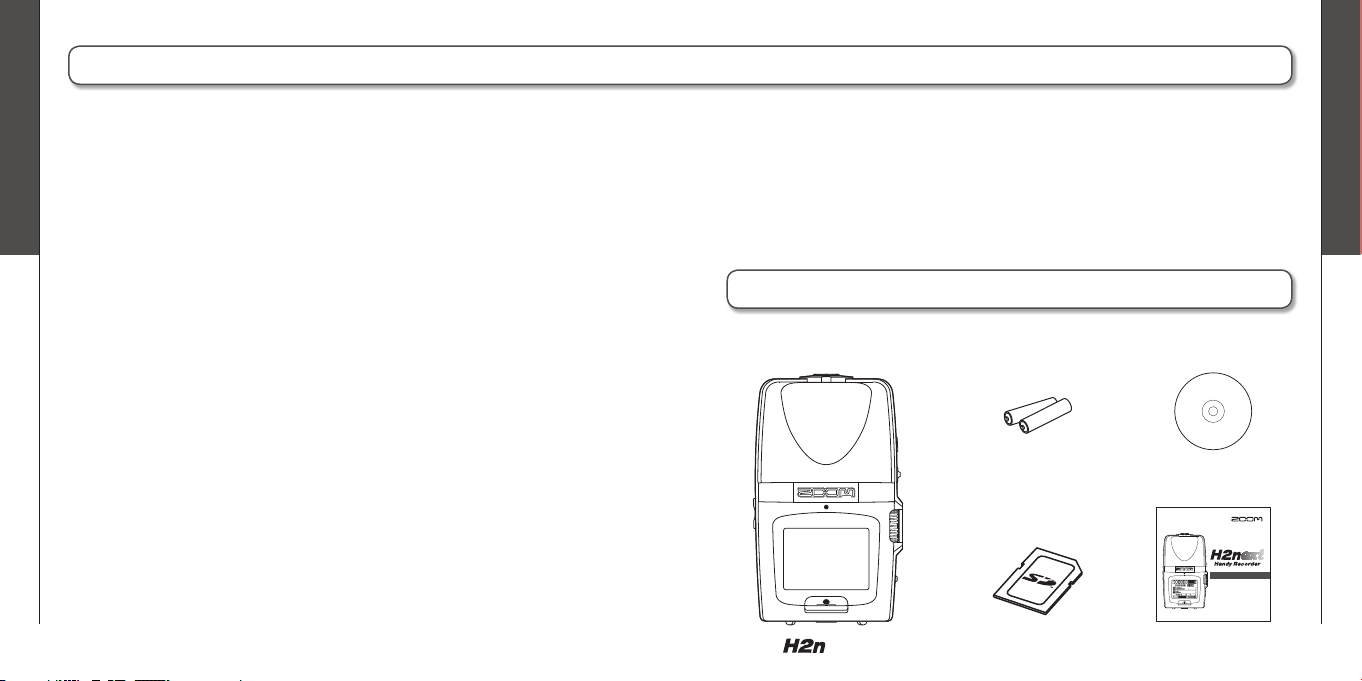
Package contents
Please confi rm that the package contains the following items.
2 AA batteries
(for testing the unit)
SD card
(2GB)
recorder
Wave Lab LE
Installer CD
Operation manual
©ZOOM Corporation
Reproduction or duplication of this manual without
permission, in whole or in part, is prohibited.
Operation manual
(this document)
Part names
08
Part names
09
H2n
Handy Recorder
Part names
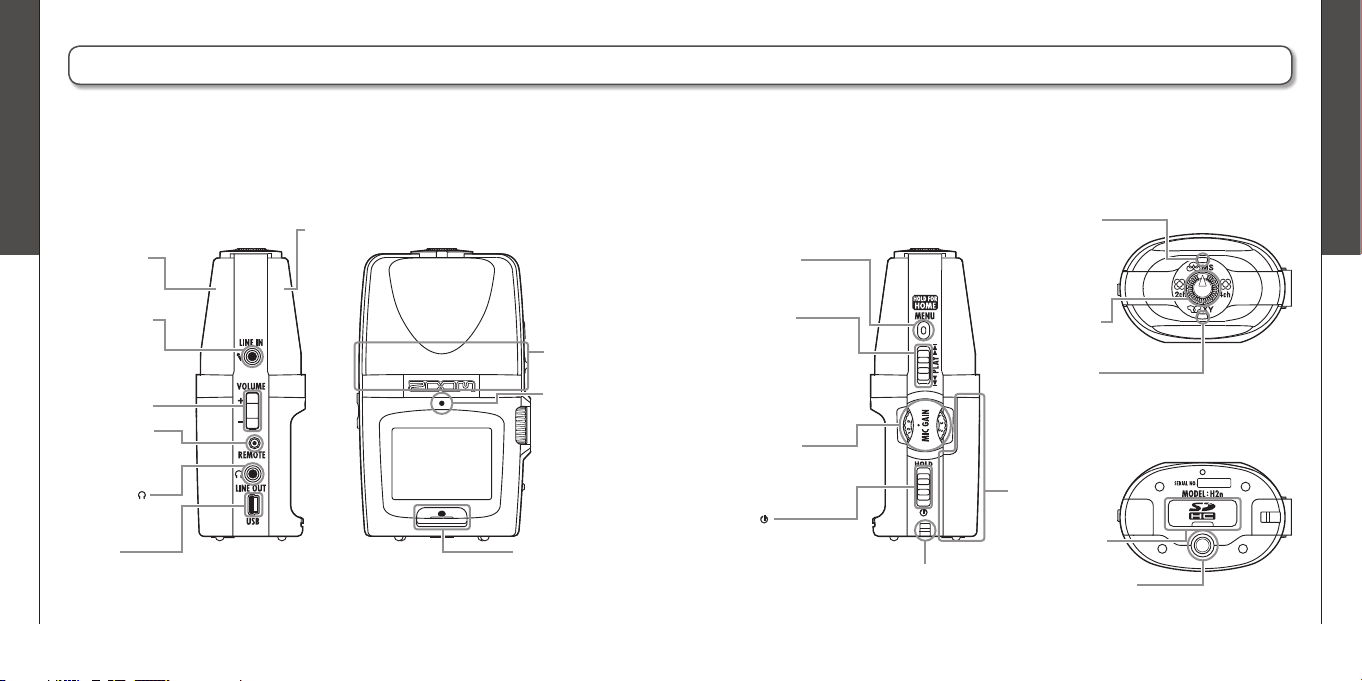
Left side Right side Top
Bottom
Front
Record button
Speaker
LINE IN jack for
mic/line input
(can provide
plug-in power)
Remote control
jack (Remote
control sold
separately)
Headphones
/LINE OUT jack
MS stereo mic
XY stereo mic
Recording
indicator
MIC GAIN dial
Adjusts mic
input gain
Strap attachment
(Use to prevent dropping)
PLAY control
Press to play/pause
(in menu, set item)
Shift up/down to search
forward/backward
(in menu, select item)
MS mic indicator
Lights when the MS
mic (rear) is ON.
Flashes when the
input signal is
distorting.
XY mic indicator
Lights when the XY
mic (front) is ON.
Flashes when the
input signal is
distorting.
Recording mode
selection dial
Battery
compartment
cover
SD card slot cover
MENU button
Volume control
USB port
Tripod mounting socket
Power
/HOLD switch
Display
10
Display
11
H2n
Handy Recorder
Display
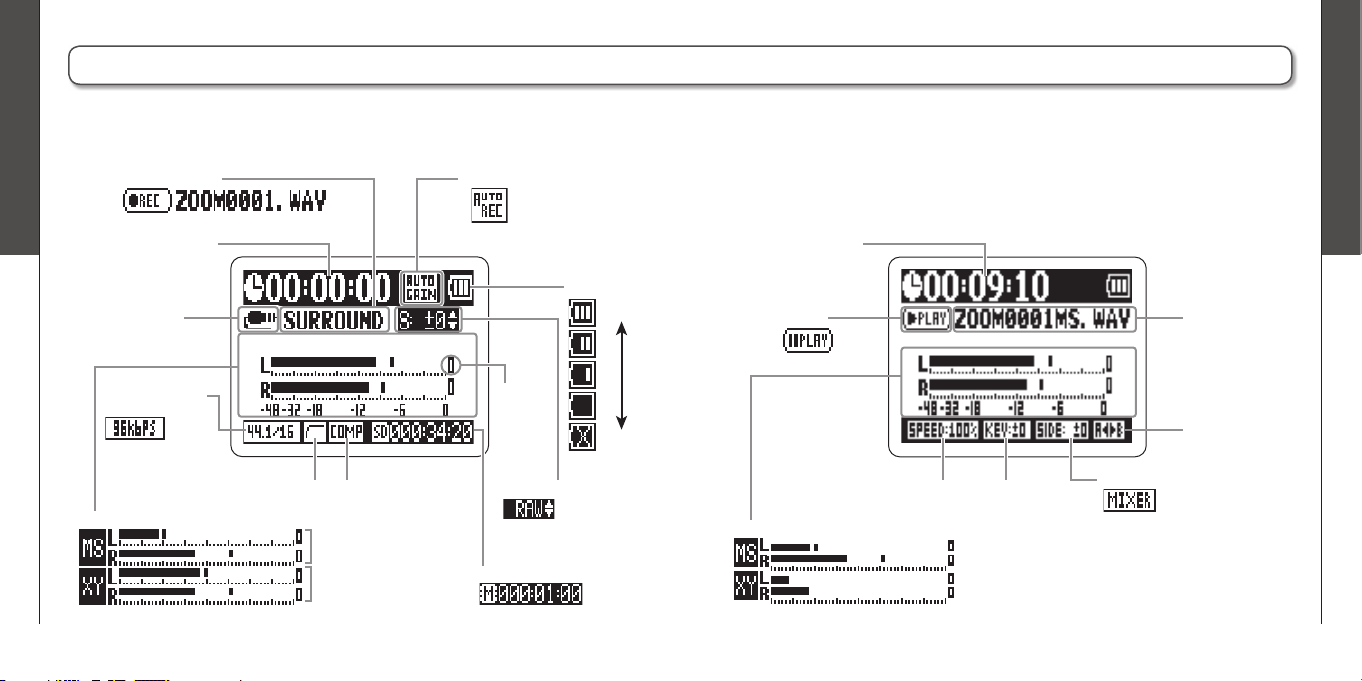
Recording time
LINE IN jack in
use indicator
Home (recording) screen Playback screen
Recording mode
(File name shown during recording)
Recording level
MS mic recording level
Remaining recordable time
(When using built-in memory)
Side level adjustment
(When set to MS-RAW)
LO CUT
indicator
Clipping
indicator
(When AUTO REC enabled)
AUTO GAIN/AUTO REC indicator
Full
Empty
COMP/LIMITER
indicator
XY mic recording level
(Appearance in 4ch surround mode)
Playback time
Playing
(Playback paused)
File name
AB repeat
Playback level
(Appearance in 4ch surround mode)
Playback speed Key control
Side mic level
Mixer
(when in 4ch surround mode)
Remaining
battery level
indicator
Recording format
(WAV example)
(MP3 example)
Preparation
Powering the recorder
12
Preparation
Installing an SD card
13
H2n
Handy Recorder
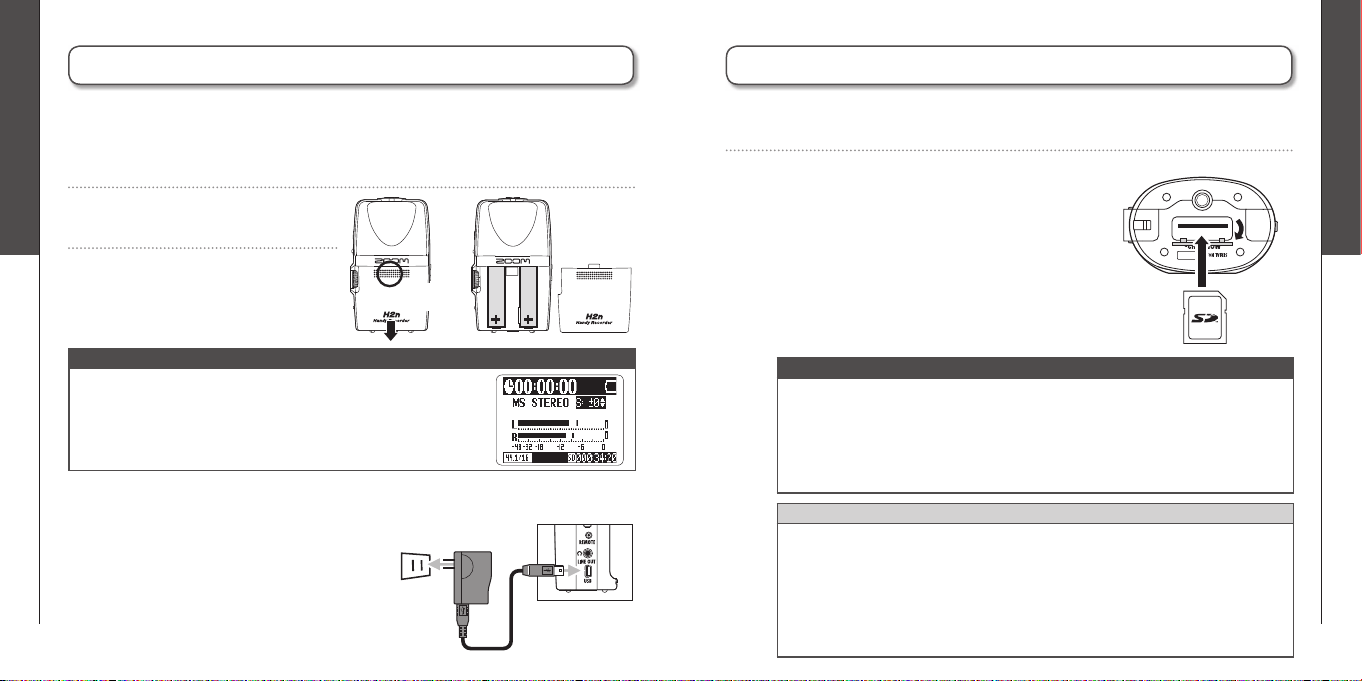
NOTE
∙ Use alkaline or nickel-metal hydride batteries.
∙ If the “Low battery!” warning appears, turn the power OFF
soon and put in new batteries.
∙ Set the type of battery used. (➝P.18)
Powering the recorder
1.
Turn the power OFF, and then remove the battery cover.
1.
Connect the cable to the USB port.
3.
Close the cover.
2.
Insert batteries.
2.
Plug the adapter into a power outlet.
Using batteries
Using an AC adapter (sold separately)
Press here
and slide down
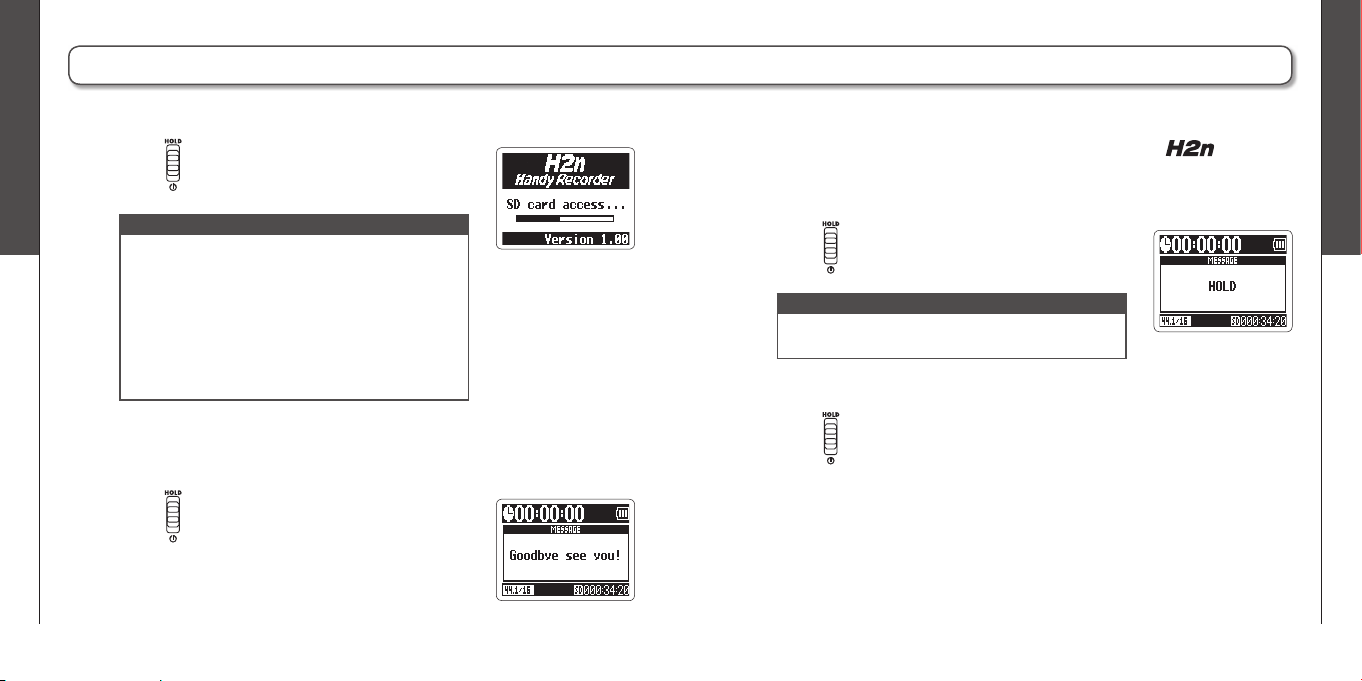
Installing an SD card
1.
After turning the power OFF, open the SD card slot cover.
2.
Insert the card into the slot.
To remove a card, push it further into
the slot and then pull it out.
HINT
Built-in memory
∙ The built-in memory only keeps the most recent recording.
∙ The recording format is fi xed at 96kbps MP3.
∙ It cannot be used to record in 4ch surround or MS-RAW modes.
∙ Recording time is limited to 1 minute.
∙ Recordings saved to the built-in memory cannot be copied to an SD card or a
computer.
NOTE
∙ Always turn the power OFF before inserting or removing an SD card. Doing so
when the power is ON could cause data to be lost.
∙ Be sure to insert the SD card correctly, using the cut-off corner illustration next
to the slot as a guide.
∙ The built-in memory will be used if no SD card is in the recorder.
∙ Format the SD card if necessary. (➝ P.83)
Preparation
Turning the power ON and OFF
14
Preparation
Turning the power ON and OFF
15
H2n
Handy Recorder
Turning the power ON and OFF
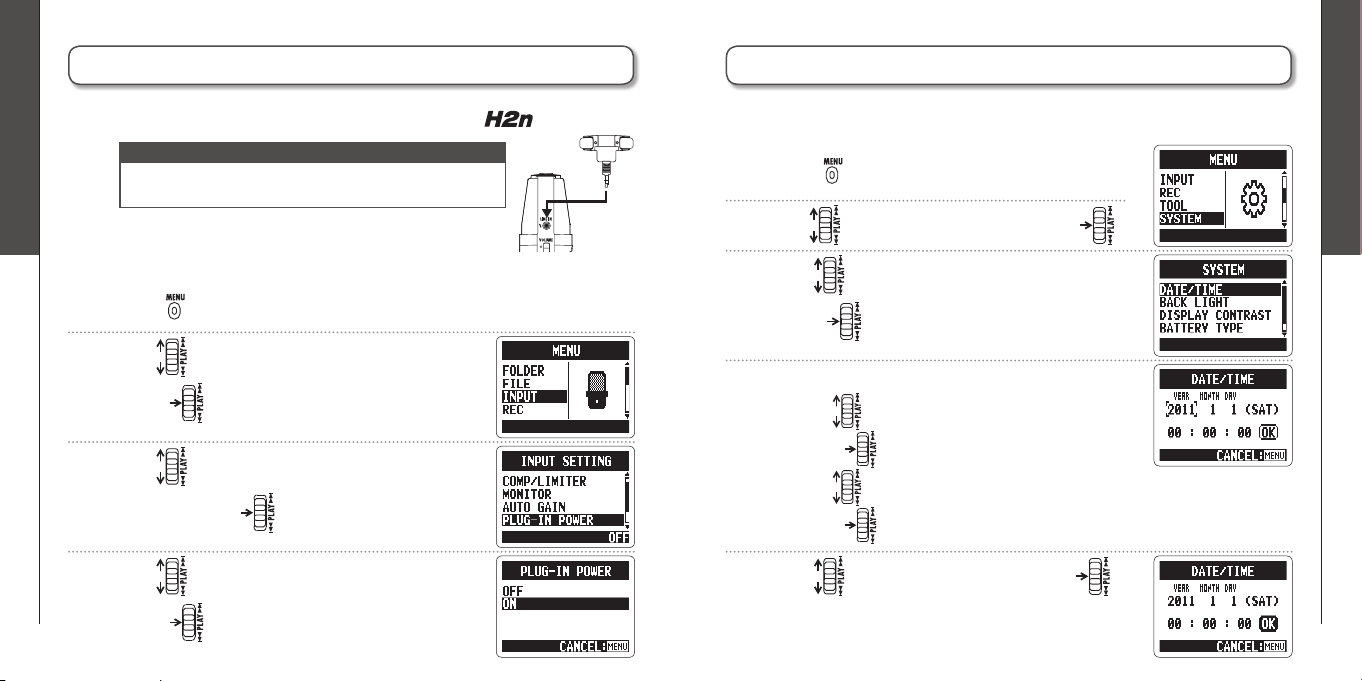
•
Slide down.
•
Slide up to the HOLD position.
•
Slide back to the middle.
Turning the power ONUsing the hold function
In order to prevent accidental operation during recording, the has a hold
function that disables the use of controls other than the MIC GAIN.
Enabling the hold function
Disabling the hold function
NOTE
∙ If “No SD card!” appears, confi rm that an SD card is
correctly inserted into the recorder.
∙ If “Card Protected” appears, SD card write
protection is ON. Turn write protection OFF by
sliding the “Lock” switch on the card.
∙ If “Invalid card” appears, the card format is
incorrect. Use a different card or format the card.
(➝ P.83)
•
Slide down and hold it until “Goodbye
see you!” appears on the screen.
Turning the power OFF
NOTE
Even when the hold function is on, the remote control
(sold separately) can still be used.
Preparation
Connecting an external mic
16
Preparation
Setting the date and time
17
H2n
Handy Recorder
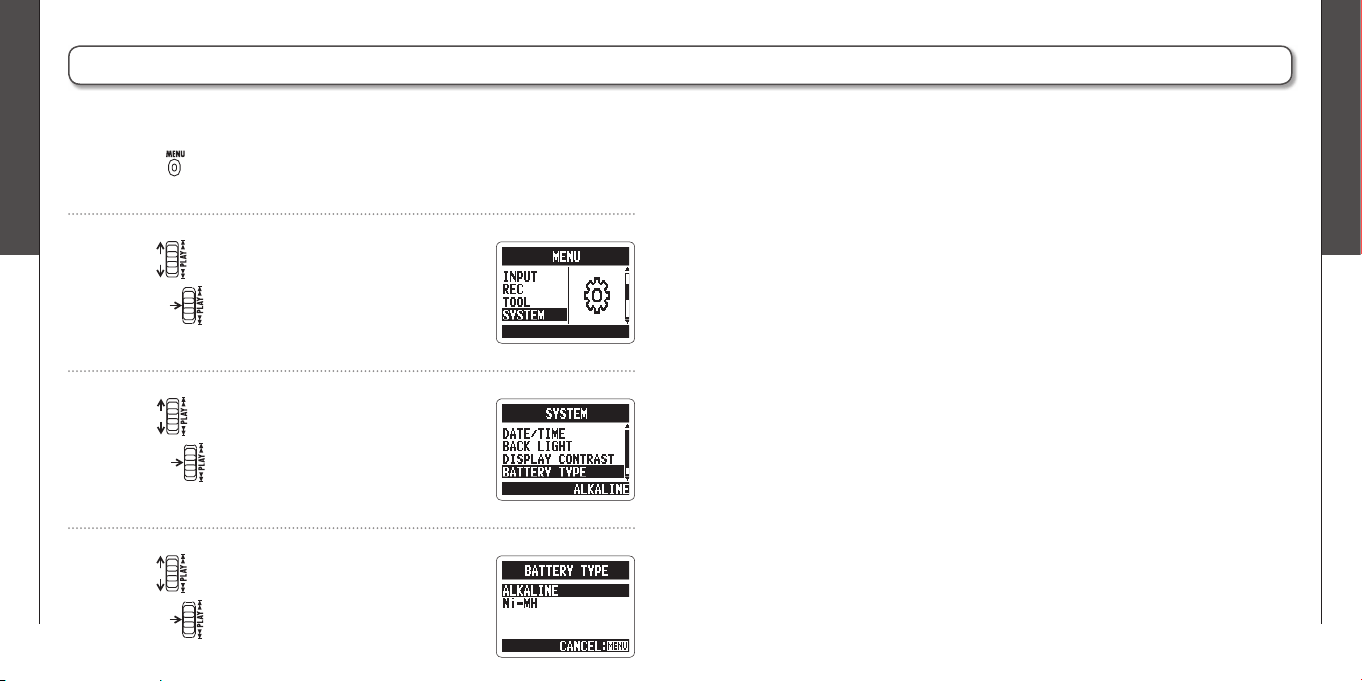
4.
Adjust the settings.
Use to move the cursor
Press to select the item
Use to change the value
Press to confi rm the setting
Connecting an external mic
1.
Connect an external mic (sold separately) to the
LINE IN jack.
1.
Press .
NOTE
∙ An external mic can be used instead of the XY stereo mic.
∙ An external mic cannot be used with MS Stereo mode.
Using plug-in power
Make the following setting before connecting a mic that requires plug-in power.
4.
Use to select ON, and then
press .
2.
Use to select INPUT, and then
press .
3.
Use to select PLUG-IN POWER,
and then press .
Setting the date and time
1.
Press .
2.
Use to select SYSTEM, and then press .
3.
Use to select DATE/TIME, and then
press .
5.
Use to select OK, and then press .
The date and time is added to recording fi les automatically, so set it correctly
whenever the batteries are replaced.
Preparation
Setting the battery type
18
Preparation
Setting the battery type
19
H2n
Handy Recorder
Setting the battery type
1.
Press .
4.
Use to select the battery type, and then
press .
2.
Use to select SYSTEM, and then
press .
3.
Use to select BATTERY TYPE, and then
press .
Set the battery type in order to show the remaining battery charge accurately.
Recording
Recording mode overview
20
Recording
Recording mode overview
21
H2n
Handy Recorder
Recording mode overview
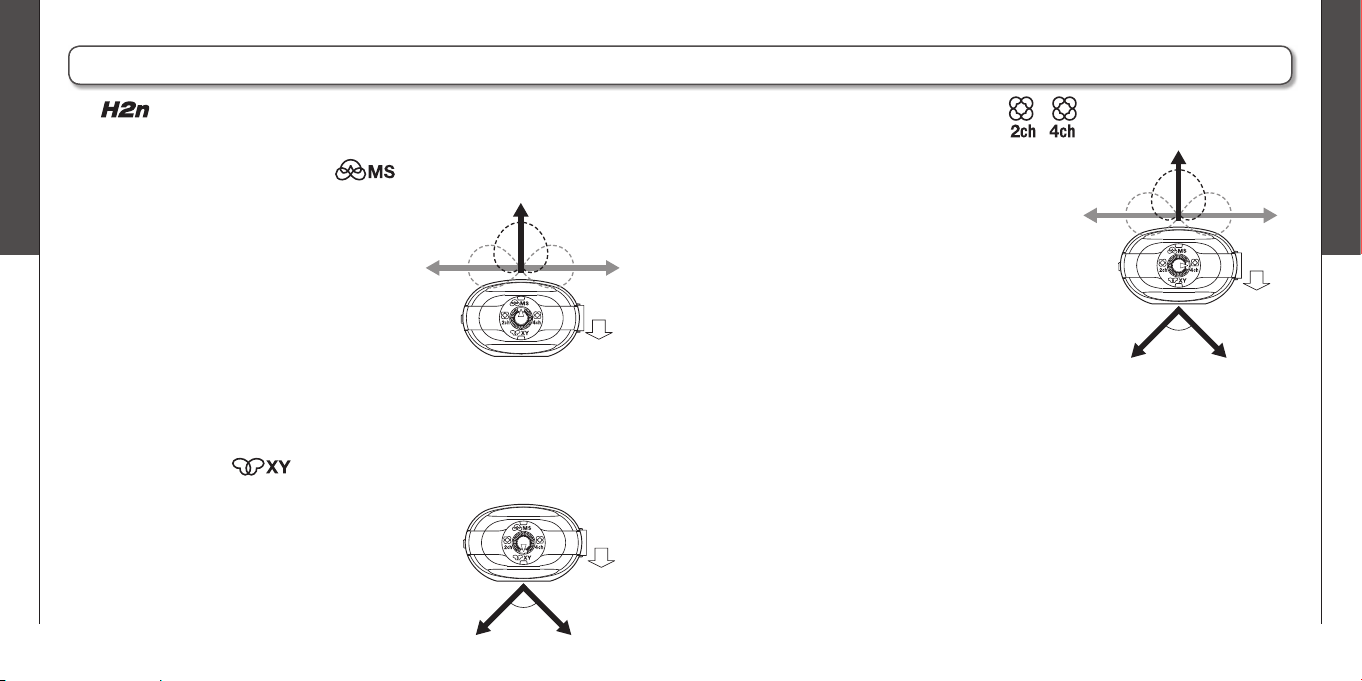
The
has four recording modes that can be selected according to your
purposes.
Mid-side (MS) stereo mode
This mode uses a mid mic to capture the sound
directly ahead and a bidirectional side mic to
capture sound from left and right.
The recording level of the side mic (S level) can
be adjusted, allowing the stereo width to be
changed. If you record with the S level set to
MS-RAW, you can also adjust the S level after
recording.
MS mics can capture a rich stereo image, so it is ideal for recording sounds in
wide and open conditions, including orchestras, live concerts and soundscapes.
XY stereo mode
This mode records in stereo with mics at 90º angles.
This allows a natural, deep and accurate sound image
to be captured, making it optimal for recording sources
nearby, including solo performances, chamber music,
interviews, live rehearsals and fi eld recordings.
2ch and 4ch surround modes
Sound can be captured in all directions using
both MS and XY mics.
You can select 2ch, which mixes the signals
from the MS and XY mics, or 4ch, which records
the signals from the MS and XY mics separately.
With 4ch surround, you can adjust the balance
between the MS and XY signals after recording.
The S level can be adjusted for both 2ch and 4ch
recordings.
These modes are suitable for recording live
rehearsals, studio sessions, business meetings and soundscapes, for example.
L
LR
R
Mid
Side
(adjustable)
90°
Display
(front) side
LR
90°
Display
(front) side
L R
Mid
Side
(adjustable)
Display
(front) side
Recording
Selecting the recording mode
22
Recording
Selecting where recordings are saved
23
H2n
Handy Recorder
Selecting the recording mode
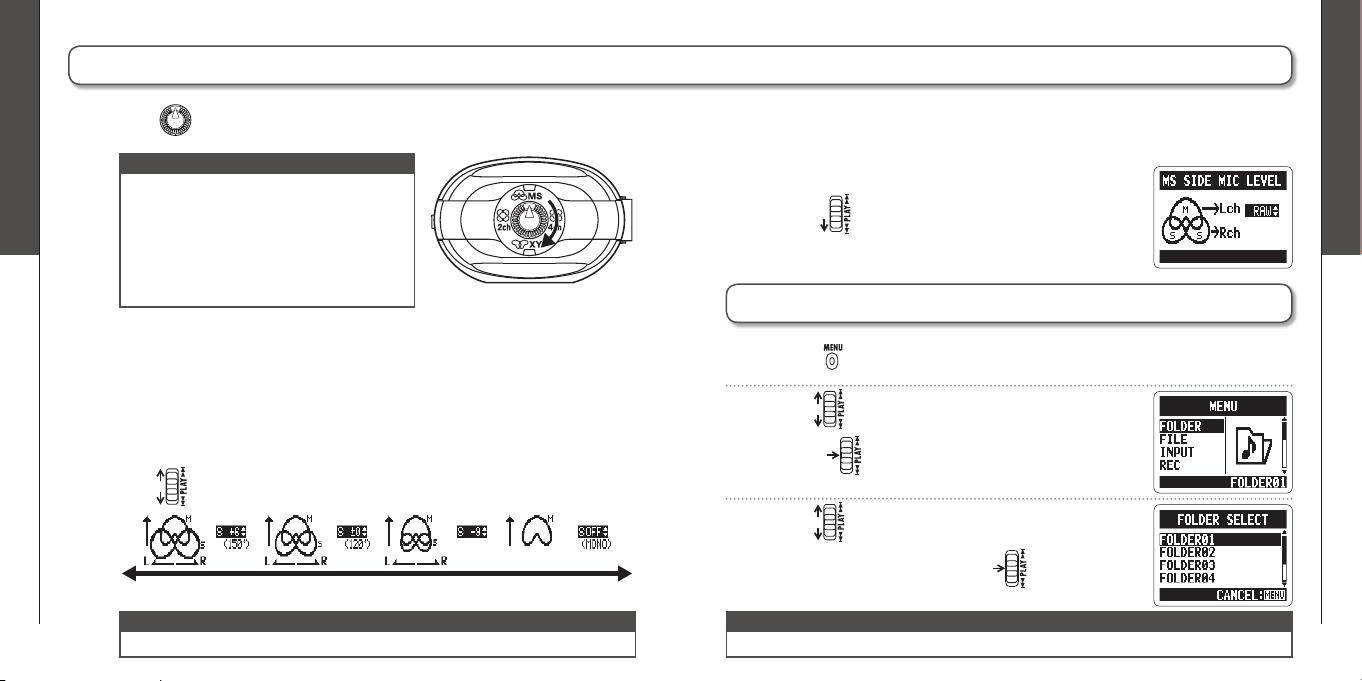
1.
Turn so that the triangle points to the desired mode.
2.
Make settings for the recording mode.
Adjusting the S level (MS stereo, 2ch/4ch surround modes)
You can adjust the stereo width (S level) before recording.
•
Use to adjust the stereo width.
2.
Use to select FOLDER, and then
press .
3.
Use to select the folder where you want
to save fi les, and then press .
NOTE
∙ The 4ch surround mode can only be used
when an SD card is in the unit.
∙ In 4ch surround mode, only WAV formats
(44.1/48kHz, 16/24bit) can be used.
∙ In 4ch surround mode, two stereo files
are created (MS mic recording and XY mic
recording).
NOTE
Select from among 10 folders. There are separate sets of folders for stereo and 4ch recordings.
NOTE
Set to OFF, RAW or between –24 and +6 dB.
Wide The graphic changes along with the value Narrow
Selecting where recordings are saved
1.
Press .
Using MS-RAW mode (WAV format only)
If you want to adjust the stereo width after recording, record using MS-RAW
mode.
•
Hold down until RAW appears.
Recording
Recording manually
24
Recording
Recording manually
25
H2n
Handy Recorder
Recording manually
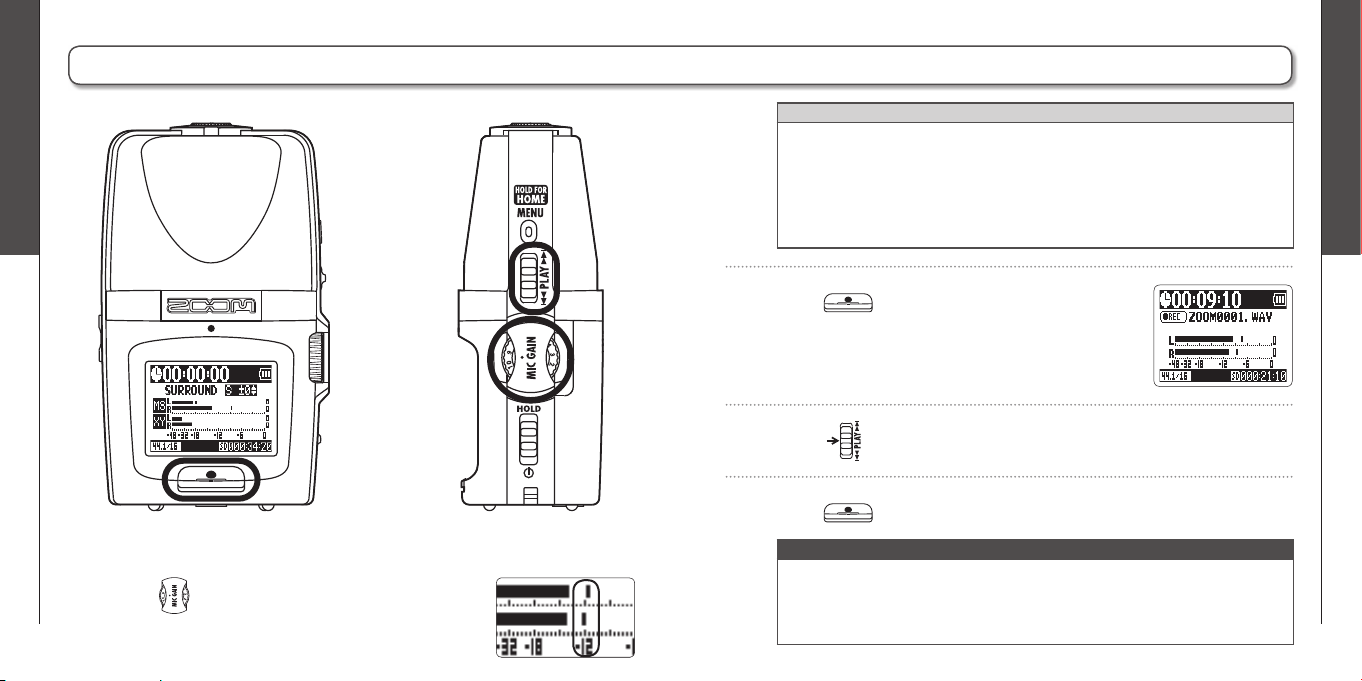
1
2, 4
3
1.
Turn to adjust the input level.
HINT
∙ Adjust the MIC GAIN so that the peak level stays around -12 dB.
∙ If an input signal is too strong, the MS/XY indicator on the top will flash
immediately.
∙ The recorder can also adjust mic gain automatically. (➝ P.70)
∙ You can change the recording format beforehand. (➝ P.72)
∙ The mic can also be set to cut wind and other unwanted noise. (➝ P.66)
2.
Press to start recording.
3.
Press to add a mark.
4.
Press to stop recording.
NOTE
∙ One fi le can have a maximum of 99 marks.
∙ The mic can also be set to pause immediately after adding a mark. (➝ P.77)
∙ During recording, if the size of the fi le exceeds 2 GB, recording will continue in
a new fi le that will be created automatically.
Recording
Recording automatically
26
Recording
Recording automatically
27
H2n
Handy Recorder
Recording automatically
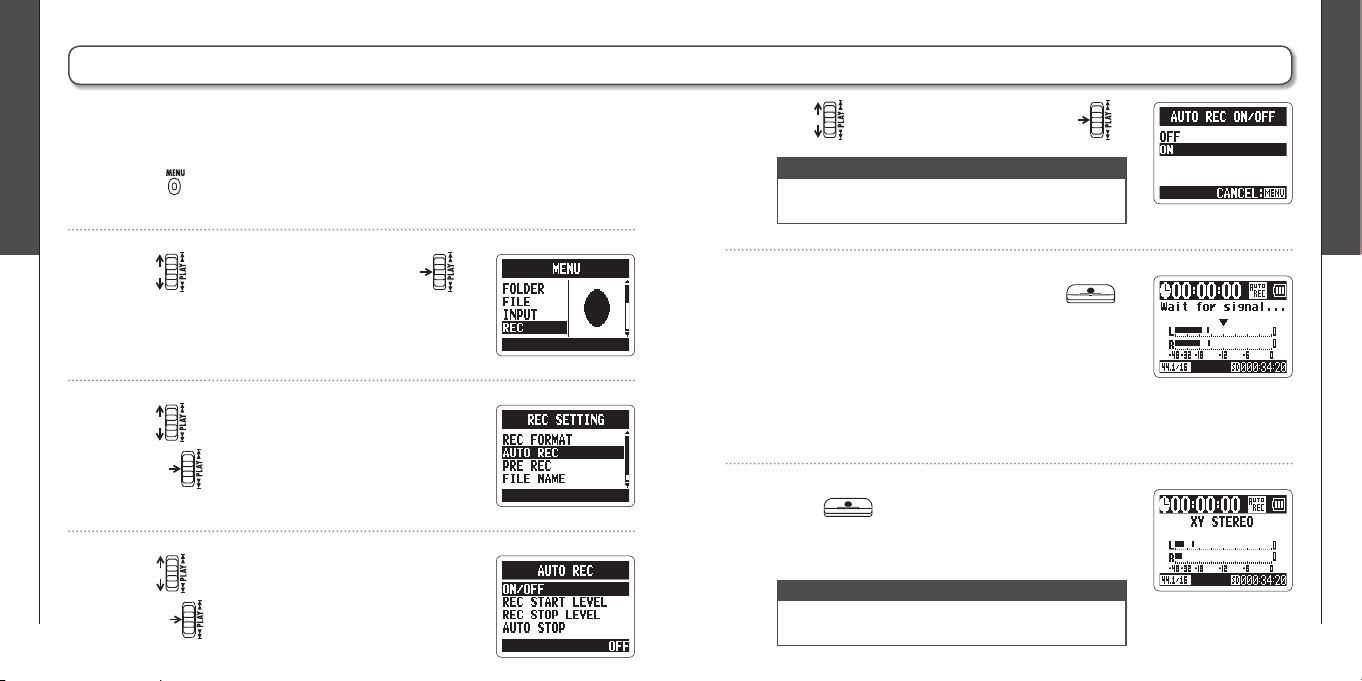
1.
Press .
2.
Use to select REC, and then press .
3.
Use to select AUTO REC, and then
press .
4.
Use to select ON/OFF, and then
press .
5.
Use to select ON, and then press .
6.
After the home screen reopens, press
to put the recorder in standby.
Recording will start automatically when the input
signal exceeds the REC START LEVEL.
Recording will stop automatically when the input
signal becomes less than the REC STOP LEVEL.
7.
Press to end recording standby and
stop recording.
The mic can be set to start and stop recording automatically in response to
changes in the input level.
NOTE
Automatic recording can only be used with an SD
card.
NOTE
Other settings can also be made for automatic
recording. (➝ P.74)
Recording
Pre-recording
28
Recording
Counting in before recording
29
H2n
Handy Recorder
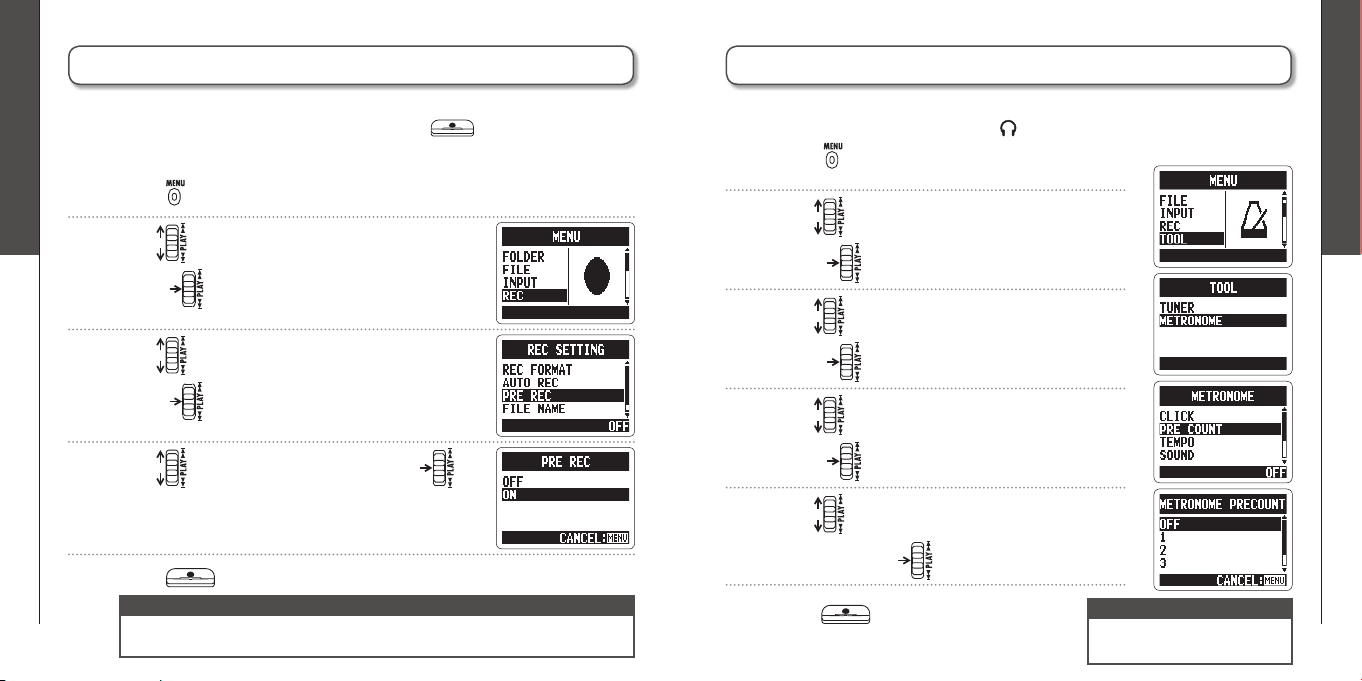
When pre-recording is on, this recorder can continuously capture two seconds of
sound before recording is started manually. When is pressed, these two
seconds are included at the beginning of the recording. This is useful when, for
example, performances start suddenly.
Pre-recording
1.
Press .
2.
Use to select REC, and then
press .
3.
Use to select PRE REC, and then
press .
4.
Use to select ON, and then press .
5.
Press after returning to the home screen to start recording.
NOTE
∙
PRE REC cannot be used at the same time as the metronome PRE COUNT function.
∙ Pre-recording can only be used with an SD card.
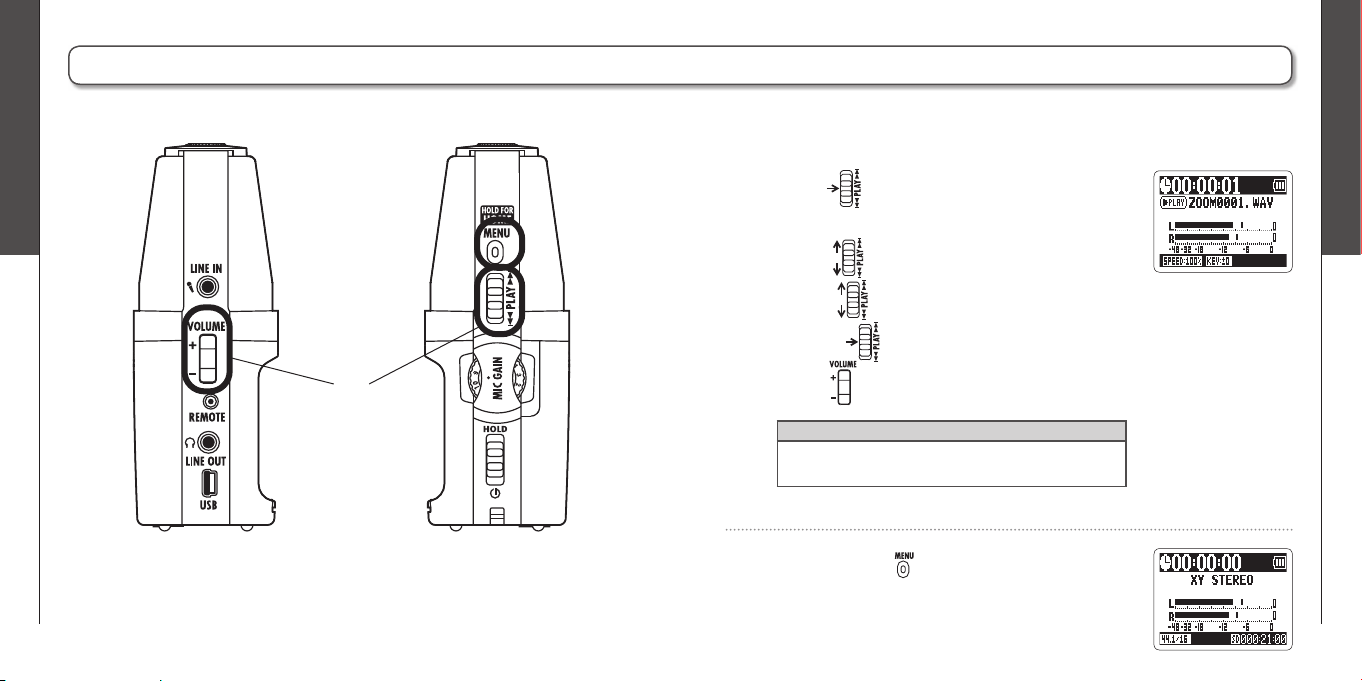
Counting in before recording
1.
Press .
2.
Use to select TOOL, and then
press .
3.
Use to select METRONOME, and then
press .
4.
Use to select PRE COUNT, and then
press .
5.
Use to select the pre-count number,
and then press .
The built-in metronome can play a count-in sound before recording starts. This
pre-count sound is output through the /LINE OUT jack.
NOTE
PRE COUNT cannot be used at
the same time as PRE REC.
6.
Press after returning to the home
screen to start pre-count and recording.
Playback
Playing back recordings
30
Playback
Playing back recordings
31
H2n
Handy Recorder
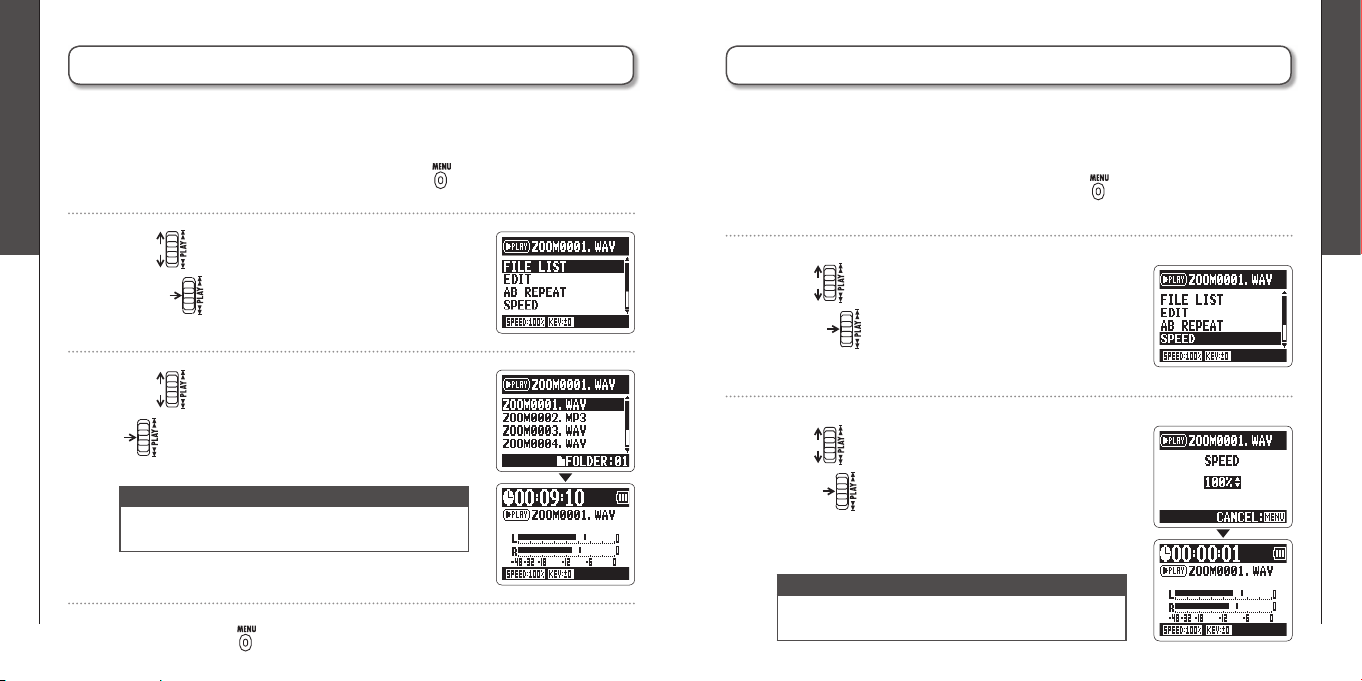
Playing back recordings
1
2
2.
Press and hold to return to the home
screen.
1.
Press .
Use to jump between marks and fi les
Hold to search forward or backward
Press to pause and restart playback
Use to adjust the volume
HINT
The longer you hold the PLAY control the faster it will
search in that direction.
You can play fi les in the current folder. Change the folder to play fi les in a different
folder.
Playback
Selecting the fi le to playback from a list
32
Playback
Changing the playback speed
33
H2n
Handy Recorder
Selecting the fi le to playback from a list
1.
When the playback screen is open, press .
2.
Use to select FILE LIST, and then
press .
3.
Use to select a fi le, and then press
to start playback of that fi le.
4.
Press and hold to return to the home screen.
NOTE
After a fi le plays once, playback will stop or continue
according to the PLAY MODE setting.
Changing the playback speed
1.
When the playback screen is open, press .
2.
Use to select SPEED, and then
press .
3.
Use to set the playback speed, and then
press .
You can change the playback speed to between 50% and 150% of normal
speed.
Files will be played at the set speed.
NOTE
The set value will be saved even when the power is
turned OFF.
You can select a fi le in the current folder for playback. Change the folder to select
fi les from a different folder.
Playback
Loop playback of a set interval (AB REPEAT)
34
Playback
Loop playback of a set interval (AB REPEAT)
35
H2n
Handy Recorder
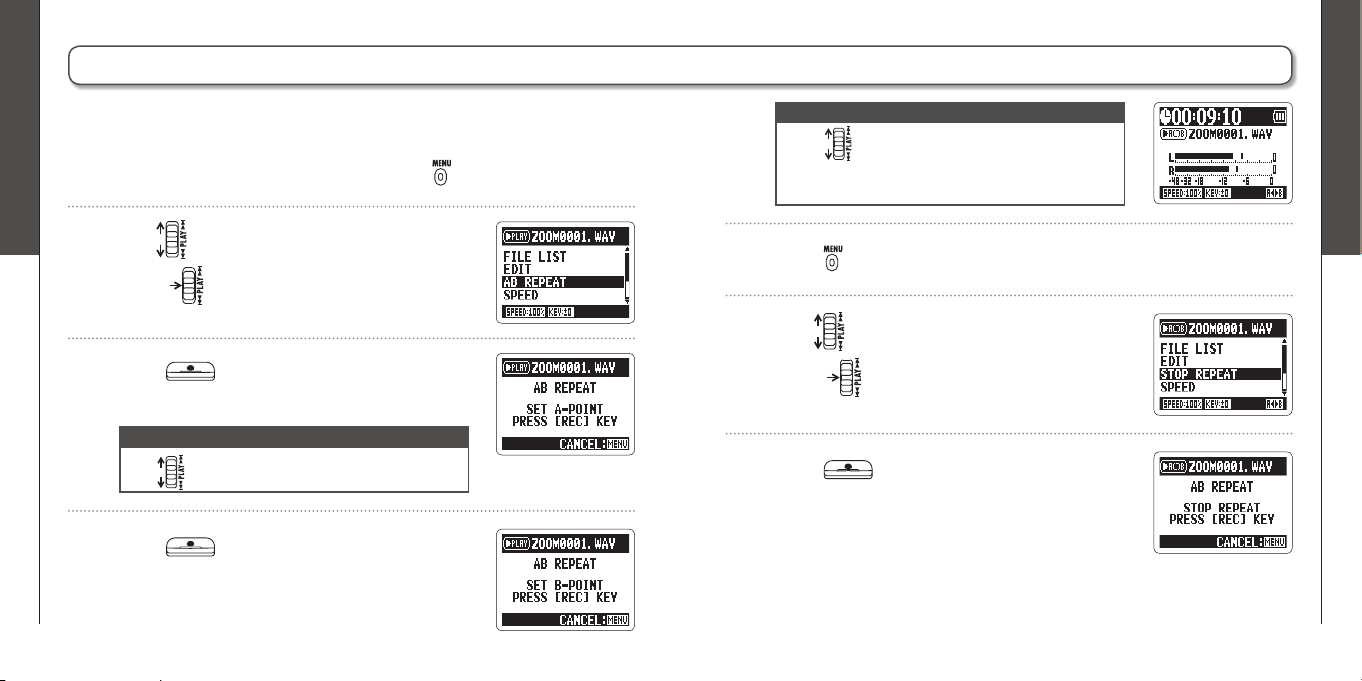
Loop playback of a set interval (AB REPEAT)
1.
When the playback screen is open, press .
2.
Use to select AB REPEAT, and then
press .
5.
Press to stop loop playback.
6.
Use to select STOP REPEAT, and then
press .
You can loop playback between two set points. Select the fi le that you want to
play back fi rst.
NOTE
∙ Use to search for the stopping point quickly.
∙ If you set the stopping point before the starting
point, they will be automatically swapped.
3.
Press at the point you want to start
playback.
NOTE
Use to search for the starting point quickly.
4.
Press at the point you want to stop
playback.
Loop playback between the points will start.
7.
Press .
Playback
Changing the play mode
36
Playback
Changing the play mode
37
H2n
Handy Recorder
Changing the play mode
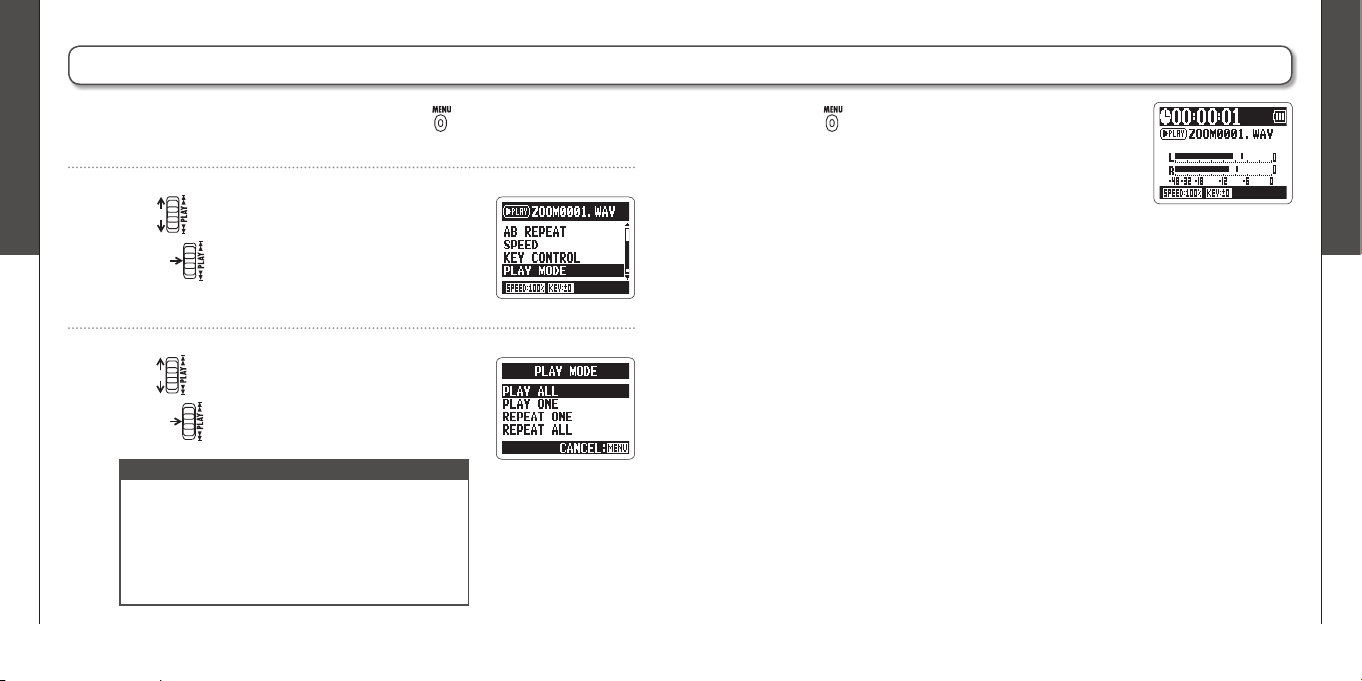
1.
When the playback screen is open, press .
2.
Use to select PLAY MODE, and then
press .
NOTE
PLAY ALL: Play all the fi les in the current
folder once.
PLAY ONE: Play the current fi le once.
REPEAT ONE: Play the current fi le repeatedly.
REPEAT ALL: Play all the fi les in the current
folder repeatedly.
4.
Press to start playback in the selected
mode.
3.
Use to set the mode, and then
press .
Playback
Adjusting the playback pitch (KEY CONTROL)
38
Playback
Changing the S level
39
H2n
Handy Recorder
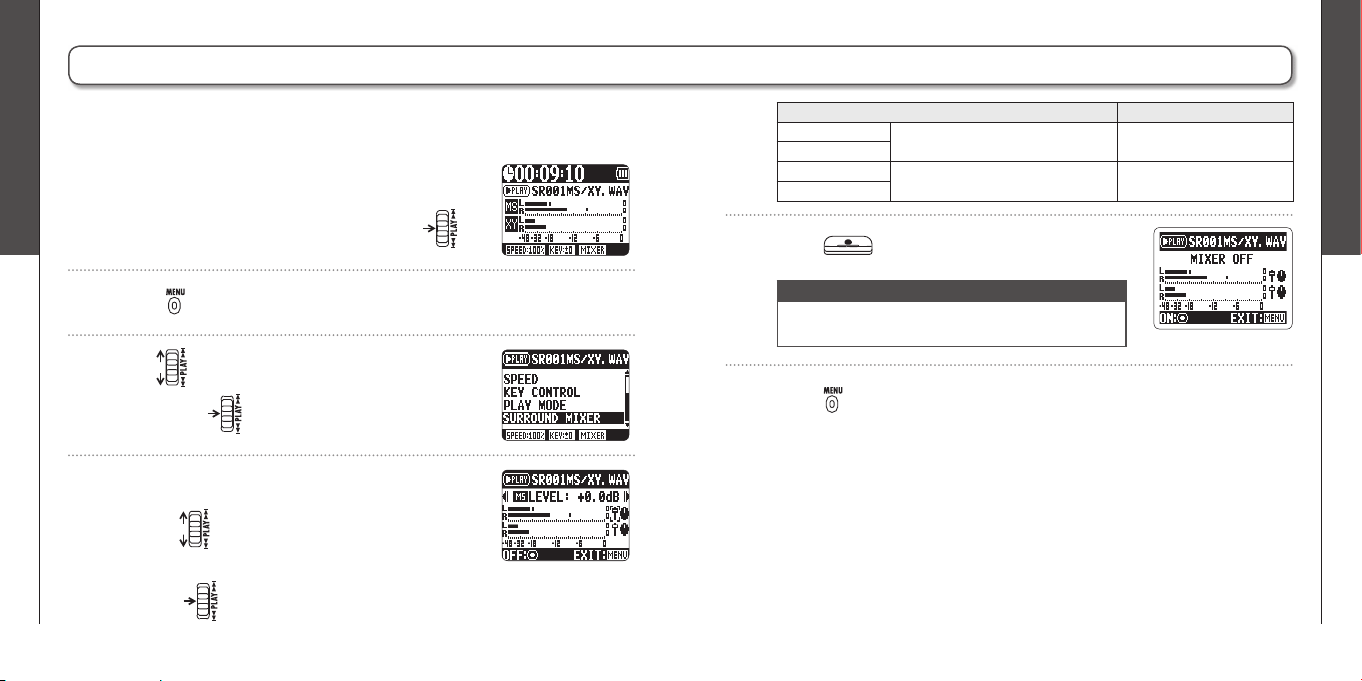
Changing the S level
MS-RAW only
1.
When the playback screen is open,
press .
4.
Press to start playback with the adjusted S
level.
2.
Use to select MS SIDE MIC LEVEL, and
then press .
The S level (stereo width) of fi les recorded using MS-RAW mode can be changed.
Select a fi le that has been recorded in MS-RAW mode fi rst.
HINT
If you select a fi le recorded
using MS-RAW mode the
icon will appear.
Adjusting the playback pitch (KEY CONTROL)
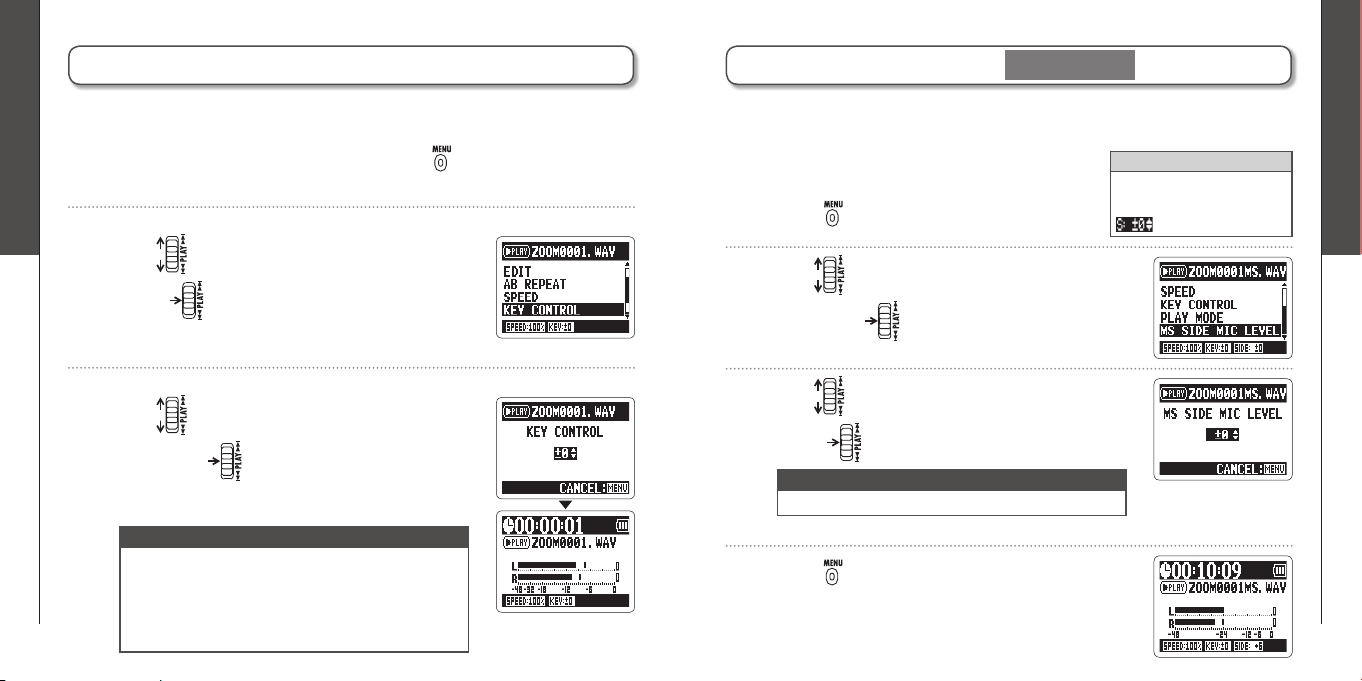
1.
When the playback screen is open, press .
2.
Use to select KEY CONTROL, and then
press .
3.
Use to adjust the playback pitch, and
then press to start playback at the
adjusted pitch.
You can change the pitch without changing the playback speed.
NOTE
∙ The pitch can be adjusted by ±6 semitones.
∙ The set value will be saved even when the power is
turned OFF.
∙ KEY CONTROL cannot be used with 96kHz WAV
fi les.
NOTE
Set to OFF or between –24 and +6 dB.
3.
Use to adjust the S level, and then
press .
Playback
Mixing a 4ch surround fi le
40
Playback
Mixing a 4ch surround fi le
41
H2n
Handy Recorder
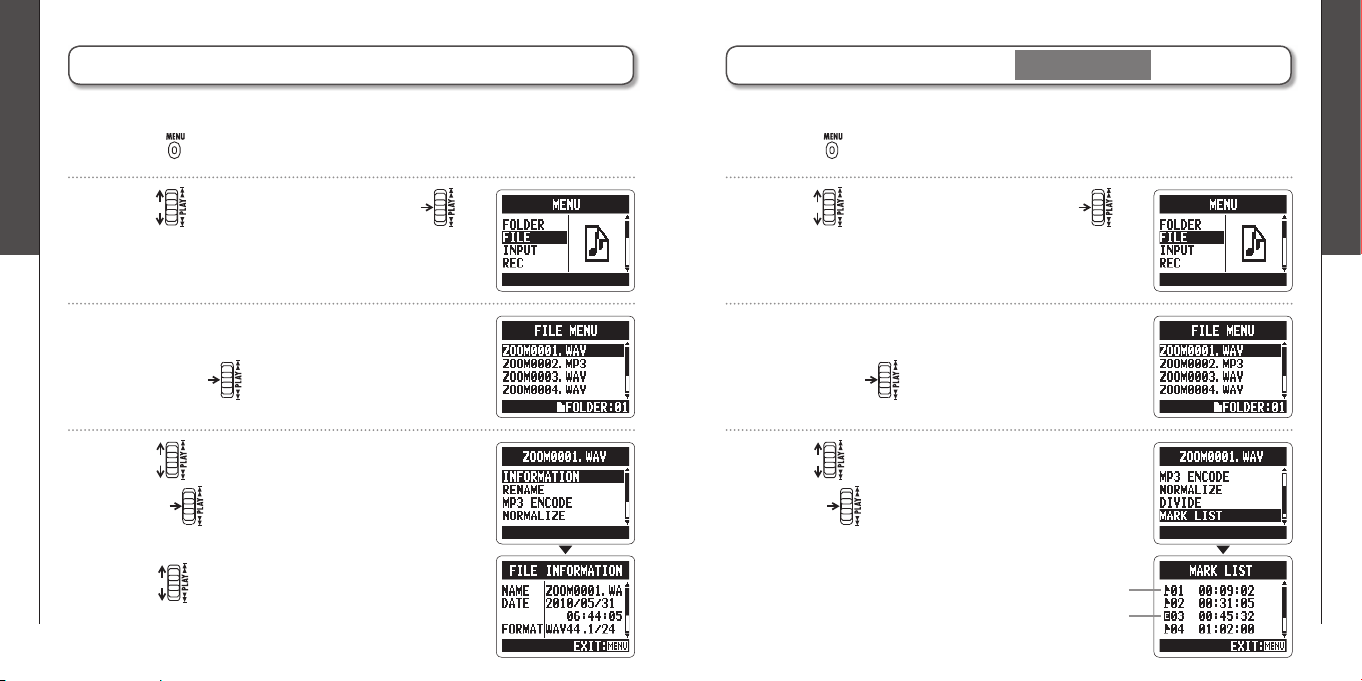
Mixing a 4ch surround fi le
2.
Press .
1.
Set the recorder to 4ch surround mode, select
the fi le you want to mix, and then press .
3.
Use to select SURROUND MIXER, and
then press .
4.
Change the values of the parameters.
Use to move the cursor and change
values
Push to select a parameter to change
You can adjust the levels and panning of the MS and XY recordings made for 4ch
surround fi les.
5.
Press to turn the mixer ON or OFF.
NOTE
The mixer setting is only applied to playback. It does
not change the recordings.
6.
Press twice to return to the playback
screen.
Parameter setting ranges Explanation
MS LEVELMUTE, –48 ~ +12 dB
(0.5 dB increments)
Adjusts volume
XY LEVEL
MS PAN L100 ~ CENTER ~ R100
(even values only)
Adjusts left-right balance
XY PAN
Checking & Editing Files
Checking fi le information
42
Checking & Editing Files
Checking track marks
43
H2n
Handy Recorder
Checking & Editing Files
Checking fi le information
1.
Press .
You can check various types of information about the current fi le.
2.
Use to select FILE, and then press .
3.
Select the fi le that you want to check, and
then press .
4.
Use to select INFORMATION, and then
press to show information about the
fi le.
Use to scroll through the screen to see
additional information
Checking track marks
WAV fi les only
1.
Press .
You can view a list of the marks in a WAV fi le.
2.
Use to select FILE, and then press .
3.
Select the fi le that you want to check, and
then press .
4.
Use to select MARK LIST, and then
press to open the mark list.
Shows an added mark
This mark appears when skipping
occurred during recording
Checking & Editing Files
Changing fi le names
44
Checking & Editing Files
Changing fi le names
45
H2n
Handy Recorder
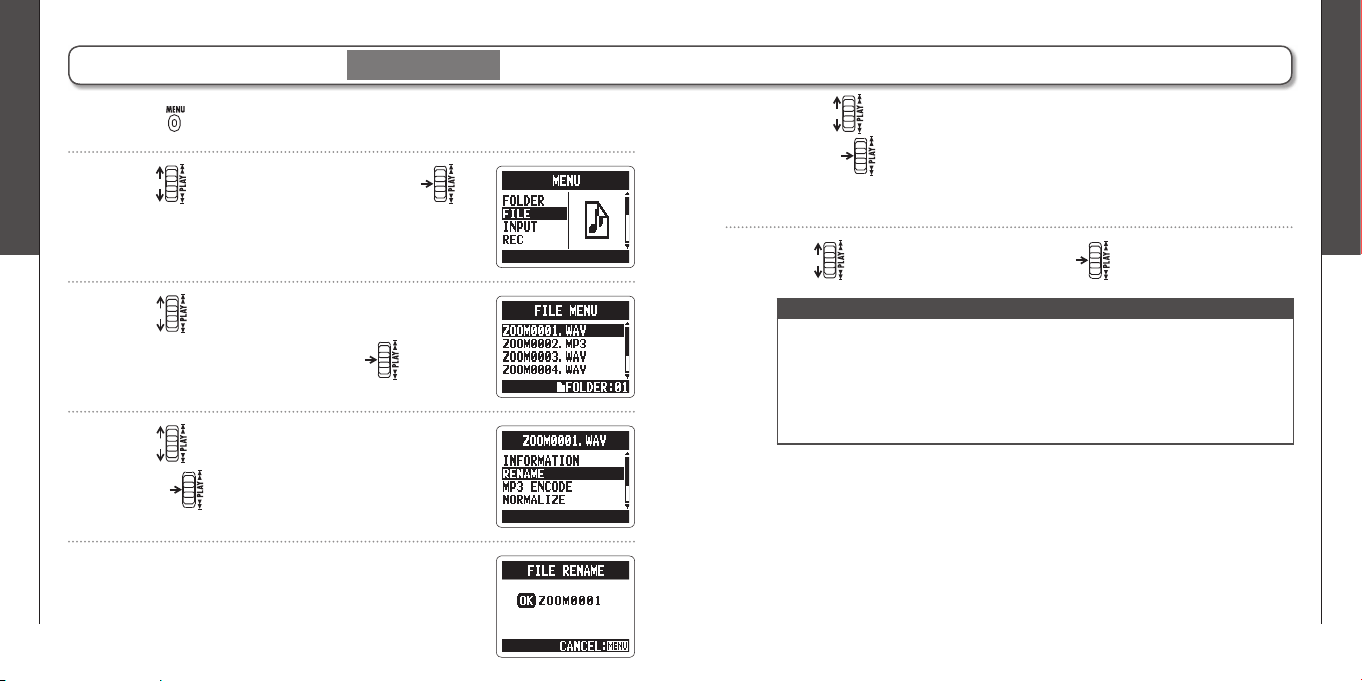
Changing fi le names
Stereo fi les only
1.
Press .
2.
Use to select FILE, and then press .
3.
Use to select the fi le name that you
want to change, and then press .
5.
Edit the name.
4.
Use to select RENAME, and then
press .
NOTE
∙ The following characters can be used in fi le names.
(Space)!#$% &'()+,-0123456789;=@ABCDEFGHIJKLMNOPQRSTUVWXYZ[]^_`
abcdefghijklmnopqrstuvwxyz{ }~
∙ A fi le name cannot be only spaces.
∙ If a file with the same name already exists in the same folder, a warning
appears and the screen shown in step fi ve automatically reopens.
Use to move the cursor and change characters
Push to select a character to change and to confi rm a change
6.
Use to select OK, and then press .
Checking & Editing Files
Convert WAV fi les into MP3 fi les
46
Checking & Editing Files
Convert WAV fi les into MP3 fi les
47
H2n
Handy Recorder
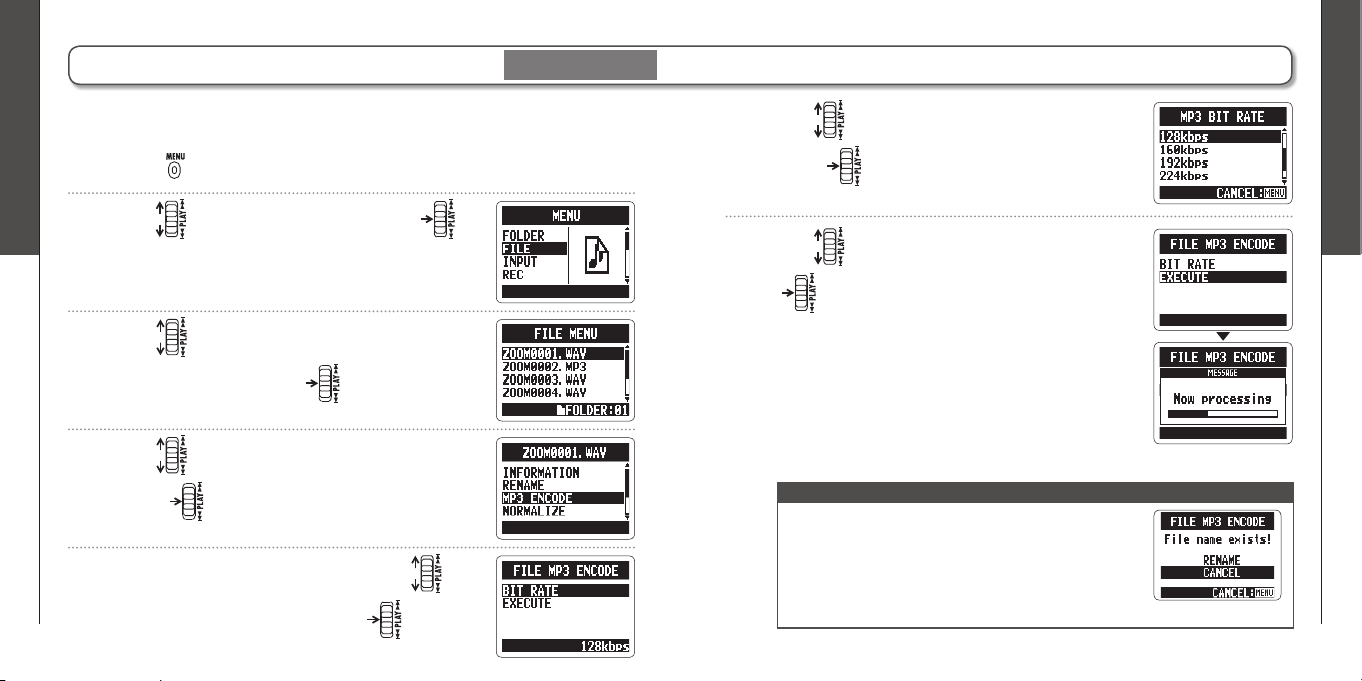
Convert WAV fi les into MP3 fi les
Stereo fi les only
1.
Press .
WAV fi les (other than MS-RAW) that have been recorded in any mode other than
4ch surround can be converted to MP3 fi les.
2.
Use to select FILE, and then press .
3.
Use to select the fi le you want to
convert, and then press .
5.
If you want to change the bit rate, use to
select BIT RATE, and then press .
6.
Use to select the bit rate, and then
press .
4.
Use to select MP3 ENCODE, and then
press .
7.
Use to select EXECUTE, and then press
to start encoding.
NOTE
∙ The converted fi le will be created in the same folder.
∙ If the SD card lacks open space, the screen shown in
step 4 will reopen automatically.
∙ If a fi le already exists with the name that will be given
to the converted fi le, the screen at right will appear.
Rename the fi le before conversion.
Checking & Editing Files
Normalizing WAV fi les
48
Checking & Editing Files
Normalizing WAV fi les
49
H2n
Handy Recorder
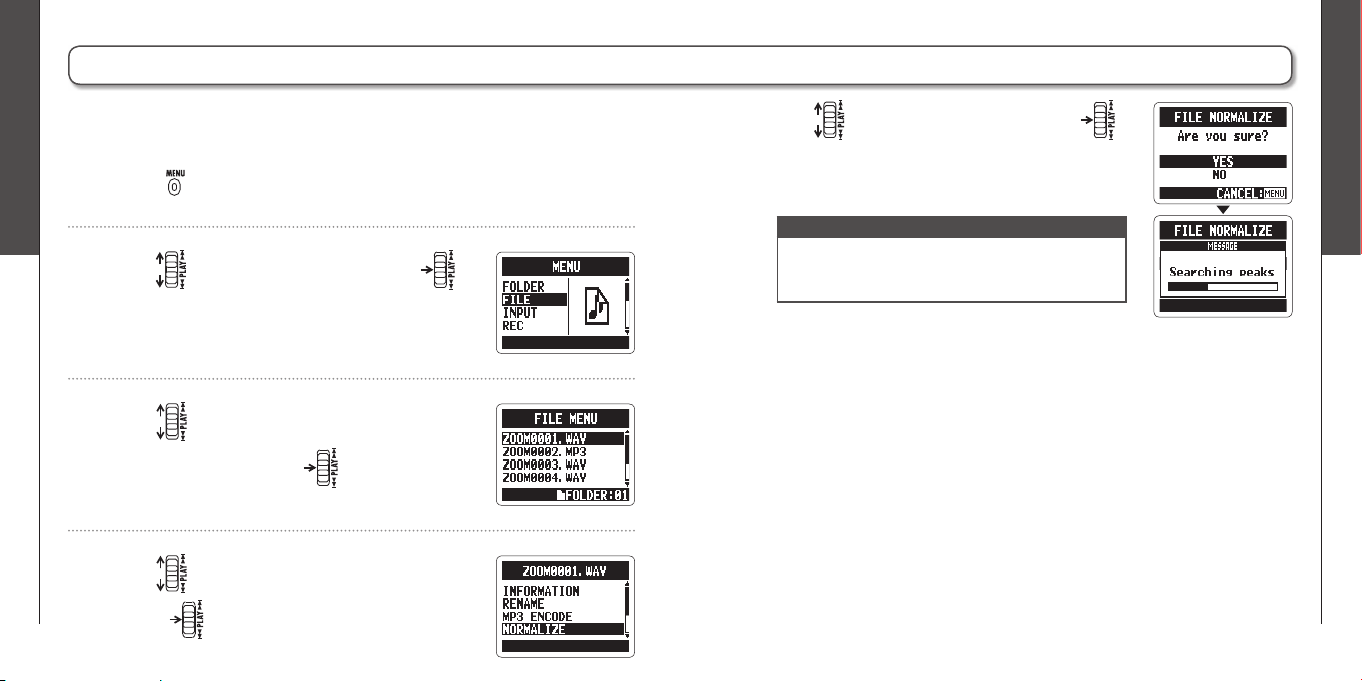
Normalizing WAV fi les
1.
Press .
If the volume of a recording is lower than desired, you can raise the level of the
recording as a whole.
2.
Use to select FILE, and then press .
3.
Use to select the fi le you want to
change, and then press .
4.
Use to select NORMALIZE, and then
press .
5.
Use to select YES, and then press
to start normalization.
NOTE
Normalization increases the overall level of the
recording so that the maximum level in the file is 0
dB.
Checking & Editing Files
Dividing fi les
50
Checking & Editing Files
Dividing fi les
51
H2n
Handy Recorder
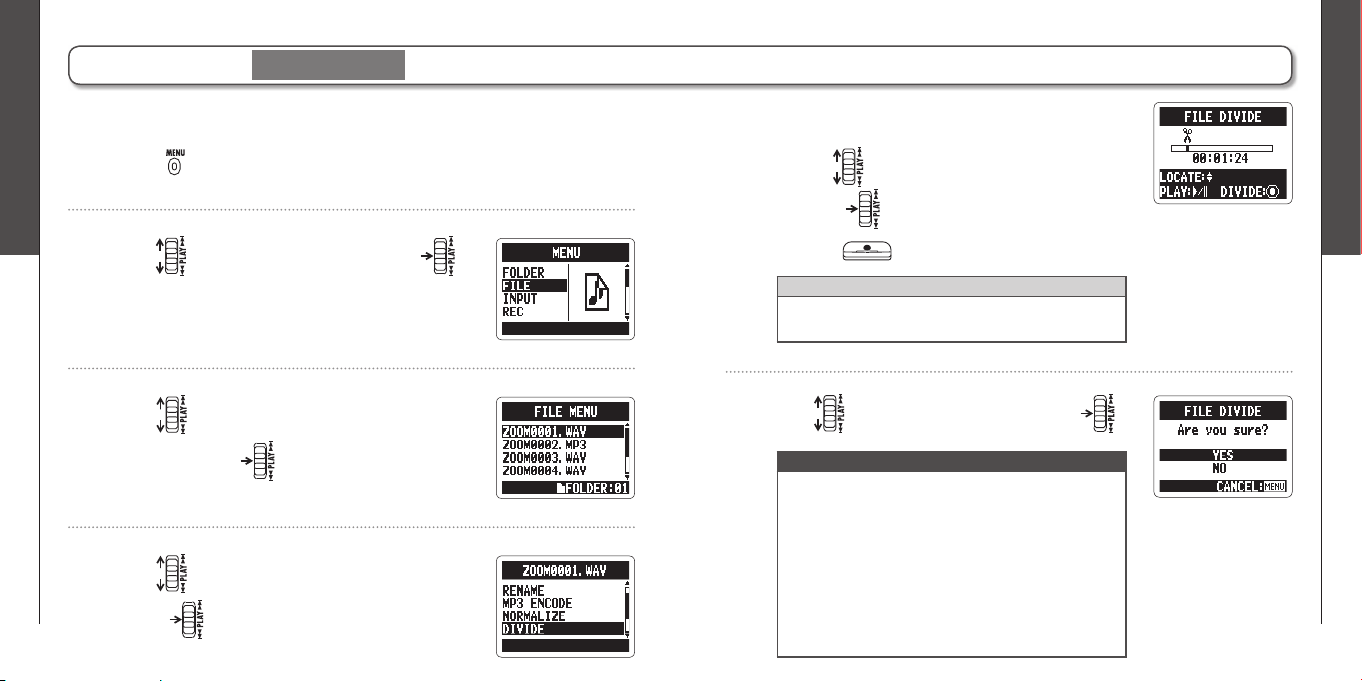
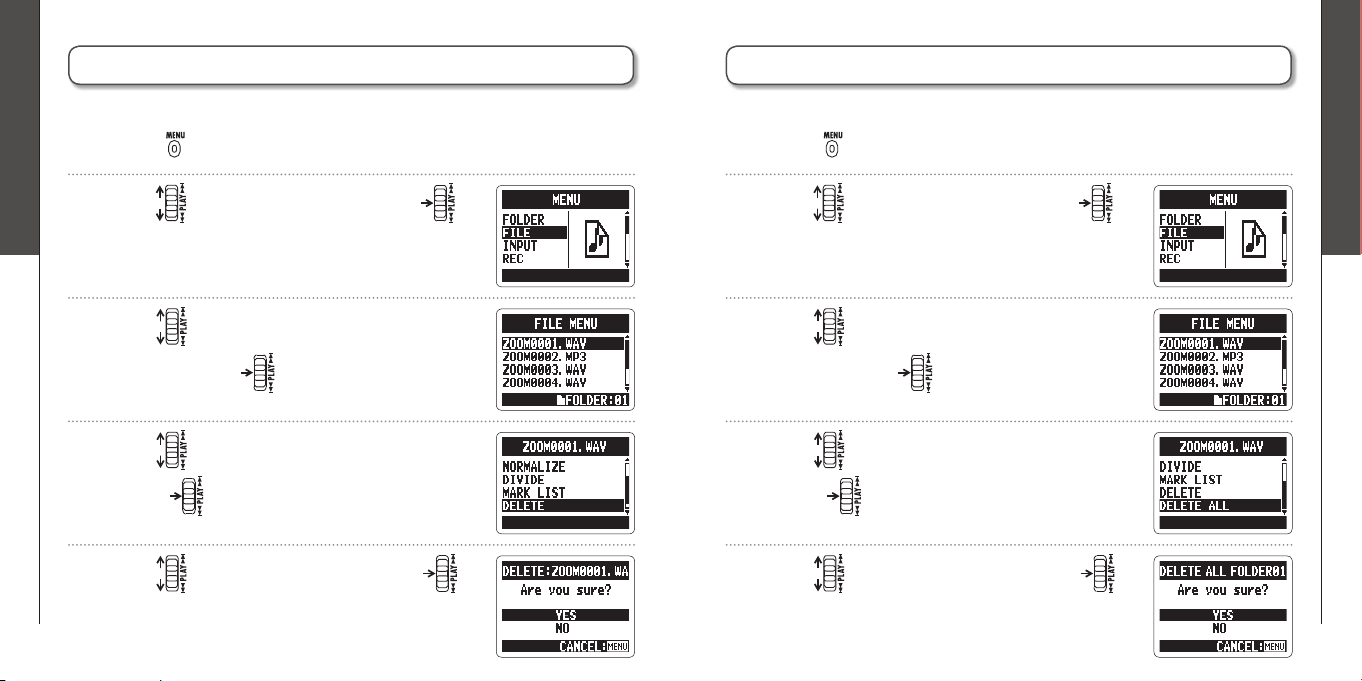
Dividing fi les
Stereo fi les only
1.
Press .
You can divide a fi le into two at any point.
2.
Use to select FILE, and then press .
3.
Use to select the fi le you want to divide,
and then press .
4.
Use to select DIVIDE, and then
press .
6.
Use to select YES, and then press .
NOTE
∙ If a file already exists with the name that will
be given to a divided file, rename the file before
dividing.
∙ When a fi le is divided, “A” will be added to the end
of the name of the fi le made from the part before
the dividing point, and “B” will be added to the end
of the name of the fi le made from the part after the
dividing point.
∙ The original fi le is deleted.
5.
Set the dividing point.
Use to move the point
Press to play and pause the fi le
Press to confi rm the dividing point
HINT
The longer you hold the PLAY control the faster it will
search in that direction.
Checking & Editing Files
Deleting fi les
52
Checking & Editing Files
Deleting all fi les in a folder
53
H2n
Handy Recorder
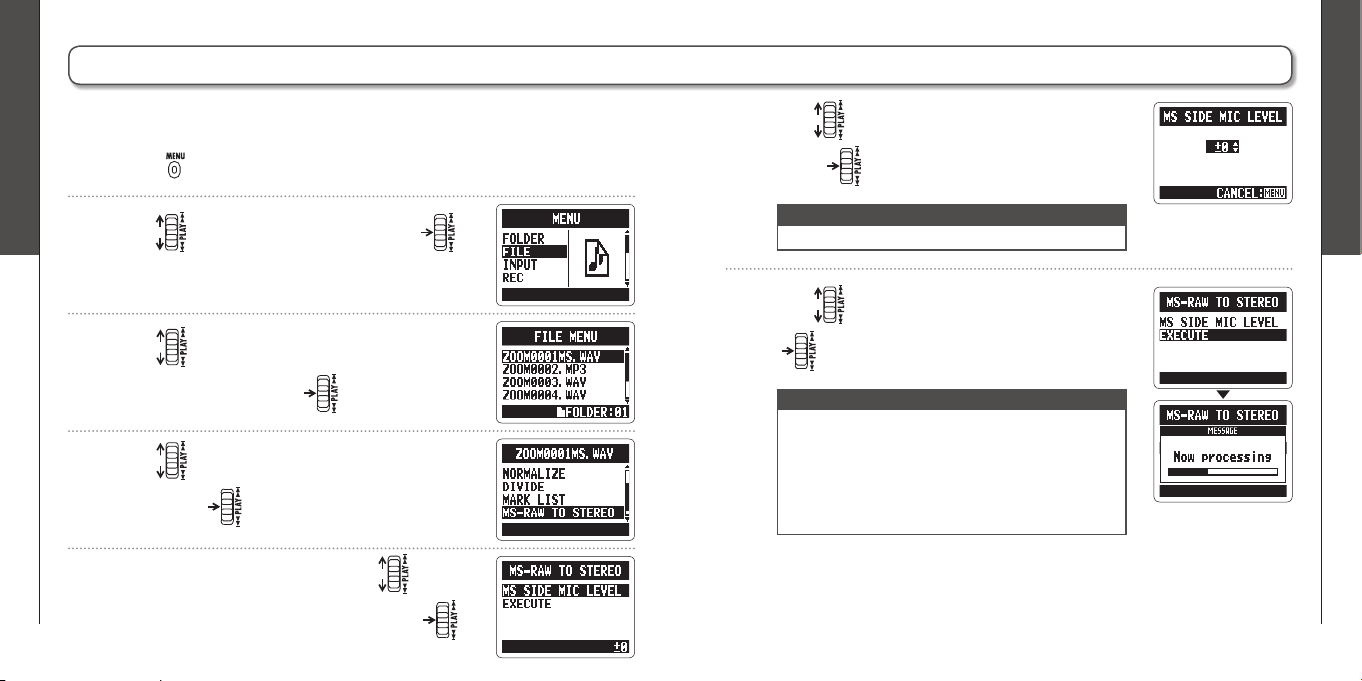
Deleting fi les
1.
Press .
You can delete unwanted fi les.
2.
Use to select FILE, and then press .
3.
Use to select the fi le you want to delete,
and then press .
4.
Use to select DELETE, and then
press .
5.
Use to select YES, and then press .
Deleting all fi les in a folder
1.
Press .
You can delete all the fi les in the current folder at once.
2.
Use to select FILE, and then press .
3.
Use to select one fi le you want to delete,
and then press .
4.
Use to select DELETE ALL, and then
press .
5.
Use to select YES, and then press .
Checking & Editing Files
Converting MS-RAW fi les into stereo fi les
54
Checking & Editing Files
Converting MS-RAW fi les into stereo fi les
55
H2n
Handy Recorder
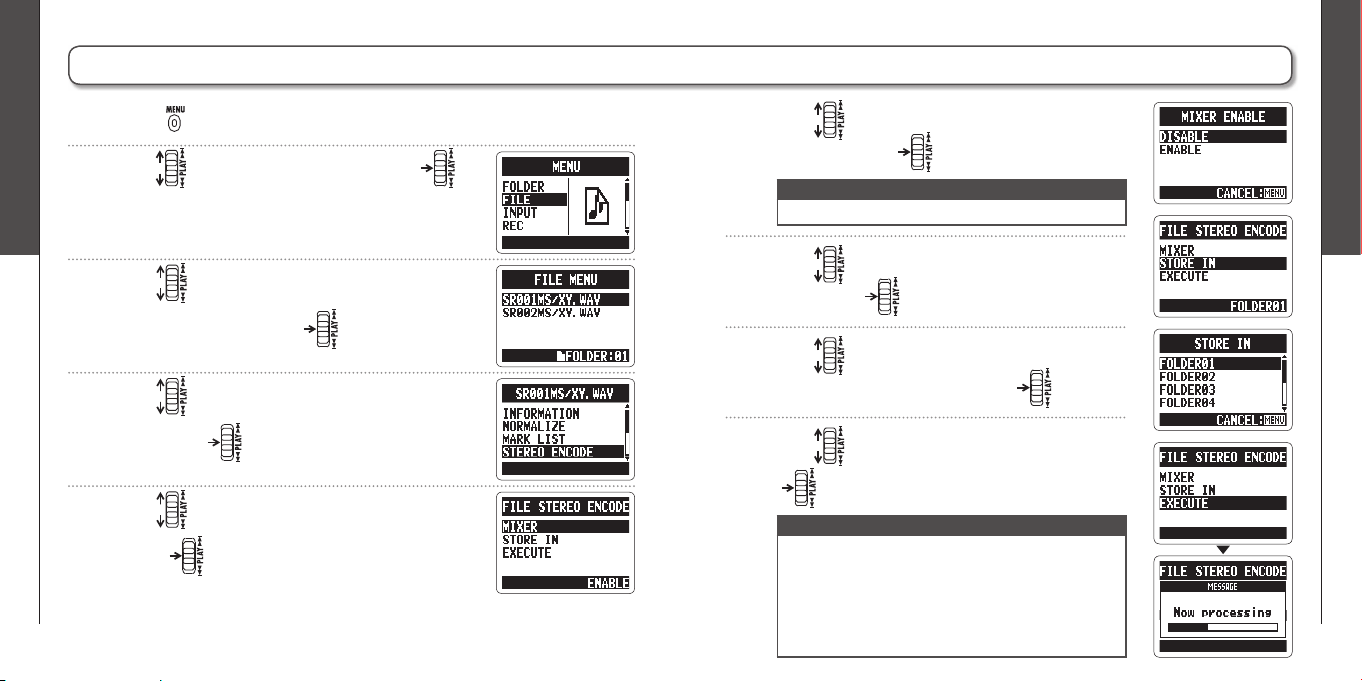
5.
If you want to adjust the S level, use to
select MS SIDE MIC LEVEL, and then press .
1.
Press .
6.
Use to adjust the S level, and then
press .
2.
Use to select FILE, and then press .
3.
Use to select the fi le you want to
change, and then press .
4.
Use to select MS-RAW TO STEREO, and
then press .
Converting MS-RAW fi les into stereo fi les
NOTE
Set to OFF or between –24 and +6 dB.
You can convert an MS-RAW fi le into a stereo fi le. S level (stereo width)
adjustments will affect stereo fi les.
7.
Use to select EXECUTE, and then press
to start conversion.
NOTE
∙ If a file already exists with the name that will be
given to the converted fi le, you will have a chance to
change the name to be given to the converted fi le.
∙ When a file is converted, the S level value will be
added to the end of the name of the fi le.
∙ The original fi le is not deleted.
Checking & Editing Files
Converting 4ch surround fi les into stereo fi les
56
Checking & Editing Files
Converting 4ch surround fi les into stereo fi les
57
H2n
Handy Recorder
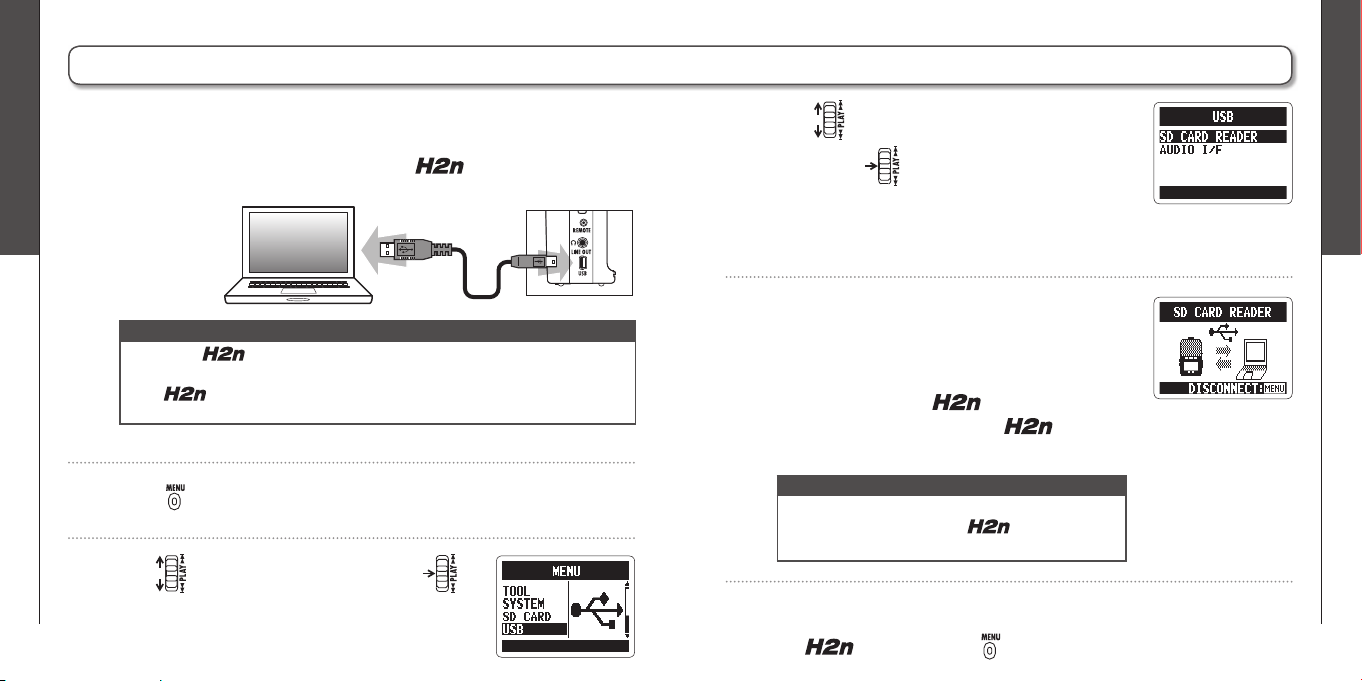
5.
Use to select MIXER, and then
press .
1.
Press .
6.
Use to select ENABLE or DISABLE,
and then press .
NOTE
For an explanation about how to mix, see P.40.
2.
Use to select FILE, and then press .
7.
Use to select STORE IN, and
then press .
3.
Use to select the fi le you want to
change, and then press .
8.
Use to select the folder where you want
to save the fi le, and then press .
9.
Use to select EXECUTE, and then press
to start conversion.
NOTE
∙ If a file already exists with the name that will be
given to the converted file, you will be given a
chance to change the name to be given to the
converted fi le.
∙ When a fi le is converted, “MIX” will be added to the
end of the name of the fi le.
∙ The original fi le is not deleted.
4.
Use to select STEREO ENCODE, and
then press .
Converting 4ch surround fi les into stereo fi les
Using USB
Exchanging fi les with a computer (Card reader)
58
Using USB
Exchanging fi les with a computer (Card reader)
59
H2n
Handy Recorder
1.
After turning the power on, connect the to a computer by a
USB cable.
Exchanging fi les with a computer (Card reader)
You can connect the recorder to a computer to check and copy data on the SD
card.
NOTE
∙ To run the
using USB bus power, connect it to a computer by USB while
the power is OFF.
∙ The
is compatible with the following operating systems.
Windows XP, Windows Vista, Windows 7, Macintosh OS X (10.2 or later)
5.
Unmount the card from the computer before
disconnecting the recorder.
Windows: Use “Safely Remove Hardware” to
select the
Mac: Drag and drop the icon into
the Trash
NOTE
Always follow t he prop er proc edures on yo ur
computer to unmount the
SD card before
disconnecting the USB cable.
6.
Disconnect the cable from the computer and
the
, and then press .
2.
Press .
3.
Use to select USB, and then press .
4.
Use to select SD CARD READER, and
then press .
The SD card will appear on the computer as a
connected drive where you can check the files
on it.
Using USB
Audio interface use
60
Using USB
Audio interface use
61
H2n
Handy Recorder
Audio interface use
MS/XY stereo and 2ch surround modes only
You can record the signal from the directly to a computer, and output the
playback signal from a computer through the .
1.
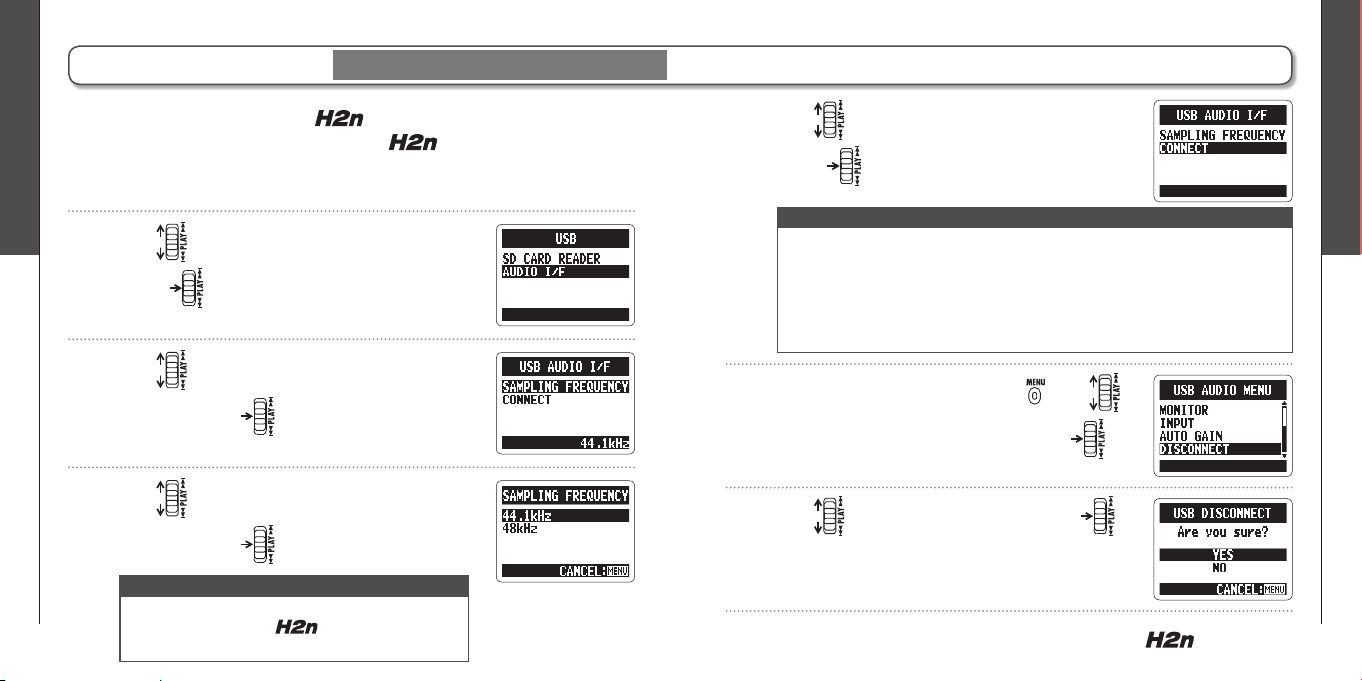
Follow steps 1–3 in “Exchanging fi les with a computer” on P.58.
2.
Use to select AUDIO I/F, and then
press .
3.
Use to select SAMPLING FREQUENCY,
and then press .
7.
Use to select YES, and then press .
8.
Disconnect the cable from the computer and the .
6.
To disconnect the recorder, press , use
to select DISCONNECT, and then press .
5.
Use to select CONNECT, and then
press .
4.
Use to select the sampling frequency,
and then press .
NOTE
∙ For information about the menu items that can be used see the following.
LO CUT (➝P.66) PLUG-IN POWER (➝P.16) AUTO GAIN (➝P.70)
COMP/LIMITER (➝P.68) MONITOR (➝P.67) DISCONNECT
MS-RAW MONITOR (➝P.71) TUNER (➝P.62) INPUT
∙ If you want to send signals from the recorder to the computer, set INPUT to
ON in the USB AUDIO MENU.
NOTE
Make sure that the sampling frequency settings are
the same for both the and the software you
are using.
Tuner
Using the tuner
62
Tuner
Using the tuner
63
H2n
Handy Recorder
Using the tuner
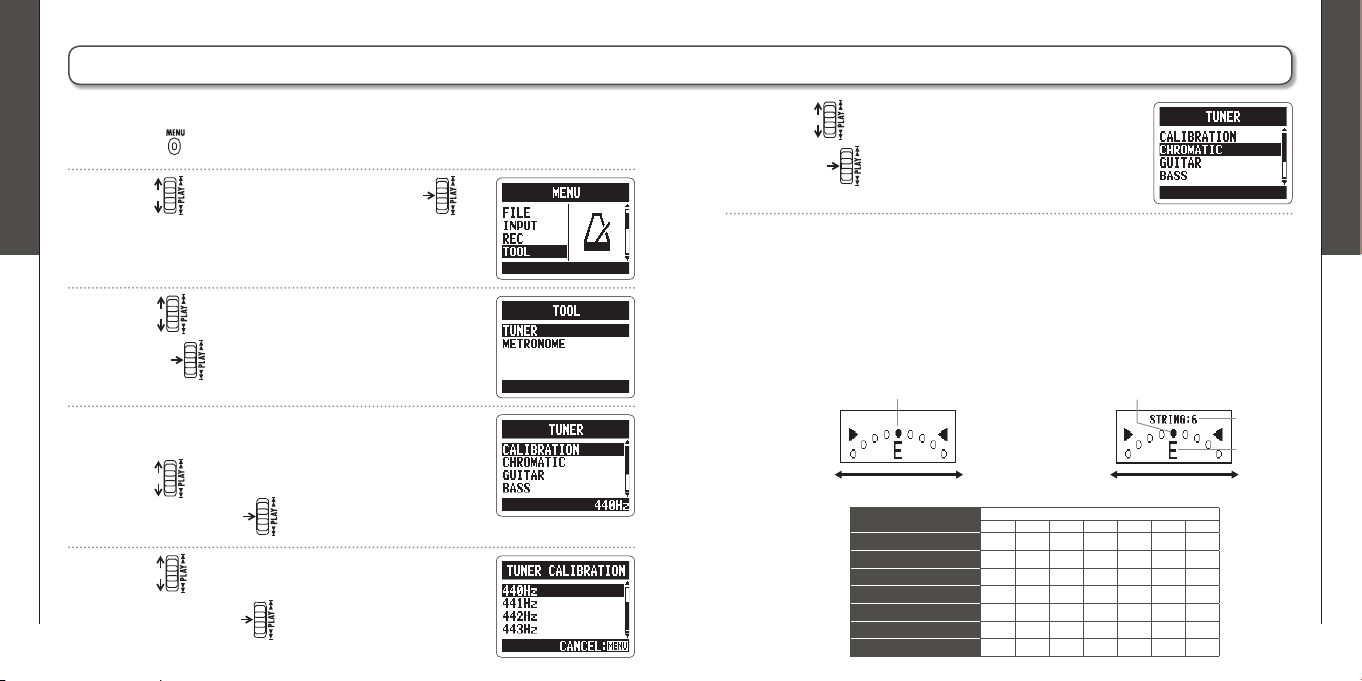
1.
Press .
The built-in tuner can help you tune instruments by detecting the pitches of input signals.
2.
Use to select TOOL, and then press .
3.
Use to select TUNER, and then
press .
4.
If you want to change the standard pitch,
use to select CALIBRATION,
and then press .
5.
Use to select the pitch you want to use,
and then press .
7.
Tune the instrument.
6.
Use to select the tuner type, and then
press .
The available tuner types work as follows.
■ Using the chromatic tuner
The input pitch is automatically
detected and the nearest pitch is
shown along with the amount of
discrepancy.
■
Using the guitar and bass tuners
The input pitch is automatically
detected and the nearest string
and pitch are shown along with the
amount of discrepancy.
Tuner type
String number/pitch
1 2 345 67
GUITAREB GD A EB
BASS GD A EB – –
OPEN AEC#A EA E–
OPEN DD A F#D A D –
OPEN EEB G#EB E–
OPEN GD B GD GD –
DADGADD A GD A D –
Low High Low High
The correct pitch is indicated by the middle circle The correct pitch is indicated by the middle circle
String
number
Pitch
Metronome
Using the metronome
64
Metronome
Using the metronome
65
H2n
Handy Recorder
Using the metronome
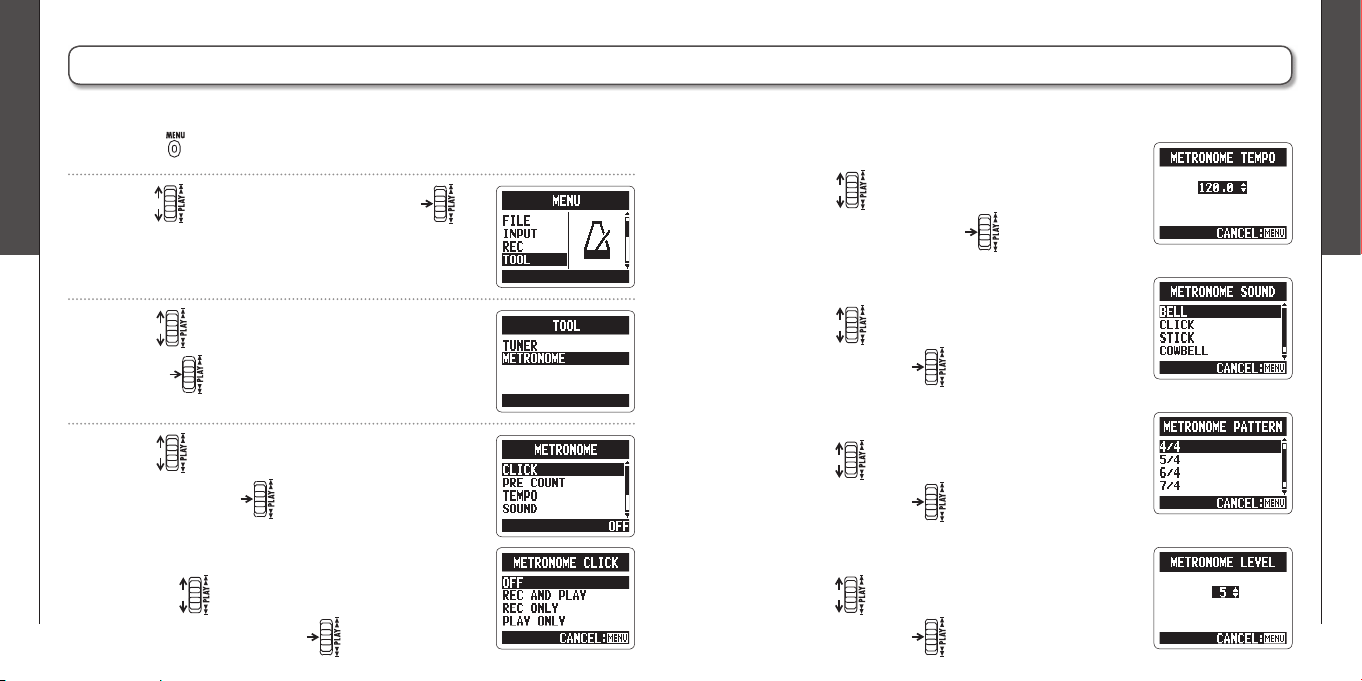
1.
Press .
You can use the metronome to count in before recording and to provide a guide tempo.
2.
Use to select TOOL, and then press .
3.
Use to select METRONOME, and then
press .
4.
Use to select the desired menu item,
and then press .
■ Setting the CLICK
Use to select when the click should
sound, and then press
.
■ Setting the PRE COUNT (➝P.29)
■ Setting the TEMPO
Use to adjust the metronome tempo
(BPM), and then press .
■ Setting the SOUND
Use to select the metronome sound,
and then press .
■ Setting the PATTERN
Use to select the metronome pattern,
and then press .
■ Setting the LEVEL
Use to adjust the metronome volume,
and then press .
Various settings
Reducing noise (LO CUT)
66
Various settings
Monitoring the input signal
67
H2n
Handy Recorder
Reducing noise (LO CUT)
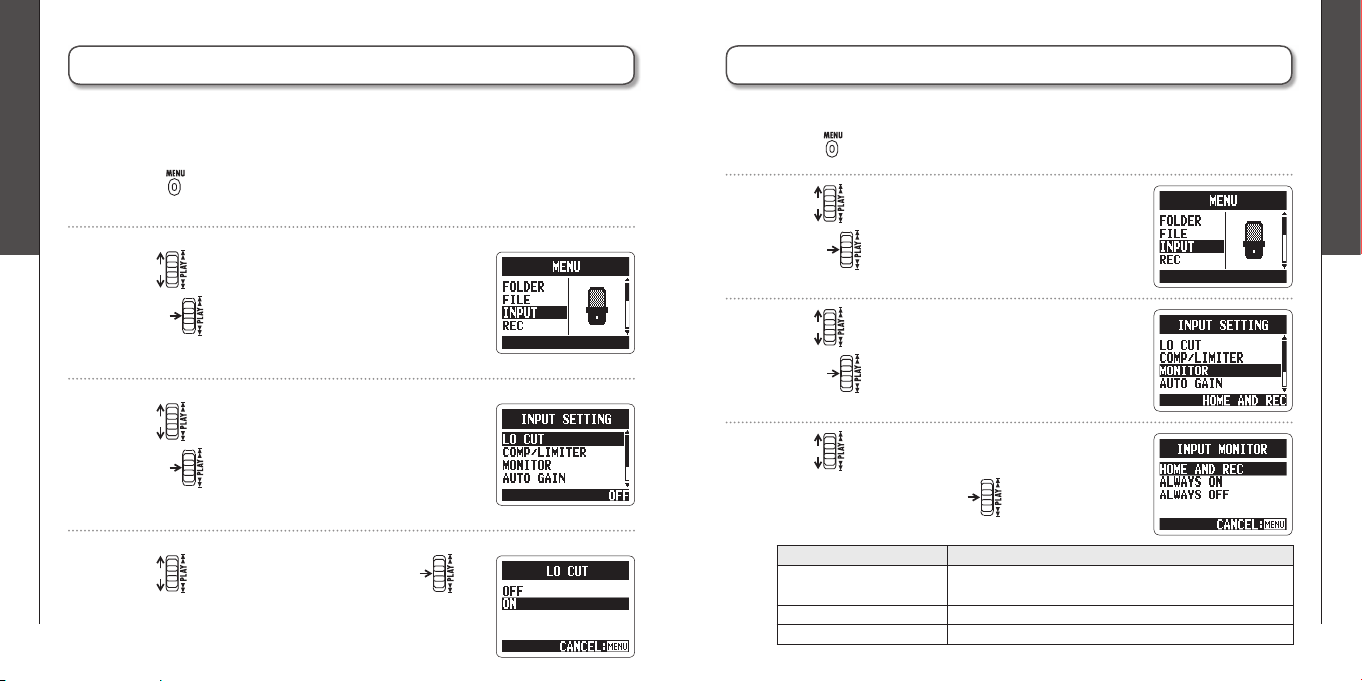
1.
Press .
The recorder can be set to reduce the sound of wind, vocal pops and other
noise.
2.
Use to select INPUT, and then
press .
3.
Use to select LO CUT, and then
press .
4.
Use to select ON, and then press .
Various settings
Monitoring the input signal
1.
Press .
You can listen to the input signal level through headphones.
2.
Use to select INPUT, and then
press .
3.
Use to select MONITOR, and then
press .
4.
Use to select when monitoring is
enabled, and then press .
Setting Explanation
HOME AND RECMonitoring enabled when home screen open and
when recording
ALWAYS ONMonitoring always enabled
ALWAYS OFFMonitoring disabled
Various settings
Compressing/limiting the input signal
68
Various settings
Compressing/limiting the input signal
69
H2n
Handy Recorder
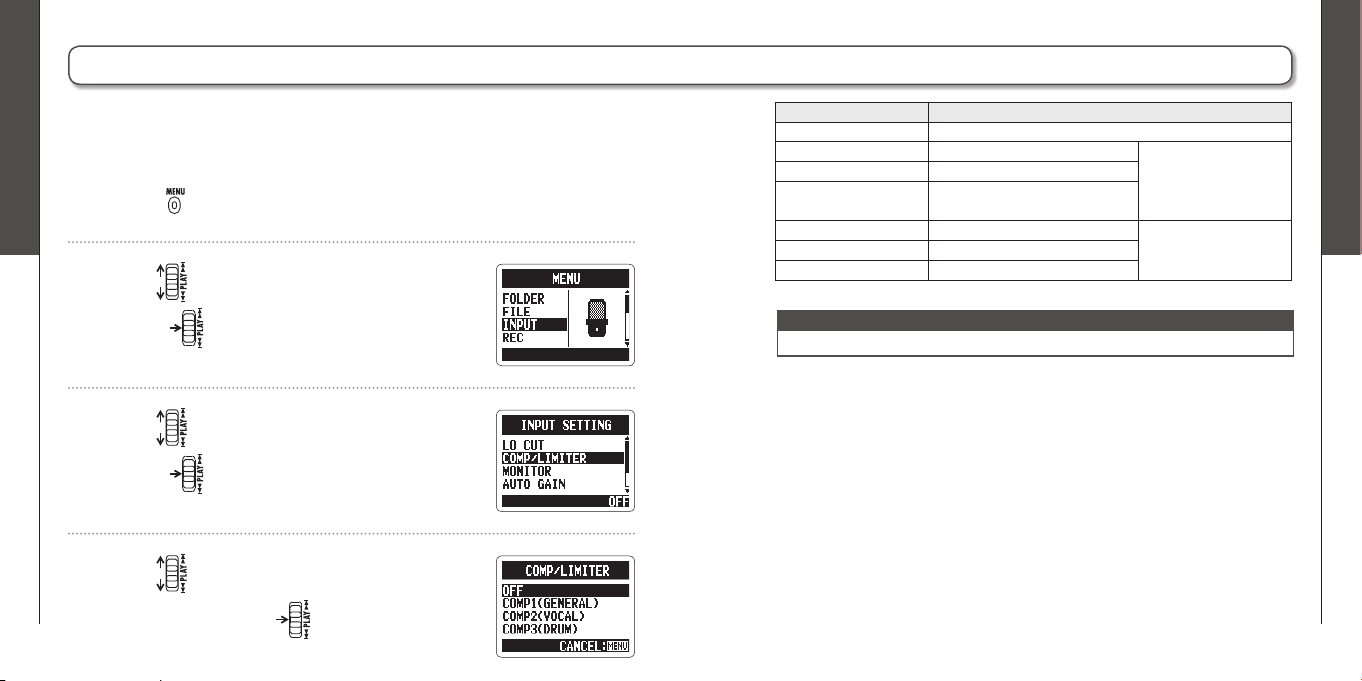
Compressing/limiting the input signal
1.
Press .
The recorder can be set to automatically increase the level of input signals that
are too weak and decrease the level of input signals that are too strong for each
input.
2.
Use to select INPUT, and then
press .
3.
Use to select COMP/LIMITER, and then
press .
4.
Use to select the setting you want to
use, and then press .
Setting Explanation
OFF Compressor/limiter disabled
COMP1(GENERAL)Standard compressor Compressors decrease
high levels and increase
low levels.
COMP2(VOCAL)Compressor for vocals
COMP3(DRUM)Compressor for drums and
percussion
LIMIT1(GENERAL)Standard limiter Limiters reduce high
levels that exceed a set
threshold.
LIMIT2(CONCERT)Limiter for live performances
LIMIT3(STUDIO)Limiter for studio recording
NOTE
This cannot be used at the same time as the AUTO GAIN function.
Various settings
Automatically adjusting the input gain
70
Various settings
Monitoring MS-RAW signals
71
H2n
Handy Recorder
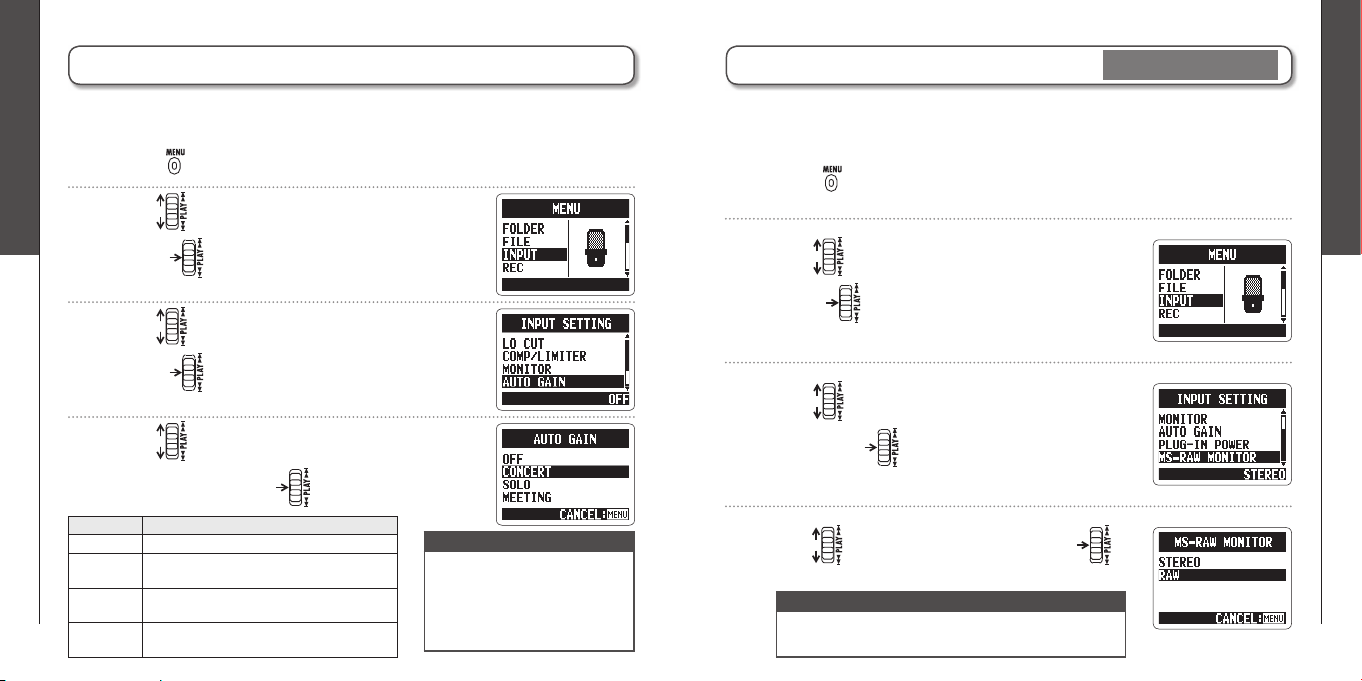
Automatically adjusting the input gain
1.
Press .
The recorder can automatically adjust the amount of gain used on signals input
through the built-in microphones and the LINE IN input in order to avoid distortion.
2.
Use to select INPUT, and then
press .
3.
Use to select AUTO GAIN, and then
press .
4.
Use to select the setting you want to
use, and then press .
NOTE
∙ When AUTO GAIN is ON, the
MIC GAIN dial setting has no
effect.
∙ This cannot be used at the
same time as the automatic
recording function.
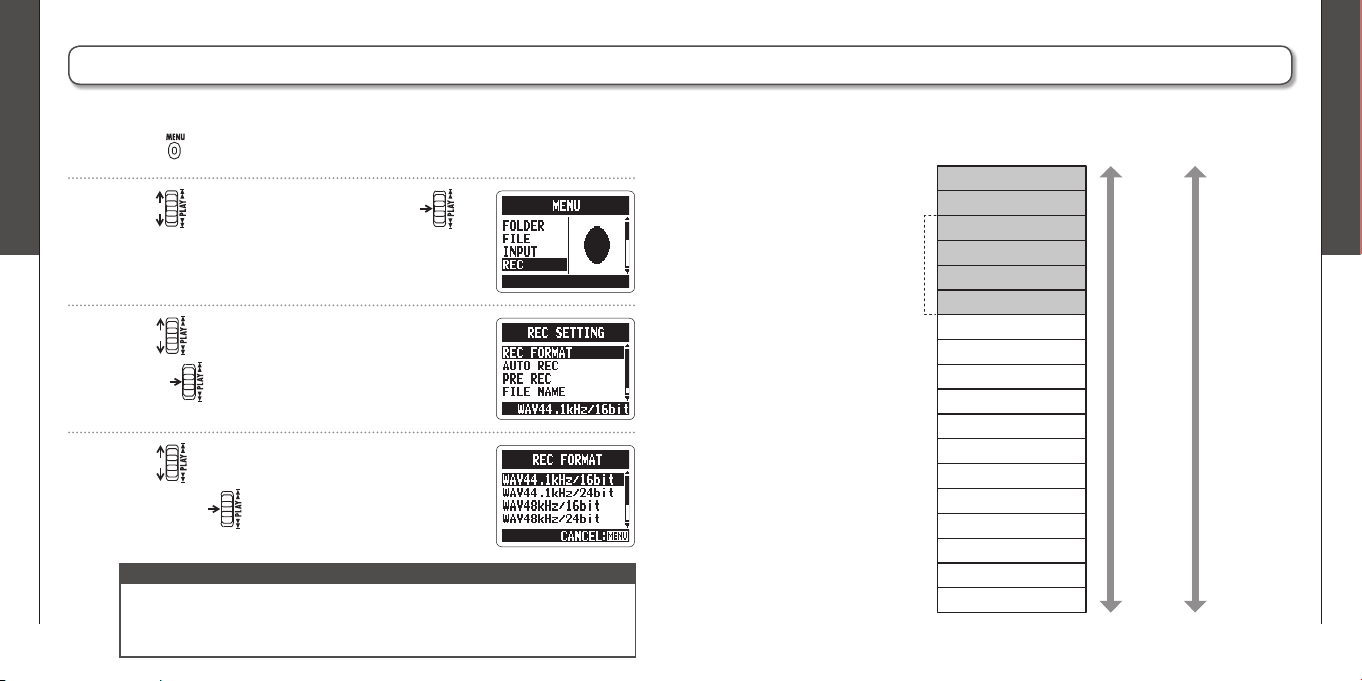
Monitoring MS-RAW signals
MS stereo mode only
1.
Press .
When recording in MS-RAW mode, you can monitor the MID input signal on the
left output channel and the SIDE input signal on the right output channel.
2.
Use to select INPUT, and then
press .
3.
Use to select MS-RAW MONITOR, and
then press .
4.
Use to select RAW, and then press .
NOTE
If you want to monitor an ordinary stereo mix of the
signals, select STEREO.
Setting Explanation
OFF AUTO GAIN disabled
CONCERTFor concerts and other loud sound
sources
SOLOFor acoustic guitars and other solo
performances
MEETINGFor meetings and other quiet sound
sources
Various settings
Setting the recording format
72
Various settings
Setting the recording format
73
H2n
Handy Recorder
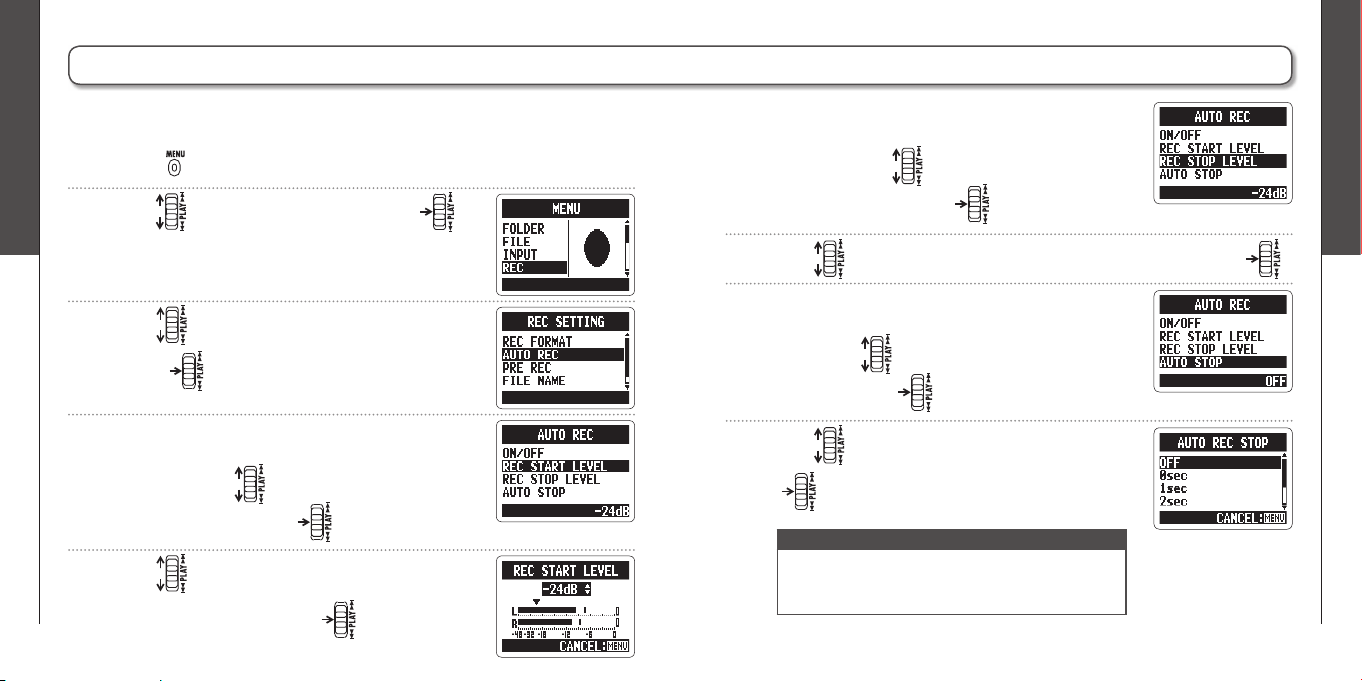
Setting the recording format
1.
Press .
You can set the recording format according to your sound quality and fi le size needs.
2.
Use to select REC, and then press .
3.
Use to select REC FORMAT, and then
press .
4.
Use to select the recording format, and
then press .
NOTE
∙ Use WAV formats for higher audio quality.
∙ Use MP3 formats, which are compressed and have much smaller fi le sizes, to
save space on the SD card. Beware, however, that MP3 compression reduces
audio quality.
WAV96kHz/24bit
WAV96kHz/16bit
WAV48kHz/24bit
WAV44.1kHz/24bit
WAV48kHz/16bit
WAV44.1kHz/16bit
MP3 320kbps
MP3 256kbps
MP3 224kbps
MP3 192kbps
MP3 160kbps
MP3 128kbps
MP3 112kbps
MP3 96kbps
MP3 80kbps
MP3 64kbps
MP3 56kbps
MP3 48kbps
Sound quality File size
High
Low
Large
Small
Only these formats
can be selected
when using 4ch
recording mode
Various settings
Changing automatic recording settings
74
Various settings
Changing automatic recording settings
75
H2n
Handy Recorder
Changing automatic recording settings
1.
Press .
You can change settings related to the input level threshold that causes recording to start
and stop automatically, as well as the amount of delay before automatic stopping.
2.
Use to select REC, and then press .
3.
Use to select AUTO REC, and then
press .
4.
If you want to adjust the recording start
threshold, use to select REC START
LEVEL, and then press .
5.
Use to adjust the recording start
threshold, and then press .
6.
If you want to set the recording stop
threshold, use to select REC STOP
LEVEL, and then press .
8.
If you want to set the delay before recording
stops, use to select AUTO STOP,
and then press .
7.
Use to set the recording stop threshold, and then press .
NOTE
The AUTO REC STOP time is the delay until recording
stops after the input level drops below the REC STOP
LEVEL.
9.
Use to set the time, and then press
.
Various settings
Setting how fi les are named
76
Various settings
Pausing recording when adding marks
77
H2n
Handy Recorder
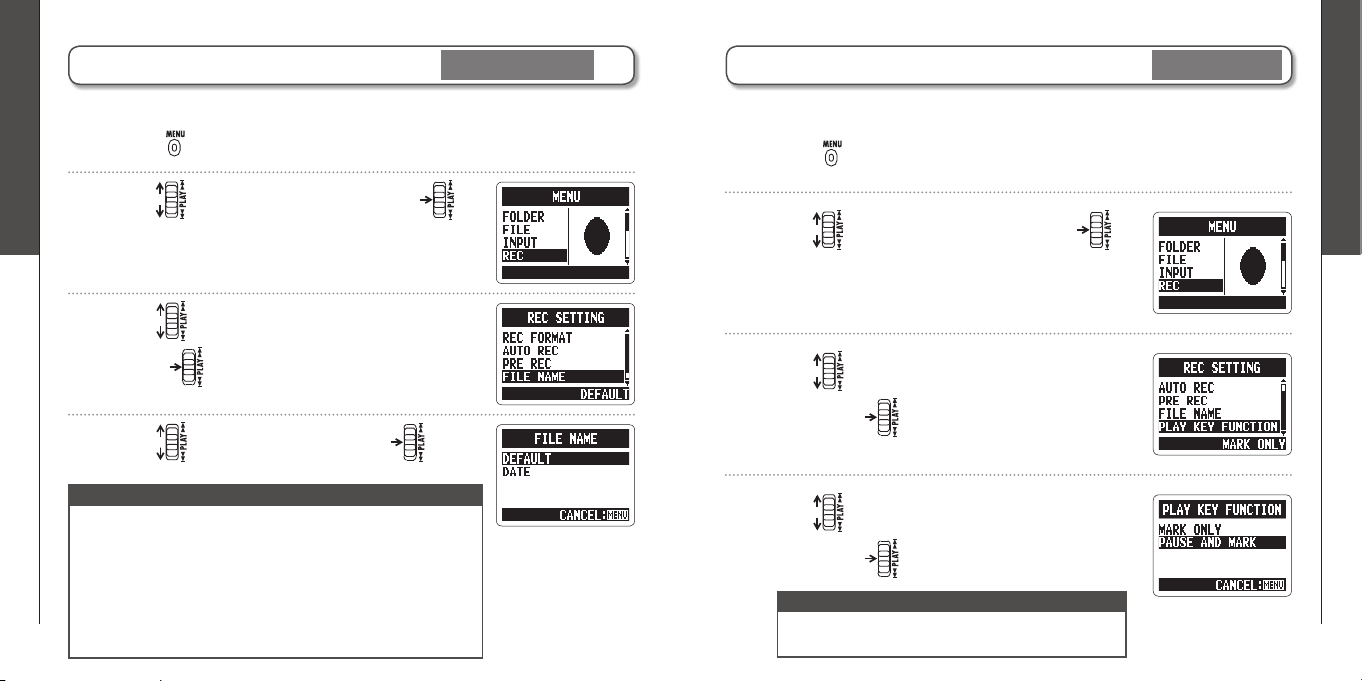
Setting how fi les are named
Stereo fi les only
1.
Press .
You can change how stereo fi les are automatically named.
2.
Use to select REC, and then press .
3.
Use to select FILE NAME, and then
press .
4.
Use to select, and then press .
NOTE
∙ File names are assigned in the following manner.
DEFAULT: ZOOM0001(MS).wav/mp3 ~ ZOOM9999(MS).wav/mp3
DATE: YYMMDD-HHMMSS(MS).wav/mp3
(for example, 110531-130512.wav)
∙ DATE uses the starting time of the recording.
∙ If a fi le already exists with the same name in the folder, the
new file will have a number added to the end of its name.
Numbers will be added sequentially in the case of multiple
duplicates.
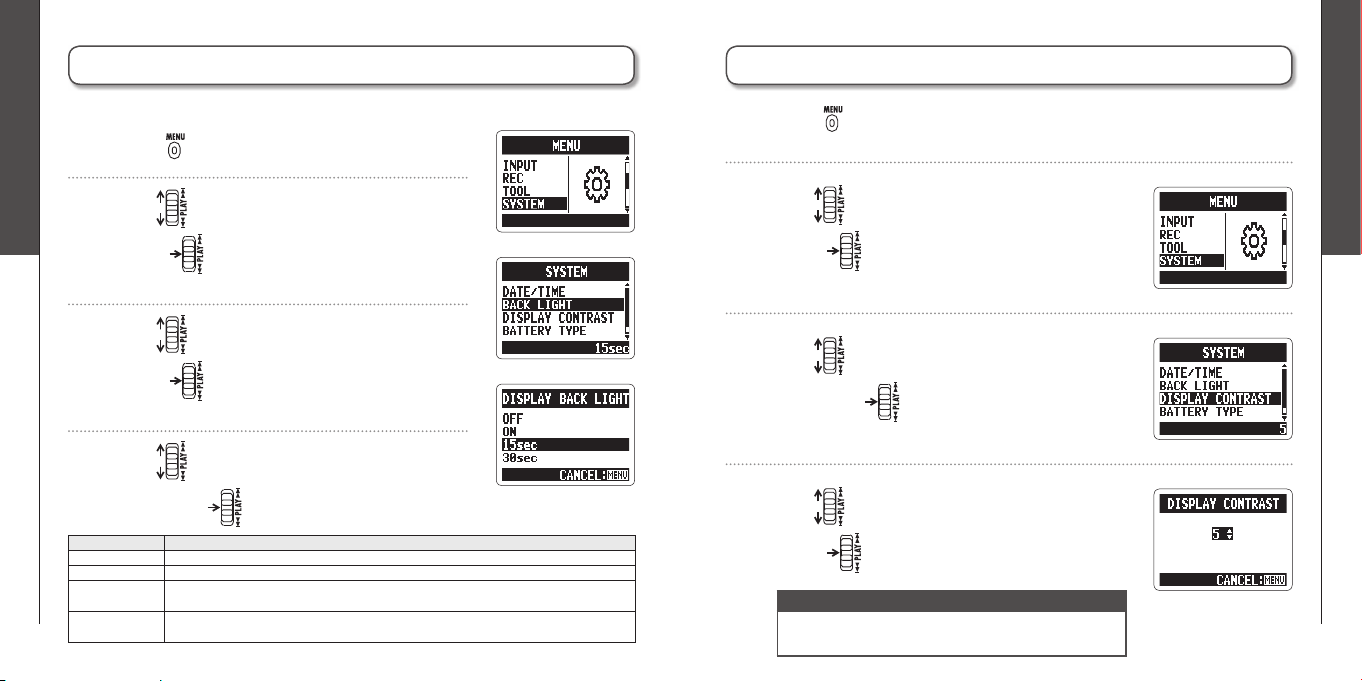
Pausing recording when adding marks
WAV format only
1.
Press .
You can set the unit to pause when you add a mark during recording.
2.
Use to select REC, and then press .
3.
Use to select PLAY KEY FUNCTION, and
then press .
4.
Use to select PAUSE AND MARK, and
then press .
NOTE
Marks cannot be added to MP3 fi les, so this setting has
no effect when recording MP3 fi les.
Various settings
Changing the display backlight time
78
Various settings
Adjusting the display contrast
79
H2n
Handy Recorder
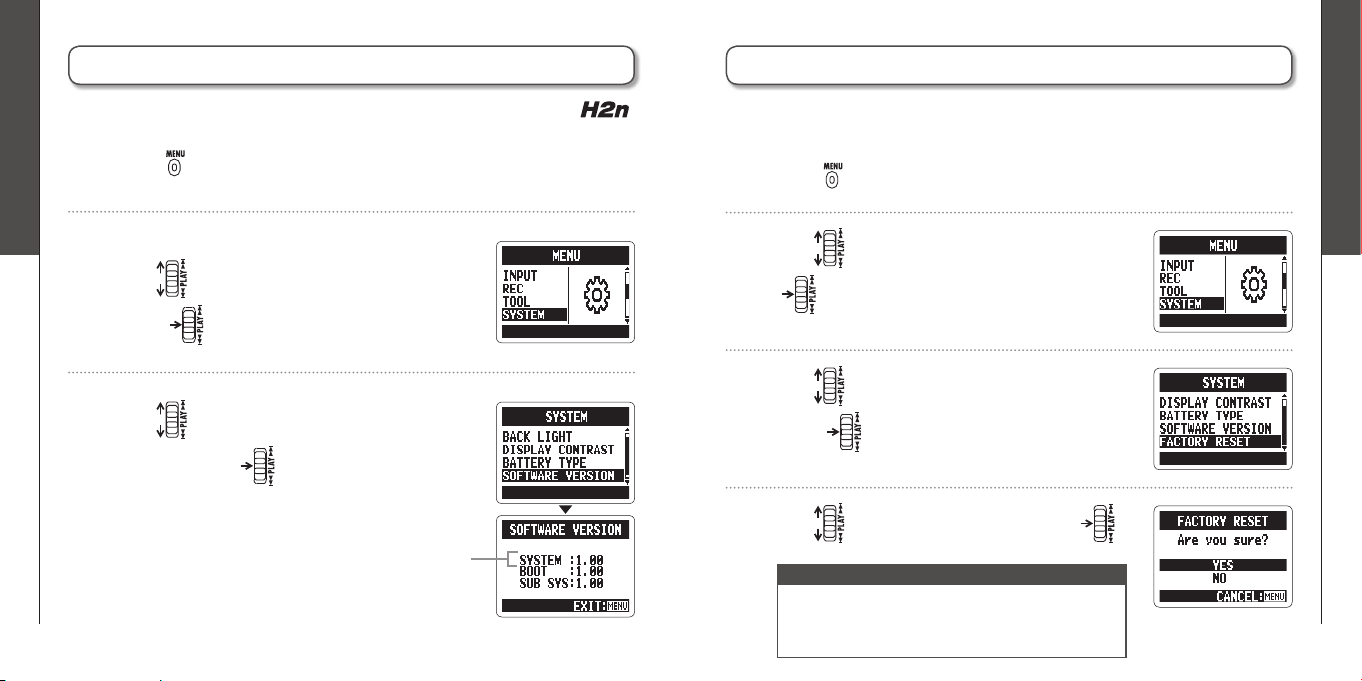
Changing the display backlight time
1.
Press .
You can set the amount of time that the display backlight stays lit.
2.
Use to select SYSTEM, and then
press .
3.
Use to select BACK LIGHT, and then
press .
4.
Use to select the amount of time, and
then press .
Setting Explanation
OFF The backlight stays unlit.
ON The backlight stays lit when the unit is on.
15sec The backlight stays lit for 15 seconds after the last time that a control
(besides MIC GAIN) was used.
30secThe backlight stays lit for 30 seconds after the last time that a control
(besides MIC GAIN) was used.
Adjusting the display contrast
1.
Press .
2.
Use to select SYSTEM, and then
press .
3.
Use to select DISPLAY CONTRAST, and
then press .
4.
Use to adjust the contrast, and then
press .
NOTE
∙ The contrast can be set to a value from 1–8.
∙ The higher the number, the greater the contrast.
Various settings
Checking the software versions
80
Various settings
Restoring the unit to its factory settings
81
H2n
Handy Recorder
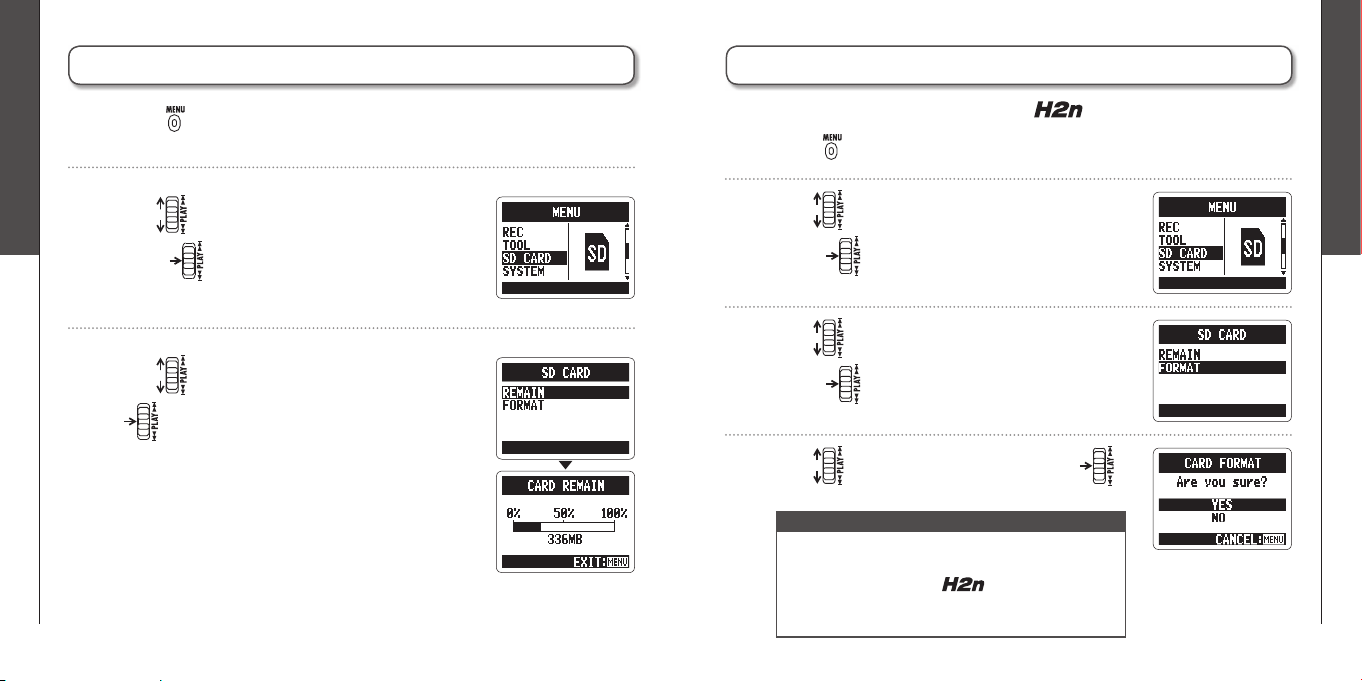
Checking the software versions
1.
Press .
You can view the versions of the system and other software used by the .
2.
Use to select SYSTEM, and then
press .
3.
Use to select SOFTWARE VERSION,
and then press to show the software
versions in use.
System software version
Restoring the unit to its factory settings
1.
Press .
You can restore the recorder to the settings it had when it was shipped from the
factory.
2.
Use to select SYSTEM, and then press
.
3.
Use to select FACTORY RESET, and then
press .
4.
Use to select YES, and then press .
NOTE
∙ The date and time, recording mode and input gain
settings are not reset by this.
∙ This also erases any recording in the built-in
memory.
Various settings
Checking the open capacity of the SD card
82
Various settings
Formatting an SD card
83
H2n
Handy Recorder
Checking the open capacity of the SD card
1.
Press .
2.
Use to select SD CARD, and then
press .
3.
Use to select REMAIN, and then press
to show the open space on the card.
Formatting an SD card
1.
Press .
You can format an SD card for use with the
.
2.
Use to select SD CARD, and then
press .
3.
Use to select FORMAT, and then
press .
4.
Use to select YES, and then press .
NOTE
∙ You must format an SD card after purchase or if it
has been formatted by a computer or other device
before using it with the
.
∙ Be aware that when you format an SD card, all data
saved on it will be erased.
Other functions
Updating the system software
84
Other functions
Using SD cards from older H series recorders
85
H2n
Handy Recorder
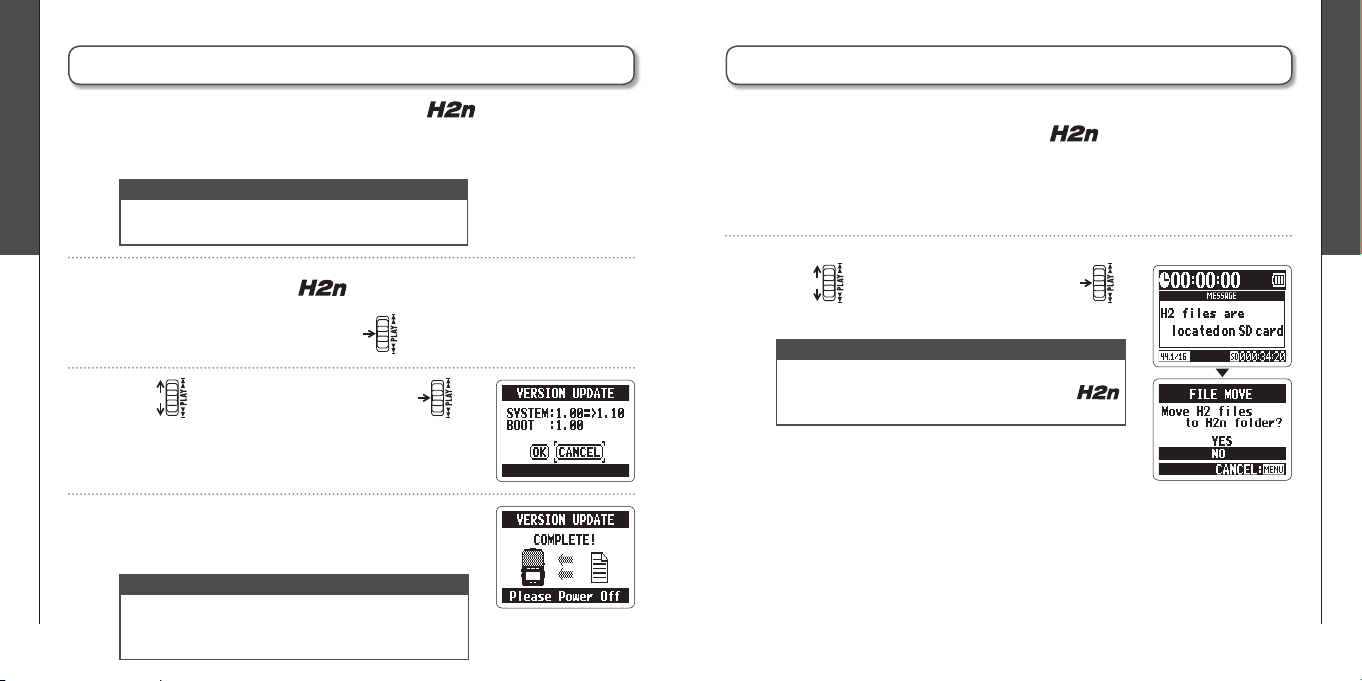
Updating the system software
2.
With the SD card in the , turn the power
ON while pressing and holding .
3.
Use to select OK, and then press .
4.
After updating completes, turn the power OFF.
You can update the system software used by your to the latest version.
NOTE
You cannot update the system software if the battery
charge is low. In such a case, install new batteries or
use an AC adapter (sold separately).
1.
Copy the updater fi le to the root directory of the SD card.
NOTE
Download the latest system software at the ZOOM
website (http://www.zoom.co.jp).
Using SD cards from older H series recorders
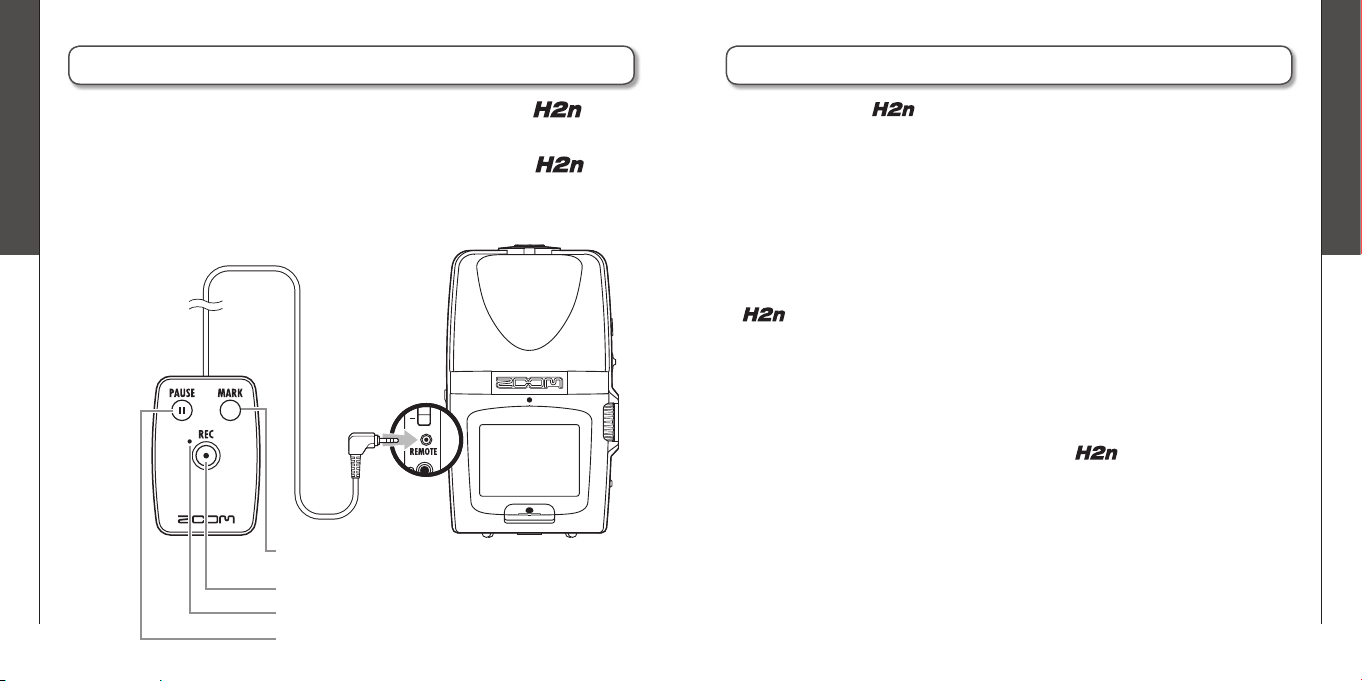
1.
With the SD card inserted, turn the power ON.
This recorder can read SD cards that have been used in older H series recorders
and copy their fi les into folders for use by the .
2.
Use to select YES, and then press .
NOTE
A file must be renamed before moving if another
fi le with the same name already exists in the
folder.
Other functions
Using a remote control
86
Troubleshooting
87
H2n
Handy Recorder
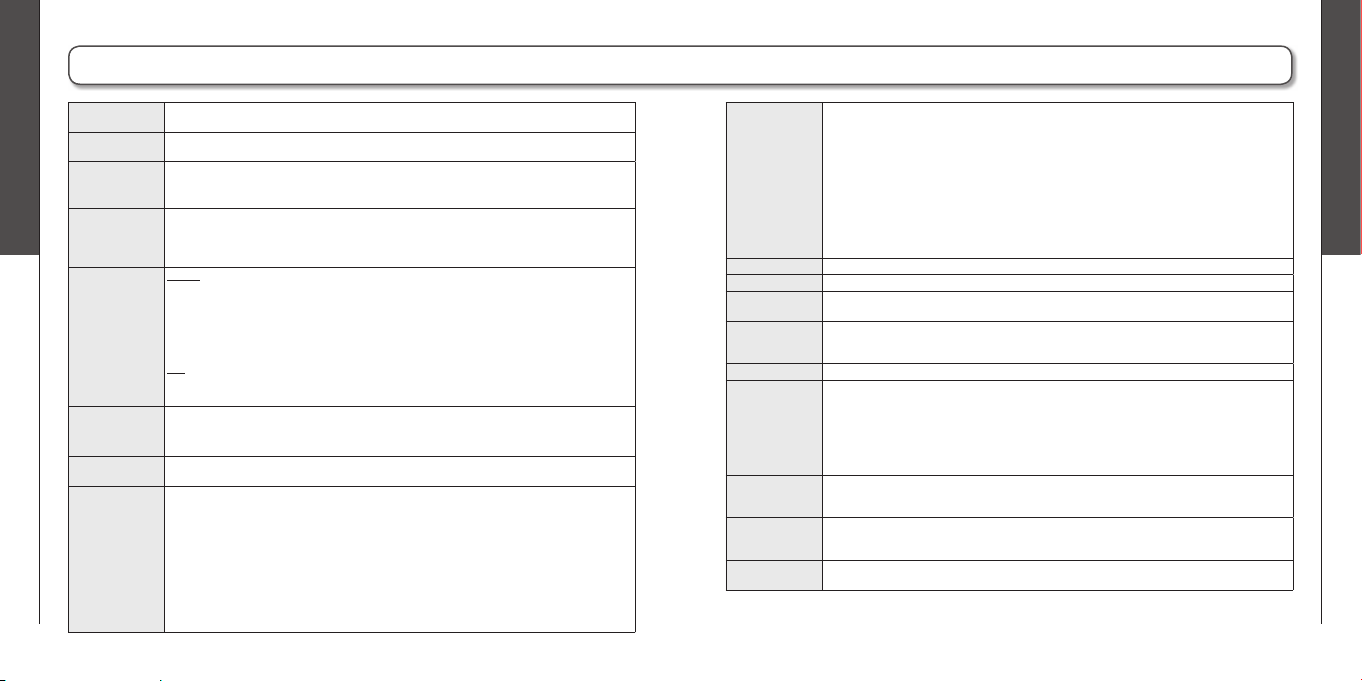
Using a remote control
By using a remote control (sold separately) you can operate the
from a
distance.
•
Connect the remote control to the REMOTE jack on the
.
The functions of the buttons on the remote are as follows.
Start and stop recording
Add marks (WAV format only)
Lights during recording
Pause (resume) recording
Troubleshooting
Recording/playback trouble
◆
There is no sound or output is
very quiet
· Check the connections to your
monitoring system and its volume
setting.
· Confirm that the volume of the
is not too low.
◆
The recorded sound cannot be
heard or is very quiet
· If you are using built-in mics,
confirm that the active mics are
oriented correctly and that the
recording mode is suitable. (
➝
P.20)
· Check the MIC GAIN setting.
(
➝
P.24, 70)
· If you are recording from a CD
player or other device connected to
the LINE IN jack, raise the output
level of the connected device.
◆
Recording is not possible
· Confi rm that the SD card has open
space. (
➝
P.82)
· If “Hold” appears on the display,
the h o l d fu n c t i o n is enabled.
Disable the hold function. (
➝
P.15)
Other trouble
◆
The recorder is not recognized by
a computer when connected by
USB
· Check that the OS of the computer
is compatible. (
➝
P.58)
· The
operation mode must
be selected on the recorder before
it will be recognized by a computer.
(
➝
P.58)
If you think that the
is not operating properly, please check the following
fi rst.
Specifi cations
88
Specifi cations
89
H2n
Handy Recorder
Specifi cations
Recording media 16MB–2GB SD cards, 4GB–32GB SDHC cards
(Cards that can be used with this recorder are to be verifi ed individually)
Built-in memory Can be used to record up to 1 minute in 96 kbps MP3 format (recording to this memory
overwrites any previous recording in it)
Recording Mic arrangements MS stereo with adjustable side mic level
90º XY stereo
Modes MS, XY, MS+XY (stereo) and MS+XY (4ch)
Microphones Types Directional (XY, MS mid mics)
Bidirectional (MS side mic)
Maximum sound
pressure input
120 dB spl (directional)
122 dB spl (bidirectional)
File formats
Stereo
Uncompressed PCM 44.1/48/96kHz, 16/24bit WAV (BWF)
Compressed MP3
(recording)
44.1kHz, 48/56/64/80/96/112/128/160/192/224/256/320kbps
(Not compatible with MS-RAW recording)
Compressed MP3
(playback)
44.1/48kHz, 32/40/48/56/64/80/96/112/128/160/192/224/256/
320kbps
4ch
Uncompressed PCM 44.1/48kHz, 16/24bit WAV (BWF)
Two stereo fi les for each recording
Digital processing A/D conversion 24-bit 128× oversampling
D/A conversion 24-bit 128× oversampling
Signal processing 32-bit
Recording time 2GB card example3:08:00 (44.1kHz/16bit WAV)
34:43:00 (128kbps MP3)
Features LO CUT80Hz high-pass fi lter
COMP/LIMITER 3 types of compressors and 3 types of limiters
AUTO GAINAutomatic input gain adjustment
PRE REC2 seconds of pre-recording
AUTO RECAutomatic recording start/stop, continuous standby
TUNERChromatic, guitar, bass and alternate (A/E/G/D/DADGAD) tunings
with automatic string detection
METRONOME40–250 BPM range, fi ve tones, pre-count
SPEEDPlayback speed adjustable between 50–150%
Features KEY CONTROLPlayback pitch adjustable ±6 semitones (cannot be used with
96kHz fi les)
AB REPEATRepeats playback between selected points in a fi le
FILE DIVIDEDivides a fi le into two
FILE NORMALIZEMaximizes fi le volume (cannot be used with MP3s)
FILE MP3 ENCODEWAV fi les can be converted to MP3 formats at fi xed bit rates
MARK Up to 99 marks can be added as desired when recording WAV
fi les
SURROUND MIXERMix balance can be adjusted when playing back 4ch surround
recordings
Display Graphic LCD (128×64 pixels) with backlight
Input gain 0 to +39 dB
Input jack Line/mic stereo mini jack can supply plug-in power
2 kΩ impedance at input levels of 0 to –39 dBm
Output jack Line/headphone stereo mini jack
Rated output level: −10 dBm (output impedance 10 kΩ or more)
Headphones: 20 mW + 20 mW (into 32 Ω load)
Built-in speaker 400mW, 8Ω, mono
USB Mini-B type
Card reader operation
USB 2.0 High Speed
Audio interface operation
USB 1.0 Full Speed
Supports 44.1/48kHz sampling rates and 16-bit rate
Bus power operation supported
Power AD-17 USB to AC adapter (DC 5V 1A), operates using two AA batteries
Continuous operation of 20 or more hours when recording 44.1kHz/16-bit WAV fi les using
alkaline batteries
Physical features Tripod mounting socket, strap attachment
Dimensions (mm): 67.6 (W) × 113.85 (H) × 42.7 (D)
Weight: 130 g (without batteries)
Included
accessories
Operation manual, SD card (2GB), 2 AA batteries, WAVELAB LE CD-ROM
* Recording concerts and public performances, for example, without permission from rights holders is prohibited by law.
* Product specifi cations and appearance might be changed for the purpose of improvement without warning.
* 0 dBm = 0.775 Vrms
FCC regulation warning (for U.S.A.)
This equipment has been tested and found to comply with the limits for a Class B digital device,
pursuant to Part 15 of the FCC Rules. These limits are designed to provide reasonable protection
against harmful interference in a residential installation. This equipment generates, uses, and can
radiate radio frequency energy and, if not installed and used in accordance with the instructions,
may cause harmful interference to radio communications. However, there is no guarantee that
interference will not occur in a particular installation. If this equipment does cause harmful
interference to radio or television reception, which can be determined by turning the equipment off
and on, the user is encouraged to try to correct the interference by one or more of the following
measures:
• Reorient or relocate the receiving antenna.
• Increase the separation between the equipment and receiver.
•
Connect the equipment to an outlet on a circuit different from that to which the receiver is
connected.
• Consult the dealer or an experienced radio/TV technician for help.
Disposal of Old Electrical & Electronic Equipment
(Applicable in European countries with separate collection systems)
This symbol on the product or on its packaging indicates that this product
shall not be treated as household waste. Instead it shall be handed over to
the applicable collection point for the recycling of electrical and electronic
equipment. By ensuring this product is disposed of correctly, you will help
prevent potential negative consequences for the environment and human
health, which could otherwise be caused by inappropriate waste handling
of this product. The recycling of materials will help to conserve natural
resources. For more detailed information about recycling of this product,
please contact your local city office, your household waste disposal service
or the shop where you purchased the product.
Declaration of Conformity:
This product complies with the requirements of EMC Directive 2004/108/
EC, Low Voltage Directive 2006/95/EC and ErP Directive 2009/125/EC
For EU Countries

H2n-5000-1
Zoom Corporation
4-4-3 Kanda-Surugadai, Chiyoda-ku, Tokyo 101-0062 Japan
http://www.zoom.co.jp
Installing WAVELAB LE7
In WaveLab LE, you can perform various edits such as recording audio, adjusting
the volume of the recorded files, and cutting unwanted sections.
Windows
Insert the supplied WAVELAB LE7 CD-ROM into the CD drive
of your computer.
On the screen for selecting the way to AutoPlay, click Run
WaveLab_LE_7_Start_Center.exe.
If nothing happens when you ins ert the CD-ROM, sel ect
Computer from the Start menu. Click the WaveLab LE7 icon that
appears, and select Open Auto Play... on the File tab.
In the Start Center WaveLab LE7 that appears, select the
language you use for the installation.
After the selection, follow the on-screen prompts.
1.
2.
3.
Mac OS
Insert the supplied WaveLab LE CD-ROM into the CD drive
of your Macintosh computer.
When the contents of the CD-ROM appear, double-click
WaveLab LE 7 for Mac OS X.
If the contents do not appear automatically, double-click to open the WaveLab LE 7
icon on the desktop, and double-click WaveLab LE7 for Mac OS X.
When the contents in the folder appear, use
WaveLab LE 7.mpkg to perform the installation.
1.
2.
3.
H2n
Handy Recorder
[Minimum System
Requirements]
Windows 7
・ 2 GHz of CPU
・ 1024 MB of RAM
・ DVD-ROM drive
・ 200 MB of free hard disk
space
・
1024x768 of monitor resolution
[Minimum System
Requirements]
Mac OS X 10.6
・ Intel CPU
・ 1024 MB of RAM
・ DVD-ROM drive
・ 200 MB of free hard disk
space
・
1024x768 of monitor resolution