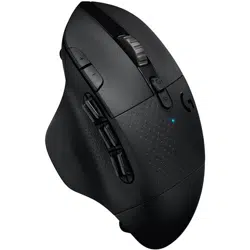
G604
SETUP GUIDE
GUIDE D’INSTALLATION
3 ENGLISH
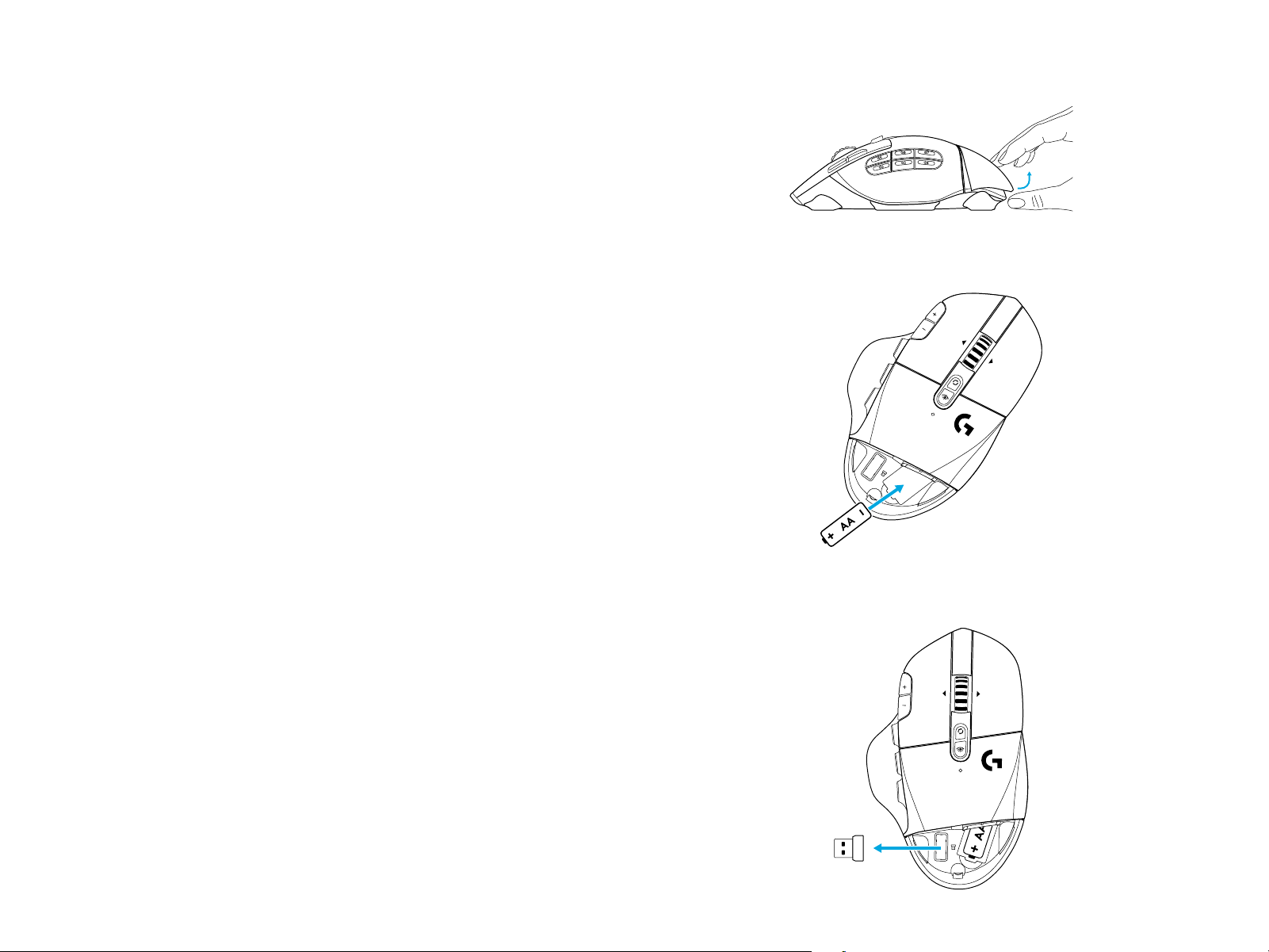
SETUP INSTRUCTIONS
1 Remove the battery cover by lifting upward the back
ofthe cover.
2 Insert the battery.
3 Remove the receiver.
1
2
3
4 ENGLISH
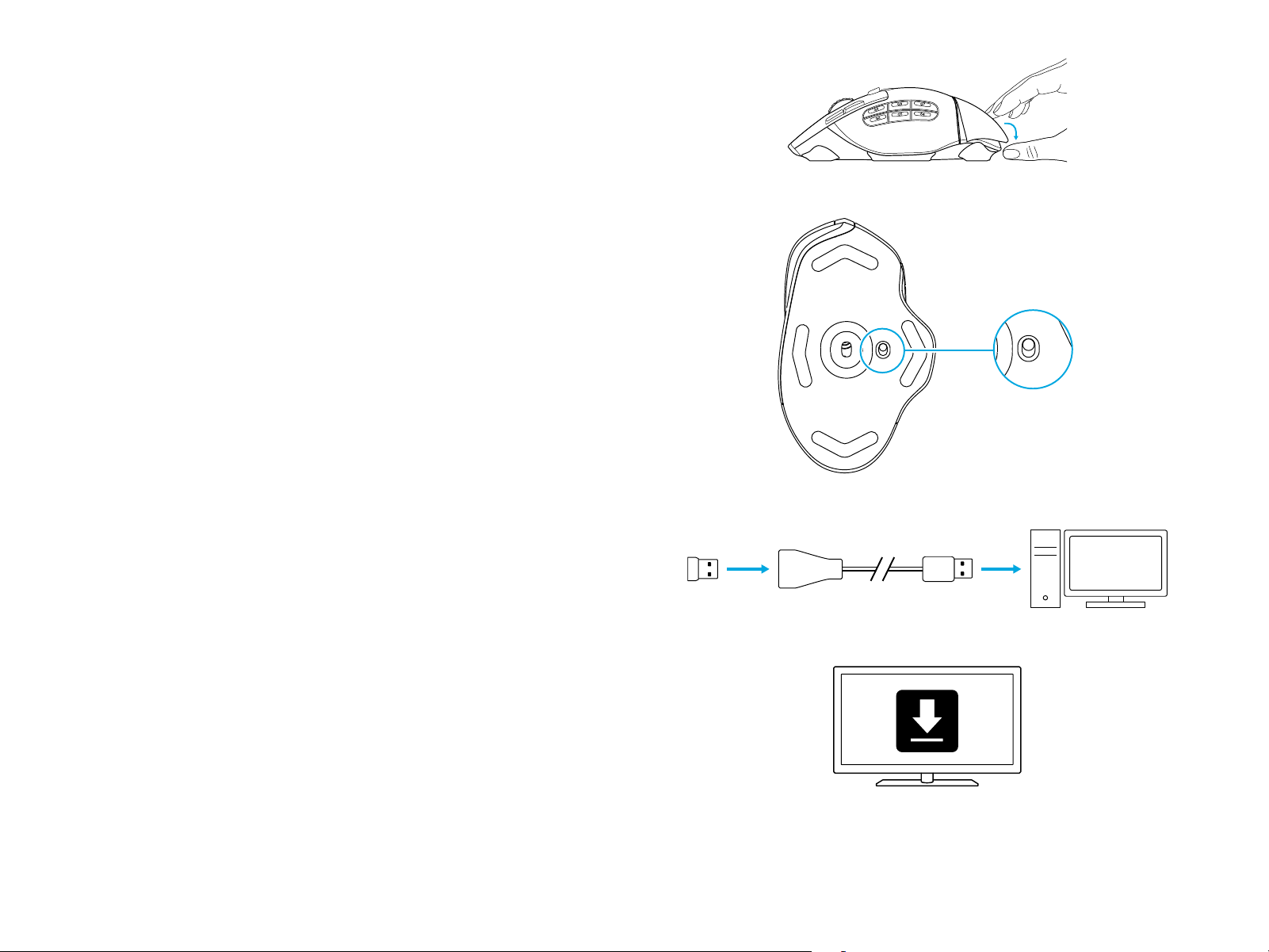
4 Close the battery cover.
5 Make sure the switch on the bottom of the mouse
isintheonposition.
6 Recommended: Insert receiver into the receiver extension
cable. Insert extension cable into your USB port.
Alternatively,insert receiver directly into your USB port.
7 (Optional) Download Logitech G HUB software to access
advanced features. Download at logitechG.com/ghub
4
5
6
7
5 ENGLISH
Tips:
• To make your mouse lighter, a lithium AA battery
(notincluded) can be used.
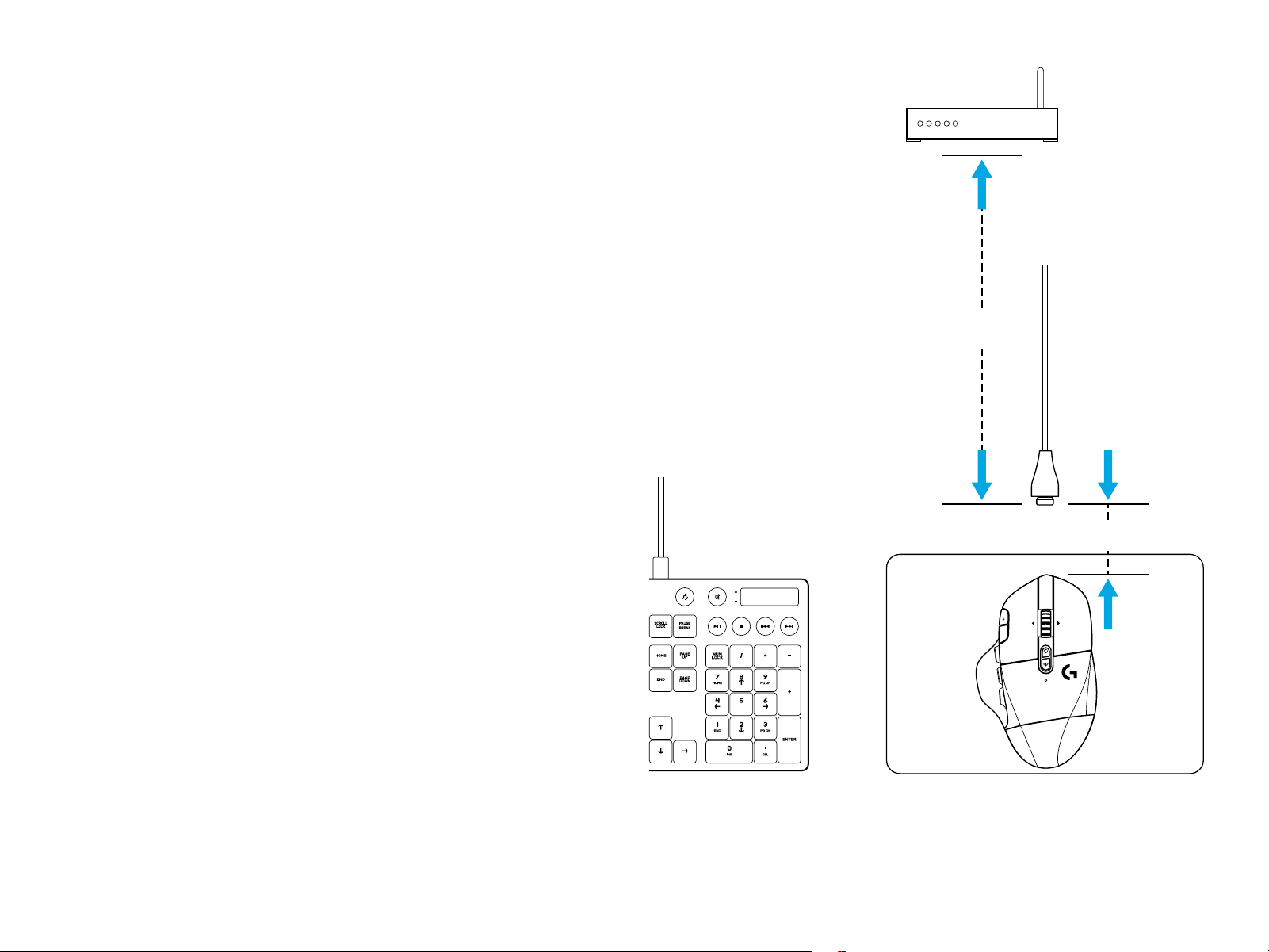
• G604 has a wireless range of up to 10 meters. To ensure
optimal performance in noisy wireless environments,
itisrecommended to keep the receiver within 20 cm
ofthemouse.
• Keep the mouse and receiver 2 m+ away from wireless
routersor other 2.4 GHz wireless devices to minimize
environmental noise.
> 2 m
~ 20 cm
6 ENGLISH
1
3
4
5
9
15
12
14
2
10
11
13
6
8
7
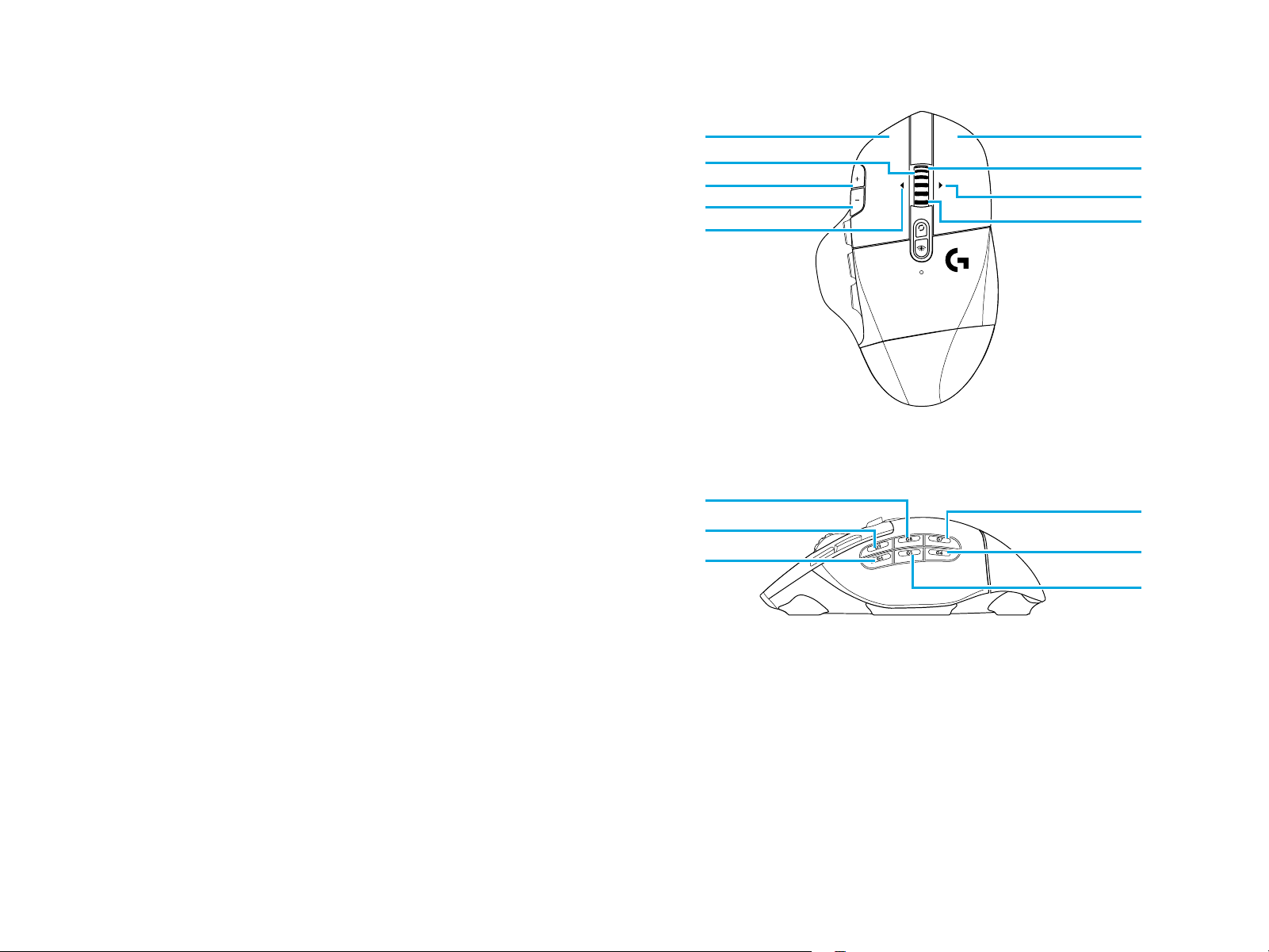
15 FULLY PROGRAMMABLE CONTROLS
1 Main click
2 Secondary click
3 Wheel click
4 DPI up
5 DPI down
6 Scroll up
7 Scroll right
8 Scroll down
9 Scroll left
10 Button G4 - Default: DPI shift
11 Button G5 - Default: Backward
12 Button G6 - Default: Forward
13 Button G7 - Default: 3
14 Button G8 - Default: 2
15 Button G9 - Default: 1
Programmable controls can be changed using
LogitechGHUBsoftware.
7 ENGLISH
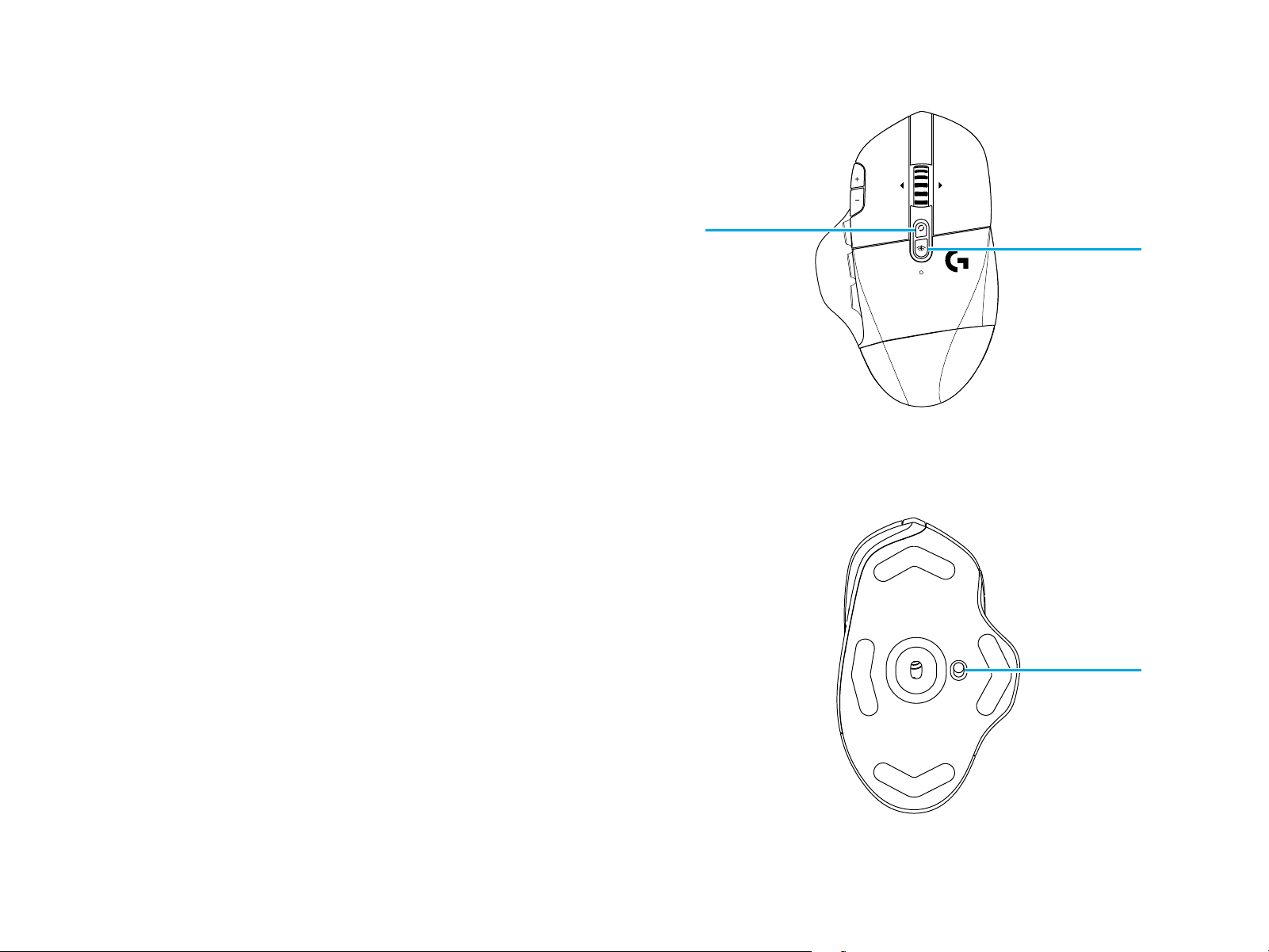
NONPROGRAMMABLE CONTROLS
16 Wheel mode toggle button
17 LIGHTSPEED / Bluet ooth toggle button
18 ON/OFF button
16
17
18
8 ENGLISH
BLUETOOTH
®
/ LIGHTSPEED DUAL
CONNECTIVITY
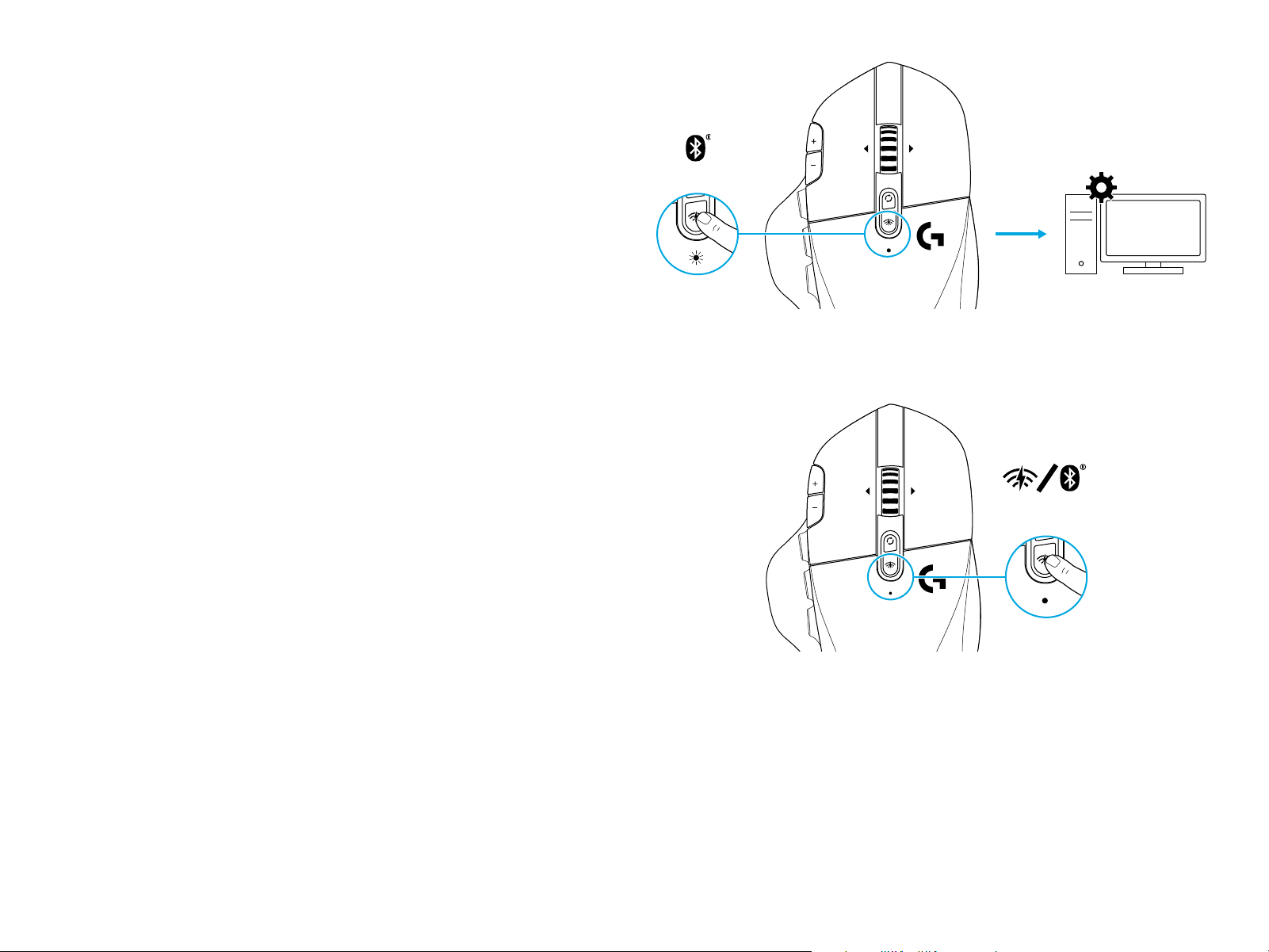
Out of the box, your mouse and LIGHTSPEED receiver
arepaired.
To pair to a Bluetooth-enable computer:
Step 1: Press the connectivity button for 5 seconds until
theLED indicator ashes blue quickly.
Step 2: Go to the Bluetooth settings of your computer
Step 3: Click “Add a Bluetoot h Device” and select “G604
Gaming Mouse”
The color of the LED indicator will turn solid blue for 5 seconds
when your mouse and computer are successfully paired.
To toggle between a Bluetooth and LIGHTSPEED mode,
pressthe connectivity button for 0.2 sec, but less than 5 sec.
Tips:
• To pair your mouse to another Bluetooth-enable computer,
repeat steps 1 to 3.
• Blueto ot h mode has lower report rate compared
toLIGHTSPEED. In Bluetooth mode, G604 has longer
battery life as well.
5 sec.
0.2 sec.

9 ENGLISH
LED INDICATOR
Battery life
Flashing red: battery <15%
DPI steps
Yellow: step 1 (default)
White: step 2 (default)
Orange: step 3 (default)
Magenta: step 4 (default)
Purple: step 5 (Step 5 can be activated via software only)
Mode
Cyan (solid): LIGHTSPEED mode (default)
Cyan (slow ashing): Mouse looking for previously paired
LIGHTSPEED receiver
Blue (solid): Bluetooth mode, mouse paired
Blue (fast ashing): Bluetoot h pairing mode
Blue (slow ashing): Mouse looking for previously paired
Bluetooth device
LOGITECH G HUB SOFTWARE
You can customize the onboard prole settings using
theLogitech G HUB Software. These settings include button
programming, report rate and tracking behavior. G604 allows up
to 5 onboard DPI settings.
By default, G604 has the following settings:
• DPI: 400/800(default)/1600/3200
• DPI Shift: 400
• Report rate: 1 ms
QUESTIONS?
logitechG.com/support/g604