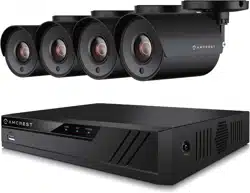

Digital Video Recorder
Quick Start Guide
Version 1.0.0.
Revised October 12
th
, 2018

2
1. Front/Back Panel Diagrams & Descriptions .................................................................................... 4
Front Panel ...................................................................................................................................... 4
2. Front/Back Panel Diagrams & Descriptions .................................................................................... 4
Rear Panel ....................................................................................................................................... 4
3. Hardware Setup............................................................................................................................... 5
Hard drive installation .................................................................................................................... 10
4. Console Setup ............................................................................................................................... 12
5. Motion Detection & Recording Setup ............................................................................................ 21
Setting up motion detection and email alerts ................................................................................ 26
6. Computer Access Setup ................................................................................................................ 33
Amcrest IP Config Software method ............................................................................................. 34
Built-in interface method .................................................................................................................... 37
Web Interface Walkthrough ........................................................................................................... 47
7. Amcrest View App Setup ............................................................................................................... 48
Enabling P2P on the DVR ............................................................................................................. 48
App setup not working? (troubleshooting steps) ........................................................................... 52
Amcrest View Pro interface overview ............................................................................................ 53
8. Amcrest View Web Portal Setup ................................................................................................... 54
Installing the AmcrestView.com browser plugin ............................................................................ 54
User method .................................................................................................................................. 57
AmcrestView Web Interface Overview .......................................................................................... 66
9. References & Contact Information ................................................................................................ 69
FCC Statement .................................................................................................................................. 70
IC Warning Statement ....................................................................................................................... 70

3
Welcome
Thank you for purchasing our DVR!
This quick start guide will help you become familiar with our DVR in a very short time.
Before installation and operation, please read the below safeguards and warnings carefully.
Many of the setup sections below have corresponding videos on YouTube To
access the setup videos, please go to http://amcrest.com/videos
Note: This guide is applicable to all 4, 8, and 16 channel S5 and H5 model Amcrest DVRs,
including XVRs. Some images and setup features may differ model to model.
Important Safeguards and Warnings
● All installations and operations here should conform to your local electrical safety codes.
● We assume no liability or responsibility for any of the fires or electrical shocks caused by
improper handling or installation.
● We are not liable for any problems caused by unauthorized modifications or attempted repair.
● Improper battery use may result in fire, explosion, or personal injury.
● When replacing the battery, please make sure you are using the same model.
Check Packaging
When you receive the DVR system in the packaging, unpack it, and check all sides of the DVR to
see if there is any physical damage. The protective materials used for the packaging of the DVR
can protect most accidental damage during transportation, but to ensure that your equipment is
operating as expected, it is recommended to inspect the product before proceeding further.
On the DVR unit, check specifically that the label on the bottom of the DVR is not damaged. The
serial number of the unit is often needed to provide support.
Please check that all required items for your DVR are present and accounted for. To check what is
included with your purchase, go to http://amcrest.com/ip-security-camera-systems.html/ and find
the product you purchased, then scroll down and click the “What’s Included” tab. If any item is
missing, please contact us as soon as possible so we can send you the missing components.
4
1. Front/Back Panel Diagrams & Descriptions
Front Panel
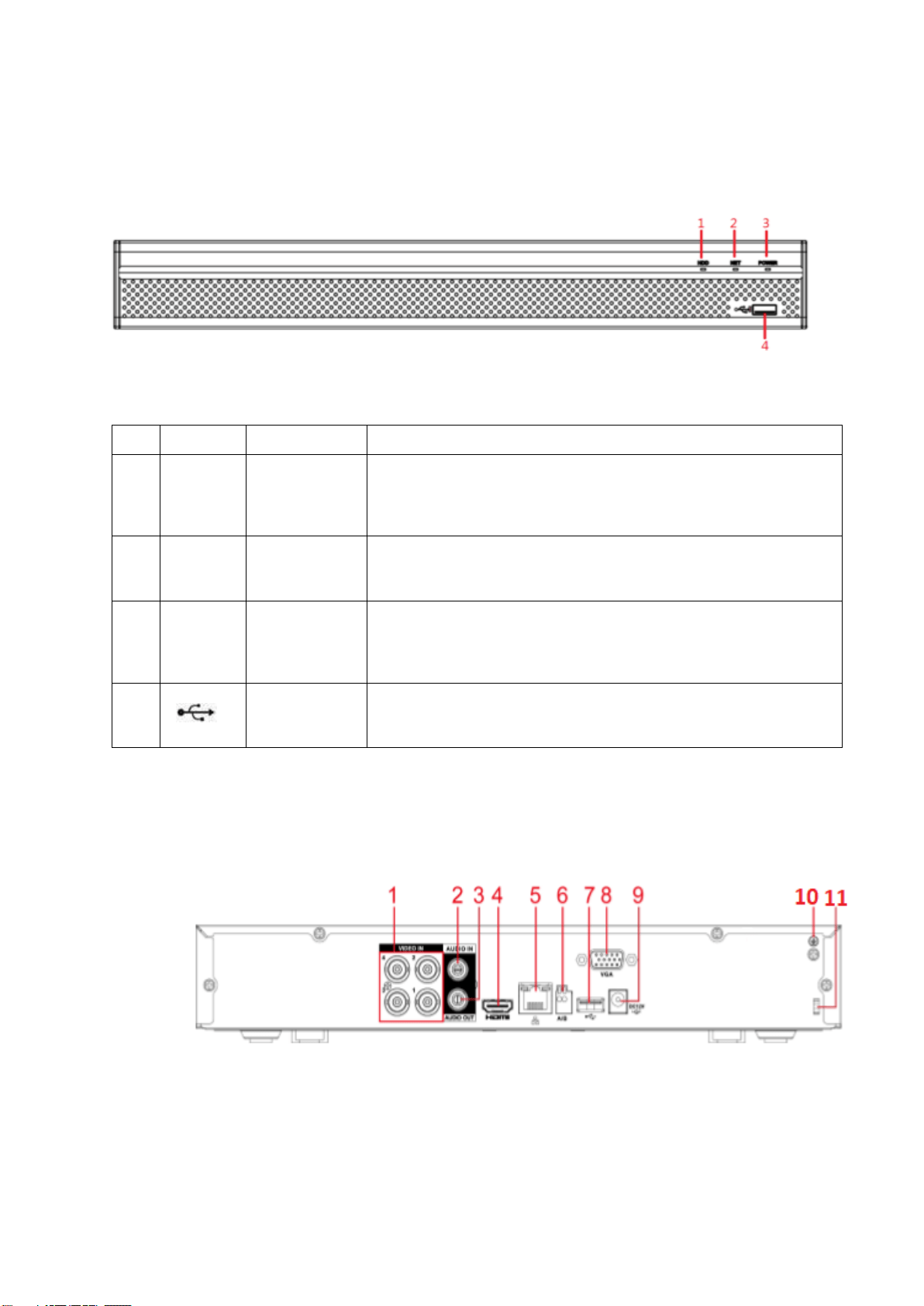
Please refer to the following chart for information on the front panel buttons.
SN
Icon
Name
Function
1
NET
Network
abnormality
indicator
light
When a network error occurs or there is no network connection,
this light turns red.
2
PWR
Power
indicator
When DVR is on, this light remains on.
4
HDD
HDD
abnormal
indicator
light
When an HDD error occurs, or the HDD capacity is below the
specified threshold value, this light turns red.
5
USB 2.0 Port
USB 2.0 port: connect a mouse, USB storage device, etc.
2. Front/Back Panel Diagrams & Descriptions
Rear Panel
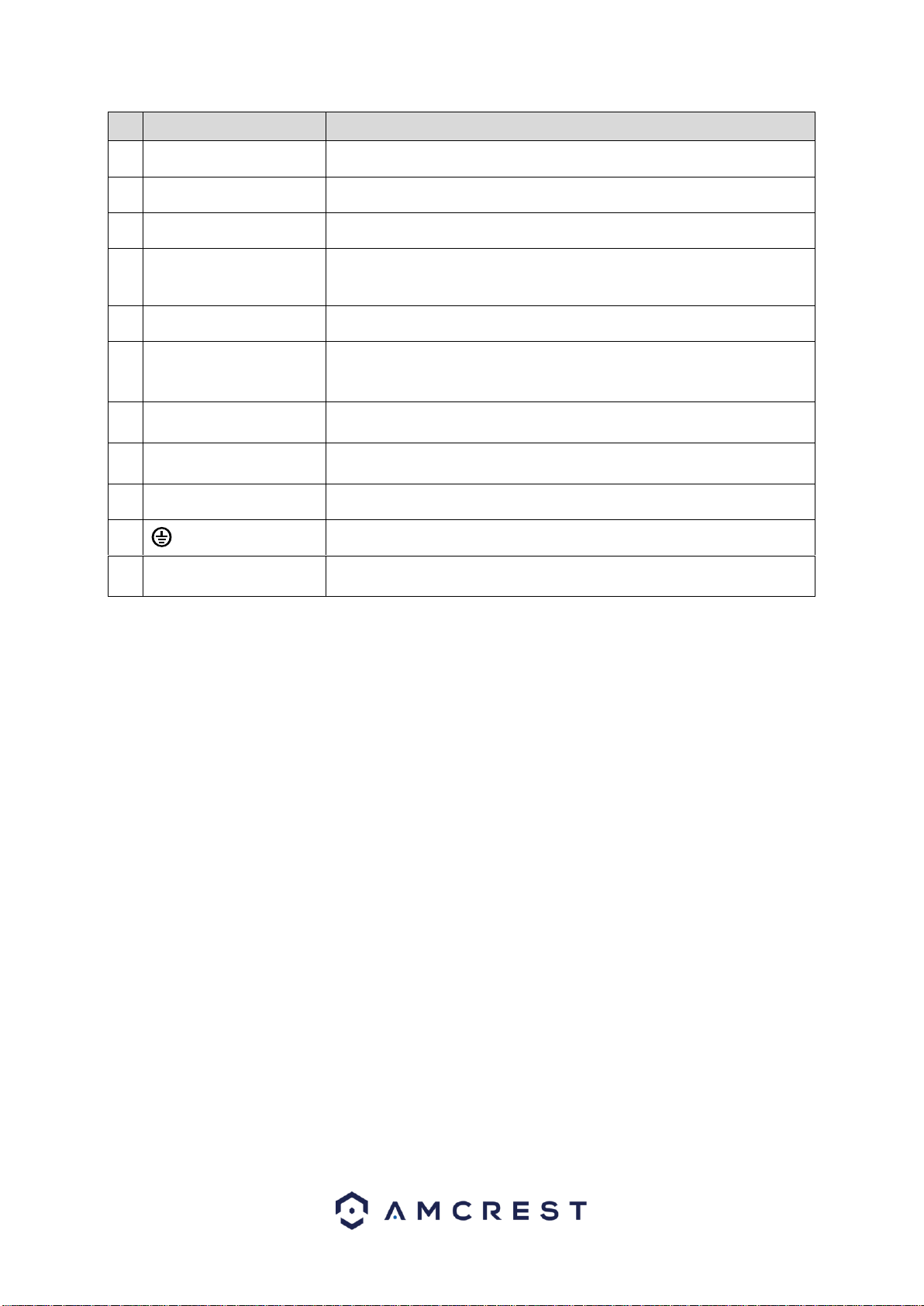
Please refer to the following chart for detailed information on the rear panel ports:
5
Port Name
Function
1
Video input port
Connects to analog camera to input video signal.
2
Audio input port
Receives audio signal output from an RCA microphone DVR.
3
Audio output port
Outputs audio signal to an external RCA speaker.
4
HDMI port
High definition audio and video signal output port. The port
outputs an uncompressed high-definition feed as well as multi-
channel audio data to a connected HDMI compatible display.
5
Network port
Connects to Ethernet port.
6
RS485
communication port
Connects to control DVRs such as, speed dome PTZ cameras.
The RS485_A port will be connected by a cable (A) and RS485_B
(B) cable.
7
USB port
Connects to an external DVR such as, a mouse, keyboard, or
external USB storage DVR.
8
VGA port
Outputs analog video data to a connected display with a
compatible VGA port.
9
Power input port
Inputs DC 12V power.
10
Ground terminal.
11
Power cable fastener
Use a clamp to secure the power cable on the DVR to avoid
signal error.
3. Hardware Setup
Before setting up the DVR, you will probably need the following
items. The items are not included:
● A computer monitor or TV with either an HDMI or VGA input
● A power strip with room for 4 large power plugs
It is recommended to connect all components of the system as shown
below before mounting any of the cameras. This is to ensure all
components are working. If any components are not functioning, please
contact Amcrest Support.
Setting up the cable connections
The following instructions will show you how to set up the cables for the
DVR, cameras, as well as a monitor or TV screen.
To set up the DVR’s cable connections, there are 7 major steps:
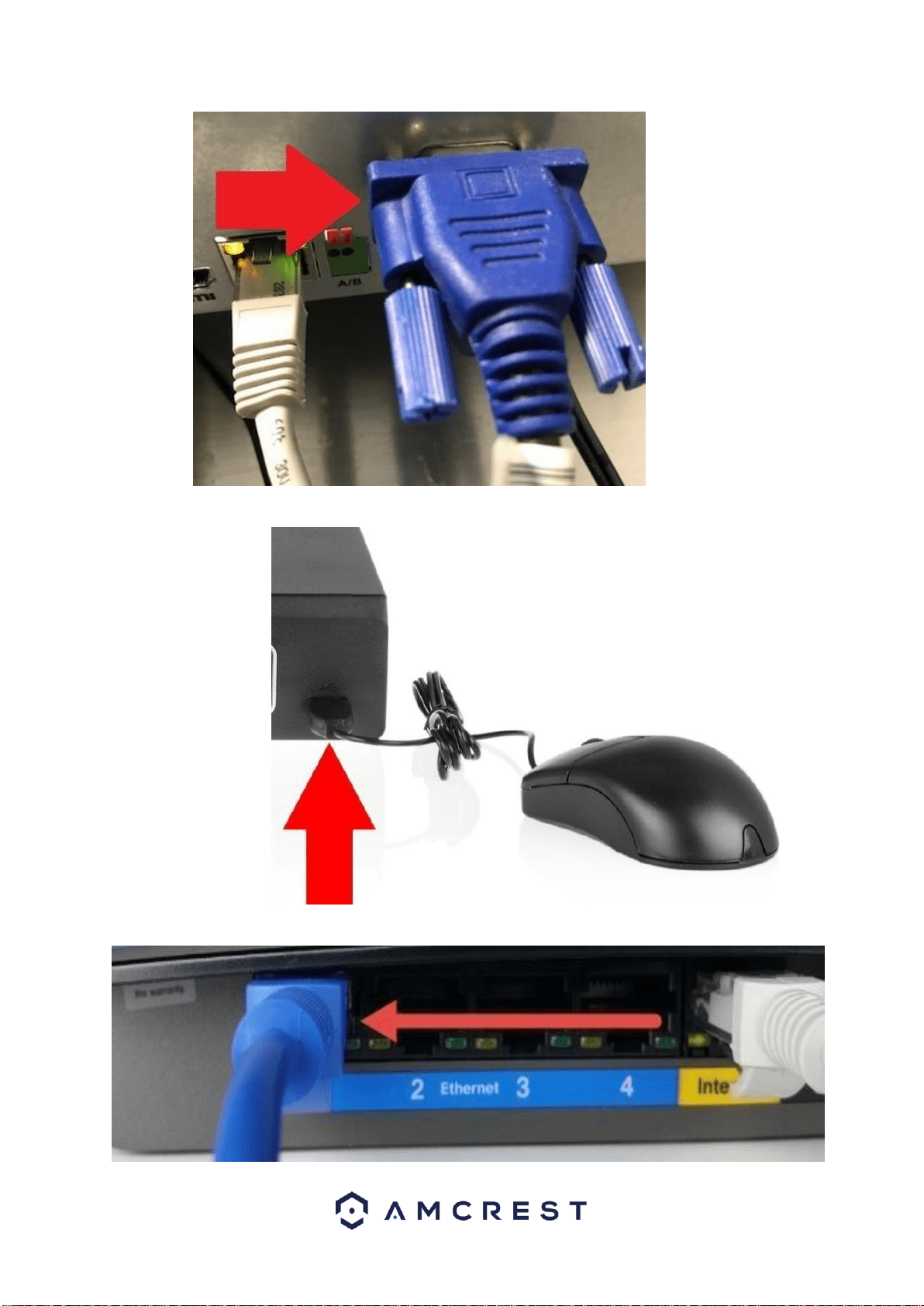
1. Connect a monitor or TV screen to your DVR. The DVR is
compatible with any monitor or screen that uses a VGA or HDMI
connection. For purposes of this guide, we will use a VGA
connection. Take a VGA cable, and connect one end to the VGA
port on your monitor/screen and the other end to the VGA port on
the back panel of your DVR.
6
2. Connect a USB mouse (included) to the front of the DVR.
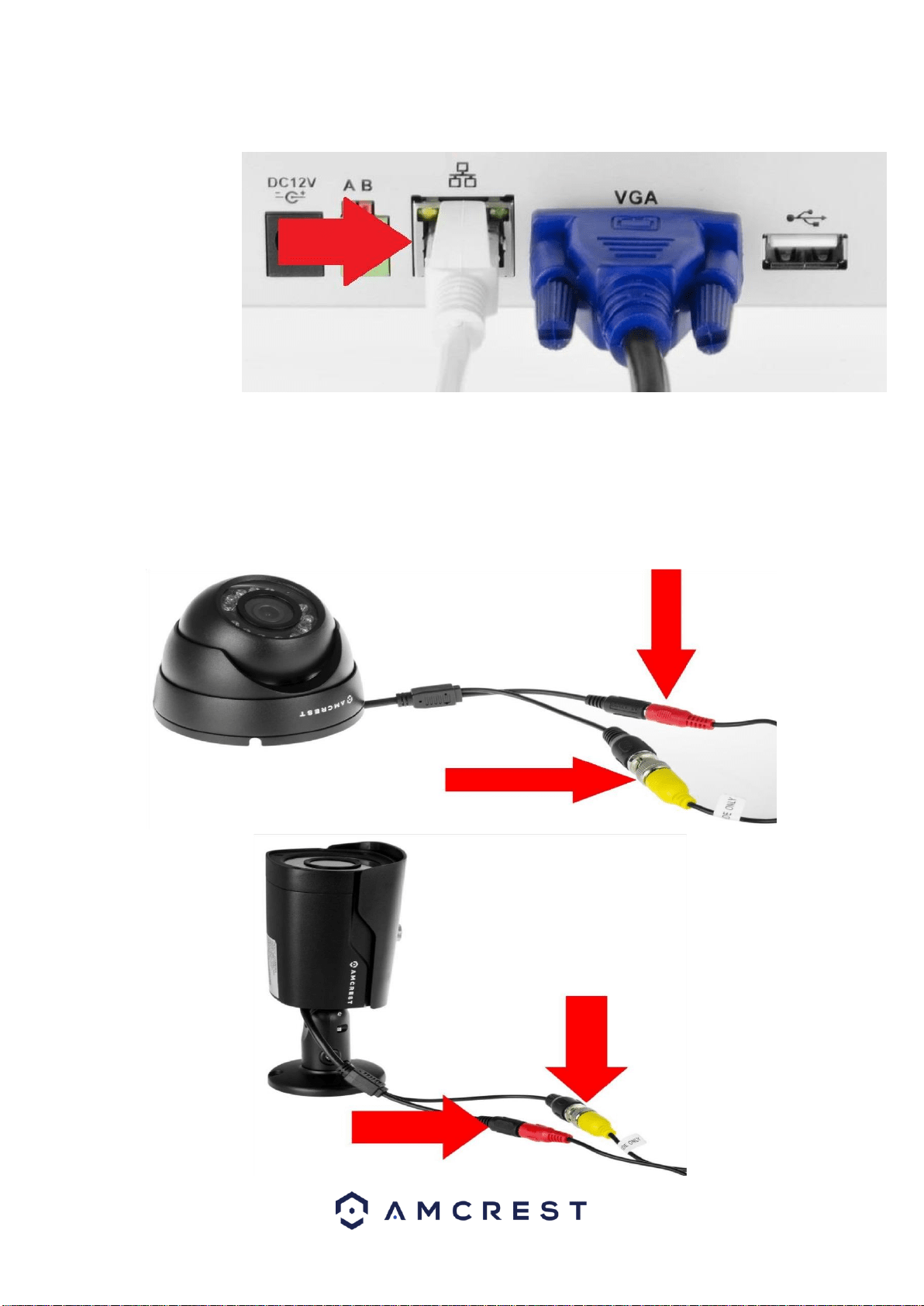
3. Connect an Ethernet cable to your router.
7
Then, connect the other end of the cable to the DVR.
4. Connect the camera video extension cable to the camera’s video
cable and connect the camera power extension cable to the
camera’s power cable. There should be a tag on the video cable to
help you make sure the right end of the cable is at hand.
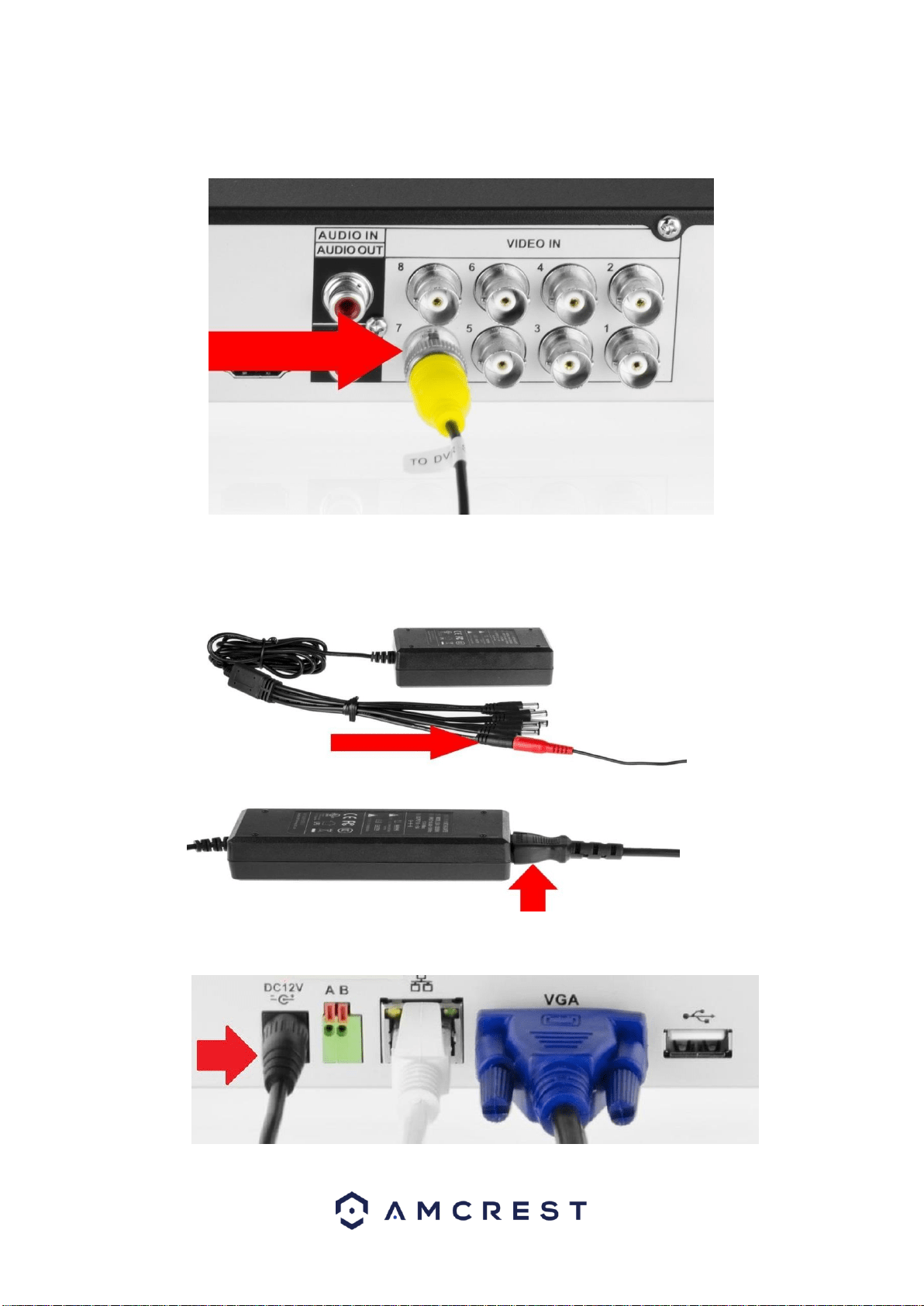
8
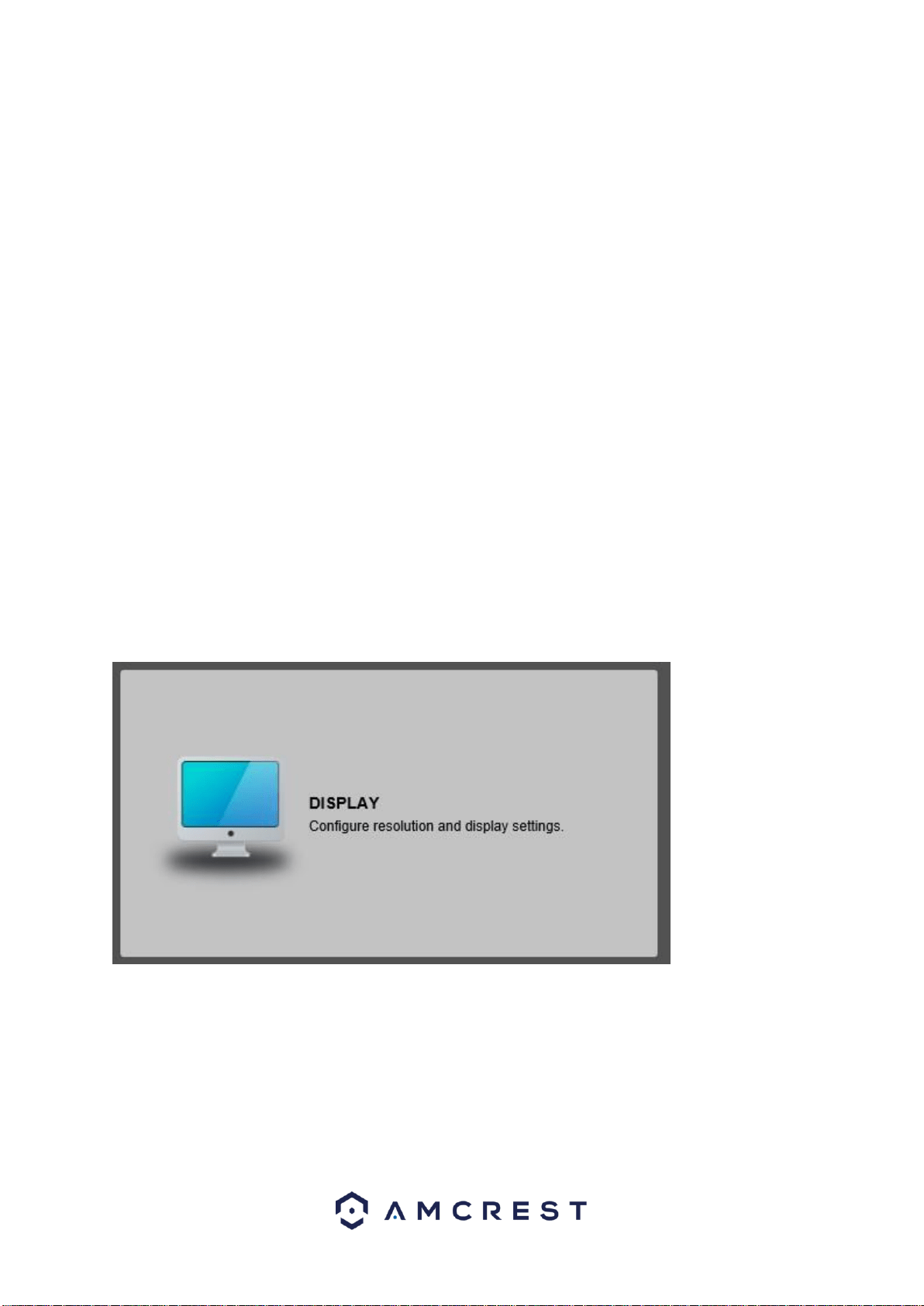
5. Connect the camera cable to any of the video input (coaxial) ports
on the DVR.
6. Connect the camera power extension cable to one of the camera
power cables, connect this power cable into the power brick, and
then plug the cable into an electrical socket.
7. Connect the DVR power cable into the back of the DVR, and then
plug in the DVR power adapter into an electrical socket.
9
- PLEASE READ BELOW-
Note: Your DVR may not work properly if the following is not
accounted for.
Every single DVR comes preset to a video output resolution of
1280x1024. What this means is that any time an HDMI cable is plugged
into an HDTV, it may result with a blank screen even if the DVR is
operational.
If this occurs, please follow the steps below.
Procedure using a VGA cable:
1. Connect your DVR to a computer monitor or TV screen with a
VGA cable (the HDMI cable should not be connected during this
process).
2. Boot up your DVR. On the monitor or TV, please make sure the
“input” is set to VGA.
3. When the interface loads, you will see the login screen appear.
Enter your credentials. (To find your login credentials, please refer
to part 3 of this guide: Console Setup > Logging in.)
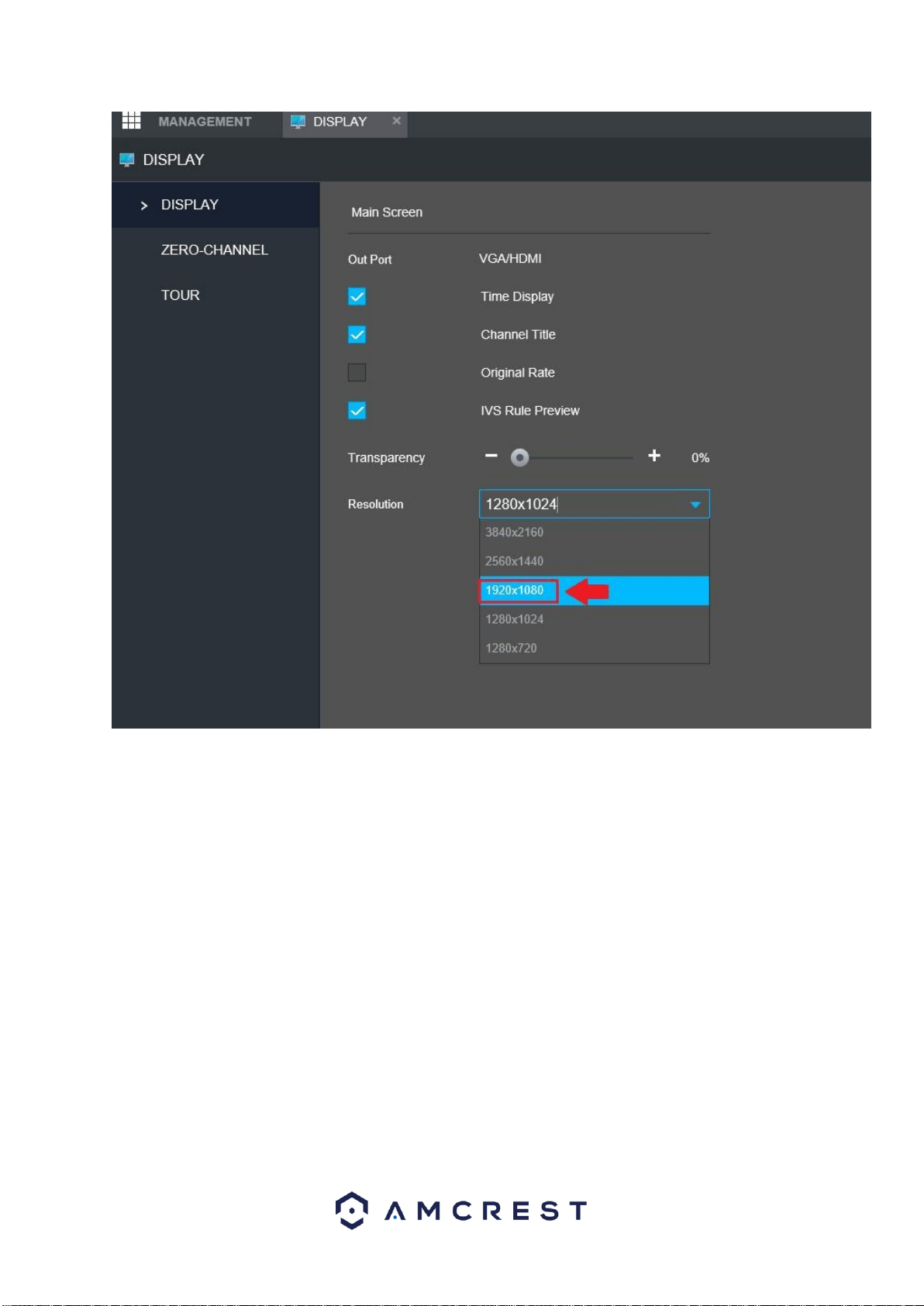
4. On your DVR, navigate to the section that says Display. This
menu allows you to configure resolution and display settings.
5. Then, on the new window, change your resolution from
1280x1024 to 1920x1080. Once complete, scroll down to the
bottom and click on Save to save your display settings. Your DVR
will reset to effect the change.
10
6. Disconnect the VGA cable and connect your DVR to an HD
monitor or TV using an HDMI cable. Don’t forget to change the
input to HDMI on a TV. Your interface will now appear, and you
can use your DVR freely.
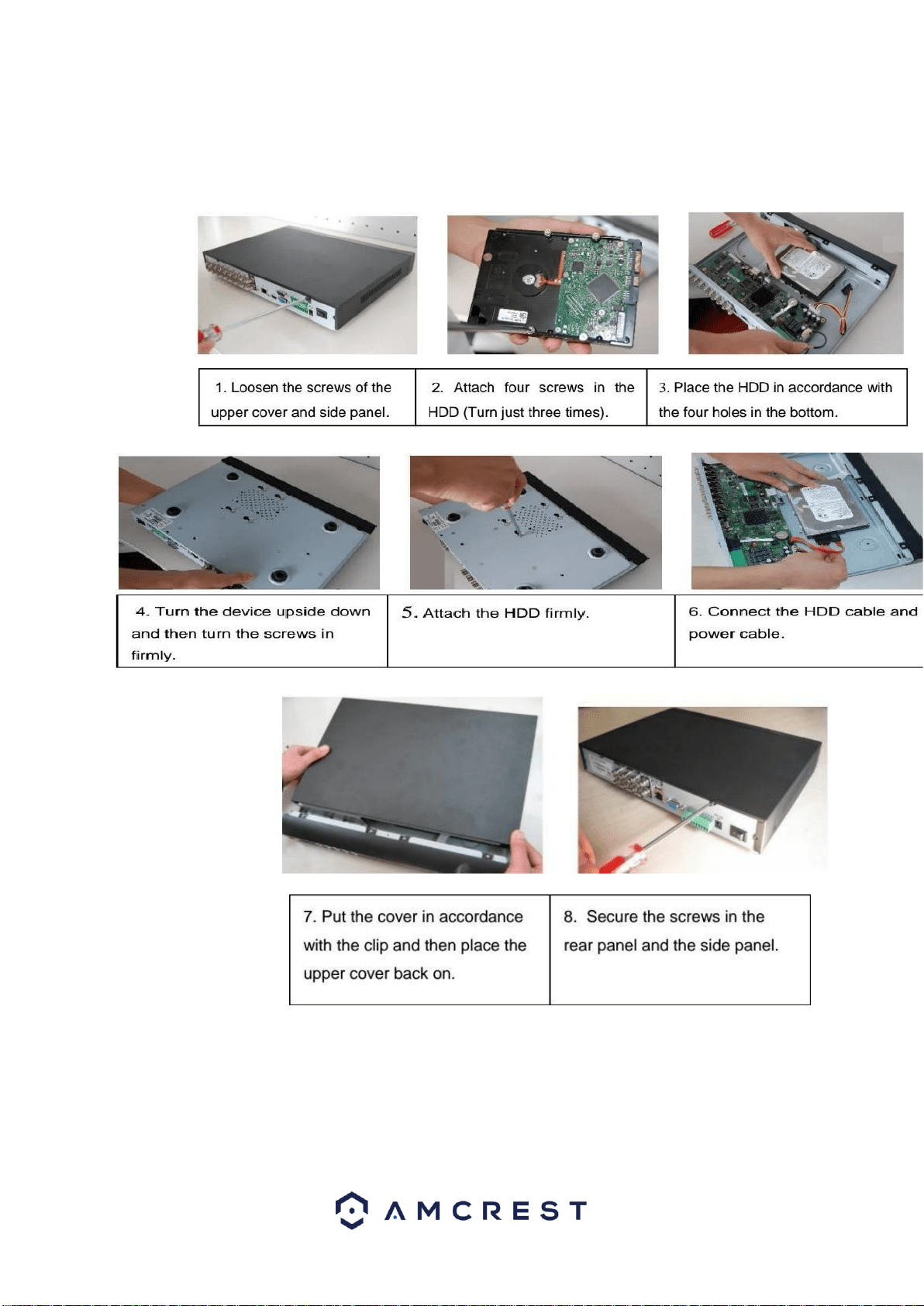
Hard drive installation
A hard drive allows you to configure and use the recording functionality of
this DVR, including playing back previously recorded footage.
Note: This section only applies to HDCVI DVRs purchased without a hard
drive already preinstalled. Most ‘kits’ or ‘bundles will come with a pre-
installed hard drive.
The DVR has connections for only 1 hard drive inside the case and the
hard drive must be no bigger than 4TB (Terabytes).
To install your hard drive, the following is needed:
● A medium sized (regular) Phillips-head screwdriver - not included
11
● A hard drive - not included (unless you purchased a ‘kit’ that does
have one included) ● Four hard drive fastening screws - included
Note: Before installing the hard drive, make sure the DVR is powered off with
the power cable disconnect.
Once the hard drive is installed, boot your system and, for any cameras
that are configured to be recording, you will see the following ‘recording’
icon appear in the bottom-left corner of the live view window for that
camera.
12
4. Console Setup
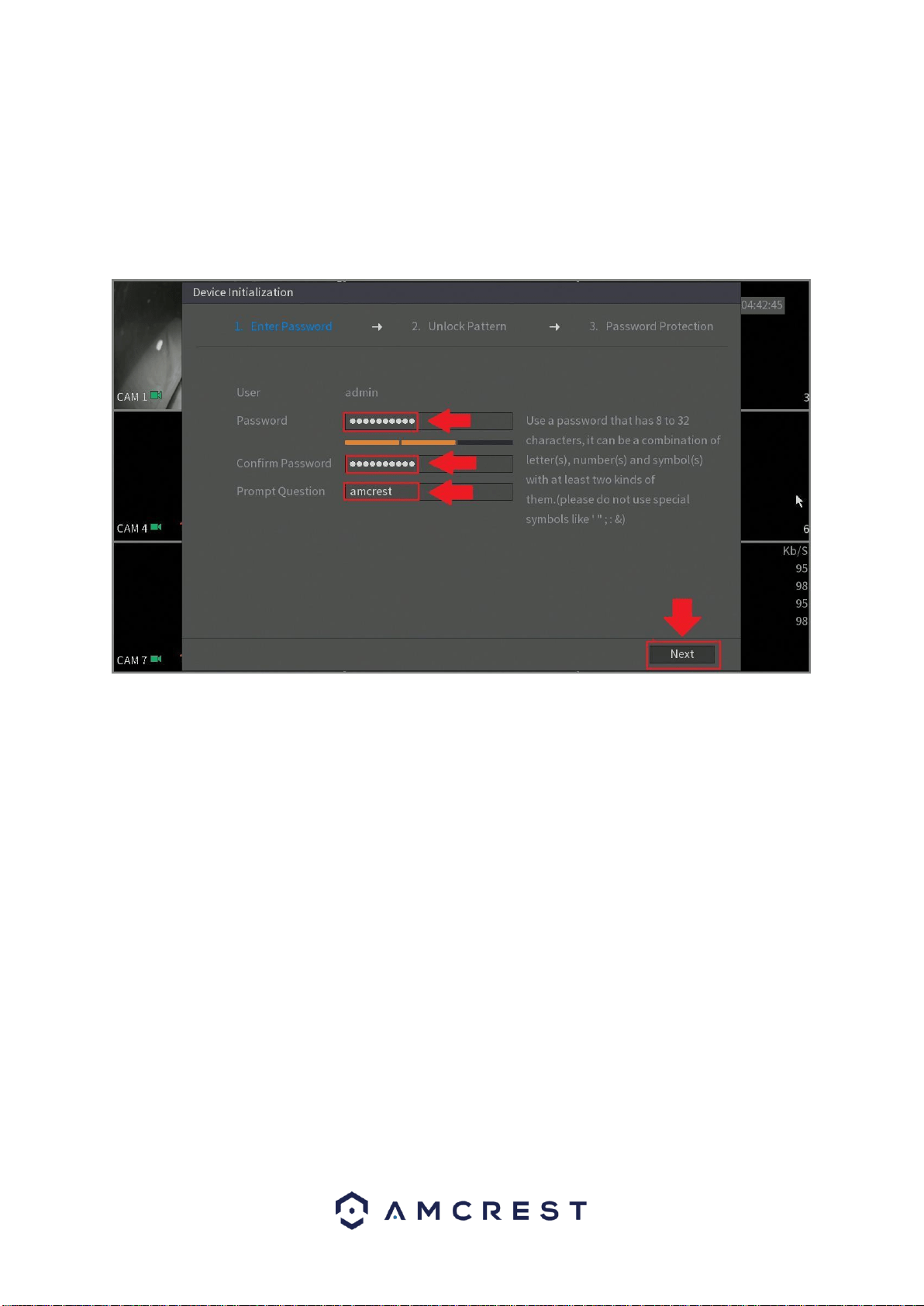
1. Enter Password
After turning the system on, the default video display shows multiple
windows and a page will appear that asks you to change your password:
First, create a new admin password for your device. The
password for your device should be between 8 and 32
characters. A combination of letters, numbers, and symbols are
recommended.
Note: Please do not use special symbols like ‘ “ ; : &
Once you’ve entered a new password for your device, confirm the password
in the next field.
Please note that the system consists of two
accounts (out of the box):
● Username: admin Password: admin
(administrator, local and network)
● Username: default Password: default (hidden user)
Lastly, you will be asked to enter a prompt question
for your account. This is useful if you have forgotten
your password. Please use a prompt question what
will help you remember the password for your device.
After you have completed this section, click Next to continue.
13
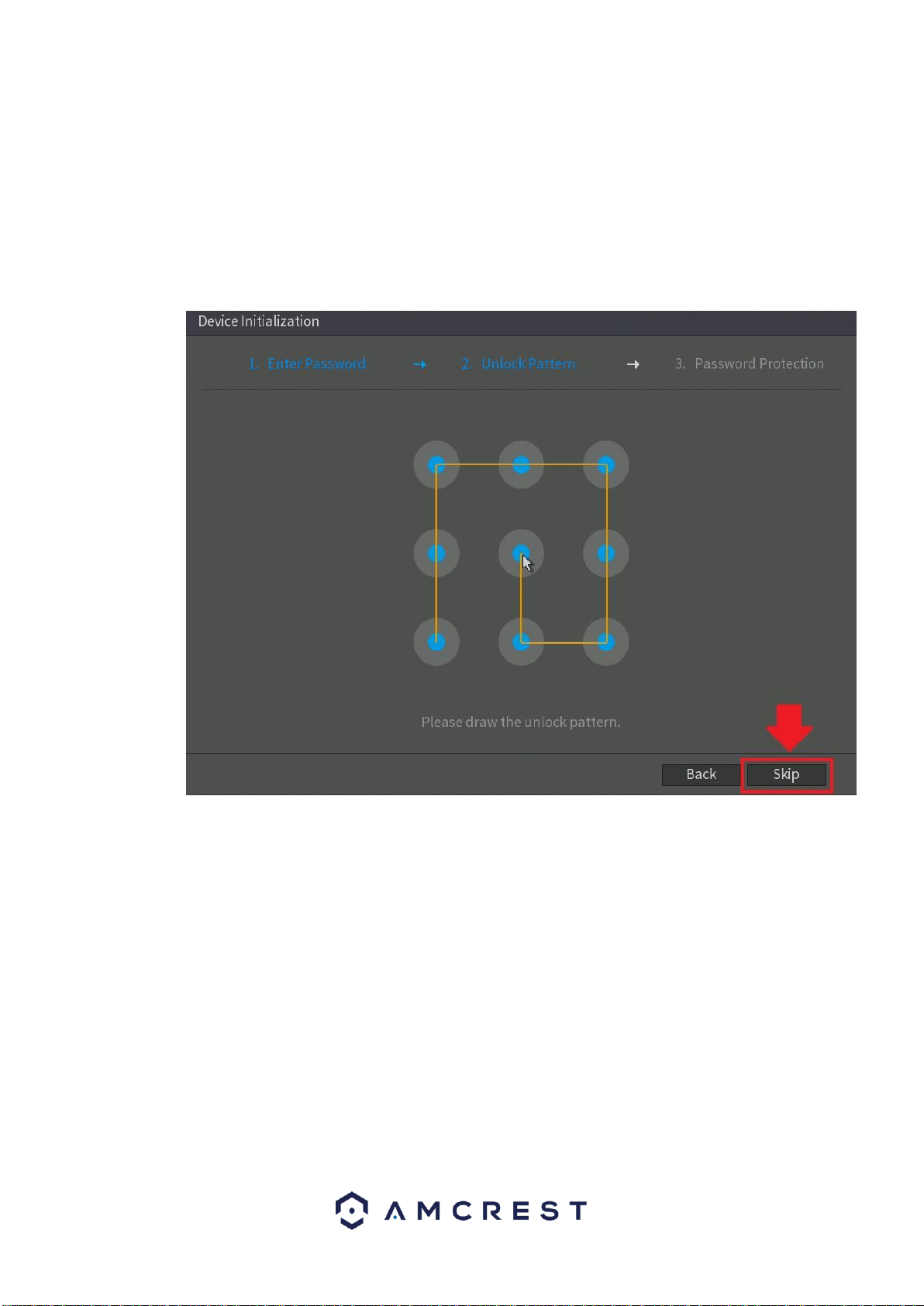
2. Unlock Pattern
This is an optional security measure for your
device. You can also assign an unlock pattern for
your admin account. To set an unlock pattern,
using your mouse, draw a design which you will
remember to access your device. If you do not
wish to assign an unlock pattern, you can click
“Skip” to skip this process.
If you have assigned an unlock pattern, you will need to draw the pattern
again to confirm the validity of your assigned unlock pattern.
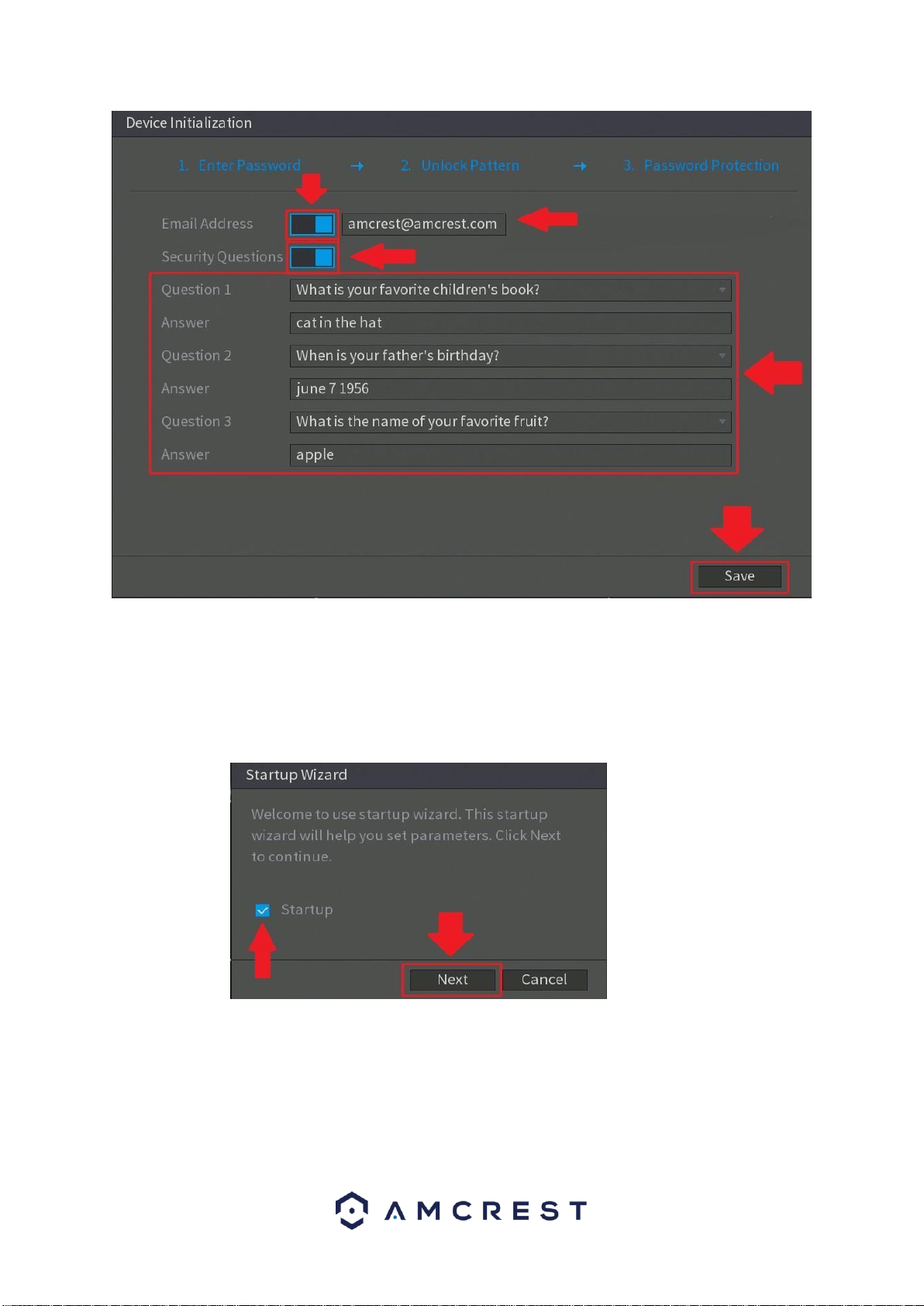
3. Password Protection
Another means of password retrieval can be set up in this menu. If you
would like to reset your password via email, toggle the toggle switch to the
on position and enter a valid email address in the Email Address field.
The email address will be retained in the system.
If you do not wish to use an email address, you can enter security questions.
To enable security questions, toggle the toggle switch to the on position in
the Security Questions field. Select a question from the drop-down menus
for Question 1, Question 2, and Question 3 and enter the answers to
those questions in the Answer fields.
14
Once this section is complete, click on the Save button to save your
information to the device.
Startup Wizard walkthrough
The first page of the Startup Wizard will appear:
If you do not want to use the Startup Wizard, or you’ve already gone
through it and don’t want it to keep appearing, unmark the checkbox
next to Startup and click Cancel.
Note: Every page from the Startup Wizard that follows can be accessed and
modified at any time through the Main Menu.
To login to the system for the first time, click Next
15
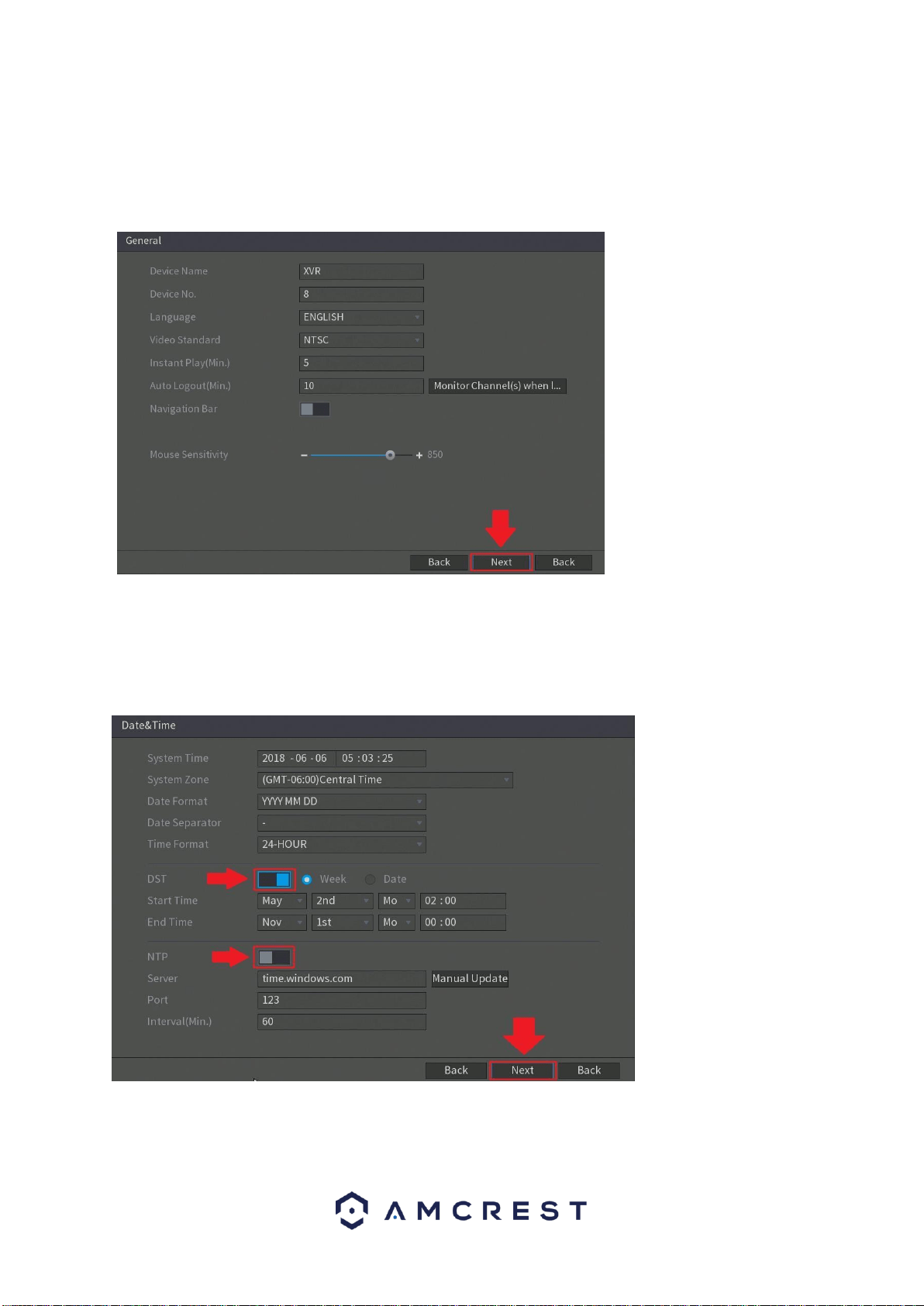
General Settings
The next screen that comes up is the GENERAL settings screen. Once you
are satisfied with the settings on this screen, click the Next button at the
bottom of the screen.
The next screen that appears will be the Date & Time settings screen. This
is where you can set the date and time for your specific location. If you
wish to utilize daylight savings time, toggle the DST toggle switch to the on
position. Once you have selected the proper date and time for your device,
click the Next button to continue.
Note: Make sure to toggle the NTP toggle switch to the off position to
avoid syncing your device to the NTP server.
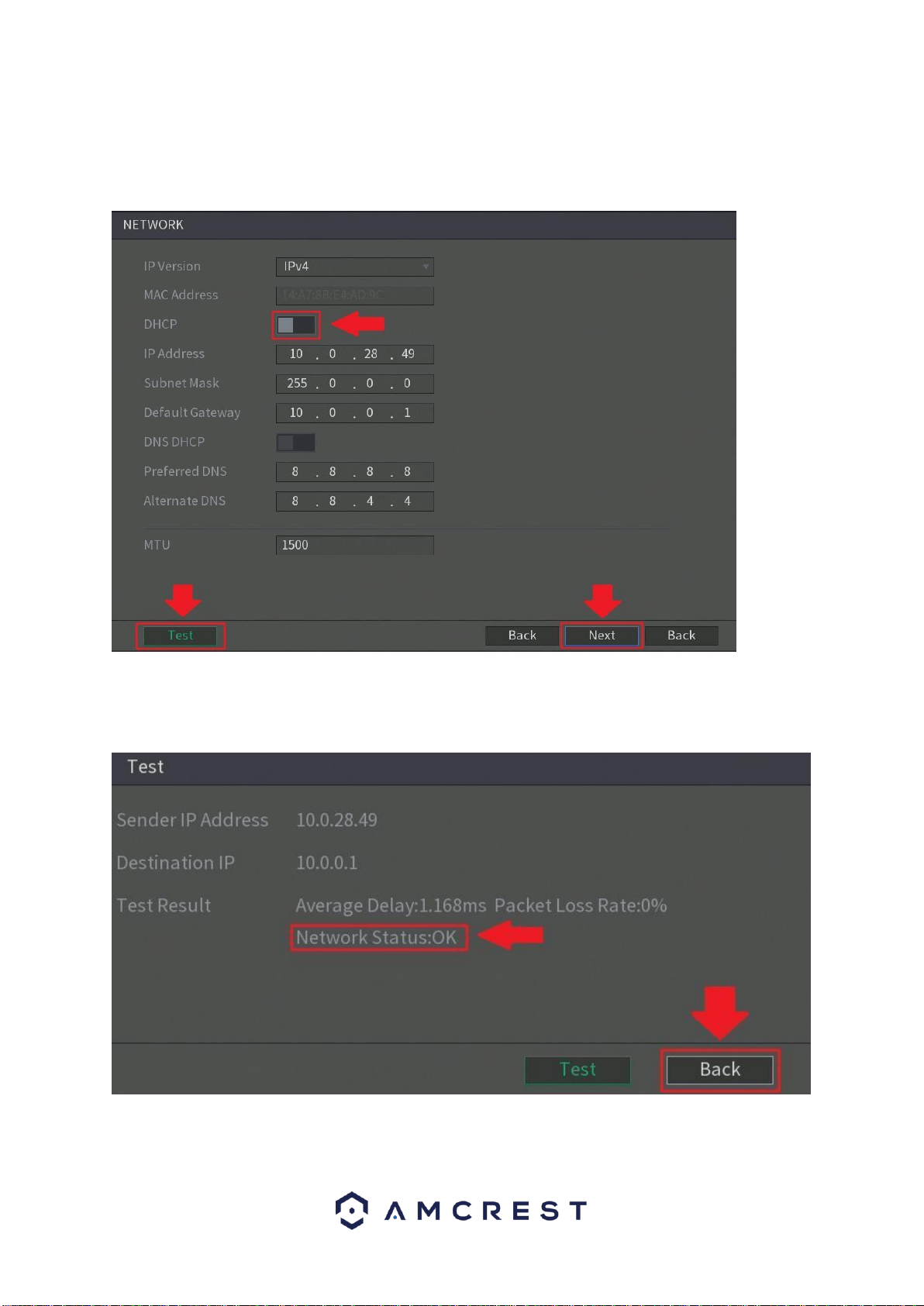
16
The next screen that will appear is the Network settings screen. In this
screen you can configure the network settings. If you want to set your
device up to have a static IP, toggle the DHCP toggle switch to the off
position.
Note: To test the connectivity of the device to your network, click on the
Test button. The device will return a network status. To return to the
previous menu, click the Back button.
The next screen that appears is the P2P settings screen. This will be
enabled by default. It is highly recommended to keep this enabled if you
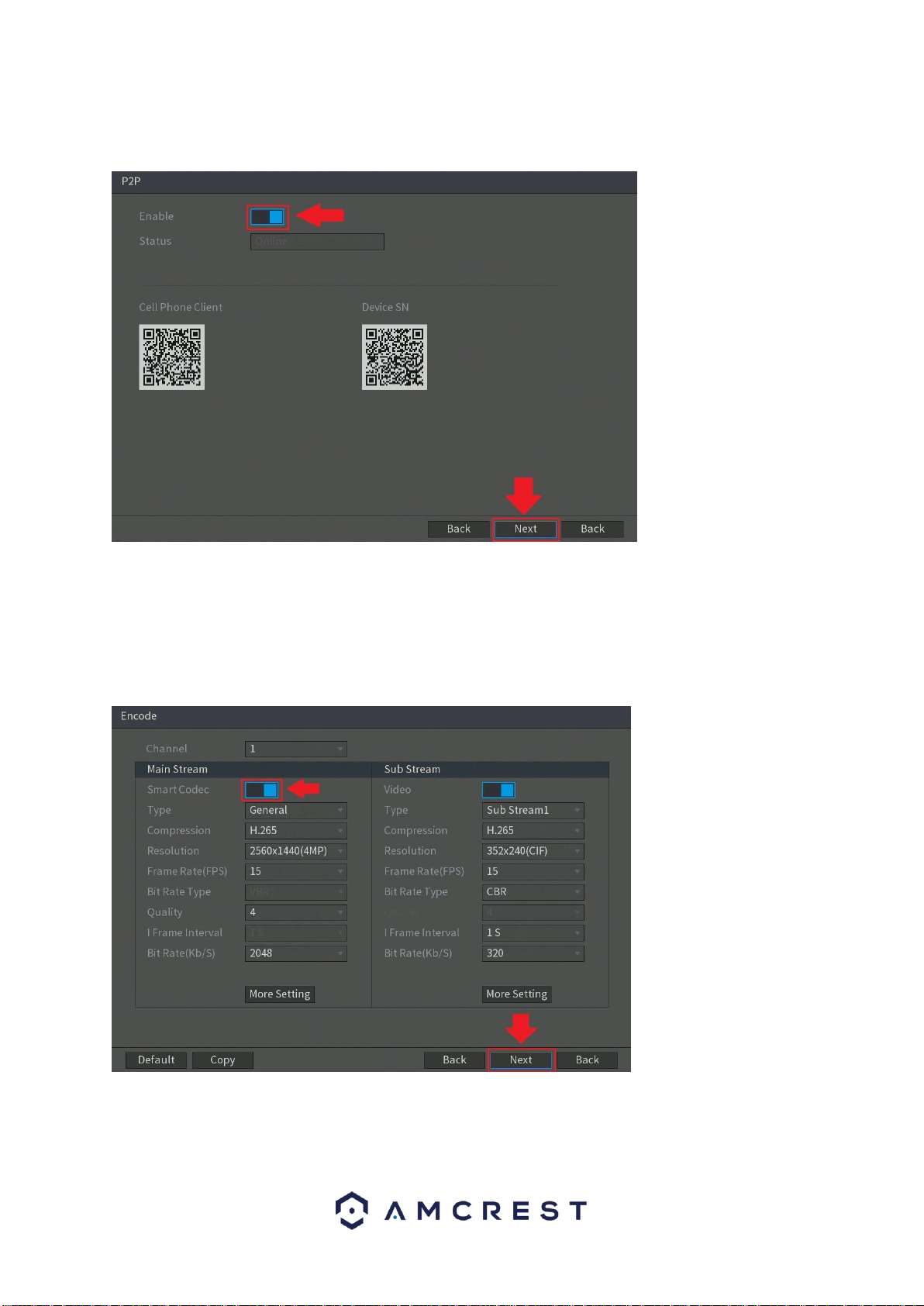
17
want to use you’re the Amcrest View Pro mobile app or AmcrestView.com
to view your cameras remotely.
After enabling the P2P toggle switch, click the Next button to continue.
The next screen that appears is the ENCODE settings screen. This is
where you can adjust the video quality settings for your DVR/cameras,
including the compression and frame rate. To access or adjust audio
formats, click on the More Setting tab.
After adjusting the encode settings for your device, click on the Next button
to continue.
18
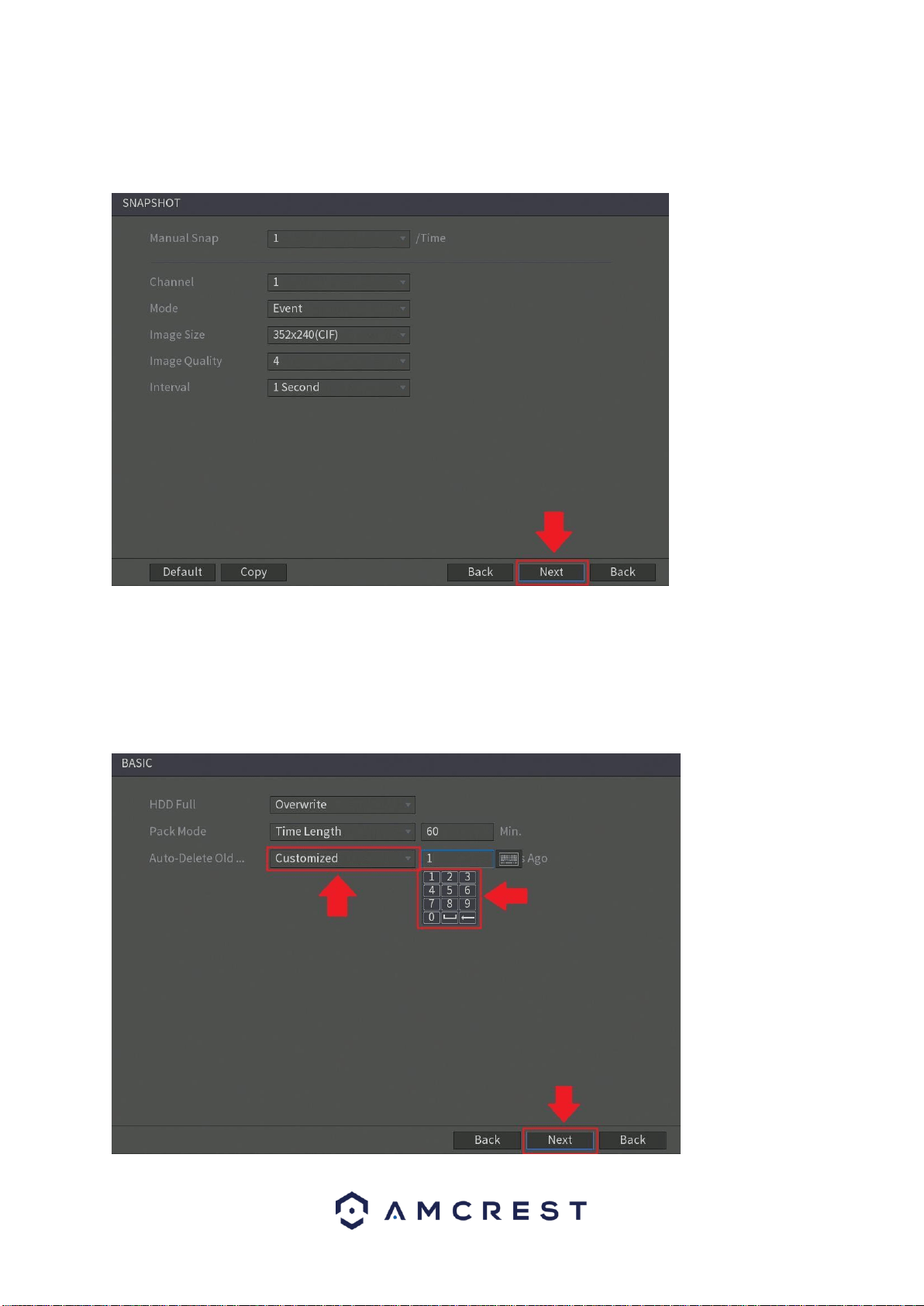
The next screen that will appear will be the Snapshot settings screen.
This is where you can adjust the settings for your snapshots. This
includes, the image size, quality, as well as interval in which the snapshot
is retained. Once set, click on the Next button to continue.
The next screen that will appear will be labeled Basic. This is where you
can configure your hard drive settings including, when to overwrite a full
hard drive or customizing an auto-delete option. The auto-delete option
pertains to old files and how long you would like that data to remain on
your hard drive. This is measured in days and is set with a built-in
number pad.
19
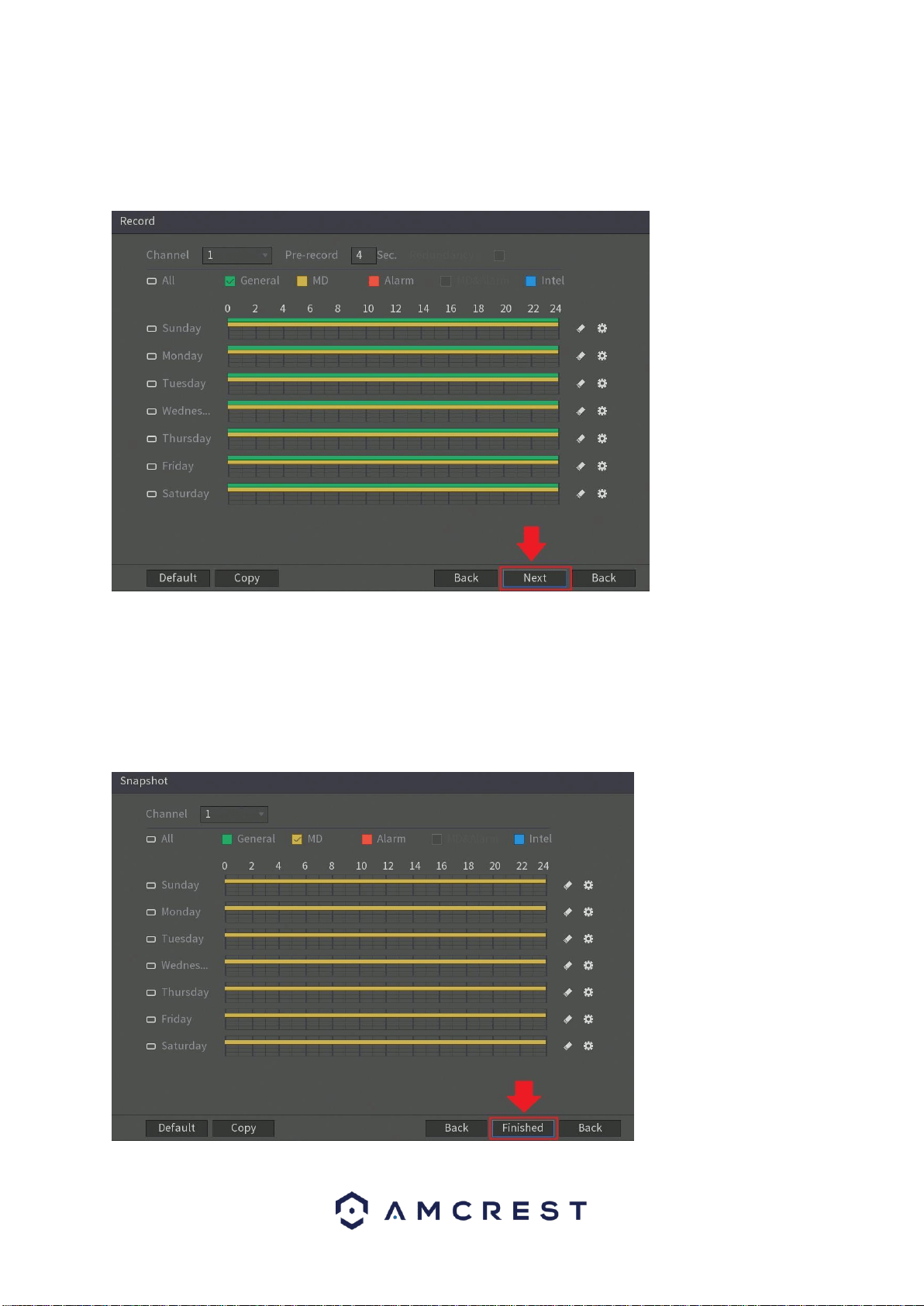
The next screen you see is the Record settings screen. Your DVR is
configured, by default, to record everything on all channels 24/7 (this will
only actually happen provided you have a hard drive installed). You can
also use this screen to set up motion detection and alarm schedules.
Once you are satisfied with the settings on this screen, click the Next button
at the bottom of the screen.
Next you will be able to configure your snapshot settings for your
scheduled recordings. You can also use this screen to set up motion
detection and alarm schedules for snapshot events. Once you have
scheduled your events, click on the Finished button to continue.
20
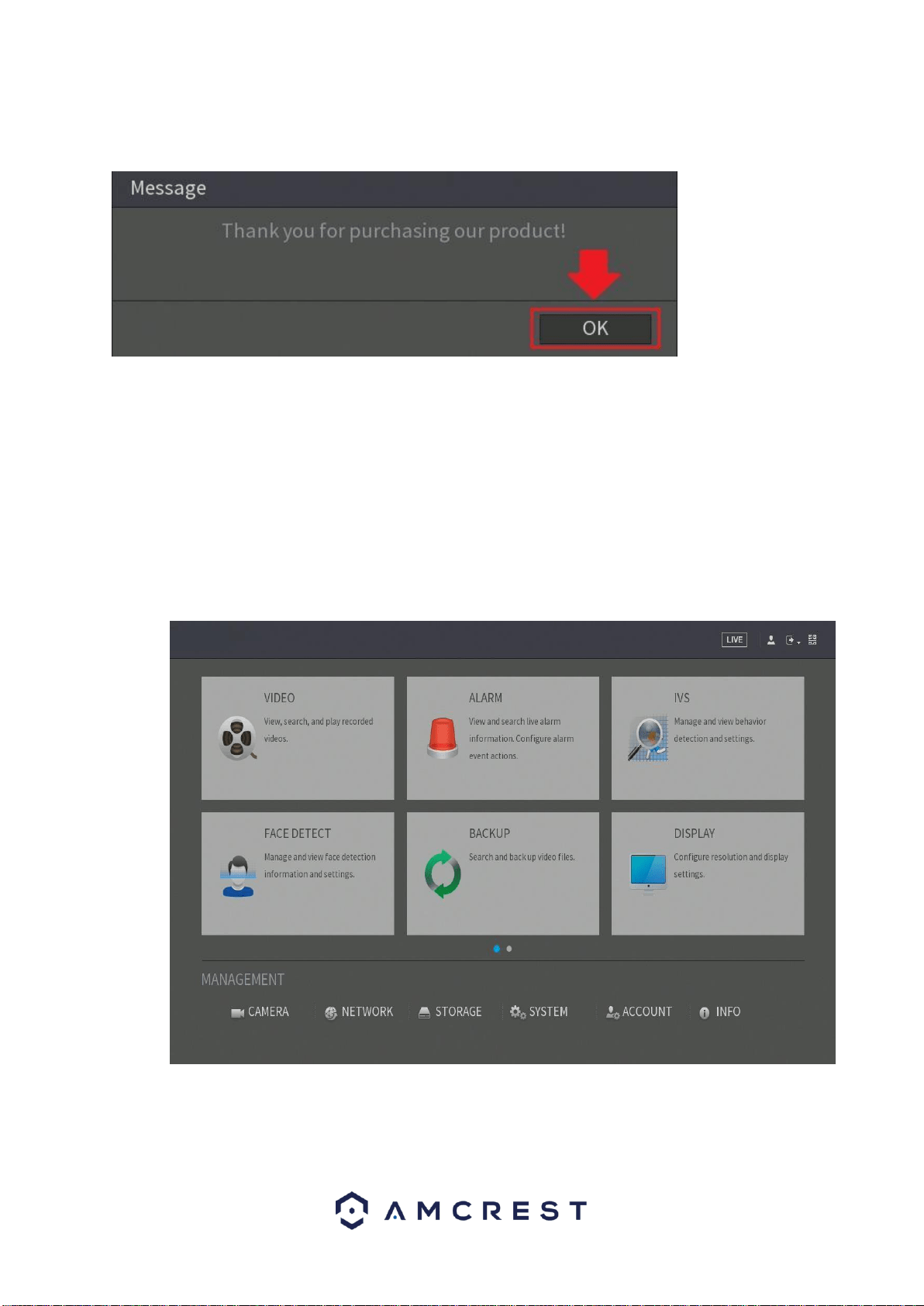
Once the setup process is finished and you have clicked the “Finished”
button, you should see the below dialog box:
Click OK to continue and the next screen you will reach will be the home
video wall screen for your system.
Before following this guide to the next step, that covers the main menu, you
will need to left-click once or right-click and select ‘Main Menu’ from the
right-click menu.
Main Menu overview
The screenshot below is the main menu screen for the Amcrest DVR console
interface:
Below are short descriptions for each of the menu items on the main
menu:

21
VIDEO: Search and playback recorded video that is stored on
the hard drive. ALARM: View and configure live alarm
information and notifications sent by the device.
IVS: Manage and set IVS and intelligent detection settings (if
applicable).
FACE DETECT: Manage and view face detection information and
settings (if applicable).
BACKUP: Search and backup video data via a external USB
or flash drive. DISPLAY: Configure resolution and display
output settings.
Management
CAMERA: Review or edit settings for each camera, including video
settings (e.g. quality, bit rate, color, etc.).
NETWORK: Review or edit network settings for the DVR (e.g. email,
DDNS, UPnP, etc.) STORAGE: Review or edit storage parameters and
settings. (e.g. motion detection, alarm, etc.). Set HDD detection as well
as setup FTP settings.
SYSTEM: Review or edit system parameters or configuration, including
system maintenance, factory resets and firmware upgrades.
ACCOUNT: Review admin accounts and add new users to device. (e.g.
ONVIF users).
INFO: Review system, log, network, HDD and channel information (e.g. Bps and
connectivity)
5. Motion Detection & Recording Setup
This section will cover how to set up your DVR’s scheduled recordings
for both regular and motion detection recordings. It will also cover how
to set up email alerts with snapshots.
Note: The DVR can only be set up to save regular and motion
detection recordings if a hard drive has already been installed.
However, email alerts with snapshots can still work without a hard
drive installed.
A hard drive is included with every DVR ‘kit’ purchased. You can confirm
this by looking at the packaging. If bought as a standalone DVR, a hard
drive will need to be purchased separately. Once purchased separately,
for hard drive installation instructions, please refer to part 3 of this guide.
The following setup processes will be shown using the DVR console’s
built-in interface. However, these same steps can also be done through
the web interface on a computer. Despite the difference in appearance,
the settings pages have the exact same organizational structure.
Setting up recording schedules
1. Log into your DVR with your username and password:
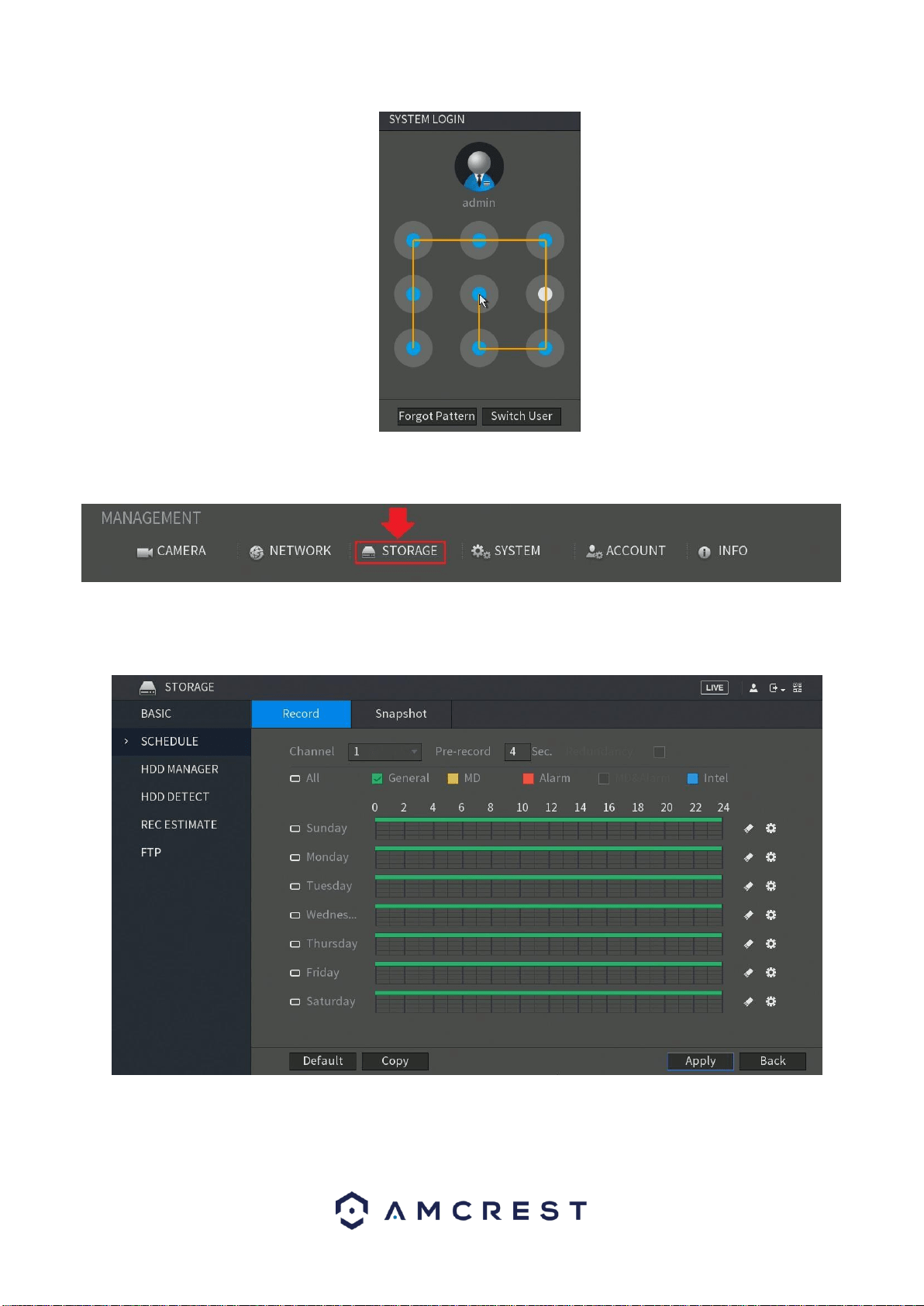
22
2. Open the MAIN MENU, then click STORAGE in the
MANAGEMENT row:
3. Make sure you are on the SCHEDULE > Record page.
This is where you can configure the times and days you would
like different kinds of recordings to happen.
4. To choose a channel (or camera) for which to configure
the recording schedules, click the number next to Channel, then
select either a single channel or All:
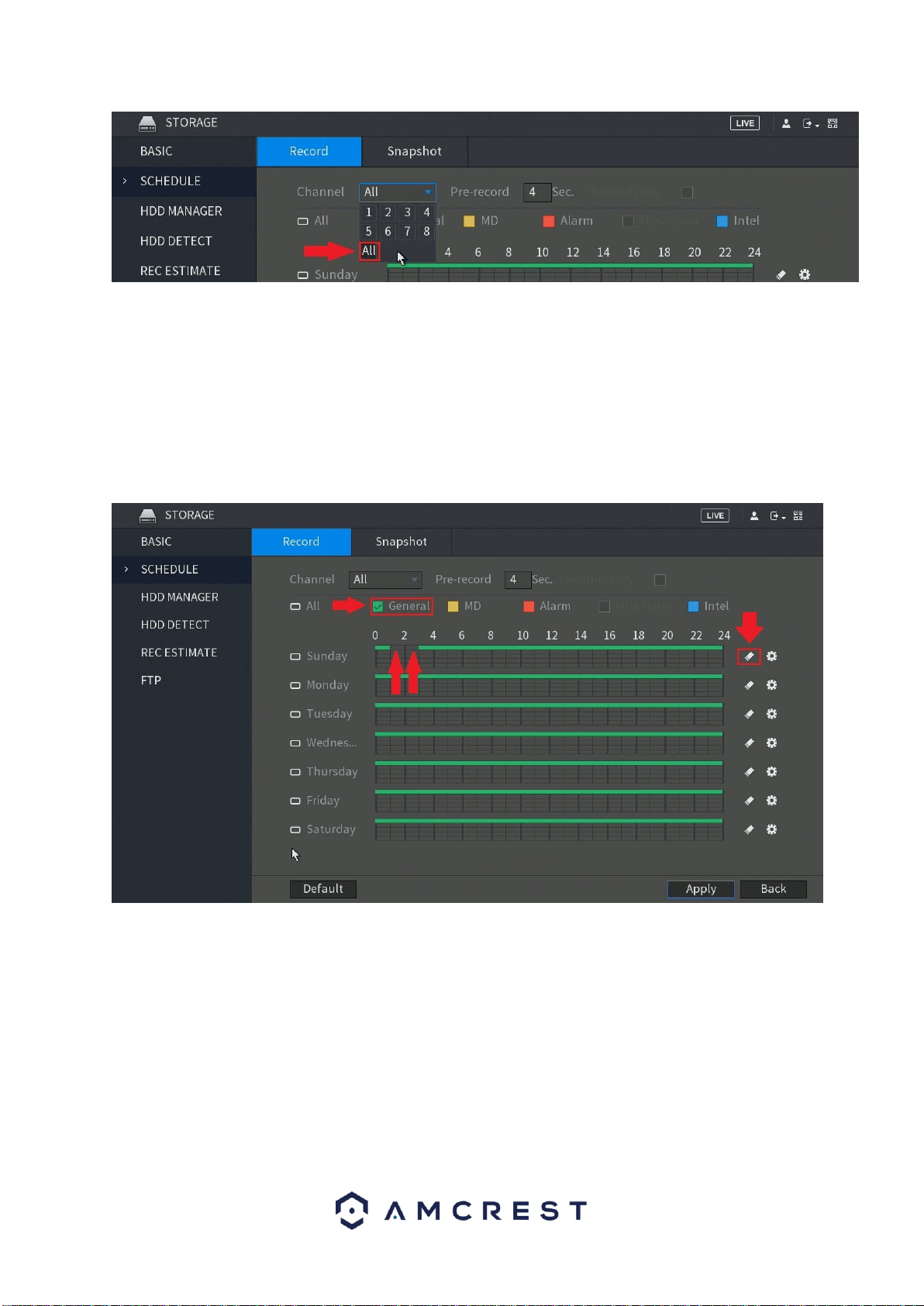
23
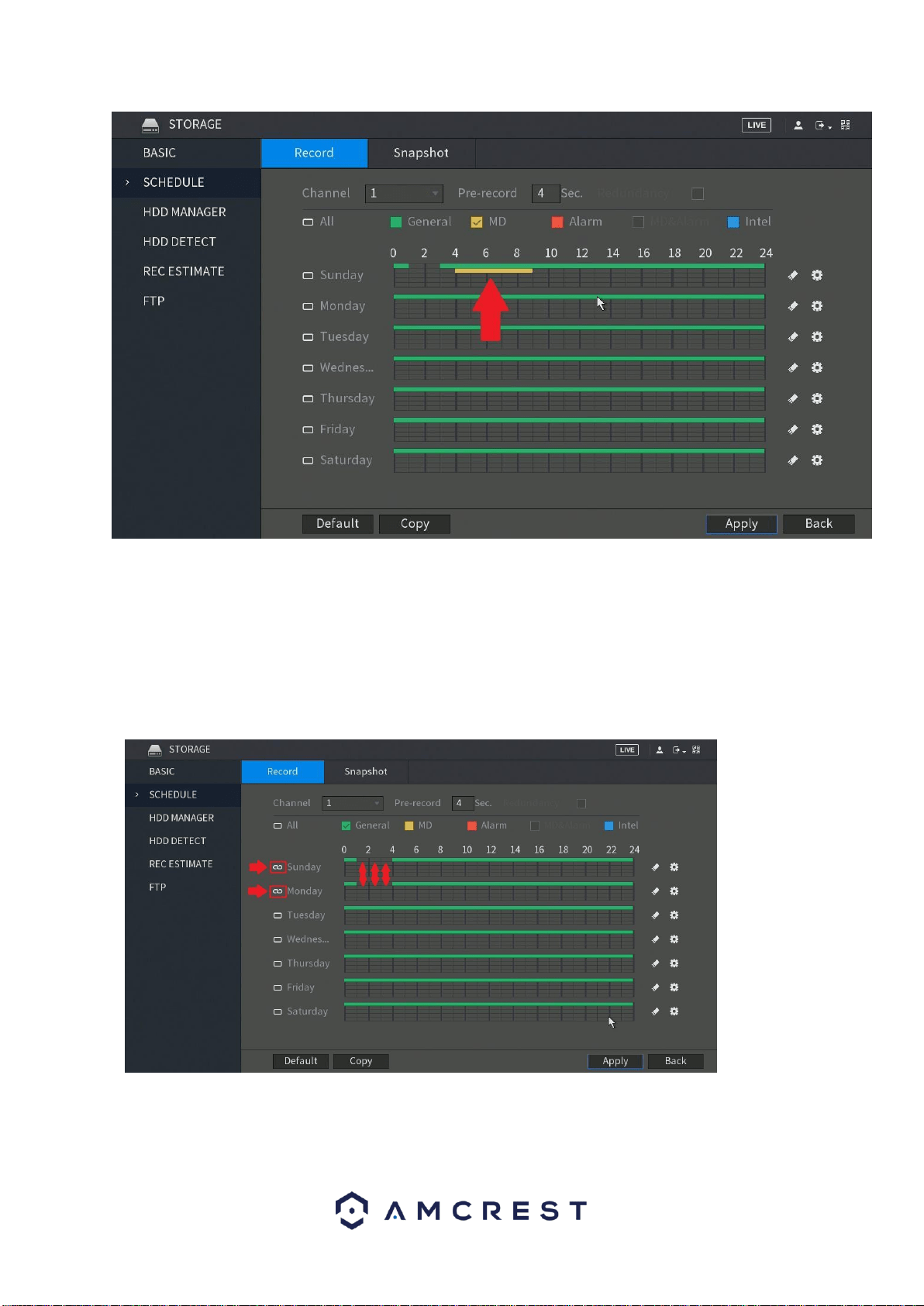
5. By default, the DVR will have the schedule configured
to record regularly 24/7. Notice the green bars going across
each day of the week. Also note that the DVR uses military time,
that is, from 0 to 24 instead of from 12 a.m. to 12 a.m.
To change which hours, you would like the DVR to record, make
sure the GENERAL checkbox is checked, then click the blocks
in the grid. You can also click and drag to add or remove
multiple block at a time. Each block represents one hour:
Click the eraser icon to the right of any day to clear the entire
row of all green blocks.
6. To add or remove motion detection blocks to the grid,
mark the checkbox next to MD, then click individual cells or click-
and-drag for multiple blocks:
24
7. To the left of each day, there are small boxes which can
be marked to “link” different days together. This is useful if you
want to save time by instantly making changes to multiple days
simultaneously.
In the below example, Sunday and Monday are linked, so any
blocks that are added or removed for Sunday will automatically
and immediately reflect the same for Monday and vice versa:
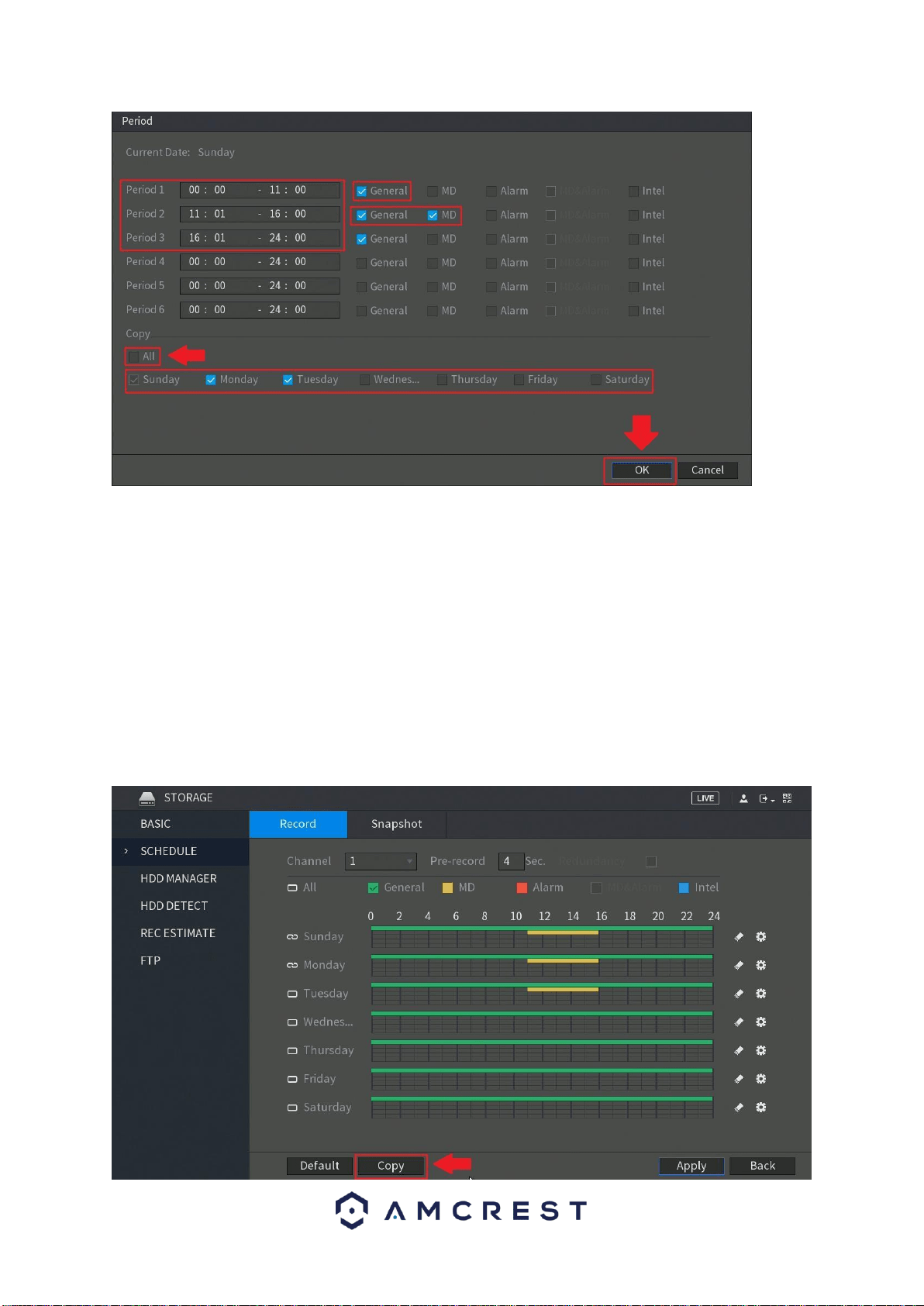
8. Another way to configure recording schedules is by
using setting the time periods. Click the ‘gear’ icon to the far right
of any day to open the Period page:
25
Here, the periods (Periods 1 - 6) must be in specified in
chronological order. You can set either General, MD, or both
with the checkboxes to the right. You can also copy the period
settings over to other days by checking them individually or
checking All. Make sure to click OK when finished.
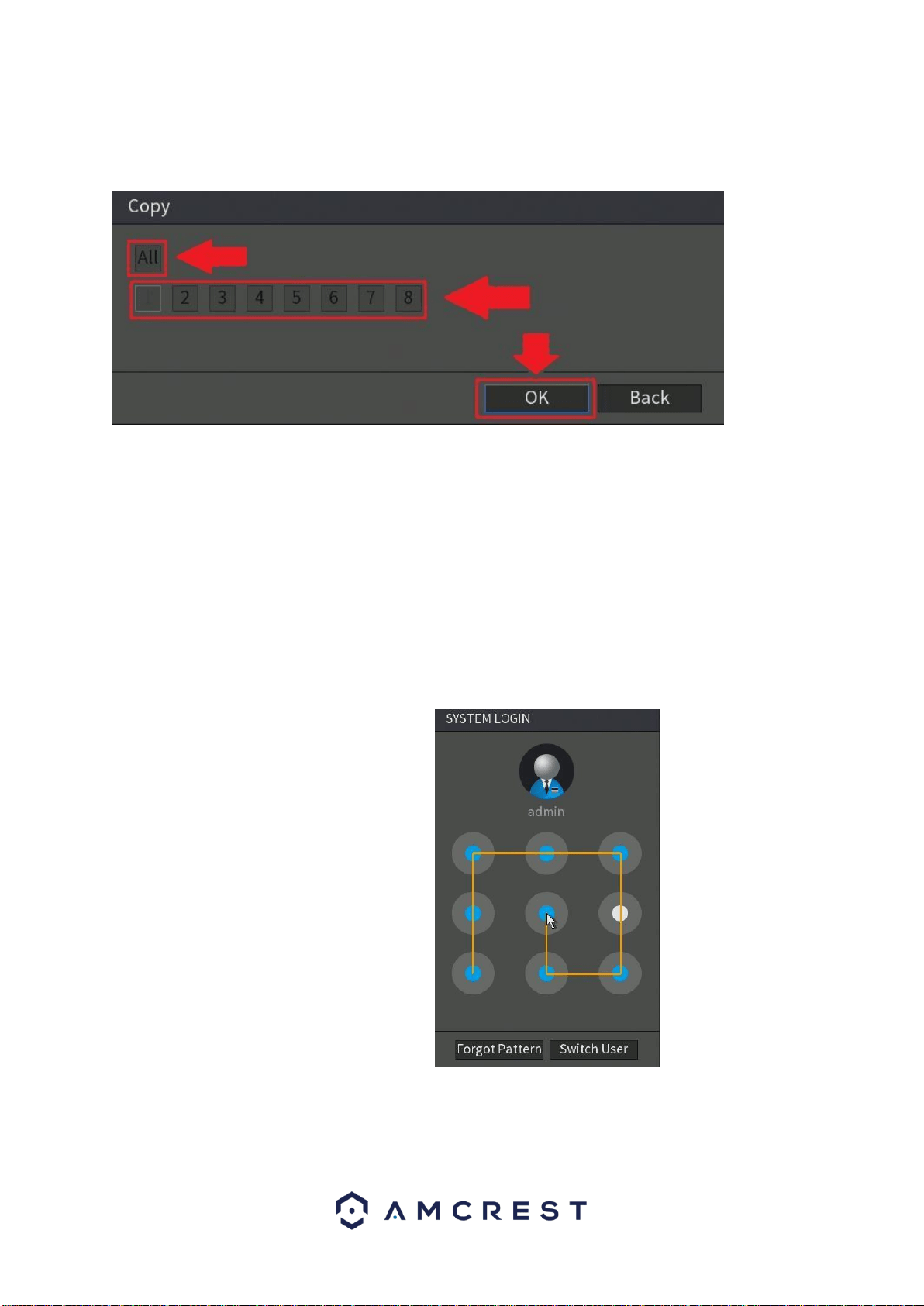
9. Now that you’ve finished configuring the recording
schedules, you may need to copy these settings over to another
channel (or camera). By default, Channel 1 will be selected
when you visit this page. Unless you immediately selected All in
the channel window from step 4 above, note that you can copy
these settings directly over to another channel by clicking Copy
down below:
26
In the Copy window, you can select individual channels for any
cameras you have added to the DVR or select All:
Click OK when finished.
10. When finished on this screen, click Apply to save your
changes.
Setting up motion detection and email alerts
Your DVR will save motion detection recordings, in addition to
scheduled ‘regular’ recordings and distinguish between the two in the
playback menu.
1. Log into your DVR with your username and
password:
2. Open the MAIN MENU, and click the ALARM tab.
27
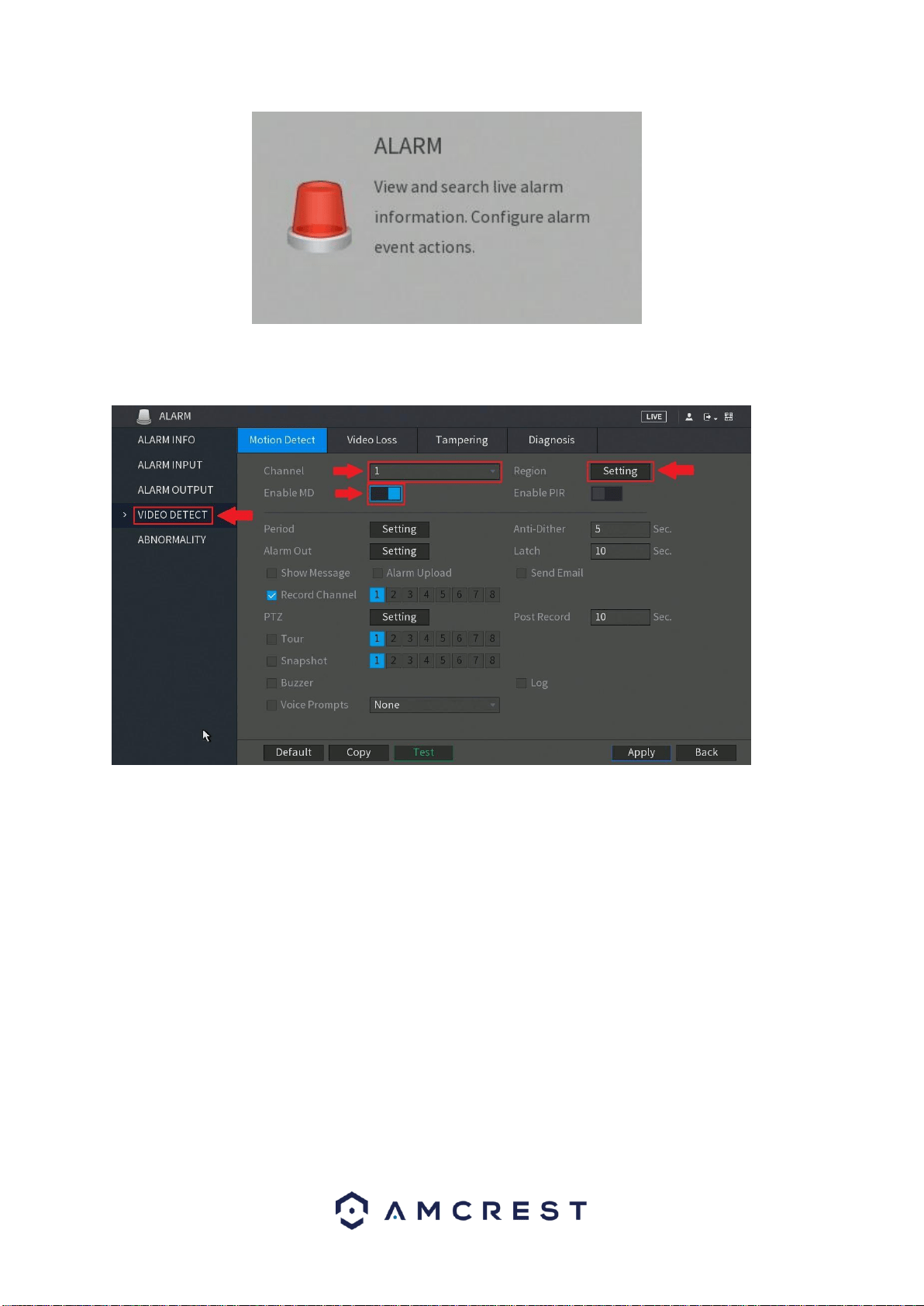
2. In the alarm menu, click on VIDEO DETECT.
This is the main configuration page for motion detection:
Change your channel (or camera) by clicking Channel and
selecting from any cameras currently added to the DVR. You
can also select All. Make sure the Enable toggle switch is
activated. Then, click Setting to Region to configure the motion
detection areas.
3. You can set up ‘regions’ for motion detection
using the region grid on your DVR.
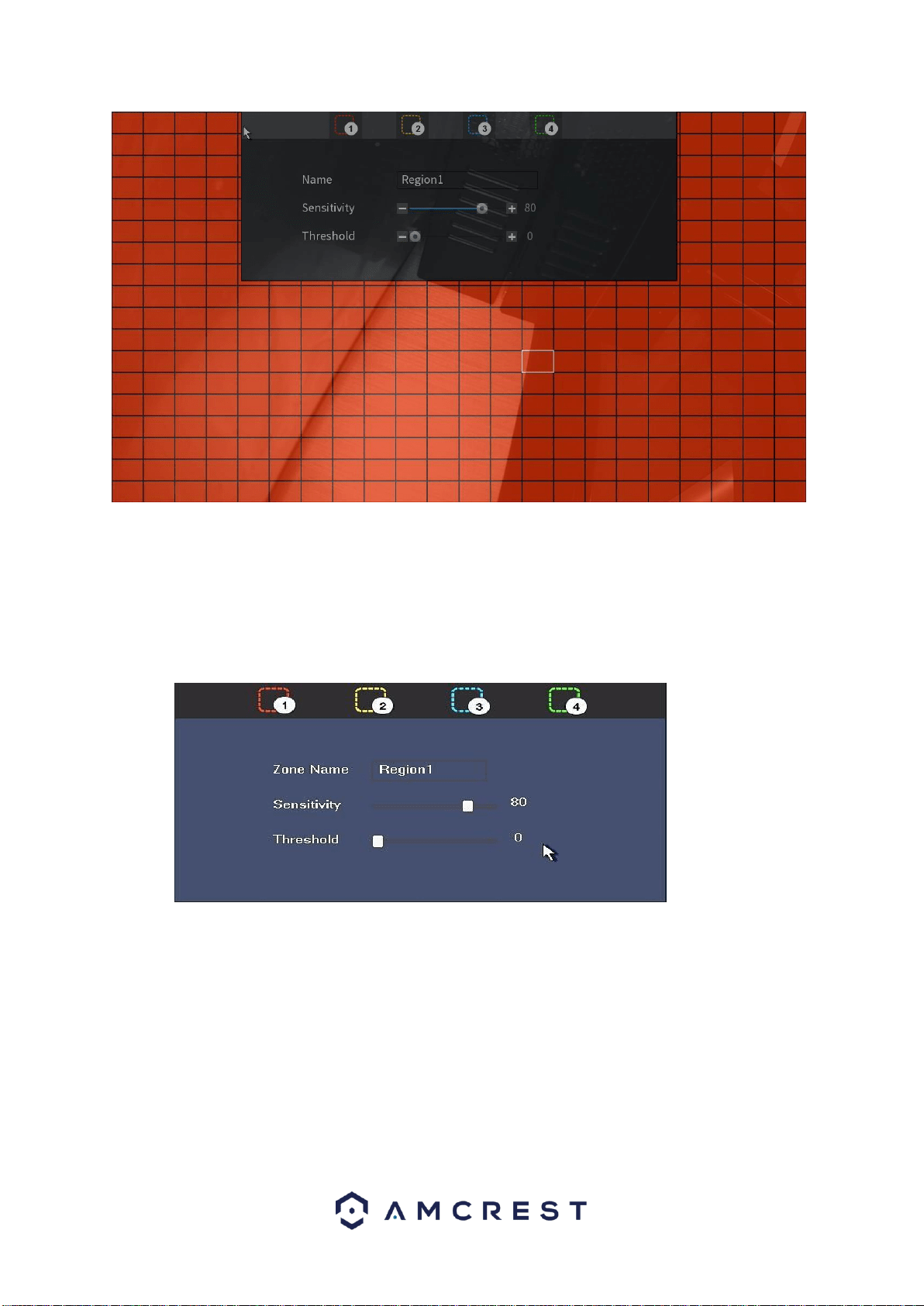
By default, the entire area of view for your cameras will be
highlighted with red blocks. This means that the entire field of
view is active for motion detection:
28
Any red blocks that you click or click-and-drag to remove will not
be active for motion detection. Motion detection will not work for
any portion of the screen that is clear.
If you hover your mouse pointer over the top-center edge of
this window, another small window will appear with options to
configure sensitivity and threshold settings as well as to
choose from up to four regions.
Sensitivity - is the measure of how many pixels on the screen
need to change before being considered motion. 0 is the lowest
value and 100 is the highest.
In plain English: Sensitivity is the difference between a
squirrel running up a tree, versus a big dog running up to and
barking at that tree. A squirrel would trigger motion detection
at a higher sensitivity because it takes less change or
movement to qualify as motion. But the dog would trigger
motion detection at a lower sensitivity because it takes more
change or movement to qualify as motion.

29
Threshold - is the degree of movement that needs to occur
before the motion is defined as a motion event and is
triggered. 0 is the lowest value and 100 is the highest.
In plain English: Threshold is the difference between a car
driving quickly by on a street and a car driving into the field of
view, slowing down, and turning into a driveway. The car
driving past would not trigger motion detection based on a
certain threshold setting, but the parking car would trigger
motion detection with that same threshold setting. The higher
the threshold, the more time motion needs to occur before
motion detection is triggered. The lower the threshold, the
less time motion needs to occur before motion detection is
triggered.
If sensitivity is set to 100 and threshold to 0, motion detection
will be triggered most easily by almost any change in the field
of view, large or small. But if sensitivity is set to 0 and
threshold to 100, motion detection will be extremely difficult to
trigger.
The four regions are all different colors so you can customize
the field of view of any camera to your highly specific
preferences.
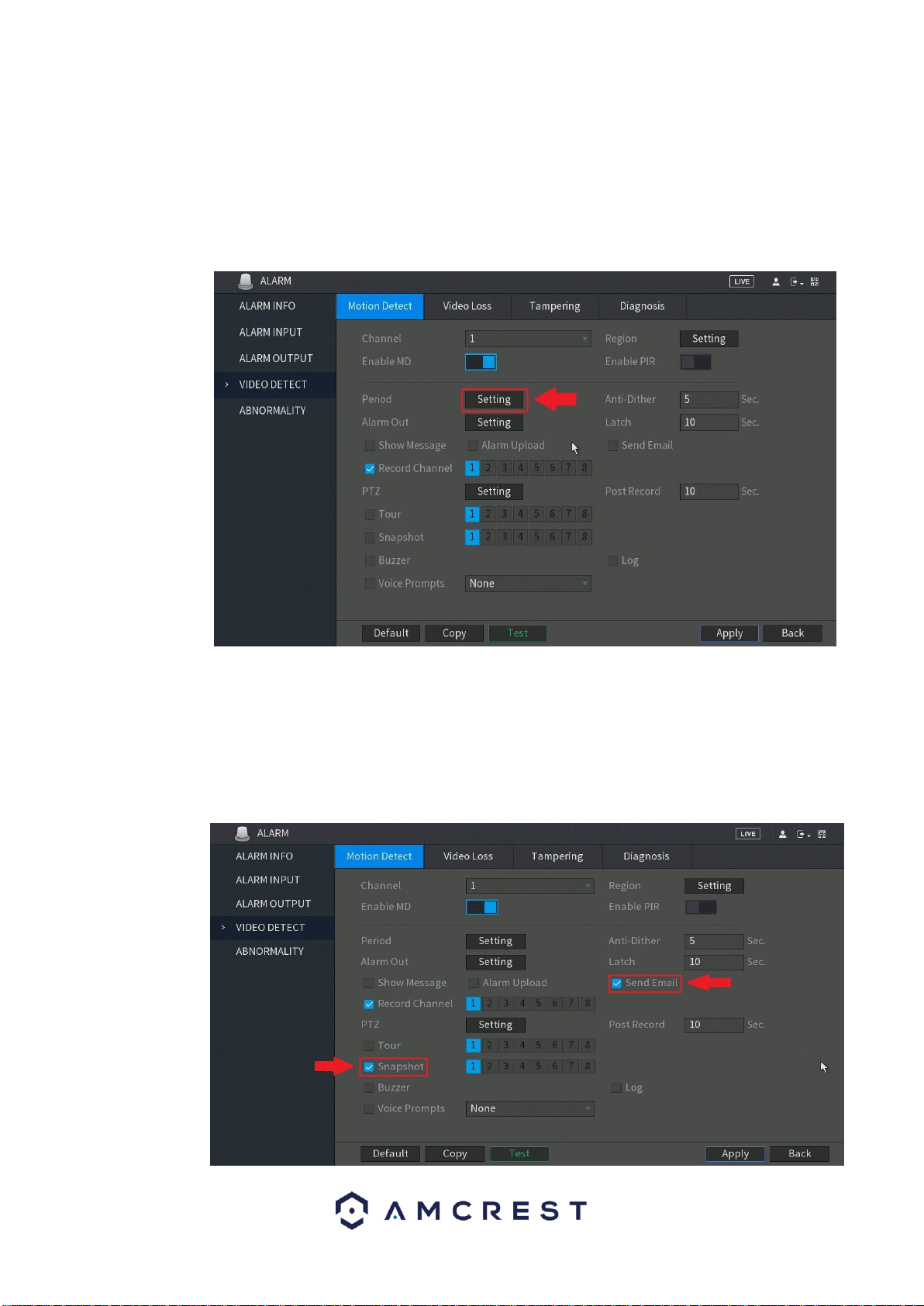
5. To choose another region, hover your mouse pointer
near the top-center of the region window, and a small window
will appear. Keep your mouse pointer inside that small window
and select either region 2, 3, or 4:
You will be able to click individual blocks or click-and-drag an
area with the new selected color to highlight portions of the
screen. Each new region (or color) has its own unique
30
sensitivity and threshold settings. The different regions/colors
can also overlap one another.
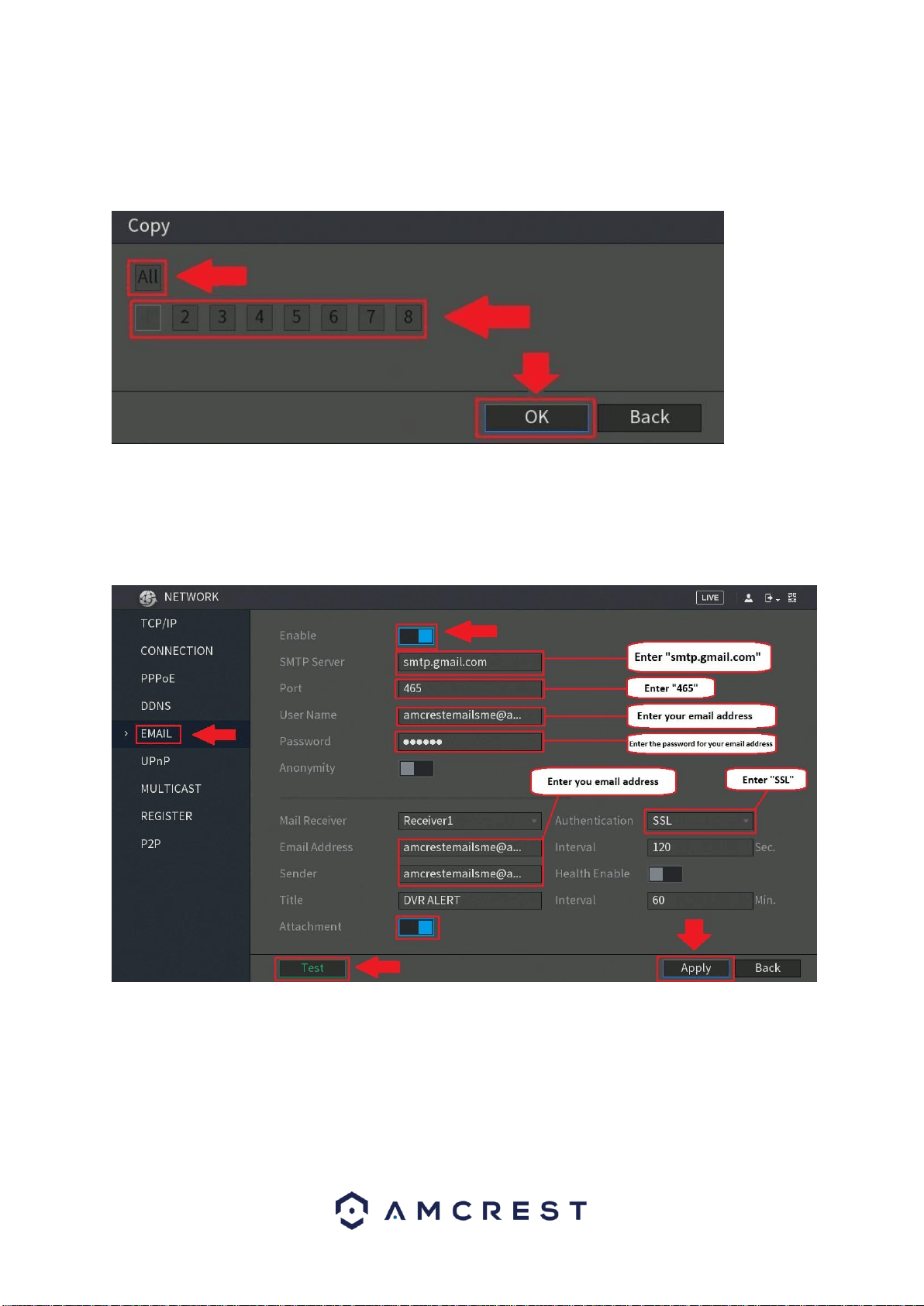
6. You can also adjust the motion detection schedules
directly from this settings page by clicking Setting next to
Period:
The Period Settings page works very similarly to the recording
schedule page featured in the previous section in part 5 of this
guide.
7. Next, if you want to receive email alerts with
snapshots from your motion detection events, check the boxes
for Send Email and Snapshot:
31
8. Once you have set up your settings for one channel,
you can copy them to another channel. If you did not select All
after clicking Channel as described in step 3, click Copy, select
channels to copy to, then click OK:
9. Click Apply to save all the settings made on this page.
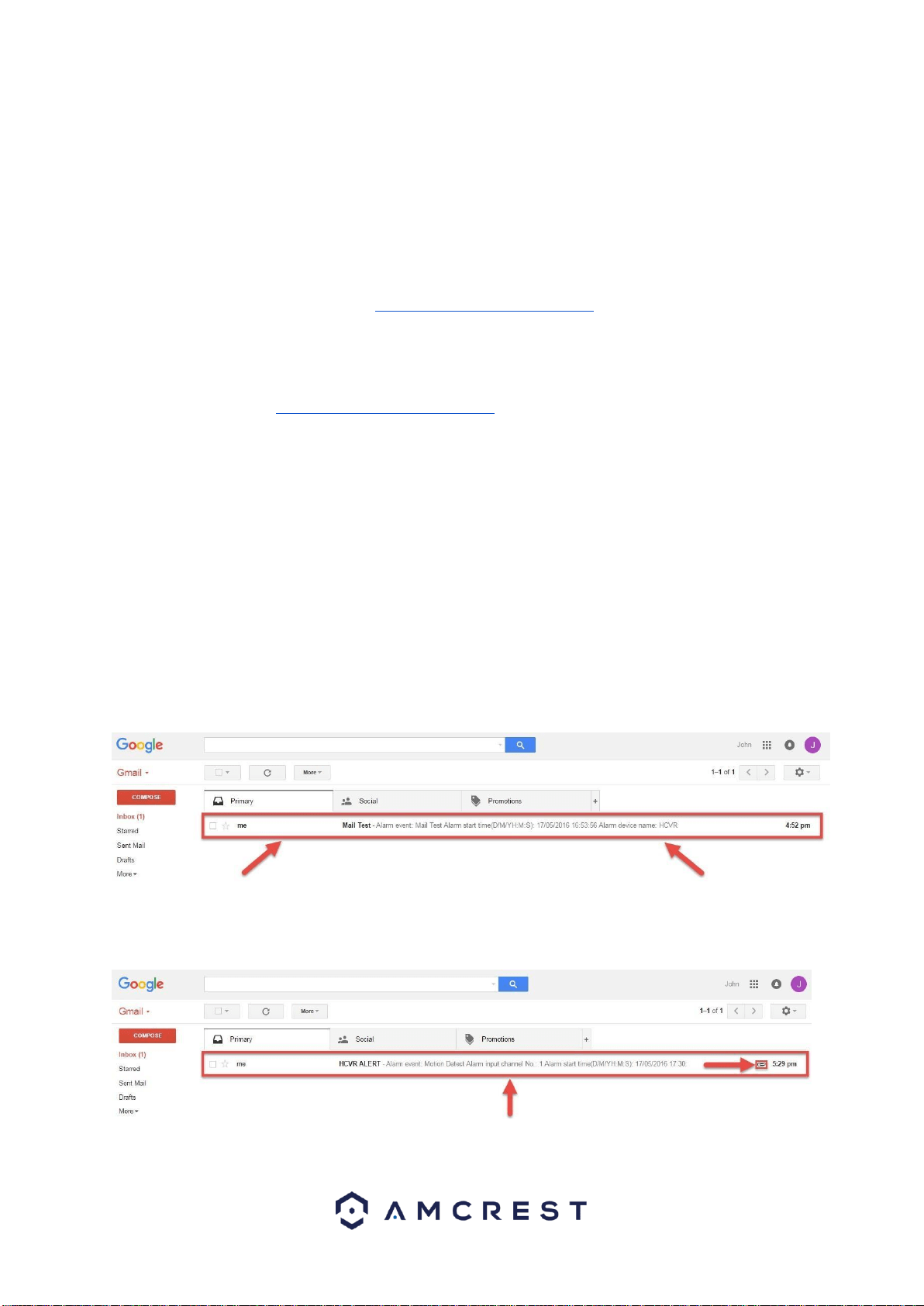
10. Next, go back to the main menu and click the
NETWORK tab on the bottom row. In the Network menu, click
on EMAIL from the left navigation panel:
The recommended method for this step is to create a new Gmail
account that is dedicated to sending you email alert snapshots
for motion detection. This is useful because, then, you don’t
have to change any of your own personal email’s settings. Using
a Gmail account is also the easiest way to set up email alerts
which could otherwise be somewhat technical and difficult.
This does not mean that you now must log into a second,
separate email account just to see your email alerts - because
32
this email will forward all your email alerts to your personal
email. Regardless, it is still recommended to save your email
and password information for this new Gmail account.
Start by making sure the Enable toggle switch is toggled to the
on position. Then, enter the SMTP Server which, for Gmail, is:
“smtp.gmail.com”. The port number will be: “465”.
In the Username field, enter your new Gmail account’s address.
For example: “amcreste[email protected]m”. Then, enter the
password for this account in the Password field.
In the Email Address field, enter your own personal email
account’s address. For example:
“amcrestemailsme@gmail.com”. In the Sender field, enter your
email address again.
Make sure the toggle switch for the Attachment is toggled to the
on position. Then, make sure the Authentication field is set to
“SSL”.
Finally, click Apply in the bottom-right of this window to save all
your settings.
13. Now, we want to make sure the email setup is working
properly. To do this, click Test in the bottom-left. If the setup was
successful, you will get the “Mail Test Normal” pop-up message
after clicking Test.
14. Next, check your new Gmail account to see if you
received the email test:
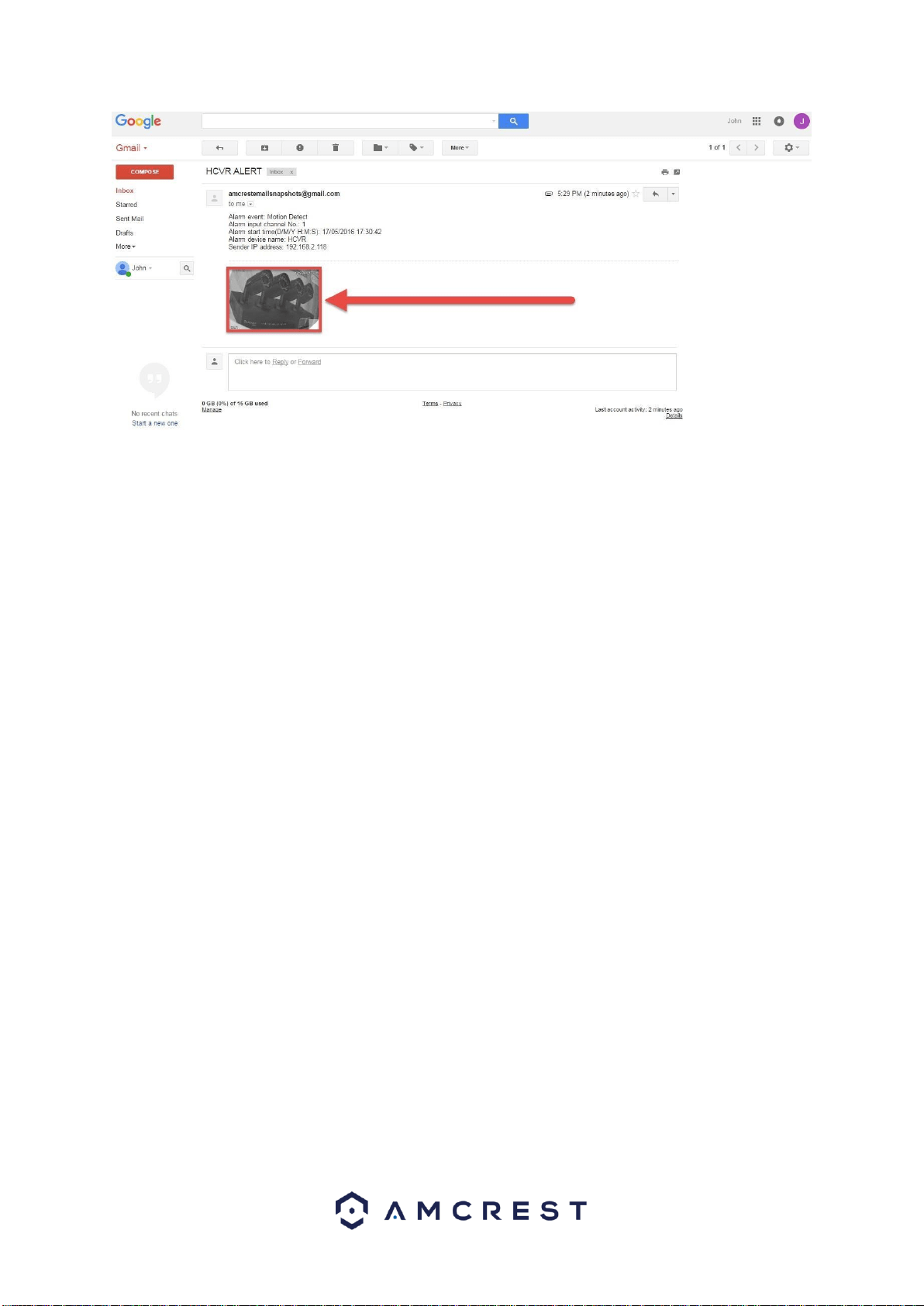
15. Now, whenever your camera detects motion, you will
get email alerts sent to your personal email from this new Gmail
account:
This will include an email with a snapshot of what was seen
when motion detection was triggered:
33
6. Computer Access Setup
There are 2 ways to access your DVR from a computer (laptop or
desktop) which are: locally or remotely.
Local Access: Logging into your DVR’s web interface from a computer
or laptop device connected to the same network as your DVR (home,
office, etc.).
Remote Access: Logging into your DVR’s web interface from a
computer or laptop device connected to a network outside of your home
or business network (coffee shop, work computer, etc.)
Local access is preferred by those who, for security reasons or personal
preference, do not wish to make their DVR accessible from outside their
network. However, there are several options available for remote access
that use standardized and secure network protocols including SSL, TLS,
DDNS, etc. Most other users require remote network access by way of
their smartphones, tablets, laptops, or computers, wherever they are.
The following section will cover both means of access (local and
remote). Keep in mind that any user can have both local and remote
access simultaneously if they so choose.
Before accessing your DVR through a web browser, the following two
steps must be completed:
1. You must access the DVR’s web interface with its IP
address.
2. You must install the Amcrest web browser plugin.
An IP address is just an identifier given to any devices that connect to a
network. People use names, but internet-connected devices use a set of
numbers called an IP address to talk to each other. Once you have the
IP address, your computer will be able to find and communicate with
your DVR.
34
A browser plugin is just like a translator. Using your DVR by itself,
without a computer (the builtin interface featured in previous parts of this
guide) is different than using it on your computer. By using the DVR on
your computer through a web browser, you need to introduce a new
piece of software that allows your computer to understand the language
that the DVR speaks in a way that a computer can understand. That’s
what the browser plugin is for.
There are 2 ways to access the DVR’s web interface: (1) Amcrest IP
Config Software method and the built-in interface method.
Please note: NPAPI plugins have recently been depreciated by both Google Chrome and
Firefox. To access the web user interface for your device, we recommend using Internet
Explorer or Safari. Google Chrome users can use the Google Chrome extension.
For more information on how to access your device using the Google Chrome extension,
visit amcrest.com/chrome
Amcrest IP Config Software method
Amcrest IP Config Software can be installed for free onto your computer
from Amcrest’s official website. The IP Config Software is available for
both Windows and Mac operating systems. To get directly to the
downloads page, use this link:
https://amcrest.zendesk.com/hc/en-us/categories/201939038-All-Downloads
Otherwise, the steps below will walk you through how to download,
install, and use Amcrest IP Config Software:
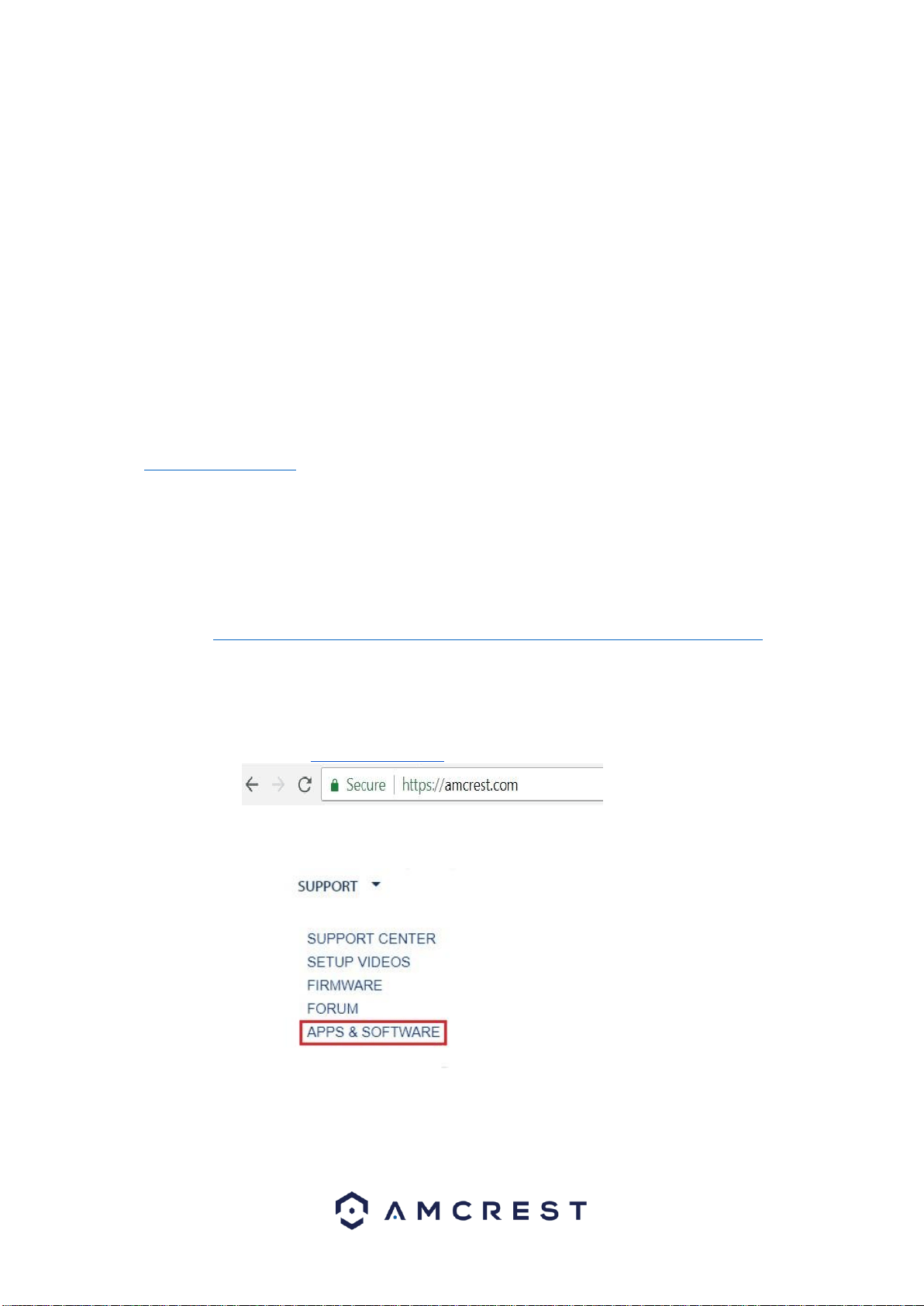
1. Log onto your computer, open your web browser of choice, and
go to www.amcrest.com:
2. Then, hover over the Support tab up top and choose Apps &
Software from the dropdown.
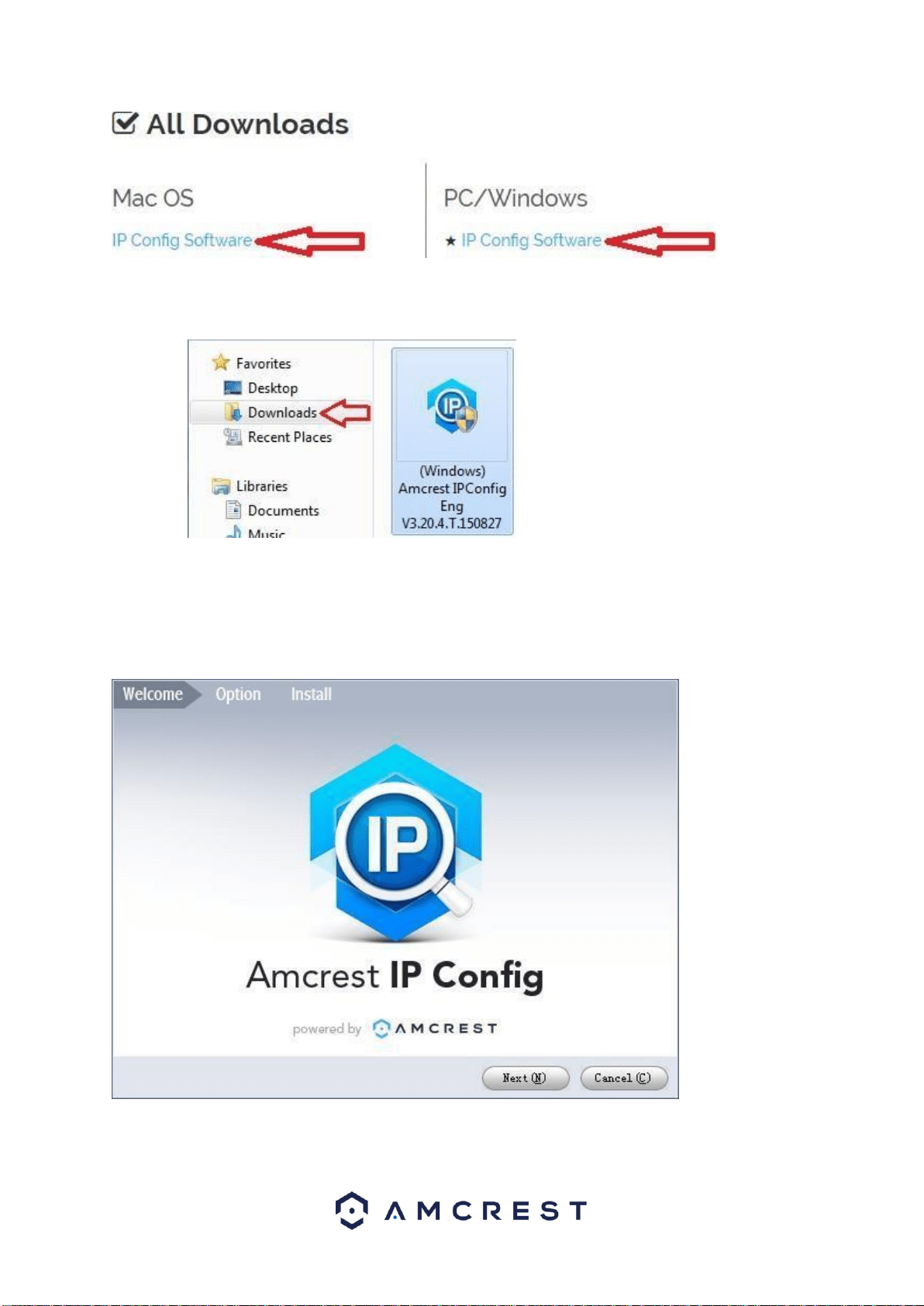
3. This brings you to the downloads page. Click the IP Config
Software download link on this page for either Windows or Mac.
35
4. Find the download in your Downloads folder and click it to open
the installer.
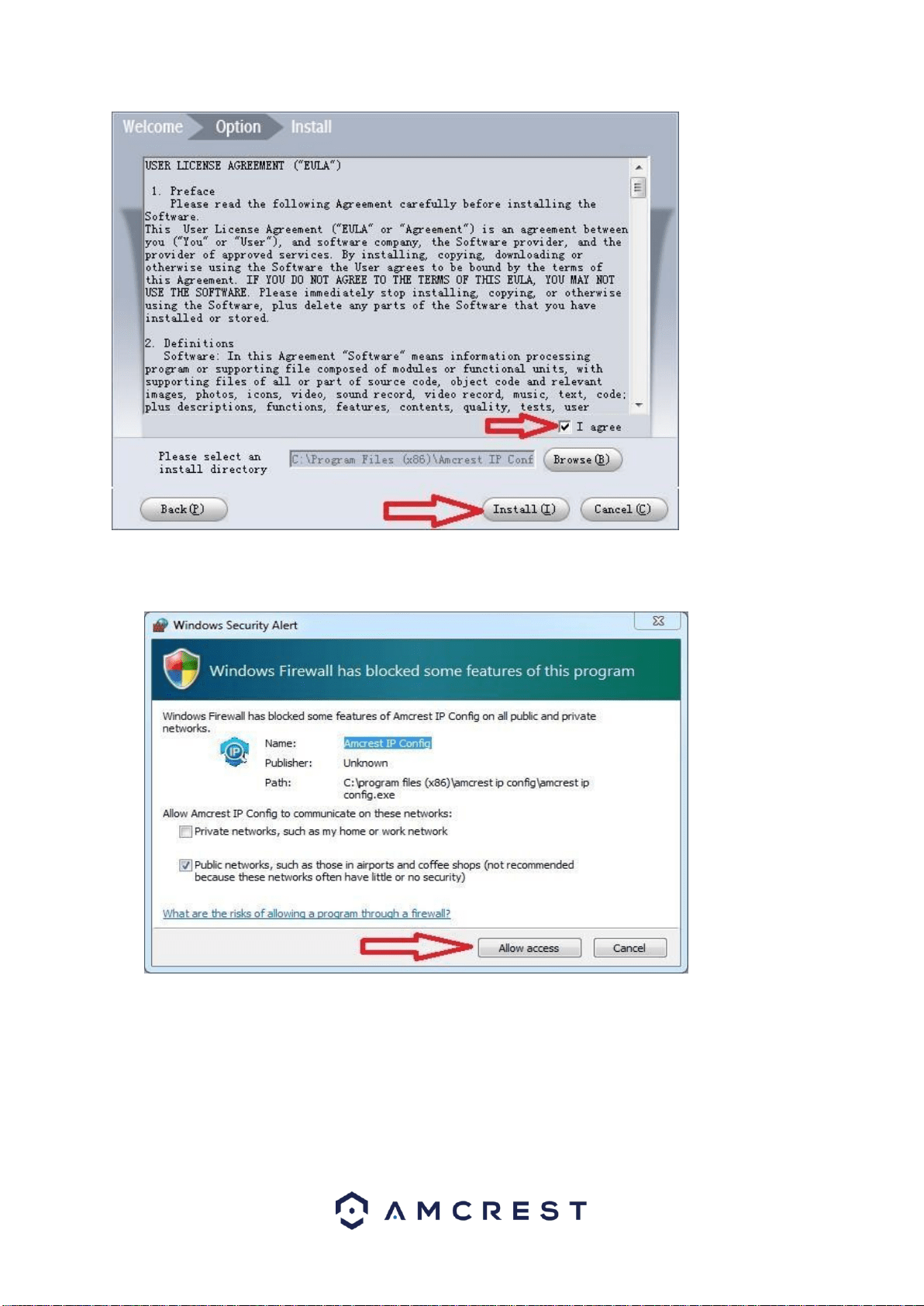
5. You will be asked to allow this program to make changes to your
computer with a pop-up window, click Yes.
6. Once you see the first page of the installer wizard, click Next to
continue.
7. On the next page, check the box next to “I agree”, then click
Install.
36
8. After the progress bar completes, if you see a Windows Security
Alert popup, click Allow access.
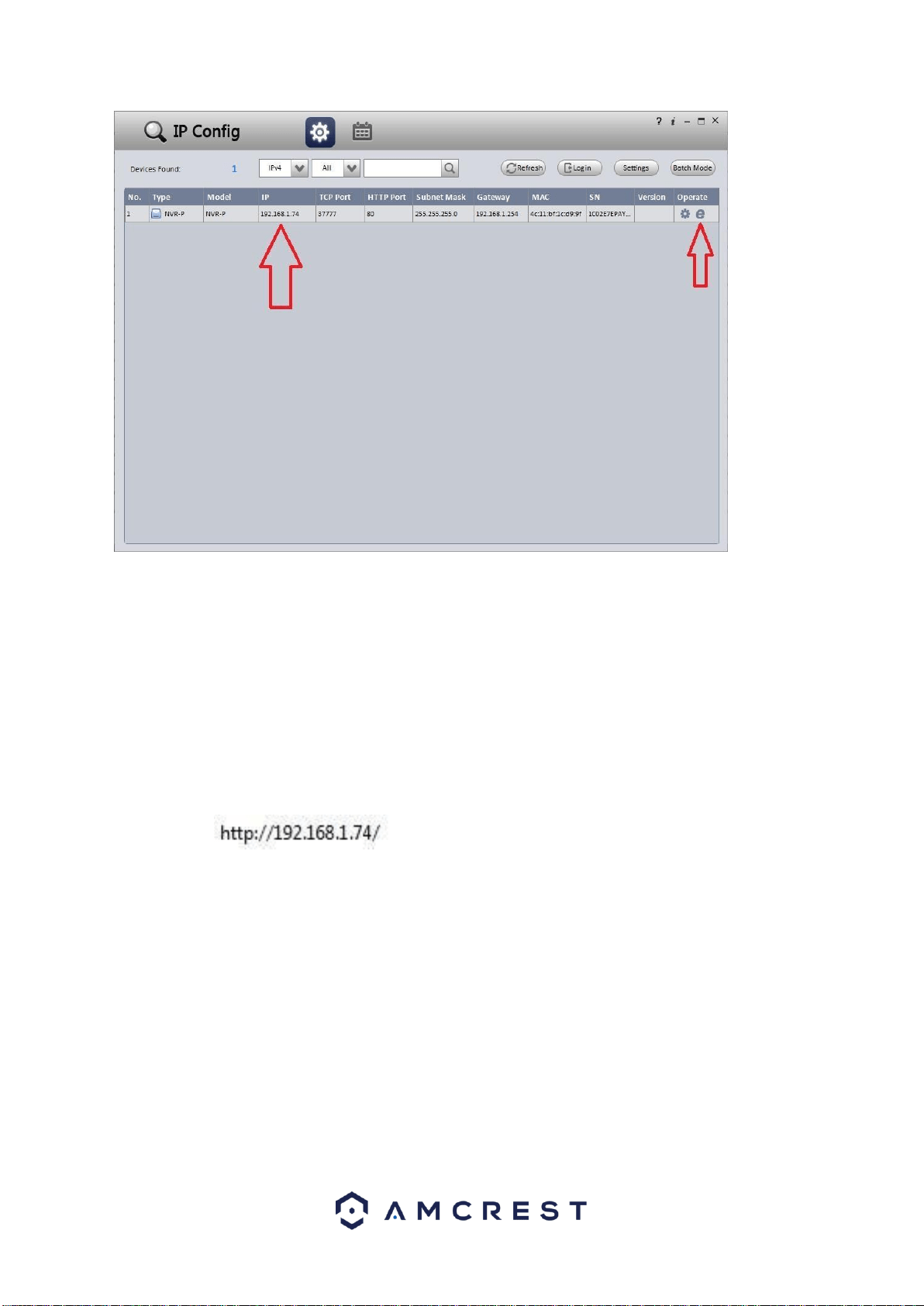
9. This brings you to the main screen of Amcrest IP Config
Software. Your DVR will automatically be found on your network
and appear in the list (if properly connected with an Ethernet
cable to your router). You will also see the IP address associated
with your DVR.
37
The “e” icon to the right allows you to launch directly into your
web browser from this screen.
Note: This “e” icon will automatically take your DVR’s IP address and
use your computer’s
“default” web browser to access and log into your DVR. If your default
browser is not Internet Explorer, you can write down the IP address from
the Amcrest IP Config Software (IP address located above), open
Internet Explorer yourself, and type that into the search bar to get to the
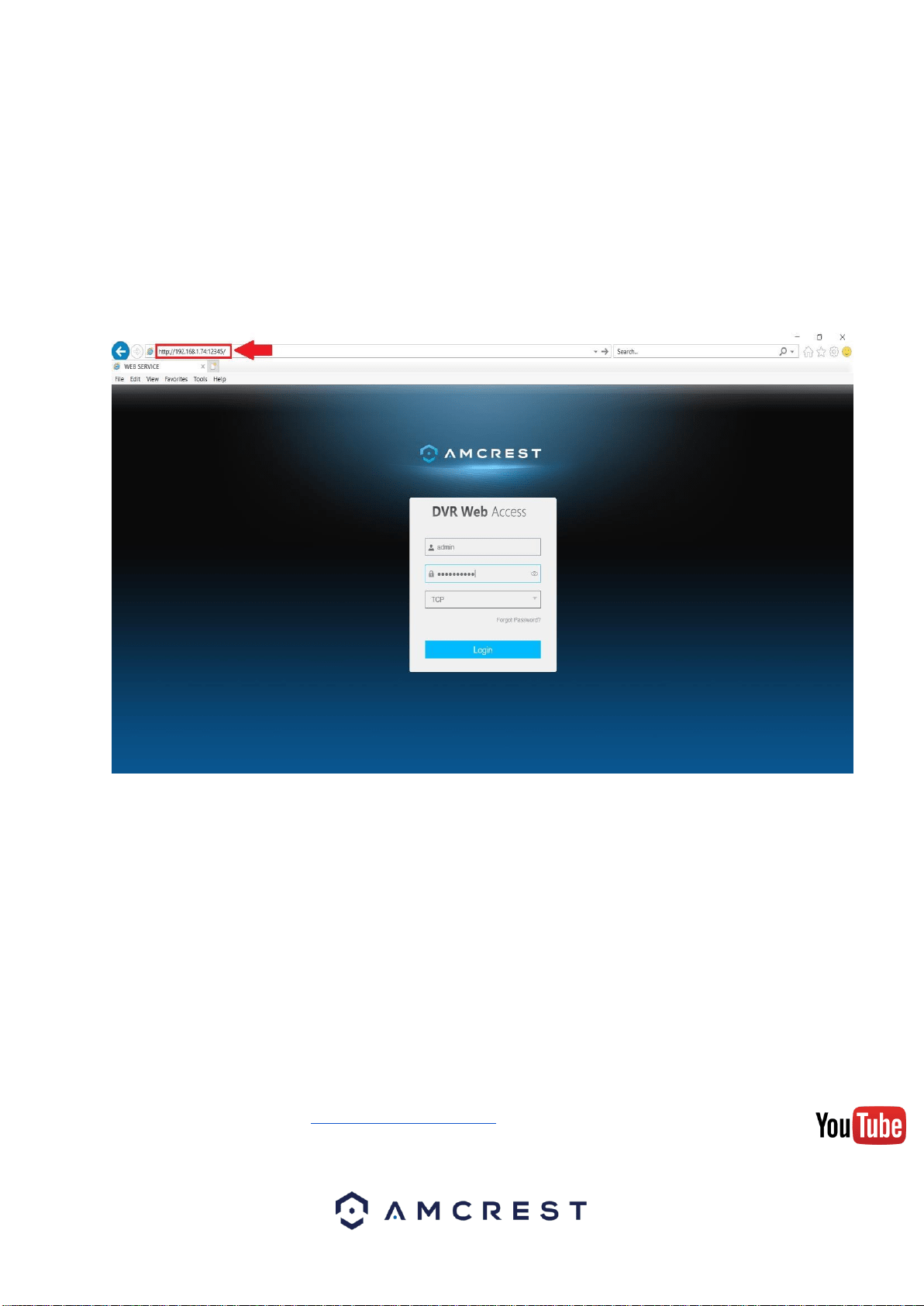
login screen. Typing your IP address directly into the search bar will look
something like this:
Built-in interface method
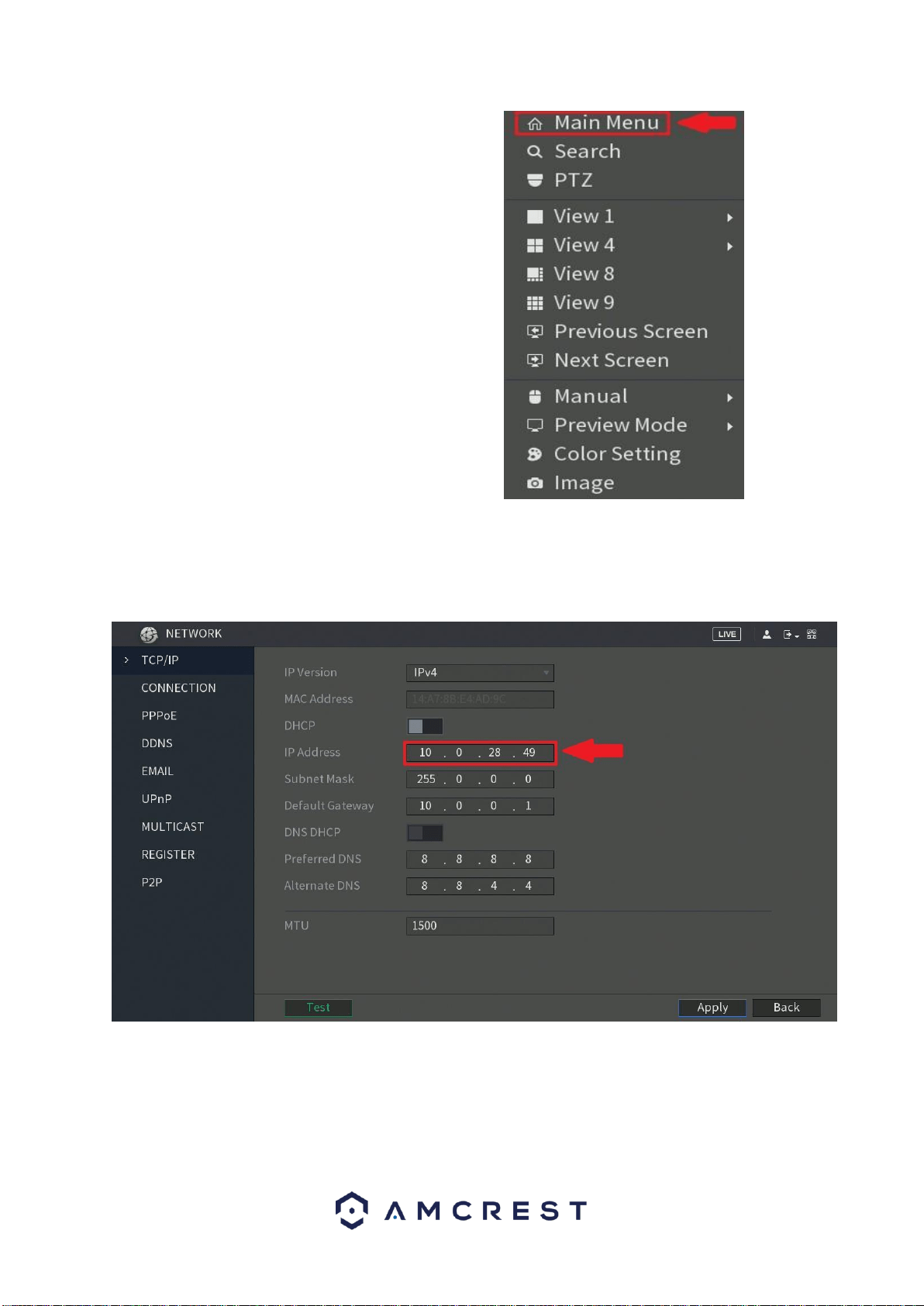
1. Boot up and log into your DVR system (as explained in previous steps
of this guide).
2. Left-click on the main 4-window screen to access the Main Menu, or
right-click and choose it from the list.
38
3. Click the Network option, in management section of the menu.
4. On the NETWORK settings page, you will start on the TCP/IP tab on the
left panel list of options. Locate where it says IP Address on the main
center page of the window.
5. Write it down. It will look something like “192.168.1.74”, although it may
vary depending on your network, router, or service provider.
Note: It does not matter what your IP address looks like. If your DVR is connected
to your router with an Ethernet cable, and the DHCP checkbox is checked on the
TCP/IP page, the IP address you write down will be correct.
39
Installing the Amcrest browser plugin
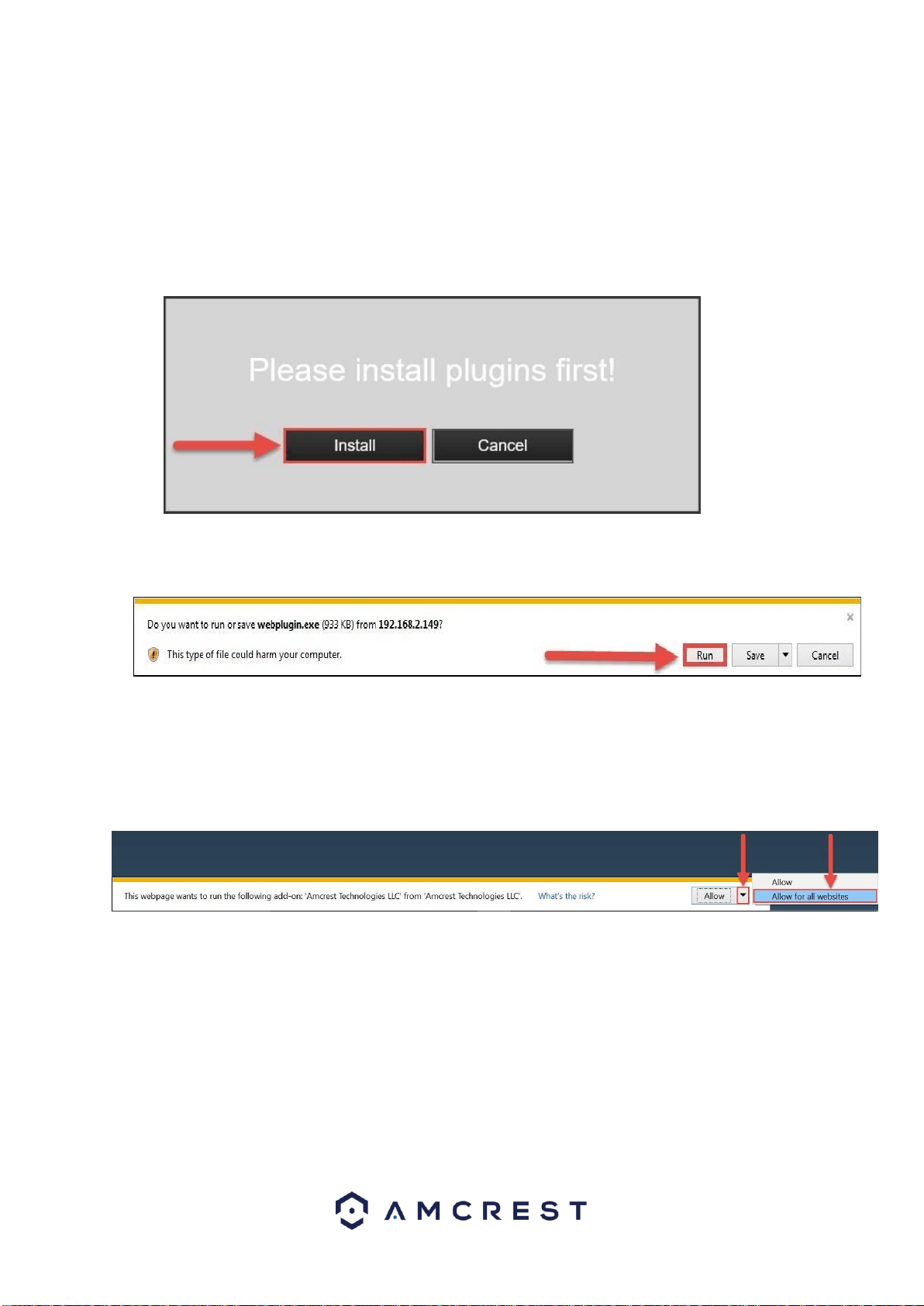
Once you’ve followed one of the above methods to get to the login screen for the
DVR, follow the below steps to install the browser plugin on Internet Explorer:
1. On the main login screen, you should see a popup in the center.
Click Install.
2. An install button will appear on the bottom of the screen for the
plugin: webplugin.exe.
Click Run, then go through the prompts of the install wizard.
3. Once you see the notification along the bottom row. Click the
small arrow to the right of the Allow button and select Allow for
all websites.
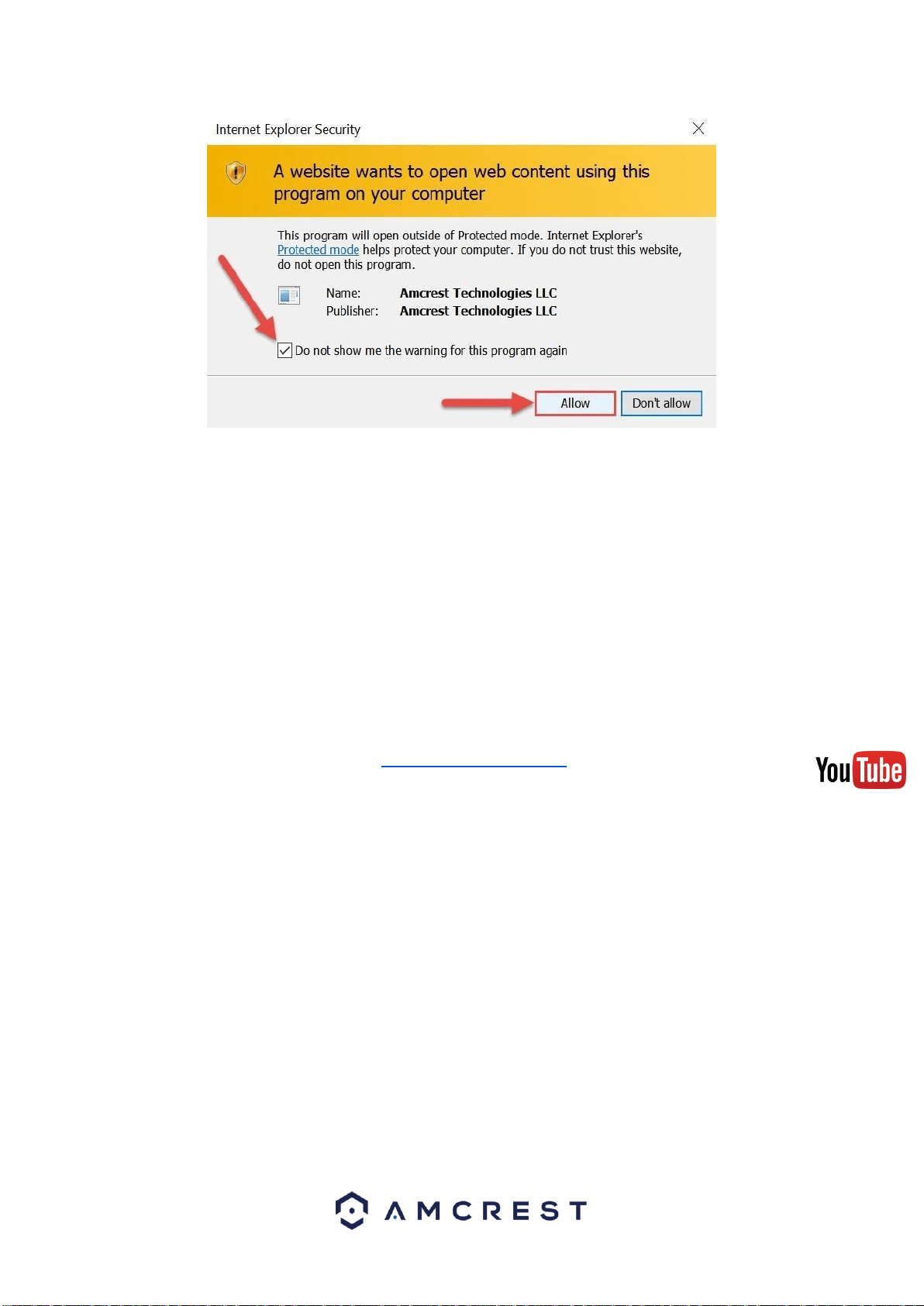
4. If you see a popup window asking you to allow the plugin, mark the
checkbox next to “Do not show me the warning for this program again”,
then click Allow.
40
Setting up DVR Local Access (home or business)
The following procedure can be done one of many ways including: using the
Amcrest web interface (the most common method - that should be followed if
this is your first time using this system), using the RTSP protocol to pull the
video feed into a web application (like a custom website) or standalone program
(like VLC media player), or using a CGI command through a web browser for a
direct stream (without the need for a website or program - the DVR’s CGI
commands can be found through the main website - a link to this will be
provided in this guide).
For the purposes of this guide, we will cover how to access the DVR through the
Amcrest web interface (the most common method).
To view a video on how to setup the DVR for local access on a
computer/laptop go to http://amcrest.com/videos, click the Videos tab,
then find the video titled
“HDCVI - Local Access Setup for PC”.
Before performing the steps below to gain local access, you will need to make sure
the following items are true:
1. You have your login credentials (if using this local access
method as your first, initial choice to setup your DVR, only items
2 and 3 of this list need to be true)
2. You have located your DVR’s IP address
3. You have installed the Amcrest browser plugin
To find your login credentials, please refer to part 3 of this guide: Console Setup
> Logging in. Otherwise, if this is your first-time logging into the DVR and you
have skipped Step 3, you will be able to login with the following username and
password:
Username: admin
Password: admin
41
Note: After logging in for the first time, you will be prompted to change
your password. To find the DVR’s IP address, please refer to the
Amcrest IP Config Software method and the built-in interface
method sections above.
To install the browser plugin for the DVR’s web interface, please refer to the
above section: Installing the Amcrest browser plugin.
1. Take the IP address and type it into the Internet Explorer search
bar, then hit ‘Enter’. It should look something like
“http://192.168.1.74:12345/”
2. Enter your login credentials. You may be prompted to change
your password.
3. (Optional) Save this web page as a Favorite for easy access in
the future.
Setting up DVR Remote Access (away from home)
For the purposes of this guide, we will outline the most common method for setting
up web access. Using Universal Plug and Play (UPnP) and Dynamic Domain
Name Server (DDNS) functionality is the easiest way to setup stable remote
access. For this method, your router should support the UPnP networking
protocol and the protocol should be enabled. Please note that most common
routers will support this feature. Please refer to your router’s manufacturer
documentation to learn how to enable UPnP on your router.
To view a video on how to setup the DVR for UPnP/DDNS remote
access go to http://amcrest.com/videos, click the Videos tab, then find
the video titled
“HDCVI - Remote Access Setup for PC (UPnP)”.
42
Before performing this setup process, it is recommended that you are familiar with
or have completed the steps in both part 3 ‘Console Setup’ and part 5 of this
guide: Computer Access Setup > Setting up DVR Local Access.
Below is a step-by-step walkthrough that details how to setup the
DVR for remote web access using UPnP and DDNS:
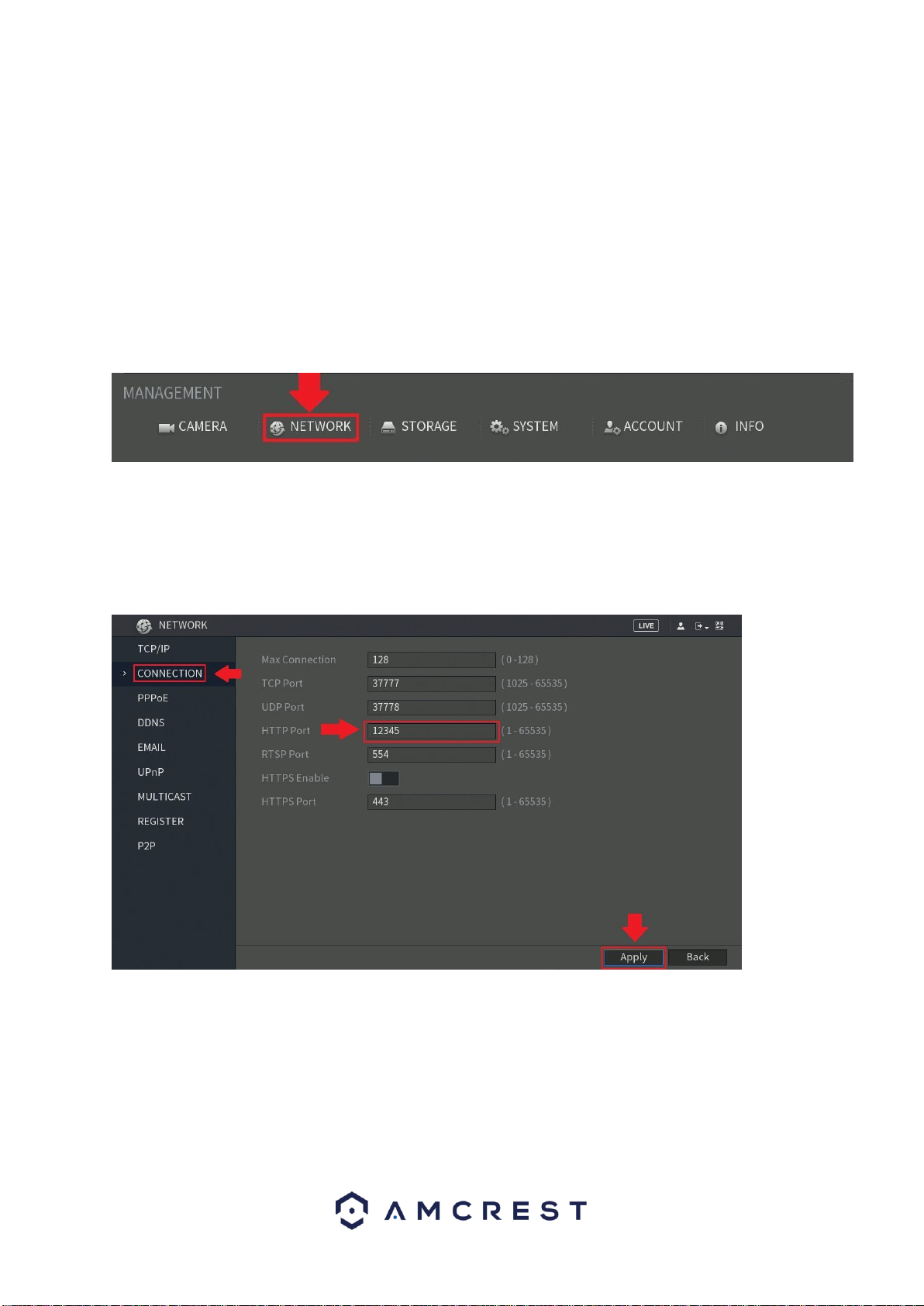
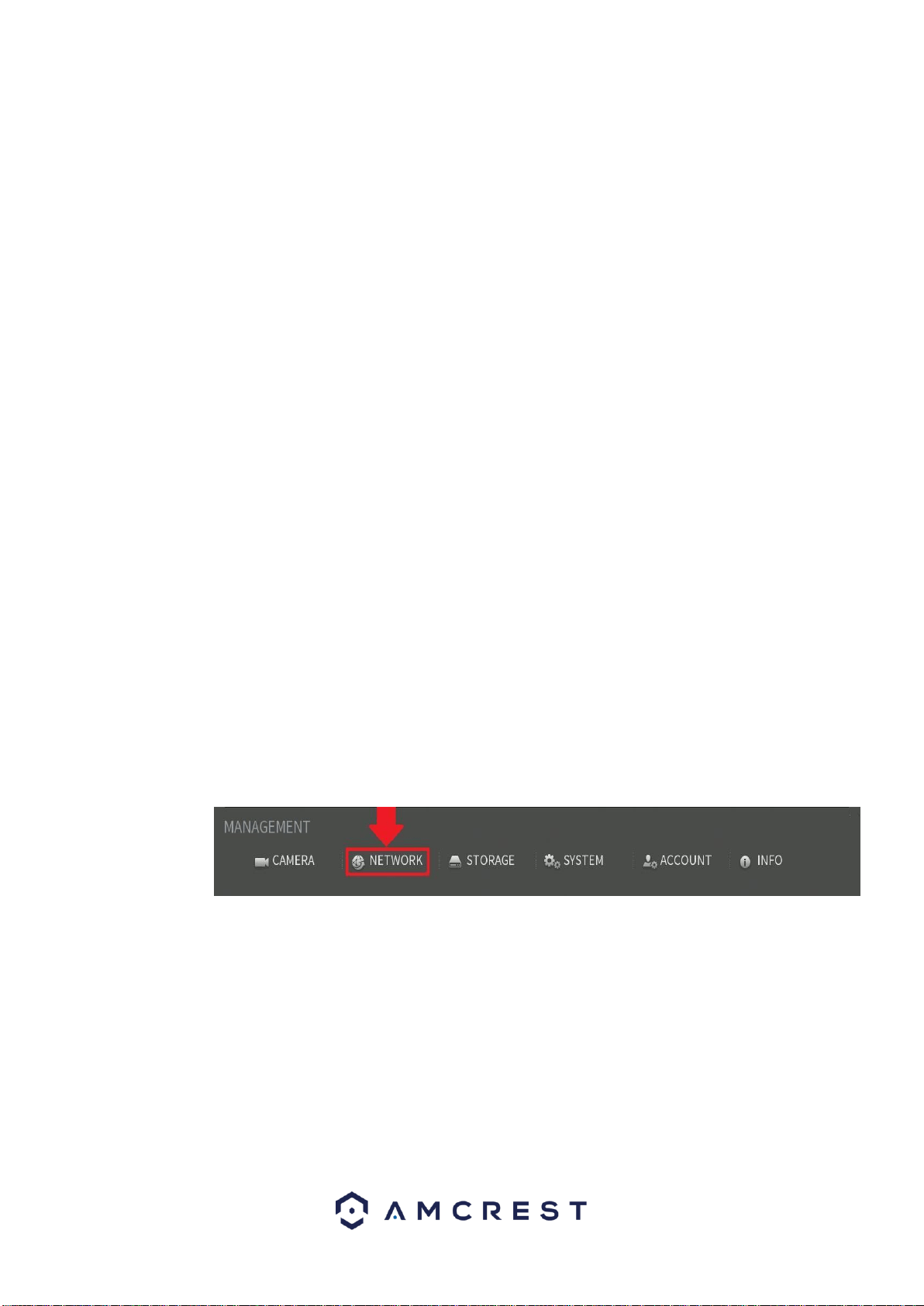
1. Log in to your DVR’s built-in (console) interface, open the Main Menu (by
left-clicking once, or right-clicking and choosing MAIN MENU from the
dropdown, then click NETWORK from the management section of the
menu:
2. From the left-hand navigation panel, click CONNECTION, then locate the
HTTP port on the right.
It is recommended to ensure the port number is at least 5 digits long to
prevent any port conflicts. You can change the port to any 5-digit number
that is less than 65535 (e.g. 12345) by clicking the number field and
entering a new port number. Write it down, then click Apply.
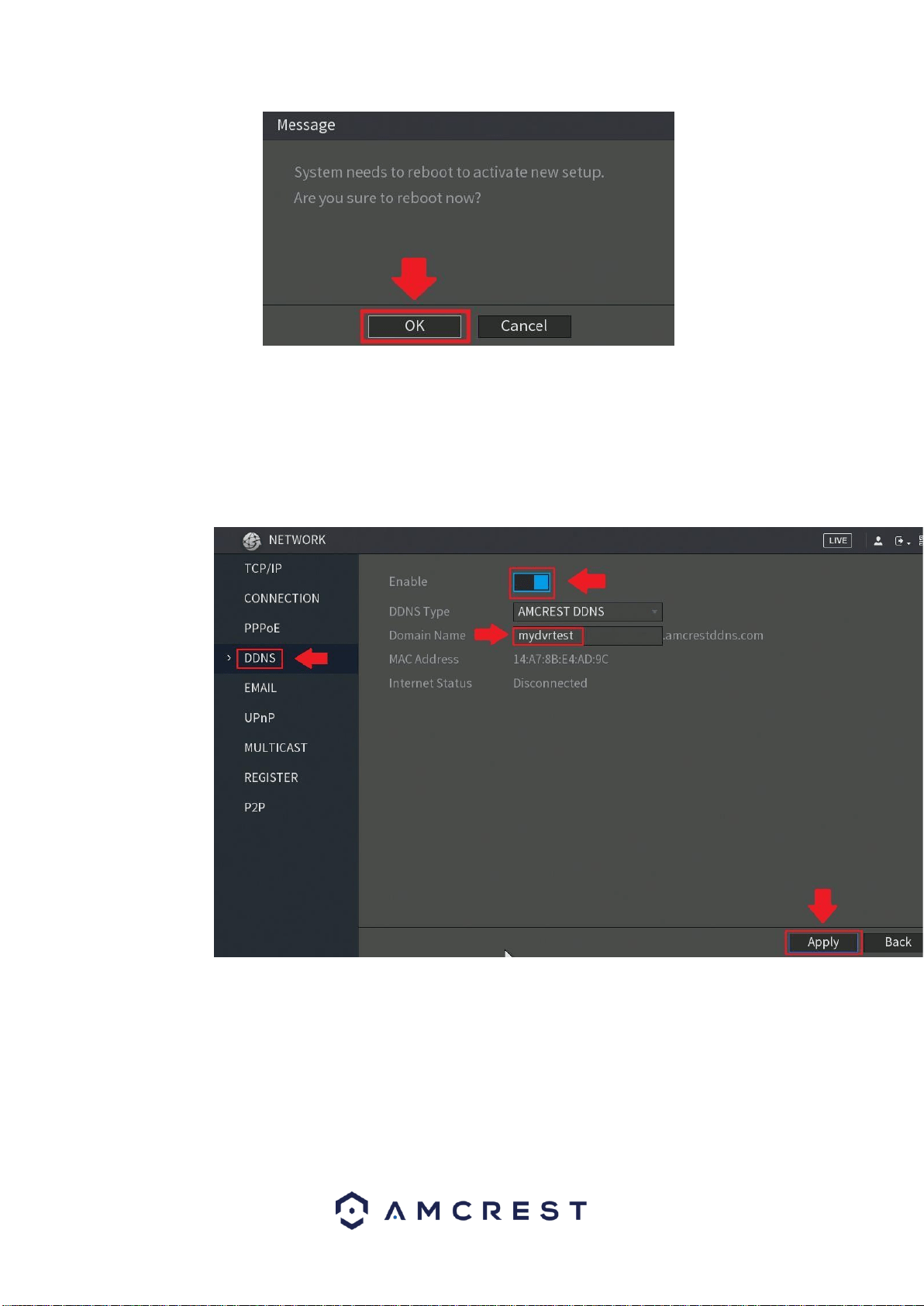
3. The system will need to reboot for this change to take effect. Click OK.
43
4. Once rebooted, login to your DVR again, open the MAIN MENU, then click
NETWORK from the management section of the menu again.
5. Click CONNECTION from the left navigation panel again and ensure that
the HTTP port has changed.
6. Next, click DDNS from the left navigation panel, and make sure the toggle
switch for Enable is toggled to the on position.
7. Create and write down the domain name for your device in the Domain
Name field. Then, click Apply.
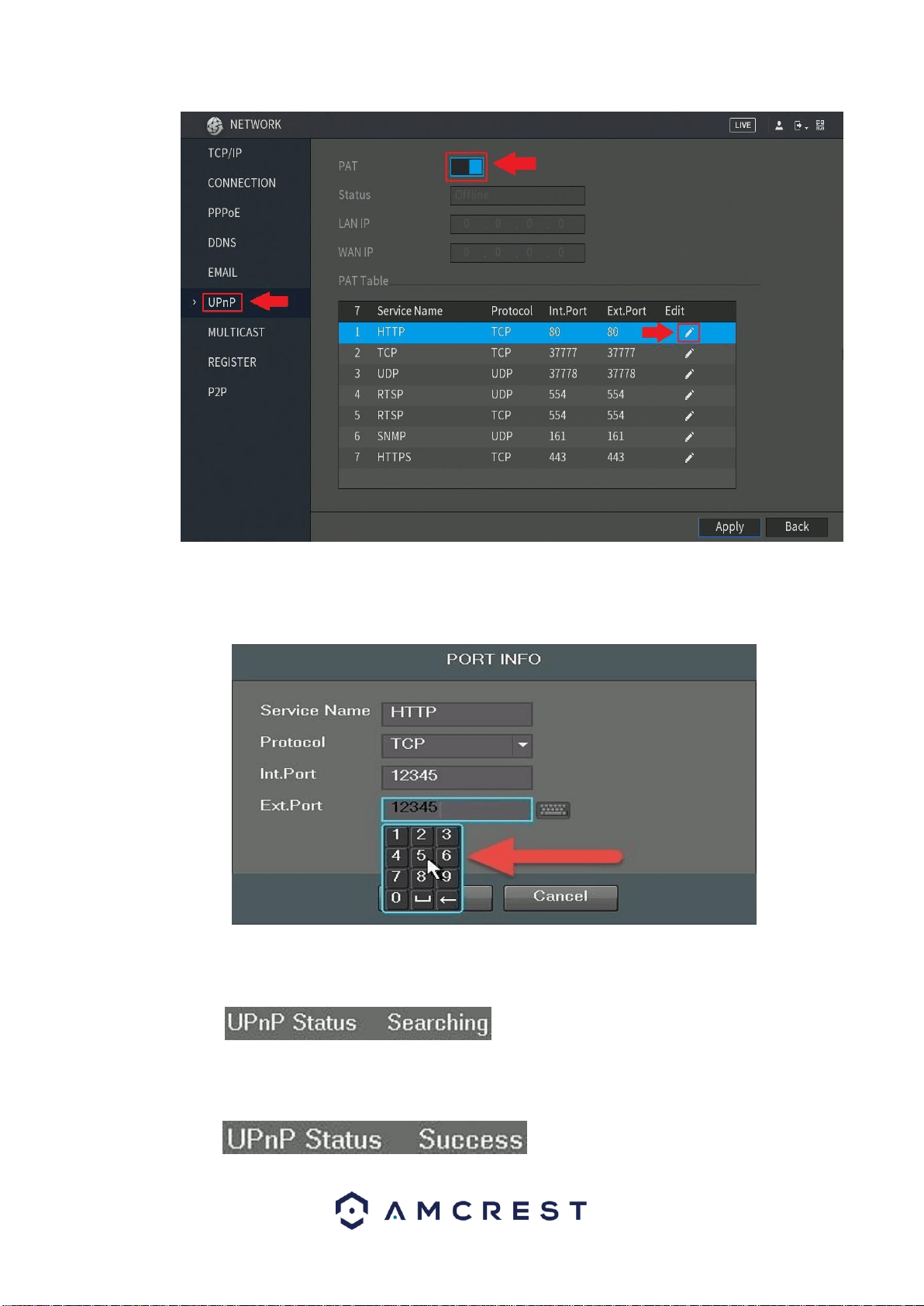
8. Click UPnP from the left navigation panel and select the PAT radio button
at the top to the on position. Then, locate row 1 in the PAT Table, where
HTTP is written beneath Service Name Protocol, and click the edit icon
to change the HTTP Ext. Port.
44
9. In the PORT INFO window that appears, click into the number field next
Ext. Port to change it to the same port number that was chosen in step 2
above (e.g. 12345). Then click OK.
10. Now, click Apply, and ensure it says ‘Searching’ in the field next to UPnP
Status.
11. Exit this menu to go back to the main menu, then re-enter the UPnP
menu, and ensure the UPnP Status says ‘Success’.
45
Note: If this does not say ‘Success’, try resetting the DVR, then your
router. If it still does not work, it may be because your router does not
support UPnP. In this case, you will need to port forward to gain remote
access. Please read step 5: Check for UPnP below, in the
troubleshooting steps that follow this guide for more information on
what to do next.
12. Open a web browser and enter in the DDNS domain name address from
step 7, enter in a colon
“:” (without quotes), then type the port number from step 2 onto
the end.
a. For example, if the DDNS domain name is
http://mydvrtest.amcrestddns.com and your HTTP Port is
12345, the URL would be
http://mydvrtest.amcrestddns.com:12345
13. The browser may prompt you to install a plugin. Click install to download
the plugin, then click on the plugin installation file to install the plugin.
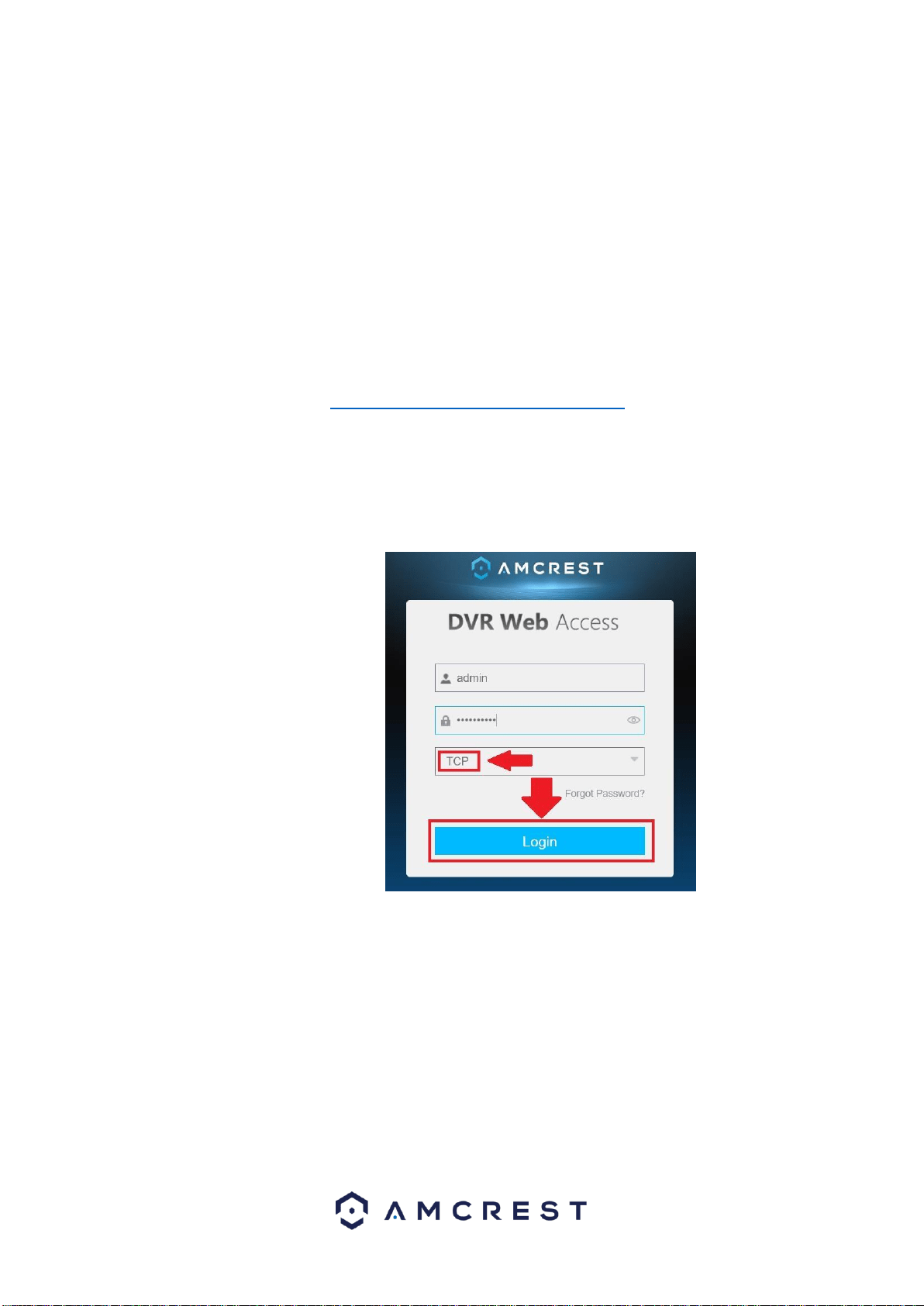
14. Enter your login credentials into the username and password fields.
15. Ensure the web access protocol is set to TCP, and then click Login.
To get more detailed information on other methods to set up remote web access
for the Amcrest DVR, please refer to the user manual.
Remote access not working? (troubleshooting steps)
1. Re-enter login credentials: Confirm that your username and password for
accessing the DVR are correct. Please refer to part 3 of this guide:
Console Setup > Logging in. The same credentials you use to log in to
the console in that section are what you will enter into the login screen on
the web interface.
2. Use the correct web browser: Make sure you are using Internet Explorer
as your web browser.

46
3. Confirm plugin is installed: If you still see any popup windows when
trying to log in to the web interface, please make sure you have correctly
installed the Amcrest browser plugin: webplugin.exe. Please refer to part
5 of this guide: Computer Access Setup> Installing the Amcrest
browser plugin.
4. Write the URL correctly: When using Internet Explorer, it is crucial to
write the DVR’s remote access URL correctly. Some versions of Internet
Explorer will not automatically include the “http://” prefix to the beginning of
an IP address that is typed in. Check your search bar and, if you do not
see “http://” before your URL (e.g. 192.168.2.149:12345), please add it. In
addition to that, make sure that you are using a colon “:” and not a
semicolon “;”. Your final URL should look something like this:
“http://192.168.2.149:12345/” (without quotes). Keep in mind that the IP
address and port number will be different depending on your setup.
5. Select WAN button: The LAN radio button will be selected by default. You
must click and select WAN in order for this remote connection to work.
6. Connect to the internet: Confirm that your computer is properly
connected to the internet by loading another web page first, then trying the
DVR’s remote access URL again. Also, confirm that an Ethernet cable is
connected from your router to the correct port on the back of your DVR.
Please refer to part 2 of this guide: Front/Back Panel Diagrams &
Descriptions.
7. Check for UPnP: In order for remote access to work, UPnP has to be
enabled on your DVR and it has to be enabled and supported on your
router. Check your router’s documentation to confirm whether UPnP is
supported. Otherwise, an alternative to UPnP is port forwarding which
can be done by following a video tutorial for the HDCVI system.
To find this video, go to http://www.amcrest.com/videos/ and find the video
by clicking Playlists.
To contact Amcrest support, please do one of the following:
o Visit http://amcrest.com/contacts and use the email form
o Call Amcrest Support using one of the following numbers Toll Free:
(888) 212-7538
International Callers (Outside of US): +1-713-893-8956
USA: 713-893-8956
Canada: 437-888-0177
UK: 203-769-2757
o Email Amcrest Customer Support support@amcrest.com
47
Web Interface Walkthrough
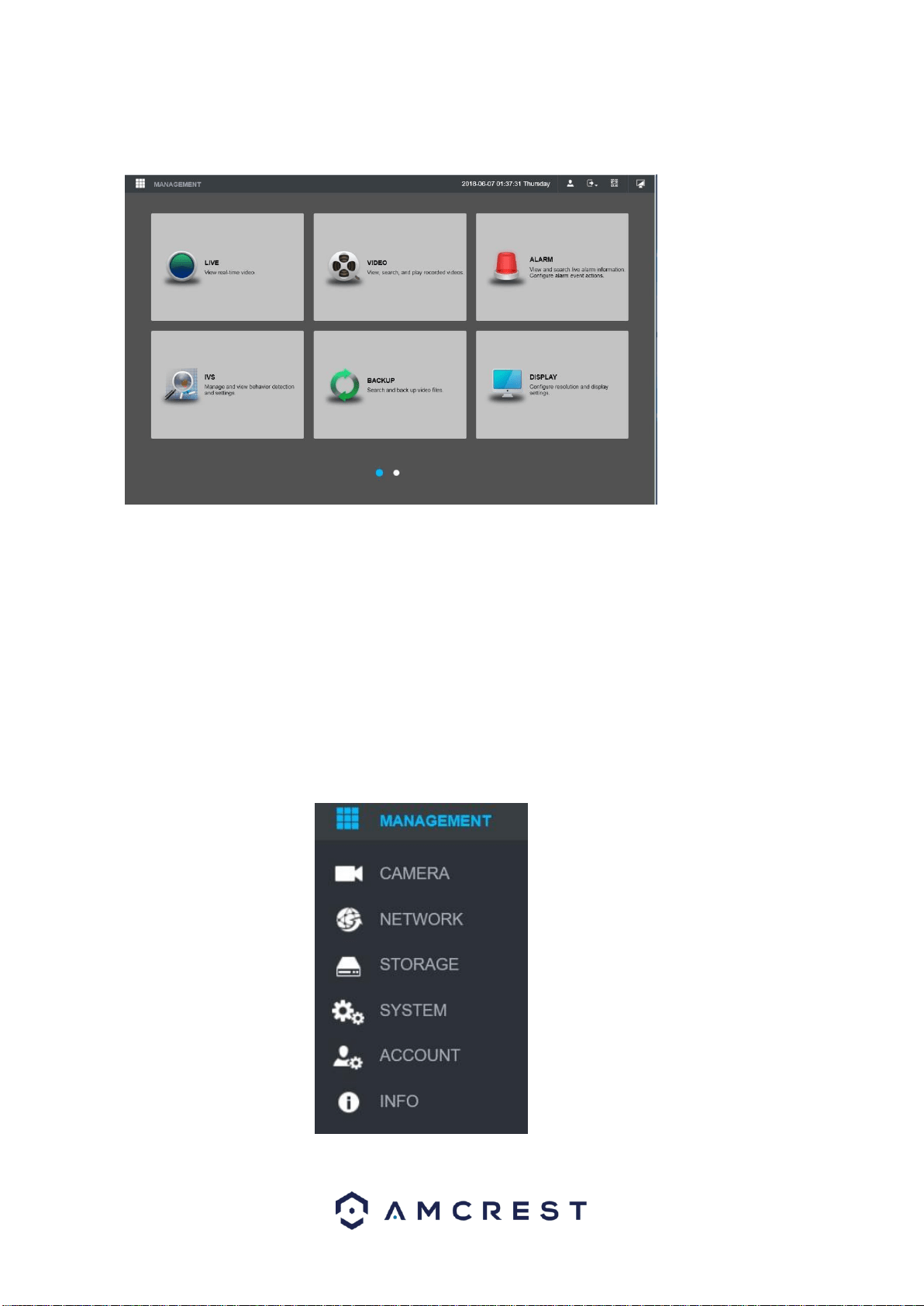
The web interface several different options:
Live – Allows you to access real-time video and camera options. You can also
control PTZ and image settings, as well as view cameras in full screen.
Video – Allows you to view, search and playback recorded videos retained in the
system’s hard drive. Alarm – Allows you to view and search live alarm information
and notifications. You can also configure alarm event actions in this menu.
IVS – Allows you to manage and set IVS and intelligent
detection settings (if applicable). BACKUP: Allows you to
search and backup video data via a external USB or flash
drive.
DISPLAY: Allows you to configure resolution and display output settings.
AUDIO – Located on the next page, allows you to configure
audio announcements and import audio files.
Management
CAMERA: Review or edit settings for each camera, including video
settings (e.g. quality, bit rate, color, etc.).
48
NETWORK: Review or edit network settings for the DVR (e.g. email,
DDNS, UPnP, etc.) STORAGE: Review or edit storage parameters and
settings. (e.g. motion detection, alarm, etc.). Set HDD detection as well
as setup FTP settings.
SYSTEM: Review or edit system parameters or configuration, including
system maintenance, factory resets and firmware upgrades.
ACCOUNT: Review admin accounts and add new users to device. (e.g.
ONVIF users).
INFO: Review system, log, network, HDD and channel information (e.g. Bps and
connectivity)
7. Amcrest View App Setup
The Amcrest View app grants instant access to all live camera streams
from any location. This is the primary application most users prefer
when using Amcrest systems. The app supports a multitude of features
and includes both a plug-and-play setup as well as a manual network
setup. For purposes of this guide, we will use Amcrest View Pro, which
is free on both the App Store and Play Store.
Before accessing the DVR through the app using the easy plug-and-play
method (P2P Setup), confirm that P2P is enabled on the DVR. This
feature should be enabled by default.
Enabling P2P on the DVR
1. Log into your DVR console’s built-in interface using the DVR
login credentials.
2. Open the MAIN MENU by left-clicking the DVR’s home preview
screen. Then, click NETWORK in the bottom MANAGEMENT
section located in this menu.
3. Select P2P from the left navigation panel’s list of options. Make
sure the checkbox next to Enable is checked. If it is not, check it,
then click Apply and Save.
4. Exit out of the main menu, then come back to the P2P page and
confirm that the Status is ‘Online’.
Amcrest View Pro Setup
The following steps will continue the app setup process for an Android
phone and, though the iPhone version of the app has slightly different
steps, most of this process is identical and easy.
49
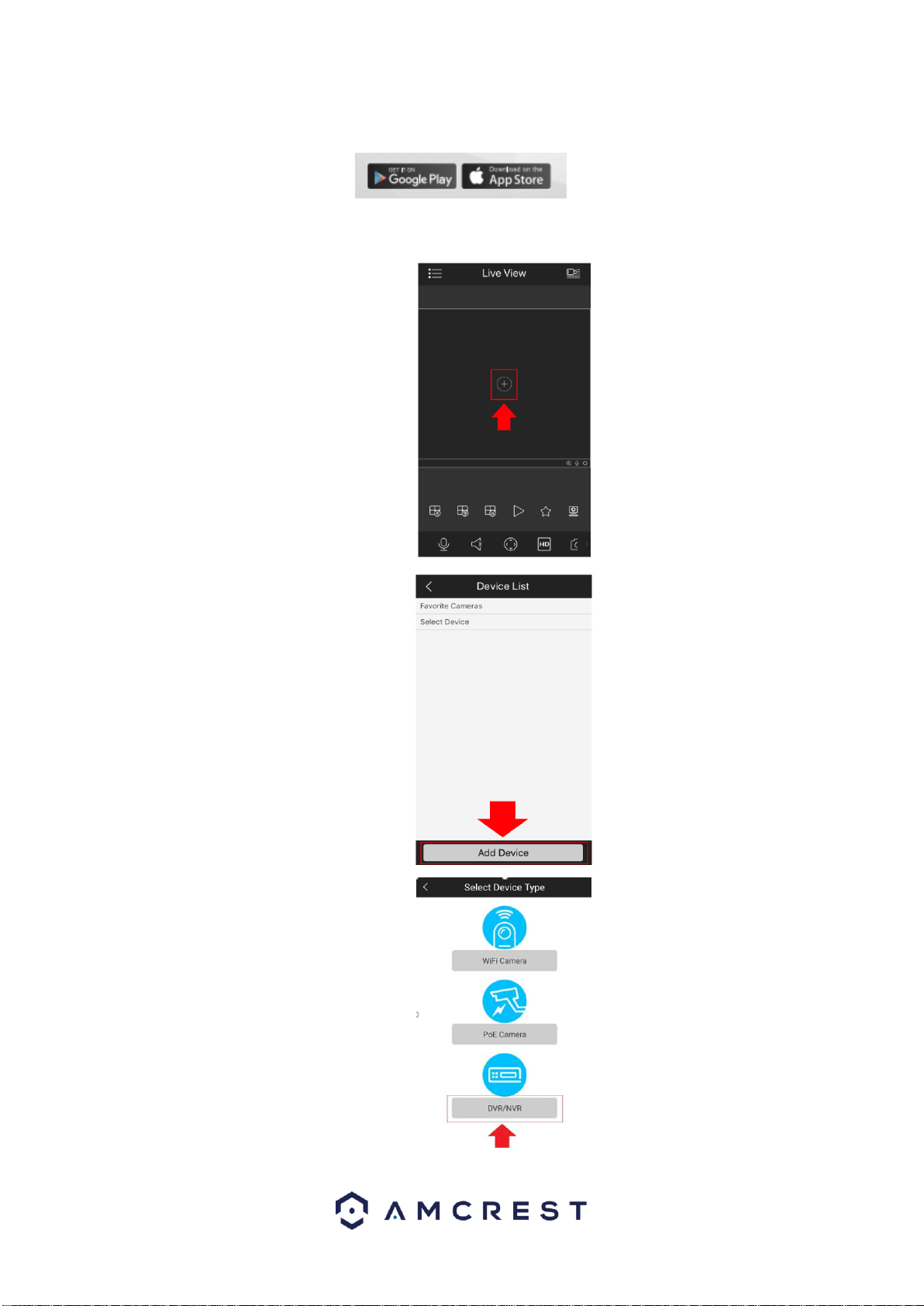
1. Download and open the Amcrest View Pro app from the App Store or Play
Store.
2. Open the app and tap on the (+) symbol in the middle of the screen to begin
adding your DVR.
3. Tap on Add Device.
4. Tap on DVR/NVR.
50
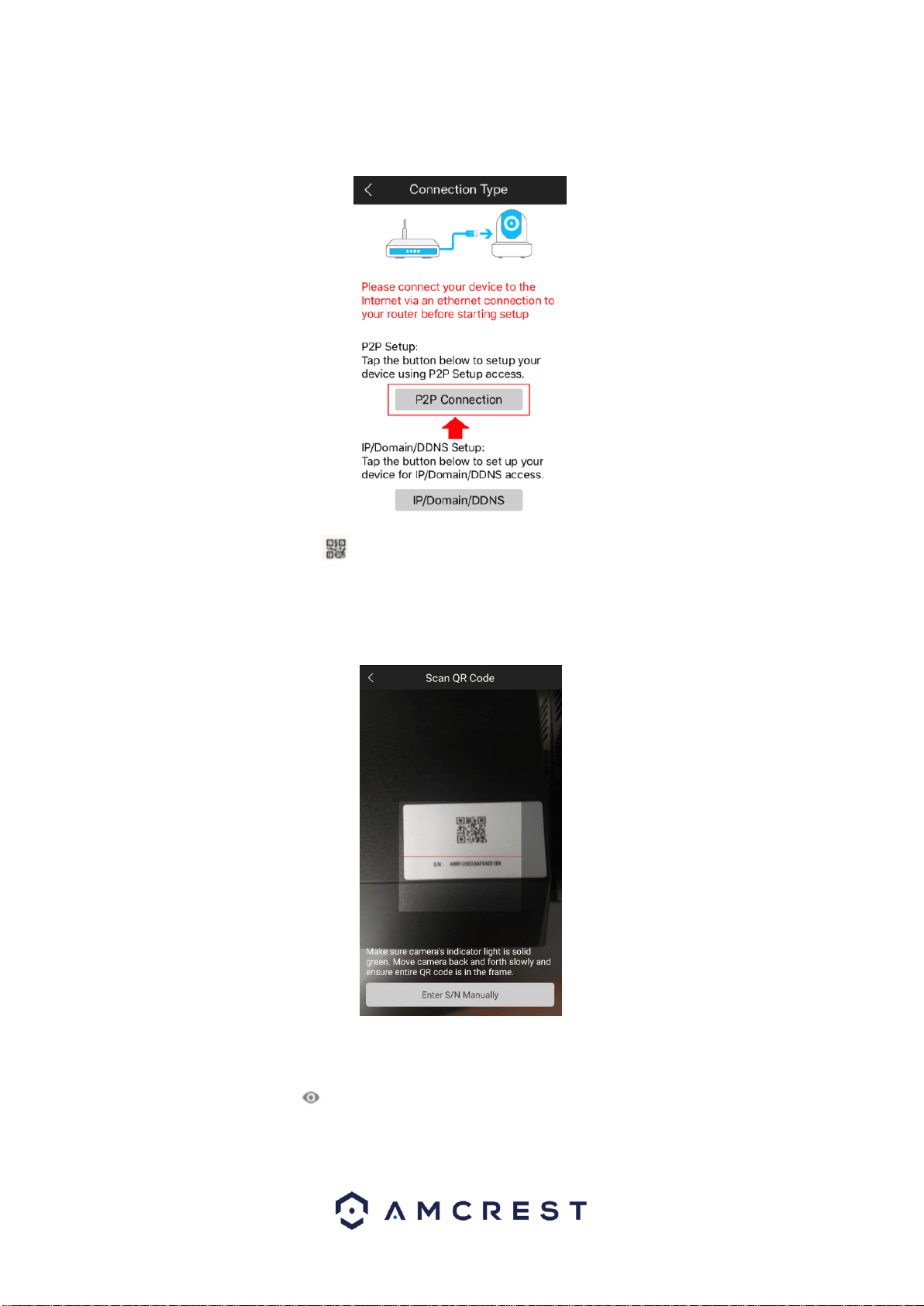
5. Next, we will need to select a connection type. Since we will be setting up a basic P2P
connection with the device, tap on "P2P Connection" to continue.
6. Scan the QR code for your device. This code can be found on or near the device's
serial number tag. If the QR code does not scan or you are unable to access it, the
application provides you a means of entering your serial number manually. Tap
on "Enter S/N Manually" to enter the information.
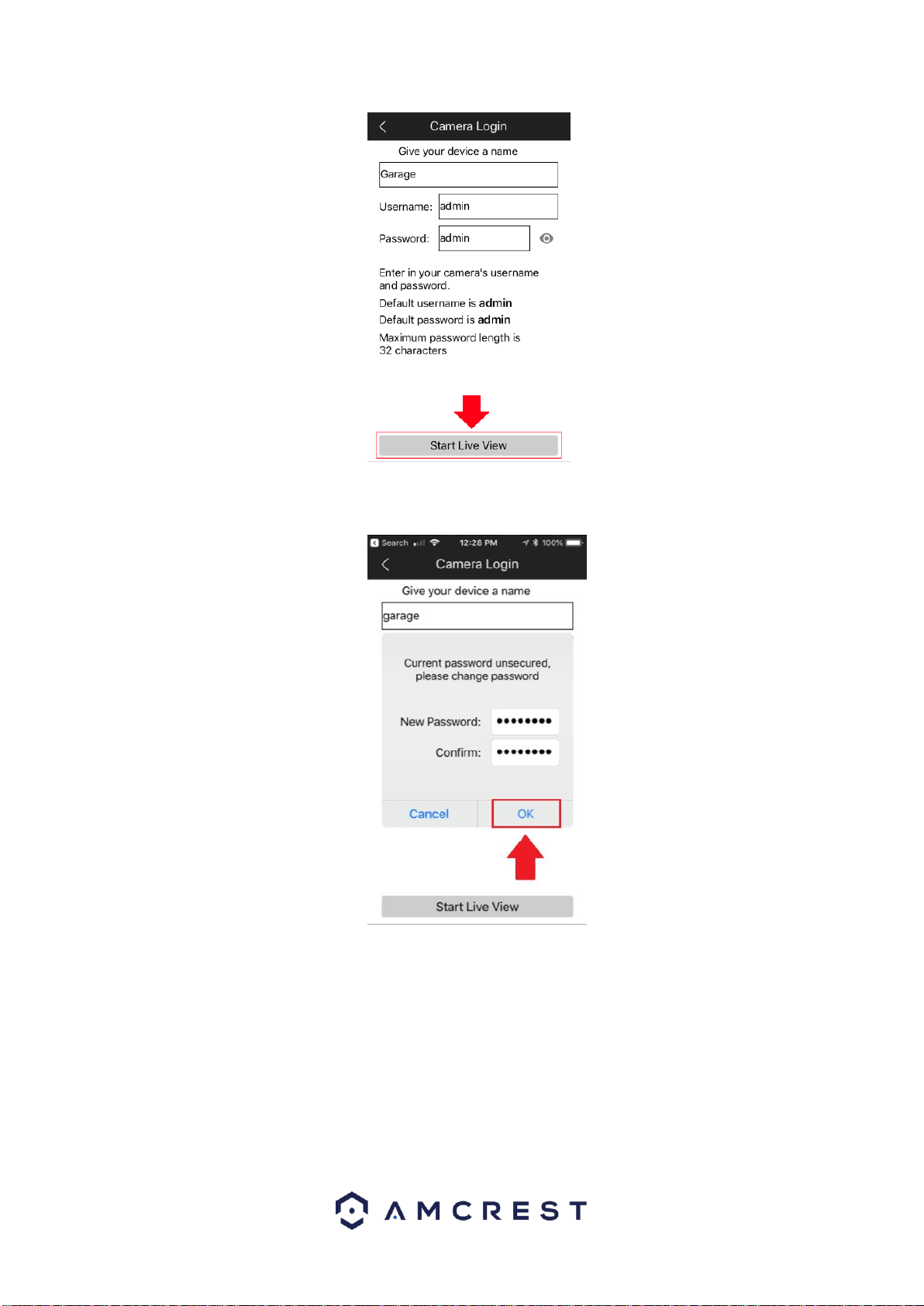
7. Give the device a name and provide the username and password. The default username and
will be admin. Tap Start Live View to continue.
Note: You can tap on the icon to verify the password.
51
9. The app will prompt you to change the password. Enter a password between 8 and 32
characters and confirm the password. Press OK to continue.
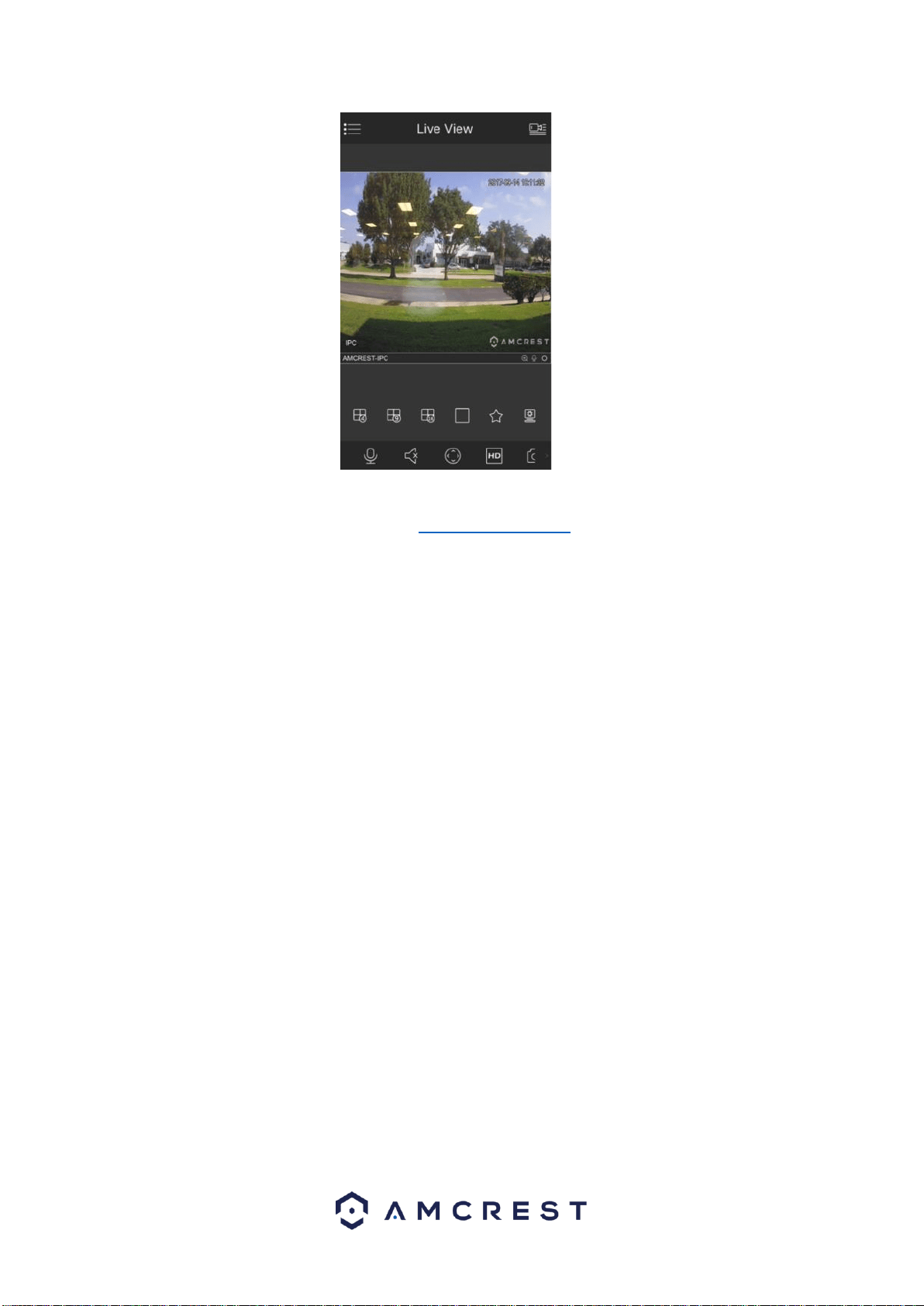
10. Your device is now set up and ready for use on the app.
52
For setup without establishing a P2P connection in the app you will need to use IP Doman/DDNS
setup. For more details on this setup visit, amcrest/com/support
App setup not working? (troubleshooting steps)
1. Re-enter login credentials: Are you getting a (quote ‘incorrect
password’ error) message? Try double checking your username
and password. These will be the same credentials used to log
into the DVR console’s built-in interface.
2. Confirm your phone is online: Make sure that your phone is
receiving a strong WiFi or cellular data signal. Confirm the
Internet connection is working by loading a webpage or testing
another internet enabled app.
3. Confirm the DVR is online: Make sure an Ethernet cable is
connected from your router to the Internet port on the back panel
of your DVR console. (For help with this, refer to part 2 of this
guide: Hardware Setup > Setting up the cable connectons.)
4. Confirm P2P is enabled: To use the P2P Setup to gain plug-
and-play instant access, P2P needs to be enabled on the DVR.
It will be enabled by default. To confirm
P2P is enabled, log into the main console built-in interface for
your DVR and select Network from the Main Menu (in the
Settings row). Then, click P2P from the left navigation panel (on
the bottom). Make sure the checkbox is checked next to
“Enabled”. If it is not, check it, click Apply down below, then
attempt the P2P App Setup again (tap Start Live Preview).
5. Confirm the serial number: if you entered the serial number
manually, double check that it is correct and re-enter it. This
does not apply if you used the QR code scan.
53
6. Still not working?
If you have tried all of the above troubleshooting steps, try
rebooting your DVR. Then, restart your phone and try the P2P
Setup on your app again. Contact support if you are still unable
to gain access.
To view a video on how to setup the Amcrest DVR for remote access on
a smartphone or tablet, go to http://amcrest.com/videos and view the
video titled
“How to Setup Amcrest HDCVI DVR for Remote
Access on Smartphone/Tablet”.
Amcrest View Pro interface overview
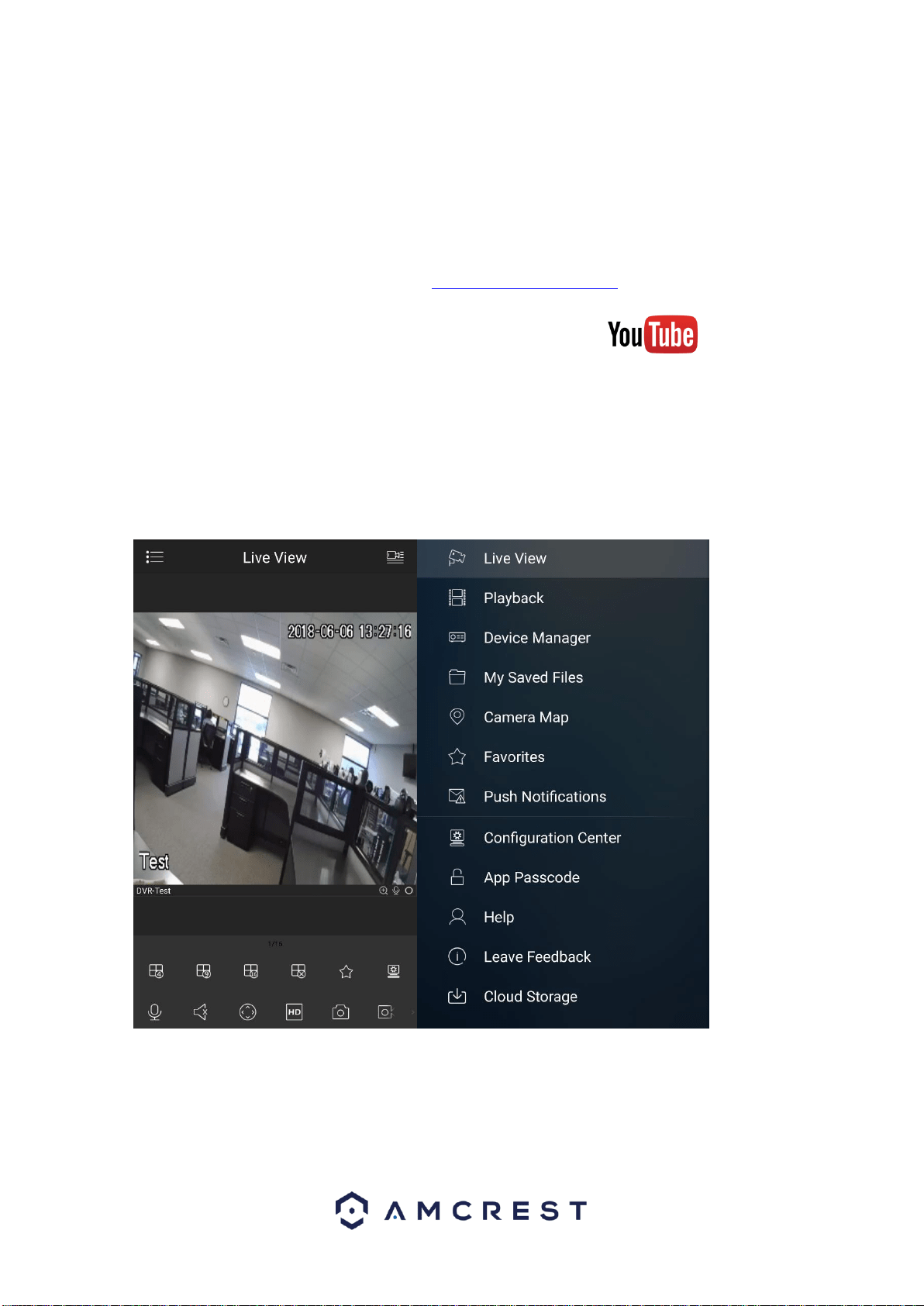
Once the app is setup to work with your DVR, it should look like the
image below on the left. Here, you will be able to access all crucial
functions like taking snapshots, manual recordings, etc.
Clicking the Menu Icon on the top left-hand corner will open the menu
for this app, and it should look like the image below on the right.
Live Preview is the default screen that the app opens on, but from the
menu, Playback, and Device Manager can be opened, as well as other
menu items for other features.
Note: For help identifying and understanding app features, either tap the
icon to see a tooltip description, or open the main menu, then tap Help
to learn more.
54
8. Amcrest View Web Portal Setup
You can access your DVR through a computer using the P2P web portal
AmcrestView.com for quick plug-and-play access. It uses the same
technology as the Amcrest View mobile app and is an easy, non-
technical setup method.
There are 2 methods of accessing your DVR using AmcrestView.com:
the user method (registering an account for login), and the device
method (instant direct access using the serial number).
Both methods require that the Amcrest browser plugin be installed for
AmcrestView.com.
Installing the AmcrestView.com browser plugin
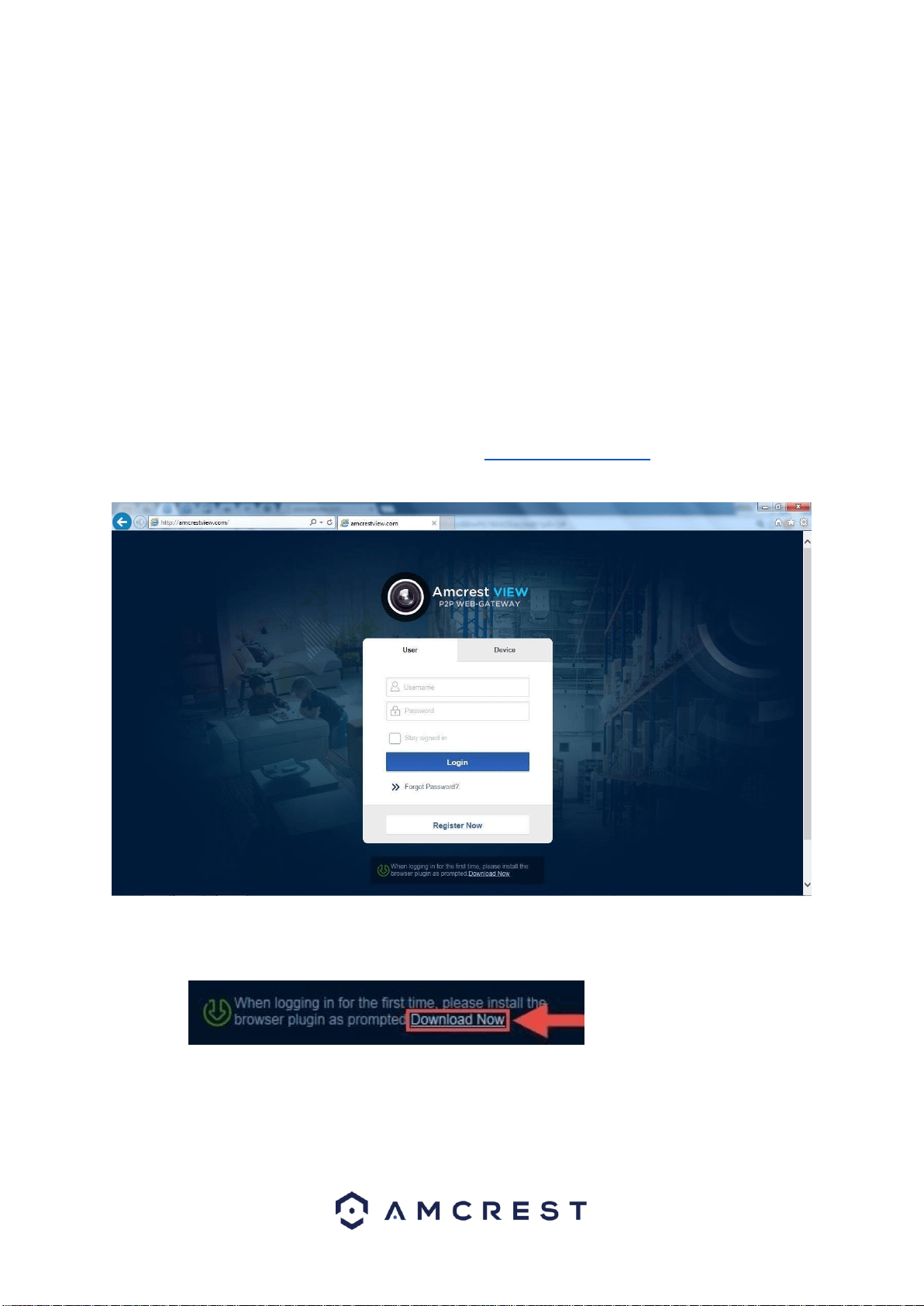
1. Open Internet Explorer, type ”www.amcrestview.com” into the
search bar, and hit Enter. This will take you to the login screen:
2. Once you’re on the login page, you will see a message about
installing the plugin below the login box. Click Download Now:
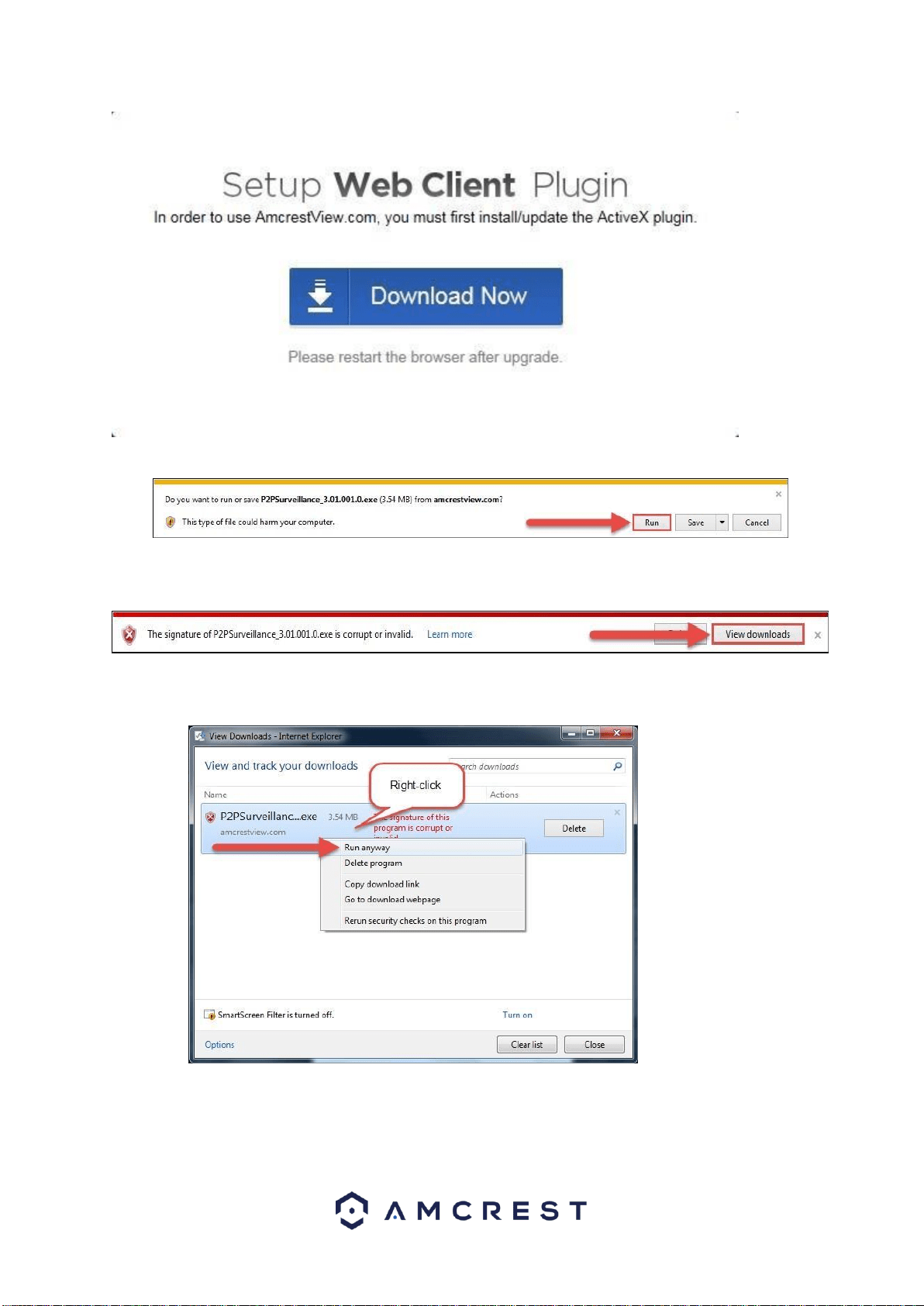
3. This will take you to another page where you will need to click
the Download Now button:
55
4. You will be prompted by the browser to install the plugin. Click
Run:
5. You may be prompted to verify this download. This software is
not harmful to your computer and will not make any unwanted
changes. To verify, start by clicking View Downloads:
6. In the View Downloads page, right click the plugin, then click
Run Anyway.
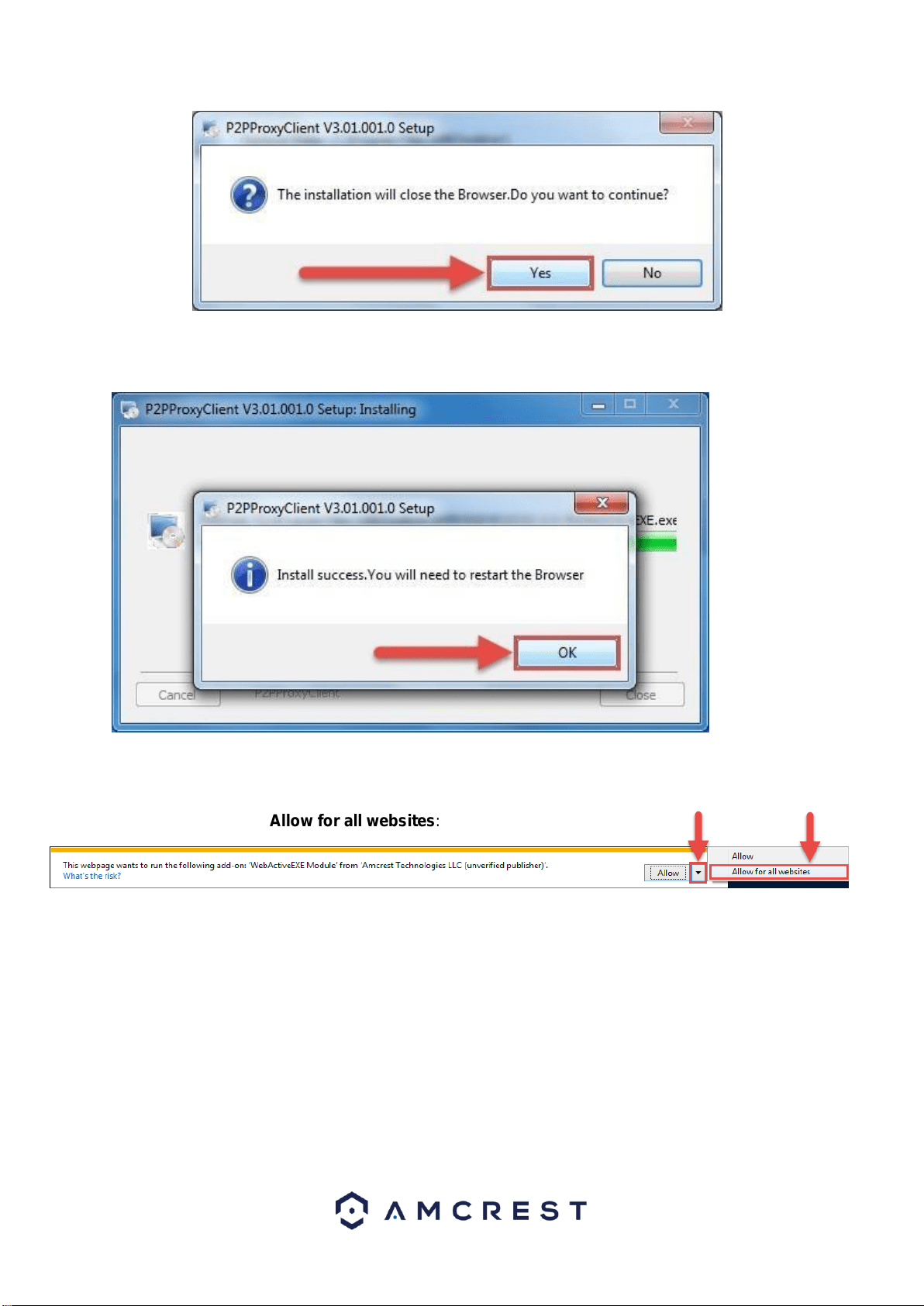
7. The plugin will close your browser sessions to install. Save any
pages, then click Yes:
56
8. On the next prompt, it will say the install was successful and ask
you to restart your browser. Click OK:
9. You will be taken back to the login page and see another
notification from your browser asking you to allow this plugin on
this web page. Click the small arrow next to Allow, then click
Allow for all websites:
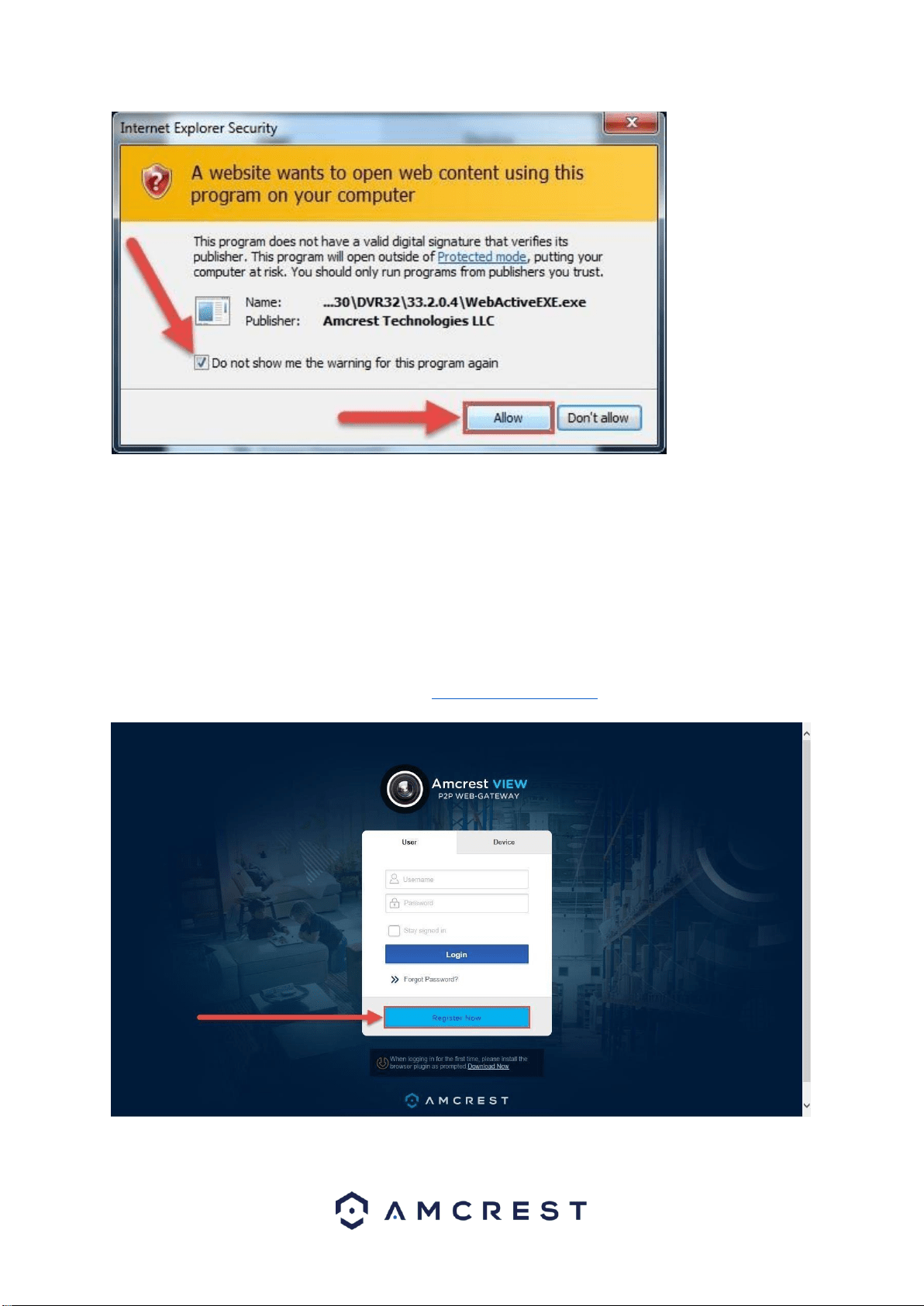
10. Another popup will appear asking you to allow this plugin. Mark
the checkbox next to Do not show me the warning for this
program again, then click Allow:
57
Now the plugin has been installed successfully and you can continue to
register for an account for DVR access through AmcrestView.com
User method
The user method requires that you first install the Amcrest browser
plugin for AmcrestView.com. Then, you can register for an account to
set up your DVR.
1. On the main login screen, www.amcrestview.com, click the Register
Now button:
2. You will be taken to the registration form. Enter your Username,
Password, then Confirm Password, type your Email, enter the
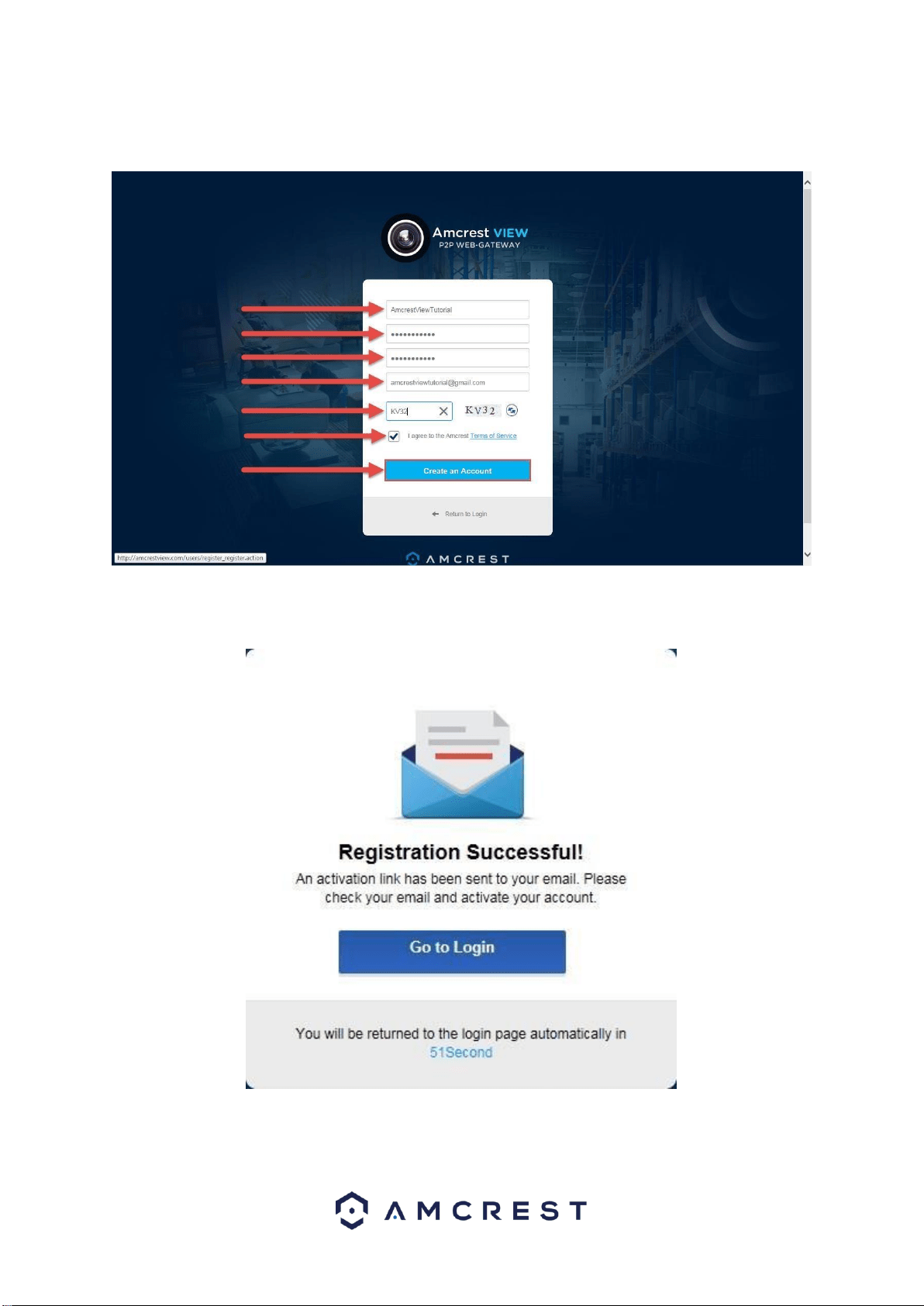
58
Verification Code, make sure the box is checked confirming you’ve
read the ‘Amcrest Terms of Service’, then click Create an Account:
3. You will see the Registration Successful message and a
confirmation email will be sent to you:
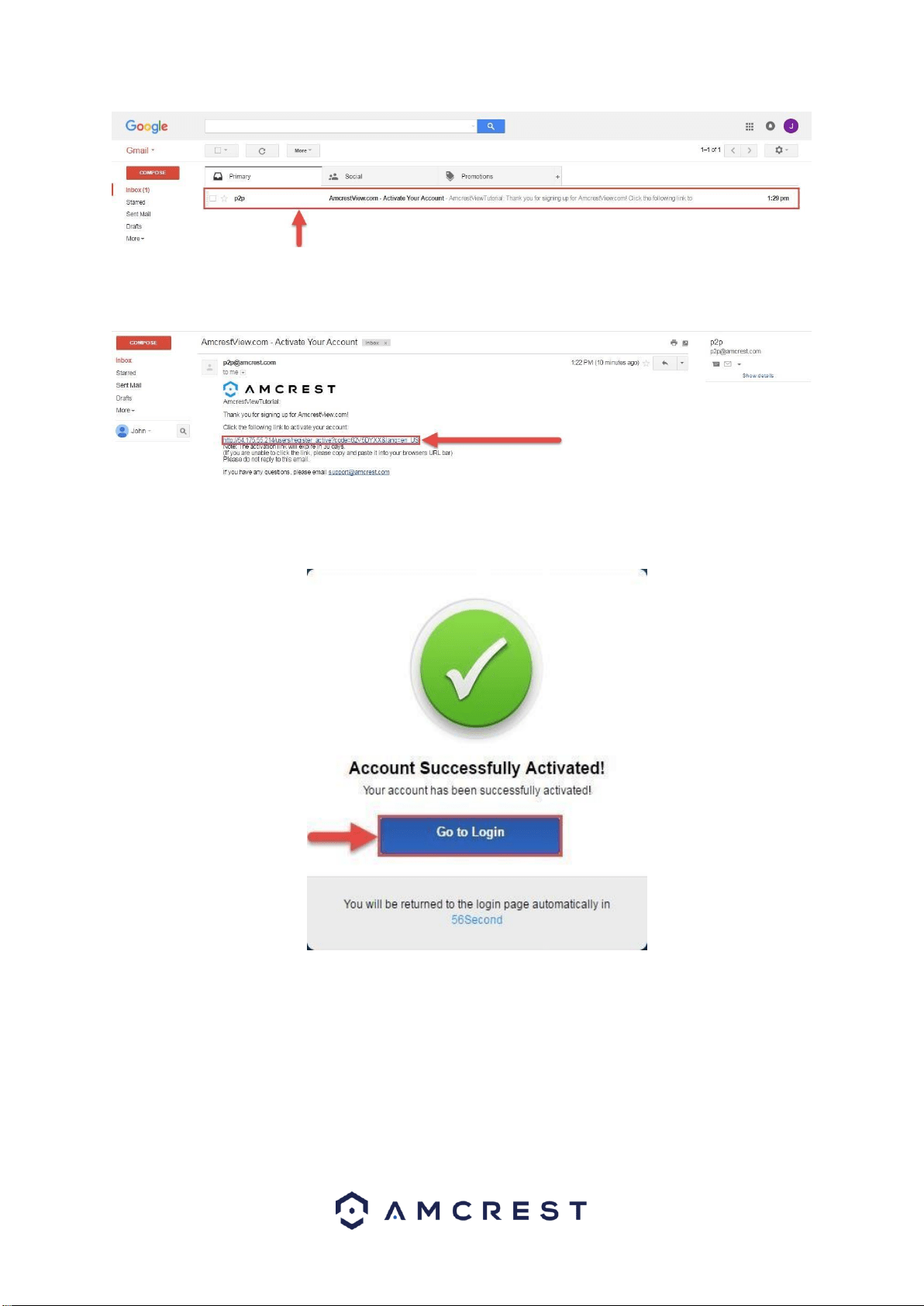
Check your email, and click the confirmation email from
AmcrestView.com:
59
4. Once you’ve opened the email, click the confirmation link inside to
complete your registration:
5. You will be taken back to AmcrestView.com and shown confirmation
that your account has been activated. Click Go to Login:
60
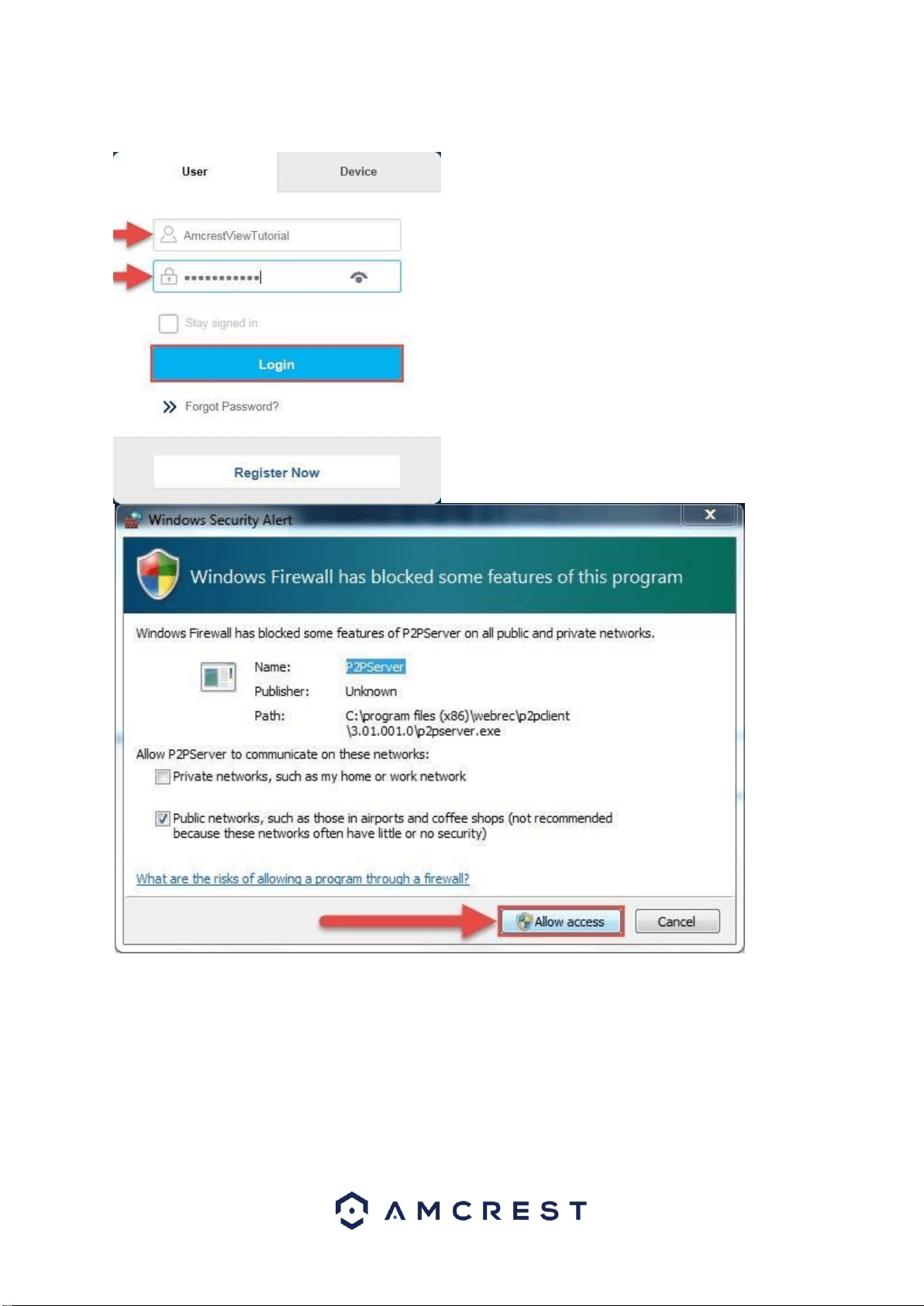
6. You will be taken back to the login screen. Enter your new AmcrestView.com username and
password, then click Login:
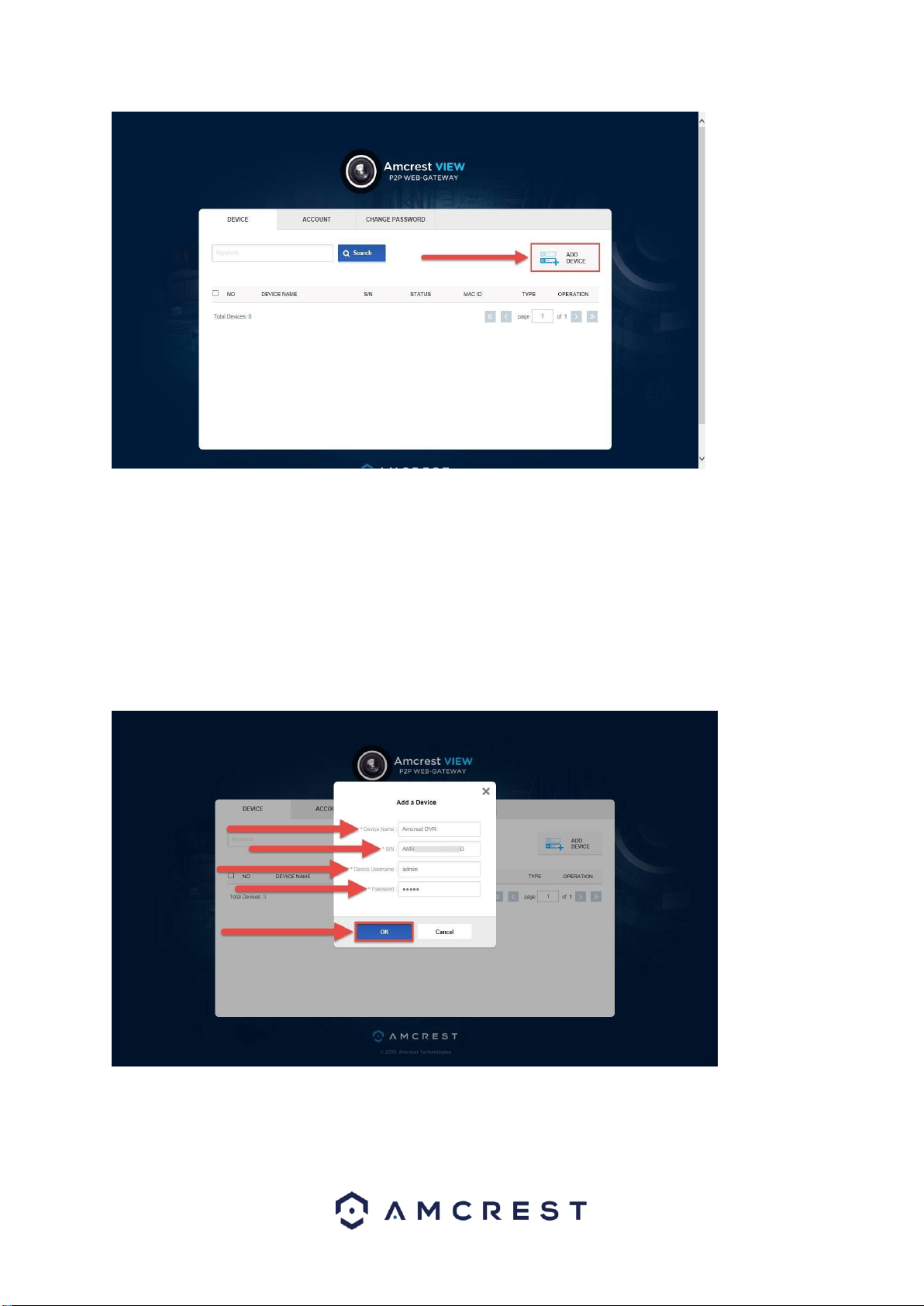
8. You will be taken to the main screen of your account. From here,
click the Add Device button:
7.
A popup will appear from your Windows
Firewall. Click
Allow access
:
61
9. Now you can enter your DVR’s information. Enter a Device Name
(this can be anything). Then, fill in the S/N (serial number) this can
be found on the sticker attached to the bottom of your DVR or
through the web interface.
Enter your username and password for the DVR, not the
username and password you just created for AmcrestView.com.
To find your DVR login credentials, please refer to part 4 of this
guide: Console Setup (Login & Startup Wizard) > Logging in.
Finally, click OK:
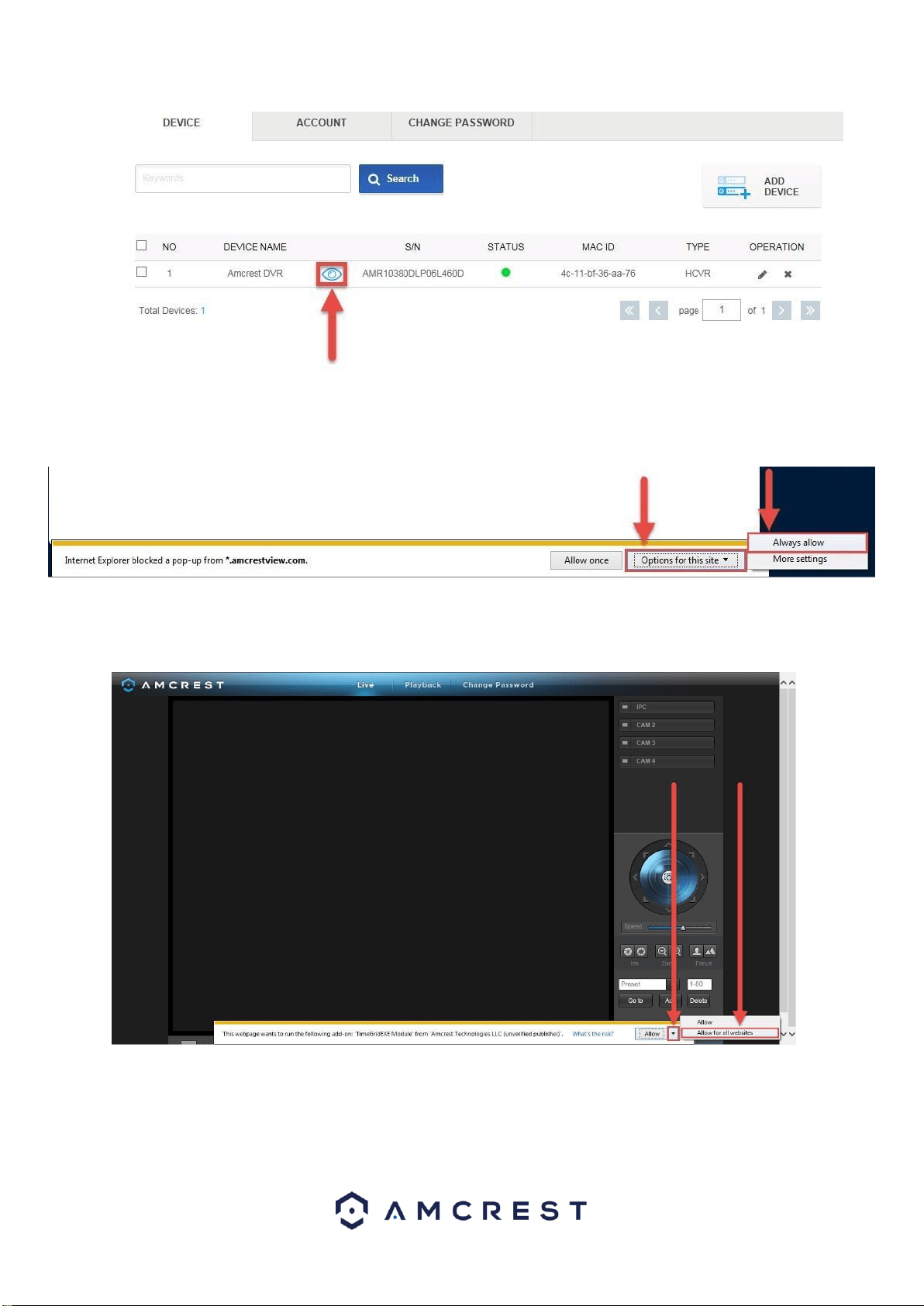
10. You will then see your DVR added to the device list on the main
screen. Click the ‘eye’ icon to view the live feed:
62
11. Your browser will give you a notification asking you to allow popups
from AmcrestView.com. Click Options for this site, then click
Always allow:
12. You will be taken to the live view page and given a notification to
allow the plugin to pull the video feed through here. Click the small
arrow to the right of Allow, then click Allow for all websites:
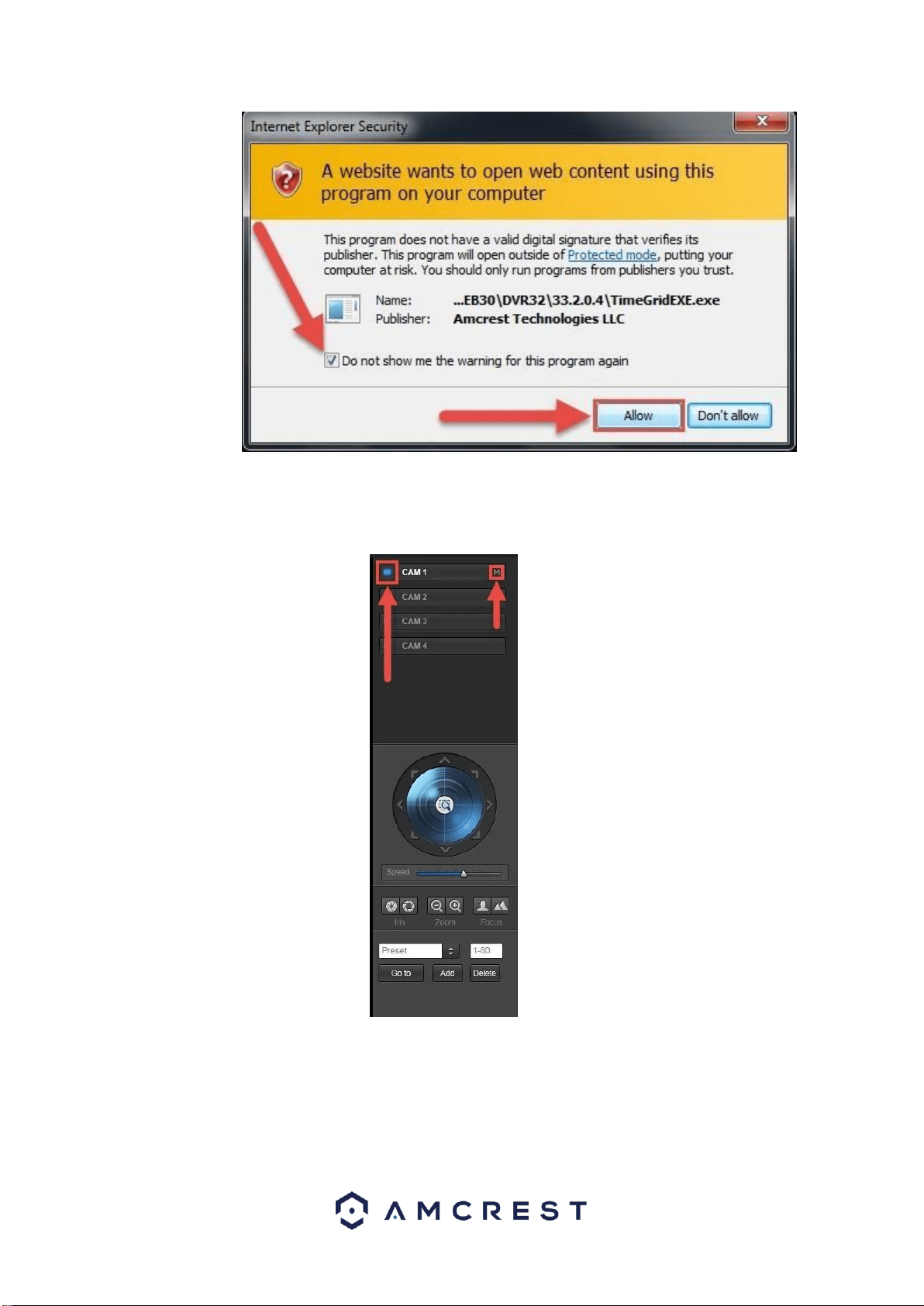
13. A final popup will appear asking you to confirm that you allow this
plugin on your browser. Mark the checkbox next to Do not show me
the warning for this program again, then click Allow:
63
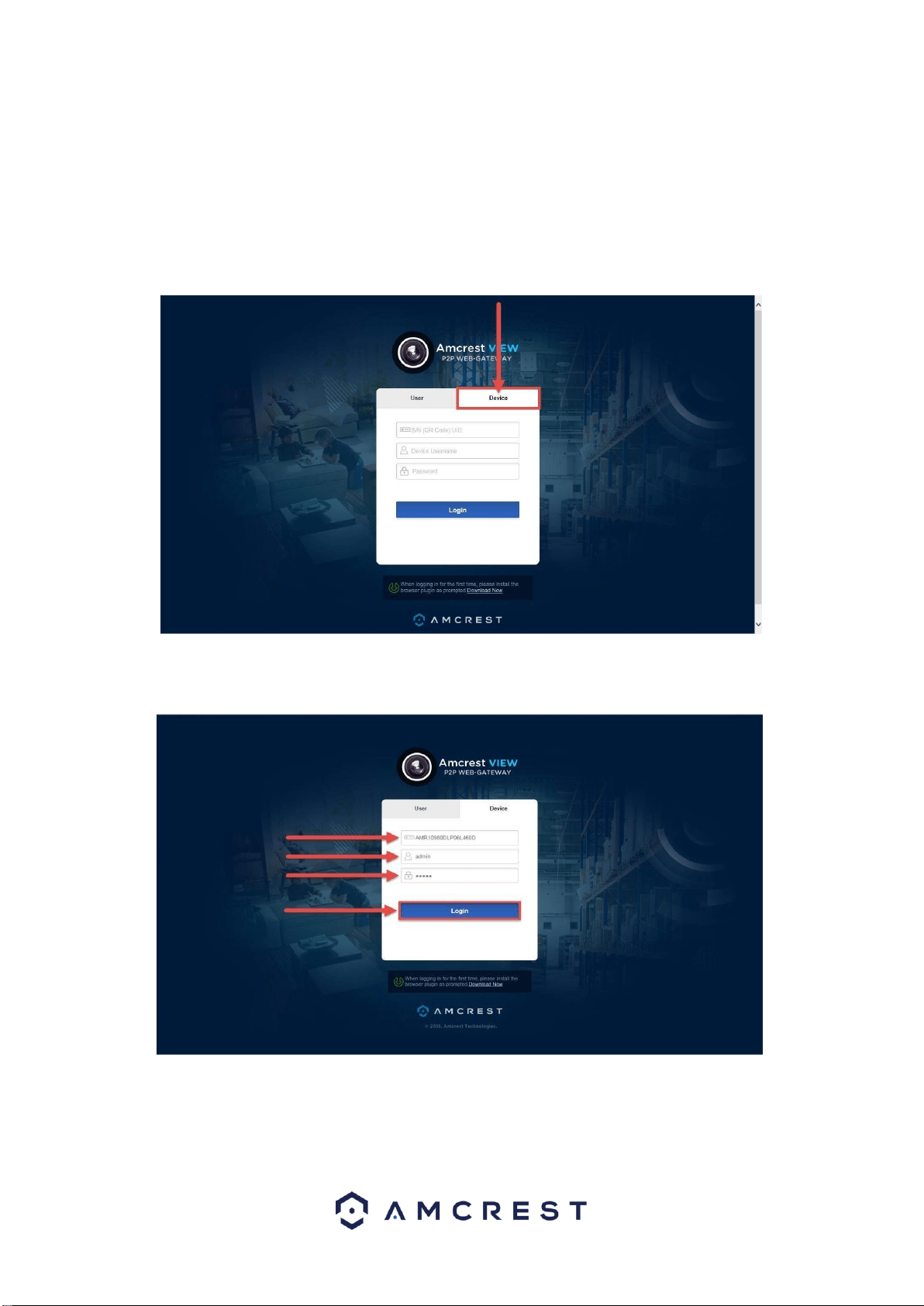
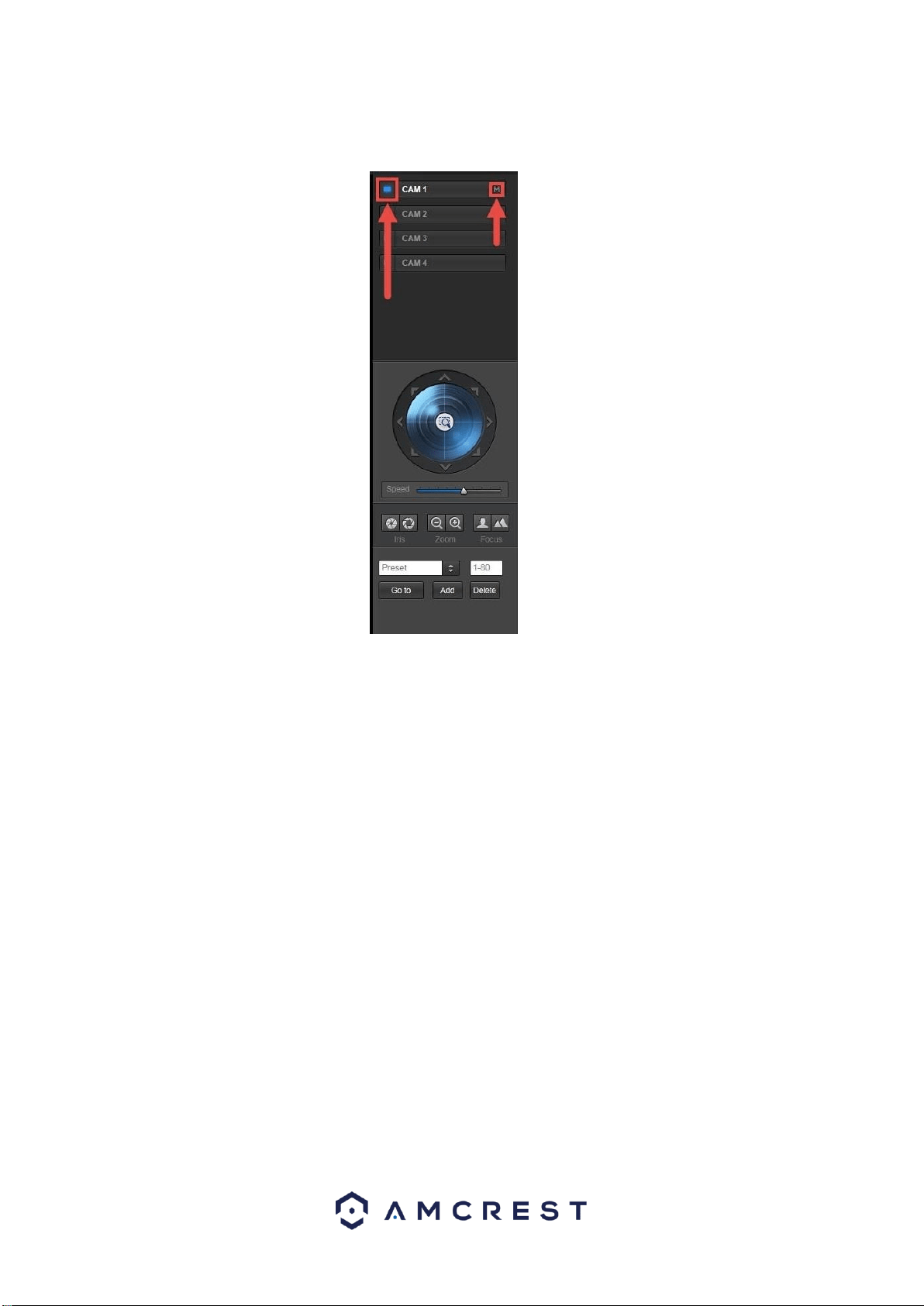
14. Now you can enable any of your added cameras to see their live
feeds. In the top-right panel, there is a channel list. Click the small
square icon to enable your feed for an added camera to see the
video feed:
Click the “S” to change it to an “M” which stands for “Main Stream”
and will give you a full HD quality video stream. To go back to “Sub
Stream”, for lower quality video (that works better on slower internet
connections), click the “M” and change it to an “S” again.
64
Device method
To login to your DVR quickly, without having to register, you can use the
device method. This method still requires that you install a plugin, which
is covered above, but can be done with only the DVR’s login credentials
and the serial number.
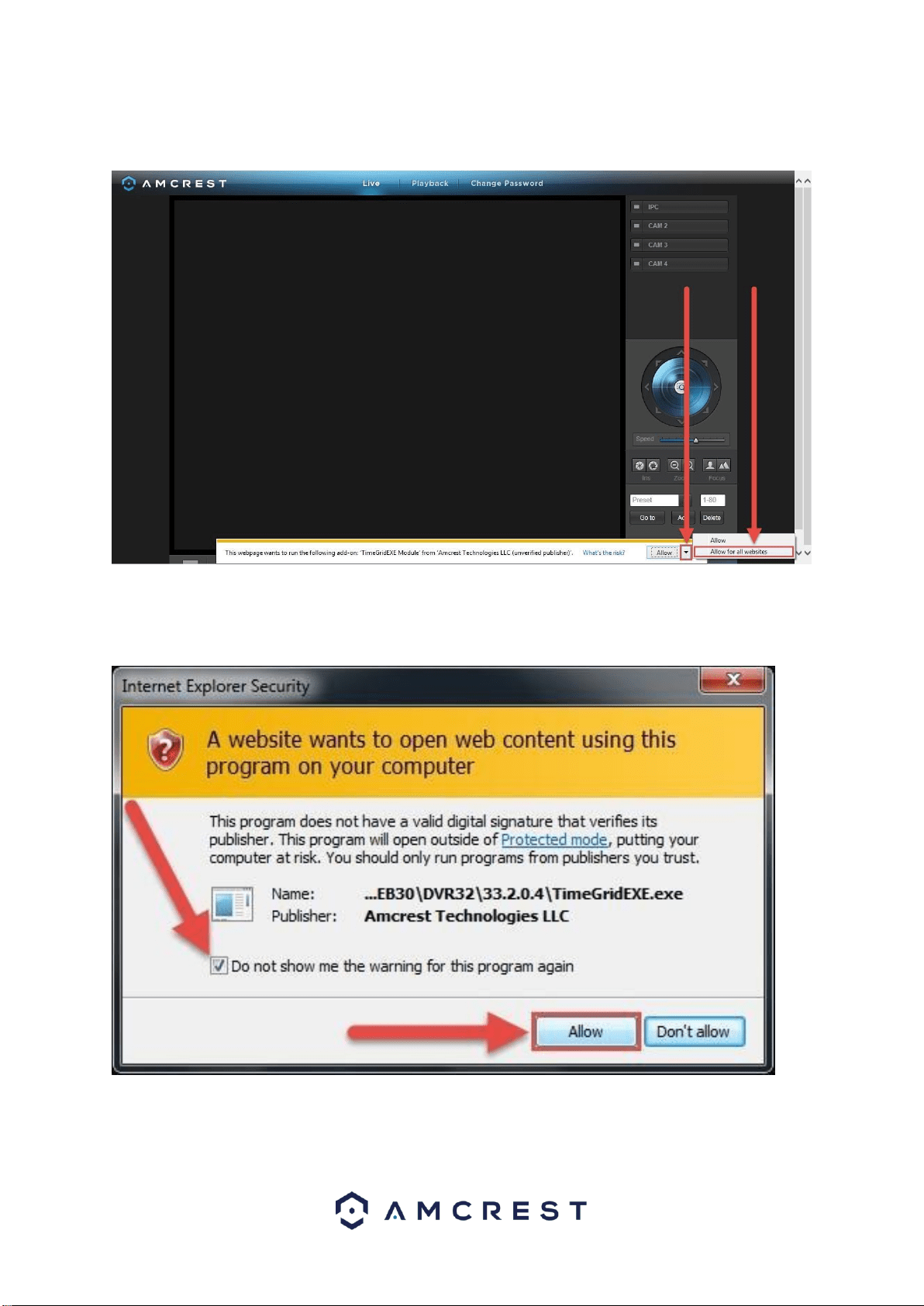
1. On the main login screen for AmcrestView.com, click the Device
tab:
2. Enter your DVR’s S/N(serial number) into the top field, enter your
DVR’s username and password, then click Login.
To find your DVR’s login credentials, please refer to part 4 of this
guide: Console Setup (Login & Startup Wizard) > Logging in.
3. This will take you straight to the live view screen. You will see a
notification from your browser asking you to allow the plugin. Click
65
the small arrow to the right of Allow, then click Allow for all
websites:
4. You will see a popup asking you to confirm that you allow this
plugin. Check the box next to Do not show me the warning for
the program again, then click Allow:
5. Now you can enable any of your added cameras to see their live
feeds. In the top-right panel, there is a channel list. Click the small
66
square icon to enable your feed for an added camera to see the
video feed:
Click the “S” to change it to an “M” which stands for “Main Stream”
and will give you a full HD quality video stream. To go back to “Sub
Stream”, for lower quality video (that works better on slower
internet connections), click the “M” and change it to an “S” again.
AmcrestView Web Interface Overview
There are two main sections inside of the AmcrestView web interface: the
main device list section (for anyone logged in with a registered account)
and the live view section (can be accessed by both registered users and
those accessing their DVRs using the device method covered above.
Device list section
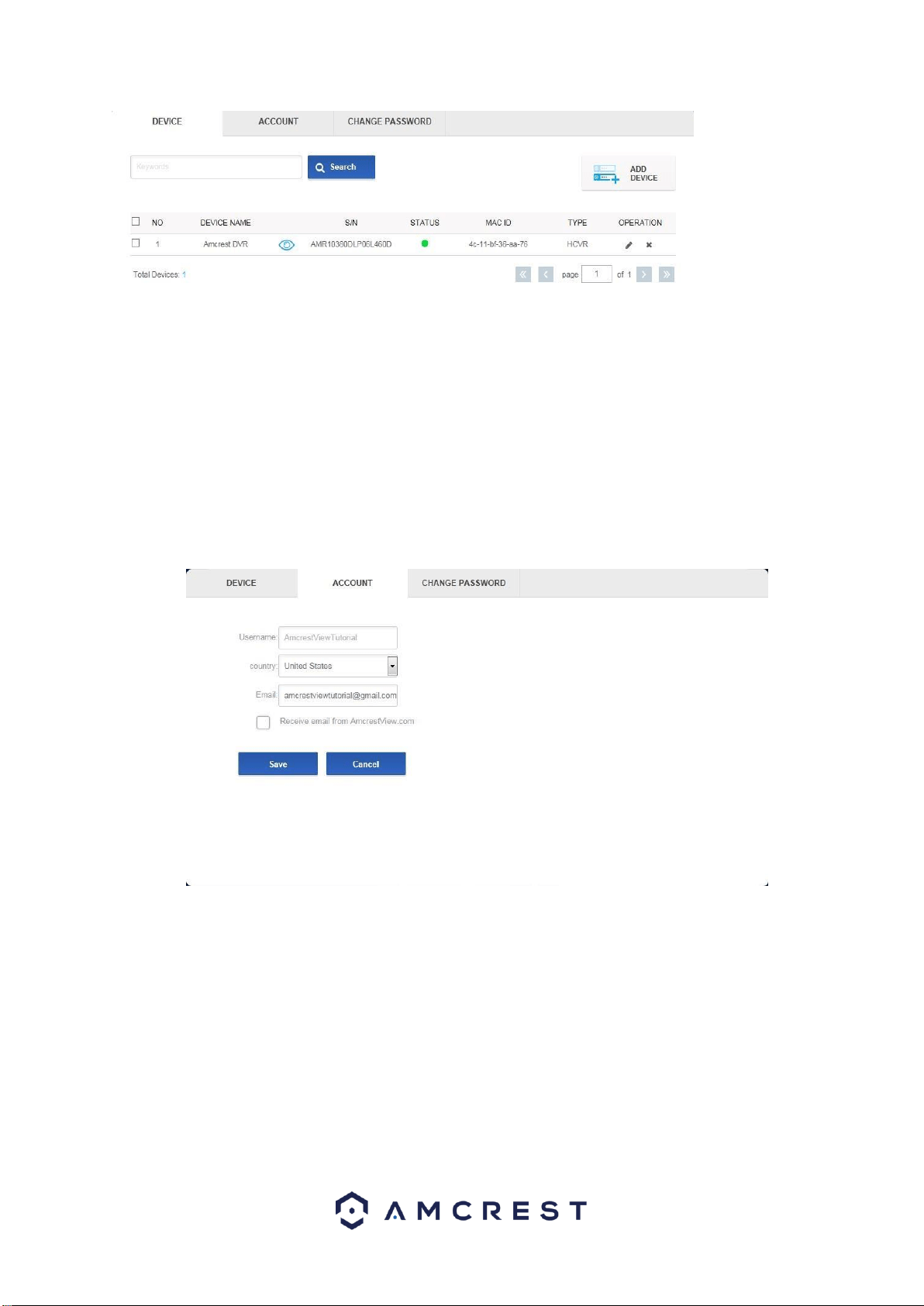
The device list section has 3 main tabs. The first is the DEVICE tab:
67
This page shows you a list of any added devices and is where you can click
the ‘eye’ icon to view your DVR’s live camera feeds. This is where you can
ADD DEVICE, Search, edit, or delete your added devices.
The next tab is the ACCOUNT tab:
This is where you can see your Username, change your Country, see your
Email, and enable email notifications from AmcrestView.com.
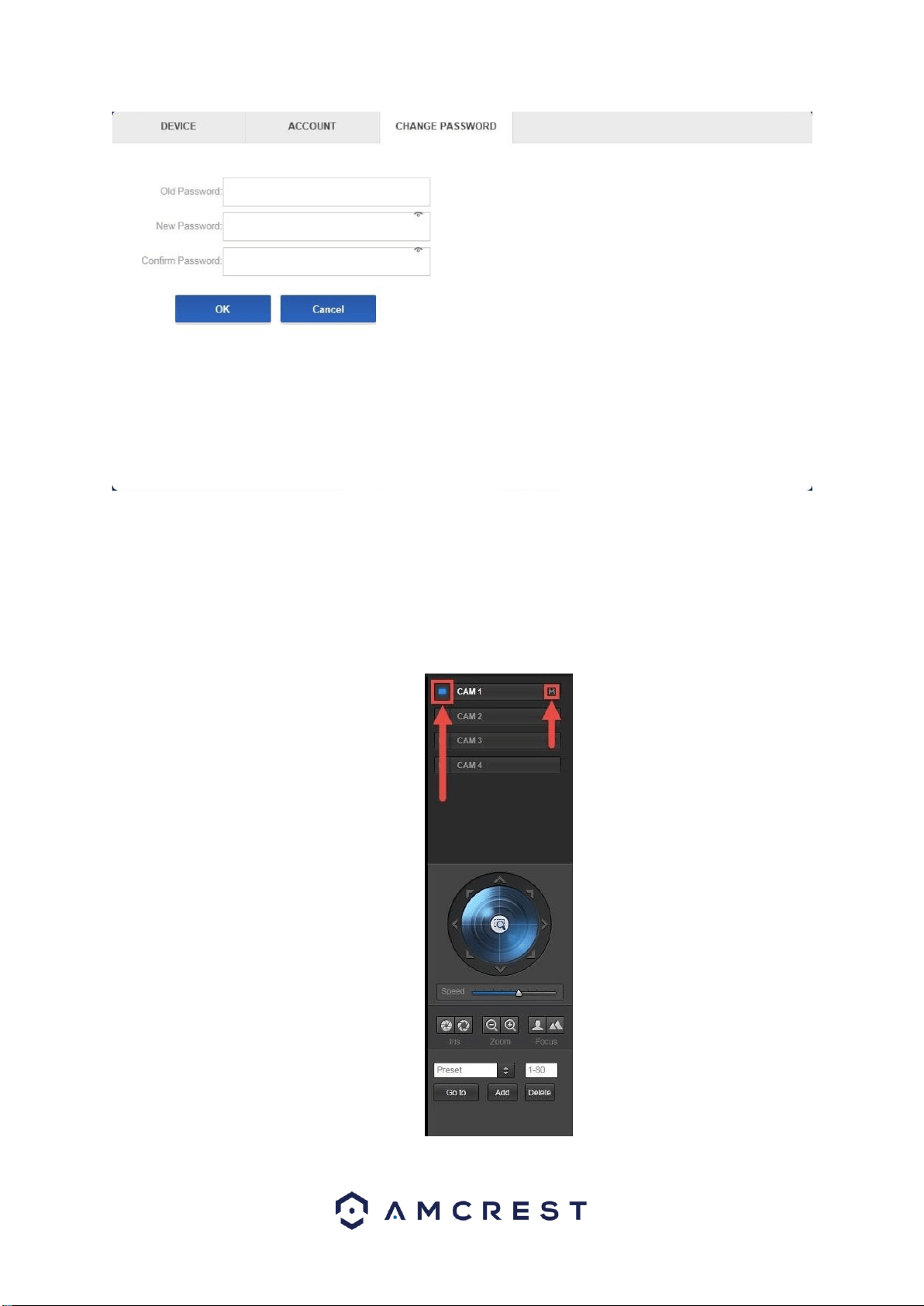
The last tab for the device list section is the CHANGE PASSWORD tab:
68
Here, you can change your password.
Live view section
The live view section is where you can see the live camera feeds and
playback footage for any cameras added to your DVR. The first tab is the
Live tab:
69
Here, you can enable the live feeds for any connected cameras, control
PTZ, take snapshots, use 2-way audio, view them in full screen, and more.
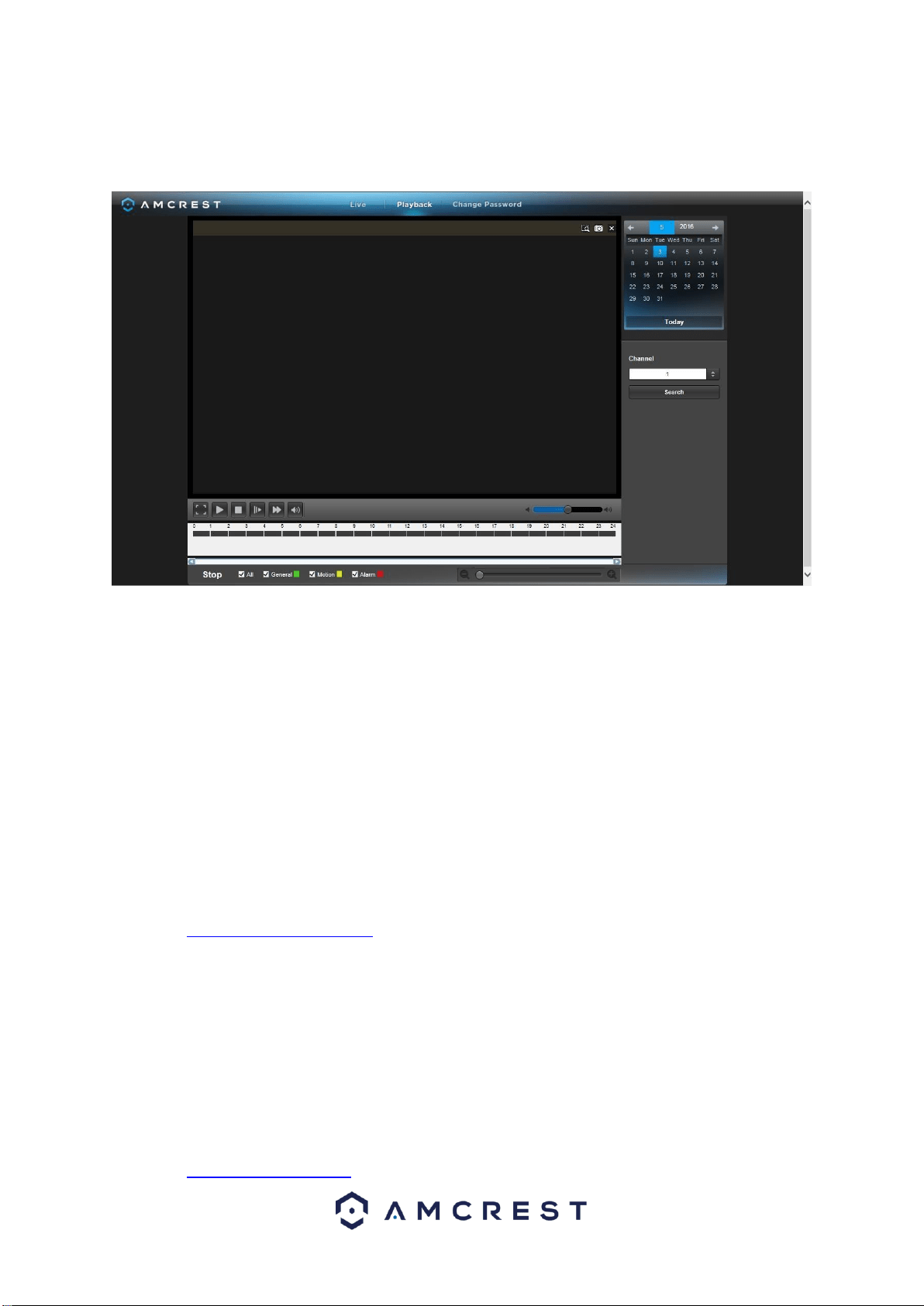
The next tab is the Playback tab.
Here, on the right panel, there is a calendar for you to choose which day
you’d like to see footage from, and you can choose a channel to select
which camera you want to see footage from. The timeline on the bottom
allows you to play, stop, forward, etc.
Note: Keep in mind that you can see the live feeds from your cameras
whether a hard drive is installed in your DVR. However, you will need to
have a hard drive installed and recordings properly configured to view the
playback.
9. References & Contact Information
To view setup videos for many of the steps outlined in this guide, go to
http://amcrest.com/videos
This quick start guide is for reference only. Slight differences may be found
in the user interface.
All the designs and software here are subject to change without prior written
notice.
All trademarks and registered trademarks mentioned are the properties
of their respective owners.
If you have any questions or concerns, please contact us at
support@amcrest.com, or call us at 888-212-7538.

70
FCC Statement
1. This DVR complies with Part 15 of the FCC Rules. Operation is subject to the
following two conditions: (1) this DVR may not cause harmful interference, and (2) this
DVR must accept any interference received, including interference that may cause
undesired operation.
2. The user’s manual or instruction manual for an intentional or unintentional
radiator shall caution the user that changes, or modifications not expressly approved by
the party responsible for compliance could void the user's authority to operate the
equipment. In cases where the manual is provided only in a form other than paper, such
as on a computer disk or over the Internet, the information required by this section may
be included in the manual in that alternative form, provided the user can reasonably be
expected to have the capability to access information in that form.
3. (b) For a Class B digital DVR or peripheral, the instructions furnished the user
shall include the following or similar statement, placed in a prominent location in the text
of the manual:
NOTE: This equipment has been tested and found to comply with the limits for a Class
B digital DVR, pursuant to Part 15 of the FCC Rules. These limits are designed to
provide reasonable protection against harmful interference in a residential installation.
This equipment generates, uses and can radiate radio frequency energy and, if not
installed and used in accordance with the instructions, may cause harmful interference
to radio communications. However, there is no guarantee that interference will not occur
in a particular installation. If this equipment does cause harmful interference to radio or
television reception, which can be determined by turning the equipment off and on, the
user is encouraged to try to correct the interference by one or more of the following
measures:
-- Reorient or relocate the receiving antenna.
-- Increase the separation between the equipment and receiver.
-- Connect the equipment into an outlet on a circuit different from that to which the
receiver is connected. -- Consult the dealer or an experienced radio/TV technician
for help.
4. RF exposure warning
This equipment must be installed and operated in accordance with provided instructions
and the antenna(s) used for this transmitter must be installed to provide a separation
distance of at least 20 cm from all persons and must not be co-located or operating in
conjunction with any other antenna or transmitter. End-users and installers must be
provided with antenna installation instructions and transmitter operating conditions for
satisfying RF exposure compliance.
IC Warning Statement
This DVR complies with Industry Canada’s licence-exempt RSSs. Operation is subject to the
following two conditions:
(1) This DVR may not cause interference; and
(2) This DVR must accept any interference, including interference that may cause undesired
operation of the DVR.
Le présent appareil est conforme aux CNR d'Industrie Canada applicables
aux appareils radio exempts de l icence. L'exploitation est

71
autorisée aux deux conditions suivantes : (1) apparel ne doit pas produire
de brouillage, et (2) l'utilisateur de l'appareil doit accepter tout brouillage
radioélectrique subi, même si le brouillage est susceptible d'en
compromettre le fonctionnement.
This equipment complies with IC RSS-102 radiation exposure limits set forth for an
uncontrolled environment. This equipment should be installed and operated with a minimum
distance of 20cm between the radiator and any part of your body.
Pour se conformer aux exigences de conformité CNR 102 RF exposition, une distance de
séparation d'au moins 20 cm doit être maintenue entre l'antenne de cet appareil ettoutes les
personnes.
Copyright © Amcrest 2018
