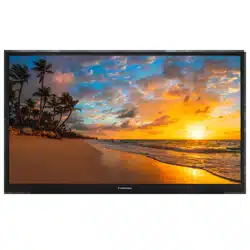
USER MANUAL SMART 4K UHD FULL SUN, FULL SHADE & PARTIAL SUN TV
PRODUCT OVERVIEW
Control Panel

* Please note that the button layout of the controls may vary from model to model.
- SOURCE Select the input source
- MENU Enter the main menu
- CH+ Skip to the next channel
- CH- Skip to the previous channel
- VOL+ Increase volume
- VOL- Decrease volume
- POWER Switch the TV on/ off
Rear Panel


Remote Control


CONNECTIONS
Your Furrion Aurora® TV offers multiple connection options. You can choose one or more of the connections below to operate. Please consult the manual of DVD player, Games Console or other devices to ensure proper connection and use.
WARNING: Do not connect the power source before making connections. Open the cable access door to connect the cables.
NOTE: All external devices and cables shown in the diagram are for reference only and not included in the package.

Connect to External Devices


Cable Management

- After all connections are completed, lead all connecting cables downwards through the duct at the bottom of the cable access door.
- Leave a drip loop when cables enter the compartment. This will prevent water from dripping down the cord and possibly entering the door area.
- Close the door and tighten the thumb screws for the best weatherproof effect.
INSTALLATION
Choose a Proper Location for your TV
Important: The TV must be installed a safe distance away from any water source. For best viewing we recommend you install it in a shaded environment.
- Avoid installing the TV where the screen is facing direct sunlight. The ideal location is in one place where the TV is shaded by structures, or under a patio cover or gazebo.
- If the sun shines directly on the screen for long periods of time, dark areas may appear on the screen. This is a normal reaction for the LCD panel, and will not cause damage to the screen. Either turn the screen away from the sun, or shade the TV, and the dark areas will soon disappear.
NOTE: DO NOT use the TV if ambient air temperature exceeds the operating temperature limits.
Mount on the Wall
It is recommended you install the TV in an area shaded by trees, landscape and/or structures, or under a patio cover or gazebo.

NOTE: Connect all cables prior to mounting the TV on the wall or TV mount. The cable access door on the rear panel will be obstructed once the TV is mounted.
- Follow the installation guide supplied with the Wall-Mount Bracket when installing the TV.
- Choose an appropriate location and refer to the VESA pattern for mounting.
- It is recommended to contact a professional for installation and use at least two people to move or install the TV.


Connect Power
Connect the power cord to a GFCI protected AC outlet with an “in-use” waterproof cover.
CAUTION: Do not connect power cord during cable connecting and TV installation.

WARNING: TV and GFCI receptacle must be installed a safe distance away from any water source. Be sure to check local electrical codes and comply with their local standards.
INSTALL REMOTE CONTROL BATTERY
Your remote control is powered by two (2) AAA batteries.
- Turn the remote over and remove battery cover.
- Place two (2) “AAA” batteries into the battery compartment with the “+” and “-“ ends facing as indicated.
- Replace the cover.

NOTE: Improper use of batteries can result in a chemical leakage or explosion.
- Use only the size and type of battery specified.
- Danger of explosion if batteries are incorrectly replaced.
- If the device is not to be used for a long period of time, remove the battery to prevent damage or injury from possible battery leakage.
- The batteries should not be exposed to excessive heat due to sunlight, fire or other heat sources.
GET TING STARTED WITH WEBOS TV
Initial Setup
Press the  button on the control panel or on the remote control to turn on the TV, follow the on-screen instructions to finish the initial setup.
Watching TV Broadcasting
Your TV must be connected to an antenna/cable or a set-top box that can receive broadcasting for broadcasting.
Prepare Live TV: Follow the steps below to finish an antenna/cable connection if your TV is not connected to a broadcast antenna.
- Connect the broadcast antenna/cable to the TV. You may also connect a piece of equipment that can receive broadcasting such as a set-top box instead of the antenna/cable.
- Launch
 /
/  / Connection / Device Connection Settings / Universal Control Settings.
- Start the / / Channels Channel / Tuning / Auto Tuning. Finds and adds only channels being broadcast
Enjoy Live TV: Press the /LIST button on the remote control. Use the  buttons to move to the desired channel then press
  button to select the channel.

- Channels: View a list of broadcast content that is currently being broadcast.
- Guide: You can view programs and the schedule of each program.
- TV Scheduler: You can set the date and time of the desired broadcasting program, and watch the program.
NOTES:
- The channels displayed in Channel List are a configuration of channels provided by the broadcast service provider. If the broadcast service provider has changed its channel configuration without notice, the channels displayed in Channel List may differ from the actual TV channels.
- You must complete the settings of the network, region, and auto-channel to receive normal live broadcast service.
Using Set-Top Box Remote Control or Universal Remote Control: If you would like to use an universal remote control, or you have your set-top box connected to your TV, you need to program the universal remote control or the settop box remote control to control the Furrion TV.
- Refer to the user manual of the set-top box remote control or that of the universal remote control on how to change the settings to control the Furrion TV.
- Furrion branded TV is compatible with LG codes.
Connecting to the Network
If you configure settings for the network, you can use various services such as online contents and applications.
Setting up a Wired Network
Connect the LAN port of the TV and the router using a LAN cable.
NOTE: The router should be connected to the Internet beforehand. When you connect the TV to the network with a LAN cable, the TV is automatically connected to the network if the router supports DHCP.
If the Network Is Not Automatically Connected: Press / / Connection / Network Connection Settings / Wired Connection (Ethernet).
Setting up a Wireless Network
- Turn on the power of the router connected to the Internet.
- Press the button on the remote control.
- Select / Connection / Network Connection Settings / Wi-Fi Connection.
- When the network search is complete, the list of networks available for connection is shown.
- Select a network to connect. If your Wireless Router is password protected, enter the password configured for the router.
Network Setting Warnings
- Use standard LAN cable.
- Resetting the modem may fix some network connection problems. Turn the power OFF, disconnect and reconnect it, and then turn the power on to solve the problem.
- The manufacturer is not responsible for any network connection problems or any faults, malfunctions, or errors caused by network connection.
- The network connection may not work properly because of network settings or the Internet service provider.
- DSL service must use a DSL modem and cable service must use a cable modem. Since only a limited number of network connections may be available, TV network settings may not be used depending on the contract with Internet service provider. (If the contract does not allow more than one device per line, only the already-connected PC may be used.)
- A wireless network can experience interference from other devices that use the 2.4 GHz frequency (wireless phone, Bluetooth device, or microwave oven). Although interference can also happen when using the 5GHz frequency, it is less likely to occur.
- The wireless environment can make wireless network service run slowly.
- Failure to turn off all local home networks may cause excessive traffic on some devices.
- The access point device must support wireless connections and wireless connection feature must be enabled on the device to have AP (access point) connection. Contact the service provider for availability of wireless connections on the access point.
- Check SSID and security settings of the AP. Refer to the appropriate documentation for SSID and security settings of the AP.
- Invalid settings of network devices (wired/wireless line sharer, hub) can cause the TV to operate slowly or not operate properly. Install the devices correctly according to the appropriate manual and network.
- The connection method may differ depending on the AP manufacturer.
- To solve a problem related to this function, please go to:
- / / Connection / Network Connection Settings / Wired Connection (Ethernet)
- - or -
- / / Connection / Network Connection Settings / Wi-Fi Connection / Advanced Wi-Fi Settings
Using the Home Feature of the webOS TV
The home screen will be displayed automatically when the TV is turned on. If not, press the  button on the remote control to pop it up

1. Launch search: Use buttons to navigate to and highlight  , then press to start searching. You can search for a variety of content and information using the desired search terms.
NOTE: You must connect to the network to use the search feature. The search results may vary depending on the channel, region, network settings, and whether you have agreed to the terms and conditions.
2. Use home dashboard: Use buttons to navigate to  or press and hold the
  button to select home dashboard. You can select or control a device (mobile, external device, Home IoT Devices, etc.) connected to the TV.
3. Switch the TV input used recently: Use buttons to navigate to and focus on  , you can switch to the recently used TV input in the list quickly.
4. Run or close a recently used app: Long-press the button or use buttons to navigate to and focus on  . You can run or close a recently used app in the list of preview area.
5. Run, move or delete the apps installed: Use buttons to navigate to and focus on the app, it will provide the preview of the app at the top. You can check or run useful features of the app and recommended content on the preview without entering into the app.
NOTE: Some apps may not provide the preview.
Manage webOS TV Home
You can view a list of all apps installed on your TV, change their positions or delete them.
NOTE: The default TV app cannot be edited.
- Use buttons to move to the app you want to edit, then press and hold the button on the remote control to activate the app edit mode. Or you can select the Edit mode button at the right corner of the Home list to enter the App Edit mode.
- To move the app to your desired position, go to the position and press the button. You can also move apps with the
 buttons on your remote control.
- To delete an app, select the X icon above the app.
You can move and delete as many apps as you wish before exiting the edit mode. After the editing is done, press the X icon at the top right to exit the App Edit mode.

- You can automatically arrange the app list in the order of most frequently used based on your accumulated app usage pattern.
- You can add your favorite video service channel to the list. NOTE: This feature is available only when the network is connected.
SETTINGS
Displays a set of light-weight controls quickly and simply such as Picture Mode, Sound Mode, Sound Out, Sleep Timer and so on.
Press the button on the remote control.

- You can set the Picture Mode.
- You can set the Sound Mode.
- You can choose the Sound Out.
- You can set the Sleep Timer.
- Move to the Connection screen.
- You can set more options.
- You can add/delete the quick setting items or change their order.
After entering each item, press and hold the button on the remote control to go to the corresponding menu.
TROUBLESHOOTING
TV does not operate
- Make sure the power cord is plugged in.
- Try another AC outlet.
- Power is off, check fuse or circuit breaker.
- Unplug unit for an hour, then plug it back in.
Normal picture, but no sound
- Check the volume settings.
- Sound muted? Press
 button.
- Try another channel.
- Check audio cable connections.
The remote control does not work
- Make sure the remote control is in range with no obstructions.
- Check the batteries.
- Correct operating mode set: TV, VCR etc.
Poor sound or no sound
- Station or Cable TV experiencing problems, tune to another station.
- Check sound adjustments (Volume or Mute).
- Check for sources of possible interference.
Poor picture or no picture
- Station or Cable TV experiencing problems, tune to another station.
- Make sure channels are set into memory.
- Check antenna or Cable TV connections, adjust antenna.
- Check for sources of possible interference.
- Check picture control adjustments.
Poor TV reception
- Ensure the antenna amplifier is turned on for Antenna TV.
- Adjust the antenna position to a stronger signal receiving angle.
- Check if the Antenna connection is tight.
- Check if there is power supplied to the Antenna distribution box.
- Check if your incoming cable is connected to the correct cable / antenna wall connection.
Poor Cable / Satellite TV Reception
- Ensure antenna amp is turned off for cable signal.
- Check if incoming cable is connected correctly.
- Ensure cable splitter box has power.
- Check if the incoming cable is connected to the correct cable / Satellite wall connection.
- Ensure Dish has no obstruction.
TV shuts off
- Sleep Timer is set.
- Power interrupted.
Black and white image from the connected AV device
- Check video connections on both the TV and connected AV device. Ensure all video cables are connected firmly.
SPECIFICATIONS
Product specifications may be changed without prior notice due to upgrade of product functions.
Estimated yearly energy consumption indicated on the energy label is measured in accordance with the test procedures for television sets (USA only). The actual energy consumption depends on the usage environment (the content watched, TV settings, etc.).