Thank you for purchasing this Samsung product.
To receive more complete service, please register your product at www.samsung.com
Model Serial No.
USER MANUAL
Before Reading This User
Manual
This Projector comes with this User Manual and an
embedded e-Manual (
> Menu > Settings >
Support > Open e-Manual).
On the website (www.samsung.com), you can
download the manuals and see its contents on your PC
or mobile device.
Warning! Important Safety
Instructions
Please read the Safety Instructions before using your
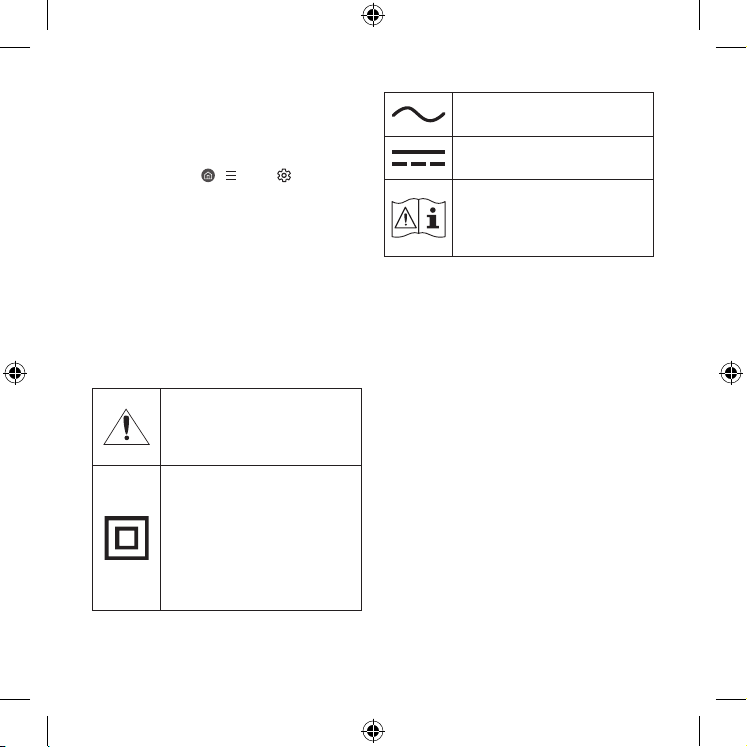
Projector. Refer to the table below for an explanation
of symbols which may be on your Samsung product.
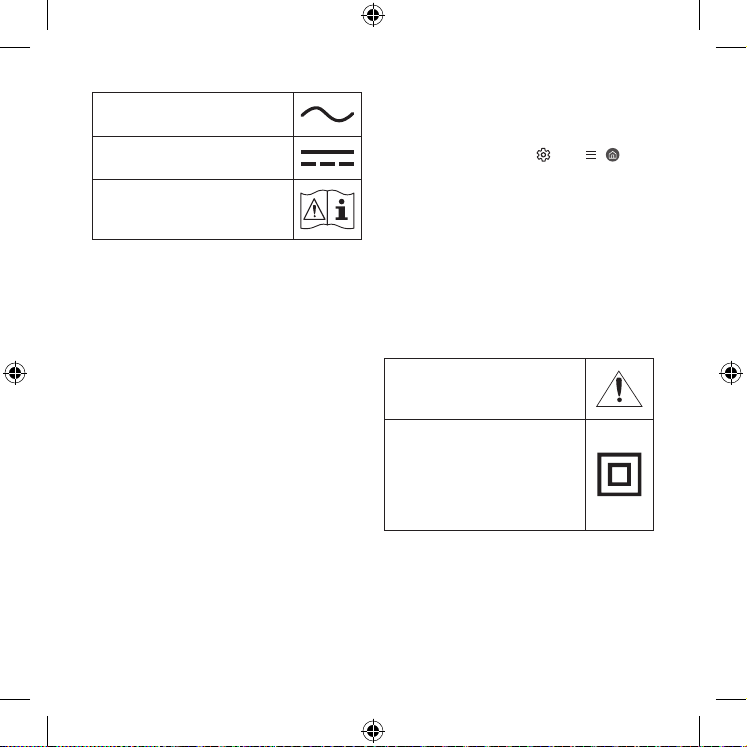
This symbol indicates that this
product has included important
literature concerning operation and
maintenance.
Class II product: This symbol
indicates that a safety connection
to electrical earth (ground) is not
required. If this symbol is not present
on a product with a mains lead,
the product MUST have a reliable
connection to protective earth
(ground).
AC voltage: Rated voltage marked
with this symbol is AC voltage.
DC voltage: Rated voltage marked
with this symbol is DC voltage.
Caution. Consult instructions for use:
This symbol instructs the user to
consult the user manual for further
safety related information.
Contain with module complies with class 1 LASER
product.
Power
• Do not overload wall outlets, extension cords, or
adaptors beyond their voltage and capacity. It may
cause fire or electric shock.
Refer to the power specifications section of the
manual and/or the power supply label on the
product for voltage and amperage information.
• Power-supply cords should be placed so that
they are not likely to be walked on or pinched by
items placed upon or against them. Pay particular
attention to cords at the plug end, at wall
outlets, and at the point where they exit from the
appliance.
• Never insert anything metallic into the open parts
of this apparatus. This may cause electric shock.
English
English - 2

English
• To avoid electric shock, never touch the inside of
this apparatus. Only a qualified technician should
open this apparatus.
• Be sure to plug in the power cable until it is firmly
seated. When unplugging the power cable from a
wall outlet, always pull on the power cable's plug.
Never unplug it by pulling on the power cable. Do
not touch the power cable with wet hands.
• If this apparatus does not operate normally - in
particular, if there are any unusual sounds or smells
coming from it - unplug it immediately and contact
an authorised dealer or Samsung service centre.
• To protect this apparatus from a lightning storm,
or to leave it unattended and unused for a long
time, be sure to unplug it from the wall outlet and
disconnect the antenna or cable system.
– Accumulated dust can cause an electric shock,
an electric leakage, or a fire by causing the
power cable to generate sparks and heat or by
causing the insulation to deteriorate.
• Use only a properly grounded plug and wall outlet.
– An improper ground may cause electric shock
or equipment damage. (Class l Equipment only.)
• To turn off this apparatus completely, disconnect it
from the wall outlet. To ensure you can unplug this
apparatus quickly if necessary, make sure that the
wall outlet and power plug are readily accessible.
Installation
• Do not place this apparatus near or over a radiator
or heat register, or where it is exposed to direct
sunlight.
• Do not place vessels (vases etc.) containing water
on this apparatus, as this can result in a fire or
electric shock.
• Do not expose this apparatus to water (rain) or
moisture.
• Do not install your Projector in a location with
heavy dust, chemical substances, too high or low
temperature or high humidity, an automotive or
other vehicle used for transportation, or a location
where the Projector will operate continuously for
an extended period of time, such as an airport or
train station. If installed in such locations, a serious
quality problem may occur due to the surrounding
environment.
• Do not expose this apparatus to dripping or
splashing.
• Do not expose this apparatus to oil or oil mist.
• Do not use oils or lubricants. This may cause this
apparatus to crack.
English - 3

• WARNING - TO PREVENT THE SPREAD
OF FIRE, KEEP CANDLES AND OTHER
ITEMS WITH OPEN FLAMES AWAY
FROM THIS PRODUCT AT ALL TIMES.
• Do not drop or strike the product. If the product is
damaged, disconnect the power cable and contact
a Samsung service centre.
Caring for the Projector
• To clean this apparatus, unplug the power cable
from the wall outlet and wipe the product with
a soft, dry cloth. Do not use any chemicals such
as wax, benzene, alcohol, thinners, insecticide,
aerial fresheners, lubricants, or detergents. These
chemicals can damage the appearance of the
Projector or erase the printing on the product.
• The exterior of the Projector can get scratched
during cleaning. Be sure to wipe the exterior
carefully using a soft cloth to prevent scratches.
• Do not spray water or any liquid directly onto the
Projector. Any liquid that goes into the product may
cause a failure, fire, or electric shock.
Providing proper ventilation for your Projector
When you install your Projector, maintain a distance of
at least 10 cm between the Projector and other objects
(walls, cabinet sides, etc.) to ensure proper ventilation.
Failing to maintain proper ventilation may result in
a fire or a problem with the product caused by an
increase in its internal temperature.
Operation
• Move the product by holding the body. Do not hold
the Lens Cap.
• This apparatus uses batteries. In your community,
there might be environmental regulations that
require you to dispose of these batteries properly.
Please contact your local authorities for disposal or
recycling information.
• Store the accessories (remote control, or etc.) in a
location safely out of the reach of children.
• When you need to turn off the Projector
completely, wait until the fan stops completely so
that the Projector can cool down completely.
• Do not dispose of remote control or batteries in
a fire.
• Do not short-circuit, disassemble, or overheat the
batteries.
• CAUTION: There is danger of an explosion if you
replace the batteries used in the remote with the
wrong type of battery. Replace only with the same
or equivalent type.
English - 4
English
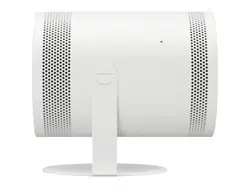
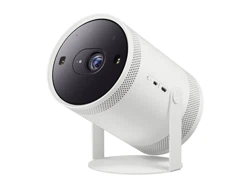
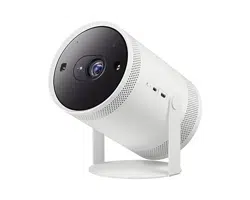
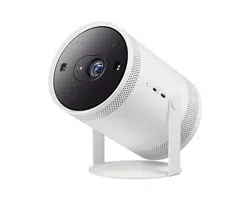
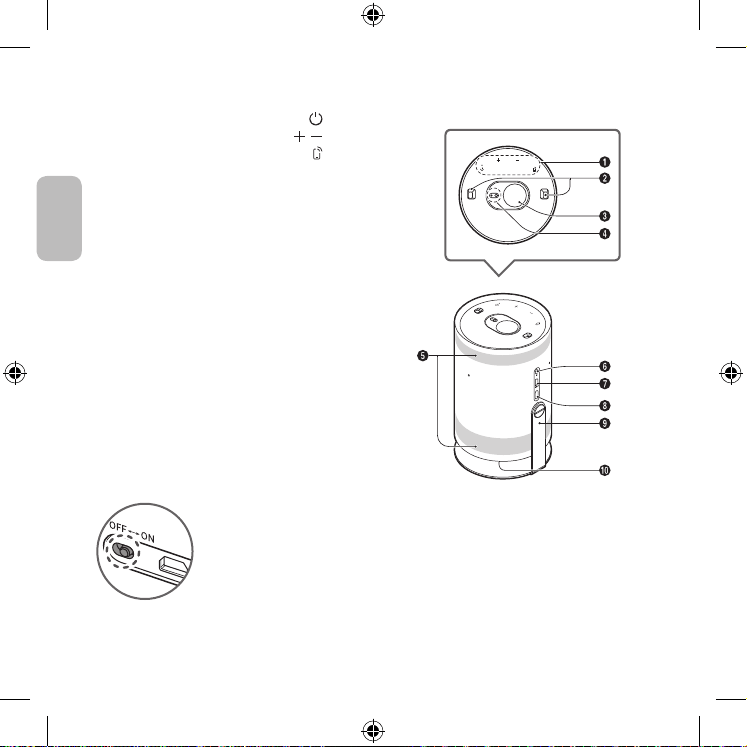
01 Product Overview
• To supply power via an external battery, ensure
that the battery supports PD (Power Delivery) and
its single port has output of 50 W or more.
• Please be advised that the pogo pin on the
bottom of the Projector is a feature only intended
for certain socket adapter features that are not
available/supported in your country. Please do not
attempt to use or connect the pogo pin with any
other accessories.
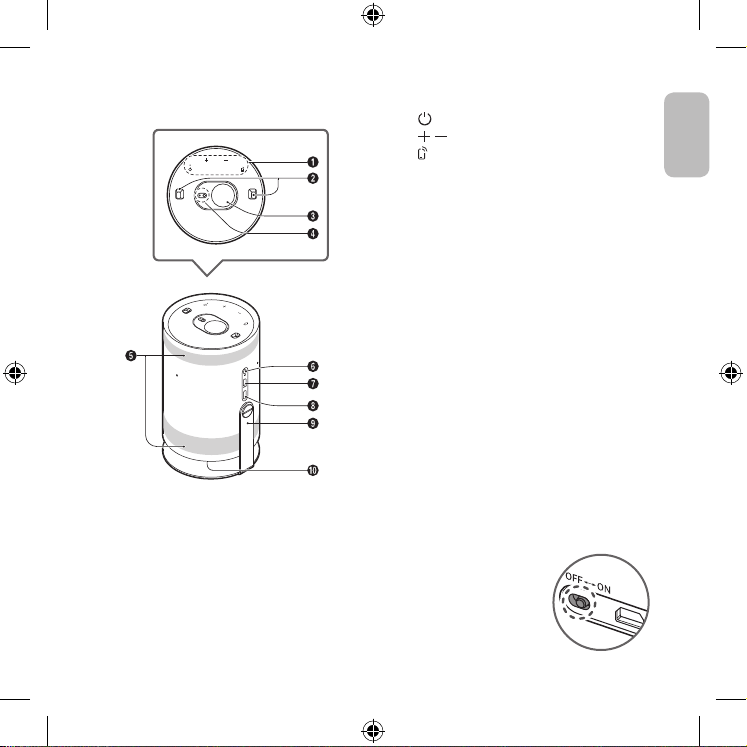
1
Touch Keys
(Power)
(Volume)
(Mobile)
Directly connect to the SmartThings app on
your mobile device.
2
Distance sensor
3
Lens
4
Remote control sensor / LED Indicator
5
Ventilation
6
MIC On/Off switch
7
Micro HDMI Port
8
USB Port (For Power)
9
Cradle
0
Speaker
• The product colour and shape may vary depending
on the model.
• Do not block Projector intake and exhaust vents.
• When operating the Projector in an enclosed space,
allow at least 50 cm clearance around the intake
and exhaust vents.
• When the Projector is not used, cover it with the
Lens Cap to protect the lens and distance sensor.
If the distance sensor is contaminated by dust, the
Focus or Keystone function may not work properly.
Setting the MIC On/Off
You can turn the MIC on or off by
using the MIC switch on the side
of the Projector.
• During analysis using data
from the MIC, the data is not
saved.
MIC
English - 5
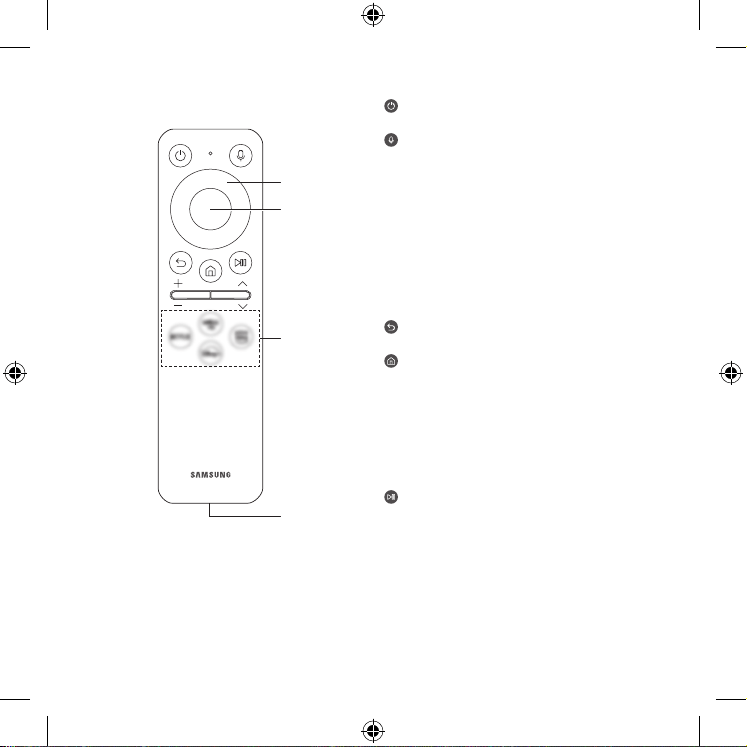
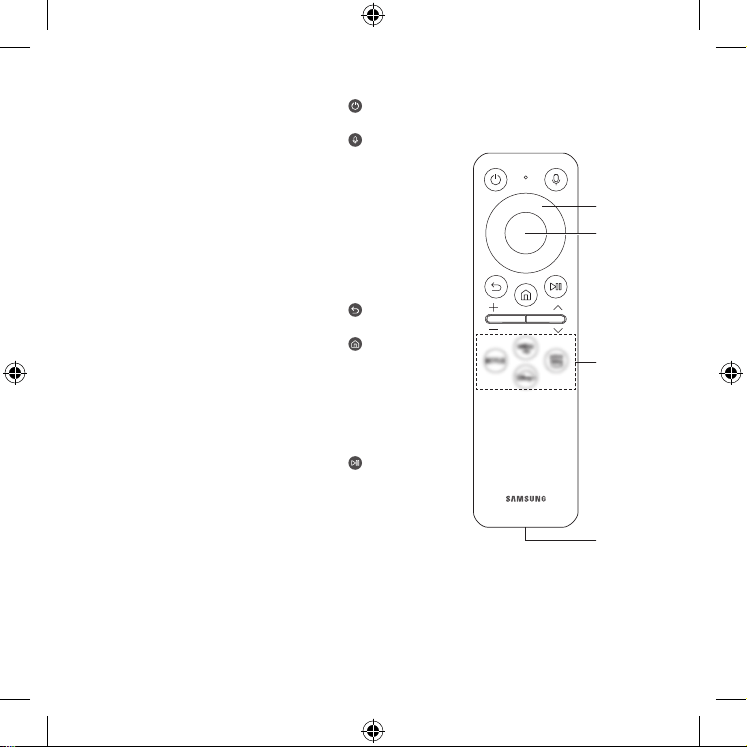
(Power)
Press to turn the Projector on or off.
(Voice Assistant)
Runs Voice Assistant. Press and hold the button,
say a command, and then release the button to run
Voice Assistant.
• The supported Voice Assistant's languages and
features may differ by geographical region.
1 Directional button (up, down, left, right)
Moves the focus and changes the values seen on
the Projector's menu.
2 Select
Selects or runs a focused item.
(Return)
Press to return to the previous menu.
(Smart Hub) + (Control PAD)
Press to switch to the Media Home. From the
Ambient screen, press to switch to the Ambient
Home.
• When pressed for 1 second or more, the Control
PAD appears. You can use Settings menu /
virtual numeric pad / Option pad with Colour
buttons by using Control PAD.
(Play/pause)
Using these controls, you can control the media
content that is playing.
02 The Samsung Smart Remote
4
1
2
3
English - 6
English
– The images, buttons, and functions of the Samsung
Smart Remote may differ with the model or
geographical area.
– It is recommended to use an original Samsung
charger. Otherwise, it may cause performance
degradation or failure of the product. In this case,
the warranty service is not applicable.
– When the remote control does not work due to low
battery, charge it by using the USB-C type port.
Fire or explosion may occur, resulting in
damage to the remote control or personal
injury.
• Do not apply shock to the remote
control.
• Be careful not to let foreign substances
such as metal, liquid, or dust come in
contact with the charging terminal of
the remote control.
• When the remote control is damaged
or you smell smoke or burning fumes,
immediately stop operation and then
repair it at the Samsung service centre.
• Do not arbitrarily disassemble the
remote control.
• Be careful not to let infants or pets
suck or bite the remote control. Fire
or explosion may occur, resulting
in damage to the remote control or
personal injury.
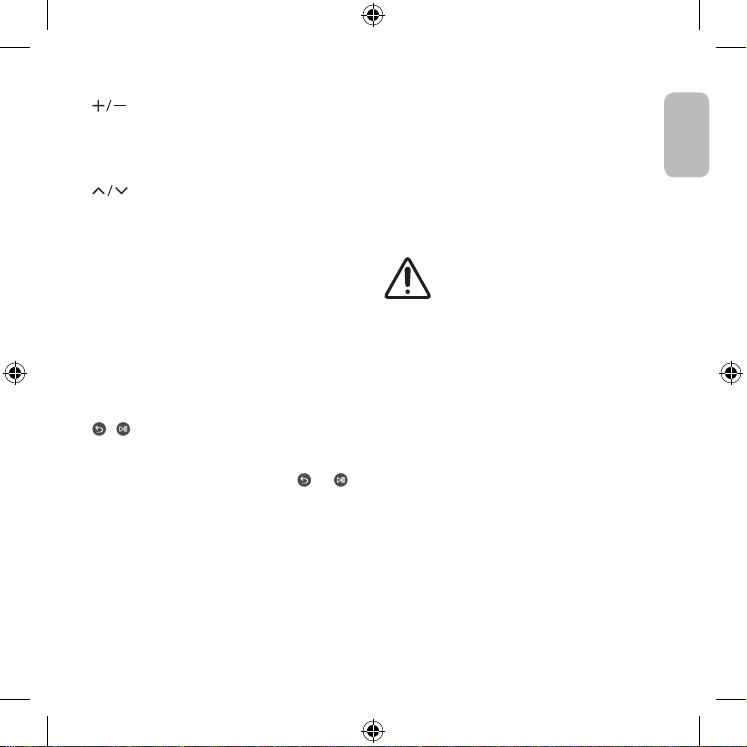
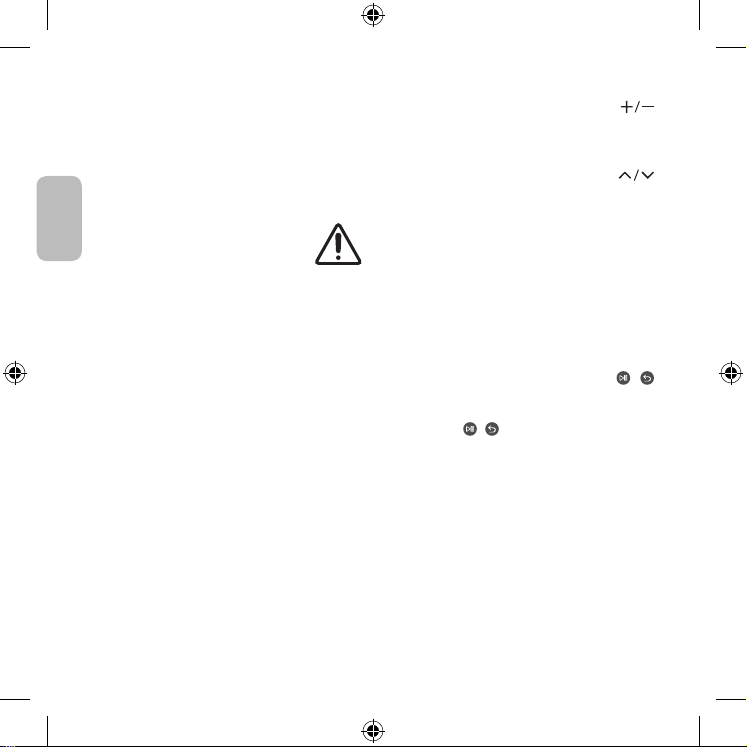
(Volume)
Move the button up or down to adjust the volume.
To mute the sound, press the button. When pressed
for 2 seconds or more, the Accessibility Shortcuts
appears.
(Channel)
Move the button up or down to change the
channel. To see the Guide or Channel List screen,
press the button.
• When pressed for 1 second or more, the Channel
List screen appears.
(The Guide or Channel List screen appears
depending on the geographical area.)
3 Launch app button
Launch the app indicated by the button. (These
buttons may vary depending on the geographical
area.)
• Available apps may differ depending on the
geographical area or contents provider.
+ (Pairing)
If the Samsung Smart Remote does not pair to the
Projector automatically, point it at the front of the
Projector, and then press and hold the
and
buttons simultaneously for 3 seconds or more.
4 USB port (C-type) for charging
Used for quick charging. The LED on the front will
light when charging. When the battery is fully
charged, the LED will turn off.
• The USB Cable is not provided.
– Use the Samsung Smart Remote less than 6 m
from the Projector. The usable distance may vary
with the wireless environmental conditions.
English - 7

03 Initial Setup
When you turn on your Projector for the first time,
it immediately starts the Initial Setup. Follow the
instructions displayed on the screen and configure
the Projector's basic settings to suit your viewing
environment.
04 Troubleshooting and
Maintenance
Troubleshooting
For more information, see "Troubleshooting" in the
e-Manual.
> Menu > Settings > Support > Open e-Manual
> Troubleshooting
If none of the troubleshooting tips apply, please visit
"www.samsung.com" and click Support or contact the
Samsung service centre.
• To keep your Projector in optimum condition,
upgrade to the latest software. (
> Menu >
Settings > Support > Software Update).
The Projector won’t turn on.
• Make sure that the power cable is securely plugged
in to the Projector and the wall outlet.
• Make sure that the wall outlet is working and the
remote control sensor of the Projector is lit and
glowing a solid white.
• Try pressing the Power button of the Projector to
make sure that the problem is not with the remote
control. If the Projector turns on, refer to "The
remote control does not work".
The remote control does not work.
• Check if the remote control sensor of the Projector
blinks when you press the
button on the remote
control.
– When the remote's battery is discharged,
charge the battery using the USB charging port
(C-type).
• Try pointing the remote directly at the Projector
from 1.5-1.8 m away.
• Make sure to pair the remote to the Projector.
English - 8
English
Notes
• Saudi Arabia only: SP-LSP3BLA
• This device is a Class B digital apparatus.
• For information about the power supply, and more
information about power consumption, refer to the
information on the label attached to the product.
– For the label-rating, see the surface of the
bottom of the Projector.
• The images and specifications of the Quick Setup
Guide may differ from the actual product.
* Figures and illustrations in this User Manual are
provided for reference only and may differ from the
actual product appearance. Product design and
specifications may change without notice.
Decreasing power consumption
When you shut the Projector off, it enters Standby
mode. In Standby mode, it continues to draw a small
amount of power. To decrease power consumption,
unplug the power cable when you don't intend to use
the Projector for a long time.
05 Specifications and Other
Information
Specifications
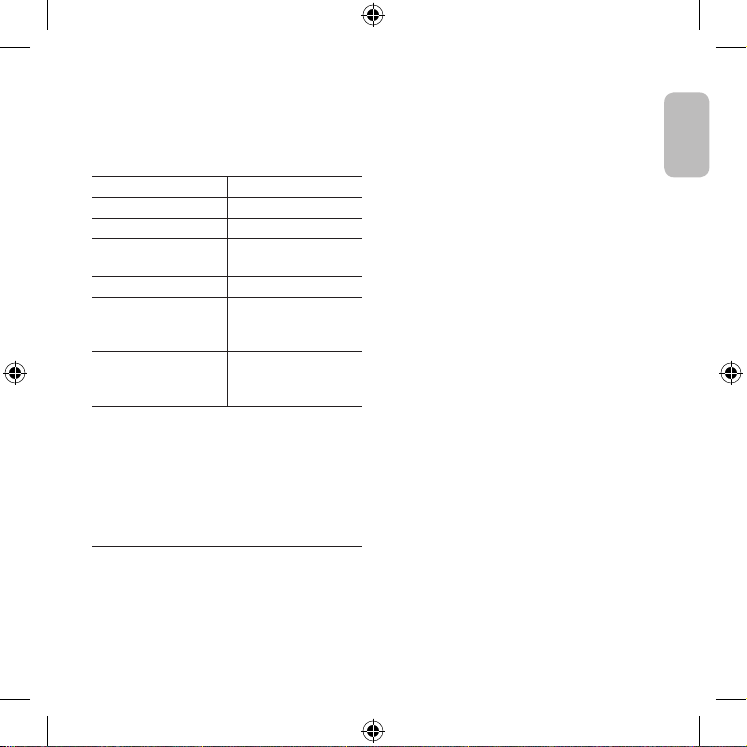
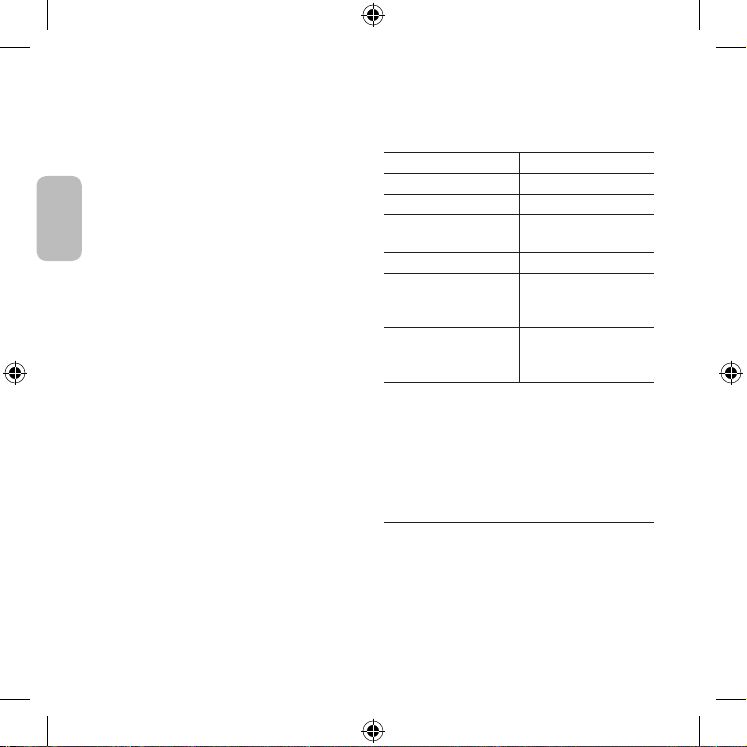
Model Name SP-LSP3BLA
Display Resolution 1920 x 1080
Lens Throw Ratio 1.2
Image Size (Diagonal) 30 - 100 inches
(76.2 - 254.0 cm)
Sound (Output) 5 W
Dimensions (W x H x D)
With Cradle
With Cradle, Lens Cap
10.24 x 15.78 x 9.52 cm
10.24 x 17.28 x 9.52 cm
Weight
With Cradle
With Cradle, Lens Cap
785 g
830 g
Operating Temperature
50 °F to 104 °F (10 °C to 40 °C)
Operating Humidity
10 % to 80 %, non-condensing
Storage Temperature
-4 °F to 113 °F (-20 °C to 45 °C)
Storage Humidity
5 % to 95 %, non-condensing
English - 9
Licences
The terms HDMI and HDMI High-Definition
Multimedia Interface, and the HDMI Logo are
trademarks or registered trademarks of HDMI
Licensing Administrator, Inc. in the United States and
other countries.
Recommendation - Jordan Only
Hereby, Samsung Electronics, declares that
this TV is in compliance with the essential
requirements and other relevant provisions of
Directive 1999/5/EC.
The official Declaration of Conformity may be
found at http://www.samsung.com, go to Support
> Search Product Support and enter the model
name.
This equipment may only be used indoors.
This equipment may be operated in Jordan.
English - 10

This page is intentionally
left blank.
© 2022 Samsung Electronics Co., Ltd. All rights reserved.
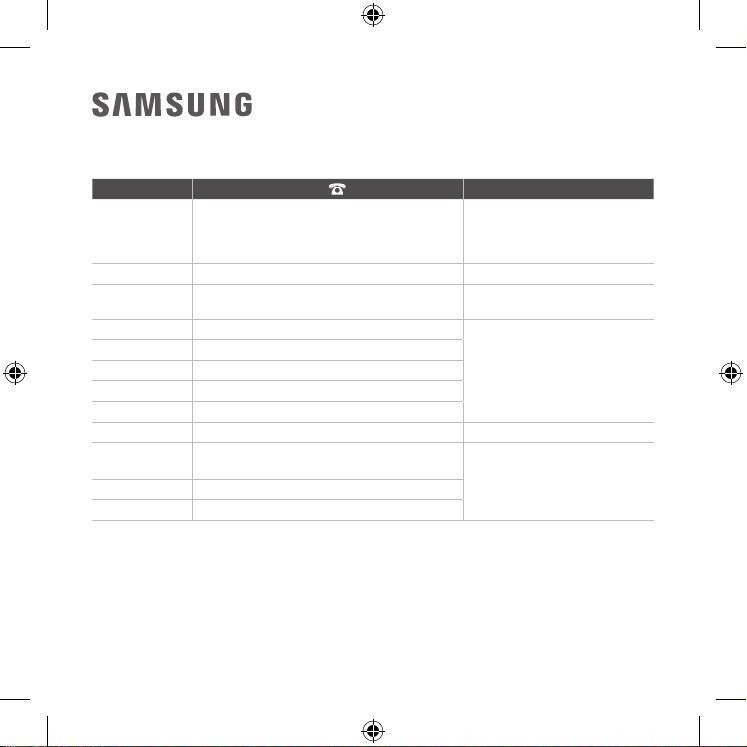
Contact SAMSUNG WORLD WIDE
If you have any questions or comments relating to Samsung products, please contact the Samsung service
centre.
Country
Samsung Service Centre
Web Site
SAUDI ARABIA
8002474357 (800 24/7 HELP) From Inside Saudi
Arabia
+966112614718 From outside Saudi Arabia (May
Call Charges will be applied)
www.samsung.com/sa_en/
support (English)
www.samsung.com/sa/support
(Arabic)
PAKISTAN 0800-Samsung (7267864) www.samsung.com/pk/support
TUNISIA 80 100 012
www.samsung.com/n_africa/
support
U.A.E 800-SAMSUNG (800 - 726 7864)
www.samsung.com/ae/support
(English)
www.samsung.com/ae_ar/
support (Arabic)
OMAN 800-SAM CS (800-72627)
KUWAIT 183-CALL (183-2255)
BAHRAIN 8000-GSAM (8000-4726)
QATAR 800-CALL (800-2255)
TURKEY 444 77 11 www.samsung.com/tr/support
JORDAN
0800-22273
06 5777444
www.samsung.com/levant/
support
LEBANON 1598
IRAQ 80010080
Samsung Electronics Co., Ltd2022
.Samsung
Samsung
support (English)
support (Arabic)
Charges will be applied)
SAUDI ARABIA
support
0800-Samsung (7267864) PAKISTAN
support
80 100 012 TUNISIA
support (English)
support (Arabic)
800-SAMSUNG (800 - 726 7864) U.A.E
800-SAM CS (800-72627) OMAN
183-CALL (183-2255) KUWAIT
8000-GSAM (8000-4726) BAHRAIN
800-CALL (800-2255) QATAR
support
444 77 11 TURKEY
support
0800-22273
06 5777444
JORDAN
1598 LEBANON
80010080 IRAQ

The terms HDMI and HDMI High-Definition
Multimedia Interface, and the HDMI Logo are
trademarks or registered trademarks of HDMI
Licensing Administrator, Inc. in the United States and
other countries.
Samsung Electronics
.
10 -
•
SP-LSP3BLA
•
.B
•
–
.Projector
•
Quick Setup Guide
Projector
Projector
05
SP-LSP3BLA
1920 x 1080
1.2
100 -
30
( 254.0 - 76.2
)
5
9.52 x 15.78 x 10.24
9.52
x 17.28 x 10.24
785
830
401010450
80 10
45-20113-4
95 5
9 -

03
Projector
Projector
04
.e-Manual
< e-Manual < <
< <
www.samsung.com
.Samsung
•
Projector
<
< <
.( <
•
Projector
•
Projector
•
Projector
Projector
•
Projector
–
CUSB
•
.Projector1.81.5
•
.Projector
8 -
–
Samsung Smart
–
Samsung
–
.CUSB
•
•
•
.Samsung
•
•
)
.
)
•
.
3
•
Samsung Smart
Projector
Pr
ojector
3
C4
LED
.LED
•
USB
–
Samsung Smart
Projector6
7 -
)
Projector
)
.
•
1
.Projector
2
)
•
02
4
1
2
3
6 -
•
PD (Power Delivery)
50
•
Projector
1
(
)
()
SmartThings
2
3
4
5
6
7
8
)
9
0
•
•
.Projector
•
50Projector
•
Projector
.Projector
•
MIC
5 -

•
•
.Samsung
•
Projector
•
Projector
•
Projector
Projector
Projector 10
•
•
•
•
Projector
Projector
•
•
•
4 -
•
•
•
.Samsung
•
–
•
–
•
•
•
•
•
Projector
Projector
•
•
•
3 -
Projector
< <
< <
.(e-Manual
(www.samsung.com
Projector
Samsung
.
•
•
•
2 -
.Samsung
www.samsung.com
-01