Intelligent Home Solutions
Model: iSP8
Control your SmartPlug from anywhere with your smartphone
SMARTPLUG
Quick Start Guide
WHAT YOU’LL NEED
Apple
®
device running iOS 9.0 or later or Android device running Jelly Bean 4.2 or later
connected to your preferred WiFi network
WiFi network transmitting at 2.4GHz
1
NOTE: If you intend to use a mix of devices (iOS AND Android), please set up
the SmartPlug using your iOS device and then share to your Android device(s).
Model: iSP8 QSG (English)
Size: 152.4mm x 101.6mm
Date : July 14, 2016
Pages: 12
Version: 3
(this page intentionally blank)
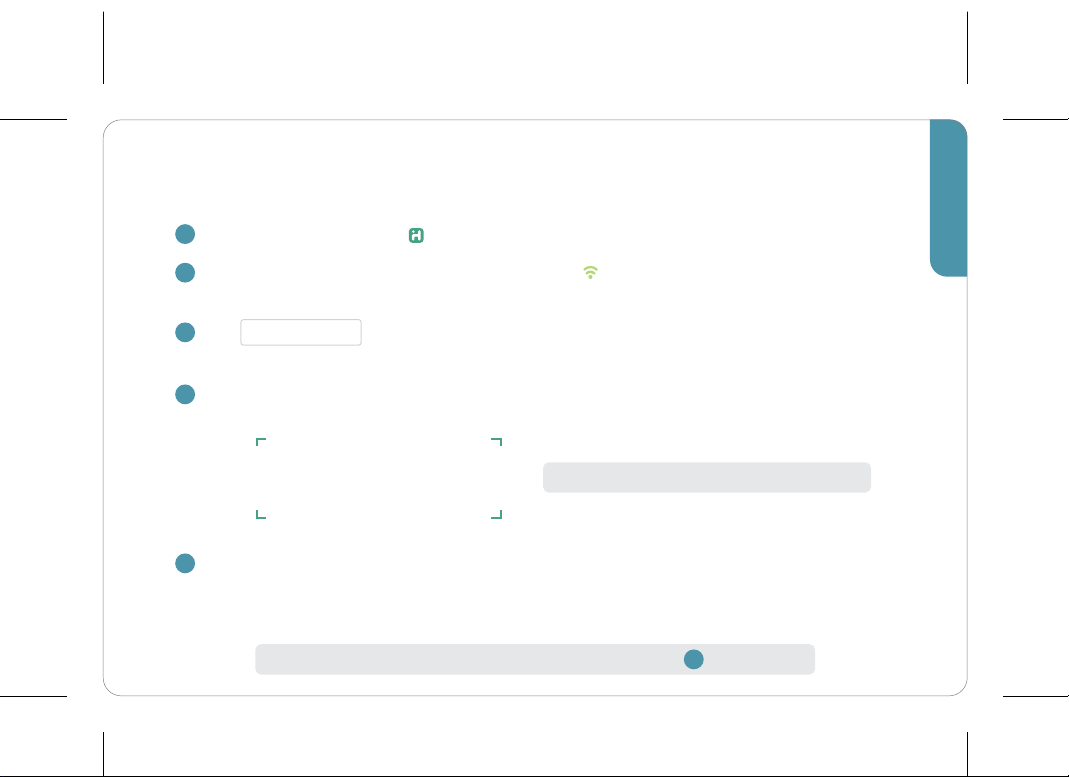
More SmartPlugs to set up? Repeat from Step
Quick Start Setup
1
Download and open the iHome Control app from the App Store or Google Play.
Plug the SmartPlug into a desired outlet. The LED will start blinking to indicate it
is ready for setup.
Tap Add Device ... in the Devices tab and follow the on-screen directions to
complete setup.
When prompted, scan or type the Accessory Setup Code below:
Success! You should now be able to toggle your SmartPlugs ON or OFF from the
iHome Control app or by using Siri
®
.
1
2
2
3
4
5
NOTE: When typing, dashes are not required
Sharing
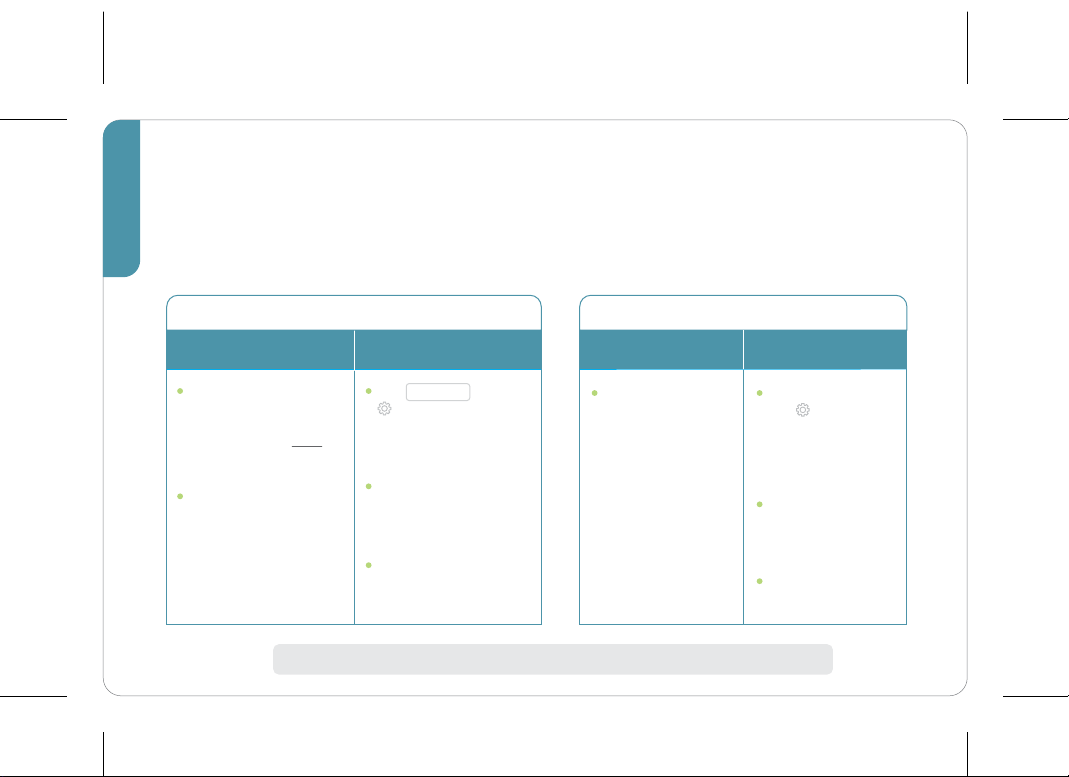
Now that you’ve successfully completed setup, you may want to gain/share access
to your SmartPlugs on dierent devices. Please follow the chart below:
Grant Access to iOS Devices
NOTE: sharing works from iOS to iOS, iOS to Android, and Android to Android
w/ dierent
iCloud accounts
w/ the same
iCloud account
Download and
launch the iHome
Control app on other
device(s) and wait
for the SmartPlug(s)
to appear
NOTE: If you chose
to set up an iHome
account, use the
same login on both
devices
Tap Sharing in the
Settings section
of the iHome
Control app and
follow instructions
Download and
launch the iHome
Control app on
other devices(s)
Accept invitation on
other device(s)
Grant Access to Android Devices
option 2option 1
Download and
launch the iHome
Control app on
other device(s)
and sign in with
existing your
iHome account
credentials
Tap Sharing in
the Settings
section of the
iHome Control
app and follow
instructions
Download and
launch the iHome
Control app on
other device(s)
Accept invitation
on other device(s)
2
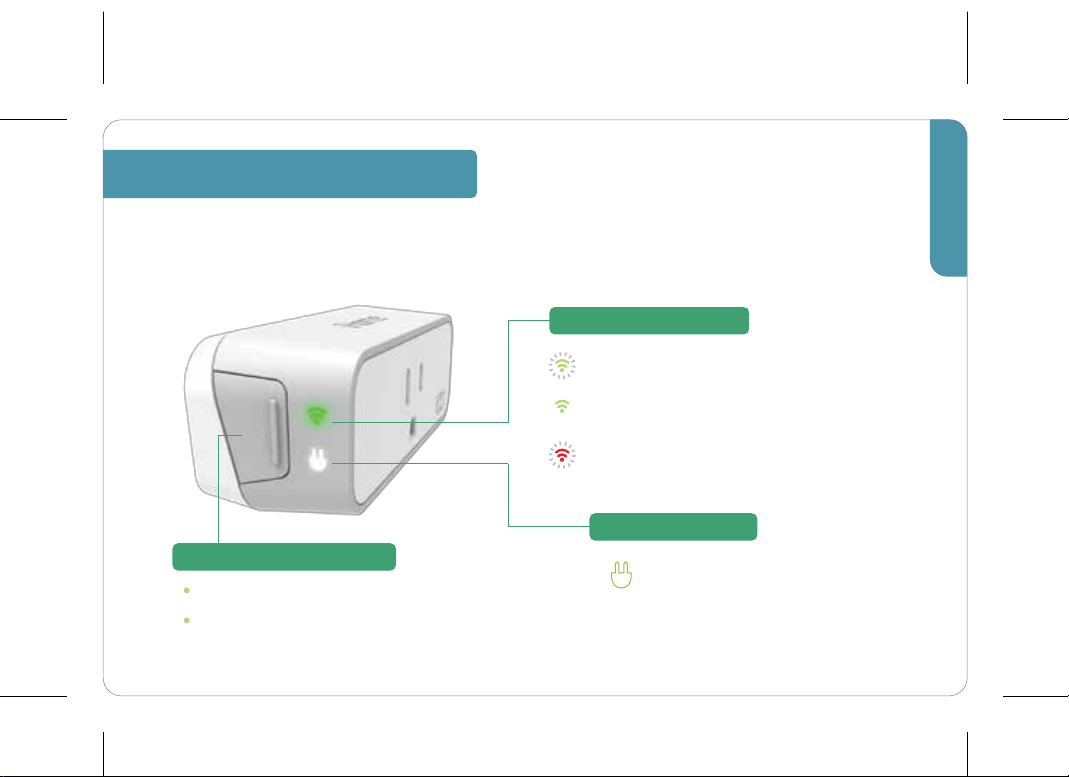
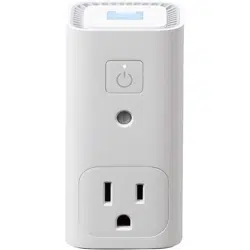
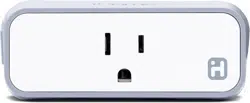
The iSP8 SmartPlug is a Wi-Fi enabled device that allows wireless control of lamps,
heaters, fans and other small appliances up to 1800 Watts.
2
3
Plug Overview
Press once to toggle SmartPlug ON or OFF
Press and hold for 15 seconds to reset the
SmartPlug to factory settings
(Use the iHome Control app to reconfigure network settings)
Lights up when SmartPlug is ON and
electricity is flowing through
Flashing Green: SmartPlug is searching for
a Wi-Fi network
Solid Green: SmartPlug is connected to
a Wi-Fi network
Flashing Red: SmartPlug is disconnected
from a Wi-Fi network
Button
Wi-Fi Status Indicator
Power Indicator
HomeKit (iOS only)
HomeKit also enables control of your SmartPlug with your voice, using Siri. Here are
some examples of how to execute commands successfully. Activate Siri and say:
HomeKit
™
is an Apple standard for home control. HomeKit allows you to group
together several devices into Homes, Rooms, and Zones.
Establish Zones — a collection of rooms (e.g. “First Floor”)
Create Scenes — a collection of on-demand device triggers (e.g. a
“Bedtime” Scene can be set to turn
ON a Fan and turn OFF a Lamp)
Siri (iOS only)
Zones
Scenes
“Turn ON
my Living Room”
“Turn OFF my
Bedroom Lamp”
“Set Bedtime
Scene”
This command will turn ON
all SmartPlugs assigned to
a particular room, in this
case, the Living Room.
This command turns OFF
a particular SmartPlug.
For example, if you have
an accessory named
“Lamp” in your Bedroom.
This command will execute
your Bedroom Scene if set
up in the Scenes tab of
your iHome Control app.
4
Ways to Use Your SmartPlug
3rd Party Connections
Rules
5
Create Rules — think of a rule as a schedule or trigger
For example, create a rule named “Nighttime.” This will
turn a floor lamp ON at 5:00 pm and OFF at 11:00 pm. It can
be set to repeat every day or for specific days that you choose.
We’ve already developed several integrations to Nest, Wink and the Amazon Alexa to
make your SmartPlug even more useful. For more information, visit the Settings
section of your app and click on any of the Third-Party Connections.
SmartPlug integrates with your Wink app. No hub required!
Create Robots and Shortcuts with your other Wink devices.
SmartPlug can be controlled with the Amazon Alexa. Ask
Alexa to turn your SmartPlug ON or OFF with your voice.
Works with your Nest Learning Thermostat
®
“Home” and
“Away” status to automatically turn your SmartPlug ON or OFF.
Nightime
Every day at 5:00 PM
Wink
Nest
Amazon Alexa
More About Your iSP8
POWER METERING
Your iSP8 includes power metering
intelligence. Power usage information
will be available to view in the app by
clicking the “ ” on your SmartPlug in
the Devices tab. You can also view
estimated energy cost associated with
your power usage.
To change the energy cost value, go to
the SETTINGS section of your app
i
$
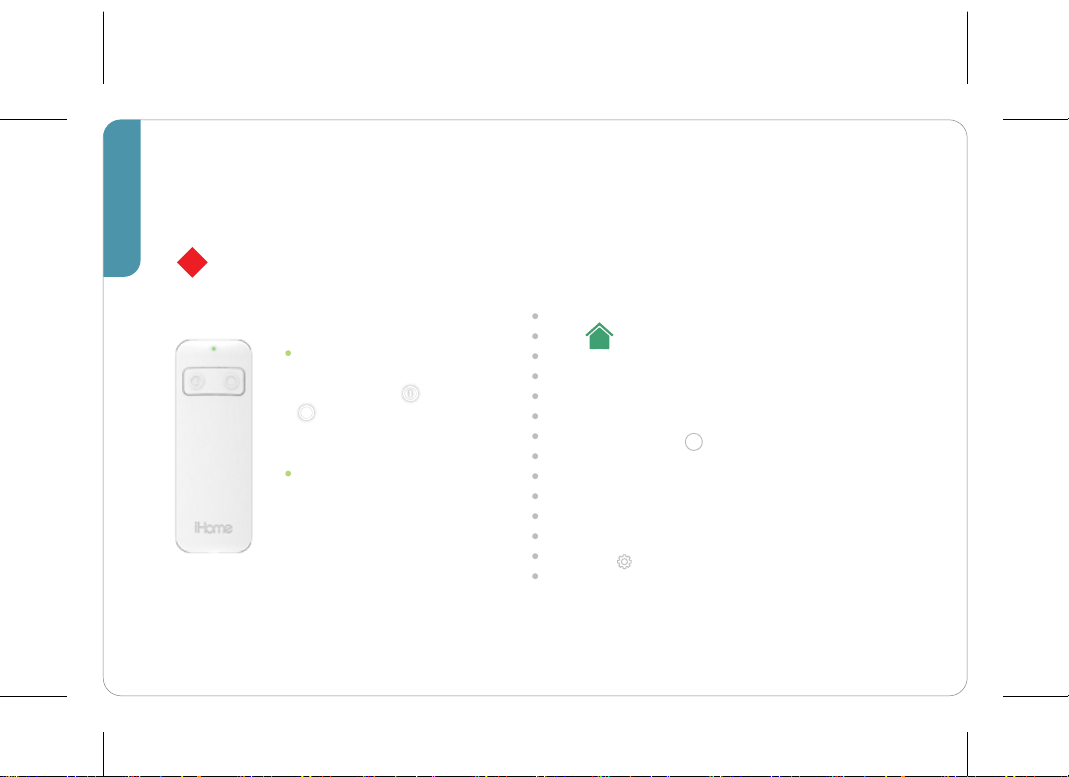
Your RF remote is
pre-paired to the iSP8.
Simply press ON or
OFF to control your
SmartPlug.
The remote can also be
programmed to control
a single SmartPlug or a
group of SmartPlugs
NOTE: remove battery pull tab before using
!
iSPR1 Remote
6
1
All Wi-Fi routers support 2.4GHz spectrum. If your router was deliberately set to only transmit 5GHz, then please
note that the SmartPlug will not work properly on your network. Enterprise networks (such as in colleges and
businesses) often have more restricted security settings that may impact the performance of your SmartPlug.
2
Your SmartPlug supports devices or appliances up to 1800 Watts. Please consult the owner’s manual of your device.
Notes
7
Electrical Ratings
120V Volts AC, 60Hz
15A
1800W
General use
Safety Warnings
Plug directly into electric outlet (not into extension cord)
For indoor use only
Remove SmartPlug from outlet before cleaning
DO NOT clean with liquid
DO NOT remove ground pin (middle pin)
DO NOT use in wet or damp areas
Keep children away from SmartPlug and outlet
DO NOT exceed the recommended electrical ratings
DO NOT use in precision timing applications where inaccurate timing could be
dangerous (sunlamps, saunas, etc.)
DO NOT use with devices that should not be operated unattended
Recommendations
Test device locally for safe operation before attempting to control it remotely
DO NOT use with an outlet controlled by a wall switch as the switch may be o
Notices
For warranty information: visit www.ihomeaudio.com/support/
FCC
This device complies with Part 15 of the FCC Rules. Operation is subject to the following two conditions:
(1) this device may not cause harmful interference, and (2) this device must accept any interference received, including
interference that may cause undesired operation.
To assure continued FCC compliance:
1. Any changes or modifications not expressly approved by the grantee of this device could void the user's authority to
operate the equipment.
2. This equipment complies with FCC radiation exposure limits set forth for an uncontrolled environment. This equipment
should be installed and operated with minimum distance 20cm between the radiator & your body.
FEDERAL COMMUNICATIONS COMMISSION
INTERFERENCE STATEMENT
This equipment has been tested and found to comply with the limits for a Class B digital device, pursuant to Part 15 of the
FCC Rules. These limits are designed to provide reasonable protection against harmful interference in a residential
installation. This equipment generates, uses and can radiate radio frequency energy and, if not installed and used in
accordance with the instructions, may cause harmful interference to radio communications. However, there is no guarantee
that interference will not occur in a particular installation. If this equipment does cause harmful interference to radio or
television reception, which can be determined by turning the equipment o and on, the user is encouraged to try to correct
the interference by one or more of the following measures:
- Reorient or relocate the receiving antenna.
- Increase the separation between the equipment and receiver.
- Connect the equipment into an outlet on a circuit dierent from that to which the receiver is connected.
- Consult the dealer or an experienced radio/TV technician for help.
8
9
For warranty information: visit https://www.ihomeaudio.com/support/
IC
This device complies with Industry Canada license-exempt RSS standard(s). Operation is subject to the following two
conditions: (1) this device may not cause interference, and (2) this device must accept any interference, including
interference that may cause undesired operation of the device.
This equipment complies with IC radiation exposure limits set forth for an uncontrolled environment. This equipment should
be installed and operated with minimum distance 20cm between the radiator and your body.
Legal
Use of the HomeKit logo means that an electronic accessory has been designed to connect specifically to iPod, iPhone, or
iPad, respectively, and has been certified by the developer to meet Apple performance standards. Apple is not responsible
for the operation of this device or its compliance with safety and regulatory standards. Please note that the use of this
accessory with iPod, iPhone, or iPad may aect wireless performance.
Controlling HomeKit-enabled accessories, with features like Siri, away from home requires an Apple TV (3rd generation or
later) with Apple TV software 7.0 or later and an iPhone, iPad, or iPod touch with iOS 9.0 or later.
Wink is a registered trademark. Nest®, Nest Learning Thermostat and the Works with Nest logos are trademarks licensed
by Nest Labs, Inc. Amazon Echo is a trademark of Amazon.com, Inc. or its aliates.
CAN ICES-(B)/NMB-3(B)
Questions?
1.800.288.2792
www.ihome.com
iSP8_2016_QSG_v5