WiFi LED Bulb FAQ
www.sylvania.com
Last updated: 07/21/20

Basics
How Do I Set Up My Bulbs?
Amazon Alexa
Hey Google
General Questions
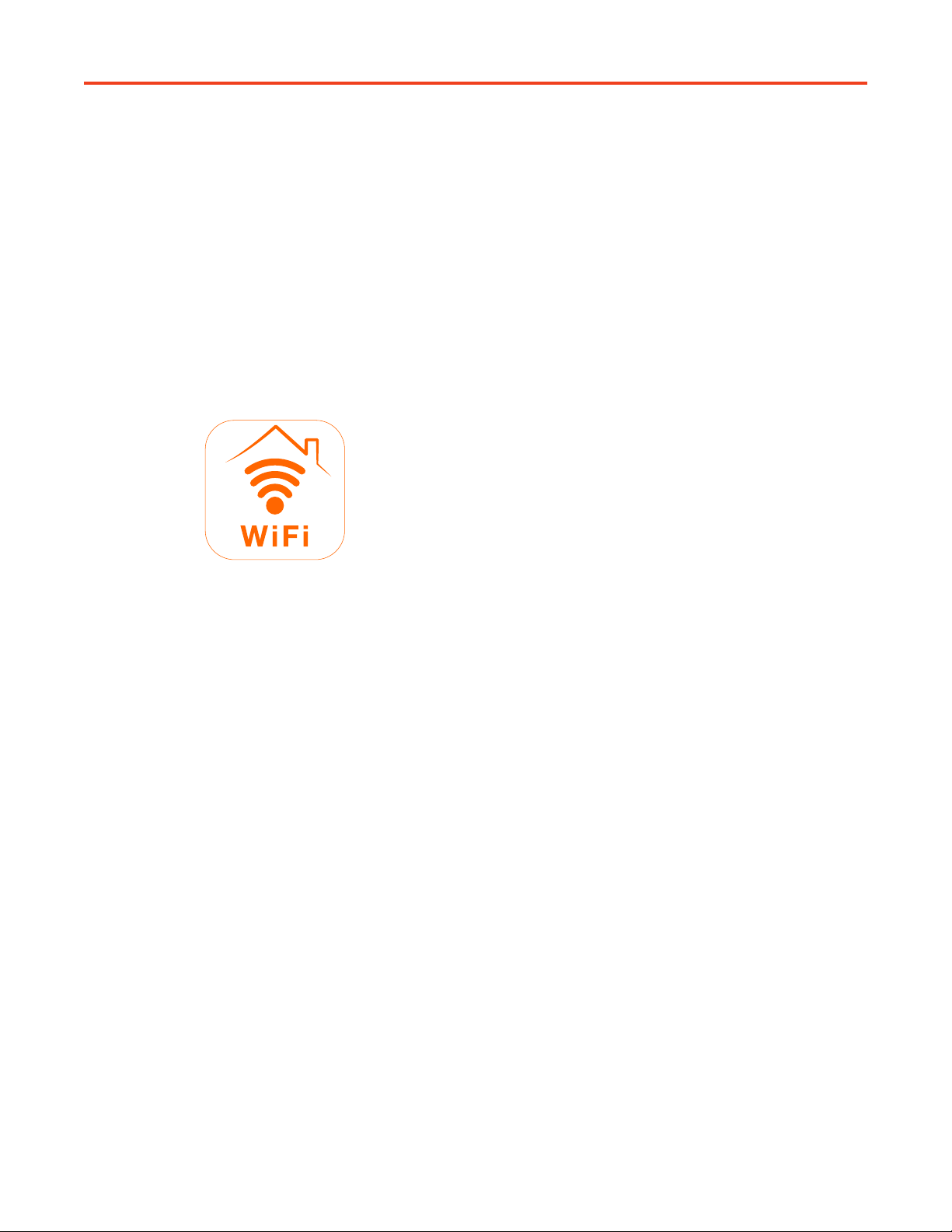
Which app do I use?
Your new WiFi bulb(s) work with the SYLVA-
NIA Smart WiFi app, which looks like this:
Please take care to download the SYLVA-
NIA Smart WiFi app, and not the SYLVANIA
Smart Home app. The Smart Home app will
not work with this bulb.
Can this bulb work with Amazon Alexa,
Apple Home, and Hey Google?
Currently, this bulb supports Amazon Alexa
and Hey Google. To change the light firmware
and/or to ensure the correct firmware is being
used, please open the SYLVANIA Smart
WiFi app and make sure to select the smart
home system you want. Ex.: If you are using
Amazon Alexa, select the Amazon Alexa tab.
This bulb does work with Amazon Alexa and
Hey Google simultaneously. For example,
you may turn your light on with Alexa, and off
with Hey Google.
Can I control it when I’m not at home?
Yes, you can remotely control your light when
not at home, using the SYLVANIA Smart
WiFi app.
During setup, I get a “couldn’t con-
nect” message, or nothing happens.
What do I do?
Reset the bulb by turning it on and off five
times, then open the SYLVANIA Smart WiFi
app and tap on “Add a light.”
BASICS
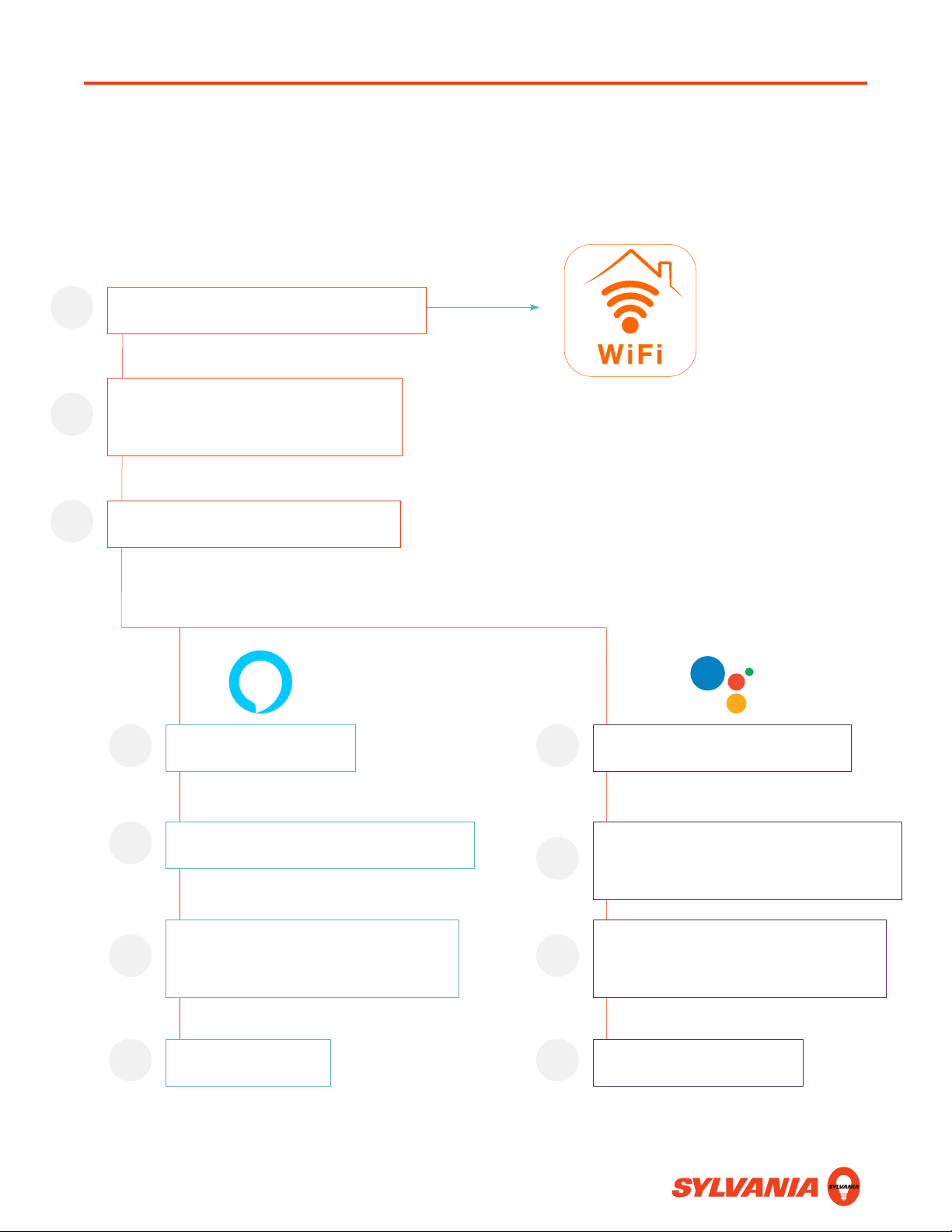
SETUP: BIRD’S EYE VIEW
Open the Alexa AppD Open the Google Home AppD
Discover devicesG Assign lights to a roomG
Find the SYLVANIA Smart WiFi SkillE Link the SYLVANIA Smart WiFi app
with the Google Home app
E
Enter your SYLVANIA Smart WiFi
account credentials
F
Enter your SYLVANIA Smart WiFi
account credentials
F
Open the SYLVANIA Smart WiFi appA
Enter or Create Your
SYLVANIA Smart WiFi credentials
B
Choose Easy or Advanced SetupC
AMAZON ALEXA
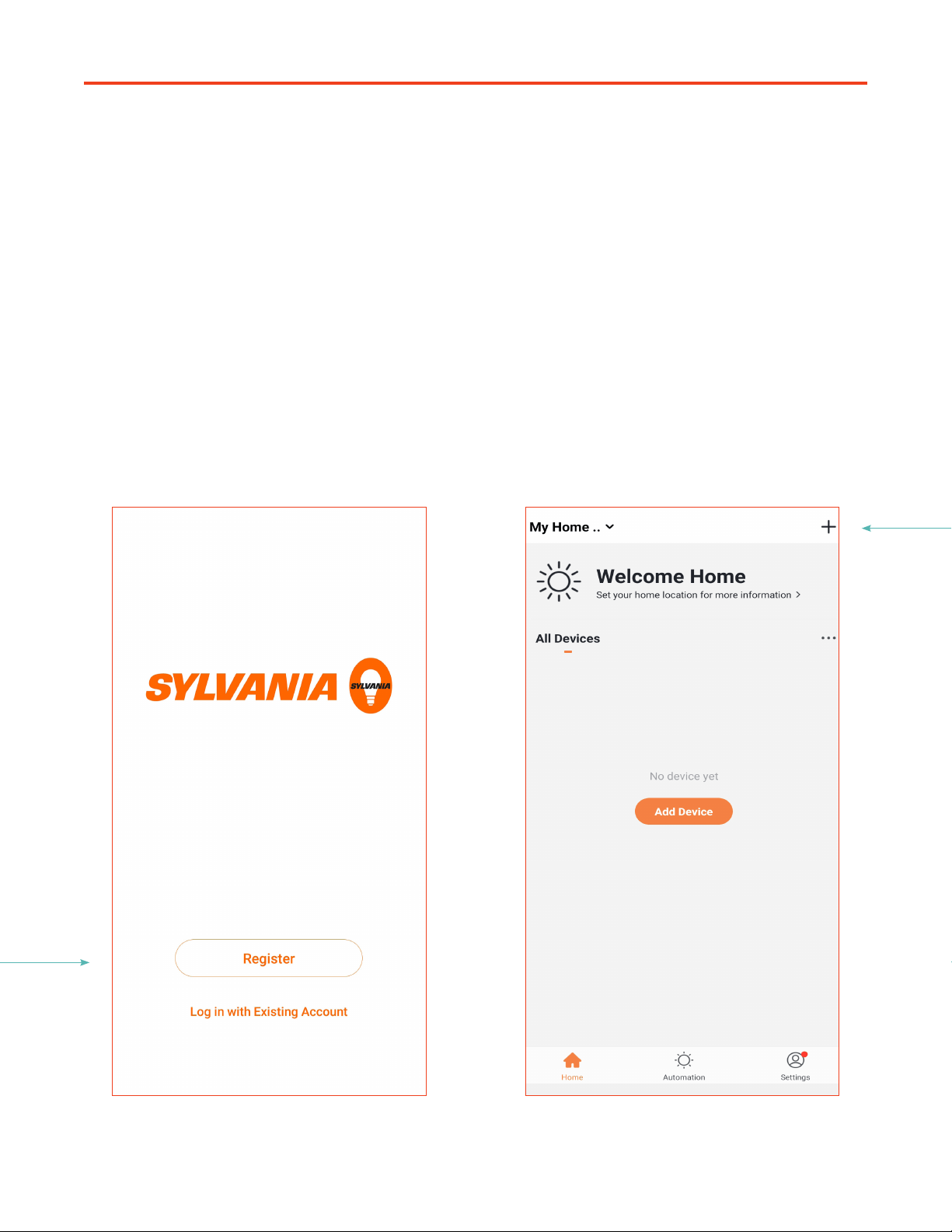
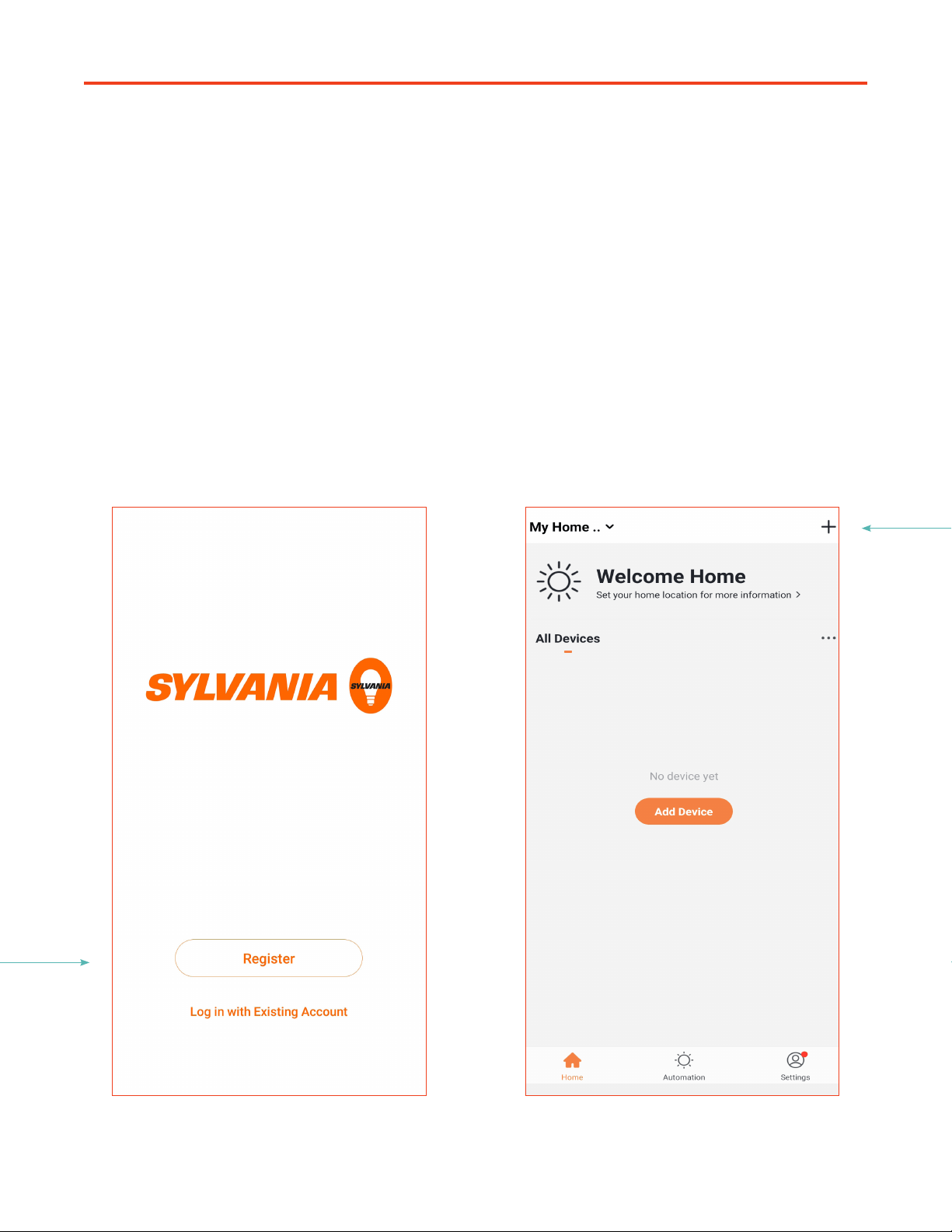
A. Leave your new light turned off. Open
the SYLVANIA Smart WiFi app. If you
already have a SYLVANIA Smart WiFi
account, log in. Otherwise, tap Register
to create a new account. Save this info, as
you will need it later.
B. Tap +.
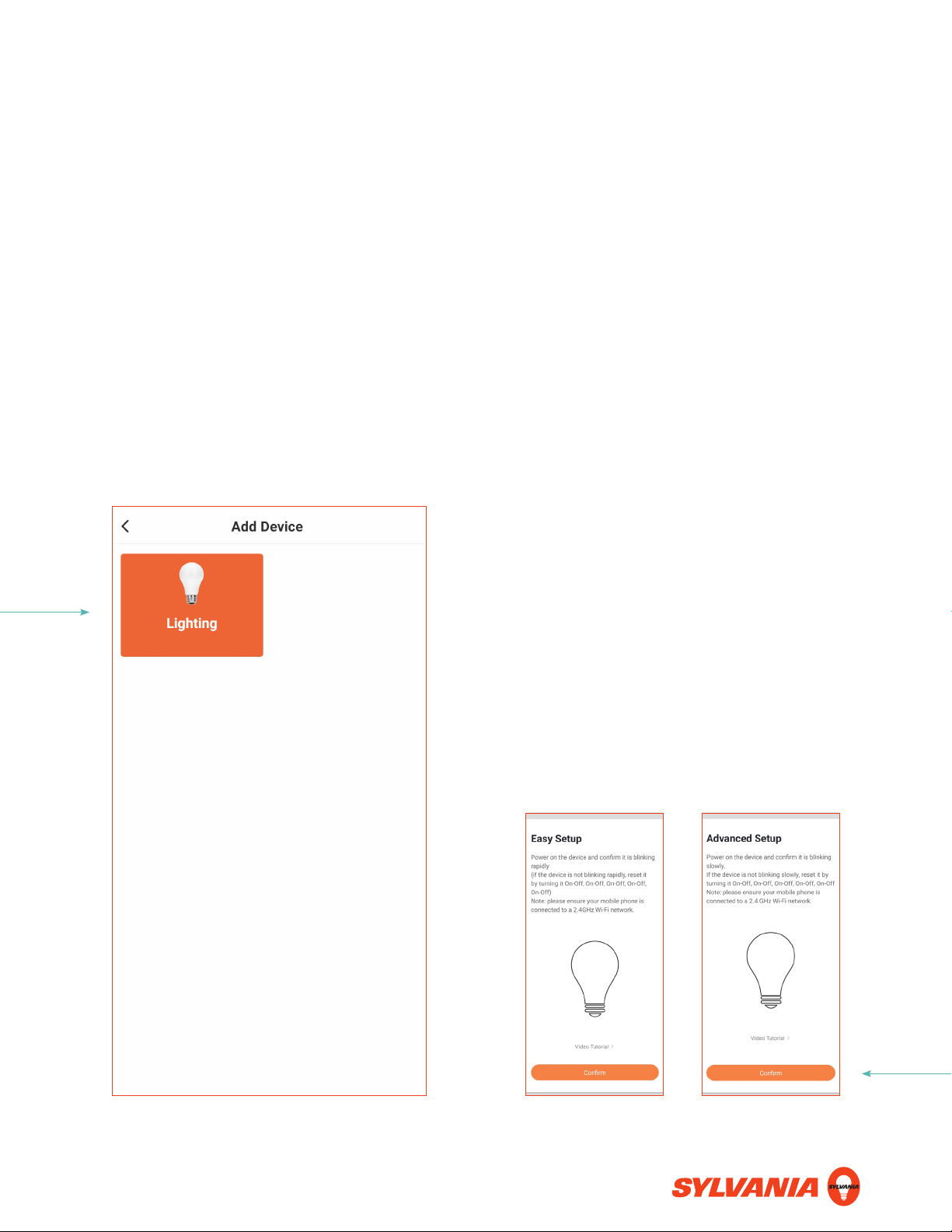
C. Tap Lighting. Turn on your light. Easy Setup
If your light blinks rapidly (2x/sec.), it is
in Easy Setup mode. If you are certain
your WiFi router runs at 2.4 GHz, use this
method. Tap Confirm and enter your WiFi
network credentials. This is case-sensitive!
Advanced Setup
If your light blinks slowly (1x/2 sec.), it is in
Advanced Setup mode. If you are unsure
which type of router you have, use this
method. Tap Confirm, enter your WiFi
network credentials, and follow the direc-
tions on-screen. This is case-sensitive!
To change the setup mode, reset the
light by turning it on and off five times.
AMAZON ALEXA
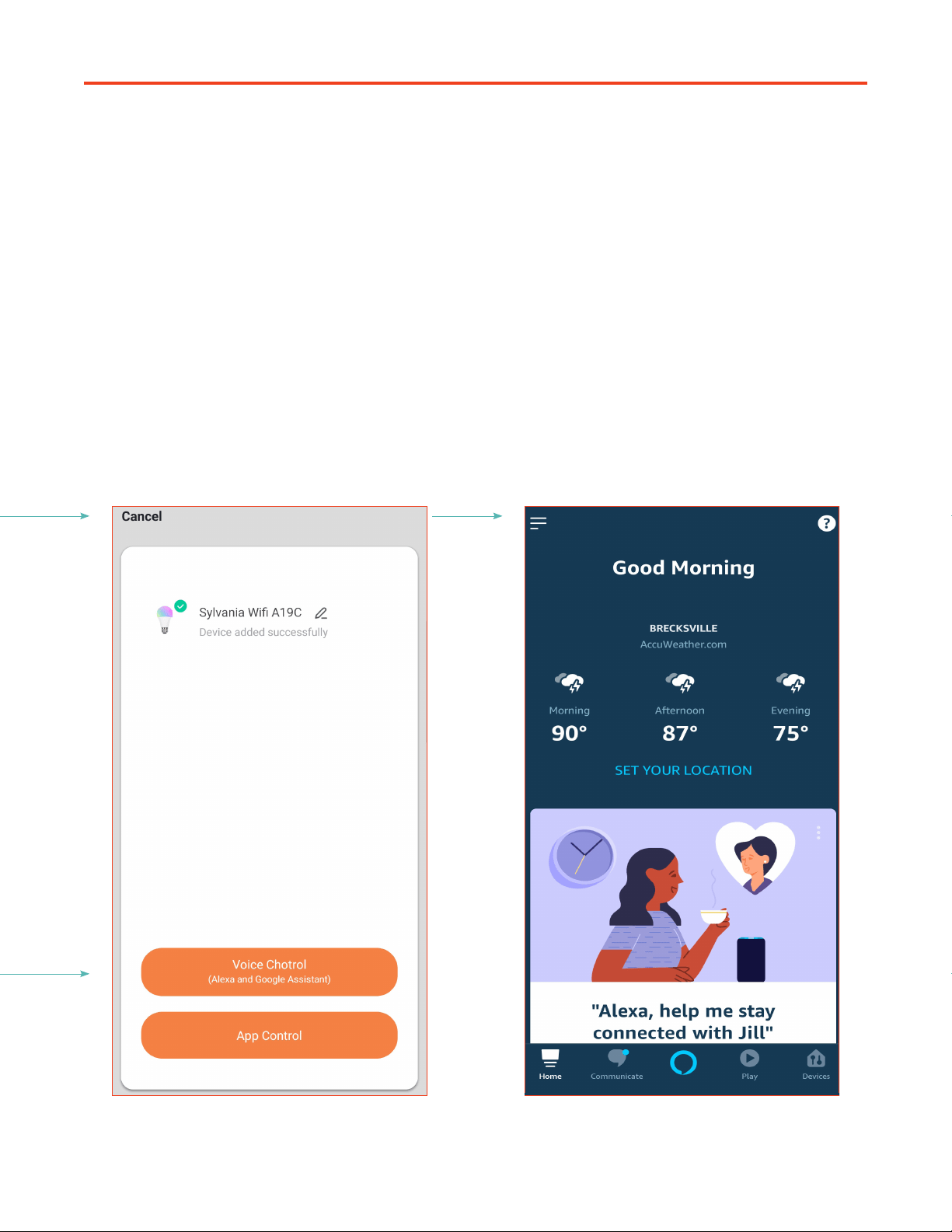
D. If paired successfully you will see the
following screen. Tap Cancel or App
Control. You can now control your light
through the SYLVANIA Smart WiFi app.
E. Open the Alexa App. The SYLVANIA Smart
WiFi Skill must be enabled here for your
Alexa device to find and control your light.
Open the Settings menu. If the Skill has
already been added, Alexa will automati-
cally discover the light.
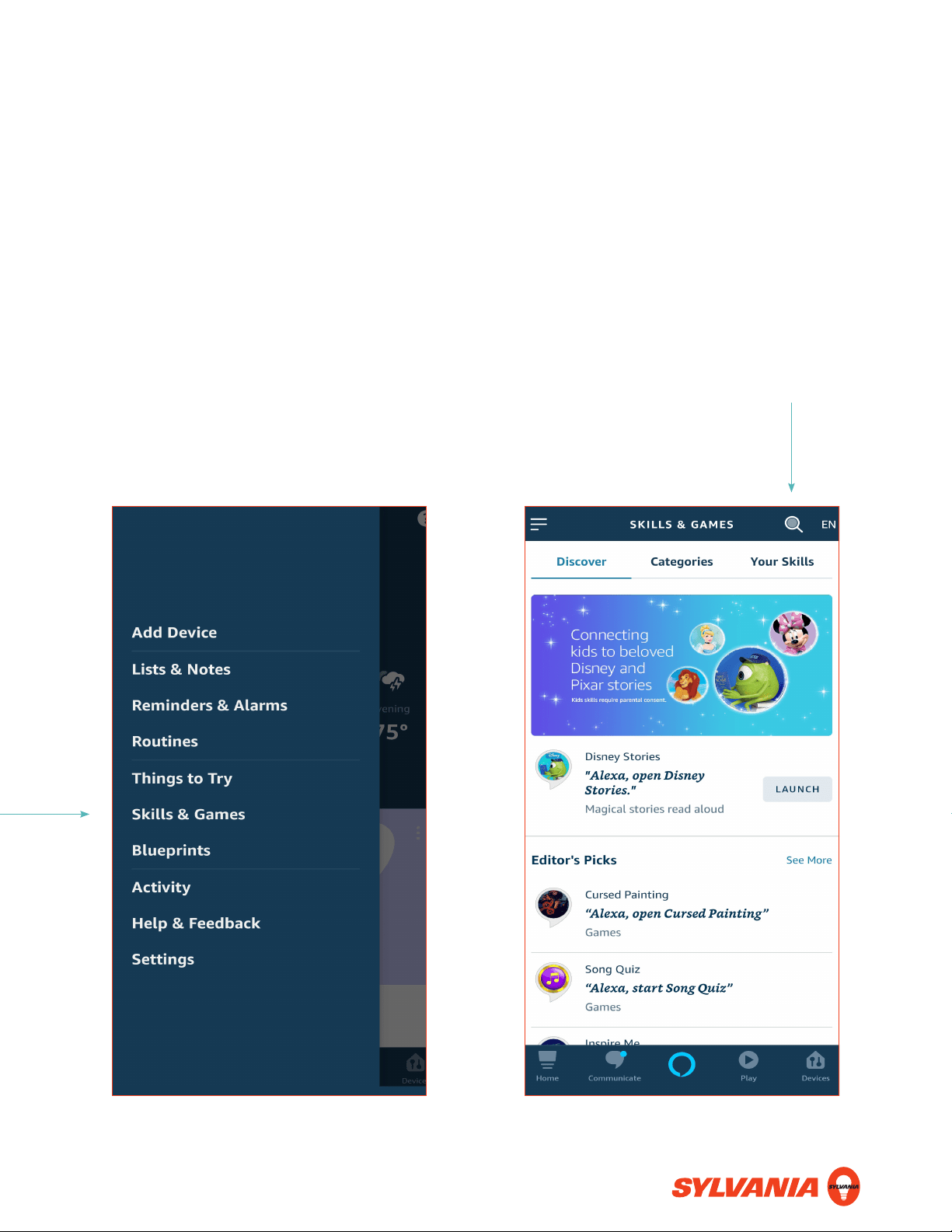
F. Tap Skills and Games. G. Tap the magnifying glass to start
searching for Skills.
AMAZON ALEXA
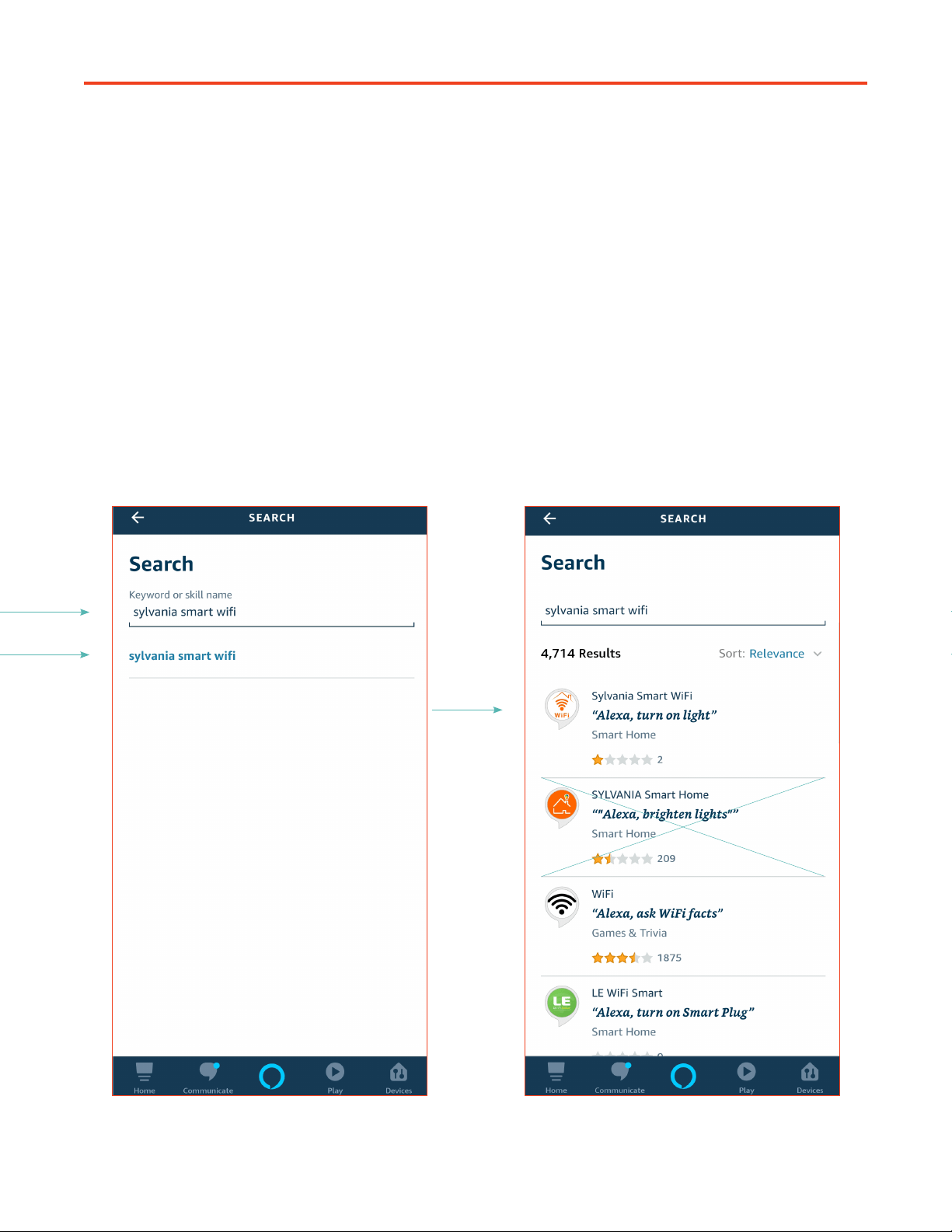
H. Enter “SYLVANIA Smart WiFi” and tap it
when it appears.
I. Tap the SYLVANIA Smart WiFi app icon.
Be careful not to select the SYLVANIA
Smart Home App, as that app will not
work with this light.
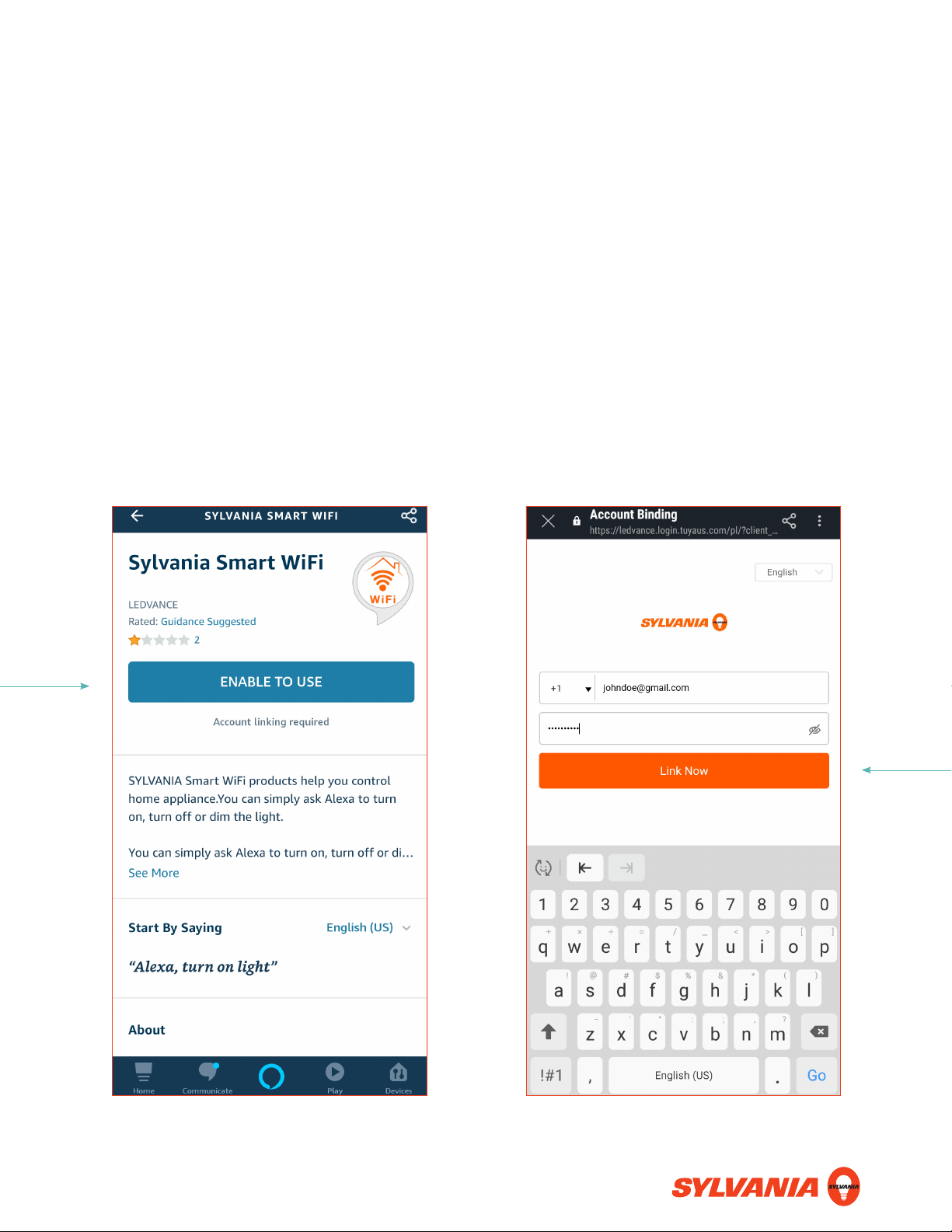
J. Tap Enable to Use. K. Enter the SYLVANIA Smart WiFi account
information you entered or created earlier.
Then tap Link Now. On the next screen,
tap Authorize.
AMAZON ALEXA
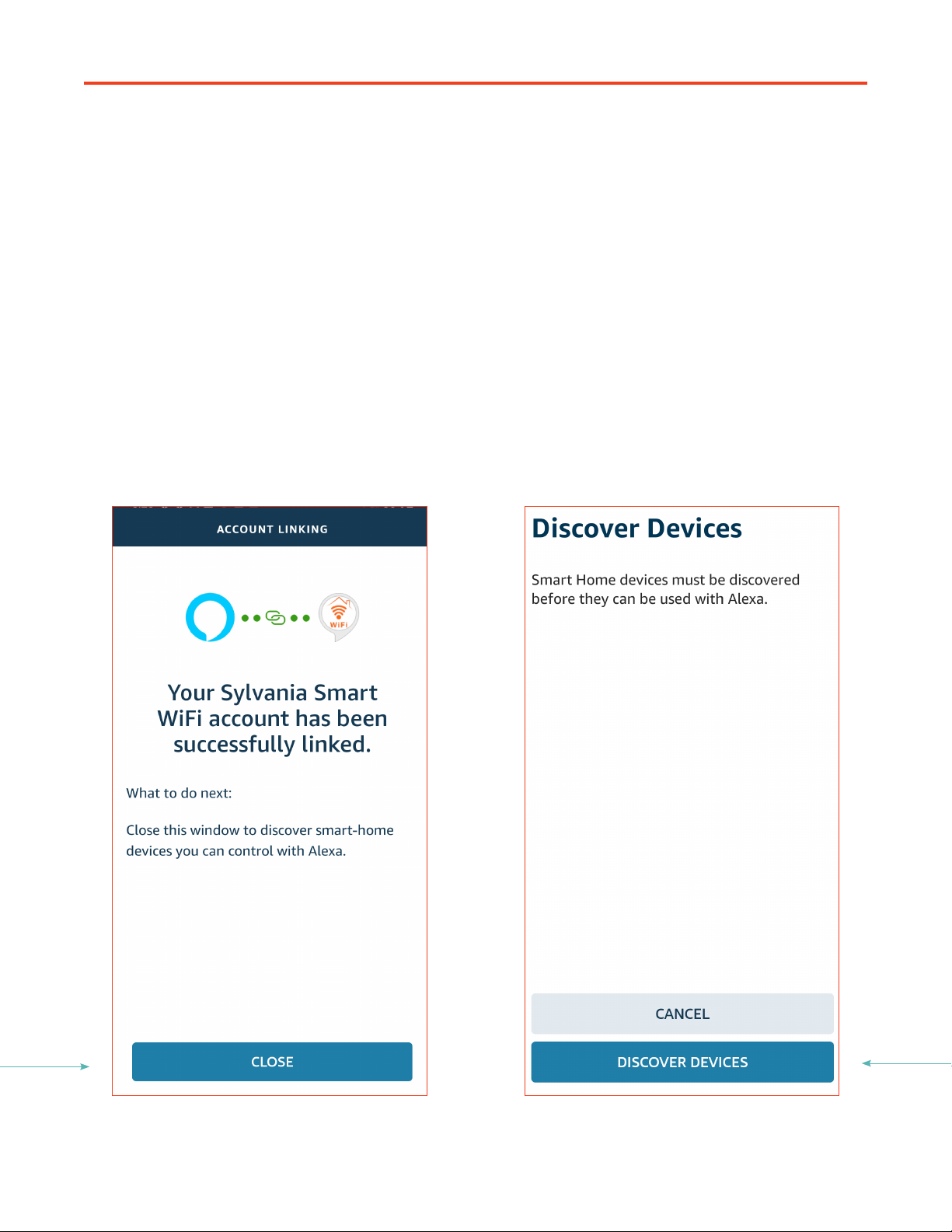
L. If successfully linked, you will see the fol-
lowing screen. Tap Close.
M. Tap Discover Devices to find the SYLVA-
NIA WiFi devices you want to pair to Alexa.
To pair additional WiFi lights, repeat Steps
A–D. Add new lights to the SYLVANIA
Smart WiFi app first, and Alexa will find
them.

HEY GOOGLE
A. Leave your new light turned off. Open
the SYLVANIA Smart WiFi app. If you
already have a SYLVANIA Smart WiFi
account, log in. Otherwise, tap Register
to create a new account. Save this info, as
you will need it later.
B. Tap +.
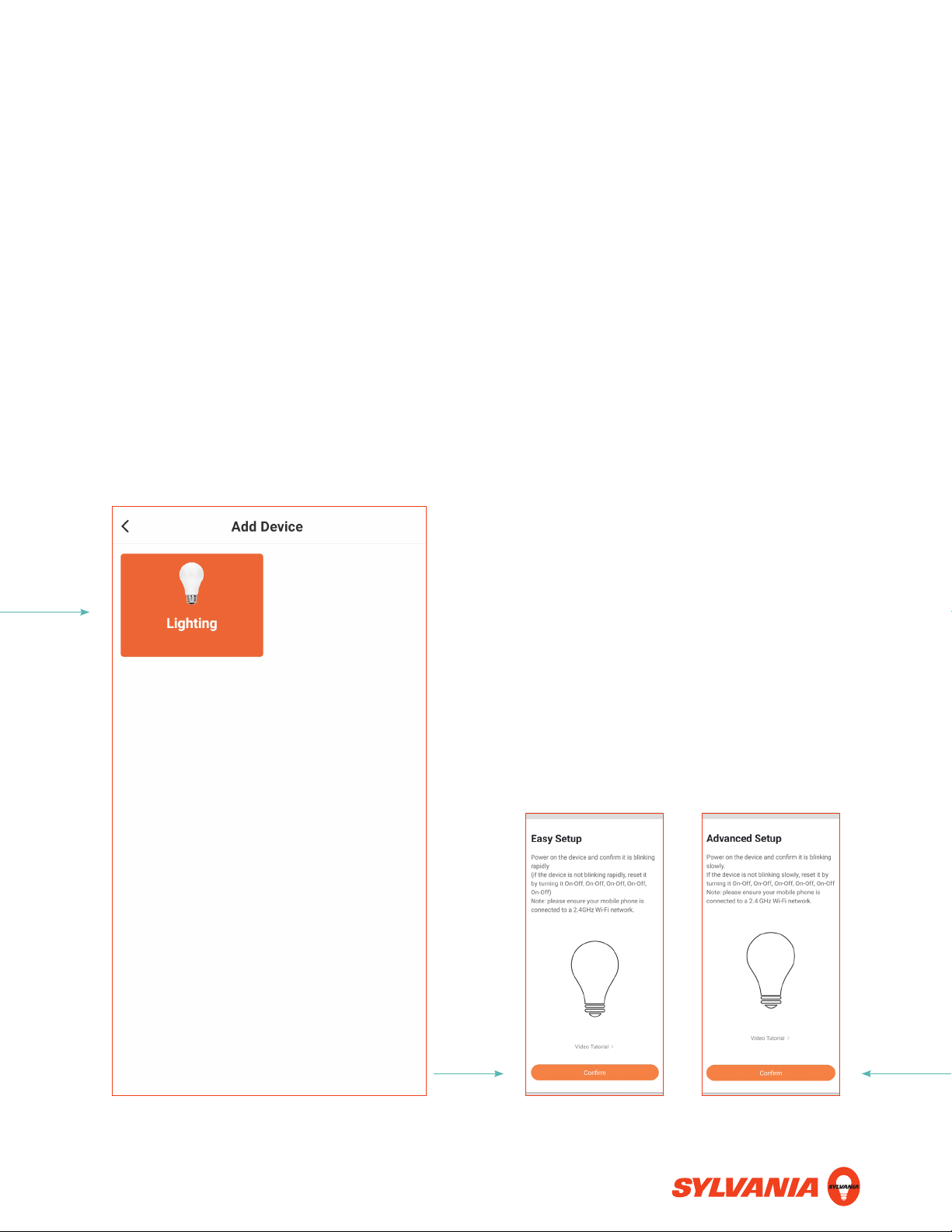
C. Tap Lighting. Turn on your light. Easy Setup
If your light blinks rapidly (2x/sec.), it is
in Easy Setup mode. If you are certain
your WiFi router runs at 2.4 GHz, use this
method. Tap Confirm and enter your WiFi
network credentials. This is case-sensitive!
Advanced Setup
If your light blinks slowly (1x/2 sec.), it is in
Advanced Setup mode. If you are unsure
which type of router you have, use this
method. Tap Confirm, enter your WiFi
network credentials, and follow the direc-
tions on-screen. This is case-sensitive!
To change the setup mode, reset the
light by turning it on and off five times.
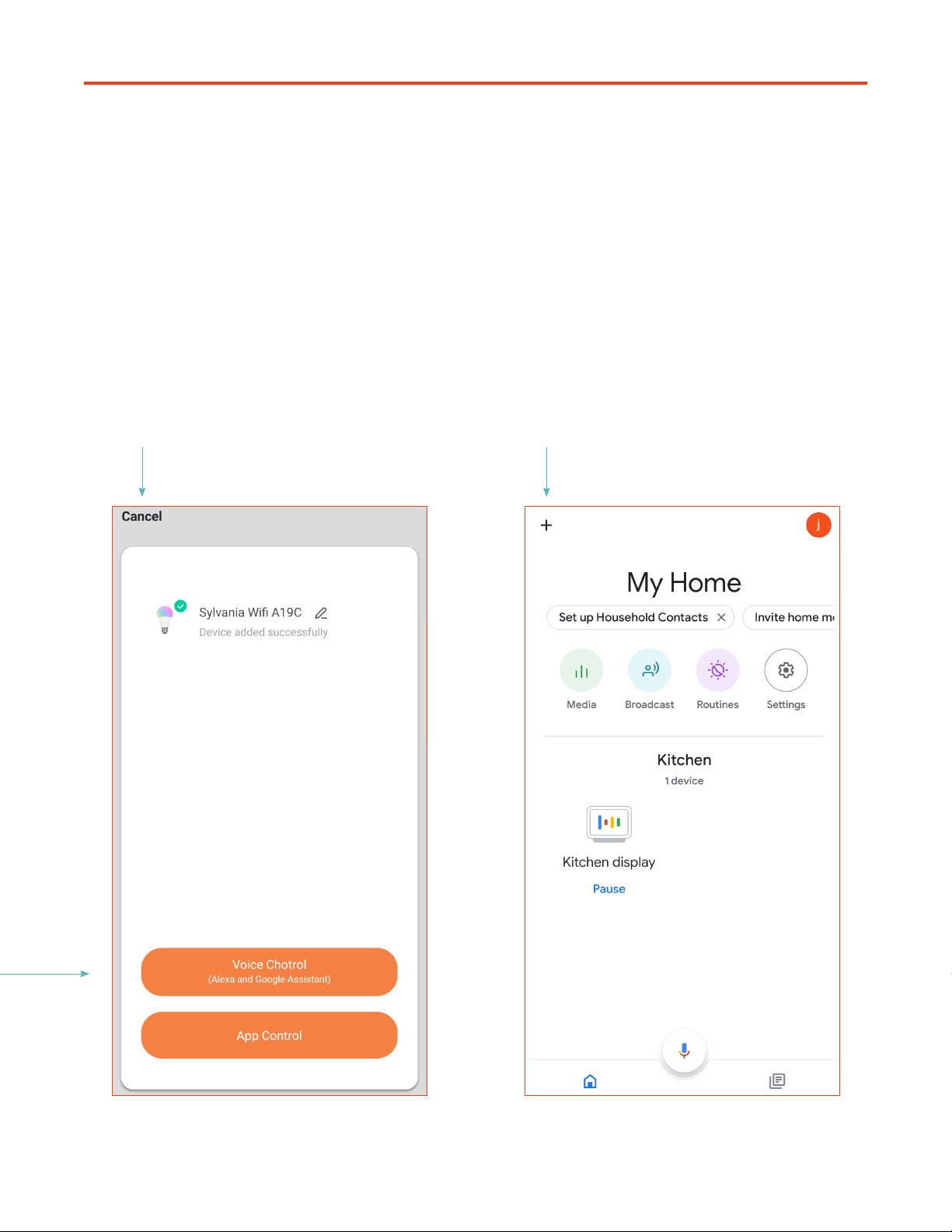
HEY GOOGLE
D. If paired successfully you will see the
following screen. Tap Cancel or App
Control. You can now control your light
through the SYLVANIA Smart WiFi app.
E. For voice control, you must pair the SYL-
VANIA Smart WiFi app with the Google
Home app. Tap +.
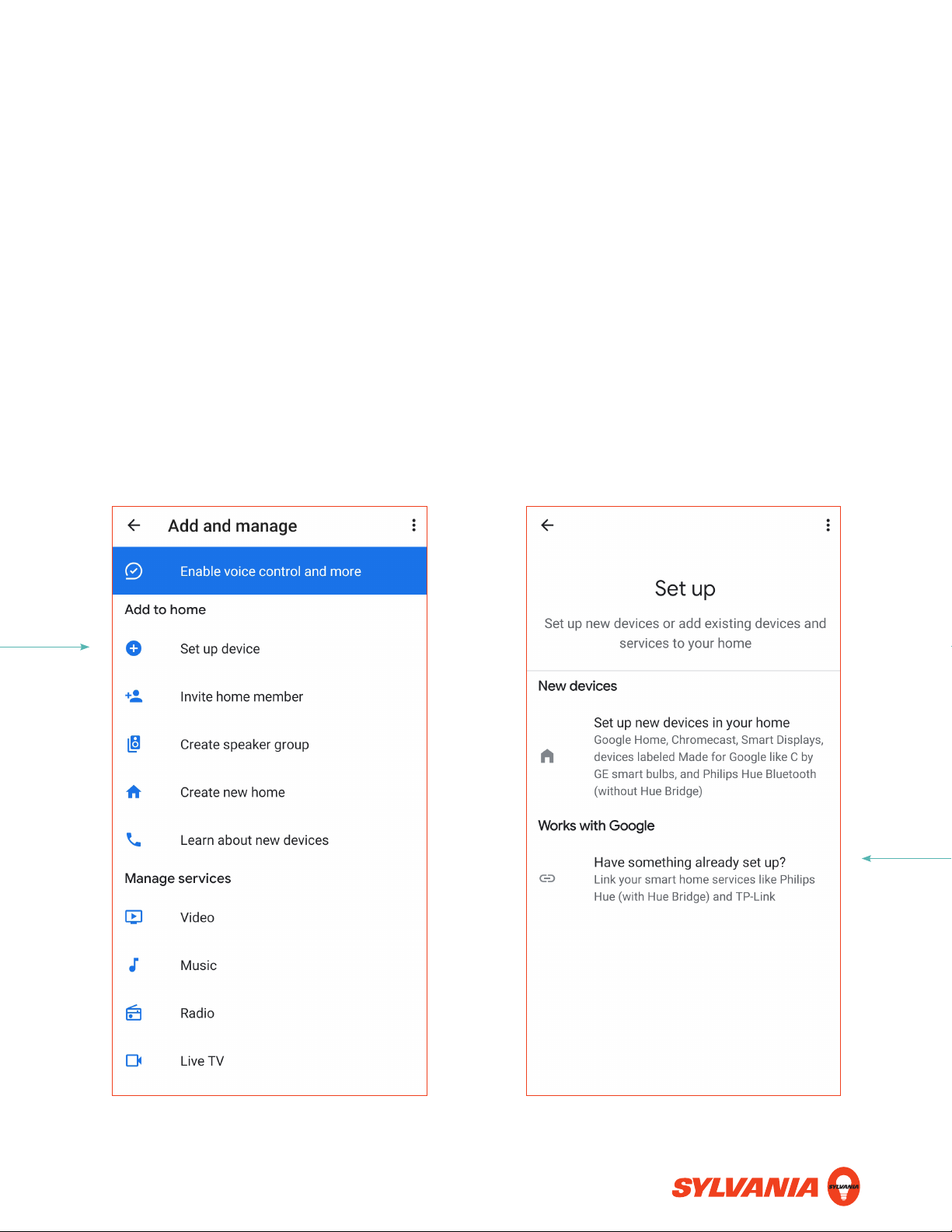
F. Tap Set up device. G. Under Works with Google, tap Have
something already set up?
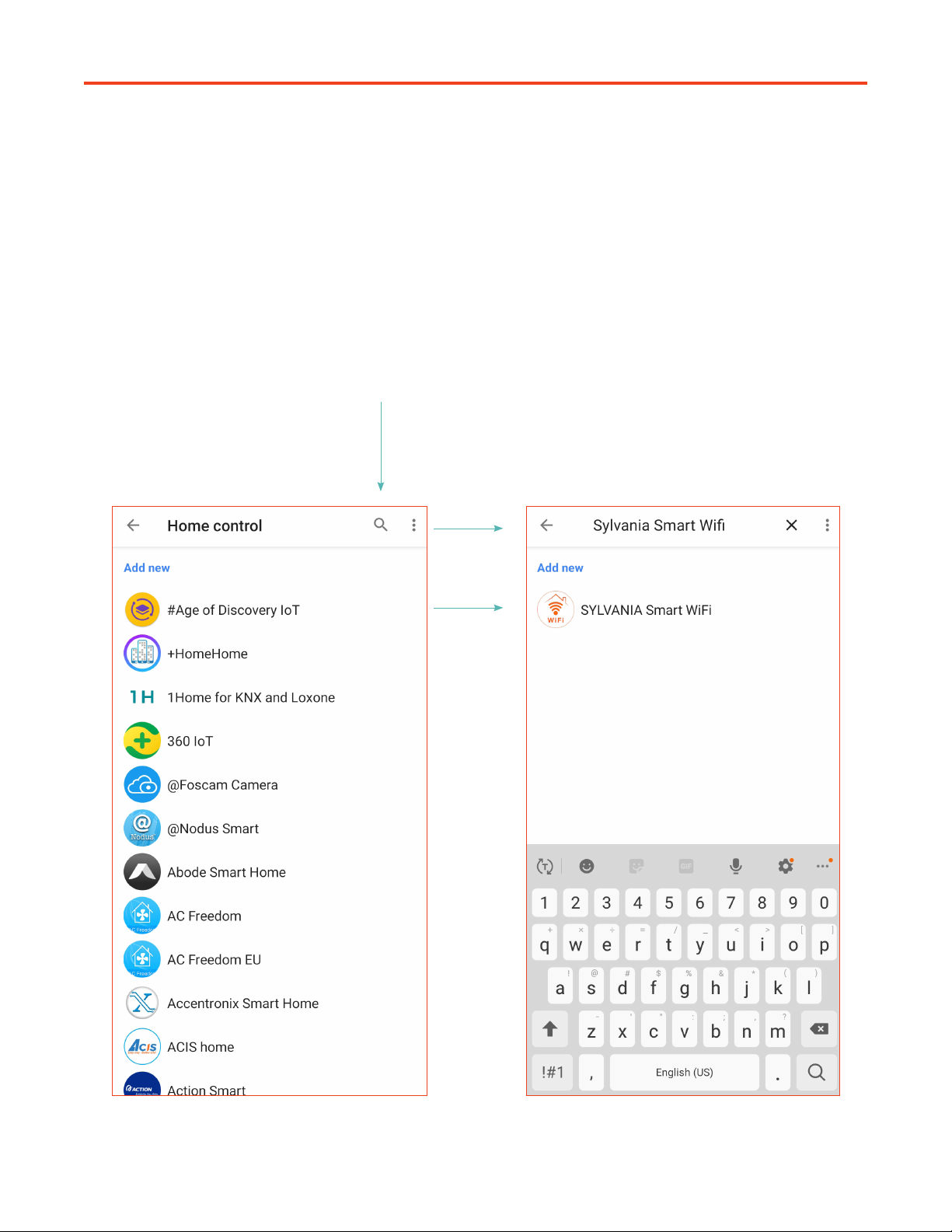
HEY GOOGLE
H. Enter “SYLVANIA Smart WiFi” and tap it
when it appears.
I. Tap on the magnifying glass.
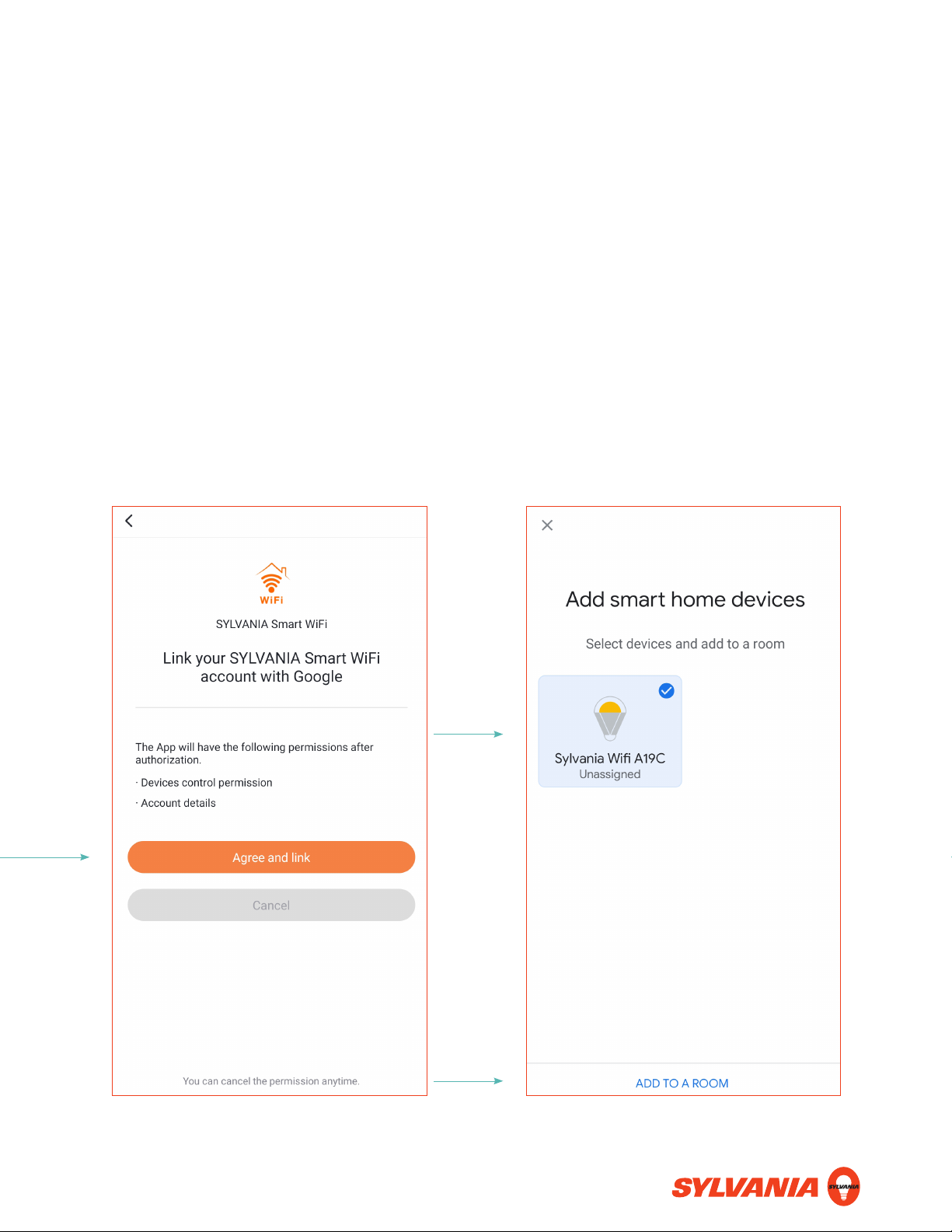
J. Select the light(s) you want to add to a
room and tap Add to a Room.
K. Tap Agree and link to link your Sylvania
Smart WiFi account with Google Home.
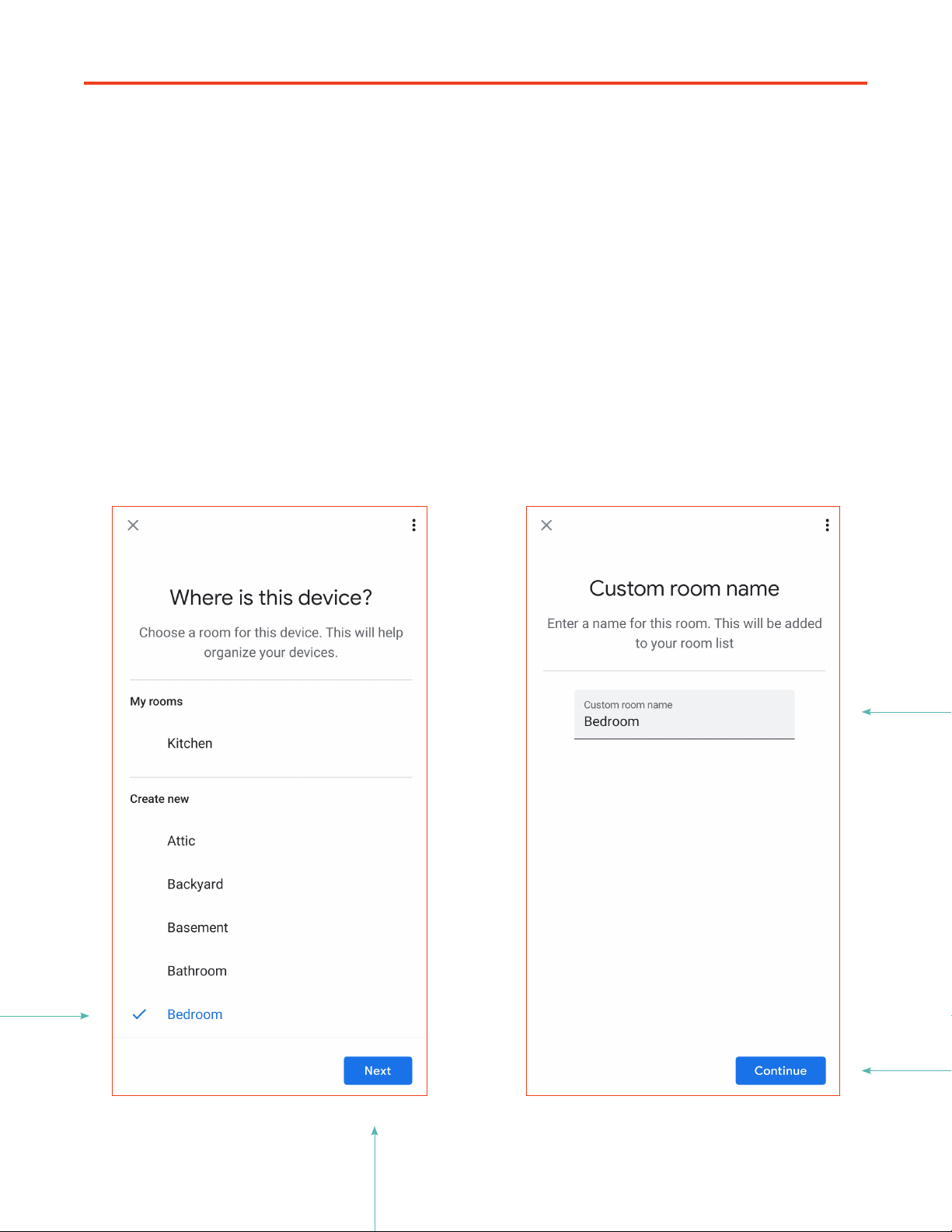
HEY GOOGLE
L. If creating a new room, you can edit your
room name here, then tap Continue.
Your light is now able to accept voice
controls.
M. Select the room where your light will be
and tap Next.
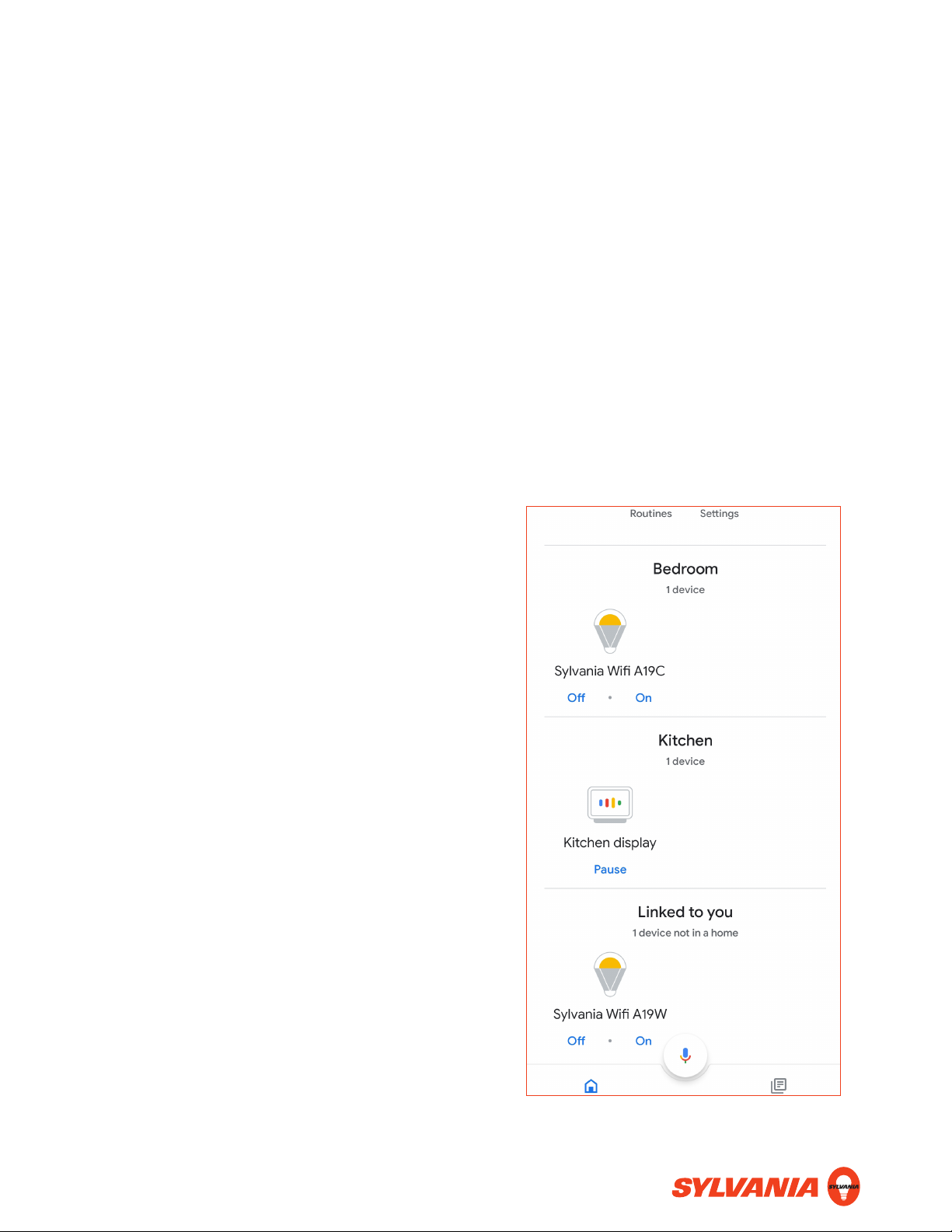
In the Google Home app, under Linked to
you, you will find all previously paired lights
which are not assigned to a room. Tap on the
light you want to add to a room.
To pair additional WiFi lights, repeat Steps
A–D. Add new lights to the SYLVANIA Smart
WiFi app first, and Google Home will find
them.

Why isn’t setup automatic?
We are working on a bulb that “automatically
connects” but this technology is not avail-
able yet.
Why is the setup different for each
manufacturer?
Each manufacturer’s lights talk to the bulb
and control it in different ways.
Can I connect my bulb directly to
Alexa/Hey Google?
Unfortunately, no.
Does this bulb work with iPhones and
iPads?
Yes! Use the SYLVANIA Smart WiFi, Ama-
zon Alexa, Apple Home, or Google Home
apps on your iPhone or iPad to control your
light(s).
What are the minimum software/OS
requirements?
The SYLVANIA Smart WiFi app can oper-
ate with iPhone 6 (or higher) and Android
models five years old or younger.
How do I change colors by voice
control?
Using Alexa, you can say, “Alexa, turn my
lamp(s) red.”
Using Hey Google, you can say, “Hey Goo-
gle, turn my lamp(s) red.”
To use Siri, you must first set up a Scene in
the Home app, and Siri must be enabled on
your iPhone, iPad, or Apple TV.
Can I automate this bulb?
Yes! You can create scenes and routines in
the Apple Home app, and the SYLVANIA
Smart WiFi app.
You can create routines (not scenes) in the
Alexa and Google Home apps.
How do I run a scene?
Tell your voice assistant, “Turn on [scene
name].” For example, “Alexa, turn on TV
Time.”
Does this bulb work with IFTTT?
SYLVANIA SMART+ lights do not work with
IFTTT.
Can it be used outside/is it
weather-proofed?
SYLVANIA SMART+ lights are not rated for
outdoor use.
FAQ: GENERAL QUESTIONS

Can I update the firmware with just
the Hey Google, or Alexa app?
No. You must use the SYLVANIA Smart
WiFi app to update the bulb’s firmware.
How do I reset the bulb?
Plug it into a lamp socket and turn it on and
off five times.
Is this a multicolor bulb?
Depends. The soft white bulb can produce
only soft white (2700K). The full color bulb
can produce up to about 16,000,000 colors.
Can I loop the colors, or fade from
one to another?
Not at this time.
Can I dim the bulb?
Yes, you can dim the bulb using the SYLVA-
NIA Smart WiFi, Hey Google, Apple Home,
or Alexa apps.
How bright is this bulb?
It replaces a traditional 60w bulb (800
lumens).
Can I put the bulb in an enclosed
lighting fixture?
We recommend against it. Doing so will
shorten the bulb’s life.
Does this bulb require a hub?
This light
does not
require a hub. It can
work directly with your phone.
Do I always have to have WiFi turned
on to use it?
The bulb requires a WiFi connection. If you
use only your phone to control your light,
you will have to keep WiFi on. The Google
Assistant, or Amazon Echo all keep a con-
stant connection to your light, so you may
turn WiFi off on your phone.
Will it work with a Philips Hue bridge?
No, Philips is a different brand, and con-
nects with different technology.
Is there a limit to how many bulbs I
can connect?
With Amazon Alexa there is no limit. Goo-
gle Assistant products currently have a limit
of six lights. We are currently working with
Google to remove this limit.
Does this work with European/220v
outlets?
No, this product is engineered for US outlets
only (120V ).
FAQ: GENERAL QUESTIONS

Can I put the bulb on an outlet con-
trolled by a light switch?
Yes. We suggest you don’t, because it will
be unavailable by app or voice control until
you flip the switch back on. Using a wall
switch does not harm the bulb.
Does the bulb remember settings
after it’s turned off?
Yes. The bulb will remember all settings until
it is reset (by turning it on and off five con-
secutive times).
FAQ: GENERAL QUESTIONS