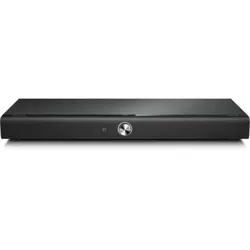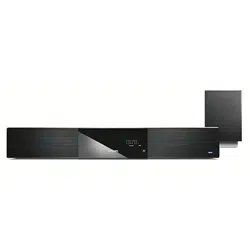
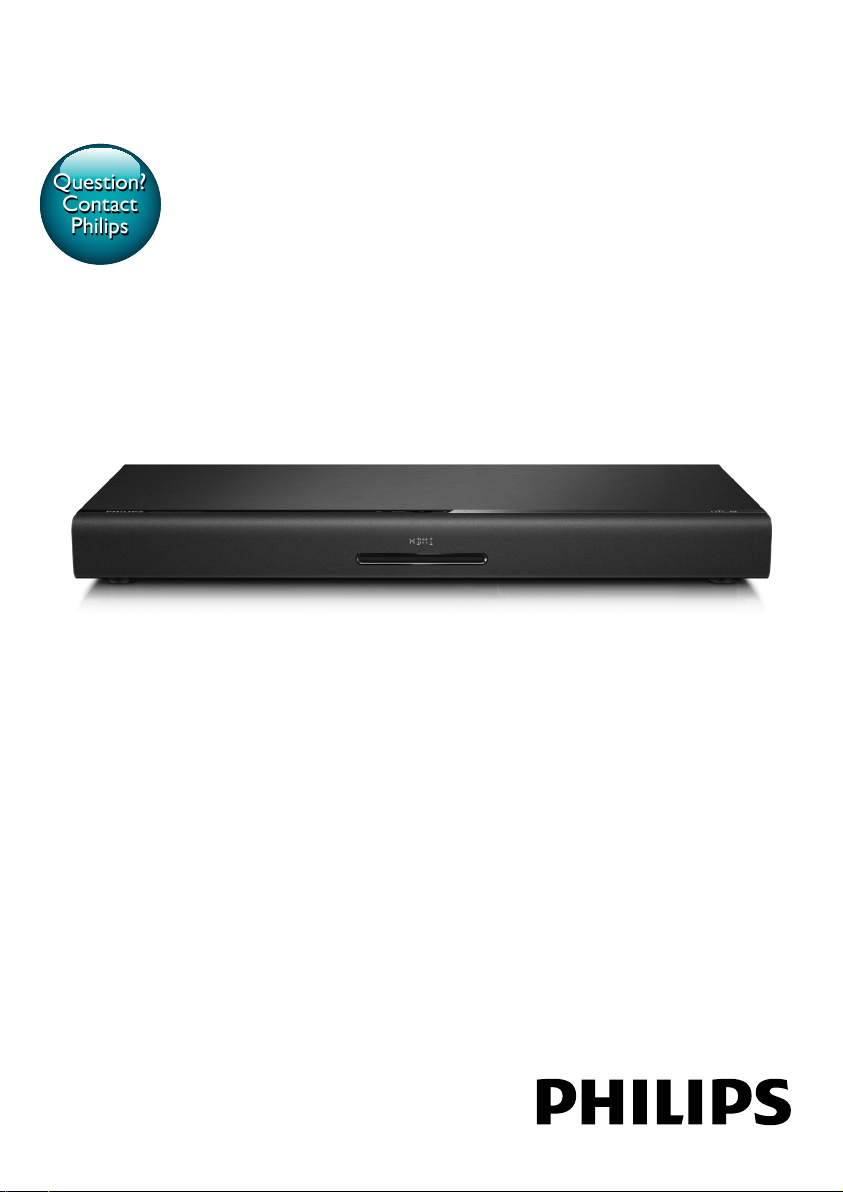
HTB3525B
Always there to help you
User Manual
Question?
Contact
Philips
Register your product and get support at
www.philips.com/welcome
Always there to help you
User Manual
Question?
Contact
Philips
Register your product and get support at


1
English
EN
Contents
1 Important 2
Important safety instructions 2
Care for your product 3
Care of the environment 4
3D health warning 4
Help and support 4
2 Your Blu-ray Surround Base 5
Main unit 5
Remote control 5
Connectors 7
3 Place your Blu-ray Surround Base 8
4 Connect and set up 9
Connect to TV 9
Connect audio from TV and other
devices 10
Set up EasyLink (HDMI-CEC control) 11
Connect and set up a home network 12
5 Use your Blu-ray Surround Base 14
Access the home menu 14
Discs 14
Play audio through Bluetooth 16
Play music via NFC 17
Data les 17
USB storage devices 18
Audio, video, and picture options 18
Radio 20
MP3 player 20
Enjoy Internet services 21
Choose sound 21
6 Change settings 23
Language settings 23
Picture and video settings 23
Audio settings 24
Parental control settings 24
Display settings 24
Energy saving settings 24
Speaker settings 25
Restore default settings 25
7 Update software 25
Check software version 25
Update software through USB 25
Update software through the Internet 26
8 Productspecications 27
Region codes 27
Media formats 27
File formats 27
Bluetooth 27
Audio formats 27
Video formats 28
Amplier 29
Video 29
Audio 29
Radio 29
USB 30
Main unit 30
Speakers 30
Subwoofer 30
Remote control batteries 30
Laser 30
9 Troubleshooting 31
10 Notice 34
Copyright 34
Notice of compliance 34
Open source software 35
Trademarks 35
11 Language code 37
12 Index 38

2 EN
1 Important
Read and understand all instructions before you
use your product. If damage is caused by failure
to follow instructions, the warranty does not
apply.
Important safety instructions
• Read these instructions.
• Keep these instructions.
• Heed all warnings.
• Follow all instructions.
• Do not use this apparatus near water.
• Clean only with dry cloth.
• Do not block any ventilation openings.
Install in accordance with the
manufacturer's instructions.
• Do not install near any heat sources
such as radiators, heat registers, stoves, or
other apparatus (including ampliers) that
produce heat.
• Do not defeat the safety purpose of
the polarized or grounding-type plug. A
polarized plug has two blades with one
wider than the other. A grounding type
plug has two blades and a third grounding
prong. The wide blade or the third prong
are provided for your safety. If the provided
plug does not t into your outlet, consult
an electrician for replacement of the
obsolete outlet.
• Protect the power cord from being
walked on or pinched, particularly at plugs,
convenience receptacles, and the point
where they exit from the apparatus.
• Only use attachments/accessories
specied by the manufacturer.
• Use only with the cart, stand, tripod,
bracket or table specied by the
manufacturer or sold with the apparatus.
When a cart is used, use caution when
moving the cart/apparatus combination to
avoid injury from tip-over.
• Unplug this apparatus during lightning
storm or when unused for long periods of
time.
• Refer all servicing to qualied service
personnel. Servicing is required when
the apparatus has been damaged in any
way, such as power-supply cord or plug
is damaged, liquid has been spilled or
objects have fallen into the apparatus, the
apparatus has been exposed to rain or
moisture, does not operate normally, or
has been dropped.
• Battery usage CAUTION - To prevent
battery leakage which may result in bodily
injury, property damage, or damage to the
unit:
• Install all batteries correctly, + and - as
marked on the unit.
• Do not mix batteries (old and new or
carbon and alkaline, etc.).
• Remove batteries when the unit is not
used for a long time.
• The batteries shall not be exposed to
excessive heat such as sunshine, re or
the like.
• Perchlorate Material - special handling
may apply. See www.dtsc.ca.gov/
hazardouswaste/perchlorate.
• The product/remote control may contain
a coin/button type battery, which can be
swallowed. Keep the battery out of reach
of children at all times! If swallowed, the
battery can cause serious injury or death.
Severe internal burns can occur within two
hours of ingestion.

3
English
EN
• If you suspect that a battery has been
swallowed or placed inside any part of the
body, seek immediate medical attention.
• When you change the batteries, always
keep all new and used batteries out of
reach of children. Ensure that the battery
compartment is completely secure after
you replace the battery.
• If the battery compartment cannot be
completely secured, discontinue use of the
product. Keep out of reach of children and
contact the manufacturer.
• Apparatus shall not be exposed to
dripping or splashing.
• Do not place any sources of danger on
the apparatus (for example. liquid lled
objects, lighted candles).
• This apparatus may contain lead and
mercury. Dispose according to local, State
or Federal laws. For disposal or recycling
information, please contact your local
authorities. For additional assistance on
recycling options, please contact www.
mygreenelectronics.com or www.eiae.org
or www.recycle.philips.com.
• Where the MAINS plug or an appliance
coupler is used as the disconnect device,
the disconnect device shall remain readily
operable.
• Do not place this apparatus on the
furniture that is capable of being tilted by a
child and an adult leaning, pulling, standing
or climbing on it. A falling apparatus can
cause serious injury or even death.
• This apparatus should not be placed in a
built-in installation such as a bookcase or
rack unless proper ventilation is provided.
Make sure to leave a space of 7.8 inches
(20cm) or more around this apparatus.
• Caution - Use of controls or adjustments
or performance of procedures other
than those specied herein may result in
hazardous radiation exposure.
Class II equipment symbol
This symbol indicates that the unit has a double
insulation system.
This 'bolt of lightning' indicates uninsulated
material within your unit may cause an electrical
shock. For the safety of everyone in your
household, please do not remove product
covering.
The 'exclamation point' calls attention to
features for which you should read the enclosed
literature closely to prevent operating and
maintenance problems.
WARNING: To reduce the risk of re or
electric shock, this apparatus should not be
exposed to rain or moisture and objects lled
with liquids, such as vases, should not be placed
on this apparatus.
CAUTION: To prevent electric shock, match
wide blade of plug to wide slot, fully insert.
Care for your product
• Do not insert any objects other than discs
into the disc compartment.
• Do not insert warped or cracked discs into
the disc compartment.
• Remove discs from the disc compartment
if you are not using the product for an
extended period of time.
• Use only microber cloth to clean the
product.

4 EN
Care of the environment
Your product is designed and manufactured
with high quality materials and components,
which can be recycled and reused. Please
visit www.recycle.philips.com for additional
information on a recycling center in your area.
Never dispose of your product with other
household waste. Please inform yourself about
the local rules on the separate collection of
electrical and electronic products and batteries.
The correct disposal of these products helps
prevent potentially negative consequences on
the environment and human health.
The batteries supplied do not contain the heavy
metals mercury and cadmium. Nevertheless, in
many areas batteries may not be disposed of with
your household waste. Please ensure you dispose
of batteries according to local regulations.
For perchlorate material, special handling may
apply. Visit www.dtsc.ca.gov/hazardouswaste/
perchlorate.
3D health warning
• If you or your family has a history of
epilepsy or photosensitive seizures, consult
a medical professional before exposing
yourself to ashing light sources, rapid
image sequences or 3D viewing.
• To avoid discomfort such as dizziness,
headache or disorientation, we
recommend not watching 3D for extended
periods of time. If you experience any
discomfort, stop watching 3D and do
not immediately engage in any potentially
hazardous activity (for example driving a
car) until your symptoms have disappeared.
If symptoms persist, do not resume
watching 3D without consulting a medical
professional rst.
• Parents should monitor their children
during 3D viewing and ensure they do not
experience any discomfort as mentioned
above. Watching 3D is not recommended
for children under six years of age as their
visual system is not fully developed yet.
Help and support
Philips provides extensive online support. Visit
our website at www.philips.com/support to:
• download the complete user manual
• print the quick start guide
• watch video tutorials (available only for
selected models)
• nd answers to frequently answered
questions (FAQs)
• email us a question
• chat with our support representative.
Follow the instructions on the website to select
your language, and then enter your product
model number.
Alternatively, you can contact Philips Consumer
Care in your country. Before you contact
Philips, note down the model number and
serial number of your product. You can nd this
information on the back or bottom of your
product.
5
English
EN
2 Your Blu-ray
Surround Base
Congratulations on your purchase, and
welcome to Philips! To fully benet from the
support that Philips offers(e.g. notication
of product software upgrade), register your
product at www.philips.com/welcome.
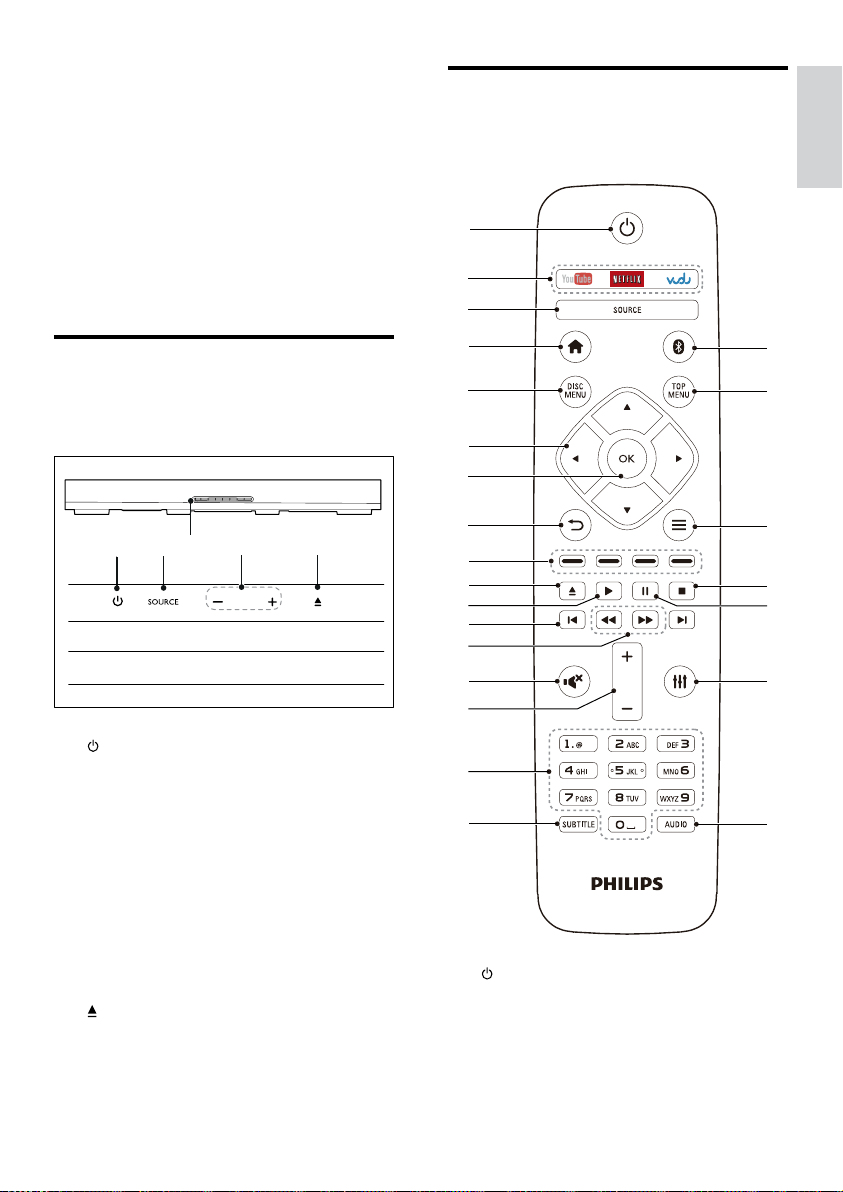
Main unit
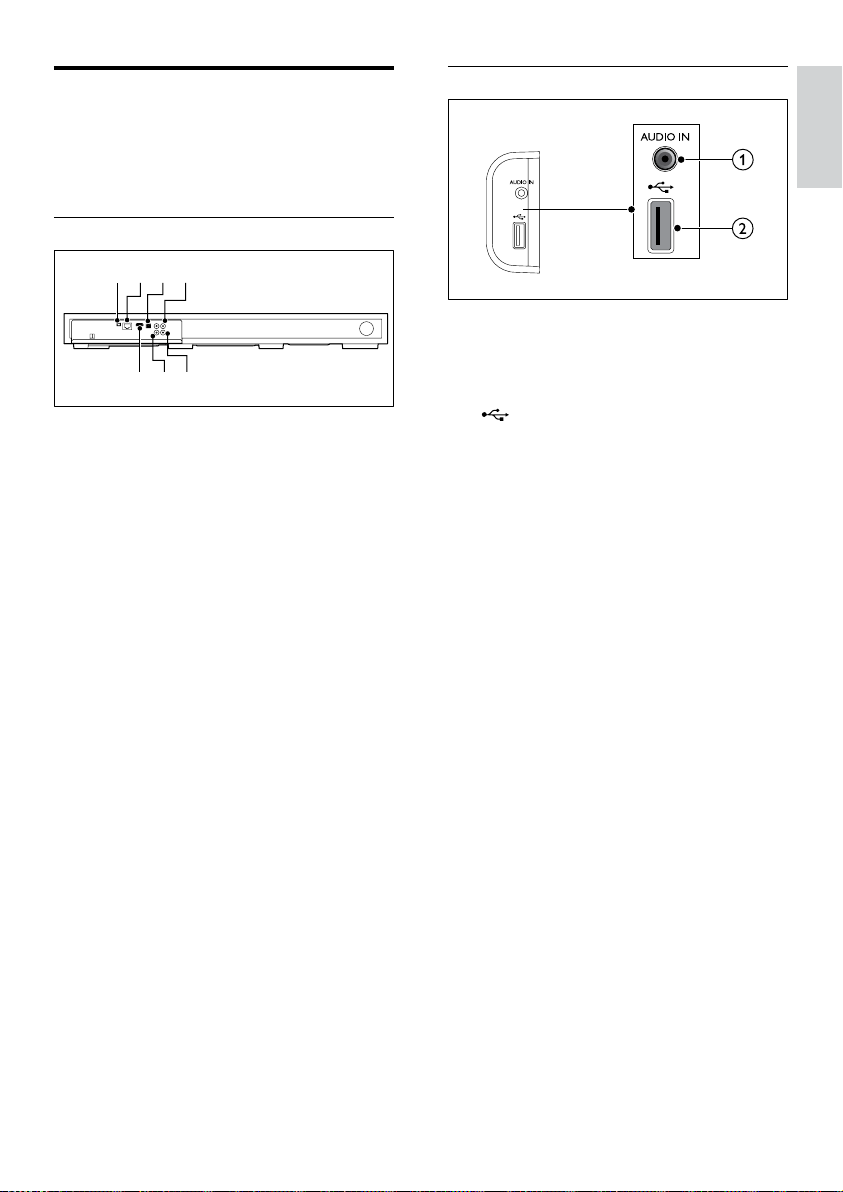
This section includes an overview of the main
unit.
a
Switch the Blu-ray Surround Base on or
to standby.
b SOURCE
Select an audio, video, radio source or
Bluetooth mode for the Blu-ray Surround
Base .
c Disc compartment
d -/+
Decrease or increase volume.
e
Load or eject the disc.
e
a
b
dc
Remote control
This section includes an overview of the
remote control.
a
• Switch the Blu-ray Surround Base on or
to standby.
• When EasyLink is enabled, press
and hold for at least three seconds
s
r
d
e
x
w
j
l
a
h
v
c
n
q
i
f
g
m
o
k
t
u
b
p

6 EN
to switch all connected HDMI CEC
compliant devices to standby.
b Online service buttons
• YouTube: Access online videos from
YouTube.
• NETFLIX: Access online videos and TV
episodes from Netix.
• VUDU: Access online videos from
VUDU.
c SOURCE
Select a source: HDMI ARC/AUX/AUDIO
IN/FM/OPTICAL/COAXIAL.
d
Access the home menu.
e DISC MENU
• Switch to disc source.
• Access or exit the disc menu when
you play a disc.
f Navigation buttons
• Navigate menus.
• In radio mode, press left or right to
start auto search.
• In radio mode, press up or down to
tune the radio frequency.
g OK
Conrm an entry or selection.
h
• Return to a previous menu screen.
• In radio mode, press and hold to erase
the current preset radio stations.
i Color buttons
Select tasks or options for Blu-ray discs.
j
Load or eject the disc.
k
Start or resume play.
l
/
• Skip to the previous or next track,
chapter or le.
• In radio mode, select a preset radio
station.
m
/
Search backwards or forward. Press
repeatedly to change the search speed.
n
Mute or restore volume.
o +/-
Increase or decrease volume.
p Alphanumeric buttons
Enter values or letters (using SMS style
entry).
q SUBTITLE
Select subtitle language for video.
r AUDIO
Select an audio language or channel.
s
Access or exit sound options.
t
Pause play.
u
Stop play.
v
• Access more play options while playing
a disc or a USB storage device.
• In radio mode, set a radio station.
w TOP MENU
Access the main menu of a disc.
x
Switch to Bluetooth mode.
Note
•
Selection of radio or a source is inactivated when you
play BD-Java or access Internet services.
7
English
EN
Connectors
This section includes an overview of the
connectors available on your Blu-ray Surround
Base .
Rear connectors
a FM ANTENNA
Connect to the supplied FM antenna.
b ETHERNET
Connect to the ETHERNET input on a
broadband modem or router.
c OPTICAL IN
Connect to an optical audio output on the
TV or a digital device.
d VIDEO OUT
Connect to the composite video input on
the TV.
e COAXIAL IN
Connect to a coaxial audio output on the
TV or a digital device.
f AUX IN
Connect to an analog audio output on the
TV or an analog device.
g HDMI OUT (ARC)
Connect to the HDMI input on the TV.
fe
abcd
g
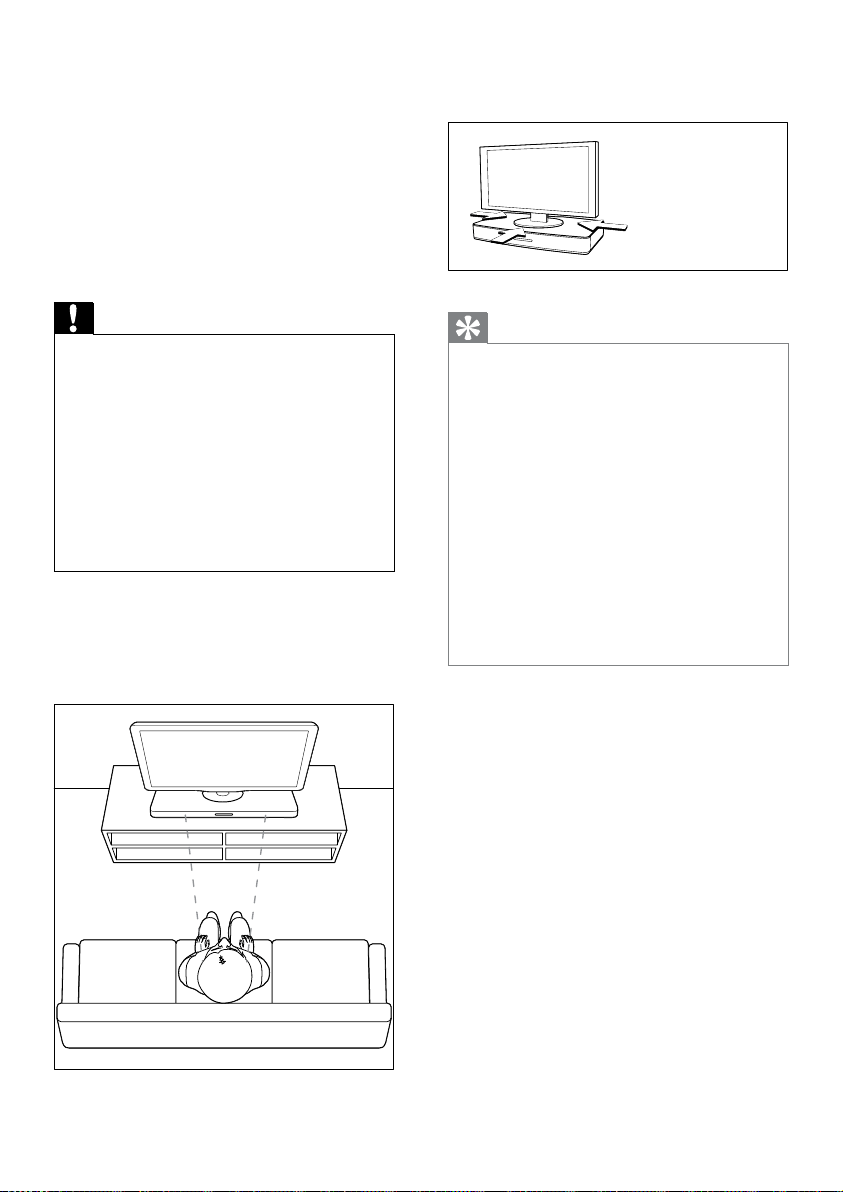
Side connectors
a AUDIO IN
Audio input from an MP3 player (3.5mm
jack).
b
• Audio, video or picture input from a
USB storage device.
• Access BD-Live.
8 EN
3 Place your Blu-
ray Surround
Base
This Blu-ray Surround Base is designed to be
placed under your TV.
Caution
•
The Blu-ray Surround Base is designed for TVs that
weigh no more than 22 kg / 48.5 lbs. Most 42" or
smaller TVs and some of 55" TVs meet this requirement.
Do not place a CRT type TV on the Blu-ray Surround
Base .
• Do not place the Blu-ray Surround Base on an
unstable cart, stand, bracket or table. Otherwise, the
Blu-ray Surround Base may fall, causing serious injury
to a child or adult and serious damage to the product.
• Make sure the ventilation openings on the rear panel
are not blocked.
• Do not change the position of the Blu-ray Surround
Base after placing your TV on top of it.
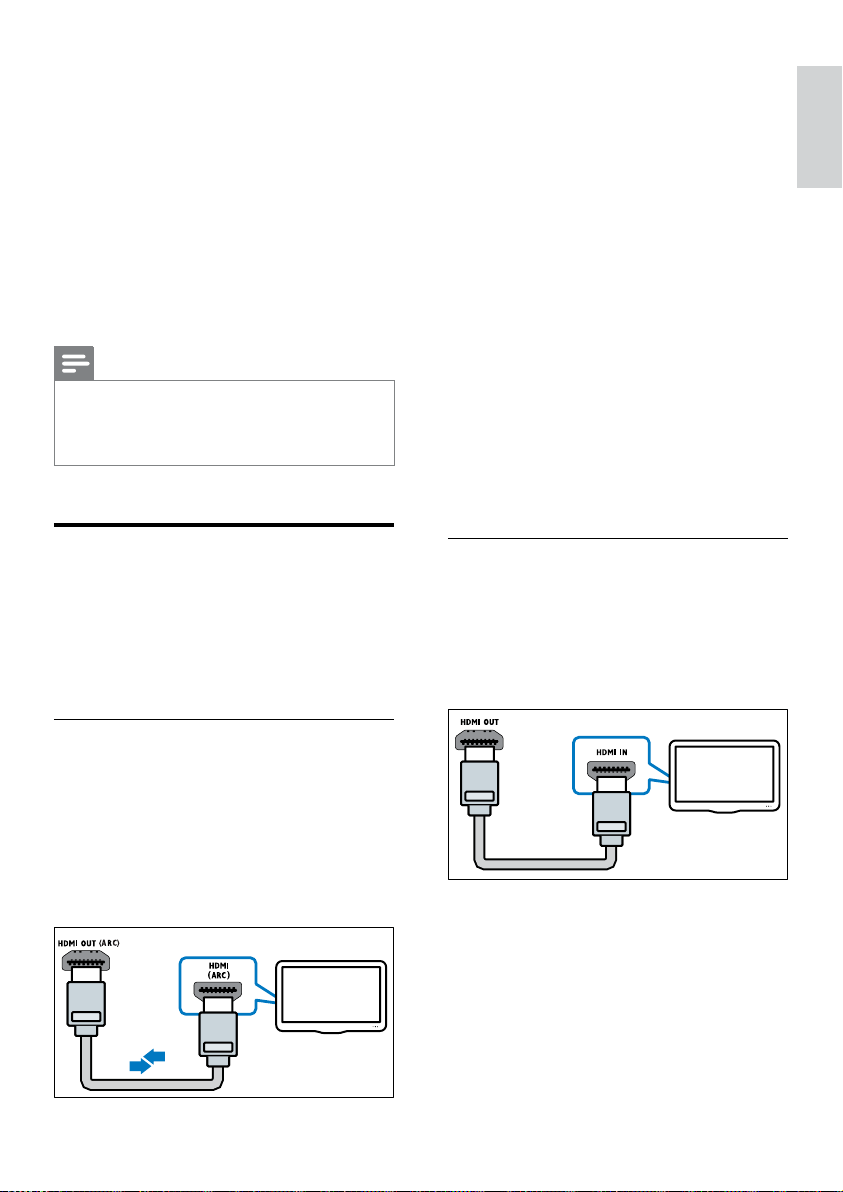
1 Place the Blu-ray Surround Base on any
at and stable surface near your TV. Then
place your TV on the top of the Blu-ray
Surround Base .
2 Make sure the TV base is centered on it
and not hanging over any of its edges.
Tip
•
If the TV base is too large to put on top of the Blu-ray
Surround Base , place the Blu-ray Surround Base in
another location such as on an open shelf under the
TV, but keep it close to your TV so the audio cable will
reach. You can also mount your TV on the wall above
the Blu-ray Surround Base .
• If your TV comes with an anti-tip device, install it
according to the manufacturer's instructions and adjust
the tether after placing the TV on top the Blu-ray
Surround Base .
• If placing the Blu-ray Surround Base in a cabinet or on
a shelf, for optimum audio performance, make sure the
font of the Blu-ray Surround Base as close as possible
to the front edge of the shelf.
• If placing the Blu-ray Surround Base backed up to a
wall, make sure there is at least a distance of 1 inch
between the wall and the rear of the Blu-ray Surround
Base .
9
English
EN
4 Connect and set
up
This section helps you connect your Blu-ray
Surround Base to a TV and other devices, and
then set it up.
For information about the basic connections of
your Blu-ray Surround Base and accessories,
see the Quick start guide.
Note
•
For identication and supply ratings, see the type plate
at the back or bottom of the product.
• Before you make or change any connections, make sure
that all devices are disconnected from the power outlet.
Connect to TV
Connect your Blu-ray Surround Base to a TV
to watch videos. You can listen to the TV audio
through your Blu-ray Surround Base .
Use the best quality connection available on
your Blu-ray Surround Base and TV.
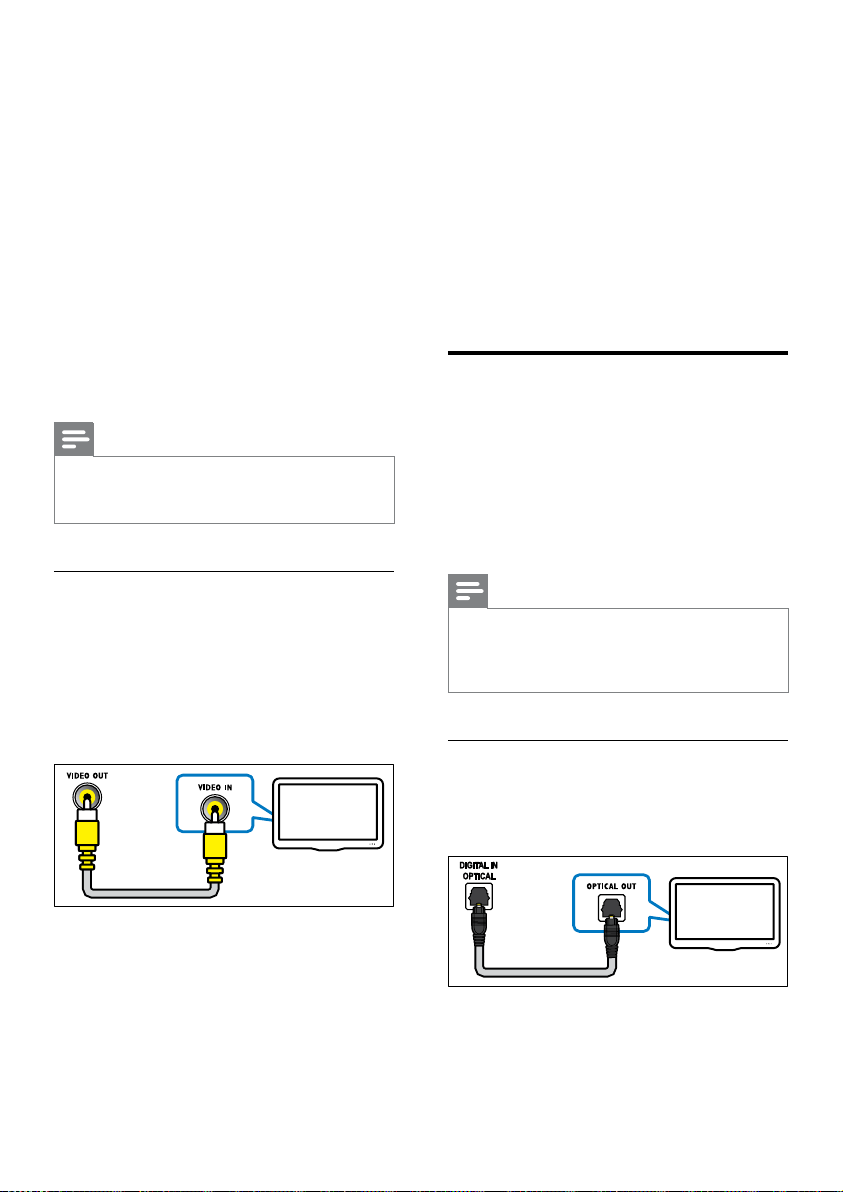
Option 1: Connect to TV through
HDMI (ARC)
Best quality video
Your Blu-ray Surround Base supports HDMI
version with Audio Return Channel (ARC). If
your TV is HDMI ARC compliant, you can hear
the TV audio through your Blu-ray Surround
Base by using a single HDMI cable.
TV
1 Using a High Speed HDMI cable, connect
the HDMI OUT (ARC) connector on your
Blu-ray Surround Base to the HDMI ARC
connector on the TV.
• The HDMI ARC connector on the TV
might be labeled differently. For details,
see the TV user manual.
2 On your TV, turn on HDMI-CEC
operations. For details, see the TV user
manual.
• HDMI-CEC is a feature that enables
CEC compliant devices that are
connected through HDMI to be
controlled by a single remote control,
such as volume control for both the TV
and the Blu-ray Surround Base .
3 If you cannot hear the TV audio through
your Blu-ray Surround Base , set up the
audio manually (see 'Set up the audio' on
page 12).
Option 2: Connect to TV through
standard HDMI
Best quality video
If your TV is not HDMI ARC compliant, connect
your Blu-ray Surround Base to the TV through
a standard HDMI connection.
1 Using a High Speed HDMI cable, connect
the HDMI OUT (ARC) connector on
your Blu-ray Surround Base to the HDMI
connector on the TV.
2 Connect an audio cable to hear the TV
audio through your Blu-ray Surround Base
(see 'Connect audio from TV and other
devices' on page 10).
TV
10 EN
3 On your TV, turn on HDMI-CEC
operations. For details, see the TV user
manual.
• HDMI-CEC is a feature that enables
CEC compliant devices that are
connected through HDMI to be
controlled by a single remote control,
such as volume control for both the TV
and the Blu-ray Surround Base (see
'Set up EasyLink (HDMI-CEC control)'
on page 11).
4 If you cannot hear the TV audio through
your Blu-ray Surround Base , set up the
audio manually (see 'Set up the audio' on
page 12).
Note
•
If your TV has a DVI connector, you can use an HDMI/
DVI adapter to connect to TV. However, some of the
features may not be available.
Option 3: Connect to the TV through
composite video
Basic quality video
If your TV does not have HDMI connectors, use
a composite video connection. A composite
connection does not support high-denition
video.
1 Using a composite video cable, connect
the VIDEO OUT connector on your
Blu-ray Surround Base to the VIDEO IN
connector on the TV.
• The composite video connector might
be labeled AV IN, COMPOSITE, or
BASEBAND.
TV
2 Connect an audio cable to hear the TV
audio through your Blu-ray Surround Base
(see 'Connect audio from TV and other
devices' on page 10).
3 When you watch TV programs, press
SOURCE on your Blu-ray Surround Base
repeatedly to select the correct audio
input.
4 When you watch videos, switch your TV to
the correct video input. For details, see the
TV user manual.
Connect audio from TV and
other devices
Play audio from TV or other devices through
your Blu-ray Surround Base .
Use the best quality connection available on
your TV, Blu-ray Surround Base , and other
devices.
Note
•
When your Blu-ray Surround Base and TV are
connected through HDMI ARC, an audio connection
is not required (see 'Option 1: Connect to TV through
HDMI (ARC)' on page 9).
Option 1: Connect audio through a
digital optical cable
Best quality audio
1 Using an optical cable, connect the
OPTICAL IN connector on your Blu-ray
Surround Base to the OPTICAL OUT
connector on the TV or other device.
TV
11
English
EN
• The digital optical connector might be
labeled SPDIF or SPDIF OUT.
Option 2: Connect audio through a
digital coaxial cable
Good quality audio
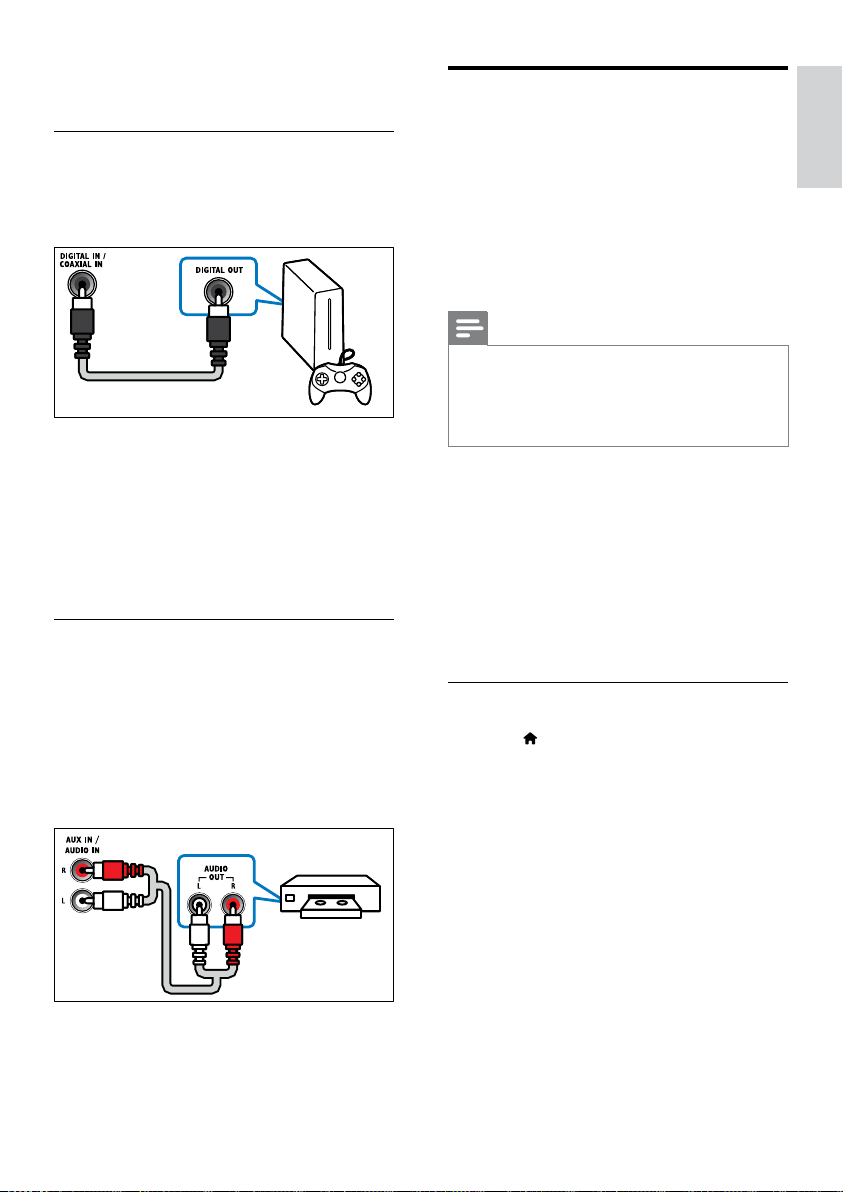
1 Using a coaxial cable, connect the
COAXIAL IN connector on your Blu-
ray Surround Base to the COAXIAL/
DIGITAL OUT connector on the TV or
other device.
• The digital coaxial connector might be
labeled DIGITAL AUDIO OUT.
Option 3: Connect audio through
analog audio cables
Basic quality audio
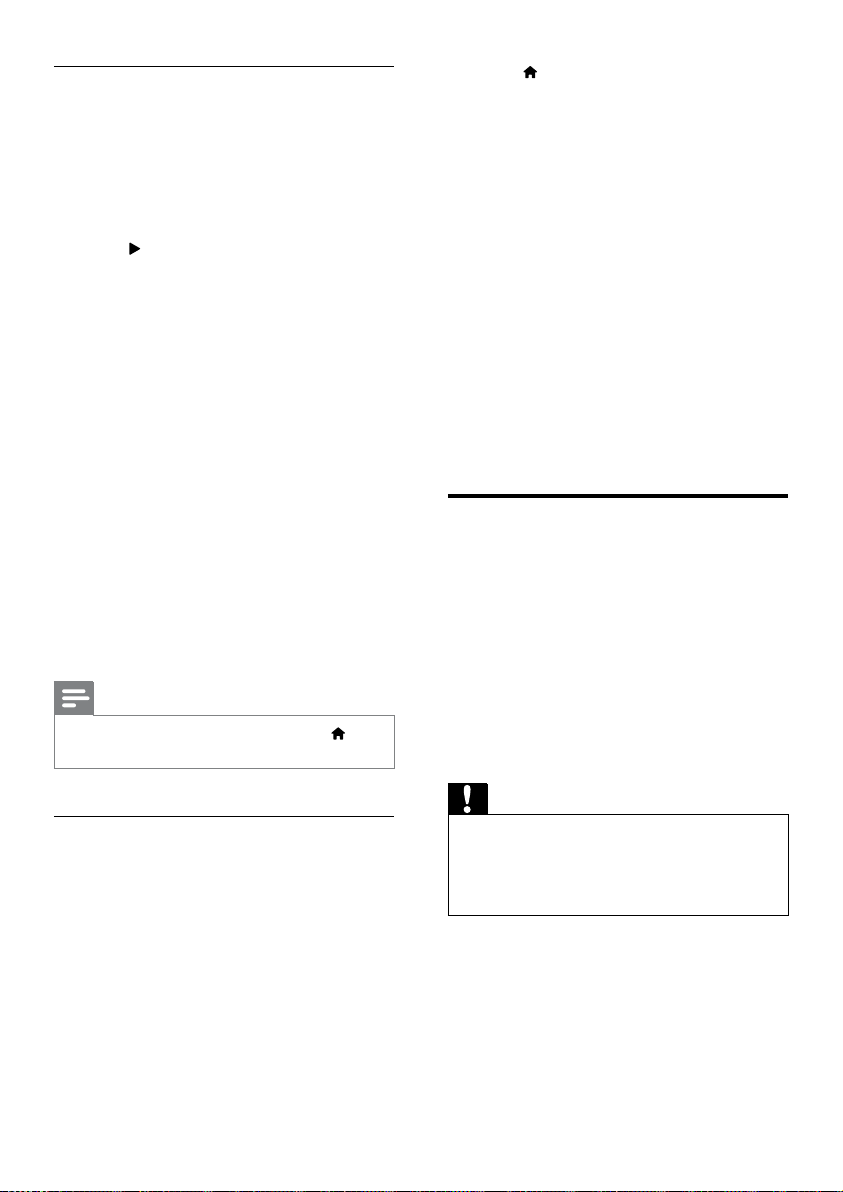
1 Using an analog cable, connect the AUX
IN connector on your Blu-ray Surround
Base to the AUDIO OUT connectors on
the TV or other device.
VCR
Set up EasyLink (HDMI-CEC
control)
This Blu-ray Surround Base supports
Philips EasyLink, which uses the HDMI-CEC
(Consumer Electronics Control) protocol.
EasyLink-compliant devices that are connected
through HDMI can be controlled by a single
remote control.
Note
•
Depending on the manufacturer, HDMI-CEC is known
by many names. For information on your device, see
the user manual of the device.
• Philips does not guarantee 100% interoperability with
all HDMI-CEC devices.
Before you start
• Connect your Blu-ray Surround Base to
the HDMI-CEC compliant device through
HDMI connection.
• Make the necessary connections described
in the quick start guide, and then switch
the TV to the correct source for your Blu-
ray Surround Base .
Enable EasyLink
1 Press .
2 Select [Setup], and then press OK.
3 Select [EasyLink] > [EasyLink] > [On] .
4 On your TV and other connected devices,
turn on HDMI-CEC control. For details, see
the user manual of the TV or other devices.
• On your TV, set the audio output to
'Amplier' (instead of TV speakers).
For details, see the TV user manual.
12 EN
EasyLink controls
With EasyLink, you can control your Blu-ray
Surround Base , TV, and other connected
HDMI-CEC compliant devices with a single
remote control.
• [One Touch Play] (One-touch play): When
a video disc is in the disc compartment,
press
to wake up the TV from standby,
and then play a disc.
• [One Touch Standby] (One-touch
standby): If one-touch standby is enabled,
your Blu-ray Surround Base can switch to
standby with the remote control of the TV
or other HDMI-CEC devices.
• [System Audio Control] (System audio
control): If system audio control is enabled,
the audio of the connected device is
output through your Blu-ray Surround
Base automatically when you play the
device.
• [Audio Input Mapping] (Audio input
mapping): If system audio control does not
work, map the connected device to the
correct audio input connector on your Blu-
ray Surround Base (see 'Set up the audio'
on page 12).
Note
• To change the EasyLink control settings, press , select
[Setup] > [EasyLink].
Set up the audio
If you cannot hear the audio output of a
connected device through your Blu-ray
Surround Base , do the following:
• Check that you have enabled EasyLink on
all the devices (see 'Enable EasyLink' on
page 11), and
• on your TV, set the audio output to
"Amplier" (instead of TV speakers). For
details, see the TV user manual, and
• setup the EasyLink audio control.
1 Press .
2 Select [Setup], and then press OK.
3 Select [EasyLink] > [System Audio
Control] > [On].
• To play the audio from the TV
speakers, select [Off], and skip the
following steps.
4 Select [EasyLink] > [Audio Input
Mapping].
5 Follow the onscreen instructions to map
the connected device to the audio inputs
on your Blu-ray Surround Base .
• If you connect your Blu-ray Surround
Base to the TV through an HDMI
ARC connection, make sure that the
TV audio is mapped to the ARC input
on your Blu-ray Surround Base .
Connect and set up a home
network
Connect your Blu-ray Surround Base to a
network router for a network setup, and enjoy:
• Online services (see 'Enjoy Internet
services' on page 20)
• BD Live applications (see 'BD-Live on Blu-
ray' on page 15)
• Software update (see 'Update software
through the Internet' on page 26)
Caution
•
Familiarize yourself with the network router, media
server software and networking principles. If necessary,
read documentation that accompanies the network
components. Philips is not responsible for lost, damaged,
or corrupt data.
Before you start
• For software updates, make sure that the
network router has access to the Internet
with high-speed connection and is not
restricted by rewalls or other security
systems.
13
English
EN
• Make the necessary connections described
in quick start guide, and then switch the
TV to the correct source for your Blu-ray
Surround Base .
Set up the wired network
What you need
• A network cable (RJ45 straight cable).
• A network router (with DHCP enabled).
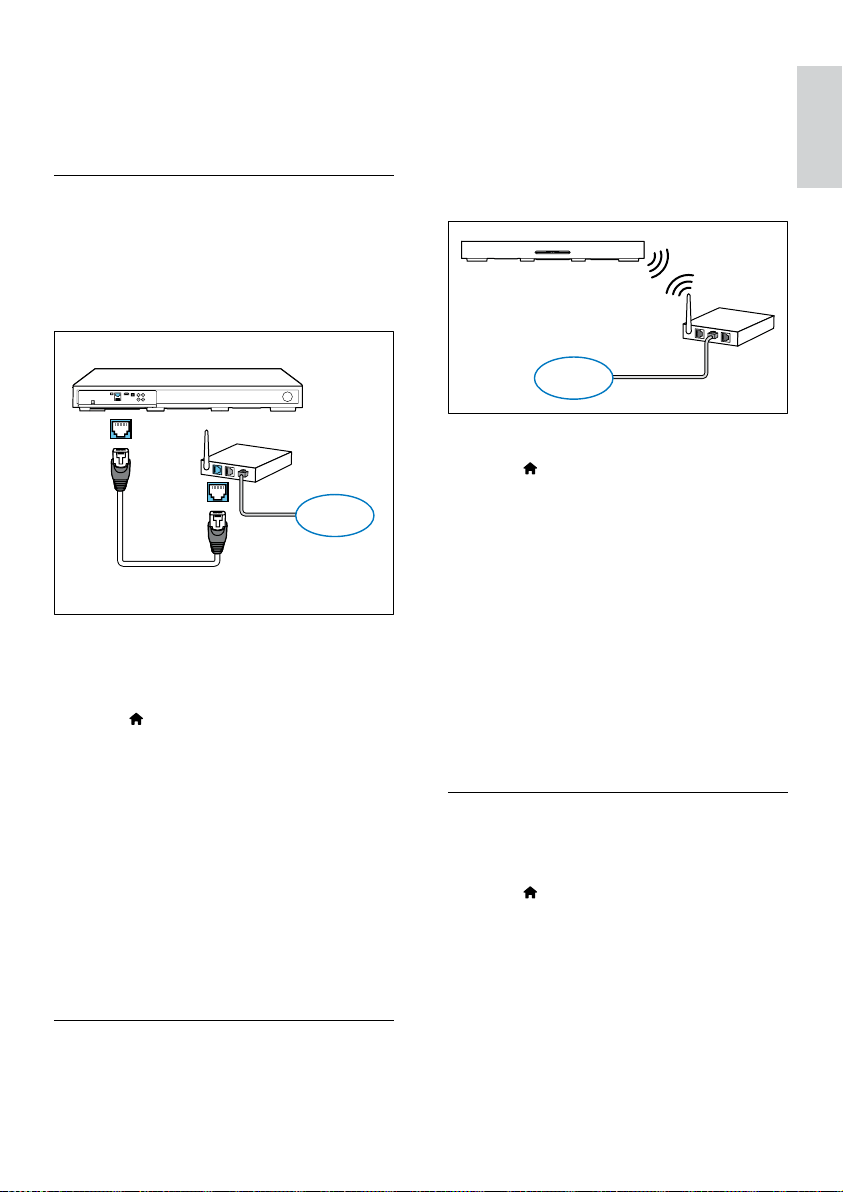
1 Using a network cable, connect the
ETHERNET connector on your Blu-ray
Surround Base to the network router.
2 Press .
3 Select [Setup], and then press OK.
4 Select [Network] > [Network
installation] > [Wired (Ethernet)].
5 Follow the onscreen instructions to
complete the setup.
• If connection fails, select [Retry], and
then press OK.
6 Select [Finish], and then press OK to exit.
• To view the network settings, select
[Setup] > [Network] > [View
network settings].
Set up the wireless network
ETHERNET
ETHERNET
www
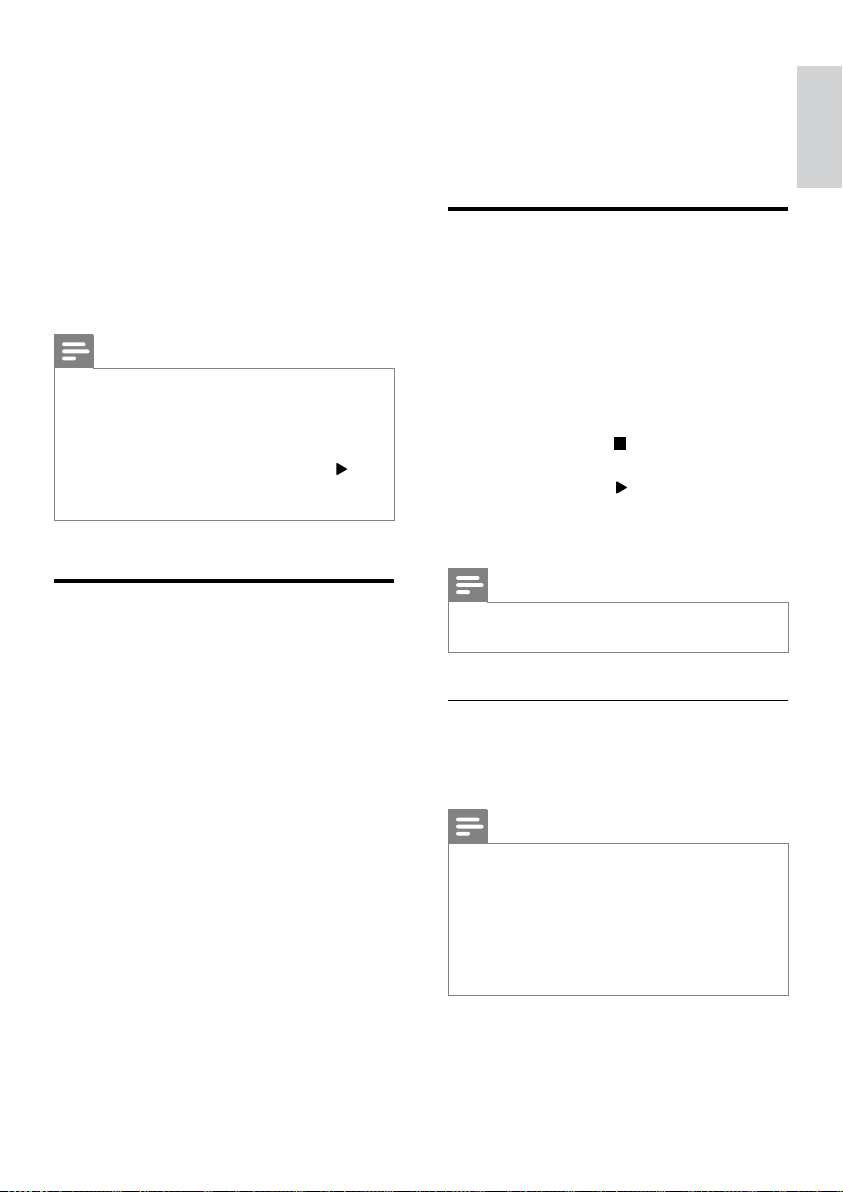
Your Blu-ray Surround Base has a built-in Wi-Fi
for easy access to a wireless network.
What you need
• A network router (with DHCP enabled).
For best wireless performance, coverage,
and compatibility, use 802.11n router.
1 Press .
2 Select [Setup], and then press OK.
3 Select [Network] > [Network
installation] > [Wireless (Wi-Fi)], and
then press OK.
4 Follow the onscreen instructions to select
and set up the wireless network.
• If connection fails, select [Retry], and
then press OK.
5 Select [Finish], and then press OK to exit.
• To view the network settings, select
[Setup] > [Network] > [View
wireless settings].
Personalize the network name
Name your Blu-ray Surround Base to easily
identify it on your home network.
1 Press .
2 Select [Setup], and then press OK.
3 Select [Network] > [Name your
Product:].
4 Press the Alphanumeric buttons to enter
the name.
5 Select [Done], and then press OK to exit.
www

14 EN
5 Use your Blu-
ray Surround
Base
This section helps you use the Blu-ray Surround
Base to play media from a wide range of
sources.
Before you start
• Make the necessary connections described
in Quick start guide and User manual.
• Switch the TV to the correct source for
the Blu-ray Surround Base .
Access the home menu
The home menu provides easy access to
connected devices, setup and other useful
features in your Blu-ray Surround Base .
1 Press .
» The home menu is displayed.
2 Press the Navigation buttons and OK to
select the following:
• [play Disc]: Start disc play.
• [browse USB]: Access the USB
content browser.
• [YouTube]: Access YouTube service.
• [Netix]: Access Netix service.
• [VUDU]: Access VUDU service.
• [Picasa]: Access Picasa web albums.
• [AccuWeather]: Access online weather
forecasting service worldwide.
• [Pandora]: Access Internet radio
service.
• [Facebook]: Access a social networking
service.
• [Twitter]: Access an online social
networking service and microblogging
service.
• [Setup]: Access menus to change video,
audio and other settings.
3 Press to exit.
Discs
Your Blu-ray Surround Base can play DVDs,
VCDs, CDs, and Blu-ray discs. It can also play
discs that you’ve made at home, such as CD-R
discs of photos, videos, and music.
1 Insert a disc into the Blu-ray Surround
Base .
2 If the disc does not play automatically,
select [play Disc] from the home menu.
3 Use the remote control to control play
(see 'Play buttons' on page 14).
• It is normal to hear a little noise when
you play a Blu-ray disc. This does not
mean that your Blu-ray Surround Base
is faulty.
Play buttons
Button Action
Navigation
buttons
Navigate menus.
Up/Down: Rotate the picture
clockwise or counter-clockwise.
OK Conrm an entry or selection.
(Play) Start or resume play.
Pause play.
Stop play.
Load or eject the disc.
/ Skip to the previous or next track,
chapter or le.
/ Search fast backwards or forward.
When a video is paused, search
slow backwards or forward.
SUBTITLE Select subtitle language for video.
DISC
MENU
Access or exit the disc menu.
TOP
MENU
Access the main menu of a disc.

15
English
EN
Button Action
Access the advanced options
when you play your audio, video,
or media les (see 'Audio, video,
and picture options' on page 18).
Synchronize video and sound
If the audio and video are not synchronized,
delay the audio to match the video.
1 Press .
2 Press the Navigation buttons (left/right) to
select [Audio sync], and then press OK.
3 Press the Navigation buttons (up/down)
to synchronize the audio with the video.
4 Press OK to conrm.
Play Blu-ray 3D disc
Your Blu-ray Surround Base can play Blu-ray
3D video. Read the 3D health warning before
playing a 3D disc.
What you need
• A 3D TV
• A pair of 3D glasses that are compatible
with your 3D TV
• A 3D Blu-ray video
• A high speed HDMI cable
1 Using the high speed HDMI cable, connect
your Blu-ray Surround Base to a 3D
compatible TV.
2 Make sure that the 3D video setting is
enabled. Press
, select [Setup] > [Video]
> [Watch 3D video] > [Auto].
• To play 3D discs in 2D mode, select
[Off].
3 Play a Blu-ray 3D disc and put on the 3D
glasses.
• During video search and in certain play
modes, the video is displayed in 2D.
The video display returns to 3D when
you resume play.
Note
•
To avoid ickering, change the brightness of the display.
Bonus View on Blu-ray
On Blu-ray discs that support the Bonus View,
enjoy extra content such as commentaries in a
small screen window. Bonus View is also known
as picture-in-picture.
1 Enable Bonus View in the Blu-ray disc
menu.
2 While you play the movie, press .
» The options menu is displayed.
3 Select [PIP selection] > [PIP].
• Depending on the video, PIP menu [1]
or [2] is displayed.
• To disable Bonus View, select [Off].
4 Select [2nd audio language] or [2nd
Subtitle Language].
5 Select the language, and then press OK.
BD-Live on Blu-ray
Access additional features on the Blu-ray discs
with BD-Live content, such as internet chats
with the director, the latest movie trailers,
games, wallpaper, and ringtones.
BD-Live services and content vary from disc to
disc.
What you need
• Blu-ray disc with BD-Live content
• a USB storage device, with at least 1 GB of
memory
1 Connect your Blu-ray Surround Base to a
home network with Internet access.
2 Connect a USB storage device to the
connector at the right side of your Blu-ray
Surround Base for BD-Live download.
3 Press and select [Setup] > [Advanced]
> [BD-Live security] > [Off].
• To disable BD-Live, select [On].

16 EN
4 Select the BD-Live icon in the disc menu,
and then press OK.
» BD-Live starts to load. The loading
time depends on the disc and your
internet connection.
5 Press the Navigation buttons to navigate
BD-Live, and then press OK to select an
option.
Note
• To clear the memory on the storage device, press ,
select [Setup] > [Advanced] > [Clear memory].
Play audio through Bluetooth
Through Bluetooth, connect the Blu-ray
Surround Base with your Bluetooth device
(such as an iPad, iPhone, iPod touch, Android
phone, or laptop), and then you can listen to
the audio les stored on the device through
your Blu-ray Surround Base .
What you need
• A Bluetooth device which supports
Bluetooth prole A2DP, AVRCP and with
Bluetooth version as 2.1 + EDR.
• The operational range between the Blu-ray
Surround Base and a Bluetooth device is
approximately 10 meters (30 feet).
1 Press to select Bluetooth mode.
» [BT] is displayed on the display panel.
2 On the Bluetooth device, switch on
Bluetooth, search for and select the
name of your Blu-ray Surround Base to
start connection (see the user manual of
the Bluetooth device on how to enable
Bluetooth).
• If prompted for a password, enter
"0000".
3 Wait until you hear a beep sound from this
product.
» When the Bluetooth connection
succeeds, [BT_RE] is displayed on the
display panel.
» If the connection fails, [BT] on the
display panel is still displayed.
17
English
EN
4 Select and play audio les or music on
your Bluetooth device.
• During play, if a call is coming, music
play is paused.
• If music streaming is interrupted, place
the Bluetooth device closer to the Blu-
ray Surround Base .
5 To exit Bluetooth, select other source.
• When your switch back to Bluetooth
mode, Bluetooth connection remains
active.
Note
•
The music streaming may be interrupted by obstacles
between the device and Blu-ray Surround Base , such
as wall, metallic casing that covers the device, or other
devices nearby that operate in the same frequency.
• If you want to connect your Blu-ray Surround Base
with another Bluetooth device, press and hold
on the remote control to disconnect the currently
connected Bluetooth device.
Play music via NFC
NFC (Near Field Communication) is a
technology that enables short-range wireless
communication between NFC-enabled devices,
such as mobile phones.
What you need
• A Bluetooth device with NFC function.
• For pairing, tap the NFC device on the
NFC tag of this product.
• The operational range between the main
unit (left and right speakers) and a NFC
device is approximately 10 meters (30
feet).
1 Enable NFC on your Bluetooth device (see
the user manual of your device for details).
2 Tap the NFC device on the NFC tag of
this product until you hear a beep sound
from this product.
» The NFC device is connected to
this product via Bluetooth. [BT] is
displayed.
3 Select and play audio les or music on
your NFC device.
• To break the connection, tap the
NFC device with the NFC tag on this
product again.
Datales
Your Blu-ray Surround Base can play pictures,
audio and video les contained in a disc or a
USB storage device. Before you play a le, check
that the le format is supported by your Blu-ray
Surround Base (see 'File formats' on page 26).
1 Play the les from a disc or USB storage
device.
2 To stop play, press .
• To resume the video from where you
stopped, press
.
• To play the video from the start, press
OK.
Note
•
To play DivX DRM protected les, connect your Blu-ray
Surround Base to a TV through an HDMI cable.
Subtitles
If your video has subtitles in multiple languages,
select a subtitle language.
Note
•
Make sure that the subtitle le has the exact same
name as the video le. For example, if the video le is
named 'movie.avi', name the subtitle le as 'movie.srt'
or 'movie.sub'.
• Your Blu-ray Surround Base supports the following
le formats: .srt, .sub, .txt, .ssa, .ass, smi, and .sami. If the
subtitles do not appear correctly, change the character
set.
1 While playing video, press SUBTITLE to
select a language.
18 EN
2 For DivX videos, if the subtitles do not
appear correctly, continue the following
steps to change the character set.
3 Press .
» The options menu is displayed.
4 Select [Character set], and then select a
character set that supports the subtitle.
Europe, India, LATAM, and Russia
Character
Set
Language
[Standard] English, Albanian, Danish,
Dutch, Finnish, French, Gaelic,
German, Italian, Kurdish (Latin),
Norwegian, Portuguese, Spanish,
Swedish and Turkish
[Central
Europe]
Albanian, Croat, Czech, Dutch,
English, German, Hungarian, Irish,
Polish, Romanian, Slovak, Slovene
and Serbian
[Cyrillic] Bulgarian, Belorussian, English,
Macedonian, Moldavian, Russian,
Serbian and Ukrainian
[Greek] Greek
[Baltic] Estonian, Latvian and Lithuanian
[Chinese] Simplied Chinese
[Chinese-
Traditional]
Traditional Chinese
[Korean] English and Korean
VOD code for DivX
Before you purchase DivX videos and play
them on your Blu-ray Surround Base , register
the Blu-ray Surround Base on www.divx.com
using the DivX VOD code.
1 Press .
2 Select [Setup], and then press OK.
3 Select [Advanced] > [DivX® VOD Code].
» The DivX VOD registration code
for your Blu-ray Surround Base is
displayed.
USB storage devices
Enjoy pictures, audio, and video stored on a
USB storage device such as an MP4 player or
digital camera.
What you need
• A USB storage device that is formatted for
FAT or NTFS le systems, and complies
with the Mass Storage Class.
• A media le in one of the supported le
formats (see 'File formats' on page 26).
Note
•
If you use a USB extension cable, USB HUB, or USB multi-
reader, the USB storage device may not be recognized.
1 Connect a USB storage device to the
(USB) connector on your Blu-ray Surround
Base .
2 Press .
3 Select [browse USB], and then press OK.
» A content browser is displayed.
4 Select a le, and then press OK.
5 Press the play buttons to control play (see
'Play buttons' on page 14).
Audio, video, and picture
options
Use advanced features when you play pictures,
audio and video les from a disc or a USB
storage device.
Audio options
While playing audio, repeat an audio track, a
disc, or a folder.
1 Press repeatedly to cycle through the
following functions:
• Repeat the current track or le.
• Repeat all the tracks on the disc or the
folder.

19
English
EN
• Turn off the repeat mode.
Video options
While watching video, select options such
as subtitles, audio language, time search, and
picture settings. Depending on the video source,
some options are not available.
1 Press .
» The video options menu is displayed.
2 Press the Navigation buttons and OK to
select and change:
• [Info]: Display information about what
is playing.
• [Audio language]: Select audio
language for video.
• [Subtitle Language]: Select subtitle
language for video.
• [Subtitle shift]: Change the subtitle
position on the screen.
• [Character set]: Select a character set
that supports the DivX subtitle.
• [Time search]: Skip to a specic part
of the video by entering the time of
the scene.
• [2nd audio language]: Select the second
audio language for Blu-ray video.
• [2nd Subtitle Language]: Select the
second subtitle language for Blu-ray
video.
• [CC]: Select an option about Closed
Caption.
• [Titles]: Select a specic title.
• [Chapters]: Select a specic chapter.
• [Angle list]: Select a different camera
angle.
• [Menus]: Display the disc menu.
• [PIP selection]: Display Picture-in-
Picture window when playing a Blu-ray
disc that supports the Bonus View.
• [Zoom]: Zoom into a video scene or
picture. Press the Navigation buttons
(left/right) to select a zoom factor.
• [Repeat]: Repeat a chapter or title.
• [Repeat A-B]: Mark two points within a
chapter or track to repeat play, or turn
off the repeat mode.
• [Picture settings]: Select a predened
color setting.
Picture options
While viewing a picture, zoom into the picture,
rotate it, add animation to a slideshow, and
change the picture settings.
1 Press .
» The picture options menu appears.
2 Press the Navigation buttons and OK to
select and change the following settings:
• [Info]: Display picture information.
• [Rotate +90]: Rotate the picture 90
degree clockwise.
• [Rotate -90]: Rotate the picture 90
degree counter-clockwise.
• [Zoom]: Zoom into a video scene or
picture. Press the Navigation buttons
(left/right) to select a zoom factor.
• [Duration per slide]: Select the display
speed for each picture in a slide show.
• [Slide animation]: Select animation for
the slide show.
• [Picture settings]: Select a predened
color setting.
• [Repeat]: Repeat a selected folder.
Musical slideshow
If the picture and audio les are from the same
disc or USB storage device, you can create a
musical slideshow.
1 Select an audio track, and then press OK.
2 Press , and go to the picture folder.
3 Select a picture, and then press to start
the slideshow.
4 Press to stop slideshow.
5 Press again to stop music.
Note
•
Make sure that the picture and audio formats are
supported by your Blu-ray Surround Base (see 'USB'
on page 29).
20 EN
Radio
Listen to FM radio on your Blu-ray Surround
Base , and store up to 40 radio stations.
Note
•
AM and digital radio are not supported.
• If no stereo signal is detected, you are prompted to
install the radio stations again.
1 Connect the FM antenna to FM
ANTENNA on your Blu-ray Surround
Base .
• For the best reception, place the
antenna away from your TV or other
sources of radiation.
2 Press SOURCE repeatedly to select radio
source.
» If you have already installed the radio
stations, the last channel that you
listened to is played.
» If you have not installed any radio
stations, the message [AUTO
INSTALL...PRESS PLAY] appears on
the display panel. Press
to install
radio stations.
3 Use the remote control to select or to
change radio stations.
Play buttons
Button Action
/
or
Alphanumeric
buttons
Select a preset radio station.
Navigation
buttons
Left/Right: Search for a radio
station.
Up/Down: Fine tune a radio
frequency.
Press to stop the installation
of radio stations.
Press and hold to erase the
preset radio station.
Manual: 1) Press . 2) Press
/ to select your preset.
3) Press
again to store the
radio station.
Automatic: Press and hold for
three seconds to reinstall the
radio stations.
SUBTITLE Toggle between the stereo
and mono sounds.
Tuning grid
In some countries, you can toggle the FM tuning
grid between 50 kHz and 100 kHz.
1 Press SOURCE repeatedly to select radio
source.
2 Press .
3 Press and hold to toggle between 50
kHz or 100 kHz.
MP3 player
Connect a MP3 player to play audio les.
What you need
• An MP3 player.
• A 3.5mm stereo audio cable.
1 Using the 3.5mm stereo audio cable,
connect the MP3 player to the AUDIO IN
connector on your Blu-ray Surround Base .
• If you use 6.5mm stereo audio cable,
connect the MP3 player to your Blu-
ray Surround Base using a 3.5mm -
6.5mm converter jack.
2 Press SOURCE repeatedly until [AUDIO
IN] appears in the display panel.
3 Press the buttons on the MP3 player to
select and play audio les.
21
English
EN
Enjoy Internet services
With the Blu-ray Surround Base , you can
access online services, such as movies, pictures
and music.
What you need
• A high-speed Internet connection to the
Blu-ray Surround Base (see 'Connect and
set up a home network' on page 12).
1 Press .
» The home menu is displayed.
2 Select an Internet service, and press OK.
• [Netix]: an online subscription service
streaming movies & TV episodes over
the Internet
• [YouTube]: a video-sharing service
• [Picasa]: an online photo album
• [VUDU]: an online movie service
• [Pandora]: an Internet radio service
• [AccuWeather]: an online weather
forecasting service worldwide
• [Facebook]: a social networking
service
• [Twitter]: an online social networking
service and microblogging service
Button Action
Select a service or item.
OK Conrm a selection.
Return to a previous page, or delete
input text.
Return to the home page.
Note
•
For more detailed information on the VUDU service,
visit www.vudu.com on your computer.
• For more detailed information on the Netix service,
visit www.netix.com on your computer.
• Netix customer service may ask you the ESN
(electronic serial number) of this player during
troubleshooting. To display the ESN, press
, and select
[Setup] > [Advanced] > [NetixESN].
Choose sound
This section helps you choose the ideal sound
for your video or music.
1 Press .
2 Press the Navigation buttons (left/right) to
access the sound options on the display.
Sound
options
Description
[Surround] Select surround sound or stereo
sound.
[Sound] Select a sound mode.
[Audio
sync]
Delay the audio to match the
video.
[Auto
volume]
Reduce sudden changes in
volume, for example, during TV
commercials.
3 Select an option, and then press OK.
4 Press to exit.
• If you do not press a button within a
minute, the menu exits automatically.
Surround sound mode
Experience an immersive audio experience with
surround sound modes.
1 Press .
2 Select [Surround], and then press OK.
3 Press the Navigation buttons (up/down)
to select a setting from your display:
• [Auto]: Surround sound based on the
audio stream.
• [Virtual Surround]: Virtual surround.
• [Stereo]: 2-channel stereo sound. Ideal
for listening to music.
4 Press OK to conrm.

22 EN
Sound mode
Select predened sound modes to suit your
video or music.
1 Make sure that audio post processing is
enabled at the speakers (see 'Speaker
settings' on page 24).
2 Press .
3 Select [Sound], and then press OK.
4 Press the Navigation buttons (up/down)
to select a setting on the display:
• [Auto]: Automatically select a sound
setting based on the sound stream.
• [Balanced]: Experience the original
sound of your movies and music,
without added sound effects.
• [Powerful]: Enjoy thrilling arcade
sounds, ideal for action-packed videos
and loud parties.
• [Bright]: Spice up your dull movies and
music with added sound effects.
• [Clear]: Hear every detail in your
music and clear voices in your movies.
• [Warm]: Experience spoken words
and music vocals in comfort.
• [Personal]: Personalize the sound
based on your preferences.
5 Press OK to conrm.
Equalizer
Change the high frequency (treble), mid
frequency (mid), and low frequency (bass)
settings of the Blu-ray Surround Base .
1 Press .
2 Select [Sound] > [Personal], and then
press Navigation buttons (right).
3 Press the Navigation buttons (up/down)
to change bass, mid or treble frequency.
4 Press OK to conrm.
Auto volume
Turn on auto volume to reduce sudden changes
in volume, for example, during TV commercials.
1 Press .
2 Select [Auto volume], and then press OK.
3 Press the Navigation buttons (up/down)
to select [On] or [Off].
4 Press OK to conrm.
23
English
EN
6 Change settings
The Blu-ray Surround Base settings are already
congured for optimal performance. Unless
you have a reason to change a setting, we
recommend that you keep the default setting.
Note
•
You cannot change a setting that is grayed out.
• To return to the previous menu, press . To exit the
menu, press
.
Language settings
1
Press .
2 Select [Setup], and then press OK.
3 Select [Preference], and then press OK.
4 Press the Navigation buttons and OK to
select and change:
• [Menu language]: Select a display
language for menu.
• [Audio]: Select an audio language for
discs.
• [Subtitle]: Select a subtitle language
for discs.
• [Disc menu]: Select a menu language
for discs.
Note
•
If your preferred disc language is not available, select
[Others] from the list, and enter the 4-digit language
code found at the end of this user manual (see
'Language code' on page 37).
• If you select a language that is not available on a disc,
the Blu-ray Surround Base uses the default language
of the disc.
Picture and video settings
1
Press .
2 Select [Setup], and then press OK.
3 Select [Video], and then press OK.
4 Press the Navigation buttons and OK to
select and change:
• [Tv type]: If the video does not appear
correctly, select a TV type (color
system).
• [TV display]: Select a picture format to
t the TV screen.
• [HDMI video]: Select the resolution of
video signal that is output from HDMI
OUT (ARC) on your Blu-ray Surround
Base . To enjoy the selected resolution,
make sure that your TV supports the
selected resolution.
• [HDMI Deep Color]: Recreate the
natural world on your TV screen by
displaying vivid images using billion
colors. Your Blu-ray Surround Base
must be connected to a Deep Color
enabled TV through an HDMI cable.
• [Picture settings]: Select pre dened
color settings for the video display.
• [Watch 3D video]: Set HDMI video to
support 3D or 2D video.
• [Closed Caption]: Turn on or off the
display of sound effects in subtitles
(applicable only when a disc and a TV
support this feature).
Note
•
If you change a setting, make sure that the TV supports
the new setting.

24 EN
Audio settings
1
Press .
2 Select [Setup], and then press OK.
3 Select [Audio], and then press OK.
4 Press the Navigation buttons and OK to
select and change:
• [Night mode]: For quiet listening,
decrease the volume of loud sounds
on your Blu-ray Surround Base .
Night mode is only available in DVDs
and Blu-ray discs with Dolby Digital,
Dolby Digital Plus, and Dolby True HD
soundtracks.
• [HDMI Audio]: Set an audio format on
HDMI output.
• [Default sound settings]: Restore
the equalizer settings of all the sound
modes to the default values.
Parental control settings
1
Press .
2 Select [Setup], and then press OK.
3 Select [Preference], and then press OK.
4 Press the Navigation buttons and OK to
select and change:
• [Change Password]: Set or change
your password for parental control
access. If you do not have a password
or have forgotten your password, enter
0000.
• [Parental control]: Restrict access
to discs that are recorded with age
ratings. To play all discs, irrespective of
the ratings, select 8 or [Off].
Display settings
1
Press .
2 Select [Setup], and then press OK.
3 Select [Preference], and then press OK.
4 Press the Navigation buttons and OK to
select and change:
• [Auto subtitle shift]: Enable or disable
automatic repositioning of subtitles on
TVs that support this feature.
• [Display panel]: Set a brightness level
(100%, 70% or 40%) on the display
panel of the Blu-ray Surround Base . If
you select [Auto off], after 10 seconds
of button inactivity, the display will
automatically switch off.
• [VCD PBC]: Enable or disable the
content menu navigation of VCD and
SVCD discs with Play Back Control
feature.
Energy saving settings
1
Press .
2 Select [Setup], and then press OK.
3 Select [Preference], and then press OK.
4 Press the Navigation buttons and OK to
select and change:
• [Screen saver]: Switch the Blu-ray
Surround Base to screen saver mode
after 10 minutes of inactivity.
• [Auto standby]: Switch the Blu-ray
Surround Base to standby after 30
minutes of inactivity. This timer works
only when a disc or USB play is paused
or stopped.
• [Sleep timer]: Set the duration of
the sleep timer so that the Blu-ray
Surround Base is switched to standby
after the specied period.
25
English
EN
Speaker settings
1
Press .
2 Select [Setup], and then press OK.
3 Select [Advanced], and then press OK.
4 Press the Navigation buttons and OK to
select and change:
• [Enhanced audio]: Select [On] to
enable audio post processing at the
speaker and enable karaoke settings
(if your product supports Karaoke).
To play the original audio of the disc,
select [Off].
Tip
•
Enable audio post processing before you select a
predened sound mode (see 'Sound mode' on page
21).
Restore default settings
1
Press .
2 Select [Setup], and then press OK.
3 Select [Advanced] > [Restore default
settings], and then press OK.
4 Select [OK], and then press OK to
conrm.
» Your Blu-ray Surround Base is reset
to its default settings except for some
settings such as parental control and
DivX VOD registration code.
7 Update software
Philips continually tries to improve its products.
To get the best features and support, update
your Blu-ray Surround Base with the latest
software.
Compare the version of your current software
with the latest version on www.philips.com/
support. If the current version is lower than the
latest version available on the Philips support
website, upgrade your Blu-ray Surround Base
with the latest software.
Caution
•
Do not install a lower version of software than the
current version installed on your product. Philips is not
liable for problems caused due to software downgrade.
Check software version
Check the version of the current software
installed on your Blu-ray Surround Base .
1 Press .
2 Select [Setup], and then press OK.
3 Select [Advanced] > [Version
information].
» The software version is displayed.
Update software through
USB
What you need
• A USB ash drive that is FAT or NTFS-
formatted, with at least 256MB of memory.
Do not use a USB hard drive.
• A computer with Internet access.
• An archive utility that supports the ZIP le
format.
26 EN
Step 1: Download the latest software
1 Connect a USB ash drive to your
computer.
2 In your web browser, go to www.philips.
com/support.
3 At the Philips Support website, nd your
product and locate the Software and
drivers.
» The software update is available as a
zip le.
4 Save the zip le in the root directory of
your USB ash drive.
5 Use the archive utility to extract the
software update le in the root directory.
» The les are extracted under the
UPG_ALL folder of your USB ash
drive.
6 Disconnect the USB ash drive from your
computer.
Step 2: Update the software
Caution
•
Do not switch off the Blu-ray Surround Base or
remove the USB ash drive during the update.
1 Connect the USB ash drive containing the
downloaded le to your Blu-ray Surround
Base .
• Make sure that the disc compartment
is closed and no disc inside.
2 Press .
3 Select [Setup], and then press OK.
4 Select [Advanced] > [Software update]
> [USB].
5 Follow the onscreen instructions to
conrm the update.
» Update process takes about 5 minutes
to complete.
Update software through the
Internet
1 Connect your Blu-ray Surround Base to a
home network with a high-speed Internet
access. (see 'Connect and set up' on page
9)
2 Press .
3 Select [Setup], and then press OK.
4 Select [Advanced] > [Software update] >
[Network].
» If an upgrade media is detected, you
are prompted to start or cancel the
update.
» Downloading of the upgrading le may
take long, depending on your home
network condition.
5 Follow the onscreen instructions to
conrm the update.
» Update process takes about 5 minutes
to complete.
» Once complete, the Blu-ray Surround
Base automatically switches off and
restarts. If it does not, disconnect the
power cord for a few seconds and
then reconnect it.
27
English
EN
8 Product
specifications
Note
•
Specications and design are subject to change without
notice.
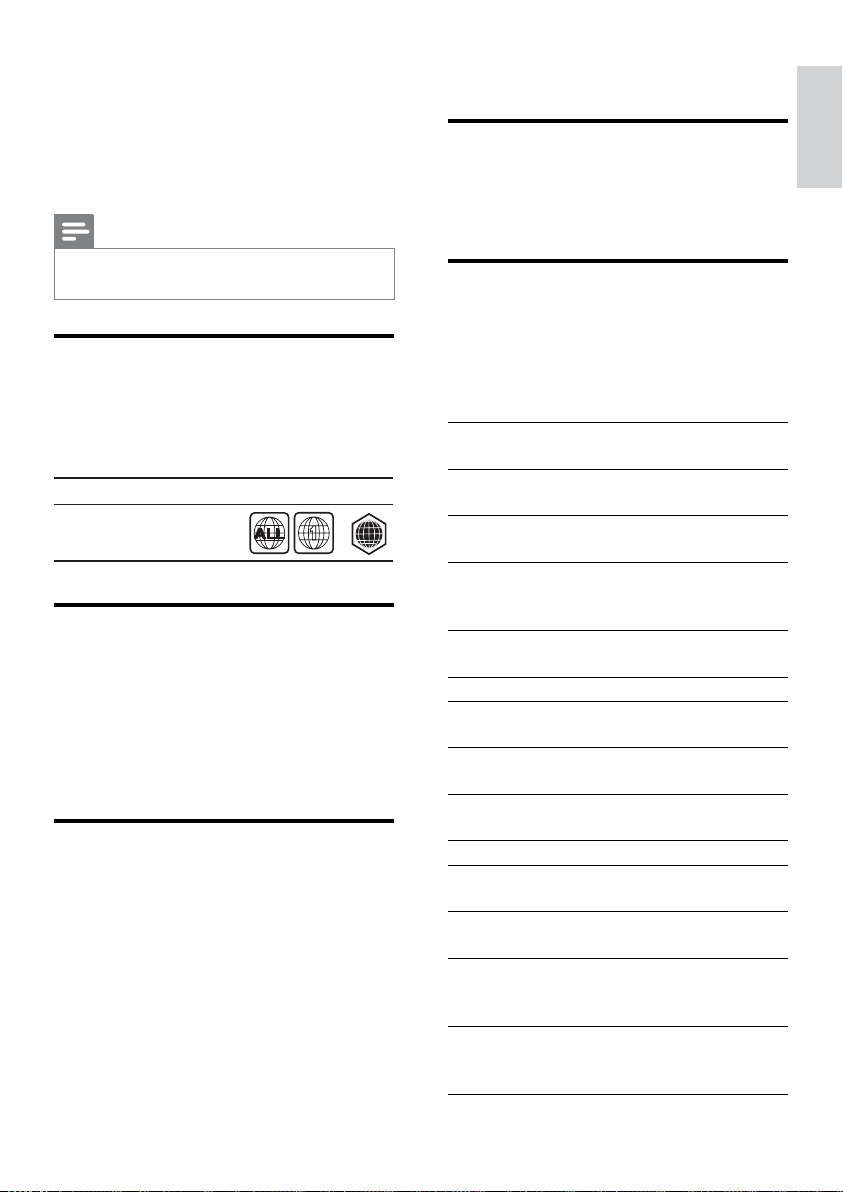
Region codes
The type plate on the back or bottom of the
Blu-ray Surround Base shows which regions it
supports.
Media formats
• AVCHD, BD, BD-R/ BD-RE, BD-Video,
DVD-Video, DVD+R/+RW, DVD-R/-RW,
DVD+R/-R DL, CD-R/CD-RW, Audio CD,
Video CD/SVCD, Picture les, MP3 media,
WMA media, DivX Plus HD media, USB
storage device
File formats
• Audio:
• .aac, .mka, .mp3, .wma, .wav, .mp4, .m4a,
.ac, .ogg
• .ra (Available only in Asia Pacic and
China)
• Video:
• .avi, .divx, .mp4, .m4v, .mkv, .asf, .wmv,
.m2ts, .mpg, .mpeg, .v, .3gp
• .rmvb, .rm, .rv (Available only in Asia
Pacic and China)
Country
DVD BD
USA, Canada
AA
1
• Picture: .jpg, .jpeg, .jpe, .gif, .png
Bluetooth
• Bluetooth proles: A2DP, AVRCP
• Bluetooth version: 2.1 + EDR
Audio formats
Your Blu-ray Surround Base supports the
following audio les.
(.ralesaresupportedonlyinAsiaPacicand
China)
Extension Container Audio
codec
Bit rate
.mp3 MP3 MP3 Upto 320
kbps
.wma ASF WMA Upto 192
kbps
.aac AAC AAC,
HE-
AAC
Upto 192
kbps
.wav WAV PCM 27.648
Mbps
.m4a MKV AAC 192 kbps
.mka MKA PCM 27.648
Mbps
Dolby
Digital
640 kbps
DTS
core
1.54 Mbps
MPEG 912 kbps
MP3 Upto 320
kbps
WMA Upto 192
kbps
AAC,
HE-
AAC
Upto 192
kbps
.ra RM AAC ,
HE-
AAC
Upto 192
kbps

28 EN
Cook 96469 bps
.ac FLAC FLAC Upto 24
bps
.ogg OGG Vorbis Variable
bit rate,
maximum
block size
4096
MP3 Upto 320
kbps
Video formats
If you have a high denition TV, your Blu-ray
Surround Base allows you to play your video
les with:
• Resolution: 1920 x 1080 pixels at
• Frame rate: 6 ~ 30 frames per second.
.avilesinAVIcontainer
Audio codec Video codec Bit rate
PCM, Dolby
Digital, DTS
core, MP3,
WMA
DivX 3.11,
DivX 4.x, DivX 5.x,
DivX 6.x
10 Mbps
max
MPEG 1, MPEG 2 40 Mbps
MPEG 4 SP / ASP 38.4
Mbps
H.264/AVC upto
25 Mbps
WMV9 45 Mbps
.divxlesinAVIcontainer
Audio codec Video codec Bit rate
PCM, Dolby
Digital, MP3,
WMA
DivX 3.11,
DivX 4.x, DivX 5.x,
DivX 6.x
10
Mbps
max
.mp4or.m4vlesinMP4container
Audio codec Video codec Bit rate
Dolby Digital,
MPEG, MP3, AAC,
HE-AAC, Dolby
Digital Plus
MPEG 1,
MPEG 2
40
Mbps
MPEG 4 ASP 38.4
Mbps
H.264/AVC
25
Mbps
.mkvlesinMKVcontainer
Audio codec Video codec Bit rate
PCM, Dolby Digital,
DTS core, MPEG,
MP3, WMA, AAC,
HE-AAC, Dolby
Digital Plus
DivX Plus
HD
30 Mbps
MPEG 1,
MPEG 2
40 Mbps
MPEG 4 ASP 38.4
Mbps
H.264/AVC
25 Mbps
WMV9 45 Mbps
.m2tslesinMKVcontainer
Audio codec Video codec Bit rate
PCM, Dolby Digital,
DTS core, MPEG,
MP3, WMA, AAC,
HE-AAC, Dolby
Digital Plus
MPEG 1,
MPEG 2
40
Mbps
MPEG 4 ASP 38.4
Mbps
H.264/AVC
25
Mbps
WMV9 45
Mbps

29
English
EN
.asflesinASFcontainer
Audio codec Video codec Bit rate
Dolby Digital,
MP3, WMA,
Dolby Digital
Plus
MPEG 4
ASP
38.4 Mbps
H.264/AVC
25 Mbps
WMV9 45 Mbps
.mpgand.mpeglesinPScontainer
Audio codec Video codec Bit rate
PCM, DTS core,
MPEG, MP3
MPEG 1,
MPEG 2
40 Mbps
.vlesinFLVcontainer
Audio codec Video codec Bit rate
MP3, AAC H.264/
AVC upto
25 Mbps
H.263 38.4 Mbps
.3gplesin3GPcontainer
Audio codec Video codec Bit rate
AAC, HE-AAC MPEG 4 ASP 38.4 Mbps
H.264/
AVC upto
25 Mbps
max
.rm,.rv,and.rmvblesinRMcontainer
(AvailableonlyinAsiaPacicandChina)
Audio codec Video codec Bit rate
AAC, COOK RV30, RV40 40 Mbps
Amplier
• FTC total output power: 42 W
• Speaker: 13 W (1% THD, 4 ohm, 300
Hz - 9 kHz)
• Subwoofer: 16 W (1% THD, 4 ohm, 30
Hz - 100 Hz)
• Total output power: 80 W RMS (10% THD)
• Frequency response: 20 Hz-20 kHz / ±3 dB
• Signal-to-noise ratio: > 65 dB (CCIR) /
(A-weighted)
• Input sensitivity:
• AUX: 2 V rms
• AUDIO IN: 1 V rms
Video
• Signal system: PAL / NTSC
• HDMI output: 480i/576i, 480p/576p, 720p,
1080i, 1080p, 1080p24
Audio
• S/PDIF Digital audio input:
• Coaxial: IEC 60958-3
• Optical: TOSLINK
• Sampling frequency:
• MP3: 32 kHz, 44.1 kHz, 48 kHz
• WMA: 44.1 kHz, 48 kHz
• Constant bit rate:
• MP3: 32 kbps - 320 kbps
• WMA: 48 kbps - 192 kbps
Radio
• Tuning range:
• Europe/Russia/China: FM 87.5-108
MHz (50 kHz)
• Asia Pacic/Latin America: FM 87.5-108
MHz (50/100 kHz)
• Signal-to-noise ratio: FM 50 dB
• Frequency response: FM 180 Hz-12.5 kHz
/ ±3 dB

30 EN
USB
• Compatibility: Hi-Speed USB (2.0)
• Class support: USB Mass Storage Class
(MSC)
• File system: FAT16, FAT32, NTFS
• USB port: 5V
, 1A
Main unit
• Power supply: 120 V~, 60 Hz
• Power consumption: 40 W
• Standby power consumption: ≤ 0.5 W
• Dimensions (WxHxD): 701 x 70 x 317
mm / 27.6" x 2.8" x 12.5"
• Weight: 6.8 kg / 15 lbs
• Operating temperature and humidity:
0°C to 45°C, 5% to 90% humidity for all
climates
• Storage temperature and humidity: -40°C
to 70°C, 5% to 95%
Speakers
• Output power: 2 x 20 W RMS (10% THD)
• Speaker impedance: 4 ohm
• Speaker drivers: 2 x racetrack (1.5" x 5") +
2 x 1" tweeter
Subwoofer
• Output power: 40 W RMS (10% THD)
• Impedance: 4 ohm
• Speaker drivers: 105mm (4") woofer
Remote control batteries
• 2 x AAA-R03-1.5 V
Laser
• Laser Type (Diode): InGaN/AIGaN (BD),
AIGaInP (DVD/CD)
• Wave length: 405 ±7 nm (BD), 660 ±10
nm (DVD), 785 ±10 nm (CD)
• Output power (Max. ratings): 20 mW
(BD), 6 mW (DVD), 7 mW (CD)

31
English
EN
9 Troubleshooting
Warning
•
Risk of electric shock. Never remove the casing of the
product.
To keep the warranty valid, never try to repair
the product yourself.
If you have problems using this product, check
the following points before you request service.
If you still have a problem, get support at www.
philips.com/support.
Main unit
The buttons on the Blu-ray Surround Base do
not work.
• Disconnect the Blu-ray Surround Base
from the power supply for a few minutes,
then reconnect.
• Make sure that the touch buttons surface
is not in contact with any conductive
material, like water drop, metal, etc.
Picture
No picture.
• Make sure that the TV is switched to the
correct source for the Blu-ray Surround
Base .
No picture on a TV connected through HDMI.
• Make sure that you use a High Speed
HDMI cable to connect the Blu-ray
Surround Base and TV. Some Standard
HDMI cables do not display properly for
some images, 3D video, or Deep Color.
• Make sure that the HDMI cable is not
faulty. If it is faulty, replace it with a new
cable.
• Press
and then 731 on the remote
control to restore the default picture
resolution.
• Change the HDMI video setting, or wait
for 10 seconds for auto recovery (see
'Picture and video settings' on page 23).
Discdoesnotplayhigh-denitionvideo.
• Make sure that the disc contains high-
denition video.
• Make sure that the TV supports high-
denition video.
• Use an HDMI cable to connect to the TV.
Sound
No sound from Blu-ray Surround Base .
• Connect the audio cable from your Blu-
ray Surround Base to your TV or other
devices. However, you do not need a
separate audio connection when the Blu-
ray Surround Base and TV are connected
through an HDMI ARC connection.
• Set up the audio for the connected device
(see 'Set up the audio' on page 12).
• Reset your Blu-ray Surround Base to
its factory settings (see 'Restore default
settings' on page 24), and then switch it off
and switch on again.
• On your Blu-ray Surround Base , press
SOURCE repeatedly to select the correct
audio input.
Distorted sound or echo.
• If you play audio from the TV through the
Blu-ray Surround Base , make sure that the
TV is muted.
Audio and video are not synchronized.
• 1) Press
. 2) Press the Navigation
buttons (left/right) to select [Audio
sync], and then press OK. 3) Press
the Navigation buttons (up/down) to
synchronize the audio with the video.

32 EN
Play
Cannot play a disc.
• Clean the disc.
• Make sure that the Blu-ray Surround Base
supports the type of disc (see 'Media
formats' on page 26).
• Make sure that the Blu-ray Surround Base
supports the region code of disc (see
'Region codes' on page 26).
• If the disc is a DVD±RW or DVD±R disc,
make sure that it is nalized.
CannotplayaDivXle.
• Make sure that the DivX le is encoded
according to the 'Home Theater Prole'
with the DivX encoder.
• Make sure that the DivX le is complete.
DivX do not display correctly.
• Make sure that the subtitle le name is the
same as the movie le name.
• Select the correct character set: 1) Press
. 2) Select [Character set]. 3) Select the
supported character set. 4) Press OK.
Cannot read the contents of a USB storage
device.
• Make sure that the format of the USB
storage device is compatible with the Blu-
ray Surround Base .
• Make sure that the le system on the USB
storage device is supported by the Blu-ray
Surround Base .
'No entry' or 'x' sign appears on the TV.
• The operation is not possible.
EasyLink does not work.
• Make sure that the Blu-ray Surround Base
is connected to a Philips brand EasyLink TV,
and the EasyLink option is turned on.
• For TVs from different manufacturers, the
HDMI CEC could be called differently.
Check theTV user manual on how to
enable it.
When you switch on the TV, the Blu-ray
Surround Base automatically switches on.
• This behavior is normal when you are
using Philips EasyLink (HDMI-CEC). To
make the Blu-ray Surround Base work
independently, switch off EasyLink.
Cannot access BD-Live features.
• Make sure that the Blu-ray Surround Base
is connected to the network.
• Make sure that the network is set up.
• Make sure that the Blu-ray disc supports
BD-Live features.
• Clear memory storage (see 'BD-Live on
Blu-ray' on page 15).
My 3D video played in 2D mode.
• Make sure that your Blu-ray Surround Base
is connected to a 3D TV through an HDMI
cable.
• Make sure that the disc is a Blu-ray 3D disc,
and the Blu-ray 3D video option is on (see
'BD-Live on Blu-ray' on page 15).
TV screen is black when you play a Blu-ray 3D
video or a DivX copy protected video.
• Make sure that the Blu-ray Surround Base
is connected to the TV through an HDMI
cable.
• Switch to the correct HDMI source on
the TV.
Cannot download video from an online video
store.
• Make sure that your Blu-ray Surround Base
is connected to the TV through an HDMI
cable.
• Make sure that the USB storage device
is formatted, has enough memory to
download the video.
• Make sure that you have paid for the video,
and it is within the rental period.
• Make sure that the network connection is
good.
• Visit the video store website for more
information.

33
English
EN
Bluetooth
A device cannot connect with the Blu-ray
Surround Base .
• The device does not support the
compatible proles required for the Blu-ray
Surround Base .
• You have not enabled the Bluetooth
function of the device. See the user manual
of the device on how to enable the
function.
• The device is not correctly connected.
Connect the device correctly (see 'Play
audio through Bluetooth' on page 16).
• The Blu-ray Surround Base is already
connected with another Bluetooth device.
Disconnect the connected device, then try
again.
Quality of audio play from a connected
Bluetooth device is poor.
• The Bluetooth reception is poor. Move
the device closer to the Blu-ray Surround
Base , or remove any obstacle between the
device and the Blu-ray Surround Base .
The connected Bluetooth device connects and
disconnects constantly.
• The Bluetooth reception is poor. Move
the device closer to the Blu-ray Surround
Base , or remove any obstacle between the
device and the Blu-ray Surround Base .
• Turn off Wi-Fi function on the Bluetooth
device to avoid interference.
• For some Bluetooth, the Bluetooth
connection can be deactivated
automatically to save power. This does not
indicate any malfunction of the Blu-ray
Surround Base .
Network
Wireless network distorted or not found.
• Make sure that the wireless network is
not disturbed by microwave ovens, DECT
phones, or other neighboring Wi-Fi devices.
• Place the wireless router and the home
theater within ve meters of each other.
• If the wireless network does not work
properly, try a wired network installation
(see 'Set up the wireless network' on page
13).
SlowvideostreamingfromNetixandVUDU.
• Look in your wireless router’s user manual
for information on indoor range, transfer
rate, and other factors of signal quality.
• You need a high speed Internet connection
for your router.
NetixandVUDUdoesnotwork.
• Make sure that the network is correctly
connected and set up (see 'Connect and
set up a home network' on page 12).
• Check the router connection (refer to the
user manual for the router).

34 EN
10 Notice
This section contains the legal and trademark
notices.
Copyright
This item incorporates copy protection
technology that is protected by U.S. patents
and other intellectual property rights of
Rovi Corporation. Reverse engineering and
disassembly are prohibited.
This product incorporates proprietary
technology under license from Verance
Corporation and is protected by U.S. Patent
7,369,677 and other U.S. and worldwide
patents issued and pending as well as copyright
and trade secret protection for certain aspects
of such technology. Cinavia is a trademark of
Verance Corporation. Copyright 2004-2010
Verance Corporation. All rights reserved by
Verance. Reverse engineering or disassembly is
prohibited.
Cinavia notice
This product uses Cinavia technology to
limit the use of unauthorized copies of some
commercially-produced lm and videos and
their soundtracks. When a prohibited use of an
unauthorized copy is detected, a message will
be displayed and playback or copying will be
interrupted.
More information about Cinavia technology
is provided at the Cinavia Online Consumer
Information Center at http://www.cinavia.com.
To request additional information about Cinavia
by mail, send a postcard with your mailing
address to: Cinavia Consumer Information
Center, P.O. Box 86851, San Diego, CA, 92138,
USA.
Notice of compliance
The device complies with the FCC rules, Part
15 and with 21 CFR 1040.10.Operation is
subject to the following two conditions:
a This device may not cause harmful
interference, and
b This device must accept any interference
received, including interference that may
cause undesired operation.
FCC rules
This equipment has been tested and found
to comply with the limits for a Class B digital
device, pursuant to part 15 of the FCC Rules.
These limits are designed to provide reasonable
protection against harmful interference in a
residential installation. This equipment generates,
uses and can radiate radio frequency energy
and, if not installed and used in accordance
with the instruction manual, may cause harmful
interference to radio communications.
However, there is no guarantee that
interference will not occur in a particular
installation. If this equipment does cause harmful
interference to radio or television reception,
which can be determined by turning the
equipment off and on, the user is encouraged
to try to correct the interference by one or
more of the following measures:
• Relocate the receiving antenna.
• Increase the separation between
equipment and receiver.
• Connect the equipment into an outlet on
a circuit different from that to which the
receiver is connected.
• Consult the dealer or an experienced
radio/TV technician for help.
FCC Radiation Exposure Statement:This
equipment complies with FCC radiation
exposure limits set forth for an uncontrolled
environment. This equipment should be installed
and operated with a minimum distance of
20cm between the radiator and your body.
This transmitter must not be co-located or

35
English
EN
operated in conjunction with any other antenna
or transmitter.
Warning: Changes or modications made to
this equipment not expressly approved by
Philips may void the FCC authorization to
operate this equipment.
Model number: PHILIPS HTB3525B/F7
Trade Name: Philips
Responsible Party:P&F USA, Inc. PO Box 2248
Alpharetta, GA 30023-2248; 1-866-310-0744
Canada:
This Class B digital apparatus complies with
Canadian ICES-003.
This device complies with Industry Canada
RSS-210. Operation is subject to the following
two conditions: (1) this device may not cause
interference, and (2) this device must accept
any interference, including interference that may
cause undesired operation of the device.
The device meets the exemption from the
routine evaluation limits in section 2.5 of RSS
102 and compliance with RSS-102 RF exposure,
users can obtain Canadian information on RF
exposure and compliance.
This transmitter must not be co-located or
operating in conjunction with any other antenna
or transmitter. This equipment should be
installed and operated with a minimum distance
of 20 centimeters between the radiator and
your body.
Open source software
Open source software
Philips Electronics Hong Kong Ltd. hereby offers
to deliver, upon request, a copy of the complete
corresponding source code for the copyrighted
open source software packages used in this
product for which such offer is requested by
the respective licenses.
This offer is valid up to three years after
product purchase to anyone in receipt of this
information. To obtain source code, please
contact [email protected]. If you prefer
not to use email or if you do not receive
conrmation receipt within a week after mailing
to this email address, please write to "Open
Source Team, Philips Intellectual Property &
Standards, P.O. Box 220, 5600 AE Eindhoven,
The Netherlands." If you do not receive timely
conrmation of your letter, please email to the
email address above.
Trademarks
"Blu-ray 3D " and "Blu-ray 3D " logo are
trademarks of Blu-ray Disc Association.
'DVD Video' is a trademark of DVD Format/
Logo Licensing Corporation.
BONUSVIEW™
'BD LIVE' and 'BONUSVIEW' are trademarks
of Blu-ray Disc Association.
Java and all other Java trademarks and logos are
trademarks or registered trademarks of Sun
Microsystems, Inc. in the United States and/or
other countries.
36 EN
For DTS patents, see http://patents.dts.com.
Manufactured under license from DTS Licensing
Limited. DTS, DTS-HD, the Symbol, & DTS and
the Symbol together are registered trademarks,
and DTS-HD Master Audio | Essential is a
trademark of DTS, Inc. © DTS, Inc. All Rights
Reserved.
Manufactured under license from Dolby
Laboratories. Dolby and the double-D symbol
are trademarks of Dolby Laboratories.
ABOUT DIVX VIDEO: DivX® is a digital video
format created by DivX, LLC, a subsidiary
of Rovi Corporation. This is an ofcial DivX
Certied® device that plays DivX video. Visit
divx.com for more information and software
tools to convert your les into DivX videos.
ABOUT DIVX VIDEO-ON-DEMAND: This
DivX Certied® device must be registered
in order to play purchased DivX Video-on-
Demand (VOD) movies. To obtain your
registration code, locate the DivX VOD section
in your device setup menu. Go to vod.divx.com
for more information on how to complete your
registration.
DivX Certied® to play DivX® and DivX
Plus® HD (H.264/MKV) video up to 1080p
HD including premium content.
DivX®, DivX Certied®, DivX Plus® HD
and associated logos are trademarks of Rovi
Corporation or its subsidiaries and are used
under license.
HDMI, the HDMI logo, and High-Denition
Multimedia Interface are trademarks or
registered trademarks of HDMI licensing LLC in
the United States and other countries.
The Bluetooth word mark and logos are
registered trademarks owned by Bluetooth
SIG, Inc. and any use of such marks by Philips
is under license. Other trademarks and trade
names are those of their respective owners.
Netix and the Netix logo are trademarks or
registered trademarks of Netix, Inc.
Vudu is a trademark of VUDU, Inc.
The N Mark is a trademark of NFC Forum, Inc.
in the United States and in other countries.
CLASS 1
LASER PRODUCT

37
English
EN
11 Language code
Abkhazian 6566
Afar 6565
Afrikaans 6570
Amharic 6577
Arabic 6582
Armenian 7289
Assamese 6583
Avestan 6569
Aymara 6589
Azerhaijani 6590
Bahasa Melayu 7783
Bashkir 6665
Belarusian 6669
Bengali 6678
Bihari 6672
Bislama 6673
Bokmål, Norwegian 7866
Bosanski 6683
Brezhoneg 6682
Bulgarian 6671
Burmese 7789
Castellano, Español 6983
Catalán 6765
Chamorro 6772
Chechen 6769
Chewa; Chichewa; Nyanja 7889
9072
Chuang; Zhuang 9065
Church Slavic; Slavonic 6785
Chuvash 6786
Corsican 6779
Česky 6783
Dansk 6865
Deutsch 6869
Dzongkha 6890
English 6978
Esperanto 6979
Estonian 6984
Euskara 6985
6976
Faroese 7079
Français 7082
Frysk 7089
Fijian 7074
Gaelic; Scottish Gaelic 7168
Gallegan 7176
Georgian 7565
Gikuyu; Kikuyu 7573
Guarani 7178
Gujarati 7185
Hausa 7265
Herero 7290
Hindi 7273
Hiri Motu 7279
Hrwatski 6779
Ido 7379
Interlingua (International)7365
Interlingue 7365
Inuktitut 7385
Inupiaq 7375
Irish 7165
Íslenska 7383
Italiano 7384
Ivrit 7269
Japanese 7465
Javanese 7486
Kalaallisut 7576
Kannada 7578
Kashmiri 7583
Kazakh 7575
Kernewek 7587
Khmer 7577
Kinyarwanda 8287
Kirghiz 7589
Komi 7586
Korean 7579
Kuanyama; Kwanyama 7574
Kurdish 7585
Lao 7679
Latina 7665
Latvian 7686
Letzeburgesch; 7666
Limburgan; Limburger 7673
Lingala 7678
Lithuanian 7684
Luxembourgish; 7666
Macedonian 7775
Malagasy 7771
Magyar 7285
Malayalam 7776
Maltese 7784
Manx 7186
Maori 7773
Marathi 7782
Marshallese 7772
Moldavian 7779
Mongolian 7778
Nauru 7865
Navaho; Navajo 7886
Ndebele, North 7868
Ndebele, South 7882
Ndonga 7871
Nederlands 7876
Nepali 7869
Norsk 7879
Northern Sami 8369
North Ndebele 7868
Norwegian Nynorsk; 7878
Occitan; Provencal 7967
Old Bulgarian; Old Slavonic 6785
Oriya 7982
Oromo 7977
Ossetian; Ossetic 7983
Pali 8073
Panjabi 8065
Persian 7065
Polski 8076
Po
rtuguês 8084
Pushto 8083
Russian 8285
Quechua 8185
Raeto-Romance 8277
Romanian 8279
Rundi 8278
Samoan 8377
Sango 8371
Sanskrit 8365
Sardinian 8367
Serbian 8382
Shona 8378
Shqip 8381
Sindhi 8368
Sinhalese 8373
Slovensky 8373
Slovenian 8376
Somali 8379
Sotho; Southern 8384
South Ndebele 7882
Sundanese 8385
Suomi 7073
Swahili 8387
Swati 8383
Svenska 8386
Tagalog 8476
Tahitian 8489
Tajik 8471
Tamil 8465
Tatar 8484
Telugu 8469
Thai 8472
Tibetan 6679
Tigrinya 8473
To nga (Tonga Islands) 8479
Tsonga 8483
Tswana 8478
Türkçe 8482
Tu rkmen 8475
Tw i 8487
Uighur 8571
Ukrainian 8575
Urdu 8582
Uzbek 8590
Vietnamese 8673
Volapuk 8679
Walloon 8765
Welsh 6789
Wolof 8779
Xhosa 8872
Yiddish 8973
Yo ruba 8979
Zulu 9085
Ё᭛

38 EN
12 Index
2
2nd audio language 15
2nd subtitle language 15
3
3D safety 4
A
advanced settings 24
amplier 29
audio from other devices 10
audio language 22
audio options 18
audio post processing 24
audio settings 23
auto standby 24
auto subtitle shift 24
auto volume 22
B
batteries 29
BD-Live 15
Bonus View 15
brightness 24
C
change password 23
clear BD-Live memory 15
control buttons (disc) 14
control buttons (USB) 14
customer support 4
D
deep color 23
default settings 24
disc language 22
disc menu 22
display panel 24
E
eject disc 5
enhanced audio 24
F
factory settings 24
FAQs 4
leformats 26
H
HDMI audio 23
home network 12
I
internet 12
L
language code 37
M
main unit 5
media formats 26
menu language 22
musical slideshows 19
N
network 12
night mode 23
O
options 18
P
parental control 23
PBC (play back control) 24
picture options 19
picture resolution 23
picture settings 23

39
English
EN
picture-in-picture 15
play USB storage device 18
power settings 24
predenedsoundmode 21
R
remote control 5
repeat 18
S
shufe 18
sleep timer 24
slide animation 19
sound 21
speakerspecications 26
subtitle language 22
subtitle position 24
surround sound 21
synchronize picture and sound 15
T
troubleshooting (network) 33
troubleshooting (picture) 30
troubleshooting (play) 31
troubleshooting (sound) 31
tuning grid 20
U
update software (through Internet) 26
USB storage device 18
user manual 4
V
VCD 24
video connection (composite video) 10
video formats 29
video options 18
video settings 23
W
wired network 13
wireless network 13

40 EN
P&F USA Inc. PO Box 2248 Alpharetta, GA 30023-2248
ONE (1) YEAR LIMITED WARRANTY
WARRANTY COVERAGE:
This warranty obligation is limited to the terms set forth
below.
WHO IS COVERED:
This product is warranted to the original purchaser or the per-
son receiving the product as a gift against defects in materials and
workmanship as based on the date of original purchase
(“Warranty Period”) from an Authorized Dealer. The original
sales receipt showing the product name and the purchase date
from an authorized retailer is considered such proof.
WHAT IS COVERED:
This warranty covers new products if a defect in material
or workmanship occurs and a valid claim is received within
the Warranty Period. At its option, the company will either (1)
repair the product at no charge, using new or refurbished
replacement parts, or (2) exchange the product with a product
that is new or which has been manufactured from new, or ser-
viceable used parts and is at least functionally equivalent or most
comparable to the original product in current inventory,
or (3) refund the original purchase price of the product.
The company warrants replacement products or parts provided
under this warranty against defects in materials and workmanship
from the date of the replacement or repair for ninety (90) days
or for the remaining portion of the original product’s warranty,
whichever provides longer coverage for you. When a product or
part is exchanged, any replacement item becomes your property
and the replaced item becomes the company property. When a
refund is given, your product becomes the company property.
Note: Any product sold and identified as refurbished or
renewed carries a ninety (90) day limited warranty.
Replacement product can only be sent if all warranty
requirements are met. Failure to follow all requirements
can result in delay.
WHAT IS NOT COVERED - EXCLUSIONS AND LIMI-
TATIONS:
This Limited Warranty applies only to the new products that
can be identified by the trademark, trade name, or logo affixed
to it. This Limited Warranty does not apply to any non-Philips
hardware product or any software, even if packaged or sold
with the product. Non-Philips manufacturers, suppliers, or
publishers may provide a separate warranty for their own
products packaged with the bundled product.
The company is not liable for any damage to or loss of any ,
programs data, or other information stored on any media
contained within the product, or any non-Philips product or part
not covered by this warranty. Recovery or reinstallation of
programs, data or other information is not covered under this
Limited Warranty.
This warranty does not apply (a) to damage caused by accident,
abuse, misuse, neglect, misapplication, or non-Philips product, (b)
to damage caused by service performed by anyone other than
an Authorized Service Location, (c) to a product or
a part that has been modified without written permission,
or (d) if any serial number has been removed or defaced,
or (e) product, accessories or consumables sold “AS IS”
without warranty of any kind by including refurbished Philips
product sold “AS IS” by some retailers.
This Limited Warranty does not cover:
• Shipping charges to return defective product.
• Labor charges for installation or setup of the product, adjust-
ment of customer controls on the product, and installation or
repair of antenna/signal source systems outside of the product.
• Product repair and/or part replacement because of improper
installation or maintenance, connections to improper voltage
supply, power line surge, lightning damage, retained images or
screen markings resulting from viewing fixed stationary con-
tent for extended periods, product cosmetic appearance items
due to normal wear and tear, unauthorized repair or other
cause not within the control of the company.
• Damage or claims for products not being available for use, or
for lost data or lost software.
• Damage from mishandled shipments or transit accidents when
returning product.
• A product that requires modification or adaptation to enable
it to operate in any country other than the country for which
it was designed, manufactured, approved and/or authorized, or
repair of products damaged by these modifications.
• A product used for commercial or institutional purposes
(including but not limited to rental purposes).
• Product lost in shipment and no signature verification receipt
can be provided.
• Failure to operate per Owner’s Manual.
TO OBTAIN ASSISTANCE IN THE U.S.A., CANADA,
PUERTO RICO, OR U.S. VIRGIN ISLANDS…
Contact Customer Care Center at:
1-866-310-0744
REPAIR OR REPLACEMENT AS PROVIDED UNDER THIS
WARRANTY IS THE EXCLUSIVE REMEDY FOR THE CON-
SUMER. PHILIPS SHALL NOT BE LIABLE FOR ANY INCIDEN-
TAL OR CONSEQUENTIAL DAMAGES FOR BREACH OF
ANY EXPRESS OR IMPLIED WARRANTY ON THIS PROD-
UCT. EXCEPT TO THE EXTENT PROHIBITED BY APPLICABLE
LAW, ANY IMPLIED WARRANTY OF MERCHANTABILITY OR
FITNESS FOR A PARTICULAR PURPOSE ON THIS PRODUCT
IS LIMITED IN DURATION TO THE DURATION OF THIS
WARRANTY.
Some states do not allow the exclusions or limitation of inciden-
tal or consequential damages, or allow limitations on how long an
implied warranty lasts, so the above limitations or exclusions may
not apply to you.
This warranty gives you specific legal rights. You may have other rights which vary from state/province to state/province.

P&F USA, Inc.
PO Box 2248 Alpharetta, GA 30023-2248
Specifications are subject to change without notice
© 2014 Koninklijke Philips N.V.
All rights reserved.
HTB3525B_F7_UM_V2.0