TRAINING MANUAL

Table of Contents
Steps
Step 1: Register on eShowroom
Step 2: Complete Your Prole
Step 3: Become a Vehicle Authority
Step 4: Create a Notebook
Step 5: Get to Know Entune™
Step 6: Amp Up Your Sales Skills
Features
Home Page
Subscriptions
Search
Share with a Customer
Conversations
Badges
Reporting
4
19
6
20
8
21
12
23
10
22
14
24
25
Published: December 3rd 2012 | Version 1.0
Toyota eShowroom
Training Manual
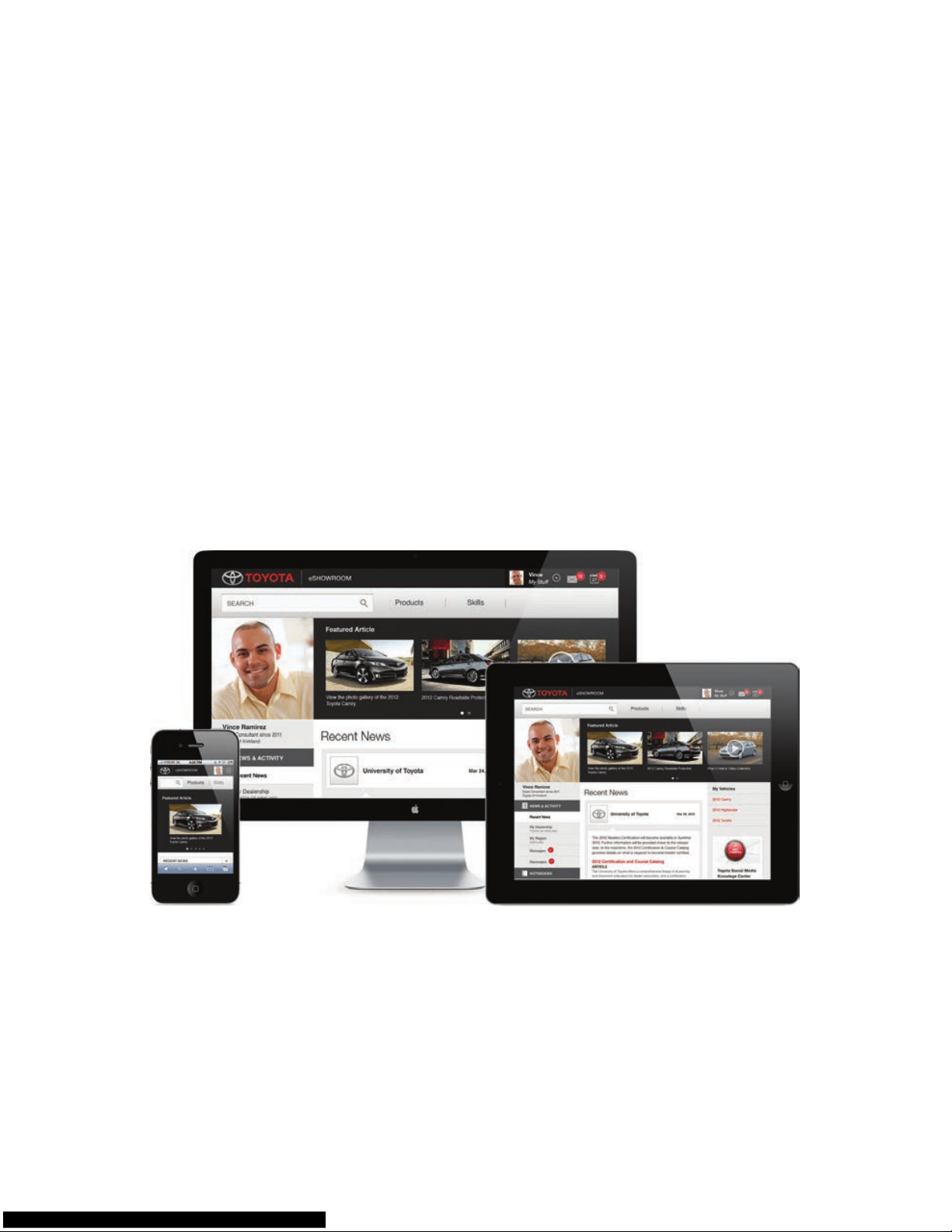
This Training Manual will walk you through six features of the Toyota
eShowroom to show you rsthand just how fast, intuitive and convenient
the new eShowroom is.
If you have any questions regarding Toyota eShowroom, please call
1-877-DL-DAILY.
Toyota eShowroom Training Manual
4
Step 1:
Register on eShowroom
To begin using the site, go to eshowroom.toyota.com and follow these
steps.
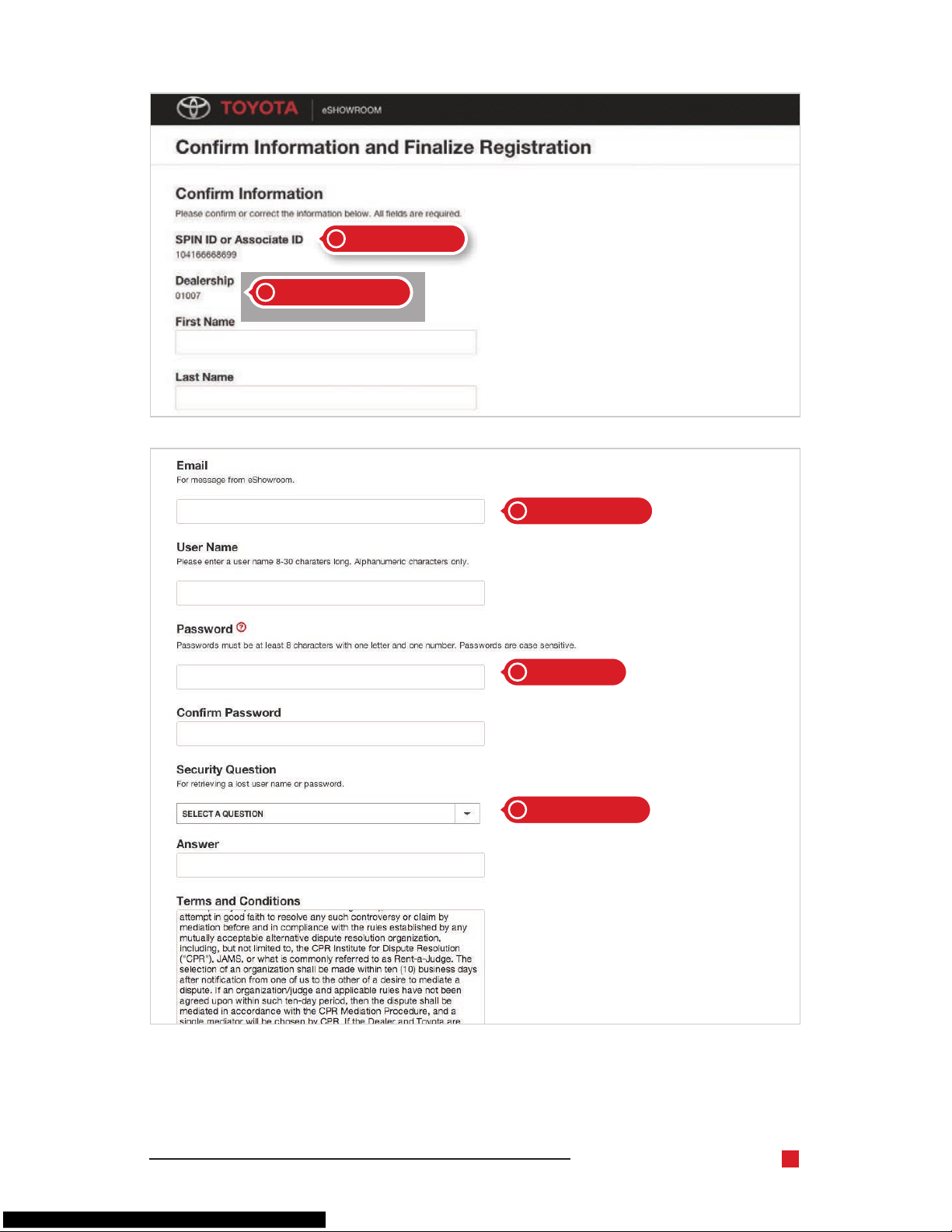
Go to the Login page and click the Register Now button.
On the New User Registration page, enter your SPIN or
Associate ID and Dealer Number.
On the next page ll in your email, username and password.
Enter a security question and answer, then agree to the
Terms & Conditions.
1
2
3
4
Toyota eShowroom Training Manual
5
enter your SPIN
ll in your email
security question
and Dealer number
and password
2
3
4
2
3
Toyota eShowroom Training Manual
6
Step 2:
Complete Your Prole
Your prole is like your trading card. Introduce yourself to your colleagues
by adding a picture of yourself, highlighting your vehicle expertise or
sharing an inspirational quote. Complete your prole so that anyone who
views your prole can learn more about you.
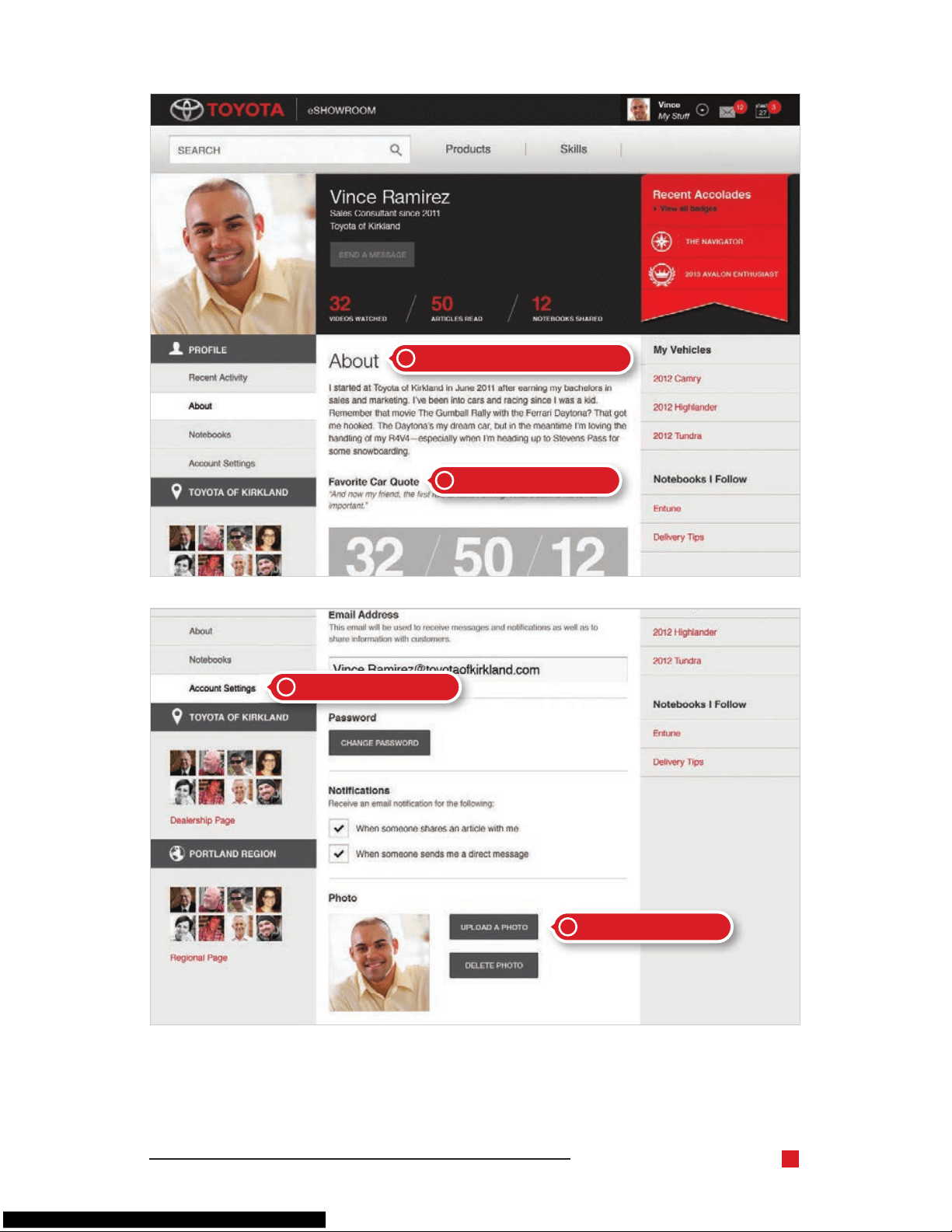
From the home page, go to the About page and write a description
of yourself.
Paste your favorite car quote into the About page.
From the left navigation, select Account Settings.
Click Upload a Photo.
1
2
3
4
Toyota eShowroom Training Manual
7
write a description of yourself
select Account Settings
Click Upload a Photo
your favorite car quote
1
3
4
2
Toyota eShowroom Training Manual
8
Step 3:
Become a Vehicle Authority
Choose a vehicle and dig right in. eShowroom has a wealth of information
about each vehicle, and articles are always being updated so you have the
most current information. To complete this step, simply view the vehicle
section and read one article.
What is an article? Articles are what you’ve been used to viewing as hot
sheets, edge sheets and the what’s new. You now get all the same great
information in a web article. You’ll see that we have a range of great articles
covering editorial, product information, videos, and more.
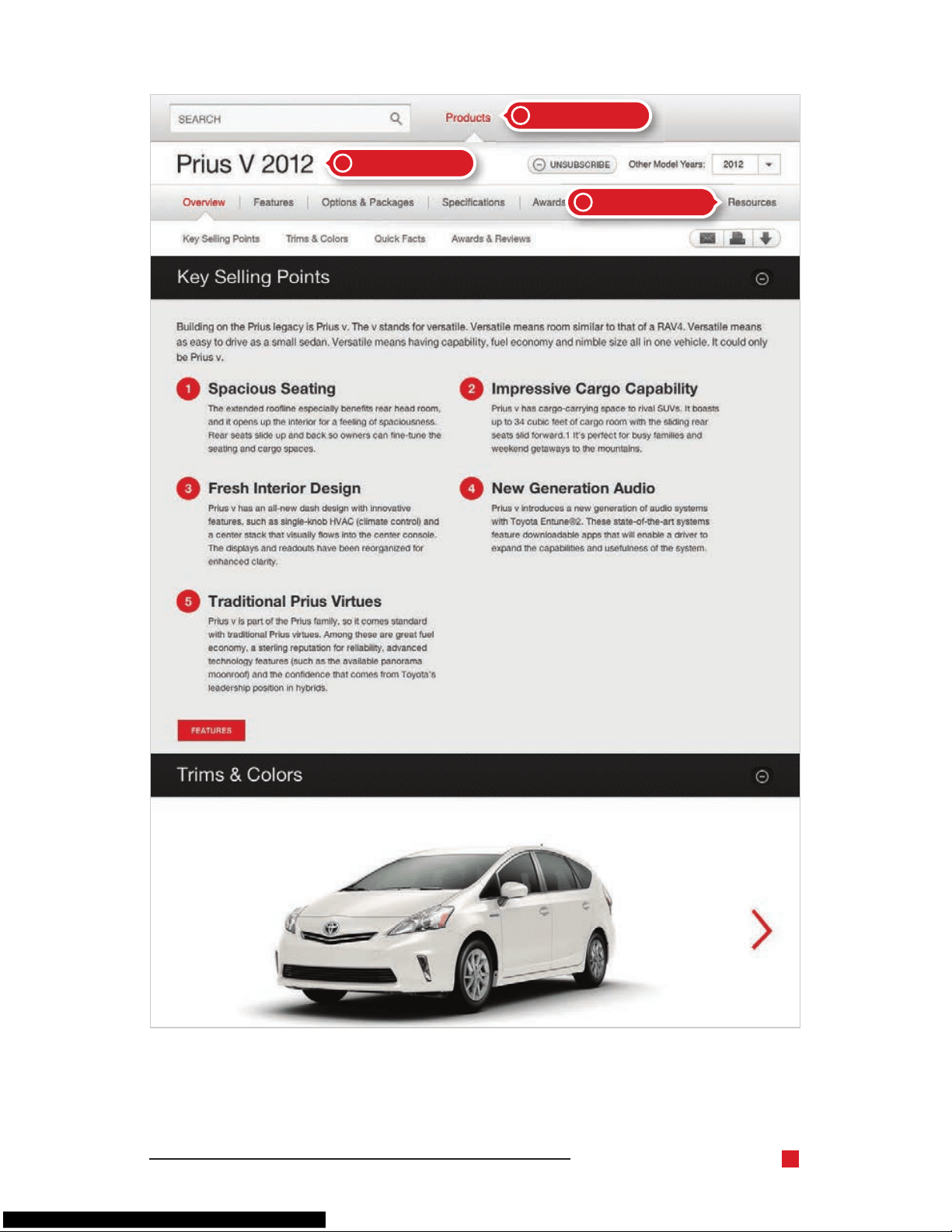
From the top navigation, select Products.
Review a vehicle, such as the Prius V.
Browse the resources page for that vehicle and read one of the many
articles.
1
2
3
Toyota eShowroom Training Manual
9
Read one article
select Products
Review a vehicle
3
1
2
Toyota eShowroom Training Manual
10
Step 4:
Create a Notebook
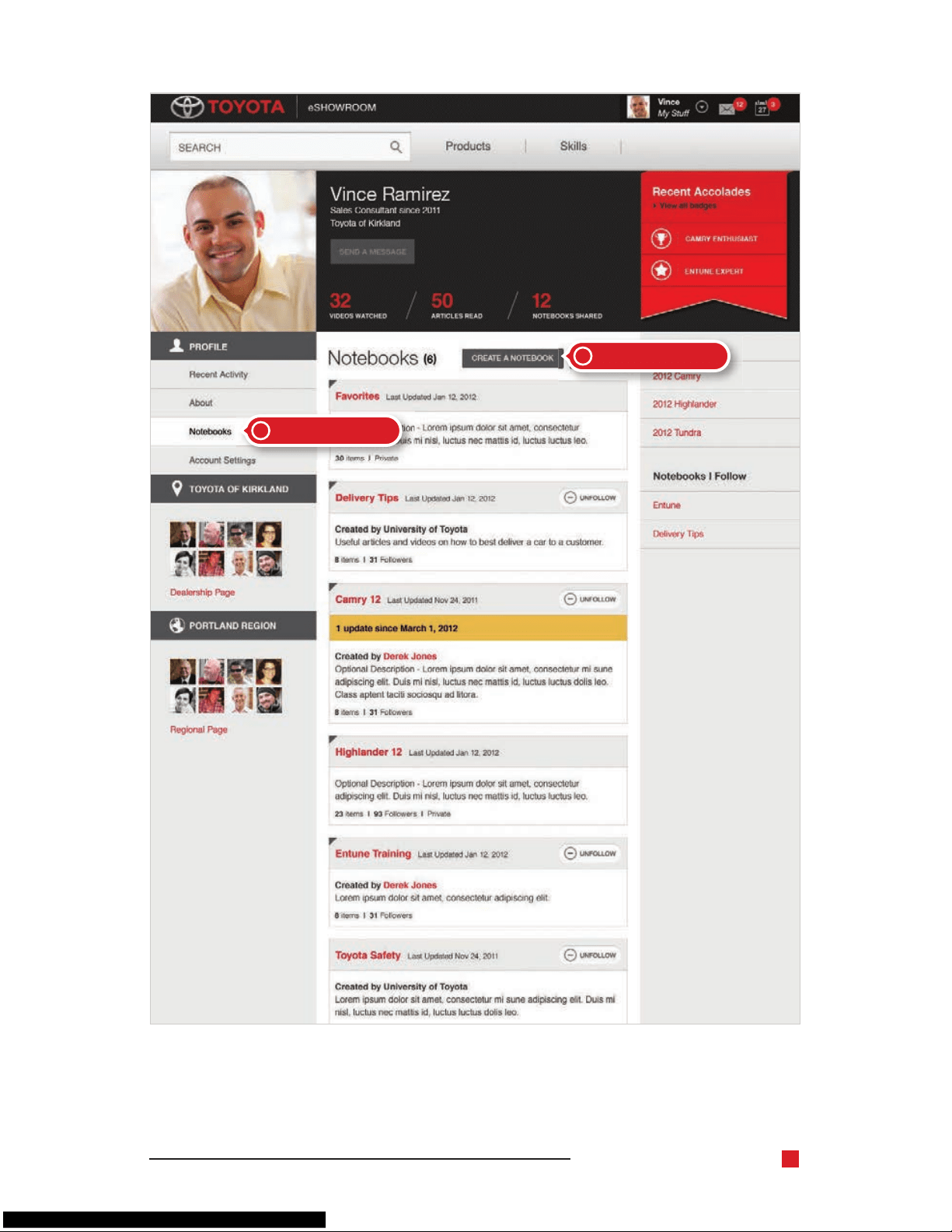
A Notebook is a great way to collect vehicle data and articles on related
topics. You can make a notebook for anything; be the expert on “Entune”
or “2013 Venza” for easy retrieval and sharing.
From underneath your prole photo, select Notebooks.
Under your black prole box, select the Create a Notebook button.
Follow the instructions to add content to your Notebook.
1
2
3
Toyota eShowroom Training Manual
11
select Notebooks
Create a Notebook
1
2
Toyota eShowroom Training Manual
12
Step 5:
Get to Know Entune
Our suite of technology products is sure to be a hot topic among customers.
Be ready for any question by reading and rating three articles, including
videos.
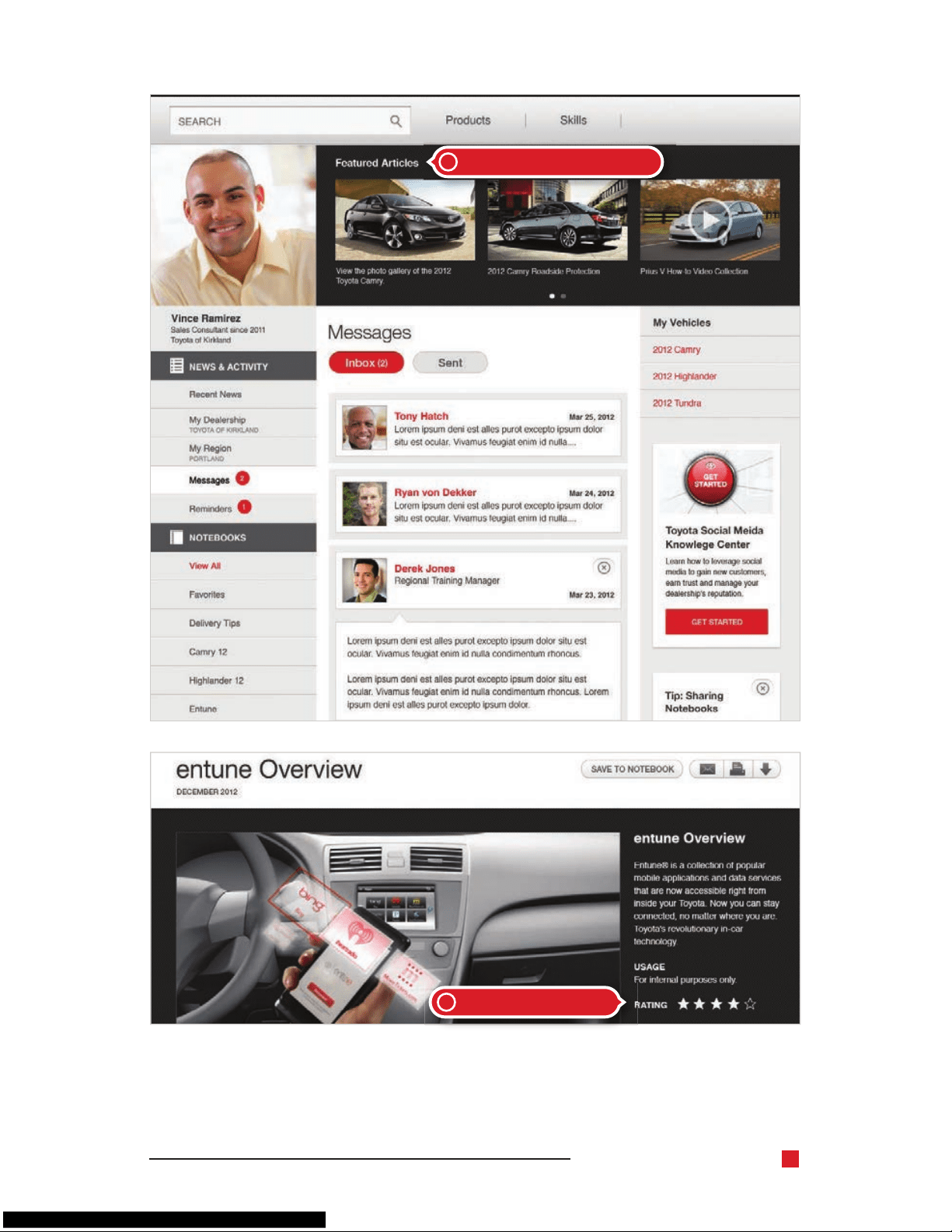
From the featured articles module on the home page, product pages
or the skills section, select and read three articles or videos.
Rate articles or videos in the comments section beneath the articles
or videos.
1
2
Toyota eShowroom Training Manual
13
read three articles or videos
1
Rate articles or videos
2
Toyota eShowroom Training Manual
14
Step 6:
Amp Up Your Sales Skills
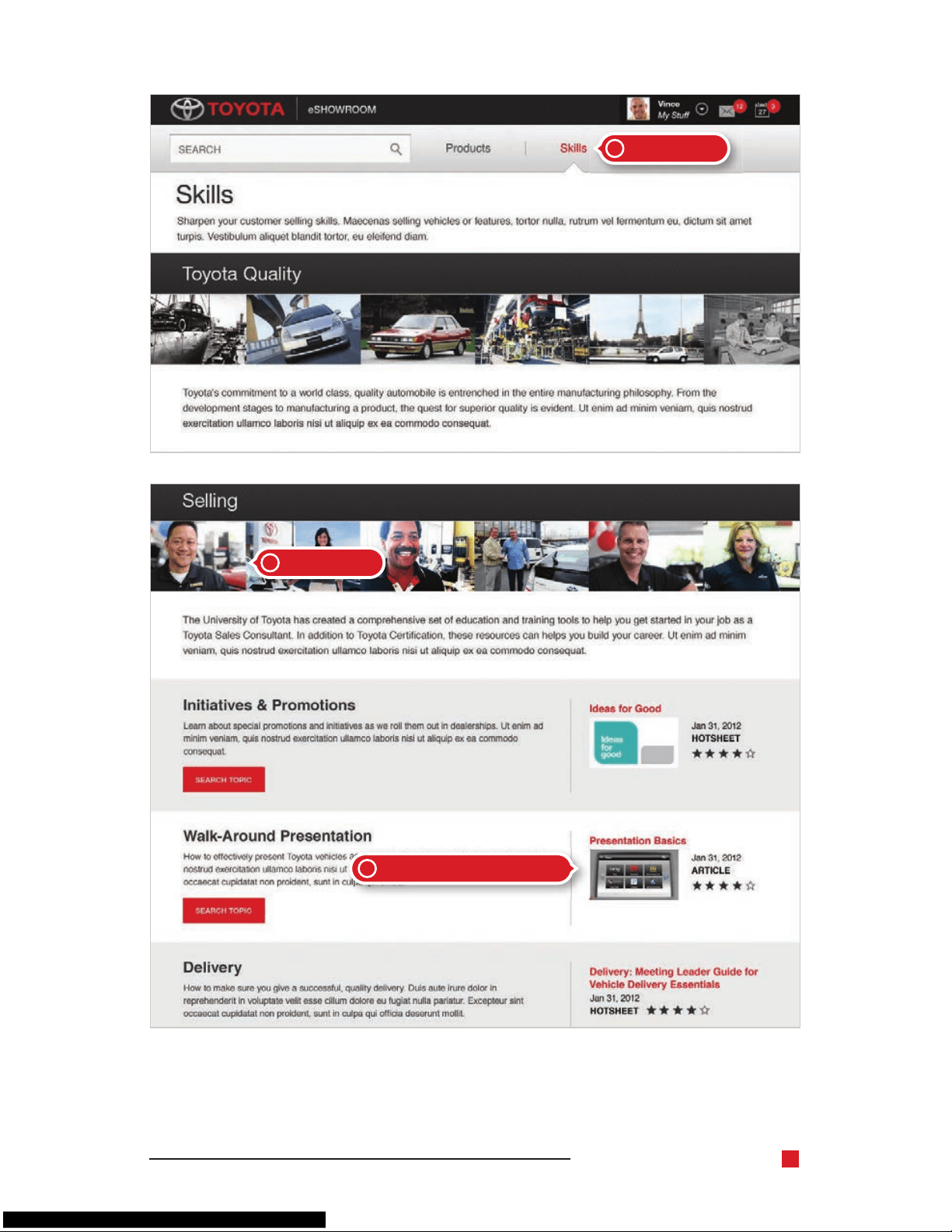
With so much information at their ngertips, customers are sharp—be
sure your skills are too. Read and rate ve selling skills articles, and
you will complete the nal step.
From the top bar, select Skills.
Scroll down to selling topics.
Read related articles in the right column, for a total of ve articles.
Rate articles in the comments section beneath the articles.
1
2
3
4
Toyota eShowroom Training Manual
15
read and rate ve articles
3
select Skills
selling topics
1
2

Congratulations!
The features you’ve used are just a small sampling of what Toyota
eShowroom has to offer. We hope you’ll continue to explore the Training
Manual and all the exciting new tools at your ngertips.

Toyota eShowroom Training Manual
18
Keep exploring
Toyota eShowroom
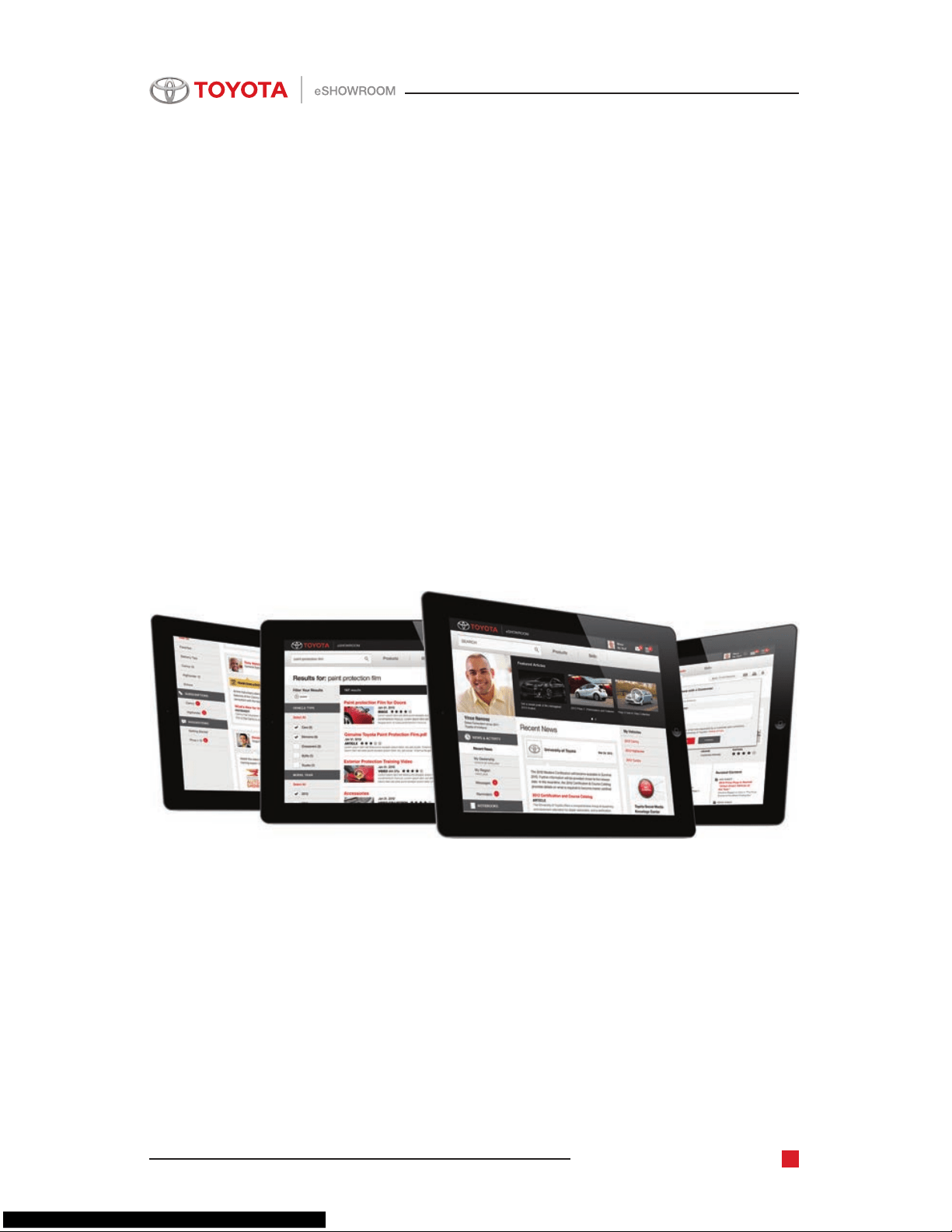
Want to get better acquainted with eShowroom? Here are some features
we think you’ll nd especially useful in learning about vehicles, searching
for information and communicating with your customers.
Toyota eShowroom Training Manual
19
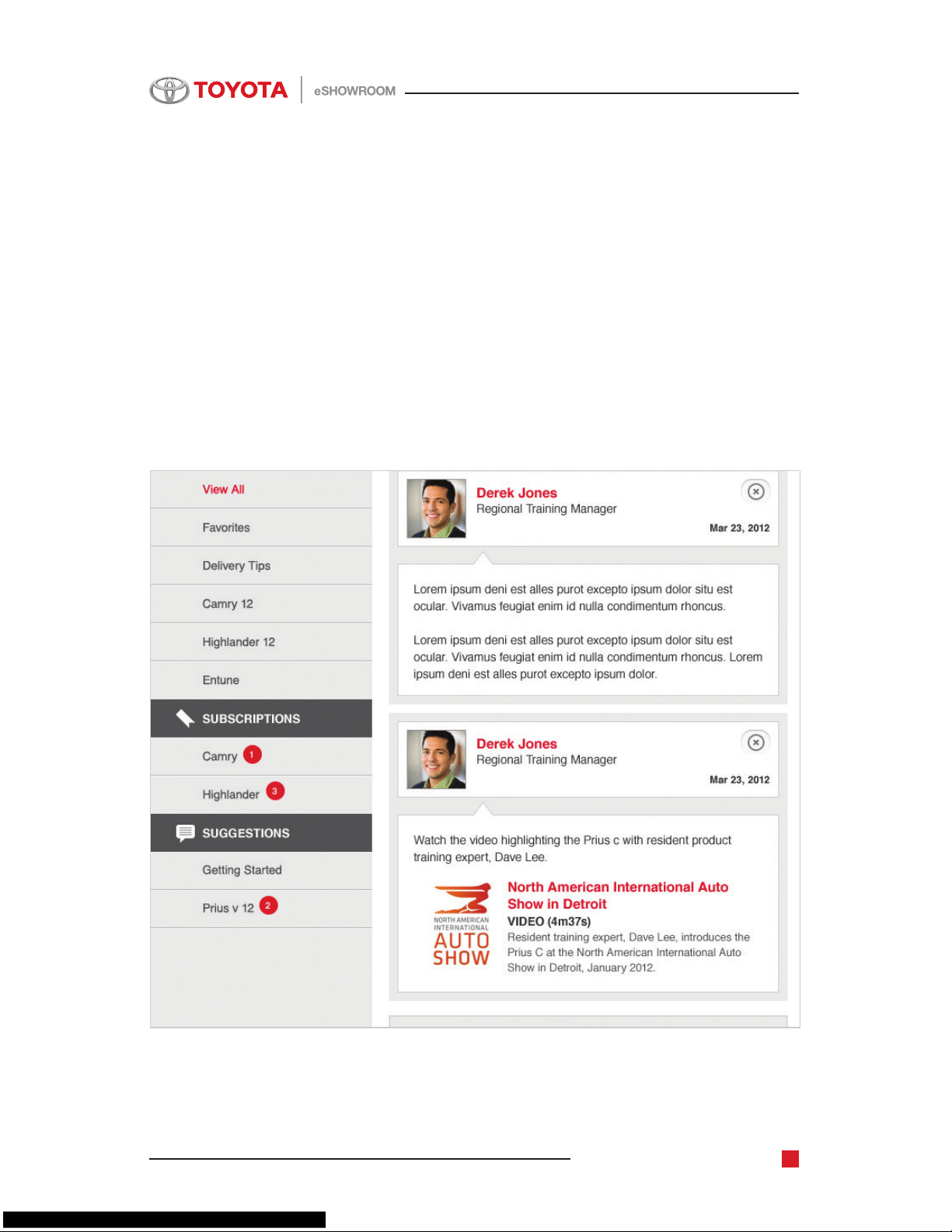
Home Page
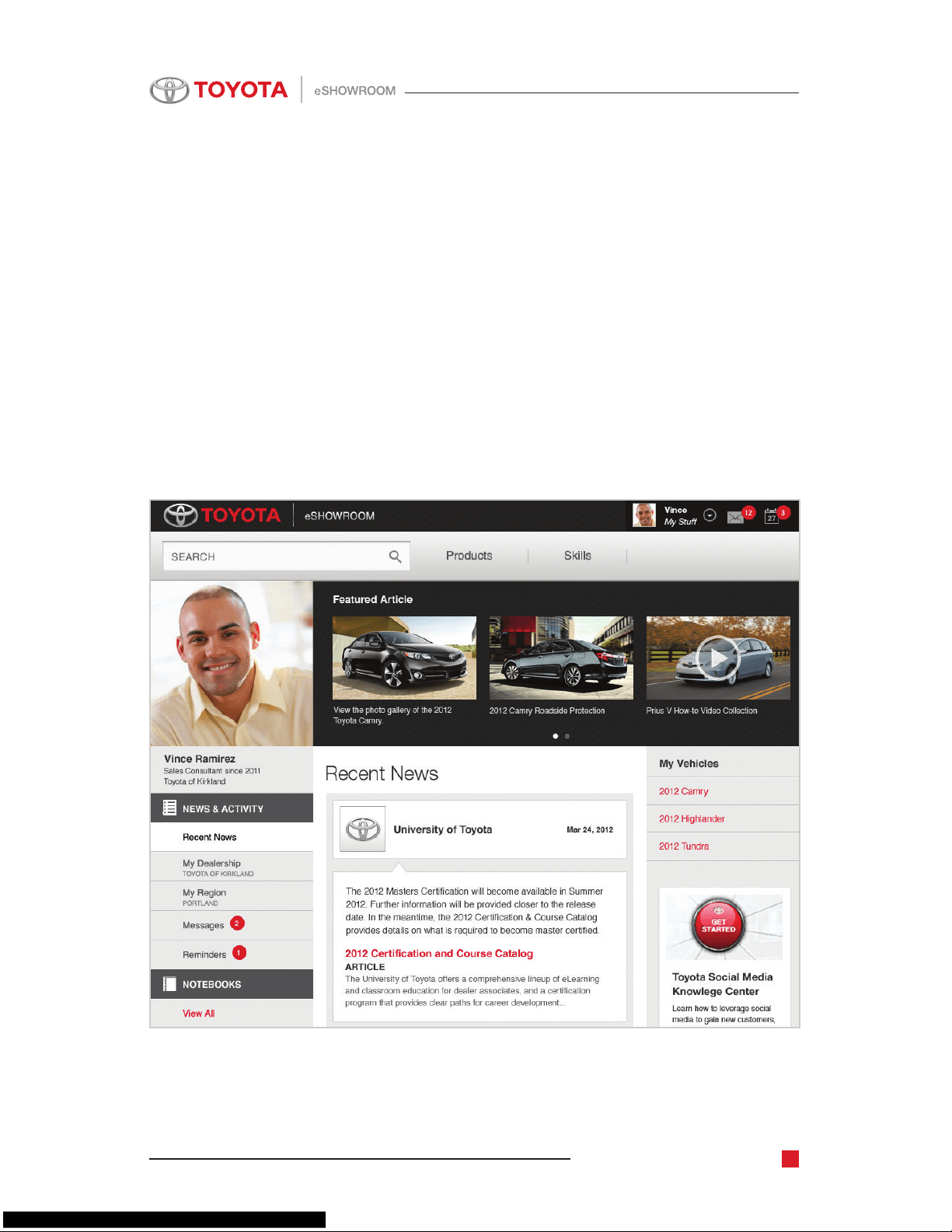
Think of your home page as your own personal information center. See
what’s new and important all in one place. If you’ve been on a social
network, the eShowroom home page will look familiar. From here, you’ll
quickly be able to view your newsfeed, notebooks, subscriptions, alerts,
suggestions and more.
Toyota eShowroom Training Manual
20
Subscriptions
Want to stay up-to-date on certain vehicles? Simply subscribe to a product:
just go to the Product Detail page you want and select the Subscribe
button. The content will be added to your home page under Subscriptions
and your vehicles list.
Toyota eShowroom Training Manual
21
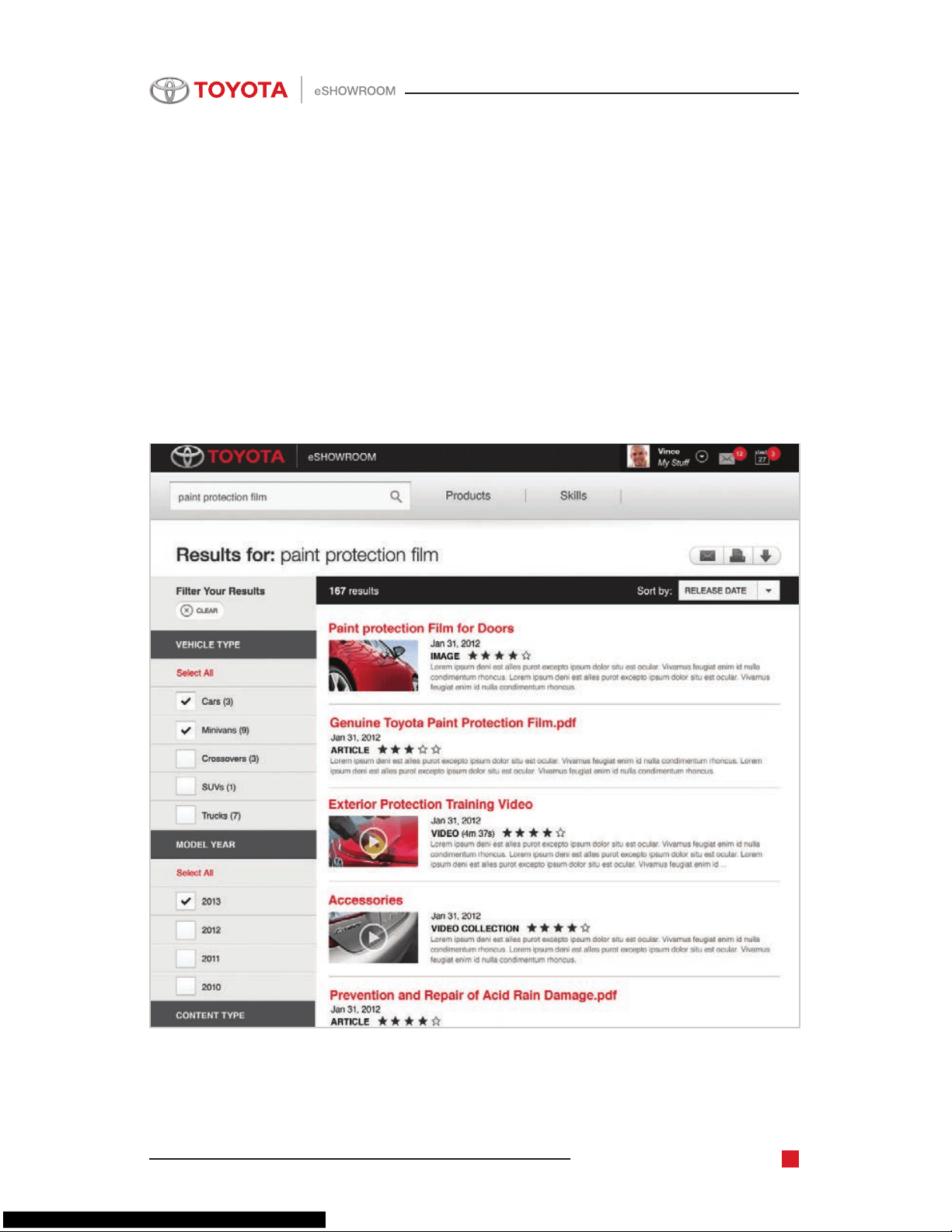
Search
Want to nd something fast? The eShowroom search automatically gives
you predictive suggestions based on what you type into the search box.
The suggestions are organized by type—either products or articles.
Toyota eShowroom Training Manual
22
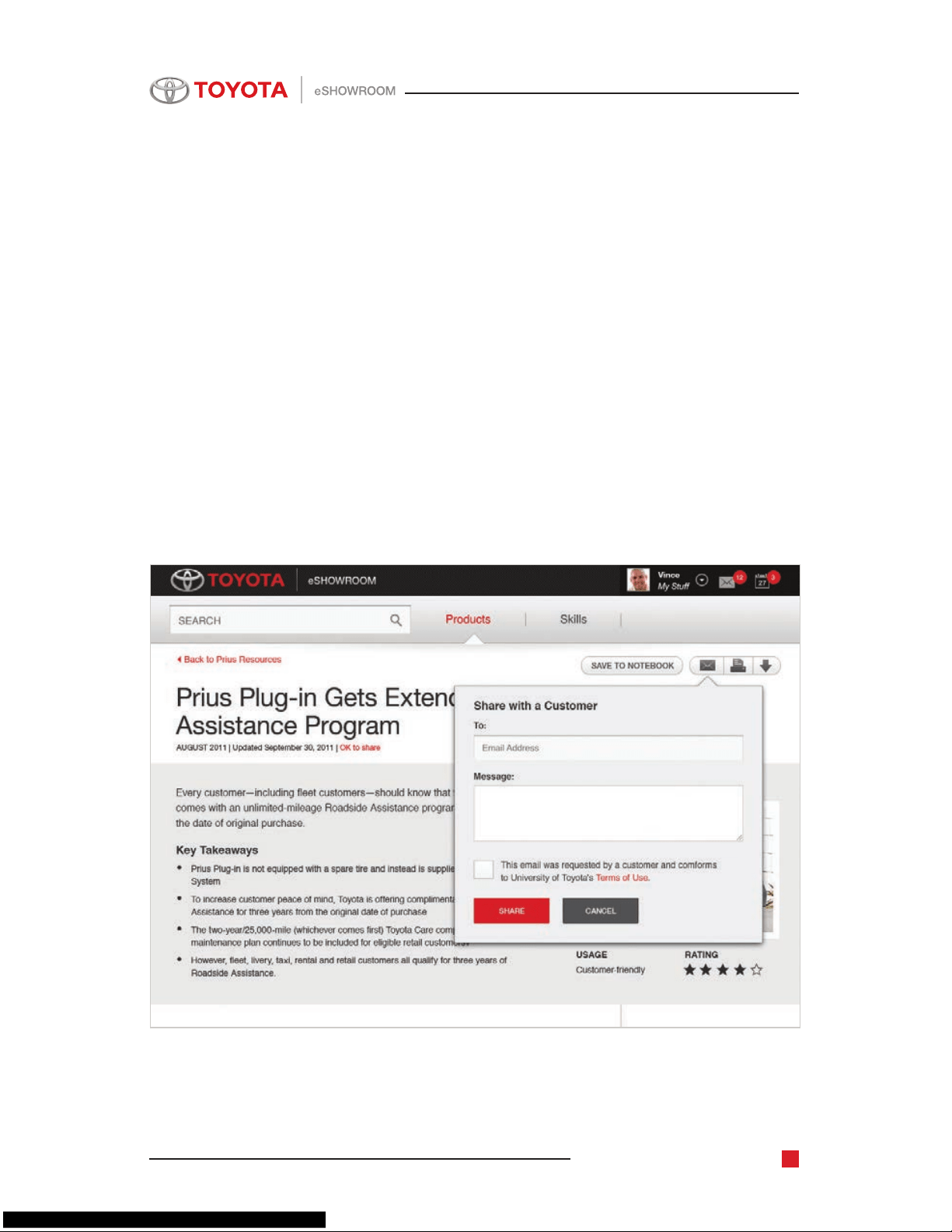
Share with a Customer
If you know of an article that could really help a customer, it’s easy to share
it. First, look for articles marked “Customer-Friendly.” On the Article Detail
page, select the Share button. Enter your customer’s email address, your
message and click Send.
You’ll get a conrmation message, and the activity will be logged in your
user history.
Toyota eShowroom Training Manual
23
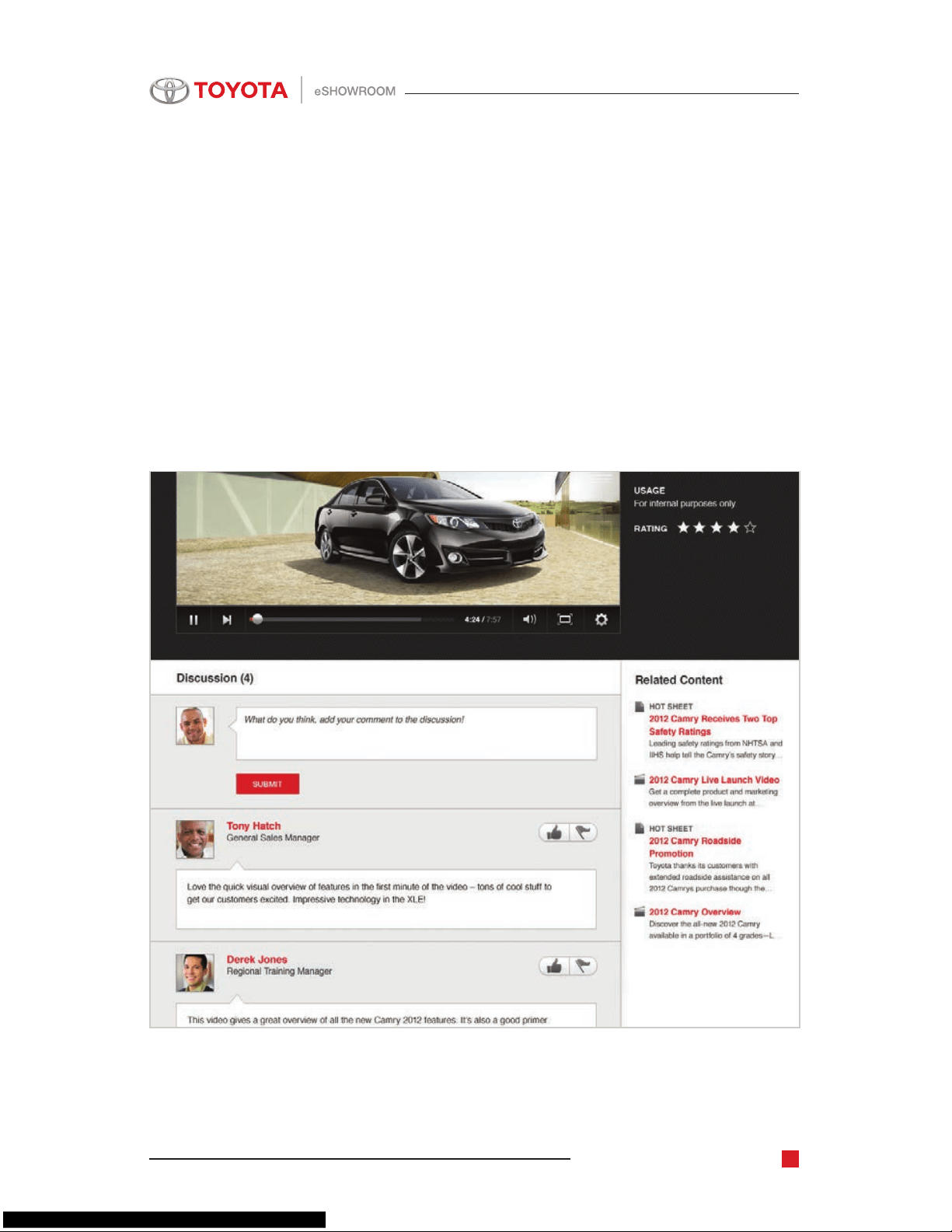
Conversations
eShowroom can only get better with feedback from you. Start a discussion
in the comments below any article, use comments to mentor your team,
share stories from the eld or ask for more information. Don’t have that
much time? Quickly rate an article from one to ve stars.
Toyota eShowroom Training Manual
24
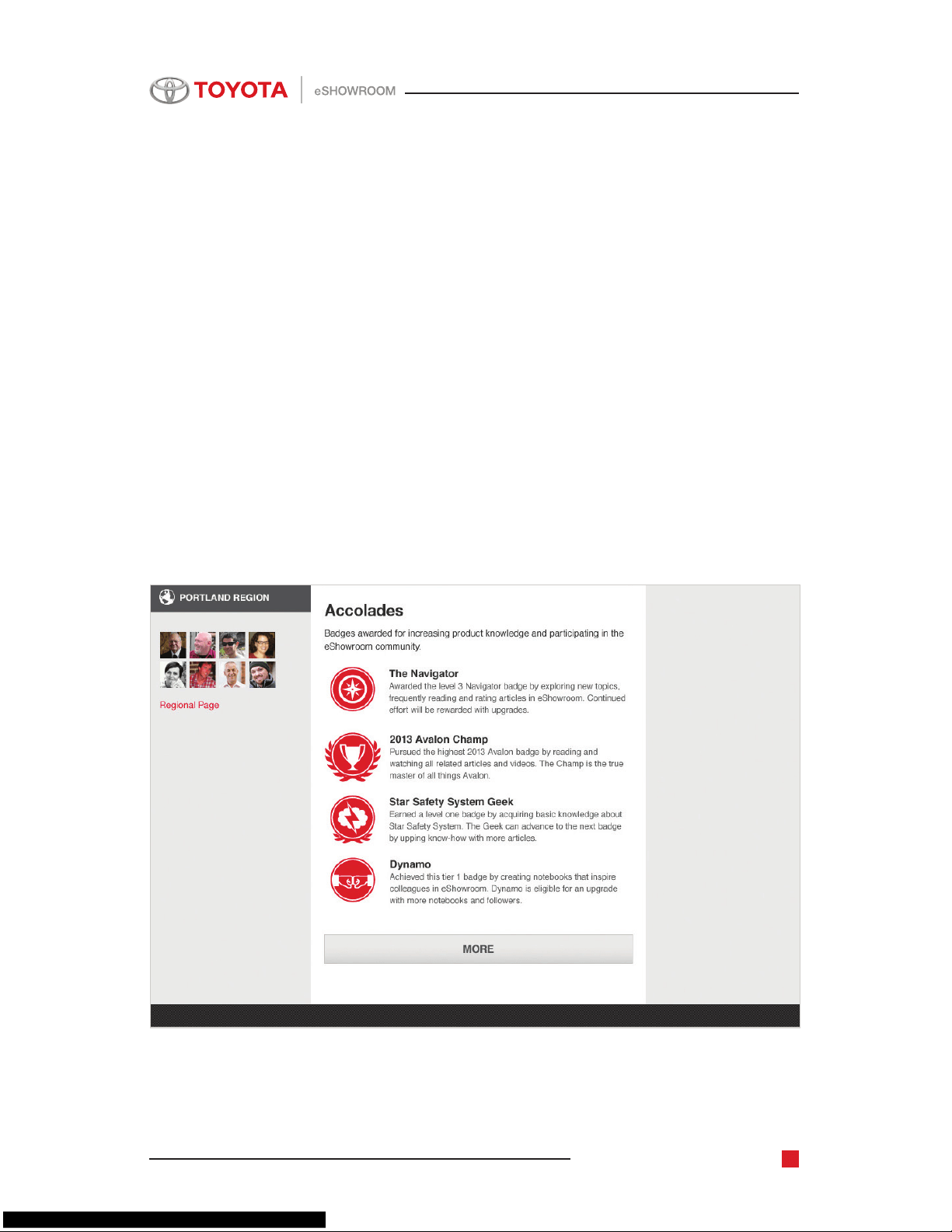
Badges
Have you mastered a model year? Created a number of notebooks? You’ll
be rewarded for your personal milestones in the form of unique Accolades
on eShowroom.
First, you’ll receive a congratulatory note in your Messages list. The badge
will also be announced in your Recent News and in your own prole under
Awards & Recognition. Your manager can translate what those badges will
mean for your dealership in terms of incentives and rewards.
Toyota eShowroom Training Manual
25
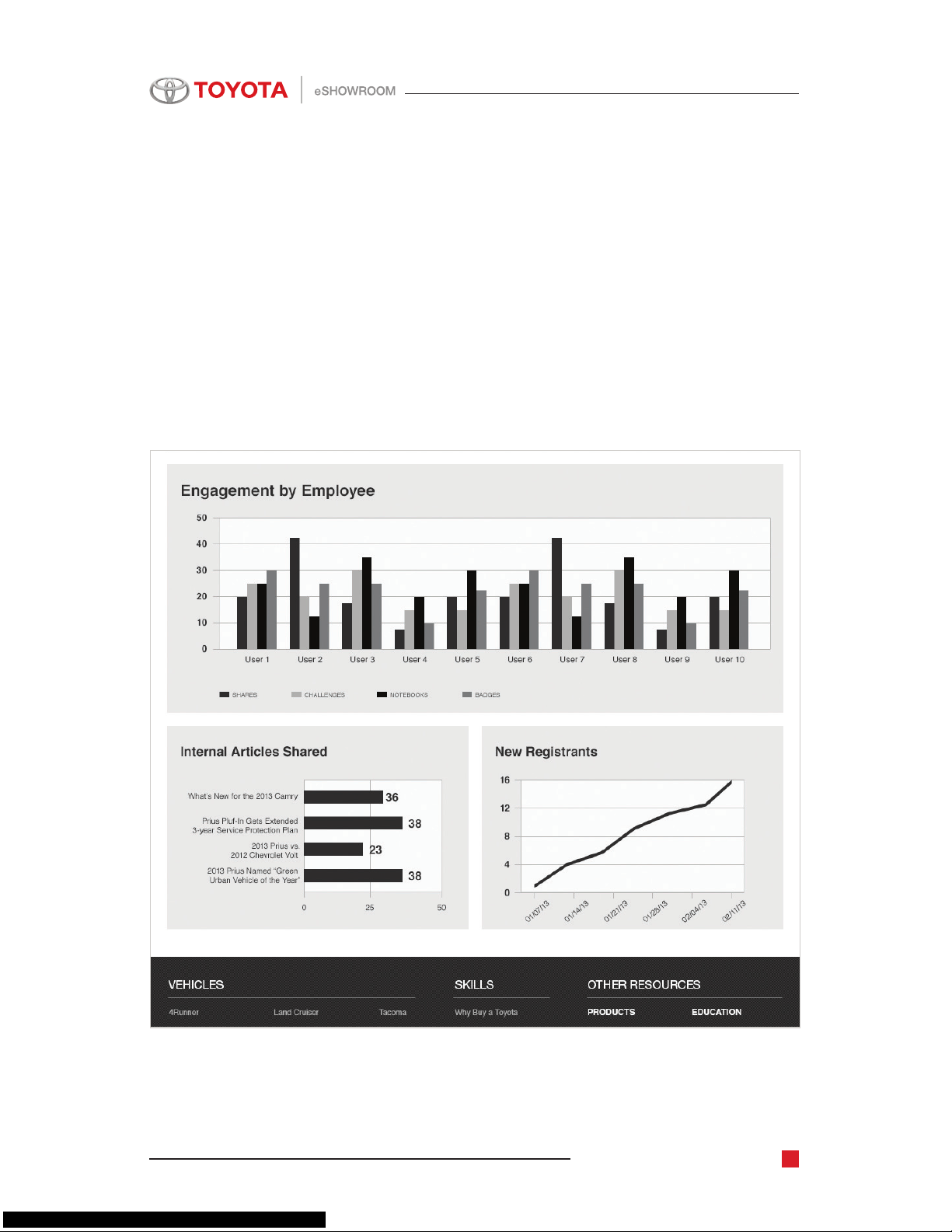
Regional and Dealer Manager Reporting
See eShowroom engagement at a glance. Want to know how many sales
associates have viewed the articles you shared or completed the tasks
you’ve assigned? This page provides a bird’s-eye view.
