CANON INC. 30-2, Shimomaruko 3-chome, Ohta-ku, Tokyo 146-8501, Japan
CANON U.S.A., INC.
One Canon Plaza, Lake Success, NY 11042, U.S.A.
CANON CANADA, INC.
6390 Dixie Road Mississauga, Ontario L5T 1P7 Canada
CANON LATIN AMERICA, INC.
703 Waterford Way Suite 400 Miami, Florida 33126 U.S.A.
CANON MEXICANA, S. de R.L. de C.V.
Boulevard Manuel Avila Camacho, No. 138 PB, Pisos 15, 16 y 17Col. Lomas de
Chapultepec, CP 11000, Mexico D.F., Mexico
CANON EUROPA N.V.
P.O.Box 2262, 1180 EG Amstelveen, The Netherlands
CANON COMMUNICATION & IMAGE FRANCE S.A.
102, Avenue du General de Gaulle, 92250 La Garenne Colombes, France
CANON (UK) LTD.
Woodhatch, Reigate, Surrey RH2 8BF, United Kingdom
CANON DEUTSCHLAND GmbH
Europark Fichtenhain A 10, 47807 Krefeld, Germany
CANON ITALIA S.p.A.
Palazzo L, Strada 6, 20089 Milanofiori-Rozzano (MI), Italy
CANON (Schweiz) A.G.
Industriestrasse 12, 8305 Dietlikon, Switzerland
CANON BELGIUM N.V./S.A
Bessenveldstraat 7, 1831 Diegem, Belgium
CANON GmbH
Zetschegasse 11, A-1232 Wien, Austria
CANON ESPANA S.A.
C/Joaquin Costa 41, 28002 Madrid, Spain
CANON SVENSKA AB
Stensätravägen 13, S-127 88 Skarholmen 2, Sweden
CANON NORGE A/S
Hallagerbakken 110, P. O. Box 2-33, Holmlia 1201 Oslo 12, Norway
CANON OY
Huopalahdentie 24, P.O. Box 1, FIN-00351 Helsinki, Finland
CANON HONGKONG CO., LTD.
9/F, The Hong Kong Club Building, 3A Chater Road, Central, Hong Kong
CANON SINGPORE PTE. LTD.
79 Anson Road #09-01/06, Singapore 079906
CANON AUSTRALIA PTY. LTD.
1 Thomas Holt Drive, North Ryde, Sydney, N.S.W.2113, Australia
CANON NEW ZEALAND LTD.
Akoranga Business Park, Akoranga Drive, Northcote, Auckland, New Zealand
CANON DENMARK A/S
Knud Hoejgaards Vej, DK-2860 Soeborg, Denmark
YT1-1349-000 © CANON INC. 2004 PRINTED IN JAPAN
1004N0.5
MULTIMEDIA PROJECTOR
User’s Manual
User’s Manual
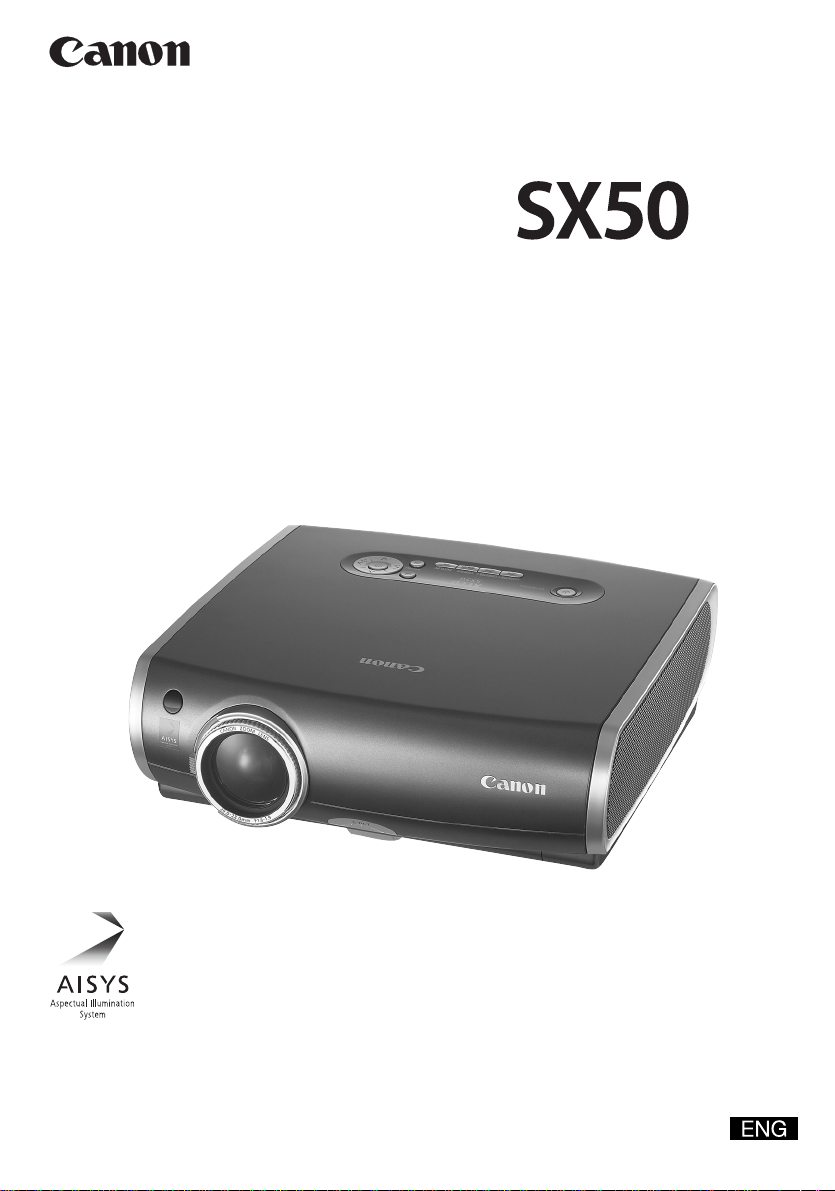
MULTIMEDIA PROJECTOR SX50

2
USES OF THIS PROJECTOR
Features of MULTIMEDIA PROJECTOR SX50
Thank you for purchasing a Canon projector.
The MULTIMEDIA PROJECTOR SX50 is a high-performance, compact, lightweight (3.9 kg/8.6 lbs)
projector which supports of SXGA+ resolution (1400 by 1050 dots).
This projector incorporates AISYS, a unique optical engine developed by Canon, allowing the data from the
computer and the moving picture from the DVD player to be projected with a high degree of resolution.
Major Features
<High Resolution and High Image Quality>
Incorporation of AISYS, Canon's unique optical engine, achieves high resolution, high brightness, high
contrast ratio, and best-in-class compactness.
A high-resolution reflective liquid crystal panel ensures the display of smooth, beautiful images.
2500 lumens provides brilliant performance even in bright places.
Native SXGA+ resolution ensures projection of a high-quality image in a wider projection area as
compared with existing models.
<Adjustable Projection Angle and Easy Adjustment>
A best-in-class 1.7X zoom aspheric lens can project a 100-inch image when placed 3 m (9.8') to 5 m
(16.4') away.
A newly designed adjustable foot allows you to adjust the vertical projection angle with ease.
The "Horizontal and Vertical Keystone Adjustment Function" allows an image to be projected without
trapezoidal distortion.
The "Auto PC Adjustment Function" automatically makes optimum settings for the connected computer.
You can adjust the image quality and make various settings simply by selecting items from the user-
friendly menus.
<Fine Adjustment of Image Quality and Useful Functions>
Four image modes including the sRGB mode are provided to project a variety of images from your
computer and DVD player with the best image quality possible.
You can project an image on a blackboard (dark green) with natural color.
The "Six-axis Color Adjustment Function" allows you to make fine, precise color adjustments.
The "Memorized Color Correction Function" can reproduce the colors in our memory vividly, just how we
remember them.
The "Dynamic Gamma Function" automatically adjusts the balance of contrast.
You can customize the logo displayed at the startup or during standby.
A password function is provided to prevent unauthorised use.
A compact and easy-to-use wireless remote control is supplied to allow you to:
• Perform all functions of this projector.
• Operate the mouse on the projected computer screen.
• Control the projector in a dark room with light-up buttons.
The wireless remote control supports functions useful for presentation.
• "D. ZOOM" (magnification value is displayable) allows you to zoom in or out of a desired portion of an
image.
• "SPOT" (spotlight) allows you to point to a specific portion of an image during presentation.
• "P-TIMER" shows the elapsed time of presentation.
• "NO SHOW" allows you to black out an image temporarily.
COPYRIGHT NOTICE
• Microsoft, Windows, Windows Me, Windows 2000 and Windows XP are registered trademarks of the U.S.
Microsoft Corporation in the U.S. and other countries.
• XGA, SXGA, SXGA+, and UXGA are U.S. registered trademarks of IBM Corporation.
• Macintosh is a trademark of the U.S. Apple Computer, Inc. registered in U.S. and other countries.
• Other company names and product names are registered trademarks or trademarks of the respective
companies.
3
LOOKING IN THE INDEX
PROJECTING AN IMAGE
FROM THE COMPUTER
USEFUL FUNCTIONS AVAILABLE
DURING PROJECTION
PROJECTING AN IMAGE
FROM AV EQUIPMENT
SETTING UP FUNCTIONS
USING MENUS
MAINTENANCE
TROUBLESHOOTING
SAFETY INSTRUCTIONS
Be Sure to Read before Use.
This section describes important safety and operating instructions.
Learning the Names of Parts
This section describes names of parts. Be sure to read this section.
Setting up the Projector
This section describes preparations for installing the projector. Be sure
to read this section.
Projecting an Image from the Computer
This section describes the procedure for projecting an image from the
computer connected to the projector.
Learning the Functions Available during Projection
This section describes the useful functions available during projection.
Read this section as required.
Projecting an Image from AV Equipment
This section describes the procedure for projecting an image from a
digital still camera, digital camcorder, or other AV equipment.
Menu Functions
This section describes the functions listed in the menus.
Projector Maintenance
This section describes how to clean the projector and replace
consumable parts.
Troubleshooting
Please read this section if your projector is not performing properly.
BEFORE USE
INSTALLING THE
PROJECTOR
4
Supplied Manuals
User’s Manual Quick Start Guide
Symbols of Buttons
This projector can be operated using buttons on the remote control or main unit. The
remote control allows you to use all functions of the projector; however, the buttons on the
main unit allow you to use only often-used functions.
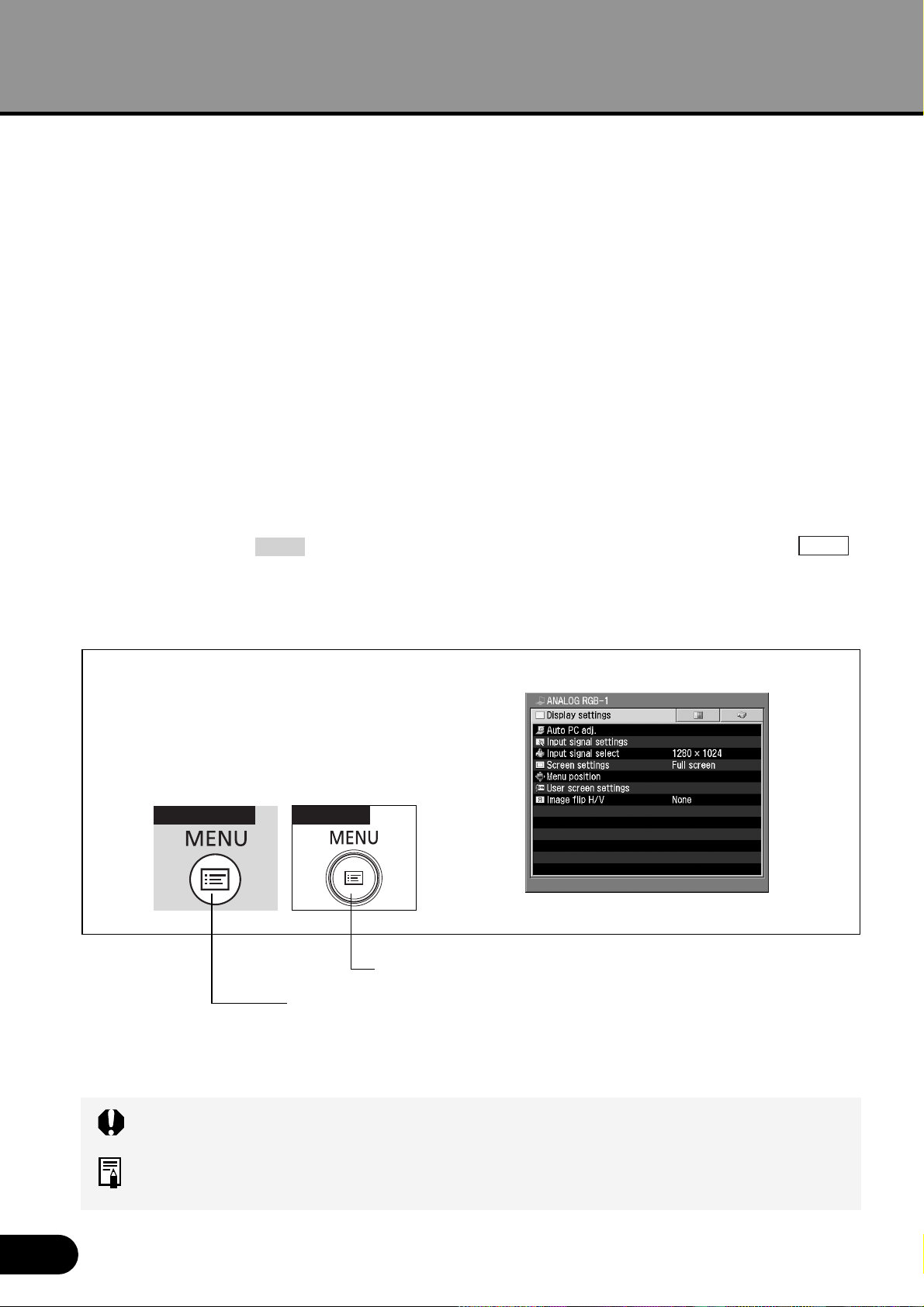
In this manual, buttons are indicated by symbols. The symbol of a button on the remote
control is shown in and the symbol of a button on the main unit is shown in .
At the beginning of each operational procedure, the position of the button used to perform
the operation is described with an illustration.
Symbols Used in This Manual
Meanings of the following symbols used in this manual are as follows:
A precaution about operation or restriction is given here.
An important matter that you should be aware of before operation or a useful tip is
provided here.
This guide shows an outline flowchart of
the work necessary to make a presentation
using this projector.
SUPPLIED MANUALS AND
SYMBOLS USED IN THIS MANUAL
This manual provides detailed information
about how to use this projector. Read this
manual thoroughly to make the most of
this projector and ensure safety.
1
Press the [MENU] button.
The Menu window appears.
- To close the Menu window, press
the [MENU] button again.
Remote control
Indicates the button on the remote control.
Indicates the button on the control on the main unit.
Top control
5
TABLE OF CONTENTS
PROJECTING AN IMAGE FROM
AV EQUIPMENT ...................................42
Connecting the Projector to AV
Equipment................................................42
Starting Projection.......................................44
Adjusting the Image ....................................48
SETTING UP FUNCTIONS USING
MENUS .................................................49
Using Menus ...............................................49
Display Settings Menu ................................52
Image Adj. Menu.........................................62
System Settings Menu ................................69
MAINTENANCE....................................75
Cleaning the Projector ................................75
Cleaning and Replacing the Air Filter .........76
Replacing the Lamp ....................................77
TROUBLESHOOTING..........................79
Understanding the Warning Lamp Flash
Patterns....................................................79
Symptoms and Solutions ............................80
APPENDIX............................................84
Computer Signal Types...............................84
Relationship between Screen Size and
Projection Distance .................................85
Menu Configuration.....................................86
Glossary......................................................88
Specifications..............................................90
* “Display Settings Menu”, “Image Adj. Menu”
and “System Settings Menu” have detailed
contents on their title pages.
TABLE OF CONTENTS
USES OF THIS PROJECTOR................ 2
LOOKING IN THE INDEX ...................... 3
SUPPLIED MANUALS AND SYMBOLS
IN THIS MANUAL................................... 4
TABLE OF CONTENTS ......................... 5
SAFETY INSTRUCTIONS...................... 6
BEFORE USE....................................... 14
Supplied Accessories .................................14
Part Names .................................................15
INSTALLING THE PROJECTOR ......... 20
Determining the Distance to the Screen .....20
PROJECTING AN IMAGE FROM
THE COMPUTER ................................. 23
Connecting the Projector to the Computer..23
Starting Projection.......................................26
Adjusting the Image ....................................30
Turning Off the Projector.............................35
Setting up the Power Management
Function ....................................................36
USEFUL FUNCTIONS AVAILABLE
DURING PROJECTION ....................... 37
Blacking Out an Image Temporarily ............37
Making an Image Larger/Smaller................38
Showing the Elapsed Time .........................39
Indicating a Position with a Spotlight ..........39
Freezing the Picture....................................40
Muting the Sound/Adjusting the Volume.....40
Operating the Mouse Using the Remote
Control .....................................................41
6
SAFETY INSTRUCTIONS
Before operating this projector, read this manual thoroughly and operate the projector
properly.
This projector provides many convenient features and functions. Operating the projector
properly enables you to manage those features and maintains it in better condition for a
considerable time.
Improper operation may result in not only shortening the product-life, but also
malfunctions, fire hazard, or other accidents.
If your projector seems to operate improperly, read this manual again, check operations
and cable connections and try the solutions in the “Troubleshooting ” section in the end of
this booklet. If the problem still persists, contact the dealer where you purchased the
projector or the service center.
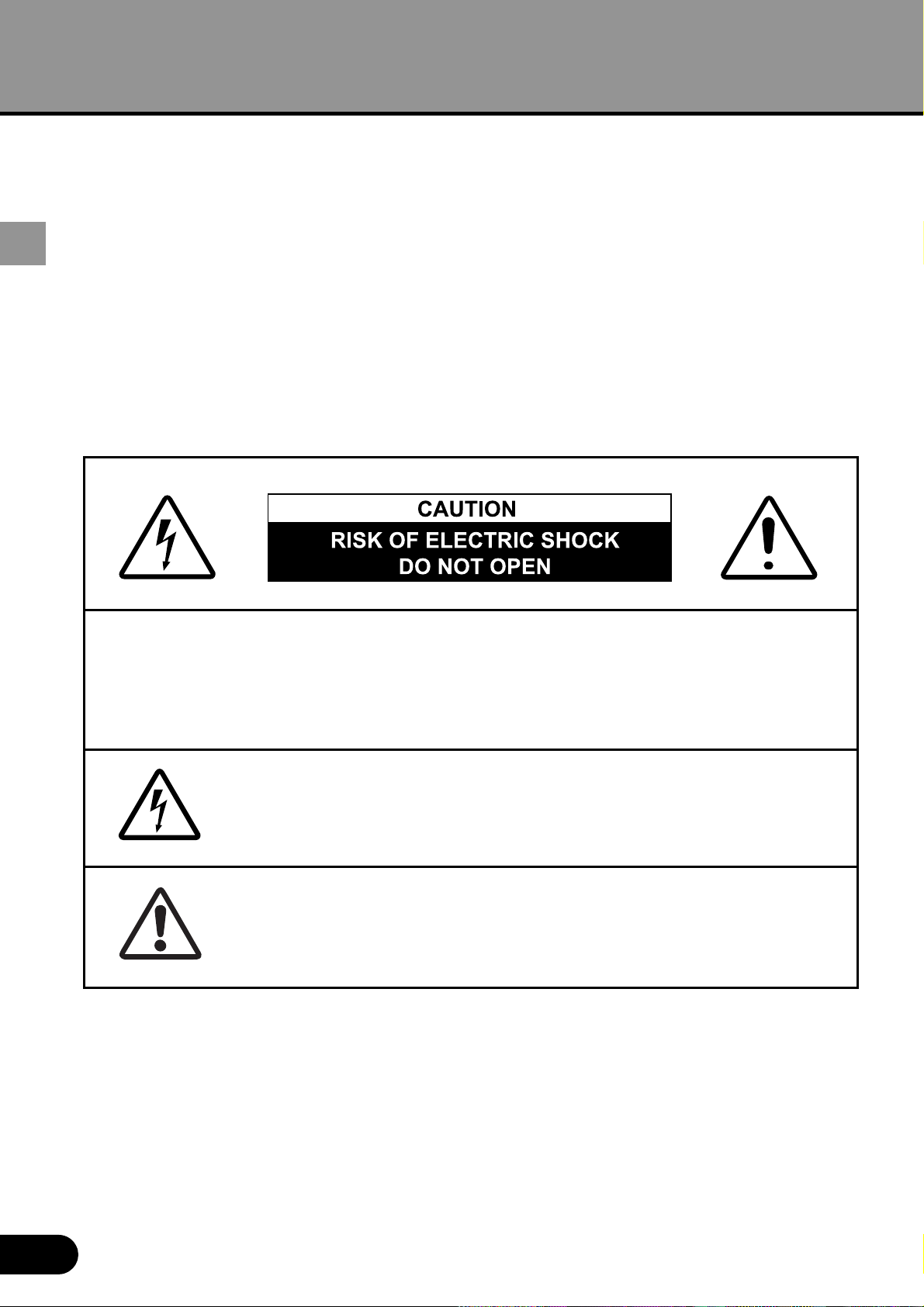
CAUTION : TO REDUCE THE RISK OF ELECTRIC SHOCK, DO NOT REMOVE
COVER (OR BACK). NO USER-SERVICEABLE PARTS INSIDE
EXCEPT LAMP REPLACEMENT. REFER SERVICING TO
QUALIFIED SERVICE PERSONNEL.
THIS SYMBOL INDICATES THAT DANGEROUS VOLTAGE
CONSTITUTING A RISK OF ELECTRIC SHOCK IS PRESENT
WITHIN THIS UNIT.
THIS SYMBOL INDICATES THAT THERE ARE IMPORTANT
OPERATING AND MAINTENANCE INSTRUCTIONS IN THE
OWNER'S MANUAL WITH THIS UNIT.
SAFETY INSTRUCTIONS
7
SAFETY INSTRUCTIONS
CAUTION
Not for use in a computer room as defined in the Standard for the Protection of
Electronic Computer/Data Processing Equipment, ANSI/NFPA 75.
Safety Precaution
WARNING : TO REDUCE THE RISK OF FIRE OR ELECTRIC SHOCK, DO NOT
EXPOSE THIS APPLIANCE TO RAIN OR MOISTURE.
- This projector produces intense light from the projection lens. Do not stare directly into
the lens as possible. Eye damage could result. Be especially careful that children do
not stare directly into the beam.
- Install the projector in a proper position. If not, it may result in a fire hazard.
- Provide appropriate space on the top, sides and rear of the projector cabinet for
allowing air circulation and cooling the projector. Minimum clearance must be
maintained. If the projector is to be built into a compartment or similarly enclosed, the
minimum distances must be maintained. Do not cover the ventilation slot on the
projector. Heat build-up can reduce the service life of your projector, and can also be
dangerous.
- Do not put any flammable object or spray can near the projector, hot air is exhausted
from the ventilation holes.
- If the projector is not to be used for an extended time, unplug the projector from the
power outlet.
8
SAFETY INSTRUCTIONS
READ AND KEEP THIS OWNER'S MANUAL FOR LATER USE.
All the safety and operating instructions shoud be read before the product is operated.
Read all of the instructions given here and retain them for later use. Unplug this projector
from AC power supply before cleaning. Do not use liquid or aerosol cleaners. Use a
damp cloth for cleaning.
Follow all warnings and instructions marked on the projector.
For added protection to the projector during a lightning storm, or when it is left unattended
and unused for long periods of time, unplug it from the wall outlet. This will prevent
damage due to lightning and power line surges.
Do not expose this unit to rain or use near water... for example, in a wet basement, near a
swimming pool, etc...
Do not use attachments not recommended by the manufacturer as they may cause
hazards.
Do not place this projector on an unstable cart, stand, or table. The projector may fall,
causing serious injury to a child or adult, and serious damage to the projector. Use only
with a cart or stand recommended by the manufacturer, or sold with the projector. Wall or
shelf mounting should follow the manufacturer's instructions, and should use a mounting
kit approved by the manufacturers.
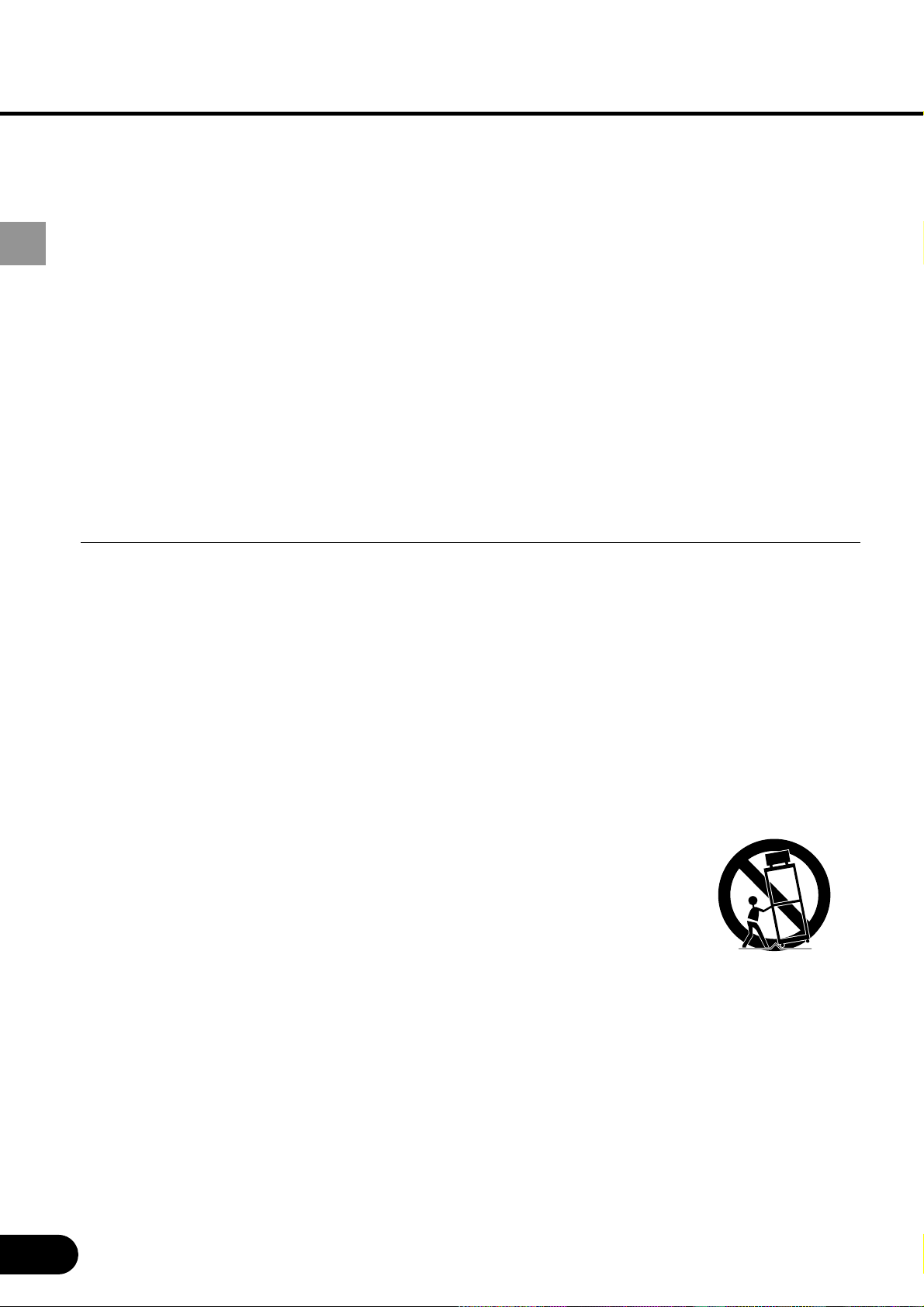
An appliance and cart combination should be moved with care. Quick
stops, excessive force, and uneven surfaces may cause the appliance
and cart combination to overturn.

9
SAFETY INSTRUCTIONS
Slots and openings in the back and bottom of the cabinet are provided for ventilation, to
insure reliable operation of the equipment and to protect it from overheating.
The openings should never be covered with cloth or other materials, and the bottom
opening should not be blocked by placing the projector on a bed, sofa, rug, or other
similar surface. This projector should never be placed near or over a radiator or heat
register.
This projector should not be placed in a built-in installation such as a book case unless
proper ventilation is provided.
Never push objects of any kind into this projector through cabinet slots as they may touch
dangerous voltage points or short out parts that could result in a fire or electric shock.
Never spill liquid of any kind on the projector.
Do not install the projector near the ventilation duct of air-conditioning equipment.
This projector should be operated only from the type of power source indicated on the
marking label. If you are not sure of the type of power supplied, consult your authorized
dealer or local power company.
Do not overload wall outlets and extension cords as this can result in fire or electric shock.
Do not allow anything to rest on the power cord. Do not locate this projector where the
cord may be damaged by persons walking on it.
Do not attempt to service this projector yourself as opening or removing covers may
expose you to dangerous voltage or other hazards. Refer all servicing to qualified service
personnel.
Unplug this projector from wall outlet and refer servicing to qualified service personnel
under the following conditions:
a. When the power cord or plug is damaged or frayed.
b. If liquid has been spilled into the projector.
c. If the projector has been exposed to rain or water.
d. If the projector does not operate normally by following the operating instructions.
Adjust only those controls that are covered by the operating instructions as improper
adjustment of other controls may result in damage and will often require extensive work
by a qualified technician to restore the projector to normal operation.
e. If the projector has been dropped or the cabinet has been damaged.
f. When the projector exhibits a distinct change in performance-this indicates a need for
service.
10
SAFETY INSTRUCTIONS
When replacement parts are required, be sure the service technician has used
replacement parts specified by the manufacturer that have the same characteristics as
the original part. Unauthorized substitutions may result in fire, electric shock, or injury to
persons.
Upon completion of any service or repairs to this projector, ask the service technician to
perform routine safety checks to determine that the projector is in safe operating
condition.
AC POWER CORD REQUIREMENT
The AC Power Cord supplied with this projector meets the requirement for use in the
country you purchased it.
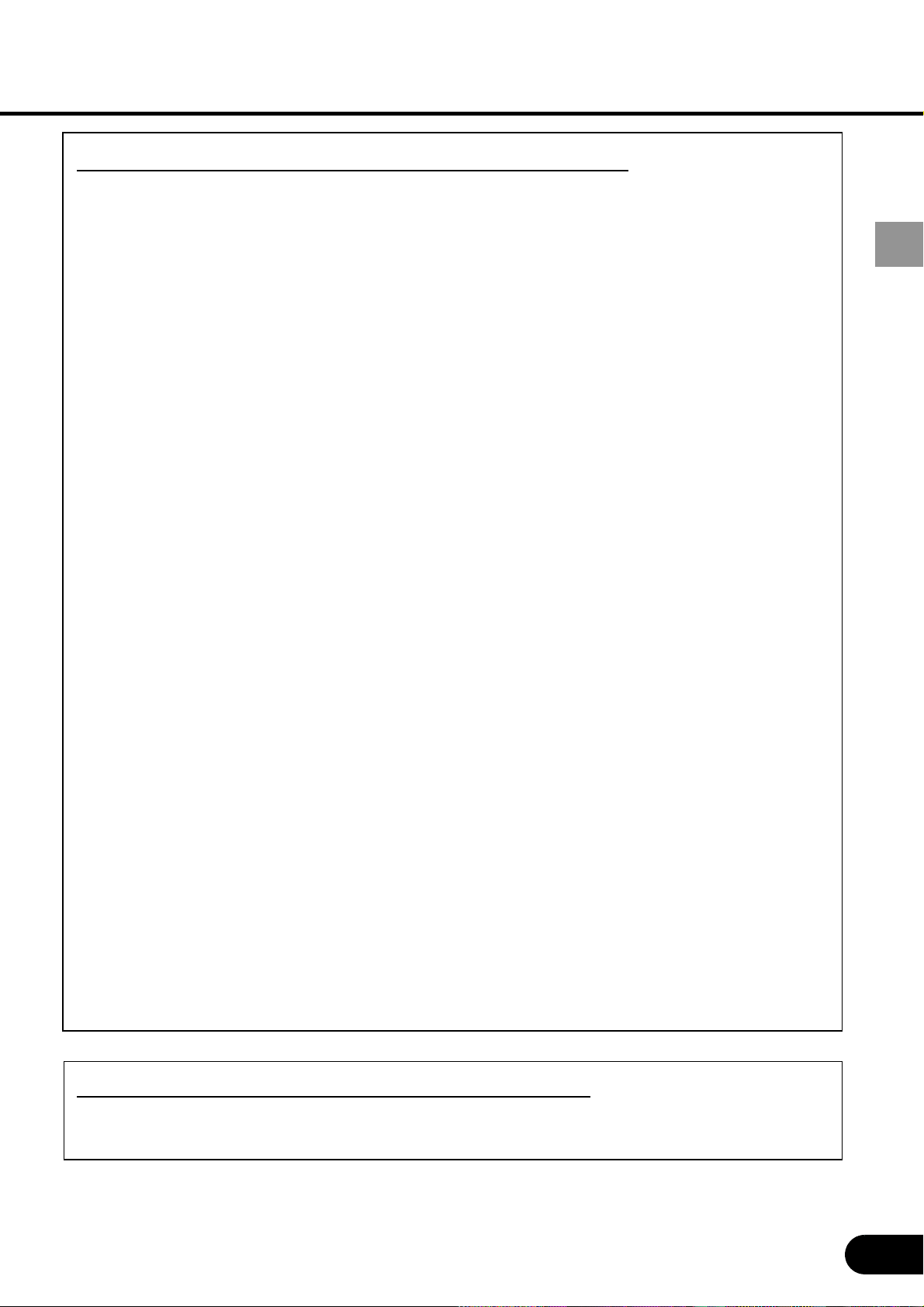
AC Power Cord for the United States and Canada :
AC Power Cord used in the United States and Canada is
listed by the Underwriters Laboratories (UL) and certified by
the Canadian Standard Association (CSA).
AC Power Cord has a grounding-type AC line plug. This is
a safety feature to be sure that the plug will fit into the power
outlet. Do not try to defeat this safety feature. Should you
be unable to insert the plug into the outlet, contact your
electrician.
THE SOCKET-OUTLET SHOULD BE INSTALLED NEAR THE EQUIPMENT AND
EASILY ACCESSIBLE.
NOTE FOR CUSTOMERS IN THE US
Hg LAMP(S) INSIDE THIS PRODUCT CONTAIN MERCURY
AND MUST BE RECYCLED OR DISPOSED OF ACCORDING
TO LOCAL, STATE OR FEDERAL LAWS.
GROUND
11
SAFETY INSTRUCTIONS
Federal Communication Commission Notice
Multimedia Projector, Model : SX50
This device complies with Part 15 of the FCC Rules. Operation is subject to the
following two conditions:
(1) This device may not cause harmful interference, and
(2) this device must accept any interference received, including interference that may
cause undesired operation.
Note : This equipment has been tested and found to comply with the limits for a Class
B digital device, pursuant to part 15 of the FCC Rules. These limits are designed to
provide reasonable protection against harmful interference in a residential installation.
This equipment generates, uses and can radiate radio frequency energy and, if not
installed and used in accordance with the instructions, may cause harmful interference
to radio communications. However, there is no guarantee that interference will not
occur in a particular installation. If this equipment does cause harmful interference to
radio or television reception, which can be determined by turning the equipment off and
on, the user is encouraged to try to correct the interference by one or more of the
following measures :
•
Reorient or relocate the receiving antenna.
•
Increase the separation between the equipment and receiver.
•
Connect the equipment into an outlet on a circuit different from that to which the
receiver is connected.
•
Consult the dealer or an experienced radio/TV technician for help.
The cable with the ferrite core provided with the projector must be used with this
equipment in order to comply with Class B limits in Subpart B of Part 15 of the FCC
rules.
Use of shielded cable is required to comply with class B limits in Subpart B of Part 15
of FCC Rules.
Do not make any changes or modifications to the equipment unless otherwise
specified in the instructions. If such changes or modifications should be made, you
could be required to stop operation of the equipment.
Canon U.S.A., Inc.
One Canon Plaza, Lake Success, NY 11042, U.S.A.
Tel No. (516)328-5600
Canadian Radio Interference Regulations
This Class B digital apparatus meets all requirements of the Canadian Interference-
Causing Equipment Regulations.
12
SAFETY INSTRUCTIONS
LAMP HANDLING
PRECAUTIONS
This projector uses a high-pressure mercury lamp which must be handled carefully and
properly as mentioned below.
• A lamp may explode with a loud sound or burn out due to a shock, scratch, or expiration of
lifetime.
• The lamp life may differ from lamp to lamp and according to the environment of use. There is
not guarantee of the same lifetime for each lamp. Some lamps may fail or terminate their life
in a shorter period of time than other similar lamps.
• A lamp gradually becomes darker with time of use.
• If the projector indicates that the lamp should be replaced (i.e., the LAMP REPLACE indicator
lights up twice), chances of explosion become higher. Replace the lamp with a new one
immediately.
• Always keep your face away from the exhaust vent so that you do not suffer from the gas and
broken shards of the lamp.
IF A LAMP EXPLODES
If a lamp explodes, the gas and broken shards may scatter inside the projector
and they may come out of the exhaust vent. The gas contains toxic mercury.
Open windows and doors for ventilation.
If you inhale the gas or the shards of the broken lamp enter your eyes or
mouth, consult the doctor immediately.
If a lamp explodes, its shards may scatter inside the projector. Ask the Canon
service representative to clean and check the inside of the projector and
replace the lamp.
DISPOSAL OF WASTE LAMP
Dispose of the mercury lamp of the projector according to the local regulation
just like the fluorescent lamp.
CARRYING/TRANSPORTING THE
PROJECTOR
This projector is a precision machine. Do not give a strong shock to the projector or turn it
down.
Thoroughly read “Use Caution When Carrying or Transporting the Projector” below and install
the lens cap before carrying the projector. When transporting the projector by train or airplane,
use a highly crashworthy transport case.
Use Caution When Carrying or Transporting the Projector
The carrying bag is intended for protection from dust and scratches on the surface of the
cabinet, and it is not designed to protect the projector from external shocks. When carrying the
projector with it put in the carrying bag, do not give a shock to it, drop it, or place anything on it.
Do not transport the projector through a courier or transport service with the carrying bag. The
projector can damage.
13
SAFETY INSTRUCTIONS
INSTALLATION PRECAUTIONS
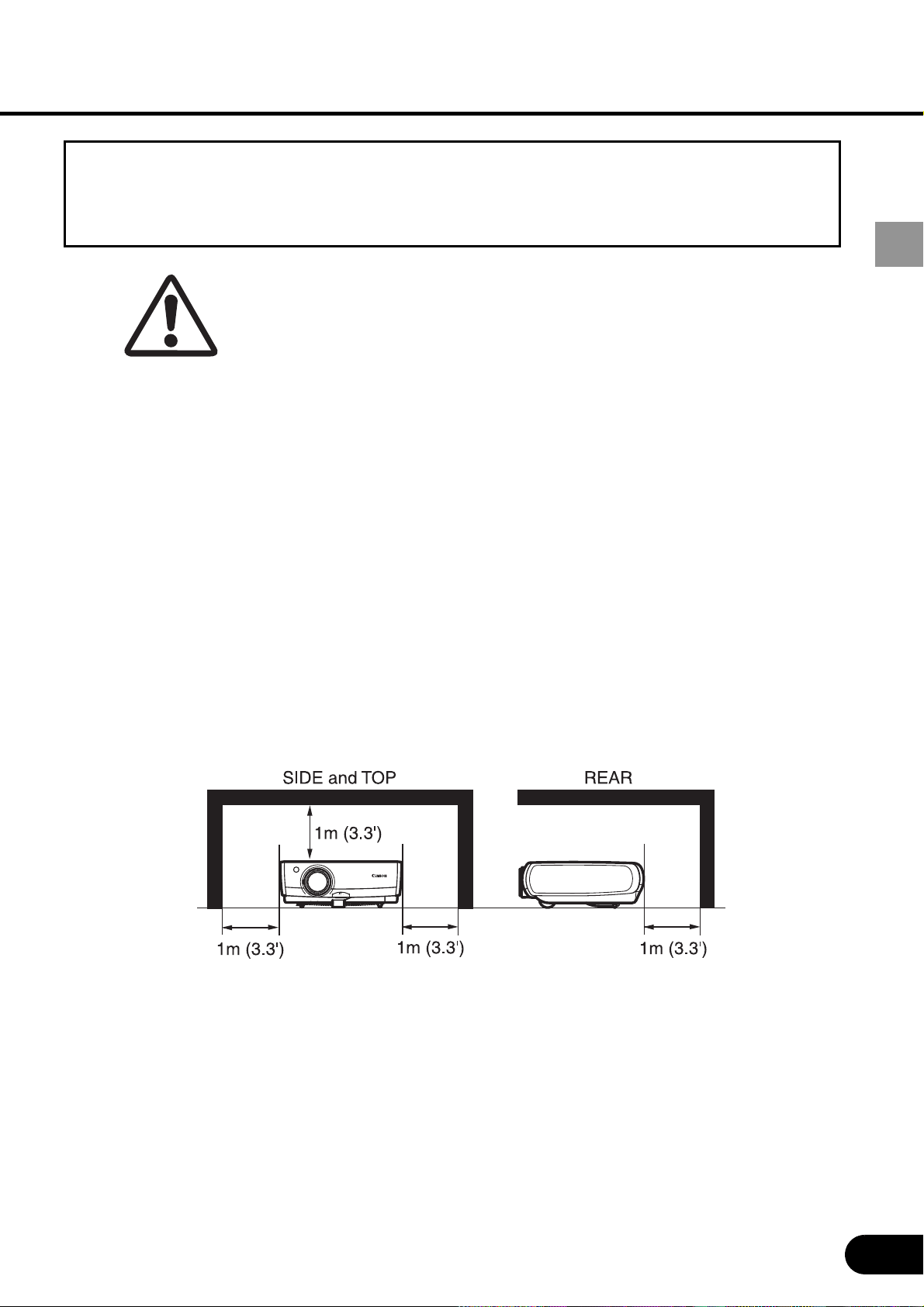
Ensure that the projector is installed with a minimum distance of 1 m (3.3') from its left,
right, rear, and top panels to the neighboring object such as a wall.
Pay Attention to Hot Air from Exhaust Vent
Hot air is exhausted from the exhaust vent. Do not place any object near the exhaust vent.
•
Do not put any spray can near the vent.
The internal pressure increases due to heat,
resulting in explosion.
•
Do not put any metallic object. It may become
hot, resulting in an accident or injury.
•
Do not put anything such as a plant pot.
•
Do not put anything that may deform or
deteriorate due to heat.
•
Do not put an audience seat near the
exhaust vent.
Do not put anything that may deform or discolor due to heat on the projector. The area
around the exhaust vent and the cabinet above the exhaust vent become hot. Do not touch
these areas, or you may get burnt. Especially, keep children away from these areas.
Do Not Use in the Following Environments
Do not install the projector in a humid or dusty place or a place where there is much oily
smoke or cigarette smoke. Optical parts such as a lens and mirror are stained, resulting in
poor picture.
Do not use the projector in a place where the temperature becomes very high or low.
Operating temperature: +5
°
C to +35
°
C Storage temperature: -10
°
C to +60
°
C
Pay Attention to Condensation
If the projector is carried from a cold place to a warm place or the room temperature is
raised rapidly, dew may form on the lens and mirror due to the moisture in the
atmosphere, resulting in a blurred picture. Wait until dew evaporates and a normal picture
is shown.
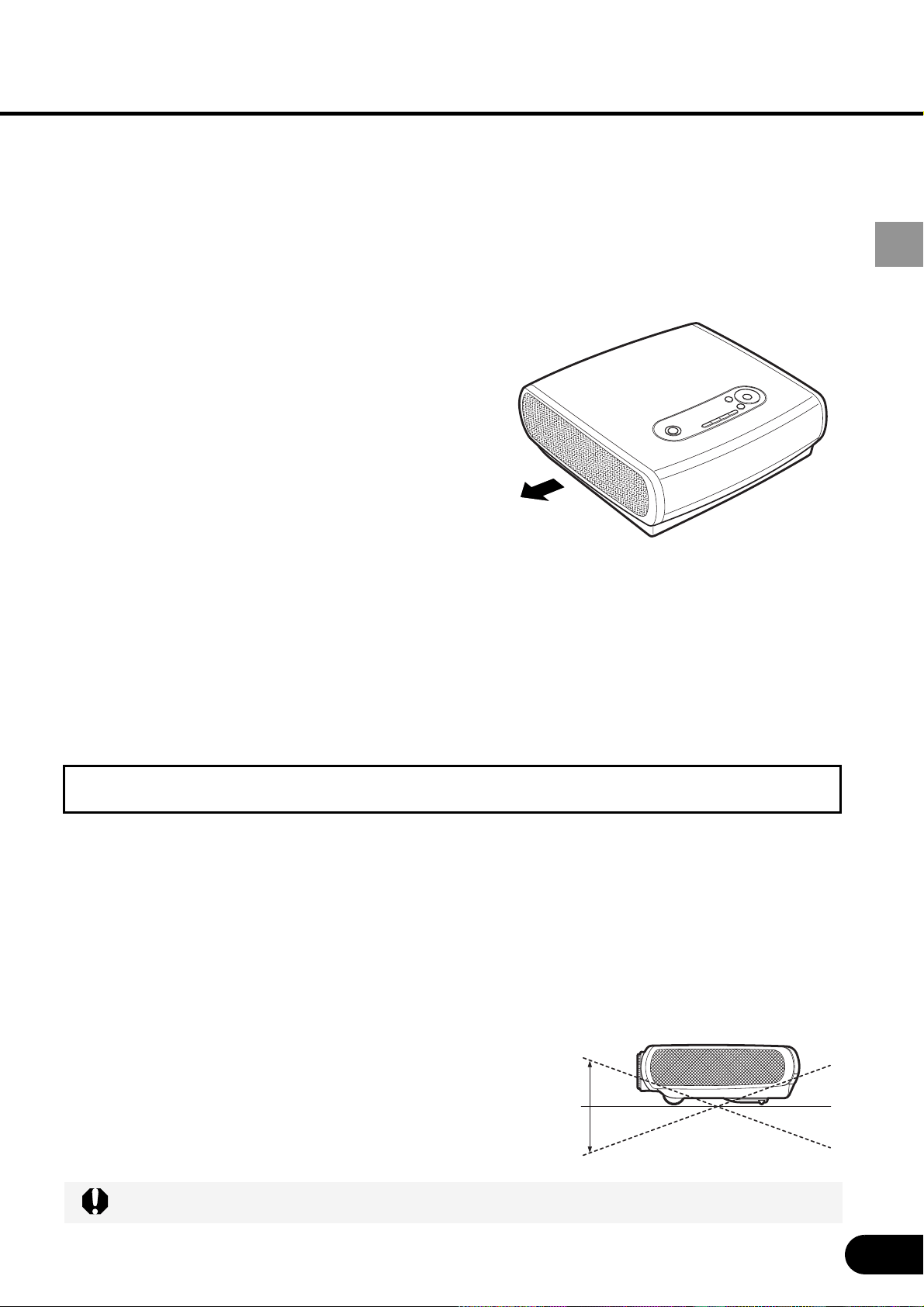
Install the Projector at Proper Position
Install the projector properly. Improper installation may cause troubles and accidents.
•
Do not tilt the projector more than 20
degrees above and below.
•
Do not point the projector up.
•
Do not point the projector down.
•
Do not put the projector on either side.
Do not tilt the projector more than 20 degrees above and below.
20 degrees
20 degrees
14
BEFORE USE
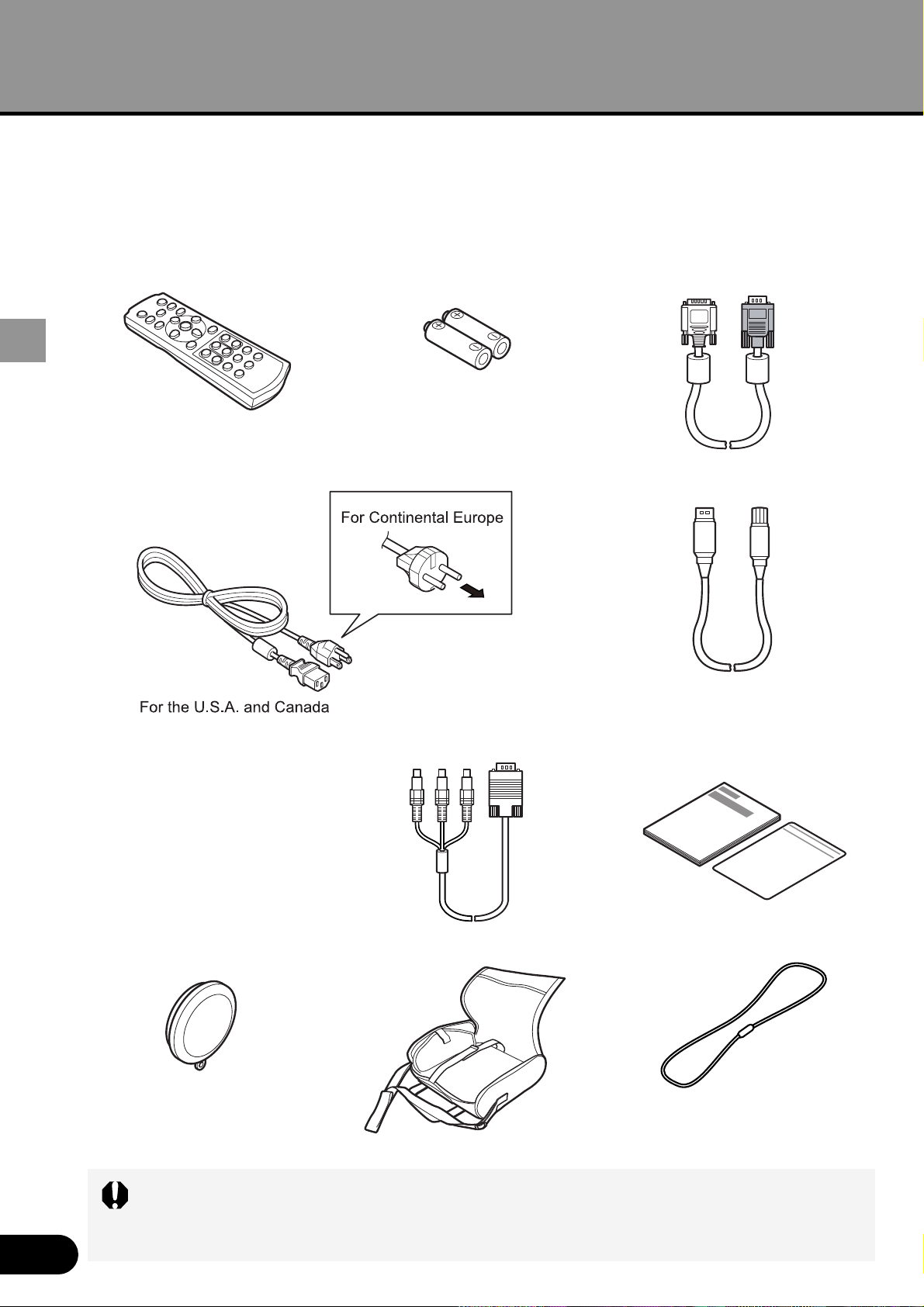
Supplied Accessories
Check whether the following accessories are supplied with the projector.
• When the projector is not in use, attach the lens cap to protect the lens from dust
and other foreign objects.
• Be sure to attach the ferrite core to the power cord.
Remote control
Power cord (2m/6.6')
Batteries (type AAA, two)
for remote control
USB cable (1.8m/5.9')
Computer connection cable
(DVI/Mini D-sub, 15-pin) (1.8m/5.9')
Carrying bag (P12)
Lens cap
Lens cap strap
Tie the lens cap to the projector
with the supplied strap. For the
procedure, see page 92.
Component cable
(RCA/Mini D-sub, 15-pin) (0.4m/1.3')
User’s Manual
Quick Start Guide
Warranty card
BEFORE USE
15
BEFORE USE
Part Names
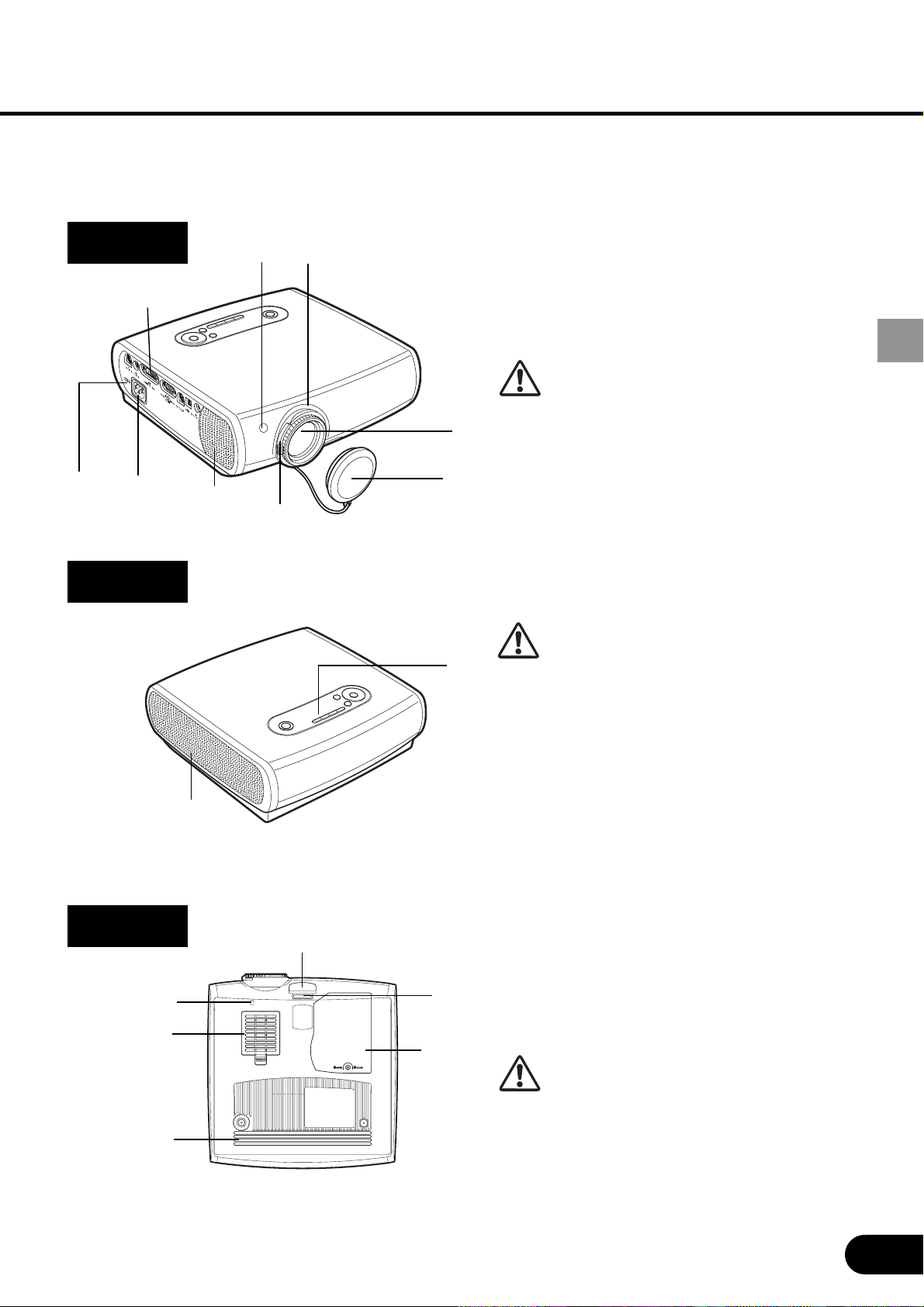
Main Unit of Projector
1 Focus Ring (P30)
2 Infrared Remote Receiver (P16)
3 Zoom Lever (P30)
4Lens
5Lens Cap
Be sure to remove the lens cap
during projection. The cap can
deform or fire can occur.
6 Speaker
7 Terminals and Connectors (P19)
8 Power Cord Connector (P19)
9 Anti-theft lock hole
1 Exhaust Vent
Do not block this vent. Troubles or
fire can result.
2 Top Control (P18)
1 Adjustable Foot Lock Button (P22)
2 Adjustable Foot (P22)
3 Lamp Cover (P77)
4 Air Intake Vent
5 Air Filter (P76)
6 Lens cap strap insertion hole
Do not block this vent. Troubles or
fire can result.
Front
Back
Bottom
3
6
8
7
1
2
2
3
5
4
6
1
12
4
5
9
16
BEFORE USE
Remote Control
The remote control may be inoperative in the following cases:
• When there is an obstacle between the remote control and main unit.
•
When the infrared remote receiver on the main unit is exposed to direct sunlight or
strong light of lighting equipment.
• All operations of the projector can be controlled with the remote control.
• The remote control uses infrared light.
•When you use two projectors at the same time, you can change the channel
settings to prevent the two remote controls from interfering with each other.
(P72)
2
5
3
6
8
9
12
14
15
17
18
21
20
4
7
10
11
13
16
19
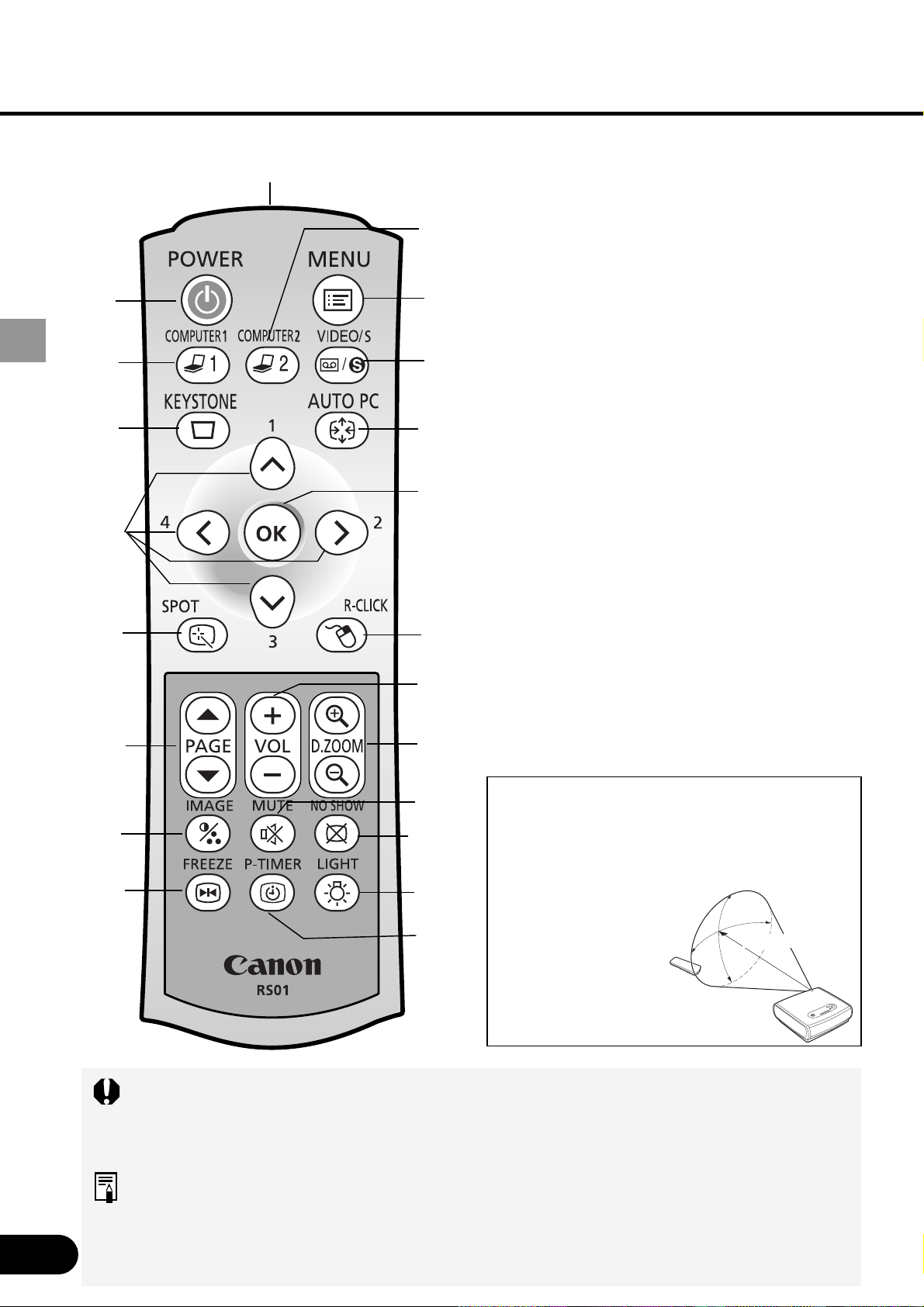
1 Infrared Remote Emitter
Sends a signal to the infrared remote
receiver on the main unit.
2 POWER button (P27, 45)
Turns the projector on or off.
3 MENU button (P50)
Displays a menu.
4 COMPUTER-1 button (P28, 46)
Selects the image input from the DVI-I/RGB
IN-1 terminal.
Pressing this button continuously allows you
to select an input signal (DIGITAL RGB or
ANALOG RGB-1).
5 COMPUTER-2 button (P28, 46)
Selects the image input from the RGB IN-2/
COMPONENT IN/RGB OUT terminal.
Pressing this button continuously allows you
to select an input signal (ANALOG RGB or
COMPONENT).
6 VIDEO/S button (P46)
Select the image input from the VIDEO IN
terminal or S-VIDEO terminal.
Pressing this button continuously allows you
to select input signals (VIDEO or S-VIDEO).
Remote Control Operating Range
Point the remote control to the infrared remote
receiver whenever pressing any button. The maxi-
mum operating range is about 5 m (16.4' ) and 30
o
in front of the infrared remote receiver.
Within 5 m (16.4' ) and
30
o
in front of infrared
remote receiver
30
o
5m
(
16.4
'
)
30
o
1
17
BEFORE USE
14 VOL button (P40)
Adjusts the sound volume. Pressing [+] turns
the volume up and pressing [-] turns the
volume down.
15 D.ZOOM button (P38)
Zooms the image in or out. Pressing [+]
enlarges the image and pressing [-] reduces
the image.
16 IMAGE button (P34)
Switches image modes (image qualities).
17 MUTE button (P40)
Mutes the sound temporarily.
18 NO SHOW button (P37)
Turns the picture into a black image.
19 FREEZE button (P40)
Freezes the projected picture.
20 P-TIMER button (P39)
Displays the time elapsed since this button
was pressed (this button can be used to
manage the presentation time).
21 LIGHT button
Turns on or off the remote control buttons.
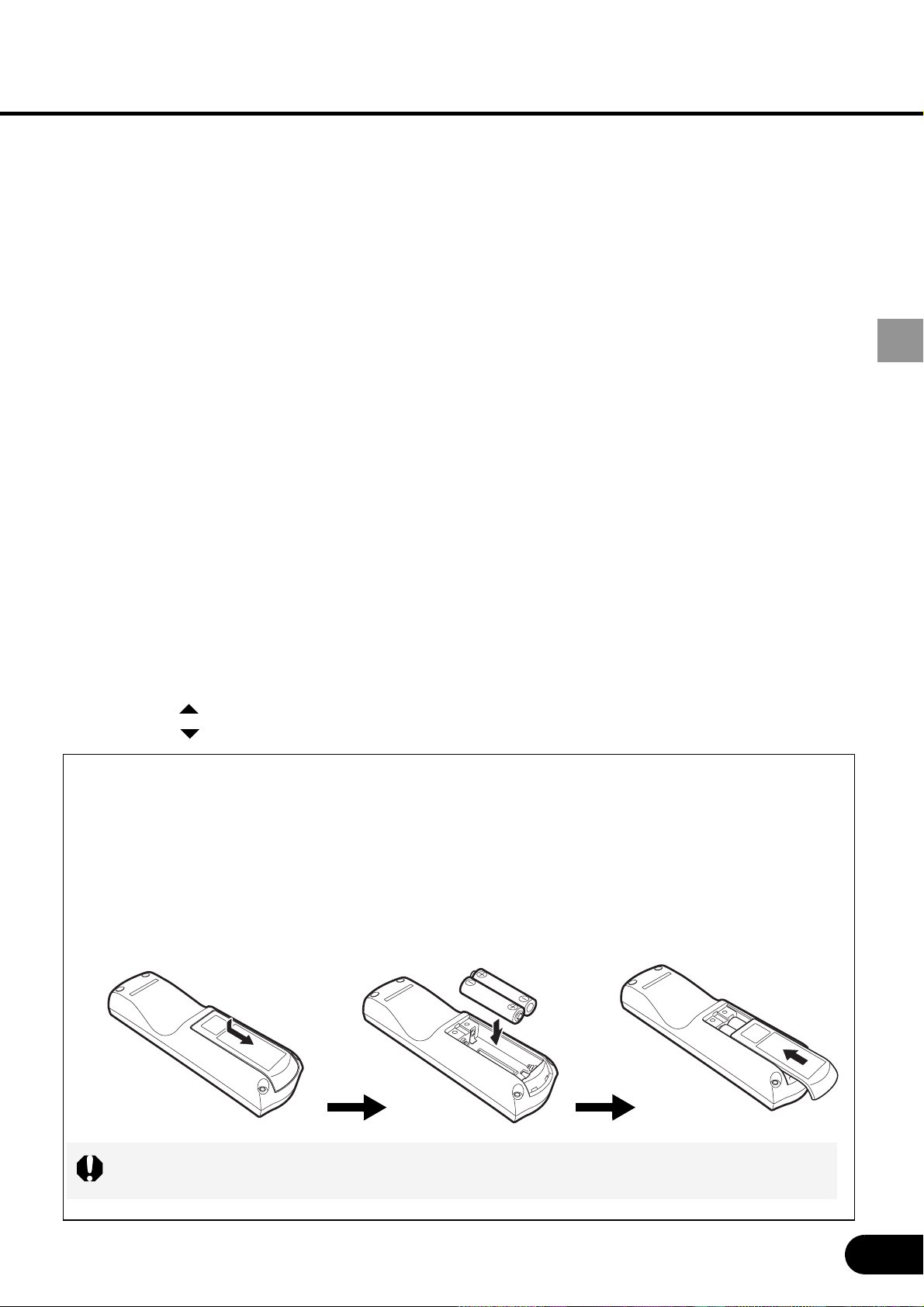
Installing Remote Control Batteries
If all buttons on the remote control do not light when the [LIGHT] button is pressed, or
buttons are inoperative when you attempt to operate the projector, replace new batteries.
Replace the compartment
lid.
7 KEYSTONE button (P31)
Corrects keystone distortion.
8 AUTO PC button (P29)
When ANALOG RGB-1 or ANALOG RGB-2
is selected, performs the auto PC adjustment
to adjust the tracking, total number of dots,
and image position automatically.
9 OK button (P51)
Determines the item selected from the menu
just like the left button of a mouse (USB
connection).
10 POINTER button (P50)
Selects the upper, lower, left, or right item in
the menu. Also moves the mouse cursor
(USB connection).
11 SPOT button (P39)
Performs the spot light function.
12 R-CLICK button (P41)
Acts as the right button of a mouse (USB
connection).
13 PAGE button
Acts as the Page Up and Page Down keys on
the computer keyboard (USB connection).
Pressing [ ] scrolls to the previous page and
pressing [ ] scrolls to the next page.
Install batteries.
Insert new two AAA-size
batteries in the compartment
with the + and – poles
positioned correctly.
Open the battery
compartment lid.
Slide the lid with it pressed
down.
1
2
3
18
BEFORE USE
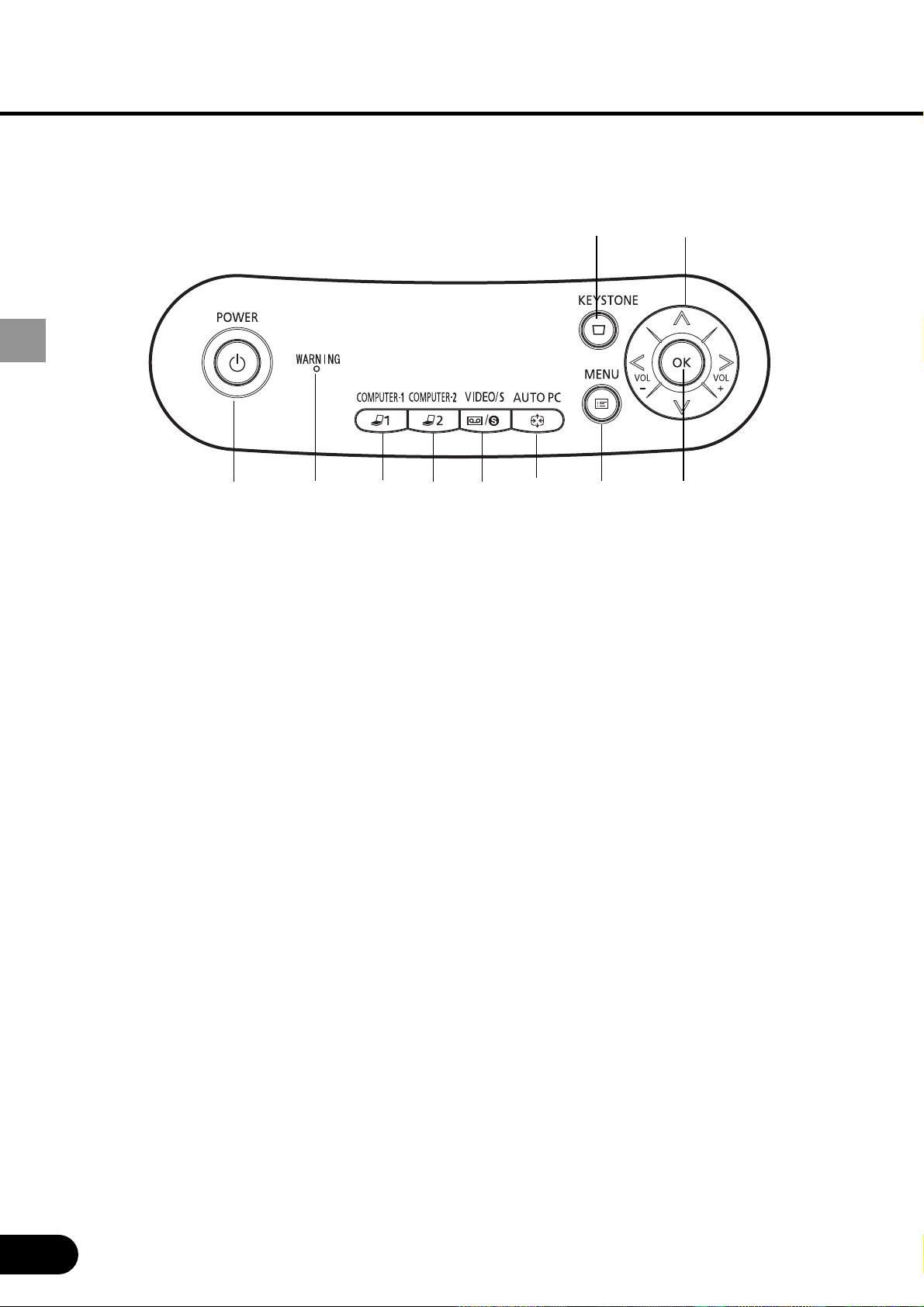
Top Control
1 POWER button (P27, 45)
Turns the projector on or off.
2 KEYSTONE button (P31)
Corrects keystone distortion.
3 MENU button (P50)
Displays a menu.
4 COMPUTER-1 button (P28, 46)
Selects the image input from the DVI-I/RGB
IN-1 terminal.
Pressing this button continuously allows you
to select an input signal (DIGITAL RGB or
ANALOG RGB-1).
5 COMPUTER-2 button (P28, 46)
Selects the image input from the RGB IN-2/
COMPONENT IN/RGB OUT terminal.
Pressing this button continuously allows you
to select an input signal (ANALOG RGB-2 or
COMPONENT).
6 VIDEO/S button (P46)
Select the image input from the VIDEO IN
terminal or S-VIDEO terminal.
Pressing this button continuously allows you
to select input signals (VIDEO or S-VIDEO).
7 AUTO PC button (P29)
When ANALOG RGB-1 or ANALOG RGB-2
is selected, performs the auto PC adjustment
to adjust the tracking, total number of dots,
and image position automatically.
8 OK button (P51)
Determines the item selected from the menu.
9 POINTER button (P50)
Selects the upper, lower, left, or right item in
the menu. The left and right buttons are also
used as volume control buttons.
10 POWER indicator (P27)
Indicates the projector status.
When stays red: The projector can be turned
on.
When flashing red: The projector is being
turned off (the lamp is being cooled).
When stays green: The projector is on.
When flashing green: The projector is being
turned on.
11 WARNING lamp (P79)
Flashes red when a problem has been
detected.
110 11 4 5 6 7 3 8
29
19
BEFORE USE
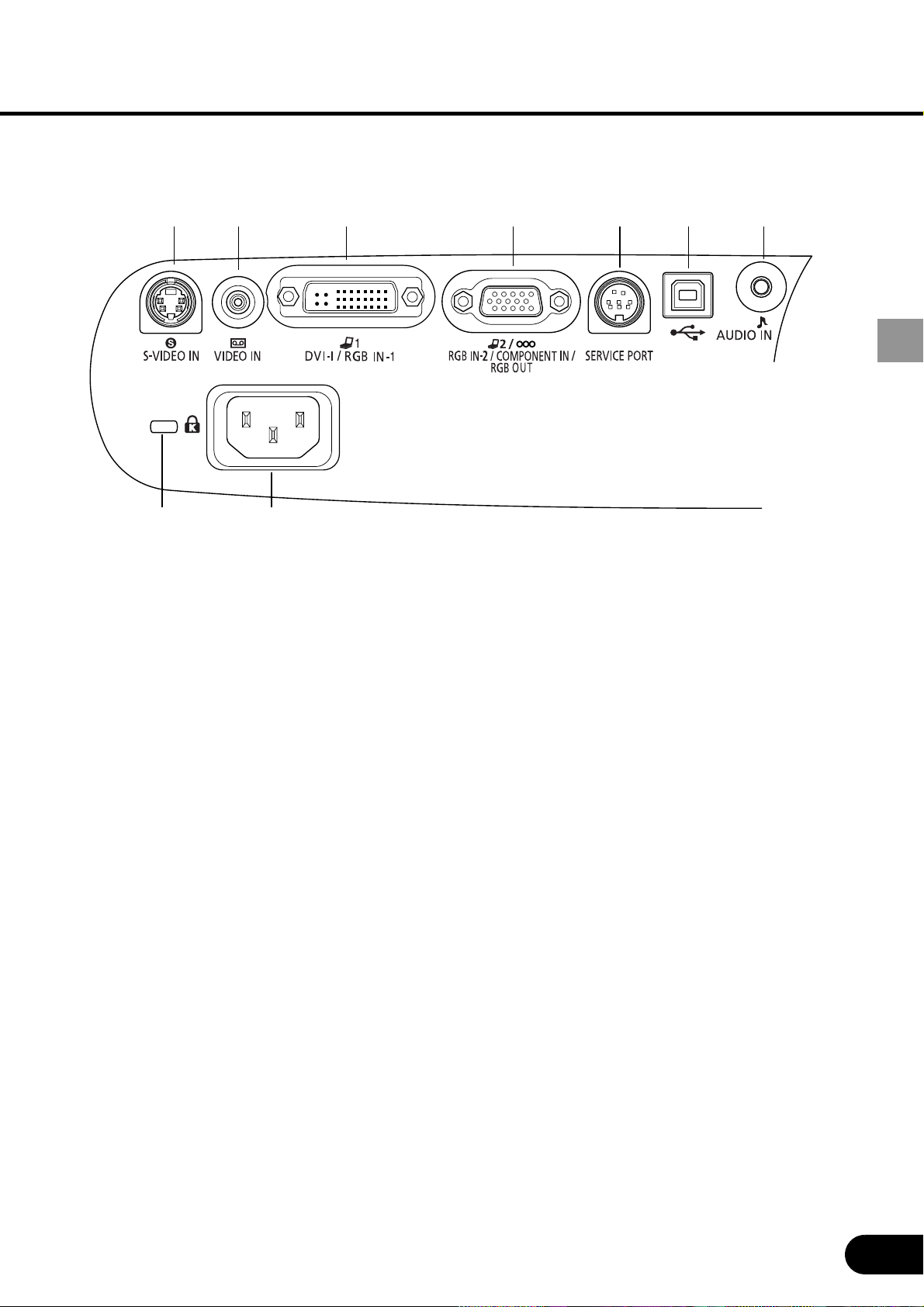
Input Terminals on Main Unit
1 S-VIDEO IN terminal (P42)
Receives an S-VIDEO signal from AV
equipment.
2 VIDEO IN terminal (P42)
Receives a composite video signal from AV
equipment.
3 DVI-I/RGB IN-1 terminal (P23, 42)
Receives a digital or analog RGB signal from
the computer (DVI terminal).
4 RGB IN-2/COMPONENT IN/RGB OUT
terminal (P23, 42)
Receives an analog RGB signal from the
computer or receives a component picture
signal from AV equipment (mini D-sub 15-pin
terminal).
Also used to output an analog RGB signal by
selecting an option from the menu.
5 SERVICE PORT jack
Exclusively used by the service personnel (it
is not used normally).
6 USB terminal (P41)
Connected to the computer with a USB cable
when the remote control is used as the
mouse of the computer.
7 AUDIO IN terminal (P24, 43)
Receives an audio signal (stereo) from the
computer or AV equipment.
8 Power cord socket (P26)
9 Antitheft lock hole
Allows you to connect an antitheft cable.
1 2 3 4 5 6 7
9
8
20
INSTALLING THE PROJECTOR
INSTALLING THE PROJECTOR
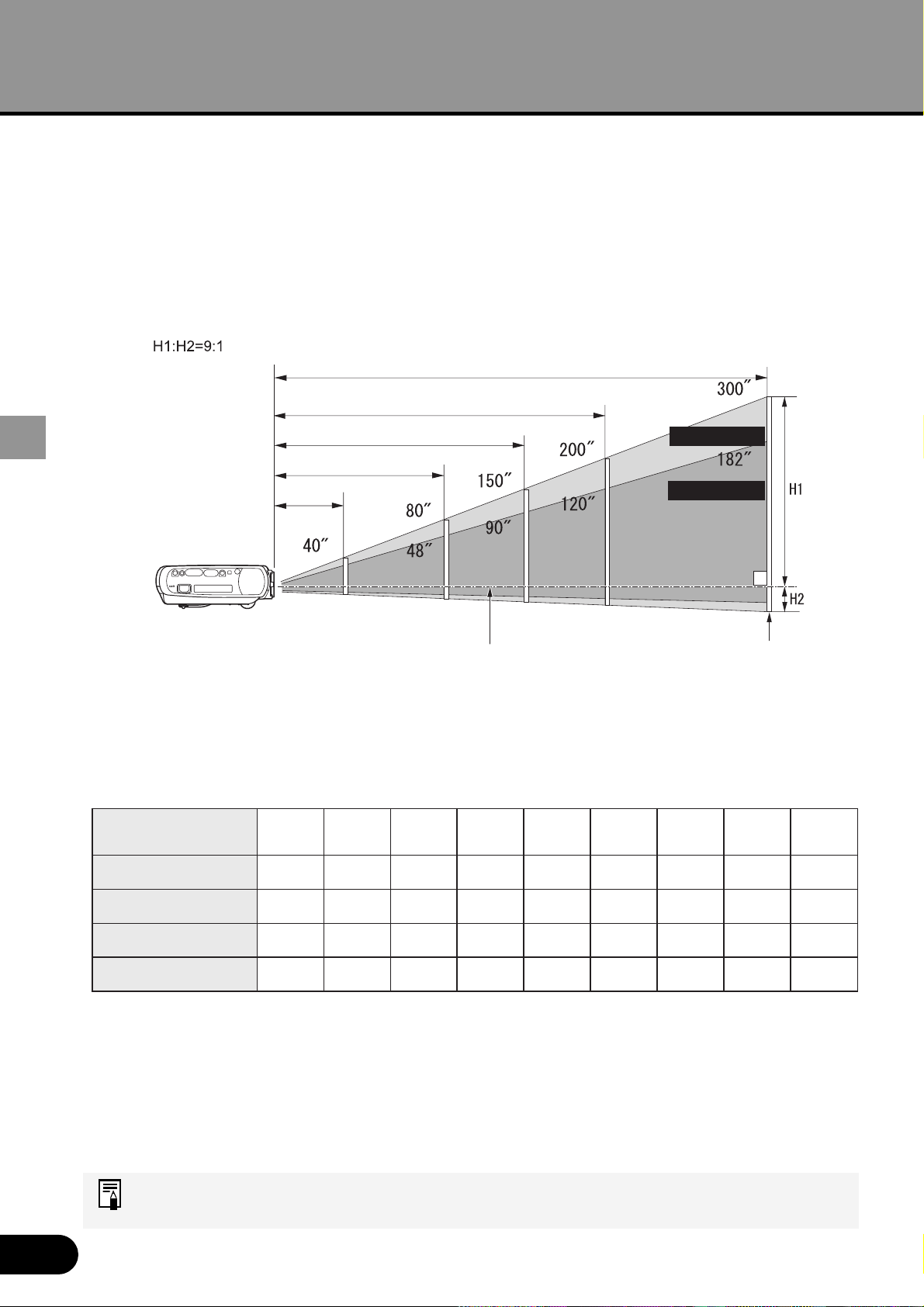
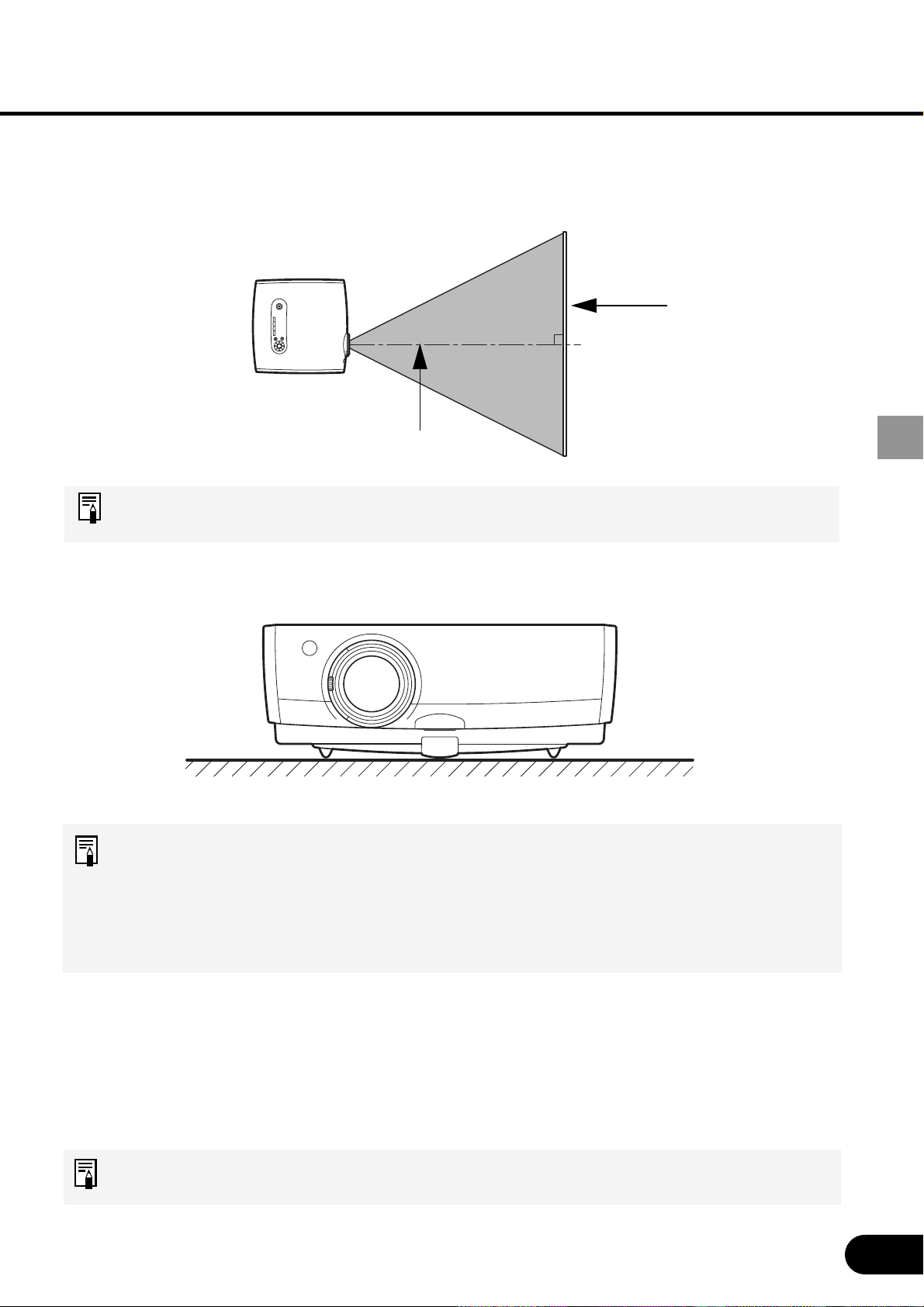
Determining the Distance to the Screen
The projected image size is determined by the distance between the projector lens and
the screen.
Select the place where the desired image size is obtained according to the figure shown
below.
The image size can be adjusted using the Zoom lever by the lens.
H1 and H2: H1 is the height of the screen from the intersection of optical axis and screen
surface, and H2 is the height of the intersection when an image is projected at right angle
to the screen.
• Install the projector at the position where the projection distance is about 1.2 m (3.9') to
9.1 m (29.9'). If the installation position is too close, the image is out of focus. If the
installation position is too far, the screen becomes dark.
• The sizes in the above table have been obtained assuming that the aspect ratio is 4:3.
They may vary from the actual sizes depending on the type of the projected image.
For the relationship between the screen size and projection distance, see the table
on page 85.
Screen
Optical axis when image is projected
at right angle to the screen.
Zoom (max.)
Zoom (min.)
6.0 m (19.7′)
1.2 m (3.9′)
2.4 m (7.9′)
4.5 m (14.8′)
9.1 m (29.9′)
40"
81 x 61
80"
163 x 122
60"
122 x 91
100"
203 x 152
150"
305 x 229
182"
370 x 277
200"
406 x 305
-
250"
508 x 381
-
300"
610 x 457
-
Screen size (W x H) cm
Projection distance
Zoom (max)
Projection distance
Zoom (min)
H1
H2
2.0 m
(6.6
′
)
1.2 m
(3.9
′
)
55 cm
(1.8
′
)
6 cm
(0.2
′
)
3.0 m
(9.8
′
)
1.8 m
(5.9
′
)
82 cm
(2.7
′
)
9 cm
(0.3
′
)
4.0 m
(13.1
′
)
2.4 m
(7.9
′
)
110 cm
(3.6
′
)
12 cm
(0.4
′
)
5.0 m
(16.4
′
)
3.0 m
(9.8
′
)
137 cm
(4.5
′
)
15 cm
(0.5
′
)
7.5 m
(24.6
′
)
4.5 m
(14.8
′
)
206 cm
(6.8
′
)
23 cm
(0.8
′
)
9.1 m
(29.9
′
)
5.5 m
(18.0
′
)
250 cm
(8.2
′
)
28 cm
(0.9
′
)
6.0 m
(19.7
′
)
274 cm
(9.0
′
)
30 cm
(1.0
′
)
7.6 m
(24.9
′
)
343 cm
(11.3
′
)
38 cm
(1.2
′
)
9.1 m
(29.9
′
)
411 cm
(13.5
′
)
46 cm
(1.5
′
)
21
INSTALLING THE PROJECTOR
Determining the Installation Place
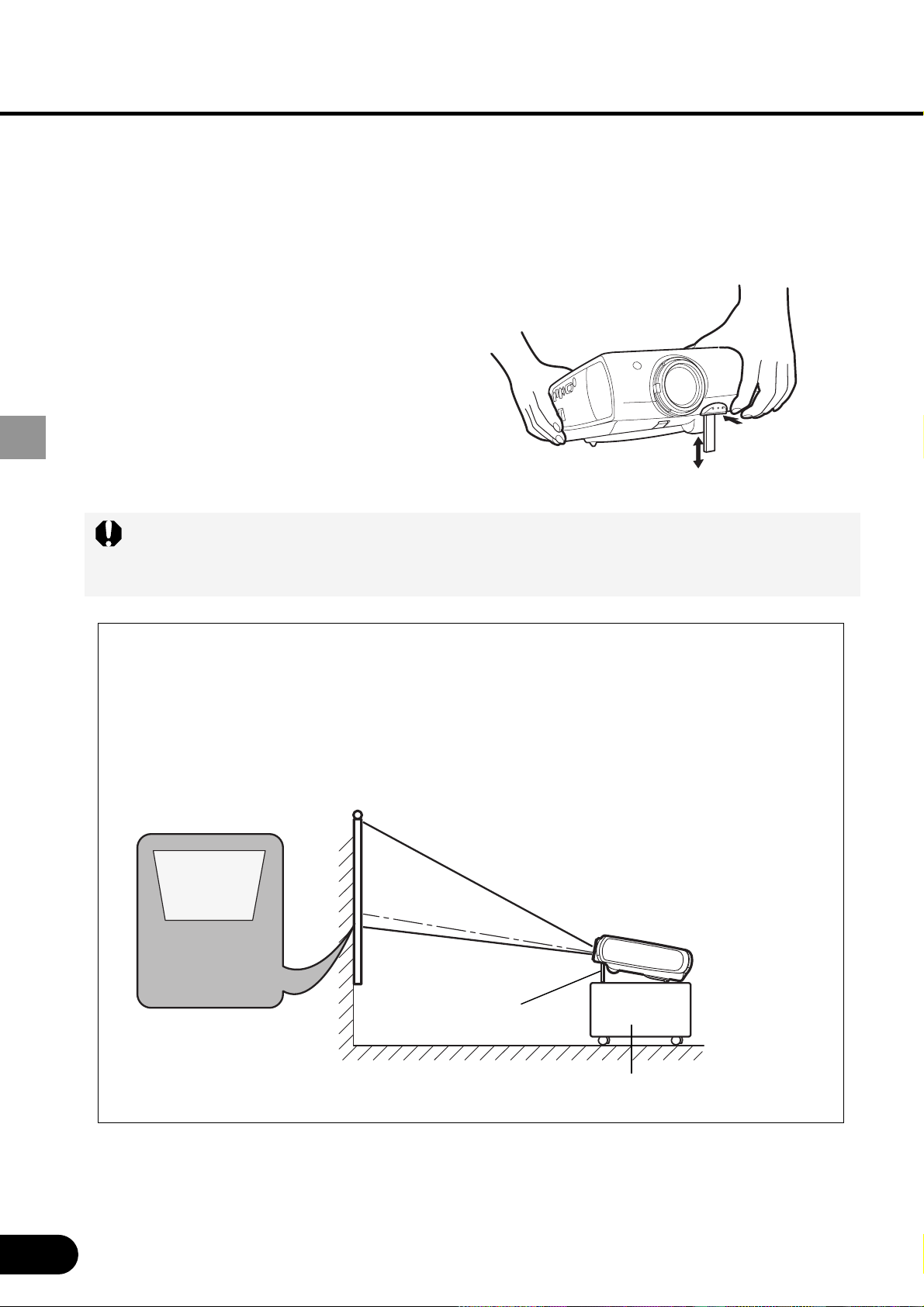
Placing in Front of the Screen
Place the projector in front of the screen in such a manner that it is as perpendicular to the
screen as possible.
A slight error in the projection angle can be corrected using the KEYSTONE
button. (P31)
Placing on a Level Place
Place the projector on a level place.
• Make sure that the installation place is free from any obstacle that may block the
exhaust vent (fan) on the right side of the projector and the air intake vent (air
filter) on the bottom of the projector.
• The screen must not be exposed to direct sunlight or light from lighting
equipment. In a bright room, it is recommended to limit ambient lighting in order
to improve the image quality.
Note
This projector can be hung from the ceiling (Ceiling mounted) with it turned up side down.
When a translucent screen is used, the projector can project an image from behind the
screen (Rear).
When the projector is hung from the ceiling or projector projects an image from behind the
screen, the image must be inverted vertically or horizontally. (P61)
When hanging the projector from the ceiling, optional brackets (part No. RS-CL01)
are required.
Screen
Optical axis
22
INSTALLING THE PROJECTOR
Adjusting the Projection Angle
The projection angle can be adjusted with the adjustable foot.
Before making this adjustment, connect the computer and AV equipment and project an
image on the screen.
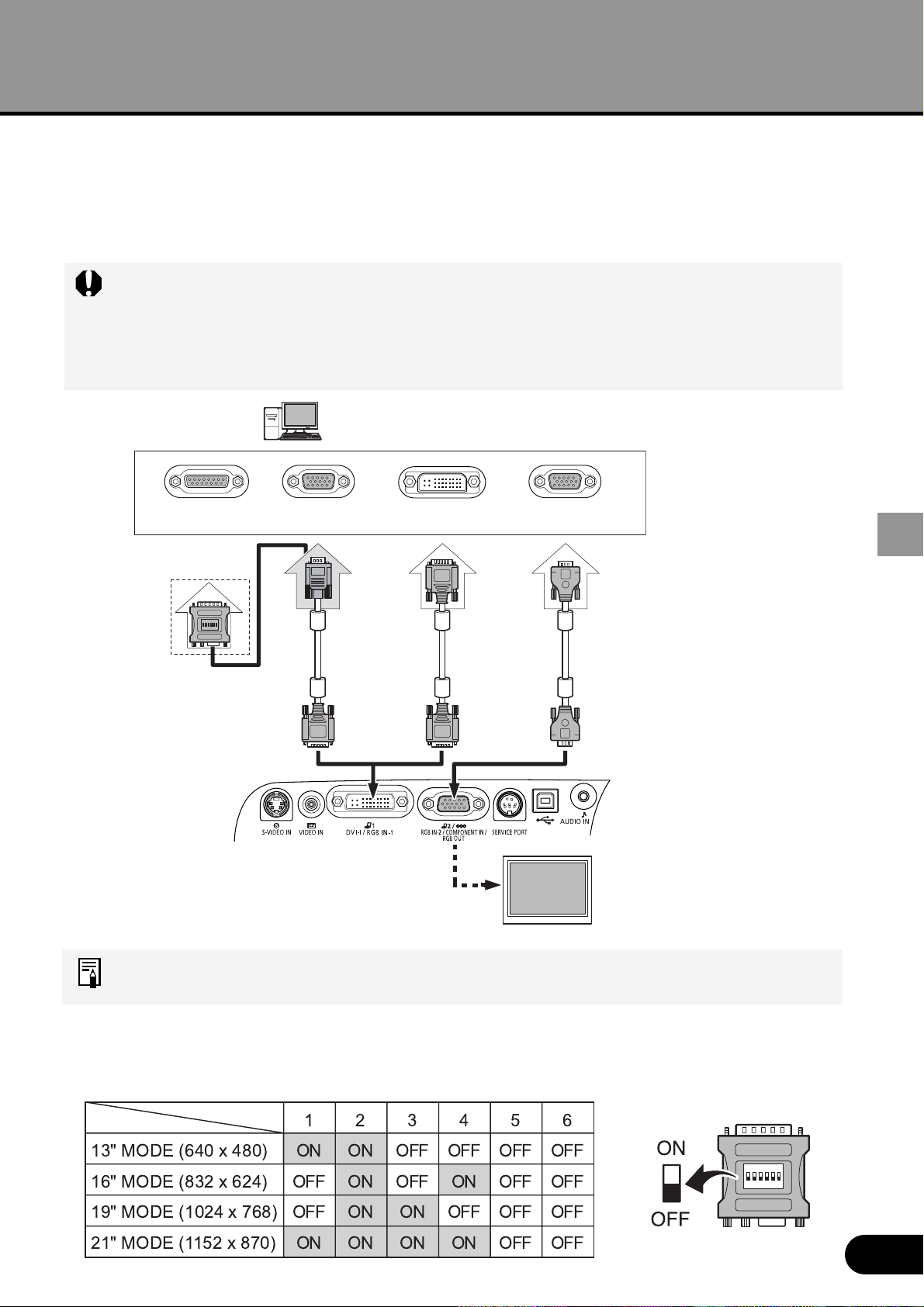
With the adjustable foot, the projection angle can be adjusted up to 10 degrees.
Adjust the longitudinal tilt of the projector to +/-20 degrees or less. If the tilt is more
than 20 degrees above and below, a lamp problem can result.
If Keystone Distortion is Large
Extending the adjustable foot too far causes keystone distortion (the projected picture is
trapezoidal). If the distortion is large, adjust the height of the pedestal of the projector.
The keystone distortion can be corrected using the KEYSTONE button. (P31)
Keystone distortion of
image
Adjusting foot
Pedestal
1
2
Lift the front of the projector and
push the adjusting foot lock.
The adjustable foot extends with
the spring force.
Adjust the projection angle while
pushing the adjustable foot lock,
and then release the lock.
23
PROJECTING AN IMAGE FROM THE COMPUTER
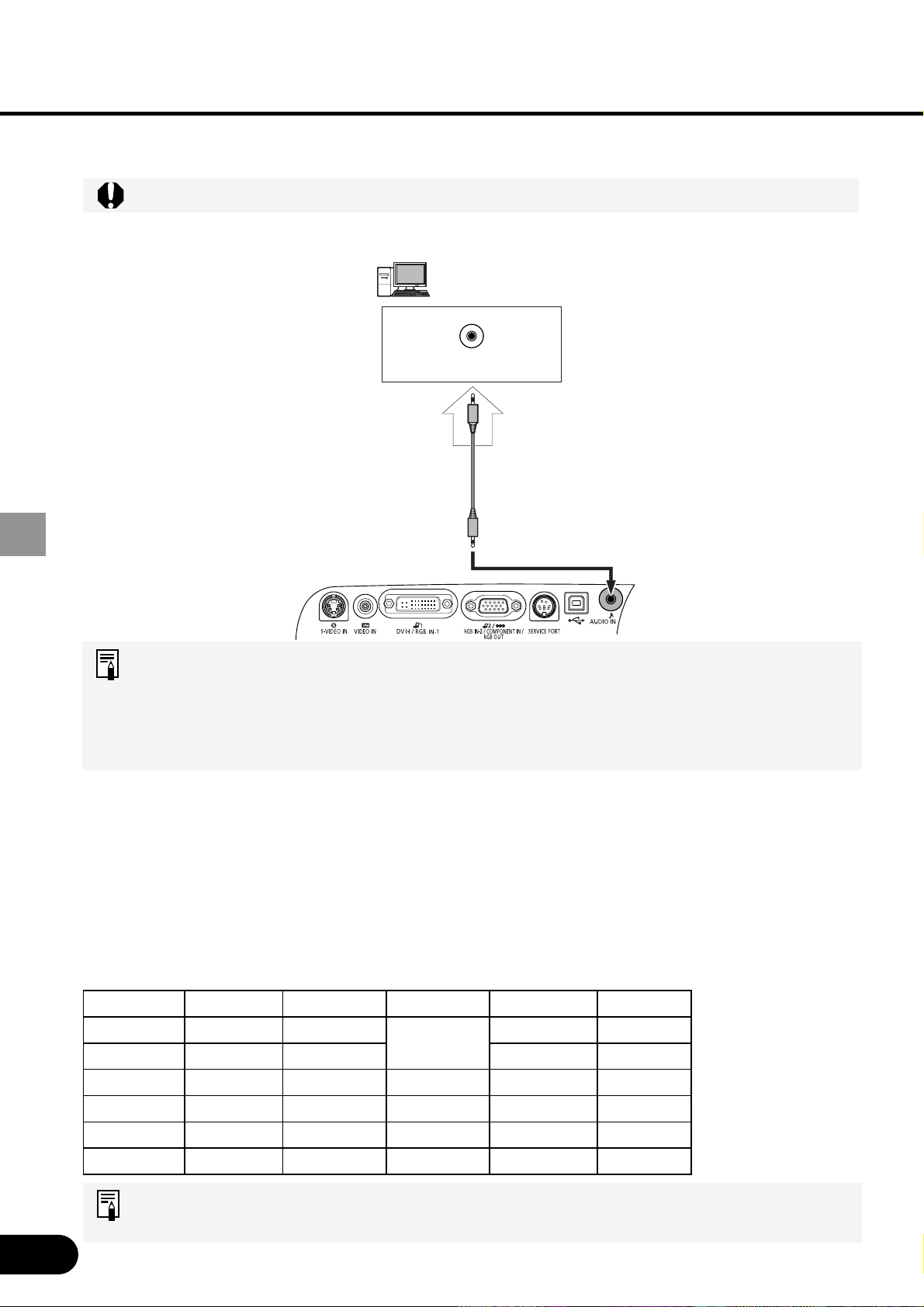
Connecting the Projector to the Computer
Connect the projector to the computer.
Connecting to Video Terminals
•
Before connecting cables, turn off both the projector and computer.
• Images may be improperly projected with digital RGB signals in 1280 x 1024 or 1400 x
1050 depending on the type of computer or DVI cable.
• The USB terminal is used to use the remote control just like the computer mouse. Images
cannot be projected simply by connecting the USB cable.
To ensure projection of high-resolution high-quality images, use of high-performance cables
is recommended.
MAC Adapter (part No. LV-AD02)
For the Macintosh having a D-sub 15-pin (standard) terminal for monitor output, use a MAC adapter.
Set the slide switches (1-6) on the adapter depending on the Macintosh mode as shown below.
To monitor output
(D-sub 15-pin)
To monitor output
(DVI terminal)
To monitor output
(mini D-sub 15-pin)
Some types of Macintosh
Supplied computer
connection cable
(for DVI/mini D-sub
15-pin)
Computer
connection
cable
(for DVI)*
Computer connection
cable
(for mini D-sub 15-pin)*
Some computers require adapters. If any con-
nector cannot be fit in the corresponding
socket, refer to the User’s Manual that came
with the computer.
*Use a cable available
optionally or on the
market.
This terminal can be switched to
the monitor output (analog RGB)
terminal by selecting an option
from the menu. (P69)
To monitor output
(mini D-sub 15-pin)
Computer
MAC adapter
(See the following memo.)
PROJECTING AN IMAGE
FROM THE COMPUTER
24
PROJECTING AN IMAGE FROM THE COMPUTER
Connecting to Audio Terminals
Before connecting cables, turn off both the projector and computer.
Connect audio cables as required.
• Use an audio cable without a built-in resistor. Using an audio cable with a built-in
resistor turns down the sound.
• The built-in speaker is monaural.
• The speaker plays the sound from the equipment which the audio cable is
connected to.
Projecting the Image from the Notebook Computer
No image is projected if the external monitor output is turned off on the personal computer
side.
To turn on the external monitor output, press the [LCD] or [VGA] function key while
pressing the Fn key on the keyboard of the personal computer.
The following table shows relationships between personal computer manufacturers and
key combinations.
For the key combination of the computer series not listed in the above table, refer
to the User’s Manual that came with the computer.
FUJITSU All series [Fn] + [F10] HITACHI All series [Fn] + [F7]
SONY All series [Fn] + [F7] COMPAQ PRESARIO [Fn] + [F7]
Panasonic All series [Fn] + [F3] ARMADA [Fn] + [F4]
SHARP All series [Fn] + [F5] DELL All series [Fn] + [F8]
TOSHIBA All series [Fn] + [F5] GATEWAY All series [Fn] + [F3]
NEC All series [Fn] + [F3] SOTEC All series [Fn] + [F3]
IBM All series [Fn] + [F3] akia All series [Fn] + [F2]
Connect with an audio cable
(with stereo mini jacks).
To AUDIO OUT
Computer
25
PROJECTING AN IMAGE FROM THE COMPUTER
Determining the Output Resolution of the Computer
To make the most of the display performance of this projector, set output signal resolution
of the computer to an optimum value. If the resolution set on the computer is low, the
quality of the projected image is poor.
The procedure for adjusting the resolution is as follows:
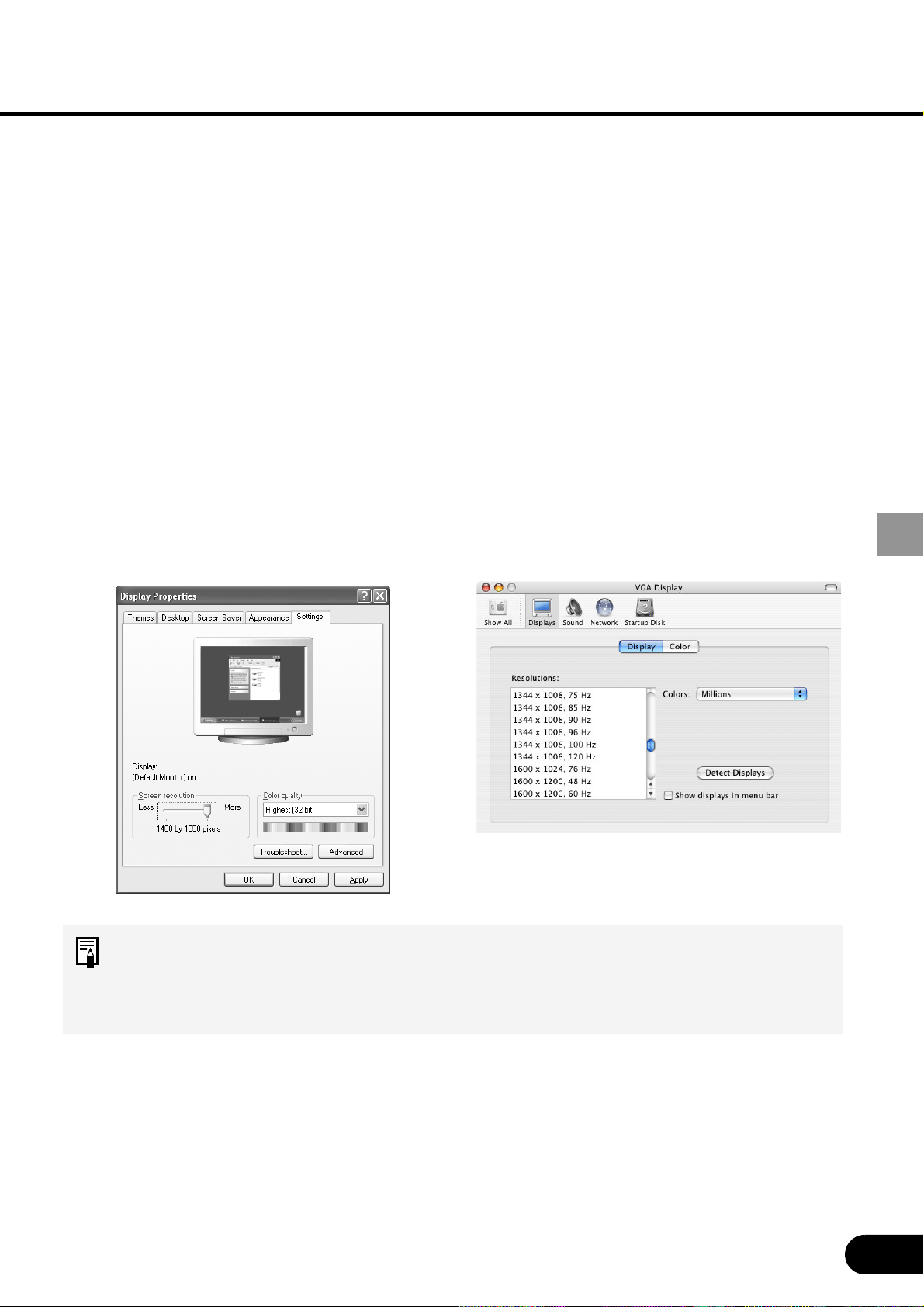
Windows XP
1. Open the [Start] menu and select
Control Panel.
2.
In the Control Panel window,
double-click the [Display] icon to display
the Display Properties window.
3. Select the [Settings] tab and move the
slider to select “1400 by 1050 pixels”. If
this resolution is not available, select
the highest resolution under 1400 by
1050.
4. Click the [OK] button.
Macintosh OSX
1. Open the Apple Menu and select
[System Environment Setting].
2. In the System Environment Setting
window, click the [Displays] icon to
display the Display window.
3. Select the [Display] tab and select
“1400 x 1050” from the [Resolution] list.
If this setting is not available, select the
highest resolution under 1400 x 1050.
4. Close the windows.
• Select a screen mode according to the aspect ratio corresponding to the selected
resolution (4:3 for 1400 by 1050 dots). (P33)
• If the display resolution of the computer is set to SXGA (1280 by 1024 dots) or
WXGA (1360 by 768 dots), select [True size] as the screen mode.
26
PROJECTING AN IMAGE FROM THE COMPUTER
Starting Projection
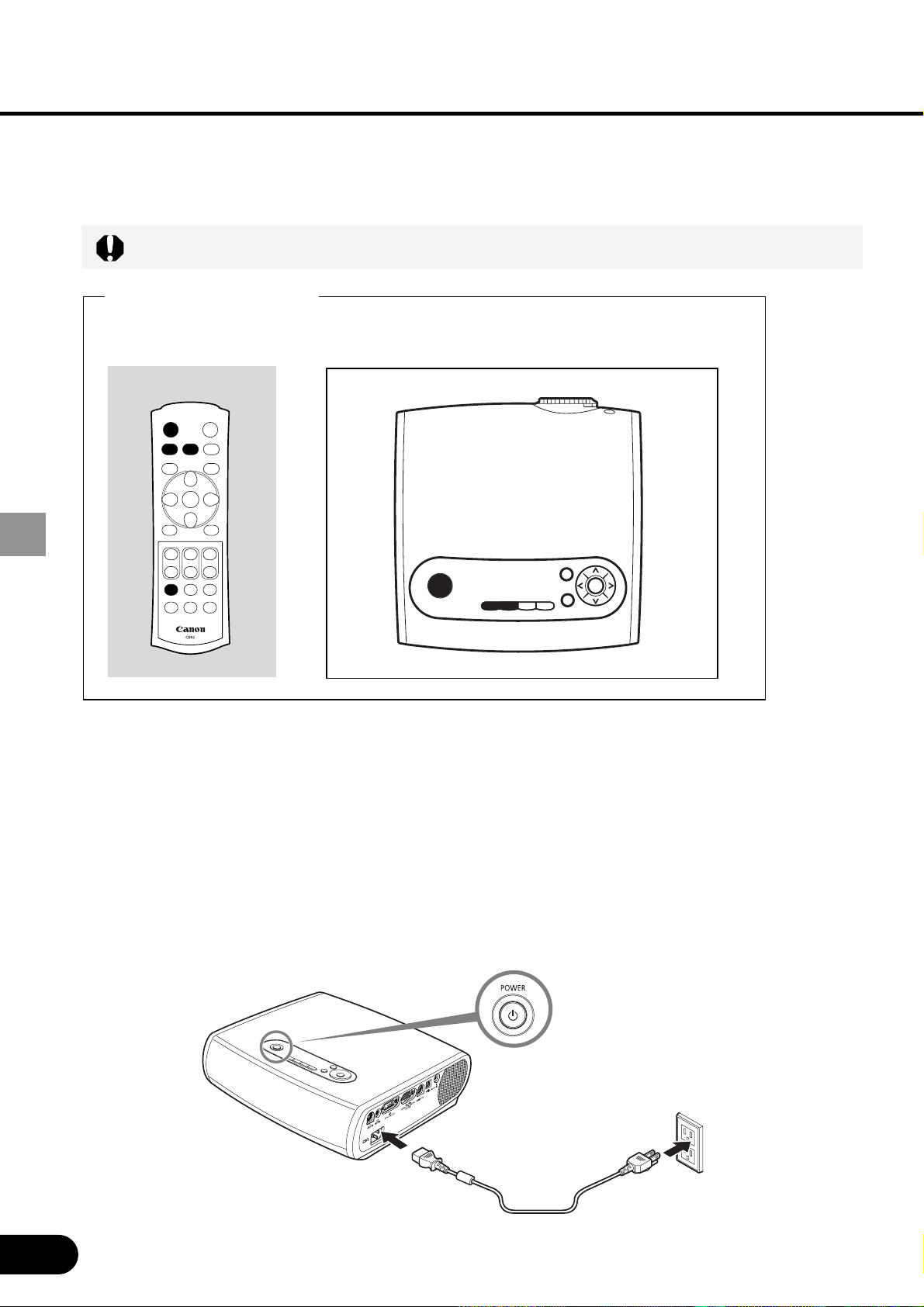
Connecting the Power Cord
Before connecting the power cord, connect the projector to the computer.
Buttons Used Here
Remote control Top control
Connect the power cord and turn on the projector.
Insert the power cord plug in the power cord connection socket.
Be sure to insert the power cord plug as far as it will go.
Insert the power plug.
The [POWER] indicator flashes red. It stays lit when the projector is ready for
power-on operation.
1
2
27
PROJECTING AN IMAGE FROM THE COMPUTER
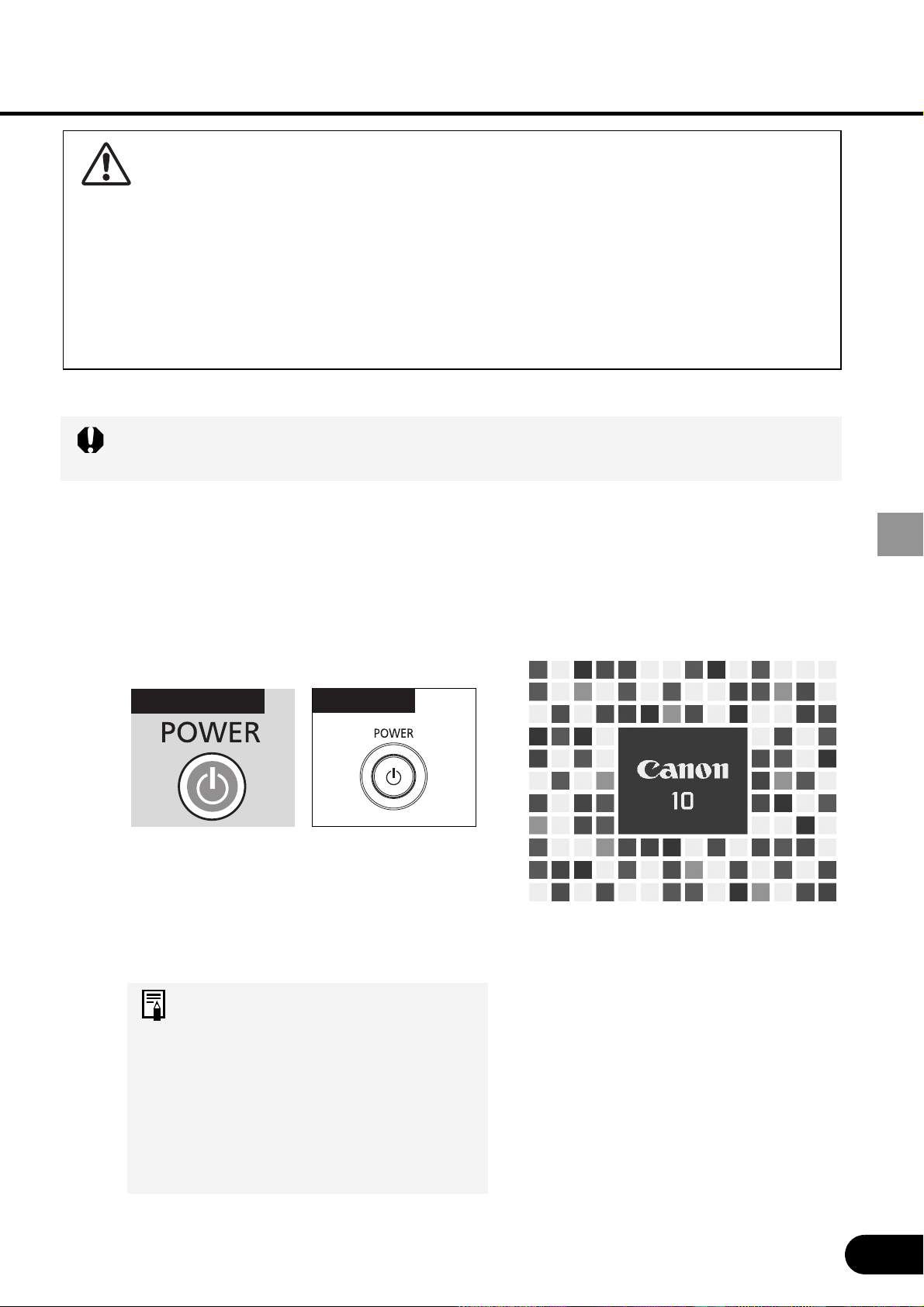
Make sure that the [POWER] indicator
lights red.
Press the [POWER] button.
The [POWER] indicator first blinks green
and then turns lit green.
The Opening window is displayed for
about 20 seconds and the along with the
countdown timer.
To project an image immediately, press
the [OK] button.
• Canceling the Countdown
Function Performed at the Start
( P61)
• Displaying a Unique Logo on the
Opening Screen (P59, 60)
• If a password entry screen
appears, enter the password.
(P71)
1
2
Remote control
Top control
Caution
Connect the ground terminal of the power plug to the ground level in order to
use the projector safely. Otherwise, the operating computer may cause
electromagnetic radiation problems and poor reception by TV and radio.
Unplug the Power Cord When the Projector is Not in Use
The projector constantly consumes about 6W power even when the Power
button is turned off. To ensure safety and power saving, remove the power plug
from the AC outlet when the projector is not used for an extended period of
time.
Turning On the Projector
Once the projector is turned off, it cannot be turned on for about 60 seconds. Wait
until the lamp cooling period ends and the [POWER] indicator lights red.
28
PROJECTING AN IMAGE FROM THE COMPUTER
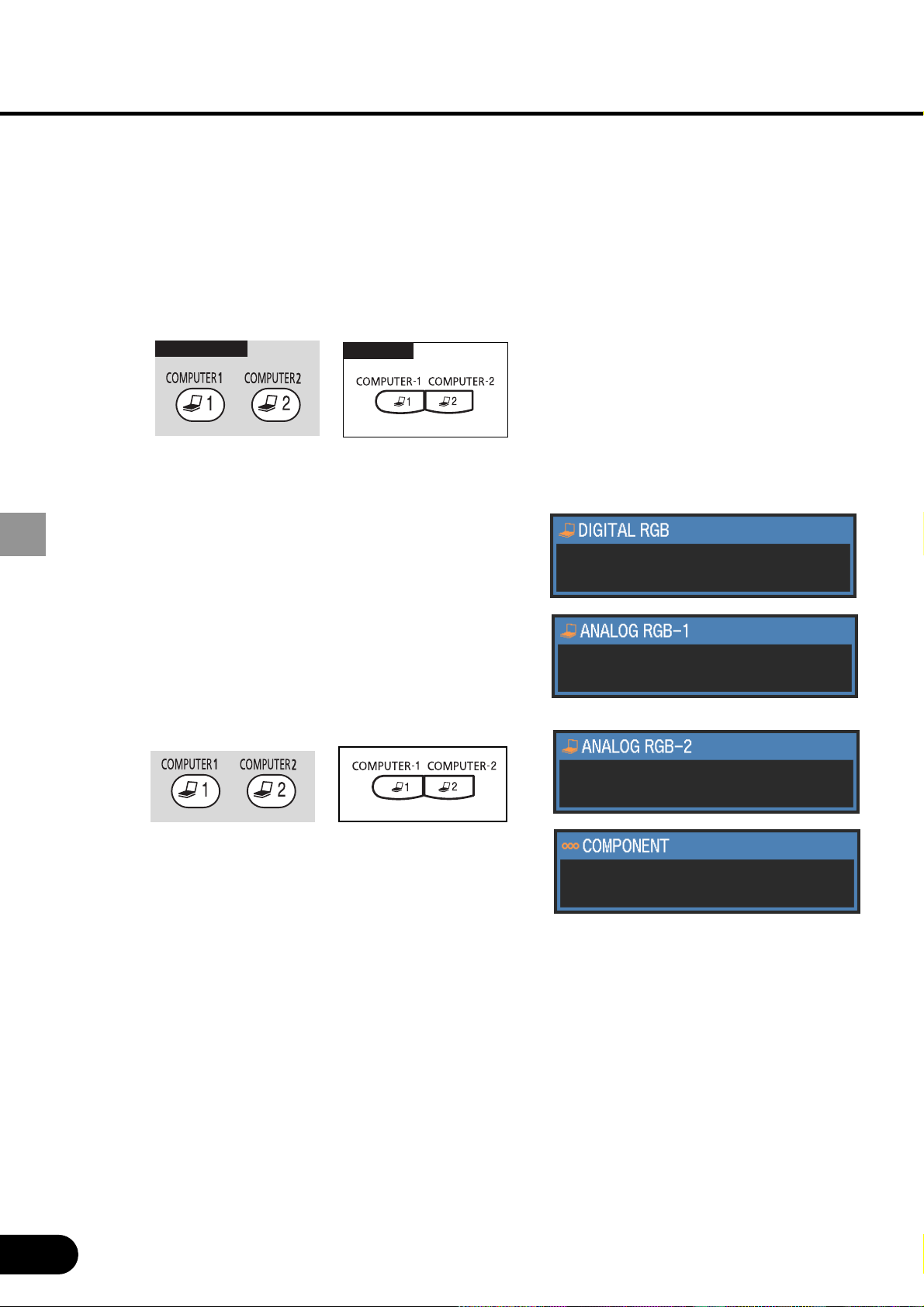
Select a video terminal of the
computer.
To input images from the DVI-I/RGB IN-1
terminal, select the [COMPUTER-1]
button. To input images from the RGB IN-
2/COMPONENT/RGB OUT terminal,
select the [COMPUTER-2] button.
Select a signal type.
If images are not displayed correctly,
press the button mentioned in step 3
repeatedly to select a desired input type.
Pressing the [COMPUTER-1] button
repeatedly allows you to select DIGITAL
RGB and ANALOG RGB-1 alternately.
Pressing the [COMPUTER-2] button
repeatedly allows you to toggle between
ANALOG RGB-2 and COMPONENT.
3
4
Remote control
Top control
Top control
29
PROJECTING AN IMAGE FROM THE COMPUTER
Using the Auto PC Adjustment Function
This projector automatically selects a signal type (VGA, SVGA, XGA, SXGA, SXGA+,
etc.) and makes optimum settings for the total number of dots and tracking depending on
the connected computer (auto PC adjustment). (This function cannot be used when digital
RGB is selected.)
When you switched to the computer mode using the [COMPUTER-1] or [COMPUTER-2]
button, press the [AUTO PC] button. The auto PC adjustment becomes active to display
images correctly.
For some computers, the auto PC adjustment does not work. In this case, you
need to make settings (total dots, tracking, horizontal/vertical positions, horizontal/
vertical pixels, etc.) for the input signal.
• The last used signal types are recorded for the [COMPUTER-1] and
[COMPUTER-2] buttons respectively. When the projector is connected to the
same computer, it can be used with the same settings as before simply by
switching to the computer mode.
• For the settings for the input signal, refer to P52 to 57.
30
PROJECTING AN IMAGE FROM THE COMPUTER
Adjusting the Image
Buttons Used Here
Remote control Top control
Adjusting the Image Size
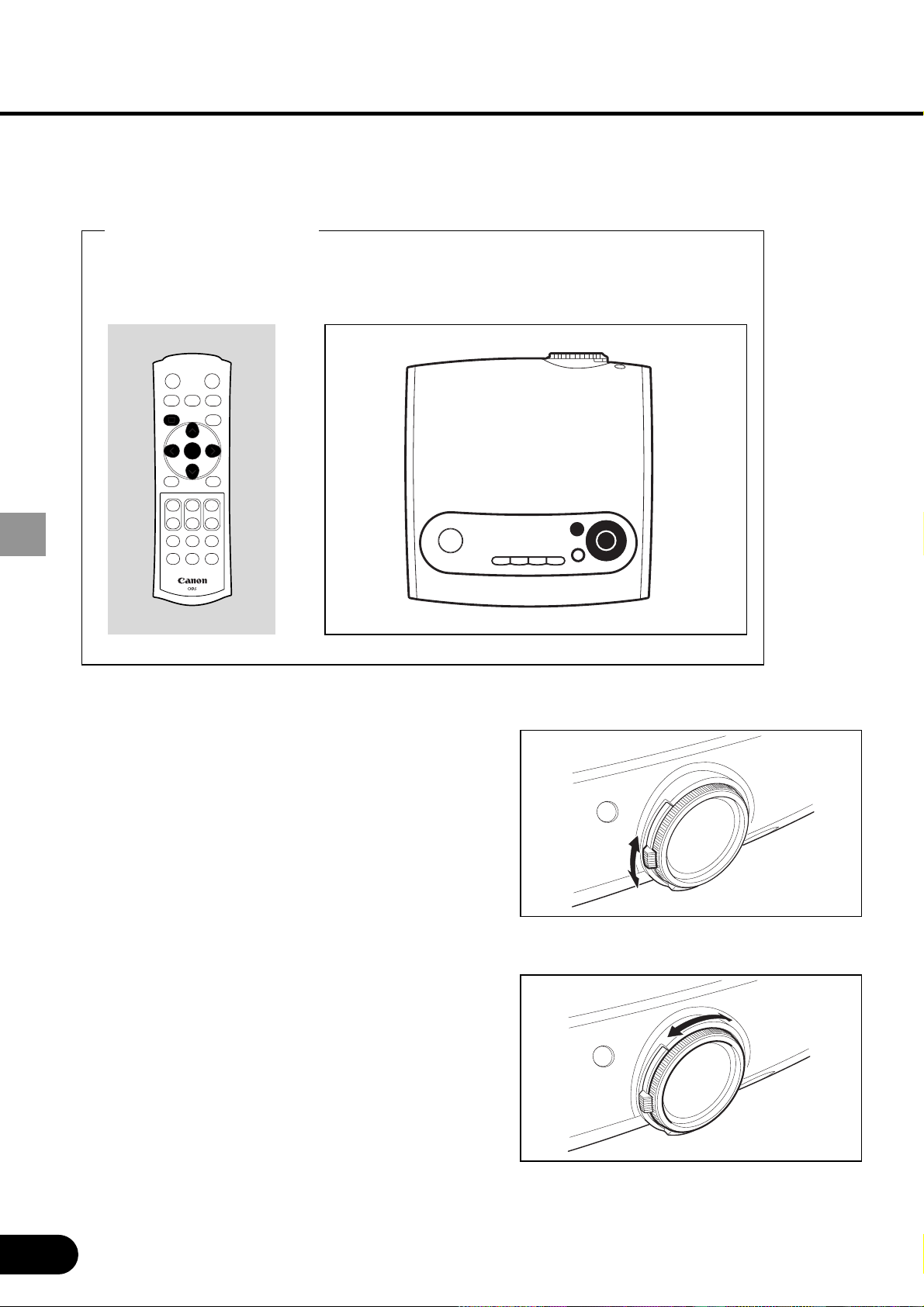
Move the Zoom lever to adjust the image size.
• If your desired image size is too large or
small to adjust with the Zoom lever, change
the projector installation position.
Adjusting the Focus
Turn the Focus ring to the position where the
projected image looks sharpest.
• If the projection distance is outside the
range from about 1.2 m (3.9') to 9.1 m
(29.9'), focus adjustment may be
impossible. Adjust the projection distance.
31
PROJECTING AN IMAGE FROM THE COMPUTER
Adjusting Keystone Distortion
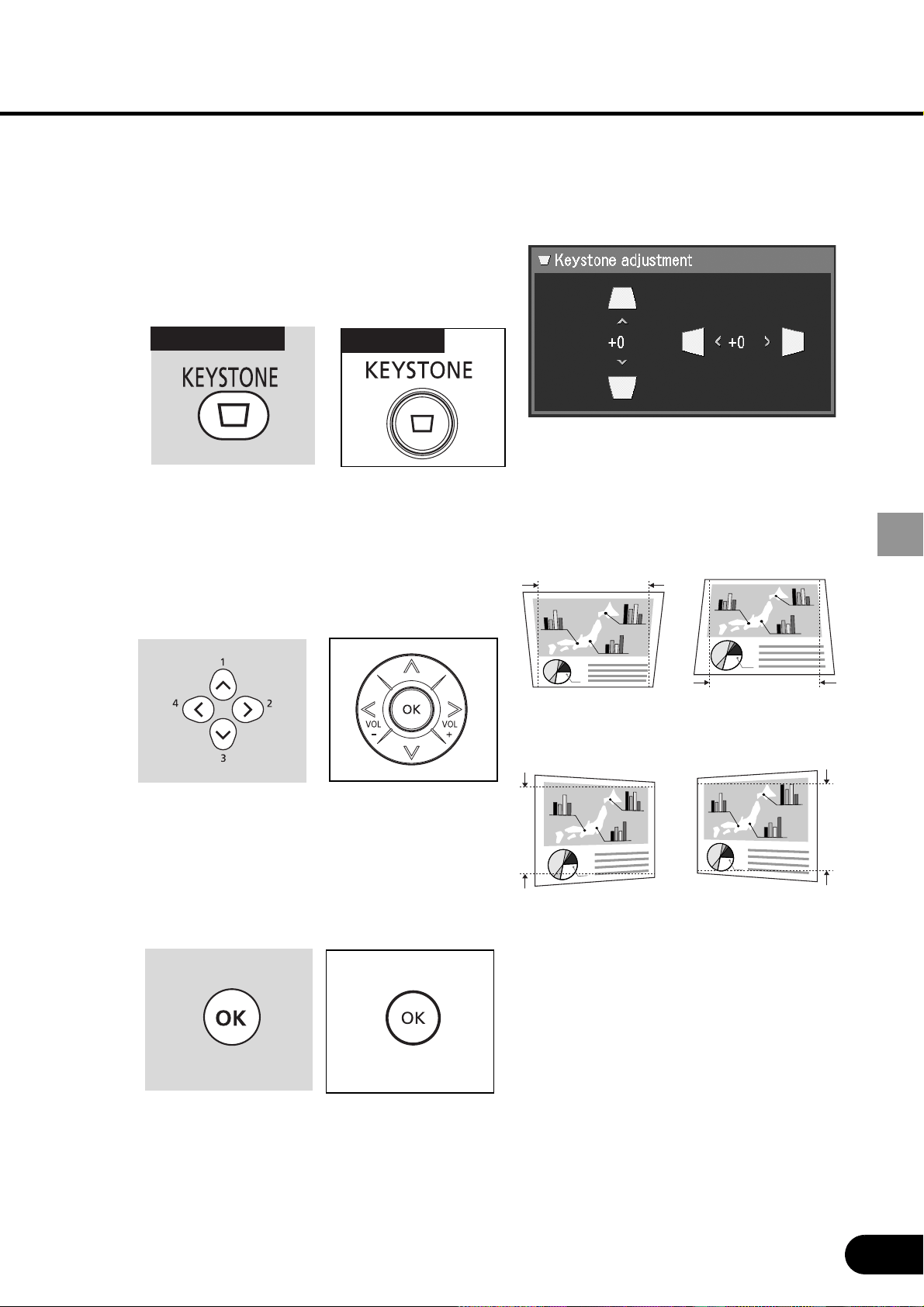
If a projected picture has keystone distortion, correct it by using the keystone adjustment
feature.
1
2
Select Keystone Adjustment.
“Keystone adjustment” appears on the
screen.
Correct keystone distortion.
Keystone distortion must be corrected
while “Keystone adjustment” is displayed
on the screen. (“Keystone adjustment”
disappears 10 seconds later.)
Press the [OK] button.
To reduce the length
of the upper edge,
press [^].
To reduce the length
of the left edge, press
[<].
To reduce the length
of the lower edge,
press [v].
To reduce the length
of the right edge,
press [>].
3
Remote control
Top control
32
PROJECTING AN IMAGE FROM THE COMPUTER
• The result of keystone adjustment is memorized. If the projector installation
position is the same as before, keystone adjustment is not required.
• When Keystone Adjustment is selected, signals are processed digitally. The
image may look different from the original one.
• The aspect ratio of the image may change when keystone is adjusted.
• Keystone can be adjusted vertically and horizontally within the range of +/-20
degrees. The amount of adjustment varies depending on the combination of the
amount of optical zooming, input signal type, and adjustment direction (vertical
or horizontal).
• If the keystone distortion is too large to adjust, move the projector installation
position.
• To cancel the keystone adjustment, press the [KEYSTONE] button again to
display [Keystone Reset]. Then, press the [OK] button.
33
PROJECTING AN IMAGE FROM THE COMPUTER
Selecting a Screen Mode
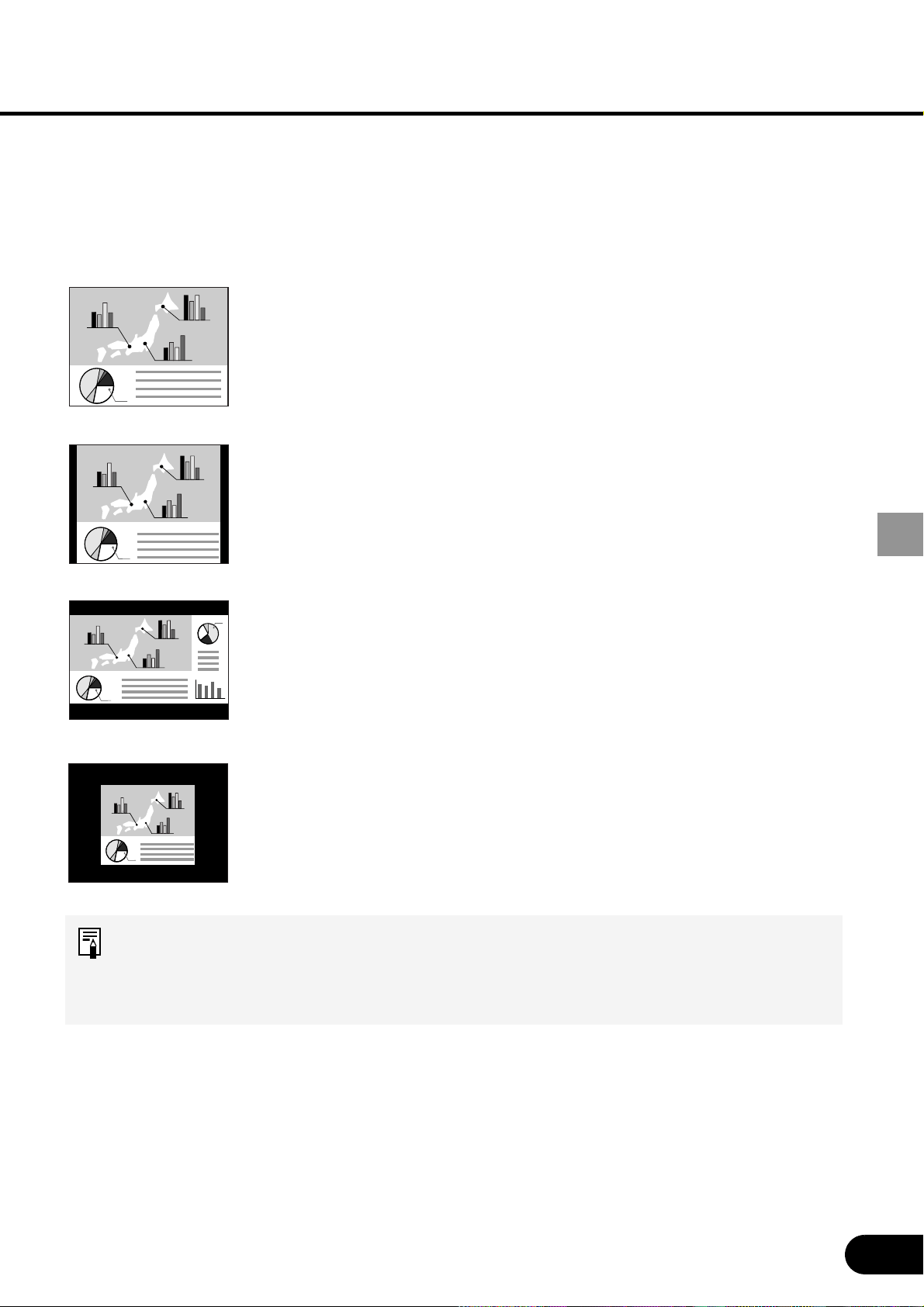
You can select one of four screen modes depending on the display resolution of your
computer.
• A screen mode can be selected by selecting “Screen settings” from the menu. (P57)
Full screen
Normal
Wide Screen
True size
• If the display resolution of the computer is higher than 1400 by 1050 dots, select
a lower resolution before starting projection.
• The upper, lower, left, and/or right portions of a projected image may be missing
depending on the selected display mode.
Select this to project an image displayed on the computer screen at
a 4:3 aspect ratio (W:H) (SXGA+ [1400 by 1050 dots] or XGA [1024
by 768 dots]).
The image displayed on the computer screen at a 5:4 (W:H) aspect
ratio is projected with it compressed vertically or horizontally.
Select this to project an image displayed on the computer screen at
a 5:4 (W:H) aspect ratio (SXGA) or on a wide screen of Macintosh.
Since the image is projected with it fitted to either the width or length
of the computer screen, the top and bottom portions or the leftmost
and rightmost portions of the image are missing.
Select this to project an image displayed on the computer screen at
a 16:9 (W:H) aspect ratio.
Since the image is projected with it fitted to the width of the
computer screen, the top and bottom portions of the image are
missing.
Select this if you want to project an image in its original size.
A clear image can be obtained because of no image processing.
This mode cannot be selected when the display resolution of the
computer is larger than 1400 by 1050 pixels.
34
PROJECTING AN IMAGE FROM THE COMPUTER
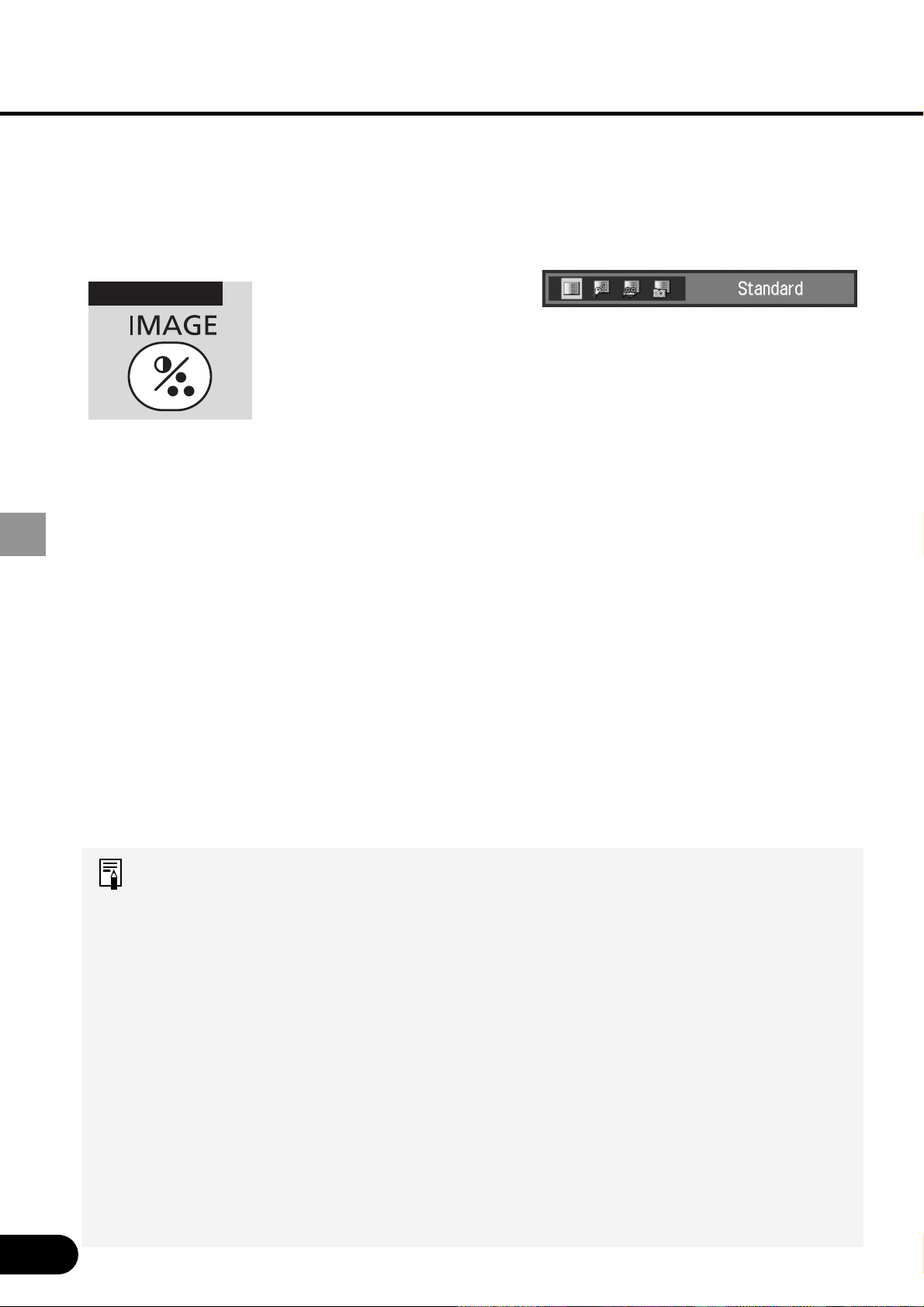
Selecting an Image Mode (Quality)
You can select one of four image modes. You can adjust the image quality (brightness,
contrast, sharpness, gamma, color) as you like.
Press the [IMAGE] button.
“IMAGE” appears on the screen,
allowing you to select a desired image
mode by pressing the [IMAGE] button
repeatedly.
[Standard] Select this to project an image with a similar quality to that of the
original image. An image is projected with a high regard for
reproduction of white.
[Presentation] Select this to project an image with a similar quality to that of the
original image. A bright and high-contract image is projected.
[Cinema] Select this to project a moving picture. A picture is projected with a
high regard for color tone reproduction.
[sRGB] Select this when you want to project an image from a sRGB-
compatible digital camera.
An image is projected in the display mode conforming to the sRGB
Standard.
• The quality of the image projected in each image mode can be adjusted as
follows. For the adjustment method, refer to "Image Adj. Menu." (P62)
· Brightness Adjust this when the image is too bright or dark.
· Contrast Adjust this to decrease or increase contrast of the entire
image.
· Sharpness Adjust this to soften or sharpen an image.
· Gamma/Dynamic gamma
Adjust this to obtain better balance of contrast.
· Screen color correction/Advanced color adjustment
Adjust this when color tones are different from those of the
original image.
• The results of adjustments made by the user are saved for each of six types of
input signals. Once they are saved, images can be projected with the same
settings.
• An image mode can be selected by selecting “Image adj.” from the menu. (P49,
62)
Remote control
1
35
PROJECTING AN IMAGE FROM THE COMPUTER
Turning Off the Projector
• Turning off the projector again with the lamp in an unstable state shortly after
turning on the projector may shorten the lamp life. Wait at least 5 minutes before
turning off the projector again.
• Remove the AC power cord after the [POWER] indicator lights red after power-
off. Removing the AC power cord immediately can damage the lamp and
circuits.
• Using the projector for more than 24 hours continuously may shorten the life of
the lamp and internal optical components. Turn off the projector at least once in
24 hours and give it a rest for about one hour.
When the power is turned off, cooling of the lamp starts. Therefore, the projector
cannot be turned on again for about 90 seconds.
1
2
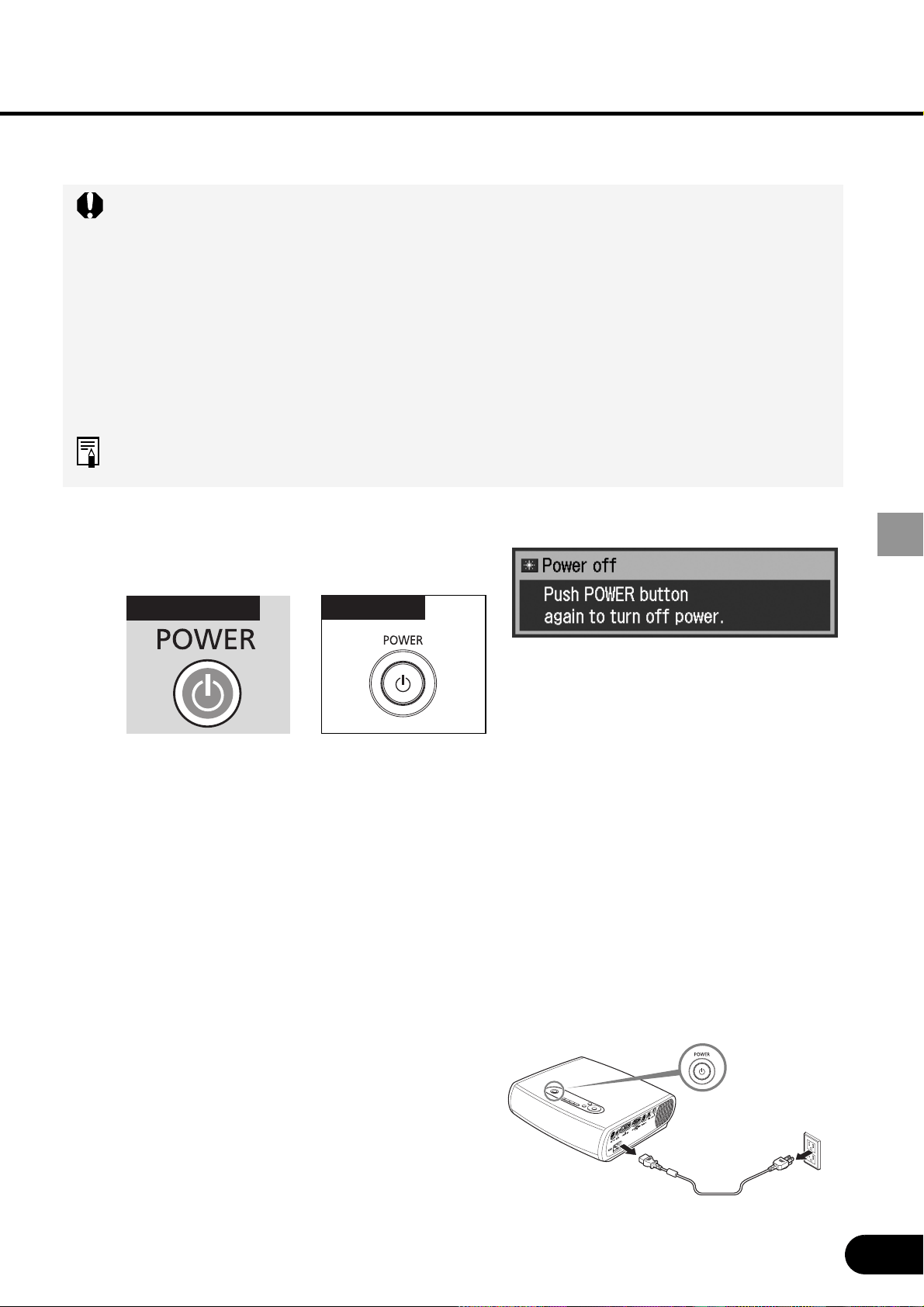
Press the [POWER] button.
A confirmation message appears on the
screen.
To continue projection, wait until the
confirmation message disappears (about
4 seconds) or press a button other than
the [POWER] button.
Press the [POWER] button again while
the confirmation message is
displayed.
The POWER indicator goes out and
starts flashing red, starting to cool the
lamp.
When the [POWER] indicator lights red in
90 seconds, remove the power cord from
the AC outlet.
3
Remote control
Top control
36
PROJECTING AN IMAGE FROM THE COMPUTER
Setting up the Power Management
Function
If the projector receives no signal input within 30 seconds, a countdown timer appears.
The lamp will turn off five minutes later and the projector will enter the power management
mode selected in advance.
You can select one of the following power management modes from the menu. (P70)
Ready mode
Select this mode to start projection immediately.
When the projector enters this mode, the lamp is turned off and its cooling starts. When
the lamp has been cooled down, the [POWER] indicator starts flashing red and green to
enter the ready status. Projection will restart if the input signal is reconnected or any
button on the top control or remote control is pressed.
Shutdown mode
Select this mode to turn off the projector automatically.
When the projector enters this mode, the lamp is turned off and its cooling starts. When
the lamp has been cooled down, the [POWER] indicator stops flashing red and stays lit
and the power is turned off.
When the lamp is being cooled in a power management mode (for 90 seconds),
the projector is inoperative.
The power management function can be disabled (OFF).
37
USEFUL FUNCTIONS AVAILABLE DURING PROJECTION
Blacking Out an Image
Temporarily
[NO SHOW]
Useful when:
• You finished the presentation.
• You want to divert attendees’
attention from the screen.
Black out the image temporarily.
Blacking out an Image
The screen changes to black or blue.
Showing the Image Again
• A unique logo can be captured.
(P59)
• The company logo can be shown
while the image is blacked out.
(P60)
Remote control
Let’s take a look at the useful functions
available when you make a presentation
with a computer connected to the
projector.
Blacking Out an Image Temporarily
[NO SHOW] ...................................... P37
Making an Image Larger/Smaller
[D.ZOOM] .......................................... P38
Showing the Elapsed Time
[P-TIMER] .......................................... P39
Pointing to a Position with a Spotlight
[SPOT] ............................................... P39
Freezing a Image
[FREEZE]........................................... P40
Muting the Sound/Adjusting the
Volume [MUTE/VOL]........................ P40
Operating the Mouse Using the
Remote Control ................................ P41
USEFUL FUNCTIONS AVAILABLE
DURING PROJECTION
38
USEFUL FUNCTIONS AVAILABLE DURING PROJECTION
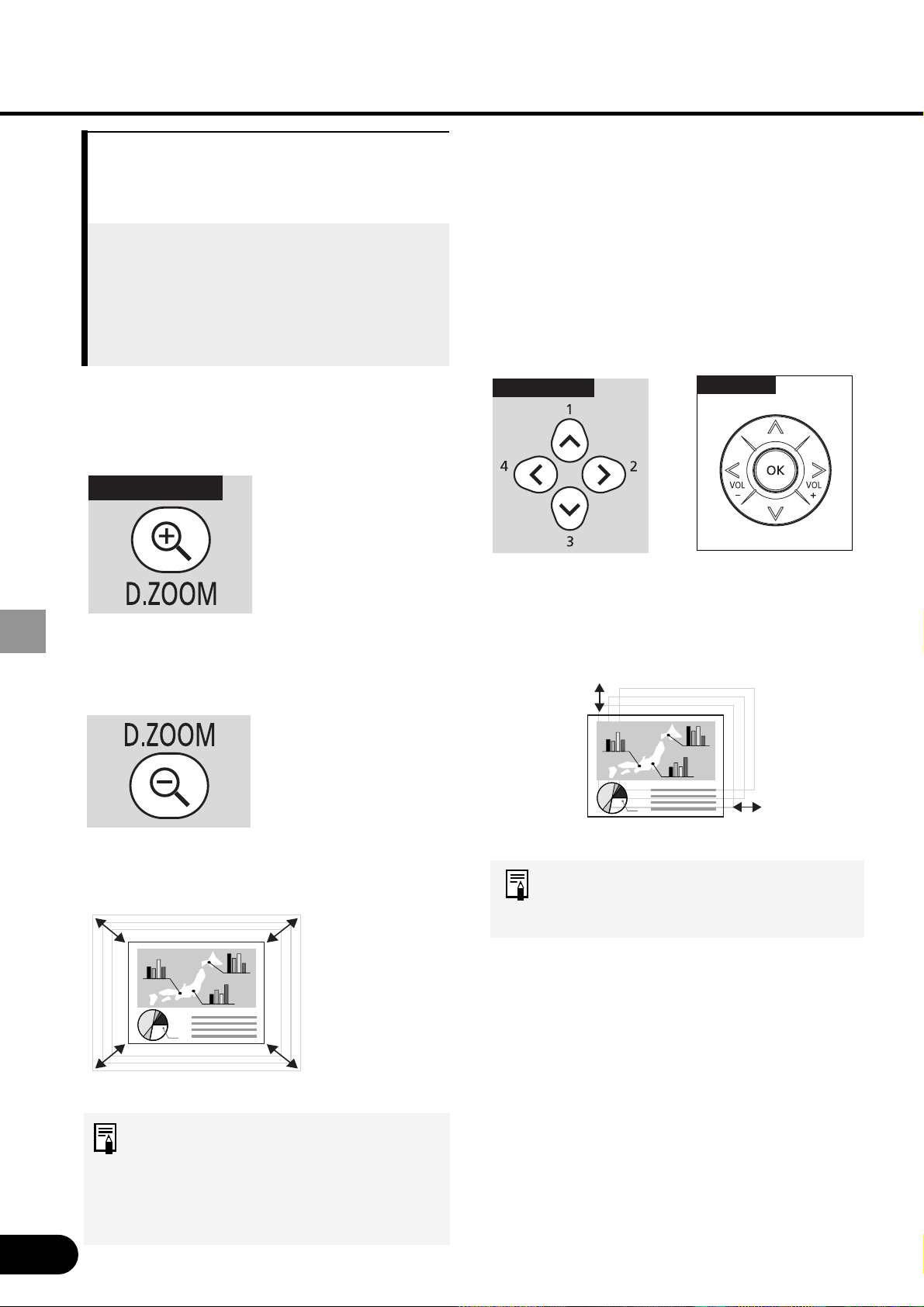
Moving the Image to the Desired
Position
If the enlarged image is larger than the
screen, you can move it so that the
desired portion of the image is displayed
inside the screen.
Move the image vertically and horizontally
to display the desired portion on the
screen.
• The zoom ratio is 1x to 12x.
• The enlarged image can also be
frozen.
Making an Image Larger/
Smaller
[D.ZOOM]
Useful when:
• Making a small graph larger during
presentation.
• Moving unnecessary information off
the screen to focus on the current
subject.
Make the projected image larger/smaller.
Making the Image Larger
Press this button repeatedly until the
image becomes the desired size.
Making the Image Smaller
Press this button repeatedly until the
image becomes the desired size.
• Pressing the [D.ZOOM] button
displays the magnification on the
screen.
• Pressing the [OK] button cancels
the digital zoom function.
Remote control
Remote control
Top control
39
USEFUL FUNCTIONS AVAILABLE DURING PROJECTION
Indicating a Position with a
Spotlight
[SPOT]
Useful when:
• You point to a portion of an image
that should draw attendees’
attention.
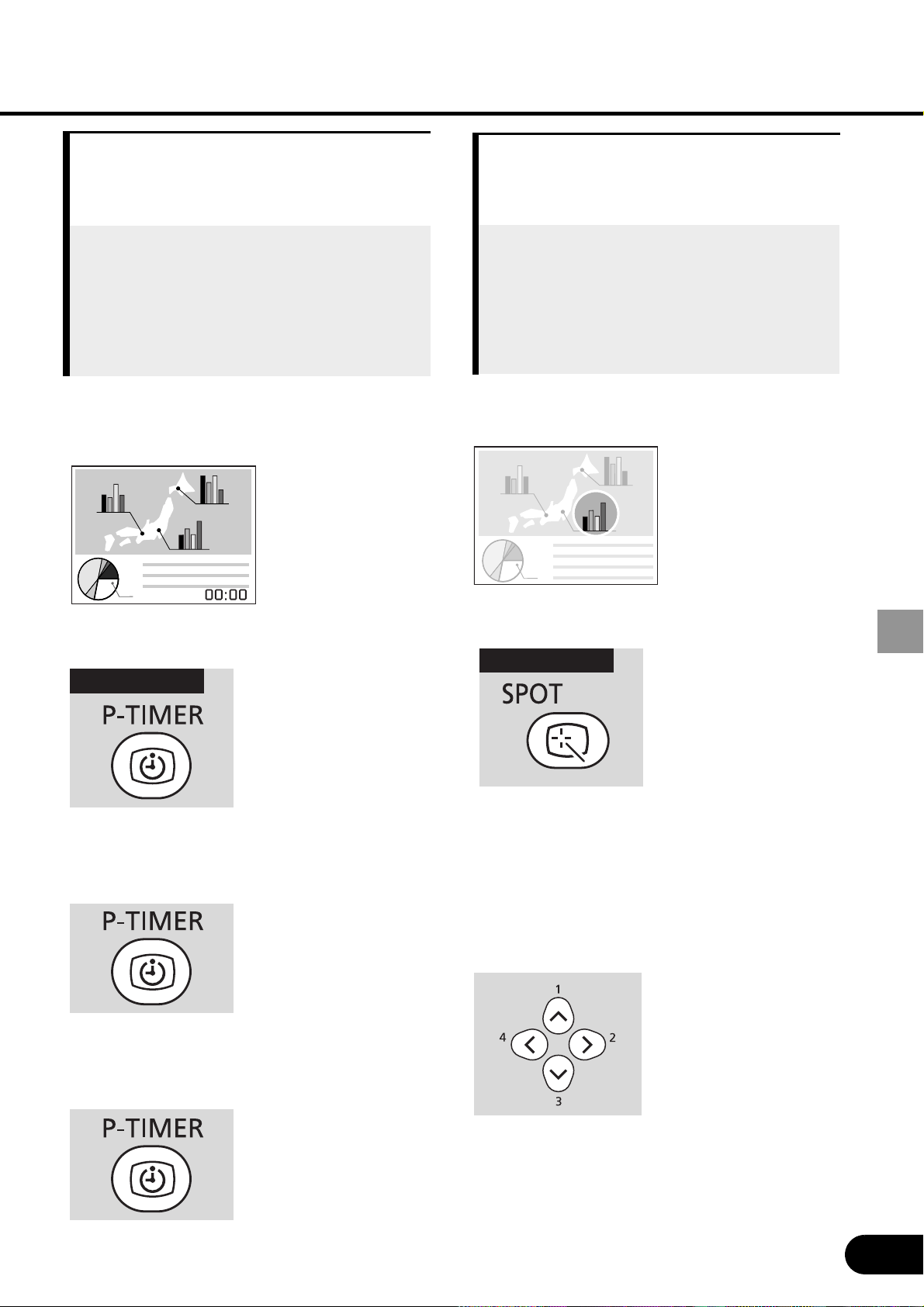
Point to a desired portion of the projected
image with a pointer.
Showing the Pointer
A pointer appears at the center of the screen
and the image becomes dark excepting the
pointer.
Multiple types of pointers are supported and
you can select a desired pointer by pressing
the [SPOT] button repeatedly.
Moving the Pointer
Move the pointer to a desired position.
To cancel the SPOT function, press the [OK]
button.
The normal screen appears.
Remote control
Showing the Elapsed Time
[P-TIMER]
Useful when:
• You want to manage the proceedings
of the presentation.
The timer indicating the elapsed time (00:00
to 59:59) is shown in the lower right corner
just like the stopwatch.
Starting the Timer
Pressing this button once shows the timer
and starts the timer.
Stopping the Timer
Pressing this button once again stops the
timer.
Canceling the P-TIMER function
When you pressing this button once again,
the timer disappears.
Remote control
40
USEFUL FUNCTIONS AVAILABLE DURING PROJECTION
Freezing the Picture
[FREEZE]
Useful when:
• You want to perform a computer
operation which is irrelevant to the
proceedings of the presentation.
• You want to stop a moving image.
Freeze the moving image.
Freezing an Image
“FREEZE” icon is shown on the screen.
Canceling the FREEZE function
To cancel the FREEZE function, press this
button again.
The frozen image can be expanded
or compressed.
Remote control
Muting the Sound/
Adjusting the Volume
[MUTE]
Useful when:
• You want to mute the sound from the
projector immediately.
• You want to adjust the volume level
of the projector speaker.
Mute the sound temporarily or adjust the
volume level.
Muting the Sound
“MUTE” icon is shown on the screen.
Canceling the MUTE function
To cancel the MUTE function, press this
button again.
Pressing the [VOL +/-] button also cancels
the MUTE function.
Adjusting the Volume
Pressing the [+]/[-] button shows a Volume bar
appears on the screen. (If the volume is not
adjusted with the [+]/[-] button in about 4
seconds, the Volume bar disappears.)
The MUTE function can be used from
both the remote control and top control.
Remote control
Top control

41
USEFUL FUNCTIONS AVAILABLE DURING PROJECTION
Operating the Mouse Using
the Remote Control
Useful when:
• You want to use the supplied remote
control as the wireless mouse of the
personal computer.
Connecting the USB Cable
Make sure that both the computer and
projector are turned off. Connect the
supplied USB cable between the USB
terminal on the computer and the USB
terminal on the projector.
This function is available on
Windows XP, Windows 2000,
Windows Me, or Mac OS 9.2 and
later.
C
omputer
Moving the Cursor
You can move the mouse cursor vertically
and horizontally.
Using the Left Button of the Mouse
You can perform the click, double-click,
drag operations of the mouse.
Using the Right Button of the Mouse
Remote control
42
PROJECTING AN IMAGE FROM AV EQUIPMENT
PROJECTING AN IMAGE
FROM AV EQUIPMENT
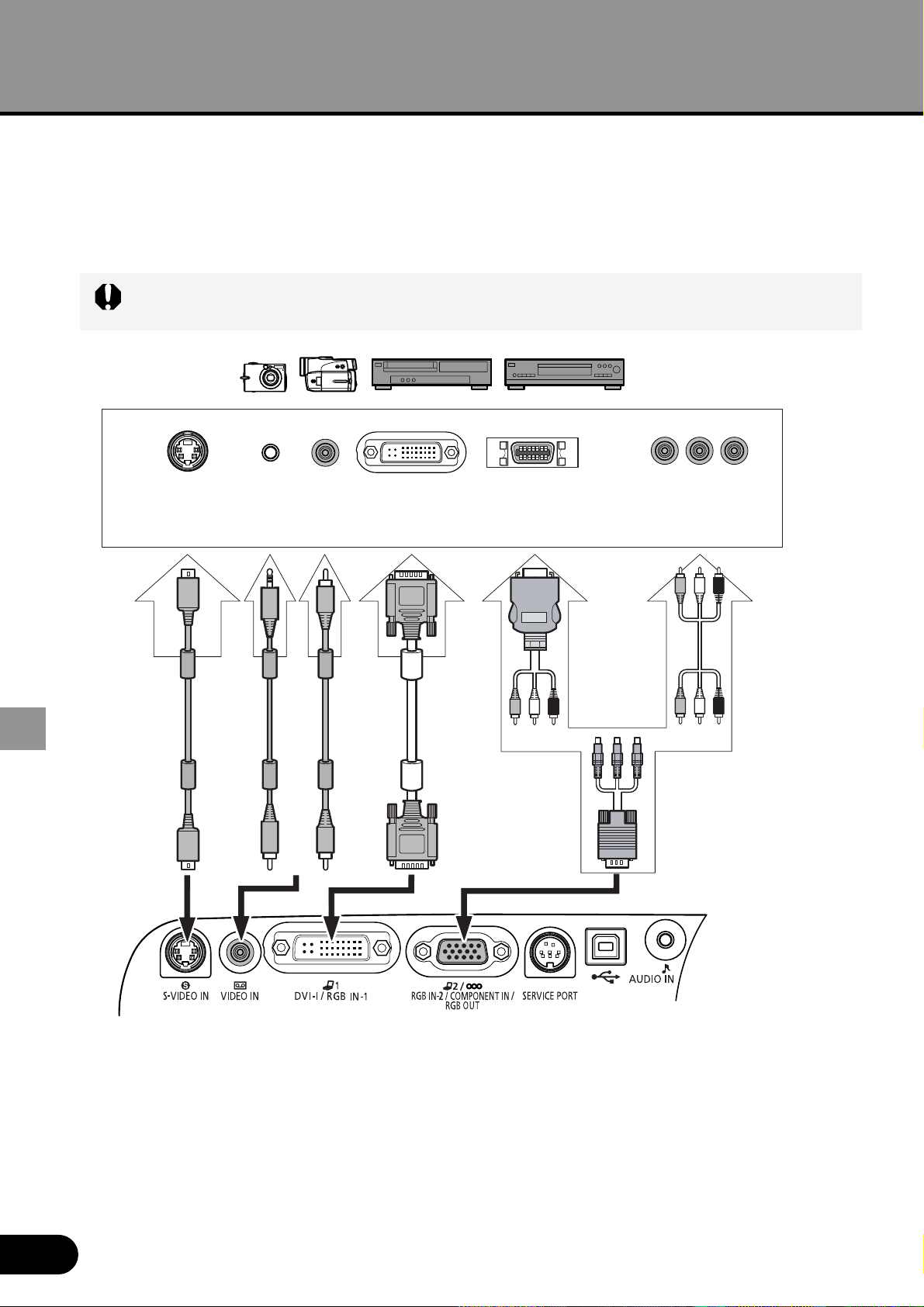
Connecting the Projector to AV Equipment
Connect the projector and AV equipment.
Connecting to Video Terminals
• Before connecting cables, turn off both the projector and computer.
• SCART terminal is not supported.
To analog video output
(AV input
terminal)
To digital
video output
To component video output
S terminal
video cable
Video
cable
Component
cable (D ter-
minal/RCA x
3)
(S-VIDEO
terminal)
Supplied component
cable (RCA/Mini D-sub
15-pin)
AV
cable
(D terminal)
(DVI terminal)
(VIDEO
terminal)
(RCA terminal)
DVI
cable
*A component cable
available on the
market is required
to connect the
projector to AV
equipment. (See
memo.)
Component
cable (RCA x 3)
About the Component Cable
The projector cannot be connected to AV equipment using only the supplied component
cable (RCA/Mini D-sub 15-pin). Purchase either of the following cables according to the
type of the terminal on the AV equipment:
• RCA terminal: RCA x 3/RCA x 3
• D-terminal: D-terminal/ RCA x 3
43
PROJECTING AN IMAGE FROM AV EQUIPMENT
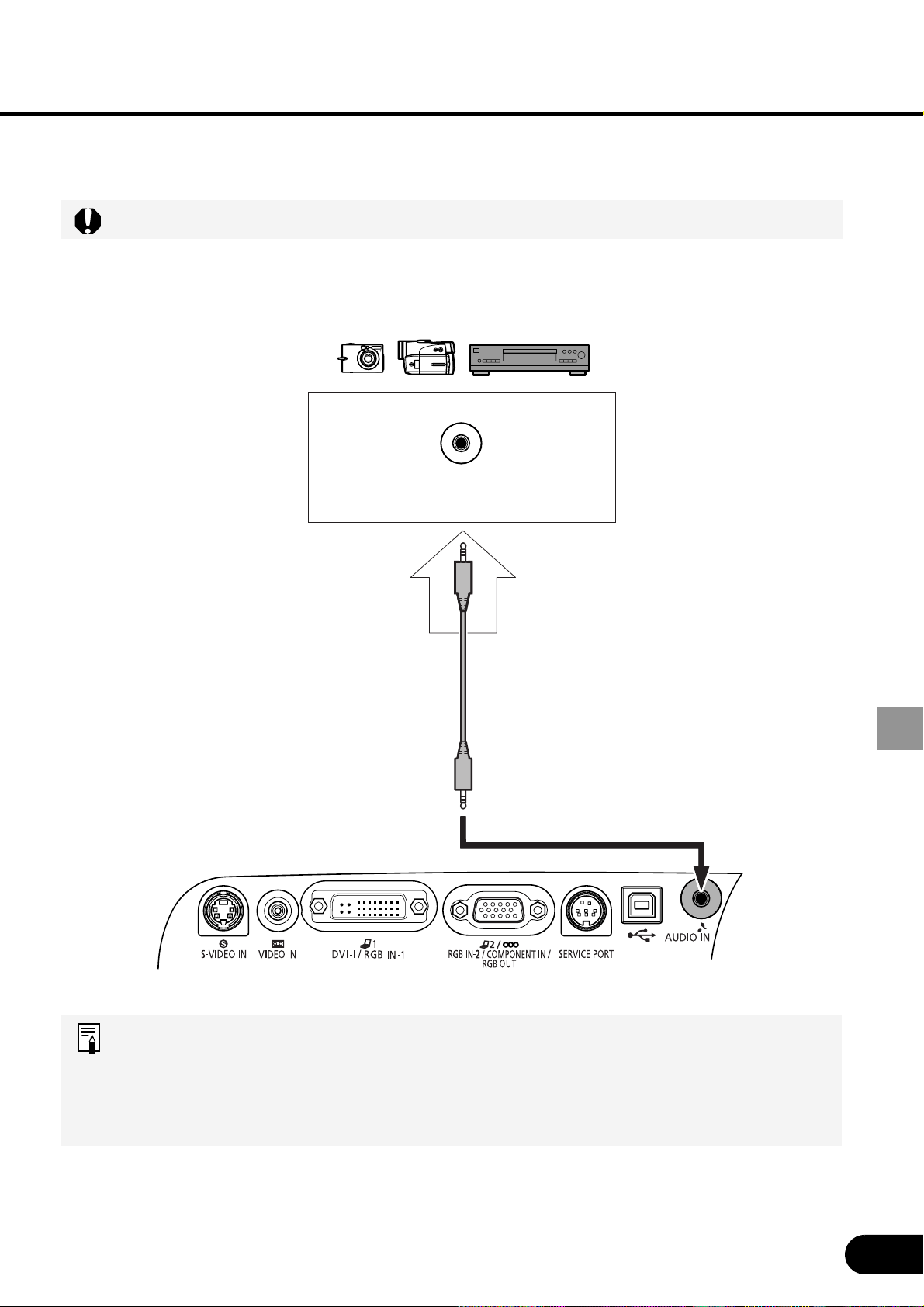
Connecting to Audio Terminals
Connect audio cables as required.
Before connecting cables, turn off both the projector and computer.
• Use an audio cable without a built-in resistor. Using an audio cable with a built-in
resistor turns down the sound.
• The built-in speaker is monaural.
• The speaker issues the sound from the equipment to which an audio cable is
connected.
To AUDIO OUT
Connect with an audio cable
(with stereo mini jacks).
44
PROJECTING AN IMAGE FROM AV EQUIPMENT
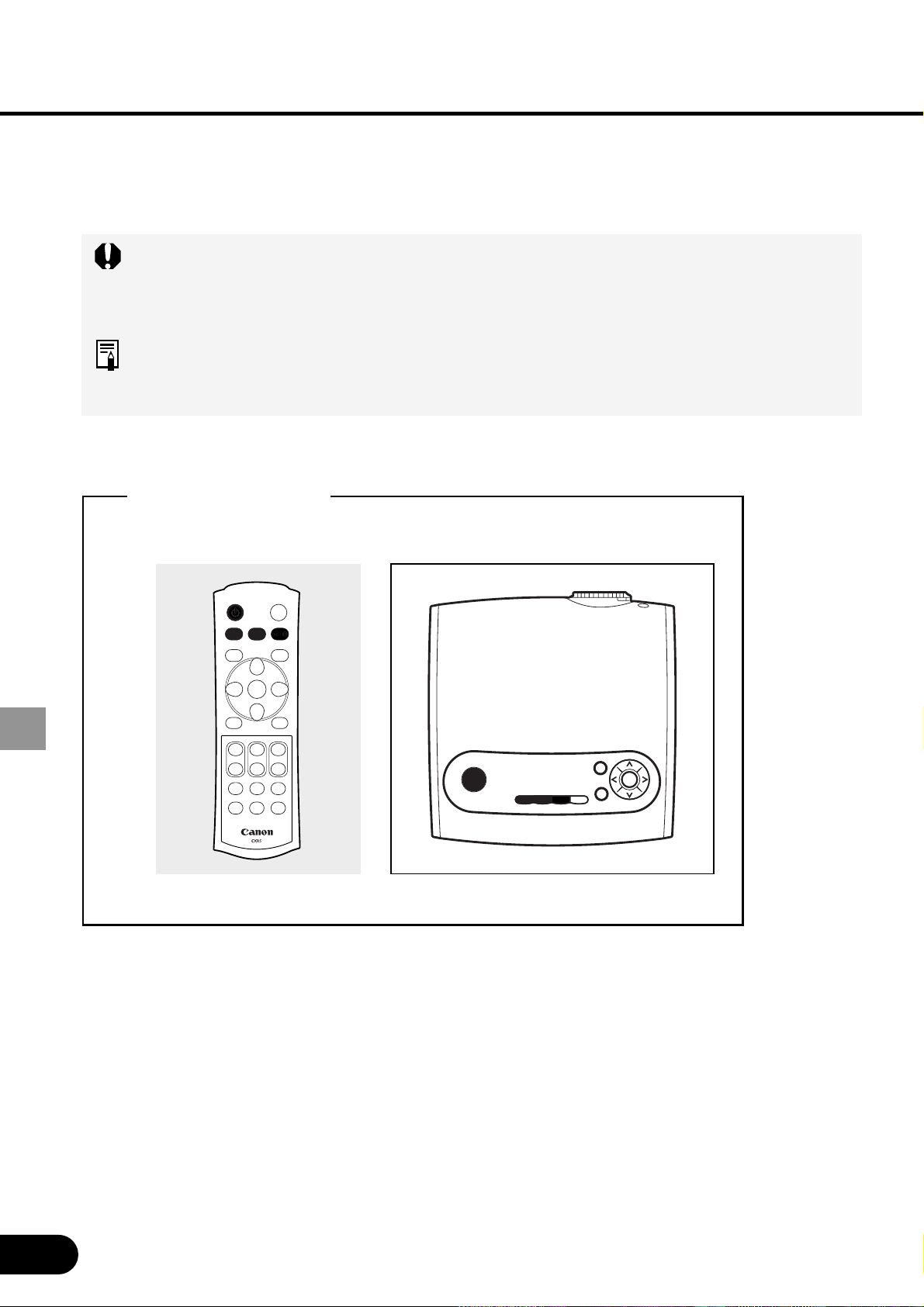
Remote control
Top c ont rol
Starting Projection
Connect the power cord and turn on the projector.
• Before connecting the power cord, connect the projector to the AV equipment.
• Once the projector is turned off, it cannot be turned on for about 90 seconds.
Wait until the lamp cooling period ends and the [POWER] indicator lights red.
The projection method is basically the same as that used when the projector is
connected to a computer. (P23) Lets take a look at only the topics specific to AV
equipment.
Buttons Used Here
45
PROJECTING AN IMAGE FROM AV EQUIPMENT
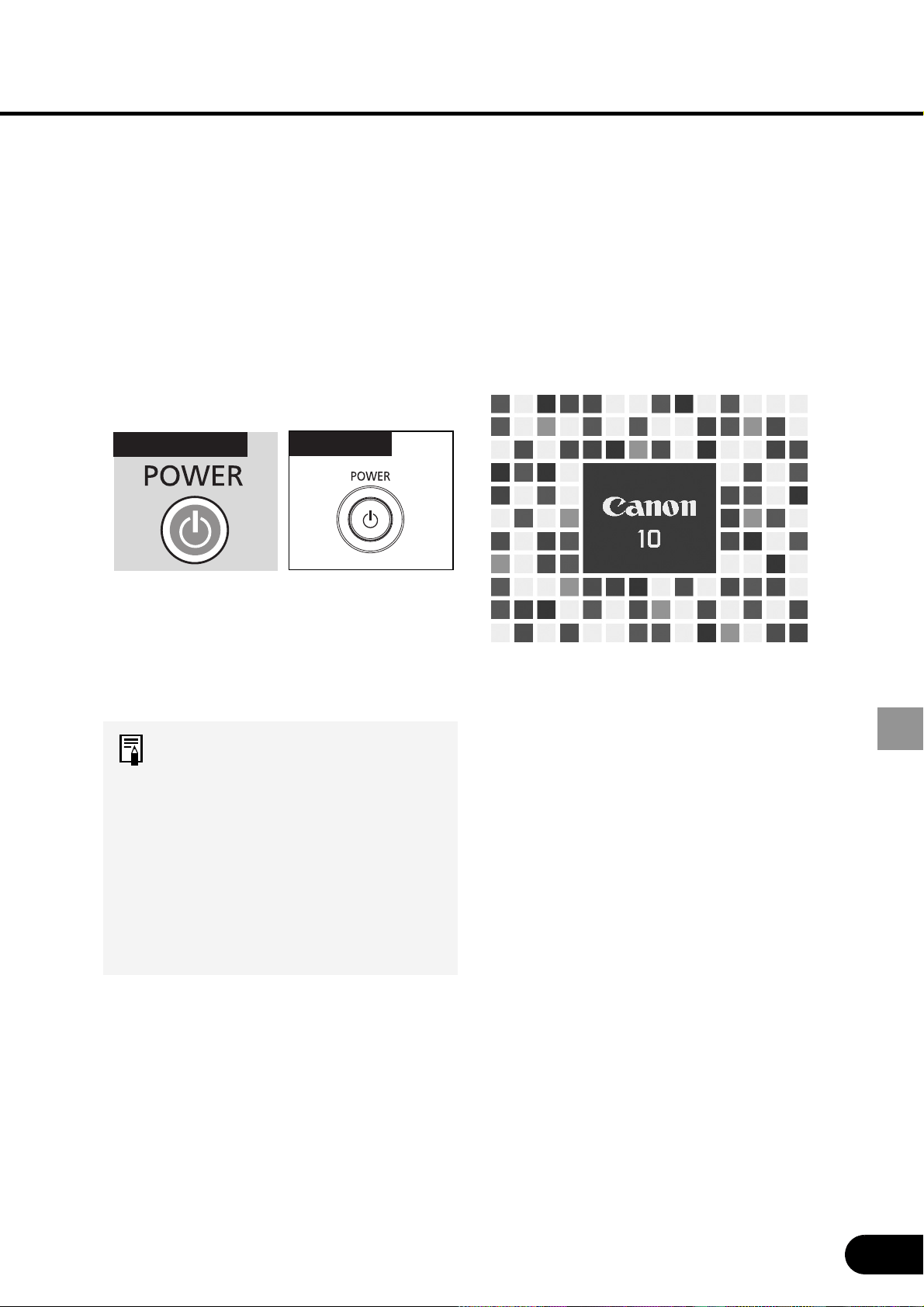
Connect the power cord.
Make sure that the [POWER]
indicator lights red.
Press the [POWER] button.
The [POWER] indicator first blinks
green and then turns lit green.
The Opening window is displayed for
about 20 seconds along with the
countdown timer.
• Canceling the Countdown
Function Performed at the Start
(61)
• Displaying a Unique Logo on
the Opening Screen (59, 60)
• If a password entry screen
appears, enter the password.
(71)
• To project an image immedi-
ately, press the [OK] button.
Remote control
Top control
1
2
3
46
PROJECTING AN IMAGE FROM AV EQUIPMENT
Select an AV terminal.
To input images from the DVI-I/RGB IN-
1 terminal, select the [COMPUTER-1]
button.
To input images from the RGB IN-2/
COMPONENT/RGB OUT terminal,
select the [COMPUTER-2] button.
To input image from the S-VIDEO IN
terminal or VIDEO IN terminal, press
the [VIDEO/S] button.
Top control
Remote control
4
47
PROJECTING AN IMAGE FROM AV EQUIPMENT
Select a signal type.
If images are not displayed correctly,
press the button mentioned in step 4
repeatedly to select a desired input
type.
Pressing the [COMPUTER-1] button
repeatedly allows you to select DIGITAL
RGB and ANALOG RGB-1 alternately.
Pressing the [COMPUTER-2] button
repeatedly allows you to toggle between
ANALOG RGB-2 and COMPONENT.
Pressing the [VIDEO/S] button repeat-
edly allows you to toggle between
VIDEO and S-VIDEO.
• This projector cannot project
digital contents copy-protected
by the HDCP technology.
• For the input signal selection
method, refer to 56 and 57.
Play the AV equipment.
The image from the AV equipment
appears.
Top control
Remote control
5
6
48
PROJECTING AN IMAGE FROM AV EQUIPMENT
Adjusting the Image
The image adjustment method is the same as that used when the projector is connected
to a computer. Lets take a look at only the topics specific to AV equipment.
For other image adjustment methods, see P30.
Selecting a Screen Mode
You can select one of three screen modes depending on your AV equipment,
specifications of playback software, etc.
• A screen mode can be selected by selecting “Screen settings” from the menu. (58)
• The upper, lower, left, and/or right portions of a projected image may be missing
depending on the selected display mode
• When DIGITAL RGB or ANALOG RGB-1 is selected as the input signal type, the
display mode is the same as that used when the projector is connected to the
computer. (P33)
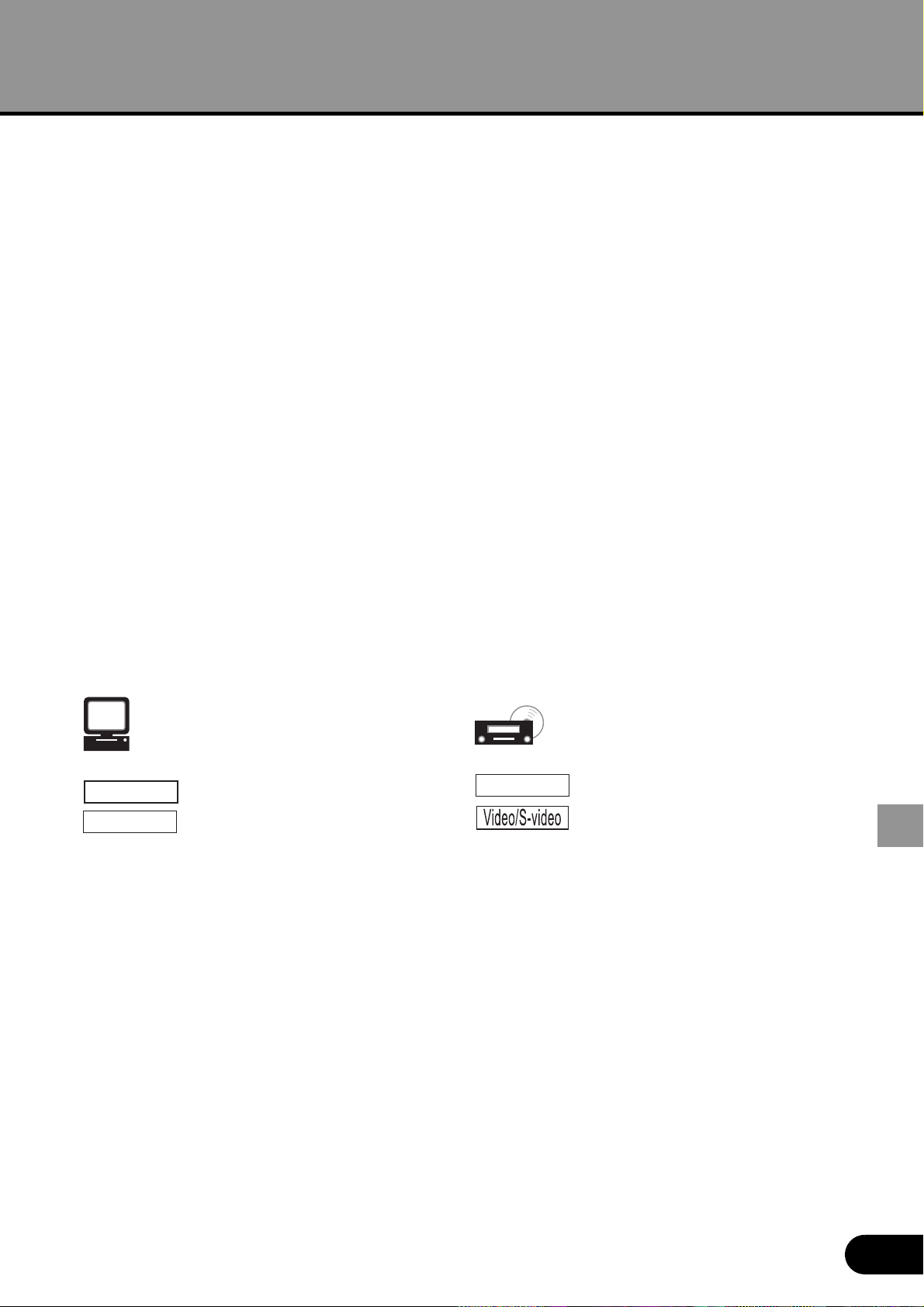
4:3
16:9
J Normal (VIDEO, S-VIDEO and COM-
PONENT input only)
Select this if you want to project an image
at a 4:3 aspect ratio (W:H).
J Wide Screen (VIDEO, S-VIDEO and
COMPONENT input only)
Select this if you want to project an image
at a 16:9 aspect ratio (W:H).
For wide screen sizes, see the
table on 85.
J Auto (COMPONENT input only)
To switch between [Normal] and [Wide
Screen] automatically depending on the
image from the AV equipment, select
[Auto].
49
SETTING UP FUNCTIONS USING MENUS
Using Menus
Windows shown on the projector screen to allow you to set up the projector are called
menus.
This projector supports the following three menus:
Display Setting Menu
This menu is used to set input signals of the computer and AV equipment and make
various settings related to display.
Image Adjustment Menu
This menu is used to make various adjustments to the projected image.
System Setting Menu
This menu is used to set various functions of the projector.
First, we will explain the typical procedure for handling menus. Next, we will give a
detailed description of menu items.
Symbols Indicating Item Categories
Menu items are classified into two categories, menu items used to project the image from
the computer and menu items used to project the image from the AV equipment.
SETTING UP FUNCTIONS
USING MENUS
Menu item used when projecting
an image from the computer.
DIGITAL RGB input
ANALOG RGB-1/-2 input
Menu item used when projecting
an image from AV equipment.
COMPONENT input
VIDEO input/S-VIDEO input
D-RGB
A-RGB
Component
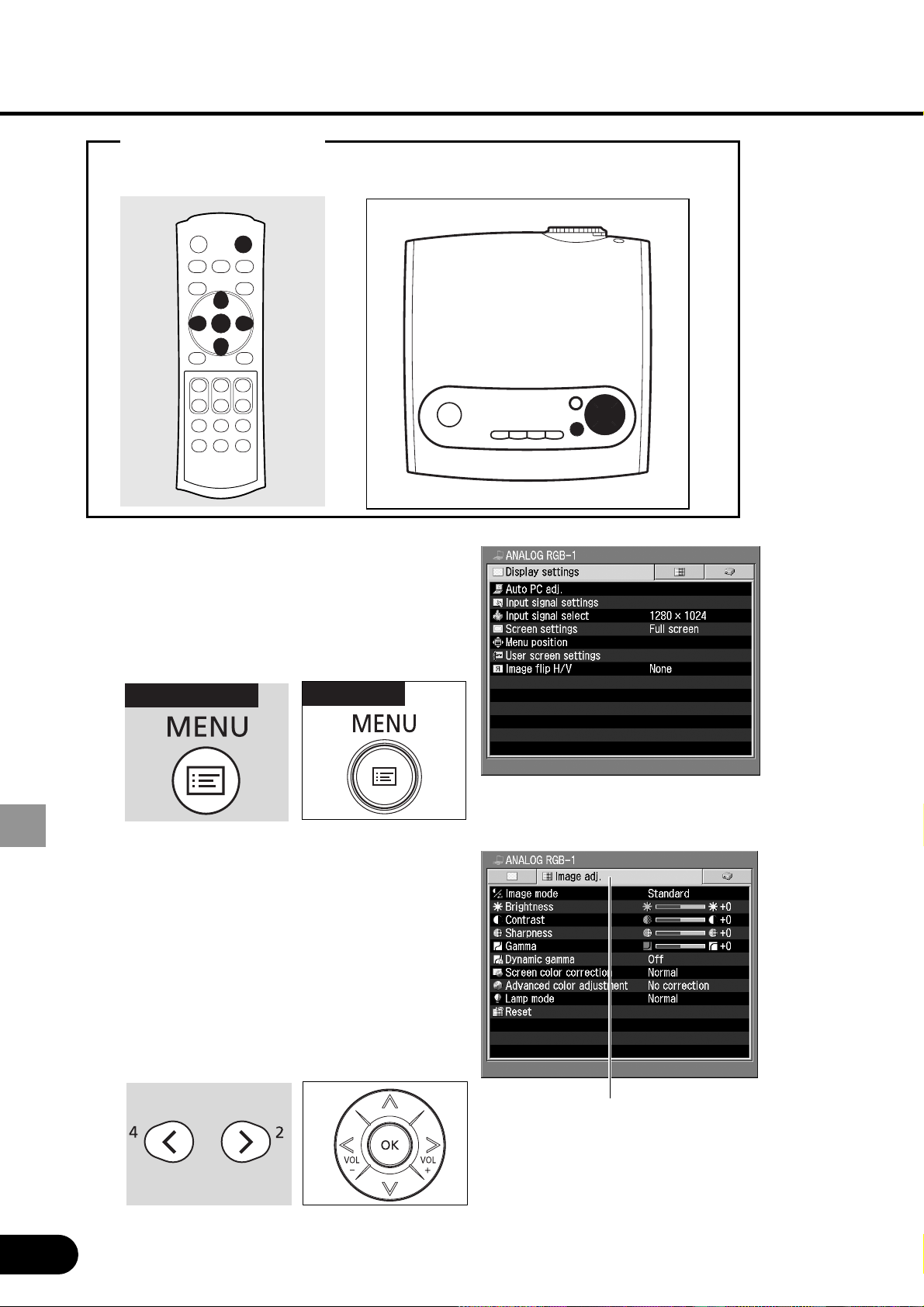
50
SETTING UP FUNCTIONS USING MENUS
Buttons Used Here
Selected item is highlighted in orange.
Press the [MENU] button.
A menu window appears.
• To close the menu window, press the
[MENU] button again.
Select the tab containing the item
you want to set.
Select the [Display settings], [Image
Adj.], or [System settings] tab.
• The selected tab contains the items
handled previously. To select another
tab, press the [^] button repeatedly.
Remote control
Top control
1
Top c o n t r o l
Remote control
2
51
SETTING UP FUNCTIONS USING MENUS
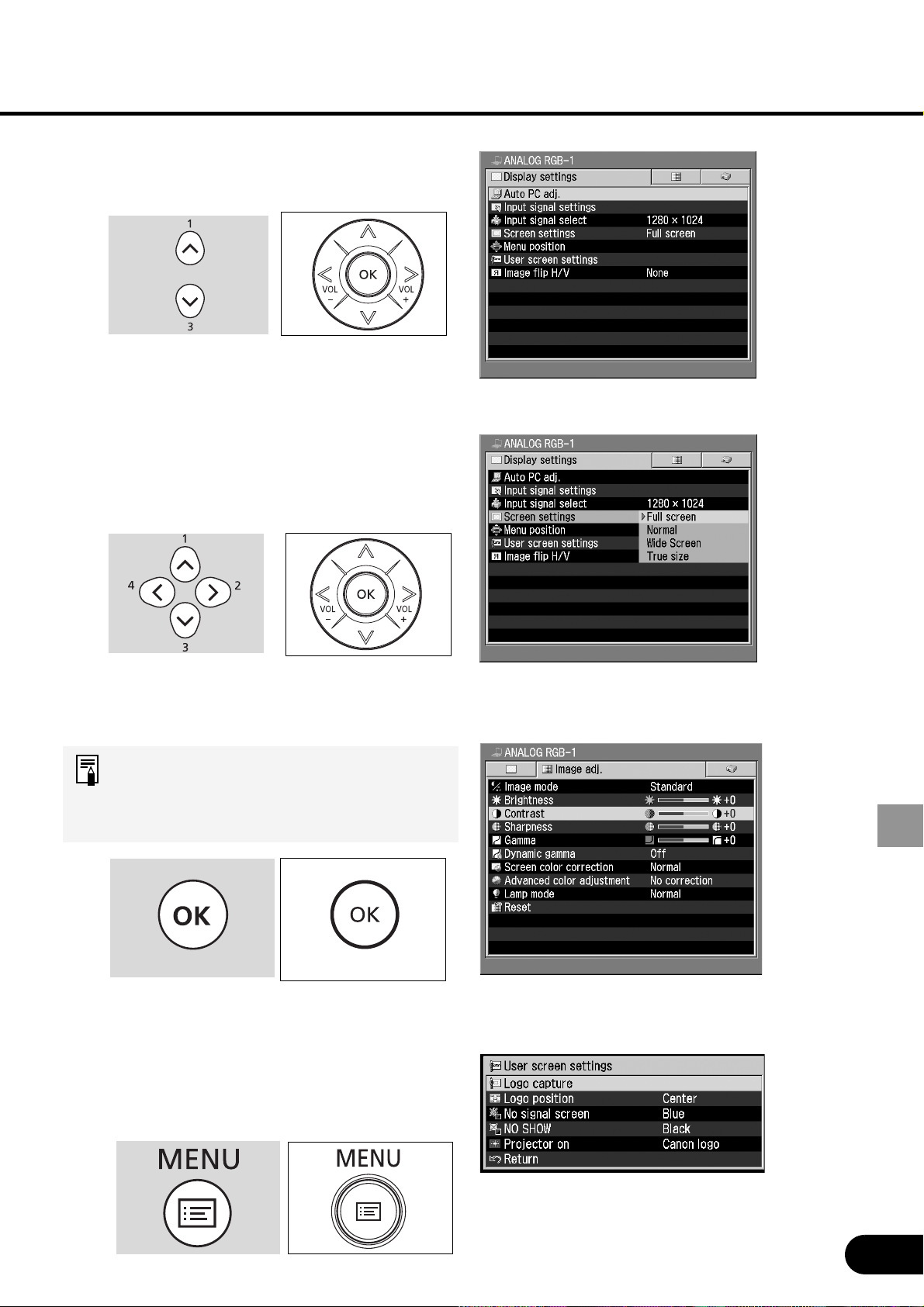
Selecting from the Menu
(Example: Screen setup)
Making an Adjustment Using
the Slide Bar
(Example : Adjustment of Contrast)
Making a Setting in a Different
Window
(Example : Registration of User Logo)
Select the item you want to set.
Make a setting.
Make an adjustment or choice.
Select an item from the menu, make an
adjustment using the slide bar, or make
a setting in a different window accord-
ing to the purpose of setting.
Press the [OK] button.
The setting takes effect.
Some menu items take effect at the
time they are selected and some take
effect when the [OK] button is
pressed.
When you finished setting the
selected item, press the [MENU]
button.
The menu disappears.
4
5
6
3
52
SETTING UP FUNCTIONS USING MENUS
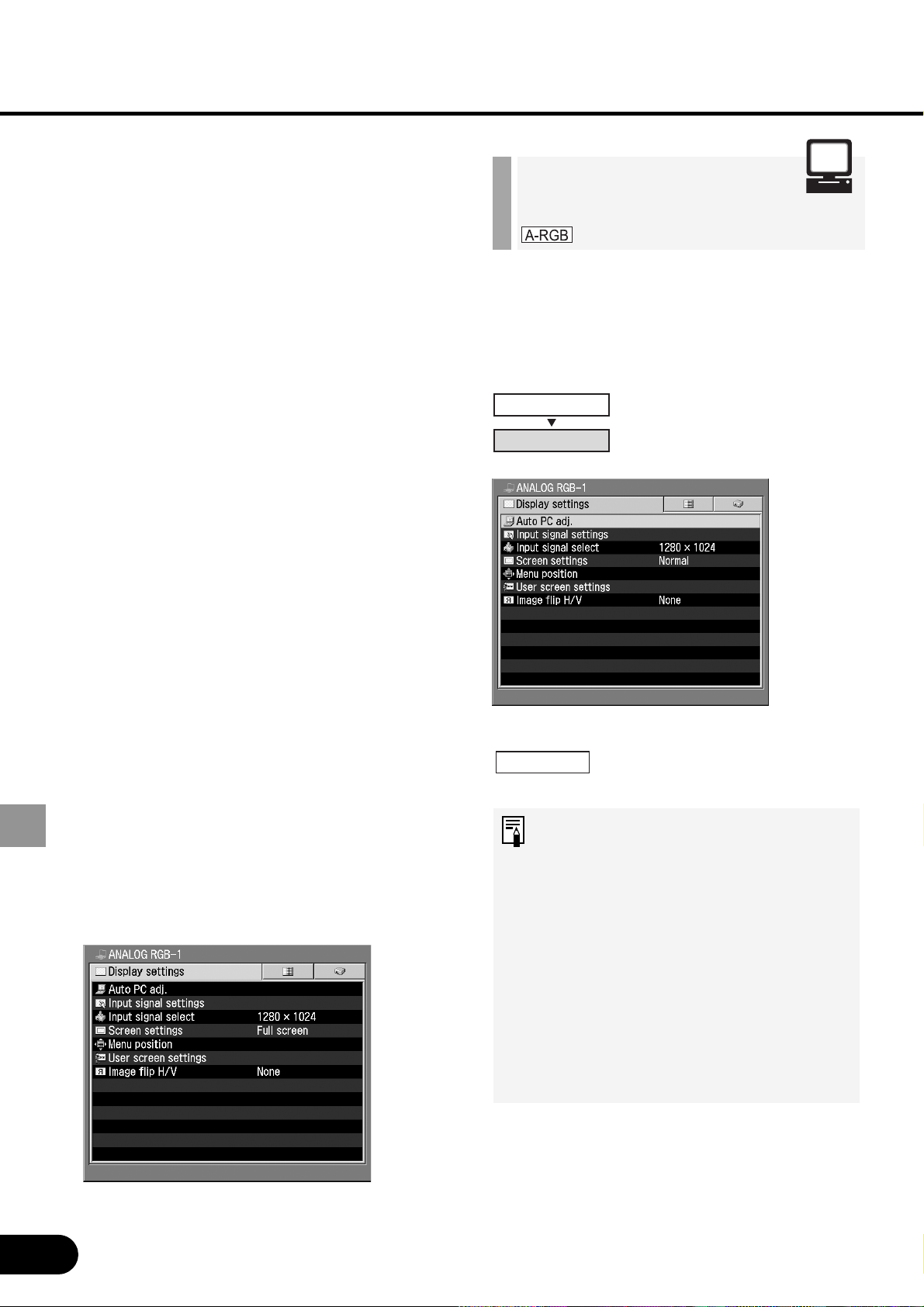
The projector automatically detects the
input signal (ANALOG RGB) from the
connected computer to make the optimum
settings for the total number of dots,
tracking, and so on.
Perform the auto PC adjust-
ment function.
• Most computers can project an
image optimally using an auto PC
function.
• Signal types supported by the
computers that can use the auto
PC function are listed in the table
on page 84.
• If an image cannot be projected
correctly even with the auto PC
function, manually specify the
parameters ([Total dots] to [Verti-
cal pixels]) for the next item [Input
signal settings]. (P53 to P55)
Display Settings
Menu
Make various settings related to input signals of
the computer and AV equipment as well as the
settings related to display.
Performing the auto pc [Auto pc adj.] ............... P52
adjustment
Adjusting the total [Total dots]................... P53
number of dots
Adjusting the tracking [Tracking] .................... P53
Adjusting the [
Horizontal position
] ....... P54
horizontal position
Adjusting the vertical [
Vertical position]
........... P54
position
Adjusting the number [
Horizontal pixels
] .......... P55
of horizontal pixels
Adjusting the number [Vertical pixels]............ P55
of vertical pixels
Selecting an input [Input signal select] ....P56, 57
signal type
Selecting a Screen
mode
[Screen settings] ........P57, 58
Selecting a menu [Menu position]............ P58
position
Capturing a logo to be [Logo capture] ............. P59
displayed
Selecting a logo [Logo position]............. P59
display position
Displaying a logo [No signal screen] ....... P60
(No signal input)
Displaying a logo [No show screen] ........ P60
(No Show)
Displaying a logo [Projector on]............... P61
(Projector on)
When Ceiling-mounted [Image flip H/V] ........... P61
or for Rear Projection
Performing the Auto
PC Adjustment
Display settings
Auto PC Adj.
OK
53
SETTING UP FUNCTIONS USING MENUS
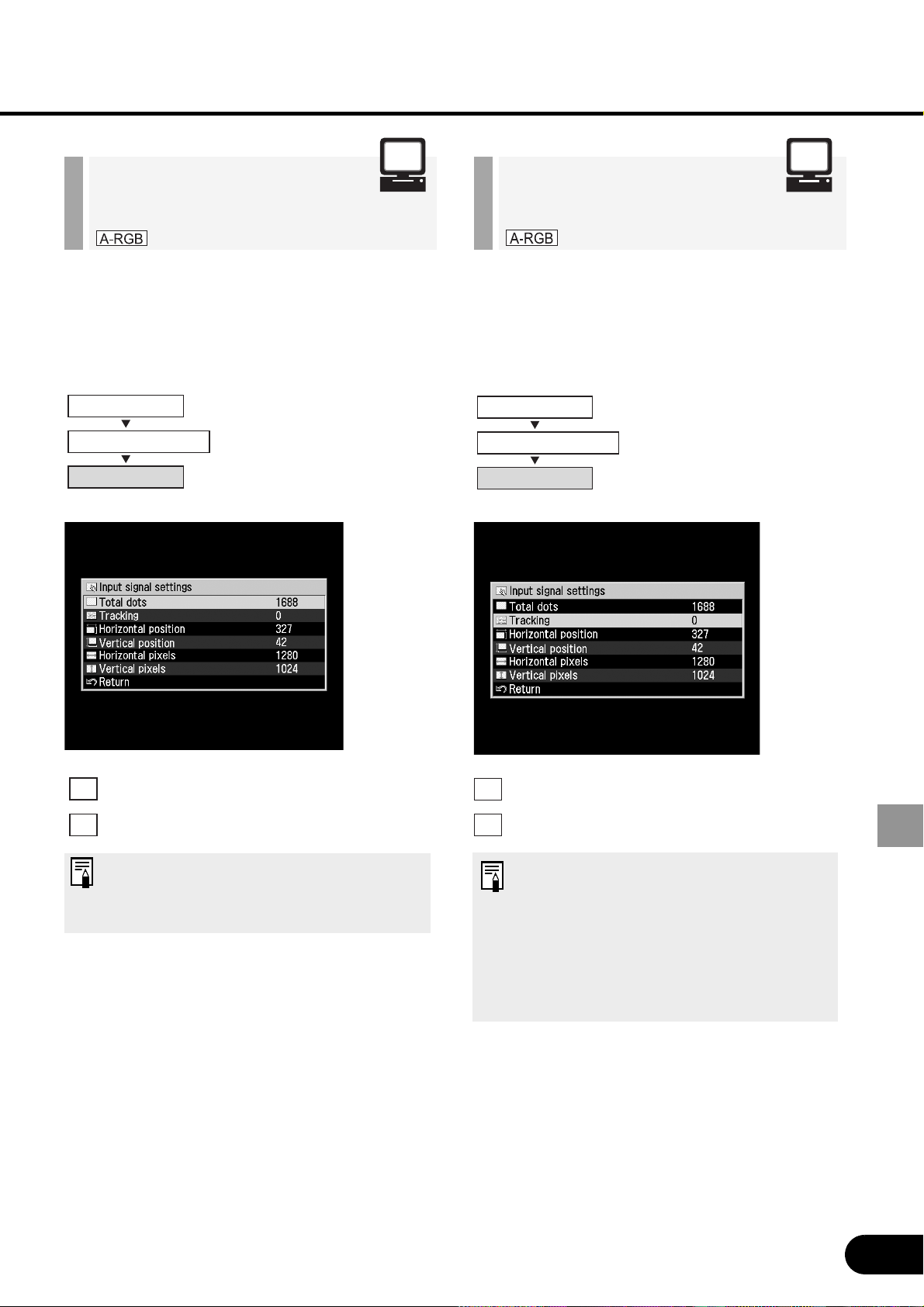
Adjust the total number of horizontal dots.
Increase the total number of dots.
Reduce the total number of dots.
This adjustment is required when
the auto PC adjustment cannot
project images correctly.
Adjusting the Total
Number of Dots
Adjust the tracking when the projected
image flickers due to a tracking error.
Increases the set value.
Decreases the set value.
• This adjustment is required when
the auto PC adjustment cannot
project images correctly.
• The setting is recorded for the
[ANALOG RGB-1] signal and
[ANALOG RGB-2] signal
separately.
Adjusting the
Tracking
Display settings
Input signal settings
Total dots
Display settings
Input signal settings
Tracking
<
>
<
>
<
>
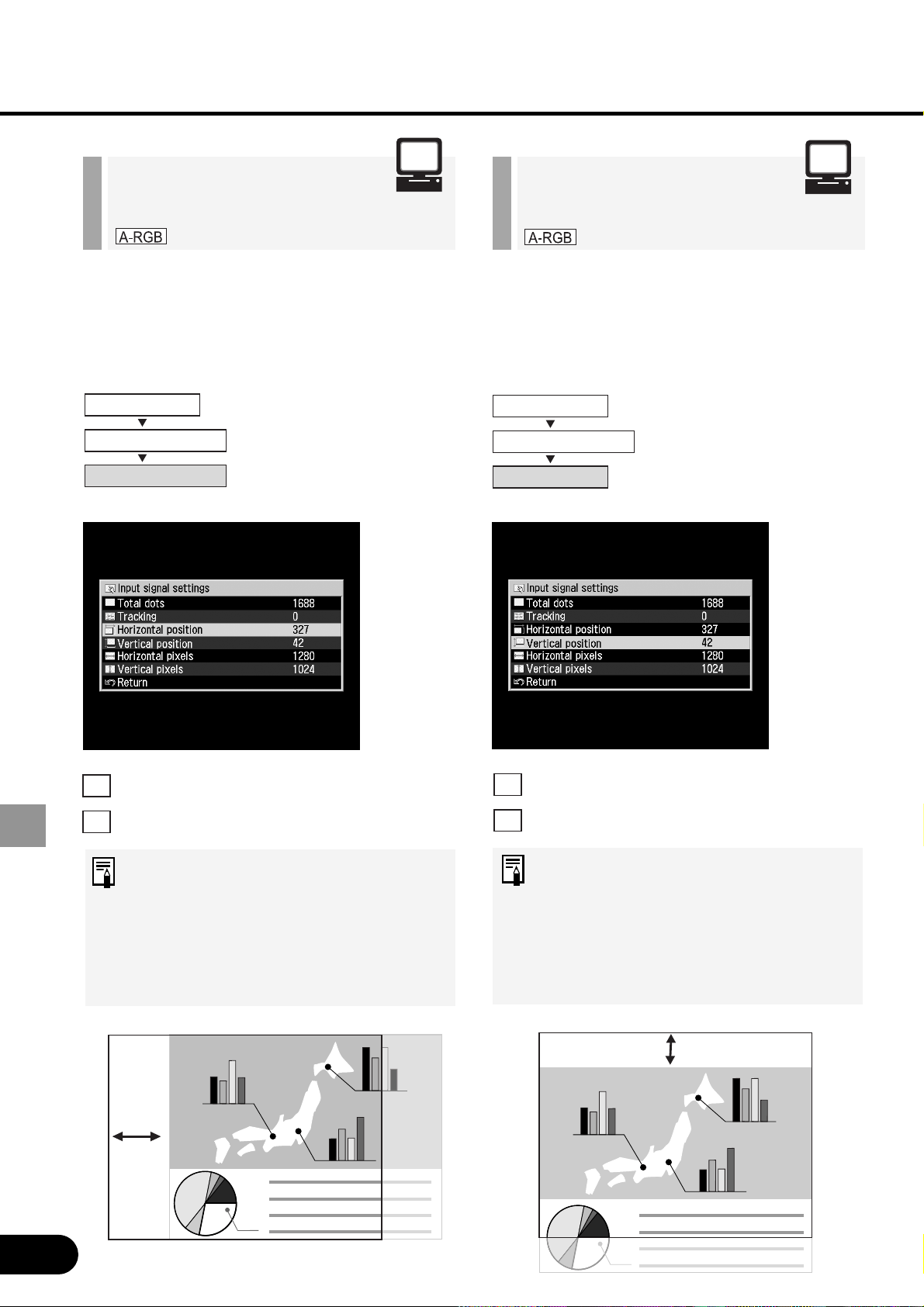
54
SETTING UP FUNCTIONS USING MENUS
Adjust the horizontal position of the
screen when the projected image is
shifted horizontally.
Moves the screen to the right.
Moves the screen to the left.
• This adjustment is required when
the auto PC adjustment cannot
project images correctly.
• The setting is recorded for the
[ANALOG RGB-1] signal and
[ANALOG RGB-2] signal
separately.
Adjusting the
Horizontal Position
Adjust the vertical position of the screen
when the projected image is shifted
vertically.
Moves the screen up.
Moves the screen down.
• This adjustment is required when
the auto PC adjustment cannot
project images correctly.
•
The setting is recorded for the
[ANALOG RGB-1] signal and
[ANALOG RGB-2] signal
separately.
Adjusting the
Vertical Position
Display settings
Input signal settings
Horizontal position
Display settings
Input signal settings
Vertical position
<
>
<
>
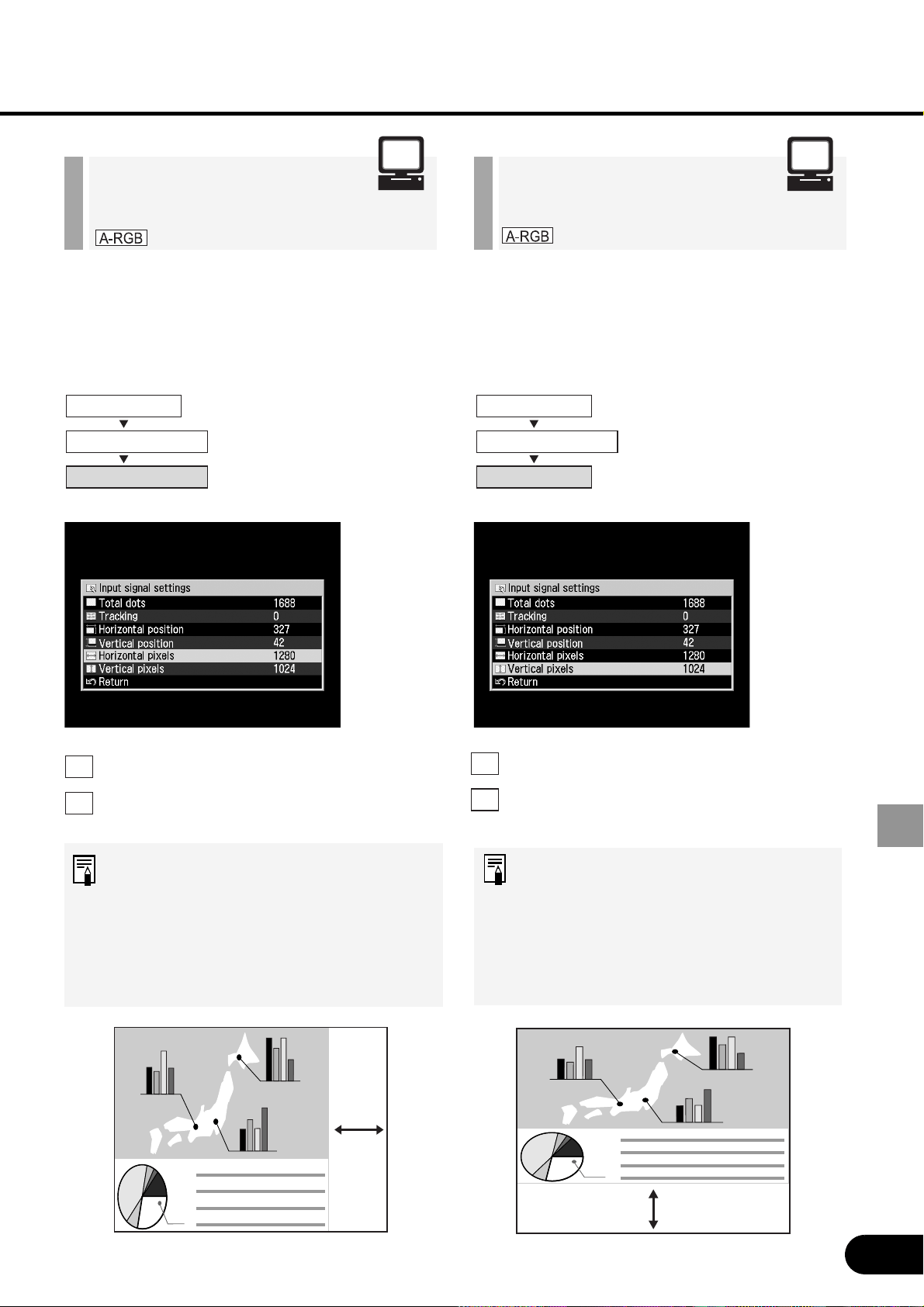
55
SETTING UP FUNCTIONS USING MENUS
When the vertical size of the screen is too
large or small, adjust it to the screen size.
Increase the number of horizontal
pixels.
Decrease the number of horizontal
pixels.
• This adjustment is required when
the auto PC adjustment cannot
project images correctly.
• The setting is recorded for the
[ANALOG RGB-1] signal and
[ANALOG RGB-2] signal
separately.
Adjusting the Number
of Vertical Pixels
When the horizontal size of the screen is
too large or small, adjust it to the screen
size.
Increase the number of horizontal
pixels.
Decrease the number of horizontal
pixels.
• This adjustment is required when
the auto PC adjustment cannot
project images correctly.
• The setting is recorded for the
[ANALOG RGB-1] signal and
[ANALOG RGB-2] signal
separately.
Adjusting the Number
of Horizontal Pixels
Display settings
Input signal settings
Horizontal pixels
Display settings
Input signal settings
Vertical pixels
<
>
<
>
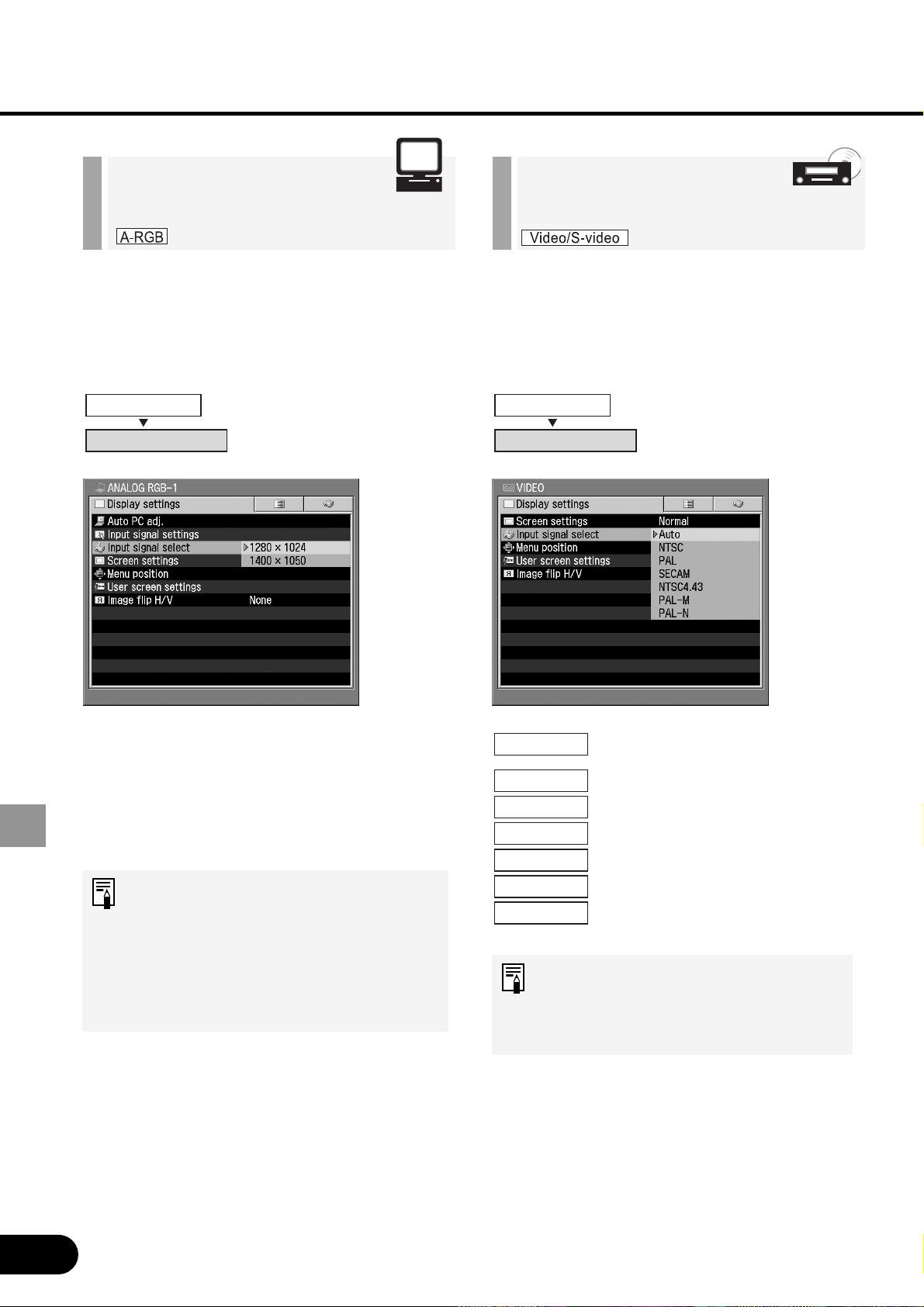
56
SETTING UP FUNCTIONS USING MENUS
When images from AV equipment is not
projected correctly (irregular color or no
image), you can select an input signal
type manually.
The input signal is
automatically set.
If images are not projected
correctly in the Auto mode,
select one of input signal
types shown on the left.
Confirm the input signal type
according to the User's Manual that
came with the AV equipment
connected.
Selecting an Input
Signal Type (2)
When two or more types of input signals
are found during execution of the auto PC
adjustment function, select a correct input
signal type.
[1280 x 1024]
[1400 x 1050]
Select an input signal type suitable for the
computer from the displayed signal types.
• Select an input signal type when
the auto PC adjustment function
cannot project images correctly
and two or more signal types are
found.
• For the signal types supported by
this projector, see P84.
•
•
•
Selecting an Input
Signal Type (1)
Display settings
Input signal select
Display settings
Input signal select
Auto
NTSC
PAL
SECAM
NTSC4.43
PAL-M
PAL-N
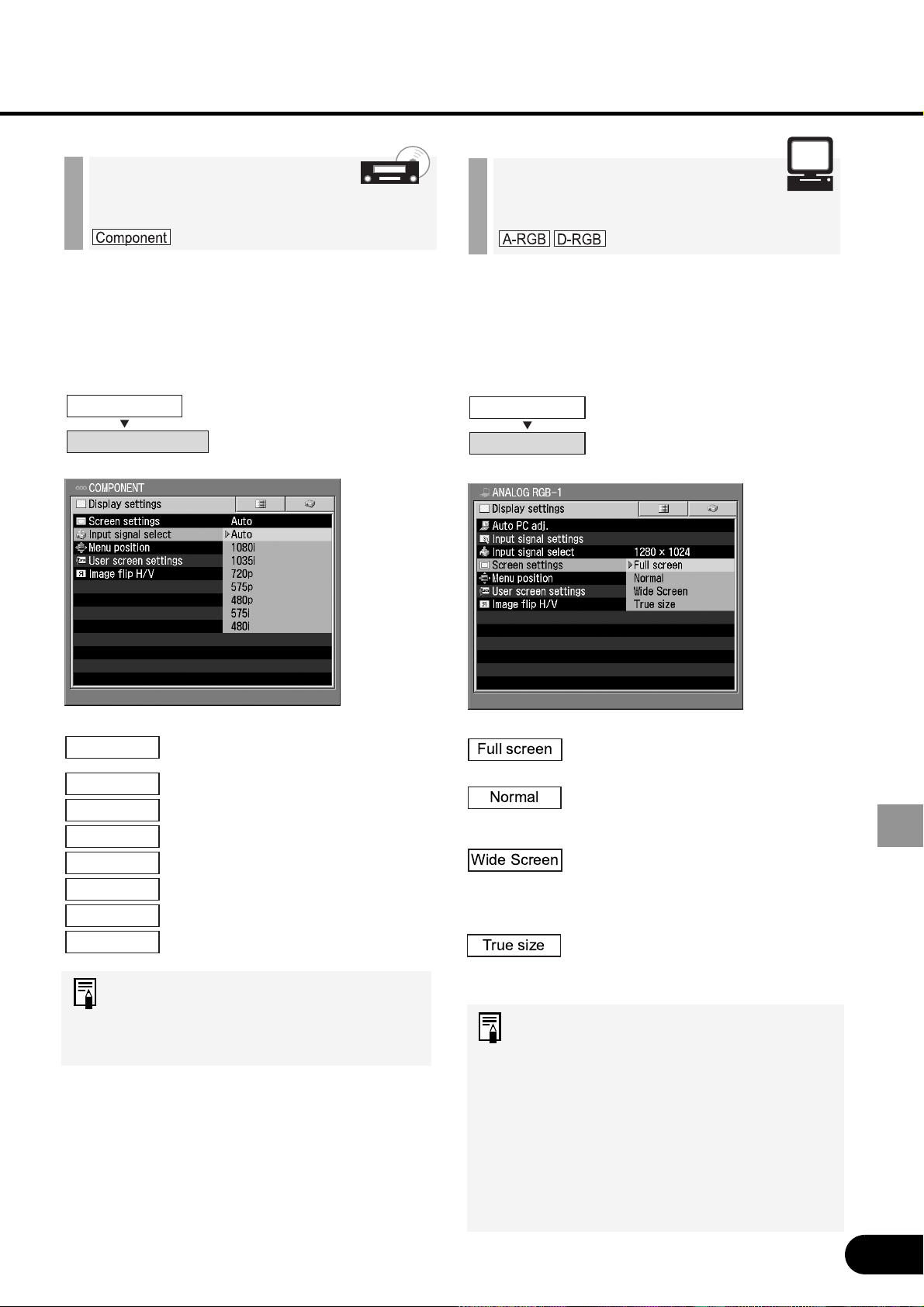
57
SETTING UP FUNCTIONS USING MENUS
When the projected image size is larger/
smaller than the screen size.
An image from the computer is
projected fully on the screen.
An image is projected in the
maximum size with the
aspect ratio unchanged.
An image is projected at 16:9
aspect ratio with its width
matching to the width of the
screen.
An image is projected in its
original size (no enlargement/
reduction).
• Set the display resolution of the
computer to 1400 x 1050 dots or
lower.
• When Full screen is selected,
circles may become out of round
depending on the display
resolution of the computer.
• The upper, lower, left, and/or right
portions of a projected image may
be missing depending on the
selected display mode.
Selecting a Screen
Mode (1)
When images from AV equipment is not
projected correctly, you can select an
input signal type manually.
The video format is
automatically set according
to the input signal.
If images are not projected
correctly in the Auto mode,
select one of input signal
types shown on the left.
Confirm the input signal type
according to the User's Manual that
came with the AV equipment
connected.
Selecting an Input
Signal Type (3)
Display settings
Input signal select
Display settings
Screen settings
Auto
1080i
1035i
720p
575p
480p
575i
480i
Full screen
Normal
Wide Screen
True size
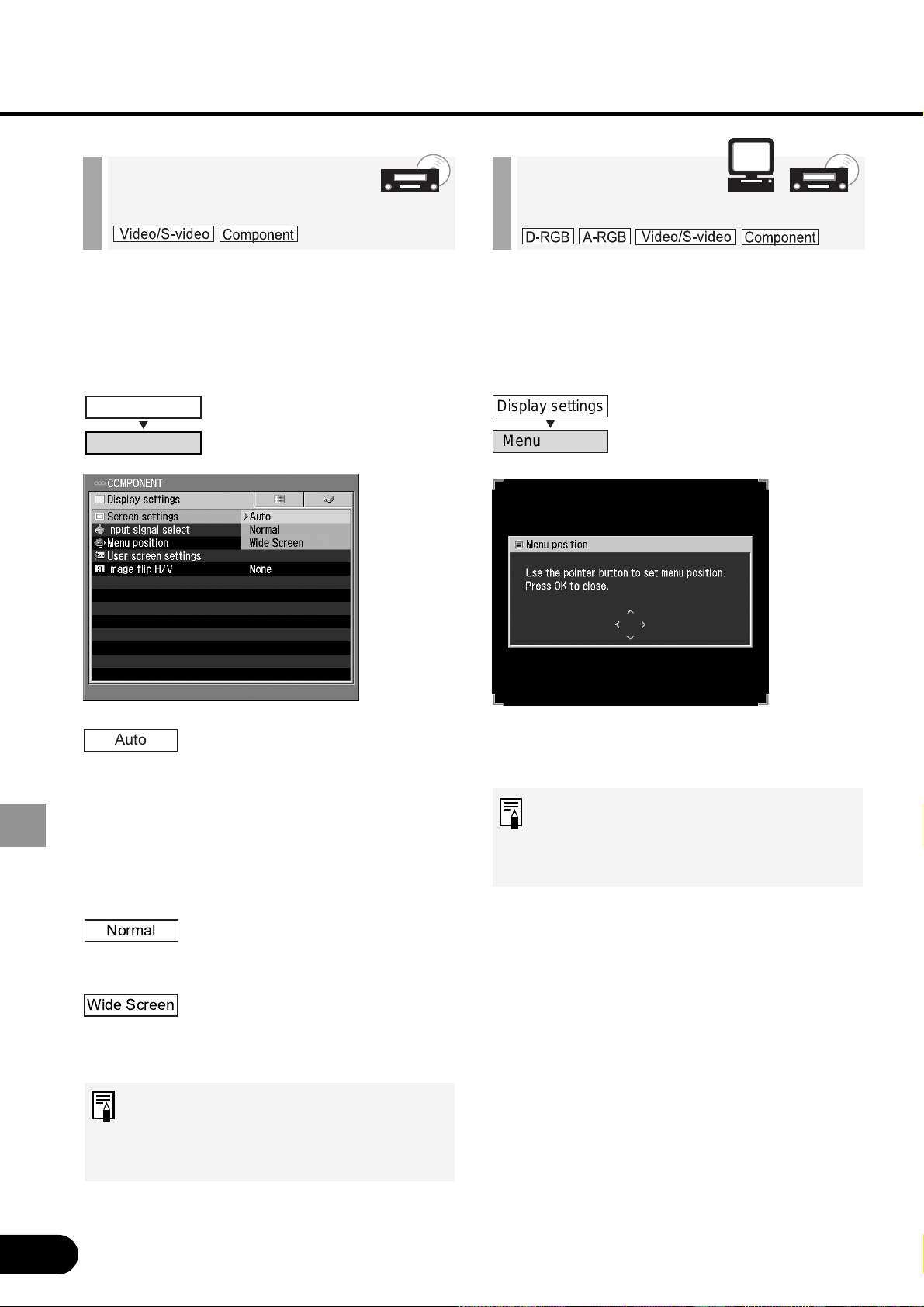
58
SETTING UP FUNCTIONS USING MENUS
You can select the position of the menu
displayed on the screen.
Using [^], [<], [>], and [v] buttons, move
the menu position.
When the menu position is
determined, press the [OK] button
(the menu will disappear 30 seconds
later if no button is pressed).
Selecting a
Menu Position
Select a screen mode according to the
size of the image to be projected.
The screen mode is automat-
ically switched between [Nor-
mal] and [Wide Screen]
depending on the image from
the AV equipment. This item
is displayed when Compo-
nent Input is selected to
allow you to select it.
An image is projected at a
16:9 (W:H) aspect ratio (wide
screen size).
An image is projected at a
4:3 (W:H) aspect ratio (nor-
mal screen size).
The upper, lower, left, and/or right
portions of a projected image may be
missing depending on the selected
display mode.
Selecting a Screen
Mode (2)
Display settings
Screen settings
Display settings
Menu position
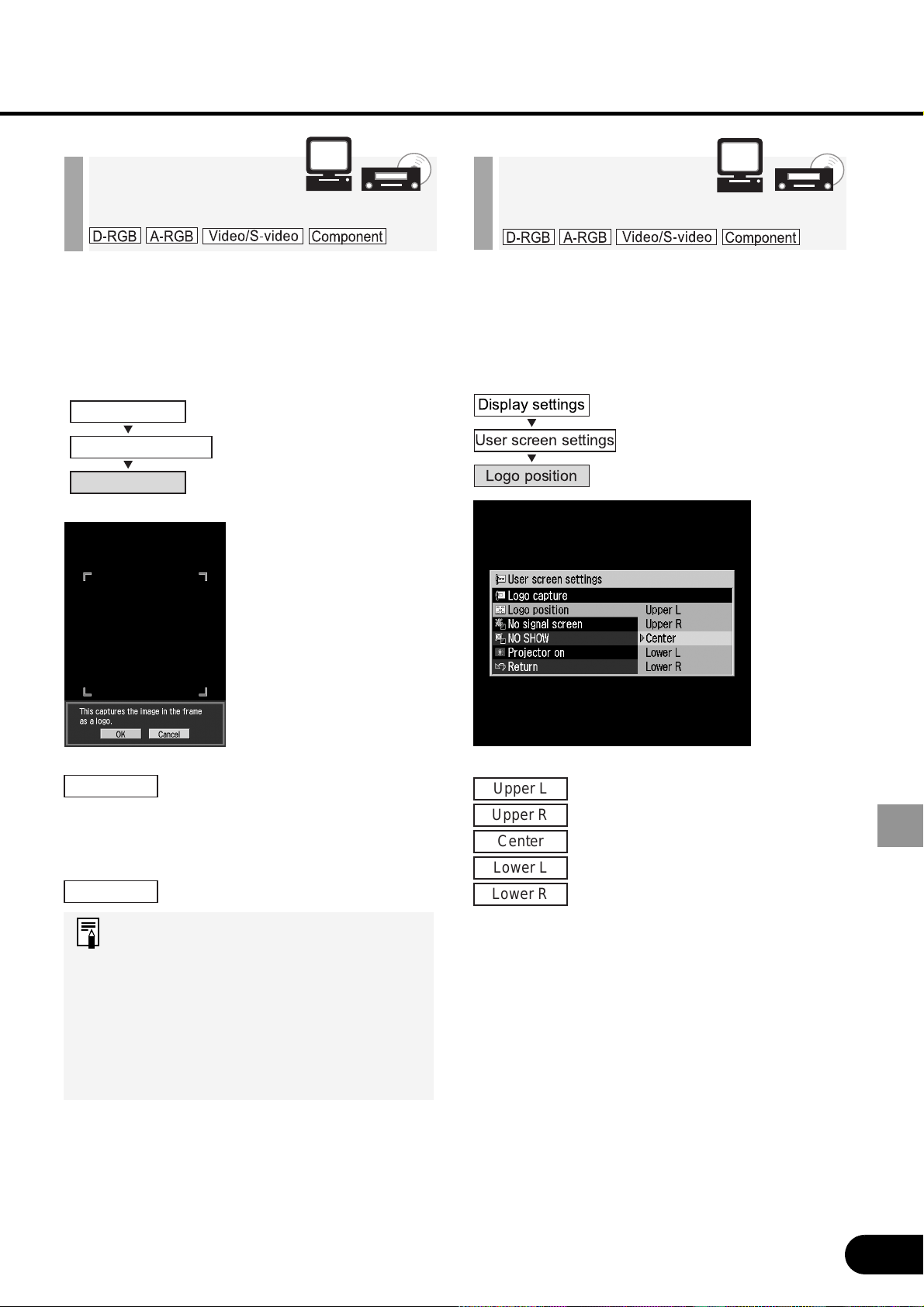
59
SETTING UP FUNCTIONS USING MENUS
A user’s unique image (logo) can be dis-
played when the power is turned on, there
is no input signal, or the image is blacked
out temporarily.
The image to be captured is
displayed on the screen. Place
the red frame on the capture
range and press [OK]. The
image in the red frame will be
captured.
Cancel registration of the image.
• The image on only one screen can
be captured.
• To display the captured image,
select “Logo capture” on the
“Projector on”, “No signal”, or “NO
SHOW” screen.
• No image can be captured
depending on the resolution and
scan system you selected.
Capturing a Logo
to Be Displayed
Select a logo display position. A logo can
be displayed at the center or in a corner of
a desired screen.
Select a logo display posi-
tion.
Selecting a
Logo Display Position
Display settings
User screen settings
Logo capture
OK
Cancel
Upper L
Upper R
Center
Lower L
Lower R

60
SETTING UP FUNCTIONS USING MENUS
A logo can be displayed on the screen
when there is no input signal.
No logo is displayed (black
screen).
No logo is displayed (blue-
back).
The logo captured on the
“Logo capture” screen is dis-
played.
”User logo” cannot be selected
when no logo has been captured.
Displaying a Logo
(No signal screen)
A logo can be displayed on the screen
when the image is blacked out temporarily
by pressing the [NO SHOW] button.
No logo is displayed (black
screen).
No logo is displayed (blue-
back).
The logo captured on the
“Logo capture” screen is
displayed.
”User logo” cannot be selected
when no logo has been captured.
Displaying a Logo
(NO SHOW)
Display settings
User screen settings
No signal screen
Black
Blue
User logo
Display settings
User screen settings
NO SHOW
Black
Blue
User logo
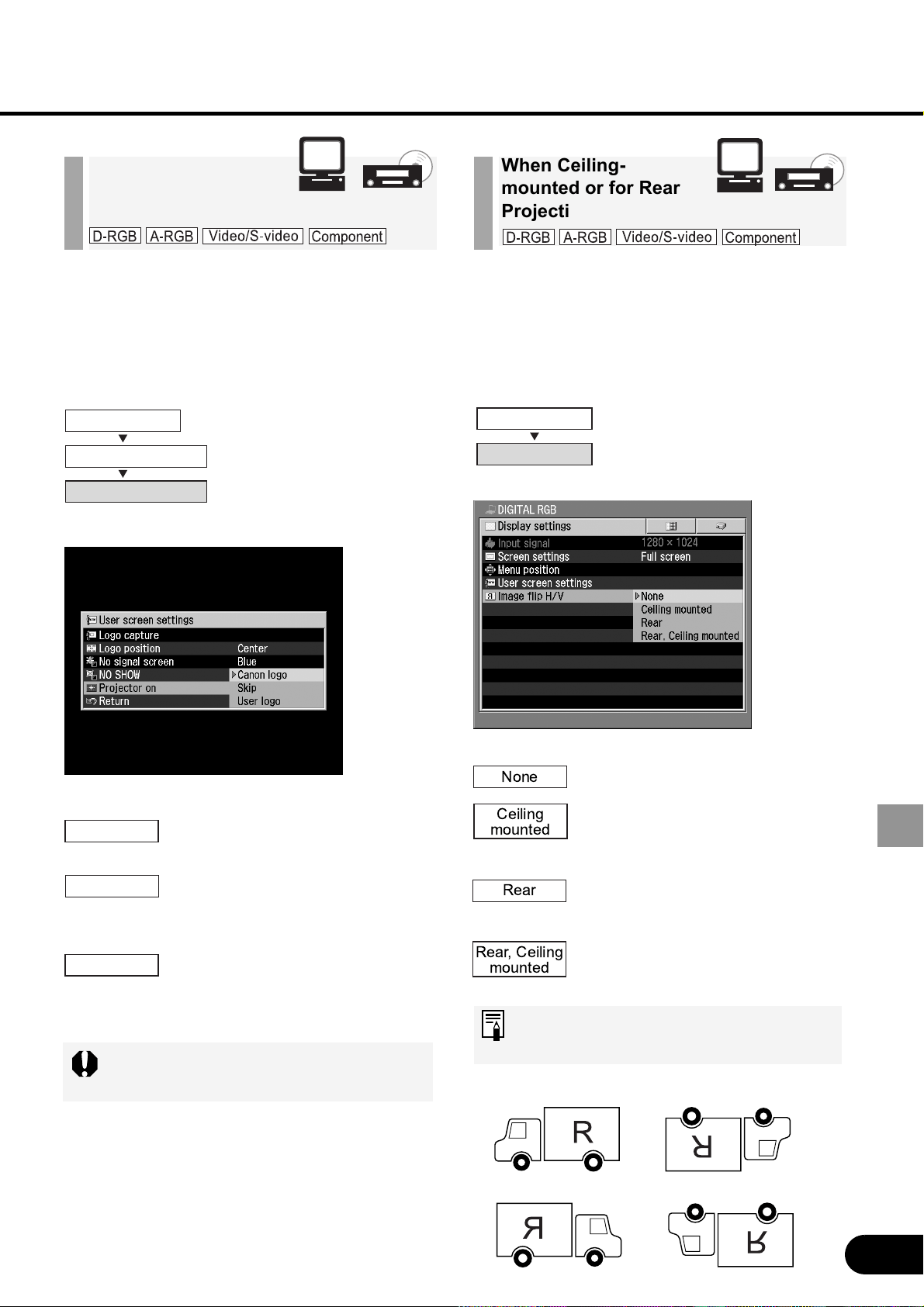
61
SETTING UP FUNCTIONS USING MENUS
Make this setting when the projector is
hung from the ceiling or it projects an
image on a transmissive screen.
An image is projected normally.
Select this when projecting an image
with the projector hung from the
ceiling. An image is projected with it
inverted vertically.
Select this when projecting an image
from behind the screen. An image is
projected with it inverted horizontally.
Select this when projecting an image from
behind the screen with the projector hung
from the ceiling. An image is projected
with it inverted vertically and horizontally.
When hanging the projector from the ceiling,
optional brackets are required. Contact your
Canon dealer.
None (Normal image) Ceiling mounted
Rear Rear, Ceiling mounted
A logo can be displayed from the moment
the projector is turned on to the moment it
is ready for projection.
The factory-captured Canon
logo is displayed.
An image is projected imme-
diately after the projector is
turned on.
The logo captured on the
“Logo capture” screen is dis-
played.
”User logo” cannot be selected
when no logo has been captured.
Displaying a Logo
(Projector on)
Display settings
User screen settings
Projector on
Canon logo
User logo
Skip
Display settings
Image flip H/V
Ceiling
mounted
Rear
Rear, Ceiling
mounted
None
When Ceiling-
mounted or for Rear
Projection
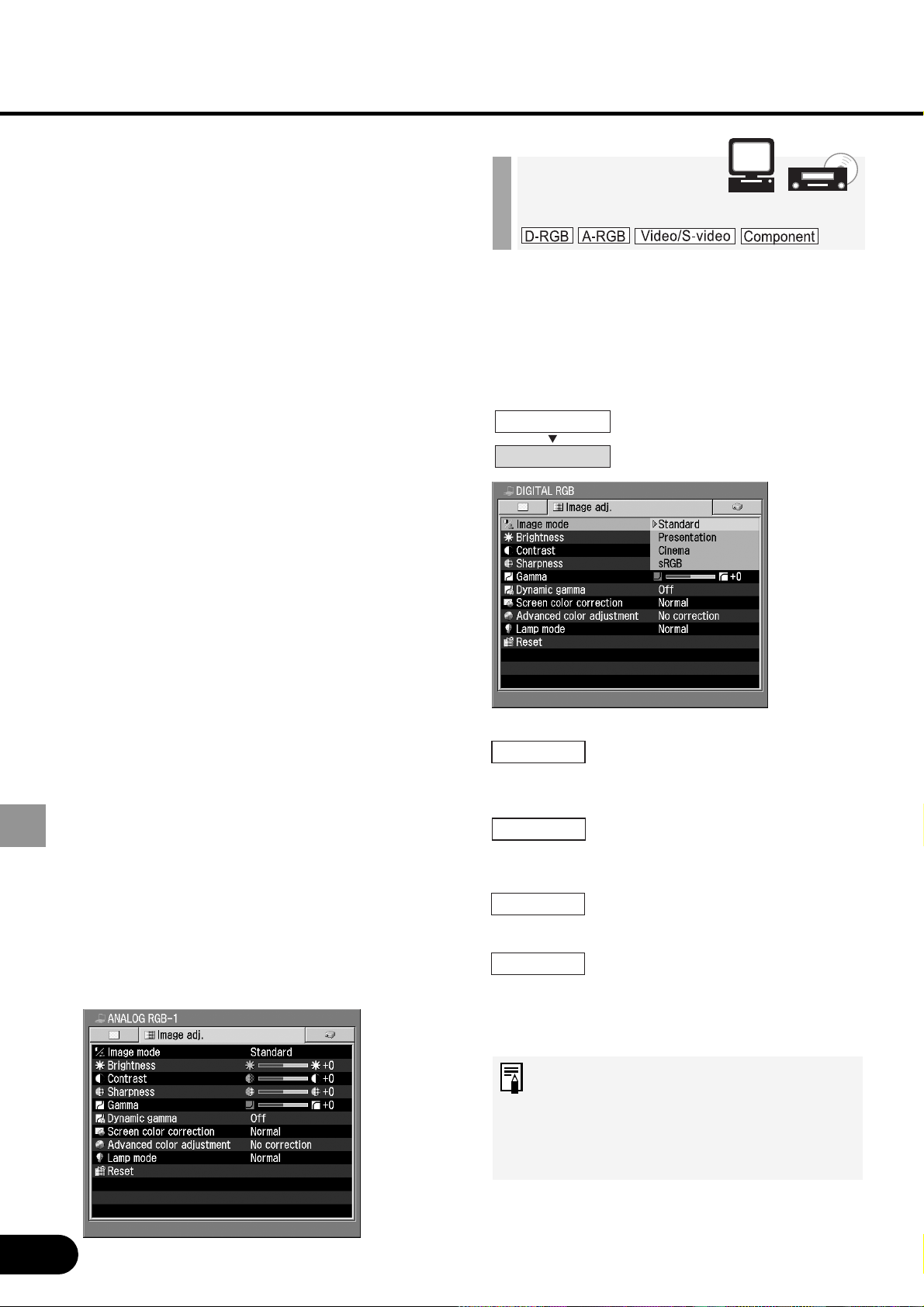
62
SETTING UP FUNCTIONS USING MENUS
When the color and brightness of the
displayed image can be adjusted to match
your source.
Select this to project an image with a
similar quality to that of the original
image. An image is projected with a
high regard for reproduction of white.
Select this to project an image with a
similar quality to that of the original
image. A bright and high-contract
image is projected.
Select this to project a movie. A
picture is projected with a high regard
for color tone reproduction.
Select this when you want to project
an image from a sRGB-compatible
digital camera.
An image is projected in the display
mode conforming to the sRGB
Standard.
• The quality (brightness, contrast, etc.)
of the image displayed in each image
mode can be adjusted as desired.
• The results of adjustments made by
the user for each mode are saved for
each of six types of input signals.
Selecting an
Image Mode
Image Adj. Menu
The Image adj. menu is used to make
various adjustments to the image to be
projected.
Selecting an Image Mode
[Image mode]........................................... P62
Adjusting the Brightness [Brightness] ... P63
Adjusting the Contrast [Contrast] ........... P63
Adjusting the Sharpness [Sharpness].... P64
Making a Gamma Correction [Gamma]...P64
Using the Dynamic Gamma Function
[Dynamic Gamma] .................................. P65
Adjusting the Color Level [Color level]...P65
Adjusting the Color Balance
[Color balance]........................................P66
Correcting the Screen Color
[Screen color correction] .......................P66
Making Advanced Color Adjustment
[Advanced color adjustment] ................ P67
Performing Progressive Processing
[Progressive] ...........................................P67
Reducing the Lamp Brightness
[Lamp mode] ........................................... P68
Resetting the Image Settings [Reset] ..... P68
Image adj.
Image mode
Presentation
Standard
Cinema
sRGB
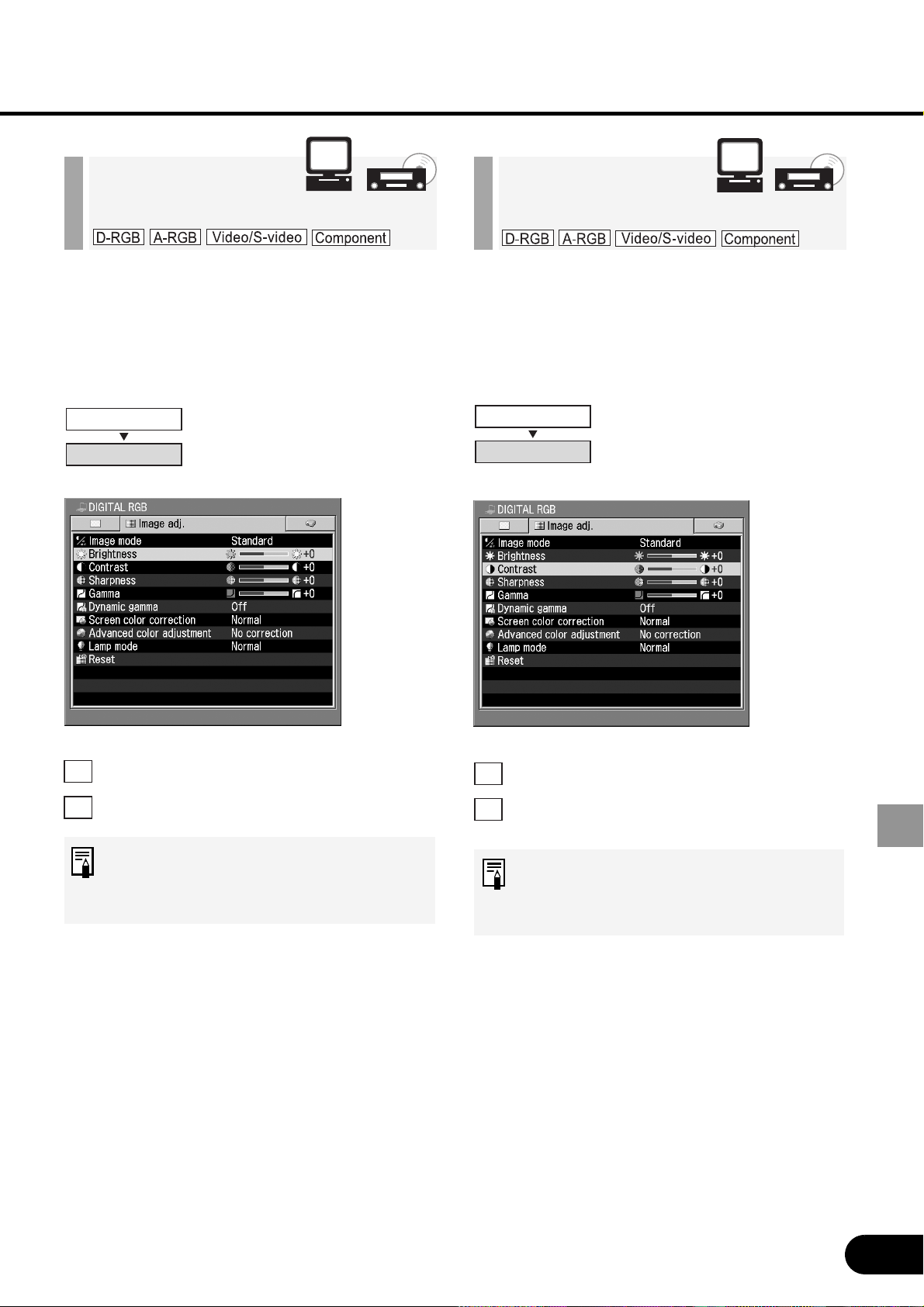
63
SETTING UP FUNCTIONS USING MENUS
When the image is too bright or dark,
adjust the brightness.
The image becomes brighter.
The image becomes darker.
This setting is saved for the
currently selected input signal and
image mode.
Adjusting the
Brightness
When you want to make the image more
or less vivid, adjust the difference in tone
between the lightest and darkest portions
of the image.
The contrast increases. The image
becomes more vivid.
The contrast decreases. The image
becomes less vivid.
This setting is saved for the
currently selected input signal and
image mode.
Adjusting the
Contrast
Image adj.
Brightness
<
>
Image adj.
Contrast
<
>
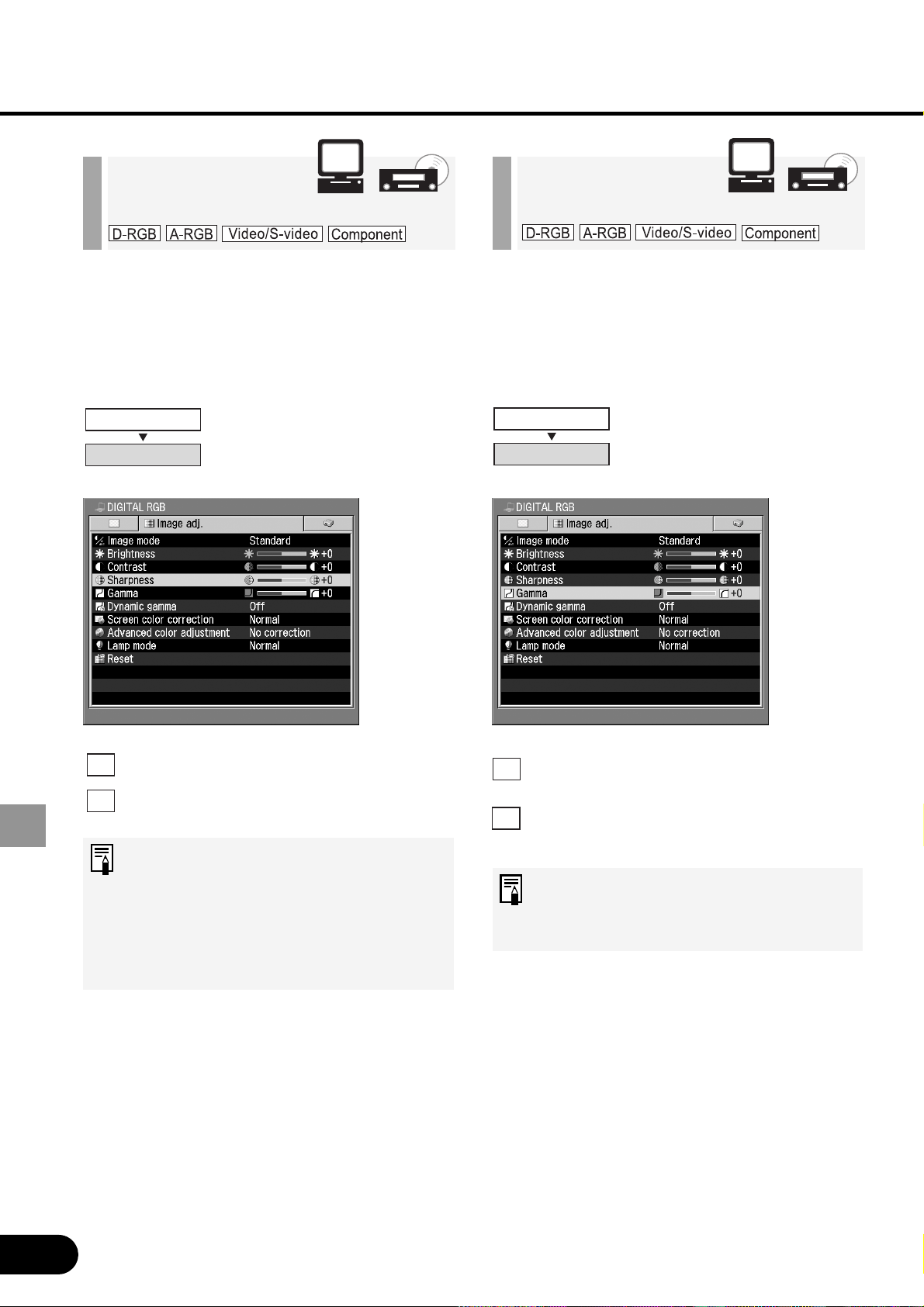
64
SETTING UP FUNCTIONS USING MENUS
When you want to make the image
sharper or softer, adjust the sharpness of
the image.
The image becomes sharp.
The image becomes soft.
• Sharpness can be adjusted in
four steps in the plus or minus
direction.
• This setting is saved for the
currently selected input signal
and image mode.
Adjusting the
Sharpness
When light or dark portions of an image
are obscure, adjust the image.
Dark and obscure portions become
visible.
Light and obscure portions become
visible.
This setting is saved for the
currently selected input signal and
image mode.
Making a Gamma
Correction
Image adj.
Sharpness
Image adj.
Gamma
<
>
>
<
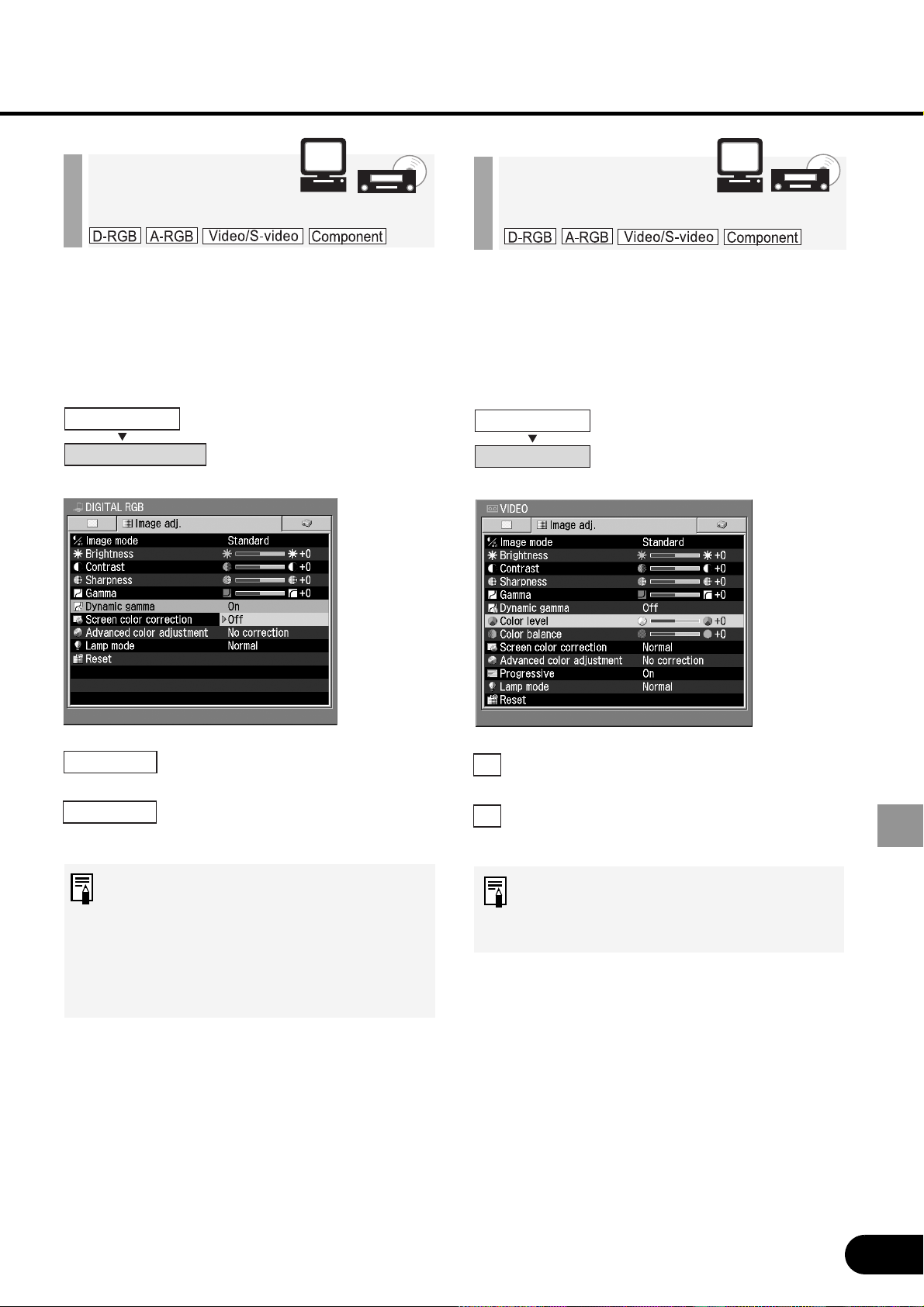
65
SETTING UP FUNCTIONS USING MENUS
When an image is too deep or pale in
color, adjust the color level.
The image becomes deeper in color.
The image becomes paler in color.
This setting is saved for the currently
selected input signal and image
mode.
Adjusting the
Color Level
The tone representation of light and dark
areas is adjusted automatically.
The dynamic gamma function
is used.
The dynamic gamma function
is not used.
• An image is adjusted automatically
so that the optimum image quality
is attained in real time.
• This setting is saved for the
currently selected input signal and
image mode.
Using the Dynamic
Gamma Function
Image adj.
Dynamic Gamma
Image Adj.
Color level
On
Off
>
<
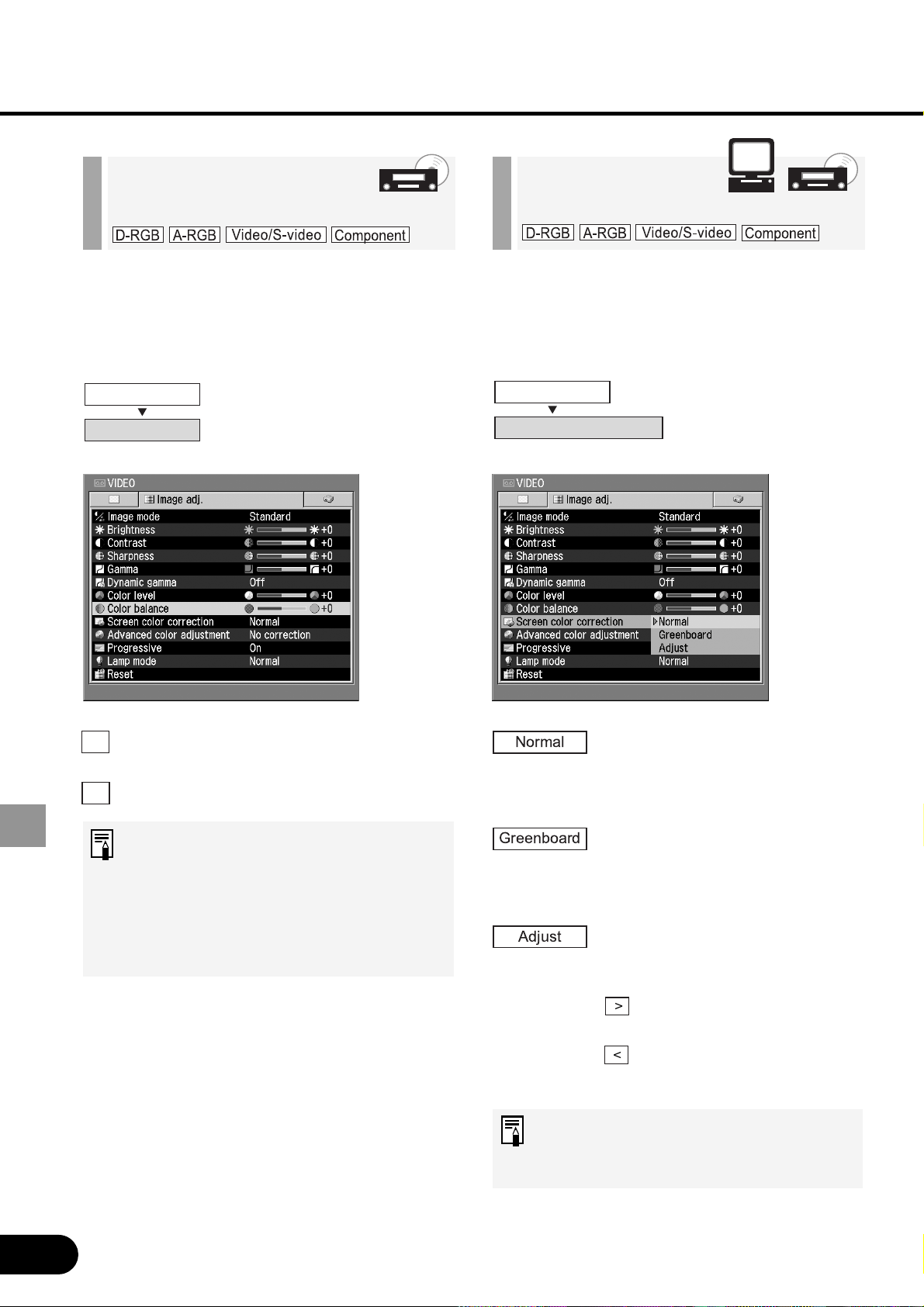
66
SETTING UP FUNCTIONS USING MENUS
Adjust the while balance so that white
areas of the image are displayed correctly.
When a standard screen is
used, an image is projected
in a color tone similar to that
of natural light.
When a greenboard (dark
green) is used as a screen,
an image is projected in an
almost natural color tone.
Adjust color tones of red,
green, and blue with the level
meter.
The color tone of each
color becomes lighter.
The color tone of each
color becomes darker.
This setting is saved for the
currently selected input signal and
image mode.
Correcting the
Screen Color
When an image appears too red or green,
adjust the color balance.
The reddish image is corrected.
The greenish image is corrected.
• You cannot adjust the color
balance when the video format is
PAL, PAL-M, PAL-N, or SECAM.
• This setting is saved for the
currently selected input signal
and image mode.
Adjusting the Color
Balance
Image adj.
Color balance
Image adj.
Screen color correction
>
<
Normal
Greenboard
Adjust
<
>
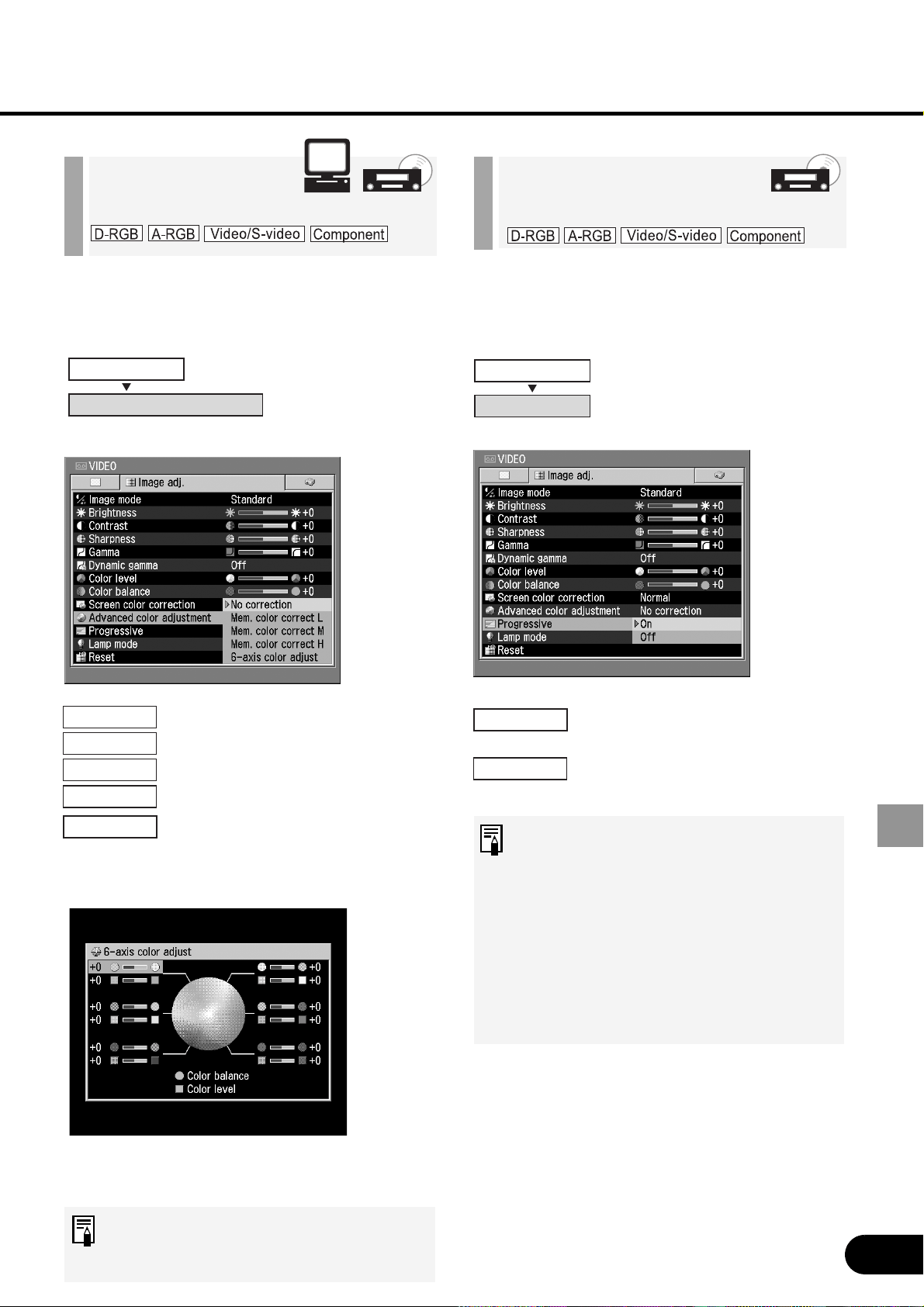
67
SETTING UP FUNCTIONS USING MENUS
Adjust colors using the memorized color
correction function and 6-axis color
adjustment function.
Color adjustment is not performed.
Colors (e.g., blue sky) in our
memory can be adjusted in three
steps so that they can be shown
more vividly.
A 6-axis color adjustment box (RGB
(red/green/black) and CMY (cyan/
magenta/yellow)) is displayed to allow
you to make fine adjustment of colors.
Select the “Color balance” or “Color level” bar
using the [^] and [v] buttons, and then adjust
colors using the [<] and [>] buttons.
This setting is saved for the
currently selected input signal and
image mode.
Making Advanced
Color Adjustment
When you want to project a high-quality
image, use the progressive processing
function.
Progressive processing is
performed.
Progressive processing is
not performed.
• This function cannot be used
when the component signal is
1080i, 1035i, 720p, 575p, or 480p.
• This setting is saved for the
currently selected input signal and
image mode.
• Select [Off] when flickers and
horizontal lines are noticeable on
a fast-moving picture.
Performing Progressive
Processing
Image adj.
Advanced color adjustment
Image adj.
Progressive
No correction
Mem. color correct L
Mem. color correct M
Mem. color correct H
6-axis color adjust
On
Off
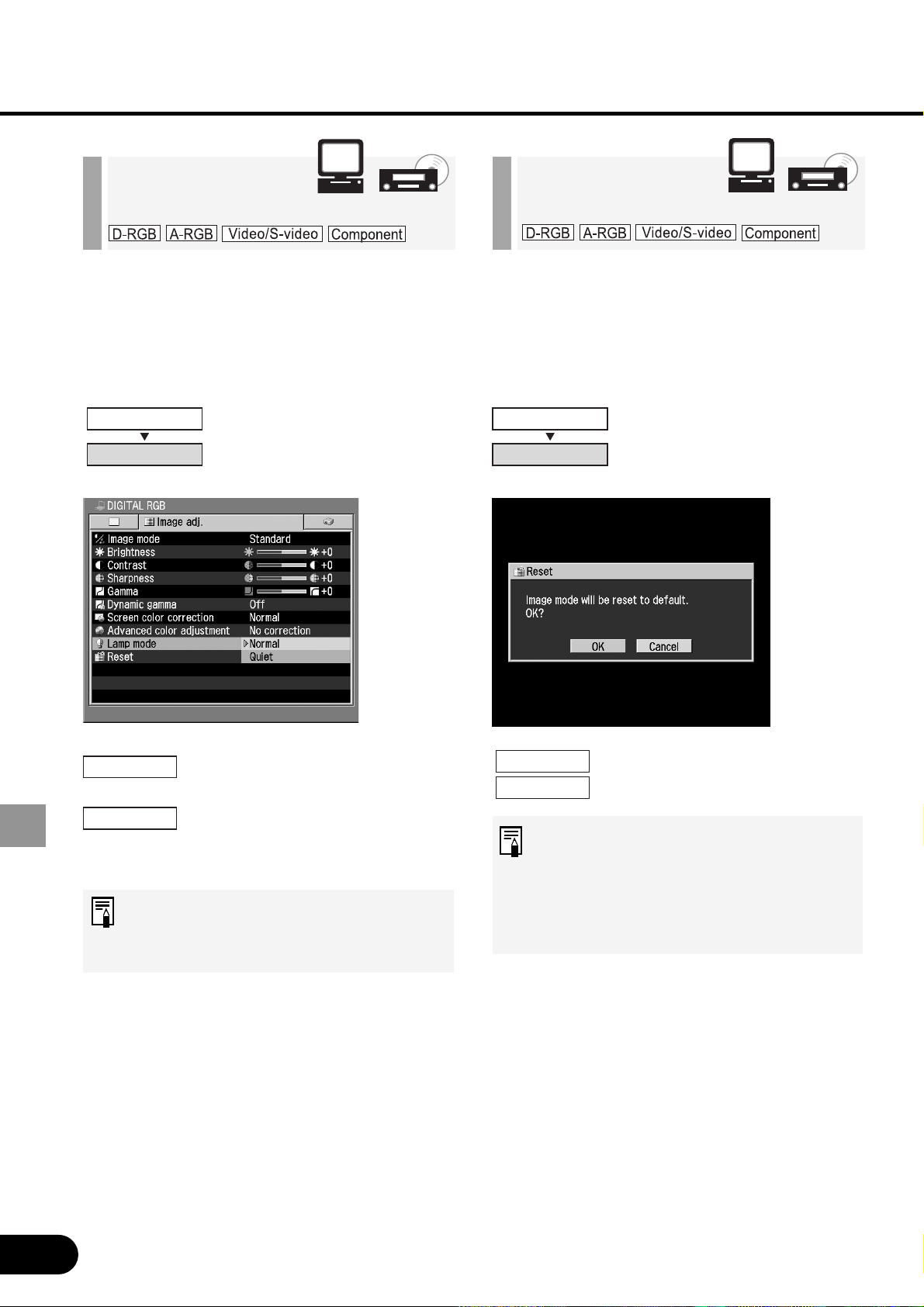
68
SETTING UP FUNCTIONS USING MENUS
When you want to make the image darker
or you feel the fan noisy, reduce the lamp
brightness.
An image is projected at the
normal brightness level.
The lamp brightness is
reduced to make the fan
quieter.
• Selecting [Quiet] allows you to
reduce the power consumption of
the lamp.
Reducing the
Lamp Brightness
If you want to make all image settings
from the beginning, you can reset the
current settings to the factory defaults.
All image settings are reset.
Resetting is canceled.
Image settings are saved for each
input signal and image mode. When
[OK] is selected, the settings saved
for the image mode of the currently
selected input signal are reset.
Resetting the
Image Settings
Image adj.
Lamp mode
Image adj.
Reset
Normal
Quiet
OK
Cancel
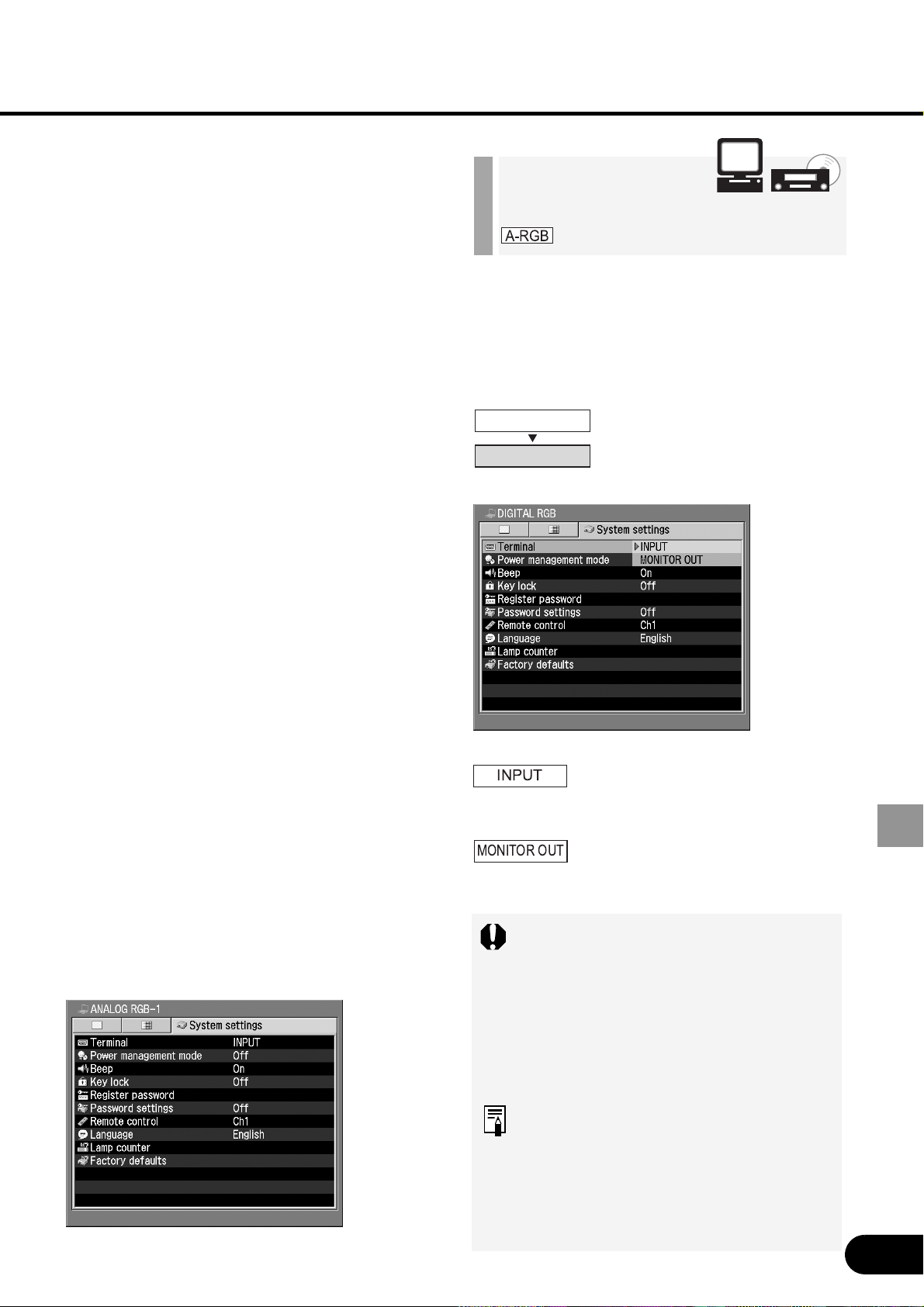
69
SETTING UP FUNCTIONS USING MENUS
You can use the RGB IN-2/COMPONENT
IN/RGB OUT terminal as an analog RGB
terminal.
The RGB IN-2/COMPO-
NENT IN/RGB OUT terminal
is used as an input terminal.
The RGB IN-2/COMPO-
NENT IN/RGB OUT terminal
is used as an output terminal.
When [COMPUTER-2] is selected,
a monitor output setting cannot be
done even if [ANALOG RGB] is
selected for the input signal.
Press the [COMPUTER-1] button
before making a monitor output
setting.
An image can be output to a monitor
through the RGB IN-2/
COMPONENT IN/RGB OUT
terminal only when [Computer-1]
and [ANALOG RGB] are selected
for the input signal.
Outputting an
Image to a Monitor
System Settings
Menu
This menu is used to set various functions
of this projector.
Outputting an Image to a Monitor
[Terminal] ........................................ P69
Selecting the Power Management Mode
[Power management mode] .......... P70
Issuing a Beep
[Beep] .............................................. P70
Prohibiting Projector Operation
[Key lock] ........................................ P71
Registering a Password
[Register password]....................... P71
Setting a Password
[Password settings] ...................... P72
Setting up the Remote Control
[Remote control] ............................ P72
Selecting a Display Language
[Language]...................................... P73
Resetting to Factory Defaults
[Factory defaults] ........................... P73
Resetting the Lamp Counter
[Lamp counter] ............................... P74
System settings
Terminal
INPUT
MONITOR OUT
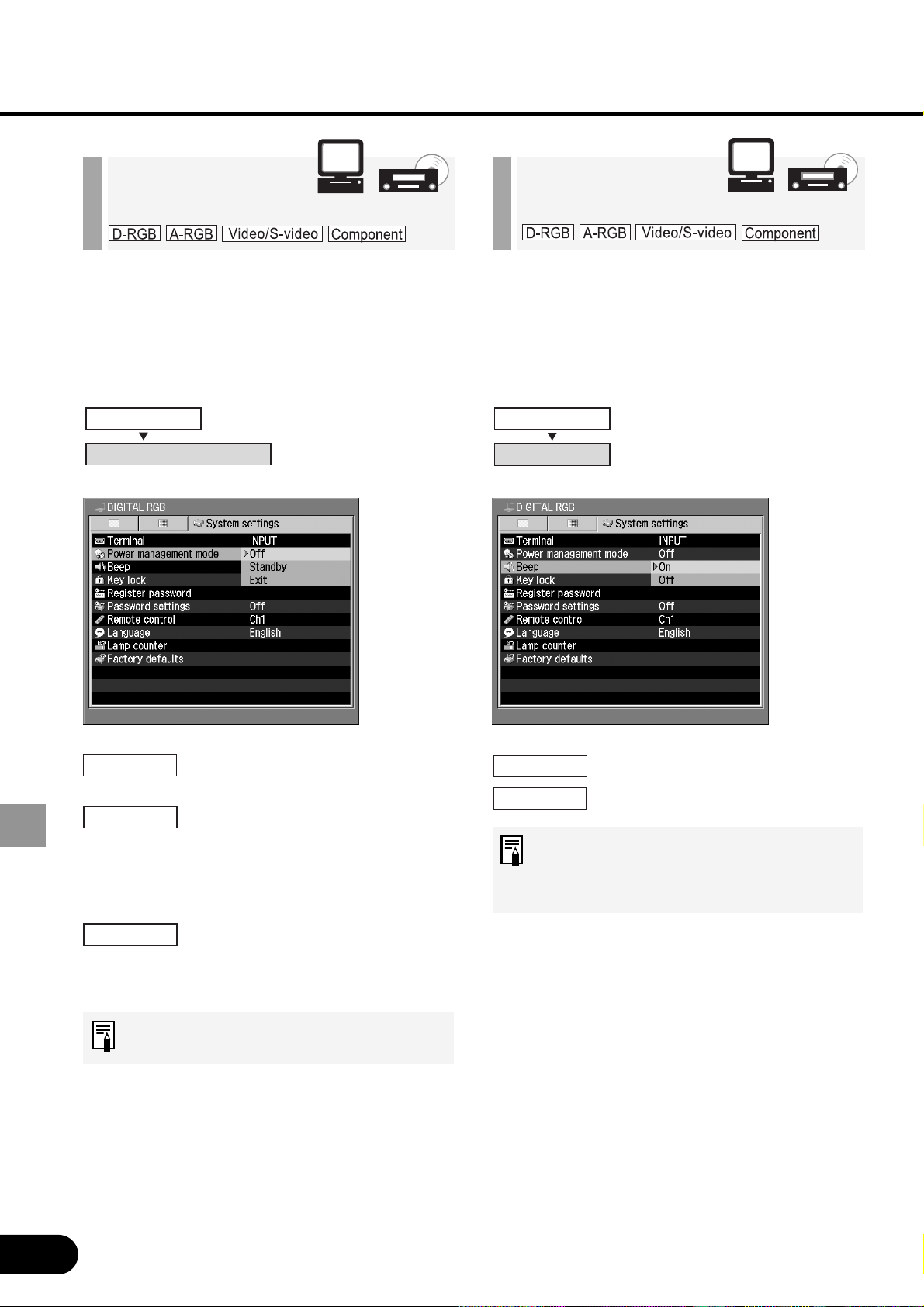
70
SETTING UP FUNCTIONS USING MENUS
When the projector is not used, the
mercury lamp is turned off or the power is
turned off automatically for power saving.
The power management
mode is not used.
The projector enters the
power management mode. It
restarts projection when a
signal is input or an operation
button is pressed.
The projector enters the exit
mode, being turned off
automatically.
For details on Power Management
Mode, refer to P36.
Selecting the Power
Management Mode
A beep can be sounded when the power
is turned on/off or a button on the top
control or remote control is pressed.
A beep is issued.
A beep is not issued.
A beep is not issued when the
sound has been muted by pressing
the [MUTE] button.
Issuing a Beep
System settings
Power management mode
System settings
Beep
Off
Standby
Exit
On
Off
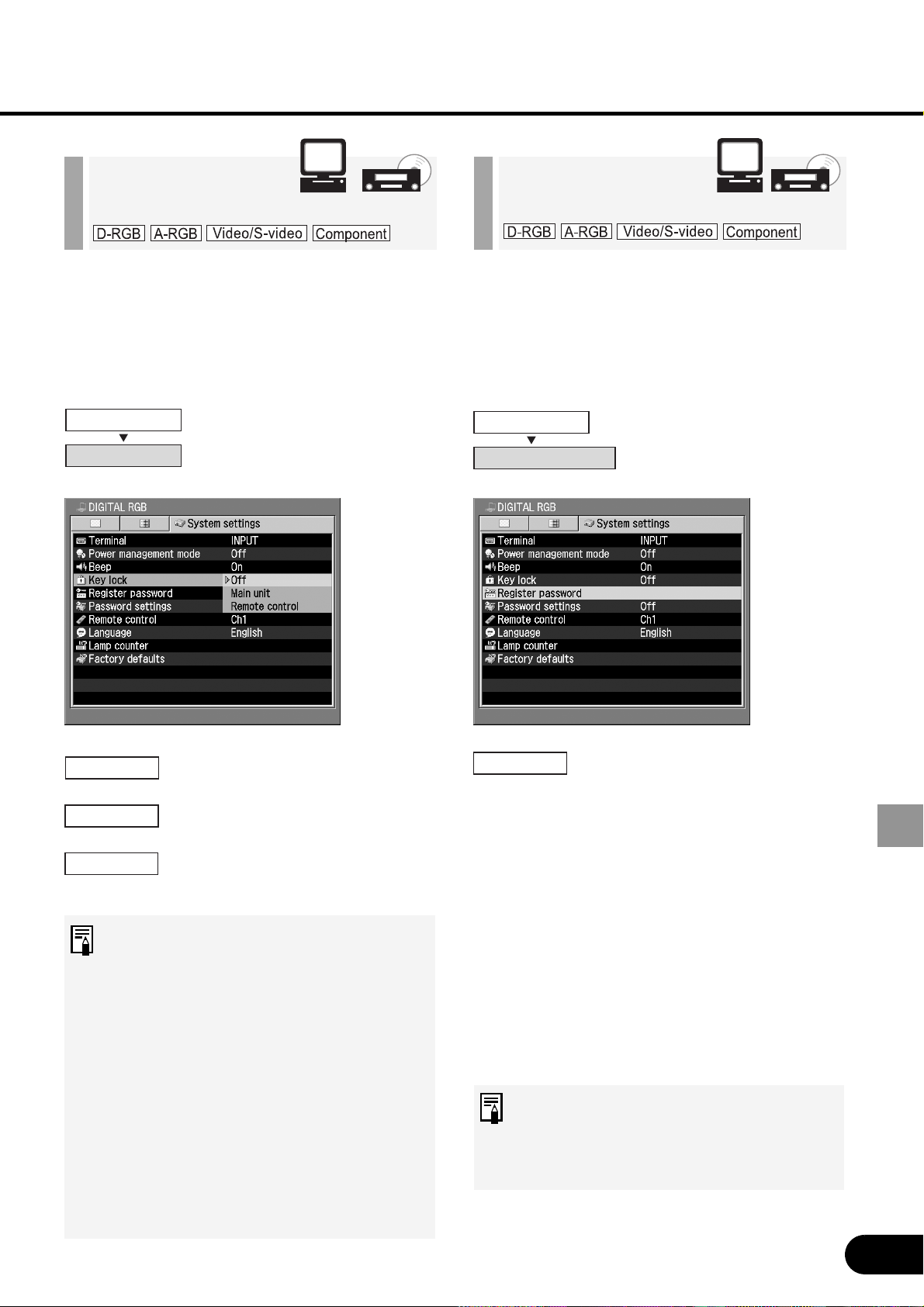
71
SETTING UP FUNCTIONS USING MENUS
Register a password that you need to
enter when turning on the projector.
Press the [OK] button and
the password entry screen
will appear.
Enter a 4-digit password using [^], [>], [v],
and [<] buttons.
Pressing the [^] button enters 1, pressing
the [>] button enters 2, pressing the [v]
button enters 3, and pressing the [<]
button enters 4.
Enter digits starting with the leftmost digit.
When you finish entering four digits, the
password will be registered automatically.
When you want to cancel registering
the password, press the [MENU]
button without entering the
password.
Registering a
Password
You can prohibit use of the buttons on the
top control and remote control to prevent
buttons from being pressed by mistake.
The key lock function is not
used.
Use of the top control is
prohibited.
Use of the remote control is
prohibited.
• The key lock function becomes
effective from the moment the
[OK] button is pressed after
selecting [Main unit] or [Remote
control]. Be sure to press the [OK]
button on the top control or
remote control which is not
locked.
• To unlock buttons forcibly, remove
the power plug from the AC outlet
after completion of projection, and
then insert the power plug with
the [OK] button pressed.
Prohibiting
Projector Operation
System settings
Key lock
System settings
Register password
Off
Main unit
Remote control
OK
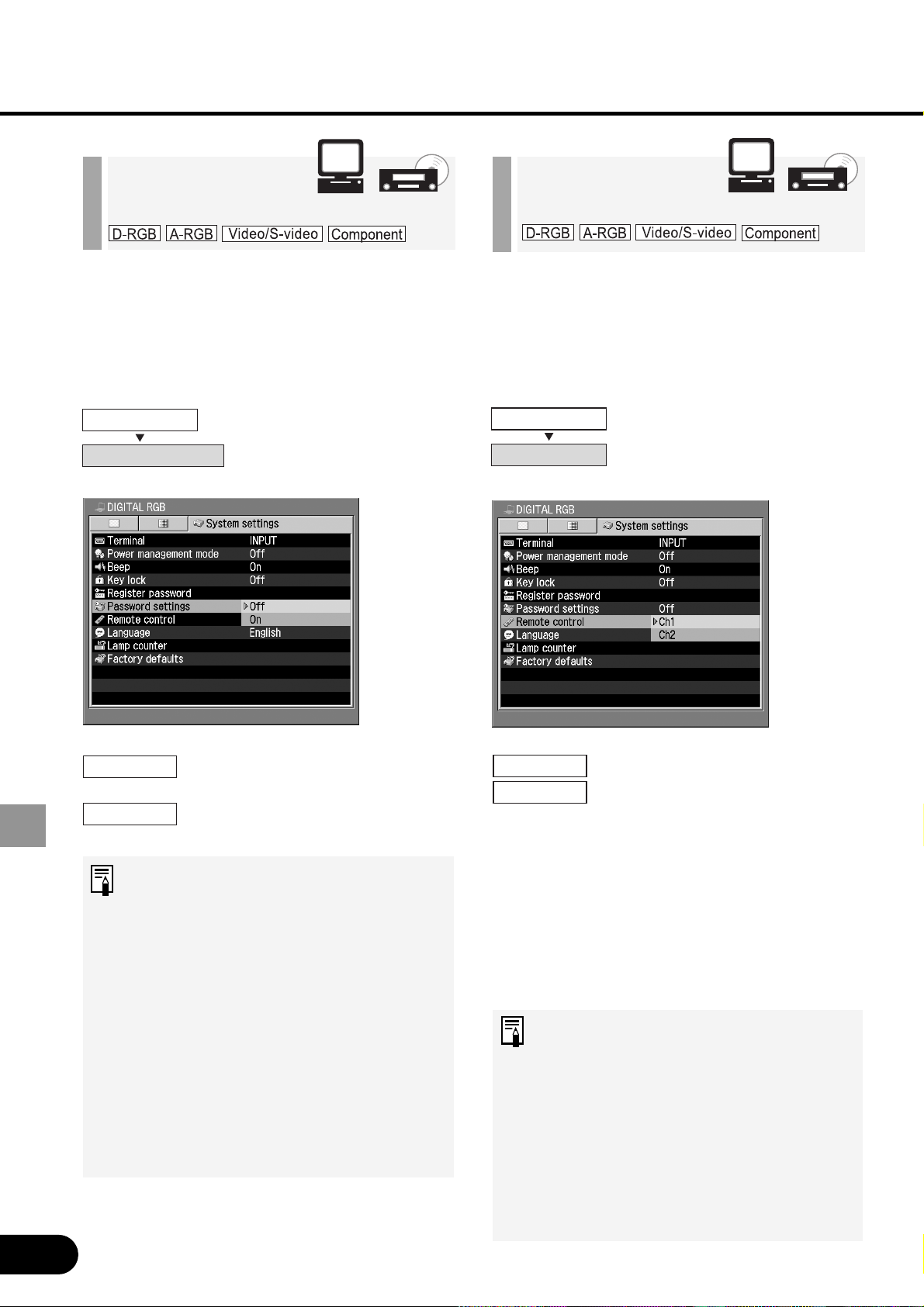
72
SETTING UP FUNCTIONS USING MENUS
Set a password in the projector. Once the
password is set, you will need to enter the
password each time you turn on the
projector.
The password function is not
used.
The password function is
used.
• Once a password is set in the
projector, a password entry screen
appears at power-on. Enter a 4-
digit password using [^], [v], [<],
and [>] buttons. If the password is
valid, projection starts. If you enter
a wrong password three times, the
projector will be turned off.
• To cancel the password, remove
the power plug from the AC outlet
after completion of projection, and
then insert the power plug in the
AC outlet with the [MENU] button
pressed.
Setting a
Password
When you use two projectors at the same
time, change the channel settings to
prevent the two remote controls from
interfering with each other.
Select the channel on the
projector you use, and then
press the [OK] button.
Selecting a Channel for the Remote Control
While pressing the [OK] button on the remote
control, press the [LIGHT] button for 3
seconds.
Pressing the two buttons allows you to switch
between CH1 (the button flashes once) and
CH2 (the button flashes twice).
• When setting a channel, be sure to
set the same channel for either
control (remote control or top
control). Set a different channel for
the other pair.
• When performing menu operation
using the remote control, changing
the channel by pressing the [OK]
button will prevent you for using
the remote control.
Setting up the
Remote Control
System settings
Password settings
System settings
Remote control
Off
On
Ch1
Ch2
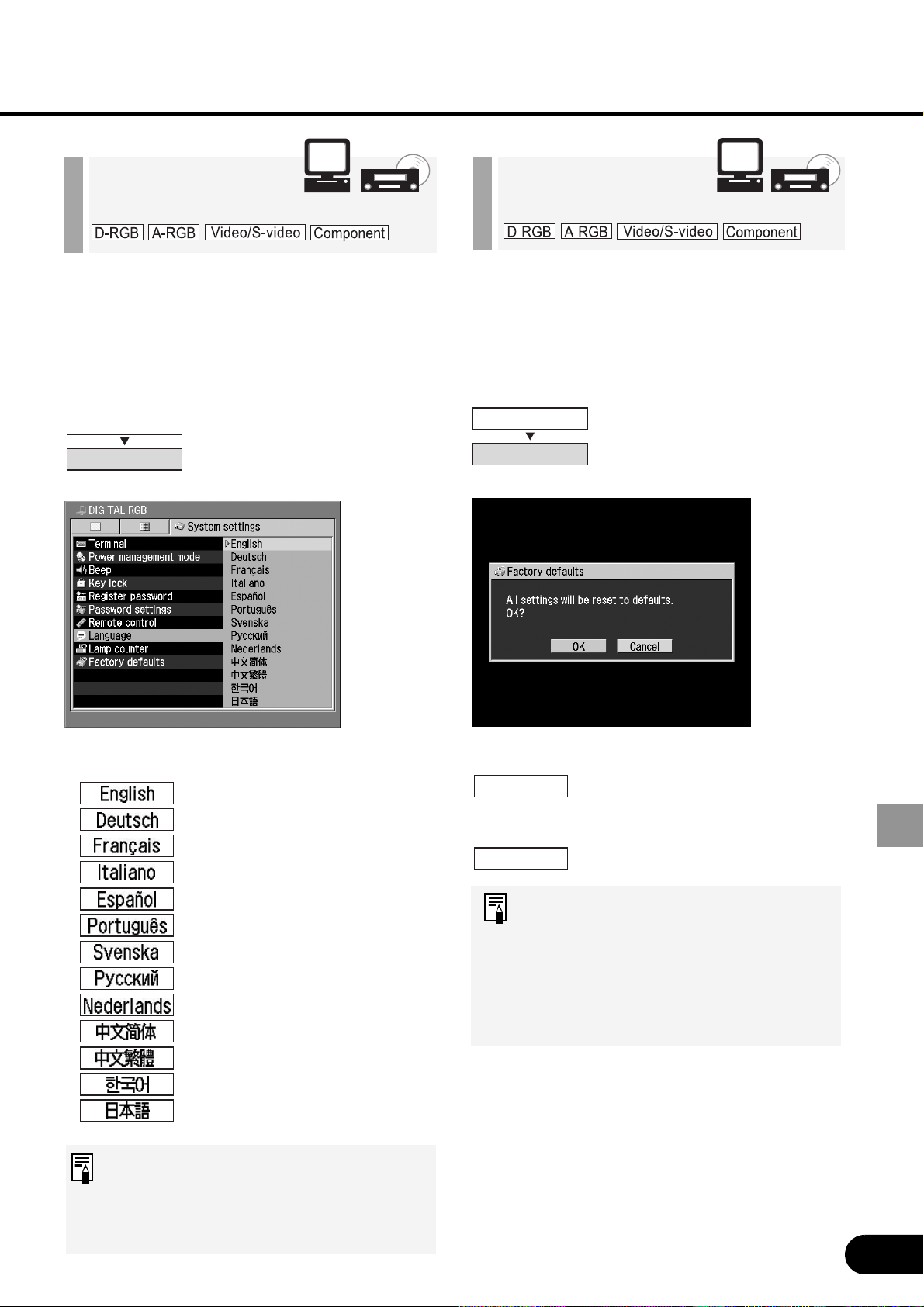
73
SETTING UP FUNCTIONS USING MENUS
You can select a language to be used in
the menu from 13 different languages.
Select a display language.
Select a language and press the
[OK] button and all words used in the
menu will be displayed in the
selected language.
English
German
French
Italian
Spanish
Portuguese
Swedish
Russian
Dutch
Chinese (Simplified)
Chinese (Traditional)
Korean
Japanese
Selecting a
Display Language
System settings
Language
You can reset menu item settings. The
system settings will be restored to the
factory defaults.
All menu item settings of the
projector are reset to factory
defaults.
Resetting is canceled.
• The [Lamp counter] and
[Language] settings will not be
reset even after resetting to
factory defaults.
• For the factory defaults, refer to
P86.
Resetting to the
Factory Defaults
System settings
Factory defaults
OK
Cancel
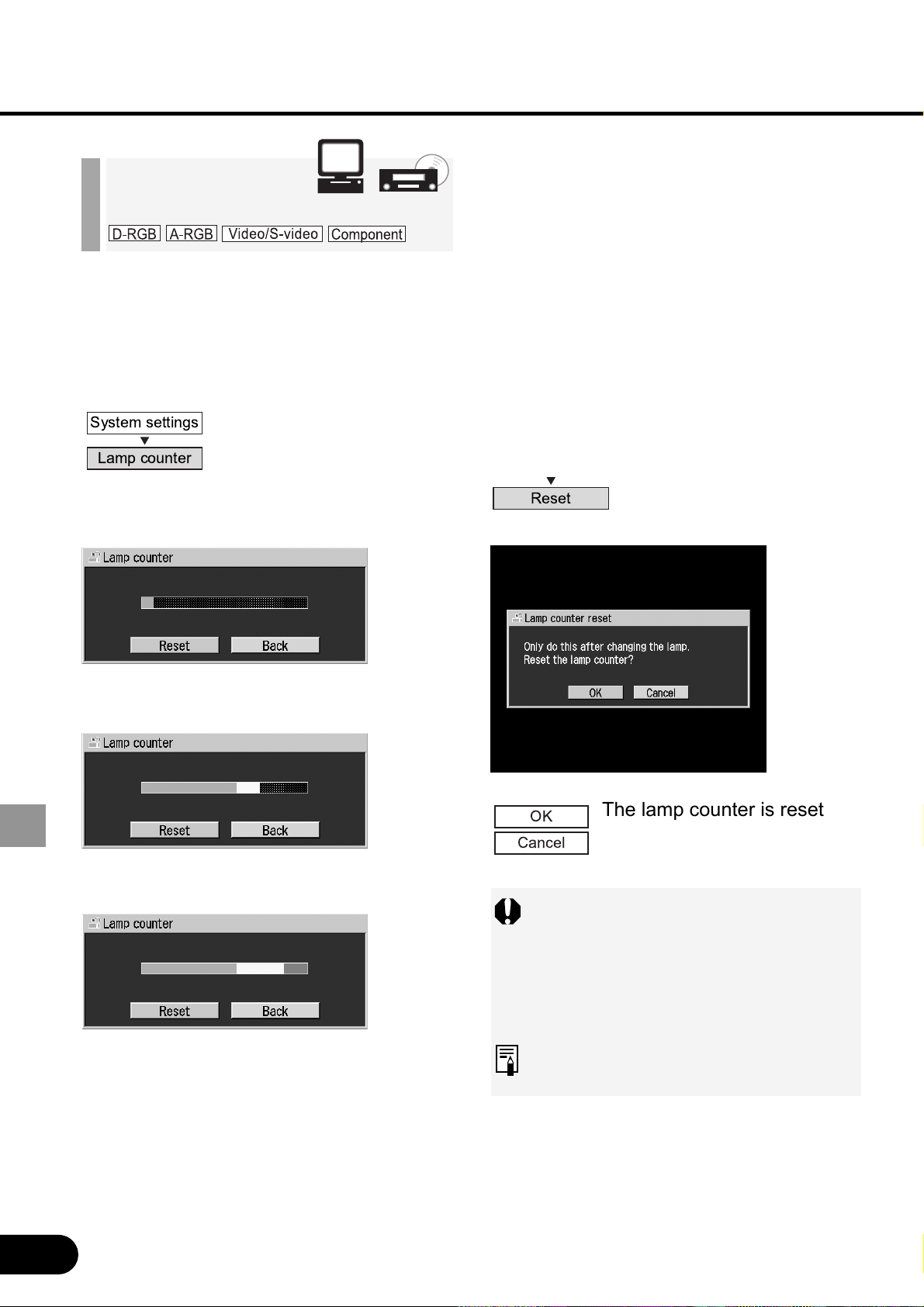
74
SETTING UP FUNCTIONS USING MENUS
When you have changed the lamp, reset
the lamp counter that indicates the lamp
replacement timing.
• When the time of use is less than 1,000
hours
• When the time of use is 1,000 to 1,400
hours
• When the time of use is 1,400 hours or
longer
Resetting the
Lamp Counter
The lamp counter is reset.
Resetting of the lamp
counter is canceled.
Do not reset the lamp counter
except when you have replaced the
lamp. If reset, the lamp counter
cannot indicate the correct timing of
lamp replacement.
For the lamp replacement method,
refer to P77.
OK
Cancel
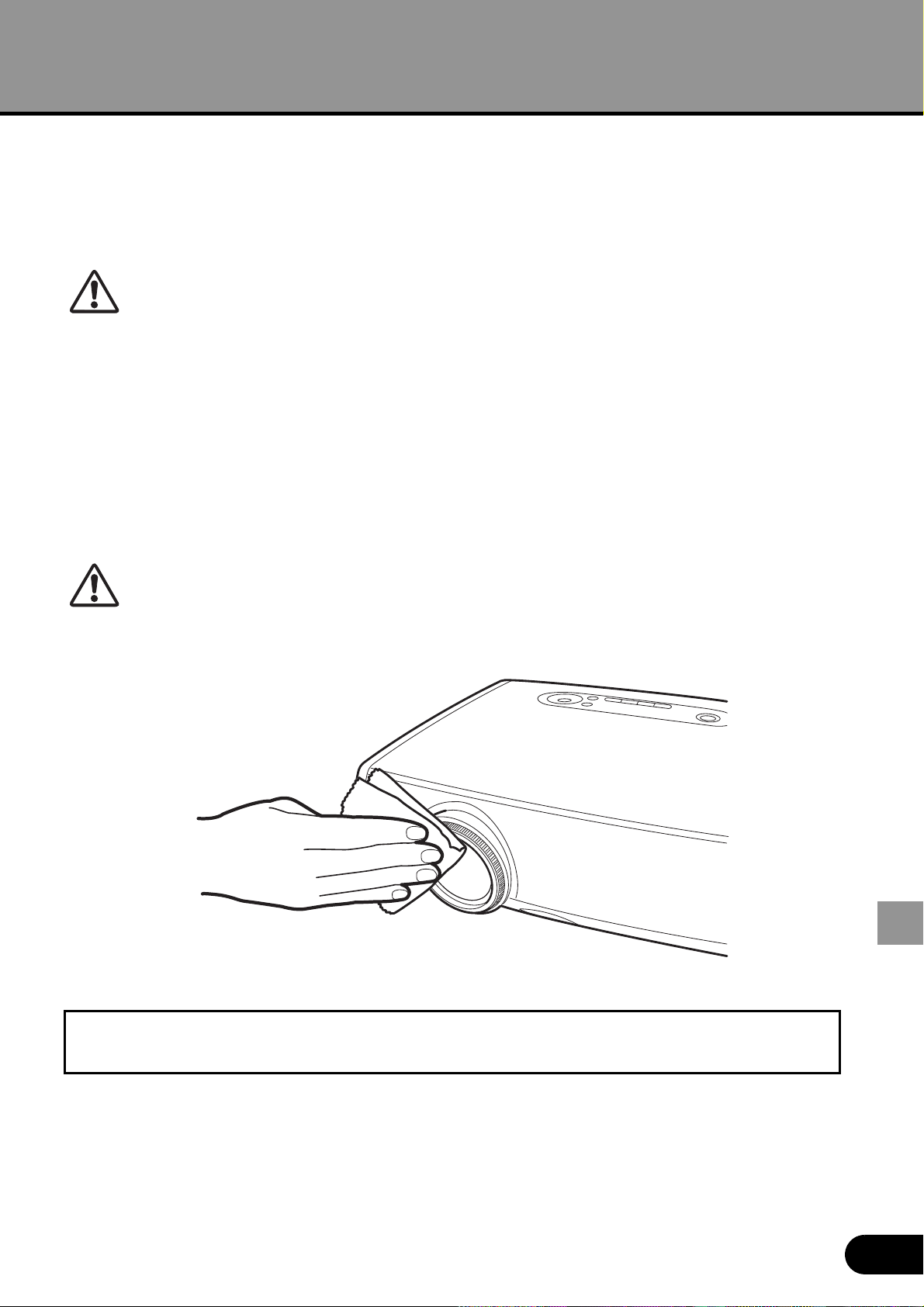
75
MAINTENANCE
Cleaning the Projector
Clean the projector frequently to prevent dust from accumulating on the surface.
A dirty lens can affect the quality of the projected image.
• The main unit is very hot immediately after turning off the projector. Wait until
the projector cools down sufficiently before cleaning the projector. You may get
burned or injured.
• Before cleaning, be sure to remove the power plug from the AC outlet.
Otherwise, electric shock or fire may result.
Cleaning the Projector Body
Softly wipe the projector body with a soft cloth.
If the projecter is heavily soiled, use a small amount of detergent diluted with water, damp
a cloth with this solution, squeeze the cloth hard, wipe the projector body with this cloth,
and finish with a dry cloth.
• Using volatile cleaning liquid or benzine may damage the projector body
surface. When using a chemical dust cloth, read the instructions thoroughly.
• To clean the lens, use a commonly available air blower or lens cleaning paper.
The lens surface is easily damaged, so do not use a hard cloth or tissues.
When Not Used for an Extended Period of Time
Be sure to attach the lens cap on the lens and store in the supplied carrying bag.
MAINTENANCE
Caution
Caution
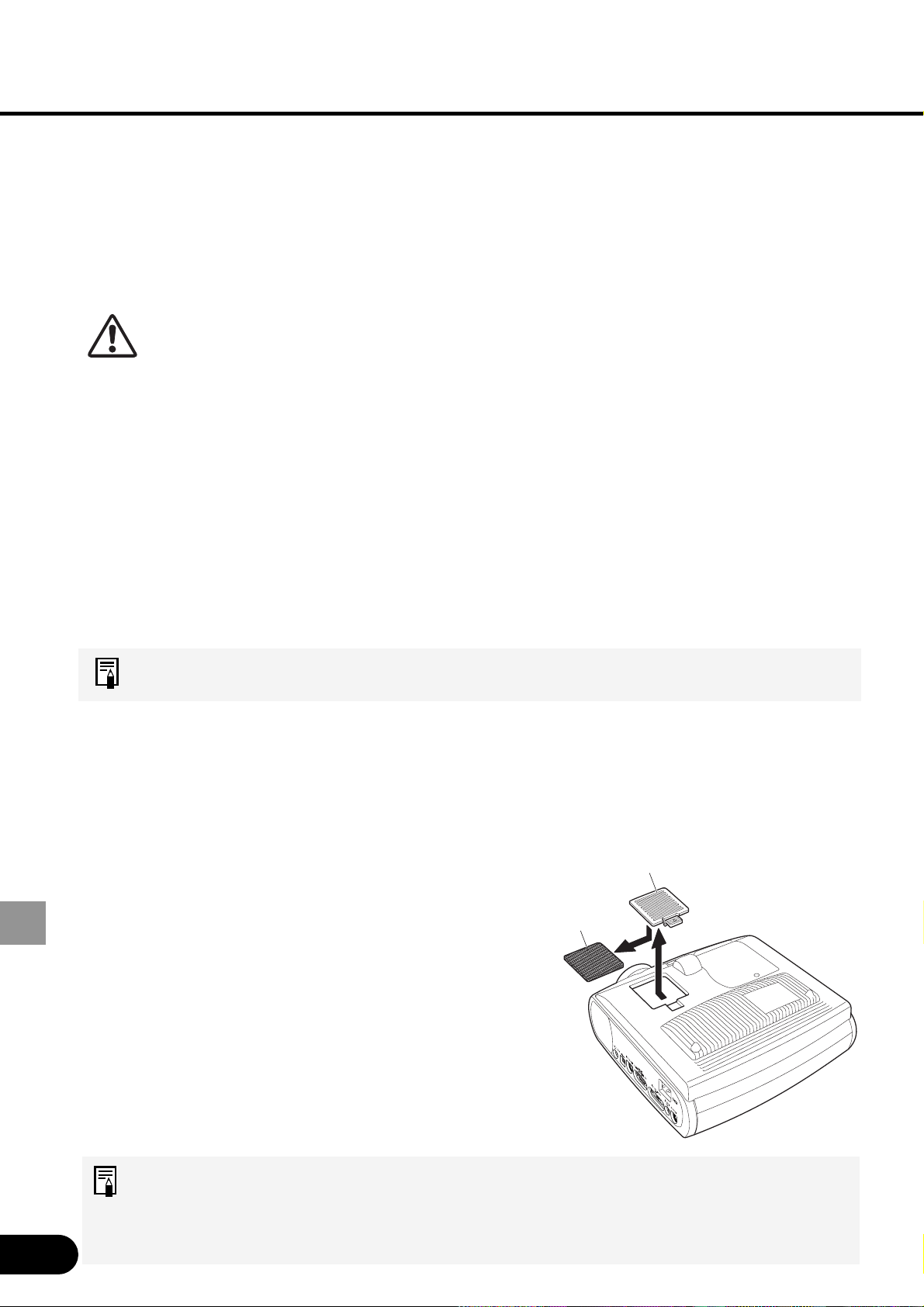
76
MAINTENANCE
Caution
Cover
Air filter
2
3
4
5
1
Cleaning and Replacing the Air Filter
An air filter is installed in the air intake vent on the bottom of the main body to protect the
internal lens and mirror from dust. Should the air filter become clogged with dust, it will
block the air flow into the projector and causing an internal heat buildup which may cause
a problem.
• The main unit is very hot immediately after turning off the projector. Wait until
the projector cools down sufficiently before cleaning the air filter. You may get
burned or injured.
• Before cleaning or replacing the air filter, be sure to remove the power plug
from the AC outlet. Electric shock or fire may result.
• Do not insert any object into the projector through the air filter opening. You
may suffer electric shock or injury due to the high-voltage parts or rotating
parts.
Cleaning the Air Filter
Turn the projector upside down, remove the cover by pushing the latch, remove the air
filter, and clean it with a vacuum cleaner.
When cleaning dust off the side exhaust vent and the bottom air intake vent, bring the
vacuum cleaner nozzle close to them directly.
• Clean the air filter frequently.
• After cleaning the air filter, install it following the removal steps in reverse.
Procedure for Replacing the Air Filter
Turn off the projector, remove the power
plug from the AC outlet, and leave the
projector stand for at least 1 hour.
Remove the filter cover by pushing the
latch.
Remove the air filter.
Attach a new air filter under the filter cover.
Install the filter cover in place.
• Attach the lens cap when replacing the air filter.
• Handle the air filter carefully. If damaged, the air filter will not work properly.
• Replace the air filter whenever you replace the lamp.
• An air filter can be ordered from your Canon dealer.
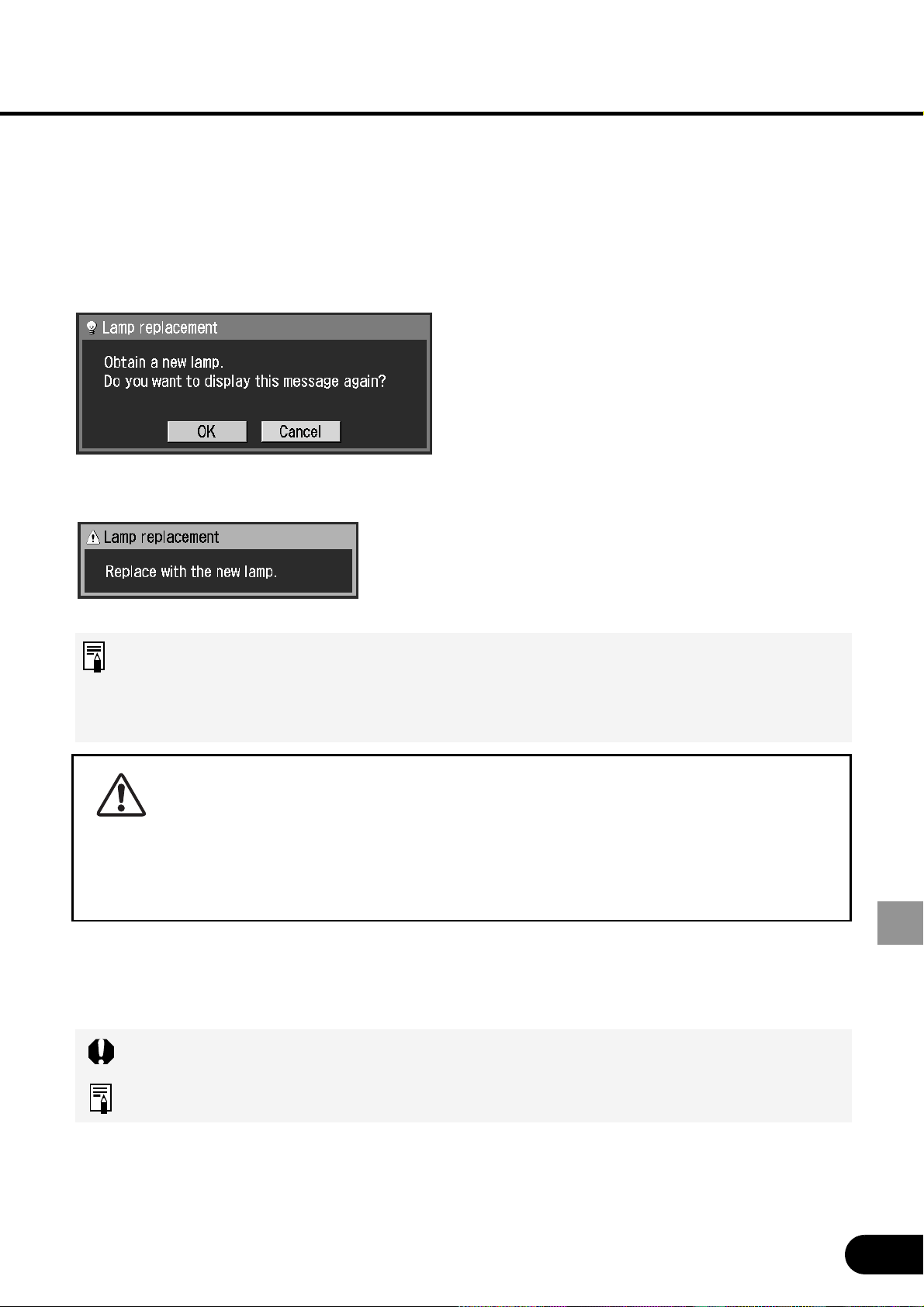
77
MAINTENANCE
Replacing the Lamp
When the time of use of the lamp is 1400 hours or longer, the following message (two
types) is displayed for 10 seconds each time the projector is turned on.
• When the time of use is 1,400 to 1,500 hours
• When the time of use is 1,500 hours or longer
• This message will not appear again, if you select [No] in response to the
message "Do you want to display this message again?".
• Check the time of use of the lamp in [Lamp counter] from the System settings
menu. (P74)
• When replacing the lamp, turn off the projector, wait until the cooling fan
stops, remove the power plug from the AC outlet, and let the projector stand
for at least 1 hour. You may get burned because the main unit is very hot
immediately after the projector is turned off.
• When replacing the lamp do not touch the inner glass surface. The
projector’s performance may degrade.
About the Replacement Lamp
This projector uses the following lamp.
Lamp type No. : RS-LP01
Be sure to use the lamp of the specified type.
A lamp can be ordered from your dealer.
Caution
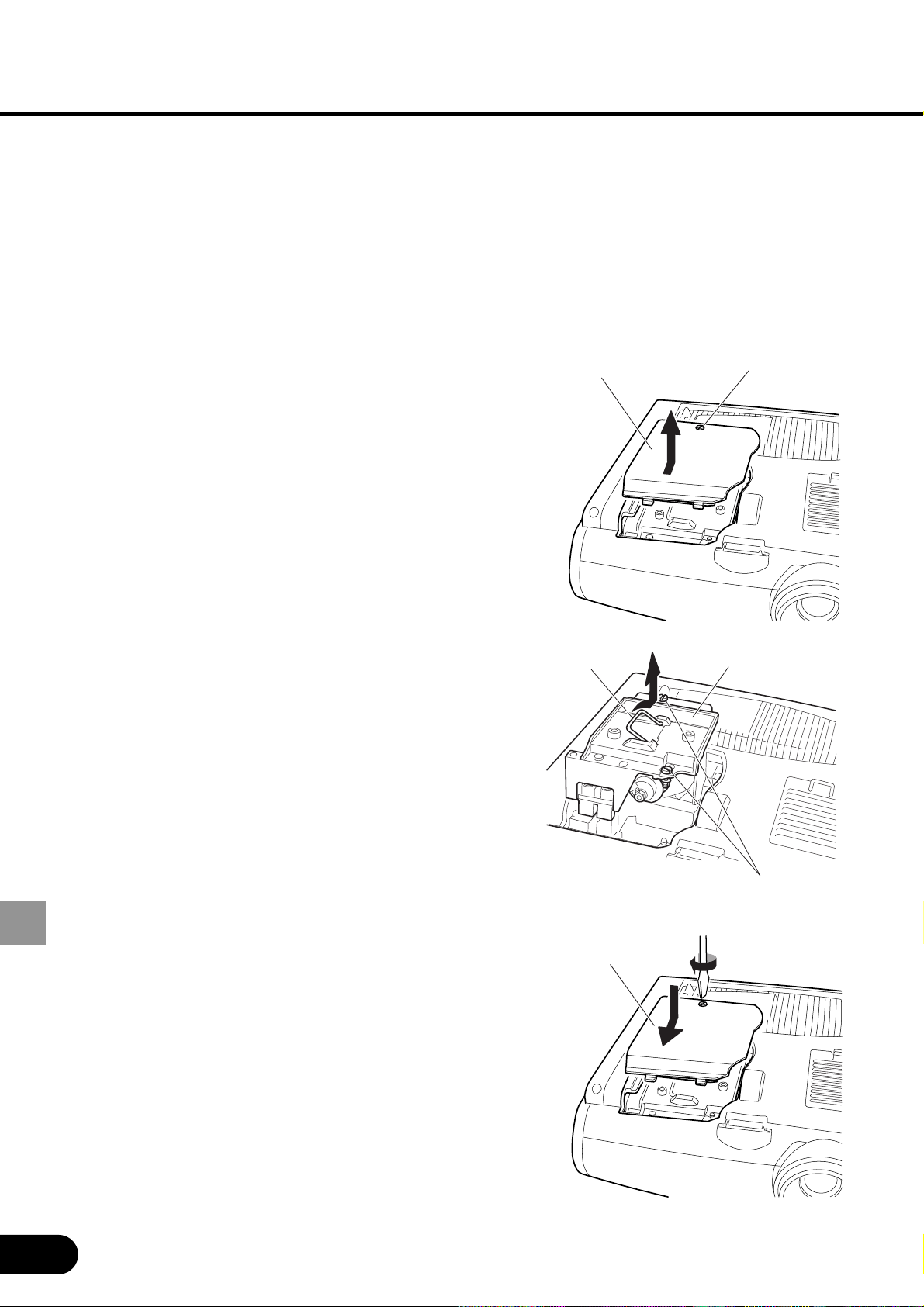
78
MAINTENANCE
Procedure for Replacing the Lamp
Turn off the projector and disconnect
the power plug from the AC outlet.
Allow the projector to cool for a least
1 hour.
Detach the lamp cover by loosening
a screw with a flathead screwdriver.
Loosen two screws, turn up the
handle, and remove the lamp.
Insert a new lamp as far as it will go
and secure it with two screws.
* After installation, be sure to turn
down the handle.
Install the lamp cover and tighten the
screw.
Turn on the projector.
Bring up the menu and select
[System settings] -> [Lamp counter].
(P74)
Select [Reset] -> [OK] to reset the
lamp counter.
Lamp
Screws
Handle
1
2
Screw
Lamp cover
Lamp cover
8
7
6
5
3
4
79
TROUBLESHOOTING
Understanding the Warning Lamp
Flash Patterns
When an internal problem occurs, the WARNING lamp on the Control Panel flashes red.
When dealing with the problem, turn off the projector, wait until the cooling fan
stops, remove the power plug from the AC outlet.
Flash Pattern Meaning Countermeasure
One flash Abnormal
temperature
The temperature inside the projector is too high for
some reason or the outside air temperature is higher
than the specified one.
If the problem is inside the projector, check whether
the projector is installed and operated normally, turn
off the projector to cool its inside, and retry projection.
If the same warning occurs again, the projector may
be defective. Contact your dealer.
Two flashes Faulty lamp The lamp has burnt out. Replace the lamp with a new
one. If the same warning occurs again, the lamp drive
circuit may be defective. Contact your dealer.
Three flashes Faulty lamp
cover
The lamp cover is open. Check whether the lamp
cover is installed properly. If it is installed properly, the
lamp cover detection switch may be defective. Contact
your dealer.
Four flashes Faulty
cooling fan
The cooling fan or another component may be
defective. Contact your dealer.
Five flashes Faulty power
supply
The voltage of part of the power supply is abnormally
high or any other problem has occurred in the power
supply. Contact your dealer.
TROUBLESHOOTING
80
TROUBLESHOOTING
Symptoms and Solutions
No power
No image
Cause Countermeasure
The power cord is not connected prop-
erly.
Check whether the power cord is connected properly.
(P26)
The power cord has just been con-
nected.
After connecting the power plug, you cannot turn on the
projector before the [POWER] lights red. (P27)
You attempted to turn on the projector
immediately after turning it off.
The projector cannot be turned on for about 90 seconds
after it is turned off.
Wait for at least 90 seconds and press the [POWER] but-
ton again. (P35)
Cause Countermeasure
Any connection cable is connected
improperly.
Check whether the projector is properly connected to the
computer and AV equipment. (P23, 42)
20 seconds have not passed since the
projector was turned on.
When the projector is turned on, the Opening window is
displayed for about 20 seconds. To project an image
immediately, press the [OK] button on the remote control
or top control. (P27)
No image is sent from the AV equip-
ment.
Check that an image is played back on the connected dig-
ital camera, video camcorder, DVD, etc. (P47)
Connection to the video terminal or
selection of a signal type is incorrect.
Check that connection to the video terminal is correct.
Also check that selection of a signal type is correct. (P28,
47)
The [NO SHOW] function is selected. Press the [NO SHOW] button on the remote control. (P37)
No image is sent due to the problem
occurred on the computer side.
Turn on the projector and computer in this order again.
81
TROUBLESHOOTING
No sound
Out of focus
Top/bottom or left/right reversed
Cause Countermeasure
The audio cable is not connected
properly.
Check whether the audio cable is connected properly.
(P24, 43)
The [MUTE] function is selected. Press the [MUTE] button on the remote control. (P40)
The volume level is adjusted to the
minimum.
Adjust the [VOL+] button on the remote control or top con-
trol to adjust the volume level. (P40)
An audio cable with a built-in resistor
is used.
Use an audio cable without a built-in resistor.
Cause Countermeasure
The image is out of focus. Adjust the focus. (P30)
The lens cap is not removed. Remove the lens cap. (P92)
The distance to the screen is too
short.
Check whether the distance to the screen is proper.
If the distance is shorter than about 3.9' (1.2 m), the image
cannot be brought to a focus. (P20, 85)
The projector is not placed straight in
front of the screen.
Check whether an image is obliquely projected to the
screen. A slight error in the projection angle can be cor-
rected through keystone adjustment. (P21, 31)
The projector has been moved to a
place where the difference in tempera-
ture is large.
When the projector is moved from a low-temperature
place to a high-temperature place, dews may form on the
lens. Dews will evaporate a while later and the projector
will be able to project a normal image.
Cause Countermeasure
An image is projected with its top and
bottom or left and right reversed.
The ceiling mounted/rear projection setting is incorrect.
Check the "Image flip H/V" setting in the Display settings
menu. (P61)
82
TROUBLESHOOTING
Cannot project image from notebook computer
Power turns off
Cause Countermeasure
The connection cable is not connected
properly.
Check whether the connection cable is properly connected
to the video terminal of the computer. (P23)
The video signal type is incorrect. Check whether the selected signal type is correct. (P28,
84)
The external monitor output setting on
the notebook computer is incorrect.
Turn on the external monitor output on the notebook com-
puter.
To turn on the external monitor output, press the [LCD] or
[VGA] function key while pressing the [Fn] key on the key-
board of the notebook computer. (P24)
The combination of keys used to perform this operation
varies among computer manufacturers. Refer to the
User's Manual that came with your computer.
The displayed image is not the same
as that displayed on the notebook
computer.
Check whether the dual screen (multi-display) mode is
selected on the notebook computer.
When the dual screen mode is selected, change it to the
simultaneous display mode (output setting) on the note-
book personal computer.
The output setting method varies among computer manu-
facturers. Refer to the User's Manual that came with your
computer.
Cause Countermeasure
The air intake or exhaust vent is
blocked.
Check whether the air intake or exhaust vent is blocked.
If the air intake or exhaust vent is blocked, the temperature
inside the projector rises and the power is automatically
turned off to protect the main body of the projector. Wait
until the internal temperature lowers, and turn on the pro-
jector with the intake and exhaust vents unblocked. (P21,
76)
The fir filter is dirty. Check whether the bottom air filter is clogged with dust.
If the air filter is clogged, clean or replace the air filter.
(P76)
The lamp has burnt out (or it is defec-
tive).
Check whether the lamp has burnt out.
If the lamp has burnt out, replace it.
The lamp may be defective if it has not burnt out. Check
the lamp by replacing it with a spare lamp if you have it.
(P12, 77)
The operating temperature is
improper.
Check whether the operating temperature is 5 to 35
o
C.
(P13)
Others The projector may be out of order. Contact Canon dealer
immediately. (Back cover)
83
TROUBLESHOOTING
Cannot operate the remote control
Cannot operate the wireless mouse
This symbol on the nameplate means the product is Listed by
Underwriters Laboratories Inc. It is designed and manufactured to
meet rigid U.L. safety standards against risk of fire, casualty and
electrical hazards.
The CE Mark is a Directive conformity mark of the European Community (EC).
Cause Countermeasure
Batteries are not installed properly or
they have run out.
Check whether batteries are installed properly. If batteries
are installed properly, replace them with one batteries.
(P17)
You are operating the remote control
outside the remote control operating
range.
Check whether you are operating the remote control within
the remote control operating range.
Also check whether there is any obstacle between the
infrared remote receiver of the projector and the remote
control. (P16)
The operating environment of the
remote control is bad.
Check whether the infrared remote receiver of the projec-
tor is exposed to direct sunlight or strong light of lighting
apparatus. (P16)
The remote control code does not
match the projector setting.
Check whether the remote control code has been
changed.
You can confirm the "Remote control" setting in the Sys-
tem settings menu. (P72)
"Key lock" is turned on to disable
remote control operation.
Check whether "Key lock" is turned on to disable remote
control operation.
In the System settings menu, set "Key lock" to "Off." (P71)
Cause Countermeasure
The USB cable is not connected prop-
erly.
Check whether the USB cable is properly connected
between the projector and computer. (P41)
A mouse driver is not installed. Check whether the mouse can be used on the computer
side. If it cannot be used, install a mouse driver in the com-
puter.
The mouse is not recognized due to a
computer problem.
Turn on the projector and computer in this order again.
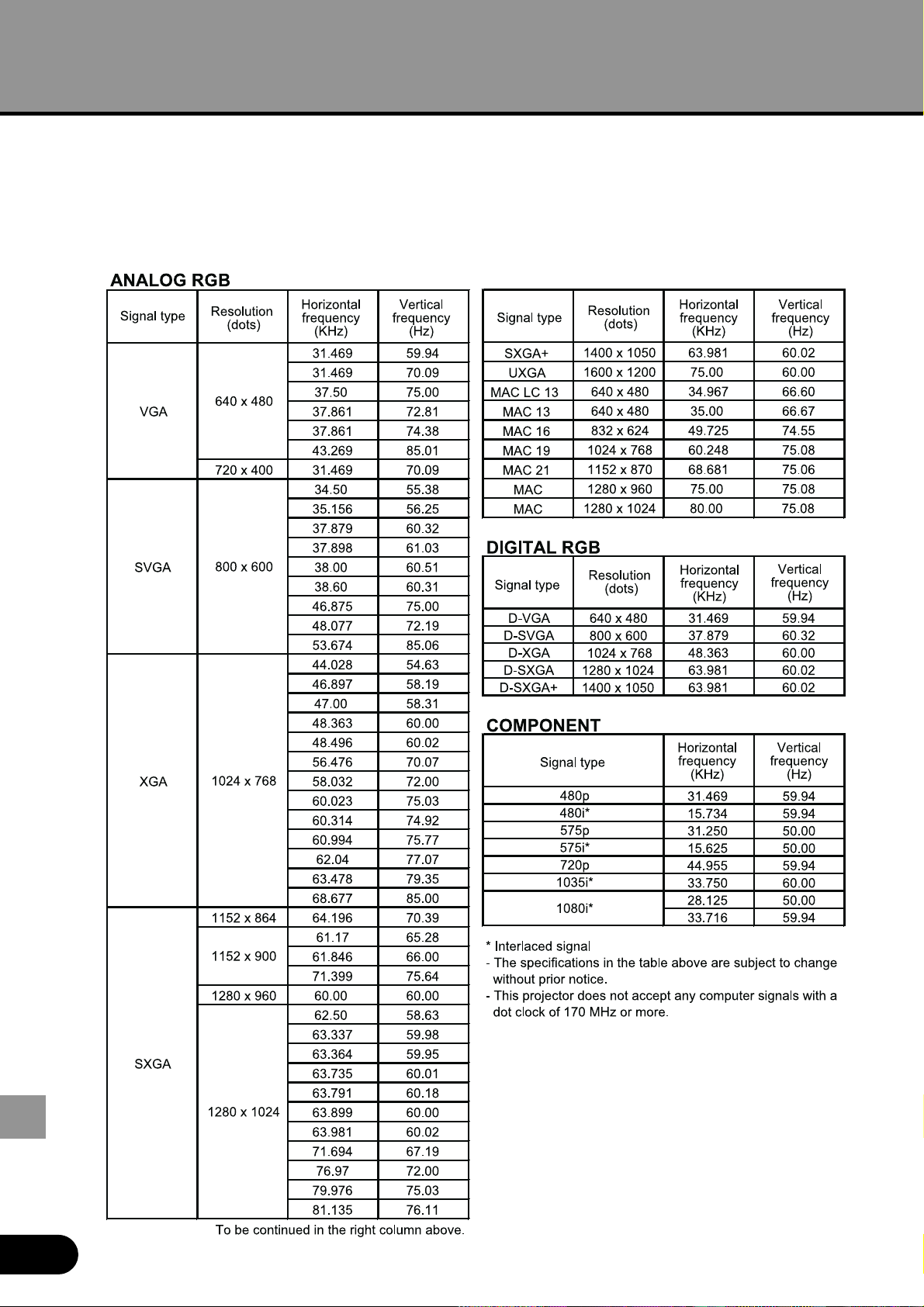
84
APPENDIX
Computer Signal Types
This projector supports signals of the following types.
If your computer or AV equipment is compatible with any one of these signal types, the auto
PC function of the projector judges the type of the input signal to project an image correctly.
APPENDIX
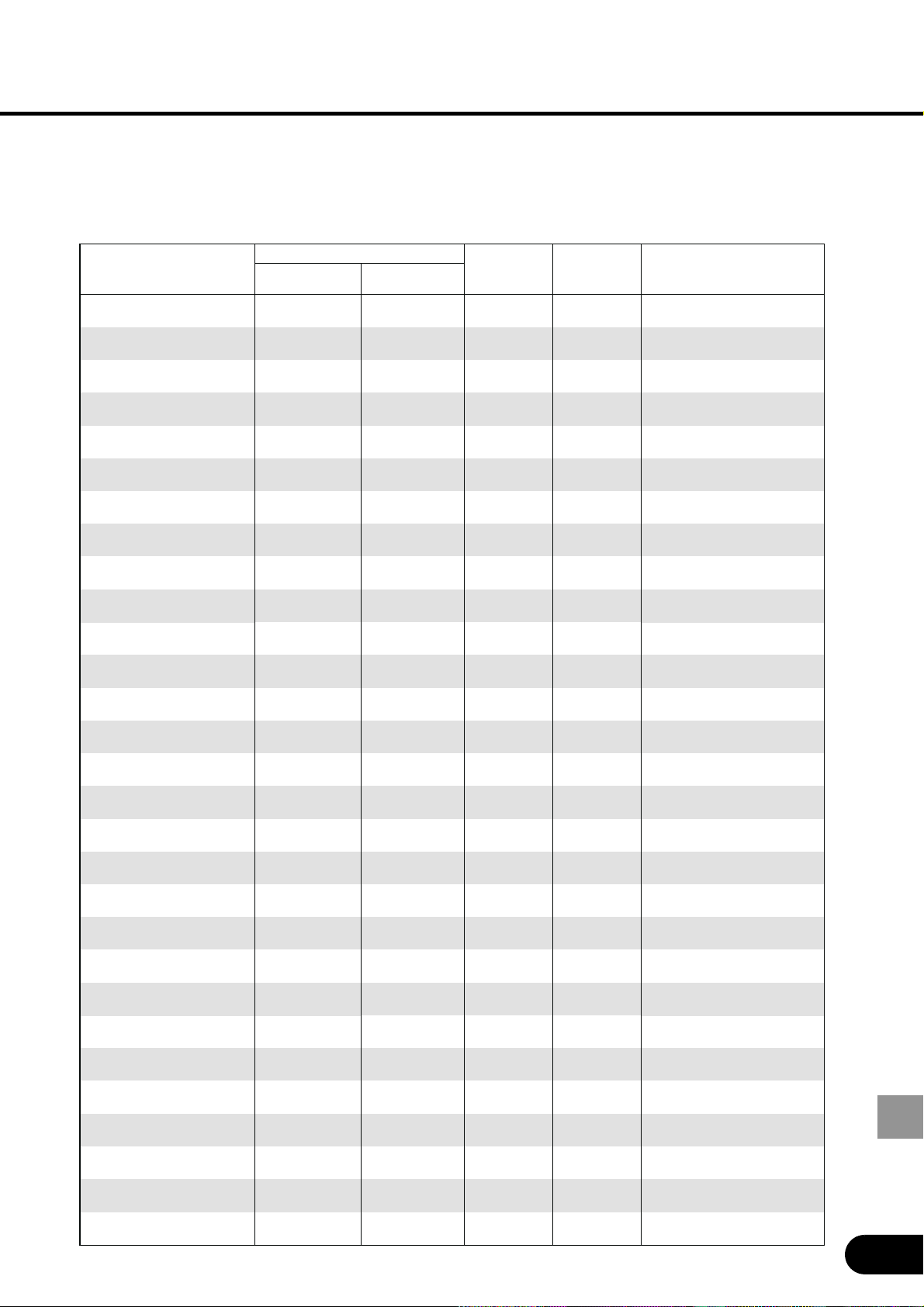
85
APPENDIX
Relationship between Screen Size
and Projection Distance
Zoomed projection distance
Screen size at 4:3
aspect ratio
W x D (cm)
Max. Min.
H1 H2
Screen size at 16:9
aspect ratio
W x D (cm)
40
″
81 x 61
2.0 m
(6.6
′
)
1.2 m
(3.9
′
)
55 cm
(1.8
′
)
6 cm
(0.2
′
)
37
″
81 x 46
2.5 m
(8.2
′
)
1.5 m
(4.9
′
)
69 cm
(2.3
′
)
8 cm
(0.26
′
)
46
″
102 x 57
60
″
122 x 91
3.0 m
(9.8
′
)
1.8 m
(5.9
′
)
82 cm
(2.7
′
)
9 cm
(0.3
′
)
55
″
122 x 69
3.5 m
(11.5
′
)
2.1 m
(6.9
′
)
96 cm
(3.1
′
)
11 cm
(0.36
′
)
64
″
142 x 80
4.0 m
(13.1
′
)
2.4 m
(7.9
′
)
110 cm
(3.6
′
)
12 cm
(0.4
′
)
74
″
163 x 91
4.5 m
(14.8
′
)
2.7 m
(8.9
′
)
123 cm
(4.0
′
)
14 cm
(0.46′)
83
″
183 x 103
5.0 m
(16.4
′
)
3.0 m
(9.8
′
)
137 cm
(4.5
′
)
15 cm
(0.49
′
)
91
″
203 x 114
5.5 m
(18.0
′
)
3.3 m
(10.8
′
)
151 cm
(5.0
′
)
17 cm
(0.56
′
)
101
″
224 x 126
6.0 m
(19.7
′
)
3.6 m
(11.8
′
)
165 cm
(5.4
′
)
18 cm
(0.59
′
)
110
″
244 x 137
6.5 m
(21.3
′
)
3.9 m
(12.8
′
)
178 cm
(5.8
′
)
20 cm
(0.66
′
)
119
″
264 x 149
7.0 m
(23.0
′
)
4.2 m
(13.8
′
)
192 cm
(6.3
′
)
21 cm
(0.69
′
)
128
″
284 x 160
7.5 m
(24.6
′
)
4.5 m
(14.8
′
)
206 cm
(6.8
′
)
23 cm
(0.75
′
)
138
″
305 x 171
8.0 m
(26.2
′
)
4.8 m
(15.7
′
)
219 cm
(7.2
′
)
24 cm
(0.79
′
)
147
″
325 x 183
8.5 m
(27.9
′
)
5.1 m
(16.7
′
)
233 cm
(7.6
′
)
26 cm
(0.85
′
)
156
″
345 x 194
8.8 m
(28.9
′
)
5.3 m
(17.4
′
)
241 cm
(7.9
′
)
27 cm
(0.86
′
)
162
″
358 x 201
9.0 m
(29.5
′
)
5.4 m
(17.7
′
)
247 cm
(8.1
′
)
27 cm
(0.86
′
)
165
″
366 x 206
9.1 m
(29.9
′
)
5.5 m
(18.0
′
)
250 cm
(8.2
′
)
28 cm
(0.9
′
)
167
″
370 x 208
-
5.7 m
(18.7
′
)
261 cm
(8.6
′
)
29 cm
(
0.95
′
)
174
″
386 x 217
-
6.0 m
(19.7
′
)
274 cm
(9.0
′
)
30 cm
(
0.98
′
)
184
″
406 x 229
-
6.3 m
(20.7
′
)
288 cm
(9.4
′
)
32 cm
(
1.05
′
)
193
″
427 x 240
-
6.6 m
(21.7
′
)
302 cm
(9.9
′
)
34 cm
(
1.12
′
)
202
″
447 x 251
-
7.0 m
(23.0
′
)
315 cm
(10.3
′
)
35 cm
(
1.15
′
)
211
″
467 x 263
-
7.3 m
(24.0
′
)
329 cm
(10.8
′
)
37 cm
(
1.21
′
)
220
″
488 x 274
-
7.6 m
(24.9
′
)
343 cm
(11.3
′
)
38 cm
(
1.25
′
)
233
″
508 x 286
-
7.9 m
(25.9
′
)
357 cm
(11.7
′
)
40 cm
(
1.31
′
)
239
″
528 x 297
-
8.2 m
(26.9
′
)
370 cm
(12.1
′
)
41 cm
(
1.35
′
)
248
″
549 x 309
-
8.5 m
(27.9
′
)
384 cm
(12.6
′
)
43 cm
(
1.41
′
)
257
″
569 x 320
-
8.8 m
(28.9
′
)
398 cm
(13.1
′
)
44 cm
(
1.44
′
)
266
″
589 x 331
-
9.1 m
(29.9
′
)
411 cm
(13.5
′
)
46 cm
(
1.51
′
)
276
″
610 x 343
50
″
102 x 76
70
″
142 x 107
80
″
163 x 122
90
″
183 x 137
100
″
203 x 152
110
″
224 x 168
120
″
244 x 183
130
″
264 x 198
140
″
284 x 213
150
″
305 x 229
160
″
325 x 244
170
″
345 x 259
176
″
358 x 268
180
″
366 x 274
182
″
370 x 277
190
″
386 x 290
200
″
406 x 305
210
″
427 x 320
220
″
447 x 335
230
″
467 x 351
240
″
488 x 366
250
″
508 x 381
260
″
528 x 396
270
″
549 x 411
280
″
569 x 427
290
″
589 x 442
300
″
610 x 457
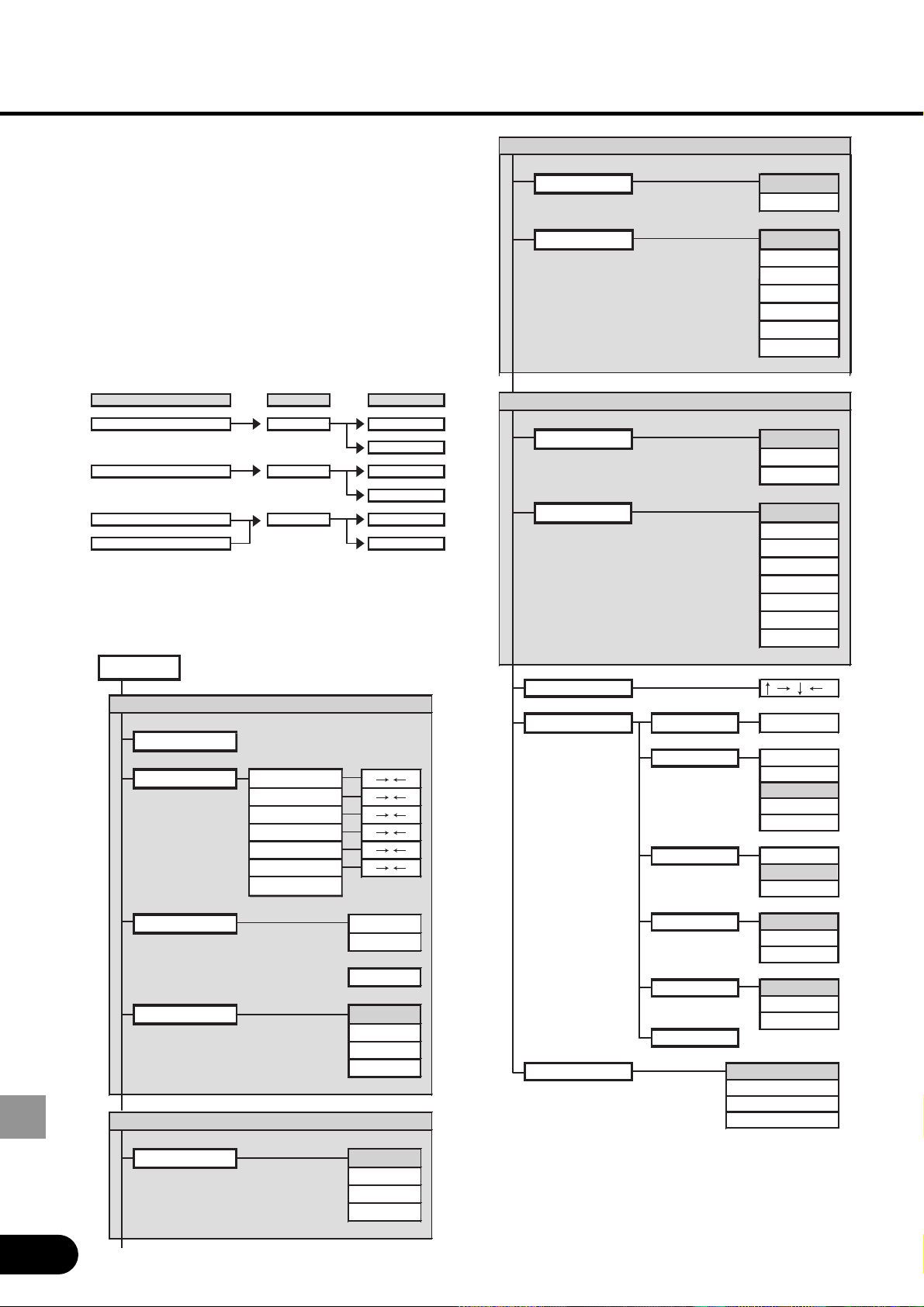
86
APPENDIX
Menu Configuration
Factory Defaults
Switching between
Computer and AV Equipment
Select the input terminal of the equipment
from which an image is to be input, and
select an input signal type using a button
on the remote control or top control.
Items in Menu
Items displayed in the menu vary
depending on the selected input signal.
Input terminal Button Input signal
DVI-RGB IN-1 COMPUTER-1 DIGITAL RGB
ANALOG RGB-1
RGB IN-2/COMPONENT IN/RGB OUT COMPUTER-2 ANALOG RGB-2
COMPONENT
VIDEO IN VIDEO/S VIDEO
S-VIDEO IN S-VIDEO
ANALOG RGB-1/ANALOG RGB-2
Auto PC adj.
Input signal settings
Total dots
Tracking
Horizontal position
Vertical position
Horizontal pixels
Vertical pixels
Return
Input signal select
640 x 480
800 x 600
:
1400 x 1050
Screen settings Full screen
Normal
Wide Screen
True size
DIGITAL RGB
Screen settings Full screen
Normal
Wide Screen
True size
Display settings
/
/
/
/
/
/
VIDEO/S-VIDEO
Wide Screen
Screen settings Normal
Input signal select
Auto
NTSC
PAL
SECAM
NTSC4. 43
PAL-M
PAL-N
COMPONENT
Screen settings
Auto
Normal
Wide Screen
Input signal select
Auto
1080i
1035i
720p
575p
480p
575i
480i
Menu position
User screen settings
Logo capture
OK/Cancel
Logo position
Upper L
Upper R
Center
Lower L
Lower R
No signal screen
Black
Blue
User logo
NO SHOW
Black
Blue
User logo
Projector on
Canon logo
Skip
User logo
Return
Image flip H/V None
Ceiling mounted
Rear
Rear,Ceiling mounted
/ //
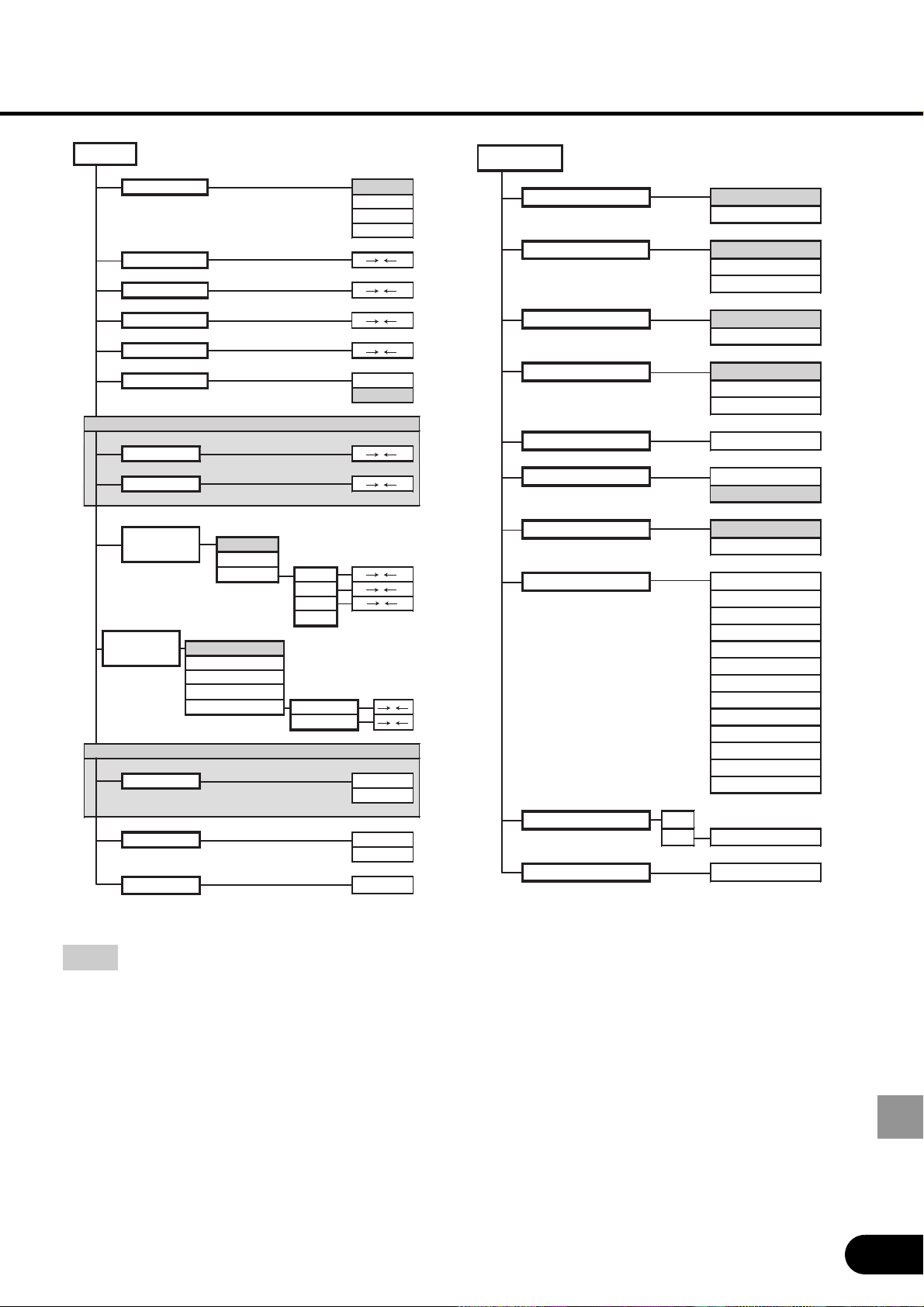
87
APPENDIX
: Factory defaults (settings after resetting)
Image mode Standard
Presentation
Cinema
sRGB
Brightness
Contrast
Sharpness
Gamma
Dynamic Gamma
On
Off
VIDEO/S VIDEO/COMPONENT
Color level
Color balance
Screen color
correction
Normal
Greenboard
Adjust Red
Green
Blue
Return
Advanced color
adjustment
No correction
Mem.color correct L
Mem.color correct M
Mem.color correct H
6-axis color adjust
Color balance
Color level
VIDEO/S VIDEO/COMPONENT
Progressive On
Off
Lamp mode Normal
Quiet
Reset OK/Cancel
Image adj.
/
/
/
/
/
/
/
/
/
/
/
Terminal INPUT
MONITOR OUT
Power management mode
Off
Standby
Exit
Beep On
Off
Key lock Off
Main unit
Remote control
Register password Entering the password
Password settings On
Off
Remote control CH1
CH2
Language English
German
French
Italian
Spanish
Portuguese
Swedish
Russian
Dutch
Chinese(Simplified)
Chinese(Traditional)
Korean
Japanese
Lamp counter Back
Reset OK/Cancel
Factory defaults OK/Cancel
System settings

88
APPENDIX
Glossary
Analog RGB
A signal system used to send information about R (red), G (green), and B (blue) with analog
values. It is a typical system for connecting a color monitor to a computer. Connect the
analog RGB output terminal of the computer and the DVI-I/RGB IN-1 terminal or RBG-2/
COMPONENT IN/RGB OUT terminal of this projector with a monitor cable. When the RGB
IN-1 terminal is used, select “ANALOG RGB-1” by pressing the [COMPUTER-1] button.
When the RGB IN-2 terminal is used, select “ANALOG RGB-2” by pressing the
[COMPUTER-2] button.
Digital RGB
A signal system used to send information about individual display dots with digital values.
This system is free from deterioration of image quality because of no analog conversion.
Connect the DVI output terminal of the computer and the DVI-I/RGB IN-1 terminal of this
projector with a connection cable and select “DIGITAL RGB” by pressing the [COMPUTER-
1] button.
Video
An output terminal widely used for AV equipment. It is also called a composite output
terminal (pin terminal or RCA terminal). For more details, refer to “Composite”.
S-video
A signal system (YC separation signal) used to send a brightness signal (Y) and color signal
(C) separately. Connect the S-video terminal of AV equipment and the S-VIDEO IN terminal
of this projector with an S-video cable and select “S-VIDEO” by pressing the [VIDEO/S]
button.
Component
A signal system used to send a color signal (C) with it divided into a B-Y color difference
signal and an R-Y color difference signal. This system can project a better-quality image as
compared with the composite signal system. Connect the video terminal of AV equipment
and the RGB-2/COMPONENT IN/RGB OUT terminal with a component cable and select
“COMPONENT” by pressing the [COMPUTER-2] button.
Composite
A video signal system used to send a brightness signal (Y) and a color signal (C) together.
Connect the composite output terminal (RCA) of AV equipment and the VIDEO IN terminal of
this projector with a video cable and select “VIDEO” by pressing the [VIDEO/S] button.
sRGB
An international standard of color representation (color space) which is applied to digital
cameras, displays and others. If you select sRGB, the projector can project the best-quality
image conforming to the sRGB Standard.
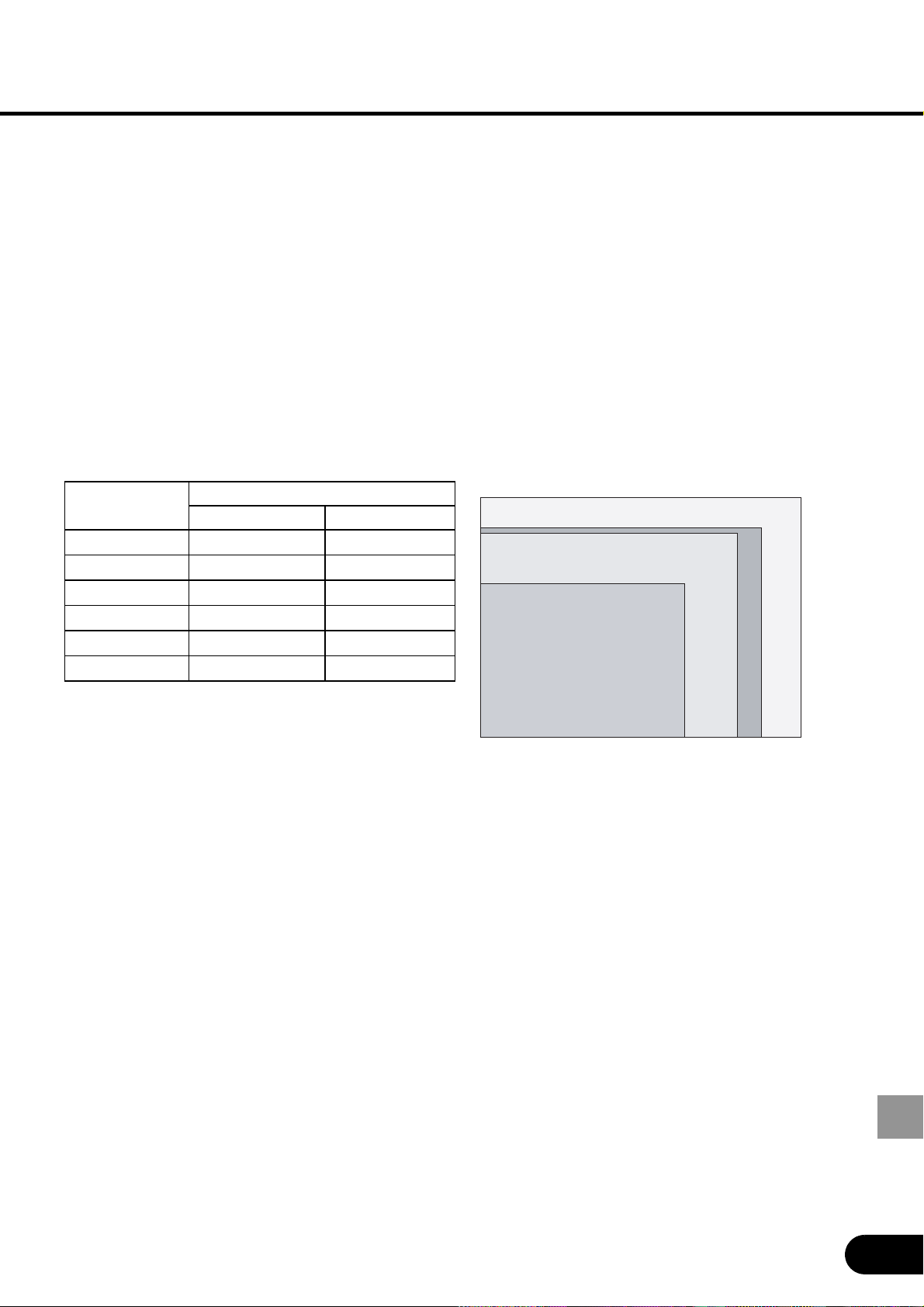
89
APPENDIX
Progressive
An image display system used to display the entire screen per scan. When an interlace
signal (video signal) that displays one screen by two scans (one for odd lines and one for
even lines) is input, progressive processing is required. When the progressive function is
turned off, one screen is displayed using image signals per interlace signal, deteriorating the
vertical resolution of the image. When the progressive function is turned on, one screen is
displayed using image signals per two interlace signals, improving the vertical resolution of
the image. Turn off the progressive function when flickering and horizontal lines are
noticeable on a fast-moving picture.
Resolution
The number of dots (horizontal dots x vertical dots) that can be displayed on a computer is
called “resolution of display”. Resolution indicates the size of the display area (amount of
information).
Selecting SXGA+ (1400 dots x 1050 dots) as the display resolution of the computer allows
this projector to project high-resolution images. If your computer does not have the SXGA+
option, select the maximum resolution among the selectable options.
Gamma Correction
A tone adjustment system used during projection of image data. The gamma correction
function works effectively when portions of an image are obscure because they are too light
or dark.
This projector supports manual gamma correction, automatic gamma correction, and
dynamic gamma correction.
DVI-I
A digital video signal connection interface. This interface allows digital data to be sent and
received without conversion to analog data, assuring high image quality with no signal
degradation. The DVI-I (integrated) connector can be used to send and receive analog RGB
video signals in addition to digital signals.
Resolution
Number of dots
Horizontal Vertical
VGA 640 480
SVGA 800 600
XGA 1024 768
SXGA 1280 1024
SXGA+ 1400 1050
UXGA 1600 1200
XGA 1024 x 768 (4:3)
SXGA 1280 x 1024 (5:4)
SXGA + 1400 x 1050 (4:3)
UXGA 1600 x 1200 (4:3)
Number of pixels in each resolution
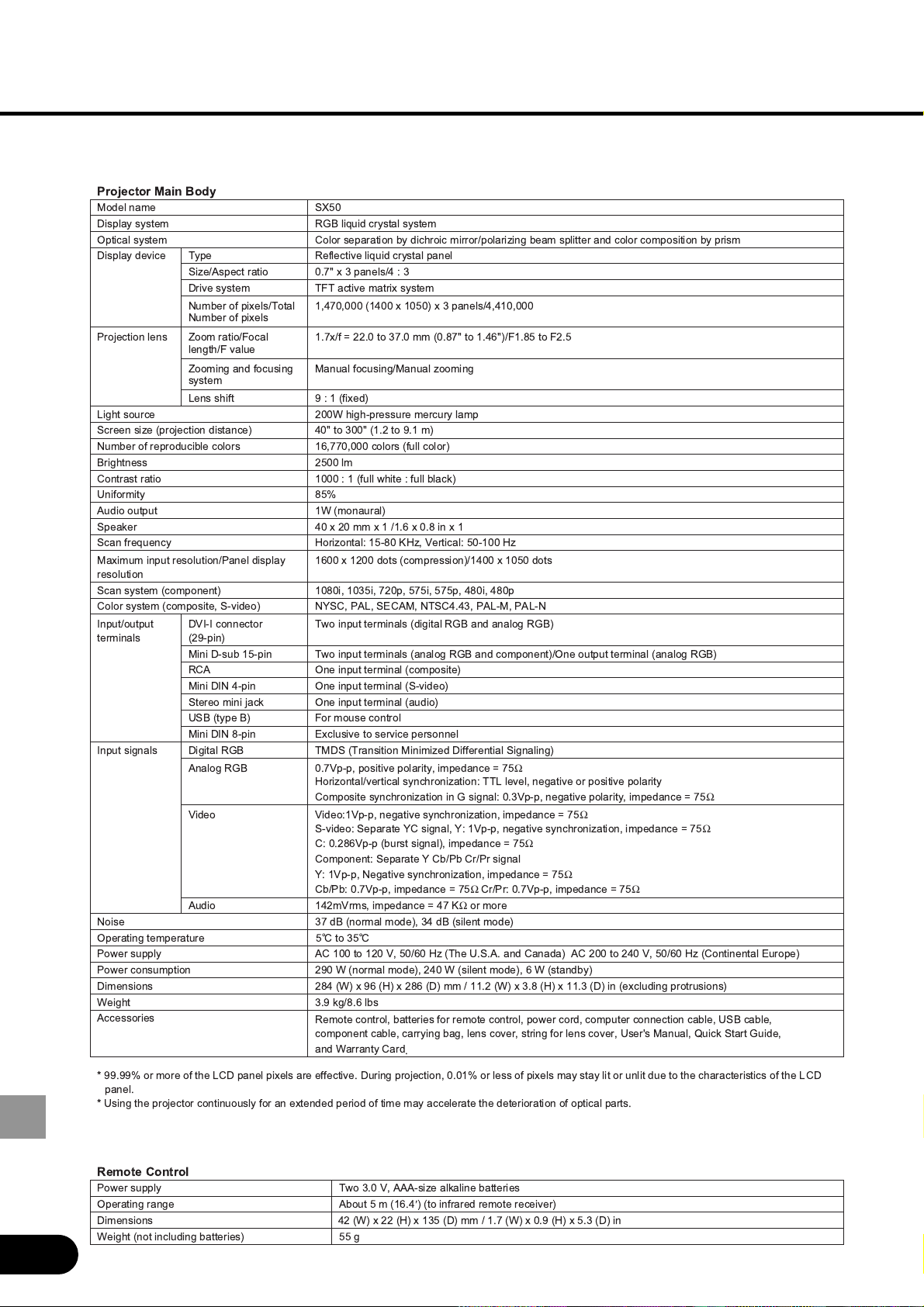
90
APPENDIX
Specifications
! "#
$ %&' ( ) * + )
# !,! # (
#
- " (!
- " (
./*&/ 0.* ( .1 ( ) */*./
2 ,
, #
.%&(" 3 44% )&% 0%5&
'
.%*6
'
1,.%5 ,4%
2 "
"
78
9 " : + . 0"(1
9 4; <
08 1 *' )' 0.%4 :%. 1
- " .6/&&/ 0" 1
4
. + . 0" = + " >1
?" 5@
$ .; 01
> * ( 4 ( . .%6 ( %5 ( .
" A+ .<5 BA/ C+ <. A
( 7
.6 ( .4 01.* ( .
01 .5/ .)/ &4/ &/ &/ *5/ *5
0/ <#1 -D/ 7$9/ E$/ -!*%*)/ 7$9</ 7$9<-
CF<F
04:<1
!= 0 1
< .< != 0 1 0 1
$ 01
F- *< 0<#1
8> 01
? 0 1 ,
F
F- 5< E(# #
! 0! "" 1
$ %&C</ # / 3 &
Ω
A# + !!9 #/ # #
+ %)C</ # / 3 &
Ω
C C+.C</ # / 3 &
Ω
<#+ D / D+ .C</ # / 3 &
Ω
+ %456C< 0 1/ 3 &
Ω
+ D 7 7
D+ .C</ - # / 3 &
Ω
G
7+ %&C</ 3 &
Ω
7+ %&C</ 3 &
Ω
G
G
F
$ .*4C/ 3 *& B
Ω
- )& 0 1/ )* 0 1
)
7= $ . .4 C/ 6 A 0! ?%%$% 1 $ 4 4* C/ 6 A 0 E1
7= 4: ; 0 1/ 4* ; 0 1/ 6 ; 01
45* 0;1 ( :6 0A1 ( 456 01 ..%4 0;1 ( )%5 0A1 ( ..%) 01 0( 1
; )%: > 5%6
$
/ " / = / / ? /
/ / #/ " #/ ?H / I> /
;
%
J ::%::@ " 9 ( ""#% 8/ %.@ " ( " 9
%
J ? 8 " ( " " %
7= != )% C/ $$$< >
$
0
.6%*
¢
1 0 " #1
*4 0;1 ( 44 0A1 ( .) 01 .%& 0;1 ( %: 0A1 ( %) 01
; 0 1
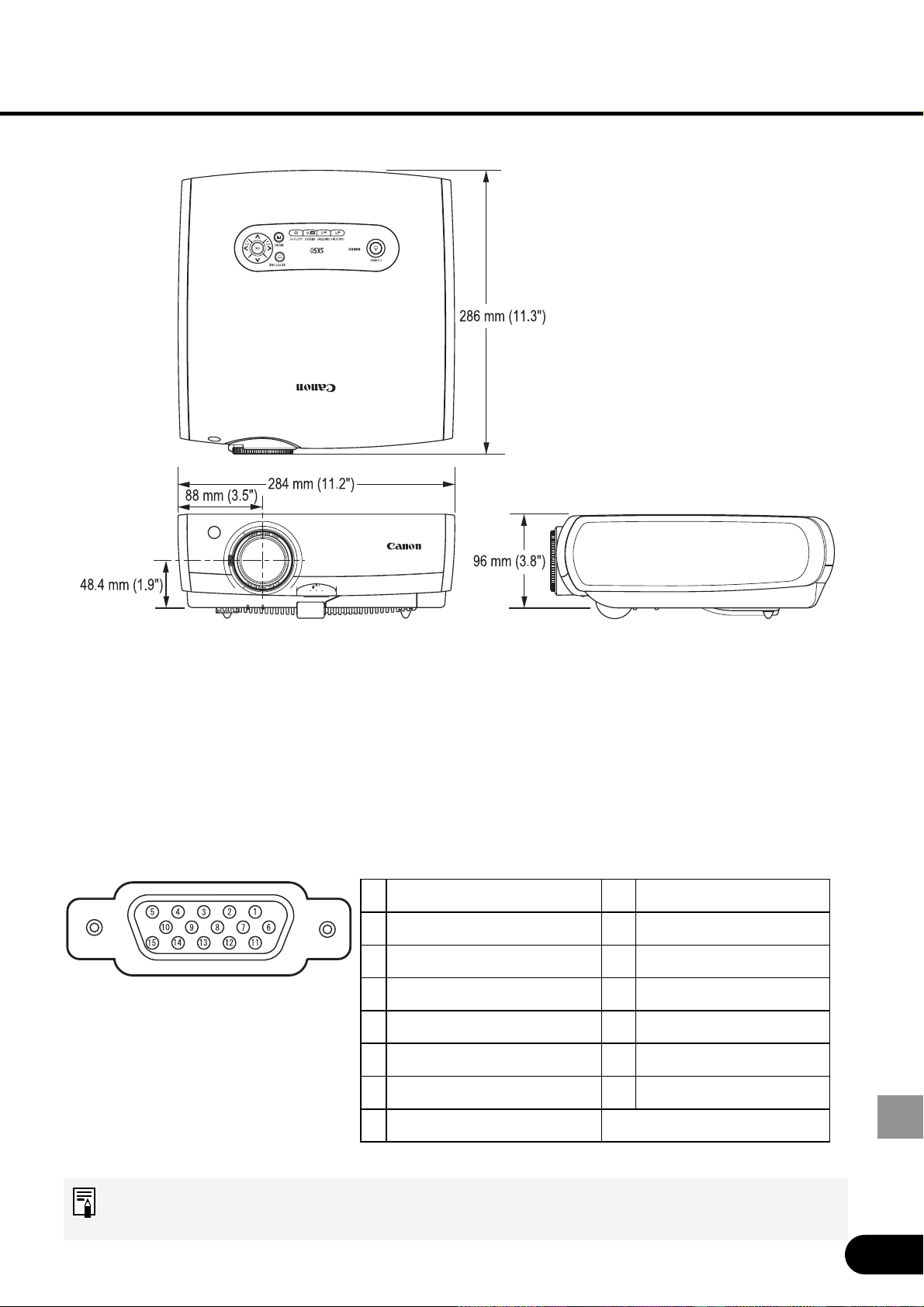
91
APPENDIX
1R 9 +5 V power
2 G 10 Ground (Vertical sync.)
3 B 11 Monitor ID0
4 Monitor ID2 12 DDC data
5 Ground (Horizontal sync.) 13 Horizontal sync.
6 Ground (R) 14 Vertical sync.
7 Ground (G) 15 DDC clock
8 Ground (B)
Mini S-sub 15-pin
External View
RGB IN-2/COMPONENT IN/RGB OUT
(Computer Input, Component Input, and Monitor Input/Output
Terminals)
This terminal is used as a computer input or monitor output terminal. When used as a
monitor output terminal, the computer (analog) signal input to the DVI-I terminal is output.
Use a D-sub computer cable.
The specification for the computer input terminal and that for the monitor output
terminal are the same.
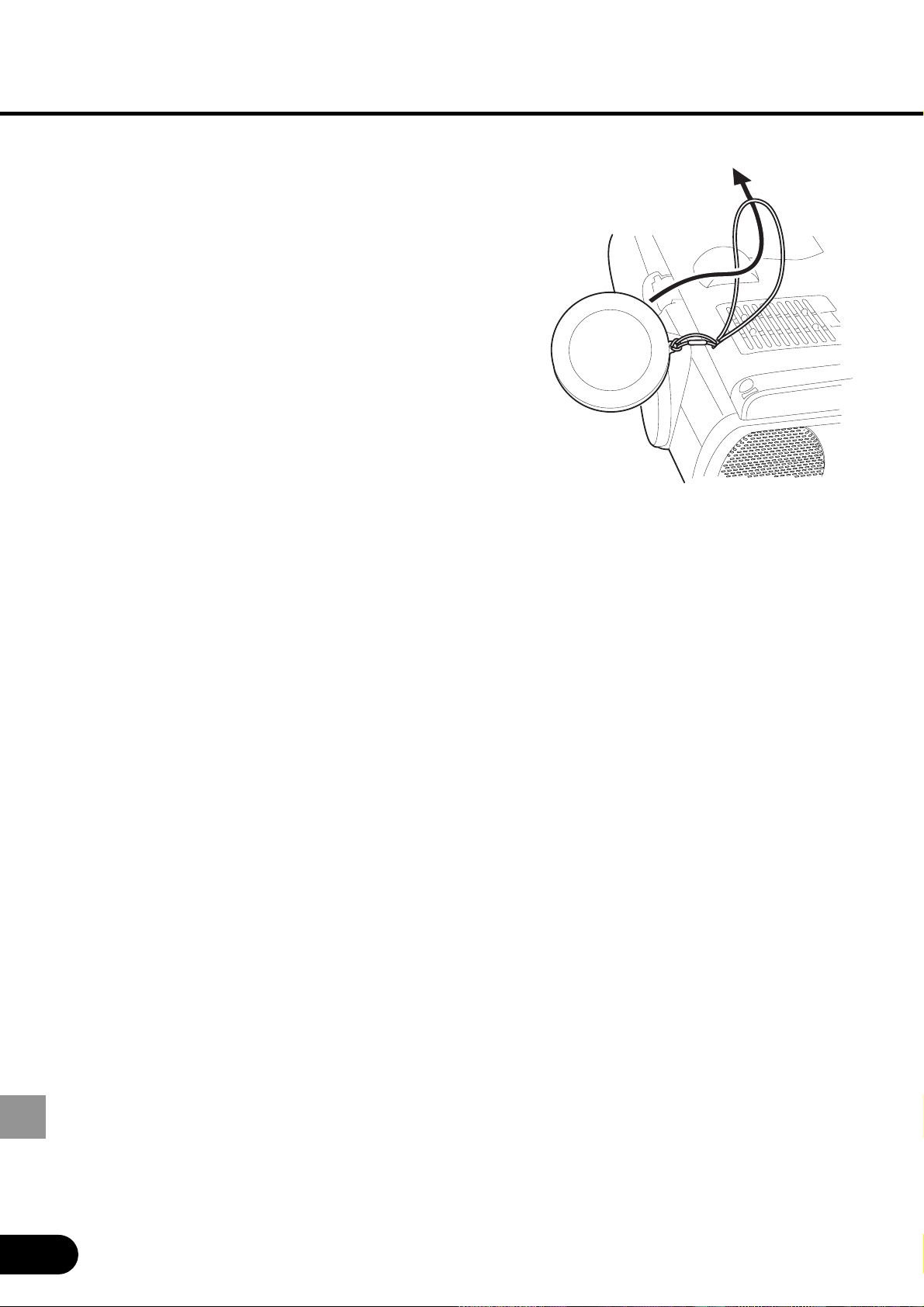
92
APPENDIX
Installing the Lens Cap
Install the lens cap in the following manner:
Pass the supplied string through the lens cap
string hole on the bottom of the projector, and
then pass the other end of the string in the hole on
the lens cap.
Optional Parts
• Lamp Part No.: RS-LP01
• Ceiling Attachment Part No.: RS-CL01
• Ceiling Pipe (360 mm / 14.2
″
) Part No.: RS-CL03*
• Ceiling Pipe (550 mm / 21.7
″
) Part No.: RS-CL04*
• Ceiling Pipe (760 mm / 29.9
″
) Part No.: RS-CL05*
• Ceiling Plate Part No.: RS-CL02**
• Mac Adapter Part No.: LV-AD02
• DVI Cable Part No.: LV-CA29
* This part is used to hang the projector from a high ceiling.
** This part is used to join the ceiling pipe and the ceiling attachment.
For more information, refer to the instruction manual that comes with the ceiling
attachment RS-CL01.

CANON INC. 30-2, Shimomaruko 3-chome, Ohta-ku, Tokyo 146-8501, Japan
CANON U.S.A., INC.
One Canon Plaza, Lake Success, NY 11042, U.S.A.
CANON CANADA, INC.
6390 Dixie Road Mississauga, Ontario L5T 1P7 Canada
CANON LATIN AMERICA, INC.
703 Waterford Way Suite 400 Miami, Florida 33126 U.S.A.
CANON MEXICANA, S. de R.L. de C.V.
Boulevard Manuel Avila Camacho, No. 138 PB, Pisos 15, 16 y 17Col. Lomas de
Chapultepec, CP 11000, Mexico D.F., Mexico
CANON EUROPA N.V.
P.O.Box 2262, 1180 EG Amstelveen, The Netherlands
CANON COMMUNICATION & IMAGE FRANCE S.A.
102, Avenue du General de Gaulle, 92250 La Garenne Colombes, France
CANON (UK) LTD.
Woodhatch, Reigate, Surrey RH2 8BF, United Kingdom
CANON DEUTSCHLAND GmbH
Europark Fichtenhain A 10, 47807 Krefeld, Germany
CANON ITALIA S.p.A.
Palazzo L, Strada 6, 20089 Milanofiori-Rozzano (MI), Italy
CANON (Schweiz) A.G.
Industriestrasse 12, 8305 Dietlikon, Switzerland
CANON BELGIUM N.V./S.A
Bessenveldstraat 7, 1831 Diegem, Belgium
CANON GmbH
Zetschegasse 11, A-1232 Wien, Austria
CANON ESPANA S.A.
C/Joaquin Costa 41, 28002 Madrid, Spain
CANON SVENSKA AB
Stensätravägen 13, S-127 88 Skarholmen 2, Sweden
CANON NORGE A/S
Hallagerbakken 110, P. O. Box 2-33, Holmlia 1201 Oslo 12, Norway
CANON OY
Huopalahdentie 24, P.O. Box 1, FIN-00351 Helsinki, Finland
CANON HONGKONG CO., LTD.
9/F, The Hong Kong Club Building, 3A Chater Road, Central, Hong Kong
CANON SINGPORE PTE. LTD.
79 Anson Road #09-01/06, Singapore 079906
CANON AUSTRALIA PTY. LTD.
1 Thomas Holt Drive, North Ryde, Sydney, N.S.W.2113, Australia
CANON NEW ZEALAND LTD.
Akoranga Business Park, Akoranga Drive, Northcote, Auckland, New Zealand
CANON DENMARK A/S
Knud Hoejgaards Vej, DK-2860 Soeborg, Denmark
YT1-1349-000 © CANON INC. 2004 PRINTED IN JAPAN
1004N0.5
MULTIMEDIA PROJECTOR
User’s Manual
User’s Manual
MULTIMEDIA PROJECTOR SX50