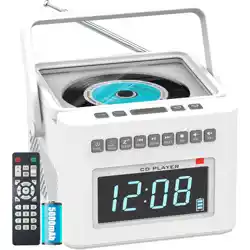
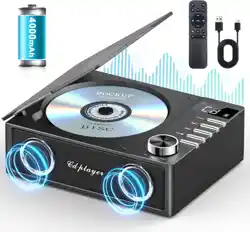
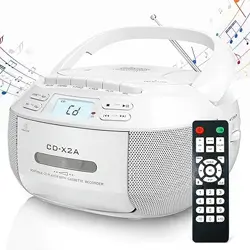
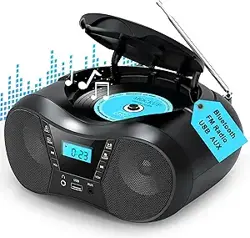
Model: CD86 | Color: Light White
1. Product Overview

The Greadio CD Player is a desktop audio device that plays Compact Discs (CDs) and supports multiple audio sources. It features built-in stereo speakers, Bluetooth connectivity, a USB port for media playback, and an auxiliary input. The unit is designed for vertical placement and includes a remote control for convenient operation.
Key Components
- Main CD Player Unit
- Remote Control
- Type-C Power Cable
- 3.5mm AUX Cable
2. Features & Specifications

2.1 Audio Playback Modes
- CD Mode: Plays standard Audio CDs, CD-R, and CD-RW discs. Supports MP3 files stored on CD.
- USB Mode: Plays audio files (e.g., MP3) from a USB flash drive connected to the USB port.
- AUX Mode: Plays audio from an external device (e.g., smartphone, tablet) connected via the 3.5mm auxiliary input cable.
- Bluetooth Mode: Functions as a Bluetooth receiver (to play audio from your phone) or transmitter (to send CD audio to Bluetooth headphones/speakers).
2.2 Connectivity & Audio
- Bluetooth Version: 5.1
- Supported Formats: CD, CD-R, CD-RW, MP3 (on CD or USB), WAV.
- Speakers: Dual 5W stereo speakers with HIFI sound profile.
- Outputs: 3.5mm headphone jack.
- Inputs: USB port, 3.5mm AUX input, Type-C power input.
2.3 Control & Display
- LED Display: Shows track number, time, mode, and settings. Features adjustable backlight.
- Remote Control: Allows full operation from a distance.
- EQ Sound: Offers multiple equalizer sound settings (e.g., Classic, Rock, Pop, Jazz, Flat).
- Anti-Skip Design: Protects against music interruption during movement.
3. Use Guide
3.1 Initial Setup & Power
- Place the CD player on a stable, flat surface.
- Connect the included Type-C power cable to the port on the back of the unit.
- Connect the other end of the cable to a 5V/2A power adapter (not included) and plug it into a wall outlet.
Power Requirement: Use only a 5V/2A adapter or a power bank with 5V/2A output. Using a lower-power source (like a laptop USB port) may cause malfunction.
- The LED display will light up.
3.2 Playing a CD

- Press the 'Open' button on the unit or remote to open the transparent disc cover.
- Place a CD onto the spindle with the label facing up.
- Gently close the cover. The player will read the disc.
- Use the 'Play/Pause', 'Next/Previous', and 'Stop' buttons on the unit or remote to control playback.
- Adjust volume using the 'Volume +/-' buttons.
3.3 Using Bluetooth

As a Bluetooth Receiver (Play from your phone):
- Press the 'Mode' button until the display shows "BT".
- On your smartphone or tablet, enable Bluetooth and search for devices.
- Select "Greadio CD" from the list to pair. The display will confirm the connection.
- Play audio on your device. It will stream through the CD player's speakers.
As a Bluetooth Transmitter (Send CD audio to headphones):
- While playing a CD, USB, or AUX audio, put your Bluetooth headphones or speaker into pairing mode.
- Press and hold the 'Bluetooth' button on the remote to make the CD player discoverable.
- Select "Greadio CD" from your headphone's Bluetooth list to pair. Audio will now route to your headphones.
3.4 Using USB & AUX Modes
USB Playback:
- Insert a USB flash drive containing MP3 or WAV files into the USB port.
- Press the 'Mode' button until "USB" appears on the display.
- Playback will start automatically. Use the remote or unit buttons to navigate folders and tracks.
AUX Playback:
- Connect one end of the included AUX cable to the player's 'AUX IN' port.
- Connect the other end to the headphone jack of your external device (phone, tablet, etc.).
- Press the 'Mode' button until "AUX" appears on the display.
- Start playback on your external device. Control volume from the CD player or your device.
3.5 Advanced Functions

Sleep Timer:
Set the player to turn off automatically after a set period.
- During playback, press the 'Timer' button on the remote.
- Repeatedly press 'Timer' to cycle through delay options (15, 30, 45, 60, 90 minutes).
- The display will show the set time. Playback will stop automatically when the timer ends.
A-B Repeat:
Repeat a specific segment of a track. Useful for language learning.
- During playback, press the 'A-B' button on the remote at the start point of the segment (Point A).
- Press the 'A-B' button again at the end point of the segment (Point B).
- The player will continuously repeat the segment between A and B. Press 'A-B' a third time to cancel.
Equalizer (EQ) Settings:
Press the 'EQ' button on the remote to cycle through different sound profiles: Classic, Rock, Pop, Jazz, Flat.
3.6 Power Saving Feature
To conserve energy, the CD drive will stop spinning shortly after reading the disc's data into its memory. Music playback continues normally from the memory buffer. This is not a malfunction.
4. Troubleshooting
- No Power: Ensure you are using a 5V/2A power adapter and the Type-C cable is securely connected.
- Playback Stutters or Stops: The power source may be insufficient. Switch to the recommended 5V/2A adapter.
- Bluetooth Won't Connect: Ensure the player is in the correct mode ('BT' for receiver). Move devices closer and remove obstacles.
- Disc Not Recognized: Ensure the disc is not scratched or dirty. Check that it is a supported format (CD, CD-R, CD-RW, MP3-CD).
- Remote Control Not Working: Check the battery in the remote. Ensure you are pointing it at the front of the CD player.
- No Sound from Speakers: Check the volume level. Ensure you are in the correct mode (e.g., 'CD' for disc playback). If headphones are plugged in, sound will route to them instead.
5. Warranty & Support
This product is backed by a 12-month hassle-free warranty from the date of purchase.
For customer support, please contact the seller, Greadio, through your Amazon purchase history or visit the Greadio Store on Amazon.
Included Components Warranty: 1 Year.