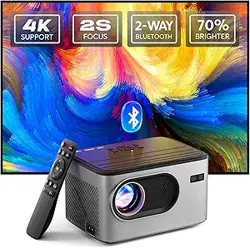
Model: AK-68 | Native Resolution: 1920 x 1080 (4K Supported)
1. Overview
The PANSEBA 4K Projector is a portable, multi-connection video projector designed for home theater and outdoor use. It features a native 1080P resolution with 4K support, a 300-inch maximum screen size, and dual-way Bluetooth 5.2 connectivity.
Key Characteristics:
Portable Design: Compact form factor (7.5"L x 5.5"W x 4.3"H) weighing 2.5 kg.
Display: LCD technology with a 10000:1 contrast ratio and 150 Lumen brightness.
Audio: Built-in Hi-Fi stereo speakers. Can also function as a Bluetooth speaker.
Control: Includes a remote control for key functions.
2. What's in the Box
PANSEBA 4K Projector (Model AK-68)
Remote Control (with battery)
Power Adaptor
HDMI Cable
User Manual (this guide)
Cleaning Kit
Please inspect the contents upon unboxing. Contact the seller if any item is missing or damaged.
Zoom Function: Adjust screen size from 50% to 100% without moving the projector.
Keystone Correction: Digital keystone correction via remote to correct image distortion.
2-Second Electric Focus: Use the F+ and F- buttons on the remote to achieve sharp focus quickly.
3.2 Connectivity
Physical Ports (Located on the side/rear of the unit):
HDMI Port: For connecting laptops, TV sticks (Fire Stick, Roku), gaming consoles (Xbox, PS5), DVD players, or TV boxes.
USB Port: For playing media files from USB storage devices.
3.5mm Audio Jack: For connecting wired headphones or external speakers.
DC Power Input: For the included power adaptor.
Wireless Connectivity:
Bluetooth 5.2 (Audio-Only):
Output: Connect to Bluetooth speakers, soundbars, or headphones for audio.
Input (Speaker Mode): The projector can act as a Bluetooth speaker to play audio from your smartphone or tablet.
Important: The projector cannot receive video via Bluetooth from phones, computers, or Alexa.
3.3 Audio
Built-in Speakers: Dual Hi-Fi stereo speakers.
Audio Modes: Use built-in speakers, external Bluetooth audio, or wired audio via the 3.5mm jack.
3.4 Physical Specifications
Dimensions: 7.5" x 5.5" x 4.3" (L x W x H).
Weight: 2.5 kg (5.5 lbs).
Power Consumption: 50W (Lamp: 280W).
Input Voltage: 220V.
Mounting: Compatible with ceiling, floor, tabletop, tripod, or wall mounts.
4. Setup and Use Guide
4.1 Initial Setup
Position the Projector: Place the projector on a stable, flat surface or mount it. Ensure there is a clear path to your projection surface (wall or screen).
Connect Power: Plug the power adaptor into the projector's DC input, then into a wall outlet. The projector's indicator light should turn on.
Power On: Press the power button on the projector or remote control.
Connect a Source: Use an HDMI cable to connect your preferred device (laptop, TV stick, game console).
4.2 Achieving a Clear Picture
Adjust Distance for Desired Size: Refer to the projection distance chart. For a 150-inch screen, a distance of approximately 3.5 meters (11.5 ft) is recommended.
Focus the Image: Point the remote at the projector. Press the F+ or F- buttons until the image is sharp. This typically takes about 2 seconds.
Correct Keystone (if needed): If the image appears trapezoidal, use the keystone correction buttons on the remote to square the image.
Use Zoom (Optional): If the image size is too large for your space, use the zoom function on the remote to reduce it without moving the projector.
4.3 Connecting Devices
Via HDMI (Recommended):
For Laptops, TV Sticks, Game Consoles: Use the provided HDMI cable.
For Smartphones:
iOS (iPhone/iPad): Requires an official Apple Lightning to HDMI adapter.
Android: If your phone supports MHL, use a micro USB/Type-C to HDMI cable. If not, use a Chromecast or similar streaming device connected via HDMI.
Via USB: Insert a USB drive with video files (e.g., MP4, AVI) into the projector's USB port. Use the remote to navigate the file menu.
Connecting Audio:
To Bluetooth Speakers: Enable pairing mode on your speaker. On the projector, access the Bluetooth audio output menu and select your speaker.
Using Projector as Bluetooth Speaker: On your smartphone, go to Bluetooth settings, find the projector's name, and pair. Audio from your phone will play through the projector's speakers.
4.4 Using the Remote Control
The remote control requires batteries (typically included). Point it at the front of the projector.
Primary Remote Functions:
Power: Turns the projector on/off.
F+ / F-: Adjusts focus.
Keystone Buttons: Corrects image geometry.
Zoom: Adjusts image size.
Menu: Accesses on-screen display for settings like brightness, contrast, and source selection.
Source/Input: Cycles between HDMI, USB, and other available inputs.
Navigation & OK: For menu navigation and media playback control.
5. Troubleshooting & Important Notes
No Image / Black Screen:
Ensure the projector is powered on and the correct input source is selected.
Check that the HDMI cable is firmly connected at both ends.
Try a different HDMI cable or port on your source device.
Blurry Image: Use the remote's F+ and F- buttons to refocus.
Image is Tilted or Trapezoidal: Use the keystone correction buttons on the remote.
No Sound from Built-in Speakers:
Check the projector's audio output setting is not set to "External" or "Bluetooth."
Increase the volume using the remote or projector buttons.
Cannot Play Copyrighted Streaming Services (Netflix, Prime Video, Hulu):
Due to HDCP copyright protection, these services must be accessed through an external device like a Fire TV Stick, Roku, laptop, or gaming console connected via HDMI.
Phone/Computer Won't Connect via Bluetooth:
The projector's Bluetooth is for audio transfer only, not for video streaming. Use an HDMI connection for video from these devices.
Projector Overheats or Turns Off:
Ensure the ventilation vents are not blocked. Allow ample space around the projector for airflow.
Clean the air filter periodically using the provided cleaning kit.
6. Care and Maintenance
Cleaning: Use the provided cleaning kit. Gently wipe the lens with a soft, dry microfiber cloth. Do not use liquids or abrasive materials on the lens.
Ventilation: Keep vents clear of dust and obstructions to prevent overheating.
Storage: Store in a cool, dry place. Use the original packaging if possible.
Lamp Life: The LED lamp has a long lifespan. Avoid frequently turning the projector on and off in short intervals.
7. Compliance and Warranty
Warranty: PANSEBA offers a 12-month replacement policy and a 3-year maintenance policy from the date of purchase.
Technical Support: If you encounter issues, please contact the seller first through your Amazon order page. Have your order details and a description of the problem ready.
FCC Notice: This device complies with Part 15 of the FCC Rules. Operation is subject to the condition that this device does not cause harmful interference.