
• Type “myts” into the search bar, press the myTS icon, then
follow the prompts to complete setup
• To add devices after initial setup, say, “Okay, Google, sync my
devices”
Cómo emparejar el dispositivo con Google Home
• Abra la aplicación Google Home
• Toque el icono Home (Inicio)
• Toque el icono Add (Agregar) y luego “Set up device” (“Configurar
dispositivo”)
• Toque “Have something already set up?” (“¿Ya has configurado un
dispositivo?”)
• Escriba “myts” en la barra de búsqueda, pulse el icono myTS y luego siga
las indicaciones para completar la configuración.
• Para agregar nuevos dispositivos después de la configuración inicial,
diga “Okay, Google, sync my devices” (Ok, Google, sincroniza mis
dispositivos”)
For additional information, view the support tab in the
myTS app.
Para obtener información adicional, consulte la pestaña de ayuda en la
aplicación myTS.
Pair with Amazon Alexa
• Open the Amazon Alexa app
• Enable the myTS skill
• Ask Alexa to “Find new devices” to link to
myTS devices
• To add devices after initial setup, say, “Alexa, find
new devices”
Como emparejar el dispositivo con Alexa de Amazon
• Abra la aplicación Alexa de Amazon
• Habilite la funcionalidad myTS
• Pídale a Alexa que encuentre nuevos dispositivos para enlazar con los
dispositivos myTS
• Para agregar dispositivos adicionales después de la configuración
adicional, diga “Alexa, find new devices” (“Alexa, encuentra nuevos
dispositivos”)
Pair with Google Home
• Open the Google Home app
• Tap the Home icon
• Touch the Add icon followed by “Set up device”
• Tap “Have something already set up?”
Voice control
Control de voz
Group your devices
Agrupe sus dispositivos
Add devices to a group to easily control and set programs for
multiple lights. Connected devices must be turned on to be
controlled by the app.
Agregue dispositivos a un grupo para controlarlos fácilmente y
establecer programas para luces múltiples. Los dispositivos conectados
deben encenderse para que puedan ser controlados por la aplicación.
+
Add Group
Groups
40572
Wi-Fi Plug-in
Smart Switch
40792
Wi-Fi In-Wall
Smart Switch
40795
Wi-Fi In-Wall
Smart Outlet
39845
Wi-Fi Simple-Set
Outdoor Smart Plug
Visit mytouchsmart.com for other myTS
Wi-Fi products
Visite mytouchsmart.com para conocer otros productos
wifi de myTS
READ IT OR WATCH IT
Read instructions or watch easy-to-follow
video. Scan QR code or visit goo.gl/NX4SRq
40794 v2
08/29/19
Getting to know your app
Conozca su aplicación
Turn device ON/OFF or move bar to dim remotely
Encienda / apague el dispositivo o mueva la barra para
atenuar remotamente
Edit device name and picture
Edite el nombre y la imagen del dispositivo
Set ON/OFF timer programs
Establezca los programas del temporizador para encender y apagar
el dispositivo
50%

Enter your email address and create a password.
Note: Be sure to read and agree to terms of service.
Ingrese su dirección de correo electrónico y cree
una contraseña.
Nota: Recuerde leer y aceptar los términos de servicio.
Create new account >
Email
Password
Confirm Password
Agree
2
Create account
Cómo crear una cuenta
6
Adding device
Agregar dispositivo
Once the device is discovered,
select it and press “Connect.”
If the device is not discovered,
the app displays “No new
devices found,” verify your
Wi-Fi password, the dimmer’s LED is blinking quickly and the
Wi-Fi network is 2.4GHz. Select “OK” and repeat step 5.
For info about your Wi-Fi network, check your router markings
or contact the service provider.
Further assistance is available in the FAQs ( ) or by calling our
U.S.-based Consumer Care at 1-800-654-8483.
Una vez detectado el dispositivo, seleccione y presione
“Connect” (conectar).
Si no se detecta el dispositivo, la aplicación mostrará “No new devices
found” (no se encontraron nuevos dispositivos). Verifique su contraseña
de wifi, que la luz LED del interruptor parpadee rápidamente y que la red
wifi sea de 2.4GHz. Seleccione “OK” y repita el paso 5.
Para obtener información acerca de la red wifi, verifique las indicaciones
en el enrutador o comuníquese con el proveedor de servicios.
Encontrará ayuda adicional en las preguntas más frecuentes (FAQs) ( ) o
al comunicarse con nuestro Centro de atención al cliente con sede en EE.
UU. al 1-800-654-8483.
3
Install device
Instalar dispositivo
flashes solid for 3 seconds and begins flashing quickly. The
device is now reset.
Once connected to the router network, the rocker paddle can
turn the connected light ON/OFF and adjust brightness.
Instale el interruptor inteligente con wifi siguiendo las instrucciones
del manual de cableado. La luz LED azul parpadeará rápidamente
para indicar que el dispositivo está listo para agregarse a la red de su
enrutador. Nota: Si el LED parpadea lentamente, deslice el interruptor en
la parte inferior hacia la izquierda. Mientras presiona la paleta basculante
(rocker paddle), deslice el interruptor hacia la derecho, presione la
paleta durante 10 segundos para restablecer el dispositivo. La luz LED
se encenderá sin parpadear durante 3 segundos y luego comenzará a
parpadear rápidamente. El dispositivo se ha reiniciado. Una vez lograda
la conexión a la red del enrutador, la paleta basculante puede encender o
apagar la luz conectada and adjust brightness.
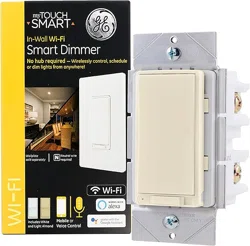
Install the Wi-Fi smart dimmer following provided
wiring manual.The blue LED will blink quickly to
indicate the device is ready to be added to your
router network.
Note: If the LED is flashing slowly, slide switch at
bottom to the left. While pressing the top rocker
paddle, slide the switch to the right - hold the
paddle for 10 seconds to reset the device. The LED
Searching for new device
In-Wall On/O Dimmer
Download the myTS app from the Apple® App Store or
Google Play Store by searching “myTS” or “myTouchSmart.”
Descargue la aplicación myTS de la App Store de Apple® o de Google
Play Store buscando “myTS” o “myTouchSmart.”
1
Download myTS app
Cómo descargar la aplicación myTS
4
Find new device
Cómo buscar un nuevo dispositivo
Tap “Find New Device” in myTS app to connect your new
Wi-Fi device.
Pulse “Find New Device” (buscar nuevo dispositivo) en la aplicación
myTS para conectar su nuevo dispositivo wifi.
5
Wi-Fi connection
Conexión wifi
myTS Wi-Fi
Network
Password
The app displays the phone’s Wi-Fi network connection – must
be a 2.4GHz network. Enter password for the Wi-Fi network
and select “OK.”
La aplicación muestra la conexión de red wifi del teléfono. La red debe
ser de 2.4GHz. Ingrese la contraseña para la red wifi y seleccione “OK.”
+
Find New Device
7
Manual setup
Configuración manual
If the connection fails, the app prompts for manual setup. Tap
“Manual” and follow the instructions. Refer to step 3 if the blue
LED is not blinking quickly. When the device is reset and the
LED flashes rapidly, follow the app’s prompts for the specific
button press process. The LED will flash in groups of three to
indicate the device is in manual setup mode.
Si la conexión falla, la aplicación solicita que la configuración se realice
manualmente.Pulse “Manual” y siga las instrucciones.Consulte el paso 3
si el LED azul no emite destellos rápidos.Cuando el dispositivo se reinicia
y el LED emite destellos rápidos, siga las indicaciones de la aplicación
para el proceso de presionar los botones específicos.El LED emitirá
destellos en grupos de tres para indicar que el dispositivo está en el
modo de configuración manual.
Try Again
Manual
Setup
Contact Us