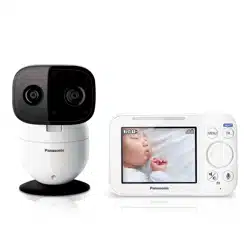
Operating Instructions
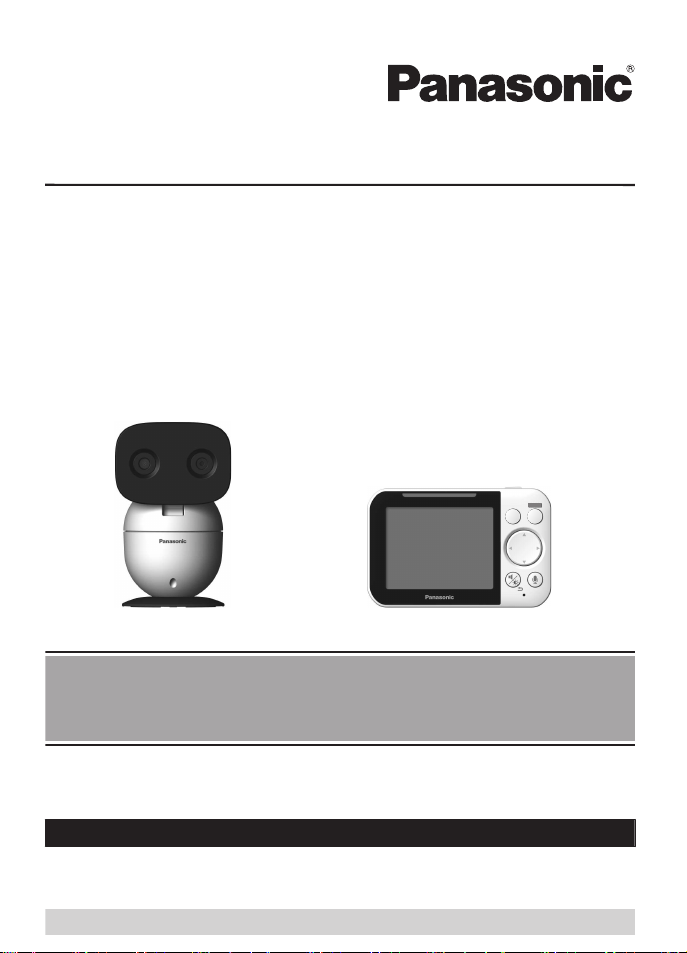
Model No. KX-HN4001
KX-HN4102
KX-HN1032
Baby Monitor
(Camera Model No. KX-HNC300)
(Monitor Model No. KX-HNM300)
KX-HN4101
Model shown is KX-HN4001.
Before initial use, see “Getting Started”
on page 9.
Thank you for purchasing a Panasonic product.
Please read these operating instructions before using the unit and save them for
future reference.
Consulte “Guía Rápida Española”, página 31.
For assistance, please contact us at 1-800-272-7033 or visit our Web site:
http://shop.panasonic.com/support for customers in the U.S.A.
Please register your product: http://shop.panasonic.com/support
HN4001_(en_en)_0508_ver.010.pdf 1 2019/05/08 16:24:07

Introduction
About the baby monitor ................................3
Model composition .......................................3
Accessory information ..................................3
Important Information
Graphical symbols for use on equipment and
their descriptions ..........................................5
About this system .........................................5
For your safety .............................................5
Important safety instructions ........................7
For best performance ...................................7
Other information .........................................8
Getting Started
Part names and functions ............................9
Setting up the camera unit .........................10
Setting up the monitor unit .........................14
Turning the power on/off ............................16
Language setting
........................................16
Smart LED indicator and display icon
colors ..........................................................16
Display icons ..............................................16
Confirming the usage area .........................17
Testing the baby monitor system ...............17
Using the Baby Monitor
Baby monitor ..............................................19
Viewing live camera images .......................19
Listening/talking to the camera unit ............19
Adjusting the speaker volume ....................20
Adjusting the chime/beep volume ..............20
Adjusting the brightness of camera
images ........................................................20
Adjusting the sleep mode ...........................20
Configuring the temperature sensor ...........20
Playing/canceling lullabies manually ..........21
Selecting camera units/using auto scan .....21
Programming
Menu list .....................................................22
Smart features ............................................25
Sensors ......................................................26
Timer ..........................................................27
Managing camera units ..............................27
Useful Information
Troubleshooting .........................................28
Specifications .............................................30
Guía Rápida Española
Guía Rápida Española ...............................31
Appendix
FCC and other information .........................35
Other notices and information (
for
Canada) .....................................................36
Customer services .....................................37
Limited Warranty (ONLY FOR U.S.A.) .......38
2
Table of Contents
HN4001_(en_en)_0508_ver.010.pdf 2 2019/05/08 16:24:08
About the baby monitor
T
he baby monitor system helps you keep an eye on your baby from anywhere in your house. The
system consists of a camera unit and a monitor unit that are connected wirelessly using DECT
technology.
The system’s smart features give you peace of mind to go about your day. For example, you can
use auto lullaby (page 25) to play a lullaby automatically when your baby is crying, and smart
notification (page 25) to display notifications on the monitor unit when your baby wakes or cries.
Model composition
Model No.
Monitor unit Camera unit
Part No. Quantity Part No. Quantity
KX-HN4001/
KX-HN4101
KX-HNM300 1 KX-HNC300 1
KX-HN4102/
K
X-HN1032
KX-HNM300 1 KX-HNC300 2
Accessory information
Supplied accessories
No. Accessory item/Part number
Quantity
KX-HN4001/
K
X-HN4101
KX-HN4102/
K
X-HN1032
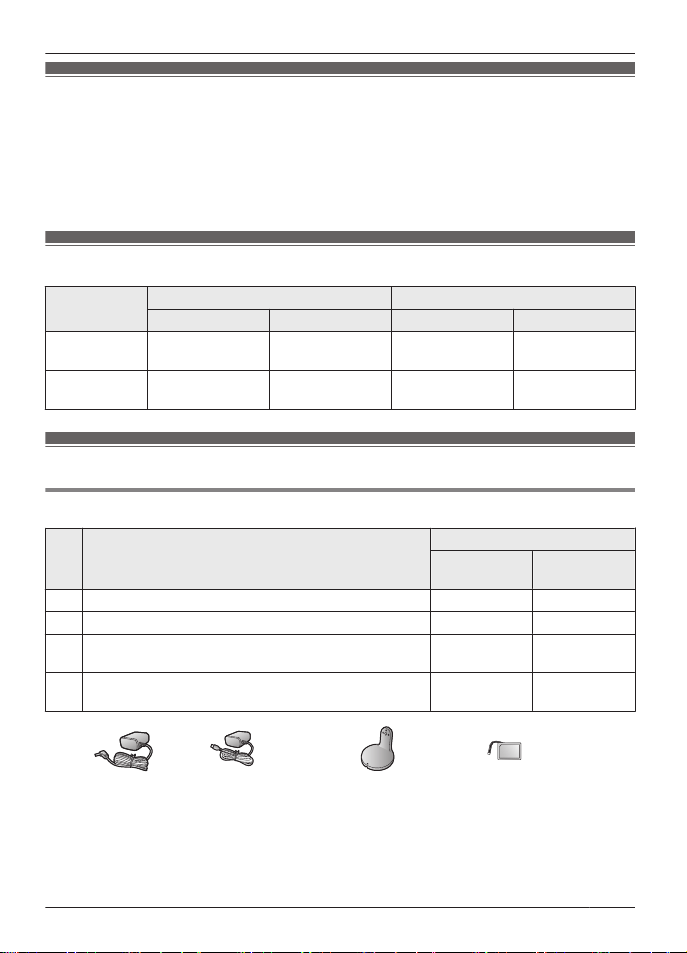
A AC adaptor for the camera unit/PNWYAC300W00 1 2
B AC adaptor for the monitor unit/PNWYAM300W00 1 1
C Wall mounting adaptor for the camera unit/
P
NWYAC300W01
1 2
D Rechargeable battery for the monitor unit/
P
NWYBM300W00
1 1
A B C D
For assistance, please visit http://shop.panasonic.com/support
3
Introduction
HN4001_(en_en)_0508_ver.010.pdf 3 2019/05/08 16:24:08

Expanding the baby monitor system
Camera unit (optional): KX-HNC301
You can expand your baby monitor system by registering up to the following number of
o
ptional camera units (4 units max. in total including the camera unit supplied in KX-HN4001/
KX-HN4101/KX-HN4102/KX-HN1032) to the monitor unit.
KX-HN4001/KX-HN4101: 3 optional camera units
KX-HN4102/KX-HN1032: 2 optional camera units
Other information
R D
esign and specifications are subject to change without notice.
R The illustrations in these instructions may vary slightly from the actual product.
4
For assistance, please visit http://shop.panasonic.com/support
Introduction
HN4001_(en_en)_0508_ver.010.pdf 4 2019/05/08 16:24:08
Graphical symbols for use on equipment and their
d
escriptions
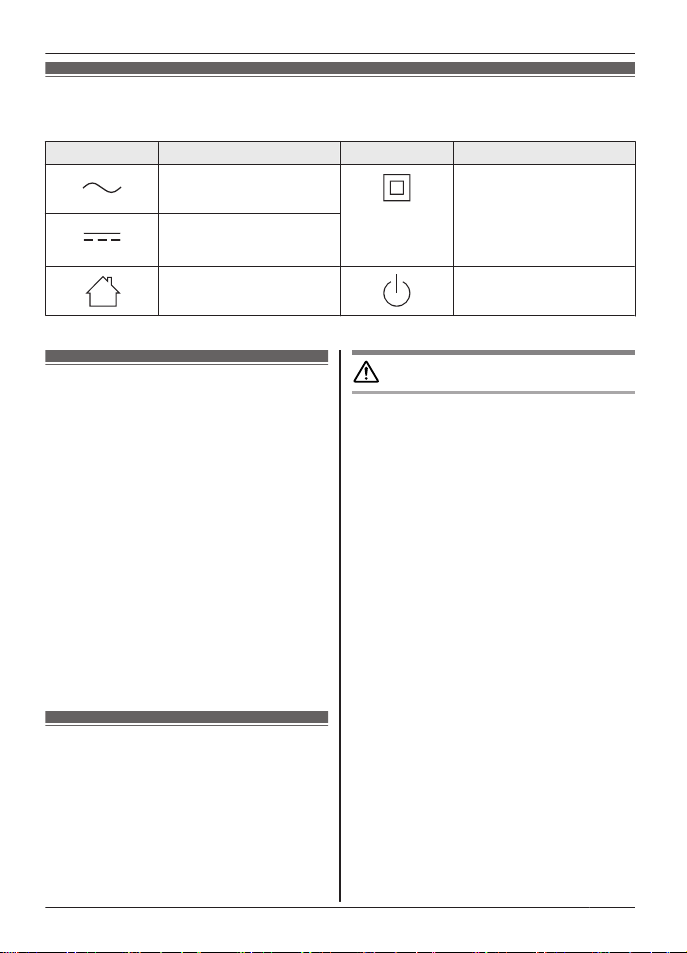
Symbol Explanation Symbol Explanation
Alternating current (A.C.) Class P
equipment
(equipment in which
protection against electric
shock relies on Double
Insulation or Reinforced
Insulation)
Direct current (D.C.)
For indoor use only Stand-by (power)
About this system
R This system is not designed to provide complete
protection from property loss. To the maximum
extent permitted by applicable law, Panasonic
will not be held responsible for any damage
incurred as a result of property loss.
R This product should not be used as substitute for
a medical or caregiver’s supervision. It is the
caregiver’s responsibility to stay close enough to
handle any eventu
ality.
R The system’s wireless features are subject to
interference, therefore functionality in all
situations cannot be guaranteed.
Panasonic will not be held responsible for injury
or damage to property that occurs in the event of
wireless communication error or failure.
R If a power failure occurs or the power is
disconnected, the temperature will not be
accurate for up to an hour.
For your safety
T
o prevent severe injury and loss of life/
property, read this section carefully before
using the product to ensure proper and safe
operation of your product.
WARNING
Power connection
R U
se only the power source marked on the
product.
R Do not overload power outlets and
extension cords. This can result in the risk
of fire or electric shock.
R Completely insert the AC adaptor/power
plug into the power outlet. Failure to do so
may cause electric shock and/or excessive
heat resulting in a fire.
R Regularly remove any dust, etc. from the
AC adaptor/power plug by pulling it from
the power outlet, then wiping with a dry
cloth. Accumulated dust may cause an
insulation defect from moisture, etc.
resulting in a fire.
R Unplug the product from power outlets if it
emits smoke, an abnormal smell, or makes
an unusual noise. These conditions can
cause fire or electric shock. Confirm that
smoke has stopped emitting and contact us
at http://shop.panasonic.com/support
R Unplug from power outlets and never touch
the inside of the product if its casing has
been broken open. Danger of electric shock
exists.
R Never touch the plug with wet hands.
Danger of electric shock exists.
R Do not connect non-specified devices.
For assistance, please visit http://shop.panasonic.com/support
5
Important Information
HN4001_(en_en)_0508_ver.010.pdf 5 2019/05/08 16:24:08
Installation
R T
o prevent the risk of fire or electrical
shock, do not expose the product to rain or
any type of moisture.
R Do not place or use this product near
automatically controlled devices such as
automatic doors and fire alarms. Radio
waves emitted from this product may cause
such devices to malfunction resulting in an
accident.
R WARNING:
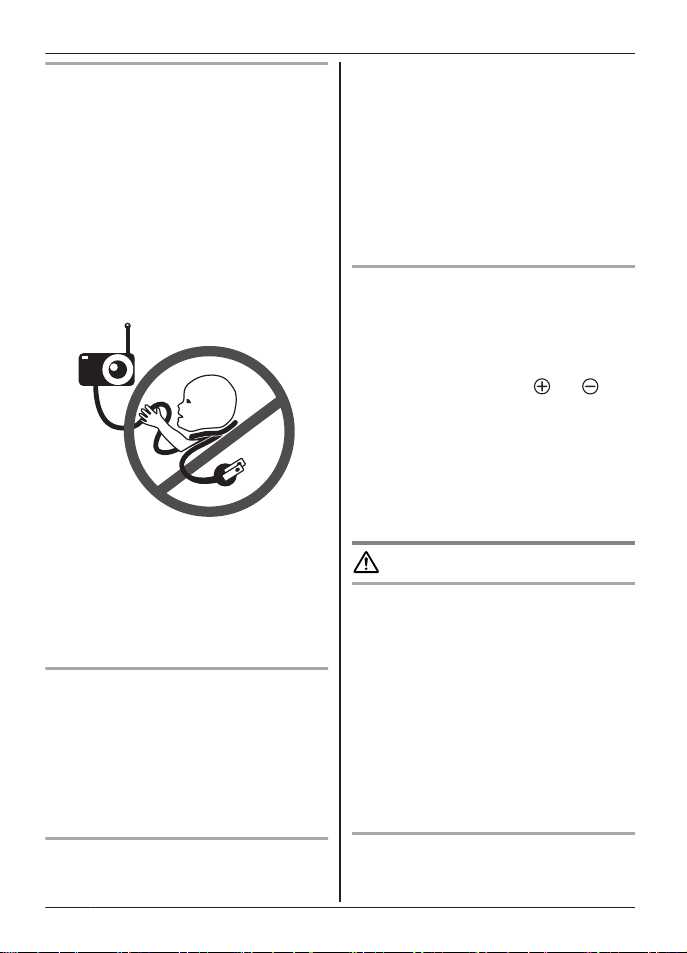
Strangulation Hazard: Children have
STRANGLED in cords.
Keep this cord out of the reach of children
(more than 1 m (3 feet) away).
R D
o not allow the AC adaptor to be
excessively pulled, bent or placed under
heavy objects.
R Keep small parts, such as screws, out of
the reach of children. There is a risk of
swallowing. In the event they are
swallowed, seek medical advice
immediately.
Operating safeguards
R U
nplug the product from power outlets
before cleaning. Do not use liquid or
aerosol cleaners.
R Do not disassemble the product.
R Never put metal objects inside the product.
If metal objects enter the product, turn off
the circuit breaker and contact an
authorized service center.
Medical
R C
onsult the manufacturer of any personal
medical devices, such as pacemakers or
hearing aids, to determine if they are
a
dequately shielded from external RF
(radio frequency) energy. DECT features
operate between 1.92 GHz and 1.93 GHz
with a peak transmission power of 115 mW
(max.).
R Do not use the product in health care
facilities if any regulations posted in the
area instruct you not to do so. Hospitals or
health care facilities may be using
equipment that could be sensitive to
external RF energy.
Lithium Ion (Li-Ion) Polymer battery
R D
o not open, puncture, crush, or drop the
battery. A damaged battery must not be
used. This can result in the risk of fire,
explosion, overheating, and leaking of the
electrolyte.
R Do not touch the terminals
and with
m
etal objects.
R If any electrolyte should come into contact
with your hands or clothes, wash it off
thoroughly with water.
R If any electrolyte should come into contact
with your eyes, never rub your eyes. Rinse
your eyes thoroughly with water, and then
consult a doctor.
CAUTION
Installation and location
R Never install wiring during a lightning storm.
R The AC adaptor is used as the main disconnect
device. Ensure that the AC outlet is installed
near the product and is easily accessible.
R Mount the product on the stable location where
the camera unit can be adequately supported
when installing.
R Do not mount the product on soft material. It
may fall down, break or cause injury.
R Do not mount the product on the following
materials: gypsum board, ALC (autoclaved
lightweight cellular concrete), concrete block,
plywood less than 25 mm (1 inch) thick, etc.
Lithium Ion (Li-Ion) Polymer battery
R Use only the specified battery.
R Insert the battery correctly.
6
For assistance, please visit http://shop.panasonic.com/support
Important Information
HN4001_(en_en)_0508_ver.010.pdf 6 2019/05/08 16:24:08

R Do not leave the battery in an automobile
exposed to direct sunlight for a long period of
time with the doors and windows closed.
R Remove the battery if you do not use the product
for a long period of time. Keep it in a cool, dark
area.
R Do not replace a battery with wet hands.
R CAUTION:
Risk of explosion if battery is replaced by an
incorrect type. Dispose of used battery
according to local regulations.
R Stop using the battery immediately and keep
away from fire if it emits an abnormal smell or
leaks electrolyte. Released electrolyte may
cause fire or burns.
R Exercise care when handling the batteries. Do
not allow conductive materials such as rings,
bracelets, or keys to touch the batteries,
otherwise a short circuit may cause the batteries
and/or the conductive material to overheat and
cause burns.
R Do not put any conductive materials such as
coins or hairpins onto the battery terminals. This
can result in the risk of overheating.
R Charge the battery provided with or identified for
use with this product only, in accordance with
the instructions and limitations specified in this
manual.
Attention:
The lithium ion/polymer battery you have purchased
is recyclable.
Please call 1-800-8-BATTERY (1-800-822-8837)
for information on how to recycle this battery.
Preventing accidents and injuries
R D
o not put your ear(s) near the speaker, as
loud sounds emitted from the speaker may
cause hearing impairment.
Important safety
i
nstructions
When using your product, basic safety
precautions should always be followed to
reduce the risk of fire, electric shock, and
injury to persons, including the following:
1. Do not use this product near water for
example, near a bathtub, washbowl,
kitchen sink, or laundry tub, in a wet
basement or near a swimming pool.
2. Use only the power cord and batteries
indicated in this manual. Do not dispose of
batteries in a fire. They may explode.
Check with local codes for possible special
disposal instructions.
SAVE THESE INSTRUCTIONS
For best performance
Product location/avoiding noise
The monitor unit and camera units use radio
waves to communicate with each other.
R For maximum coverage and noise-free
communications, place your monitor unit:
– at a convenient, high, and central
location with no obstructions between
the monitor unit and the camera unit in
an indoor environment.
– away from electronic appliances such as
TVs, radios, personal computers,
wireless devices, or other phones.
– facing away from radio frequency
transmitters, such as external antennas
of mobile phone cell stations. (Avoid
putting the product on a bay window or
near a window.)
R If the reception for a monitor unit location is
not satisfactory, move the monitor unit to
another location for better reception.
Environment
R K
eep the product away from electrical noise
generating devices, such as fluorescent
lamps and motors.
For assistance, please visit http://shop.panasonic.com/support
7
Important Information
HN4001_(en_en)_0508_ver.010.pdf 7 2019/05/08 16:24:08
R T
he product should be kept free from
excessive smoke, dust, high temperature,
and vibration.
R Do not expose this product to direct
sunlight or other forms of powerful light
such as halogen lights for long periods of
time. (This may damage the image sensor.)
R Do not place heavy objects on top of the
product.
R When you leave the product unused for a
long period of time, unplug the product from
the power outlet.
R The product should be kept away from heat
sources such as heaters, kitchen stoves,
etc. It should not be placed in rooms where
the temperature is less than 0 °C (32 °F) or
greater than 40 °C (104 °F). Damp
basements should also be avoided.
R Operating the product near electrical
appliances may cause interference. Move
away from the electrical appliances.
Other information
Routine care
R W
ipe the outer surface of the product
with a soft moist cloth.
R Do not use benzine, thinner, or any
abrasive powder.
Camera image quality
R C
amera images may have the following
characteristics.
– Colors in images may differ from the
actual colors.
– Faces or objects may appear dark when
there is light behind the subject (i.e.,
backlighting).
– Image quality may be reduced in dark
locations.
When the subject is lit by sunlight or
h
alogen lights, black areas of the image
may appear purplish. This is not a
malfunction.
Notice for product disposal, transfer,
o
r return
R Although the monitor unit does not have
recording functions, to protect your privacy/
confidentiality, we recommend that you
reset the registered camera units
(page 27) before you dispose of, transfer,
or return the product.
Notice:
8
For assistance, please visit http://shop.panasonic.com/support
Important Information
HN4001_(en_en)_0508_ver.010.pdf 8 2019/05/08 16:24:08
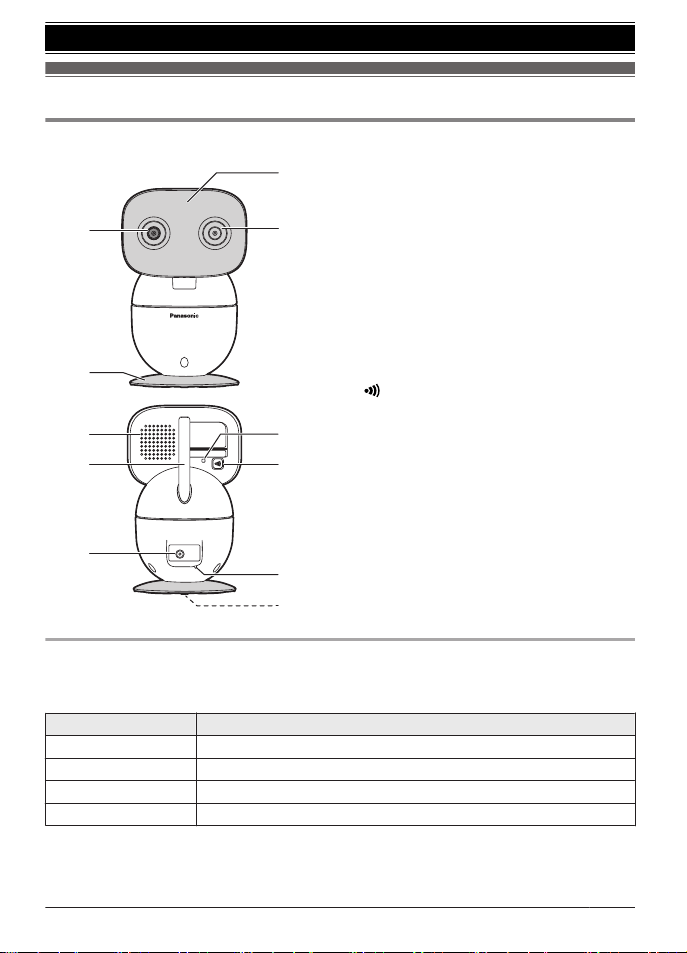
Part names and functions
Camera unit
2
4
1
3
5
7
6
8
9
j
k
A Light sensor
A
llows the camera unit to switch
automatically to night vision mode in
low-light conditions.
B Camera lens
C Microphone
D Camera base
E Speaker
F Antenna
G DC jack
H LED indicator
I
M
N (Pairing button)
J Temperature sensor
K Screw
U
sed to secure the camera base
(page 13) or wall mounting adaptor to the
camera unit (page 12).
LED indicator
Y
ou can use the LED indicator to confirm the camera unit’s status.
Check the color of the LED indicator after connecting the camera unit (page 12).
Indicator Status
Off No power
Green, lit Normal operation
Green, blinking slowly Registration mode
Green, b
linking quickly Device malfunction
For assistance, please visit http://shop.panasonic.com/support
9
Getting Started
HN4001_(en_en)_0508_ver.010.pdf 9 2019/05/08 16:24:08
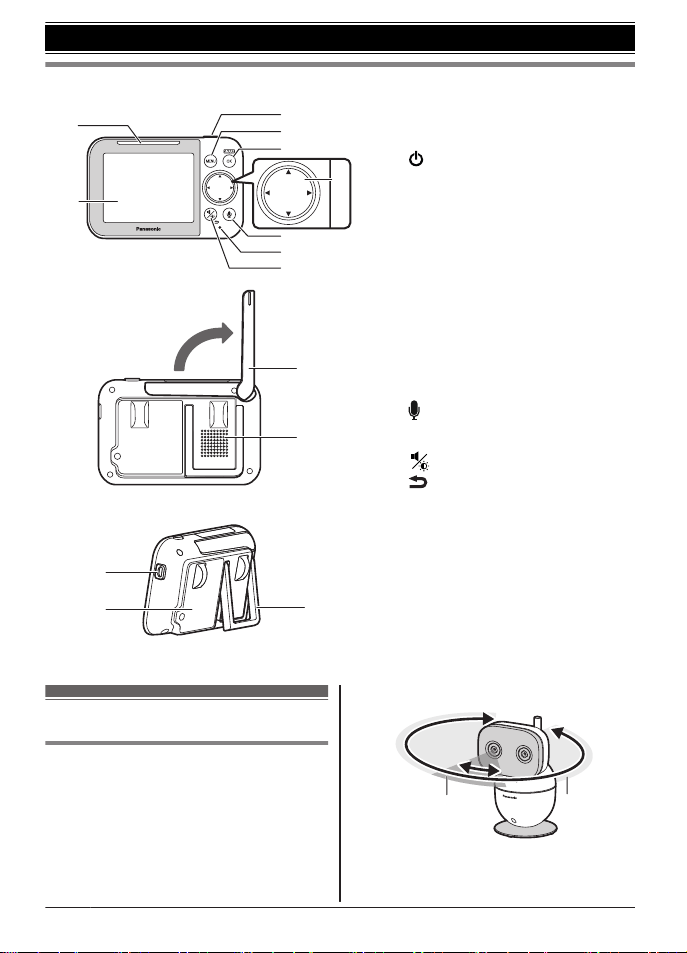
Monitor unit
3
4
5
7
8
9
1
6
2
j
k
Using the stand
n
l
m
A Smart LED indicator
B Display
C
M N
(Power)
Press to temporarily turn off the
display or press for about 2 seconds
to turn on/off the monitor unit
(page 16).
D MM
ENUN
E MS
MARTN/MOKN
Use MSMARTN to access the
shortcut menu.
F Navigator key
MFN,
MEN, MDN, or MCN:
– Scroll through various lists and
items
– Adjust the pan/tilt range
G
M
N
(Talk)
H Microphone
I
M
N
(Volume/Brightness)
M
N
(Back)
J Antenna
K Speaker
L micro-USB connector
M Battery cover
N Stand
Setting up the camera unit
Information about pan/tilt range
T
he pan/tilt can be used to adjust the area
viewable from the camera unit by using MFN,
MEN, MDN, or MCN on the monitor unit.
If the area that you wish to view is not visible
even after adjusting the pan/tilt, change the
location or position of the camera unit so that it
can be viewed.
Pan range
2
1
1
Range of visibility: 37°
2
Range of movement: 309°
10
For assistance, please visit http://shop.panasonic.com/support
Getting Started
HN4001_(en_en)_0508_ver.010.pdf 10 2019/05/08 16:24:08
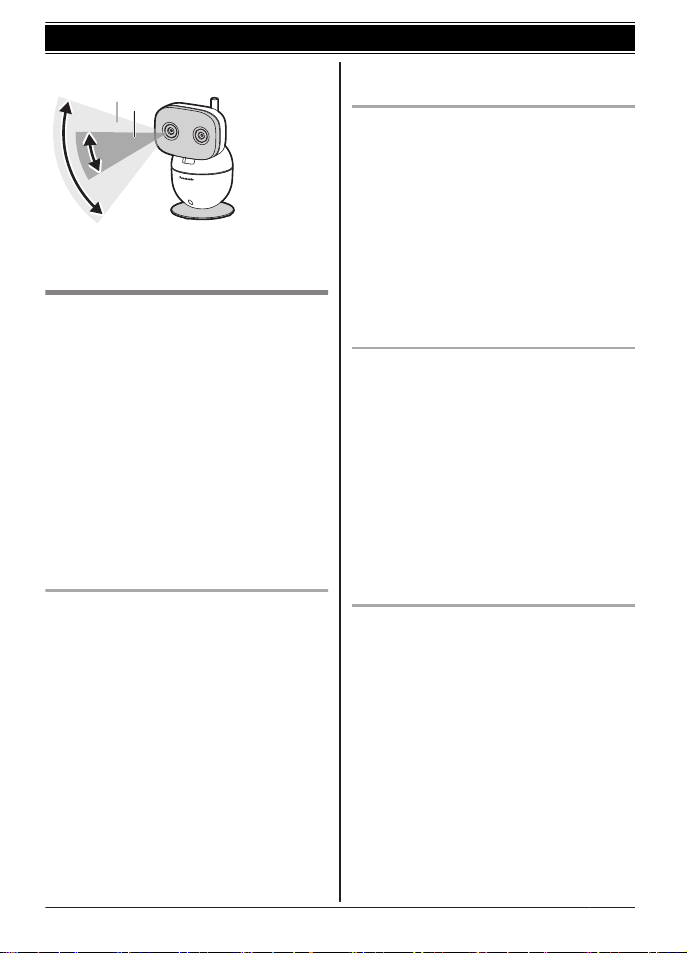
Tilt range
1
2
1
Range of visibility: 28°
2
Range of movement: 72°
Information a
bout sensor features
The camera unit has 3 sensor features: a
visual sensor used for motion detection, a
temperature sensor, and a sound sensor.
Please read the following information about
each sensor before deciding where to install
the camera unit.
Note:
R The camera unit’s sensor features are not
designed to be used in situations that
require high reliability. We do not
recommend use of the sensor features in
these situations.
R Panasonic takes no responsibility for any
injury or damage caused by the use of the
camera unit’s sensor features.
Using visible light to detect motion
T
he camera unit can detect motion by
recognizing changes in the brightness of
areas that are visible to the camera unit.
Note:
R The motion sensor does not function during
and for 5 seconds after pan/tilt operations.
R Movement may be incorrectly detected
when the moving object and the
background have similar colors.
R Movement may be incorrectly detected
when there are sudden changes to the
overall brightness level, such as when
lights are turned on.
R Detection becomes difficult when the image
is dark.
R You can also adjust the sensitivity of the
camera unit’s motion detection feature and
select which areas of the camera image are
m
onitored for motion detection.
Temperature sensor
T
he sensor is triggered when the set
temperature range is exceeded.
Note:
R The temperature sensor may not detect
temperature accurately if the camera unit is
exposed to warm or cool breezes from
heating/cooling systems.
R If a power failure occurs or the power is
disconnected, the temperature will not be
accurate for up to an hour.
R You can adjust the temperature setting of
the temperature sensor (page 20).
Sound sensor
T
he sensor is triggered when the set sound
level is exceeded.
Note:
R The sound sensor does not function while
the camera unit’s lullaby feature is playing a
lullaby.
R The sound sensor does not function during
and for 5 seconds after pan/tilt operations.
R The sound sensor may not function as
desired when the camera unit is placed in
noisy environments.
R You can adjust the sound level setting of
the sound sensor (page 27).
Information about night vision mode
T
he camera unit features an array of infrared
LEDs that light automatically in low-light
conditions, allowing camera images to be
viewable even when the surrounding area is
dark.
Note:
R When night vision mode is active, camera
images are displayed in black and white.
R If the camera unit is installed in front of a
window and points directly at the window,
images may be poor when night vision
mode is active.
For assistance, please visit http://shop.panasonic.com/support
11
Getting Started
HN4001_(en_en)_0508_ver.010.pdf 11 2019/05/08 16:24:08
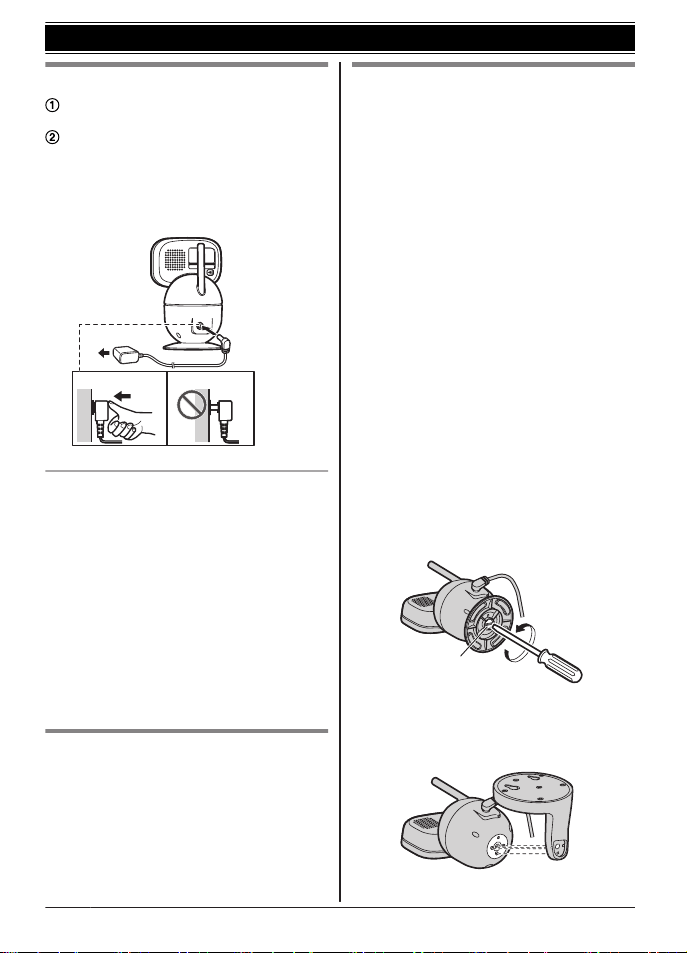
Connections
Insert the AC adaptor plug firmly into the
D
C jack.
Connect the AC adaptor to the power
o
utlet.
Note:
R Use only the supplied AC adaptor
S006AKU0500100.
2
1
Note about power connections
A
C adaptor connection
R The AC adaptor must remain connected at
all times. (It is normal for the adaptor to feel
warm during use.)
R The AC adaptor should be connected to a
vertically oriented or floor-mounted AC
outlet. Do not connect the AC adaptor to a
ceiling-mounted AC outlet, as the weight of
the adaptor may cause it to become
disconnected.
Power failure
R The camera unit will not work during a
power failure.
Placing the camera unit on a flat
s
urface
The camera unit can be placed on a flat
surface, however make sure to choose a
stable location.
Wall mounting
R Attach the wall mounting adaptor to the
camera unit after making the connections
(page 12).
R Only use the supplied screw that is
attached to the camera base when
attaching the wall mounting adaptor to the
camera unit. Do not use user supplied
screws. This may cause the camera unit to
become loose from the wall mounting
adaptor.
R Mount the camera unit on the stable
location where the unit can be adequately
supported when installing.
R Use a string or wire to prevent the camera
unit from falling and causing injury if the
camera unit comes off from the wall.
R Do not mount the wall mounting adaptor to
a ceiling.
R Do not mount the camera unit on a soft
material. It may fall down, break or cause
injury.
R Do not mount the camera unit on the
following places: plaster board, ALC
(autoclaved lightweight cellular concrete),
concrete block, plywood less than 25 mm
(1 inch) thick, etc.
1 Remove the screw and then remove the
camera base from the camera unit.
1
1
Supplied screw (page 9)
2 A
ttach the wall mounting adaptor to the
camera unit.
12
For assistance, please visit http://shop.panasonic.com/support
Getting Started
HN4001_(en_en)_0508_ver.010.pdf 12 2019/05/08 16:24:08
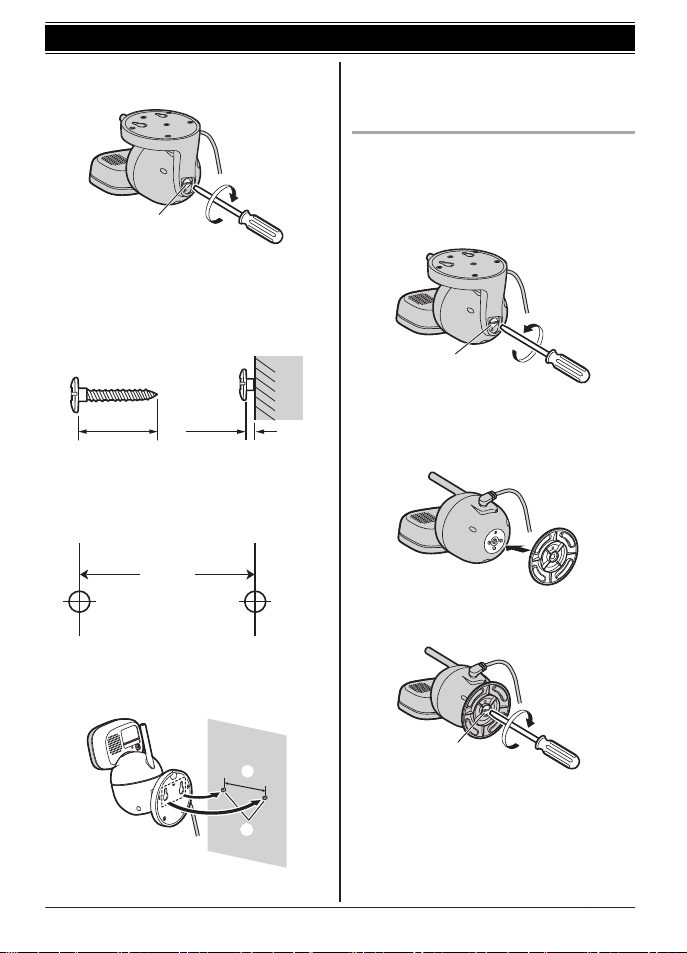
3 D
rive the supplied screw into the camera
unit.
1
1
Supplied screw (page 9)
4 D
rive the screws (not supplied) into the
wall.
2
Longer than 20 mm (
25
/32 inches)
3
Space 1.3 mm (
1
/32 inches)
2 3
Note:
R Use the following template when
determining the location of the screw
holes.
(1 / inches)
31 mm
7
3
2
5 M
ount the camera unit to the wall.
4
Screws
5
31 mm (1
7
/3
2 inches)
4
5
6 A
djust the angle of the camera unit by
using MFN, MEN, MDN, or MCN on the monitor
unit.
Reattaching the camera base
1 T
ake the camera unit off from the wall.
2 Remove the screw and then remove the
wall mounting adaptor from the camera
unit.
1
1
Supplied screw (page 9)
3 A
ttach the camera base to the camera
unit.
4 D
rive the supplied screw into the camera
unit.
1
1
Supplied screw (page 9)
For assistance, please visit http://shop.panasonic.com/support
13
Getting Started
HN4001_(en_en)_0508_ver.010.pdf 13 2019/05/08 16:24:08
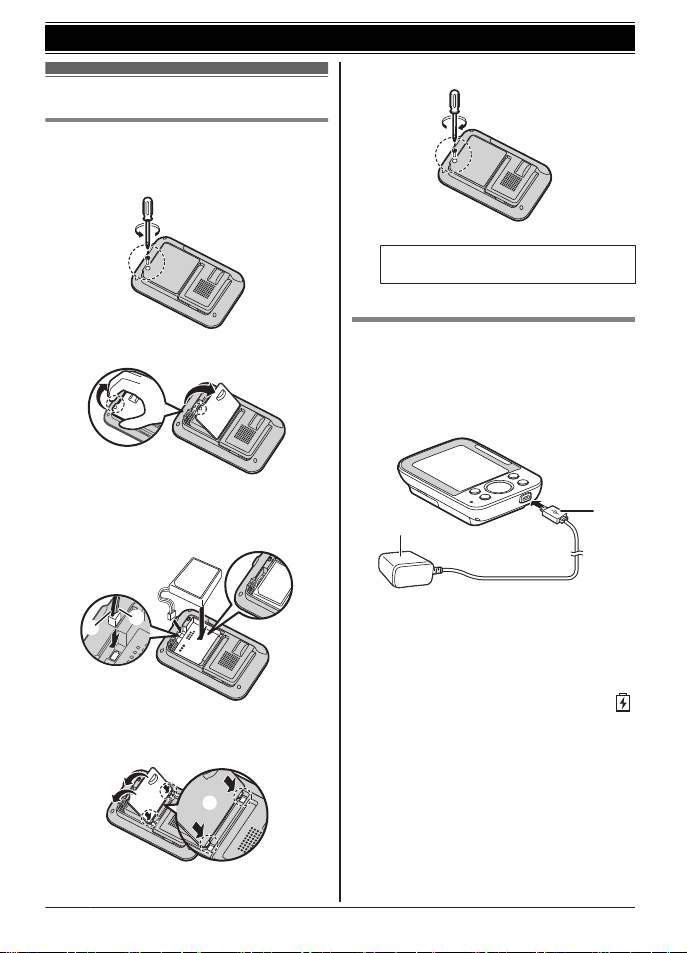
Setting up the monitor unit
Battery installation
R U
SE ONLY the specified battery.
1 Remove the screw from the battery cover.
2 R
emove the battery cover.
3 I
nsert the battery.
1
BLK: black
2
RED
2
1
4 I
nsert the tabs (A) into the slots, and
then close the battery cover (B).
2
1
5 D
rive the screw into the battery cover.
R F
ollow the directions on the display
to set up the unit.
Battery charging
1 I
nsert the AC adaptor plug (A) firmly into
the monitor unit’s micro-USB connector.
2 Connect the AC adaptor (B) to the power
outlet.
A
B
Charge for about 8 hours.
Note:
R Use only the supplied AC adaptor
S006AKU0500100.
R When the AC adaptor plug is connected to
the monitor unit’s micro-USB connector,
is displayed on the screen.
R It is normal for the monitor unit to feel warm
during charging.
R The monitor unit resets if the AC adaptor is
disconnected when charging.
14
For assistance, please visit http://shop.panasonic.com/support
Getting Started
HN4001_(en_en)_0508_ver.010.pdf 14 2019/05/08 16:24:08
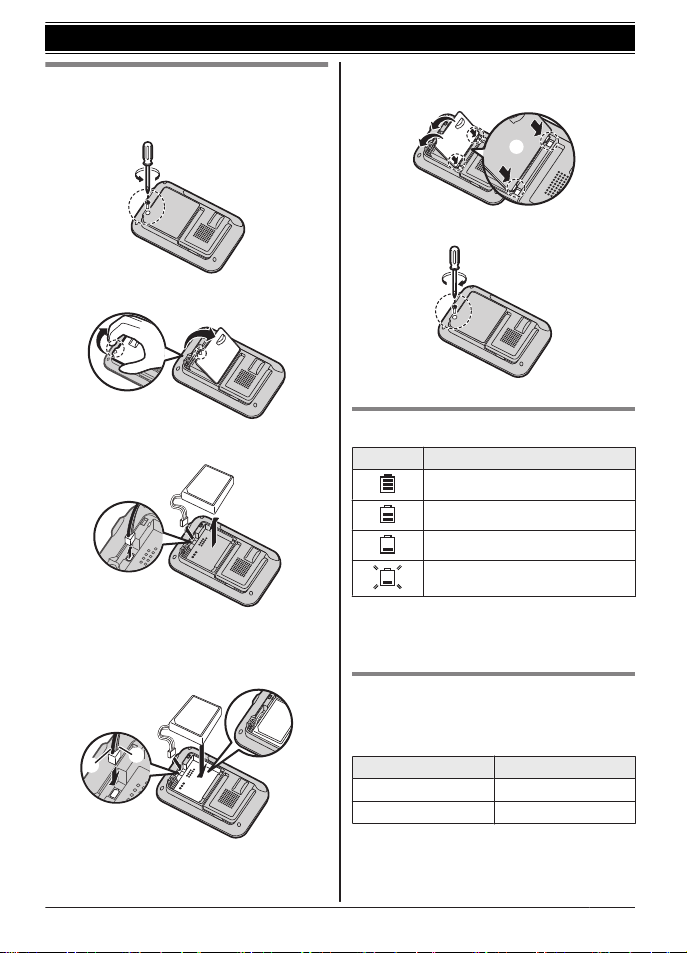
Replacing the battery
R USE ONLY the specified battery.
1 Remove the screw from the battery cover.
2 R
emove the battery cover.
3 R
emove the currently used battery.
4 A
ttach and insert the replacement battery.
1
BLK: black
2
RED
2
1
5 I
nsert the tabs (A) into the slots, and
then close the battery cover (B).
2
1
6 D
rive the screw into the battery cover.
Battery level
Icon Battery level
High
Medium
Low
Needs charging.
*
1
*1 Two beeps sound from the monitor unit
e
very 3 minutes when the battery needs
charging.
Lithium Ion (Li-Ion) Polymer
b
attery performance (supplied
battery)
Operation Operating time
In continuous use 5 hours max.
Not in use (standby) 13 hours max.
For assistance, please visit http://shop.panasonic.com/support
15
Getting Started
HN4001_(en_en)_0508_ver.010.pdf 15 2019/05/08 16:24:08
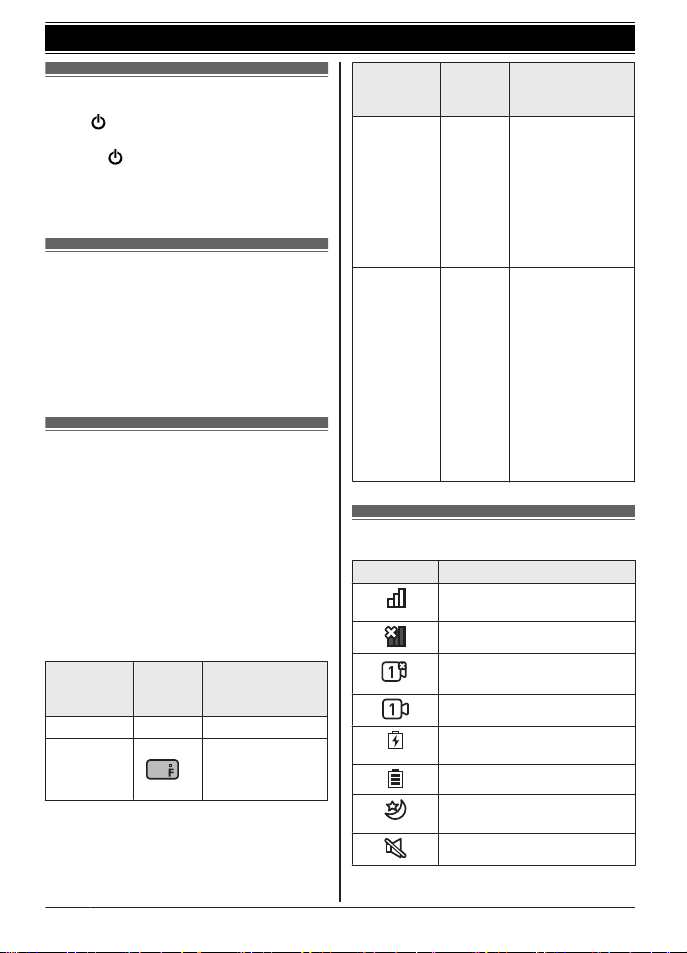
Turning the power on/off
P
ress M
N located on the top of the monitor
unit (page 10) for about 2 seconds.
R Press M N
to enter sleep mode and turn off
the display (page 20).
Press any key on the monitor unit to exit
sleep mode and turn on the display.
Language setting
1 MM
ENUN
2 MbN: “Monitor Settings” a MOKN
3 MbN: “Language” a MOKN
4 MbN: Select the desired language. a
MOKN a MMENUN repeatedly to exit.
Smart LED indicator and
d
isplay icon colors
The colors of the smart LED indicator and
display icons (page 16) indicate the status of
the sensors. When sound or motion is
detected, the smart notification feature
(page 25) lights the smart LED indicator and
displays the motion and sound icons
according to the level of motion or sound
detected. The smart LED indicator also lights
when temperature is detected outside of the
specified limits (page 20).
Smart LED
i
ndicator
color
Display
i
con
color
Status
Off Off No detections
Off White
(
only)
Normal o
perations
Smart LED
i
ndicator
color
Display
i
con
color
Status
Green Green Motion or sound
d
etected at the
lower threshold
level
Example:
When your baby
makes small
movements or
cries quietly.
Amber Amber R M
otion or
sound detected
at the higher
threshold level
Example:
When your
baby makes
big movements
or cries loudly.
R Temperature
detected above
or below the
threshold level
Display icons
Item Meaning
Range status:
Shows the signal level.
Out of service area
An error occurred on the
c
onnected camera unit.
*1
Camera unit number
*
1
The battery is charging.
(
page 14)
The battery is fully charged.
Night vision mode is active.
(
page 19)
Mute is on.
16
For assistance, please visit http://shop.panasonic.com/support
Getting Started
HN4001_(en_en)_0508_ver.010.pdf 16 2019/05/08 16:24:08
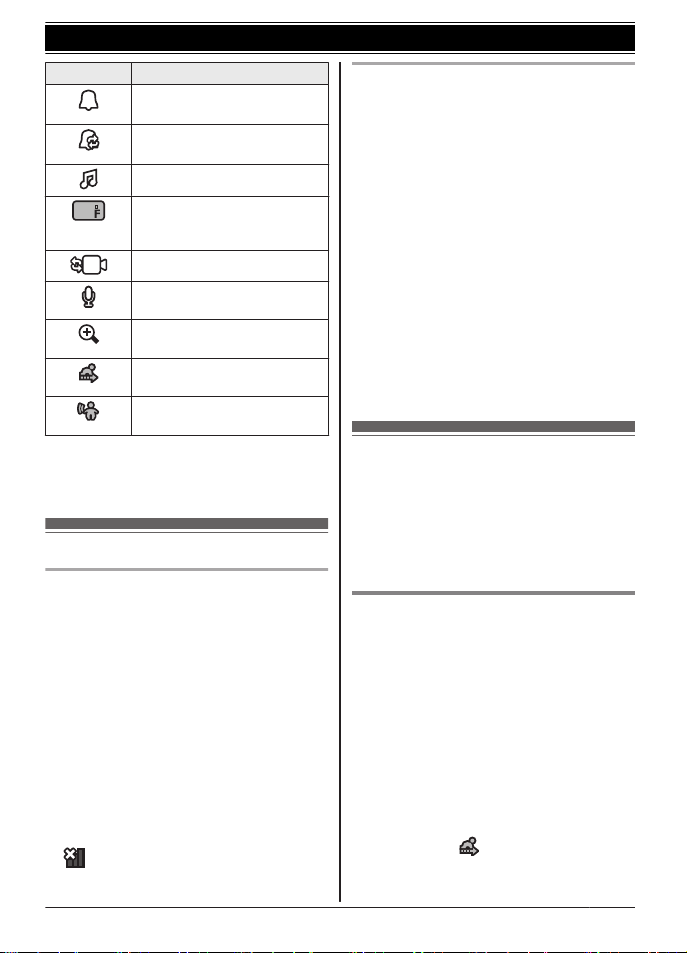
Item Meaning
Timer is set to “O
nce”.
(page 27)
Timer is set to “Repeat”.
(page 27)
Lullaby is set. (page 21)
Displays the temperature
d
etected by the temperature
sensor. (page 20)
Auto scan (page 21)
The monitor unit is talking to
t
he camera unit. (page 19)
Camera zoom is on.
(
page 19)
Displayed when motion is
d
etected. (page 26)
Displayed when sound is
detected. (page 27)
*1 The number displayed in the icon
c
hanges depending on the number of the
connected camera unit.
Confirming the usage area
Wireless communication range
T
he wireless communication range of the
monitor unit from the camera unit is
approximately 457.5 m (1,500 feet). Wireless
communication may be unreliable when the
following obstacles are located between the
monitor unit and camera unit.
R Metal doors or screens
R Walls containing aluminum-sheet insulation
R Walls made of concrete or corrugated iron
R Double-pane glass windows
R Multiple walls
R When using the monitor unit and camera
unit on separate floors or in different
buildings
Note:
R
is displayed on the monitor unit when
t
he camera unit is out of range.
Usage area cautions
U
sing the monitor unit in the following areas
may cause deformation, malfunction, or
operational failure.
R In direct sunlight
R Areas exposed to grease or steam, such as
kitchens
R Near fire or heating devices
R Near magnetic fields (such as near
microwaves and magnets)
R Areas subject to extreme temperature
changes, such as next to air conditioners
R Areas with reflective objects, such as glass,
that can interfere with detection of
temperature variation
R Areas where the temperature is affected by
strong illuminating objects (such as
fluorescent lights)
R Near devices that emit strong radio waves,
such as mobile phones
Testing the baby monitor
s
ystem
Before using your baby monitor system, you
should perform a test run to ensure that the
system is configured correctly. For example,
test the motion sensor, microphone, and
speaker.
Testing the motion detection
r
ange
After setting up the camera unit and monitor
unit, you can use your monitor unit to test the
performance of the camera unit’s motion
detection feature.
1 Move to an area within the camera unit’s
viewable area.
2 While moving near the camera unit, use
your monitor unit to observe where you
are in the viewable area when the camera
unit’s motion detection feature is triggered.
R When the motion detection feature is
triggered,
is displayed on the
monitor unit screen in green or amber
For assistance, please visit http://shop.panasonic.com/support
17
Getting Started
HN4001_(en_en)_0508_ver.010.pdf 17 2019/05/08 16:24:08

depending on the level of motion
d
etected.
3 Note the areas of the viewable area
where movement is detected, and make
adjustments as necessary.
Note:
R You can adjust the area detectable by the
motion sensor (page 26).
Testing the camera unit’s
m
icrophone
To test the camera unit’s microphone, speak
loudly and clearly into the microphone while a
monitor unit user is viewing live images from
the camera unit.
Testing t
he camera unit’s speaker
To test the camera unit’s speaker, press and
hold M
N,
and talk into the monitor unit while
someone is listening to the camera unit.
Note:
R Make sure to adjust the camera unit’s
speaker volume to a suitable level when
testing the speaker (page 20).
18
For assistance, please visit http://shop.panasonic.com/support
Getting Started
HN4001_(en_en)_0508_ver.010.pdf 18 2019/05/08 16:24:09

Baby monitor
T
he baby monitor system allows you to listen
and view images on a monitor unit from a
room where the camera unit is located. With
the use of smart features (page 25), the
monitor unit notifies you when the camera
unit’s sensors are triggered, and you can also
play lullabies from the camera unit.
Important:
R You should perform a test run of the baby
monitor system before using it (page 17).
R The baby monitor system should not be
used as a substitute for a medical or
caregiver’s supervision. It is the caregiver’s
responsibility to stay close enough to
handle any eventuality.
Viewing l
ive camera images
Images from the camera unit are automatically
displayed on the monitor unit when the
monitor unit is turned on.
If 2 or more camera units have been
registered to your monitor unit, you can switch
the camera image by selecting the desired
camera unit or using auto scan (page 21).
Night vision mode
The infrared LEDs of the camera unit make it
possible to view camera images even when
the area surrounding the camera unit is dark.
Note:
R When night vision mode is active, camera
images are displayed in black and white.
Adjusting camera images from
t
he monitor unit
From the monitor unit, you can adjust the area
viewed by the camera unit by using the pan/tilt.
While viewing images from the camera unit,
press MFN or MEN to adjust the pan range and
MCN or MDN to adjust the tilt range.
Note:
R T
he sound sensor and motion sensor do
not function during and for 5 seconds after
pan/tilt operations.
R Only adjust the pan/tilt with operations from
the monitor unit. Do not adjust the pan/tilt of
the camera unit by hand.
Camera zoom
T
he camera zoom can be used to zoom in on
images displayed on the monitor unit.
1 MSMARTN
2 MCN: Select the desired setting. a
MMENUN
R The setting is saved and the screen is
switched to the selected setting.
Listening/talking to the
c
amera unit
Listening to the camera unit
S
ound from the camera unit is heard on the
monitor unit while the monitor unit is turned
on, and even when it is in sleep mode and
images are not displayed.
Note:
R Sound is not heard on the monitor unit
when it is turned off or when it is out of
range of the camera unit.
R You can adjust the speaker volume of the
monitor unit (page 20).
Talking to the camera unit
W
hile viewing images from the camera unit,
press and hold M
N on the monitor unit to talk.
Release M N to finish talking.
Note:
R You can adjust the speaker volume of the
camera unit (page 20).
R Sound from the camera unit will not be
heard on the monitor unit while talking.
For assistance, please visit http://shop.panasonic.com/support
19
Using the Baby Monitor
HN4001_(en_en)_0508_ver.010.pdf 19 2019/05/08 16:24:09
R W
hen pressing M
N,
make sure to not
cover the microphone (page 10) with your
fingers.
Adjusting the speaker
v
olume
Monitor unit
1 W
hile viewing images from the camera
unit, press M
N.
2 MbN:
Select the desired setting. a MOKN
Camera unit
1 MM
ENUN
2 MbN: “Camera Speaker Vol.” a MOKN
3 M
b
N:
Select the desired setting. a MOKN
a MMENUN repeatedly to exit.
Adjusting the chime/beep
v
olume
The monitor unit plays chimes and beeps to
indicate the status of the monitor unit and
camera unit sensors. You can adjust the
volume of chimes/beeps, or turn them off.
1 MMENUN
2 MbN: “Monitor Settings” a MOKN
3 MbN: “Beep Volume” a MOKN
4 MbN: Select the desired setting.
R To turn off chimes/beeps:
MbN: “OFF”
5 MOKN a MMENUN repeatedly to exit.
Adjusting the brightness of
c
amera images
1 While viewing images from the camera
unit, press M
N.
2 M
b
N:
Select the desired setting. a MOKN
Adjusting the sleep mode
S
leep mode is used to automatically turn off
the display of the monitor unit when the
monitor unit has been inactive for a specified
period of time. You can select how long the
monitor unit is inactive for before it enters
sleep mode, or turn off sleep mode.
1 MMENUN
2 MbN: “Monitor Settings” a MOKN
3 MbN: “Sleep Mode” a MOKN
4 MbN: Select the desired setting.
R To turn off sleep mode:
MbN: “OFF”
5 MOKN a MMENUN repeatedly to exit.
Configuring the
t
emperature sensor
You can specify how the temperature units
(Celsius or Fahrenheit) are displayed on the
monitor unit and the alert range.
For the alert range, specify an upper and
lower limit. If the temperature of the room
where the camera unit is installed goes
outside of these limits, the monitor unit will
notify you by lighting the smart LED indicator,
playing a chime, etc.
Configuring the temperature units
1 MM
ENUN
2 MbN: “Sensor Settings” a MOKN
3 MbN: “Temperature Sensor” a MOKN
4 MbN: “Units” a MOKN
5 MbN: Select the desired setting. a MOKN
a MMENUN repeatedly to exit.
Configuring the alert range
1 MM
ENUN
20
For assistance, please visit http://shop.panasonic.com/support
Using the Baby Monitor
HN4001_(en_en)_0508_ver.010.pdf 20 2019/05/08 16:24:09
2 MbN:
“Sensor Settings” a MOKN
3 MbN: “Temperature Sensor” a MOKN
4 MbN: “Alert Range” a MOKN
5 M
b
N:
“Lower Limit”
6 MbN: Specify the desired temperature.
7 M
b
N:
“Upper Limit”
8 MbN: Specify the desired temperature.
9 MOKN a MMENUN repeatedly to exit.
Playing/canceling lullabies
m
anually
You can select from a range of lullabies and
manually play them from the camera unit, or
cancel them.
Note:
R Make sure to check the camera unit’s
speaker volume before playing lullabies
(page 20).
R The auto lullaby feature can be used to play
lullabies automatically (page 25).
Selecting a lullaby
1 MM
ENUN
2 MbN: “Lullaby” a MOKN
3 MbN: “Sound List” a MOKN
4 MbN: Select the desired lullaby.
R To cancel a lullaby:
MbN: “OFF”
5 MOKN a MMENUN repeatedly to exit.
Note:
R Lullabies can also be canceled by pressing
M
N
on the camera unit.
R If the monitor unit is turned off while
selecting lullabies, the lullaby will continue
to play from camera unit for the specified
time.
Selecting a lullaby play time
Y
ou can specify the time that lullabies play for.
1 MMENUN
2 MbN:
“Lullaby” a MOKN
3 MbN: “Play Time” a MOKN
4 MbN: Select the desired play time.
5 MOKN a MMENUN repeatedly to exit.
Selecting camera units/
u
sing auto scan
If there are multiple camera units registered to
the monitor unit, you can select which camera
unit’s images to view, and also use auto scan.
Auto scan automatically switches images from
each camera unit every 10 seconds. See
page 27 for information on adding camera
units.
1 MMENUN
2 MbN: “Camera Select” a MOKN
3 To select camera units:
M
b
N: Select the desired camera unit.
To select auto scan:
M
b
N:
4 MO
KN
Note:
R When a camera unit is selected, sound
detection, motion detection, and
temperature detection notifications are only
received from the selected camera unit.
Notifications from other camera units will
not be received.
For assistance, please visit http://shop.panasonic.com/support
21
Using the Baby Monitor
HN4001_(en_en)_0508_ver.010.pdf 21 2019/05/08 16:24:09
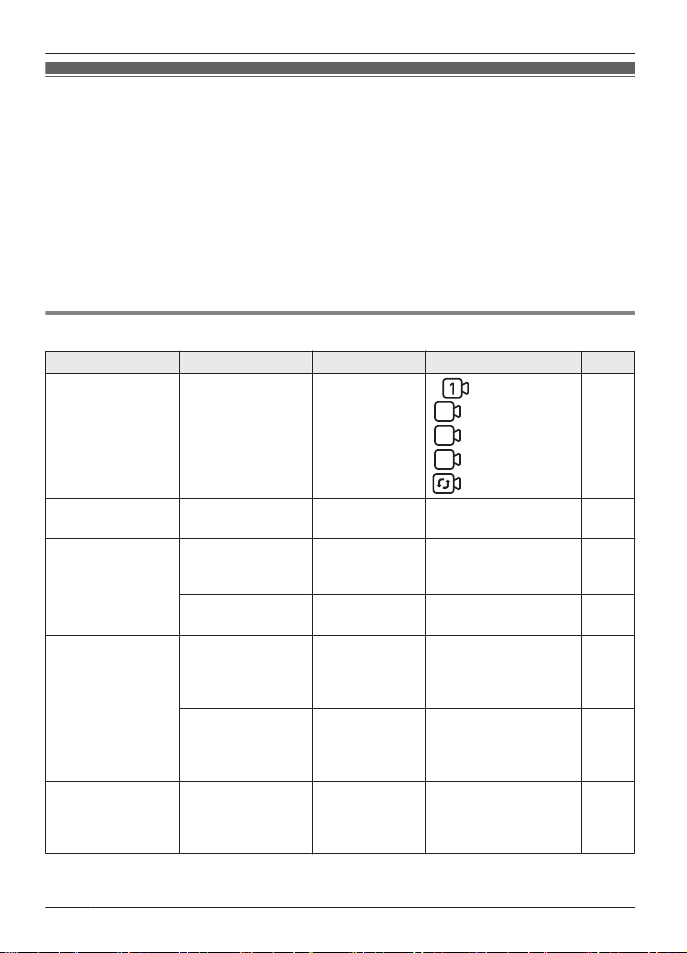
Menu list
I
tems in the menu list can be configured in the following method.
1 MMENUN
2 Press MCN or MDN to select the desired main menu. ® MOKN
3 Press MCN or MDN to select the desired item from the sub-menus. ® MOKN
4 Press MCN, MDN, MFN, or MEN to select the desired setting. ® MOKN
Note:
R To exit the operation, press MMENUN repeatedly.
R In the following table, < > indicates the default settings.
R The number of sub-menus varies depending on the setting.
Display the menu tree
Main menu Sub-menu 1 Sub-menu 2 Settings Page
Camera Select
*
1
– –
<
> (camera 1)
2
(camera 2)
*
2
3
(camera 3)
*
2
4
(camera 4)
*
2
(auto scan)
*2
21
Camera Zoom
– – <(
1X )>
( 2X )
19
Lullaby
*
3
Sound List
– 1. Lullaby1
- 10.
Heart beat
<OFF>
21
Play Time
– 5 min
- 120 min
<15 min>
21
Smart
N
otification
Sound
Notification
– <Screen lit +
Notify>
Screen lit only
OFF
25
Motion
N
otification
– <Screen lit +
Notify>
Screen lit only
OFF
25
Auto Lullaby Sound List
– 1. Lullaby1
- 10.
Heart beat
Random
<OFF>
25
22
For assistance, please visit http://shop.panasonic.com/support
Programming
HN4001_(en_en)_0508_ver.010.pdf 22 2019/05/08 16:24:09

Main menu Sub-menu 1 Sub-menu 2 Settings Page
Auto Lullaby Sound Detect
L
evel
*4
–
High
<Normal>
26
Detection
T
ime
*4
–
15 sec
30 sec
45 sec
<60 sec>
90 sec
26
Play Time
*
4
– 5 min
- 120 min
<15 min>
26
Timer
–
Once
<1H>
2
H
3H
4H
5H
6H
27
–
Repeat
<1H>
2
H
3H
4H
5H
6H
27
–
OFF
– 27
Sensor
S
ettings
Motion Sensor Sensitivity
Level 7 (High)
*
5
Level 6
*5
Level 5
*5
<Level 4 (Mid)>
*5
Level 3
*5
Level 2
*5
Level 1 (Low)
*5
26
Set
D
etection
Area
– 26
Sound
S
ensitivity
–
High : all sounds
<Mid : all
sounds>
Low : all sounds
*6
High : baby
sounds
*7
Mid : baby
sounds
*7
Low : baby
sounds
*6,
*7
27
Temperature
S
ensor
Units °C
<°F>
20
For assistance, please visit http://shop.panasonic.com/support
23
Programming
HN4001_(en_en)_0508_ver.010.pdf 23 2019/05/08 16:24:09

Main menu Sub-menu 1 Sub-menu 2 Settings Page
Sensor
S
ettings
Temperature
Sensor
Alert Range
Upper Limit:
33 - 104 °F (1 -
40 °C)
<80 °F (27 °C)>
20
Lower Limit:
3
2 - 103 °F (0 -
39 °C)
<60 °F (16 °C)>
20
Camera Speaker
V
ol.
– – Level 1 - 6
<3>
OFF
20
Camera
B
rightness
– – Level 1 - 5
<3>
20
Camera
M
anagement
Add Camera
– – 27
Delete Camera
–
Yes
<N
o>
27
Reset
–
Yes
<N
o>
27
Monitor
S
ettings
Sleep Mode
–
1min
<3min>
5min
OFF
20
Beep Volume
–
3
2
<1>
O
FF
20
Language
– <E
nglish>
Français
Español
16
Monitor
S
peaker Vol.
– Level 1 - 6
<
3>
OFF
20
Information
*
8
– – – –
*1 Can only be selected when there are multiple camera units registered to the monitor unit.
*
2 The number of camera units available for camera selecting or auto scan differs depending
on the number registered camera units.
*3 This product uses sound data (“1. Lullaby1” - “5. Lullaby5”) which Copyrights
Vision Inc. created in 2014. © 2014 Copyrights Vision Inc.
*4 Can only be selected when a lullaby is selected for “Sound List”.
*5 Change the settings to higher levels in the following situations. Otherwise, there is a
possibility that detections may not be made correctly.
– when your baby and the camera unit are separated
– when monitoring newborn babies
*6 When sound is detected, the smart LED indicator is only lit in amber.
24
For assistance, please visit http://shop.panasonic.com/support
Programming
HN4001_(en_en)_0508_ver.010.pdf 24 2019/05/08 16:24:09

*7 Reduces false detections from sounds other than your baby’s voice by reducing these
s
ounds from the surrounding area.
If your baby’s voice is not detected when using these settings, select a baby sounds setting
with a higher sensitivity. If your baby’s voice is still not detected, select an all sounds setting.
*8 Displays customer support Web address.
Smart features
W
ith the use of smart features, you can
coordinate the camera unit and monitor unit to
respond automatically to detections from the
sensors. The smart features settings can be
accessed by pressing MSMARTN while viewing
images from the camera unit.
Smart notification
B
y using the smart notification feature, you
can specify how the monitor unit notifies you
when motion or sound is detected by the
camera unit, and configure motion detection to
match the size of your baby. Depending on
the settings, the monitor unit can notify you by
lighting the smart LED indicator (page 16),
displaying a message, and playing a chime.
Important:
R Depending on factors such as the usage
environment, the monitor unit may not be
able to notify you of sensor detections.
Note:
R Notifications continue for 1 minute. You
can stop the notification by pressing MOKN.
Configuring sound notifications
Y
ou can specify how the monitor unit notifies
you when sound is detected, or turn off
notifications.
1 MMENUN
2 MbN: “Smart Notification” a MOKN
3 MbN: “Sound Notification” a MOKN
4 MbN: Select the desired setting.
R To turn off sound notifications:
MbN: “OFF”
5 MOKN a MMENUN repeatedly to exit.
Configuring motion notifications
Y
ou can specify how the monitor unit notifies
you when motion is detected, or turn off
notifications.
1 MMENUN
2 MbN: “Smart Notification” a MOKN
3 MbN: “Motion Notification” a MOKN
4 MbN: Select the desired setting.
R To turn off motion notifications:
MbN: “OFF”
5 MOKN a MMENUN repeatedly to exit.
Auto lullaby
Y
ou can configure lullabies to be played
automatically from the camera unit when
sound is detected.
Note:
R Make sure to check the camera unit’s
speaker volume before playing lullabies
(page 20).
R Auto lullaby does not function during the
following.
– while using or for 5 seconds after using
the pan/tilt
– while talking to the camera unit
– while configuring lullabies to be played
Configuring the sound settings
Y
ou can specify which lullaby is played when
sound is detected, or turn lullabies off.
1 MMENUN
2 MbN: “Auto Lullaby” a MOKN
3 MbN: “Sound List” a MOKN
4 MbN: Select the desired lullaby.
R To turn off lullabies:
MbN: “OFF”
For assistance, please visit http://shop.panasonic.com/support
25
Programming
HN4001_(en_en)_0508_ver.010.pdf 25 2019/05/08 16:24:09

5 MO
KN a MMENUN repeatedly to exit.
Note:
R If the monitor unit is turned off while
selecting lullabies, the lullaby will continue
to play from the camera unit for the
specified time.
Configuring the sound detection level
Y
ou can adjust the level at which sound is
detected. Increase or decrease the detection
level needed to trigger the sound sensor.
1 MMENUN
2 MbN: “Auto Lullaby” a MOKN
3 MbN: “Sound Detect Level”
*1
a MOKN
4 MbN: Select the desired setting. a MOKN
a MMENUN repeatedly to exit.
*1 This feature can only be selected when a
lullaby is selected for “Sound List”
(page 25).
Configuring the detection time
Y
ou can specify how long the sound sensor
continually detects sound before the camera
unit automatically plays a lullaby.
1 MMENUN
2 MbN: “Auto Lullaby” a MOKN
3 MbN: “Detection Time”
*1
a MOKN
4 MbN: Select the desired setting. a MOKN
a MMENUN repeatedly to exit.
*1 This feature can only be selected when a
lullaby is selected for “Sound List”
(page 25).
Configuring the play time
Y
ou can specify how long the camera unit
plays lullabies when sound is detected.
1 MMENUN
2 MbN: “Auto Lullaby” a MOKN
3 MbN: “Play Time”
*1
a MOKN
4 MbN: Select the desired setting. a MOKN
a MMENUN repeatedly to exit.
*1 This feature can only be selected when a
lullaby is selected for “Sound List”
(page 25).
Sensors
Y
ou can configure the sensors to match how
you want the motion and sound to be
detected. The sensor configurations will also
affect how the auto lullaby and smart
notification features operate.
Configuring the motion sensor
Y
ou can specify the sensitivity of the motion
sensor, and also which areas of images are
used to detect motion.
Configuring the motion sensor
s
ensitivity
Motion sensor sensitivity is configured using a
combination of the following.
– the distance from the camera unit to your
baby
– the age of your baby in months
Change the settings in accordance with the
growth of your baby.
1 MMENUN
2 MbN: “Sensor Settings” a MOKN
3 MbN: “Motion Sensor” a MOKN
4 MbN: “Sensitivity” a MOKN
R A message is displayed. Press MOKN
to continue.
5 MbN: Select the desired setting. a MOKN
a MMENUN repeatedly to exit.
Configuring the motion sensor
d
etection area
1 MMENUN
2 MbN: “Sensor Settings” a MOKN
3 MbN: “Motion Sensor” a MOKN
4 MbN: “Set Detection Area” a MOKN
R An operation guide is displayed. Press
MOKN to continue.
5 Press MCN, MDN, MFN, or MEN to select a
cell to disable detection for. a MOKN
R Repeat for each cell to be disabled.
26
For assistance, please visit http://shop.panasonic.com/support
Programming
HN4001_(en_en)_0508_ver.010.pdf 26 2019/05/08 16:24:09

R T
o enable detection for a disabled cell,
select the disabled cell. a MOKN
6 When finished, press M
N a MM
ENUN
repeatedly to exit.
Configuring the sound sensor
s
ensitivity
1 MMENUN
2 MbN: “Sensor Settings” a MOKN
3 MbN: “Sound Sensitivity” a MOKN
4 MbN: Select the desired setting. a MOKN
a MMENUN repeatedly to exit.
Timer
T
he timer can be used to play sound from the
monitor unit after the specified number of
hours has passed. The timer can be set to
sound once or repeat at specified intervals.
1 MMENUN
2 MbN: “Timer” a MOKN
3 MbN: Select “Once” or “Repeat”. a
MOKN
4 MbN: Specify when the timer is set for. a
MOKN a MMENUN
Note:
R Timers play for 1 minute. Press MOKN to
stop a timer. Press and hold MOKN for
5 seconds to stop timers from repeating.
R If the monitor unit is turned off after setting
a timer:
– “Once”: The timer will be canceled.
– “Repeat”: The timer will be played once
the specified time has passed from when
the monitor was turned on again.
Managing camera units
Registering a camera unit
M
onitor unit:
1 MMENUN
2 MbN:
“Camera Management” a MOKN
3 MbN: “Add Camera” a MOKN
R An operation guide is displayed. Press
MOKN to continue.
R Complete the following step within
90 seconds.
Camera unit:
1 Press and hold M
N
for 3 seconds until
the LED indicator starts blinking.
Note:
R A message is displayed on the monitor unit
to show if the registration was successful or
not, and a beep sounds.
Resetting a camera unit
T
he camera unit settings saved on a monitor
unit can be reset.
Note:
R All camera unit settings except for
registration settings are reset.
R Settings for all camera units registered to
the monitor unit are reset.
1 MMENUN
2 MbN: “Camera Management” a MOKN
3 MbN: “Reset” a MOKN
4 M
b
N:
“Yes” a MOKN
R A beep sounds from the monitor unit
when resetting is completed.
Canceling a camera unit
N
ote:
R Only the currently connected camera unit is
canceled. To cancel other camera units,
select the displayed camera unit (page 21)
and then cancel that camera unit.
1 MMENUN
2 MbN: “Camera Management” a MOKN
3 MbN: “Delete Camera” a MOKN
4 M
b
N:
“Yes” a MOKN
For assistance, please visit http://shop.panasonic.com/support
27
Programming
HN4001_(en_en)_0508_ver.010.pdf 27 2019/05/08 16:24:09
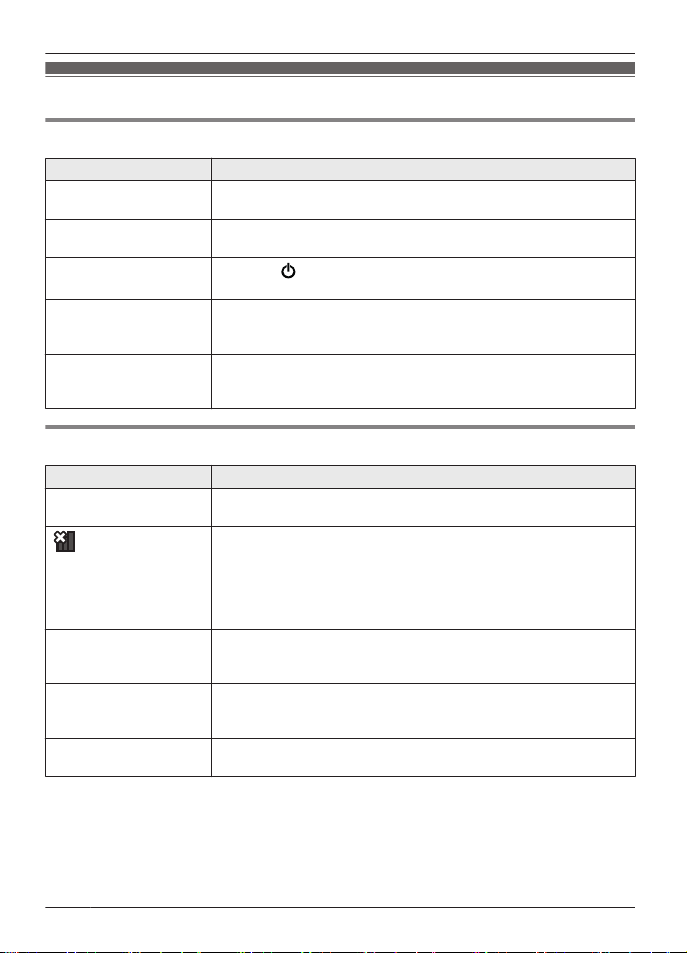
Troubleshooting
General use
Problem Cause & Solution
The monitor unit does
not work.
R Make sure the battery is installed correctly (page 14).
R Fully charge the battery.
The camera unit does
n
ot work.
R Make sure the AC adaptor is connected to the camera unit and
power outlet (page 12).
The monitor unit is
t
urned off.
R Press M
N
located on the top of the monitor unit for about 2
seconds.
Noise is heard, sound
c
uts in and out.
R You are using the monitor unit or camera unit in an area with
high electrical interference. Re-position the monitor unit and use
the camera unit away from sources of interference.
The monitor unit or
c
amera unit does not
sound.
R The speaker volume is turned off. Adjust the speaker volume
(page 20).
Monitor unit display
Problem Cause & Solution
The display is in a
language I cannot read.
R Change the display language setting (page 16).
is displayed.
R T
he monitor unit is too far from the camera unit. Move the
monitor unit closer to the camera unit.
R The camera unit’s AC adaptor is not properly connected.
Reconnect the AC adaptor to the camera unit.
R The camera unit has not been registered to the monitor unit.
Register the camera unit (page 27).
The monitor unit display
i
s blank.
R The monitor unit is in sleep mode. Press any button on the
monitor unit to activate the display.
R The monitor unit is not turned on. Turn it on (page 16).
Images are white or
b
lack.
R The brightness of the display is not correctly adjusted. Adjust the
brightness when images are displayed (page 20).
R Place the camera unit in a different location or position.
Images are flickering. R A
C (alternating current) lights such as fluorescent lights may
cause flickering in dark environments. (This is not a malfunction.)
28
For assistance, please visit http://shop.panasonic.com/support
Useful Information
HN4001_(en_en)_0508_ver.010.pdf 28 2019/05/08 16:24:09
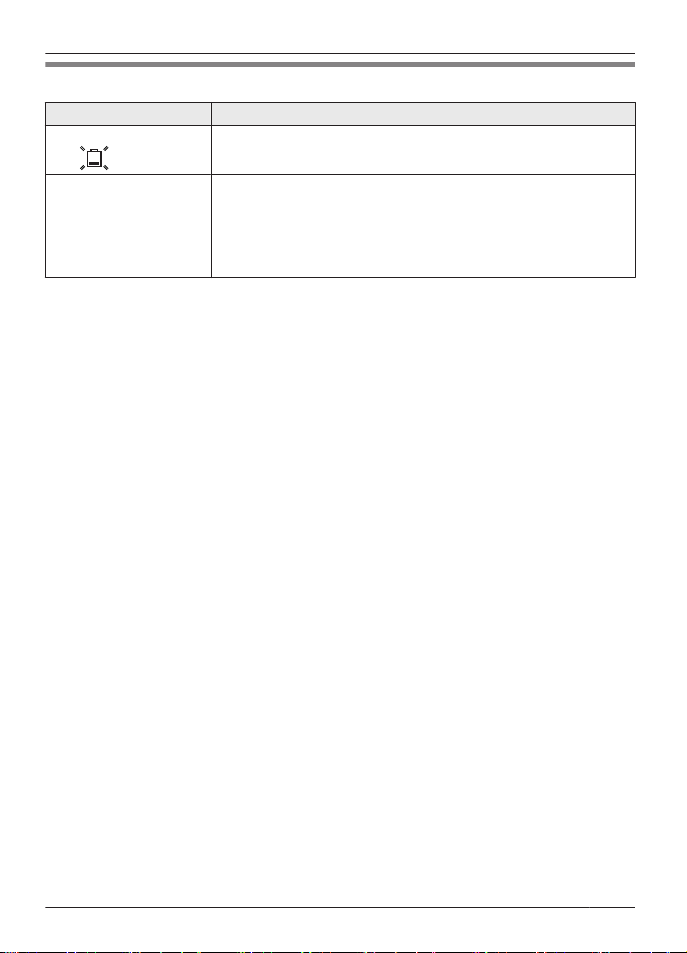
Battery recharge
Problem Cause & Solution
The monitor unit beeps
a
nd
is displayed.
R B
attery charge is low. Fully charge the battery (page 14).
The battery is not fully
charged.
R The temperature for the charging conditions is too low or too
high. Charge the battery within the specified charging condition
range (page 30).
R The battery may not be installed. Install the battery (page 14).
R The battery may be deteriorated. Please visit
http://shop.panasonic.com/support
For assistance, please visit http://shop.panasonic.com/support
29
Useful Information
HN4001_(en_en)_0508_ver.010.pdf 29 2019/05/08 16:24:09

Specifications
R S
tandards
DECT (Digital Enhanced Cordless
Telecommunications)
R Frequency range
DECT: 1.92 GHz – 1.93 GHz
R RF transmission power
DECT: 115 mW (max.)
R Power source
Camera unit (AC adaptor):
Input: 100 – 240 V AC, 50/60 Hz
Output: 5.0 V DC, 1,000 mA
Monitor unit (AC adaptor):
Input: 100 – 240 V AC, 50/60 Hz
Output: 5.0 V DC, 1,000 mA
R Power consumption
Camera unit:
Normal operation: 2.8 W
Night vision mode: 4.2 W
Sleep mode: 2.1 W
Monitor unit:
Charging: 3.9 W
R Operating conditions
Camera unit:
0 °C – 40 °C (32 °F – 104 °F)
up to 90 % relative humidity
(non-condensing)
Monitor unit:
0 °C – 40 °C (32 °F – 104 °F)
up to 90 % relative humidity
(non-condensing)
R Charging conditions (monitor unit)
5 °C – 40 °C (41 °F – 104 °F)
R Transmitting range
Up to 457.5 m (1,500 feet)
*1
R Image sensor
0.3 megapixel CMOS
R Minimum illuminance required
0 lx
*2
R Focal length
Fixed (0.4 m (1.3 feet) – infinity)
R Angular field of view (camera angle)
Horizontal: approx. 37°
Vertical: approx. 28°
R Motion detection method
Visual sensor
R Detection range
Motion sensor:
Horizontal: approx. 37°
Vertical: approx. 28°
R A
djustable mounting angles
Horizontal: ±136°
Vertical: facing forward - facing down
approx. +0° to -44°
(movable range with the pan/tilt)
R Dimensions (height ´ width ´ depth)
Camera unit:
Approx. 123 mm ´ 77 mm ´ 69 mm
(4
13
/16 inches ´ 3
1
/16 inches ´
2
11
/16 inches)
Monitor unit (flat):
Approx. 37 mm ´ 125 mm ´ 81 mm
(1
7
/16 inches ´ 4
15
/16 inches ´
3
3
/16 inches)
Monitor unit (stand):
Approx. 79 mm ´ 125 mm ´ 48 mm
(3
1
/8 inches ´ 4
15
/16 inches ´ 1
7
/8 inches)
Display:
3.5 inches
R Mass (weight)
Camera unit:
Approx. 224 g (0.49 lb)
Monitor unit:
Approx. 208 g (0.46 lb) including the battery
*1 When used in the direction of maximum
radiation, in the line of sight, and with no
interference.
*2 The infrared LEDs that surround the
camera lens will illuminate in low-light
conditions.
30
For assistance, please visit http://shop.panasonic.com/support
Useful Information
HN4001_(en_en)_0508_ver.010.pdf 30 2019/05/08 16:24:09
Guía Rápida Española
2
A
B
2
1
2
1
1
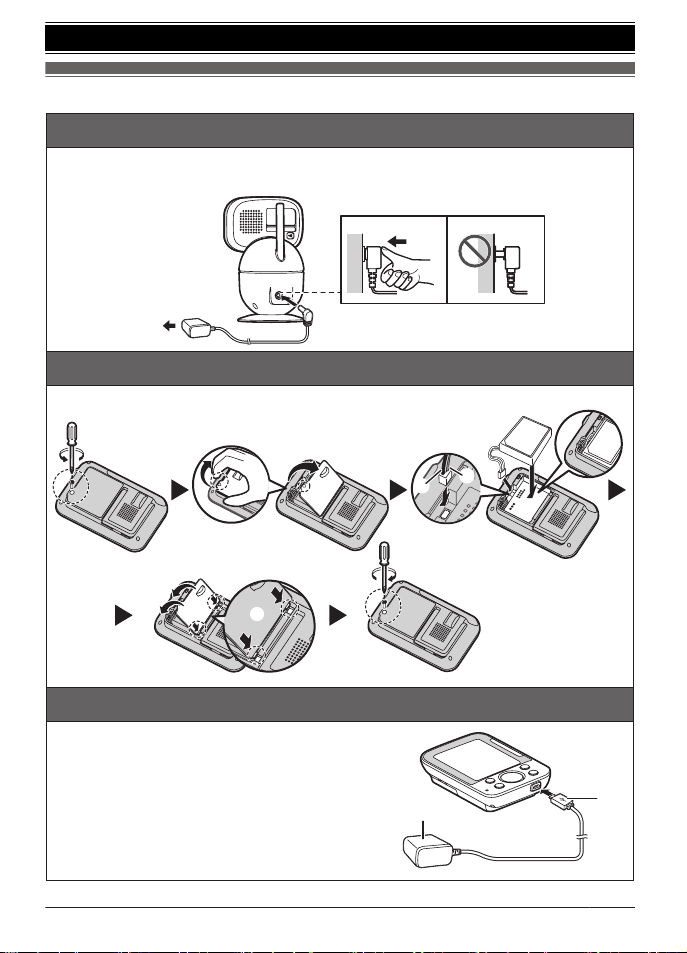
Inserte el adaptador de corriente firmemente en el conector de CC.
2
Conecte el adaptador de corriente a la toma de corriente.
Instalación de la batería de la unidad del monitor
L
Use solos la batería especificada.
Carga de la batería de la unidad del monitor
1
Inserte el enchufe del adaptador de corriente
(
1
) firmemente en el conector micro-USB de la
unidad del monitor.
2
Conecte el adaptador de corriente (
2
) a la toma
de corriente.
Cargue aproximadamente durante 8 horas.
Conexiones de la unidad de cámara
1
Para obtener ayuda, visite http://shop.panasonic.com/support (solo en inglés)
31
Guía Rápida Española
HN4001_(en_en)_0508_ver.010.pdf 31 2019/05/08 16:24:09
Sugerencias de operación
Encendido y apagado de la unidad del monitor
Oprima
{
c
}
durante aproximadamente 2 segundos.
Idioma del visualizador (unidad del monitor)
(predeterminado: “
English
”)
1
{
MENU
}
2
{
r
}
:
“
Monitor Settings
”
s
{
OK
}
3
{
r
}
:
“
Language
”
s
{
OK
}
4
{
r
}
:
“
Español
”
s
{
OK
}
s
{
MENU
}
repetidamente para salir.
Visualización de imágenes en vivo de la cámara (unidad del
monitor)
Las imágenes de la unidad de la cámara se muestran automáticamente en la unidad del
monitor cuando esta está encendida.
N
Para ajustar la panorámica y la inclinación:
Presione
{<}, {>}, {^}, o {V}
.
N
Para ajustar el zoom:
1
{
MENU
}
s
{ }
:
Seleccione la configuración deseada.
s
N
Para ajustar el brillo:
Presione
{ }
.
s
{ }
:
Seleccione la configuración deseada.
s
{
OK
}
b
1
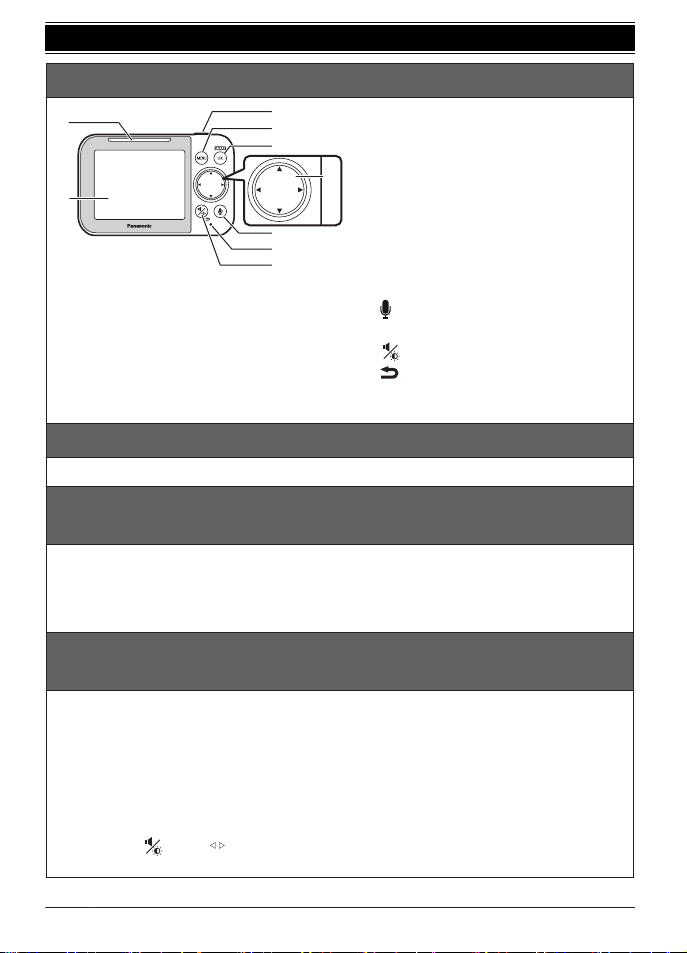
LED indicador inteligente
2
Pantalla
3
{
c
}
(Alimentación)
Presione para apagar la pantalla de
manera temporal o presione durante
aproximadamente 2 segundos para
apagar o encender la unidad del monitor.
4
{MENU}
5
{SMART}/{OK}
Utilice {SMART} para acceder al menú
de acceso rápido.
6
Tecla navegadora
{<}, {>}, {^}, o {V}:
– Navegue por diversas listas y
elementos
– Ajuste el rango de la panorámica y
la inclinación.
7
{ } (Hablar)
8
Micrófono
9
{ } (Volumen/Brillo)
{ } (Dorso)
V
{
SMART
}
3
4
5
7
8
9
1
6
2
32
Para obtener ayuda, visite http://shop.panasonic.com/support (solo en inglés)
Guía Rápida Española
HN4001_(en_en)_0508_ver.010.pdf 32 2019/05/08 16:24:09
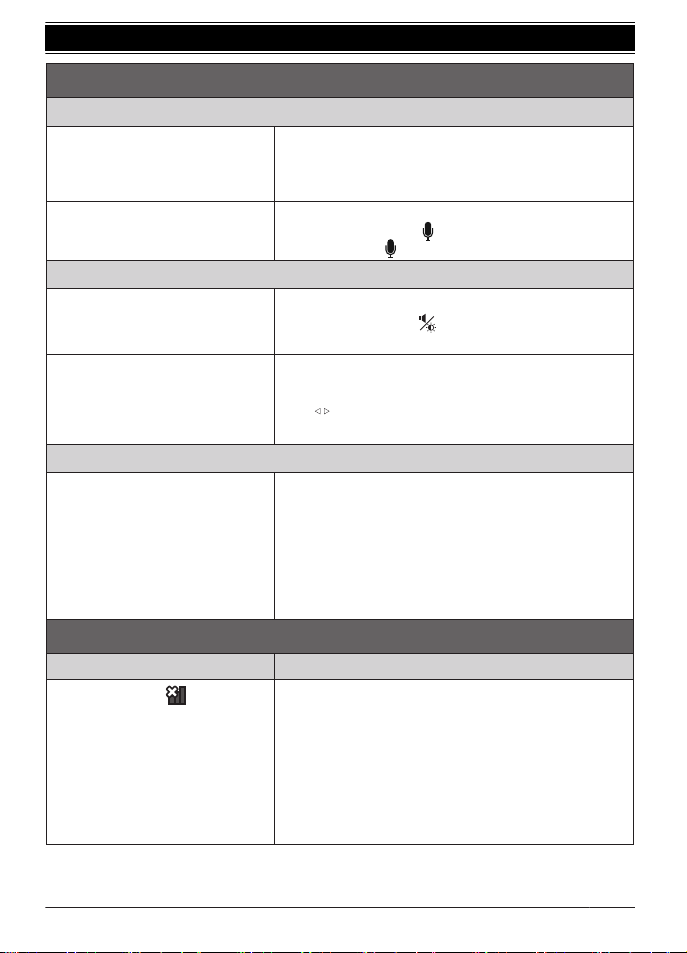
Operaciones básicas
Escuchar y hablar con la unidad de la cámara (unidad del monitor)
Escuchar la unidad de la
cámara
El sonido de la unidad de la cámara se oye cuando la
unidad del monitor está encendida e incluso cuando se
encuentra en modo de reposo y no se muestran
las
imágenes.
Ajuste del altavoz de la unidad
de la cámara
Ajustar el volumen del altavoz (unidad del monitor)
Ajustar el altavoz de la unidad
del monitor
1
Mientras ve las imágenes de la unidad de la
cámara, presione
{ }
.
2
{
r
}
:
Seleccione la configuración deseada.
s
Ajuste del altavoz de la unidad
1
{
MENU
}
2
{
r
}
:
“
Vol. del alt. de cám.
”
s
{
OK
}
3
{ }
s
{
OK
}
s
{
MENU
}
repetidamente para salir.
Reproducir o cancelar las canciones de cuna de la unidad de la cámara (unidad del
monitor)
Reproducir o cancelar una
canción de cuna
1
{
MENU
}
2
{
r
}
:
“
Canción de cuna
”
s
{
OK
}
3
{
r
}
:
“
Lista de sonidos
”
s
{
OK
}
4
{
r
}
:
Seleccione la canción de cuna deseada.
Para cancelar una canción de cuna:
{
r
}
:
“
OFF
”
5
{
OK
}
s
{
MENU
}
repetidamente para salir.
b
{
OK
}
:
Seleccione la configuración deseada.
Mientras ve las imágenes de la unidad de la cámara,
mantenga presionado
{ }
para hablar en la unidad del
monitor. Suelte
{ }
para terminar de hablar.
Preguntas frecuentes
Pregunta Causa y solución
¿Por qué aparece ?
L
La unidad del monitor está demasiado lejos de la
unidad de la cámara.
Acerque la unidad del monitor a la unidad de la cámara.
L
El adaptador de corriente de la unidad de la
cámara no está conectado correctamente.
Conecte de nuevo el adaptador de corriente a la unidad
de la cámara.
L
La cámara no se ha registrado en la unidad del monitor.
Registre la cámara.
Para obtener ayuda, visite http://shop.panasonic.com/support (solo en inglés)
33
Guía Rápida Española
HN4001_(en_en)_0508_ver.010.pdf 33 2019/05/08 16:24:09
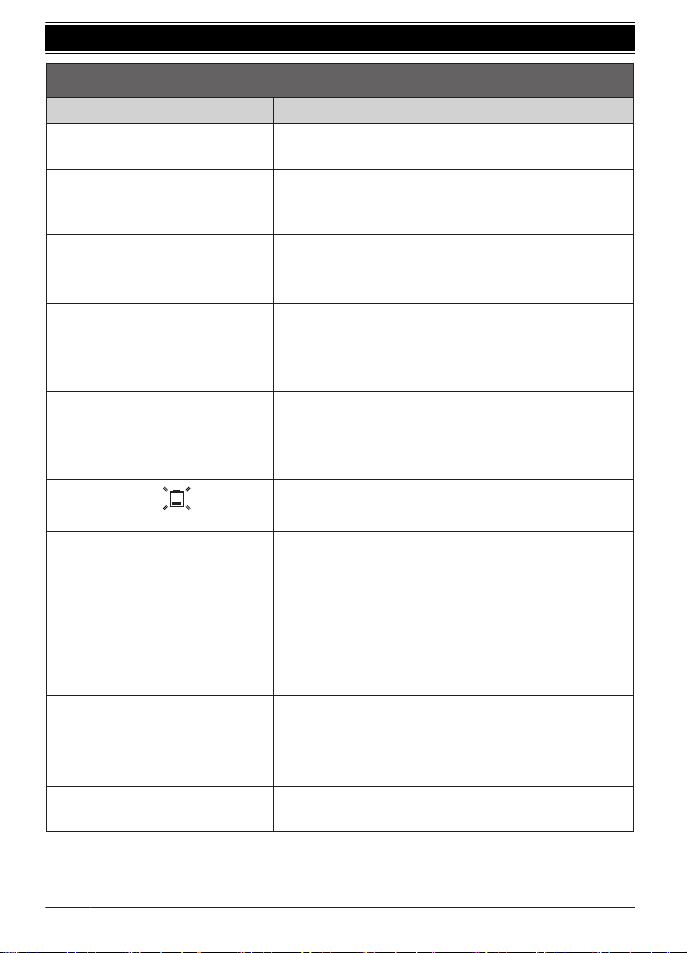
Preguntas frecuentes
Pregunta Causa y solución
¿Por qué no funciona la unidad
del monitor?
L
La batería no se instaló correctamente. Instale la
batería.
L
La batería no está cargada. Cargue la batería.
¿Por qué no funciona la unidad
de la cámara?
L
El adaptador de corriente no está conectado
correctamente. Conecte de nuevo el adaptador de
corriente a la unidad de la cámara.
¿Por qué el visualizador de la
unidad aparece en blanco?
L
L
¿Por qué las imágenes
aparecen en blanco y negro?
L
El brillo del visualizador no se ajustó
correctamente.
Ajuste el brillo cuando se muestren las imágenes.
L
Coloque la unidad de la cámara en una ubicación o
posición distintas.
L
¿Por qué aparece
?
L
La carga de la batería está baja. Cargue por
L
completo la batería.
¿Por qué se oye ruido y el
sonido se corta?
L
Está usando la unidad del monitor o de la cámara
en un área con mucha interferencia eléctrica.
Cambie la posición de la unidad del monitor y
utilice la cámara lejos de fuentes de interferencia.
¿Por qué no se escucha sonido de
la unidad del monitor o de la cámara?
L
El volumen del altavoz está apagado. Ajuste el
volumen del altavoz.
La unidad del monitor se encuentra en modo de reposo. Presione
cualquier botón en la unidad del monitor para activar la pantalla.
La unidad del monitor no está encendida. Encienda la unidad del
monitor.
¿Por qué las imágenes
parpadean?
L
Las luces de la CA (corriente alterna), como las
luces fluorescentes, pueden causar parpadeos
visibles en ambientes oscuros. Esto no es una
falla.
La temperatura para las condiciones de carga es
excesivamente baja o excesivamente alta. Cargue la
batería dentro del rango de condición de carga
especificado.
¿Por qué la batería no está
completamente cargada?
Es posible que la batería no esté instalada. Instale la
batería.
L
La batería podría estar deteriorada. Visite
http://shop.panasonic.com/support
34
Para obtener ayuda, visite http://shop.panasonic.com/support (solo en inglés)
Guía Rápida Española
HN4001_(en_en)_0508_ver.010.pdf 34 2019/05/08 16:24:09

FCC and other information
T
his device complies with Part 15 of the FCC
Rules. Operation is subject to the following
two conditions:
(1) This device may not cause harmful
interference, and (2) this device must accept
any interference received, including
interference that may cause undesired
operation.
Privacy of communications may not be
ensured when using this device.
CAUTION:
Any changes or modifications not expressly
approved by the party responsible for
compliance could void the user’s authority to
operate this device.
NOTE:
This equipment has been tested and found to
comply with the limits for a Class B digital
device, pursuant to Part 15 of the FCC Rules.
These limits are designed to provide
reasonable protection against harmful
interference in a residential installation. This
equipment generates, uses, and can radiate
radio frequency energy and, if not installed
and used in accordance with the instructions,
may cause harmful interference to radio
communications. However, there is no
guarantee that interference will not occur in a
particular installation. If this equipment does
cause harmful interference to radio or
television reception, which can be determined
by turning the equipment off and on, the user
is encouraged to try to correct the interference
by one or more of the following measures:
– Reorient or relocate the receiving antenna.
– Increase the separation between the
equipment and receiver.
– Connect the equipment into an outlet on a
circuit different from that to which the
receiver is connected.
– Consult the dealer or an experienced radio/
TV technician for help.
Some devices operate at frequencies that may
cause interference to nearby TVs and VCRs.
To minimize or prevent such interference, this
device should not be placed near or on top of
a TV or VCR. If interference is experienced,
m
ove this device further away from the TV or
VCR. This will often reduce or eliminate
interference.
FCC RF Exposure Warning:
R This product complies with FCC radiation
exposure limits set forth for an uncontrolled
environment.
R To comply with FCC RF exposure
requirements, the device must be installed
and operated 20 cm (8 inches) or more
between the product and all person’s body.
R This product may not be collocated or
operated in conjunction with any other
antenna or transmitter.
Notice:
R FCC ID can be found on the rear of the unit.
Charge only mode
T
he charge only mode is the dedicated mode
to charge the battery of the baby monitor. Do
not use this mode if it is unnecessary because
all functions except the baby monitor’s battery
charge are disabled with this mode.
n To activate the charge only mode:
1 Press M
N
(power) for about 2 seconds
until the baby monitor shuts down.
2 Connect the charger to the baby monitor.
After the LED indicator on the top of the
baby monitor illuminates in amber color
for about 30 seconds, the LED indicator
turns off automatically. Then the baby
monitor goes into charge-only mode.
n To deactivate the charge only mode:
– Press M
N
(power) for about 2 seconds
until the LCD display of the baby monitor
illuminates.
For assistance, please visit http://shop.panasonic.com/support
35
Appendix
HN4001_(en_en)_0508_ver.010.pdf 35 2019/05/08 16:24:09

Other notices and
i
nformation (for Canada)
NOTICE:
This device complies with Innovation,
Science and Economic Development
Canada licence-exempt RSS standard(s).
Operation is subject to the following two
conditions: (1) this device may not cause
interference, and (2) this device must
accept any interference, including
interference that may cause undesired
operation of the device.
RF Exposure Warning:
R This product complies with ISED
radiation exposure limits set forth for an
uncontrolled environment.
R To comply with ISED RF exposure
requirements, the device must be
installed and operated 20 cm (8 inches)
or more between product and all person’s
body.
36
For assistance, please visit http://shop.panasonic.com/support
Appendix
HN4001_(en_en)_0508_ver.010.pdf 36 2019/05/08 16:24:09
Customer services
You may also contact us directly at: 1-800-272-7033,
Mond
ay - Friday 9 am to 9 pm;
Saturday - Sunday 10 am to 7 pm, EST.
Accessories!
http://shop.panasonic.com/support
Customer Services Directory
Shop
for all your Panasonic gear
Go to
Get everything you need to get the most out of
your Panasonic products
Accessories & Parts for your Camera, Phone, A/V
products, TV, Computers & Networking, Personal
Care, Home Appliances, Headphones, Ba!eries,
Backup Chargers & more…
For Product Informa"on, Opera"ng Assistance,
Parts, Owner’s Manuals, Dealer and Service info
go to http://shop.panasonic.com/support
For the hearing or speech impaired TTY: 1- 877-833-8855
As of June 2015
For assistance, please visit http://shop.panasonic.com/support
37
Appendix
HN4001_(en_en)_0508_ver.010.pdf 37 2019/05/08 16:24:09

Limited Warranty (ONLY FOR U.S.A.)
Limited Warranty Coverage (For USA Only)
Labor
One (1) Year
Parts
One (1) Year
To submit a new repair request and for quick repair status visit our Web Site at
http://shop.panasonic.com/support
Panasonic Products Limited Warranty
Online Repair Request
Mail-In Service--Online Repair Request
If your product does not work properly because of a defect in materials or workmanship,
Panasonic Corporation of North America (referred to as “the warrantor”) will, for the length
of the period indicated on the chart below, which starts with the date of original purchase
(“warranty period”), at its option either (a) repair your product with new or refurbished parts,
(b) replace it with a new or a refurbished equivalent value product, or (c) refund your
purchase price. The decision to repair, replace or refund will be made by the warrantor.
During the “Labor” warranty period there will be no charge for labor. During the “Parts”
warranty period, there will be no charge for parts. This Limited Warranty excludes both
parts and labor for non-rechargeable batteries, antennas, and cosmetic parts (cabinet).
This warranty only applies to products purchased and serviced in the United States.
This warranty is extended only to the original purchaser of a new product which was
not sold “as is”.
Home Network System Products
microSD card (Included model only) 90 days N/A
When shipping the unit, carefully pack, include all supplied accessories listed in the
Owner’s Manual, and send it prepaid, adequately insured and packed well in a carton box.
When shipping Lithium Ion batteries please visit our Web Site at
http://shop.panasonic.com/support as Panasonic is committed to providing the most up to
date information. Include a letter detailing the complaint, a return address and provide a
daytime phone number where you can be reached. A valid registered receipt is required
under the Limited Warranty.
IF REPAIR IS NEEDED DURING THE WARRANTY PERIOD, THE PURCHASER WILL
BE REQUIRED TO FURNISH A SALES RECEIPT/PROOF OF PURCHASE INDICATING
DATE OF PURCHASE, AMOUNT PAID AND PLACE OF PURCHASE. CUSTOMER WILL
BE CHARGED FOR THE REPAIR OF ANY UNIT RECEIVED WITHOUT SUCH PROOF
OF PURCHASE.
Product or Part Name
38
For assistance, please visit http://shop.panasonic.com/support
Appendix
HN4001_(en_en)_0508_ver.010.pdf 38 2019/05/08 16:24:10

Limited Warranty Limits and Exclusions
(As examples, this excludes damages for lost time, travel to and from the servicer,
loss of or damage to media or images, data or other memory or recorded content.
The items listed are not exclusive, but for illustration only.)
This warranty ONLY COVERS failures due to defects in materials or workmanship,
and DOES NOT COVER normal wear and tear or cosmetic damage. The warranty
ALSO DOES NOT COVER damages which occurred in shipment, or failures which
are caused by products not supplied by the warrantor, or failures which result from
accidents, misuse, abuse, neglect, mishandling, misapplication, alteration, faulty
installation, set-up adjustments, misadjustment of consumer controls, improper
maintenance, power line surge, lightning damage, modification, introduction of sand,
humidity or liquids, commercial use such as hotel, office, restaurant, or other business
or rental use of the product, or service by anyone other than a Factory Service Center
or other Authorized Servicer, or damage that is attributable to acts of God.
THERE ARE NO EXPRESS WARRANTIES EXCEPT AS LISTED UNDER
“LIMITED WARRANTY COVERAGE”.
THE WARRANTOR IS NOT LIABLE FOR INCIDENTAL OR CONSEQUENTIAL
DAMAGES RESULTING FROM THE USE OF THIS PRODUCT, OR ARISING OUT
OF ANY BREACH OF THIS WARRANTY.
ALL EXPRESS AND IMPLIED WARRANTIES, INCLUDING THE WARRANTY OF
MERCHANTABILITY, ARE LIMITED TO THE PERIOD OF THE LIMITED WARRANTY.
PARTS AND SERVICE, WHICH ARE NOT COVERED BY THIS LIMITED WARRANTY,
ARE YOUR RESPONSIBILITY.
Some states do not allow the exclusion or limitation of incidental or consequential damages,
or limitations on how long an implied warranty lasts, so the exclusions may not apply to you.
This warranty gives you specific legal rights and you may also have other rights which vary
from state to state. If a problem with this product develops during or after the warranty period,
you may contact your dealer or Service Center. If the problem is not handled to your
satisfaction, then write to:
Consumer Affairs Department
Panasonic Corporation of North America
661 Independence Pkwy
Chesapeake, VA 23320
As of June 2015
For assistance, please visit http://shop.panasonic.com/support
39
Appendix
HN4001_(en_en)_0508_ver.010.pdf 39 2019/05/08 16:24:10
A
B
Reconnect the
AC adaptor to the camera unit.
If your product is not working properly. . .
IMPORTANT!
Visit our Web site: http://shop.panasonic.com/support
• FAQ and troubleshooting hints are available.
Read the troubleshooting section in the Operating Instructions.
C
D
E
T
urn the monitor unit off.
Remove and then reinsert the monitor unit's battery.
Turn the monitor unit on.
For your future reference
W
e recommend keeping a record of the following information to assist with any repair under
warranty.
Serial No. Date of purchase
(found on the rear of the unit)
N
ame and address of dealer
Attach your purchase receipt here.
Two Riverfront Plaza, Newark, NJ 07102-5490
© Panasonic Corporation 2019
Printed in China
*PNQE1130ZA*
*PNQE1130ZA*
PNQE1130ZA PP0519TY0 (E)
HN4001_(en_en)_0508_ver.010.pdf 40 2019/05/08 16:24:10