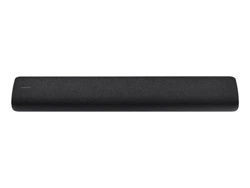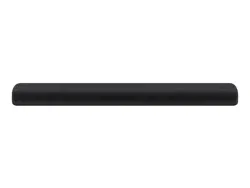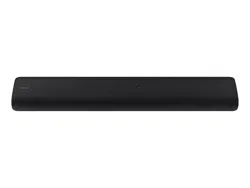

HW-S60T / S61T
FULL MANUAL
Imagine the possibilities
Thank you for purchasing this Samsung product.
To receive more complete service, please register
your product at www.samsung.com/register
ENG - 2
SAFETY INFORMATION
SAFETY WARNINGS
TO REDUCE THE RISK OF ELECTRIC SHOCK, DO
NOT REMOVE THE COVER (OR BACK).
NO USER-SERVICEABLE PARTS ARE INSIDE.
REFER SERVICING TO QUALIFIED SERVICE
PERSONNEL.
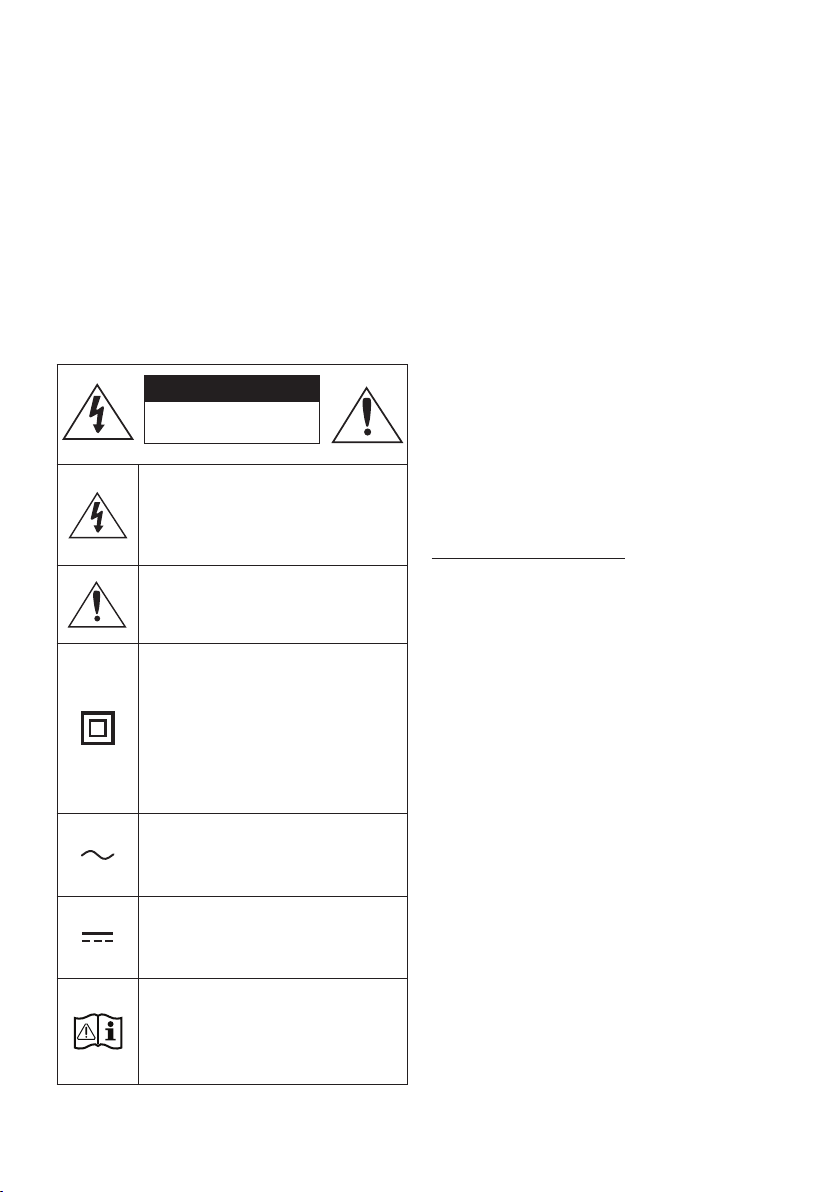
Refer to the table below for an explanation of
symbols which may be on your Samsung product.
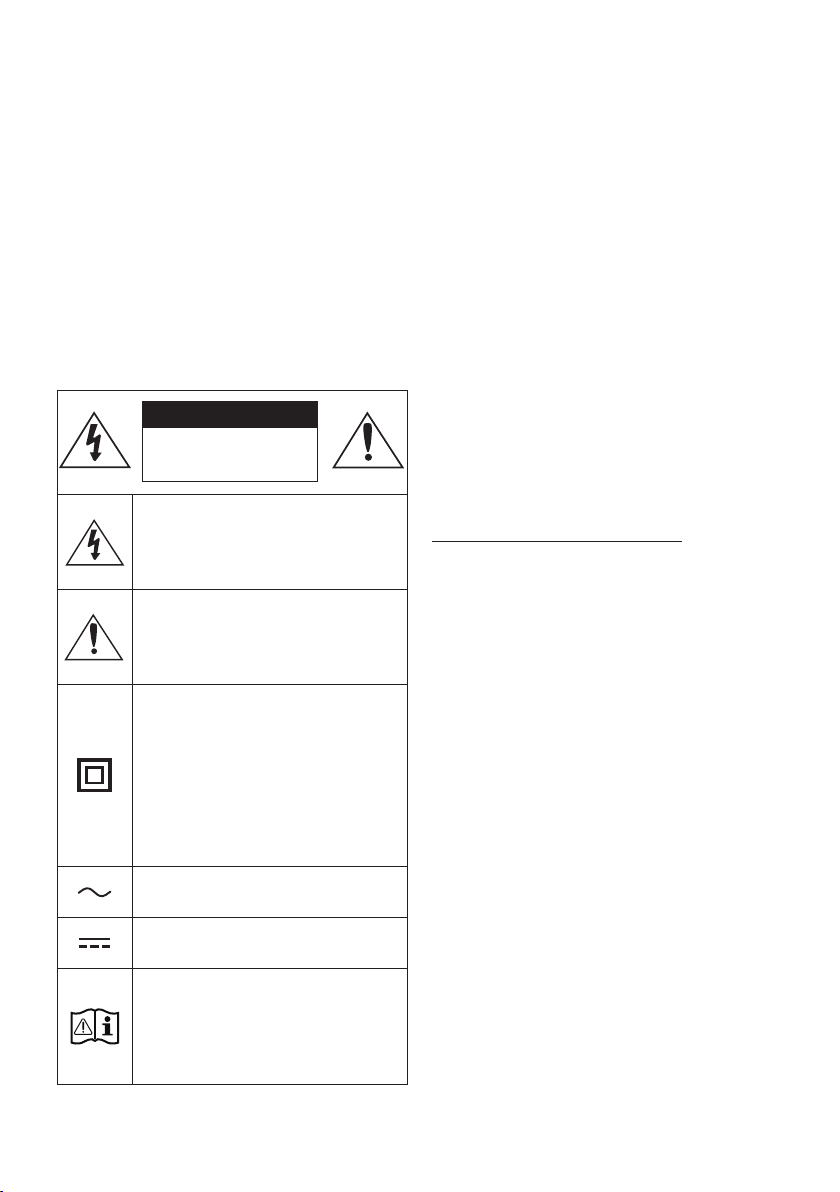
CAUTION
RISK OF ELECTRIC SHOCK.
DO NOT OPEN.
This symbol indicates that high voltage
is present inside. It is dangerous to
make any kind of contact with any
internal part of this product.
This symbol indicates that this product
has included important literature
concerning operation and maintenance.
Class II product : This symbol indicates
that it does not require a safety
connection to electrical earth (ground).
If this symbol is not present on a
product with a power cord, the product
MUST have a reliable connection to
protective earth (ground).
AC voltage : This symbol indicates that
the rated voltage marked with the
symbol is AC voltage.
DC voltage : This symbol indicates that
the rated voltage marked with the
symbol is DC voltage.
Caution, Consult instructions for use :
This symbol instructs the user to
consult the user manual for further
safety related information.
WARNING
• To reduce the risk of re or electric shock, do
not expose this appliance to rain or moisture.
• To prevent injury, this apparatus must be
securely attached to the oor/wall in
accordance with the installation instructions.
CAUTION
• Do not expose this apparatus to dripping or
splashing. Do not put objects lled with
liquids, such as vases, on the apparatus.
• To turn this apparatus off completely, you
must pull the power plug out of the wall
socket. Consequently, the power plug must
be easily and readily accessible at all times.
CAUTION (for Canada)
This device contains licence-exempt
transmitter(s)/receiver(s) that comply with
Innovation, Science and Economic Development
Canada’s licence-exempt RSS(s). Operation is
subject to the following two conditions:
(1) This device may not cause interference.
(2) This device must accept any interference,
including interference that may cause undesired
operation of the device.
This device and its antenna(s) must not be co-
located or operation in conjunction with any other
antenna or transmitter.
This device may automatically discontinue
transmission if there is no information to
transmit, or an operational failure. Note that this
is not intended to prohibit the transmission of
control or signaling information or the use of
repetitive codes where required by the
technology.
This Class B digital apparatus complies with
Canadian ICES-003.

ENG - 3
Radiation Exposure Statement
This equipment complies with IC RSS-102
radiation exposure limits set forth for an
uncontrolled environment. This equipment should
be installed and operated with minimum distance
20 cm between the radiator & your body.
Important Safety Instructions
Read these operating instructions carefully
before using the unit. Follow all the safety
instructions listed below. Keep these operating
instructions handy for future reference.
1. Read these instructions.
2. Keep these Instructions.
3. Heed all warnings.
4. Follow all instructions.
5. Do not use this apparatus near water.
6. Clean only with dry cloth.
7. Do not block any ventilation openings.
Install in accordance with the manufacturer’s
instructions.
8. Do not install near any heat sources such as
radiators, heat registers, stoves, or other
apparatus (including ampliers) that produce
heat.
9. Do not defeat the safety purpose of the
polarized or grounding-type plug.
A polarized plug has two blades with one
wider than the other. A grounding type plug
has two blades and a third grounding prong.
The wide blade or the third prong are
provided for your safety. If the provided plug
does not t into your outlet, consult an
electrician for replacement of the obsolete
outlet.
10. Protect the power cord from being walked
on or pinched particularly at plugs,
convenience receptacles, and the point
where they exit from the apparatus.
11. Only use attachments/accessories specied
by the manufacturer.
12. Use only with the cart, stand,
tripod, bracket, or table
specied by the manufacturer,
or sold with the apparatus.
When a cart is used, use caution when
moving the cart/apparatus combination to
avoid injury from tip-over.
13. Unplug this apparatus during lightning
storms or when unused for long periods of
time.
14. Refer all servicing to qualied service
personnel. Servicing is required when the
apparatus has been damaged in any way,
such as power-supply cord or plug is
damaged, liquid has been spilled or objects
have fallen into the apparatus, the apparatus
has been exposed to rain or moisture, does
not operate normally, or has been dropped.

ENG - 4
PRECAUTIONS
1. Ensure that the AC power supply in your
house complies with the power
requirements listed on the identication
sticker located on the bottom of your
product. Install your product horizontally, on
a suitable base (furniture), with enough
space around it for ventilation (3~4 inches).
Make sure the ventilation slots are not
covered. Do not place the unit on ampliers
or other equipment which may become hot.
This unit is designed for continuous use.
To fully turn off the unit, disconnect the AC
plug from the wall outlet. Unplug the unit if
you intend to leave it unused for a long
period of time.
2. During thunderstorms, disconnect the AC
plug from the wall outlet. Voltage peaks due
to lightning could damage the unit.
3. Do not expose the unit to direct sunlight or
other heat sources. This could lead to
overheating and cause the unit to
malfunction.
4. Protect the product from moisture (i.e.
vases), and excess heat (e.g. a replace) or
equipment creating strong magnetic or
electric elds. Unplug the power cable from
the AC wall socket if the unit malfunctions.
Your product is not intended for industrial
use. It is for personal use only. Condensation
may occur if your product has been stored in
cold temperatures. If transporting the unit
during the winter, wait approximately
2 hours until the unit has reached room
temperature before using.
5. The battery used with this product contains
chemicals that are harmful to the
environment. Do not dispose of the battery
in the general household trash. Do not
expose the battery to excess heat, direct
sunlight, or re. Do not short circuit,
disassemble, or overheat the battery.
Danger of explosion if the battery is replaced
incorrectly. Replace only with the same or
equivalent type.
Fabric cleaning
Remove any dirt or stain on the product surface
immediately.
Removing and cleaning can be less effective for
some substances or if left for a prolonged time.
CAUTION
• Use a vacuum cleaner or an adhesive lint
roller to remove dust, handprints, and the
likes.
– Some cleaning brushes may damage the
product, depending on the materials they
contain.
– Towels and cleaning clothes may leave
lint or dirt on the product.
• Do not use a nail or other tools to scratch the
dirt off. It may damage the fabric.
• To remove oil or liquid stains, use a clean
white cloth moist with water. If the stain
persists, wipe it with a mixture of water and
neutral detergent (such as dishwashing
soaps) and a cloth.
– A non-neutral detergent or cleaner may
cause discoloration or fabric damage.
– After cleaning, use a dry cloth or
hairdryer to dry the area.
– Do not use excessive force to avoid
discoloration or fabric damage.

ENG - 5
CONTENTS
01 Checking the Components 7
Inserting Batteries before using the Remote Control (AA batteries X 2) ------------------------- 7
02 Product Overview 8
Top Panel of the Soundbar ------------------------- 8
Bottom Panel of the Soundbar ------------------------- 10
03 Using the Remote Control 11
How to Use the Remote Control
-------------------------
11
Output specications for the different sound effect modes
-------------------------
14
Adjusting the Soundbar volume with a TV remote control ------------------------- 15
04 Connecting the Soundbar 16
Connecting Electrical Power
-------------------------
16
Connecting an SWA-8500S (Sold Separately) to your Soundbar
-------------------------
17
Connecting an SWA-W500 (Sold Separately) to your Soundbar
-------------------------
19
05 Using a wired connection to the TV 21
Method 1. Connecting with HDMI
-------------------------
21
Method 2. Connecting using an Optical Cable
-------------------------
23
06 Using a wireless connection to the TV 24
Method 1. Connecting via Bluetooth
-------------------------
24
Method 2. Connecting via Wi-Fi
-------------------------
26

ENG - 6
07 Connecting an External Device 27
Connecting using an Optical Cable
-------------------------
27
08 Connecting a Mobile Device 28
Method 1. Connecting via Bluetooth
-------------------------
28
Method 2. Connecting via Wi-Fi (Wireless Network)
-------------------------
31
Conguring Amazon Alexa
-------------------------
32
Using the Tap Sound
-------------------------
35
09 Installing the Wall Mount 36
Installation Precautions
-------------------------
36
Wallmount Components
-------------------------
36
10 Installing the Soundbar in front of TV 38
11 Software Update 39
Auto Update
-------------------------
39
USB Update
-------------------------
39
Initialization
-------------------------
40
12 Troubleshooting 41
13 License 43
14 Open Source License Notice 43
15 Important Notes About Service 43
16 SpecicationsandGuide 44
Specications
-------------------------
44
ENG - 7
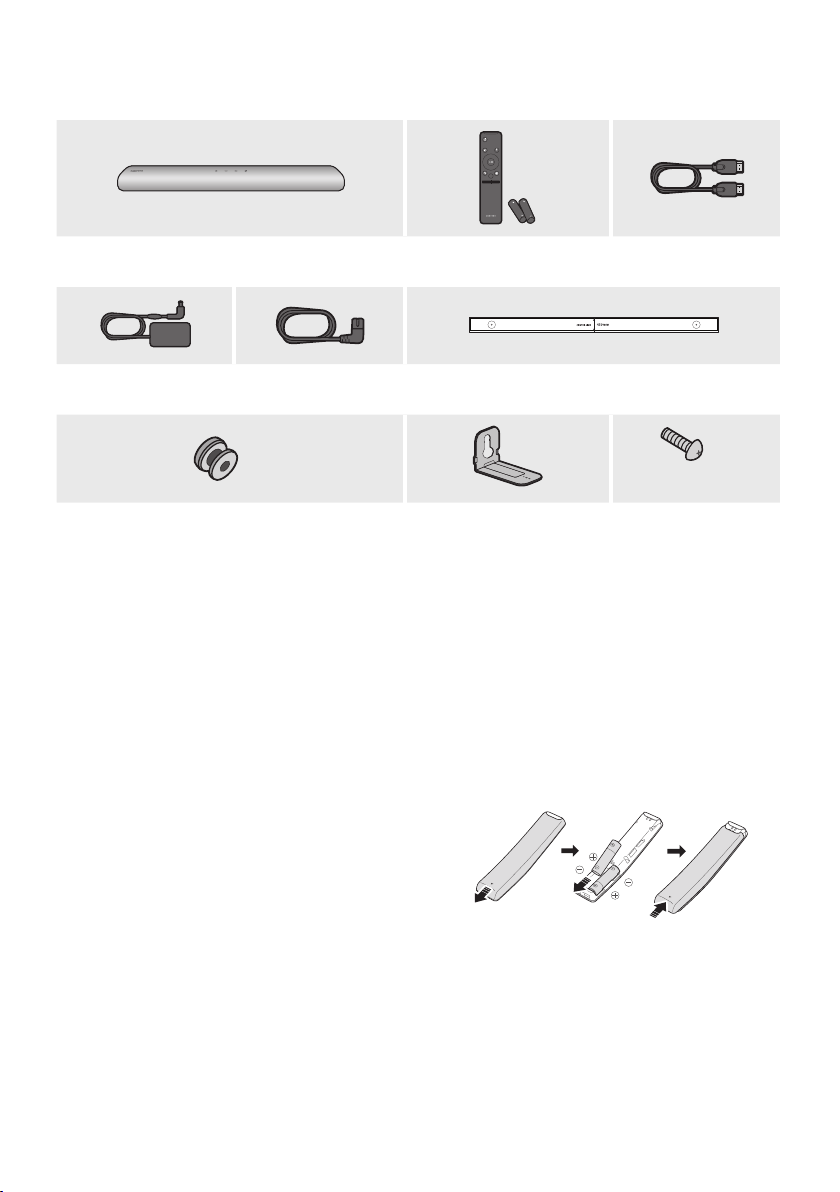
01 CHECKING THE COMPONENTS
VOL WOOFER
SOUNDBAR
SOUND
MODE
PAIR
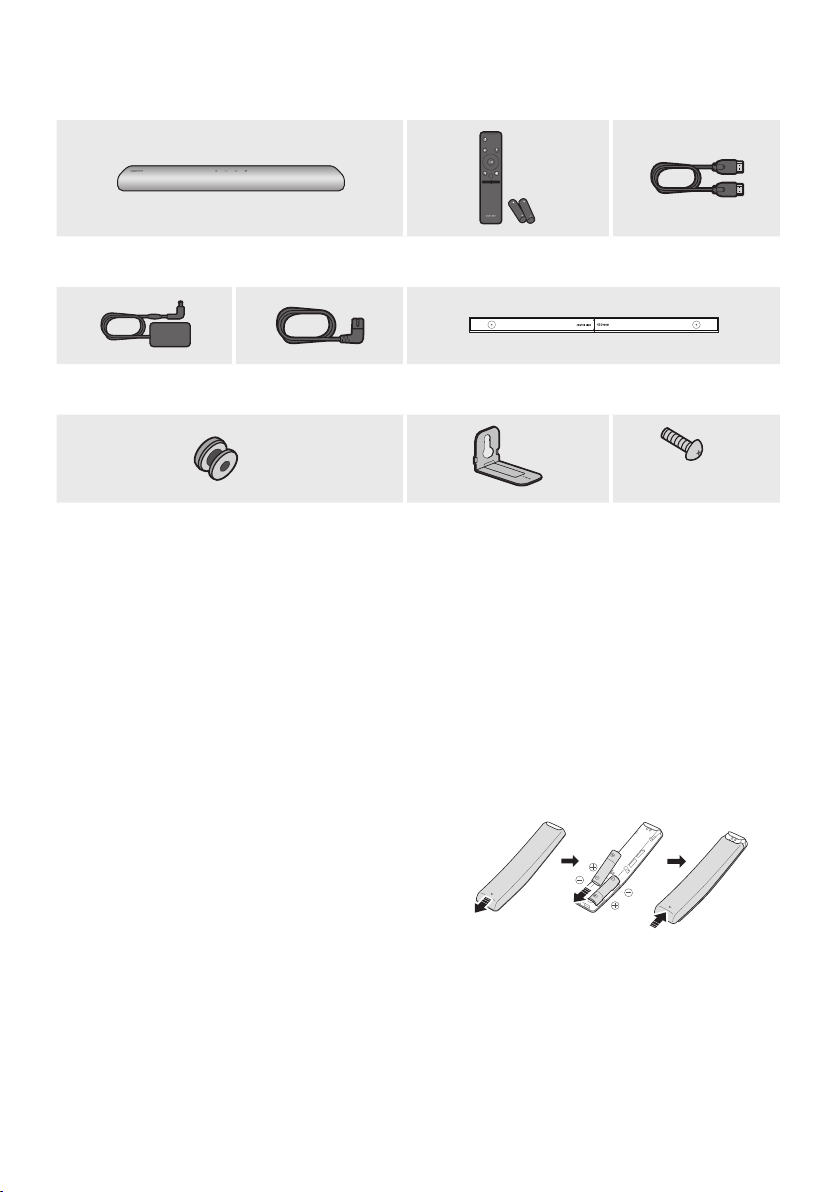
Soundbar Main Unit Soundbar Remote Control
/
Batteries
HDMI Cable
AC/DC Adapter
(Soundbar)
Power Cord
(Soundbar)
Wall Mount Guide
x 2
x 2
(M4 x L10)
x 2
Holder-Screw Bracket-Wall Mount Screw
• For more information about the power supply and power consumption, refer to the label attached
to the product. (Label: Bottom of the Soundbar Main Unit)
• To purchase additional components or optional cables, contact a Samsung Service Center or
Samsung Customer Care.
• For more information about the wallmount see page 36.
• Design, specications, and App screen are subject to change without prior notice.
• The appearance of the accessories may differ slightly from the illustrations above.
Inserting Batteries before using the Remote Control (AA batteries X 2)
Slide the back cover in the direction of the arrow
until it is completely removed. Insert 2 AA batteries
(1.5V) oriented so that their polarity is correct. Slide
the back cover back into position.
ENG - 8
02 PRODUCT OVERVIEW
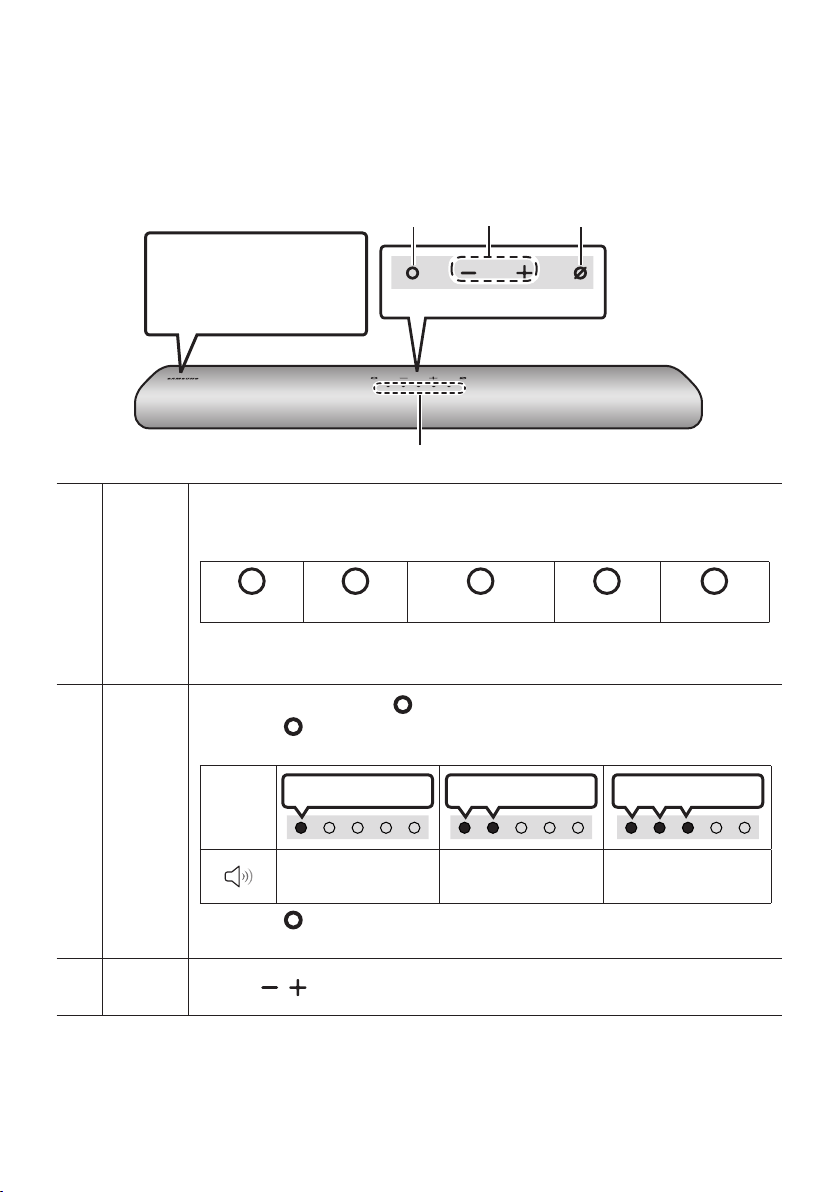
Top Panel of the Soundbar
Top Panel
Position the product so that
the SAMSUNG logo is
located on the top.
LED
indicator
The LED Indicator ashes, glows, or changes color depending on the Soundbar's current
mode or status. The color of the LED indicator and the number of lights indicate the active
mode as described below.
W
White LED
W
White LED
M
Multicolor LED
W
White LED
W
White LED
• The Multicolor LED changes to White, Cyan, Green, Red, and Blue depending on the
mode or status.
Multi
Function
Button
• In standby mode, press the (Multi Function) button to turn on the Soundbar.
• Press the (Multi Function) button to change the mode. Each time you change the
mode, the LED lights in white and then turns off.
LED
Indicator
White On -> Off White On -> Off White On -> Off
“Digital Audio In” or
“TV ARC”
“Wi-Fi” “Bluetooth”
• Press the (Multi Function) button for 3 seconds to call Alexa. Say with the button
pressed to enable voice recognition.
Volume
Button
Press the (Volume) button to adjust the volume.

ENG - 9
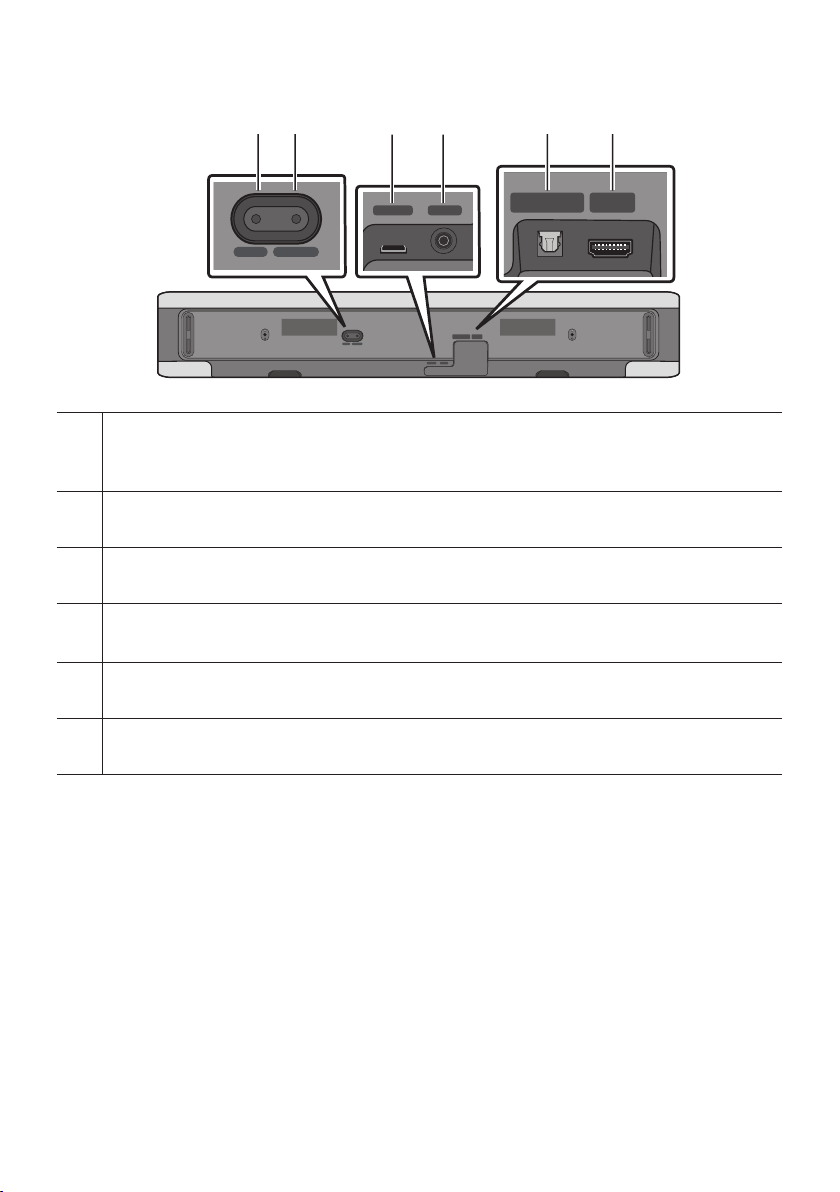
Mic
On/Off
Button
Press the (Mic On/Off) button to turn on or off the microphone.
LED Indicator
Red On
“Mic Off” “Mic On”
• When you plug in the AC cord, the power button will begin working in 4 to 6 seconds.
• When you turn on this unit, there will be a 4 to 5 second delay before it produces sound.
• If you hear sounds from both the TV and Soundbar, go to the Settings menu for the TV audio and
change the TV speaker to External Speaker.
• You can turn on and off audio feedback by using SmartThings app. To learn about using the
SmartThings app, refer to “Method 2. Connecting via Wi-Fi (Wireless Network)”.
ENG - 10
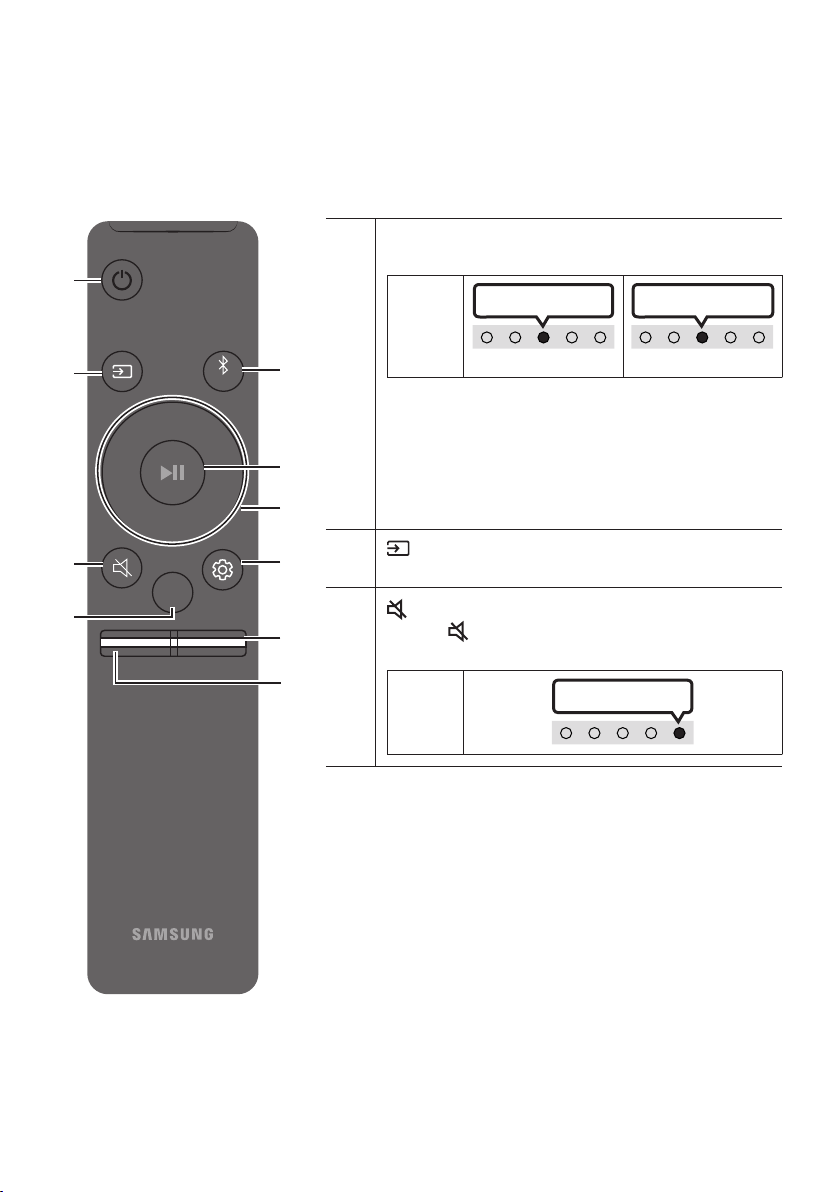
Bottom Panel of the Soundbar
SERVICE DC 19V
HDMI
(ARC)
DIGITAL AUDIO IN
(OPTICAL)
ID SET NETWORK
SERVICE DC 19V
HDMI
(ARC)
DIGITAL AUDIO IN
(OPTICAL)
SERVICE DC 19V
HDMI OUT
(TV-ARC)
DIGITAL AUDIO IN
(OPTICAL)
DIGITAL AUDIO IN
(OPTICAL)
ID SET NETWORK
SERVICE DC 19V
HDMI
(ARC)
DIGITAL AUDIO IN
(OPTICAL)
ID SET NETWORK
SERVICE DC 19V
HDMI
(ARC)
DIGITAL AUDIO IN
(OPTICAL)
SERVICE DC 19V
HDMI OUT
(TV-ARC)
DIGITAL AUDIO IN
(OPTICAL)
DIGITAL AUDIO IN
(OPTICAL)
ID SET NETWORK
SERVICE DC 19V
HDMI
(ARC)
DIGITAL AUDIO IN
(OPTICAL)
ID SET NETWORK
SERVICE DC 19V
HDMI
(ARC)
DIGITAL AUDIO IN
(OPTICAL)
SERVICE DC 19V
HDMI OUT
(TV-ARC)
DIGITAL AUDIO IN
(OPTICAL)
DIGITAL AUDIO IN
(OPTICAL)
ID SET NETWORK
SERVICE DC 19V
HDMI
(ARC)
DIGITAL AUDIO IN
(OPTICAL)
ID SET NETWORK
SERVICE DC 19V
HDMI
(ARC)
DIGITAL AUDIO IN
(OPTICAL)
SERVICE DC 19V
HDMI OUT
(TV-ARC)
DIGITAL AUDIO IN
(OPTICAL)
DIGITAL AUDIO IN
(OPTICAL)
ID SET NETWORK
ID SET
Press to connect the Soundbar to Surround speakers and a subwoofer wirelessly.
(The surround speaker, subwoofer are sold separately.)
NETWORK
Press to connect to a wireless network (Wi-Fi) via the SmartThings app.
SERVICE
Connect a USB storage device to upgrade the product's software.
DC 19V (Power Supply In)
Connect the AC/DC power adapter. (See page 16)
DIGITAL AUDIO IN (OPTICAL)
Connect to the digital (optical) output of an external device. (See page 27)
HDMI (ARC)
Connect to the HDMI jack on a TV. (See page 21)
• When disconnecting the power cable of the AC/DC power adaptor from a wall outlet, pull the plug.
Do not pull the cable.
• Do not connect this unit or other components to an AC outlet until all connections between
components are complete.
ENG - 11
03 USING THE REMOTE CONTROL
How to Use the Remote Control
VOL WOOFER
SOUNDBAR
SOUND
MODE
PAIR
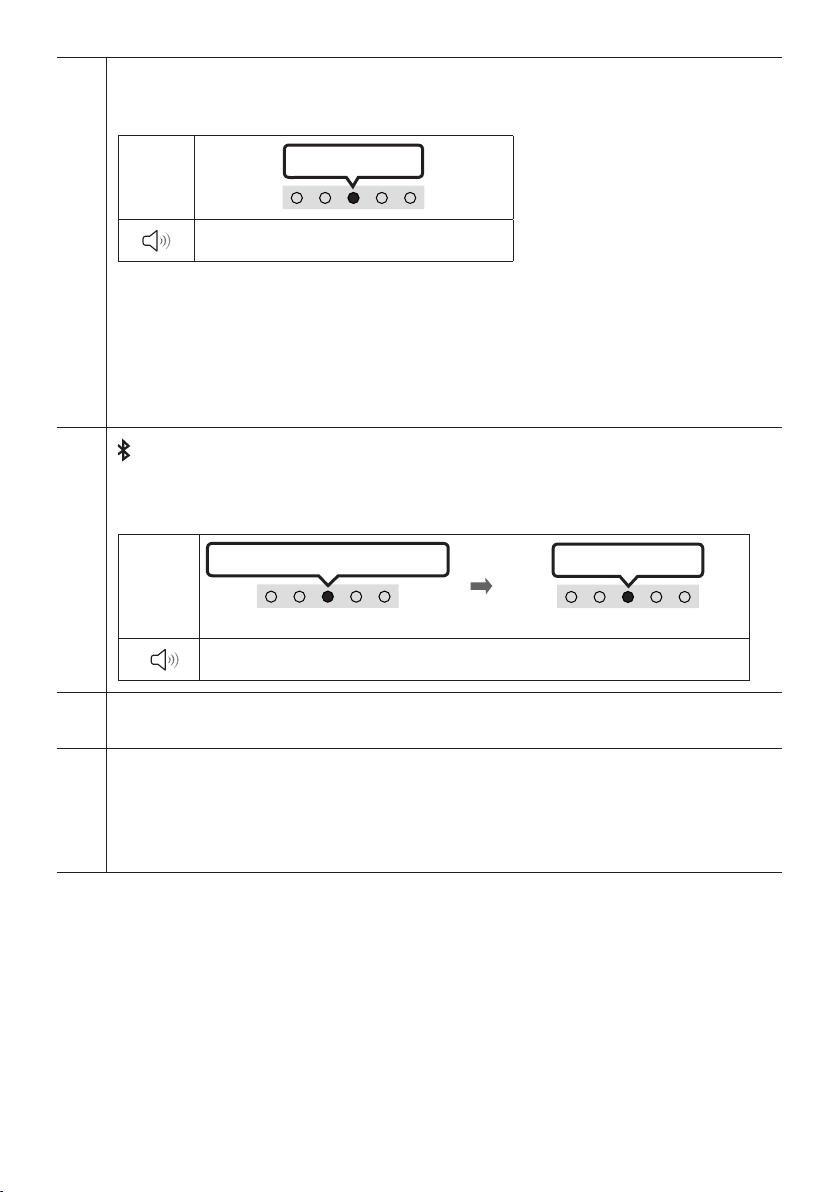
Power
Turns the Soundbar on and off.
LED
Indicator
Cyan Blinks X1
On
Off
Red Blinks X3
• Auto Power Down Function
The unit turns off automatically in the following
situations:
– In “Digital Audio In” or “TV ARC” / “Wi-Fi” /
“Bluetooth” mode if there is no audio signal for 18
minutes.
(Source)
Press to select a source connected to the Soundbar.
(Mute)
Press the (Mute) button to mute the sound.
Press it again to unmute the sound.
LED
Indicator
Blinks X Repeatly
ENG - 12
SOUND MODE
By pressing the button, you can select the desired audio mode. Each time the mode changes, the
Multicolor LED blinks in white.
LED
Indicator
White Blinks X1
“Standard” “Music” “Adaptive Sound”
• Standard
Outputs the original sound.
• Music
Provides more natural and room lling sound for music content.
• Adaptive Sound
Analyzes the content in real time and automatically provides the optimal sound eld based on the
characteristics of the content.
Bluetooth PAIR
Switch the Soundbar to Bluetooth pairing mode.
When you press the button, the LED display changes as shown below.
• Until pairing is complete, the Multicolor LED changes as Red → Green → Blue in turn.
LED
Indicator
Red → Green → Blue Blinks
Pairing
Connection is complete
Cyan Blinks X3
“Ready to connect via Bluetooth.”
p (Play / Pause)
You can also play or pause music by pressing the button.
Up/Down/Left/Right
Press Up/Down/Left/Right on the button to select or set functions.
• Music Skip
Press the Right button to select the next music le. Press the Left button to select the previous
music le.
ENG - 13
(Sound Control)
By pressing the button, you can select the desired audio mode. The desired item can be adjusted using
the Up/Down buttons. Each time the mode changes, the Multicolor LED blinks in white.
LED
Indicator
White Blinks X1
“Treble” “Bass” “Sync” “Side Level”
– To control the volume of the treble or bass sound, select “Treble” or “Bass” in Sound Settings, and
then adjust the volume between -6~+6 by using the Up/Down buttons.
– Press and hold the (Sound Control) button for about 5 seconds to adjust the sound for each
frequency band. 150Hz, 300Hz, 600Hz, 1.2kHz, 2.5kHz, 5kHz, and 10kHz are selectable using the
Left/Right buttons and each can be adjusted to a setting between -6 to +6 using the Up/Down
buttons. (Make sure the Sound mode is set to “Standard”.)
– To control the volume of the each speaker select “Side Level” in Sound Settings, and then adjust the
volume between -6~+6 by using the Up/Down buttons.
– If the video on the TV and audio from the Soundbar are not synchronized, select “Sync” in Sound
Control, and then set the audio delay between 0~300 milliseconds by using the Up/Down buttons.
– “Sync” is only supported for some functions.
WOOFER (BASS) LEVEL
Push the button up or down to adjust the level of the woofer (bass) to -12 or between -6 to +6. To set the
woofer (bass) volume level to 0 (Default), press the button.
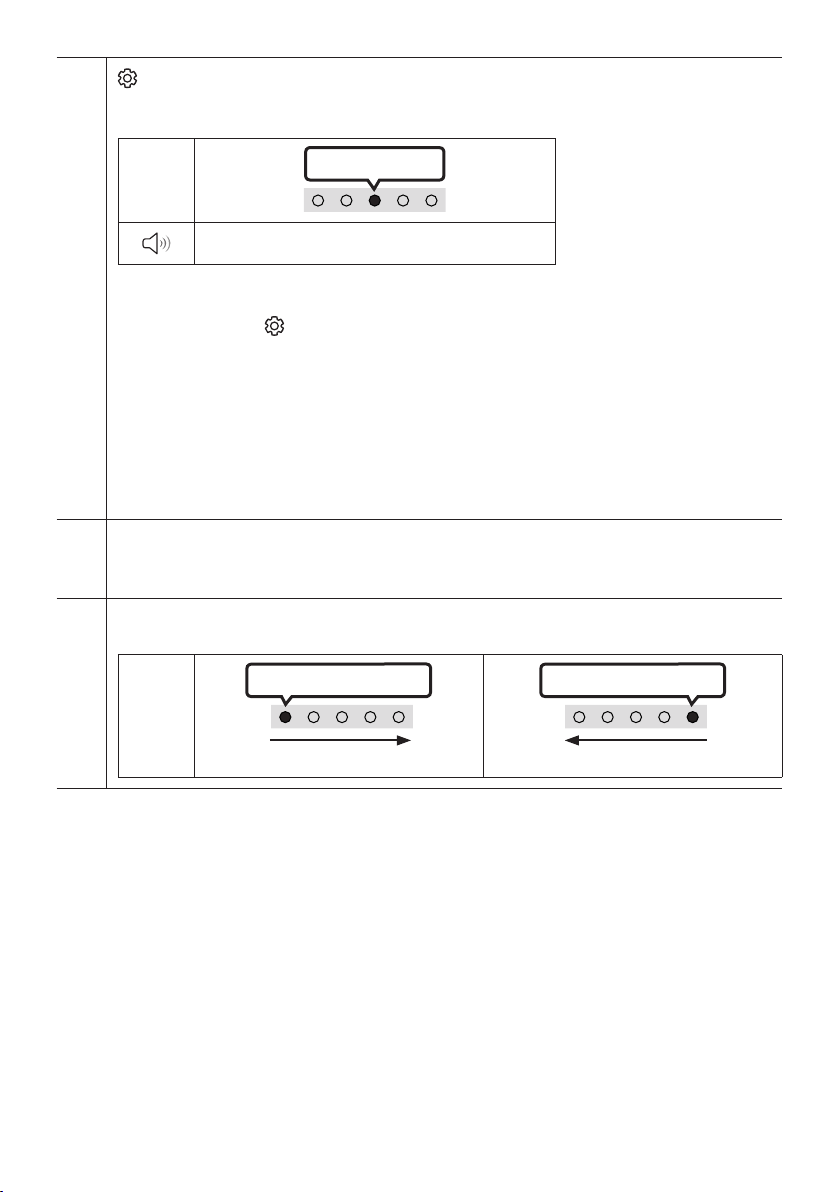
VOLUME
Push the button up or down to adjust the volume.
LED
Indicator
White moves to right X1
Volume Up
White moves to left X1
Volume Down
ENG - 14
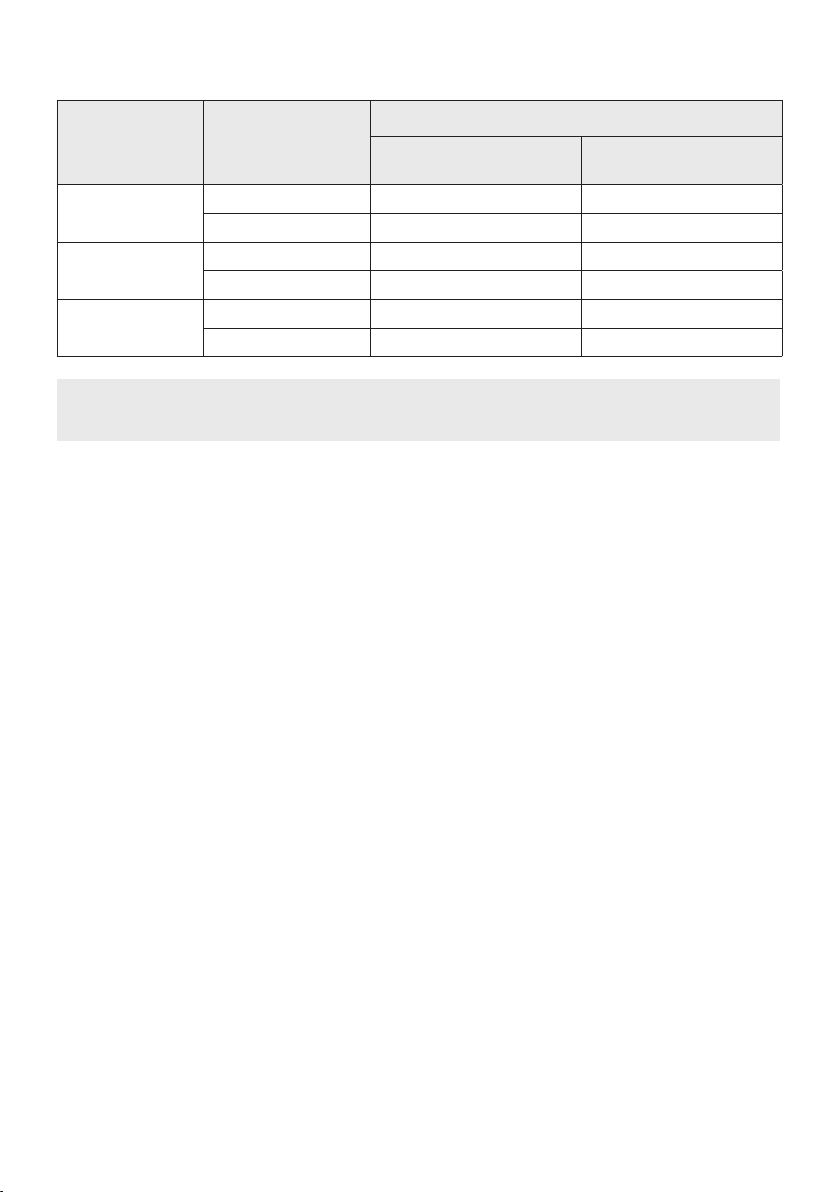
Outputspecicationsforthedifferentsoundeffectmodes
Effect Input
Output
With Subwoofer Only
With Subwoofer & Wireless
Rear Speaker Kit
Standard
2.0 ch 2.1 ch 2.1 ch
5.1 ch 2.1 ch 4.1 ch
Music
2.0 ch 4.1 ch 6.1 ch
5.1 ch 4.1 ch 6.1 ch
Adaptive Sound
2.0 ch 4.1 ch 6.1 ch
5.1 ch 4.1 ch 6.1 ch
• The Samsung Wireless Rear Speaker Kit, and Subwoofer can be purchased separately.
To purchase a Kit or the Subwoofer, contact the vendor you purchased the Soundbar from.
ENG - 15
Adjusting the Soundbar volume with a TV remote control
Adjust the Soundbar volume using the TV’s remote control.
• This function can be used with IR remote controls only. Bluetooth remote controls (remote
controls that require pairing) are not supported.
• Set the TV speaker to External Speaker to use this function.
• Manufacturers supporting this function:
VIZIO, LG, Sony, Sharp, PHILIPS, PANASONIC, TOSHIBA, Hisense, RCA
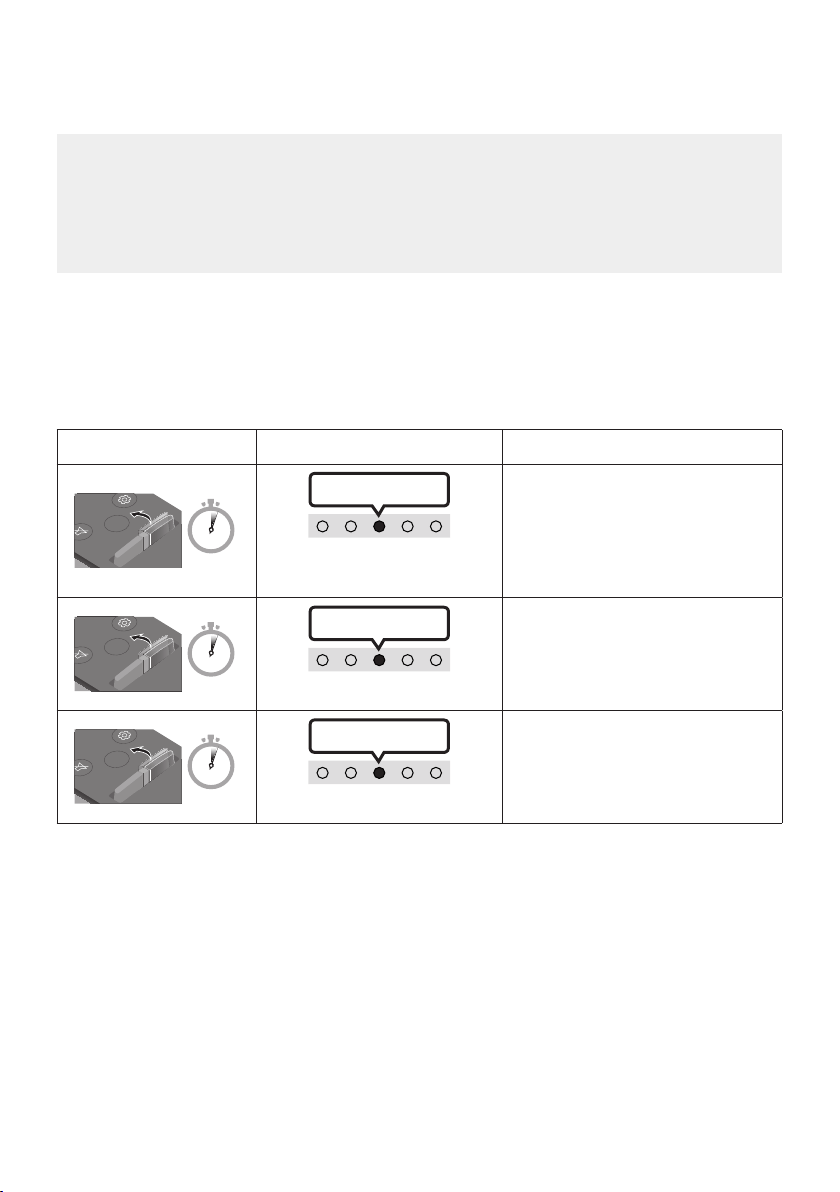
1. Turn Off the Soundbar.
2. Push up and hold the WOOFER button for 5 seconds.
Each time you push the WOOFER button up and hold it for 5 seconds, the mode switches in the
following order: “Samsung-TV Remote” (Default mode), “Off-TV Remote”, “All-TV Remote”.
The LED indicator status changes each time the mode is changed, as shown below.
Remote Control Button LED Indicator Status
SOUND
MODE
VOL
WOOFER
SOUNDBAR
5 Sec
"Samsung-TV Remote"
(Default mode)
Cyan Blinks X1
Enable a Samsung TV’s IR remote
control.
SOUND
MODE
VOL
WOOFER
SOUNDBAR
5 Sec
"Off-TV Remote"
Red Blinks X1
Disable the TV remote control.
SOUND
MODE
VOL
WOOFER
SOUNDBAR
5 Sec
"All-TV Remote"
Blue Blinks X1
Enable a third-party TV’s IR remote
control.
ENG - 16
04 CONNECTING THE SOUNDBAR
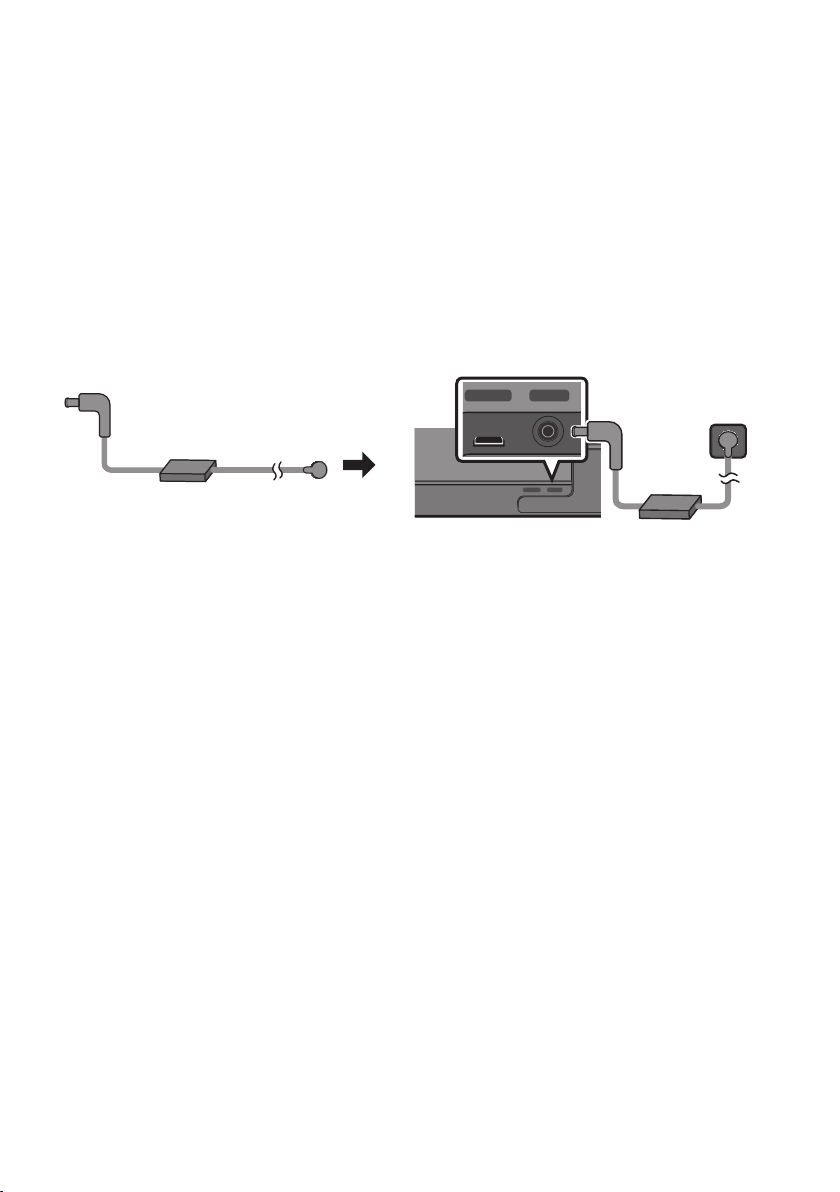
Connecting Electrical Power
Use the power components to connect the Soundbar to an electrical outlet in the following order:
• For more information about the required electrical power and power consumption, refer to the
label attached to the product. (Label: Bottom of the Soundbar Main Unit)
1. First connect the power cable to the AC/DC adapter.
Connect the AC/DC adapter (with the power cable) to the Soundbar.
2. Connect the power cord to a wall socket.
DC 19V
Power Cord
AC/DC Adapter
SERVICE DC 19V
HDMI
(ARC)
DIGITAL AUDIO IN
(OPTICAL)
ID SET NETWORK
SERVICE DC 19V
HDMI
(ARC)
DIGITAL AUDIO IN
(OPTICAL)
SERVICE DC 19V
HDMI OUT
(TV-ARC)
DIGITAL AUDIO IN
(OPTICAL)
DIGITAL AUDIO IN
(OPTICAL)
ID SET NETWORK
SERVICE DC 19V
HDMI
(ARC)
DIGITAL AUDIO IN
(OPTICAL)
ID SET NETWORK
SERVICE DC 19V
HDMI
(ARC)
DIGITAL AUDIO IN
(OPTICAL)
SERVICE DC 19V
HDMI OUT
(TV-ARC)
DIGITAL AUDIO IN
(OPTICAL)
DIGITAL AUDIO IN
(OPTICAL)
ID SET NETWORK
DC 19V
Bottom of the Soundbar Main Unit
NOTES
• If you unplug and reconnect the power cord when the product is turned on, the Soundbar turns on
automatically.
• Make sure to rest the AC/DC Adapter at on a table or the oor. If you place the AC/DC Adapter so
that it is hanging with the AC cord input facing upwards, water or other foreign substances could
enter the Adapter and cause the Adapter to malfunction.
ENG - 17
Connecting an SWA-8500S (Sold Separately) to your Soundbar
Expand to true wireless surround sound by connecting the Samsung Wireless Rear Speaker Kit
(SWA-8500S, sold separately) to your Soundbar.
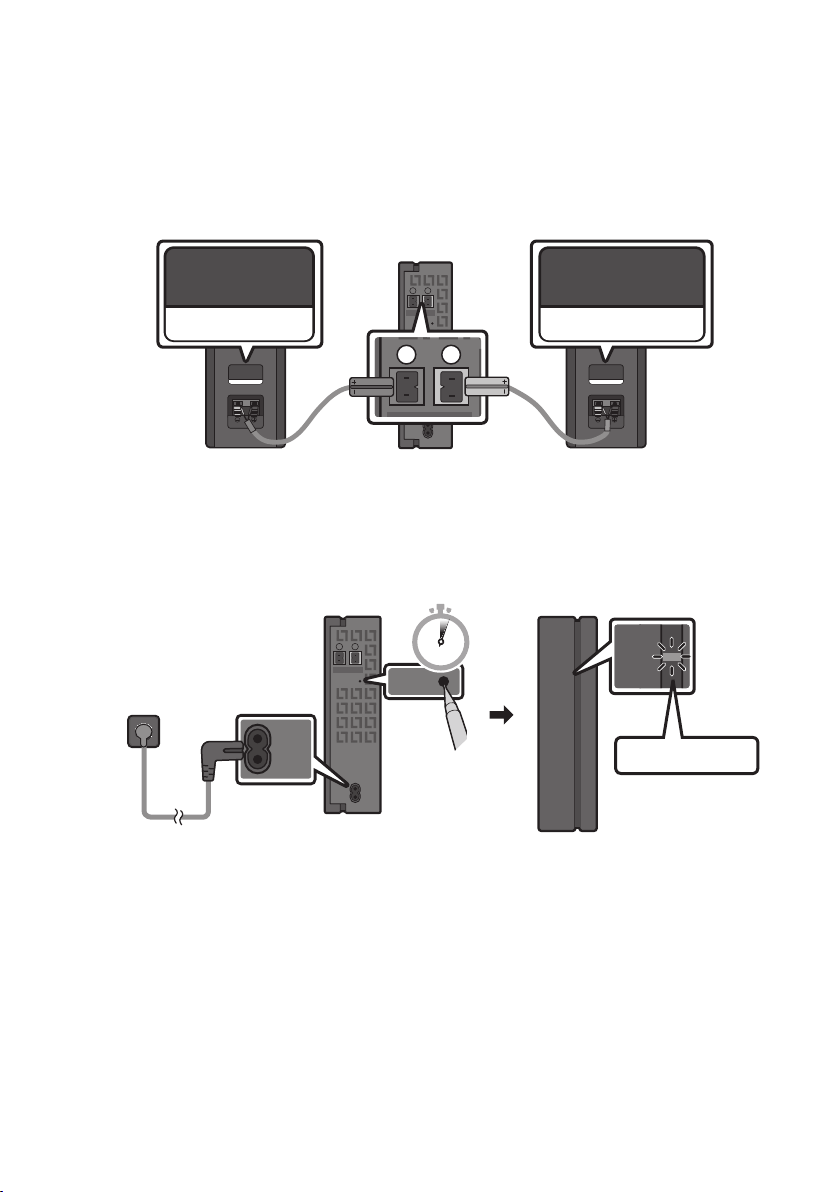
1. Connect the Wireless Receiver Module to 2 Surround Speakers.
– The speaker cables are color coded.
SURROUND-LEFT
ID SET
L
R
SURROUND SPEAKERS OUT
SPEAKER IMPEDANCE : 3Ω
POWER
ID SET
L
R
SURROUND SPEAKERS OUT
SPEAKER IMPEDANCE : 3Ω
SURROUND-RIGHT
SURROUND-LEFT SURROUND-RIGHT
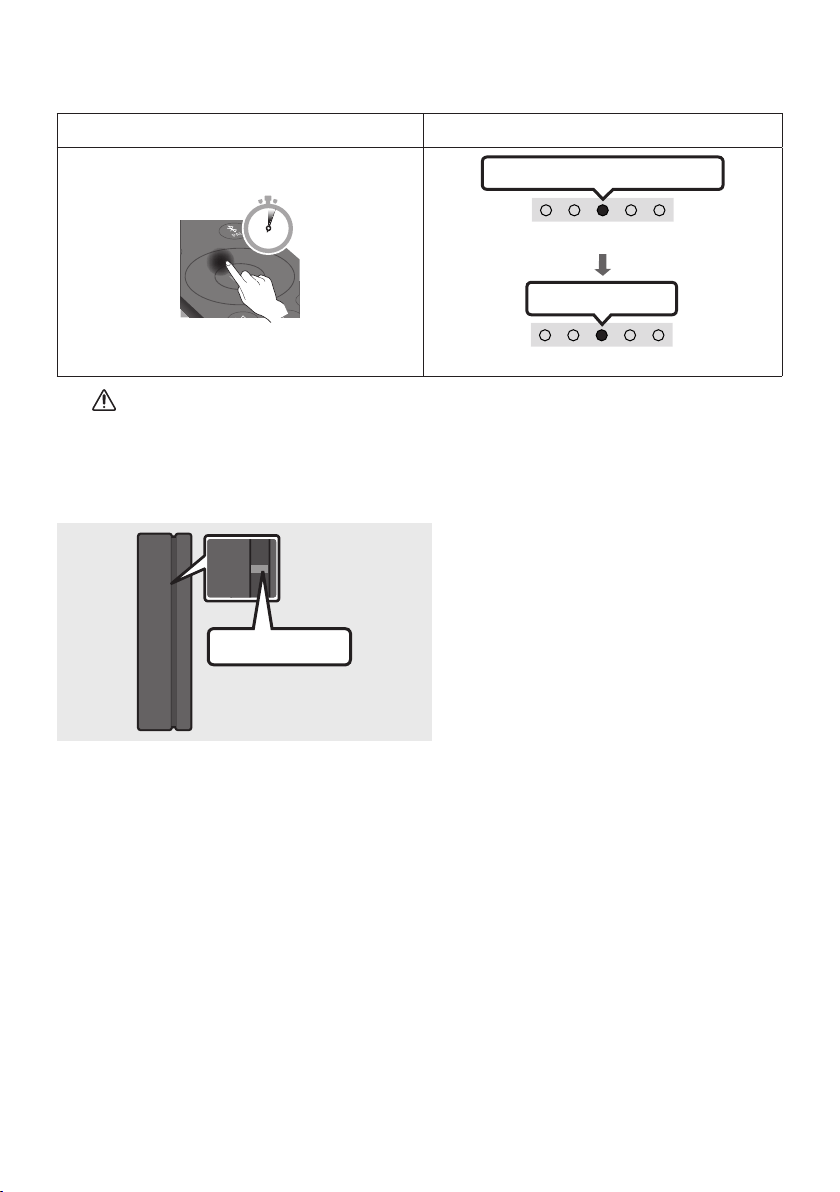
2. Check the standby status of the Wireless Receiver Module after plugging it into an electrical outlet.
• The LINK LED indicator (blue) on the Wireless Receiver Module should be blinking. If the
indicator does not blink, use a narrow pin to press and hold the ID SET button for 5 seconds or
longer. See the SWA-8500S user guide for more details.
ID SET
L
R
SURROUND SPEAKERS OUT
SPEAKER IMPEDANCE : 3Ω
POWER
POWER
ID SET
SURROUND SPEAKERS OUT
SPEAKER IMPEDANCE : 3Ω
STANDBY
LINK
STANDBY
LINK
Blue blinking
5 Sec
ENG - 18
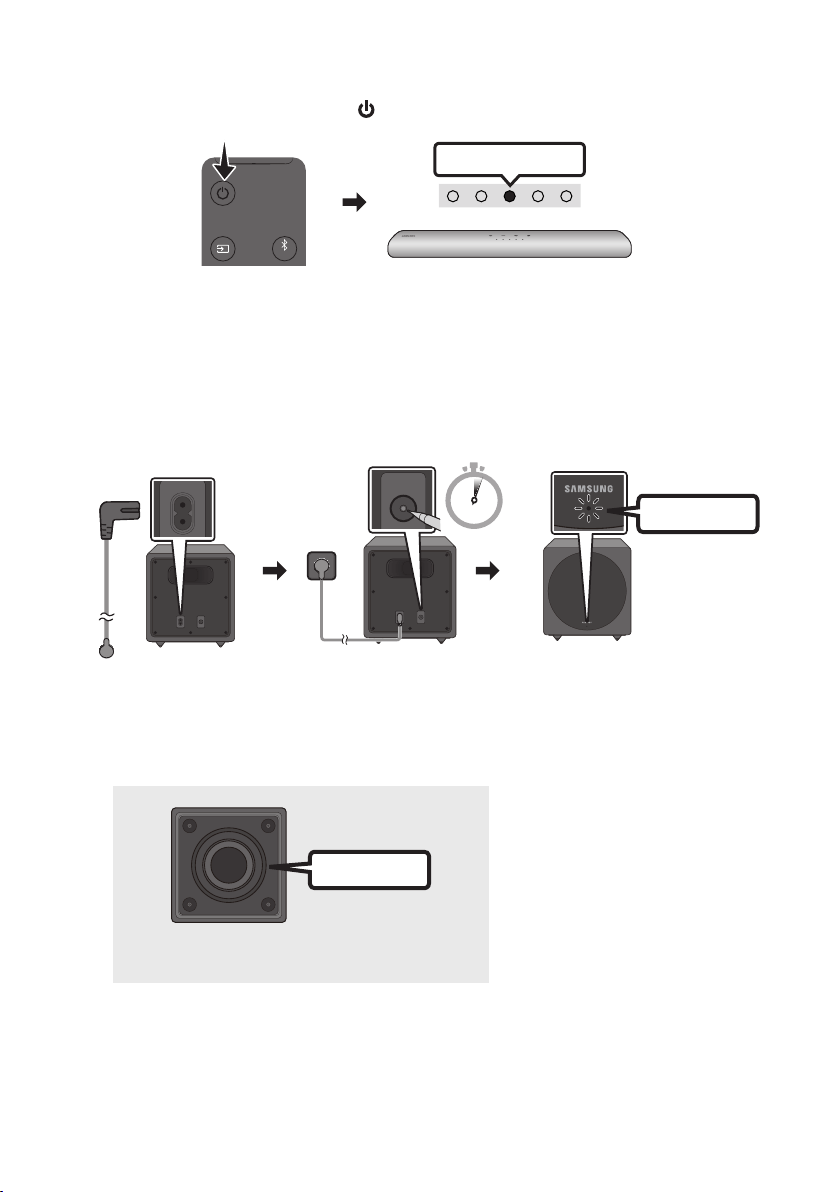
3. Press the Up button on the remote control for 5 seconds.
• Until pairing is complete, the Multicolor LED changes as Red → Green → Blue in turn.
Rear Speaker, Woofer Pairing button LED Indicator
SOUND
MODE
PAIR
5 Sec
Red → Green → Blue Blinks
Pairing
Connection is complete
Cyan Blinks X3
CAUTION
• If your Soundbar was playing music when it connects to the SWA-8500S, you may hear some
stuttering from the woofer as the connection nalizes.
4. Check if the LINK LED is solid blue (connection complete).
STANDBY
LINK
STANDBY
LINK
Blue is On
The LINK LED indicator stops blinking and
glows a solid blue when a connection is
established between the Soundbar and the
Wireless Receiver Module.
5. If the SWA-8500S is not connected, repeat the procedure from Step 2.
ENG - 19
Connecting an SWA-W500 (Sold Separately) to your Soundbar
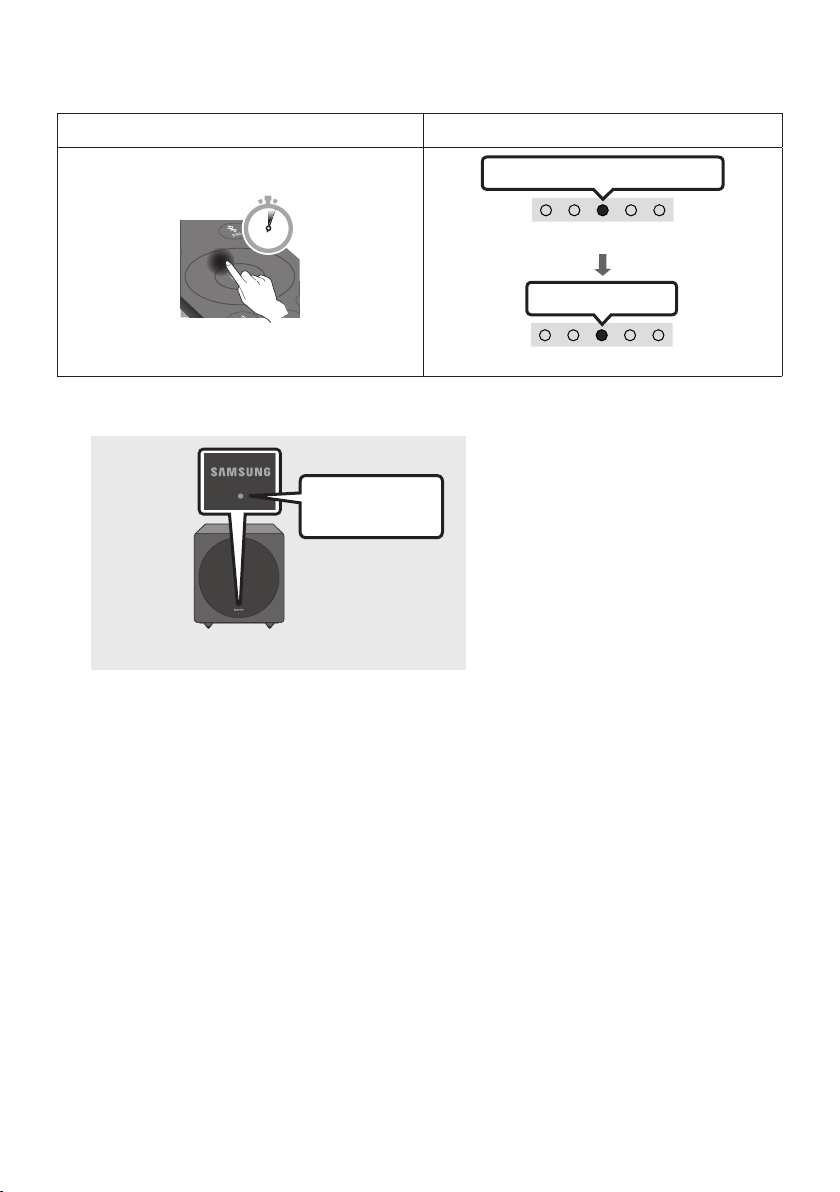
1. Turn off the Soundbar by pressing the (Power) button on the remote control.
VOL WOOFER
SOUNDBAR
SOUND
MODE
PAIR
Red Blinks X3
2. Plug in the Wireless Subwoofer, and then check its standby status.
• Plug the Wireless Subwoofer power cord into an electrical outlet and into the Wireless
Subwoofer to turn on the Wireless Subwoofer. The LINK LED indicator (blue LED) on the
Wireless Subwoofer blinks. If the LED does not blink, press the ID SET button on the rear of the
Wireless Subwoofer with a pen tip for 5~6 seconds until the LINK LED indicator blinks (in Blue).
For more about the LED, please refer to the SWA-W500 user manual.
Rear of the Wireless Subwoofer
POWER ID SET
POWER ID SET
Front of the Wireless Subwoofer
POWER ID SET
POWER ID SET
Blue blinking
POWER ID SET
ID SET
5 Sec
• The main unit is heavy. Be careful not to pinch your ngers when pressing the ID SET button or
connecting the power cord to the rear of the unit.
• The upper part of the subwoofer is prone to scratches. Handle it carefully.
Speaker Unit
Bottom of the Wireless Subwoofer
• Do not press on or strike the
Speaker Unit on the bottom of
the body. You can deform or
damage the speaker.
ENG - 20
3. Press the Up button on the remote control for 5 seconds.
• Until pairing is complete, the Multicolor LED changes as Red → Green → Blue in turn.
Rear Speaker, Woofer Pairing button LED Indicator
SOUND
MODE
PAIR
5 Sec
Red → Green → Blue Blinks
Pairing
Connection is complete
Cyan Blinks X3
4. Check if the LINK LED is solid blue (connection complete).
Front of the Wireless Subwoofer
Stops blinking.
Glows blue.
The LINK LED indicator stops blinking
and glows a solid blue when a
connection is established between the
Soundbar and the Wireless Subwoofer.
NOTES
– Do not connect the power cord of this product or your TV to a wall outlet until all connections
between components are complete.
– Before moving or installing this product, be sure to turn off the power and disconnect the power cord.
– The maximum transmission distance of the wireless signal of the main unit is about 32.8 ft (10 m),
but may vary depending on your operating environment. If a steel-concrete or metallic wall is
between the main unit and the wireless subwoofer, the system may not operate at all, because the
wireless signal cannot penetrate metal.
PRECAUTIONS
– Wireless receiving antennas are built into the wireless subwoofer. Keep the units away from water
and moisture.
– For optimal listening performance, make sure that the area around the wireless subwoofer and
Wireless Receiver Module (Sold separately) is clear of any obstructions.
ENG - 21
05 USING A WIRED CONNECTION TO THE TV
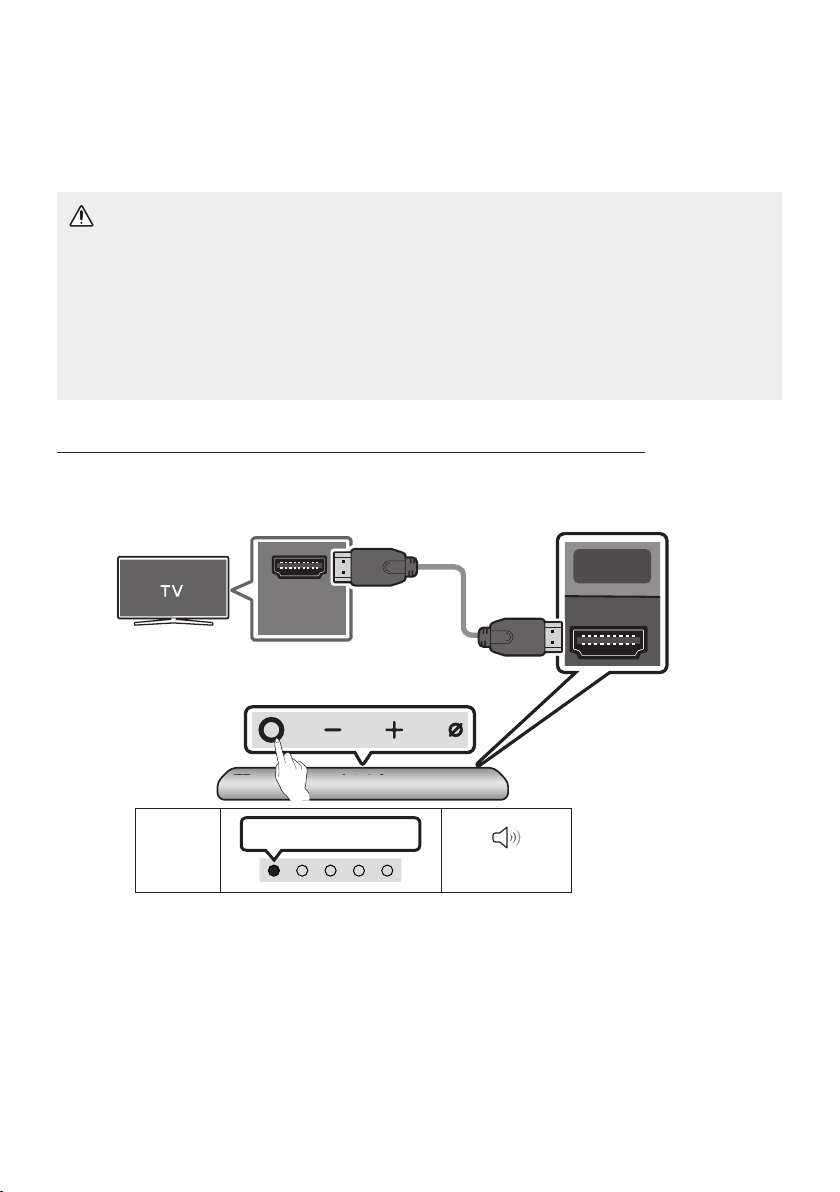
Method 1. Connecting with HDMI
CAUTION
• When both the HDMI cable and optical cable are connected, the HDMI signal is received rst.
• To connect the HDMI cable between the TV and Soundbar, be sure to connect the terminals
marked ARC. Otherwise, the TV sound may not be output.
• Be sure to use the cable with the premium HDMI certication logo. In addition, make sure that
the cable is a certied Type A, high-speed HDMI Ethernet cable. (HIGH SPEED HDMI CABLE
WITH ETHERNET)
Connecting the TV that supports HDMI ARC (Audio Return Channel)
HDMI IN
(ARC)
SERVICE DC 19V
HDMI
(ARC)
DIGITAL AUDIO IN
(OPTICAL)
Connect to the HDMI IN
(ARC) port of your TV.
HDMI Cable
Bottom of the
Soundbar
Connect to the HDMI (ARC) port of the
Soundbar main unit.
Top of the Soundbar
LED
Indicator
White On -> Off
“Digital Audio In”
1. With the Soundbar and TV turned off, connect the HDMI cable as shown in the gure.
2. Turn on the Soundbar and TV.
3. TV sound is output from the Soundbar.

ENG - 22
• When the TV sound is not output, press the (Multi Function) button at the top of the
Soundbar or the (Source) button on the remote control to select the “Digital Audio In”
mode.
• When the sound is not output, check the HDMI Cable connection again.
• Use the volume buttons on the TV’s remote control to change the volume on the Soundbar.
NOTES
• When you connect the TV that supports the HDMI ARC (Audio Return Channel) to the Soundbar
with an HDMI cable, you can transmit the digital video and audio data without connecting a
separate optical cable.
• We recommend you use a coreless HDMI cable if possible. If you use a cored HDMI cable, use one
whose diameter is less than 0.55 inches (14 mm).
• This function is not available if the HDMI cable does not support ARC.
• When the audio in a broadcast is encoded in Dolby Digital and the “Digital Output Audio Format” on
your TV is set to PCM, we recommend that you change the setting to Dolby Digital. When the
setting on the TV is changed, you will experience better sound quality. (The TV menu may use
different words for Dolby Digital and PCM depending on the TV manufacturer.)
ENG - 23
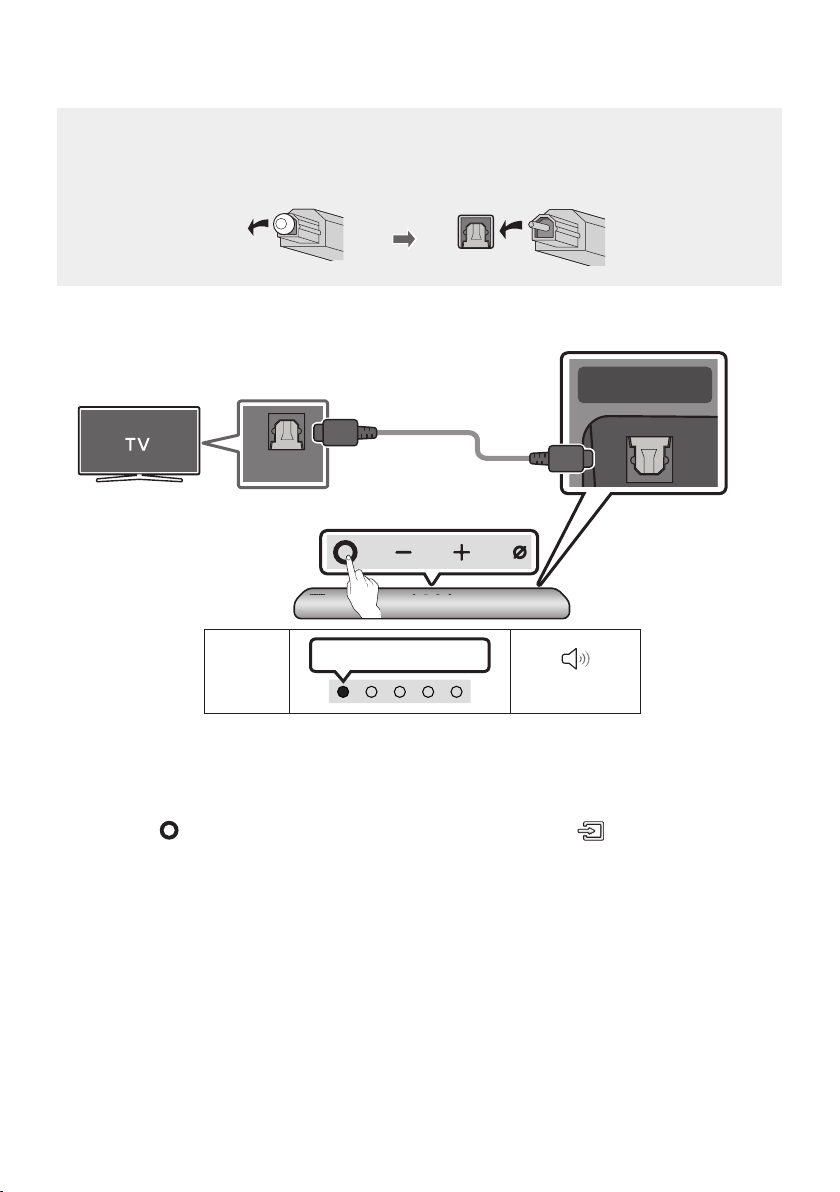
Method 2. Connecting using an Optical Cable
Pre-connection Checklist
• When both the HDMI cable and optical cable are connected, the HDMI signal is received rst.
• When you use an optical cable and the terminals have covers, be sure to remove the covers.
LED
Indicator
White On -> Off
“Digital Audio In”
OPTICAL OUT
SERVICE DC 19V
HDMI OUT
(TV-ARC)
DIGITAL AUDIO IN
(OPTICAL)
Bottom of the Soundbar
Optical Cable
(not supplied)
Top of the Soundbar
1. With the TV and Soundbar turned off, connect the DIGITAL AUDIO IN (OPTICAL) port on the
Soundbar and the OPTICAL output port on the TV with the optical cable, as shown in the gure.
2. Turn on the Soundbar and TV.
3. Press the (Multi Function) button at the top of the Soundbar or the (Source) button on the
remote control and then select the “Digital Audio In” mode. Then the announcement, “Digital
Audio In” is output.
4. The TV sound is output from the Soundbar.
ENG - 24
06 USING A WIRELESS CONNECTION TO THE TV
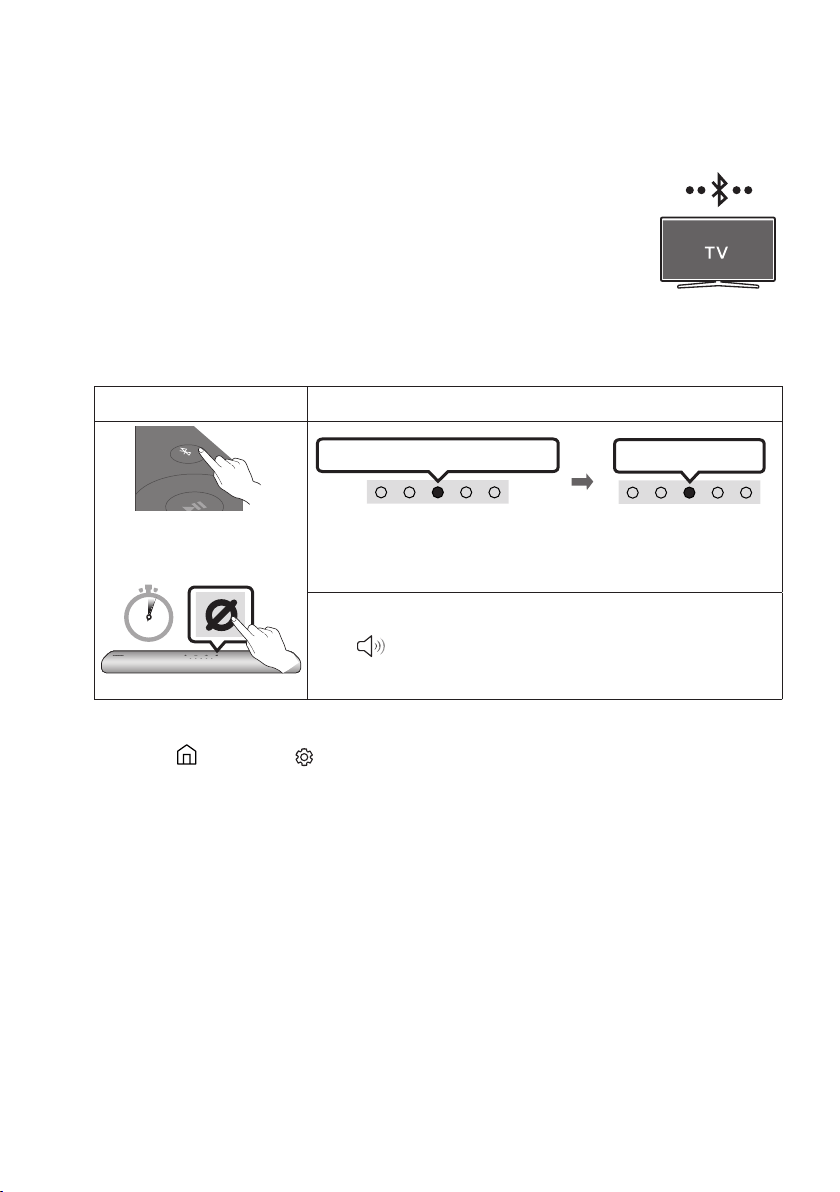
Method 1. Connecting via Bluetooth
When a Samsung TV is connected using Bluetooth, you can hear stereo sound
without the hassle of cabling.
• Only one Samsung TV can be connected at a time.
• Samsung TV that supports Bluetooth can be connected. Check the
specications of your TV.
The initial connection
1.
Bluetooth Pairing button LED Indicator
SOUND
MODE
PAIR
OR
Red → Green → Blue Blinks
Pairing
Connection is complete
Cyan Blinks X3
When in “Bluetooth” mode
5 Sec
• Until pairing is complete, the Multicolor LED changes as Red → Green
→ Blue in turn.
“Ready to connect via Bluetooth.”
2. Select Bluetooth mode on the Samsung TV.
(e.g. Home ( ) Settings ( ) Sound Sound Output Bluetooth Speaker List
[AV] Samsung Soundbar S60T / [AV] Samsung Soundbar S61T (Bluetooth))
3. Select “[AV] Samsung Soundbar S60T / [AV] Samsung Soundbar S61T” from the list on TV’s
screen.
An available Soundbar is indicated with “Need Pairing” or “Paired” on the TV’s Bluetooth device
list. To connect the Samsung TV to the Soundbar, select the message, and then establish a
connection.
4. You can now hear Samsung TV sound from the Soundbar.
• If there is a connection log between the Soundbar and Samsung TV, the Soundbar is
automatically connected by changing its mode to “Bluetooth”

ENG - 25
If the device fails to connect
• If you have an existing Soundbar (e.g., [AV] Samsung Soundbar S60T / [AV] Samsung Soundbar
S61T) on the list of speakers on the Samsung TV, delete it.
• Then repeat steps 1 through 3.
Disconnecting the Soundbar from the Samsung TV
Press the (Multi Function) button at the top of the Soundbar or the (Source) button on the
remote control to select the mode other than “Bluetooth”.
• Disconnecting takes time because the Samsung TV must receive a response from the Soundbar.
(The time required may differ, depending on the Samsung TV model.)
Notes on Bluetooth connection
• Locate a new device within 3.28 ft (1 m) to connect via Bluetooth communication.
• If asked for a PIN code when connecting a Bluetooth device, enter <0000>.
• The Soundbar automatically turns off after 18 minutes in the Ready state.
• The Soundbar may not perform Bluetooth search or connection correctly under the following
circumstances:
– If there is a strong electrical eld around the Soundbar.
– If several Bluetooth devices are simultaneously paired with the Soundbar.
– If the Bluetooth device is turned off, not in place, or malfunctions.
• Electronic devices may cause radio interference. Devices that generate electromagnetic waves
must be kept away from the Soundbar main unit - e.g., microwaves, wireless LAN devices, etc.

ENG - 26
Method 2. Connecting via Wi-Fi
Pre-connection Checklist
• Wi-Fi connection is available only on Samsung TV.
• Check whether the wireless router (Wi-Fi) is turned on and the TV is connected to the router.
• The TV and Soundbar must be connected to the same wireless network (Wi-Fi).
• If your wireless router (Wi-Fi) uses a DFS channel, you will not be able to establish a Wi-Fi
connection between the TV and Soundbar. Contact your Internet service provider for details.
• Because the menus may differ depending on the year of manufacture, refer to your TV manual.
• To connect the TV to the Soundbar via Wi-Fi, connect the Soundbar to the wireless router rst.
See page 31, for details on how to establish a Wi-Fi connection.
1. For more information about Wi-Fi connection to the Soundbar, see page 31, “Method 2.
Connecting via Wi-Fi (Wireless Network)”.
2. Change the input source of the TV by using the Audio menu to Soundbar.
• Samsung TVs released in 2017 or later
Home ( ) Settings ( ) Sound Sound Output [AV] Samsung Soundbar S60T /
[AV] Samsung Soundbar S61T (Wi-Fi)
ENG - 27
07 CONNECTING AN EXTERNAL DEVICE
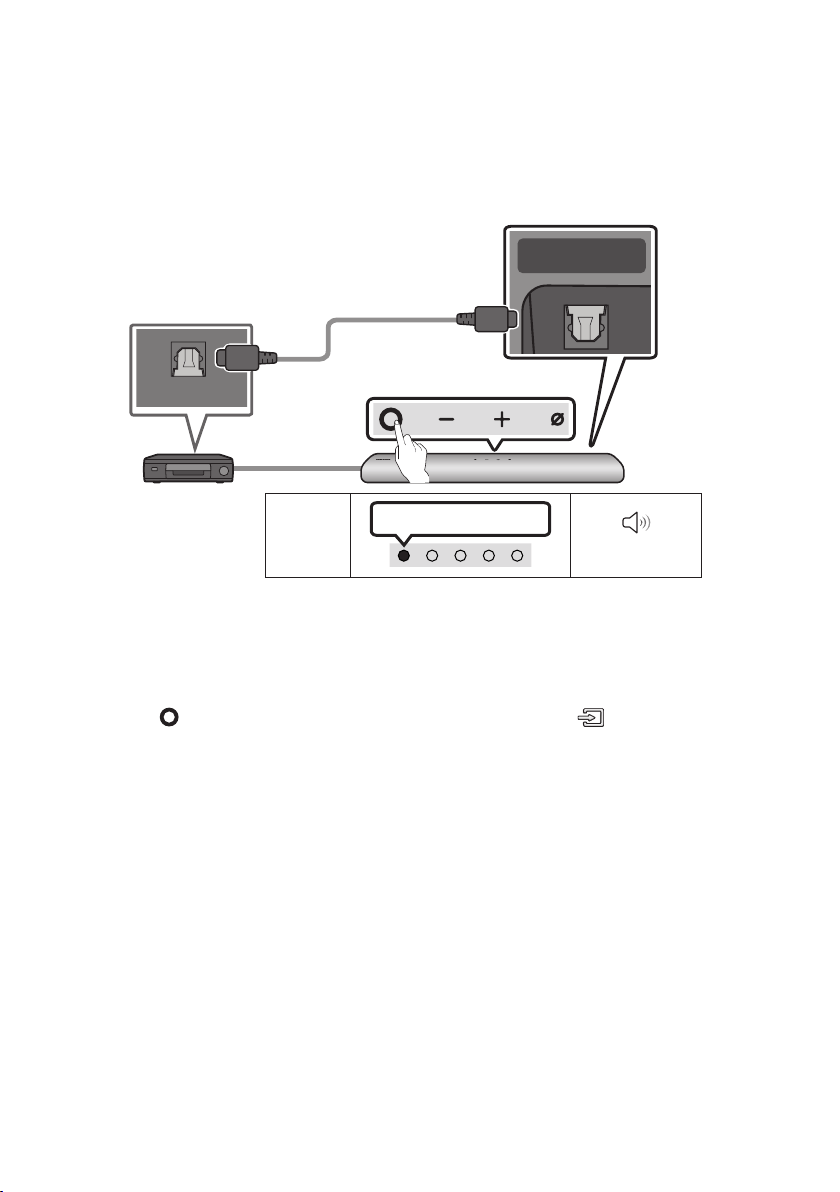
Connecting using an Optical Cable
LED
Indicator
White On -> Off
“Digital Audio In”
- AUDIO -
R L
OPTICAL OUT
SERVICE DC 19V
HDMI OUT
(TV-ARC)
DIGITAL AUDIO IN
(OPTICAL)
Bottom of the Soundbar
Optical Cable
(not supplied)
Top of the Soundbar
BD / DVD player / Set-top
box / Game console
1. With the external device and Soundbar turned off, connect the DIGITAL AUDIO IN (OPTICAL) port
on the Soundbar and the OPTICAL output port on the external device with the optical cable, as
shown in the gure.
2. Turn on the Soundbar and external device.
3. Press the (Multi Function) button at the top of the Soundbar or the (Source) button on the
remote control and then select the “Digital Audio In” mode. Then the announcement, “Digital
Audio In” is output.
4. The external device sound is output from the Soundbar.
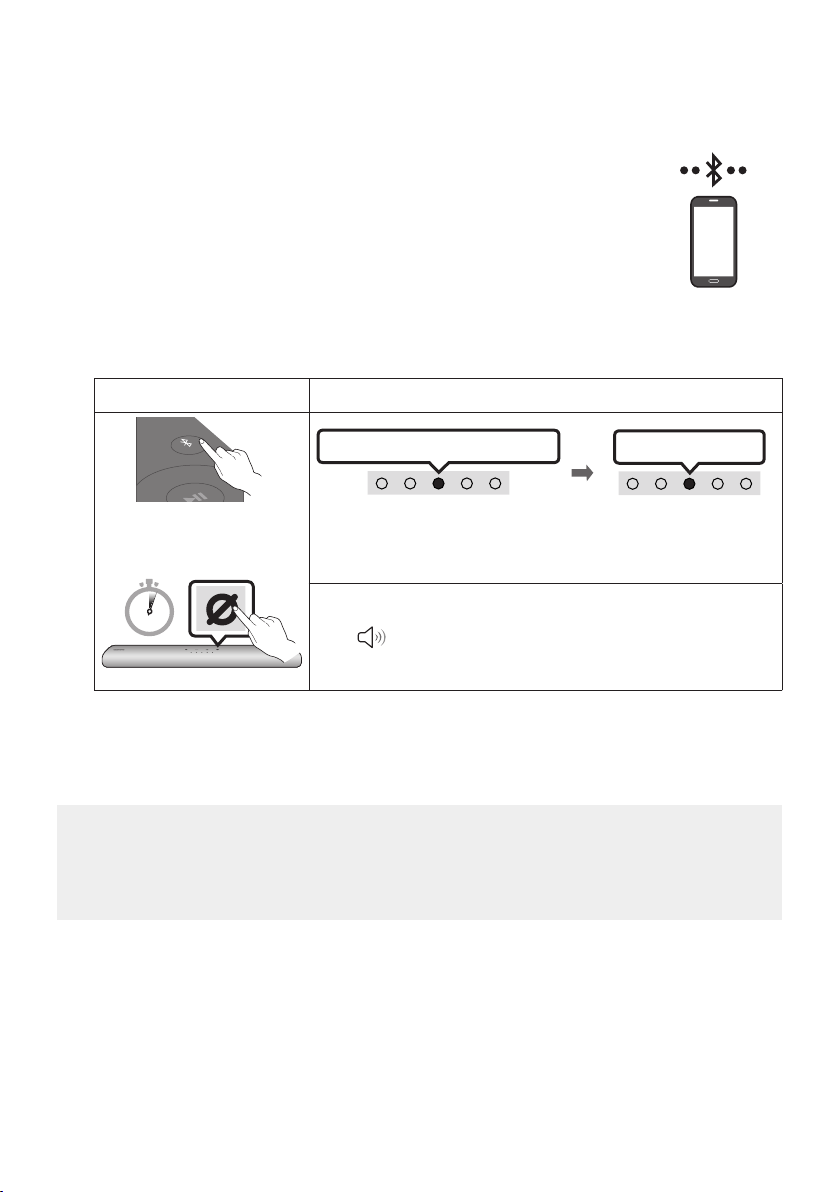
ENG - 28
08 CONNECTING A MOBILE DEVICE
Method 1. Connecting via Bluetooth
When a mobile device is connected using Bluetooth, you can hear stereo sound
without the hassle of cabling.
• When you connect a paired Bluetooth device with the Soundbar off, the
Soundbar automatically turns on.
The initial connection
• When connecting to a new Bluetooth device, make sure the device is within 3.28 ft (1 m) distance.
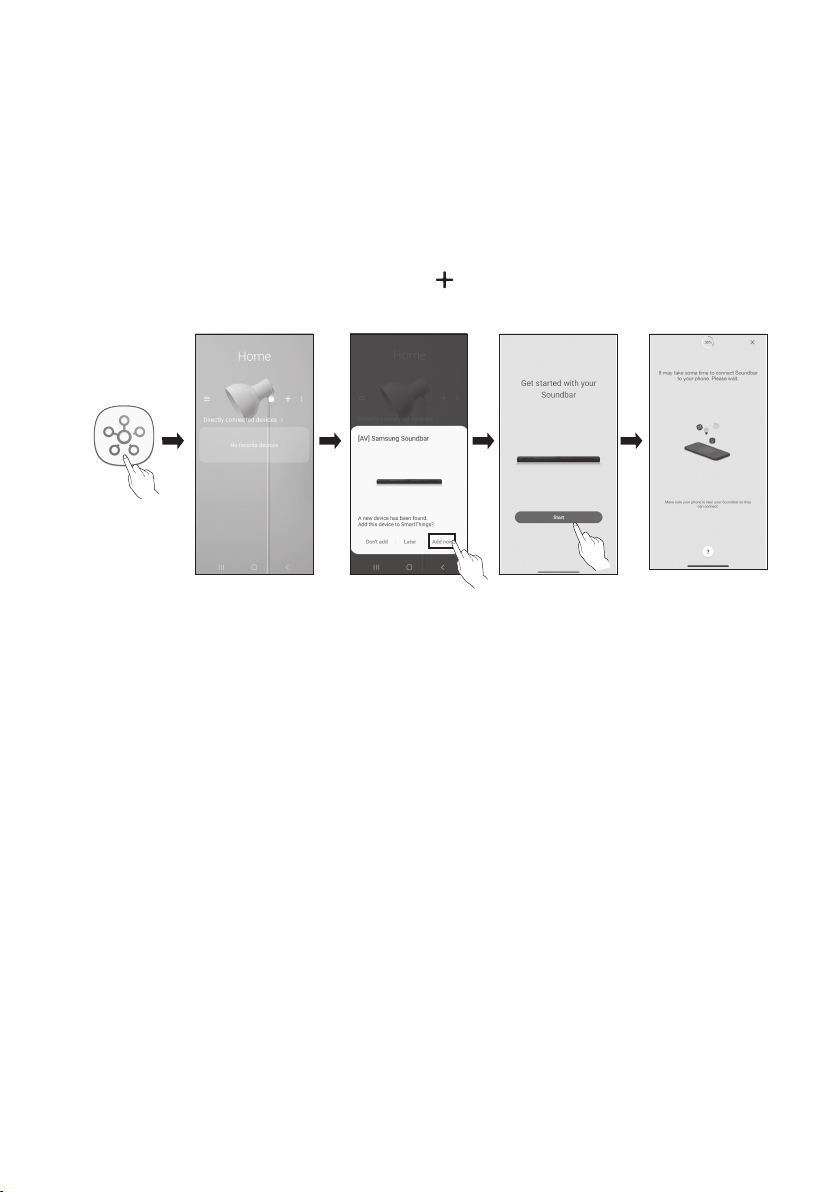
1.
Bluetooth Pairing button LED Indicator
SOUND
MODE
PAIR
OR
Red → Green → Blue Blinks
Pairing
Connection is complete
Cyan Blinks X3
When in “Bluetooth” mode
5 Sec
• Until pairing is complete, the Multicolor LED changes as Red → Green
→ Blue in turn.
“Ready to connect via Bluetooth.”
2. On your device, select “[AV] Samsung Soundbar S60T / [AV] Samsung Soundbar S61T” from the
list that appears.
3. Play music les from the device connected via Bluetooth through the Soundbar.
If the device fails to connect
• If you have an existing Soundbar (e.g., [AV] Samsung Soundbar S60T / [AV] Samsung Soundbar
S61T) on the list of speakers on the Mobile device, delete it.
• Then repeat steps 1 and 2.
mobile device

ENG - 29
Notes on Bluetooth connection
• Locate a new device within 3.28 ft (1 m) to connect via Bluetooth communication.
• If asked for a PIN code when connecting a Bluetooth device, enter <0000>.
• The Soundbar automatically turns off after 18 minutes in the Ready state.
• The Soundbar may not perform Bluetooth search or connection correctly under the following
circumstances:
– If there is a strong electrical eld around the Soundbar.
– If several Bluetooth devices are simultaneously paired with the Soundbar.
– If the Bluetooth device is turned off, not in place, or malfunctions.
• Electronic devices may cause radio interference. Devices that generate electromagnetic waves
must be kept away from the Soundbar main unit - e.g., microwaves, wireless LAN devices, etc.
• The Soundbar supports SBC data (44.1kHz, 48kHz).
• Connect only to a Bluetooth device that supports the A2DP (AV) function.
• You cannot connect the Soundbar to a Bluetooth device that supports only the HF (Hands Free)
function.
• When connecting the Soundbar to a Bluetooth device, place them as close to each other as possible.
• The farther the Soundbar and Bluetooth device are from each other, the lower the sound quality
will become.
The Bluetooth connection may break when the devices are out of the effective range.
• The Bluetooth connection may not function as intended in areas with poor reception.
• A Bluetooth device may experience noise or malfunction under in the following conditions:
– When the body is in contact with the signal transceiver on the Bluetooth device or Soundbar
– In corners or when there is an obstacle in proximity, such as a wall or partition, where electrical
changes may occur.
– When exposed to radio interferences by other products operating on the same frequency
ranges, such as medical equipment, microwave ovens, and wireless LAN devices.
– Obstacles such as doors and walls may still impact the sound quality even when the devices
are within the effective range.
• Note that your Soundbar cannot be paired with other Bluetooth devices while using the Bluetooth
option.
• This wireless device may cause electrical interference during operation.

ENG - 30
Disconnecting the Bluetooth device from a Soundbar
You can disconnect a Bluetooth device from the Soundbar. For instructions, see the Bluetooth device’s
user manual.
• The Soundbar will be disconnected.
• If the Soundbar is disconnected from the Bluetooth device, the multicolor LED indicator on the
Soundbar blinks "Red” three times.
Disconnecting the Soundbar from the Bluetooth device
Press the (Multi Function) button at the top of the Soundbar or the (Source) button on the
remote control to select the mode other than “Bluetooth”.
• Disconnecting takes time because the Bluetooth device must receive a response from the
Soundbar. (Disconnection time may differ, depending on the Bluetooth device)
• If the Soundbar is disconnected from the Bluetooth device, the multicolor LED indicator on the
Soundbar blinks "Red” three times.
ENG - 31
Method 2. Connecting via Wi-Fi (Wireless Network)
To connect a Soundbar to a mobile device via a wireless network (Wi-Fi), the SmartThings app is
required.
The initial connection
1. Install and launch the SmartThings app from your mobile device (smartphone or tablet).
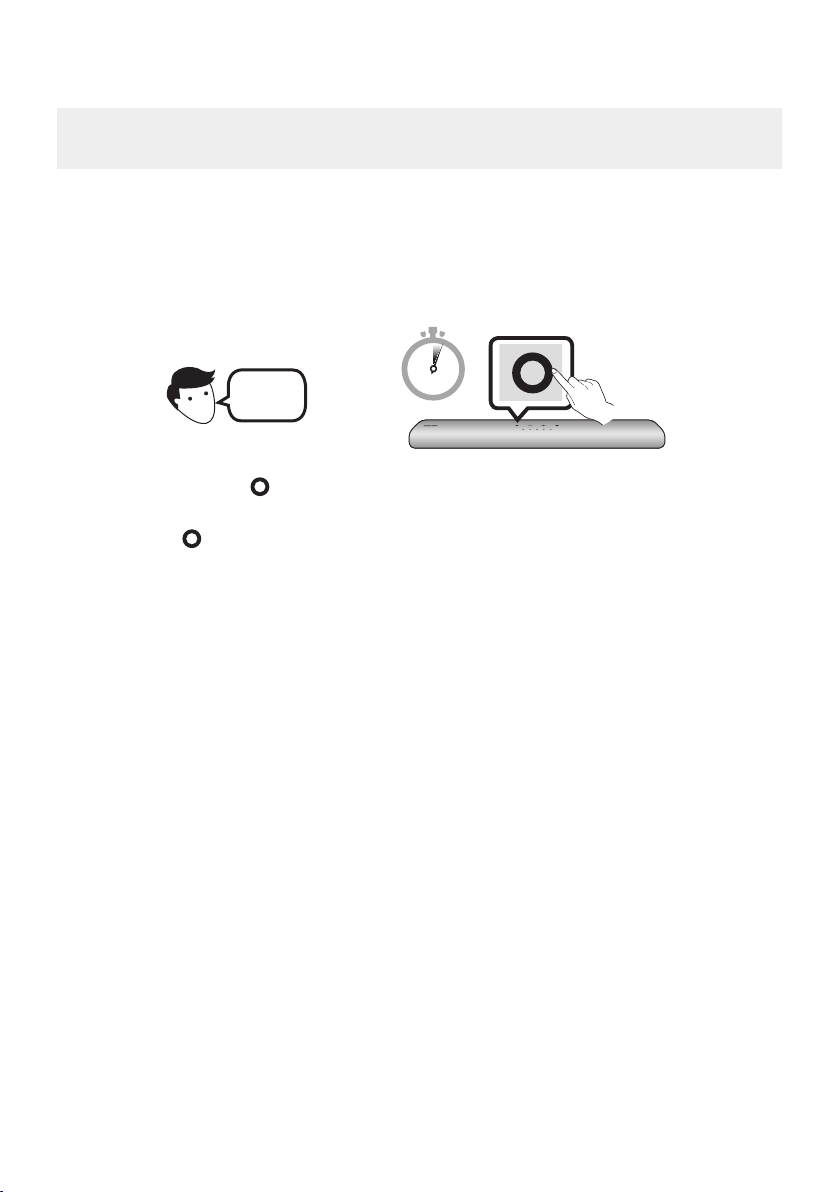
2. On the app, follow the screen instructions to add the Soundbar.
• The automatic pop-up (the second screenshot below) may not show on some devices.
If the pop-up window does not appear, press “ ” on the Home screen. The Soundbar is added
to the app.
Launch App Add deviceAuto pop-up
SmartThings
App
ENG - 32
ConguringAmazonAlexa
• Amazon Alexa is a service provided by Amazon.
• This service is available only in some languages but not in other countries or regions.
Using Alexa, you can play music, listen to news, see weather forecasts, and control home appliances.
To use Amazon Alexa, an Amazon account is required to connect the Soundbar over the network.
1. Install the SmartThings app on your mobile device and then launch it.
2. Enter the Alexa account by following the instructions on the app and then log in the service.
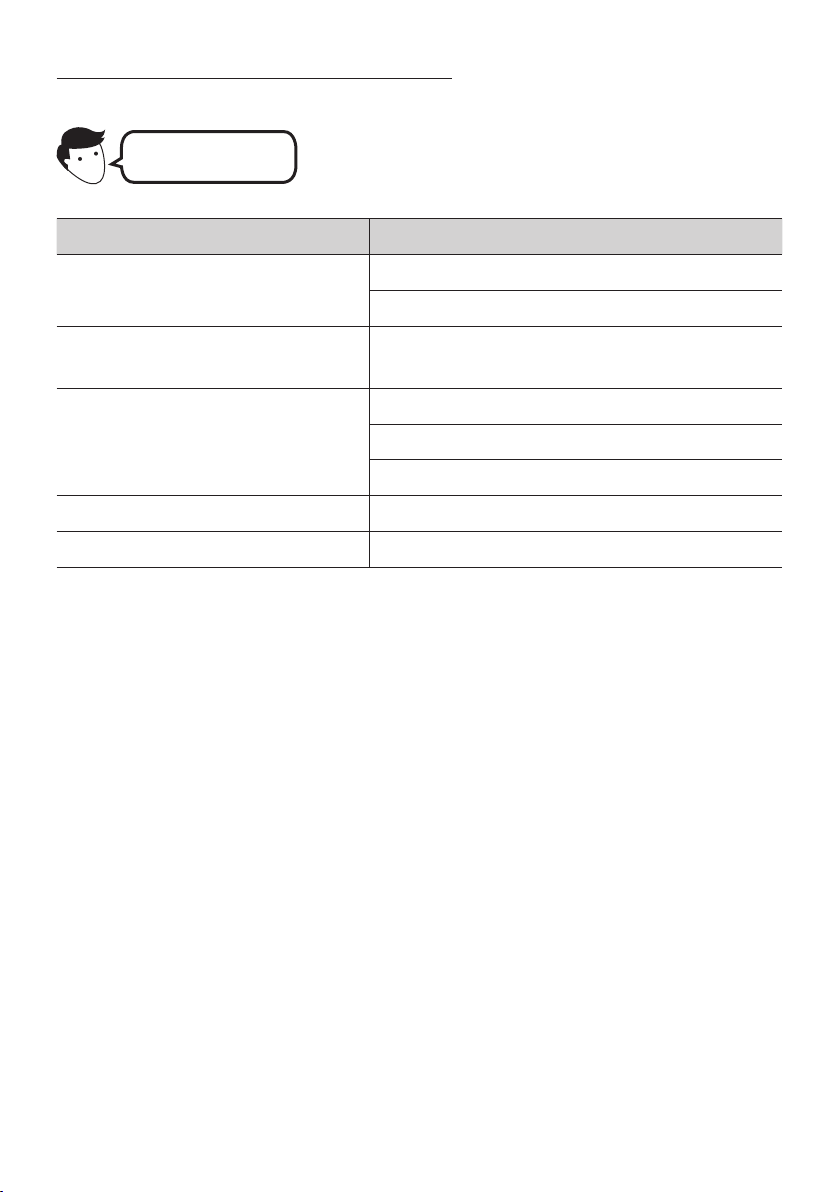
Top of the Soundbar
3 Sec
"Alexa"
OR
3. Call Alexa or press the (Multi Function) button on the Soundbar for 3 seconds to use the Alexa
service.
• Press the (Multi Function) button for 3 seconds to call Alexa. Say with the button pressed to
enable voice recognition.
• The LED indicator status on the Soundbar changes depending on the Alexa status. See page
34 for details.
ENG - 33
Use voice commands to control the Soundbar
Trigger + Command
Things to try Example of what to say
Volume control
"Alexa, turn up the volume."
“Alexa, turn down the volume”
Listening to streaming content from
Amazon Music
"Alexa,playsomejazzmusic"
Playback control
"Alexa, play next song."
“Alexa, stop the music.”
“Alexa, what is this song?”
Weather information "Alexa, what’s the weather?"
Timer scheduling “Alexa, set a timer for 10 minutes.”

ENG - 34
Alexa indicator status
The LED indicator status on the Soundbar changes depending on the Alexa status, as shown below.
Alexa status LED indicator on Soundbar
Idle
Off
Listening
Cyan On
Thinking
Cyan Blinks X1
Speaking
Timer Alarms and
Reminders
Cyan Blinks X2 Blue Blinks X2
Notication
Yellow Blinks X2
Alexa service
unavailable
Red Blinks X3
Network
disconnected
Red Blinks X3
Mic Off
Red On
ENG - 35
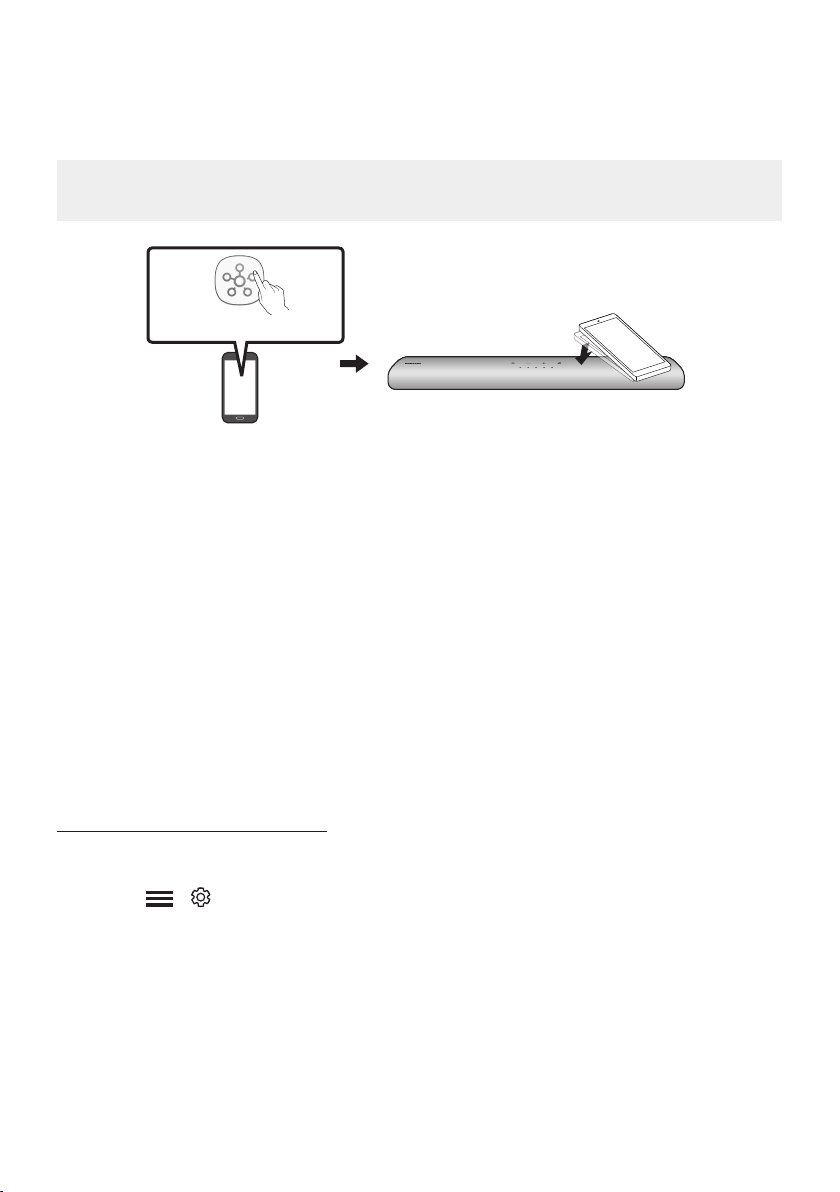
Using the Tap Sound
Tap the Soundbar with your mobile device to play the sound of content on the mobile device through
the Soundbar.
• This function may not be supported, depending on the mobile device.
• This function is only compatible with Samsung mobile devices with Android 8.1 or later.
Mobile device
SmartThings App
Top of the Soundbar
1. Turn on the Tap Sound function on your mobile device.
• For details on how to turn on the function, refer to “Setting the Tap Sound function” below.
2. Tap the Soundbar with the mobile device. Select “Start now” in the displayed message window.
A connection is established between the mobile device and Soundbar via Bluetooth.
3. Play the sound of content on the mobile device through the Soundbar.
• This function connects a mobile device to the Soundbar via Bluetooth by detecting vibration
that occurs when the device touches the Soundbar.
• Make sure the mobile device does not tap a sharp corner of the Soundbar. The Soundbar or
mobile device may become scratched or damaged.
• It is recommended that the mobile device be covered with a case. Lightly tap the wide area in
the upper portion of the Soundbar, without using excessive force.
• To use this function, update the SmartThings app to the latest version.
The function may not be supported, depending on the app version.
Setting the Tap Sound function
Use the SmartThings app to turn on the Tap View, Tap Sound function.
1. On the mobile device, run the SmartThings app.
2. Select ( → ) in the SmartThings app screen displayed on the mobile device.
3. Set “Tap View, Tap Sound” to On to allow the function to work when a mobile device moves close to
the Soundbar. The function is turned on.
NOTES
• When the mobile device is in power-saving mode, the Tap Sound function does not work.
• The Tap Sound function may not work if there are devices near the Soundbar that cause radio
interference such as electric devices. Make sure devices that may cause radio interference are
placed at a sufcient distance away from the Soundbar.
ENG - 36
09 INSTALLING THE
WALL MOUNT
Installation Precautions
• Install on a vertical wall only.
• Do not install in a place with high
temperature or humidity.
• Verify whether the wall is strong enough to
support the product’s weight. If not, reinforce
the wall or choose another installation point.
• Purchase and use the xing screws or
anchors appropriate for the kind of wall you
have (plaster board, iron board, wood, etc.). If
possible, x the support screws into wall
studs.
• Purchase wall mounting screws according to
the type and thickness of the wall you want to
mount the Soundbar on.
– Diameter: M5
– Length: 1 3/8 inches (35 mm) or longer
recommended.
• Connect cables from the unit to external
devices before you install the Soundbar on
the wall.
• Make sure the unit is turned off and
unplugged before you install it. Otherwise, it
may cause an electric shock.
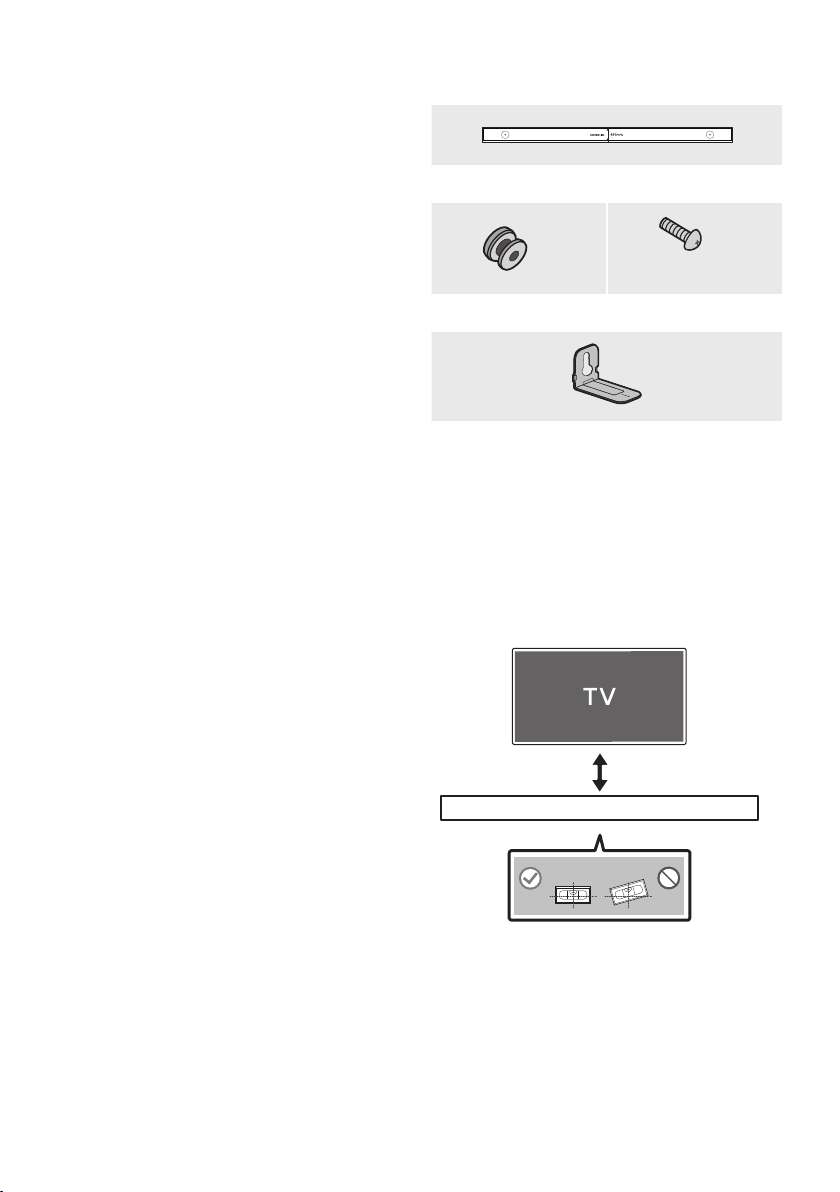
Wallmount Components
Wall Mount Guide
x 2
(M4 x L10)
x 2
Holder-Screw Screw
x 2
Bracket-Wall Mount
1. Place the Wall Mount Guide against the wall
surface.
• The Wall Mount Guide must be level.
• If your TV is mounted on the wall, install
the Soundbar at least 2 inches (5 cm)
below the TV.
2 inches (5 cm) or more
ENG - 37
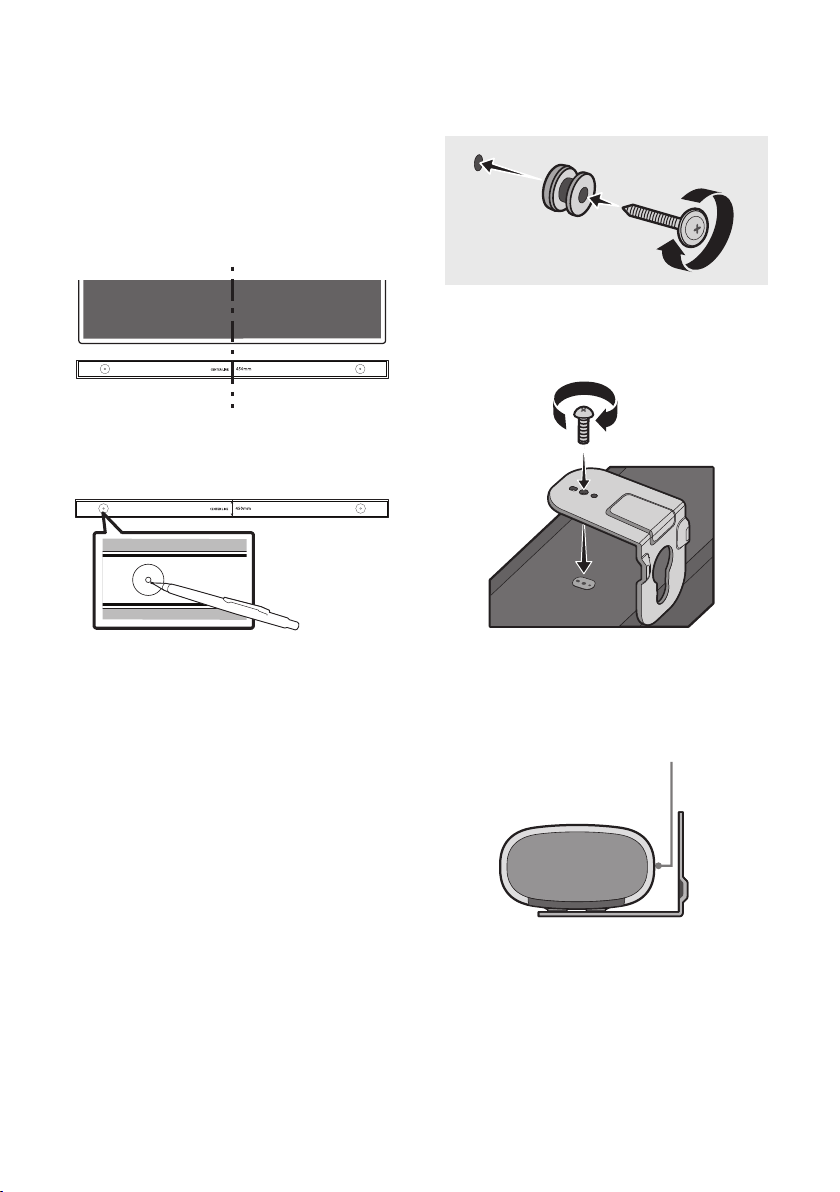
2. Align the Wall Mount Guide’s Center Line
with the center of your TV (if you are
mounting the Soundbar below your TV), and
then x the Wall Mount Guide to the wall
using tape.
• If you are not mounting below a TV, place
the Center Line in the center of the
installation area.
Center Line
3. Use a pen to mark the positions of the holes
and remove the Wall Mount Guide.
4. Using an appropriately sized drill bit, drill a
hole in the wall at each marking.
• If the markings do not correspond to the
positions of studs, make sure you insert
appropriate anchors or mollies into the
holes before you insert the support
screws. If you use anchors or mollies,
make sure the holes you drill are large
enough for the anchors or mollies you
use.
5. Push a screw (not supplied) through each
Holder-Screw, and then screw each screw
rmly into a support screw hole.
6. Install the 2 Bracket-Wall Mounts in the
correct orientation on the bottom of the
Soundbar using 2 Screws.
• When assembling, make sure the hanger
part of the Bracket-Wall Mounts are
located behind the rear of the Soundbar.
Rear of Soundbar
Right end of Soundbar
ENG - 38
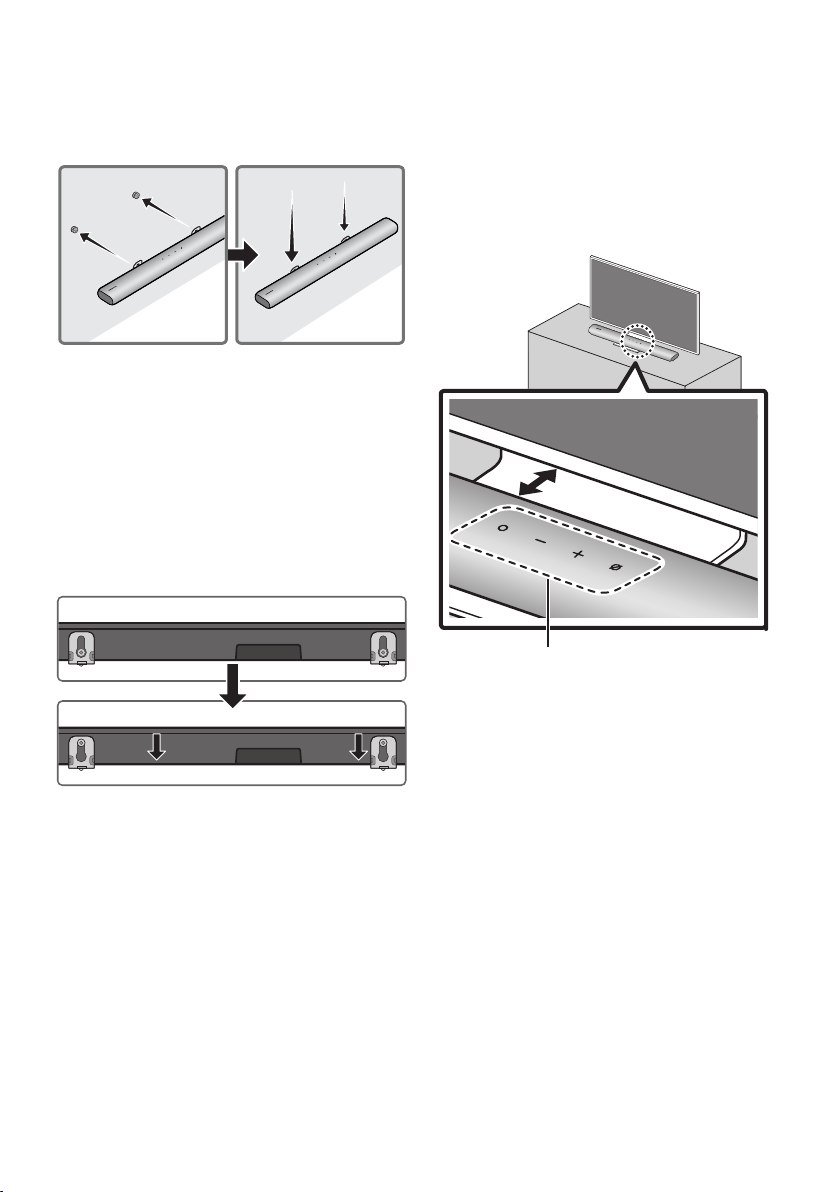
7. Install the Soundbar with the attached
Bracket-Wall Mounts by hanging the
Bracket-Wall Mounts on the Holder-Screws
on the wall.
8. Slide the Soundbar down as shown below so
that the Bracket-Wall Mounts rest securely
on the Holder-Screws.
• Insert the Holder-Screws into the wide
(bottom) part of the Bracket-Wall
Mounts, and then slide the Bracket-Wall
Mounts down so that the Bracket-Wall
Mounts rest securely on the
Holder-Screws.
10 INSTALLING THE
SOUNDBAR IN
FRONT OF TV
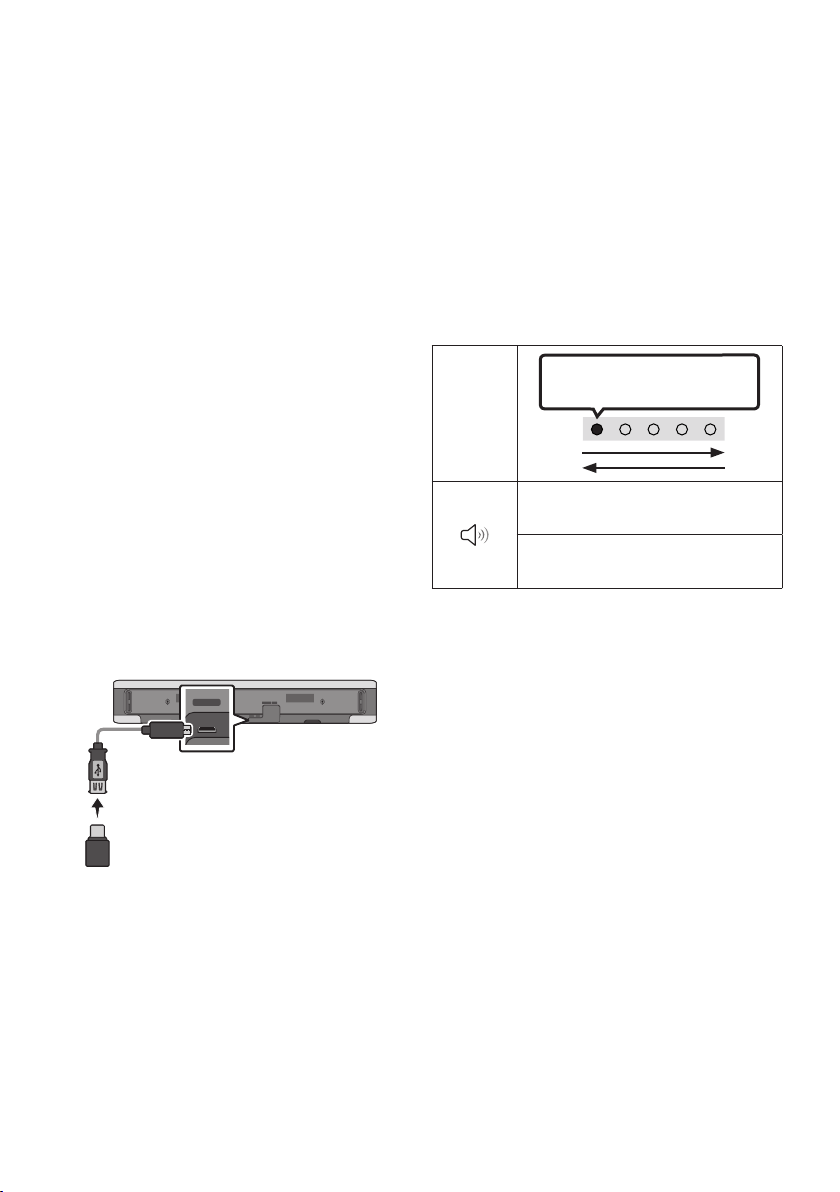
1.2 inches (3cm) or more
Microphone
Istalling the center of the Soundbar to the center
of the TV as illustrated in the image.
At this time, place the Soundbar at least 1.2 inches
(3cm) away from the TV so that there is no
interference with voice recognition.
NOTES
• Make sure the Soundbar is placed on a at
and solid surface.
• Insufcient gap from the TV may cause voice
recognition and acoustic problems.
ENG - 39
11 SOFTWARE
UPDATE
Auto Update
When the Soundbar is connected to the Internet,
software updates automatically occur even when
the Soundbar is turned off.
• To use the Auto Update function, the
Soundbar must be connected to the Internet.
The Wi-Fi connection to the Soundbar will be
terminated if the Soundbar’s power cord is
disconnected or the power is cut off. If the
power is cut off, when the power comes back
on or you reconnect the power cord, turn on
the Soundbar, and then reconnect it to the
Internet.
USB Update
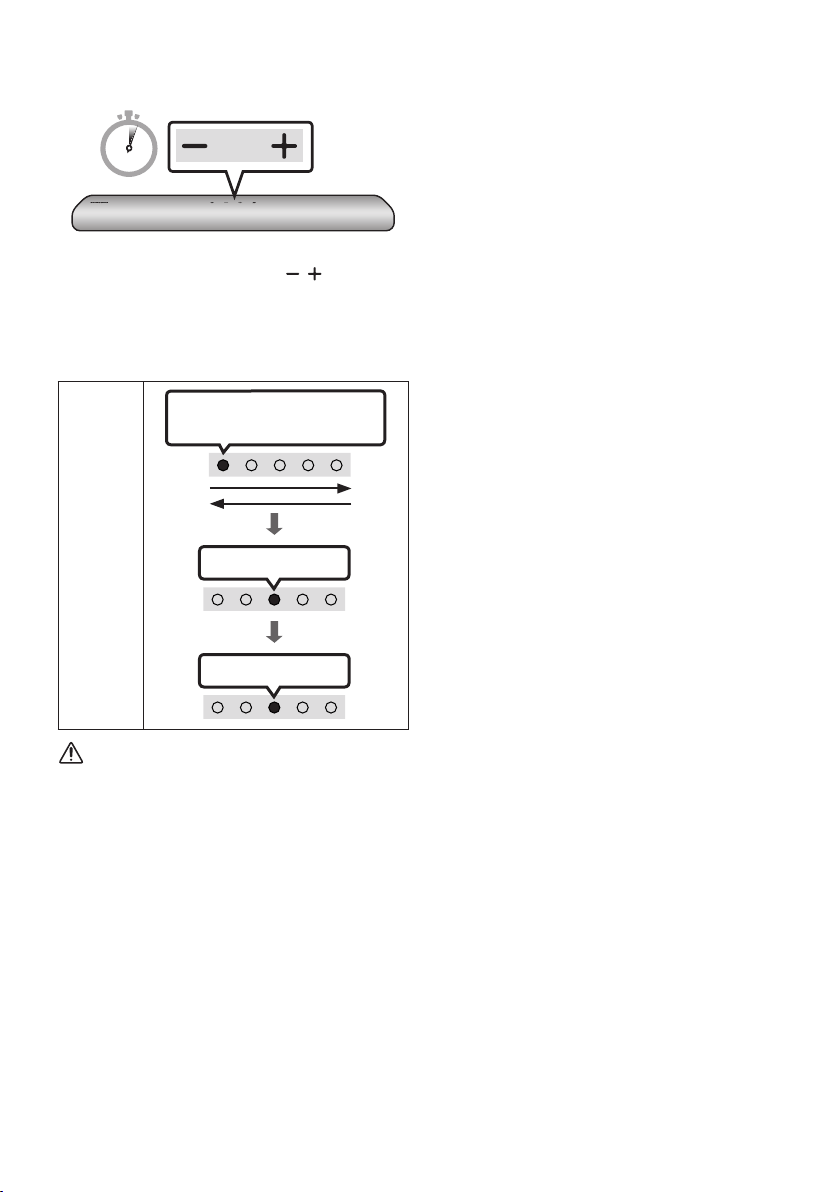
Bottom of the Soundbar
Micro USB to
USB adapter Cable
(not supplied)
SERVICE DC 19V
HDMI
(ARC)
DIGITAL AUDIO IN
(OPTICAL)
ID SET NETWORK
SERVICE
DC 19V
Samsung may offer updates for the Soundbar’s
systemrmwareinthefuture.
When an update is available, you can update the
Soundbar by connecting the USB drive that
contains the update rmware to the SERVICE
port of the Soundbar.
1. Go to the Samsung Electronics website
(www.samsung.com) → search for the model
name from the customer support menu
option.
• For more information about update, refer
to Upgrade Guide.
2. Download the upgrade le (USB type).
3. Unzip the le to create a folder with the le
name.
4. Store the created folder in a USB and then
connect it to the Soundbar.
5. Turn on the Soundbar. Then the product is
updated within 3 minutes.
LED
Indicator
White moves from left to right
and right to left
Software update start :
“Start the software update.”
Software update end :
“The software update is complete.”
• During update, do not turn it off or
remove the USB.
• If the yellow LED is on after the software
update is completed, this means that an
additional update is in progress. When
this happens, don't turn off the power or
remove the USB.
• If update does not proceed, reconnect the
Soundbar power cord.
• When the latest version is installed, no
update is performed.
• Depending on the USB type, update may
not be supported.
ENG - 40
Initialization
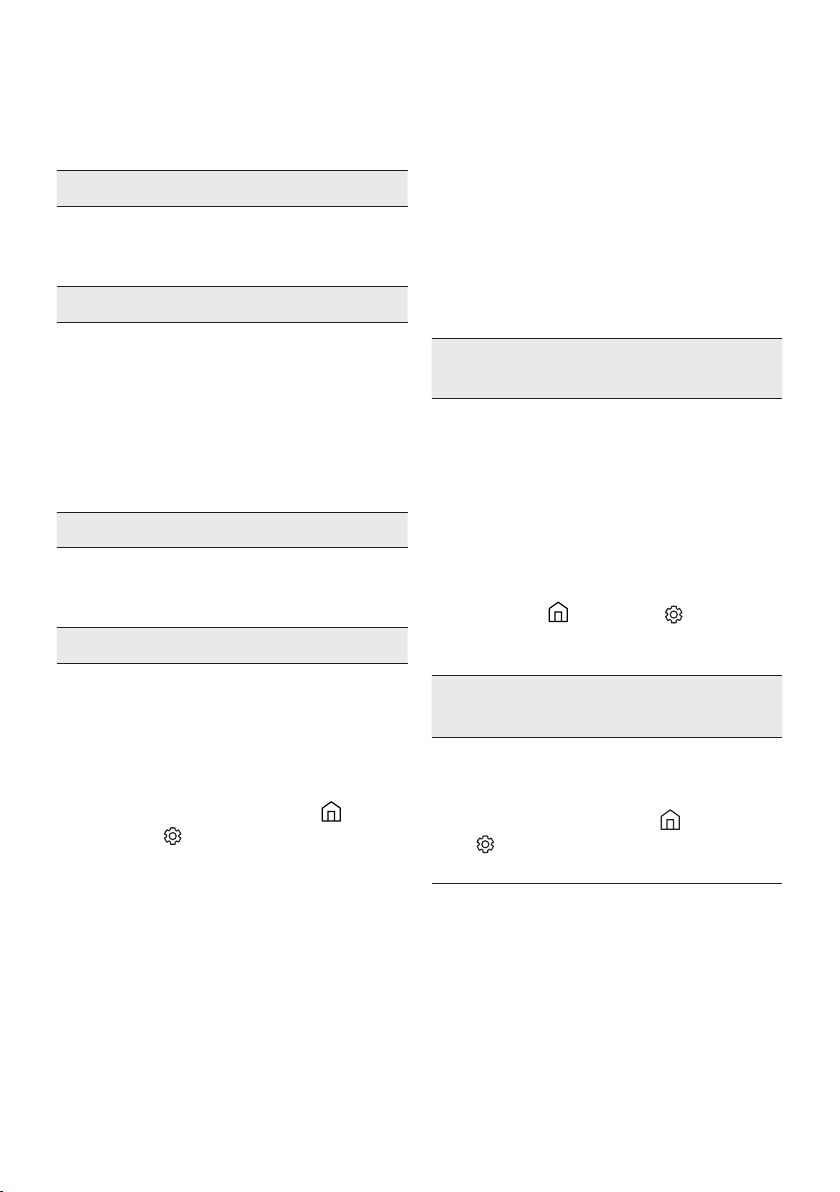
5 Sec
With the Soundbar on, press the (Volume)
buttons on the body at the same time for at least
5 seconds. The LED display changes as shown
below and then the Soundbar is initialized.
LED
Indicator
Cyan Blinks X3
Red Blinks → Off
White moves from left to right
and right to left
CAUTION
• All the settings of the Soundbar are
initialized. Be sure to perform this only when
initialization is required.
ENG - 41
12 TROUBLESHOOTING
Refer to the instructions below if this product does not function properly.
In case the power is not turned on
; Check whether the power cord of the
Soundbar is correctly inserted into the
outlet.
In case the functions do not work properly
; After removing the power cord, insert it
again.
; Remote the power cord from the external
device and try again.
; If there is no signal, the Soundbar
automatically turns off after a certain
period of time. Turn on the power. (See
page 11.)
In case the remote control does not work
; Operate the remote control noting the
Soundbar closely.
; Replace the batteries with new ones.
In case the Soundbar sound is not output
; The volume of the Soundbar is too low or
muted. Adjust the volume.
; When any external device (STB, Bluetooth
device, mobile device, etc.) is connected,
adjust the volume of the external device.
; For sound output of the TV, select
Soundbar. (Samsung TV: Home ( ) →
Settings ( ) → Sound → Sound Output →
Select Soundbar)
; The cable connection to the Soundbar may
not be loose. Remove the cable and
connect again.
; Remove the power cord completely,
reconnect, and turn the power on.
; Initialize the product and try again.
(See page 40.)
In case the TV is not connected via HDMI
(ARC)
; Check whether the HDMI cable is correctly
connected to the ARC terminal.
(See page21)
; Connection may not be possible due to the
connected external device (set-top box,
game machine, etc.). Directly connect the
Soundbar.
; HDMI-CEC may not be activated on the TV.
Turn on the CEC on the TV menu. (Samsung
TV: Home ( ) → Settings ( ) → General
→ External Device Manager → Anynet+
(HDMI-CEC) ON)
There is no sound in when connecting to the
TV in HDMI (ARC) mode
; Your device is unable to play the input
signal. Change the TV’s audio output to
PCM or Dolby Digital.
(For a Samsung TV: Home ( ) → Settings
( ) → Sound → Expert Settings → Digital
Output Audio Format)
ENG - 42
In case Bluetooth connection is not possible
; When connecting a new device, switch to
Bluetooth Pairing for connection. (Press the
PAIR button on the remote control or
press the (Mic On/Off) button on the
body for at least 5 seconds.)
; If the Soundbar is connected to another
device, disconnect that device rst to
switch the device.
; Reconnect it after removing the Bluetooth
speaker list on the device to connect.
(Samsung TV: Home ( ) → Settings ( )
→ Sound → Sound Output → Bluetooth
Speaker List)
; Remove and reconnect the power plug,
then try again.
; Initialize the product and try again.
(See page 40.)
In case Bluetooth sound breaking occurs
; Sounds may be breaking due to
interference by radio frequency or
electronic devices nearby. Keep such
devices away from the Soundbar to avoid
radio interference. Example: microwave
ovens.
; Because the device to connect is far away
from the Soundbar, sound breaking may
occur. Move the device near the Soundbar.
; If a part of your body is in contact with the
Bluetooth transceiver or the product is
installed on metal furniture, sound
breaking may occur. Check the installation
environment and conditions for use.
In case Wi-Fi connection is not possible
; Check whether your wireless router is on.
; Turn off the router, turn it back on, and then
try again.
; When the signal of the wireless router is
too weak, connection may not be possible.
Move the router near the Soundbar or
adjust the installed position with no
obstacles.
; If your wireless router is new, you will need
to recongure the speaker’s network
settings.
In case Alexa does not respond
When the microphone is turned off or its
reception is poor
; When the Red LED lights on the Soundbar,
press the (Mic On/Off) button to enable
the microphone.
; Voice recognition may be unavailable due
to ambient noise. Reduce the noise and try
again.
When the network is disconnected
; When the Red LED blinks on the Soundbar,
the network may be disconnected.
Recongure the network. (See page 31)
WhenAlexaisnotconguredcorrectly
; Using the SmartThings app, recongure
Alexa. (See page 32)
; Check the Alexa supported countries at the
Amazon website. The service is unavailable
in those countries.
In case the Soundbar is not turned on as soon
as the TV is turned on
; When you turn off the Soundbar while
watching TV, power synchronization with
the TV is disabled. First turn off the TV.
ENG - 43
13 LICENSE
Manufactured under license from Dolby
Laboratories. Dolby, Dolby Audio, Pro Logic, and
the double-D symbol are trademarks of Dolby
Laboratories.
For DTS patents, see http://patents.dts.com.
Manufactured under license from DTS
Licensing Limited. DTS, the Symbol, DTS in
combination with the Symbol, and DTS Digital
Surround are registered trademarks or
trademarks of DTS, Inc. in the United States
and/or other countries. © DTS, Inc. All Rights
Reserved.
The terms HDMI and HDMI High-Denition
Multimedia Interface, and the HDMI Logo are
trademarks or registered trademarks of HDMI
Licensing LLC in the United States and other
countries.
• The Spotify Software is subject to third
party licenses found here :
www.spotify.com/connect/third-party-
licenses.
• For more information about Spotify
Connect, please visit www.spotify.com/
connect
14 OPEN SOURCE
LICENSE NOTICE
To send inquiries and requests for questions
regarding open sources, contact Samsung Open
Source (http://opensource.samsung.com)
15 IMPORTANT
NOTES ABOUT
SERVICE
Figures and illustrations in this User Manual are
provided for reference only and may differ from
actual product appearance.
ENG - 44
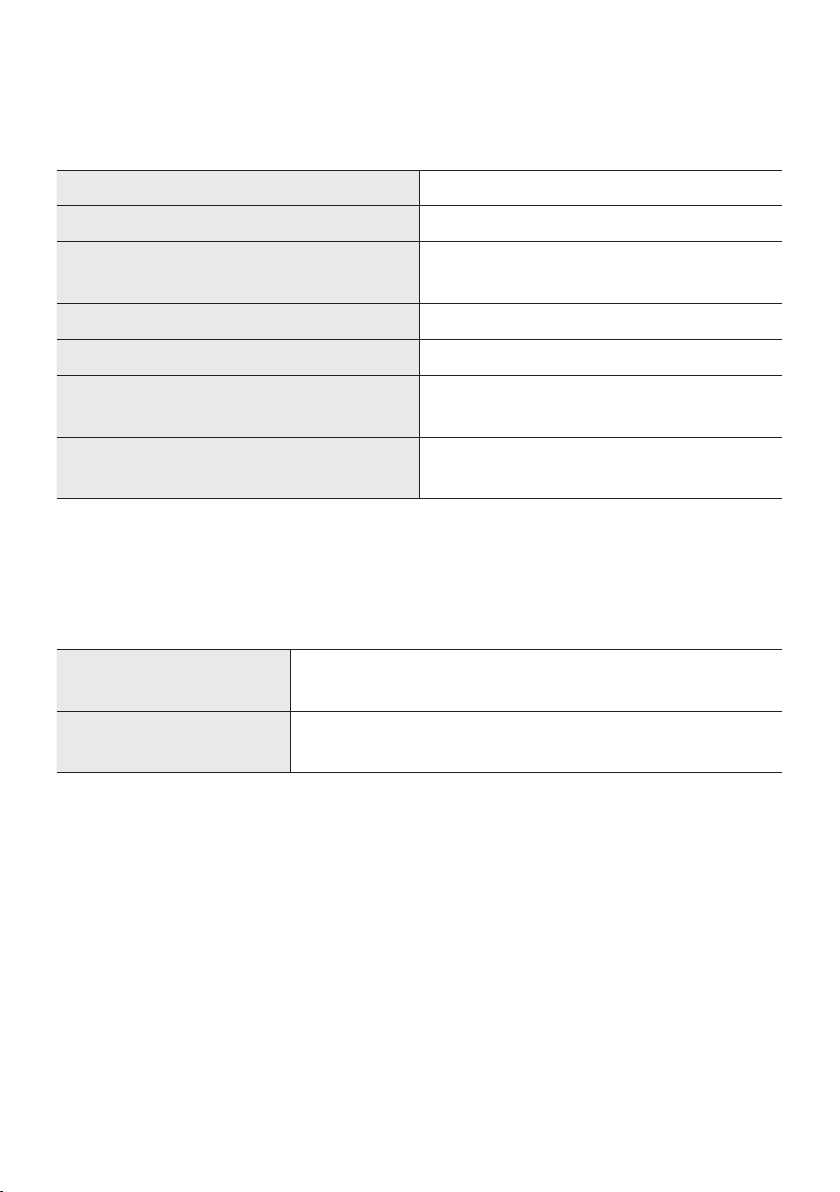
16 SPECIFICATIONS AND GUIDE
Specications
Model Name HW-S60T / S61T
Weight 6.4 lbs (2.9 kg)
Dimensions (W x H x D)
30.1 x 2.7 x 4.9 inches
(764.0 x 68.0 x 125.0 mm)
Operating Temperature Range +41°F to +95°F (+5°C to +35°C)
Operating Humidity Range 10 % ~ 75 %
AMPLIFIER
Rated Output power (30W x 2) + (30W x 2) + (30W x 2)
Supported play formats
LPCM 2ch, Dolby Audio™
(supporting Dolby® Digital), DTS
NOTES
• Samsung Electronics Co., Ltd reserves the right to change the specications without notice.
• Weight and dimensions are approximate.
Precaution : The Soundbar will restart automatically if you turn on/turn off Wi-Fi.
Wi-Fi
Port deactivation method
Press the ID SET button on the bottom panel of the Soundbar for
30 seconds to turn Wi-Fi On / Off.
Bluetooth
Port deactivation method
Press the NETWORK button on the bottom panel of the Soundbar
for 30 seconds to turn Bluetooth On / Off.
LIMITED WARRANTY TO ORIGINAL PURCHASER
Samsung Electronics Canada Inc.(SECA), warrants that this product is free from
defective material and workmanship.
SECA further warrants that if this product falls to operate properly within the specied
warranty period and the failure is due to improper workmanship or defective
materials, SECA will repair or replace the product at its option.
All warranty repairs must be performed by a SECA Authorized Service Center. (The name and
address of the location nearest you can be obtained by calling toll free: 1- 800- SAMSUNG)
LABOR
One year (Carry- in)
PARTS
One year
On carry-in models, transportation to and from the service center is the customer’s
responsibility.
The original dated sales receipt must be retained by the customer and is the only
acceptable proof of purchase. It must be presented to the authorized service center at
the time service is requested.
EXCLUSIONS (WHAT IS NOT COVERED)
This warranty does not cover damage due to accident, re, ood and/ or other acts of
God; misuse, incorrect line voltage, improper installation, improper or unauthorized
repairs, commercial use or damage that occurs in shipping. Exterior and interior nish,
lamps, glass are not covered under this warranty. Customer adjustments which are
explained in the instruction manual are not covered under the terms of this warranty.
This warranty will automatically be voided for any unit found with a missing or altered
serial number. This warranty is valid only on products purchased and used in Canada.
Samsung Electronics Canada Inc
2050 Derry Rd West
Mississauga, On. L5N 0B9
Tel: 1-800-SAMSUNG (726-7864)
Fax: (905) 542- 1199
Website: www.samsung.com/ca
© 2020 Samsung Electronics Co., Ltd. All rights reserved.
Contact SAMSUNG WORLD WIDE
If you have any questions or comments relating to Samsung products, please contact the SAMSUNG customer
care Center.
HEADQUARTERS
Samsung Electronics Canada Inc. 2050 Derry Road West, Mississauga, Ontario L5N 0B9 Canada
TEL: 1-800-SAMSUNG (1-800-726-7864)
www.samsung.com/ca/support
Area Contact Center
Web Site
`
North America
CANADA 1-800-SAMSUNG (726-7864)
www.samsung.com/ca/support (English)
www.samsung.com/ca_fr/support (French)
U.S.A 1-800-SAMSUNG (726-7864) www.samsung.com/us/support

HW-S60T / S61T
MANUEL COMPLET
Imaginez les possibilités
Merci d’avoir choisi un appareil Samsung.
Pour recevoir une assistance plus complète,
veuillez enregistrer votre produit sur
www.samsung.com/register
FRA - 2
INFORMATIONS RELATIVES À LA SÉCURITÉ
AVERTISSEMENTS
POUR ÉVITER LES RISQUES DE CHOC
ÉLECTRIQUE, NE DÉMONTEZ PAS LE CAPOT.
L’APPAREIL NE CONTIENT PAS DE PIÈCES
RÉPARABLES PAR L’UTILISATEUR. S’ADRESSER À
UN SERVICE APRÈS-VENTE QUALIFIÉ.
Reportez-vous au tableau ci-dessous pour
comprendre les symboles pouvant gurer sur
votre produit Samsung.
MISE EN GARDE
RISQUE DE CHOC
ÉLECTRIQUE NE PAS
OUVRIR
Ce symbole indique la présence d'une
haute tension à l'intérieur. Tout contact
avec une pièce interne de l'appareil
présente un danger.
Ce symbole vous informe qu'une
documentation importante relative au
fonctionnement et à l'entretien est
fournie avec le produit.
Produit de catégorie II: Ce symbole
indique qu'il ne nécessite pas une
connextion de sécurité à la terre
(masse). Si ce symbole n'est pas présent
sur un produit équipé d'un cordon
d'alimentation, le produit DOIT être
raccordé à la terre de manière able à
des ns de protection.
Tension CA: Ce symbole indique que la
tension nominale est la tension CA.
Tension CC : Ce symbole indique que la
tension nominale est la tension CC.
Attention, consultez les instructions aux
ns d'utilisation : Ce symbole indique à
l'utilisateur qu'il doit consulter le guide
d'utilisation pour avoir de l'information
au sujet de la sécurité.
AVERTISSEMENT
• An de diminuer les risques d’incendie ou de
choc électrique, n’exposez pas cet appareil à
la pluie ou à l’humidité.
• Pour éviter des blessures, cet appareil doit
être solidement xé au plancher/au mur
conformément aux directives d’installation.
MISE EN GARDE
• Veillez à éviter toute projection sur l’appareil.
Ne placez jamais de récipients contenant un
liquide (ex. : vase) dessus.
• La prise d’alimentation fait ofce de système
de déconnexion. Elle doit donc rester
disponible en permanence.
ATTENTION (Pour le Canada)
L’émetteur/récepteur exempt de licence contenu
dans le présent appareil est conforme aux CNR
d’Innovation, Sciences et Développement
économique Canada applicables aux appareils
radio exempts de licence. L’exploitation est
autorisée aux deux conditions suivantes :
1) L’appareil ne doit pas produire de brouillage;
2) L’appareil doit accepter tout brouillage
radioélectrique subi, même si le brouillage est
susceptible d’en compromettre le fonctionnement.
Cet appareil et son ou ses antennes ne doivent
pas etre installés a proximité ou etre utilisés
conjointement avec une autre antenne ou un
autre émetteur.
Le dispositif pourrait automatiquement cesser
d’émettre en cas d’absence d’informations à
transmettre, ou une défaillance opérationnelle.
Notez que ce n’est pas l’intention d’interdire la
transmission des informations de contrôle ou de
signalisation ou l’utilisation de codes répétitifs
lorsque requis par la technologie.
Cet appareil numerique de la classe B est
conforme a la norme NMB-003 du Canada.

FRA - 3
Declaration d’exposition aux radiations:
Cet equipement est conforme aux limites
d’exposition aux rayonnements IC RSS-102
etablies pour un environnement non controle.
Cet equipement doit etre installe et utilise avec
un minimum de 20 cm de distance entre la source
de rayonnement et votre corps.
Consignes de sécurité importantes
Lisez attentivement ces consignes avant d’utiliser
l’appareil. Veillez à respecter toutes les consignes
répertoriées ci-après. Conservez ces instructions à
portée de main pour vous y référer ultérieurement.
1. Lisez attentivement ces consignes.
2. Conservez-les précieusement.
3. Tenez compte de tous les avertissements
mentionnés.
4. Respectez toutes les instructions sans
exception.
5. N’utilisez pas cet appareil à proximité de
l’eau.
6. Nettoyez-le à l’aide d’un tissu sec.
7. Ne bloquez pas les ouvertures de ventilation.
Installez l’appareil conformément aux
instructions du fabricant.
8. N’installez pas le lecteur à proximité d’une
source de chaleur de type radiateur, registre
de chaleur, cuisinière ou tout autre appareil
(y compris les récepteurs AV) générateur de
chaleur.
9. Ne désactivez pas le dispositif de sécurité de
la che de mise à la terre ou de la che
polarisée. Une che polarisée comporte
deux lames dont l’une est plus large que
l’autre. Une che de mise à la terre comporte
deux lames et une troisième broche de mise
à la terre. La lame la plus large et la
troisième broche sont destinées à assurer
votre sécurité. Si la che fournie ne s’insère
pas dans la prise utilisée, faites appel à un
électricien pour faire remplacer celle-ci.
10. Placez le cordon d’alimentation de sorte qu’il
ne puisse être ni piétiné ni pincé,
particulièrement au niveau de la che, de la
prise de courant et du point de sortie de
l’appareil.
11. Utilisez exclusivement les xations/
accessoires spéciés par le fabricant.
12. Utilisez exclusivement le
meuble à roulettes, le socle, le
trépied, le support ou la table
recommandés par le fabricant
ou vendus avec l’appareil.
Si l’appareil est posé sur un meuble à
roulettes, déplacez l’ensemble avec
précaution pour éviter de faire tomber le
lecteur et de vous blesser.
13. Débranchez l’appareil en cas d’orage ou
lorsqu’il est inutilisé pendant une période
prolongée.
14. Conez toutes les réparations à un technicien
qualié. Votre appareil doit impérativement
être réparé lorsqu’il a été endommagé de
quelque manière que ce soit :
détérioration
du cordon ou de la che d’alimentation,
projection de liquide sur l’appareil, chute
d’objets à l’intérieur de l’appareil, exposition
à la pluie ou à l’humidité, dysfonctionnement,
chute.

FRA - 4
PRÉCAUTIONS
1. Assurez-vous que le bloc d'alimentation CA
chez vous est conforme aux exigences de
puissance gurant sur la plaque
d'identication située à en dessous de votre
produit. Installez votre produit
horizontalement, sur un socle approprié
(meuble), en laissant un espace sufsant
pour la ventilation sur le pourtour 3~4 po.
Faites attention à ne pas obstruer les orices
de ventilation. Ne posez pas l’ensemble sur
un amplicateur ou un autre appareil
susceptible de chauffer. Cet ensemble est
conçu pour une utilisation en continu.
Pour éteindre totalement l’appareil,
débranchez la che c.a. de la prise murale.
Débranchez l’appareil si vous prévoyez une
longue période d’inactivité.
2. En cas d’orage, débranchez la che de
l’appareil de la prise murale. Les surtensions
occasionnées par l’orage pourraient
endommager votre appareil.
3. N’exposez pas l’ensemble aux rayons directs
du soleil ou à toute autre source de chaleur.
Cela pourrait causer une surchauffe du l et
causer un dysfonctionnement de l’unité.
4.
Protégez le produit de l’humidité (comme les
vases) et d’une chaleur excessive (comme une
cheminée) ou de tout équipement capable de
créer des champs magnétiques ou électriques.
Débranchez le câble d’alimentation en cas de
dysfonctionnement. Votre produit n’est pas
prévu pour un usage industriel. Ce produit ne
peut être utilisé qu’à des ns personnelles.
Une condensation peut se former si le produit
ou un disque a été stocké à basse
température. Si vous devez transporter
l’ensemble pendant l’hiver, attendez environ
2 heures que l’appareil ait atteint la
température de la pièce avant de l’utiliser.
5. Les piles utilisées dans ce produit peuvent
contenir des produits chimiques dangereux pour
l’environnement. Ne jetez pas les piles dans
votre poubelle habituelle. Ne vous débarrassez
pas des piles en les faisant brûler. Les piles ne
doivent pas être court-circuitées, démontées ou
subir de surchauffe. Le remplacement incorrect
des piles peut entraîner un danger d’explosion.
Remplacez-les uniquement par des produits
similaires ou équivalents.
Nettoyage des parties textiles
Retirez immédiatement les saletés ou les taches
sur la surface du produit.
L'élimination et le nettoyage peuvent être moins
efcaces pour certaines substances ou si les
taches ou saletés ont été laissées sur le produit
pendant une période prolongée.
MISE EN GARDE
• Utilisez un aspirateur ou un rouleau anti-
peluche adhésif pour enlever la poussière, les
empreintes de doigts, etc.
– Certaines brosses de nettoyage peuvent
endommager le produit, selon les
matériaux qu'elles contiennent.
– Les serviettes et les chiffons de
nettoyage peuvent laisser des peluches
ou de la saleté sur le produit.
• N'utilisez pas de clou ou d'autres outils pour
enlever la saleté en grattant. Cela pourrait
endommager le tissu.
• Pour enlever les taches d'huile ou de liquide,
utilisez un chiffon blanc propre et humide avec
de l'eau. Si la tache persiste, essuyez-la avec
un mélange d'eau et de détergent neutre (par
exemple, du liquide vaisselle) et un chiffon.
– Un détergent ou un nettoyant non neutre
peut provoquer une décoloration ou
endommager le tissu.
– Après le nettoyage, utilisez un chiffon sec
ou un sèche-cheveux pour sécher la zone.
– N'exercez pas de force excessive pour
éviter la décoloration ou
l'endommagement du tissu.

FRA - 5
SOMMAIRE
01 Véricationdescomposants 7
Insertion des piles avant d'utiliser la télécommande (2piles AA) ------------------------- 7
02 Présentation du produit 8
Panneau supérieur du Soundbar ------------------------- 8
Panneau dessous du Soundbar ------------------------- 10
03 Utilisation de la télécommande 11
Comment utiliser la télécommande
-------------------------
11
Caractéristiques de sortie pour les différents modes d’effets sonores
-------------------------
14
Réglage du volume du Soundbar avec une télécommande du téléviseur ------------------------- 15
04 Connexion du Soundbar 16
Connexion de l'alimentation électrique
-------------------------
16
Raccordement du module SWA-8500S (vendu séparément) au Soundbar
-------------------------
17
Raccordement du module SWA-W500 (vendu séparément) au Soundbar
-------------------------
19
05 Utilisationd'uneconnexionlaireavecle
téléviseur 21
Méthode1. Connexion avec un câble HDMI
-------------------------
21
Méthode2. Connexion à l'aide d'un câble optique
-------------------------
23
06 Utilisationd'uneconnexionsanslavecle
téléviseur 24
Méthode1. Connexion par Bluetooth
-------------------------
24
Méthode 2. Connexion en Wi-Fi
-------------------------
26

FRA - 6
07 Connexion d'un appareil externe 27
Connexion à l'aide d'un câble optique
-------------------------
27
08 Connexion d'un appareil mobile 28
Méthode 1. Connexion par Bluetooth
-------------------------
28
Méthode2. Connexion par Wi-Fi (réseau sans l)
-------------------------
31
Conguration d’Amazon Alexa
-------------------------
32
Utilisation de la fonction Tap Sound
-------------------------
35
09 Installation du support mural 36
Précautions d’installation
-------------------------
36
Composants de montage mural
-------------------------
36
10 InstallationduSoundbardevantletéléviseur 38
11 Mise à jour logicielle 39
Mise à jour automatique
-------------------------
39
Mise à jour USB
-------------------------
39
Initialisation
-------------------------
40
12 Dépannage 41
13 Licence 43
14 AvisdeLicencesLibres 43
15 RemarqueImportanteConcernantleService 43
16 Caractéristiques et Guide 44
Spécications
-------------------------
44
FRA - 7
01 VÉRIFICATION DES COMPOSANTS
VOL WOOFER
SOUNDBAR
SOUND
MODE
PAIR
Unité principale du Soundbar Télécommande/
piles du Soundbar
Câble HDMI
Adaptateur CA/CC
(Soundbar)
Cordon d’alimentation
(Soundbar)
Guide de montage mural
x 2
x 2
(M4 x L10)
x 2
Visdexation Support de montage mural Vis
• Pour plus d'informations sur l'alimentation et la consommation électriques, reportez-vous à
l'étiquette apposée sur le produit (Étiquette : Partie inférieure de l’unité principale du Soundbar)
• Pour acheter des composants supplémentaires ou des câbles en option, contactez un centre de
service Samsung ou le service clientèle Samsung.
• Pour plus d'informations sur le support mural, consultez la page 36.
• La conception, les spécications et l'écran de l'application peuvent faire l'objet d'une modication
sans préavis.
• L’apparence des accessoires peut différer légèrement des illustrations ci-dessus.
Insertiondespilesavantd'utiliserlatélécommande(2pilesAA)
Faites glisser le panneau arrière dans le sens de la
èche jusqu’à ce qu’il soit complètement retiré.
Insérez 2 piles AA (1,5V) dans le bon sens (polarité
correcte). Refaites glisser le panneau arrière dans
sa position initiale.
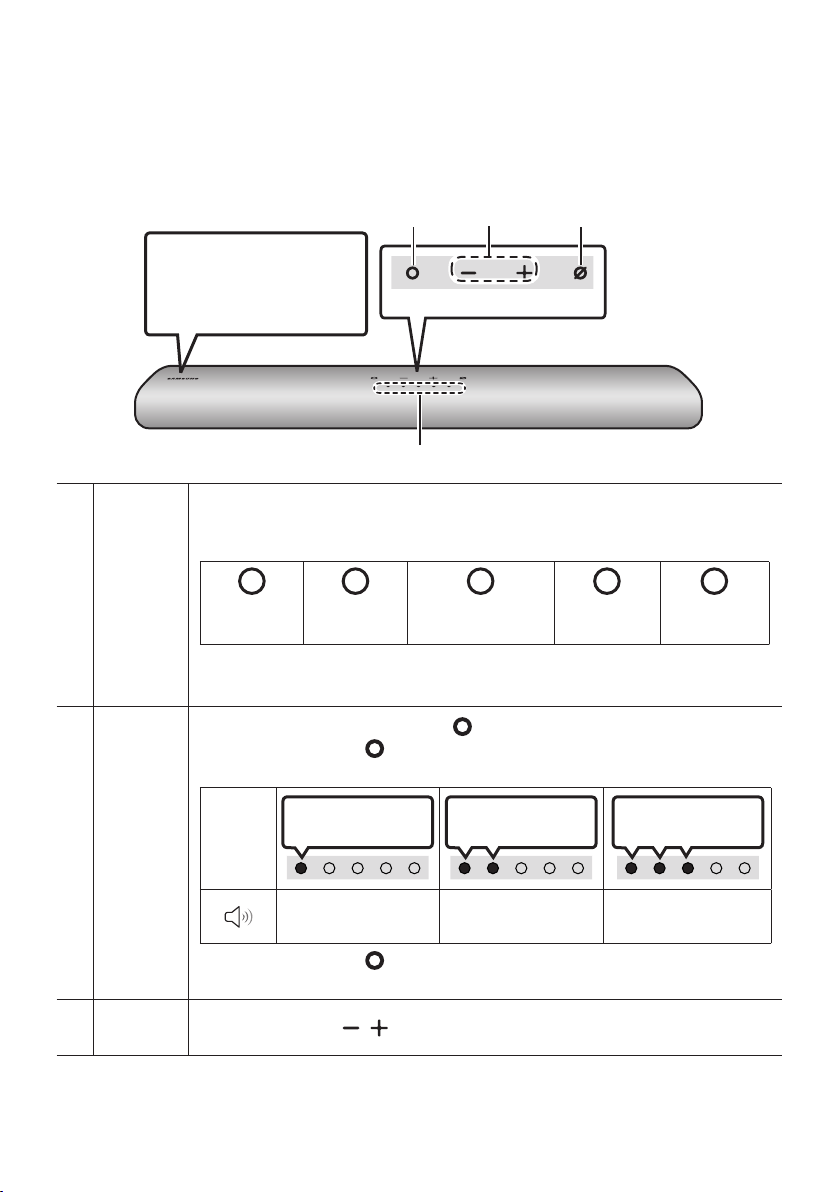
FRA - 8
02 PRÉSENTATION DU PRODUIT
Panneau supérieur du Soundbar
Panneau supérieur
Placez le produit de sorte
que le logo SAMSUNG soit
situé sur le dessus.
Voyant DEL
Le voyant DEL clignote, s'allume ou change de couleur en fonction du statut ou du mode en
cours du Soundbar. La couleur du voyant DEL et le nombre de lumières indiquent le mode
actif tel que décrit ci-dessous.
W
Voyant DEL
blanc
W
Voyant DEL
blanc
M
Voyant DEL
multicolore
W
Voyant DEL
blanc
W
Voyant DEL
blanc
• Le voyant DEL multicolore devient Blanc, Cyan, Vert, Rouge et Bleu selon le mode ou le
statut.
Bouton
multifonction
• En mode veille, appuyez sur le bouton (Multifonction) pour allumer le Soundbar.
• Appuyez sur le bouton
(Multifonction)
pour changer le mode. Chaque fois que vous
changez de mode, le voyant DEL s'allume en blanc puis s'éteint.
Voyant
DEL
Voyant blanc allumé
-> éteint
Voyant blanc allumé
-> éteint
Voyant blanc allumé
-> éteint
«Digital Audio In» ou
«TV ARC»
«Wi-Fi» «Bluetooth»
• Appuyez sur le bouton (Multifonction) pendant 3 secondes pour appeler Alexa.
Parlez en appuyant sur le bouton enfoncé pour activer la reconnaissance vocale.
Bouton
Volume
Appuyez sur le bouton (Volume) pour régler le volume.
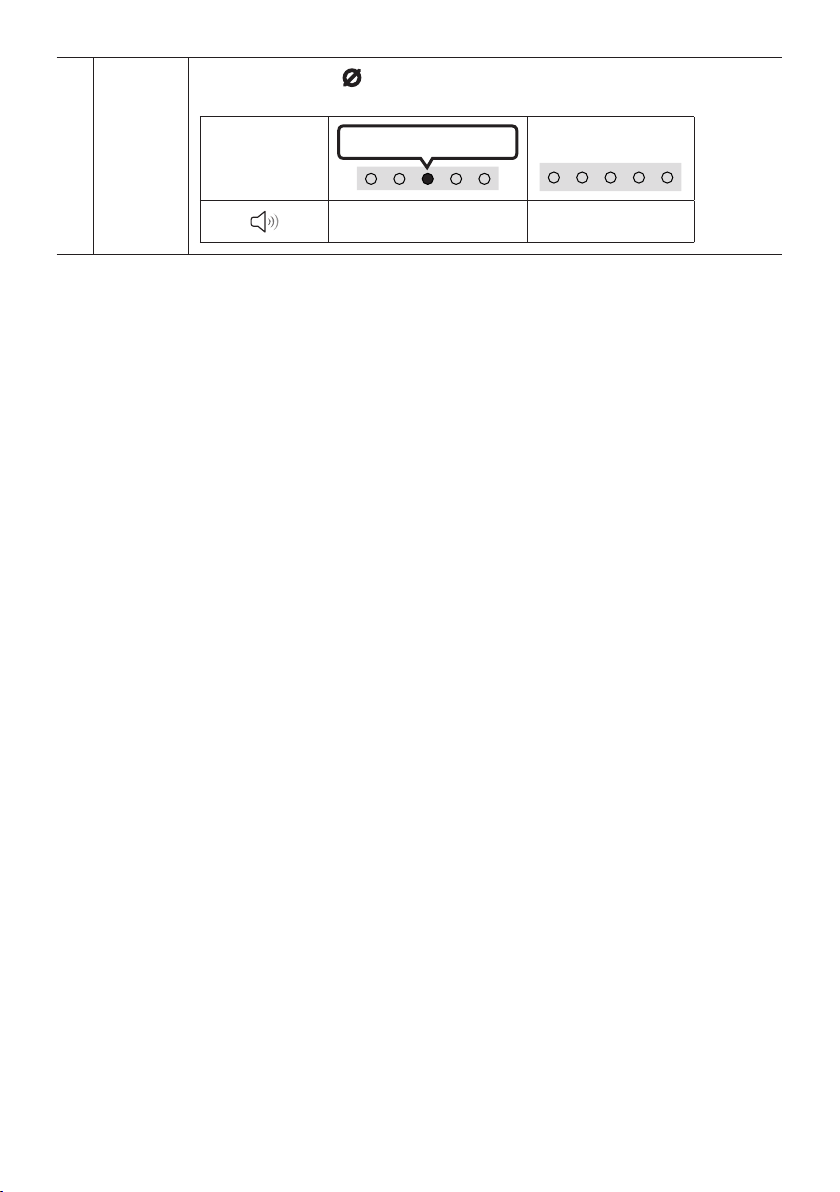
FRA - 9
Bouton
Marche/Arrêt
microphone
Appuyez sur le bouton (Marche/Arrêt microphone) pour activer ou désactiver le
microphone.
Voyant DEL
Voyant rouge allumé
«Mic Off» «Mic On»
• Lorsque vous branchez le câble d’alimentation CA, le bouton d’alimentation se met à fonctionner au
bout de 4 à 6 secondes.
• Lorsque vous allumez cet appareil, vous devrez patienter 4 à 5 secondes avant qu’il ne produise du
son.
• Si le son provient à la fois du téléviseur et du Soundbar, accédez au menu Paramètres
correspondant au son du téléviseur et dénissez le haut-parleur du téléviseur sur Haut-p. externe.
• Vous pouvez activer et désactiver la réaction acoustique en utilisant l’application SmartThings.
Pour plus de détails sur l’utilisation de l’application SmartThings, consultez « Méthode2.
ConnexionparWi-Fi(réseausansl) ».
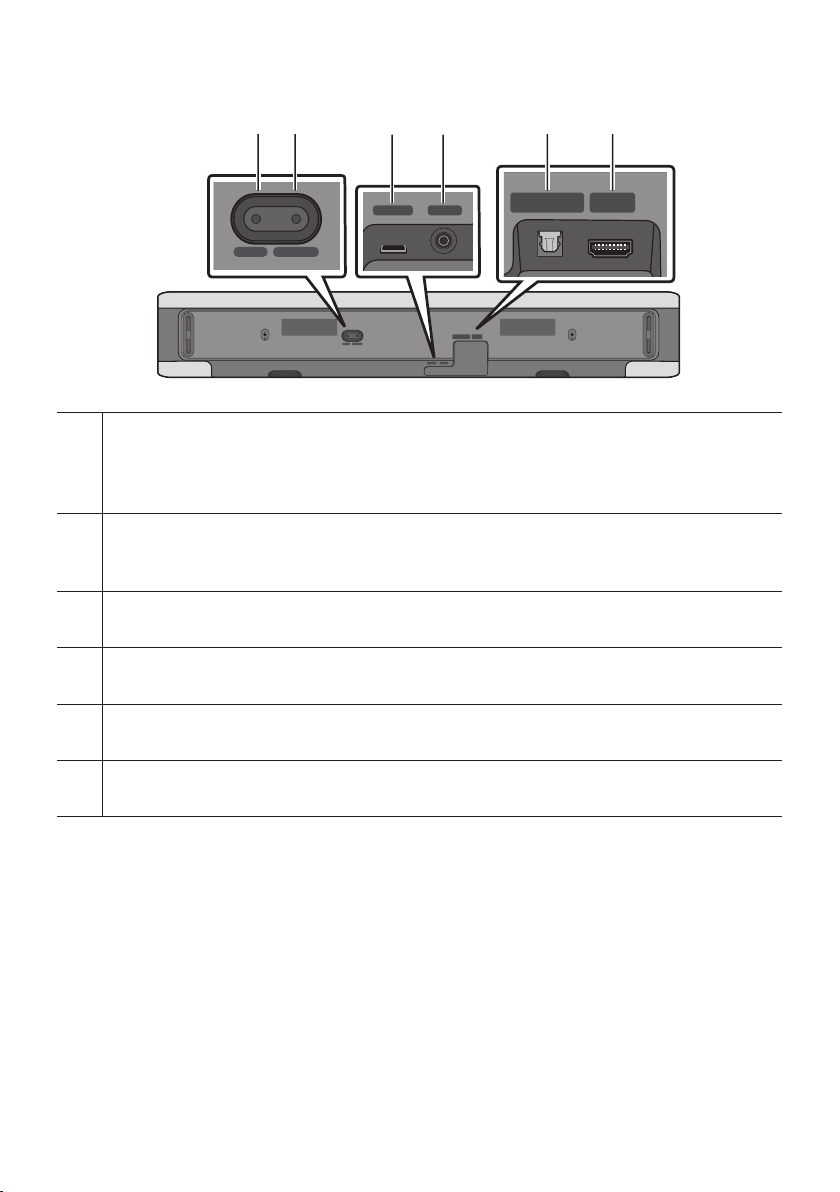
FRA - 10
Panneau dessous du Soundbar
SERVICE DC 19V
HDMI
(ARC)
DIGITAL AUDIO IN
(OPTICAL)
ID SET NETWORK
SERVICE DC 19V
HDMI
(ARC)
DIGITAL AUDIO IN
(OPTICAL)
SERVICE DC 19V
HDMI OUT
(TV-ARC)
DIGITAL AUDIO IN
(OPTICAL)
DIGITAL AUDIO IN
(OPTICAL)
ID SET NETWORK
SERVICE DC 19V
HDMI
(ARC)
DIGITAL AUDIO IN
(OPTICAL)
ID SET NETWORK
SERVICE DC 19V
HDMI
(ARC)
DIGITAL AUDIO IN
(OPTICAL)
SERVICE DC 19V
HDMI OUT
(TV-ARC)
DIGITAL AUDIO IN
(OPTICAL)
DIGITAL AUDIO IN
(OPTICAL)
ID SET NETWORK
SERVICE DC 19V
HDMI
(ARC)
DIGITAL AUDIO IN
(OPTICAL)
ID SET NETWORK
SERVICE DC 19V
HDMI
(ARC)
DIGITAL AUDIO IN
(OPTICAL)
SERVICE DC 19V
HDMI OUT
(TV-ARC)
DIGITAL AUDIO IN
(OPTICAL)
DIGITAL AUDIO IN
(OPTICAL)
ID SET NETWORK
SERVICE DC 19V
HDMI
(ARC)
DIGITAL AUDIO IN
(OPTICAL)
ID SET NETWORK
SERVICE DC 19V
HDMI
(ARC)
DIGITAL AUDIO IN
(OPTICAL)
SERVICE DC 19V
HDMI OUT
(TV-ARC)
DIGITAL AUDIO IN
(OPTICAL)
DIGITAL AUDIO IN
(OPTICAL)
ID SET NETWORK
ID SET
Appuyez sur ce bouton pour connecter le Soundbar à des haut-parleurs ambiophoniques et à un caisson
de basses sans l.
(Le haut-parleurs ambiophoniques et le caisson de basses sont vendus séparément.)
NETWORK
Appuyez sur ce bouton pour connecter le produit à un réseau sans l (Wi-Fi) par le biais de l'application
SmartThings.
SERVICE
Connectez un périphérique de stockage USB pour mettre à niveau le logiciel du produit.
DC 19V (Entrée de l'alimentation)
Connectez l'adaptateur secteur CA/CC. (Voir la page 16)
DIGITAL AUDIO IN (OPTICAL)
Permet de connecter la sortie numérique (optique) d'un appareil externe. (Voir la page 27)
HDMI (ARC)
Permet de connecter la prise HDMI d'un téléviseur. (Voir la page 21)
• Lorsque vous déconnectez le câble d’alimentation de l’adaptateur CA/CC de la prise murale, tirez
sur la prise. Ne tirez pas sur le câble.
• Ne connectez pas cet appareil ou d’autres composants à une prise CA tant que toutes les connexions
entre les composants ne sont pas établies.
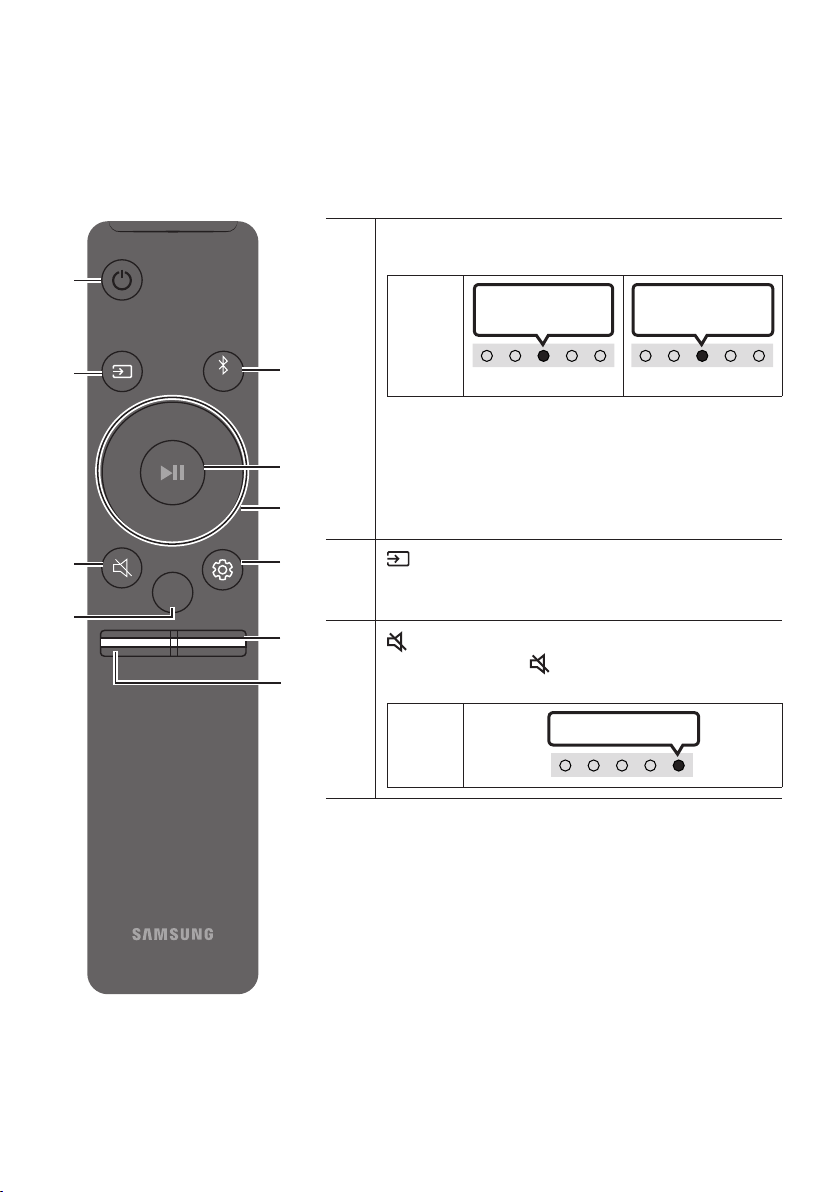
FRA - 11
03 UTILISATION DE LA TÉLÉCOMMANDE
Comment utiliser la télécommande
VOL WOOFER
SOUNDBAR
SOUND
MODE
PAIR
Alimentation
Permet d'allumer et d'éteindre le Soundbar.
Voyant
DEL
Levoyantcyan
clignote 1 fois
Allumé
Éteint
Levoyantrouge
clignote 3 fois
• Fonction Auto Power Down
L'appareil s'éteint automatiquement dans les situations
suivantes :
– En mode «Digital Audio In» ou «TV ARC» /
«Wi-Fi» / «Bluetooth» en l'absence de signal audio
pendant 18 minutes.
(Source)
Appuyez sur ce bouton pour sélectionner une source
connectée au Soundbar.
(Silence)
Appuyez sur le bouton (Silence) pour désactiver le son.
Appuyez de nouveau sur ce bouton pour activer le son.
Voyant
DEL
Clignotement répété
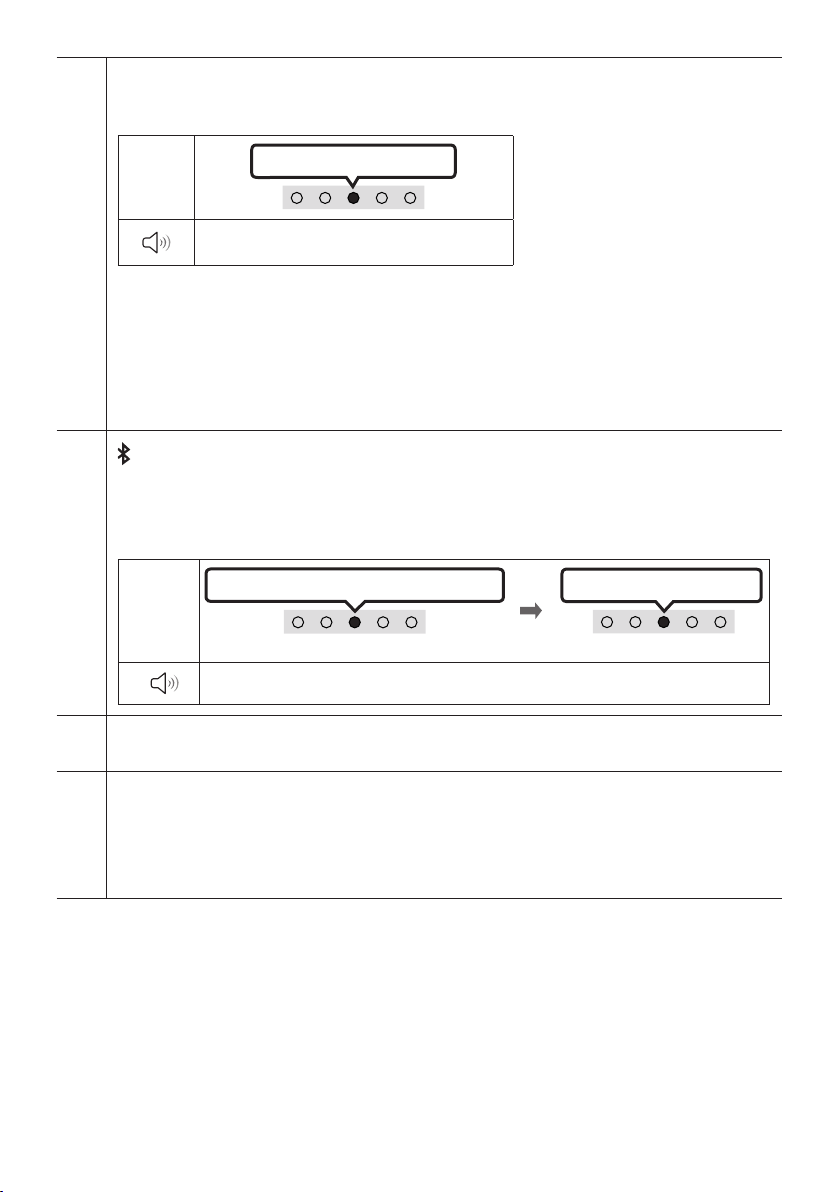
FRA - 12
SOUND MODE
En appuyant sur le bouton, vous pouvez sélectionner le mode audio souhaité. Chaque fois que vous
changez de mode, le voyant DEL multicolore clignote en blanc.
Voyant
DEL
Levoyantblancclignote1fois
«Standard» «Music» «AdaptiveSound»
• Standard
Émet le son d’origine.
• Music
Fournit un son plus naturel et plus enveloppant pour le contenu musical.
• AdaptiveSound
Analyse le contenu en temps réel et fournit automatiquement le champ sonore optimal en fonction
des caractéristiques du contenu.
Bluetooth PAIR
Basculez le Soundbar en mode association Bluetooth.
Lorsque vous appuyez sur le bouton, l'afchage des voyants DEL change comme indiqué ci-dessous.
• Jusqu'à ce que l'appairage soit terminé, les voyants DEL multicolores s'allument successivement :
Rouge → Vert → Bleu.
Voyant
DEL
Appairage
LesvoyantsRouge→ Vert → Bleu clignotent
Connexion établie
Levoyantcyanclignote3fois
«ReadytoconnectviaBluetooth.»
p (Lecture/Pause)
Vous pouvez également lire ou mettre en pause la musique en appuyant sur ce bouton.
Haut/Bas/Gauche/Droite
Appuyez sur Haut/Bas/Gauche/Droite sur le bouton pour sélectionner ou dénir des fonctions.
• Passer un morceau
Appuyez sur le bouton de Droite pour sélectionner le prochain morceau. Appuyez sur le bouton de
Gauche pour sélectionner le morceau précédent.
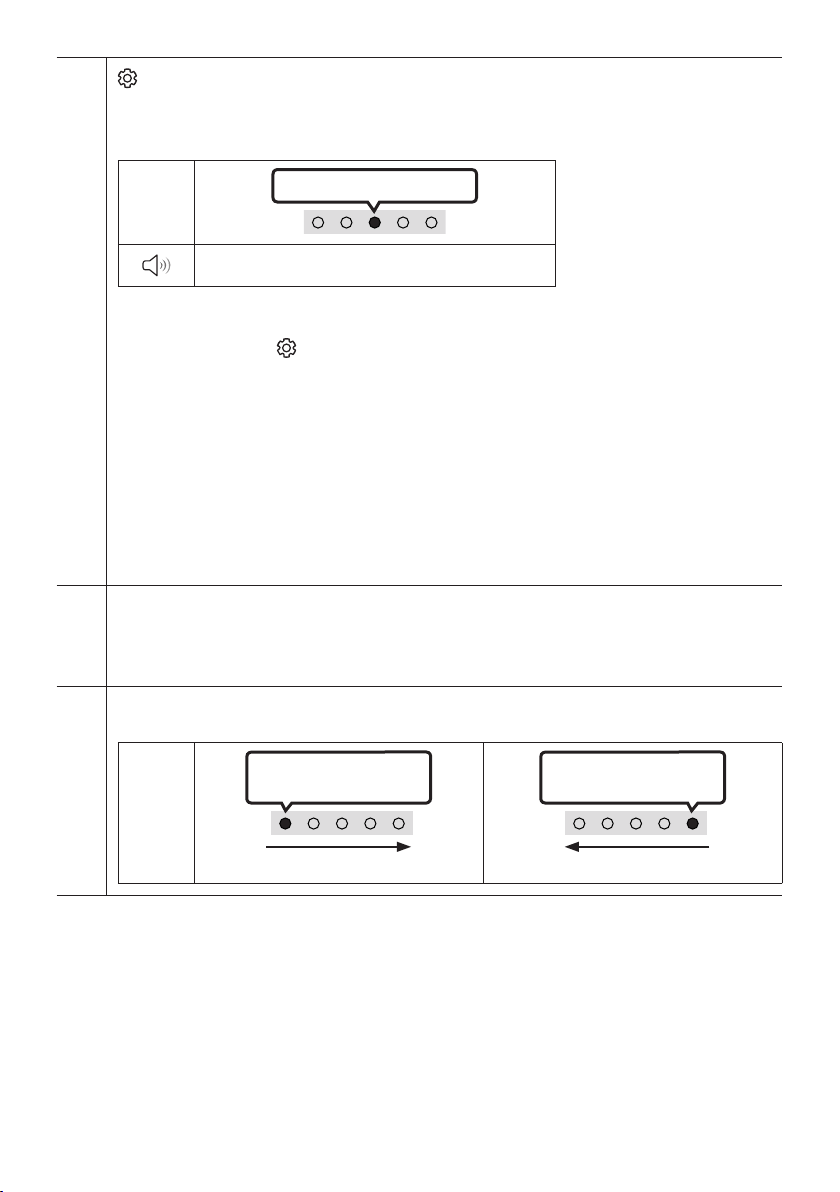
FRA - 13
(Réglages sonores)
En appuyant sur le bouton, vous pouvez sélectionner le mode audio souhaité. L'élément souhaité peut
être ajusté à l'aide des boutons Haut/Bas. Chaque fois que vous changez de mode, le voyant DEL
multicolore clignote en blanc.
Voyant
DEL
Levoyantblancclignote1fois
«Treble» «Bass» «Sync» «SideLevel»
– Pour contrôler le volume du son des aigus ou des basses, sélectionnez «Treble» ou «Bass» dans
les réglages sonores puis réglez le volume entre -6 et +6 à l’aide des boutons Haut/Bas.
– Maintenez le bouton (Réglages sonores) enfoncé pendant environ 5 secondes pour régler le son
pour chaque bande de fréquence. Vous pouvez utiliser les boutons Gauche/Droite pour sélectionner
les fréquences suivantes : 150 Hz, 300 Hz, 600 Hz, 1,2 kHz, 2,5 kHz, 5 kHz et 10 kHz. Vous pouvez
également dénir chaque fréquence sur une valeur allant de -6 à +6 à l’aide des boutons Haut/Bas.
(Veillez à ce que le mode son soit déni sur « Standard ».)
– Pour contrôler le volume de chaque haut-parleur, sélectionnez «SideLevel» dans les réglages
sonores, puis réglez le volume entre -6 et +6 à l’aide des boutons Haut/Bas.
– Si la vidéo de la télévision et l’audio du Soundbar ne sont pas synchronisés, sélectionnez «Sync»
dans les réglages sonores, puis réglez le retard de l’audio entre 0 et 300 millisecondes à l’aide des
boutons Haut/Bas.
– L’option «Sync» n’est prise en charge que pour certaines fonctions.
NIVEAU DU WOOFER (BASSES)
Faites basculer ce bouton vers le haut ou vers le bas pour régler le niveau du haut-parleur (basses) sur -12
ou entre -6 et +6. Pour régler le niveau de volume du haut-parleur (basses) sur 0 (par défaut), appuyez
sur ce bouton.
VOLUME
Faites basculer ce bouton vers le haut ou vers le bas pour régler le volume.
Voyant
DEL
Levoyantblancsedéplace
versladroite1fois
Augmentation du volume
Levoyantblancsedéplace
verslagauche1fois
Diminution du volume

FRA - 14
Caractéristiques de sortie pour les différents modes d’effets sonores
Effet Entrée
Sortie
Aveclecaissondebasses
uniquement
Aveccaissondesbasseset
haut-parleurarrièresansl
Standard
2.0 canaux 2.1 canaux 2.1 canaux
5.1 canaux 2.1 canaux 4.1 canaux
Music
2.0 canaux 4.1 canaux 6.1 canaux
5.1 canaux 4.1 canaux 6.1 canaux
Adaptive Sound
2.0 canaux 4.1 canaux 6.1 canaux
5.1 canaux 4.1 canaux 6.1 canaux
• Le haut-parleur arrière sans l Samsung et le caisson des basses peuvent être achetés
séparément. Pour acheter le haut-parleur ou le caisson des basses, communiquez avec le
vendeur auprès duquel vous avez acheté le Soundbar.

FRA - 15
RéglageduvolumeduSoundbaravecunetélécommandedu
téléviseur
Contrôlez le volume du Soundbar à l’aide de la télécommande du téléviseur.
• Cette fonction ne peut être utilisée qu’avec des télécommandes infrarouges. Les
télécommandes Bluetooth (télécommandes qui nécessitent un appairage) ne sont pas prises en
charge.
• Réglez le haut-parleur du téléviseur sur Haut-p. externe pour utiliser cette fonction.
• Fabricants qui utilisent cette fonction :
VIZIO, LG, Sony, Sharp, PHILIPS, PANASONIC, TOSHIBA, Hisense, RCA
1. Éteignez le Soundbar.
2. Appuyez sur le bouton WOOFER et maintenez-le enfoncé pendant 5 secondes.
À chaque fois que vous faites basculer le bouton WOOFER vers le haut et le maintenez enfoncé
pendant 5 secondes, le mode change, dans l’ordre suivant : « Samsung-TV Remote » (Mode par
défaut), « Off-TV Remote », « All-TV Remote ».
L'état du voyant DEL change à chaque changement de mode, comme illustré ci-dessous.
Bouton de la télécommande Voyant DEL État
SOUND
MODE
VOL
WOOFER
SOUNDBAR
5 Sec
« Samsung-TV Remote »
(Mode par défaut)
Levoyantcyan
clignote 1 fois
Télécommande infrarouge du
téléviseur Samsung activée.
SOUND
MODE
VOL
WOOFER
SOUNDBAR
5 Sec
« Off-TV Remote »
Levoyantclignote
en rouge 1 fois
Télécommande du téléviseur
désactivée.
SOUND
MODE
VOL
WOOFER
SOUNDBAR
5 Sec
« All-TV Remote »
Levoyantclignote
en bleu 1 fois
Télécommande infrarouge du
téléviseur tiers activée.
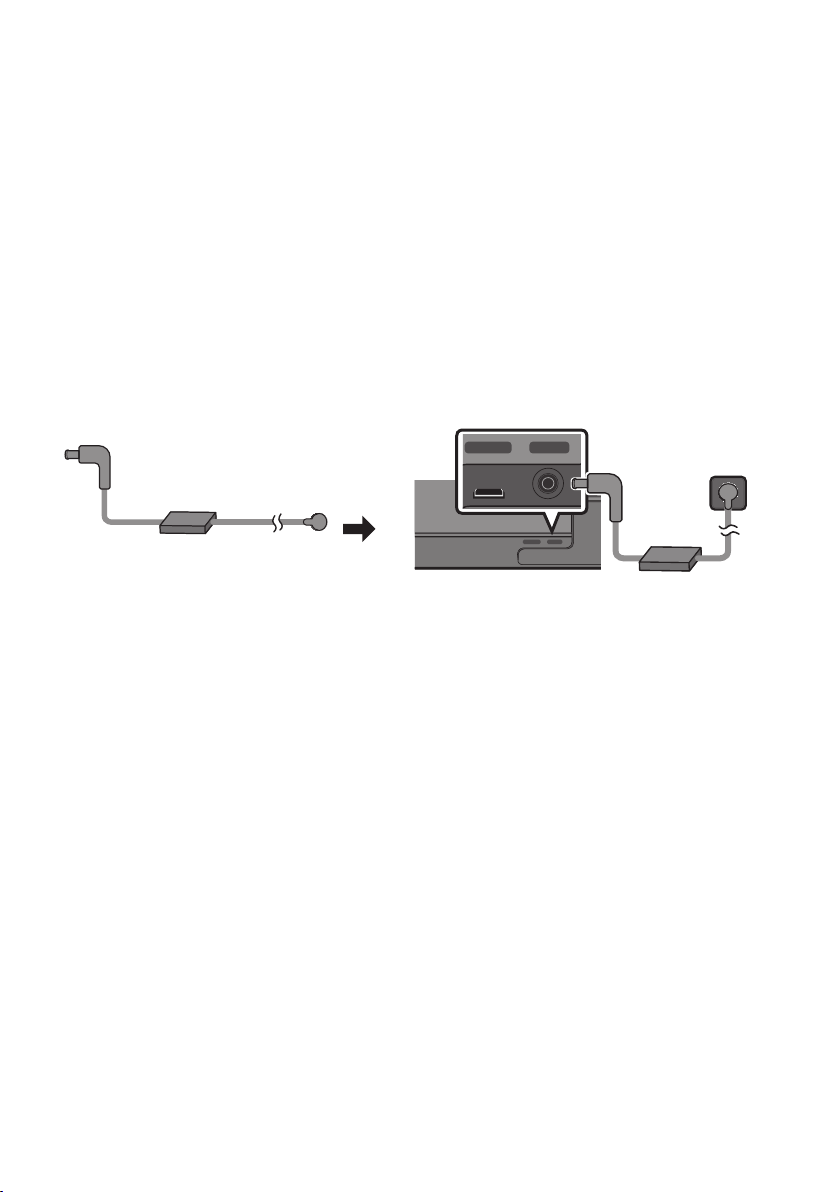
FRA - 16
04 CONNEXION DU SOUNDBAR
Connexion de l'alimentation électrique
An de brancher le Soundbar à une prise électrique, utilisez les composants d’alimentation dans l’ordre
suivant :
• Pour plus d'informations sur les exigences en matière d'alimentation électrique et de
consommation d'énergie, reportez-vous à l'étiquette apposée sur le produit. (Étiquette : Partie
inférieure de l’unité principale du Soundbar)
1. Tout d’abord, raccordez le câble d’alimentation à l’adaptateur CA/CC.
Connectez l’adaptateur CA/CC (avec le câble d’alimentation) au Soundbar.
2. Raccordez le cordon d'alimentation à une prise murale.
DC 19V
Cordon
d'alimentation
Adaptateur CA/CC
SERVICE DC 19V
HDMI
(ARC)
DIGITAL AUDIO IN
(OPTICAL)
ID SET NETWORK
SERVICE DC 19V
HDMI
(ARC)
DIGITAL AUDIO IN
(OPTICAL)
SERVICE DC 19V
HDMI OUT
(TV-ARC)
DIGITAL AUDIO IN
(OPTICAL)
DIGITAL AUDIO IN
(OPTICAL)
ID SET NETWORK
SERVICE DC 19V
HDMI
(ARC)
DIGITAL AUDIO IN
(OPTICAL)
ID SET NETWORK
SERVICE DC 19V
HDMI
(ARC)
DIGITAL AUDIO IN
(OPTICAL)
SERVICE DC 19V
HDMI OUT
(TV-ARC)
DIGITAL AUDIO IN
(OPTICAL)
DIGITAL AUDIO IN
(OPTICAL)
ID SET NETWORK
DC 19V
Dessous de l'unité principale du
Soundbar
REMARQUES
• Si vous débranchez et rebranchez le cordon d'alimentation lorsque le produit est sous tension, le
Soundbar s'allume automatiquement.
• Veillez à bien poser à plat l'adaptateur CA/CC sur une table ou au sol. Si l'adaptateur CA/CC est
suspendu, avec l'entrée du câble d'alimentation CA vers le haut, de l'eau ou d'autres substances
étrangères peuvent pénétrer dans l'adaptateur et provoquer son dysfonctionnement.
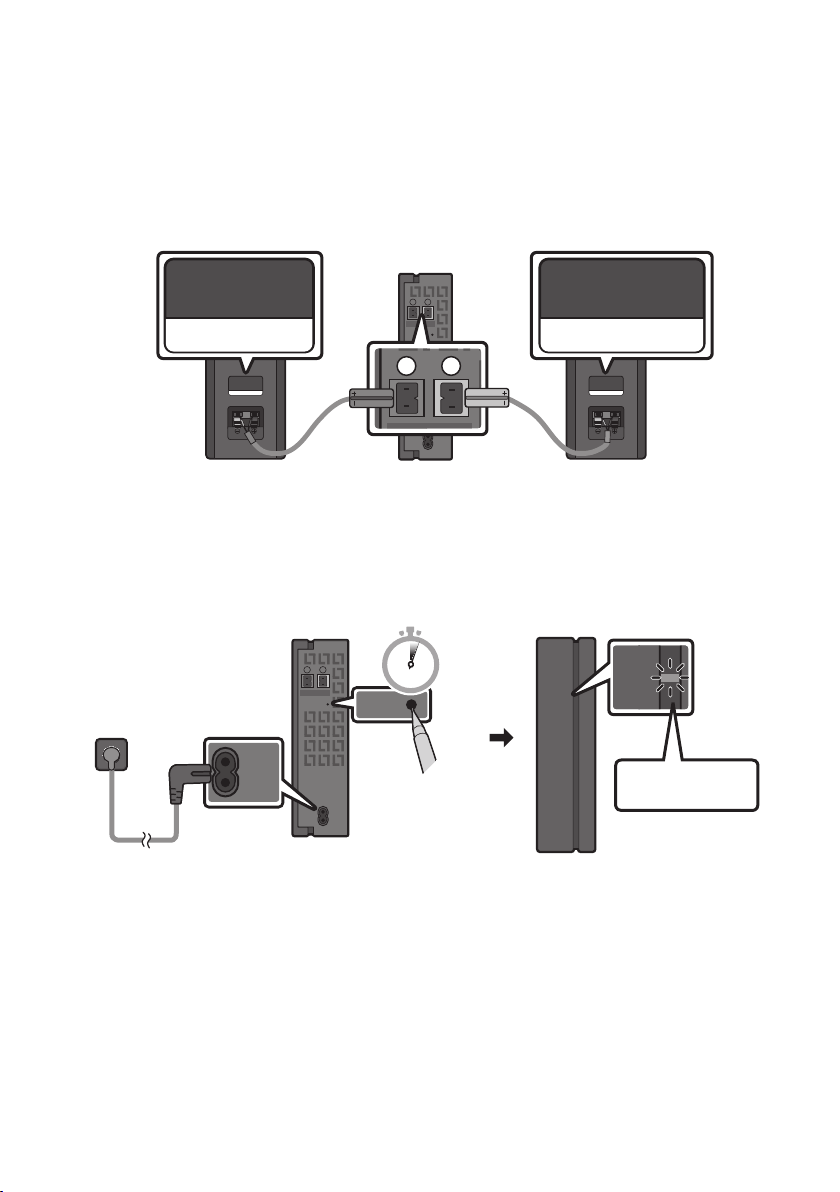
FRA - 17
RaccordementdumoduleSWA-8500S(venduséparément)auSoundbar
Passez à un véritable son ambiophonique sans l en connectant le nécessaire de haut-parleur arrière
sans l Samsung (SWA-8500S, vendu séparément) à votre Soundbar.
1. Connectez le module récepteur sans l à deux haut-parleurs surround.
– Les câbles du haut-parleur utilisent un code couleur.
SURROUND-LEFT
ID SET
L
R
SURROUND SPEAKERS OUT
SPEAKER IMPEDANCE : 3Ω
POWER
ID SET
L
R
SURROUND SPEAKERS OUT
SPEAKER IMPEDANCE : 3Ω
SURROUND-RIGHT
SURROUND-LEFT SURROUND-RIGHT
2. Vériez le statut de veille du module récepteur sans l après l’avoir branché dans une prise électrique.
• Le voyant LINK (bleu) du module récepteur sans l clignote. Si le voyant ne clignote pas, utilisez
une épingle pour appuyer sur le bouton ID SET et maintenez-le enfoncé pendant au moins
5secondes. Consultez le guide de l’utilisateur du SWA-8500S pour plus de détails.
ID SET
L
R
SURROUND SPEAKERS OUT
SPEAKER IMPEDANCE : 3Ω
POWER
POWER
ID SET
SURROUND SPEAKERS OUT
SPEAKER IMPEDANCE : 3Ω
STANDBY
LINK
STANDBY
LINK
Levoyantclignote
en bleu
5 Sec
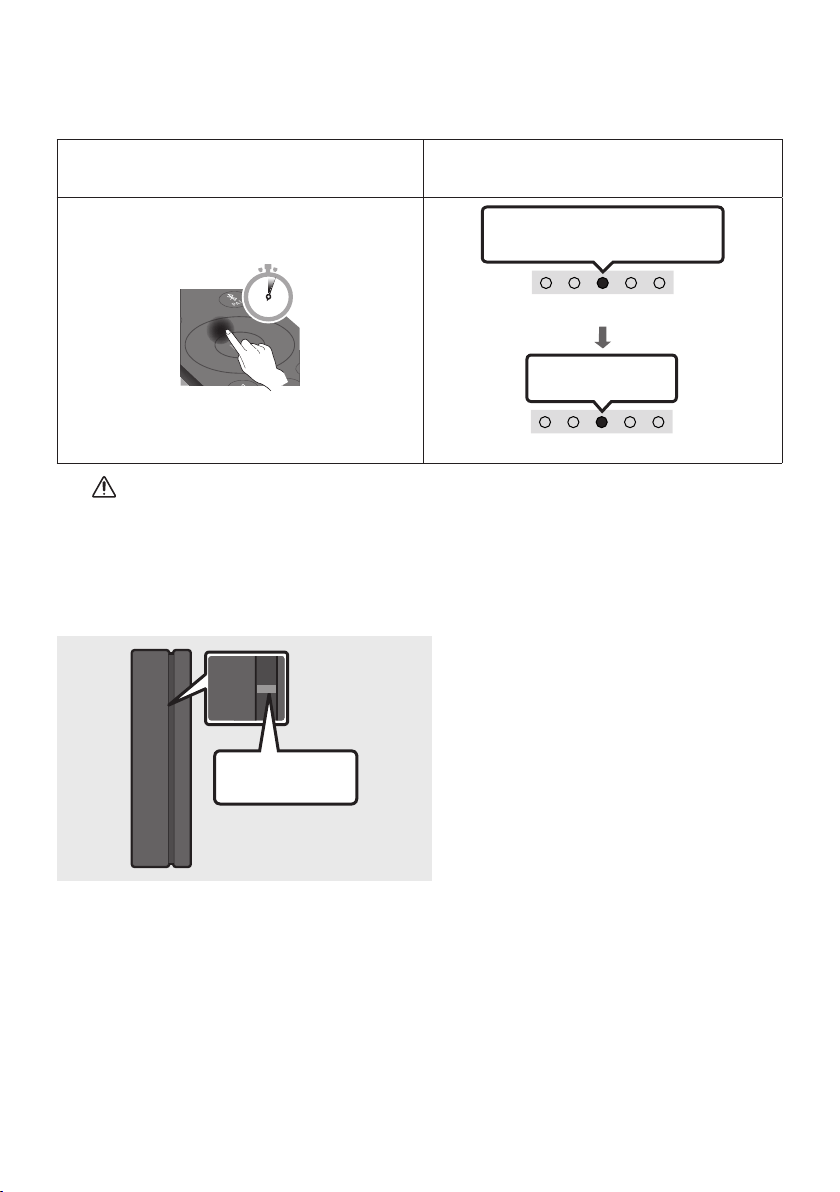
FRA - 18
3. Appuyez sur le bouton Haut de la télécommande et maintenez-le enfoncé pendant 5 secondes.
• Jusqu'à ce que l'appairage soit terminé, les voyants DEL multicolores s'allument successivement
: Rouge → Vert → Bleu.
Bouton d'appairage du haut-parleur arrière et du
haut-parleur
Voyant DEL
SOUND
MODE
PAIR
5 Sec
LesvoyantsRouge→ Vert → Bleu
clignotent
Appairage
Connexion établie
Levoyantcyan
clignote 3 fois
ATTENTION
• Si votre Soundbar est en train de lire de la musique lorsqu’il est connecté au module
SWA-8500S, vous entendrez probablement des grésillements provenant du haut-parleur lors
de la nalisation de la connexion.
4. Vériez que le voyant LINK est bleu xe (connexion établie).
STANDBY
LINK
STANDBY
LINK
Levoyantbleuest
allumé
Le voyant LINK cesse de clignoter et s’allume
en bleu xe lorsqu’une connexion est établie
entre le Soundbar et le module récepteur
sans l.
5. Si le module SWA-8500S n’est pas connecté, répétez la procédure décrite à l’étape 2.
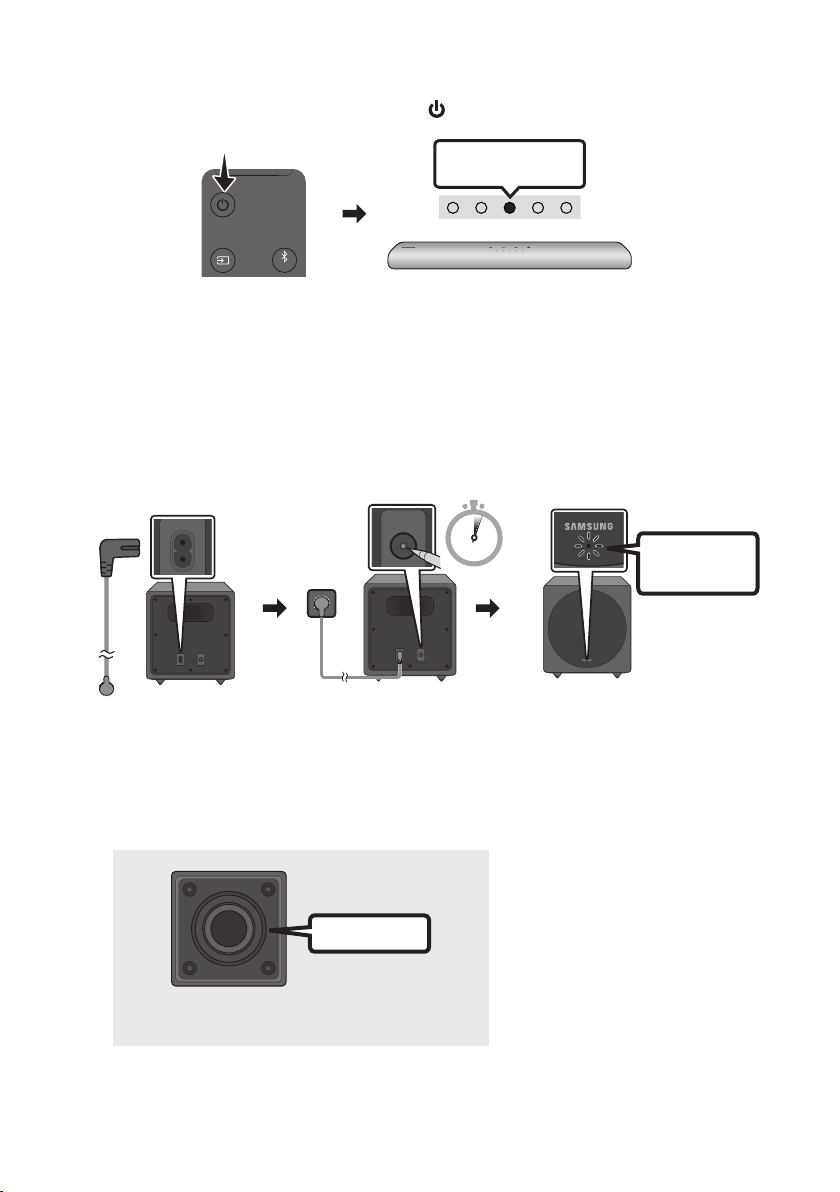
FRA - 19
RaccordementdumoduleSWA-W500(venduséparément)auSoundbar
1. Éteignez le Soundbar en appuyant sur le bouton (Alimentation) de la télécommande.
VOL WOOFER
SOUNDBAR
SOUND
MODE
PAIR
Levoyantrouge
clignote 3 fois
2. Branchez le caisson de basses sans l et vériez s'il est en veille.
• Branchez le cordon d'alimentation du caisson de basses sans l sur la prise électrique et sur le
caisson de basses sans l pour allumer ce dernier. Le voyant DEL LINK (DEL bleue) sur le caisson
de basses sans l clignote. Si le voyant DEL ne clignote pas, appuyez sur le bouton ID SET sur la
partie arrière du caisson de basses sans l à l'aide d'un outil pointu pendant 5 à 6 secondes,
jusqu'à ce que le voyant DEL LINK clignote (en bleu). Pour en savoir plus à propos de la DEL,
veuillez consulter le manuel d'utilisation SWA-W500.
Partiearrièreducaissondebassessansl
POWER ID SET
POWER ID SET
Partieavantducaissondebassessansl
POWER ID SET
POWER ID SET
Levoyant
clignote en bleu
POWER ID SET
ID SET
5 Sec
• L'unité principale est lourde. Veillez à ne pas vous pincer les doigts en appuyant sur la touche ID
SET ou en branchant le cordon d'alimentation à l'arrière de l'unité.
• La partie supérieure du caisson des basses est sujette aux rayures Manipulez-la avec
précaution.
Haut-parleur
Partieinférieureducaissondebassessansl
• Évitez toute pression ou tout
coup sur le Haut-parleur sur le
dessous de l'unité. Vous
risqueriez de le déformer ou de
l'endommager.
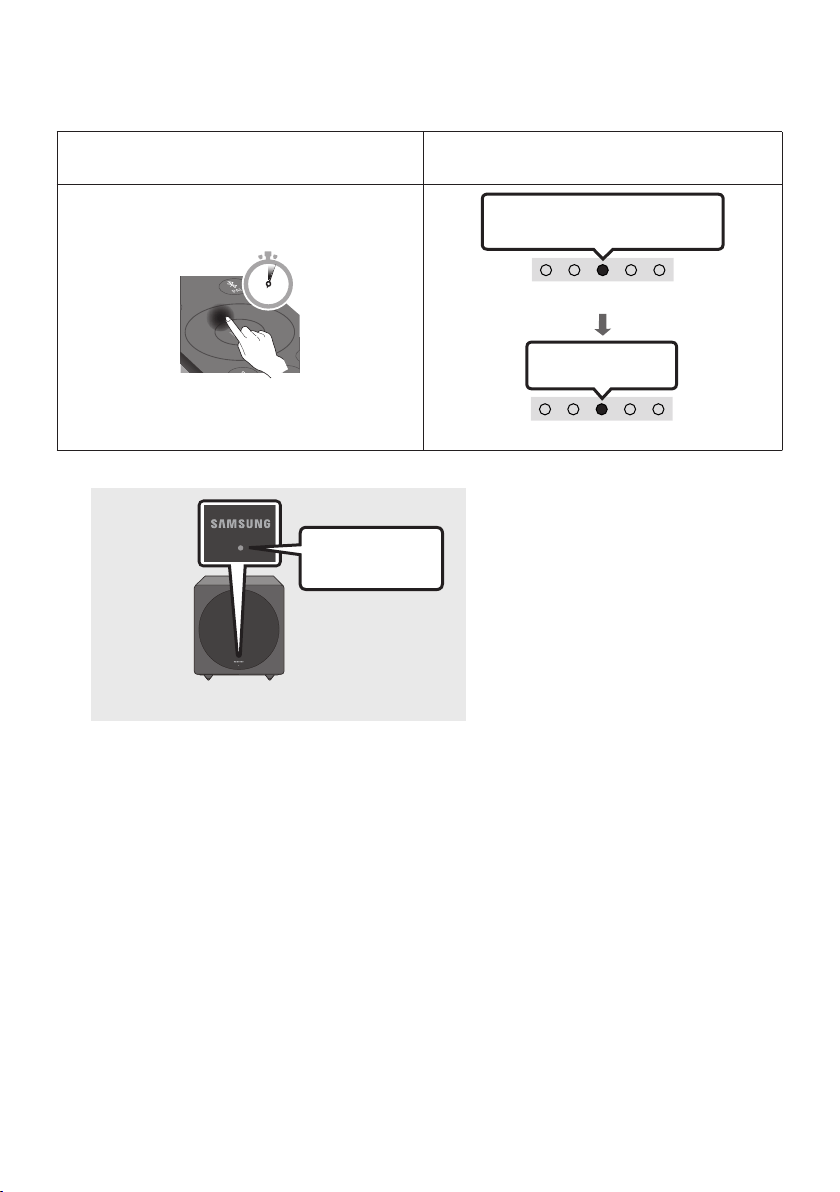
FRA - 20
3. Appuyez sur le bouton Haut de la télécommande et maintenez-le enfoncé pendant 5 secondes.
• Jusqu'à ce que l'appairage soit terminé, les voyants DEL multicolores s'allument successivement
: Rouge → Vert → Bleu.
Bouton d'appairage du haut-parleur arrière et du
haut-parleur
Voyant DEL
SOUND
MODE
PAIR
5 Sec
LesvoyantsRouge→ Vert → Bleu
clignotent
Appairage
Connexion établie
Levoyantcyan
clignote 3 fois
4. Vériez que le voyant LINK est bleu xe (connexion établie).
Partieavantducaissondebassessansl
Cesse de clignoter.
S'allume en bleu.
Le voyant LINK cesse de clignoter et
s'allume en bleu xe lorsque la
connexion est établie entre le Soundbar
et le caisson de basses sans l.
REMARQUES
– Ne connectez pas le cordon d'alimentation de ce produit ou de votre téléviseur à une prise murale
tant que toutes les connexions entre les composants ne sont pas établies.
– Avant de déplacer ou d'installer ce produit, veillez à couper le courant et à débrancher le cordon
d'alimentation.
– La distance maximale de transmission du signal sans l entre de l'unité principale est d'environ
10m (32,8 pieds), mais peut varier en fonction de votre environnement d'utilisation. Si un mur
métallique ou en béton armé se trouve entre l'unité principale et le caisson des basses sans l, il est
possible que le système ne fonctionne pas, car le signal sans l ne peut pas traverser le métal.
PRÉCAUTIONS
– Les antennes de réception sans l sont intégrées au caisson des basses sans l. Maintenez les
unités à l’écart de l’eau et de l’humidité.
– Pour des performances d’écoute optimales, assurez-vous que la zone entourant le caisson des
basses sans l et le module récepteur sans l (vendu séparément) soit libre de tout obstacle.
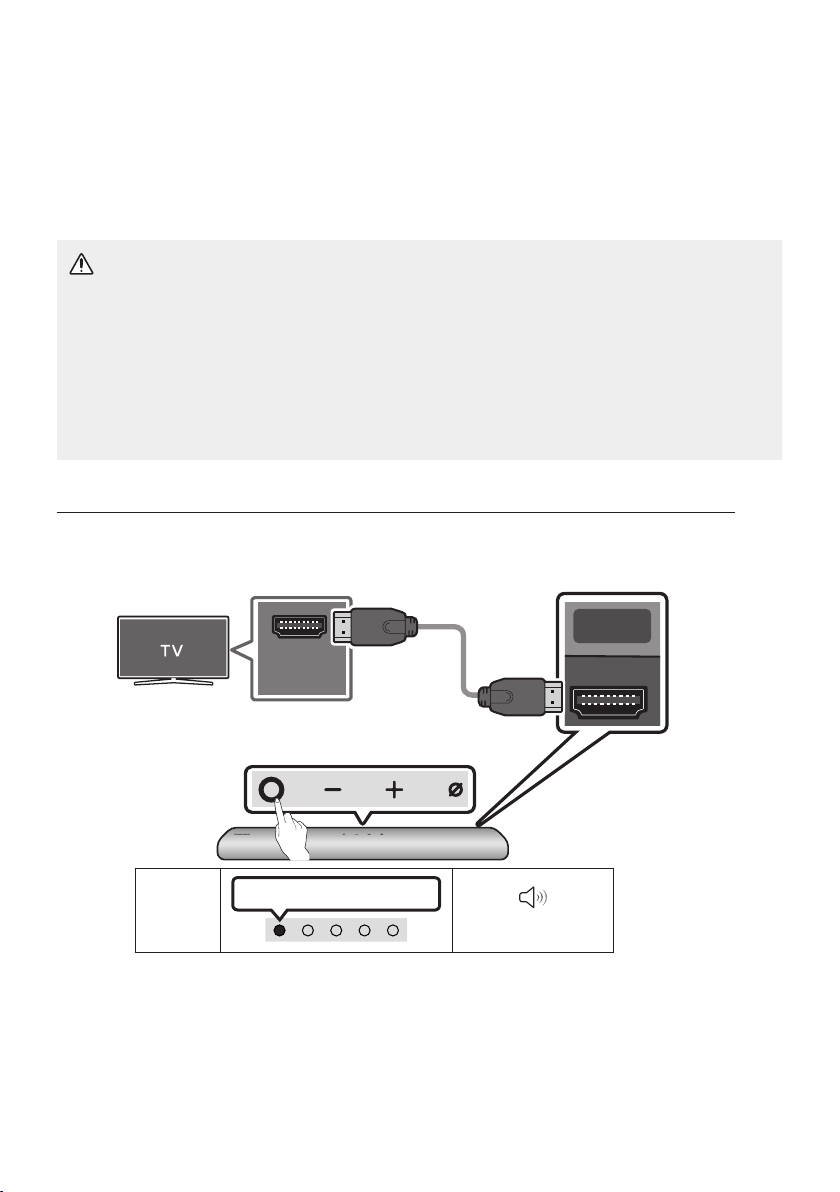
FRA - 21
05 UTILISATION D'UNE CONNEXION FILAIRE
AVEC LE TÉLÉVISEUR
Méthode1.ConnexionavecuncâbleHDMI
MISE EN GARDE
• Lorsque le câble HDMI et le câble optique sont tous les deux connectés, le signal HDMI est reçu
en premier.
• Pour connecter le câble HDMI entre le téléviseur et le Soundbar, assurez-vous de connecter les
bornes marquées ARC. Sinon, le son du téléviseur risque de ne pas être émis.
• Veillez à utiliser le câble portant le logo de certication HDMI premium. De plus, assurez-vous
que le câble est un câble Ethernet HDMI haute vitesse certié de type A. (CÂBLE HDMI HAUTE
VITESSE AVEC ETHERNET)
ConnexiondutéléviseurprenantenchargeHDMIARC(AudioReturnChannel)
HDMI IN
(ARC)
SERVICE DC 19V
HDMI
(ARC)
DIGITAL AUDIO IN
(OPTICAL)
Connectez le câble au port
HDMIIN(ARC)devotretéléviseur.
Câble HDMI
Panneau dessous
du Soundbar
Connectez le câble au port HDMI (ARC)
de l'unité principale du Soundbar.
Dessus du Soundbar
Voyant
DEL
Voyant blanc allumé -> éteint
«Digital Audio In»
1. Connectez le câble HDMI comme indiqué sur la gure en vous assurant que le Soundbar et le
téléviseur sont éteints.
2. Allumez le Soundbar et le téléviseur.
3. Le son du téléviseur est émis par le Soundbar.

FRA - 22
• Lorsque le son du téléviseur n'est pas restitué, appuyez sur le bouton (Multifonction) en
haut du Soundbar ou sur le bouton (Source) de la télécommande pour sélectionner le
mode «Digital Audio In».
• Si aucun son ne sort, vériez à nouveau la connexion du câble HDMI.
• Utilisez les boutons de volume de la télécommande du téléviseur pour modier le volume du
Soundbar.
REMARQUES
• Lorsque vous connectez le téléviseur prenant en charge HDMI ARC (Audio Return Channel) au
Soundbar avec un câble HDMI, vous pouvez transmettre les données vidéo et audio numériques
sans connecter de câble optique séparé.
• Nous vous recommandons d'utiliser si possible un câble HDMI sans noyau. Si vous utilisez un câble
HDMI à noyau, utilisez-en un dont le diamètre est inférieur à 0,55 po (14 mm).
• Cette fonction n'est pas disponible si le câble HDMI ne prend pas en charge ARC.
• Lorsque le son d'une diffusion est encodé en Dolby Digital et que le paramètre «Format de sortie
audio numérique» est déni sur PCM sur votre téléviseur, nous recommandons de changer ce
paramètre en le dénissant sur Dolby Digital. Une fois que vous aurez modié ce paramètre sur le
téléviseur, vous pourrez proter d'une meilleure qualité sonore. (Le menu du téléviseur peut utiliser
des mots différents pour Dolby Digital et PCM selon le fabricant du téléviseur.)
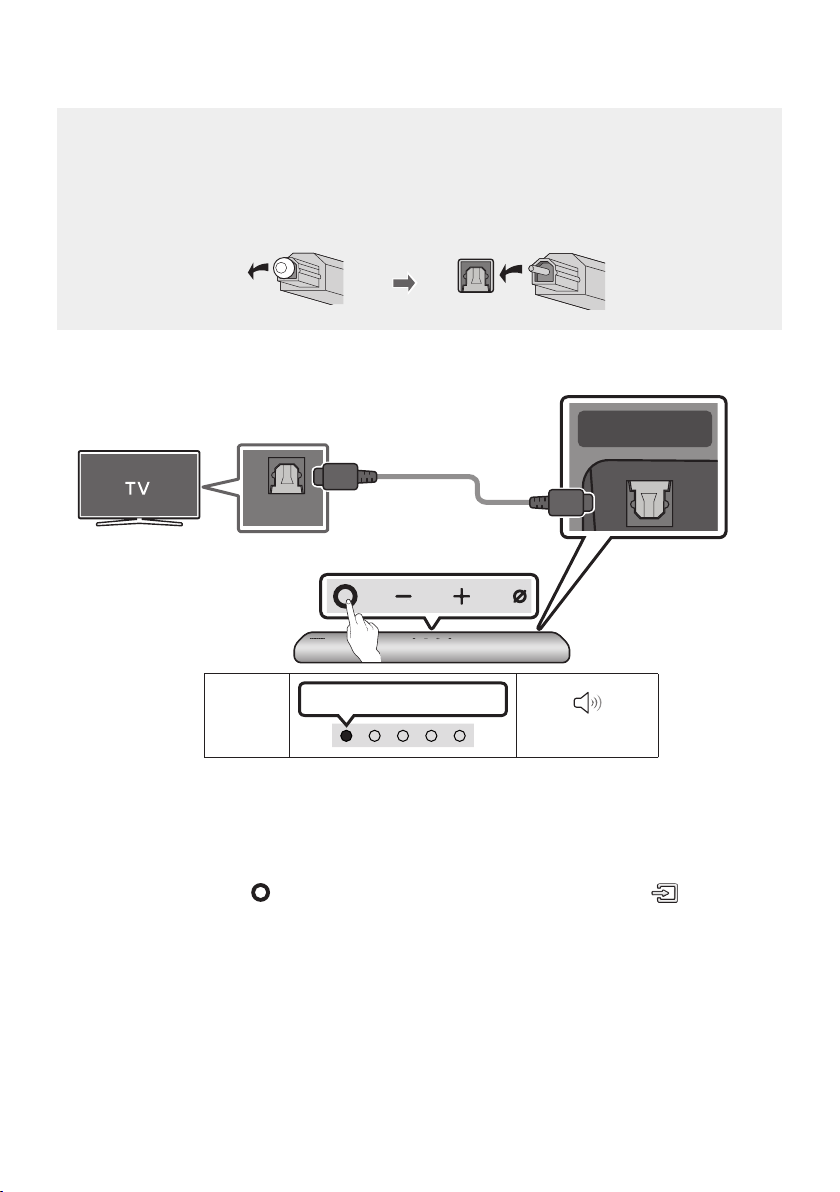
FRA - 23
Méthode2.Connexionàl'aided'uncâbleoptique
Liste de contrôle de pré-connexion
• Lorsque le câble HDMI et le câble optique sont tous les deux connectés, le signal HDMI est reçu
en premier.
• Lorsque vous utilisez un câble optique et que les bornes ont leurs caches, assurez-vous de
retirer les caches.
Voyant
DEL
Voyant blanc allumé -> éteint
«Digital Audio In»
OPTICAL OUT
SERVICE DC 19V
HDMI OUT
(TV-ARC)
DIGITAL AUDIO IN
(OPTICAL)
Panneau dessous du Soundbar
Câble optique
(non fourni)
Dessus du Soundbar
1. Le téléviseur et le Soundbar étant éteints, connectez le port DIGITAL AUDIO IN (OPTICAL) du
Soundbar et le port de sortie OPTICAL du téléviseur à l'aide du câble optique (non fourni), comme
indiqué sur la gure.
2. Allumez le Soundbar et le téléviseur.
3. Appuyez sur le bouton (Multifonction) en haut du Soundbar ou sur le bouton (Source) de la
télécommande, puis sélectionnez le mode «Digital Audio In». Ensuite, l'annonce, «Digital Audio
In» est émise.
4. Le son du téléviseur est émis par le Soundbar.
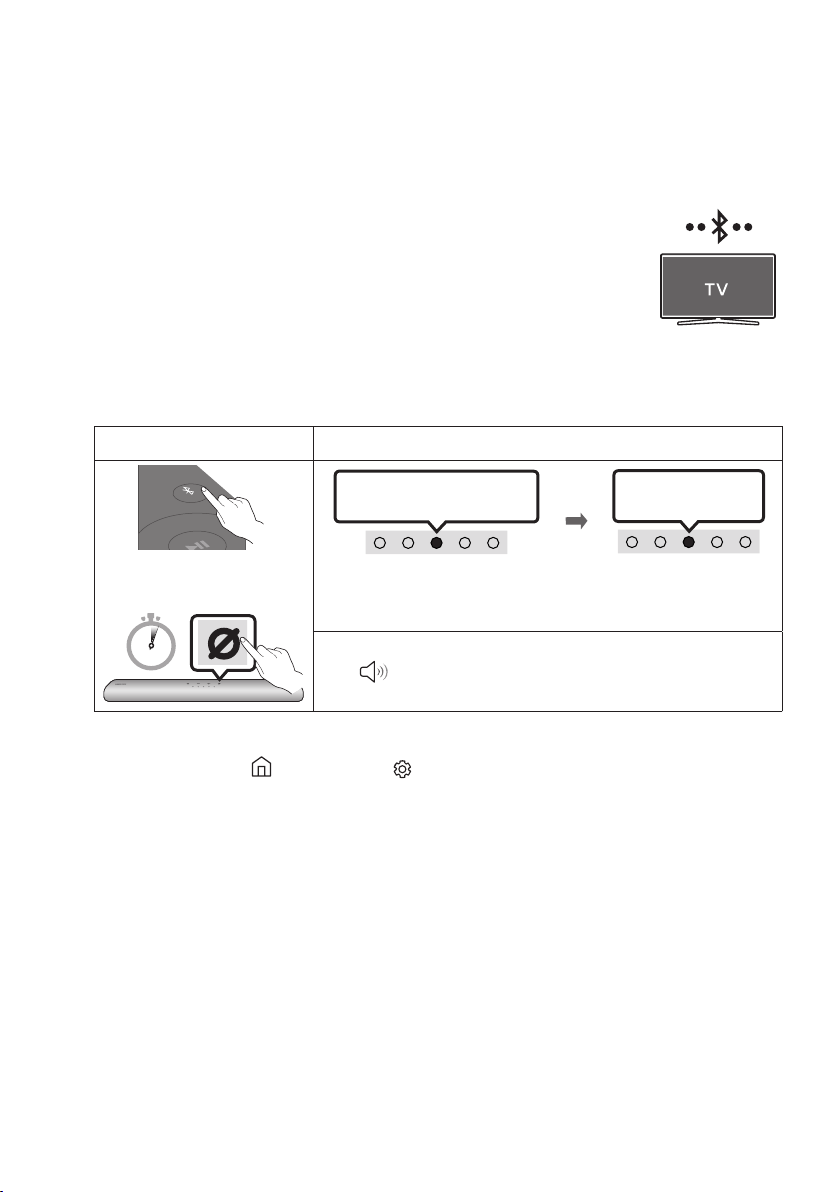
FRA - 24
06 UTILISATION D'UNE CONNEXION SANS
FIL AVEC LE TÉLÉVISEUR
Méthode1.ConnexionparBluetooth
Lorsqu'un téléviseur Samsung est connecté via Bluetooth, vous pouvez entendre le
son stéréo sans les tracas du câblage.
• Un seul téléviseur Samsung peut être connecté à la fois.
• Un téléviseur Samsung prenant en charge Bluetooth peut être connecté.
Vériez les spécications de votre téléviseur.
Connexion initiale
1.
Bouton Appairage Bluetooth Voyant DEL
SOUND
MODE
PAIR
OU
Appairage
LesvoyantsRouge→ Vert →
Bleu clignotent
Levoyantcyan
clignote 3 fois
Connexion établie
En mode « Bluetooth »
5 Sec
• Jusqu'à ce que l'appairage soit terminé, les voyants DEL multicolores
s'allument successivement : Rouge → Vert → Bleu.
«ReadytoconnectviaBluetooth.»
2. Sélectionnez le mode Bluetooth sur le téléviseur Samsung.
(Par exemple, Accueil ( ) Paramètres ( ) Son Sortie audio Liste des haut-parleurs
Bluetooth [AV] Samsung Soundbar S60T / [AV] Samsung Soundbar S61T (Bluetooth))
3. Sélectionnez «[AV] Samsung Soundbar S60T / [AV] Samsung Soundbar S61T» dans la liste sur
l'écran du téléviseur.
Un Soundbar disponible est indiquée par «Association requise» ou «Associé» sur la liste des
appareils Bluetooth du téléviseur. Pour connecter le téléviseur Samsung au Soundbar, sélectionnez
le message, puis établissez une connexion.
4. Vous pouvez maintenant entendre le son du téléviseur Samsung à partir du Soundbar.
• S'il existe un historique de connexion entre le Soundbar et le téléviseur Samsung, le Soundbar
est automatiquement connecté lorsque vous passez au mode «Bluetooth».

FRA - 25
En cas d'échec de la connexion de l'équipement
• Si vous avez un Soundbar existant (par exemple, [AV] Samsung Soundbar S60T / [AV] Samsung
Soundbar S61T) dans la liste des haut-parleurs du téléviseur Samsung, supprimez-le.
• Répétez ensuite les étapes 1à3.
DéconnexionduSoundbardutéléviseurSamsung
Appuyez sur le bouton (Multifonction) en haut du Soundbar ou sur le bouton (Source) de la
télécommande pour sélectionner un mode autre que «Bluetooth».
• La déconnexion prend du temps car le téléviseur Samsung doit recevoir une réponse du Soundbar.
(Le temps requis peut varier en fonction du modèle de téléviseur Samsung.)
Remarques sur la connexion Bluetooth
• Localisez un nouvel appareil à moins d’3,28 pi (1 m) pour vous connecter via la communication
Bluetooth.
• Si un code PIN vous est demandé lors de la connexion d'un appareil Bluetooth, entrez <0000>.
• Le Soundbar s'éteint automatiquement au bout de 18minutes à l'état Prêt.
• Le Soundbar peut ne pas effectuer correctement la recherche ou la connexion Bluetooth dans les
circonstances suivantes:
– S'il y a un fort champ électrique autour du Soundbar.
– Si plusieurs appareils Bluetooth sont associés simultanément au Soundbar.
– Si l'appareil Bluetooth est éteint, pas en place ou fonctionne mal.
• Les appareils électroniques peuvent créer des interférences radio. Les appareils produisant des
ondes électromagnétiques doivent être gardés à distance de l'unité principale du Soundbar, par
exemple les micro-ondes, les appareils de réseau sans l, etc.

FRA - 26
Méthode 2. Connexion en Wi-Fi
Liste de contrôle de pré-connexion
• La connexion Wi-Fi est disponible uniquement sur les téléviseurs Samsung.
• Vériez que lerouteursansl(Wi-Fi)est activé et que le téléviseurestconnectéaurouteur.
• Le téléviseur et le Soundbar doivent être connectés au même réseau sans l (Wi-Fi).
• Si votre routeur sans l (Wi-Fi) utilise un canal DFS, vous ne pourrez pas établir de connexion
Wi-Fi entre le téléviseur et le Soundbar. Communiquez avec votre fournisseur de service Internet
pour plus de détails.
• Étant donné que les menus peuvent varier selon l’année de fabrication, consultez le manuel de
votre téléviseur
• Pour brancher le téléviseur à la Soundbar par Wi-Fi, branchez d’abord la Soundbar au routeur
sans l. Reportez-vous à la page31 pour voir comment établir une connexion Wi-Fi.
1. Pour plus d’informations sur la connexion Wi-Fi à la Soundbar, voir la page 31, «Méthode2.
ConnexionparWi-Fi(réseausansl)».
2. Modiez la source d’entrée du téléviseur en utilisant le menu Audio sur le Soundbar.
• TéléviseursSamsungsortisen2017ouaprès
Accueil ( ) Paramètres ( ) Son Sortie audio [AV] Samsung Soundbar S60T /
[AV] Samsung Soundbar S61T (Wi-Fi)
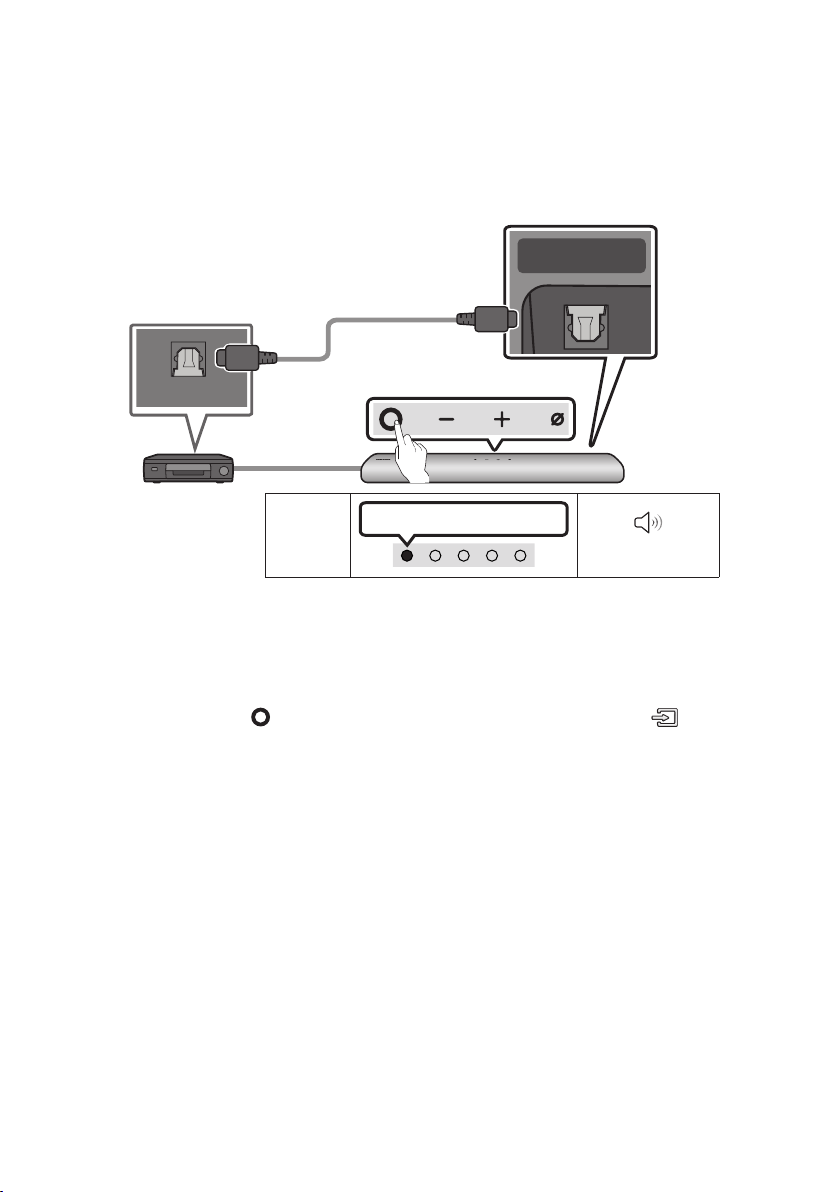
FRA - 27
07 CONNEXION D'UN APPAREIL EXTERNE
Connexion à l'aide d'un câble optique
Voyant
DEL
Voyant blanc allumé -> éteint
«Digital Audio In»
- AUDIO -
R L
OPTICAL OUT
SERVICE DC 19V
HDMI OUT
(TV-ARC)
DIGITAL AUDIO IN
(OPTICAL)
Panneau dessous du Soundbar
Câble optique
(non fourni)
Dessus du Soundbar
Lecteur BD/DVD/
Décodeur/Console de jeu
1. Éteignez l'appareil externe et le Soundbar, puis connectez le port DIGITAL AUDIO IN (OPTICAL) du
Soundbar et le port de sortie OPTICAL de l'appareil externe à l'aide du câble optique (non fourni),
comme indiqué sur la gure.
2. Allumez le Soundbar et l'appareil externe.
3. Appuyez sur le bouton (Multifonction) en haut du Soundbar ou sur le bouton (Source) de la
télécommande, puis sélectionnez le mode «Digital Audio In». Ensuite, l'annonce, «Digital Audio
In» est émise.
4. Le son de l'appareil externe est émis par le Soundbar.
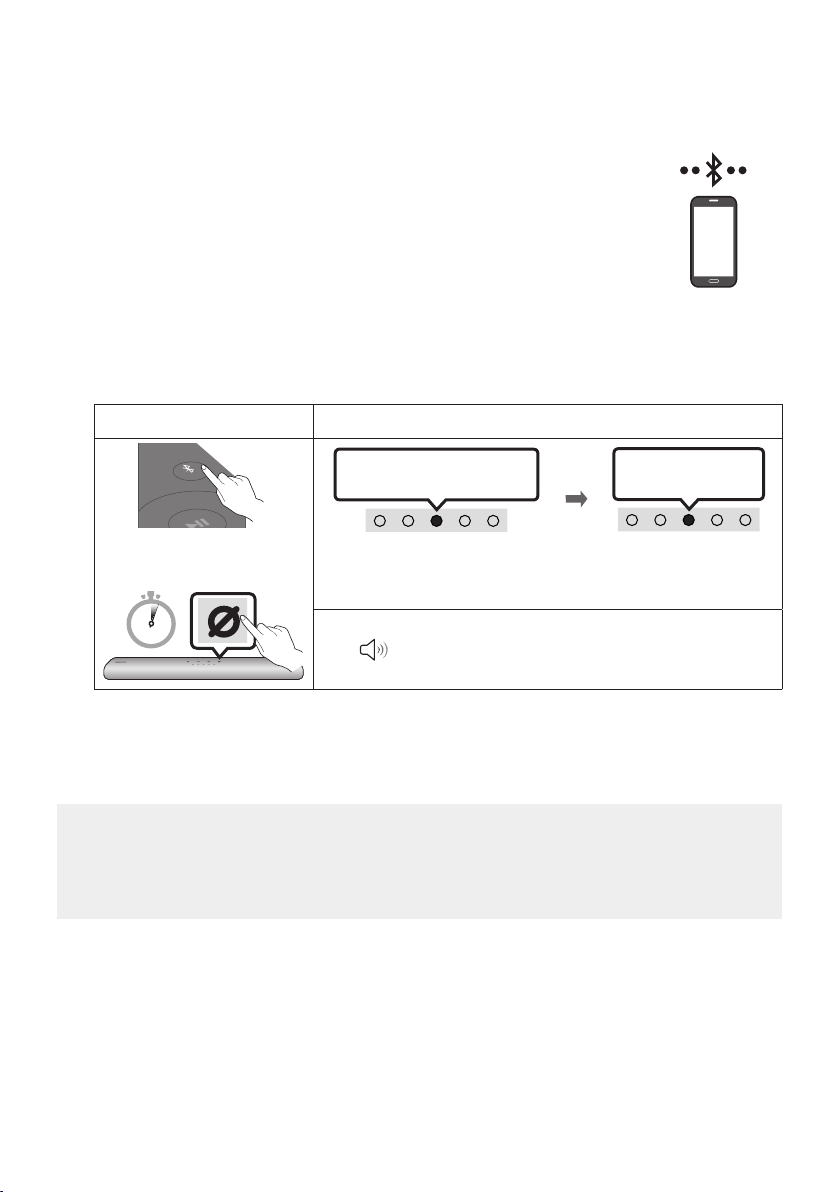
FRA - 28
08 CONNEXION D'UN APPAREIL MOBILE
Méthode 1. Connexion par Bluetooth
Lorsqu'un appareil mobile est connecté par Bluetooth, vous pouvez entendre le
son stéréo sans les tracas du câblage.
• Lorsque vous connectez un appareil Bluetooth associé alors que le Soundbar
est éteint, le Soundbar s'allume automatiquement.
La connexion initiale
• Lors de la connexion à un nouvel appareil Bluetooth, assurez-vous que l'appareil est à moins d’3,28 pi
(1 m) de distance.
1.
Bouton Appairage Bluetooth Voyant DEL
SOUND
MODE
PAIR
OU
Appairage
LesvoyantsRouge→ Vert →
Bleu clignotent
Levoyantcyan
clignote 3 fois
Connexion établie
En mode « Bluetooth »
5 Sec
• Jusqu'à ce que l'appairage soit terminé, les voyants DEL multicolores
s'allument successivement : Rouge → Vert → Bleu.
«ReadytoconnectviaBluetooth.»
2. Sur votre appareil, sélectionnez «[AV] Samsung Soundbar S60T / [AV] Samsung Soundbar S61T»
dans la liste qui apparaît.
3. Lisez les chiers musicaux de l'appareil connecté par Bluetooth via le Soundbar.
En cas d’échec de la connexion de l’équipement
• Si un Soundbar (par exemple, [AV] Samsung Soundbar S60T / [AV] Samsung Soundbar S61T)
gure déjà dans la liste des haut-parleurs de l’appareil mobile, supprimez-le.
• Répétez les étapes 1 et 2.
mobiledevice

FRA - 29
Remarques sur la connexion Bluetooth
• Localisez un nouvel appareil à moins d’3,28 pi (1 m) pour vous connecter via la communication
Bluetooth.
• Si un code PIN vous est demandé lors de la connexion d’un appareil Bluetooth, entrez <0000>.
• Le Soundbar s’éteint automatiquement au bout de 18minutes à l’état Prêt.
• Le Soundbar peut ne pas effectuer correctement la recherche ou la connexion Bluetooth dans les
circonstances suivantes:
– S’il y a un fort champ électrique autour du Soundbar.
– Si plusieurs appareils Bluetooth sont associés simultanément au Soundbar.
– Si l’appareil Bluetooth est éteint, pas en place ou fonctionne mal.
• Les appareils électroniques peuvent créer des interférences radio. Les appareils produisant des
ondes électromagnétiques doivent être gardés à distance de l’unité principale du Soundbar, par
exemple les micro-ondes, les appareils de réseau sans l, etc.
• Le Soundbar prend en charge les données SBC (44,1 kHz, 48 kHz).
• Connectez-vous uniquement à un périphérique Bluetooth prenant en charge la fonction A2DP (AV).
• Vous ne pouvez pas connecter le Soundbar à un périphérique Bluetooth qui prend uniquement en
charge la fonction HF (Hands Free).
• Lorsque vous connectez le Soundbar à un périphérique Bluetooth, placez-les aussi près que
possible l’un de l’autre.
• Plus le Soundbar et le périphérique Bluetooth sont éloignés l’un de l’autre, plus la qualité sonore
diminue. La connexion Bluetooth peut se rompre lorsque les appareils sont hors de portée
effective.
• La connexion Bluetooth peut ne pas fonctionner comme prévu dans les zones où la réception est
mauvaise.
• Un périphérique Bluetooth peut émettre du bruit ou devenir défaillant dans les conditions suivantes :
– Lorsque le corps est en contact avec l’émetteur-récepteur de signal sur l’appareil Bluetooth ou
le Soundbar
– Dans les coins ou lorsqu’il y a un obstacle à proximité, tel qu’un mur ou une cloison, où des
changements électriques peuvent se produire.
– Lorsqu’il est exposé à des interférences radio par d’autres produits fonctionnant sur les mêmes
gammes de fréquences, comme des équipements médicaux, des fours à micro-ondes et des
périphériques LAN sans l.
– - Les obstacles tels que les portes et les murs peuvent avoir un impact sur la qualité sonore,
même lorsque les appareils sont dans le champ de portée effective.
• Notez que votre Soundbar ne peut pas être appairé avec d’autres périphériques Bluetooth lorsque
vous utilisez l’option Bluetooth.
• Cet appareil sans l peut provoquer des interférences électriques lorsqu’il est en marche.

FRA - 30
Déconnexion d’un périphérique Bluetooth d’un Soundbar
Vous pouvez déconnecter le périphérique Bluetooth à partir du système Soundbar. Pour des directives,
consultez le manuel d’utilisation du périphérique Bluetooth.
• Le système Soundbar sera déconnecté.
• Si le Soundbar est déconnecté de l'appareil Bluetooth, le voyant DEL multicolore du Soundbar
clignote « Rouge » trois fois.
Déconnexion du Soundbar du périphérique Bluetooth
Appuyez sur le bouton (Multifonction) en haut du Soundbar ou sur le bouton (Source) de la
télécommande pour sélectionner un mode autre que «Bluetooth».
• La déconnexion prend du temps car le périphérique Bluetooth doit recevoir une réponse du
Soundbar. (Le temps de déconnexion requis peut différer en fonction du périphérique Bluetooth.)
• Si le Soundbar est déconnecté de l'appareil Bluetooth, le voyant DEL multicolore du Soundbar
clignote « Rouge » trois fois.

FRA - 31
Méthode2.ConnexionparWi-Fi(réseausansl)
Pour connecter un Soundbar à un appareil mobile via un réseau sans l (Wi-Fi), l’application
SmartThings est requise.
Connexion initiale
1. Installez et lancez l’application SmartThings sur votre appareil mobile (téléphone intelligent ou
tablette).
2. Dans l’application, suivez les instructions à l’écran pour ajouter le Soundbar.
• La fenêtre contextuelle automatique (deuxième illustration ci-dessous) peut ne pas s’afcher
sur certains appareils.
Si la fenêtre contextuelle ne s’afche pas, appuyez sur le bouton « » sur l’écran Home.
Le Soundbar a été ajouté à l’application.
Lancez
l’application
Ajouter un appareil
Notication
automatique
Application
SmartThings
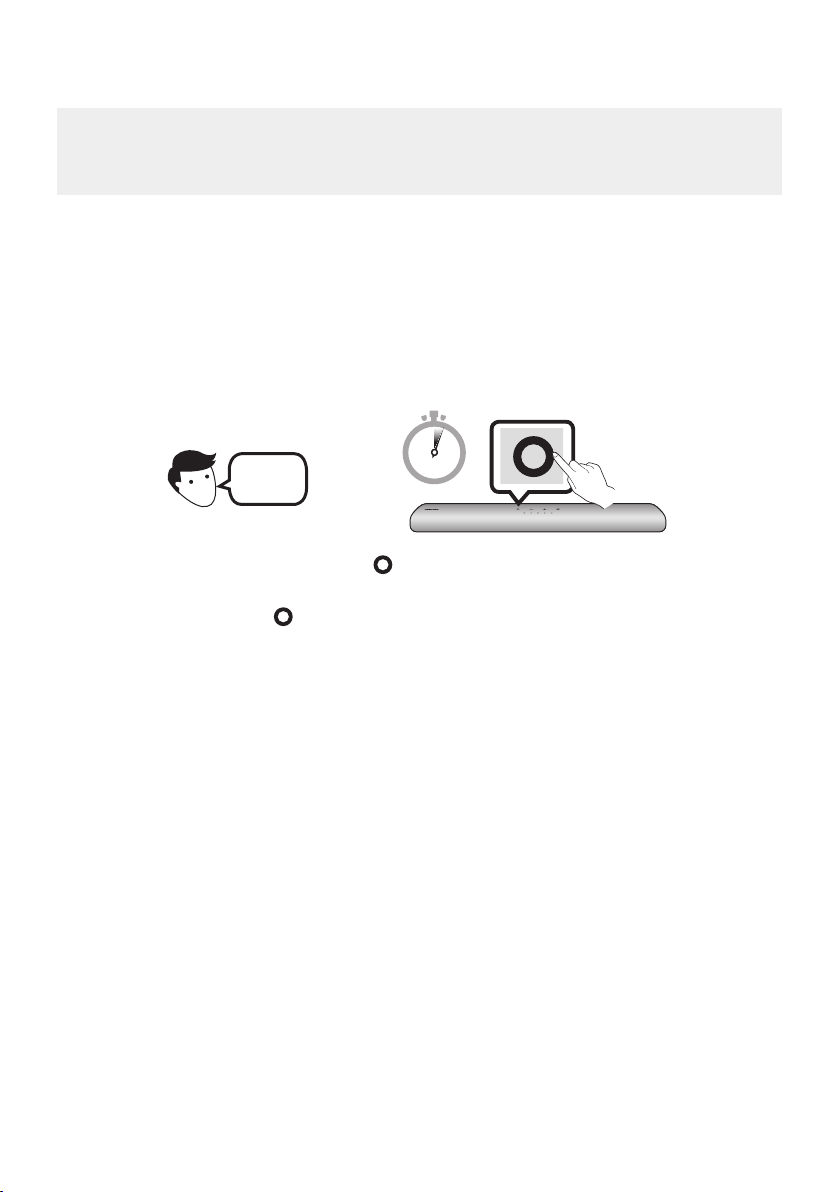
FRA - 32
Congurationd’AmazonAlexa
• Amazon Alexa est un service fourni par Amazon.
• Ce service est disponible uniquement dans certaines langues, mais pas dans d’autres pays ou
régions.
À l’aide d’Alexa, vous pouvez écouter de la musique, écouter les actualités, voir les prévisions
météorologiques et contrôler les appareils électroménagers.
Pour utiliser Amazon Alexa, un compte Amazon est nécessaire pour connecter la Soundbar au réseau.
1. Installez l’application SmartThings sur votre appareil mobile, puis lancez-la.
2. Accédez au compte Alexa en suivant les instructions de l’application, puis connectez-vous au
service.
Dessus du Soundbar
3 Sec
« Alexa »
OU
3. Appelez Alexa ou appuyez sur le bouton (Multifonction) du Soundbar pendant 3secondes pour
utiliser le service Alexa.
• Appuyez sur le bouton (Multifonction) pendant 3 secondes pour appeler Alexa. Parlez en
appuyant sur le bouton enfoncé pour activer la reconnaissance vocale.
• L'état du voyant DEL sur le Soundbar change en fonction du statut d'Alexa. Voir la page 34
pour plus de détails.
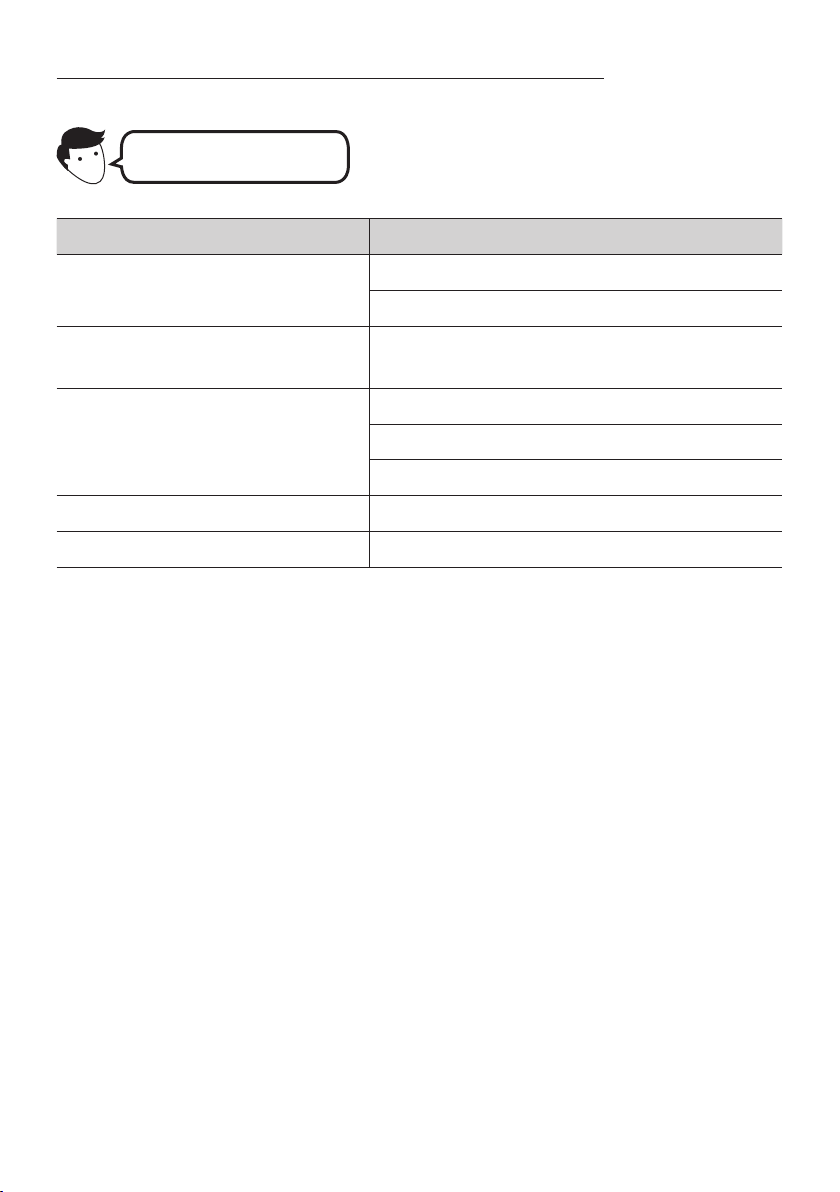
FRA - 33
UtilisationdescommandesvocalespourcontrôlerleSoundbar
Déclenchement + commande
Cequevouspouvezfaire Exemples de phrases à prononcer
Contrôle du volume
«Alexa,montelevolume.»
«Alexa,baisselevolume.»
Écoute de contenu en streaming à partir
d’Amazon Music
« Alexa, joue de la musique jazz. »
Contrôle de lecture
«Alexa,jouelachansonsuivante.»
« Alexa, arrête la musique. »
« Alexa, quelle est cette chanson ? »
Information météo « Alexa, quel temps fait-il ? »
Planication de la minuterie « Alexa, règle une minuterie sur 10 minutes. »
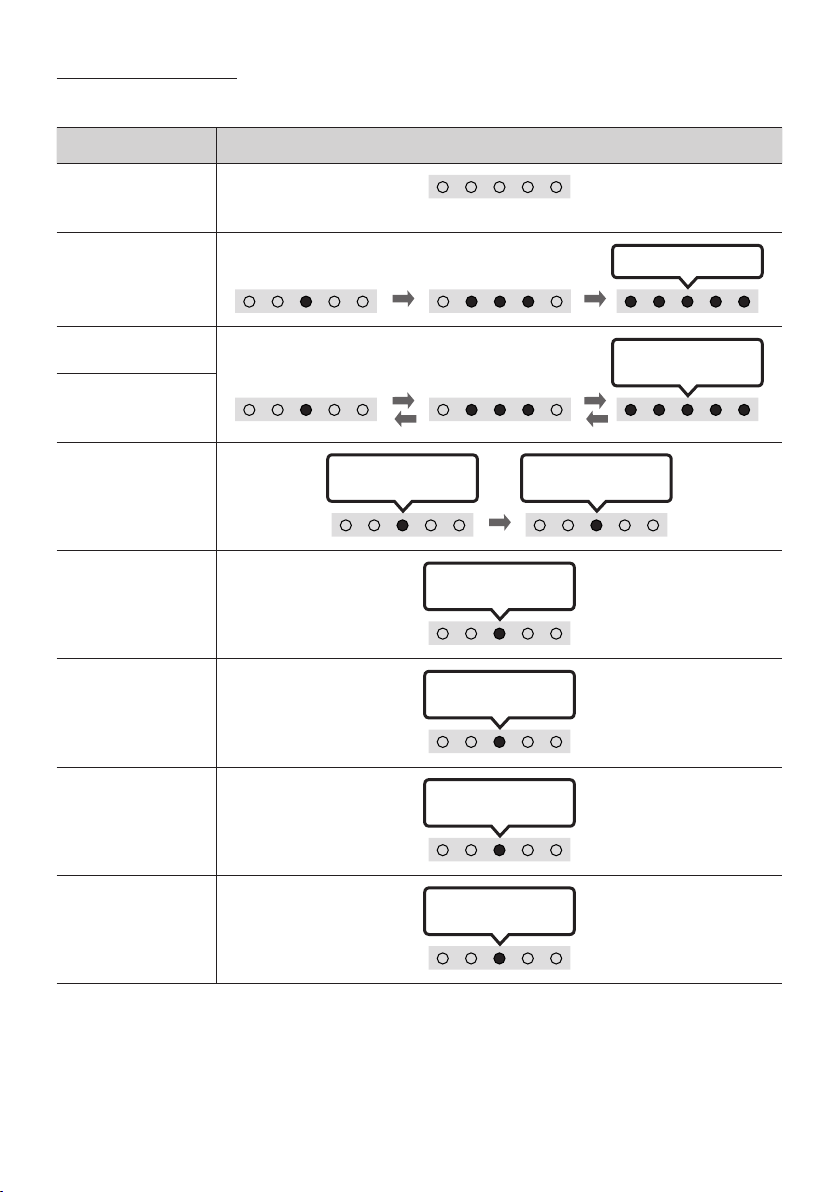
FRA - 34
ÉtatduvoyantAlexa
L'état du voyant DEL sur le Soundbar change en fonction du statut d'Alexa, comme illustré ci-dessous.
Statut d'Alexa Voyant DEL sur le Soundbar
Inactive
Éteint
Écoute
Cyan allumé
Rééchit
Levoyantcyan
clignote 1 fois
Parle
Alarmes et rappels
de minuterie
Levoyantclignote
en cyan 2 fois
Levoyantclignote
en bleu 2 fois
Notication
Levoyantclignote
en jaune 2 fois
ServiceAlexa
indisponible
Levoyantrouge
clignote 3 fois
Réseau
déconnecté
Levoyantrouge
clignote 3 fois
Arrêt microphone
Voyant rouge
allumé
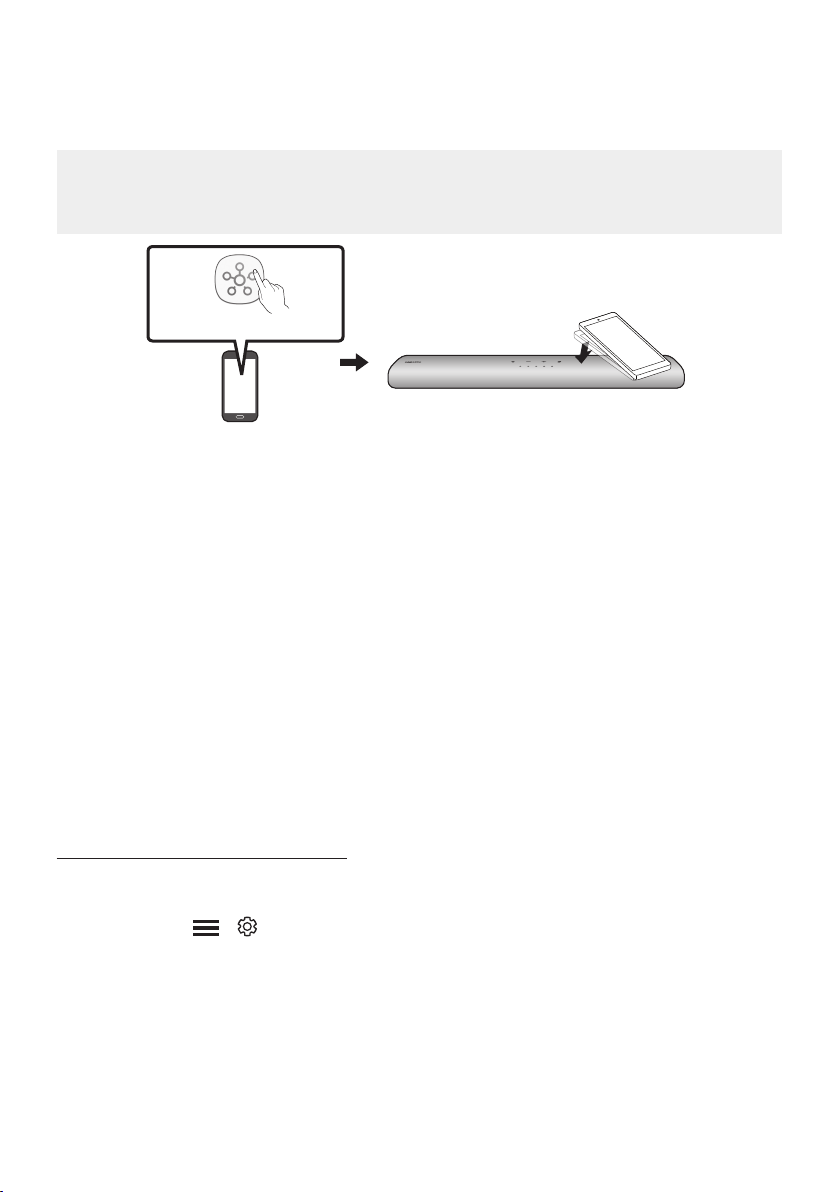
FRA - 35
Utilisation de la fonction Tap Sound
Appuyez sur le Soundbar avec votre appareil mobile pour lire le son du contenu de l’appareil mobile via
le Soundbar.
• Cette fonction peut ne pas être prise en charge en fonction de l’appareil mobile.
• Cette fonction n’est compatible qu’avec les appareils mobiles Samsung fonctionnant sous
Android 8.1 ou une version ultérieure.
Appareil mobile
Application SmartThings
Dessus du Soundbar
1. Activez la fonction Tap Sound sur votre appareil mobile.
• Pour plus d’informations sur la façon d’activer cette fonction, reportez-vous à la section
«Réglage de la fonction Tap Sound » ci-dessous.
2. Appuyez sur le Soundbar avec l’appareil mobile. Sélectionnez « Démarrer » dans la boîte de
dialogue afchée.
La connexion est établie entre l’appareil mobile et le Soundbar via Bluetooth.
3. Lisez le son du contenu de l’appareil mobile via le Soundbar.
• Cette fonction connecte un appareil mobile au Soundbar via Bluetooth en détectant les
vibrations produites lorsque l’appareil touche le Soundbar.
• Veillez à ne pas appuyer l’appareil mobile sur un coin pointu du Soundbar. Cela pourrait rayer ou
endommager le Soundbar ou l’appareil mobile.
• Il est recommandé de placer l’appareil mobile dans un étui. Appuyez légèrement sur la zone
large de la partie supérieure du Soundbar, sans exercer de force excessive.
• Pour utiliser cette fonction, mettez à jour l’application SmartThings vers la dernière version.
Cette fonction peut ne pas être prise en charge en fonction de la version de l’application.
Réglage de la fonction Tap Sound
Utilisez l’application SmartThings pour activer la fonction Tap View, Tap Sound.
1. Sur l’appareil mobile, lancez l’application SmartThings.
2. Sélectionnez ( → ) sur l’écran de l’application SmartThings qui apparaît sur l’appareil mobile.
3. Dénissez « Tap View, Tap Sound » sur Activé pour permettre à la fonction de se lancer lorsqu’un
appareil mobile se rapproche du Soundbar. La fonction est activée.
REMARQUES
• Lorsque l’appareil mobile est en mode d’économie d’énergie, la fonction Tap Sound ne fonctionne pas.
• La fonction Tap Sound peut ne pas fonctionner si des appareils à proximité du Soundbar, par exemple
des appareils électriques, provoquent des interférences radio. Assurez-vous que les appareils
susceptibles de provoquer des interférences radio sont placés à une distance sufsante du Soundbar.
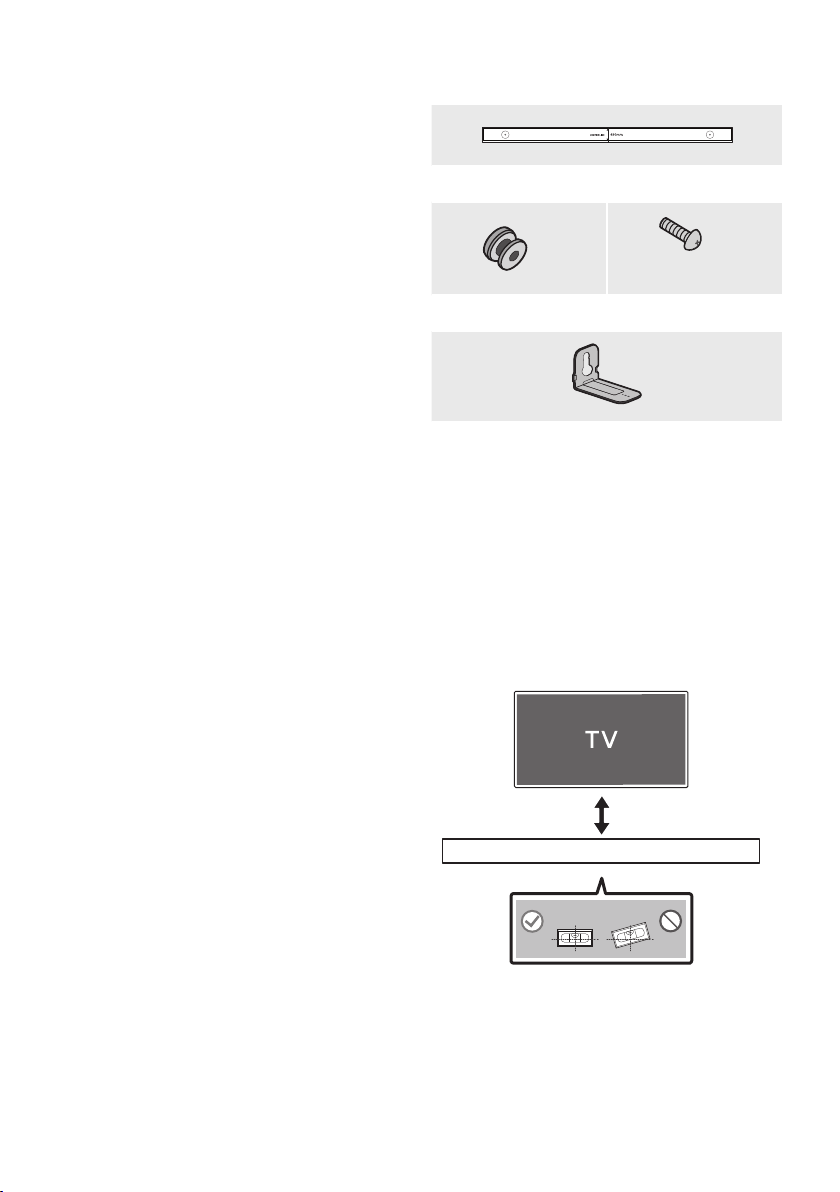
FRA - 36
09 INSTALLATION
DU SUPPORT
MURAL
Précautions d’installation
• Procédez à l’installation sur un mur vertical
uniquement.
• N’installez pas le produit dans un endroit où
la température ou le taux d’humidité est
élevé.
• Vériez que le mur est sufsamment solide
pour supporter le poids du produit. Sinon,
renforcez le mur ou choisissez un autre point
d’installation.
• Achetez et utilisez les vis de xation ou les
chevilles adaptées au type de mur que vous
possédez (plaque de plâtre, plaque de fer,
bois, etc.). Si possible, xez les vis de support
dans les poteaux muraux.
• Achetez des vis de montage mural en
fonction du type et de l’épaisseur du mur sur
lequel vous souhaitez monter le Soundbar.
– Diamètre: M5
– Longueur: 1 3/8 pouces (35 mm) ou plus
recommandé.
• Connectez les câbles de l’unité aux appareils
externes avant d’installer le Soundbar sur le
mur.
• Assurez-vous que l’unité est éteinte et
débranchée avant de l’installer. Sinon, cela
pourrait provoquer un choc électrique.
Composants de montage mural
Guide de montage mural
x 2
(M4 x L10)
x 2
Visdexation Vis
x 2
Support de montage mural
1. Placez le Guide de montage mural contre la
surface du mur.
• Le Guide de montage mural doit être à
niveau.
• Si votre téléviseur est xé au mur,
installez le Soundbar au moins 2 pouces
(5 cm) en dessous du téléviseur.
2 pouces (5 cm) ou plus
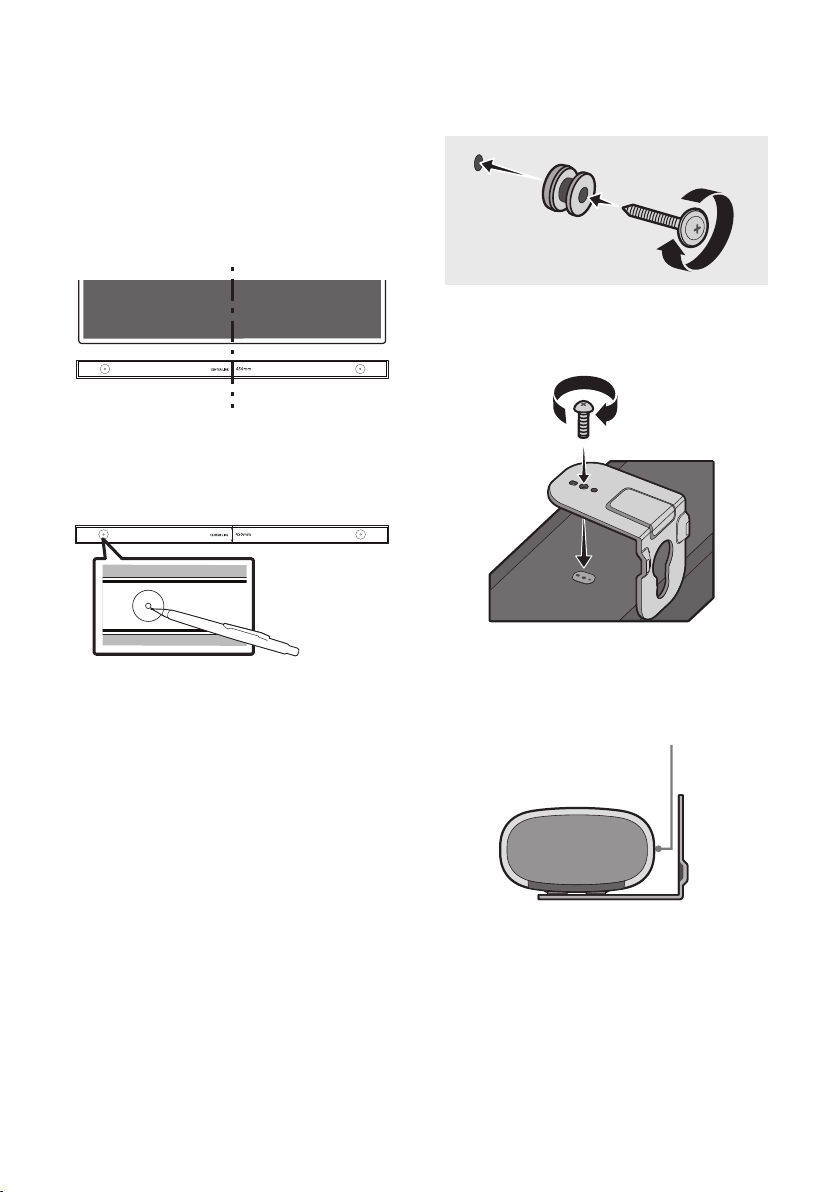
FRA - 37
2. Alignez la Ligne Centrale du Guide de
montage mural sur le centre de votre
téléviseur (si vous montez le Soundbar sous
ce dernier), puis xez le Guide de montage
mural au mur avec du ruban adhésif.
• Si vous ne l’installez pas sous un
téléviseur, placez la Ligne Centrale au
centre de la zone d’installation.
Ligne centrale
3. Utilisez un crayon pour marquer la position
des trous et retirez le Guide de montage
mural.
4. À l’aide d’un foret de taille appropriée, percez
un trou dans le mur à chaque marque.
• Si les marques ne correspondent pas aux
positions des montants de la cloison,
veillez à insérer les chevilles ou les
chevilles Molly appropriées dans les trous
avant d’insérer les vis de support. Si vous
utilisez des chevilles ou des chevilles
Molly, assurez-vous que les trous que
vous percez sont assez grands pour
recevoir celles-ci.
5. Poussez une vis (non fournie) dans chaque
Visdexation, puis vissez fermement
chaque vis dans un trou de vis de support.
6. Installez les 2 Support de montage mural
selon l’orientation correcte en bas de la
Soundbar, à l’aide de 2 Vis.
• Lors du montage, assurez-vous que
l’étrier des Support de montage mural
est situé à l’arrière du Soundbar.
Arrière du Soundbar
Extrémité droite du Soundbar
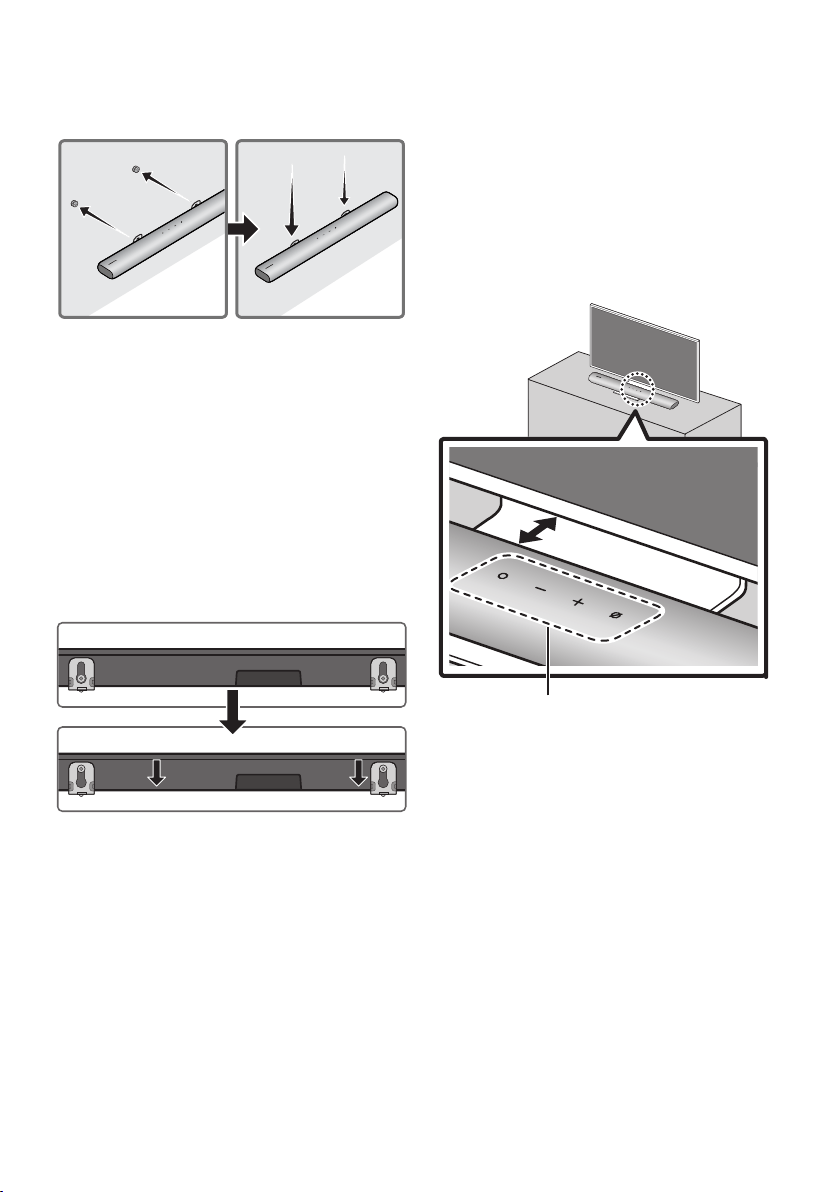
FRA - 38
7. Installez le Soundbar à l’aide des Support de
montage mural en accrochant ces derniers
sur les Visdexation xées au mur.
8. Faites glisser la Soundbar vers le bas, comme
illustré ci-dessous, an que les Support de
montage mural reposent fermement sur les
Visdexation.
• Insérez les Visdexation dans la partie
large (inférieure) des Support de
montage mural, puis faites glisser les
Support de montage mural vers le bas
an que les Support de montage mural
reposent fermement sur les Vis de
xation.
10 INSTALLATION
DU SOUNDBAR
DEVANT LE
TÉLÉVISEUR
3 cm (1,2 pouce) ou plus
Microphone
Installez le centre du Soundbar au centre du
téléviseur comme illustré sur l'image.
À ce stade, placez le Soundbar à au moins 3 cm
(1,2 pouce) du téléviseur an qu'il n'y ait aucune
interférence avec la reconnaissance vocale.
REMARQUES
• Assurez-vous que le Soundbar est placé sur
une surface plane et solide.
• Un espace insufsant par rapport au
téléviseur peut entraîner des problèmes de
reconnaissance vocale et d’ordre
acoustique.
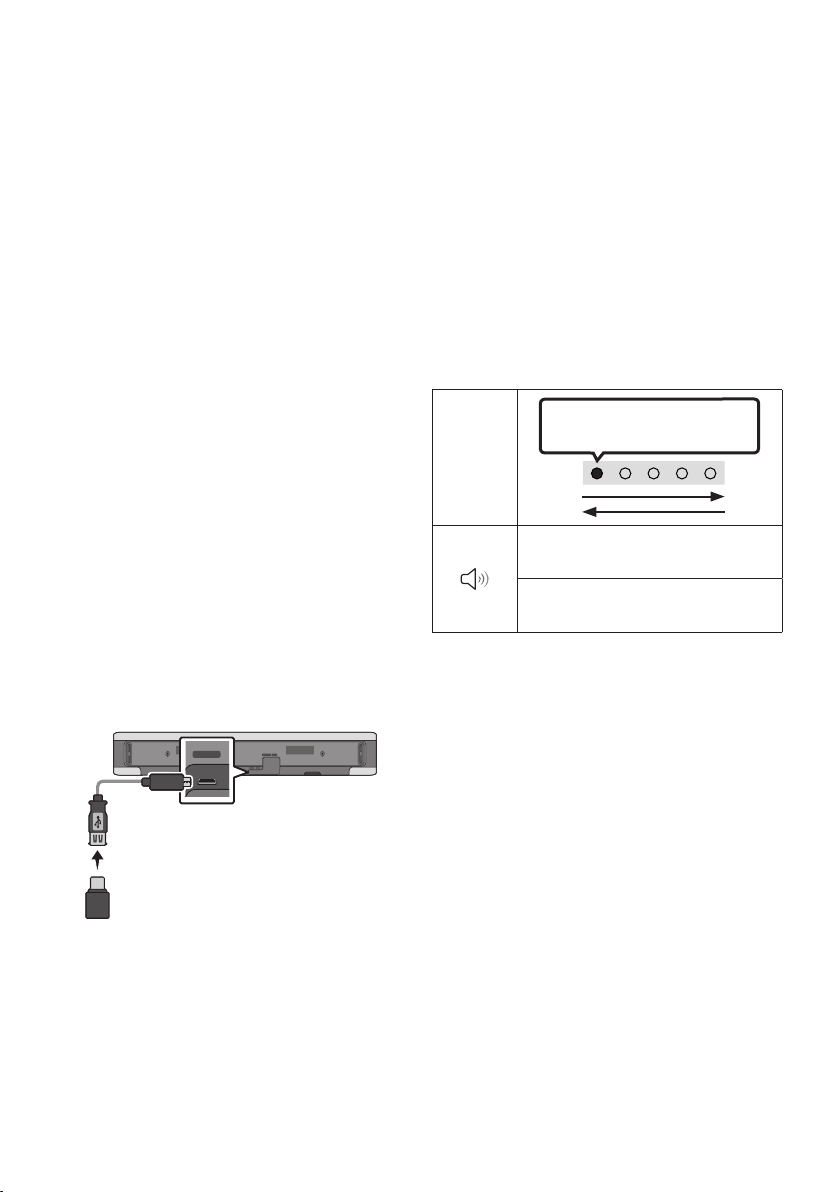
FRA - 39
11 MISE À JOUR
LOGICIELLE
Mise à jour automatique
Lorsque le Soundbar est connecté à Internet, les
mises à jour logicielles s'installent
automatiquement, même lorsque le Soundbar est
éteint.
• Pour utiliser la fonction de mise à jour
automatique, le Soundbar doit être connecté
à Internet.
La connexion Wi-Fi au Soundbar sera
interrompue si le cordon d'alimentation du
Soundbar est débranché ou si l'alimentation
est coupée. En cas de coupure, à la remise
sous tension ou lorsque vous rebranchez le
cordon d'alimentation, allumez le Soundbar,
puis reconnectez-le à Internet.
Mise à jour USB
SERVICE DC 19V
HDMI
(ARC)
DIGITAL AUDIO IN
(OPTICAL)
ID SET NETWORK
SERVICE
DC 19V
Panneau dessous du Soundbar
Câble adaptateur
Micro USB à USB
(non fourni)
Il se peut que Samsung propose des mises à jour
dumicrologicieldusystèmeSoundbaràl'avenir.
Lorsqu'une mise à jour est disponible, vous
pouvez mettre à jour le Soundbar en connectant
le lecteur USB qui contient le micrologiciel de
mise à jour au port SERVICE du Soundbar.
1. Accédez au site Web de Samsung Electronics
(www.samsung.com) → recherchez le nom
du modèle à partir de l’option de menu de
l’assistance à la clientèle.
• Pour plus d’informations sur la mise à
jour, reportez-vous au Guide de mise à
niveau.
2. Téléchargez le chier de mise à niveau (type
USB).
3. Décompressez le chier pour créer un
dossier avec le nom du chier.
4. Stockez le dossier créé sur une clé USB, puis
connectez-le au Soundbar.
5. Allumez le Soundbar. Le produit est alors mis
à jour en moins de trois minutes.
Voyant
DEL
Le blanc se déplace de gauche à
droite et de droite à gauche
Début de la mise à jour du logiciel :
« Start the software update. »
Fin de la mise à jour du logiciel :
« The software update is complete. »
• Pendant la mise à jour, n’éteignez pas le
produit et ne retirez pas le câble USB.
• Si le voyant jaune est allumé après la
mise à jour du logiciel, cela signie qu’une
mise à jour supplémentaire est en cours.
En pareil cas, ne coupez pas l’alimentation
et ne retirez pas le dispositif USB.
• Si la mise à jour ne sexécute pas,
rebranchez le cordon d'alimentation du
Soundbar.
• Si la dernière version est installée, aucune
mise à jour n’est effectuée.
• Selon le type d’USB, la mise à jour peut ne
pas être prise en charge.
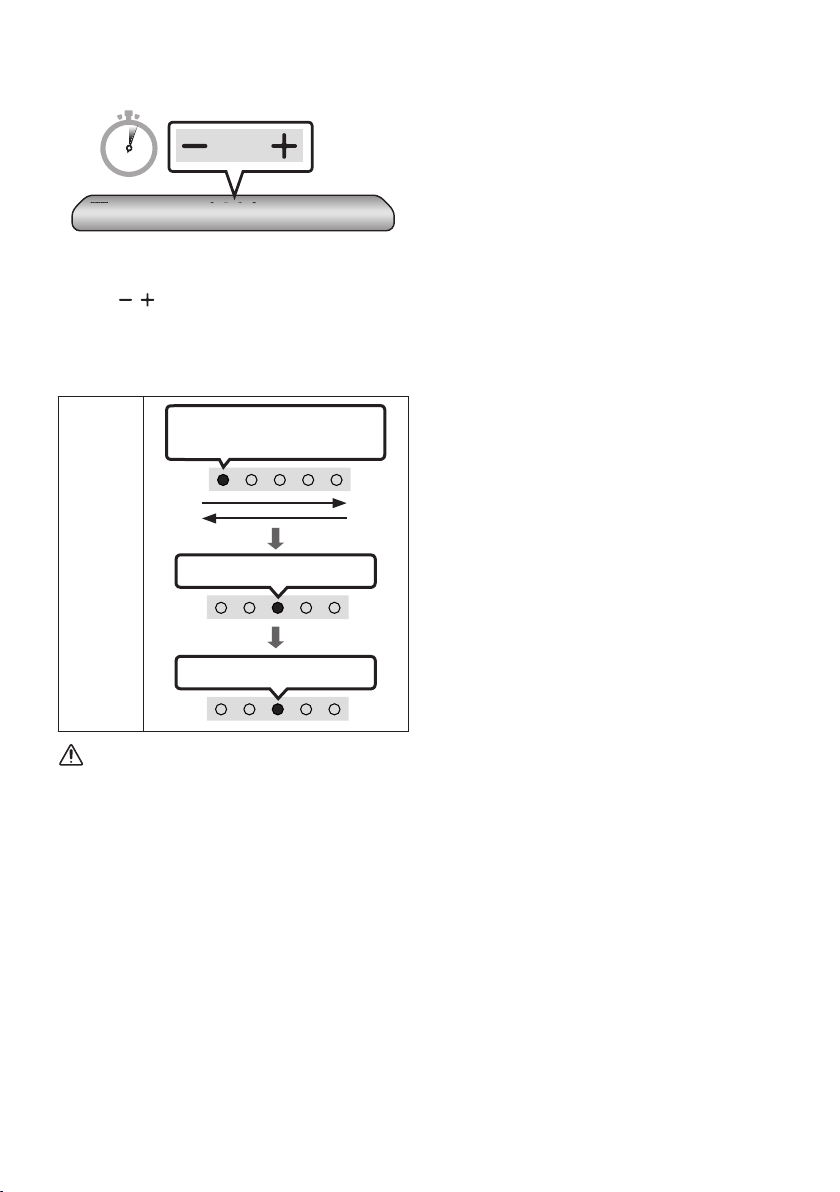
FRA - 40
Initialisation
5 Sec
Alors que le Soundbar est allumé, appuyez sur les
boutons (Volume) de l'unité pendant au
moins 5secondes. L'afchage des voyants DEL
change comme indiqué ci-dessous, puis le
Soundbar est initialisé.
Voyant
DEL
Le blanc se déplace de gauche à
droite et de droite à gauche
Levoyantcyanclignote3fois
Clignote en rouge → Éteint
MISE EN GARDE
• Tous les paramètres du Soundbar sont
initialisés. Veillez à effectuer cette opération
uniquement lorsque l'initialisation est requise.
FRA - 41
12 DÉPANNAGE
Avant de contacter l’assistance, effectuez les vérications suivantes.
Sil'alimentationn'estpasactivée
; Vériez si le cordon d'alimentation du
Soundbar est correctement inséré dans la
prise.
Si les fonctions ne marchent pas
correctement
; Après avoir retiré le cordon d’alimentation,
réinsérez-le.
; Retirez le cordon d’alimentation de
l’appareil externe et réessayez.
; S’il n’y a pas de signal, le Soundbar s’éteint
automatiquement après un certain temps.
Allumez le produit. (Voir la page 11.)
Si la télécommande ne fonctionne pas
; Rapprochez la télécommande du Soundbar.
; Remplacez les piles.
Si le son du Soundbar n'est pas émis
; Le volume du Soundbar est trop faible ou
coupé. Réglez le volume.
; Lorsqu’un appareil externe (STB, appareil
Bluetooth, appareil mobile, etc.) est
connecté, réglez le volume de l’appareil
externe.
; Pour la sortie audio du téléviseur,
sélectionnez Soundbar. (Téléviseur
Samsung: Accueil ( ) → Paramètres ( )
→ Son → Sortie audio → Sélectionnez le
Soundbar)
; La connexion du câble au Soundbar ne doit
pas être lâche. Débranchez le câble et
rebranchez-le.
; Retirez complètement le cordon
d’alimentation, rebranchez-le et mettez
l’appareil sous tension.
; Initialisez le produit et réessayez.
(Voir page 40.)
Siletéléviseurn'estpasconnectéviaHDMI
(ARC)
; Vériez que le câble HDMI est
correctement connecté à la borne ARC.
(Voir la page21)
; La connexion peut ne pas être possible en
raison de l’appareil externe connecté
(décodeur, machine de jeux, etc.).
Connectez directement le Soundbar.
; HDMI-CEC peut ne pas être activé sur le
téléviseur. Activez le CEC dans le menu du
téléviseur. (Téléviseur Samsung: Accueil
( ) → Paramètres ( ) → Général →
Gestionnaire de périphérique externe →
Anynet+ (HDMI-CEC) ACTIVÉ)
Aucun son n’est émis lors de la connexion au
téléviseurenmodeHDMI(ARC)
; Votre appareil ne peut pas lire le signal
d’entrée. Changez la sortie audio du
téléviseur et réglez-la sur PCM ou sur
Dolby Digital.
(Pour un téléviseur Samsung : Accueil ( )
→ Paramètres ( ) → Son → Paramètres
avancés → Format de sortie audio
numérique)
FRA - 42
SilaconnexionBluetooths'avèreimpossible
; Lors de la connexion d'un nouvel appareil,
passez à l'appairage Bluetooth pour la
connexion. (Appuyez sur le bouton PAIR
de la télécommande ou sur le bouton
(Marche/Arrêt microphone) de l'unité
pendant au moins 5secondes.)
; Si le Soundbar est connecté à un autre
appareil, débranchez d’abord cet appareil
pour commuter l’appareil.
; Reconnectez l’appareil après avoir
supprimé la liste des haut-parleurs
Bluetooth sur l’appareil à connecter.
(Téléviseur Samsung: Accueil ( ) →
Paramètres ( ) → Son → Sortie audio →
Liste des haut-parleurs Bluetooth)
; Retirez et rebranchez la che
d’alimentation, puis réessayez.
; Initialisez le produit et réessayez.
(Voir page 40.)
Si le son Bluetooth est interrompu
; Les sons peuvent se briser en raison
d’interférences dues aux signaux
radioélectriques ou aux appareils
électroniques situés à proximité. Éloignez
ces appareils du Soundbar pour éviter les
interférences radio. Exemple : fours à
micro-ondes.
; L’appareil à connecter étant éloigné du
Soundbar, une coupure du son peut se
produire. Déplacez l’appareil près du Soundbar.
; Si une partie de l’unité est en contact avec
l’émetteur-récepteur Bluetooth ou si le
produit est installé sur un meuble en métal,
une coupure du son peut se produire.
Vériez l’environnement d’installation et
les conditions d’utilisation.
SilaconnexionWi-Fis'avèreimpossible
; Vériez si votre routeur sans l est allumé.
; Éteignez le routeur, rallumez-le, puis
réessayez.
; Lorsque le signal du routeur sans l est trop
faible, la connexion peut ne pas être
possible. Déplacez le routeur près du
Soundbar ou ajustez la position d’installation
pour qu’il n’y ait pas d’obstacles.
; Si votre routeur sans l est nouveau, vous
devrez recongurer les paramètres réseau
du haut-parleur.
Si Alexa ne répond pas
Lorsque le microphone est éteint ou que sa
réceptionestmauvaise
; Lorsque le voyant DEL Rouge s'allume sur
le Soundbar, appuyez sur le bouton
(Marche/Arrêt microphone) pour
activer le microphone.
; La reconnaissance vocale peut ne pas être
disponible en raison du bruit ambiant.
Réduisez le bruit et réessayez.
Lorsque le réseau est déconnecté
; Lorsque le voyant DEL Rouge clignote sur
la barre de son, le réseau peut être
déconnecté. Recongurez le réseau.
(Voir page 31)
Lorsque le réseau est déconnecté
; Le réseau n’est peut-être pas disponible.
Recongurez le réseau. (Voir page 32)
; Vériez les pays où Alexa est prise en
charge sur le site Web d’Amazon. Le service
n’est pas disponible dans ces pays.
Si le Soundbar n'est pas allumé dès la mise
soustensiondutéléviseur
; Lorsque vous éteignez le Soundbar tout en
regardant la télévision, la synchronisation
de l'alimentation avec le téléviseur est
désactivée. Éteignez d'abord le téléviseur.
FRA - 43
13 LICENCE
Manufactured under license from Dolby
Laboratories. Dolby, Dolby Audio, Pro Logic, and
the double-D symbol are trademarks of Dolby
Laboratories.
For DTS patents, see http://patents.dts.com.
Manufactured under license from DTS
Licensing Limited. DTS, the Symbol, DTS in
combination with the Symbol, and DTS Digital
Surround are registered trademarks or
trademarks of DTS, Inc. in the United States
and/or other countries. © DTS, Inc. All Rights
Reserved.
The terms HDMI and HDMI High-Denition
Multimedia Interface, and the HDMI Logo are
trademarks or registered trademarks of HDMI
Licensing LLC in the United States and other
countries.
• Le logiciel Spotify est assujetti à des
licences de tiers que vous trouverez ici :
www.spotify.com/connect/third-party-
licenses.
• Pour en savoir plus sur Spotify Connect,
veuillez visiter www.spotify.com/connect
14 AVIS DE
LICENCES LIBRES
Pour envoyer des questions concernant les
sources ouvertes, communiquez avec Samsung
Open Source (http://opensource.samsung.com).
15 REMARQUE
IMPORTANTE
CONCERNANT LE
SERVICE
Les chiffres et les illustrations contenus dans ce
Guide d’utilisation sont fournis à titre de référence
uniquement et pourraient ne pas représenter
exactement le produit.
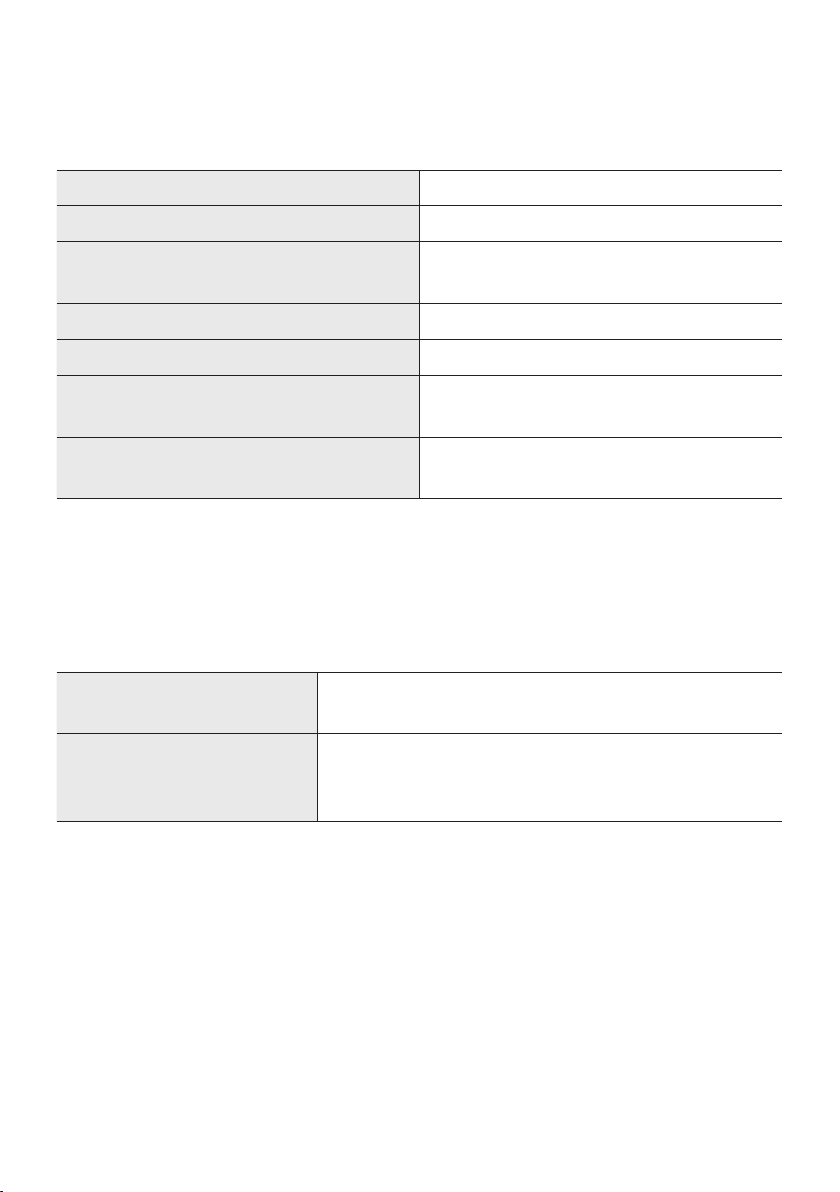
FRA - 44
16 CARACTÉRISTIQUES ET GUIDE
Spécications
Nom de modèle HW-S60T / S61T
Poids 6,4 lbs (2,9 kg)
Dimensions (L x H x P)
30,1 x 2,7 x 4,9 po
(764,0 x 68,0 x 125,0 mm)
Plage de températures en fonctionnement +41°F à +95°F (+5°C à +35°C)
Plage d’humidité en fonctionnement 10 % ~ 75 %
AMPLIFICATEUR
Puissance de sortie nominale (30W x 2) + (30W x 2) + (30W x 2)
Formats de lecture pris en charge
LPCM 2ch, Dolby Audio™
(prise en charge de Dolby® Digital), DTS
REMARQUES
• Samsung Electronics Co., Ltd se réserve le droit de modier les caractéristiques sans préavis.
• Le poids et les dimensions sont approximatifs.
Précaution:LeSoundbarredémarreautomatiquementsivousactivez/désactivezleWi-Fi.
Wi-Fi
Méthode de désactivation du port
Pour activer/désactiver le Wi-Fi, appuyez sur le bouton ID SET
sur le panneau inférieur du Soundbar pendant 30 secondes.
Bluetooth
Méthode de désactivation du port
Appuyez sur le bouton NETWORK sur le panneau inférieur du
Soundbar pendant 30 secondes pour activer/désactiver le
Bluetooth.
GARANTIE LIMITÉE À L’ACHETEUR INITIAL
Samsung Electronics Canada Inc. (SECA) garantit ce produit contre tout défaut de fabrication.
SECA garantit aussi que si cet appareil ne fonctionne pas convenablement durant la
période de garantie SECA se réservera le droit de réparer ou de remplacer l’appareil
défectueux.
Toutes les réparations sous garantie doivent être effectuées par un Centre de service
autorisé SECA. Le nom et l’adresse du Centre de service le plus près de chez vous peut
être obtenu en composant sans frais le 1- 800- SAMSUNG ou en visitant notre site web
au www.samsung.ca
MAIN-D’OEUVRE
UN (1) AN (AU COMPTOIR)
PIÈCES
UN (1) AN
Pour tous les modèles portatifs, le transport de l’appareil sera la responsabilité du client.
Le reçu de vente original doit être conservé par le client car cela constitue la seule preuve
d’achat acceptée. Le client doit le présenter au Centre de service agréé au moment où il
fait la demande d’une réparation sous garantie.
EXCLUSIONS (CE QUI N’EST PAS COUVERT)
Cette garantie ne couvre pas les dommages causés par un accident, un incendie, une
inondation, un cas de force majeure, un mauvais usage ou une tension incorrecte.
La garantie ne couvre pas une mauvaise installation, une mauvaise réparation, une
réparation non autorisée et tout usage commercial ou dommages survenus durant le
transport. Le ni extérieur et intérieur de même que les lampes ne sont pas couverts par
cette garantie. Les ajustements par le client qui sont expliqués dans le guide de l’utilisateur
ne sont pas couverts en vertu de cette garantie. Cette garantie sera automatiquement
annulée pour tout appareil qui aurait un numéro de série manquant ou modié. Cette
garantie est valable seulement sur les appareils achetés et utilisés au Canada.
Samsung Electronics Canada Inc
2050 Derry Rd West
Mississauga, On. L5N 0B9
Tel: 1-800-SAMSUNG (726-7864)
Fax: (905) 542- 1199
Website: http://www.samsung.com/ca_fr
© 2020 Samsung Electronics Co., Ltd. Tous droits réservés.
Comment contacter Samsung dans le monde
Si vous avez des suggestions ou des questions concernant les produits Samsung, veuillez contacter le Service
Consommateurs Samsung.
SIÈGE SOCIAL
Samsung Electronics Canada Inc. 2050 Derry Road West, Mississauga, Ontario L5N 0B9 Canada
TEL: 1-800-SAMSUNG (1-800-726-7864)
www.samsung.com/ca_fr/support
Area Contact Center
Web Site
`
North America
CANADA 1-800-SAMSUNG (726-7864)
www.samsung.com/ca/support (English)
www.samsung.com/ca_fr/support (French)
U.S.A 1-800-SAMSUNG (726-7864) www.samsung.com/us/support