©2003 Sony Corporation
4-247-235-12(1)
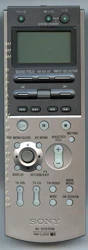
Remote
Commander
Operating Instructions
RM-LJ312
2
GB
Precautions
On safety
Should any solid object or liquid fall into the cabinet,
unplug the receiver and have it checked by qualified
personnel before operating it any further.
On operation
Before connecting other components, be sure to turn
off and unplug the receiver.
On cleaning
Clean the cabinet, panel and controls with a soft cloth
slightly moistened with a mild detergent solution. Do
not use any type of abrasive pad, scouring powder or
solvent such as alcohol or benzine.
If you have any question or problem concerning your
remote, please consult your nearest Sony dealer.
Before you use your remote
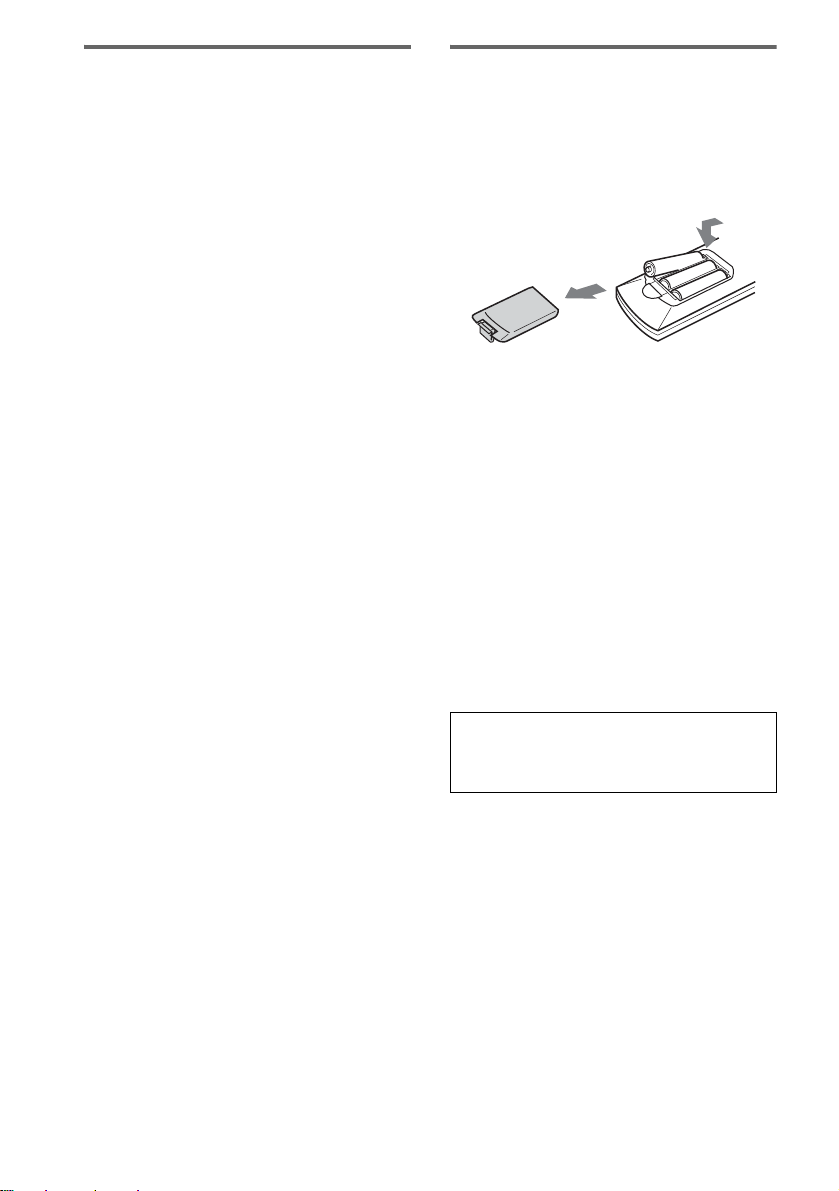
Inserting batteries into the
remote
Insert three R6 (size-AA) batteries with the +
and – properly oriented in the battery
compartment.
Tip
Under normal conditions, the batteries should last for
about 3 months. When the remote no longer operates
the receiver, replace all the batteries with new ones.
Notes
• Do not leave the remote in an extremely hot or humid
place.
• Do not use a new battery with old ones.
• Do not mix the alkaline batteries and other kinds of
batteries.
• Do not expose the remote sensor of the receiver to
direct sunlight or lighting apparatuses. Doing so may
cause a malfunction.
• If you do not use the remote for an extended period
of time, remove the batteries to avoid possible
damage from battery leakage and corrosion.
When you use the remote for the first time, be sure to
perform the AMP REGIST operation (page 6). Some
functions may not be displayed depending of the
model.
E
e
e
E
E
e
3
GB
Location of parts and basic
remote operations
Parts description......................................4
Table of buttons used to control each
component ........................................7
Using the lists
Chart of lists..........................................11
Selecting a component..........................13
Listening to multi channel sound..........14
— MULTI CH IN
Selecting a sound field..........................15
Enjoying Dolby Pro Logic II and DTS
NEO:6.............................................15
Programming the remote.......................16
Performing several commands in
sequence automatically...................17
— Macro Play
Using the RECEIVER menu.................20
Learning the commands of your
components.....................................20
Downloading data from the receiver.....22
Other operations....................................24
Additional Information
Troubleshooting......................Back cover
Specifications..........................Back cover
Table of Contents
4
GB
This chapter provides information on the
location of buttons and how to use them to
perform basic operations.
However, some functions explained in this
section may not operate depending on the
receiver.
For the functions of the receiver you purchased,
refer to the Operating Instructions supplied with
the receiver.
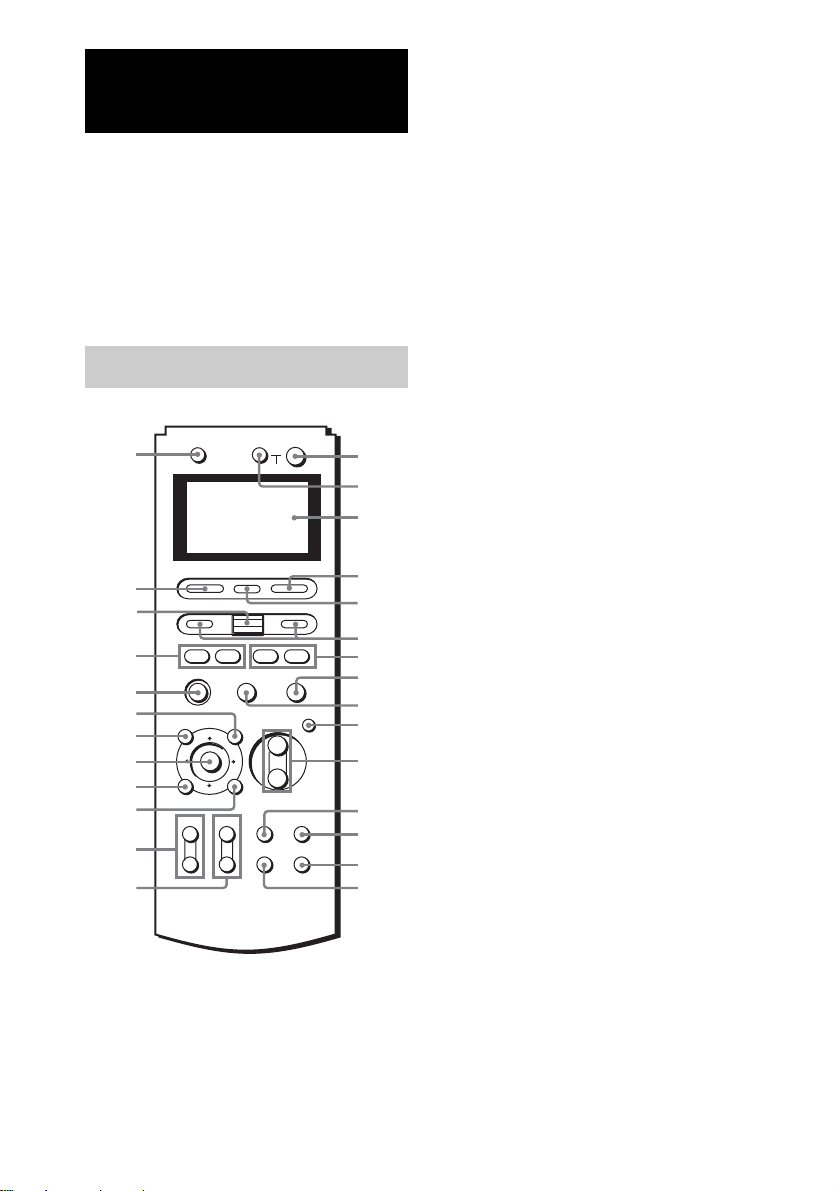
.
?/1 1
Press to turn the receiver on or off.
For STR-DA5000ES, if the 2ND ZONE or
3RD ZONE is selected, only the main
receiver is turned on or off with this button.
To turn off all components including the
amplifier in the 2nd or 3rd zone, press ?/1
and AV ?/1 (2) at the same time
(SYSTEM STANDBY).
AV ?/1 2
Press to turn on or off the components that
the remote is programmed to operate. For
details on programming procedure, see
“Programming the remote” on page 16.
If you press the ?/1 switch (1) at the
same time, it will turn off the main
component and other Sony audio/video
components (SYSTEM STANDBY).
Note
The function of the AV ?/1 switch changes
automatically each time you press INPUT
SELECTOR (4). Depending on the component,
the above operation may not be possible or may
operate differently than described.
AV MENU ws
Press to display the menus of the VCR,
DVD player, or satellite tuner on the TV
screen. Then use the control button to
perform the menu operations.
Control button w;
After pressing MAIN MENU, TOP
MENU/GUIDE, or AV MENU, move the
control button up, down, left or right to
select the settings. When you press TOP
MENU/GUIDE or AV MENU, press the
button to enter the selection.
To perform menu operations on the VCR,
DVD player, or SAT tuner, do the
procedure below. If you do not do this, the
cursor buttons merely operate the receiver.
1 Press INPUT SELECTOR and move the
easy scroll key to select the input, then
press the key to enter the selection.
2 Press MAIN MENU, TOP MENU/
GUIDE, or AV MENU.
The CURSOR TYPE list appears. If the
list has disappeared before you go on to
step 3, press any of the cursor buttons to
restore the list.
3 Move the easy scroll key to select the
component that you selected in step 1,
then press the key to enter the selection.
Location of parts and basic remote
operations
Parts description
+
–
+
–
+
–
O
AV ?/1TV ?/1
SOUND FIELD
TOP MENU/GUIDE AV MENU
DISPLAY
TV VOL TV CH TV/VIDEO
WIDE
MAIN
MENU
ON SCREEN
RETURN/EXIT
MASTER
VOL
MUTING
INPUT SELECTOR
SYSTEM STANDBY
RM SET UP
?/1
HX x
.> m M
Ii
wj
wa
8
qa
0
wg
wf
9
qg
wd
wh
ql
qk
qf
qj
w;
qs
7
qh
qd
ws
4
1
5
6
3
2
Location of parts and basic remote operations
5
GB
DISPLAY ql
Press to select information displayed on the
TV screen.
Display window 3
The current status of the selected
component or a list of selectable items
appears here.
Note
Characters other than letters of the alphabet or
numbers may be displayed incorrectly on the
remote, even if they appear correctly in the
display window on the main unit.
Easy scroll key wg
While displaying a list, move up or down to
select an item from the list, and then press
to enter the selection.
INPUT SELECTOR 4
Press to display the input (component) list.
See the table on page 7 for information on
the buttons you can use to control each
component.
If you want to change the contents of the
input list to match your particular
components, see “Programming the
remote” on page 16.
MAIN MENU qd
Press repeatedly to select a menu
(SURROUND, etc.) for the receiver.
MASTER VOL +/– qa
Press to adjust the volume level of all
speakers at the same time.
MUTING q;
Press to mute the sound.
ON SCREEN qf
Press to display the menus of the receiver
on the TV screen.
RETURN O/EXIT qk
Press to return to the previous menu or exit
the menu while the menu or guide of the
VCR, DVD player, or satellite tuner is
displayed on the TV screen.
RM SET UP 5
Press to display the set up list.
SOUND FIELD wh
Press to display the sound field list.
For details, see page 15.
TOP MENU/GUIDE wa
Press to display the menu or guide of the
DVD player or satellite tuner on the TV
screen. Then use the control button to
perform the menu operations.
TV ?/1 wj
Press to turn TV on or off.
TV/VIDEO qs
Press to change the input mode of the TV.
TV CH +/– qh
Press to switch the channel of TV.
TV VOL +/– qj
Press to adjust the volume of TV.
WIDE qg
Press to switch the TV to the wide mode.
I/i 6
Press to change the information displayed
on the display. Press the I button
repeatedly to display the RECEIVER
menu, press the i button repeatedly to
display the SUB menu (page 8) or NUM
menu.
In the NUM menu, move the easy scroll key
to select the numeric value, then press the
key to enter the selection.
H
*
wd
Press to start play of the playback medium.
X
*
9
Press to pause play or recording, or press to
start recording when the component is in
recording standby.
x
*
8
Press to stop play.
./>
*
wf
Press to skip tracks.
m/M
*
7
Press to fast-forward or rewind, or search
tracks in the forward or backward direction.
continued
6
GB
* See the table on page 7 for information on the buttons
that you can use to control each component.
Before using the remote for
the first time
Be sure to turn on the receiver and point the
remote towards the receiver when performing
the following procedure.
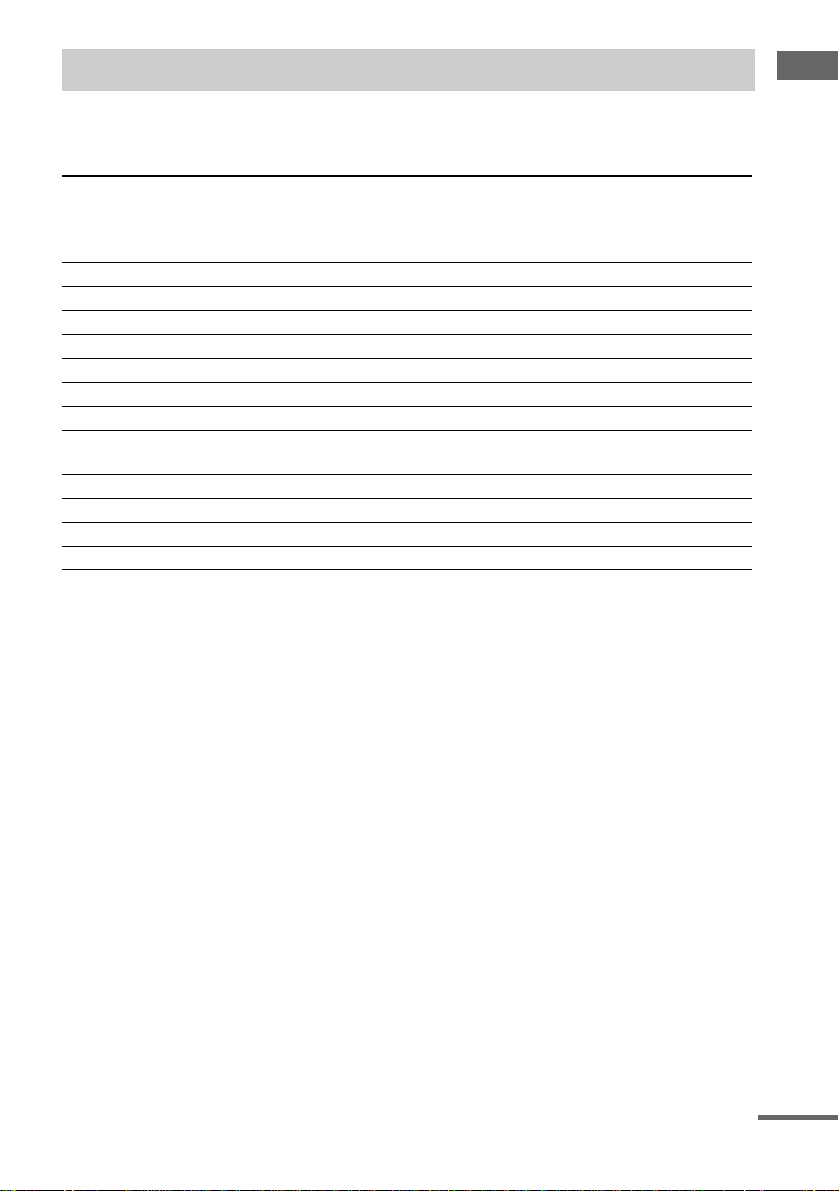
1 Press RM SET UP.
The set up list appears.
2 Move the easy scroll key to select
“AMP REGIST”, then press the key to
enter the selection.
The AMP REGIST list appears. When the
receiver name is already registered, it
appears on the second line.
3 Move the easy scroll key to select
“START”, then press the key to enter
the selection.
After “SEARCHING” appears, the model
name appears. The remote is optimized for
the model. (For TA-DA9000ES, VIDEO4,
VIDEO5, and i.LINK are added in the input
list.) If the model name does not appear,
check the followings and start over from
step 1.
• The power is turned on.
• The remote is kept pointing toward the
receiver until the model name appears.
cIR SET
LEARNING
DOWNLOAD
INPUT LIST
< AMP REGIST >
? ? ?
cSTART
Exit
Location of parts and basic remote operations
7
GB
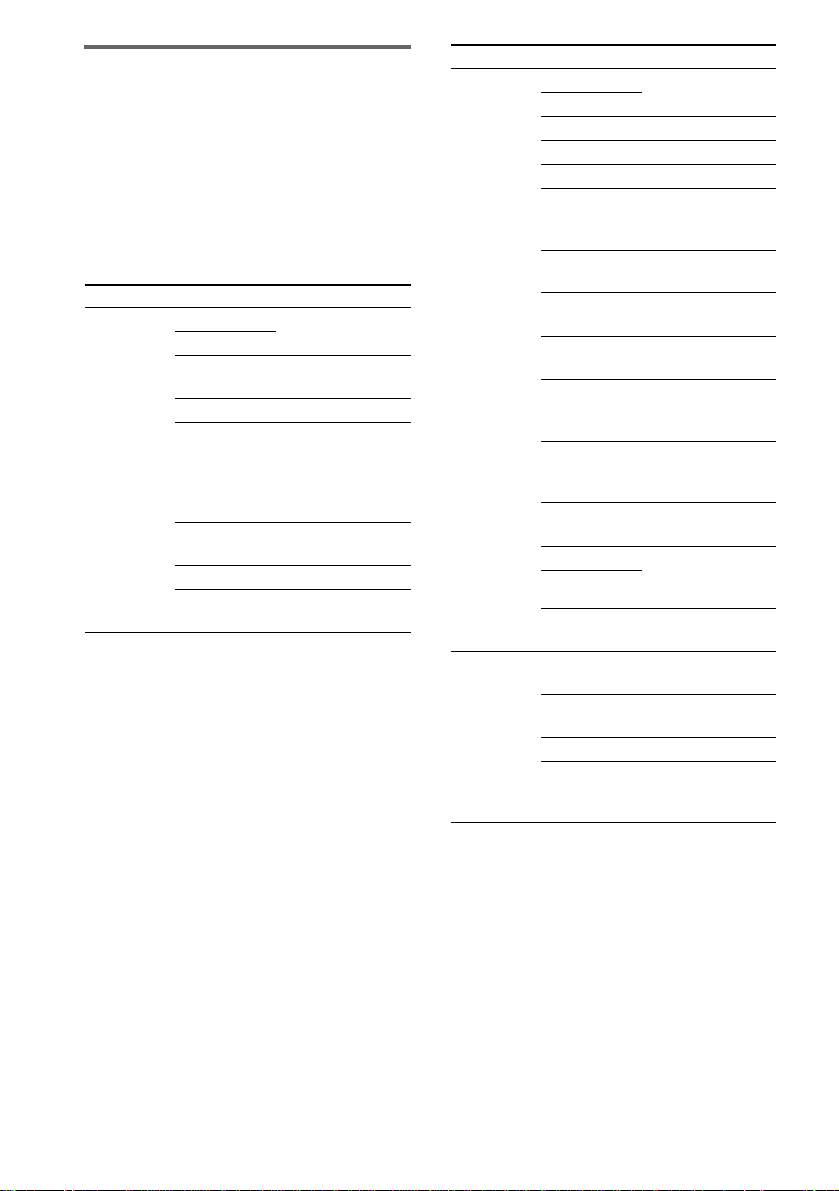
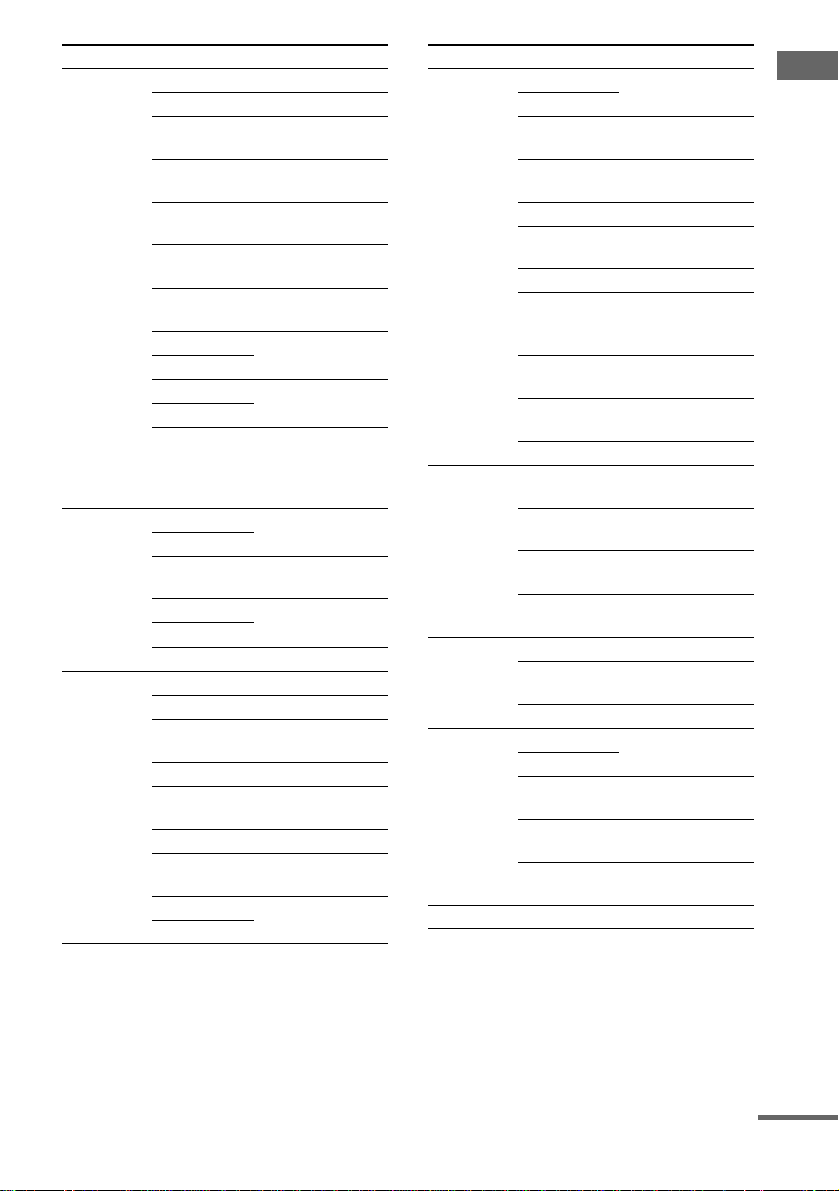
When you program the remote to control the following Sony or non-Sony components, you can use the
buttons on the remote that are marked with circles. Note, however, that some buttons may not operate
your component.
* Deck B only.
**Not available depending on the component.
Table of buttons used to control each component
Component
Button
VCR TV LD
player
DVD
player
Video
CD
player
CD
player
MD deck Tape
deck
(A and
B)
DAT
deck
Tuner Cable
box
Satellite
tuner
Projector
AV ?/1 zzzzzzz z zz
H z zzzzzzz
X z zzzzzzz
x z zzzzzzz
./> z zzzzz z* z
m/M z zzzzzzz
Control button zz zz
TOP MENU/
GUIDE
zz
AV MENU zz zz
DISPLAY zzzzzzz z
EXIT z**
RETURN Ozzz
continued
8
GB
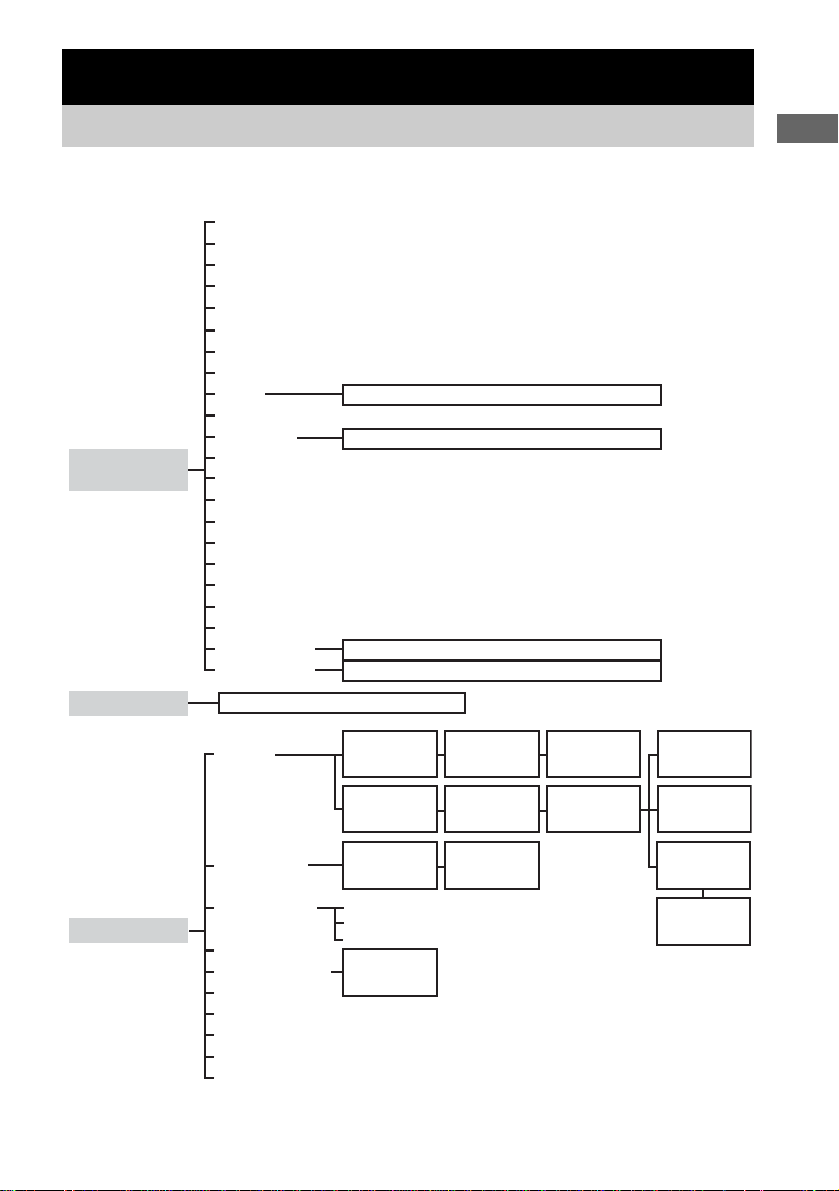
Table of SUB menu operations
Press the i button repeatedly to display a list of
operations (SUB menu) that the corresponding
buttons are not found on the remote. The
contents of the lists will vary according to the
currently selected component. The following
table shows the items in each list and the
function of each item.
“D.CS” and “BSD” are not available with this
receiver.
Component Item(s) Function
VCR CH + Selects preset
channels.
CH –
INPUT
SELECT
Changes the input
mode of the VCR.
AUDIO Changes the sounds.
ANT TV/
VIDEO
Selects the signal to
be output from the
antenna terminal of
the VCR (TV signal
or video signal).
SP/LP Selects the playback
speed.
REC Starts recording.
COUNTER/
REMAIN
Displays the playing
or remaining time.
TV CH + Selects preset
channels.
CH –
MUTING Mutes the sound.
VOL + Raises the volume.
VOL – Lowers the volume.
JUMP Toggles between the
previous and current
channels.
TV/VIDEO Changes the input
mode of the TV.
MPX/DUAL Changes the audio
setting.
WIDE Selects the wide-
picture mode.
a)
P IN P Activates the
picture-in picture
function.
b)
POSITION Changes the position
of the small
picture.
b)
SWAP Swaps the small and
large pictures.
b)
SUB CH + Selects preset
channels for the
small picture.
b)
SUB CH –
SLEEP Activates sleep
timer.
LD player SIDE A
c)
Selects side A of the
disc.
SIDE B
c)
Selects side B of the
disc.
PROGRAM Programs the tracks.
REPEAT Repeats current track
or programmed
tracks.
Component Item(s) Function
Location of parts and basic remote operations
9
GB
DVD player AUDIO Changes the sounds.
ANGLE Changes the angles.
SUBTITLE Changes the Subtitle
Language.
SUBTITLE
ON OFF
Turns the Subtitles
on or off.
TIME Changes the time
information.
SEARCH
MODE
Changes the search
mode.
CLEAR Returns to the
Continuous Play etc.
INDEX + Selects a index.
INDEX –
DISC SKIP + Selects a disc.
DISC SKIP –
SET UP Displays the Set up
menu. For details on
the menu operation,
see page 10.
Video CD
player
DISC SKIP + Selects a disc.
DISC SKIP –
TIME Changes the time
information.
INDEX + Selects a index.
INDEX –
DISC Selects a disc.
CD Player DISC Selects a disc.
d)
TRACK Selects a track.
CONTINUE Selects Continuous
Play.
SHUFFLE Selects Shuffle Play.
PROGRAM Selects Program
Play.
REPEAT Selects Repeat Play.
TIME Changes the time
information.
DISC SKIP + Selects a disc.
DISC SKIP –
Component Item(s) Function
MD deck DISC SKIP + Selects a disc.
DISC SKIP –
TIME Changes the time
information.
CONTINUE Selects Continuous
Play.
SHUFFLE Selects Shuffle Play.
PROGRAM Selects Program
Play.
REPEAT Selects Repeat Play.
MENU/NO Selects editing
operation or cancels
editing.
YES Performs editing
operation.
CLEAR Erases a track in the
program etc.
REC Pauses for recording.
Tape deck REVERSE
PLAY
Plays the reverse
side.
A-REC Makes deck A pause
for recording.
B-REC Makes deck B pause
for recording.
PROGRAM/
START
Selects Program
Play.
DAT deck REPEAT Starts Repeat Play.
CLEAR Erases a track in the
program etc.
REC Pauses for recording.
Tuner PRESET + Selects a preset
station.
PRESET –
DIRECT
TUNING
Enters Direct Tuning
mode.
FM/AM Selects the FM or
AM band.
SHIFT Switches the
memory page.
Cable box
Component Item(s) Function
continued

10
GB
a)
Only with Sony TVs that supports the wide-picture
mode.
b)
Only with Sony TVs with the picture-in-picture
function.
c)
“DISC A/B” appears for non-Sony LD players.
d)
Only with the Sony CD changer.
Note
If you have programmed the remote to control non-
Sony components, note the following:
– All the items may not appear when you select a
component.
– All the items displayed may not function.
Tip
You can freely assign codes to SUB1 through SUB5.
Select when you transmit learned codes. For details,
see “Learning the commands of your components” on
page 20.
To perform set up menu
operations on the DVD player or
satellite tuner
1 Select the DVD player from the input list.
2 Press the i button repeatedly to display the
SUB menu.
3 Use the control button to perform menu
operations on the DVD player.
Make sure that “DVD” is selected in the
CURSOR TYPE list.
To exit the menu operation, press RETURN O/
EXIT. To display the DVD menu, use the AV
MENU button (page 4).
Satellite
tuner (DSS)
CH + Selects preset
channels.
CH –
JUMP Toggles between the
previous and current
channels.
FAVORITE Displays the
Favorite Station
Guides.
CATEGORY Displays the Guide
Category list.
INDEX Displays the Station
Index.
Satellite
tuner (BST)
CH + Selects preset
channels.
CH –
-/-- Selects the channel
of eleven or higher.
MAIN/SUB Switched the main or
sub language.
TV/RADIO Switches the TV or
radio input.
Projector POWER ON Turns on the
projector.
POWER OFF Turns off the
projector.
INPUT A Switches to the input
from INPUT A
jacks.
INPUT B Switches to the input
from INPUT B jacks.
INPUT
VIDEO
Switches to the input
from VIDEO jacks.
INPUT
SELECT
Switches to the input
from VIDEO IN or S
VIDEO IN jacks.
MEMORY Stores the adjusted
data in memory.
BRIGHT + Adjusts the
brightness.
BRIGHT –
CONTRAST + Adjusts the contrast.
CONTRAST –
ZOOM + Adjusts the zoom of
the picture.
ZOOM –
SHIFT + Adjusts the lens shift
of the picture.
SHIFT –
FOCUS + Adjusts the lens shift
of the picture.
FOCUS –
Component Item(s) Function
To display Do this
TOP MENU Press TOP MENU button.
DVD MENU Press AV MENU button.
SET UP Select “SET UP” in the SUB
menu.
Using the lists
11
GB
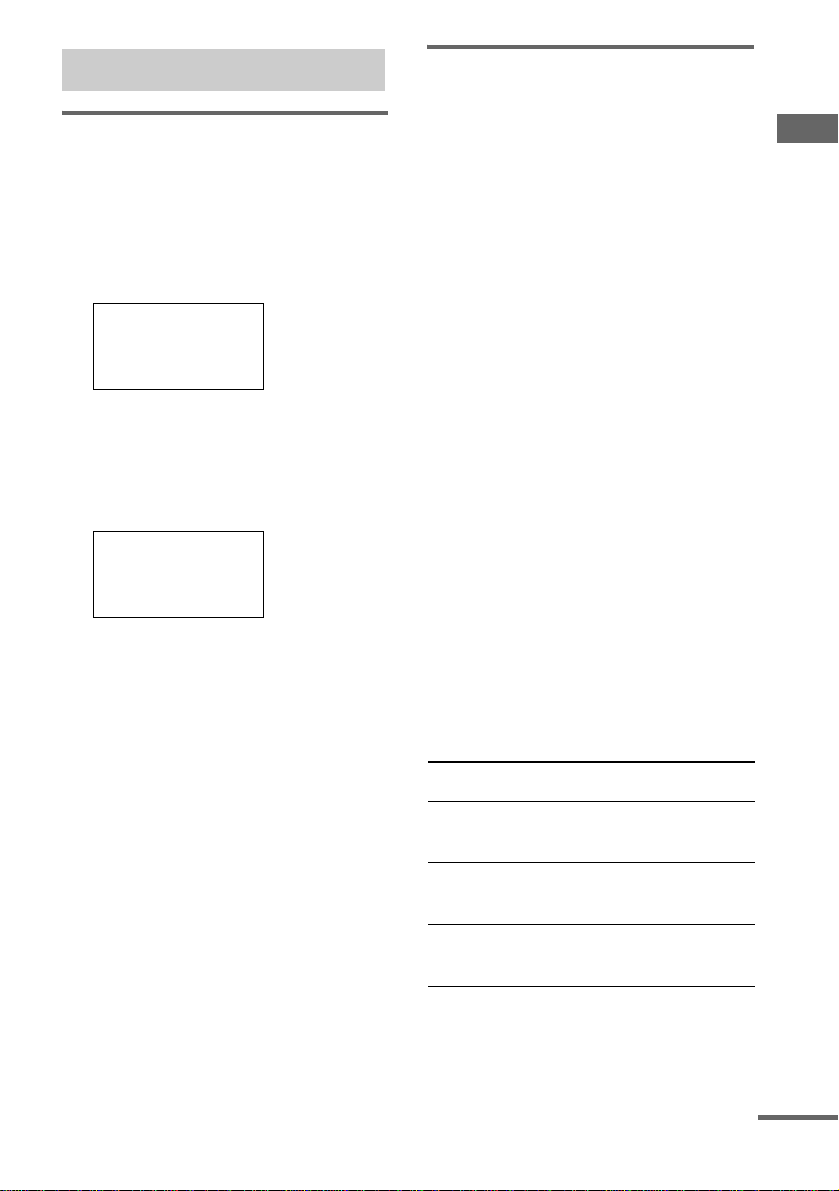
See the treelike chart below for the list hierarchy. Details on how to access each list is given from
page 13. Some items have sub-lists that appear when you press > (page 8).
Using the lists
Chart of lists
IR SET
SOUND FIELD
RM SET UP
LEARNING
DOWNLOAD INPUT SELECTOR
CD DISC NAME
f)
INPUT LIST
AUTO POWER
BACK LIGHT
CONTRAST
COMMAND MODE
AMP REGIST
ALL CLEAR
VIDEO3
VIDEO4
a)
VIDEO5
a)
DVD
TV/SAT
TAPE
MD/DAT
TUNER
INPUT
SELECTOR
CD/SACD
i.LINK
a)
MULTI CH 1
MULTI CH 2
USER1
USER2
MACRO1
2ND ZONE
c)
3RD ZONE
d)
MACRO2
VIDEO1
VIDEO2
LD
a)
PHONO
TUNER INFO
e)
Deck A/B status information
Disc name (memo) list
b)
Sound field list
IR SET list
CATEGORY
list
MAKER list
BUTTON list
MACRO 1/2
list
PROGRAM
list
CATEGORY
list
COMMON
list
LEARNING
list
BUTTON list
MAKER list
FUNCTION
list
TV INPUT
list
2nd zone input list
3rd zone input list
Press
Press
Press
(page 13)
(page 15)
(page 16)

12
GB
a)
TA-DA9000ES only.
b)
Only when set to CD2 or CD3.
c)
When the COMMAND MODE is set to 2ND ZONE, only the 2nd zone list appears (STR-DA5000ES only.
However, 2nd zone list appears when the model name of the receiver is not registered (page 6)).
d)
When the COMMAND MODE is set to 3RD ZONE, only the 3rd zone list appears (STR-DA5000ES only).
e)
STR-DA5000ES only.
f)
Appears only when the receiver is connected to CONTROL A1/A1II compatible CD changer (5, 50, 200, 300 or
400 discs).
Using the lists
13
GB
Basic procedure for selecting
a component
Do the procedure below to select a component
from the input list.
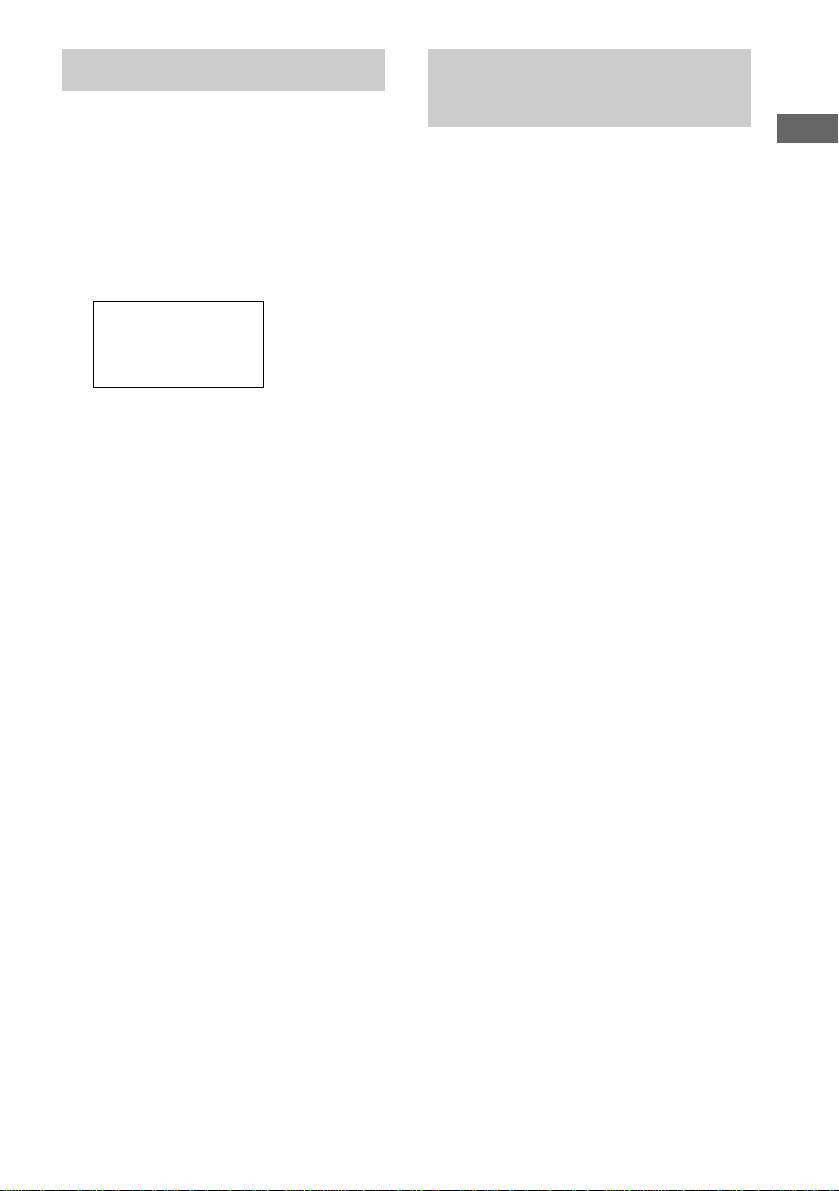
1 Press INPUT SELECTOR.
The input list appears. The items in the list
correspond with the jacks on the receiver.
2 Move the easy scroll key to select a
component from the list, then press the
key to enter the selection.
Information about the component appears
in the display window.
A display example
First line: Selected component
Second line: Category
Third line: Maker of the component
Tips
• You can modify the category indication. The
category indication tells you what component is
actually connected to the jacks on the receiver. If a
component is connected to jacks for which they are
not originally meant, you can modify the category
indication to match the component. For details, see
“Programming the remote” on page 16.
• You can set the remote to automatically turn on a
component when it is selected from the function list.
For details, see “Using the auto power function” on
page 24.
• You can customize the input list.
Additional procedures after
selecting a component
Depending on the component that you selected,
you may have to do an additional procedure, or
you may be able to obtain detailed information
about the component by doing an additional
procedure.
If you selected tuner
Do the procedure below after you have selected
the tuner.
1 Move the easy scroll key.
The preset station list appears.
2 Move the easy scroll key to select the
preset station, then press the key to
enter the selection.
The current status of the component appears
in the display window.
Note
If you have changed the contents of the preset station
memory of the receiver, be sure to download the preset
station memory from the receiver (see page 22) before
you tune in to a preset station.
If you have selected CD player,
tape deck, or MD deck
Detailed information about the component
appears in the display window of the remote
only if the component is compatible with
CONTROL A1/A1II.
The information that appears is as follows:
Selecting a component
MD/DAT
cCD/SACD
TUNER
PHONO
<CD/SACD >
CD1
Sony
If you have
selected
The following information
appears
CD player The first 9 characters of the disc
memo, track number, and track
text
MD deck The first 9 characters of the disc
name, track number, and track
name
MD deck or tape
deck
The current deck operation (N,
X or x) to the right of the
component
indication
continued

14
GB
If you selected a Sony CD
changer
1 Move the easy scroll key.
The DISC MEMO list appears.
2 Move the easy scroll key to select a disc,
then press the key to enter the selection.
3 Start playback.
Note
If you have changed the discs in the changer, be sure to
download the CD memos from the receiver (see
page 22) or play the newly inserted disc(s) before you
select a disc from the changer.
If you selected the tape deck
Move the easy scroll key to display the
information about deck A or B.
Note
When the remote is programmed to control a non-Sony
tape deck, the following may occur:
– You cannot switch between tape deck A and B.
– “TAPE A/B” is displayed and tape deck A and B
switch automatically each time you press the easy
scroll key, etc.
If you selected 2ND ZONE or 3RD
ZONE (Models of area code U, CA
only)
Move the easy scroll key to select the source for
2nd zone or 3rd zone, then press the key.
You can select the audio directly from the
components connected to the MULTI
CHANNEL INPUT jacks. This enables you to
enjoy high quality analog inputs like DVD or
Super Audio CD.
Surround effects are not activated when using
this input.
1 Press INPUT SELECTOR.
2 Move the easy scroll key to select
“MULTI CH 1” or “MULTI CH 2”.
Listening to multi channel
sound
— MULTI CH IN
Using the lists
15
GB
Do the procedure below to select a sound field
from the sound field list.
1 Press SOUND FIELD.
The sound field list appears.
2 Move the easy scroll key to select the
sound field, then press the key to enter
the selection.
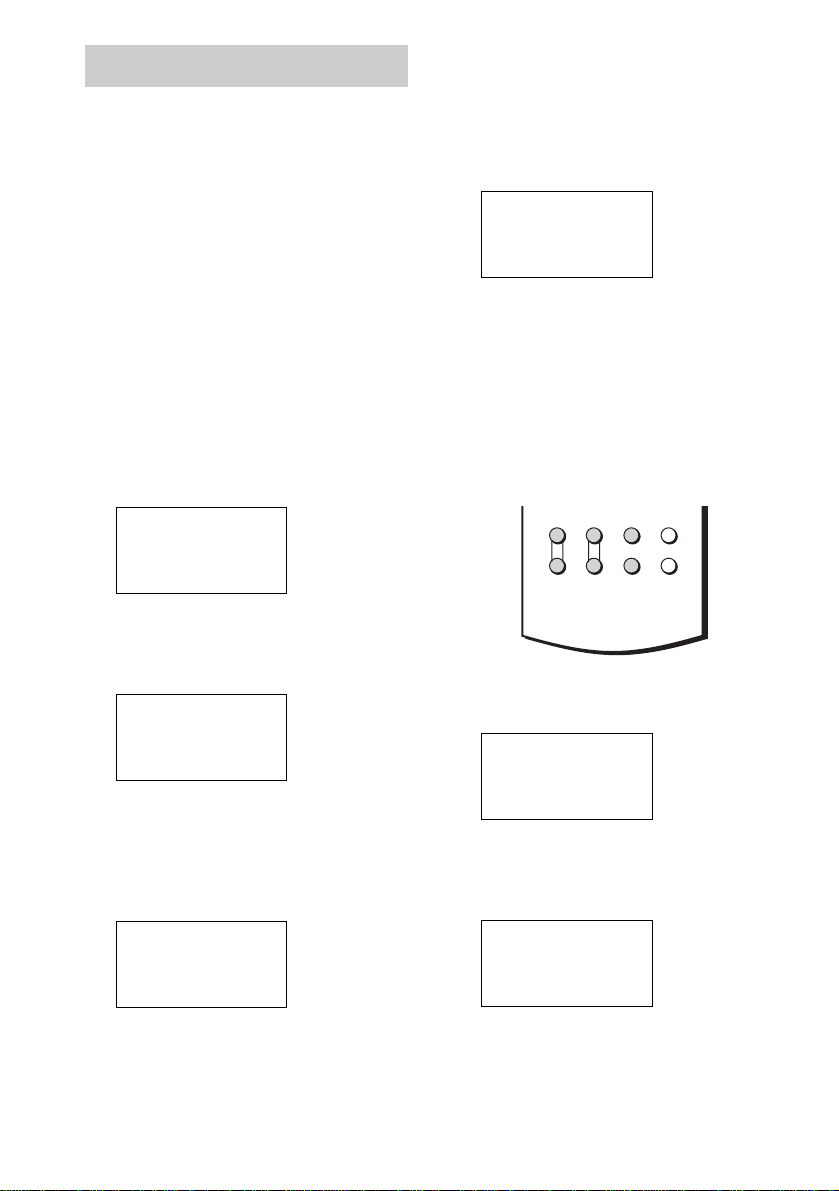
A display example
To turn off the sound field
Move the easy scroll key to select either “A.F.D.
AUTO” or “2CH STEREO” in the sound field
list in the display.
This function lets you specify the type of
decoding for 2 channel audio sources. This
receiver can reproduce 2 channel sound in 5
channels through Dolby Pro Logic II; 6 channels
through DTS Neo:6; or 4 channels through
Dolby Pro Logic. However, DTS 2CH sources
are not decoded by DTS Neo:6; they are output
in 2 channels.
1 Press SOUND FIELD.
The sound field list appears.
2 Move the easy scroll key to select the 2
channel decoding mode.
The selected mode appears.
2 channel decoding mode
• PRO LOGIC
Performs Pro Logic decoding. The source
recorded in 2 channel is decoded into 4.1
channels.
• PLII MOVIE
Performs Pro Logic II Movie mode decoding.
This setting is ideal for movies encoded in
Dolby Surround. In addition, this mode
reproduce sound in 5.1 channels when
watching videos of overdubbed or old
movies.
•PLII MUSIC
Performs Pro Logic II Music mode decoding.
This setting is ideal for normal stereo sources
such as CDs.
• Neo:6 Cinema
Performs the DTS Neo:6 Cinema mode
decoding. This setting is ideal for movies
encoded in DTS surround.
• Neo:6 Music
Performs the DTS Neo:6 Music mode
decoding. This setting is ideal for normal
stereo sources such as CDs.
Selecting a sound field
C.STUDIO EX A
cC.STUDIO EX B
C.STUDIO EX C
V.M.DIMENSION
Enjoying Dolby Pro Logic II
and DTS NEO:6
16
GB
You can customize the remote to match the
components connected to your receiver. You
can even program the remote to control non-
Sony components and also Sony components
that the remote is normally unable to control.
The procedure below uses as an example a case
in which a Aiwa VCR is connected to the
VIDEO2 jacks on the receiver.
Before you begin note that:
– You cannot change the settings of PHONO.
– The remote can control only components that
accept infrared wireless control signals.
Be sure to turn on the receiver and point
the remote towards the receiver when
performing the following procedure.
1 Press RM SET UP.
The set up list appears.
2 Move the easy scroll key to select “IR
SET”, then press the key to enter the
selection.
The IR SET list appears.
3 Move the easy scroll key to select the
input (i.e, the jack name on the rear
panel of the receiver; in this case,
“VIDEO 2”), then press the key to enter
the selection.
The category list appears.
4 Move the easy scroll key to select the
category (i.e., the component that is
actually connected to the
corresponding jacks; in this case,
“VCR”), then press the key to enter the
selection.
The maker list appears.
5 Move the easy scroll key to select the
maker of the component (“Aiwa”, for
example), then press the key to enter
the selection.
When programming the remote to control
Sony component, select “Sony”.
Programming is now completed.
Programming the TV operation
buttons
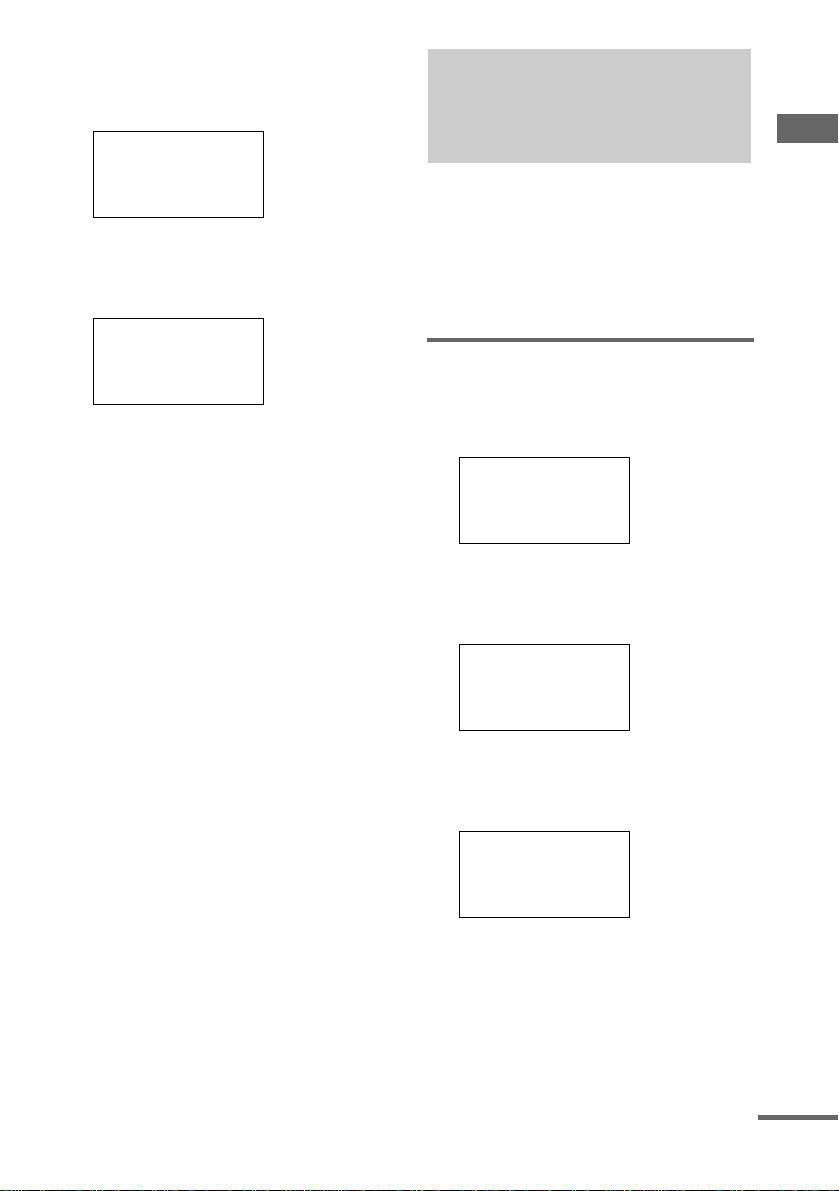
1 Press RM SET UP.
The set up list appears.
2 Move the easy scroll key to select “IR
SET”, then press the key to enter the
selection.
The IR SET list appears.
Programming the remote
c IR SET
LEARNING
DOWNLOAD
INPUT LIST
<IR SET>
[VIDEO 1 ]
c[VIDEO 2 ]
[VIDEO 3 ]
Category?
cVCR
T V
L D
Maker?
cSony VTR1
Sony VTR2
Sony VTR3
c IR SET
LEARNING
DOWNLOAD
INPUT LIST
<IR SET>
USER2
c TV-KEY
MACRO
TV VOL TV CH TV/VIDEO
WIDE
MAIN
MENU
ON SCREEN
+
–
+
–
Using the lists
17
GB
3 Move the easy scroll key to select “TV-
KEY”, then press the key to enter the
selection.
The category list appears.
4 Move the easy scroll key to select “TV”,
then press the key to enter the
selection.
The maker list appears.
5 Move the easy scroll key to select the
maker of the component (“Aiwa”, for
example), then press the key to enter
the selection.
To cancel programming
Move the easy scroll key to select “Exit” or
“Cancel” during any step, then press the key to
enter the selection.
Tip
You can freely assign any component to USER1 and
USER2 items in the IR SET list.
1 Do steps 1 and 2 in “Programming the remote”.
2 Move the easy scroll key to select “USER1” or
“USER2”, then press the key to enter the selection.
3 Continue from step 3 in “Programming the remote”
to select the category and maker of the component.
Note
If you select “IR SET” for a component that already
has a learned button setting, the learned codes for that
component are cleared. Furthermore, if the cleared
learned button is used in a Macro Play setting, the
setting for that button will be changed to “NO SET”.
The Macro Play function lets you link several IR
codes in a sequential order as a single command.
The remote provides 2 macro lists (MACRO1
and MACRO2). You can specify up to 16 IR
codes for each macro list.
Setting the sequence of IR
codes
1 Press RM SET UP.
The set up list appears.
2 Move the easy scroll key to select “IR
SET”, then press the key to enter the
selection.
The IR SET list appears.
3 Move the easy scroll key to select
“MACRO1” (or “MACRO2”), then press
the key to enter the selection.
The program number list appears.
Category?
cT V
Exit
Maker?
cSony
Admiral-1
Admiral-2
Performing several
commands in sequence
automatically
— Macro Play
cIR SET
LEARNING
DOWNLOAD
INPUT LIST
<IR SET>
cMACRO1
MACRO2
Exit
<MACRO1>
c 1-NO SET
2-NO SET
3-NO SET
continued
18
GB
4 Move the easy scroll key to select the
macro step number (“1-NO SET” for
example) then press the key to enter
the selection.
The category list appears.
5 Move the easy scroll key to select the
component category (“VCR” for
example), then press the key to enter
the selection.
The maker list appears.
6 Move the easy scroll key to select the
maker, then press the key to enter the
selection.
The function list appears.
7 Move the easy scroll key to select the
IR code for the operation you want to
perform, then press the key to enter the
selection.
The program number list reappears.
8 Repeat steps 4 through 7 to program
up to 16 IR codes.
When you have finished programming IR
codes, select “Exit” in step 7.
To use learned codes under the
Macro Play function
1 In step 5, move the easy scroll key to select
“Button”, then press the key to enter the
selection.
2 Move the easy scroll key to select the button
of the learned codes.
When selecting a button, you can press the
button directly, instead of scrolling the list, to
jump to the desired button in the list and
transmit the IR code. Then press the easy
scroll key to enter the selection.
To program the IR codes for TV
operation
1 In step 5, move the easy scroll key to select
“Button”, then press the key to enter the
selection.
2 Move the easy scroll key to select “TV-KEY”,
then press the key to enter the selection.
To delay the output of an IR code
1 In step 5, move the easy scroll key to select
“Common”, then press the key to enter the
selection.
2 Move the easy scroll key to select “WAIT
TIME”, then press the key to enter the
selection.
3 Move the easy scroll key to select the time
to delay the output of an IR code, then press
the key to enter the selection. You can
specify from 1 to 10 second delay (in 1
second increments).
To erase a programmed IR code
1 In step 5, move the easy scroll key to select
“Common”, then press the key to enter the
selection.
2 Move the easy scroll key to select “NO
SET”, then press the key to enter the
selection.
To turn off all Sony components
(SYSTEM STANDBY)
1 In step 5, move the easy scroll key to select
“Common”, then press the key to enter the
selection.
2 Move the easy scroll key to select “ALL
OFF”, then press the key to enter the
selection.
However, this function cannot be applied to
some Sony components.
Category?
cCommon
Button
VCR
Maker?
cSony VTR1
Sony VTR2
Sony VTR3
Function?
c*POWER
*PREVIOUS
*NEXT
<MACRO1>
c 1-POWER
2-NO SET
3-NO SET
Using the lists
19
GB
To cancel programming
Move the easy scroll key to select “Exit” or
“Cancel” during any step, then press the key to
enter the selection.
Tips
• In step 7, when no indication appears in front of the
function name, no IR code is programmed. You
cannot use the function for the macro play.
• In step 4 and 7, when “NO SET” is displayed after
the program number, the codes have not been
programmed for the macro play.
• In step 5, when you select “Button”,
– If “x” appears in the list in step 7, the button is
already learned.
– If you press < or > after you select the program
step in step 7, the programmed IR code is emitted
and you can check the operation.
Note
If you select “IR SET” for a component that already
has a learned button setting, the learned codes for that
component are cleared. Furthermore, if the cleared
learned button is used in a Macro play setting, the
setting for that button will be changes to “NO SET”.
Starting macro play
1 Press INPUT SELECTOR.
The input list appears.
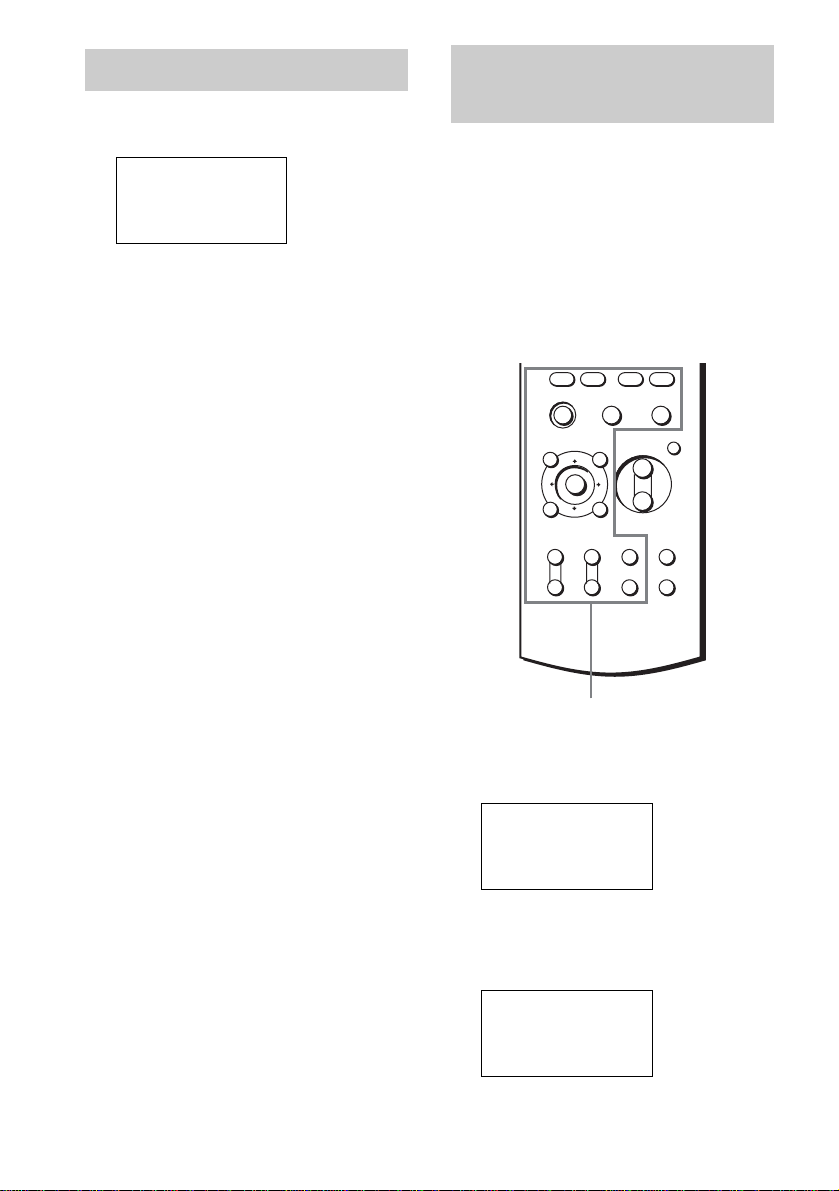
2 Move the easy scroll key to select
“MACRO1” or “MACRO2”, then press
the key to enter the selection.
The IR codes appear in the display window
as they are performed.
Notes
• Pressing any of the following buttons during a macro
play operation will cancel the macro play sequence
before it is complete.
– AV ?/1
– ?/1
– SYSTEM STANDBY
– SOUND FIELD
– INPUT SELECTOR
– RM SET UP
• When the Macro Play function does not work
properly, set “WAIT TIME” between each
operation.
USER1
USER2
cMACRO1
MACRO2
20
GB
1 Press I repeatedly.
The RECEIVER menu appears.
2 Move the easy scroll key to select the
item you want to set, then press the key
to enter the selection.
Each time you press the key, the setting
changes. For details on each items, refer to
the operating instructions supplied with the
receiver.
You can set the following items;
• TEST TONE: Turns on or off the test
tone.
• DIRECT: Outputs the audio signals
without adjustments.
• SB DECODING: Selects the SB
DECODING setting.
• NIGHT MODE: Turns on or off the
NIGHT MODE function.
• DIMMER: Adjusts the brightness of the
display.
• INPUT MODE: Selects the INPUT
MODE setting.
• EQ: Turns on or off the equalizer.
• SLEEP: Selects the sleep timer setting.
• TRIGGER ON*: Turns on the 12V
TRIGGER function.
• TRIGGER OFF*: Turns off the 12V
TRIGGER function.
*Models of area code U, CA only.
By using the Learning function, it is possible for
this commander to perform learned operations.
Setting remote control codes
that are not stored in the
commander
When a remote control code is not one of the
presets stored in the commander, it is possible
for the commander to learn the code using the
Learning function.
1 Press RM SET UP.
The set up list appears.
2 Move the easy scroll key to select
“LEARNING”, then press the key to
enter the selection.
The input list appears.
Using the RECEIVER menu
<RECEIVER>
cTEST TONE
DIRECT
SB DECODING
Learning the commands of
your components
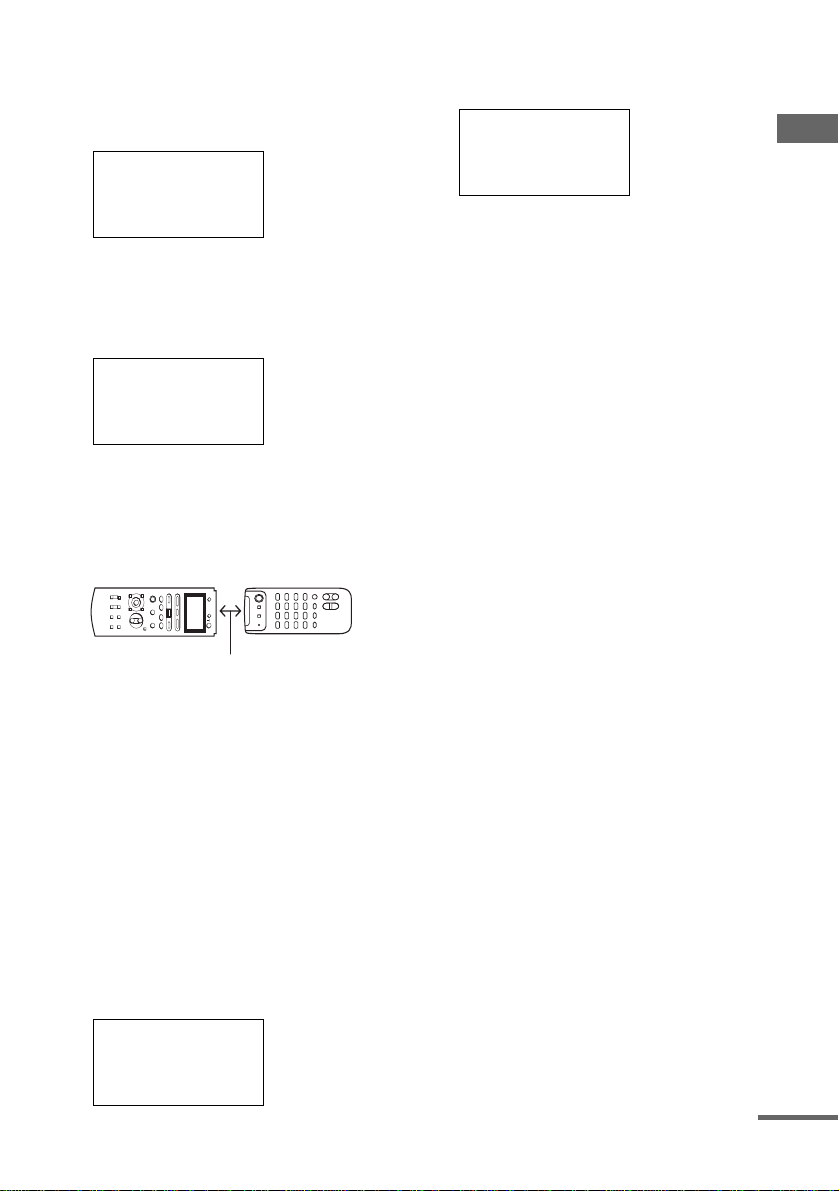
cIR SET
LEARNING
DOWNLOAD
INPUT LIST
<LEARNING>
[VIDEO 1]
c[VIDEO 2]
[VIDEO 3]
+
–
+
–
+
–
O
TOP MENU/GUIDE AV MENU
DISPLAY
TV VOL TV CH TV/VIDEO
WIDE
MAIN
MENU
ON SCREEN
RETURN/EXIT
MASTER
VOL
MUTING
HX x
.> m M
Buttons for learning
Using the lists
21
GB
3 Move the easy scroll key to select the
function you want to use the Learning
input, then press the key to enter the
selection.
The button list appears.
4 Move the easy scroll key to select the
button you want to use for the Learning
function, then press the key to enter
the selection.
The display for learning function appears.
First line: Input
Second line: Button
5 Point the remote code receiver section
of the commander toward the receiver/
transmitter on the remote control to be
learned.
6 Move the easy scroll key to select
“Learning Start”, then press the key to
enter the selection.
“Learning Now!!” is displayed.
7 Press the appropriate button on the
remote control to send the remote
control code.
Lightly pressing the button once should be
sufficient. In about 3 to 5 seconds, it is
displayed whether learning was successful
or not. When the learning completes
successfully, “Learning OK!”, the number
of keys, and the capacity used for learning
are displayed.
When the learning does not complete
successfully, the cause is displayed in the
third line.
FULL (Keys): shortage of buttons
FULL (memory): shortage of memory
ERROR: other causes
Move the easy scroll key to return to step 3,
then repeat the procedure above.
To cancel learning
Move the easy scroll key to select “Exit” or
“Cancel” during any step, then press the key to
enter the selection.
To erase the learned code
1 In step 6 above, move the easy scroll key to
select “CLEAR”, then press the key to enter
the selection. “ALL CLEAR?” appears.
2 Move the easy scroll key to select “Yes”,
then press the key to enter the selection.
“CLEAR OK?” appears.
3 Move the easy scroll key to select “Yes”
again, then press the key to enter the
selection.
Tips
• The marks that are displayed in front of the button
name indicate the following.
x: already learned
* : pre-programmed
• In step 4, learned buttons can be selected directly. If
you press the button you want to use for the Learning
function, the list will jump to the same button.
• The Learning function can be applied to the SUB
menus. SUB1–SUB5 can be learned.
• You can set the input names for SUB1–SUB5.
1 In step 6, move the easy scroll key to select
“NAME”, then press the key to enter the selection.
2 Move the easy scroll key to create a name, then
press the key to enter the selection (up to 8
characters).
+/– : Select a character
</>: Move the cursor
Insert: Insert a space
Delete: Delete a character
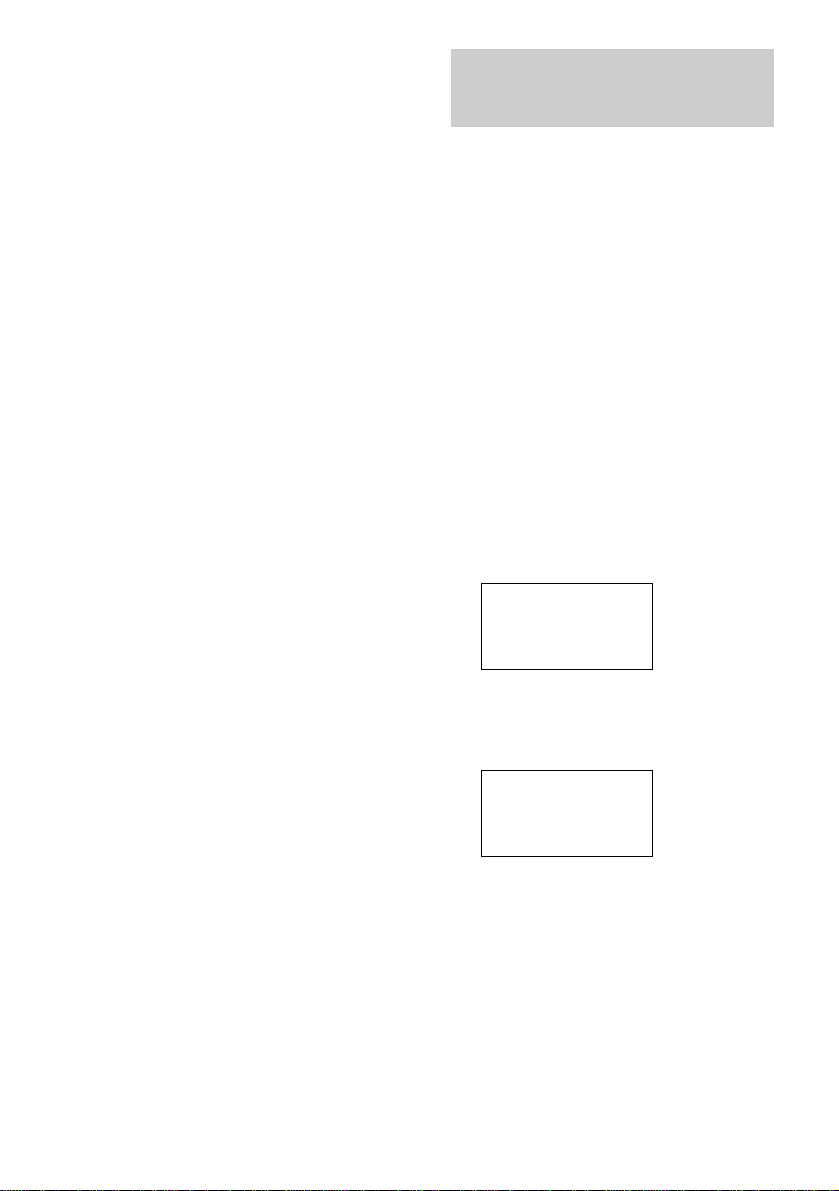
Button[VIDEO 2]
c*POWER
*PREVIOUS
*NEXT
[VIDEO 2]
*(POWER)
cLearning Start
Exit
[VIDEO 2]
x(PLAY)
Learning OK!
(15/80 20%)
About 5 cm ~ 15 cm
Learning NG!
(REVERSE)
FULL (Keys)
cExit
continued
22
GB
Notes
• You can program up to 80 buttons for the Learning
function. In some cases, you may not be able to
program even if you have not programmed 80
buttons.
• If you select “IR SET” for a component that already
has a learned button setting, the learned codes for that
component are cleared. Furthermore, if the cleared
learned button is used in a Macro Play setting, the
setting for that button will be reset to the initial
setting.
Using a command that has been
learned
When selecting a learned input, press the button
used to learn that function.
The remote communicates with the receiver
every time a button is pressed on the remote and
displays the current operation status of the
receiver on the display window.
The remote can also download index names of
the program sources, preset stations, CD disc
names (memos)*, and information indicating
the presence or absence of a CD in each slot of a
CD changer* from the receiver.
* Appears only when you have selected a Sony
CD changer (5, 50, 200, 300, or 400 discs)
connected to the receiver using the
CONTROL A1 cable.
Be sure to turn on the receiver and point
the remote towards the receiver when
performing the following procedure.
1 Press RM SET UP.
The set up list appears.
2 Move the easy scroll key to select
“DOWNLOAD”, then press the key to
enter the selection.
The DOWNLOAD list appears.
3 To download index names
Move the easy scroll key to select “INPUT
SELECTOR”, then press the key to enter
the selection.
To download preset stations
(STR-DA5000ES only)
Move the easy scroll key to select “TUNER
INFO”, then press the key to enter the
selection.
Downloading data from
the receiver
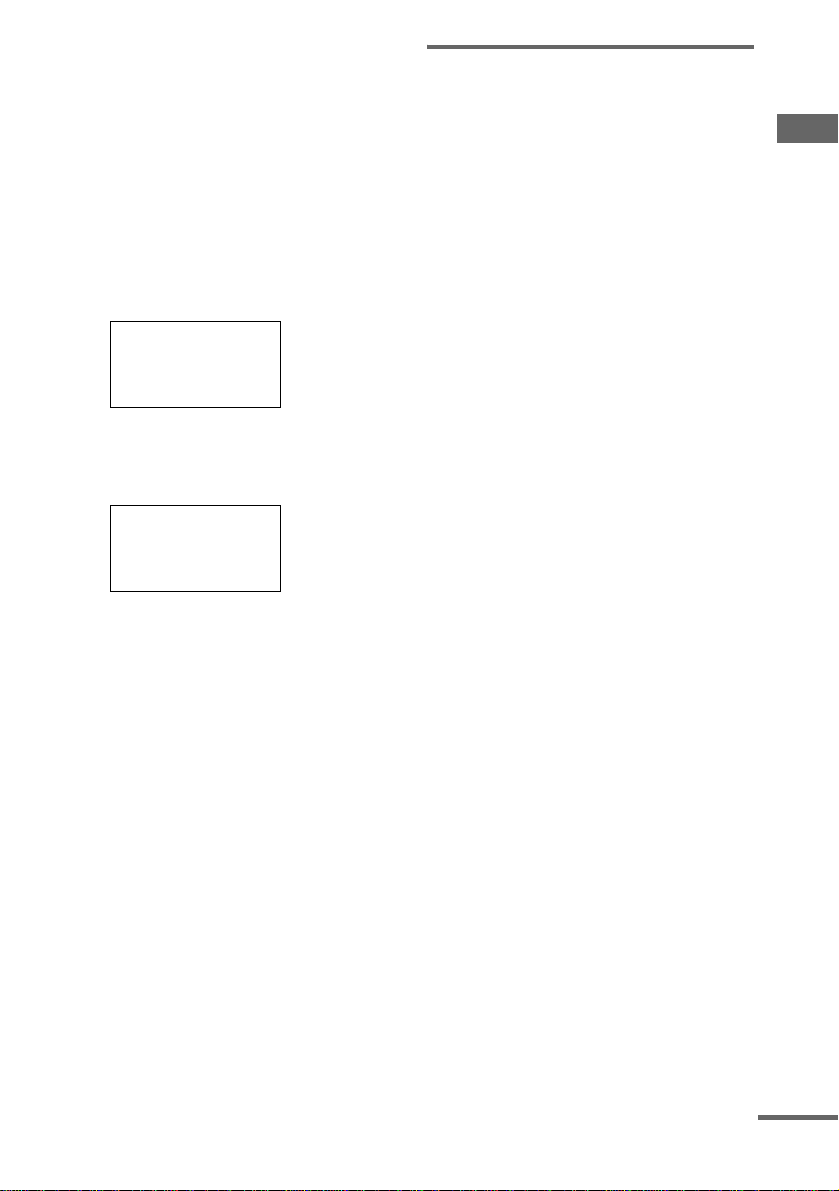
cIR SET
LEARNING
DOWNLOAD
INPUT LIST
<
DOWNLOAD>
cINPUT SELECTOR
TUNER INFO
Exit
Using the lists
23
GB
To download CD disc names (memos)
and information on the presence or
absence of a CD in each slot of a CD
changer
This function is available only when the CD
player is set to “CD2” or “CD3” in the IR
SET menu. When the CD player is set to
“CD1”, “CD DISC NAME” does not
appear.
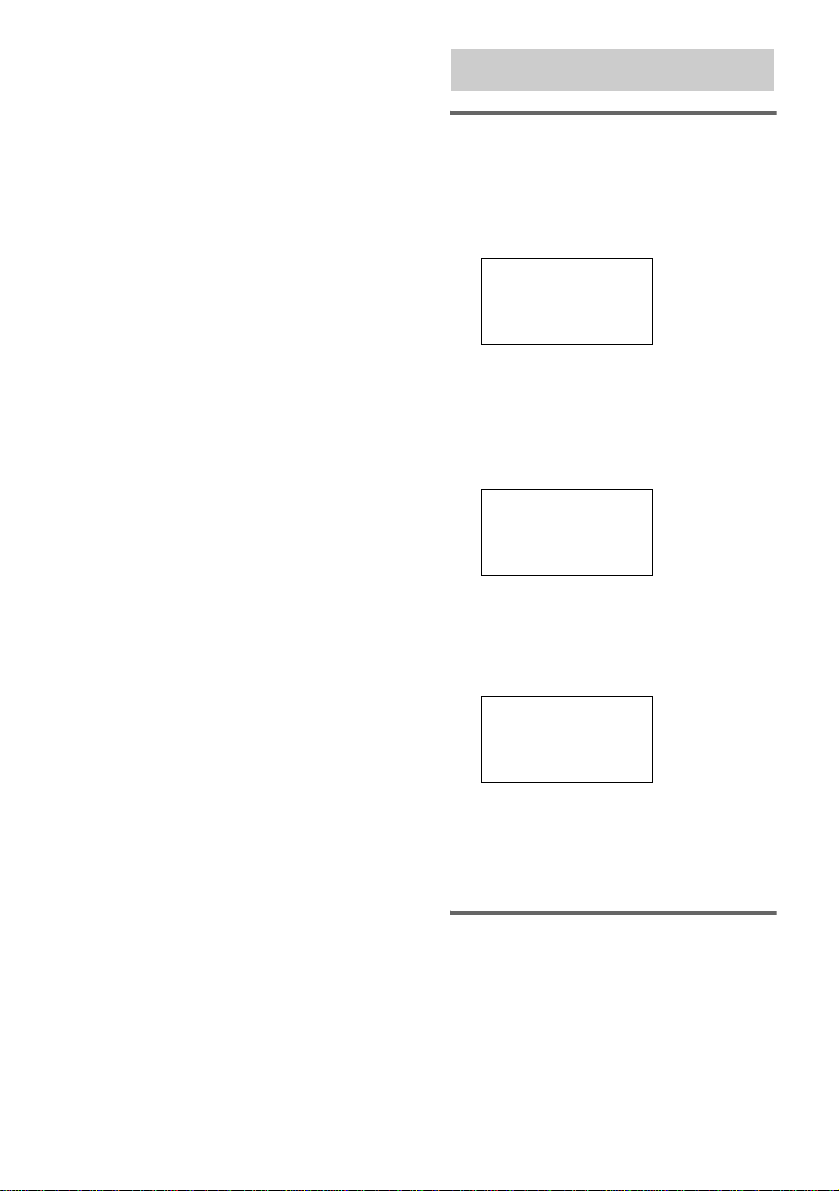
1 Move the easy scroll key to select “CD
DISC NAME” then press the key to enter
the selection.
The SORT list appears in the display.
2 Move the easy scroll key to select
“NUMBER” or “ALPHABET”, then
press the key to enter the selection.
The remote starts to download the data.
To cancel the download process
Move the easy scroll key to select “Exit” from
the DOWNLOAD list, then press the key to
enter the selection.
Tip
When you change the discs in the CD changer, the disc
information (disc names (memos)) is automatically
updated when you start playback. To update without
starting playback, perform the above procedure.
Notes
• You can download the data only from the Sony CD
changer (5, 50, 200, 300, or 400 discs) connected to
the receiver using the CONTROL A1 cable.
• CD DISC NAME is available for up to 400 discs.
Note on downloading CD disc
names from the CD players
(memos)
You can download CD disc names (memos)
only from the CONTROL A1/A1II -compatible
Sony CD players. Depending on the CD player
setting, it may take several minutes to download
CD disc names (memos). For faster
transmission, make the following CD player
settings.
When an CONTROL A1/A1II -
compatible Sony CD player is
connected to the receiver
Set the category in the RM SET UP list for the
CD player to “CD1”. When you connect a Sony
CD changer, set the category in the RM SET UP
list for “CD2” (or “CD3”). Use only one of
“CD1”, “CD2”, or “CD3” for the category. The
current category setting appears when you select
the component from the INPUT SELECTOR
list (page 13).
When multiple CONTROL A1/A1II
-compatible Sony CD players are
connected to the receiver
When you use two CD players, set the
COMMAND MODE selector on the back panel
of the CD players to “CD1” and “CD2”
respectively, and set the category in the IR SET
list to match the corresponding player’s
COMMAND MODE selector position (see
page 16). When you use three CD players, set
the COMMAND MODE selector to “CD1”,
“CD2”, and “CD3” respectively, and set the
category in the IR SET list to match the
corresponding player’s COMMAND MODE
selector position.
When setting category for the CD players, do
not skip the number or select the same number to
the multiple players.
When an CONTROL A1/A1II -
compatible Sony CD player and a
non-compatible Sony CD player
are connected to the receiver
Set the COMMAND MODE selector on the
back panel of the CONTROL A1/A1II-
<Sort? >
cNUMBER
ALPHABET
Exit
<LOADING>
[xxx ]
cCancel
continued
24
GB
compatible CD player to “CD2” and set the
category in the IR SET list for the player to
“CD2” (see page 16).
Set the COMMAND MODE selector on the
back panel of the non-compatible CD player to
“CD1” and set the category in the IR SET list for
the player to “CD1” (see page 16).
When using a non-Sony CD player
in conjunction with Sony CD
players
Program the remote to control the non-Sony CD
player (see page 16).
See the sections above for settings of the Sony
CD players.
Customizing the input list
You can set the remote to display only the inputs
you use in the input list.
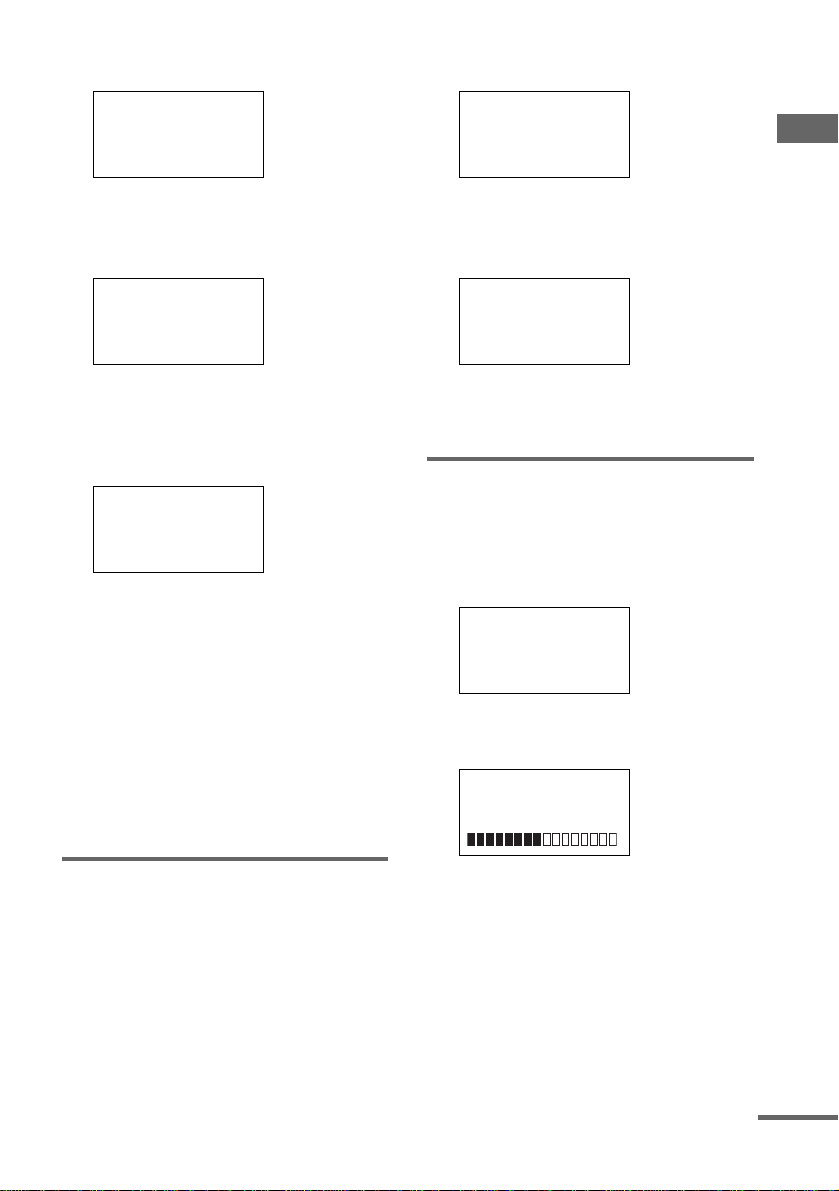
1 Press RM SET UP.
The set up list appears.
2 Move the easy scroll key to select
“INPUT LIST”, then press the key to
enter the selection.
The INPUT LIST list appears.
“*” in front of the input name means that
the input is displayed in the input list.
3 Move the easy scroll key to select the
input not to be displayed in the input
list, then press the key to enter
selection.
“*” disappears for the selected input.
To display the input in the
function list
In step 3, press the key repeatedly until “*”
appears again.
Using the auto power function
With the auto power function turned on, Sony
AV and TV components automatically turns on
and the TV switches to the selected input mode.
This function works for Sony components only.
Other operations
cIR SET
LEARNING
DOWNLOAD
INPUT LIST
<INPUT LIST>
c*[VIDEO 1 ]
*[VIDEO 2 ]
*[VIDEO 3 ]
<INPUT LIST>
c [VIDEO 1 ]
*[VIDEO 2 ]
*[VIDEO 3 ]
Using the lists
25
GB
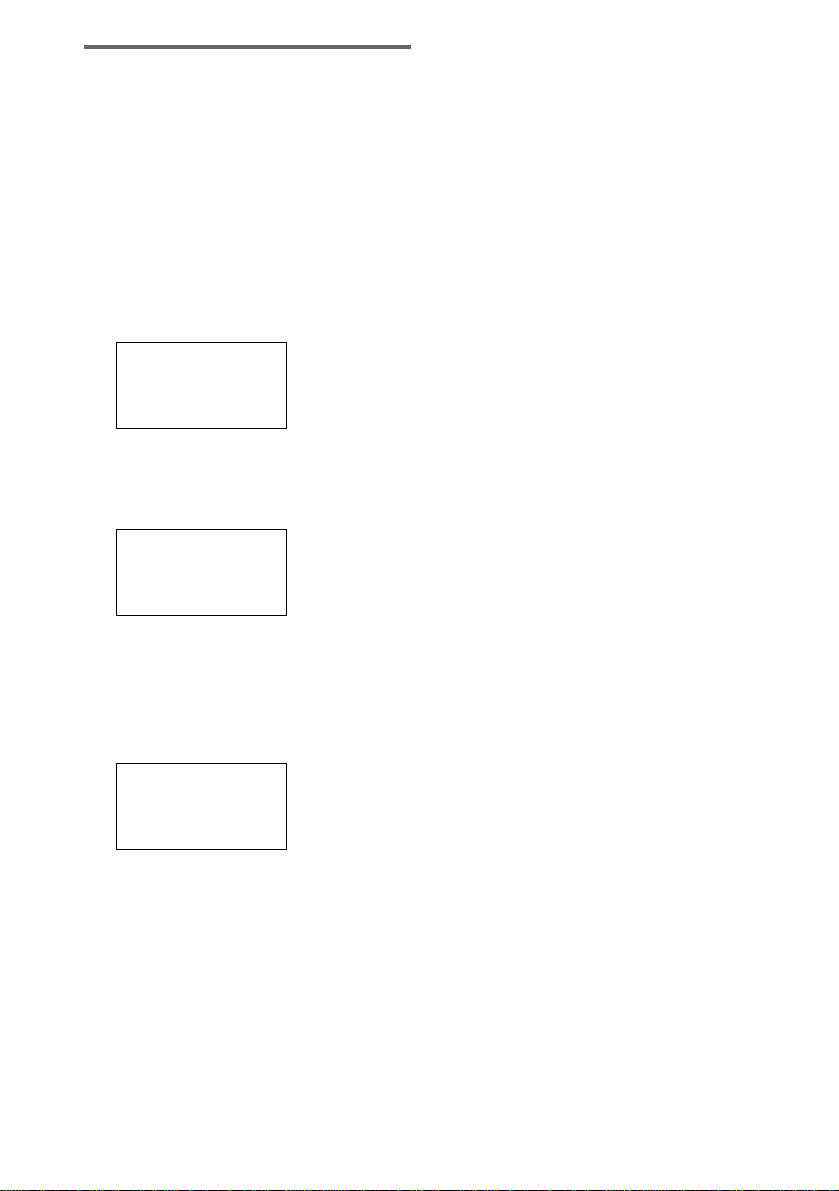
1 Press RM SET UP.
The set up list appears.
2 Move the easy scroll key to select
“AUTO POWER”, then press the key to
enter the selection.
The AUTO POWER list appears.
3 Move the easy scroll key to select “On”
or “Off”, then press the key to enter the
selection.
When you select “On”, the TV INPUT list
appears.
4 Move the easy scroll key to select the
video input of the TV, then press the
key to enter the selection.
When you want to select component video
input, select TV-COMPO1 or 2.
Notes
• Switching to VIDEO1–6 input may not be automatic
on all Sony TVs. This is because some TVs cannot
receive remote control codes immediately after being
turned on.
• When you select “(Off)” in step 4, the TV input does
not switch.
Turning the backlight on or off
Each time you press a button on the remote, the
backlight turns on. If you do the procedure
below to turn off the backlight, you can make the
batteries last longer.
1 Press RM SET UP.
The set up list appears.
2 Move the easy scroll key to select
“BACK LIGHT”, then press the key to
enter the selection.
The BACK LIGHT list appears.
3 Move the easy scroll key to select “On”
or “Off”, then press the key to enter the
selection.
Adjusting the contrast of the
display
You can adjust the contrast of the display.
1 Press RM SET UP.
The set up list appears.
2 Move the easy scroll key to select
“CONTRAST”, then press the key to
enter the selection.
3 Move the easy scroll key to select “+”
or “–”, then press the key to enter the
selection.
Each time you press the key, the contrast of
the display changes. To exit adjusting,
move the easy scroll key to select “Exit”,
then press the key to enter the selection.
cIR SET
LEARNING
DOWNLOAD
INPUT LIST
<AUTO POWER>
cOn
Off
<TV INPUT>
cTV-VIDEO1
TV-VIDEO2
TV-VIDEO3
cIR SET
LEARNING
DOWNLOAD
INPUT LIST
<BACK LIGHT>
cOn
Off
cIR SET
LEARNING
DOWNLOAD
INPUT LIST
<CONTRAST>
c+
-
continued
26
GB
Switching the COMMAND
MODE
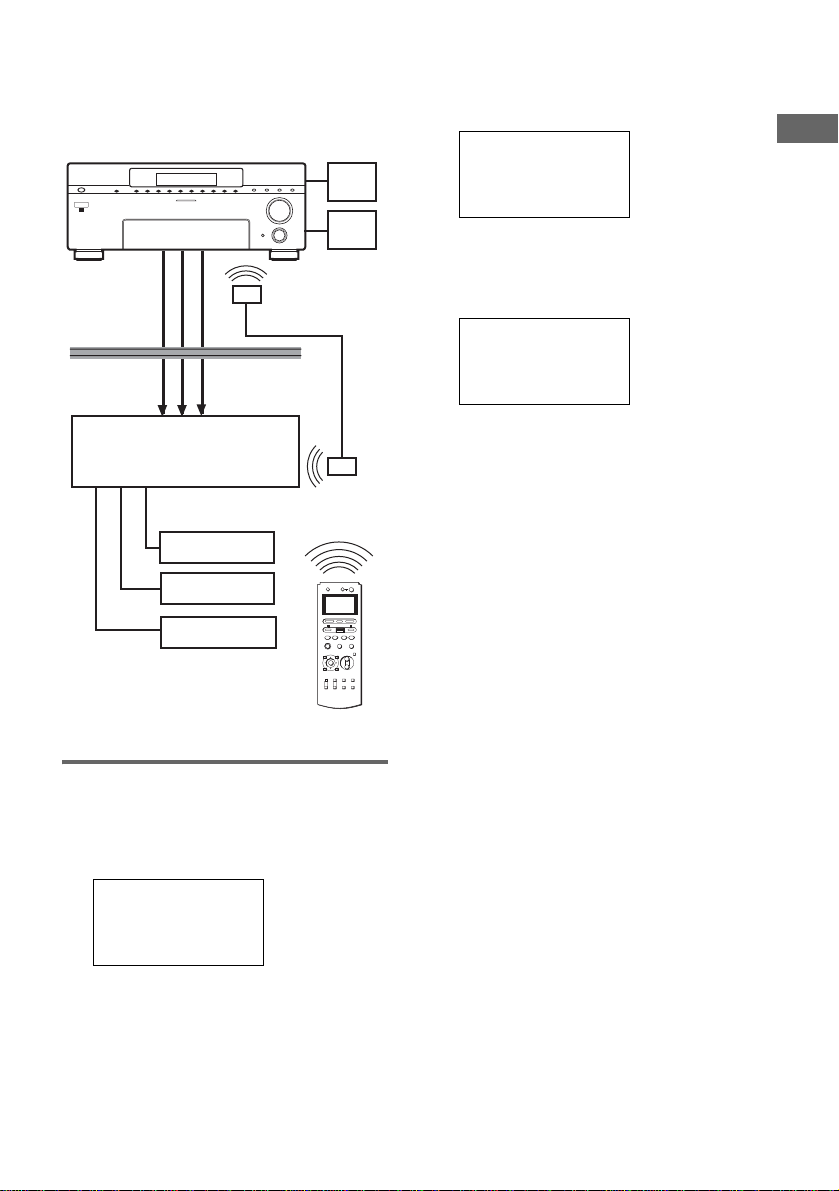
You can switch the command mode (AV
SYSTEM 1 or AV SYSTEM 2) of the remote. If
the command mode of the receiver and the
remote is different, you cannot use the remote to
operate the receiver.
Besides, you can set the remote for the 2nd zone
mode or 3rd zone mode (models of area code U,
CA only).
1 Press RM SET UP.
The set up list appears.
2 Move the easy scroll key to select
“COMMAND MODE”, then press the
key to enter the selection.
The COMMAND MODE list appears.
*STR-DA5000ES and the initial setting only.
3 To select the command mode for the
main receiver
Move the easy scroll key to select “MAIN”,
then press the key to enter the selection.
MAIN list appears.
Move the easy scroll key to select “AV
SYSTEM 1” or “AV SYSTEM 2”, then
press the key to enter the selection.
To select the 2nd zone mode
(STR-DA5000ES only)
Using an optional IR repeater as shown on
page 27, the following operations are
possible with the remote:
• Switching sources.
• Adjusting the volume.
• Switching the power to on or off.
Set the command mode of the remote to the
2nd zone mode.
Move the easy scroll key to select “2ND
ZONE”, then press the key to enter the
selection.
To select the 3rd zone mode
(STR-DA5000ES only)
Move the easy scroll key to select “3RD
ZONE”, then press the key to enter the
selection.
Tips
• Only when the remote is turned on by pressing
SOUND FIELD or INPUT SELECTOR, the
COMMAND MODE appears in the first line of the
display.
• Make sure that the command mode of the remote and
the main receiver is the same.
Note
The 2nd (or 3rd) zone mode is available for STR-
DA5000ES models of area code U, CA only.
cIR SET
LEARNING
DOWNLOAD
INPUT LIST
<COMMAND MODE>
cMAIN
2ND ZONE
*
3RD ZONE
*
<MAIN>
AV SYSTEM 1
cAV SYSTEM 2
Exit
Using the lists
27
GB
2nd zone operation
(STR-DA5000ES only)
Clearing all the contents of
remote’s memory
1 Press RM SET UP.
The set up list appears.
2 Move the easy scroll key to select “ALL
CLEAR”, then press the key to enter
the selection.
The ALL CLEAR list appears.
3 Move the easy scroll key to select
“Yes”, then press the key to enter the
selection.
“CLEAR OK?!” appears.
4 Move the easy scroll key to select
“Yes” again, then press the key.
All the contents of the remote’s memory
(i.e., all the programmed data) are cleared.
cIR SET
LEARNING
DOWNLOAD
INPUT LIST
2ND ZONE
OUT
RM-LJ312
+
–
+
–
+
–
O
AV ?/1TV ?/1
SOUND FIRLD
TOP MENU/GUIDE AV MENU
DISPLAY
TV VOL TV CH TV/VIDEO
WIDE
MAIN
MENU
ON SCREEN
RETURN/EXIT
MASTER
VOL
MUTING
INPUT SELECTOR
SYSTEM STANDBY
RM SET UP
?/1
HX x
.> m M
STR-DA5000ES
Audio/video
components
Speaker
Amplifier
IR repeater
(not supplied)
Monitor
Speaker
IR repeater
(not supplied)
Main receiver
2nd zone
<ALL CLEAR?>
Yes
cNo
<CLEAR OK?!>
Yes
cNo
Sony Corporation Printed in Malaysia
If you experience any of the following
difficulties while using the receiver, use this
troubleshooting guide to help you remedy the
problem. Should any problem persist, consult
your nearest Sony dealer.
The remote does not function.
• If the receiver’s COMMAND MODE and the
remote’s COMMAND MODE do not match,
transmission is not possible between the remote
and the receiver (page 26).
• Make sure that the model name appears correctly
on the AMP REGIST list. If “? ? ?” appears on the
list, perform the procedure of AMP REGIST
(page 6).
• Point the remote at the remote sensor on the
receiver.
• Remove any obstacles in the path between the
remote and the receiver.
• Replace all the batteries in the remote with new
ones, if they are weak.
• Make sure you select the correct input on the
remote.
• When “2ND ZONE” or “3RD ZONE” appears, or
when the sound fields are not fully displayed,
check if the remote is registered for the receiver
correctly.
• When you operate a programmed non-Sony
component, the remote may not function properly
depending on the model and the maker of the
component.
E appears in the display window of the
remote.
• The batteries are running out. Replace all the
batteries with new ones.
The input names that appear in the display
windows of the receiver and the remote are
different.
• Select the correct input using the remote.
General
Remote control system Infrared control
Power requirements 4.5 V DC with three R6
(size-AA) batteries
Dimensions 175 × 63 × 30 mm
Mass (approx.) 125 g excluding batteries
Design and specifications are subject to change
without notice.
Additional Information
Troubleshooting
Specifications