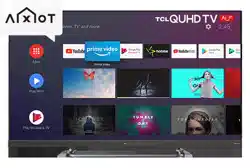

Figures and illustrations in this User’s Guide are
provided for reference only and may dier from
actual product appearance. Product design and
specications may be changed without notice.
OPERATION MANUAL
For use with models: P8M/P8S series

2
Table of Contents
Chapter 1: Safety Information
Precautions ...............................................................3
Warning ...................................................................3
Product ....................................................................3
Power and Plug .......................................................3
Power Cord and Signal Cable .................................3
Use Environment .....................................................3
Cleaning ..................................................................3
Hanging the TV Set on the Wall ...............................3
Chapter 2: Connections and Setup
TV Buttons ................................................................4
Initial Setup ...............................................................4
Sockets ......................................................................6
Remote Control Functions ......................................7
Installing Batteries ...................................................7
Exclusive Remote Control .......................................8
How to Use the Remote Control................................8
Installing Batteries ...................................................8
Network Connection .................................................9
Switching On ...........................................................10
Switching Off ...........................................................10
Chapter 3: Basic TV Operations
Accessing Channels ..............................................11
Watching Connected Devices ...............................11
Adjusting Volume ...................................................11
Accessing Smart TV Homepage ...........................11
Accessing Google Play ..........................................11
Accessing T recommended ...................................12
Using System Settings menu ................................12
Using Instant Power On ..........................................12
Using TV Options menu .........................................12
Chapter 4: Using more of your TV
Installing Channels .................................................13
Using Subtitles ........................................................13
Turning On/Off Subtitles ........................................13
Enabling Subtitle Languages on Digital TV
Channels ................................................................13
Selecting a Subtitle Type on Digital TV Channels ...13
Using Teletext .........................................................13
Selecting Decoding Page Language ......................13
Digital Teletext Language .......................................13
Network Wake Up ....................................................13
T-Link .......................................................................14
Enabling or Disabling T-Link ...................................14
Using Auto Power On .............................................14
Using Auto Standby ................................................14
HbbTV ......................................................................14
HbbTV Access .......................................................14
HbbTV Deactivation ...............................................14
T-Cast .......................................................................14
Using EPG (Electronic Program Guide) ...................14
Bluetooth Function .................................................15
Time Shift .................................................................15
PVR(Personal Video Recorder) ...............................15
Freeview Plus ..........................................................16
What You Need .....................................................16
To Launch Freeview Plus .......................................16
Netix Settings ........................................................16
Reset Shop ........................................................16
Password in Parental Control ................................16
Chapter 5: Other Information
Problems & Solutions ............................................17
Troubleshooting .....................................................18
Legal Statement ......................................................19
Licence ....................................................................20

3
Chapter 1 Safety Information
Precautions
Read all of the instructions before operating the set.
Keep these instructions well for future use.
Warning
Never place a television set in an unstable location. A
television set may fall, causing serious personal injury
or death. Many injuries, particularly to children, can be
avoided by taking simple precautions such as:
- Using cabinets or stands recommended by the
manufacturer of the television set.
- Only using furniture that can safely support the
television set.
- Ensuring the television set is not overhanging the
edge of the supporting furniture.
- Not placing the television set on tall furniture
(for example, cupboards or bookcases)
without
anchoring both the furniture and the television set to
a suitable support.
- Not placing the television set on cloth or other
materials that may be located between the television
set and supporting furniture.
- Educating children about the dangers of climbing on
furniture to reach the television set or its controls.
If your existing television set is being retained and
relocated, the same considerations as above should be
applied.
Product
• Do not block or cover the ventilation openings on the
back cover.
• Do not push objects of any kind into this unit through
the cabinet slots as they could touch the current
carryingpartsorshort-circuitparts,resultinginre,
electric shock, or damage to the unit.
• Do not attempt to open the cabinet as this may cause
damage. There are no parts inside you can service by
yourself.Referallservicingtoqualiedpersonnel.
• Donottouchthescreensurfacewithngersasthis
may scratch or mar the TV screen.
• Do not impact the TV screen with hard pressure as
this may damage the TV screen severely.
• This appliance is not intended for use by young
childrenorinrmpersonswithoutsupervision.Young
children should be supervised to ensure that they do
not play with the appliance.
Power and Plug
• Unplug the set under the following conditions:
- If the set will not be used for a long period of time.
- If the power cord or the power outlet/plug is
damaged.
- Follow the instructions to install and adjust the
product. Adjust those controls that are covered in
these operating instructions as improper adjustment
of other controls may result in damage. If this
happens, unplug the set and refer to the service
personnel.
- If the set is subject to impact or has been dropped
and the cabinet has been damaged.
• Where the mains plug or an appliance coupler is used
as disconnect device, the disconnect device shall
remain readily operable.
Power Cord and Signal Cable
• Do not allow anything to rest on or roll over the power
cord and the signal cable.
• Protect the power cord and the signal cable from
being trampled.
• Do not overload the power cord or the power outlet.
• Do not expose the power cord and the signal cable to
moisture.
Use Environment
• Do not place the set on an unstable cart, stand, or
table.
• Place the set on a place that allows good ventilation.
• Do not use the set near damp, and cold areas.
• Do not expose the set to excessive heat such as direct
sunlight,re,orthelikeandnonakedamesources,
such as lighted candles, should be placed on the
apparatus.
• Do not expose the set to dripping or splashing and
noobjectslledwithliquids,suchasvases,shallbe
placed on the apparatus.
• Do not use the set in dusty environments.
• Operating Temperature: 5°C
to 35°C (41°F to 95°F)
Operating Humidity: 20% to 80%, non-condensing
Storage Temperature: -15°C to 45°C (5°F to 113°F)
Storage Humidity: 10% to 90%, non-condensing
Cleaning
• Dust the set by wiping the screen and the cabinet with
a soft, clean cloth or some special liquid cleaner.
• Do not apply excessive force to the screen when
cleaning.
• Do not use water or other chemical cleaner to clean
the screen as this may damage the surface of the TV
screen.
Hanging the TV Set on the Wall
Warning: This operation requires two people.
To ensure a safe installation, observe the following
safety notes:
• Check that the wall can support the weight of the TV
set and wall mount assembly.
• Follow the mounting instructions provided with the
wall mount.
• The TV set must be installed on a vertical wall.
• Make sure to use only screws suitable for the material
of the wall.
• Make sure that the TV set cables are placed so that
there is no danger of tripping over them.
All other safety instructions about our TV sets are also
applicable here. Wall mount bracket not included.
(Note: certain TV models are not designed to be
mounted to the wall.)

9
Connecting to a Wireless Network
To connect to a wireless network
1. Ensure you have:
•
A router broadcasting a high-speed wireless signal
•
A high-speed internet connection
2.
Use the Network & Internet menutoconguretheTV.
Network Connection
Your TV will require an internet connection to operate all functions. Data usage charges may apply.
Please refer to your Internet Service Provider (ISP) for additional information.
To access the internet, you must subscribe to high speed broadband internet service from your internet service
provider.
Your TV can be connected to your home network in two ways:
•Wired,usingtheRJ45(LAN)connectoronthebackpanel.
•Wireless,usingtheinternalwirelessorexternalwirelessUSBadapterandyourhomewirelessnetwork.
Note: the following instructions are just the usual ways to connect your TV to the wired or wireless network. The
connection method may be different depending on your actual network conguration. If you have any questions about
your home network, please refer to your ISP(Internet Service Provider).
Connecting to a wired Network
To connect to a wired network:
1. Ensure you have:
•AnEthernetcablelongenoughtoreachyourTV
•ArouterormodemwithanavailableEthernetport
•Ahigh-speedinternetconnection
•AnEthernet (LAN) port on the back of the TV
2. Connect your Ethernet cable to the router and to the
Ethernet port on the back of the TV.
3. Use the Network & Internet menutoconguretheTV.
Connections and Setup
Router
Modem Internet
LAN port
Modem Internet
Wireless router
Note: please follow below steps to enter the Network & Internet menu.
1. Press on the remote control to display the Smart TV homepage.
2. Press ▲/◄/► to move the cursor to (Settings) on the right top of the screen and press OK to enter.
3. Press ▲/▼ to select
Network & Internet
, then press OK to enter the submenu and follow the on-screen
guidance to set up your network.

14
Using more of your TV
to select Networked standby and press OK to
activate.
When the TV is in networked standby mode, you can
use the app to wake up the TV remotely.
Notes:
- This feature is disabled if you press and hold the
button on the remote control and conrm to
shut the TV down
- Before using the feature of network wake up, make
sure > (Settings)
> Device Preferences >
Power > Instant power on
is set to on.
T-Link
Use this function to search for CEC devices connected
to the HDMI sockets in your TV and enable auto power
on and auto standby between the TV and CEC devices.
Enabling or Disabling T-Link
1. Press on the remote control, select System >
T-Link and press OK/► to enter.
2. Press ▲/▼ to select T-Link and press OK/► to
enter.
3. Press ▲/▼ to select On or Off and press OK to
conrm.
4. Press EXIT or to close the menu.
Using Auto Power On
Enables the TV to automatically power on when you
power on a CEC device (e.g. DVD) with the device’s
remote. Select On to enable this function.
Using Auto Standby
Enables all CEC devices to automatically go to the
standby mode when you turn off the TV with the TV
remote. Select On to enable this function.
Note: the CEC functions depend on the devices
connected and it is possible that some devices may not
interoperate correctly when connected to this TV. The
user manual or the manufacturer of the problematic
devices should be consulted for further information.
HbbTV
HbbTV (Hybrid broadcast broadband TV) is a service
offered by certain broadcasters and available only on
some digital TV channels. HbbTV delivers interactive
television over broadband Internet. These interactive
features are added to and enrich the normal digital
programs, and include services such as digital teletext,
electronicprogramguide,games,voting,specic
information related to the current program, interactive
advertising, information magazines, catch-up TV, etc.
To use HbbTV please ensure your TV is connected to
Internet and HbbTV is switched on.
Notes:
- HbbTV services are broadcast- or country-
dependent and may be unavailable in your area.
- You cannot download les to your TV with HbbTV
function.
- Application provider or broadcasting related
conditions may cause an HbbTV application to be
unavailable momentarily.
- To access HbbTV applications you must connect
your TV to the Internet via a broadband link.
HbbTV applications may not work correctly in case
of network related issues.
HbbTV Access
1. Press on the remote control, select System >
HbbTV settings and press OK/► to enter.
2. Select HbbTV then press ▲/▼ to select On and
press OKtoconrm.
3. When you tune to a digital TV channel that offers
HbbTV, this will be signaled to you by an on-screen
indication (generally a red button, but other colour
buttons may also be used). Press the indicated
colour button to open the interactive pages.
4. Use ▲/▼/◄/► and the colour buttons to navigate
through the HbbTV pages and press OKtoconrm.
HbbTV Deactivation
To avoid disturbances that may be caused by HbbTV
broadcasting tests, you can turn off the HbbTV function:
1. Press on the remote control, select System >
HbbTV settings and press OK/► to enter.
2. Select HbbTV then press ▲/▼ to select Off and
press OKtoconrm.
T-Cast
Google Cast™ lets you cast your favorite videos,
games, and apps from your mobile device, in full quality,
to your TV. Just one tap of the Cast button on your
Android or iOS screen is all you need to supersize
the things you love. Cast your content then continue
browsing on your phone or tablet.
Using EPG (Electronic Program Guide)
EPG is an on-screen guide that displays scheduled
digital TV programs. You can navigate, select and view
programs.
Note: the DTV EPG does not require an internet
connection.To use the DTV EPG, HbbTV must be set
to Off. when HbbTV is set to ON, then it will enter the
HbbTV EPG directly. Please refer to “ HbbTV ” part of
this manual for assistance to set HbbTV to on or off.
1. Press
on the remote control, select Channel >
EPG and press OK/► to enter, or press GUIDE
derectly (if available) on the remote control, the
Program Guide menu will appear, which allows you
to get information about the current or next program

15
Using more of your TV
such marks by TCL is under license. Other trademarks
and trade names are those of their respective owners.
Time Shift
(* not available for some models)
Allows you to pause, fast forward and rewind live TV,
so you don’t have to miss any part of your favourite
programs. Before you use the function, connect a
USBdrivetotheTVrst.Forthersttime,youshould
complete the disk setup for the USB drive.
Press on the remote control and select Time shift,
then press OK/►toconfirm.(Note: this option is
available only when Time shift is set to On: press
ontheremotecontrol,press▲/▼toselectSettings>
Channel> Time Shift, press OK/►toenteranduse
▲/▼tosetTimeShifttoOn or Off.)
1. Follow the directions on the screen to do the disk
setup if you use time shift for the first time.
2. After the disk setup is done, time shift will start, and
the time shift menu displays on the screen.
3. For later use, press and select Time shift. press
OK to display the time shift menu and operate
according to the on-screen prompt.
4. Pressing Stop button stops the time shift and exits.
- When the time shift menu disappears and only the
timing of the time shift remains on the screen, you
can press OK to call out the time shift menu.
Notes:
- Before you plug the USB drive to TV, make sure
you have backed up the data on the drive to avoid
unforeseen malfunction and data loss.
- We recommend that you use a USB drive with at
least 1GB free space and a disk speed faster than
5.0MB/sec.
- The bigger the USB drive free space for time shift,
the bigger the recording length.
Quick Access of Time Shift
Insert a USB disk, press PAUSE( ) on the remote
control, it will access time shift automatically.
(Available for RC80N remote control only.)
PVR (Personal Video Recorder)
(* not available for some models)
Allows you to record your favourite TV programs.
Before you use the function, connect a USB drive to
theTVrst.
Note: the feature is available only in selected products
and, due to specific TV network limitations and country
technical requirements, might not be available in product
or place of installation. Feature might also be blocked
by TV network due to copyright protection (HD content,
recording protection). Please use
on the remote
control to check if the feature is available in your product.
playing on each channel. Navigate through the
differentprogramsusingthe▲/▼/◄/►buttonson
the remote control.
2. Use the related buttons shown at the bottom of the
screen to view EPG.
- Program lter:ProgramguidelterfordigitalTV
programs.
• Press to display the type list of the program.
• Navigate through the different types using the
▲/▼buttonsontheremotecontrol.
• Select one or more types, which you want to
highlight from the type list, press OK to select or
deselect. A checkmark will appear to the right of
the type when selected.
- Custom schedule:Press▲/▼toselecta
program, then press the RED button to set the
schedule, press OKtoenteranduse▲/▼
to select Schedule reminder or Schedule
recording.
- Select date: Press the GREEN button to select
date.
- Schedule list: Press the YELLOW button to view
your schedule list.
Note: if using the remote control of RC802V, to access
the colour buttons, you need to press button on
the remote control to display the
virtual remote control
keyboard rst.
3. Press to exit EPG.
Bluetooth Function
(* not available for some models)
Bluetooth
®
is a wireless technology standard for
exchanging data over short distance between Bluetooth
devices. You can connect Bluetooth audio device,
mouse or keyboard via the TV.
1. Press on the remote control, press ▲/◄/► to
move the cursor to the (Settings) area on the right
top of the screen and press OK to enter.
2. Move to the Remotes & Accessories area, select
Add accessory and press OK to enter. The TV will
search nearby Bluetooth devices automatically.
3. Select an available device, press OK and follow the
guides on the screen to connect it.
Note: bluetooth technology (if available in your TV) uses
2.4GHz frequency thus close proximity to WiFi access
points, routers or microwave ovens might interfere with
Bluetooth audio streaming. If you face interruptions
in audio reception, you should restart your Bluetooth
device to nd frequency with less interferences and if
you continue to face issues you should move closer
to TV or increase space between TV and source of
interferences.
The Bluetooth word mark and logos are registered
trademarks owned by Bluetooth SIG, Inc. and any use of

16
Using more of your TV
What You Need
You need a high-speed (broadband) internet connection
to the TV.
To Launch Freeview Plus
WhenyouarewatchingTV,youwillbrieyseeaprompt
at the top left of the screen. Press the corresponding
colour key on the remote control to launch Freeview
Plus. Follow the on-screen instructions and use the
colour keys, arrow keys, and OK button to navigate.
*Freeview Plus uses HbbTV technology which combines
broadcast and broadband. Internet connection is
required. Data usage and conditions apply.
**Freeview Plus is available through out Australia but
Catch Up services vary by region – please check www.
freeview.com.au to see what’s available in your area.
***More information about Freeview Plus can be found
on www.freeview.com.au.
Netix settings
Netixprovideson-demandmoviesandTVshows
deliveredviatheInternet.Netixisavailableincertain
countries.Unlimited membership is required. More
informationcanbefoundatwww.netix.com<http://
www.netix.com/>.
Note: you can directly access Netix via clicking the
Netix button on the remote control.
Reset Shop
Allows you to reset the TV to factory default settings.
1. Press on the remote control to display the
homepage, Press ▲/◄/► to select (Settings) >
Device Preferences > Reset and press OK/► to
enter.
2. Press ▲/▼ to select Factory data reset and press
OK to enter. Then select Erase everything and
press OK to confirm.
3. Use the numeric buttons on the remote or the virtual
remote to enter the password 1234 or your own
password incase you have changed the password.
4. Select OK and press OKtoconrm.
5. The Initial setup wizard appears. Follow the
instructions in the section Initial setup.
Password in Parental Control
- The default password is 1234. You can change it to a
new one.
- The super password is 0423. If you forget your code,
enter the super password to override any existing
codes.
1. Press on the remote control and select PVR.
2. Press OK/►toenterandselectRecord. It starts to
record automatically.
3. Press blue button to access Settings and use
▲/▼/◄/►toadjusttherecordingduration.
4. Press OK or to stop recording manually,
the recorded file will be saved. In normal
operation, the recording will stop automatically
when the recording duration expires.
Note: you can find
and colour buttons on the
virtual remote control keyboaed for RC802V.)
5. In recording, the PVR mini pane will also show on
the screen to indicate the recording progress.
6. To watch the recorded program, exit PVR mode first.
Press and select PVR > PVR List, then select the
related record file. Press OK to play. (It is the same if
you record a digital radio program.)
Notes:
- This feature is available only for digital non encrypted
channels.
- Before you connect the USB drive to the TV, make
sure you have backed up the data in the drive to avoid
the loss of your important data due to unforeseen
malfunction.
- The bigger the USB drive free memory for the PVR
function, the bigger the recording length.
- If you want to change channel or signal source during
recording, store the recording data before changing the
channel or source.
- The TV cannot play files normally if the parameters
of the file exceed the limitations of the system, the file
format is not supported, the file is damaged, or the file
cannot be decoded.
- Do not disconnect the USB drive when the system is
reading a file or transmitting data, otherwise the system
or the drive may be damaged.
Freeview Plus
Freeview Plus is a new television service which provides
a state of the art EPG and seamless access to Catch
Up TV from free-to-air networks with the simple press
of a button. Freeview Plus provides an unrivalled user
experience and places free to air television at the
forefront of innovation, with services that include:
-A 7-day, easy-to-use EPG
-All available Catch Up TV on the TV screen
-Featured recommendations
-Ability to browse by genre and search programs for
the next 7 days
-A favourite function with reminders for live and Catch
Up programs

18
Other Information
Troubleshooting
Most problems you encounter with your TV can be
corrected by consulting the following troubleshooting list.
No picture, no sound
1. Check if the fuse or circuit breaker is working.
2. Plug another electrical device into the outlet to make
sure it is working or turned on.
3. Power plug is in a bad contact with the outlet.
4. Check the signal source.
No colour
1. Change the colour system.
2. Adjust the saturation.
3. Try another channel. Black-white program may be
received.
Remote control does not work
1. Change the batteries.
2. Batteries are not installed correctly.
3. Main power is not connected.
No picture, normal sound
1. Adjust the brightness and contrast.
2. Broadcasting failure may happen.
Normal picture, no sound
1. Press the VOLUME UP button to increase volume.
2. Volume is set to mute, press the Mute button to
restore sound. (You can nd Mute button on the
virtual remote control keyboaed for RC802V.)
3. Change the sound system.
4. Broadcasting failure may happen.
Unorderly ripples on the picture
It is usually caused by local interference, such as cars,
daylight lamps and hair driers. Adjust the antenna to
minimize the interference.
Snowy dots and interference
If the antenna is located in the fringe area of a television
signal where the signal is weak, the picture may be
marred by dots. When the signal is extremely weak, it
may be necessary to install a special antenna to improve
the reception.
1. Adjust the position and orientation of the indoor/
outdoor antenna.
2. Check the connection of antenna.
3. Fine tune the channel.
4. Try another channel. Broadcasting failure may
happen.
Ignition
Black spots or horizontal streaks appear, or the picture
uttersordrifts.Thisisusuallycausedbyinterference
from car ignition system, neon lamps, electric drills, or
other electrical appliance.
Ghost
Ghosts are caused by the television signal following two
paths.Oneisthedirectpath,theotherisreectedfrom
tall buildings, hills, or other objects. Changing the
direction
or position of the antenna may improve the reception.
Radio frequency interference
This interference produces moving ripples or diagonal
streaks, and in some case, loss of contrast in the picture.
Find out and remove the radio interference source.
*To bring you better visual experience, please remove
all labels, if any, from TV front panel and screen before
use.
*Figures and illustrations in this User Manual are
provided for reference only and may differ from actual
product appearance. Product design and specications
may be changed without notice.

19
Other Information
Legal Statement
[Legal Statement] of TCL - manufacturer of this TV set
Due to the various capabilities of products featuring
the SmartTV - Services, as well as limitations in the
available content, certain features, applications, and
services may not be available on all devices or in all
territories. Some features on SmartTV may also require
additional peripheral devices or membership fees that
are sold separately. Please visit our website for more
informationonspecicdevice informationandcontent
availability. The services and availability of content
through SmartTV are subject to change from time to
time without prior notice.
All content and services accessible through this device
belong to third parties and are protected by copyright,
patent, trademark and/or other intellectual property
laws. Such content and services are provided solely
for your personal noncommercial use. You may not
use any content or services in a manner that has
not been authorized by the content owner or service
provider. Without limiting the foregoing, unless expressly
authorized by the applicable content owner or service
provider, you may not modify, copy, republish, upload,
post, transmit, translate, sell, create derivative works,
exploit, or distribute in any manner or medium any
content or services displayed through this device.
You expressly acknowledge and agree that use of the
device is at your sole risk and that the entire risk as to
satisfactory quality, performance and accuracy is with
you. The device and all third party content and services
are provided “as is” without warranty of any kind,
either express or implied. TCL expressly disclaims all
warranties and conditions with respect to the device and
any content and services, either express or, implied,
including but not limited to, warranties of merchantability,
ofsatisfactoryquality,tnessforaparticularpurpose,of
accuracy, of quiet enjoyment, and non-infringement of
third party rights. TCL does not guarantee the accuracy,
validity, timeliness, legality, or completeness of any
content or service made available through this device
and does not warrant that the device, content or services
will meet your requirements, or that operation of the
device or services will be uninterrupted or error-free.
Under no circumstances, including negligence, shall
TCL be liable, whether in contract or tort, for any direct,
indirect, incidental, special or consequential damages,
attorney fees, expenses, or any other damages arising
out of, or in connection with, any information contained
in, or as a result of the use of the device, or any content
or service accessed by you or any third party, even if
advised of the possibility of such damages.
Third party services may be changed, suspended,
removed, terminated or interrupted, or access may be
disabled at any time, without notice, and TCL makes no
representation or warranty that any content or service
will remain available for any period of time. Content
and services are transmitted by third parties by means
of networks and transmission facilities over which TCL
has no control. Without limiting the generality of this
disclaimer, TCL expressly disclaims any responsibility or
liability for any change, interruption, disabling, removal
of or suspension of any content or service made
available through this device. TCL may impose limits
on the use of or access to certain services or content,
in any case and without notice or liability. TCL is neither
responsible nor liable for customer service related to
the content and services. Any question or request for
service relating to the content or services should be
made directly to the respective content and service
providers.
20
Other Information
Licence
ThetermsHDMI,HDMIHigh-DenitionMultimediaInterface,andthe
HDMI Logo are trademarks or registered trademarks of HDMI Licensing
Administrator, Inc.
HEVC, or H.265 is the successor to H.264 and strives to deliver video with
equivalent quality with bitrate savings of up to 50 percent. HEVC is critical for
streaming high-quality video even in congested network environments, and
will be a driving factor in the delivery of 4K content to new Ultra HD displays.
Manufactured under license from Dolby Laboratories. Dolby, Dolby Audio, and
the double-D symbol are trademarks of Dolby Laboratories..
The Bluetooth® word mark and logos are registered trademarks owned by
Bluetooth SIG, Inc. and any use of such marks by TCL is under license. Other
trademarks and trade names are those of their respective owners.
Freeview Plus uses HbbTV technology which combines broadcast and
broadband. Internet connection is required. Data usage charges and
conditions apply.