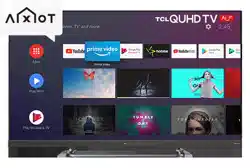
TCL 55P8M 55 inch P8M QUHD TV
Product's Documents
Below are documents related to this product, you can read online or download:
- User Manual - (English) Read Online | Download pdf
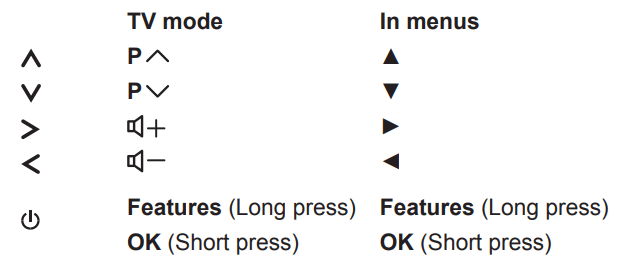
If the batteries in your remote control are run down, you can use the buttons on your TV set. They have the following functions:
For models with below buttons on the set:
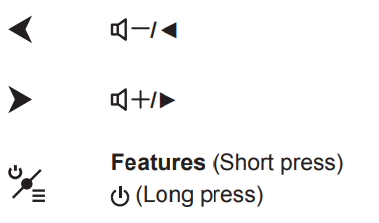
For models with below buttons on the set:
For models with only one button on the set:
 or
or Power on/Standby
Note: Figures and illustrations are provided for reference only and may vary depending on the model
The first time you switch the set on, the Welcome screen appears, which guides you through the initial setup process. Follow the on-screen instructions to finish the initial setup process such as selecting the language, connecting to the network, scanning channels, and more. During each step, either make a choice or skip the step. If you skip a step, you can perform the setup later from the settings menu.
Note: If the channel search retrieved only the analogue channels it could be caused by poor broadcasting and therefore is not covered by manufacturer warranty. Manufacturers cannot be held responsible for lack of or poor broadcasting in some areas.
Google setup and TCL initial setup
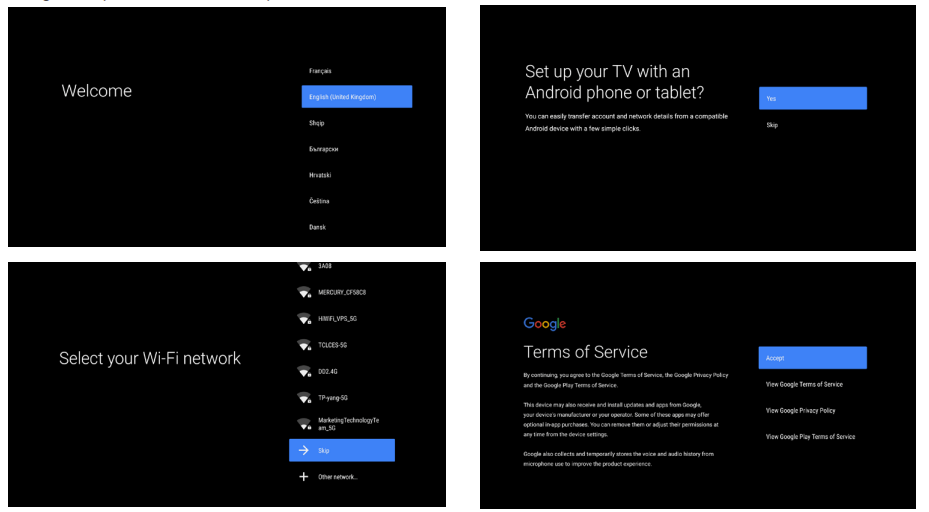
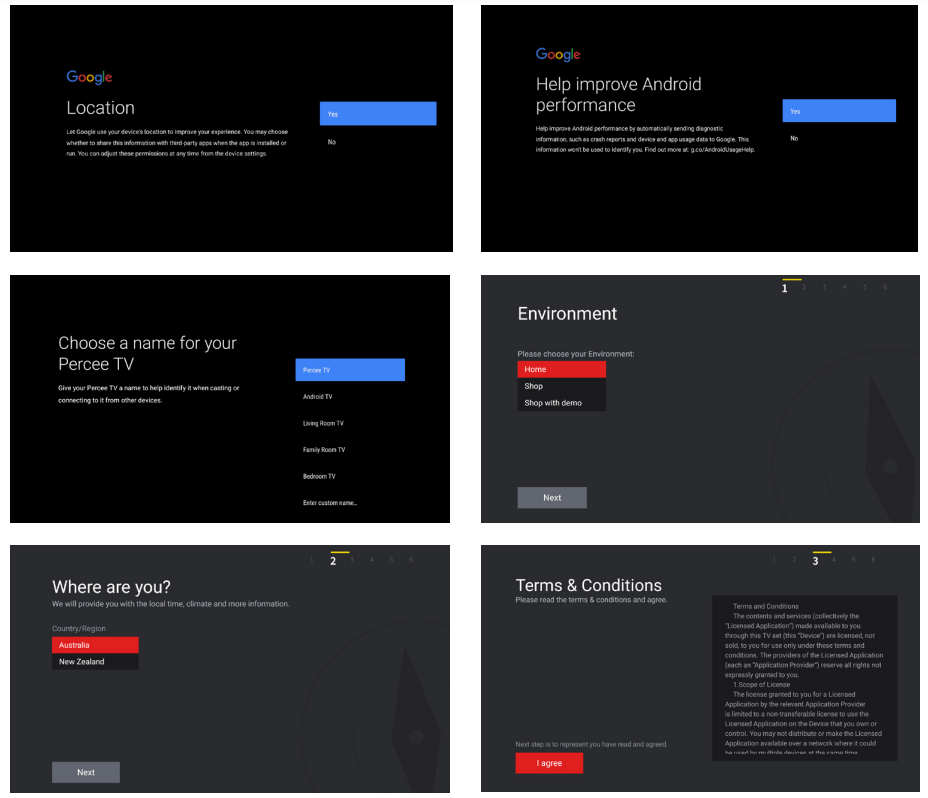
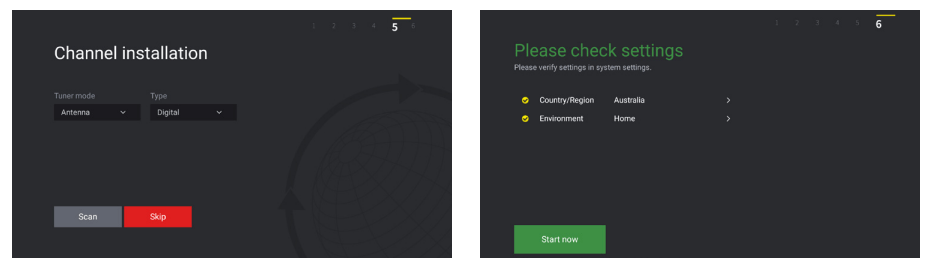
Note: Figures and illustrations are provided for reference only and may differ from actual product appearance.
Note: The location and names of the sockets on the TV may vary according to TV model, and not all sockets are available on all models.
USB 3.0 or USB2.0 or USB 2.0/SERVICE socket (input)
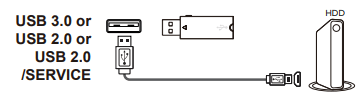
These sockets can be used to connect a USB device.
Note: The number of USB sockets on the TV may vary according to TV model.
HDMI or HDMI(ARC) socket (input)
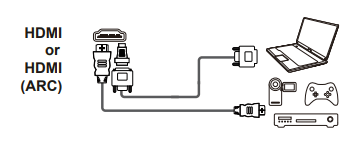
The HDMI (High-Definition Multimedia Interface) socket can be used to connect a Blu-ray player, PC with a compatible video card installed, certain DVD players or a high-definition compatible digital satellite decoder. This socket provides an uncompressed digital connection that carries both video and audio data by way of an integrated mini-plug cable.
COMPONENT IN(YPBPR) socket (input)
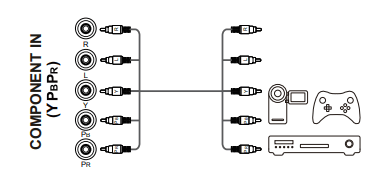
These YPbPr sockets can be used to connect a device that has component video sockets, such as a DVD player. The component sockets can recognize if the device you're connecting to is Y Pb Pr compatible. The component sockets provide excellent picture quality because the video is separated into three independent parts.
AV IN adapter socket
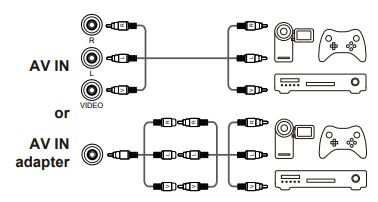
The AV IN adapter socket can be used to connect the attached AV adapter cable with VIDEO and AUDIO L & R IN sockets. The AV IN sockets can be used to connect a range of equipment, including video recorders, camcorders, decoders, satellite receivers, DVD players, or games consoles. The VIDEO IN socket provides composite video connection.
ANTENNA IN socket (input)
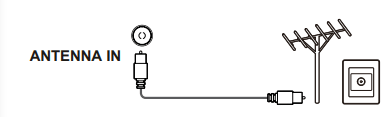
This socket can be used to connect an outside aerial.
LAN
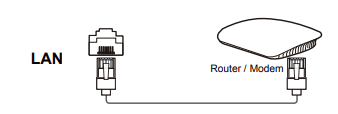
RJ45 plug for connecting to external modem or network access equipment.
SPDIF socket (output)
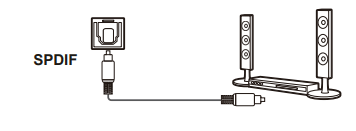
The SPDIF socket can be used to connect a compatible digital audio receiver.
Headphone socket (output)
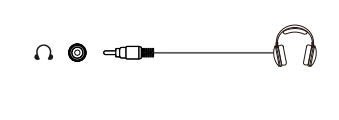
This socket can be used to connect headphones or stereo earphones.
Warning: Excessive sound pressure from earphones and headphones can cause hearing loss
Most of your television's functions are available via the menus that appear on the screen. The remote control supplied with your set can be used to navigate through the menus and to configure all the general settings.
Note: Figures and illustrations in this operation manual are provided for reference only and may differ from actual product appearance.

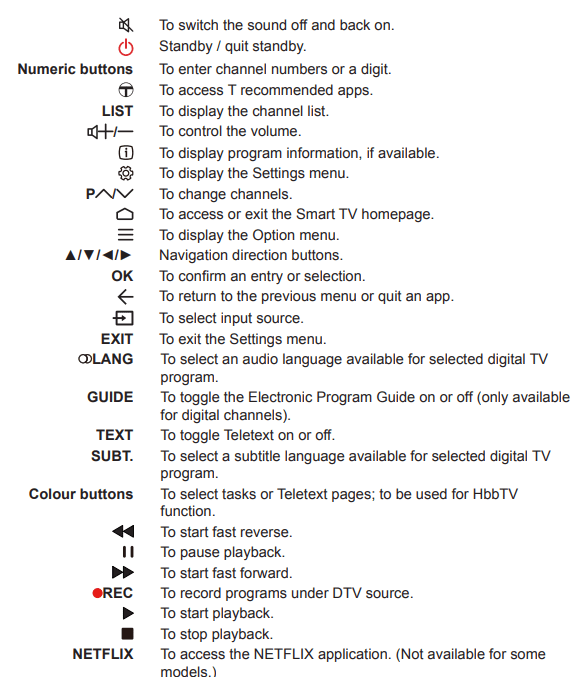
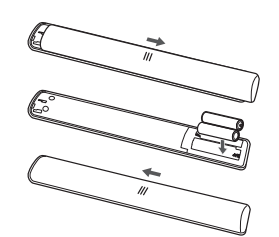
Installing Batteries
Exclusive Remote Control
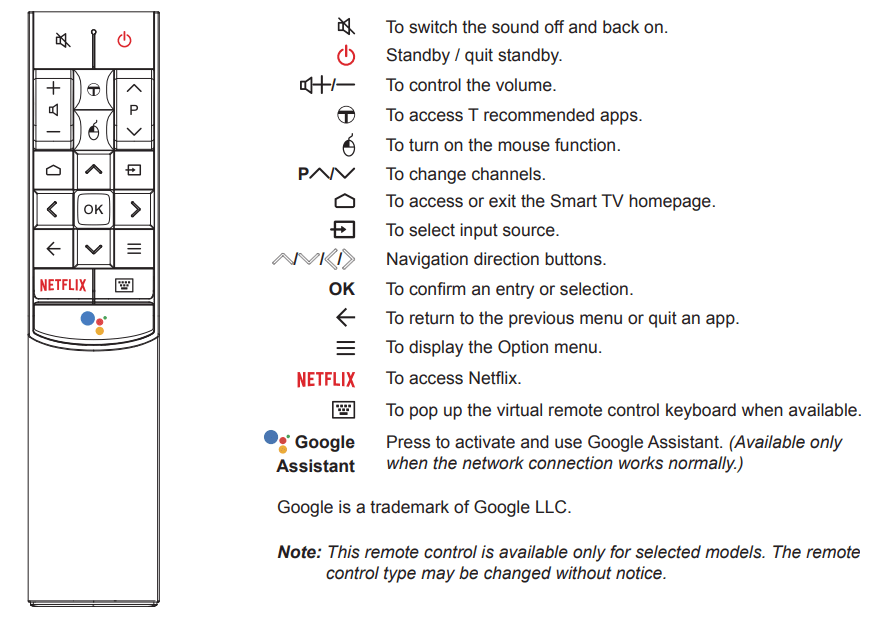
Note: This remote control is available only for selected models. The remote control type may be changed without notice.
How to Use the Remote Control
When using  or
or  button for the first time, you will be prompted to pair the remote with the TV. Please follow the on-screen guide for paring instructions.
 button on the remote at the same time. You can use or button after activating successfully. is only available for content search from certain apps.
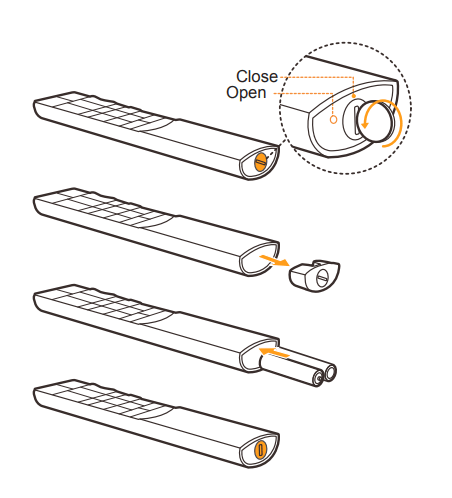
Installing Batteries
 Your TV will require an internet connection to operate all functions. Data usage charges may apply.
Please refer to your Internet Service Provider (ISP) for additional information.
To access the internet, you must subscribe to high speed broadband internet service from your internet service provider.
Your TV can be connected to your home network in two ways:
Note: The following instructions are just the usual ways to connect your TV to the wired or wireless network. The connection method may be different depending on your actual network configuration. If you have any questions about your home network, please refer to your ISP(Internet Service Provider).
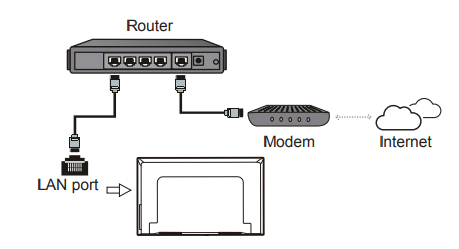
Connecting to a wired network
To connect to a wired network:
Connecting to a wireless network
To connect to a wireless network
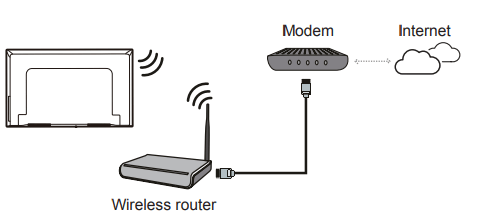
Note: Please follow below steps to enter the Network menu.
Press  on the remote control to display the Smart TV homepage.
Press ▲/◄/► to move the cursor to  (Settings) on the right top of the screen and press OK to enter.
Press ▲/▼ to select Network, then press OK to enter the submenu and follow the on-screen guidance to set up your network.
Follow the instructions on this page on how to switch on your TV set and the remote control before going on to following pages describing how to use the channel set-up procedure.
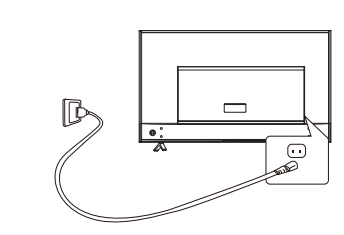
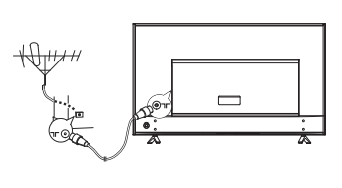
 button on the remote control or on the TV set to turn on the TV.
To put the TV set into standby mode, press the button on the remote control. The TV set remains powered up, but with low energy consumption.
To switch off the TV set, unplug the mains socket from the mains outlet.
Using the numeric buttons: press the corresponding numeric buttons on the remote control to access the channels.
Using the P  buttons: press the P buttons on the remote control or the corresponding buttons on the TV set to scroll through the channels.
Using the LIST button: press the LIST button on the remote control to display the channel list and press ▲/▼/◄/► and OK to select channels.
Watching Connected Devices
Press  on the remote control to display the source list. Press ▲/▼ to select TV or other input sources and press OK to confirm.
You can also press on the remote control to display the homepage, press ▲/◄/► to move the cursor to the (Inputs) area on the right top of the screen, and press OK to enter. Then press ▲/▼ and OK to select the input source.
Volume control: press the buttons on the remote control or the corresponding buttons on the TV set to increase or decrease the volume.
Sound mute: press the button to temporarily mute the sound. Press this button again or the
  button to restore the sound.
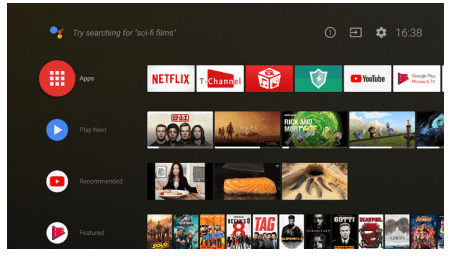
Allows you to enjoy Internet Applications (Apps) and specially adapted Internet websites, and perform system settings for your TV. You can make controlling with the TV remote control.
WARNING:
on the remote control to display the Smart TV homepage. to return to the homepage.(Inputs) area on the right top of the screen, press OK to enter and then press ▲/▼ and OK to select your desired input source.
Note: Since the connection with Internet takes time, it’s recommended that you wait a few minutes to use the Smart TV feature after activation of TV from standby.
Allows you to enjoy Internet Applications (Apps)
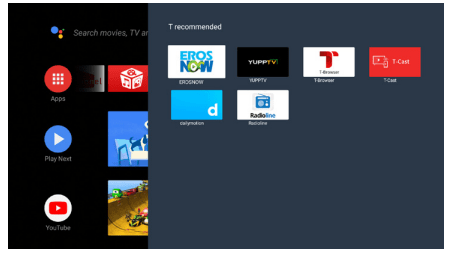
 on the remote control to display the recommended apps.to return to the recommend page and exit.
Google Play is your entertainment unbound. It brings together all of the entertainment you love and helps you explore it in new ways, anytime, anywhere. We’ve brought the magic of Google to music, movies, TV, books, magazines, apps and games, so you get more from your content every day
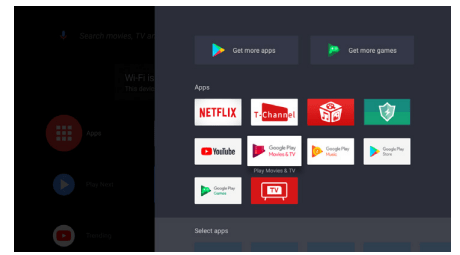 on the remote control to display the Smart TV homepage. to return to the homepage.
Allows you to not only adjust device settings, such as Network, Inputs, Google Cast, Power and Apps, etc., but also set preferences.
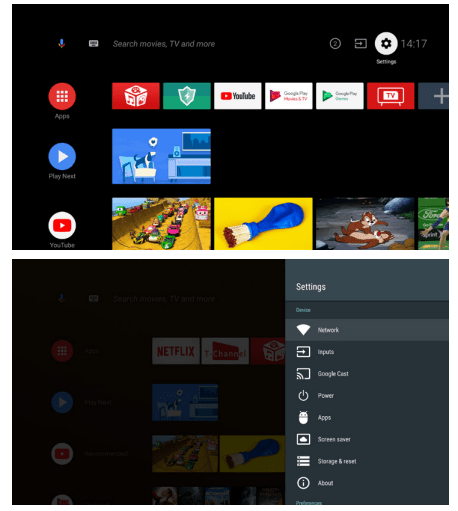 on the remote control to display the Smart TV homepage. to return to previous interface.
It enables you to turn on your TV faster from standby mode than turning this function off, but it will also increase standby power consumption.
on the remote control to display the homepage, Press ▲/▼/◄/► to select Settings > Device > Power > Instant power on and press OK to toggle between On and Off.to return to the homepage.Allows you to adjust TV settings, such as picture and sound.
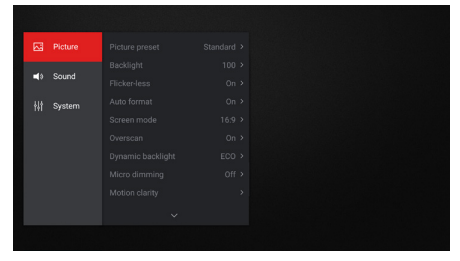 on the remote control to display the Settings menu. to close the menu.
Note: You can also press  on the remote control, select Settings (if available) and press OK to enter the Settings menu. Some options may not be available for certain signal sources.
This section describes how to search and store channels automatically. This may be done in any of the cases below:
on the remote control and select Channel > Channel scan. Press OK/► to enter.on the remote control, select Channel > Channel organizer and press OK/► to enter.Google Cast™ lets you cast your favorite videos, games, and apps from your mobile device, in full quality, to your TV. Just one tap of the Cast button on your Android or iOS screen is all you need to supersize the things you love. Cast your content then continue browsing on your phone or tablet
Allows you to record your favourite TV programs. Before you use the function, connect a USB drive to the TV first.
Note: The feature is available only in selected products and, due to specific TV network limitations and country technical requirements, might not be available in product or place of installation. Feature might also be blocked by TV network due to copyright protection (HD content, recording protection). Please use  on the remote control to check if the feature is available in your product.
on the remote control and select PVR. to stop recording manually, the recorded file will be saved. In normal operation, the recording will stop automatically when the recording duration expires. and select PVR > PVR List, then select the related record file. Press OK to play. (It is the same if you record a digital radio program).
(*not available for some models)
Bluetooth® is a wireless technology standard for exchanging data over short distance between Bluetooth devices. You can connect Bluetooth audio device, mouse or keyboard via the TV.
on the remote control, move to the Settings area, select Settings and press OK to enter.Note: Bluetooth technology (if available in your TV) uses 2.4GHz frequency thus close proximity to WiFi access points, routers or microwave ovens might interfere with Bluetooth audio streaming. If you face interruptions in audio reception, you should restart your Bluetooth device to find frequency with less interferences and if you continue to face issues you should move closer to TV or increase space between TV and source of interferences.
The Bluetooth word mark and logos are registered trademarks owned by Bluetooth SIG, Inc. and any use of such marks by TCL is under license. Other trademarks and trade names are those of their respective owners.
Note: Problems & solutions 1 to 2 are for the TV models which have network functions, so users of non-connected TV models can disregard them.
Most problems you encounter with your TV can be corrected by consulting the following troubleshooting list.
No picture, no sound
No colour
Remote control does not work
No picture, normal sound
Normal picture, no sound
Unorderly ripples on the picture
Snowy dots and interference
Ignition
Ghost
Radio frequency interference
Find out and remove the radio interference source.
*To bring you better visual experience, please remove all labels, if any, from TV front panel and screen before use.
*Figures and illustrations in this User Manual are provided for reference only and may differ from actual product appearance. Product design and specifications may be changed without notice.
Reference file: TCL 55P8M 55 inch P8M QUHD TV
Series: P4/P6/C4/C6/C8/X4/X7/P8M series