
OOWWNNEERR''SS MMAANNUUAALL
OOppeerraattiioonn
MMaaiinntteennaannccee
SSppeecciiffiiccaattiioonnss
All information in this Owner's Manual is current at the time of pub-
lication. However, HYUNDAI reserves the right to make changes at
any time so that our policy of continual product improvement may be
carried out.
This manual applies to all HYUNDAI models and includes descrip-
tions and explanations of optional as well as standard equipment.As
a result, you may find material in this manual that does not apply to
your specific vehicle.

F2
Your HYUNDAI should not be modified in any way. Such modifications may adversely affect
the performance, safety or durability of your HYUNDAI and may, in addition, violate condi-
tions of the limited warranties covering the vehicle. Certain modifications may also be in vio-
lation of regulations established by the U.S. Department of Transportation and other federal
or state agencies.
Your vehicle is equipped with electronic fuel injection and other electronic components. It is
possible for an improperly installed/adjusted two-way radio or cellular telephone to adversely
affect electronic systems. For this reason, we recommend that you carefully follow the radio
manufacturer's instructions or consult your HYUNDAI dealer for precautionary measures or
special instructions if you choose to install one of these devices.
CAUTION: MODIFICATIONS TO YOUR HYUNDAI
TWO-WAY RADIO OR CELLULAR TELEPHONE INSTALLATION
F3
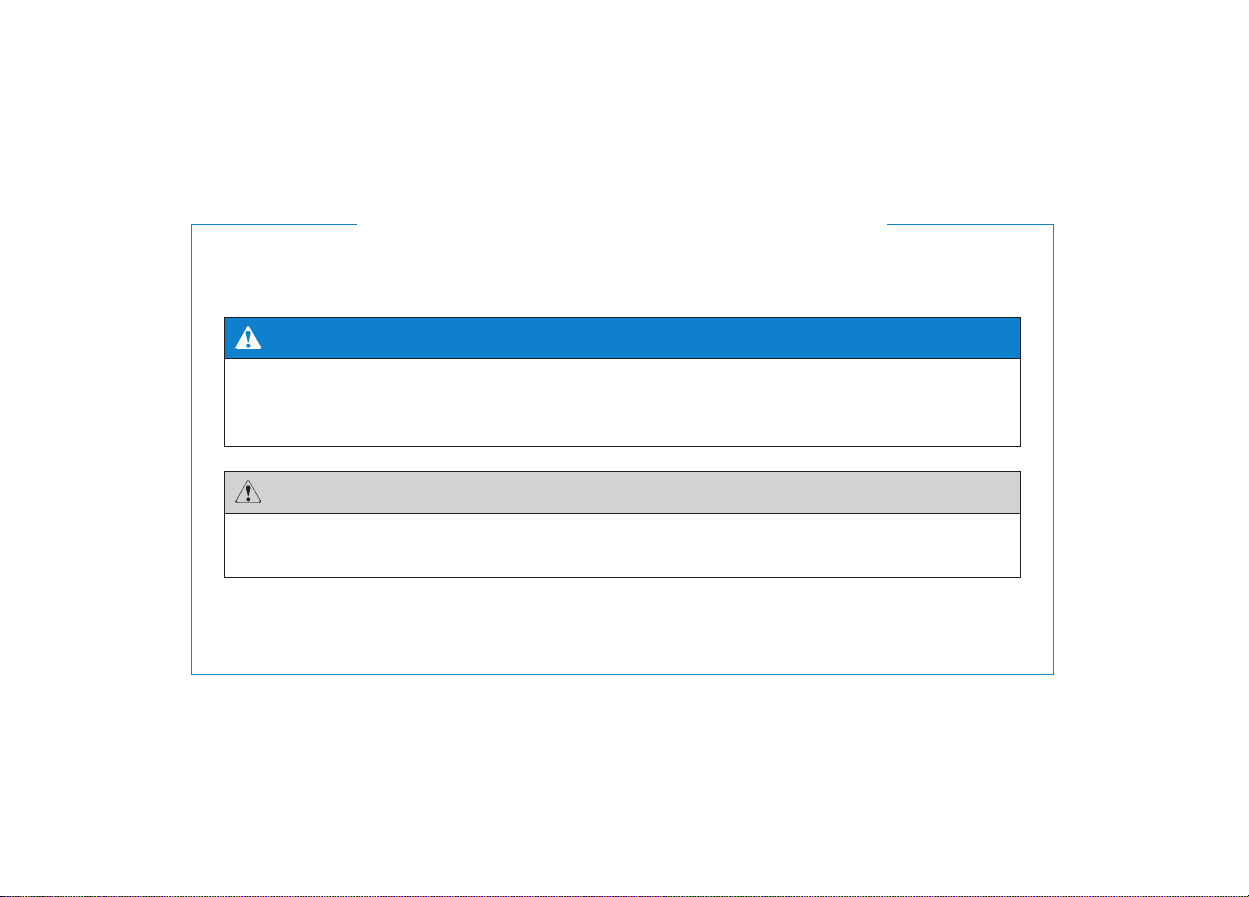
This manual includes information titled as WARNING, CAUTION and NOTICE.
These titles indicate the following:
✽✽
NOTICE
This indicates that interesting or helpful information is being provided.
SAFETY AND VEHICLE DAMAGE WARNING
This indicates that a condition may result in harm, serious injury, or death to you
or other persons if the warning is not heeded. Follow the advice provided with the
warning.
WARNING
This indicates that a condition may result in damage to your vehicle or its equipment
if the caution is not heeded. Follow the advice provided with the caution.
CAUTION
F4
FOREWORD
Thank you for choosing HYUNDAI.We are pleased to welcome you to the growing number of discriminating people who
drive HYUNDAI. The advanced engineering and high-quality construction of each HYUNDAI we build is something of
which we're very proud.
Your Owner's Manual will introduce you to the features and operation of your new HYUNDAI. It is suggested that you
read it carefully because the information it contains can contribute greatly to the satisfaction you receive from your new
car.
The manufacturer also recommends that all service and maintenance on your car be performed by an authorized
HYUNDAI dealer.HYUNDAI dealers are prepared to provide high-quality service, maintenance and any other assistance
that may be required.
HYUNDAI MOTOR AMERICA
Note : Because future owners will also need the information included in this manual, if you sell this HYUNDAI, please
leave the manual in the vehicle for their use.Thank you.
Copyright 2014 HYUNDAI Motor America. All rights reserved. No part of this publication may be reproduced, stored
in any retrieval system or transmitted in any form or by any means without the prior written permission of HYUNDAI
Motor America.
Severe engine and transaxle damage may result from the use of poor quality fuels and lubricants that do
not meet HYUNDAI specifications. You must always use high quality fuels and lubricants that meet the
specifications listed on Page 8-4 in the Vehicle Specifications section of the Owner's Manual.
CAUTION
F5
1.What are HYUNDAI Genuine
Parts?
HYUNDAI Genuine Parts are the
same parts used by HYUNDAI
Motor Company to manufacture
vehicles. They are designed and
tested for the optimum safety, per-
formance, and reliability to our cus-
tomers.
2.Why should you use genuine
parts?
HYUNDAI Genuine Parts are engi-
neered and built to meet rigid manu-
facturing requirements. Using imita-
tion, counterfeit or used salvage parts
is not covered under the HYUNDAI
New Vehicle Limited Warranty or any
other HYUNDAI warranty.
In addition, any damage to or failure
of HYUNDAI Genuine Parts caused
by the installation or failure of an imi-
tation, counterfeit or used salvage
part is not covered by any HYUNDAI
Warranty.
3. How can you tell if you are pur-
chasing HYUNDAI Genuine
Parts?
Look for the HYUNDAI Genuine
Parts Logo on the package (see
below).
HYUNDAI Genuine Parts exported
to the U.S. are packaged with labels
written only in English.
HYUNDAI Genuine Parts are only
sold through authorized HYUNDAI
Dealerships.
GUIDE TO HYUNDAI GENUINE PARTS
F6
Introduction
We want to help you get the greatest
possible driving pleasure from your
vehicle. Your Owner’s Manual can
assist you in many ways. We strong-
ly recommend that you read the
entire manual. In order to minimize
the chance of death or injury, you
must read the WARNING and CAU-
TION sections in this manual.
Illustrations complement the words
in this manual to best explain how to
enjoy your vehicle. By reading your
manual, you will learn about fea-
tures, important safety information,
and driving tips under various road
conditions.
The general layout of the manual is
provided in the Table of Contents. A
good place to start is the index; it has
an alphabetical listing of all informa-
tion in your manual.
Sections: This manual has eight
chapter plus an index.Each chapters
begins with a brief list of contents so
you can tell at a glance if that chap-
ter has the information you want.
You will find various WARNINGs,
CAUTIONs, and NOTICEs in this
manual. These WARNINGs were
prepared to enhance your personal
safety.You should carefully read and
follow ALL procedures and recom-
mendations provided in these
WARNINGS, CAUTIONS and
NOTICES.
✽✽
NOTICE
A NOTICE indicates interesting or
helpful information is being provided.
Your new vehicle is designed to
obtain maximum performance with
UNLEADED FUEL, as well as mini-
mize exhaust emissions and spark
plug fouling.
Your new vehicle is designed to use
only unleaded fuel having a pump
octane number ((R+M)/2) of 87 or
higher. (Do not use methanol blend-
ed fuels.)
HHOOWW TTOO UUSSEE TTHHIISS MMAANNUUAALL
A WARNING indicates a situation
in which harm, serious bodily
injury, or death could result if the
warning is ignored.
WARNING
A CAUTION indicates a situation
in which damage to your vehicle
could result if the caution is
ignored.
CAUTION
FFUUEELL RREEQQUUIIRREEMMEENNTTSS
Never add any fuel system
cleaning agents to the fuel tank
other than what has been spec-
ified. (Consult an authorized
HYUNDAI dealer for details.)
CAUTION
F7
Introduction
Gasoline containing alcohol and
methanol
Gasohol, a mixture of gasoline and
ethanol (also known as grain alco-
hol), and gasoline or gasohol con-
taining methanol (also known as
wood alcohol) are being marketed
along with or instead of leaded or
unleaded gasoline.
Do not use gasohol containing more
than 10% ethanol, and do not use
gasoline or gasohol containing any
methanol. Either of these fuels may
cause drivability problems and dam-
age to the fuel system, engine con-
trol system and emission control sys-
tem.
Discontinue using gasohol of any
kind if drivability problems occur.
Vehicle damage or drivability prob-
lems may not be covered by the
manufacturer’s warranty if they result
from the use of:
1.Gasohol containing more than
10% ethanol.
2. Gasoline or gasohol containing
methanol.
3. Leaded fuel or leaded gasohol.
"E85" fuel is an alternative fuel com-
prised of 85 percent ethanol and 15
percent gasoline, and is manufac-
tured exclusively for use in Flexible
Fuel Vehicles. “E85” is not compati-
ble with your vehicle. Use of “E85”
may result in poor engine perform-
ance and damage to your vehicle's
engine and fuel system. HYUNDAI
recommends that customers do not
use fuel with an ethanol content
exceeding 10 percent.
• Do not "top off" after the noz-
zle automatically shuts off
when refueling.
• Tighten the cap until it clicks
one time, otherwise the Check
Engine light will illuminate.
• Always check that the fuel cap
is installed securely to pre-
vent fuel spillage in the event
of an accident.
WARNING
Your New Vehicle Limited
Warranty does not cover dam-
age to the fuel system or any
performance problems caused
by the use of “E85” fuel.
CAUTION
Never use gasohol which con-
tains methanol. Discontinue
use of any gasohol product
which impairs driveability.
CAUTION
F8
Introduction
Other fuels
Using fuels such as;
- Silicone (Si) contained fuel,
- Ferrocene (Fe) contained fuel,
and
- Other metallic additives con-
tained fuels,
may cause vehicle and engine dam-
age. Also, the Malfunction Indicator
Lamp (MIL) may illuminate or cause
plugging, misfiring, poor accelera-
tion, engine stalling, catalyst melting,
abnormal corrosion, life cycle reduc-
tion, etc.
Gasoline containing MMT
Some gasoline contains harmful man-
ganese-based fuel additives such as
MMT (Methylcyclopentadienyl
Manganese Tricarbonyl).
HYUNDAI does not recommend the
use of gasoline containing MMT.
This type of fuel can reduce vehicle
performance and affect your emis-
sion control system.
The malfunction indicator lamp on
the cluster may come on.
Do not use methanol
Fuels containing methanol (wood
alcohol) should not be used in your
vehicle. This type of fuel can reduce
vehicle performance and damage
components of the fuel system,
engine control system and emission
control system.
Fuel Additives
HYUNDAI recommends that you use
good quality gasolines treated with
detergent additives such as TOP
TIER Detergent Gasoline, which help
prevent deposit formation in the
engine. These gasolines will help the
engine run cleaner and enhance per-
formance of the Emission Control
System.For more information on TOP
TIER Detergent Gasoline, please go
to the website (www.toptiergas.com).
For customers who do not use TOP
Tier Detergent Gasoline regularly,
and have problems starting or the
engine does not run smoothly, addi-
tives that you can buy separately
may be added to the gasoline.If TOP
TIER Detergent Gasoline is not avail-
able, one bottle of additive added to
the fuel tank at every 7,500 miles or
every engine oil change is recom-
mended.Additives are available from
your authorized HYUNDAI dealer
along with information on how to use
them. Do not mix other additives.
Operation in foreign countries
If you are going to drive your vehicle
in another country, be sure to:
• Observe all regulations regarding
registration and insurance.
• Determine that acceptable fuel is
available.
Your New Vehicle Limited
Warranty may not cover dam-
age to the fuel system and any
performance problems that are
caused by the use of fuels con-
taining methanol.
CAUTION
F9
Introduction
As with other vehicles of this type,
failure to operate this vehicle correct-
ly may result in loss of control, an
accident or vehicle rollover.
Specific design characteristics (high-
er ground clearance, track, etc.) give
this vehicle a higher center of gravity
than other types of vehicles. It is not
designed for cornering at the same
speeds as a conventional 2-wheel
drive sedans or sports coupe. Avoid
sharp turns or abrupt maneuvers.
Failure to operate this vehicle cor-
rectly may result in loss of control, an
accident or vehicle rollover. Be sure
to read the “Reducing the risk of a
rollover” driving guidelines, in
chapter 5 of this manual.
No special break-in period is
needed. By following a few simple
precautions for the first 600 miles
(1,000 km) you may add to the
performance, economy and life of
your vehicle.
• Do not race the engine.
• While driving, keep your engine
speed (rpm, or revolutions per
minute) between 2,000 rpm and
4,000 rpm.
• Do not maintain a single speed for
long periods of time, either fast or
slow. Varying engine speed is
needed to properly break-in the
engine.
• Avoid hard stops, except in emer-
gencies, to allow the brakes to seat
properly.
• Don't tow a trailer during the first
1,200 miles (2,000 km) of opera-
tion.
VVEEHHIICCLLEE BBRREEAAKK--IINN
PPRROOCCEESSSS
VVEEHHIICCLLEE HHAANNDDLLIINNGG
IINNSSTTRRUUCCTTIIOONNSS
Items contained in motor vehi-
cles or emitted from them are
known to the State of California
to cause cancer and birth
defects or reproductive harm.
These include:
• Gasoline and its vapors
• Engine exhaust
• Used engine oil
• Interior passenger compart-
ment components and materi-
als
• Component parts which are
subject to heat and wear
In addition, battery posts, termi-
nals and related accessories
contain lead, lead compounds
and other chemicals known to
the State of California to cause
cancer and reproductive harm.
CALIFORNIA PROPOSI-
TION 65 WARNING

This vehicle is equipped with an
event data recorder (EDR). The
main purpose of an EDR is to
record, in certain crash or near
crash-like situations, such as an
air bag deployment or hitting a
road obstacle, data that will assist
in understanding how a vehicle's
systems performed. The EDR is
designed to record data related to
vehicle dynamics and safety sys-
tems for a short period of time,
typically 30 seconds or less. The
EDR in this vehicle is designed to
record such data as:
• How various systems in your
vehicle were operating;
• Whether or not the driver and
passenger safety belts were
buckled/ fastened;
• How far (if at all) the driver was
depressing the accelerator
and/or brake pedal; and,
• How fast the vehicle was travel-
ing.
These data can help provide a bet-
ter understanding of the circum-
stances in which crashes and
injuries occur. NOTE: EDR data
are recorded by your vehicle only
if a non-trivial crash situation
occurs; no data are recorded by
the EDR under normal driving
conditions and no personal data
(e.g., name, gender, age, and
crash location) are recorded.
However, other parties, such as
law enforcement, could combine
the EDR data with the type of per-
sonally identifying data routinely
acquired during a crash investiga-
tion.
To read data recorded by an EDR,
special equipment is required, and
access to the vehicle or the EDR is
needed. In addition to the vehicle
manufacturer, other parties, such
as law enforcement, that have the
special equipment, can read the
information if they have access to
the vehicle or the EDR.
VVEEHHIICCLLEE DDAATTAA CCOOLLLLEECCTTIIOONN AANNDD EEVVEENNTT DDAATTAA RREECCOORRDDEERRSS
F10
Introduction
1
2
3
4
5
6
7
8
I
Your vehicle at a glance
Safety features of your vehicle
Convenient features of your vehicle
Multimedia System
Driving your vehicle
What to do in an emergency
Maintenance
Specifications, Consumer information and
Reporting safety defects
Index
TABLE OF CONTENTS

Your vehicle at a glance
1
Your vehicle at a glance
EXTERIOR OVERVIEW.................................................1-2
INTERIOR OVERVIEW..................................................1-4
INSTRUMENT PANEL OVERVIEW..............................1-5
ENGINE COMPARTMENT ............................................1-6
1
1-2
EEXXTTEERRIIOORR OOVVEERRVVIIEEWW
Your vehicle at a glance
1. Panoramic sunroof . . . . . . . . . . . . . . . 3-67
2. Front windshield wiper blades . . . . . . 7-40
3. Outside rearview mirror . . . . . . . . . . . 3-61
4. Door locks . . . . . . . . . . . . . . . . . . . . . 3-13
5. Headlight . . . . . . . . . . . . . . . . . . . . . . 7-74
6. Front fog light . . . . . . . . . . . . . . . . . . . 3-83
7. Hood. . . . . . . . . . . . . . . . . . . . . . . . . . 3-71
8.Tires and wheels . . . . . . . . . . . . 7-47 / 8-3
OLM014011L
❈ The actual shape may differ from the illustration.
■ Front view
1-3
Your vehicle at a glance
1
1. Antenna . . . . . . . . . . . . . . . . . . . . . . . . 4-2
2. Defroster. . . . . . . . . . . . . . . . . . . . . . . 3-91
3. Fuel filler door . . . . . . . . . . . . . . . . . . 3-76
4.Towing hook . . . . . . . . . . . . . . . . . . . . 6-23
5. Rear combination lamp . . . . . . . . . . . 7-78
6. Rear window wiper blade. . . . . . . . . . 7-42
7. High mounted stop lamp . . . . . . . . . . 7-80
8. Rearview camera . . . . . . . . . . . . . . . . 5-44
OLM014010L
❈ The actual shape may differ from the illustration.
■ Rear view
1-4
Your vehicle at a glance
IINNTTEERRIIOORR OOVVEERRVVIIEEWW
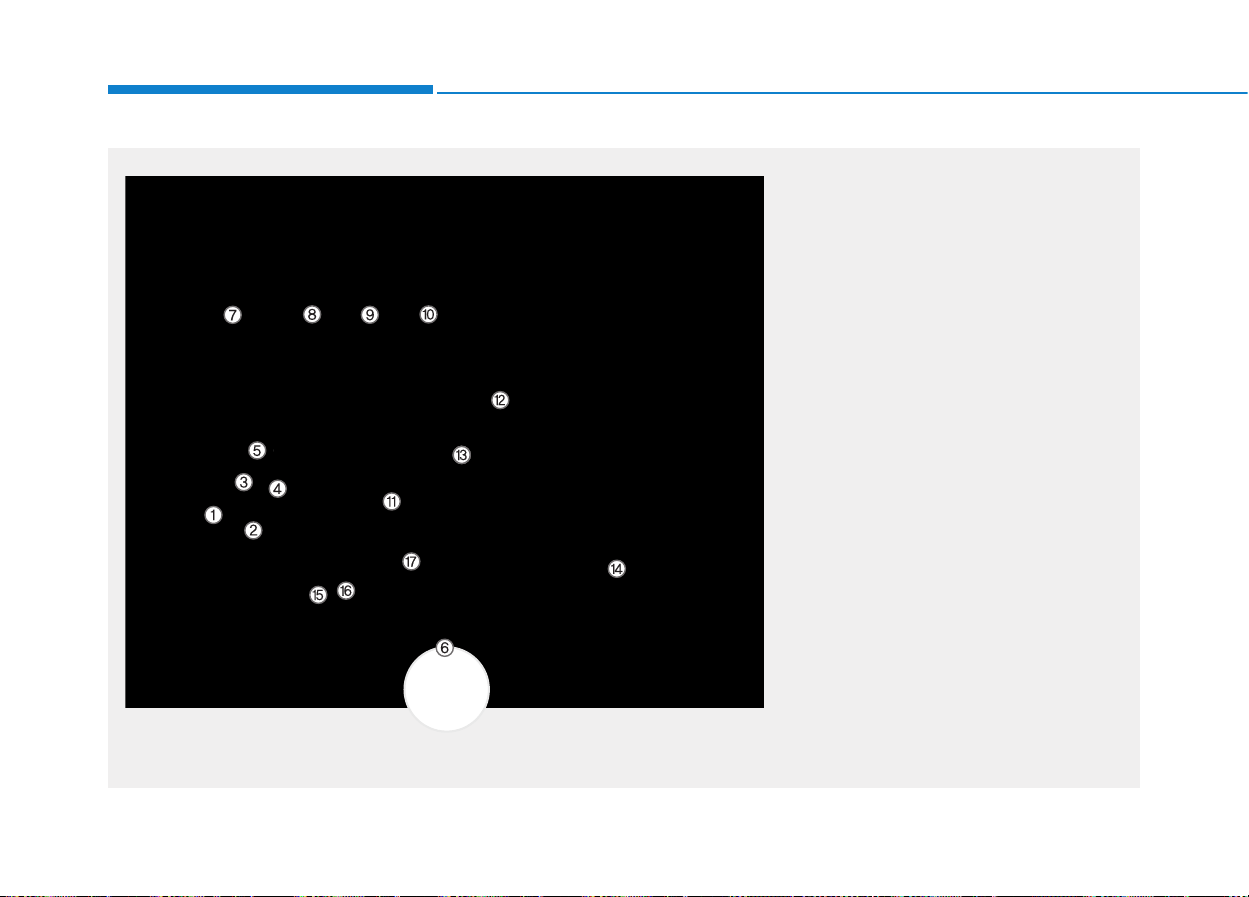
1. Door lock/unlock button ........................3-16
2. Power window switches ........................3-63
3. Central door lock switch ........................3-16
4. Power window lock switch......................3-65
5. Outside rearview mirror control
switch*....................................................3-62
6. Fuel filler door release lever ..................3-76
7. Instrument panel illumination
control switch ........................................3-21
8. AWD Lock button*..................................5-20
9. DBC button ............................................5-40
10. ESC OFF button..................................5-34
11. Fuse box..............................................7-64
12. Steering wheel ....................................3-42
13. Steering wheel tilt control ....................3-42
14. Seat........................................................2-4
15. Hood release lever ..............................3-71
16. Parking brake ......................................5-28
17. Brake pedal..........................................5-27
* : if equipped
OLMB013001A/1SAA0006
❈ The actual shape may differ from the illustration.

IINNSSTTRRUUMMEENNTT PPAANNEELL OOVVEERRVVIIEEWW
OLMB013002A
❈ The actual shape may differ from the illustration.
■ Type A ■ Type B
■ Type C
1-5
Your vehicle at a glance
1
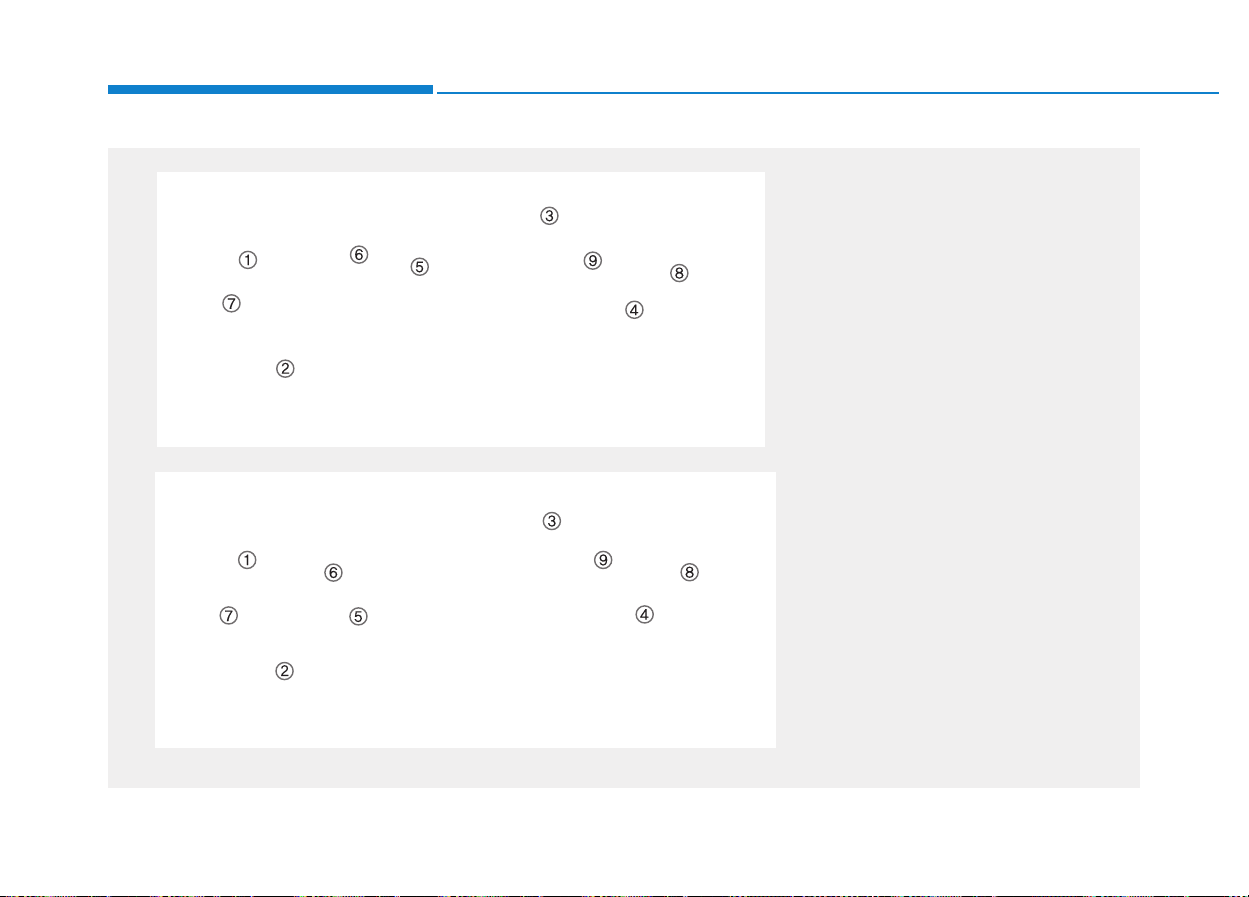
1. Light control/Turn signals....................3-79
2. Steering wheel audio controls* ............4-3
3. Bluetooth phone controls* ..................4-36
4. Instrument cluster ..............................3-20
5. Horn....................................................3-43
6. Driver’s front air bag ..........................2-49
7.Wiper/Washer ....................................3-87
8. Auto cruise controls............................5-45
9. Ignition switch................................5-5, 5-8
10. Digital clock and Audio/AVN*............4-16
11. Hazard warning flasher button......3-84, 6-2
12. PASSENGER AIR BAG OFF
indicator
............................................2-57
13. Active ECO button* ..........................5-43
14. Climate control system..........3-93, 3-102
15. Seat warmer*....................................2-19
16. Cigarette lighter* ............................3-118
17. AUX, USB ..........................................4-4
18. Power outlet* ..................................3-120
19. Cup holder......................................3-119
20. Shift lever..........................................5-13
21. Console box....................................3-116
22. Passenger’s front air bag..................2-49
23. Glove box........................................3-117
* : if equipped
1-6
Your vehicle at a glance
EENNGGIINNEE CCOOMMPPAARRTTMMEENNTT
1. Engine coolant reservoir...................7-30
2. Radiator cap .....................................7-29
3. Brake fluid reservoir..........................7-32
4. Air cleaner.........................................7-36
5. Engine oil dipstick.............................7-27
6. Engine oil filler cap ...........................7-28
7.Windshield washer fluid reservoir.....7-34
8. Fuse box...........................................7-64
9. Battery ..............................................7-43
OLMB073001/OLM079001N
■■
NU 2.0L
❈ The actual engine compartment in the vehicle may differ from the illustration.
■■
Theta II 2.4L

Safety system of your vehicle
2
IMPORTANT SAFETY PRECAUTIONS ..................2-2
Always wear your seat belt............................................2-2
Restrain all children..........................................................2-2
Air bag hazards ................................................................2-2
Driver distraction...............................................................2-2
Control your speed ..........................................................2-3
Keep your vehicle in safe condition .............................2-3
SEATS.......................................................................2-4
Safety precautions ..........................................................2-5
Front seats..........................................................................2-6
Rear seats ........................................................................2-12
Headrest ...........................................................................2-15
Seat warmers ..................................................................2-19
SEAT BELTS .........................................................2-21
Seat belt safety precautions ......................................2-21
Seat belt warning light .................................................2-22
Seat belt restraint system ............................................2-23
Additional seat belt safety precautions ....................2-32
Care of seat belts ...........................................................2-35
CHILD RESTRAINT SYSTEM (CRS) ....................2-36
Selecting a Child Restraint System (CRS) .................2-37
Installing a Child Restraint System (CRS)..................2-39
AIR BAG - ADVANCED SUPPLEMENTAL
RESTRAINT SYSTEM........................2-47
Where are the air bags? ..............................................2-49
How does the air bags system operate?..................2-52
What to expect after an air bag inflates..................2-56
Occupant Classification System (OCS).......................2-57
Why Didn't My Air Bag Go Off in a Collision? .......2-62
SRS care ...........................................................................2-67
Additional safety precautions .....................................2-68
Air bag warning labels ..................................................2-69

2-2
You will find many safety precautions
and recommendations throughout
this section, and throughout this man-
ual.The safety precautions in this sec-
tion are among the most important.
Always wear your seat belt
A seat belt is your best protection in
all types of accidents. Air bags are
designed to supplement seat belts,
not replace them. So even though
your vehicle is equipped with air bags,
ALWAYS make sure you and your
passengers wear your seat belts, and
wear them properly.
Restrain all children
All children under age 13 should ride
in your vehicle properly restrained in
a rear seat, not the front seat.Infants
and small children should be
restrained in an appropriate child
restraint. Larger children should use
a booster seat with the lap/shoulder
belt until they can use the seat belt
properly without a booster seat.
Air bag hazards
While air bags can save lives, they
can also cause serious or fatal
injuries to occupants who sit too
close to them, or who are not prop-
erly restrained. Infants, young chil-
dren, and shorter adults are at the
greatest risk of being injured by an
inflating air bag. Follow all instruc-
tions and warnings in this manual.
Driver distraction
Driver distraction presents a serious
and potentially deadly danger, espe-
cially for inexperienced drivers.Safety
should be the first concern when
behind the wheel and drivers need to
be aware of the wide array of potential
distractions, such as drowsiness,
reaching for objects, eating, personal
grooming, other passengers, and
using cellular phones, to name a few.
Drivers can become distracted when
they take their eyes and attention off
the road or their hands off the wheel
to focus on activities other than driv-
ing.To reduce your risk of distraction
or getting into an accident:
• ALWAYS set up your mobile devices
(i.e., MP3 players, phones, naviga-
tion units, etc.) when your vehicle is
parked or safely stopped.
• ONLY use your mobile device when
allowed by laws and when conditions
permit safe use. NEVER text or
email while driving. Most states have
laws prohibiting drivers from texting.
Some states and cities also prohibit
drivers from using handheld phones.
IIMMPPOORRTTAANNTT SSAAFFEETTYY PPRREECCAAUUTTIIOONNSS
Safety system of your vehicle

2-3
Safety system of your vehicle
• NEVER let the use of a mobile
device distract you from driving.You
have a responsibility to your passen-
gers and others on the road to
always drive safely, with your hands
on the wheel as well as your eyes
and attention on the road.
Control your speed
Excessive speed is a major factor in
crash injuries and deaths. Generally,
the higher the speed, the greater the
risk, but serious injuries can also
occur at lower speeds. Never drive
faster than is safe for current condi-
tions, regardless of the maximum
speed posted.
Keep your vehicle in safe condi-
tion
Having a tire blowout or a mechanical
failure can be extremely hazardous.To
reduce the possibility of such prob-
lems, check your tire pressures and
condition frequently, and perform all
regularly scheduled maintenance.
2

2-4
SSEEAATTSS
Safety system of your vehicle
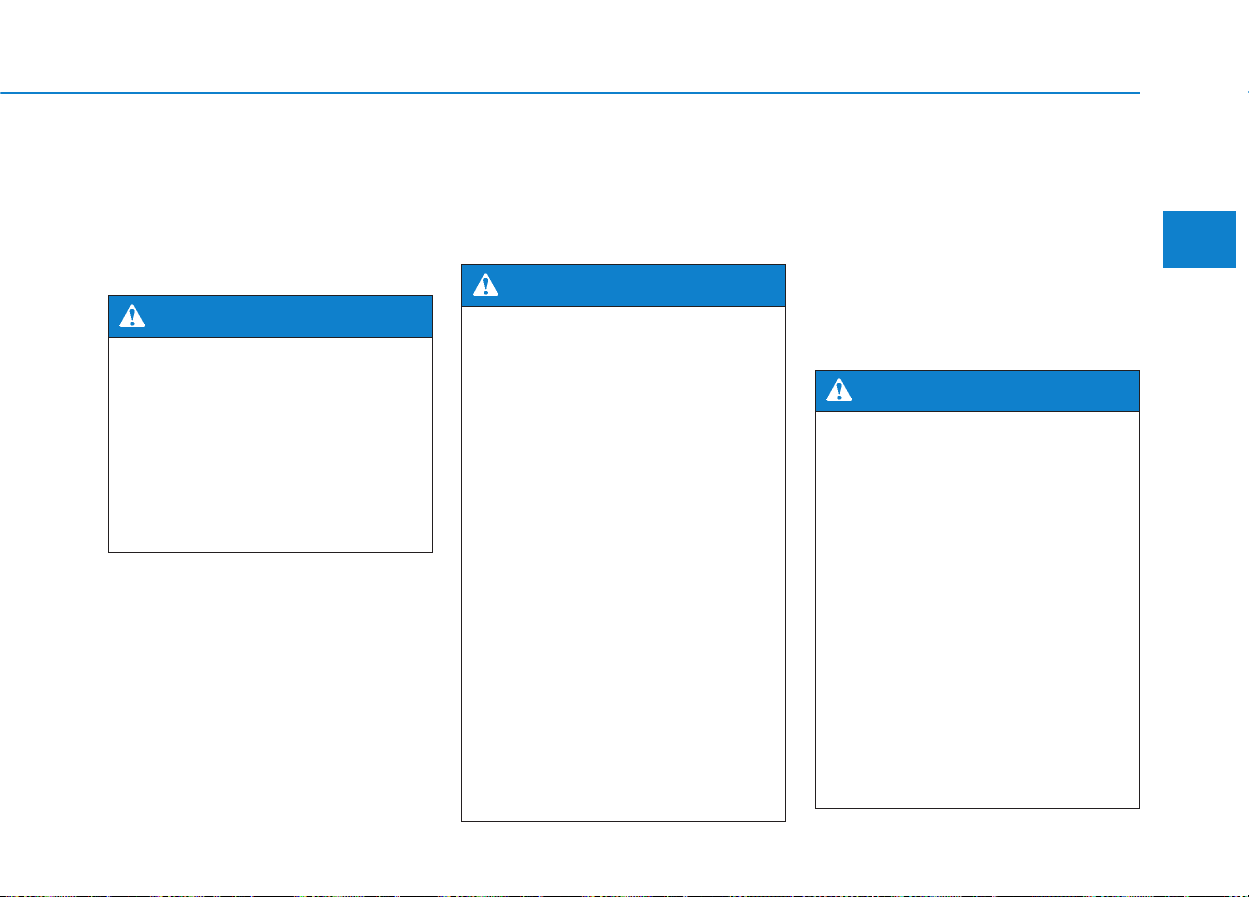
Front seats
(1) Forward and rearward
(2) Seatback angle
(3) Seat cushion height
(Driver’s seat)
(4) Lumbar support (Driver’s seat)*
(5) Seat warmer*
(6) Headrest
Rear seats
(7) Seatback angle and folding
(8) Headrest
(9) Armrest
(10) Seat warmer*
* : if equipped
OLMB033001
■ Power seat
■ Manual seat
Safety precautions
Adjusting the seats so that you are sit-
ting in a safe, comfortable position
plays an important role in driver and
passenger safety together with the
seat belts and air bags in an accident.
Air bags
You can take steps to reduce the risk
of being injured by an inflating air
bag. Sitting too close to an air bag
greatly increases the risk of injury in
the event the air bag inflates.
The National Highway Traffic Safety
Administration (NHTSA) recommends
that drivers allow at least 10 inches
(25 cm) between the center of the
steering wheel and their chest.
Seat belts
Always fasten your seat belt before
starting any trip. At all times, passen-
gers should sit upright and be proper-
ly restrained. Infants and small chil-
dren must be restrained in appropri-
ate child restraint systems. Children
who have outgrown a booster seat
and adults must be restrained using
the seat belts.
Do not use a cushion that
reduces friction between the seat
and the passenger. The passen-
ger's hips may slide under the
lap portion of the seat belt during
an accident or a sudden stop.
Serious or fatal internal injuries
could result because the seat
belt cannot operate normally.
WARNING
To reduce the risk of serious
injury or death from an inflating
air bag, take the following pre-
cautions:
• Adjust the driver’s seat as far to
the rear as possible while main-
taining the ability to maintain
full control of the vehicle.
• Adjust the front passenger seat
as far to the rear as possible.
• Hold the steering wheel by the
rim with hands at the 9 o’clock
and 3 o’clock positions to mini-
mize the risk of injuries to your
hands and arms.
• NEVER place anything or any-
one between the steering wheel
and the air bag.
• Do not allow the front passen-
ger to place feet or legs on the
dashboard to minimize the risk
of leg injuries.
WARNING
2-5
Safety system of your vehicle
2
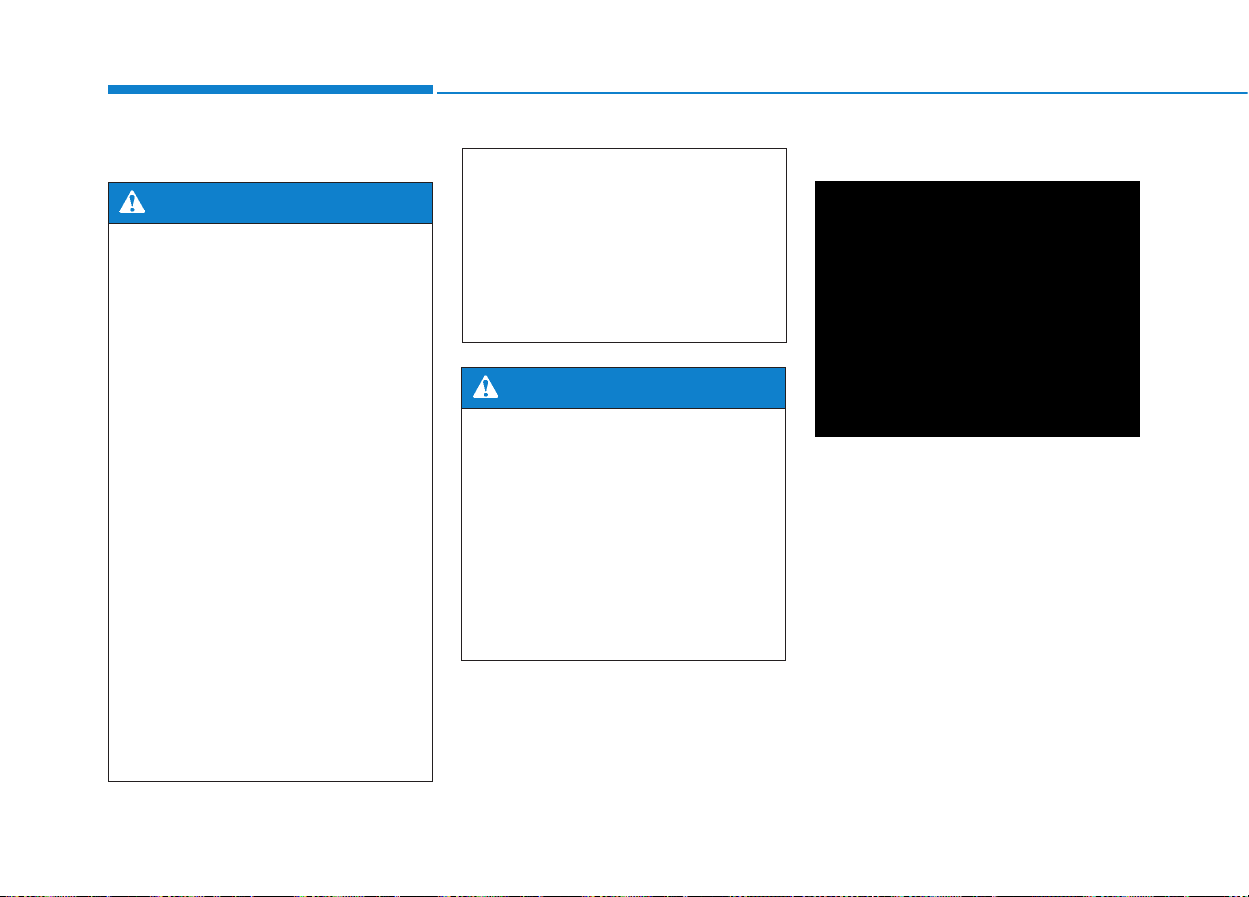
Take the following precautions
when adjusting your seat belt:
• NEVER use one seat belt for
more than one occupant.
• Always position the seatback
upright with the lap portion of
the seat belt snug and low
across the hips.
• NEVER allow children or small
infants to ride in a passenger’s
lap.
• Do not route the seat belt
across your neck,across sharp
edges, or reroute the shoulder
strap away from your body.
• Do not allow the seat belt to
become caught or jammed.
WARNING
2-6
Safety system of your vehicle
Front seats
Manual adjustment
Forward and rearward adjustment
To move the seat forward or rearward:
1. Pull up the seat slide adjustment
lever and hold it.
2. Slide the seat to the position you
desire.
3. Release the lever and make sure
the seat is locked in place. Move
forward and rearward without using
the lever. If the seat moves, it is not
locked properly.
Take the following precautions
when adjusting your seat:
• NEVER attempt to adjust the
seat while the vehicle is mov-
ing. The seat could respond
with unexpected movement
and may cause loss of vehicle
control resulting in an acci-
dent.
• Do not place anything under
the front seats. Loose objects
in the driver’s foot area could
interfere with the operation of
the foot pedals, causing an
accident.
• Do not allow anything to inter-
fere with the normal position
and proper locking of the seat-
back.
• Do not place a cigarette lighter
on the floor or seat. When you
operate the seat, gas may exit
out of the lighter causing a fire.
(Continued)
(Continued)
• Use extreme caution when
picking small objects trapped
under the seats or between
the seat and the center con-
sole.Your hands might be cut
or injured by the sharp edges
of the seat mechanism.
WARNING
To prevent injury:
• Do not adjust your seat while
wearing your seat belt.
Moving the seat cushion for-
ward may cause strong pres-
sure on your abdomen.
• Do not allow your hands or
fingers to get caught in the
seat mechanisms while the
seat is moving.
WARNING
OLMB033002
2-7
Safety system of your vehicle
2
Seatback angle
To recline the seatback:
1. Lean forward slightly and lift up the
seatback lever.
2. Carefully lean back on the seat
and adjust the seatback to the
position you desire.
3. Release the lever and make sure
the seatback is locked in place.
(The lever MUST return to its orig-
inal position for the seatback to
lock.)
Reclining seatback
Sitting in a reclined position when
the vehicle is in motion can be dan-
gerous. Even when buckled up, the
protection of your restraint system
(seat belts and air bags) is greatly
reduced by reclining your seatback.
Seat belts must be snug against your
hips and chest to work properly.
When the seatback is reclined, the
shoulder belt cannot do its job
because it will not be snug against
your chest. Instead, it will be in front
of you.During an accident, you could
be thrown into the seat belt, causing
neck or other injuries.
The more the seatback is reclined,
the greater chance the passenger’s
hips will slide under the lap belt or
the passenger’s neck will strike the
shoulder belt.
OLMB033003
NEVER ride with a reclined
seatback when the vehicle is
moving.
Riding with a reclined seatback
increases your chance of seri-
ous or fatal injuries in the event
of a collision or sudden stop.
Drivers and passengers should
ALWAYS sit well back in their
seats, properly belted, and with
the seatbacks upright.
WARNING
2-8
Safety system of your vehicle
Seat cushion height
(for driver’s seat)
To change the height of the seat
cushion:
• Push down on the lever several
times, to lower the seat cushion.
• Pull up on the lever several times,
to raise the seat cushion.
Lumber support
(for driver’s seat, if equipped)
To adjust the lumber support:
1.Press the front portion of the
switch to increase support, or the
rear portion of the switch to
decrease support.
2. Release the switch once it reach-
es the desired position.
Power adjustment
The front seat can be adjusted by
using the control switches located on
the outside of the seat cushion.Before
driving, adjust the seat to the proper
position so that you can easily control
the steering wheel, foot pedals and
controls on the instrument panel.
OLMB033004 OLMB033082
NEVER allow children in the
vehicle unattended. The power
seats are operable when the
engine is turned off.
WARNING

2-9
Safety system of your vehicle
2
Forward and rearward adjustment
To move the seat forward or rearward:
1. Push the control switch forward or
rearward.
2. Release the switch once the seat
reaches the desired position.
Seatback angle
To recline the seatback:
1. Push the control switch forward or
rearward.
2. Release the switch once the seat-
back reaches the desired position.
To prevent damage to the seats:
• Always stop adjusting the
seats when the seat has been
adjusted as far forward or
rearward as possible.
• Do not adjust the seats longer
than necessary when the
engine is turned off. This may
result in unnecessary battery
drain.
• Do not operate two or more
seats at the same time. This
may result in an electrical mal-
function.
CAUTION
OLMB033005 OLMB033006
2-10
Safety system of your vehicle
Reclining seatback
Sitting in a reclined position when
the vehicle is in motion can be dan-
gerous. Even when buckled up, the
protections of your restraint system
(seat belts and air bags) is greatly
reduced by reclining your seatback.
Seat belts must be snug against your
hips and chest to work properly.
When the seatback is reclined, the
shoulder belt cannot do its job
because it will not be snug against
your chest. Instead, it will be in front
of you.During an accident, you could
be thrown into the seat belt, causing
neck or other injuries.
The more the seatback is reclined,
the greater chance the passenger’s
hips will slide under the lap belt or
the passenger’s neck will strike the
shoulder belt.
Seat cushion height
(for driver’s seat)
To change the height of the seat
cushion:
1. Pull the front portion of the control
switch up to raise or push down to
lower the front part of the seat
cushion. Pull the rear portion of
the control switch up to raise or
push down to lower the rear part of
the seat cushion.
2. Release the switch once the seat
reaches the desired position.
NEVER ride with a reclined seat-
back when the vehicle is moving.
Riding with a reclined seatback
increases your chance of serious
or fatal injuries in the event of a
collision or sudden stop.
Drivers and passengers should
ALWAYS sit well back in their
seats, properly belted, and with
the seatbacks upright.
WARNING
OLMB033007
2-11
Safety system of your vehicle
2
Lumbar support
(for driver’s seat, if equipped)
To adjust the lumbar support:
1.Press the front portion of the
switch to increase support or the
rear portion of the switch to
decrease support.
2. Release the switch once it reach-
es the desired position.
Seatback pocket
The seatback pocket is provided on
the back of the front seatbacks.
OLMB033008
OLMB033015
To prevent the occupant classi-
fication system from malfunc-
tioning:
• Do not place any items total
weighing over 2.2 lbs (1 kg) in
the seatback pocket on the
passenger’s seat.
• Do not hang onto the front
passenger’s seatback.
WARNING
Do not put heavy or sharp
objects in the seatback pockets.
In an accident they could come
loose from the pocket and
injure occupants.
WARNING
2-12
Safety system of your vehicle
Rear seats
Seatback angle
To recline the seatback:
1. Pull up the seatback lever.
2. Hold the lever and adjust the seat-
back to the position you desire.
3. Release the lever and make sure
the seatback is locked in place.
(The lever MUST return to its orig-
inal position for the seatback to
lock.)
Folding the rear seat
The rear seatbacks can be folded to
facilitate carrying long items or to
increase the luggage capacity of the
vehicle.
1. Insert the rear seat belt buckle in
the pocket between the rear seat-
back and cushion, and insert the
rear seat belt webbing in the guide
to prevent the seat belt from being
damaged.
OLMB033083
• Never allow passengers to sit
on top of the folded down
seatback while the vehicle is
moving. This is not a proper
seating position and no seat
belts are available for use.
This could result in serious
injury or death in case of an
accident or sudden stop.
• Objects carried on the folded
down seatback should not
extend higher than the top of
the front seatbacks. This
could allow cargo to slide for-
ward and cause injury or dam-
age during sudden stops.
WARNING
OLMB033037
OLMB033038

2-13
Safety system of your vehicle
2
2. Use a key to release the rear cen-
ter seat belt from the center buckle.
3. Retract the center seat belt web-
bing into the headliner, and clip the
small tab into the holder.
4. Set the front seatback to the upright
position and, if necessary, slide the
front seat forward.
5. Lower the rear headrests to the
lowest position.
6. Pull up the seatback lever, then
fold the seat toward the front of the
vehicle.
7.To use the rear seat, lift and push
the seatback backward. Push the
seatback firmly until it clicks into
place. Make sure the seatback is
locked in place.
When returning the rear seatbacks to
the upright position, remember to
return the rear shoulder belts to their
proper position.
OLMB033021 OLMB033077
2-14
Safety system of your vehicle
Armrest
The armrest is located in the center
of the rear seat. Pull the armrest
down from the seatback to use it.
You will find cup holders on the cen-
ter armrest.
When returning the rear seat-
back from a folded to an upright
position, hold the seatback and
return it slowly. Ensure that the
seatback is completely locked
into its upright position by
pushing on the top of the seat-
back. In an accident or sudden
stop, the unlocked seatback
could allow cargo to move for-
ward with great force and enter
the passenger compartment,
which could result in serious
injury or death.
WARNING
Do not place objects in the rear
seats, since they cannot be
properly secured and may hit
vehicle occupants in a collision
causing serious injury or death.
WARNING
Make sure the engine is off, the
shift lever is in P (Park), and the
parking brake is securely
applied whenever loading or
unloading cargo. Failure to take
these steps may allow the vehi-
cle to move if the shift lever is
inadvertently moved to another
position.
WARNING
OLMB033019
2-15
Safety system of your vehicle
2
Headrest
The vehicle’s front and rear seats
have adjustable headrests.The head-
rests provide comfort for passengers,
but more importantly they are
designed to help protect passengers
from whiplash and other neck and
spinal injuries during an accident,
especially in a rear impact collision.
Front seat headrest
The driver’s and front passenger’s
seats are equipped with adjustable
headrests for the passengers safety
and comfort.
To reduce the risk of serious
injury or death in an accident,
take the following precautions
when adjusting your headrests:
• Always properly adjust the
headrests for all passengers
BEFORE starting the vehicle.
• NEVER let anyone ride in a seat
with the headrest removed.
(Continued)
WARNING
(Continued)
• Adjust the headrests so the
middle of the headrests is at
the same height as the height
of the top of the eyes (see dia-
gram).
• NEVER adjust the headrest
position of the driver’s seat
when the vehicle is in motion.
• Adjust the headrest as close
to the passenger’s head as
possible. Do not use a seat
cushion that holds the body
away from the seatback.
• Make sure the headrest locks
into position after adjusting it.
To prevent damage, NEVER hit
or pull on the headrests.
CAUTION
OLMB033009
2-16
Safety system of your vehicle
Adjusting the height up and down
To raise the headrest:
1. Pull it up to the desired position (1).
To lower the headrest:
1. Push and hold the release button
(2) on the headrest support.
2. Lower the headrest to the desired
position (3).
Removal/Reinstall
To remove the headrest:
1. Recline the seatback (2) with the
recline lever or switch (1).
2. Raise headrest as far as it can go.
3. Press the headrest release button
(3) while pulling the headrest up (4).
OLMB033012
OLMB034303
OLMB034305
■ Type A
■ Type B
OLF034015
If you recline the seatback
towards the front with the head
restraint and seat cushion
raised, the head restraint may
come in contact with the sunvi-
sor or other parts of the vehicle.
CAUTION
2-17
Safety system of your vehicle
2
To reinstall the headrest :
1. Put the headrest poles (2) into the
holes while pressing the release
button (1).
2. Recline the seatback (4) with the
recline lever or switch (3).
3. Adjust the headrest to the appro-
priate height.
Always make sure the headrest
locks into position after rein-
stalling and adjusting it properly.
WARNING
NEVER allow anyone to ride in a
seat with the headrest removed.
WARNING
OLMB034304
OLMB034306
■ Type A
■ Type B

2-18
Safety system of your vehicle
Active headrest
The active headrest is designed to
move forward and upward during a
rear impact. This helps prevent the
driver's and front passenger’s heads
from moving backward which helps
minimize neck injuries.
Rear seat headrest
The rear seats are equipped with
headrests in all the seating positions
for the passenger’s safety and com-
fort.
Adjusting the height up and down
To raise the headrest:
1. Pull it up to the desired position (1).
To lower the headrest:
1. Push and hold the release button
(2) on the headrest support.
2. Lower the headrest to the desired
position (3).
OLMB033017
OLMB033016
OLMB033010
A gap between the seat and the
headrest release button may
appear when sitting on the seat
or when you push or pull the
seat. Be careful not to get your
finger, etc. caught in the gap.
WARNING
2-19
Safety system of your vehicle
2
Removal/Reinstall
To remove the headrest:
1. Raise the headrest as far as it can
go.
2. Press the release button (1) while
pulling the headrest up (2).
To reinstall the headrest:
1. Recline the seatback.
2. Put the headrest poles (3) into the
holes while pressing the release
button (1).
3. Adjust the headrest to the appropri-
ate height.
Seat warmers
Seat warmers are provided to warm
the seats during cold weather.
Always make sure the headrest
locks into position after rein-
stalling and adjusting it to prop-
erly protect the occupants.
WARNING
The seat warmers can cause a
SERIOUS BURN, even at low
temperatures and especially if
used for long periods of time.
Passengers must be able to feel
if the seat is becoming too warm
so they can turn it off, if needed.
People who cannot detect tem-
perature change or pain to the
skin should use extreme cau-
tion, especially the following
types of passengers:
• Infants, children, elderly or
disabled persons, or hospital
outpatients.
• People with sensitive skin or
who burn easily.
• Fatigued individuals.
• Intoxicated individuals.
• People taking medication that
can cause drowsiness or
sleepiness.
WARNING
OLMB033018
NEVER allow anyone to ride in a
seat with the headrest removed.
WARNING
2-20
Safety system of your vehicle
Front seat warmers (if equipped)
While the engine is running, push
either of the switches to warm the dri-
ver's seat or front passenger's seat.
During mild weather or under condi-
tions where the operation of the seat
warmer is not needed, keep the
switches in the OFF position.
Each time you push the switch, the
temperature setting of the seat is
changed as follows :
The seat warmer defaults to the OFF
position whenever the ignition switch
is placed in the ON position.
✽✽
NOTICE
With the seat warmer switch in the
ON position, the heating system in
the seat turns off or on automatical-
ly depending on the seat tempera-
ture.
OLMB033014
OFF → HIGH ( ) → LOW ( )
→
NEVER place anything on the
seat that insulates against heat
when the seat warmer is in oper-
ation, such as a blanket or seat
cushion. This may cause the
seat warmer to overheat, caus-
ing a burn or damage to the seat.
WARNING
To prevent damage to the seat
warmers and seats:
• Never use a solvent such as
paint thinner, benzene, alco-
hol or gasoline to clean the
seats.
• Do not place heavy or sharp
objects on seats equipped
with seat warmers.
CAUTION
2-21
Safety system of your vehicle
2
This section describes how to use the
seat belts properly. It also describes
some of the things not to do when
using seat belts.
Seat belt safety precautions
Always fasten your seat belt and
make sure all passengers have fas-
tened their seat belts before starting
any trip. Air bags are designed to
supplement the seat belt as an addi-
tional safety device, but they are not a
substitute. Most states require all
occupants of a vehicle to wear seat
belts.
SSEEAATT BBEELLTTSS
Seat belts must be used by ALL
passengers whenever the vehi-
cle is moving.Take the following
precautions when adjusting and
wearing seat belts:
• ALWAYS properly restrain
children under age 13 in the
rear seats.
• NEVER allow children to ride
in the front passenger seat. If
a child age 13 or older must be
seated in the front seat, move
the seat as far back as possi-
ble and properly restrain them
in the seat belt.
• NEVER allow an infant or child
to be carried on an occupant’s
lap.
• NEVER ride with the seatback
reclined when the vehicle is
moving.
• Do not allow children to share
a seat or seat belt.
• Do not wear the shoulder belt
under your arm or behind your
back.
(Continued)
WARNING
(Continued)
• Do not use the seat belt if it is
twisted. A twisted seat belt
will not protect you properly
in an accident.
• Do not use a seat belt if the
webbing or hardware is dam-
aged.
• Do not latch the seat belt into
the buckles of other seats.
• NEVER unfasten the seat belt
while driving. This may cause
loss of vehicle control result-
ing in an accident.
• Make sure there is nothing in
the buckle interfering with the
seat belt latch mechanism.
This may prevent the seat belt
from fastening securely.
• No modifications or additions
should be made by the user
which will either prevent the
seat belt adjusting devices
from operating to remove
slack, or prevent the seat belt
assembly from being adjusted
to remove slack.
2-22
Safety system of your vehicle
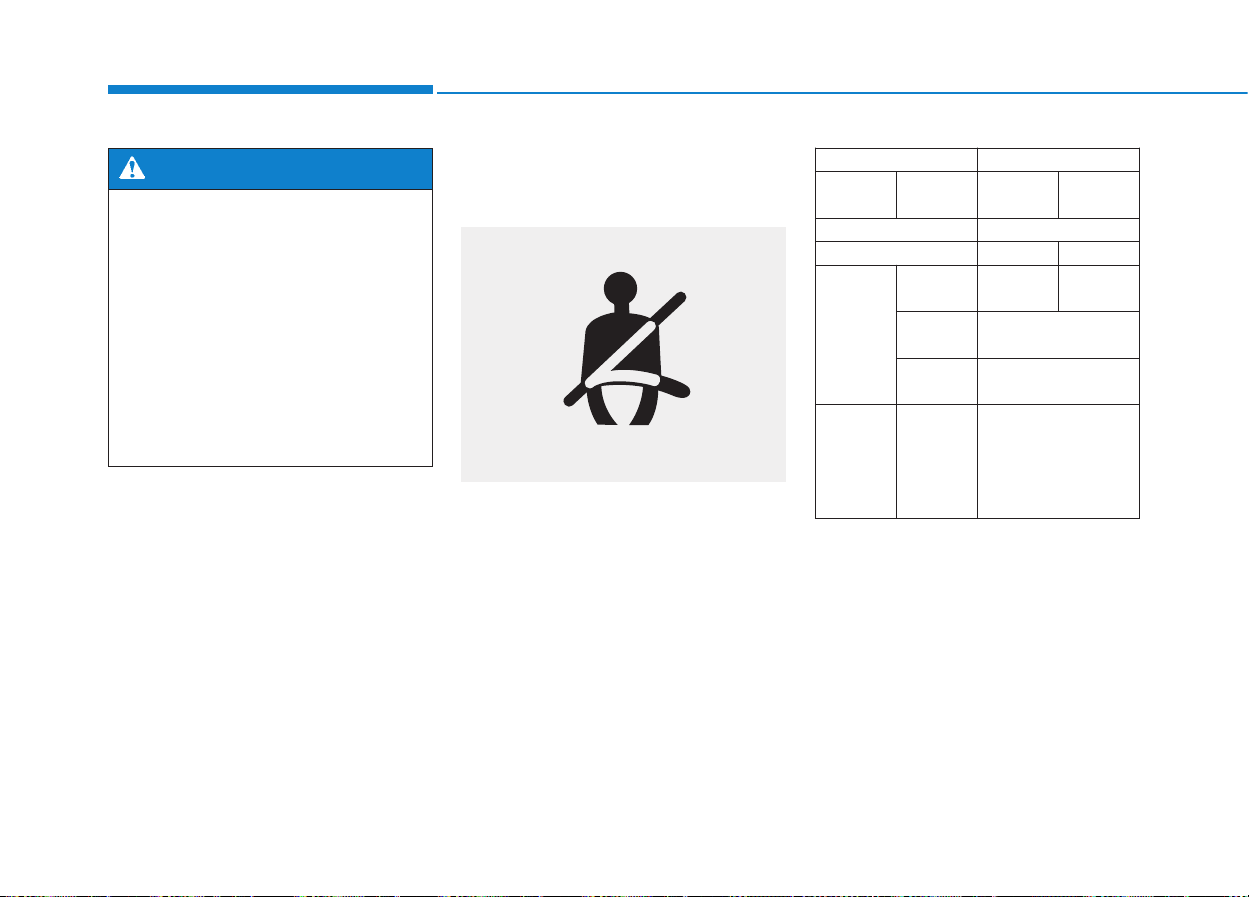
Seat belt warning light
Seat belt warning light
(for driver’s seat)
The driver’s seat belt warning light
and chime will come on according to
the following table when the ignition
switch is in the ON position.
*
1
:The Warning Pattern repeats 11 times with
an interval of 24 seconds. If the driver's
seat belt is buckled, the light will stop with-
in 6 seconds and chime will stop immedi-
ately.
*
2
:The light will stop within 6 seconds and
chime will stop immediately.
Damaged seat belts and seat
belt assemblies will not operate
properly. Always replace:
• Frayed, contaminated, or dam-
aged webbing
• Damaged hardware
• The entire seat belt assembly
after it has been worn in an
accident, even if damage to
webbing or assembly is not
apparent
WARNING
OLMB033022
Conditions Warning Pattern
Seat Belt
Vehicle
Speed
Light (Blink) Chime
Unbuckled 6 seconds
Buckled 6 seconds None
Buckled →
Unbuckled
Below 3 mph
(5 km/h)
6 seconds None
3 mph~
6 mph
6 seconds
Above 6 mph
(10 km/h)
6 sec. ON / 24 sec. OFF
(11 times)
Unbuckled
Above 6 mph
(10 km/h)
↓
Below 3 mph
(5 km/h)
6 seconds *
1
↓
Stop *
2

2-23
Safety system of your vehicle
2
Seat belt restraint system
Seat Belt-Driver’s 3-point sys-
tem with emergency locking
retractor
To fasten your seat belt:
Pull the seat belt out of the retractor
and insert the metal tab (1) into the
buckle (2). There will be an audible
"click" when the tab locks into the
buckle.
The seat belt automatically adjusts to
the proper length after the lap belt
portion is adjusted manually so that it
fits snugly around your hips. If you
lean forward in a slow, easy motion,
the belt will extend and move with
you. If there is a sudden stop or
impact, the belt will lock into position.
It will also lock if you try to lean for-
ward too quickly.
✽✽
NOTICE
If you are not able to smoothly pull
enough of the seat belt out from the
retractor, firmly pull the seat belt out
and release it. After release, you will
be able to pull the belt out smoothly.
Height adjustment
You can adjust the height of the
shoulder belt anchor to one of the
four different positions for maximum
comfort and safety.
The shoulder portion should be
adjusted so it lies across your chest
and midway over your shoulder near-
est the door, not over your neck.
OLMB033087

2-24
Safety system of your vehicle
To adjust the height of the seat belt
anchor, lower or raise the height
adjuster into an appropriate position.
To raise the height adjuster, pull it up
(1). To lower it, push it down (3) while
pressing the height adjuster button (2).
Release the button to lock the anchor
into position. Try sliding the height
adjuster to make sure that it has
locked into position.
(Continued)
• Position one arm under the
shoulder belt and the other over
the belt, as shown in the illus-
tration.
• Always position the shoulder
belt anchor into the locked
position at the appropriate
height.
• Never position the shoulder
belt across your neck or face.
OLMB033024
■ Front seat
OLMB033025
Improperly positioned seat belts
may increase the risk of serious
injury in an accident.Take the fol-
lowing precautions when adjust-
ing the seat belt:
• Position the lap portion of the
seat belt as low as possible
across your hips, not on your
waist, so that it fits snugly.
(Continued)
WARNING

2-25
Safety system of your vehicle
Seat Belt – Passenger’s 3-point
system with combination locking
retractor
This type of seat belt combines the
features of both an emergency lock-
ing retractor seat belt and an auto-
matic locking retractor seat belt.
Combination retractor type seat belts
are installed in the rear seat positions
to help accommodate the installation
of child restraint systems. Although a
combination retractor is also installed
in the front passenger seat position,
NEVER place any infant restraint sys-
tem in the front seat of the vehicle.
To fasten your seat belt:
Pull the seat belt out of the retractor
and insert the metal tab into the buck-
le. There will be an audible "click"
when the tab locks into the buckle.
When not securing a child restraint,
the seat belt operates in the same way
as the driver's seat belt (Emergency
Locking Retractor Type). It automati-
cally adjusts to the proper length only
after the lap belt portion of the seat
belt is adjusted manually so that it fits
snugly across your hips.
When the seat belt is fully extended
from the retractor to allow the installa-
tion of a child restraint system, the
seat belt operation changes to allow
the belt to retract, but not to extend
(Automatic Locking Retractor Type).
Refer to “Using a Child Restraint
System” in this chapter.
✽✽
NOTICE
Although the seat belt retractor pro-
vides the same level of protection for
seated passengers in either emer-
gency or automatic locking modes,
the emergency locking mode allows
seated passengers to move freely in
their seat while keeping some tension
on the belt. During a collision or sud-
den stop, the retractor automatically
locks the belt to help restrain your
body. To deactivate the automatic
locking mode, allow the unbuckled
seat belt to fully retract.
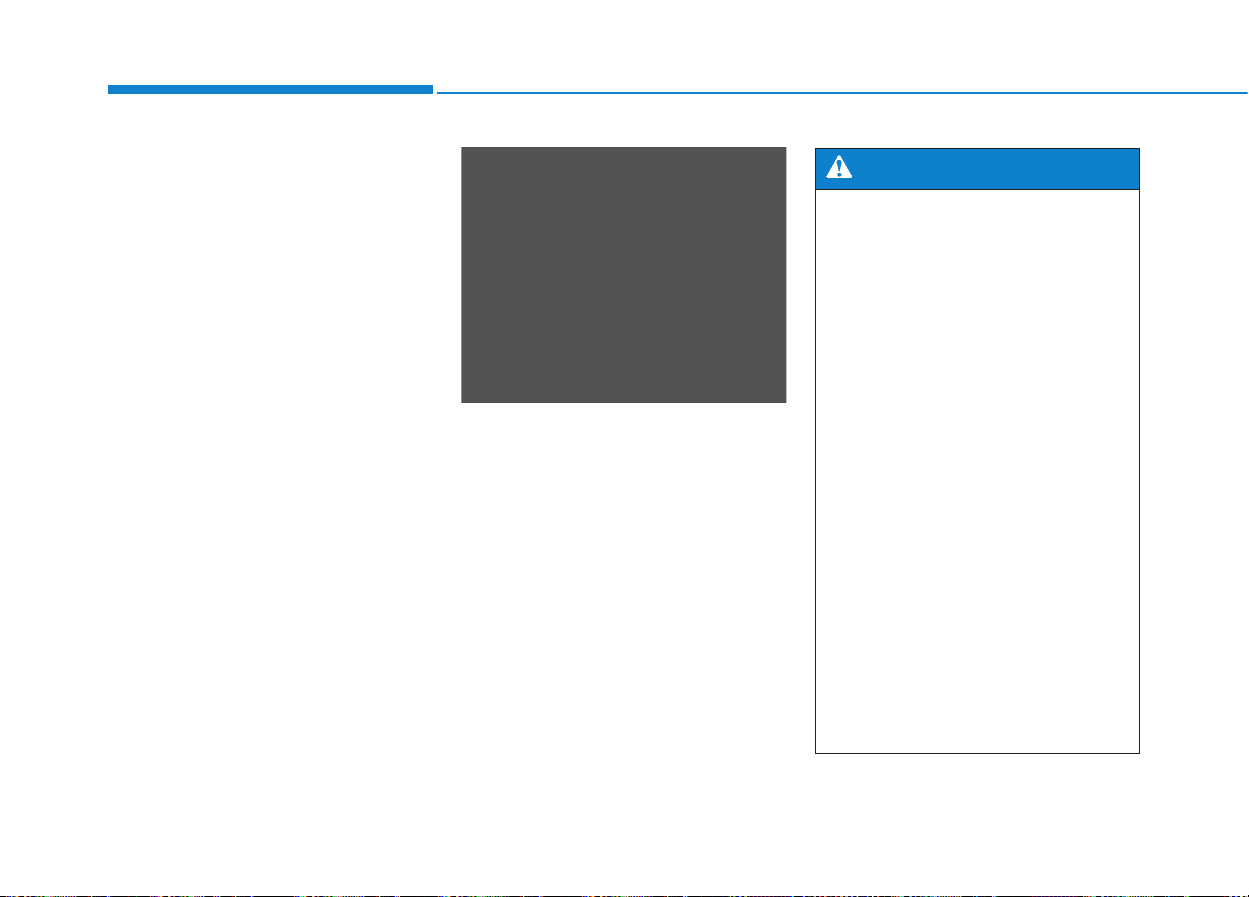
To release your seat belt:
Press the release button (1) in the
locking buckle.
When it is released, the belt should
automatically draw back into the
retractor. If this does not happen,
check the belt to be sure it is not twist-
ed, then try again.
2
OLMB033088
2-26
Safety system of your vehicle
Pre-Tensioner Seat Belts that
malfunction may not protect you
properly during an accident.
Take the following precautions:
• Always wear your seat belt
and sit properly in your seat.
• Do not use the seat belt if it is
loose or twisted. A loose or
twisted seat belt will not pro-
tect you properly in an acci-
dent.
• Do not place anything near the
buckle. This may adversely
affect the buckle and cause it
to function improperly.
• Always replace your pre-ten-
sioners after activation or an
accident.
• NEVER inspect, service, repair
or replace the pre-tensioners
yourself.This must be done by
an authorized HYUNDAI dealer.
• Do not hit the seat belt assem-
blies.
WARNING
Pre-tensioner seat belt
Your vehicle is equipped with driver's
and front passenger's Pre-Tensioner
Seat Belts. The purpose of the pre-
tensioner is to make sure the seat
belts fit tightly against the occupant's
body in certain frontal collisions. The
pre-tensioner seat belts may be acti-
vated in crashes where the frontal col-
lision is severe enough.
When the vehicle stops suddenly, or
if the occupant tries to lean forward
too quickly, the seat belt retractor will
lock into position. In certain frontal
collisions, the pre-tensioner will acti-
vate and pull the seat belt into tighter
contact against the occupant's body.
If the system senses excessive ten-
sion on the driver’s or passenger's
seat belt when the pre-tensioner acti-
vates, the load limiter inside the pre-
tensioner will release some of the
pressure on the affected seat belt.
OLMB033039

2-27
Safety system of your vehicle
2
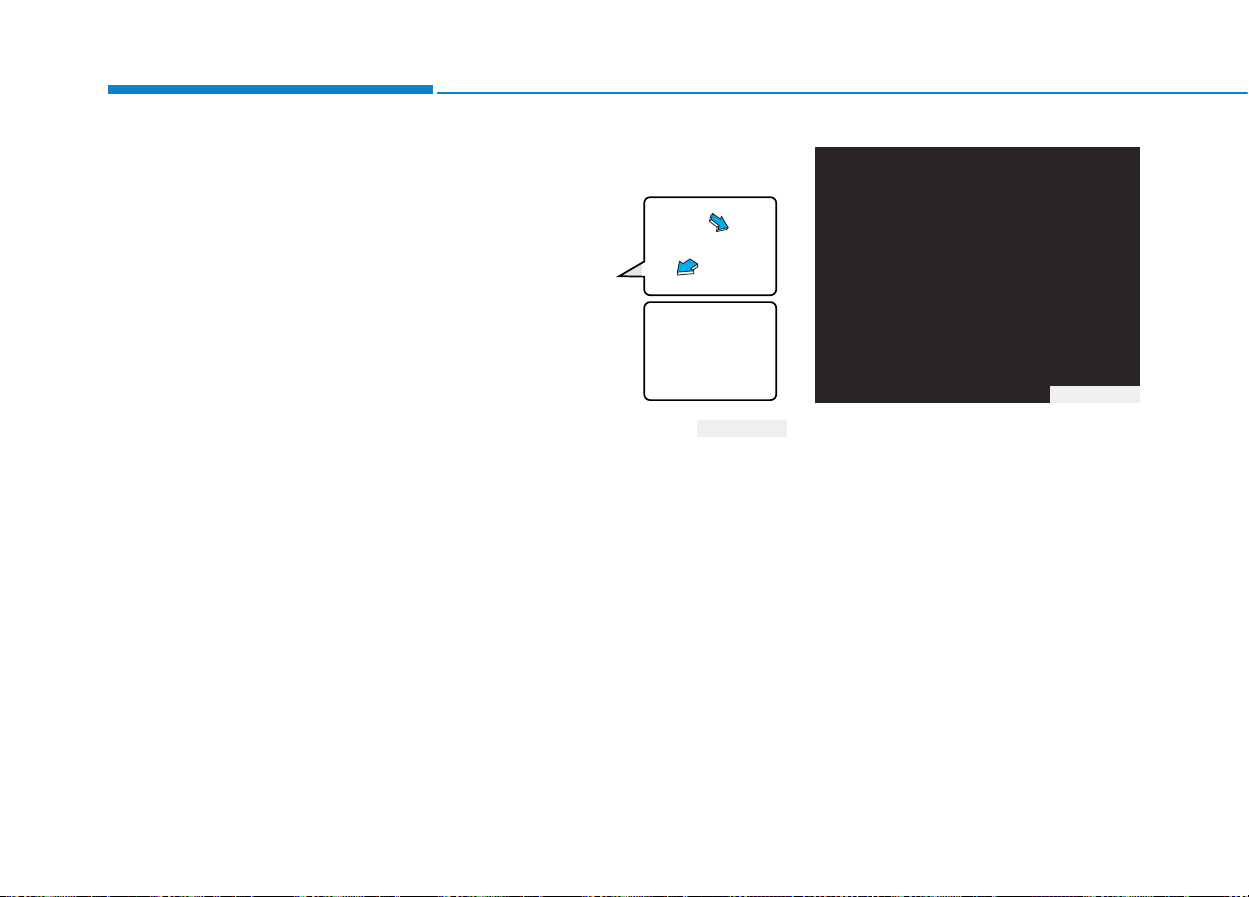
The Pre-Tensioner Seat Belt System
consists mainly of the following com-
ponents.Their locations are shown in
the illustration above:
1. SRS air bag warning light
2. Retractor pre-tensioner assembly
3. SRS control module
4. Anchor pre-tensioner assembly
✽✽
NOTICE
The sensor that activates the SRS air
bag is connected with the pre–ten-
sioner seat belts. The SRS air bag
warning light on the instrument panel
will illuminate for approximately 6
seconds after the ignition switch is
placed in the ON position, and then it
should turn off.
If the pre-tensioner is not working
properly, the warning light will illu-
minate even if the SRS air bag is not
malfunctioning. If the warning light
does not illuminate, stays illuminated
or illuminates when the vehicle is
being driven, have an authorized
HYUNDAI dealer inspect the pre-
tensioner seat belts and SRS air bags
as soon as possible.
Do not touch the pre-tensioner
seat belt assemblies for several
minutes after they have been
activated. When the pre-ten-
sioner seat belt mechanism
fires during a collision the pre-
tensioner becomes hot and can
burn you.
WARNING
1LDE3100/Q
2-28
Safety system of your vehicle
✽✽
NOTICE
• Both the driver's and front pas-
senger's pre-tensioner seat belts
may be activated in certain frontal
or side collisions or rollovers.
• The pre-tensioners will not be acti-
vated if the seat belts are not worn
at the time of the collision.
• When the pre-tensioner seat belts
are activated, a loud noise may be
heard and fine dust, which may
appear to be smoke, may be visible
in the passenger compartment.
These are normal operating condi-
tions and are not hazardous.
• Although it is non-toxic, the fine
dust may cause skin irritation and
should not be breathed for pro-
longed periods. Wash all exposed
skin areas thoroughly after an
accident in which the pre-tension-
er seat belts were activated.
3-point rear center seat belt
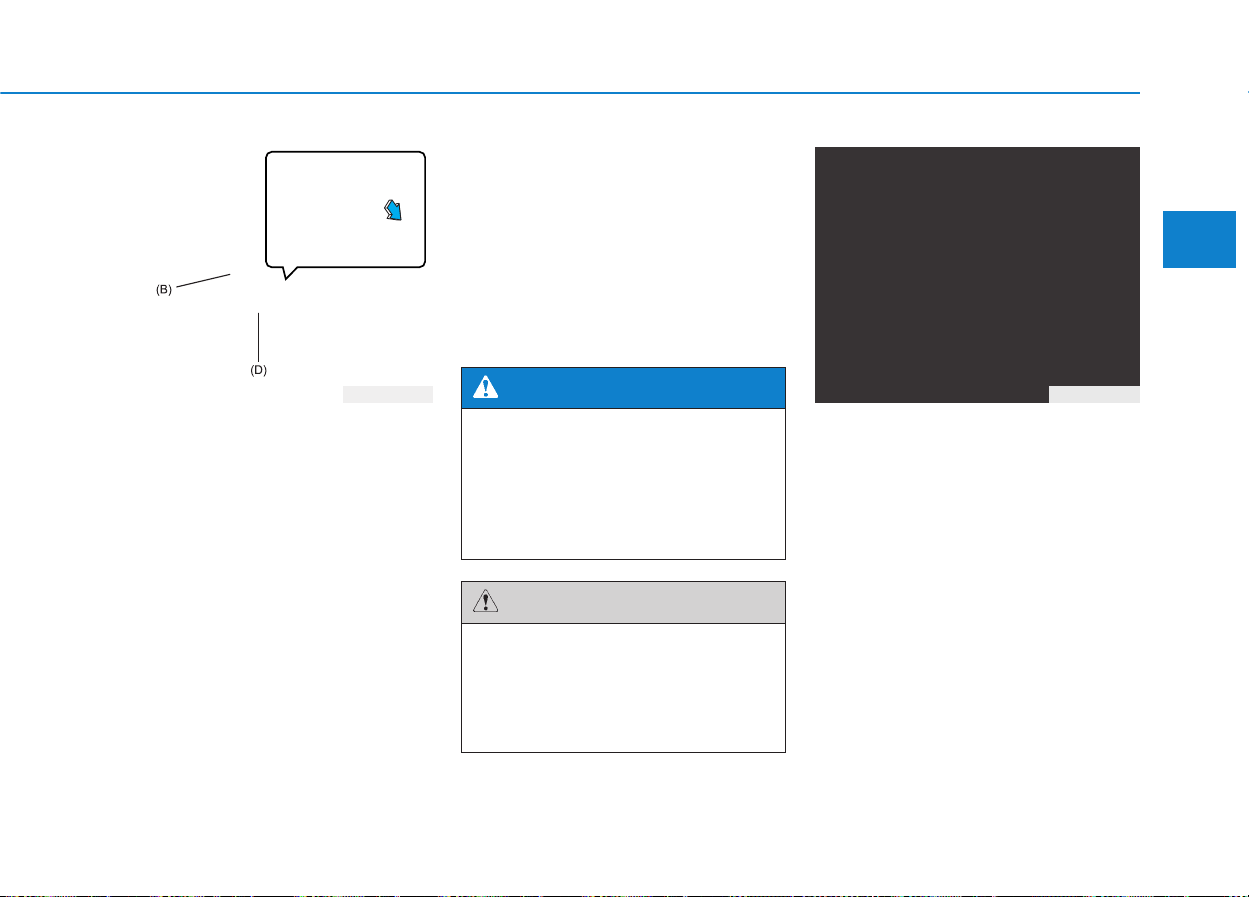
To fasten the rear center seat belt:
1. Extract the metal tab from the hole
of the belt assembly cover and
slowly pull the metal tab out from
the retractor.
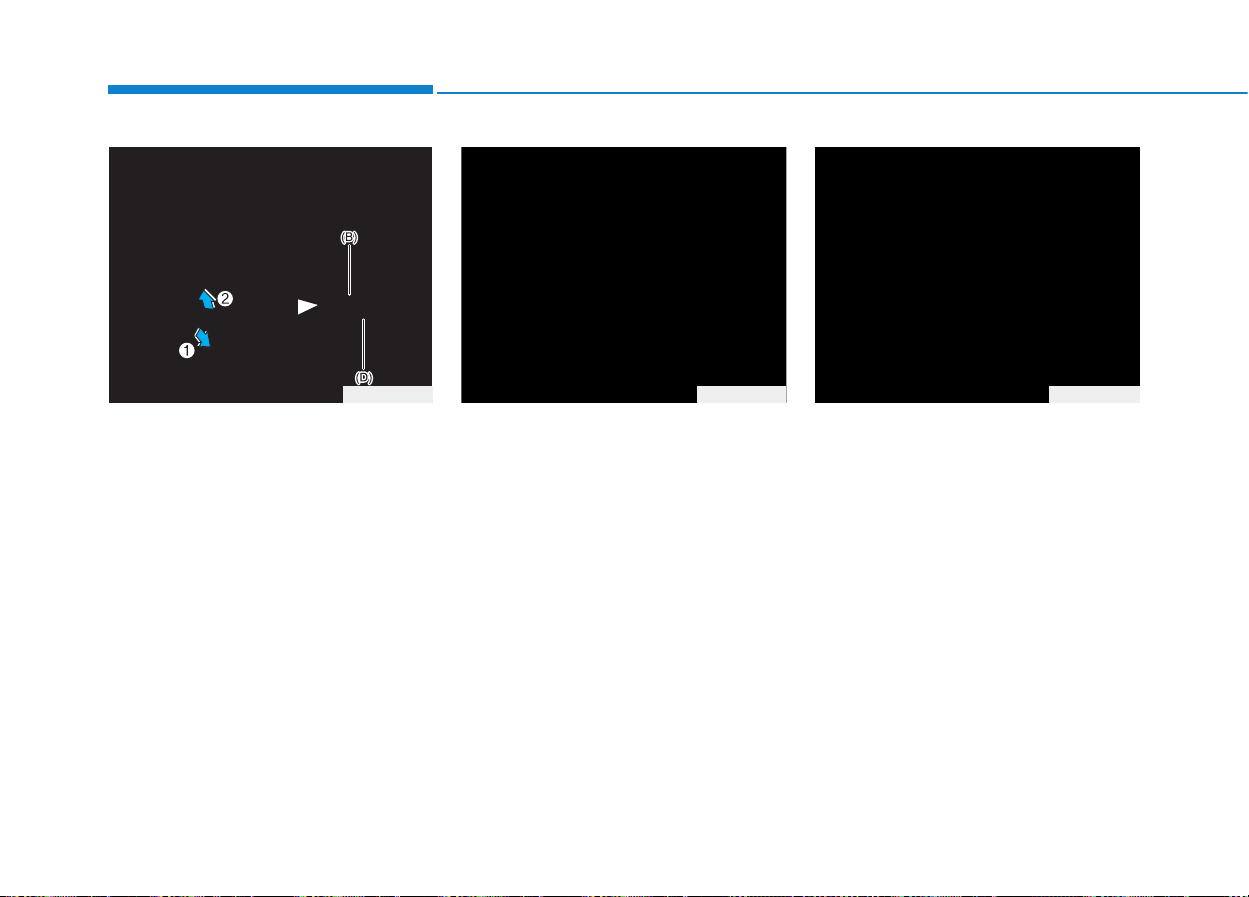
2. Insert the metal tab (A) into the
buckle (C). There will be an audi-
ble “click” when the tab locks into
the buckle. Make sure the belt is
not twisted.
OLMB033027
OLMB033094
2-29
Safety system of your vehicle
2
3. Pull the metal tab (B) and insert
the it (B) into the buckle (D).There
will be an audible “click” when the
tab locks into the buckle. Make
sure the belt is not twisted.
The seat belt automatically adjusts to
the proper length after the lap belt
portion is adjusted manually so that it
fits snugly around your hips. If you
lean forward in a slow, easy motion,
the belt will extend and move with
you. If there is a sudden stop or
impact, the belt will lock into position.
It will also lock if you try to lean for-
ward too quickly.
Using the rear center seat belt
When using the rear center seat belt,
ALWAYS use the buckle with the
CENTER mark.
OLMB033029
When using the rear seat center
belt, you must lock all metal tabs
and buckles. If any metal tab or
buckle is not locked, it will
increase the chance of injury in
the event of collision.
WARNING
Be sure the cargo is securely
loaded in the rear cargo area.
Not doing so may damage the
rear center seat belt in a sudden
stop or collision.
CAUTION
OLMB033093
2-30
Safety system of your vehicle
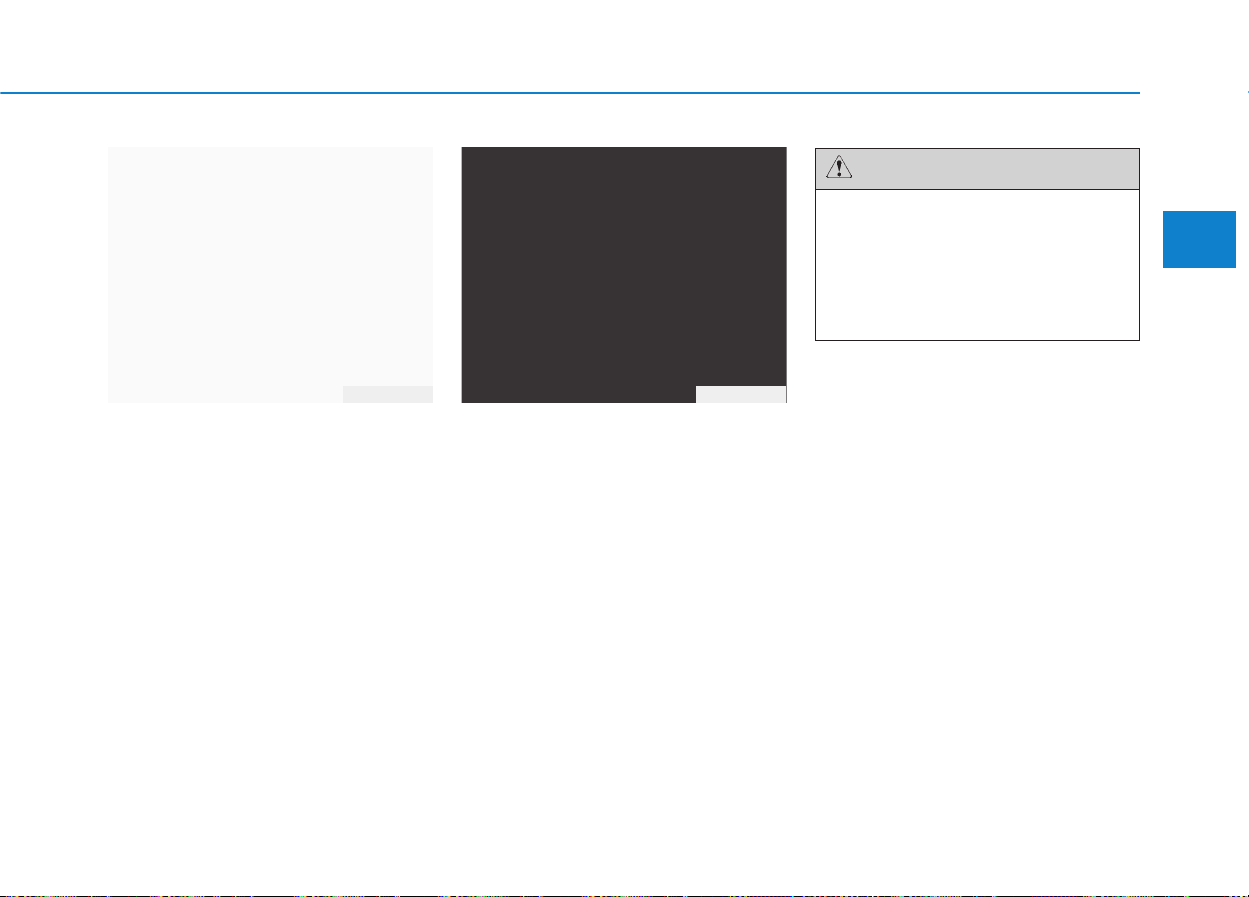
To release the rear center seat belt:
1. Press the release button on the
buckle (D) and remove the metal
tab (B) from the buckle (D).
2. Insert a key or similar rigid device
into the web release hole (C). Pull
out the metal tab (A) from the
buckle and allow the webbing to
retract automatically.
3. Insert the metal tab into the hole of
the belt assembly cover.
OLMB033095 OLMB033096
OLMB033030
2-31
Safety system of your vehicle
2
Stowing the rear seat belt
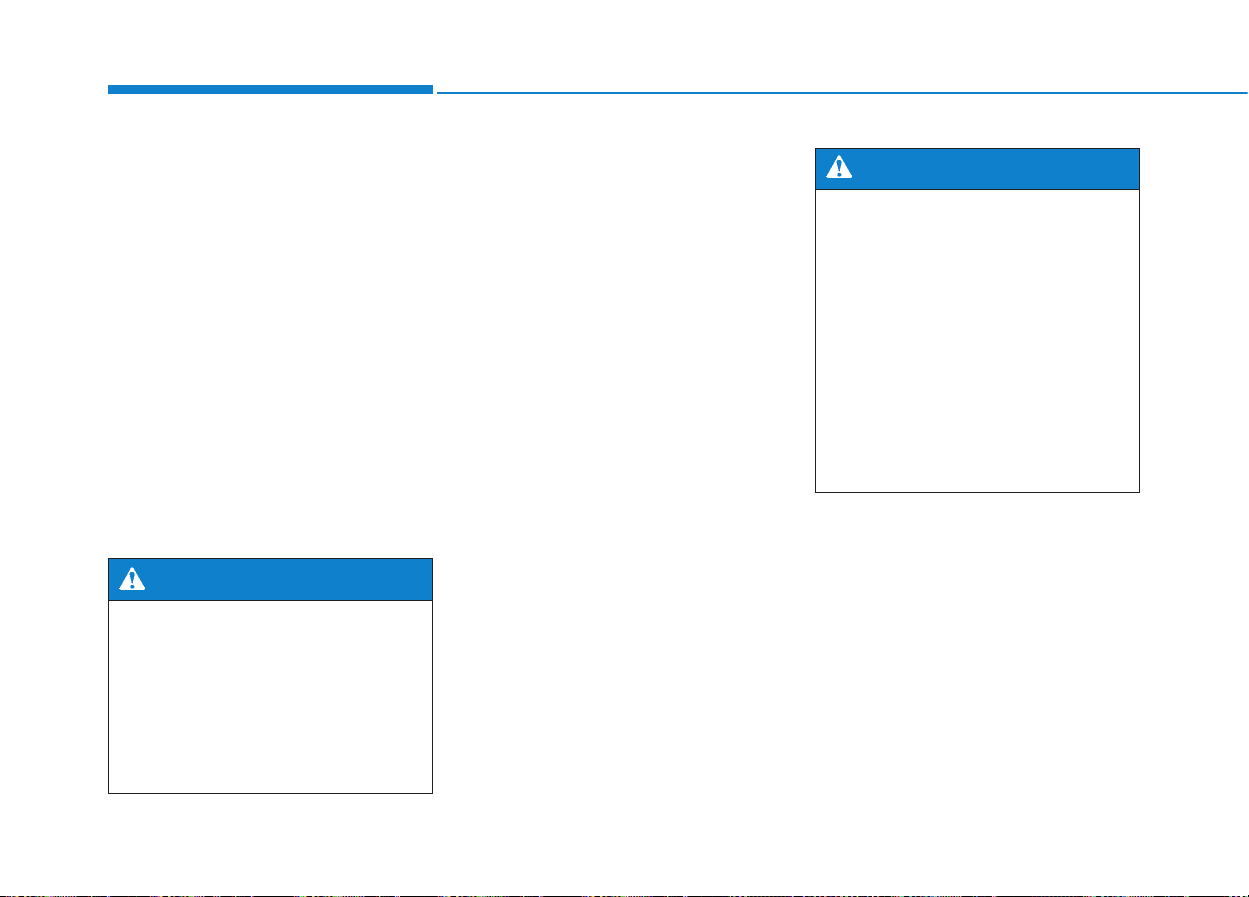
The rear seat belt buckles can be
stowed in the pocket between the
rear seatback and cushion when not
in use.
Routing the seat belt webbing
through the rear seat belt guides will
prevent the belts from being trapped
behind or under the seats when the
rear seats are folded down.
When using the seat belt,remove
the seat belt webbing from the
guides. If you pull the seat belt
when it is stored in the guides, it
may damage the guides and belt
webbing.
CAUTION
OLMB033038OLMB033037
2-32
Safety system of your vehicle
Additional seat belt safety pre-
cautions
Seat belt use during pregnancy
The seat belt should always be used
during pregnancy. The best way to
protect your unborn child is to protect
yourself by always wearing the seat
belt.
Pregnant women should always wear
a lap-shoulder seat belt. Place the
shoulder belt across your chest, rout-
ed between your breasts and away
from your neck. Place the shoulder
belt across the chest, routed away
from the neck.Place the lap belt below
the belt line so that it fits snugly and as
low as possible across the hips, not
across the abdomen.
Seat belt use and children
Infant and small children
All 50 states have child restraint laws
which require children to travel in
approved child restraint devices,
including booster seats. The age at
which seat belts can be used instead
of child restraints differs among
states, so you should be aware of the
specific requirements in your state,
and where you are travelling. Infant
and child restraints must be properly
placed and installed in a rear seat.
For more information refer to the
“Child Restraint Systems” in this
chapter.
To reduce the risk of serious
injury or death to an unborn
child during an accident, preg-
nant women should NEVER
place the lap portion of the seat
belt above or over the area of
the abdomen where the unborn
child is located.
WARNING
ALWAYS properly restrain infants
and small children in a child
restraint appropriate for the
child’s height and weight.
To reduce the risk of serious
injury or death to a child and
other passengers, NEVER hold a
child in your lap or arms when
the vehicle is moving.The violent
forces created during an acci-
dent will tear the child from your
arms and throw the child against
the interior of the vehicle.
WARNING
2-33
Safety system of your vehicle
2
Small children are best protected
from injury in an accident when prop-
erly restrained in the rear seat by a
child restraint system that meets the
requirements of the Federal Motor
Vehicle Safety Standards. Before
buying any child restraint system,
make sure that it has a label certify-
ing that it meets Federal Motor
Vehicle Safety Standard 213. The
restraint must be appropriate for your
child's height and weight. Check the
label on the child restraint for this
information. Refer to “Child Restraint
Systems” in this chapter.
Larger children
Children under age 13 and who are
too large for a booster seat must
always occupy the rear seat and use
the available lap/shoulder belts. A
seat belt should lie across the upper
thighs and be snug across the shoul-
der and chest to restrain the child
safely. Check belt fit periodically. A
child's squirming could put the belt
out of position. Always have the
LATCH system inspected by your
authorized HYUNDAI dealer after an
accident. An accident can damage
the LATCH system and may not
properly secure the child restraint.
If a larger child over age 13 must be
seated in the front seat, the child
must be securely restrained by the
available lap/shoulder belt and the
seat should be placed in the rear-
most position.
If the shoulder belt portion slightly
touches the child’s neck or face, try
placing the child closer to the center
of the vehicle.If the shoulder belt still
touches their face or neck they need
to be returned to an appropriate
booster seat.
• Always make sure children
are wearing their seat belts
and that they are properly
adjusted before driving.
• NEVER allow the shoulder
belt to contact the child’s
neck or face.
• Do not allow more than one
child to use a single seat belt.
WARNING
2-34
Safety system of your vehicle
Transporting an injured person
A seat belt should be used when an
injured person is being transported.
Consult a physician for specific rec-
ommendations.
One person per belt
Two people (including children) should
never attempt to use a single seat belt.
This could increase the severity of
injuries in case of an accident.
Do not lie down
Sitting in a reclined position when
the vehicle is in motion can be dan-
gerous. Even when buckled up, the
protections of your restraint system
(seat belts and air bags) is greatly
reduced by reclining your seatback.
To reduce the chance of injuries in
the event of an accident and to
achieve the maximum effectiveness
of the restraint system, all passen-
gers should be sitting up and the
front and rear seats should be in an
upright position when the car is mov-
ing. A seat belt cannot provide prop-
er protection if the person is lying
down in the rear seat or if the front or
rear seats are in a reclined position.
• NEVER ride with a reclined
seatback when the vehicle is
moving.
• Riding with a reclined seatback
increases your chance of seri-
ous or fatal injuries in the event
of a collision or sudden stop.
• Drivers and passengers should
always sit well back in their
seats, properly belted, and with
the seatbacks upright.
WARNING

2-35
Safety system of your vehicle
2
Care of seat belts
Seat belt systems should never be
disassembled or modified. In addi-
tion, care should be taken to assure
that seat belts and belt hardware are
not damaged by seat hinges, doors
or other abuse.
Periodic inspection
All seat belts should be inspected
periodically for wear or damage of
any kind. Any damaged parts should
be replaced as soon as possible.
Keep belts clean and dry
Seat belts should be kept clean and
dry.If belts become dirty, they can be
cleaned by using a mild soap solu-
tion and warm water. Bleach, dye,
strong detergents or abrasives
should not be used because they
may damage and weaken the fabric.
When to replace seat belts
The entire seat belt assembly or
assemblies should be replaced if the
vehicle has been involved in an acci-
dent.This should be done even if no
damage is visible. Additional ques-
tions concerning seat belt operation
should be directed to an authorized
HYUNDAI dealer.
2-36
Safety system of your vehicle
Children under age 13 must always
ride in the rear seats and must
always be properly restrained to min-
imize the risk of injury in an accident,
sudden stop or sudden maneuver.
According to accident statistics, chil-
dren are safer when properly
restrained in the rear seats than in
the front seat. Even with air bags,
children can be seriously injured
or killed. Children too large for a
child restraint must use the seat belts
provided.
All 50 states have child restraint laws
which require children to travel in
approved child restraint devices.The
laws governing the age or
height/weight restrictions at which
seat belts can be used instead of
child restraints differs among states,
so you should be aware of the spe-
cific requirements in your state, and
where you are travelling.
Child restraint systems must be
properly placed and installed in the
rear seat. You must use a commer-
cially available child restraint system
that meets the requirements of the
Federal Motor Vehicle Safety
Standards (FMVSS).
Child restraint systems are generally
designed to be secured in a vehicle
seat by lap belt portion of a
lap/shoulder belt, or by a LATCH sys-
tem in the rear seats of the vehicle.
CCHHIILLDD RREESSTTRRAAIINNTT SSYYSSTTEEMM ((CCRRSS))
Always properly restrain chil-
dren in the rear seats of the
vehicle.
Children of all ages are safer
when restrained in the rear seat.
A child riding in the front pas-
senger seat can be forcefully
struck by an inflating air bag
resulting in SERIOUS INJURY
or DEATH.
WARNING

2-37
Safety system of your vehicle
2
Child restraint system (CRS)
Infants and younger children must be
restrained in an appropriate rear-fac-
ing or forward-facing CRS that has
first been properly secured to the
rear seat of the vehicle. Read and
comply with the instructions for
installation and use provided by the
manufacturer of the child restraint.
Selecting a Child Restraint
System (CRS)
When selecting a CRS for your child,
always:
• Make sure the CRS has a label
certifying that it meets applicable
Federal Motor Vehicle Safety
Standards (FMVSS 213).
• Select a child restraint based on
your child’s height and weight.The
required label or the instructions
for use typically provide this infor-
mation.
• Select a child restraint that fits the
vehicle seating position where it
will be used.
• Read and comply with the warn-
ings and instructions for installation
and use provided with the child
restraint system.
(Continued)
• Always follow the child
restraint system manufactur-
er’s instructions for installa-
tion and use.
• Always properly restrain your
child in the child restraint.
• Do not use an infant carrier or
a child safety seat that
“hooks” over a seatback, it
may not provide adequate
protection in an accident.
• After an accident, have a
HYUNDAI dealer check the
child restraint system, seat
belts, tether anchors and
lower anchors.
An improperly secured child
restraint can increase the risk
of SERIOUS INJURY or DEATH
in an accident. Always take the
following precautions when
using a child restraint system:
• NEVER install a child or infant
restraint in the front passen-
ger’s seat.
• Always properly secure the
child restraint to a rear seat of
the vehicle.
(Continued)
WARNING
2-38
Safety system of your vehicle
Child restraint system types
There are three main types of child
restraint systems: rear-facing seats,
forward-facing seats, and booster
seats. They are classified according
to the child’s age, height and weight.
Rear-facing child seats
A rear-facing child seat provides
restraint with the seating surface
against the back of the child.The har-
ness system holds the child in place,
and in an accident, acts to keep the
child positioned in the seat and
reduce the stress to the neck and
spinal cord.
All children under age one must
always ride in a rear-facing infant child
restraint.
Convertible and 3-in-1 child seats typ-
ically have higher height and weight
limits for the rear-facing position,
allowing you to keep your child rear-
facing for a longer period of time.
Continue to use a rear-facing child
seat for as long as your child will fit
within the height and weight limits
allowed by the child seat manufactur-
er. It’s the best way to keep them
safe. Once your child has outgrown
the rear-facing child restraint, your
child is ready for a forward-facing
child restraint with a harness.
OLMB033041
NEVER install a child or infant
restraint in the front passen-
ger’s seat.
Placing a rear-facing child
restraint in the front seat can
result in SERIOUS INJURY or
DEATH if the child restraint is
struck by an inflating air bag.
WARNING
2-39
Safety system of your vehicle
2
Forward-facing child restraints
A forward-facing child seat provides
restraint for the child’s body with a
harness. Keep children in a forward-
facing child seat with a harness until
they reach the top height or weight
limit allowed by your child restraint’s
manufacturer.
Once your child outgrows the forward-
facing child restraint, your child is
ready for a booster seat.
Booster seats
A booster seat is a restraint designed
to improve the fit of the vehicle’s seat
belt system. A booster seat positions
the seat belt so that it fits properly
over the lap of your child. Keep your
child in a booster seat until they are
big enough to sit in the seat without a
booster and still have the seat belt fit
properly.
For a seat belt to fit properly, the lap
belt must lie snugly across the upper
thighs, not the stomach.The shoulder
belt should lie snug across the shoul-
der and chest and not across the neck
or face. Children under age 13 must
always ride in the rear seats and must
always be properly restrained to mini-
mize the risk of injury.
Installing a Child Restraint
System (CRS)
Before installing your child
restraint system always:
• Read and follow the instruc-
tions provided by the manu-
facturer of the child restraint.
• Read and follow the instruc-
tions regarding child restraint
systems in this manual.
Failure to follow all warnings
and instructions could increase
the risk of the SERIOUS INJURY
or DEATH if an accident occurs.
WARNING
OLMB033042
If the vehicle headrest prevents
proper installation of a child
seat (as described in the child
seat system manual), the head-
rest of the respective seating
position shall be readjusted or
entirely removed.
WARNING
2-40
Safety system of your vehicle
After selecting a proper child seat for
your child, check to make sure it fits
properly in your vehicle. Follow the
instructions provided by the manu-
facturer when installing the child
seat. Note these general steps when
installing the seat to your vehicle:
•
Properly secure the child restraint
to the vehicle.
All child restraints
must be secured to the vehicle with
the lap part of a lap/shoulder belt or
with the LATCH system.
• Make sure the child restraint is
firmly secured. After installing a
child restraint to the vehicle, push
and pull the seat forward and from
side-to-side to verify that it is
securely attached to the seat. A
child restraint secured with a seat
belt should be installed as firmly as
possible. However, some side-to-
side movement can be expected.
Lower Anchors and Tether for
Children (LATCH) System
The LATCH system holds a child
restraint during driving and in an acci-
dent. This system is designed to
make installation of the child restraint
easier and reduce the possibility of
improperly installing your child
restraint. The LATCH system uses
anchors in the vehicle and attach-
ments on the child restraint. The
LATCH system eliminates the need
to use seat belts to secure the child
restraint to the rear seats.
Lower anchors are metal bars built
into the vehicle. There are two lower
anchors for each LATCH seating
position that will accommodate a
child restraint with lower attachments.
To use the LATCH system in your
vehicle, you must have a child
restraint with LATCH attachments.
The child seat manufacturer will pro-
vide you with instructions on how to
use the child seat with its attachments
for the LATCH lower anchors.
A child restraint in a closed
vehicle can become very hot.To
prevent burns, check the seat-
ing surface and buckles before
placing your child in the child
restraint.
WARNING
2-41
Safety system of your vehicle
2
LATCH anchors have been provided
in the left and right outboard rear
seating positions. Their locations are
shown in the illustration.There are no
LATCH anchors provided for the cen-
ter rear seating position.
The lower anchor position indicator
symbols are located on the left and
right rear seat backs to identify the
position of the lower anchors in your
vehicle (see arrows in illustration).
OLM039035
Do not attempt to install a child
restraint system using LATCH
anchors in the rear center seat-
ing position.There are no LATCH
anchors provided for this seat.
Using the outboard seat anchors
can damage the anchors which
may break or fail in a collision
resulting in serious injury or
death.
WARNING
OLMB033050
Lower Anchor
Position Indicator
Lower Anchor

2-42
Safety system of your vehicle
The LATCH anchors are located
between the seatback and the seat
cushion of the rear seat left and right
outboard seating positions.
Securing a child restraint with
the LATCH anchors system
To install a LATCH-compatible child
restraint in either of the rear outboard
seating positions:
1. Move the seat belt buckle away from
the lower anchors.
2. Move any other objects away from
the anchors that could prevent a
secure connection between the child
restraint and the lower anchors.
3. Place the child restraint on the vehi-
cle seat, then attach the seat to the
lower anchors according to the
instructions provided by the child
restraint manufacturer.
4. Follow the child restraint instructions
for properly adjusting and tightening
the lower attachments on the child
restraint to the lower anchors.
✽✽
NOTICE
The recommended weight for the
LATCH system is under 65 lb
(30 kg).
How to calculate the child restraint
weight :
Child restraint weight =
65 lb (30 kg) - Child weight
OLMB033051
Take the following precautions
when using the LATCH system:
• Read and follow all installation
instructions provided with
your child restraint system.
• To prevent the child from
reaching and taking hold of
unretracted seat belts, buckle
all unused rear seat belts and
retract the seat belt webbing
behind the child. Children can
be strangled if a shoulder belt
becomes wrapped around
their neck and the seat belt
tightens.
(Continued)
(Continued)
• NEVER attach more than one
child restraint to a single
anchor. This could cause the
anchor or attachment to come
loose or break.
• Always have the LATCH sys-
tem inspected by your author-
ized HYUNDAI dealer after an
accident. An accident can
damage the LATCH system
and may not properly secure
the child restraint.
WARNING
2-43
Safety system of your vehicle
2
Installing the tether strap
First, secure the child restraint with
the LATCH lower anchors or the seat
belt. If the child seat manufacturer
recommends that the tether strap be
attached, attach and tighten the
tether strap to the tether anchor.
Tether anchors are located on the
back of the rear seats.
To install the tether strap:
1. Route the child restraint tether
strap over the child restraint seat-
back. Route the tether strap under
the headrest and between the
headrest posts, or route the tether
strap over the top of the vehicle
seatback. Make sure the strap is
not twisted.
2. Connect the tether strap hook to
the tether anchor, then tighten the
tether strap according to the child
seat manufacturer’s instructions to
firmly secure the child restraint to
the seat.
OLMB033047R
Take the following precautions
when installing the tether strap:
• Read and follow all installation
instructions provided with
your child restraint system.
• NEVER attach more than one
child restraint to a single teth-
er anchor. This could cause
the anchor or attachment to
come loose or break.
• Do not attach the tether strap
to anything other than the cor-
rect tether anchor. It may not
work properly if attached to
something else.
• Do not use the tether anchors
for adult seat belts or harness-
es, or for attaching other items
or equipment to the vehicle.
WARNING
OLMB033048
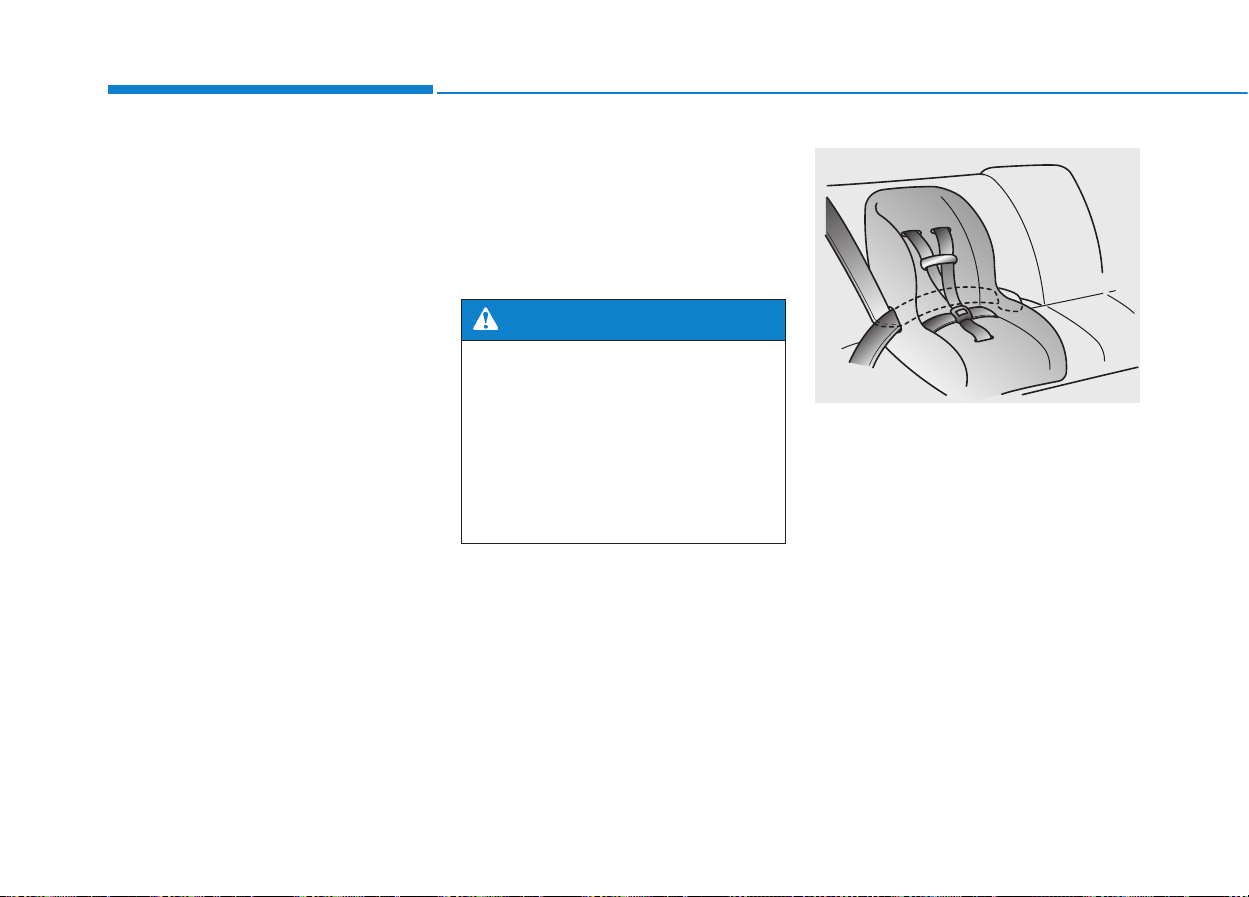
ALWAYS place a rear-facing
child restraint in the rear seat of
the vehicle.
Placing a rear-facing child
restraint in the front seat can
result in serious injury or death
if the child restraint is struck by
an inflating air bag.
WARNING
2-44
Safety system of your vehicle
3. Check that the child restraint is
securely attached to the seat by
pushing and pulling the seat for-
ward and from side-to-side.
Securing a child restraint with
a lap belt or lap/shoulder belt
When not using the LATCH system,
all child restraints must be secured to
a vehicle rear seat with the lap part
of a lap/shoulder belt.
Automatic lock mode
Since all passenger seat belts move
freely under normal conditions and
only lock under extreme or emer-
gency conditions (emergency locking
mode), you must manually pull the
seat belt all the way out to shift the
retractor to the “Automatic Locking”
mode to secure a child restraint.
The “Automatic Locking” mode will
help prevent the normal movement
of the child in the vehicle from caus-
ing the seat belt to loosen and com-
promise the child restraint system.To
secure a child restraint system, use
the following procedure.
OLMB033044
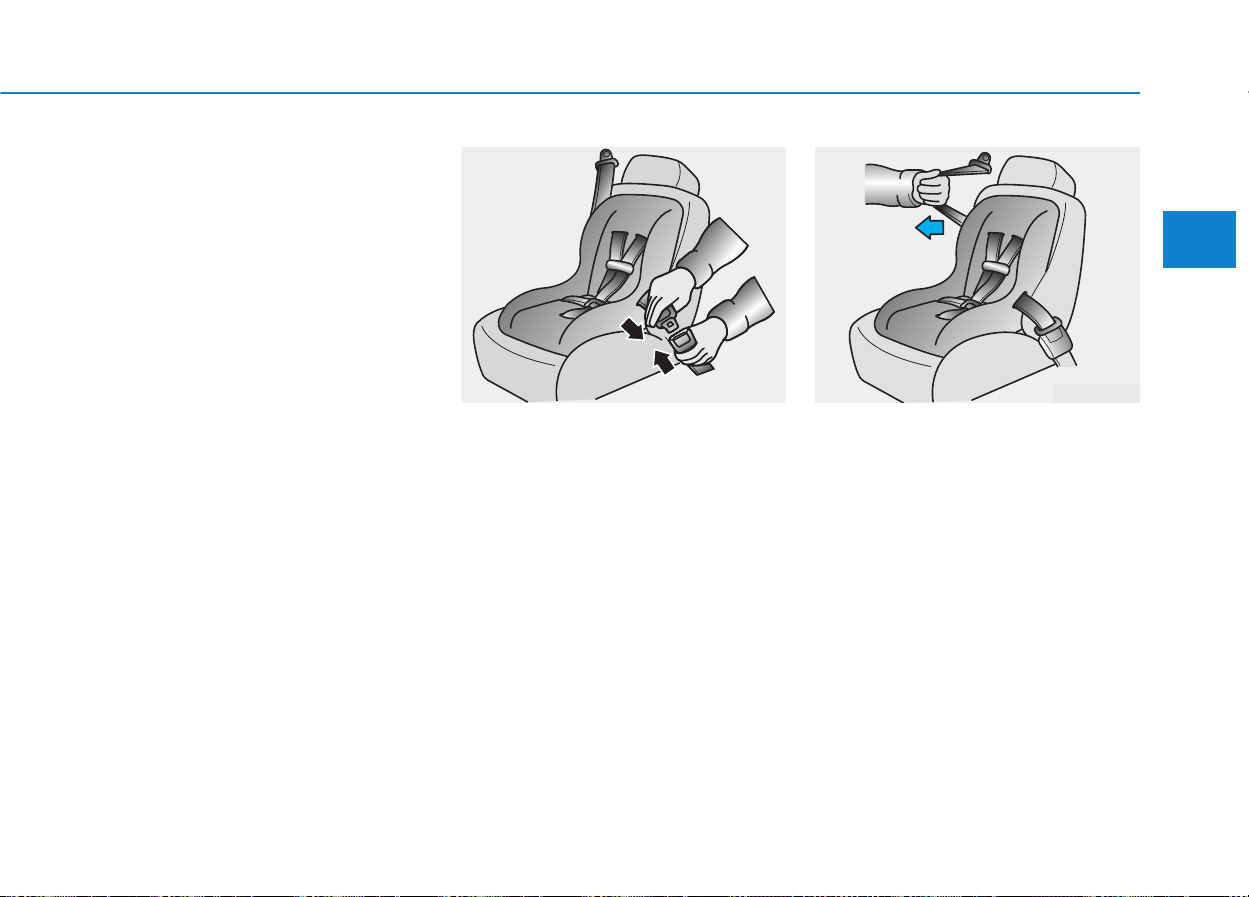
2-45
Safety system of your vehicle
2
To install a child restraint system on
the rear seats, do the following:
1. Place the child restraint system on
a rear seat and route the lap/shoul-
der belt around or through the child
restraint, following the restraint
manufacturer’s instructions.
Be sure the seat belt webbing is
not twisted.
✽✽
NOTICE
When using the rear center seat belt,
you should also refer to “3-point Rear
Center Seat Belt” in this chapter.
2. Fasten the lap/shoulder belt latch
into the buckle. Listen for the dis-
tinct “click” sound.
✽✽
NOTICE
Position the release button so that it
is easy to access in case of an emer-
gency.
3. Pull the shoulder portion of the
seat belt all the way out.When the
shoulder portion of the seat belt is
fully extended, it will shift the
retractor to the “Automatic
Locking” (child restraint) mode.
OLMB033045
OLMB033097
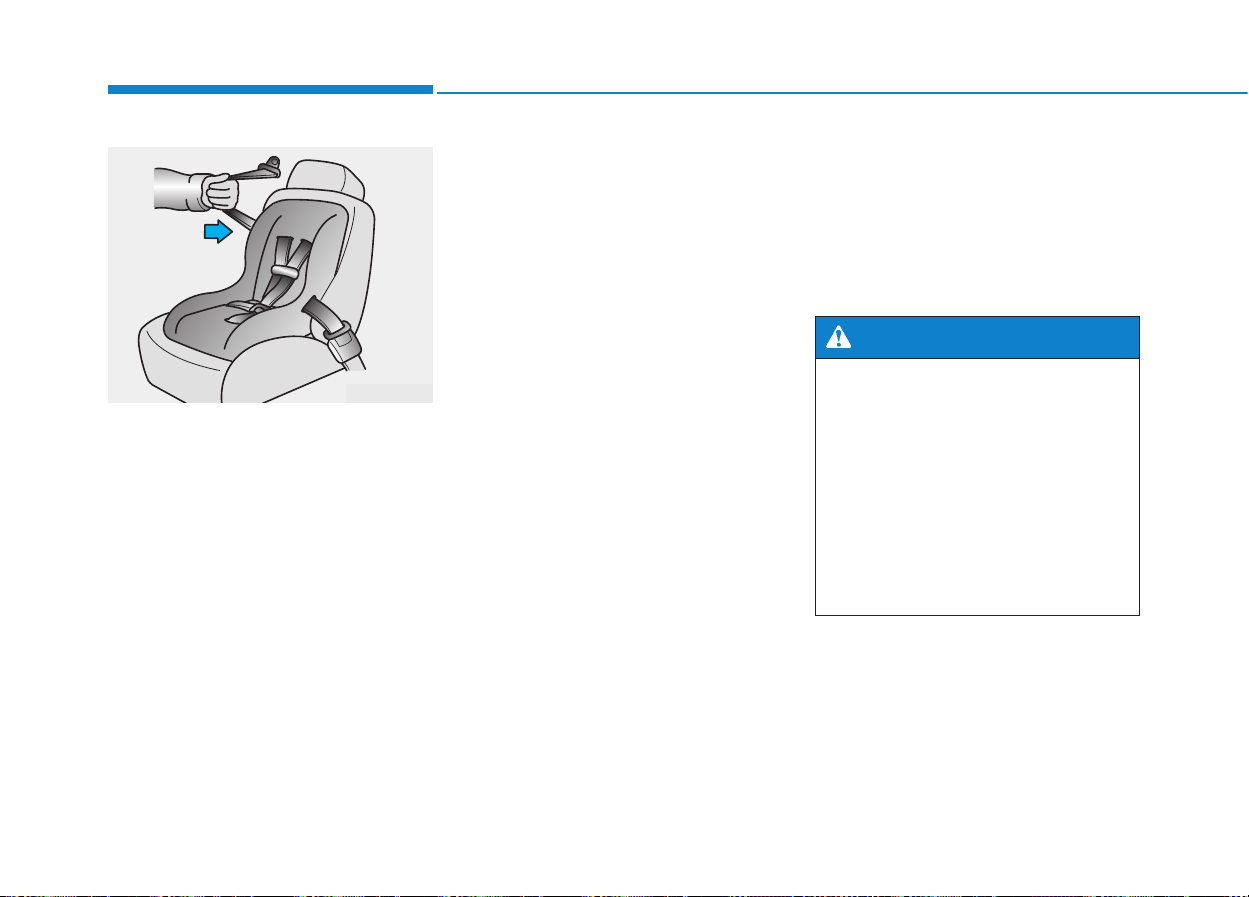
2-46
4. Slowly allow the shoulder portion
of the seat belt to retract and listen
for an audible “clicking”or “ratchet-
ing” sound. This indicates that the
retractor is in the “Automatic
Locking”mode.If no distinct sound
is heard, repeat steps 3 and 4.
5. Remove as much slack from the
belt as possible by pushing down
on the child restraint system while
feeding the shoulder belt back into
the retractor.
6. Push and pull on the child restraint
system to confirm that the seat
belt is holding it firmly in place. If it
is not, release the seat belt and
repeat steps 2 through 6.
7. Double check that the retractor is
in the “Automatic Locking” mode
by attempting to pull more of the
seat belt out of the retractor. If you
cannot, the retractor is in the
“Automatic Locking” mode.
If your CRS manufacturer instructs or
recommends you to use a tether
anchor with the lap/shoulder belt,
refer to the previous pages for more
information.
✽✽
NOTICE
When the seat belt is allowed to
retract to its fully stowed position, the
retractor will automatically switch
from the “Automatic Locking” mode
to the emergency lock mode for nor-
mal adult usage.
To remove the child restraint, press
the release button on the buckle and
then pull the lap/shoulder belt out of
the restraint and allow the seat belt
to retract fully.
Safety system of your vehicle
OLMB033098
If the retractor is not in the
“Automatic Locking” mode, the
child restraint can move when
your vehicle turns or stops sud-
denly. A child can be seriously
injured or killed if the child
restraint is not properly anchored
in the car, including manually
pulling the seat belt all the way
out to shift the rectractor to the
“Automatic Locking”mode.
WARNING

2-47
Safety system of your vehicle
2
(1) Driver’s front air bag
(2) Passenger’s front air bag
(3) Side impact air bag
(4) Curtain air bag
AAIIRR BBAAGG -- AADDVVAANNCCEEDD SSUUPPPPLLEEMMEENNTTAALL RREESSTTRRAAIINNTT SSYYSSTTEEMM
OLM032301N
❈ The actual air bags in the vehicle may differ from the illustration.
2-48
Safety system of your vehicle
This vehicle is equipped with an
Advanced Supplemental Air Bag
System for the driver’s seat and front
passenger’s seats.
The front air bags are designed to
supplement the three-point seat
belts. For these air bags to provide
protection, the seat belts must be
worn at all times when driving.
You can be severely injured or killed
in an accident if you are not wearing
a seat belt. Air bags are designed to
supplement seat belts, but do not
replace them. Also, air bags are not
designed to deploy in every collision.
In some accidents, the seat belts are
the only restraint protecting you.
AIR BAG SAFETY PRECAUTIONS
ALWAYS use seat belts and child restraints - every trip, every time,
everyone! Even with air bags, you can be seriously injured or killed in
a collision if you are improperly belted or not wearing your seat belt
when the air bag inflates.
NEVER place a child in any child restraint or booster seat in the front
passenger seat. An inflating air bag could forcefully strike the infant
or child causing serious or fatal injuries.
ABC - Always Buckle Children under age 13 in the back seat. It is the
safest place for children of any age to ride. If a child age 13 or older
must be seated in the front seat, he or she must be properly belted
and the seat should be moved as far back as possible.
All occupants should sit upright with the seatback in an upright posi-
tion, centered on the seat cushion with their seat belt on, legs com-
fortably extended and their feet on the floor until the vehicle is parked
and the engine is turned off. If an occupant is out of position during
an accident, the rapidly deploying air bag may forcefully contact the
occupant causing serious or fatal injuries.
You and your passengers should never sit or lean unnecessarily
close to the air bags or lean against the door or center console.
Move your seat as far back as possible from front air bags, while still
maintaining control of the vehicle. NHTSA recommends that drivers
allow at least 10 inches (25 cm) between the center of the steering
wheel and the chest.
WARNING
2-49
Safety system of your vehicle
2
Where are the air bags?
Driver’s and passenger’s front
air bags
Your vehicle is equipped with a
Advanced Supplemental Restraint
System (SRS) and lap/shoulder belts
at both the driver and passenger
seating positions.
The SRS consists of air bags which
are located in the center of the steer-
ing wheel and the passenger's side
front panel pad above the glove box.
The air bags are labeled with the let-
ters “AIR BAG”embossed on the pad
covers.
The purpose of the SRS is to provide
the vehicle's driver and front passen-
gers with additional protection than
that offered by the seat belt system
alone. The SRS uses sensors to
gather information about the driver's
seat position, the driver's and front
passenger's seat belt usage and
impact severity.
To reduce the risk of serious
injury or death from an inflating
front air bags, take the following
precautions:
• Seat belts must be worn at all
times to help keep occupants
positioned properly.
• Move your seat as far back as
possible from front air bags,
while still maintaining control
of the vehicle.
• Never lean against the door or
center console.
• Do not allow the front passen-
ger to place their feet or legs on
the dashboard.
• No objects should be placed
over or near the air bag mod-
ules on the steering wheel,
instrument panel, and the front
passenger's panel above the
glove box. Such objects could
cause harm if the vehicle is in a
crash severe enough to cause
the air bags to deploy.
WARNING
OLMB033058
OLMB033059
■ Driver’s front air bag
■ Passenger’s front air bag

2-50
Safety system of your vehicle
Side impact air bags
Your vehicle is equipped with a side
impact air bag in each seat. The pur-
pose of the air bag is to provide the
vehicle's driver and the front passen-
ger with additional protection than that
offered by the seat belt alone.
The side impact air bags are
designed to deploy only during certain
side impact collisions, depending on
the crash severity, angle, speed and
point of impact.
The side impact air bags do not only
deploy on the side of the impact but
also on the opposite side.
For vehicles equipped with a rollover
sensor the side and curtain air bags
on both sides of the vehicle may
deploy if a rollover or possible
rollover is detected.
The side impact air bags are not
designed to deploy in all side impact
or rollover situations.
OLMB033062
OLM032310N
To reduce the risk of serious
injury or death from an inflating
side impact air bag, take the fol-
lowing precautions:
• Seat belts must be worn at all
times to help keep occupants
positioned properly.
• Do not allow passengers to
lean their heads or bodies onto
doors, put their arms on the
doors, stretch their arms out of
the window, or place objects
between the doors and seats.
• Hold the steering wheel at the 9
o’clock and 3 o’clock positions,
to minimize the risk of injuries
to your hands and arms.
• Do not use any accessory
seat covers.This could reduce
or prevent the effectiveness
of the system.
• Do not place any objects over
the air bag or between the air
bag and yourself.
(Continued)
WARNING

2-51
Safety system of your vehicle
2
Curtain air bags
Curtain air bags are located along
both sides of the roof rails above the
front and rear doors.
They are designed to help protect the
heads of the front seat occupants
and the rear outboard seat occupants
in certain side impact collisions.
The curtain air bags are designed to
deploy only during certain side
impact collisions, depending on the
crash severity, angle, speed and
impact.
The curtain air bags do not only
deploy on the side of the impact but
also on the opposite side.
For vehicles equipped with a rollover
sensor the side and curtain air bags
on both sides of the vehicle may
deploy if a rollover or possible
rollover is detected.
The curtain air bags are not designed
to deploy in all side impact or rollover
situations.
(Continued)
• Do not place any objects
between the door and the
seat. They may become dan-
gerous projectiles if the side
impact air bag inflates.
• Do not install any accessories
on the side or near the side
impact air bags.
• Do not cause impact to the
doors when the ignition
switch is in the ON position or
this may cause the side air
bags to inflate.
• If the seat or seat cover is
damaged, have the vehicle
checked and repaired by an
authorized HYUNDAI dealer.
OLMB033064
OLM032311N
2-52
Safety system of your vehicle
How does the air bags system
operate?
The SRS consists of the following
components:
1. Driver's front air bag module
2. Passenger's front air bag module
3. Side impact air bag modules
4. Curtain air bag modules
5. Retractor pre-tensioner assemblies
6. Air bag warning light
7. SRS control module (SRSCM)/
Rollover sensor
8. Front impact sensors
9. Side impact sensors
10.“PASSENGER AIR BAG OFF”
indicator
11. Occupant classification system
12.Driver’s and front passenger’s
seat belt buckle sensors
13. Anchor pre-tensioner assembly
The SRSCM continually monitors all
SRS components while the ignition
switch is ON to determine if a crash
impact is severe enough to require
air bag deployment or pre-tensioner
seat belt deployment.
To reduce the risk of serious
injury or death from an inflating
curtain air bags, take the follow-
ing precautions:
• All seat occupants must wear
seat belts at all times to help
keep occupants positioned
properly.
• Properly secure child restraints
as far away from the door as
possible.
• Do not allow passengers to
lean their heads or bodies
onto doors, put their arms on
the doors, stretch their arms
out of the window, or place
objects between the doors
and seats.
• Do not open or repair the side
curtain air bags.
WARNING
OLM039302N/Q
,
,

2-53
Safety system of your vehicle
2
SRS warning light
The SRS (Supplement Restraint
System) air bag warning light on the
instrument panel displays the air bag
symbol depicted in the illustration.The
system checks the air bag electrical
system for malfunctions.The light indi-
cates that there is a potential problem
with your air bag system, which could
include your side and curtain air bags
used for rollover protection.
During a moderate to severe frontal
collision, sensors will detect the vehi-
cle’s rapid deceleration. If the rate of
deceleration is high enough, the con-
trol unit will inflate the front air bags.
The front air bags help protect the
driver and front passenger by
responding to frontal impacts in
which seat belts alone cannot provide
adequate restraint. When needed,
the side air bags help provide protec-
tion in the event of a side impact or
rollover by supporting the side upper
body area.
• Air bags are activated (able to
inflate if necessary) only when the
ignition switch is in the ON position.
• Air bags inflate in the event of a
severe frontal or side collision to
help protect the occupants from
serious physical injury.
• There is no single speed at which
the air bags will inflate. Generally,
air bags are designed to inflate
based upon the severity of a colli-
sion and its direction. These two
factors determine whether the sen-
sors produce an electronic deploy-
ment/inflation signal.
If your SRS malfunctions, the
air bag may not inflate properly
during an accident increasing
the risk of serious injury or
death.
If any of the following condi-
tions occur, your SRS is mal-
functioning:
• The light does not turn on for
approximately six seconds
when the ignition switch is
placed in the ON position.
• The light stays on after illumi-
nating for approximately six
seconds.
• The light comes on while the
vehicle is in motion.
• The light blinks when the
engine is running.
Have an authorized HYUNDAI
dealer inspect the SRS as soon
as possible if any of these con-
ditions occur.
WARNING

2-54
Safety system of your vehicle
• Air bag deployment depends on a
number of factors including vehicle
speed, angles of impact and the
density and stiffness of the vehicles
or objects which your vehicle
impacts during a collision. The
determining factors are not limited
to those mentioned above.
• The front air bags will completely
inflate and deflate in an instant. It is
virtually impossible for you to see
the air bags inflate during an acci-
dent. It is much more likely that you
will simply see the deflated air bags
hanging out of their storage com-
partments after the collision.
• In addition to inflating in serious
side collisions, vehicles equipped
with a rollover sensor, side and
curtain air bags will inflate if the
sensing system detects a rollover.
When a rollover is detected, side
and curtain air bags will remain
inflated longer to help provide pro-
tection from ejection, especially
when used in conjunction with the
seat belts.
• To help provide protection, the air
bags must inflate rapidly. The
speed of air bag inflation is a con-
sequence of extremely short time
in which to inflate the air bag
between the occupant and the
vehicle structures before the occu-
pant impacts those structures.This
speed of inflation reduces the risk
of serious or life-threatening
injuries and is thus a necessary
part of air bag design.
However, the rapid air bag inflation
can also cause injuries which can
include facial abrasions, bruises
and broken bones because the
inflation speed also causes the air
bags to expand with a great deal of
force.
• There are even circumstances
under which contact with the air
bag can cause fatal injuries, espe-
cially if the occupant is positioned
excessively close to the air bag.
You can take steps to reduce the risk
of being injured by an inflating air
bag. The greatest risk is sitting too
close to the air bag.An air bag needs
about 10 inches (25 cm) of space to
inflate. NHTSA recommends that
drivers allow at least 10 inches
(25 cm) between the center of the
steering wheel and the chest.
2-55
Safety system of your vehicle
2
When the SRSCM detects a suffi-
ciently severe impact to the front of
the vehicle, it will automatically
deploy the front air bags.
Upon deployment, tear seams mold-
ed directly into the pad covers will
separate under pressure from the
expansion of the air bags. Further
opening of the covers allows full
inflation of the air bags.
A fully inflated air bag, in combina-
tion with a properly worn seat belt,
slows the driver's or the passenger's
forward motion, reducing the risk of
head and chest injury.
OLMB033054
■ Driver’s front air bag (1)
To reduce the risk of serious
injury or death from an inflating
air bag, take the following pre-
cautions:
• NEVER place a child restraint
in the front passenger seat.
Always properly restrain chil-
dren under age 13 in the rear
seats of the vehicle.
• Adjust the front passenger’s
and driver’s seats as far to the
rear as possible while allow-
ing you to maintain full con-
trol of the vehicle.
• Hold the steering wheel with
hands at the 9 o’clock and 3
o’clock positions.
• Never place anything or any-
one between the air bag and
the seat occupant.
• Do not allow the front passen-
ger to place their feet or legs
on the dashboard.
WARNING
OLMB033055
■ Driver’s front air bag (2)
2-56
Safety system of your vehicle
After complete inflation, the air bag
immediately starts deflating, enabling
the driver to maintain forward visibili-
ty and the ability to steer or operate
other controls.
What to expect after an air bag
inflates
After a frontal or side air bag inflates,
it will deflate very quickly. Air bag
inflation will not prevent the driver
from seeing out of the windshield or
being able to steer. Curtain air bags
may remain partially inflated for
some time after they deploy.
After an air bag inflates, take
the following precautions:
• Open your windows and
doors as soon as possible
after impact to reduce pro-
longed exposure to the smoke
and powder released by the
inflating air bag.
• Do not touch the air bag stor-
age area’s internal compo-
nents immediately after an air
bag has inflated. The parts
that come into contact with an
inflating air bag may be very
hot.
(Continued)
WARNING
OLMB033056
■ Driver’s front air bag (3)
OLMB033057
■ Passenger’s front air bag
To prevent objects from becom-
ing dangerous projectiles when
the passenger's air bag inflates:
• Do not install or place any
objects (drink holder, CD
holder, stickers, etc.) on the
front passenger's panel above
the glove box where the pas-
senger's air bag is located.
• Do not install a container of
liquid air freshener near the
instrument cluster or on the
instrument panel surface.
WARNING
2-57
Safety system of your vehicle
2
Noise and smoke from inflating
air bag
When the air bags inflate, they make
a loud noise and they leave smoke
and powder in the air inside of the
vehicle.This is normal and is a result
of the ignition of the air bag inflator.
After the air bag inflates, you may
feel substantial discomfort in breath-
ing because of the contact of your
chest with both the seat belt and the
air bag, as well as from breathing the
smoke and powder.The powder may
aggravate asthma for some people.If
you experience breathing problems
after an air bag deployment, seek
medical attention immediately.
Though the smoke and powder are
nontoxic, they may cause irritation to
the skin, eyes, nose, throat, etc. If
this is the case, wash and rinse with
cold water immediately and seek
medical attention if the symptoms
persist.
Occupant Classification
System (OCS)
Your vehicle is equipped with an
Occupant Classification System
(OCS) in the front passenger's seat.
The OCS is designed to detect the
presence of a properly-seated front
passenger and determine if the pas-
senger's front air bag should be
enabled (may inflate) or not. The dri-
ver's front air bag is not affected or
controlled by the OCS.
(Continued)
• Always wash exposed skin
areas thoroughly with luke-
warm water and mild soap.
• Always have an authorized
HYUNDAI dealer replace the air
bag immediately after deploy-
ment. Air bags are designed to
be used only once.
OLM039052N

2-58
Safety system of your vehicle
Main components of the
Occupant Classification System
• A detection device located within
the front passenger seat cushion.
• Electronic system to determine
whether the passenger air bag
systems (both front and side)
should be activated or deactivated.
• An indicator light located on the
instrument panel which illuminates
the words "PASSENGER AIR BAG
OFF" indicating the front passen-
ger air bag system is deactivated.
• The instrument panel air bag indi-
cator light is interconnected with
the OCS.
Front passenger seat adult occu-
pants who are properly seated and
wearing the seat belt properly,
should not cause the passenger air
bag to be automatically turned OFF.
However, if the occupant does not sit
in the seat properly (for example, by
not sitting upright, by sitting on the
edge of the seat, or by otherwise
being out of position), this could
cause the sensor to turn the air bag
OFF.
You will find the "PASSENGER AIR
BAG OFF" indicator on the center
facia panel. This system detects the
conditions 1-4 in the following table
and activates or deactivates the front
passenger air bag based on these
conditions.
Always be sure that you and all vehi-
cle occupants are seated properly
and wearing the seat belt properly for
the most effective protection by the
air bag and the seat belt.
The OCS may not function properly if
the passenger takes actions which
can affect the classification system.
These include:
• Failing to sit in an upright position.
• Leaning against the door or center
console.
• Sitting towards the sides of the
front of the seat.
• Putting their legs on the dashboard
or resting them on other locations
which reduce the passenger
weight on the front seat.
• Wearing the seat belt improperly.
• Reclining the seatback.
2-59
Safety system of your vehicle
2
Condition and operation in the front passenger Occupant Classification System
Condition detected by the
occupant classification system
Indicator/Warning light Devices
“PASSENGER
AIR BAG OFF”
indicator light
SRS
warning light
Front passenger
air bag
1. Adult*
1
Off Off Activated
2. Infant*
2
or child restraint sys-
tem with 12 months old*
3
On Off Deactivated
3. Unoccupied On Off Deactivated
4. Malfunction in the system Off On Activated
*
1
The system judges a person of adult size as an adult. When a smaller adult sits in the front
passenger seat, the system may recognize him/her as a child depending on his/her physique
and posture.
*
2
Do not allow children to ride in the front passenger seat. When a larger child who has out-
grown a child restraint system sits in the front passenger seat, the system may recognize
him/her as an adult depending upon his/her physique or sitting position.
*
3
Never install a child restraint system on the front passenger seat.
2-60
Safety system of your vehicle
Riding in an improper position or placing weight on the front passenger's seat when it is unoccupied by a
passenger adversely affects the OCS.To reduce the risk of serious injury or death:
WARNING
OLMB033099
OLMB033100
OLMB033101
OLMB033103
OLMB033102
OLMB033104
• NEVER put a heavy load in
the front seat or seatback
pocket.
• NEVER place your feet on
the front passenger seat-
back.
• NEVER sit with your hips
shifted towards the front
of the seat.
• NEVER ride with the seat-
back reclined when the
vehicle is moving.
• NEVER place your feet or
legs on the dashboard.
• NEVER lean on the door or
center console or sit on
one side of the front pas-
senger seat.
2-61
Safety system of your vehicle
2
Proper seated position for OCS
If the “PASSENGER AIR BAG OFF”
indicator is on when an adult is seat-
ed in the front passenger seat, place
the ignition switch to the LOCK/OFF
position and ask the passenger to sit
properly (sitting upright with the seat
back in an upright position, centered
on the seat cushion with their seat
belt on, legs comfortably extended
and their feet on the floor). Restart
the engine and have the person
remain in that position.This will allow
the system to detect the person and
to enable the passenger air bag. If
the "PASSENGER AIR BAG OFF"
indicator is still on, ask the passen-
ger to move to the rear seat.
✽✽
NOTICE
The "PASSENGER AIR BAG OFF"
indicator illuminates for approxi-
mately 4 seconds after the ignition
switch is in the ON position or after
the engine is started. If the front
passenger seat is occupied, the OCS
will then classify the front passenger
after several more seconds.
B990A01O
Never allow an adult passenger
to ride in the front passenger
seat when the “PASSENGER AIR
BAG OFF” indicator is illuminat-
ed. During a collision, the air bag
will not inflate if the indicator is
illuminated. Have your passen-
ger move to the rear seat.
WARNING
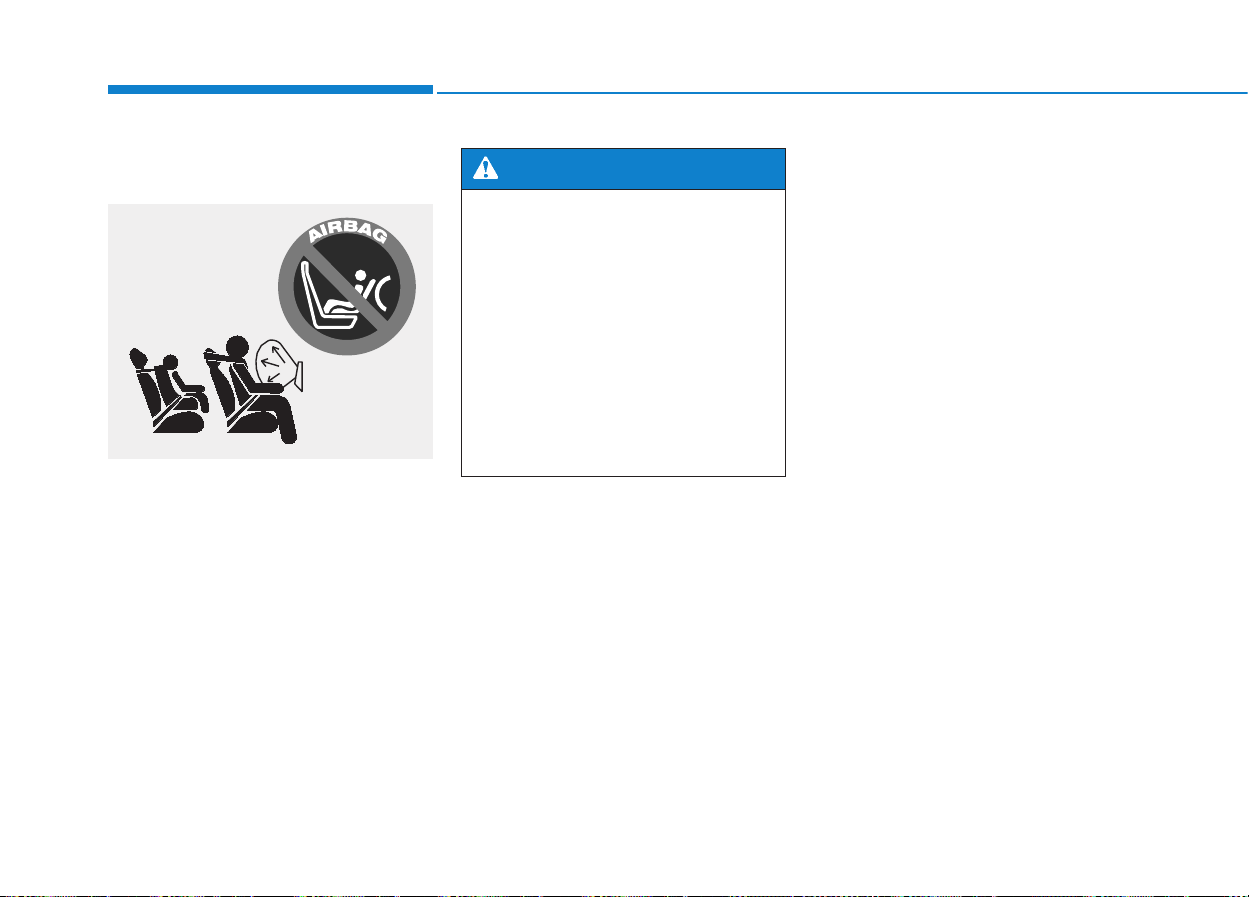
2-62
Safety system of your vehicle
Do Not Install a Child Restraint
in the Front Passenger’s Seat
Even though your vehicle is equipped
with the OCS, never install a child
restraint in the front passenger’s seat.
An inflating air bag can forcefully
strike a child or restraint resulting in
serious or fatal injury.
Why Didn’t My Air Bag Go Off
in a Collision? (Air bags are
not designed to inflate in
every collision.)
There are certain types of accidents
in which the air bag would not be
expected to provide additional protec-
tion.These include rear impacts, sec-
ond or third collisions in multiple
impact accidents, as well as low
speed impacts.Damage to the vehicle
indicates a collision energy absorp-
tion, and is not an indicator of whether
or not an air bag should have inflated.
• NEVER place a rear-facing or
front-facing child restraint in
the front passenger’s seat of
the vehicle.
• An inflating frontal air bag
could forcefully strike a child
resulting in serious injury or
death.
• Always properly restrain chil-
dren in an appropriate child
restraint in the rear seat of the
vehicle.
WARNING
1JBH3051
2-63
Safety system of your vehicle
2
Air bag collision sensors
(1) SRS control module/Rollover sensor
(2) Front impact sensor
(3) Side impact sensor
(4) Side impact sensor
OLMB033106/OLMB033066/OLMB033085/OLM039043/OLM039044
To reduce the risk of an air bag
deploying unexpectedly and
causing serious injury or death:
•
Do not hit or allow any objects
to impact the locations where
air bags or sensors are
installed.
• Do not perform maintenance
on or around the air bag sen-
sors.If the location or angle of
the sensors is altered, the air
bags may deploy when they
should not or may not deploy
when they should.
• Do not install bumper guards
or replace the bumper with a
non-genuine HYUNDAI parts.
This may adversely affect the
collision and air bag deploy-
ment performance.
• Place the ignition switch in the
LOCK/OFF or ACC position
when the vehicle is being
towed to prevent inadvertent
air bag deployment.
• Have all repairs conducted by
an authorized HYUNDAI dealer.
WARNING

2-64
Safety system of your vehicle
Air bag inflation conditions
Front air bag
Front air bags are designed to inflate
in a frontal collision depending on
the intensity, speed, or angles of
impact of the front collision.
Side impact and curtain air bags
Side impact and curtain air bags are
designed to inflate when an impact is
detected by side collision sensors
depending on the strength, speed, or
angles of impact resulting from a
side impact collision.
Although the driver’s and front pas-
senger’s air bags are designed to
inflate only in frontal collisions, they
also may inflate in other types of col-
lisions if the front impact sensors
detect a sufficient impact. Side
impact and curtain air bags are
designed to inflate only in side
impact collisions or rollover situa-
tions, but they may inflate in other
collisions if the side impact sensors
detect a sufficient impact.
If the vehicle chassis is impacted by
bumps or objects on unimproved
roads, the air bags may deploy.Drive
carefully on unimproved roads or on
surfaces not designed for vehicle
traffic to prevent unintended air bag
deployment.
OLMB033069
OLM032312N
1VQA2084

2-65
Safety system of your vehicle
2
Air bag non-inflation conditions
In certain low-speed collisions the air
bags may not deploy. The air bags
are designed not to deploy in such
cases because they may not provide
benefits beyond the protection of the
seat belts.
Front air bags are not designed to
inflate in rear collisions, because
occupants are moved backward by
the force of the impact. In this case,
inflated air bags would not provide
any additional benefit.
Front air bags may not inflate in side
impact collisions, because occupants
move in the direction of the collision,
and thus in side impacts, front air bag
deployment would not provide addi-
tional occupant protection.
However, side impact and curtain air
bags may inflate depending on the
intensity, vehicle speed and angles
of impact.
OLMB033069OLMB033072
OLMB033071

2-66
Safety system of your vehicle
In an angled collision, the force of
impact may direct the occupants in a
direction where the air bags would
not be able to provide any additional
benefit, and thus the sensors may
not deploy any air bags.
Just before impact, drivers often
brake heavily. Such heavy braking
lowers the front portion of the vehicle
causing it to “ride” under a vehicle
with a higher ground clearance. Air
bags may not inflate in this "under-
ride" situation because deceleration
forces that are detected by sensors
may be significantly reduced by such
“underride” collisions.
Front air bags may not inflate in
rollover accidents because air bag
deployment could not provide protec-
tion to the occupants.
However, side impact and curtain air
bags may inflate when the vehicle is
rolled over by a side impact collision,
if the vehicle is equipped with side
impact air bags and curtain air bags.
Also, if the vehicle is equipped with a
rollover sensor, side impact and cur-
tain air bags may inflate in a rollover.
OLMB033073 OLMB033074 OLMB033075
2-67
Safety system of your vehicle
2
Air bags may not inflate if the vehicle
collides with objects such as utility
poles or trees, where the point of
impact is concentrated and the colli-
sion energy is absorbed by the vehi-
cle structure.
SRS care
The SRS is virtually maintenance-
free and there are no parts you can
safely service by yourself. If the SRS
air bag warning light does not illumi-
nate when the ignition switch is in the
ON position, or continuously remains
on, have your vehicle immediately
inspected by an authorized HYUNDAI
dealer.
Any work on the SRS system, such
as removing, installing, repairing, or
any work on the steering wheel, the
front passenger's panel, front seats
and roof rails must be performed by
an authorized HYUNDAI dealer.
Improper handling of the SRS system
may result in serious personal injury.
OLMB033076
To reduce the risk of serious
injury or death, take the follow-
ing precautions:
• Do not attempt to modify or
disconnect the SRS compo-
nents or wiring, including the
addition of any kind of badges
to the pad covers or modifica-
tions to the body structure.
• Do not place objects over or
near the air bag modules on
the steering wheel, instrument
panel, or the front passen-
ger's panel above the glove
box.
• Clean the air bag pad covers
with a soft cloth moistened
with plain water. Solvents or
cleaners could adversely
affect the air bag covers and
proper deployment of the sys-
tem.
• We recommend that inflated
air bags be replaced by an
authorized HYUNDAI dealer.
(Continued)
WARNING

2-68
Safety system of your vehicle
Additional safety precautions
Passengers should not move out of
or change seats while the vehicle is
moving. A passenger who is not
wearing a seat belt during a crash or
emergency stop can be thrown
against the inside of the vehicle,
against other occupants, or be ejected
from the vehicle.
Do not use any accessories on seat
belts. Devices claiming to improve
occupant comfort or reposition the
seat belt can reduce the protection
provided by the seat belt and increase
the chance of serious injury in a crash
Do not modify the front seats.
Modification of the front seats could
interfere with the operation of the sup-
plemental restraint system sensing
components or side air bags.
Do not place items under the front
seats. Placing items under the front
seats could interfere with the opera-
tion of the supplemental restraint sys-
tem sensing components and wiring
harnesses.
Do not cause impact to the doors.
Impact to the doors when the ignition
switch is in the ON position may cause
the air bags to inflate.
Modifications to accommodate
disabilities. If you require modifica-
tion to your vehicle to accommodate
a disability, contact the HYUNDAI
Customer Connect Center at 1-877-
378-8727.
Adding equipment to or modify-
ing your air bag equipped vehicle
If you modify your vehicle by changing
your vehicle's frame, bumper system,
front end or side sheet metal or ride
height, this may affect the operation of
your vehicle's air bag system.
(Continued)
• If components of the air bag
system must be discarded, or if
the vehicle must be scrapped,
certain safety precautions
must be observed. Consult an
authorized HYUNDAI dealer for
the necessary information.
Failure to follow these precau-
tions could increase the risk of
personal injury.
2-69
Safety system of your vehicle
2
Air bag warning labels
OLMB033105/OLM039050N/OLM039051
Air bag warning labels, required by the U.S. National Highway Traffic Safety Administration (NHTSA), are attached to
alert the driver and passengers of potential risks of the air bag system. Be sure to read all of the information about the
air bags that are installed on your vehicle in this Owners Manual.

Convenient features of your vehicle
ACCESSING YOUR VEHICLE ..................................3-3
Remote key .......................................................................3-3
Remote key precautions..................................................3-5
Smart key ...........................................................................3-6
Smart key precautions...................................................3-10
Immobilizer System ........................................................3-11
DOOR LOCKS .......................................................3-13
Operating door locks from outside the vehicle .....3-13
Operating door locks from inside the vehicle ........3-16
Auto door lock/unlock features ................................3-18
Child-protector rear door locks .................................3-18
THEFT-ALARM SYSTEM ...................................3-19
INSTRUMENT CLUSTER ......................................3-20
Instrument Cluster Control............................................3-21
Gauges ...............................................................................3-21
Transaxle Shift Indicator...............................................3-24
TRIP COMPUTER..................................................3-25
Trip Modes........................................................................3-25
Warnings and indicators................................................3-28
STEERING WHEEL................................................3-42
Electric Power Steering (EPS) ....................................3-42
Tilt steering/Telescope steering .................................3-42
Horn....................................................................................3-43
MIRRORS ...............................................................3-44
Interior rearview mirrors .............................................3-44
Outside rearview mirrors .............................................3-61
WINDOWS..............................................................3-63
Power windows ..............................................................3-64
PANORAMIC SUNROOF .......................................3-67
Sunroof opening and closing ......................................3-67
Sliding the sunroof ........................................................3-68
Tilting the Sunroof ........................................................3-68
Sunroof open warming..................................................3-70
Roller blind .......................................................................3-70
HOOD .....................................................................3-71
TAILGATE...............................................................3-73
Emergency tailgate safety release ...........................3-74
FUEL FILLER DOOR .............................................3-76
LIGHTS...................................................................3-79
Exterior lights .................................................................3-79
Hazard warning flasher.................................................3-84
Interior lights....................................................................3-84
Vanity mirror lamp ..........................................................3-86
Glove box lamp ................................................................3-86
Luggage room lamp........................................................3-86
3

WIPERS AND WASHERS......................................3-87
Front windshield wipers ................................................3-87
AUTO control....................................................................3-88
Front windshield washers ............................................3-89
Rear window wiper and washer..................................3-90
DEFROSTER ..........................................................3-91
Rear window defroster..................................................3-91
Front windshield defroster...........................................3-92
MANUAL CLIMATE CONTROL SYSTEM ............3-93
Heating and air conditioning........................................3-94
System operation ............................................................3-99
Climate control air filter ............................................3-101
Checking the amount of
air conditioner refrigerant and
compressor lubricant ...................................................3-101
AUTOMATIC CLIMATE CONTROL SYSTEM.....3-102
Automatic heating and air conditioning..................3-103
Manual heating and air conditioning.......................3-104
Outside thermometer...................................................3-109
WINDSHIELD DEFROSTING AND DEFOGGING ...3-112
Manual climate control system .................................3-112
Automatic climate control system ............................3-113
Defogging logic..............................................................3-114
STORAGE COMPARTMENTS.............................3-116
Center console storage ...............................................3-116
Glove box ........................................................................3-117
Sunglass holder .............................................................3-117
INTERIOR FEATURES.........................................3-118
Cigarette lighter ............................................................3-118
Ashtray ............................................................................3-118
Cup holder.......................................................................3-119
Sunvisor...........................................................................3-119
Power outlet...................................................................3-120
Digital clock ...................................................................3-121
Floor mat anchor(s)......................................................3-122
Luggage net....................................................................3-122
Cargo security screen..................................................3-123
ROOF RACK.........................................................3-125
3
3-3
Convenient features of your vehicle
3
Remote key
Your HYUNDAI uses a remote key,
which you can use to lock or unlock
a door (and tailgate) and even start
the engine.
1. Door Lock
2. Door Unlock
3. Panic
Locking
To lock :
1. Close all doors, engine hood and
tailgate.
2. Press the Door Lock button (1) on
the remote key.
3. The hazard warning lights will
blink and the chime will sound
once if the lock button is pressed
once more within four seconds.
4. Make sure the doors are locked by
checking the position of the door
lock button inside the vehicle.
Unlocking
To unlock:
1. Press the Door Unlock button (2)
on the remote key.
2. The driver’s door will unlock. The
hazard warning lights will blink two
times.
AACCCCEESSSSIINNGG YYOOUURR VVEEHHIICCLLEE
Do not leave the keys in your
vehicle with unsupervised chil-
dren. Unattended children
could place the key in the igni-
tion switch and may operate
power windows or other con-
trols, or even make the vehicle
move, which could result in
serious injury or death.
WARNING
OLMB043010
3-4
Convenient features of your vehicle
✽✽
NOTICE
• If you press the Door Unlock but-
ton again within four seconds,
then all the doors will unlock.
• After unlocking the doors, the
doors will lock automatically after
30 seconds unless a door is opened.
• You can change the system to the
central door unlock mode (unlock
all the doors when you press the
unlock button one time). If you want
this feature, perform the following:
Unlock mode conversion (two
stage unlock mode
↔↔
central door
unlock mode)
The unlock mode changes alter-
nately by pressing the lock button
and unlock button on the remote
key at the same time for 4 seconds
or more. The hazard warning
lights will blink four times to indi-
cate that the mode conversion is
completed.
Panic button
Press the Panic button (4) for more
than one second. The horn sounds
and hazard warning lights flash for
about 30 seconds.
To cancel the panic mode, press any
button on the remote key.
Start-up
For detailed information refer to the
“Key Ignition Switch” in chapter 5.
Mechanical key
If the remote key does not operate
normally, you can lock or unlock the
door by using the mechanical key.
To prevent damaging the remote
key:
• Keep the remote key away
from water or any liquid. If the
remote key is inoperative due
to exposure to water or other
liquids, it will not be covered
by your manufacturer’s vehi-
cle warranty.
• Avoid dropping or throwing
the remote key.
• Protect the remote key from
extreme temperatures.
CAUTION
OLMB043009
■ Type A ■ Type B

3-5
Convenient features of your vehicle
3
Remote key precautions
The remote key will not work if any of
the following occur:
• The key is in the ignition switch.
• You exceed the operating distance
limit (about 90 feet [30 m]).
• The remote key battery is weak.
• Other vehicles or objects may be
blocking the signal.
• The weather is extremely cold.
• The remote key is close to a radio
transmitter such as a radio station
or an airport which can interfere
with normal operation of the remote
key.
When the remote key does not work
correctly, open and close the door
with the mechanical key. If you have
a problem with the remote key, con-
tact an authorized HYUNDAI dealer.
(Continue)
(Continue)
If the remote key is in close proximi-
ty to your mobile phone, the signal
could be blocked by your mobile
phones normal operational signals.
This is especially important when the
phone is active such as making and
receiving calls, text messaging,
and/or sending/receiving emails.
Avoid placing the remote key and
your mobile phone in the same pants
or jacket pocket and always try to
maintain an adequate distance
between the two devices.
This device complies with Part 15
of the FCC rules.
Operation is subject to the following
two conditions:
1. This device may not cause harm-
ful interference, and
2. This device must accept any inter-
ference received, including inter-
ference that may cause undesired
operation.
✽✽
NOTICE
Changes or modifications not
expressly approved by the party
responsible for compliance could
void the user's authority to operate
the device.
3-6
Convenient features of your vehicle
Battery replacement
If the remote key is not working prop-
erly, try replacing the battery with a
new one.
Battery Type: CR2032
To replace the battery:
1. Insert a slim tool into the slot and
gently pry open the cover.
2. Remove the old battery and insert
the new battery. Make sure the
battery position is correct.
3. Reinstall the rear cover of the
remote key.
If you suspect your remote key might
have sustained some damage, or
you feel your remote key is not work-
ing correctly, contact an authorized
HYUNDAI dealer.
✽✽
NOTICE
An inappropriately disposed
battery can be harmful to
the environment and human
health. Dispose of the bat-
tery according to your local
law(s) and regulation(s).
Smart key
Your HYUNDAI uses a Smart Key,
which you can use to lock or unlock
a door (and tailgate) and even start
the engine.
1. Door Lock
2. Door Unlock
3.Tailgate Unlock
4. Panic
OLMB043011
OLMB043012
3-7
Convenient features of your vehicle
3
Locking
To lock :
1. Close all doors, engine hood and
tailgate.
2. Either press the door handle but-
ton or press the Door Lock button
(1) on the smart key.
3.The hazard warning lights will
blink and the chime will sound
once.
4. Make sure the doors are locked by
checking the position of the door
lock button inside the vehicle.
✽✽
NOTICE
The door handle button will only
operate when the smart key is with-
in 28~40 in. (0.7~1 m) from the out-
side door handle.
Even though you press the outside
door handle button, the doors will not
lock and the chime will sound for
three seconds if any of the following
occur:
• The Smart Key is in the vehicle.
• The Engine Start/Stop button is in
ACC or ON position.
• Any door except the tailgate is open.
Unlocking
To unlock:
1. Carry the Smart Key.
2. Either press the door handle but-
ton or press the Door Unlock but-
ton (2) on the smart key.
3.The driver’s door will unlock. The
hazard warning lights will blink two
times.
OLMB043203
Do not leave the Smart Key in
your vehicle with unsupervised
children. Unattended children
could press the Engine Start/
Stop button and may operate
power windows or other con-
trols, or even make the vehicle
move, which could result in
serious injury or death.
WARNING
OLMB043203

3-8
Convenient features of your vehicle
✽✽
NOTICE
• The door handle button will only
operate when the smart key is
within 28~40 in. (0.7~1 m) from the
outside door handle. Other people
can also open the doors without the
smart key in possession.
• If you press the Door Unlock but-
ton again within four seconds,
then all the doors will unlock.
• After unlocking the doors, the
doors will lock automatically after
30 seconds unless a door is opened.
• You can change the system to the
central door unlock mode (unlock
all the doors when you press the
unlock button one time). If you want
this feature, perform the following:
Unlock mode conversion (two
stage unlock mode
↔↔
central door
unlock mode)
The unlock mode changes alter-
nately by pressing the lock button
and unlock button on the smart key
at the same time for 4 seconds or
more. The hazard warning lights
will blink four times to indicate that
the mode conversion is completed.
Tailgate unlocking
To unlock:
1. Carry the smart key.
2. Either press the tailgate handle
button or press the Tailgate Unlock
button (3) on the smart key for
more than one second.
3.The hazard warning lights will
blink two times.
Once the tailgate is opened and then
closed, the tailgate will lock automat-
ically.
✽✽
NOTICE
After unlocking the tailgate, the tail-
gate will lock automatically after 30
seconds unless the tailgate is opened.
Panic button
Press the Panic button (4) for more
than one second. The horn sounds
and hazard warning lights flash for
about 30 seconds.
To cancel the panic mode, press any
button on the smart key.
3-9
Convenient features of your vehicle
3
Start-up
You can start the engine without
inserting the key. For detailed infor-
mation refer to the Engine Start/Stop
button in chapter 5.
Mechanical key
If the Smart Key does not operate
normally, you can lock or unlock the
door by using the mechanical key.
Press and hold the release button (1)
and remove the mechanical key (2).
Insert the mechanical key in to the
key hole on the door.
To reinstall the mechanical key, put
the key into the hole and push it until
a click sound is heard.
Loss of a smart key
A maximum of two smart keys can
be registered to a single vehicle. If
you happen to lose your smart key,
you should immediately take the
vehicle and remaining key to your
authorized HYUNDAI dealer or tow
the vehicle, if necessary.
To prevent damaging the smart
key:
• Keep the smart key away from
water or any liquid. If the
smart key is inoperative due
to exposure to water or other
liquids, it will not be covered
by your manufacturer’s vehi-
cle warranty.
• Avoid dropping or throwing
the smart key.
• Protect the smart key from
extreme temperatures.
CAUTION
OLMB043014

3-10
Convenient features of your vehicle
Smart key precautions
The smart key will not work if any of
the following occur:
• The smart key is close to a radio
transmitter such as a radio station
or an airport which can interfere
with normal operation of the trans-
mitter.
• The smart key is near a mobile two
way radio system or a cellular
phone.
• Another vehicle’s smart key is
being operated close to your vehi-
cle.
When the smart key does not work
correctly, open and close the door
with the mechanical key. If you have
a problem with the smart key, contact
an authorized HYUNDAI dealer.
(Continue)
(Continue)
If the smart key is in close proximity
to your mobile phone, the signal
could be blocked by your mobile
phones normal operational signals.
This is especially important when the
phone is active such as making and
receiving calls, text messaging,
and/or sending/receiving emails.
Avoid placing the smart key and your
mobile phone in the same pants or
jacket pocket and always try to main-
tain an adequate distance between
the two devices.
This device complies with Part 15
of the FCC rules.
Operation is subject to the following
two conditions:
1.This device may not cause harm-
ful interference, and
2.This device must accept any inter-
ference received, including inter-
ference that may cause undesired
operation.
✽✽
NOTICE
Changes or modifications not
expressly approved by the party
responsible for compliance could
void the user's authority to operate
the device.
3-11
Convenient features of your vehicle
3
Battery replacement
If the Smart Key is not working prop-
erly, try replacing the battery with a
new one.
Battery Type: CR2032
To replace the battery:
1. Pry open the rear cover of the
smart key.
2. Remove the old battery and insert
the new battery. Make sure the
battery position is correct.
3. Reinstall the rear cover of the
smart key.
If you suspect your smart key might
have sustained some damage, or
you feel your smart key is not work-
ing correctly, contact an authorized
HYUNDAI dealer.
✽✽
NOTICE
An inappropriately disposed
battery can be harmful to
the environment and human
health. Dispose of the bat-
tery according to your local
law(s) and regulation(s).
Immobilizer System
The immobilizer system protects your
vehicle from theft. If an improperly
coded key (or other device) is used,
the engine’s fuel system is disabled.
When the ignition switch is placed in
the ON position, the immobilizer sys-
tem indicator should come on briefly,
then go off. If the indicator starts to
blink, the system does not recognize
the coding of the key.
Place the ignition switch to the
LOCK/OFF position, then place the
ignition switch to the ON position
again.
The system may not recognize your
key’s coding if another immobilizer
key or other metal object (i.e., key
chain) is near the key. The engine
may not start because the metal may
interrupt the transponder signal from
transmitting normally.
If the system repeatedly does not
recognize the coding of the key, con-
tact your HYUNDAI dealer.
Do not attempt to alter this system or
add other devices to it. Electrical
problems could result that may make
your vehicle inoperable.
OLMB043202
3-12
Convenient features of your vehicle
This device complies with Part 15
of the FCC rules.
Operation is subject to the following
two conditions:
1.This device may not cause harm-
ful interference, and
2.This device must accept any inter-
ference received, including inter-
ference that may cause undesired
operation.
✽✽
NOTICE
Changes or modifications not
expressly approved by the party
responsible for compliance could
void the user's authority to operate
the device.
The transponder in your igni-
tion key is an important part of
the immobilizer system. It is
designed to give years of trou-
ble-free service, however you
should avoid exposure to mois-
ture, static electricity and rough
handling. Immobilizer system
malfunction could occur.
CAUTION
In order to prevent theft of your
vehicle, do not leave spare keys
anywhere in your vehicle. Your
immobilizer password is a cus-
tomer unique password and
should be kept confidential.
WARNING

3-13
Convenient features of your vehicle
Operating door locks from
outside the vehicle
Mechanical key
Turn the key toward the rear of the
vehicle to unlock and toward the front
of the vehicle to lock.
If you lock the door with a key, all
vehicle doors will lock automatically.
From the driver’s door, turn the key to
the right once to unlock the driver’s
door and once more within 4 sec-
onds to unlock all doors.
Once the doors are unlocked, they
may be opened by pulling the door
handle.
When closing the door, push the
door by hand. Make sure that doors
are closed securely.
✽✽
NOTICE
You can change the system to the
central door unlock mode (unlock
all doors by turning the key to the
right once). If you want this feature,
perform the following:
Unlock mode conversion (two stage
unlock mode
↔↔
central door unlock
mode)
The unlock mode changes alternate-
ly by pressing the lock button and
unlock button on the remote key (or
smart key) at the same time for 4
seconds or more. The hazard warn-
ing lights will blink four times to
indicate that the mode conversion is
completed.
❈ If your vehicle is equipped with a
remote key, there is no key lock on
the front passenger’s door.
DDOOOORR LLOOCCKKSS
3
OLMB043460
OLMB043204
■ Type A
■ Type B

3-14
Remote key
To lock the doors, press the Door
Lock button (1) on the remote key.
Press the Door Unlock button (2) on
the remote key, the driver’s door will
unlock. If you press the Door Unlock
button on the remote key again with-
in four seconds, then all the doors
will unlock.
Once the doors are unlocked, they
may be opened by pulling the door
handle.
When closing the door, push the
door by hand. Make sure that doors
are closed securely.
✽✽
NOTICE
You can change the system to the
central door unlock mode (unlock
all the doors when you press the
unlock button one time). If you want
this feature, perform the following:
Unlock mode conversion (two stage
unlock mode
↔↔
central door unlock
mode)
The unlock mode changes alternate-
ly by pressing the lock button and
unlock button on the remote key at
the same time for 4 seconds or more.
The hazard warning lights will blink
four times to indicate that the mode
conversion is completed.
✽✽
NOTICE
• In cold and wet climates, door lock
and door mechanisms may not
work properly due to freezing con-
ditions.
• If the door is locked/unlocked
multiple times in rapid succession
with either the vehicle key or door
lock switch, the system may stop
operating temporarily in order to
protect the circuit and prevent
damage to system components.
Convenient features of your vehicle
OLMB043010

3-15
Convenient features of your vehicle
3
Smart key
To lock the doors, press the button on
the outside door handle while carry-
ing the smart key with you or press
the door lock button on the smart key.
Press the button on the outside door
handle while carrying the smart key
with you or press the door unlock
button on the smart key, the driver’s
door will unlock. If you press the
Door Unlock button on the smart key
again within four seconds, then all
the doors will unlock.
Once the doors are unlocked, they
may be opened by pulling the door
handle.
When closing the door, push the
door by hand. Make sure that doors
are closed securely.
✽✽
NOTICE
You can change the system to the
central door unlock mode (unlock
all the doors when you press the
unlock button one time). If you want
this feature, perform the following:
Unlock mode conversion (two stage
unlock mode
↔↔
central door unlock
mode)
(Continued)
(Continued)
The unlock mode changes alternate-
ly by pressing the lock button and
unlock button on the smart key at
the same time for 4 seconds or more.
The hazard warning lights will blink
four times to indicate that the mode
conversion is completed.
✽✽
NOTICE
• In cold and wet climates, door lock
and door mechanisms may not
work properly due to freezing con-
ditions.
• If the door is locked/unlocked
multiple times in rapid succession
with either the vehicle key or door
lock switch, the system may stop
operating temporarily in order to
protect the circuit and prevent
damage to system components.
OLMB043013
OLMB043203
Lock / Unlock

3-16
Convenient features of your vehicle
Operating door locks from
inside the vehicle
With the door lock button:
• To unlock a door, push the door
lock button (1) to the “Unlock” posi-
tion. The red mark (2) on the door
lock button will be visible.
• To lock a door, push the door lock
button (1) to the “Lock” position. If
the door is locked properly, the red
mark (2) on the door lock button
will not be visible.
• To open a door, pull the door han-
dle (3) outward.
• If the inner door handle of the dri-
ver’s (or front passenger’s) door is
pulled when the door lock button is
in the lock position, the button is
unlocked and door opens.
• Front doors cannot be locked if the
key is in the ignition switch and any
front door is open.
• Doors cannot be locked if the
smart key is in the vehicle and any
door is open.
✽✽
NOTICE
If a power door lock ever fails to
function while you are in the vehicle
try one or more of the following
techniques to exit:
Operate the door unlock feature
repeatedly (both electronic and
manual) while simultaneously
pulling on the door handle.
Operate the other door locks and
handles, front and rear.
Lower a front window and use the
mechanical key to unlock the door
from outside.
With the central door lock switch:
When pressing the front portion (1) of
the switch, all vehicle doors will lock.
When pressing the rear portion (2) of
the switch, all vehicle doors will
unlock.
OLMB043206
Lock
Unlock
OLMB043207
OLM049209N
■ Driver’s door
■ Passenger’s door

3-17
Convenient features of your vehicle
3
• If the key is in the ignition switch
and any door is opened, the doors
will not lock even though the lock
button (1) of the central door lock
switch is pressed.
• If the smart key is in the vehicle
and any door is opened, the doors
will not lock even though the lock
button (1) of the central door lock
switch is pressed.
Do not leave children or animals
unattended in your vehicle. An
enclosed vehicle can become
extremely hot, causing death or
serious injury to unattended
children or animals who cannot
escape the vehicle. Children
might operate features of the
vehicle that could injure them,
or they could encounter other
harm, possibly from someone
gaining entry to the vehicle.
WARNING
The doors should always be
fully closed and locked while
the vehicle is in motion. If the
doors are unlocked, the risk of
being thrown from the vehicle in
a crash is increased.
WARNING
Always secure your vehicle.
Leaving your vehicle unlocked
increases the potential risk to
you or others from someone hid-
ing in your vehicle.
To secure your vehicle, while
depressing the brake, move the
shift lever to the P (Park) posi-
tion, engage the parking brake,
and place the ignition switch in
the LOCK/OFF position, close
all windows, lock all doors, and
always take the key with you.
WARNING
Opening a door when something
is approaching may cause dam-
age or injury. Be careful when
opening doors and watch for
vehicles, motorcycles, bicycles
or pedestrians approaching the
vehicle in the path of the door.
WARNING
3-18
Convenient features of your vehicle
Auto door lock/unlock features
• All doors will be automatically
locked when shifting the transaxle
shift lever out of P (Park) with the
engine running.
• All doors will be automatically
unlocked when shifting the
transaxle shift lever into P (Park)
with the engine running.
✽✽
NOTICE
An authorized HYUNDAI dealer
can activate or deactivate some auto
door lock/unlock features as follows:
• Speed sensing auto door lock
• Auto door unlock by using the dri-
ver's door lock button
• Auto door unlock when the igni-
tion key is removed from the igni-
tion switch
• Auto door lock/unlock by shifting
the shift lever out of P (Park) or
into P (Park)
If you want to activate or deactivate
some door lock/unlock feature, con-
sult an authorized HYUNDAI dealer.
Child-protector rear door locks
The child safety lock is provided to
help prevent children seated in the
rear from accidentally opening the
rear doors.The rear door safety locks
should be used whenever children
are in the vehicle.
The child safety lock is located on
the edge of each rear door.When the
child safety lock is in the lock position
( ), the rear door will not open if
the inner door handle (1) is pulled.
To allow a rear door to be opened
from inside the vehicle, unlock the
child safety lock.
OLMB043208
If children accidently open the
rear doors while the vehicle is
in motion, they could fall out of
the vehicle.The rear door safety
locks should always be used
whenever children are in the
vehicle.
WARNING

3-19
Convenient features of your vehicle
3
This system helps to protect your
vehicle and valuables. The horn will
sound and the hazard warning lights
will blink continuously if any of the
following occurs:
- A door is opened without using the
remote key or smart key.
- The tailgate is opened without
using the remote key or smart key.
- The engine hood is opened.
The alarm continues for 30 seconds
and the alarm will repeat once more,
then the system resets. To turn off
the alarm, unlock the doors with the
remote key or smart key.
The Theft Alarm System automatical-
ly sets 30 seconds after you lock the
doors and the tailgate.For the system
to activate, you must lock the doors
and the tailgate from outside the vehi-
cle with the remote key or smart key
or by pressing the button on the out-
side of the door handles with the
smart key in your possession.
The hazard warning lights will blink
and the chime will sound once to
indicate the system is armed.
Once the security system is set,
opening any door, the tailgate, or the
hood without using the remote key or
smart key will cause the alarm to
activate.
The Theft Alarm System will not set if
the hood, the tailgate, or any door is
not fully closed. If the system will not
set, check the hood, the tailgate, or
the doors are fully closed.
Do not attempt to alter this system or
add other devices to it.
✽✽
NOTICE
• Do not lock the doors until all pas-
sengers have left the vehicle. If the
remaining passenger leaves the
vehicle when the system is armed,
the alarm will be activated.
• If the vehicle is not disarmed with
the remote key or smart key, open
the doors by using the mechanical
key and place the ignition switch
in the ON position (for remote
key) or start the engine (for smart
key) and wait for 30 seconds.
TTHHEEFFTT--AALLAARRMM SSYYSSTTEEMM

3-20
Convenient features of your vehicle
IINNSSTTRRUUMMEENNTT CCLLUUSSTTEERR
1.Tachometer
2.Turn signal indicators
3. Speedometer
4. Engine temperature gauge
5. Shift position indicator
6. Fuel gauge
7. Odometer/Trip computer
8.Warning and indicator lights
OLMB043051N
❈ The actual cluster in the vehicle may differ
from the illustration.
For more details, refer to the "Gauges" in
this chapter.

3-21
Convenient features of your vehicle
3
Instrument Cluster Control
Adjusting Instrument Cluster
Illumination
When the vehicle's parking lights or
headlights are on, press the illumina-
tion control button to adjust the
brightness of the instrument panel
illumination.
• The brightness of the instrument
panel illumination is displayed.
• If the brightness reaches to the
maximum or minimum level, an
alarm will sound.
Gauges
Speedometer
The speedometer indicates the
speed of the vehicle and is calibrated
in miles per hour (mph) and/or kilo-
meters per hour (km/h).
OLMB043142
OLM043400
OLM049054N
3-22
Convenient features of your vehicle
Tachometer
The tachometer indicates the
approximate number of engine revo-
lutions per minute (rpm).
Use the tachometer to select the cor-
rect shift points and to prevent lug-
ging and/or over-revving the engine.
Engine Coolant Temperature
Gauge
This gauge indicates the tempera-
ture of the engine coolant when the
ignition switch or Engine Start/Stop
button is ON.
Do not operate the engine with-
in the tachometer's RED ZONE.
This may cause severe engine
damage.
CAUTION
OLMB043145
OLMB043147N
If the gauge pointer moves
beyond the normal range area
toward the "H" position, it indi-
cates overheating that may
damage the engine.
Do not continue driving with an
overheated engine. If your vehi-
cle overheats, refer to "If the
Engine Overheats" in chapter 6.
CAUTION
Never remove the radiator cap
when the engine is hot. The
engine coolant is under pres-
sure and could severely burn.
Wait until the engine is cool
before adding coolant to the
reservoir.
WARNING
3-23
Convenient features of your vehicle
3
Fuel Gauge
This gauge indicates the approxi-
mate amount of fuel remaining in the
fuel tank.
✽✽
NOTICE
• The fuel tank capacity is given in
chapter 8.
• The fuel gauge is supplemented by
a low fuel warning light, which
will illuminate when the fuel tank
is nearly empty.
• On inclines or curves, the fuel
gauge pointer may fluctuate or the
low fuel warning light may come
on earlier than usual due to the
movement of fuel in the tank.
OLMB043148N
Avoid driving with an extremely
low fuel level. Running out of
fuel could cause the engine to
misfire, damaging the catalytic
converter.
CAUTION
Running out of fuel can expose
vehicle occupants to danger.
You must stop and obtain addi-
tional fuel as soon as possible
after the warning light comes
on or when the gauge indicator
comes close to the "E (Empty)"
level.
WARNING
3-24
Convenient features of your vehicle
Odometer
The odometer Indicates the total dis-
tance that the vehicle has been driv-
en and should be used to determine
when periodic maintenance should
be performed.
- Odometer range : 0 ~ 999999 miles
or kilometers.
Transaxle Shift Indicator
Automatic Transaxle
Shift Indicator
This indicator displays which auto-
matic transaxle gear is selected.
•Park :P
• Reverse : R
• Neutral : N
•Drive :D
• Sports Mode : 1, 2, 3, 4, 5, 6
OLMB043149N
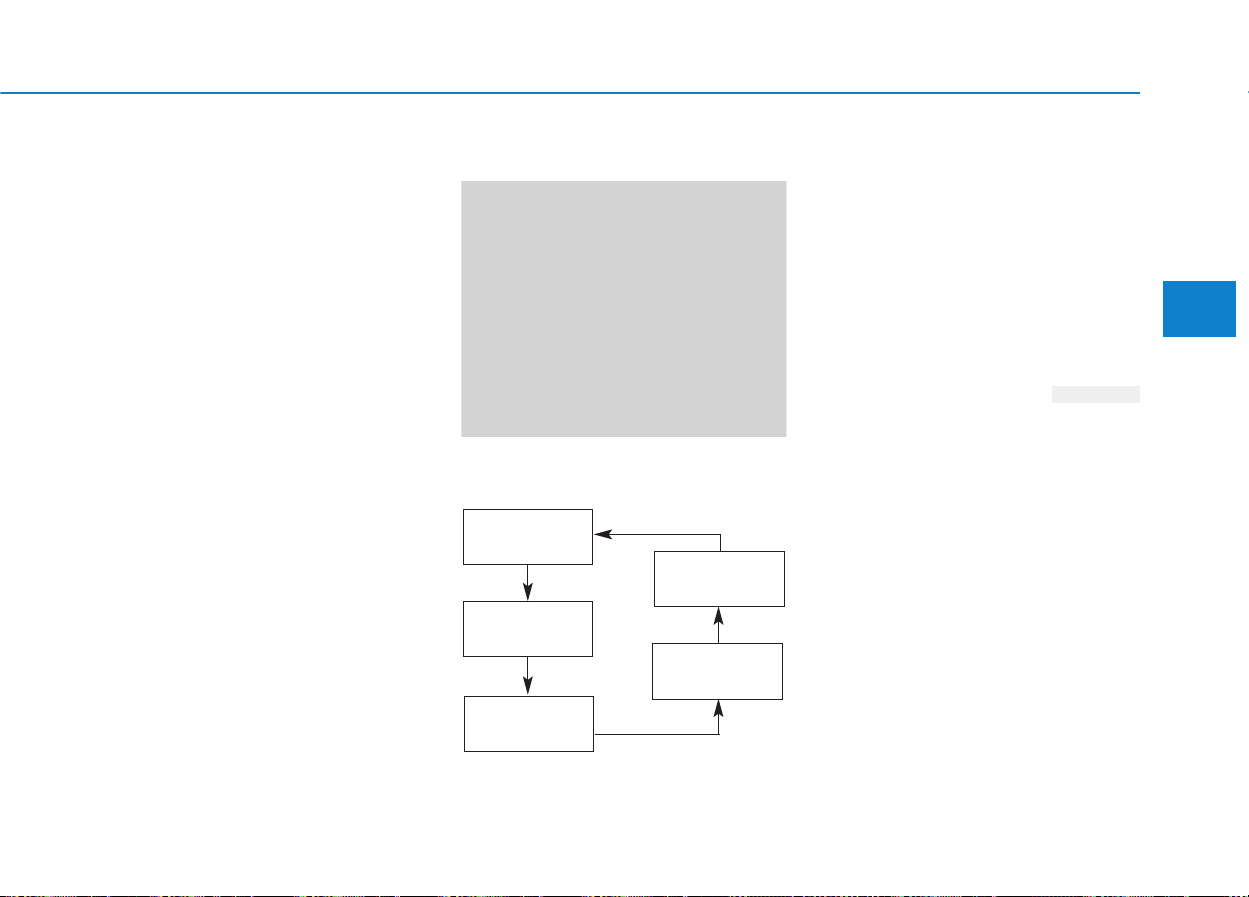
3-25
Convenient features of your vehicle
3
The trip computer is a microcomput-
er-controlled driver information sys-
tem that displays information related
to driving.
✽✽
NOTICE
All driving information stored in the
trip computer (except Odometer
and Distance to empty) resets if the
battery is disconnected.
Trip Modes
Push the button to select the follow-
ing modes:
Tripmeter
This mode indicates the distance of
individual trips selected since the
last tripmeter reset.
The meter's working range is from
0.0 to 999.9 miles (0.0 to 9999.9 km).
Pressing the TRIP button for more
than 1 second, when the tripmeter is
displayed, clears the tripmeter to
zero (0.0).
TTRRIIPP CCOOMMPPUUTTEERR
OEL043703
OLM049061N
TRIP
Driving time
Distance to
empty
Average
vehicle speed
Average fuel
consumption

3-26
Distance to empty
This mode indicates the estimated
distance to empty based on the cur-
rent fuel in the fuel tank and the
amount of fuel delivered to the
engine.When the remaining distance
is below 30 miles (50 km), “----” will
be displayed and the distance to
empty indicator will blink.
The meter’s working range is from 30
to 9999 miles (50 to 9999 km).
Average fuel consumption
This mode calculates the average
fuel consumption from the total fuel
used and the distance since the last
average consumption reset.
Pressing the TRIP button for more
than 1 second, when the average
fuel consumption is displayed, clears
the average fuel consumption to zero
(--.-).
✽✽
NOTICE
The average fuel consumption is not
displayed for more accurate calcula-
tion if the vehicle is not driven more
than 10 seconds or 0.186 miles (300
meters) since the ignition switch is
placed in the ON position.
✽✽
NOTICE
• If the vehicle is not on level ground
or the battery power has been
interrupted, the distance to empty
function may not operate correctly.
• The distance to empty may differ
from the actual driving distance as
it is an estimate of the available
driving distance.
• The trip computer may not register
additional fuel if less than 1.6 gal-
lons (6 liters) of fuel are added to
the vehicle.
• The fuel economy and distance to
empty may vary significantly based
on driving conditions, driving
habits, and condition of the vehicle.
Convenient features of your vehicle
OLM049062N OLM049064N

3-27
Convenient features of your vehicle
Average vehicle speed
This mode calculates the average
speed of the vehicle since the last
average speed reset.
Even if the vehicle is not in motion,
the average speed is calculated
while the engine is running.
Pressing the TRIP button for more
than 1 second, when the average
speed is being displayed, clears the
average speed to zero (---).
✽✽
NOTICE
The average vehicle speed is not dis-
played if the driving distance is less
than 0.186 miles (300 meters) or the
driving time is less than 10 seconds
since the ignition switch or Engine
Start/Stop button is turned to ON.
Driving time
This mode indicates the total time
traveled since the last driving time
reset.
Even if the vehicle is not in motion,
the driving time is calculated while
the engine is running.
The meter’s working range is from
0:00~99:59.
Pressing the TRIP button for more
than 1 second, when the driving time
is being displayed, clears the driving
time to zero (0:00).
3
OLM049066N OLM049067N
3-28
Convenient features of your vehicle
Warnings and indicators
All warning lights are checked by
placing the ignition switch in the ON
position (do not start the engine).
Any light that does not illuminate
should be checked by an authorized
HYUNDAI dealer.
After starting the engine, check to
make sure that all warning lights are
off. If any are still on, this indicates a
situation that needs attention.
Active ECO system
(if equipped)
When the active ECO is operating, the
ECO indicator is green.
For more detailed information, refer
to “Active ECO” in chapter 5.
Air bag warning light
This warning light will illuminate for
approximately 6 seconds each time
you place the ignition switch in the
ON position.
This light also comes on when the
Supplemental Restraint System
(SRS) is not working properly. If the
AIR BAG warning light does not
come on, or continuously remains on
after operating for about 6 seconds
when you place the ignition switch in
the ON position or start the engine,
or if it comes on while driving, have
the SRS inspected by an authorized
HYUNDAI dealer.
ECO
Do not continuously monitor the
indicator while driving. It may
distract you while driving and
may cause an accident that
results in severe personal injury.
WARNING
3-29
Convenient features of your vehicle
3
Anti-lock brake system
(ABS) warning light
This light illuminates if the ignition
switch is placed in the ON position and
goes off in approximately 3 seconds if
the system is operating normally.
If the ABS warning light remains on,
comes on while driving, or does not
come on when the ignition switch is
placed to the ON position, this indi-
cates that there may be a malfunc-
tion with the ABS.
If this occurs, have your vehicle
checked by an authorized HYUNDAI
dealer as soon as possible.The nor-
mal braking system will still be oper-
ational, but without the assistance of
the anti-lock brake system.
Electronic
brake force
distribution
(EBD) system
warning light
If these two warning lights illuminate
at the same time while driving, your
vehicle may have a malfunction with
the ABS and EBD system.
In this case, your ABS and regular
brake system may not work normally.
Have the vehicle checked by an
authorized HYUNDAI dealer as soon
as possible.
✽✽
NOTICE
If the ABS warning light or EBD
warning light is on and stays on, the
speedometer or odometer/tripmeter
may not work. Also, the EPS warning
light may illuminate and the steering
effort may increase or decrease. In
this case, have your vehicle checked
by an authorized HYUNDAI dealer
as soon as possible.
If both ABS and brake warning
lights are on and stay on, your
vehicle’s brake system will not
work normally. So you may expe-
rience an unexpected and dan-
gerous situation during sudden
braking. In this case, avoid high
speed driving and abrupt brak-
ing. Have your vehicle checked
by an authorized HYUNDAI deal-
er as soon as possible.
WARNING
3-30
Convenient features of your vehicle
Parking brake & brake
fluid warning light
Parking brake warning
This light is illuminated when the
parking brake is applied with the igni-
tion switch in the START or ON posi-
tion. The warning light should go off
when the parking brake is released
while the engine is running.
The parking brake warning chime will
sound to remind you that the parking
brake is applied when you are driving
above 6 mph (10 km/h). Always
release the parking brake before you
drive.
Low brake fluid level warning
If the warning light remains on, it may
indicate that the brake fluid level in
the reservoir is low.
If the warning light remains on:
1. Drive carefully to the nearest safe
location and stop your vehicle.
2.With the engine stopped, check
the brake fluid level immediately
and add fluid as required. Then
check all brake components for
fluid leaks.
3. Do not drive the vehicle if leaks
are found, the warning light
remains on or the brakes do not
operate properly. Have the vehicle
towed to any authorized HYUNDAI
dealer for a brake system inspec-
tion and for repairs if necessary.
Your vehicle is equipped with a dual-
diagonal braking system.This means
you still have braking on two wheels
even if one of the brake circuits is
damaged or malfunctions. With only
one of the circuits working, more than
normal pedal travel and greater pedal
pressure are required to stop the car.
Also, the car will not stop in as short
a distance with only a portion of the
brake system working. If the brakes
fail while you are driving, shift to a
lower gear for additional engine brak-
ing and stop the car as soon as it is
safe to do so.
To check bulb operation, check
whether the parking brake and brake
fluid warning light illuminates when
the ignition switch is in the ON posi-
tion.
3-31
Convenient features of your vehicle
3
Seat belt warning
As a reminder to the driver, the seat
belt warning light will blink for
approximately 6 seconds each time
you turn the ignition switch ON,
regardless of belt fastening.
For details, refer to the seat belt on
chapter 2.
Turn signal indicator
The left or right turn signal blinks
when you signal a lane change or
turn. If the arrow comes on but does
not blink, blinks more rapidly than
normal, or does not illuminate at all,
a malfunction in the turn signal sys-
tem is indicated. Your dealer should
be consulted for repairs.
This indicator also blinks when the
hazard warning flasher button is
pressed.
Driving the vehicle with a warn-
ing light on is dangerous. If the
brake warning light remains on,
have the brakes checked and
repaired immediately by an
authorized HYUNDAI dealer.
WARNING
3-32
Convenient features of your vehicle
Light on indicator
The indicator illuminates when the
parking (position) lights or headlights
are ON.
High beam indicator
This indicator illuminates when the
headlights are on and in the high
beam position or when the turn sig-
nal lever is pulled into the Flash-to-
Pass position.
Front fog light indicator
(if equipped)
The indicator illuminates when the
front fog lights are ON.
Engine oil pressure
warning light
This warning light indicates the
engine oil pressure is low.
If the warning light illuminates while
driving:
1. Drive safely to the side of the road,
park and turn the engine off.
2. Allow the vehicle to sit for five min-
utes, then check the engine oil
level. If the level is low, add oil as
required.
If the warning light remains on after
adding oil or if oil is not available, call
an authorized HYUNDAI dealer.
If the engine is not stopped
immediately after the engine oil
pressure warning light is illumi-
nated, severe damage could
result.
CAUTION

3-33
Convenient features of your vehicle
3
Charging system
warning light
This warning light indicates a mal-
function of either the generator or
electrical charging system.
If the warning light comes on while
the vehicle is in motion:
1. Drive to the nearest safe location.
2.With the engine off, check the gen-
erator drive belt for looseness or
breakage.
3. If the belt is adjusted properly, a
problem exists somewhere in the
electrical charging system. Have
an authorized HYUNDAI dealer
correct the problem as soon as
possible.
If the oil pressure warning light
stays on while the engine is
running, serious engine dam-
age may result.The oil pressure
warning light comes on when-
ever there is insufficient oil
pressure. In normal operation, it
should come on when the igni-
tion switch is turned on,then go
out when the engine is started.
If the oil pressure warning light
stays on while the engine is
running, there is a serious mal-
function.
(Continued)
(Continued)
If this happens, stop the car as
soon as it is safe to do so, turn
off the engine and check the oil
level. If the oil level is low, fill
the engine oil to the proper level
and start the engine again. If the
light stays on with the engine
running, turn the engine off
immediately. In any instance
where the oil light stays on
when the engine is running, the
engine should be checked by an
authorized HYUNDAI dealer
before the car is driven again.
CAUTION
3-34
Convenient features of your vehicle
Door ajar warning light
This warning light illuminates when a
door is not closed securely.
Tailgate open warning
light
This warning light illuminates when
the tailgate is not closed securely.
Sunroof Open Warning
Light (if equipped)
If the driver removes the ignition key
(Smart key :turns off the engine) and
opens the driver-side door when the
sunroof is not fully closed, the warn-
ing chime will sound for approximate-
ly 7 seconds and Sunroof Open
Warning Light illuminate or blink for
approximately 7 seconds.
Close the sunroof securely when
leaving your vehicle.
Low fuel level warning
light
This warning light indicates the fuel
tank is nearly empty. When it comes
on, you should add fuel as soon as
possible. Driving with the fuel level
warning light on or with the fuel level
below “E” can cause the engine to
misfire and damage the catalytic
converter.
3-35
Convenient features of your vehicle
3
Immobilizer indicator
(if equipped)
Without smart key system
This indicator illuminates when the
immobilizer key is inserted and
turned to the ON position to start the
engine.
At this time, you can start the engine.
The indicator goes out after the
engine is running.
If this indicator blinks when the igni-
tion switch is in the ON position
before starting the engine, have the
system checked by an authorized
HYUNDAI dealer.
With smart key system
If any of the following occurs in a vehi-
cle equipped with the smart key, the
immobilizer indicator illuminates, blinks
or goes off.
• When the smart key is in the vehi-
cle, if the Engine Start/Stop button
is in the ACC or ON position, the
indicator will illuminate for approxi-
mately 30 seconds to indicate that
you are able to start the engine.
However, when the smart key is
not in the vehicle, if the Engine
Start/Stop button is pressed, the
indicator will blink for a few sec-
onds to indicate that you are not be
able to start the engine.
• If the indicator illuminates only for 2
seconds and goes out when the
Engine Start/Stop button is turned
to ON position with the smart key in
the vehicle, have the system
checked by an authorized
HYUNDAI dealer.
• When the battery is weak, if the
Engine Start/Stop button is
pressed, the indicator will blink and
you are not able to start the
engine. However, you can start the
engine if you press the Engine
Start/Stop Button with the smart
key. Also, if the smart key system
related parts have a problem, the
indicator will blink.
3-36
Convenient features of your vehicle
Malfunction indicator
(MIL) (check engine light)
This indicator light is part of the
Engine Control System which moni-
tors various emission control system
components. If this light illuminates
while driving, it indicates that a
potential malfunction has been
detected somewhere in the emission
control system.
This light will also illuminate when
the ignition switch is turned to the
ON position, and will go out in a few
seconds after the engine is started. If
it illuminates while driving, or does
not illuminate when the ignition
switch is turned to the ON position,
take your vehicle to your nearest
authorized HYUNDAI dealer and
have the system checked.
Generally, your vehicle will continue
to be drivable, but have the system
checked by an authorized HYUNDAI
dealer promptly.
• Prolonged driving with the
Emission Control System
Malfunction Indicator Light
illuminated may cause damage
to the emission control sys-
tems which could effect dri-
vability and/or fuel economy.
•
If the
Emission
Control System
Malfunction Indicator Light illu-
minates, potential catalytic
converter damage is possible
which could result in loss of
engine power. Have the Engine
Control System inspected as
soon as possible by an author-
ized HYUNDAI dealer.
CAUTION
3-37
Convenient features of your vehicle
3
ESC indicator
(Electronic Stability
Control)
The ESC indicator will illuminate
when the ignition switch is turned
ON, but should go off after approxi-
mately 3 seconds. When the ESC is
on, it monitors the driving conditions
and under normal driving conditions,
the ESC indicator will remain off.
When a slippery or low traction con-
dition is encountered, the ESC will
operate, and the ESC indicator will
blink to indicate the ESC is operat-
ing. If the ESC system malfunctions
the indicator illuminates and stays
on. Take your vehicle to an author-
ized HYUNDAI dealer and have the
system checked.
ESC OFF indicator
The ESC OFF indicator will illumi-
nate when the ignition switch is
turned ON, but should go off after
approximately 3 seconds. To switch
to ESC function off, press the ESC
OFF button. The ESC OFF indicator
will illuminate indicating the ESC is
deactivated.
DBC (Downhill brake
control) indicator
The DBC indicator will illuminate
when the DBC button is pressed and
the system is on.
When driving down a steep hill at a
speed under 22 mph (35 km/h), the
DBC will activate and the DBC indi-
cator will blink to indicate the DBC is
operating.
If the red indicator illuminates, the
DBC system may have malfunc-
tioned. Take your vehicle to an
authorized HYUNDAI dealer and
have the system checked.
3-38
Convenient features of your vehicle
AWD system warning
light (if equipped)
When the ignition switch is turned to
the ON position, the AWD indicator
will illuminate and then go off in a few
seconds.
If the AWD system warning light
illuminates, this indicates that there
is a malfunction in the AWD system.
If this occurs, have your vehicle
checked by an authorized HYUNDAI
dealer as soon as possible.
AWD LOCK indicator
(if equipped)
The AWD LOCK indicator light is illu-
minated when the AWD LOCK but-
ton is pushed. The purpose of this
AWD LOCK mode is to increase the
drive power when driving on wet
pavement, snow-covered roads
and/or off-road.The AWD LOCK indi-
cator light is turned off by pushing
the button again.
Low tire pressure
indicator
The low tire pressure indicator
comes on for 3 seconds after the
ignition switch is turned to the "ON"
position.
The low tire pressure indicator illumi-
nates when one or more of your tires
is significantly underinflated.
The low tire pressure indicator will
illuminate after it blinks for approxi-
mately one minute when there is a
problem with the Tire Pressure
Monitoring System.
If this occurs, have the system
checked by an authorized HYUNDAI
dealer as soon as possible.
For details, refer to the TPMS on
chapter 6.
Do not use AWD LOCK mode on
dry paved roads or highway, it
can cause noise, vibration or
damage of AWD related parts.
CAUTION
3-39
Convenient features of your vehicle
3
Engine coolant
temperature warning
light (if equipped)
The warning light illuminates if the
temperature of the engine coolant is
above 248±5.4°F (120±3°C).
Do not continue driving with an over-
heated engine. If your vehicle over-
heats, refer to “Overheating” in chap-
ter 6.
✽✽
NOTICE
If the engine coolant temperature
warning light illuminates, it indi-
cates overheating that may damage
the engine.
Electric power steer-
ing (EPS) system
warning light
This indicator light comes on after
the ignition key is turned to the ON
position and then it will go out after
the engine is started.
This light also comes on when the
EPS is not functioning properly. If it
comes on while driving, have your
vehicle inspected by an authorized
HYUNDAI dealer.
Safe stopping
• The TPMS cannot alert you to
severe and sudden tire dam-
age caused by external fac-
tors.
• If you feel any vehicle instabil-
ity, immediately take your foot
off the accelerator, apply the
brakes gradually and with
light force, and slowly move to
a safe position off the road.
WARNING

3-40
Convenient features of your vehicle
Cruise indicator
(if equipped)
The indicator light illuminates when
the cruise control system is enabled.
The cruise indicator light in the
instrument cluster is illuminated
when the cruise control ON-OFF but-
ton on the steering wheel is pushed.
The indicator light turns off when the
cruise control ON-OFF button is
pushed again. For more information
about the use of cruise control, refer to
“Cruise control system” in chapter 5.
Cruise SET indicator
(if equipped)
The indicator light illuminates when
the cruise function switch (SET- or
RES+) is ON.
The cruise SET indicator light in the
instrument cluster is illuminated
when the cruise control switch (SET-
or RES+) is pushed.The cruise SET
indicator light does not illuminate
when the cruise control switch (CAN-
CEL) is pushed or the system is dis-
engaged.
KEY OUT indicator
(if equipped)
When the Engine Start/Stop button
is in the ACC or ON position, if any
door is open, the system checks for
the smart key. If the smart key is not
in the vehicle, the indicator will blink,
and if all doors are closed, the chime
will also sound for about 5 seconds.
The indicator will go off while the
vehicle is moving. Keep the smart
key in the vehicle.
KEY
OUT
SET
CRUISE

3-41
Convenient features of your vehicle
Key reminder warning chime
If the driver’s door is opened while
the ignition key is left in the ignition
switch (ACC or LOCK position), the
key reminder warning chime will
sound. This is to prevent you from
locking your keys in the vehicle. The
chime sounds until the key is
removed from the ignition switch or
the driver’s door is closed.
3
3-42
Electric Power Steering (EPS)
This system assists you with steering
the vehicle.
If the engine is turned off or if the
EPS becomes inoperative, you may
still steer the vehicle, but it will
require increased steering effort.
Should you notice any change in the
effort required to steer during normal
vehicle operation, have the EPS
checked by an authorized HYUNDAI
dealer.
✽✽
NOTICE
• The steering effort may be high
immediately after placing the igni-
tion switch in the ON position.
This happens as the system per-
forms the EPS system diagnostics.
When the diagnostics is complet-
ed, the steering wheel will return
to its normal condition.
• A click noise may be heard from
the EPS relay after the ignition
switch is placed in the ON or
LOCK/OFF position.
• A motor noise may be heard when
the vehicle is at a stop or at a low
driving speed.
• When you operate the steering
wheel in low temperature, abnor-
mal noise may occur. If tempera-
ture rises, the noise will disappear.
This is a normal condition.
Tilt steering/Telescope steering
Pull down the lock-release lever (1)
on the steering wheel column and
adjust the steering wheel angle (2)
and position (3, if equipped). Move
the steering wheel, so it points
toward your chest, not toward your
face. Make sure you can see the
instrument panel warning lights and
gauges. After adjusting, pull up the
lock-release lever (1) to lock the
steering wheel in place. Push the
steering wheel both up and down to
be certain it is locked in position.
Always adjust the position of the
steering wheel before driving.
SSTTEEEERRIINNGG WWHHEEEELL
Convenient features of your vehicle
If the Electric Power Steering
System does not operate nor-
mally, the warning light ( ) will
illuminate on the instrument
cluster.The steering wheel may
become difficult to control or
operate.Take your vehicle to an
authorized HYUNDAI dealer and
have the system checked as
soon as possible.
CAUTION
OLMB043225
3-43
Convenient features of your vehicle
Horn
To sound the horn, press the area
indicated by the horn symbol on your
steering wheel (see illustration). The
horn will operate only when this area
is pressed.
3
Do not strike the horn severely
to operate it, or hit it with your
fist. Do not press on the horn
with a sharp-pointed object.
CAUTION
OLMB043227
NEVER adjust the steering
wheel while driving. This may
cause loss of vehicle control
resulting in an accident.
WARNING
3-44
Convenient features of your vehicle
Interior rearview mirrors
Before you start driving, adjust the
rearview mirror to the center on the
view through the rear window.
Day/Night rearview mirror
(if equipped)
Make this adjustment before you
start driving and while the day/night
lever is in the day position.
Pull the day/night lever toward you to
reduce headlight glare from vehicles
behind you during night driving.
Remember that you lose some
rearview clarity in the night position.
MMIIRRRROORRSS
Make sure your line of sight is
not obstructed. Do not place
objects in the rear seat, cargo
area, or behind the rear head-
rests which could interfere with
your vision through the rear
window.
WARNING
To prevent serious injury during
an accident or deployment of
the air bag, do not modify the
rearview mirror and do not
install a wide mirror.
WARNING
NEVER adjust the mirror while
driving. This may cause loss of
vehicle control resulting in an
accident.
WARNING
OLMB043233
Day
Night
3-45
Convenient features of your vehicle
3
Electric chromic mirror (ECM)
(if equipped)
The electric rearview mirror automati-
cally controls the glare from the head-
lights of the car behind you in night-
time or low light driving conditions.
When the engine is running, the
glare is automatically controlled by
the sensor mounted in the rearview
mirror. The sensor detects the light
level around the vehicle, and auto-
matically adjusts to control the head-
light glare from vehicles behind you.
Whenever the shift lever is placed in
R (Reverse), the mirror will automat-
ically go to the brightest setting to
improve the driver’s view behind the
vehicle.
To operate the electric rearview
mirror:
• Press the ON/OFF button (1) to
turn the automatic dimming func-
tion on. The mirror indicator light
will illuminate.
Press the ON/OFF button to turn
the automatic dimming function off.
The mirror indicator light will turn
off.
• The mirror defaults to the ON posi-
tion whenever the ignition switch is
turned on.
OLMB043301
Indicator
Sensor
Rearview display
When cleaning the mirror, use a
paper towel or similar material
dampened with glass cleaner.
Do not spray glass cleaner
directly on the mirror as that
may cause the liquid cleaner to
enter the mirror housing and
damage the rearview mirror.
CAUTION
3-46
Convenient features of your vehicle
Blue Link
®
center (if equipped)
For details, refer to the Blue Link
®
Owner’s Guide, Navigation Manual
or Audio Manual. The Audio Manual
is in the chapter 4.
Electric chromic mirror (ECM)
with compass and HomeLink
®
system (if equipped)
Your vehicle may be equipped with a
Gentex Automatic-Dimming Mirror
with a Z-Nav™ Electronic Compass
Display and an Integrated HomeLink
®
Wireless Control System.
During nighttime driving, this feature
will automatically detect and reduce
rearview mirror glare while the com-
pass indicates the direction the vehi-
cle is pointed. The HomeLink
®
Universal Transceiver allows you to
activate your garage door(s), electric
gate, home lighting, etc.
(1) Channel 1 button
(2) Channel 2 button
(3) Status indicator LED
(4) Channel 3 button
(5) Rear light sensor
(6) Dimming ON/OFF button
(7) Compass control button
(8) Compass display
OLMB043462
OLMB043463
■ Type A
■ Type B
OLMB043464
3-47
Convenient features of your vehicle
3
Automatic-Dimming Night Vision
Safety™ (NVS
®
) Mirror
(if equipped)
For more information regarding
NVS
®
mirrors and other applications,
please refer to the Gentex website:
www.gentex.com
The auto-dimming function can be
controlled by pressing the ON/OFF
button:
1. Pressing the button turns the auto-
dimming function OFF which is
indicated by the green Status
Indicator LED turning off.
2. Pressing the button again turns
the auto-dimming function ON
which is indicated by the green
Status Indicator LED turning on.
The mirror defaults to the ON posi-
tion each time the vehicle is started.
Z-Nav™ Compass Display
The NVS™ Mirror in your vehicle is
also equipped with a Z-Nav™
Compass that shows the vehicle
Compass heading in the Display
Window using the 8 basic cardinal
headings (N, NE, E, SE, etc.).
The NVS
®
Mirror automatically
reduces glare by monitoring
light levels in the front and the
rear of the vehicle. Any object
that obstructs either light sen-
sor will degrade the automatic
dimming control feature.
CAUTION

3-48
Convenient features of your vehicle
Compass function
The Compass can be turned ON and
OFF and will remember the last state
when the ignition is cycled. To turn
the display feature ON/OFF:
1. Press and release the button to
turn the display feature OFF.
2. Press and release the button
again to turn the display back ON.
Additional options can be set with
press and hold sequences of the but-
ton and are detailed below.
There is a difference between mag-
netic north and true north. To com-
pensate for this difference you will
need to adjust the Zone setting
based on where you live.
B520C05NF

3-49
Convenient features of your vehicle
3
To adjust the Zone setting:
1.Determine the desired Zone
Number based upon your current
location on the Zone Map.
2. Press and hold the button for
more than 3 but less than 6 sec-
onds, the current Zone Number
will appear on the display.
3. Pressing and holding the button
again will cause the numbers to
increment (Note: they will repeat
…13, 14, 15, 1, 2, …). Releasing
the button when the desired Zone
Number appears on the display
will set the new Zone.
4.Within about 5 seconds the com-
pass will start displaying a com-
pass heading again.
There are some conditions that can
cause changes to the vehicle mag-
nets, such as installing a ski rack or
a CB antenna. Body repair work on
the vehicle can also cause changes
to the vehicle's magnetic field. In
these situations, the compass will
need to be re-calibrated to quickly
correct these changes.
If you need to recalibrate the com-
pass:
1. Press and hold the button for
more than 6 seconds. When the
compass memory is cleared a "C"
will appear in the display.
2. Drive the vehicle in 2 complete cir-
cles at less than 5 mph (8 km/h).
Integrated HomeLink
®
Wireless
Control System
The HomeLink
®
Wireless Control
System can replace up to three hand-
held radio-frequency (RF) transmit-
ters with a single built-in device. This
innovative feature will learn the radio
frequency codes of most current
transmitters to operate devices such
as gate operators, garage door open-
ers, entry door locks, security sys-
tems, even home lighting. Both stan-
dard and rolling code-equipped trans-
mitters can be programmed by fol-
lowing the outlined procedures.
Additional HomeLink
®
information
can be found at: www.homelink.com
or by calling 1-800-355-3515.
Retain the original transmitter of the
RF device you are programming for
use in other vehicles as well as for
future HomeLink
®
programming. It is
also suggested that upon the sale of
the vehicle, the programmed
HomeLink
®
buttons be erased for
security purposes.
3-50
Convenient features of your vehicle
Programming HomeLink
®
Please note the following:
• When programming a garage door
opener, it is advised to park the
vehicle outside of the garage.
• It is recommended that a new bat-
tery be placed in the hand-held
transmitter of the device being pro-
grammed to HomeLink
®
for quicker
training and accurate transmission
of the radio-frequency signal.
• Some vehicles may require the
ignition switch to be placed in the
ACC (or "Accessories") position for
programming and/or operation of
HomeLink
®
.
• In the event that there are still pro-
gramming difficulties or questions
after following the programming
steps listed below, contact
HomeLink
®
at: www.homelink.com
or by calling 1-800-355-3515.
Rolling code programming
Rolling code devices which are
"code-protected" and manufactured
after 1996 may be determined by the
following:
• Reference the device owner's
manual for verification.
• The handheld transmitter appears
to program the HomeLink
®
Universal Transceiver but does not
activate the device.
• Press and hold the trained
HomeLink button. The device has
the rolling code feature if the indi-
cator light flashes rapidly and then
turns solid after 2 seconds.
Before programming HomeLink
®
to a garage door opener or gate
operator, make sure people and
objects are out of the way of the
device to prevent potential harm
or damage. Do not use the
HomeLink
®
with any garage door
opener that lacks the safety stop
and reverse features required by
U.S. federal safety standards
(this includes any garage door
opener model manufactured
before April 1, 1982). A garage
door that cannot detect an object
- signaling the door to stop and
reverse - does not meet current
U.S. federal safety standards.
Using a garage door opener
without these features increases
the risk of serious injury or
death.
WARNING

3-51
Convenient features of your vehicle
3
To train rolling code devices, follow
these instructions:
1. At the garage door opener receiver
(motor-head unit) in the garage,
locate the "learn" or "smart" button.
This can usually be found where the
hanging antenna wire is attached to
the motor-head unit. Exact location
and color of the button may vary by
garage door opener brand. If there
is difficulty locating the training but-
ton, reference the device owner's
manual or please visit our Web site
at www.homelink.com.
2. Firmly press and release the "learn"
or "smart" button (which activates
the "training light").You will have 30
seconds to initiate step 3.
3. Return to the vehicle and firmly
press, hold for two seconds and
then release the desired
HomeLink
®
button. Repeat the
"press/hold/release" sequence a
second time to complete the pro-
gramming. (Some devices may
require you to repeat this
sequence a third time to complete
the programming.)
4. Press and hold the just-trained
HomeLink
®
button and observe
the red Status Indicator LED.If the
indicator light stays on constantly,
programming is complete and
your device should activate.
5.To program the remaining two
HomeLink
®
buttons, follow either
steps 1 through 4 above for other
Rolling Code devices or steps 2
through 5 in Standard Programming
for standard devices.
Standard programming
To train most devices, follow these
instructions:
1. For first-time programming, press
and hold the two outside buttons,
HomeLink
®
Channel 1 and Channel
3 Buttons, until the indicator light
begins to flash (after 20 seconds).
Release both buttons. Do not hold
the buttons for longer than 30 sec-
onds.
2. Position the end of your hand-held
transmitter 1-3 inches (2-8 cm)
away from the HomeLink
®
buttons
while keeping the indicator light in
view.
3. Simultaneously press and hold
both the HomeLink
®
and hand-
held transmitter button. DO NOT
release the buttons until step 4
has been completed.
4.While continuing to hold the but-
tons the red Indicator Status LED
will flash slowly and then rapidly
after HomeLink
®
successfully
trains to the frequency signal from
the hand-held transmitter.Release
both buttons.

3-52
Convenient features of your vehicle
5. Press and hold the just-trained
HomeLink
®
button and observe
the red Status Indicator LED.If the
indicator light stays on constantly,
programming is complete and
your device should activate when
the HomeLink
®
button is pressed
and released.
6.To program the remaining two
HomeLink
®
buttons, follow steps 2
through 5.
Gate operator & Canadian program-
ming
During programming, your handheld
transmitter may automatically stop
transmitting. Continue to press the
Integrated HomeLink
®
Wireless
Control System button (note
steps 2 through 4 in the Standard
Programming portion of this docu-
ment) while you press and re-press
("cycle") your handheld transmitter
every two seconds until the frequen-
cy signal has been learned.The indi-
cator light will flash slowly and then
rapidly after several seconds upon
successful training.
Operating HomeLink
®
To operate, simply press and release
the programmed HomeLink
®
button.
Activation will now occur for the
trained device (i.e. garage door
opener, gate operator, security sys-
tem, entry door lock, home/office
lighting, etc.). For convenience, the
hand-held transmitter of the device
may also be used at any time.
Reprogramming a single HomeLink
®
button
To program a new device to a previ-
ously trained HomeLink
®
button, fol-
low these steps:
1. Press and hold the desired
HomeLink
®
button.Do NOT release
until step 4 has been completed.
2.When the indicator light begins to
flash slowly (after 20 seconds),
position the handheld transmitter 1
to 3 inches away from the
HomeLink
®
surface.
3.Press and hold the handheld
transmitter button.The HomeLink
®
indicator light will flash, first slowly
and then rapidly.
4.When the indicator light begins to
flash rapidly, release both buttons.
5. Press and hold the just-trained
HomeLink
®
button and observe
the red Status Indicator LED.If the
indicator light stays on constantly,
programming is complete and
your new device should activate.
3-53
Convenient features of your vehicle
3
Erasing HomeLink
®
buttons
Individual buttons cannot be erased.
However, to erase all three pro-
grammed buttons:
1.Press and hold the two outer
HomeLink
®
buttons until the indi-
cator light begins to flash-after 20
seconds.
2. Release both buttons. Do not hold
for longer than 30 seconds.
The Integrated HomeLink
®
Wireless
Control System is now in the training
(learn) mode and can be pro-
grammed at any time following the
appropriate steps in the Programming
chapters above.
NVS
®
is a registered trademark and
Z-Nav™ is a trademark of the Gentex
Corporation, Zeeland, Michigan.
HomeLink
®
is a registered trademark
owned by Johnson Controls,
Incorporated, Milwaukee, Wisconsin.
FCC ID: NZLZTVHL3
IC: 4112A-ZTVHL3
This device complies with Part 15
of the FCC Rules.
Operation is subject to the following
two conditions:
1.This device may not cause harm-
ful interference, and
2.This device must accept any inter-
ference received, including inter-
ference that may cause undesired
operation.
Electric chromic mirror (ECM)
with HomeLink
®
system,
compass and Blue Link
®
(if equipped)
Your vehicle may be equipped with a
Gentex Automatic-Dimming Mirror
with a Z-Nav™ Electronic Compass
Display and an Integrated HomeLink
®
Wireless Control System. During
nighttime driving, this feature will
automatically detect and reduce
rearview mirror glare while the com-
pass indicates the direction the vehi-
cle is pointed. The HomeLink
®
Universal Transceiver allows you to
activate your garage door(s), electric
gate, home lighting, etc.
The transceiver has been tested
and complies with FCC and
Industry Canada rules. Changes
or modifications not expressly
approved by the party responsi-
ble for compliance could void
the user's authority to operate
the device.
WARNING
3-54
Convenient features of your vehicle
(1) Telematics button
(2) Telematics button
(3) Telematics button
(4) Compass control button &
Dimming ON/OFF button
(5) Status indicator LED
(6) Channel 1 button
(7) Channel 2 button
(8) Channel 3 button
(9) Compass display
(10) Rear light sensor
Automatic-Dimming Night Vision
Safety™ (NVS
®
) Mirror
(if equipped)
For more information regarding
NVS
®
mirrors and other applications,
please refer to the Gentex website:
www.gentex.com
Your mirror will automatically dim upon
detecting glare from the vehicles trav-
eling behind you. The auto-dimming
function can be controlled by pressing
the Dimming ON/OFF button:
1. Pressing and holding the button
for 3 seconds turns the auto-dim-
ming function OFF which is indi-
cated by the green Status
Indicator LED turning off.
2. Pressing and holding the button
for 3 seconds again turns the
auto-dimming function ON which
is indicated by the green Status
Indicator LED turning on.
The mirror defaults to the ON posi-
tion each time the vehicle is started.
Z-Nav™ Compass Display
The NVS™ Mirror in your vehicle is
also equipped with a Z-Nav™
Compass that shows the vehicle
Compass heading in the Display
Window using the 8 basic cardinal
headings (N, NE, E, SE, etc.).
OLMB043463
The NVS
®
Mirror automatically
reduces glare by monitoring
light levels in the front and the
rear of the vehicle. Any object
that obstructs either light sen-
sor will degrade the automatic
dimming control feature.
CAUTION

3-55
Convenient features of your vehicle
3
Compass function
The Compass can be turned ON and
OFF and will remember the last state
when the ignition is cycled. To turn
the display feature ON/OFF:
1. Press and release the button
within 1 second to turn the display
feature OFF.
2. Press and release the button
again within 1 second to turn the
display back ON.
Additional options can be set with
press and hold sequences of the
button and are detailed below.
There is a difference between mag-
netic north and true north. To com-
pensate for this difference you will
need to adjust the Zone setting based
on where you live.
B520C05NF

3-56
Convenient features of your vehicle
To adjust the Zone setting:
1.Determine the desired Zone
Number based upon your current
location on the Zone Map.
2. Press and hold the button for 6
seconds, the current Zone
Number will appear on the display.
3. Pressing and holding the button
again will cause the numbers to
increment (Note: they will repeat
…13, 14, 15, 1, 2, …). Releasing
the button when the desired Zone
Number appears on the display
will set the new Zone.
4.Within about 5 seconds the com-
pass will start displaying a com-
pass heading again.
There are some conditions that can
cause changes to the vehicle mag-
nets, such as installing a ski rack or
a CB antenna. Body repair work on
the vehicle can also cause changes
to the vehicle's magnetic field. In
these situations, the compass will
need to be re-calibrated to quickly
correct these changes.
If you need to recalibrate the com-
pass:
1. Press and hold the button for
more than 9 seconds. When the
compass memory is cleared a "C"
will appear in the display.
2. Drive the vehicle in 2 complete cir-
cles at less than 5 mph (8 km/h).
Integrated HomeLink
®
Wireless
Control System
The HomeLink
®
Wireless Control
System can replace up to three
hand-held radio-frequency (RF)
transmitters with a single built-in
device. This innovative feature will
learn the radio frequency codes of
most current transmitters to operate
devices such as gate operators,
garage door openers, entry door
locks, security systems, even home
lighting. Both standard and rolling
code-equipped transmitters can be
programmed by following the out-
lined procedures.
Additional HomeLink
®
information
can be found at: www.homelink.com
or by calling 1-800-355-3515.
3-57
Convenient features of your vehicle
3
Retain the original transmitter of the
RF device you are programming for
use in other vehicles as well as for
future HomeLink
®
programming. It is
also suggested that upon the sale of
the vehicle, the programmed
HomeLink
®
buttons be erased for
security purposes.
Programming HomeLink
®
Please note the following:
• When programming a garage door
opener, it is advised to park the
vehicle outside of the garage.
• It is recommended that a new bat-
tery be placed in the hand-held
transmitter of the device being pro-
grammed to HomeLink
®
for quicker
training and accurate transmission
of the radio-frequency signal.
• Some vehicles may require the
ignition switch to be placed in the
ACC (or "Accessories") position for
programming and/or operation of
HomeLink
®
.
• In the event that there are still pro-
gramming difficulties or questions
after following the programming
steps listed below, contact
HomeLink
®
at: www.homelink.com
or by calling 1-800-355-3515.
Before programming HomeLink
®
to a garage door opener or gate
operator, make sure people and
objects are out of the way of the
device to prevent potential harm
or damage. Do not use the
HomeLink
®
with any garage door
opener that lacks the safety stop
and reverse features required by
U.S. federal safety standards
(this includes any garage door
opener model manufactured
before April 1, 1982). A garage
door that cannot detect an object
- signaling the door to stop and
reverse - does not meet current
U.S. federal safety standards.
Using a garage door opener
without these features increases
the risk of serious injury or
death.
WARNING

3-58
Convenient features of your vehicle
Programming
To train most devices, follow these
instructions:
1. For first-time programming, press
and hold the two outside buttons
(
,
), HomeLink
®
Channel 1
and Channel 3, until the indicator
light begins to flash (after 10 sec-
onds). Release both buttons. Do
not hold the buttons for longer
than 20 seconds.
2. Position the end of your hand-held
transmitter 1-3 inches (2-8 cm)
away from the HomeLink
®
button
you wish to program while keeping
the indicator light in view.
3. Simultaneously press and hold
both the HomeLink
®
and hand-
held transmitter buttons until the
HomeLink
®
indicator light changes
from a slow to a rapid blinking
light. Now you may release both
the HomeLink
®
and hand-held
transmitter buttons.
✽✽
NOTICE
Some devices may require you to
replace this Programming step 3 with
procedures noted in the "Gate
Operator/Canadian Programming"
chapter. If the HomeLink
®
indicator
light does not change to a rapidly
blinking light after performing these
steps, contact HomeLink
®
at
www.homelink.com.
OYF042252N
Flashing
OYF042251N
Flashing

3-59
Convenient features of your vehicle
3
4. Firmly press, hold for 5 seconds
and release the programmed
HomeLink
®
button up to two sepa-
rate times to activate the door.If the
door does not activate, press and
hold the just-trained HomeLink
®
but-
ton and observe the indicator light.
• If the indicator light stays on con-
stantly, programming is complete
and your device should activate
when the HomeLink
®
button is
pressed and released.
• If the indicator light blinks rapidly
for 2 seconds and then turns to a
constant light, continue with
"Programming" steps 5-7 to com-
plete the programming of a rolling
code equipped device (most com-
monly a garage door opener).
5. At the garage door opener receiv-
er (motor-head unit) in the garage,
locate the "learn" or "smart" but-
ton. This can usually be found
where the hanging antenna wire is
attached to the motor-head unit.
6.Firmly press and release the
"learn" or "smart" button. (The
name and color of the button vary
by manufacturer). There are 30
seconds to initiate step 7.
7. Return to the vehicle and firmly
press, hold for 2 seconds and
release the programmed
HomeLink
®
button. Repeat the
"press/hold/release" sequence a
second time, and, depending on
the brand of the garage door
opener (or other rolling code
equipped device), repeat this
sequence a third time to complete
the programming process.
HomeLink
®
should now activate your
rolling code equipped device.
Gate operator & Canadian program-
ming
During programming, your handheld
transmitter may automatically stop
transmitting. Continue to press the
Integrated HomeLink
®
Wireless
Control System button (note steps 2
through 3 in the Programming portion
of this document) while you press
and re-press ("cycle") your handheld
transmitter every two seconds until
the frequency signal has been
learned. The indicator light will flash
slowly and then rapidly after several
seconds upon successful training.
Operating HomeLink
®
To operate, simply press and release
the programmed HomeLink
®
button.
Activation will now occur for the
trained device (i.e. garage door
opener, gate operator, security sys-
tem, entry door lock, home/office
lighting, etc.). For convenience, the
hand-held transmitter of the device
may also be used at any time.

3-60
Convenient features of your vehicle
Reprogramming a single HomeLink
®
button
To program a device to HomeLink
®
using a HomeLink
®
button previously
trained, follow these steps:
1.Press and hold the desired
HomeLink
®
button.DO NOT release
the button.
2.The indicator light will begin to flash
after 20 seconds.Without releasing
the HomeLink
®
button, proceed
with "Programming" step 2.
For questions or comments, contact
HomeLink
®
at www.homelink.com or
1-800-355-3515.
Erasing HomeLink
®
buttons
Individual buttons cannot be erased.
However, to erase all three pro-
grammed buttons:
1.Press and hold the two outer
HomeLink
®
buttons until the indi-
cator light begins to flash after 10
seconds.
2. Release both buttons. Do not hold
for longer than 20 seconds.
The Integrated HomeLink
®
Wireless
Control System is now in the training
(learn) mode and can be pro-
grammed at any time following the
appropriate steps in the
Programming chapters above.
NVS
®
is a registered trademark and
Z-Nav™ is a trademark of the
Gentex Corporation, Zeeland,
Michigan. HomeLink
®
is a registered
trademark owned by Johnson
Controls, Incorporated, Milwaukee,
Wisconsin.
3-61
Convenient features of your vehicle
3
FCC ID: NZLTLMHL4
IC: 4112A-TLMHL4
This device complies with Part 15
of the FCC Rules.
Operation is subject to the following
two conditions:
1.This device may not cause harm-
ful interference, and
2.This device must accept any inter-
ference received, including inter-
ference that may cause undesired
operation.
Outside rearview mirrors
Your vehicle is equipped with both left-
hand and right-hand outside mirrors.
OLMB073045
• The right outside rearview
mirror is convex.Objects seen
in the mirror are closer than
they appear.
• Use your interior rearview
mirror or turn your head and
look to determine the actual
distance of following vehicles
when changing lanes.
WARNING
Do not adjust or fold the outside
rearview mirrors while driving.
This may cause loss of vehicle
control resulting in an accident.
WARNING
• Do not scrape ice off the mir-
ror face; this may damage the
surface of the glass.
• If the mirror is jammed with
ice, do not adjust the mirror by
force. Use an approved de-icer
(not radiator antifreeze) spray,
or a sponge or soft cloth with
very warm water, or move the
vehicle to a warm place and
allow the ice to melt.
CAUTION
The transceiver has been tested
and complies with FCC and
Industry Canada rules. Changes
or modifications not expressly
approved by the party responsi-
ble for compliance could void
the user's authority to operate
the device.
CAUTION
3-62
Convenient features of your vehicle
Adjusting the rearview mirrors:
Press either the L (driver’s side) or R
(passenger’s side) button (1) to
select the rearview mirror you would
like to adjust.
Use the mirror adjustment control (2)
to position the selected mirror up,
down, left or right.
After adjustment, press the L or R
button (1) again to prevent inadver-
tent adjustment.
Folding the outside rearview
mirrors
To fold outside rearview mirror, grasp
the housing of mirror and then fold it
toward the rear of the vehicle.
OLMB043236/Q
• The mirrors stop moving
when they reach the maxi-
mum adjusting angles, but the
motor continues to operate
while the switch is pressed.
Do not press the switch
longer than necessary; the
motor may be damaged.
• Do not attempt to adjust the
outside rearview mirror by
hand or the motor may be
damaged.
CAUTION
OLMB043237

3-63
Convenient features of your vehicle
3
(1) Driver’s door power window
switch
(2) Front passenger’s door power
window switch
(3) Rear door (left) power window
switch
(4) Rear door (right) power window
switch
(5) Window opening and closing
(6) Automatic power window
up*/down
(7) Power window lock switch
*: if equipped
WWIINNDDOOWWSS
OLMB043007N
3-64
Convenient features of your vehicle
Power windows
The ignition switch must be in the ON
position to be able to raise or lower
the windows.
Each door has a Power Window
switch to control that door's window.
The driver has a Power Window Lock
switch which can block the operation
of passenger windows. The power
windows will operate for approxi-
mately 30 seconds after the ignition
switch is placed in the ACC or
LOCK/OFF position. However, if the
front doors are opened, the Power
Windows cannot be operated even
within the 30 second period.
Window opening and closing
To open:
Press the window switch down to the
first detent position (5). Release the
switch when you want the window to
stop.
To close:
Pull the window switch up to the first
detent position (5). Release the win-
dow switch when you want the win-
dow to stop.
Auto up/down window
Pressing or pulling up the power win-
dow switch momentarily to the second
detent position (6) completely lowers
or raises the window even when the
switch is released.To stop the window
at the desired position while the win-
dow is in operation, pull up or press
down and release the switch.
To reset the power windows
If the power windows do not operate
normally, the automatic power win-
dow system must be reset as follows:
1. Place the ignition switch to the ON
position.
2. Close the windows and continue
pulling up on the power window
switch for at least one second.
If the power windows do not operate
properly after resetting, have the
system checked by an authorized
HYUNDAI dealer.
To avoid serious injury or death,
do not extend your head, arms
or body outside the windows
while driving.
WARNING
OLMB043213
3-65
Convenient features of your vehicle
3
Automatic reverse
If a window senses any obstacle while
it is closing automatically, it will stop
and lower approximately 12 inch (30
cm) to allow the object to be cleared.
If the window detects the resistance
while the power window switch is
pulled up continuously, the window
will stop upward movement then
lower approximately 1 inch (2.5 cm).
If the power window switch is pulled
up continuously again within five
seconds after the window is lowered
by the automatic window reversal
feature, the automatic window rever-
sal will not operate.
✽✽
NOTICE
The automatic reverse feature is
only active when the “auto up” fea-
ture is used by fully pulling up the
switch to the second detent.
Power window lock button
The driver can disable the power
window switches on the passengers’
doors by pressing the power window
lock switch.
• The driver’s control can operate
the driver’s power window.
• The front passenger’s control can-
not operate the front passenger’s
power window.
• The rear passenger’s control can-
not operate the rear passenger’s
power window.
OLMB043214
Make sure heads, other body
parts or other objects are safely
out of the way before closing
the windows to avoid injuries or
vehicle damage.
Objects less than 0.16 inch (4
mm) in diameter caught
between the window glass and
the upper window channel may
not be detected by the automat-
ic reverse window and the win-
dow will not stop and reverse
direction.
WARNING
OLMB043215
3-66
Convenient features of your vehicle
Do not allow children to play
with the power windows. Keep
the driver’s door power window
lock switch in the LOCK position
(indicator illuminating). Serious
injury or death can result from
unintentional window operation
by a child.
WARNING
• To prevent possible damage
to the power window system,
do not open or close two win-
dows or more at the same
time. This will also ensure the
longevity of the fuse.
• Never try to operate the main
switch on the driver's door and
the individual door window
switch in opposing directions
at the same time. If this is
done, the window will stop and
cannot be opened or closed.
CAUTION
3-67
Convenient features of your vehicle
3
The ignition switch must be in the ON
position before you can open or
close the sunroof.
Sunroof opening and closing
To open:
Press the sunroof control lever back-
ward to the first detent position.
Release the switch when you want
the sunroof to stop.
To close:
Press the sunroof control lever back-
ward to the first detent position.
Release the switch when you want
the sunroof to stop.
PPAANNOORRAAMMIICC SSUUNNRROOOOFF ((IIFF EEQQUUIIPPPPEEDD))
OLMB043277
Make sure heads, other body
parts or other objects are safely
out of the way before closing
the windows to avoid injuries or
vehicle damage.
Objects less than 0.16inch
(4mm) in diameter caught
between the sunroof glass and
the front window channel may
not be detected by the automat-
ic reverse window and the win-
dow will not stop and reverse
direction.
WARNING

3-68
Convenient features of your vehicle
Sliding the sunroof
Pressing the sunroof control lever
backward or forward momentarily to
the second detent position completely
opens or closes the sunroof even
when the switch is released. To stop
the sunroof at the desired position
while the sunroof is in operation, press
the sunroof control lever backward or
forward and release the switch.
Automatic Reverse
If the sunroof senses any obstacle
while it is closing automatically, it will
reverse direction then stop to allow
the object to be cleared.
Tilting the Sunroof
Open the roller blind before opening
and closing the sunroof.
To tilt the sunroof open:
Push the sunroof control lever
upward until the sunroof moves to
the desired position.
To close the sunroof:
Pull the sunroof lever downward until
the sunroof moves to the desired
position.
OLMB043223 OLMB043224

3-69
Convenient features of your vehicle
3
✽✽
NOTICE
After washing the vehicle or after a
rain, be sure to wipe off the water on
the sunroof before operating the
sunroof.
To reset the sunroof
If the battery has been discharged or
disconnected, or if the related fuse
has been replaced or disconnected,
reset the Sunroof as follows:
1. The ignition switch must be in the
ON position.
2. Open the roller blind.
3. Close the sunroof completely.
4. Release the control lever.
5. Push the control lever forward until
the sunroof tilts and slightly moves
up and down. Then, release the
lever.
6. Push the control lever forward until
the sunroof is operated as follows:
TILT OPEN → SLIDE OPEN →
SLIDE CLOSE
Then, release the control lever.
If the sunroof does not operate prop-
erly after resetting, have the system
checked by an authorized HYUNDAI
dealer.
• Periodically remove any dirt
that may accumulate on the
sunroof guide rail or between
the sunroof and roof panel,
which can make a noise.
• Do not try to open the sunroof
when the temperature is
below freezing or when the
sunroof is covered with snow
or ice, the motor could be
damaged. In cold and wet cli-
mates, the sunroof may not
work properly.
• To prevent damage to the sun-
roof and the motor, do not
continue to press the sunroof
control lever after the sunroof
is in the fully open, closed or
tilt position(s).
CAUTION
• Make sure heads, other body
parts or other objects are
safely out of the way before
closing the sunroof to avoid
injuries or vehicle damage.
• Never adjust the sunroof or
roller blind while driving. This
may cause loss of vehicle con-
trol resulting in an accident.
• To avoid serious injury or
death, do not extend your
head, arms or body outside
the sunroof while driving.
WARNING
3-70
Convenient features of your vehicle
Sunroof open warming
If the driver removes the ignition key
(Smart key :turns off the engine) and
opens the driver’s side door when
the sunroof is not fully closed, the
warning chime will sound for approx-
imately 7 seconds and
- Type A : Sunroof Open Warning
Light will illuminate or blink for
approximately 7 seconds.
- Type B : Sunroof Open image will
appear on the LCD display.
Close the sunroof securely when
leaving your vehicle.
Roller blind
Open and close the roller blind man-
ually using the handle (1).
Always open the roller blind before
opening or closing the sunroof.
✽✽
NOTICE
You may see wrinkles on the roller
blind. It is normal because of its
material characteristic.
■ Type B■ Type A
WEL-400/OLMB043457
Use the handle when opening
and closing the roller blind. If
the handle is not used, it may
cause misalignment or damage.
CAUTION
OLMB043221
3-71
Convenient features of your vehicle
3
Opening the hood
1. Park the vehicle and set the park-
ing brake.
2.Pull the release lever located
under the lower left corner of the
dashboard to unlatch the hood.
The hood should pop up slightly.
3. Raise the hood slightly, pull the
secondary latch (1) inside of the
hood center until it releases the
hood and lift the hood (2).
4. Pull out the support rod and hold
the hood open with the support
rod (1).
HHOOOODD
OLMB043216
OLMB043217 OLMB043218
Grasp the support rod in the
area wrapped in rubber. The
rubber will help prevent you
from being burned by hot metal
when the engine is hot.
WARNING
3-72
Convenient features of your vehicle
Closing the hood
1. Before closing the hood, check the
following:
• All filler caps in the engine com-
partment must be correctly
installed.
• Gloves, rags or any other com-
bustible material must be
removed from the engine com-
partment.
2. Return the support rod to its clip to
prevent it from rattling.
3. Lower the hood halfway and push
down to securely lock in place.
Then double check to be sure the
hood is secure.
• Before closing the hood,
ensure all obstructions are
removed from around the
hood opening.
• Always double check that the
hood is firmly latched before
driving away. If it is not
latched, the hood could open
while the vehicle is being driv-
en, causing a total loss of vis-
ibility,which might result in an
accident.
• Do not move the vehicle with
the hood in the raised posi-
tion, as vision is obstructed,
which might result in an acci-
dent, and the hood could fall
or be damaged.
WARNING
3-73
Convenient features of your vehicle
3
Opening the tailgate
1. Make sure the shift lever is in P
(Park, for automatic transaxle) or
neutral (for manual transaxle) and
set the parking brake.
2. Perform one of the following:
- Press the smart key Tailgate
Unlock button for more than one
second.
- Press the button on the tailgate
itself with the smart key in your
possession.
- Use the mechanical key.
3. Lift the tailgate up.
Closing the tailgate
Lower the tailgate and press down
until it locks.
TTAAIILLGGAATTEE
OLMB043209 OLMB043210
Always keep the tailgate com-
pletely closed while the vehicle
is in motion. If it is left open or
ajar, poisonous exhaust gases
containing carbon monoxide
(CO) may enter the vehicle and
serious illness or death may
result.
WARNING
Make sure there are no people
or objects around the tailgate
before opening or closing the
tailgate.
WARNING
3-74
Convenient features of your vehicle
✽✽
NOTICE
In cold and wet climates, door lock
and door mechanisms may not work
properly due to freezing conditions.
Emergency tailgate safety
release
Your vehicle is equipped with an
Emergency Tailgate Safety Release
lever located inside on the bottom of
the tailgate. When someone is inad-
vertently locked in the luggage com-
partment, the tailgate can be opened
by moving the lever in the direction of
the arrow and pushing the tailgate
open.
Occupants should never ride in
the rear cargo area where no
restraints are available.To avoid
injury in the event of an accident
or sudden stops, occupants
should always be properly
restrained.
WARNING
To prevent damage to the tail-
gate lift cylinders and the
attached hardware, always
close the tailgate before driving.
CAUTION
OLMB043211

3-75
Convenient features of your vehicle
3
• You and your passengers
must be aware of the location
of the Emergency Tailgate
Safety Release lever in this
vehicle and how to open the
tailgate in case you are acci-
dentally locked in the luggage
compartment.
• NEVER allow anyone to occu-
py the luggage compartment of
the vehicle at any time. If the
tailgate is partially or totally
latched and the person is
unable to get out, serious
injury or death could occur due
to lack of ventilation, exhaust
fumes and rapid heat build-up,
or because of exposure to cold
weather conditions. The lug-
gage compartment is also a
highly dangerous location in
the event of a crash because it
is not a protected occupant
space but is a part of the vehi-
cle’s crush zone.
(Continued)
WARNING
(Continued)
• Your vehicle should be kept
locked and the key should be
kept out of the reach of chil-
dren. Parents should teach
their children about the dan-
gers of playing in the luggage
compartment.
• Use the release lever for
emergencies only.

3-76
Convenient features of your vehicle
Opening the fuel filler door
The fuel filler door must be opened
from inside the vehicle by pulling up
the fuel filler door opener lever.
1.Turn the engine off.
2. Pull the fuel filler door opener lever
up located on the floor, left side of
the driver’s seat.
✽✽
NOTICE
If the fuel filler door does not open
because ice has formed around it,
tap lightly or push on the door to
break the ice and release the door. If
necessary, spray around the door
with an approved de-icer fluid (do
not use radiator anti-freeze) or move
the vehicle to a warm place and
allow the ice to melt.
3. Pull the fuel filler door out (1) to
fully open.
4.To remove the fuel tank cap (2),
turn it counterclockwise. You may
hear a hissing noise as the pres-
sure inside the tank equalizes.
5. Place the cap on the fuel filler door.
FFUUEELL FFIILLLLEERR DDOOOORR
OLMB043219
OLMB044220N
3-77
Convenient features of your vehicle
3
Closing the fuel filler door
1.To install the fuel tank cap, turn it
clockwise until it clicks one time.
2. Close the fuel filler door until it is
latched securely.
If the Malfunction Indicator Light ( )
comes ON, turn the engine off and
check or retighten the fuel filler cap
until it clicks one time. If the
Malfunction Indicator Light ( ) does
not go off, have your vehicle checked
by your HYUNDAI dealer.
Gasoline is highly flammable
and explosive. Failure to follow
these guidelines may result in
SERIOUS INJURY or DEATH:
• Read and follow all warnings
posted at the gas station.
• Before refueling, note the
location of the Emergency
Gasoline Shut-Off, if available,
at the gas station.
• Before touching the fuel noz-
zle, you should eliminate the
potential build-up of static
electricity by touching a metal
part of the vehicle, a safe dis-
tance away from the fuel filler
neck, nozzle, or other gas
source, with your bare hand.
• Do not use cellular phones
while refueling. Electric cur-
rent and/or electronic interfer-
ence from cellular phones can
potentially ignite fuel vapors
and cause a fire.
(Continued)
WARNING
(Continued)
• Do not get back into a vehicle
once you have begun refuel-
ing.You can generate a build-
up of static electricity by
touching, rubbing or sliding
against any item or fabric
capable of producing static
electricity. Static electricity
discharge can ignite fuel
vapors causing a fire. If you
must re-enter the vehicle, you
should once again eliminate
potentially dangerous static
electricity discharge by touch-
ing a metal part of the vehicle,
away from the fuel filler neck,
nozzle or other gasoline source,
with your bare hand.
(Continued)
3-78
Convenient features of your vehicle
✽✽
NOTICE
• Make sure to refuel your
vehicle according to the "Fuel
Requirements" suggested in the
Introduction chapter.
• Do not spill fuel on the exterior
surfaces of the vehicle. Any type of
fuel spilled on painted surfaces
may damage the paint.
(Continued)
• Do not use matches or a
lighter and do not smoke or
leave a lit cigarette in your
vehicle while at a gas station,
especially during refueling.
• Do not over-fill or top-off your
vehicle tank, which can cause
gasoline spillage.
• If a fire breaks out during refu-
eling, leave the vicinity of the
vehicle, and immediately con-
tact the manager of the gas
station and then contact the
local fire department. Follow
any safety instructions they
provide.
• If pressurized fuel sprays out,
it can cover your clothes or
skin and thus subject you to
the risk of fire and burns.
Always remove the fuel cap
carefully and slowly. If the cap
is venting fuel or if you hear a
hissing sound, wait until the
condition stops before com-
pletely removing the cap.
(Continued)
(Continued)
• Always check that the fuel cap
is installed securely to pre-
vent fuel spillage in the event
of an accident.
If the fuel filler cap requires
replacement, use only a gen-
uine HYUNDAI cap or the equiv-
alent specified for your vehicle.
An incorrect fuel filler cap can
result in a serious malfunction
of the fuel system or emission
control system.
CAUTION
(Continued)
• When using an approved
portable fuel container, be sure
to place the container on the
ground prior to refueling. Static
electricity discharge from the
container can ignite fuel vapors
causing a fire. Once refueling
has begun, contact between
your bare hand and the vehicle
should be maintained until the
filling is complete.
• Use only approved portable
plastic fuel containers designed
to carry and store gasoline.
• When refueling, always move
the shift lever to the P (Park)
position, set the parking
brake, and place the ignition
switch to the LOCK/OFF posi-
tion. Sparks produced by
electrical components related
to the engine can ignite fuel
vapors causing a fire.
(Continued)

3-79
Convenient features of your vehicle
3
Exterior lights
Lighting control
To operate the lights, turn the knob at
the end of the control lever to one of
the following positions:
(1) OFF Position
(2) Parking Light Position
(3) Headlight Position
(4) AUTO Light Position (if equipped)
Parking light position ( )
When the light switch is in the park-
ing light position, the parking (posi-
tion) lights, license plate lights, and
instrument panel lights are turned
ON.
Headlight position ( )
When the light switch is in the head-
light position, the headlights, parking
(position) lights, license plate lights,
and instrument panel lights are
turned ON.
LLIIGGHHTTSS
OLMB043259OLMB043258
OLMB043257
3-80
Convenient features of your vehicle
AUTO light position
When the light switch is in the AUTO
position, the parking lights and the
headlights will be turned ON or OFF
automatically depending on the
amount of light outside the vehicle.
Even with the AUTO Light feature in
operation, it is recommended to
manually turn ON the lights when
driving at night or in a fog, or when
you enter dark areas, such as tun-
nels and parking facilities.
Daytime Running Light (DRL)
- For Canada
Daytime Running Lights (DRL) can
make it easier for others to see the
front of your vehicle during the day,
especially after dawn and before
sunset.
The DRL will turn off when:
• The headlight switch is in the ON
position.
• The parking brake is applied.
• The engine is turned off.
OLMB043260
• Do not cover or spill anything
on the sensor (1) located on
the instrument panel.
• Do not clean the sensor using
a window cleaner.The cleaner
may leave a light film which
could interfere with sensor
operation.
• If your vehicle has window tint
or other types of metallic
coating on the front wind-
shield, the AUTO light system
may not work properly.
CAUTION

3-81
Convenient features of your vehicle
3
High beam operation
To turn on the high beam headlights,
push the lever away from you. Pull it
back for low beams.
The high beam indicator will light
when the headlight high beams are
switched on.
To flash the high beam headlights,
pull the lever towards you, then
release the lever. The high beams
will remain ON as long as you hold
the lever towards you.
Battery saver function
The purpose of this feature is to pre-
vent the battery from being dis-
charged. The system automatically
turns off the parking lights when the
engine is turned off and the driver-
side door is opened (in that order).
With this feature, the parking lights
will be turned off automatically if the
driver parks on the side of the road at
night. If necessary, to keep the lights
on when the key is removed (smart
key : engine is turned OFF), perform
the following:
1) Open the driver-side door.
2) Turn the parking lights OFF and
ON again using the light switch on
the steering column.
Do not use the high beams
when there are other vehicles
approaching you. Using high
beam could obstruct the other
driver's vision.
WARNING
OLMB043261
OLMB043262
3-82
Convenient features of your vehicle
Headlight escort function
If the key is removed from the ignition
switch or placed in the ACC position
or the LOCK/OFF position with the
headlights ON, the headlights (and/or
parking lights) remain on for about 5
minutes. However, if the driver’s door
is opened and closed, the headlights
are turned off after 15 seconds.
The headlights can be turned off by
pressing the LOCK button on the
remote key or smart key twice or
turning the light switch to the OFF or
AUTO position. However, if you turn
the light switch to the AUTO position
when it is dark outside, the head-
lights will not be turned off.
Headlight welcome function
When the headlight switch is in the
ON position or in the AUTO position
and all doors (and tailgate) are closed
and locked, if you press the door
unlock button on the remote transmit-
ter or smart key, the headlights will
come on for about 15 seconds.
If the headlight switch is in the AUTO
position, the function can only oper-
ate at night.
To turn off the headlights immediately,
do one of the following:
• Press the door lock button.
• Press the unlock button twice with-
in 4 seconds.
• Press the unlock button once more
after 4 seconds.
If the driver gets out of the vehi-
cle through other doors (except
the driver’s door), the battery
saver function does not operate
and the headlight escort function
does not turn off automatically.
Therefore, it causes the battery
to be discharged. In this case,
make sure to turn off the lamp
before getting out of the vehicle.
CAUTION

3-83
Convenient features of your vehicle
3
Turn signals and lane change
signals
To signal a turn, move the lever up
for a right turn or down for a left turn
to position (A).The lever will return to
the OFF position when the turn is
completed.
To signal a lane change, move the
lever slightly and hold it in position
(B). The lever will return to the OFF
position when released.
One-touch lane change function
(if equipped)
To activate a one-touch triple turn
signal, move the turn signal lever
slightly and then release it. The lane
change signals will blink 3 times.
Front fog light (if equipped)
Fog lights are used to provide
improved visibility when conditions
are poor due to fog, rain, snow, etc.
Use the switch next to the headlight
switch to turn the Fog Lights ON and
OFF. The fog lights will turn on when
fog light switch (1) is turned to ON
after the head-lights are turned on.
To turn off the fog lights, turn the
switch to OFF.
If the turn signal indicator stays
on and does not flash, or if it
flashes abnormally, a bulb may
be burned out or have a poor
electrical connection in the cir-
cuit. The bulb may require
replacement.
CAUTION
OLMB043264
OLMB043263
3-84
Convenient features of your vehicle
You can use the fog lights only when
the headlights are on low beam.
When the headlight switch is in the
AUTO position, you can also use the
fog lights when the headlights turn on
automatically. The fog lights will go
OFF when the headlights turn OFF.
Hazard warning flasher
The Hazard Warning Flasher should
be used whenever you find it neces-
sary to stop the car in a hazardous
location. When you must make such
an emergency stop, always pull off
the road as far as possible.
The hazard warning lights are turned
on and off by pushing in the hazard
switch. This causes all turn signal
lights to blink. The Hazard Warning
Lights will operate even though the
ignition switch is in the LOCK/OFF
position.
Interior lights
When in operation, the fog lights
consume large amounts of vehi-
cle electrical power.Only use the
fog lights when visibility is poor.
CAUTION
OLMB063020
Do not use the interior lights for
an extended period of time
when the engine is turned off or
the battery will discharge.
CAUTION
Do not use the interior lights
when driving in the dark. The
interior lights may obscure your
view and cause an accident.
WARNING

3-85
Convenient features of your vehicle
3
Front lamps
(1) Front Map Lamp
(2) Front Door Lamp
Front Map Lamp:
Press either the right or left lens to
turn the map lamp on or off.This light
produces a spot beam for convenient
use as a map lamp at night or as a
personal lamp for the driver and the
front passenger.
Front Door Lamp:
The Front Door Lamp Switch acti-
vates the front and rear room lamps
when the switch is pressed in either of
the three positions indicated below:
DOOR:
With the switch in this position, the
front and rear room lamps come on
when the front or rear doors are
opened, or when the doors are
unlocked by the remote key or smart
key.
Once all doors are closed, the room
lamps will go out gradually after about
30 seconds.
If a door is open with the ignition switch
in the ACC position or the LOCK/OFF
position, the lamps will remain on for
about 20 minutes.If a door is open with
the ignition switch in the ON position,
the lamps will stay on continuously.
ON :
With the Front Door Room Lamp in this
position, the front and rear room lamps
remain on at all times.
OFF :
With the Front Door Room Lamp in this
position the front and rear room lamps
remain off at all times.
Rear lamps
(1) Rear Room Lamp
Rear ROOM Lamp Switch:
Press this switch to turn the room
lamps on and off.
OLMB043277 OLMB043273

3-86
Convenient features of your vehicle
Vanity mirror lamp (if equipped)
Push the switch to turn the light ON
or OFF.
• :The lamp will turn on if this
button is pressed.
• :The lamp will turn off if this
button is pressed.
Glove box lamp
The Glove Box Lamp comes on
when the glove box is opened.
The parking lights or headlights must
be ON for the glove box lamp to func-
tion.
Luggage room lamp
The Luggage Room Lamp comes on
when the tailgate is opened.
OLMB043274 OLMB043276OLMB043275

3-87
Convenient features of your vehicle
3
WWIIPPEERRSS AANNDD WWAASSHHEERRSS
A :Wiper speed control
· MIST – Single wipe
· OFF – Off
· INT – Intermittent wipe
AUTO – Auto control wipe
(if equipped)
· LO– Low wiper speed
· HI – High wiper speed
B : Intermittent control wipe time
adjustment
C :Wash with brief wipes
D : Rear wiper/washer control
· ON – Continuous wipe
· INT – Intermittent wipe
(if equipped)
· OFF – Off
E :Wash with brief wipes (rear)
Front windshield wipers
Operates as follows when the igni-
tion switch is turned ON.
MIST : For a single wipe, push the
lever upward and release.The
wipers will operate continuous-
ly if the lever is pushed upward
and held in this position.
OFF :Wiper is not in operation
INT :Wiper operates intermittently at
the same wiping intervals. To
vary the speed setting, turn the
speed control knob.
AUTO : The rain sensor located on
the upper end of the wind-
shield glass senses the
amount of rainfall and con-
trols the wiping cycle for the
proper interval. The more it
rains, the faster the wiper
operates. When the rain
stops, the wiper stops.To vary
the speed setting, turn the
speed control knob (B).
LO :The wiper runs at a lower speed.
HI :The wiper runs at a higher speed.
OLMB043306
OLMB043307
■ Front
■ Rear
/
AUTO*
3-88
Convenient features of your vehicle
AUTO control (if equipped)
The rain sensor located on the upper
end of the windshield glass senses
the amount of rainfall and controls
the wiping cycle for the proper inter-
val. The more it rains, the faster the
wiper operates.When the rain stops,
the wiper stops. To vary the speed
setting, turn the speed control knob
(1). If the wiper switch is set in AUTO
mode when ignition switch is in the
ON position, the wiper will operate
once to perform a self-check of the
system. Set the wiper to OFF posi-
tion when the wiper is not in use.
To avoid personal injury from
the windshield wipers, when the
engine is running and the wind-
shield wiper switch is placed in
the AUTO mode:
• Do not touch the upper end of
the windshield glass facing
the rain sensor.
• Do not wipe the upper end of
the windshield glass with a
damp or wet cloth.
• Do not put pressure on the
windshield glass.
WARNING
• If there is heavy accumulation
of snow or ice on the wind-
shield, defrost the windshield
for about 10 minutes, or until
the snow and/or ice is
removed before using the
windshield wipers to ensure
proper operation.
• When you operate the wipers,
if your vehicle has a problem
in any part of the wiper opera-
tion system, the wiper may
operate in the LO mode
regardless of the wiper switch
position. In this case, have
your vehicle checked by an
authorized HYUNDAI dealer
as soon as possible.
• When the engine is turned off,
the wiper blade sometimes
may move slightly to help
reduce the deterioration of the
windshield wipers.
CAUTION
OLMB043268
Rain sensor
3-89
Convenient features of your vehicle
3
Front windshield washers
In the OFF position, pull the lever
gently toward you to spray washer
fluid on the windshield and to run the
wipers 1- 3 cycles.
The spray and wiper operation will
continue until you release the lever.If
the washer does not work, you may
need to add washer fluid to the
washer fluid reservoir.
When the outside temperature is
below freezing, ALWAYS warm
the windshield using the
defroster to prevent the washer
fluid from freezing on the wind-
shield and obscuring your vision
which could result in an acci-
dent and serious injury or death.
WARNING
• To prevent possible damage
to the washer pump, do not
operate the washer when the
fluid reservoir is empty.
• To prevent damage to the
wiper arms and other compo-
nents, do not attempt to move
the wipers manually or oper-
ate the wipers when the wind-
shield is dry.
CAUTION
• When washing the vehicle, set
the wiper switch to the OFF
position to stop the auto wiper
operation.The wiper may oper-
ate and be damaged if the
switch is set in the AUTO mode
while washing the vehicle.
• Do not remove the sensor
cover located on the upper
end of the passenger side
windshield glass. Damage to
system parts could occur.
CAUTION
OLMB043270

3-90
Convenient features of your vehicle
Rear window wiper and washer
The rear window wiper and washer
switch is located at the end of the
wiper and washer switch lever. Turn
the switch to the desired position to
operate the rear wiper and washer.
ON - Normal wiper operation
INT - Intermittent wiper operation
(if equipped)
OFF - Wiper is not in operation
Push the lever away from you to
spray rear washer fluid and to run the
rear wipers 1~3 cycles. The spray
and wiper operation will continue until
you release the lever.
OLMB043269
OLMB043271
3-91
Convenient features of your vehicle
3
✽✽
NOTICE
If you want to defrost and defog
the front windshield, refer to
“Windshield defrosting and defog-
ging” in this chapter.
Rear window defroster
The defroster heats the window to
help remove frost, fog and thin ice
from the rear window, while the
engine is running.
To activate the rear window
defroster, press the rear window
defroster button located in the center
facia switch panel. The indicator on
the rear window defroster button illu-
minates when the defroster is ON.
If there is heavy accumulation of
snow on the rear window, brush it off
before operating the rear defroster.
The rear window defroster automati-
cally turns off after approximately 20
minutes or when the ignition switch is
turned off. To turn off the defroster,
press the rear window defroster but-
ton again.
DDEEFFRROOSSTTEERR
To prevent damage to the con-
ductors bonded to the inside
surface of the rear window,
never use sharp instruments or
window cleaners containing
abrasives to clean the window.
CAUTION
OLMB043101

3-92
Convenient features of your vehicle
Outside rearview mirror
defroster (if equipped)
If your vehicle is equipped with the
outside rearview mirror defrosters,
they will operate at the same time you
turn on the rear window defroster.
Front windshield defroster
(if equipped)
To activate the front windshield
defroster, press the front windshield
defroster button located in the center
facia switch panel.
The indicator on the front windshield
defroster button illuminates when the
deicer is ON.
The front windshield defroster auto-
matically turns off after approximate-
ly 20 minutes or when the ignition
switch is turned off.
To turn off the defroster, press the
front windshield defroster button
again.
OLMB043103
3-93
Convenient features of your vehicle
3
MMAANNUUAALL CCLLIIMMAATTEE CCOONNTTRROOLL SSYYSSTTEEMM ((IIFF EEQQUUIIPPPPEEDD))
OLMB043104
1. Fan speed control knob
2. Front windshield defroster button
3. MAX A/C mode button
4.Temperature control knob
5. Air conditioning button
6. Mode selection button
7. Air intake control button

3-94
Convenient features of your vehicle
Heating and air conditioning
1. Start the engine.
2. Set the mode to the desired posi-
tion.
To improve the effectiveness of
heating and cooling;
- Heating:
- Cooling:
3. Set the temperature control to the
desired position.
4. Set the air intake control to the
outside (fresh) air position.
5. Set the fan speed control to the
desired speed.
6. If air conditioning is desired, turn
the air conditioning system on.
OLMB043106

3-95
Convenient features of your vehicle
3
Mode selection
The mode selection button controls
the direction of the air flow through
the ventilation system.
Air can be directed to the floor, dash-
board outlets, or windshield. Six
symbols are used to represent the
direction and flow of ventilation: MAX
A/C, Face, Bi-Level, Floor, Floor-
Defrost and Defrost air position.
MAX A/C-Level (B, D)
Air flow is directed toward the upper
body and face. The MAX A/C mode
is used to cool the inside of the vehi-
cle faster.
In this mode, the air conditioning and
the recirculated air position will be
selected automatically.
Face-Level (B, D)
Air flow is directed toward the upper
body and face. Additionally, each
outlet can be controlled to direct the
air discharged from the outlet.
Bi-Level (B, D, E, C)
Air flow is directed towards the face
and the floor.
Floor-Level (C, A, D, E)
Most of the air flow is directed to the
floor, with a small amount of the air
being directed to the windshield and
side window defrosters.
Floor/Defrost-Level
(A, C, D, E)
Most of the air flow is directed to the
floor and the windshield with a small
amount directed to the side window
defrosters.
Defrost-Level (A, D)
Most of the air flow is directed to the
windshield with a small amount of air
directed to the side window defrosters.
OLMB043107

3-96
Convenient features of your vehicle
Instrument panel vents
The outlet vents can be opened or
closed separately using the horizon-
tal thumbwheel. To close the vent,
rotate it left to the maximum position.
To open the vent, rotate it right to the
desired position.
Also, you can adjust the direction of
air delivery from these vents using
the vent control lever as shown.
Temperature control
The temperature control knob allows
you to control the temperature of the
air flowing from the ventilation sys-
tem.To change the air temperature in
the passenger compartment, turn
the knob to the right position for
warm air or left position for cooler air.
Air intake control
The air intake control button is used
to select the outside (fresh) air posi-
tion or recirculated air position.
To change the air intake control posi-
tion, push the control button.
OLMB043109
OLMB043110 OLMB043112
3-97
Convenient features of your vehicle
3
Recirculated air position
The indicator light on the
button illuminates when
the recirculated air posi-
tion is selected.
With the recirculated air
position selected, air
from the passenger com-
partment will be drawn
through the ventilation
system and heated or
cooled according to the
function selected.
Outside (fresh) air position
The indicator light on the
button does not illumi-
nates when the outside
(fresh) air position is
selected.
With the outside (fresh)
air position selected, air
enters the vehicle from
outside and is heated or
cooled according to the
function selected.
✽✽
NOTICE
Prolonged operation of the heater in
the recirculated air position (with-
out air conditioning selected) may
cause fogging of the windshield and
side windows and the air within the
passenger compartment may
become stale.
In addition, prolonged use of the air
conditioning with the recirculated
air position selected will result in
excessively dry air in the passenger
compartment.
• Continued use of the climate
control system operation in
the recirculated air position
(without the air conditioning
selected) may allow humidity
to increase inside the vehicle
which may fog the glass and
obscure visibility.
• Do not sleep in a vehicle with
the air conditioning or heating
system on. It may cause seri-
ous injury or death due to a
drop in the oxygen level
and/or body temperature.
• Continued use of the climate
control system operation in
the recirculated air position
can cause drowsiness or
sleepiness, that may cause
loss of vehicle control result-
ing in an accident. Set the air
intake control to the outside
(fresh) air position as much as
possible while driving.
WARNING

3-98
Convenient features of your vehicle
Fan speed control
The ignition switch must be in the ON
position for fan operation.
The fan speed control knob allows
you to control the fan speed of the air
flowing from the ventilation system.
To change the fan speed, turn the
knob to the right for higher speed or
to the left for lower speed.
To turn off the blowers
Setting the mode selection knob to
the “0” position turns off the fan.
Air conditioning
Push the A/C button to turn the air
conditioning system on (indicator
light will illuminate). Push the button
again to turn the air conditioning sys-
tem off.
OLMB043114 OLMB043116 OLMB043118

3-99
Convenient features of your vehicle
3
System operation
Ventilation
1. Set the mode to the position.
2. Set the air intake control to the
outside (fresh) air position.
3. Set the temperature control to the
desired position.
4. Set the fan speed control to the
desired speed.
Heating
1. Set the mode to the position.
2. Set the air intake control to the
outside (fresh) air position.
3. Set the temperature control to the
desired position.
4. Set the fan speed control to the
desired speed.
5. If dehumidified heating is desired,
turn the air conditioning system on.
• If the windshield fogs up, set the
mode to the or position.
Operation Tips
• To keep dust or unpleasant odor
from entering the car through the
ventilation system, temporarily set
the air intake control to the recircu-
lated air position. Be sure to return
the control to the fresh air position
when the unpleasant odor has
passed to keep fresh air in the
vehicle.This will help keep the driv-
er alert and comfortable.
• Air for the heating/cooling system is
drawn in through the grilles just
ahead of the windshield. Care
should be taken that the grille open-
ings are not blocked by leaves,
snow, ice or other obstructions.
• To prevent the inside of the wind-
shied from fogging, set the air intake
control to the fresh air position and
fan speed to the desired position,
turn on the air conditioning system,
and adjust the temperature control
to desired temperature.
Air conditioning
HYUNDAI Air Conditioning Systems
are filled with environmentally friendly
R-134a refrigerant.
1. Start the engine.Push the air con-
ditioning button.
2. Set the mode to the position.
3. Set the air intake control to the out-
side air or recirculated air position.
4. Adjust the fan speed control and
temperature control to maintain
the desired comfort.
• When maximum cooling is
desired, set the temperature con-
trol to the extreme left position, set
the mode control to the MAX A/C
position, then set the fan speed
control to the highest speed.

3-100
Convenient features of your vehicle
✽✽
NOTICE
• When using the air conditioning
system, monitor the engine temper-
ature gauge closely while driving
up hills or in heavy traffic when
outside temperatures are high. Air
conditioning system operation may
cause engine overheating.
Continue to use the blower fan but
turn the air conditioning system off
if the engine temperature gauge
indicates engine overheating.
• When opening the windows in
humid weather, air conditioning
may create water droplets inside
the vehicle. Since excessive water
droplets may cause damage to
electrical equipment, air condi-
tioning should only be operated
with the windows closed.
Air conditioning system operation
tips
• If the vehicle has been parked in
direct sunlight during hot weather,
open the windows for a short time
to let the hot air inside the vehicle
escape.
• To help reduce moisture inside of
the windows on rainy or humid
days, decrease the humidity inside
the vehicle by operating the air
conditioning system.
• During air conditioning system
operation, you may occasionally
notice a slight change in engine
speed as the air conditioning com-
pressor cycles. This is a normal
system operation characteristic.
• Use the air conditioning system
every month for a few minutes to
ensure maximum system perform-
ance.
• When using the air conditioning
system, you may notice clear water
dripping (or even puddling) on the
ground under the passenger side
of the vehicle.This is a normal sys-
tem operation characteristic.
• Operating the air conditioning sys-
tem in the recirculated air position
provides maximum cooling, how-
ever, continual operation in this
mode may cause the air inside the
vehicle to become stale.
• During cooling operation, you may
occasionally notice a misty air flow
because of rapid cooling and
humid air intake. This is a normal
system operation characteristics.
3-101
Convenient features of your vehicle
3
Climate control air filter
The climate control air filter installed
behind the glove box filters the dust
or other pollutants that come into the
vehicle from the outside through the
heating and air conditioning system.
If dust or other pollutants accumulate
in the filter over a period of time, the
air flow from the air vents may
decrease, resulting in moisture accu-
mulation on the inside of the wind-
shield even when the outside (fresh)
air position is selected. If this hap-
pens, have the climate control air fil-
ter replaced by an authorized
HYUNDAI dealer.
✽✽
NOTICE
• Replace the filter according to the
Maintenance Schedule.
If the car is being driven in severe
conditions such as dusty or rough
roads, more frequent climate con-
trol filter inspections and changes
are required.
• When the air flow rate suddenly
decreases, the system should be
checked at an authorized
HYUNDAI dealer.
Checking the amount of air
conditioner refrigerant and
compressor lubricant
When the amount of refrigerant is
low, the performance of the air con-
ditioning is reduced. Overfilling also
has a negative impact on the air con-
ditioning system.
Therefore, if abnormal operation
occurs, have the system inspected
by an authorized HYUNDAI dealer.
1LDA5047
Outside air
Recirculated
air
Climate control
air filter
Blower
Evaporator
core
Heater core
Because the refriger-
ant is at very high
pressure, the air con-
ditioning system
should only be serv-
iced by trained and certified
technicians. It is important that
the correct type and amount of
oil and refrigerant is used, oth-
erwise damage to the vehicle
and personal injury may occur.
WARNING
3-102
Convenient features of your vehicle
AAUUTTOOMMAATTIICC CCLLIIMMAATTEE CCOONNTTRROOLL SSYYSSTTEEMM ((IIFF EEQQUUIIPPPPEEDD))
OLMB043120
1. AUTO (automatic control) button
2. Driver’s temperature control knob
3. Climate control display
4. Passenger’s temperature control knob
5. Dual temperature control selection button
6. OFF button
7. Front windshield defroster button
8. Air conditioning button
9. Fan speed control buttons
10. Air intake control button
11. Mode selection button

3-103
Convenient features of your vehicle
3
Automatic heating and air con-
ditioning
When using the AUTO climate con-
trol mode, the fan speeds, mode
selection, air intake control, and the
air conditioning will be automatically
controlled according to the desired
temperature setting.
To enable this mode, perform the fol-
lowing steps:
1. Push the AUTO button.
2. Set the temperature control knob
to the desired temperature.
✽✽
NOTICE
• To turn the automatic operation
off, select any following buttons:
- Mode selection button
- Air conditioning button
- Front windshield defroster button
- Air intake control button
- Fan speed control knob
The selected function will be con-
trolled manually while other func-
tions operate automatically.
• For your convenience and to
improve the effectiveness of the
climate control, use the AUTO
button and set the temperature to
73°F (23°C).
OLMB043121
OLMB043122
3-104
Convenient features of your vehicle
✽✽
NOTICE
To ensure proper operation of the
climate control system, never place
anything over the sensor located on
the dashboard near the front wind-
shield.
Manual heating and air condi-
tioning
The heating and cooling system can
be controlled manually by pushing
buttons or turning knob(s) other than
the AUTO button. In this case, the
system works sequentially according
to the order of buttons or knob(s)
selected.
✽✽
NOTICE
When pressing any button (or turn-
ing any knob) except the AUTO but-
ton while using automatic operation,
the functions not selected will con-
tinue to be controlled automatically.
1. Start the engine.
2. Set the mode to the desired posi-
tion.
To improve the effectiveness of
heating and cooling;
- Heating:
- Cooling:
3. Set the temperature control to the
desired position.
4. Set the air intake control to the
outside (fresh) air position.
5. Set the fan speed control to the
desired speed.
6. If air conditioning is desired, turn
the air conditioning system on.
Press the AUTO button in order to
convert to full automatic control of
the system.
OLMB043123
3-105
Convenient features of your vehicle
Mode selection
The mode selection button controls
the direction of the air flow through
the ventilation system.
The air flow outlet port is converted
as follows:
3
OLMB043106
OLMB043124

3-106
Convenient features of your vehicle
Face-Level (B, D)
Air flow is directed toward the upper
body and face. Additionally, each
outlet can be controlled to direct the
air discharged from the outlet.
Bi-Level (B, D, E, C)
Air flow is directed towards the face
and the floor.
Floor-Level (C, A, D, E)
Most of the air flow is directed to the
floor, with a small amount of the air
being directed to the windshield and
side window defrosters.
Floor/Defrost-Level
(A, C, D, E)
Most of the air flow is directed to the
floor and the windshield with a small
amount directed to the side window
defrosters.
Defrost-Level (A, D)
Most of the air flow is directed to the
windshield with a small amount of air
directed to the side window defrosters.
OLMB043125

3-107
Convenient features of your vehicle
3
Instrument panel vents
The outlet vents can be opened or
closed separately using the horizon-
tal thumbwheel. To close the vent,
rotate it left to the maximum position.
To open the vent, rotate it right to the
desired position.
Also, you can adjust the direction of
air delivery from these vents using
the vent control lever as shown.
Temperature control
Use the temperature control knob to
set the desired temperature in the
cabin.
To increase the temperature, rotate
the knob clockwise. To decrease the
temperature, rotate the knob coun-
terclockwise.
To increase the temperature to the
highest temperature setting, rotate
the knob clockwise continuously until
the climate control display indicates
(HI).
To decrease the temperature to the
lowest temperature setting, rotate
the knob counterclockwise continu-
ously until the climate control display
indicates (LO).
When turning the knob, the tempera-
ture will increase or decrease by
1°F/0.5°C. When set to the lowest
temperature setting, the air condi-
tioning will operate continuously.
OLMB043109
OLMB043126

3-108
Convenient features of your vehicle
Adjusting the driver and passenger
side temperature individually
1. Press the DUAL button to operate
the driver and passenger side
temperature individually. Also, if
the passenger side temperature
control switch is operated, it will
automatically change to the DUAL
mode as well.
2. Operate the left temperature con-
trol to adjust the driver side tem-
perature. Operate the right tem-
perature control to adjust the pas-
senger side temperature.
When the driver side temperature is
set to the highest (HI) or lowest (LO)
temperature setting, the DUAL mode
is deactivated for maximum heating
or cooling.
Adjusting the driver and passenger
side temperature equally
1. Press the DUAL button again to
deactivate DUAL mode. The pas-
senger side temperature will be
set to the same temperature as
the driver side.
2. Operate the driver side tempera-
ture control switch.The driver and
passenger side temperature will
be adjusted equally.
Temperature conversion
You can switch the temperature
mode between Fahrenheit to
Centigrade as follows:
While pressing the OFF button,
press the AUTO button for 3 seconds
or more.
The display will change from
Fahrenheit to Centigrade, or from
Centigrade to Fahrenheit.
If the battery has been discharged or
disconnected, the temperature mode
display will reset to Fahrenheit.
OLMB043127

3-109
Convenient features of your vehicle
3
Outside thermometer
The current outside temperature is
displayed in 1°F (1°C) increments.
The temperature range is between -
40°F ~ 140°F (-40°C ~ 60°C).
• The outside temperature on the dis-
play may not change immediately.
Air intake control
The air intake control button is used
to select the outside (fresh) air posi-
tion or recirculated air position.
To change the air intake control posi-
tion, push the control button.
Recirculated air position
With the recirculated air
position selected, air
from the passenger
compartment will be
drawn through the venti-
lation system and heat-
ed or cooled according
to the function selected.
Outside (fresh) air position
With the outside (fresh)
air position selected, air
enters the vehicle from
outside and is heated or
cooled according to the
function selected.
OLMB043054
OLMB043129
3-110
Convenient features of your vehicle
✽✽
NOTICE
Prolonged operation of the heater in
the recirculated air position (with-
out air conditioning selected) may
cause fogging of the windshield and
side windows and the air within the
passenger compartment may
become stale.
In addition, prolonged use of the air
conditioning with the recirculated
air position selected will result in
excessively dry air in the passenger
compartment.
Fan speed control
The fan speed can be set to the
desired speed by operating the fan
speed control switches.
To change the fan speed, press the
(
) the switch for higher speed, or
press the ( ) switch for lower
speed. To turn the fan speed control
off, press the front blower OFF button.
• Continued use of the climate
control system operation in
the recirculated air position
(without the air conditioning
selected) may allow humidity
to increase inside the vehicle
which may fog the glass and
obscure visibility.
• Do not sleep in a vehicle with
the air conditioning or heating
system on. It may cause seri-
ous injury or death due to a
drop in the oxygen level
and/or body temperature.
• Continued use of the climate
control system operation in
the recirculated air position
can cause drowsiness or
sleepiness, that may cause
loss of vehicle control result-
ing in an accident. Set the air
intake control to the outside
(fresh) air position as much as
possible while driving.
WARNING
OLMB043130

3-111
Convenient features of your vehicle
3
Air conditioning
Press the A/C button to turn the air
conditioning system on (indicator
light will illuminate).
Press the button again to turn the air
conditioning system off.
OFF mode
Press the OFF button to turn off the
air climate control system. However,
you can still operate the mode and
air intake buttons as long as the igni-
tion switch is in the ON position.
OLMB043132OLMB043131
3-112
Convenient features of your vehicle
• For maximum defrosting, set the
temperature control to the maxi-
mum clockwise setting (hot), and
the fan speed control to the highest
speed.
• If warm air to the floor is desired
while defrosting or defogging, set
the mode to the floor-defrost posi-
tion.
• Before driving, clear all snow and
ice from the windshield, rear win-
dow, outside rear view mirrors, and
all side windows.
• Clear all snow and ice from the
hood and air inlet in the cowl grill to
improve heater and defroster effi-
ciency and to reduce the probabili-
ty of fogging up the inside of the
windshield.
Manual climate control system
To defog inside windshield
1. Set the fan speed to the desired
position.
2. Select the desired temperature.
3. Press the defrost button ( ).
4. The outside (fresh) air will be
selected automatically. If the
position is selected, air conditioning
will also be selected automatically.
If the air conditioning and/or outside
(fresh) air position are not selected
automatically, press the correspon-
ding button manually.
WWIINNDDSSHHIIEELLDD DDEEFFRROOSSTTIINNGG AANNDD DDEEFFOOGGGGIINNGG
Windshield heating
Do not use the or posi-
tion during cooling operation in
extremely humid weather. The
difference between the temper-
ature of the outside air and the
windshield could cause the
outer surface of the windshield
to fog up, causing loss of visi-
bility. In this case, set the mode
selection to the position and fan
speed control to the lower
speed.
WARNING
OLMB043133

3-113
Convenient features of your vehicle
3
To defrost outside windshield
1. Set the fan speed to the highest
position.
2. Set the temperature to the highest
temperature setting (clockwise).
3. Press the defrost button ( ).
4. The outside (fresh) air and air con-
ditioning will be selected automat-
ically.
Automatic climate control sys-
tem
To defog inside windshield
1. Set the fan speed to the desired
position.
2. Select desired temperature.
3. Press the defroster button ( ).
4. The air conditioning will turn on
according to the detected ambient
temperature and outside (fresh)
air position will be selected auto-
matically.
If the air conditioning and outside
(fresh) air position are not selected
automatically, adjust the correspon-
ding button manually. If the posi-
tion is selected, lower fan speed is
adjusted to a higher fan speed.
OLMB043135
OLMB043137

3-114
Convenient features of your vehicle
To defrost outside windshield
1. Set the fan speed to the highest
position.
2. Set the temperature to the maxi-
mum (clockwise) position (HI).
3. Press the defroster button ( ).
4. The air conditioning will turn on
according to the detected ambient
temperature and outside (fresh)
air position will be selected auto-
matically.
Defogging logic
To reduce the possibility of fogging up
the inside of the windshield, the air
intake or air conditioning are con-
trolled automatically according to cer-
tain conditions such as or
position. To cancel or return to the
defogging logic, perform the following
steps:
Manual climate control system
1. Turn the ignition switch to the ON
position.
2. Select the defrost position press-
ing the defrost button ( ).
3. Press the air intake control button
at least 5 times within 3 seconds.
The indicator light in the air intake
control button will blink 3 times with
0.5 second of interval.It indicates that
the defogging logic is canceled or
returned to the programmed status.
OLMB043138
OLMB043139

3-115
Convenient features of your vehicle
3
If the battery has been discharged or
disconnected, the system resets to
the preprogrammed defogging logic.
Automatic climate control system
1. Turn the ignition switch to the ON
position.
2. Select the defroster position press-
ing the defroster button ( ).
3. While pressing the air conditioning
button (A/C), press the air intake
control button at least 5 times
within 3 seconds.
The A/C display blinks 3 times with
0.5 second of interval.It indicates that
the defogging logic is canceled or
returned to the programmed status.
If the battery has been discharged or
disconnected, the system resets to
the preprogrammed defogging logic.
OLMB043141
3-116
Convenient features of your vehicle
Center console storage
To open the center console storage:
Pull up the lever.
SSTTOORRAAGGEE CCOOMMPPAARRTTMMEENNTTSS
NEVER store cigarette lighters,
propane cylinders, or other
flammable/explosive materials
in the vehicle. These items may
catch fire or explode if the vehi-
cle is exposed to hot tempera-
tures for extended periods.
WARNING
ALWAYS keep the storage com-
partment covers closed securely
while driving. Items inside your
vehicle are moving as fast as the
vehicle. If you have to stop or
turn quickly, or if there is a
crash, the items may fly out of
the compartment and may cause
an injury if they strike the driver
or a passenger.
WARNING
To avoid possible theft, do not
leave valuables in the storage
compartments.
CAUTION
OLMB043278
3-117
Convenient features of your vehicle
3
Glove box
The glove box can be locked and
unlocked with a key. (1)
To open the glove box:
Pull the handle (2) and the glove box
will automatically open (3).
Sunglass holder
To open the sunglass holder:
Press the cover and the holder will
slowly open. Place your sunglasses
in the compartment door with the
lenses facing out.
To close the sunglass holder:
Push back into position. Make sure
the sunglass holder is closed while
driving.
ALWAYS close the glove box
door after use. An open glove
box door can cause serious
injury to the passenger in an
accident, even if the passenger
is wearing a seat belt.
WARNING
OLMB043279 OLMB043280
3-118
Convenient features of your vehicle
Cigarette lighter (if equipped)
To use the cigarette lighter, the igni-
tion switch must be in the ACC posi-
tion or the ON position.
To open the cover, press the cover
and it will slowly open.Then push the
cigarette lighter all the way into its
socket. When the element has heat-
ed, the lighter will pop out to the
“ready” position.
If it is necessary to replace the ciga-
rette lighter, use only a genuine
HYUNDAI replacement or its
approved equivalent.
Ashtray (if equipped)
To open the ashtray cover:
Press the cover and it will slowly open.
To clean the ashtray:
The plastic receptacle should be
removed by lifting the plastic ashtray
receptacle upward and pulling it out.
IINNTTEERRIIOORR FFEEAATTUURREESS
Do not hold down the cigarette
lighter while it is heating. It may
overheat and damage the
lighter or the heating element.
Do not use the cigarette lighter
for accessories (shavers, hand-
held vacuums, and coffee pots,
etc.). The use of plug-in acces-
sories may damage the socket or
cause electrical failure. Use the
power outlets for this purpose.
CAUTION
OLMB043281 OLMB043282
3-119
Convenient features of your vehicle
3
Cup holder Sunvisor
To use a sunvisor, pull it downward.
To use a sunvisor for a side window,
pull it downward, unsnap it from the
bracket (1) and swing it to the side (2).
To use the vanity mirror, pull down the
sunvisor and slide the mirror cover (4).
Adjust the sunvisor forward or back-
ward (3) as needed. Use the ticket
holder (5) to hold tickets.
✽✽
NOTICE
Always have the vanity mirror lamp
switch in the OFF position when the
vanity mirror lamp is not in use.
OLMB043284
■ Rear (if equipped)
OLMB043283N
■ Front
• Avoid abrupt starting and
braking when the cup holder
is in use to prevent spilling
your drink. If hot liquid spills,
you could be burned. Such a
burn to the driver could cause
loss of vehicle control result-
ing in an accident.
• Only use soft cups in the cup
holders. Hard objects can
injure you in an accident.
WARNING
OLMB043285
3-120
Convenient features of your vehicle
Power outlet
The power outlets are designed to
provide power for mobile telephones
or other devices designed to operate
with vehicle electrical systems. The
devices should draw less than 10
amps with the engine running.
OLMB043287
■ Rear (if equipped)
OLMB043286
■ Front
For your safety, do not block
your view when using the sunvi-
sor.
WARNING
Always use the sunvisor exten-
sion, after swinging the sunvi-
sor to the side.
CAUTION
Avoid electrical shocks. Do not
place your fingers or foreign
objects (pin, etc.) into a power
outlet or touch the power outlet
with a wet hand.
WARNING
To prevent damage to the Power
Outlets:
• Use the power outlet only
when the engine is running
and remove the accessory
plug after use. Using the
accessory plug for prolonged
periods of time with the
engine off could cause the
battery to discharge.
(Continue)
CAUTION
3-121
Convenient features of your vehicle
3
Digital clock
To set the time:
The ignition switch must be in the
ACC position or the ON position.
- With Audio off
1. Press the CLOCK button until the
clock display blinks.
2. Set the clock by using the TUNE
knob.
(Continue)
• Only use 12V electrical acces-
sories which are less than
10A in electric capacity.
• Adjust the air-conditioner or
heater to the lowest operating
level when using the power
outlet.
• Close the cover when not in
use.
• Some electronic devices can
cause electronic interference
when plugged into a vehicle’s
power outlet. These devices
may cause excessive audio
static and malfunctions in
other electronic systems or
devices used in your vehicle.
• Push the plug in as far as it
will go. If good contact is not
made, the plug may overheat
or the internal temperature
fuse may open.
OLMB043288
Clock setting
Do not adjust the clock while
driving, you may lose steering
control and cause an accident
that results in severe personal
injury or death.
WARNING
3-122
Convenient features of your vehicle
Floor mat anchor(s)
ALWAYS use the Floor Mat Anchors
to attach the front floor mats to the
vehicle. The anchors on the front
floor carpet keep the floor mats from
sliding forward.
Your vehicle was manufactured with
driver's side floor mat anchors
designed to securely hold the floor
mat in place. To avoid any interfer-
ence with pedal operation, HYUNDAI
recommends only the HYUNDAI
floor mat designed for use in your
vehicle be installed.
Luggage net (if equipped)
To keep items from shifting in the
cargo area, use the luggage net.
Make sure the luggage net is secure-
ly attached to the holders in the
cargo area.
If a floor mat is the wrong size
or not properly installed, it can
interfere with the accelerator or
the brake pedal while driving.
Take the following precautions
when installing any floor mat:
• ALWAYS ensure the floor mats
are securely attached to the
vehicle's floor mat anchor(s)
and do not interfere with the
accelerator or brake pedal
before driving the vehicle.
• Use only the HYUNDAI floor
mats designed for use in your
vehicle.
• Do not stack floor mats on top
of one another (e.g. all-weath-
er rubber mat on top of a car-
peted floor mat).
• Only a single floor mat should
be installed in each position.
• Do not place anything on top
of the driver side floor mat.
• Do not place the floor mats bot-
tom- side up or upside down.
WARNING
OLMB043289 OLMB043291

3-123
Convenient features of your vehicle
3
Cargo security screen
(if equipped)
Use the cargo security screen to
hide items stored in the cargo area.
To use the cargo security screen:
1.Pull the cargo security screen
towards the rear of the vehicle by
the handle.
2. Insert the guide pin into the guide.
When the cargo security screen
is not in use:
1.Pull the cargo security screen
backward and up to release it from
the guides.
2.The cargo security screen will
automatically retract.
✽✽
NOTICE
The cargo security screen may not
automatically retract if the screen is
not fully extended. If this is the case,
pull out the screen, then slowly allow
it to retract.
OLMB043292
OLMB043293

3-124
Convenient features of your vehicle
To remove the cargo security
screen:
1. Push in the guide pin.
2.While pushing the guide pin, pull
out the cargo security screen.
3. Open the luggage tray and keep
the cargo security screen in the
tray.
• Do not place objects on the
cargo security screen. Such
objects may be thrown about
inside the vehicle and possi-
bly injure vehicle occupants
during an accident or when
braking.
• Never allow anyone to ride in
the luggage compartment. It
is designed for luggage only.
WARNING
Do not place objects on the
cargo security screen. It may
damage the cargo security
screen.
CAUTION
OLMB043294
3-125
Convenient features of your vehicle
3
If the vehicle has a roof rack, you can
load cargo on top of your vehicle.
The following specification is the
maximum weight that can be loaded
onto the roof rack.Distribute the load
as evenly as possible onto the roof
rack and secure the load firmly.
✽✽
NOTICE
If the vehicle is equipped with a sun-
roof, be sure not to position cargo
onto the roof rack in such a way that
it could interfere with sunroof oper-
ation.
RROOOOFF RRAACCKK ((IIFF EEQQUUIIPPPPEEDD))
ROOF 220 lbs. (100 kg)
RACK EVENLY DISTRIBUTED
OLMB043295
When carrying cargo on the
roof rack, take the necessary
precautions to make sure the
cargo does not damage the roof
of the vehicle.
• Do not load cargo or luggage
in excess of the specified
weight limit.
• When carrying large objects
on the roof rack, make sure
they do not exceed the overall
roof length or width.
CAUTION
• The vehicle center of gravity
will be higher when items are
loaded onto the roof rack.
Avoid sudden starts, braking,
sharp turns, abrupt maneu-
vers or high speeds that may
result in loss of vehicle con-
trol or rollover resulting in an
accident.
(Continue)
WARNING
(Continue)
• Always drive slowly and turn
corners carefully when carry-
ing items on the roof rack.
Severe wind updrafts, caused
by passing vehicles or natural
causes, can cause sudden
upward pressure on items
loaded on the roof rack. This
is especially true when carry-
ing large, flat items such as
wood panels or mattresses.
This could cause the items to
fall off the roof rack and cause
damage to your vehicle or
others around you.
• To prevent damage or loss of
cargo while driving, check fre-
quently to make sure the
items on the roof rack are
securely fastened.

Multimedia System
AUDIO SYSTEM ......................................................4-2
HOW VEHICLE AUDIO WORKS .............................4-4
BEFORE READING THE MANUAL,
CHECK THE FOLLOWING.....................................4-15
CD PLAYER : AC110TMKN, AC1B0TMKN,
AC1B1TMAN......................4-16/4-126
System controllers and functions..................4-17/4-127
Setup .....................................................................4-20/4-130
Radio : FM, AM OR XM ....................................4-24/4-134
Basic method of use .........................................4-27/4-137
Bluetooth
®
Wireless Technology Audio........4-34/4-144
Phone....................................................................4-36/4-146
Voice command list............................................4-53/4-163
CD PLAYER : AC111TMAN,
AC110TMAN..............................................4-59/4-169
System controllers and functions..................4-60/4-170
Steering remote controller ..............................4-62/4-172
RADIO mode ........................................................4-64/4-174
XM RADIO
TM
mode..............................................4-66/4-176
MEDIA mode........................................................4-70/4-180
AUDIO CD mode..................................................4-71/4-181
MP3 CD mode .....................................................4-74/4-184
USB mode.............................................................4-80/4-190
iPod
®
mode ..........................................................4-85/4-195
AUX mode ............................................................4-88/4-198
MY MUSIC mode ................................................4-90/4-200
Bluetooth
®
Wireless Technology Audio........4-94/4-204
Pairing a
Bluetooth
®
Wireless Technology
Device .......................................................................4-95/4-205
Using
Bluetooth
®
Wireless Technology.......4-100/4-210
Voice recognition .............................................4-108/4-218
Setup ...................................................................4-115/4-225
Rear view camera............................................4-121/4-231
Blue Link
®
...........................................................4-122/4-232
4
4-2
✽✽
NOTICE
• If you install an aftermarket HID
headlamp, your vehicle's audio
and electronic device may mal-
function.
• Prevent chemicals such as per-
fume, cosmetic oil, sun cream,
hand cleaner, and air freshener
from contacting the interior parts
because they may cause damage
or discoloration.
Antenna
Roof antenna
Your vehicle uses a roof antenna to
receive both AM and FM broadcast
signals. This antenna is removable.
To remove the antenna, turn it coun-
terclockwise. To install the antenna,
turn it clockwise.
AAUUDDIIOO SSYYSSTTEEMM
Multimedia System
OLMB043471
■ Type A ■ Type B
• Before entering a place with a
low height clearance or a car
wash, remove the antenna by
rotating it counterclockwise. If
not, the antenna may be dam-
aged.
• When reinstalling your anten-
na,it is important that it is fully
tightened and adjusted to the
upright position to ensure
proper reception. But it could
be removed when parking the
vehicle or when loading cargo
on the roof rack.
• When cargo is loaded on the
roof rack, do not place the
cargo near the antenna pole
to ensure proper reception.
CAUTION
4-3
Multimedia System
Steering wheel audio control
(if equipped)
The steering wheel may incorporate
audio control buttons. These buttons
are installed to promote safe driving.
MODE (1)
Press the button to change audio
source.
- FM(1~2) ➟ AM ➟ SAT(1~3) ➟ CD
➟ USB AUX(iPod) FM...
SEEK/PRESET ( / ) (2)
The SEEK/PRESET button has dif-
ferent functions based on the system
mode.
For the following functions the button
should be pressed for 0.8 second or
more.
RADIO mode
It will function as the AUTO SEEK
select button.
CD/USB/iPod mode
It will function as the FF/REW button.
If the SEEK/PRESET button is
pressed for less than 0.8 second, it
will work as follows in each mode.
RADIO mode
It will function as the PRESET STA-
TION buttons.
CD/USB/iPod mode
It will function as TRACK UP/DOWN
button.
VOLUME (VOL / ) (3)
• Push the lever upward ( ) to
increase the volume.
• Push the lever downward ( ) to
decrease the volume.
MUTE (4)
• Press the button to mute the sound
• Press the button to turn off the
microphone during a telephone
call.
Detailed information for audio control
buttons are described in the following
pages in this section.
4
1
3
2
4
Do not operate audio remote
control buttons simultaneously.
CAUTION
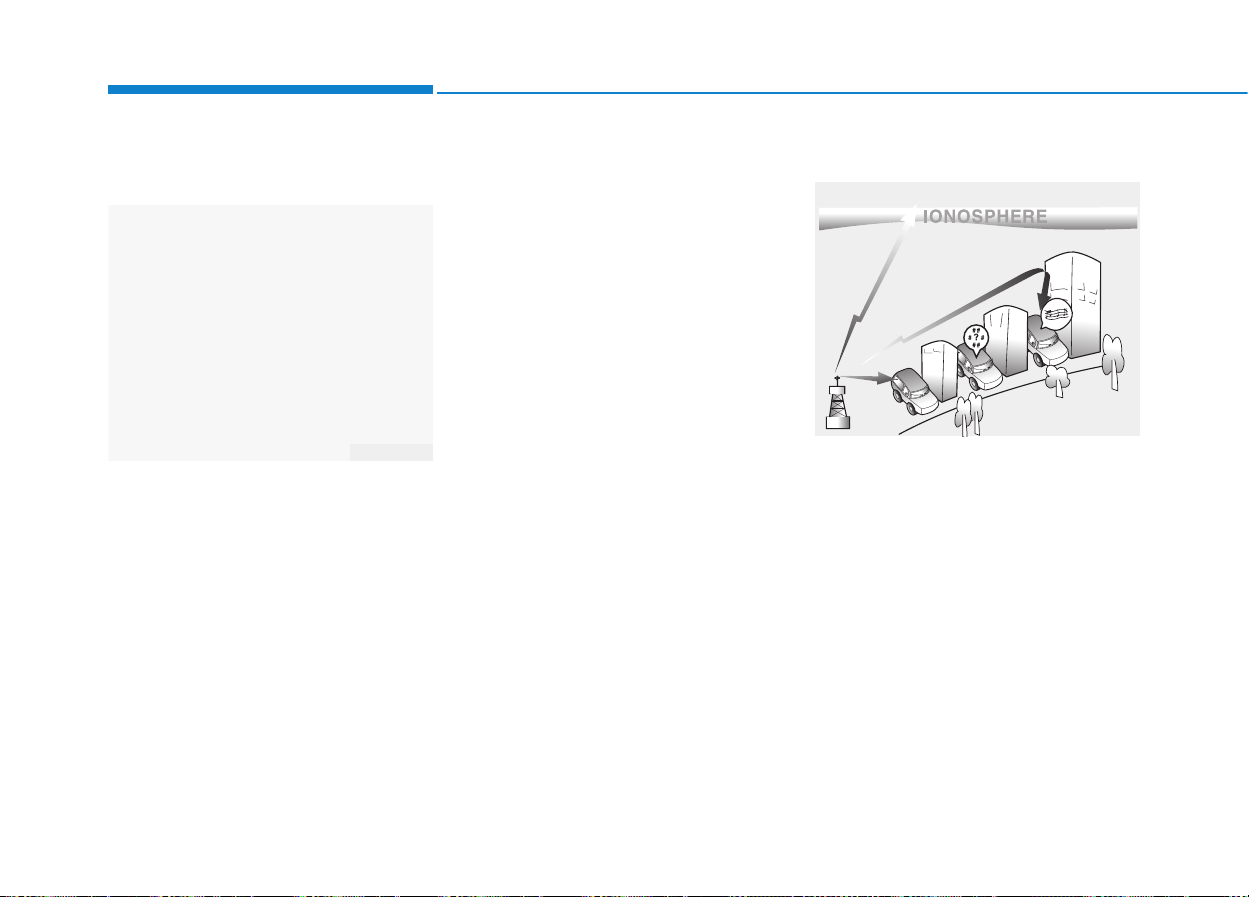
4-4
Multimedia System
Aux, USB and iPod
®
port
(if equipped)
If your vehicle has an aux and/or
USB(universal serial bus) port or
iPod port, you can use an aux port to
connect audio devices and the USB
port to plug in a USB device.
Both ports are used together with the
accessory iPod cable to connect an
iPod.
✽✽
NOTICE
When using a portable audio device
connected to the power outlet, noise
may occur during playback. If this
happens, use the power source of the
portable audio device.
❈ iPod
®
is a trademark of Apple Inc.
How vehicle audio works
AM and FM radio signals are broad-
cast from transmitter towers located
around your city. They are intercept-
ed by the radio antenna on your vehi-
cle.This signal is then processed by
the radio and sent to your vehicle
speakers.
When a strong radio signal has
reached your vehicle, the precise
engineering of your audio system
ensures the best possible quality
reproduction. However, in some
cases the signal coming to your vehi-
cle may not be strong and clear.
JBM001
FM reception
OLM049195
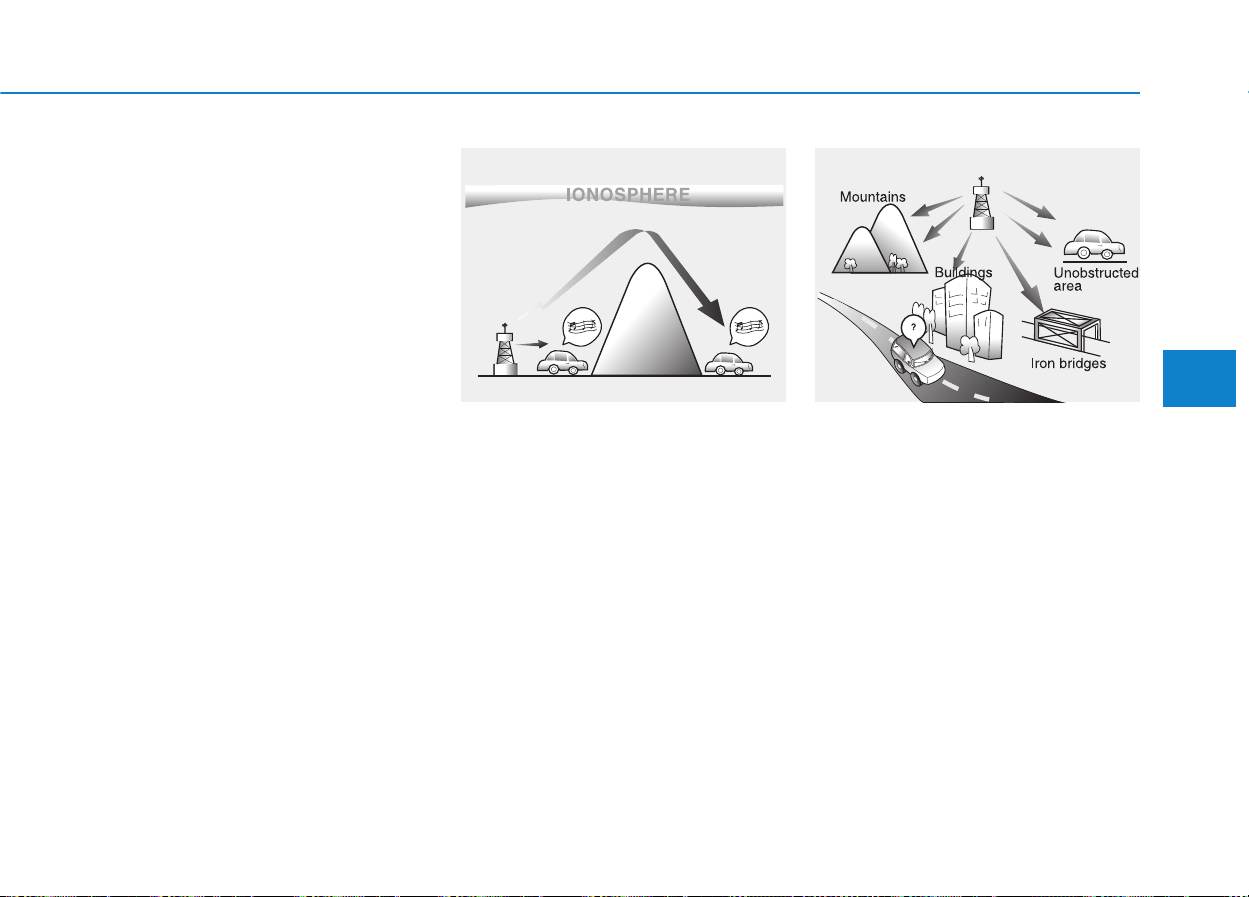
4-5
Multimedia System
4
This can be due to factors, such as
the distance from the radio station,
closeness of other strong radio sta-
tions or the presence of buildings,
bridges or other large obstructions in
the area.
AM broadcasts can be received at
greater distances than FM broad-
casts. This is because AM radio
waves are transmitted at low fre-
quencies. These long distance, low
frequency radio waves can follow the
curvature of the earth rather than
travelling straight. In addition, they
curve around obstructions resulting
in better signal coverage.
FM broadcasts are transmitted at
high frequencies and do not bend to
follow the earth's surface. Because
of this, FM broadcasts generally
begin to fade within short distances
from the station.Also, FM signals are
easily affected by buildings, moun-
tains, and obstructions.This can lead
to undesirable or unpleasant listen-
ing conditions which might lead you
to believe a problem exists with your
radio. The following conditions are
normal and do not indicate radio
trouble:
JBM003
FM radio station
JBM002
AM reception
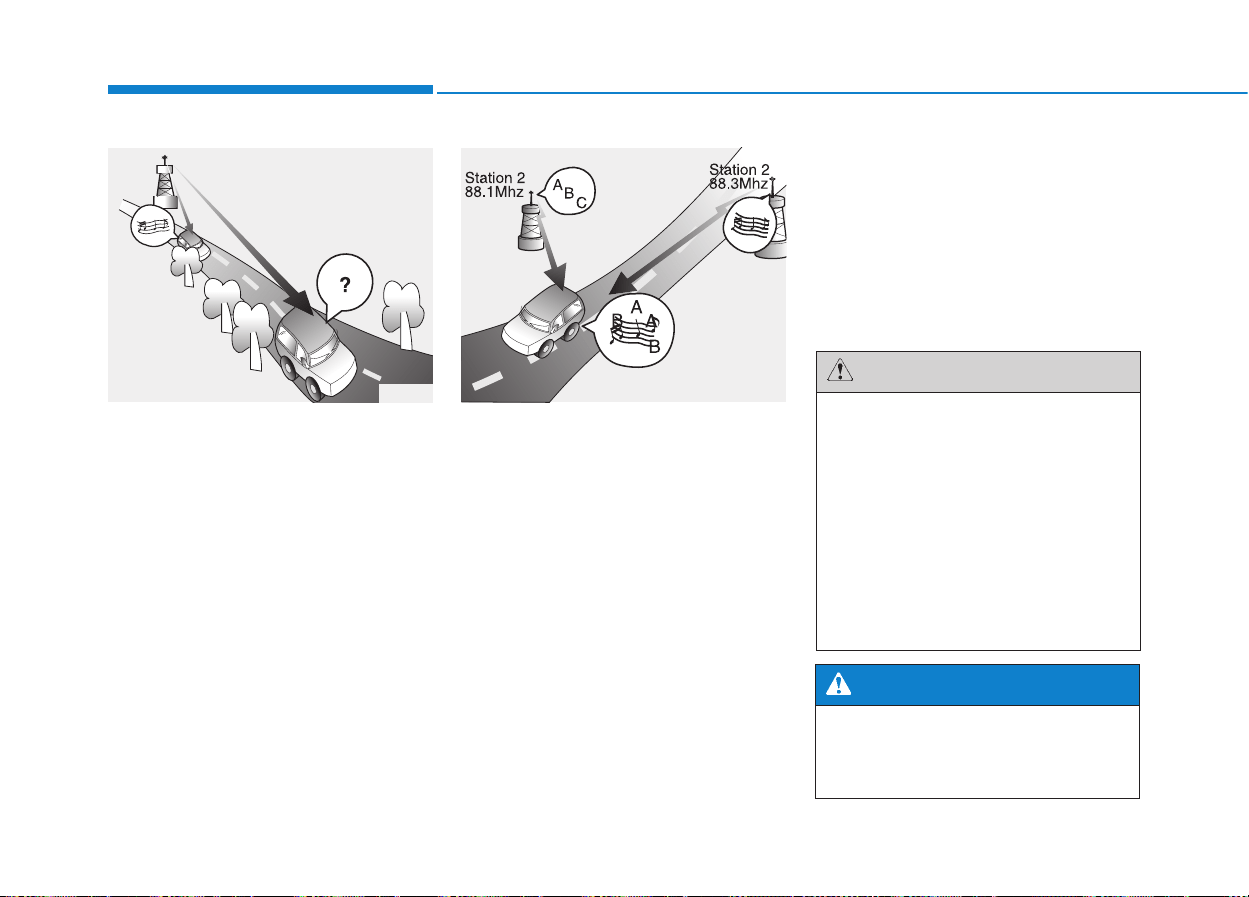
4-6
Multimedia System
• Fading - As your vehicle moves
away from the radio station, the
signal will weaken and sound will
begin to fade. When this occurs,
we suggest that you select another
stronger station.
• Flutter/Static - Weak FM signals or
large obstructions between the
transmitter and your radio can dis-
turb the signal causing static or
fluttering noises to occur.Reducing
the treble level may lessen this
effect until the disturbance clears.
• Station Swapping - As an FM sig-
nal weakens, another more power-
ful signal near the same frequency
may begin to play. This is because
your radio is designed to lock onto
the clearest signal. If this occurs,
select another station with a
stronger signal.
• Multi-Path Cancellation - Radio
signals being received from sever-
al directions can cause distortion
or fluttering.This can be caused by
a direct and reflected signal from
the same station, or by signals
from two stations with close fre-
quencies. If this occurs, select
another station until the condition
has passed.
Using a cellular phone or a two-
way radio
When a cellular phone is used inside
the vehicle, noise may be produced
from the audio system. This does not
mean that something is wrong with
the audio equipment. In such a case,
try to operate mobile devices as far
from the audio equipment as possible.
Do not use a cellular phone
while driving. Stop at a safe
location to use a cellular phone.
WARNING
When using a communication
system such as a cellular phone
or a radio set inside the vehicle,
a separate external antenna
must be fitted. When a cellular
phone or a radio set is used
with an internal antenna alone,
it may interfere with the vehi-
cle's electrical system and
adversely affect safe operation
of the vehicle.
CAUTION
JBM005JBM004
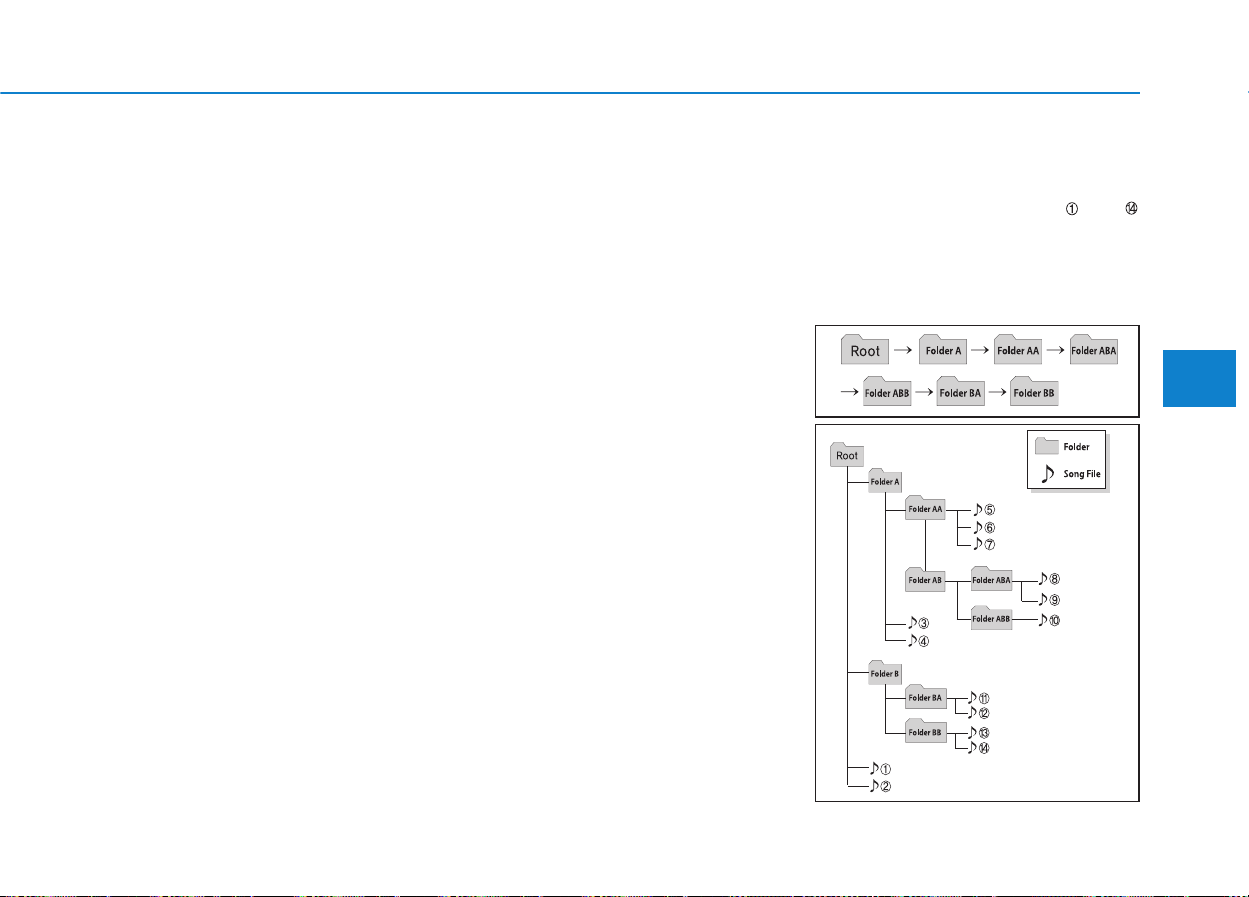
4-7
Multimedia System
4
Caring for disc
• If the temperature inside the car is too
high, open the car windows to venti-
late before using the system.
• It is illegal to copy and use
MP3/WMA files without permission.
Use CDs that are created only by
lawful means.
• Do not apply volatile agents, such
as benzene, or thinner, normal
cleaners, magnetic sprays made
for analogue disc onto CDs.
• To prevent the disc surface from
getting damaged, hold CDs by the
edges or the center hole only.
• Clean the disc surface with a piece
of soft cloth before playback (wipe
it from the center to the outside
edge).
• Do not damage the disc surface or
attach pieces of sticky tape or
paper.
• Make certain only CDs are insert-
ed into the CD player (Do not insert
more than one CD at a time).
• Keep CDs in their cases after use to
protect them from scratches or dirt.
• Depending on the type of CD-
R/CD-RW CDs, certain CDs may
not operate normally according to
the manufacturing companies. In
such circumstances, continued
use may cause malfunctions to
your audio system.
✽✽
NOTICE
-
Playing an Incompatible
Copy Protected Audio CD
Some copy protected CDs, which do
not comply with international audio
CD standards (Red Book), may not
play on your car audio. Please note
that inabilities to properly play a
copy protected CD may indicate
that the CD is defective, not the CD
player.
NOTE:
Order of playing files (folders) :
1. Song playing order : to
sequentially.
2.Folder playing order :
❋ If no song file is contained in the
folder,that folder is not displayed.
4-8
Multimedia System
(Continued)
• Please refrain from use if the
screen is blank or no sound
can be heard as these signs
may indicate product malfunc-
tion. Continued use in such
conditions could lead to acci-
dents(fires, electric shock) or
product malfunctions.
• Do not touch the antenna dur-
ing thunder or lightening as
such acts may lead to light-
ning induced electric shock.
• Do not stop or park in park-
ing-restricted areas to operate
the product. Such acts could
lead to traffic accidents.
• Use the system with the vehi-
cle ignition turned on.
Prolonged use with the igni-
tion turned off could result in
battery discharge.
• Do not stare at the screen
while driving. Staring at the
screen for prolonged periods
of time could lead to traffic
accidents.
• Do not disassemble, assem-
ble, or modify the audio sys-
tem. Such acts could result in
accidents, fire, or electric
shock.
• Using the phone while driving
may lead to a lack of attention of
traffic conditions and increase
the likelihood of accidents.
Use the phone feature after
parking the vehicle.
• Heed caution not to spill water
or introduce foreign objects
into the device. Such acts
could lead to smoke, fire, or
product malfunction.
(Continued)
WARNING
• Operating the device while
driving could lead to accidents
due to a lack of attention to
external surroundings. First
park the vehicle before operat-
ing the device.
• Adjust the volume to levels that
allow the driver to hear sounds
from outside of the vehicle.
Driving in a state where exter-
nal sounds cannot be heard
may lead to accidents.
• Pay attention to the volume
setting when turning the
device on. A sudden output of
extreme volume upon turning
the device on could lead to
hearing impairment. (Adjust
the volume to a suitable level
before turning off the device.)
(Continued)
CAUTION

4-9
Multimedia System
4
(Continued)
• Turn on the car ignition before
using this device. Do not oper-
ate the audio system for long
periods of time with the ignition
turned off as such operations
may lead to battery discharge.
• Do not subject the device to
severe shock or impact. Direct
pressure onto the front side of
the monitor may cause dam-
age to the LCD or touch
screen.
• When cleaning the device,
make sure to turn off the
device and use a dry and
smooth cloth. Never use tough
materials, chemical cloths, or
solvents (alcohol, benzene,
thinners, etc.) as such materi-
als may damage the device
panel or cause color/quality
deterioration.
(Continued)
(Continued)
• Do not place beverages close
to the audio system. Spilling
beverages may lead to system
malfunction.
• In case of product malfunction,
please contact your place of pur-
chase or After Service center.
• Placing the audio system with-
in an electromagnetic environ-
ment may result in noise inter-
ference.
• Prevent caustic solutions such
as perfume and cosmetic oil
from contacting the dashboard
because they may cause dam-
age or discoloration.
✽✽
NOTICE - USING THE
USB DEVICE
• To use an external USB device,
make sure the device is not con-
nected when starting up the
vehicle. Connect the device after
starting up.
• If you start the engine when the
USB device is connected, it may
damage the USB device. (USB
flashdrives are very sensitive to
electric shock.)
• If the engine is started up or
turned off while the external USB
device is connected, the external
USB device may not work.
• The System may not play unau-
thenticated MP3 or WMA files.
1) It can only play MP3 files with
the compression rate between
8Kbps~320Kbps.
2) It can only play WMA music
files with the compression rate
between 8Kbps~320Kbps.
• Take precautions for static elec-
tricity when connecting or dis-
connecting the external USB
device.
(Continued)

4-10
Multimedia System
(Continued)
• If you use devices such as a USB
hub purchased separately, the
vehicle’s audio system may not
recognize the USB device. In that
case, connect the USB device
directly to the multimedia termi-
nal of the vehicle.
• If the USB device is divided by
logical drives, only the music files
on the highest-priority drive are
recognized by car audio.
• Devices such as MP3 Player/
Cellular phone/Digital camera can
be unrecognizable by standard
USB I/F can be unrecognizable.
• Charging through the USB may
not be supported in some mobile
devices.
• USB HDD or USB types liable to
connection failures due to vehicle
vibrations are not supported.
(i-stick type)
• Some non-standard USB devices
(METAL COVER TYPE USB)
can be unrecognizable.
(Continued)
(Continued)
• An encrypted MP3 PLAYER is
not recognizable.
• Depending on the condition of
the external USB device, the
connected external USB device
can be unrecognizable.
• When the formatted byte/sector
setting of External USB device
is not either 512BYTE or
2048BYTE, then the device will
not be recognized.
• Use only a USB device format-
ted to FAT 12/16/32.
• USB devices without USB I/F
authentication may not be rec-
ognizable.
• Make sure the USB connection
terminal does not come in con-
tact with the human body or
other objects.
• If you repeatedly connect or dis-
connect the USB device in a
short period of time, it may
break the device.
• You may hear a strange noise
when connecting or disconnect-
ing a USB device.
(Continued)
(Continued)
• If you disconnect the external
USB device during playback in
USB mode, the external USB
device can be damaged or may
malfunction. Therefore, discon-
nect the external USB device
when the audio is turned off or
in another mode. (e.g, Radio,
CD)
• Depending on the type and
capacity of the external USB
device or the type of the files
stored in the device, there is a
difference in the time taken for
recognition of the device.
• Do not use the USB device for
purposes other than playing
music files.
• Playing videos through the USB
is not supported.
• Use of USB accessories such as
rechargers or heaters using USB
I/F may lower performance or
cause trouble.
(Continued)
4-11
Multimedia System
4
(Continued)
• Some USB flash memory readers
(such as CF, SD, micro SD, etc.) or
external-HDD type devices can be
unrecognizable.
• Music files protected by DRM
(DIGITAL RIGHTS MANAGE-
MENT) are not recognizable.
• The data in the USB memory may
be lost while using this audio.
Always back up important data
on a personal storage device.
• Please avoid using
USB memory products
which can be used as
key chains or cellular
phone accessories as
they could cause damage to the
USB jack. Please make certain
only to use plug type connector
products.
✽✽
NOTICE - USING THE
iPod
®
DEVICE
• Some iPod
®
models may not
support communication proto-
col and files may not properly
play.
Supported iPod
®
models:
- iPhone
®
3GS/4
- iPod
®
touch 1st~4th generation
- iPod
®
nano 1st~6th generation
- iPod
®
classic
• The order of search or playback
of songs in the iPod
®
can be dif-
ferent from the order searched
in the audio system.
• If the iPod
®
is disabled due to its
own malfunction, reset the
iPod
®
. (Reset: Refer to iPod
®
manual)
• An iPod
®
may not operate nor-
mally on low battery.
(Continued)
(Continued)
• Some iPod
®
devices, such as the
iPhone
®
, can be connected
through the Bluetooth
®
Wireless
Technology interface. The
device must have audio
Bluetooth
®
Wireless Technology
capability (such as for stereo
headphone Bluetooth
®
Wireless
Technology).
The device can play, but it will
not be controlled by the audio
system.
• To use iPod
®
features within the
audio, use the cable provided
upon purchasing an iPod
®
device.
• Skipping or improper operation
may occur depending on the
characteristics of your iPod
®
/
iPhone
®
device.
• If your iPhone
®
is connected to
both the Bluetooth
®
Wireless
Technology and USB, the sound
may not be properly played. In
your iPhone
®
, select the Dock
connector or Bluetooth
®
Wireless Technology to change
the sound output (source).
(Continued)
4-12
✽✽
NOTICE -
Bluetooth
®
Wireless Technology
• The Bluetooth
®
word mark and
logos are registered trademarks
owned by Bluetooth SIG, lnc. and
any use of such marks is under
license.
A Bluetooth
®
enabled call phone is
required to use Bluetooth
®
wire-
less technology.
• Bluetooth
®
Wirelss Technology
phone compatibility can be checked
by visiting www. hyundaiusa.com
and under the SERVICE & PARTS
- BLUETOOTH COMPATIBILI-
TY menu.
Multimedia System
(Continued)
• When connecting iPod
®
with the
iPod
®
Power Cable, insert the
connector to the multimedia
socket completely. If not insert-
ed completely, communications
between iPod
®
and audio may
be interrupted.
• When adjusting the sound
effects of the iPod
®
and the
audio system, the sound effects
of both devices will overlap and
might reduce or distort the
quality of the sound.
• Deactivate (turn off) the equal-
izer function of an iPod
®
when
adjusting the audio system’s
volume, and turn off the equal-
izer of the audio system when
using the equalizer of an iPod
®
.
• When not using iPod
®
with car
audio, detach the iPod
®
cable
from iPod
®
. Otherwise, iPod
®
may remain in accessory mode,
and may not work properly.
• Driving while distracted can
result in a loss of vehicle con-
trol that may lead to an acci-
dent, severe personal injury,
and death.The driver’s primary
responsibility is in the safe
and legal operation of a vehi-
cle, and use of any handheld
devices, other equipment, or
vehicle systems which take
the driver’s eyes, attention and
focus away from the safe oper-
ation of a vehicle or which are
not permissible by law should
never be used during opera-
tion of the vehicle.
WARNING

4-13
Multimedia System
4
✽✽
NOTICE - BEFORE USING
THE
Bluetooth
®
HANDSFREE
What is Bluetooth
®
?
• Bluetooth
®
refers to a short-dis-
tance wireless networking technol-
ogy which uses a 2.4GHz ~
2.48GHz frequency to connect
various devices within a certain
distance.
• Supported within PCs, external
devices, Bluetooth
®
phones, PDAs,
various electronic devices, and
automotive environments,
Bluetooth
®
allows data to be trans-
mitted at high speeds without hav-
ing to use a connector cable.
• Bluetooth
®
Handsfree refers to a
device which allows the user to
conveniently make phone calls
with Bluetooth
®
mobile phones
through the Audio System.
• Bluetooth
®
Handsfree may not be sup-
ported in some mobile phones. To
learn more about mobile device com-
patibility, visit www. hyundaiusa.com.
✽✽
NOTICE - PRECAUTIONS
FOR SAFE DRIVING
• Bluetooth
®
Handsfree is a feature
that enables drivers to practice
safe driving. Connecting the head
unit with a Bluetooth
®
phone
allows the user to conveniently
make and receive calls and use
contacts. Before using Bluetooth
®
,
carefully read the contents of this
user’s manual.
• Excessive use or operations while
driving may lead to negligent driv-
ing practices and result in acci-
dents. Refrain from excessive
operations while driving.
• Viewing the screen for prolonged
periods of time is dangerous and
may lead to accidents. When driv-
ing, view the screen only for short
periods of time.
✽✽
NOTICE -WHEN CON-
NECTING A
Bluetooth
®
PHONE
• Before connecting the head unit
with the mobile phone, check to
see that the mobile phone supports
Bluetooth
®
features.
• Even if the phone supports
Bluetooth
®
, the phone will not be
found during device searches if the
phone has been set to hidden state
or the Bluetooth
®
power is turned
off. Disable the hidden state or
turn on the Bluetooth
®
power
prior to searching/connecting with
the Head unit.
• Bluetooth phone is automatically
connected when the ignition on.
• If you do not want automatic con-
nection with your Bluetooth
®
device, turn off the Bluetooth
®
fea-
ture within your mobile phone.
• The Handsfree call volume and
quality may differ depending on
the mobile phone.
(Continued)

4-14
Multimedia System
(Continued)
• Park the vehicle when connecting
the head unit with the mobile
phone.
• Bluetooth
®
connection may
become intermittently disconnect-
ed in some mobile phones. Follow
these steps to try again.
1. Within the mobile phone, turn
the Bluetooth
®
function off/on
and try again.
2. Turn the mobile phone power
Off/On and try again.
3. Completely remove the mobile
phone battery, reboot, and then
again.
4. Reboot the Audio System and
try again.
5. Delete all paired devices, pair
and try again.
• Handsfree call quality and volume
may differ depending on the
model of your mobile phone.
✽✽
NOTICE - USING THE
Voice Recognition
• When using the voice recognition
feature, only commands listed
within the user's manual are sup-
ported.
• Be aware that during the opera-
tion of the voice recognition sys-
tem, pressing any key other than
the key terminate voice recog-
nition mode.
• For superior voice recognition
performance, position the micro-
phone used for voice recognition
above the head of the driver’s seat
and maintain a proper position
when saying commands.
• Within the following situations,
voice recognition may not function
properly due to external sound.
- When the windows and sunroof
are open
- When the wind of the cooling /
heating device is strong
- When entering and passing
through tunnels
(Continued)
(Continued)
- When driving on rugged and
uneven roads
- During severe rain (heavy rains,
windstorms)
• Phone related voice commands
can be used only when a
Bluetooth
®
Wireless Technology
device is connected.
• When making calls by stating a
name, the corresponding contact
must be downloaded and stored
within the audio system.
• After downloading the Bluetooth
®
Wireless Technology phone book,
it may take some time to convert
the phone book data into voice
information. During this time,
voice recognition may not proper-
ly operate.
• Pronounce the voice commands
naturally and clearly as if in a nor-
mal conversation.
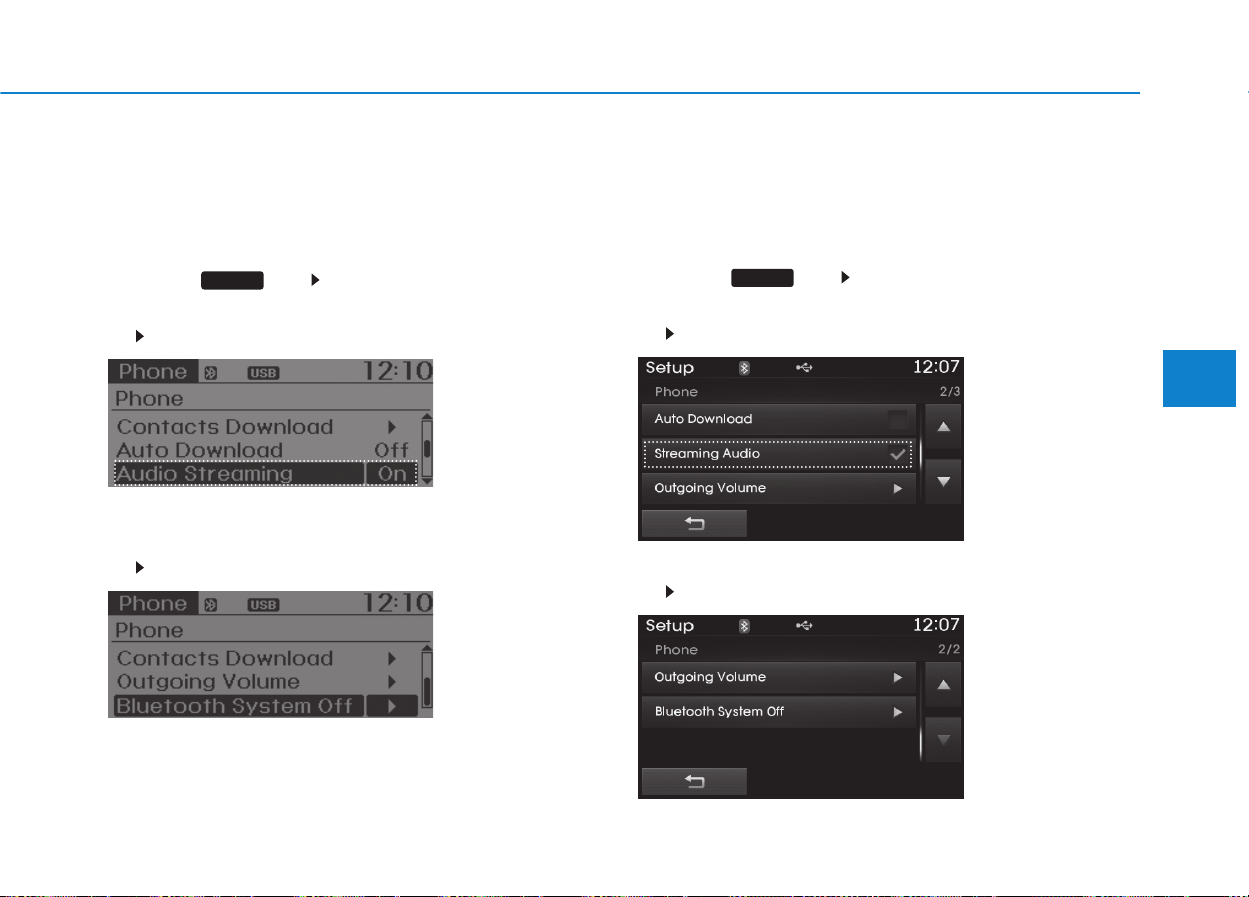
4-15
Multimedia System
4
■ DOT LCD type audio
Press the key Select [Phone]
1. If you CAN find “Audio Streaming” menu,
(Go to 4-16 page)
2. If you CANNOT find “Audio Streaming” menu,
(Go to 4-126 page)
■ Color LCD type audio
Press the key Select [Phone]
1. If you CAN find “Streaming Audio” menu,
(Go to 4-59 page)
2. If you CANNOT find “Streaming Audio” menu,
(Go to 4-169 page)
SETUP
SETUP
The Bluetooth and Voice Recognition Manual is provided in two versions due to software version differences.
Before reading the manual, check the following.
4-16
Multimedia System
■■
CD Player : AC110TMKN, AC1B0TMKN, AC1B1TMAN
❋ No logo will be shown if the XM Radio
TM
feature is not supported.
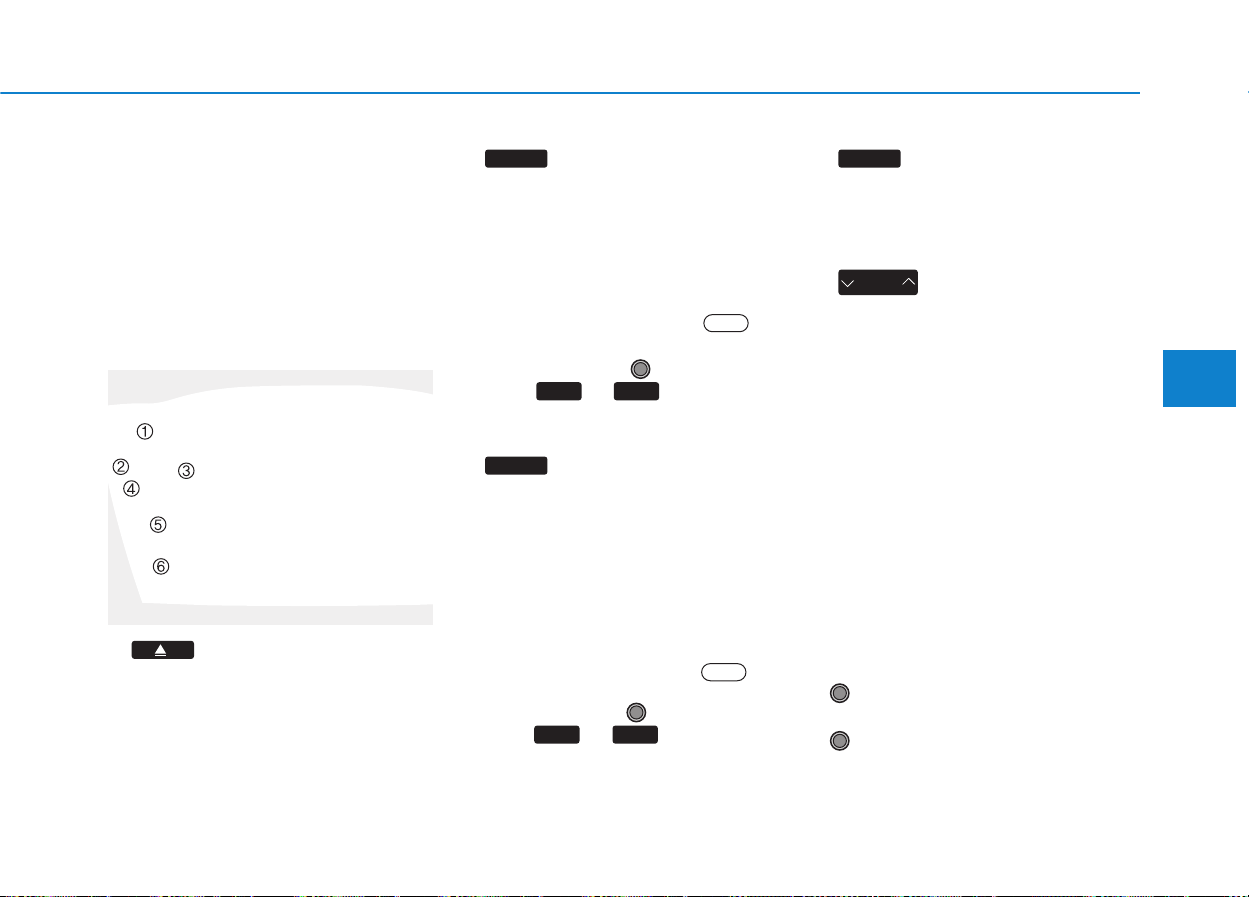
4-17
Multimedia System
4
SSYYSSTTEEMM CCOONNTTRROOLLLLEERRSS AANNDD
FFUUNNCCTTIIOONNSS
❈ Display and settings may differ
depending on the selected audio.
Audio Head Unit
(for XM RADIO
TM
equipped model)
1. (EJECT)
• Ejects the disc.
2.
• Changes to FM/AM/XM mode.
• Each time the key is pressed, the
mode is changed in order of FM1
➟
FM2 ➟ AM ➟ XM1 ➟ XM2 ➟ XM3.
❈ In Setup>Display, the radio pop up
screen will be displayed when
[Mode Pop up] is turned .
When the pop up screen is dis-
played, use the TUNE knob or
keys ~ to select the
desired mode.
3.
• Changes to CD, USB(iPod
®
), AUX,
My Music, BT Audio mode.
• Each time the key is pressed, the
mode is changed in order of CD,
USB(iPod
®
), AUX, My Music, BT
Audio.
❈ In Setup>Display, the media pop
up screen will be displayed when
[Mode Pop up] is turned .
When the pop up screen is dis-
played, use the TUNE knob or
keys ~ to select the
desired mode.
4.
• Operates Phone Screen
❈ When a phone is not connected,
the connection screen is displayed.
5.
• Radio Mode : Automatically search-
es for broadcast frequencies.
• CD, USB, iPod
®
, My Music modes
- Shortly press the key (under 0.8
seconds): Moves to next or previ-
ous song (file)
- Press and hold the key (over 0.8
seconds): Rewinds or fast-for-
wards the current song.
• BT Audio mode : Moves to next or
previous song(file)
❈
The Play/Pause feature may oper-
ate differently depending on the
mobile phone.
6. PWR/VOL knob
• Power : Turns power On/Off by
pressing the knob
• Volume :Sets volume by turning
the knob left/right
SEEK
TRACK
PHONE
51
On
MEDIA
61
On
RADIO
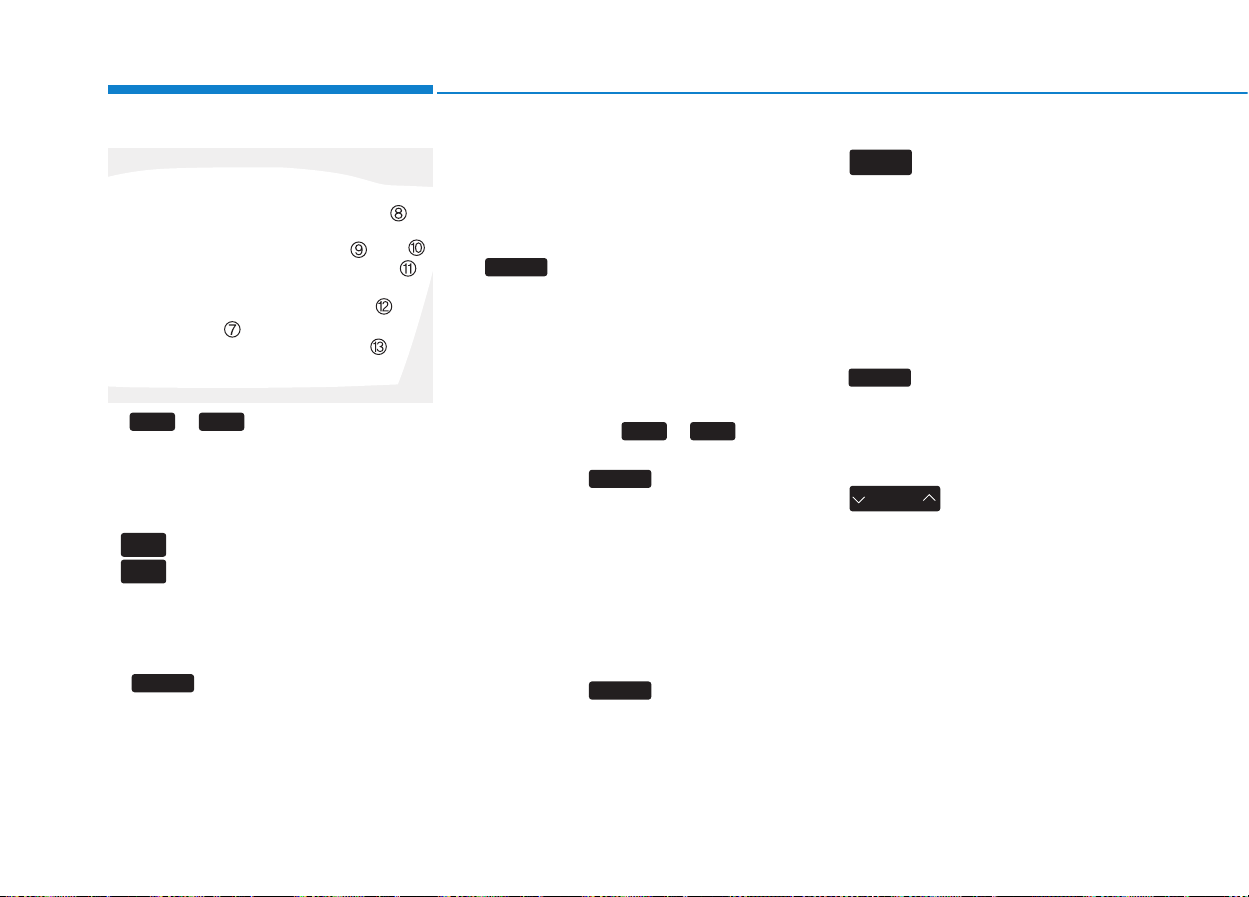
4-18
Multimedia System
7. ~ (Preset)
•Radio Mode: Saves frequencies
(channels) or receives saved fre-
quencies (channels)
• CD, USB, iPod
®
, My Music mode
- : Repeat
- : Random
• In the Radio, Media, Setup, and
Menu pop up screen, the number
menu is selected.
8.
• Each time the button is shortly
pressed (under 0.8 seconds), it
sets the screen Off
➟ Screen On ➟
Screen Off
❈ Audio operation is maintained and
only the screen will be turned Off.
In the screen Off state, press any
key to turn the screen On again.
9.
• Radio Mode
- Shortly press the key (under 0.8
seconds): Previews each broad-
cast for 5 seconds each.
- Press and hold the key (over 0.8
seconds): Previews the broadcasts
saved in Preset ~ for 5
seconds each.
❈ Press the key again to
continue listening to the current
frequency.
❈ XM Radio™ does not support the
Preset scan feature.
• CD, USB, My Music mode
- Shortly press the key (under 0.8
seconds): Previews each song
(file) for 10 seconds each.
❈ Press the key again to
continue listening to the current
song (file).
10.
• Shortly press the key (under 0.8
seconds) : Moves to the Display,
Sound, Clock, Phone, System set-
ting modes.
• Press and hold the key (over 0.8
seconds) : Move to the Time set-
ting screen.
11
.
• Displays menus for the current mode.
❈ iPod
®
List :Move to parent category
12.
• Radio Mode
- XM RADIO™ : Category Search
• MP3, CD, USB mode : Folder
Search
CAT
FOLDER
MENU
SETUP
CLOCK
SCAN
SCAN
61
SCAN
DISP
2
RDM
1
RPT
61
4-19
Multimedia System
4
13. TUNE knob
• Radio mode : Changes frequency
by turning the knob left/right.
• CD, USB, iPod
®
, My Music mode:
Searches songs (files) by turning
the knob left/right.
❈ When the desired song is dis-
played, press the knob to play the
song.
• Moves focus in all selection menus
and selects menus.
14. DISC-IN LED
• LED that indicates whether a disc is
inserted
15.
Changes to FM/AM mode.
• Each time the key is pressed, the
mode is changed in order of FM1
➟
FM2.
16.
• CD MP3, USB mode : Folder
Search
FOLDER
RADIO
4-20
Multimedia System
SSEETTUUPP
DDiissppllaayy SSeettttiinnggss
Press the key Select
[Display] through TUNE knob or
key Select menu through
Mode Pop up
[Mode Pop up] Changes /
selection mode
• During On state, press the
or key to display the mode
change pop up screen.
Text Scroll
[Text Scroll] Set /
• : Maintains scroll
• : Scrolls only one (1) time.
Media Display
When playing an MP3 file, select the
desired display info from ‘Folder/File’
or ‘Album/Artist/Song’.
SSoouunndd SSeettttiinnggss
Press the key Select [Sound]
through TUNE knob or key
Select menu through
2
RDM
SETUP
CLOCK
Off
On
OffOn
MEDIA
RADIO
OffOn
1
RPT
SETUP
CLOCK
TUNE knob
TUNE knob

4-21
Multimedia System
4
Sound Settings
This menu allows you to set the
‘Bass, Middle, Treble’ and the Sound
Fader and Balance.
Select [Sound Settings] Select menu
through TUNE knob Turn
TUNE knob left/right to set
• Bass, Middle, Treble : Selects the
sound tone.
• Fader, Balance : Moves the sound
fader and balance.
• Default : Restores default settings.
❈ Back : While adjusting values, re-
pressing the TUNE knob will
restore the parent menu.
Speed Dependent Volume
Control
This feature is used to automatically
control the volume level according to
the speed of the vehicle.
Select [Speed Dependent Vol.] Set
in 4 levels [Off/Low/Mid/High] of
TUNE knob
Voice Recognition Volume
Adjusts voice recognition volume.
Select [Voice Recognition Vol.] Set
volume of TUNE knob
4-22
Multimedia System
CClloocckk SSeettttiinnggss
Press the key Select [Clock]
through TUNE knob or key
Select menu through TUNE knob
Clock Settings
This menu is used to set the time.
Select [Clock Settings] Set through
TUNE
knob Press
TUNE
knob
❈ Adjust the number currently in
focus to set the [hour] and press
the tune knob to set the [minute].
Calendar Settings
This menu is used to set the date.
Select [Calendar Settings]] Set
through TUNE knob Press
TUNE knob
❈ Adjust the number currently in
focus to make the settings and
press the tune knob to move to the
next setting. (Set in order of
Year/Month/Day)
Time Format
This function is used to set the 12/24
hour time format of the audio system.
Select [Time Format] Set 12Hr /
24Hr through
TUNE
knob
Clock Display when Power is
OFF
Select [Clock Disp.(Pwr Off)] Set
/
through TUNE knob
• :Displays time/date on screen
• :Turn off.
Off
On
OffOn
3
SETUP
CLOCK

4-23
Multimedia System
4
SSYYSSTTEEMM SSEETTTTIINNGGSS
Press the key Select
[System] through tune knob or
key Select menu through TUNE
knob
Memory Information
Displays currently used memory and
total system memory.
Select [Memory Information] OK
The currently used memory is dis-
played on the left side while the total
system memory is displayed on the
right side.
Prompt Feedback
This feature is used to change voice
command feedback between Normal
and Expert modes.
Select [Prompt Feedback] Set
through TUNE knob
• On : This mode is for beginner
users and provides detailed
instructions during voice command
operation.
• Off : This mode is for expert users
and omits some information during
voice command operation. (When
using Expert mode, guidance
instructions can be heard through
the [Help] or [Menu] commands.
Language
This menu is used to set the display
and voice recognition language.
Select [Language] Set through
TUNE knob
❈ The system will reboot after the
language is changed.
❈ Language support by region
- English, Francais, Espanol
5
SETUP
CLOCK
4-24
Multimedia System
RRAADDIIOO :: FFMM,, AAMM OORR XXMM
SEEK
Press the key
• Shortly pressing the key (under 0.8
seconds): Changes the frequency.
• Pressing and holding the key (over
0.8 seconds): Automatically search-
es for the next frequency.
Preset SEEK
Press the ~ key
• Shortly pressing the key (under 0.8
seconds): Plays the frequency
saved in the corresponding key.
• Pressing and holding the key (over
0.8 seconds): Pressing and holding
the desired key from ~
will save the currently playing
broadcast to the selected key and
sound a BEEP.
SCAN
Press the key
• Shortly pressing the key (under 0.8
seconds):The broadcast frequency
increases and previews each
broadcast for 5 seconds each.After
scanning all frequencies, returns
and plays the current broadcast fre-
quency.
• Pressing and holding the key (over
0.8 seconds): Previews the broad-
casts saved in Preset ~
for 5 seconds each.
Selecting through manual
search
Turn the TUNE knob left/right to
adjust the frequency.
• FM : Changes by 200KHz
• AM : Changes by 10MHz
MENU
Within key are the A.Store
(Auto Store) and Info functions.
A.Store
Press the key Set [A.Store]
through TUNE knob or key.
Saves broadcasts with superior
reception to ~ keys. If no
frequencies are received, then the
most recently received frequency will
be broadcast.
61
1
MENU
MENU
61
SCAN
61
61
SEEK
TRACK
4-25
Multimedia System
4
XXMM RRAADDIIOO
Using XM satellite™ Radio
Your vehicle is equipped with a 3
month complimentary period of XM
Satellite™ Radio. XM provides
access to over 130 channels of
music, information, and entertain-
ment programming.
SEEK
Press the key
• Shortly pressing the key: select
previous or next channel.
• Pressing and holding the key (over
0.8 seconds): continuously move to
previous or next channel.
❈ If the “Category” icon is displayed,
channels are changed within the
current category.
SCAN
Press the key
• Shortly pressing the key: Previews
each broadcast for 5 seconds
each
❈ Press the key again to
continue listening to the current
frequency
❈ If the “Category” icon is displayed,
channels are changed within the
current category.
Category
Press the / key
Set through the
TUNE
knob
• The display will indicate the catego-
ry menus, highlight the category
that the current channel belongs to.
• In the Category List Mode, press
the
/
key to
navigate category list.
• Press the tune knob to select the
lowest channel in the highlighted
category.
❈ If channel is selected by selecting
category, then the “CATEGORY”
icon is displayed at the top of the
screen.
FOLDER
CAT
FOLDER
FOLDER
CAT
FOLDER
SCAN
SCAN
SEEK
TRACK
4-26
Multimedia System
Preset
Press the ~ key
• Shortly pressing the key: Plays the
frequency saved in the correspon-
ding key.
• Pressing and holding the key (over
0.8 seconds): Pressing and holding
the desired key from ~
will save the current broadcast to
the selected key and sound a
BEEP.
Tune
• Rotate TUNE knob :Changes the
channel number or scrolls category
list.
• Press TUNE knob : Selects the
menu.
Menu
Select category menu through the
TUNE knob Press the key
Select [ Info] through the TUNE
knob or key
Info (Information)
Displays the Artist/Song info of the
current song.
1
RPT
MENU
61
61

4-27
Multimedia System
4
BBAASSIICC MMEETTHHOODD OOFF UUSSEE ::
AAuuddiioo CCDD // MMPP33 CCDD // UUSSBB //
iiPPoodd
®®
// MMyy MMuussiicc
Press the key to change the
mod mode in order of CD ➟ USB(iPod
®
)
➟ AUX ➟ My Music ➟ BT Audio.
The folder/file name is displayed on
the screen.
<Audio CD>
<CD MP3>
<USB>
<My Music>
❈ The CD is automatically played
when a CD is inserted.
❈ The USB music is automatically
played when a USB is connected.
Repeat
While song (file) is playing
(RPT) key
Audio CD, MP3 CD, USB, iPod
®
, My
Music mode: RPT on screen
• To repeat one song (Press the key):
Repeats the current song.
MP3 CD, USB mode: FLD.RPT on
screen
• To repeat folder (pressing twice):
repeats all files within the current
folder.
❈ Press the key again to turn
off repeat.
Random
While song (file) is playing
(RDM) key
Audio CD, My Music mode: RDM on
screen
• Random (Press the key): Plays all
songs in random order.
2
RDM
1
RPT
1
RPT
MEDIA
4-28
Multimedia System
MP3 CD, USB mode: FLD.RDM on
screen
• Folder Random (Press the key) :
Plays all files within the current fold-
er in random order.
iPod
®
mode: ALB RDM on screen
• Album Random (Press the key) :
Plays all files within albums of the
current category in random order.
MP3 CD, USB, iPod mode: ALL RDM
on screen
• All Random (pressing twice): Plays
all files in random order.
❈ Press the key again to turn
off repeat.
Changing Song/File
While song (file) is playing
key
• Shortly pressing the key : Plays the
current song from the beginning.
❈ If the key is pressed
again within 3 second, the previ-
ous song is played.
• Pressing and holding the key (over
0.8 seconds): Rewinds the song.
While song (file) is playing
key
• Shortly pressing the key : Plays the
next song.
• Pressing and holding the key (over
0.8 seconds): Fast forwards the
song.
Scan
While song (file) is playing
key
• Shortly pressing the key : Scans all
songs from the next song for 10
seconds each.
❈ Press the key again to turn
off.
❈ The SCAN function is not support-
ed in iPod
®
mode.
Folder Search : MP3 CD, USB
Mode
While file is playing
/
(Folder Up) key
• Searches the next folder.
While file is playing
/
(Folder Down) key
• Searches the parent folder.
❈ If a folder is selected by pressing
the TUNE knob, the first file
within the selected folder will be
played.
❈ In iPod
®
mode, moves to the
Parent Folder.
Searching Songs (File)
• Turning
TUNE
knob : Searches
for songs (files)
• Pressing TUNE knob : Plays
selected song (file).
FOLDER
CAT
FOLDER
FOLDER
CAT
FOLDER
SCAN
SCAN
SEEK
TRACK
SEEK
TRACK
SEEK
TRACK
2
RDM

4-29
Multimedia System
4
MENU : Audio CD
Press the CD MP3 mode key
to set the Repeat, Random,
Information features.
Repeat
Press the key Set [ RPT]
through the TUNE knob or
key to repeat the current song.
❈ Press RPT again to turn off.
Random
Press the key Set [ RDM]
through the
TUNE
knob or
key to randomly play songs within
the current folder.
❈ Press RDM again to turn off.
Information
Press the key Set [ Info]
through the
TUNE
knob or
key to display information of the cur-
rent song.
❈ Press the key to turn off
info display
.
MENU : MP3 CD / USB
Press the CD MP3 mode key
to set the Repeat, Folder Random,
Folder Repeat, All Random,
Information, and Copy features.
Repeat
Press the key Set [ RPT]
through the
TUNE
knob or
key to repeat the current song.
❈ Press RPT again to turn off.
1
RPT
MENU
MENU
MENU
3
MENU
2
RDM
MENU
1
RPT
MENU
MENU
4-30
Multimedia System
Folder Random
Press the key Set [ F.RDM]
through the
TUNE
knob or
key to randomly play songs within the
current folder.
❈ Press F.RDM again to turn off.
Folder Repeat
Press the key Set [ F.RPT]
through the
TUNE
knob or
key to repeat songs within the cur-
rent folder.
❈ Press F.RPT again to turn off.
All Random
Press the key Set [ A.RDM]
through the
TUNE
knob or key
to randomly play all songs within the
CD.
❈ Press A.RDM again to turn off.
Information
Press the key Set [ Info]
through the
TUNE
knob or
key to display information of the cur-
rent song.
❈ Press the key to turn off
info display.
Copy
Press the key Set [ Copy]
through the TUNE knob or
key.
• This is used to copy the current
song into My Music. You can play
the copied Music in My Music
mode.
❈ If another key is pressed while
copying is in progress, a pop up
asking you whether to cancel
copying is displayed.
❈ If another media is connected or
inserted (USB, CD, iPod
®
, AUX)
while copying is in progress, copy-
ing is canceled.
❈ Music will not be played while
copying is in progress.
MENU : iPod
®
In iPod
®
mode, press the key
to set the Repeat, Album Random, All
Random, Information and Search fea-
tures.
Repeat
Press the key Set [ RPT]
through the
TUNE
knob or
key to repeat the current song.
❈ Press RPT again to turn repeat off.
Album Random
Press the key Set [ Alb.RDM]
through the TUNE knob or key.
Plays albums within the currently
playing category in random order.
❈ Press Alb.RDM again to turn off.
2
RDM
MENU
1
RPT
MENU
MENU
6
MENU
MENU
5
MENU
4
MENU
3
MENU
2
RDM
MENU
4-31
Multimedia System
4
All Random
Press the key Set [
A.RDM] through the TUNE knob
or key.
Plays all songs within the currently
playing category in random order.
❈ Press A.RDM again to turn off.
Information
Press the key Set [ Info]
through the
TUNE
knob or
key.
Displays information of the current
song.
❈ Press the key to turn off
info display.
Search
Press the key Set [ Search]
through the
TUNE
knob or
key.
Displays iPod
®
category list.
❈ Searching iPod
®
category is
key pressed, move to par-
ent category.
MENU
5
MENU
MENU
4
MENU
3
MENU
4-32
Multimedia System
MENU : My Music Mode
In My Music mode, press the
key to set the Repeat, Random,
Information, Delete, Delete All, and
Delete Selection features.
Repeat
Press the key Set [ RPT]
through the TUNE knob or
key.
Repeats the currently playing song.
❈ Press RPT again to turn repeat
off.
Random
Press the key Set [ RDM]
through the TUNE knob or
key.
Plays all songs in random order.
❈ Press RDM again to turn random off.
Information
Press the key Set [ Info]
through the
TUNE
knob or key.
Displays information of the current
song.
❈ Press the key to turn off
info display.
Delete
Press the key Set [ Delete]
through the TUNE knob or
key.
• Deletes currently playing file
In the play screen, pressing delete
will delete the currently playing song.
• Deletes file from list
➀ Select the file you wish to delete
by using the TUNE knob.
➁ Press the key and select
the delete menu to delete the
selected file.
Delete All
Press the key Set [ Del.All]
through the TUNE knob or key.
Deletes all songs of My Music.
5
MENU
MENU
4
MENU
MENU
3
MENU
2
RDM
MENU
1
RPT
MENU
MENU
4-33
Multimedia System
4
Delete Selection
Press the key Set [ Del.Sel]
through the TUNE knob or
key.
Songs within My Music are selected
and deleted.
➀ Select the songs you wish to
delete from the list.
➁ After selecting, press the key and
select the delete menu.
✽✽
NOTICE - USING THE My
Music
• Even if memory is available, a
maximum of 6,000 songs can be
stored.
• The same song can be copied up to
1,000 times.
• Memory info can be checked in
the System menu of Setup.
AUX
AUX is used to play external MEDIA
currently connected with the AUX
terminal.
AUX mode will automatically start
when an external device is connect-
ed with the AUX terminal.
If an external device is connected,
you can also press the key to
change to AUX mode.
❈ AUX mode cannot be started
unless there is an external device
connected to the AUX terminal.
✽✽
NOTICE - USING THE AUX
• Fully insert the AUX cable into the
AUX terminal for use.
MEDIA
6
MENU
4-34
Multimedia System
Bluetooth
®
Wireless Technology
AUDIO
What is
Bluetooth
®
Wireless
Technology
?
Bluetooth
®
Wireless Technology allows
devices to be connected in a short dis-
tance, including hands-free devices,
stereo headsets, wireless remote con-
trollers, etc. For more information, visit
the
Bluetooth
®
Wireless Technology
website at
www.Bluetooth.com
Before using
Bluetooth
®
Wireless
Technology audio features
•
Bluetooth
®
Wireless Technology
audio may not be supported
depending on the compatibility of
your
Bluetooth
®
Wireless Technology
mobile phone.
• In order to use
Bluetooth
®
Wireless
Technology audio, you must first
pair and connect the
Bluetooth
®
Wireless Technology mobile phone.
• The
Bluetooth
®
word mark and
logos are registered trademarks
owned by
Bluetooth
®
SIG, Inc. and
any use of such marks is under
license.Other trademarks and trade
names are those of their respective
owners. A
Bluetooth
®
enabled cell
phone is required to use
Bluetooth
®
Wireless Technology.
•
Bluetooth
®
Wireless Technology
audio can be used only when the
[Audio Streaming] of Phone is
turned .
❈ Setting
Bluetooth
®
Wireless
Technology
Audio Streaming :Press
the key Select [Phone]
through the tune knob or key
Select [Audio Streaming] through
the TUNE knob Set
/
Off
On
4
SETUP
On
• Driving while distracted can
result in a loss of vehicle con-
trol that may lead to an acci-
dent, severe personal injury,
and death.The driver’s primary
responsibility is in the safe
and legal operation of a vehi-
cle, and use of any handheld
devices, other equipment, or
vehicle systems which take
the driver’s eyes, attention and
focus away from the safe oper-
ation of a vehicle or which are
not permissible by law should
never be used during opera-
tion of the vehicle.
WARNING
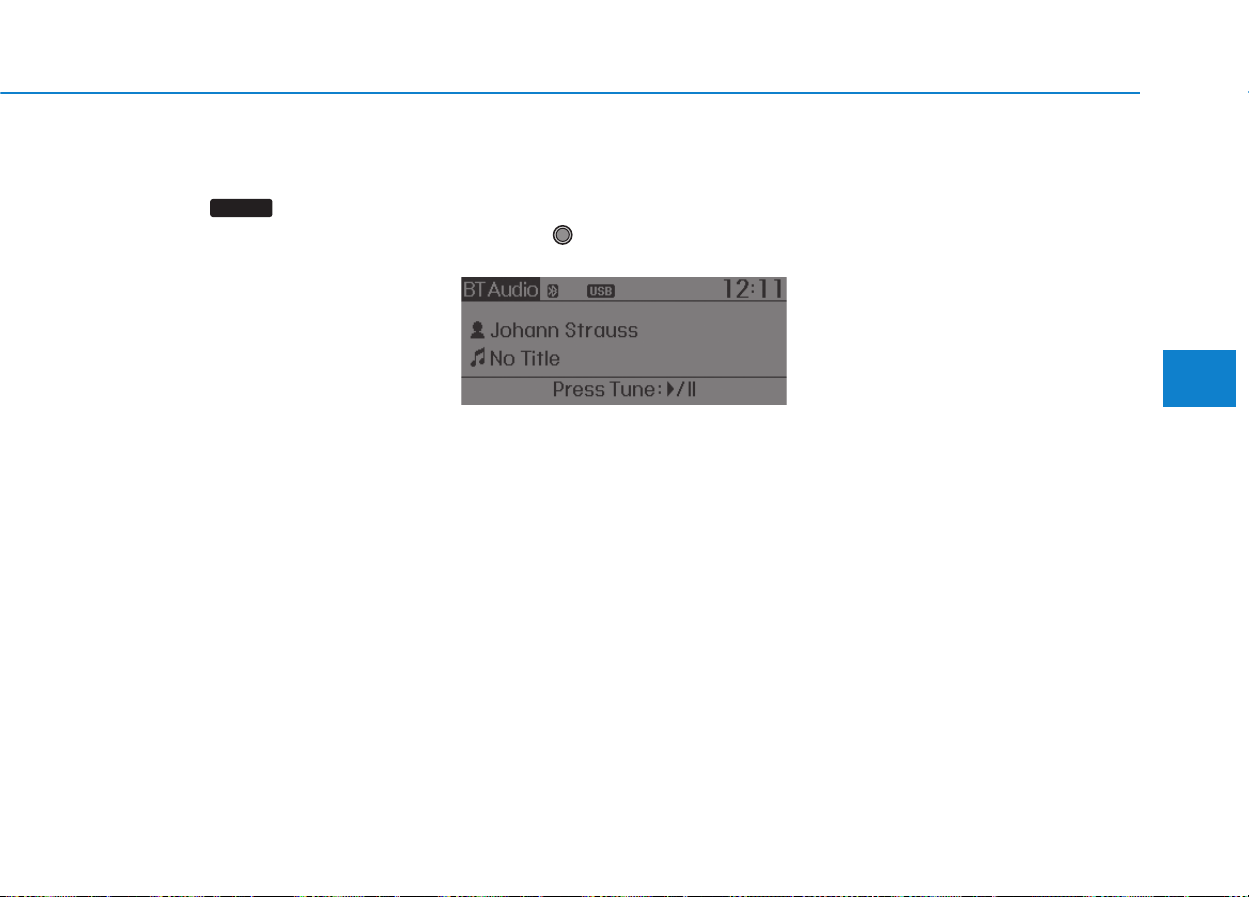
4-35
Multimedia System
4
Starting
Bluetooth
®
Wireless
Technology Audio
• Press the key to change the
mode in order of CD ➟ USB ➟ AUX
➟ My Music ➟ BT Audio.
• If BT Audio is selected,
Bluetooth
®
Wireless Technology audio will start
playing.
❈ Audio may not automatically start
playing in some mobile phones.
Using the
Bluetooth
®
Wireless
Technology audio features
• Play / Stop
Press the TUNE knob to play and
pause the current song.
❈ The play / pause functions may
not be supported in some mobile
phones.
MEDIA
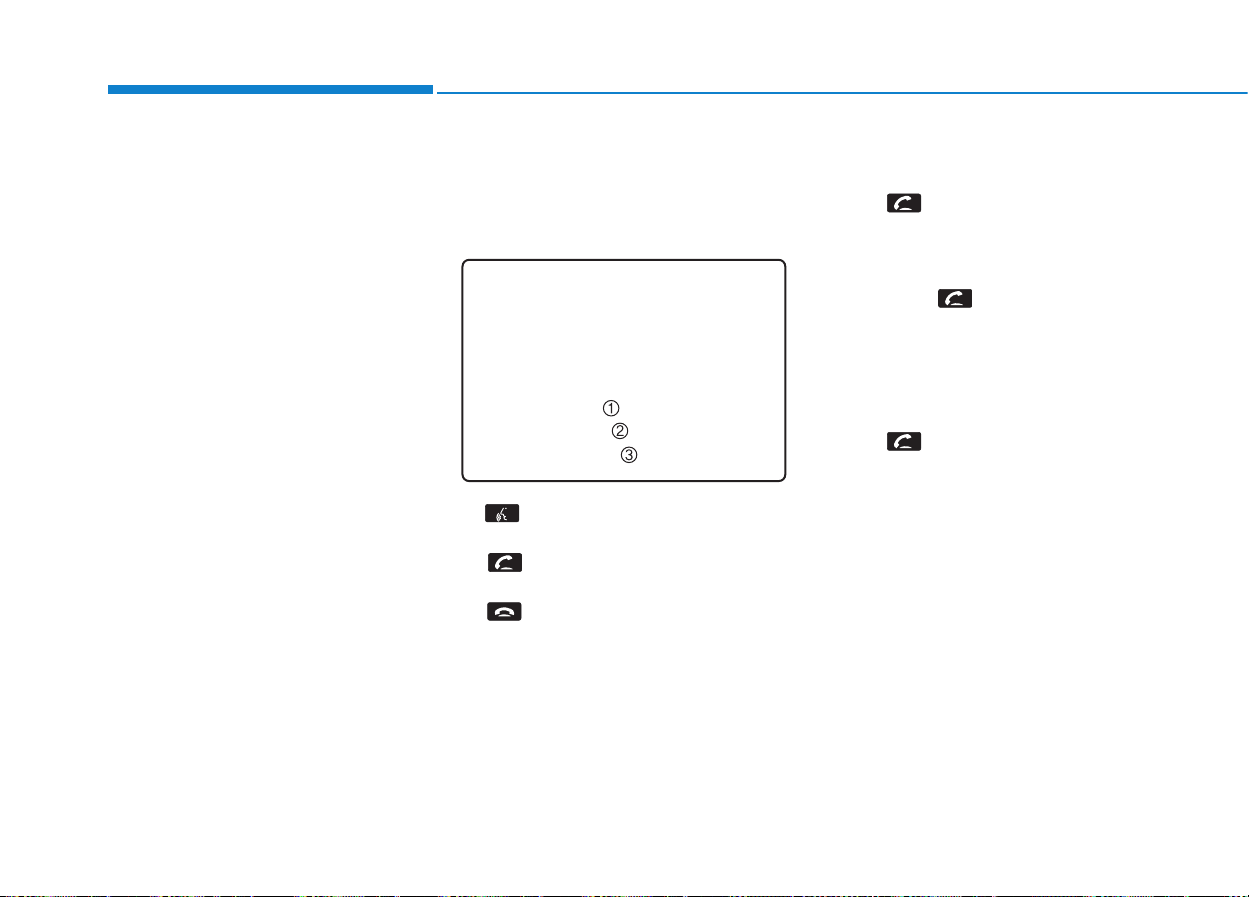
4-36
Multimedia System
PPHHOONNEE
Before using the
Bluetooth
®
Wireless
Technology phone features
• In order to use
Bluetooth
®
Wireless
Technology phone, you must first
pair and connect the
Bluetooth
®
Wireless Technology mobile phone.
• If the mobile phone is not paired or
connected, it is not possible to enter
Phone mode. Once a phone is
paired or connected, the guidance
screen will be displayed.
• If Priority is set upon vehicle ignition
(IGN/ACC ON), the
Bluetooth
®
Wireless Technology phone will be
automatically connected.Even if you
are outside, the
Bluetooth
®
Wireless
Technology phone will be automati-
cally connected once you are in the
vicinity of the vehicle. If you do not
want automatic
Bluetooth
®
Wireless
Technology phone connection, set
the
Bluetooth
®
Wireless Technology
power to OFF.
PPHHOONNEE
Making a call using the Steering
wheel remote controller
1) button : Activates voice recog-
nition.
2) button : Places and transfers
calls.
3) button : Ends calls or cancels
functions.
• Check call history and making call
➀ Shortly press (under 0.8 seconds)
the key on the steering
remote controller .
➁ The call history list will be dis-
played on the screen.
➂ Press the key again to con-
nect a call to the selected number.
• Redialing the most recently called
number
➀ Press and hold (over 0.8 seconds)
the key on the steering
remote controller.
➁ The most recently called number
is redialed.
❈ If call history does not exist, a
screen asking whether to down-
load call history is displayed. (The
download feature may not be sup-
ported in some mobile phones)

4-37
Multimedia System
4
Pairing a
Bluetooth
®
Wireless
Technology Device
What is Bluetooth
®
Wireless
Technology Pairing?
Pairing refers to the process of syn-
chronizing your
Bluetooth
®
Wireless
Technology phone or device with the
car audio system for connection.
Pairing is necessary to connect and
use the
Bluetooth
®
Wireless
Technology feature.
• Driving while distracted can
result in a loss of vehicle con-
trol that may lead to an acci-
dent, severe personal injury,
and death.The driver’s primary
responsibility is in the safe
and legal operation of a vehi-
cle, and use of any handheld
devices, other equipment, or
vehicle systems which take
the driver’s eyes, attention and
focus away from the safe oper-
ation of a vehicle or which are
not permissible by law should
never be used during opera-
tion of the vehicle.
WARNING
4-38
Multimedia System
Pairing Key / Key
on the Steering Remote
Controller
When No Devices have been
Paired
1. Press the key or the
key on the steering remote con-
troller. The following screen is dis-
played.
2. Select [OK] button to enter the
Pair Phone screen.
1) Car Name : Name of device as
shown when searching from your
Bluetooth
®
Wireless Technology
device
2) Passkey : Passkey used to pair
the device
3. From your
Bluetooth
®
Wireless
Technology device (i.e. Mobile
Phone), search and select your
car audio system.
[Non SSP supported device]
(SSP: Secure Simple Pairing)
4. After a few moments, a screen is
displayed where the passkey is
entered.
Hear, enter the passkey “0000” to
pair your
Bluetooth
®
Wireless
Technology device with the car
audio system.
[SSP supported device]
4. After a few moments, a screen is
displayed 6 digits passkey.
Hear, check the passkey on your
Bluetooth
®
Wireless Technology
device and confirm.
5. Once pairing is complete, the fol-
lowing screen is displayed.
PHONE
PHONE
4-39
Multimedia System
4
✽✽
NOTICE
If Bluetooth
®
Wireless Technology
devices are paired but none are cur-
rently connected, pressing the
key or the key on the
steering wheel displays the following
screen. Select [Pair] button to pair a
new device or select [Connect] to
connect a previously paired device.
Pairing through [PHONE]
Setup
Press the key Select
[Phone] Select [Pair Phone]
Select TUNE knob
1.The following steps are the same
as those described in the section
"When No Devices have been
Paired" on the previous page.
✽✽
NOTICE
• Bluetooth
®
Wireless Technology fea-
tures supported within the vehicle
are as follows. Some features may
not be supported depending on your
Bluetooth
®
Wireless Technology
device.
- Outgoing/Incoming Handsfree
calls
- Operations during a call (Switch to
Private, Switch to call waiting,
MIC on/off)
- Downloading Call History
- Downloading Mobile Contacts
- Bluetooth
®
Wireless Technology
device auto connection
- Bluetooth Audio Streaming
• Up to five Bluetooth
®
Wireless
Technology devices can be paired
to the Car Handsfree system.
• Only one Bluetooth
®
Wireless
Technology device can be connect-
ed at a time.
• Other devices cannot be paired
while a Bluetooth
®
Wireless
Technology device is connected.
• Only Bluetooth
®
Wireless Technology
Handsfree and Bluetooth audio relat-
ed features are supported.
(Continued)
SETUP
CLOCK
PHONE

4-40
Multimedia System
(Continued)
• Bluetooth related operations are
possible only within devices that
support Handsfree or audio fea-
tures, such as a Bluetooth
®
Wireless Technology mobile phone
or a Bluetooth audio device.
• If a connected Bluetooth
®
Wireless
Technology device becomes discon-
nected due to being out of commu-
nication range, turning the device
OFF, or a Bluetooth
®
Wireless
Technology communication error,
corresponding Bluetooth
®
Wireless
Technology devices are automati-
cally searched and reconnected.
• If the system becomes unstable due
to communication errors between
the car Handsfree and the
Bluetooth
®
Wireless Technology
device, reset the device by turning
off and back on again. Upon reset-
ting Bluetooth
®
Wireless Technology
device, the system will be restored.
(Continued)
(Continued)
• After pairing is complete, a con-
tacts download request is sent once
to the mobile phone. Some mobile
phones may require confirmation
upon receiving a download
request, ensure your mobile phone
accepts the connection. Refer to
your phones user’s manual for
additional information regarding
phone pairing and connections.

4-41
Multimedia System
4
Connecting a Device
Press the key Select
[Phone] Select [Paired Phone List]
1) Connected Phone : Device that is
currently connected
2) Paired Phone : Device that is
paired but not connected
From the paired phone list, select the
device you want to connect and
select [Connect].
Changing Priority
What is Priority?
It is possible to pair up to five
Bluetooth
®
Wireless Technology
devices with the car audio system.
The "Change Priority" feature is used
to set the connection priority of
paired phones.
Press the key Select
[Phone] Select [Paired Phone List]
SETUP
CLOCK
SETUP
CLOCK

4-42
Multimedia System
From the paired phone list, select
the phone you want to switch to the
highest priority, then select [Change
Priority] button from the Menu. The
selected device will be changed to
the highest priority.
✽✽
NOTICE
Priority icon will be displayed when
the selected phone is set as a priority
phone.

4-43
Multimedia System
4
Disconnecting a Device
Press the key Select
[Phone] Select [Paired Phone List]
From the paired phone list, select the
currently connected device and
select [Disconnect] button.
Deleting a Device
Press the key Select
[Phone] Select [Paired Phone List]
From the paired phone list, select the
device you want to delete and select
[Delete] button.
✽✽
NOTICE
• When deleting the currently con-
nected device, the device will auto-
matically be disconnected to pro-
ceed with the deleting process.
• If a paired Bluetooth
®
Wireless
Technology device is deleted, the
device’s call history and contacts
data will also be deleted.
• To re-use a deleted device, you
must pair the device again.
SETUP
CLOCK
SETUP
CLOCK

4-44
Multimedia System
UUSSIINNGG
BBlluueettooootthh
®®
WWiirreelleessss
TTeecchhnnoollooggyy
Phone Menu Screen
Phone Menus
With a
Bluetooth
®
Wireless Technology
device connected, press the
key to display the Phone menu screen.
1) Favorite :Up to 20 frequently used
contacts saved for easy access
2) Call History : Displays call history
list screen
3) Contacts : Displays the Contacts
list
4) Setup : Displays Phone related
settings.
✽✽
NOTICE
• If you select the [Call History] but-
ton but there is no call history
data, a prompt is displayed which
asks to download call history data.
• If you select the [Contacts] button
but there is no contacts data
stored, a prompt is displayed
which asks to download contacts
data.
• This feature may not be supported
in some mobile phones. For more
information on download support,
refer to your mobile phone user’s
manual.
Answering Calls
Answering a Call
Answering a call with a
Bluetooth
®
Wireless Technology device connect-
ed will display the following screen.
To accept the call, press key on
the steering wheel while the call is
incoming.
1) Caller : Displays the other party’s
name when the incoming caller is
saved within your contacts
2) Incoming Number : Displays the
incoming number
PHONE
4-45
Multimedia System
4
✽✽
NOTICE
• When an incoming call pop-up is
displayed, most Audio and
SETUP mode features are dis-
abled. Only the call volume will
operate.
• The telephone number may not be
properly displayed in some mobile
phones.
• When a call is answered with the
mobile phone, the call mode will
automatically revert to Private
mode.
Favorites
Press the key Select
[Favorites]
1) Saved favorite contact : Connects
call upon selection
2) To add favorite : Downloaded con-
tacts be saved as favorite.
✽✽
NOTICE
• To save Favorite, contacts should
be downloaded.
• Contact saved in Favorites will not
be automatically updated if the
contact has been updated in the
phone. To update Favorites, delete
the Favorite and create a new
Favorite.
Call History
Press the key Select [Call
History]
A list of incoming, outgoing and
missed calls is displayed.
• Call history may not be saved in the
call history list in some mobile
phones.
• Calls received with hidden caller ID
will not be saved in the call history
list.
• Calling through the call history is not
possible when there is no call history
stored or a
Bluetooth
®
Wireless
Technology phone is not connected.
• Up to 20 received, dialed and missed
calls are stored in Call History.
• Time of received/dialed calls and
call time information are not saved.
PHONE
PHONE

4-46
Multimedia System
Contacts
Press the key Select
[Contacts]
The list of saved phone book entries
is displayed.
NOTE:
Find a contact in an alphabetical
order, press the key.
✽✽
NOTICE
• Up to 1,000 contacts saved in your
Bluetooth
®
Wireless Technology
phone can be downloaded into the
car contacts. Contacts that have
been downloaded to the car cannot
be edited or deleted on the phone.
• Mobile phone contacts are man-
aged separately for each paired
Bluetooth
®
Wireless Technology
device (max 5 devices x 1,000 con-
tacts each). Previously downloaded
data is maintained even if the
Bluetooth
®
Wireless Technology
device has been disconnected.
(However, the contacts and call
history saved to the phone will be
deleted if a paired phone is delet-
ed.)
• It is possible to download contacts
during Bluetooth streaming audio.
• When downloading contacts, the
icon will be displayed within the
status bar.
(Continued)
(Continued)
• It is not possible to begin down-
loading a contact list when the con-
tact download feature has been
turned off within the Bluetooth
®
Wireless Technology device. In
addition, some devices may require
device authorization upon
attempting to download contacts.
If downloading does not normally
occur, check the Bluetooth
®
Wireless Technology device set-
tings or the screen state.
• The contacts download feature
may not be supported in some
mobile phones. For more informa-
tion of supported Bluetooth
®
devices and function support, refer
to your phone’s user manual.
MENU
PHONE
4-47
Multimedia System
4
Bluetooth
®
Wireless
Technology Setting
The
Bluetooth
®
word mark and logos
are registered trademarks owned by
Bluetooth SIG, Inc. and any use of
such marks is under license. Other
trademarks and trade names are
those of their respective owners.
A
Bluetooth
®
enabled cell phone is
required to use
Bluetooth
®
wireless
technology.
Pairing a New Device
Press the key Select
[Phone] Select [Pair Phone]
Bluetooth
®
Wireless Technology
devices can be paired with the audio
system.
For more information, refer to the
“Pairing through Phone Setup” sec-
tion within
Bluetooth
®
Wireless
Technology.
Viewing Paired Phone List
Press the key Select
[Phone] Select [Paired Phone List]
This feature is used to view mobile
phones that have been paired with
the audio system. Upon selecting a
paired phone, the setup menu is dis-
played.
For more information, refer to the
“Setting
Bluetooth
®
Wireless
Technology Connection” section with-
in
Bluetooth
®
Wireless Technology.
SETUP
CLOCK
SETUP
CLOCK
• Driving while distracted can
result in a loss of vehicle con-
trol that may lead to an acci-
dent, severe personal injury,
and death.The driver’s primary
responsibility is in the safe
and legal operation of a vehi-
cle, and use of any handheld
devices, other equipment, or
vehicle systems which take
the driver’s eyes, attention and
focus away from the safe oper-
ation of a vehicle or which are
not permissible by law should
never be used during opera-
tion of the vehicle.
WARNING

4-48
Multimedia System
1) Connect/Disconnect Phone :
Connect/ disconnects currently
selected phone
2) Change Priority : Sets currently
selected phone to highest connec-
tion priority
3) Delete : Deletes the currently
selected phone
4) Return : Moves to the previous
screen
✽✽
NOTICE BEFORE DOWN-
LOADING CONTACTS
• To learn more about whether your
mobile phone supports contacts
downloads, refer to your mobile
phone user’s manual.
• The contacts for only the connect-
ed phone can be downloaded.
Downloading Contacts
Press the key Select
[Phone] Select [Contacts Download]
As the contacts are downloaded
from the mobile phone, a download
progress bar is displayed.
✽✽
NOTICE
• Upon downloading phone con-
tacts, the previous corresponding
data is deleted.
• This feature may not be supported
in some mobile phones.
• Voice Recognition may not oper-
ate while contacts are being down-
loaded.
Auto Download (Contacts)
Press the key Select
[Phone] Select [Auto Download]
This feature is used to automatically
download mobile contacts entries
once a
Bluetooth
®
Wireless
Technology phone is connected.
✽✽
NOTICE
• The Auto Download feature will
download mobile contacts entries
every time the phone is connected.
The download time may differ
depending on the number of saved
contacts entries and the communi-
cation state.
• Before downloading contacts, first
check to see that your mobile
phone supports the contacts
download feature.
SETUP
CLOCK
SETUP
CLOCK

4-49
Multimedia System
4
Audio Streaming
Press the key Select
[Phone] Select [Audio Streaming]
When Audio Streaming is turned on,
you can play music files saved in your
Bluetooth
®
Wireless Technology device
through the audio system.
Outgoing Volume
Press the key Select
[Phone] Select [Outgoing Volume]
Use TUNE knob to adjust the out-
going volume level.
✽✽
NOTICE
While on a call, the volume can be
changed by using the key.
Turning Bluetooth System Off
Press the key Select
[Phone] Select [Bluetooth System
Off]
Once
Bluetooth
®
Wireless Technology
is turned off,
Bluetooth
®
Wireless
Technology related features will not
be supported within the audio system.
✽✽
NOTICE
To turn Bluetooth
®
Wireless
Technology back on, go to
[Phone] and select “Yes”.
SETUP
CLOCK
SETUP
CLOCK
SEEK
TRACK
SETUP
CLOCK
SETUP
CLOCK

4-50
Multimedia System
VVOOIICCEE RREECCOOGGNNIITTIIOONN
Using Voice Recognition
Starting Voice Recognition
Shortly press the key on the
steering wheel. Say a command.
If prompt feedback is in [ON], then
the system will say “Please say a
command after the beep (BEEP)”
• If prompt feedback is in [OFF]
mode, then the system will only say
“(BEEP)”
• To change Prompt Feedback
[On]/[Off], go to [System]
[Prompt Feedback]
✽✽
NOTICE
For proper recognition, say the com-
mand after the voice instruction and
beep tone.
Contact List Best Practices
1) Do not store single-name entries
(e.g., “Bob”, “Mom”, “Kim”, etc.).
Instead, always use full names
(including first and last names) for
all contacts (e.g., use “Jacob
Stevenson” instead of “Dad”).
2) Do not use abbreviations (i.e., use
“Lieutenant” instead of “Lt.” or
“Sergeant” instead of “Sgt.”).
3) Do not use acronyms (i.e., use
“County Finance Department”
instead of “CFD”).
4) Do not use special characters
(e.g., “@”, “hyphen -”, “asterisk *”,
“ampersand &”).
5) If a name is not recognized from
the contact list, change it to a
more descriptive name (e.g., use
“Grandpa Joseph” instead of “Pa
Joe”).
Skipping Prompt Messages
While prompt message is being stat-
ed Shortly press the key on the
steering remote controller
The prompt message is immediately
ended and the beep tone will sound.
After the “beep”, say the voice com-
mand.
Re-starting Voice Recognition
While system waits for a command
Shortly press the key on the
steering remote controller
The command wait state is immedi-
ately ended and the beep will sound.
After the “beep”, say the voice com-
mand.
SETUP
CLOCK
4-51
Multimedia System
4
EENNDDIINNGG VVOOIICCEE RREECCOOGGNNIITTIIOONN
While Voice Recognition is operating
Press and hold the key on the
steering remote controller
✽✽
NOTICE
• While using voice command,
pressing any steering wheel con-
trol or a different key will end
voice command.
• When the system is waiting for a
voice command, say “cancel” or
“end” to end voice command.
• When the system is waiting for a
voice command, press and hold
the key on the steering wheel
to end voice command.
4-52
Multimedia System
Illustration on using voice commands
• Starting voice command.
Shortly pressing the key (under 0.8 seconds):
• Skipping Voice Recognition
Shortly pressing the key (under 0.8 seconds):
• End voice command.
Shortly pressing the key (under 0.8 seconds):
while guidance message is being stated
More Help
Contacts
Cancel
More Help
Please say a command after
the beep (BEEP)
Please say a...
Contacts.
Please say the name of the contact you want
to call.
(BEEP)
(BEEP)
Beep Beep.. (end beep)
Shortly pressing the
key (under 0.8 seconds)
Beep~
More Help
Here are some examples of mode commands.
You can say a radio type like 'FM', 'AM', or 'Satellite'.
You can also say a media source like 'USB', 'My
Music', or 'iPod'.
Additionally, there are phone commands like
"Contacts', 'Call History', or 'Dial Number".
You can find more detailed commands in the user's
manual.
Please say a command after the beep.
More Help
Here are some examples of mode commands.
You can say a radio type like 'FM', 'AM', or 'Satellite'.
You can also say a media source like 'USB', 'My
Music', or 'iPod'.
Additionally, there are phone commands like
"Contacts', 'Call History', or 'Dial Number".
You can find more detailed commands in the user's
manual.
Please say a command after the beep.
4-53
Multimedia System
4
Voice Command List
• Common Commands: These commands can be used in most operations. (However a few commands may not be
available during certain operations)
Command Function
More Help Provides guidance on commands that can be
used anywhere in the system.
Help Provides guidance on commands that can be
used within the current mode.
Call<Name> Calls <Name> saved in Contacts
Ex) Call “John Smith”
Phone Provides guidance on Phone related com-
mands. After saying this command, say
“Favorites”,“Call History”, “Contacts” or ”Dial
Number” execute corresponding functions.
Favorites Display the Favorite screen.
Call History Displays the Call History screen.
Contacts Displays the Contacts screen. After saying
this command, say the name of a contact
saved in the Contacts to automatically con-
nect the call.
Dial Number Display the Dial number screen. After saying
this command, you can say the number that
you want to call.
Redial Connects the most recently called number.
Tutorial Provide guidance on how to use voice
recognition and Bluetooth
®
connections.
Command Function
•
When listening to the radio, displays the
next radio screen. (FM1
➟
FM2
➟
AM
➟
XM1
➟
XM2
➟
XM3
➟
FM1)
Radio
•
When listening to a different mode, displays
the most recently played radio screen.
•
When currently listening to the FM radio,
maintains the current state.
•
When listening to a different mode, displays
the most recently played FM screen.
FM1(FM One) Displays the FM1 screen.
FM2(FM Two) Displays the FM2 screen.
AM Displays the AM screen.
FM Preset 1~6 Plays the most recently played broadcast
saved in FM Preset 1~6.
AM Preset 1~6 Plays the broadcast saved in AM Preset 1~6.
FM 87.5~107.9 Plays the FM broadcast of the corresponding
frequency.
AM 530~1710 Plays the AM broadcast of the corresponding
frequency.
XM (Satellite)
•
When currently listening to the XM, main-
tains the current state.
•
When listening to a different mode, displays
the most recently played XM screen.
(Call by Name)
4-54
Multimedia System
Command Function
XM (Satellite) 1~3
Displays the selected XM screen.
XM Channel Plays the selected XM channel.
Media Moves to the most recently played media
screen.
CD Plays the music saved in the CD.
USB Plays USB music.
iPod
®
Plays iPod music.
Command Function
My Music Plays the music saved in My Music.
AUX (Auxiliary) Plays the connected external device.
Bluetooth
®
Audio Plays the music saved in connected Bluetooth
®
device.
Please repeat Repeats the most recent comment.
Mute Mutes the sound.
Cancel (Exit) Ends voice command.
0~255
4-55
Multimedia System
4
• FM/AM radio commands: Commands available during
FM, AM radio operation
• Satellite radio commands: Commands that can be
used while listening to Satellite Radio.
Command Function
Preset 1~6 Plays the broadcast station saved in Preset 1~6.
Scan Scans receivable frequencies from the current
broadcast and plays for 10 seconds each.
Preset Scan Moves to the next preset from the current
present and plays for 10 seconds each.
Information Displays the information of the current broad-
cast.(This feature can be used when receiving
RBDS broadcasts.)
Command Function
Channel 0~255 Play the selected Satellite Radio channel.
Scan Scans receivable channels from the current
broadcast and plays for 10 seconds each.
Preset 1~6 Plays the broadcast saved in Preset 1~6.
Information Displays the information of the current broad-
cast.
4-56
Multimedia System
• Audio CD commands: Commands available during
Audio CD operation
• MP3 CD / USB commands: Commands available dur-
ing USB and MP3 CD operation
Command Function
Random Randomly plays the tracks within the CD.
Random Off Cancels random play to play tracks in sequen-
tial order.
Repeat Repeats the current track.
Repeat Off Cancels repeat play to play tracks in sequen-
tial order.
Track 1~30 Plays the desired track number.
Command Function
Random Randomly plays the files within the current
folder.
Random Off Cancels random play to play files in sequential
order.
Repeat Repeats the current file.
Repeat Off Cancels repeat play to play files in sequential
order.
Information Displays the information screen of the current
file.
Next Folder Play the first file in the next folder
Previous Folder Play the first file in the previous folder
4-57
Multimedia System
4
• iPod
®
Commands: Commands available during iPod
®
operation
• My Music Commands: Commands available during
My Music operation
Command Function
Random Randomly plays the songs within the current
category.
Random Off Cancels random play to play songs in sequen-
tial order.
Repeat Repeats the current song.
Repeat Off Cancels repeat play to play songs in sequen-
tial order.
Command Function
Random Randomly plays all saved files.
Random Off Cancels random play to play files in sequential
order.
Repeat Repeats the current file.
Repeat Off Cancels repeat play to play files in sequential
order.
Delete Deletes the current file. You will bypass an
additional confirmation process.
4-58
Multimedia System
•
Bluetooth
®
Wireless Technology Audio Commands:
Commands available during
Bluetooth
®
Wireless
Technologyaudio streaming from mobile phone opera-
tion Command Operation
Command Function
Play Plays the currently paused song.
Pause Pauses the current song.

4-59
Multimedia System
4
■■
CD Player : AC111TMAN, AC110TMAN

4-60
Multimedia System
SSYYSSTTEEMM CCOONNTTRROOLLLLEERRSS AANNDD
FFUUNNCCTTIIOONNSS
Audio Head Unit
1. (EJECT)
• Ejects the disc.
2.
• Convert to Radio mode.
• Each time the key is pressed,the
mode is changed in order of FM1,
FM2, AM, XM1, XM2, XM3.
3.
• Convert to Media Mode
• Each time the key is pressed, the
mode is changed in order of CD,
USB(iPod
®
), AUX, My Music, BT
Audio.
4. (for
Bluetooth
®
Wireless
Technology equipped model)
• Converts to Phone mode
❈ When a phone is not connected,
the connection screen is dis-
played.
5. PWR/VOL knob
• Power : Press to turn power
on/off.
• Volume :Turn left/right to control
volume.
6.
• When pressed shortly(under 0.8 sec-
onds)
- Radio mode : plays previous/next
frequency.
- Media (CD/USB/iPod
®
/My Music)
modes :changes the track, Song(file)
• When pressed and held (Over 0.8
seconds)
- Radio mode : continuously
changes the frequency. Upon
release, plays the
current frequency.
- Media(CD/USB/
iPod
®
/My Music)
modes : rewinds or fast forwards the
track or file
- During a Handsfree call, controls
the call volume.
7.
• XM RADIO™ : Category Search
• CD, USB/MP3 mode : Search
Folder
8. RESET
• Forced system termination and
system restart.
CAT
FOLDER
SEEK
TRACK
PHONE
MEDIA
RADIO
4-61
Multimedia System
4
9.
• Turns the monitor display on/off.
10.
Displays the time/date/day.
11.
• Radio Mode : previews all receiv-
able broadcasts for 5 seconds each
• Media (CD/USB/My Music) modes
: previews each song (file) for 10
seconds each.
12.
Converts to Setup mode.
13. TUNE knob
• Radio mode : turn to change broad-
cast frequencies.
• Media (CD/USB/iPod
®
/My Music)
modes : turn to search tracks/chan-
nels/files.
14. DISC-IN LED
• LED that indicates whether a disc is
inserted.
SETUP
SCAN
CLOCK
DISP
4-62
Multimedia System
Steering remote controller
1.VOLUME
• Used to control volume.
2. MUTE
• Mutes audio volume.
3. SEEK
• When pressed shortly (under 0.8 sec-
onds)
- Radio mode : searches broadcast
frequencies saved to presets.
- Media(CD/USB/iPod
®
/My
Music/BT Audio) modes :
changes the track, file or chapter.
• When pressed and held (over 0.8 sec-
onds)
- Radio mode, automatically search-
es broadcast frequencies and
channels
- Media(CD/USB/iPod
®
/My Music)
modes, rewinds or fast forwards
the track or song(file)
- BT Audio mode may not be sup-
ported in some mobile phones.
4. MODE
• Each time this key is pressed, the
mode is changed in order of
FM1➟FM2➟AM➟XM1➟XM2➟XM3
➟CD➟USB or iPod➟AUX➟My
Music➟BT Audio
• If the media is not connected or a
disc is not inserted, corresponding
modes will be disabled.
5.
• When pressed shortly
- Starts voice recognition
- When selecting during a voice
prompt, stops the prompt and
converts to voice command wait-
ing state
• When pressed and held (over 0.8 sec-
onds)
- Ends voice recognition
4-63
Multimedia System
4
6.
• When pressed shortly
- When pressed in the phone
screen, displays call history
screen
- When pressed in the dial screen,
makes a call
- When pressed in the incoming
call screen, answers the call
- When pressed during call waiting,
switches to waiting call (Call
Waiting)
• When pressed and held (over 0.8
seconds)
- When pressed in the
Bluetooth
®
Wireless Technology Handsfree
wait mode, redials the last call
- When pressed during a
Bluetooth
®
Wireless Technology
Handsfree call, switches call back
to mobile phone (Private)
- When pressed while calling on the
mobile phone, switches call back
to
Bluetooth
®
Wireless Technology
Handsfree (Operates only when
Bluetooth
®
Wireless Technology
Handsfree is connected)
7.
• Ends phone call
4-64
Multimedia System
RRAADDIIOO MMOODDEE
Basic Mode Screen
1. Mode Display
Displays currently operating mode.
2. Frequency
Displays the current frequency.
3. Preset
Displays current preset number [1] ~
[6].
4. Preset Display
Displays preset buttons.
5. Info
Displays broadcast information.
6. A.store
Automatically saves frequencies with
superior reception to Preset buttons.
Switching to Radio Mode
Pressing the key will change
the operating mode in order of FM1
➟
FM2
➟
AM
➟
XM1
➟
XM2
➟
XM3
If [Mode Pop up] is turned on within
[Display], then pressing the
key will display the Radio
Pop-up Mode screen.
Turn the TUNE knob to move the
focus. Press the knob to select.
RADIO
SETUP
RADIO
4-65
Multimedia System
4
Searching Radio Frequencies
Using Seek
Press the key to play the
previous/next frequency.
Using TUNE
Turn the TUNE knob to select the
desired frequency.
• FM : Increases/decreased by
200kHz
• AM : Increases/decreased by
10kHz
Using Radio Mode
Selecting Presets/Saving
Presets
Press the button to display
the broadcast information for the fre-
quency saved to each button.
Press the ~ buttons to play
the desired preset.
✽✽
NOTICE
While listening to a frequency you
want to save as a preset, press and
hold one of the ~ preset
buttons (over 0.8 seconds) to save
the current frequency to the selected
preset.
Auto Store
Press the button to automati-
cally save receivable frequencies to
Preset buttons.
✽✽
NOTICE
While Auto Store is operating, press-
ing the [Cancel] button again will
cancel Auto Store and restore the
previous frequency.
Scan
Press the key to preview fre-
quencies with superior reception for
5 seconds each.
Press and hold the key (over
0.8 seconds) to preview presets for 5
seconds each.
Once scan is complete, the previous
frequency will be restored.
While Scan is operating, pressing
the key will cancel the scan
operation.
SCAN
SCAN
SCAN
A.Store
61
61
Preset
SEEK
TRACK

4-66
Multimedia System
XXMM RRAADDIIOO
TTMM
MMOODDEE
Features of your vehicle
Satellite radio reception
You may experience difficulties in
receiving XM satellite™ radio signals
in the following situations.
• If you are driving in a tunnel or a
covered parking area.
• If you are driving beneath the top
level of a multi-level freeway.
• If you are driving under a bridge.
• If you are driving next to a tall vehi-
cle (such as a truck or a bus) that
blocks the signal.
• If you are driving in a valley where
the surrounding hills or peaks
block the signal from the satellite.
• If you are driving on a mountain
road where is the signal blocked by
mountains.
• If you are driving in an area with tall
trees that block the signal (30 ft.
/10m or more), for example on an
road that goes through a dense for-
est.
• The signal can become weak in
some areas that are not covered
by the XM repeater network.
NOTE:
There may also be additional
unforeseen circumstances leading
to reception problems with the XM
satellite™ radio signal.
Advisory Messages, such as ‘CH
Unavailable’may occur when start-
ing XM Radio™.
SATELLITE2
SATELLITE1
4-67
Multimedia System
4
XXMM RRAADDIIOO
TTMM
MMOODDEE
BBaassiicc MMooddee SSccrreeeenn
1. Mode Display
Displays currently operating mode.
2. Channel Information
Displays the category, channel num-
ber, channel name, artist and title
information.
3. Preset
Displays currently playing preset
number [1] ~ [6].
4. Preset Display
Displays saved presets.
4-68
Multimedia System
Using SEEK
Press the key to play the
previous/next channel.
❈ If the “Category” icon is displayed,
channels are changed within the
current category.
Using Tune
Turn the TUNE knob to select the
desired channel.
SCAN
Press the key to scan all
channels with superior reception for
5 seconds each.
Once scan is complete, the previous-
ly played channel will be restored.
During Scan, pressing the
key again will cancel the scan opera-
tion and restore the previously
played channel.
If the “Category” icon is displayed,
channels are changed within the cur-
rent category.
Searching Categories
Select the category by using the
key and press the
TUNE knob to select.
Channels for the selected category
are played.
Selecting Presets/Saving
Presets
Press the button to display
the broadcast information for the
channel saved to each button.
Press the ~ buttons to play
the desired preset.
✽✽
NOTICE
While listening to a channel you
want to save as a preset, press and
hold one of the ~ preset
buttons (over 0.8 seconds) to save
the current channel to the selected
preset.
61
61
Preset
CAT
FOLDER
SCAN
SCAN
SEEK
TRACK

4-69
Multimedia System
4
✽✽
NOTICE - USING THE
DISCS
• This device has been manufac-
tured to be compatible with soft-
ware bearing the following logo
marks.
• Do not clean discs with chemical
solutions, such as record sprays,
antistatic sprays, antistatic liq-
uids, benzene, or thinners.
• After using a disc, put the disc
back in its original case to prevent
disc scratches.
• Hold discs by their edges or with-
in the center hole to prevent dam-
ages to disc surfaces.
• Do not introduce foreign sub-
stances into the disc insert/eject slot.
Introducing foreign substances
could damage the device interior.
• Do not insert two discs simultane-
ously.
• When using CD-R/CD-RW discs,
differences in disc reading and
playing times may occur depend-
ing on the disc manufacturer, pro-
duction method and the recording
method as used by the user.
(Continued)
(Continued)
• Clean fingerprints and dust off
the disc surface (coated side) with
a soft cloth.
• The use of CD-R/CD-RW discs
attached with labels may result in
disc slot jams or difficulties in disc
removal. Such discs may also
result in noise while playing.
• Some CD-R/CD-RW discs may
not properly operate depending
on the disc manufacturer, produc-
tion method and the record
method as used by the user. If
problems persist, trying using a
different CD as continued use
may result in malfunctions.
• The performance of this product
may differ depending on the CD-
RW Drive Software.
• Copy-protected CDs such as S-
type CDs may not function in the
device. DATA discs cannot be
played. (However, such discs may
still operate but will do so abnor-
mally.)
(Continued)
(Continued)
• Do not use abnormally shaped
discs (8cm, heart-shaped, octa-
gon-shaped) as such discs could
lead to malfunctions.
• If the disc is straddled on the disc
slot without removal for 10 sec-
onds, the disc will automatically
be re-inserted into the disc player.
• Only genuine audio CDs are sup-
ported. Other discs may result in
recognition failure (e.g. copy CD-
R, CDs with labels)
4-70
Multimedia System
MMEEDDIIAA MMOODDEE
Pressing the key will change
the operating mode in order of
CD
➟
USB(iPod
®
)
➟
AUX
➟
My Music
➟
BT Audio.
If [Mode Pop up] is turned on within
[Display], then pressing the
key will display the Media
Pop-up Mode screen.
Turn the TUNE knob to move the
focus. Press the knob to select.
✽✽
NOTICE
The media mode pop up screen can
be displayed only when there are two
or more media modes turned on.
Title Icon
When a
Bluetooth
®
Wireless
Technology, iPod
®
, USB, or AUX
device is connected or a CD is
inserted, the corresponding mode
icon will be displayed.
Icon Title
Bluetooth
®
Wireless Technology
CD
iPod
®
USB
AUX
MEDIA
SETUP
MEDIA
4-71
Multimedia System
4
AAUUDDIIOO CCDD MMOODDEE
Basic Mode Screen
1. Mode
Displays currently operating mode.
2. Operation State
From Repeat/Random(Shuffle)/ Scan,
displays the currently operating func-
tion.
3.Track Info
Displays information about the cur-
rent track.
4. Play/Pause
Changes the play/pause state.
5. Play Time
Displays the current play time.
6. Info
Shows detailed information about
the current track.
7. Random(Shuffle)
Turns the Random(Shuffle) feature
on/off.
8. Repeat
Turns the Repeat feature on/off.
9. List
Moves to the list screen.
4-72
Multimedia System
Using Audio CD Mode
Playing/Pausing CD Tracks
Once an audio CD is inserted, the
mode will automatically start and
begin playing.
While playing, press the button
to pause and press button to
play.
✽✽
NOTICE
• Only genuine audio CDs are sup-
ported. Other discs may result in
recognition failure (e.g. copy CD-
R, CDs with labels)
• The artist and title information are
displayed on the screen if track
information is included within the
audio CD.
Changing Tracks
Press the key to move to
the previous or next track.
✽✽
NOTICE
• Pressing the key after the
track has been playing for 2 sec-
onds will start the current track
from the beginning.
• Pressing the key before
the track has been playing for 1
seconds will start the previous
track.
Selecting from the List
Turn the TUNE knob left/right to
search for the desired track.
Once you find the desired track,
press the TUNE knob to start
playing.
Rewinding / Fast-forwarding
Tracks
While playing, press and hold the
key (over 0.8 seconds) to
rewind or fast-forward the current
track.
Scan
Press the key to play the first
10 seconds of each file.
SCAN
SEEK
TRACK
SEEK
TRACK
SEEK
TRACK
SEEK
TRACK
4-73
Multimedia System
4
Audio CD Mode Menu
Within this mode, you will have
access to the Info, Random(Shuffle),
Repeat and List features.
Info
Press the button to display
details about the current disc.
Random(Shuffle)
Press the button to play tracks
in random(Shuffle) order.
Press the button again to turn
the Random(Shuffle) feature off.
• Random(Shuffle):Plays all tracks in
random(Shuffle) order.
Repeat
Press the button to repeat the
current track. Press the button again
to turn the repeat feature off.
• Repeat : Repeats the current track.
List
Press the button to display the
track list screen.
Turn the TUNE knob left/right to
search for tracks. Once the desired
track is displayed, press the knob to
select and play.
List
Repeat
Shuffle
Shuffle
Info
4-74
Multimedia System
MMPP33 CCDD MMOODDEE
Basic Mode Screen
1. Mode
Displays currently operating mode.
2. Operation State
From Repeat/Random(Shuffle)/ Scan,
displays the currently operating func-
tion.
3. File Index
Displays the current file number.
4. File Info
Displays information about the cur-
rent file.
5. Play/Pause
Changes the play/pause state.
6. Play Time
Displays the current play time.
7. Info
Shows detailed information about
the current file.
8. Random(Shuffle)
Turns the Random(Shuffle) feature
on/off.
9. Repeat
Turns the Repeat feature on/off.
10. Copy
Copies the current file into My Music
11. List
Moves to the list screen.
4-75
Multimedia System
4
Using MP3 CD Mode
Playing/Pausing MP3 Files
Once an MP3 disc is inserted the
mode will automatically start and
begin playing.
While playing, press the button
to pause and press button to
play.
✽✽
NOTICE
• If there are numerous files and
folders within the disc, reading
time could take more than 10 sec-
onds and the list may not be dis-
played or song searches may not
operate. Once loading is complete,
try again.
Changing Files
Press the key to move to
the previous or next file.
✽✽
NOTICE
• Pressing the key after the
file has been playing for 2 seconds
will start the current file from the
beginning.
• Pressing the key before
the file has been playing for 1 sec-
onds will start the previous file.
Selecting from the List
Turn the TUNE knob left/right to
search for the desired file.
Once you find the desired file, press
the TUNE knob to start playing.
Rewinding / Fast-forwarding Files
While playing, press and hold the
key (over 0.8 seconds) to
rewind or fast-forward the current file.
Scan
Press the key to play the first
10 seconds of each file.
Searching Folders
Press the key to select and
search folders.
Once the desired folder is displayed,
press the TUNE knob to select.
The first file within the selected folder
will begin playing.
CAT
FOLDER
SCAN
SEEK
TRACK
SEEK
TRACK
SEEK
TRACK
SEEK
TRACK

4-76
Multimedia System
MP3 CD Mode Menu
Within this mode, you will have
access to the Info, Random(Shuffle),
Repeat, Copy and List features.
Info
Press the button to display
details about the current file.
✽✽
NOTICE
• When the ‘Folder File’ option is set
as the default display within
Display setup, the album/artist/file
information are displayed as
detailed file information.
• When the ‘Album Artist Song’
option is set as the default display,
the folder name/file name are dis-
played as detailed file information.
• The title, artist and album info are
displayed only when such informa-
tion are recorded within the MP3
file ID3 tag.
Random(Shuffle)
Press the button to play files
in random(Shuffle) order.
Each time the button is pressed, the
feature changes in order of Random
(Shuffle) Folder
➟ Random (Shuffle)
All➟ Off.
• Random(Shuffle) Folder : Plays all
files within the current folder in
Random (Shuffle) order.
• Random(Shuffle) All : Plays all files
in Random(Shuffle) order.
Repeat
Press the button to repeat the
current file or folder.
Each time the button is pressed, the
feature changes in order of Repeat
➟Repeat Folder➟Off.
• Repeat: Repeats the current file.
• Repeat Folder: Repeats all files
within the current Folder.
Copying Files
Press the button to copy the
current file into My Music.
✽✽
NOTICE
Selecting another feature during
copying will display a pop-up asking
whether you wish to cancel copying.
To cancel, select 'Yes’.
Copy
Repeat
Shuffle
Info

4-77
Multimedia System
4
List
Press the button to display the
file list screen.
Turn the TUNE knob left/right to
search for files. Once the desired file
is displayed, press the knob to select
and play.
List

4-78
Multimedia System
✽✽
NOTICE - USING THE
USB DEVICE
• Connect the USB device after
turning on the engine. The USB
device may become damaged if
it is already connected when the
ignition is turned on.The USB
device may not operate properly
if the car ignition is turned on or
off with the USB device connect-
ed.
• Heed caution to static electricity
when connecting/disconnecting
USB devices.
• Encoded MP3 Players will not
be recognized when connected
as an external device.
• When connecting an external
USB device, the device may not
properly recognize the USB is in
some states.
• Only products formatted with
byte/sectors under 64Kbyte will
be recognized.
• This device recognizes USB
devices formatted in FAT
12/16/32 file formats. This
device does not recognize files in
NTFS file format.
(Continued)
(Continued)
• Some USB devices may not be
supported due to compatibility
issues.
• Avoid contact between the USB
connector with bodily parts or
foreign objects.
• Repeated connecting/discon-
necting of USB devices within
short periods of time may result
in product malfunction.
• A strange noise may occur when
disconnecting the USB.
• Make sure to connect/discon-
nect external USB devices with
the audio power turned off.
• The amount of time required to
recognize the USB device may
differ depending on the type,
size or file formats stored in the
USB. Such differences in time
are not indications of malfunc-
tions.
• The device only supports USB
devices used to play music files.
• USB images and videos are not
supported.
(Continued)
(Continued)
• Do not use the USB I/F to
charge batteries or USB acces-
sories that generate heat. Such
acts may lead to worsened per-
formance or damage to the
device.
• The device may not recognize
the USB device if separately
purchased USB hubs and exten-
sion cables are being used.
Connect the USB directly with
the multimedia terminal of the
vehicle.
• When using mass storage USB
devices with separate logical
drives, only files saved to the
root drive can be played.
• Files may not properly operate
if application programs are
installed to the USBs.
• The device may not operate nor-
mally if MP3 Players, cellular
phones, digital cameras, or
other electronic devices (USB
devices not recognized as
portable disk drives) are con-
nected with the device.
(Continued)
4-79
Multimedia System
4
(Continued)
• Avoid use of USB
memory products
that can also be used
as key chains or
mobile phone acces-
sories. Use of such products may
cause damage to the USB jack.
• Connecting an MP3 device or
phone through various chan-
nels, such as AUX/BT or Audio/
USB mode may result in pop
noises or abnormal operation.
(Continued)
• Charging through the USB may
not work for some mobile
devices.
• The device may not support
normal operation when using a
USB memory type besides
(Metal Cover Type) USB
Memory.
• The device may not support
normal operation when using
formats such as HDD Type, CF,
or SD Memory.
• The device will not support files
locked by DRM (Digital Rights
Management.)
• USB memory sticks used by
connecting an Adaptor (SD
Type or CF Type) may not be
properly recognized.
• The device may not operate
properly when using USB HDDs
or USBs subject to connection
failures caused by vehicle vibra-
tions. (e.g. i-stick type)
(Continued)
4-80
Multimedia System
UUSSBB MMOODDEE
Basic Mode Screen
1. Mode
Displays currently operating mode.
2. Operation State
From Repeat/Random(Shuffle)/ Scan,
displays the currently operating func-
tion.
3. File Index
Displays the current file number.
4. File Info
Displays information about the cur-
rent file.
5. Play/Pause
Changes the play/pause state.
6. Play Time
Displays the current play time.
7. Info
Displays detailed information for the
current file.
8. Random(Shuffle)
Turns the Random(Shuffle) feature
on/off.
9. Repeat
Turns the Repeat feature on/off.
10. Copy
Copies the current file into My Music.
11. List
Moves to the list screen.
4-81
Multimedia System
4
Using USB Mode
Playing/Pausing USB Files
Once a USB is connected, the mode
will automatically start and begin
playing a USB file.
While playing, press the button
to pause and press button to
play.
✽✽
NOTICE
• Loading may require additional
time if there are many files and
folders within the USB and result
in faulty list display or file search-
ing. Normal operations will resume
once loading is complete.
• The device may not support nor-
mal operation when using a USB
memory type besides (Metal Cover
Type) USB Memory.
Changing Files
Press the keys to move to
the previous or next file.
✽✽
NOTICE
• Pressing the key after the
file has been playing for 2 seconds
will start the current file from the
beginning.
• Pressing the key before
the file has been playing for 1 sec-
onds will start the previous file.
Selecting from the List
Turn the TUNE knob left/right to
search for the desired file.
Once you find the desired file, press
the TUNE knob to start playing.
Rewinding / Fast-forwarding
Files
While playing, press and hold the
key (over 0.8 seconds) to
rewind or fast-forward the current file.
Scan
Press the key to play the first
10 seconds of each file.
SCAN
SEEK
TRACK
SEEK
TRACK
SEEK
TRACK
SEEK
TRACK

4-82
Multimedia System
Searching Folders
Press the key to select
and search folders.
Once the desired folder is displayed,
press the TUNE knob to select.
The first file within the selected fold-
er will begin playing.
USB Mode Menu
Within this mode, you will have
access to the Info, Random(Shuffle),
Repeat, Copy and List features.
Info
Press the button to display
details about the current file.
✽✽
NOTICE
• When the ‘Folder File’ option is set
as the default display within Display
setup, the album/artist/file informa-
tion are displayed as detailed file
information.
• When the ‘Album Artist Song’
option is set as the default display,
the folder name/file name are dis-
played as detailed file information.
• The title, artist and album info are
displayed only when such informa-
tion are recorded within the MP3
file ID3 tag.
Random(Shuffle)
Press the button to play files
in random(Shuffle) order.
Each time the button is pressed, the
feature changes in order of
Random(Shuffle) Folder
➟Random
(Shuffle) All➟Off.
• Random(Shuffle) Folder : Plays the
files in the current folder in ran-
dom(Shuffle) order.
• Random(Shuffle) All : Plays all files
in random(Shuffle) order.
Shuffle
Info
CAT
FOLDER
4-83
Multimedia System
4
Repeat
Press the button to repeat the
current file or folder.
Each time the button is pressed, the
feature changes in order of Repeat➟
Repeat Folder ➟ Off.
• Repeat (Icon) : Repeats the current
file.
• Repeat Folder (Icon) : Repeats all
files within the current folder.
Copying Files
Press the button to copy the
current file into My Music.
✽✽
NOTICE
Selecting another feature during
copying will display a pop-up asking
whether you wish to cancel copying.
To cancel, select 'Yes’.
List
Press the button to display the
file list screen.
Turn the TUNE knob left/right to
search for files. Once the desired file
is displayed, press the knob to select
and play.
List
Copy
Repeat

4-84
Multimedia System
✽✽
NOTICE - USING THE
iPod
®
DEVICE
• iPod
®
is a registered trademark
of Apple Inc.
• In order to use the iPod
®
while
operating the keys, you must use
a dedicated iPod
®
cable. (the
cable that is supplied when pur-
chasing iPod
®
/iPhone
®
prod-
ucts)
• If the iPod
®
is connected to the
vehicle while it is playing, a high
pitch sound could occur for
approximately 1-2 seconds
immediately after connecting. If
possible, connect the iPod to the
vehicle with the iPod
®
stopped/paused.
• During ACC ON state, connect-
ing the iPod
®
through the iPod
®
cable will charge the iPod
®
through the car audio system.
• When connecting with the iPod
®
cable, make sure to fully insert
the jack to prevent communica-
tion interference.
(Continued)
(Continued)
• When the EQ features of an
external device, such as the
iPod
®
, and the audio system are
both active, EQ effects could
overlap and cause sound deteri-
oration and distortion.
Whenever possible, turn off the
EQ feature within the external
device upon use by connecting
with the audio system.
• Noise may occur when an iPod
®
or AUX device is connected.
When such devices are not
being used, disconnect the
device for storage.
• When the iPod
®
or AUX device
power is connected to the power
jack, playing the external device
may result in noise. In such
cases, disconnect the power con-
nection before use.
• Skipping or improper operation
may occur depending on the
characteristics of your iPod
®
/Phone
®
device.
(Continued)
(Continued)
• If your iPhone
®
is connected to
both the Bluetooth
®
Wireless
Technology and USB, the sound
may not be properly played. In
your iPhone
®
, select the Dock
connector or Bluetooth
®
Wireless Technology to change
the sound output (source).
• iPod mode cannot be operated
when the iPod
®
cannot be recog-
nized due to versions that do not
support communication proto-
cols.
• For fifth generation iPod
®
Nano
devices, the iPod
®
may not be
recognized when the battery
level is low. Please charge the
iPod
®
for use.
• Search/play orders shown within
the iPod
®
device may differ with
the orders shown within the
audio system.
• If the iPod
®
malfunctions due to
an iPod
®
device defect, reset the
iPod
®
and try again. (To learn
more, refer to your iPod
®
manu-
al)
(Continued)
4-85
Multimedia System
4
iiPPoodd
®
MMOODDEE
Basic Mode Screen
1. Mode
Displays currently operating mode.
2. Operation State
From Repeat/Random(Shuffle), dis-
plays the currently operating func-
tion.
3. Song Index
Displays the current song/total num-
ber of songs.
4. Song Info
Displays information about the cur-
rent song.
5. Play/Pause
Changes the play/pause state.
6. Play Time
Displays the current play time.
7. Random(Shuffle)
Turns the Random(Shuffle) feature
on/off.
8. Repeat
Turns the Repeat feature on/off.
9. List
Moves to the list screen.
(Continued)
• Some iPod
®
s may not sync with
the System depending on its ver-
sion. If the Media is removed
before the Media is recognized,
then the system may not proper-
ly restore the previously operat-
ed mode. (iPad
®
charging is not
supported.)
4-86
Multimedia System
Using iPod
®
Mode
Playing/Pausing iPod
®
Songs
Once an iPod
®
is connected, the
mode will automatically start and
begin playing an iPod
®
song.
While playing, press the button
to pause and press button to
play.
✽✽
NOTICE
• iPod
®
s with unsupported commu-
nication protocols may not proper-
ly operate in the audio system.
Changing Songs
Press the key to move to
the previous or next song.
✽✽
NOTICE
• Pressing the key after the
song has been playing for 2 sec-
onds will start the current song
from the beginning.
• Pressing the key before
the song has been playing for 1 sec-
onds will start the previous song.
• Slight time differences may exist
depending your iPod
®
product.
Rewinding / Fast-forwarding
Songs
While playing, press and hold the
key (over 0.8 seconds) to
rewind or fast-forward the current
song.
Searching Categories
Turn the TUNE knob left/right to
search for the desired category.
Once you find the desired category,
press the TUNE knob to select
and play.
✽✽
NOTICE
There are eight categories that can be
searched, including Playlists, Artists,
Albums, Genres, Songs, Composers,
Audiobooks and Podcasts.
SEEK
TRACK
SEEK
TRACK
SEEK
TRACK
SEEK
TRACK
4-87
Multimedia System
4
Category Menu
Within the iPod
®
Category menu,
you will have access to the ,
Home, and features.
1. : Displays the play screen
2. Home : Moves to the iPod
®
root cat-
egory screen
3. : Moves to the previous cate-
gory
✽✽
NOTICE
• If the search mode is accessed
while playing a song, the most
recently searched category is dis-
played.
• Search steps upon initial connec-
tion may differ depending on the
type of iPod
®
device.
4-88
Multimedia System
iPod
®
Mode Menu
Within this mode, you will have
access to the Random(Shuffle),
Repeat and List features.
Random(Shuffle)
Press the button to play
songs in random(Shuffle) order.
Each time the button is pressed, the
feature changes in order of
Random(Shuffle) Album
➟Random
(Shuffle) All➟Off.
• Random(Shuffle) Album : Shuffle
Album plays album in
Random(Shuffle) order.
• Random(Shuffle) All : Plays all
songs in Random(Shuffle) order.
Repeat
Press the button to repeat the
current song. Press the button again
to turn the repeat feature off.
• Repeat : Repeats the current song
List
Press the button to display the
Category Menu.
Turn the TUNE knob left/right to
search for the desired category.
Once you find the desired category,
press the TUNE knob to select
and play.
AAUUXX MMOODDEE
Using AUX Mode
Press the key Select [AUX]
An external device can be connected
to play music.
MEDIA
List
Repeat
Shuffle

4-89
Multimedia System
4
Connecting an External Device
External audio players (Camcorders,
car VCR, etc.) can be played through
a dedicated cable.
✽✽
NOTICE
• If an external device connector is
connected with the AUX terminal,
then AUX mode will automatically
operate. Once the connector is dis-
connected, the previous mode will
be restored.
• AUX mode can be used only when
an external audio player (cam-
corder, car VCR, etc.) has been
connected.
• The AUX volume can be con-
trolled separately from other
audio modes.
• Connecting a connector jack to the
AUX terminal without an external
device will convert the system to
AUX mode, but only output noise.
When an external device is not
being used, also remove the con-
nector jack.
• When the external device power is
connected to the power jack, play-
ing the external device may output
noise. In such cases, disconnect the
power connection before use.
• Fully insert the AUX cable to the
AUX jack upon use.
4-90
Multimedia System
MMYY MMUUSSIICC MMOODDEE
Basic Mode Screen
1. Mode
Displays currently operating mode.
2. Operation State
From Repeat/Random(Shuffle)/ Scan,
displays the currently operating func-
tion.
3. File Index
Displays the current file/total number
of files.
4. File Info
Displays information about the cur-
rent file.
5. Play/Pause
Changes the play/pause state.
6. Play Time
Displays the current play time.
7. Info
Displays detailed information for the
current file.
8. Random(Shuffle)
Turns the Random(Shuffle) feature
on/off.
9. Repeat
Turns the Repeat feature on/off.
10. Delete
Deletes the current file.
11. List
Moves to the list screen.
4-91
Multimedia System
4
Using My Music Mode
Playing/Pausing My Music Files
While playing, press the button
to pause and press button to
play.
✽✽
NOTICE
If there are no files saved within My
Music, the [My Music] button will
be disabled.
Changing Files
Press the key to move to
the previous or next file.
✽✽
NOTICE
• Pressing the key after the
file has been playing for 2 seconds
will start the current file from the
beginning.
• Pressing the key before
the file has been playing for 1 sec-
onds will start the previous file.
Selecting from the List
Turn the TUNE knob left/right to
search for the desired file.
Once you find the desired file, press
the TUNE knob to start playing.
Rewinding / Fast-forwarding
Files
While playing, press and hold the
key (over 0.8 seconds) to
rewind or fast-forward the current file.
Scan
Press the key to play the first
10 seconds of each file.
SCAN
SEEK
TRACK
SEEK
TRACK
SEEK
TRACK
SEEK
TRACK
4-92
Multimedia System
My Music Mode Menu
Within this mode, you will have
access to the Info, Random(Shuffle),
Repeat, Delete and List features.
Info
Press the button to display
details about the current file.
✽✽
NOTICE
The title, artist and album info are
displayed only when such informa-
tion is recorded within the MP3 file
ID3 tag.
Random
Press the button to play files
in random order. Press the button
again to turn the Random feature off.
Repeat
Press the button to repeat the
current song. Press the button again
to turn the repeat feature off.
Deleting Files
Press the button to delete the
current file.
List
Press the button to display the
file list screen.
Turn the TUNE knob left/right to
search for files. Once the desired file
is displayed, press the knob to select
and play.
List Menu
From the List screen, it is possible to
delete files you previously saved into
My Music.
Press the button or individ-
ually select the files you want to
delete. Once files are selected, the
button and buttons
will be enabled.
1) :Moves to the previous screen
2) Sellect All: Selects all files
3) Unsellet All: Deselects all selected
files
4) Delete: Deletes selected files
Delete
Unselect All
Select All
List
Delete
Repeat
Shuffle
Info

4-93
Multimedia System
4
After selecting the files you want to
delete, press the button to
delete the selected files.
✽✽
NOTICE
• If there is memory available, up to
6,000 files can be saved.
• Identical files cannot be copied
more than 1,000 times.
• To check memory information, go
to [System] [Memory
Information]
✽✽
NOTICE - USING THE
Bluetooth
®
Wireless
Technology Audio Mode
• Bluetooth
®
Wireless Technology
Audio Mode can be used only
when a Bluetooth
®
Wireless
Technology phone has been con-
nected.
• Bluetooth
®
Wireless Technology
Audio Mode will not be available
when connecting mobile phones
that do not support this feature.
• While Bluetooth
®
Wireless
Technology Audio is playing, if the
Bluetooth
®
Wireless Technology
phone is connected, then the music
will also stop.
• Moving the Track up/down while
playing Bluetooth
®
Wireless
Technology audio mode may
result in pop noises in some mobile
phones.
• Bluetooth
®
Wireless Technology
streaming audio may not be sup-
ported in some mobile phones.
(Continued)
(Continued)
• When returning to Bluetooth
®
Wireless Technology Audio mode
after ending a call, the mode may
not automatically restart in some
mobile phones.
• Receiving an incoming call or mak-
ing an outgoing call while playing
Bluetooth
®
Wireless Technology
Audio may result in audio interfer-
ence.
SETUP
Delete
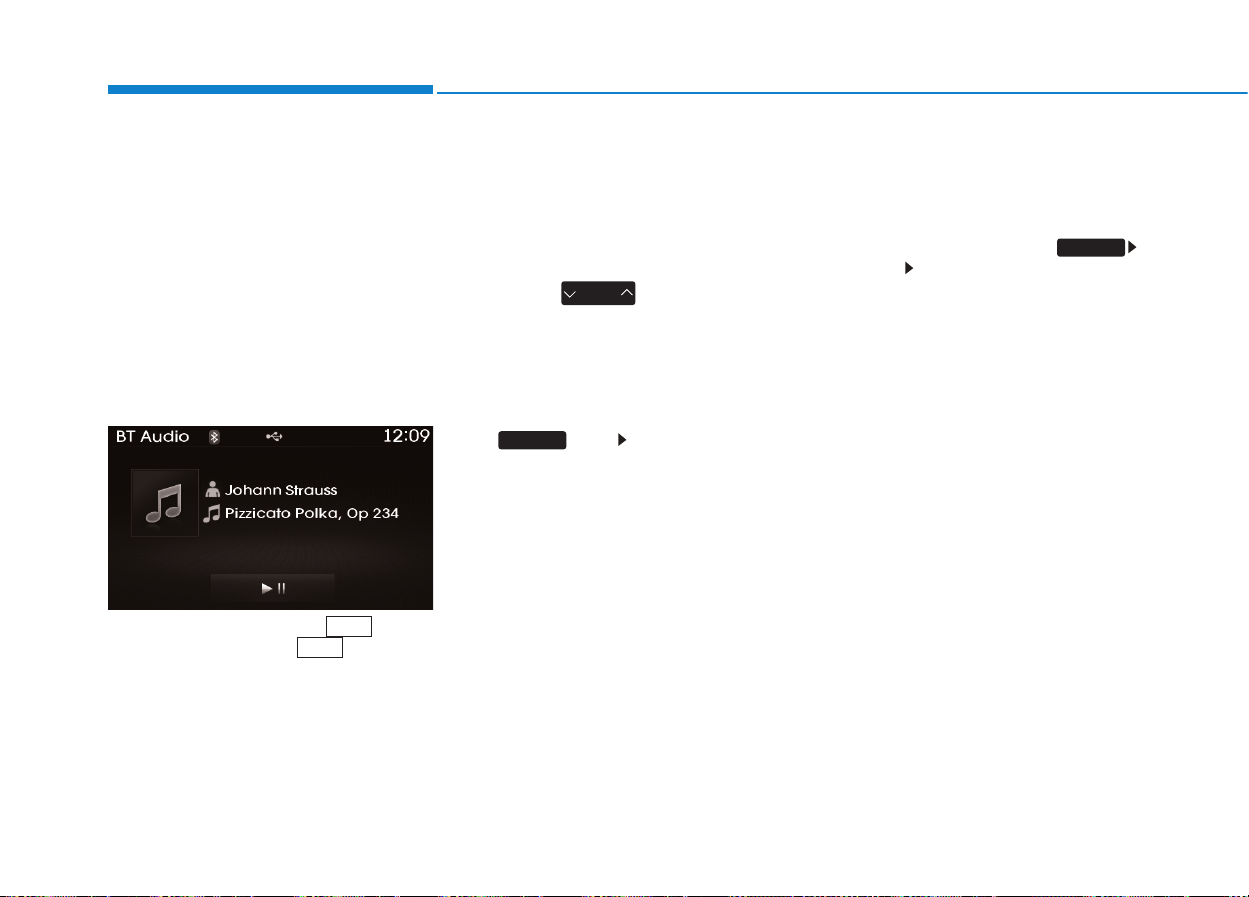
4-94
Multimedia System
BBlluueettooootthh
®®
WWiirreelleessss
TTeecchhnnoollooggyy AAUUDDIIOO MMOODDEE
Using
Bluetooth
®
Wireless
Technology Audio Mode
Playing/Pausing Bluetooth
®
Wireless Technology
Audio
Once a
Bluetooth
®
Wireless
Technology device is connected, the
mode will automatically start.
While playing, press the button
to pause and press button to
play.
✽✽
NOTICE
The play/pause feature may operate
differently depending on the mobile
phone.
Changing Files
Press the key to move to
the previous or next file.
Setting Connection
If a
Bluetooth
®
Wireless Technology
device has not been connected, press
the key [Phone] button to
display the
Bluetooth
®
Wireless
Technology connection screen.
It is possible to use the pair phone,
connect/disconnect and delete fea-
tures from your
Bluetooth
®
Wireless
Technology phone.
✽✽
NOTICE
• If the Bluetooth
®
Wireless
Technology audio is not operating
properly, check whether the fea-
ture is turned off at
[Phone] [Streaming Audio]. If the
feature is off, turn back on and try
again.
• If music is not yet playing from
your mobile device after converting
to Bluetooth
®
Wireless Technology
Audio mode, pressing the play but-
ton once may start playing the
mode. Check to see that music is
playing from the Bluetooth
®
Wireless Technology device after
converting to Bluetooth
®
Wireless
Technology Audio Mode.
SETUP
SETUP
SEEK
TRACK
4-95
Multimedia System
4
Pairing a
Bluetooth
®
Wireless
Technology Device
What is Bluetooth
®
Wireless
Technology Pairing?
Pairing refers to the process of syn-
chronizing your
Bluetooth
®
Wireless
Technology phone or device with the
car audio system for connection.
Pairing is necessary to connect and
use the
Bluetooth
®
Wireless
Technology feature.
Pairing Key / Key
on the Steering Remote
Controller
When No Devices have been
Paired
1. Press the key or the
key on the steering remote con-
troller. The following screen is dis-
played.
2. Press the button to enter
the Pair Phone screen.
1) Car Name : Name of device as
shown when searching from your
Bluetooth
®
Wireless Technology
device
2) Passkey : Passkey used to pair
the device
3. From your
Bluetooth
®
Wireless
Technology device (i.e. Mobile
Phone), search and select your
car audio system.
OK
PHONE
PHONE
4-96
Multimedia System
[Non SSP supported device]
(SSP: Secure Simple Pairing)
4. After a few moments, a screen is
displayed where the passkey is
entered.
Hear, enter the passkey “0000” to
pair your
Bluetooth
®
Wireless
Technology device with the car
audio system.
[SSP supported device]
4. After a few moments, a screen is
displayed 6 digits passkey.
Hear, check the passkey on your
Bluetooth
®
Wireless Technology
device and confirm.
5. Once pairing is complete, the fol-
lowing screen is displayed.
✽✽
NOTICE
If Bluetooth
®
Wireless Technology
devices are paired but none are cur-
rently connected, pressing the
key or the key on the
steering wheel displays the following
screen. Press the [Pair] button to
pair a new device or press the
[Connect] to connect a previously
paired device.
Pairing through [PHONE]
Setup
Press the key Select
[Phone] Select [Pair Phone]
Select TUNE knob
1.The following steps are the same
as those described in the section
"When No Devices have been
Paired" on the previous page.
SETUP
PHONE

4-97
Multimedia System
4
✽✽
NOTICE
• Bluetooth
®
Wireless Technology
features supported within the vehi-
cle are as follows. Some features
may not be supported depending
on your Bluetooth
®
Wireless
Technology device.
- Outgoing/Incoming Handsfree
calls
- Operations during a call (Switch to
Private, Switch to call waiting,
MIC on/off)
- Downloading Call History
- Downloading Mobile Contacts
- Bluetooth
®
Wireless Technology
device auto connection
- Bluetooth Audio Streaming
• Up to five Bluetooth
®
Wireless
Technology devices can be paired
to the Car Handsfree system.
• Only one Bluetooth
®
Wireless
Technology device can be connect-
ed at a time.
• Other devices cannot be paired
while a Bluetooth
®
Wireless
Technology device is connected.
(Continued)
(Continued)
• Only Bluetooth
®
Wireless
Technology Handsfree and
Bluetooth audio related features
are supported.
• Normal operations are possible
only within devices that support
Handsfree or audio features, such
as a Bluetooth
®
Wireless
Technology mobile phone or a
Bluetooth audio device.
• If a connected Bluetooth
®
Wireless
Technology device becomes dis-
connected due to being out of com-
munication range, turning the
device OFF, or a Bluetooth
®
Wireless Technology communica-
tion error, corresponding
Bluetooth
®
Wireless Technology
devices are automatically searched
and connected.
(Continued)
(Continued)
• If the system becomes unstable due
to communication errors between
the car Handsfree and the
Bluetooth
®
Wireless Technology
device, reset the Bluetooth
®
Wireless Technology and try
again. Upon resetting Bluetooth
®
Wireless Technology, the system is
restored to its factory release state.
• After Pairing is complete, a con-
tacts download request is sent once
to the mobile phone. As some
mobile phones may require confir-
mation upon receiving a download
request, check the mobile phone
screen.

4-98
Multimedia System
Connecting a Device
Press the key Select
[Phone] Select [Paired Phone List]
1) Connected Phone : Device that is
currently connected
2) Paired Phone : Device that is
paired but not connected
From the paired phone list, select the
device you want to connect and
press the button.
Changing Priority
What is Priority?
It is possible to pair up to five
Bluetooth
®
Wireless Technology
devices with the car audio system.
The "Change Priority" feature is used
to set the connection priority of
paired phones.
Press the key Select
[Phone] Select [Paired Phone List]
SETUP
Connect
SETUP

4-99
Multimedia System
4
From the paired phone list, select
the phone you want to switch to the
highest priority, then press the
button from the Menu.
The selected device will be changed
to the highest priority.
✽✽
NOTICE
• Priority icon will be displayed when
a priority phone has been set.
Disconnecting a Device
Press the key Select
[Phone] Select [Paired Phone List]
From the paired phone list, select the
currently connected device and
press the button.
Deleting a Device
Press the key Select
[Phone] Select [Paired Phone List]
From the paired phone list, select the
device you want to delete and press
the button.
✽✽
NOTICE
• When deleting the currently con-
nected device, the device will auto-
matically be disconnected to pro-
ceed with the deleting process.
• If a paired Bluetooth
®
Wireless
Technology device is deleted, the
device’s call history and contacts
data will also be deleted.
• To re-use a deleted device, you
must pair the device again.
Delete
SETUP
Disconnect
SETUP
Change priority
4-100
Multimedia System
UUSSIINNGG
BBlluueettooootthh
®®
WWiirreelleessss
TTeecchhnnoollooggyy
Phone Menu Screen
Phone Menus
With a
Bluetooth
®
Wireless
Technology device connected, press
the key to display the Phone
menu screen.
1) Favorite :Up to 20 frequently used
contacts saved for easy access
2) Dial Number : Displays the dial
screen where numbers can be
dialed to make calls
3) Call History : Device the call histo-
ry list screen
4) Contacts : Displays the Contacts
list screen
5) Setup : Displays Phone related
settings.
✽✽
NOTICE
• If you press the [Call History] but-
ton but there is no call history
data, a prompt is displayed which
asks to download call history data.
• If you press the [Contacts] button
but there is no contacts data
stored, a prompt is displayed
which asks to download contacts
data.
• This feature may not be supported
in some mobile phones. For more
information on download support,
refer to your mobile phone user’s
manual.
Favorites
Press the key Select
[Favorites]
1) Saved favorite contact : Connects
call upon selection
2) To add favorite : Downloaded con-
tacts be saved as favorite.
3) Delete All : Delete all stored
favorite contacts
✽✽
NOTICE
• To save Favorite, contacts should
be downloaded.
• Contact saved in Favorites will not
be automatically updated if the
contact has been updated in the
phone. To update Favorites, delete
the Favorite and create a new
Favorite.
PHONE
PHONE
4-101
Multimedia System
4
Calling by Dialing a Number
Press the key Select [Dial
Number]
1) Dial Pad : Used to enter phone
number
2) Call : If a number has been
entered, calls the number If no
number has been entered, switch-
es to call history screen
3) End : Deletes the entered phone
number
4) Delete : Deletes entered numbers
one digit at a time
Answering Calls
Answering a Call
Answering a call with a
Bluetooth
®
Wireless Technology device connect-
ed will display the following screen.
1) Caller : Displays the other party’s
name when the incoming caller is
saved within your contacts
2) Incoming Number : Displays the
incoming number
3) Accept : Accept the incoming call
4) Reject : Reject the incoming call
✽✽
NOTICE
• When an incoming call pop-up is
displayed, most Audio and
SETUP mode features are dis-
abled. Only the call volume will
operate.
• The telephone number may not be
properly displayed in some mobile
phones.
• When a call is answered with the
mobile phone, the call mode will
automatically revert to Private
mode.
PHONE
4-102
Multimedia System
During a Handsfree Call
1) Caller : Displays the other party’s
name if the incoming caller is
saved within your contacts
2) Incoming Number : Displays the
incoming number
3) Call time : Displays the call time
4) End : Ends call
5) Private :Converts to Private mode
6) Out Vol. : Sets call volume as
heard by the other party
7) Mute :Turns Mic Mute On/Off
✽✽
NOTICE
If the mic is muted, the other party
will not be able to hear your voice.
Call History
Press the key Select [Call
History]
A list of incoming, outgoing and
missed calls is displayed.
Press the button to down-
load the call history.
1) Call History :
- Displays recent calls (call history)
- Connects call upon selection
2) Download :Download Recent Call
History
• Call history may not be saved in
the call history list in some mobile
phones.
• Calls received with hidden caller ID
will not be saved in the call history
list.
• Calling through the call history is
not possible when there is no call
history stored or a Bluetooth®
Wireless Technology phone is not
connected.
• Up to 20 received, dialed and
missed calls are stored in Call
History.
• Time of received/dialed calls and
call time information are not saved.
Download
PHONE
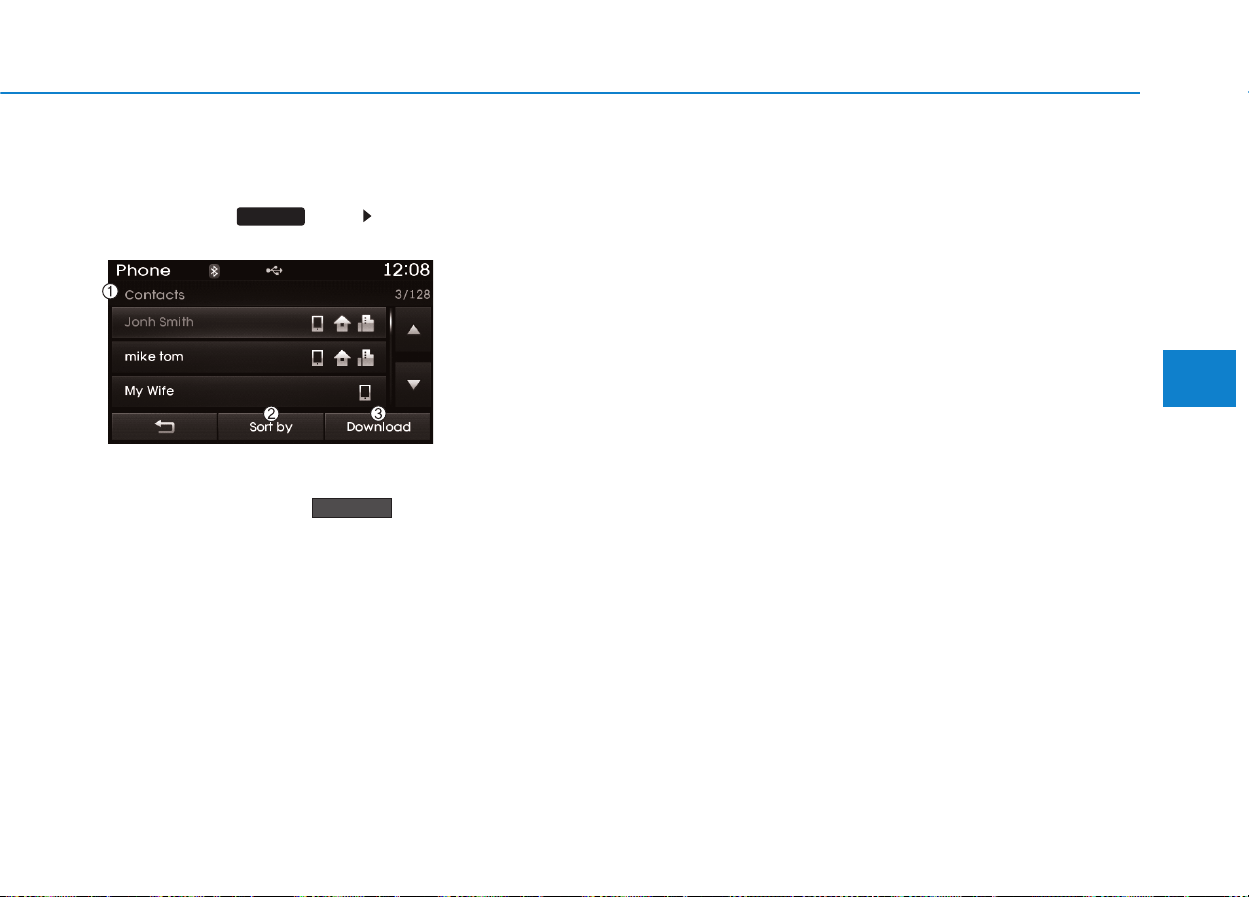
4-103
Multimedia System
4
Contacts
Press the key Select
[Contacts]
The list of saved phone book entries
is displayed.Press the but-
ton to download the call history.
1) Contacts List :
- Displays downloaded contacts
entries
- Connects call upon selection
2) Sort by : Find a contact in an
alphabetical order.
3) Download : Download contacts
entries
✽✽
NOTICE
• Up to 1,000 contacts saved in your
Bluetooth
®
Wireless Technology
phone can be downloaded into the
car contacts. Contacts that have
been downloaded to the car cannot
be edited or deleted on the phone.
• Mobile phone contacts are man-
aged separately for each paired
Bluetooth
®
Wireless Technology
device(max 1 devices x 5,000 con-
tacts each). Previously down-
loaded data is maintained even if
the Bluetooth
®
Wireless Technology
device has been disconnected.
(However, the contacts and call
history saved to the phone will be
deleted if a paired phone is delet-
ed.)
• It is possible to download contacts
even during Bluetooth streaming
audio.
• When downloading contacts, the
icon will be displayed within the
status bar.
(Continued)
(Continued)
• It is not possible to commence
download when the contacts
download feature has been turned
off within the Bluetooth
®
Wireless
Technology device. In addition,
some devices may require device
authorization upon attempting to
download contacts. If download-
ing does not normally occur, check
the Bluetooth
®
Wireless Technology
device settings or the screen state.
• The download feature may not be
supported in some mobile phones.
Check to see that the Bluetooth
®
Wireless Technology device sup-
ports the download feature. For
more information of supported
Bluetooth
®
Wireless Technology
devices and function support, visit
www.hyundaiusa.com.
Download
PHONE
4-104
Multimedia System
Bluetooth
®
Wireless
Technology Setting
Bluetooth
®
Wireless Technology
The
Bluetooth
®
word mark and logos
are registered trademarks owned by
Bluetooth SIG, Inc. and any use of
such marks is under license. Other
trademarks and trade names are
those of their respective owners. A
Bluetooth
®
enabled cell phone is
required to use
Bluetooth
®
wireless
technology.
Pairing a New Device
Press the key Select
[Phone] Select [Pair Phone]
Bluetooth
®
Wireless Technology
devices can be paired with the audio
system.
For more information, refer to the
“Pairing through Phone Setup” sec-
tion within
Bluetooth
®
Wireless
Technology.
SETUP
• Driving while distracted can
result in a loss of vehicle con-
trol that may lead to an acci-
dent, severe personal injury,
and death.The driver’s primary
responsibility is in the safe
and legal operation of a vehi-
cle, and use of any handheld
devices, other equipment, or
vehicle systems which take
the driver’s eyes, attention and
focus away from the safe oper-
ation of a vehicle or which are
not permissible by law should
never be used during opera-
tion of the vehicle.
WARNING
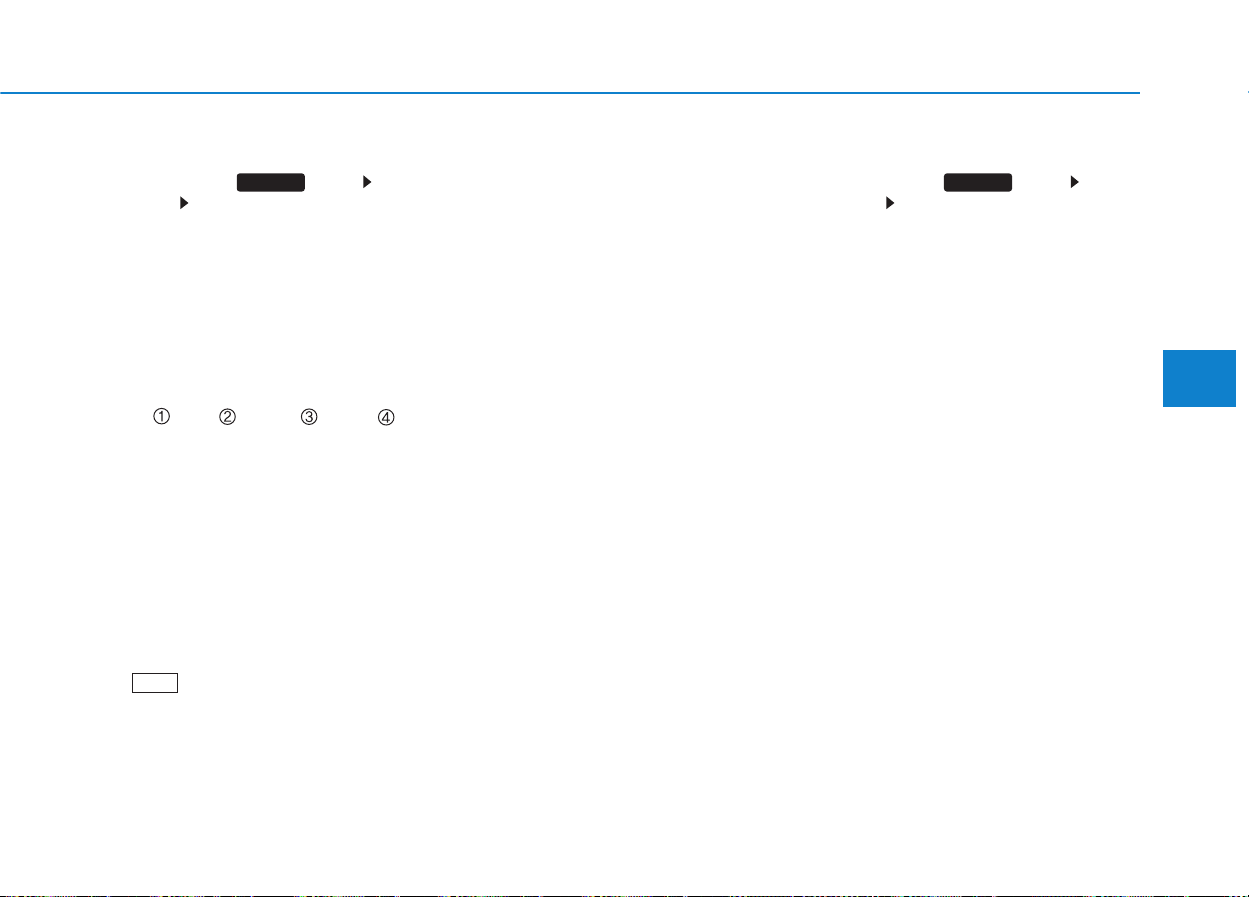
4-105
Multimedia System
4
Viewing Paired Phone List
Press the key Select
[Phone] Select [Paired Phone List]
This feature is used to view mobile
phones that have been paired with
the audio system. Upon selecting a
paired phone, the setup menu is dis-
played.
For more information, refer to the
“Setting
Bluetooth
®
Wireless
Technology Connection” section with-
in
Bluetooth
®
Wireless Technology.
1) :Moves to the previous screen
2) Connect/Disconnect Phone :
Connect/ disconnects currently
selected phone
3) Delete : Deletes the currently
selected phone
4) Change Priority : Sets currently
selected phone to highest connec-
tion priority
✽✽
NOTICE BEFORE DOWN-
LOADING CONTACTS
• To learn more about whether your
mobile phone supports contacts
downloads, refer to your mobile
phone user’s manual.
• The contacts for only the connect-
ed phone can be downloaded.
Downloading Contacts
Press the key Select
[Phone] Select [Contacts Download]
As the contacts are downloaded
from the mobile phone, a download
progress bar is displayed.
✽✽
NOTICE
• Upon downloading phone con-
tacts, the previous corresponding
data is deleted.
• This feature may not be supported
in some mobile phones.
• Voice Recognition may not oper-
ate while contacts are being down-
loaded.
SETUP SETUP

4-106
Multimedia System
Streaming Audio
Press the key Select
[Phone] Select [Streaming Audio]
When Streaming Audio is turned on,
you can play music files saved in your
Bluetooth
®
Wireless Technology
device through the audio system.
Outgoing Volume
Press the key Select
[Phone] Select [Outgoing Volume]
Use the , buttons to adjust the
outgoing volume level.
✽✽
NOTICE
While on a call, the volume can be
changed by using the key.
Turning Bluetooth System Off
Press the key Select
[Phone] Select [Bluetooth System
Off]
Once
Bluetooth
®
Wireless Technology
is turned off,
Bluetooth
®
Wireless
Technology related features will not be
supported within the audio system.
SETUP
SEEK
TRACK
SETUP SETUP

4-107
Multimedia System
4
Auto Download (Contacts)
Press the key Select
[Phone] Select [Auto Download]
This feature is used to automatically
download mobile contacts entries
once a
Bluetooth
®
Wireless
Technology phone is connected.
✽✽
NOTICE
• The Auto Download feature will
download mobile contacts entries
every time the phone is connected. The
download time may differ depending
on the number of saved contacts
entries and the communication state.
• Before downloading contacts, first
check to see that your mobile
phone supports the contacts
download feature.
✽✽
NOTICE
To turn Bluetooth
®
Wireless
Technology back on, go to
[Phone] and press “Yes”.
SETUP
SETUP

4-108
Multimedia System
VVOOIICCEE RREECCOOGGNNIITTIIOONN
Using Voice Recognition
Starting Voice Recognition
Shortly press the key on the
steering wheel remote controller Say
a command.
If prompt feedback is in [ON], then
the system will say “Please say a
command after the beep (BEEP)”
• If prompt feedback is in [OFF]
mode, then the system will only say
“(BEEP)”
• To change Prompt Feedback
[On]/[Off], go to [System]
[Prompt Feedback]
✽✽
NOTICE
For proper recognition, say the com-
mand after the voice instruction and
beep tone.
Contact List Best Practices
1) Do not store single-name entries
(e.g., “Bob”, “Mom”, “Kim”, etc.).
Instead, always use full names
(including first and last names) for
all contacts (e.g., use “Jacob
Stevenson” instead of “Dad”).
2) Do not use abbreviations (i.e., use
“Lieutenant” instead of “Lt.” or
“Sergeant” instead of “Sgt.”).
3) Do not use acronyms (i.e., use
“County Finance Department”
instead of “CFD”).
4) Do not use special characters
(e.g., “@”, “hyphen -”, “asterisk *”,
“ampersand &”).
5) If a name is not recognized from
the contact list, change it to a
more descriptive name (e.g., use
“Grandpa Joseph” instead of “Pa
Joe”).
Skipping Prompt Messages
While prompt message is being stat-
ed Shortly press the key on the
steering remote controller
The prompt message is immediately
ended and the beep tone will sound.
After the “beep”, say the voice com-
mand.
Re-starting Voice Recognition
While system waits for a command
Shortly press the key on the
steering remote controller
The command wait state is immedi-
ately ended and the beep ton will
sound.After the “beep”, say the voice
command.
SETUP
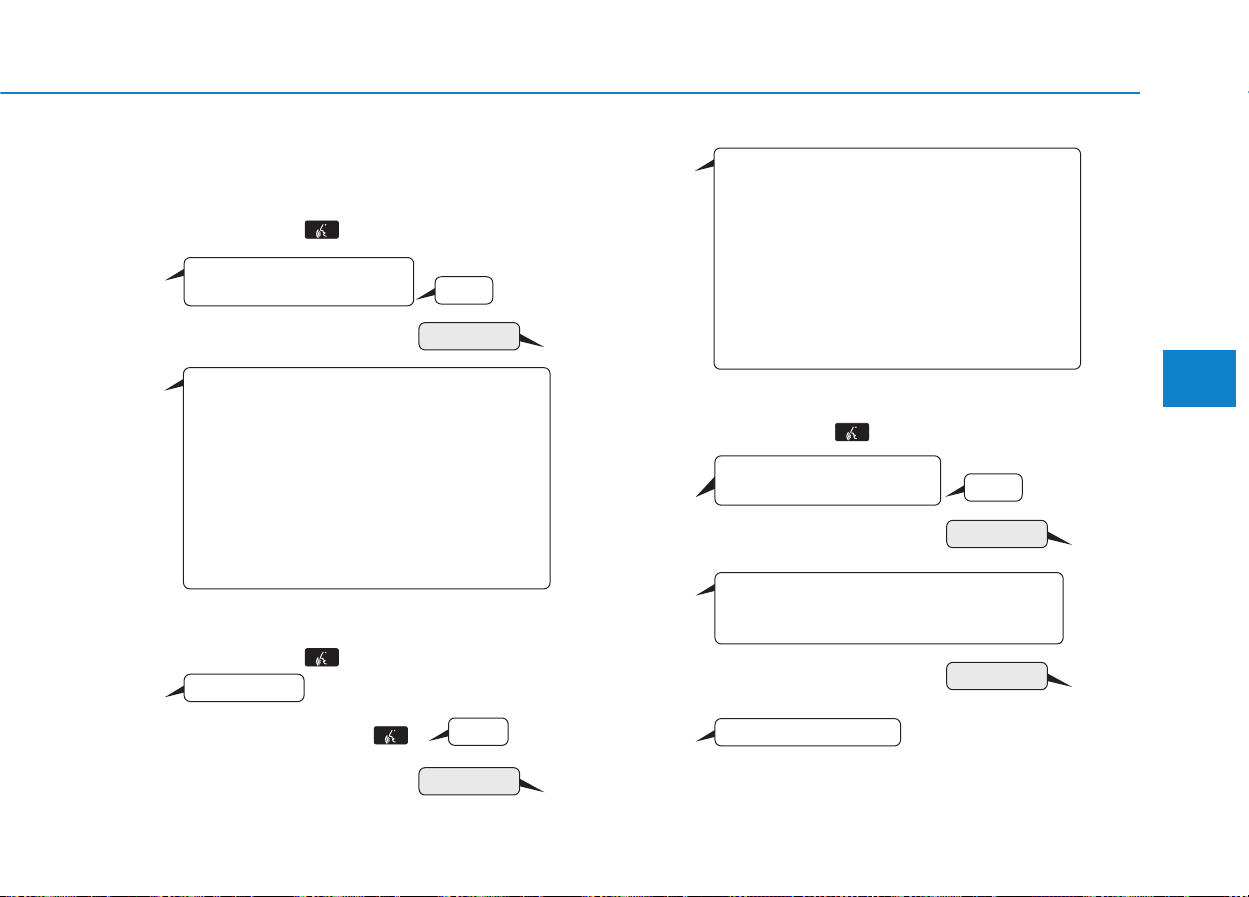
4-109
Multimedia System
4
❈ Illustration on using voice commands
• Starting voice command.
Shortly pressing the key (under 0.8 seconds):
• Skipping Voice Recognition
Shortly pressing the key (under 0.8 seconds):
• End voice command.
Shortly pressing the key (under 0.8 seconds):
More Help
Contacts
Cancel
More Help
Please say a command after
the beep (BEEP)
Please say a command after
the beep (BEEP)
Please say a...
Contacts
Please say the name of the contacts you want
to call (BEEP)
Ding~
(BEEP)
Ding~
Di-Ding~(Cancel Sound)
Shortly pressing the
key (under 0.8 seconds)
More Help
Here are some examples of mode commands.
You can say a radio type like 'FM', 'AM', or 'Satellite'.
You can also say a media source like 'USB', 'My
Music', or 'iPod'.
Additionally, there are phone commands like
"Contacts', 'Call History', or 'Dial Number".
You can find more detailed commands in the user's
manual.
Please say a command after the beep.
More Help
Here are some examples of mode commands.
You can say a radio type like 'FM', 'AM', or 'Satellite'.
You can also say a media source like 'USB', 'My
Music', or 'iPod'.
Additionally, there are phone commands like
"Contacts', 'Call History', or 'Dial Number".
You can find more detailed commands in the user's
manual.
Please say a command after the beep.
4-110
Multimedia System
Command Function
More Help Provides guidance on commands that can be
used anywhere in the system.
Help Provides guidance on commands that can be
used within the current mode.
Call<Name> Calls <Name> saved in Contacts
Ex) Call “John Smith”
Phone Provides guidance on Phone related com-
mands. After saying this command, say
“Favorites”,“Dial Number”, “Call History” or
“Contacts” execute corresponding functions.
Favorites Display the Favorite screen.
Call History Displays the Call History screen.
Contacts Displays the Contacts screen. After saying
this command, say the name of a contact
saved in the Contacts to automatically con-
nect the call.
Dial Number Display the Dial number screen. After saying
this command, you can say the number that
you want to call.
Redial Connects the most recently called number.
Tutorial Provide guidance on how to use voice
recognition and Bluetooth
®
connections.
Command Function
•
When listening to the radio, displays the
next radio screen. (FM1
➟
FM2
➟
AM
➟
XM1
➟
XM2
➟
XM3
➟
FM1)
Radio
•
When listening to a different mode, displays
the most recently played radio screen.
•
When currently listening to the FM radio,
maintains the current state.
•
When listening to a different mode, displays
the most recently played FM screen.
FM1(FM One) Displays the FM1 screen.
FM2(FM Two) Displays the FM2 screen.
AM Displays the AM screen.
FM Preset 1~6 Plays the most recently played broadcast
saved in FM Preset 1~6.
AM Preset 1~6 Plays the broadcast saved in AM Preset 1~6.
FM 87.5~107.9 Plays the FM broadcast of the corresponding
frequency.
AM 530~1710 Plays the AM broadcast of the corresponding
frequency.
XM (Satellite)
•
When currently listening to the XM, main-
tains the current state.
•
When listening to a different mode, displays
the most recently played XM screen.
(Call by Name)
Voice Command List
• Common Commands: These commands can be used in most operations. (However a few commands may not be
available during certain operations)
4-111
Multimedia System
4
0~255
Command Function
XM (Satellite) 1~3
Displays the selected XM screen.
XM Channel Plays the selected XM channel.
Media Moves to the most recently played media
screen.
CD Plays the music saved in the CD.
USB Plays USB music.
iPod
®
Plays iPod music.
Command Function
My Music Plays the music saved in My Music.
AUX (Auxiliary) Plays the connected external device.
Bluetooth
®
Audio Plays the music saved in connected Bluetooth
®
device.
Please repeat Repeats the most recent comment.
Mute Mutes the sound
Cancel (Exit) Ends voice command.
4-112
Multimedia System
• FM/AM radio commands: Commands available during
FM, AM radio operation
• Satellite radio commands: Commands that can be
used while listening to Satellite Radio.
Command Function
Preset 1~6 Plays the broadcast saved in Preset 1~6.
Scan Scans receivable frequencies from the current
broadcast and plays for 10 seconds each.
Preset Scan Moves to the next preset from the current
present and plays for 10 seconds each.
Information Displays the information of the current broad-
cast.(This feature can be used when receiving
RBDS broadcasts.)
Command Function
Channel 0~255 Plays the selected Satellite Radio channel.
Scan Scans receivable channels from the current
broadcast and plays for 10 seconds each.
Preset 1~6 Plays the broadcast saved in Preset 1~6.
Information Displays the information of the current broad-
cast.
4-113
Multimedia System
4
• Audio CD commands: Commands available during
Audio CD operation
• MP3 CD / USB commands: Commands available dur-
ing USB and MP3 CD operation
Command Function
Play Plays the currently paused track.
Pause Pauses the current track.
Shuffle Randomly plays the tracks within the CD.
Shuffle Off Cancels random play to play tracks in sequen-
tial order.
Repeat Repeats the current track.
Repeat Off Cancels repeat play to play tracks in sequen-
tial order.
Track 1~30 Plays the desired track number.
Command Function
Play Plays the currently paused file.
Pause Pauses the current file.
Shuffle Randomly plays the files within the current
folder.
Shuffle Off Cancels random play to play files in sequential
order.
Repeat Repeats the current file.
Repeat Off Cancels repeat play to play files in sequential
order.
Next Folder Play the first file in the next folder
Previous Folder Play the first file in the previous folder

4-114
Multimedia System
• iPod
®
Commands: Commands available during iPod
®
operation
• My Music Commands: Commands available during
My Music operation
Command Function
Play Plays the currently paused song.
Pause Pauses the current song.
Shuffle Randomly plays the songs within the current
category.
Shuffle Off Cancels random play to play songs in sequen-
tial order.
Repeat Repeats the current song.
Repeat Off Cancels repeat play to play songs in sequen-
tial order.
Command Function
Play Plays the currently paused file.
Pause Pauses the current file.
Shuffle Randomly plays all saved files.
Shuffle Off Cancels random play to play files in sequential
order.
Repeat Repeats the current file.
Repeat Off Cancels repeat play to play files in sequential
order.
Delete Deletes the current file. You will bypass an
additional confirmation process.

4-115
Multimedia System
4
SSEETTUUPP
Starting Mode
Press the key to display the
Setup screen.
You can select and control options
related to [Display], [Sound],
[Clock/Calendar], [Phone] and
[System].
Display Settings
Adjusting the Brightness
Press the key Select
[Display] Select [Brightness]
Use the , buttons to adjust the
screen brightness or set the
Brightness on Automatic, Daylight, or
Night mode.
Press the button to reset.
1) Automatic : Adjusts the brightness
automatically
2) Daylight : Always maintains the
brightness on high
3) Night: Always maintains the
brightness on low
Pop-up Mode
Press the key Select
[Display] Select [Mode Pop up]
This feature is used to display the
Pop-up Mode screen when entering
radio and media modes.
When this feature is turned on,
pressing the or key
will display the Pop-up Mode screen.
✽✽
NOTICE
The media Pop-up Mode screen can
be displayed only when two or more
media modes have been connected.
MEDIA RADIO
SETUP
Default
SETUP
SETUP
4-116
Multimedia System
Text Scroll
Press the key Select
[Display] Select [Text Scroll]
This feature is used to scroll text dis-
played on the screen when it is too
long to be displayed at once.
When turned on, the text is repeat-
edly scrolled. When turned off, the
text is scrolled just once.
MP3 Information Display
Press the key Select
[Display] Select [Media Display]
This feature is used to change the
information displayed within USB
and MP3 CD modes.
1) Folder File : Displays file name
and folder name
2) Album Artist Song : Displays
album name/artist name/song
Sound Settings
Sound Settings
Press the key Select
[Sound] Select [Sound Setting]
SETUP
SETUP
SETUP

4-117
Multimedia System
4
Use the , , , buttons to
adjust the Fader/Balance settings.
Use the , buttons to adjust the
Bass/Middle/Treble settings.
Press the button to reset.
SDVC (Speed Dependent
Volume Control)
Press the key Select
[Sound] Select [Speed Dependent
Vol.]
The volume level is controlled auto-
matically according to the vehicle
speed.SDVC can be set by selecting
from Off/Low/Mid/High.
Voice Recognition Volume
Press the key Select
[Sound] Select [Voice Recognition
Vol.]
Turn the TUNE knob to adjust the
Voice Recognition volume.
SETUP
SETUP
Default

4-118
Multimedia System
Touch Screen Beep
Press the key Select
[Sound] Select [Touch Screen Beep]
This feature is used to turn the touch
screen beep on/off.
Blue Link Voice Volume
Press the key Select
[Sound] Select [Blue Link Voice Vol.]
Turn the TUNE knob to adjust the
Blue Link Voice Volume.
❈ Blue Link
®
may differ depending
on the selected audio.
Clock/Calendar Setting
Clock Setting
Press the key Select
[Clock/Calendar] Select [Clock
Settings]
Use the , buttons to set the
Hour, Minutes and AM/PM setting.
✽✽
NOTICE
Press and hold the key (over
0.8 seconds) to set the Clock/Calendar
screen.
CLOCK
SETUP
SETUP SETUP
4-119
Multimedia System
4
Calendar Setting
Press the key Select
[Clock/Calendar] Select [Calendar
Settings]
Use the , buttons to set the
Month, Day and Year setting.
Time Format
Press the key Select
[Clock/Calendar] Select [Time Format]
This feature is used to change the
clock format between 12hr or 24hr.
Clock Display
Press the key Select
[Clock/Calendar] Select [Clock Display
(Power off)]
This feature is used to display a clock
on the screen when the audio sys-
tem is turned off.
SETUP SETUP SETUP
4-120
Multimedia System
System Setting
Prompt Feedback
Press the key Select
[System] Select [Prompt Feedback]
This feature is used to select the
desired prompt feedback option from
ON and OFF.
1) ON :When using voice recognition,
provides detailed guidance
prompts
2) OFF : When using voice recogni-
tion, omits some guidance prompts
Language
Press the key Select
[System] Select [Language]
This feature is used to change the
system and voice recognition lan-
guage.
If the language is changed, the sys-
tem will restart and apply the select-
ed language.
Memory Information
Press the key Select
[System] Select [Memory Information]
This feature displays information
related to system memory.
1) Using : Displays capacity currently
in use
2) Capacity : Displays total capacity
SETUP SETUP
SETUP
4-121
Multimedia System
4
RREEAARR VVIIEEWW CCAAMMEERRAA
• The system has been equipped
with a rear view camera for user
safety by allowing a wider rear
range of vision.
• The rear view camera will automat-
ically operate when the ignition key
is turned ON and the transmission
lever is set to R.
• The rear view camera will automat-
ically stop operating when set to a
different lever.
• The rear view camera has been
equipped with an optical lens
to provide a wider range of
vision and may appear differ-
ent from the actual distance.
For safety, directly check the
rear and left/right sides.
CAUTION
4-122
Multimedia System
BBlluuee LLiinnkk
®®
Hyundai aims to offer differentiated
customer values through a ‘Connected
Car Life,’ which is to provide con-
sumers with fast and reliable IT tech-
nology. As consumers’ lifestyles
become more and more mobile in
thanks to remarkable advances in
smart phones, tablet PCs and overall
wireless telecommunication, new
lifestyle patterns demand seamless
connection between one’s office,
home, outdoors and automobiles.
Automobile companies are now faced
with the task of shifting their paradigm
from vehicle-centered services to cus-
tomer value-centered services, with
the ultimate goal of securing global
leadership in the field of vehicle IT and
telematics.
Hyundai Motor plans to achieve this
by realizing a terminal platform flexi-
ble to changes in IT technology,
cooperating with global IT compa-
nies, creating an eco-system and
providing the latest contents & serv-
ices based on an open environment.
Using the Room Mirror Key
Selecting the room mirror key will
allow you to make service required
inquiries, POI info searches, and
emergency rescues by connecting to
the Blue Link
®
Center.
Such features can be used only after
subscribing to the Blue Link
®
service.
➀ (Blue Link
®
Center)
Makes requests for Blue Link
®
serv-
ice related inquiries and consulta-
tions.
A call is connected to the Blue Link
®
service center employee.
Re-pressing the key will end the call.
This feature does not operate when
you are on a Bluetooth
®
phone call.
➁ (Blue Link
®
for POI)
• Blue Link
®
for Voice command
Starts Blue Link
®
voice command.
Voice receiving voice guidance,
shortly press the button to convert to
voice command mode. Press and
hold the button to end voice com-
mand.
• TBT VR Commands
1. Navigate to
“Navigate to”voice command is used
to request the download of route
data for a new destination, saved
destinations, daily routes and previ-
ous destinations.
4-123
Multimedia System
4
2. Save Destination
“Save Destination” VR command is
used to assign a voice tag to the last
downloaded destination and store it
in a destination directory.
NOTE:
The Turn by Turn(TBT) feature sup-
ports the store of ten(10) destina-
tions in the TBT destinations
directory.
3. Route Preview
“Route Preview”VR command allows
the user to preview the route instruc-
tions (upcoming maneuver instruc-
tions) at any time during the route
guidance.
4. Destinations List
“Destinations List” VR command
allows the user to preview and delete
the stored destinations with their
associated voice tags in the Turn by
Turn destinations directory.
5.Voice Guidance
“Voice Guidance”VR command allows
the user to mute/unmute the Turn by
Turn(TBT) direction announcements.
6. Suspend Route
“Suspend Route” VR command
allows the user to suspend and
pause Turn by Turn(TBT) route guid-
ance while in the guidance mode.
7. Resume Route
“Resume Route” VR command
allows the user to resume Turn by
Turn(TBT) route guidance.
➂ (Blue Link
®
for SOS)
In the case of an emergency,
requests for help to the Blue Link
®
center.
Call is connected to the Blue Link
®
emergency rescue center. Re-press-
ing the key will end the call.
If already on a Bluetooth
®
phone call,
the call will end to connect you to the
Blue Link
®
Emergency Rescue Center.
• You cannot talk simultaneous-
ly on the Bluetooth
®
phone
and Blue Link
®
phone.
• While on a Bluetooth
®
call,
pressing the key or
key will display a message
indicating that you are cur-
rently on a call.
• A message will be displayed if
you receive a
Bluetooth
®
Wireless Technology call while
already on a Blue Link
®
call. At
this time, press the key on
the steering wheel remote con-
troller to accept the call. The
ring tone on the phone will not
sound.
CAUTION

4-124
Multimedia System
Eco Coach
• What is Eco Coach?
Every 2.5 minutes, Eco Coach com-
pares your fuel economy against the
government tested average (EPA) or
other similar Hyundai models (com-
munity), based on your preference.
Each month, or after every tank fill
up, Eco Coach rates your extended
average and gives you a reward star
if you beat the average.
See your My Hyundai web page for
more information.
• What does the bar graph and hori-
zontal line mean?
The horizontal line is adjusted once
per month or at each tank full, based
on your preference; it represents the
EPA combined average or community
average fuel economy target.
• What is My Eco MPG?
Your actual fuel economy average
over 2.5 minutes.
This value is also shown in bar graph
as your “now” rating.
• What are Eco Rewards?
If you beat the average (the EPA or
community), you will receive an Eco
Reward point.
See your my Hyundai web page for
more information.
[Eco Driving] will not operate if the
vehicle ignition is not turned on.
Please operate with the ignition
turned on.
4-125
Multimedia System
4
Turn by Turn
The Turn by Turn feature can be used
through Blue Link
®
.
1. Direction Indicator Image
2. Remaining distance until next point
3. The Count bar is divided into a
total of 9 levels.
9 Level 0.5mi 8 Level 0.4mi
7 Level 0.3mi 6 Level 0.2mi
5 Level 0.1mi 4 Level 400ft
3 Level 300ft 2 Level 200ft
1 Level 100ft
4. Next Street name
5. Distance to destination
6. Expected Time Arrival
7. Current Street name
❈ For information on specific
Blue Link
®
operations, please refer
to a separate manual.
4-126
Multimedia System
■■
CD Player : AC110TMKN, AC1B0TMKN, AC1B1TMAN
❋ No logo will be shown if the XM Radio
TM
feature is not supported.
4-127
Multimedia System
4
SSYYSSTTEEMM CCOONNTTRROOLLLLEERRSS AANNDD
FFUUNNCCTTIIOONNSS
❈ Display and settings may differ
depending on the selected audio.
Audio Head Unit
(for XM RADIO
TM
equipped model)
1. (EJECT)
• Ejects the disc.
2.
• Changes to FM/AM/XM mode.
• Each time the key is pressed, the
mode is changed in order of FM1
➟
FM2 ➟ AM ➟ XM1 ➟ XM2 ➟ XM3.
❈ In Setup>Display, the radio pop up
screen will be displayed when
[Mode Pop up] is turned .
When the pop up screen is dis-
played, use the TUNE knob or
keys ~ to select the
desired mode.
3.
• Changes to CD, USB(iPod
®
), AUX,
My Music, BT Audio mode.
• Each time the key is pressed, the
mode is changed in order of CD,
USB(iPod
®
), AUX, My Music, BT
Audio.
❈ In Setup>Display, the media pop
up screen will be displayed when
[Mode Pop up] is turned .
When the pop up screen is dis-
played, use the TUNE knob or
keys ~ to select the
desired mode.
4.
• Operates Phone Screen
❈ When a phone is not connected,
the connection screen is displayed.
5.
• Radio Mode : Automatically search-
es for broadcast frequencies.
• CD, USB, iPod
®
, My Music modes
- Shortly press the key (under 0.8
seconds): Moves to next or previ-
ous song (file)
- Press and hold the key (over 0.8
seconds): Rewinds or fast-for-
wards the current song.
• BT Audio mode : Moves to next or
previous song(file)
❈
The Play/Pause feature may oper-
ate differently depending on the
mobile phone.
6. PWR/VOL knob
• Power : Turns power On/Off by
pressing the knob
• Volume :Sets volume by turning
the knob left/right
SEEK
TRACK
PHONE
51
On
MEDIA
61
On
RADIO
4-128
Multimedia System
7. ~ (Preset)
•Radio Mode: Saves frequencies
(channels) or receives saved fre-
quencies (channels)
• CD, USB, iPod
®
, My Music mode
- : Repeat
- : Random
• In the Radio, Media, Setup, and
Menu pop up screen, the number
menu is selected.
8.
•Each time the button is shortly
pressed (under 0.8 seconds), it sets
the screen Off
➟ Screen On ➟
Screen Off
❈ Audio operation is maintained and
only the screen will be turned Off.
In the screen Off state, press any
key to turn the screen On again.
9.
• Radio Mode
- Shortly press the key (under 0.8
seconds): Previews each broad-
cast for 5 seconds each.
- Press and hold the key (over 0.8
seconds): Previews the broadcasts
saved in Preset ~ for 5
seconds each.
❈ Press the key again to
continue listening to the current
frequency.
❈ XM Radio™ does not support the
Preset scan feature.
• CD, USB, My Music mode
- Shortly press the key (under 0.8
seconds): Previews each song
(file) for 10 seconds each.
❈ Press the key again to
continue listening to the current
song (file).
10.
• Shortly press the key (under 0.8
seconds) : Moves to the Display,
Sound, Clock, Phone, System set-
ting modes.
• Press and hold the key (over 0.8
seconds) : Move to the Time set-
ting screen.
11
.
• Displays menus for the current mode.
❈ iPod
®
List :Move to parent category
12.
• Radio Mode
- XM RADIO™ : Category Search
•MP3, CD, USB mode : Folder
Search
CAT
FOLDER
MENU
SETUP
CLOCK
SCAN
SCAN
61
SCAN
DISP
2
RDM
1
RPT
61
4-129
Multimedia System
4
13. TUNE knob
• Radio mode : Changes frequency
by turning the knob left/right.
• CD, USB, iPod
®
, My Music mode:
Searches songs (files) by turning
the knob left/right.
❈When the desired song is dis-
played, press the knob to play the
song.
• Moves focus in all selection menus
and selects menus.
14. DISC-IN LED
• LED that indicates whether a disc is
inserted
15.
Changes to FM/AM mode.
• Each time the key is pressed, the
mode is changed in order of FM1
➟
FM2.
16.
• CD MP3, USB mode : Folder
Search
FOLDER
RADIO
4-130
Multimedia System
SSEETTUUPP
DDiissppllaayy SSeettttiinnggss
Press the key Select
[Display] through TUNE knob or
key Select menu through
Mode Pop up
[Mode Pop up] Changes /
selection mode
• During On state, press the
or key to display the mode
change pop up screen.
Text Scroll
[Text Scroll] Set /
• : Maintains scroll
• : Scrolls only one (1) time.
Media Display
When playing an MP3 file, select the
desired display info from ‘Folder/File’
or ‘Album/Artist/Song’.
SSoouunndd SSeettttiinnggss
Press the key Select [Sound]
through TUNE knob or key
Select menu through TUNE knob
2
RDM
SETUP
CLOCK
Off
On
OffOn
MEDIA
RADIO
OffOn
1
RPT
SETUP
CLOCK
TUNE knob

4-131
Multimedia System
4
Sound Settings
This menu allows you to set the
‘Bass, Middle, Treble’ and the Sound
Fader and Balance.
Select [Sound Settings] Select menu
through TUNE knob Turn
TUNE knob left/right to set
• Bass, Middle, Treble : Selects the
sound tone.
• Fader, Balance : Moves the sound
fader and balance.
• Default : Restores default settings.
❈ Back : While adjusting values, re-
pressing the TUNE knob will
restore the parent menu.
Speed Dependent Volume
Control
This feature is used to automatically
control the volume level according to
the speed of the vehicle.
Select [Speed Dependent Vol.] Set
in 4 levels [Off/Low/Mid/High] of
TUNE knob
Voice Recognition Volume
Adjusts voice recognition volume.
Select [Voice Recognition Vol.] Set
volume of TUNE knob
4-132
Multimedia System
CClloocckk SSeettttiinnggss
Press the key Select [Clock]
through TUNE knob or key
Select menu through TUNE knob
Clock Settings
This menu is used to set the time.
Select [Clock Settings] Set through
TUNE
knob Press
TUNE
knob
❈Adjust the number currently in
focus to set the [hour] and press
the tune knob to set the [minute].
Calendar Settings
This menu is used to set the date.
Select [Calendar Settings]] Set
through TUNE knob Press
TUNE knob
❈Adjust the number currently in
focus to make the settings and
press the tune knob to move to the
next setting. (Set in order of
Year/Month/Day)
Time Format
This function is used to set the 12/24
hour time format of the audio system.
Select [Time Format] Set 12Hr /
24Hr through
TUNE
knob
Clock Display when Power is
OFF
Select [Clock Disp.(Pwr Off)] Set
/
through TUNE knob
• :Displays time/date on screen
• :Turn off.
Off
On
OffOn
3
SETUP
CLOCK

4-133
Multimedia System
4
SSYYSSTTEEMM SSEETTTTIINNGGSS
Press the key Select
[System] through tune knob or
key Select menu through TUNE
knob
Memory Information
Displays currently used memory and
total system memory.
Select [Memory Information] OK
The currently used memory is dis-
played on the left side while the total
system memory is displayed on the
right side.
Prompt Feedback
This feature is used to change voice
command feedback between Normal
and Expert modes.
Select [Prompt Feedback] Set
through TUNE knob
• On : This mode is for beginner
users and provides detailed
instructions during voice command
operation.
• Off : This mode is for expert users
and omits some information during
voice command operation. (When
using Expert mode, guidance
instructions can be heard through
the [Help] or [Menu] commands.
Language
This menu is used to set the display
and voice recognition language.
Select [Language] Set through
TUNE knob
❈ The system will reboot after the
language is changed.
❈ Language support by region
- English, Francais, Espanol
5
SETUP
CLOCK
4-134
Multimedia System
RRAADDIIOO :: FFMM,, AAMM OORR XXMM
SEEK
Press the key
• Shortly pressing the key (under 0.8
seconds): Changes the frequency.
• Pressing and holding the key (over
0.8 seconds): Automatically search-
es for the next frequency.
Preset SEEK
Press the ~ key
• Shortly pressing the key (under 0.8
seconds): Plays the frequency
saved in the corresponding key.
• Pressing and holding the key (over
0.8 seconds): Pressing and holding
the desired key from ~
will save the currently playing
broadcast to the selected key and
sound a BEEP.
SCAN
Press the key
• Shortly pressing the key (under 0.8
seconds):The broadcast frequency
increases and previews each
broadcast for 5 seconds each.After
scanning all frequencies, returns
and plays the current broadcast fre-
quency.
• Pressing and holding the key (over
0.8 seconds): Previews the broad-
casts saved in Preset ~
for 5 seconds each.
Selecting through manual
search
Turn the TUNE knob left/right to
adjust the frequency.
• FM : Changes by 200KHz
• AM : Changes by 10MHz
MENU
Within key are the A.Store
(Auto Store) and Info functions.
A.Store
Press the key Set [A.Store]
through TUNE knob or key.
Saves broadcasts with superior
reception to ~ keys. If no
frequencies are received, then the
most recently received frequency will
be broadcast.
61
1
MENU
MENU
61
SCAN
61
61
SEEK
TRACK
4-135
Multimedia System
4
XXMM RRAADDIIOO
Using XM satellite™ Radio
Your vehicle is equipped with a 3
month complimentary period of XM
Satellite™ Radio. XM provides
access to over 130 channels of
music, information, and entertain-
ment programming.
SEEK
Press the key
• Shortly pressing the key: select
previous or next channel.
• Pressing and holding the key (over
0.8 seconds): continuously move to
previous or next channel.
❈ If the “Category” icon is displayed,
channels are changed within the
current category.
SCAN
Press the key
• Shortly pressing the key: Previews
each broadcast for 5 seconds
each
❈ Press the key again to
continue listening to the current
frequency
❈ If the “Category” icon is displayed,
channels are changed within the
current category.
Category
Press the / key
Set through the
TUNE
knob
• The display will indicate the catego-
ry menus, highlight the category
that the current channel belongs to.
• In the Category List Mode, press
the
/
key to
navigate category list.
• Press the tune knob to select the
lowest channel in the highlighted
category.
❈ If channel is selected by selecting
category, then the “CATEGORY”
icon is displayed at the top of the
screen.
FOLDER
CAT
FOLDER
FOLDER
CAT
FOLDER
SCAN
SCAN
SEEK
TRACK
4-136
Multimedia System
Preset
Press the ~ key
• Shortly pressing the key: Plays the
frequency saved in the correspon-
ding key.
• Pressing and holding the key (over
0.8 seconds): Pressing and holding
the desired key from ~
will save the current broadcast to
the selected key and sound a
BEEP.
Tune
• Rotate TUNE knob :Changes the
channel number or scrolls category
list.
• Press TUNE knob : Selects the
menu.
Menu
Select category menu through the
TUNE knob Press the key
Select [ Info] through the TUNE
knob or key
Info (Information)
Displays the Artist/Song info of the
current song.
1
RPT
MENU
61
61

4-137
Multimedia System
4
BBAASSIICC MMEETTHHOODD OOFF UUSSEE ::
AAuuddiioo CCDD // MMPP33 CCDD // UUSSBB //
iiPPoodd
®®
// MMyy MMuussiicc
Press the key to change the
mod mode in order of CD ➟ USB(iPod
®
)
➟ AUX ➟ My Music ➟ BT Audio.
The folder/file name is displayed on
the screen.
<Audio CD>
<CD MP3>
<USB>
<My Music>
❈ The CD is automatically played
when a CD is inserted.
❈ The USB music is automatically
played when a USB is connected.
Repeat
While song (file) is playing
(RPT) key
Audio CD, MP3 CD, USB, iPod
®
, My
Music mode: RPT on screen
• To repeat one song (Press the key):
Repeats the current song.
MP3 CD, USB mode: FLD.RPT on
screen
• To repeat folder (pressing twice):
repeats all files within the current
folder.
❈ Press the key again to turn
off repeat.
Random
While song (file) is playing
(RDM) key
Audio CD, My Music mode: RDM on
screen
• Random (Press the key): Plays all
songs in random order.
2
RDM
1
RPT
1
RPT
MEDIA
4-138
Multimedia System
MP3 CD, USB mode: FLD.RDM on
screen
• Folder Random (Press the key) :
Plays all files within the current fold-
er in random order.
iPod
®
mode: ALB RDM on screen
• Album Random (Press the key) :
Plays all files within albums of the
current category in random order.
MP3 CD, USB, iPod mode: ALL RDM
on screen
• All Random (pressing twice): Plays
all files in random order.
❈ Press the key again to turn
off repeat.
Changing Song/File
While song (file) is playing
key
• Shortly pressing the key : Plays the
current song from the beginning.
❈ If the key is pressed
again within 3 second, the previ-
ous song is played.
• Pressing and holding the key (over
0.8 seconds): Rewinds the song.
While song (file) is playing
key
• Shortly pressing the key : Plays the
next song.
• Pressing and holding the key (over
0.8 seconds): Fast forwards the
song.
Scan
While song (file) is playing
key
• Shortly pressing the key : Scans all
songs from the next song for 10
seconds each.
❈ Press the key again to turn
off.
❈ The SCAN function is not support-
ed in iPod
®
mode.
Folder Search : MP3 CD, USB
Mode
While file is playing
/
(Folder Up) key
• Searches the next folder.
While file is playing
/
(Folder Down) key
• Searches the parent folder.
❈ If a folder is selected by pressing
the TUNE knob, the first file
within the selected folder will be
played.
❈ In iPod
®
mode, moves to the
Parent Folder.
Searching Songs (File)
• Turning TUNE knob : Searches
for songs (files)
• Pressing TUNE knob : Plays
selected song (file).
FOLDER
CAT
FOLDER
FOLDER
CAT
FOLDER
SCAN
SCAN
SEEK
TRACK
SEEK
TRACK
SEEK
TRACK
2
RDM

4-139
Multimedia System
4
MENU : Audio CD
Press the CD MP3 mode key
to set the Repeat, Random,
Information features.
Repeat
Press the key Set [ RPT]
through the TUNE knob or
key to repeat the current song.
❈ Press RPT again to turn off.
Random
Press the key Set [ RDM]
through the
TUNE
knob or
key to randomly play songs within
the current folder.
❈ Press RDM again to turn off.
Information
Press the key Set [ Info]
through the
TUNE
knob or
key to display information of the cur-
rent song.
❈ Press the key to turn off
info display
.
MENU : MP3 CD / USB
Press the CD MP3 mode key
to set the Repeat, Folder Random,
Folder Repeat, All Random,
Information, and Copy features.
Repeat
Press the key Set [ RPT]
through the
TUNE
knob or
key to repeat the current song.
❈ Press RPT again to turn off.
1
RPT
MENU
MENU
MENU
3
MENU
2
RDM
MENU
1
RPT
MENU
MENU
4-140
Multimedia System
Folder Random
Press the key Set [ F.RDM]
through the
TUNE
knob or
key to randomly play songs within the
current folder.
❈ Press F.RDM again to turn off.
Folder Repeat
Press the key Set [ F.RPT]
through the
TUNE
knob or
key to repeat songs within the cur-
rent folder.
❈ Press F.RPT again to turn off.
All Random
Press the key Set [ A.RDM]
through the
TUNE
knob or key
to randomly play all songs within the
CD.
❈ Press A.RDM again to turn off.
Information
Press the key Set [ Info]
through the
TUNE
knob or
key to display information of the cur-
rent song.
❈ Press the key to turn off
info display.
Copy
Press the key Set [ Copy]
through the TUNE knob or
key.
• This is used to copy the current
song into My Music. You can play
the copied Music in My Music
mode.
❈ If another key is pressed while
copying is in progress, a pop up
asking you whether to cancel
copying is displayed.
❈ If another media is connected or
inserted (USB, CD, iPod
®
, AUX)
while copying is in progress, copy-
ing is canceled.
❈ Music will not be played while
copying is in progress.
MENU : iPod
®
In iPod
®
mode, press the key
to set the Repeat, Album Random, All
Random, Information and Search fea-
tures.
Repeat
Press the key Set [ RPT]
through the
TUNE
knob or
key to repeat the current song.
❈ Press RPT again to turn repeat off.
Album Random
Press the key Set [ Alb.RDM]
through the TUNE knob or key.
Plays albums within the currently
playing category in random order.
❈ Press Alb.RDM again to turn off.
2
RDM
MENU
1
RPT
MENU
MENU
6
MENU
MENU
5
MENU
4
MENU
3
MENU
2
RDM
MENU
4-141
Multimedia System
4
All Random
Press the key Set [
A.RDM] through the TUNE knob
or key.
Plays all songs within the currently
playing category in random order.
❈ Press A.RDM again to turn off.
Information
Press the key Set [ Info]
through the
TUNE
knob or
key.
Displays information of the current
song.
❈ Press the key to turn off
info display.
Search
Press the key Set [ Search]
through the
TUNE
knob or
key.
Displays iPod
®
category list.
❈ Searching iPod
®
category is
key pressed, move to par-
ent category.
MENU
5
MENU
MENU
4
MENU
3
MENU
4-142
Multimedia System
MENU : My Music Mode
In My Music mode, press the
key to set the Repeat, Random,
Information, Delete, Delete All, and
Delete Selection features.
Repeat
Press the key Set [ RPT]
through the TUNE knob or
key.
Repeats the currently playing song.
❈ Press RPT again to turn repeat
off.
Random
Press the key Set [ RDM]
through the TUNE knob or
key.
Plays all songs in random order.
❈ Press RDM again to turn random off.
Information
Press the key Set [ Info]
through the
TUNE
knob or key.
Displays information of the current
song.
❈ Press the key to turn off
info display.
Delete
Press the key Set [ Delete]
through the TUNE knob or
key.
• Deletes currently playing file
In the play screen, pressing delete
will delete the currently playing song.
• Deletes file from list
➀ Select the file you wish to delete
by using the TUNE knob.
➁ Press the key and select
the delete menu to delete the
selected file.
Delete All
Press the key Set [ Del.All]
through the TUNE knob or key.
Deletes all songs of My Music.
5
MENU
MENU
4
MENU
MENU
3
MENU
2
RDM
MENU
1
RPT
MENU
MENU
4-143
Multimedia System
4
Delete Selection
Press the key Set [ Del.Sel]
through the TUNE knob or
key.
Songs within My Music are selected
and deleted.
➀ Select the songs you wish to
delete from the list.
➁ After selecting, press the key and
select the delete menu.
✽✽
NOTICE - USING THE My
Music
• Even if memory is available, a
maximum of 6,000 songs can be
stored.
• The same song can be copied up to
1,000 times.
• Memory info can be checked in
the System menu of Setup.
AUX
AUX is used to play external MEDIA
currently connected with the AUX
terminal.
AUX mode will automatically start
when an external device is connect-
ed with the AUX terminal.
If an external device is connected,
you can also press the key to
change to AUX mode.
❈ AUX mode cannot be started
unless there is an external device
connected to the AUX terminal.
✽✽
NOTICE - USING THE AUX
• Fully insert the AUX cable into the
AUX terminal for use.
MEDIA
6
MENU
4-144
Multimedia System
Bluetooth
®
Wireless Technology
AUDIO
What is
Bluetooth
®
Wireless
Technology
?
Bluetooth
®
Wireless Technology allows
devices to be connected in a short dis-
tance, including hands-free devices,
stereo headsets, wireless remote con-
trollers, etc. For more information, visit
the
Bluetooth
®
Wireless Technology
website at
www.Bluetooth.com
Before using
Bluetooth
®
Wireless
Technology audio features
•
Bluetooth
®
Wireless Technology
audio may not be supported
depending on the compatibility of
your
Bluetooth
®
Wireless
Technology mobile phone.
• In order to use
Bluetooth
®
Wireless
Technology audio, you must first
pair and connect the
Bluetooth
®
Wireless Technology mobile phone.
• The
Bluetooth
®
word mark and
logos are registered trademarks
owned by
Bluetooth
®
SIG, Inc. and
any use of such marks is under
license. Other trademarks and
trade names are those of their
respective owners. A
Bluetooth
®
enabled cell phone is required to
use
Bluetooth
®
Wireless
Technology.
•
Bluetooth
®
Wireless Technology
audio can be used only when the
[Audio Streaming] of Phone is
turned .
❈ Setting
Bluetooth
®
Wireless
Technology Audio Streaming :
Press the key Select
[Phone] through the tune knob or
key Select [Audio
Streaming] through the TUNE
knob Set / .
OffOn
4
SETUP
On
• Driving while distracted can
result in a loss of vehicle con-
trol that may lead to an acci-
dent, severe personal injury,
and death.The driver’s primary
responsibility is in the safe
and legal operation of a vehi-
cle, and use of any handheld
devices, other equipment, or
vehicle systems which take
the driver’s eyes, attention and
focus away from the safe oper-
ation of a vehicle or which are
not permissible by law should
never be used during opera-
tion of the vehicle.
WARNING
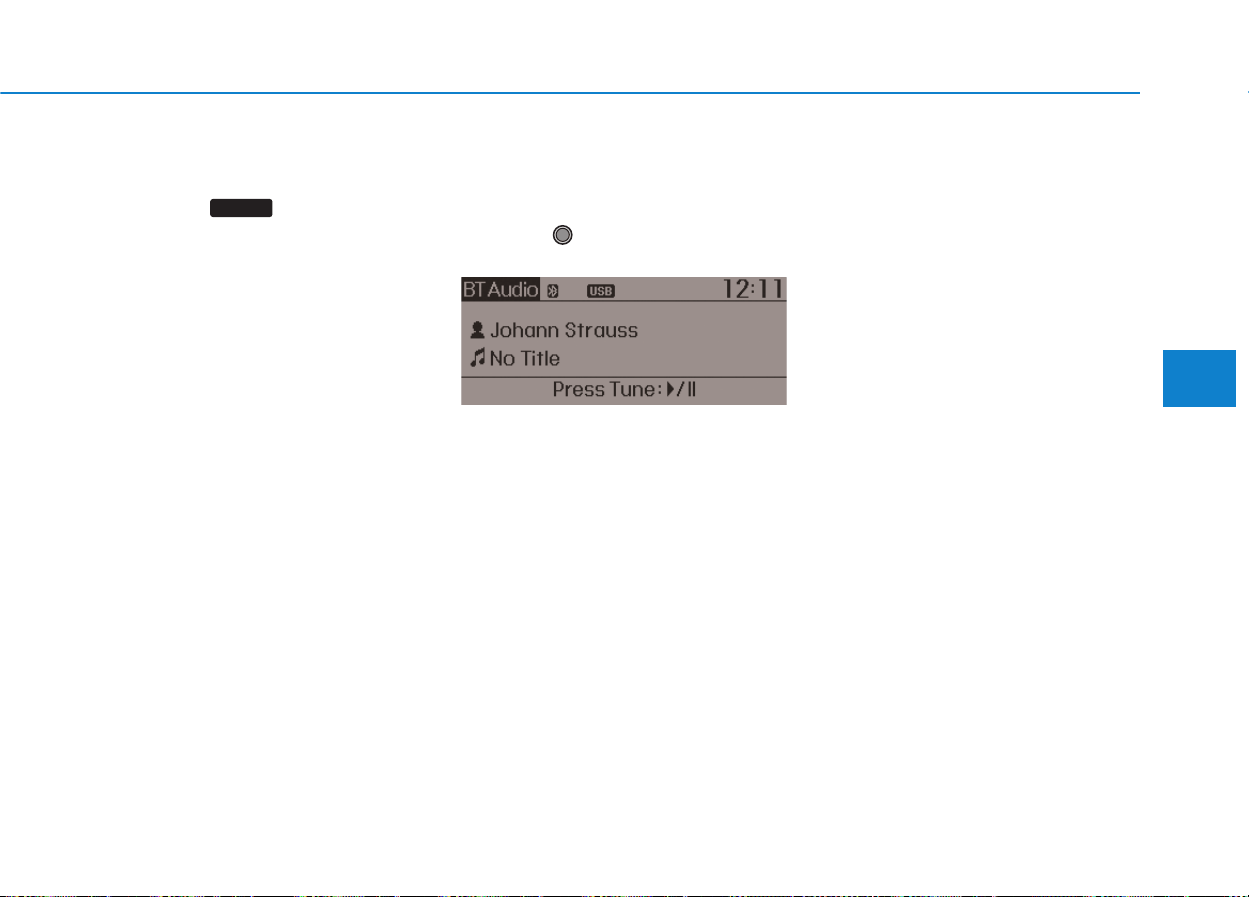
4-145
Multimedia System
4
Starting
Bluetooth
®
Wireless
Technology Audio
• Press the key to change the
mode in order of CD ➟ USB ➟ AUX
➟ My Music ➟ BT Audio.
• If BT Audio is selected,
Bluetooth
®
Wireless Technology audio will start
playing.
❈ Audio may not automatically start
playing in some mobile phones.
Using the
Bluetooth
®
Wireless
Technology audio features
• Play / Stop
Press the TUNE knob to play and
pause the current song.
❈ The play / pause functions may
not be supported in some mobile
phones.
MEDIA
4-146
Multimedia System
PPHHOONNEE
Before using the
Bluetooth
®
Wireless
Technology phone features
• In order to use
Bluetooth
®
Wireless
Technology phone, you must first
pair and connect the
Bluetooth
®
Wireless Technology mobile phone.
• If the mobile phone is not paired or
connected, it is not possible to enter
Phone mode. Once a phone is
paired or connected, the guidance
screen will be displayed.
• If Priority is set upon vehicle ignition
(IGN/ACC ON), the
Bluetooth
®
Wireless Technology phone will be
automatically connected.Even if you
are outside, the
Bluetooth
®
Wireless
Technology phone will be automati-
cally connected once you are in the
vicinity of the vehicle. If you do not
want automatic
Bluetooth
®
Wireless
Technology phone connection, set
the
Bluetooth
®
Wireless Technology
power to OFF.
PPHHOONNEE
Making a call using the Steering
wheel remote controller
1) button : Activates voice recog-
nition.
2) button : Places and transfers
calls.
3) button : Ends calls or cancels
functions.
• Check call history and making call
➀ Shortly press (under 0.8 seconds)
the key on the steering
remote controller .
➁ The call history list will be dis-
played on the screen.
➂ Press the key again to con-
nect a call to the selected number.
• Redialing the most recently called
number
➀ Press and hold (over 0.8 seconds)
the key on the steering
remote controller.
➁ The most recently called number
is redialed.
❈ If call history does not exist, a
screen asking whether to down-
load call history is displayed. (The
download feature may not be sup-
ported in some mobile phones)
4-147
Multimedia System
4
Pairing a
Bluetooth
®
Wireless
Technology Device
What is Bluetooth
®
Wireless
Technology Pairing?
Pairing refers to the process of syn-
chronizing your
Bluetooth
®
Wireless
Technology phone or device with the
car audio system for connection.
Pairing is necessary to connect and
use the
Bluetooth
®
Wireless
Technology feature.
• Driving while distracted can
result in a loss of vehicle con-
trol that may lead to an acci-
dent, severe personal injury,
and death.The driver’s primary
responsibility is in the safe
and legal operation of a vehi-
cle, and use of any handheld
devices, other equipment, or
vehicle systems which take
the driver’s eyes, attention and
focus away from the safe oper-
ation of a vehicle or which are
not permissible by law should
never be used during opera-
tion of the vehicle.
WARNING
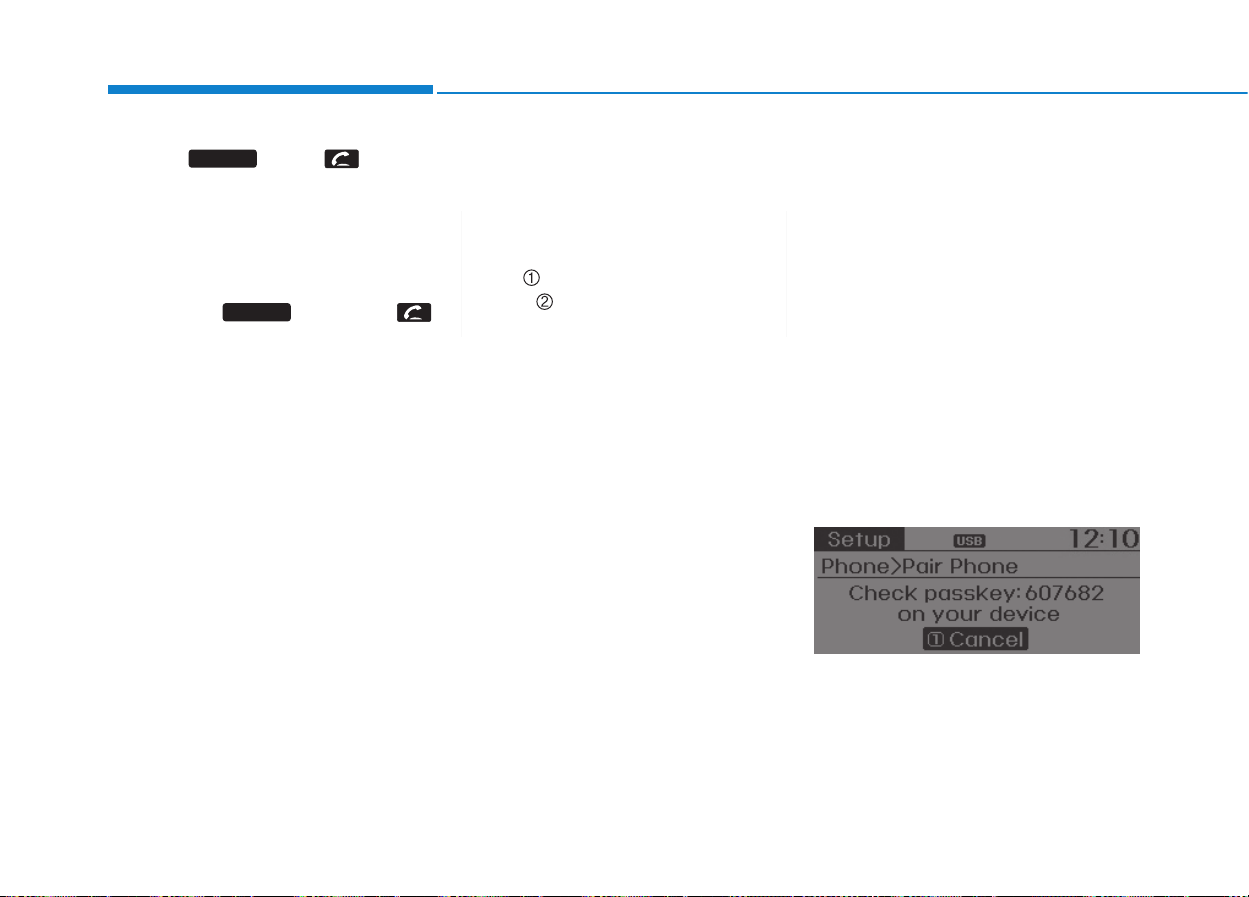
4-148
Multimedia System
Pairing Key / Key
on the Steering Remote
Controller
When No Devices have been
Paired
1. Press the key or the
key on the steering remote con-
troller. The following screen is dis-
played.
2. Select [OK] button to enter the
Pair Phone screen.
1) Car Name : Name of device as
shown when searching from your
Bluetooth
®
Wireless Technology
device
2) Passkey : Passkey used to pair
the device
3. From your
Bluetooth
®
Wireless
Technology device (i.e. Mobile
Phone), search and select your
car audio system.
[Non SSP supported device]
(SSP: Secure Simple Pairing)
4. After a few moments, a screen is
displayed where the passkey is
entered.
Hear, enter the passkey “0000” to
pair your
Bluetooth
®
Wireless
Technology device with the car
audio system.
[SSP supported device]
4. After a few moments, a screen is
displayed 6 digits passkey.
Hear, check the passkey on your
Bluetooth
®
Wireless Technology
device and confirm.
5. Once pairing is complete, the fol-
lowing screen is displayed.
PHONE
PHONE
4-149
Multimedia System
4
✽✽
NOTICE
If Bluetooth
®
Wireless Technology
devices are paired but none are cur-
rently connected, pressing the
key or the key on the
steering wheel displays the following
screen. Select [Pair] button to pair a
new device or select [Connect] to
connect a previously paired device.
Pairing through [PHONE]
Setup
Press the key Select
[Phone] Select [Pair Phone]
Select TUNE knob
1.The following steps are the same
as those described in the section
"When No Devices have been
Paired" on the previous page.
✽✽
NOTICE
• Bluetooth
®
Wireless Technology fea-
tures supported within the vehicle
are as follows. Some features may
not be supported depending on your
Bluetooth
®
Wireless Technology
device.
- Outgoing/Incoming Handsfree
calls
- Operations during a call (Switch
to Private, Switch to call waiting,
MIC on/off)
- Downloading Call History
- Downloading Mobile Contacts
- Bluetooth
®
Wireless Technology
device auto connection
- Bluetooth Audio Streaming
• Up to five Bluetooth
®
Wireless
Technology devices can be paired
to the Car Handsfree system.
• Only one Bluetooth
®
Wireless
Technology device can be connect-
ed at a time.
• Other devices cannot be paired
while a Bluetooth
®
Wireless
Technology device is connected.
• Only Bluetooth
®
Wireless
Technology Handsfree and
Bluetooth audio related features are
supported.
(Continued)
SETUP
CLOCK
PHONE

4-150
Multimedia System
(Continued)
• Bluetooth related operations are
possible only within devices that
support Handsfree or audio fea-
tures, such as a Bluetooth
®
Wireless Technology mobile phone
or a Bluetooth audio device.
• If a connected Bluetooth
®
Wireless
Technology device becomes discon-
nected due to being out of commu-
nication range, turning the device
OFF, or a Bluetooth
®
Wireless
Technology communication error,
corresponding Bluetooth
®
Wireless
Technology devices are automati-
cally searched and reconnected.
• If the system becomes unstable due
to communication errors between
the car Handsfree and the
Bluetooth
®
Wireless Technology
device, reset the device by turning
off and back on again. Upon reset-
ting Bluetooth
®
Wireless Technology
device, the system will be restored.
(Continued)
(Continued)
• After pairing is complete, a con-
tacts download request is sent once
to the mobile phone. Some mobile
phones may require confirmation
upon receiving a download
request, ensure your mobile phone
accepts the connection. Refer to
your phones user’s manual for
additional information regarding
phone pairing and connections.

4-151
Multimedia System
4
Connecting a Device
Press the key Select
[Phone] Select [Paired Phone List]
1) Connected Phone : Device that is
currently connected
2) Paired Phone : Device that is
paired but not connected
From the paired phone list, select the
device you want to connect and
select [Connect].
Changing Priority
What is Priority?
It is possible to pair up to five
Bluetooth
®
Wireless Technology
devices with the car audio system.
The "Change Priority" feature is used
to set the connection priority of
paired phones.
Press the key Select
[Phone] Select [Paired Phone List]
SETUP
CLOCK
SETUP
CLOCK

4-152
Multimedia System
From the paired phone list, select
the phone you want to switch to the
highest priority, then select [Change
Priority] button from the Menu. The
selected device will be changed to
the highest priority.
✽✽
NOTICE
Priority icon will be displayed when
the selected phone is set as a priority
phone.

4-153
Multimedia System
4
Disconnecting a Device
Press the key Select
[Phone] Select [Paired Phone List]
From the paired phone list, select the
currently connected device and
select [Disconnect] button.
Deleting a Device
Press the key Select
[Phone] Select [Paired Phone List]
From the paired phone list, select the
device you want to delete and select
[Delete] button.
✽✽
NOTICE
• When deleting the currently con-
nected device, the device will auto-
matically be disconnected to pro-
ceed with the deleting process.
• If a paired Bluetooth
®
Wireless
Technology device is deleted, the
device’s call history and contacts
data will also be deleted.
• To re-use a deleted device, you
must pair the device again.
SETUP
CLOCK
SETUP
CLOCK

4-154
Multimedia System
UUSSIINNGG
BBlluueettooootthh
®®
WWiirreelleessss
TTeecchhnnoollooggyy
Phone Menu Screen
Phone Menus
With a
Bluetooth
®
Wireless Technology
device connected, press the
key to display the Phone menu screen.
1) Favorite : Up to 20 frequently used
contacts saved for easy access
2) Call History : Displays call history
list screen
3) Contacts : Displays the Contacts
list
4) Setup : Displays Phone related
settings.
✽✽
NOTICE
• If you select the [Call History] but-
ton but there is no call history
data, a prompt is displayed which
asks to download call history data.
• If you select the [Contacts] button
but there is no contacts data
stored, a prompt is displayed
which asks to download contacts
data.
• This feature may not be supported
in some mobile phones. For more
information on download support,
refer to your mobile phone user’s
manual.
Answering Calls
Answering a Call
Answering a call with a
Bluetooth
®
Wireless Technology device connect-
ed will display the following screen.
To accept the call, press key on
the steering wheel while the call is
incoming.
1) Caller : Displays the other party’s
name when the incoming caller is
saved within your contacts
2) Incoming Number : Displays the
incoming number
PHONE
4-155
Multimedia System
4
✽✽
NOTICE
• When an incoming call pop-up is
displayed, most Audio and
SETUP mode features are dis-
abled. Only the call volume will
operate.
• The telephone number may not be
properly displayed in some mobile
phones.
• When a call is answered with the
mobile phone, the call mode will
automatically revert to Private
mode.
Favorites
Press the key Select
[Favorites]
1) Saved favorite contact : Connects
call upon selection
2) To add favorite : Downloaded con-
tacts be saved as favorite.
✽✽
NOTICE
• To save Favorite, contacts should
be downloaded.
• Contact saved in Favorites will not
be automatically updated if the
contact has been updated in the
phone. To update Favorites, delete
the Favorite and create a new
Favorite.
Call History
Press the key Select [Call
History]
A list of incoming, outgoing and
missed calls is displayed.
• Call history may not be saved in the
call history list in some mobile
phones.
• Calls received with hidden caller ID
will not be saved in the call history
list.
• Calling through the call history is not
possible when there is no call history
stored or a
Bluetooth
®
Wireless
Technology phone is not connected.
• Up to 50 received, dialed and missed
calls are stored in Call History.
• Time of received/dialed calls and
call time information are not saved.
PHONE
PHONE
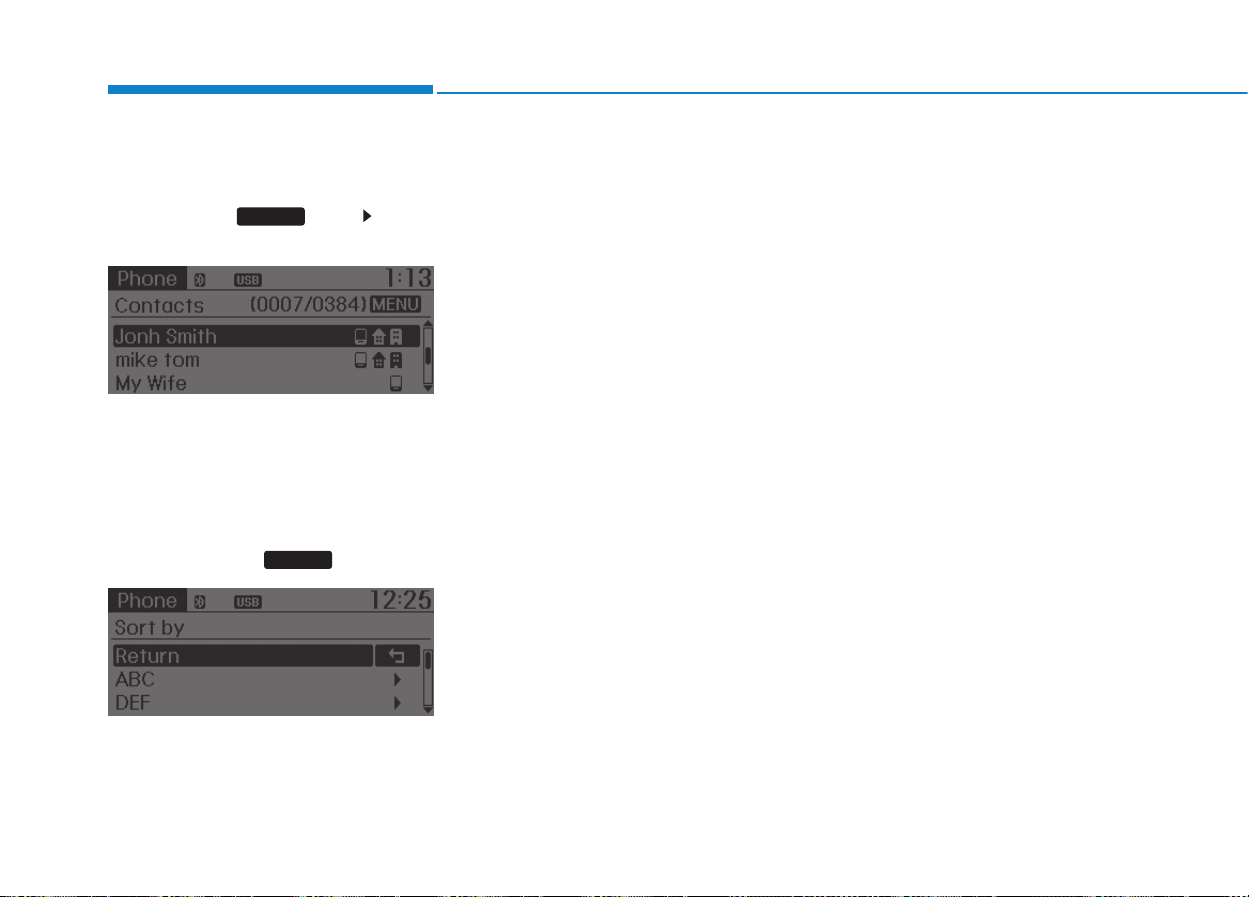
4-156
Multimedia System
Contacts
Press the key Select
[Contacts]
The list of saved phone book entries
is displayed.
NOTE:
Find a contact in an alphabetical
order, press the key.
✽✽
NOTICE
• Up to 1,000 contacts saved in your
Bluetooth
®
Wireless Technology
phone can be downloaded into the
car contacts. Contacts that have
been downloaded to the car cannot
be edited or deleted on the phone.
• Mobile phone contacts are man-
aged separately for each paired
Bluetooth
®
Wireless Technology
device (max 5 devices x 1,000 con-
tacts each). Previously downloaded
data is maintained even if the
Bluetooth
®
Wireless Technology
device has been disconnected.
(However, the contacts and call
history saved to the phone will be
deleted if a paired phone is delet-
ed.)
• It is possible to download contacts
during Bluetooth streaming audio.
• When downloading contacts, the
icon will be displayed within the
status bar.
(Continued)
(Continued)
• It is not possible to begin down-
loading a contact list when the
contact download feature has been
turned off within the Bluetooth
®
Wireless Technology device. In
addition, some devices may
require device authorization upon
attempting to download contacts.
If downloading does not normally
occur, check the Bluetooth
®
Wireless Technology device set-
tings or the screen state.
• The contacts download feature
may not be supported in some
mobile phones. For more informa-
tion of supported Bluetooth
®
devices and function support,
refer to your phone’s user manual.
MENU
PHONE
4-157
Multimedia System
4
Bluetooth
®
Wireless
Technology Setting
The
Bluetooth
®
word mark and logos
are registered trademarks owned by
Bluetooth SIG, Inc. and any use of
such marks is under license. Other
trademarks and trade names are
those of their respective owners.
A
Bluetooth
®
enabled cell phone is
required to use
Bluetooth
®
wireless
technology.
Pairing a New Device
Press the key Select
[Phone] Select [Pair Phone]
Bluetooth
®
Wireless Technology
devices can be paired with the audio
system.
For more information, refer to the
“Pairing through Phone Setup” sec-
tion within
Bluetooth
®
Wireless
Technology.
Viewing Paired Phone List
Press the key Select
[Phone] Select [Paired Phone List]
This feature is used to view mobile
phones that have been paired with
the audio system. Upon selecting a
paired phone, the setup menu is dis-
played.
For more information, refer to the
“Setting
Bluetooth
®
Wireless
Technology Connection” section with-
in
Bluetooth
®
Wireless Technology.
SETUP
CLOCK
SETUP
CLOCK
• Driving while distracted can
result in a loss of vehicle con-
trol that may lead to an acci-
dent, severe personal injury,
and death.The driver’s primary
responsibility is in the safe
and legal operation of a vehi-
cle, and use of any handheld
devices, other equipment, or
vehicle systems which take
the driver’s eyes, attention and
focus away from the safe oper-
ation of a vehicle or which are
not permissible by law should
never be used during opera-
tion of the vehicle.
WARNING

4-158
Multimedia System
1)Connect/Disconnect Phone :
Connect/ disconnects currently
selected phone
2) Change Priority : Sets currently
selected phone to highest connec-
tion priority
3)Delete : Deletes the currently
selected phone
4) Return : Moves to the previous
screen
✽✽
NOTICE BEFORE DOWN-
LOADING CONTACTS
• To learn more about whether your
mobile phone supports contacts
downloads, refer to your mobile
phone user’s manual.
• The contacts for only the connect-
ed phone can be downloaded.
Downloading Contacts
Press the key Select
[Phone] Select [Contacts Download]
As the contacts are downloaded
from the mobile phone, a download
progress bar is displayed.
✽✽
NOTICE
• Upon downloading phone con-
tacts, the previous corresponding
data is deleted.
• This feature may not be supported
in some mobile phones.
• Voice Recognition may not oper-
ate while contacts are being down-
loaded.
SETUP
CLOCK
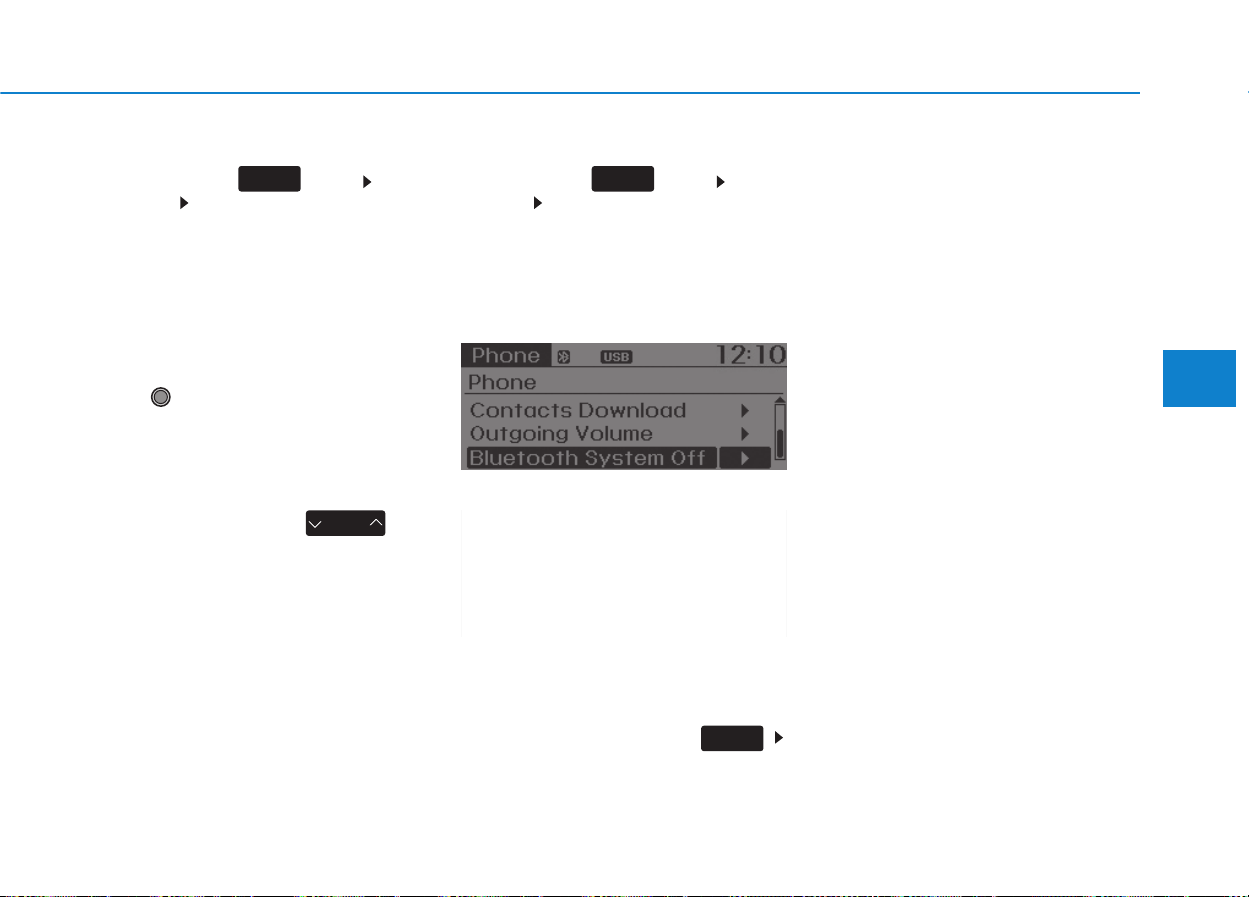
4-159
Multimedia System
4
Outgoing Volume
Press the key Select
[Phone] Select [Outgoing Volume]
Use TUNE knob to adjust the out-
going volume level.
✽✽
NOTICE
While on a call, the volume can be
changed by using the key.
Turning Bluetooth System Off
Press the key Select
[Phone] Select [Bluetooth System
Off]
Once
Bluetooth
®
Wireless Technology
is turned off,
Bluetooth
®
Wireless
Technology related features will not
be supported within the audio system.
✽✽
NOTICE
To turn Bluetooth
®
Wireless
Technology back on, go to
[Phone] and select “Yes”.
SETUP
CLOCK
SETUP
CLOCK
SEEK
TRACK
SETUP
CLOCK

4-160
Multimedia System
VVOOIICCEE RREECCOOGGNNIITTIIOONN
Using Voice Recognition
Starting Voice Recognition
Shortly press the key on the
steering wheel. Say a command.
If prompt feedback is in [ON], then
the system will say “Please say a
command after the beep (BEEP)”
• If prompt feedback is in [OFF]
mode, then the system will only
say “(BEEP)”
• To change Prompt Feedback
[On]/[Off], go to [System]
[Prompt Feedback]
✽✽
NOTICE
For proper recognition, say the com-
mand after the voice instruction and
beep tone.
Contact List Best Practices
1) Do not store single-name entries
(e.g., “Bob”, “Mom”, “Kim”, etc.).
Instead, always use full names
(including first and last names) for
all contacts (e.g., use “Jacob
Stevenson” instead of “Dad”).
2) Do not use abbreviations (i.e., use
“Lieutenant” instead of “Lt.” or
“Sergeant” instead of “Sgt.”).
3) Do not use acronyms (i.e., use
“County Finance Department”
instead of “CFD”).
4) Do not use special characters
(e.g., “@”, “hyphen -”, “asterisk *”,
“ampersand &”).
5) If a name is not recognized from
the contact list, change it to a
more descriptive name (e.g., use
“Grandpa Joseph” instead of “Pa
Joe”).
Skipping Prompt Messages
While prompt message is being stat-
ed Shortly press the key on the
steering remote controller
The prompt message is immediately
ended and the beep tone will sound.
After the “beep”, say the voice com-
mand.
Re-starting Voice Recognition
While system waits for a command
Shortly press the key on the
steering remote controller
The command wait state is immedi-
ately ended and the beep will sound.
After the “beep”, say the voice com-
mand.
SETUP
CLOCK
4-161
Multimedia System
4
EENNDDIINNGG VVOOIICCEE RREECCOOGGNNIITTIIOONN
While Voice Recognition is operating
Press and hold the key on the
steering remote controller
✽✽
NOTICE
• While using voice command,
pressing any steering wheel con-
trol or a different key will end
voice command.
• When the system is waiting for a
voice command, say “cancel” or
“end” to end voice command.
• When the system is waiting for a
voice command, press and hold
the key on the steering wheel
to end voice command.
4-162
Multimedia System
Illustration on using voice commands
• Starting voice command.
Shortly pressing the key (under 0.8 seconds):
• Skipping Voice Recognition
Shortly pressing the key (under 0.8 seconds):
• End voice command.
Shortly pressing the key (under 0.8 seconds):
while guidance message is being stated
More Help
Contacts
Cancel
More Help
Please say a command after
the beep (BEEP)
Please say a...
Contacts.
Please say the name of the contact you want
to call.
(BEEP)
Beep Beep.. (end beep)
Shortly pressing the
key (under 0.8 seconds)
Beep~
More Help
Here are some examples of mode commands.
You can say a radio type like 'FM', 'AM', or 'Satellite'.
You can also say a media source like 'USB', 'My
Music', or 'iPod'.
Additionally, there are phone commands like
"Contacts', 'Call History', or 'Dial Number".
You can find more detailed commands in the user's
manual.
Please say a command after the beep.
More Help
Here are some examples of mode commands.
You can say a radio type like 'FM', 'AM', or 'Satellite'.
You can also say a media source like 'USB', 'My
Music', or 'iPod'.
Additionally, there are phone commands like
"Contacts', 'Call History', or 'Dial Number".
You can find more detailed commands in the user's
manual.
Please say a command after the beep.
Please say a command after
the beep (BEEP)
4-163
Multimedia System
4
Voice Command List
• Common Commands: These commands can be used in most operations. (However a few commands may not be
available during certain operations)
Command Function
More Help Provides guidance on commands that can be
used anywhere in the system.
Help Provides guidance on commands that can be
used within the current mode.
Call<Name> Calls <Name> saved in Contacts
Ex) Call “John Smith”
Call <Name> Calls <Name> to the number that is saved as
"Mobile" in Contacts
Ex) Call "John Smith" on Mobile
Call <Name> Calls <Name> to the number that is saved as
"Office" in Contacts
Ex) Call "John Smith" in Office
Call <Name> Calls <Name> to the number that is saved as
"Home" in Contacts
Ex) Call "John Smith" at Home
Call <Name> Calls <Name> to the number that is saved as
"Other" in Contacts
Ex) Call "John Smith" on Other
Phone Provides guidance on Phone related com-
mands. After saying this command, say
“Favorites”,“Call History”, “Contacts” or ”Dial
Number” execute corresponding functions.
Favorites Display the Favorite screen.
Call History Displays the Call History screen.
Command Function
Contacts Displays the Contacts screen. After saying
this command, say the name of a contact
saved in the Contacts to automatically con-
nect the call.
Dial Number Display the Dial number screen. After saying
this command, you can say the number that
you want to call.
Redial Connects the most recently called number.
Tutorial Provide guidance on how to use voice
recognition and Bluetooth
®
connections.
•
When listening to the radio, displays the
next radio screen. (FM1
➟
FM2
➟
AM
➟
XM1
➟
XM2
➟
XM3
➟
FM1)
Radio
•
When listening to a different mode, displays
the most recently played radio screen.
•
When currently listening to the FM radio,
maintains the current state.
•
When listening to a different mode, displays
the most recently played FM screen.
FM1(FM One) Displays the FM1 screen.
FM2(FM Two) Displays the FM2 screen.
AM Displays the AM screen.
FM Preset 1~6 Plays the most recently played broadcast
saved in FM Preset 1~6.
(Call by Name)
on Mobile
in Office
at Home
on Other
4-164
Multimedia System
Command Function
AM Preset 1~6 Plays the broadcast saved in AM Preset 1~6.
FM 87.5~107.9 Plays the FM broadcast of the corresponding
frequency.
AM 530~1710 Plays the AM broadcast of the corresponding
frequency.
XM (Satellite)
•
When currently listening to the XM, main-
tains the current state.
•
When listening to a different mode, displays
the most recently played XM screen.
XM (Satellite) 1~3
Displays the selected XM screen.
XM Channel Plays the selected XM channel.
Media Moves to the most recently played media
screen.
CD Plays the music saved in the CD.
USB Plays USB music.
iPod
®
Plays iPod music.
Command Function
My Music Plays the music saved in My Music.
AUX (Auxiliary) Plays the connected external device.
Bluetooth
®
Audio Plays the music saved in connected Bluetooth
®
device.
Please repeat Repeats the most recent comment.
Mute Mutes the sound.
Cancel (Exit) Ends voice command.
0~255
4-165
Multimedia System
4
• FM/AM radio commands: Commands available during
FM, AM radio operation
• Satellite radio commands: Commands that can be
used while listening to Satellite Radio.
Command Function
Preset 1~6 Plays the broadcast station saved in Preset 1~6.
Scan Scans receivable frequencies from the current
broadcast and plays for 10 seconds each.
Preset Scan Moves to the next preset from the current
present and plays for 10 seconds each.
Information Displays the information of the current broad-
cast.(This feature can be used when receiving
RBDS broadcasts.)
Command Function
Channel 0~255 Play the selected Satellite Radio channel.
Scan Scans receivable channels from the current
broadcast and plays for 10 seconds each.
Preset 1~6 Plays the broadcast saved in Preset 1~6.
Information Displays the information of the current broad-
cast.
4-166
Multimedia System
• Audio CD commands: Commands available during
Audio CD operation
• MP3 CD / USB commands: Commands available dur-
ing USB and MP3 CD operation
Command Function
Random Randomly plays the tracks within the CD.
Random Off Cancels random play to play tracks in sequen-
tial order.
Repeat Repeats the current track.
Repeat Off Cancels repeat play to play tracks in sequen-
tial order.
Track 1~30 Plays the desired track number.
Command Function
Random Randomly plays the files within the current
folder.
Random Off Cancels random play to play files in sequential
order.
Repeat Repeats the current file.
Repeat Off Cancels repeat play to play files in sequential
order.
Information Displays the information screen of the current
file.
Next Folder Play the first file in the next folder
Previous Folder Play the first file in the previous folder
4-167
Multimedia System
4
• iPod
®
Commands: Commands available during iPod
®
operation
• My Music Commands: Commands available during
My Music operation
Command Function
Random Randomly plays the songs within the current
category.
Random Off Cancels random play to play songs in sequen-
tial order.
Repeat Repeats the current song.
Repeat Off Cancels repeat play to play songs in sequen-
tial order.
Command Function
Random Randomly plays all saved files.
Random Off Cancels random play to play files in sequential
order.
Repeat Repeats the current file.
Repeat Off Cancels repeat play to play files in sequential
order.
Delete Deletes the current file. You will bypass an
additional confirmation process.
4-168
Multimedia System
•
Bluetooth
®
Wireless Technology Audio Commands:
Commands available during
Bluetooth
®
Wireless
Technologyaudio streaming from mobile phone opera-
tion Command Operation
Command Function
Play Plays the currently paused song.
Pause Pauses the current song.

4-169
Multimedia System
4
■■
CD Player : AC111TMAN, AC110TMAN
4-170
Multimedia System
SSYYSSTTEEMM CCOONNTTRROOLLLLEERRSS AANNDD
FFUUNNCCTTIIOONNSS
Audio Head Unit
1. (EJECT)
• Ejects the disc.
2.
• Convert to Radio mode.
• Each time the key is pressed,the
mode is changed in order of FM1,
FM2, AM, XM1, XM2, XM3.
3.
• Convert to Media Mode
• Each time the key is pressed, the
mode is changed in order of CD,
USB(iPod
®
), AUX, My Music, BT
Audio.
4. (for
Bluetooth
®
Wireless
Technology equipped model)
• Converts to Phone mode
❈ When a phone is not connected,
the connection screen is dis-
played.
5. PWR/VOL knob
• Power : Press to turn power
on/off.
• Volume :Turn left/right to control
volume.
6.
• When pressed shortly(under 0.8 sec-
onds)
- Radio mode : plays previous/next
frequency.
- Media (CD/USB/iPod
®
/My Music)
modes :changes the track, Song(file)
• When pressed and held (Over 0.8
seconds)
- Radio mode :continuously changes
the frequency. Upon release, plays
the
current frequency.
- Media(CD/USB/
iPod
®
/My Music)
modes : rewinds or fast forwards the
track or file
- During a Handsfree call, controls
the call volume.
7.
• XM RADIO™ : Category Search
•CD, USB/MP3 mode : Search
Folder
8. RESET
• Forced system termination and
system restart.
CAT
FOLDER
SEEK
TRACK
PHONE
MEDIA
RADIO
4-171
Multimedia System
4
9.
• Turns the monitor display on/off.
10.
Displays the time/date/day.
11.
• Radio Mode : previews all receiv-
able broadcasts for 5 seconds each
• Media (CD/USB/My Music) modes
: previews each song (file) for 10
seconds each.
12.
Converts to Setup mode.
13. TUNE knob
• Radio mode : turn to change broad-
cast frequencies.
• Media (CD/USB/iPod
®
/My Music)
modes : turn to search tracks/chan-
nels/files.
14. DISC-IN LED
• LED that indicates whether a disc is
inserted.
SETUP
SCAN
CLOCK
DISP
4-172
Multimedia System
Steering remote controller
1.VOLUME
• Used to control volume.
2. MUTE
• Mutes audio volume.
3. SEEK
• When pressed shortly (under 0.8 sec-
onds)
- Radio mode : searches broadcast
frequencies saved to presets.
- Media (CD/USB/iPod
®
/My Music/
BT Audio) modes : changes the
track, file or chapter.
• When pressed and held (over 0.8 sec-
onds)
- Radio mode, automatically search-
es broadcast frequencies and
channels
- Media(CD/USB/iPod
®
/My Music)
modes, rewinds or fast forwards
the track or song(file)
- BT Audio mode may not be sup-
ported in some mobile phones.
4. MODE
• Each time this key is pressed, the
mode is changed in order of
FM1➟FM2➟AM➟XM1➟XM2➟XM3
➟CD➟USB or iPod➟AUX➟My
Music➟BT Audio
• If the media is not connected or a
disc is not inserted, corresponding
modes will be disabled.
5.
• When pressed shortly
- Starts voice recognition
- When selecting during a voice
prompt, stops the prompt and
converts to voice command wait-
ing state
• When pressed and held (over 0.8 sec-
onds)
- Ends voice recognition
4-173
Multimedia System
4
6.
• When pressed shortly
- When pressed in the phone screen,
displays call history screen
- When pressed in the dial screen,
makes a call
- When pressed in the incoming call
screen, answers the call
- When pressed during call waiting,
switches to waiting call (Call
Waiting)
• When pressed and held (over 0.8
seconds)
- When pressed in the
Bluetooth
®
Wireless Technology Handsfree
wait mode, redials the last call
- When pressed during a
Bluetooth
®
Wireless Technology Handsfree
call, switches call back to mobile
phone (Private)
- When pressed while calling on the
mobile phone, switches call back to
Bluetooth
®
Wireless Technology
Handsfree (Operates only when
Bluetooth
®
Wireless Technology
Handsfree is connected)
7.
• Ends phone call
4-174
Multimedia System
RRAADDIIOO MMOODDEE
Basic Mode Screen
1. Mode Display
Displays currently operating mode.
2. Frequency
Displays the current frequency.
3. Preset
Displays current preset number [1] ~
[6].
4. Preset Display
Displays preset buttons.
5. Info
Displays broadcast information.
6. A.store
Automatically saves frequencies with
superior reception to Preset buttons.
Switching to Radio Mode
Pressing the key will change
the operating mode in order of FM1
➟
FM2
➟
AM
➟
XM1
➟
XM2
➟
XM3
If [Mode Pop up] is turned on within
[Display], then pressing the
key will display the Radio
Pop-up Mode screen.
Turn the TUNE knob to move the
focus. Press the knob to select.
RADIO
SETUP
RADIO
4-175
Multimedia System
4
Searching Radio Frequencies
Using Seek
Press the key to play the
previous/next frequency.
Using TUNE
Turn the TUNE knob to select the
desired frequency.
• FM : Increases/decreased by
200kHz
• AM : Increases/decreased by
10kHz
Using Radio Mode
Selecting Presets/Saving
Presets
Press the button to display
the broadcast information for the fre-
quency saved to each button.
Press the ~ buttons to play
the desired preset.
✽✽
NOTICE
While listening to a frequency you
want to save as a preset, press and
hold one of the ~ preset
buttons (over 0.8 seconds) to save
the current frequency to the selected
preset.
Auto Store
Press the button to automati-
cally save receivable frequencies to
Preset buttons.
✽✽
NOTICE
While Auto Store is operating, press-
ing the [Cancel] button again will
cancel Auto Store and restore the
previous frequency.
Scan
Press the key to preview fre-
quencies with superior reception for
5 seconds each.
Press and hold the key (over
0.8 seconds) to preview presets for 5
seconds each.
Once scan is complete, the previous
frequency will be restored.
While Scan is operating, pressing
the key will cancel the scan
operation.
SCAN
SCAN
SCAN
A.Store
61
61
Preset
SEEK
TRACK
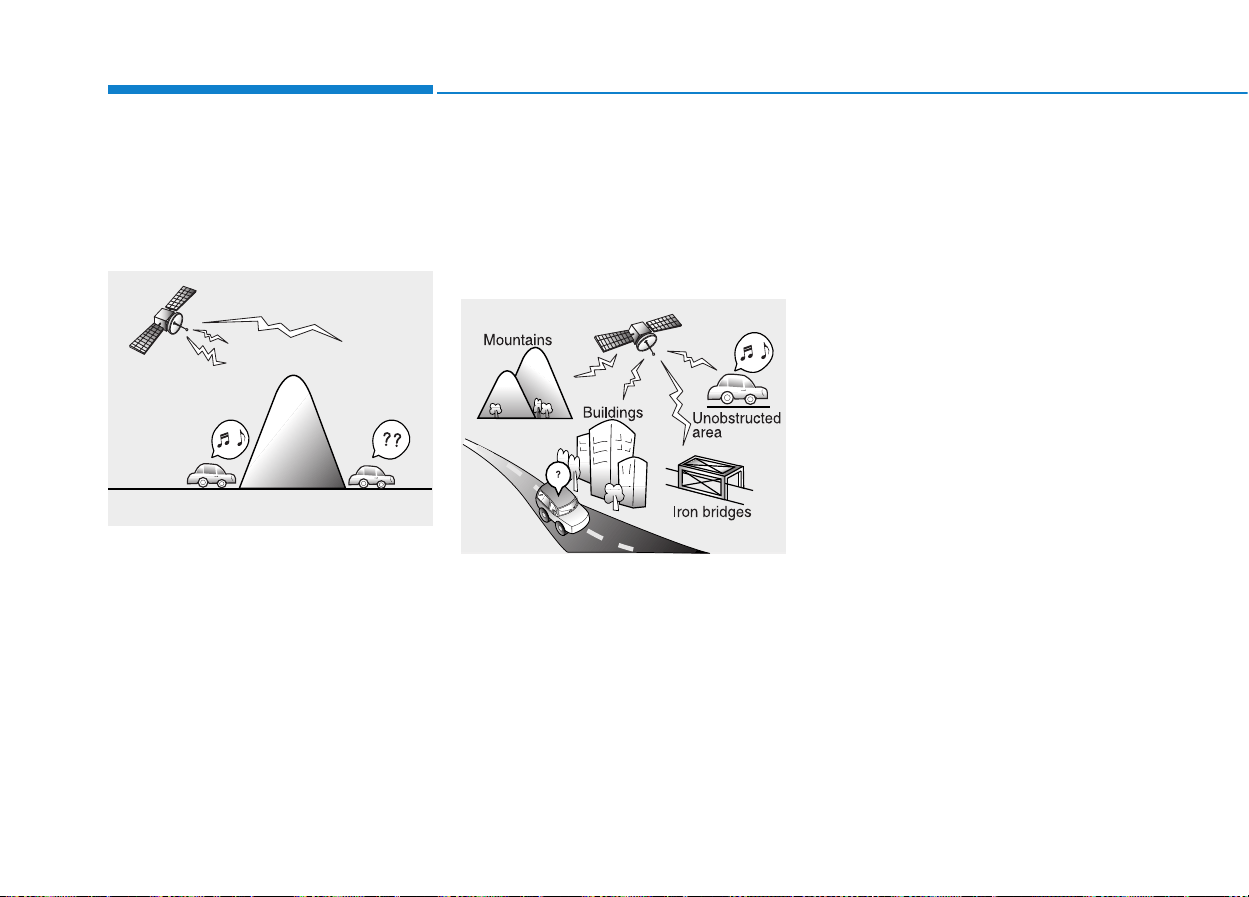
4-176
Multimedia System
XXMM RRAADDIIOO
TTMM
MMOODDEE
Features of your vehicle
Satellite radio reception
You may experience difficulties in
receiving XM satellite™ radio signals
in the following situations.
• If you are driving in a tunnel or a
covered parking area.
• If you are driving beneath the top
level of a multi-level freeway.
• If you are driving under a bridge.
• If you are driving next to a tall vehi-
cle (such as a truck or a bus) that
blocks the signal.
• If you are driving in a valley where
the surrounding hills or peaks
block the signal from the satellite.
• If you are driving on a mountain
road where is the signal blocked by
mountains.
• If you are driving in an area with tall
trees that block the signal (30 ft.
/10m or more), for example on an
road that goes through a dense for-
est.
• The signal can become weak in
some areas that are not covered
by the XM repeater network.
NOTE:
There may also be additional
unforeseen circumstances leading
to reception problems with the XM
satellite™ radio signal.
Advisory Messages, such as ‘CH
Unavailable’may occur when start-
ing XM Radio™.
SATELLITE2
SATELLITE1
4-177
Multimedia System
4
XXMM RRAADDIIOO
TTMM
MMOODDEE
BBaassiicc MMooddee SSccrreeeenn
1. Mode Display
Displays currently operating mode.
2. Channel Information
Displays the category, channel num-
ber, channel name, artist and title
information.
3. Preset
Displays currently playing preset
number [1] ~ [6].
4. Preset Display
Displays saved presets.
4-178
Multimedia System
Using SEEK
Press the key to play the
previous/next channel.
❈ If the “Category” icon is displayed,
channels are changed within the
current category.
Using Tune
Turn the TUNE knob to select the
desired channel.
SCAN
Press the key to scan all
channels with superior reception for
5 seconds each.
Once scan is complete, the previous-
ly played channel will be restored.
During Scan, pressing the
key again will cancel the scan opera-
tion and restore the previously
played channel.
If the “Category” icon is displayed,
channels are changed within the cur-
rent category.
Searching Categories
Select the category by using the
key and press the
TUNE knob to select.
Channels for the selected category
are played.
Selecting Presets/Saving
Presets
Press the button to display
the broadcast information for the
channel saved to each button.
Press the ~ buttons to play
the desired preset.
✽✽
NOTICE
While listening to a channel you
want to save as a preset, press and
hold one of the ~ preset
buttons (over 0.8 seconds) to save
the current channel to the selected
preset.
61
61
Preset
CAT
FOLDER
SCAN
SCAN
SEEK
TRACK

4-179
Multimedia System
4
✽✽
NOTICE - USING THE
DISCS
• This device has been manufac-
tured to be compatible with soft-
ware bearing the following logo
marks.
• Do not clean discs with chemical
solutions, such as record sprays,
antistatic sprays, antistatic liq-
uids, benzene, or thinners.
• After using a disc, put the disc
back in its original case to prevent
disc scratches.
• Hold discs by their edges or with-
in the center hole to prevent dam-
ages to disc surfaces.
• Do not introduce foreign sub-
stances into the disc insert/eject slot.
Introducing foreign substances
could damage the device interior.
• Do not insert two discs simultane-
ously.
• When using CD-R/CD-RW discs,
differences in disc reading and
playing times may occur depend-
ing on the disc manufacturer, pro-
duction method and the recording
method as used by the user.
(Continued)
(Continued)
• Clean fingerprints and dust off
the disc surface (coated side) with
a soft cloth.
• The use of CD-R/CD-RW discs
attached with labels may result in
disc slot jams or difficulties in disc
removal. Such discs may also
result in noise while playing.
• Some CD-R/CD-RW discs may
not properly operate depending
on the disc manufacturer, produc-
tion method and the record
method as used by the user. If
problems persist, trying using a
different CD as continued use
may result in malfunctions.
• The performance of this product
may differ depending on the CD-
RW Drive Software.
• Copy-protected CDs such as S-
type CDs may not function in the
device. DATA discs cannot be
played. (However, such discs may
still operate but will do so abnor-
mally.)
(Continued)
(Continued)
• Do not use abnormally shaped
discs (8cm, heart-shaped, octa-
gon-shaped) as such discs could
lead to malfunctions.
• If the disc is straddled on the disc
slot without removal for 10 sec-
onds, the disc will automatically
be re-inserted into the disc player.
• Only genuine audio CDs are sup-
ported. Other discs may result in
recognition failure (e.g. copy CD-
R, CDs with labels)
4-180
Multimedia System
MMEEDDIIAA MMOODDEE
Pressing the key will change
the operating mode in order of
CD
➟
USB(iPod
®
)
➟
AUX
➟
My Music
➟
BT Audio.
If [Mode Pop up] is turned on within
[Display], then pressing the
key will display the Media
Pop-up Mode screen.
Turn the TUNE knob to move the
focus. Press the knob to select.
✽✽
NOTICE
The media mode pop up screen can
be displayed only when there are two
or more media modes turned on.
Title Icon
When a
Bluetooth
®
Wireless
Technology, iPod
®
, USB, or AUX
device is connected or a CD is
inserted, the corresponding mode
icon will be displayed.
Icon Title
Bluetooth
®
Wireless Technology
CD
iPod
®
USB
AUX
MEDIA
SETUP
MEDIA
4-181
Multimedia System
4
AAUUDDIIOO CCDD MMOODDEE
Basic Mode Screen
1. Mode
Displays currently operating mode.
2. Operation State
From Repeat/Random(Shuffle)/ Scan,
displays the currently operating func-
tion.
3.Track Info
Displays information about the cur-
rent track.
4. Play/Pause
Changes the play/pause state.
5. Play Time
Displays the current play time.
6. Info
Shows detailed information about
the current track.
7. Random(Shuffle)
Turns the Random(Shuffle) feature
on/off.
8. Repeat
Turns the Repeat feature on/off.
9. List
Moves to the list screen.
4-182
Multimedia System
Using Audio CD Mode
Playing/Pausing CD Tracks
Once an audio CD is inserted, the
mode will automatically start and
begin playing.
While playing, press the button
to pause and press button to
play.
✽✽
NOTICE
• Only genuine audio CDs are sup-
ported. Other discs may result in
recognition failure (e.g. copy CD-
R, CDs with labels)
• The artist and title information are
displayed on the screen if track
information is included within the
audio CD.
Changing Tracks
Press the key to move to
the previous or next track.
✽✽
NOTICE
• Pressing the key after the
track has been playing for 2 sec-
onds will start the current track
from the beginning.
• Pressing the key before
the track has been playing for 1
seconds will start the previous
track.
Selecting from the List
Turn the TUNE knob left/right to
search for the desired track.
Once you find the desired track,
press the TUNE knob to start
playing.
Rewinding / Fast-forwarding
Tracks
While playing, press and hold the
key (over 0.8 seconds) to
rewind or fast-forward the current
track.
Scan
Press the key to play the first
10 seconds of each file.
SCAN
SEEK
TRACK
SEEK
TRACK
SEEK
TRACK
SEEK
TRACK

4-183
Multimedia System
4
Audio CD Mode Menu
Within this mode, you will have
access to the Info, Random(Shuffle),
Repeat and List features.
Info
Press the button to display
details about the current disc.
Random(Shuffle)
Press the button to play tracks
in random(Shuffle) order.
Press the button again to turn
the Random(Shuffle) feature off.
• Random(Shuffle):Plays all tracks in
random(Shuffle) order.
Repeat
Press the button to repeat the
current track. Press the button again
to turn the repeat feature off.
• Repeat : Repeats the current track.
List
Press the button to display the
track list screen.
Turn the TUNE knob left/right to
search for tracks. Once the desired
track is displayed, press the knob to
select and play.
List
Repeat
Shuffle
Shuffle
Info
4-184
Multimedia System
MMPP33 CCDD MMOODDEE
Basic Mode Screen
1. Mode
Displays currently operating mode.
2. Operation State
From Repeat/Random(Shuffle)/ Scan,
displays the currently operating func-
tion.
3. File Index
Displays the current file number.
4. File Info
Displays information about the cur-
rent file.
5. Play/Pause
Changes the play/pause state.
6. Play Time
Displays the current play time.
7. Info
Shows detailed information about
the current file.
8. Random(Shuffle)
Turns the Random(Shuffle) feature
on/off.
9. Repeat
Turns the Repeat feature on/off.
10. Copy
Copies the current file into My Music
11. List
Moves to the list screen.
4-185
Multimedia System
4
Using MP3 CD Mode
Playing/Pausing MP3 Files
Once an MP3 disc is inserted the
mode will automatically start and
begin playing.
While playing, press the button
to pause and press button to
play.
✽✽
NOTICE
• If there are numerous files and
folders within the disc, reading
time could take more than 10 sec-
onds and the list may not be dis-
played or song searches may not
operate. Once loading is complete,
try again.
Changing Files
Press the key to move to
the previous or next file.
✽✽
NOTICE
• Pressing the key after the
file has been playing for 2 seconds
will start the current file from the
beginning.
• Pressing the key before
the file has been playing for 1 sec-
onds will start the previous file.
Selecting from the List
Turn the TUNE knob left/right to
search for the desired file.
Once you find the desired file, press
the TUNE knob to start playing.
Rewinding / Fast-forwarding Files
While playing, press and hold the
key (over 0.8 seconds) to
rewind or fast-forward the current file.
Scan
Press the key to play the first
10 seconds of each file.
Searching Folders
Press the key to select and
search folders.
Once the desired folder is displayed,
press the TUNE knob to select.
The first file within the selected folder
will begin playing.
CAT
FOLDER
SCAN
SEEK
TRACK
SEEK
TRACK
SEEK
TRACK
SEEK
TRACK

4-186
Multimedia System
MP3 CD Mode Menu
Within this mode, you will have
access to the Info, Random(Shuffle),
Repeat, Copy and List features.
Info
Press the button to display
details about the current file.
✽✽
NOTICE
• When the ‘Folder File’ option is set
as the default display within
Display setup, the album/artist/file
information are displayed as
detailed file information.
• When the ‘Album Artist Song’
option is set as the default display,
the folder name/file name are dis-
played as detailed file information.
• The title, artist and album info are
displayed only when such informa-
tion are recorded within the MP3
file ID3 tag.
Random(Shuffle)
Press the button to play files
in random(Shuffle) order.
Each time the button is pressed, the
feature changes in order of Random
(Shuffle) Folder
➟ Random (Shuffle)
All➟ Off.
• Random(Shuffle) Folder : Plays all
files within the current folder in
Random (Shuffle) order.
• Random(Shuffle) All : Plays all files
in Random(Shuffle) order.
Repeat
Press the button to repeat the
current file or folder.
Each time the button is pressed, the
feature changes in order of Repeat
➟Repeat Folder➟Off.
• Repeat: Repeats the current file.
• Repeat Folder: Repeats all files
within the current Folder.
Copying Files
Press the button to copy the
current file into My Music.
✽✽
NOTICE
Selecting another feature during
copying will display a pop-up asking
whether you wish to cancel copying.
To cancel, select 'Yes’.
Copy
Repeat
Shuffle
Info

4-187
Multimedia System
4
List
Press the button to display the
file list screen.
Turn the TUNE knob left/right to
search for files. Once the desired file
is displayed, press the knob to select
and play.
List

4-188
Multimedia System
✽✽
NOTICE - USING THE
USB DEVICE
• Connect the USB device after
turning on the engine. The USB
device may become damaged if
it is already connected when the
ignition is turned on.The USB
device may not operate properly
if the car ignition is turned on or
off with the USB device connect-
ed.
• Heed caution to static electricity
when connecting/disconnecting
USB devices.
• Encoded MP3 Players will not
be recognized when connected
as an external device.
• When connecting an external
USB device, the device may not
properly recognize the USB is in
some states.
• Only products formatted with
byte/sectors under 64Kbyte will
be recognized.
• This device recognizes USB
devices formatted in FAT
12/16/32 file formats. This
device does not recognize files in
NTFS file format.
(Continued)
(Continued)
• Some USB devices may not be
supported due to compatibility
issues.
• Avoid contact between the USB
connector with bodily parts or
foreign objects.
• Repeated connecting/discon-
necting of USB devices within
short periods of time may result
in product malfunction.
• A strange noise may occur when
disconnecting the USB.
• Make sure to connect/discon-
nect external USB devices with
the audio power turned off.
• The amount of time required to
recognize the USB device may
differ depending on the type,
size or file formats stored in the
USB. Such differences in time
are not indications of malfunc-
tions.
• The device only supports USB
devices used to play music files.
• USB images and videos are not
supported.
(Continued)
(Continued)
• Do not use the USB I/F to
charge batteries or USB acces-
sories that generate heat. Such
acts may lead to worsened per-
formance or damage to the
device.
• The device may not recognize
the USB device if separately
purchased USB hubs and exten-
sion cables are being used.
Connect the USB directly with
the multimedia terminal of the
vehicle.
• When using mass storage USB
devices with separate logical
drives, only files saved to the
root drive can be played.
• Files may not properly operate
if application programs are
installed to the USBs.
• The device may not operate nor-
mally if MP3 Players, cellular
phones, digital cameras, or
other electronic devices (USB
devices not recognized as
portable disk drives) are con-
nected with the device.
(Continued)

4-189
Multimedia System
4
(Continued)
• Avoid use of USB
memory products
that can also be used
as key chains or
mobile phone acces-
sories. Use of such products may
cause damage to the USB jack.
• Connecting an MP3 device or
phone through various chan-
nels, such as AUX/BT or Audio/
USB mode may result in pop
noises or abnormal operation.
(Continued)
• Charging through the USB may
not work for some mobile
devices.
• The device may not support
normal operation when using a
USB memory type besides
(Metal Cover Type) USB
Memory.
• The device may not support
normal operation when using
formats such as HDD Type, CF,
or SD Memory.
• The device will not support files
locked by DRM (Digital Rights
Management.)
• USB memory sticks used by
connecting an Adaptor (SD
Type or CF Type) may not be
properly recognized.
• The device may not operate
properly when using USB HDDs
or USBs subject to connection
failures caused by vehicle vibra-
tions. (e.g. i-stick type)
(Continued)
4-190
Multimedia System
UUSSBB MMOODDEE
Basic Mode Screen
1. Mode
Displays currently operating mode.
2. Operation State
From Repeat/Random(Shuffle)/ Scan,
displays the currently operating func-
tion.
3. File Index
Displays the current file number.
4. File Info
Displays information about the cur-
rent file.
5. Play/Pause
Changes the play/pause state.
6. Play Time
Displays the current play time.
7. Info
Displays detailed information for the
current file.
8. Random(Shuffle)
Turns the Random(Shuffle) feature
on/off.
9. Repeat
Turns the Repeat feature on/off.
10. Copy
Copies the current file into My Music.
11. List
Moves to the list screen.
4-191
Multimedia System
4
Using USB Mode
Playing/Pausing USB Files
Once a USB is connected, the mode
will automatically start and begin
playing a USB file.
While playing, press the button
to pause and press button to
play.
✽✽
NOTICE
• Loading may require additional
time if there are many files and
folders within the USB and result
in faulty list display or file search-
ing. Normal operations will resume
once loading is complete.
• The device may not support nor-
mal operation when using a USB
memory type besides (Metal Cover
Type) USB Memory.
Changing Files
Press the keys to move to
the previous or next file.
✽✽
NOTICE
• Pressing the key after the
file has been playing for 2 seconds
will start the current file from the
beginning.
• Pressing the key before
the file has been playing for 1 sec-
onds will start the previous file.
Selecting from the List
Turn the TUNE knob left/right to
search for the desired file.
Once you find the desired file, press
the TUNE knob to start playing.
Rewinding / Fast-forwarding
Files
While playing, press and hold the
key (over 0.8 seconds) to
rewind or fast-forward the current file.
Scan
Press the key to play the first
10 seconds of each file.
SCAN
SEEK
TRACK
SEEK
TRACK
SEEK
TRACK
SEEK
TRACK

4-192
Multimedia System
Searching Folders
Press the key to select
and search folders.
Once the desired folder is displayed,
press the TUNE knob to select.
The first file within the selected fold-
er will begin playing.
USB Mode Menu
Within this mode, you will have
access to the Info, Random(Shuffle),
Repeat, Copy and List features.
Info
Press the button to display
details about the current file.
✽✽
NOTICE
• When the ‘Folder File’ option is set
as the default display within
Display setup, the album/artist/file
information are displayed as
detailed file information.
• When the ‘Album Artist Song’
option is set as the default display,
the folder name/file name are dis-
played as detailed file information.
• The title, artist and album info are
displayed only when such infor-
mation are recorded within the
MP3 file ID3 tag.
Random(Shuffle)
Press the button to play files
in random(Shuffle) order.
Each time the button is pressed, the
feature changes in order of
Random(Shuffle) Folder
➟Random
(Shuffle) All➟Off.
• Random(Shuffle) Folder : Plays the
files in the current folder in ran-
dom(Shuffle) order.
• Random(Shuffle) All : Plays all files
in random(Shuffle) order.
Shuffle
Info
CAT
FOLDER
4-193
Multimedia System
4
Repeat
Press the button to repeat the
current file or folder.
Each time the button is pressed, the
feature changes in order of Repeat➟
Repeat Folder ➟ Off.
• Repeat (Icon) : Repeats the current
file.
• Repeat Folder (Icon) : Repeats all
files within the current folder.
Copying Files
Press the button to copy the
current file into My Music.
✽✽
NOTICE
Selecting another feature during
copying will display a pop-up asking
whether you wish to cancel copying.
To cancel, select 'Yes’.
List
Press the button to display the
file list screen.
Turn the TUNE knob left/right to
search for files. Once the desired file
is displayed, press the knob to select
and play.
List
Copy
Repeat

4-194
Multimedia System
✽✽
NOTICE - USING THE
iPod
®
DEVICE
• iPod
®
is a registered trademark
of Apple Inc.
• In order to use the iPod
®
while
operating the keys, you must use
a dedicated iPod
®
cable. (the
cable that is supplied when pur-
chasing iPod
®
/iPhone
®
prod-
ucts)
• If the iPod
®
is connected to the
vehicle while it is playing, a high
pitch sound could occur for
approximately 1-2 seconds
immediately after connecting. If
possible, connect the iPod to the
vehicle with the iPod
®
stopped/paused.
• During ACC ON state, connect-
ing the iPod
®
through the iPod
®
cable will charge the iPod
®
through the car audio system.
• When connecting with the iPod
®
cable, make sure to fully insert
the jack to prevent communica-
tion interference.
(Continued)
(Continued)
• When the EQ features of an
external device, such as the
iPod
®
, and the audio system are
both active, EQ effects could
overlap and cause sound deteri-
oration and distortion.
Whenever possible, turn off the
EQ feature within the external
device upon use by connecting
with the audio system.
• Noise may occur when an iPod
®
or AUX device is connected.
When such devices are not
being used, disconnect the
device for storage.
• When the iPod
®
or AUX device
power is connected to the power
jack, playing the external device
may result in noise. In such
cases, disconnect the power con-
nection before use.
• Skipping or improper operation
may occur depending on the
characteristics of your iPod
®
/Phone
®
device.
(Continued)
(Continued)
• If your iPhone
®
is connected to
both the Bluetooth
®
Wireless
Technology and USB, the sound
may not be properly played. In
your iPhone
®
, select the Dock
connector or Bluetooth
®
Wireless Technology to change
the sound output (source).
• iPod
®
mode cannot be operated
when the iPod
®
cannot be recog-
nized due to versions that do not
support communication proto-
cols.
• For fifth generation iPod
®
Nano
devices, the iPod
®
may not be
recognized when the battery
level is low. Please charge the
iPod
®
for use.
• Search/play orders shown within
the iPod
®
device may differ with
the orders shown within the
audio system.
• If the iPod
®
malfunctions due to
an iPod
®
device defect, reset the
iPod
®
and try again. (To learn
more, refer to your iPod
®
manu-
al)
(Continued)

4-195
Multimedia System
4
iiPPoodd
®
MMOODDEE
Basic Mode Screen
1. Mode
Displays currently operating mode.
2. Operation State
From Repeat/Random(Shuffle), dis-
plays the currently operating func-
tion.
3. Song Index
Displays the current song/total num-
ber of songs.
4. Song Info
Displays information about the cur-
rent song.
5. Play/Pause
Changes the play/pause state.
6. Play Time
Displays the current play time.
7. Random(Shuffle)
Turns the Random(Shuffle) feature
on/off.
8. Repeat
Turns the Repeat feature on/off.
9. List
Moves to the list screen.
(Continued)
• Some iPod
®
s may not sync with
the System depending on its ver-
sion. If the Media is removed
before the Media is recognized,
then the system may not proper-
ly restore the previously operat-
ed mode. (iPad
®
charging is not
supported.)
4-196
Multimedia System
Using iPod
®
Mode
Playing/Pausing iPod
®
Songs
Once an iPod
®
is connected, the
mode will automatically start and
begin playing an iPod
®
song.
While playing, press the button
to pause and press button to
play.
✽✽
NOTICE
• iPod
®
s with unsupported commu-
nication protocols may not proper-
ly operate in the audio system.
Changing Songs
Press the key to move to
the previous or next song.
✽✽
NOTICE
• Pressing the key after the
song has been playing for 2 sec-
onds will start the current song
from the beginning.
• Pressing the key before
the song has been playing for 1 sec-
onds will start the previous song.
• Slight time differences may exist
depending your iPod
®
product.
Rewinding / Fast-forwarding
Songs
While playing, press and hold the
key (over 0.8 seconds) to
rewind or fast-forward the current
song.
Searching Categories
Turn the TUNE knob left/right to
search for the desired category.
Once you find the desired category,
press the TUNE knob to select
and play.
✽✽
NOTICE
There are eight categories that can be
searched, including Playlists, Artists,
Albums, Genres, Songs, Composers,
Audiobooks and Podcasts.
SEEK
TRACK
SEEK
TRACK
SEEK
TRACK
SEEK
TRACK

4-197
Multimedia System
4
Category Menu
Within the iPod
®
Category menu,
you will have access to the ,
Home, and features.
1. : Displays the play screen
2. Home : Moves to the iPod
®
root cat-
egory screen
3. : Moves to the previous cate-
gory
✽✽
NOTICE
• If the search mode is accessed
while playing a song, the most
recently searched category is dis-
played.
• Search steps upon initial connec-
tion may differ depending on the
type of iPod
®
device.
4-198
Multimedia System
iPod
®
Mode Menu
Within this mode, you will have
access to the Random(Shuffle),
Repeat and List features.
Random(Shuffle)
Press the button to play
songs in random(Shuffle) order.
Each time the button is pressed, the
feature changes in order of
Random(Shuffle) Album
➟Random
(Shuffle) All➟Off.
• Random(Shuffle) Album : Shuffle
Album plays album in
Random(Shuffle) order.
• Random(Shuffle) All : Plays all
songs in Random(Shuffle) order.
Repeat
Press the button to repeat the
current song. Press the button again
to turn the repeat feature off.
• Repeat : Repeats the current song
List
Press the button to display the
Category Menu.
Turn the TUNE knob left/right to
search for the desired category.
Once you find the desired category,
press the TUNE knob to select
and play.
AAUUXX MMOODDEE
Using AUX Mode
Press the key Select [AUX]
An external device can be connected
to play music.
MEDIA
List
Repeat
Shuffle

4-199
Multimedia System
4
Connecting an External Device
External audio players (Camcorders,
car VCR, etc.) can be played through
a dedicated cable.
✽✽
NOTICE
• If an external device connector is
connected with the AUX terminal,
then AUX mode will automatically
operate. Once the connector is dis-
connected, the previous mode will
be restored.
• AUX mode can be used only when
an external audio player (cam-
corder, car VCR, etc.) has been
connected.
• The AUX volume can be con-
trolled separately from other
audio modes.
• Connecting a connector jack to the
AUX terminal without an external
device will convert the system to
AUX mode, but only output noise.
When an external device is not
being used, also remove the con-
nector jack.
• When the external device power is
connected to the power jack, play-
ing the external device may output
noise. In such cases, disconnect the
power connection before use.
• Fully insert the AUX cable to the
AUX jack upon use.
4-200
Multimedia System
MMYY MMUUSSIICC MMOODDEE
Basic Mode Screen
1. Mode
Displays currently operating mode.
2. Operation State
From Repeat/Random(Shuffle)/ Scan,
displays the currently operating func-
tion.
3. File Index
Displays the current file/total number
of files.
4. File Info
Displays information about the cur-
rent file.
5. Play/Pause
Changes the play/pause state.
6. Play Time
Displays the current play time.
7. Info
Displays detailed information for the
current file.
8. Random(Shuffle)
Turns the Random(Shuffle) feature
on/off.
9. Repeat
Turns the Repeat feature on/off.
10. Delete
Deletes the current file.
11. List
Moves to the list screen.

4-201
Multimedia System
4
Using My Music Mode
Playing/Pausing My Music Files
While playing, press the button
to pause and press button to
play.
✽✽
NOTICE
If there are no files saved within My
Music, the [My Music] button will
be disabled.
Changing Files
Press the key to move to
the previous or next file.
✽✽
NOTICE
• Pressing the key after the
file has been playing for 2 seconds
will start the current file from the
beginning.
• Pressing the key before
the file has been playing for 1 sec-
onds will start the previous file.
Selecting from the List
Turn the TUNE knob left/right to
search for the desired file.
Once you find the desired file, press
the TUNE knob to start playing.
Rewinding / Fast-forwarding
Files
While playing, press and hold the
key (over 0.8 seconds) to
rewind or fast-forward the current file.
Scan
Press the key to play the first
10 seconds of each file.
SCAN
SEEK
TRACK
SEEK
TRACK
SEEK
TRACK
SEEK
TRACK
4-202
Multimedia System
My Music Mode Menu
Within this mode, you will have
access to the Info, Random(Shuffle),
Repeat, Delete and List features.
Info
Press the button to display
details about the current file.
✽✽
NOTICE
The title, artist and album info are
displayed only when such informa-
tion is recorded within the MP3 file
ID3 tag.
Random
Press the button to play files
in random order. Press the button
again to turn the Random feature off.
Repeat
Press the button to repeat the
current song. Press the button again
to turn the repeat feature off.
Deleting Files
Press the button to delete the
current file.
List
Press the button to display the
file list screen.
Turn the TUNE knob left/right to
search for files. Once the desired file
is displayed, press the knob to select
and play.
List Menu
From the List screen, it is possible to
delete files you previously saved into
My Music.
Press the button or individ-
ually select the files you want to
delete. Once files are selected, the
button and buttons
will be enabled.
1) :Moves to the previous screen
2) Sellect All: Selects all files
3) Unsellet All: Deselects all selected
files
4) Delete: Deletes selected files
Delete
Unselect All
Select All
List
Delete
Repeat
Shuffle
Info

4-203
Multimedia System
4
After selecting the files you want to
delete, press the button to
delete the selected files.
✽✽
NOTICE
• If there is memory available, up to
6,000 files can be saved.
• Identical files cannot be copied
more than 1,000 times.
• To check memory information, go
to [System] [Memory
Information]
✽✽
NOTICE - USING THE
Bluetooth
®
Wireless
Technology Audio Mode
• Bluetooth
®
Wireless Technology
Audio Mode can be used only
when a Bluetooth
®
Wireless
Technology phone has been con-
nected.
• Bluetooth
®
Wireless Technology
Audio Mode will not be available
when connecting mobile phones
that do not support this feature.
• While Bluetooth
®
Wireless
Technology Audio is playing, if the
Bluetooth
®
Wireless Technology
phone is connected, then the music
will also stop.
• Moving the Track up/down while
playing Bluetooth
®
Wireless
Technology audio mode may
result in pop noises in some mobile
phones.
• Bluetooth
®
Wireless Technology
streaming audio may not be sup-
ported in some mobile phones.
(Continued)
(Continued)
• When returning to Bluetooth
®
Wireless Technology Audio mode
after ending a call, the mode may
not automatically restart in some
mobile phones.
• Receiving an incoming call or mak-
ing an outgoing call while playing
Bluetooth
®
Wireless Technology
Audio may result in audio interfer-
ence.
SETUP
Delete
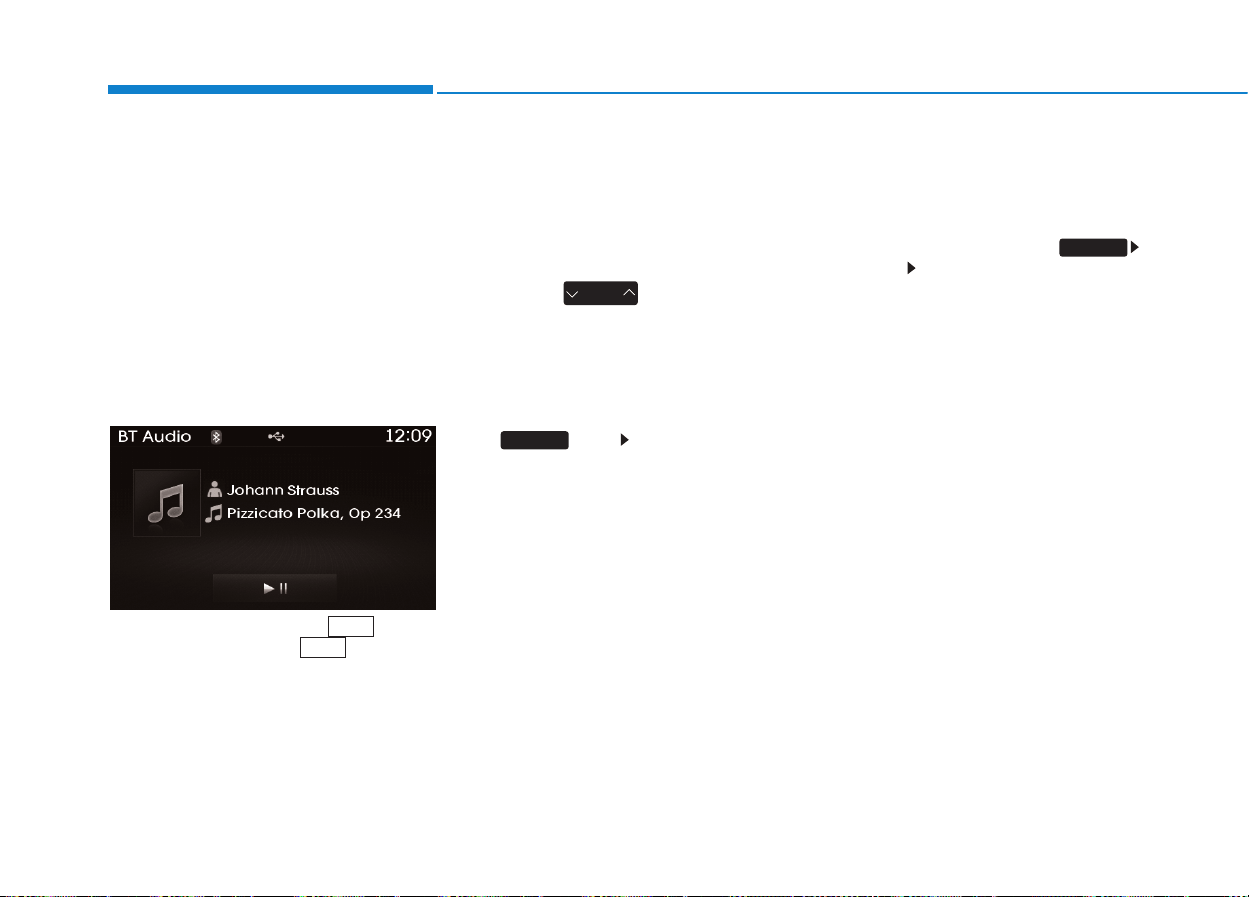
4-204
Multimedia System
BBlluueettooootthh
®®
WWiirreelleessss
TTeecchhnnoollooggyy AAUUDDIIOO MMOODDEE
Using
Bluetooth
®
Wireless
Technology Audio Mode
Playing/Pausing Bluetooth
®
Wireless Technology
Audio
Once a
Bluetooth
®
Wireless
Technology device is connected, the
mode will automatically start.
While playing, press the button
to pause and press button to
play.
✽✽
NOTICE
The play/pause feature may operate
differently depending on the mobile
phone.
Changing Files
Press the key to move to
the previous or next file.
Setting Connection
If a
Bluetooth
®
Wireless Technology
device has not been connected, press
the key [Phone] button to
display the
Bluetooth
®
Wireless
Technology connection screen.
It is possible to use the pair phone,
connect/disconnect and delete fea-
tures from your
Bluetooth
®
Wireless
Technology phone.
✽✽
NOTICE
• If the Bluetooth
®
Wireless
Technology audio is not operating
properly, check whether the fea-
ture is turned off at
[Phone] [Streaming Audio]. If the
feature is off, turn back on and try
again.
• If music is not yet playing from
your mobile device after converting
to Bluetooth
®
Wireless Technology
Audio mode, pressing the play but-
ton once may start playing the
mode. Check to see that music is
playing from the Bluetooth
®
Wireless Technology device after
converting to Bluetooth
®
Wireless
Technology Audio Mode.
SETUP
SETUP
SEEK
TRACK
4-205
Multimedia System
4
Pairing a
Bluetooth
®
Wireless
Technology Device
What is Bluetooth
®
Wireless
Technology Pairing?
Pairing refers to the process of syn-
chronizing your
Bluetooth
®
Wireless
Technology phone or device with the
car audio system for connection.
Pairing is necessary to connect and
use the
Bluetooth
®
Wireless
Technology feature.
Pairing Key / Key
on the Steering Remote
Controller
When No Devices have been
Paired
1. Press the key or the
key on the steering remote con-
troller. The following screen is dis-
played.
2. Press the button to enter
the Pair Phone screen.
1) Car Name : Name of device as
shown when searching from your
Bluetooth
®
Wireless Technology
device
2) Passkey : Passkey used to pair
the device
3. From your
Bluetooth
®
Wireless
Technology device (i.e. Mobile
Phone), search and select your
car audio system.
OK
PHONE
PHONE
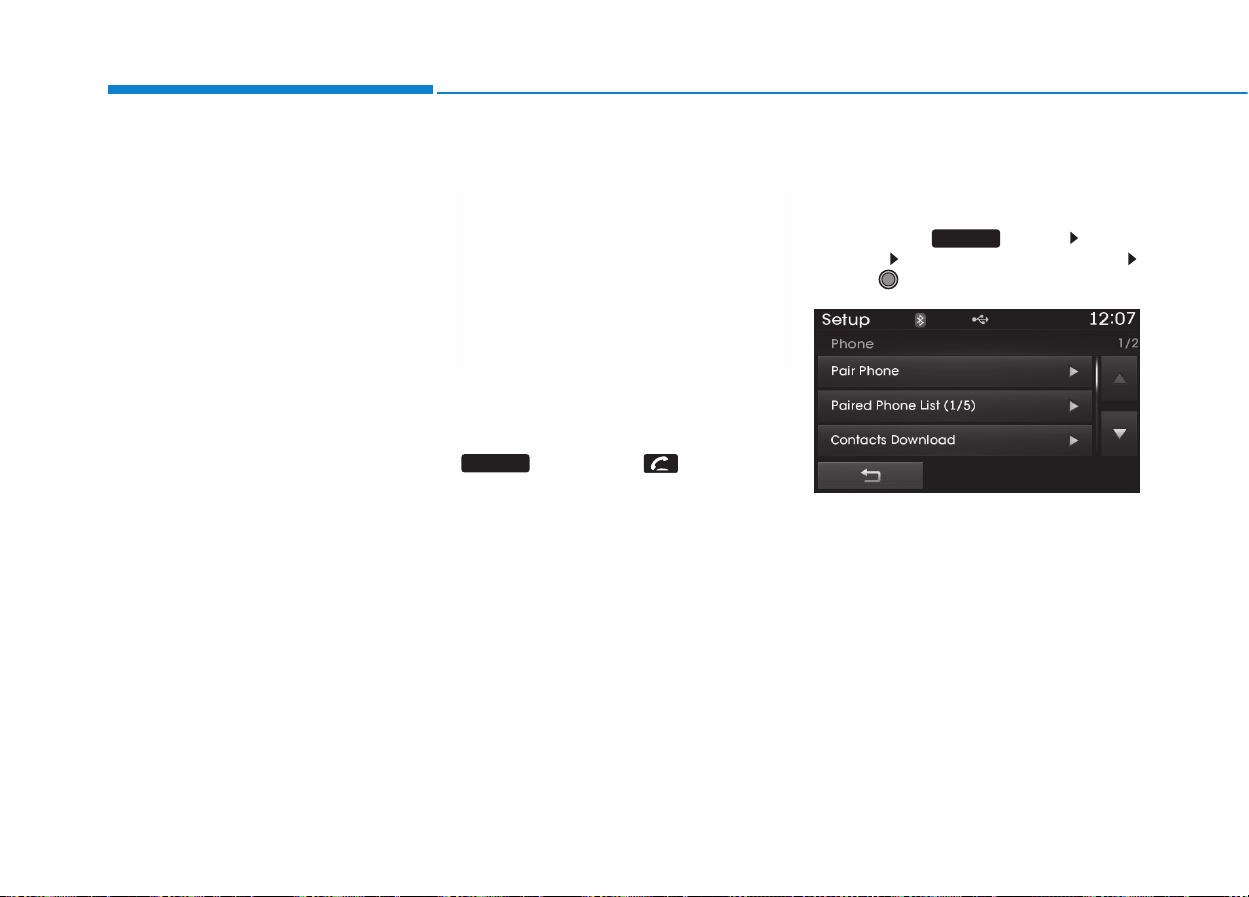
4-206
Multimedia System
[Non SSP supported device]
(SSP: Secure Simple Pairing)
4. After a few moments, a screen is
displayed where the passkey is
entered.
Hear, enter the passkey “0000” to
pair your
Bluetooth
®
Wireless
Technology device with the car
audio system.
[SSP supported device]
4. After a few moments, a screen is
displayed 6 digits passkey.
Hear, check the passkey on your
Bluetooth
®
Wireless Technology
device and confirm.
5. Once pairing is complete, the fol-
lowing screen is displayed.
✽✽
NOTICE
If Bluetooth
®
Wireless Technology
devices are paired but none are cur-
rently connected, pressing the
key or the key on the
steering wheel displays the following
screen. Press the [Pair] button to
pair a new device or press the
[Connect] to connect a previously
paired device.
Pairing through [PHONE]
Setup
Press the key Select
[Phone] Select [Pair Phone]
Select TUNE knob
1.The following steps are the same
as those described in the section
"When No Devices have been
Paired" on the previous page.
SETUP
PHONE

4-207
Multimedia System
4
✽✽
NOTICE
• Bluetooth
®
Wireless Technology
features supported within the
vehicle are as follows. Some fea-
tures may not be supported
depending on your Bluetooth
®
Wireless Technology device.
- Outgoing/Incoming Handsfree
calls
- Operations during a call (Switch
to Private, Switch to call waiting,
MIC on/off)
- Downloading Call History
- Downloading Mobile Contacts
- Bluetooth
®
Wireless Technology
device auto connection
- Bluetooth Audio Streaming
• Up to five Bluetooth
®
Wireless
Technology devices can be paired
to the Car Handsfree system.
• Only one Bluetooth
®
Wireless
Technology device can be con-
nected at a time.
• Other devices cannot be paired
while a Bluetooth
®
Wireless
Technology device is connected.
(Continued)
(Continued)
• Only Bluetooth
®
Wireless
Technology Handsfree and
Bluetooth audio related features
are supported.
• Normal operations are possible
only within devices that support
Handsfree or audio features, such
as a Bluetooth
®
Wireless
Technology mobile phone or a
Bluetooth audio device.
• If a connected Bluetooth
®
Wireless
Technology device becomes dis-
connected due to being out of com-
munication range, turning the
device OFF, or a Bluetooth
®
Wireless Technology communica-
tion error, corresponding
Bluetooth
®
Wireless Technology
devices are automatically searched
and connected.
(Continued)
(Continued)
• If the system becomes unstable due
to communication errors between
the car Handsfree and the
Bluetooth
®
Wireless Technology
device, reset the Bluetooth
®
Wireless Technology and try
again. Upon resetting Bluetooth
®
Wireless Technology, the system is
restored to its factory release state.
• After Pairing is complete, a con-
tacts download request is sent once
to the mobile phone. As some
mobile phones may require confir-
mation upon receiving a download
request, check the mobile phone
screen.

4-208
Multimedia System
Connecting a Device
Press the key Select
[Phone] Select [Paired Phone List]
1) Connected Phone : Device that is
currently connected
2) Paired Phone : Device that is
paired but not connected
From the paired phone list, select the
device you want to connect and
press the button.
Changing Priority
What is Priority?
It is possible to pair up to five
Bluetooth
®
Wireless Technology
devices with the car audio system.
The "Change Priority" feature is used
to set the connection priority of
paired phones.
Press the key Select
[Phone] Select [Paired Phone List]
SETUP
Connect
SETUP
4-209
Multimedia System
4
From the paired phone list, select
the phone you want to switch to the
highest priority, then press the
button from the Menu.
The selected device will be changed
to the highest priority.
✽✽
NOTICE
• Priority icon will be displayed when
a priority phone has been set.
Disconnecting a Device
Press the key Select
[Phone] Select [Paired Phone List]
From the paired phone list, select the
currently connected device and
press the button.
Deleting a Device
Press the key Select
[Phone] Select [Paired Phone List]
From the paired phone list, select the
device you want to delete and press
the button.
✽✽
NOTICE
• When deleting the currently con-
nected device, the device will auto-
matically be disconnected to pro-
ceed with the deleting process.
• If a paired Bluetooth
®
Wireless
Technology device is deleted, the
device’s call history and contacts
data will also be deleted.
• To re-use a deleted device, you
must pair the device again.
Delete
SETUP
Disconnect
SETUP
Change priority

4-210
Multimedia System
UUSSIINNGG
BBlluueettooootthh
®®
WWiirreelleessss
TTeecchhnnoollooggyy
Phone Menu Screen
Phone Menus
With a
Bluetooth
®
Wireless
Technology device connected, press
the key to display the Phone
menu screen.
1) Favorite : Up to 20 frequently used
contacts saved for easy access
2) Dial Number : Displays the dial
screen where numbers can be
dialed to make calls
3) Call History : Device the call histo-
ry list screen
4) Contacts : Displays the Contacts
list screen
5) Setup : Displays Phone related
settings.
✽✽
NOTICE
• If you press the [Call History] but-
ton but there is no call history
data, a prompt is displayed which
asks to download call history data.
• If you press the [Contacts] button
but there is no contacts data
stored, a prompt is displayed
which asks to download contacts
data.
• This feature may not be supported
in some mobile phones. For more
information on download support,
refer to your mobile phone user’s
manual.
Favorites
Press the key Select
[Favorites]
1) Saved favorite contact : Connects
call upon selection
2) To add favorite : Downloaded con-
tacts be saved as favorite.
3)Delete All : Delete all stored
favorite contacts
✽✽
NOTICE
• To save Favorite, contacts should
be downloaded.
• Contact saved in Favorites will not
be automatically updated if the
contact has been updated in the
phone. To update Favorites, delete
the Favorite and create a new
Favorite.
PHONE
PHONE
4-211
Multimedia System
4
Calling by Dialing a Number
Press the key Select [Dial
Number]
1) Dial Pad : Used to enter phone
number
2) Call : If a number has been
entered, calls the number If no
number has been entered, switch-
es to call history screen
3) End : Deletes the entered phone
number
4) Delete : Deletes entered numbers
one digit at a time
Answering Calls
Answering a Call
Answering a call with a
Bluetooth
®
Wireless Technology device connect-
ed will display the following screen.
1) Caller : Displays the other party’s
name when the incoming caller is
saved within your contacts
2) Incoming Number : Displays the
incoming number
3) Accept : Accept the incoming call
4) Reject : Reject the incoming call
✽✽
NOTICE
• When an incoming call pop-up is
displayed, most Audio and
SETUP mode features are dis-
abled. Only the call volume will
operate.
• The telephone number may not be
properly displayed in some mobile
phones.
• When a call is answered with the
mobile phone, the call mode will
automatically revert to Private
mode.
PHONE
4-212
Multimedia System
During a Handsfree Call
1) Caller : Displays the other party’s
name if the incoming caller is
saved within your contacts
2) Incoming Number : Displays the
incoming number
3) Call time : Displays the call time
4) End : Ends call
5) Private : Converts to Private mode
6) Out Vol. : Sets call volume as
heard by the other party
7) Mute :Turns Mic Mute On/Off
✽✽
NOTICE
If the mic is muted, the other party
will not be able to hear your voice.
Call History
Press the key Select [Call
History]
A list of incoming, outgoing and
missed calls is displayed.
Press the button to down-
load the call history.
1) Call History :
- Displays recent calls (call history)
- Connects call upon selection
2) Download :Download Recent Call
History
• Call history may not be saved in
the call history list in some mobile
phones.
• Calls received with hidden caller ID
will not be saved in the call history
list.
• Calling through the call history is
not possible when there is no call
history stored or a
Bluetooth
®
Wireless Technology phone is not
connected.
• Up to 50 received, dialed and
missed calls are stored in Call
History.
• Time of received/dialed calls and
call time information are not saved.
Download
PHONE
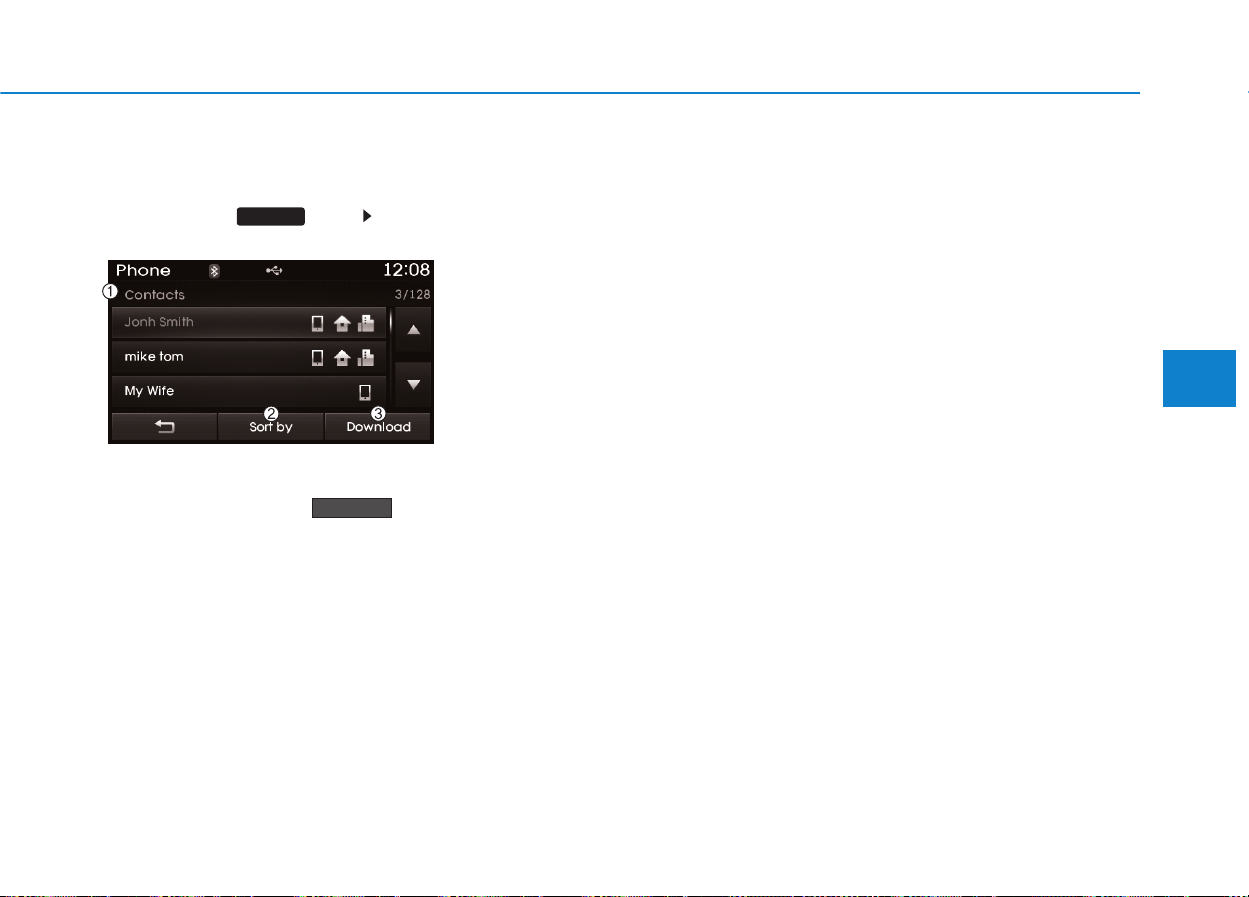
4-213
Multimedia System
4
Contacts
Press the key Select
[Contacts]
The list of saved phone book entries
is displayed.Press the but-
ton to download the call history.
1) Contacts List :
- Displays downloaded contacts
entries
- Connects call upon selection
2) Sort by : Find a contact in an
alphabetical order.
3) Download : Download contacts
entries
✽✽
NOTICE
• Up to 1,000 contacts saved in your
Bluetooth
®
Wireless Technology
phone can be downloaded into the
car contacts. Contacts that have
been downloaded to the car cannot
be edited or deleted on the phone.
• Mobile phone contacts are man-
aged separately for each paired
Bluetooth
®
Wireless Technology
device(max 1 devices x 5,000 con-
tacts each). Previously down-
loaded data is maintained even if
the Bluetooth
®
Wireless Technology
device has been disconnected.
(However, the contacts and call
history saved to the phone will be
deleted if a paired phone is delet-
ed.)
• It is possible to download contacts
even during Bluetooth streaming
audio.
• When downloading contacts, the
icon will be displayed within the
status bar.
(Continued)
(Continued)
• It is not possible to commence
download when the contacts
download feature has been turned
off within the Bluetooth
®
Wireless
Technology device. In addition,
some devices may require device
authorization upon attempting to
download contacts. If download-
ing does not normally occur, check
the Bluetooth
®
Wireless Technology
device settings or the screen state.
• The download feature may not be
supported in some mobile phones.
Check to see that the Bluetooth
®
Wireless Technology device sup-
ports the download feature. For
more information of supported
Bluetooth
®
Wireless Technology
devices and function support, visit
www.hyundaiusa.com.
Download
PHONE
4-214
Multimedia System
Bluetooth
®
Wireless
Technology Setting
Bluetooth
®
Wireless Technology
The
Bluetooth
®
word mark and logos
are registered trademarks owned by
Bluetooth SIG, Inc. and any use of
such marks is under license. Other
trademarks and trade names are
those of their respective owners. A
Bluetooth
®
enabled cell phone is
required to use
Bluetooth
®
wireless
technology.
Pairing a New Device
Press the key Select
[Phone] Select [Pair Phone]
Bluetooth
®
Wireless Technology
devices can be paired with the audio
system.
For more information, refer to the
“Pairing through Phone Setup” sec-
tion within
Bluetooth
®
Wireless
Technology.
SETUP
• Driving while distracted can
result in a loss of vehicle con-
trol that may lead to an acci-
dent, severe personal injury,
and death.The driver’s primary
responsibility is in the safe
and legal operation of a vehi-
cle, and use of any handheld
devices, other equipment, or
vehicle systems which take
the driver’s eyes, attention and
focus away from the safe oper-
ation of a vehicle or which are
not permissible by law should
never be used during opera-
tion of the vehicle.
WARNING
4-215
Multimedia System
4
Viewing Paired Phone List
Press the key Select
[Phone] Select [Paired Phone List]
This feature is used to view mobile
phones that have been paired with
the audio system. Upon selecting a
paired phone, the setup menu is dis-
played.
For more information, refer to the
“Setting
Bluetooth
®
Wireless
Technology Connection” section with-
in
Bluetooth
®
Wireless Technology.
1) :Moves to the previous screen
2)Connect/Disconnect Phone :
Connect/ disconnects currently
selected phone
3) Delete : Deletes the currently
selected phone
4) Change Priority : Sets currently
selected phone to highest connec-
tion priority
✽✽
NOTICE BEFORE DOWN-
LOADING CONTACTS
• To learn more about whether your
mobile phone supports contacts
downloads, refer to your mobile
phone user’s manual.
• The contacts for only the connect-
ed phone can be downloaded.
Downloading Contacts
Press the key Select
[Phone] Select [Contacts Download]
As the contacts are downloaded
from the mobile phone, a download
progress bar is displayed.
✽✽
NOTICE
• Upon downloading phone con-
tacts, the previous corresponding
data is deleted.
• This feature may not be supported
in some mobile phones.
• Voice Recognition may not oper-
ate while contacts are being down-
loaded.
SETUP SETUP

4-216
Multimedia System
Outgoing Volume
Press the key Select
[Phone] Select [Outgoing Volume]
Use the , buttons to adjust the
outgoing volume level.
✽✽
NOTICE
While on a call, the volume can be
changed by using the key.
Turning Bluetooth System Off
Press the key Select
[Phone] Select [Bluetooth System
Off]
Once
Bluetooth
®
Wireless Technology
is turned off,
Bluetooth
®
Wireless
Technology related features will not be
supported within the audio system.
SETUP
SEEK
TRACK
SETUP

4-217
Multimedia System
4
✽✽
NOTICE
To turn Bluetooth
®
Wireless
Technology back on, go to
[Phone] and press “Yes”.
SETUP

4-218
Multimedia System
VVOOIICCEE RREECCOOGGNNIITTIIOONN
Using Voice Recognition
Starting Voice Recognition
Shortly press the key on the
steering wheel remote controller Say
a command.
If prompt feedback is in [ON], then
the system will say “Please say a
command after the beep (BEEP)”
• If prompt feedback is in [OFF]
mode, then the system will only
say “(BEEP)”
• To change Prompt Feedback
[On]/[Off], go to [System]
[Prompt Feedback]
✽✽
NOTICE
For proper recognition, say the com-
mand after the voice instruction and
beep tone.
Contact List Best Practices
1) Do not store single-name entries
(e.g., “Bob”, “Mom”, “Kim”, etc.).
Instead, always use full names
(including first and last names) for
all contacts (e.g., use “Jacob
Stevenson” instead of “Dad”).
2) Do not use abbreviations (i.e., use
“Lieutenant” instead of “Lt.” or
“Sergeant” instead of “Sgt.”).
3) Do not use acronyms (i.e., use
“County Finance Department”
instead of “CFD”).
4) Do not use special characters
(e.g., “@”, “hyphen -”, “asterisk *”,
“ampersand &”).
5) If a name is not recognized from
the contact list, change it to a
more descriptive name (e.g., use
“Grandpa Joseph” instead of “Pa
Joe”).
Skipping Prompt Messages
While prompt message is being stat-
ed Shortly press the key on the
steering remote controller
The prompt message is immediately
ended and the beep tone will sound.
After the “beep”, say the voice com-
mand.
Re-starting Voice Recognition
While system waits for a command
Shortly press the key on the
steering remote controller
The command wait state is immedi-
ately ended and the beep ton will
sound.After the “beep”, say the voice
command.
SETUP
4-219
Multimedia System
4
❈ Illustration on using voice commands
• Starting voice command.
Shortly pressing the key (under 0.8 seconds):
• Skipping Voice Recognition
Shortly pressing the key (under 0.8 seconds):
• End voice command.
Shortly pressing the key (under 0.8 seconds):
More Help
Contacts
Cancel
More Help
Please say a command after
the beep (BEEP)
Please say a command after
the beep (BEEP)
Please say a...
Contacts
Please say the name of the contacts you want
to call (BEEP)
Ding~
(BEEP)
Ding~
Di-Ding~(Cancel Sound)
Shortly pressing the
key (under 0.8 seconds)
More Help
Here are some examples of mode commands.
You can say a radio type like 'FM', 'AM', or 'Satellite'.
You can also say a media source like 'USB', 'My
Music', or 'iPod'.
Additionally, there are phone commands like
"Contacts', 'Call History', or 'Dial Number".
You can find more detailed commands in the user's
manual.
Please say a command after the beep.
More Help
Here are some examples of mode commands.
You can say a radio type like 'FM', 'AM', or 'Satellite'.
You can also say a media source like 'USB', 'My
Music', or 'iPod'.
Additionally, there are phone commands like
"Contacts', 'Call History', or 'Dial Number".
You can find more detailed commands in the user's
manual.
Please say a command after the beep.
4-220
Multimedia System
Command Function
More Help Provides guidance on commands that can be
used anywhere in the system.
Help Provides guidance on commands that can be
used within the current mode.
Call<Name> Calls <Name> saved in Contacts
Ex) Call “John Smith”
Call <Name> Calls <Name> to the number that is saved as
"Mobile" in Contacts
Ex) Call "John Smith" on Mobile
Call <Name> Calls <Name> to the number that is saved as
"Office" in Contacts
Ex) Call "John Smith" in Office
Call <Name> Calls <Name> to the number that is saved as
"Home" in Contacts
Ex) Call "John Smith" at Home
Call <Name> Calls <Name> to the number that is saved as
"Other" in Contacts
Ex) Call "John Smith" on Other
Phone Provides guidance on Phone related com-
mands. After saying this command, say
“Favorites”,“Dial Number”, “Call History” or
“Contacts” execute corresponding functions.
Favorites Display the Favorite screen.
Call History Displays the Call History screen.
Command Function
Contacts Displays the Contacts screen. After saying
this command, say the name of a contact
saved in the Contacts to automatically con-
nect the call.
Dial Number Display the Dial number screen. After saying
this command, you can say the number that
you want to call.
Redial Connects the most recently called number.
Tutorial Provide guidance on how to use voice
recognition and Bluetooth
®
connections.
•
When listening to the radio, displays the
next radio screen. (FM1
➟
FM2
➟
AM
➟
XM1
➟
XM2
➟
XM3
➟
FM1)
Radio
•
When listening to a different mode, displays
the most recently played radio screen.
•
When currently listening to the FM radio,
maintains the current state.
•
When listening to a different mode, displays
the most recently played FM screen.
FM1(FM One) Displays the FM1 screen.
FM2(FM Two) Displays the FM2 screen.
AM Displays the AM screen.
FM Preset 1~6 Plays the most recently played broadcast
saved in FM Preset 1~6.
(Call by Name)
Voice Command List
• Common Commands: These commands can be used in most operations. (However a few commands may not be
available during certain operations)
on Mobile
in Office
at Home
on Other
4-221
Multimedia System
4
Command Function
AM Preset 1~6 Plays the broadcast saved in AM Preset 1~6.
FM 87.5~107.9 Plays the FM broadcast of the corresponding
frequency.
AM 530~1710 Plays the AM broadcast of the corresponding
frequency.
XM (Satellite)
•
When currently listening to the XM, main-
tains the current state.
•
When listening to a different mode, displays
the most recently played XM screen.
XM (Satellite) 1~3
Displays the selected XM screen.
XM Channel Plays the selected XM channel.
Media Moves to the most recently played media
screen.
CD Plays the music saved in the CD.
USB Plays USB music.
iPod
®
Plays iPod music.
Command Function
My Music Plays the music saved in My Music.
AUX (Auxiliary) Plays the connected external device.
Bluetooth
®
Audio Plays the music saved in connected Bluetooth
®
device.
Please repeat Repeats the most recent comment.
Mute Mutes the sound
Cancel (Exit) Ends voice command.
0~255
4-222
Multimedia System
• FM/AM radio commands: Commands available during
FM, AM radio operation
• Satellite radio commands: Commands that can be
used while listening to Satellite Radio.
Command Function
Preset 1~6 Plays the broadcast saved in Preset 1~6.
Scan Scans receivable frequencies from the current
broadcast and plays for 10 seconds each.
Preset Scan Moves to the next preset from the current
present and plays for 10 seconds each.
Information Displays the information of the current broad-
cast.(This feature can be used when receiving
RBDS broadcasts.)
Command Function
Channel 0~255 Plays the selected Satellite Radio channel.
Scan Scans receivable channels from the current
broadcast and plays for 10 seconds each.
Preset 1~6 Plays the broadcast saved in Preset 1~6.
Information Displays the information of the current broad-
cast.
4-223
Multimedia System
4
• Audio CD commands: Commands available during
Audio CD operation
• MP3 CD / USB commands: Commands available dur-
ing USB and MP3 CD operation
Command Function
Play Plays the currently paused track.
Pause Pauses the current track.
Shuffle Randomly plays the tracks within the CD.
Shuffle Off Cancels random play to play tracks in sequen-
tial order.
Repeat Repeats the current track.
Repeat Off Cancels repeat play to play tracks in sequen-
tial order.
Track 1~30 Plays the desired track number.
Command Function
Play Plays the currently paused file.
Pause Pauses the current file.
Shuffle Randomly plays the files within the current
folder.
Shuffle Off Cancels random play to play files in sequential
order.
Repeat Repeats the current file.
Repeat Off Cancels repeat play to play files in sequential
order.
Next Folder Play the first file in the next folder
Previous Folder Play the first file in the previous folder
4-224
Multimedia System
• iPod
®
Commands: Commands available during iPod
®
operation
• My Music Commands: Commands available during
My Music operation
Command Function
Play Plays the currently paused song.
Pause Pauses the current song.
Shuffle Randomly plays the songs within the current
category.
Shuffle Off Cancels random play to play songs in sequen-
tial order.
Repeat Repeats the current song.
Repeat Off Cancels repeat play to play songs in sequen-
tial order.
Command Function
Play Plays the currently paused file.
Pause Pauses the current file.
Shuffle Randomly plays all saved files.
Shuffle Off Cancels random play to play files in sequential
order.
Repeat Repeats the current file.
Repeat Off Cancels repeat play to play files in sequential
order.
Delete Deletes the current file. You will bypass an
additional confirmation process.
4-225
Multimedia System
4
SSEETTUUPP
Starting Mode
Press the key to display the
Setup screen.
You can select and control options
related to [Display], [Sound],
[Clock/Calendar], [Phone] and
[System].
Display Settings
Adjusting the Brightness
Press the key Select
[Display] Select [Brightness]
Use the , buttons to adjust the
screen brightness or set the
Brightness on Automatic, Daylight, or
Night mode.
Press the button to reset.
1) Automatic : Adjusts the brightness
automatically
2) Daylight : Always maintains the
brightness on high
3) Night: Always maintains the
brightness on low
Pop-up Mode
Press the key Select
[Display] Select [Mode Pop up]
This feature is used to display the
Pop-up Mode screen when entering
radio and media modes.
When this feature is turned on,
pressing the or key
will display the Pop-up Mode screen.
✽✽
NOTICE
The media Pop-up Mode screen can
be displayed only when two or more
media modes have been connected.
MEDIA RADIO
SETUP
Default
SETUP
SETUP
4-226
Multimedia System
Text Scroll
Press the key Select
[Display] Select [Text Scroll]
This feature is used to scroll text dis-
played on the screen when it is too
long to be displayed at once.
When turned on, the text is repeat-
edly scrolled. When turned off, the
text is scrolled just once.
MP3 Information Display
Press the key Select
[Display] Select [Media Display]
This feature is used to change the
information displayed within USB
and MP3 CD modes.
1) Folder File : Displays file name
and folder name
2)Album Artist Song : Displays
album name/artist name/song
Sound Settings
Sound Settings
Press the key Select
[Sound] Select [Sound Setting]
SETUP
SETUP
SETUP

4-227
Multimedia System
4
Use the , , , buttons to
adjust the Fader/Balance settings.
Use the , buttons to adjust the
Bass/Middle/Treble settings.
Press the button to reset.
SDVC (Speed Dependent
Volume Control)
Press the key Select
[Sound] Select [Speed Dependent
Vol.]
The volume level is controlled auto-
matically according to the vehicle
speed.SDVC can be set by selecting
from Off/Low/Mid/High.
Voice Recognition Volume
Press the key Select
[Sound] Select [Voice Recognition
Vol.]
Turn the TUNE knob to adjust the
Voice Recognition volume.
SETUP
SETUP
Default

4-228
Multimedia System
Touch Screen Beep
Press the key Select
[Sound] Select [Touch Screen Beep]
This feature is used to turn the touch
screen beep on/off.
Blue Link Voice Volume
Press the key Select
[Sound] Select [Blue Link Voice Vol.]
Turn the TUNE knob to adjust the
Blue Link Voice Volume.
❈ Blue Link
®
may differ depending
on the selected audio.
Clock/Calendar Setting
Clock Setting
Press the key Select
[Clock/Calendar] Select [Clock
Settings]
Use the , buttons to set the
Hour, Minutes and AM/PM setting.
✽✽
NOTICE
Press and hold the key (over
0.8 seconds) to set the Clock/Calendar
screen.
CLOCK
SETUP
SETUP SETUP
4-229
Multimedia System
4
Calendar Setting
Press the key Select
[Clock/Calendar] Select [Calendar
Settings]
Use the , buttons to set the
Month, Day and Year setting.
Time Format
Press the key Select
[Clock/Calendar] Select [Time Format]
This feature is used to change the
clock format between 12hr or 24hr.
Clock Display
Press the key Select
[Clock/Calendar] Select [Clock Display
(Power off)]
This feature is used to display a clock
on the screen when the audio sys-
tem is turned off.
SETUP SETUP SETUP
4-230
Multimedia System
System Setting
Prompt Feedback
Press the key Select
[System] Select [Prompt Feedback]
This feature is used to select the
desired prompt feedback option from
ON and OFF.
1) ON :When using voice recognition,
provides detailed guidance
prompts
2) OFF : When using voice recogni-
tion, omits some guidance prompts
Language
Press the key Select
[System] Select [Language]
This feature is used to change the
system and voice recognition lan-
guage.
If the language is changed, the sys-
tem will restart and apply the select-
ed language.
Memory Information
Press the key Select
[System] Select [Memory Information]
This feature displays information
related to system memory.
1) Using : Displays capacity currently
in use
2) Capacity : Displays total capacity
SETUP SETUP
SETUP
4-231
Multimedia System
4
RREEAARR VVIIEEWW CCAAMMEERRAA
• The system has been equipped
with a rear view camera for user
safety by allowing a wider rear
range of vision.
• The rear view camera will automat-
ically operate when the ignition key
is turned ON and the transmission
lever is set to R.
• The rear view camera will automat-
ically stop operating when set to a
different lever.
• The rear view camera has been
equipped with an optical lens
to provide a wider range of
vision and may appear differ-
ent from the actual distance.
For safety, directly check the
rear and left/right sides.
CAUTION

4-232
Multimedia System
BBlluuee LLiinnkk
®®
Hyundai aims to offer differentiated
customer values through a ‘Connected
Car Life,’ which is to provide con-
sumers with fast and reliable IT tech-
nology. As consumers’ lifestyles
become more and more mobile in
thanks to remarkable advances in
smart phones, tablet PCs and overall
wireless telecommunication, new
lifestyle patterns demand seamless
connection between one’s office,
home, outdoors and automobiles.
Automobile companies are now faced
with the task of shifting their paradigm
from vehicle-centered services to cus-
tomer value-centered services, with
the ultimate goal of securing global
leadership in the field of vehicle IT and
telematics.
Hyundai Motor plans to achieve this
by realizing a terminal platform flexi-
ble to changes in IT technology,
cooperating with global IT compa-
nies, creating an eco-system and
providing the latest contents & serv-
ices based on an open environment.
Using the Room Mirror Key
Selecting the room mirror key will
allow you to make service required
inquiries, POI info searches, and
emergency rescues by connecting to
the Blue Link
®
Center.
Such features can be used only after
subscribing to the Blue Link
®
service.
➀ (Blue Link
®
Center)
Makes requests for Blue Link
®
serv-
ice related inquiries and consulta-
tions.
A call is connected to the Blue Link
®
service center employee.
Re-pressing the key will end the call.
This feature does not operate when
you are on a Bluetooth
®
phone call.
➁ (Blue Link
®
for POI)
• Blue Link
®
for Voice command
Starts Blue Link
®
voice command.
Voice receiving voice guidance,
shortly press the button to convert to
voice command mode. Press and
hold the button to end voice com-
mand.
• TBT VR Commands
1. Navigate to
“Navigate to”voice command is used
to request the download of route
data for a new destination, saved
destinations, daily routes and previ-
ous destinations.

4-233
Multimedia System
4
2. Save Destination
“Save Destination” VR command is
used to assign a voice tag to the last
downloaded destination and store it
in a destination directory.
NOTE:
The Turn by Turn(TBT) feature sup-
ports the store of ten(10) destina-
tions in the TBT destinations
directory.
3. Route Preview
“Route Preview”VR command allows
the user to preview the route instruc-
tions (upcoming maneuver instruc-
tions) at any time during the route
guidance.
4. Destinations List
“Destinations List” VR command
allows the user to preview and delete
the stored destinations with their
associated voice tags in the Turn by
Turn destinations directory.
5.Voice Guidance
“Voice Guidance”VR command allows
the user to mute/unmute the Turn by
Turn(TBT) direction announcements.
6. Suspend Route
“Suspend Route” VR command
allows the user to suspend and
pause Turn by Turn(TBT) route guid-
ance while in the guidance mode.
7. Resume Route
“Resume Route” VR command
allows the user to resume Turn by
Turn(TBT) route guidance.
➂ (Blue Link
®
for SOS)
In the case of an emergency,
requests for help to the Blue Link
®
center.
Call is connected to the Blue Link
®
emergency rescue center. Re-press-
ing the key will end the call.
If already on a Bluetooth
®
phone call,
the call will end to connect you to the
Blue Link
®
Emergency Rescue Center.
• You cannot talk simultaneous-
ly on the Bluetooth
®
phone
and Blue Link
®
phone.
• While on a Bluetooth
®
call,
pressing the key or
key will display a message
indicating that you are cur-
rently on a call.
• A message will be displayed if
you receive a
Bluetooth
®
Wireless Technology call while
already on a Blue Link
®
call. At
this time, press the key on
the steering wheel remote con-
troller to accept the call. The
ring tone on the phone will not
sound.
CAUTION

4-234
Multimedia System
Eco Coach
• What is Eco Coach?
Every 2.5 minutes, Eco Coach com-
pares your fuel economy against the
government tested average (EPA) or
other similar Hyundai models (com-
munity), based on your preference.
Each month, or after every tank fill
up, Eco Coach rates your extended
average and gives you a reward star
if you beat the average.
See your My Hyundai web page for
more information.
• What does the bar graph and hori-
zontal line mean?
The horizontal line is adjusted once
per month or at each tank full, based
on your preference; it represents the
EPA combined average or community
average fuel economy target.
• What is My Eco MPG?
Your actual fuel economy average
over 2.5 minutes.
This value is also shown in bar graph
as your “now” rating.
• What are Eco Rewards?
If you beat the average (the EPA or
community), you will receive an Eco
Reward point.
See your my Hyundai web page for
more information.
[Eco Driving] will not operate if the
vehicle ignition is not turned on.
Please operate with the ignition
turned on.
4-235
Multimedia System
4
Turn by Turn
The Turn by Turn feature can be used
through Blue Link
®
.
1. Direction Indicator Image
2. Remaining distance until next point
3. The Count bar is divided into a
total of 9 levels.
9 Level 0.5mi 8 Level 0.4mi
7 Level 0.3mi 6 Level 0.2mi
5 Level 0.1mi 4 Level 400ft
3 Level 300ft 2 Level 200ft
1 Level 100ft
4. Next Street name
5. Distance to destination
6. Expected Time Arrival
7. Current Street name
❈ For information on specific
Blue Link
®
operations, please refer
to a separate manual.

Driving your vehicle
BEFORE DRIVING ..................................................5-3
Before entering the vehicle ..........................................5-3
Before starting .................................................................5-3
IGNITION SWITCH .................................................5-5
Key ignition switch .........................................................5-5
Engine Start/Stop button................................................5-8
AUTOMATIC TRANSAXLE ..................................5-13
Automatic transaxle operation ...................................5-13
Parking...............................................................................5-18
Good driving practices ..................................................5-18
ALL WHEEL DRIVE (AWD) ..................................5-20
AWD operation ................................................................5-21
Emergency precautions.................................................5-25
BRAKING SYSTEM ..............................................5-27
Power brakes ..................................................................5-27
Disc brakes wear indicator ..........................................5-28
Parking brake ..................................................................5-28
Anti-lock Brake System (ABS) ....................................5-31
Electronic Stability Control (ESC)................................5-34
Vehicle Stability Management (VSM).........................5-37
Hill-Start Assist Control (HAC)...................................5-39
Downhill Brake Control (DBC)......................................5-40
Good braking practices ................................................5-42
DRIVING ASSIST SYSTEM...................................5-43
Active ECO system ........................................................5-43
Rear view camera ...........................................................5-44
CRUISE CONTROL SYSTEM ................................5-45
Cruise control operation................................................5-45
SPECIAL DRIVING CONDITIONS..........................5-49
Hazardous driving conditions.......................................5-49
Rocking the vehicle ....................................................5-49
Smooth cornering ...........................................................5-50
Driving at night................................................................5-50
Driving in the rain ...........................................................5-51
Driving in flooded areas................................................5-52
Reducing the risk of a rollover ...................................5-52
WINTER DRIVING .................................................5-53
Snow or icy conditions ..................................................5-53
Winter precautions .........................................................5-56
TRAILER TOWING.................................................5-58
If you decide to pull a trailer?.....................................5-59
Trailer towing equipment ..............................................5-61
Driving with a trailer ......................................................5-62
Maintenance when trailer towing...............................5-65
VEHICLE LOAD LIMIT ..........................................5-66
Tire loading information label......................................5-67
5
5-2
Driving your vehicle
Carbon monoxide (CO) gas is toxic. Breathing CO can cause unconsciousness and death.
Engine exhaust contains carbon monoxide which cannot be seen or smelled.
Do not inhale engine exhaust.
If at any time you smell engine exhaust inside the vehicle, open the windows immediately. Exposure to CO can cause
unconsciousness and death by asphyxiation.
Be sure the exhaust system does not leak.
The exhaust system should be checked whenever the vehicle is raised to change the oil or for any other purpose. If
you hear a change in the sound of the exhaust or if you drive over something that strikes the underneath side of the
vehicle, have the exhaust system checked as soon as possible by an authorized HYUNDAI dealer.
Do not run the engine in an enclosed area.
Letting the engine idle in your garage, even with the garage door open, is a hazardous practice. Run the engine only
long enough to start the engine and to move the vehicle out of the garage.
Avoid idling the engine for prolonged periods with people inside the vehicle.
If it is necessary to idle the engine for a prolonged period with people inside the vehicle , be sure to do so only in an
open area with the air intake set at "Fresh" and fan control set to high so fresh air is drawn into the interior.
Keep the air intakes clear.
To assure proper operation of the ventilation system, keep the ventilation air intakes located in front of the windshield
clear of snow, ice, leaves, or other obstructions.
If you must drive with the tailgate open:
Close all windows.
Open instrument panel air vents.
Set the air intake control at "Fresh", the air flow control at "Floor" or "Face", and the fan control set to high.
WARNING
5-3
Driving your vehicle
Before entering the vehicle
• Be sure all windows, outside mir-
ror(s), and outside lights are clean
and unobstructed.
• Remove frost, snow, or ice.
• Visually check the tires for uneven
wear and damage.
• Check under the vehicle for any
sign of leaks.
• Be sure there are no obstacles
behind you if you intend to back up.
Before starting
• Make sure the hood, the tailgate,
and the doors are securely closed
and locked.
• Adjust the position of the seat and
steering wheel.
• Adjust the inside and outside
rearview mirrors.
• Verify all the lights work.
• Fasten your seatbelt.Check that all
passengers have fastened their
seatbelts.
• Check the gauges and indicators in
the instrument panel and the mes-
sages on the instrument display
when the ignition switch is in the
ON position.
• Check that any items you are car-
rying are stored properly or fas-
tened down securely.
5
CALIFORNIA PROPOSITION 65
WARNING
Engine exhaust and a wide vari-
ety of automobile components
including components found in
the interior furnishings in a
vehicle, contain or emit harmful
chemicals known to the State of
California to cause cancer and
birth defects and reproductive
harm. In addition, certain fluids
contained in vehicles and cer-
tain products of components
contain or emit chemicals
known to the State of California
to cause cancer and birth
defects or other reproductive
harm.
WARNING
BBEEFFOORREE DDRRIIVVIINNGG
5-4
Driving your vehicle
NEVER drink or take drugs and
drive. Drinking or taking drugs
and driving is dangerous and
may result in an accident and
SERIOUS INJURY or DEATH.
Drunk driving is the number
one contributor to the highway
death toll each year. Even a
small amount of alcohol will
affect your reflexes, percep-
tions and judgment. Just one
drink can reduce your ability to
respond to changing conditions
and emergencies and your reac-
tion time gets worse with each
additional drink.
Driving while under the influ-
ence of drugs is as dangerous
or more dangerous than driving
under the influence of alcohol.
(Continued)
WARNING
(Continued)
You are much more likely to
have a serious accident if you
drink or take drugs and drive. If
you are drinking or taking
drugs, don’t drive. Do not ride
with a driver who has been
drinking or taking drugs.
Choose a designated driver or
call a taxi.
To reduce the risk of SERIOUS
INJURY or DEATH, take the fol-
lowing precautions:
• ALWAYS wear your seat belt.
All passengers must be prop-
erly belted whenever the vehi-
cle is moving. For more infor-
mation, refer to “Seat Belts”in
chapter 2.
• Always drive defensively.
Assume other drivers or
pedestrians may be careless
and make mistakes.
• Stay focused on the task of
driving. Driver distraction can
cause accidents.
• Leave plenty of space
between you and the vehicle
in front of you.
WARNING
5-5
Driving your vehicle
Key ignition switch
IIGGNNIITTIIOONN SSWWIITTCCHH
5
(Continued)
Before leaving the driver’s seat,
always make sure the shift lever
is in position, apply the parking
brake, and turn ignition switch
to the LOCK position.
Unexpected vehicle movement
may occur if these precautions
are not followed.
To reduce the risk of SERIOUS
INJURY or DEATH, take the fol-
lowing precautions:
• NEVER allow children or any
person who is unfamiliar with
the vehicle to touch the igni-
tion switch or related parts.
Unexpected and sudden vehi-
cle movement can occur.
• NEVER reach through the
steering wheel for the ignition
switch, or any other control,
while the vehicle is in motion.
The presence of your hand or
arm in this area may cause a
loss of vehicle control result-
ing in an accident.
WARNING
NEVER turn the ignition switch
to the LOCK or ACC position
while the vehicle is in motion
except in an emergency. This
will result in the engine turning
off and loss of power assist for
the steering and brake systems.
This may lead to loss of direc-
tional control and braking func-
tion, which could cause an acci-
dent.
(Continued)
WARNING
OLMB053001

5-6
Driving your vehicle
Key ignition switch positions
Switch
Position
Action Notes
LOCK
To turn the ignition switch to the LOCK position, push the
key in slightly at the ACC position and turn the key
towards the LOCK position.
The ignition key can be removed in the LOCK position.
The steering wheel locks to protect the vehicle from theft.
(if equipped)
ACC
Electrical accessories are usable. The steering wheel unlocks.
If difficulty is experienced turning the ignition switch to
the ACC position, turn the key while turning the steering
wheel right and left to release tension.
ON
This is the normal key position when the engine has
started.
All features and accessories are usable.
The warning lights can be checked when you turn the
ignition switch from ACC to ON.
Do not leave the ignition switch in the ON position when
the engine is not running to prevent the battery from dis-
charging.
START
To start the engine, turn the ignition switch to the START
position.The switch returns to the ON position when you
let go of the key.
The engine will crank until you release the key.
5-7
Driving your vehicle
Starting the engine
1.Make sure the parking brake is
applied.
2.Make sure the shift lever is in P
(Park).
3.Depress the brake pedal.
4.Turn the ignition switch to the
START position. Hold the key
(maximum of 10 seconds) until the
engine starts and release it.
✽✽
NOTICE
• Do not wait for the engine to warm
up while the vehicle remains sta-
tionary. Start driving at moderate
engine speeds. (Steep accelerating
and decelerating should be avoid-
ed.)
• Whether the engine is cold or
warm, always start the vehicle
with your foot on the brake pedal.
Do not depress the accelerator
while starting the vehicle. Do not
race the engine while warming it
up.
5
Always wear appropriate shoes
when operating your vehicle.
Unsuitable shoes, such as high
heels, ski boots, sandals, flip-
flops, etc., may interfere with
your ability to use the brake,
accelerator and clutch pedals.
WARNING
To prevent damage to the vehi-
cle:
• Do not hold the ignition key in
the START position for more
than 10 seconds. Wait 5 to 10
seconds before trying again.
• If traffic and road conditions
permit, you may put the shift
lever in the N (Neutral) posi-
tion while the vehicle is still
moving and turn the ignition
switch to the START position
in an attempt to restart the
engine.
• Do not push or tow your vehi-
cle to start the engine.
CAUTION
5-8
Engine Start/Stop button
Whenever the front door is opened,
the Engine Start/Stop button will illu-
minate and will go off 30 seconds
after the door is closed.
Driving your vehicle
OLMB053004
To turn the engine off in an
emergency:
Press and hold the Engine
Start/Stop button for more than
two seconds OR Rapidly press
and release the Engine
Start/Stop button three times
(within three seconds).
If the vehicle is still moving, you
can restart the engine without
depressing the brake pedal by
pressing the Engine Start/Stop
button with the shift lever in the
N (Neutral) position.
WARNING
• NEVER press the Engine
Start/Stop button while the
vehicle is in motion except in
an emergency. This will result
in the engine turning off and
loss of power assist for the
steering and brake systems.
This may lead to loss of direc-
tional control and braking
function, which could cause
an accident.
• Before leaving the driver’s
seat, always make sure the
shift lever is in the P (Park)
position, set the parking
brake, press the Engine
Start/Stop button to the OFF
position, and take the Smart
Key with you. Unexpected
vehicle movement may occur
if these precautions are not
followed.
WARNING

5-9
Driving your vehicle
5
Engine Stop/Start button positions
Button Position Action Notes
OFF
To turn off the engine, press the Engine
Start/Stop button with shift lever in P (Park).
When you press the Engine Start/Stop but-
ton without the shift lever in P (Park), the
Engine Start/Stop button does not turn to the
OFF position, but turns to the ACC position.
ACC
Press the Engine Start/Stop button when the
button is in the OFF position without depress-
ing the brake pedal.
Electrical accessories are usable.
If you leave the Engine Start/Stop button in the
ACC position for more than one hour, the bat-
tery power will turn off automatically to prevent
the battery from discharging.

5-10
Driving your vehicle
Button Position Action Notes
ON
Press the Engine Start/Stop button while it is
in the ACC position without depressing the
brake pedal.
The warning lights can be checked before
the engine is started.
Do not leave the Engine Start/Stop button in
the ON position when the engine is not run-
ning to prevent the battery from discharging.
START
To start the engine, depress the brake pedal
and press the Engine Start/Stop button with
the shift lever in the P (Park) or in the N
(Neutral) position.
For your safety, start the engine with the shift
lever in the P (Park) position.
If you press the Engine Start/Stop button with-
out depressing the brake pedal, the engine
does not start and the Engine Start/Stop but-
ton changes as follows:
OFF
→→
ACC
→→
ON
→→
OFF
5-11
Driving your vehicle
5
Starting the engine
✽✽
NOTICE
• The engine will start by pressing
the Engine Start/Stop button, only
when the smart key is in the vehi-
cle.
• Even if the smart key is in the
vehicle, if it is far away from the
driver, the engine may not start.
• When the Engine Start/Stop but-
ton is in the ACC or ON position,
if any door is open, the system
checks for the smart key. If the
smart key is not in the vehicle, the
" " indicator and the “KEY
OUT” indicator will blink, and if
all doors are closed, the chime will
also sound for about 5 seconds.
The indicator will turn off while
the vehicle is moving. Keep the
smart key in the vehicle when
using the ACC position or if the
vehicle engine is ON.
1.Always carry the smart key with
you.
2.Make sure the parking brake is
applied.
3.Make sure the shift lever is in P
(Park).
4.Depress the brake pedal.
5.Press the Engine Start/Stop button.
✽✽
NOTICE
• Do not wait for the engine to warm
up while the vehicle remains sta-
tionary. Start driving at moderate
engine speeds. (Steep accelerating
and decelerating should be avoid-
ed.)
• Whether the engine is cold or
warm, always start the vehicle
with your foot on the brake pedal.
Do not depress the accelerator
while starting the vehicle. Do not
race the engine while warming it
up.
Always wear appropriate shoes
when operating your vehicle.
Unsuitable shoes, such as high
heels, ski boots, sandals, flip-
flops, etc., may interfere with
your ability to use the brake,
accelerator and clutch pedals.
WARNING
5-12
Driving your vehicle
✽✽
NOTICE
If the smart key battery is weak or
the smart key does not work cor-
rectly, you can start the engine by
pressing the Engine Start/Stop but-
ton with the smart key in the direc-
tion of the picture above.
To prevent damage to the vehi-
cle:
• If the engine stalls while you
are in motion, do not attempt
to move the shift lever to the P
(Park) position.
If traffic and road conditions
permit, you may put the shift
lever in the N (Neutral) posi-
tion while the vehicle is still
moving and press the Engine
Start/Stop button in an
attempt to restart the engine.
• Do not push or tow your vehi-
cle to start the engine.
CAUTION
To prevent damage to the vehi-
cle:
Do not press the Engine
Start/Stop button for more than
10 seconds except when the
stop lamp fuse is blown.
When the stop lamp fuse is
blown, you can't start the
engine normally. Replace the
fuse with a new one. If you are
not able to replace the fuse, you
can start the engine by pressing
and holding the Engine
Start/Stop button for 10 sec-
onds with the Engine Start/Stop
button in the ACC position.
For your safety always depress
the brake pedal before starting
the engine.
CAUTION
OLMB053008
5-13
Driving your vehicle
5
Automatic transaxle operation
The automatic transaxle has six for-
ward speeds and one reverse speed.
The individual speeds are selected
automatically in the D (Drive) posi-
tion.
AAUUTTOOMMAATTIICC TTRRAANNSSAAXXLLEE
OLMB053011
Move shift lever.
Depress the brake pedal, then move shift lever.
Press the shift button, then move shift lever.
5-14
Driving your vehicle
The indicator in the instrument clus-
ter displays the shift lever position
when the ignition switch is in the ON
position.
P (Park)
Always come to a complete stop
before shifting into P (Park).
To shift from P (Park), you must
depress firmly on the brake pedal
and make sure your foot is off the
accelerator pedal.
If you have done all of the above and
still cannot shift the lever out of P
(Park), see “Shift-Lock Release” on
page 5-17.
The shift lever must be in P (Park)
before turning the engine off.
• Shifting into P (Park) while the
vehicle is in motion may
cause you to lose control of
the vehicle.
• After the vehicle has stopped,
always make sure the shift
lever is in P (Park), apply the
parking brake, and turn the
engine off.
• Do not use the P (Park) posi-
tion in place of the parking
brake.
WARNING
To reduce the risk of serious
injury or death:
• ALWAYS check the surround-
ing areas near your vehicle for
people, especially children,
before shifting a vehicle into
D (Drive) or R (Reverse).
• Before leaving the driver’s
seat, always make sure the
shift lever is in the P (Park)
position, then set the parking
brake, and place the ignition
switch in the LOCK/OFF posi-
tion. Unexpected and sudden
vehicle movement can occur
if these precautions are not
followed.
WARNING
5-15
Driving your vehicle
5
R (Reverse)
Use this position to drive the vehicle
backward.
N (Neutral)
The wheels and transaxle are not
engaged.
Use N (Neutral) if you need to restart
a stalled engine, or if it is necessary
to stop with the engine ON. Shift into
P (Park) if you need to leave your
vehicle for any reason.
Always depress the brake pedal
when you are shifting from N
(Neutral) to another gear.
D (Drive)
This is the normal driving position.
The transaxle will automatically shift
through a 6-gear sequence, provid-
ing the best fuel economy and
power.
For extra power when passing anoth-
er vehicle or driving uphill, depress
the accelerator fully. The transaxle
will automatically downshift to the
next lower gear (or gears, as appro-
priate).
Always come to a complete
stop before shifting into or out
of R (Reverse); you may dam-
age the transaxle if you shift
into R (Reverse) while the vehi-
cle is in motion.
CAUTION
Do not shift into gear unless
your foot is firmly on the brake
pedal. Shifting into gear when
the engine is running at high
speed can cause the vehicle to
move very rapidly. You could
lose control and hit people or
objects.
WARNING

5-16
Driving your vehicle
Sports mode
Whether the vehicle is stationary or
in motion, sports mode is selected by
pushing the shift lever from the D
(Drive) position into the manual gate.
To return to D (Drive) range opera-
tion, push the shift lever back into the
main gate.
In Sports Mode, moving the shift
lever backwards and forwards will
allow you to select the desired range
of gears for the current driving condi-
tions.
+ (Up) : Push the lever forward once
to shift up one gear.
- (Down) : Pull the lever backwards
once to shift down one
gear.
✽✽
NOTICE
• Only the six forward gears can be
selected. To reverse or park the
vehicle, move the shift lever to the
R (Reverse) or P (Park) position as
required.
• Downshifts are made automatical-
ly when the vehicle slows down.
When the vehicle stops, 1st gear is
automatically selected.
• When the engine rpm approaches
the red zone the transaxle will
upshift automatically.
• If the driver presses the lever to +
(Up) or - (Down) position, the
transaxle may not make the
requested gear change if the next
gear is outside of the allowable
engine rpm range. The driver
must execute upshifts in accor-
dance with road conditions, taking
care to keep the engine rpms
below the red zone.
• When driving on a slippery road,
push the shift lever forward into
the + (Up) position. This causes
the transaxle to shift into the 2nd
gear which is better for smooth
driving on a slippery road. Push
the shift lever to the - (Down) side
to shift back to the 1st gear.
OLMB053013
Spor
Spor
ts
ts
mode
mode

5-17
Driving your vehicle
5
Shift-lock system
For your safety, the automatic
transaxle has a shift-lock system
which prevents shifting the transaxle
from P (Park) or N (Neutral) into R
(Reverse) unless the brake pedal is
depressed.
To shift the transaxle from P (Park) or
N (Neutral) into R (Reverse):
1.Depress and hold the brake pedal.
2.Start the engine or place the igni-
tion switch in the ON position.
3.Move the shift lever.
Shift-lock release
If the shift lever cannot be moved
from the P (Park) or N (Neutral) posi-
tion into R (Reverse) position with
the brake pedal depressed, continue
depressing the brake, and then do
the following:
1.Place the ignition switch in the
LOCK/OFF position.
2.Apply the parking brake.
3.Carefully remove the cap (1) cover-
ing the shift-lock access hole.
4.Insert a key (or screwdriver) into
the access hole and press down
on the key (or screwdriver).
5.Move the shift lever to N (Neutral)
while holding down the key (or
screwdriver).
6.Remove the key (or screwdriver)
from the shift-lock access hole
then install the cap.
7.Depress the brake pedal, and then
restart the engine.
If you need to use the shift-lock
release, have your vehicle inspected
by an authorized HYUNDAI dealer
immediately.
OLMB053053R
5-18
Driving your vehicle
Ignition key interlock system
The ignition key cannot be removed
unless the shift lever is in the P
(Park) position.
Parking
Always come to a complete stop and
continue to depress the brake pedal.
Move the shift lever into the P (Park)
position, apply the parking brake,
and place the ignition switch in the
LOCK/OFF position. Take the Key
with you when exiting the vehicle.
Good driving practices
• Never move the shift lever from P
(Park) or N (Neutral) to any other
position with the accelerator pedal
depressed.
• Never move the shift lever into P
(Park) when the vehicle is in
motion.
Be sure the vehicle is completely
stopped before you attempt to shift
into R (Reverse) or D (Drive).
• Do not move the shift lever to N
(Neutral) when driving. Doing so
may result in an accident because
of a loss of engine braking and the
transaxle could be damaged.
• Do not drive with your foot resting
on the brake pedal. Even light, but
consistent pedal pressure can
result in the brakes overheating,
brake wear and possibly even
brake failure.
• When driving in Sports mode, slow
down before shifting to a lower
gear. Otherwise, the lower gear
may not be engaged if the engine
rpms are outside of the allowable
range.
When you stay in the vehicle
with the engine running, be
careful not to depress the accel-
erator pedal for a long period of
time. The engine or exhaust
system may overheat and start
a fire.
The exhaust gas and the
exhaust system are very hot.
Keep away from the exhaust
system components.
Do not stop or park over flam-
mable materials, such as dry
grass, paper or leaves. They
may ignite and cause a fire.
WARNING
5-19
Driving your vehicle
5
• Always apply the parking brake
when leaving the vehicle. Do not
depend on placing the transaxle in
P (Park) to keep the vehicle from
moving.
• Exercise extreme caution when
driving on a slippery surface. Be
especially careful when braking,
accelerating or shifting gears. On a
slippery surface, an abrupt change
in vehicle speed can cause the
drive wheels to lose traction and
may cause loss of vehicle control
resulting in an accident.
• Optimum vehicle performance and
economy is obtained by smoothly
depressing and releasing the
accelerator.
To reduce the risk of SERIOUS
INJURY or DEATH:
• ALWAYS wear your seatbelt.
In a collision, an unbelted
occupant is significantly more
likely to be seriously injured
or killed than a properly belt-
ed occupant.
• Avoid high speeds when cor-
nering or turning.
• Do not make quick steering
wheel movements, such as
sharp lane changes or fast,
sharp turns.
• The risk of rollover is greatly
increased if you lose control
of your vehicle at highway
speeds.
• Loss of control often occurs if
two or more wheels drop off
the roadway and the driver
over steers to reenter the
roadway.
(Continued)
WARNING
(Continued)
• In the event your vehicle
leaves the roadway, do not
steer sharply. Instead, slow
down before pulling back into
the travel lanes.
• HYUNDAI recommends you
follow all posted speed limits.
5-20
Driving your vehicle
The All Wheel Drive (AWD) System
delivers engine power to all front
and rear wheels for maximum trac-
tion. AWD is useful when extra trac-
tion is required on roads such slip-
pery, muddy, wet, or snow-covered
roads.
Occasional off-road use such as
established unpaved roads and trails
are OK. It is always important that
the driver carefully reduces the
speed to a level that does not exceed
the safe operating speed for those
conditions.
✽✽
NOTICE
• Do not drive in water if the level is
higher than the bottom of the vehi-
cle.
• Check your brake condition once
you are out of mud or water.
Depress the brake pedal several
times as you move slowly until you
feel normal braking return.
• Shorten your scheduled mainte-
nance interval if you drive in off-
road conditions such as sand, mud
or water (see “Maintenance Under
Severe Usage Conditions” in chap-
ter 7).
• Always wash your vehicle thor-
oughly after off road use, especial-
ly the bottom of the vehicle.
• Be sure to equip the vehicle with
four tires of the same size and
type.
• Make sure that a full time AWD
vehicle is towed by a flat bed tow
truck.
AALLLL WWHHEEEELL DDRRIIVVEE ((AAWWDD)) ((IIFF EEQQUUIIPPPPEEDD))
To reduce the risk of SERIOUS
INJURY or DEATH:
• Do not drive in conditions that
exceed the vehicles intended
design such as challenging
off-road conditions.
• Avoid high speeds when cor-
nering or turning.
• Do not make quick steering
wheel movements, such as
sharp lane changes or fast,
sharp turns.
• The risk of a rollover is great-
ly increased if you lose con-
trol of your vehicle at highway
speeds.
• Loss of control often occurs if
two or more wheels drop off
the roadway and the driver
over steers to reenter the
roadway.
• In the event your vehicle
leaves the roadway, do not
steer sharply. Instead, slow
down before pulling back into
the travel lanes.
WARNING
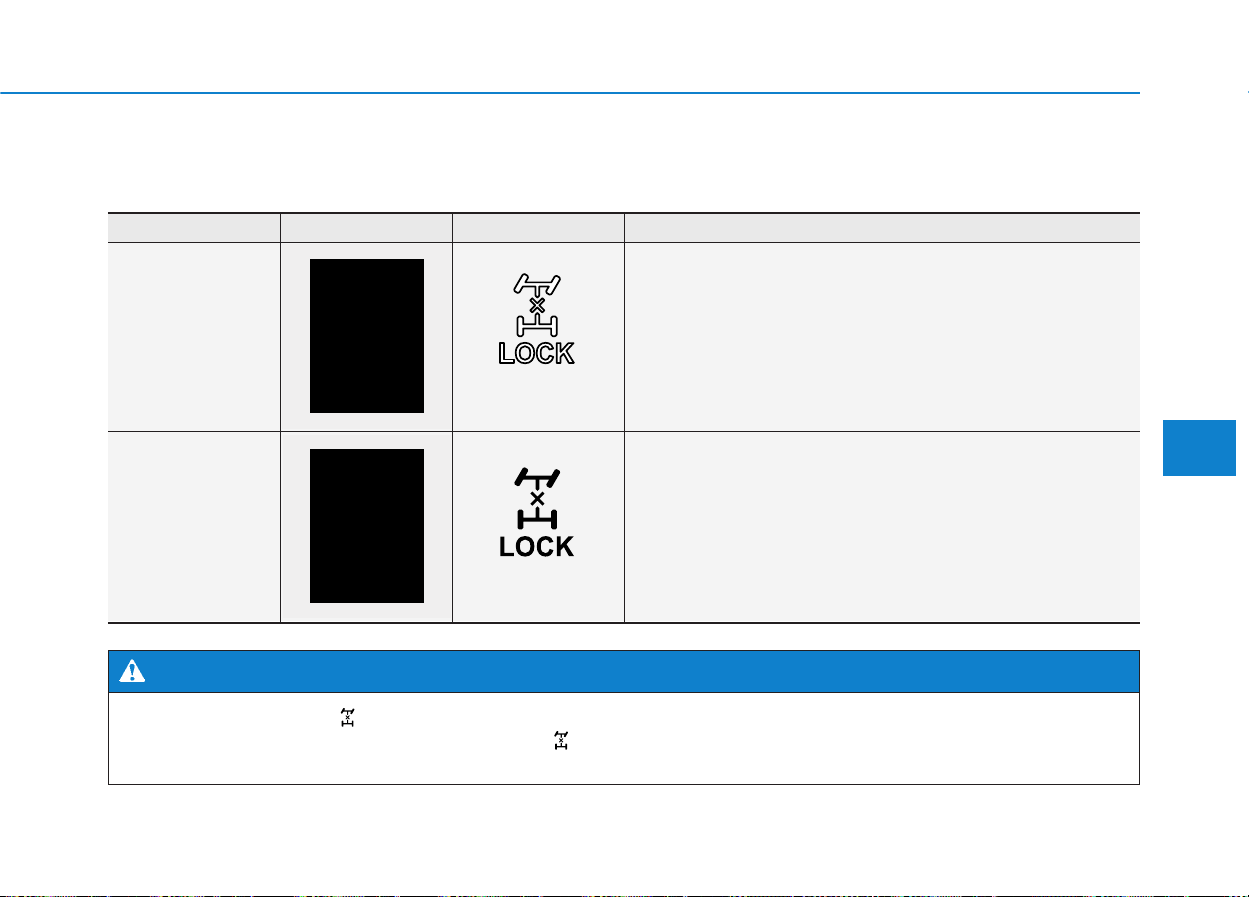
5-21
Driving your vehicle
5
AWD operation
In the AWD LOCK mode, the system is deactivated when vehi-
cle speed is over 19mph (30 km/h) and the mode is shifted to
AWD AUTO mode. If the vehicle speed slows down to 19mph
(30 km/h), the mode shifts back to the AWD LOCK mode.
Use this mode when driving up or down sharp inclines, driving
off-road, driving on sandy and muddy roads, etc. to maximize
traction
AWD AUTO
(AWD LOCK is
deactivated)
(not illuminated)
Transfer mode Selection button Indicator light Description
In the AWD AUTO mode, under normal operating conditions,
the vehicle operates similar to conventional 2WD vehicles.If the
system determines there is a need for four wheel drive, the
engine’s driving power is distributed to all four wheels automat-
ically.
Use this mode when driving on normal roads.
AWD LOCK
(illuminated)
All Wheel Drive (AWD) mode selection
If AWD warning light ( ) stays on the instrument cluster, your vehicle may have a malfunction with the
AWD system. When the AWD warning light ( ) illuminates have your vehicle checked by an authorized
HYUNDAI dealer as soon as possible.
WARNING
5-22
Driving your vehicle
✽✽
NOTICE
When the AWD LOCK mode is
deactivated, a sensation may be felt
as the driving power is delivered
entirely to the front wheels.
For safe AWD operation
Before driving
• Make sure all passengers are
wearing seat belts.
• Sit upright and closer to the steer-
ing wheel than usual. Adjust the
steering wheel to a position com-
fortable for you to drive.
Driving on snow-covered or icy
roads
• Start off slowly by applying the
accelerator pedal gently.
• Use snow tires or tire chains.
• Keep sufficient distance between
your vehicle and the vehicle in front
of you.
• Use engine braking during deceler-
ation.
• Avoid speeding, rapid acceleration,
sudden brake applications, and
sharp turns to prevent skids.
Driving in sand or mud
• Maintain slow and constant speed.
• Use tire chains driving in mud if
necessary.
• Keep sufficient distance between
your vehicle and the vehicle in front
of you.
• Reduce vehicle speed and always
check the road condition.
• Avoid speeding, rapid acceleration,
sudden brake applications, and
sharp turns to prevent getting
stuck.
When driving on normal roads,
deactivate the AWD LOCK mode
by pushing the AWD LOCK but-
ton (AWD LOCK indicator light
goes off). Driving on normal
roads with the AWD LOCK
mode, especially, when corner-
ing may cause mechanical
noise or vibration. The noise
and vibration will disappear
when the AWD LOCK mode is
deactivated. Prolong driving
with the noise and vibration
may damage some parts of the
power train.
CAUTION
When the vehicle is stuck in
snow, sand or mud, place a non-
slip material under the drive
wheels to provide traction OR
Slowly spin the wheels in for-
ward and reverse directions
which causes a rocking motion
that may free the vehicle.
However, avoid running the
engine continuously at high
rpm, doing so may damage the
AWD system.
CAUTION
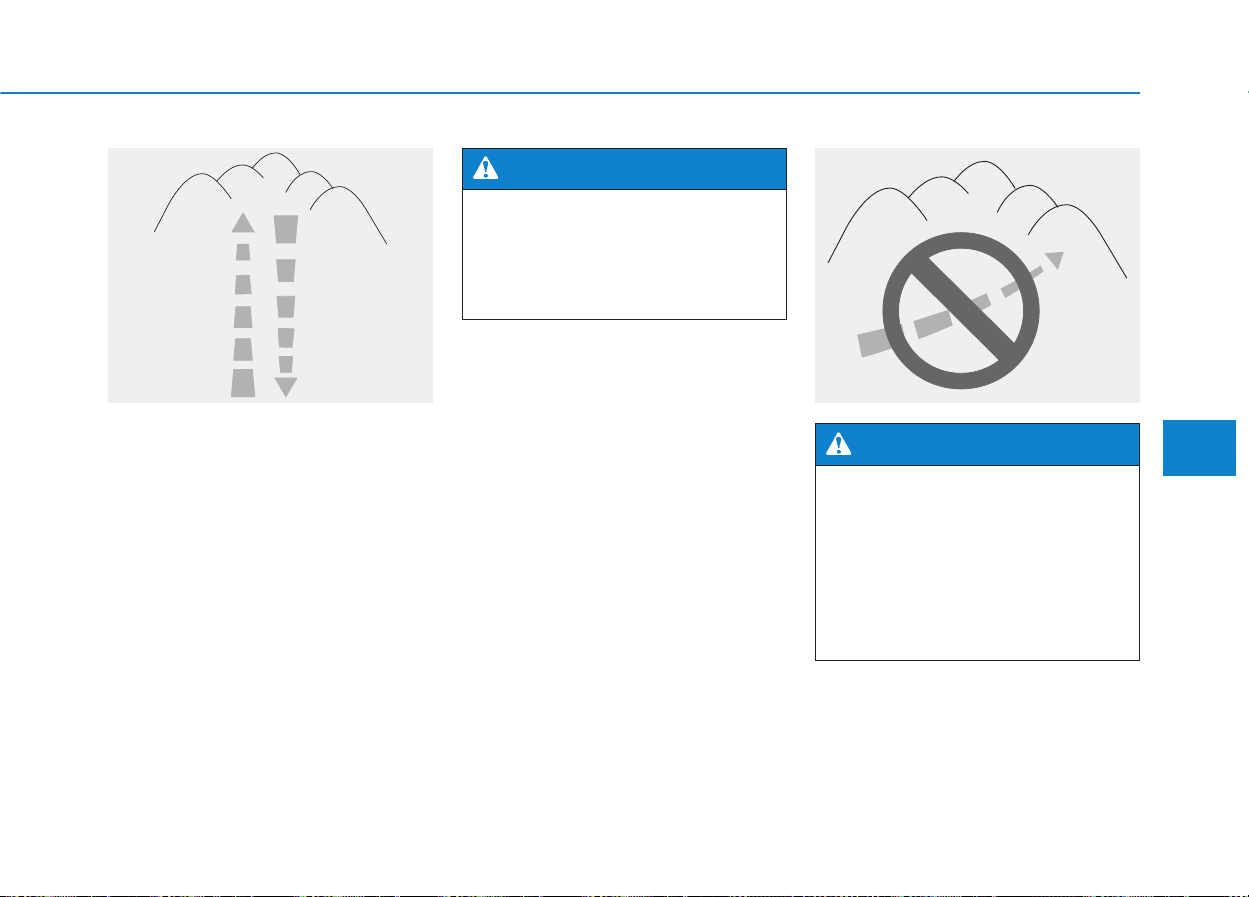
5-23
Driving your vehicle
5
Driving up or down hills
• Driving uphill
- Before starting off, check if it is
possible to drive uphill.
- Drive as straight as possible.
• Driving downhill
- Do not change gear while driving
downhill. Select gear before driv-
ing downhill.
- Drive slowly using engine braking
while driving downhill.
- Drive straight as possible.
OLMB053017 OLMB053018
Do not drive across the contour
of steep hills. A slight change in
the wheel angle can destabilize
the vehicle, or a stable vehicle
may lose stability if the vehicle
stops its forward motion. Your
vehicle may roll over and lead to
a serious injury or death.
WARNING
Exercise extreme caution driv-
ing up or down steep hills. The
vehicle may flip depending on
the grade, terrain and water /
mud conditions.
WARNING
5-24
Driving your vehicle
Driving through water
• Try to avoid driving in deep stand-
ing water. It may stall your engine
and clog your exhaust pipes.
• If you need to drive in water, stop
your vehicle, set the vehicle in
AWD LOCK mode and drive under
5mph (8 km/h).
• Do not change gear while driving in
water.
Additional driving conditions
• Become familiar with the off-road
conditions before driving.
• Always pay attention when driving
off-road and avoid dangerous
areas.
• Drive slowly when driving in heavy
wind.
• Reduce vehicle speed when cor-
nering. The center of gravity of
AWD vehicles is higher than con-
ventional 2WD vehicles, making
them more likely to roll over when
you rapidly turn corners.
• Always hold the steering wheel
firmly when you are driving off-
road.
Always drive slowly in water. If
you drive too fast, water may
get into the engine compart-
ment and wet the ignition sys-
tem causing your vehicle to
suddenly stop.
CAUTION
OLMB053019
Do not grab the inside of the
steering wheel when you are
driving off-road. You may hurt
your arm by a sudden steering
maneuver or from steering
wheel rebound due to an impact
with objects on the ground.You
could lose control of the steer-
ing wheel that may lead to seri-
ous injury or death.
WARNING
5-25
Driving your vehicle
5
Emergency precautions
Tires
Do not use tire and wheel with differ-
ent size and type from the one origi-
nally installed on your vehicle. It can
affect the safety and performance of
your vehicle, which could lead to
steering failure or rollover causing
serious injury.
When replacing the tires, be sure to
equip all four tires with the tire and
wheel of the same size, type, tread,
brand and load-carrying capacity. If
you equip your vehicle with any
tire/wheel combination not recom-
mended by HYUNDAI for off-road
driving, you should not use these
tires for highway driving.
Towing
AWD vehicles must be towed with a
wheel lift and dollies or flatbed equip-
ment with all the wheels off the
ground. For more information, refer
to “Towing” in chapter 6.
Dynamometer testing
A full-time AWD vehicle must be test-
ed on a special four wheel chassis
dynamometer.
A full-time AWD vehicle should not
be tested on a 2WD roll tester. If a
2WD roll tester must be used, per-
form the following procedure:
1.Check the tire pressures recom-
mended for your vehicle.
2.Place the front wheels on the roll
tester for a speedometer test as
shown in the illustration.
3.Release the parking brake.
4.Place the rear wheels on the tem-
porary free roller as shown in the
illustration.
Never start or run the engine
while a full-time AWD vehicle is
raised on a jack.The vehicle can
slip or roll off of a jack causing
serious injury or death to you or
those nearby.
WARNING
OLMB053020
Roll Tester (Speedometer)
Temporary Free Roller
5-26
Driving your vehicle
• Never engage the parking
brake while performing the
test.
• When the vehicle is lifted up,
do not operate the front and
rear wheel separately. All four
wheels should be operated.
CAUTION
Keep away from the front of the
vehicle while the vehicle is in
gear on the dynamometer. The
vehicle can jump forward and
cause serious injury or death.
WARNING
5-27
Driving your vehicle
5
Power brakes
Your vehicle has power-assisted
brakes that adjust automatically
through normal usage.
If the engine is not running or is
turned off while driving, the power
assist for the brakes will not work.
You can still stop your vehicle by
applying greater force to the brake
pedal than typical. The stopping dis-
tance, however, will be longer than
with power brakes.
When the engine is not running, the
reserve brake power is partially
depleted each time the brake pedal
is applied. Do not pump the brake
pedal when the power assist has
been interrupted.
Pump the brake pedal only when
necessary to maintain steering con-
trol on slippery surfaces.
BBRRAAKKIINNGG SSYYSSTTEEMM
Take the following precautions:
• Do not drive with your foot
resting on the brake pedal.
This will create abnormal high
brake temperatures, exces-
sive brake lining and pad
wear, and increased stopping
distances.
• When descending a long or
steep hill, shift to a lower gear
and avoid continuous applica-
tion of the brakes. Applying
the brakes continuously will
cause the brakes to overheat
and could result in a tempo-
rary loss of braking perform-
ance.
(Continued)
(Continued)
• Wet brakes may impair the
vehicle’s ability to safely slow
down; the vehicle may also
pull to one side when the
brakes are applied. Applying
the brakes lightly will indicate
whether they have been
affected in this way. Always
test your brakes in this fash-
ion after driving through deep
water.To dry the brakes, light-
ly tap the brake pedal to heat
up the brakes while maintain-
ing a safe forward speed until
brake performance returns to
normal. Avoid driving at high
speeds until the brakes func-
tion correctly.
WARNING
5-28
Driving your vehicle
Disc brakes wear indicator
When your brake pads are worn and
new pads are required, you will hear
a high pitched warning sound from
your front or rear brakes. You may
hear this sound come and go or it
may occur whenever you depress
the brake pedal.
Please remember some driving con-
ditions or climates may cause a
brake squeal when you first apply (or
lightly apply) the brakes. This is nor-
mal and does not indicate a problem
with your brakes.
✽✽
NOTICE
Always replace brake pads as com-
plete front or rear axle sets.
Parking brake
Always set the parking brake before
leaving the vehicle, to apply:
■■
Foot type
Firmly depress the brake pedal.
Depress the parking brake pedal
down as far as possible.
■■
Hand type
Firmly depress the brake pedal.
Pull up the parking brake lever as far
as possible.
To avoid costly brake repairs,
do not continue to drive with
worn brake pads.
CAUTION
OLMB053021
OLMB053022
To reduce the risk of SERIOUS
INJURY or DEATH, do not oper-
ate the parking brake while the
vehicle is moving except in an
emergency situation. It could
damage the brake system and
lead to an accident.
WARNING
5-29
Driving your vehicle
5
To release:
■■
Foot type
Firmly depress the brake pedal.
Depress the parking brake pedal
down and it will release automatical-
ly.
■■
Hand type
Firmly depress the brake pedal.
Slightly pull up the parking brake
lever.
While pressing the release button
(1), lower the parking brake (2).
If the parking brake does not release
or does not release all the way, have
the system checked by an authorized
HYUNDAI dealer.
OLMB053023 OLMB053024
• Whenever leaving the vehicle
or parking, always come to a
complete stop and continue
to depress the brake pedal.
Move the shift lever into the P
(Park) position, then apply the
parking brake, and place the
ignition switch in the
LOCK/OFF position.
Vehicles with the parking
brake not fully engaged are at
risk for moving inadvertently
and causing injury to yourself
or others.
• NEVER allow anyone who is
unfamiliar with the vehicle to
touch the parking brake. If the
parking brake is released
unintentionally, serious injury
may occur.
(Continued)
WARNING
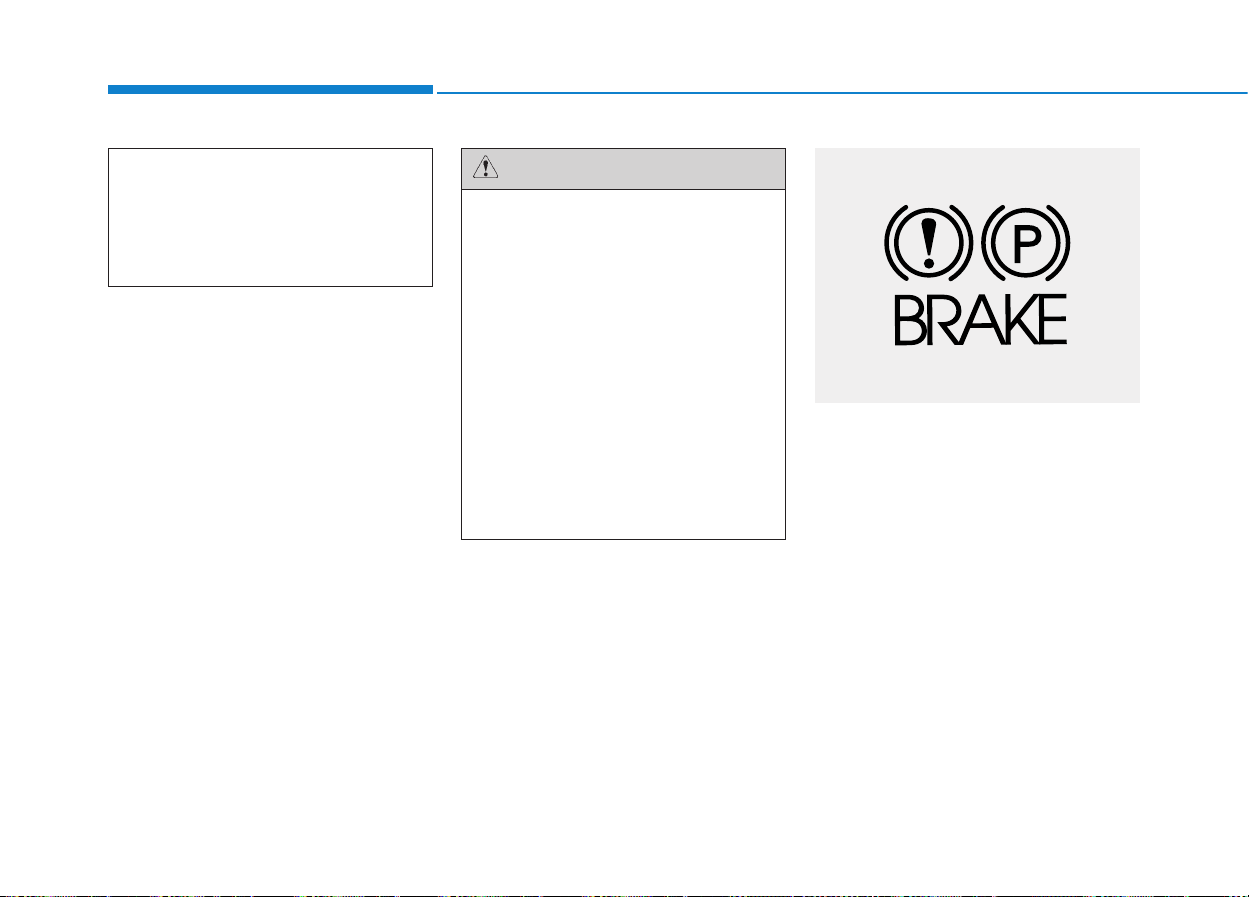
5-30
Driving your vehicle
Check the Parking Brake Warning
Light by placing the ignition switch to
the ON position (do not start the
engine).
This light will be illuminated when the
parking brake is applied with the igni-
tion switch in the START or ON posi-
tion.
Before driving, be sure the parking
brake is released and the Brake
Warning Light is OFF.
(Continued)
• Only release the parking
brake when you are seated
inside the vehicle with your
foot firmly on the brake pedal.
• Do not apply the accelerator
pedal while the parking brake
is engaged. If you depress the
accelerator pedal with the
parking brake engaged, warn-
ing will sound. Damage to the
parking brake may occur.
• Driving with the parking brake
on can overheat the braking
system and cause premature
wear or damage to brake
parts. Make sure the parking
brake is released and the
Brake Warning Light is off
before driving.
CAUTION
OLMB053025
5-31
Driving your vehicle
5
If the Parking Brake Warning Light
remains on after the parking brake is
released while engine is running,
there may be a malfunction in the
brake system. Immediate attention is
necessary.
If at all possible, cease driving the
vehicle immediately.If that is not pos-
sible, use extreme caution while
operating the vehicle and only con-
tinue to drive the vehicle until you
can reach a safe location.
Anti-lock Brake System (ABS)
An Anti-Lock Braking System
(ABS) or an Electronic Stability
Control (ESC) system will not
prevent accidents due to
improper or dangerous driving
maneuvers. Even though vehi-
cle control is improved during
emergency braking, always
maintain a safe distance
between you and objects ahead
of you. Vehicle speeds should
always be reduced during
extreme road conditions. The
braking distance for cars
equipped with ABS or ESC may
be longer than for those without
these systems in the road con-
ditions described below.
(Continued)
(Continued)
Drive your vehicle at reduced
speeds during the following
conditions:
• Rough, gravel or snow-cov-
ered roads.
• On roads where the road sur-
face is pitted or has different
surface height.
• Tire chains are installed on
your vehicle.
The safety features of an ABS
or ESC equipped vehicle should
not be tested by high speed
driving or cornering.This could
endanger the safety of yourself
or others.
WARNING

5-32
Driving your vehicle
ABS is an electronic braking system
that helps prevent a braking skid.
ABS allows the driver to steer and
brake at the same time.
Using ABS
To obtain the maximum benefit from
your ABS in an emergency situation,
do not attempt to modulate your
brake pressure and do not try to
pump your brakes. Depress your
brake pedal as hard as possible.
When you apply your brakes under
conditions which may lock the
wheels, you may hear sounds from
the brakes, or feel a corresponding
sensation in the brake pedal. This is
normal and it means your ABS is
active.
ABS does not reduce the time or dis-
tance it takes to stop the vehicle.
Always maintain a safe distance from
the vehicle in front of you.
ABS will not prevent a skid that
results from sudden changes in
direction, such as trying to take a
corner too fast or making a sudden
lane change. Always drive at a safe
speed for the road and weather con-
ditions.
ABS cannot prevent a loss of stabili-
ty. Always steer moderately when
braking hard. Severe or sharp steer-
ing wheel movement can still cause
your vehicle to veer into oncoming
traffic or off the road.
On loose or uneven road surfaces,
operation of the anti-lock brake sys-
tem may result in a longer stopping
distance than for vehicles equipped
with a conventional brake system.
The ABS warning light ( ) will stay
on for several seconds after the igni-
tion switch is in the ON position.
During that time, the ABS will go
through self-diagnosis and the light
will go off if everything is normal. If
the light stays on, you may have a
problem with your ABS. Contact an
authorized HYUNDAI dealer as soon
as possible
5-33
Driving your vehicle
5
✽✽
NOTICE
When you jump start your vehicle
because of a drained battery, the
ABS warning light ( ) may turn
on at the same time. This happens
because of the low battery voltage. It
does not mean your ABS is malfunc-
tioning. Have the battery recharged
before driving the vehicle.
If the ABS warning light ( ) is
on and stays on, you may have
a problem with the ABS. Your
power brakes will work normal-
ly. To reduce the risk of serious
injury or death, contact your
HYUNDAI dealer as soon as
possible.
WARNING
When you drive on a road hav-
ing poor traction, such as an icy
road, and apply your brakes
continuously, the ABS will be
active continuously and the
ABS warning light ( ) may
illuminate. Pull your car over to
a safe place and turn the engine
off.
Restart the engine. If the ABS
warning light is off, then your
ABS system is normal.
Otherwise, you may have a
problem with your ABS system.
Contact an authorized
HYUNDAI dealer as soon as
possible.
CAUTION
5-34
Driving your vehicle
Electronic Stability Control
(ESC)
The Electronic Stability Control
(ESC) system helps to stabilize the
vehicle during cornering maneuvers.
ESC checks where you are steering
and where the vehicle is actually
going. ESC applies braking pressure
to any one of the vehicle’s brakes
and intervenes in the engine man-
agement system to assist the driver
with keeping the vehicle on the
intended path. It is not a substitute
for safe driving practices. Always
adjust your speed and driving to the
road conditions.
ESC operation
ESC ON condition
When the ignition switch is in the ON
position, the ESC and the ESC OFF
indicator lights illuminate for approxi-
mately three seconds and goes off,
then the ESC is turned on.
If this light stays on, your vehicle may
have a malfunction with the ESC
system. Have your vehicle checked
by an authorized HYUNDAI dealer
as soon as possible.
Never drive too fast for the road
conditions or too quickly when
cornering. The ESC system will
not prevent accidents. Excessive
speed in turns, abrupt maneu-
vers, and hydroplaning on wet
surfaces can result in severe
accidents.
WARNING
OLMB053027
5-35
Driving your vehicle
5
When operating
When the ESC is in opera-
tion, the ESC indicator light
blinks:
• When you apply your brakes under
conditions which may lock the
wheels, you may hear sounds from
the brakes, or feel a corresponding
sensation in the brake pedal. This
is normal and it means your ESC is
active.
• When the ESC activates, the
engine may not respond to the
accelerator as it does under rou-
tine conditions.
• If the Cruise Control was in use
when the ESC activates, the cruise
control automatically disengages.
The Cruise Control can be reen-
gaged when the road conditions
allow.See “Cruise Control System”
later in this chapter.
• When moving out of the mud or
driving on a slippery road, the
engine rpm (revolutions per
minute) may not increase even if
you press the accelerator pedal
deeply. This is to maintain the sta-
bility and traction of the vehicle and
does not indicate a problem.
ESC OFF condition
To cancel ESC operation :
• State 1
Press the ESC OFF button shortly
(ESC OFF indicator light illumi-
nates). At this state, the engine con-
trol function does not operate. In
other words, the traction control
function does not operate but only
the brake control function operates.
• State 2
Press the ESC OFF button for more
than 3 seconds. ESC OFF indicator
light illuminates and ESC OFF warn-
ing chime will sound. At this state,
the engine control function and brake
control function does not operate. In
other words, the vehicle stability con-
trol function does not operate any
more.
If the ignition switch is placed to the
LOCK/OFF position when ESC is off,
ESC remains off.Upon restarting the
engine, the ESC will automatically
turn on again.

5-36
Driving your vehicle
Indicator lights
When the ignition switch is placed to
the ON position, the ESC indicator
light illuminates, then goes off if the
ESC system is operating normally.
The ESC indicator light blinks when-
ever the ESC is operating.
If ESC indicator light stays on, your
vehicle may have a malfunction with
the ESC system. When this warning
light illuminates have your vehicle
checked by an authorized HYUNDAI
dealer as soon as possible.
The ESC OFF indicator light comes
on when the ESC is turned off with
the button.
ESC OFF usage
When driving
The ESC OFF mode should only be
used briefly to help free the vehicle if
stuck in snow or mud by temporarily
stopping operation of the ESC to
maintain wheel torque.
To turn ESC off while driving, press
the ESC OFF button while driving on
a flat road surface.
■ ESC indicator light (blinks)
■ ESC OFF indicator light (comes on)
When the ESC is blinking, this
indicates the ESC is active:
Drive slowly and NEVER
attempt to accelerate. NEVER
press the ESC OFF button while
the ESC indicator light is blink-
ing or you may lose control of
the vehicle resulting in an acci-
dent.
WARNING
Driving with varying tire or
wheel sizes may cause the ESC
system to malfunction. When
replacing tires, make sure they
are the same size as your origi-
nal tires for this vehicle.
CAUTION
5-37
Driving your vehicle
5
✽✽
NOTICE
Turning the ESC OFF does not
affect ABS or standard brake sys-
tem operation.
Vehicle Stability Management
(VSM)
Vehicle Stability Management (VSM)
helps ensure the vehicle stays stable
when accelerating or braking sud-
denly on wet, slippery and rough
roads where traction over the four
tires can suddenly become uneven.
To prevent damage to the
transaxle:
• Do not allow wheel(s) of one
axle to spin excessively while
the ESC, ABS, and brake
warning lights are displayed.
The repairs would not be cov-
ered by the vehicle warranty.
Reduce engine power and do
not spin the wheel(s) exces-
sively while these lights are
displayed.
• When operating the vehicle
on a dynamometer, ensure the
ESC is turned off (ESC OFF
light illuminated).
CAUTION
Take the following precautions
when using the Vehicle Stability
Management (VSM):
• ALWAYS check the speed and
the distance to the vehicle
ahead. The VSM is not a sub-
stitute for safe driving prac-
tices.
• Never drive too fast for the
road conditions.The VSM sys-
tem will not prevent acci-
dents. Excessive speed in bad
weather, slippery and uneven
roads can result in severe
accidents.
WARNING
5-38
Driving your vehicle
VSM operation
VSM ON condition
The VSM operates when:
• The Electronic Stability Control
(ESC) is on.
• Vehicle speed is approximately
above 9mph (15 km/h) on curve
roads.
• Vehicle speed is approximately
above 18mph (30 km/h) when the
vehicle is braking on rough roads.
When operating
When you apply your brakes under
conditions which may activate the
ESC, you may hear sounds from the
brakes, or feel a corresponding sen-
sation in the brake pedal.This is nor-
mal and it means your VSM is active.
✽✽
NOTICE
The VSM does not operate when:
• Driving rearward.
• ESC OFF indicator light is on.
• EPS (Electric Power Steering)
warning light ( ) is on.
VSM OFF condition
To cancel VSM operation, press the
ESC OFF button.ESC OFF indicator
light ( ) will illuminate.
To turn on VSM, press the ESC OFF
button again.The ESC OFF indicator
light will go out.
If ESC indicator light ( ) or EPS
warning light ( ) stays on,
your vehicle may have a mal-
function with the VSM system.
When the warning light illumi-
nates, have your vehicle
checked by an authorized
HYUNDAI dealer as soon as pos-
sible.
WARNING
5-39
Driving your vehicle
5
Hill-Start Assist Control (HAC)
The Hill-Start Assist Control (HAC)
prevents the vehicle from rolling
backwards when starting a vehicle
from a stop on a hill. The system
operates the brakes automatically for
approximately 2 seconds and releas-
es the brake when the accelerator
pedal is depressed or after 2 sec-
onds.
✽✽
NOTICE
• The HAC does not operate when
the shift lever is in P (Park) or N
(Neutral)
• The HAC activates even though
the ESC (Electronic Stability
Control) is off but does not acti-
vate when the ESC has malfunc-
tioned.
Always be ready to depress the
accelerator pedal when starting
off on a incline. The HAC acti-
vates only for approximately 2
seconds.
WARNING
Driving with varying tire or
wheel sizes may cause the ESC
system to malfunction. When
replacing tires, make sure they
are the same size as your origi-
nal tires for this vehicle.
CAUTION
5-40
Driving your vehicle
Downhill Brake Control (DBC)
The Downhill Brake Control (DBC)
supports the driver come down a
steep hill without depressing the
brake pedal. It slows down the vehi-
cle under 5mph (8 km/h) and lets the
driver concentrate on steering the
vehicle.
✽✽
NOTICE
• The DBC defaults to the OFF posi-
tion whenever the ignition switch
is placed in the ON position.
• Noise or vibration may occur from
the brakes when the DBC is acti-
vated.
• The rear stop light comes on when
DBC is activated.
Always turn off the DBC on nor-
mal roads. The DBC might acti-
vate inadvertently from the
standby mode when driving
through speed bumps or mak-
ing sharp curves.
WARNING
OLMB053030
5-41
Driving your vehicle
5
✽✽
NOTICE
• The DBC may not deactivate on
steep inclines even though the
brake or accelerator pedal is
depressed.
• The DBC does not operate when:
- The shift lever is in P (Park).
- The ESC is activated.
Standby
Press the DBC button when vehicle speed is under
25mph (40km/h). The DBC system will turn ON and
enter the standby mode.
The system does not turn ON if vehicle speed is over
25mph (40km/h).
In the standby mode, if vehicle speed is under 22mph
(35km/h) while driving down a steep hill, the DBC will
activate automatically.
In the activated mode, the DBC will temporarily deacti-
vate under the following conditions:
• The hill is not steep enough.
•
The brake pedal or accelerator pedal is depressed.
If the above conditions are not met, the DBC will auto-
matically activate again.
The DBC will turn OFF under the following conditions:
• The DBC button is pressed again.
• Vehicle speed is over 38mph (60km/h).
Activated
Temporarily
deactivated
OFF
Mode Indicator light Description
blinks
illuminated
not
illuminated
illuminated
If the DBC red indicator light
illuminates, the system may
have overheated or have mal-
functioned. When the warning
light illuminates even though
the DBC system has cooled off,
have your vehicle checked by
an authorized HYUNDAI dealer
as soon as possible.
WARNING
DBC operation

5-42
Driving your vehicle
Good braking practices
Wet brakes can be dangerous! The
brakes may get wet if the vehicle is
driven through standing water or if it
is washed.Your vehicle will not stop
as quickly if the brakes are wet. Wet
brakes may cause the vehicle to pull
to one side.
To dry the brakes, apply the brakes
lightly until the braking action returns
to normal, taking care to keep the
vehicle under control at all times.If the
braking action does not return to nor-
mal, stop as soon as it is safe to do so
and call an authorized HYUNDAI
dealer for assistance.
DO NOT drive with your foot resting
on the brake pedal. Even light, but
constant pedal pressure can result in
the brakes overheating, brake wear,
and possibly even brake failure.
If a tire goes flat while you are driv-
ing, apply the brakes gently and
keep the vehicle pointed straight
ahead while you slow down. When
you are moving slowly enough for it
to be safe to do so, pull off the road
and stop in a safe location.
Keep your foot firmly on the brake
pedal when the vehicle is stopped to
prevent the vehicle from rolling for-
ward.
Whenever leaving the vehicle or
parking, always come to a com-
plete stop and continue to
depress the brake pedal. Move
the shift lever into the P (Park)
position, then apply the parking
brake, and place the ignition
switch in the LOCK/OFF posi-
tion.
Vehicles with the parking brake
not fully engaged are at risk for
moving inadvertently and caus-
ing injury to yourself or others.
WARNING

5-43
Driving your vehicle
5
DDRRIIVVIINNGG AASSSSIISSTT SSYYSSTTEEMM
Active ECO system
Active ECO operation
Active ECO helps improve fuel effi-
ciency by controlling the engine and
transaxle. Fuel-efficiency is deter-
mined by the driver's driving habits
and road conditions.
• When the Active ECO button is
pressed the ECO indicator (green)
will illuminate to show that the
Active ECO is operating.
• When the Active ECO is activated,
it does not turn off even though the
engine is restarted again. To turn
off the system, press the active
ECO button again.
• If Active ECO is turned off, it will
return to normal mode.
When Active ECO is activated :
• Engine sound may change.
• Vehicle speed may slightly be
reduced.
• Air conditioner performance may
be affected.
✽✽
NOTICE
Active ECO is designed on the
assumption of light to mild throttle
driving style to control engine and
transaxle in order to optimize fuel
economy. A person with an aggres-
sive throttle driving style may find
the engine performance in Active
ECO on mode to be unsatisfactory,
and thus may not realize any fuel
economy gain. In such an aggressive
driver style case, it would be better
to keep Active ECO off for best fuel
economy. For best results, it is rec-
ommended to compare the perform-
ance of both modes to determine
which is more effective for your
driving style.
Limitation of Active ECO opera-
tion
If the following conditions occur while
Active ECO is operating, the effec-
tiveness of the Active ECO may be
limited even though the indicator is
still on.
• When coolant temperature is low:
The system will be limited until
engine temperature becomes nor-
mal.
• When driving up a hill:
The system will be limited to gain
power when driving uphill because
engine torque is required.
• When using sports mode:
The system will be limited accord-
ing to shift request.
OLMB053056
5-44
Driving your vehicle
Rear view camera
(if equipped)
The Rear View Camera will activate
when the engine is running and the
shift lever is in the R (Reverse) posi-
tion.
Whenever the vehicle ignition is
cycled off and on, the rear view cam-
era will turn on when the shift lever is
put into R (Reverse).
■ Type A
The rear view camera can be turned
off by pressing the ON/OFF button
when the rear view camera is acti-
vated. Press the ON/OFF button
once more to turn on the rear view
camera when the engine is running
and the shift lever is in R (Reverse).
OLMB043243
OLMB043241
OLMB0433122
■ Type A (for Canada)
■ Type B (for USA)
• ALWAYS look around your
vehicle to make sure there are
not any objects or obstacles
before moving the vehicle in
any direction to prevent a col-
lision.
• Always pay close attention
when the vehicle is driven
close to objects, particularly
pedestrians, and especially
children.
• Always keep the camera lens
clean. The camera may not
work normally if the lens is
covered with foreign matter.
WARNING
5-45
Driving your vehicle
5
Cruise control operation
1.CRUISE indicator
2.SET indicator
The cruise control system allows you
to drive at speeds above 25 mph (40
km/h) without depressing the accel-
erator pedal.
To set cruise control speed
1.Push the cruise ON/OFF button on
the steering wheel to turn the sys-
tem on. The CRUISE indicator will
illuminate.
2.Accelerate to the desired speed,
which must be more than 25 mph
(40 km/h).
CCRRUUIISSEE CCOONNTTRROOLL SSYYSSTTEEMM
OLMB053036
Take the following precautions:
• If the cruise control is left on,
(CRUISE indicator light in the
instrument cluster illuminat-
ed) the cruise control can be
activated unintentionally.
Keep the cruise control sys-
tem off (CRUISE indicator
light OFF) when the cruise
control is not in use, to avoid
inadvertently setting a speed.
• Use the cruise control system
only when traveling on open
highways in good weather.
• Do not use the cruise control
when it may not be safe to
keep the vehicle at a constant
speed:
- Driving in heavy or varying
speed traffic.
- On slippery (rainy, icy or
snow covered) roads.
- Hilly or winding roads.
- Very windy areas.
WARNING
OLMB053037

5-46
Driving your vehicle
3.Push the lever (1) down (to SET-) ,
and release it. The SET indicator
light will illuminate.
4.Release the accelerator pedal.
✽✽
NOTICE
The vehicle may slow down or speed
up slightly while going uphill or
downhill.
To increase cruise control
speed
• Push the lever (1) up (to RES+)
and hold it, while monitoring the
SET speed on the instrument clus-
ter. Release the lever when the
desired speed is shown and the
vehicle will accelerate to that
speed.
• Push the lever (1) up (to RES+)
and release it immediately. The
cruising speed will increase 1.0
mph (1.6 km/h) each time the lever
is operated in this manner.
• Depress the accelerator pedal.
When the vehicle attains the
desired speed, push the lever (1)
down (to SET-).
OLMB053038
OLMB053039

5-47
Driving your vehicle
5
To decrease cruise control
speed
• Push the lever (1) down (to SET-)
and hold it.Your vehicle will gradu-
ally slow down. Release the lever
at the speed you want to maintain.
• Push the lever (1) down (to SET-)
and release it immediately. The
cruising speed will decrease 1.0
mph (1.6 km/h) each time the lever
is operated in this manner.
• Lightly tap the brake pedal. When
the vehicle attains the desired
speed, push the lever (1) down
(to SET-).
To temporarily accelerate with
the cruise control ON
Depress the accelerator pedal.When
you take your foot off the accelerator,
the vehicle will return to the previ-
ously set speed.
If you push the lever (1) down (to
SET-) at the increased speed, the
cruise control will maintain the
increased speed.
Cruise control will be canceled
when:
• Depressing the brake pedal.
• Pressing the CANCEL switch
located on the steering wheel.
• Pushing the cruise ON/OFF but-
ton. Both the CRUISE indicator
and the SET indicator will turn
OFF.
• Moving the shift lever into N
(Neutral).
• Decreasing the vehicle speed
lower than the memory speed by 9
mph (15 km/h).
• Decreasing the vehicle speed to
less than approximately 25 mph
(40 km/h).
• The ESC is operating.
• Downshifting to the 2nd gear with
sports mode.
OLMB053038

5-48
Driving your vehicle
✽✽
NOTICE
Each of the above actions will cancel
cruise control operation (the SET
indicator light in the instrument
cluster will go off), but only pressing
the cruise ON/OFF button will turn
the system off. If you wish to resume
cruise control operation, push the
lever up (to RES+) located on your
steering wheel. You will return to
your previously preset speed, unless
the system was turned off using the
cruise ON/OFF button.
To resume preset cruising
speed
Push the lever (1) up (to RES+). If
the vehicle speed is over 25 mph (40
km/h), the vehicle will resume the
preset speed.
To turn cruise control off
• Push the cruise ON/OFF button
(the CRUISE indicator light will go
off).
• Turn the engine OFF.
OLMB053039
OLMB053037
5-49
Driving your vehicle
5
Hazardous driving conditions
When hazardous driving conditions
are encountered such as water,
snow, ice, mud or sand:
Drive cautiously and allow extra dis-
tance for braking.
Avoid sudden movements in braking
or steering.
If stuck in snow, mud, or sand, use
second gear. Accelerate slowly to
avoid spinning the drive wheels.
Use sand, rock salt, or other non-slip
material under the drive wheels to
provide traction when stalled in ice,
snow, or mud.
Rocking the vehicle
If it is necessary to rock the vehicle
to free it from snow, sand, or mud,
first turn the steering wheel right and
left to clear the area around your
front wheels. Then, shift back and
forth between R (Reverse) and a for-
ward gear. Try to avoid spinning the
wheels, and do not race the engine.
To prevent transaxle wear, wait until
the wheels stop spinning before
shifting gears. Release the accelera-
tor pedal while shifting, and press
lightly on the accelerator pedal while
the transaxle is in gear. Slowly spin-
ning the wheels in forward and
reverse directions causes a rocking
motion that may free the vehicle.
SSPPEECCIIAALL DDRRIIVVIINNGG CCOONNDDIITTIIOONNSS
Downshifting with an automatic
transaxle, while driving on slip-
pery surfaces can cause an
accident.The sudden change in
tire speed could cause the tires
to skid. Be careful when down-
shifting on slippery surfaces.
WARNING
If the tires spin at high speed
the tires can explode, and you
or others may be injured. Do not
attempt this procedure if people
or objects are anywhere near
the vehicle.
The vehicle can overheat caus-
ing an engine compartment fire
or other damage. Spin the
wheels as little as possible and
avoid spinning the wheels at
speeds over 35 mph (56 km/h)
as indicated on the speedome-
ter.
WARNING
5-50
Driving your vehicle
Smooth cornering
Avoid braking or gear changing in
corners, especially when roads are
wet. Ideally, corners should always
be taken under gentle acceleration.
Driving at night
Night driving presents more hazards
than driving in the daylight. Here are
some important tips to remember:
• Slow down and keep more dis-
tance between you and other vehi-
cles, as it may be more difficult to
see at night, especially in areas
where there may not be any street
lights.
• Adjust your mirrors to reduce the
glare from other driver's head-
lights.
If you are still stuck after rock-
ing the vehicle a few times,have
the vehicle pulled out by a tow
vehicle to avoid engine over-
heating, possible damage to the
transaxle, and tire damage. See
“Towing” in chapter 6.
To prevent damage to the
transaxle, turn OFF the ESC
prior to rocking the vehicle.
CAUTION
OLMB053041 OLMB053042

5-51
Driving your vehicle
5
• Keep your headlights clean and
properly aimed. Dirty or improperly
aimed headlights will make it much
more difficult to see at night.
• Avoid staring directly at the head-
lights of oncoming vehicles. You
could be temporarily blinded, and it
will take several seconds for your
eyes to readjust to the darkness.
Driving in the rain
Rain and wet roads can make driving
dangerous. Here are a few things to
consider when driving in the rain or
on slick pavement:
• Slow down and allow extra follow-
ing distance. A heavy rainfall
makes it harder to see and increas-
es the distance needed to stop
your vehicle.
• Turn OFF your Cruise Control.
• Replace your windshield wiper
blades when they show signs of
streaking or missing areas on the
windshield.
• Be sure your tires have enough
tread. If your tires do not have
enough tread, making a quick stop
on wet pavement can cause a skid
and possibly lead to an accident.
See “Tire Tread” in chapter 7.
• Turn on your headlights to make it
easier for others to see you.
• Driving too fast through large pud-
dles can affect your brakes. If you
must go through puddles, try to
drive through them slowly.
• If you believe your brakes may be
wet, apply them lightly while driv-
ing until normal braking operation
returns.
OLMB053043
5-52
Driving your vehicle
Hydroplaning
If the road is wet enough and you are
going fast enough, your vehicle may
have little or no contact with the road
surface and actually ride on the
water. The best advice is SLOW
DOWN when the road is wet. The
risk of hydroplaning increases as the
depth of tire tread decreases, refer to
“Tire Tread” in chapter 7.
Driving in flooded areas
Avoid driving through flooded areas
unless you are sure the water is no
higher than the bottom of the wheel
hub. Drive through any water slowly.
Allow adequate stopping distance
because brake performance may be
reduced.
After driving through water, dry the
brakes by gently applying them sev-
eral times while the vehicle is moving
slowly.
Reducing the risk of a rollover
Your multi-purpose passenger vehi-
cle is defined as a Sports Utility
Vehicle (SUV). SUV’s have higher
ground clearance and a narrower
track to make them capable of per-
forming in a wide variety of off-road
applications. The specific design
characteristics give them a higher
center of gravity than ordinary vehi-
cles making them more likely to roll
over if you make abrupt turns. Utility
vehicles have a significantly higher
rollover rate than other types of vehi-
cles. Due to this risk, driver and pas-
sengers are strongly recommended
to buckle their seat belts.In a rollover
crash, an unbelted person is signifi-
cantly more likely to die than a per-
son wearing a seat belt.
There are steps that a driver can
make to reduce the risk of a rollover.
If at all possible, avoid sharp turns or
abrupt maneuvers, do not load your
vehicle with heavy cargo on the roof,
and never modify your vehicle in any
way.
Utility vehicles have a signifi-
cantly higher rollover rate than
other types of vehicles. To pre-
vent rollovers or loss of control:
• Take corners at slower speeds
than you would with a passen-
ger vehicle.
• Avoid sharp turns and abrupt
maneuvers.
• Do not modify your vehicle in
any way that you would raise
the center of gravity.
• Keep tires properly inflated.
• Do not carry heavy cargo on
the roof.
WARNING
In a rollover crash, an unbelted
person is significantly more
likely to die than a person wear-
ing a seat belt. Make sure all
passengers are wearing their
seat belts.
WARNING
5-53
Driving your vehicle
5
Snow or icy conditions
You need to keep sufficient distance
between your vehicle and the vehicle
in front of you.
Apply the brakes gently. Speeding,
rapid acceleration, sudden brake
applications, and sharp turns are
potentially very hazardous practices.
During deceleration, use engine
braking to the fullest extent. Sudden
brake applications on snowy or icy
roads may cause skids to occur.
To drive your vehicle in deep snow, it
may be necessary to use snow tires
or to install tire chains on your tires.
Always carry emergency equipment.
Some of the items you may want to
carry include tire chains, tow straps
or chains, a flashlight, emergency
flares, sand, a shovel, jumper cables,
a window scraper, gloves, ground
cloth, coveralls, a blanket, etc.
Snow tires
WWIINNTTEERR DDRRIIVVIINNGG
OLMB053045
Snow tires should be equivalent
in size and type to the vehicle's
standard tires. Otherwise, the
safety and handling of your
vehicle may be adversely affect-
ed.
WARNING
5-54
Driving your vehicle
If you mount snow tires on your vehi-
cle, make sure to use radial tires of
the same size and load range as the
original tires. Mount snow tires on all
four wheels to balance your vehicle’s
handling in all weather conditions.
The traction provided by snow tires
on dry roads may not be as high as
your vehicle's original equipment
tires. Check with the tire dealer for
maximum speed recommendations.
✽✽
NOTICE
Do not install studded tires without
first checking local, state and munic-
ipal regulations for possible restric-
tions against their use.
Tire chains
Since the sidewalls of radial tires are
thinner than other types of tires, they
may be damaged by mounting some
types of tire chains on them.
Therefore, the use of snow tires is
recommended instead of tire chains.
Do not mount tire chains on vehicles
equipped with aluminum wheels; if
unavoidable use a wire type chain. If
tire chains must be used, use gen-
uine HYUNDAI parts and install the
tire chain after reviewing the instruc-
tions provided with the tire chains.
Damage to your vehicle caused by
improper tire chain use is not cov-
ered by your vehicle manufacturer’s
warranty.
The use of tire chains may
adversely affect vehicle han-
dling:
• Drive less than 20 mph (30
km/h) or the chain manufac-
turer’s recommended speed
limit, whichever is lower.
• Drive carefully and avoid
bumps, holes, sharp turns,
and other road hazards, which
may cause the vehicle to
bounce.
• Avoid sharp turns or locked
wheel braking.
WARNING
OLMB053046
5-55
Driving your vehicle
5
✽✽
NOTICE
• Install tire chains on the front tires
for 2WD vehicles or on all four
tires for AWD vehicles. It should
be noted that installing tire chains
on the tires will provide a greater
driving force, but will not prevent
side skids.
• Do not install studded tires with-
out first checking local, state and
municipal regulations for possible
restrictions against their use.
Chain installation
When installing tire chains, follow the
manufacturer's instructions and
mount them as tightly possible. Drive
slowly (less than 20 mph (30 km/h))
with chains installed. If you hear the
chains contacting the body or chas-
sis, stop and tighten them.If they still
make contact, slow down until the
noise stops. Remove the tire chains
as soon as you begin driving on
cleared roads.
When mounting snow chains, park
the vehicle on level ground away
from traffic. Turn on the vehicle
Hazard Warning Flasher and place a
triangular emergency warning device
behind the vehicle (if available).
Always place the vehicle in P (Park),
apply the parking brake and turn off
the engine before installing snow
chains.
When using tire chains:
• Wrong size chains or improp-
erly installed chains can dam-
age your vehicle's brake lines,
suspension, body and wheels.
• Use SAE “S” class or wire
chains.
• If you hear noise caused by
chains contacting the body,
retighten the chain to prevent
contact with the vehicle body.
• To prevent body damage,
retighten the chains after driv-
ing 0.3~0.6 miles (0.5~1.0 km).
• Do not use tire chains on
vehicles equipped with alu-
minum wheels. If unavoidable,
use a wire type chain.
• Use wire chains less than 0.59
inch (15 mm) wide to prevent
damage to the chain’s con-
nection.
CAUTION

5-56
Winter precautions
Use high quality ethylene glycol
coolant
Your vehicle is delivered with high
quality ethylene glycol coolant in the
cooling system. It is the only type of
coolant that should be used because
it helps prevent corrosion in the cool-
ing system, lubricates the water
pump and prevents freezing.Be sure
to replace or replenish your coolant
in accordance with the maintenance
schedule in section 7. Before winter,
have your coolant tested to assure
that its freezing point is sufficient for
the temperatures anticipated during
the winter.
Check battery and cables
Winter puts additional burdens on
the battery system. Visually inspect
the battery and cables as described
in section 7. The level of charge in
your battery can be checked by an
authorized HYUNDAI dealer or a
service station.
Change to "winter weight" oil if
necessary
In some climates it is recommended
that a lower viscosity "winter weight"
oil be used during cold weather. See
section 8 for recommendations. If
you aren't sure what weight oil you
should use, consult an authorized
HYUNDAI dealer.
Check spark plugs and ignition
system
Inspect your spark plugs as
described in section 7 and replace
them if necessary. Also check all
ignition wiring and components to be
sure they are not cracked, worn or
damaged in any way.
To keep locks from freezing
To keep the locks from freezing,
squirt an approved de-icer fluid or
glycerine into the key opening. If a
lock is covered with ice, squirt it with
an approved de-icing fluid to remove
the ice.If the lock is frozen internally,
you may be able to thaw it out by
using a heated key. Handle the heat-
ed key with care to avoid injury.
Use approved window washer
anti-freeze in system
To keep the water in the window
washer system from freezing, add an
approved window washer anti-freeze
solution in accordance with instruc-
tions on the container.Window wash-
er anti-freeze is available from an
authorized HYUNDAI dealer and
most auto parts outlets. Do not use
engine coolant or other types of anti-
freeze as these may damage the
paint finish.
Driving your vehicle

5-57
Driving your vehicle
Don't let your parking brake freeze
Under some conditions your parking
brake can freeze in the engaged
position.This is most likely to happen
when there is an accumulation of
snow or ice around or near the rear
brakes or if the brakes are wet. If
there is a risk the parking brake may
freeze, apply it only temporarily while
you put the shift lever in P (automat-
ic transaxle) and block the rear
wheels so the vehicle cannot roll.
Then release the parking brake.
Don't let ice and snow accumulate
underneath
Under some conditions, snow and
ice can build up under the fenders
and interfere with the steering.When
driving in severe winter conditions
where this may happen, you should
periodically check underneath the
vehicle to be sure the movement of
the front wheels and the steering
components is not obstructed.
Carry emergency equipment
Depending on the severity of the
weather, you should carry appropri-
ate emergency equipment. Some of
the items you may want to carry
include tire chains, tow straps or
chains, flashlight, emergency flares,
sand, a shovel, jumper cables, a win-
dow scraper, gloves, ground cloth,
coveralls or a blanket, etc.
Don't place foreign objects or
materials in the engine compart-
ment
Placement of foreign objects or
materials which prevent cooling of
the engine, in the engine compart-
ment, may cause a failure or com-
bustion. The manufacturer is not
responsible for the damage caused
by such placement.
5
5-58
Driving your vehicle
If you are considering to tow with
your vehicle, you should first check
with your state's Department of
Motor Vehicles to determine legal
requirements. Since laws vary from
state to state the requirements for
towing trailers, vehicles, or other
types of vehicles or apparatus may
differ. Ask an authorized HYUNDAI
dealer for further details before tow-
ing.
Remember that trailering is different
than just driving your vehicle by itself.
Trailering means changes in han-
dling, durability, and fuel economy.
Successful, safe trailering requires
correct equipment, and it has to be
used properly. Damage to your vehi-
cle caused by improper trailer towing
is not covered by your vehicle manu-
facturer’s warranty.
This section contains many time-
tested, important trailering tips and
safety rules. Many of these are
important for your safety and that of
your passengers. Please read this
section carefully before you pull a
trailer.
TTRRAAIILLEERR TTOOWWIINNGG
Take the following precautions:
• If you don't use the correct
equipment and/or drive
improperly, you can lose con-
trol of the vehicle when you
are pulling a trailer. For exam-
ple, if the trailer is too heavy,
the braking performance may
be reduced.You and your pas-
sengers could be seriously or
fatally injured. Pull a trailer
only if you have followed all
the steps in this section.
• Before towing, make sure the
total trailer weight, GCW
(Gross Combination Weight),
GVW (Gross Vehicle Weight),
GAW (Gross Axle Weight ) and
trailer tongue load are all with-
in the limits.
WARNING

5-59
Driving your vehicle
5
If you decide to pull a trailer?
Here are some important points if
you decide to pull a trailer:
• Consider using a sway control.You
can ask a trailer hitch dealer about
sway control.
• Do not do any towing with your
vehicle during its first 1,200 miles
(2,000 km) in order to allow the
engine to properly break in. Failure
to heed this caution may result in
serious engine or transaxle dam-
age.
• When towing a trailer, be sure to
consult an authorized HYUNDAI
dealer for further information on
additional requirements such as a
towing kit, etc.
• Always drive your vehicle at a mod-
erate speed (less than 60 mph
(100 km/h)) or posted towing
speed limit.
• On a long uphill grade, do not
exceed 45 mph (70 km/h) or the
posted towing speed limit,
whichever is lower.
• Carefully observe the weight and
load limits provided in the following
pages.
Total trailer weight
What is the maximum safe weight of
a trailer? It should never weigh more
than the maximum trailer weight with
trailer brakes. But even that can be
too heavy. It depends on how you
plan to use your trailer. For example,
speed, altitude, road grades, outside
temperature and how often your
vehicle is used to pull a trailer are all
important. The ideal trailer weight
can also depend on any special
equipment that you have on your
vehicle.
Tongue load
The tongue load is an important
weight to measure because it affects
the total Gross Vehicle Weight
(GVW) of your vehicle. The trailer
tongue should weigh a maximum of
10% of the total loaded trailer weight,
within the limits of the maximum trail-
er tongue load permissible.
After you've loaded your trailer,
weigh the trailer and then the tongue,
separately, to see if the weights are
proper. If they aren’t, you may be
able to correct them simply by mov-
ing some items around in the trailer.
OLMB053047
Tongue Load
Total Trailer Weight
OLMB053048
Gross Axle Weight
Gross Vehicle Weight
5-60
Driving your vehicle
Reference weight when towing a trailer
Take the following precautions:
• Never load a trailer with more
weight in the rear than in the
front. The front should be
loaded with approximately
60% of the total trailer load;
the rear should be loaded with
approximately 40% of the total
trailer load.
• Never exceed the maximum
weight limits of the trailer or
trailer towing equipment.
Improper loading can result in
damage to your vehicle and/or
personal injury. Check
weights and loading at a com-
mercial scale or highway
patrol office equipped with
scales.
WARNING
Item Ibs. (kg)
Maximum trailer weight
Without brake
System 1000 (454)
With brake System 2000 (907)
Maximum permissible static
vertical load on the coupling device (Tongue weight)
200 (91)
5-61
Driving your vehicle
5
Trailer towing equipment
Hitches
It's important to have the correct
hitch equipment. Crosswinds, large
trucks going by, and rough roads are
a few reasons why you’ll need the
right hitch. Here are some rules to
follow:
• Do you have to make any holes in
the body of your vehicle when you
install a trailer hitch? If you do, then
be sure to seal the holes later
when you remove the hitch. If you
don’t seal them, carbon monoxide
(CO) from your exhaust can get
into your vehicle, as well as dirt
and water.
• The bumpers on your vehicle are
not intended for hitches. Do not
attach rental hitches or other
bumper-type hitches to them. Use
only a frame-mounted hitch that
does not attach to the bumper.
• A HYUNDAI trailer hitch accessory
is available at an authorized
HYUNDAI dealer.
Safety chains
You should always attach chains
between your vehicle and your trail-
er. Cross the safety chains under the
tongue of the trailer so that the
tongue will not drop to the road if it
becomes separated from the hitch.
Instructions about safety chains may
be provided by the hitch manufactur-
er or trailer manufacturer. Follow the
manufacturer’s recommendation for
attaching safety chains.Always leave
just enough slack so you can turn
with your trailer. And, never allow
safety chains to drag on the ground.
Trailer brakes
If your trailer is equipped with a brak-
ing system, make sure it conforms to
federal and/or local regulations and
that it is properly installed and oper-
ating correctly.
If your trailer weighs more than the
maximum trailer weight without trail-
er brakes loaded, then it needs its
own brakes and they must be ade-
quate.Be sure to read and follow the
instructions for the trailer brakes so
you’ll be able to install, adjust and
maintain them properly. Be sure not
to tap into your vehicle's brake sys-
tem.
Do not use a trailer with its own
brakes unless you are absolute-
ly certain that you have proper-
ly set up the brake system. Use
an experienced, competent
trailer shop for this work.
WARNING

5-62
Driving your vehicle
Driving with a trailer
Towing a trailer requires a certain
amount of experience. Before setting
out for the open road, you must get
to know your trailer. Acquaint your-
self with the feel of handling and
braking with the added weight of the
trailer. And always keep in mind that
the vehicle you are driving is now
longer and not nearly as responsive
as your vehicle is by itself.
Before you start, check the trailer
hitch and platform, safety chains,
electrical connector(s), lights, tires
and brakes.
During your trip, occasionally check
to be sure that the load is secure,
and that the lights and trailer brakes
are still working.
Distance
Stay at least twice as far behind the
vehicle ahead as you would when
driving your vehicle without a trailer.
This can help you avoid situations
that require heavy braking and sud-
den turns.
Passing
You will need more passing distance
up ahead when you’re towing a trail-
er. And, because of the increased
vehicle length, you’ll need to go
much farther beyond the passed
vehicle before you can return to your
lane.
Backing up
Hold the bottom of the steering
wheel with one hand. Then, to move
the trailer to the left, move your hand
to the left. To move the trailer to the
right, move your hand to the right.
Always back up slowly and, if possi-
ble, have someone guide you.
Making turns
When you’re turning with a trailer,
make wider turns than normal. Do
this so your trailer won’t strike soft
shoulders, curbs, road signs, trees,
or other objects. Avoid jerky or sud-
den maneuvers. Signal well in
advance.
5-63
Driving your vehicle
5
Turn signals
When you tow a trailer, your vehicle
has to have a different turn signal
flasher and extra wiring. The green
arrows on your instrument panel will
flash whenever you signal a turn or
lane change. Properly connected,
the trailer lights will also flash to alert
other drivers you’re about to turn,
change lanes, or stop.
When towing a trailer, the green
arrows on your instrument panel will
flash for turns even if the bulbs on
the trailer are burned out. Thus, you
may think drivers behind you are
seeing your signals when, in fact,
they are not. It’s important to check
occasionally to be sure the trailer
bulbs are still working.You must also
check the lights every time you dis-
connect and then reconnect the
wires.
Driving on hills
Reduce speed and shift to a lower
gear before you start down a long or
steep downgrade. If you don’t shift
down, you might have to use your
brakes so much that they would get
overheated and may not operate effi-
ciently.
On a long uphill grade, shift down
and reduce your speed to around 45
mph (70 km/h) to reduce the possi-
bility of engine and transaxle over-
heating.
If your trailer weighs more than the
maximum trailer weight without trail-
er brakes and you have an automat-
ic transaxle , you should drive in D
(Drive) when towing a trailer.
Operating your vehicle in D (Drive)
when towing a trailer will minimize
heat build-up and extend the life of
your transaxle .
Do not connect a trailer lighting
system directly to your vehi-
cle’s lighting system. Use an
approved trailer wiring harness.
Failure to do so could result in
damage to the vehicle electrical
system and/or personal injury.
Consult an authorized
HYUNDAI dealer for assistance.
WARNING
5-64
Driving your vehicle
Parking on hills
Generally, if you have a trailer
attached to your vehicle, you should
not park your vehicle on a hill.
However, if you ever have to park your
trailer on a hill, here's how to do it:
1.Pull the vehicle into the parking
space.
Turn the steering wheel in the
direction of the curb (right if head-
ed down hill, left if headed up hill).
2.Shift the vehicle to P (Park).
3.Set the parking brake and shut off
the vehicle.
4.Place wheel chocks under the trail-
er wheels on the down hill side of
the wheels.
5.Start the vehicle, hold the brakes,
shift to neutral, release the parking
brake and slowly release the
brakes until the trailer chocks
absorb the load.
6.Reapply the brakes and parking
brakes.
7.Move the shift lever to P (Park, for
automatic transaxle vehicle) or 1st
gear when the vehicle is parked on
a uphill grade and in R (Reverse)
on a downhill (for manual transaxle
vehicle).
8.Shut off the vehicle and release the
vehicle brakes but leave the park-
ing brake set.
To prevent engine and/or
transaxle overheating:
• When towing a trailer on steep
grades (in excess of 6%) pay
close attention to the engine
coolant temperature gauge to
ensure the engine does not
overheat. If the needle of the
coolant temperature gauge
moves towards “H”(HOT), pull
over and stop as soon as it is
safe to do so, and allow the
engine to idle until it cools
down. You may proceed once
the engine has cooled suffi-
ciently.
• You must decide your vehicle
speed according to the trailer
weight and uphill grade.
CAUTION
Do not get out of the vehicle
without the parking brake firmly
set. If you have left the engine
running, the vehicle can move
suddenly.You and others could
be seriously or fatally injured.
WARNING
5-65
Driving your vehicle
5
Ready to leave after parking on
a hill
1.With the shift lever to P (Park, for
automatic transaxle vehicle) or
neutral (for manual transaxle vehi-
cle), apply your brakes and hold
the brake pedal down while you:
• Start your engine;
• Shift into gear; and
• Release the parking brake.
2.Slowly remove your foot from the
brake pedal.
3.Drive slowly until the trailer is clear
of the chocks.
4.Stop and have someone pick up
and store the chocks.
Maintenance when trailer tow-
ing
Your vehicle will need service more
often when you regularly pull a trail-
er. Important items to pay particular
attention to include engine oil, auto-
matic transaxle fluid, axle lubricant
and cooling system fluid. Brake con-
dition is another important item to
frequently check. If you’re trailering,
it’s a good idea to review these items
before you start your trip.Don’t forget
to also maintain your trailer and
hitch.Follow the maintenance sched-
ule that accompanied your trailer and
check it periodically. Preferably, con-
duct the check at the start of each
day’s driving. Most importantly, all
hitch nuts and bolts should be tight.
To prevent vehicle damage:
• Due to higher load during
trailer usage, overheating
might occur on hot days or
during uphill driving. If the
coolant gauge indicates over-
heating, switch off the air con-
ditioner and stop the vehicle
in a safe area to cool down the
engine.
• When towing check automatic
transaxle fluid more frequently.
CAUTION

5-66
Driving your vehicle
Two labels on your driver’s door sill
show how much weight your vehicle
was designed to carry: the Tire and
Loading Information Label and the
Certification Label.
Before loading your vehicle, familiar-
ize yourself with the following terms
for determining your vehicle's weight
ratings, from the vehicle's specifica-
tions and the Certification Label:
Base Curb Weight
This is the weight of the vehicle
including a full tank of fuel and all
standard equipment. It does not
include passengers, cargo, or option-
al equipment.
Vehicle Curb Weight
This is the weight of your new vehicle
when you picked it up from your deal-
er plus any aftermarket equipment.
Cargo Weight
This figure includes all weight added
to the Base Curb Weight, including
cargo and optional equipment.
GAW (Gross Axle Weight)
This is the total weight placed on
each axle (front and rear) - including
vehicle curb weight and all payload.
GAWR (Gross Axle Weight Rating)
This is the maximum allowable
weight that can be carried by a single
axle (front or rear). These numbers
are shown on the Certification Label.
The total load on each axle must
never exceed its GAWR.
GVW (Gross Vehicle Weight)
This is the Base Curb Weight plus
actual Cargo Weight plus passen-
gers.
GVWR (Gross Vehicle Weight
Rating)
This is the maximum allowable
weight of the fully loaded vehicle
(including all options, equipment,
passengers and cargo). The GVWR
is shown on the Certification Label
located on the driver’s door sill.
VVEEHHIICCLLEE LLOOAADD LLIIMMIITT

5-67
Driving your vehicle
5
Tire loading information label
The label located on the driver's door
sill gives the original tire size, cold
tire pressures recommended for your
vehicle, the number of people that
can be in your vehicle and vehicle
capacity weight.
Vehicle capacity weight
926 lbs. (420 kg)
Vehicle capacity weight is the maxi-
mum combined weight of occupants
and cargo. If your vehicle is equipped
with a trailer, the combined weight
includes the tongue load.
Seating capacity
Total : 5 persons
(Front seat : 2 persons,
Rear seat : 3 persons)
Seating capacity is the maximum
number of occupants including a
driver, your vehicle may carry.
However, the seating capacity may
be reduced based upon the weight of
all of the occupants, and the weight
of the cargo being carried or towed.
Do not overload the vehicle as there
is a limit to the total weight, or load
limit including occupants and cargo,
the vehicle can carry.
Towing capacity
Without trailer brakes:
1000 lbs (454 kg)
With trailer brakes:
2000 lbs (907 kg)
Towing capacity is the maximum
trailer weight including its cargo
weight that your vehicle can tow.
Cargo capacity
The cargo capacity of your vehicle
will increase or decrease depending
on the weight and the number of
occupants and the tongue load, if
your vehicle is equipped with a trail-
er.
OLMB053054
OLMB053055
5-68
Driving your vehicle
Steps for determining correct
load limit
1.Locate the statement "The com-
bined weight of occupants and
cargo should never exceed XXX kg
or XXX lbs.'' on your vehicle's plac-
ard.
2.Determine the combined weight of
the driver and passengers that will
be riding in your vehicle.
3.Subtract the combined weight of
the driver and passengers from
XXX kg or XXX lbs.
4.The resulting figure equals the
available amount of cargo and lug-
gage load capacity. For example, if
the "XXX" amount equals 1400 lbs.
and there will be five 150 lb. pas-
sengers in your vehicle, the
amount of available cargo and lug-
gage load capacity is 650 lbs.
(1400 - 750 (5 x 150) = 650 lbs.)
5.Determine the combined weight of
luggage and cargo being loaded
on the vehicle.That weight may not
safely exceed the available cargo
and luggage load capacity calcu-
lated in Step 4.
6.If your vehicle will be towing a trail-
er, load from your trailer will be
transferred to your vehicle. Consult
this manual to determine how this
reduces the available cargo and
luggage load capacity of your vehi-
cle
Do not overload the vehicle as
there is a limit to the total
weight, or load limit, including
occupants and cargo, the vehi-
cle can carry. Overloading can
shorten the life of the vehicle. If
the GVWR or the GAWR is
exceeded, parts on the vehicle
can break, and it can change
the handling of your vehicle.
These could cause you to lose
control and result in an acci-
dent.
WARNING
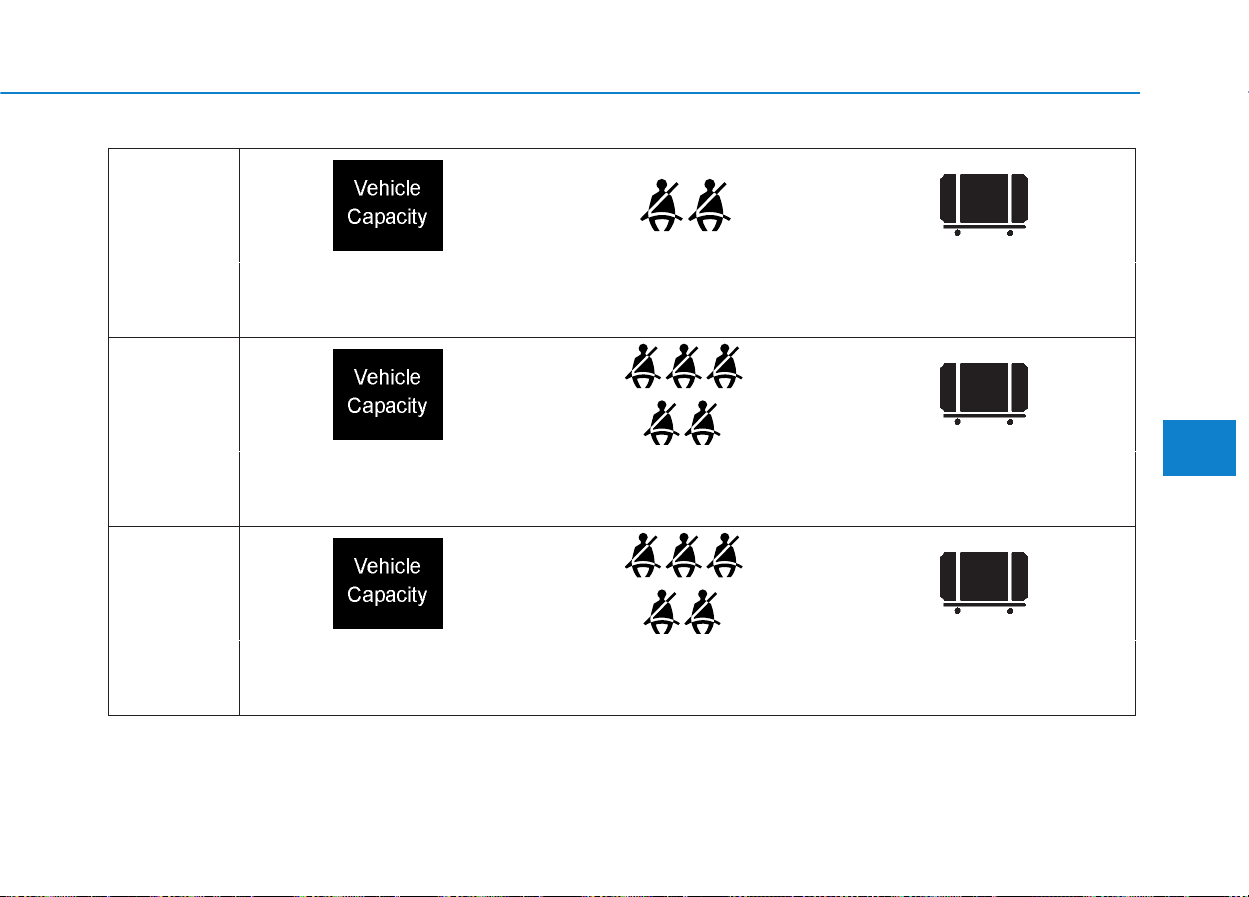
5-69
Driving your vehicle
5
Example 1
Maximum Load
(1400 lbs.)
(635 kg)
Passenger Weight
(150lbs. × 2 = 300 lbs.)
(68 kg × 2 = 136kg)
Cargo Weight
(1100 lbs.)
(499 kg)
Example 2
Maximum Load
(1400 lbs.)
(635 kg)
Passenger Weight
(150lbs. × 5 = 750 lbs.)
(68 kg × 5 = 340kg)
Cargo Weight
(650 lbs.)
(295 kg)
Example 3
Maximum Load
(1400 lbs.)
(635 kg)
Passenger Weight
(172lbs. × 5 = 860 lbs.)
(78 kg × 5 = 390kg)
Cargo Weight
(540 lbs.)
(245 kg)
+
≥≥
≥≥
≥≥
+
+
5-70
Driving your vehicle
Certification label
The certification label is located on the
driver's door sill at the center pillar and
shows the maximum allowable weight
of the fully loaded vehicle. This is
called the GVWR (Gross Vehicle
Weight Rating). The GVWR includes
the weight of the vehicle, all occu-
pants, fuel and cargo.
This label also tells you the maximum
weight that can be supported by the
front and rear axles, called Gross Axle
Weight Rating (GAWR).
The total weight of the vehicle, includ-
ing all occupants, accessories, cargo,
and trailer tongue load must not
exceed the Gross Vehicle Weight
Rating (GVWR) or the Gross Axle
Weight Rating (GAWR). To find out
the actual loads on your front and
rear axles, you need to go to a weigh
station and weigh your vehicle. Be
sure to spread out your load equally
on both sides of the centerline.
OEN056020
If you carry items inside your
vehicle (e.g., suitcases, tools,
packages, or anything else),
they are moving as fast as the
vehicle. If you have to stop or
turn quickly, or if there is a
crash, the items will keep going
and can cause an injury if they
strike the driver or a passenger.
• Put items in the cargo area of
your vehicle.Try to spread the
weight evenly.
• Do not stack items, like suit-
cases, inside the vehicle
above the tops of the seats.
• Do not leave an unsecured
child restraint in your vehicle.
• When you carry something
inside the vehicle, secure it.
WARNING
Overloading
• Never exceed the GVWR for
your vehicle, the GAWR for
either the front or rear axle
and vehicle capacity weight.
Exceeding these ratings can
affect your vehicle’s handling
and braking ability, and cause
an accident.
• Do not overload your vehicle.
Overloading your vehicle can
cause heat buildup in your
vehicle's tires and possible
tire failure, increased stop-
ping distances and poor vehi-
cle handling-all of which may
result in a crash.
WARNING
Overloading your vehicle may
cause damage. Repairs would
not be covered by your warranty.
Do not overload your vehicle.
CAUTION

What to do in an emergency
HAZARD WARNING FLASHER .............................6-2
IN CASE OF AN EMERGENCY WHILE DRIVING..6-3
If the engine stalls while driving...................................6-3
If the engine stalls at a crossroad or crossing ........6-3
If you have a flat tire while driving ............................6-3
IF THE ENGINE WILL NOT START ......................6-4
If the engine doesn't turn over or
turns over slowly .............................................................6-4
If the engine turns over normally but doesn't start ...6-4
JUMP STARTING ...................................................6-5
IF THE ENGINE OVERHEATS ................................6-8
TIRE PRESSURE MONITORING SYSTEM
(TPMS) ..................................................................6-10
Low tire pressure telltale..............................................6-11
TPMS malfunction indicator.........................................6-12
Changing a Tire with TPMS..........................................6-13
IF YOU HAVE A FLAT TIRE ................................6-15
Jack and tools .................................................................6-15
Changing tires .................................................................6-16
Jack label...........................................................................6-21
TOWING ................................................................6-22
Towing service .................................................................6-22
Removable towing hook ...............................................6-23
Emergency towing .........................................................6-24
Tie-down hook ................................................................6-25
6

6-2
The hazard warning flasher serves
as a warning to other drivers to exer-
cise extreme caution when
approaching, overtaking, or passing
your vehicle.
It should be used whenever emer-
gency repairs are being made or
when the vehicle is stopped near the
edge of a roadway.
To turn the hazard warning flasher
on or off, press the hazard warning
flasher button with the ignition switch
in any position.The button is located
in the center console switch panel.
All turn signal lights will flash simul-
taneously.
• The hazard warning flasher oper-
ates whether your vehicle is run-
ning or not.
• The turn signals do not work when
the hazard flasher is on.
HHAAZZAARRDD WWAARRNNIINNGG FFLLAASSHHEERR
What to do in an emergency
OLMB063020

6-3
What to do in an emergency
If the engine stalls while driving
• Reduce your speed gradually,
keeping a straight line. Move cau-
tiously off the road to a safe place.
• Turn on your hazard warning flash-
er.
• Try to start the engine again.If your
vehicle will not start, contact an
authorized HYUNDAI dealer or
seek other qualified assistance.
If the engine stalls at a cross-
road or crossing
If the engine stalls at a crossroad or
crossing, if safe to do so, move the
shift lever to the N (Neutral) position
and then push the vehicle to a safe
location.
If you have a flat tire while
driving
If a tire goes flat while you are driv-
ing:
• Take your foot off the accelerator
pedal and let the vehicle slow
down while driving straight ahead.
Do not apply the brakes immedi-
ately or attempt to pull off the road
as this may cause loss of vehicle
control resulting in an accident.
When the vehicle has slowed to
such a speed that it is safe to do
so, brake carefully and pull off the
road. Drive off the road as far as
possible and park on firm, level
ground. If you are on a divided
highway, do not park in the median
area between the two traffic lanes.
• When the vehicle is stopped, press
the hazard warning flasher button,
move the shift lever into P (Park),
apply the parking brake, and place
the ignition switch in the
LOCK/OFF position.
• Have all passengers get out of the
vehicle. Be sure they all get out on
the side of the vehicle that is away
from traffic.
• When changing a flat tire, follow
the instructions provided later in
this chapter.
IINN CCAASSEE OOFF AANN EEMMEERRGGEENNCCYY WWHHIILLEE DDRRIIVVIINNGG
6
6-4
IIFF TTHHEE EENNGGIINNEE WWIILLLL NNOOTT SSTTAARRTT
What to do in an emergency
If the engine doesn't turn over
or turns over slowly
• Be sure the shift lever is in N
(Neutral) or P (Park). The engine
starts only when the shift lever is in
N (Neutral) or P (Park).
• Check the battery connections to
be sure they are clean and tight.
• Turn on the interior light. If the light
dims or goes out when you operate
the starter, the battery is drained.
Do not push or pull the vehicle to
start it. This could cause damage to
your vehicle. See instructions for
"Jump Starting" provided in this
chapter.
If the engine turns over nor-
mally but doesn’t start
• Check the fuel level and add fuel if
necessary.
If the engine still does not start, call
an authorized HYUNDAI dealer or
seek other qualified assistance.
Push or pull starting the vehicle
may cause the catalytic con-
verter to overload which can
lead to damage to the emission
control system.
WARNING
6-5
What to do in an emergency
Jump starting can be dangerous if
done incorrectly. Follow the jump
starting procedure in this section to
avoid serious injury or damage to
your vehicle. If in doubt about how to
properly jump start your vehicle, we
strongly recommend that you have a
service technician or towing service
do it for you.
JJUUMMPP SSTTAARRTTIINNGG
6
To prevent SERIOUS INJURY or
DEATH to you or bystanders,
always follow these precautions
when working near or handling
the battery:
Always read and follow
instructions carefully
when handling a battery.
Wear eye protection
designed to protect the
eyes from acid splashes.
Keep all flames, sparks,
or smoking materials
away from the battery.
Hydrogen is always
present in battery cells,
is highly combustible,
and may explode if ignit-
ed.
Keep batteries out of
reach of children.
(Continued)
WARNING
(Continued)
Batteries contain sulfu-
ric acid which is highly
corrosive. Do not allow
acid to contact your
eyes, skin or clothing.
If acid gets into your eyes, flush
your eyes with clean water for at
least 15 minutes and get imme-
diate medical attention. If acid
gets on your skin, thoroughly
wash the area. If you feel pain or
a burning sensation, get med-
ical attention immediately.
• When lifting a plastic-cased
battery, excessive pressure
on the case may cause battery
acid to leak. Lift with a battery
carrier or with your hands on
opposite corners.
• Do not attempt to jump start
your vehicle if your battery is
frozen.
(Continued)
6-6
What to do in an emergency
✽✽
NOTICE
An inappropriately disposed
battery can be harmful to
the environment and human
health. Dispose the battery
according to your local
law(s) or regulation.
Jump starting procedure
1.Position the vehicles close enough
that the jumper cables will reach,
but do not allow the vehicles to
touch.
2.Avoid fans or any moving parts in
the engine compartment at all
times, even when the vehicles are
turned off.
3.Turn off all electrical devices such
as radios, lights, air conditioning,
etc. Put the vehicles in P (Park)
and set the parking brakes. Turn
both vehicles OFF.
(Continued)
• NEVER attempt to recharge
the battery when the vehicle’s
battery cables are connected
to the battery.
• The electrical ignition system
works with high voltage.
NEVER touch these compo-
nents with the engine running
or when the ignition switch is
in the ON position.
To prevent damage to your vehi-
cle:
• Only use a 12-volt power sup-
ply (battery or jumper system)
to jump start your vehicle.
• Do not attempt to jump start
your vehicle by push-starting.
CAUTION
Pb
6-7
What to do in an emergency
4.Connect the jumper cables in the
exact sequence shown in the illus-
tration. First connect one jumper
cable to the red, positive (+)
jumper terminal of your vehicle (1).
5.Connect the other end of the
jumper cable to the red, positive
(+) battery/jumper terminal of the
assisting vehicle (2).
6.Connect the second jumper cable
to the black, negative (-)
battery/chassis ground of the
assisting vehicle (3).
7.Connect the other end of the sec-
ond jumper cable to the black, neg-
ative (-) chassis ground of your
vehicle (4).
Do not allow the jumper cables to
contact anything except the correct
battery or jumper terminals or the
correct ground. Do not lean over
the battery when making connec-
tions.
8.Start the engine of the assisting
vehicle and let it run at approxi-
mately 2,000 rpm for a few min-
utes.Then start your vehicle.
If your vehicle will not start after a
few attempts, it probably requires
servicing. In this event please seek
qualified assistance. If the cause of
your battery discharging is not
apparent, have your vehicle checked
by an authorized HYUNDAI dealer.
Disconnect the jumper cables in the
exact reverse order you connected
them:
1.Disconnect the jumper cable from
the black, negative (-) chassis
ground of your vehicle (4).
2.Disconnect the other end of the
jumper cable from the black, nega-
tive (-) battery/chassis ground of
the assisting vehicle (3).
3.Disconnect the second jumper
cable from the red, positive (+) bat-
tery/jumper terminal of the assist-
ing vehicle (2).
4.Disconnect the other end of the
jumper cable from the red, positive
(+) jumper terminal of your vehicle
(1).
6
OLMB063002/Q
Jumper Terminal
Jumper Cables
Booster Battery
(-)
(+)
(+)
(-)
6-8
If your temperature gauge indicates
overheating, you experience a loss
of power, or hear loud pinging or
knocking, the engine may be over-
heating. If this happens, you should:
1.Pull off the road and stop as soon
as it is safe to do so.
2.Place the shift lever in P (Park) and
set the parking brake.If the air con-
ditioning is ON, turn it OFF.
3.If engine coolant is running out
under the vehicle or steam is com-
ing out from the hood, stop the
engine. Do not open the hood until
the coolant has stopped running or
the steaming has stopped. If there
is no visible loss of engine coolant
and no steam, leave the engine
running and check to be sure the
engine cooling fan is operating. If
the fan is not running, turn the
engine off.
4.Check for coolant leaking from the
radiator, hoses or under the vehi-
cle. (If the air conditioning had
been in use, it is normal for cold
water to be draining from it when
you stop.)
5.If engine coolant is leaking out,
stop the engine immediately and
call the nearest authorized
HYUNDAI dealer for assistance.
IIFF TTHHEE EENNGGIINNEE OOVVEERRHHEEAATTSS
What to do in an emergency
While the engine is
running, keep hands,
clothing and tools
away from the mov-
ing parts such as the
cooling fan and drive
belt to prevent seri-
ous injury.
WARNING
NEVER remove the
radiator cap or the
drain plug while the
engine and radiator
are hot. Hot coolant
and steam may blow out under
pressure, causing serious
injury.
Turn the engine off and wait
until the engine cools down.
Use extreme care when remov-
ing the radiator cap. Wrap a
thick towel around it, and turn it
counterclockwise slowly to the
first stop. Step back while the
pressure is released from the
cooling system. When you are
sure all the pressure has been
released, press down on the
cap, using a thick towel, and
continue turning counterclock-
wise to remove it.
WARNING
6-9
What to do in an emergency
6.If you cannot find the cause of the
overheating, wait until the engine
temperature has returned to nor-
mal.Then, if coolant has been lost,
carefully add coolant to the reser-
voir to bring the fluid level in the
reservoir up to the halfway mark.
7.Proceed with caution, keeping
alert for further signs of overheat-
ing. If overheating happens again,
call an authorized HYUNDAI deal-
er for assistance.
6
Serious loss of coolant indi-
cates a leak in the cooling sys-
tem and should be checked as
soon as possible by an author-
ized HYUNDAI dealer.
CAUTION
6-10
(1) Low Tire Pressure Telltale/
TPMS Malfunction Indicator
Each tire, including the spare (if pro-
vided), should be checked monthly
when cold and inflated to the inflation
pressure recommended by the vehi-
cle manufacturer on the vehicle plac-
ard or tire inflation pressure label. (If
your vehicle has tires of a different
size than the size indicated on the
vehicle placard or tire inflation pres-
sure label, you should determine the
proper tire inflation pressure for
those tires.)
As an added safety feature, your
vehicle has been equipped with a tire
pressure monitoring system (TPMS)
that illuminates a low tire pressure
telltale when one or more of your
tires is significantly under-inflated.
Accordingly, when the low tire pres-
sure telltale illuminates, you should
stop and check your tires as soon as
possible, and inflate them to the
proper pressure. Driving on a signifi-
cantly under-inflated tire causes the
tire to overheat and can lead to tire
failure. Under-inflation also reduces
fuel efficiency and tire tread life, and
may affect the vehicle’s handling and
stopping ability.
Please note that the TPMS is not a
substitute for proper tire mainte-
nance, and it is the driver’s responsi-
bility to maintain correct tire pres-
sure, even if under-inflation has not
reached the level to trigger illumina-
tion of the TPMS low tire pressure
telltale.
Your vehicle has also been equipped
with a TPMS malfunction indicator to
indicate when the system is not
operating properly. The TPMS mal-
function indicator is combined with
the low tire pressure telltale. When
the system detects a malfunction,
the telltale will flash for approximate-
ly one minute and then remain con-
tinuously illuminated. This sequence
will continue upon subsequent vehi-
cle start-ups as long as the malfunc-
tion exists. When the malfunction
indicator is illuminated, the system
may not be able to detect or signal
low tire pressure as intended.
TTIIRREE PPRREESSSSUURREE MMOONNIITTOORRIINNGG SSYYSSTTEEMM ((TTPPMMSS))
What to do in an emergency
OLM069012
Over-inflation or under-inflation
can reduce tire life, adversely
affect vehicle handling, and
lead to sudden tire failure that
may cause loss of vehicle con-
trol resulting in an accident.
WARNING
6-11
What to do in an emergency
TPMS malfunctions may occur for a
variety of reasons, including the
installation of replacement or alter-
nate tires or wheels on the vehicle
that prevent the TPMS from function-
ing properly.Always check the TPMS
malfunction telltale after replacing
one or more tires or wheels on your
vehicle to ensure that the replace-
ment or alternate tires and wheels
allow the TPMS to continue to func-
tion properly.
✽✽
NOTICE
If the TPMS Low Tire Pressure
Telltale does not illuminate for three
seconds when the ignition switch is
in the ON position or when the
engine starts, or if it remains illumi-
nated after coming on for approxi-
mately three seconds, take your
vehicle to your nearest authorized
HYUNDAI dealer and have the sys-
tem checked.
Low Tire Pressure
Telltale
The TPMS is not a substitute for
manually checking tire pressure with
a tire pressure gauge. Changes in
temperature affect tire pressure. See
“Tires and Wheels” in chapter 7 for
proper tire inflating and tire pressure
measurement procedures.
Immediately reduce your speed,
avoid hard cornering and anticipate
increased stopping distances. You
should stop and check your tires as
soon as possible. Inflate the tires to
the proper pressure as indicated on
the vehicle’s placard or tire inflation
pressure label located on the driver’s
side door jamb. If you cannot reach a
service station or if the tire cannot
hold the newly added air, replace the
low pressure tire with the compact
spare tire.
The Low Tire Pressure Telltale will
remain on and the TPMS Malfunction
Indicator may blink for one minute
and then remain illuminated if the
vehicle is driven approximately 20
minutes at speed above 15.5 mph
(25 km/h).
✽✽
NOTICE
The compact spare tire is not
equipped with a tire pressure sensor.
6
6-12
TPMS Malfunction
Indicator
The TPMS Malfunction Indicator
comes on after it blinks for approxi-
mately one minute when there is a
problem with the Tire Pressure
Monitoring System.
Have the system checked by an
authorized HYUNDAI dealer as soon
as possible to determine the cause
of the problem.
What to do in an emergency
In winter or cold weather, the
Low Tire Pressure Telltale may
be illuminated if the tire pres-
sure was adjusted to the recom-
mended tire inflation pressure
in warm weather. It does not
mean your TPMS is malfunc-
tioning because the decreased
temperature leads to a propor-
tional lowering of tire pressure.
When you drive your vehicle
from a warm area to a cold area
or from a cold area to a warm
area, or the outside temperature
is greatly higher or lower, you
should check the tire inflation
pressure and adjust the tires to
the recommended tire inflation
pressure.
CAUTION
• Significantly low tire pressure
makes the vehicle unstable
and can contribute to loss of
vehicle control and increased
braking distances.
• Continued driving on low
pressure tires can cause the
tires to overheat and fail.
WARNING

6-13
What to do in an emergency
✽✽
NOTICE
The TPMS Malfunction Indicator
may illuminate after blinking for
one minute if the vehicle is near elec-
tric power supply cables or radio
transmitters such as police stations,
government and public offices,
broadcasting stations, military
installations, airports, transmitting
towers, etc. Additionally, the TPMS
Malfunction indicator may illumi-
nate if snow chains are used or elec-
tronic devices such as computers,
chargers, remote starters, naviga-
tion, etc. This may interfere with
normal operation of the TPMS.
This device complies with Part 15
of the FCC rules.
Operation is subject to the following
two conditions:
1.This device may not cause harm-
ful interference, and
2.This device must accept any inter-
ference received, including inter-
ference that may cause undesired
Changes or modifications not
expressly approved by the party
responsible for compliance could
void the user's authority to operate
the equipment.
Tampering with, modifying, or dis-
abling the TPMS components may
interfere with the system’s ability to
function and may void the warranty
for that portion of the vehicle.
Changing a Tire with TPMS
If you have a flat tire, the Low Tire
Pressure Telltale will illuminate.If you
believe you have a flat tire or feel any
vehicle instability, take your foot off
the accelerator pedal and let the
vehicle slow down while driving
straight ahead. Do not apply the
brakes immediately or attempt to pull
off the road as this may cause a loss
of control resulting in an accident.
When the vehicle has slowed to such
a speed that it is safe to do so, brake
carefully and pull off the road. Drive
off the road as far as possible and
park on firm, level ground. If you are
on a divided highway, do not park in
the median area between the two
traffic lanes.Replace the flat tire with
the compact spare tire.
6
6-14
The compact spare tire is not
equipped with a tire pressure moni-
toring sensor.When the low pressure
tire or the flat tire is replaced with the
spare tire, the Low Tire Pressure
Telltale will remain on. Also, the
TPMS Malfunction Indicator will illu-
minate after blinking for one minute if
the vehicle is driven at speed above
15.5 mph (25 km/h) for approximate-
ly 20 minutes.
Once the original tire equipped with
a tire pressure monitoring sensor is
reinflated to the recommended pres-
sure and reinstalled on the vehicle,
the Low Tire Pressure Telltale and
TPMS Malfunction Indicator will go
off within a few minutes.
If the indicators do not extinguish
after a few minutes, please visit an
authorized HYUNDAI dealer.
Each wheel is equipped with a tire
pressure sensor mounted inside the
tire behind the valve stem (except for
the compact spare). You must use
TPMS specific wheels. It is recom-
mended that you always have your
tires serviced by an authorized
HYUNDAI dealer as soon as possi-
ble.
What to do in an emergency
To prevent damaging your tire
pressure sensor, never use a
puncture-repairing agents or
tire sealants to repair and/or
inflate a low pressure tire. If
used, you will have to replace
the tire pressure sensor.
CAUTION
6-15
What to do in an emergency
6
Jack and tools
➀ Jack handle
➁ Jack
➂ Wheel lug nut wrench
The jack, jack handle, and wheel lug
nut wrench are stored in the luggage
compartment under the luggage box
cover.
The jack is provided for emergency
tire changing only.
Remove the luggage floor support
(1) by pulling it out. Turn the winged
hold down bolt (2) counterclockwise
to remove the spare tire.
Store the spare tire in the same com-
partment by turning the winged hold
down bolt (2) clockwise. Insert the
lock (1) in to secure the tire in place.
To prevent the spare tire and tools
from “rattling,” store them in their
proper location.
IIFF YYOOUU HHAAVVEE AA FFLLAATT TTIIRREE
Changing a tire can be danger-
ous. Follow the instructions in
this section when changing a
tire to reduce the risk of serious
injury or death.
WARNING
OLMB063003
OLMB063004
6-16
What to do in an emergency
Changing tires
Follow these steps to change your
vehicle’s tire:
1.Park on a level, firm surface.
2.Move the shift lever into P (Park),
apply the parking brake, and place
the ignition switch in the
LOCK/OFF position.
3.Press the hazard warning flasher
button.
4.Remove the wheel lug nut wrench,
jack, jack handle, and spare tire
from the vehicle.
5.Block both the front and rear of the
tire diagonally opposite of the tire
you are changing.
A vehicle can slip or roll off of a
jack causing serious injury or
death to you or those nearby.
Take the following safety pre-
cautions:
• NEVER place any portion of
your body under a vehicle that
is supported by a jack.
• NEVER attempt to change a
tire in the lane of traffic.
ALWAYS move the vehicle
completely off the road on
level, firm ground away from
traffic before trying to change
a tire. If you cannot find a
level, firm place off the road,
call a towing service for assis-
tance.
• Be sure to use the jack pro-
vided with the vehicle.
(Continued)
WARNING
(Continued)
• ALWAYS place the jack on the
designated jacking positions
on the vehicle and NEVER on
the bumpers or any other part
of the vehicle.
• Do not start or run the engine
while the vehicle is on the
jack.
• Do not allow anyone to remain
in the vehicle while it is on the
jack.
• Keep children away from the
road and the vehicle.

6-17
What to do in an emergency
6
6.Loosen the wheel lug nuts counter-
clockwise one turn each in the
order shown above, but do not
remove any lug nuts until the tire
has been raised off of the ground.
7.Place the jack at the designated
jacking position under the frame
closest to the tire you are chang-
ing. The jacking positions are
plates welded to the frame with two
tabs and a raised dot. Never jack
any other position or part of the
vehicle.
8.Insert the jack handle into the jack
and turn it clockwise, raising the
vehicle until the tire clears the
ground. Make sure the vehicle is
stable on the jack.
OLMB063007 OLMB063008 OLMB063009

6-18
What to do in an emergency
9.Loosen the lug nuts with the wheel
lug nut wrench and remove them
with your fingers. Remove the
wheel from the studs and lay it flat
on the ground out of the way.
Remove any dirt or debris from the
studs, mounting surfaces, and
wheel.
10. Install the spare tire onto the
studs of the hub.
11.Tighten the lug nuts with your fin-
gers onto the studs with the
smaller end of the lug nuts clos-
est to the wheel.
12. Lower the vehicle to the ground
by turning the jack handle coun-
terclockwise.
13. Use the wheel lug nut wrench to
tighten the lug nuts in the order
shown. Double-check each lug
nut until they are tight. After
changing tires, have an author-
ized HYUNDAI dealer tighten the
lug nuts to their proper torque as
soon as possible. The wheel lug
nut should be tightened to
65~79 lb.ft (9~11 kg.m).
If you have a tire gauge, check the
tire pressure (see “Tires and Wheels”
in chapter 8 for tire pressure instruc-
tions.). If the pressure is lower or
higher than recommended, drive
slowly to the nearest service station
and adjust it to the recommended
pressure. Always reinstall the valve
cap after checking or adjusting tire
pressure. If the cap is not replaced,
air may leak from the tire. If you lose
a valve cap, buy another and install it
as soon as possible. After changing
tires, secure the flat tire and return
the jack and tools to their proper stor-
age locations.
✽✽
NOTICE
Check the tire pressure as soon as
possible after installing a spare tire.
Adjust it to the recommended pres-
sure.
OLMB063010
6-19
What to do in an emergency
6
If any of the equipment such as the
jack, lug nuts, studs, or other equip-
ment is damaged or in poor condi-
tion, do not attempt to change the
tire and call for assistance.
Use of compact spare tires
Compact spare tires are designed for
emergency use only. Drive carefully
on the compact spare tire and
always follow the safety precautions.
When driving with the compact spare
tire mounted to your vehicle:
• Check the tire pressure after
installing the compact spare tire.
The compact spare tire should be
inflated to 60 psi (420 kPa).
• Do not take this vehicle through an
automatic car wash while the com-
pact spare tire is installed.
• Do not use the compact spare tire
on any other vehicle because this
tire has been designed especially
for your vehicle.
• The compact spare tire’s tread life
is shorter than a regular tire.
Inspect your compact spare tire
regularly and replace worn com-
pact spare tires with the same size
and design, mounted on the same
wheel.
• Do not use more than one compact
spare tire at a time.
• Do not tow a trailer while the com-
pact spare tire is installed.
Your vehicle has metric threads
on the studs and lug nuts. Make
certain during tire changing
that the same nuts that were
removed are reinstalled. If you
have to replace your lug nuts
make sure they have metric
threads to avoid damaging the
studs and ensure the wheel is
properly secured to the hub.
Consult an authorized
HYUNDAI dealer for assistance.
CAUTION
To prevent compact spare tire
failure and loss of control pos-
sibly resulting in an accident:
• Use the compact spare tire
only in an emergency.
• NEVER operate your vehicle
over 50 mph (80 km/h).
• Do not exceed the vehicle’s
maximum load rating or the
load carrying capacity shown
on the sidewall of the com-
pact spare tire.
• Do not use the compact spare
tire continuously. Repair or
replace the original tire as
soon as possible to avoid fail-
ure of the compact spare tire.
WARNING
6-20
What to do in an emergency
✽✽
NOTICE
When the original tire and wheel are
repaired and reinstalled on the vehi-
cle, the lug nut torque must be set
correctly to prevent wheel vibration.
The correct lug nut tightening
torque is 65-79 lb.ft (9-11 kg.m).
To prevent damaging the com-
pact spare tire and your vehicle:
• Drive slowly enough for the
road conditions to avoid all
hazards, such as a potholes
or debris.
• Avoid driving over obstacles.
The compact spare tire diame-
ter is smaller than the diame-
ter of a conventional tire and
reduces the ground clearance
approximately 1 in (25 mm).
• Do not use tire chains on the
compact spare tire. Because
of the smaller size, a tire chain
will not fit properly.
• Do not use the compact spare
tire on any other wheels, nor
should standard tires, snow
tires, wheel covers or trim
rings be used with the com-
pact spare wheel.
CAUTION
6-21
What to do in an emergency
Jack label
1. Model Name
2. Maximum allowable load
3. When using the jack, set your
parking brake.
4. When using the jack, stop the
engine.
5. Do not get under a vehicle that is
supported by a jack.
6. The designated locations under
the frame
7. When supporting the vehicle, the
base plate of jack must be vertical
under the lifting point.
8. Shift into Reverse gear on vehi-
cles with manual transaxle or
move the shift lever to the P posi-
tion on vehicles with automatic
transaxle.
9. The jack should be used on firm
level ground.
10. Jack manufacture
11. Production date
12. Representative company and
address.
6
❈ The actual Jack label in the vehicle may differ from the illustration.
For more detailed specifications, refer to the label attached to the jack.
OHYK064001
OHYK064005
OHYK064002
• Type A
■ Example
• Type B
• Type C
6-22
What to do in an emergency
Towing service
If emergency towing is necessary,
we recommend having it done by an
authorized HYUNDAI dealer or a
commercial tow-truck service.
Proper lifting and towing procedures
are necessary to prevent damage to
the vehicle.The use of wheel dollies
or flatbed is recommended.
It is acceptable to tow the vehicle
with the rear wheels on the ground
(without dollies) and the front wheels
off the ground. If any of the loaded
wheels or suspension components
are damaged or the vehicle is being
towed with the front wheels on the
ground, use a towing dolly under the
front wheels.
When being towed by a commercial
tow truck and wheel dollies are not
used, the front of the vehicle should
always be lifted, not the rear.
For AWD vehicles, it must be towed
with a wheel lift and dollies or flatbed
equipment with all the wheels off the
ground.
TTOOWWIINNGG
OLMB063011
dolly
dolly
A AWD vehicle should never be
towed with the wheels on the
ground.This can cause serious
damage to the transaxle or the
AWD system.
CAUTION
• Do not tow the vehicle with
the front wheels on the
ground as this may cause
damage to the vehicle.
• Do not tow with sling-type
equipment. Use a wheel lift or
flatbed equipment.
CAUTION
OLMB063012
OLMB063013

6-23
What to do in an emergency
6
When towing your vehicle in an
emergency without wheel dollies:
1.Place the ignition switch in the
ACC position.
2.Place the shift lever in N (Neutral).
3.Release the parking brake.
Removable towing hook
1.Open the tailgate, and remove the
towing hook from the tool case.
2.Remove the hole cover pressing
the lower part of the cover on the
front or rear bumper.
3.Install the towing hook by turning it
clockwise into the hole until it is
fully secured.
4.Remove the towing hook and
install the cover after use.
Failure to place the shift lever in
N (Neutral) when being towed
with the front wheels on the
ground can cause internal dam-
age to the transaxle.
CAUTION
OLMB063014
OLMB063015
■ Front
■ Rear
If your vehicle is equipped with
a rollover sensor, place the igni-
tion switch in the LOCK/OFF or
ACC position when the vehicle
is being towed.The side impact
and curtain air bag may deploy
if the sensor detects the situa-
tion as a rollover.
WARNING

6-24
What to do in an emergency
Emergency towing
If towing is necessary, we recom-
mend you have it done by an author-
ized HYUNDAI dealer or a commer-
cial tow truck service.
If towing service is not available in an
emergency, your vehicle may be
temporarily towed using a cable or
chain secured to the emergency tow-
ing hook at the front (or rear) of the
vehicle.
Use extreme caution when towing
the vehicle with a cable or chain. A
driver must be in the vehicle to steer
it and operate the brakes.
Towing in this manner may be done
only on hard-surfaced roads for a
short distance and at low speeds.
Also, the wheels, axles, power train,
steering and brakes must all be in
good condition.
Always follow these emergency tow-
ing precautions:
• Place the ignition switch in the
ACC position so the steering
wheel is not locked. (if equipped)
• Place the shift lever in N (Neutral).
• Release the parking brake.
• Depress the brake pedal with more
force than normal since you will
have reduced braking perform-
ance.
• More steering effort will be
required because the power steer-
ing system will be disabled.
• Use a vehicle heavier than your
own to tow your vehicle.
• The drivers of both vehicles should
communicate with each other fre-
quently.
• Before emergency towing, check
that the hook is not broken or dam-
aged.
• Fasten the towing cable or chain
securely to the hook.
• Do not jerk the hook. Apply steady
and even force.
OLMB063016
OLMB063017
■ Front
■ Rear
6-25
What to do in an emergency
6
• Use a towing cable or chain less
than 16 feet (5 m) long. Attach a
white or red cloth (about 12 inch
(30 cm) wide) in the middle of the
cable or chain for easy visibility.
• Drive carefully so the towing cable
or chain remains tight during towing.
• Before towing, check the automatic
transaxle for fluid leaks under your
vehicle. If the automatic transaxle
fluid is leaking, flatbed equipment or
a towing dolly must be used.
Tie-down hook
OLMB063019
OLMB033091
To avoid damage to your vehicle
and vehicle components when
towing:
• Always pull straight ahead
when using the towing hooks.
Do not pull from the side or at
a vertical angle.
• Do not use the towing hooks to
pull a vehicle out of mud, sand
or other conditions from which
the vehicle cannot be driven
out under its own power.
• Limit the vehicle speed to
10 mph (15 km/h) and drive
less than 1 mile (1.5 km) when
towing to avoid serious dam-
age to the automatic transaxle.
CAUTION
Do not use the tie-down hook(s)
for towing purposes. If the tie-
down hook(s) are used for tow-
ing, the tie-down hook(s) or
bumper will be damaged and
this could lead to serious injury.
WARNING

7
Maintenance
7
Maintenance
ENGINE COMPARTMENT .....................................7-3
MAINTENANCE SERVICES.....................................7-4
Owner's responsibility ...................................................7-4
Owner maintenance precautions ..................................7-4
OWNER MAINTENANCE .......................................7-6
Owner maintenance schedule........................................7-7
SCHEDULED MAINTENANCE SERVICES..............7-8
Normal maintenance schedule.......................................7-9
Maintenance under severe usage conditions..........7-22
EXPLANATION OF SCHEDULED
MAINTENANCE ITEMS.....................................7-24
ENGINE OIL ...........................................................7-27
Checking the engine oil level.......................................7-27
Checking the engine oil and filter ..............................7-28
ENGINE COOLANT................................................7-29
Checking the engine coolant level..............................7-29
Changing engine coolant .............................................7-31
BRAKE FLUID........................................................7-32
Checking the brake fluid level .....................................7-32
WASHER FLUID.....................................................7-34
Checking the washer fluid level .............................7-34
PARKING BRAKE...................................................7-35
Checking the parking brake .........................................7-35
AIR CLEANER .......................................................7-36
Filter replacement ........................................................7-36
CLIMATE CONTROL AIR CLEANER ....................7-38
Filter inspection...............................................................7-38
WIPER BLADES.....................................................7-40
Blade inspection ..............................................................7-40
Blade replacement .......................................................7-40
BATTERY ...............................................................7-43
For best battery service................................................7-44
Battery recharging .........................................................7-44
Reset features .................................................................7-46
TIRES AND WHEELS ............................................7-47
Tire care............................................................................7-47
Recommended cold tire inflation pressures.............7-48
Check tire inflation pressure........................................7-49
Tire rotation .....................................................................7-50
Wheel alignment and tire balance..............................7-51
Tire replacement .............................................................7-51
Wheel replacement.........................................................7-52
Tire traction......................................................................7-52
Tire maintenance ............................................................7-53
Tire sidewall labeling......................................................7-53
Tire terminology and definitions.................................7-57
All season tires ................................................................7-60
Summer tires ....................................................................7-60
7

7
Snow tires .........................................................................7-60
Radial-ply tires ................................................................7-61
Low aspect ratio tires....................................................7-61
FUSES ....................................................................7-63
Instrument panel fuse replacement ...........................7-64
Memory fuse (SHUNT connector)..............................7-65
Engine compartment panel fuse replacement.........7-66
Fuse/Relay panel description ......................................7-68
LIGHT BULBS........................................................7-74
Headlight, parking light, turn signal light,
side marker and front fog light bulb replacement..7-74
Side repeater light replacement..................................7-77
Rear combination light bulb replacement.................7-78
High mounted stop light................................................7-80
License plate light bulb replacement .........................7-81
Interior light bulb replacement ....................................7-82
APPEARANCE CARE.............................................7-83
Exterior care ....................................................................7-83
Interior care......................................................................7-88
EMISSION CONTROL SYSTEM............................7-90
CALIFORNIA PERCHLORATE NOTICE ................7-94
7-3
7
Maintenance
EENNGGIINNEE CCOOMMPPAARRTTMMEENNTT
1. Engine coolant reservoir
2. Radiator cap
3. Brake fluid reservoir
4. Air cleaner
5. Engine oil dipstick
6. Engine oil filler cap
7.Windshield washer fluid reservoir
8. Fuse box
OLMB073001/OLM079001N
■■
NU 2.0
❈ The actual engine compartment the vehicle may differ from the illustration.
■■
Theta II 2.4

7-4
Maintenance
MMAAIINNTTEENNAANNCCEE SSEERRVVIICCEESS
You should exercise the utmost care
to prevent damage to your vehicle
and injury to yourself whenever per-
forming any maintenance or inspec-
tion procedures.
We recommend you have your vehi-
cle maintained and repaired by an
authorized HYUNDAI dealer. An
authorized HYUNDAI dealer meets
HYUNDAI’s high service quality
standards and receives technical
support from HYUNDAI in order to
provide you with a high level of serv-
ice satisfaction.
Owner’s responsibility
Maintenance service and record
retention are the owner’s responsibil-
ity.
You should retain documents that
show proper maintenance has been
performed on your vehicle in accor-
dance with the scheduled mainte-
nance service charts shown on the
following pages. You need this infor-
mation to establish your compliance
with the servicing and maintenance
requirements of your vehicle war-
ranties. Detailed warranty informa-
tion is provided in your Owner’s
Handbook & Warranty Information
booklet.
Repairs and adjustments required as
a result of improper maintenance or
a lack of required maintenance are
not covered.
Owner maintenance precau-
tions
Inadequate, incomplete or insuffi-
cient servicing may result in opera-
tional problems with your vehicle that
could lead to vehicle damage, an
accident, or personal injury. This
chapter provides instructions only for
the maintenance items that are easy
to perform. Several procedures can
be done only by an authorized
HYUNDAI dealer with special tools.
Your vehicle should not be modified
in any way. Such modifications may
adversely affect the performance,
safety or durability of your vehicle
and may, in addition, violate condi-
tions of the limited warranties cover-
ing the vehicle.Certain modifications
may also be in violation of regula-
tions established by the U.S.
Department of Transportation and
other federal or state agencies.

7-5
7
Maintenance
✽✽
NOTICE
Improper owner maintenance dur-
ing the warranty period may affect
warranty coverage. For details, read
the separate Owner’s Handbook &
Warranty Information booklet pro-
vided with the vehicle. If you’re
unsure about any service or mainte-
nance procedure, have it done by an
authorized HYUNDAI dealer.
7-6
Maintenance
OOWWNNEERR MMAAIINNTTEENNAANNCCEE
The following lists are vehicle checks
and inspections that should be per-
formed by the owner or an author-
ized HYUNDAI dealer at the frequen-
cies indicated to help ensure safe,
dependable operation of your vehi-
cle.
Any adverse conditions should be
brought to the attention of your deal-
er as soon as possible.
These Owner Maintenance vehicle
checks are generally not covered by
warranties and you may be charged
for labor, parts and lubricants used.
Performing maintenance work
on a vehicle can be dangerous.
If you lack sufficient knowledge
and experience or the proper
tools and equipment to do the
work, have it done by an author-
ized HYUNDAI dealer. ALWAYS
follow these precautions for
performing maintenance work:
• Park your vehicle on level
ground, move the shift lever
into the P (Park, for automatic
transaxle vehicle) position or
neutral (for manual transaxle
vehicle, apply the parking
brake, place the ignition
switch in the OFF position.
• Block the tires (front and
back) to prevent the vehicle
from moving.
Remove loose clothing or jew-
elry that can become entan-
gled in moving parts.
(Continued)
WARNING
(Continued)
• If you must run the engine
during maintenance, do so
out doors or in an area with
plenty of ventilation.
• Keep flames, sparks, or smok-
ing materials away from the
battery and fuel-related parts.
7-7
7
Maintenance
Owner maintenance schedule
When you stop for fuel:
• Check the engine oil level.
• Check coolant level in the engine
coolant reservoir.
• Check the windshield washer fluid
level.
• Check for low or under-inflated
tires
While operating your vehicle:
• Note any changes in the sound of
the exhaust or any smell of
exhaust fumes in the vehicle.
• Check for vibrations in the steering
wheel. Notice if there is any
increased steering effort or loose-
ness in the steering wheel, or
change in its straight-ahead posi-
tion.
• Notice if your vehicle constantly
turns slightly or “pulls” to one side
when traveling on smooth, level
road.
• When stopping, listen and check
for unusual sounds, pulling to one
side, increased brake pedal travel
or “hard-to-push” brake pedal.
• If any slipping or changes in the
operation of your transaxle occurs,
check the transaxle fluid level.
• Check the automatic transaxle P
(Park) function.
• Check the parking brake.
• Check for fluid leaks under your
vehicle (water dripping from the air
conditioning system during or after
use is normal).
At least monthly:
• Check coolant level in the engine
coolant reservoir.
• Check the operation of all exterior
lights, including the stoplights, turn
signals and hazard warning flash-
ers.
• Check the inflation pressures of all
tires including the spare for tires
that are worn, show uneven wear,
or are damaged.
• Check for loose wheel lug nuts.
Be careful when checking your
engine coolant level when the
engine is hot.This may result in
coolant being blown out of the
opening and cause serious
burns and other injuries.
WARNING

At least twice a year:
(i.e., every Spring and Fall):
• Check radiator, heater and air con-
ditioning hoses for leaks or dam-
age.
• Check windshield washer spray
and wiper operation. Clean wiper
blades with clean cloth dampened
with washer fluid.
• Check headlight alignment.
• Check muffler, exhaust pipes,
shields and clamps.
• Check the seat belts for wear and
function.
At least once a year:
• Clean body and door drain holes.
• Lubricate door hinges and hood
hinges.
• Lubricate door and hood locks and
latches.
• Lubricate door rubber weather
strips.
• Check the air conditioning system.
• Inspect and lubricate automatic
transaxle linkage and controls.
• Clean the battery and terminals.
• Check the brake fluid level.
Follow Normal Maintenance
Schedule if the vehicle is usually
operated where none of the following
conditions apply. If any of the follow-
ing conditions apply, you must follow
the Maintenance Under Severe
Usage Conditions.
• Repeated short distance driving.
• Driving in dusty conditions or
sandy areas.
• Extensive use of brakes.
• Driving in areas where salt or other
corrosive materials are used.
• Driving on rough or muddy roads.
• Driving in mountainous areas.
• Extended periods of idling or low
speed operation.
• Driving for a prolonged period in
cold temperatures and/or extreme-
ly humid climates.
• More than 50% driving in heavy
city traffic during hot weather
above 90°F (32°C).
For additional information or assis-
tance see your authorized HYUNDAI
dealer.
7-8
Maintenance
SSCCHHEEDDUULLEEDD MMAAIINNTTEENNAANNCCEE
SSEERRVVIICCEESS

7-9
7
Maintenance
Normal maintenance schedule
The following maintenance services must be performed to ensure good emission control and performance. Keep
receipts for all vehicle emission services to protect your warranty. Where both mileage and time are shown, the fre-
quency of service is determined by whichever occurs first.
*
1
: If TOP TIER Detergent Gasoline is not available, one bottle of additive is recommended. Additives are available
from your authorized HYUNDAI dealer along with information on how to use them. Do not mix other additives.
*
2
: Fuel filter & Fuel tank air filter are considered to be maintenance free but periodic inspection is recommended for
this maintenance schedule depends on fuel quality.If there are some important safety matters like fuel flow restric-
tion, surging, loss of power, hard starting problem etc, replace the fuel filter immediately regardless of mainte-
nance schedule and consult an authorized HYUNDAI dealer for details.
*
3
:Transfer case oil and rear axle oil should be changed anytime they have been submerged in water.
*
4
: Inspect for excessive valve noise and/or engine vibration and adjust if necessary. Have an authorized HYUNDAI
dealer perform the operation.
*
5
:The drive belt should be replaced when cracks occur or tension is reduced
❈ Inspect : Inspect and if necessary, adjust, correct, clean or replace.

7-10
Maintenance
7,500 miles (12,000 km) or 6 months
❑ Rotating tires
❑ Inspect air cleaner filter
❑ Inspect vacuum hose
❑ Replace engine oil and filter
(7,500 miles (12,000 km) or 12 months)
❑ Add fuel additive *
1
(7,500 miles (12,000 km) or 12 months)
15,000 miles (24,000 km) or 12 months
❑ Rotating tires
❑ Inspect air cleaner filter
❑ Inspect vacuum hose
❑ Inspect air conditioning refrigerant
❑ Inspect brake hoses and lines
❑ Inspect drive shafts and boots
❑ Inspect exhaust pipe and muffler
❑ Inspect front brake disc/pads, calipers
❑ Inspect propeller shaft (AWD)
❑ Inspect rear brake disc/pads
❑ Inspect steering gear box, linkage & boots/lower arm ball
joint, upper arm ball joint
❑ Inspect suspension mounting bolts
❑ Replace climate control air filter
(for evaporator and blower unit)
❑ Replace engine oil and filter
(15,000 miles (24,000 km) or 24 months)
❑ Add fuel additive *
1
(15,000 miles (24,000 km) or 24 months)
Normal maintenance schedule
7-11
7
Maintenance
Normal maintenance schedule
22,500 miles (36,000 km) or 18 months
❑ Rotating tires
❑ Inspect air cleaner filter
❑ Inspect vacuum hose
❑ Replace engine oil and filter
(22,500 miles (36,000 km) or 36 months)
❑ Add fuel additive *
1
(22,500 miles (36,000 km) or 36 months)
30,000 miles (48,000 km) or 24 months
❑ Rotating tires
❑ Inspect vacuum hose
❑ Inspect air conditioning refrigerant
❑ Inspect brake hoses and lines
❑ Inspect drive shafts and boots
❑ Inspect exhaust pipe and muffler
❑ Inspect front brake disc/pads, calipers
❑ Inspect propeller shaft (AWD)
❑ Inspect rear brake disc/pads
❑ Inspect steering gear box, linkage & boots/lower arm ball
joint, upper arm ball joint
❑ Inspect suspension mounting bolts
❑ Inspect brake fluid
❑ Inspect fuel filter *
2
❑ Inspect fuel lines, fuel hoses and connections
❑ Inspect fuel tank air filter (if equipped) *
2
❑ Inspect parking brake
❑ Inspect vapor hose and fuel filler cap, fuel tank
❑ Replace climate control air filter
(for evaporator and blower unit)
❑ Replace air cleaner filter
❑ Replace engine oil and filter
(30,000 miles (48,000 km) or 48 months)
❑ Add fuel additive *
1
(30,000 miles (48,000 km) or 48 months)

7-12
Maintenance
Normal maintenance schedule
37,500 miles (60,000 km) or 30 months
❑ Rotating tires
❑ Inspect air cleaner filter
❑ Inspect vacuum hose
❑ Inspect rear axle oil (AWD) *
3
❑ Inspect transfer case oil (AWD) *
3
❑ Replace engine oil and filter
(37,500 miles (60,000 km) or 60 months)
❑ Add fuel additive *
1
(37,500 miles (60,000 km) or 60 months)
45,000 miles (72,000 km) or 36 months
❑ Rotating tires
❑ Inspect air cleaner filter
❑ Inspect vacuum hose
❑ Inspect air conditioning refrigerant
❑ Inspect brake hoses and lines
❑ Inspect drive shafts and boots
❑ Inspect exhaust pipe and muffler
❑ Inspect front brake disc/pads, calipers
❑ Inspect propeller shaft (AWD)
❑ Inspect rear brake disc/pads
❑ Inspect steering gear box, linkage & boots/lower arm ball
joint, upper arm ball joint
❑ Inspect suspension mounting bolts
❑ Replace climate control air filter
(for evaporator and blower unit)
❑ Replace engine oil and filter
(45,000 miles (72,000 km) or 72 months)
❑ Add fuel additive *
1
(45,000 miles (72,000 km) or 72 months)
7-13
7
Maintenance
Normal maintenance schedule
52,500 miles (84,000 km) or 42 months
❑ Rotating tires
❑ Inspect air cleaner filter
❑ Inspect vacuum hose
❑ Replace engine oil and filter
(52,500 miles (84,000 km) or 84 months)
❑ Add fuel additive *
1
(52,500 miles (84,000 km) or 84 months)
60,000 miles (96,000 km) or 48 months
❑ Rotating tires
❑ Inspect vacuum hose
❑ Inspect air conditioning refrigerant
❑ Inspect brake hoses and lines
❑ Inspect drive shafts and boots
❑ Inspect exhaust pipe and muffler
❑ Inspect front brake disc/pads, calipers
❑ Inspect propeller shaft (AWD)
❑ Inspect rear brake disc/pads
❑ Inspect steering gear box, linkage & boots/lower arm ball
joint, upper arm ball joint
❑ Inspect suspension mounting bolts
❑ Inspect brake fluid
❑ Inspect fuel filter *
2
❑ Inspect fuel lines, fuel hoses and connections
❑ Inspect fuel tank air filter *
2
❑ Inspect parking brake
❑ Inspect vapor hose and fuel filler cap, fuel tank
❑ Inspect valve clearance (for Theta II 2.4) *
4
(60,000 miles (96,000 km) or 72 months)
❑ Inspect drive belts
(First, 60,000 miles (96,000 km) or 72 months
after every 15,000 miles (24,000 km) or 24 months) *
5
❑ Replace climate control air filter
(for evaporator and blower unit)
(Continued)

7-14
Maintenance
Normal maintenance schedule
(Continued)
❑ Replace air cleaner filter
❑ Replace engine oil and filter
(60,000 miles (96,000 km) or 96 months)
❑ Add fuel additive *
1
(60,000 miles (96,000 km) or 96 months)
67,500 miles (108,000 km) or 54 months
❑ Rotating tires
❑ Inspect air cleaner filter
❑ Inspect vacuum hose
❑ Replace engine oil and filter
(67,500 miles (108,000 km) or 108 months)
❑ Add fuel additive *
1
(67,500 miles (108,000 km) or 108 months)

7-15
7
Maintenance
Normal maintenance schedule
75,000 miles (120,000 km) or 60 months
❑ Rotating tires
❑ Inspect air cleaner filter
❑ Inspect vacuum hose
❑ Inspect air conditioning refrigerant
❑ Inspect brake hoses and lines
❑ Inspect drive shafts and boots
❑ Inspect exhaust pipe and muffler
❑ Inspect front brake disc/pads, calipers
❑ Inspect propeller shaft (AWD)
❑ Inspect rear brake disc/pads
❑ Inspect steering gear box, linkage & boots/lower arm ball
joint, upper arm ball joint
❑ Inspect suspension mounting bolts
❑ Inspect rear axle oil (AWD) *
3
❑ Inspect transfer case oil (AWD) *
3
❑ Inspect drive belts
(First, 60,000 miles (96,000 km) or 72 months
after every 15,000 miles (24,000 km) or 24 months)*
5
❑ Replace climate control air filter
(for evaporator and blower unit)
❑ Replace engine oil and filter
(75,000 miles (120,000 km) or 120 months)
❑ Add fuel additive *
1
(75,000 miles (120,000 km) or 120 months)
82,500 miles (132,000 km) or 66 months
❑ Rotating tires
❑ Inspect air cleaner filter
❑ Inspect vacuum hose
❑ Replace engine oil and filter
(82,500 miles (132,000 km) or 132 months)
❑ Add fuel additive *
1
(82,500 miles (132,000 km) or 132 months)

7-16
Maintenance
Normal maintenance schedule
90,000 miles (144,000 km) or 72 months
❑ Rotating tires
❑ Inspect vacuum hose
❑ Inspect air conditioning refrigerant
❑ Inspect brake hoses and lines
❑ Inspect drive shafts and boots
❑ Inspect exhaust pipe and muffler
❑ Inspect front brake disc/pads, calipers
❑ Inspect propeller shaft (AWD)
❑ Inspect rear brake disc/pads
❑ Inspect steering gear box, linkage & boots/lower arm ball
joint, upper arm ball joint
❑ Inspect suspension mounting bolts
❑ Inspect brake fluid
❑ Inspect fuel filter *
2
❑ Inspect fuel lines, fuel hoses and connections
❑ Inspect fuel tank air filter *
2
❑ Inspect parking brake
❑ Inspect vapor hose and fuel filler cap, fuel tank
❑ Inspect drive belts
(First, 60,000 miles (96,000 km) or 72 months
after every 15,000 miles (24,000 km) or 24 months) *
5
❑ Replace climate control air filter
(for evaporator and blower unit)
(Continued)
(Continued)
❑ Replace air cleaner filter
❑ Replace engine oil and filter
(90,000 miles (144,000 km) or 144 months)
❑ Add fuel additive *
1
(90,000 miles (144,000 km) or 144 months)
7-17
7
Maintenance
Normal maintenance schedule
97,500 miles (156,000 km) or 78 months
❑ Rotating tires
❑ Inspect air cleaner filter
❑ Inspect vacuum hose
❑ Replace engine oil and filter
(97,500 miles (156,000 km) or 156 months)
❑ Add fuel additive *
1
(97,500 miles (156,000 km) or 156 months)
105,000 miles (168,000 km) or 84 months
❑ Rotating tires
❑ Inspect air cleaner filter
❑ Inspect vacuum hose
❑ Inspect air conditioning refrigerant
❑ Inspect brake hoses and lines
❑ Inspect drive shafts and boots
❑ Inspect exhaust pipe and muffler
❑ Inspect front brake disc/pads, calipers
❑ Inspect propeller shaft (AWD)
❑ Inspect rear brake disc/pads
❑ Inspect steering gear box, linkage & boots/lower arm ball
joint, upper arm ball joint
❑ Inspect suspension mounting bolts
❑ Inspect drive belts
(First, 60,000 miles (96,000 km) or 72 months
after every 15,000 miles (24,000 km) or 24 months) *
5
❑ Replace climate control air filter
(for evaporator and blower unit)
❑ Replace spark plugs (iridium coated)
❑ Replace engine oil and filter
(105,000 miles (168,000 km) or 168 months)
❑ Add fuel additive *
1
(105,000 miles (168,000 km) or 168 months)
7-18
Maintenance
Normal maintenance schedule
120,000 miles (192,000 km) or 96 months
❑ Rotating tires
❑ Inspect vacuum hose
❑ Inspect air conditioning refrigerant
❑ Inspect brake hoses and lines
❑ Inspect drive shafts and boots
❑ Inspect exhaust pipe and muffler
❑ Inspect front brake disc/pads, calipers
❑ Inspect propeller shaft (AWD)
❑ Inspect rear brake disc/pads
❑ Inspect steering gear box, linkage & boots/lower arm ball
joint, upper arm ball joint
❑ Inspect suspension mounting bolts
❑ Inspect brake fluid
❑ Inspect fuel filter *
2
❑ Inspect fuel lines, fuel hoses and connections
❑ Inspect fuel tank air filter *
2
❑ Inspect parking brake
❑ Inspect vapor hose and fuel filler cap, fuel tank
❑ Inspect valve clearance (for Theta 2.4) *
4
(120,000 miles (192,000 km) or 144 months)
❑ Inspect drive belts
(First, 60,000 miles (96,000 km) or 72 months
after every 15,000 miles (24,000 km) or 24 months) *
5
❑ Replace climate control air filter
(for evaporator and blower unit)
(Continued)
112,500 miles (180,000 km) or 90 months
❑ Rotating tires
❑ Inspect air cleaner filter
❑ Inspect vacuum hose
❑ Inspect rear axle oil (AWD) *
3
❑ Inspect transfer case oil (AWD) *
3
❑ Replace engine oil and filter
(112,500 miles (180,000 km) or 180 months)
❑ Add fuel additive *
1
(112,500 miles (180,000 km) or 180 months)
7-19
7
Maintenance
(Continued)
❑ Replace air cleaner filter
❑ Replace engine oil and filter
(120,000 miles (192,000 km) or 192 months)
❑ Replace coolant (First, 120,000 miles (192,000 km) or 120
months after every 30,000 miles (48,000 km) or 24 months)
❑ Add fuel additive *
1
(120,000 miles (192,000 km) or 192 months)
Normal maintenance schedule
127,500 miles (204,000 km) or 102 months
❑ Rotating tires
❑ Inspect air cleaner filter
❑ Inspect vacuum hose
❑ Replace engine oil and filter
(127,500 miles (204,000 km) or 204 months)
❑ Add fuel additive *
1
(127,500 miles (204,000 km) or 204 months)

7-20
Maintenance
Normal maintenance schedule
135,000 miles (216,000 km) or 108 months
❑ Rotating tires
❑ Inspect air cleaner filter
❑ Inspect vacuum hose
❑ Inspect air conditioning refrigerant
❑ Inspect brake hoses and lines
❑ Inspect drive shafts and boots
❑ Inspect exhaust pipe and muffler
❑ Inspect front brake disc/pads, calipers
❑ Inspect propeller shaft (AWD)
❑ Inspect rear brake disc/pads
❑ Inspect steering gear box, linkage & boots/lower arm ball
joint, upper arm ball joint
❑ Inspect suspension mounting bolts
❑ Inspect drive belts
(First, 60,000 miles (96,000 km) or 72 months
after every 15,000 miles (24,000 km) or 24 months) *
5
❑ Replace climate control air filter
(for evaporator and blower unit)
❑ Replace engine oil and filter
(135,000 miles (216,000 km) or 216 months)
❑ Add fuel additive *
1
(135,000 miles (216,000 km) or 216 months)
142,500 miles (228,000 km) or 114 months
❑ Rotating tires
❑ Inspect air cleaner filter
❑ Inspect vacuum hose
❑ Replace engine oil and filter
(142,500 miles (228,000 km) or 228 months)
❑ Add fuel additive *
1
(142,500 miles (228,000 km) or 228 months)

7-21
7
Maintenance
Normal maintenance schedule
No check, No service required
❑ Automatic transaxle fluid
150,000 miles (240,000 km) or 120 months
❑ Rotating tires
❑ Inspect vacuum hose
❑ Inspect air conditioning refrigerant
❑ Inspect brake hoses and lines
❑ Inspect drive shafts and boots
❑ Inspect exhaust pipe and muffler
❑ Inspect front brake disc/pads, calipers
❑ Inspect propeller shaft (AWD)
❑ Inspect rear brake disc/pads
❑ Inspect steering gear box, linkage & boots/lower arm ball
joint, upper arm ball joint
❑ Inspect suspension mounting bolts
❑ Inspect brake fluid
❑ Inspect fuel filter *
2
❑ Inspect fuel lines, fuel hoses and connections
❑ Inspect fuel tank air filter *
2
❑ Inspect parking brake
❑ Inspect vapor hose and fuel filler cap, fuel tank
❑ Inspect rear axle oil (AWD) *
3
❑ Inspect transfer case oil (AWD) *
3
❑ Inspect drive belts
(First, 60,000 miles (96,000 km) or 72 months
after every 15,000 miles (24,000 km) or 24 months) *
5
(Continued)
(Continued)
❑ Replace climate control air filter
(for evaporator and blower unit)
❑ Replace air cleaner filter
❑ Replace engine oil and filter
(150,000 miles (240,000 km) or 240 months)
❑ Replace coolant (First, 120,000 miles (192,000 km) or 120
months after every 30,000 miles (48,000 km) or 24 months)
❑ Add fuel additive *
1
(150,000 miles (240,000 km) or 240 months)
✽✽
NOTICE
After 120 months or 150,000 miles (240,000 km) contin-
ue to follow the prescribed maintenance intervals.
7-22
Maintenance
Maintenance under severe usage conditions
The following items must be serviced more frequently on cars normally used under severe driving conditions. Refer
to the chart below for the appropriate maintenance intervals.
R: Replace
I: Inspect and, after inspection, clean, adjust, repair or replace if necessary
MAINTENANCE ITEM
MAINTENANCE
OPERATION
MAINTENANCE INTERVALS
DRIVING
CONDITION
Engine oil and filter R
Every 3,750 miles (6,000 km)
or 6 months
A, B, C, D, E, F,
G, H, I, J, K
Air cleaner filter R More frequently C, E
Spark plugs R More frequently B, H
Automatic transaxle fluid R Every 60,000 miles (96,000 km) A, C, E, F, G, I
Front brake disc/pads, calipers I More frequently C, D, G, H
Rear brake disc /pads I More frequently C, D, G, H
Parking brake I More frequently C, D, G, H
7-23
7
Maintenance
Severe driving conditions
A - Repeatedly driving short distance of less than 5 miles
(8 km) in normal temperature or less than 10 miles
(16 km) in freezing temperature
B - Extensive engine idling or low speed driving for long
distances
C - Driving on rough, dusty, muddy, unpaved, graveled or
salt-spread roads
D - Driving in areas using salt or other corrosive materi-
als or in very cold weather
E - Driving in sandy areas
F - Driving in heavy traffic area over 90°F (32°C)
G - Driving on uphill, downhill, or mountain road
H - Towing a trailer, or using a camper, or roof rack
I - Driving as a patrol car, taxi, other commercial use or
vehicle towing
J - Driving over 106 mph (170 km/h)
K - Frequently driving in stop-and-go conditions
MAINTENANCE ITEM
MAINTENANCE
OPERATION
MAINTENANCE INTERVALS
DRIVING
CONDITION
Steering gear box, linkage & boots/lower arm
ball joint, upper arm ball joint
I More frequently C, D, E, F, G, H, I
Drive shafts and boots I
Every 7,500 miles (12,000 km)
or 6 months
C, D, E, F, G, H, I, J
Transfer case oil (AWD) R Every 75,000 miles (120,000 km) C, D, E, G, H, I, J
Rear axle oil (AWD) R Every 75,000 miles (120,000 km) C, D, E, G, H, I, J
Climate control air filter
(for evaporator and blower unit)
R More frequently C, E
Propeller shaft I
Every 7,500 miles (12,000 km)
or 6 months
C, E

7-24
Maintenance
EEXXPPLLAANNAATTIIOONN OOFF SSCCHHEEDDUULLEEDD MMAAIINNTTEENNAANNCCEE IITTEEMMSS
Engine oil and filter
The engine oil and filter should be
changed at the intervals specified in
the maintenance schedule. If the car
is being driven in severe conditions,
more frequent oil and filter changes
are required.
Drive belts
Inspect all drive belts for evidence of
cuts, cracks, excessive wear or oil
saturation and replace if necessary.
Drive belts should be checked peri-
odically for proper tension and
adjusted as necessary.
Fuel filter
A clogged filter can limit the speed at
which the vehicle may be driven,
damage the emission system and
cause multiple issues such as hard
starting. If an excessive amount of
foreign matter accumulates in the
fuel tank, the filter may require
replacement more frequently. After
installing a new filter, run the engine
for several minutes, and check for
leaks at the connections. Fuel filters
should be installed by an authorized
HYUNDAI dealer.
Fuel lines, fuel hoses and con-
nections
Check the fuel lines, fuel hoses and
connections for leakage and dam-
age. Have an authorized HYUNDAI
dealer replace any damaged or leak-
ing parts immediately.
Vapor hose and fuel filler cap
The vapor hose and fuel filler cap
should be inspected at those inter-
vals specified in the maintenance
schedule. Make sure a new vapor
hose or fuel filler cap is correctly
replaced.
Air cleaner filter
A genuine HYUNDAI air cleaner filter
is recommended when the filter is
replaced.
Spark plugs
Make sure to install new spark plugs
of the correct heat range.
7-25
7
Maintenance
Valve clearance (Theta II 2.4)
Inspect for excessive valve noise
and/or engine vibration and adjust if
necessary. Have an authorized
HYUNDAI dealer perform the opera-
tion.
Cooling system
Check cooling system components,
such as radiator, coolant reservoir,
hoses and connections for leakage
and damage. Replace any damaged
parts.
Engine coolant
The coolant should be changed at
the intervals specified in the mainte-
nance schedule.
Automatic transaxle fluid
Automatic transmission fluid should
not be checked under normal usage
conditions. But in severe conditions,
the fluid should be changed at an
authorized HYUNDAI dealer in
accordance to the scheduled mainte-
nance at the beginning of this chap-
ter.
✽✽
NOTICE
Automatic transaxle fluid color is
basically red.
As the vehicle is driven, the auto-
matic transaxle fluid will begin to
look darker. This is a normal condi-
tion and you should not judge the
need to replace the fluid based upon
the changed color.
The use of a non-specified fluid
could result in transmission
malfunction and failure. Use
only the specified automatic
transaxle fluid (refer to
“Recommended Lubricants and
Capacities” in chapter 8).
CAUTION

7-26
Maintenance
Brake hoses and lines
Visually check for proper installation,
chafing, cracks, deterioration and
any leakage. Replace any deteriorat-
ed or damaged parts immediately.
Brake fluid
Check brake fluid level in the brake
fluid reservoir. The level should be
between the MIN and the MAX
marks on the side of the reservoir.
Use only hydraulic brake fluid con-
forming to DOT 3 or DOT 4 specifi-
cation.
Parking brake
Inspect the parking brake system
including the parking brake pedal
and cables.
Brake discs, pads, calipers
and rotors
Check the pads for excessive wear,
discs for run out and wear, and
calipers for fluid leakage.
Exhaust pipe and muffler
Visually inspect the exhaust pipes,
muffler and hangers for cracks, dete-
rioration, or damage. Start the
engine and listen carefully for any
exhaust gas leakage. Tighten con-
nections or replace parts as neces-
sary.
Suspension mounting bolts
Check the suspension connections
for looseness or damage. Retighten
to the specified torque.
Steering gear box, linkage &
boots/lower arm ball joint
With the vehicle stopped and the
engine off, check for excessive free-
play in the steering wheel. Check the
linkage for bends or damage. Check
the dust boots and ball joints for
deterioration, cracks, or damage.
Replace any damaged parts.
Drive shafts and boots
Check the drive shafts, boots and
clamps for cracks, deterioration, or
damage. Replace any damaged
parts and, if necessary, repack the
grease.
Air conditioning refrigerant
Check the air conditioning lines and
connections for leakage and dam-
age.

7-27
7
Maintenance
EENNGGIINNEE OOIILL
Checking the engine oil level
1. Follow all of the oil manufacturer’s
precautions.
2. Be sure the vehicle is on level
ground in P (Park) with the parking
brake set and the wheels blocked.
3.Turn the engine on and allow the
engine to reach normal operating
temperature.
4.Turn the engine off and wait about
five minutes for the oil to return to
the oil pan.
5. Pull the dipstick out, wipe it clean,
and re-insert it fully.
6. Pull the dipstick out again and
check the level. The level should
be between F and L.
7. If it is near or at L, add enough oil
to bring the level to F.
✽✽
NOTICE
To prevent damage to your engine:
• Do not overfill with engine oil.
Add oil in small quantities and
recheck level to ensure engine is
not overfilled.
• Do not spill engine oil when
adding or changing engine oil. Use
a funnel to help prevent oil from
being spilled on engine compo-
nents. Wipe off spilled oil immedi-
ately
OLMB073096
OLMB073095
■ NU 2.0L
■ Theta II 2.4L
7-28
Maintenance
✽✽
NOTICE
Use only the specified engine oil
(refer to “Recommended Lubricants
and Capacities” in chapter 8).
Checking the engine oil and
filter
Have engine oil and filter changed by
an authorized HYUNDAI dealer
according to the Maintenance
Schedule at the beginning of this
chapter.
OLMB073097
OLMB073106
■ NU 2.0L
■ Theta II 2.4L
CALIFORNIA PROPOSITION 65
WARNING
Engine oil contains chemicals
known to the State of California
to cause cancer, birth defects
and reproductive harm. Used
engine oil may cause irritation
or cancer of the skin if left in
contact with the skin for pro-
longed periods of time. Always
protect your skin by washing
your hands thoroughly with
soap and warm water as soon
as possible after handling used
oil.
WARNING
7-29
7
Maintenance
EENNGGIINNEE CCOOOOLLAANNTT
The high-pressure cooling system
has a reservoir filled with year-round
antifreeze coolant. The reservoir is
filled at the factory.
Check the antifreeze protection and
coolant level at least once a year, at
the beginning of the winter season
and before traveling to a colder cli-
mate.
Checking the engine coolant
level
Never remove the
radiator cap or the
drain plug while the
engine and radiator
are hot. Hot coolant
and steam may blow out under
pressure, causing serious
injury.
(Continued)
WARNING
(Continued)
Turn the engine off and wait
until the engine cools down.
Use extreme care when remov-
ing the radiator cap. Wrap a
thick towel around it, and turn it
counterclockwise slowly to the
first stop. Step back while the
pressure is released from the
cooling system. When you are
sure all the pressure has been
released, press down on the
cap, using a thick towel, and
continue turning counterclock-
wise to remove it.
OLMB073006
7-30
Maintenance
The electric motor for the cooling fan
is controlled by engine coolant tem-
perature, refrigerant pressure and
vehicle speed.As the engine coolant
temperature decreases, the electric
motor will automatically shut off.This
is a normal condition. If your vehicle
is equipped with GDI, the electric
motor for the cooling fan may begin
to operate at any time and continue
to operate until you disconnect the
negative battery cable.
Check the condition and connections
of all cooling system hoses and
heater hoses. Replace any swollen
or deteriorated hoses.
The coolant level should be filled
between the F and the L marks on
the side of the coolant reservoir
when the engine is cool.
If the coolant level is low, add enough
distilled (deionized) water to bring
the level to the F mark, but do not
overfill. If frequent additions are
required, we recommend that you
see an authorized HYUNDAI dealer
for a cooling system inspection.
Recommended engine coolant
• When adding coolant, use only
deionized water, distilled water or
soft water for your vehicle and
never mix hard water in the coolant
filled at the factory.
• An improper coolant mixture can
result in severe malfunction or
engine damage.
• The engine in your vehicle has alu-
minum engine parts and must be
protected by an ethylene-glycol-
based coolant to prevent corrosion
and freezing.
• Do not use alcohol or methanol
coolant or mix them with the spec-
ified coolant.
• Do not use a solution that contains
more than 60% antifreeze or less
than 35% antifreeze, which would
reduce the effectiveness of the
solution.
OLMB073005
The electric motor for
the cooling fan may
continue to operate
or start up when the
engine is not running
and can cause serious injury.
Keep hands, clothing and tools
away from the rotating fan
blades of the cooling fan.
WARNING

7-31
7
Maintenance
For mixing percentage, refer to the
following table:
✽✽
NOTICE
If in doubt about the mix ratio, a
50% water and 50% antifreeze mix
is the easiest to mix together as it
will be the same quantity of each. It
is suitable to use for most tempera-
ture ranges of -31°F and higher.
Changing engine coolant
Have coolant changed by an author-
ized HYUNDAI dealer according to
the Maintenance Schedule at the
beginning of this chapter.
Ambient
Temperature
Mixture Percentage
(volume)
Antifreeze Water
5°F (-15°C) 35 65
-13°F (-25°C) 40 60
-31°F (-35°C) 50 50
-49°F (-45°C) 60 40
• Do not use engine coolant or
antifreeze in the washer fluid
reservoir.
• Engine coolant can severely
obscure visibility when
sprayed on the windshield
and may cause loss of vehicle
control resulting in an acci-
dent.
• Engine coolant may also
cause damage to paint and
body trim.
WARNING
To prevent damage to engine
parts, put a thick towel around
the radiator cap before refilling
the coolant to prevent the
coolant from overflowing into
engine parts, such as the gener-
ator.
CAUTION
7-32
Maintenance
BBRRAAKKEE FFLLUUIIDD
Checking the brake fluid level
Check the fluid level in the reservoir
periodically.The fluid level should be
between MAX and MIN marks on the
side of the reservoir.
Before removing the reservoir cap
and adding brake fluid, clean the
area around the reservoir cap thor-
oughly to prevent brake fluid contam-
ination.
If the level is low, add the specified
brake fluid to the MAX level.The level
will fall with accumulated mileage.
This is a normal condition associated
with the wear of the brake linings. If
the fluid level is excessively low, have
the brake system checked by an
authorized HYUNDAI dealer.
OLMB073007
If the brake system requires fre-
quent additions of fluid this
could indicate a leak in the
brake system. Have the vehicle
inspected by an authorized
HYUNDAI dealer.
WARNING
Do not allow brake fluid to come
in contact with your eyes. If
brake fluid comes in contact
with your eyes, flush your eyes
with clean water for at least 15
minutes and get immediate
medical attention.
WARNING
7-33
7
Maintenance
✽✽
NOTICE
Use only the specified brake fluid
(refer to “Recommended Lubricants
and Capacities” in chapter 8).
• Do not allow brake fluid to
contact the vehicle’s body
paint, as paint damage will
result.
• Brake fluid, which has been
exposed to open air for an
extended time should NEVER
be used as its quality cannot
be guaranteed. It should be
disposed of properly.
• Do not use the wrong kind of
brake fluid. A few drops of
mineral based oil, such as
engine oil, in your brake sys-
tem can damage brake sys-
tem parts.
CAUTION
7-34
Maintenance
WWAASSHHEERR FFLLUUIIDD
Checking the washer fluid
level
Check the fluid level in the washer
fluid reservoir and add fluid if neces-
sary. Plain water may be used if
washer fluid is not available.
However, use washer solvent with
antifreeze characteristics in cold cli-
mates to prevent freezing.
OLMB073008
To prevent serious injury or
death, take the following safety
precautions when using washer
fluid:
• Do not use engine coolant or
antifreeze in the washer fluid
reservoir.
Engine coolant can severely
obscure visibility when
sprayed on the windshield
and may cause loss of vehicle
control resulting in an acci-
dent or damage to paint and
body trim.
• Do not allow sparks or flame
to contact the washer fluid or
the washer fluid reservoir.
Washer fluid may contain
alcohol and can be flamma-
ble.
• Do not drink washer fluid and
avoid contact with skin.
Washer fluid is poisonous to
humans and animals.
• Keep washer fluid away from
children and animals.
CAUTION

7-35
7
Maintenance
PPAARRKKIINNGG BBRRAAKKEE
Checking the parking brake
Foot type
Check whether the stroke is within
specification when the parking brake
pedal is depressed with 44 lb (20 kg,
196 N) of force. Also, the parking
brake alone should securely hold the
vehicle on a fairly steep grade. If the
stroke is more or less than specified,
have the parking brake adjusted by
an authorized HYUNDAI dealer.
Stroke : 4 notch at a force of 44
lbs (20 kg, 196 N)
Hand type
Check the stroke of the parking
brake by counting the number of
“clicks’’ heard while fully applying it
from the released position. Also, the
parking brake alone should securely
hold the vehicle on a fairly steep
grade. If the stroke is more or less
than specified, have the parking
brake adjusted by an authorized
HYUNDAI dealer.
Stroke : 6 clicks at a force of 44
lbs (20 kg, 196 N)
OLMB053023
OLMB073009

7-36
Maintenance
AAIIRR CCLLEEAANNEERR
Filter replacement
The air cleaner filter can be cleaned
for inspection using compressed air.
Do not attempt to wash or to rinse it,
as water will damage the filter. If
soiled, the air cleaner filter must be
replaced.
1.Loosen the air cleaner cover
attaching clips and open the cover.
2.Wipe the inside of the air cleaner.
3. Replace the air cleaner filter.
4. Lock the cover with the cover
attaching clips.
OLMB073012
OLMB073013 OLMB073014
7-37
7
Maintenance
Replace the filter according to the
Maintenance Schedule
✽✽
NOTICE
If the vehicle is operated in extreme-
ly dusty or sandy areas, replace the
element more often than the usual
recommended intervals (refer to
“Maintenance Under Severe Usage
Conditions” in this chapter).
• Do not drive with the air clean-
er filter removed. This will
result in excessive engine
wear.
• When removing the air clean-
er filter, be careful that dust or
dirt does not enter the air
intake, or damage may result.
• Use HYUNDAI genuine parts,
use of non-genuine parts
could damage the air flow
sensor.
CAUTION

7-38
Maintenance
CCLLIIMMAATTEE CCOONNTTRROOLL AAIIRR CCLLEEAANNEERR
Filter inspection
The climate control air filter should
be replaced according to the
Maintenance Schedule.If the vehicle
is operated in severely air-polluted
cities or on dusty rough roads for a
long period, it should be inspected
more frequently and replaced earlier.
When you replace the climate control
air filter, replace it performing the fol-
lowing procedure, and be careful to
avoid damaging other components.
1.With the glove box open, remove
the stoppers on both sides to allow
the glove box to hang freely on the
hinges.
2. Remove the support rod.
OLMB073015OLMB073016

7-39
7
Maintenance
3. Remove the climate control air fil-
ter case by pulling out both sides
of the cover.
4. Replace the climate control air fil-
ter.
5. Reassemble in the reverse order
of disassembly.
✽✽
NOTICE
When replacing the climate control
air filter install it properly.
Otherwise, the system may produce
noise and the effectiveness of the fil-
ter may be reduced.
OLMB073018OLMB073017
7-40
Maintenance
WWIIPPEERR BBLLAADDEESS
Blade inspection
Contamination of either the wind-
shield or the wiper blades with for-
eign matter can reduce the effective-
ness of the windshield wipers.
Common sources of contamination
are insects, tree sap, and hot wax
treatments used by some commer-
cial car washes. If the blades are not
wiping properly, clean both the win-
dow and the blades with a clean
cloth dampened with washer fluid.
✽✽
NOTICE
Commercial hot waxes applied by
automatic car washes have been
known to make the windshield diffi-
cult to clean.
Blade replacement
Front windshield wiper blade
■■
Type A
1. Raise the wiper arm and slightly
rotate the wiper blade assembly to
expose the plastic locking clip.
OLMB073019
To prevent damage to the wiper
blades, arms or other compo-
nents, do not:
• Use gasoline, kerosene, paint
thinner, or other solvents on
or near them.
• Attempt to move the wipers
manually.
• Use non-specified wiper
blades.
CAUTION
OLMB073020
Do not allow the wiper arm to
fall against the windshield,
since it may chip or crack the
windshield.
CAUTION
7-41
7
Maintenance
2. Press the clip (1) and slide the
blade assembly downward (2).
3. Lift it off the arm.
4. Install the blade assembly in the
reverse order of removal.
5. Return the wiper arm on the wind-
shield.
■■
Type B
1. Raise the wiper arm.
2. Lift up the wiper blade clip (1).
Then pull down the blade assem-
bly (2) and remove it.
3. Install the new blade assembly in
the reverse order of removal.
4. Return the wiper arm on the wind-
shield.
OLMB073021
OLMB073022
OLMB073098
Do not allow the wiper arm to
fall against the windshield,
since it may chip or crack the
windshield.
CAUTION
OLMB073099
OLMB073100
7-42
Maintenance
Rear windshield wiper blade
1. Raise the wiper arm.
2. Slightly rotate the wiper blade (1)
assembly and pull it out.
3. Install the new blade assembly by
inserting the center part into the
slot on the wiper
4. Make sure the blade assembly is
installed firmly by trying to pull it
slightly.
OLMB073023
OLMB073024
To prevent damage to the wiper
arms or other components,
have an authorized HYUNDAI
dealer replace the wiper blade.
CAUTION
7-43
7
Maintenance
BBAATTTTEERRYY
Jump starting can be dangerous if
done incorrectly. Follow the jump
starting procedure in this section to
avoid serious injury or damage to
your vehicle. If in doubt about how to
properly jump start your vehicle, we
strongly recommend that you have a
service technician or towing service
do it for you.
To prevent SERIOUS INJURY or
DEATH to you or bystanders,
always follow these precautions
when working near or handling
the battery:
Always read and follow
instructions carefully
when handling a battery.
Wear eye protection
designed to protect the
eyes from acid splashes.
Keep all flames, sparks,
or smoking materials
away from the battery.
Hydrogen is always
present in battery cells,
is highly combustible,
and may explode if ignit-
ed.
Keep batteries out of
reach of children.
(Continued)
WARNING
(Continued)
Batteries contain sulfu-
ric acid which is highly
corrosive. Do not allow
acid to contact your
eyes, skin or clothing.
If acid gets into your eyes, flush
your eyes with clean water for at
least 15 minutes and get imme-
diate medical attention. If acid
gets on your skin, thoroughly
wash the area. If you feel pain or
a burning sensation, get med-
ical attention immediately.
• When lifting a plastic-cased
battery, excessive pressure
on the case may cause battery
acid to leak. Lift with a battery
carrier or with your hands on
opposite corners.
• Do not attempt to jump start
your vehicle if your battery is
frozen.
(Continued)
7-44
Maintenance
For best battery service
• Keep the battery securely mount-
ed.
• Keep the battery top clean and dry.
• Keep the terminals and connec-
tions clean, tight, and coated with
petroleum jelly or terminal grease.
• Rinse any spilled acid from the bat-
tery immediately with a solution of
water and baking soda.
• When you do not use the vehi-
cle for a long time in a low
temperature area, disconnect
the battery and keep it
indoors.
• Always charge the battery
fully to prevent battery case
damage in low temperature
areas.
CAUTION
CALIFORNIA PROPOSITION 65
WARNING
Battery posts, terminals, and
related accessories contain
lead and lead compounds,
chemicals known to the State of
California to cause cancer, birth
defects and reproductive harm.
Batteries also contain other
chemicals known to the State of
California to cause cancer.
Wash hands after handling.
WARNING
OLMB073025
(Continued)
• NEVER attempt to recharge
the battery when the vehicle’s
battery cables are connected
to the battery.
• The electrical ignition system
works with high voltage.
NEVER touch these compo-
nents with the engine running
or when the ignition switch is
in the ON position.
7-45
7
Maintenance
Battery recharging
By jump starting
After a jump start from a good bat-
tery, drive the vehicle for 20-30 min-
utes before it is shutoff. The vehicle
may not restart if you shut it off
before the battery had a chance to
adequately recharge. See “Jump
Starting” in chapter 6 for more infor-
mation on jump starting procedures.
✽✽
NOTICE
An inappropriately disposed
battery can be harmful to
the environment and human
health. Dispose the battery
according to your local
law(s) or regulation.
Always follow these instruc-
tions when recharging your
vehicle’s battery to avoid the
risk of SERIOUS INJURY or
DEATH from explosions or acid
burns:
• Before performing mainte-
nance or recharging the bat-
tery, turn off all accessories
and place the ignition switch
in the LOCK/OFF position.
• Keep all flames, sparks, or
smoking materials away from
the battery.
• Always work outdoors or in an
area with plenty of ventilation.
• Wear eye protection when
checking the battery during
charging.
• The battery must be removed
from the vehicle and placed in
a well ventilated area.
(Continued)
WARNING
(Continued)
• Watch the battery during
charging, and stop or reduce
the charging rate if the battery
cells begin boiling violently.
• The negative battery cable
must be removed first and
installed last when the battery
is disconnected. Disconnect
the battery charger in the fol-
lowing order:
(1) Turn off the battery charg-
er main switch.
(2) Unhook the negative
clamp from the negative
battery terminal.
(3) Unhook the positive clamp
from the positive battery
terminal.
• Always use a genuine
HYUNDAI approved battery
when you replace the battery.

7-46
Maintenance
Reset features
Some items need to be reset after
the battery has been discharged or
the battery has been disconnected.
See chapter 3 for:
• Auto up/down window
• Sunroof
• Trip computer
• Climate control system
• Clock
• Audio system

7-47
7
Maintenance
TTIIRREESS AANNDD WWHHEEEELLSS
Tire care
For proper maintenance, safety, and
maximum fuel economy, you must
always maintain recommended tire
inflation pressures and stay within
the load limits and weight distribution
recommended for your vehicle.
(Continued)
• Replace tires that are worn,
show uneven wear, or are
damaged. Worn tires can
cause loss of braking effec-
tiveness, steering) control, or
traction.
• ALWAYS replace tires with the
same size as each tire that
was originally supplied with
this vehicle. Using tires and
wheels other than the recom-
mended sizes could cause
unusual handling characteris-
tics, poor vehicle control, or
negatively affect your vehi-
cle’s Anti-Lock Brake System
(ABS) resulting in a serious
accident.
Tire failure may cause loss of
vehicle control resulting in an
accident. To reduce risk of
SERIOUS INJURY or DEATH,
take the following precautions:
• Inspect your tires monthly for
proper inflation as well as
wear and damage.
• The recommended cold tire
pressure for your vehicle can
be found in this manual and
on the tire label located on the
driver’s side center pillar.
Always use a tire pressure
gauge to measure tire pres-
sure. Tires with too much or
too little pressure wear
unevenly causing poor han-
dling.
• Check the pressure of the
spare every time you check
the pressure of the other tires
on your vehicle.
(Continued)
WARNING
7-48
Maintenance
All specifications (sizes and pres-
sures) can be found on a label
attached to the driver’s side center
pillar
Recommended cold tire infla-
tion pressures
All tire pressures (including the
spare) should be checked when the
tires are cold. “Cold tires” means the
vehicle has not been driven for at
least three hours or driven less than
one mile (1.6 km).
Warm tires normally exceed recom-
mended cold tire pressures by 4 to 6
psi (28 to 41 kPa). Do not release air
from warm tires to adjust the pres-
sure or the tires will be under-inflat-
ed. For recommended inflation pres-
sure, refer to “Tire and Wheels” in
chapter 8.
Recommended pressures must
be maintained for the best ride,
vehicle handling, and minimum
tire wear.
Over-inflation or under-inflation
can reduce tire life, adversely
affect vehicle handling, and
lead to sudden tire failure that
could result in loss of vehicle
control resulting in an accident.
Severe under-inflation can lead
to severe heat build-up, causing
blowouts, tread separation and
other tire failures that can result
in the loss of vehicle control
resulting in an accident. This
risk is much higher on hot days
and when driving for long peri-
ods at high speeds.
WARNING
OLMB083004
7-49
7
Maintenance
Check tire inflation pressure
Check your tires, including the spare
tire, once a month or more.
How to check
Use a good quality tire pressure
gauge to check tire pressure. You
can not tell if your tires are properly
inflated simply by looking at them.
Radial tires may look properly inflat-
ed when they are under-inflated.
Remove the valve cap from the tire
valve stem.Press the tire gauge firm-
ly onto the valve to get a pressure
measurement.If the cold tire inflation
pressure matches the recommended
pressure on the tire and loading
information label, no further adjust-
ment is necessary. If the pressure is
low, add air until you reach the rec-
ommended pressure. Make sure to
put the valve caps back on the valve
stems. Without the valve cap, dirt or
moisture could get into the valve
core and cause air leakage.If a valve
cap is missing, install a new one as
soon as possible.
If you overfill the tire, release air by
pushing on the metal stem in the
center of the tire valve. Recheck the
tire pressure with the tire gauge. Be
sure to put the valve caps back on
the valve stems. Without the valve
cap, dirt or moisture could get into
the valve core and cause air leakage.
If a valve cap is missing, install a new
one as soon as possible.
Under-inflation results in exces-
sive wear, poor handling and
reduced fuel economy. Wheel
deformation is also possible.
Keep your tire pressures at the
proper levels. If a tire frequently
needs refilling, have it checked
by an authorized HYUNDAI
dealer.
Over-inflation produces a harsh
ride, excessive wear at the cen-
ter of the tire tread, and a
greater possibility of damage
from road hazards.
CAUTION
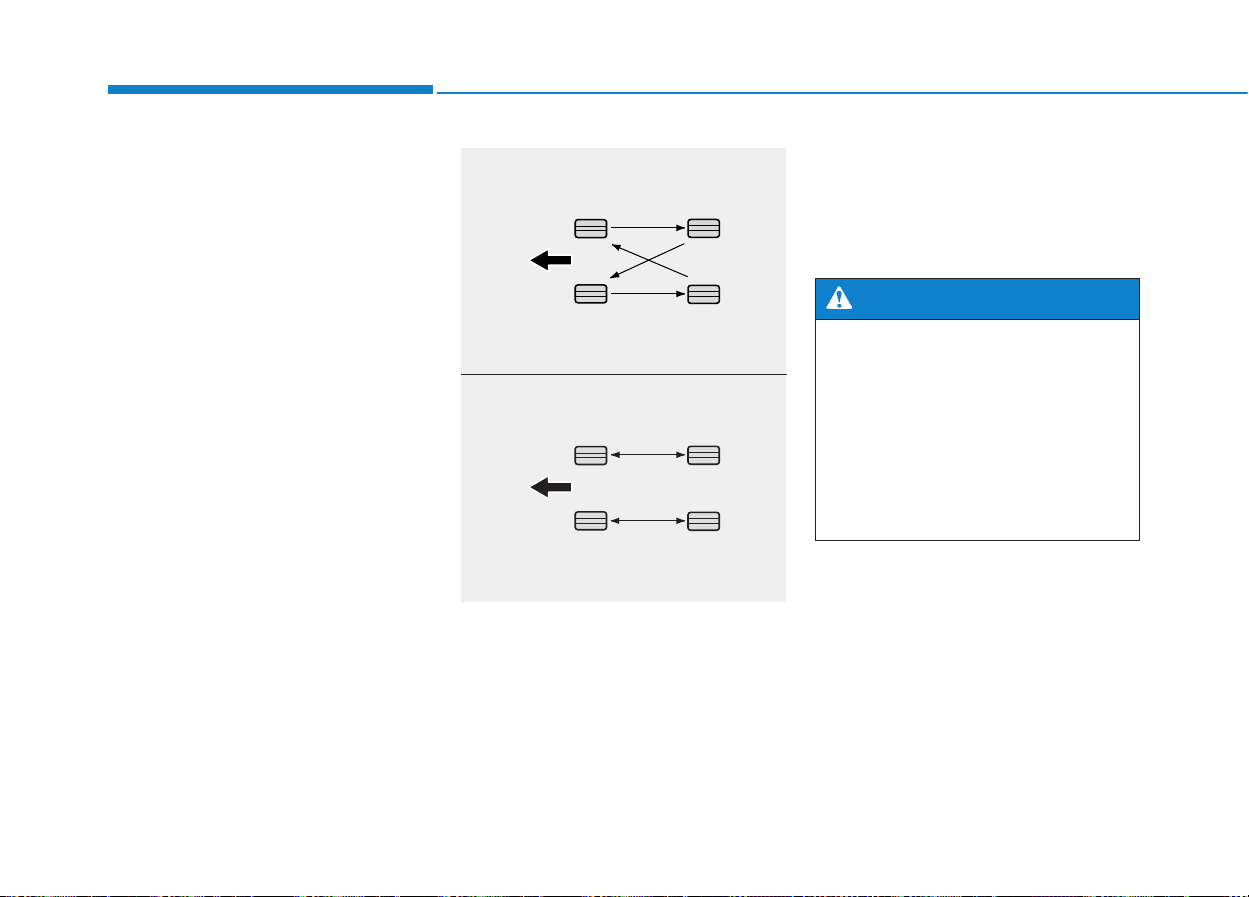
7-50
Maintenance
Tire rotation
To equalize tread wear, HYUNDAI
recommends that the tires be rotated
every 7,500 miles (12,000 km) or
sooner if irregular wear develops.
During rotation, check the tires for
correct balance.
When rotating tires, check for uneven
wear and damage.Abnormal wear is
usually caused by incorrect tire pres-
sure, improper wheel alignment, out-
of-balance wheels, severe braking or
severe cornering. Look for bumps or
bulges in the tread or side of tire.
Replace the tire if you find either of
these conditions. Replace the tire if
fabric or cord is visible.After rotation,
be sure to bring the front and rear tire
pressures to specification and check
lug nut tightness (proper torque is
65-79 lb.ft [9-11 kg.m]).
Disc brake pads should be inspected
for wear whenever tires are rotated.
✽✽
NOTICE
Rotate radial tires that have an
asymmetric tread pattern only from
front to rear and not from right to
left.
• Do not use the compact spare
tire for tire rotation.
• Do not mix bias ply and radial
ply tires under any circum-
stances. This may cause
unusual handling characteris-
tics that may cause loss of
vehicle control resulting in an
accident.
WARNING
OLMB073075
OLMB073076
■ Without a spare tire
■ Directional tires (if equipped)
7-51
7
Maintenance
Wheel alignment and tire bal-
ance
The wheels on your vehicle were
aligned and balanced carefully at the
factory to give you the longest tire life
and best overall performance.
In most cases, you will not need to
have your wheels aligned again.
However, if you notice unusual tire
wear or your vehicle pulling one way
or the other, the alignment may need
to be reset.
If you notice your vehicle vibrating
when driving on a smooth road, your
wheels may need to be rebalanced.
Tire replacement
If the tire is worn evenly, a tread wear
indicator will appear as a solid band
across the tread.This shows there is
less than 1/16 inch (1.6 mm) of tread
left on the tire.Replace the tire when
this happens.
Do not wait for the band to appear
across the entire tread before replac-
ing the tire.
OLMB073027
Tread wear indicator
Improper wheel weights can
damage your vehicle’s alu-
minum wheels. Use only
approved wheel weights.
CAUTION
To reduce the risk of DEATH or
SERIOUS INJURY:
Replace tires that are worn,
show uneven wear, or are dam-
aged.Worn tires can cause loss
of braking effectiveness, steer-
ing control, and traction.
Always replace tires with the
same size as each tire that was
originally supplied with this
vehicle. Using tires and wheels
other than the recommended
sizes could cause unusual han-
dling characteristics, poor vehi-
cle control, or negatively affect
your vehicle’s Anti-Lock Brake
System (ABS) resulting in a
serious accident.
Tires degrade over time, even
when they are not being used.
Regardless of the remaining
tread, HYUNDAI recommends
that tires be replaced after six
(6) years of normal service.
(Continued)
WARNING
7-52
Maintenance
Compact spare tire replacement
A compact spare tire has a shorter
tread life than a regular size tire.
Replace it when you can see the
tread wear indicator bars on the tire.
The replacement compact spare tire
should be the same size and design
tire as the one provided with your
new vehicle and should be mounted
on the same compact spare tire
wheel. The compact spare tire is not
designed to be mounted on a regular
size wheel, and the compact spare
tire wheel is not designed for mount-
ing a regular size tire.
Wheel replacement
When replacing the metal wheels for
any reason, make sure the new
wheels are equivalent to the original
factory units in diameter, rim width
and offset.
Tire traction
Tire traction can be reduced if you
drive on worn tires, tires that are
improperly inflated or on slippery
road surfaces. Tires should be
replaced when tread wear indicators
appear. To reduce the possibility of
losing control, slow down whenever
there is rain, snow or ice on the road.
(Continued)
Heat caused by hot climates or
frequent high loading condi-
tions can accelerate the aging
process. Failure to follow this
warning may cause sudden tire
failure, which could lead to a
loss of vehicle control resulting
in an accident.
The original tire should be
repaired or replaced as soon as
possible to avoid failure of the
spare and loss of vehicle con-
trol resulting in an accident.The
compact spare tire is for emer-
gency use only. Do not operate
your vehicle over 50 mph (80
km/h) when using the compact
spare tire.
WARNING

7-53
7
Maintenance
Tire maintenance
In addition to proper inflation, correct
wheel alignment helps to decrease
tire wear. If you find a tire is worn
unevenly, have your dealer check the
wheel alignment.
When you have new tires installed,
make sure they are balanced. This
will increase vehicle ride comfort and
tire life. Additionally, a tire should
always be rebalanced if it is removed
from the wheel.
Tire sidewall labeling
This information identifies and
describes the fundamental charac-
teristics of the tire and also provides
the tire identification number (TIN)
for safety standard certification. The
TIN can be used to identify the tire in
case of a recall.
1. Manufacturer or brand name
Manufacturer or brand name is
shown.
2.Tire size designation
A tire’s sidewall is marked with a tire
size designation. You will need this
information when selecting replace-
ment tires for your car. The following
explains what the letters and num-
bers in the tire size designation
mean.
Example tire size designation:
(These numbers are provided as an
example only; your tire size designa-
tor could vary depending on your
vehicle.)
225/55R18 105T
225 - Tire width in millimeters.
55 - Aspect ratio. The tire’s section
height as a percentage of its
width.
R - Tire construction code (Radial).
18 - Rim diameter in inches.
105 - Load Index, a numerical code
associated with the maximum
load the tire can carry.
T - Speed Rating Symbol. See the
speed rating chart in this section
for additional information.
OLMB073028
1
1
2
3
4
5,6
7
7-54
Maintenance
Wheel size designation
Wheels are also marked with impor-
tant information that you need if you
ever have to replace one.The follow-
ing explains what the letters and
numbers in the wheel size designa-
tion mean.
Example wheel size designation:
6.5JX18
6.5 - Rim width in inches.
J - Rim contour designation.
18 - Rim diameter in inches.
Tire speed ratings
The chart below lists many of the dif-
ferent speed ratings currently being
used for passenger car tires. The
speed rating is part of the tire size
designation on the sidewall of the
tire.This symbol corresponds to that
tire's designed maximum safe oper-
ating speed.
3. Checking tire life (TIN :Tire
Identification Number)
Any tires that are over six years old,
based on the manufacturing date,
(including the spare tire) should be
replaced by new ones. You can find
the manufacturing date on the tire
sidewall (possibly on the inside of the
wheel), displaying the DOT Code.
The DOT Code is a series of num-
bers on a tire consisting of numbers
and English letters. The manufactur-
ing date is designated by the last four
digits (characters) of the DOT code.
DOT : XXXX XXXX OOOO
The front part of the DOT means a
plant code number, tire size and
tread pattern and the last four num-
bers indicate week and year manu-
factured.
For example:
DOT XXXX XXXX 1614 represents
that the tire was produced in the 16th
week of 2014.
Speed
Rating
Symbol
Maximum Speed
S 112 mph (180 km/h)
T 118 mph (190 km/h)
H 130 mph (210 km/h)
V 149 mph (240 km/h)
Z Above 149 mph (240 km/h)

7-55
7
Maintenance
4.Tire ply composition and
material
The number of layers or plies of rub-
ber-coated fabric in the tire. Tire
manufacturers also must indicate the
materials in the tire, which include
steel, nylon, polyester, and others.
The letter "R" means radial ply con-
struction; the letter "D“ means diago-
nal or bias ply construction; and the
letter "B" means belted-bias ply con-
struction.
5. Maximum permissible infla-
tion pressure
This number is the greatest amount
of air pressure that should be put in
the tire.Do not exceed the maximum
permissible inflation pressure. Refer
to the Tire and Loading Information
label for recommended inflation
pressure.
6. Maximum load rating
This number indicates the maximum
load in kilograms and pounds that
can be carried by the tire. When
replacing the tires on the vehicle,
always use a tire that has the same
load rating as the factory installed
tire.
7. Uniform tire quality grading
Quality grades can be found where
applicable on the tire sidewall
between tread shoulder and maxi-
mum section width.
For example:
TREAD wear 200
TRACTION AA
TEMPERATURE A
Tread wear
The tread wear grade is a compara-
tive rating based on the wear rate of
the tire when tested under controlled
conditions on a specified govern-
ment test course. For example, a tire
graded 150 would wear one-and-a-
half times (1½) as well on the gov-
ernment course as a tire graded 100.
The relative performance of tires
depends upon the actual conditions
of their use, however, and may
depart significantly from the norm
due to variations in driving habits,
service practices and differences in
road characteristics and climate.
These grades are molded on the
sidewalls of passenger vehicle tires.
The tires available as standard or
optional equipment on your vehicle
may vary with respect to grade.
7-56
Maintenance
Traction - AA, A, B & C
The traction grades, from highest to
lowest, are AA, A, B and C. Those
grades represent the tire’s ability to
stop on wet pavement as measured
under controlled conditions on spec-
ified government test surfaces of
asphalt and concrete. A tire marked
C may have poor traction perform-
ance.
Temperature - A, B & C
The temperature grades are A (the
highest), B and C representing the
tire’s resistance to the generation of
heat and its ability to dissipate heat
when tested under controlled condi-
tions on a specified indoor laboratory
test wheel.
Sustained high temperature can
cause the material of the tire to
degenerate and reduce tire life, and
excessive temperature can lead to
sudden tire failure. Grade C
responds to a level of performance
which all passenger car tires must
meet under the Federal Motor
Vehicle Safety Standard No. 109.
Grades B and A represent higher
levels of performance on the labora-
tory test wheel than the minimum
required by law.
The traction grade assigned to
this tire is based on straight-
ahead braking traction tests,
and does not include accelera-
tion, cornering, hydroplaning,
or peak traction characteristics.
WARNING
The temperature grade for this
tire is established for a tire that
is properly inflated and not
overloaded. Excessive speed,
under-inflation, over-inflation,
or excessive loading, either
separately or in combination,
can cause heat build-up and
possible sudden tire failure.
This may cause loss of vehicle
control resulting in an accident.
WARNING

7-57
7
Maintenance
Tire terminology and defini-
tions
Air Pressure
The amount of air inside the tire
pressing outward on the tire. Air
pressure is expressed in pounds per
square inch (psi) or kilopascal (kPa).
Accessory Weight
This means the combined weight of
optional accessories. Some exam-
ples of optional accessories are
automatic transmission, power
seats, and air conditioning.
Aspect Ratio
The relationship of a tire's height to
its width.
Belt
A rubber coated layer of cords that is
located between the plies and the
tread.Cords may be made from steel
or other reinforcing materials.
Bead
The tire bead contains steel wires
wrapped by steel cords that hold the
tire onto the rim.
Bias Ply Tire
A pneumatic tire in which the plies
are laid at alternate angles less than
90 degrees to the centerline of the
tread.
Cold Tire Pressure
The amount of air pressure in a tire,
measured in pounds per square inch
(psi) or kilopascals (kPa) before a tire
has built up heat from driving.
Curb Weight
This means the weight of a motor
vehicle with standard and optional
equipment including the maximum
capacity of fuel, oil and coolant, but
without passengers and cargo.
DOT Markings
A code molded into the sidewall of a
tire signifying that the tire is in com-
pliance with the U.S. Department of
Transportation motor vehicle safety
standards. The DOT code includes
the Tire Identification Number (TIN),
an alphanumeric designator which
can also identify the tire manufactur-
er, production plant, brand and date
of production.

7-58
Maintenance
GVWR
Gross Vehicle Weight Rating
GAWR FRT
Gross Axle Weight Rating for the
Front Axle.
GAWR RR
Gross Axle Weight Rating for the
Rear axle.
Intended Outboard Sidewall
The side of an asymmetrical tire, that
must always face outward when
mounted on a vehicle.
Kilopascal (kPa)
The metric unit for air pressure.
Load Index
An assigned number ranging from 1
to 279 that corresponds to the load
carrying capacity of a tire.
Maximum Inflation Pressure
The maximum air pressure to which
a cold tire may be inflated.The max-
imum air pressure is molded onto the
sidewall.
Maximum Load Rating
The load rating for a tire at the maxi-
mum permissible inflation pressure
for that tire.
Maximum Loaded Vehicle
Weight
The sum of curb weight; accessory
weight; vehicle capacity weight; and
production options weight.
Normal Occupant Weight
The number of occupants a vehicle
is designed to seat multiplied by 150
pounds (68 kg).
Occupant Distribution
Designated seating positions.
Outward Facing Sidewall
An asymmetrical tire has a particular
side that faces outward when mount-
ed on a vehicle. The outward facing
sidewall bears white lettering or
bears manufacturer, brand, and/or
model name molding that is higher or
deeper than the same moldings on
the inner facing sidewall.

7-59
7
Maintenance
Passenger (P-Metric) tire
A tire used on passenger cars and
some light duty trucks and multipur-
pose vehicles.
Recommended Inflation
Pressure
Vehicle manufacturer's recommend-
ed tire inflation pressure as shown
on the tire placard.
Radial Ply Tire
A pneumatic tire in which the ply
cords that extend to the beads are
laid at 90 degrees to the centerline of
the tread.
Rim
A metal support for a tire and upon
which the tire beads are seated.
Sidewall
The portion of a tire between the
tread and the bead.
Speed Rating
An alphanumeric code assigned to a
tire indicating the maximum speed at
which a tire can operate.
Traction
The friction between the tire and the
road surface.The amount of grip pro-
vided.
Tread
The portion of a tire that comes into
contact with the road.
Treadwear Indicators
Narrow bands, sometimes called
"wear bars," that show across the
tread of a tire when only 1/16 inch of
tread remains.
UTQGS
Uniform Tire Quality Grading
Standards is a tire information sys-
tem that provides consumers with
ratings for a tire's traction, tempera-
ture and treadwear. Ratings are
determined by tire manufacturers
using government testing proce-
dures. The ratings are molded into
the sidewall of the tire.
Vehicle Capacity Weight
The number of designated seating
positions multiplied by 150 lbs. (68
kg) plus the rated cargo and luggage
load.

7-60
Maintenance
Vehicle Maximum Load on the
Tire
Load on an individual tire due to curb
and accessory weight plus maximum
occupant and cargo weight.
Vehicle Normal Load on the Tire
Load on an individual tire that is
determined by distributing to each
axle its share of the curb weight,
accessory weight, and normal occu-
pant weight and dividing by 2.
Vehicle Placard
A label permanently attached to a
vehicle showing the original equip-
ment tire size and recommended
inflation pressure.
All season tires
HYUNDAI specifies all season tires
on some models to provide good
performance for use all year round,
including snowy and icy road condi-
tions. All season tires are identified
by ALL SEASON and/or M+S (Mud
and Snow) on the tire sidewall.Snow
tires have better snow traction than
all season tires and may be more
appropriate in some areas.
Summer tires
HYUNDAI specifies summer tires on
some models to provide superior
performance on dry roads. Summer
tire performance is substantially
reduced in snow and ice. Summer
tires do not have the tire traction rat-
ing M+S (Mud and Snow) on the tire
side wall. If you plan to operate your
vehicle in snowy or icy conditions,
HYUNDAI recommends the use of
snow tires or all season tires on all
four wheels.
Snow tires
If you equip your car with snow tires,
they should be the same size and
have the same load capacity as the
original tires. Snow tires should be
installed on all four wheels; other-
wise, poor handling may result.Snow
tires should carry 4 psi (28 kPa)
more air pressure than the pressure
recommended for the standard tires
on the tire label on the driver's side of
the center pillar, or up to the maxi-
mum pressure shown on the tire
sidewall, whichever is less. Do not
drive faster than 75 mph (120 km/h)
when your vehicle is equipped with
snow tires.
7-61
7
Maintenance
Radial-ply tires
Radial-ply tires provide improved
tread life, road hazard resistance and
smoother high speed ride. The radi-
al-ply tires used on this vehicle are of
belted construction, and are selected
to complement the ride and handling
characteristics of your vehicle.
Radial-ply tires have the same load
carrying capacity, as bias-ply or bias
belted tires of the same size, and use
the same recommended inflation
pressure. Mixing of radial-ply tires
with bias-ply or bias belted tires is
not recommended. Any combina-
tions of radial-ply and bias-ply or bias
belted tires when used on the same
vehicle will seriously deteriorate
vehicle handling.The best rule to fol-
low is: Identical pairs of radial-ply
tires should always be used as a set
for the front tires and a set for the
rear tires.
Longer wearing tires can be more
susceptible to irregular tread wear. It
is very important to follow the tire
rotation interval in this chapter to
achieve the tread life potential of
these tires. Cuts and punctures in
radial-ply tires are repairable only in
the tread area, because of sidewall
flexing. Consult your tire dealer for
radial-ply tire repairs.
Low aspect ratio tires
Low aspect ratio tires, the aspect
ratio is lower than 50, are provided
for sporty looks.
Because low aspect ratio tires are
optimized for handling and braking, it
may be more uncomfortable to ride
in and there is more noise compare
with normal tires.
Do not mix bias ply and radial
ply tires under any circum-
stances.This may cause unusu-
al handling characteristics that
may cause loss of vehicle con-
trol resulting in an accident.
WARNING
7-62
Maintenance
Because the sidewall of the low
aspect ratio tire is shorter than
the normal, the wheel and tire of
the low aspect ratio tire is easi-
er to be damaged. So, follow the
instructions below.
- When driving on a rough road
or off road, drive cautiously
because tires and wheels may
be damaged. And after driving,
inspect tires and wheels.
- When passing over a pothole,
speed bump, manhole, or curb
stone, drive slowly so that the
tires and wheels are not dam-
aged.
- If the tire is impacted, we rec-
ommend that you inspect the
tire condition or contact an
authorized HYUNDAI dealer.
- To prevent damage to the tire,
inspect the tire condition and
pressure every 1,864 miles
(3,000km).
CAUTION
• It is not easy to recognize tire
damage with your own eyes.
But if there is the slightest
hint of tire damage, have the
tire checked or replaced
because the tire damage may
cause air leakage from the
tire.
• If the tire is damaged by driv-
ing on a rough road, off road,
pothole, manhole, or curb
stone, it will not be covered by
the warranty.
CAUTION
7-63
7
Maintenance
FFUUSSEESS
A vehicle’s electrical system is pro-
tected from electrical overload dam-
age by fuses.
This vehicle has 2 (or 3) fuse panels,
one located in the driver’s side panel
bolster, the other in the engine com-
partment near the battery.
If any of your vehicle’s lights, acces-
sories, or controls do not work, check
the appropriate circuit fuse. If a fuse
has blown, the element inside the
fuse will be melted or broken.
If the electrical system does not
work, first check the driver’s side
fuse panel. Before replacing a blown
fuse, disconnect the negative battery
cable. Always replace a blown fuse
with one of the same rating.
If the replacement fuse blows, this
indicates an electrical problem.Avoid
using the system involved and imme-
diately consult an authorized
HYUNDAI dealer.
✽✽
NOTICE
Three kinds of fuses are used: blade
type for lower amperage rating, car-
tridge type, and fusible link for
higher amperage ratings.
NEVER replace a fuse with any-
thing but another fuse of the
same rating.
• A higher capacity fuse could
cause damage and possibly
cause a fire.
• Do not install a wire or alu-
minum foil instead of the
proper fuse - even as a tem-
porary repair. It may cause
extensive wiring damage and
possibly a fire.
WARNING
OLMB073029
Normal
Normal
■ Blade type
■ Cartridge type
■ Multi fuse
Blown
Blown
Normal Blown
Normal Blown
7-64
Maintenance
Instrument panel fuse replace-
ment
1.Turn the engine off.
2.Turn all other switches OFF.
3. Open the fuse panel cover.
4. Refer to the label on the inside of
the fuse panel cover to locate the
suspected fuse location
5. Pull the suspected fuse straight
out. Use the removal tool provided
in the engine compartment fuses
panel.
6. Remove and check the suspected
fuse; replace it if it is blown. Spare
fuses are provided in the instru-
ment panel fuse panels (or in the
engine compartment fuse panel).
7. Push in a new fuse of the same
rating, and make sure it fits tightly
in the clips. If it fits loosely, consult
an authorized HYUNDAI dealer.
Do not use a screwdriver or any
other metal object to remove
fuses because it may cause a
short circuit and damage the
system.
CAUTION
OLMB073031
OLMB073030

7-65
7
Maintenance
In an emergency, if you do not have
a spare fuse, use a fuse of the same
rating from a circuit you may not
need for operating the vehicle, such
as the cigarette lighter fuse.
If the headlights or other electrical
components do not work and the
fuses are OK, check the fuse panel
in the engine compartment. If a fuse
is blown, it must be replaced.
Memory fuse
(SHUNT connector)
Your vehicle is equipped with a mem-
ory fuse (SHUNT connector) to pre-
vent battery discharge if your vehicle
is parked without being operated for
prolonged periods. Use the following
procedures before parking the vehi-
cle for prolonged periods.
1.Turn off the engine.
2.Turn off the headlights and parking
lights.
3. Open the driver's side panel cover
and pull out the memory fuse
(SHUNT connector).
✽✽
NOTICE
• If the memory fuse is pulled up
from the fuse panel, the warning
chime, audio, clock and interior
lamps, etc., will not operate. Some
items must be reset after replace-
ment. Refer to "Battery" in this
chapter.
• Even though the memory fuse is
pulled up, the battery can still be
discharged by operation of the
headlights or other electrical
devices.
OLMB073032

7-66
Maintenance
Engine compartment panel
fuse replacement
1.Turn the engine off.
2.Turn all other switches OFF.
3. Remove the fuse panel cover by
pressing the tap and pulling up.
4. Remove and check the suspected
fuse; replace it if it is blown. To
remove or insert the fuse, use the
fuse puller in the engine compart-
ment fuse panel.
5. Push in a new fuse of the same
rating, and make sure it fits tightly
in the clips. If it fits loosely, consult
an authorized HYUNDAI dealer.
Main fuse
If the main fuse is blown, it must be
removed as follows:
1.Turn off the engine.
2. Disconnect the negative battery
cable.
3. Remove the fuse panel cover by
pressing the tap and pulling it up.
4. Remove the nuts shown in the pic-
ture above.
5. Replace the fuse with a new one
of the same rating.
6. Reinstall in the reverse order of
removal.
✽✽
NOTICE
If the main fuse is blown, consult an
authorized HYUNDAI dealer.
OLMB073035
OLMB073033

7-67
7
Maintenance
Multi fuse
If the multi fuse is blown, it must be
removed as follows:
1.Turn off the engine.
2. Disconnect the negative battery
cable.
3. Remove the fuse panel cover by
pressing the tap and pulling up.
4. Remove the bolts shown in the
picture above.
5. Replace the fuse with a new one
of the same rating.
6. Reinstall in the reverse order of
removal.
✽✽
NOTICE
If the multi fuse is blown, consult an
authorized HYUNDAI dealer.
OLMB073036

7-68
Maintenance
Fuse/Relay panel description
Instrument panel fuse panel
Inside the fuse/relay box cover, you
can find the fuse/relay label describ-
ing fuse/relay name and capacity.
✽✽
NOTICE
Not all fuse panel descriptions in
this manual may be applicable to
your vehicle; the information is
accurate at the time of printing.
When you inspect the fuse box on
your vehicle, refer to the fuse box
label.
OLMB073037
OLMB073088
7-69
7
Maintenance
Instrument panel fuse panel
Description Fuse rating Protected component
POWER
CONNECTOR
AUDIO 1 10A Audio, A/V & Navigation Head Unit, MTS Module
ROOM LAMP 10A
BCM, Auto Light & Photo Sensor, Date Link Connector, Ignition Key Illumination & Door
Warning Switch, A/C Control Module, Luggage Lamp, IPS Control Module, Instrument Cluster
(Indicator), Electro Chromic Mirror, Engine Room Fuse & Relay Box (Interior Lamp Relay)
MODULE 3 10A
IPS Control Module, BCM, Electro Chromic Mirror, Smart Key Control Module, ICM Relay Box
(Rear Seat Heater Left/Right Relay)
START 10A
[W/O Immobilizer] Burglar Alarm Relay
[With Immobilizer] Engine Room Fuse & Relay Box (Start Relay)
A/BAG IND 10A Instrument Cluster (Air Bag Indicator)
CLUSTER 10A
Audio, Console Switch, Instrument Cluster (Indicator), BCM, Alternator, A/V & Navigation Head
Unit, MTS Module, Electro Chromic Mirror, A/C Control Module
MODULE 4 10A
Engine Room Fuse & Relay Box (Blower Relay, Head Lamp High Relay), Cluster Ionizer, A/C
Control Module, Sunroof Motor
POWER OUTLET 2 25A Cigarette Lighter & Front Power Outlet, Rear Power Outlet
AUDIO 2 10A
Power Outside Mirror Switch, AMP, BCM, A/V & Navigation Head Unit, Audio, MTS Module,
Smart Key Control Module
A/BAG 10A SRS Control Module, Passenger Occupant Detection Sensor, Telltale Lamp
MODULE 1 10A
IPS Control Module, Tire Pressure Monitoring Module, ESC Off Switch, ATM Shift Lever
Indicator, DBC Switch, Multifunction Switch (Light), Stop Lamp Switch, 4WD ECM
FOG LAMP RR 10A -
WIPER FRT 25A
Front Wiper Motor, Multifunction Switch (Wiper), Engine Room Fuse & Relay Box (Wiper Front,
Low Relay)
S/HEATER FRT 15A Console Switch
POWER OUTLET 1 15A Cigarette Lighter & Front Power Outlet
7-70
Maintenance
Description Fuse rating Protected component
MDPS 10A MDPS Unit
B/UP LAMP 10A
BCM, Audio, Electro Chromic Mirror, Rear Combination Lamp (IN) Left/Right, A/V & Navigation Head
Unit
DR LOCK 15A Door Lock Relay, Tail Gate Relay, Door Unlock Relay, ICM Relay Box (Two Turn Unlock Relay)
MODULE 2 7.5A BCM, Smart Key Control Module
WIPER RR 15A ICM Relay Box (Rear Wiper Relay), Rear Wiper Motor, Multifunction Switch (Wiper)
SUNROOF 15A Sunroof Motor
IG 1 20A Engine Room Fuse & Relay Box(ECU 2 7.5A, ABS 3 7.5A, TCU 2 7.5A)
A/CON 7.5A A/C Control Module
S/HEATER RR 15A ICM Relay Box (Rear Seat Heater Left/Right Relay)
P/WDW RH 25A Power Window Main Switch, Passenger Power Window Switch, Rear Right Power Window Switch
FOLD'G MIRR 10A -
P/SEAT (DRV) 20A Driver Seat Manual Switch
SMART KEY 10A Smart Key Control Module, Engine Start/Stop Button
PDM 15A Smart Key Control Module
P/WDW LH 25A Power Window Main Switch, Rear Left Power Window Switch
AMP 25A AMP
HTD MIRR 7.5A Rear Defogger Switch, Driver/Passenger Power Outside Mirror
SAFETY POWER
WINDOW
20A Driver Safety Power Window Module
MODULE 5 7.5A ATM Shift Lever, Tire Pressure Monitoring Module
HAZARD 15A ICM Relay Box (Flasher Sound Relay), BCM

7-71
7
Maintenance
Engine compartment fuse panel
Inside the fuse/relay box cover, you
can find the fuse/relay label describ-
ing fuse/relay name and capacity.
✽✽
NOTICE
Not all fuse panel descriptions in
this manual may be applicable to
your vehicle; the information is
accurate at the time of printing.
When you inspect the fuse panel in
your vehicle, refer to the fuse panel
label.
OLMB073038
OLMB073089
7-72
Maintenance
Engine compartment main fuse panel
Description Fuse rating Protected component
MULTI
FUSE
MDPS 80A MDPS Unit
B+1 60A Smart Junction Box (DR LOCK 15A, HAZARD 15A, PDM 15A, S/HEATER RR 15A)
ABS 2 40A Multipurpose Check Connector, ESC Module
ECU 4 40A EMS Box (TCU 1 15A, ECU 3 30A, A/CON 10A, F/PUMP 15A)
ABS 1 40A Multipurpose Check Connector, ESC Module
BLOWER 40A Blower Relay
B+3 60A
Smart Junction Box (P/SEAT(DRV) 20A, SAFETY POWER WINDOW 20A, SMART KEY 10A,
MODULE 5 7.5A, Power Connector (AUDIO 1 10A, ROOM LAMP 10A), IPS-1CH, IPS-2CH)
B+2 60A Smart Junction Box (Power Window Relay, SUNROOF 15A, AMP 25A, IPS-1CH)
FUSE
C/FAN 40A Engine Room Fuse & Relay Box (C/FAN LO Relay, C/FAN HI Relay)
RR HTD 40A Engine Room Fuse & Relay Box (RR HTD Relay)
B+ 4 30A Engine Room Fuse & Relay Box (H/LAMP HI 10A)
IG 1 30A Ignition Switch, PDM Relay Box (IGN 1 Relay)
IG 2 40A Engine Room Fuse & Relay Box (Start Relay), Ignition Switch, PDM Relay Box (IGN 2 Relay)
HORN 15A Engine Room Fuse & Relay Box (Horn Relay, B/A Horn Relay)
DEICER 15A Engine Room Fuse & Relay Box (Deicer Relay)
STOP LAMP 10A Stop Lamp Switch, Stop Signal Electric Module, Smart Key Control Module
AMS 10A Battery Sensor
4WD 20A 4WD ECM
H/LAMP HI 10A Engine Room Fuse & Relay Box (H/LAMP HI Relay)
ECU 2 7.5A PCM/ECM, Clock Spring
ABS 3 7.5A Multipurpose Check Connector, ESC Module
TCU 2 15A Transaxle Range Switch (A/T), Vehicle Speed Sensor (M/T), Back-up Lamp Switch (M/T)
F/PUMP 15A EMS Box(F/PUMP Relay)
7-73
7
Maintenance
Description Fuse rating Protected component
FUSE
SENSOR 4 15A
E/R Fuse & Relay Box(C/FAN HI, LO Relay), EMS Box(F/PUMP Relay),
Oxygen Sensor (Up, Down)
SENSOR 3 10A EMS Box(A/CON Relay)
SENSOR 2 10A (Not Used)
SENSOR 1 10A PCM
TCU 1 15A EMS Box(A/CON Relay)
A/CON 10A
Immobilizer Module, Crankshaft Position Sensor, Camshaft Position Sensor #1/2,
Oil Control Valve #1/2, Purge Control Solenoid Valve, Variable Intake Manifold Valve,
Canister Close Valve
ECU 1 20A Ignition Coil (#1, #2, #3, #4), Condenser
ECU 3 30A EMS Box(Engine Control Relay)
7-74
Maintenance
LLIIGGHHTT BBUULLBBSS
Consult an authorized HYUNDAI
dealer to replace most vehicle light
bulbs. It is difficult to replace vehicle
light bulbs because other parts of the
vehicle must be removed before you
can get to the bulb.This is especially
true for removing the headlight
assembly to get to the bulb(s).
Removing/installing the headlight
assembly can result in damage to
the vehicle.
✽✽
NOTICE
After heavy driving, rain or wash-
ing, headlight and taillight lenses
could appear frosty. This condition
is caused by the temperature differ-
ence between the lamp inside and
the outside temperature. This is sim-
ilar to the condensation on your win-
dows inside your vehicle during the
rain and doesn’t indicate a problem
with your vehicle. If the water leaks
into the lamp bulb circuitry, have
your vehicle checked by an author-
ized HYUNDAI dealer.
Headlight, parking light, turn
signal light, side marker and
front fog light bulb replace-
ment
(1) Turn signal light
(2) Headlight (High/Low)
(3) Parking (Position) light/
Daytime running light*
(4) Parking (Position) light*
(5) Side marker
(6) Fog light*
* if equipped
• Prior to replacing a light,
depress the foot brake, move
the shift lever into P (Park)
apply the parking brake, place
the ignition switch in the
LOCK/OFF position, and take
the key with you when leaving
the vehicle to avoid sudden
movement of the vehicle and
to prevent possible electric
shock.
• Be aware the bulbs may be
hot and may burn your fin-
gers.
WARNING
OLMB073041

7-75
7
Maintenance
Headlight
Halogen bulb
• Always handle them carefully, and
avoid scratches and abrasions. If
the bulbs are lit, avoid contact with
liquids.
• Never touch the glass with bare
hands. Residual oil may cause the
bulb to overheat and burst when lit.
• A bulb should be operated only
when installed in a headlamp.
• If a bulb becomes damaged or
cracked, replace it immediately
and carefully dispose of it.
1. Open the hood.
2. Remove the headlamp bulb cover
by turning it counterclockwise.
3.Disconnect the headlamp bulb
socket-connector.
4.Remove the socket from the
assembly by turning the socket
counterclockwise until the tabs on
the socket align with the slots on
the assembly.
OLMB073042L
• Handle halogen bulbs with
care. Halogen bulbs contain
pressurized gas that will pro-
duce flying pieces of glass
that could cause injuries if
broken.
• Wear eye protection when
changing a bulb. Allow the
bulb to cool down before han-
dling it.
WARNING
OLMB074101

7-76
Maintenance
5. Remove the bulb by pulling it out.
6. Insert a new bulb into the socket.
7. Install the socket in the assembly
by aligning the tabs on the socket
with the slots in the assembly.
Push the socket into the assembly
and turn the socket clockwise.
8. Install the headlight bulb cover by
turning it clockwise.
Turn signal light
1.Remove the socket from the
assembly by turning the socket
counterclockwise until the tabs on
the socket align with the slots on
the assembly.
2. Remove the bulb from the socket
by pressing it in and rotating it
counterclockwise until the tabs on
the bulb align with the slots in the
socket. Pull the bulb out of the
socket
3. Insert a new bulb into the socket
and rotating it until it locks into
place.
4. Install the socket in the assembly
by aligning the tabs on the socket
with the slots in the assembly.
Push the socket into the assembly
and turn the socket clockwise.
Parking (Position) light bulbs
If the LED light does not operate,
have the vehicle checked by an
authorized HYUNDAI dealer.
OLMB074046

7-77
7
Maintenance
Fog light bulbs
1. Remove the front bumper under
cover.
2. Reach your hand into the back of
the front bumper.
3. Disconnect the power connector
from the socket.
4. Remove the bulb-socket from the
housing by turning the socket
counter clockwise until the tabs on
the socket align with the slots on
the housing.
5. Install the new bulb-socket into the
housing by aligning the tabs on
the socket with the slots in the
housing. Push the socket into the
housing and turn the socket clock-
wise.
6. Connect the power connector to
the socket.
7. Reinstall the front bumper under
cover.
■■
Type A
If the LED light does not operate,
have the vehicle checked by an
authorized HYUNDAI dealer.
■■
Type B
1. Remove the light assembly from
the vehicle by prying the lens and
pulling the assembly out.
2. Reinstall a new light assembly to
the body of the vehicle.
OLMB073045
OLMB073046
Side repeater light replacement

7-78
Maintenance
Rear combination light bulb
replacement
(1) Stop/tail light
(2) Turn signal light
(3) Back-up light
(4) Side marker
Outside light
Turn signal light and stop/tail light
1. Open the tailgate.
2. Loosen the lamp assembly retain-
ing screws with a cross-tip screw-
driver.
3.Remove the rear combination
lamp assembly from the body of
the vehicle.
OLMB073047
OLMB073048
OLMB073049

7-79
7
Maintenance
4.Remove the socket from the
assembly by turning the socket
counterclockwise until the tabs on
the socket align with the slots on
the assembly.
5. Remove the bulb from the socket
by pressing it in and rotating it
counterclockwise until the tabs on
the bulb align with the slots in the
socket. Pull the bulb out of the
socket.
6. Insert a new bulb into the socket
and rotating it until it locks into
place.
7. Install the socket in the assembly
by aligning the tabs on the socket
with the slots in the assembly.
Push the socket into the assembly
and turn the socket clockwise.
8. Reinstall the lamp assembly to the
body of the vehicle.
Inside light
Tail light and Back-up light
1. Open the tailgate.
2. Remove the service cover using a
flat-blade screwdriver.
OLMB073050
Turn signal light
Stop/tail light
OLMB073051

7-80
Maintenance
3.Remove the socket from the
assembly by turning the socket
counterclockwise until the tabs on
the socket align with the slots on
the assembly.
4.Tail light: Remove the bulb from
the socket by pressing it in and
rotating it counterclockwise until
the tabs on the bulb align with the
slots in the socket. Pull the bulb
out of the socket.
Back-up light: Remove the bulb
from the socket by pulling it out.
5. Insert a new bulb into the socket.
6. Install the socket into the assem-
bly by aligning the tabs on the
socket with the slots on the
assembly and turning the socket
clockwise.
7. Reinstall the light assembly to the
body of the vehicle
High mounted stop light
1. Open the tailgate.
2. Gently remove the center cover of
the rear tailgate trim.
3. Disconnect the electrical connec-
tor.
OLMB073052
Back-up light
Tail light
OLMB073103
OLMB073104

7-81
7
Maintenance
4. Loosen the retaining nuts and
remove the spoiler.
5. Remove the high mounted stop
light assembly (A) after loosening
the nuts and washer nozzle (B).
6. Reinstall a new light assembly in
the reverse order of removal.
License plate light bulb
replacement
1. Loosen the lens retaining screws
with a philips head screwdriver.
2. Remove the lens.
3. Remove the bulb by pulling it
straight out.
4. Install a new bulb.
5. Reinstall the lens securely with the
lens retaining screws.
OLMB073105
A
B
OLMB073054
7-82
Maintenance
Interior light bulb replacement
1.Using a flat-blade screwdriver,
gently pry the lens from the interi-
or lamp housing.
2. Remove the bulb by pulling it
straight out.
3. Install a new bulb in the socket.
4. Align the lens tabs with the interior
lamp housing notches and snap
the lens into place.
■ Map lamp
OLMB073055/OLMB073056/OLMB073058/
OLMB073057/OLMB073059
■ Glove box lamp
■ Luggage room lamp
■ Vanity mirror
■ Room lamp
Use care not to dirty or damage
lenses, lens tabs, and plastic
housings.
WARNING

7-83
7
Maintenance
AAPPPPEEAARRAANNCCEE CCAARREE
Exterior care
Exterior general caution
It is very important to follow the label
directions when using any chemical
cleaner or polish. Read all warning
and caution statements that appear
on the label.
Finish maintenance
Washing
To help protect your vehicle’s finish
from rust and deterioration, wash it
thoroughly and frequently at least
once a month with lukewarm or cold
water.
If you use your vehicle for off-road
driving, you should wash it after each
off-road trip. Pay special attention to
the removal of any accumulation of
salt, dirt, mud, and other foreign
materials. Make sure the drain holes
in the lower edges of the doors and
rocker panels are kept clear and
clean.
Insects, tar, tree sap, bird droppings,
industrial pollution and similar
deposits can damage your vehicle’s
finish if not removed immediately.
Even prompt washing with plain
water may not completely remove all
these deposits. A mild soap, safe for
use on painted surfaces, should be
used.
After washing, rinse the vehicle thor-
oughly with lukewarm or cold water.
Do not allow soap to dry on the fin-
ish.
• Do not use strong soap,
chemical detergents or hot
water, and do not wash the
vehicle in direct sunlight or
when the body of the vehicle
is warm.
• Be careful when washing the
side windows of your vehicle.
Especially, with high-pressure
water.Water may leak through
the windows and wet the inte-
rior.
• To prevent damage to the
plastic parts, do not clean
with chemical solvents or
strong detergents.
CAUTION
After washing the vehicle, test
the brakes while driving slowly
to see if they have been affected
by water before getting on the
road. If braking performance is
impaired, dry the brakes by
applying them lightly while
maintaining a slow forward
speed.
WARNING
7-84
Maintenance
Waxing
A good coat of wax is a barrier
between your paint and contaminate.
Keeping a good coat of wax on your
vehicle will help protect it.
Wax the vehicle when water will no
longer bead on the paint.
Always wash and dry the vehicle
before waxing. Use a good quality
liquid or paste wax, and follow the
manufacturer’s instructions. Wax all
metal trim to protect it and to main-
tain its luster.
Removing oil, tar, and similar materi-
als with a spot remover will usually
strip the wax from the finish. Be sure
to re-wax these areas even if the rest
of the vehicle does not yet need wax-
ing.
OLMB073082
• Water washing in the engine
compartment including high
pressure water washing may
cause the failure of electrical
circuits located in the engine
compartment.
• Never allow water or other liq-
uids to come in contact with
electrical/electronic compo-
nents inside the vehicle as
this may damage them.
CAUTION
• Wiping dust or dirt off the
body with a dry cloth will
scratch the finish.
• Do not use steel wool, abra-
sive cleaners, or strong deter-
gents containing highly alka-
line or caustic agents on
chrome-plated or anodized
aluminum parts. This may
result in damage to the pro-
tective coating and cause dis-
coloration or paint deteriora-
tion.
CAUTION

7-85
7
Maintenance
Finish damage repair
Deep scratches or stone chips in the
painted surface must be repaired
promptly. Exposed metal will quickly
rust and may develop into a major
repair expense.
✽✽
NOTICE
If your vehicle is damaged and
requires any metal repair or
replacement, be sure the body shop
applies anti-corrosion materials to
the parts repaired or replaced.
Bright-metal maintenance
• To remove road tar and insects,
use a tar remover, not a scraper or
other sharp object.
• To protect the surfaces of bright-
metal parts from corrosion, apply a
coating of wax or chrome preser-
vative and rub to a high luster.
• During winter weather or in coastal
areas, cover the bright metal parts
with a heavier coating of wax or
preservative. If necessary, coat the
parts with non-corrosive petroleum
jelly or other protective compound.
Underbody maintenance
Corrosive materials used for ice and
snow removal and dust control may
collect on the underbody. If these
materials are not removed, acceler-
ated rusting can occur on underbody
parts such as the fuel lines, frame,
floor pan and exhaust system, even
though they have been treated with
rust protection.
Thoroughly flush the vehicle under-
body and wheel openings with luke-
warm or cold water once a month,
after off-road driving and at the end
of each winter. Pay special attention
to these areas because it is difficult
to see all the mud and dirt. It will do
more harm than good to wet down
the road grime without removing it.
The lower edges of doors, rocker
panels, and frame members have
drain holes that should not be
allowed to clog with dirt; trapped
water in these areas can cause rust-
ing.
7-86
Maintenance
Aluminum wheel maintenance
The aluminum wheels are coated
with a clear protective finish.
Corrosion protection
Protecting your vehicle from corro-
sion
By using the most advanced design
and construction practices to combat
corrosion, HYUNDAI produces cars
of the highest quality.However, this is
only part of the job. To achieve the
long-term corrosion resistance your
vehicle can deliver, the owner's
cooperation and assistance is also
required.
Common causes of corrosion
The most common causes of corro-
sion on your vehicle are:
• Road salt, dirt and moisture that is
allowed to accumulate underneath
the vehicle.
• Removal of paint or protective
coatings by stones, gravel, abra-
sion or minor scrapes and dents
which leave unprotected metal
exposed to corrosion.
After washing the vehicle, test
the brakes while driving slowly
to see if they have been affected
by water.If braking performance
is impaired, dry the brakes by
applying them lightly while
maintaining a slow forward
speed.
WARNING
• Do not use abrasive cleaner,
polishing compound, solvent,
or wire brushes on aluminum
wheels.
• Clean the wheel when it has
cooled.
• Use only a mild soap or neu-
tral detergent, and rinse thor-
oughly with water. Also, clean
the wheels after driving on
salted roads.
• Do not wash the wheels with
high-speed car wash brushes.
• Do not use any cleaners con-
taining acid or alkaline deter-
gents.
CAUTION

7-87
7
Maintenance
High-corrosion areas
If you live in an area where your vehi-
cle is regularly exposed to corrosive
materials, corrosion protection is
particularly important. Some of the
common causes of accelerated cor-
rosion are road salts, dust control
chemicals, ocean air and industrial
pollution.
Moisture breeds corrosion
Moisture creates the conditions in
which corrosion is most likely to
occur. For example, corrosion is
accelerated by high humidity, partic-
ularly when temperatures are just
above freezing. In such conditions,
the corrosive material is kept in con-
tact with the car surfaces by moisture
that is slow to evaporate.
Mud is particularly corrosive
because it is slow to dry and holds
moisture in contact with the vehicle.
Although the mud appears to be dry,
it can still retain the moisture and
promote corrosion.
High temperatures can also acceler-
ate corrosion of parts that are not
properly ventilated so the moisture
can be dispersed. For all these rea-
sons, it is particularly important to
keep your vehicle clean and free of
mud or accumulations of other mate-
rials.This applies not only to the vis-
ible surfaces but particularly to the
underside of the vehicle.
To help prevent corrosion
Keep your car clean
The best way to prevent corrosion is
to keep your vehicle clean and free
of corrosive materials. Attention to
the underside of the vehicle is partic-
ularly important.
• If you live in a high-corrosion area
— where road salts are used, near
the ocean, areas with industrial
pollution, acid rain, etc.—, you
should take extra care to prevent
corrosion. In winter, hose off the
underside of your vehicle at least
once a month and be sure to clean
the underside thoroughly when
winter is over.
7-88
Maintenance
• When cleaning underneath the
vehicle, pay particular attention to
the components under the fenders
and other areas that are hidden
from view. Do a thorough job; just
dampening the accumulated mud
rather than washing it away will
accelerate corrosion rather than
prevent it. Water under high pres-
sure and steam are particularly
effective in removing accumulated
mud and corrosive materials.
• When cleaning lower door panels,
rocker panels and frame members,
be sure that drain holes are kept
open so that moisture can escape
and not be trapped inside to accel-
erate corrosion.
Keep your garage dry
Don't park your car in a damp, poor-
ly ventilated garage. This creates a
favorable environment for corrosion.
This is particularly true if you wash
your vehicle in the garage or drive it
into the garage when it is still wet or
covered with snow, ice or mud. Even
a heated garage can contribute to
corrosion unless it is well ventilated
so moisture is dispersed.
Keep paint and trim in good condition
Scratches or chips in the finish
should be covered with "touch-up"
paint as soon as possible to reduce
the possibility of corrosion. If bare
metal is showing through, the atten-
tion of a qualified body and paint
shop is recommended.
Bird droppings are highly corrosive
and may damage painted surfaces in
just a few hours. Always remove bird
droppings as soon as possible.
Interior care
Interior general precautions
Prevent caustic solutions such as
perfume and cosmetic oil, from con-
tacting the interior parts because
they may cause damage or discol-
oration. If they do contact the interior
parts, wipe them off immediately.
See the instructions for the proper
way to clean vinyl.
• Never allow water or other liq-
uids to come in contact with
electrical/electronic compo-
nents inside the vehicle as
this may damage them.
• When cleaning leather prod-
ucts (steering wheel, seats
etc.), use neutral detergents
or low alcohol content solu-
tions. If you use high alcohol
content solutions or
acid/alkaline detergents, the
color of the leather may fade
or the surface may get
stripped off.
CAUTION
7-89
7
Maintenance
Cleaning the upholstery and
interior trim
Vinyl
Remove dust and loose dirt from
vinyl with a whisk broom or vacuum
cleaner. Clean vinyl surfaces with a
vinyl cleaner.
Fabric
Remove dust and loose dirt from fab-
ric with a whisk broom or vacuum
cleaner. Clean with a mild soap solu-
tion recommended for upholstery or
carpets. Remove fresh spots imme-
diately with a fabric spot cleaner. If
fresh spots do not receive immediate
attention, the fabric can be stained
and its color can be affected.Also, its
fire-resistant properties can be
reduced if the material is not proper-
ly maintained.
Cleaning the seat belt webbing
Clean the belt webbing with any mild
soap solution recommended for
cleaning upholstery or carpet. Follow
the instructions provided with the
soap. Do not bleach or re-dye the
webbing because this may weaken
the seat belt.
Cleaning the interior window
glass
If the interior glass surfaces of the
vehicle become fogged (that is, cov-
ered with an oily, greasy or waxy
film), they should be cleaned with
glass cleaner. Follow the directions
on the glass cleaner container.
Using anything but recom-
mended cleaners and proce-
dures may affect the fabric's
appearance and fire-resistant
properties.
CAUTION
Do not scrape or scratch the
inside of the rear window. This
may result in damage to the rear
window defroster grid.
CAUTION
7-90
Maintenance
EEMMIISSSSIIOONN CCOONNTTRROOLL SSYYSSTTEEMM
The emission control system of your
vehicle is covered by a written limited
warranty. Please see the warranty
information contained in the Owner’s
Handbook & Warranty Information
booklet in your vehicle.
Your vehicle is equipped with an
emission control system to meet all
applicable emission regulations.
There are three emission control
systems, as follows.
(1) Crankcase emission control sys-
tem
(2) Evaporative emission control sys-
tem
(3) Exhaust emission control system
In order to assure the proper function
of the emission control systems, it is
recommended that you have your
vehicle inspected and maintained by
an authorized HYUNDAI dealer in
accordance with the maintenance
schedule in this manual.
1. Crankcase emission control
system
The positive crankcase ventilation
system is employed to prevent air
pollution caused by blow-by gases
being emitted from the crankcase.
This system supplies fresh filtered air
to the crankcase through the air
intake hose. Inside the crankcase,
the fresh air mixes with blow-by
gases, which then pass through the
PCV valve into the induction system.
2. Evaporative emission con-
trol system including
Onboard Refueling Vapor
Recovery (ORVR)
The Evaporative Emission Control
System is designed to prevent fuel
vapors from escaping into the atmos-
phere. The ORVR system is
designed to allow the vapors from
the fuel tank to be loaded into a can-
ister while refueling at the gas sta-
tion, preventing the escape of fuel
vapors into the atmosphere.
For the Inspection and
Maintenance Test (With Electronic
Stability Control (ESC) system)
• To prevent the vehicle from
misfiring during dynamome-
ter testing, turn the Electronic
Stability Control (ESC) sys-
tem off by pressing the ESC
switch (ESC OFF light illumi-
nated).
• After dynamometer testing is
completed, turn the ESC sys-
tem back on by pressing the
ESC switch again.
CAUTION
7-91
7
Maintenance
Canister
Fuel vapors generated inside the fuel
tank are absorbed and stored in the
onboard canister.When the engine is
running, the fuel vapors absorbed in
the canister are drawn into the surge
tank through the purge control sole-
noid valve.
Purge Control Solenoid Valve
(PCSV)
The purge control solenoid valve is
controlled by the Engine Control
Module (ECM); when the engine
coolant temperature is low during
idling, the PCSV closes so that evap-
orated fuel is not taken into the
engine. After the engine warms-up
during ordinary driving, the PCSV
opens to introduce evaporated fuel to
the engine.
3. Exhaust emission control
system
The Exhaust Emission Control
System is a highly effective system
which controls exhaust emissions
while maintaining good vehicle per-
formance.
When the engine starts or fails to
start, excessive attempts to restart
the engine may cause damage to the
emission system.
Vehicle modifications
• This vehicle should not be modi-
fied. Modification of your vehicle
could affect its performance, safety
or durability and may even violate
governmental safety and emis-
sions regulations.
In addition, damage or performance
problems resulting from any modifi-
cation may not be covered under
warranty.
• If you use unauthorized electronic
devices, it may cause the vehicle to
operate abnormally, wire damage,
battery discharge and fire.For your
safety, do not use unauthorized
electronic devices.
Engine exhaust (carbon monox-
ide) precautions
• Carbon monoxide can be present
with other exhaust fumes. If you
smell exhaust fumes of any kind in
your vehicle, drive with all the win-
dows fully open. Have your vehicle
checked and repaired immediately.
Engine exhaust gases contain
carbon monoxide (CO). Though
colorless and odorless, it is
dangerous and could be lethal if
inhaled. Follow the instructions
on this page to avoid CO poi-
soning.
WARNING
7-92
Maintenance
• Do not operate the engine in con-
fined or closed areas (such as
garages) any more than what is
necessary to move the vehicle in or
out of the area.
• When the vehicle is stopped in an
open area for more than a short
time with the engine running,
adjust the ventilation system (as
needed) to draw outside air into the
vehicle.
• Never sit in a parked or stopped
vehicle for any extended time with
the engine running.
• When the engine stalls or fails to
start, excessive attempts to restart
the engine may cause damage to
the emission control system.
Operating precautions for cat-
alytic converters (if equipped)
The exhaust system and cat-
alytic converter are very hot
during and immediately after
the engine has been running.To
avoid SERIOUS INJURY or
DEATH!
• Do not park, idle, or drive the
vehicle over or near flamma-
ble objects, such as grass,
vegetation, paper, leaves, etc.
A hot exhaust system can
ignite flammable items under
your vehicle.
(Continued)
WARNING
CALIFORNIA PROPOSITION 65
WARNING
Engine exhaust and a wide vari-
ety of automobile components
and parts, including compo-
nents found in the interior fur-
nishings in a vehicle, contain or
emit chemicals known to the
State of California to cause can-
cer and birth defects and repro-
ductive harm. In addition, cer-
tain fluids contained in vehicles
and certain products of compo-
nent wear contain or emit chem-
icals known to the State of
California to cause cancer and
birth defects or other reproduc-
tive harm.
WARNING

7-93
7
Maintenance
Your vehicle is equipped with a cat-
alytic converter emission control
device.
To prevent damage to the catalytic
converter and to your vehicle, take
the following precautions:
• Use only UNLEADED FUEL
for gasoline engines.
• Do not operate the vehicle
when there are signs of
engine malfunction, such as
misfire or a noticeable loss of
performance.
• Do not misuse or abuse the
engine. Examples of misuse
are coasting with the engine
off and descending steep
grades in gear with the engine
off.
• Do not operate the engine at
high idle speed for extended
periods (5 minutes or more).
(Continued)
CAUTION
(Continued)
• Keep away from the exhaust
system and catalytic convert-
er or you may get burned.
Also, Do not remove the heat
sink around the exhaust sys-
tem, do not seal the bottom of
the vehicle, and do not coat
the vehicle for corrosion con-
trol. It may present a fire risk
under certain conditions.
(Continued)
• Do not modify or tamper with
any part of the engine or
emission control system. All
inspections and adjustments
must be made by an author-
ized HYUNDAI dealer.
• Avoid driving with extremely
low fuel level. If you run out of
gasoline, it could cause the
engine to misfire and result in
excessive loading of the cat-
alytic converter.

7-94
Maintenance
CCAALLIIFFOORRNNIIAA PPEERRCCHHLLOORRAATTEE NNOOTTIICCEE
Perchlorate Material-special handling may apply, See: www.dtsc.ca.gov/hazardouswaste/perchlorate.
Notice to California Vehicle Dismantlers:
Perchlorate containing materials, such as air bag inflators, seatbelt pretensioners and keyless remote entry batteries,
must be disposed of according to Title 22 California Code of Regulations Section 67384.10 (a).

888
Specifications & Consumer information
8
Specifications, Consumer information and Reporting safety defects
8
DIMENSIONS ...........................................................8-2
BULB WATTAGE......................................................8-2
TIRES AND WHEELS ..............................................8-3
RECOMMENDED LUBRICANTS AND CAPACITIES
...8-4
Recommended SAE viscosity number .........................8-5
VEHICLE IDENTIFICATION NUMBER (VIN) .........8-6
VEHICLE CERTIFICATION LABEL..........................8-6
TIRE SPECIFICATION AND PRESSURE LABEL....8-7
ENGINE NUMBER ...................................................8-7
REFRIGERANT LABEL............................................8-7
CONSUMER INFORMATION ..................................8-8
REPORTING SAFETY DEFECTS............................8-9
DDIIMMEENNSSIIOONNSS
8-2
Specifications, Consumer information and Reporting safety defects
*
1
: with roof rack
BBUULLBB WWAATTTTAAGGEE
Item in (mm)
Overall length 173.6 (4410)
Overall width 71.7 (1820)
Overall height
65.2 (1655)
66.3 (1685)*
1
Front tread 62.4 (1585)
Rear tread 62.4 (1586)
Wheelbase 103.9 (2640)
Light Bulb Wattage (W)
Front
Headlights (High/Low) 55/55
Front turn signal lights 28/8
Parking (Position) lights LED
Daytime running light* LED
Side repeater lights 5
Front side marker lights 5, LED
Front fog lights 27
Rear
Stop and tail lights 28/8, LED
Rear turn signal lights 27
Back-up lights 16
Rear side marker lights 5, LED
High mounted stop light LED
License plate lights 5
Interior
Map lamps 10
Room lamps 10
Luggage lamp 5
Glove box lamp 5
Vanity mirror lamps 5
* If equipped
TTIIRREESS AANNDD WWHHEEEELLSS
8-3
88
Specifications, Consumer information and Reporting safety defects
Item Tire size Wheel size
Inflation pressure psi (kPa)
Wheel lug nut torque
lb•ft (kgf•m, N•m)
Front Rear
Full size tire
225/60R17 6.5J×17 35 (240) 35 (240)
65~79
(9~11, 88~107)
225/55R18 6.5J×18 34 (235) 34 (235)
Compact spare tire T155/90D16 4.0T×16 60 (420) 60 (420)
When replacing tires, use the same size originally supplied with the vehicle.
Using tires of a different size can damage the related parts or make it work irregularly.
CAUTION
✽✽
NOTICE
It is permissible to add 3psi (21 kPa) to the standard tire pressure specification if colder temperatures are expected
soon. Tires typically loose 1psi for every 12°F (-11°C) temperature drop. If extreme temperature variations are
expected, re-check your tire pressure as necessary to keep them properly inflated.
To help achieve proper engine and powertrain performance and durability, use only lubricants of the proper quality.
The correct lubricants also help promote engine efficiency that results in improved fuel economy.
RREECCOOMMMMEENNDDEEDD LLUUBBRRIICCAANNTTSS AANNDD CCAAPPAACCIITTIIEESS
8-4
Specifications, Consumer information and Reporting safety defects
*
1
Refer to the recommended SAE viscosity numbers on the next page.
*
2
Engine oils labeled Energy Conserving Oil are now available. Along with other additional benefits, they contribute to fuel econ-
omy by reducing the amount of fuel necessary to overcome engine friction. Often, these improvements are difficult to measure
in everyday driving, but in a year’s time, they can offer significant cost and energy savings.
*
3
If the API service SM engine oil is not available in your country, you are able to use API service SL.
Lubricant
Volume Classification
Engine oil *
1
*
2
(drain and refill)
Recommends
Nu 2.0
4.23 US qt. (4.0 l)
API Service SM*
3
, ILSAC GF-4 or above
Theta II 2.4
5.07 US qt. (4.8 l)
Automatic transaxle fluid
7.50 US qt. (7.1 l)
MICHANG ATF SP-IV, SK ATF SP-IV
NOCA ATF SP-IV, HYUNDAI genuine ATF SP-IV or
other brands meeting the above specification approved
by HYUNDAI Motor Co.,
Coolant
Nu 2.0
7.08 US qt. (6.7 l)
Mixture of antifreeze and water
(Ethylene glycol base coolant for aluminum radiator)
Theta II 2.4
7.50~7.51 US qt.
(7.1~7.4 l)
Brake fluid
0.7~0.8 US qt. (0.7~0.8 l)
FMVSS116 DOT-3 or DOT-4
Rear axle oil (AWD)
0.56 US qt. (0.53 l)
Hypoid gear oil API GL-5, SAE 75W/90
(SHELL SPIRAX X or equivalent)
Transfer case oil (AWD)
0.63 US qt. (0.6 l)
Fuel
15.3 US gal. (58 l)
-

Recommended SAE viscosity
number
8-5
88
Specifications, Consumer information and Reporting safety defects
Always be sure to clean the area
around any filler plug, drain
plug, or dipstick before check-
ing or draining any lubricant.
This is especially important in
dusty or sandy areas and when
the vehicle is used on unpaved
roads. Cleaning the plug and
dipstick areas will prevent dirt
and grit from entering the
engine and other mechanisms
that could be damaged.
CAUTION
Temperature Range for SAE Viscosity Numbers
Temperature
Gasoline
Engine Oil *
1
°C
°F
-30 -20 -10 0 10 20 30 40 50
-10 0 20 40 60 80 100 120
10W-30
5W-20, 5W-30
*
1
For better fuel economy, it is recommended to use the engine oil of
a viscosity grade SAE 5W-20 (API SM / ILSAC GF-4). However, if
the engine oil is not available in your country, select the proper
engine oil using the engine oil viscosity chart.
Engine oil viscosity (thickness) has an effect on fuel economy and cold
weather operating (engine start and engine oil flowability). Lower viscosity
engine oils can provide better fuel economy and cold weather performance,
however, higher viscosity engine oils are required for satisfactory lubrication
in hot weather.
Using oils of any viscosity other than those recommended could result in
engine damage. When choosing an oil, consider the range of temperature
your vehicle will be operated in before the next oil change. Proceed to select
the recommended oil viscosity from the chart.

VVEEHHIICCLLEE CCEERRTTIIFFIICCAATTIIOONN
LLAABBEELL
The vehicle identification number
(VIN) is the number used in register-
ing your car and in all legal matters
pertaining to its ownership, etc.
The number is punched on the floor
under the passenger seat. To check
the number, open the cover.
The VIN is also on a plate attached
to the top of the dashboard. The
number on the plate can easily be
seen through the windshield from
outside.
The vehicle certification label
attached on the driver’s side center
pillar gives the Vehicle Identification
Number (VIN).
VVEEHHIICCLLEE IIDDEENNTTIIFFIICCAATTIIOONN NNUUMMBBEERR ((VVIINN))
8-6
Specifications, Consumer information and Reporting safety defects
OLMB083001
■ VIN label (if equipped)
OLMB083007
■ Frame number
OLMB083002

8-7
88
Specifications, Consumer information and Reporting safety defects
The tires supplied on your new vehi-
cle are chosen to provide the best
performance for normal driving.
The tire label located on the driver's
side center pillar gives the tire pres-
sures recommended for your car.
The engine number is stamped on
the engine block as shown in the
drawing.
The refrigerant label provides infor-
mation such as refrigerant type and
amount.
The label is located on the underside
of the hood.
EENNGGIINNEE NNUUMMBBEERR RREEFFRRIIGGEERRAANNTT LLAABBEELL
((IIFF EEQQUUIIPPPPEEDD))
TTIIRREE SSPPEECCIIFFIICCAATTIIOONN AANNDD
PPRREESSSSUURREE LLAABBEELL
OLMB083004
OLMB073087
OLMB083014
OLMB083015
■ Nu 2.0
■ Theta II 2.4

8-8
Specifications, Consumer information and Reporting safety defects
Eastern Region:
Connecticut, Delaware,
Maine, Massachusetts, New
Hampshire, New Jersey, New York,
Pennsylvania, Rhode Island,
Vermont.
Eastern Region
1122 Cranbury South River Road
Jamesburg, NJ 08831
(800) 633-5151
Southern Region:
Florida, Georgia, Maryland, North
Carolina, South Carolina, Virginia,
West Virginia.
Southern Region
3025 Chastain Meadows Parkway
Suite 100 Marietta, GA 30066
(800) 633-5151
South Central Region:
Alabama, Arkansas, Louisiana,
Mississippi, New Mexico, Oklahoma,
Tennessee, Texas.
South Central Region
1421 South Beltline Road, Suite 400
Coppell, TX 75019
(800) 633-5151
Central Region:
Illinois, Indiana, lowa, Kentucky,
Michigan, Minnesota, Nebraska,
North Dakota, South Dakota, Ohio,
Wisconsin, Kansas, Missouri.
Central Region
1705 Sequoia Drive Aurora, Illinois
60506
(800) 633-5151
Western Region:
Alaska, Hawaii, Arizona, California,
Colorado, Idaho, Montana, Nevada,
Oregon, Utah, Washington,
Wyoming.
Western Region
10550 Talbert Avenue P.O.Box
20850 Fountain Valley, California
92728-0850
(800) 633-5151
CCOONNSSUUMMEERR IINNFFOORRMMAATTIIOONN
This consumer information has been prepared in accordance with regulations issued by the National Highway Traffic
Safety Administration of the U.S.Department of Transportation.Your HYUNDAI dealer will help answer any questions you
may have as you read this information.
HYUNDAI motor vehicles are designed and manufactured to meet or exceed all applicable safety standards.
For your safety, however, we strongly urge you to read and follow all directions in this Owner's Manual, particularly the
information under the headings "NOTICE", "CAUTION" and "WARNING".
If, after reading this manual, you have any questions regarding the operation of your vehicle, please contact your nearest
HYUNDAI Motor America Regional Office as listed in the following:

If you believe that your vehicle has a defect which could cause a crash or could cause injury or death, you should
immediately inform the National Highway Traffic Safety Administration (NHTSA) in addition to notifying HYUNDAI
MOTOR AMERICA.
If NHTSA receives similar complaints, it may open an investigation, and if it finds that a safety defect exists in a group
of vehicles, it may order a recall and remedy campaign. However, NHTSA cannot become involved in individual prob-
lems between you, your dealer, or HYUNDAI MOTOR AMERICA.
To contact NHTSA, you may call the Vehicle Safety Hotline toll-free at 1-888- 327-4236 (TTY: 1-800-424-9153);
go to http://www.safercar.gov;
or write to: Administrator, NHTSA
1200 New Jersey Ave, SE,
West Building Washington, D.C. 20590.
You can also obtain other information about motor vehicle safety from http://www.safercar.gov.
RREEPPOORRTTIINNGG SSAAFFEETTYY DDEEFFEECCTTSS
8-9
88
Specifications, Consumer information and Reporting safety defects

I
Index
I
I-2
Accessing your vehicle .....................................................3-3
Remote key...................................................................3-3
Remote key precautions ...............................................3-5
Smart key......................................................................3-6
Smart key precautions ................................................3-10
Immobilizer System....................................................3-11
Active ECO system.........................................................5-43
Air bag warning labels....................................................2-69
Air bags...........................................................................2-47
Where are the air bags?..............................................2-49
How does the air bags system operate? .....................2-52
What to expect after an air bag inflates .....................2-56
Occupant Classification System (OCS) .....................2-57
Do not install a child restraint on the front
passenger seat...........................................................2-62
Why didn't my air bag go off in a collision ...............2-62
SRS Care ....................................................................2-67
Additional safety precautions.....................................2-68
Air bag warning labels ...............................................2-69
Air cleaner.......................................................................7-36
Airconditioning system
Manual climate control system ..................................3-98
Automatic climate control system............................3-103
All wheel drive (AWD) ..................................................5-20
Antenna .............................................................................4-2
Anti-lock brake system (ABS) .......................................5-31
Appearance care..............................................................7-83
Exterior care ...............................................................7-83
Interior care ................................................................7-88
Ashtray ..........................................................................3-118
Audio system ....................................................................4-2
Antenna ........................................................................4-2
Steering wheel audio control........................................4-3
Aux, USB and iPod port ..............................................4-3
Auto light position ..........................................................3-80
Automatic climate control system ................................3-102
Automatic heating and air conditioning...................3-103
Manual heating and air conditioning .......................3-104
Air conditioning........................................................3-111
Automatic transaxle ........................................................5-13
Sports mode................................................................5-16
Shift lock system ........................................................5-17
Aux, USB and iPod port...................................................4-3
Battery.............................................................................7-43
Battery saver function.....................................................3-81
Before driving ...................................................................5-3
BlueLink center...............................................................3-46
Brake fluid ......................................................................7-32
Brake system...................................................................5-27
Power brakes ..............................................................5-27
Parking brake (Manual)..............................................5-28
Index
A
B

I-3
Anti-lock brake system (ABS)...................................5-31
Electronic stability control (ESC) ..............................5-34
Vehicle stability management (VSM) ........................5-37
Hill-start assist control (HAC) ...................................5-39
Downhill brake control (DBC) ..................................5-40
Bulb replacement ............................................................7-74
Bulb wattage .....................................................................8-2
Button start/stop, see engine start/stop button..................5-8
California perchlorate notice ..........................................7-94
Care
Tire care......................................................................7-47
Exterior care ...............................................................7-83
Interior care ................................................................7-88
Cargo security screen....................................................3-123
CD player........................................................................4-16
Center console storage ..................................................3-116
Central door lock switch.................................................3-16
Chains
Tire chains ..................................................................5-56
Changing a Tire with TPMS...........................................6-13
Changing tires .................................................................6-16
Check tire inflation pressure...........................................7-49
Checking the engine oil lever .........................................7-27
Child restraint system (CRS)..........................................2-36
Selecting a Child Restraint System (CRS).................2-37
Installing a Child Restraint System (CRS) ................2-39
Child-protector rear door lock ........................................3-18
Cigarette lighter ............................................................3-118
Climate control air filter ...............................................3-101
Climate control air filter .................................................7-38
Combined instrument, see instrument cluster ................3-20
Compact spare tire replacement .....................................7-52
Compass with Electric chromic mirror...........................3-46
Consumer information ......................................................8-8
Coolant............................................................................7-29
Cooling fluid, see engine coolant ...................................7-29
Crankcase emission control system................................7-90
Cruise control system .....................................................5-45
Cup holder.....................................................................3-119
Dashboard illumination, see instrument panel illumination.3-21
Dashboard, see instrument cluster ..................................3-20
Day/night rearview mirror ..............................................3-44
Daytime running light.....................................................3-80
Defogging (Windshield)................................................3-112
Defroster (Rear window) ................................................3-91
Front windshield defroster .........................................3-92
Defrosting (Windshield)................................................3-112
Digital clcok..................................................................3-121
Dimensions .......................................................................8-2
Display illumination, see instrument panel illumination ....3-21
Displays, see instrument cluster .....................................3-20
I
Index
C
D
I-4
Do not install a child restraint on the front
passenger seat ...............................................................2-62
Door locks.......................................................................3-13
Central door lock switch ............................................3-16
Child-protector rear door lock....................................3-18
Downhill brake control (DBC) .......................................5-40
Drinks holders, see cup holders ....................................3-119
Driving assist system ......................................................5-43
Active ECO system ....................................................5-43
Rear view camera.......................................................5-44
Driving at night...............................................................5-50
Driving in flooded areas .................................................5-52
Driving in the rain...........................................................5-51
Electric chromic mirror (ECM) ......................................3-45
Electric chromic mirror (ECM) with compass ...............3-46
Electric power steering ...................................................3-42
Electronic stability control (ESC)...................................5-34
Emergency towing ..........................................................6-24
Emission control system .................................................7-90
Crankcase emission control system ...........................7-90
Evaporative emission control System ........................7-90
Exhaust emission control system ...............................7-91
Engine compartment..................................................1-6, 7-3
Engine coolant ................................................................7-29
Engine Coolant Temperature gauge................................3-22
Engine number..................................................................8-7
Engine oil........................................................................7-27
Engine start/stop button ....................................................5-8
Evaporative emission control System.............................7-90
Exhaust emission control system....................................7-91
Explanation of scheduled maintenance items.................7-24
Exterior care....................................................................7-83
Exterior overview .............................................................1-2
Flat tire (with spare tire) .................................................6-15
Jack and tools .............................................................6-15
Floor mat anchor(s).......................................................3-122
Fluid
Brake fluid..................................................................7-32
Washer fluid ...............................................................7-34
Fog light (front) ..............................................................3-83
Folding the outside rearview mirror ...............................3-62
Front lamp.......................................................................3-85
Front seat...........................................................................2-6
Front windshield defroster..............................................3-92
Fuel filler door ................................................................3-76
Fuel Gauge......................................................................3-23
Fuel requirements .............................................................F-6
Fuses ...............................................................................7-63
Instrument panel fuse .................................................7-64
Memory fuse ..............................................................7-65
Main fuse....................................................................7-66
Multi fuse ...................................................................7-67
Fuse/relay panel description.......................................7-68
Index
E
F
I-5
Gauges.............................................................................3-21
Glove box......................................................................3-117
Glove box lamp...............................................................3-86
Hazard warning flasher ...........................................3-84, 6-2
Hazardous driving conditions .........................................5-49
Headlight (Headlamp) escort function ...........................3-82
Headlight bulb replacement............................................7-75
Headlight position...........................................................3-79
Headrest ..........................................................................2-15
Heater
Manual climate control system ..................................3-94
Automatic climate control system............................3-103
High - beam operation ....................................................3-81
Hill-start assist control (HAC)........................................5-39
Hood................................................................................3-71
Horn ................................................................................3-43
How to use this manual ....................................................F-6
How vehicle audio works .................................................4-4
If the engine doesn't turn over or turns over slowly.........6-4
If the engine overheats......................................................6-8
If the engine stalls at a crossroad or crossing...................6-3
If the engine stalls while driving ......................................6-3
If the engine turns over normally but doesn't start...........6-4
If the engine will not start.................................................6-4
If you have a flat tire ......................................................6-15
If you have a flat tire while driving..................................6-3
Ignition switch ..................................................................5-5
Immobilizer system.........................................................3-11
Improtant safety precautions.............................................2-2
Always wear your seat belt ..........................................2-2
Restrain all children .....................................................2-2
Air bag hazards ............................................................2-2
Driver distraction..........................................................2-2
Control your speed .......................................................2-3
Keep your vehicle in safe condition.............................2-3
In case of emergency while driving..................................6-3
Inside rearview mirror ....................................................3-43
Instrument cluster ...........................................................3-20
Instrument panel illumination ....................................3-21
Gauges ........................................................................3-21
Transaxle Shift Indicator............................................3-24
Warnings and indicators .............................................3-28
Instrument panel fuse......................................................7-64
Instrument panel overview ...............................................1-5
Interior care.....................................................................7-88
Interior features.............................................................3-118
Cigarette lighter ........................................................3-118
Ashtray .....................................................................3-118
Cup holder ................................................................3-119
I
Index
G
I
H
I-6
Sun visor...................................................................3-119
Power outlet..............................................................3-120
Digital clock .............................................................3-121
Floor mat anchor(s) ..................................................3-122
Luggage net (holder) ................................................3-122
Cargo security screen ...............................................3-123
Interior light ....................................................................3-84
Front lamp ..................................................................3-85
Rear lamp ...................................................................3-85
Vanity mirror lamp .....................................................3-86
Luggage room lamp ...................................................3-86
Glove box lamp ..........................................................3-86
Interior overview...............................................................1-4
Jack and tools..................................................................6-15
Jump starting.....................................................................6-5
Label
Tire sidewall labeling .................................................7-53
Vehicle certification label.............................................8-6
Tire specification and pressure label............................8-7
Refrigerant label...........................................................8-7
Light bulbs ......................................................................7-74
Lighting...........................................................................3-79
Battery saver function ................................................3-81
Headlight (Headlamp) escort function .......................3-82
Parking light position .................................................3-79
Headlight position ......................................................3-79
Auto light position......................................................3-80
High - beam operation................................................3-81
Turn signals ................................................................3-83
Front fog light ............................................................3-83
Daytime running light ................................................3-80
Hazard warning flasher ..............................................3-84
Lubricants and capacities..................................................8-4
Luggage net (holder).....................................................3-122
Luggage room lamp........................................................3-86
Main fuse ........................................................................7-66
Maintenance
Maintenance services ...................................................7-4
Owner maintenance......................................................7-6
Scheduled maintenance service....................................7-8
Explanation of scheduled maintenance items ............7-24
Tire maintenance ........................................................7-53
Maintenance schedule.......................................................7-8
Maintenance services........................................................7-4
Manual climate control system.......................................3-93
Heating and air conditioning......................................3-94
Air conditioning .........................................................3-98
Index
L
M
J

I-7
Climate control air filter...........................................3-101
Memory fuse ...................................................................7-65
Mirrors ............................................................................3-44
Day/night rearview mirror..........................................3-44
Electric chromic mirror (ECM)..................................3-45
BlueLink center ..........................................................3-46
Electric chromic mirror (ECM) with compass...........3-46
Inside rearview mirror................................................3-43
Outside rearview mirror .............................................3-61
Folding the outside rearview mirror...........................3-62
Moonroof, see panorama sunroof...................................3-67
Multi fuse........................................................................7-67
Occupant Classification System (OCS)..........................2-57
Odometer.........................................................................3-24
Outside rearview mirror..................................................3-61
Owner maintenance ..........................................................7-4
Panorama sunroof ...........................................................3-67
Parking brake ..................................................................7-35
Parking brake (Manual) ..................................................5-28
Parking light position......................................................3-79
Power brakes...................................................................5-27
Power outlet ..................................................................3-120
Power window lock button .............................................3-65
Rear lamp........................................................................3-85
Rear seat..........................................................................2-12
Rear view camera ...........................................................5-44
Rear window wiper and washer .....................................3-90
Recommended cold tire inflation pressures ...................7-48
Recommended lubricants and capacities..........................8-4
Recommended SAE viscosity number.........................8-4
Reducing the risk of a rollover .......................................5-52
Refrigerant label ...............................................................8-7
Remote key .......................................................................3-3
Replacement light bulb ...................................................7-74
Reporting safety defects ...................................................8-9
Rocking the vehicle ........................................................5-49
Roof rack.......................................................................3-125
Rotation (Tire) ................................................................7-50
Scheduled maintenance service ........................................7-8
Seat belts .........................................................................2-21
Seat belt safety precautions........................................2-21
Seat belt warning light ...............................................2-22
Seat belt restraint system............................................2-23
Additional seat belt safety precautions ......................2-32
Care of seat belts ........................................................2-35
Seat warmers...................................................................2-19
I
Index
O
R
S
P

I-8
Seats ..................................................................................2-4
Safety precautions ........................................................2-5
Front seat ......................................................................2-6
Rear seat .....................................................................2-12
Headrest......................................................................2-15
Seat warmers ..............................................................2-19
Shift lock system.............................................................5-17
Smart key ..........................................................................3-6
Smooth cornering............................................................5-50
Snow tires .......................................................................5-53
Spare tire
Compact spare tire replacement .................................7-52
Special driving conditions ..............................................5-49
Hazardous driving conditions ....................................5-49
Rocking the vehicle....................................................5-49
Smooth cornering .......................................................5-50
Driving at night ..........................................................5-50
Driving in the rain ......................................................5-51
Driving in flooded areas.............................................5-52
Reducing the risk of a rollover...................................5-52
Speedometer....................................................................3-21
Sports mode ....................................................................5-16
Starting difficulties, see engine will not start ...................6-4
Steering wheel.................................................................3-42
Electric power steering...............................................3-42
Tilt steering.................................................................3-42
Horn............................................................................3-43
Steering wheel audio control ............................................4-3
Storage compartment ....................................................3-116
Center console storage..............................................3-116
Glove box .................................................................3-117
Sunglass holder.........................................................3-117
Sun visor .......................................................................3-119
Sunglass holder .............................................................3-117
Sunroof, see panorama sunroof ......................................3-67
Tachometer......................................................................3-22
Tailgate............................................................................3-73
Theft alarm system .........................................................3-19
Tilt steering .....................................................................3-42
Tire chains.......................................................................5-54
Tire pressure monitoring system (TPMS) ......................6-10
Changing a Tire with TPMS ......................................6-10
Tire rotation ....................................................................7-50
Tire specification and pressure label ................................8-7
Tires and wheels......................................................7-47, 8-3
Recommended cold tire inflation pressures ...............7-48
Tire care......................................................................7-47
Check tire inflation pressure ......................................7-49
Tire rotation................................................................7-50
Wheel alignment and tire balance..............................7-51
Tire replacement.........................................................7-51
Compact spare tire replacement .................................7-52
Wheel replacement.....................................................7-52
Index
T
I-9
Tire maintenance ........................................................7-53
Tire sidewall labeling .................................................7-53
Towing ............................................................................6-22
Trailer towing..................................................................5-58
Transaxle.........................................................................5-13
Transaxle shift indicator .................................................3-24
Trip modes ......................................................................3-25
Tripmeter ....................................................................3-25
Turn signals.....................................................................3-83
Vanity mirror lamp..........................................................3-86
Vehicle break-in process...................................................F-9
Vehicle certification label .................................................8-6
Vehicle data collection and event data recorders ...........F-10
Vehicle handling instructions ...........................................F-9
Vehicle identification number (VIN)................................8-6
Vehicle load limit............................................................5-66
Vehicle stability management (VSM).............................5-37
Warnings and indicators..................................................3-28
Washer fluid....................................................................7-34
Wheel alignment and tire balance ..................................7-51
Wheel replacement .........................................................7-53
Windows .........................................................................3-63
Power window lock button ........................................3-65
Windshield defrosting and defogging ...........................3-112
Windshield washers (Front)............................................3-89
Windshield wipers (Front) ..............................................3-87
Winter driving .................................................................5-53
Snow tires...................................................................5-53
Tire chains ..................................................................5-54
Winter precautions......................................................5-56
Wiper blades ...................................................................7-40
Wipers and washers ........................................................3-87
Windshield wipers (Front)..........................................3-87
Windshield washers (Front) .......................................3-89
Rear window wiper and washer .................................3-90
I
Index
V
W