Toenjoy oftheunit's features,alongwith proper and safeoperation,pleasebesuretoreadthrough thismanual
beforeuse.Itisespeciallyimportanttothoroughlyunderstandandfollowallsystemwarningsandprecautions.Keep
themanual inasafe locationfor future reference when necessary. Contact your dealeror the nearestauthorized
repaircenterforanyservice,repairortechnicalsupportassistance.
Thank you for choosing PyleUSA!
Note: PyleUSA is constantly aiming to improve the customer experience and your receiver's features and
speciications arecontinuallychanging forthe better,withimprovements totheuserinterfaceexperience,
software updates, bug ixes, etc. System descriptions and features relected as herein stated by this user
manual serves to express the PyleUSA Headunit Receiver features at the current production period. We
reservetherighttochangetermsandconditionsofsystemspeciications,featuresanddescriptionsatany
time,aswecontinuetoimproveandprovideourcustomerswithupgradesinsafety,performanceandsystem
operationingeneral.Forquestions,commentsandconcerns,visitPyleUSA.comformoreinformation.
visit for the latest products & up-to-date model speciic informationwww.PyleUSA.com
PyleUSA.com
1
Precauons
Remote Control
Front Panel and Buons
Turning Power On
Graphics User Interface
Sengs
Set Time
Sound
Aux
Calendar
Calculator
EQ
Radio
SD
USB
Video
DVD Playback
Bluetooth
Trouble Shoong
Wiring
2
3
4
5
5
6
6
6
6
7
7
7
8
8
9
9
9
10
11
13

PyleUSA.com
2
Precautions & Warnings
Pleasetakeamomenttoreadthroughthisinformationbookletandheedallprecautionstoensureapositive
userexperience.
Foryoursafety,youmustnotoperatetheheadunit’scontrolswhiledriving.Makesureyouhavethevolume
settoalevelwhereexternalsoundsarestillaudible.
Donotwatchthemonitor,orattempttooperateanyofthemultimediafeatureswhiledriving.Iftheparking
brakeisnotengagedvideoplaybackwillbedisabledforyoursafety.
Cleaning
CleantheLCDwithaslightlydampcloth.Keepthescreencleanandfreeofanydebris.
Do not usesolvents such asalcohol,benzene,thinner,commerciallyavailable cleaners or antistaticspray.
Whenwipingthescreenbesurenottoscratchthesurface.
Temperature
In cold weather, check for condensation on the disc. If found, wipe the moisture from the disc and do not
operateyourplayerforanhouruntilcondensationdisappearsfromtheunit’sopticalreader.
SystemHandling
Screenmaynotbeclearifthetemperatureofthevehicleistoocoldortoohot.Thepicturewillreturnasthe
car’s temperature returns to normal. Never touch the screen, or operate the touch screen, with anything
besides your inger(s). When the display is subject to direct sunlight and glare, the unit may become hot
resultinginpossibledamagetotheLCDdisplay.Avoidexposingthedisplaytoexcessivesunlightasmuchas
possible.
Note:
Drivingonroughterrainmaycausethedisctoskipduringplayback.
Intheeventofamalfunction,neveropentheunit’scasingorlubricateanyparts.ContactSoundAroundUSA
for repair information. If liquid or any other foreign substances enter the unit, turn the power off
immediatelyandconsultyourdealerorthenearestauthorizedrepaircenter.Ifyounoticesmoke,irregular
noises or smells coming from the unit, power off immediately and consult your dealer or the nearest
authorizedrepaircenter.Donotattempttodisassembleormodifytheunitastherearesensitiveandhigh
voltageelectroniccomponentswhichcancausedamagetotheunit,ortoone'sself,ifhandledimproperly.
Be sure to consult your dealer or the nearest authorized repair center for any technical assistance.
ThisequipmenthasbeentestedandfoundtocomplywiththelimitsofaClassBdigitaldevice,pursuantto
Part15oftheFCCrulesandregulations.Theselimitsaredesignedtoprovidereasonableprotectionagainst
anyharmfulinterferenceinaresidentialinstallation.Thisequipmentgenerates,uses,andcanradiateradio
frequencyenergy.Ifnotinstalledandusedinaccordancewiththeinstructions,theunitmaycauseharmful
interference to radio communications. If the unit is found to cause harmful interference the user is
encouragedtoconsultanexperiencedradiotechnician.
HO ME
AM S
HOM E
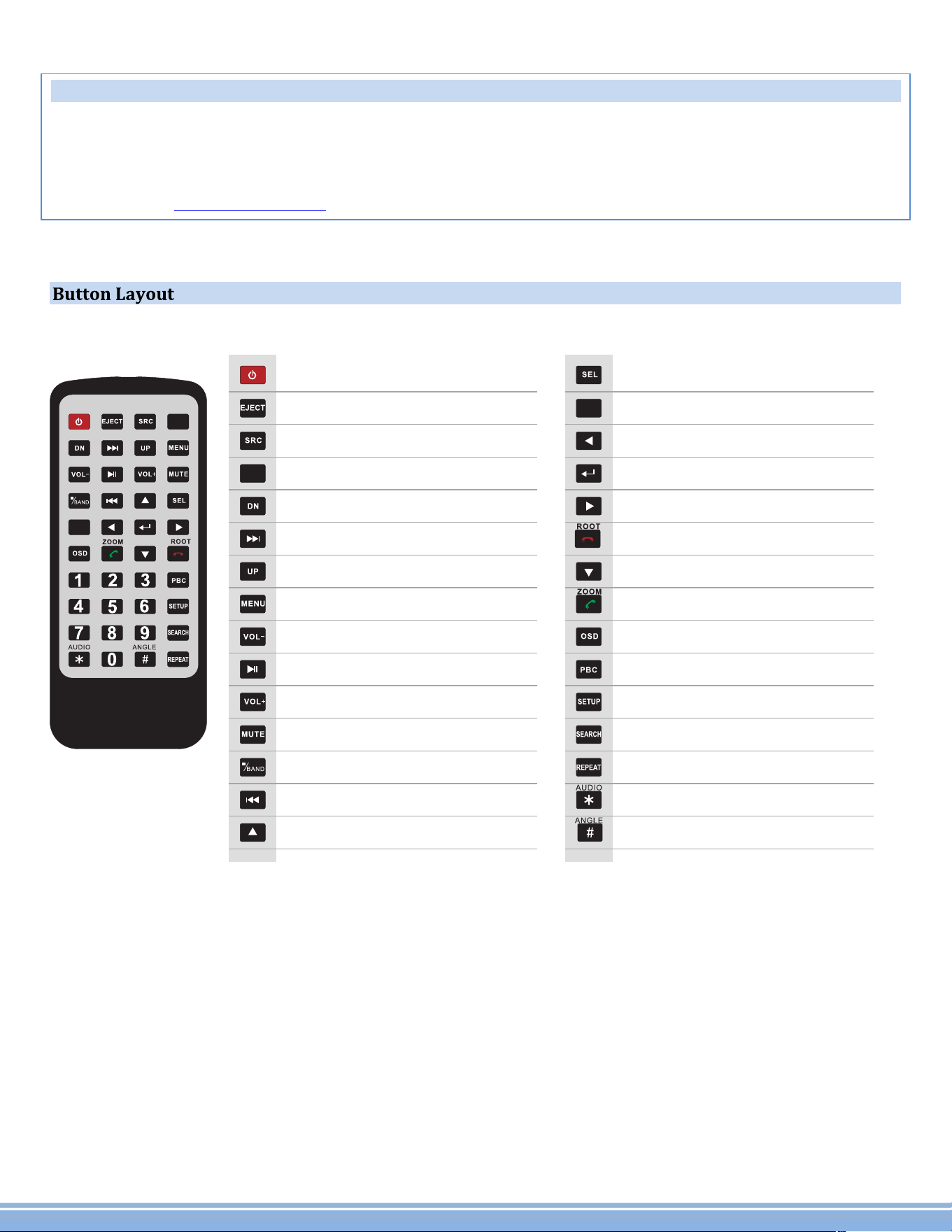
PowerON/OFF
OpenstheMotorizedUnit/EjectsCD
InputSourceSelection/AUX-in
HomeScreen/Menuinterface
Downward/MotorizedScreenTiltAdjustment
Next/HoldforFastForward(CD/DVD)
Upward/MotorizedScreenTiltAdjustment
MainMenu(CD/DVD)
Volume-
Play/Pause
Volume+
Mute
Stop(CD/DVD)/SwitchesAM/FM
Previous/HoldforRewind(CD/DVD)
Up(...toNavigateSelections)
AMS
Select(CD/DVD)
AMS-AutomaticSearch(RadioStations)
Left(...toNavigateSelections)
Enter/Conirm(...toNavigateSelections)
Right(...toNavigateSelections)
EndCall/HangUp(...inBluetoothInterface)
Down(...toNavigateSelections)
Call/DialNumber(...inBluetoothInterface)
FileInformation(CD/DVD-ifcompatible)
PlaylistKeyList(CD/DVD-ifcompatible)
Options/Settings
CD/DVDMenuControl
RepeatModes(CD/DVD-MediaPlayback)
Left/Right/StereoAudioSelection
CD/DVDAngleAdjustment(ifcompatible)
Remote Control
Factorybatteriesaresometimesdepletedfromextendedstoragetime.Replacethebatteriesiftheunit
doesnotrespondtotheremote.AlsonotethatPyleReceiverRemotesareuniversalandusedbetween
multipleradiomodels,whichmayormaynot,havesomebuttons/functionsthatdonotworkorprovide
otherfunctionalitywithyourreceiverheadunit.Ifsomefunctionsrespondyourremoteisnotdefective.
Contactpartsat .Goto“contactus”-“parts”ifyoubelieveyourremoteisdefective.www.PyleUSA.com
PyleUSA.com
3
PyleUSA.com
4
Mic Remote sensor
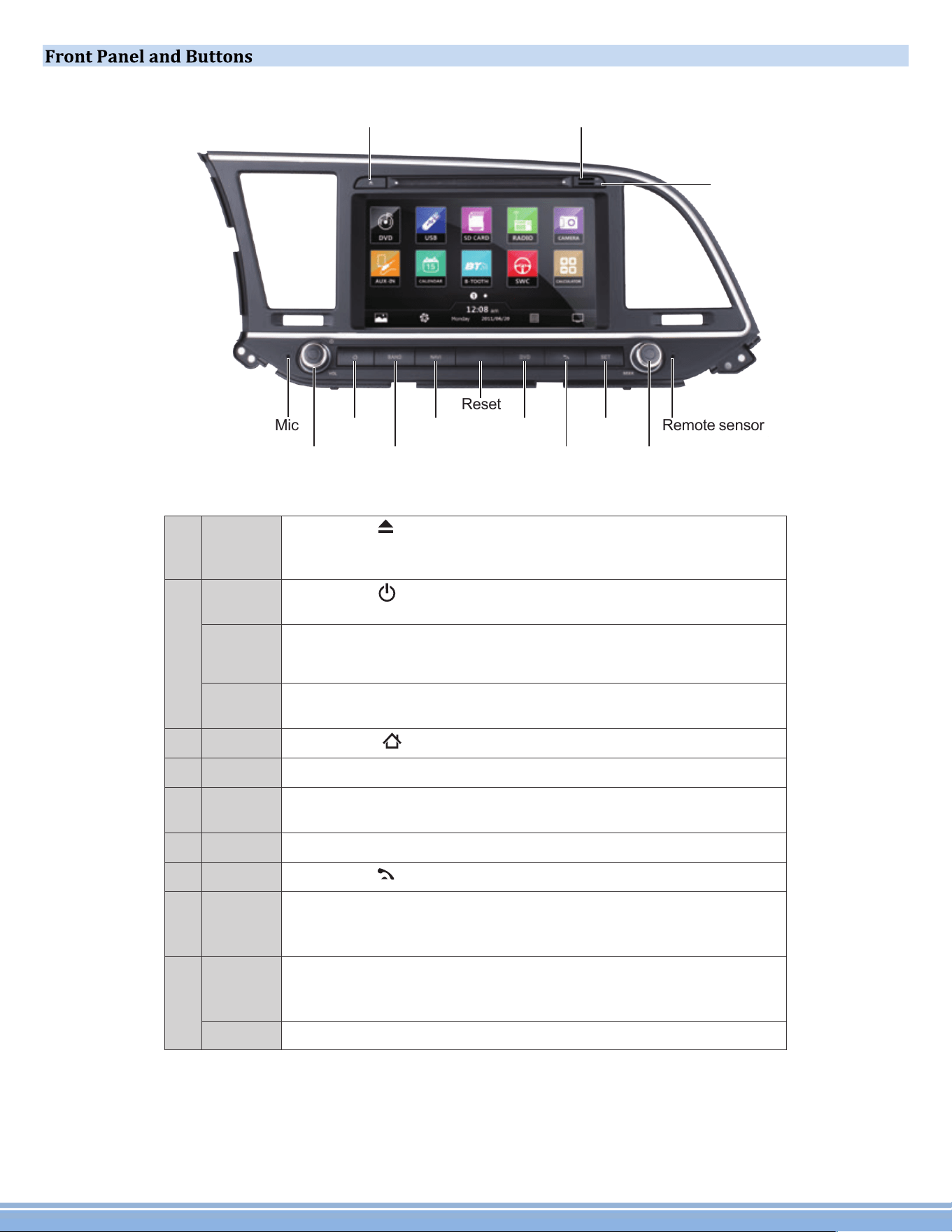
1. Eject
7. Bluetooth
Reset
GPS map card
socket
Media SD card
socket
2. Power/VOL/Mute
5. NAVI
4. Radio
3. Home 6. DVD
8. Setup
9. Seek/EQ
2
Power
Press the ' ' Button to turn the unit on when it is off.
Press and hold this button to turn the unit off when it is on.
Press the ' ' Button to return to home page.
3
Home
Press the ' MUTE ' Button once to mute audio output. Press it
again to restore audio output.
During media playback, rotate the VOL Knob clockwise to
Increase the volume, rotate it counter-clockwise to reduce
the volume.
VOL
Mute
1
Eject
Press 'SETUP' Button to set each function, like NAVI path
setting, time setting, background setting, etc. The default
password for settings(if required) is 0000.
8
Setup
9
During media playback,rotate the SEEK Knob clockwise to tum
to next program/title/song,rotate it counter-clockwise to tum to
previous program/title/song.
Seek
EQ
Press the 'EQ' Button to enter EQ setting.
Press the ' ' Button to eject any disc that is in the unit. If you
do not take out the ejected disc within 10 seconds, the unit will
reload the disc, but will not start to play it.
Press the 'BAND' Button to enter into Radio interface.
4
Radio
Press the 'NAVI' Button to enter GPS Navigation mode. Press
it again to return to the previous screen.
5
NAVI
Press the 'DVD' Button to enter DVD play mode.
6
DVD
7
Bluetooth
Press the '' Button to enter Bluetooth interface.
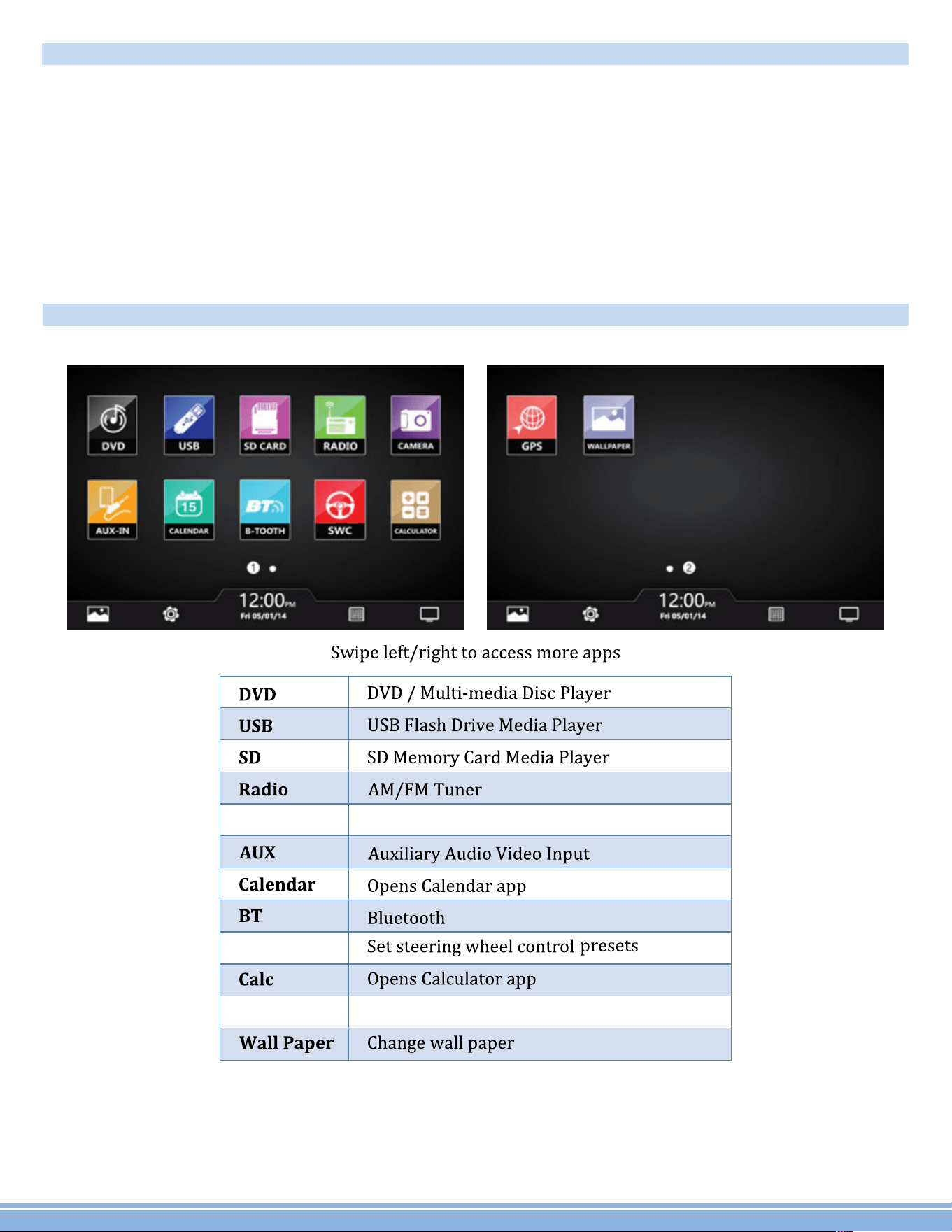
Camera
SWC
GPS
GPSnavigation
Rearviewimage
*PleaseNote:GPS-NavigationandCD/DVDoptionsandapplicationsmayonlybefoundinselectheadunit
receiverstereosystems,whichincludethese,andother,additional/specialfeatures--notallPylestereo
modelscomeequippedwithGPSNavigationand/orCD/DVDplayers.
Visit formoredetailedinformationandmoreproductspeciicinformation.www.PyleUSA.com
PyleUSA.com
5
Turning Power On
1) Turnontheenginekeytothe“ACC”or“ON”position
2) Pressandholdthepowerbuttonfor3seconds
-Whentheenginekeyisturnedtotheoffpositiontheunitisturnedoff
StatusBar(Alongtopofradioscreenandappscreen)
1) HomeIcon–Switchbetween“appscreen”and“radiointerface”
2) MoonandstarIcon–Turnoffdisplay(Awakenbytappingscreen)
3) Timedisplay
4) Currentvolumesetting
5) Mediastatusicons(Illuminatetoshowmediaisavailable)
AppScreen-InterfaceLayout
Aflashingappinthisscreenindicatesthatitisacurrentlyselectedsource.
1
PyleUSA.com
6
Settings
1)Scrolling
Usetheredbartoscrollthroughthelistofallavailableoptions.
2)Turnon/off
Manysettingscanbetoggledonoroffinthisscreen
*Note:Factorysetupisnotadjustablebyuser.Donotattempttoenterthissetupmenu.
Set Time
1)TimeOptions
YoucanselectusingGPStoprovidepositioningtimeorusingnetwork-providedtime.
2)DateandTime
Usetheupanddownarrowstosetthedateandtimeaccordingly.
3)Selecttimezoneaccordingly.
Sound
1)Fade/Balance
Holdanddragleft,rightupordowntocontrolthefadeandbalanceofyouraudiooutput.
Aux
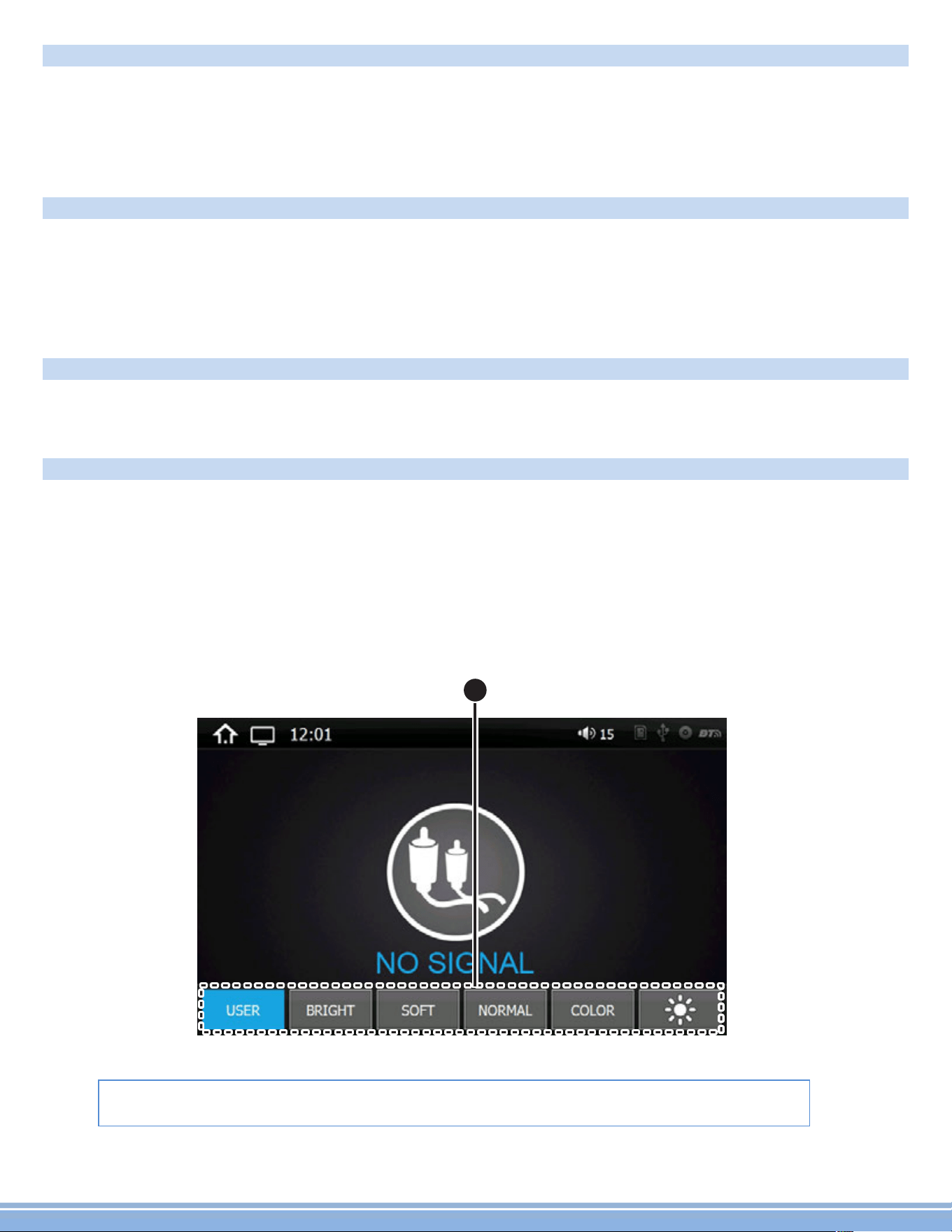
Auxiliary input(rear RCA jacks) allow audio and videofrom external devices to be displayed or played
throughtheunit.Auxiliaryoutput(rearRCAjacks)allowaudioandvideotobesentouttoexternaldevices.
1)Customization–Usethesettingstoadjustandoptimizethedisplayquality.
Note:auxiliaryappwilldisplay“NoSignal”ifnovideosignalisconnected.Screencontrolswillnot
becomeactiveuntilexternalvideosignalisdetected.
*TheParkingbrakewillneedtobewiredtoagroundingtriggertoallowvideopass
throughorawarningmessagewillappearsayingwarningvideodisabledwhiledriving.
1
2
1
2
PyleUSA.com
7
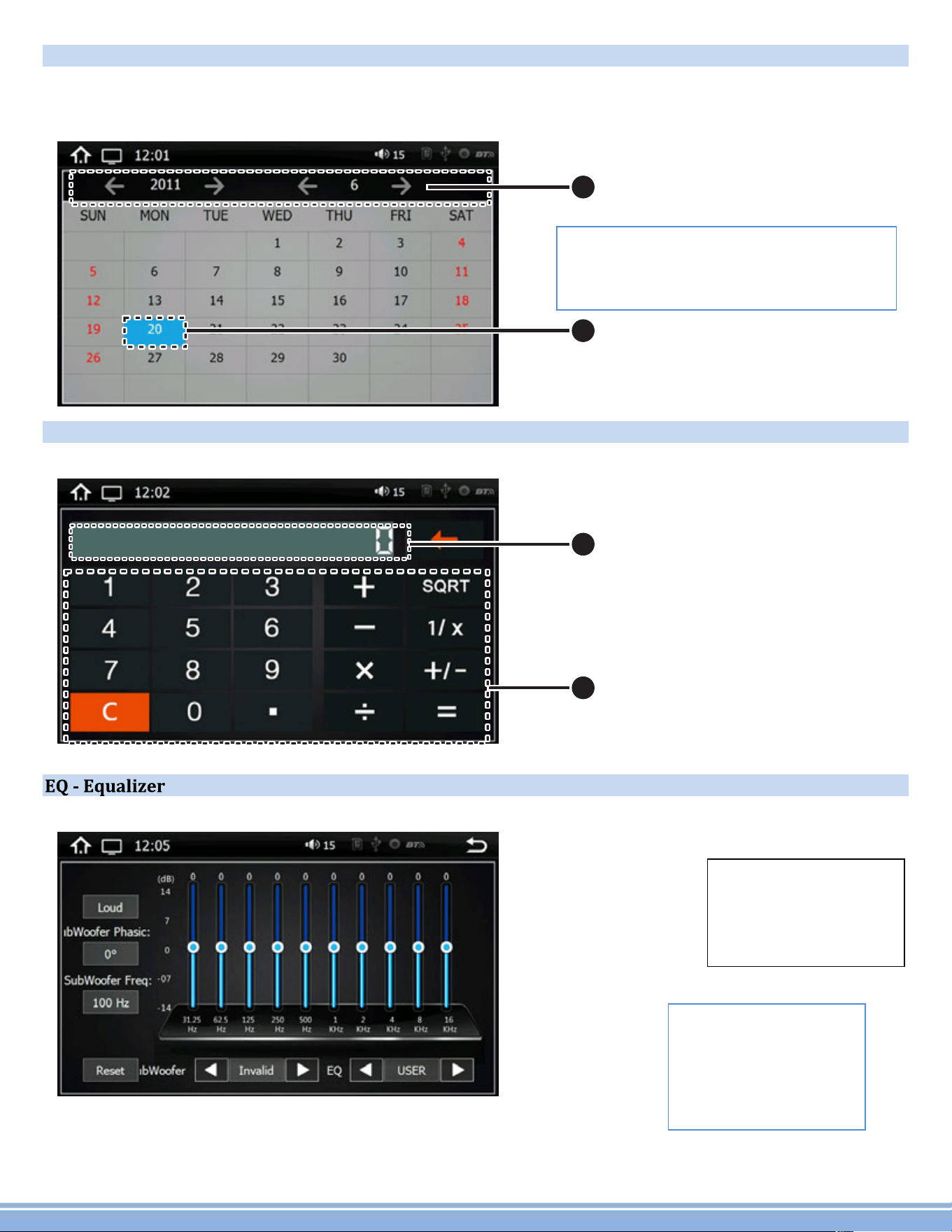
Calendar
Displaystheday,monthandyear.
Useforwardandbackarrowstheviewpastorfuturemonths.
Selecteddatesarehighlightedinblue
Note: Calendar does not allow entry of
appointments.Datemustbesetwithin
systemsettings
Calculator
Ahandylittleappforsimplecalculations
Presets
Selectoneto
automaticallyadjust
theequalizer
Adjustments
Holdanddragupor
downtomanually
adjusttheEQbyeach
frequencyband
1
2
3
PyleUSA.com
8
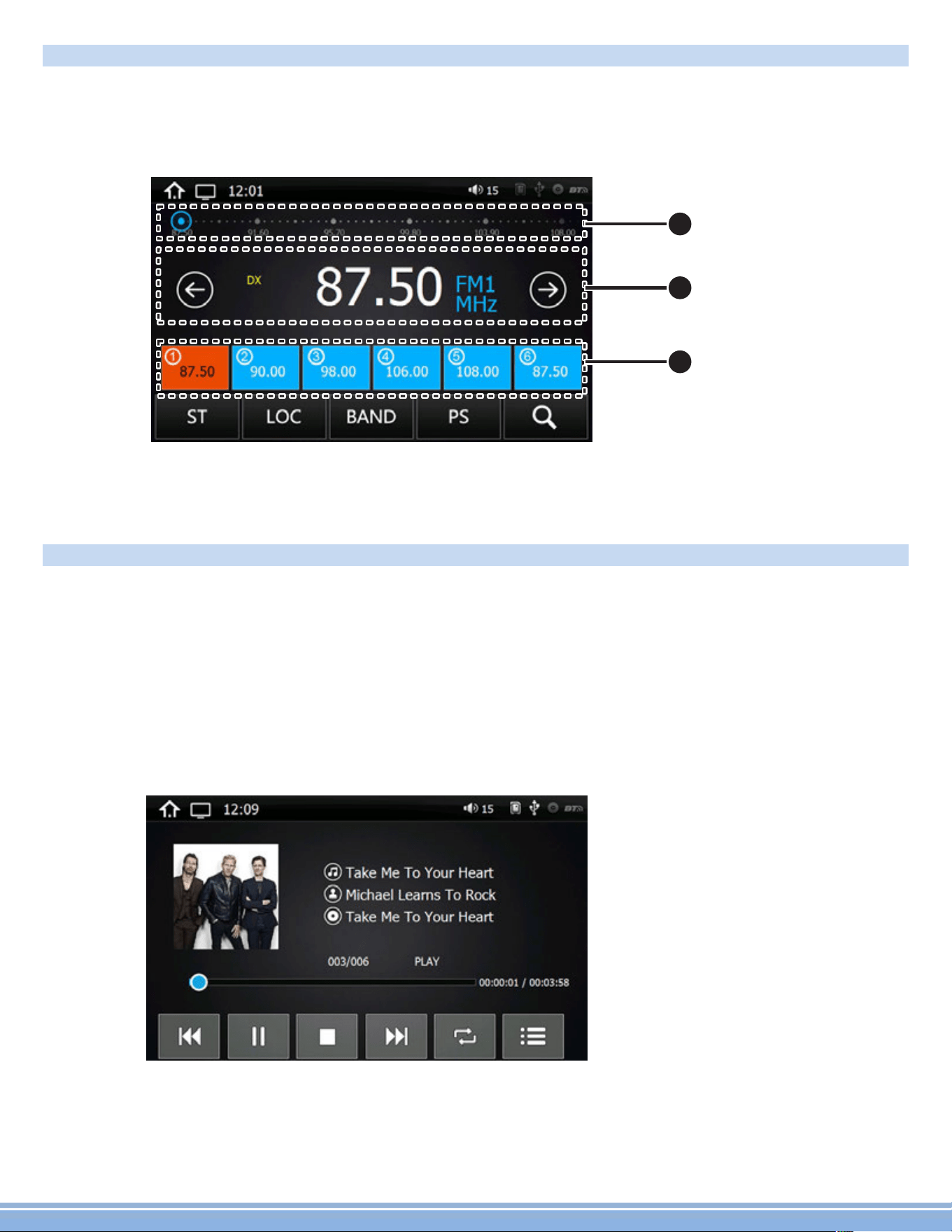
Radio
1)Scanning:Press,hold,anddragtheslidertoquicklytunetheradio.
2)CurrentStation:Thecurrentlyselectedstationwillbedisplayedinthecenter.
Presstheforwardandbackarrowstochangethecurrentstation.
3)FavoriteStations:Pressandholdoneofthesixpresetslotstosetandsaveaselectionforlater.
SD - Flash Memory File Browsing
Warning:Donotattempttobrowseileswhileoperatingthevehicle
1)BrowsingFiles
Filelocationisdisplayed.
Use“BackArrow”toreturntothepreviousfolder
2)SelectingFiles
Theilesandfoldersofyourstoragemediaaredisplayed.
Oncethedesiredfolderislocated,selectitandpress“checkicon”toopen
PyleUSA.com
9
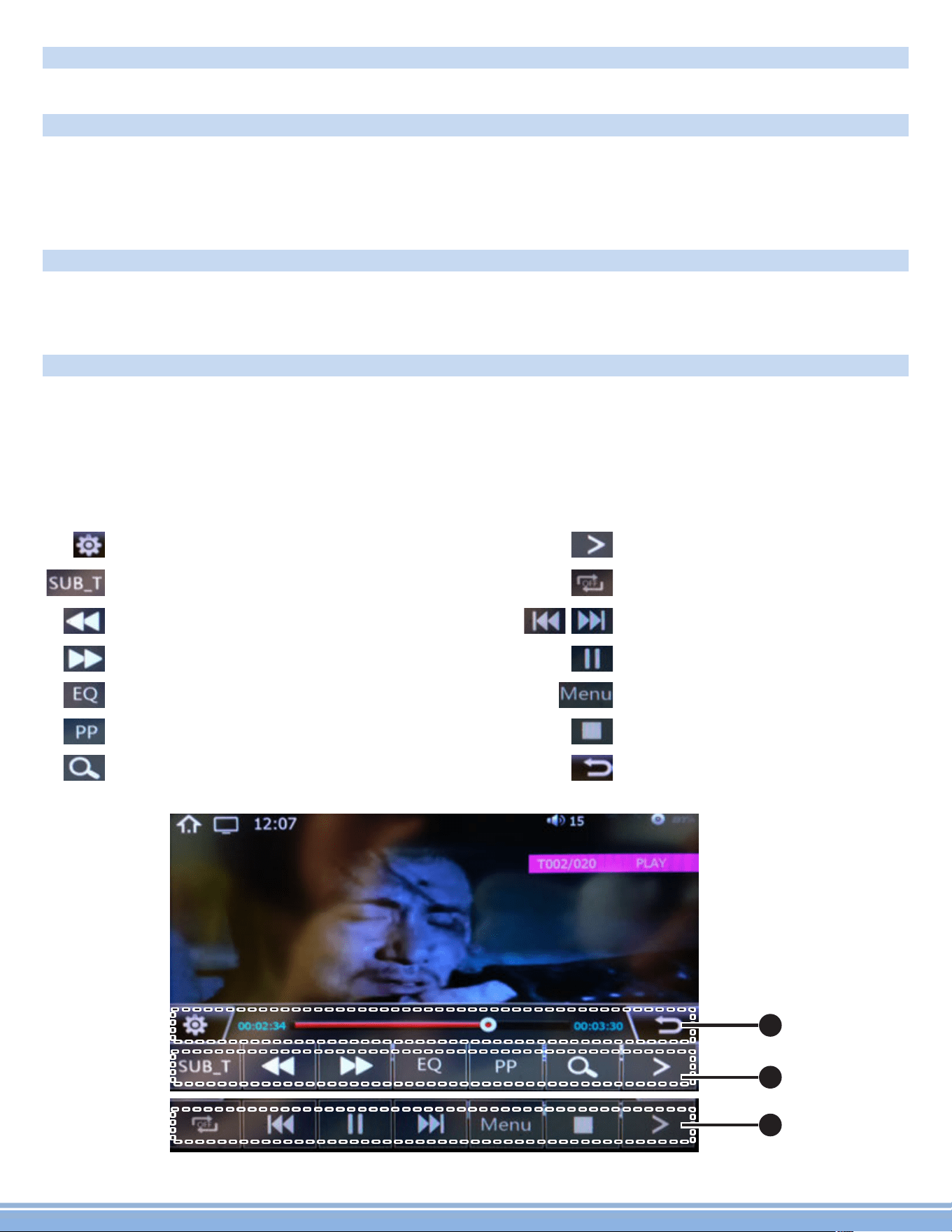
Repeaton/off.
SkipthroughtheDVDchapters.
StoptheDVD
Submenu
Play/Pause
Return
GotothenextpageofDVDmenuoptions.
FastBackward
FastForward
Turnsubtitleson/off
Setting
Pressthe'EQ'ButtontoenterEQsetting.
Pictureprocessorchangesthedisplayfromdimtobright.
Zoomtomakethepicturebiggerorsmaller.
1
2
2
USB - Flash Memory File Browsing
Pluginlashdrivestoaccessmusicvideoandphotos.
Video
1)Brightness,Contrast,Hue
Press,holdanddragtoadjustthebrightness,contrastandhueofthedisplay.
2)Presets
Selecttoautomaticallyadjustthedisplaysettings.
Wall Paper
Note:WallpaperscanbeimportedfromalashdriveorSDcard.Checkformatsheetonlineforspecsonformats.
1)Browse-Useleftandrightarrowstoselectthedesiredwallpaper
2)Select-PressOKtoselectthewallpaper
DVD
DVDappwillonlyopenifacompatibleDVDdiscisdetected.
1)Scrubbing
PressanddragalongthetimelinetoquicklyskipthroughDVDtimesline.
(Note:DVDformattingdoesnotallowscrubbingthroughpreviewsandwarnings)
2)Menuoptions&controls:
BT
PyleUSA.com
10
Bluetooth
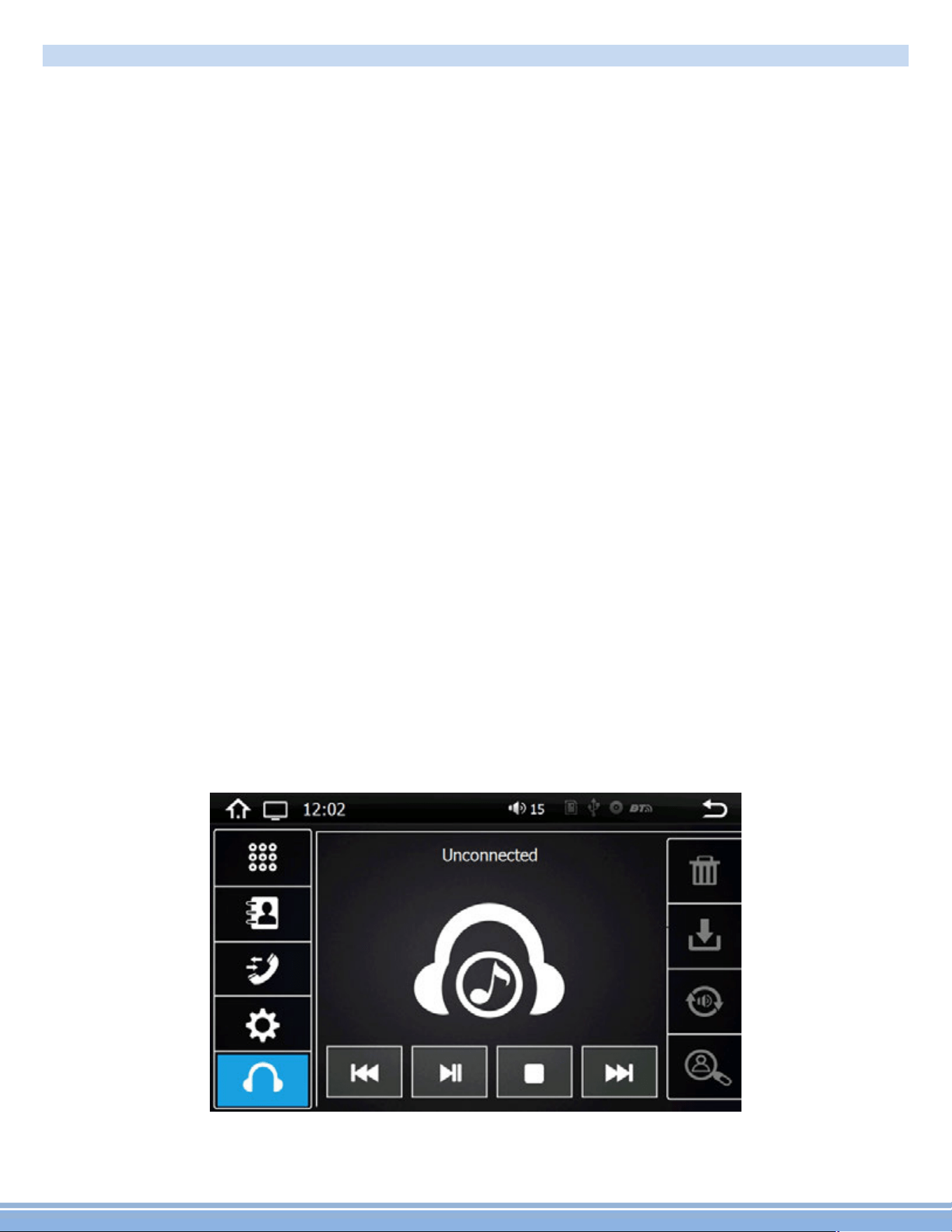
BluetoothappallowsBluetoothpairingwithcompatibledevicesformakingcallsandmusicplayback.To
pairyourphone,ensureBluetoothisenabledinyourphone’ssystemsettingsandthatyouaredisconnected
fromallotherdevices.
IntheBluetoothappofyourradio,pressthe“Gear”iconintheleftcolumntoaccessBluetoothsettings.Next,
pressthe“Magnifyingglass”icontosettheradiointopairmode.Theradiowillthendisplay“searching”and
showallnearbycompatibleBluetoothdevices:
-Selectyourphonefromthelist,andtapasecondtimetoinitiatepairing.
-Yourphoneshouldnowdisplayapinpadwhereyouwillenter“0000”
-Checkthatdevicenamed“CAR_KITT”showsasconnectedonyourphone.
Note:Onceyourphoneispaired,youcanusetheotherfunctionswithintheradio’sBluetoothapp.
Lefthandcolumn:
-Selectthe“Keypad”icontodialoutusingtheradio’snumberpad
-Selectthe“addressbook”icontodisplayyourphone’scontactlist.Youwillneedtoimportyour
contactlistusingthe“download”iconlocatedintherightcolumnoftheBluetoothapp.
-Selectthe“phone”icontoseealogofincomingandoutgoingcalls
-Selectthe“gear”iconforphonepairingandselectionoptions
-Selectthe“headphones”iconformusicplaybackcontrols
Righthandcolumn:
-“Trash”deletecurrentlyselectedentry
-“Download”Usetodownloadcontactdatatoaddressbook
-“Speakerselection”Switchbetweencarspeaker/micandphonespeaker/mic

Q:HowtoIsetthetime?
A:Systemsetting,settime
Trouble Shooting
Q:Unitdoesn’tpowerup
A:Useamulti-metertocheckfor12v+toredandyellowwires.CheckforproperGroundontheBlackwire.
Q:Myvideodoesnotplay
A:Attach“PARK”wiretoparkingbreak.Whenthiswireisgroundedthevideowillplay(Groundingtriggeroftheparkingbrake)
Q:Reversecameradoesnotcomeuponthescreen
A:Attach“BACKUPCAMERA”wiretoreversetaillight12v+(Makesurecameraisandsendingvideosignal)
Q:CanIsetupsteeringwheelcontrol?
A:Key1andKey2wiresneedtobewiredtoyourvehicle’ssteeringwheelcolumn
Q:ThetimeIsetisnotsavedafterdevicereboot
A:Areothersettingsaved?Ifnot:Checkthatyellowmemorywireisattachedto12v+constant
A:turnoffGPSautoupdate
-Gotoradiosettings>SetTime>switchoffautoupdate
Q:MyGPSgetsnoreception.
A:Checkantennaisconnectedproperly
A:MountAntennadirectlytoyourvehicle(GPSantennaistobemagneticallymounted,itwillboostGPSreceptionwhenattached)
A:Checkalternateantennaplacementtotestforinterference
Q:HowdoIturnupGPSinstructionvolume(ICan’thearitovermusic)
A:ChangeGPSsoundsettings
GotoNavi>Settings>Sounds>SetGPSvoiceleveltomax>Setradiovolumetomin(Adjustaccordingly)
Q:HowdoIupdatemymapcard.
A:Theradiowillnotifyyouwhenamapupdatebecomesavailable.Wewillneedtosendoutanewmapcardfromourparts
department.Logonto andopenapartsticketunder“contactus”requestingthemapupdate.www.PyleUSA.com
Q:WherecanIdownloadirmwareupdates?
A:www.pyleaudio.com,www.pyleusa.com
PyleUSA.com
11

Trouble Shooting
Q:HowdoIuse/set-upRDS?
A:(*TraficandweatherfeatureonlyavailableinEurope)
Q:MyBluetoothmicrophoneisnotworkingasexpected
A:-Checkthatnothingiscoveringmicrophoneport.
-Checktoseeifcloserproximitytothemicaffectsitspickup
-Checkthatphoneconnectionisgood
-Makesurethecallrecipienthasspeakervolumesettoanappropriatelevel
-Checkthatthemicisnotpickinguptoomuchbackgroundnoise
Note:Thebuilt-inmiccannotbechanged,replacedorupgraded.
Q:IamhavingtroublesettingupBluetooth
A:CheckthatyourdeviceisBluetoothcompatible4.0+
-CheckifyouareabletopairwithalternatedevicesviaBluetooth
-ClearoutyourdevicehistoryinyourBluetoothsettingmenuandattempttopair/connectagain
Q:MyMapcardnolongerloads(COCKPITERRORDISPLAYED)
A:Thisiscausedbybuginmapsoftware.PleasecontactTechSupport:Pyle, gotothe“contactus”page.www.PyleUSA.com
A:Youmaybeabletoixthesoftwareonyourown
-InsertGPScardintocomputer
-OpentextileunderPrimo\save\proiles\01\system.ini
-Edittheiletoreturnthecockpittypeto“1”
*Deletingtheproilefolderwilldefaulttheunit'ssettingsbacktocockpitnumber1
Q:HowdoIplayvideoiles?Myunitcannotreadmydigitalvideoiles.
A:MakesureSDcardiscompatible
A:Checkileformatofyourile(Youmayneedtoconvertyourvideoiletoanalternateileformat)
Q:Myunitshows5circlesandwillnotload
A:Yourunitrequirestouchscreencalibration.
Youhaveenteredthe'TouchScreenCalibrationMenu'.Foroptimumtouchscreenperformance,thisfeatureenablesyoutoenjoy
thebestfunctionalityofyourdevice'stouchscreen.Tocompletethetouchscreencalibration,an"X"willappearinthecircleson
thescreeninnumberedorder,continuetopressthecenterofthe"X"asitpassesthrougheachnumberedcircle.
(Incirclenumberone,youwillseean"X",touchthecenterofthe"X",thenthe"X"willmovetocirclenumbertwo.Continuetotouch
thecenterofthe"X"asitwillmovetotheothercirclesinnumberedorder.Ifcalibrationsensesanerror,theprocessmayrestart;
Repeatifnecessary.)
PyleUSA.com
12
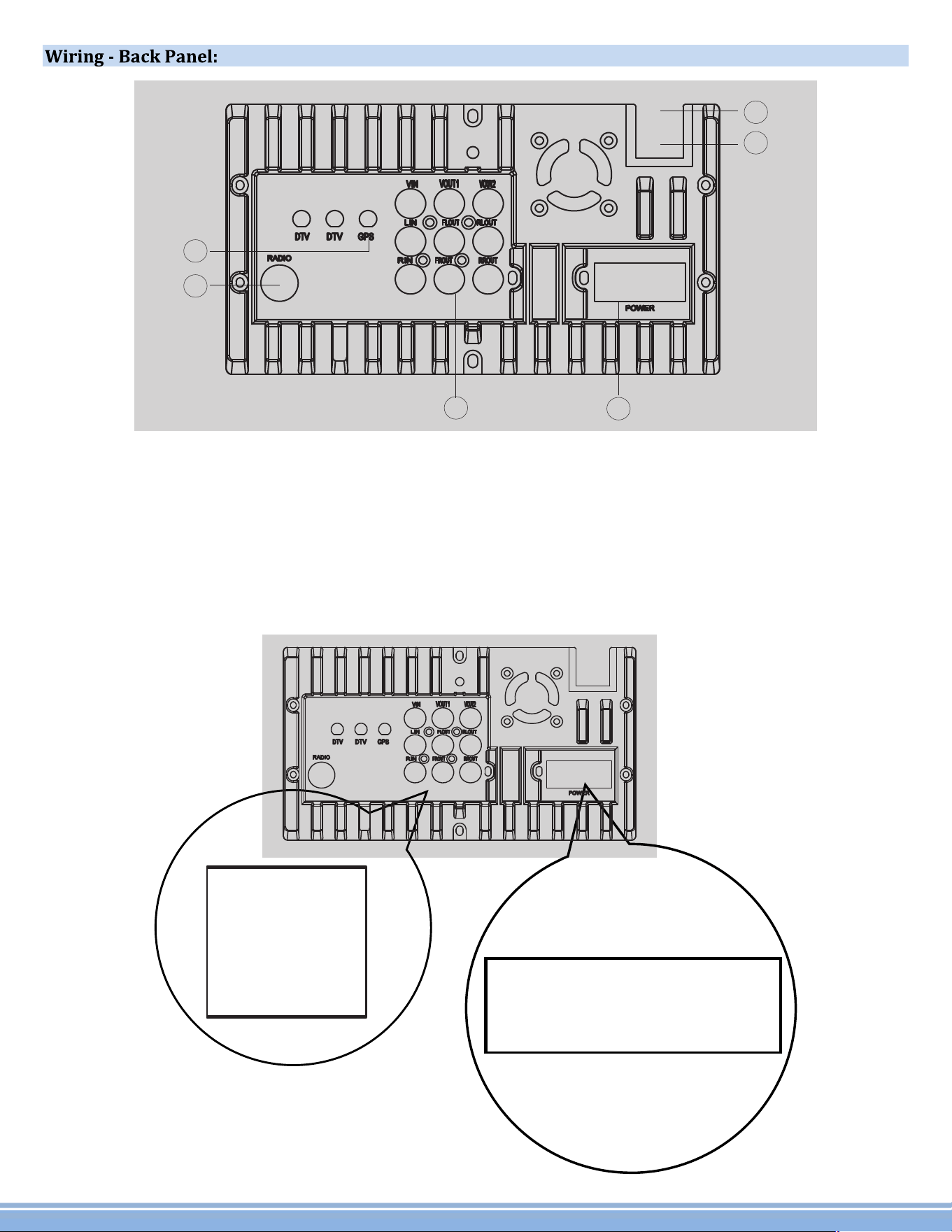
1
3
2
4
5
6
A1 A2 A3
A4 A5 A6
A7 A8 A9
B1 B2 B3 B4 B5 B6 B7 B8 B9 B10 B11 B12 B13
B14 B15 B16 B17 B18 B19 B20 B21 B22 B23 B24
1.ForGPSantenna
2.Forradioantenna
3.RCAout
4.Forpower/speakercable
5.ForUSB
6.Subwooferoutput
PyleUSA.com
13
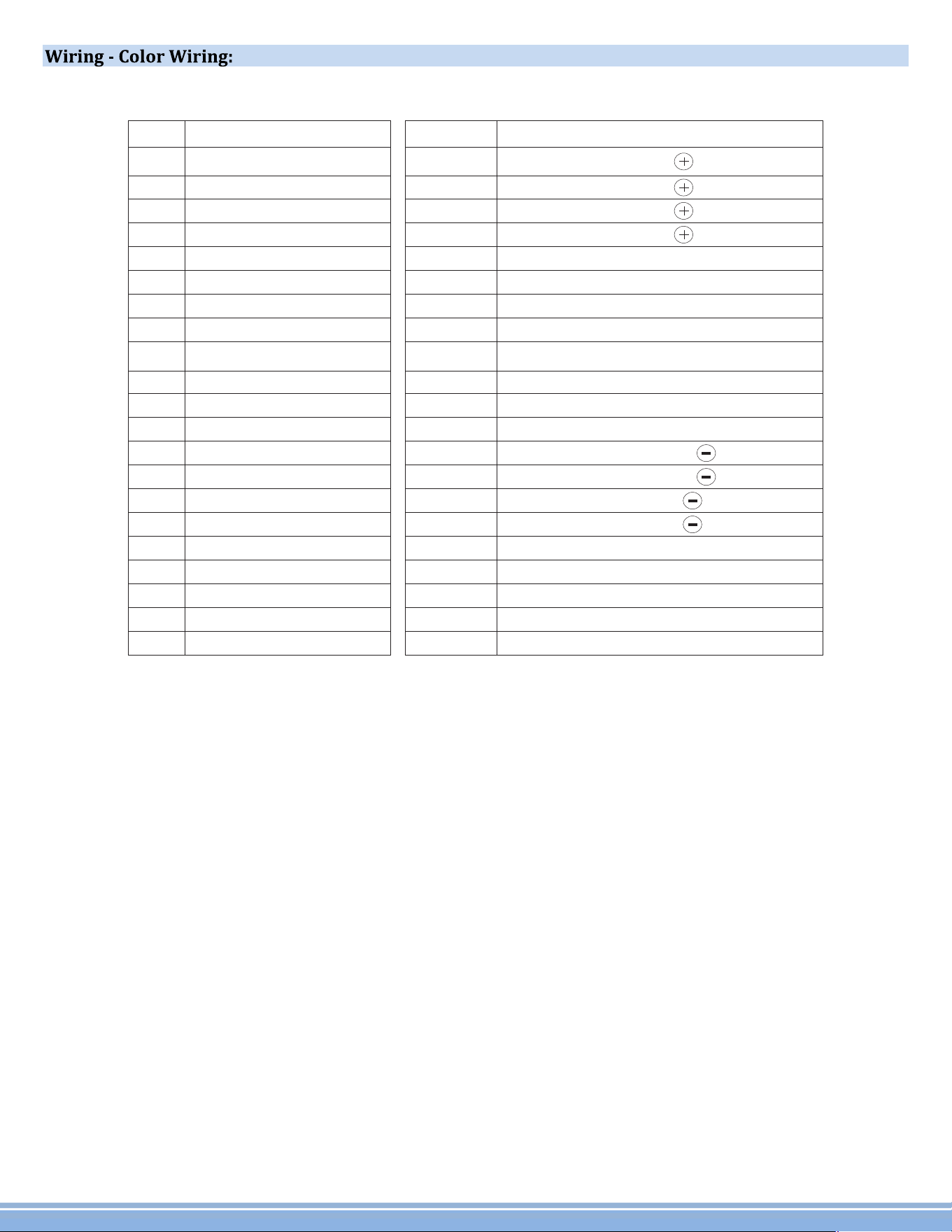
B1
B2
B3
B4
B5/B17
B6
B7
B8
No. Definition
SPEAKERFrontR
SPEAKERFrontL
SPEAKERRearL
SPEAKERRearR
CAMERASignalInput(YellowRCA)
SWKey1(GREEN)
AMPCtrl(Blue)
ILLUMI(Orange)
No. Definition
A1
A2
A3
A4
A5
A6
A7
A8
A9
VIDEOInput
VIDEOOut1
VIDEOOut2
LEFTAudioInput
FLAudioOutput
RLAudioOutput
RIGHTAudioInput
FRAudioOutput
RRAudioOutput
B9
B10/B22
B11/B23
B12
B13
B14
B15
B16
B18
B19
B20
B21
B24
ACC(Red)
B-/GND(Black)
POWERB+(Yellow)
CANBUSTXD/IR(Orange)
SPEAKERFRONTR
SPEAKERFRONTL
SPEAKERREARL
SPEAKERREARR
SWKey2
ANTCtrlCable(Blue)
PARKING(Pink)
BACK(Coffee)
CANBUSRXD/IR(Coffee)
PyleUSA.com
14