P.Q.Oanh
DM.Kim
44
145
145
210
<< NOTES >>
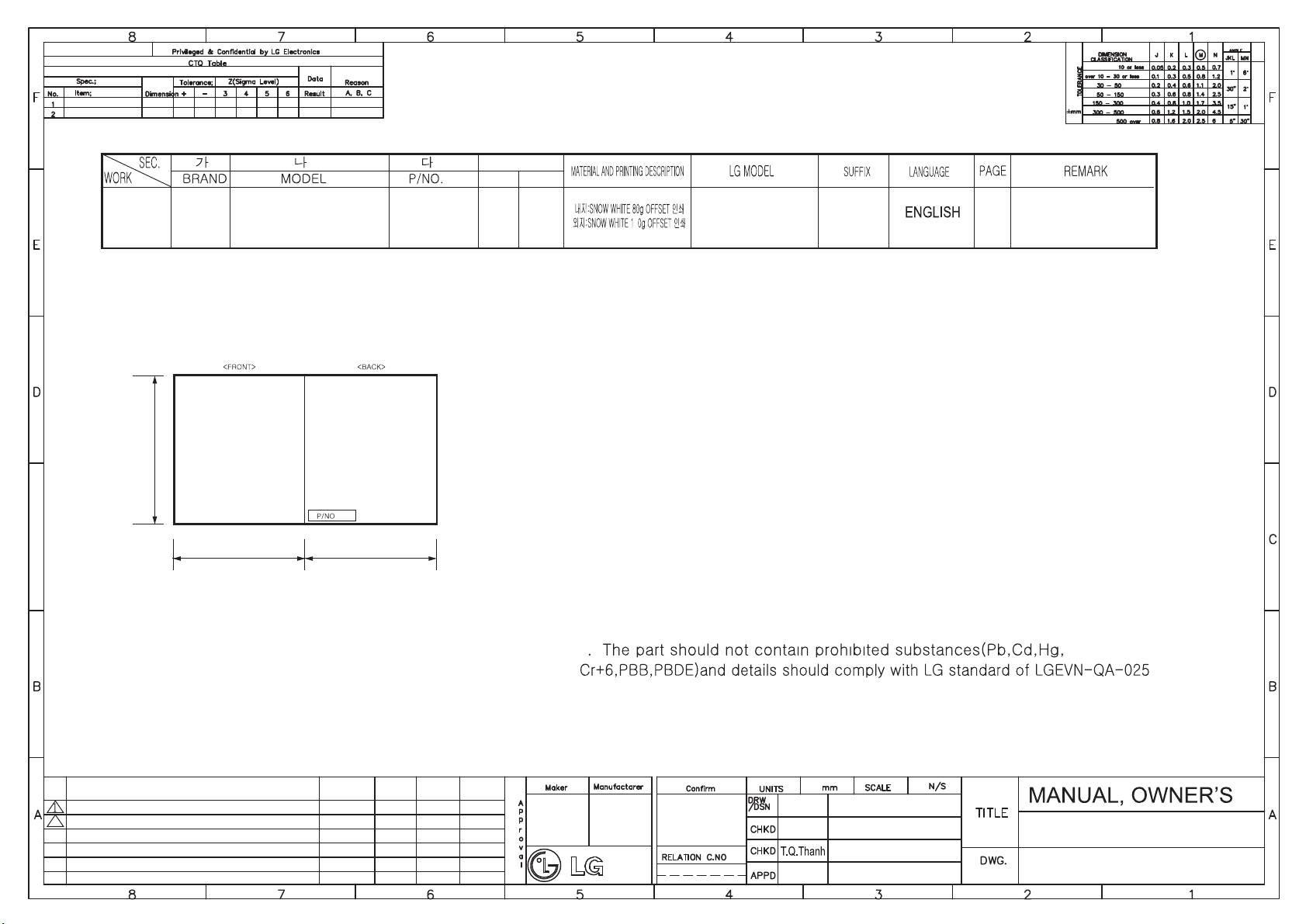
1. Material : Printing and exterier size are refer to work tables
2. Print work
1) G/S(LG) BRAND(FIG1) : * Cover - First color : LG Red Pantone #207
- Second color : LG GRAY PANTONE #430
* Inside - First color : Black
3. Printing, text size and line are based on LG designg film.
4. Size will Follow the standard.
5. Before product controlled by criteria sample.
6. Standard of supervision for hazardous material
:
2) OEM BRAND(FIG2) : * Cover - First color : Black
* Inside - First color : Black
EXTERIER INTERIER
PRINTING DEGREE
1
1
SAPIENCE BEST AUSTRALIA
MFL69824601
01
LG
MFL69824601
SAPIENCE BEST
AUSTRALIA
4
T1742WGPSV.ABWREAP
ABWREAP
ASSREAP
T1742WGPSV5.ASSREAP
MFL69824601
D.K.Hung
Revise content of page 2 & 27
EDXH200073 20170211 P.Q.Oanh DM.Kim
ECO No. Date Prepared ApprovedREVISION CONTENTSYM.
T1742WGPSV
T1742WGPSV5
Revise content of page 41
2
EDXH300070 20170307 P.Q.Oanh DM.Kim
ver.070317.02

C ont en t s
3
Introduction
Before
Starting to
Wash
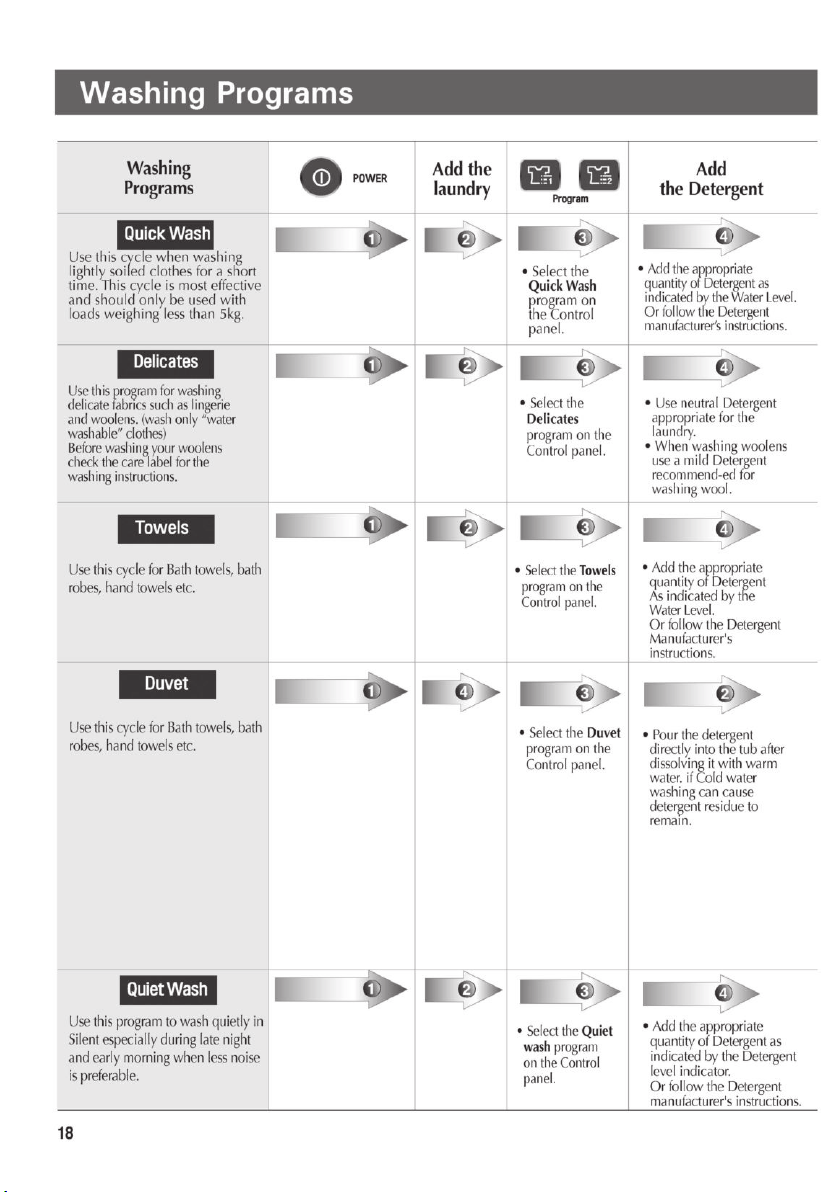
Washing Programs
Installation
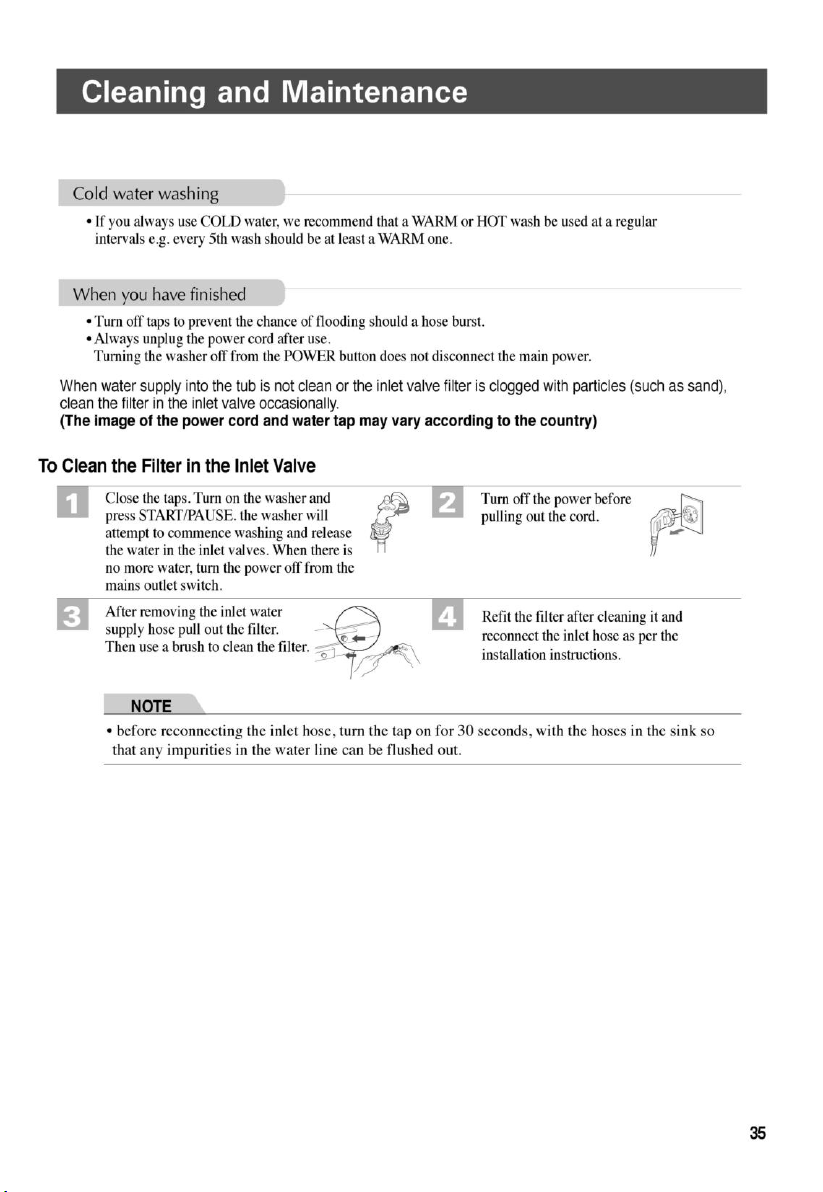
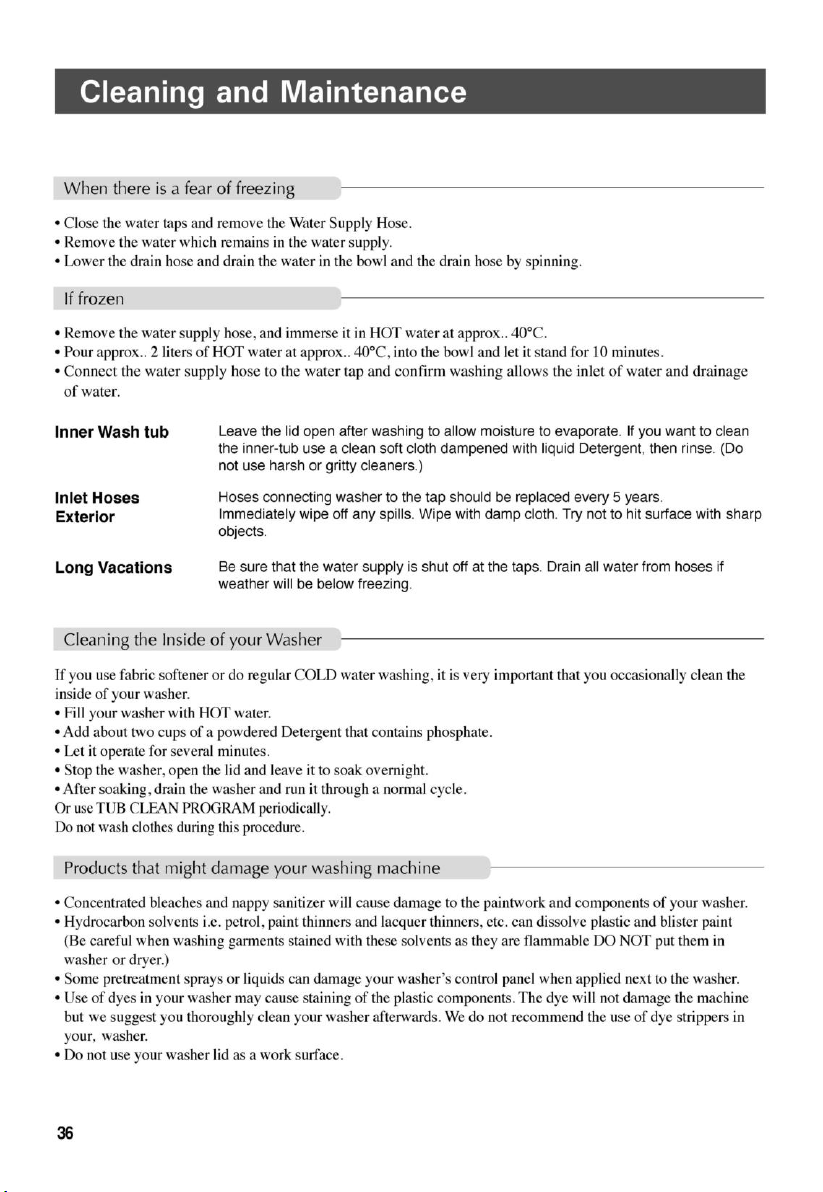
Care and Maintenance
Troubleshooting
Specification
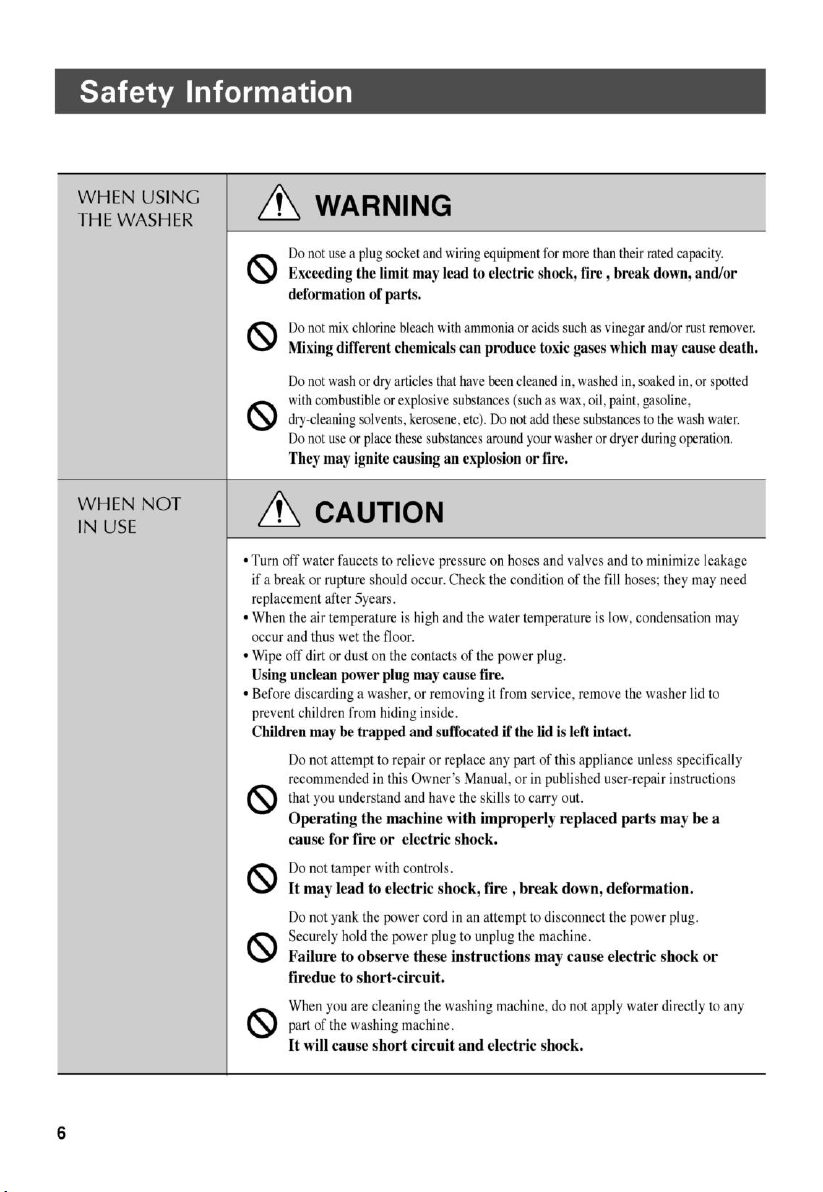
Safety Information 4
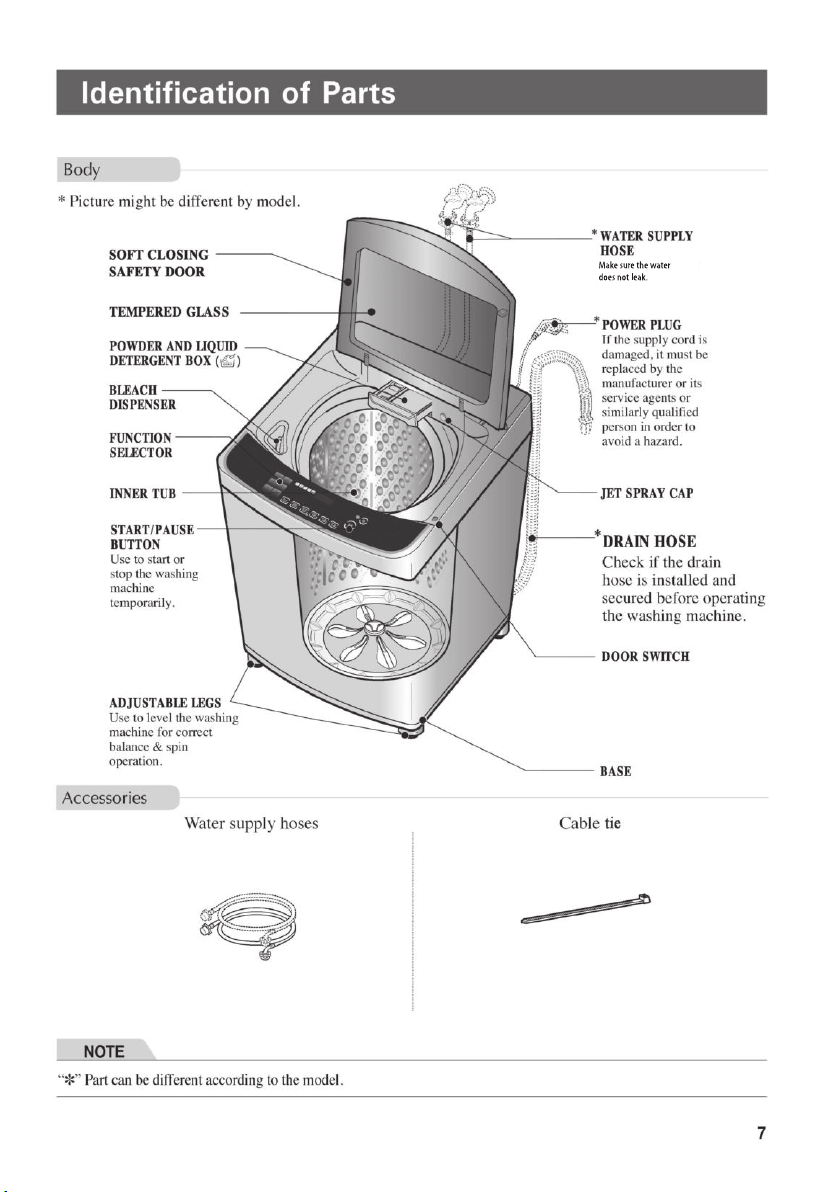
Identification of Parts 7
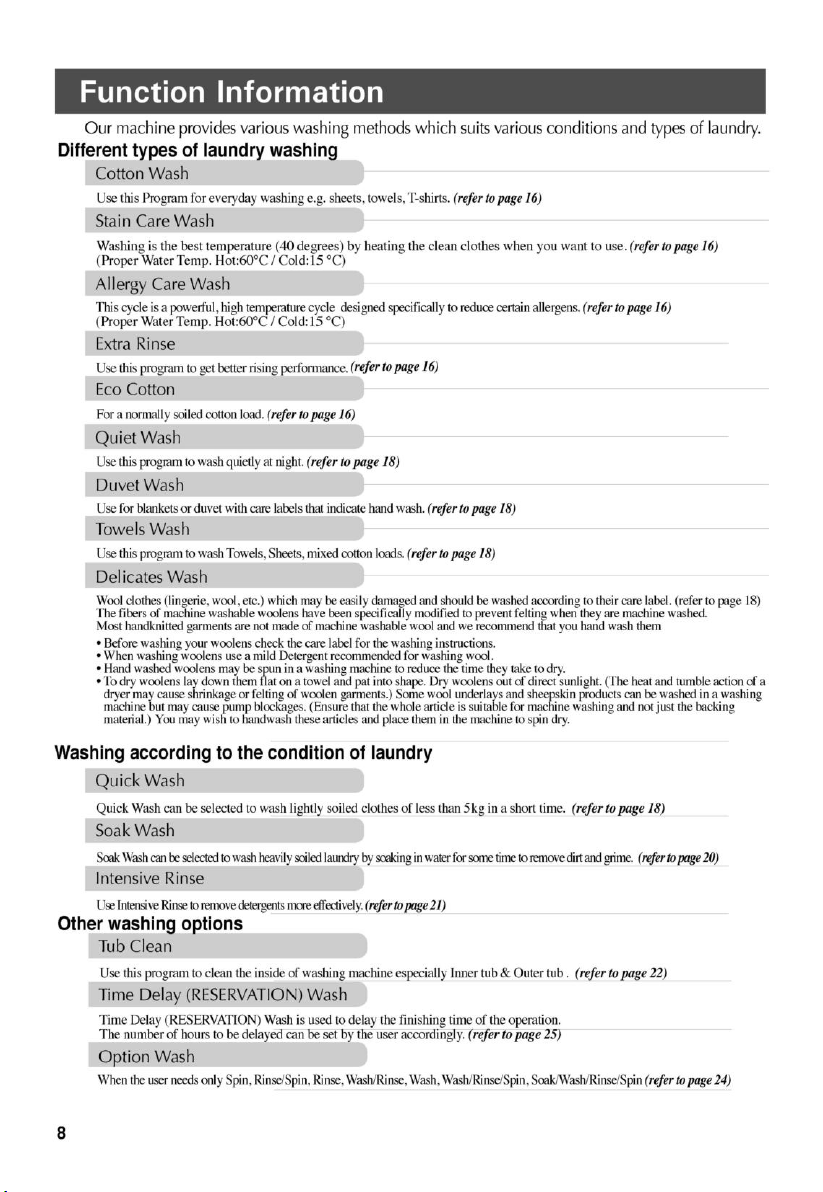
Function Information 8
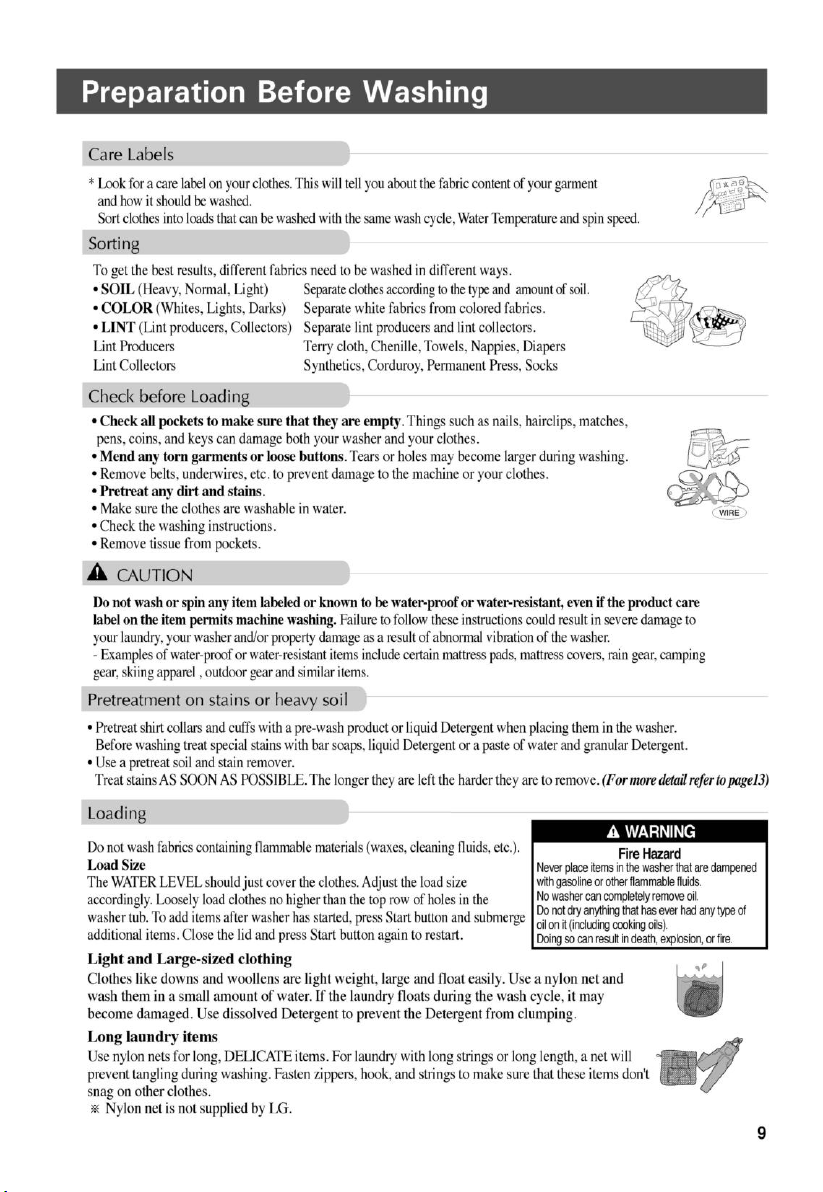
Preparation Before W ashing 9
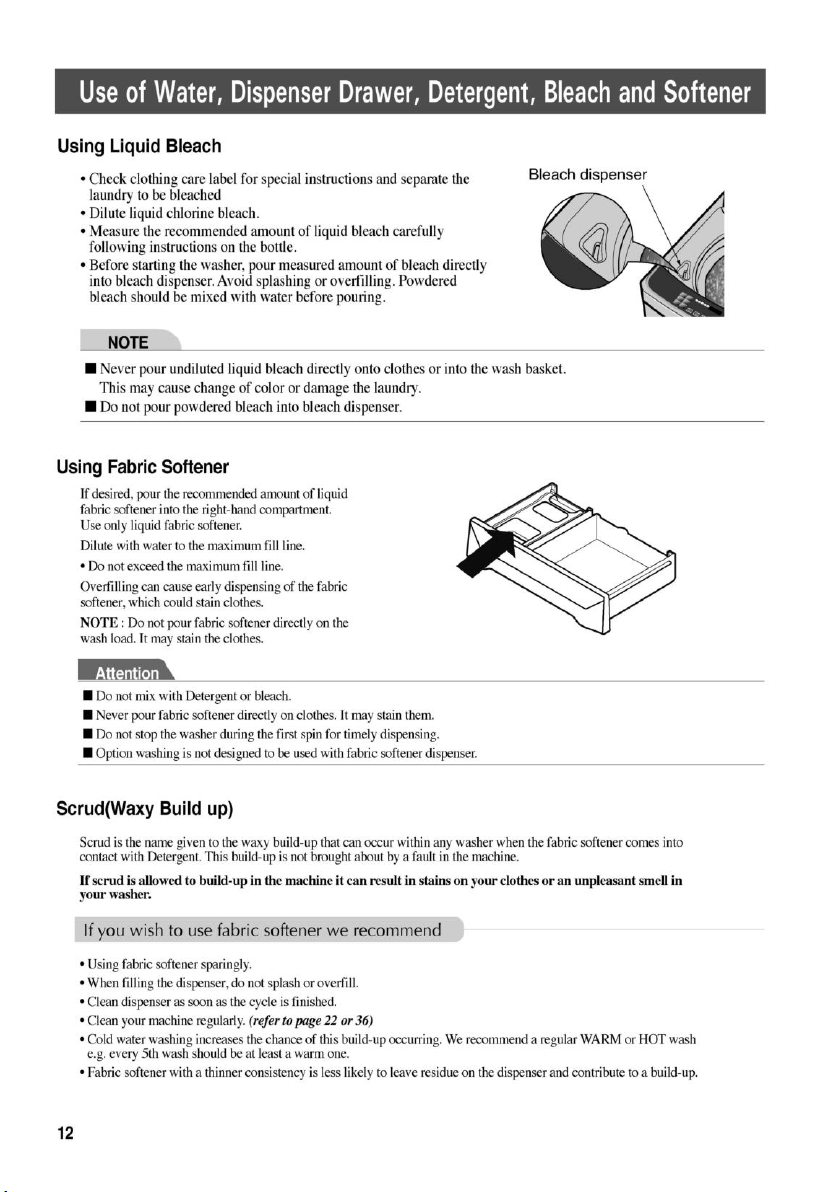
U se of W ater, D ispenser D rawer, D etergent, Bleach and Softener
10
Special G uide for Stain Removal 13
Function of each Button 14
16
Stain Care W ash 16
Allergy Care W ash 16
Rinse 16
16
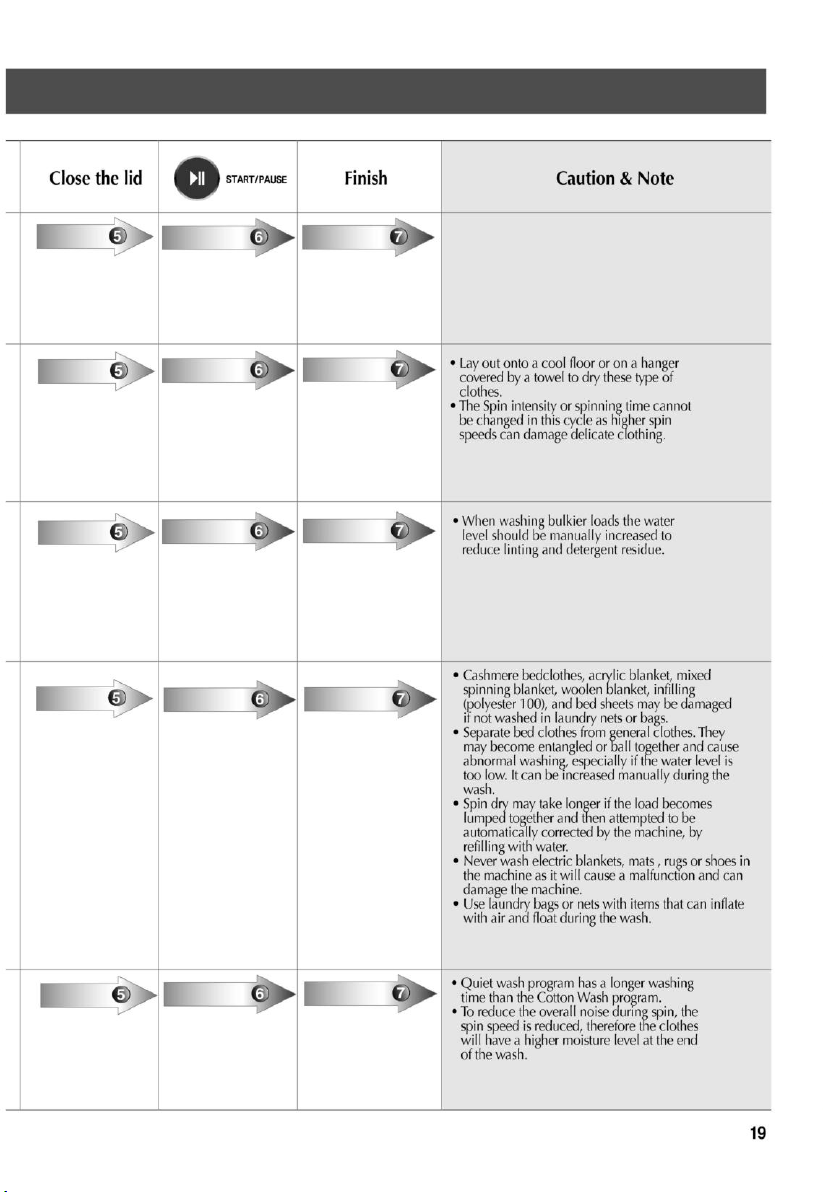
Q uick W ash 18
Delicates W ash 18
W ash 18
Duvet W ash 18
18
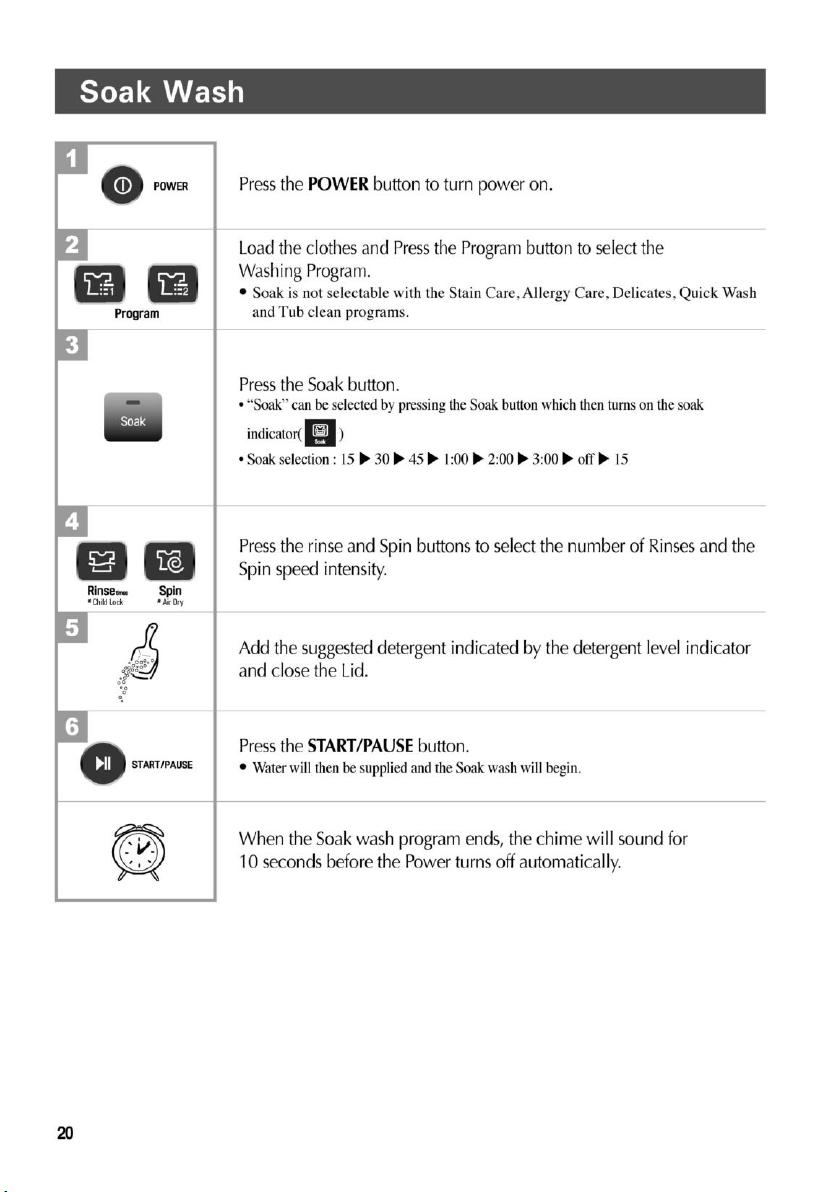
Soak W ash 20
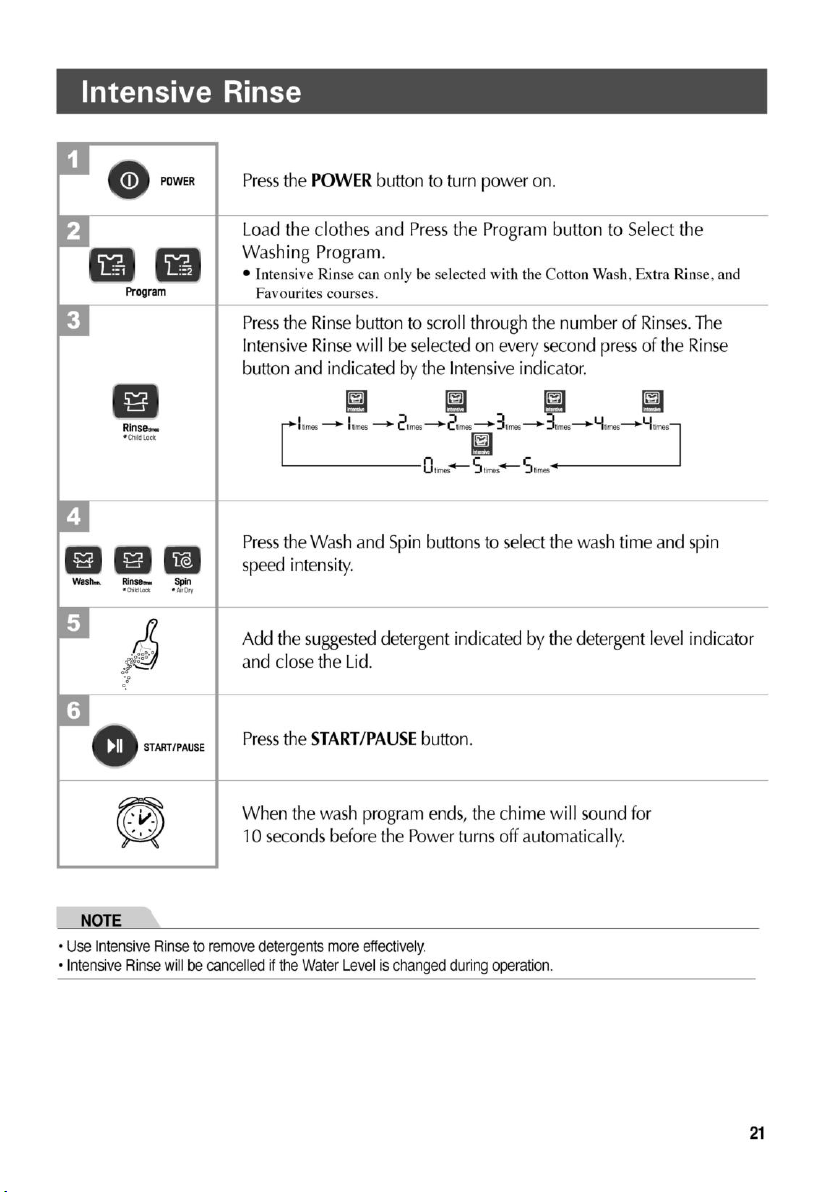
Intensive Rinse 21
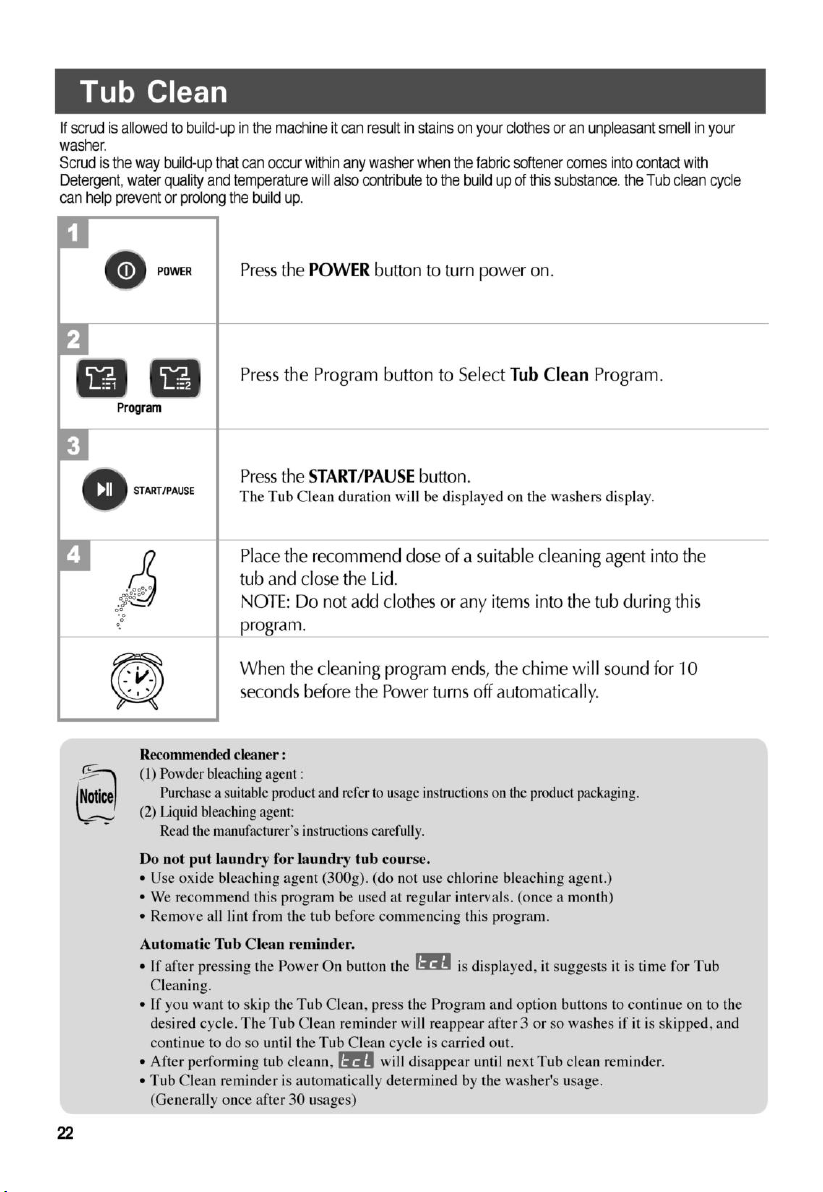
Tub Clean 22
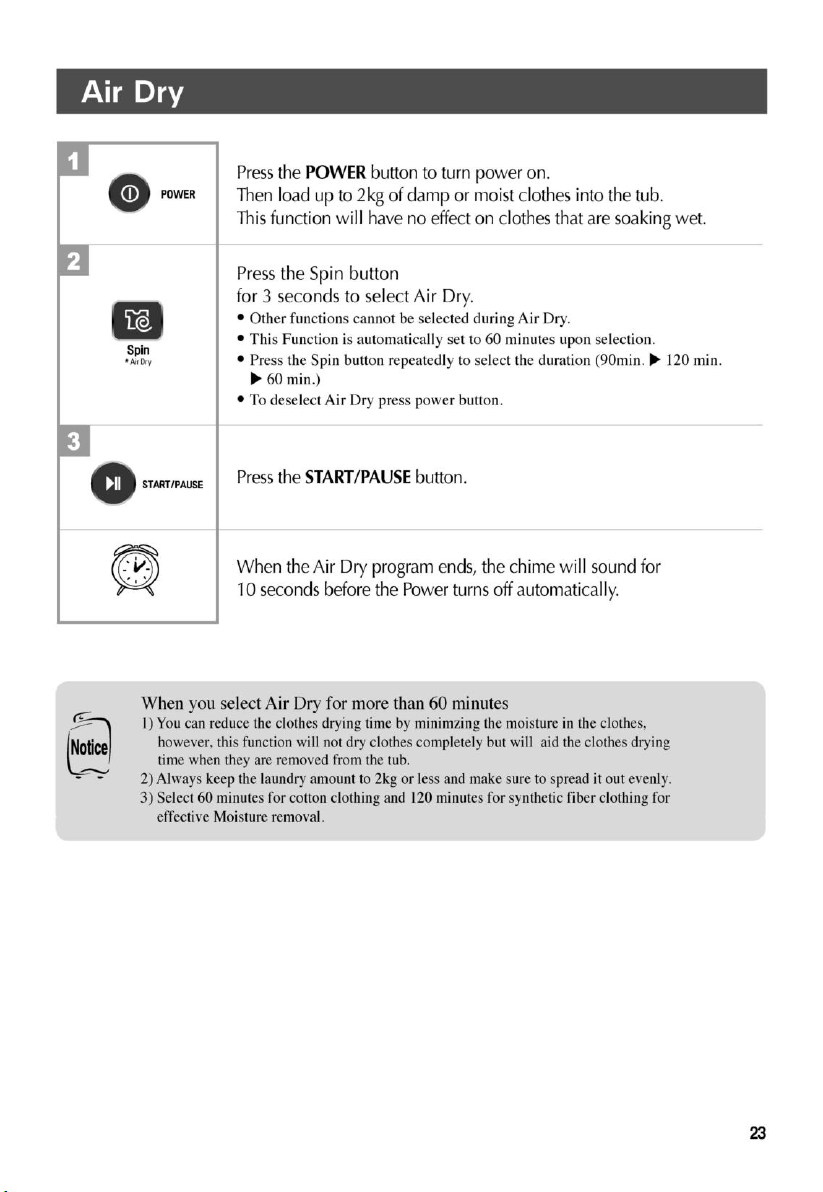
Air Dry 23
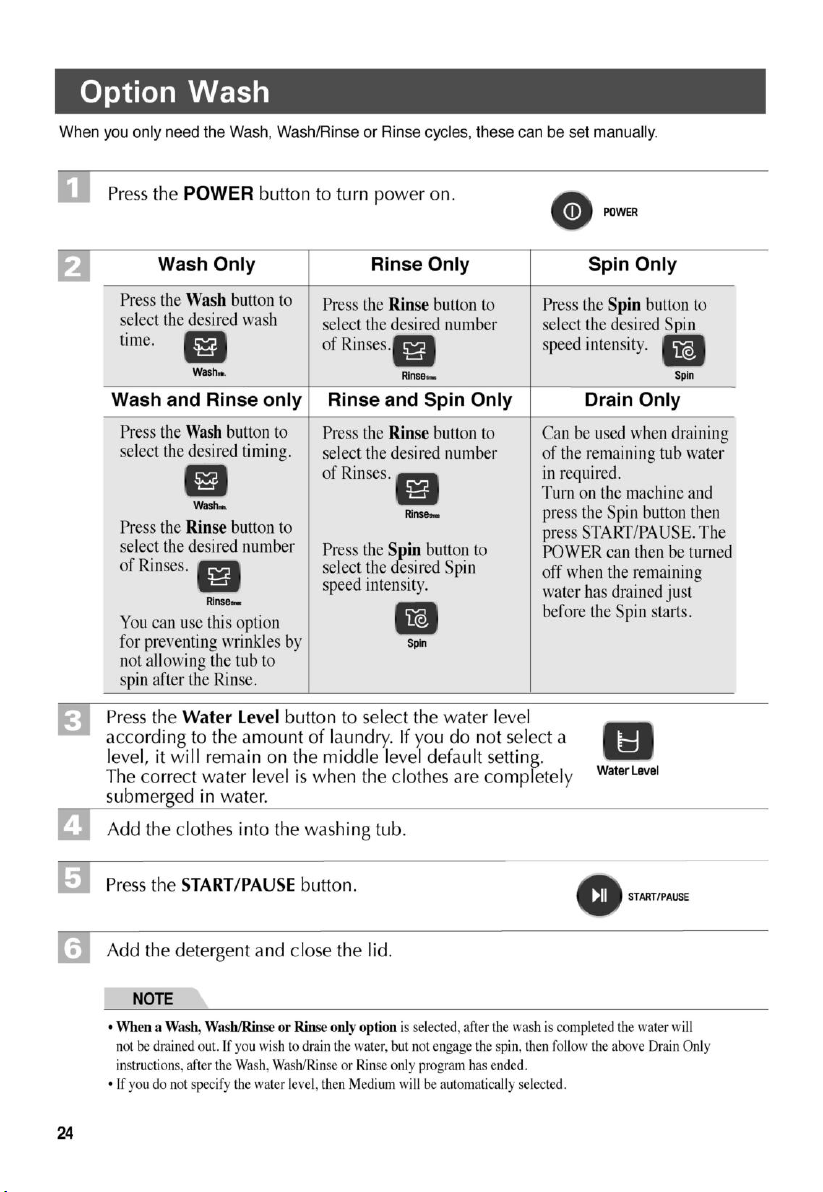
O ption W ashing 24
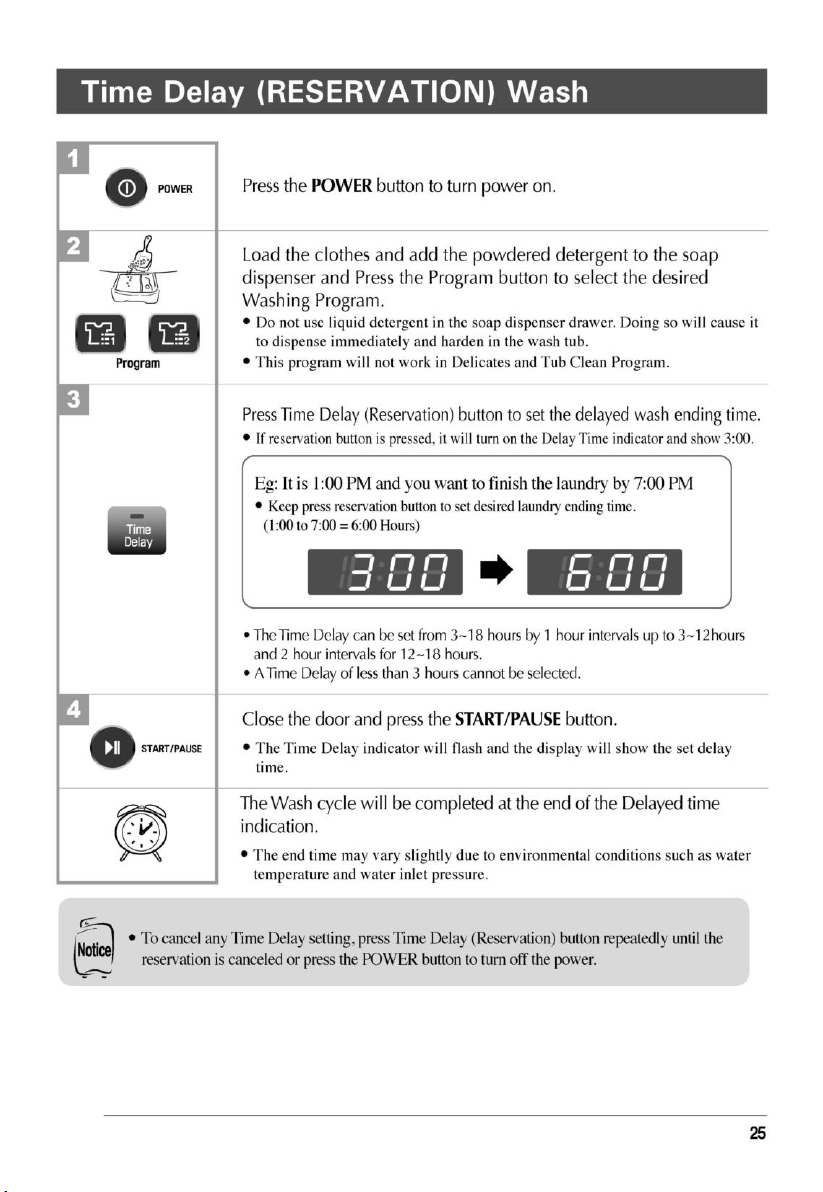
Time D elay (RESERV ATIO N ) W ash 25
O ther U seful Functions 26
Smart Functions 28
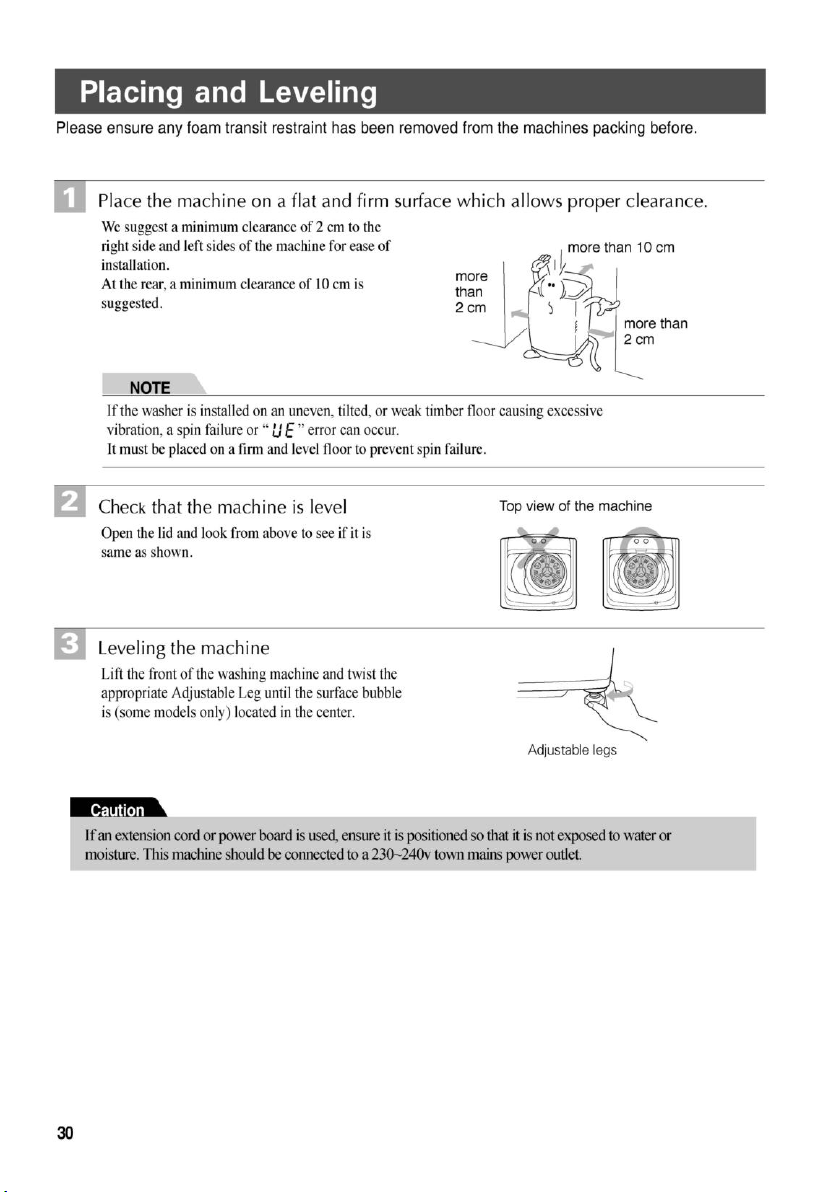
Placing and Leveling 30
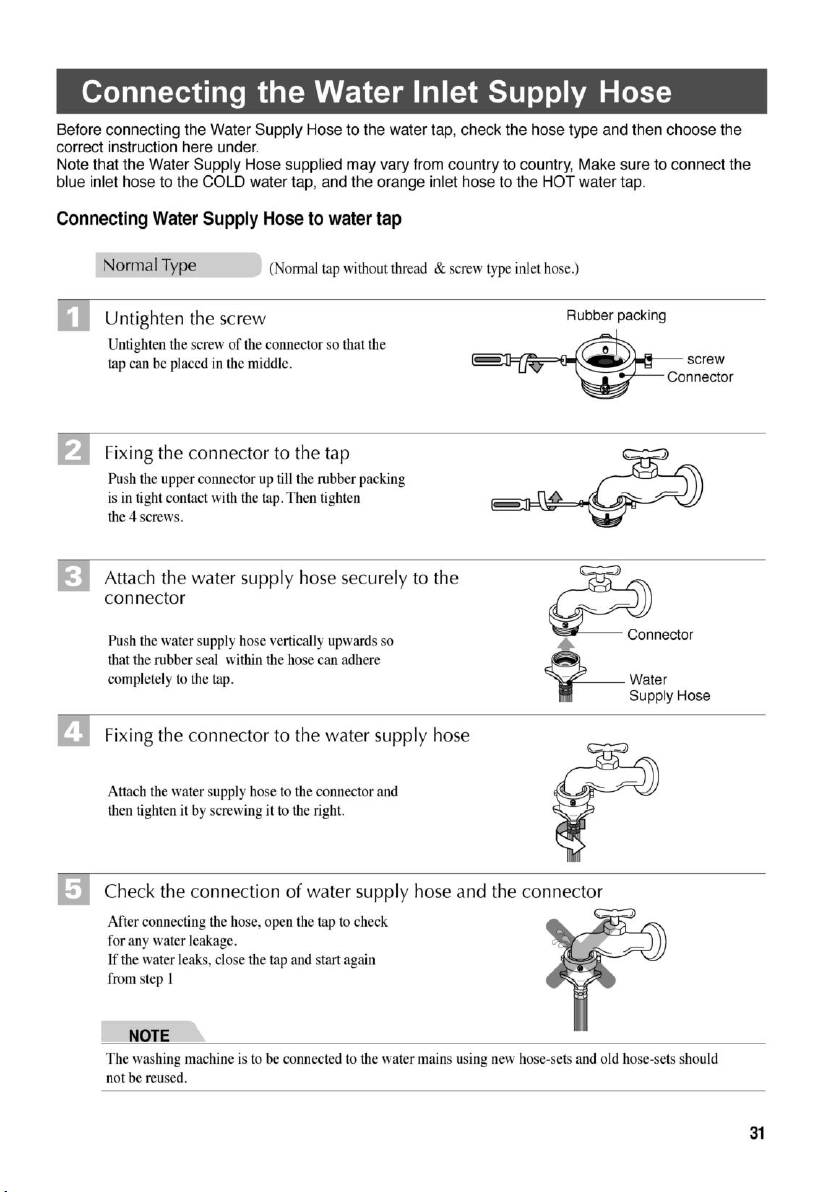
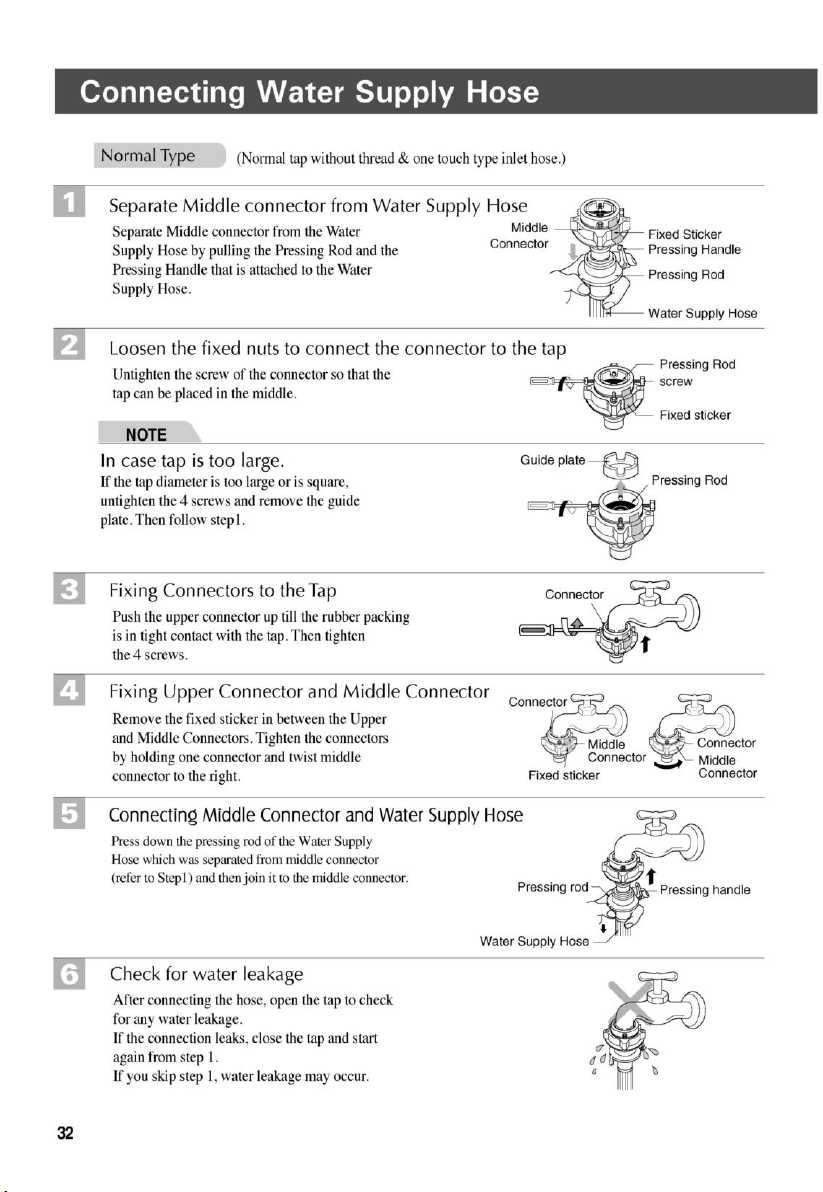
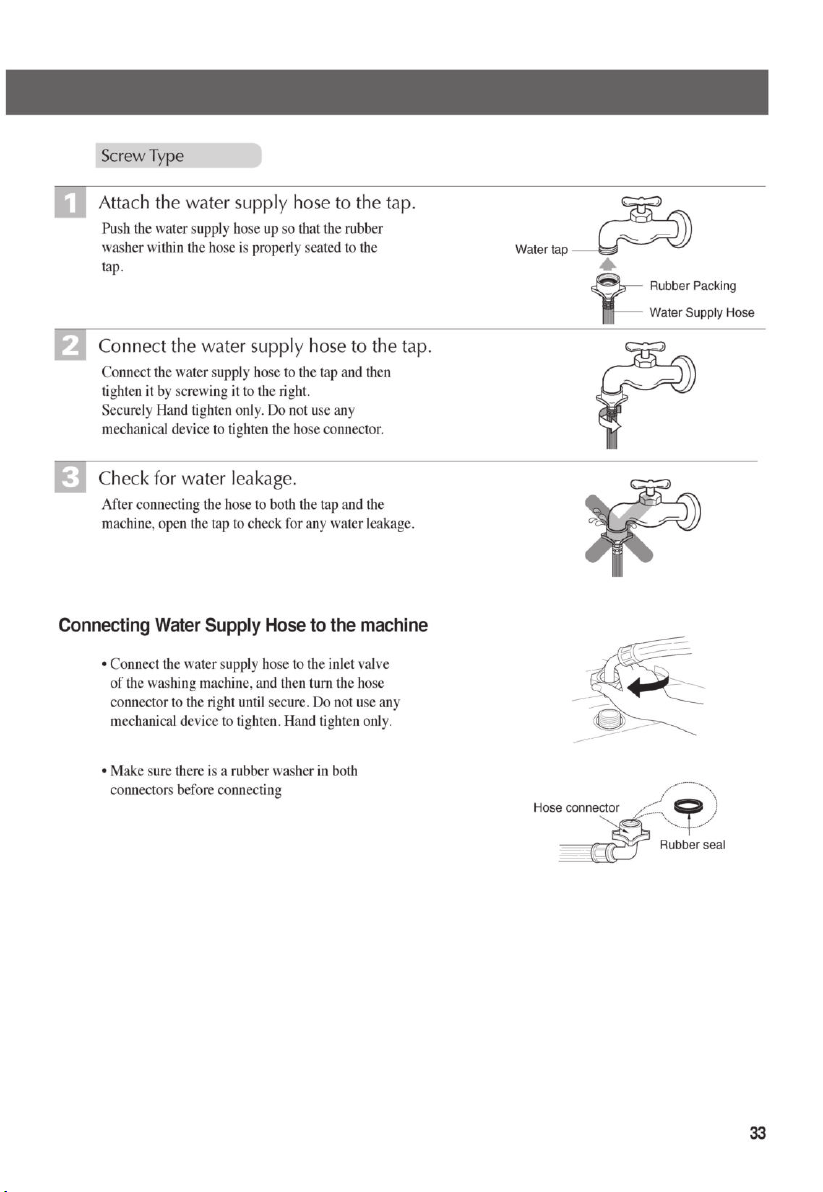
Connecting W ater Supply H ose 31
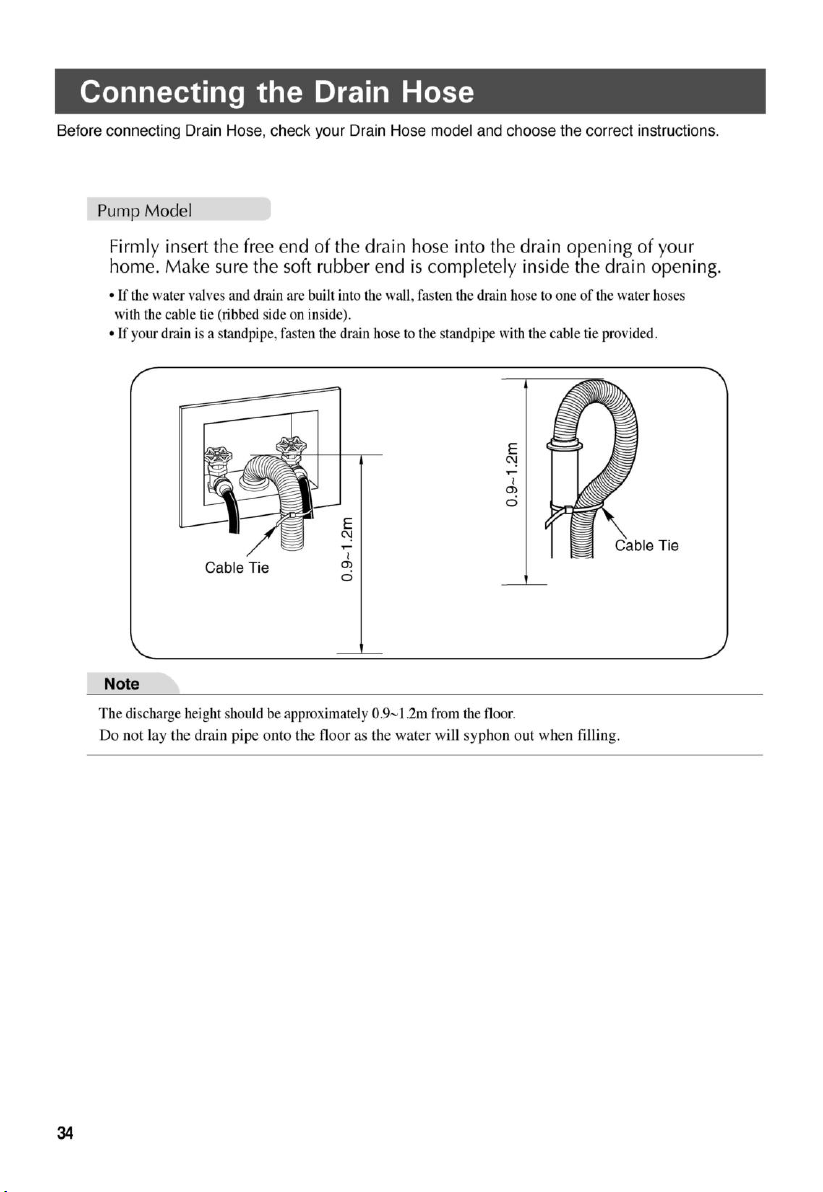
Connecting D rain H ose 34
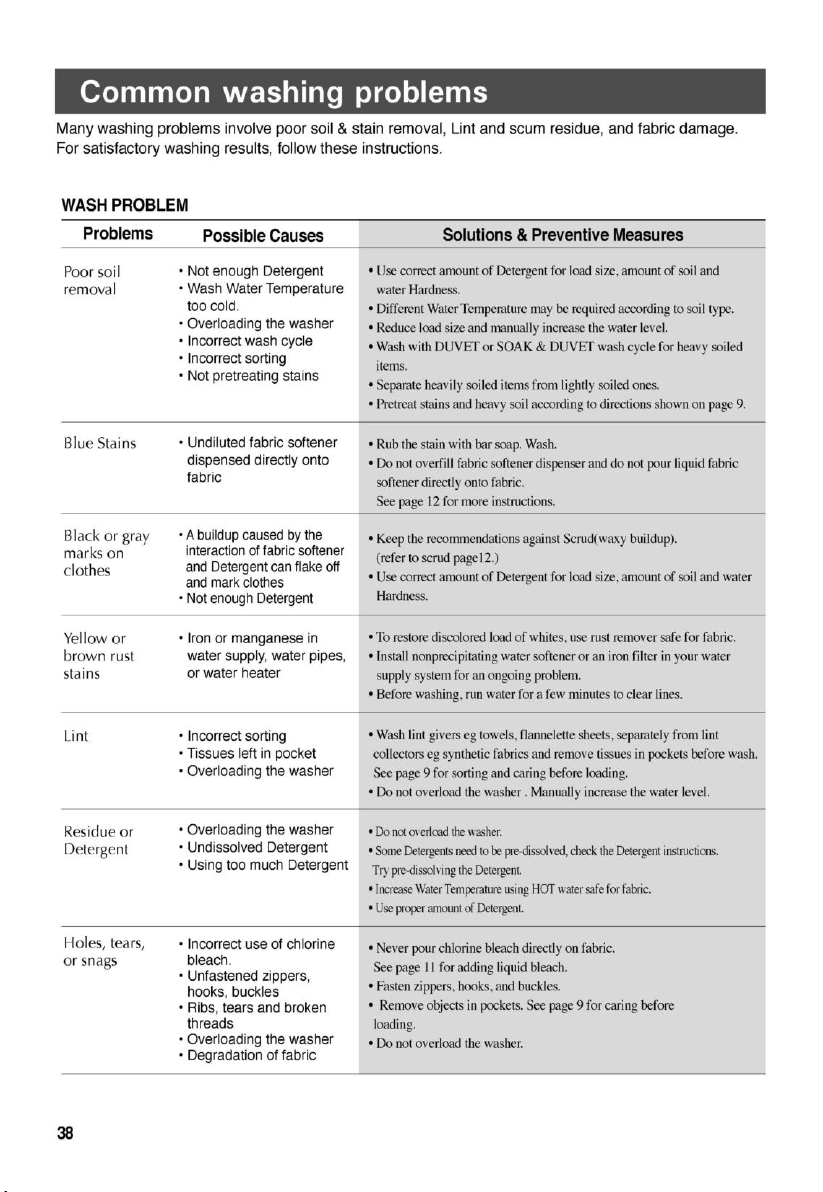
Common washing problems 38
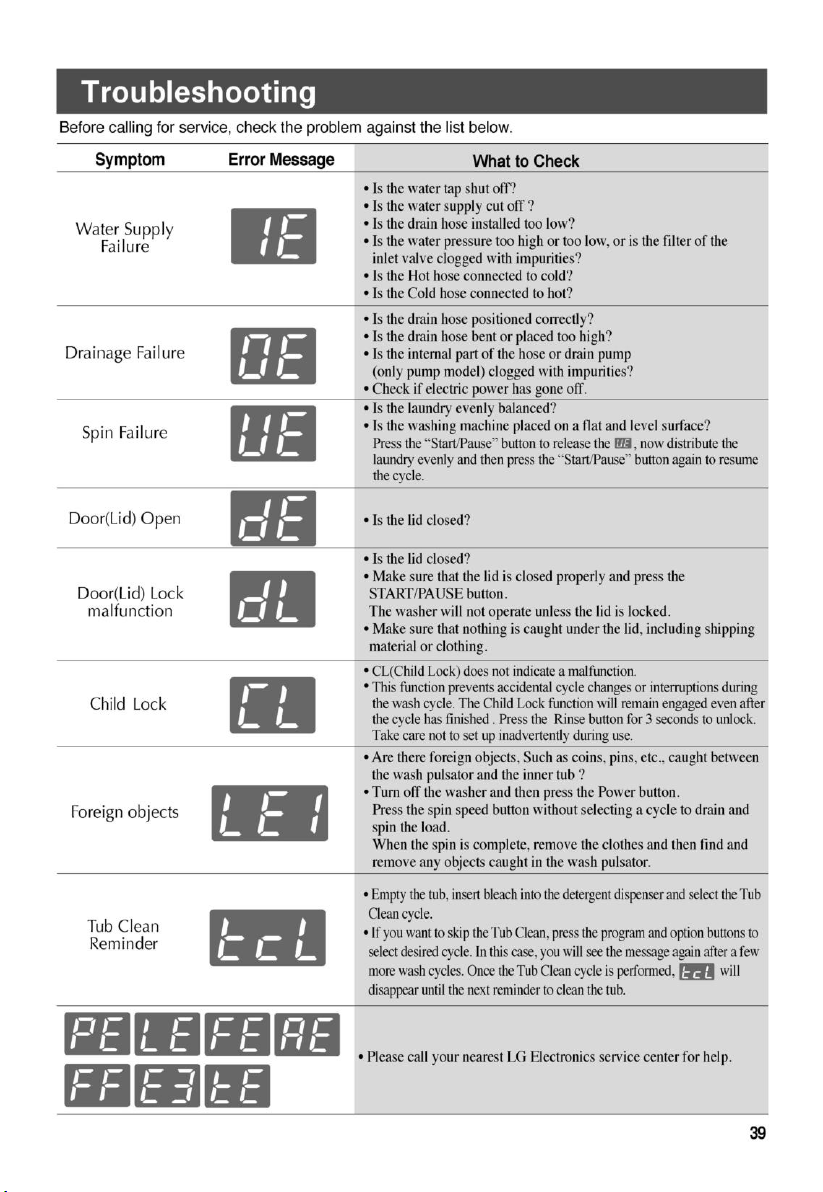
Troubleshooting 39
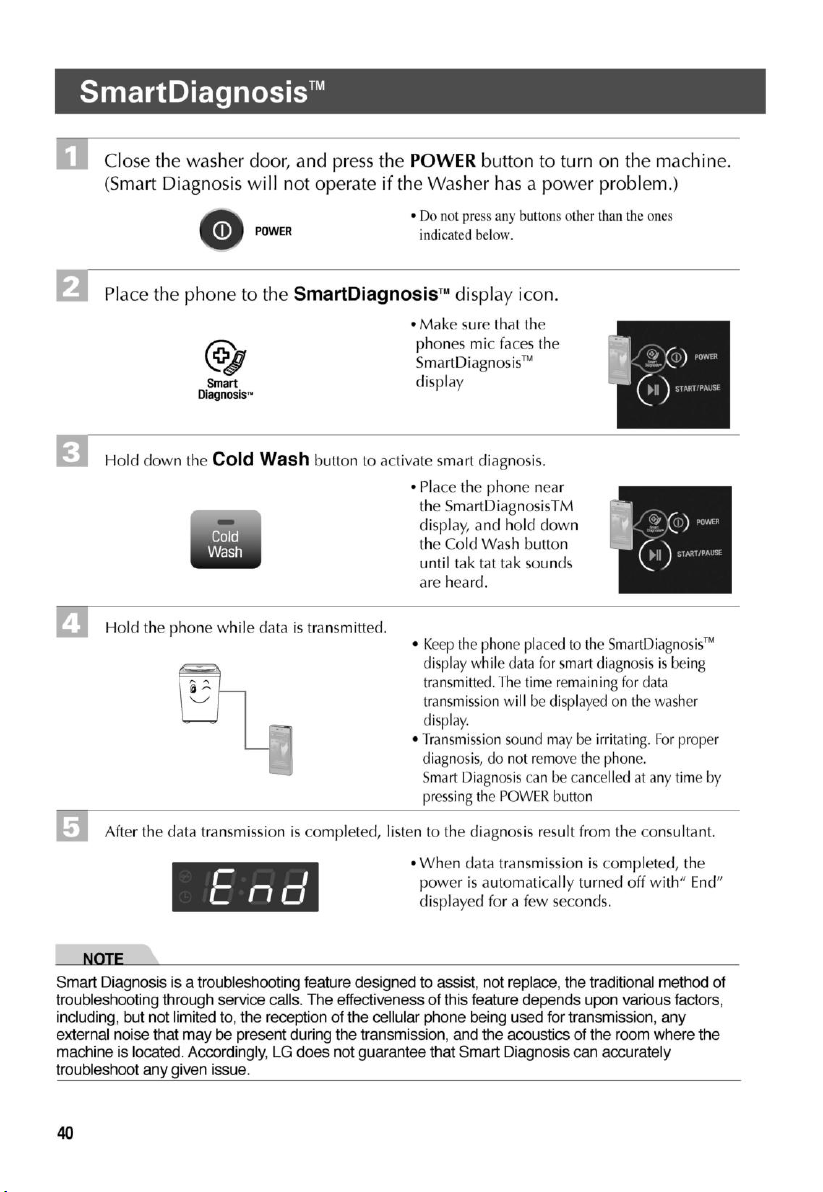
SmartD iagnosis
TM
40
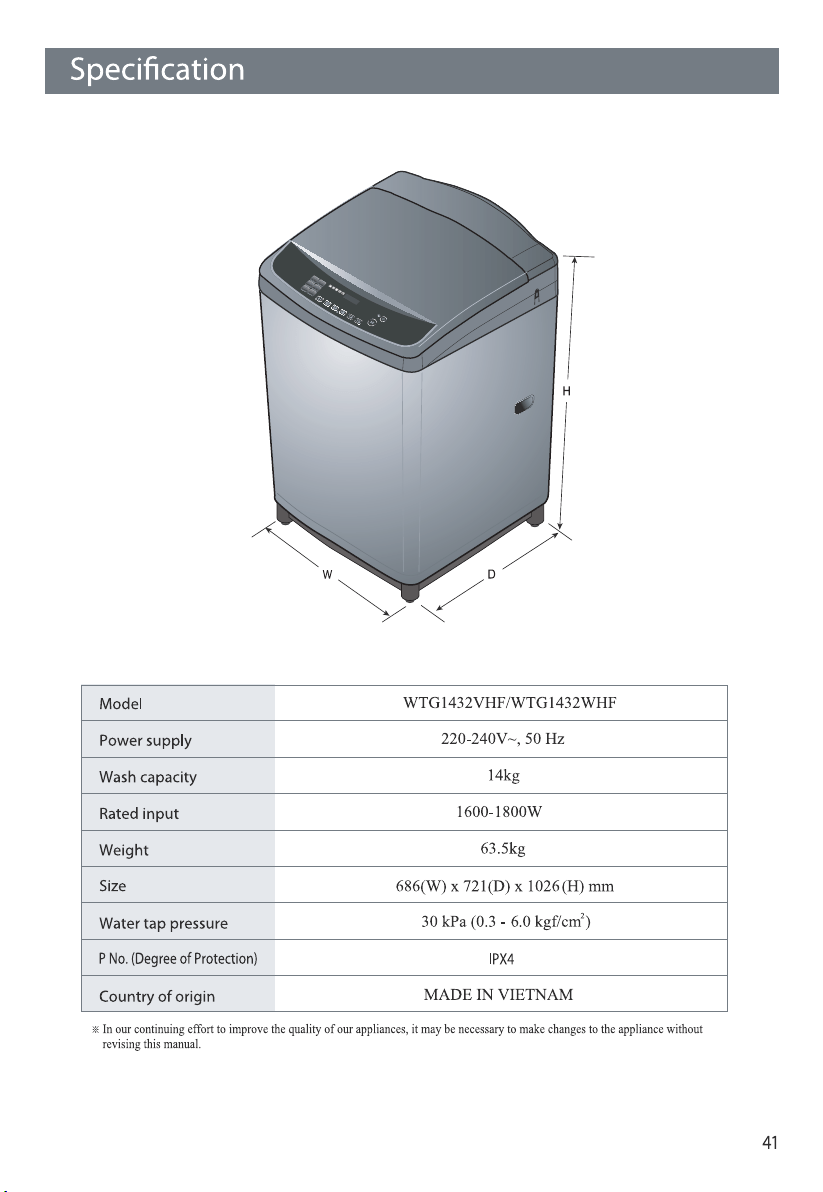
Specification
R E AD T HIS MANUAL
Inside you will find many helpful hints on how to use and maintain your washer properly. Just a
little preventive care on your part can save you a great deal of time and money over the life of your
washer. You will find many answers to common problems in the Troubleshooting section. If you
review our chart of Troubleshooting Tips first, you may not need to call for service at all.
Cotton Wash
Extra
Eco Cotton
Towels
Quiet Wash
Additional Function
Program
Cleaning and Maintenance
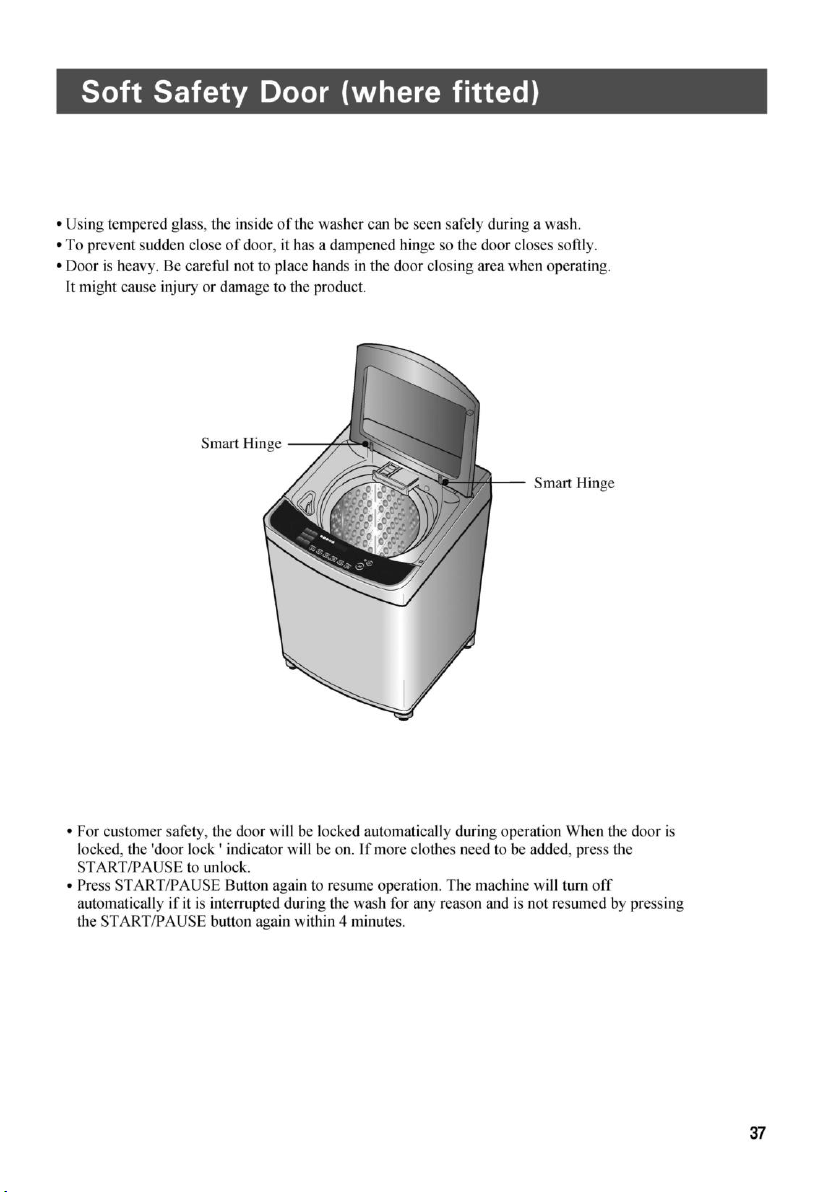
Soft Safety Door
35
37
41
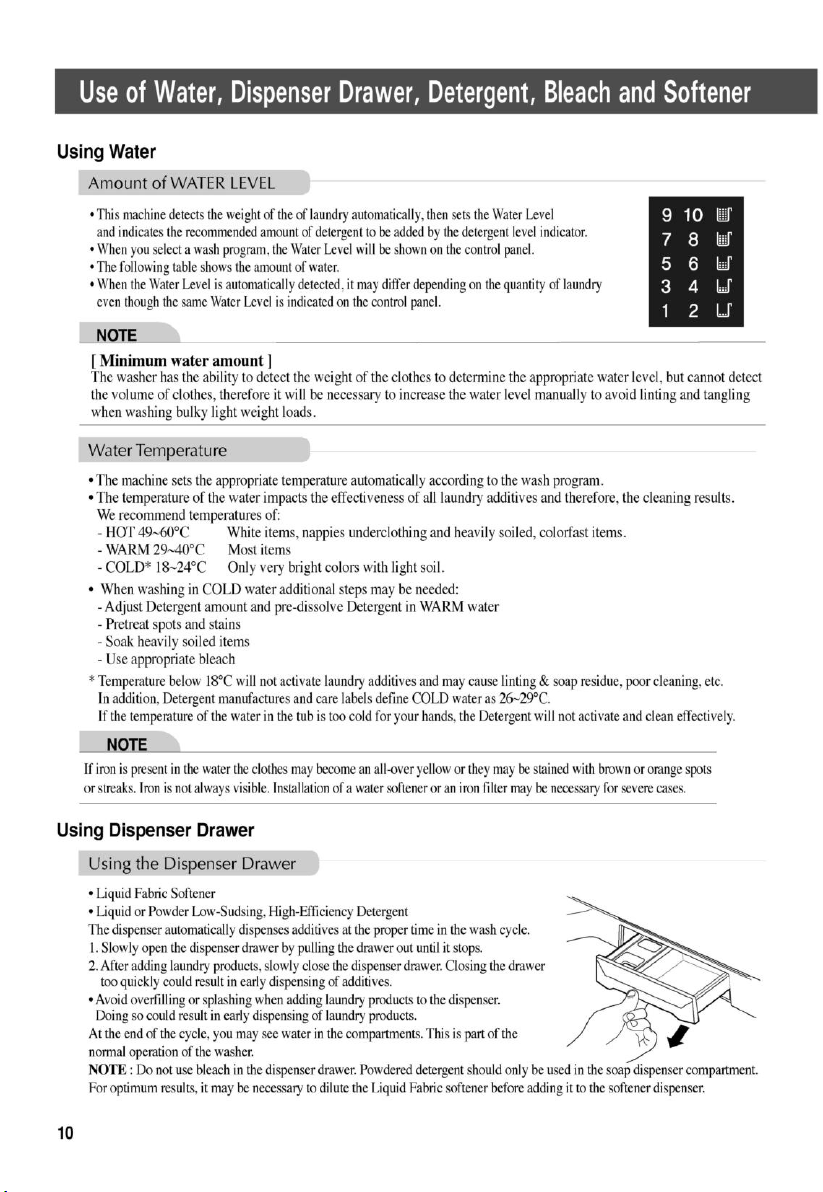
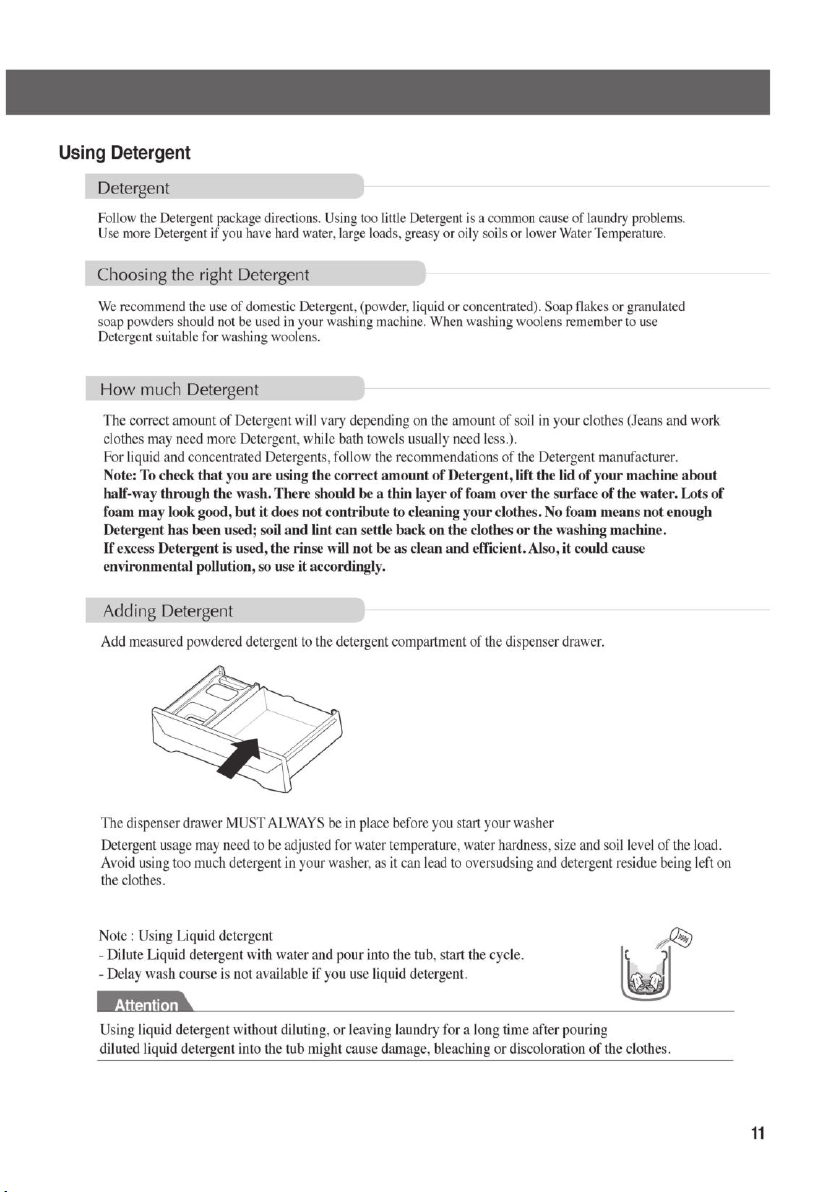
U s e of Water, D is pens er D raw er, D etergent, B leach and S oftener
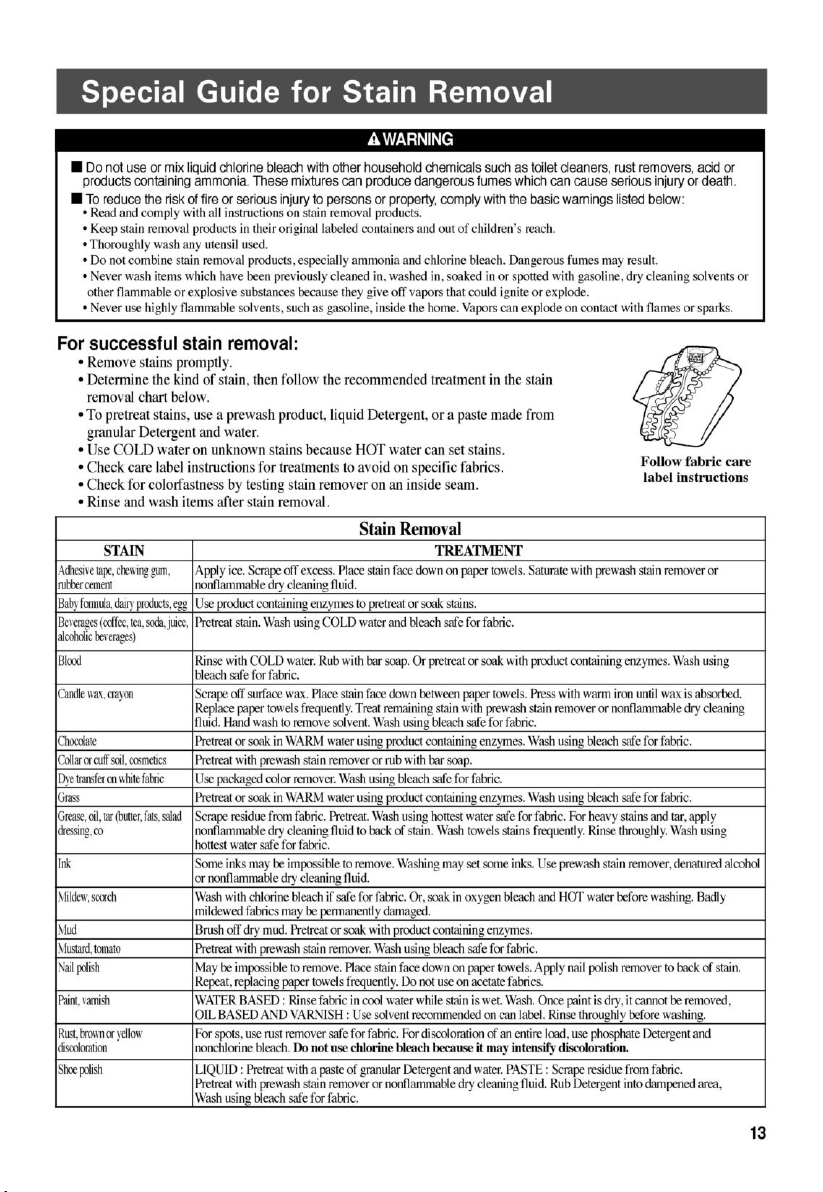
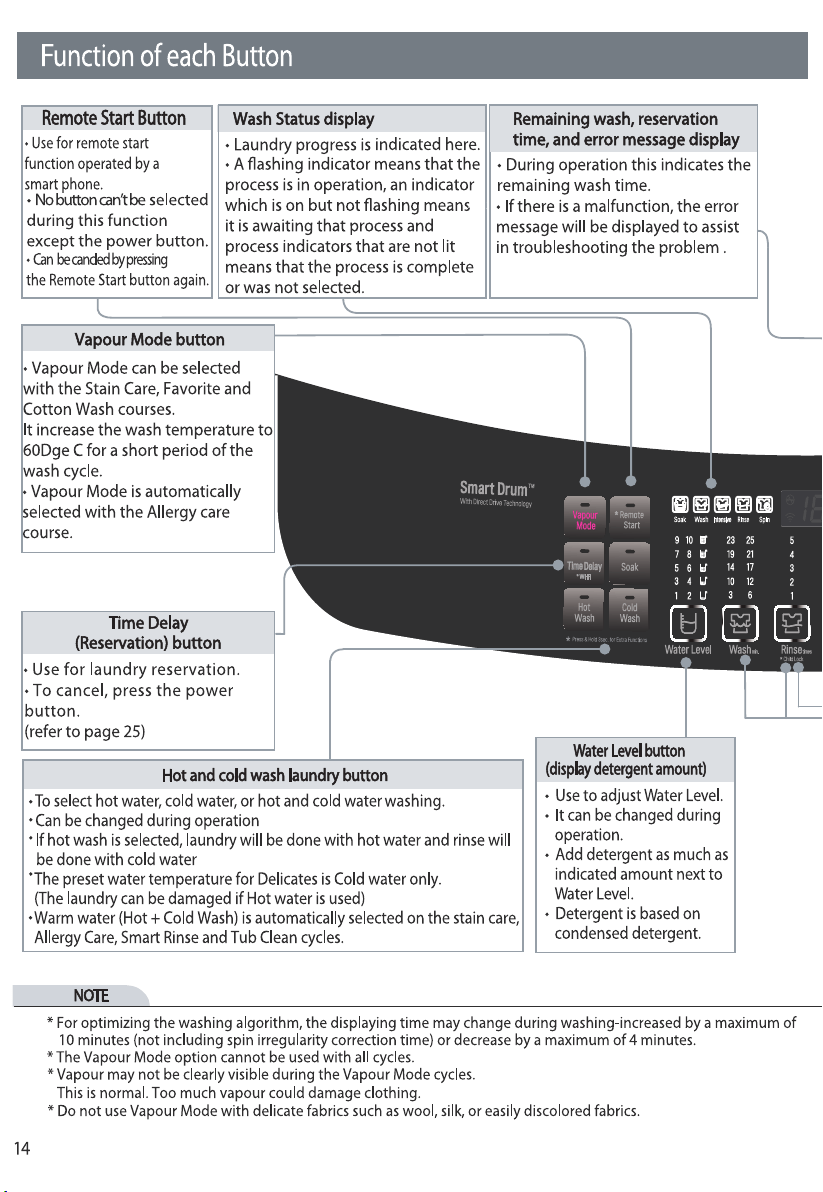
START/PAUSE button
• Use to start or pause
the washing process.
• To shorten dry time.
• Press the Spin button
for 3 seconds
to select, press power
button to deselect.
(refer to page 23)
15
NOTE
* For optimal Vapour cleaning performance, limit laundry loads to 4 kg or less.
* The control panel may dier according to dierrent models.
* When the Vapour mode option is selected for the Medium Solied the water level will not
exceed level “7” in order to maintain optimal performance.
F
unction of each Button
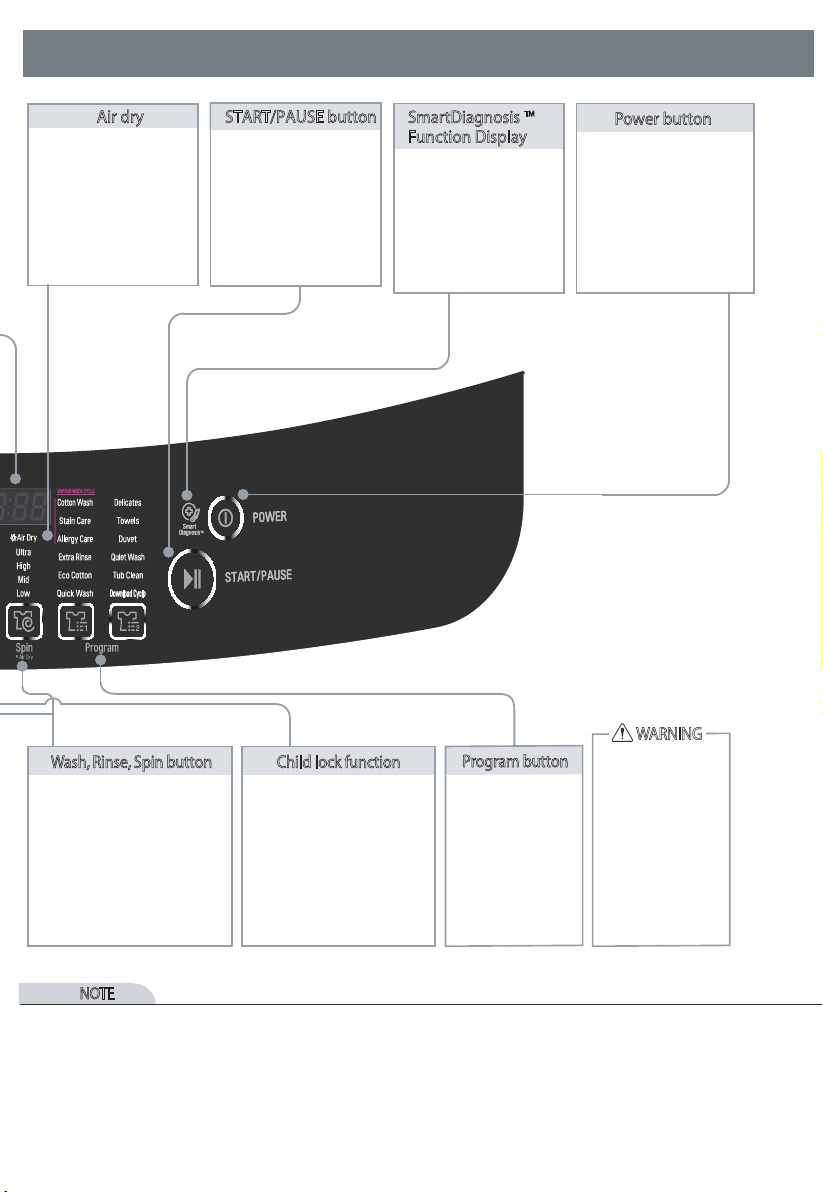
Air dry
• After 4 minutes in
pause status, the
washer will
automatically turn
o .
SmartDiagnosis
TM
Function Display
Power button
• It marks the place
to put the phone to
receive signal when
a problem occurs.
(refer to page 40)
• Use to turn the power
on or o.
• Push again and power
goes on or o.
• The power goes o
automatically about
10 seconds after the
wash is nished.
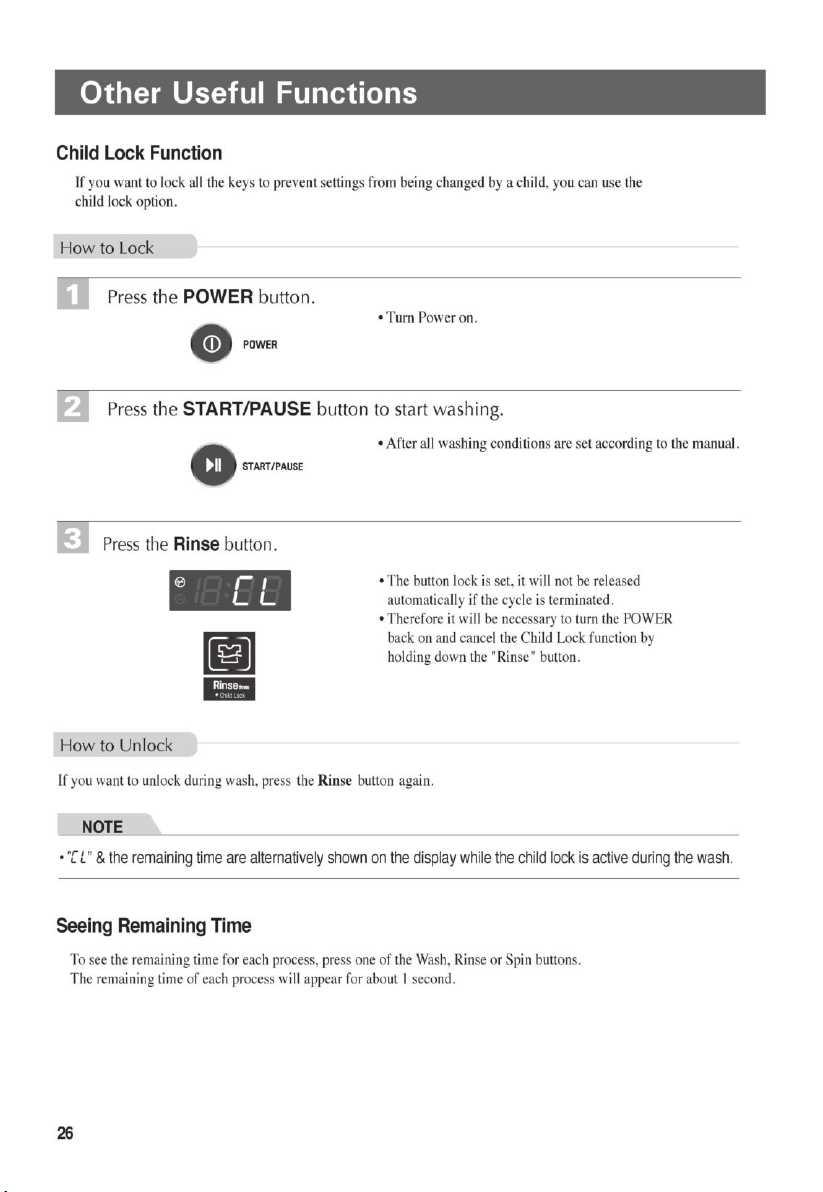
Wash, Rinse, Spin button Child lock function
Program button
•
To change laundry time,
number of rinse, strength
of spin dry.
•
Use safe rinse to more
eectively remove
detergent.
•
Press START/PAUSE button
to indicate remaining time.
•
Use to prevent an accident
by children operating the
machine.
•
Press ‘Rinse’ button for 3
seconds to select or
deselect.
(refer to page 26)
•
To select laundry
course.
•
Select course by
type of clothes
and level of
dirtiness.
•
Do not touch the lid
during steam cycles.
The lid Surface can
become very hot.
Allow the lid lock to
release before
opening the door.
•
Do not attempt to
override the lid lock
mechanism or reach
into the washer
during a steam cycle.
Steam can cause
severe burns.
WARNING
27
Other U s ef ul Func tions
Press and hold the button for 3 seconds.
WhenWi-Fi is turnedon, theWi-Fi indicator( ) on the control panel is lit.
Wi-Fi( )
Usea smartphone to control your applianceremotely. Y ou can also monitor your cycle operation so you know
Y ou can also monitor your cycle operation so you know
R emote St
a
rt
1. Press the button.
2. Put the laundry in the drum.
3. Press and hold button for 3 seconds to enable Remote Start function.
4. Starta cycl
e
fromthe LG Sm
a
rt
T
hinQ application on your smartphone.
To use Remote Start:
Whenthe Remote Startis activated, press andhold button for 3 seconds.
To disable Remote St
a
rt:
The Dow
n
load Cycle features of thi
s
appli
a
nce allow you to download new and special cycles that are not includedin
the appliance's basic cycles.
Appliances thathave been successfully registered can download a variety of specialty cycles specific to the appliance.
Only one cycle canbe storedon the applianceat a time.
Once cycle downloadis comp
l
eted in the washer, the product k
e
eps the downl
o
aded cycle until you change it to a new
downl
o
aded cycle.
Download Cy
c
l
e
• You must first connect to a gateway and registeryour appliance in order to use the R emote S tart function.
(Refer to 'Smart Functions'.)
NOTE
• If you do not start your appliance, it will wait to start a cycle until you turn off your appliance from the appli
cation or disable the
R
emote
S
tart function.
• When R emote
S
tart is turned on, the door is automatically locked.
NOTE
• Y
ou
can download cycles after registering the product and configuring the W
i
-F
i
connec
t
ion. F
or
information on
how to register the product and configure the Wi-Fi connection, refer to 'Using the Wi-Fi F
unc
t
i
on'.
• Y
ou
can download a desired cycle through the 'LG Sma
r
t T
h
inQ' app. F
or
more information on each cycle, refer
to the 'LG S
mart
ThinQ' app.
• Depending on the type of wa
s
her purchased, different cycles will be available.
• T
he
downloa
ded
cycles ma
y
be different dep
ending on the updated version of the 'LG
Smart ThinQ' app.
NOTE
Time Delay
Power
Remote Start
Remote Start
S m a r t Fu n c tio ns
Application Installation
Search for the LG Smart ThinQ application from
the G oogle Play Store on a smart phone.
Follow instructions to download and install the
application.
P roduc
t
Registration
1. Run the LG Smart ThinQ application on a
smart phone.
2. Create an account and sign in.
3. Select Register.
4. Select Top Load Washer.
5. Follow the instructions on the smart phone.
N O TE
• To verify the Wi-
Fi connection, check the
W
i-Fi
icon on the control panel is lit.
• LG Smart ThinQ is n ot responsible for any net
work connection problems or any fa ults, mal
functions, or er rors caused by network con
nection.
• The machine supports 2.4 G H z W
i-Fi
net
works only.
• If the appliance is having tr ouble connecting
to the Wi-Fi networ k, it may be too far from
the router. Purchase a Wi-Fi repeater (range
ext
ender) to improve the Wi-Fi signal strength.
• The Wi-Fi connection may not connect or may
be interrupted because of the home network
environment.
• The network connection may not work proper
ly depending on the internet service provider.
• The surrounding wireless environment can
make the wireless netw ork service run slowly.
• This information is current at the time of publi
cation. The application is subj
ect to chan ge for
appliance improvement purposes without
notice to users.
Using the Wi-Fi Function
Communicate with the appliance from a smart
phone using the convenient smart features.
Using the Applica tion
1. Select the appliance in the application and
co n n ect it to a W
i-Fi
network.
2. Select the menu on the upper right side to
access settings and features.
W
asher
C
y cle
Set or downlo ad any perferred cycle
and operate
by remote control.
Tub Cl
ean
Coach
Check the appropria te Tub Clean period by
washing frequency.
Energy Monitoring
Check the energy consupmtion of the recently
used cycles and monthly average.
Smart Diagnosis
This function provides useful information for
diagnosing an d solving issues with the appliance
based on the pattern of use.
Settings
Various functions a re a vailable.
Pu sh Alert
Turn on the Push
Alerts to receive appliance
status notifi cations. The notifications are
triggered even if the LG Smar t ThinQ application
is off.
2
8
29
S m a r t Fu n c tio ns
Sma rt Di
a
g
n
o
s
i
s
™ Throu gh the
Customer Information Center
1. Pr ess the Power button.
2. O pen the Settings menu on upper side and
select More Settings.
3. Select Smart D iagnosis and then press the
Start/Pause button.
4. Place the phone close to the Power button.
• Place the mouthpiece of the phone to the
appliance.
5. Keep the phone in place unti l the tone trans
mission has finished
• For best resul
ts, do not mov e the phone while
the tones are being transmitted.
• If the call center agent is not able to get an
accurate recording of the data, you may be
asked to try again.
6. O
nc
e
the co untdown is over and the tones
have stopped, resume your conversation with
the call center agent, who will then be able to
assist you using the information transmitted for
analysis.
N O TE
• The Smart Di
a
g
no
s
is™ function
depends on
the local call quality .
• The communication performance will
improve and you can receive better service if
y ou use the home phone.
• If the Smart D iagnosis™ data transfer is poor
due to poor call quality, you may not receive
the best Smart Diagnosis™ service.
1
0
m
M
a
x
.
m
O
pen
Sour
ce
Software N
otice
Information
To obtain the source code under G PL, LG PL,
MPL, and oth er open source licenses, that is con-
tained in this product, please visit http://open-
source.lge.com.In addition to the source code,
all referred license terms, warranty disclaimers
and copyright notices are available for
download.
LG
Electronics will also provide open
source code to you on CD-RO
M
for a charge
c
overing the co st of performing such distribution
(such as the cost of medi a, shipping, and han-
dling) upon email request to
opensource@lge.com. This offer is valid for three
(3) years from the date on which you purchased
the product
Using Smart Dia
g
n
os
i
s™
Should you experience any problems with the
appliance, it has the capability of transmitting
data to a smart phone u sing the LG Smart ThinQ
application o
r via the phone to the LG Smart
ThinQ call center.Smart D iagnosis™ can not be
activated unless the appliance is turned on by
pressing the Power button. If the appliance is
unable to turn on, then troubleshooting must be
done witho ut using Smart D iagnosis™ .
Sma rt Di
a
g
n
o
s
is™ U
s
ing a Smart Phone
1. Open the LG Smart ThinQ application on the
smart phone.
2. Select the appliance and then the menu on
upper right
side.
3. Select the Smart Di
a
gnosis, then press Start
Smart Diagnosis button.
N O TE
• If the diagnosis fails several times, use the foll
owing instructions.
4. Select the Try Again or Au dible Diagnosi s.
5. Follow the instructions on the smart phone.
C onn ec tin g W a te r S u pply H o s e