
• IBM is a trademark of International Business Machines, Inc.
• Microsoft and Windows are registered trademarks of Microsoft Corporation, USA.
• Macintosh and Mac OS are registered trademarks of Apple Computer, Inc.
• The names of other software or products used in this document are trademarks or
registered trademarks of the respective companies that developed them.
Federal Communications Commission (FCC) Declaration of Conformity (For USA Only)
Responsible Party : Brother International Corporation
100 Somerset Corporate Boulevard
Bridgewater, NJ 08807-0911 USA
TEL : (908) 704-1700
declares that the product
Product Name : Brother P-touch labeler Electronic Labeling System
Model Number : PT-2700/2710
This device complies with 15 of the FCC Rules. Operation is subject to the following two
conditions: (1) this device may not cause harmful interference, and (2) this device must
accept any interference received, including interference that may cause undesired
operation.
This equipment has been tested and found to comply with the limits for a Class B digital
device, pursuant to Part 15 of the FCC Rules. These limits are designed to provide
reasonable protection against harmful interference in a residential installation. This
equipment generates, uses, and can radiate radio frequency energy and, if not installed
and used in accordance with the instructions, may cause harmful interference to radio
communications. However, there is no guarantee that interference will not occur in a
particular installation. If this equipment does cause harmful interference to radio or
television reception, which can be determined by turning the equipment off and on, the user
is encouraged to try to correct the interference by one or more of the following measures:
• Reorient or relocate the receiving antenna
• Increase the separation between the equipment and receiver.
• Connect the equipment into an outlet on a circuit different from that to which the receiver
is connected.
• Consult the dealer or an experienced radio/TV technician for help.
• The enclosed interface cable should be used in order to ensure compliance with the limits
for a Class B digital device.
• Changes or modifications not expressly approved by Brother Industries, Ltd. could void
the user's authority to operate the equipment.

Brother
®
One-Year Limited Warranty and Replacement Service
(USA Only)
Who is covered:
• This limited warranty ("warranty") is given only to the original end-use/retail purchaser (referred
to in this warranty as "Original Purchaser") of the accompanying product, consumables and
accessories (collectively referred to in this warranty as "the machine").
• If you purchased a product from someone other than an authorized Brother reseller in
the United States or if the product was used (including but not limited to floor models
or refurbished product), prior to your purchase you are not the Original Purchaser and
the product that you purchased is not covered by this warranty.
What is covered:
• The machine includes a Machine and Consumable and Accessory Items. Consumable
and Accessory Items include but are not limited to label cassettes, cutters, stamps,
power adapters, cases and batteries.
• Except as otherwise provided herein, Brother warrants that the Machine and the
accompanying Consumable and Accessory Items will be free from defects in materials
and workmanship, when used under normal conditions.
• This warranty applies only to products purchased and used in the United States. For
products purchased in, but used outside, the United States, this warranty covers only
warranty service within the United States (and does not include shipping outside the
United States).
What is the length of the Warranty Periods:
• Machines: one year from the original purchase date.
• Accompanying Consumable and Accessory Items: 90 days from the original purchase
date or the rated life of consumable, whichever comes first.
What is NOT covered:
This warranty does not cover:
(1) Physical damage to the machine;
(2) Damage caused by improper installation, improper or abnormal use, misuse, neglect or
accident (including but not limited to transporting the machine without the proper
preparation and/or packaging);
(3) Damage caused by another device or software used with the machine (including but not
limited to damage resulting from use of non Brother
®
-brand parts and Consumable and
Accessory Items);
(4) Consumable and Accessory Items that expired in accordance with a rated life; and,
(5) Problems arising from other than defects in materials or workmanship.
This limited warranty is VOID if the machine has been altered or modified in any way
(including but not limited to attempted warranty repair without authorization from
Brother and/or alteration/removal of the serial number).
What to do if you think your Product is eligible for warranty service:
Report your issue to our P-touch Customer Service Hotline at 1-877-478-6824
or to a
Brother Authorized Service Center within the applicable warranty period. Supply
Brother or the Brother Authorized Service Center with a copy of your dated bill of sale
showing that the machine was purchased within the U.S. For the name of local Brother
Authorized Service Center(s), call 1-800-521-2846.
What Brother will ask you to do:
After contacting Brother or a Brother Authorized Service Center, you may be required
to deliver (by hand if you prefer) or send the Product properly packaged, freight pre-
paid, to the Authorized Service Center together with a photocopy of your bill of sale.
You are responsible for the cost of shipping, packing product, and insurance (if
you desire). You are also responsible for loss or damage to the machine in ship-
ping.

What Brother will do:
If the problem reported concerning your Machine and/or accompanying Consumable
and Accessory Items is covered by this warranty and if you first reported the problem to
Brother or an Authorized Service Center within the applicable warranty period, Brother
or its Authorized Service Center will repair or replace the Machine and/or accompany-
ing Consumable and Accessory Items at no charge to you for parts or labor. The deci-
sion as to whether to repair or replace the Machine and/or accompanying Consumable
and Accessory Items is made by Brother in its sole discretion.
Brother reserves the right to supply a refurbished or remanufactured replacement
Machine and/or accompanying Consumable and Accessory Items and use refurbished
parts provided such replacement products conform to the manufacturer's specifications
for new product/parts.
The repaired or replacement Machine and/or accompanying Consumable and Acces-
sory Items will be returned to you freight prepaid or made available for you to pick up at
a conveniently located Authorized Service Center.
If the Machine and/or accompanying Consumable and Accessory Items are not cov-
ered by this warranty (either stage), you will be charged for shipping the Machine and/
or accompanying Consumable and Accessory Items back to you and charged for any
service and/or replacement parts/products at Brother's then current published rates.
The foregoing are your sole (i.e., only) and exclusive remedies under this war-
ranty.
What happens when Brother elects to replace your Machine:
When a replacement Machine is authorized by Brother, and you have delivered the
Machine to an Authorized Service Center, the Authorized Service Center will provide
you with a replacement Machine after receiving one from Brother. If you are dealing
directly with Brother, Brother will send to you a replacement Machine with the under-
standing that you will, after receipt of the replacement Machine, supply the required
proof of purchase information, together with the Machine that Brother agreed to
replace. You are then expected to pack the Machine that Brother agreed to replace in
the package from the replacement Machine and return it to Brother using the pre-paid
freight bill supplied by Brother in accordance with the instructions provided by Brother.
Since you will be in possession of two machines, Brother will require that you provide a
valid major credit card number. Brother will issue a hold against the credit card account
number that you provide until Brother receives your original Product and determines
that your original Product is entitled to warranty coverage. Your credit card will be
charged up to the cost of a new Product only if: (i) you do not return your original Prod-
uct to Brother within five (5) business days; (ii) the problems with your original Product
are not covered by the limited warranty; (iii) the proper packaging instructions are not
followed and has caused damage to the product; or (iv) the warranty period on your
original Product has expired or has not been sufficiently validated with a copy of the
proof of purchase (bill of sale). The replacement Machine you receive (even if refur-
bished or remanufactured) will be covered by the balance of the limited warranty period
remaining on the original Product, plus an additional thirty (30) days. You will keep the
replacement Machine that is sent to you and your original Machine shall become the
property of Brother. Retain your original Accessory Items and a copy of the return
freight bill, signed by the courier.

Limitations:
Brother is not responsible for damage to or loss of any equipment, media, programs or
data related to the use of the machine. Except for that repair or replacement as
described above, Brother shall not be liable for any direct, indirect, incidental or conse-
quential damages or specific relief. Because some states do not allow the exclusion or
limitation of consequential or incidental damages, the above limitation may not apply to
you.
THIS WARRANTY IS GIVEN IN LIEU OF ALL OTHER WARRANTIES, WRITTEN OR
ORAL, WHETHER EXPRESSED BY AFFIRMATION, PROMISE, DESCRIPTION,
DRAWING, MODEL OR SAMPLE. ANY AND ALL WARRANTIES OTHER THAN THIS
ONE, WHETHER EXPRESS OR IMPLIED, INCLUDING IMPLIED WARRANTIES OF
MERCHANTABILITY AND FITNESS FOR A PARTICULAR PURPOSE, ARE HEREBY
DISCLAIMED.
• This Limited Warranty is the only warranty that Brother is giving for the machine. It is
the final expression and the exclusive and only statement of Brother's obligations to
you. It replaces all other agreements and understandings that you may have with
Brother or its representatives.
• This warranty gives you certain rights and you may also have other rights that may
vary from state to state.
• This Limited Warranty (and Brother's obligation to you) may not be changed in any way
unless you and Brother sign the same piece of paper in which we (1) refer to the
machine and your bill of sale date, (2) describe the change to this warranty and (3)
agree to make that change.
Important:
We recommend that you keep all original packing materials, in the event that you ship
the machine.

Important Information
Should you have questions, or need information about
your Brother Product, we have a variety of support
options for you to choose from:
USA-Customer Service:
Customer Service
877-478-6824 (voice)
Customer Service
901-379-1210 (fax)
Automated Faxback
800-521-2846
World Wide Web
www.brother.com
Supplies / Accessories
www.brothermall.com
or 888-879-3232
BROTHER INTERNATIONAL CORPORATION
100 SOMERSET CORPORATE BLVD.
BRIDGEWATER, NEW JERSEY 08807-0911
Please record your model and serial number and your
date and location of Purchase below for your records.
Keep this information with your proof of purchase (bill
of sale) in case your Product requires service.
Model # __________________________________________________
Serial #___________________________________________________
Date of purchase:___________________________________________
Store where purchased:______________________________________
Location of store: ___________________________________________
Important: We recommend that you keep all original
packing materials, in the event you ship this product.
Save Time - Register On-Line!
Don’t stand in line at the post office or worry about lost mail. Visit us on-line at
www.registermybrother.com
Your product will immediately be registered in our database and you can be on your way!
Also, while you're there, look for contests and other exciting information!
1
2
3
4
5
6
7
8
9
1
z
INTRODUCTION
INTRODUCTION ..................................................................................... 4
What You Can Do ......................................................................................................... 4
Safety Precautions ........................................................................................................ 6
General Precautions...................................................................................................... 9
Symbols Used in this Guide .......................................................................................... 9
Quick Index ................................................................................................................. 10
GETTING STARTED ............................................................................. 11
Unpacking Your P-touch labeler.................................................................................. 11
General Description..................................................................................................... 12
LCD Display & Keyboard............................................................................................. 13
LCD Display.......................................................................................................... 13
Key Names and Functions.................................................................................... 14
Power Supply .............................................................................................................. 16
Battery................................................................................................................... 16
AC Adapter ........................................................................................................... 17
Inserting a Tape Cassette ........................................................................................... 18
Turning Power On/Off ................................................................................................. 20
Feeding Tape .............................................................................................................. 21
LCD Display ................................................................................................................ 21
LCD Contrast ........................................................................................................ 21
Display Mode ........................................................................................................ 22
Back Light ............................................................................................................. 22
Setting Language and Unit.......................................................................................... 23
Language.............................................................................................................. 23
Unit........................................................................................................................ 23
EDITING A LABEL................................................................................. 24
Entering and Editing Text............................................................................................ 24
Entering Text from the Keyboard.......................................................................... 24
Adding a New Line................................................................................................ 24
Adding a New Block.............................................................................................. 24
Moving the Cursor................................................................................................. 24
Inserting Text ........................................................................................................ 25
Inserting a Tab...................................................................................................... 25
Deleting Text......................................................................................................... 25
Entering Symbols ........................................................................................................ 26
Entering Symbols Using Key ............................................................................... 26
Entering Symbols Using the Symbol Function...................................................... 26
Using Symbol Update Function ............................................................................ 27
Contents
INTRODUCTION
2
Entering Accented Characters .....................................................................................29
Setting Character Attributes .........................................................................................31
Setting Character Attributes by Label ....................................................................31
Setting Character Attributes by Each Line.............................................................31
Setting Auto Fit Style .............................................................................................35
Setting Label Attributes ................................................................................................36
Using Auto-Format Layouts .........................................................................................38
Using Templates - Example creating an Asset Tag...............................................38
Using Block Layouts ..............................................................................................43
Using Time & Date Function ........................................................................................48
Clock Setting..........................................................................................................48
Time & Date Format Setting ..................................................................................49
Time Stamp Setting ...............................................................................................51
[Timing] ...........................................................................................................51
[Time Stamp Format] ......................................................................................52
[Forward] ........................................................................................................53
Creating a Bar Code Label...........................................................................................54
Setting Bar Code Parameters................................................................................54
Entering Bar Code Data.........................................................................................55
Editing and Deleting a Bar Code ...........................................................................57
LABEL PRINTING ................................................................................. 58
Label Preview...............................................................................................................58
Printing a Label ............................................................................................................58
Printing a Single Copy ...........................................................................................59
Printing Multiple Copies .........................................................................................59
Auto-numbering Labels..........................................................................................60
Mirror Printing ........................................................................................................61
Tape Cutting Options ...................................................................................................62
Manual Cutting .............................................................................................................64
Adjusting the Label Length...........................................................................................64
Attaching Labels...........................................................................................................65
USING THE FILE MEMORY ................................................................. 66
Storing a Label into Memory ........................................................................................66
Opening a Stored Label File ........................................................................................67
Printing a Stored Label File..........................................................................................68
Deleting a Stored Label File.........................................................................................69
MAINTAINING YOUR P-touch Labeler ................................................. 70
Resetting the P-touch labeler.......................................................................................70
Maintenance.................................................................................................................70
Cleaning the Main Unit ..........................................................................................70
1
2
3
4
5
6
7
8
9
3
z
INTRODUCTION
Cleaning the Print Head........................................................................................ 70
Cleaning the Tape Cutter...................................................................................... 71
TROUBLESHOOTING........................................................................... 72
What to do when... ...................................................................................................... 72
Error Messages........................................................................................................... 75
APPENDIX............................................................................................. 79
Specifications .............................................................................................................. 79
INDEX.................................................................................................... 82
4
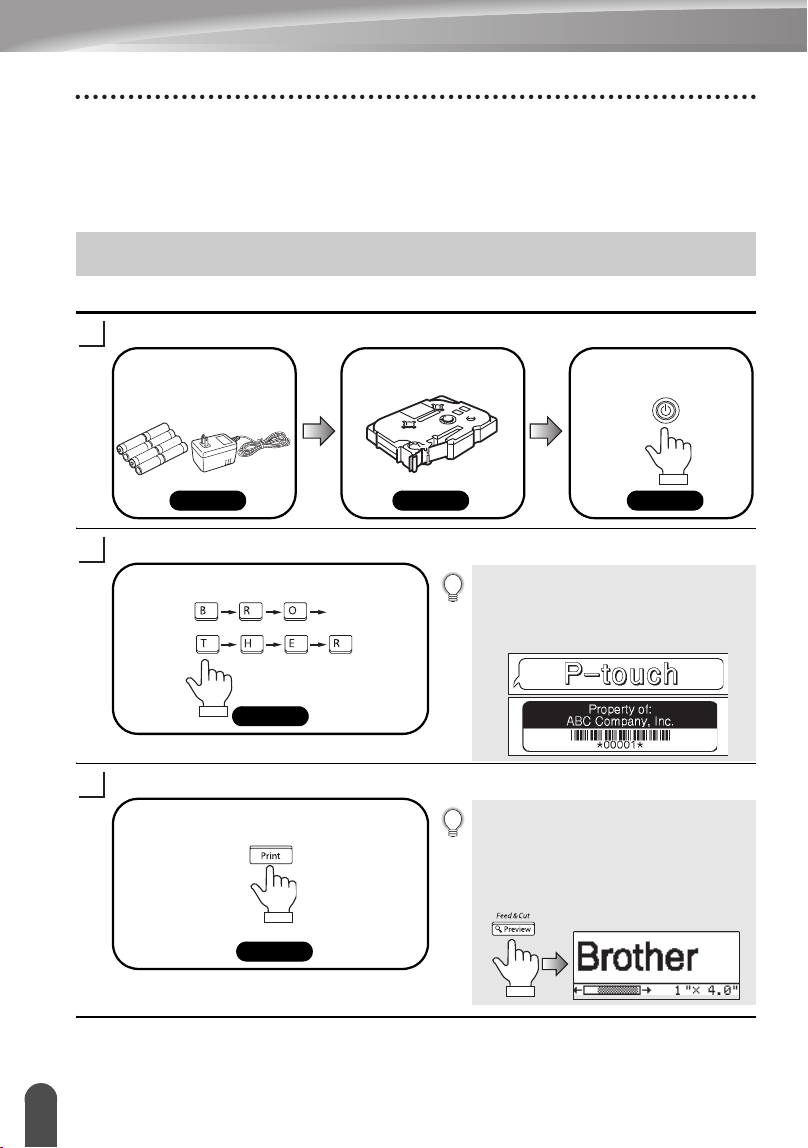
What You Can Do
INTRODUCTION
Thank you for purchasing the P-touch labeler PT-2700/2710.
Your new P-touch labeler is an easy to operate, feature packed labeling system that
makes creating professional, high quality labels a breeze. In addition to easy label
creation via pre-formatted label layouts, the P-touch labeler editing software features
advanced label formatting, block formats, bar codes and auto-numbering functions.
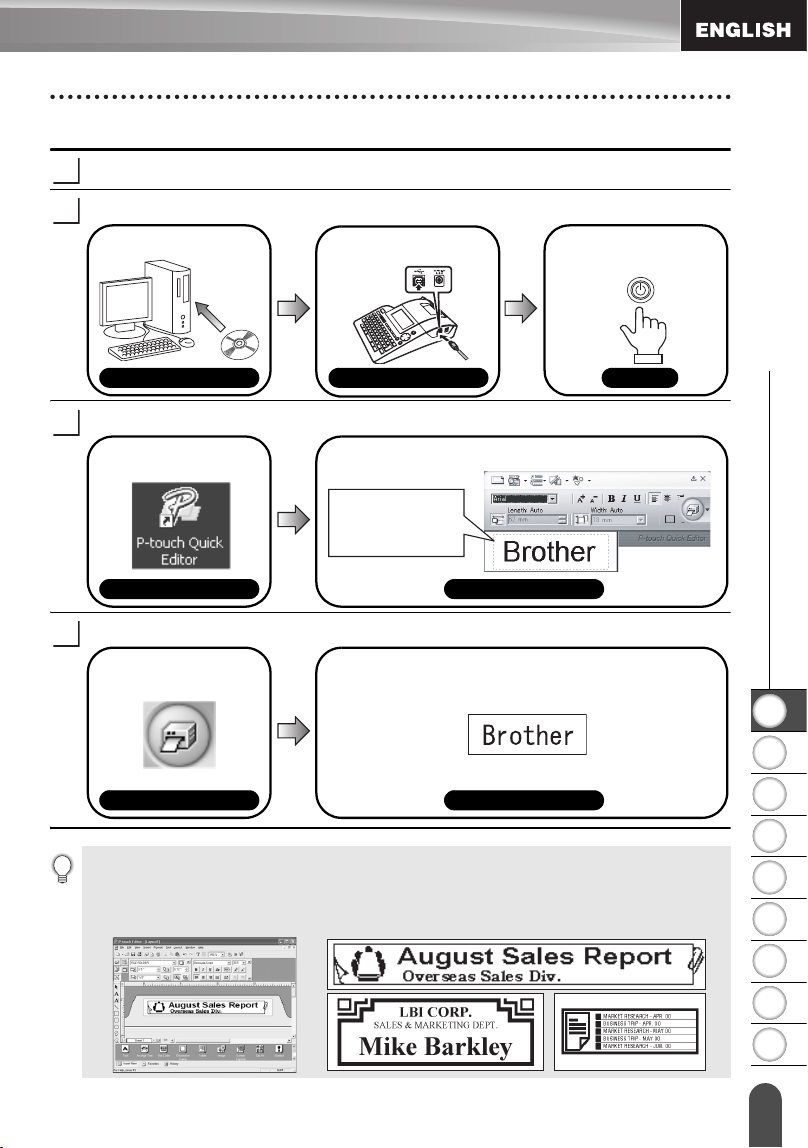
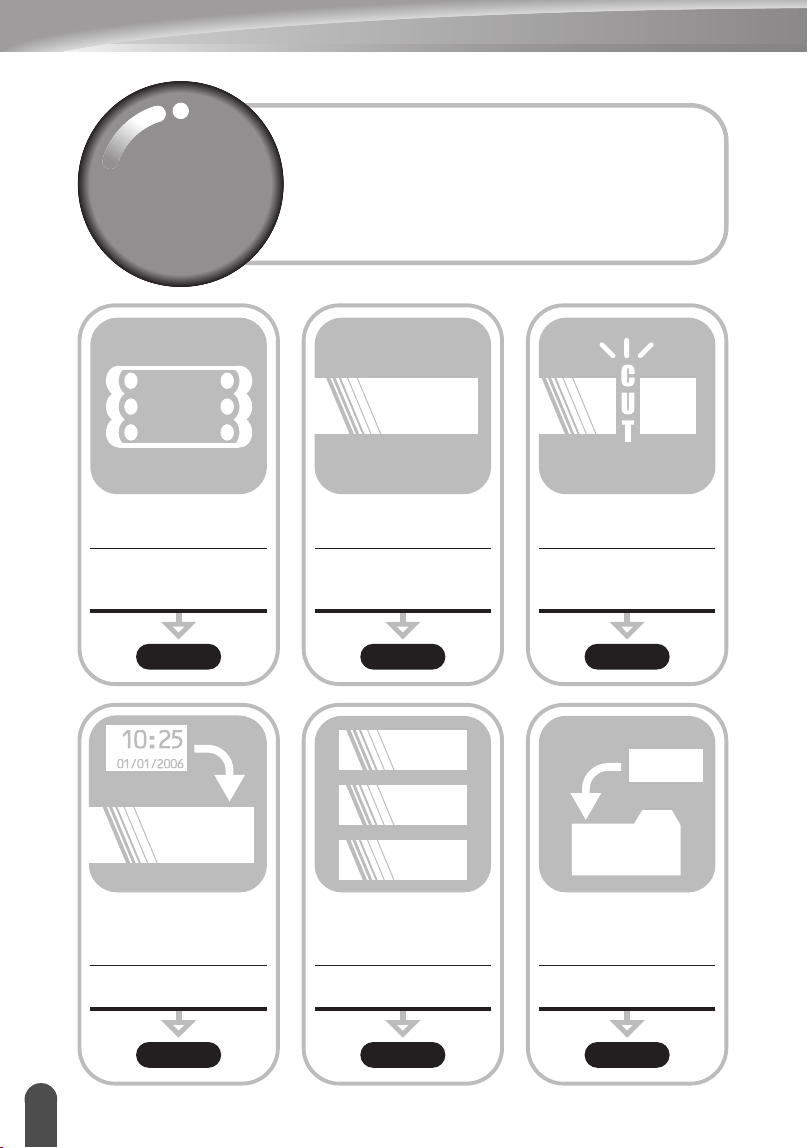
Create a label with the P-touch labeler
Prepare the P-touch labeler.
Enter the label text.
Print the label.
What You Can Do
1
Install the batteries
and/or connect the AC
adapter.
Set a tape cassette.
P. 16 P. 18 P. 20
Turn the P-touch
labeler on.
2
In addition to entering text, the P-touch
labeler has a large range of editing
functions.
"Create labels like these"
Enter the label text from the keyboard.
P. 24
3
You can check the layout of your label
before printing.
Checking the label preview before
printing prevents wasting tape on
incomplete labels.
"Preview function"
Print the label you have created.
P. 58
1
2
3
4
5
6
7
8
9
5
z INTRODUCTION
What You Can Do
Create a label with your personal computer
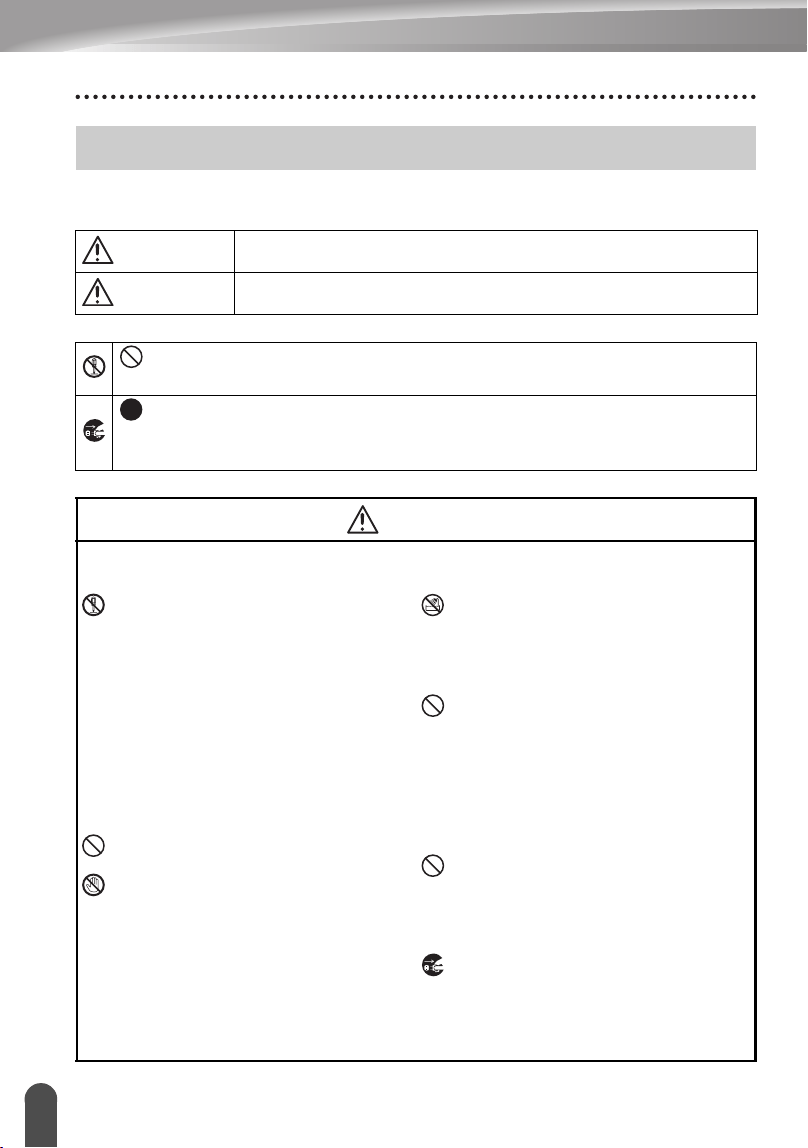
Prepare the P-touch labeler. (Refer to step 1 in the previous section.)
Prepare the personal computer.
Enter the label text using P-touch Quick Editor.
Print the label.
1
2
Install the software.
Software Installation Guide
P. 20
Software Installation Guide
Connect the USB
cable.
Turn the P-touch
labeler on.
3
Start P-touch Quick
Editor.
Enter the label text in P-touch Quick Editor.
Software Help Software Help
Click on the layout
area and then type
"Brother".
4
Click on the "Print"
button.
The label is printed.
Software Help Software Help
P-touch Quick Editor (simple label editing software) is ideal for creating simple labels.
To create labels with more complex designs, use P-touch Editor (fully featured label editing
software).
"P-touch Editor" "Create labels with complex designs like these"
INTRODUCTION
6
Safety Precautions
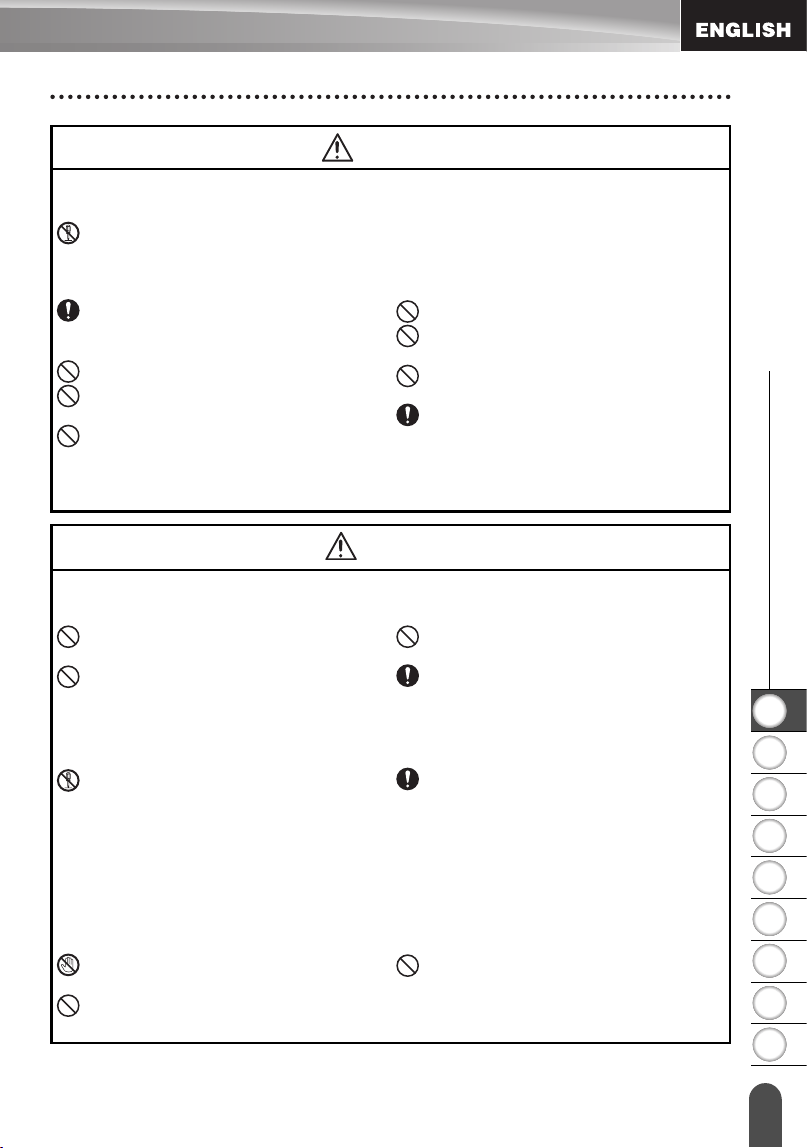
To prevent injury and damage, important notes are explained using various symbols.
The symbols and their meanings are as follows:
The symbols used in this manual are as follows:
Safety Precautions
WARNING
This indicates the possibility of death or serious injury if
instructions are ignored.
CAUTION
This indicates the possibility of personal injury or property damage
if instructions are ignored.
symbol indicates prohibition. Detailed prohibited matters are shown in the
figure (e.g. the left figure shows the prohibition against disassembly).
symbol indicates special instructions. Detailed instructions are shown in the
figure (e.g. the left figure shows the method for pulling the power plug out of the
outlet).
WARNING
P-touch Labeler
Please note the following to avoid fire, damage, electric shock, and choke.
Do not disassemble the P-touch
labeler.
For inspection, adjustment, and repair
of the P-touch labeler, contact the
retail outlet where the P-touch labeler
was purchased or your local
authorized service center. (If the
damage is made by the disassembly
or modify by the customer, the Brother
will provide fare-paying service
whether the duration of the warranty is
still valid or not.)
Do not drop, hit or otherwise bang the
P-touch labeler.
Do not touch any metal parts near the
print head. The print head becomes
very hot during use and remains very
hot immediately after use. Do not
touch it directly with your hands.
Do not wet the P-touch labeler by
touching with wet hands, spilling
drinks such as coffee and juice, or by
pouring the water of a flower base on
to the P-touch labeler.
Do not use the P-touch labeler with a
foreign object in it. If water, metallic
substance or any foreign object enters
the P-touch labeler, disconnect the AC
adapter and remove batteries, and
contact the retail outlet where the P-
touch labeler was purchased or your
local authorized service center.
Do not put plastic packing bag near face,
mouth or nose as bag may present the
choking hazard. Dispose of keep the
plastic bag out of reach of children. The
plastic packing bag is not a toy.
Disconnect the AC adapter and remove
batteries immediately and stop using
when you notice abnormal odor, heat,
discoloration, deformation or anything
unusual while using or storing it.
1
2
3
4
5
6
7
8
9
7
z INTRODUCTION
Safety Precautions
Battery
Please note the following to avoid liquid leakage, heat, rupture of the battery.
Do not throw into fire, heat up, or disassemble the battery.
AC adapter
Please note the following to avoid fire, electric shock, or failure.
Always use the specified voltage
(120V) and the suggested AC adapter
(AD-60).
Do not overload the power outlet.
Do not drop, hit or otherwise damage
the AC adapter.
Do not place heavy objects on,
damage or modify the power cord or
plug. Do not forcibly bend or pull the
power cord.
Do not use a damaged power cord.
Do not touch the AC adapter or power
plug with wet hands.
Do not use the AC adapter in places of
high humidity such as bathrooms.
Make sure that the plug is fully
inserted to the power outlet. Do not
use an outlet that is loose.
CAUTION
Battery
Please note the following to avoid liquid leakage, heat, rupture of the battery.
Do not use old and new batteries
together.
Do not mix alkaline batteries with other
type batteries.
Do not set the positive and negative
end in the wrong position.
Remove the batteries if you do not
intend to use the P-touch labeler for an
extended period of time.
AC adapter
Be sure to disconnect the AC adapter
from the power outlet and the P-touch
labeler when not using the P-touch
labeler for any extended period of
time.
Always hold the plug when
disconnecting the power cord from the
power outlet.
Tape Cutter
Please note the following to avoid personal injury and damage of the P-touch
labeler.
Do not touch the blade of the cutter
unit.
Do not open the tape compartment
cover when operating the cutter unit.
Do not apply excessive pressure to the
cutter unit.
WARNING
INTRODUCTION
8
Safety Precautions
Usage/Storage
Please note the following to avoid personal injury and damage of the P-touch
labeler.
When using the P-touch labeler, do
not place it on a unstable environment,
such as dilapidated table or top of the
shelf.
Do not place any heavy objects on top
of the P-touch labeler.
Memory
Any data stored in memory will be lost
due to failure or repair of the P-touch
labeler, or if the battery expires.
When power is disconnected for more
than two minutes, all text and format
settings will be cleared. Any text files
stored in the memory and clock
settings will also be cleared.
Tape
Depending on the environmental conditions and the material and condition of the
affixing surface, the label may peel off or the color of the tape may change. When
removing labels, adhesive may remain, the tape's color may be transferred to the
surface, or the surface beneath the label may otherwise be damaged. Be sure to
test the label on the intended surface and material before affixing the label.
CAUTION
1
2
3
4
5
6
7
8
9
9
z INTRODUCTION
General Precautions
• Do not use the P-touch labeler in any way or for any purpose not described in this guide.
Doing so may result in accidents or damage the machine.
• Use only Brother TZ tapes with this machine. Do not use tapes that do not have the
mark.
• Do not pull or press on the tape in the cassette.
• Do not put any foreign objects into the tape exit slot, AC adapter connector, or USB port,
etc.
• Do not try to print labels using an empty tape cassette or without a tape cassette set in the
P-touch labeler. Doing so will damage the print head.
• Do not touch the print head with your fingers.
• Do not clean the machine with alcohol or other organic solvents. Only use a soft, dry cloth.
• Do not place the P-touch labeler in direct sunlight, near heaters or other hot appliances,
in any location exposed to extremely high or low temperatures, high humidity, or dusty
locations. Standard operating temperature range: 50
°
F to 95
°
F.
• It is recommended that you use the USB cable supplied with the P-touch labeler. Should
another USB cable need to be used, ensure it is of high quality construction.
• Be careful not to scratch the CD-ROM. Do not place the CD-ROM in any location exposed
to high or low temperatures. Do not place heavy objects on the CD-ROM or bend it.
• The software on the CD-ROM is intended for use with the P-touch labeler and may be
installed on more than one PC.
• We strongly recommend that you read this User’s Guide carefully before using your
P-touch labeler, and then keep it nearby for future reference.
The following symbols are used throughout this guide to indicate additional information.
General Precautions
Symbols Used in this Guide
:
This symbol indicates information or directions that may result in damage or
injury if ignored, or operations that will result in errors.
:
This symbol indicates information or directions that may help you understand
and use the P-touch labeler more efficiently.
INTRODUCTION
10
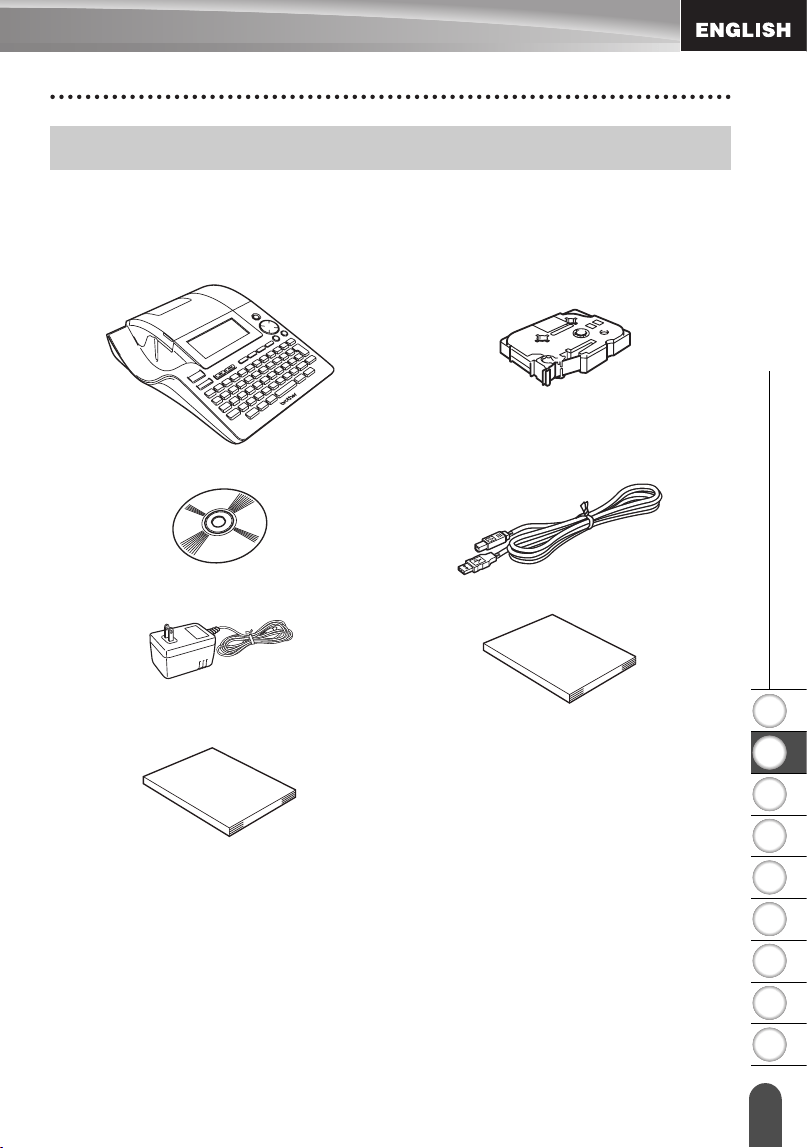
Quick Index
Quick Index
To format the label...
Text/Label format
functions
To enter text, symbols
and accent characters...
Entering
text/symbols/accent
characters
To change the cutting
and margin settings
Tape cutting options
To print multiple
copies (with auto-
numbering)...
Multiple copy/auto-
numbering functions
To add time and
date to your labels...
Time&Date function
To save a label
layout...
File memory function
1
2
3
ABC
auto-format
function
ABC
A B C
ABC
Quick
Index
Quick
Index
This section provides quick and easy access to
information on tasks often needed by users.
Simply look for your task below and then go to
the page indicated.
If the task you are looking for is not shown here,
try the Contents or Index pages.
12345678
12345678
ABC
P. 24 P. 31 P. 62
P. 54 P. 59 P. 66
11
Unpacking Your P-touch labeler
1
2
3
4
5
6
7
8
9
z GETTING STARTED
GETTING STARTED
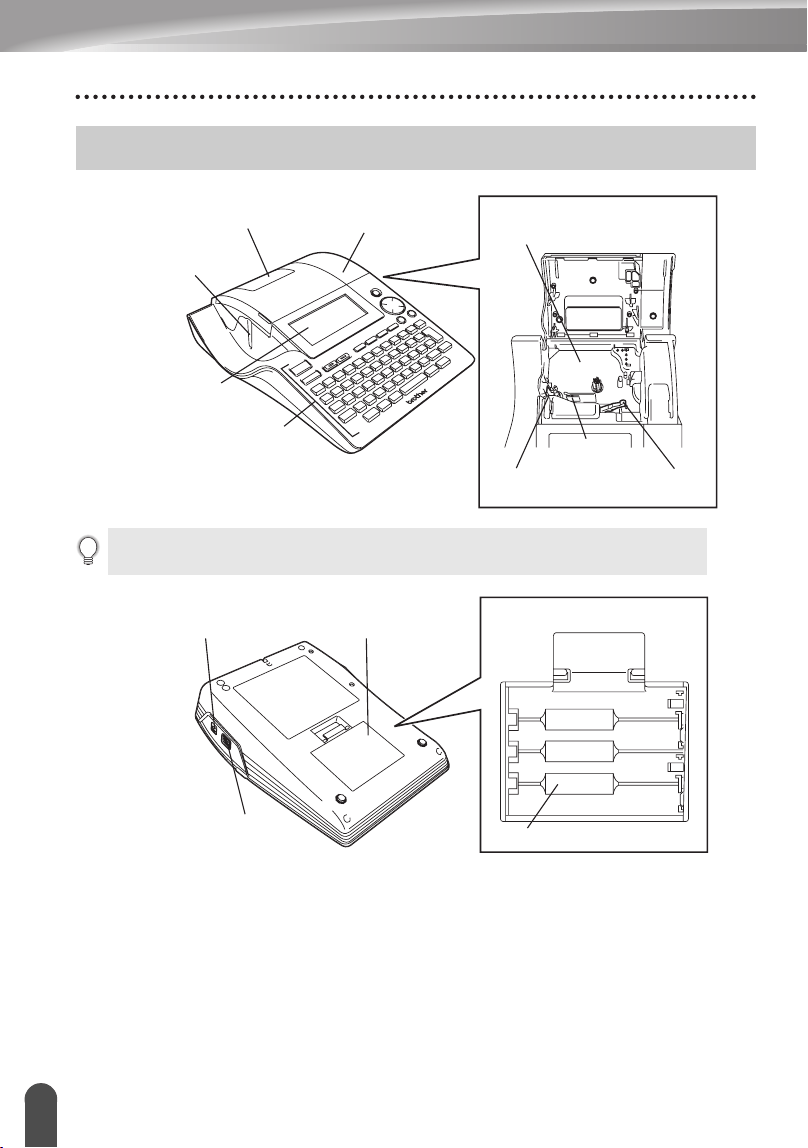
Check that the package contains the following before using your P-touch labeler.
Unpacking Your P-touch labeler
P-touch labeler PT-2700 TZ tape cassette
CD-ROM USB cable
AC adapter User’s Guide
Software Installation Guide
12
General Description
GETTING STARTED
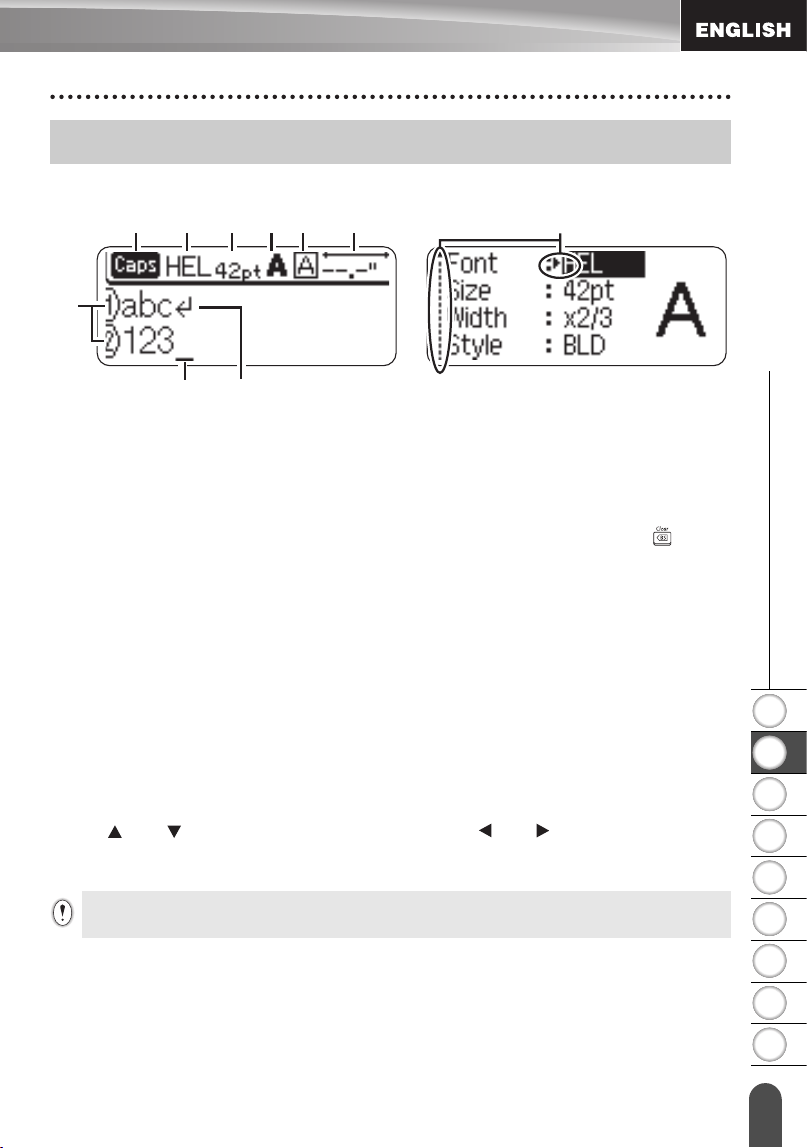
General Description
When shipped from the factory, the LCD display is covered with a protective sheet to
prevent damage. Remove this sheet before using the P-touch.
Tape compartment cover
Tape exit slot
Keyboard
Tape viewer
LCD display
Tape cassette compartment
Tape cutter
Print head
Release lever
AC adaptor connector
USB port
Battery compartment
cover
Battery case
1
2
3
4
5
6
7
8
9
13
z GETTING STARTED
LCD Display & Keyboard
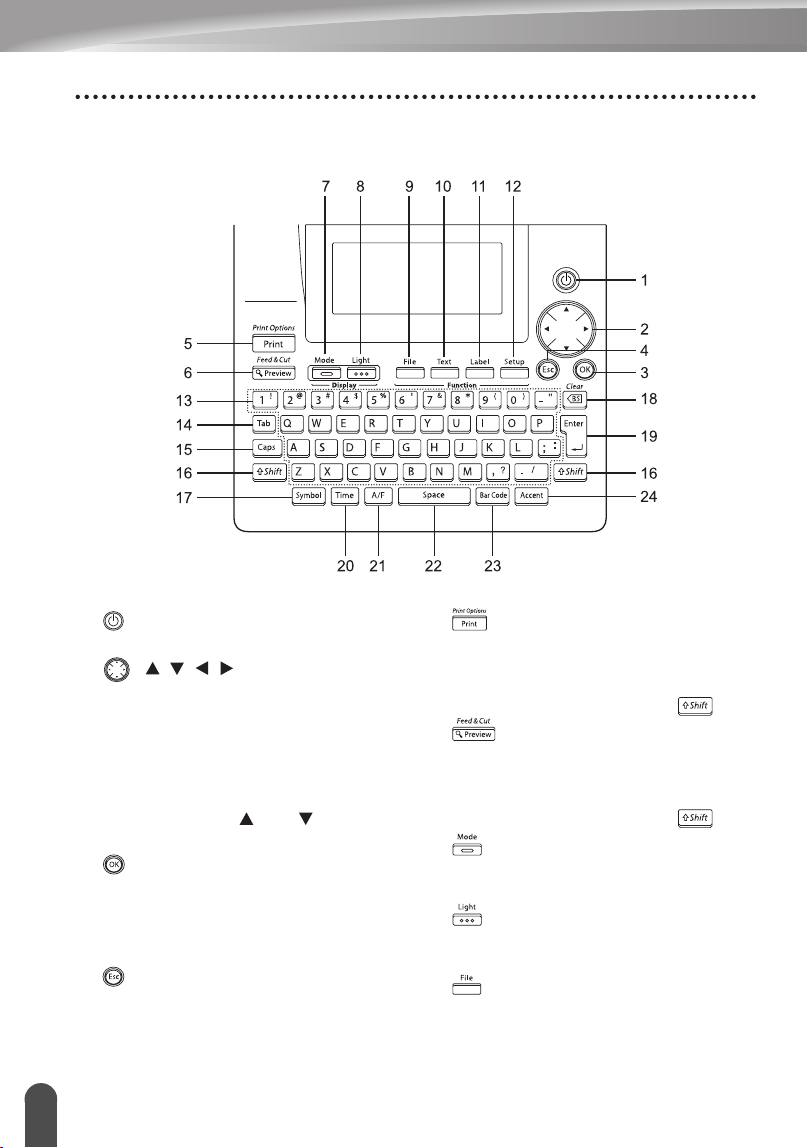
LCD Display
1. Line number
Displayed at the beginning of each line, this mark indicates the line number within
the label layout.
2. Cursor
Indicates the current position of the cursor. New characters are entered to the left of
the cursor, and the character to the left of the cursor is deleted when the key is
pressed.
3. Return mark
Indicates the end of a line of text.
4. Caps mode
Indicates that the Caps mode is on.
5.~8. Style guidance
Indicates the current font (5), character size (6), character style (7) and frame (8)
settings.
9. Tape length
Indicates the tape length for the text entered.
10.Cursor selection
Indicates that you can use the cursor keys to select the items on the screen. Use
the and keys to select a menu item, and the and keys to change the
setting.
LCD Display & Keyboard
1
2
456789 10
3
Refer to “LCD Display” on page 21 for changing the contrast and display mode, and for turning
the back light on/off.
14
LCD Display & Keyboard
GETTING STARTED
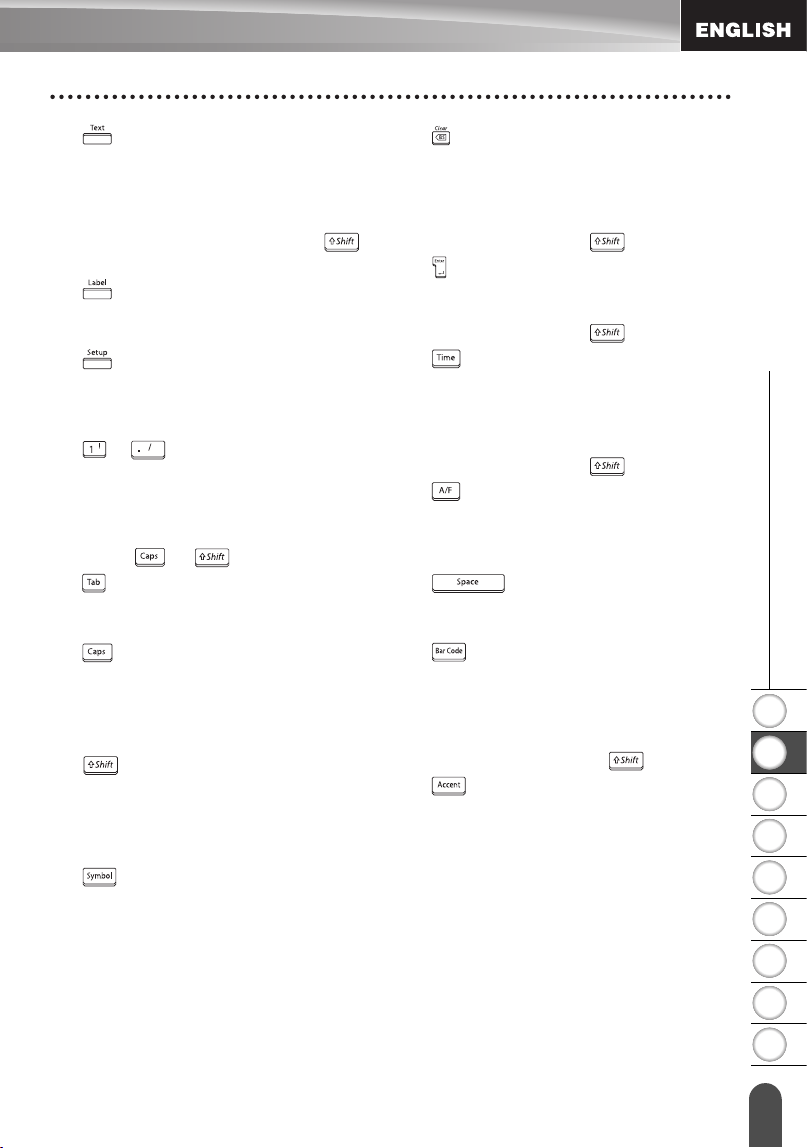
Key Names and Functions
1. (Power):
Turns the P-touch labeler on and off.
2. ( ):
• Moves the cursor in the direction of the
arrow when entering or editing
characters, entering symbols or
accented characters, and when setting
label attributes in the function menus.
• When setting the date and time for the
clock setting, use and key to
increase/decrease the numbers.
3. :
Selects the option displayed when
setting label attributes in the function
menus, or when entering symbols or
accented characters.
4. (Escape):
Cancels the current command and
returns the display to the data entry
screen or the previous step.
5. :
• Prints the current label design onto the
tape.
• Opens the Print Options menu when
used in combination with the key.
6. :
• Displays a preview of the label.
• Feeds 0.92" (23 mm) of blank tape and
then automatically cuts the tape when
used in combination with the key.
7. :
Use this to change the display patterns
of text entry screen and clock display.
8. :
Turns the back light of the LCD display
on and off.
9. :
Opens the File menu, where you can
print, open, save, or delete the
frequently used labels in the file
memory.
1
2
3
4
5
6
7
8
9
15
z GETTING STARTED
LCD Display & Keyboard
10.
:
• Opens the Text menu, where you can
set character attributes for the label.
• Character attributes can be set to each
line of the label when the Text menu is
opened in combination with the
key.
11.
:
Opens the Label menu, where you can
set label attributes for the label.
12.
:
Opens the Setup menu, where you can
set operating preferences for the P-
touch labeler.
13.
~
:
• Use these keys to type letters or
numbers.
• Uppercase letters and symbols can be
entered using these keys in combination
with the or keys.
14.
:
Inserts a tab to the position of the cursor
in the text entry screen.
15.
:
Turns the Caps mode on and off. When
the Caps mode is on, uppercase letters
can be entered by simply pressing a
character key.
16.
:
Use this key in combination with the
letter and number keys to type
uppercase letters or the symbols
indicated on the number keys.
17.
:
Use this to select and enter a symbol
from a list of available symbols.
18. (Backspace):
• Deletes the character to the left of the
cursor.
• Clears all text entered, or all text and
current label settings when used in
combination with the key.
19.
:
• Enters a new line when entering text.
• Enters a new block when used in
combination with the key.
20.
:
• Enters the selected date / time to the
position of the cursor in the text entry
screen.
• Clock display appears when used in
combination with the key.
21. (Auto-Format):
Opens the Auto-Format menu, where
you can create labels using pre-defined
templates or block formats.
22.
:
• Enters a blank space.
• Returns a setting to the default value.
23.
:
• Opens the Barcode Input screen for
entering the bar code data.
• Opens the Bar code Setup screen for
setting bar code parameters when used
in combination with the key.
24.
:
Use this to select and enter an accented
character.
16
Power Supply
GETTING STARTED
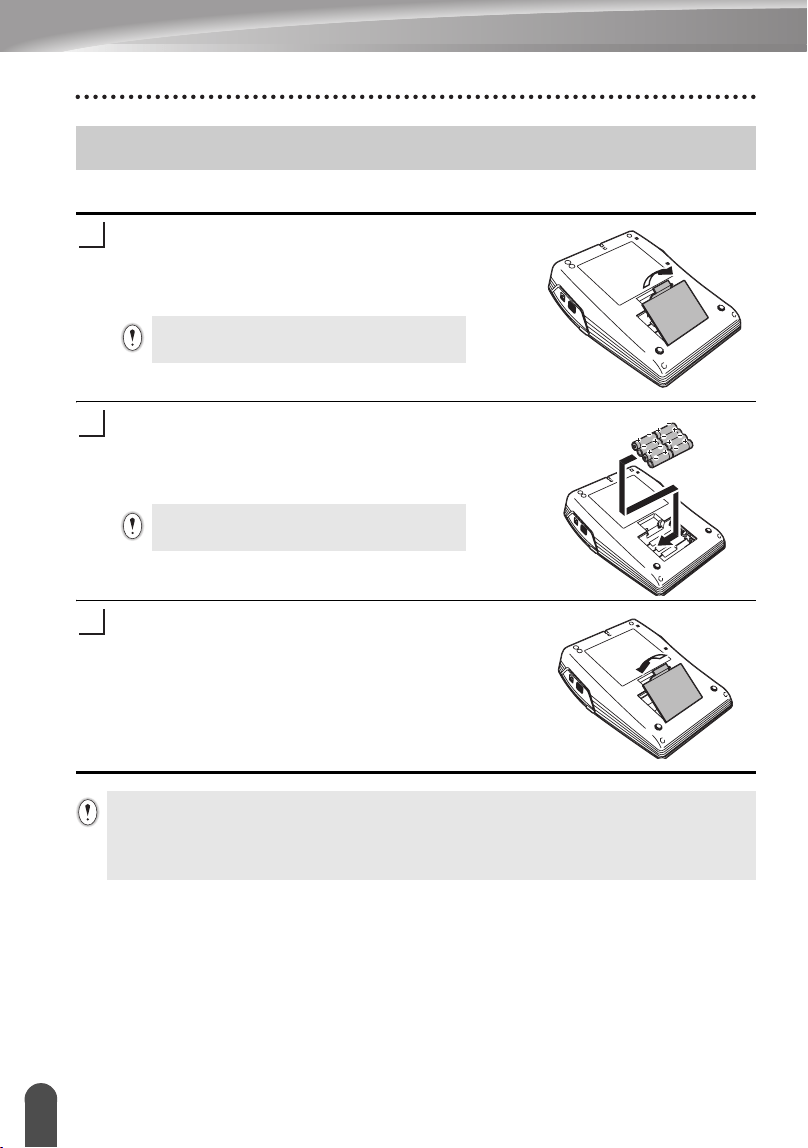
Battery
After making sure that the power is off, remove the
battery compartment cover on the back of the
machine. If the batteries are already in the
machine, remove them.
Insert eight new AA-size alkaline batteries (LR6),
making sure that the positive (+) and negative (-)
ends of the batteries match the positive (+) and
negative (-) marks inside the battery compartment.
23
Attach the battery compartment cover by inserting
the three hooks at the bottom into the slots on the
machine, then pushing down firmly until it snaps
into place.
Power Supply
Make sure that the power is turned off when
replacing batteries.
1
Always replace all eight batteries at the same
time using brand new ones.
2
3
• Remove the batteries if you do not intend to use the P-touch labeler for an extended period of
time.
• When power is disconnected for more than two minutes, all text and format settings will be
cleared. Any text files stored in the memory and clock settings will also be cleared.
1
2
3
4
5
6
7
8
9
17
z GETTING STARTED
Power Supply
AC Adapter
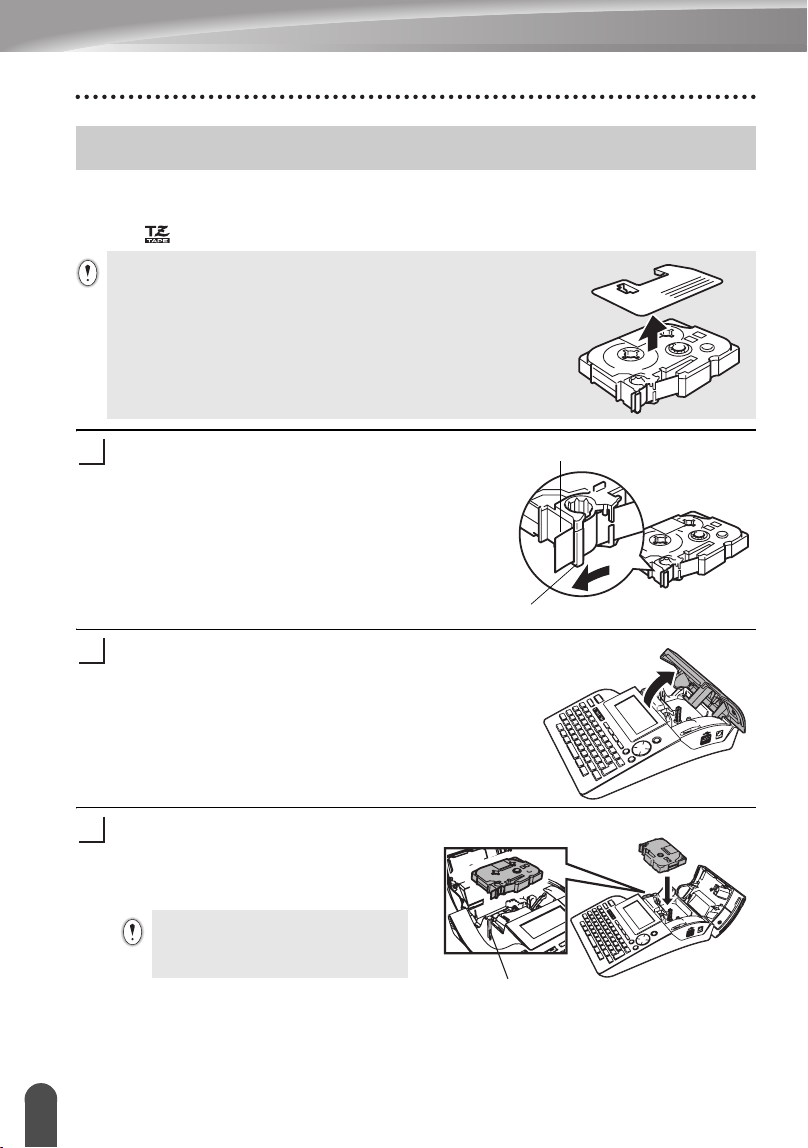
Connect the AC adapter directly to the P-touch labeler.
Insert the plug on the AC adapter cord into the connector marked DC IN 9-9.5V
on the P-touch labeler.
Insert the AC adapter plug into a standard electrical outlet.
1
2
• Turn the P-touch labeler off before disconnecting the AC adapter.
• Disconnect the AC adapter from the P-touch labeler and electrical outlet when you do not
intend to use the P-touch labeler for an extended period.
• Do not pull or bend the AC adapter cord.
• Use only the AC adapter (AD-60) designed exclusively for your P-touch labeler. Failure to
observe this may result in an accident or damage. Brother shall not assume any responsibility
for any accident or damage resulting from not using the specified AC adapter.
• Do not connect the AC adapter to a non-standard electrical outlet. Failure to observe this may
result in an accident or damage. Brother shall not assume any responsibility for any accident
or damage resulting from not using a standard electrical outlet.
• When power is disconnected for more than two minutes, all text and format settings will be
cleared. Any text files stored in the memory and clock settings will also be cleared.
For backup of memory and clock setting, when the AC adapter is unplugged, please use
AA-size alkaline batteries (LR6).
18
Inserting a Tape Cassette
GETTING STARTED
Tape cassettes of 9/64", 1/4", 3/8", 1/2", 3/4", or 1" (3.5mm, 6mm, 9mm, 12mm, 18mm,
or 24mm) width can be used in your P-touch labeler. Use only Brother tape cassettes
with the mark.
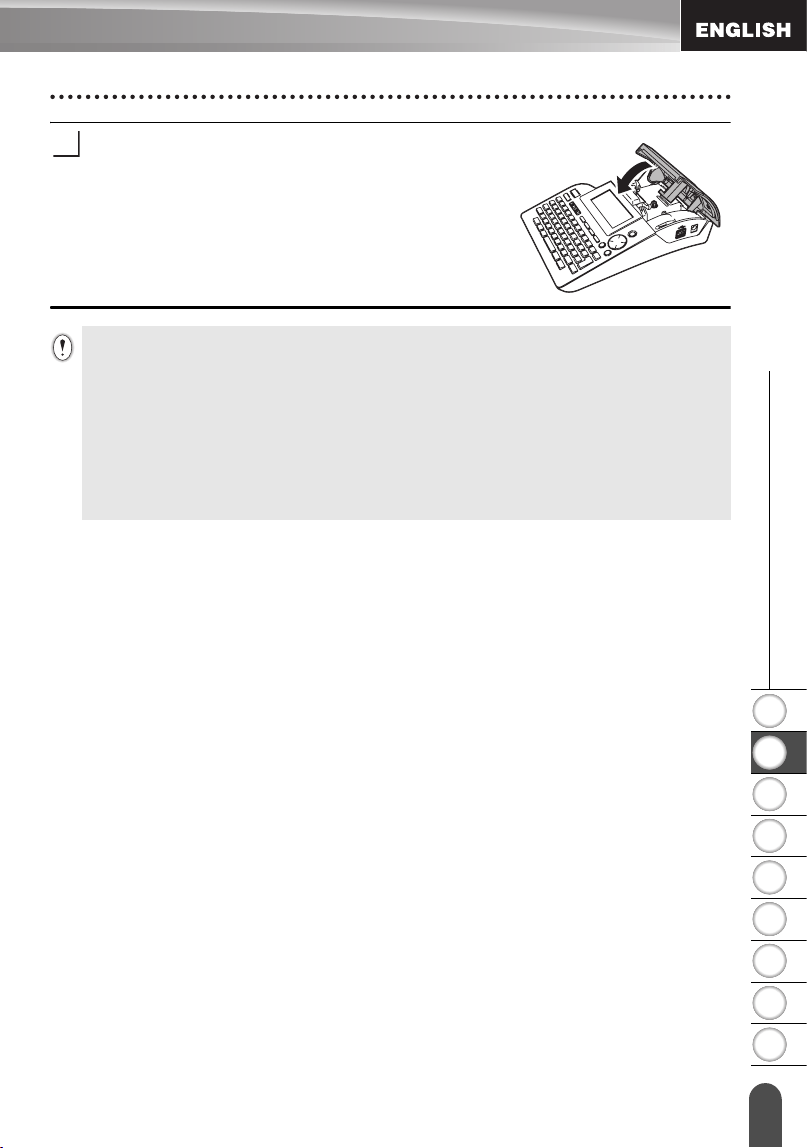
Check that the end of the tape is not bent and
that it passes through the tape guide.
After making sure that the power is off, lift open the
tape compartment cover. If there is already a tape
cassette in the machine, remove it by pulling it
straight up.
Insert the tape cassette into the tape
compartment, with the end of the tape
facing the machine's tape exit slot, and
press firmly until you hear a click.
Inserting a Tape Cassette
If the new tape cassette has a cardboard stopper, be sure to remove
the stopper before inserting the cassette.
WATNLATION
End of tape
Tape guide
1
2
When inserting the tape cassette,
make sure that the tape and ink
ribbon do not catch on the print head.
Tape exit slot
3
1
2
3
4
5
6
7
8
9
19
z GETTING STARTED
Inserting a Tape Cassette
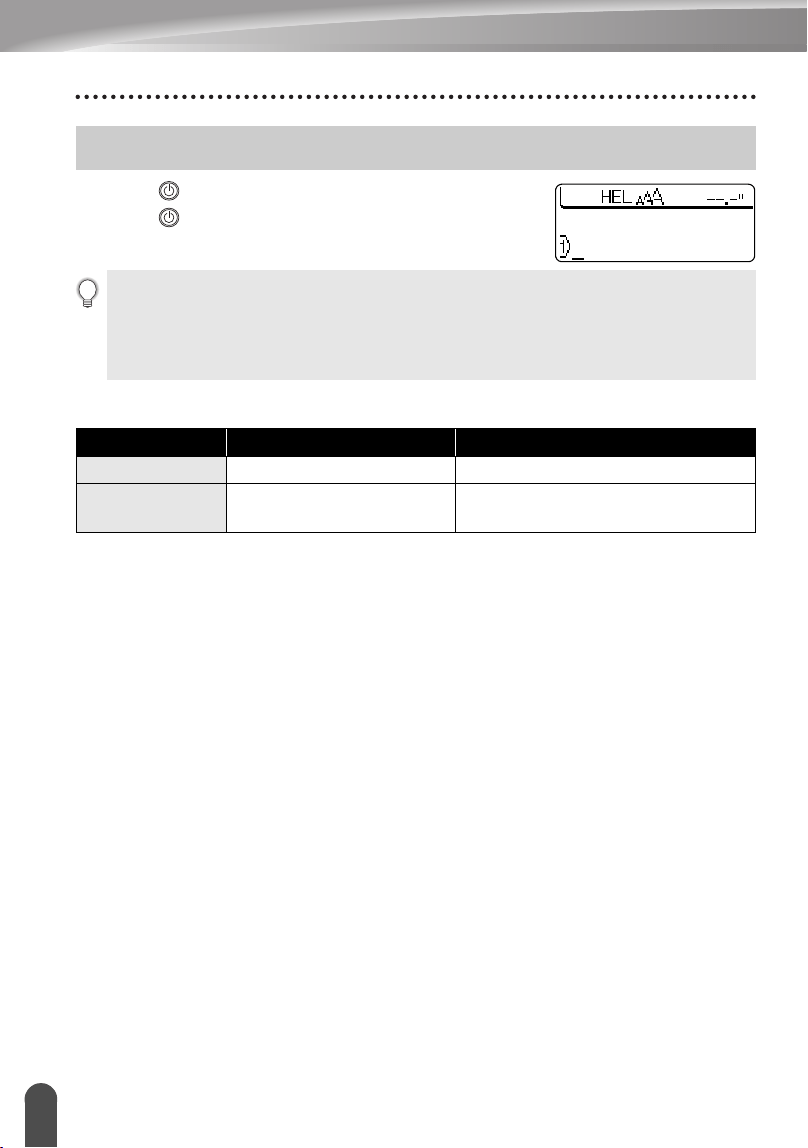
Close the tape compartment cover.
4
• Make sure that the release lever is up when closing the tape compartment cover. The tape
compartment cover cannot be closed if the release lever is pressed down.
• Be sure to feed tape to remove any slack in the tape and ink ribbon after inserting the tape
cassette. Refer to “Feeding Tape” on page 21.
• Do not pull the label coming out of the tape exit slot. Doing so will cause the ink ribbon
to be discharged with the tape.
• Store tape cassettes in a cool dark location, away from direct sunlight and high temperature,
high humidity, or dusty locations. Use the tape cassette as quickly as possible after opening
the sealed package.
20
Turning Power On/Off
GETTING STARTED
Press the key to turn the P-touch labeler on.
Press the key again to turn the P-touch labeler off.
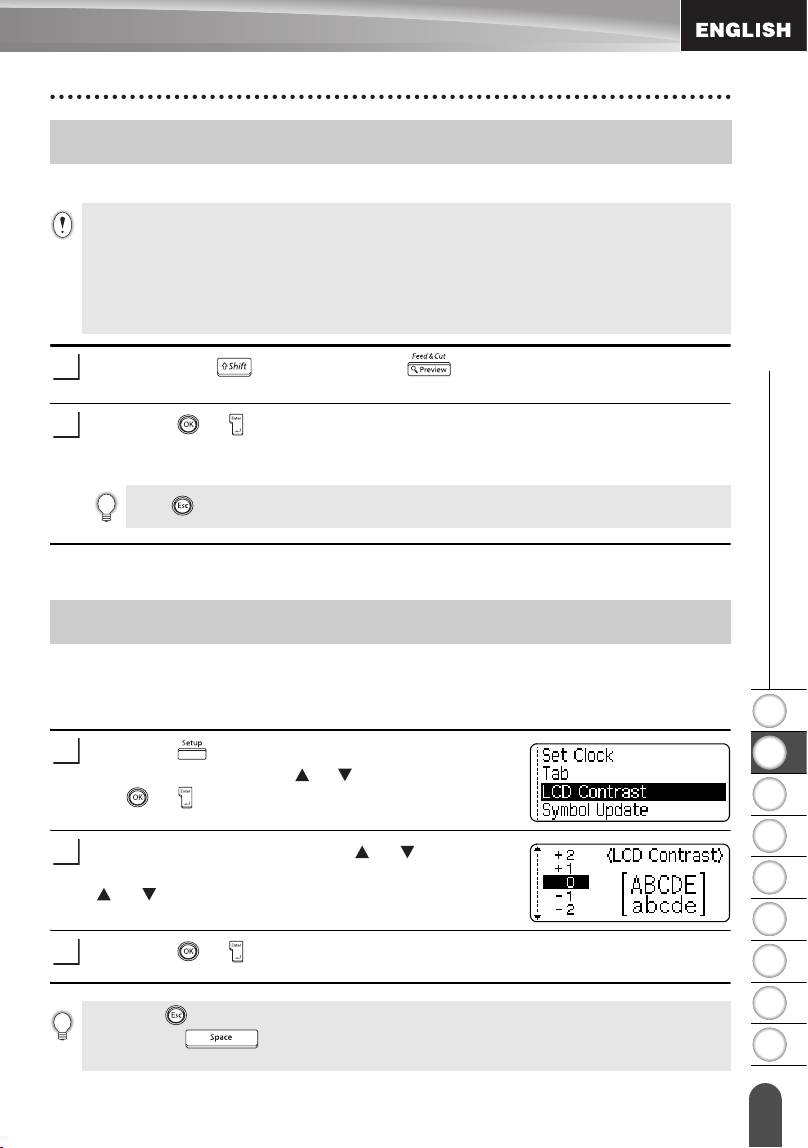
zAuto Power-Off Timez
Turning Power On/Off
• Your P-touch labeler has a power saving function that automatically turns itself off if no key
is pressed within a certain time under certain operating conditions. Refer to the Auto Power-
Off Time table below for details.
• If the batteries are installed or the P-touch labeler is connected to an electrical outlet by the
AC adapter, the previous session’s information is displayed when the power is turned on.
P-touch labeler only Connected to PC
With AC adapter
8 hours 8 hours
With battery
5 minutes
5 minutes with no operation.
1 hour after printing from PC.
1
2
3
4
5
6
7
8
9
21
z GETTING STARTED
Feeding Tape
The Feed & Cut function feeds 0.92" (23mm) of blank tape then cuts the tape.
Hold down the key and press the key.
“Feed & Cut?” appears on the display.
Press the or key to feed tape.
The message “Feeding Tape... Please Wait” appears while the tape is fed, and
then the tape is cut.
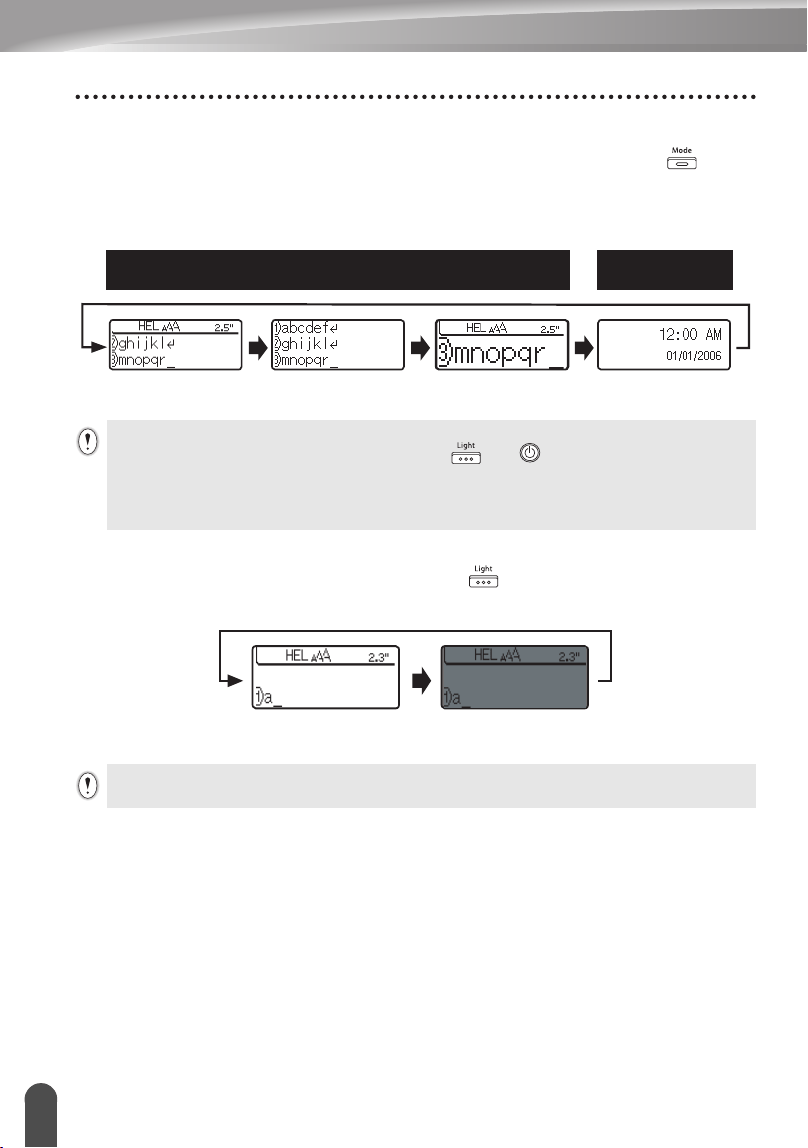
LCD Contrast
You can change the contrast setting of the LCD display to one of five levels (+2, +1, 0,
-1, -2) to make the screen easier to read. The default setting is “0”.
Press the key to display the Mode menu, select
“LCD Contrast” using the or key, and then press
the or key.
Select a contrast level using the or key.
The screen contrast changes each time you press the
or key, allowing you to set the most suitable
contrast.
Press the or key.
Feeding Tape
• Be sure to feed tape to remove any slack in the tape and ink ribbon after inserting the tape
cassette.
• Do not pull the label coming out of the tape exit slot. Doing so will cause the ink ribbon
to be discharged with the tape.
• Do not block the tape exit slot during printing or when feeding tape. Doing so will cause the
tape to jam.
1
2
Press while “Feed & Cut?” is displayed to cancel tape feeding.
LCD Display
1
2
3
• Press the key to return to the previous step.
• Pressing the key on the contrast setting screen sets the contrast to the default value
“0”.
22
LCD Display
GETTING STARTED
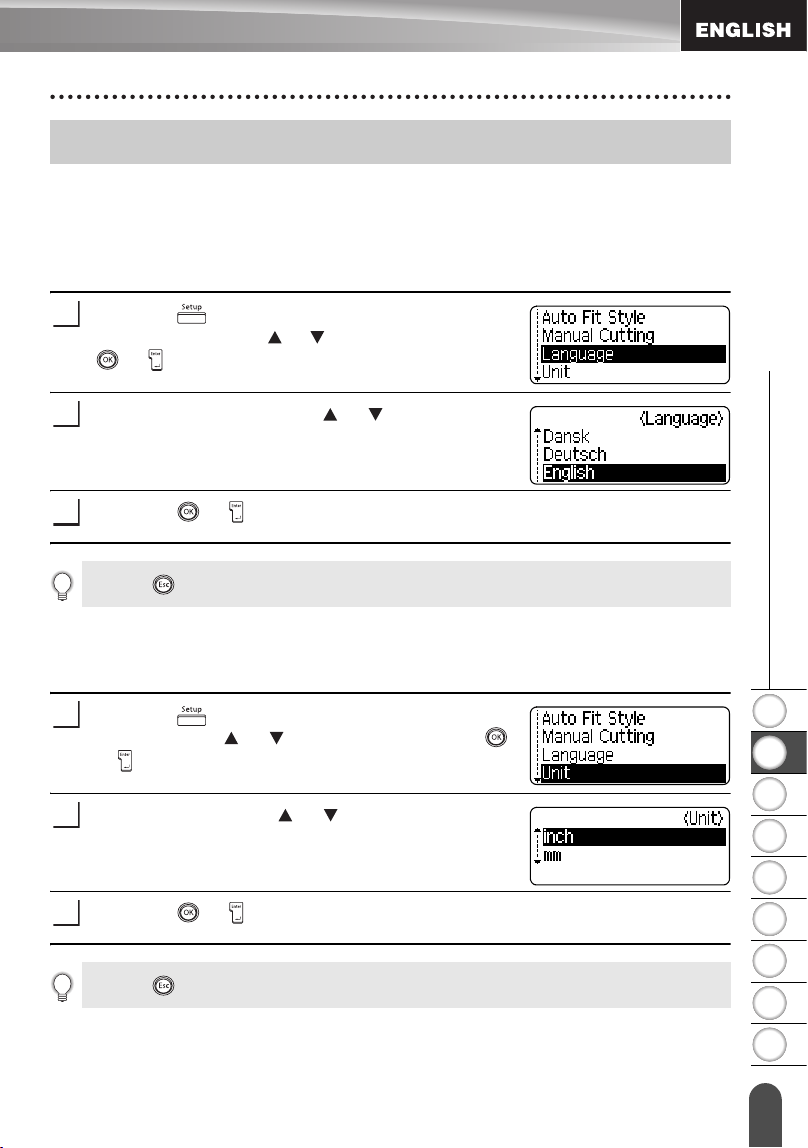
Display Mode
You can change the display mode to your preferable style by pressing the key
repeatedly. You can select from three text entry screens (guidance + 2 text lines, 3 text
lines, guidance + 1 line) and clock display.
Back Light
You can turn the back light on / off by pressing the key. The back light can be used
when you wish to see the display more clearly. The default setting is ON.
Text entry screen Clock display
guidance + 2 lines 3 lines guidance + 1 line
• You can also change the clock display to the text entry screen (guidance + 2 text lines) by
pressing any other key on the keyboard besides and key.
• For adjusting the clock to current date and time, refer to “Clock Setting” on page 48.
• For selecting a desired format for displaying the date and time, refer to “Time & Date Format
Setting” on page 49.
Back Light ON Back Light OFF
Power can be saved when the back light is turned off.
1
2
3
4
5
6
7
8
9
23
z GETTING STARTED
Setting Language and Unit
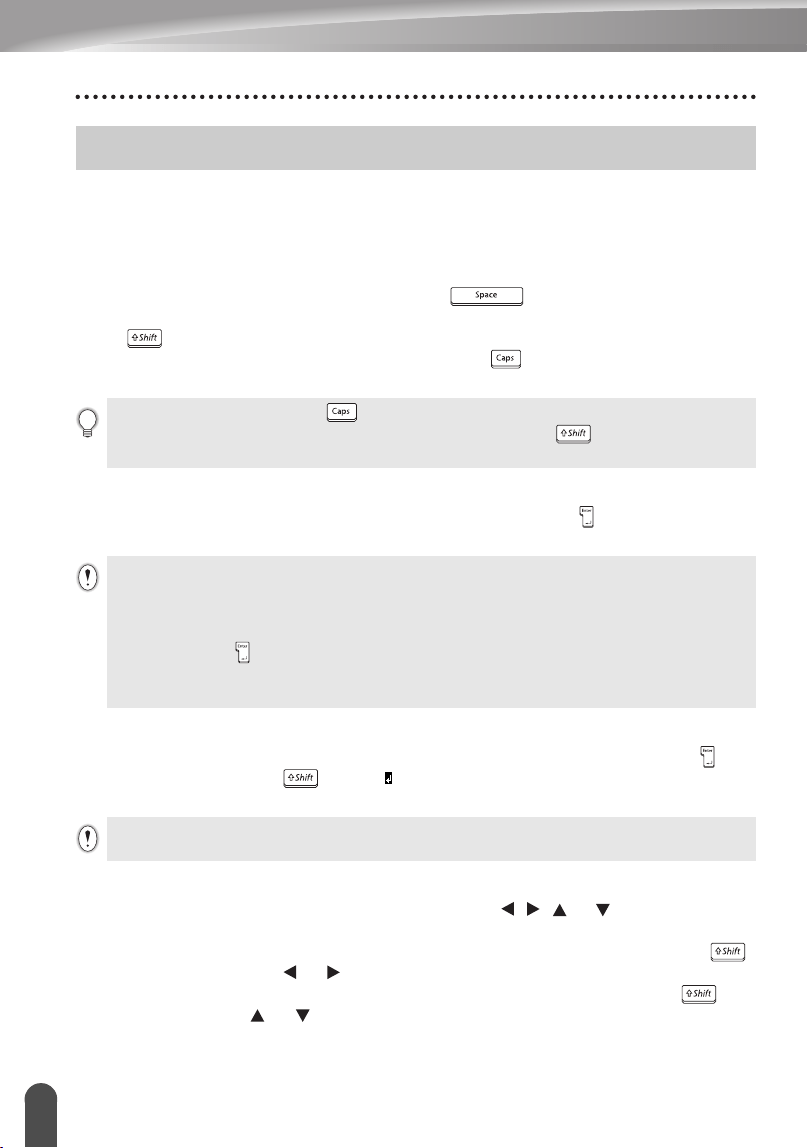
Language
Select the language("English", "Español", "Français", "Português","Deutsch",
"Nederlands", "Italiano", "Dansk", "Svenska", "Norsk", or "Suomi") for menu commands
and messages shown on the LCD display.
The default setting is "English".
Press the key to display the Setup menu, select
"Language" using the or key, and then press the
or key.
Select a language using the or key.
Press the or key.
Unit
Select the units ("inch" or "mm") for dimensions shown on the LCD display.
The default setting is "inch".
Press the key to display the Setup menu, select
"Unit" using the or key, and then press the
or key.
Select a unit using the or key.
Press the or key.
Setting Language and Unit
1
2
3
Press the key to return to the previous step.
1
2
3
Press the key to return to the previous step.
24
Entering and Editing Text
EDITING A LABEL
Using the keyboard of your P-touch labeler is very similar to using a typewriter, word
processor, or personal computer.
Entering Text from the Keyboard
• To enter a lowercase letter or a number, simply press the desired key.
• To enter a blank space in the text, press the key.
• To enter an uppercase letter or one of the symbols on the number keys, hold down
the key and then press the desired key.
• To enter uppercase letters continuously, press the key to enter Caps mode, and
then press the desired keys.
Adding a New Line
• To end the current line of text and start a new line, press the key. A return mark
appears at the end of the line and the cursor moves to the start of the new line.
Adding a New Block
• To create a new block of text/lines to the right of your current text, press the key
while holding down the key. A mark will appear at the end of the block and
the cursor moves to the start of the new block.
Moving the Cursor
• To move the cursor left, right, up or down, press the , or keys. Each press
of the key moves the cursor one space or line.
• To move the cursor to the beginning or end of the current line, hold down the
key and then press the or keys.
• To move the cursor to the very beginning or end of the text, hold down the key
and then press the or keys.
Entering and Editing Text
• To exit Caps mode, press the key again.
• To enter a lowercase letter while in Caps mode, hold down the key and then press the
desired key.
• There is a maximum number of lines of text that can be entered for each tape width. A
maximum of 7 lines can be entered for 1" (24mm) tape, 5 lines for 3/4" (18mm) tape, 3 lines
for 1/2" (12mm) tape, 2 lines for 3/8" (9mm) and 1/4" (6 mm) tape, and 1 line for 9/64"
(3.5mm) tape.
• If you press the key when seven lines already exist, an error message is displayed.
• To change the character attribute of each line, refer to “Setting Character Attributes by Each
Line” on page 31.
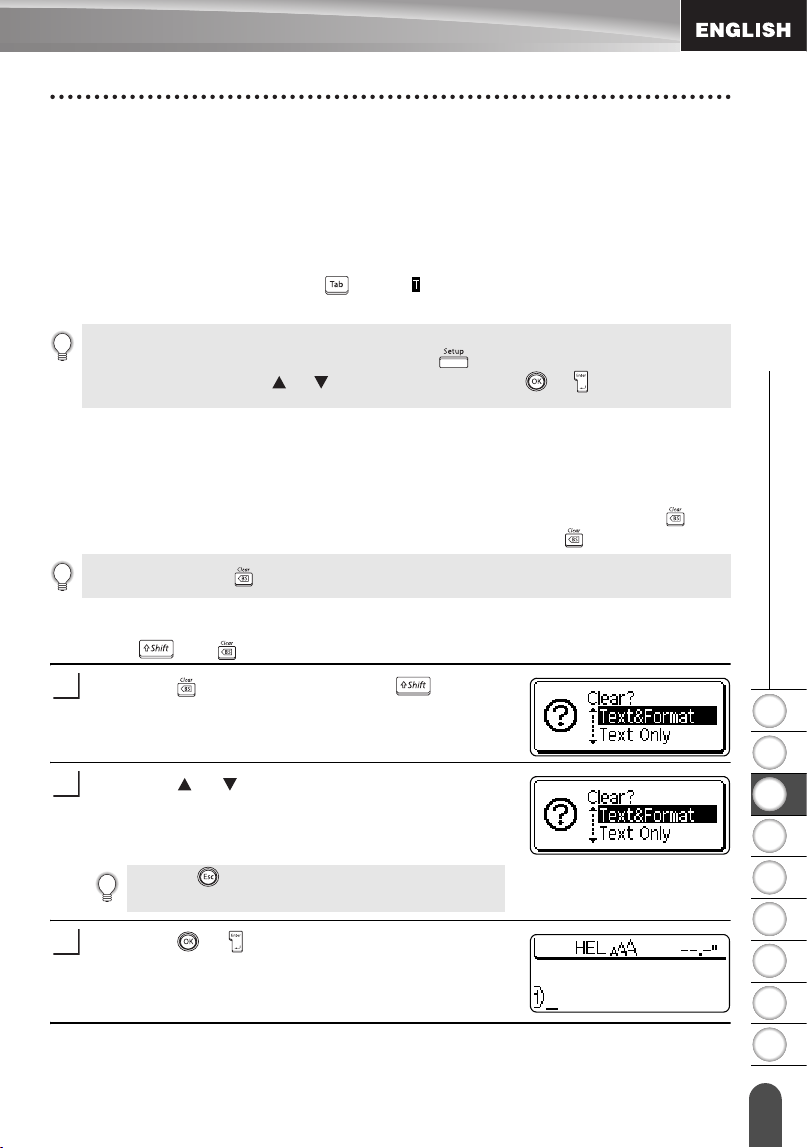
A maximum of 5 blocks can be entered in one label.
1
2
3
4
5
6
7
8
9
25
z EDITING A LABEL
Entering and Editing Text
Inserting Text
• To insert additional text into an existing line of text, move the cursor to the character
to the right of the position where you want to start inserting text and then enter the
additional text. The new text is inserted to the left of the cursor.
Inserting a Tab
• To insert a tab space between the existing line of text, move the cursor where you
wish to add a tab and press the key. A mark appears to indicate the position
which the tab space will be entered.
Deleting Text
Deleting one character at a time
• To delete a character from an existing line of text, move the cursor to the character
to the right of the position you want to start deleting text and then press the key.
The character to the left of the cursor is deleted each time the key is pressed.
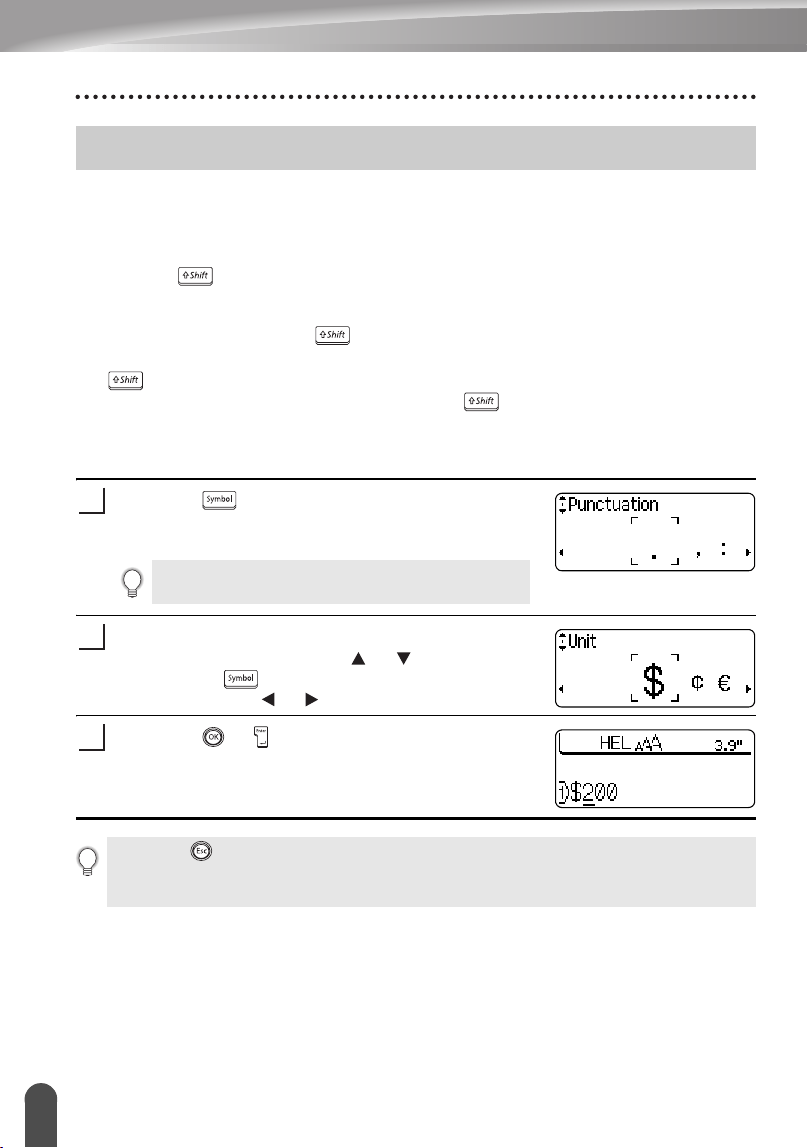
Deleting all text at once
• Use the and key to delete all text at once.
Press the key while holding down key.
The Clear options are displayed.
Using the or keys, select “Text Only” to delete
all text while retaining the current format settings, or
select “Text & Format” to delete all text and format
settings.
Press the or key.
All text is deleted. All format settings are also deleted
if Text & Format was selected.
• To change the length setting of the tab, refer to “Setting Label Attributes” on page 36.
• The tab space can also be entered by pressing the key to open the Setup menu and
selecting "Tab" by using or keys, and then pressing the or key.
If you hold down the key, the characters left to the cursor are deleted continuously.
1
Press the key to return to the text entry screen,
without erasing (or clearing) text or format.
2
3
EDITING A LABEL
26
Entering Symbols
In addition to the symbols available on the keyboard, there are various symbols
(including international and extended ASCII characters) available with the symbol
function.
There are two methods of entering symbols:
• Using the key.
• Using the Symbol function.
Entering Symbols Using Key
Symbols printed in upper-right corner of the keys on the keyboard can be entered using
the key.
• To enter one of these symbols, hold down the key and then press the desired
key.
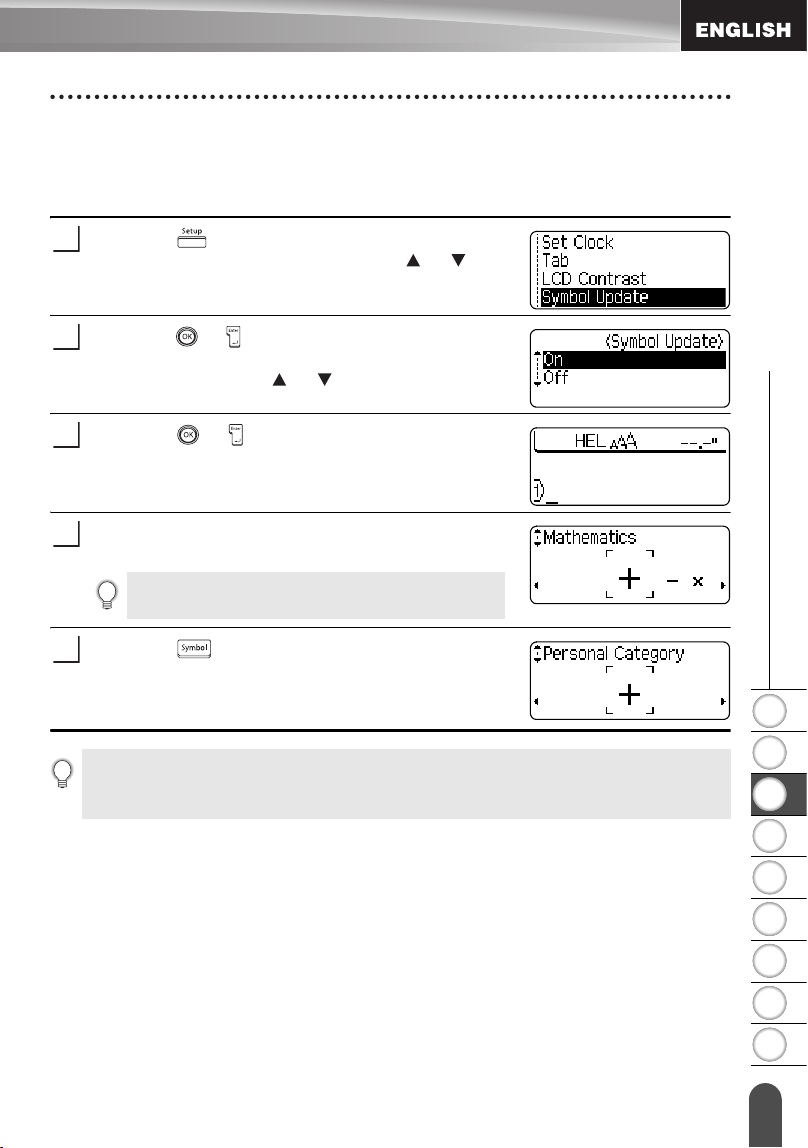
Entering Symbols Using the Symbol Function
Press the key.
A list of symbol categories and symbols in that
category is displayed.
Select a symbol category (Punctuation, Business,
Mathematics, etc.) using the or key or by
pressing the key repeatedly, and then select a
symbol using the or keys.
Press the or key.
The selected symbol is inserted into the line of text.
Entering Symbols
The last symbol entered is selected in the list displayed.
1
2
3
• Press the key to return to the previous step.
• Refer to the Symbol List table on page 28 for a complete list of symbols and symbol
categories.
1
2
3
4
5
6
7
8
9
27
z EDITING A LABEL
Entering Symbols
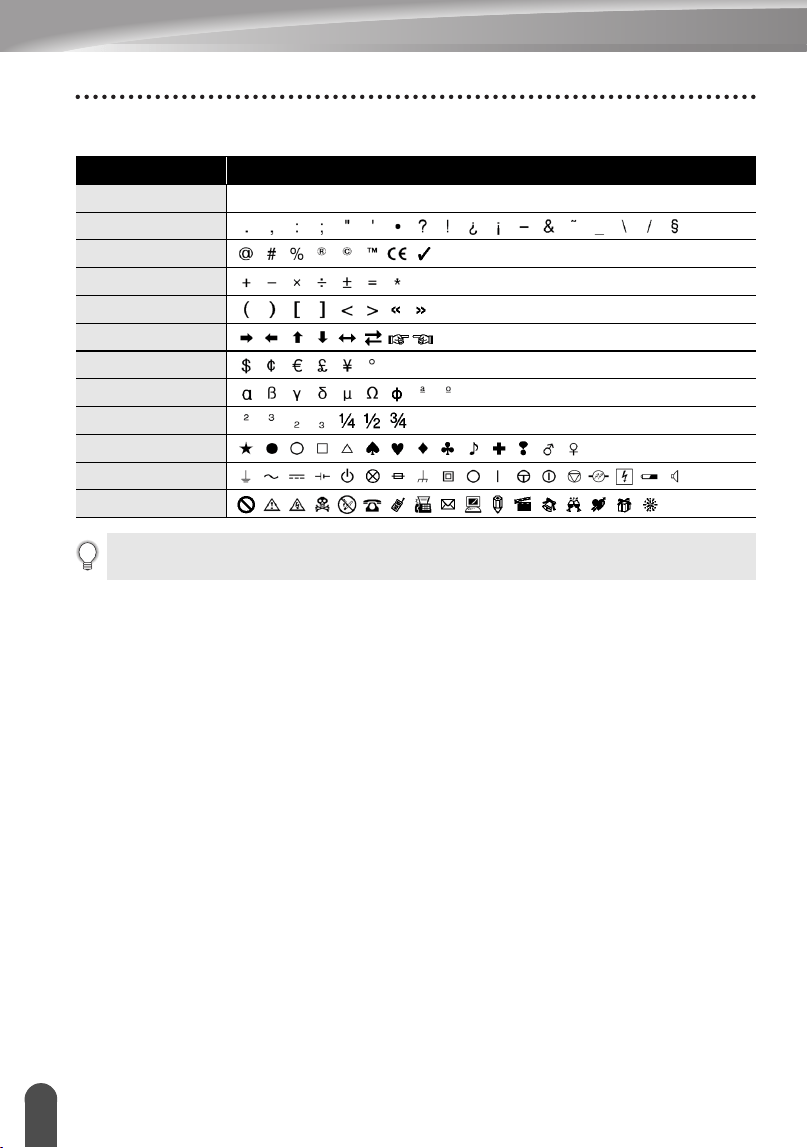
Using Symbol Update Function
You can create your personal category of symbols by using the Symbol Update
Function. The "Personal category" will appear first when selecting the symbols to help
you locate the desired symbols quickly.
Press the key to display the Setup menu, and
then select "Symbol Update" using the or keys.
Press the or key to display the Symbol Update
screen, and then select "On" to create your personal
category by using the or keys.
Press the or key to apply the setting.
The screen returns to the text entry screen.
Enter the symbol you wish to add to your personal
Category.
Press the key.
The "Personal category" appears, including the
symbol entered in step 4.
1
2
3
Refer to “Entering Symbols Using the Symbol
Function” on page 26 for detail.
4
5
• Up to 20 symbols can be added to the "Personal category". The oldest symbol will be deleted
from the category when the symbols added to the "Personal category" exceed 20 symbols.
• To stop using the Symbol Update Function, select "Off" in the Symbol Update screen.
EDITING A LABEL
28
Entering Symbols
zSymbol Listz
Category Symbols
Personal Category
Refer to “Using Symbol Update Function” on page 27 for detail.
Punctuation
Business
Mathematics
Bracket
Arrow
Unit
International
Number
Pictograph
Electrical
Others
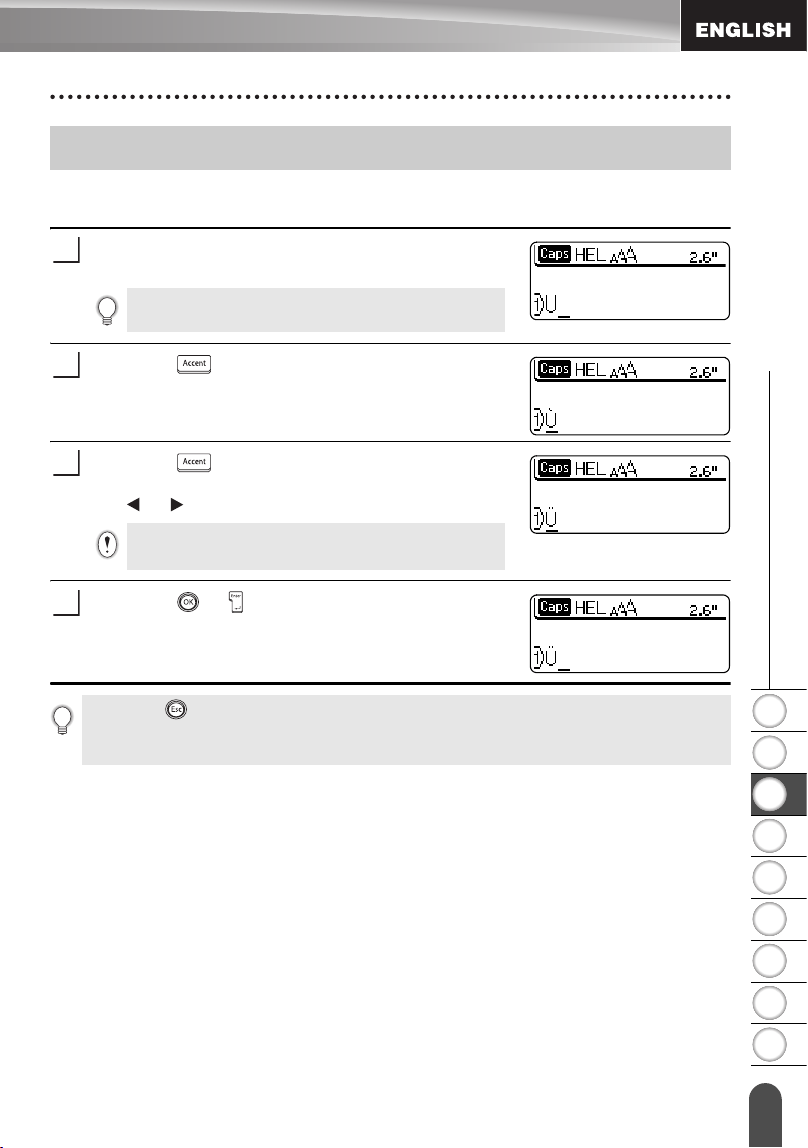
The use of the CE mark is strictly governed by one or more European Council directives. Ensure
that any labels you produce which use this mark conform with the relevant directives.
1
2
3
4
5
6
7
8
9
29
z EDITING A LABEL
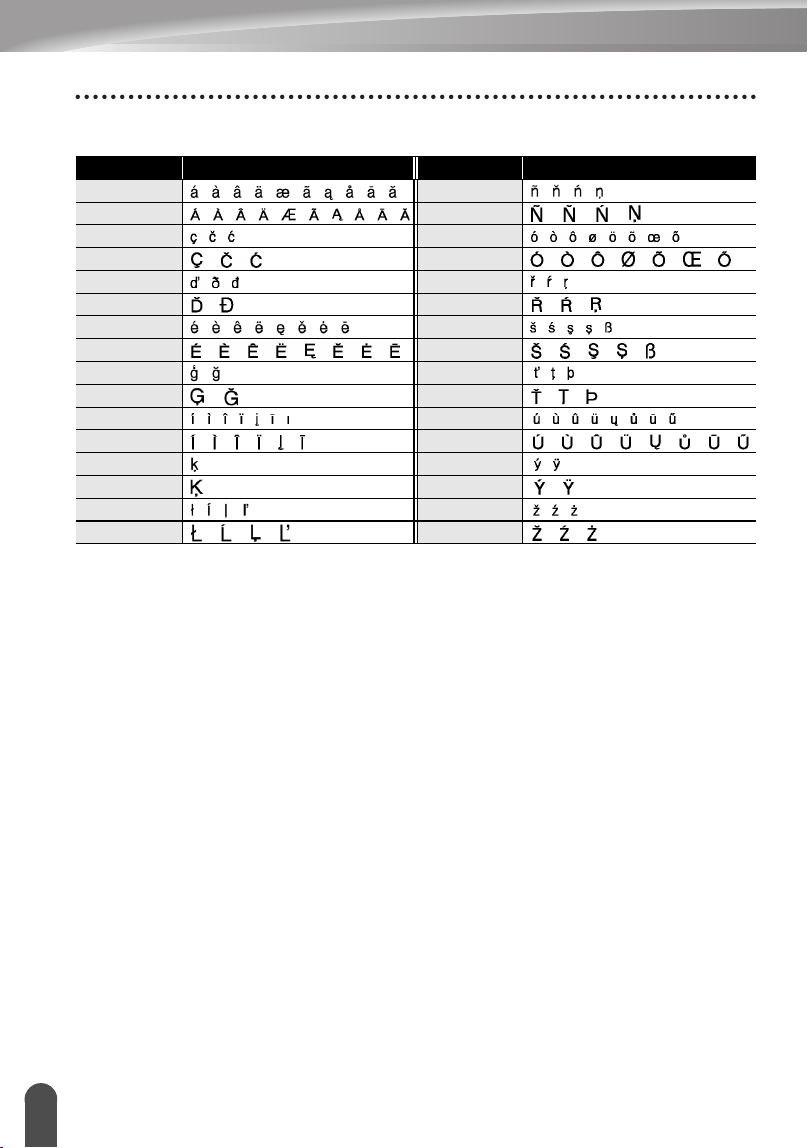
Entering Accented Characters
The P-touch labeler can display and print a set of accented characters such as other
language specific characters.
Enter the character you wish to change to composite
character.
Press the key.
The character you entered will change to an accented
character.
Press the key repeatedly until the desired
accented character is selected, or select it by using
the or keys.
Press the or key.
The selected composite character is inserted into the
line of text.
Entering Accented Characters
Caps mode can be used with the Accent function.
1
2
The order of composite characters which appear on
display differ by the selected LCD language.
3
4
• Press the key to return to the previous step.
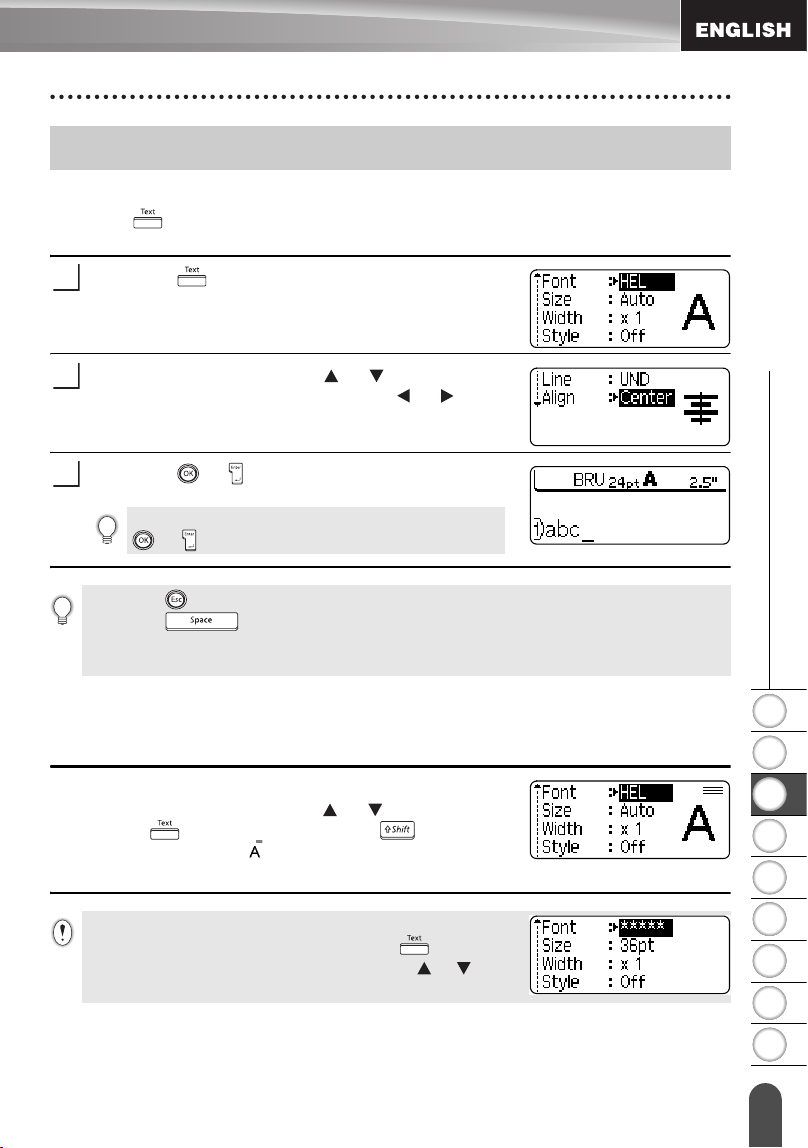
• Refer to the Accented Character List table for a complete list of all accented characters
available.
EDITING A LABEL
30
Entering Accented Characters
zAccented Character Listz
Character Accented Characters Character Accented Characters
a n
A N
c o
C O
d r
D R
e s
E S
g t
G T
i u
I U
k y
K Y
l z
L Z
1
2
3
4
5
6
7
8
9
31
z EDITING A LABEL
Setting Character Attributes
Setting Character Attributes by Label
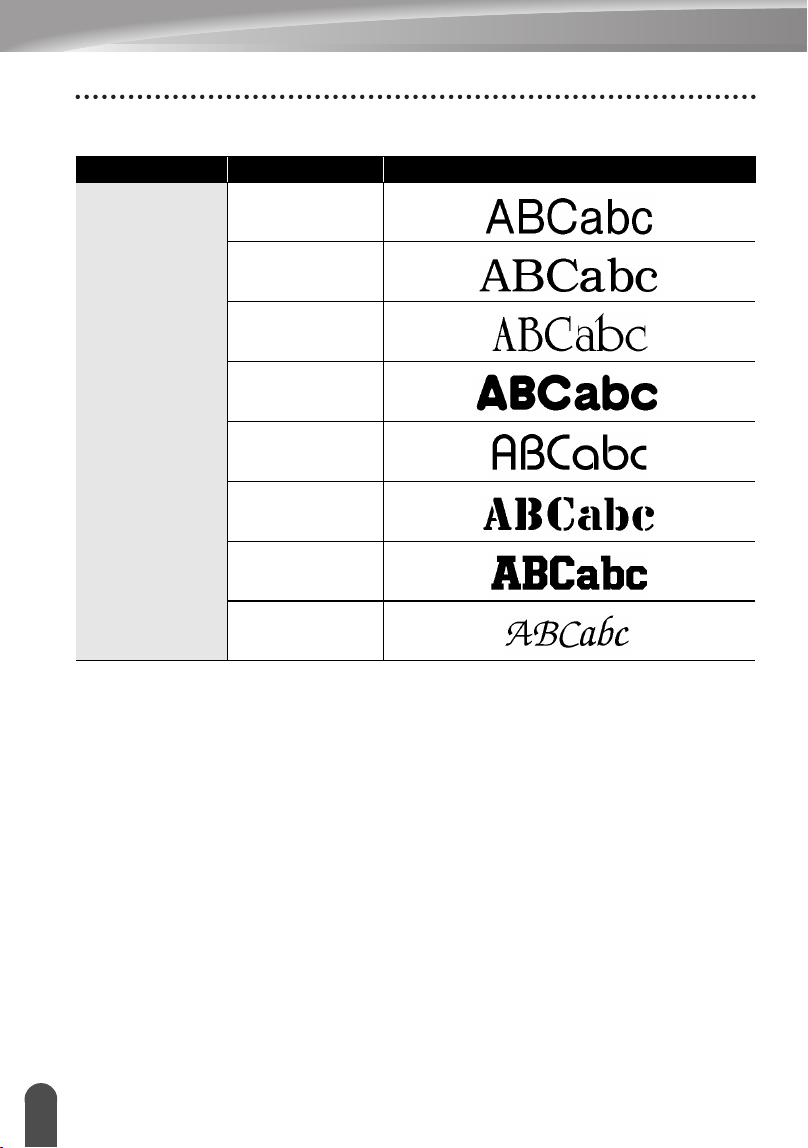
Using the key, you can select a font and apply size, width, style, line, and
alignment attributes.
Press the key.
The current settings are displayed.
Select an attribute using the or keys, and then
set a value for that attribute using the or keys.
Press the or key to apply the settings.
Setting Character Attributes by Each Line
When a label consists two or more lines of text, you can set different value of
character attributes (font, size, width, style, line and alignment) for each line.
Move the cursor to the line you wish to change the
character attribute by using the or keys. Next,
press the key while holding down key to
display the attributes. ( on the screen indicates that you
are now applying the attribute for that specific line only.)
Setting Character Attributes
1
2
New settings are NOT applied if you do not press the
or
key.
3
• Press the key to return to the previous step.
• Press the key to set the selected attribute to the default value.
• Refer to the Setting Options table for a list of all available settings.
• Small characters may be difficult to read when certain styles are applied (e.g. Shadow + Italic).
When different value of attribute is set for each line, the value
will be displayed as **** when you press the key. When
you change the setting on this screen by using the or keys,
the same change will be applied to all lines of the label.
EDITING A LABEL
32
Setting Character Attributes
zSetting Optionsz
Attribute Value Result
Font
HEL
(Helsinki)
BRU
(Brussels)
US
(USA)
FLO
(Florida)
BEL
(Belgium)
SGO
(San Diego)
LA
(Los Angeles)
CAL
(Calgary)
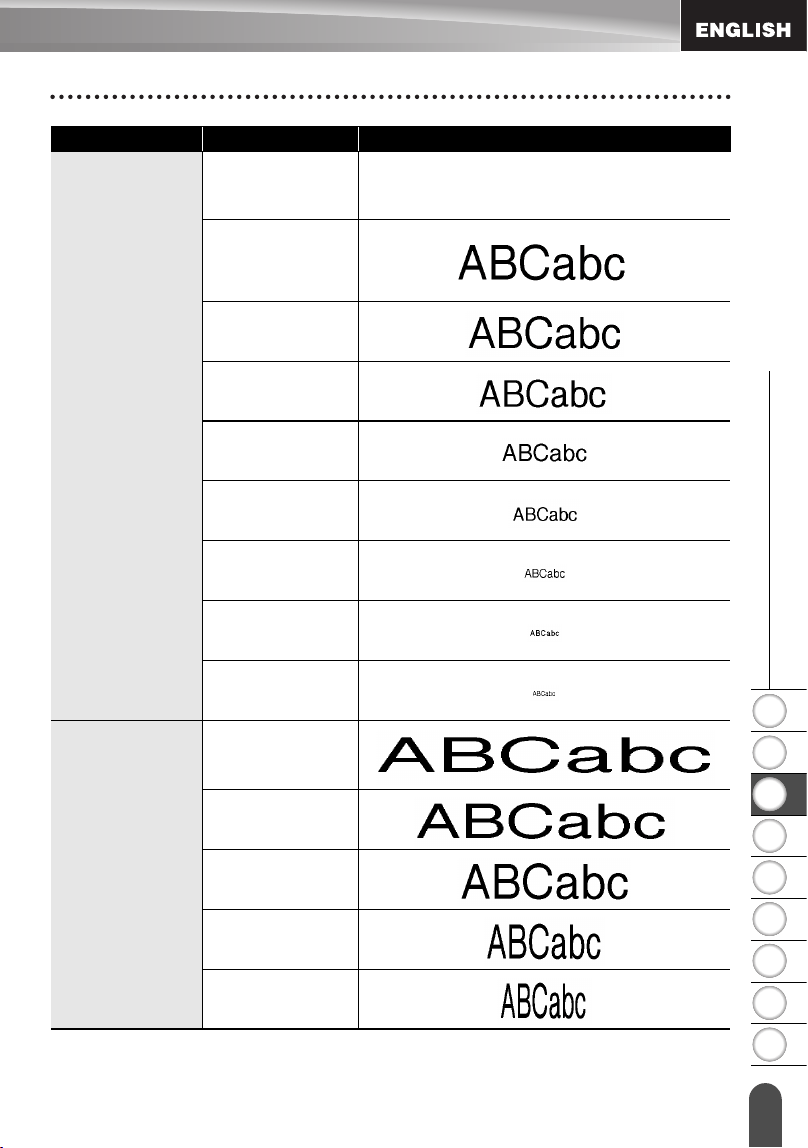
1
2
3
4
5
6
7
8
9
33
z EDITING A LABEL
Setting Character Attributes
Size
Auto
When Auto is selected, the text is
automatically adjusted to print in the largest
size available for each tape width.
48pt
42pt
36pt
24pt
18pt
12pt
9pt
6pt
Width
x2
x3/2
x1
x2/3
x1/2
Attribute Value Result
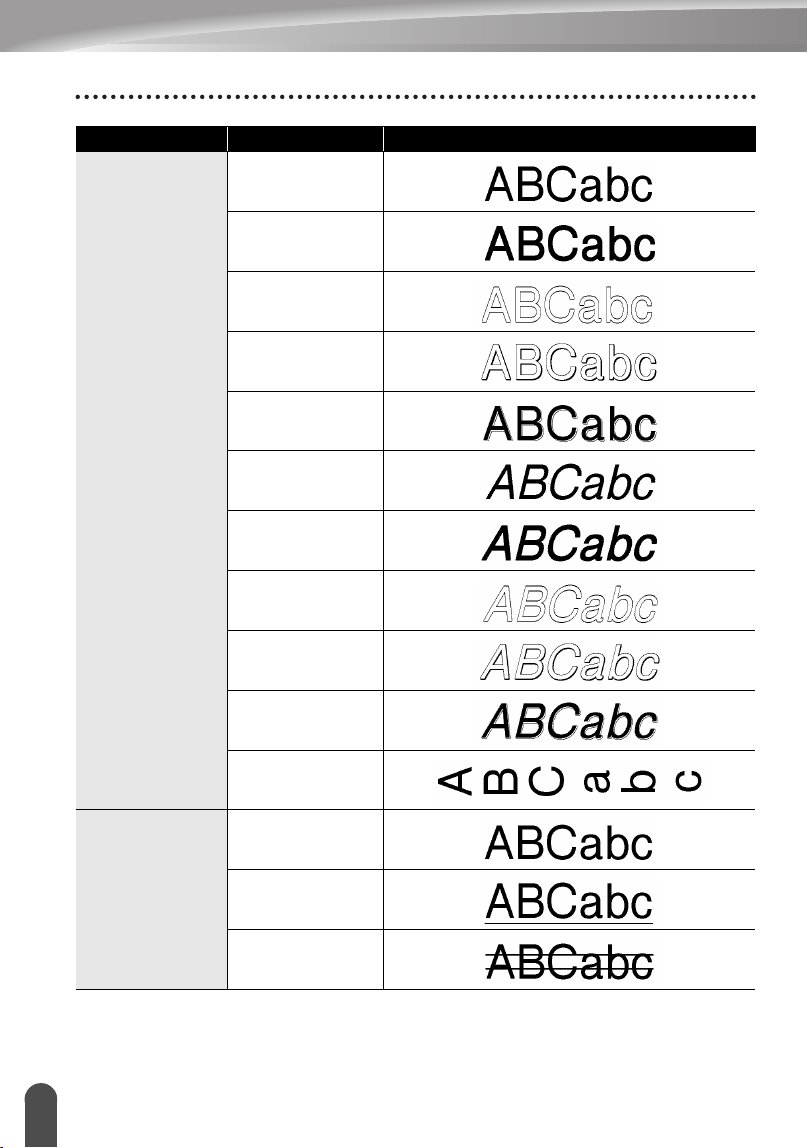
EDITING A LABEL
34
Setting Character Attributes
Style
Off
BLD
(Bold)
OUT
(Outline)
SHD
(Shadow)
SLD
(Solid)
ITL
(Italic)
I+BLD
(Italic Bold)
I+OUT
(Italic Outline)
I+SHD
(Italic Shadow)
I+SLD
(Italic Solid)
VRT
(Vertical)
Line
Off
UND
(Underline)
STR
(Strikeout)
Attribute Value Result
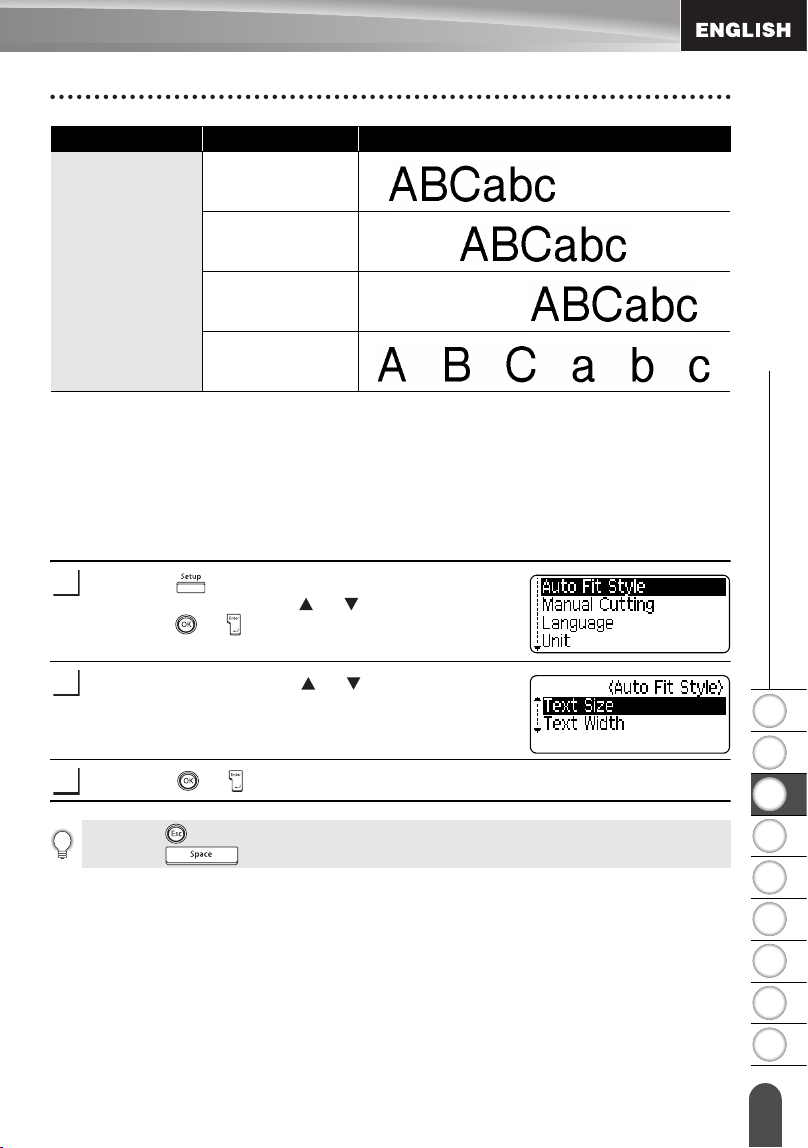
1
2
3
4
5
6
7
8
9
35
z EDITING A LABEL
Setting Character Attributes
Setting Auto Fit Style
When "Size" is set to "Auto" and "Length" is set to a specific length, you can select
the way of reducing the text size to fit within the label length.
When "Text Size" is selected, the total text size is modified to fit within the label.
When "Text Width" is selected, the text width will be reduced to the size of x1/2
setting. (If further size reduction is required to fit the text into the selected label
length, the total text size will be modified after reducing the text width to x1/2 setting.)
Press the key to display the Setup menu, Select
"Auto Fit Style" using the or keys, and then
press the or key.
The Auto Fit Style screen is displayed.
Select the style using the or keys.
Press the or key to apply the setting.
Align
(Alignment)
Left
Center
Right
Just
(Justify)
Attribute Value Result
1
2
3
• Press the key to return to the previous step.
• Press the key to set the style to the default setting ("Text Size").
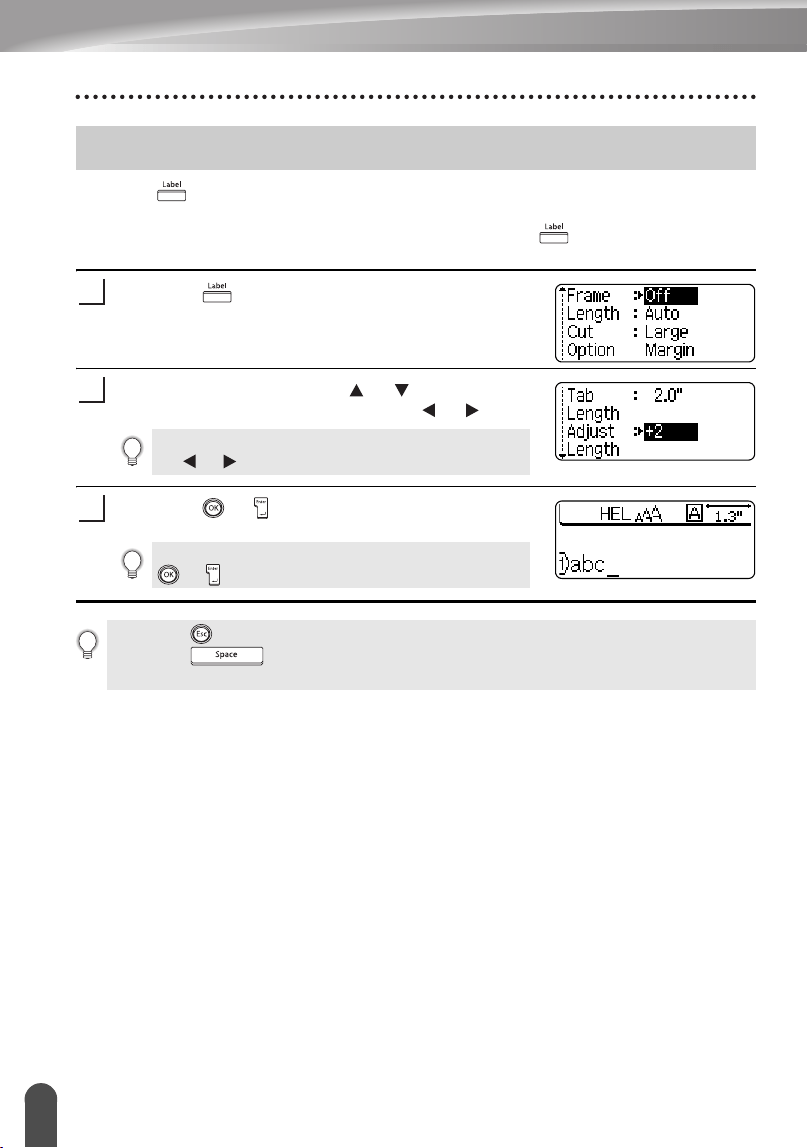
EDITING A LABEL
36
Setting Label Attributes
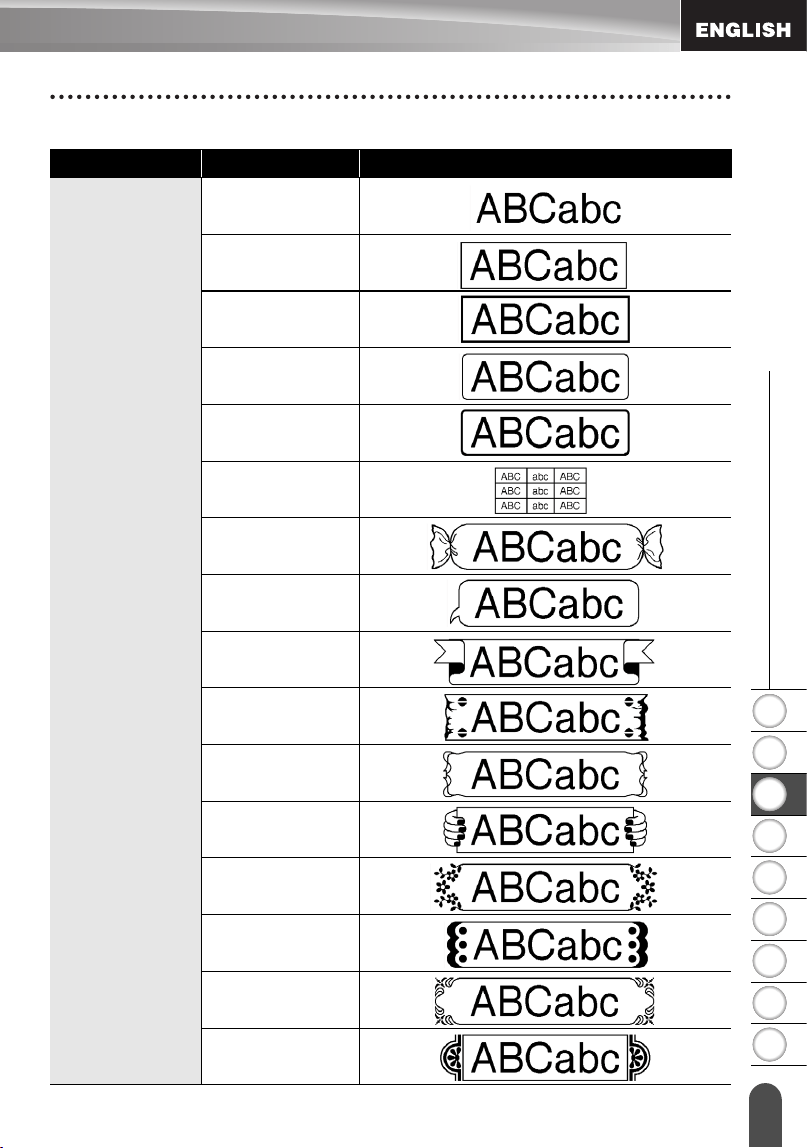
Using the key, you can create a label with a frame around the text and specify the
label length and tab length. (Cut Options and Length Adjust setting which may be
needed when printing a label can also be set by using the key. Refer to “Tape
Cutting Options” and “Adjusting the Label Length” on page 62 and 64.)
Press the key.
The current settings are displayed.
Select an attribute using the or keys, and then
set a value for that attribute using the or keys.
Press the or key to apply the settings.
Setting Label Attributes
1
When setting the label length or tab length, hold down
the or keys to change the value faster.
2
New settings are NOT applied if you do not press the
or key.
3
• Press the key to return to the previous step.
• Press the key to set the selected attribute to the default value.
• Refer to the Setting Options table for a list of all available settings.
1
2
3
4
5
6
7
8
9
37
z EDITING A LABEL
Setting Label Attributes
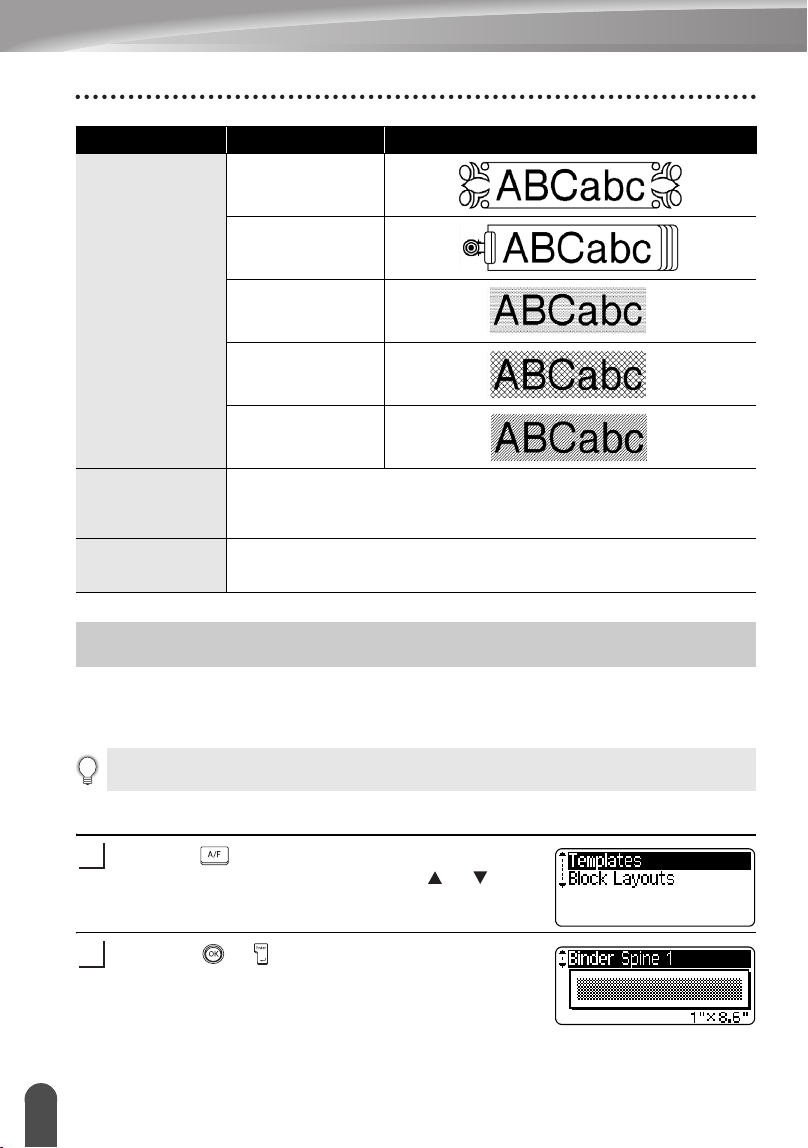
zSetting Optionsz
Attribute Value Result
Frame
Off
1
2
3
4
5
6
7
8
9
10
11
12
13
14
15
EDITING A LABEL
38
Using Auto-Format Layouts
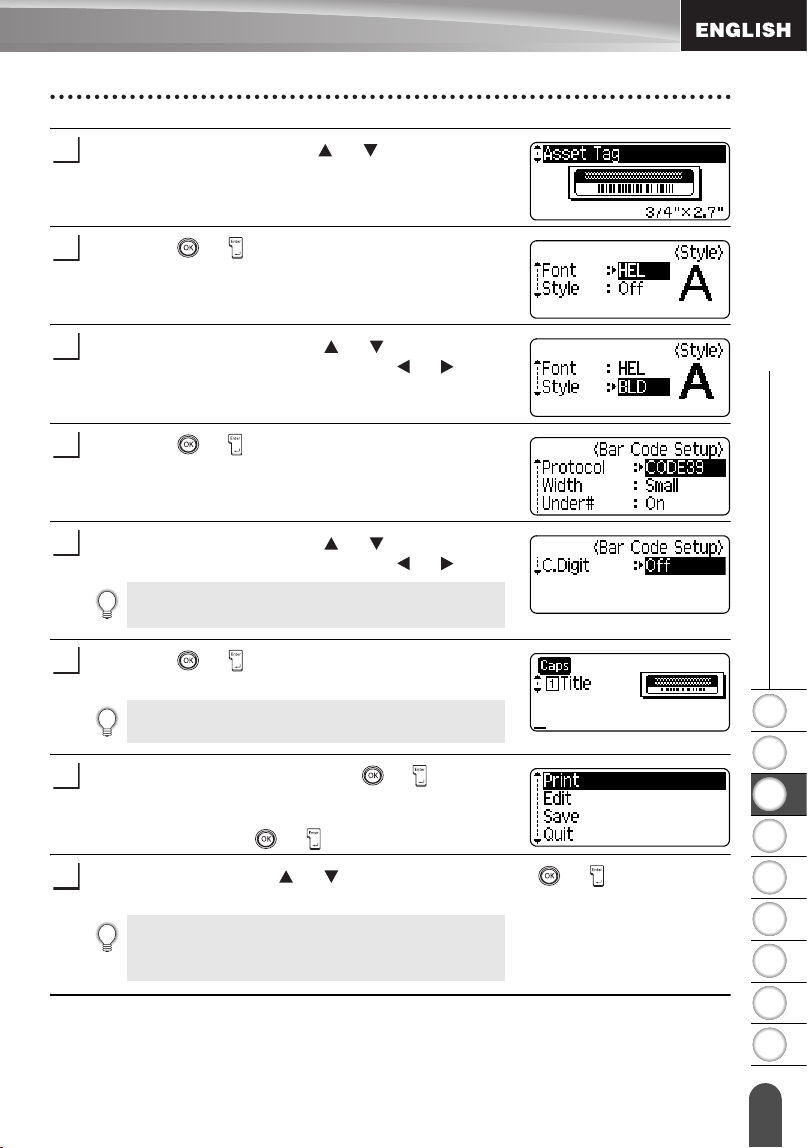
Using the Auto-Format function you can quickly and easily create labels for a variety of
purposes, such as file tabs, equipment labels, name badges, etc. Simply select a layout
from the templates or block layouts, enter the text and apply formatting as desired.
Using Templates - Example creating an Asset Tag
Press the key to display the Auto-Format screen,
and then select "Templates" using the or keys.
Press the or
key
.
The last template used is displayed.
Frame
16
17
18
19
20
Length
The length of the label can be set within the range 1.2" (30mm) -
12.0" (300mm). When
Auto
is selected, the length of the label is
automatically adjusted based on the amount of text entered.
Tab Length
The length of the tab can be set within the range 0.0" (0mm) -
4.0"(100mm). The default setting is
2.0" (50mm)
.
Attribute Value Result
Using Auto-Format Layouts
Symbols and accented characters can also be used in auto-format layouts.
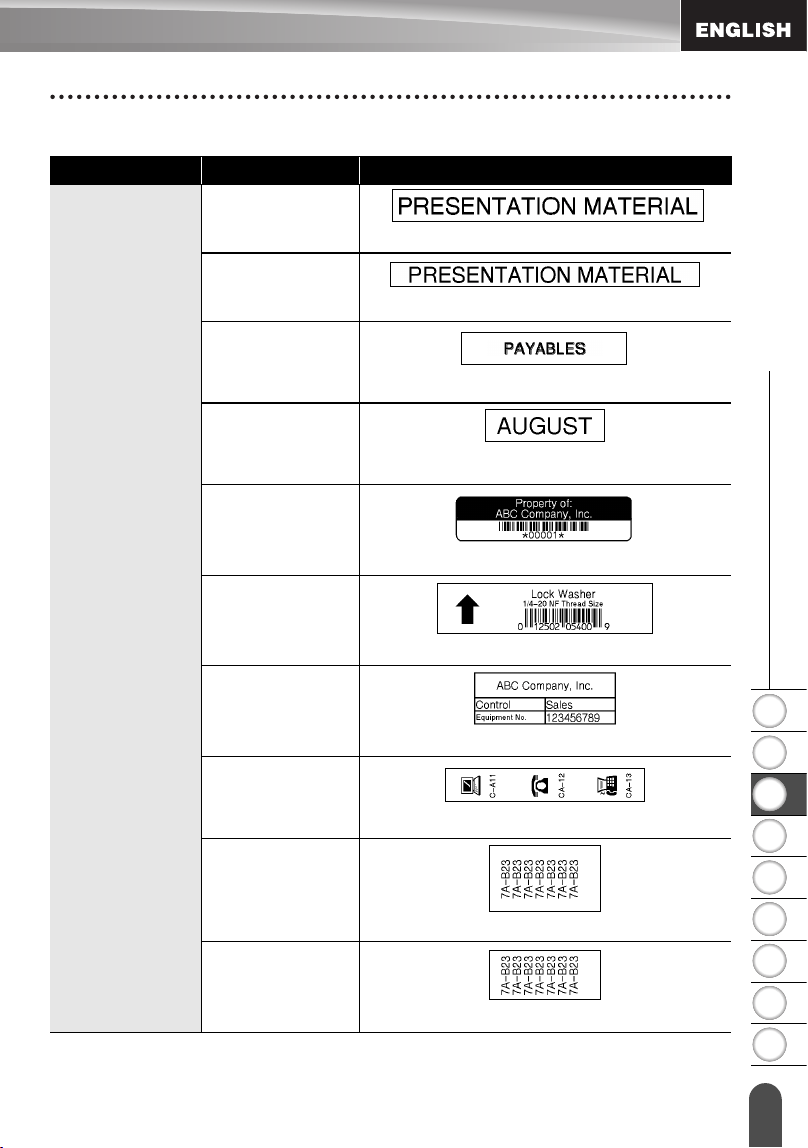
1
2
1
2
3
4
5
6
7
8
9
39
z EDITING A LABEL
Using Auto-Format Layouts
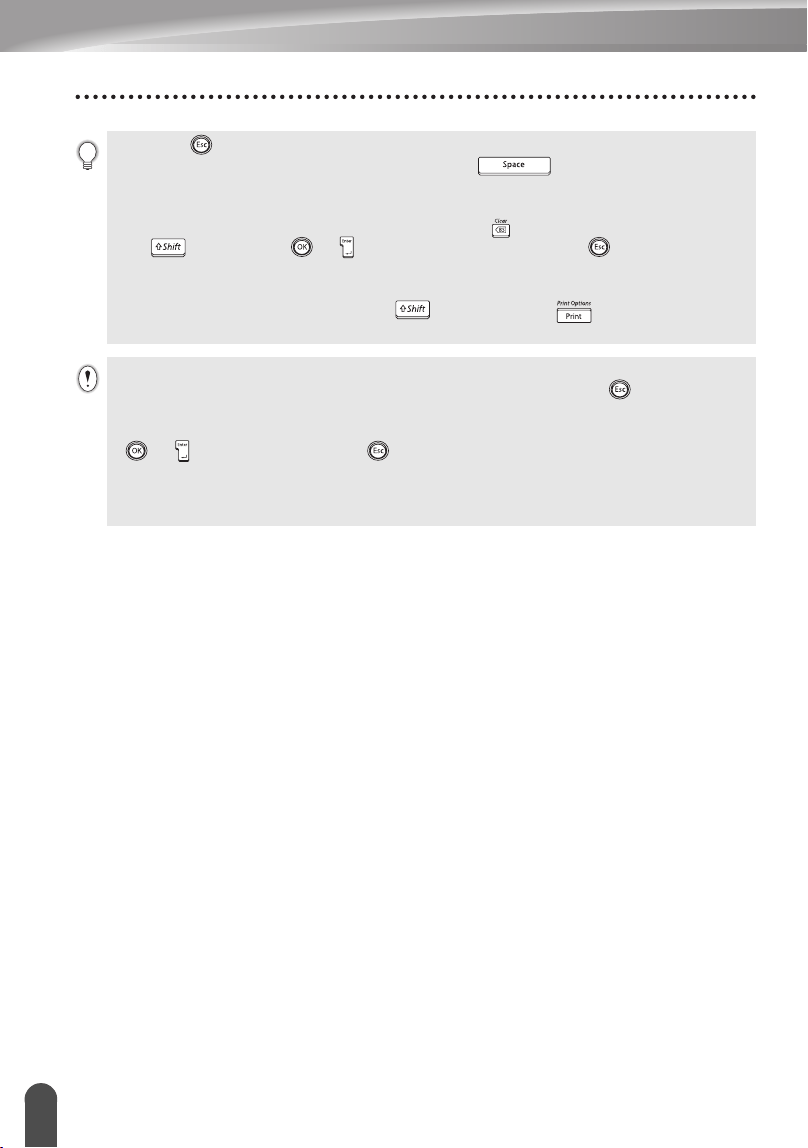
Select a template using the or keys.
Press the or
key
.
The Style screen is displayed.
Select an attribute using the or keys, and then
set a value for that attribute using the or keys.
Press the
or key
.
The Bar Code Setup screen is displayed.
Select an attribute using the or keys, and then
set a value for that attribute using the or keys.
Press the or
key
.
The template text entry screen is displayed.
Enter the text and then press the
or key
.
Repeat this for each text field.
After all text fields are entered, the print menu is
displayed when the or
key
is pressed.
Select "Print" using
the or
keys and then press
the or
key
to print the
label.
3
4
5
6
The "C-Digit" (Check Digit) attribute is only available
for the CODE39, I-2/5 and CODABAR protocols.
7
Caps mode can be used when entering text.
8
• Select "Edit" to change the text data or style settings.
• Select "Save" to store the label in a file memory.
• Select "Quit" to exit the Auto-Format function.
9
10
EDITING A LABEL
40
Using Auto-Format Layouts
• Press the key to return to the previous step.
• On the Style and Bar Code Setup screens, press the key to change the selected
attribute to the default value.
• Refer to the Templates table for a list of available templates.
• The "Clear All Text?" message is displayed when the key is pressed while holding down
the key. Press the
or
key to delete all text, or press the key to not delete the
file.
• To print multiple copies, sequentially numbered copies, or a mirror image of the label, with
the print menu displayed hold down the key and press the key to display the Print
Options menu.
• If the width of the current tape cassette does not match the set width for the selected layout,
an error message is displayed when you try to print the label. Press the key or any other
key to clear the error message, and insert a tape cassette of the correct width.
• If the number of characters entered exceeds the limit, an error message is displayed when the
or
key is pressed. Press the key or any other key to clear the error message, and
edit the text using fewer characters.
• When using the Auto-Format function the label is cut with a margin on the left and right ends
regardless of the current Tape Cutting Option setting (refer to page 62).
1
2
3
4
5
6
7
8
9
41
z EDITING A LABEL
Using Auto-Format Layouts
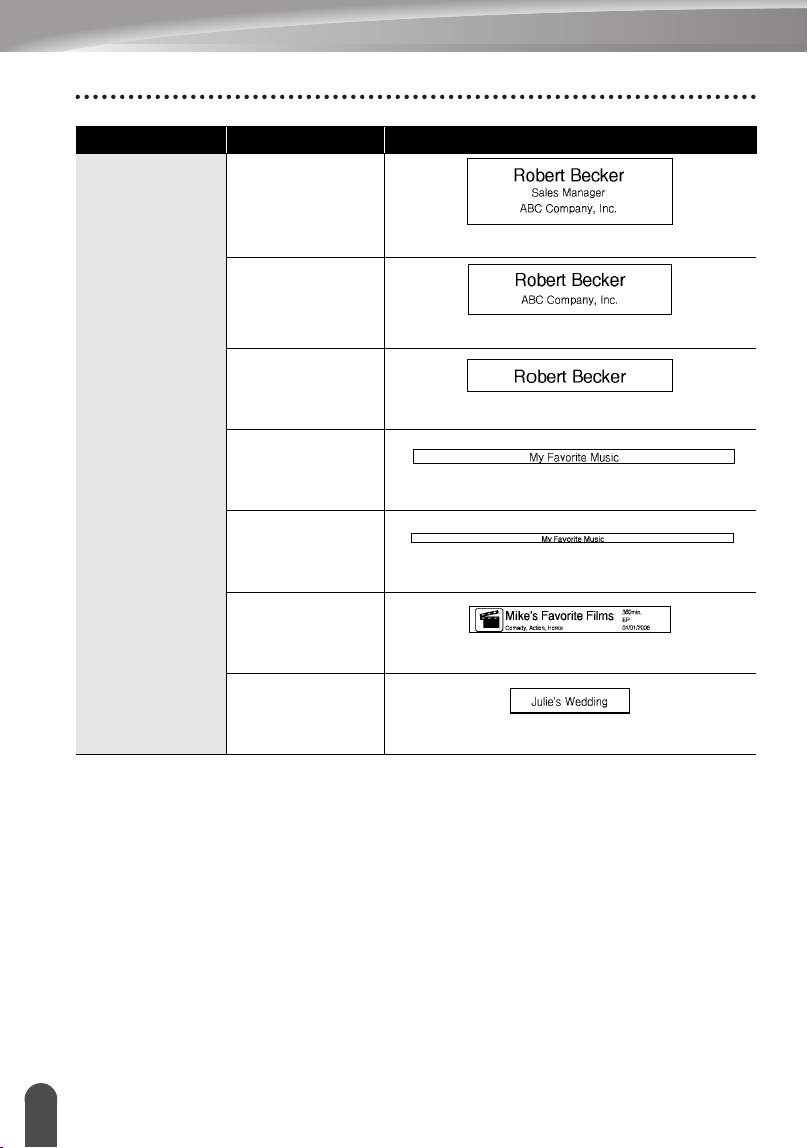
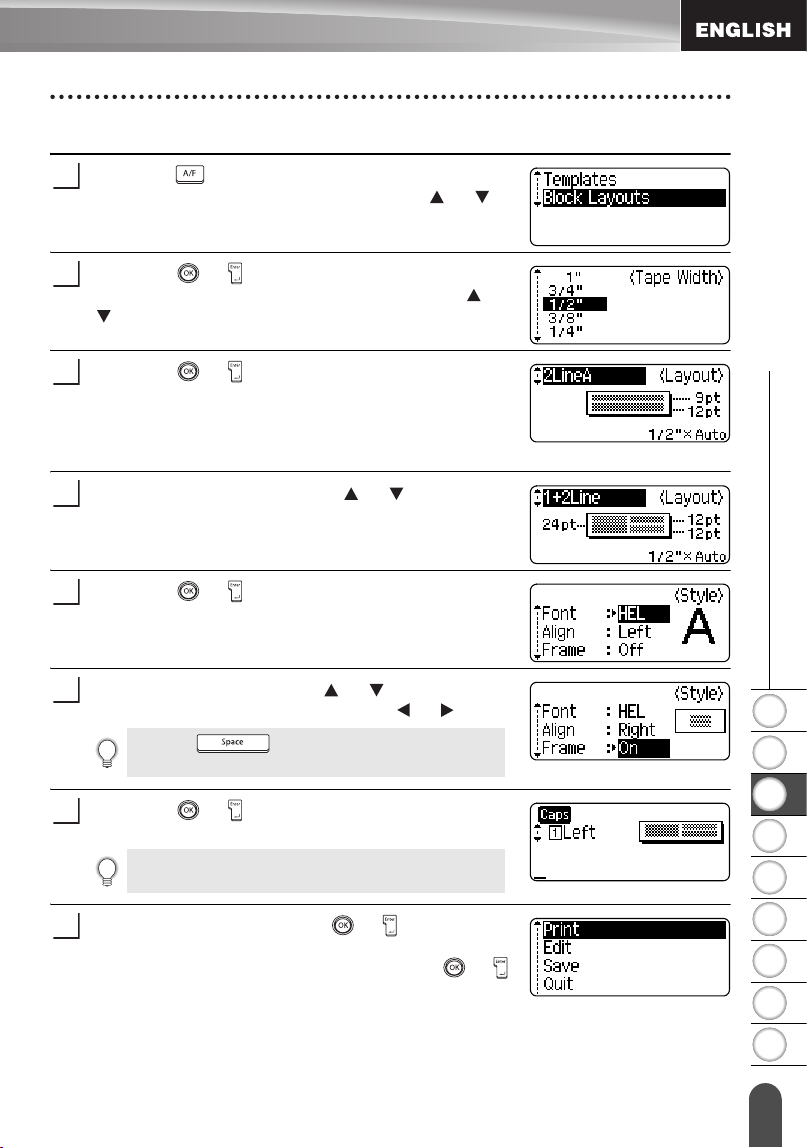
zTemplatesz
Attribute Value Details
Template Name
Binder Spine 1
(1" x 8.6" [24 mm x 219 mm])
Binder Spine 2
(3/4" x 8.6" [18mm x 219mm])
File Folder Tab
(1/2" x 3.2" [12 mm x 82 mm])
Divider Tab
(Hanging Folder)
(1/2" x 1.6" [12 mm x 42 mm])
Asset Tag
(3/4" x 2.7" [18 mm x 70 mm])
Bin Box
(3/4" x 3.0" [18 mm x 76 mm])
Equipment Label
(1" x 2.2" [24 mm x 58 mm])
Faceplate (VRT)
(1/2" x 2.7" [12 mm x 70 mm])
Cable Wrap 1
(1" x 1.5" [24 mm x 39 mm])
Cable Wrap 2
(3/4" x 1.5" [18 mm x 39 mm])
EDITING A LABEL
42
Using Auto-Format Layouts
Template Name
Name Badge 1
(3/4" x 2.2" [18 mm x 58 mm])
Name Badge 2
(1/2" x 2.7" [12 mm x 70 mm])
Name Badge 3
(1/2" x 2.6" [12 mm x 66 mm])
CD Case Spine 1
(1/4" x 4.4" [6 mm x 113 mm])
CD Case Spine 2
(9/64" x 4.4" [3.5 mm x 113 mm])
VHS Spine
(3/4" x 5.5" [18 mm x 140 mm])
MiniDV Spine
(3/8" x 1.7" [9 mm x 42 mm])
Attribute Value Details
1
2
3
4
5
6
7
8
9
43
z EDITING A LABEL
Using Auto-Format Layouts
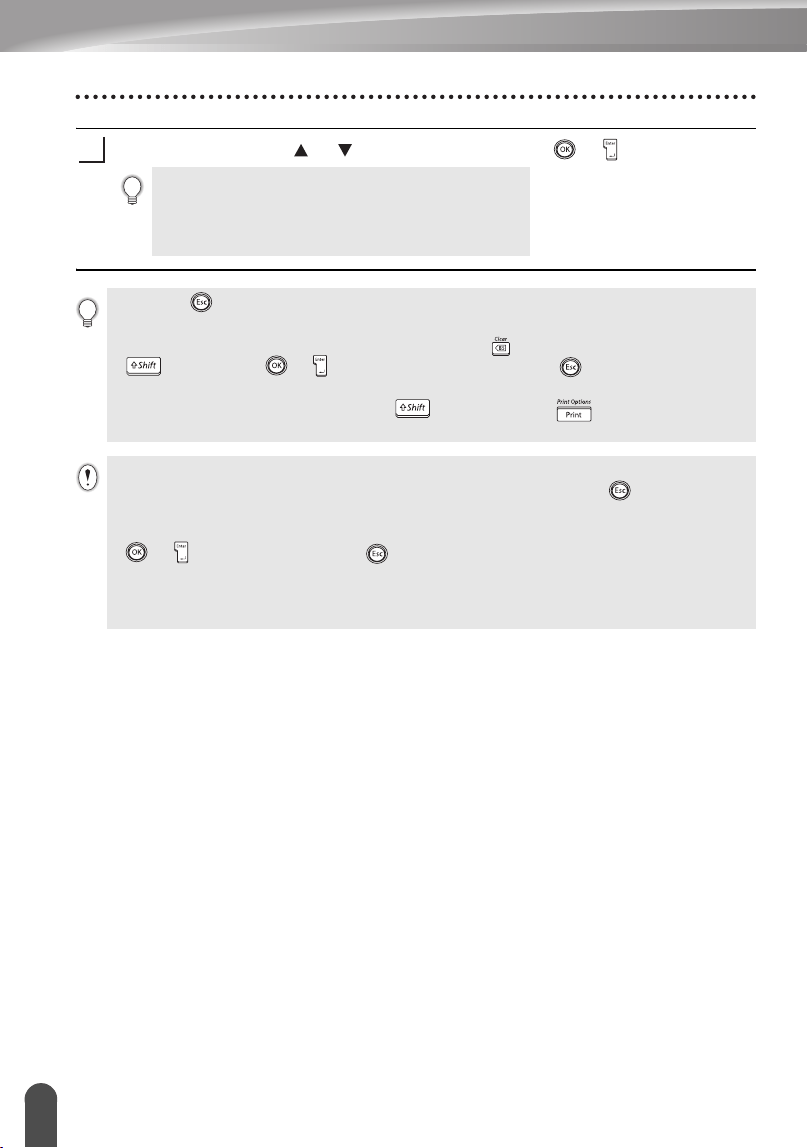
Using Block Layouts
Press the key to display the Auto-Format screen,
and then select “Block Layouts” using the or
keys.
Press the
or
key to display the Tape Width
screen, and then select a tape width using the or
keys.
Press the
or
key.
When the tape width has not changed, the last block
layout selected is displayed. When the tape width has
changed, the default layout for the new tape width is
displayed.
Select a block layout using the or keys.
Press the
or
key.
The Style screen is displayed.
Select an attribute using the or keys, and then
set a value for that attribute using the or keys.
Press the
or
key.
The block layout text entry screen is displayed.
Enter text and then press the
or
key.
Repeat for each text field.
After all text fields are completed, press the
or
key to display the print menu.
1
2
3
4
5
Press the key to set the selected attribute to
the default value.
6
Caps mode can be used when entering text.
7
8
EDITING A LABEL
44
Using Auto-Format Layouts
Select Print using the or keys and then press the
or
to print the label.
• Select "Edit" to change the text data or style settings.
• Select "Save" to store the label in a file memory.
• Select "Quit" to exit the Auto-Format function.
• Select "Change Layout" to use a different layout.
9
• Press the key to return to the previous step.
• Refer to the Block Layouts table for a list of available block layouts.
• The “Clear All Text?” message is displayed when the key is pressed while holding down
key. Press the or key to delete all text, or press the key to not delete the text.
• To print multiple copies, sequentially numbered copies, or a mirror image of the label, with
the print menu displayed hold down the key and press the key to display the Print
Options menu.
• If the width of the current tape cassette does not match the set width for the selected layout,
an error message is displayed when you try to print the label. Press the key or any other
key to clear the error message, and insert a tape cassette of the correct width.
• If the number of characters entered exceeds the limit, an error message is displayed when tthe
or key is pressed. Press the key or any other key to clear the error message, and
edit the text using fewer characters.
• When using the Auto-Format function the label is cut with a margin on the left and right ends
regardless of the current Tape Cutting Option setting (refer to page 62).
1
2
3
4
5
6
7
8
9
45
z EDITING A LABEL
Using Auto-Format Layouts
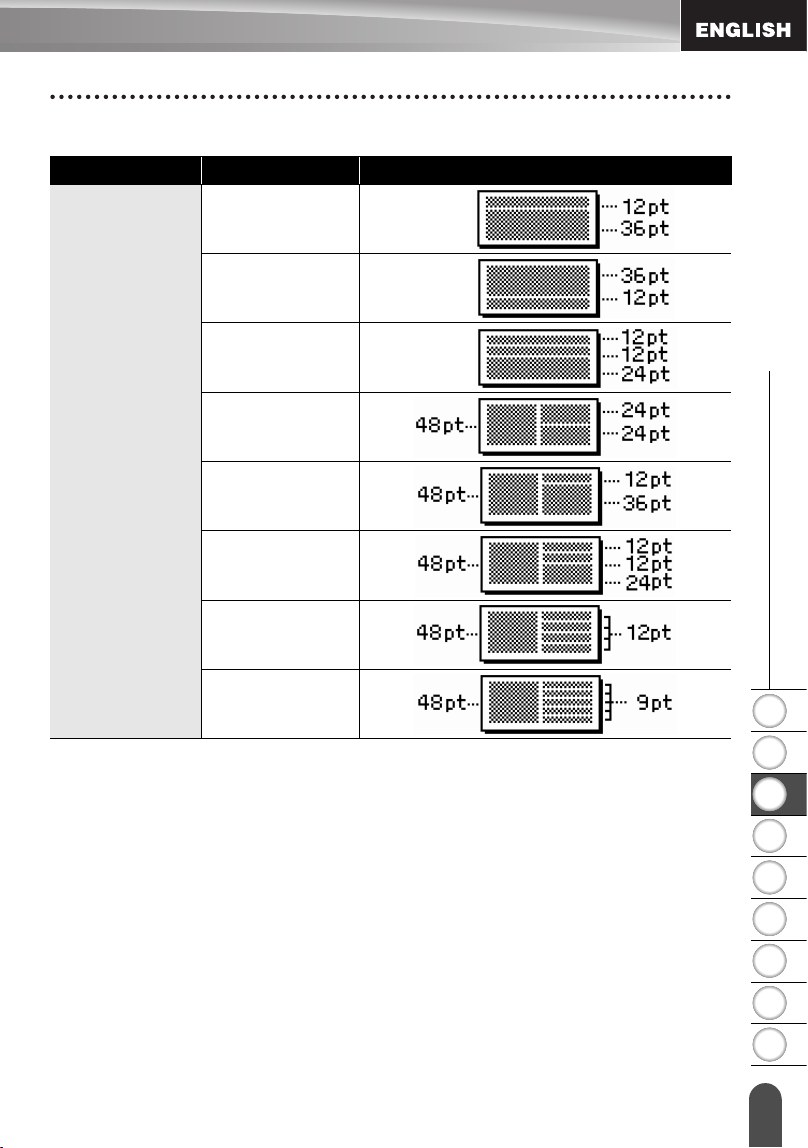
zBlock Layoutsz
Attribute Value Details
Block layout
(1" [24mm] tape)
2LineA
2LineB
3 Line
1+2Line A
1+2Line B
1+3Line
1+4Line
1+5Line
EDITING A LABEL
46
Using Auto-Format Layouts
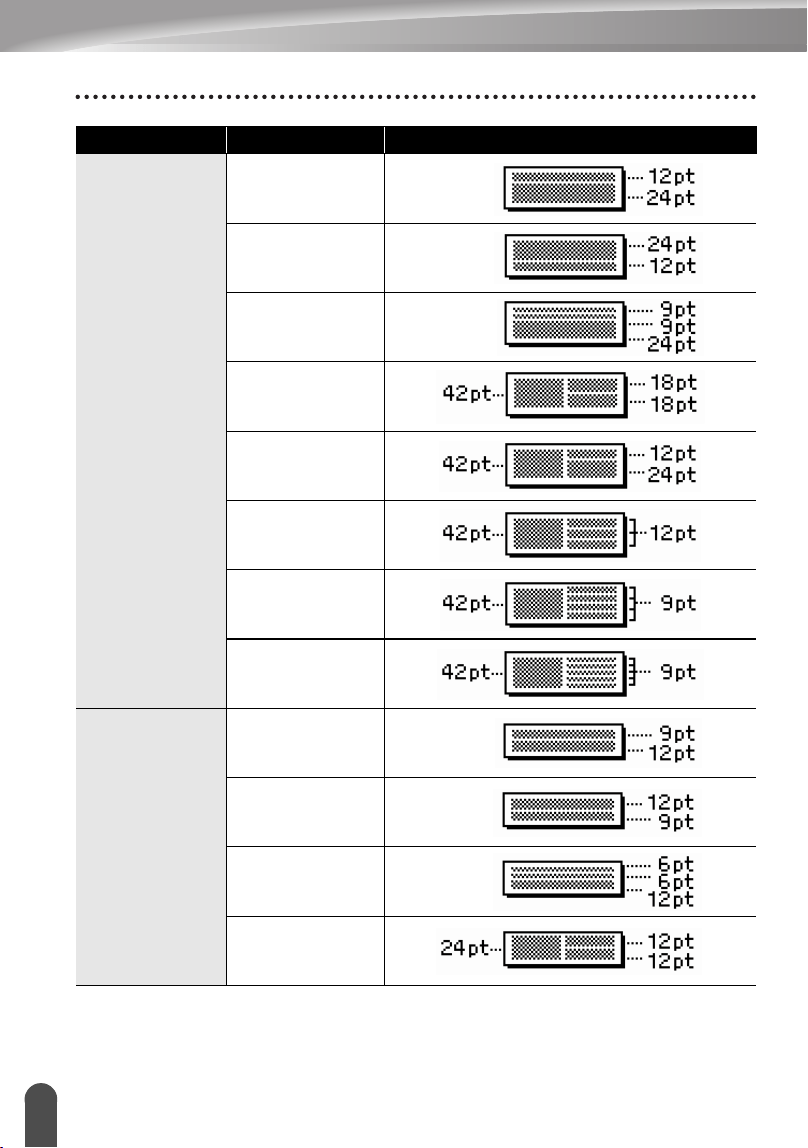
Block layout
(3/4" [18 mm]
tape)
2LineA
2LineB
3Line
1+2LineA
1+2LineB
1+3Line
1+4Line
1+5Line
Block layout
(1/2" [12 mm]
tape)
2LineA
2LineB
3Line
1+2Line
Attribute Value Details
1
2
3
4
5
6
7
8
9
47
z EDITING A LABEL
Using Auto-Format Layouts
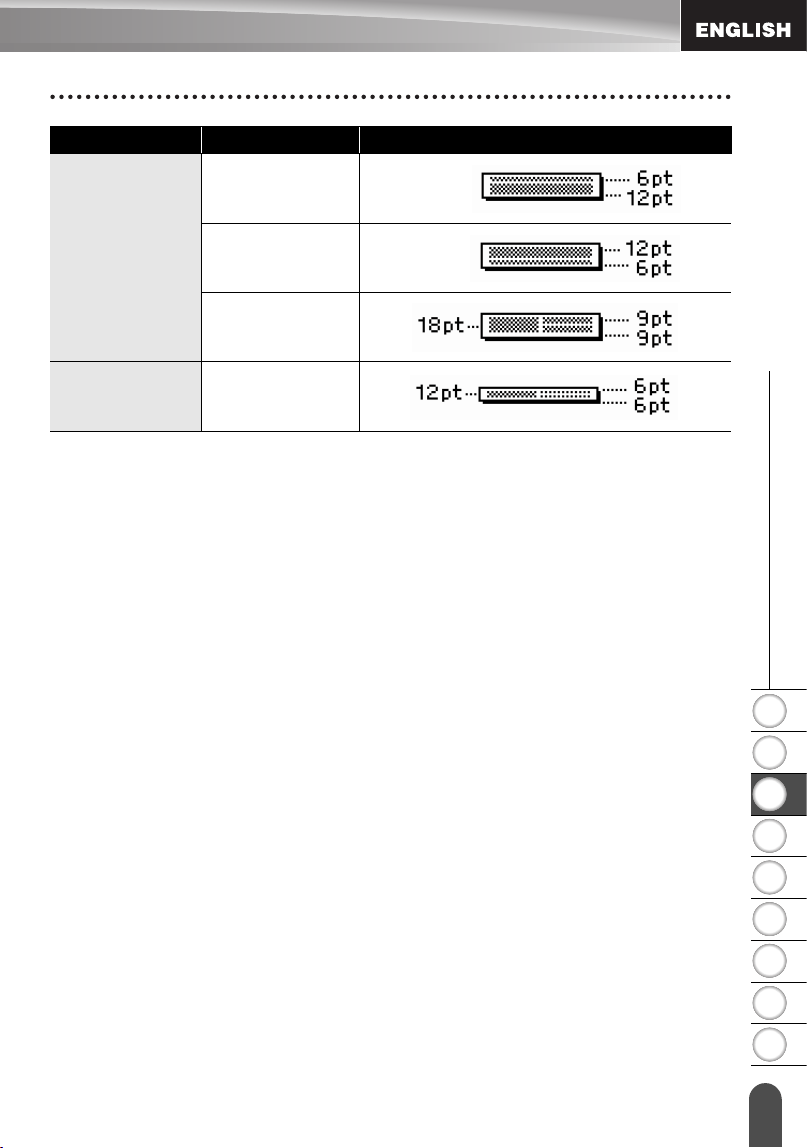
Block layout
(3/8" [9 mm]
tape)
2LineA
2LineB
1+2Line
Block layout
(1/4" [6 mm]
tape)
1+2Line
Attribute Value Details
EDITING A LABEL
48
Using Time & Date Function
You can add time and date to your label by positioning the cursor on the text screen to
the position you wish to add time/date and then pressing the key.
Clock Setting
The time and date set in the clock setting can be used for the display on the screen,
and also for using the Time & Date function which you can add time/date to your label
in desired format.
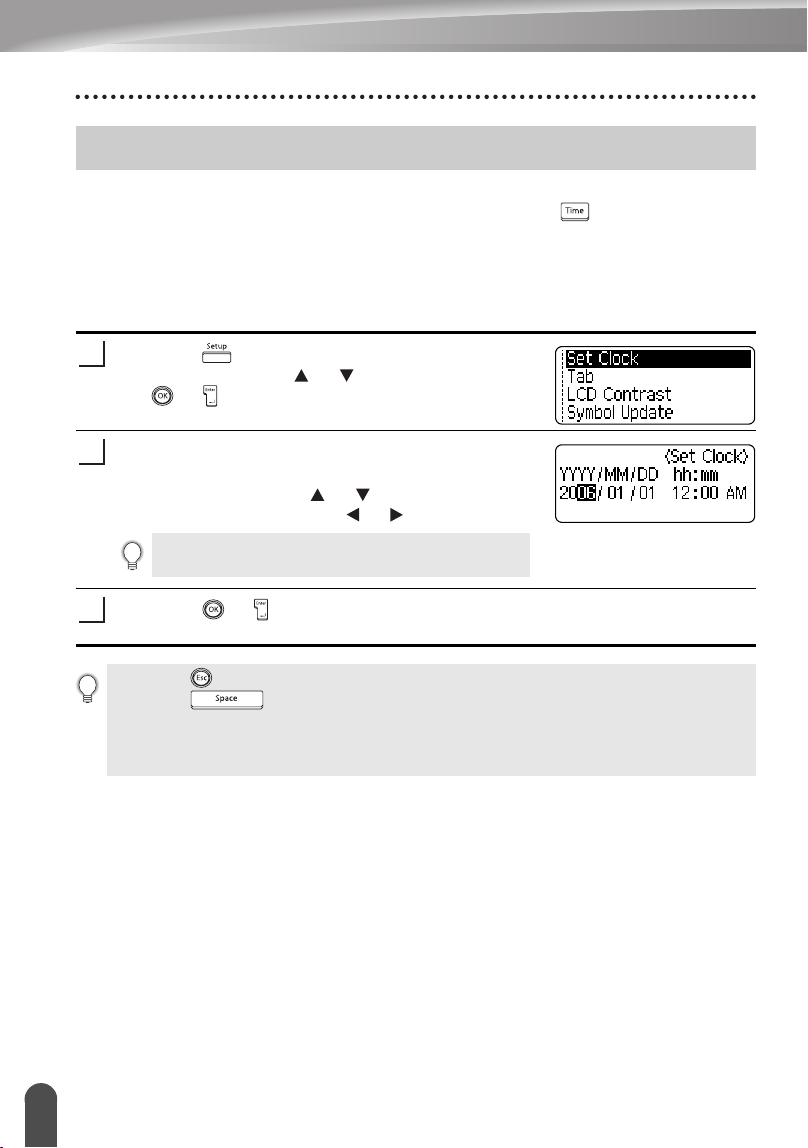
Press the key to display the Setup menu, select
"Set Clock" using the or keys, and then press
the or key.
The Set Clock screen is displayed.
Set the year, month, date, hour and minute to the
current figure using the or keys. For moving to
the next parameter, use the or keys.
Press the or key to apply the settings.
Using Time & Date Function
1
You can also use the Num keys to type in the figure.
2
3
• Press the key to return to the previous step.
• Press the key to set the format to default setting.
• The clock will activate from when the clock setting is applied.
• For the backup of clock setting, when the AC adapter is unplugged, please use AA-size
alkaline batteries.
1
2
3
4
5
6
7
8
9
49
z EDITING A LABEL
Using Time & Date Function
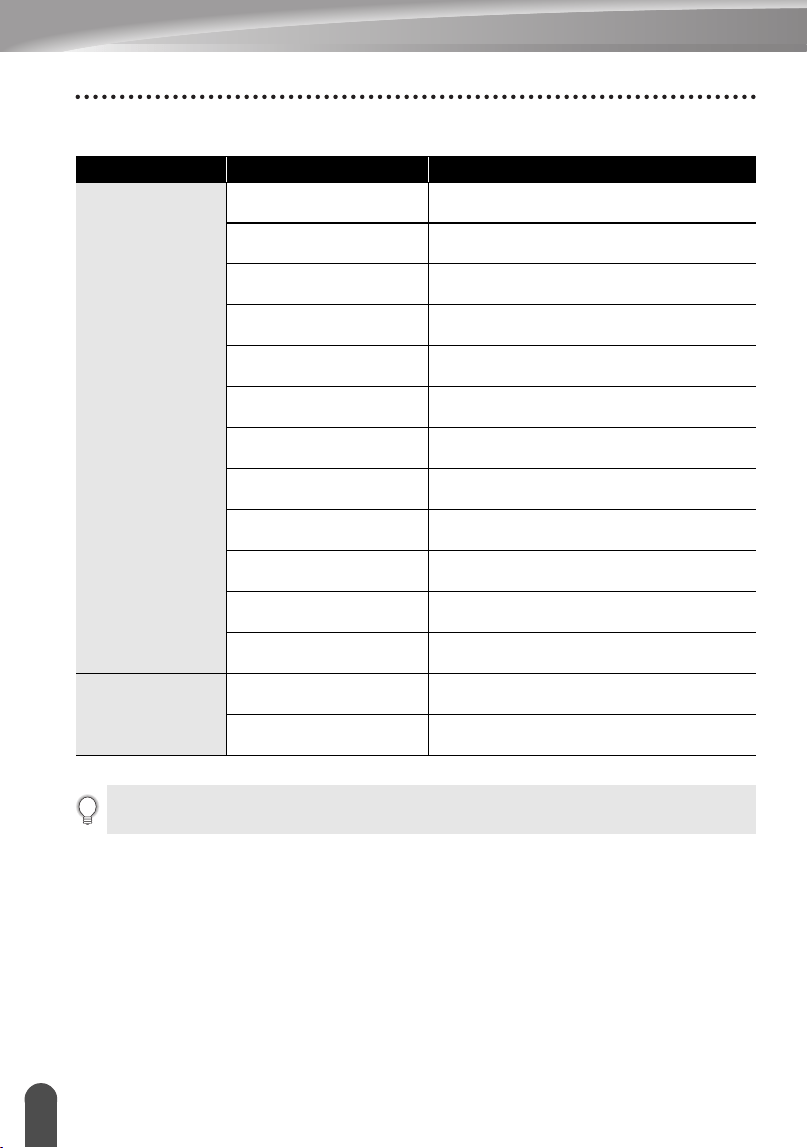
Time & Date Format Setting
You can select from various formats of date and time to add to your label.
Also, the indication of time can be selected between analog and digital style.
The format applied in this setting will also be applied for the clock display which appear
on the screen when you press the key. (Refer to “Display Mode” on page 22 for
detail.)
Press the key to display the Setup menu, select
"Time & Date Format" using the or keys, and
then press the or key.
The Time & Date Format screen is displayed.
Select date or time using the or keys, and then
set the format using the or keys.
Press the or key to apply the settings.
1
2
New settings are not applied if you do not
press the or key.
3
• Press the key to return to the previous step.
• Press the key to set the format to default setting.
• Refer to the Format Options for a list of all available format.
EDITING A LABEL
50
Using Time & Date Function
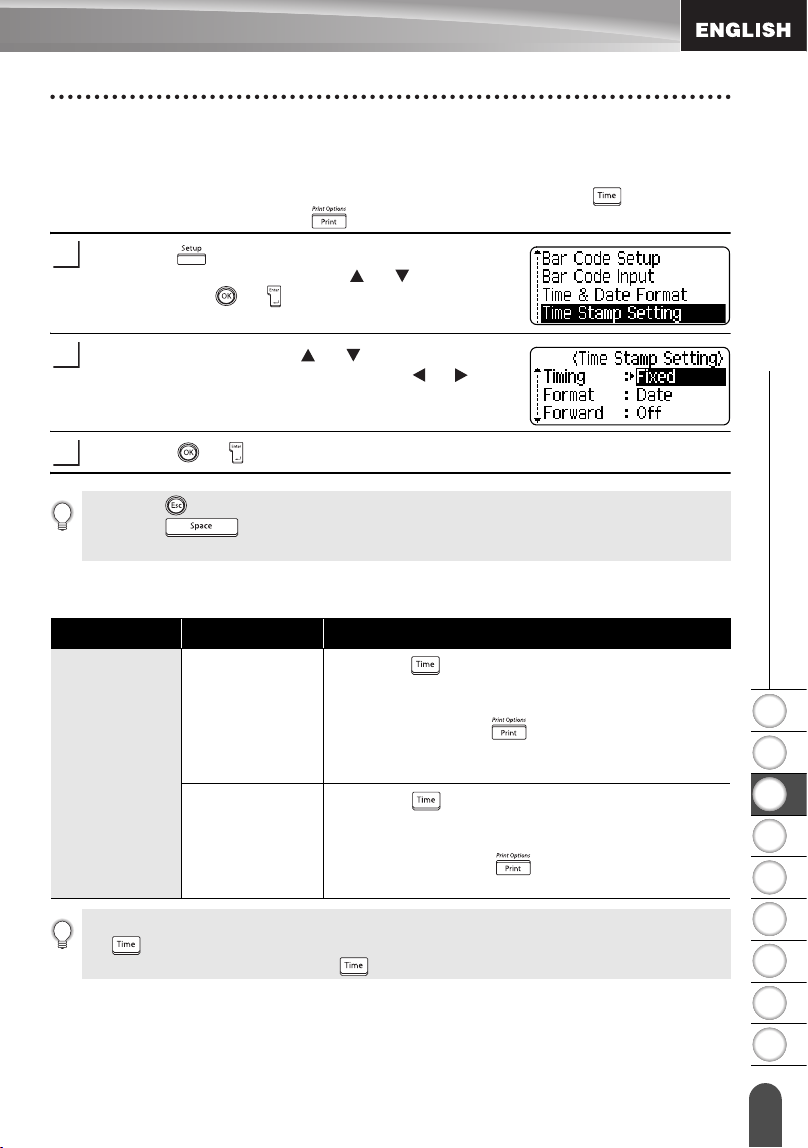
zTime & Date Format Optionsz
Attribute Value Description
D
(Date)
12/31/2099
Month / Date / Year
12 . 31 . 2099 Month . Date . Year
12 - 31 - 2099 Month - Date - Year
December 31, 2099 Month Date, Year
Dec. 31, 2099 Month. Date, Year
2099/12/31 Year / Month / Date
2099 - 12 - 31 Year - Month - Date
31/12/2099 Date / Month / Year
31. 12. 2099 Date. Month. Year
31 - 12 - 2099 Date - Month - Year
31. December 2099 Date. Month Year
31. Dec. 2099 Date. Month. Year
T
(Time)
11:59 PM
analog
23:59 digital
The date and time used for the value is a sample setting. When a format is selected, the date and
time set in the clock setting will appear in the selected format style.
1
2
3
4
5
6
7
8
9
51
z EDITING A LABEL
Using Time & Date Function
Time Stamp Setting
[Timing]
You can select whether to print the date/time of when you press the key or the
date/time of when you press the key to add to your label.
Press the key to display the Setup menu, select
"Time Stamp Setting" using the or keys, and
then press the or key.
Select "Timing" using the or keys, and then
select the value for the setting using the or key.
Press the or key to apply the settings.
zTime Stamp : Timing Optionsz
1
2
3
• Press the key to return to the previous step.
• Press the key to set the format to default setting.
• Refer to the Time Stamp: Timing Options for available settings.
Attribute Value Description
Timing
Auto
Press the key; a clock icon will be inserted to
where the cursor is positioned on the text input
screen.
When you press the key, the latest date/time
will be printed on the label where the clock icon is
positioned on the label layout.
Fixed
Press the key; the current date/time will be
inserted to where the cursor is positioned on the
text input screen.
When you press the key, the date/time will
be printed as shown on the input screen.
When "Auto" is selected for the Timing setting and a clock icon is added to the text by pressing
the key, you can confirm what settings applied for the icon by positioning the cursor under
the clock icon, and then pressing the key.
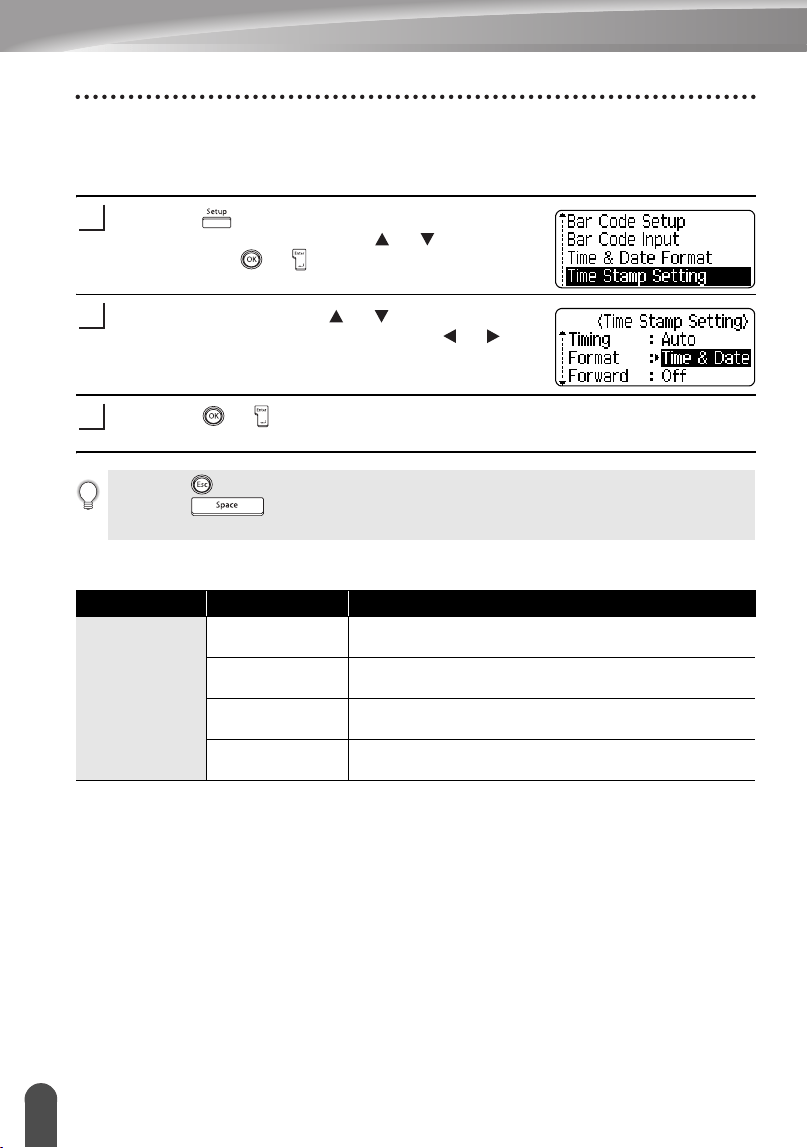
EDITING A LABEL
52
Using Time & Date Function
[Time Stamp Format]
You can select which information to use when adding date and time to your label.
Four options (Date, Time, Date and Time or Time and Date) are available.
Press the key to display the Setup menu, select
"Time Stamp Setting" using the or keys, and
then press the or key.
Select "Format" using the or keys, and then
select the value for the setting using the or key.
Press the or key to apply the settings.
zTime Stamp : Format Optionsz
1
2
3
• Press the key to return to the previous step.
• Press the key to set the value to default setting.
• Refer to the Time Stamp: Format Options for available settings.
Attribute Value Description
Format
Date
Date only will be printed on the label.
Date & Time The date and time will be printed on the label.
Time Time only will be printed on the label.
Time & Date The time and date will be printed on the label.
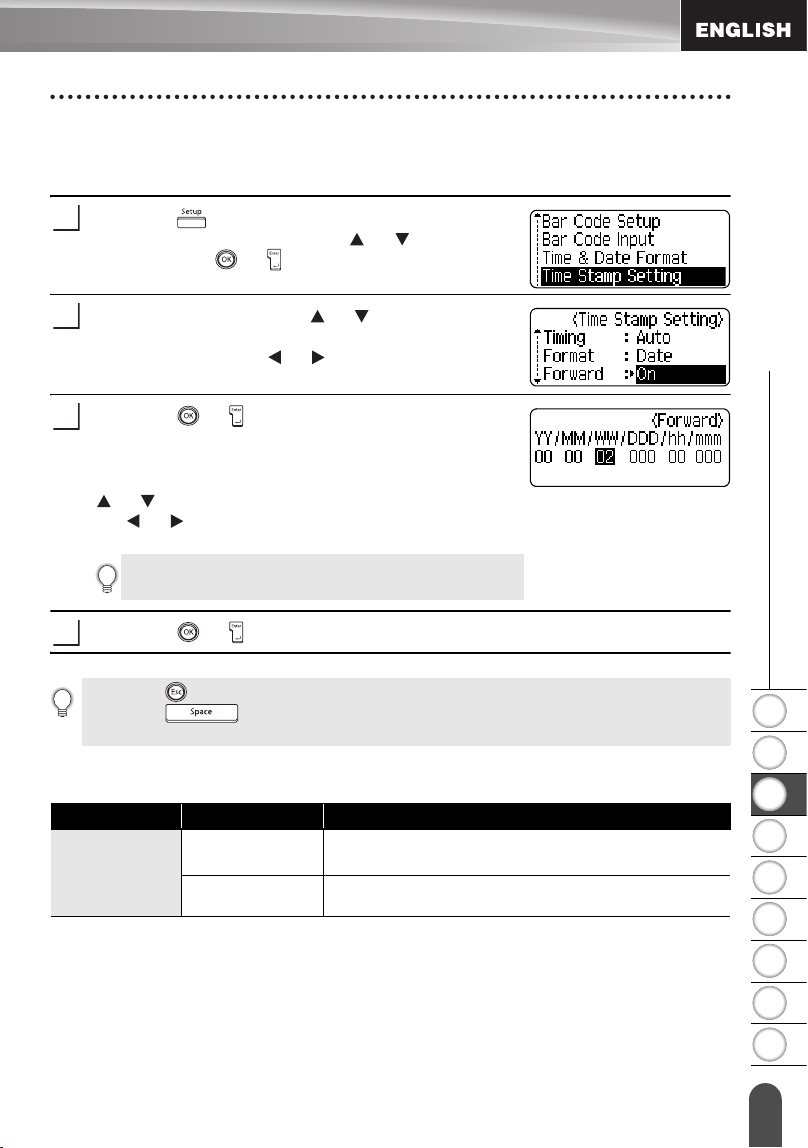
1
2
3
4
5
6
7
8
9
53
z EDITING A LABEL
Using Time & Date Function
[Forward]
You can select whether to use a forwarded (future) date and time or the current date
and time when using the Time & Date Function.
Press the key to display the Setup menu, select
"Time Stamp Setting" using the or keys, and
then press the or key.
Select "Forward" using the or keys, and then to
specify the amount of date and time to increase,
select "On" using the or key.
Press the or key. The Forward screen is
displayed. Set the amount of year, month, week, day,
hour, and minute to increase from the currently set
clock when using the Time & Date function using the
or Keys. For moving to the next parameter, use
the or keys.
Press the or key to apply the settings.
zTime Stamp : Forward Optionsz
1
2
You can also use the Num keys to type in the figure.
3
4
• Press the key to return to the previous step.
• Press the key to set the format to default setting.
• Refer to the Time Stamp: Forward Options for a list of all available format.
Attribute Value Description
Forward
On
The time/date will be increased according to the
value selected in the Forward setting.
Off
Current time/date will be printed.
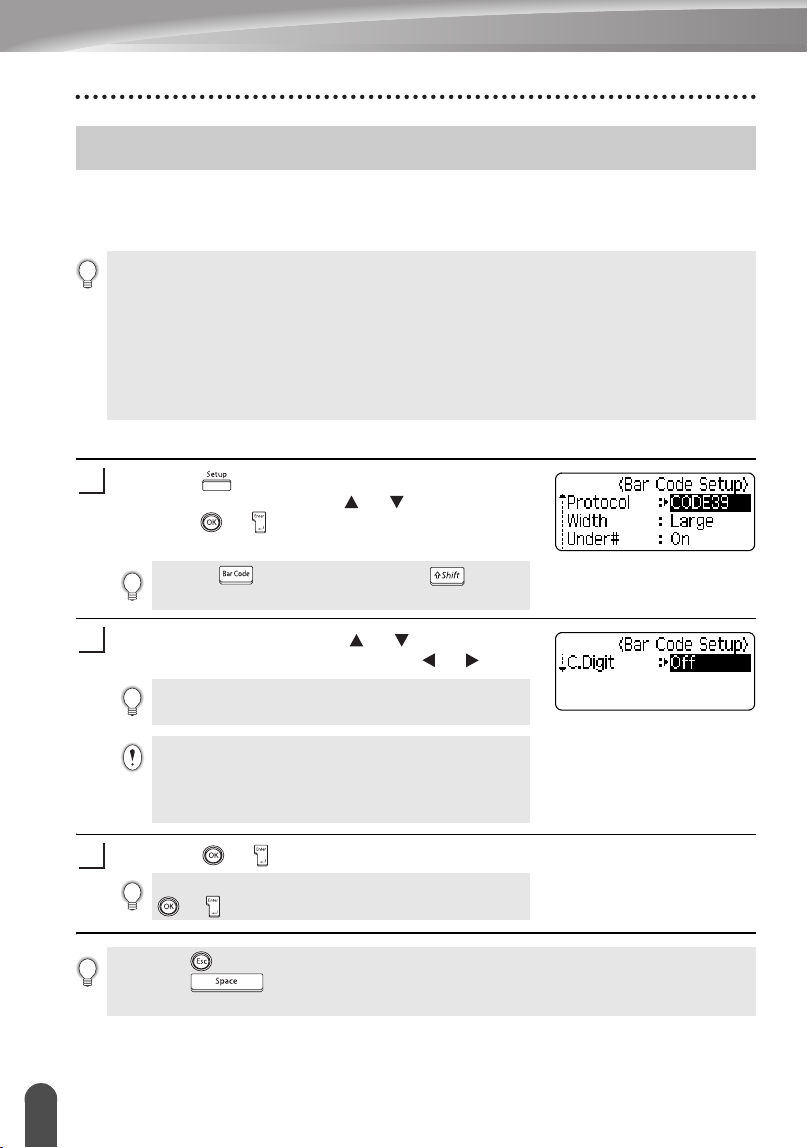
EDITING A LABEL
54
Creating a Bar Code Label
Using the Bar Code function you can create labels with one dimensional bar codes for
use with cash registers, stock control systems or other bar code reader systems, or
even asset control tags used in an asset management system.
Setting Bar Code Parameters
Press the key to display the Setup menu, select
“Bar Code Setup” using the or keys, and then
press the or
key
.
The Bar Code Setup screen is displayed.
Select an attribute using the or keys, and then
set a value for that attribute using the or keys.
Press the or key to apply the settings.
Creating a Bar Code Label
• The P-touch labeler is not designed exclusively for creating bar code labels. Always check that
bar code labels can be read by the bar code reader.
• For best results, print bar code labels in black ink on white tape. Some bar code readers may
not be able to read bar code labels created using colored tape or ink.
• Use the “Large” setting for “Width” whenever possible. Some bar code readers may not be
able to read bar code labels created using the “Small” setting.
• Continuously printing a large number of labels with bar codes can overheat the print head,
which may effect printing quality.
Pressing key while holding down key will
also allow you to go to "Bar Code Setup".
The "C-Digit" (Check Digit) attribute is only available
for the CODE39, I-2/5 and CODABAR protocols.
Characters may not appear below the bar code even
when "On" is selected for "Under #", depending on the
tape width being used, the number of lines entered, or
the current character style settings.
1
2
New settings are NOT applied if you do not press the
or key.
3
• Press the key to return to the previous step.
• Press the key to set the selected attribute to the default value.
• Refer to the Bar Code Settings table for a list of all available settings.
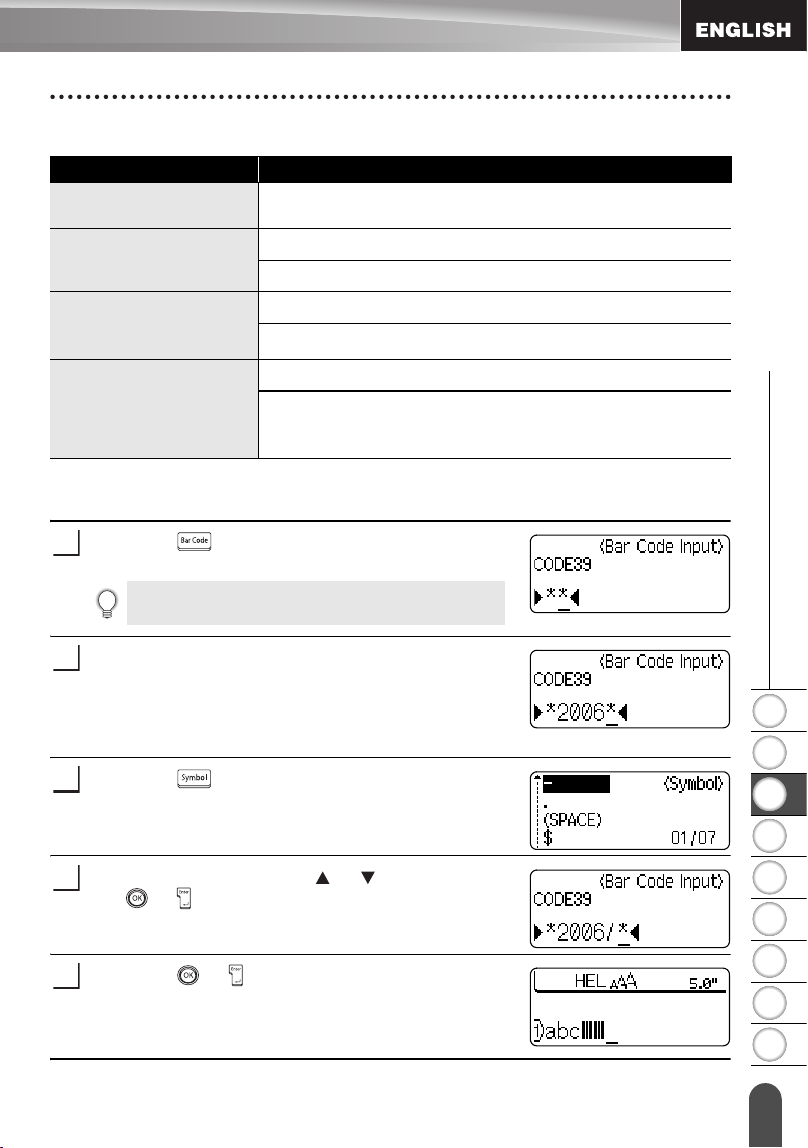
1
2
3
4
5
6
7
8
9
55
z EDITING A LABEL
Creating a Bar Code Label
zBar Code Settingsz
Entering Bar Code Data
Press the key.
The Bar Code Input screen is displayed.
Type in the bar code data.
Special characters can be entered in the bar code
when using the CODE39, CODABAR, CODE128 or
EAN128 protocols. When not using special characters,
go to step 5.
Press the key.
A list of characters available for the current protocol is
displayed.
Select a character using
the or
keys, then press
the or
key to insert the character in the bar code
data.
Press the or
key
to insert the bar code in the
label.
Two bar code marks are displayed on the text entry
screen.
Attribute Value
Protocol
CODE39
, CODE128, EAN8, EAN13, EAN128,
UPC-A, UPC-E, I-2/5 (ITF), CODABAR
Width
Large
Small
Under#
(characters printed
below bar code)
On
Off
C.Digit
(check digit)
Off
On
(only available for the CODE39, I-2/5
and CODABAR protocols)
Up to five bar codes can be entered on a label.
1
2
3
4
5
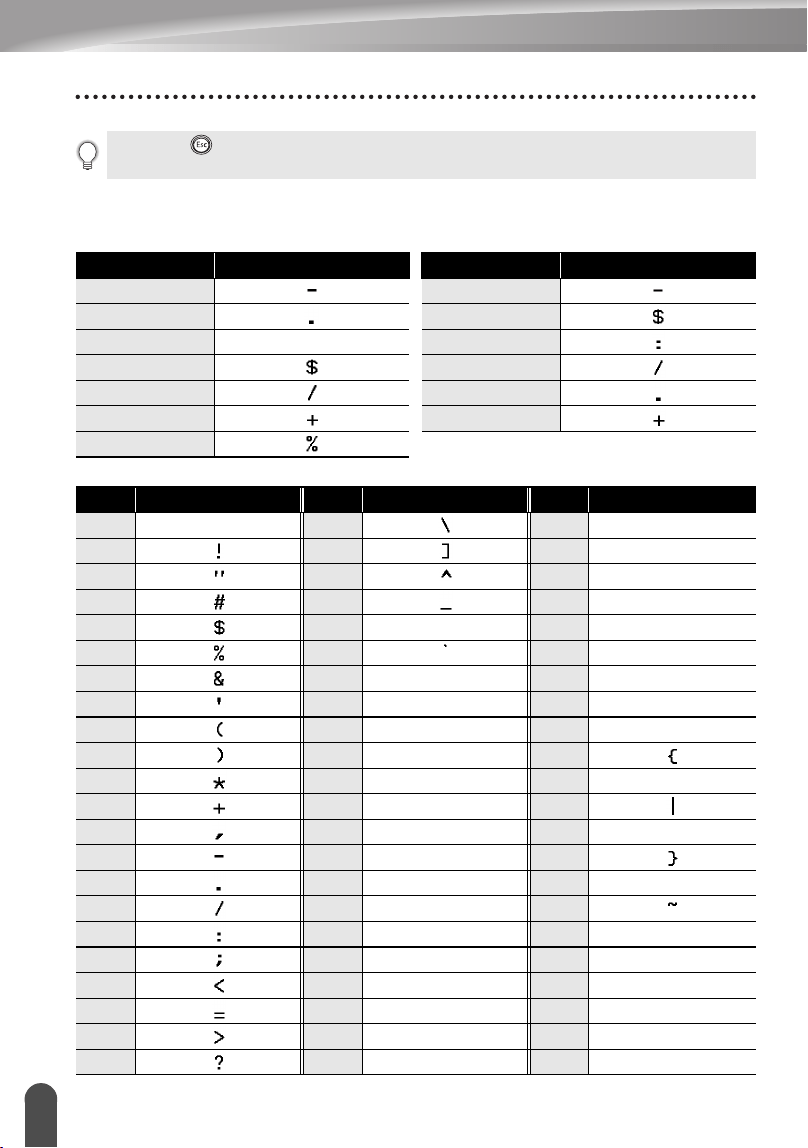
EDITING A LABEL
56
Creating a Bar Code Label
zSpecial Character Listz
CODE39 CODABAR
CODE128, EAN128
• Press the key to return to the previous step.
• Refer to the Special Characters List table for a list of all available settings.
Code Special Character Code Special Character
0 0
1 1
2 (SPACE) 2
3 3
4 4
5 5
6
Code Special Character Code Special Character Code Special Character
0 (SPACE) 24 48 DC3
1 25 49 DC4
2 26 50 NAK
3 27 51 SYN
4 28 NUL 52 ETB
5 29 53 CAN
6 30 SOH 54 EM
7 31 STX 55 SUB
8 32 ETX 56 ESC
9 33 EOT 57
10 34 ENQ 58 FS
11 35 ACK 59
12 36 BEL 60 GS
13 37 BS 61
14 38 HT 62 RS
15 39 LF 63
16 40 VT 64 US
17 41 FF 65 DEL
18 42 CR 66 FNC3
19 43 SO 67 FNC2
20 44 SI 68 FNC4
21 45 DLE 69 FNC1
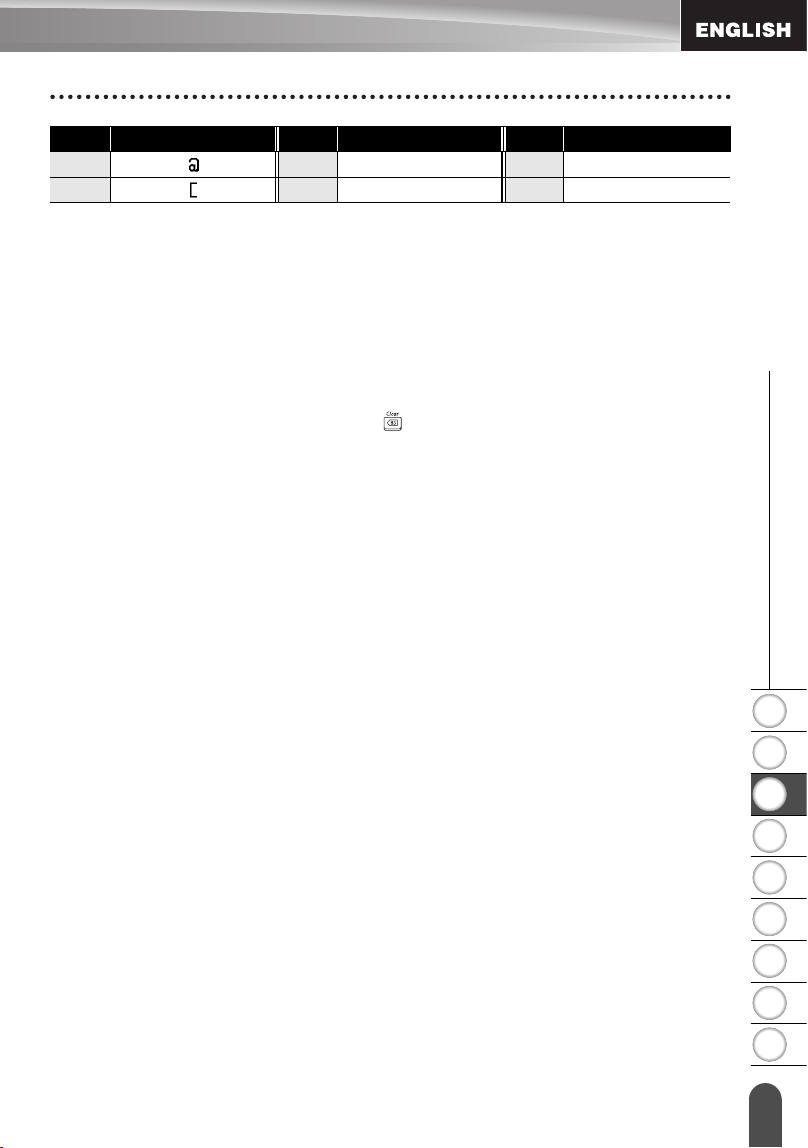
1
2
3
4
5
6
7
8
9
57
z EDITING A LABEL
Creating a Bar Code Label
Editing and Deleting a Bar Code
• To edit the bar code data position the cursor beneath either of the bar code marks
on the data entry screen and then open the Bar Code Input screen. Refer to “Entering
Bar Code Data” on page 55.
• To edit the “Width” and “Under#” settings on a bar code already placed on the screen,
position the cursor beneath either of the bar code marks on the data entry screen and
then open the Bar Code Setup screen. Refer to “Setting Bar Code Parameters” on
page 54.
• To delete a bar code from a label, position the cursor to right of the bar code marks
on the data entry screen and press the key.
22 46 DC1
23 47 DC2
Code Special Character Code Special Character Code Special Character
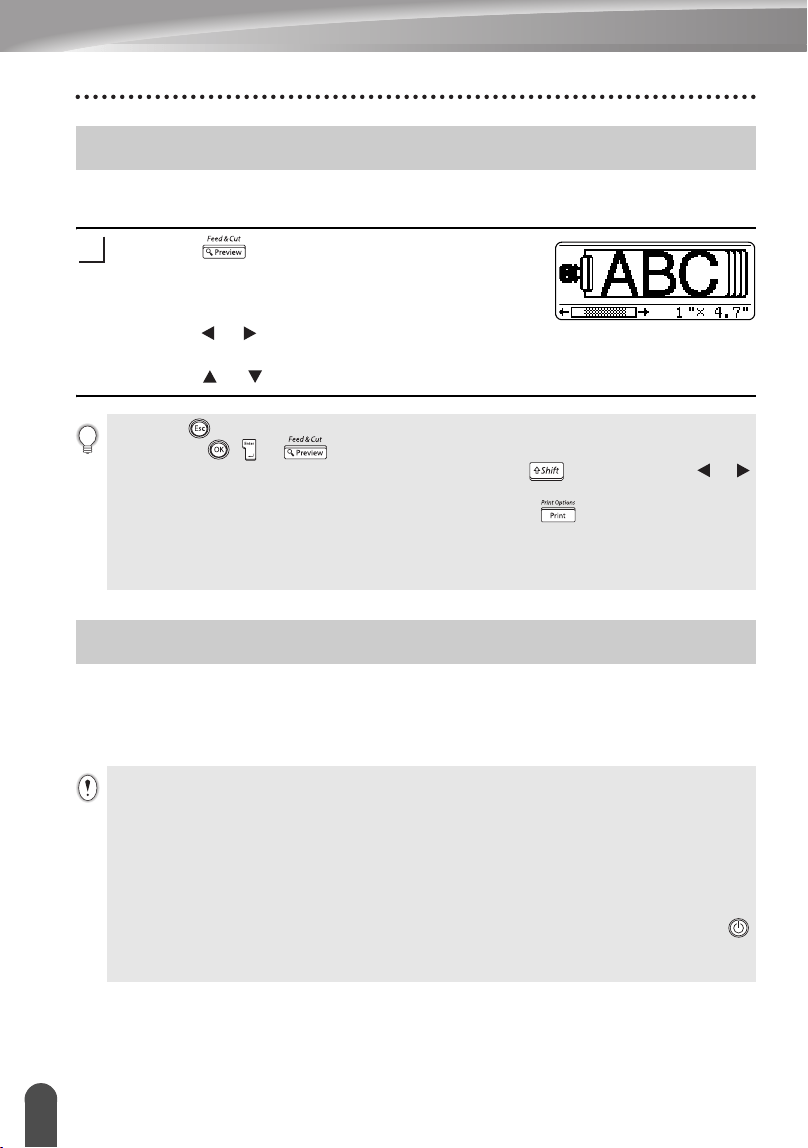
58
Label Preview
LABEL PRINTING
Using the Preview function you can check the layout of the label before printing it onto
the label.
Press the key.
An image of the label is displayed on the screen.
The length of the label is shown in the lower-right
corner of the screen.
Press the or keys to scroll the preview to the left
or right.
Press the or keys to change the magnification of the preview.
After entering the text and formatting the label, you are ready to print your label. In
addition to printing a single copy of a label, your P-touch labeler has several printing
features that allow you to print multiple copies of a label, sequentially numbered labels
and mirror-printed labels.
Label Preview
1
• Press the key to return to the text entry screen. (You can also return to the text entry screen
by pressing , or key.)
• To scroll the preview to the left or right end, hold down the
key and press the or
keys.
• To print the label directly from the preview screen, press the key or open the print
options screen and select a print option. Refer to "Printing a Label" below for details.
• The print preview is a generated image of the label, and may differ from the actual label when
printed.
Printing a Label
• Do not pull the label coming out of the tape exit slot. Doing so will cause the ink ribbon
to be discharged with the tape.
• Do not block the tape exit slot during printing or when feeding tape. Doing so will cause the
tape to jam.
• Be sure to check that there is enough tape remaining when printing several labels
continuously. If tape is running low, set fewer copies, print labels one at a time, or replace the
tape cassette.
• Striped tape indicates the end of the tape cassette. If this appears during printing, press the
key to turn the P-touch labeler off. Attempting to print with an empty tape cassette may
damage the machine.
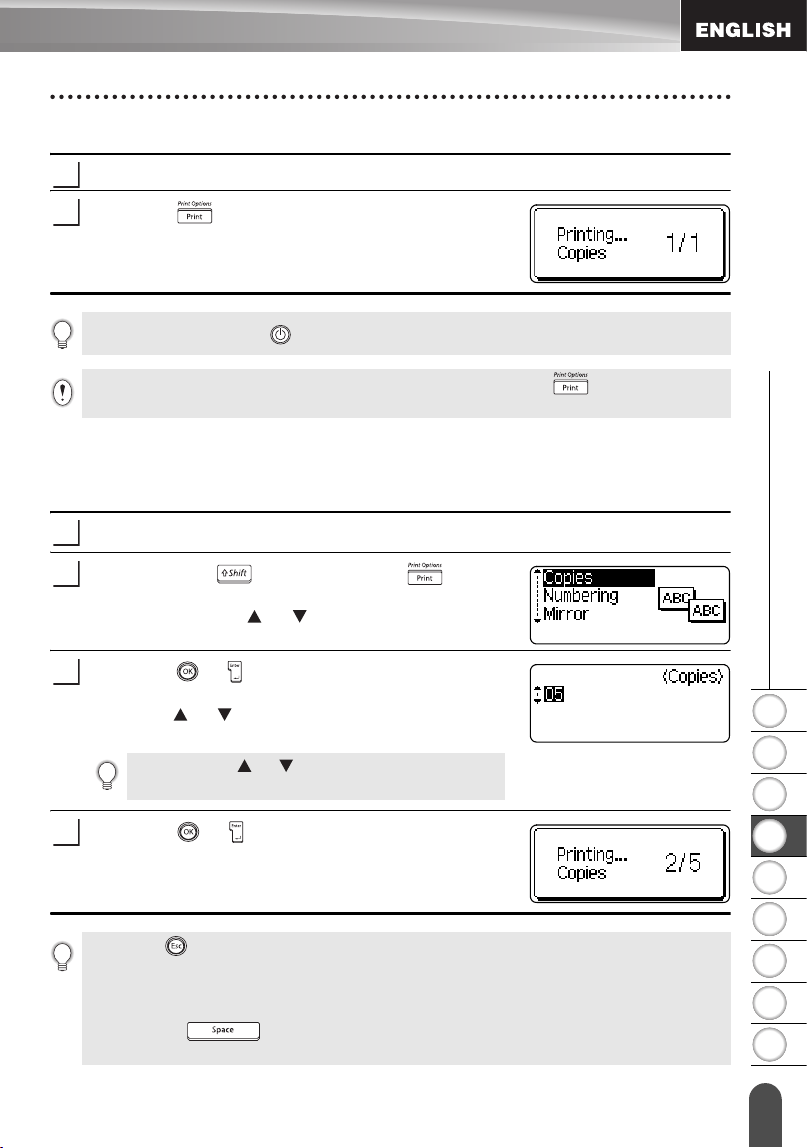
1
2
3
4
5
6
7
8
9
59
z LABEL PRINTING
Printing a Label
Printing a Single Copy
Make sure that the appropriate tape cassette is inserted and ready for printing.
Press the key.
The message shown on the right is displayed while
the label is being printed.
Printing Multiple Copies
Using this function you can print up to 99 copies of the same label.
Make sure that the appropriate tape cassette is inserted and ready for printing.
Hold down the key and press the key to
display the print options screen, and then select
“Copies” using the or keys.
Press the or key to display the Copies screen,
and then select the number of copies to be printed
using the or keys, or type the number using the
number keys.
Press the or key.
The message shown on the right is displayed while
the labels are being printed.
1
2
To stop printing, press the key to turn off the P-touch labeler.
There are several other messages that may appear when you press the key. Refer to “Error
Messages” on page 75 for further information about error messages.
1
2
Hold down the or keys to change the number of
copies faster.
3
4
• Press the key to return to the previous step.
• Unless set otherwise, the tape is automatically cut after each copy is printed. Refer to “Tape
Cutting Options” on page 62 to change this setting.
• The figures shown on the screen during printing indicate the “count / number of copies set”.
• Pressing the key when setting the number of copies resets the value to 1, the
default.
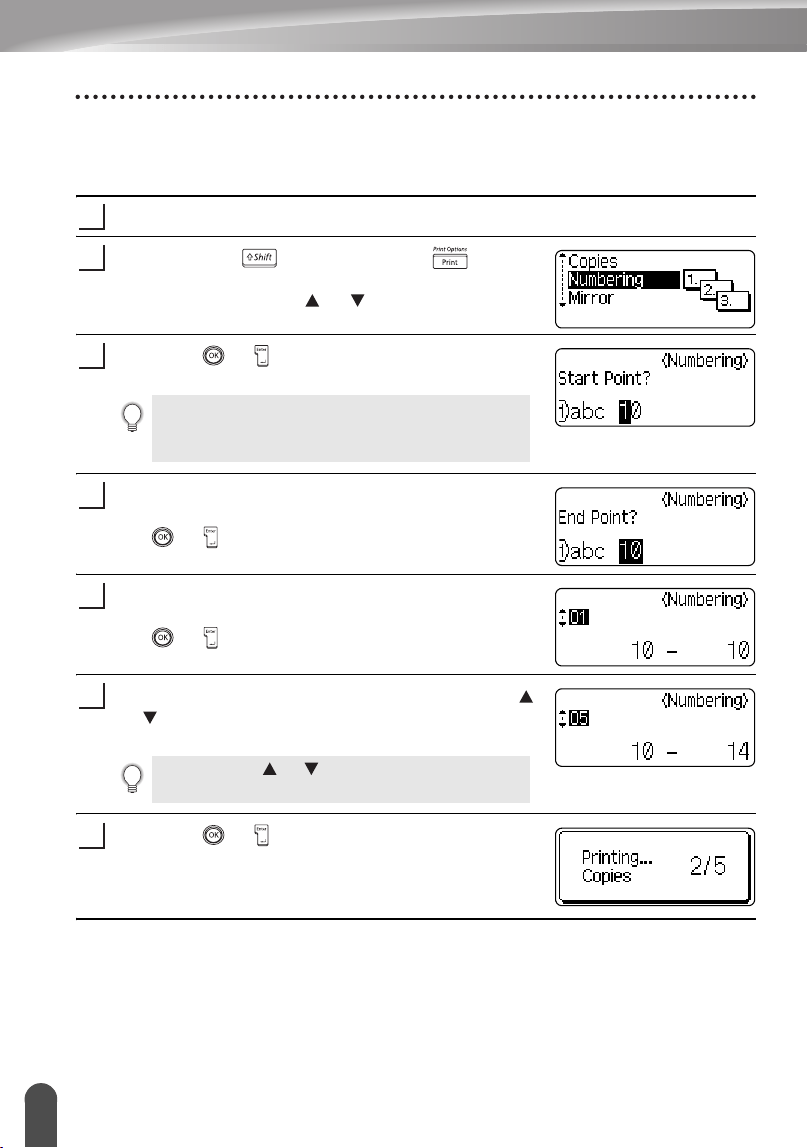
LABEL PRINTING
60
Printing a Label
Auto-numbering Labels
Using the numbering function you can create a set of sequentially numbered labels
from a single label format.
Make sure that the appropriate tape cassette is inserted and ready for printing.
Hold down the key and press the key to
display the print options screen, and then select
"Numbering" using the or keys.
Press the or key.
The numbering start point screen is displayed.
Move the cursor to the first character to be
incremented in the numbering sequence and press
the or key.
The numbering end point screen is displayed.
Move the cursor to the last character to be
incremented in the numbering sequence and press
the or key.
The number of labels to be printed is displayed.
Select the number of labels to be printed using the
or keys, or type the number using the number
keys.
Press the or key.
The labels are printed.
As each label is printed the number of copies printed
is shown.
1
2
To apply auto-numbering to a bar code, select the bar code
here. After selecting the bar code you will be prompted to
enter the number of labels to be printed (step 6).
3
4
5
Hold down the or keys to change the number of
labels faster.
6
7
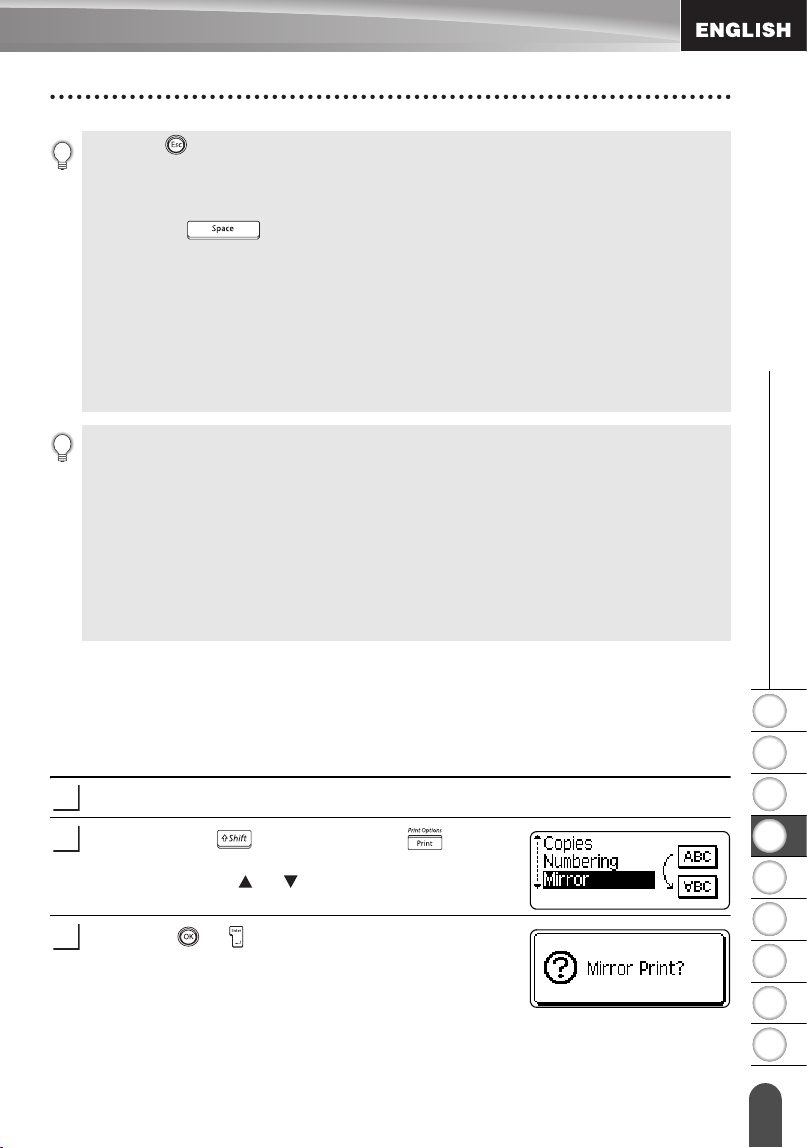
1
2
3
4
5
6
7
8
9
61
z LABEL PRINTING
Printing a Label
Mirror Printing
Using the mirror printing function you can create labels with the text printed in reverse
so that they can be read from the opposite side when attached to glass or other
transparent material.
Make sure that the appropriate tape cassette is inserted and ready for printing.
Hold down the key and press the key to
display the print options screen, and then select
“Mirror” using the or key.
Press the or key.
The message “Mirror Print?” is displayed
• Press the key to return to the previous step.
• Unless set otherwise, the tape is automatically cut after each copy is printed. Refer to “Tape
Cutting Options” on page 62 to change this setting.
• The figures shown on the screen during printing indicate the “count / number of copies”.
• Pressing the key when selecting the number of copies resets the value to 1, the
default.
• Auto-numbering can also be applied to bar codes. When a bar code contains an auto-
numbering sequence, no other fields in the label can contain an auto-numbering sequence.
• The auto-number portion of the label is incremented after each label is printed.
• Only one auto-numbering sequence can be used in a label.
• Any symbols or other non-alphanumeric characters in the auto-numbering sequence are
ignored.
• An auto-numbering sequence can only contain a maximum of five characters.
• Letters and numbers increase as shown below:
0
Î
1 ...9
Î
0
Î
...
A
Î
B ...Z
Î
A
Î
...
a
Î
b ...z
Î
a
Î
...
A0
Î
A1 ...A9
Î
B0
Î
...
Spaces (shown as underlines “_” in the example below) can be used to adjust the spacing
between characters or to control the number of digits that are printed.
_9
Î
10 ...99
Î
00
Î
...
_Z
Î
AA ...ZZ
Î
AA
Î
...
1_9
Î
2_0 ...9_9
Î
0_0
Î
...
1
2
3
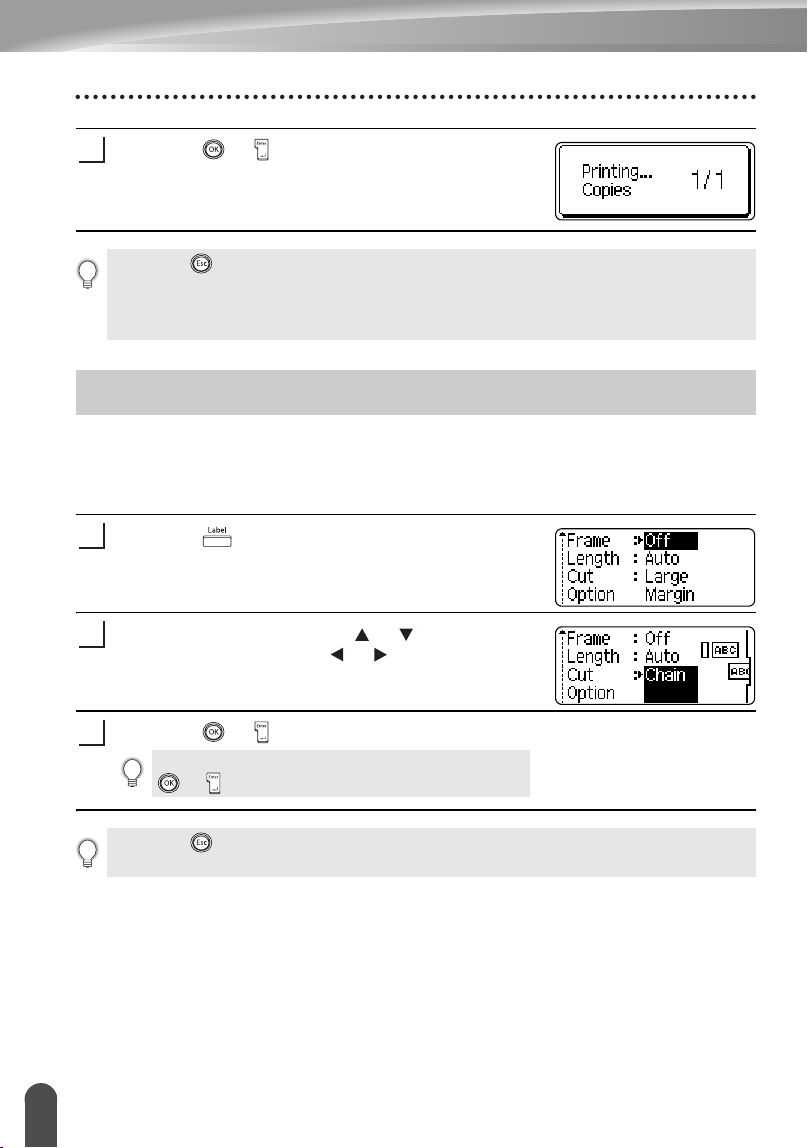
LABEL PRINTING
62
Tape Cutting Options
Press the or key.
The message shown on the right is displayed while
the label is being printed.
The tape cutting options allow you to specify how the tape is fed and cut when printing
labels. In particular, the “Chain” and “No Cut” options greatly reduce the amount of
wasted tape by using smaller margins and eliminating blank sections cut between
labels.
Press the key to display the Label menu.
Select "Cut Option" using the or keys, and then
set the value by using the or keys.
Press the or key to apply the settings.
4
• Press the key to return to the previous step.
• Text should be printed on clear tape when using the mirror printing function.
• The copy and auto-numbering functions cannot be used together with the mirror printing
function.
Tape Cutting Options
1
2
New settings are NOT applied if you do not press the
or key.
3
• Press the key to return to the previous step.
• Refer to the Tape Cutting table for a list of all available settings.
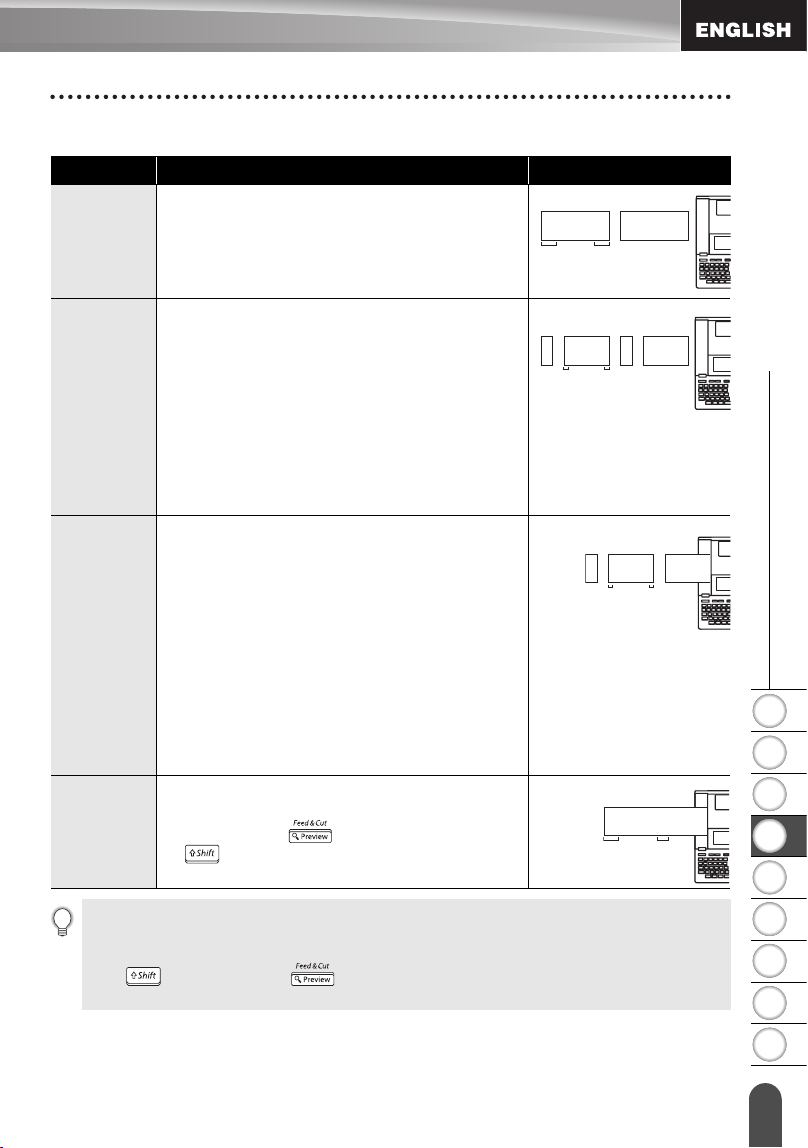
1
2
3
4
5
6
7
8
9
63
z LABEL PRINTING
Tape Cutting Options
zTape Cuttingz
Setting Description Example
Large
Margin
Automatically cuts the tape after each label is
printed. The labels have a 0.94" (24 mm)
margin on the left and right ends.
Small
Margin
• When printing labels one at a time:
Automatically cuts a piece of blank tape
before printing the label, and then cuts the
tape after the label is printed.
• When printing several labels continuously:
Automatically cuts a piece of blank tape
before printing the first label, and then cuts
the tape after each label is printed.
• The labels have a 0.16" (4 mm) margin on
the left and right ends.
Chain
• When printing labels one at a time:
Automatically cuts a piece of blank tape
before printing the label, and then does not
cut the tape after the label is printed.
• When printing several labels continuously:
Automatically cuts a piece of blank tape
before printing the first label, and then cuts
the tape after each label is printed.
• The labels have a 0.16" (4 mm) margin on
the left and right ends.
• The tape is not fed and cut after the last
label is printed.
No Cut
• Use this setting to print a strip of labels with
no cuts in between.
• Pressing the while holding down
key will feed and cut the last label
printed.
ABC ABC
0.94"
(24 mm)
0.94"
(24 mm)
ABC ABC
0.16"
(4 mm)
0.16"
(4 mm)
0.92" (23 mm)
ABC ABC
0.16"
(4 mm)
0.16"
(4 mm)
0.92" (23 mm)
ABC ABC
1.06"
(27 mm)
0.31"
(8 mm)
• When using Fabric Iron-On Tapes or Extra Strength Adhesive Tapes, refer to “Manual
Cutting” on page 64 to apply the appropriate setting.
• The tape is not cut after the last label is printed when “Chain” or “No Cut” is set. Hold down
the key and press the key to feed and cut tape automatically, or cut the tape
manually if you are using Fabric Iron-on Tapes or Extra Strength Adhesive Tapes.
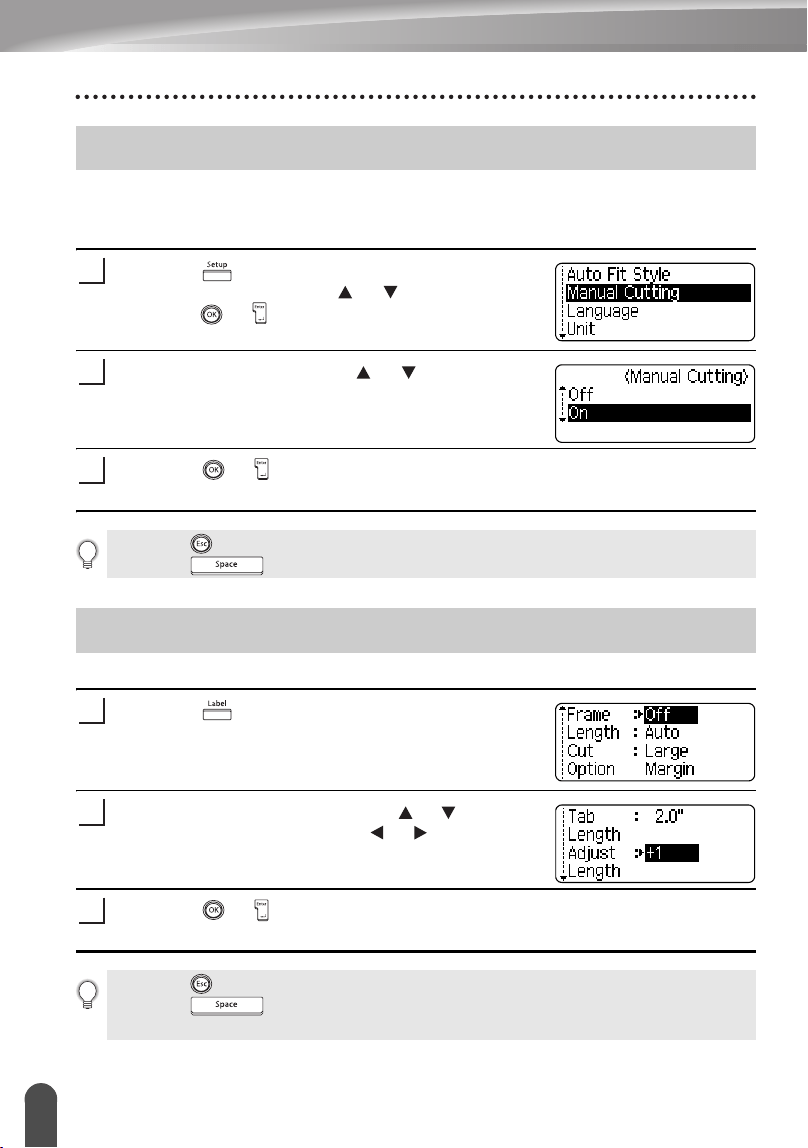
LABEL PRINTING
64
Manual Cutting
When using Fabric Iron-On Tapes or Extra Strength Adhesive Tapes, set "On" for
Manual Cutting before printing. After printing, remove the tape cassette from the
machine and use scissors to cut the tape.
Press the key to display the setup menu, select
"Manual Cutting" using the or keys, and then
press the or key.
Select the value by using the or keys.
Press the or key to apply the setting.
You can adjust the length of the printed label in levels of -5 to +5.
Press the key. The current settings are
displayed.
Select "Adjust Length" by using the or keys, and
then set the value by using the or keys.
Press the or key to apply the setting.
Manual Cutting
1
2
3
• Press the key to return to the previous step.
• Press the key to set the value to default setting (“Off”).
Adjusting the Label Length
1
2
3
• Press the key to return to the previous step.
• Press the key to set the value to default setting.
• Approximately 1% of the total label length will be adjusted by 1 level.
1
2
3
4
5
6
7
8
9
65
z LABEL PRINTING
Attaching Labels
If necessary, trim the printed label to the desired shape and length using scissors,
etc.
Peel the backing from the label.
Position the label and then press firmly from top to bottom with your finger to
attach the label.
Attaching Labels
1
2
3
• The backing of some types of tapes may be pre-cut to make it easier to peel the backing.
• Labels may be difficult to attach to surfaces that are wet, dirty, or uneven. The labels may peel
off easily from these surfaces.
• Be sure to read the instructions provided with Fabric Iron-On Tapes, Extra Strength Adhesive
Tapes or other special tapes and observe all precautions noted in the instructions.
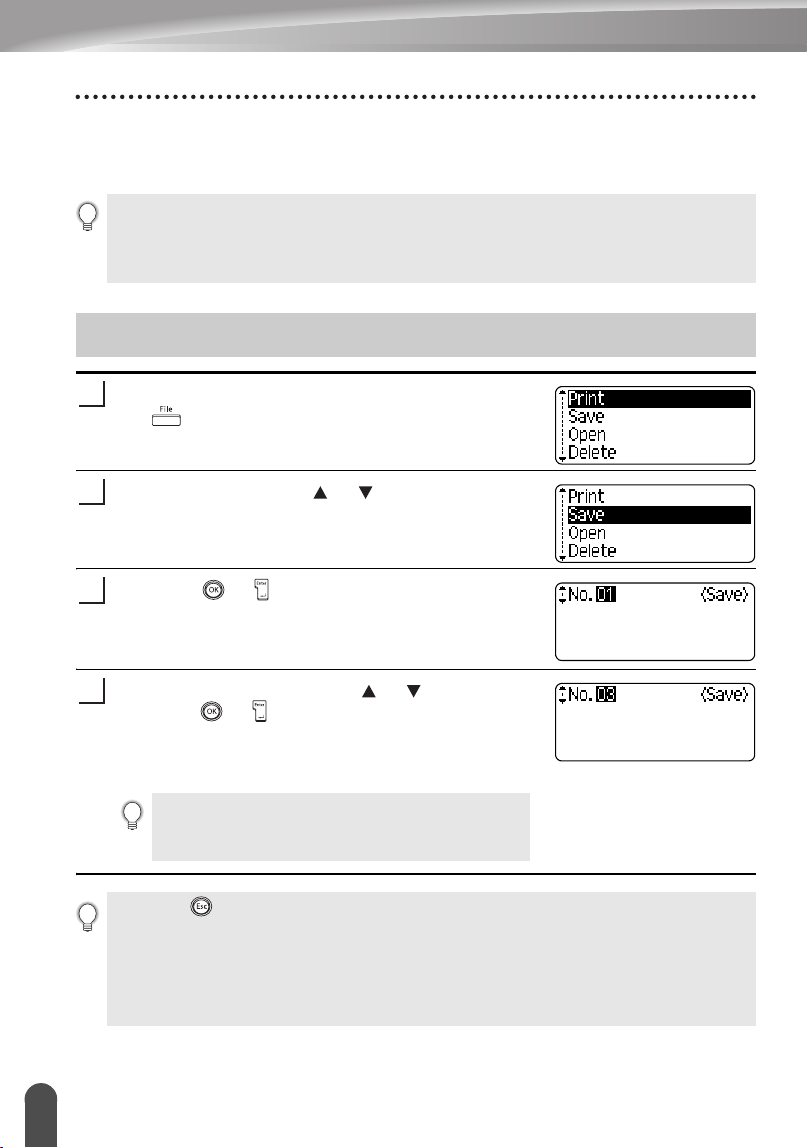
66
Storing a Label into Memory
USING THE FILE MEMORY
You can store up to 99 of your most frequently used labels in the file memory. Each
label is stored as a file, allowing you to quickly and easily recall your label when needed
again.
After entering the text and formatting the label, press
the key to display the File screen.
Select "Save" using the or keys.
Press the or key.
A file number is displayed.
A label text is also displayed if a label is already stored
in that file number.
Select a file number using the or key, and then
press the or key to save the label under the
selected file number.
The file is saved and the screen returns to the text
entry screen.
• When the file memory is full, each time you save a file you will need to overwrite one of your
stored files.
• You will lose your stored files if the AC adapter is disconnected and the batteries are removed
for more than one minute.
Storing a Label into Memory
1
2
3
When there is already a stored file in the selected
number, the data will be overwritten by the file you try
to save.
4
• Press the key to return to the previous step.
• Up to 280 characters can be saved in one file, depending on the number of lines. However,
there is a maximum of 2800 characters for the total number of characters saved in up to 99
files. Text and layout formatting data is also saved in the file.
• To store a label created by using the Auto-Format Layouts, refer to “Using Auto-Format
Layouts” on page 38.
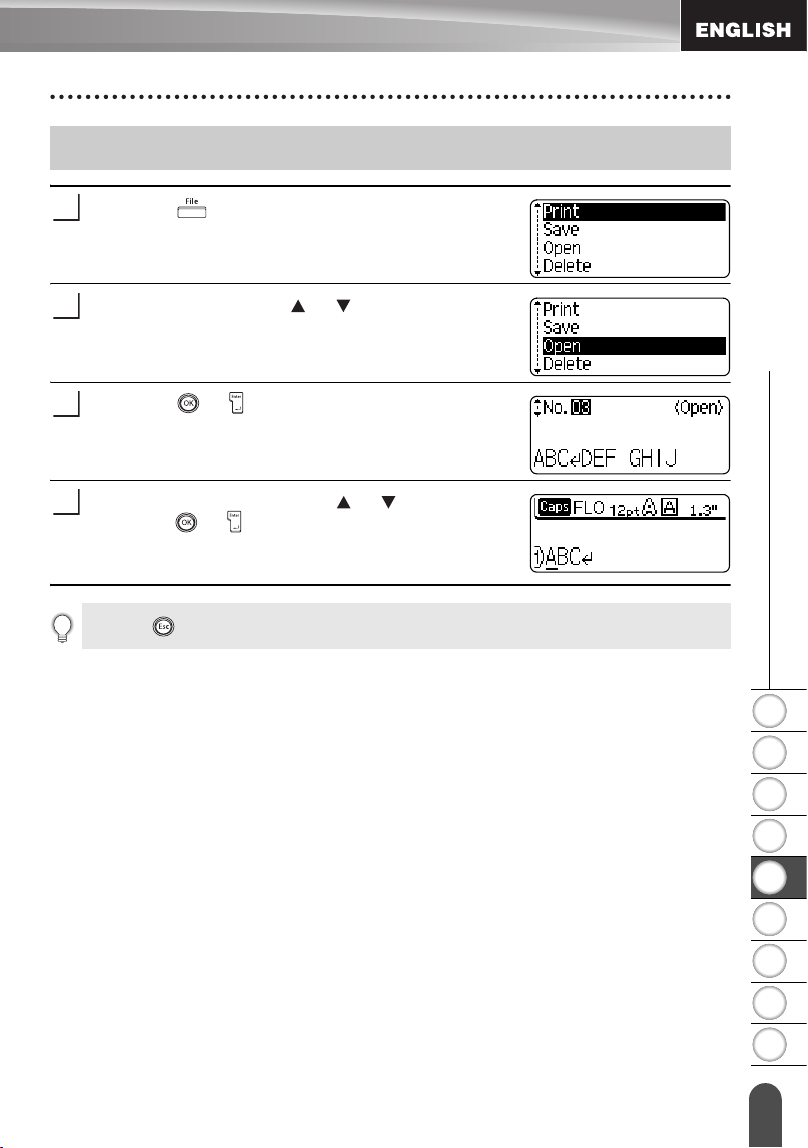
1
2
3
4
5
6
7
8
9
67
z USING THE FILE MEMORY
Opening a Stored Label File
Press the key to display the File screen.
Select "Open" using the or keys.
Press the or key.
The file number of a stored label is displayed.
The label text is also displayed to identify the label.
Select a file number using the or key, and then
press the or key to open the selected file.
The file is opened and displayed on the text entry
screen.
Opening a Stored Label File
1
2
3
4
Press the key to return to the previous step.
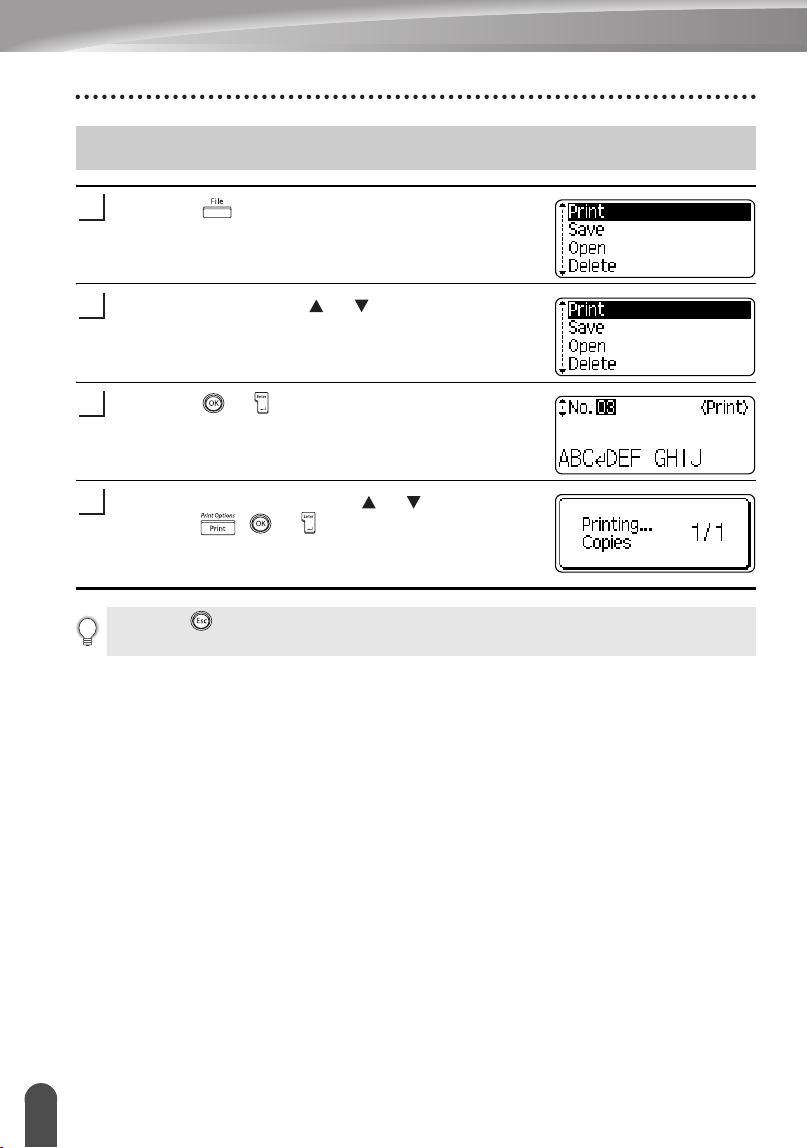
USING THE FILE MEMORY
68
Printing a Stored Label File
Press the key to display the File screen.
Select "Print" using the or keys.
Press the or key.
The file number of a stored label is displayed.
The label text is also displayed to identify the label.
Select a file number using the or key, and then
press the , or key to print the selected
label. The label is printed from the machine.
Printing a Stored Label File
1
2
3
4
• Press the key to return to the previous step.
• The message "No Text!" is displayed when you try to print a file with no text.
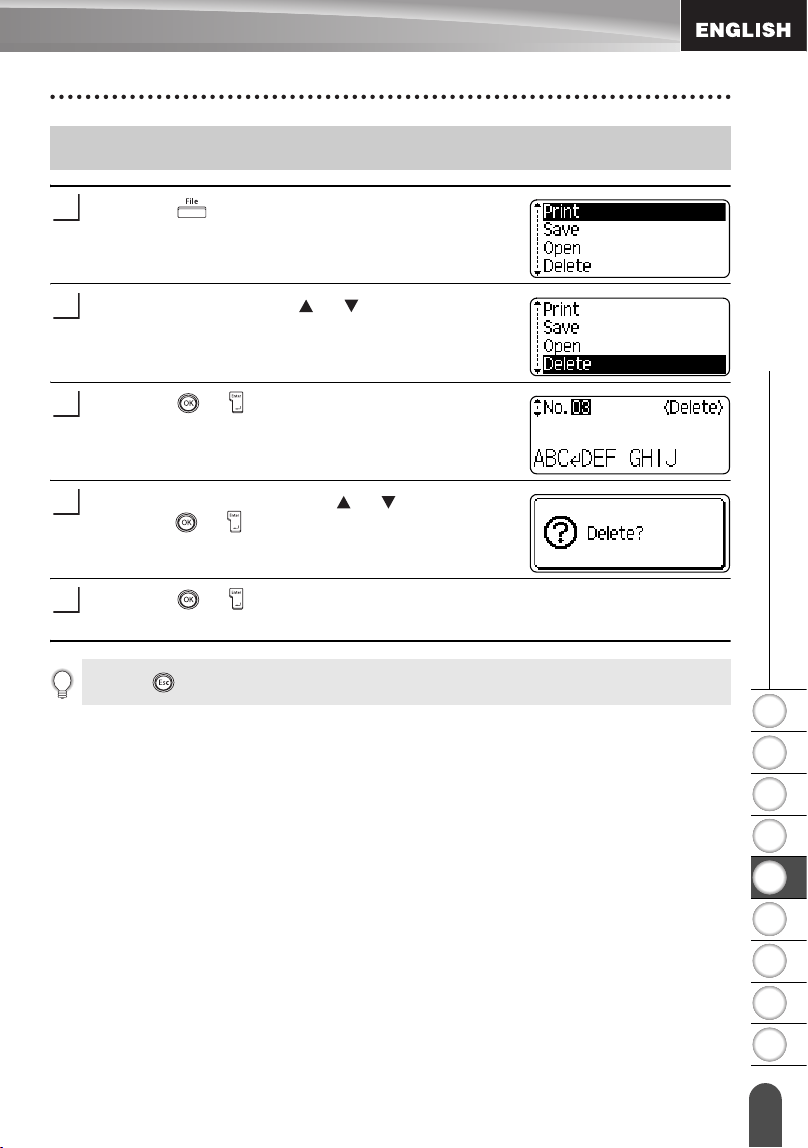
1
2
3
4
5
6
7
8
9
69
z USING THE FILE MEMORY
Deleting a Stored Label File
Press the key to display the File screen.
Select "Delete" using the or keys.
Press the or key.
The file number of a stored label is displayed.
The label text is also displayed to identify the label.
Select a file number using the or key, and then
press the or key.
The message “Delete?” is displayed.
Press the or key to delete the file.
The file is deleted and the screen returns to the text entry screen.
Deleting a Stored Label File
1
2
3
4
5
Press the key to cancel deleting the file and return to the previous screen.
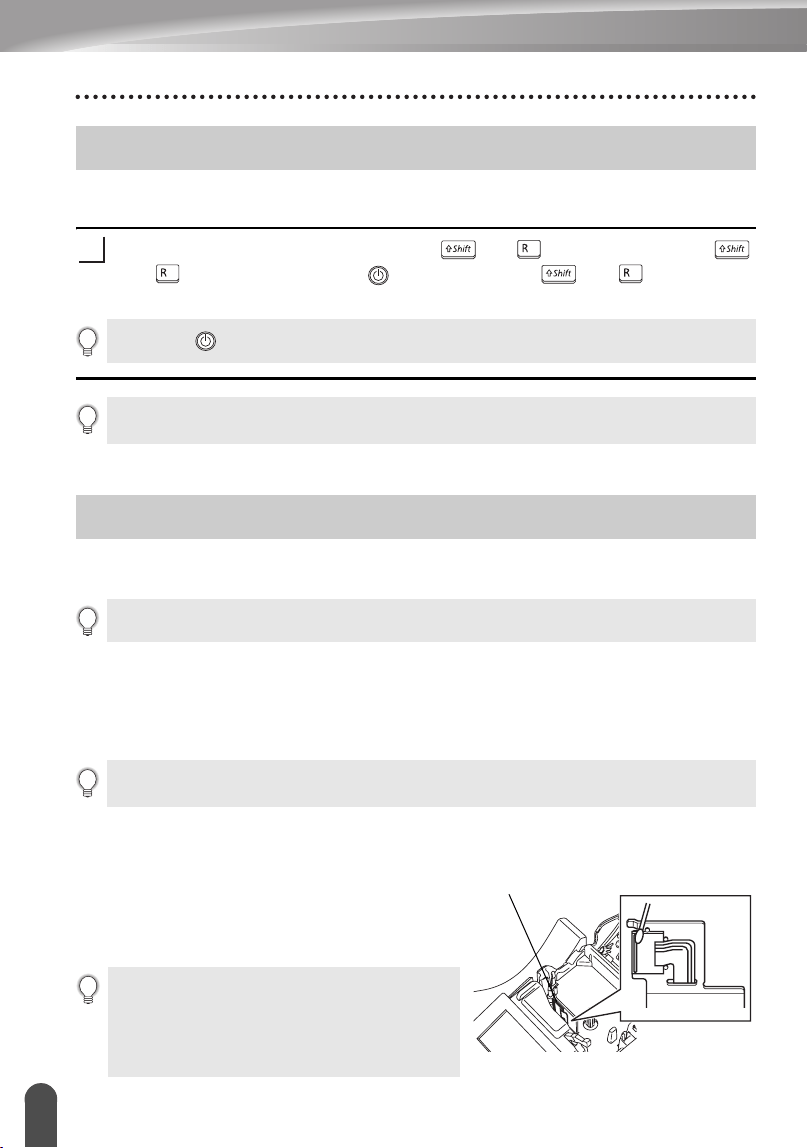
70
Resetting the P-touch Labeler
MAINTAINING YOUR P-touch Labeler
You can reset the internal memory of your P-touch labeler when you want to clear all
saved label files, or in the event the P-touch labeler is not behaving normally.
Turn off the machine. Press and hold the and . Continue to hold the
and , press and release the . Now, release the and . The P-touch
labeler's internal memory is now reset.
Your P-touch labeler should be cleaned on a regular basis to maintain its performance
and life span.
Cleaning the Main Unit
Wipe any dust and marks from the main unit using a soft, dry cloth.
Use a slightly dampened cloth on difficult to remove marks.
Cleaning the Print Head
Streaks or poor quality characters on printed
labels generally indicates that the print head is
dirty. Clean the print head using a cotton swab or
optional print head cleaning cassette (TZ-CL4).
Resetting the P-touch Labeler
1
Release the key before releasing the other keys.
All text, format settings, option settings and stored label files are cleared when you reset the
P-touch labeler. Language, unit, and clock settings will also be cleared.
Maintenance
Always remove the batteries and disconnect the AC adapter before cleaning the P-touch labeler.
Do not use paint thinner, benzene, alcohol or any other organic solvent. These may deform the
case or damage the appearance of your P-touch labeler.
• Do not touch the print head directly with your
bare hands.
• Refer to the instructions provided with the print
head cleaning cassette for directions on how to
use it.
Print head
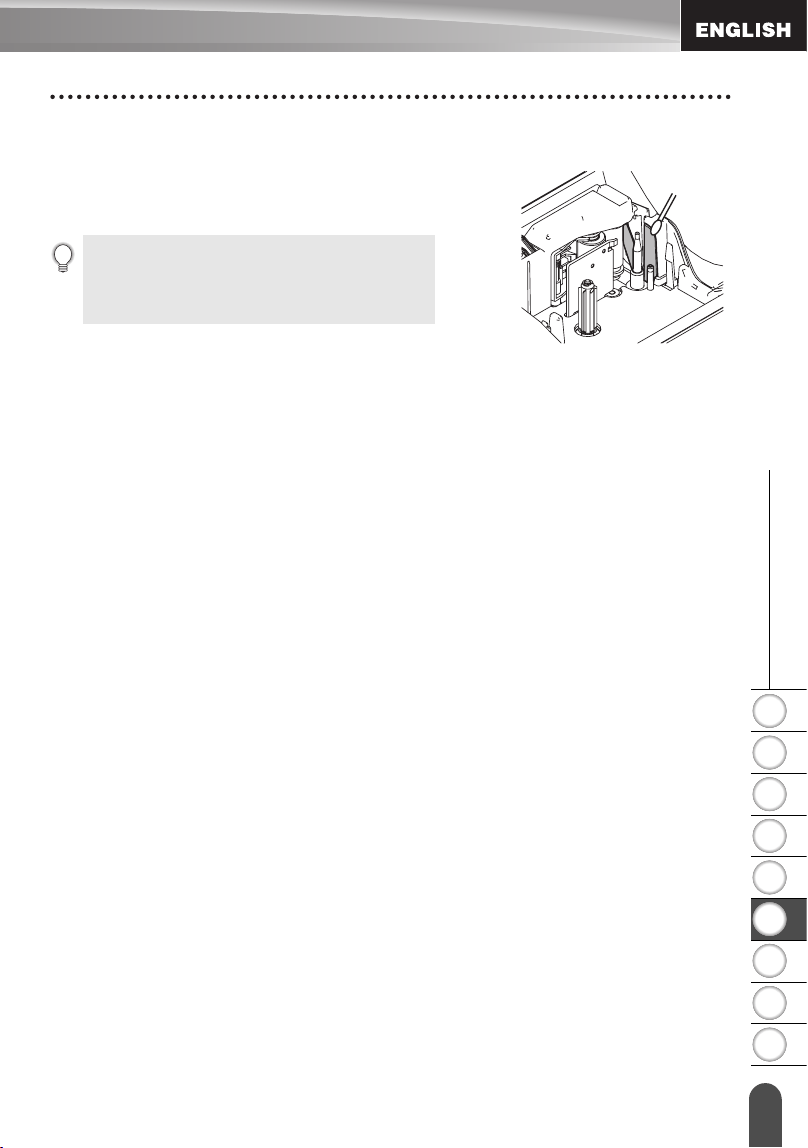
1
2
3
4
5
6
7
8
9
71
z MAINTAINING YOUR P-touch Labeler
Maintenance
Cleaning the Tape Cutter
Tape adhesive can build up on the cutter blade after
repeated use, taking the edge off the blade which may
result in the tape jamming in the cutter.
• About once every year, wipe the cutter blade
using a cotton swab moistened with alcohol.
• Do not touch the cutter blade directly with your
bare hands.
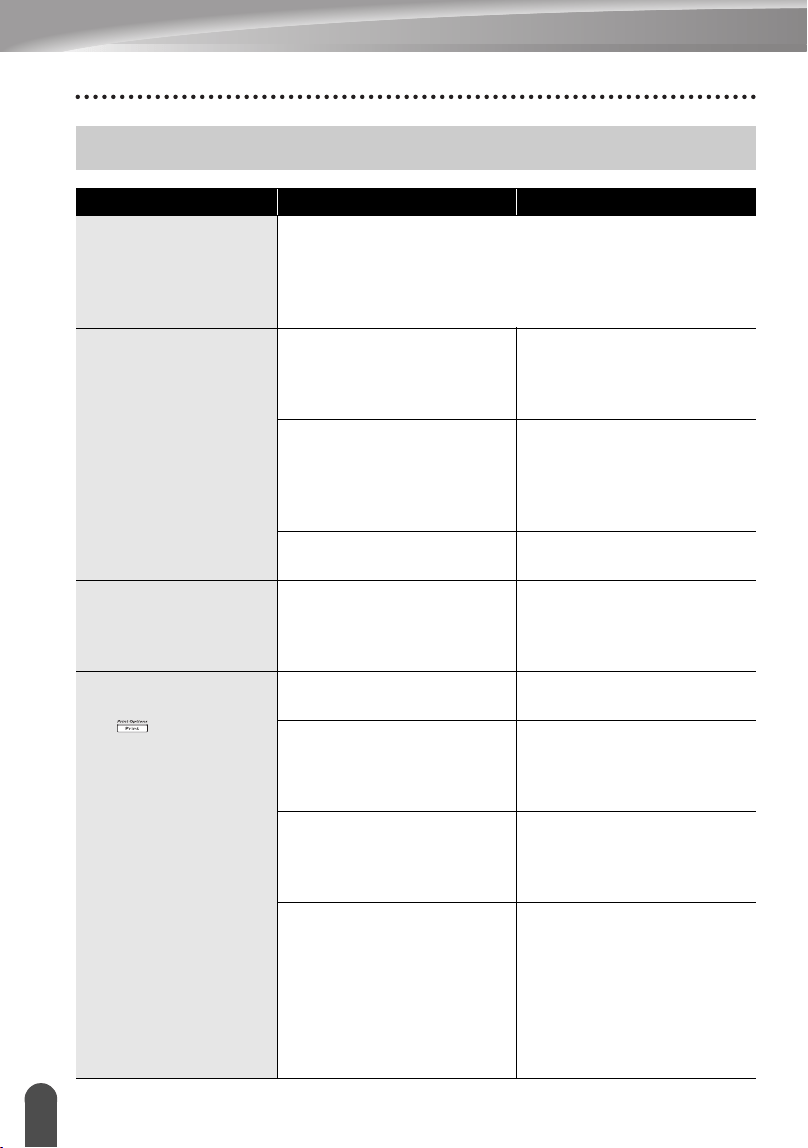
72
What to do when...
TROUBLESHOOTING
What to do when...
Problem Cause Solution
The screen ‘locks’, or
the P-touch labeler
does not respond
normally.
Refer to “Resetting the P-touch Labeler” on page 70 and
reset the internal memory to the initial settings. If resetting
the P-touch labeler does not solve the problem, disconnect
the AC adapter and remove the batteries for more than 10
minutes.
The display remains
blank after turning on
the power.
Is the AC adapter connected
correctly?
Check that the AC adapter
designed exclusively for
your P-touch labeler is
connected correctly.
Are you using the correct AC
adapter?
Make sure that you are using
the AC adapter designed
exclusively for your P-touch
labeler (included in
package).
Are the batteries installed
correctly?
Remove and re-install the
batteries.
The LCD messages
are displayed in a
foreign language.
Is the language set
properly?
Refer to “Setting Language
and Unit” on page 23 and
select the desired language
for the LCD messages.
The label is not
printed after pressing
the key.
Has text been entered? A label will not be printed if
there is no text entered.
Is the tape cassette installed
correctly, and is there
enough tape remaining?
Check that the tape cassette
is installed correctly, and
that there is enough tape
remaining.
Is the end of the tape bent? If bent, cut the bent section
of tape with scissors and
thread the tape through the
tape exit slot correctly.
Is the tape jammed? If jammed, remove the tape
cassette, carefully pull out
the jammed tape, and then
cut the tape with scissors.
Check that the end of the
tape passes through the
tape guide, and reinstall the
tape cassette.
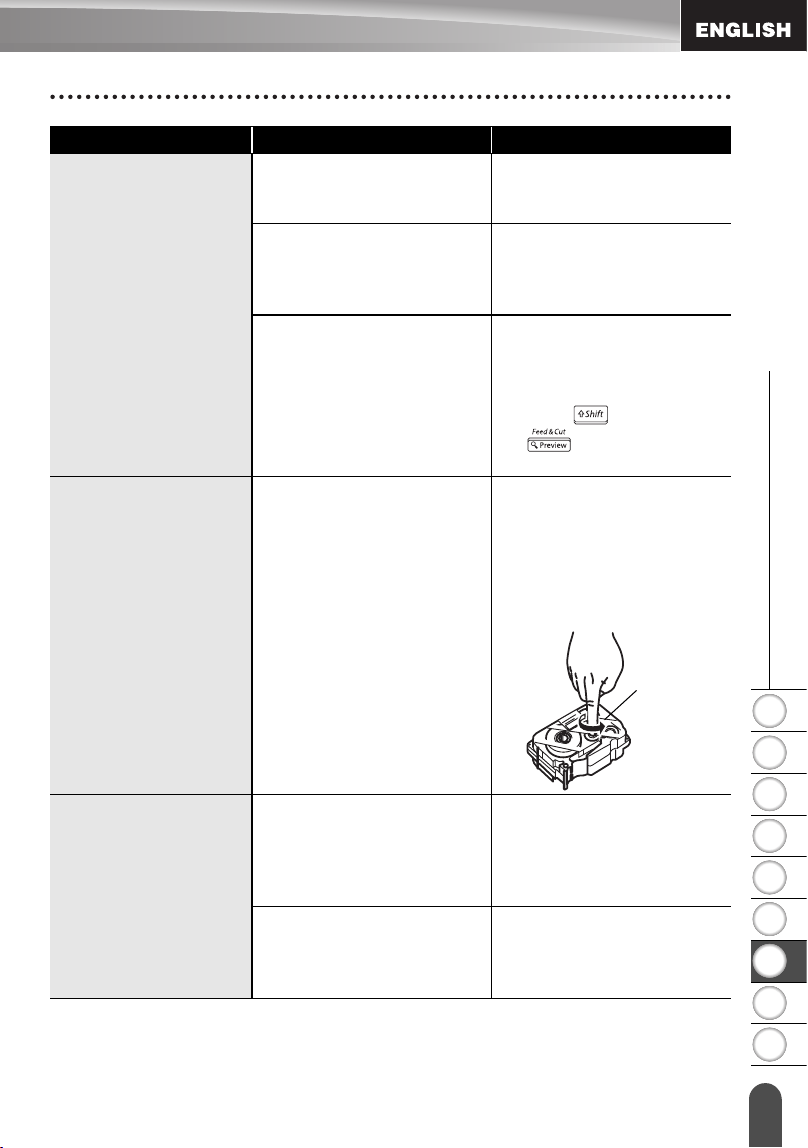
1
2
3
4
5
6
7
8
9
73
z TROUBLESHOOTING
What to do when...
The label is not
printed correctly.
Is the tape cassette installed
correctly?
When installing a cassette,
press firmly until it clicks into
place.
Is the print head clean? If not, clean the print head
using a cotton swab or
optional print head cleaning
cassette (TZ-CL4).
Is Cut Option set to Chain or
No Cut?
When these options are set,
the tape is not fed after
printing the label. Check the
Cut Option setting, or hold
down the key and press
the key to feed and cut
the tape.
The ink ribbon is
separated from the
ink roller.
Is the ink ribbon in the tape
cassette loose, or did you
pull on the label coming out
of the tape exit slot?
If the ink ribbon is broken
replace the tape cassette. If
not, leave the tape uncut and
remove the tape cassette,
then wind the loose ink
ribbon onto the spool as
shown in the figure.
The P-touch labeler
stops while printing a
label.
Is there enough tape
remaining in the tape
cassette?
The striped tape indicates
you have reached the end of
the tape. Replace the tape
cassette when the striped
tape appears.
Are the batteries weak and
the AC adapter not
connected?
Replace all batteries or
connect the AC adapter
directly to the P-touch
labeler.
Problem Cause Solution
Spool
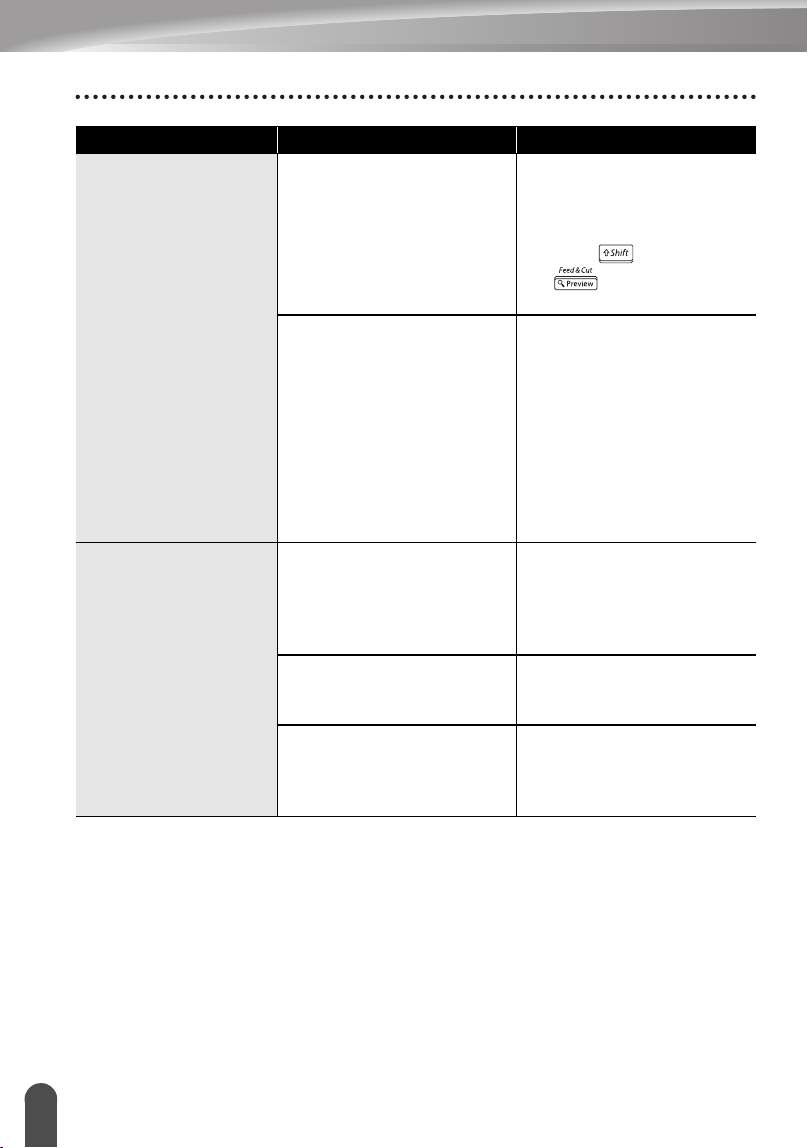
TROUBLESHOOTING
74
What to do when...
The label is not cut
automatically.
Is Cut Option set to Chain or
No Cut?
When these options are set,
the tape is not fed after
printing the label. Check the
Cut Option setting, or hold
down the key and press
the key to feed and
cut the tape.
Is Manual Cutting set to ON? When using Fabric Iron-On
Tapes or Extra Strength
Adhesive Tapes, please use
scissors to cut the tape after
printing.
When using other tapes,
refer to “Manual Cutting” on
page 64 and set the Manual
Cutting to OFF to cut the
tape automatically.
Label files saved
previously are now
empty.
Have the batteries and AC
adapter been disconnected?
All files stored in the internal
memory is lost if the
batteries and AC adapter are
disconnected for longer than
one minute.
Is there enough power
remaining in the batteries?
All data stored in the internal
memory is lost if the
batteries become empty.
Have you used the Reset
function?
The reset function clears all
data stored in the internal
memory, including label
files.
Problem Cause Solution
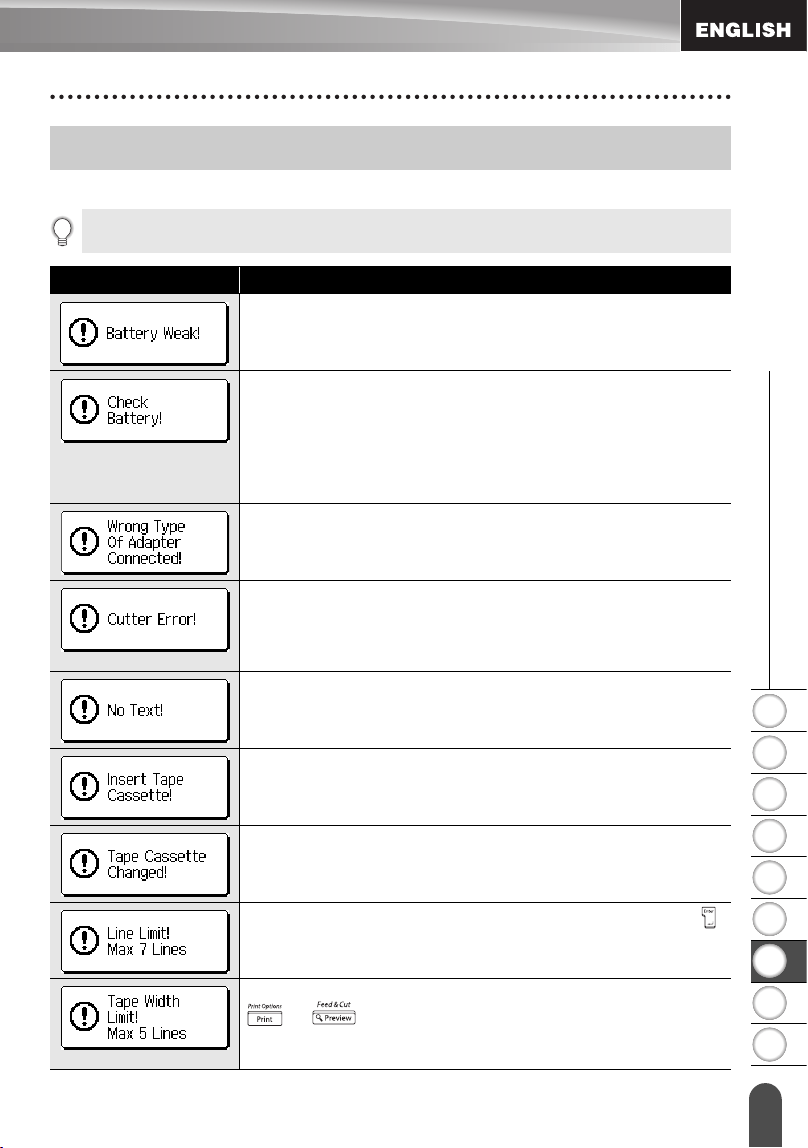
1
2
3
4
5
6
7
8
9
75
z TROUBLESHOOTING
Error Messages
When an error message appears on the display, follow the directions provided below.
Error Messages
Press any key to clear the error message.
Message Cause/Remedy
The installed batteries are getting weak.
• The batteries are installed with the negative and positive
end in the wrong position, or other type batteries are mixed
with alkaline batteries. Install eight AA-size alkaline
batteries (LR6) in the correct position.
• The installed batteries are about to run out. Replace with
new batteries or connect the AC adapter before continuing.
An incompatible AC adapter is connected. Use only the AC
adapter designed exclusively for your P-touch labeler.
The tape cutter is closed when you try to print or feed tape.
Turn the P-touch labeler off and then on again before
continuing.
When tape is tangled in the cutter, remove the tape.
There is no text, symbols or bar code data entered when you
try to print or preview a label. Enter data before continuing.
There is no tape cassette installed when you try to print or
preview a label, or feed tape. Install a tape cassette before
continuing.
The tape cassette is changed while printing, etc. Make sure
the correct tape cassette is inserted before printing.
There are already seven lines of text when you press the
key. Limit the number of lines to seven.
There are more than five lines of text when you press the
or key while using 3/4" (18mm) tape. Limit the
number of lines to five, or replace with tape cassette of larger
tape width.
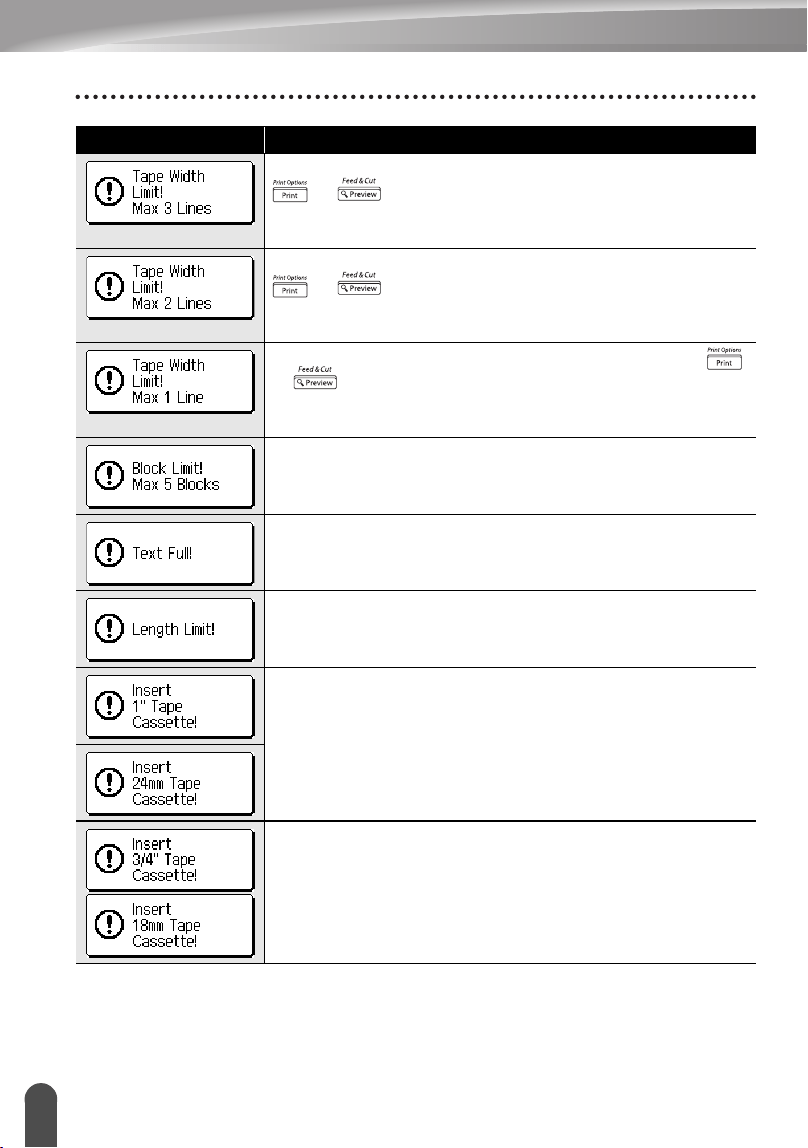
TROUBLESHOOTING
76
Error Messages
There are more than three lines of text when you press the
or key while using 1/2" (12 mm) tape. Limit the
number of lines to three, or replace with tape cassette of
larger tape width.
There are more than two lines of text when you press the
or key while using 3/8" or 1/4" (9 mm or 6 mm)
tape. Limit the number of lines to two, or replace with tape
cassette of larger tape width.
There is more than one line of text when you press the
or key while using 9/64" (3.5mm) tape. Limit the
number of lines to one, or replace with tape cassette of larger
tape width.
There are already five blocks of text. Limit the number of
blocks to five.
The maximum number of characters have already been
entered. Edit the text and use fewer characters.
The length of the label to be printed using the text entered is
longer than 39.37" (1 m). Edit the text so that the length of the
label is less than 39.37" (1 m).
An 1"(24mm) tape cassette is not installed when an Auto-
Format for 1"(24mm) tape is selected. Install an 1"(24mm)
tape cassette.
An 3/4" (18 mm) tape cassette is not installed when an Auto-
Format for 3/4" (18 mm) tape is selected. Install an 3/4" (18
mm) tape cassette.
Message Cause/Remedy
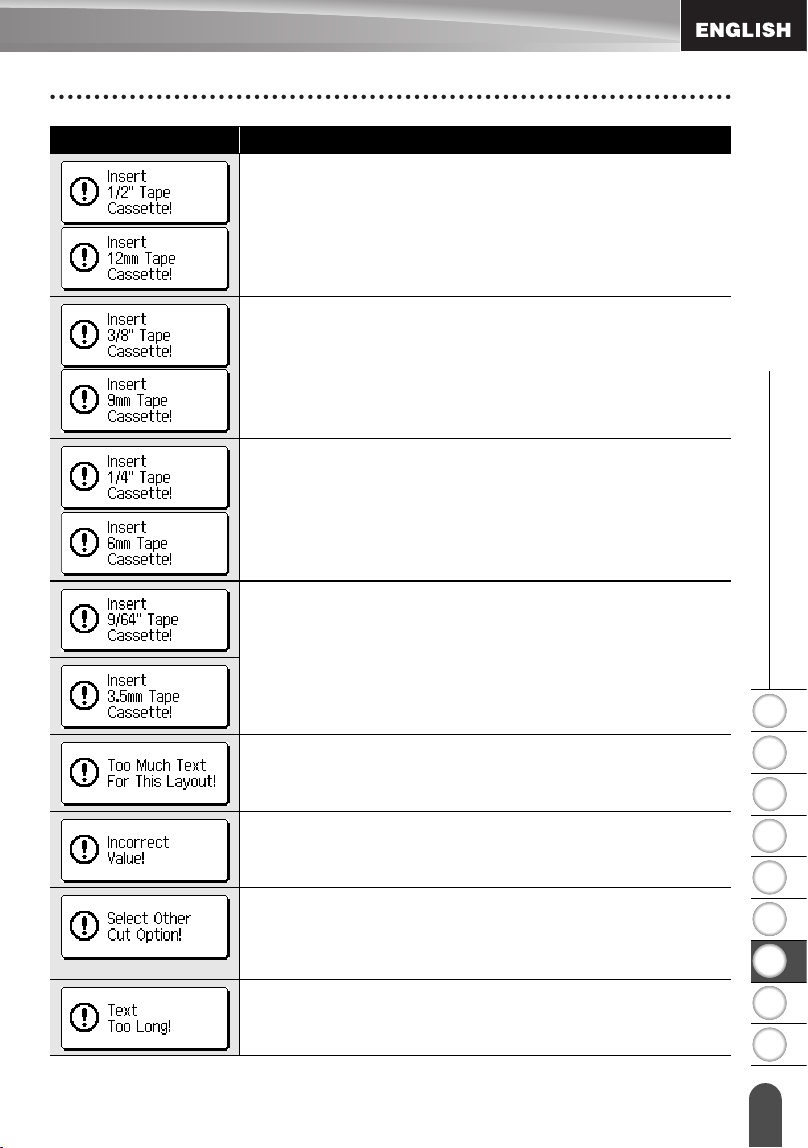
1
2
3
4
5
6
7
8
9
77
z TROUBLESHOOTING
Error Messages
A 1/2" (12 mm) tape cassette is not installed when an Auto-
Format for 1/2" (12 mm) tape is selected. Install a 1/2" (12
mm) tape cassette.
A 3/8" (9 mm) tape cassette is not installed when an Auto-
Format for 3/8" (9 mm) tape is selected. Install a 3/8" (9 mm)
tape cassette.
A 1/4" (6 mm) tape cassette is not installed when an Auto-
Format for 1/4" (6 mm) tape is selected. Install a 1/4" (6 mm)
tape cassette.
A 9/64" (3.5mm) tape cassette is not installed when an Auto-
Format for 9/64" (3.5mm) tape is selected. Install an 9/64"
(3.5mm) tape cassette.
The maximum number of characters for the selected layout
have already been entered. Edit the text to use fewer
characters or use a different layout.
The value entered for setting the tape length, tab length,
multiple copies, numbering function, or clock setting is
invalid. Enter a valid value for the setting.
The tape length set using the tape length setting is shorter
than the total length of the left and right margins applied for
the "Large Margin" cutting option. Select a different cutting
option.
The length of the label to be printed using the text entered is
longer than the length setting. Edit the text to fit within the set
length or change the length setting.
Message Cause/Remedy
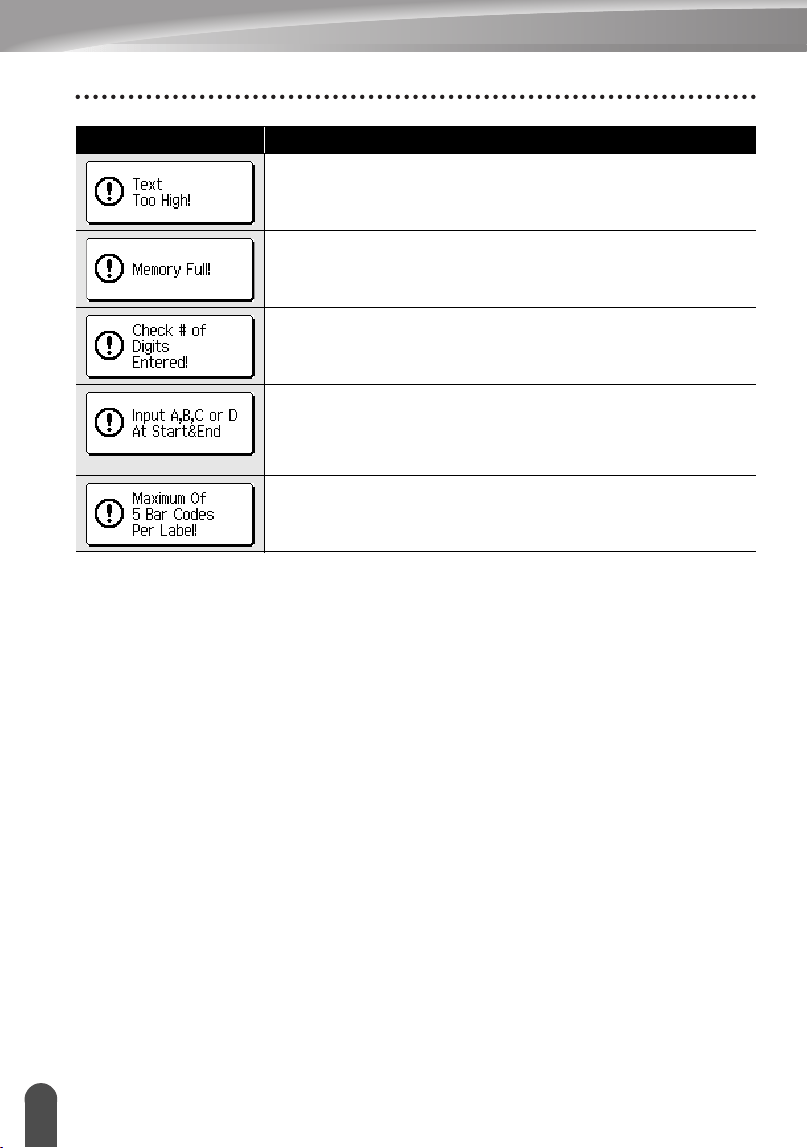
TROUBLESHOOTING
78
Error Messages
The text size is too large. Select a different size option.
There is not enough internal memory available when you try
to save a label file. Delete any unnecessary files to make
more memory available for the new label file.
The number of digits entered in the bar code data does not
match the number of digits set in the bar code parameters.
Enter the correct number of digits.
The bar code data entered does not have the required start/
stop code (A, B, C, or D required at the beginning and end of
the bar code data for the CODABAR protocol). Enter the bar
code data correctly.
There are already 5 bar codes entered in the text data when
you try to enter a new bar code. You can only use up to five
bar codes in each label.
Message Cause/Remedy
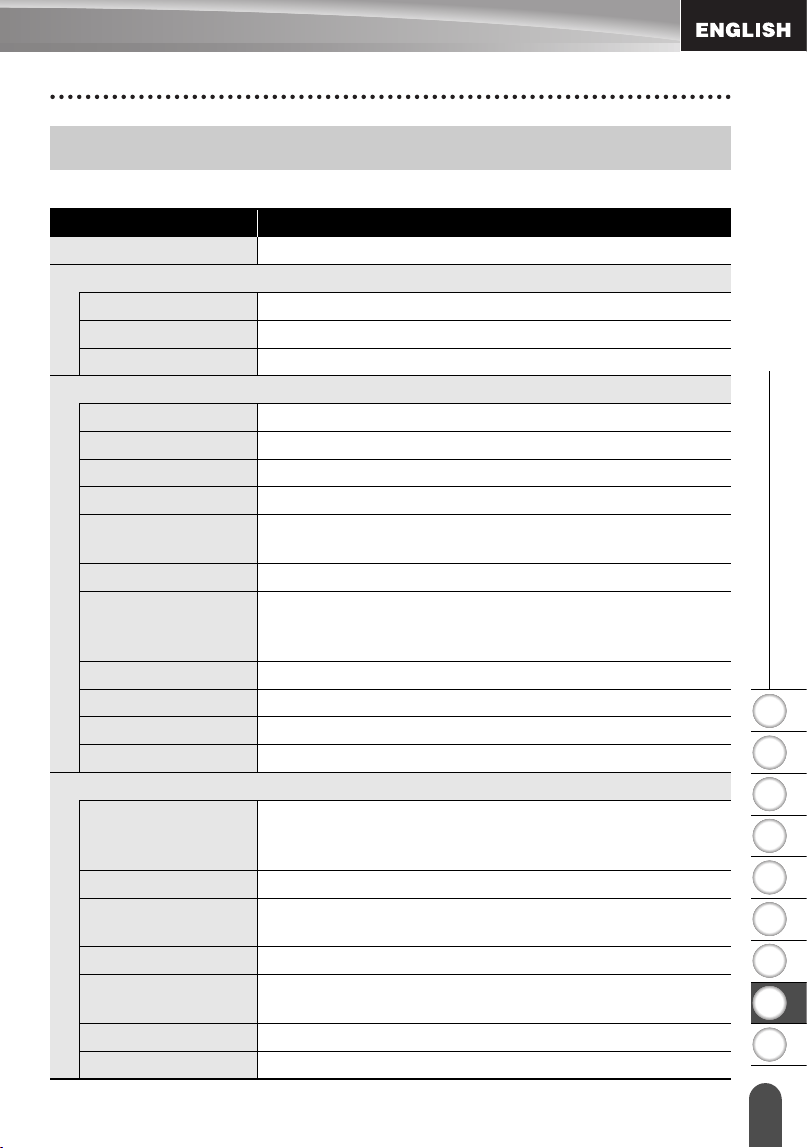
1
2
3
4
5
6
7
8
9
79
Specifications
z APPENDIX
APPENDIX
Main Unit
Specifications
Item Specification
Input Device (Keyboard) 67-key, QWERTY layout keyboard
Display
Display device Dot matrix LCD
Character display 16 characters x 3 lines (128 dot x 48 dot)
Back light display Yes
Printing
Print method Thermal printer
Print head 128 dot / 180 dpi
Print height 0.71" (18.1mm) max. (when using 1" (24mm) tape)
Print speed Approx. 0.39" (10 mm) / sec.
Tape cassette Standard TZ tape cassette (9/64", 3/8", 1/2", 3/4", 1" [3.5,
6, 9, 12, 18, 24 mm] widths)
Tape cutter Built-in automatic cutter
No. of lines 1" (24mm) tape : 1-7 lines; 3/4" (18 mm) tape : 1 - 5 lines;
1/2" (12 mm) tape : 1 - 3 lines; 3/8" (9 mm) tape : 1 - 2 lines;
1/4" (6 mm) tape : 1 - 2 lines; 9/64" (3.5mm) tape : 1 line
Print direction Horizontal, Vertical
Continuous printing 1 ~ 99 labels
Print preview Yes
Cut and feed Large Margin, Small Margin, Chain, No Cut
Characters
Internal character
set:
Total of 329 characters (62 alphanumeric, 120 symbols,
147 accented characters, note that one character appears
in both symbols and accented characters)
Text buffer 280 characters max.
Fonts Helsinki, Brussels, Florida, Belgium, USA, San Diego, Los
Angeles, Calgary
Character size Auto, 48pt, 42pt, 36pt, 24pt, 18pt, 12pt, 9pt, 6pt
Character style Off, Bold, Outline, Shadow, Solid, Italic, Italic Bold, Italic
Outline, Italic Shadow, Italic Solid, Vertical
Character width 2, 3/2, 1, 2/3, 1/2
Text alignment Left, Center, Right, Justify
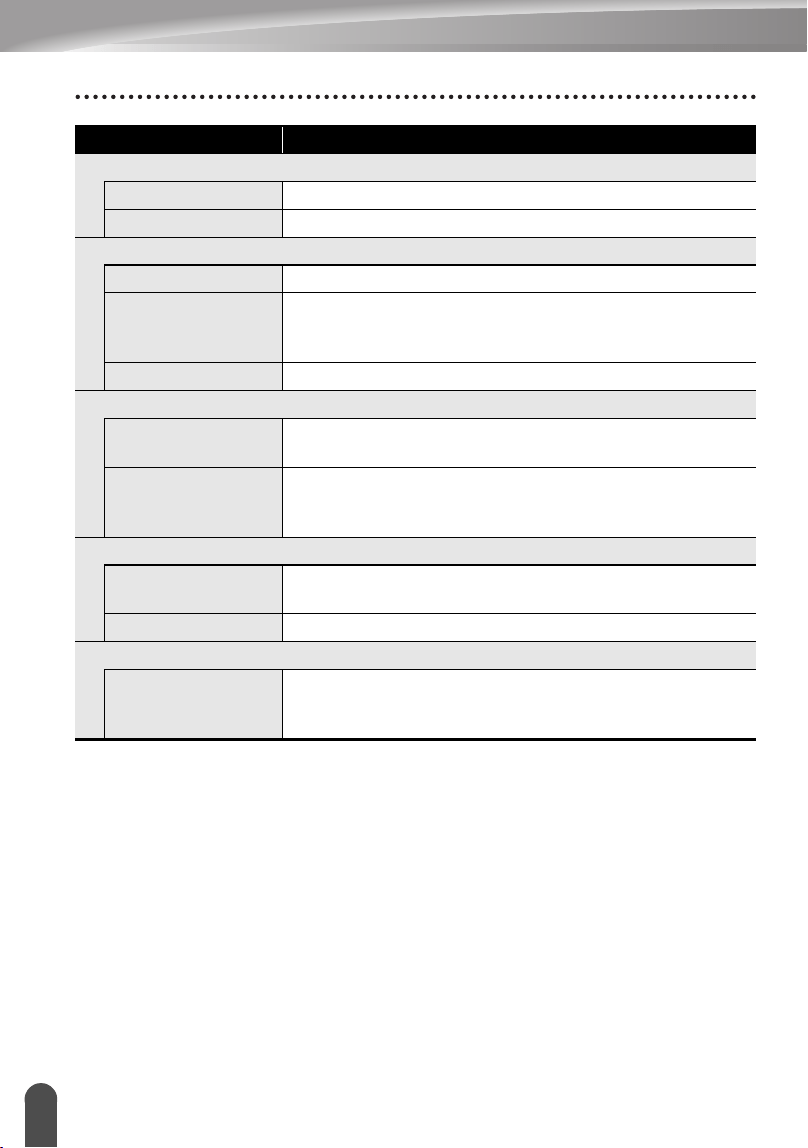
APPENDIX
80
Specifications
Memory
Memory size Maximum 459 characters
File storage Maximum 99 files
Other Features
Frame Total of 20 frame patterns
Auto-Format Templates: 17
Block layouts: 1" (24 mm): 8, 3/4"(18 mm):8, 1/2" (12 mm) :
4, 3/8" (9 mm) : 3, 1/4" (6 mm) : 1
Screen contrast 5 levels (+2, +1, 0, -1, -2)
Power Supply
Power supply AC adapter (AD-60), Eight AA-size alkaline batteries
(LR6).
Auto Power-off Battery: 5 min.*, AC adapter: 8 hours
*When using P-touch labeler only. When connected to a
PC, 1 hour.
Size
Dimensions 7.06"(W) x 9.75" (D) x 2.82" (H)
[179.5mm (W) x 247.9mm (D) x 71.8mm (H)]
Weight 1.87lb (850g) (without tape cassette and batteries)
Other
Operating
temperature /
humidity
50 ~ 95
°
F / 20 ~ 80% humidity (without condensation)
Maximum wet bulb temperature: 80.6
°
F
Item Specification
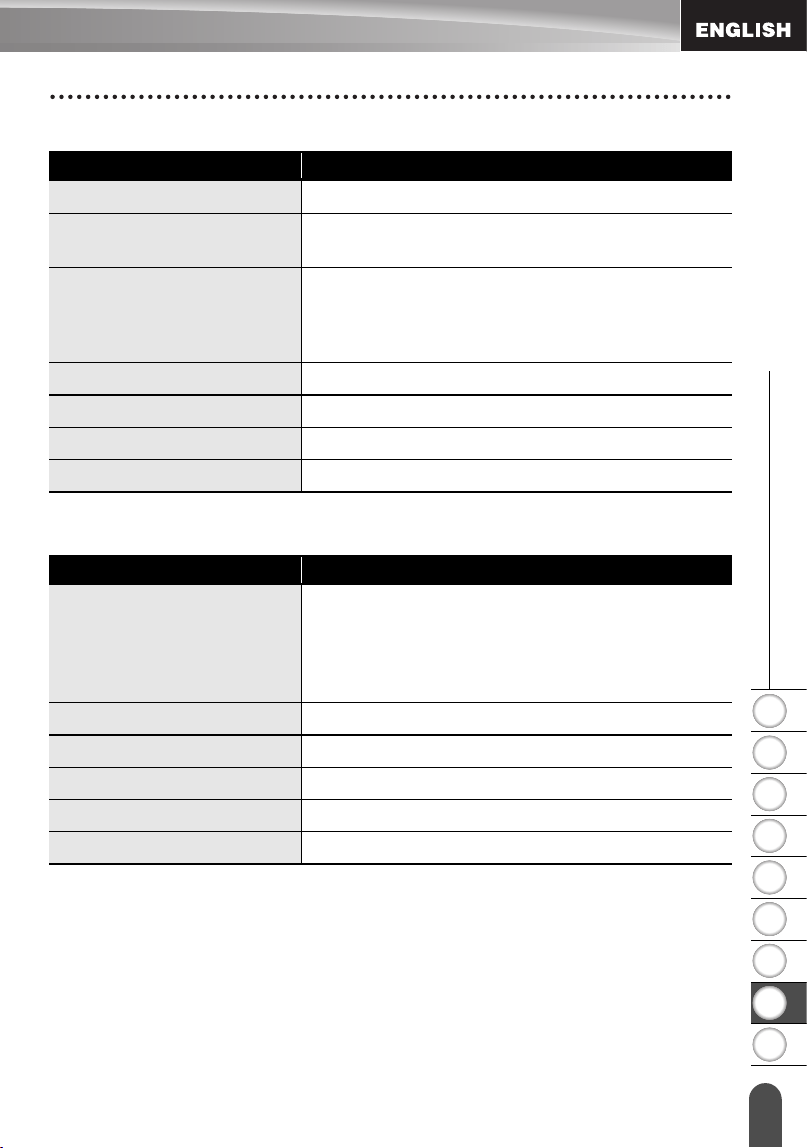
1
2
3
4
5
6
7
8
9
81
z APPENDIX
Specifications
Operating Environment: Windows
Operating Environment: Macintosh
Item Specification
OS
Microsoft
®
Windows
®
98SE/Me/2000 Professional/XP
CPU
32 bit Pentium compatible (using 32 bit operating
system)
Memory
Windows
®
98SE, Me:
64MB or more required
Windows
®
2000 Pro, XP:
128MB or more required
Hard disk
70MB or more required
Monitor
SVGA High Color graphics support or higher
Interface
USB Port (USB specification 1.1 or 2.0 protocol)
Other
CD-ROM drive for installation
Item Specification
OS
Mac OS
®
X 10.1 - 10.4.4
Mac OS
®
X 9.1 - 9.X*
(*For Mac OS
®
9.1 - 9.X, visit our web site
http://solutions.brother.com for software and driver
download.)
Memory
32MB or more required
Hard disk
100MB or more required
Monitor
More than 256 color
Interface
USB Port (USB specification 1.1 or 2.0 protocol)
Other
CD-ROM drive for installation

82
INDEX
A
AC adapter ........................................17
Accented Character List ....................30
accented characters ..........................29
alignment ...........................................31
Auto power-off time ...........................20
B
Battery charger ..................................13
C
Caps mode ..................................13, 24
contrast .............................................21
cursor keys ........................................24
D
deleting
text and formatting ....................25
text only .....................................25
E
entering
symbols .....................................26
text ............................................24
uppercase letter ........................24
F
Feed & Cut function ..........................21
fonts ..................................................32
formatting
character attributes ...................31
label attributes ...........................36
K
Keyboard ...........................................13
L
length ................................................36
line .....................................................31
Line number ......................................13
M
Manual Cutting ..................................64
N
new line .............................................24
P
Power Supply ....................................16
R
Return mark ......................................13
S
size ....................................................31
style ...................................................31
Symbol List ........................................28
symbols .............................................26
T
tape cassettes ...................................18
tape length ........................................13
text
entering and editing ..................24
lines ...........................................24
U
uppercase letter ................................24
W
width ..................................................31
83
Service Center Locations
If you need a local service center, please call 1-800-284-HELP (4357)
to locate the authorized service center closest to you.
Note: Be sure to call the Service Center before your visit.
Service centers do not provide operational assistance. See "Operational Assistance".
Operational Assistance
For technical and operational assistance you may call Brother Customer Service at:
Voice 1-877-4-PTouch, or Fax 1-901-379-1210
Assistance on the Internet
For product information and downloading the latest drivers: http://www.brother.com
For purchasing accessories and certain Brother products: http://www.brothermall.com
Accessories and Supplies
To order Brother accessories or supplies by Visa, MasterCard, Discover or American Express,
you may call toll tree 1-888-879-3232, or complete the order form in your user's guide and
fax both sides of the form to 1-800-947-1445.
For purchasing accessories on the Internet: http://www.brothermall.com
To order by mail or pay by check, please complete the accessory order form and mail it along
with payment to:
Brother International Corporation
Attn: Consumer Accessory Division
P.O. Box 341332
Bartlett, TN 38133-1332
Fax-Back System
Brother Customer Service has installed an easy-to-use Fax-Back System so you can get
instant answers to common technical questions and product information for all Brother products.
This system is available 24 hours a day, 7 days a week. You can use the system to send the
information to any fax machine, not just the one you are calling from.
Please call 1-800-521-2846 and follow the voice prompts to receive faxed instructions on how
to use the system and an index of Fax-Back subjects.
Save Time - Register On-Line!
Don't stand in line at the post office or worry about lost mail. Visit us on-line at
www.registermybrother.com
Your product will immediately be registered in our database and you can be on your way!
Also, while you're there, look for contests and other exciting information!
Contact Information (For USA Only)


• IBM es una marca comercial de International Business Machines, Inc.
• Microsoft y Windows son marcas comerciales registradas de Microsoft Corporation,
EE UU.
• Macintosh y Mac OS son marcas comerciales registradas de Apple Computer, Inc.
• Los nombres de otros productos y del software mencionados en este documento
son marcas comerciales o marcas comerciales registradas de las empresas que los
desarrollaron.
Declaración de conformidad de la Comisión Federal de Comunicaciones (FCC) (sólo para
EE.UU.)
Parte responsable: Brother International Corporation
100 Somerset Corporate Boulevard
Bridgewater, NJ 08807-0911 USA
TEL: (908) 704-1700
declara que el producto
Nombre del producto: Sistema de etiquetado electrónico P-touch de Brother
Número de modelo: PT-2700/2710
Este dispositivo cumple con la Parte 15 de la normativa de la FCC. El funcionamiento está
sujeto a las dos condiciones siguientes: (1) este dispositivo no puede causar interferencias
nocivas y (2) este dispositivo debe aceptar cualquier interferencia que reciba, incluidas las
interferencias que puedan provocar un funcionamiento no deseado.
Este equipo ha sido sometido a diversas pruebas y se ha comprobado que cumple con los
límites establecidos para los dispositivos digitales de Clase B, de acuerdo con la Parte 15
de la normativa de la FCC. Dichos límites están diseñados para proporcionar una
protección razonable contra las interferencias nocivas en las instalaciones residenciales.
Este equipo genera, utiliza y puede irradiar energía de radiofrecuencias y, si no se instala
y utiliza siguiendo las instrucciones suministradas, podría provocar interferencias nocivas
en las comunicaciones de radio. No obstante, no existe garantía alguna de que no se
produzcan dichas interferencias en una instalación determinada. Si este equipo causara
interferencias nocivas en la recepción de radio o televisión, lo cual se puede determinar
apagando y encendiendo el equipo, se recomienda al usuario intentar corregir la
interferencia mediante una o más de las siguientes medidas:
• Cambie la orientación o la ubicación de la antena de recepción.
• Aumente la separación entre el equipo y el receptor.
• Conecte el equipo a la salida de un circuito distinto al que está conectado el receptor.
• Consulte a su distribuidor o a un técnico experto en radio/TV para obtener ayuda.
• El cable de conexión incluido se debe utilizar para garantizar el cumplimiento con los
límites establecidos para los dispositivos digitales de Clase B.
• Si se realizan cambios o modificaciones no aprobadas expresamente por Brother
Industries, Ltd. se podría anular la autoridad del usuario para utilizar el equipo.

Garantía limitada de un año y Servicio de sustitución de Brother
®
(sólo en Estados Unidos)
Cobertura:
• Esta garantía limitada (“garantía”) sólo se concede al comprador original final (en
adelante el “Comprador original”) del producto al que acompaña, consumibles y
accesorios (denominados colectivamente en esta garantía “la máquina”).
•
Si ha adquirido este producto a alguien que no es un distribuidor autorizado de Brother
en los Estados Unidos, o si el producto ha sido utilizado (incluyendo, pero sin limitarse
a modelos de exposición o productos reacondicionados) antes de que el usuario lo
comprara, entonces dicho usuario no es el Comprador original y el producto adquirido
no estará cubierto por esta garantía.
Alcance de la cobertura:
• Este producto incluye una máquina y artículos consumibles y accesorios. Los artículos
consumibles y accesorios incluyen, pero no se limitan a casetes de etiquetas,
cortadores, estampas, adaptadores eléctricos, cajas y pilas.
• A excepción de lo dispuesto en este documento, Brother garantiza que la máquina y los
artículos consumibles y accesorios que la acompañan no presentarán ningún defecto en
sus materiales ni de mano de obra, si se utilizan en condiciones normales.
• Esta garantía se aplica exclusivamente a los productos adquiridos y utilizados en los
Estados Unidos. En el caso de aquellos productos que se hayan comprado dentro de los
Estados Unidos, pero se han utilizado fuera de sus fronteras, esta garantía sólo cubre el
servicio de garantía dentro de los Estados Unidos (es decir, no incluye los gastos de
transporte fuera de los Estados Unidos).
Duración del periodo de garantía:
• Máquinas: un año a partir de la fecha de compra original.
• Consumibles y accesorios incluidos: 90 días a partir de la fecha de compra original o la
duración prevista del consumible, lo que suceda antes.
Aspectos NO CUBIERTOS:
Esta garantía no cubre:
(1) Daños físicos a la máquina;
(2) Daños provocados por una instalación incorrecta, uso anormal o incorrecto, abuso,
negligencia o accidente (incluyendo pero sin limitarse al transporte de esta máquina sin la
preparación o embalaje adecuados);
(3) Daños provocados por otro dispositivo o software utilizado con esta máquina (incluyendo
pero sin limitarse a daños como consecuencia del uso de piezas, artículos consumibles y
accesorios que no sean de la marca Brother
®
);
(4) Los artículos consumibles y accesorios que caducaron de acuerdo con la duración
establecida para los mismos, y,
(5) Problemas resultantes de otras causas que no son defectos en los materiales o mano de obra.
Esta garantía limitada quedará ANULADA si esta máquina se altera o modifica de alguna
forma (incluyendo pero sin limitarse al intento de una reparación en garantía sin la
autorización de Brother o la alteración/eliminación del número de serie).
Procedimiento que debe seguir si su Producto cumple con los requisitos del
servicio en garantía:
Informe del problema a nuestra Línea directa de atención al cliente de P-touch llamando
al número 1-877-478-6824
o a un Centro de servicio autorizado de Brother dentro del
periodo de garantía aplicable. Presente a Brother, o al centro de servicio autorizado de
Brother, una copia de la factura de venta fechada donde se pueda comprobar que la
máquina se adquirió en los Estados Unidos. Si desea conocer el nombre de un Centro de
servicio autorizado Brother en su localidad, llame al 1-800-521-2846.
Brother le pedirá que realice lo siguiente:
Tras ponerse en contacto con Brother o con un Centro de servicio autorizado de Brother,
es posible que tenga que entregar (personalmente si lo prefiere) o enviar el producto
debidamente empaquetado, con el transporte ya abonado, al Centro de servicio
autorizado junto con una fotocopia de la factura de compra.
El usuario será el responsable de sufragar los gastos de transporte, empaquetado
del producto y seguro (si lo desea). El usuario también será responsable de la
pérdida o los daños que pueda sufrir el producto durante su transporte.

Brother, por su parte, actuará de la siguiente forma:
Si el problema del que se informa con relación a la máquina o artículos consumibles y
accesorios está cubierto por esta garantía y si usted ya informó del mismo problema a
Brother o a un Centro de servicio autorizado dentro del plazo de garantía aplicable,
Brother o su Centro de servicio autorizado reparará o sustituirá la máquina o los artículos
consumibles y accesorios sin cobrarle las piezas ni la mano de obra. Brother, bajo su
propio criterio, decidirá si va a reparar o a sustituir la máquina o los artículos consumibles
y accesorios.
Brother se reserva el derecho a proporcionar una máquina reacondicionada o los
artículos consumibles y los accesorios que la acompañan, y utilizar piezas
reacondicionadas siempre y cuando los productos reacondicionados cumplan con las
especificaciones del fabricante respecto a productos o piezas nuevas.
La máquina reparada o sustituida, o los artículos consumibles y accesorios que la
acompañan se devolverán al usuario por transporte pagado o se pondrán a su
disposición para que los recoja personalmente en un Centro de servicio autorizado
situado en un lugar conveniente.
Si la máquina o los artículos consumibles y accesorios no están cubiertos por esta
garantía (ninguna de sus dos fases), se cobrarán al usuario los gastos de transporte en
los que se incurra para devolverle el equipo y los artículos consumibles y accesorios, así
como por cualquier servicio o pieza/producto de repuesto, a las tarifas publicadas
actuales de Brother.
Lo anteriormente descrito constituye los únicos recursos que tiene el usuario bajo
esta garantía.
Qué sucede cuando Brother decide sustituir la máquina:
Si Brother ha autorizado una Máquina de sustitución y usted lleva la máquina a un
Centro de servicio autorizado, éste le proporcionará una máquina de sustitución tras
recibirla de Brother. Si está tratando directamente con Brother, Brother le enviará un
equipo de sustitución con el entendimiento de que el usuario, tras recibir el mencionado
equipo de sustitución, proporcionará la prueba requerida de la compra, junto con el
equipo que Brother se comprometió a sustituir. Se espera entonces que el usuario
empaquete la máquina que Brother se ha comprometido a sustituir en el paquete donde
se ha entregado la máquina de sustitución y que lo devuelva a Brother utilizando el
documento de envío prepagado suministrado por Brother de acuerdo con las
instrucciones indicadas por Brother. El usuario dispondrá de dos equipos, por ello,
Brother exigirá que le proporcione el número de una tarjeta de crédito válida. Brother
emitirá un cargo contra ese número de cuenta de la tarjeta de crédito hasta que reciba el
producto original y determine que dicho producto original cumple con los requisitos de la
cobertura de la garantía. Sólo se cargará en su tarjeta de crédito el importe de un
producto nuevo si: (i) no devuelve el producto original a Brother en un plazo de cinco (5)
días hábiles; (ii) los problemas del producto original no están cubiertos por la garantía
limitada; (iii) no se siguen las instrucciones correctas para empaquetar el producto y éste
ha sufrido algún daño como consecuencia de ello; o (iv) el periodo de garantía del
producto original ha vencido o usted no ha presentado una copia de la prueba de compra
válida (factura de compra). La máquina de sustitución que recibe el usuario (incluso si se
trata de un equipo reacondicionado) quedará cubierta durante el resto del periodo de
garantía limitada que le quedaba al producto original, más treinta (30) días adicionales.
El usuario conservará la máquina de sustitución que se le envía y el equipo original
pasará a ser propiedad de Brother. Conserve los artículos de accesorio originales y
una copia del documento de envío de devolución, firmada por el servicio de
transporte.

Limitaciones:
Brother no se responsabiliza de los daños o pérdida de un equipo, soporte, programas o
datos relacionados con el uso de esta máquina. Excepto en el caso de las reparaciones o
sustituciones descritas anteriormente, Brother no será responsable de ningún daño
directo, indirecto, accidental o consecuente, ni de desagravio específico. Algunos
estados no autorizan esta exclusión o limitación de los daños consecuentes o
accidentales, por tanto, es posible que la limitación anterior no se aplique en su caso.
ESTA GARANTÍA INVALIDA CUALQUIER OTRA GARANTÍA, ESCRITA U ORAL, YA
SEA EXPRESADA MEDIANTE UNA AFIRMACIÓN, PROMESA, DESCRIPCIÓN,
DIBUJO, MODELO O PRUEBA. TODAS Y CADA UNA DE LAS GARANTÍAS
DISTINTAS DE ESTA, SEAN EXPLÍCITAS O IMPLÍCITAS, INCLUIDAS LAS
GARANTÍAS DE COMERCIABILIDAD Y ADECUACIÓN A UN PROPÓSITO
DETERMINADO, QUEDAN POR EL PRESENTE RECHAZADAS.
• Esta garantía limitada es la única garantía que Brother ofrece para esta máquina. Se
trata de la expresión última y la declaración única y exclusiva de las obligaciones de
Brother para con el usuario. Sustituye todos los acuerdos o negociaciones que se
puedan haber establecido con Brother o sus representantes.
• Esta garantía le otorga ciertos derechos y usted también puede gozar de derechos
adicionales en función del estado donde se encuentre.
• Esta garantía limitada (y la obligación de Brother para con el usuario) no puede
modificarse de ninguna forma a menos que el usuario y Brother firmen el mismo
documento en el que (1) se haga referencia a esta máquina y la factura con la fecha de
compra, (2) se describa la modificación de esta garantía y (3) se esté de acuerdo en la
aplicación de esa modificación.
Importante:
Le recomendamos que conserve todo el material de empaque original por si tuviera que
transportar la máquina.

Información importante
Si usted tiene alguna pregunta o necesita información acerca
de su producto Brother, le ofrecemos una variedad de opciones
entre las cuales puede elegir:
Servicio al cliente en Estados Unidos:
Customer Service
877-478-6824 (voz)
Customer Service
901-379-1210 (fax)
Respuesta automática por fax
800-521-2846
World Wide Web
www.brother.com
Suministros / Accesorios
www.brothermall.com
u 888-879-3232
BROTHER INTERNATIONAL CORPORATION
100 SOMERSET CORPORATE BLVD.
BRIDGEWATER, NEW JERSEY 08807-0911
Por favor anote su modelo y el número de serie y la fecha y el
lugar de compra indicados abajo para sus archivos.
Conserve esta información junto con su comprobante de
compra (factura de venta) en caso de que su producto requiera
servicio técnico.
Modelo Nº _____________________________________________
Serie Nº_______________________________________________
Fecha de compra: _______________________________________
Nombre de la tienda donde lo compró:_______________________
Dirección de la tienda: ___________________________________
Importante: le recomendamos conservar todos los materiales
originales de embalaje, en caso de que tenga que devolvernos
este producto.
Ahorre tiempo: ¡registre su producto en línea!
No haga cola en la oficina de correos ni se preocupe por cartas perdidas. Visite nuestra página
web en línea en:
www.registermybrother.com
¡Su producto quedará registrado inmediatamente en nuestra base de datos sin que usted tenga
que hacer nada más!
De igual modo, mientras visite esta página web, busque en ella anuncios sobre concursos y otra
información de interés.
1
2
3
4
5
6
7
8
9
1
z INTRODUCCIÓN
INTRODUCCIÓN..................................................................................... 4
Lo que puede hacer ...................................................................................................... 4
Precauciones de seguridad........................................................................................... 6
Precauciones generales................................................................................................ 9
Símbolos utilizados en esta guía................................................................................... 9
Guía rápida.................................................................................................................. 10
PARA EMPEZAR................................................................................... 11
Desembalaje de la etiquetadora P-touch .................................................................... 11
Descripción general..................................................................................................... 12
Pantalla LCD y teclado................................................................................................ 13
Pantalla LCD......................................................................................................... 13
Funciones y nombre de las teclas ........................................................................ 14
Alimentación eléctrica ................................................................................................. 16
Baterías................................................................................................................. 16
Adaptador de CA .................................................................................................. 17
Instalación de un cartucho de cinta............................................................................. 18
Encendido y apagado.................................................................................................. 20
Avance de la cinta....................................................................................................... 21
Pantalla LCD ............................................................................................................... 21
Contraste de la pantalla LCD................................................................................ 21
Modo de pantalla .................................................................................................. 22
Iluminación de fondo............................................................................................. 22
Ajuste del idioma y las unidades................................................................................. 23
Idioma ................................................................................................................... 23
Unidad................................................................................................................... 23
EDICIÓN DE ETIQUETAS..................................................................... 24
Introducción y edición de texto.................................................................................... 24
Introducción de texto mediante el teclado ............................................................ 24
Adición de una nueva línea................................................................................... 24
Adición de un nuevo bloque.................................................................................. 24
Desplazamiento del cursor ................................................................................... 24
Inserción de texto.................................................................................................. 25
Para insertar una tabulación................................................................................. 25
Eliminación de texto.............................................................................................. 25
Introducción de símbolos ............................................................................................ 26
Introducción de símbolos con la tecla .................................................................. 26
Introducción de símbolos con la función de símbolos .......................................... 26
Uso de la función de Actualización de símbolos................................................... 27
ÍNDICE
INTRODUCCIÓN
2
Introducción de caracteres acentuados .......................................................................29
Configuración de los atributos de caracteres...............................................................31
Ajuste de los atributos de caracteres por etiqueta.................................................31
Ajuste de los atributos de caracteres por cada línea.............................................31
Ajuste del estilo de encaje automático ..................................................................35
Configuración de los atributos de etiqueta...................................................................36
Utilización de diseños de formato automático..............................................................38
Utilización de plantillas; ejemplo de creación de una Etiqueta de activos.............38
Utilización de diseños de bloque ...........................................................................43
Utilización de la función de hora y fecha......................................................................48
Ajuste del reloj .......................................................................................................48
Ajuste del formato de hora y fecha ........................................................................49
Ajustes de sello de hora ........................................................................................51
[Temporización] ..............................................................................................51
[Formato del sello de hora] .............................................................................52
[Forward] [Adelanto] .......................................................................................53
Creación de una etiqueta de código de barras ............................................................54
Configuración de los parámetros de códigos de barras ........................................54
Introducción de datos del código de barras...........................................................55
Edición y eliminación de códigos de barras...........................................................57
IMPRESIÓN DE ETIQUETAS ............................................................... 58
Vista previa de la etiqueta............................................................................................58
Impresión de etiquetas.................................................................................................58
Impresión de una sola copia..................................................................................59
Impresión de múltiples copias ...............................................................................59
Numeración automática de etiquetas ....................................................................60
Impresión en modo espejo ....................................................................................61
Opciones de corte de cinta ..........................................................................................62
Corte manual................................................................................................................64
Ajuste de la longitud de la etiqueta ..............................................................................64
Colocación de etiquetas...............................................................................................65
UTILIZACIÓN DE LA MEMORIA DE ARCHIVOS................................. 66
Almacenamiento de etiquetas en la memoria ..............................................................66
Apertura de un archivo de etiqueta almacenado .........................................................67
Impresión de un archivo de etiqueta almacenado .......................................................68
Eliminación de un archivo de etiqueta almacenado.....................................................69
MANTENIMIENTO DE SU Etiquetadora P-touch.................................. 70
Restablecimiento de la etiquetadora P-touch ..............................................................70
Mantenimiento..............................................................................................................70
Limpieza de la unidad principal .............................................................................70
1
2
3
4
5
6
7
8
9
3
z INTRODUCCIÓN
Limpieza del cabezal de impresión....................................................................... 71
Limpieza de la cortadora de cinta......................................................................... 71
SOLUCIÓN DE PROBLEMAS............................................................... 72
Qué hay que hacer cuando......................................................................................... 72
Mensajes de error ....................................................................................................... 76
APÉNDICE............................................................................................. 80
Especificaciones.......................................................................................................... 80
ÍNDICE................................................................................................... 83
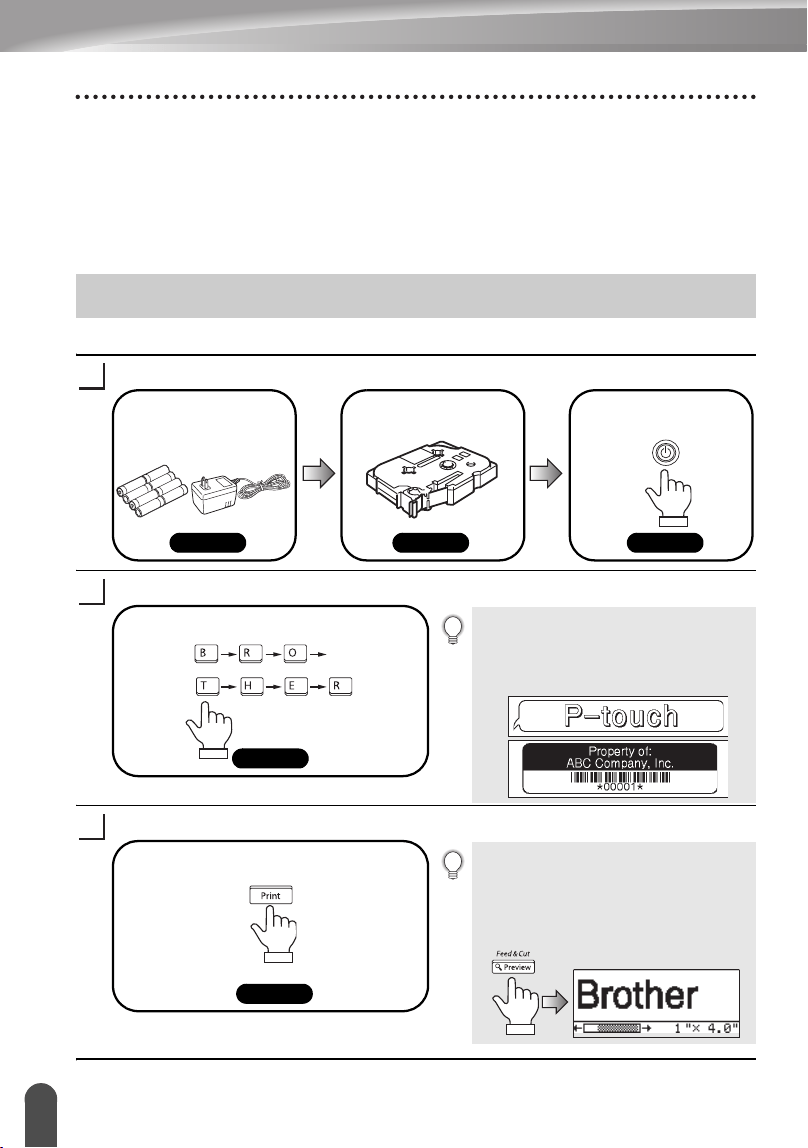
4
Lo que puede hacer
INTRODUCCIÓN
¡Muchas gracias por adquirir la etiquetadora P-touch PT-2700/2710.
Su nueva etiquetadora P-touch es un sistema de etiquetado fácil de utilizar y con
numerosas funciones que simplifica al máximo la creación de etiquetas profesionales
de gran calidad. Además de la sencilla creación de etiquetas mediante diseños
previamente establecidos, la etiquetadora P-touch incluye funciones de software de
edición como formato avanzado de etiquetas, formatos de bloque, códigos de barras
y funciones de numeración automática.
Creación de etiquetas con la etiquetadora P-touch
Prepare su etiquetadora P-touch.
Introduzca el texto de la etiqueta.
Imprima la etiqueta.
Lo que puede hacer
1
Instale las baterías y/o
conecte el adaptador
de corriente alterna.
P. 16 P. 18 P. 20
Encienda la
etiquetadora P-touch.
Instale un cartucho
de cinta..
2
Además de permitir la introducción de
texto, su etiquetadora P-touch tiene
otras muchas funciones de edición.
"Cree etiquetas como éstas"
Introduzca el texto de la etiqueta
utilizando el teclado.
P. 24
3
Puede comprobar el diseño de la etiqueta
antes de proceder a su impresión.
La vista previa de la etiqueta permite
revisarla antes de imprimirla con el fin de
evitar que se desperdicie cinta en etiquetas
incompletas.
P. 58
Imprima la etiqueta que acaba de crear.
"Función Vista previa"
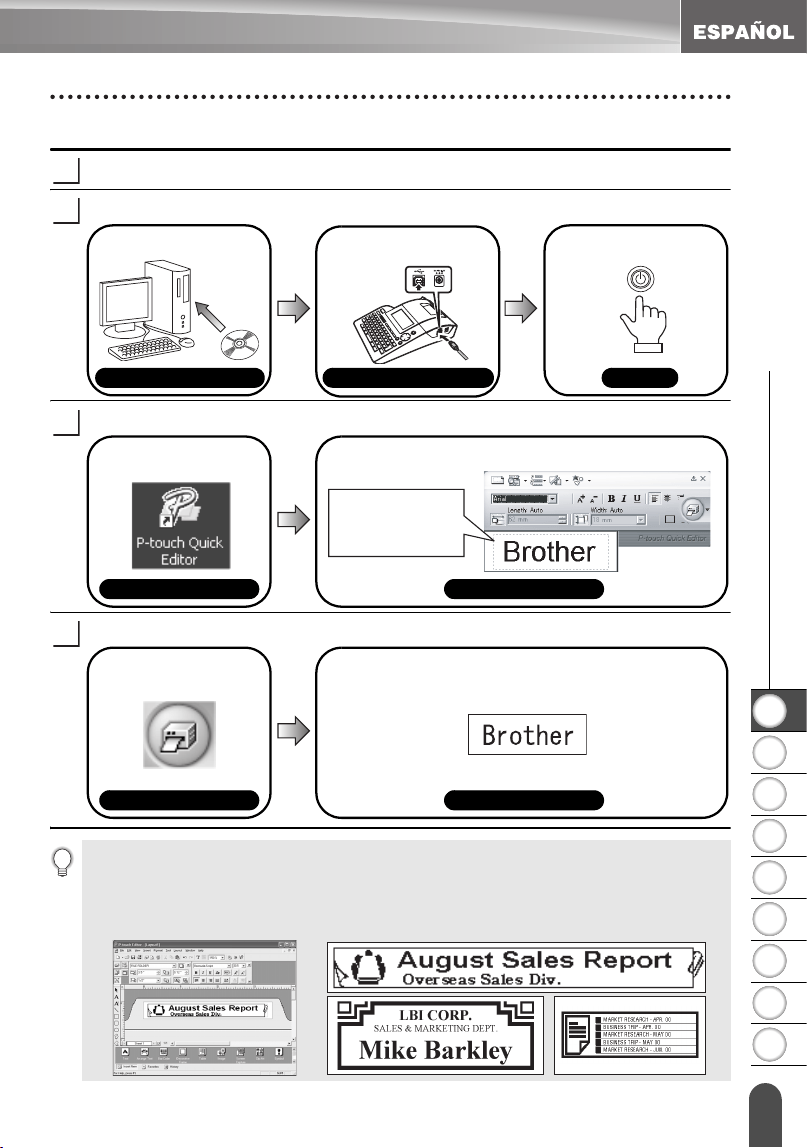
1
2
3
4
5
6
7
8
9
5
z INTRODUCCIÓN
Lo que puede hacer
Creación de etiquetas con su computadora personal
Prepare su etiquetadora P-touch. (Consulte el paso 1 de la sección anterior.)
Prepare su computadora personal.
Introduzca el texto de la etiqueta mediante el P-touch Quick Editor.
Imprima la etiqueta.
1
2
Instale el software.
Guía de instalación del software
P. 20
Guía de instalación del software
Conecte el cable
USB.
Encienda la P-touch.
3
Inicie P-touch Quick
Editor.
Introduzca el texto de la etiqueta en P-touch
Quick Editor.
Ayuda del software
Ayuda del software
Haga clic en el
área de creación
de diseño y
escriba "Brother".
4
La etiqueta se imprimirá.
Ayuda del software Ayuda del software
Haga clic en el botón
"Imprimir".
P-touch Quick Editor (software de edición de etiquetas sencillas) es ideal para crear
etiquetas sencillas.
Para crear etiquetas con diseños más complejos, utilice P-touch Editor (software de edición
de etiquetas con numerosas funciones).
"P-touch Editor" "Cree etiquetas con complejos diseños como éstos"
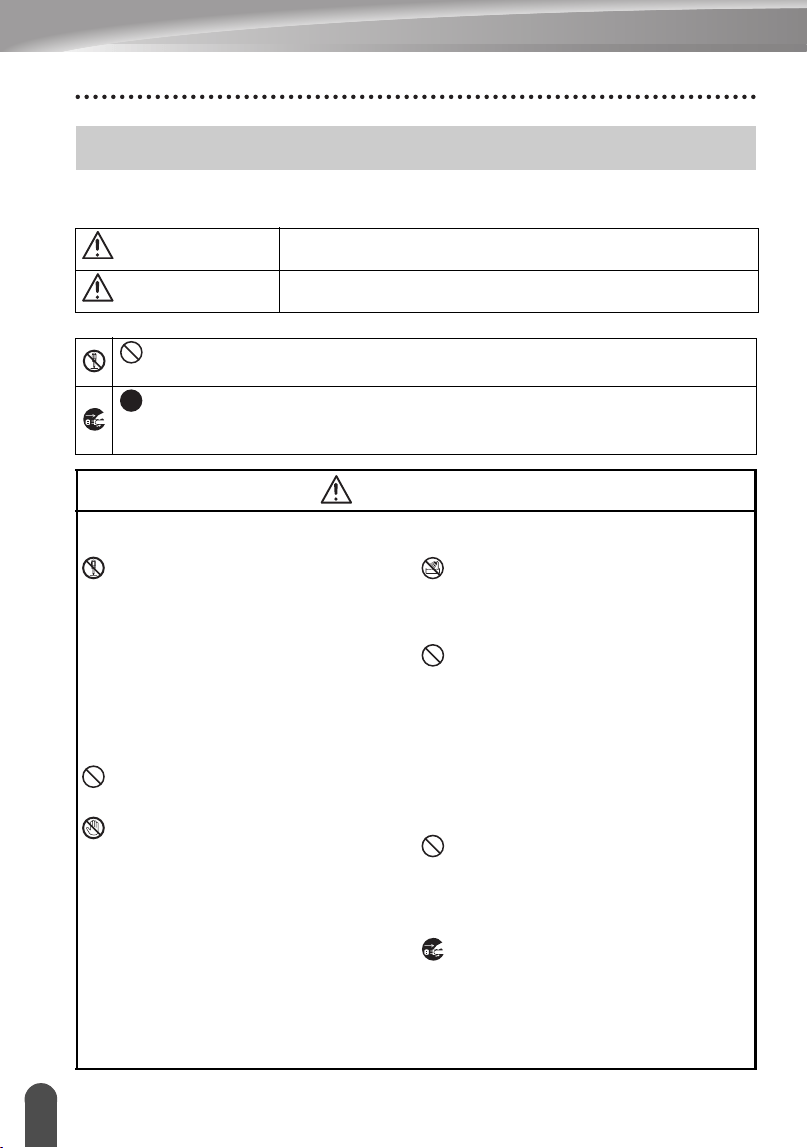
INTRODUCCIÓN
6
Precauciones de seguridad
Para prevenir lesiones y daños incluimos notas importantes utilizando diversos símbolos.
Los símbolos y sus significados son los siguientes:
Los símbolos que se utilizan en este manual son los siguientes:
Precauciones de seguridad
ADVERTENCIA
Esto indica la posibilidad de muerte o graves lesiones si se
ignoran las instrucciones.
PRECAUCIÓN
Esto indica la posibilidad de lesiones corporales o daños
materiales si se ignoran las instrucciones.
Este símbolo indica prohibición. En la figura se muestra con detalle el objeto de la
prohibición (por ejemplo, la figura a la izquierda ilustra que se prohíbe desarmar la unidad).
Este símbolo indica instrucciones especiales. Las instrucciones detalladas se
muestran en la figura (por ejemplo, la figura a la izquierda muestra el método de
desconectar el enchufe de alimentación eléctrica de la toma de corriente).
ADVERTENCIA
Etiquetadora P-touch
Respete estas precauciones para evitar incendios, daños, descargas eléctricas y asfixia.
No desarme su etiquetadora P-touch.
Para revisar, ajustar y reparar la
etiquetadora P-touch, póngase en
contacto con la tienda donde adquirió la
etiquetadora P-touch o con el centro de
servicio autorizado de su localidad. (Si
los daños fueron causados porque el
cliente intentó desarmar o modificar la
etiquetadora, Brother prestará servicios
sujetos al pago de tarifas,
independientemente de la vigencia de la
garantía.)
No deje caer ni golpee la etiquetadora P-
touch ni permita que sufra otro tipo de
impactos.
No toque las piezas metálicas cerca del
cabezal de impresión. El cabezal de
impresión se calienta mucho durante su
uso y sigue muy caliente inmediatamente
después de usarlo. No lo toque
directamente con sus manos.
No moje la etiquetadora P-touch
tocándola con las manos húmedas o
derramando bebidas como café o jugos
sobre ella o derramando el agua de
floreros o jarrones sobre ella.
No utilice la etiquetadora P-touch si hay
algún objeto extraño en su interior. Si
penetra agua, alguna sustancia metálica
o algún objeto extraño en el interior de
la etiquetadora P-touch, desconecte el
adaptador de corriente alterna y saque
las baterías, seguidamente
comuníquese con la tienda donde
adquirió la etiquetadora P-touch o con el
centro de servicio autorizado de su
localidad.
No permita la utilización de la bolsa de
plástico del embalaje para jugar. Deseche o
mantenga la bolsa de plástico en un lugar
fuera del alcance de los niños. Podría
ocurrir un accidente con muerte por asfixia
si se utiliza la bolsa de plástico para jugar.
Desconecte el adaptador de corriente
alterna y retire las baterías
inmediatamente y deje de usar esta
unidad si nota algún olor o calor extraños,
decoloración, deformación o cualquier
cosa fuera de lo común durante el uso o el
almacenamiento de esta unidad.
1
2
3
4
5
6
7
8
9
7
z INTRODUCCIÓN
Precauciones de seguridad
Baterías
Siga estas instrucciones para evitar derrames, calor excesivo o la rotura de la batería.
No la arroje al fuego ni la caliente ni intente desarmar la batería.
Adaptador de CA
Respete estas precauciones para evitar incendios, descargas eléctricas o fallas.
Utilice siempre la tensión especificada
(120 V) y el adaptador de CA (AD-60)
sugerido.
No sobrecargue la toma de
alimentación.
No permita que el adaptador de CA se
caiga, reciba golpes o resulte dañado
de alguna otra forma.
No coloque objetos pesados sobre el
enchufe o el cable de alimentación, ni
dañe ni modifique el enchufe o el cable
de alimentación.
No doble excesivamente
ni tire del cable de alimentación.
No utilice un cable de alimentación
dañado.
No toque el adaptador de CA ni el
enchufe de alimentación con las
manos mojadas.
No utilice el adaptador de corriente
alterna en lugares sumamente
húmedos como, por ejemplo, en
baños.
Asegúrese de que el enchufe está
completamente insertado en la toma
de alimentación. No utilice una toma
eléctrica que esté suelta.
PRECAUCIÓN
Baterías
Siga estas instrucciones para evitar derrames, calor excesivo o la rotura de la batería.
No use baterías viejas y nuevas al
mismo tiempo.
No mezcle baterías alcalinas con
baterías de otro tipo.
No coloque los polos positivo y
negativo en la posición incorrecta.
Retire las baterías si no piensa usar la
etiquetadora P-touch durante un
extenso período de tiempo.
Adaptador de CA
Asegúrese de desenchufar el adaptador
de CA de la toma de alimentación y la
etiquetadora P-touch si no va a utilizar la
etiquetadora durante un periodo
prolongado de tiempo.
Para desenchufar el cable de
alimentación de la toma eléctrica, tire
siempre del enchufe.
Cortadora de cinta
Respete estas precauciones para evitar lesiones corporales y daños a la etiquetadora
P-touch.
No toque la hoja de la cortadora.
No abra la tapa del compartimiento de
la cinta al utilizar la cortadora.
No aplique una presión excesiva
sobre la cortadora.
ADVERTENCIA
INTRODUCCIÓN
8
Precauciones de seguridad
Uso/Almacenamiento
Respete estas precauciones para evitar lesiones corporales y daños a la etiquetadora
P-touch.
Al usar la etiquetadora P-touch, no la
coloque sobre superficies inestables
como una mesa en mal estado o sobre
un estante.
No coloque objetos pesados sobre la
etiquetadora P-touch.
Memoria
Los datos almacenados en la memoria
se perderán si se produce una avería
o si se repara la etiquetadora P-touch,
o si se agotan sus baterías.
Si se desconecta el suministro
eléctrico durante más de 2 minutos, se
borrarán todos los ajustes de texto y
formato. También se borrarán todos
los archivos de texto guardados en la
memoria y los ajustes del reloj.
Cinta
Dependiendo de las condiciones ambientales, del material y el estado de la
superficie donde se vaya a fijar la etiqueta, es posible que la etiqueta se despegue
o que el color de la cinta varíe. Cuando se quitan las etiquetas pueden quedar
restos de adhesivo, el color de la cinta puede haberse transferido a la superficie,
o la superficie debajo de la etiqueta puede haberse dañado de alguna otra forma.
Asegúrese de poner a prueba la etiqueta en la superficie y el material deseados
antes de pegarla.
PRECAUCIÓN
1
2
3
4
5
6
7
8
9
9
z INTRODUCCIÓN
Precauciones generales
• No utilice la etiquetadora P-touch de manera o para fines distintos a los descritos en esta
guía. Si lo hace, podrían producirse accidentes o dañar el equipo.
• Utilice únicamente cintas Brother TZ con esta máquina. No utilice cintas que no tengan la
marca .
• No tire ni empuje la cinta en el cartucho.
• No coloque ningún objeto extraño en la ranura de salida de la cinta, el conector del
adaptador de CA, el puerto USB, etc.
• No intente imprimir etiquetas con un cartucho vacío o sin un cartucho de cinta en la
etiquetadora P-touch. Si lo hace, el cabezal de impresión podría resultar dañado.
• No toque el cabezal de impresión con los dedos.
• No limpie la máquina con alcohol u otros disolventes orgánicos. Use únicamente un paño
suave y seco.
• No coloque la etiquetadora P-touch de forma que quede expuesta a la luz solar directa,
cerca de calentadores u otras fuentes de calor, ni en ningún lugar donde quede expuesta
a temperaturas extremadamente altas o bajas, a una humedad elevada o a mucho polvo.
Rango de temperatura de funcionamiento estándar: 50
°
F a 95
°
F (10° C a 35 °C).
• Se recomienda utilizar el cable USB que viene con la P-touch. Si se debe utilizar otro
cable USB, asegúrese de que sea un cable de alta calidad.
• Tenga cuidado de no rayar el CD-ROM. No coloque el CD-ROM en un lugar donde quede
expuesto a temperaturas muy elevadas o muy bajas. No coloque objetos pesados sobre
el CD-ROM ni lo doble.
• El software incluido en el CD-ROM está diseñado para utilizarlo con la etiquetadora P-
touch y se puede instalar en más de una PC.
• Recomendamos enfáticamente que usted lea esta Guía del usuario con detenimiento
antes de usar su
etiquetadora P-touch y conserve esta guía a mano para que le sirva de referencia en el
futuro.
Los siguientes símbolos se utilizan a lo largo de toda esta guía para ofrecer
información adicional.
Precauciones generales
Símbolos utilizados en esta guía
:
Este símbolo proporciona información o instrucciones que, si se ignoran, podrían
provocar daños o lesiones personales, u operaciones que pueden provocar un
funcionamiento incorrecto.
:
Este símbolo proporciona información o instrucciones que podrían ayudarle a
comprender mejor o a utilizar la etiquetadora P-touch con mayor eficiencia.
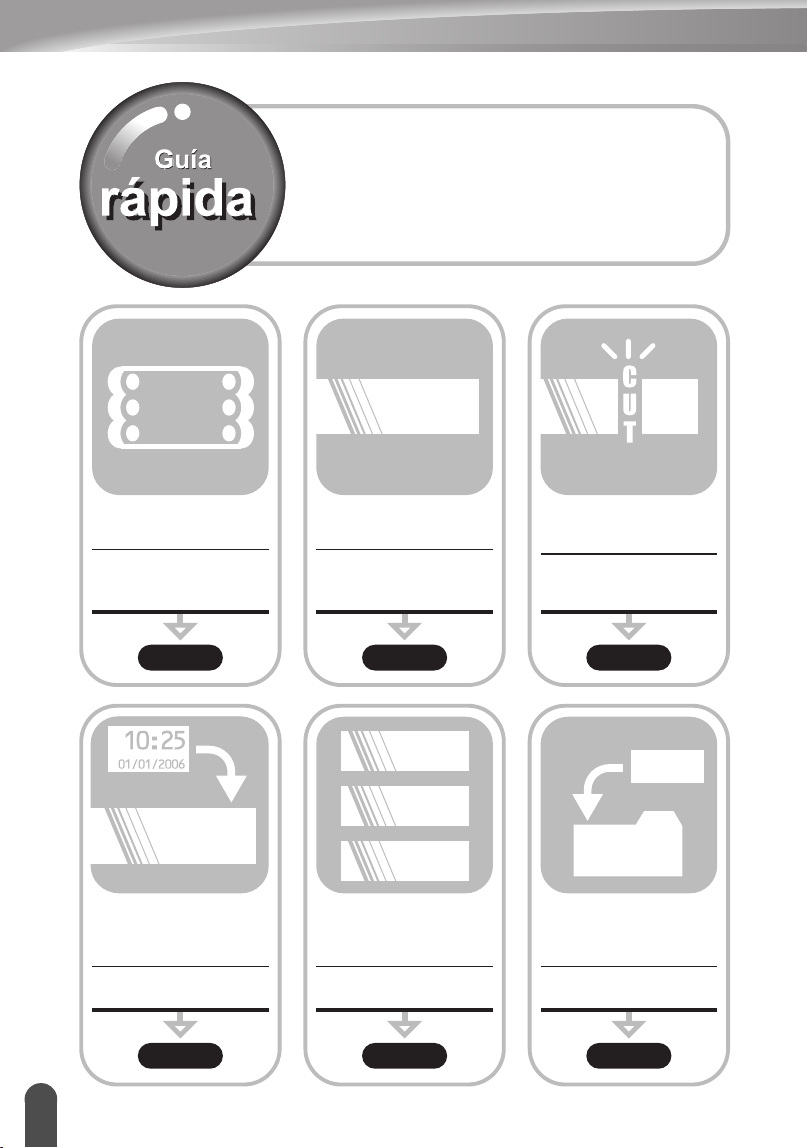
10
Guía rápida
Guía rápida
Para añadir la hora
y la fecha a sus
etiquetas...
Función de hora y fecha
Para guardar un
diseño de etiqueta...
Función de memoria
de archivo
1
2
3
ABC
auto-form at
fu n c tio n
ABC
A B C
ABC
12345678
12345678
ABC
Esta sección le permite acceder de forma rápida y
sencilla a la información acerca de las tareas que los
usuarios suelen utilizar con más frecuencia. Sólo hay
que buscar la tarea aquí debajo y, a continuación, ir
a la página indicada. Si no encuentra aquí la tarea
que está buscando, intente encontrarla en el índice o
en el contenido de la guía.
Para introducir texto,
símbolos y caracteres
acentuados...
Introducción de
texto/símbolos/caracteres
acentuados
Para dar formato a
la etiqueta...
Funciones de formato
de texto/etiqueta
Opciones de corte de cinta
Para cambiar la
configuración de corte
y márgenes
Para imprimir varias
copias (con numeración
automática)...
Funciones de varias
copias/numeración automática
P. 24 P. 31 P. 62
P. 48 P. 59 P. 66
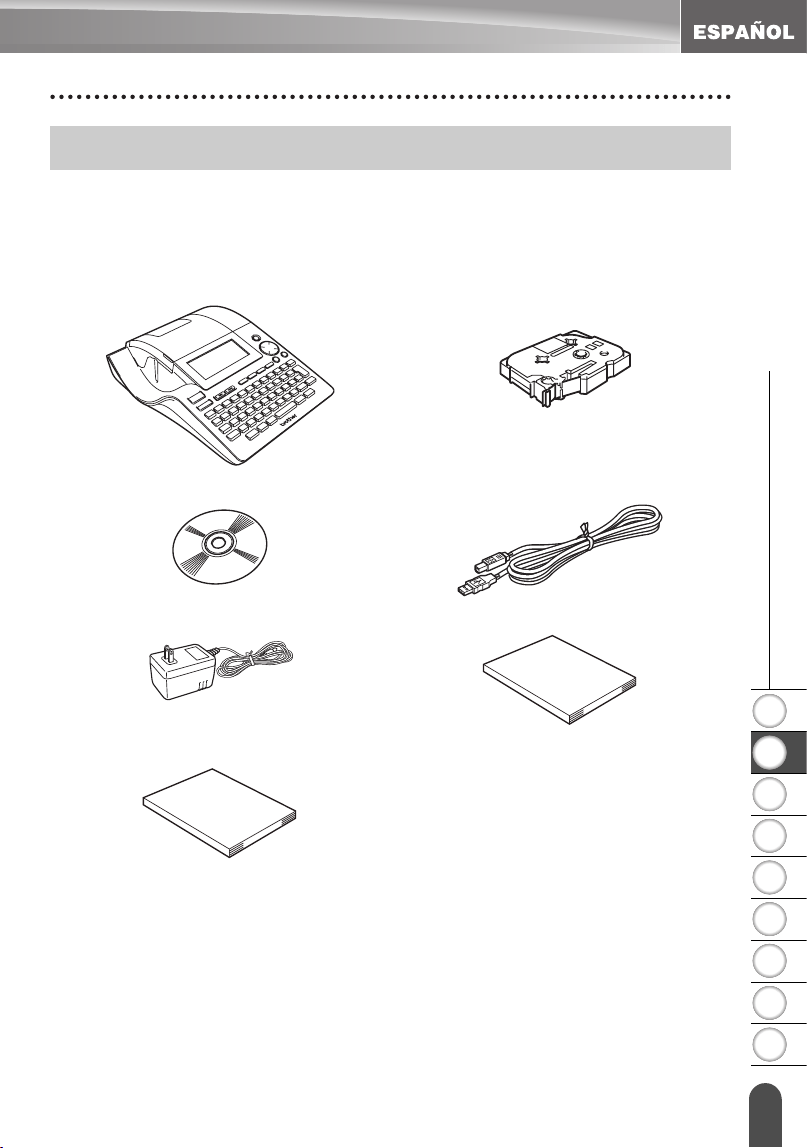
11
Desembalaje de la etiquetadora P-touch
1
2
3
4
5
6
7
8
9
z PARA EMPEZAR
PARA EMPEZAR
Compruebe que el paquete contiene los siguientes elementos antes de utilizar la
etiquetadora P-touch.
Desembalaje de la etiquetadora P-touch
Etiquetadora P-touch PT-2700 Cartucho de cinta TZ
CD-ROM Cable USB
Adaptador de CA Guía de usuario
Guía de instalación del software
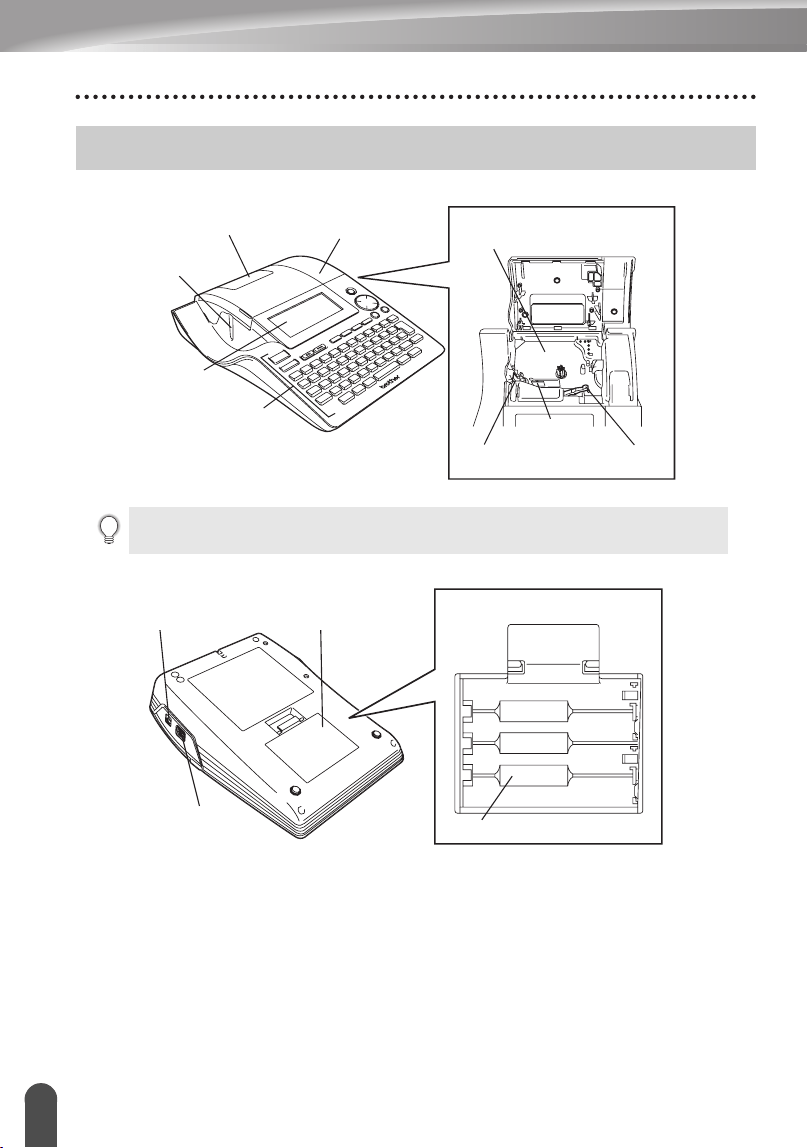
12
Descripción general
PARA EMPEZAR
Descripción general
Tapa del compartimiento
de la cinta
Ranura de salida
de la cinta
Teclado
Visor de cinta
Pantalla LCD
Compartimiento del cartucho
Cortadora
de cinta
Cabezal de
impresión
Palanca de
liberación
Cuando se recibe de fábrica, la pantalla LCD está cubierta por una lámina protectora
para evitar daños. Quite dicha lámina antes de utilizar la etiquetadora P-touch.
Conector del
adaptador de CA
Puerto USB
Tapa del compartimiento
de baterías
Compartimiento de baterías
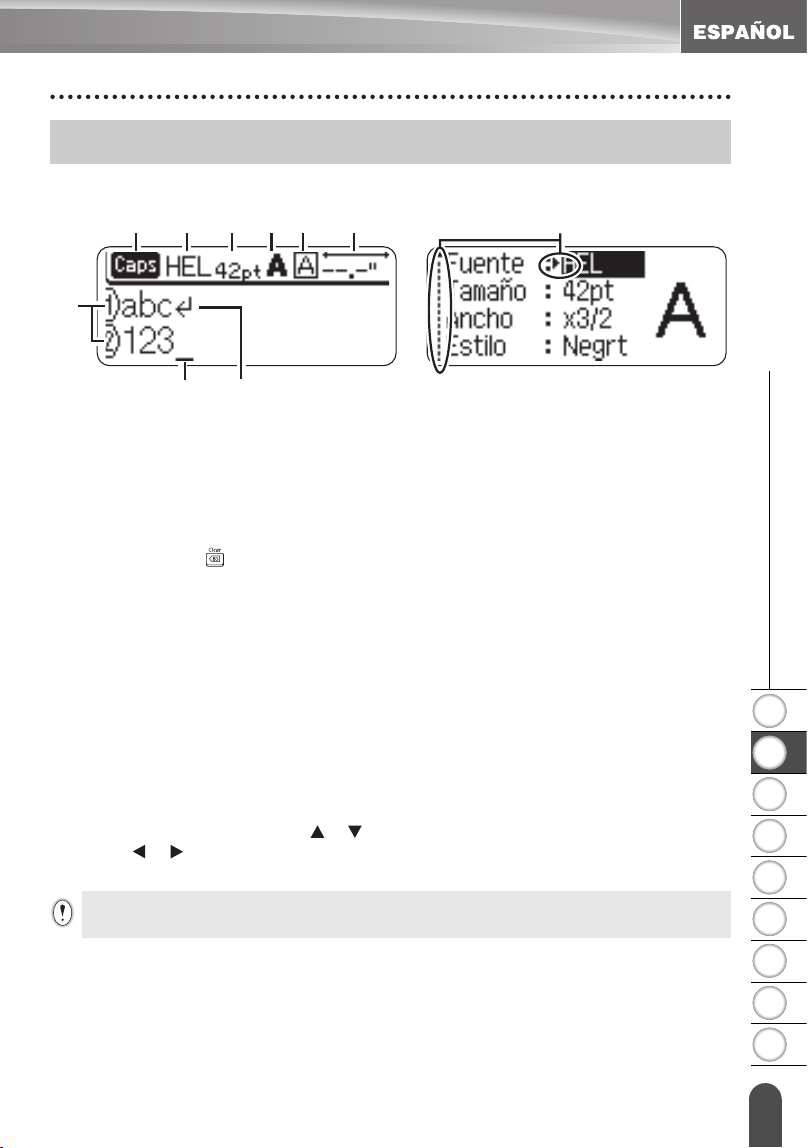
1
2
3
4
5
6
7
8
9
13
z PARA EMPEZAR
Pantalla LCD y teclado
Pantalla LCD
1. Número de línea
Aparece al principio de cada línea, esta marca indica el número de línea dentro
del diseño de la etiqueta.
2. Cursor
Indica la posición actual del cursor. Los nuevos caracteres se introducen a la
izquierda del cursor, y el caracter a la izquierda del cursor se borra cuando se
oprime la tecla .
3. Marca de retorno
Indica el final de una línea de texto.
4. Modo "Caps" (Bloqueo de mayúsculas)
Indica que el modo Caps está activado.
5.~8. Guía de estilo
Indica la configuración actual de la fuente (5), el tamaño (6) del caracter, el
estilo (7) del caracter y el marco (8).
9. Longitud de la cinta
Indica la longitud de cinta necesaria para el texto introducido.
10.Selección del cursor
Indica que puede utilizar las teclas de cursor para seleccionar los elementos de
la pantalla. Utilice las teclas y para seleccionar una opción del menú y las
teclas y para cambiar la configuración.
Pantalla LCD y teclado
1
2
456789 10
3
Consulte la sección “Pantalla LCD” en la página 21 donde se explica cómo cambiar el
contraste y el modo de pantalla y encender/apagar la iluminación de fondo.
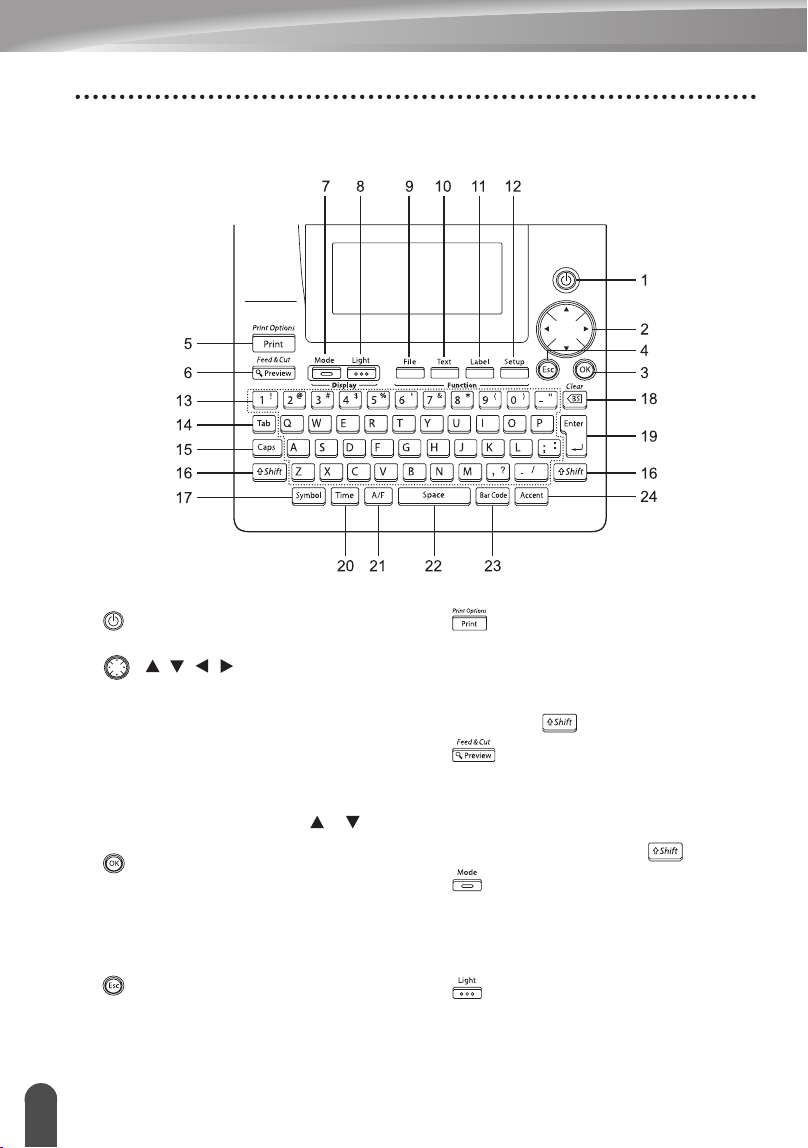
14
Pantalla LCD y teclado
PARA EMPEZAR
Funciones y nombre de las teclas
1. (Encendido):
Enciende y apaga la etiquetadora P-touch.
2. ( ):
• Desplaza el cursor en la dirección de la
flecha cuando se introducen o editan
caracteres, cuando se introducen
símbolos o caracteres acentuados, y
cuando se configuran los atributos de la
etiqueta en los menús de funciones.
• Al establecer la fecha y la hora para el
ajuste del reloj, use la tecla y para
aumentar/disminuir los números.
3. :
Selecciona la opción mostrada cuando
se configuran los atributos de la
etiqueta en los menús de funciones, o
cuando se introducen símbolos o
caracteres acentuados.
4. (Escape):
Cancela el comando actual y regresa a
la pantalla de introducción de datos o al
paso anterior.
5. :
• Imprime el diseño de etiqueta actual en
la cinta.
• Abre el menú "Print Options" (Opciones
de impresión) cuando se utiliza junto
con la tecla .
6. :
• Muestra una vista previa de la etiqueta.
• Hace avanzar 0.92" (23 mm) de cinta
en blanco y, a continuación, la corta
automáticamente, si se usa en
combinación con la tecla .
7. :
Use esta tecla para cambiar los
patrones de presentación de la pantalla
de introducción de texto y la
presentación del reloj.
8. :
Enciende y apaga la iluminación de
fondo de la pantalla LCD.
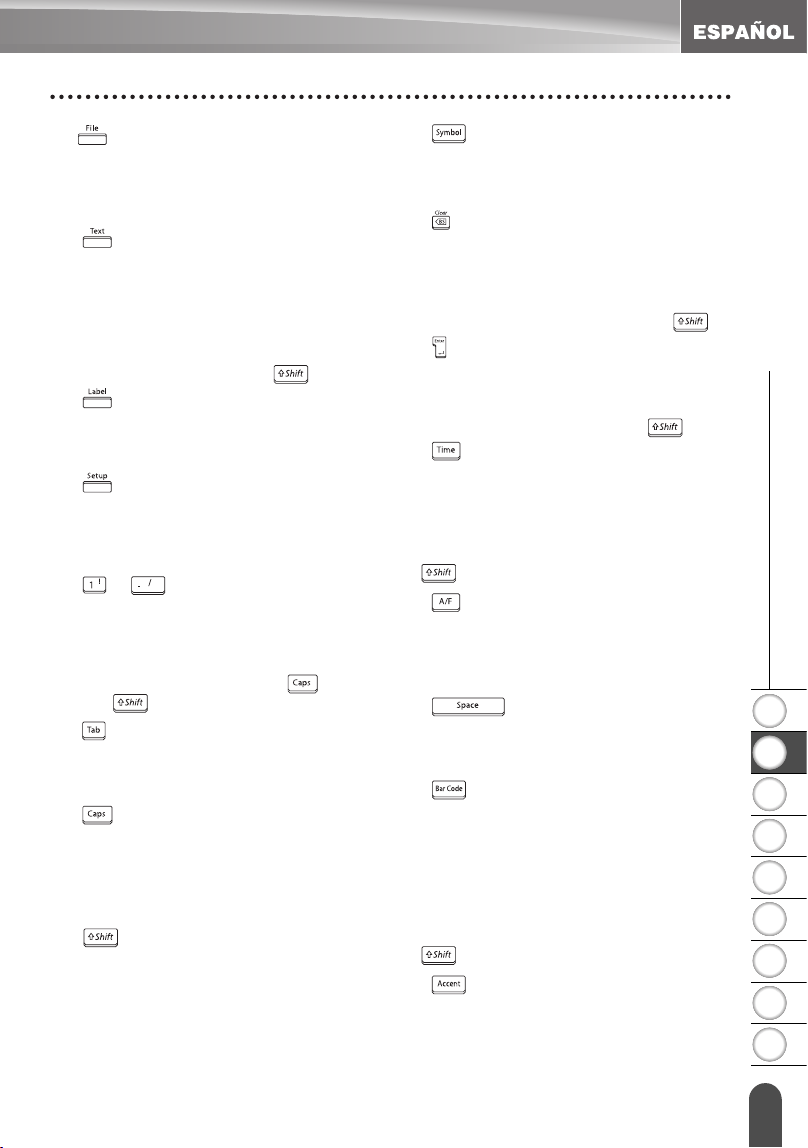
1
2
3
4
5
6
7
8
9
15
z PARA EMPEZAR
Pantalla LCD y teclado
9. :
Abre el menú Archivo donde podrá
imprimir, abrir, guardar o borrar las
etiquetas que utilice frecuentemente
en la memoria de archivos.
10.
:
• Abre el menú "Text" (Texto), en el que se
pueden establecer los atributos de los
caracteres que se utilizan en la etiqueta.
• Los atributos de caracteres pueden
ajustarse para cada línea de la
etiqueta, si se abre el menú de Texto en
combinación con la tecla .
11.
:
Abre el menú "Label" (Etiqueta), en el
que se pueden establecer los atributos
de etiqueta para la etiqueta en cuestión.
12.
:
Abre el menú "Setup" (Configuración), en
el que se pueden establecer las
preferencias de funcionamiento para la
etiquetadora P-touch.
13.
~
:
• Utilice estas teclas para escribir letras o
números.
• Las letras en mayúsculas y los símbolos
se pueden introducir usando estas teclas
en combinación con la tecla o la
tecla .
14.
:
Inserta una tabulación en la posición
del cursor en la pantalla de introducción
de texto.
15.
:
Activa y desactiva el modo Caps
(Bloqueo de mayúsculas). Cuando este
modo está activado, se pueden introducir
letras en mayúsculas oprimiendo
simplemente una tecla de letra.
16.
:
Utilice esta tecla junto con las teclas de
letras o de números deseadas para
escribir las letras en mayúsculas o los
símbolos indicados en las teclas
numéricas.
17.
:
Utilice esta función para seleccionar e
introducir un símbolo de la lista de
símbolos disponibles.
18. (Retroceso):
• Borra el caracter situado a la izquierda
del cursor.
• Borra todo el texto introducido o todos
los ajustes de texto y etiqueta actual si se
usa en combinación con la tecla .
19.
:
• Introduce una línea nueva durante la
introducción de texto.
• Introduce un nuevo bloque si se utiliza
en combinación con la tecla .
20.
:
• Inserta la fecha/hora seleccionada en la
posición del cursor en la pantalla de
introducción de texto.
• La presentación de reloj aparece si se
utiliza en combinación con la tecla
.
21. (Formato automático):
Abre el menú "Auto-Format" (Formato
automático), en el que puede crear
etiquetas mediante las plantillas
predefinidas o los formatos de bloque.
22.
:
• Introduce un espacio en blanco.
• Recupera el valor por defecto de la
configuración.
23.
:
• Abre la pantalla de Ajustr códig barrs
para introducir los datos de código de
barras.
• Abre la pantalla de configuración de
código de barras para establecer los
parámetros de código de barras si se
utiliza en combinación con la tecla
.
24.
:
Utilice esta opción para seleccionar e
introducir un caracter acentuado.
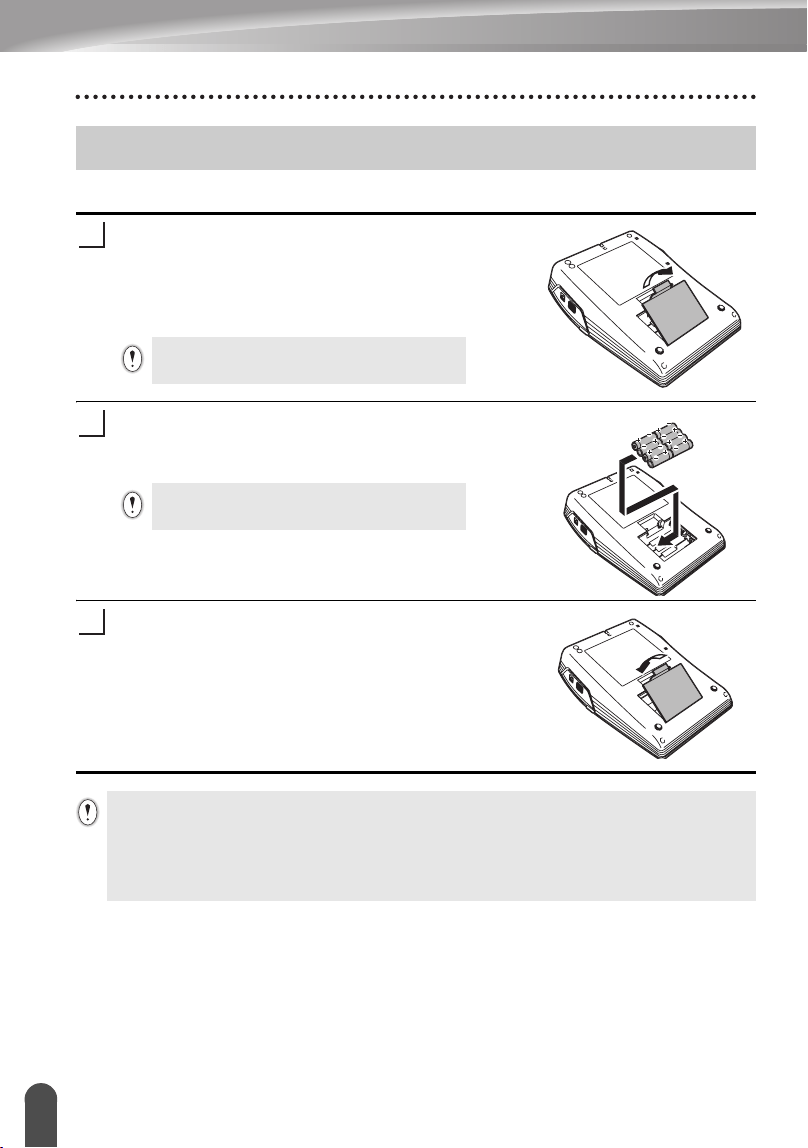
16
Alimentación eléctrica
PARA EMPEZAR
Baterías
Después de comprobar que se ha cortado el
suministro eléctrico, retire la tapa del
compartimiento de la batería en la parte posterior
de la máquina. Si las baterías ya están en la
máquina, retírelas.
Inserte ocho baterías alcalinas nuevas de tamaño
AA (LR6), comprobando que sus polos queden en
la dirección correcta.
23
Inserte la tapa del compartimiento de la batería
encajando los tres ganchos en la parte inferior
dentro de las ranuras en la máquina y
oprimiéndolos firmemente hasta que entren a
presión en su sitio.
Alimentación eléctrica
Asegúrese de que el suministro eléctrico está
cortado antes de reemplazar las baterías.
1
Reemplace siempre todas las ocho baterías
al mismo tiempo utilizando baterías nuevas.
2
3
• Retire las baterías si no piensa usar la etiquetadora P-touch durante un extenso
período de tiempo.
•
Si se desconecta el suministro eléctrico durante más de 2 minutos
, se borrarán todos los
ajustes de texto y formato. También se borrarán todos los archivos de texto
guardados en la memoria y los ajustes del reloj.
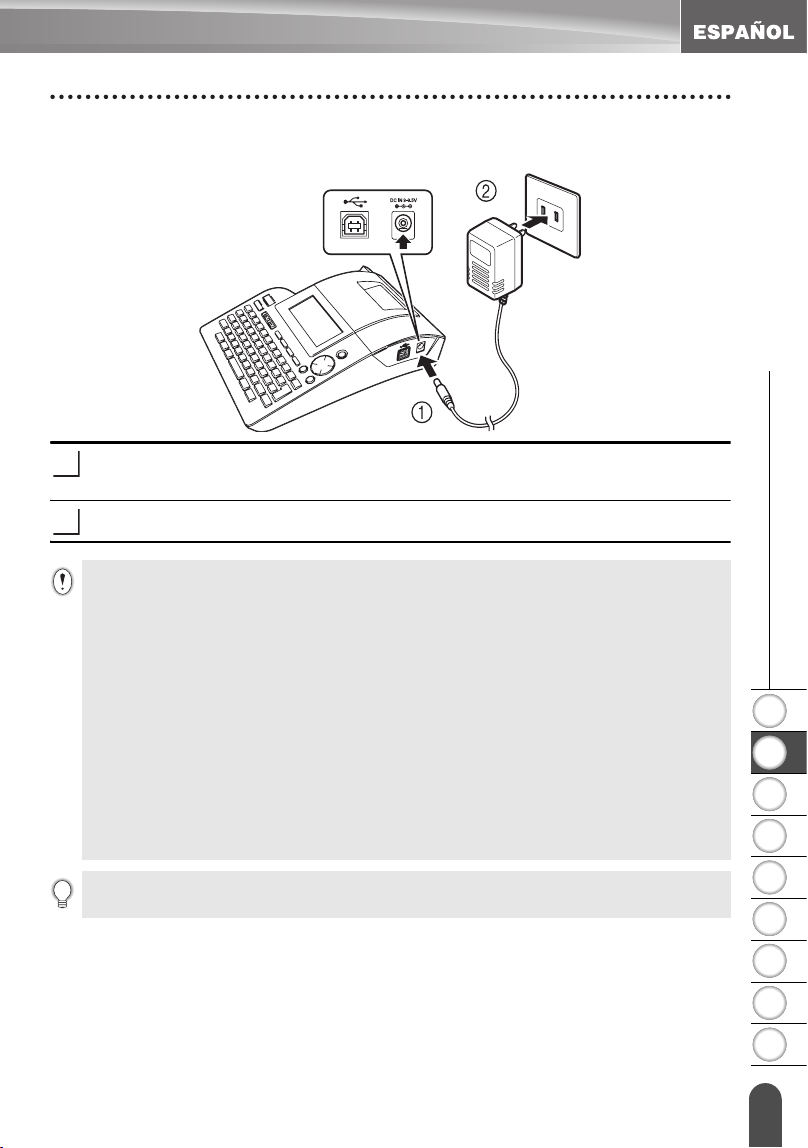
1
2
3
4
5
6
7
8
9
17
z PARA EMPEZAR
Alimentación eléctrica
Adaptador de CA
Conecte el adaptador de CA directamente a la etiquetadora P-touch.
Inserte el enchufe del cable del adaptador de CA en el conector marcado DC IN
9-9.5 V de la etiquetadora P-touch.
Inserte el enchufe del adaptador de CA en una toma eléctrica estándar.
1
2
• Apague la etiquetadora P-touch antes de desconectar el adaptador de CA.
• Desconecte el adaptador de CA de la etiquetadora P-touch y de la toma eléctrica si
no va a utilizar la etiquetadora P-touch durante un periodo prolongado de tiempo.
• No tire del cable del adaptador de CA ni lo doble.
• Utilice sólo el adaptador de CA (AD-60) diseñado exclusivamente para su
etiquetadora P-touch. Si no se siguen estas indicaciones, podrían ocurrir accidentes
o daños. Brother no asume responsabilidad alguna en caso de accidentes o daños
causados por no utilizar el adaptador de CA especificado.
• No conecte el adaptador de CA a una toma eléctrica no estándar. Si no se siguen estas
indicaciones, podrían ocurrir accidentes o daños. Brother no asume responsabilidad
alguna en caso de accidentes o daños causados por no utilizar una toma eléctrica estándar.
•
Si se desconecta el suministro eléctrico durante más de 2 minutos
, se borrarán todos los
ajustes de texto y formato. También se borrarán todos los archivos de texto
guardados en la memoria y los ajustes del reloj.
Para proteger la memoria y los ajustes del reloj al desconectar el adaptador de CA, por favor
utilice baterías alcalinas de tamaño AA (LR6).
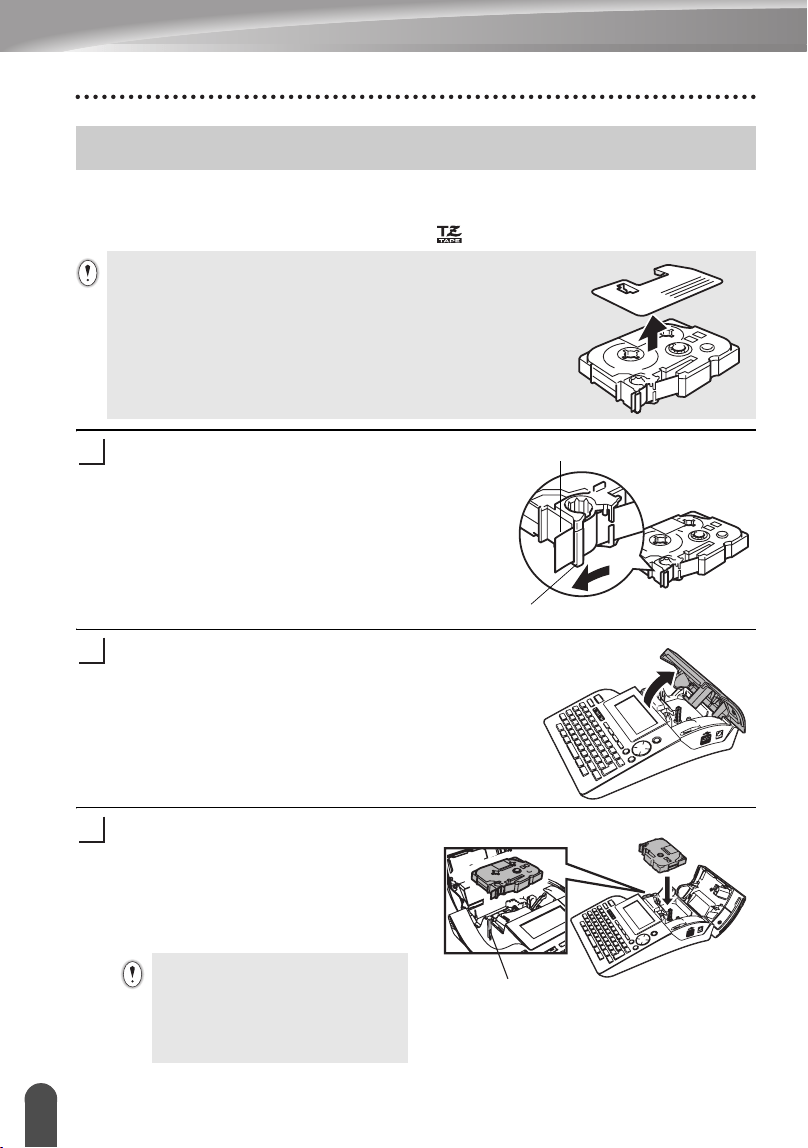
18
Instalación de un cartucho de cinta
PARA EMPEZAR
En la etiquetadora P-touch se pueden utilizar cartuchos de 9/64", 1/4", 3/8", 1/2", 3/4"
o 1" (3.5mm, 6mm, 9mm, 12mm, 18mm o 24mm) de ancho. Utilice únicamente
casetes de cinta Brother que lleven la marca .
Compruebe que el extremo de la cinta no
está doblado y que pasa por la guía de la
cinta.
Después de asegurarse de que el suministro
eléctrico está cortado, levante la tapa del
compartimiento del cartucho. Si ya hay un cartucho
insertado en la etiquetadora P-touch, sáquelo
tirando de él directamente hacia arriba.
Inserte el cartucho en su
compartimiento, con el extremo de la
cinta orientado hacia la ranura de
salida de la cinta de la P-touch, y
presione firmemente hasta que oiga
un chasquido.
Instalación de un cartucho de cinta
Si el cartucho nuevo tiene algún tipo de protección de
cartón, asegúrese de quitársela antes de insertar el cartucho
en la etiquetadora.
WATNLATION
Extremo de la cinta
Guía de la cinta
1
2
Cuando inserte el cartucho de
cinta, asegúrese de que la cinta de
etiquetas y la cinta de tinta no
queden atrapadas en el cabezal de
impresión.
Ranura de salida de la cinta
3
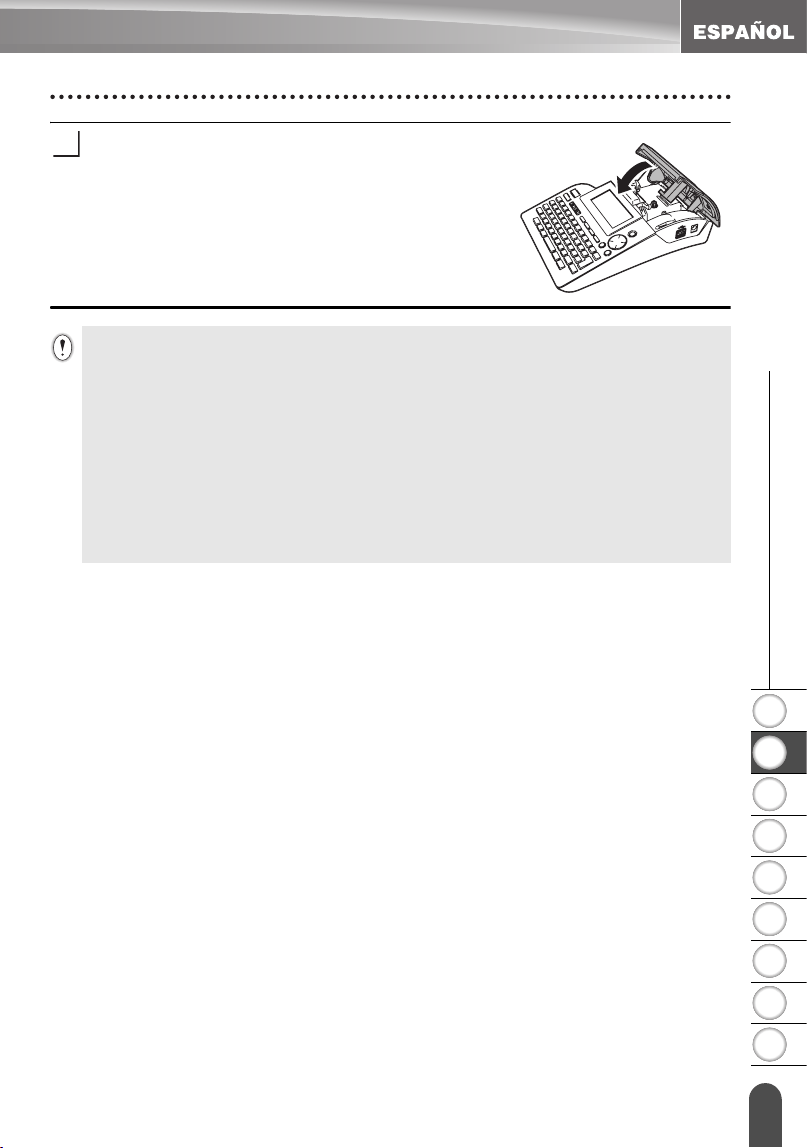
1
2
3
4
5
6
7
8
9
19
z PARA EMPEZAR
Instalación de un cartucho de cinta
Cierre la tapa del compartimiento de cinta.
4
• Asegúrese de que la palanca de liberación está hacia arriba cuando cierre la tapa del
compartimento de cinta. La tapa del compartimiento de cinta no se puede cerrar si la
palanca de liberación está hacia abajo.
• Asegúrese de hacer avanzar la cinta para que no quede holgura alguna en ella ni en
la cinta de tinta después de introducir el cartucho de cinta. Consulte la sección
“Avance de la cinta” en la página 21.
• No tire de la etiqueta que sale por la ranura de salida de la cinta. Si lo hace, la
cinta de tinta saldrá expulsada junto con la propia cinta de etiquetas.
• Guarde los cartuchos en un lugar fresco y oscuro, alejado de la luz solar directa y de
temperaturas excesivas, elevada humedad o polvo. Utilice el cartucho de cinta lo más
rápidamente posible después de abrir el paquete sellado en el que viene.
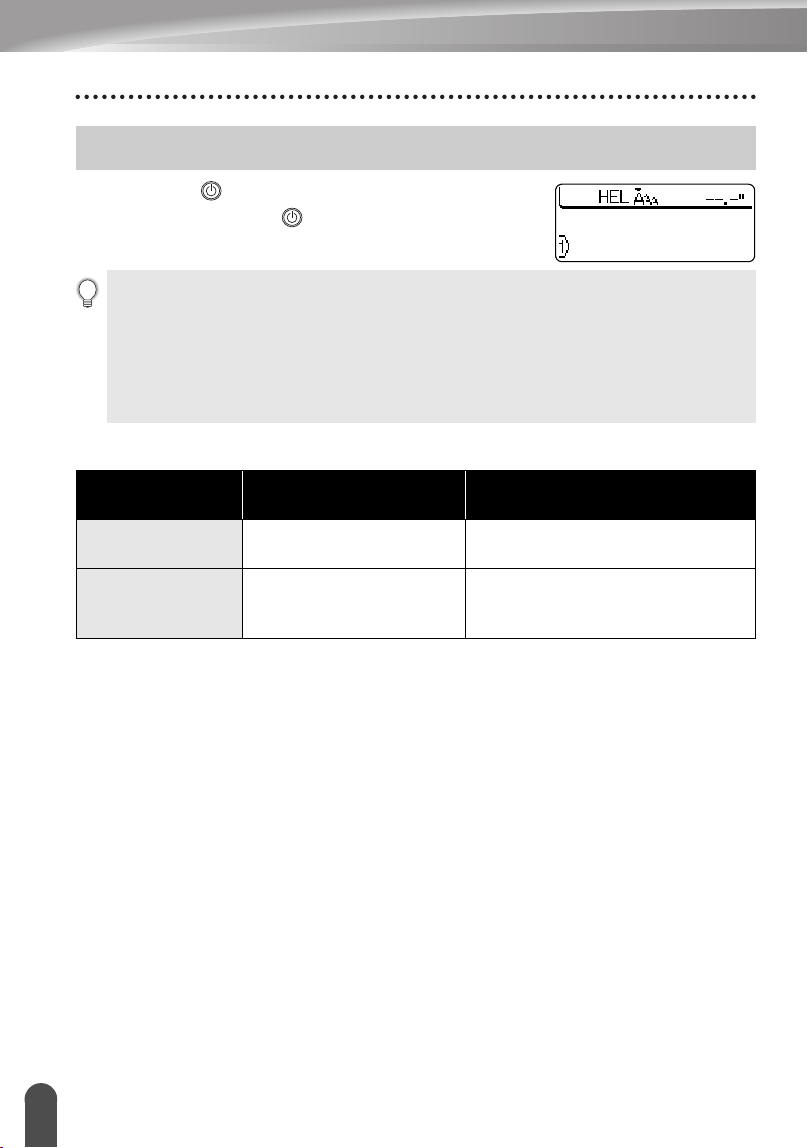
20
Encendido y apagado
PARA EMPEZAR
Oprima la tecla para encender la etiquetadora P-touch.
Vuelva a oprimir la tecla para apagar la etiquetadora
P-touch.
zDesconexión Automáticaz
Encendido y apagado
• Su etiquetadora P-touch tiene una función de ahorro de energía con la que se apaga
automáticamente si no se oprime alguna tecla durante un determinado periodo de
tiempo y en determinadas condiciones de funcionamiento. Consulte abajo la tabla
"Desconexión automática" para obtener información más detallada.
• Si las baterías están instaladas o la etiquetadora P-touch está conectada a una toma
eléctrica mediante el adaptador de CA, cuando se enciende el equipo se muestra en
pantalla la información relativa a la sesión anterior.
Sólo la etiquetadora
P-touch
conectada a una PC
Con un
adaptador de CA
8 horas 8 horas
Con la batería
5 minutos
5 minutos sin funcionamiento.
1 hora después de imprimir
desde la PC.
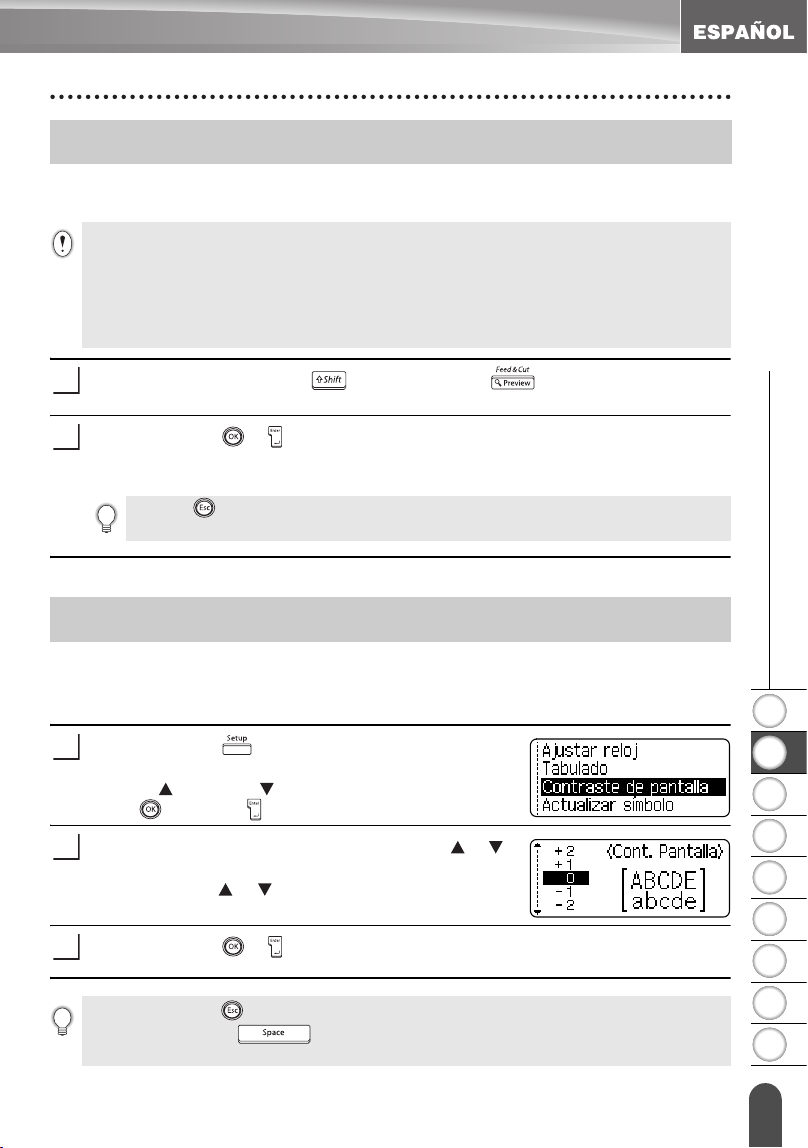
1
2
3
4
5
6
7
8
9
21
z PARA EMPEZAR
Avance de la cinta
La función "Feed & Cut" (Avance y corte) hace avanzar 0.92" (23mm) de cinta en
blanco y, a continuación, la corta.
Mantenga pulsada la tecla y oprima la tecla .
El mensaje "¿Alimentar y cortar?" aparece en la pantalla.
Oprima la tecla o para hacer avanzar la cinta.
El mensaje "Alimentando cinta... Espere" aparece cuando la cinta avanza y, a
continuación, se corta la cinta.
Contraste de la pantalla LCD
Puede cambiar el ajuste de contraste de la pantalla LCD a uno de cinco niveles (+2, +1,
0, -1, -2) para que la pantalla se pueda leer con más facilidad. El ajuste por defecto es "0".
Oprima la tecla para que aparezca el menú
Mode, seleccione “Contraste de pantalla” oprimiendo
la tecla o la tecla y seguidamente oprima la
tecla o la tecla .
Seleccione un nivel de contraste con la tecla o .
El contraste de la pantalla cambia cada vez que se
oprime la tecla o , permitiéndole establecer el
contraste más adecuado.
Oprima la tecla o .
Avance de la cinta
• Asegúrese de hacer avanzar la cinta de etiquetas para que no quede holgura alguna
en ella ni en la cinta de tinta después de introducir el cartucho de cinta.
• No tire de la etiqueta que sale por la ranura de salida de la cinta de etiquetas. Si
lo hace, la cinta de tinta saldrá expulsada junto con la propia cinta de etiquetas.
• No bloquee la ranura de salida de la cinta durante el proceso de impresión ni cuando
la cinta está avanzando. Si lo hace, la cinta se atascará.
1
2
Oprima cuando aparece “¿Alimentar y cortar?” para cancelar el avance de la
cinta.
Pantalla LCD
1
2
3
• Oprima la tecla para regresar al paso anterior.
• Si oprime la tecla en la pantalla de ajuste del contraste se establece el
contraste en el valor "0" por defecto.
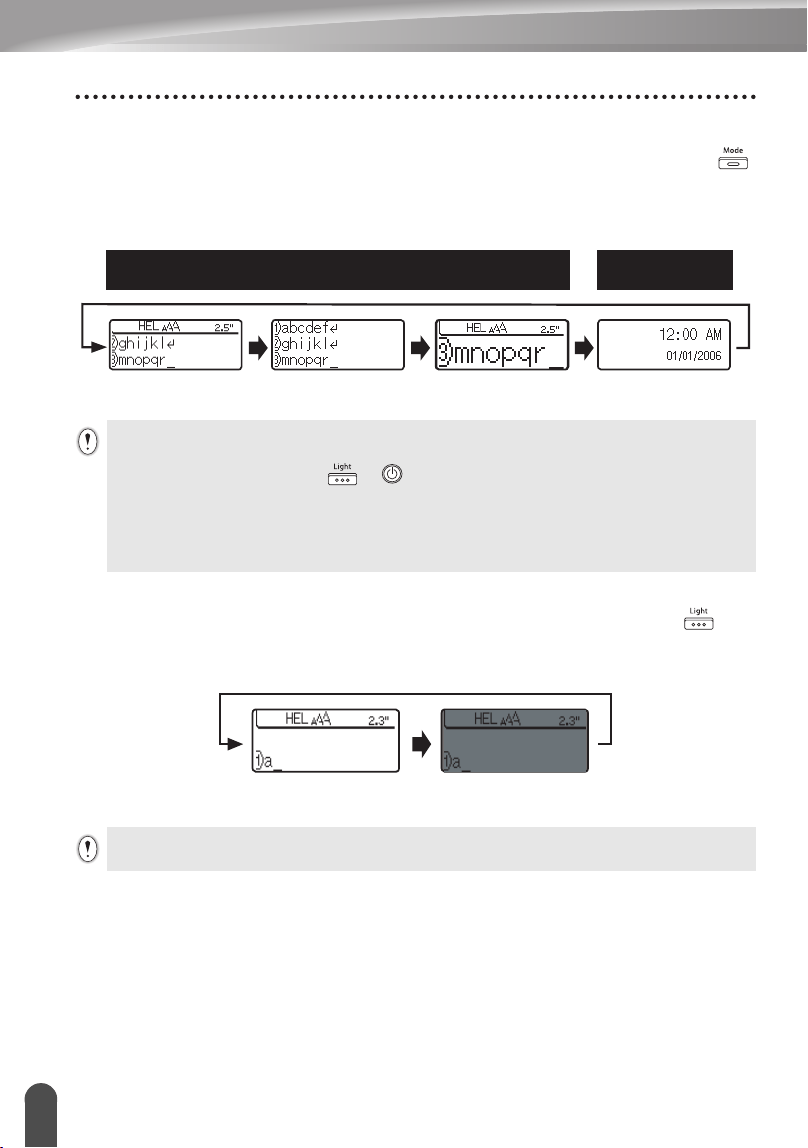
22
Pantalla LCD
PARA EMPEZAR
Modo de pantalla
Usted puede cambiar el modo de pantalla a su estilo preferido oprimiendo la tecla
repetidamente. Usted puede seleccionar entre tres pantallas de introducción de texto
(guía + 2 líneas de texto, 3 líneas de texto, guía + 1 línea) y la presentación del reloj.
Iluminación de fondo
Usted puede encender o apagar la iluminación de fondo oprimiendo la tecla . La
iluminación de fondo puede usarse si se desea ver la pantalla con mayor claridad. El
ajuste por defecto es "ENCENDIDA".
Pantalla de introducción de texto
Pantalla de reloj
guía + 2 líneas 3 líneas guía + 1 línea
• Usted también puede cambiar la pantalla del reloj pasando a la pantalla de
introducción de texto (guía + 2 líneas de texto) oprimiendo cualquier otra tecla en el
teclado además de la tecla y .
• Para ajustar el reloj a la fecha y la hora actuales, consulte la sección “Ajuste del reloj”
en la página 48.
• Para seleccionar un formato deseado para la presentación de la fecha y la hora,
consulte la sección “Ajuste del formato de hora y fecha” en la página 49.
Iluminación de fondo ENCENDIDA Iluminación de fondo APAGADA
Se puede ahorrar electricidad apagando la iluminación de fondo.
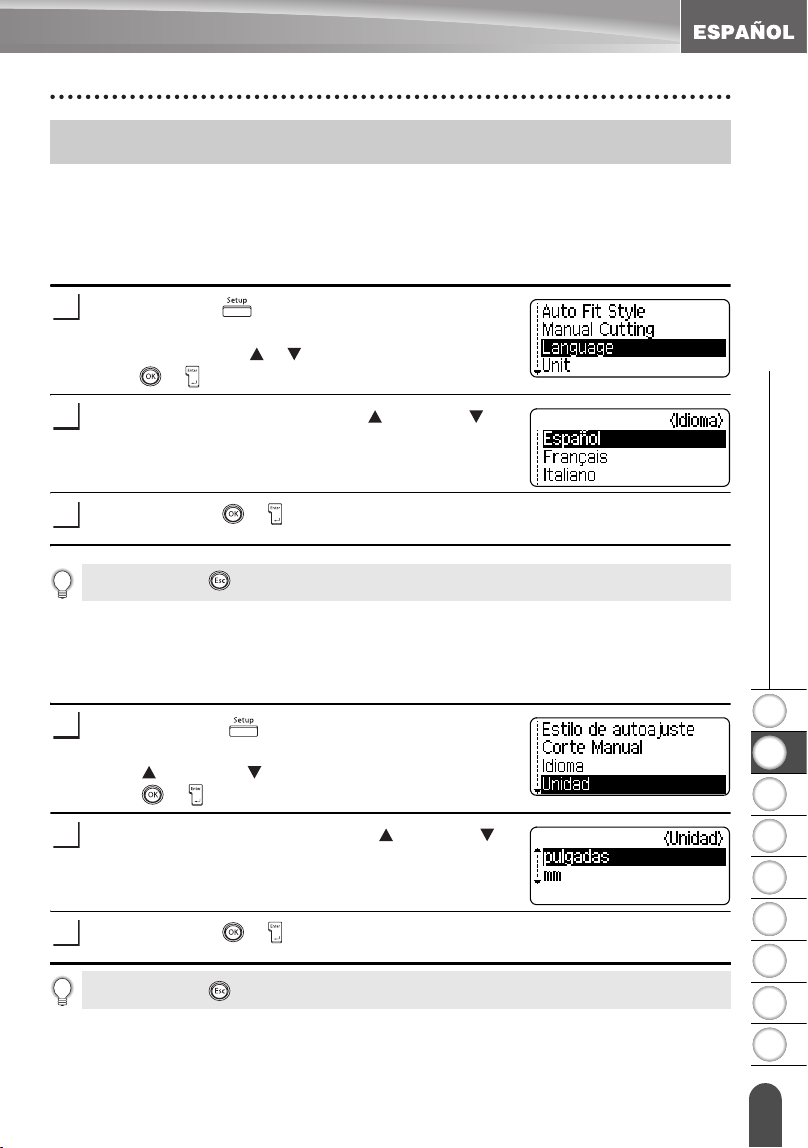
1
2
3
4
5
6
7
8
9
23
z PARA EMPEZAR
Ajuste del idioma y las unidades
Idioma
Seleccione el idioma ("English", "Español", "Français", "Português","Deutsch",
"Nederlands", "Italiano", "Dansk", "Svenska", "Norsk" o "Suomi") para los comandos
de menú y los mensajes que aparecen en la pantalla LCD.
El ajuste por defecto es "English".
Oprima la tecla para mostrar el menú de
Configuración, seleccione "Language" (Idioma)
oprimiendo la tecla o y seguidamente oprima la
tecla o .
Seleccione un idioma con la tecla o la tecla .
Oprima la tecla o .
Unidad
Seleccione la unidad ("pulgadas" o "mm") con la que desea que se indiquen las
medidas en la pantalla LCD.
El ajuste por defecto es "pulgadas".
Oprima la tecla para mostrar el menú de
Configuración, seleccione "Unidad" oprimiendo la
tecla o la tecla y seguidamente oprima la
tecla o .
Seleccione una unidad con la tecla o la tecla .
Oprima la tecla o .
Ajuste del idioma y las unidades
1
2
3
Oprima la tecla para regresar al paso anterior.
1
2
3
Oprima la tecla para regresar al paso anterior.
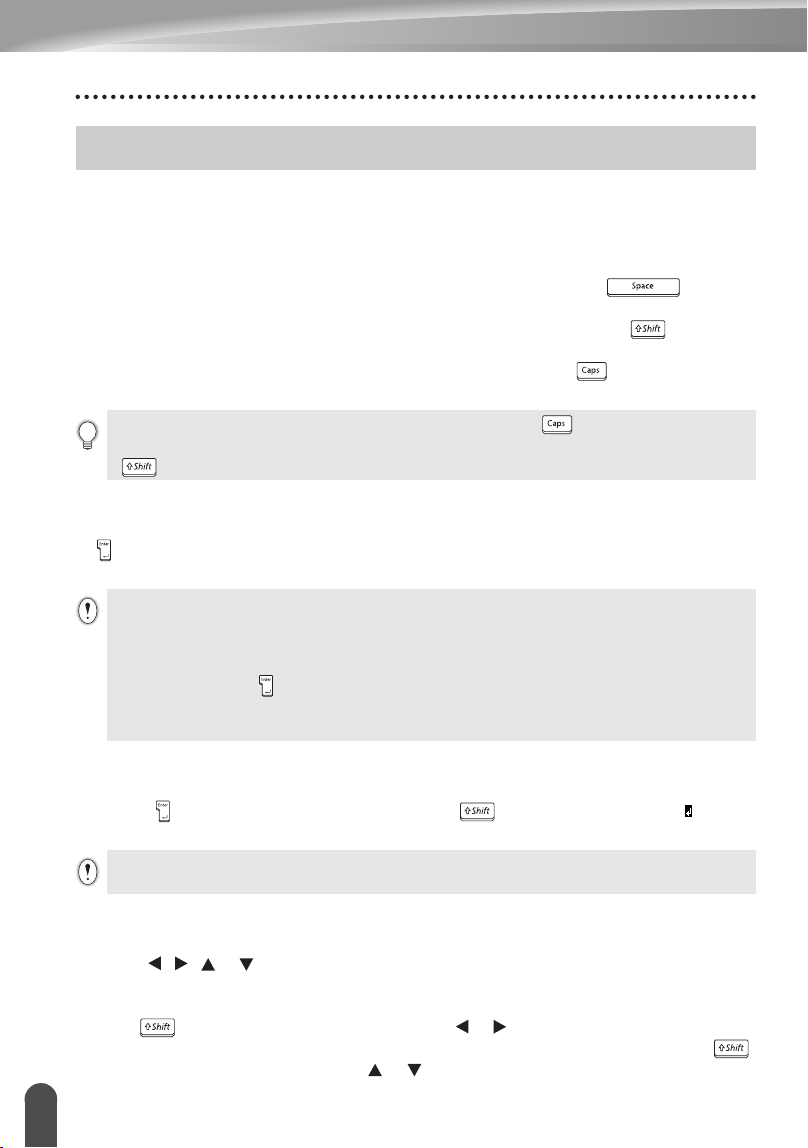
24
Introducción y edición de texto
EDICIÓN DE ETIQUETAS
La utilización del teclado de la etiquetadora P-touch es muy similar a como se utiliza el
teclado de una máquina de escribir, un procesador de textos o una computadora.
Introducción de texto mediante el teclado
• Para introducir una letra en minúscula o un número, basta con oprimir la tecla deseada.
• Para introducir un espacio en blanco en el texto, oprima la tecla .
• Para introducir una letra en mayúsculas o uno de los símbolos que aparecen en la
parte superior de las teclas numéricas, mantenga oprimida la tecla y, a
continuación, oprima la tecla deseada.
• Para introducir letras en mayúsculas siempre, oprima la tecla para activar el
modo "Caps" (Bloqueo de mayúsculas) y, a continuación, oprima las teclas deseadas.
Adición de una nueva línea
• Para poner fin a la línea actual de texto y empezar una nueva línea , oprima la tecla
. Aparecerá una marca de retorno al final de la línea y el cursor pasa al comienzo
de una nueva línea.
Adición de un nuevo bloque
• Para crear un nuevo bloque de texto/líneas a la derecha de su texto actual, oprima
la tecla mientras mantiene oprimida la tecla . Aparecerá una marca al final
del bloque y el cursor pasa al comienzo de un nuevo bloque.
Desplazamiento del cursor
• Para desplazar el cursor hacia la izquierda, derecha, arriba o abajo, oprima las
teclas , o . Cada vez que oprima la tecla desplazará el cursor un espacio
o una línea.
• Para llevar el cursor al principio o al final de la línea actual, mantenga oprimida la
tecla y seguidamente oprima las teclas o .
• Para llevar el cursor al principio o al final del texto, mantenga oprimida la tecla
y seguidamente oprima las teclas o .
Introducción y edición de texto
• Para desactivar el modo Caps, vuelva a oprimir la tecla .
• Para introducir una letra en minúscula en el modo Caps, mantenga oprimida la tecla
y, a continuación, oprima la tecla deseada.
• En cada ancho de cinta sólo se puede introducir un número máximo de líneas de texto.
Se puede introducir un máximo de 7 líneas para la cinta de 1" (24mm), 5 líneas para
la cinta de 3/4" (18mm), 3 líneas para la cinta de 1/2" (12mm), 2 líneas para la cinta
de 3/8" (9mm) y 1/4" (6 mm), y 1 línea para la cinta de 9/64" (3.5mm).
• Si oprime la tecla cuando ya hay 7 líneas, aparecerá un mensaje de error.
• Para cambiar el atributo de los caracteres de cada línea, consulte la sección “Ajuste
de los atributos de caracteres por cada línea” en la página 31.
Es posible introducir un máximo de 5 bloques en una etiqueta.
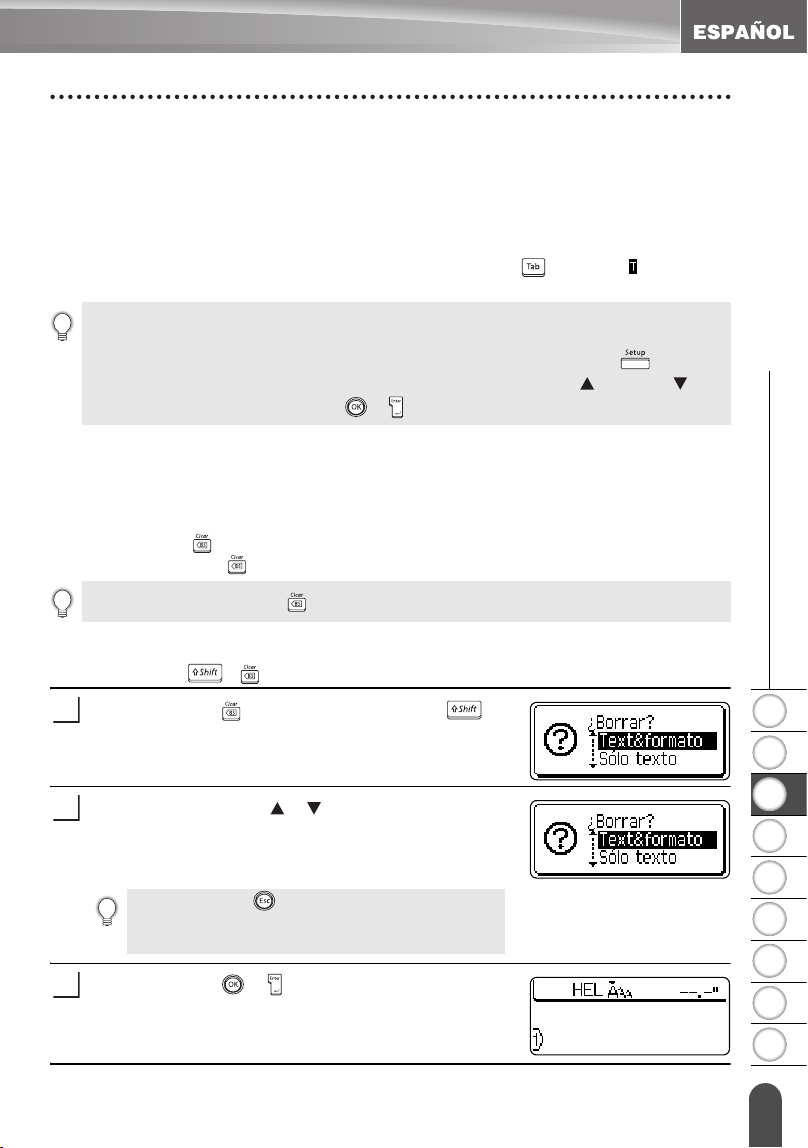
1
2
3
4
5
6
7
8
9
25
z EDICIÓN DE ETIQUETAS
Introducción y edición de texto
Inserción de texto
• Para insertar texto adicional en una línea de texto existente, coloque el cursor a la
derecha del caracter donde desea insertar el texto y, a continuación, introduzca el
texto adicional. El texto nuevo se insertará a la izquierda del cursor.
Para insertar una tabulación
• Para insertar un espacio de tabulación entre la línea de texto existente, lleve el
cursor donde desea añadir la tabulación y oprima la tecla . Aparece una marca
para indicar la posición donde se introducirá el espacio de tabulación.
Eliminación de texto
Eliminación de un caracter cada vez
• Para eliminar un caracter de una línea de texto existente, coloque el cursor a la
derecha del caracter donde desea comenzar a borrar el texto y, a continuación,
oprima la tecla . El caracter situado a la izquierda del cursor se borra cada vez
que oprime la tecla .
Eliminación de todo el texto de una sola vez
• Utilice la tecla y para borrar todo el texto de una sola vez.
Oprima la tecla mientras oprime la tecla .
Aparecerán las opciones de Borrado.
Oprimiendo las teclas o , seleccione “Sólo texto”
para borrar todo el texto conservando los ajustes de
formato actuales o seleccione “Text&formato” para
borrar todos los ajustes de texto y formato.
Oprima la tecla o .
Se eliminará todo el texto. Todos los valores de
formato se eliminan también si se selecciona "Text &
Format".
• Para cambiar el ajuste de longitud de la tabulación, consulte la sección “Configuración de
los atributos de etiqueta” en la página 36.
• También se puede introducir el espacio de tabulación oprimiendo la tecla para abrir
el menú de Configuración y seleccionando "Tabulado" con la tecla o la tecla y, a
continuación, oprimiendo la tecla o .
Si mantiene oprimida la tecla , los caracteres a la izquierda del cursor se borran uno tras otro.
1
Oprima la tecla para regresar a la pantalla de
introducción de texto sin eliminar (o borrar) el
texto o el formato.
2
3
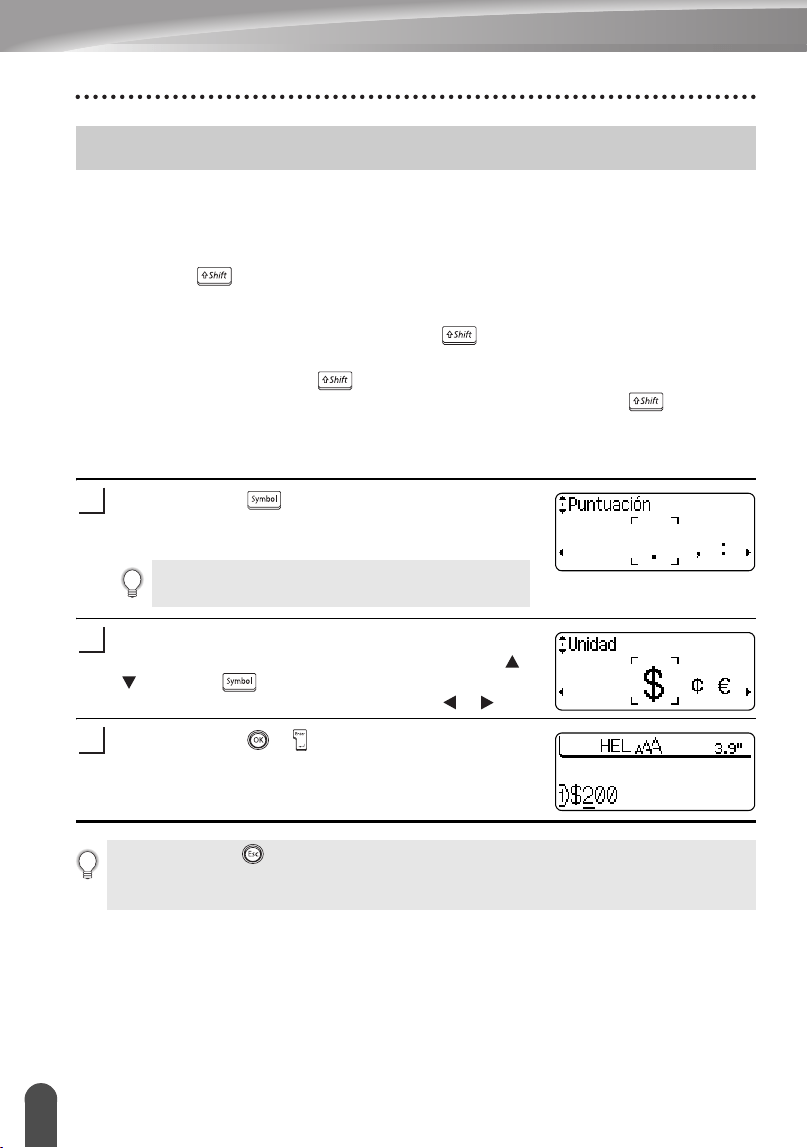
EDICIÓN DE ETIQUETAS
26
Introducción de símbolos
Además de los símbolos disponibles en el teclado, hay diversos símbolos (incluidos los
caracteres extendidos ASCII y los caracteres internacionales) disponibles con la
función de símbolos.
Hay dos métodos para introducir símbolos:
• Con la tecla .
• Utilización de la función de símbolos.
Introducción de símbolos con la tecla
Los símbolos impresos en la esquina superior derecha de las teclas del teclado se
pueden introducir con la tecla .
• Para introducir uno de estos símbolos, mantenga oprimida la tecla y, a
continuación, oprima la tecla deseada.
Introducción de símbolos con la función de símbolos
Oprima la tecla .
Aparecerá una lista de categorías de símbolos y
símbolos de esa categoría.
Seleccione una categoría de símbolos (puntuación,
negocios, matemáticas, etc.) oprimiendo la tecla o
o la tecla repetidamente y seleccione
después un símbolo oprimiendo la tecla o .
Oprima la tecla o .
El símbolo seleccionado se insertará en la línea de
texto.
Introducción de símbolos
El último símbolo introducido se selecciona en la
lista que aparece en pantalla.
1
2
3
• Oprima la tecla para regresar al paso anterior.
• Consulte la tabla de Lista de símbolos de la página 28 para obtener una lista completa
de todos los grupos y símbolos disponibles.
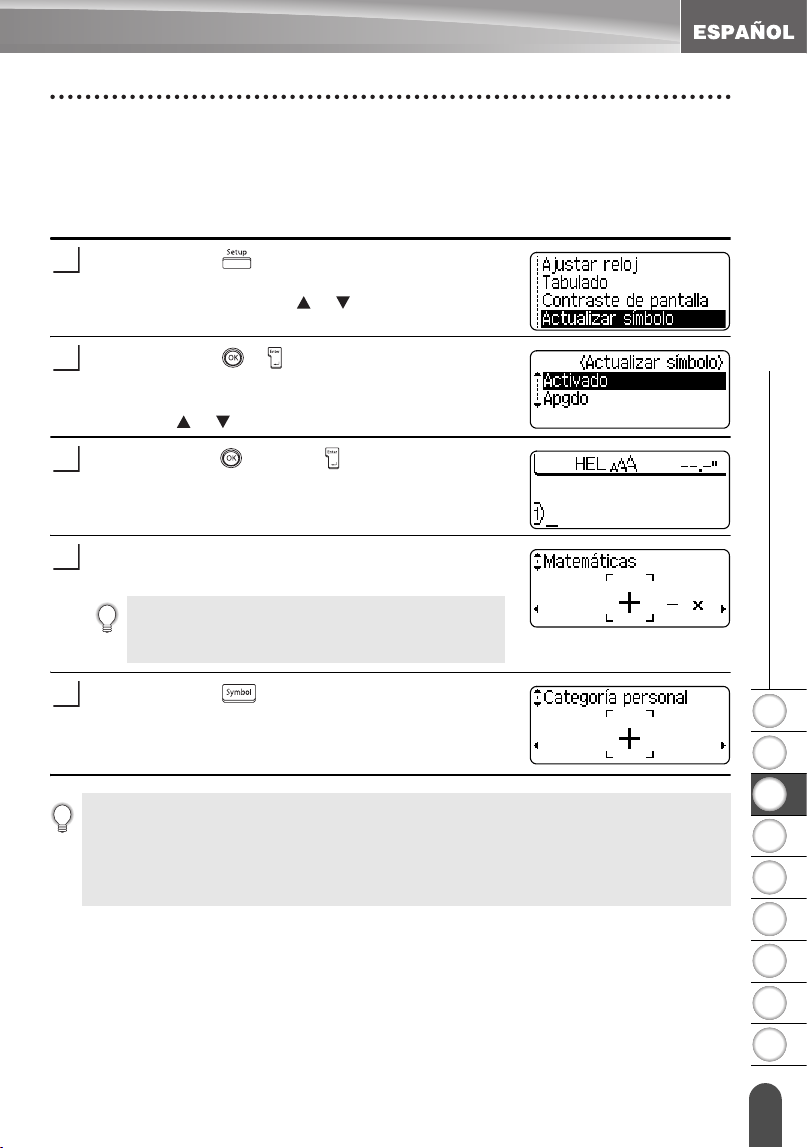
1
2
3
4
5
6
7
8
9
27
z EDICIÓN DE ETIQUETAS
Introducción de símbolos
Uso de la función de Actualización de símbolos
Usted puede crear su categoría personal de símbolos utilizando la función de
Actualización de símbolos. La "Categoría personal" aparecerá de primero al
seleccionar los símbolos con el fin de ayudarle a localizar los símbolos deseados con
mayor rapidez.
Oprima la tecla para mostrar el menú de
Configuración y seguidamente seleccione "Actualizar
símbolo" usando la tecla o .
Oprima la tecla o para mostrar la pantalla de
Actualizar símbolo y seguidamente seleccione
"Activado" para crear su categoría personal utilizando
las teclas o .
Oprima la tecla o la tecla para aplicar el ajuste.
La pantalla regresa a la pantalla de introducción de
texto.
Introduzca el símbolo que desea añadir a su
categoría Personal.
Oprima la tecla .
Aparece la "Categoría personal", incluyendo el
símbolo introducido en el paso 4.
1
2
3
Consulte la sección “Introducción de símbolos
con la función de símbolos” en la página 26 donde
encontrará mayores detalles.
4
5
• Se pueden añadir hasta 20 símbolos en la "Categoría personal". El símbolo de mayor
antigüedad se borrará de la categoría si el número de símbolos añadidos a la
"Categoría personal" sobrepasa los 20 símbolos.
• Para dejar de usar la función de Actualización de símbolos, seleccione la opción
“Apgdo” en la pantalla de Actualizar símbolo.
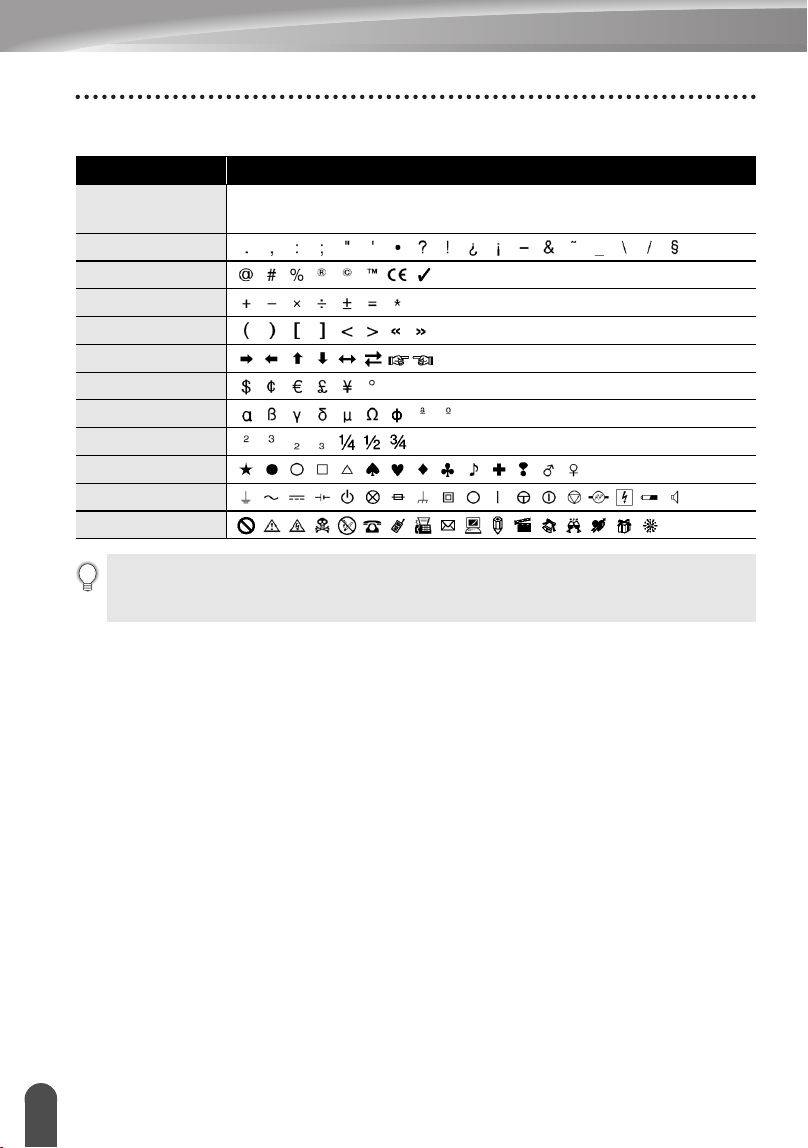
EDICIÓN DE ETIQUETAS
28
Introducción de símbolos
zLista de símbolosz
Categoría Símbolos
Personal
Consulte la sección “Uso de la función de Actualización de
símbolos” en la página 27 donde encontrará los detalles.
Puntuación
Negocios
Matemáticas
Paréntesis
Flecha
Unidad
Internacional
Número
Pictograma
Electricidad
Otros
El uso de la marca CE está regulado rigurosamente por una o más directivas del
Consejo Europeo. Compruebe si las etiquetas que usted produce y que llevan esta
marca cumplen las directivas correspondientes.
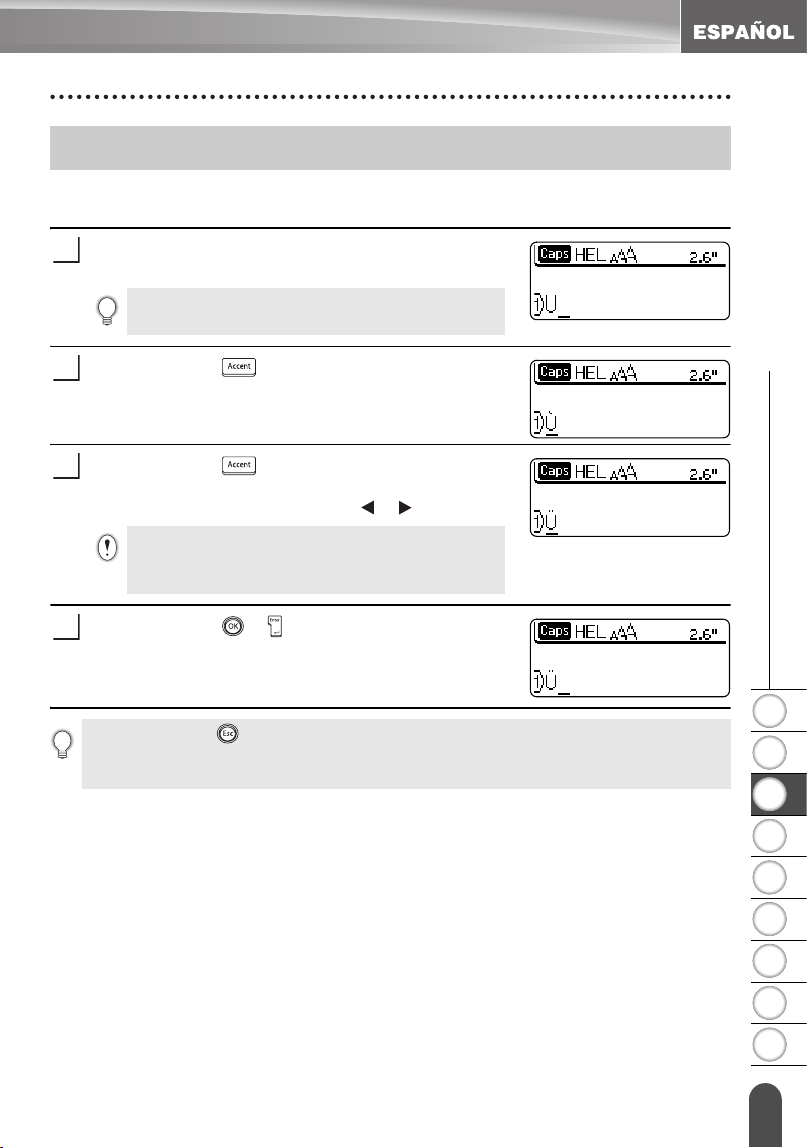
1
2
3
4
5
6
7
8
9
29
z EDICIÓN DE ETIQUETAS
Introducción de caracteres acentuados
La etiquetadora P-touch puede mostrar e imprimir una serie de caracteres acentuados
como es el caso de los caracteres específicos de otros idiomas.
Introduzca el caracter que desea cambiar a un
caracter compuesto.
Oprima la tecla .
El caracter que introdujo cambiará a un caracter
acentuado.
Oprima la tecla repetidamente hasta
seleccionar el caracter acentuado deseado o
selecciónelo utilizando las teclas o .
Oprima la tecla o .
El caracter compuesto seleccionado se insertará en
la línea de texto.
Introducción de caracteres acentuados
El modo "Caps" (Bloqueo de mayúsculas) se
puede utilizar junto con la función de acentos.
1
2
El orden de los caracteres compuestos que
aparecerán en la pantalla será diferente según el
idioma seleccionado para la pantalla LCD.
3
4
• Oprima la tecla para regresar al paso anterior.
• Consulte la tabla Lista de caracteres acentuados para obtener una lista completa de
todos los caracteres acentuados disponibles.
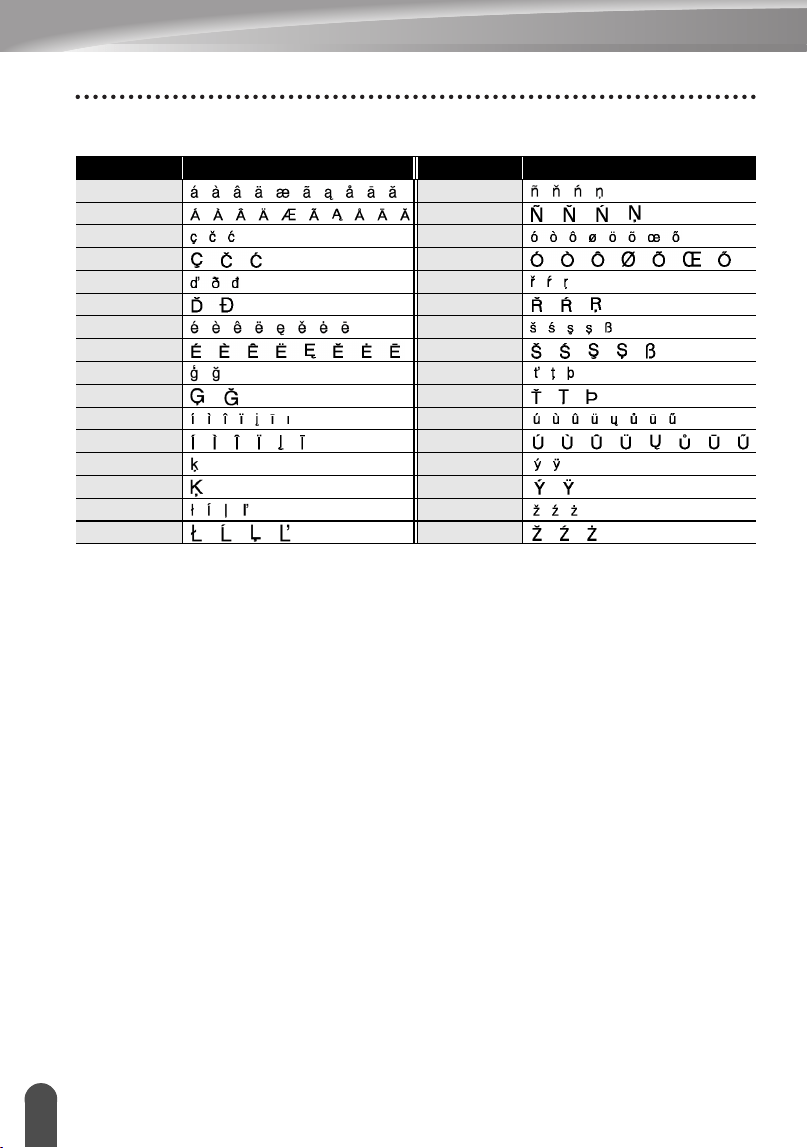
EDICIÓN DE ETIQUETAS
30
Introducción de caracteres acentuados
zLista de caracteres acentuadosz
caracter Caracteres acentuados caracter Caracteres acentuados
a n
A N
c o
C O
d r
D R
e s
E S
g t
G T
i u
I U
k y
K Y
l z
L Z
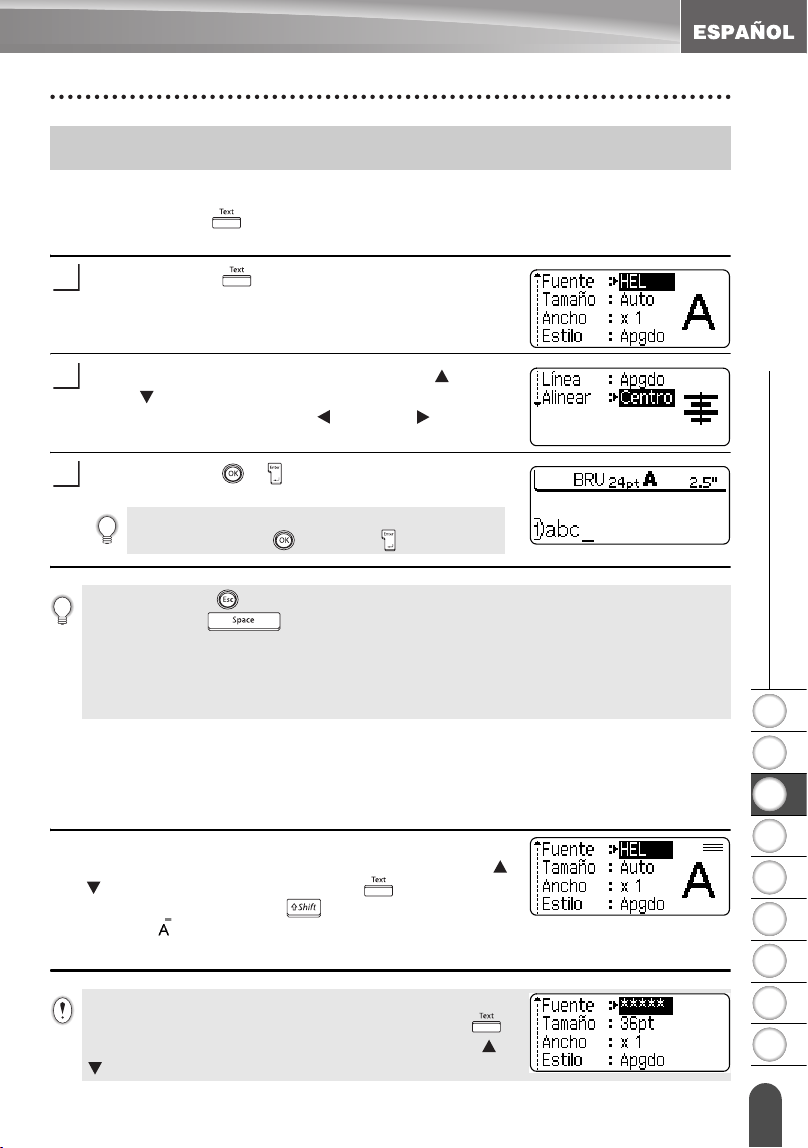
1
2
3
4
5
6
7
8
9
31
z EDICIÓN DE ETIQUETAS
Configuración de los atributos de caracteres
Ajuste de los atributos de caracteres por etiqueta
Oprimiendo la tecla , usted puede seleccionar una fuente y aplicar atributos de
tamaño, ancho, estilo, línea y alineación.
Oprima la tecla .
Los valores configurados actuales aparecen en
pantalla.
Seleccione un atributo oprimiendo la tecla o la
tecla y seguidamente ajuste un valor para ese
atributo oprimiendo la tecla o la tecla .
Oprima la tecla o para aplicar los ajustes.
Ajuste de los atributos de caracteres por cada línea
Cuando una etiqueta consiste en dos o más líneas de texto, usted puede ajustar un
valor diferente de atributos de caracteres (fuente, tamaño, ancho, estilo, línea y
alineación) para cada línea.
Desplace el cursor hasta la línea en la que desea
cambiar el atributo de caracteres oprimiendo la tecla
o y seguidamente oprima la tecla mientras
mantiene oprimida la tecla para mostrar los
atributos. ( en la pantalla indica que ahora está
aplicando el atributo sólo para esa línea específica).
Configuración de los atributos de caracteres
1
2
La nueva configuración NO SE APLICA si usted
no oprime la tecla
o la tecla
.
3
• Oprima la tecla para regresar al paso anterior.
• Oprima la tecla para que el atributo seleccionado recupere su valor por defecto.
• Consulte la tabla Opciones de configuración para obtener una lista de todos los
valores disponibles.
• Los caracteres pequeños pueden resultar difíciles de leer cuando se aplican
determinados estilos (por ejemplo, Sombreado + Cursiva).
Cuando se establezca un valor diferente de atributo para cada
línea, el valor se mostrará como **** al oprimir la tecla .
Al cambiar el ajuste en esta pantalla oprimiendo las teclas o
, se aplicará el mismo cambio a todas las líneas de la etiqueta.
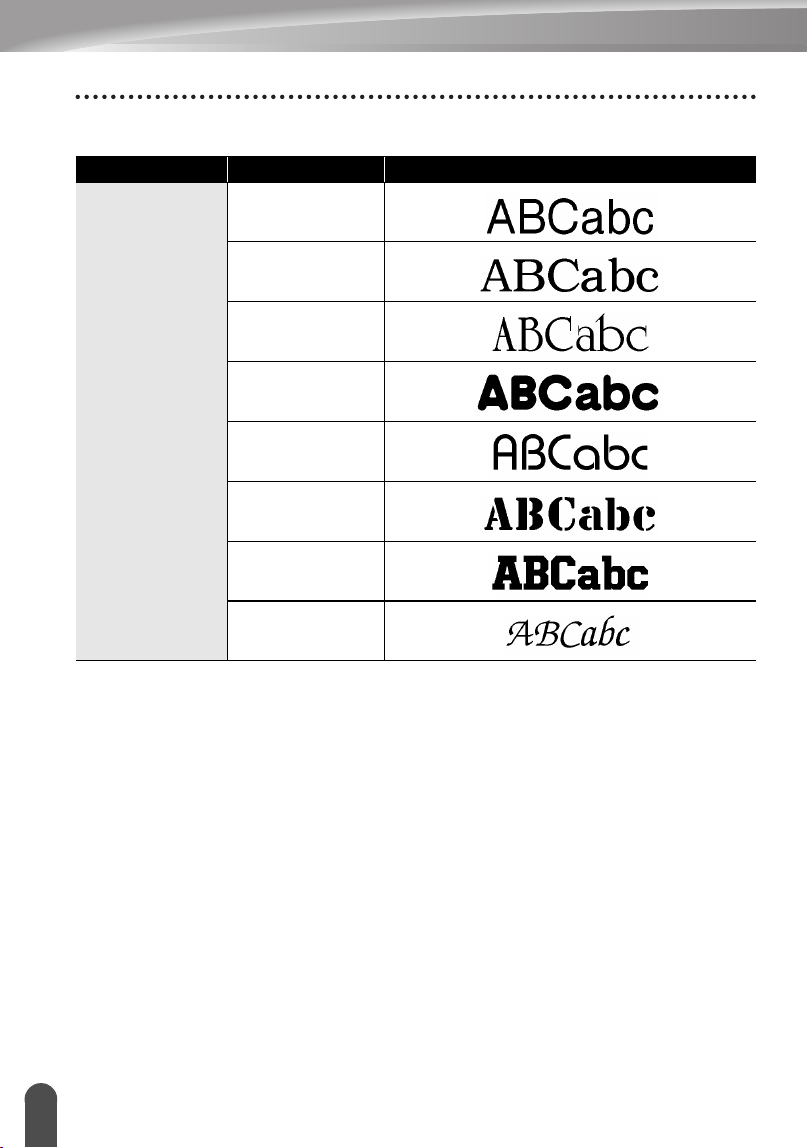
EDICIÓN DE ETIQUETAS
32
Configuración de los atributos de caracteres
zOpciones de configuraciónz
Atributo Valor Resultado
Fuente
HEL
(Helsinki)
BRU
(Bruselas)
US
(USA)
FLO
(Florida)
BEL
(Bélgica)
SGO
(San Diego)
LA
(Los Angeles)
CAL
(Calgary)
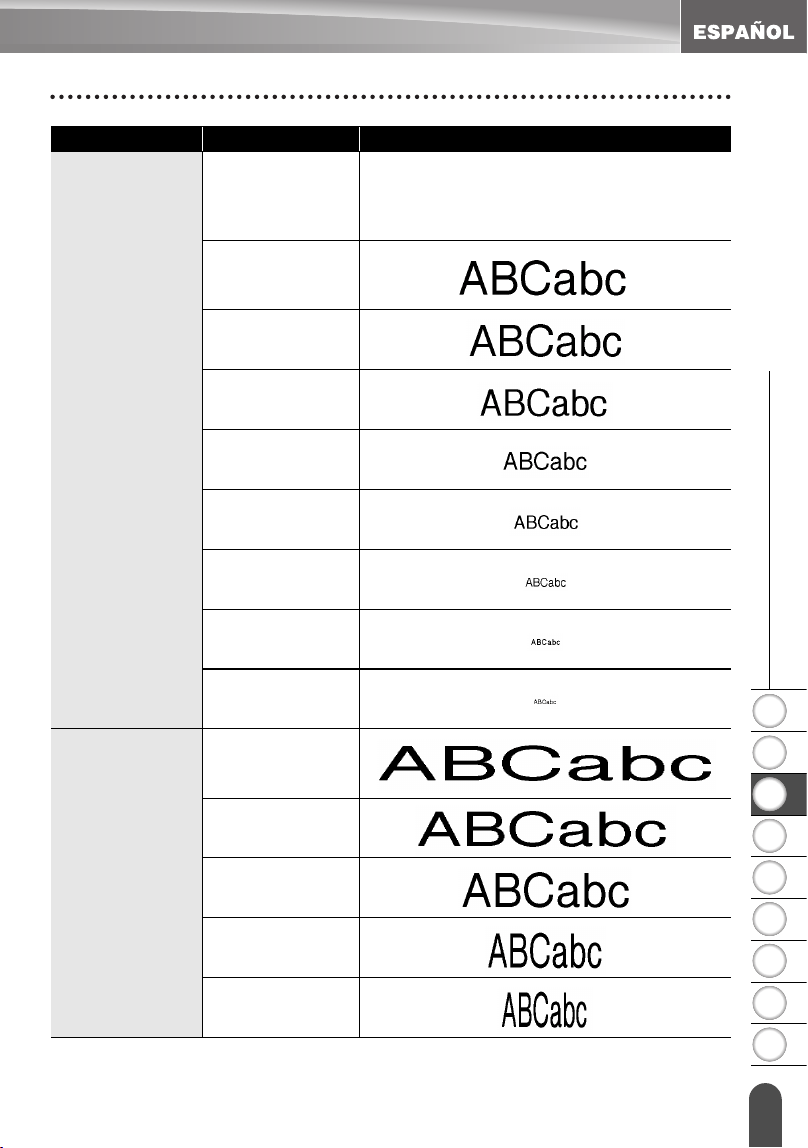
1
2
3
4
5
6
7
8
9
33
z EDICIÓN DE ETIQUETAS
Configuración de los atributos de caracteres
Tamaño
Auto
Al seleccionar Auto, el texto se ajusta
automáticamente para imprimirse con el
mayor tamaño disponible para cada ancho
de cinta.
48pt
42pt
36pt
24pt
18pt
12pt
9pt
6pt
Ancho
x2
x3/2
x1
x2/3
x1/2
Atributo Valor Resultado
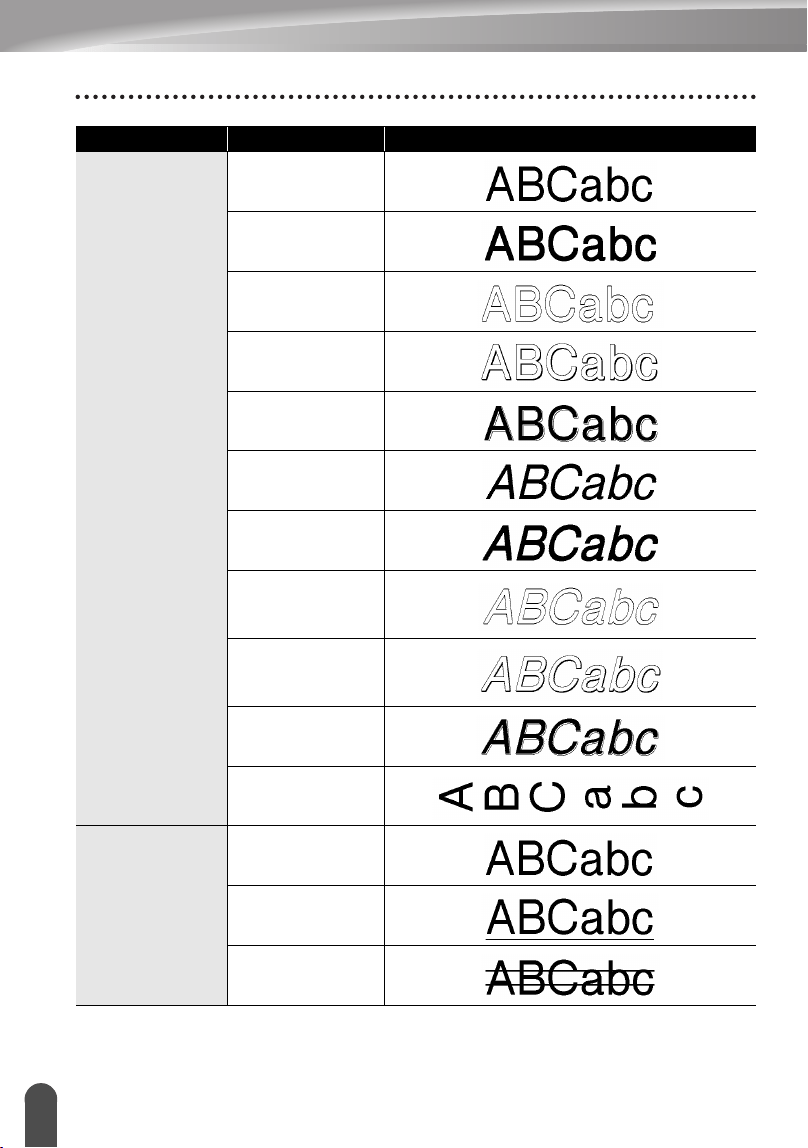
EDICIÓN DE ETIQUETAS
34
Configuración de los atributos de caracteres
Estilo
Apgdo
(desactivado)
Negrt
(Negrita)
Contr
(Perfilado)
Sombra
(Sombreado)
Sólido
Cursv
(Cursiva)
C+Neg
(Cursiva negrita)
C+Con
(Cursiva
perfilada)
C+Som
(Cursiva
sombreada)
C+Sól
(Cursiva sólida)
Vertcl
(Vertical)
Línea
Apgdo
(desactivado)
Subray
(Subrayado)
Tachd
(Tachado)
Atributo Valor Resultado
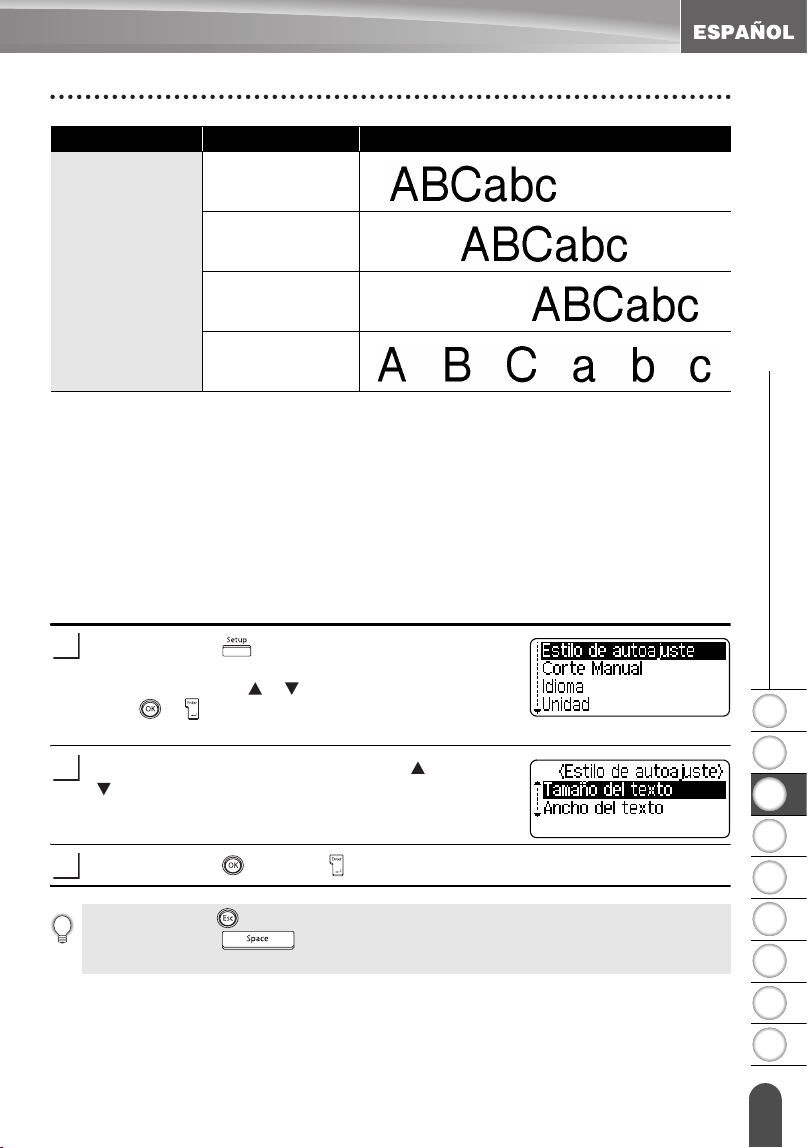
1
2
3
4
5
6
7
8
9
35
z EDICIÓN DE ETIQUETAS
Configuración de los atributos de caracteres
Ajuste del estilo de encaje automático
Si "Tamaño" se ajusta a "Auto" y "Longitud" se ajusta a una longitud específica,
usted puede seleccionar la forma de reducir el tamaño del texto para adaptarlo
a la longitud de la etiqueta.
Si se selecciona “Tamaño del texto”, el tamaño total del texto se modifica para
encajarlo dentro de la etiqueta.
Si se selecciona "Ancho del texto", el ancho del texto se reducirá al tamaño del
ajuste de x1/2. (Si se desea una mayor reducción de tamaño para que el texto
pueda caber en la longitud de etiqueta seleccionada, el tamaño total del texto se
modificará después de reducir el ancho del texto al ajuste de x1/2.)
Oprima la tecla para mostrar el menú de
Configuración, seleccione "Estilo de autoajuste"
oprimiendo la tecla o , y seguidamente oprima la
tecla o .
Aparece la pantalla Estilo de autoajuste.
Seleccione el estilo oprimiendo la tecla o la tecla
.
Oprima la tecla o la tecla para aplicar el ajuste.
Alinear
(Alineación)
Izqda.
Centro
Derch
Just
(Justificar)
Atributo Valor Resultado
1
2
3
• Oprima la tecla para regresar al paso anterior.
• Oprima la tecla para ajustar el estilo al valor por defecto ("Tamaño del
texto").
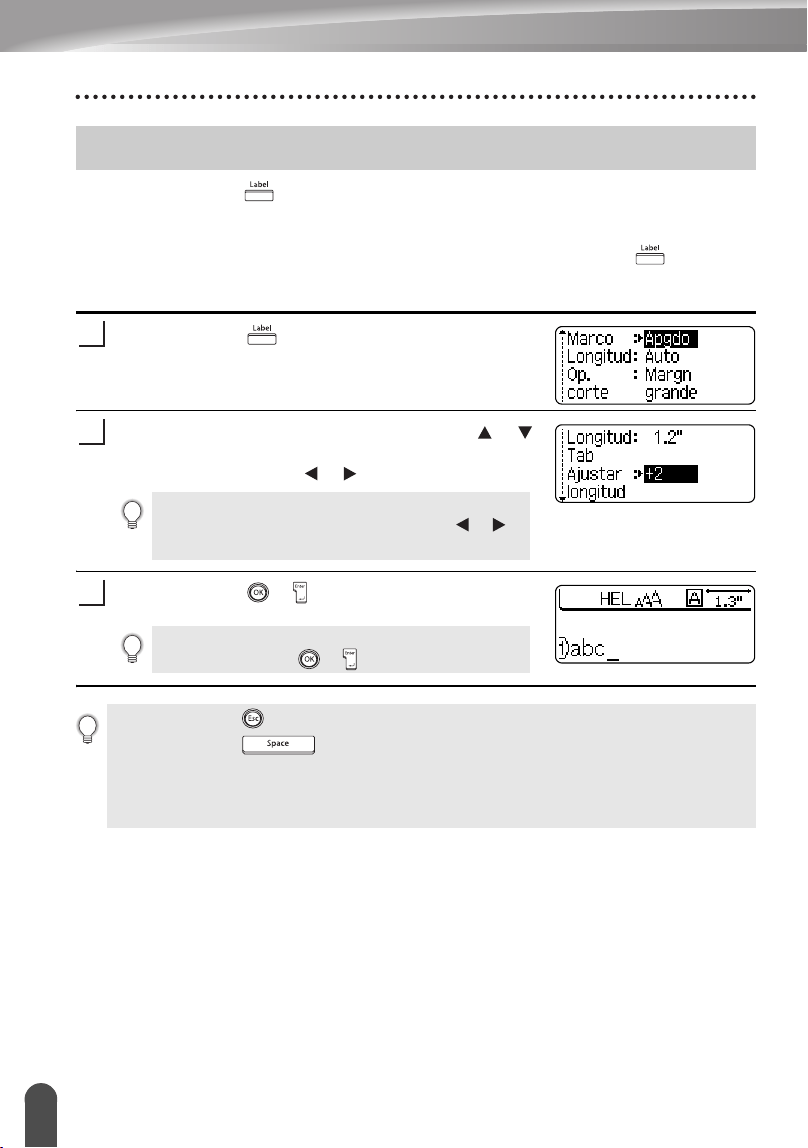
EDICIÓN DE ETIQUETAS
36
Configuración de los atributos de etiqueta
Oprimiendo la tecla , usted puede crear una etiqueta con un marco alrededor
del texto y especificar la longitud y tabulación de la etiqueta. (Las opciones de
corte y la configuración de ajuste de longitud que pueden ser necesarias al
imprimir una etiqueta también se pueden ajustar oprimiendo la tecla . Consulte
la sección “Opciones de corte de cinta” y “Ajuste de la longitud de la etiqueta” ,
Configuración de ajuste de longitud, en página 62 y 64.)
Oprima la tecla .
Los valores configurados actuales aparecen en
pantalla.
Seleccione un atributo oprimiendo la tecla o
y seguidamente ajuste un valor para ese atributo
oprimiendo las teclas o .
Oprima la tecla o para aplicar los ajustes.
Configuración de los atributos de etiqueta
1
Al establecer la longitud de la etiqueta o de la
tabulación, mantenga oprimida la tecla o
para cambiar el valor más rápidamente.
2
La nueva configuración NO SE APLICA si usted
no oprime la tecla o .
3
• Oprima la tecla para regresar al paso anterior.
• Oprima la tecla para que el atributo seleccionado recupere su valor por
defecto.
• Consulte la tabla Opciones de configuración para obtener una lista de todos los
valores disponibles.
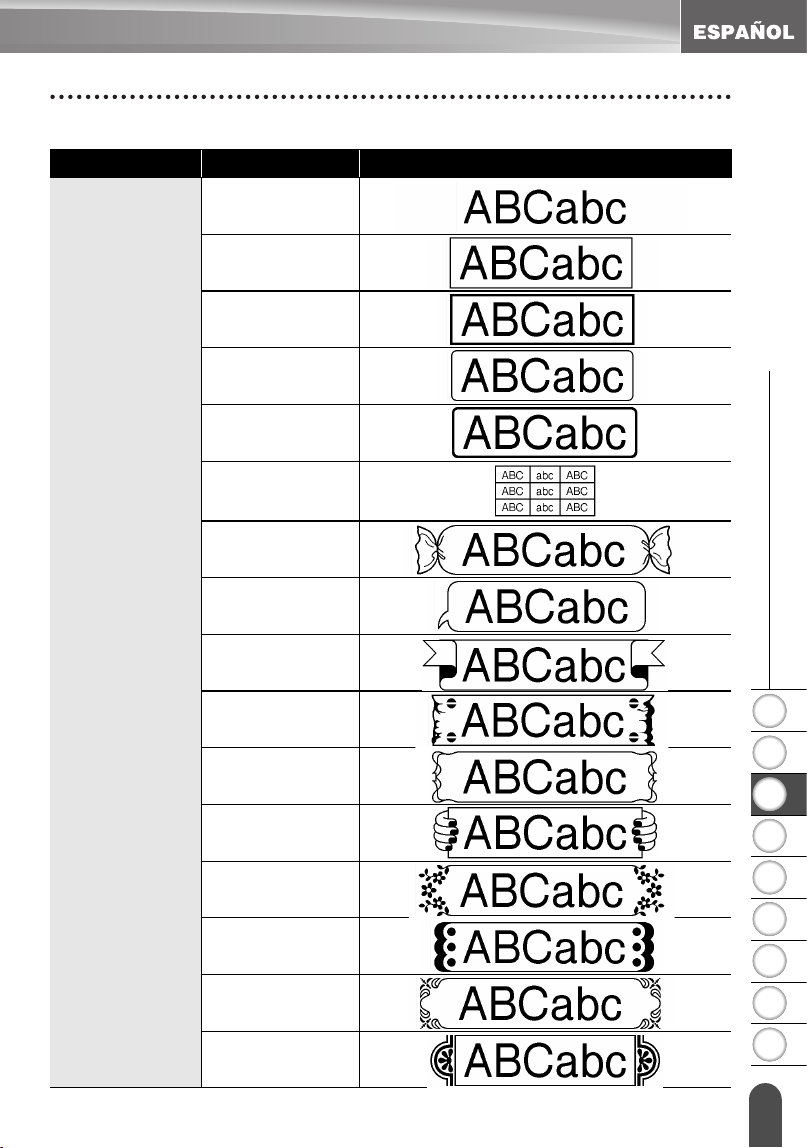
1
2
3
4
5
6
7
8
9
37
z EDICIÓN DE ETIQUETAS
Configuración de los atributos de etiqueta
zOpciones de configuraciónz
Atributo Valor Resultado
Marco
Apgdo
1
2
3
4
5
6
7
8
9
10
11
12
13
14
15
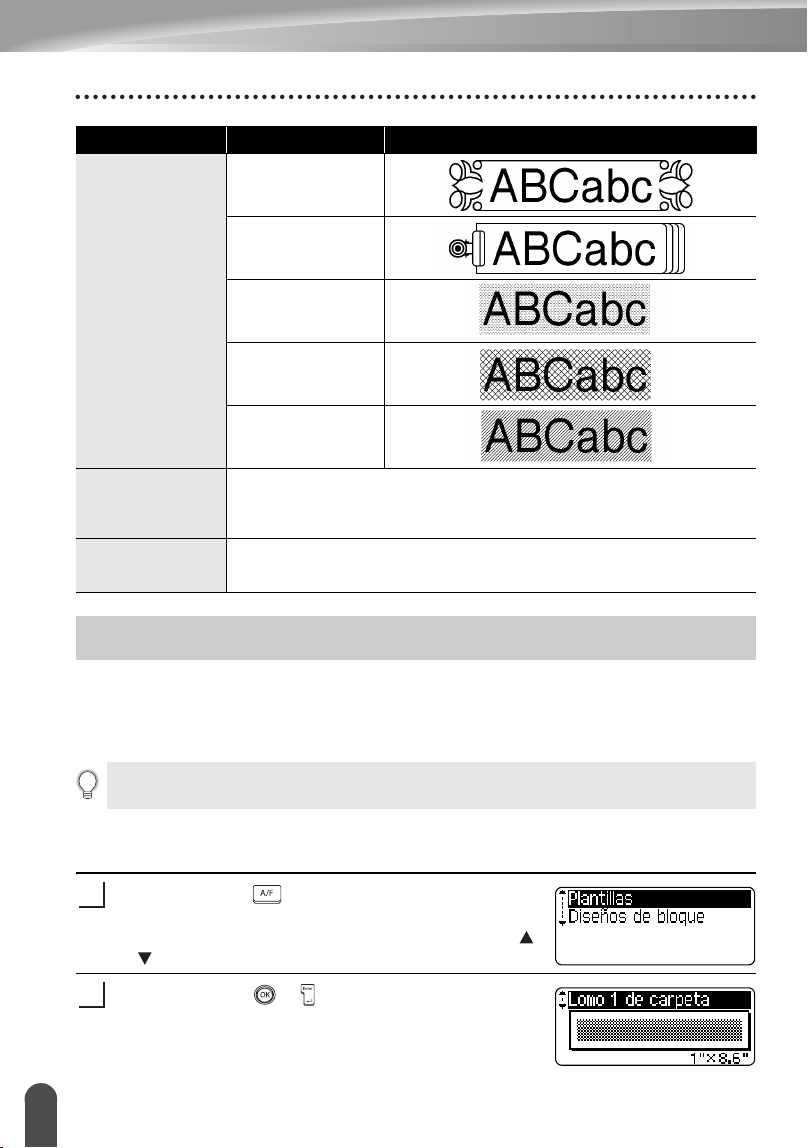
EDICIÓN DE ETIQUETAS
38
Utilización de diseños de formato automático
La función de Formato automático le permite crear rápida y fácilmente etiquetas
para diversos fines, por ejemplo, pestañas de archivos, etiquetas de equipos, placas
de identificación, etc. Sólo tiene que seleccionar un diseño entre las plantillas o entre
los diseños de bloque disponibles, introducir el texto y aplicar el formato deseado.
Utilización de plantillas; ejemplo de creación de una Etiqueta de
activos
Oprima la tecla para que aparezca la pantalla
Auto-Format (Formato automático) y, a
continuación, seleccione “Plantillas” con la tecla
o .
Oprima la tecla o .
Aparecerá la última plantilla utilizada.
Marco
16
17
18
19
20
Longitud
La longitud de la etiqueta se puede ajustar entre 1.2" (30mm) y
12.0" (300mm). Al seleccionar
Auto
, la longitud de la etiqueta
se ajusta automáticamente dependiendo del texto introducido.
Longitud Tab
La longitud de la tabulación se puede ajustar entre 0.0" (0mm)
y 4.0" (100mm). El ajuste predeterminado es 2.0" (50 mm).
Atributo Valor Resultado
Utilización de diseños de formato automático
También puede utilizar símbolos y caracteres acentuados en los diseños de formato
automático.
1
2
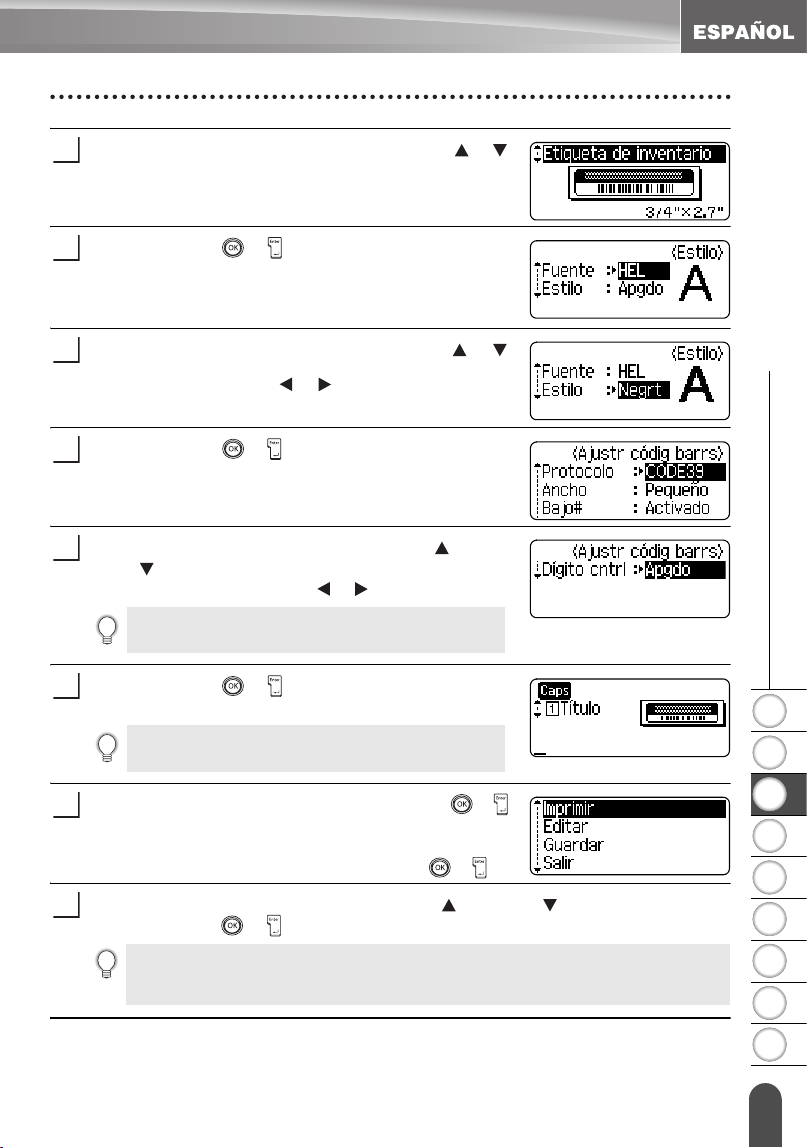
1
2
3
4
5
6
7
8
9
39
z EDICIÓN DE ETIQUETAS
Utilización de diseños de formato automático
Seleccione una plantilla oprimiendo la tecla o .
Oprima la tecla o .
Aparece la pantalla "Estilo".
Seleccione un atributo oprimiendo la tecla o
y seguidamente ajuste un valor para ese atributo
oprimiendo las teclas o .
Oprima la tecla
o
.
Aparece la pantalla “Ajustr códig barrs”.
Seleccione un atributo oprimiendo la tecla o la
tecla y seguidamente ajuste un valor para ese
atributo oprimiendo la tecla o .
Oprima la tecla o
.
Aparece la pantalla de introducción de texto en la plantilla.
Introduzca el texto y seguidamente oprima la tecla
o
.
Repita este proceso para cada campo de texto.
Después de haber introducido texto en todos los campos,
aparece el menú Imprimir si se oprime la tecla o .
Seleccione "Imprimir" oprimiendo
la tecla o la tecla
y seguidamente
oprima
la tecla o
para imprimir la etiqueta.
3
4
5
6
El atributo "Dígito cntrl" sólo está disponible para
los protocolos CODE39, I-2/5 y CODABAR.
7
Puede utilizar el modo "Caps" (Bloqueo de
mayúsculas) para introducir texto.
8
9
10
• Seleccione "Editar" para cambiar los datos de texto o la configuración de estilo.
• Seleccione "Guardar" para guardar la etiqueta en la memoria de archivos.
• Seleccione "Salir" para salir de la función de formato automático.
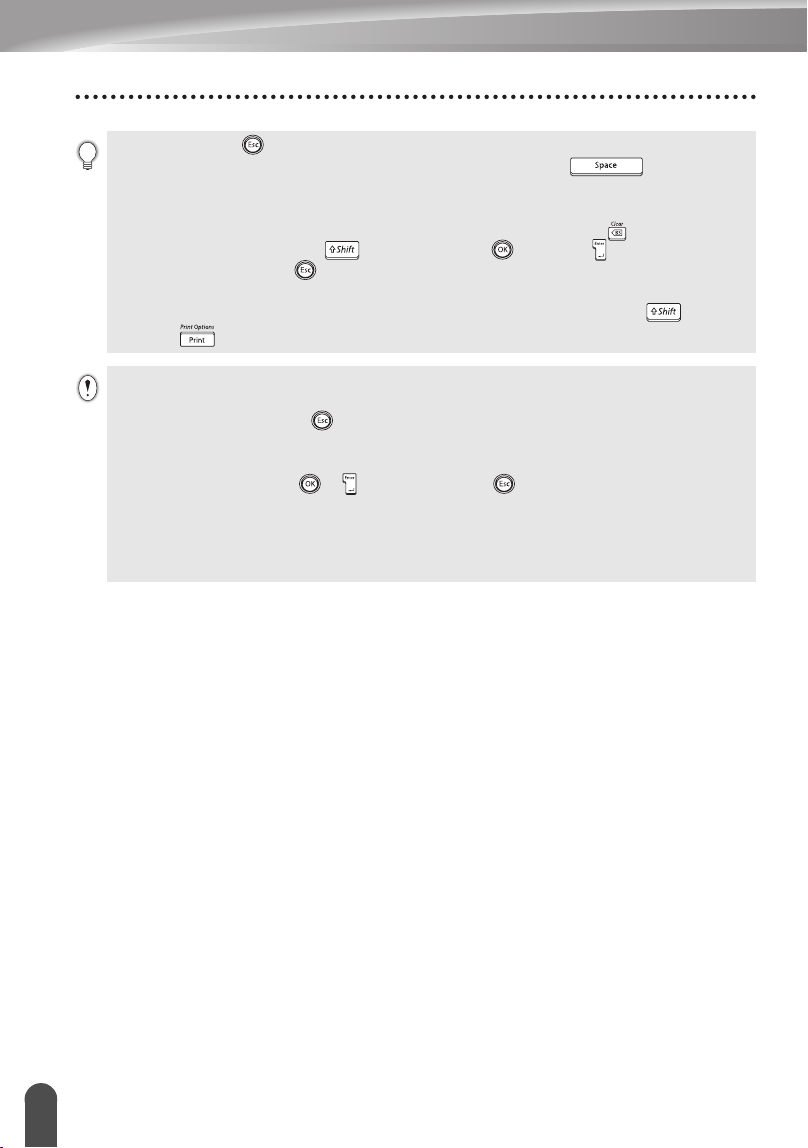
EDICIÓN DE ETIQUETAS
40
Utilización de diseños de formato automático
• Oprima la tecla para regresar al paso anterior.
• En las pantallas Estilo y Ajustr códig barrs, oprima la tecla para que el
atributo seleccionado recupere su valor por defecto.
• Consulte la tabla Plantillas para obtener una lista con todas las plantillas disponibles.
• Aparecerá el mensaje "¿Borrar todo el texto?" si oprime la tecla mientras
mantiene oprimida la tecla . Oprima la tecla o la tecla para borrar todo el
texto u oprima la tecla para no borrar el archivo.
• Para imprimir múltiples copias, numeradas secuencialmente, o una imagen espejo de
la etiqueta, acceda al menú de impresión, mantenga oprimida la tecla y oprima
la tecla para que aparezca el menú "Print Options" (Opciones de impresión).
• Si el ancho del cartucho de cinta actual no coincide con el ancho establecido para el
diseño seleccionado, aparecerá un mensaje de error cuando intente imprimir la
etiqueta. Oprima la tecla , o cualquier otra, para borrar el mensaje de error e
introduzca un cartucho de cinta que tenga el ancho correcto.
• Si el número de caracteres introducido supera el límite, aparecerá un mensaje de error
cuando oprima la tecla
o
. Oprima la tecla , o cualquier otra, para borrar el
mensaje de error y editar el texto para que tenga menos caracteres.
• Cuando se utiliza la función de formato automático, la etiqueta se corta con un
margen en los extremos izquierdo y derecho, independientemente de la configuración
de la opción de corte de la cinta (consulte la página 62).
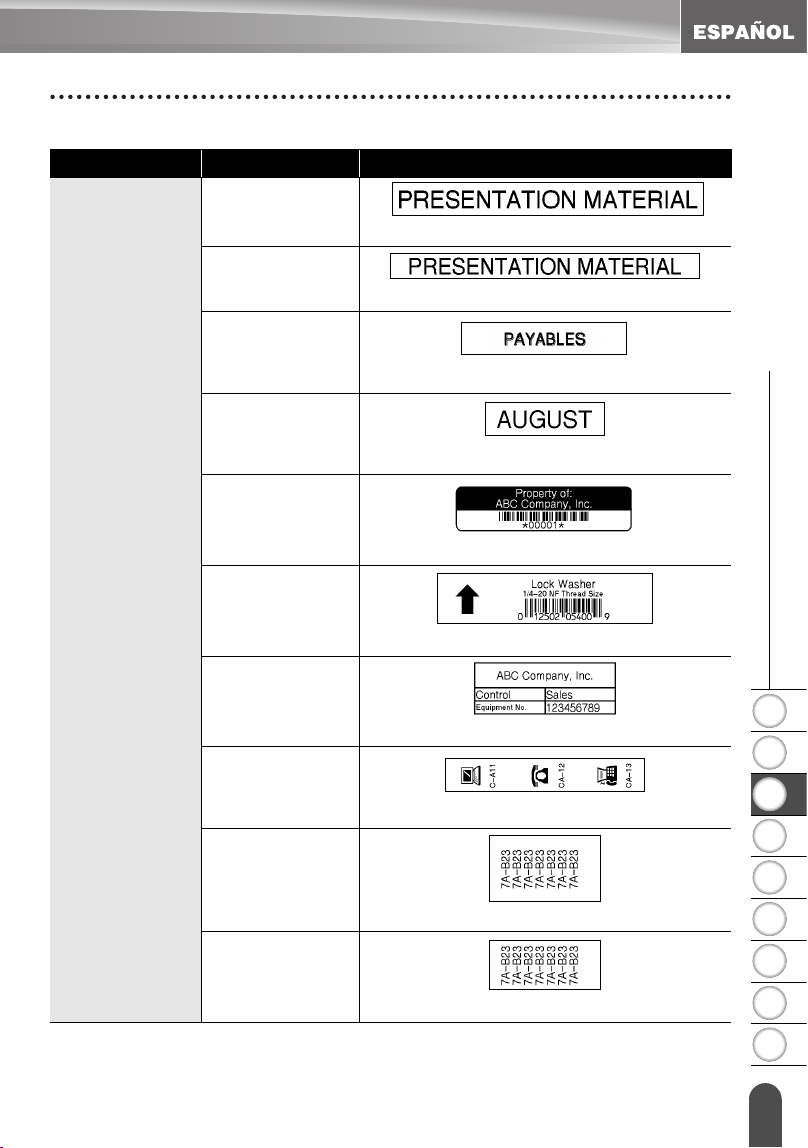
1
2
3
4
5
6
7
8
9
41
z EDICIÓN DE ETIQUETAS
Utilización de diseños de formato automático
zPlantillasz
Atributo Valor Detalles
Nombre de la
plantilla
Lomo 1 de
carpeta
(1" x 8.6" [24 mm x 219 mm])
Lomo 2 de
carpeta
(3/4" x 8.6" [18mm x 219mm])
Pestaña de
archivador
(1/2" x 3.2" [12 mm x 82 mm])
Pestaña de
divisor
(1/2" x 1.6" [12 mm x 42 mm])
Etiqueta de
inventario
(3/4" x 2.7" [18 mm x 70 mm])
Bandejas
(3/4" x 3.0" [18 mm x 76 mm])
Etiqueta de
equipo
(1" x 2.2" [24 mm x 58 mm])
Placa (VRT)
(1/2" x 2.7" [12 mm x 70 mm])
Envoltura de
cable 1
(1" x 1.5" [24 mm x 39 mm])
Envoltura de
cable 2
(3/4" x 1.5" [18 mm x 39 mm])
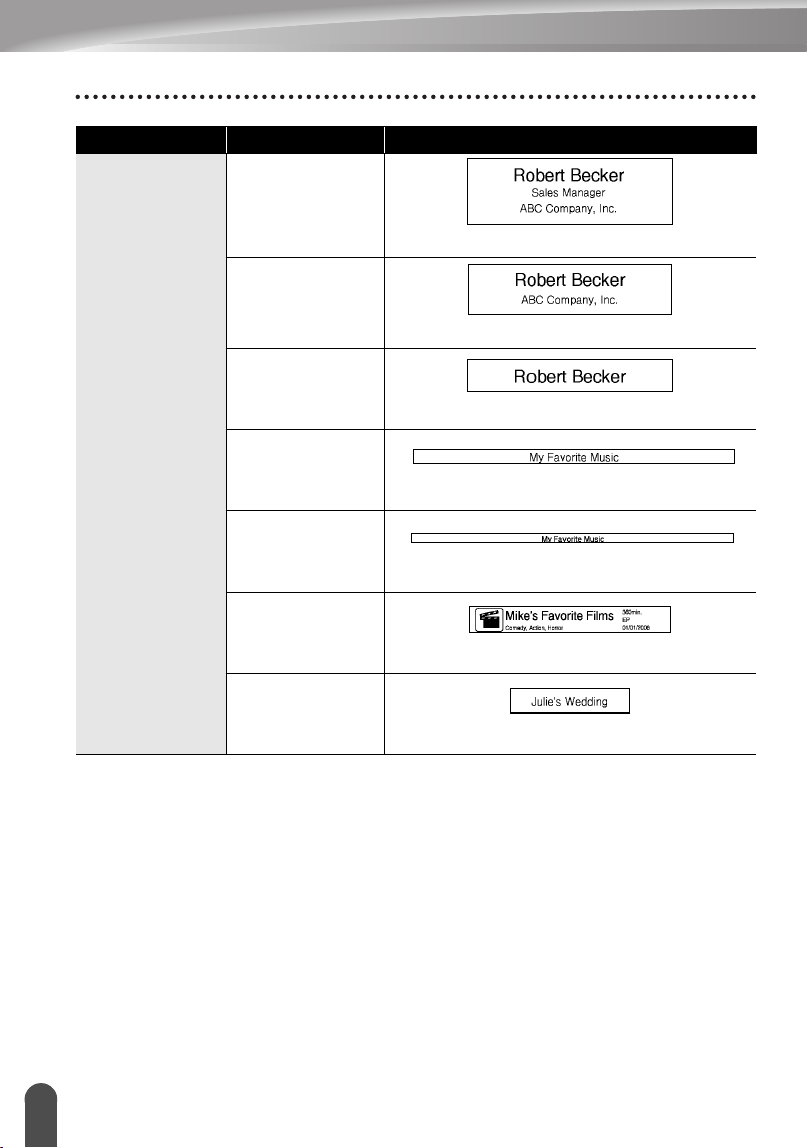
EDICIÓN DE ETIQUETAS
42
Utilización de diseños de formato automático
Nombre de la
plantilla
Etiqueta 1 de
nombre
(3/4" x 2.2" [18 mm x 58 mm])
Etiqueta 2 de
nombre
(1/2" x 2.7" [12 mm x 70 mm])
Etiqueta 3 de
nombre
(1/2" x 2.6" [12 mm x 66 mm])
Dorso caja CD 1
(1/4" x 4.4" [6 mm x 113 mm])
Dorso caja CD 2
(9/64" x 4.4" [3.5 mm x 113 mm])
Dorso de VHS
(3/4" x 5.5" [18 mm x 140 mm])
Dorso MiniDV
(3/8" x 1.7" [9 mm x 42 mm])
Atributo Valor Detalles
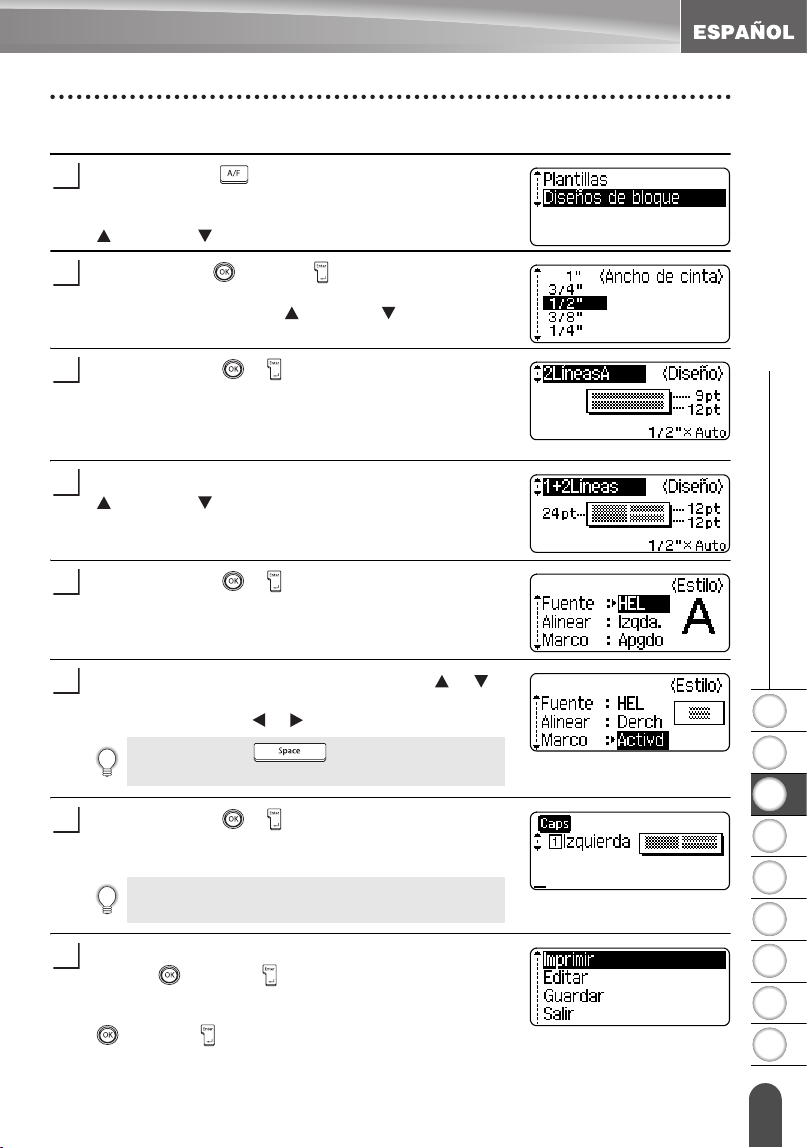
1
2
3
4
5
6
7
8
9
43
z EDICIÓN DE ETIQUETAS
Utilización de diseños de formato automático
Utilización de diseños de bloque
Oprima la tecla
para que aparezca la pantalla de
Auto-Format (Formato automático) y seguidamente
seleccione “Diseños de bloque” oprimiendo la tecla
o la tecla .
Oprima la tecla
o la tecla
para mostrar la pantalla
Ancho de cinta y seguidamente seleccione un ancho de
cinta oprimiendo la tecla o la tecla .
Oprima la tecla
o
.
Si el ancho de cinta no se modifica, aparecerá el
último diseño de bloque seleccionado. Si se modifica
el ancho de cinta, aparecerá el diseño por defecto
para el nuevo ancho de cinta.
Seleccione un diseño de bloque oprimiendo la tecla
o la tecla .
Oprima la tecla
o
.
Aparece la pantalla "Estilo".
Seleccione un atributo oprimiendo la tecla o y
seguidamente ajuste un valor para ese atributo
oprimiendo la tecla o .
Oprima la tecla
o
.
Aparece la pantalla de introducción de texto para el
diseño de bloque.
Introduzca el texto deseado y, a continuación, oprima
la tecla
o la tecla
.
Repita este proceso para cada campo de texto.
El menú "Imprimir" aparece cuando se oprime la tecla
o la tecla
después de haber introducido texto
en todos los campos de texto.
1
2
3
4
5
Oprima la tecla para que el atributo
seleccionado recupere su valor por defecto.
6
Puede utilizar el modo "Caps" (Bloqueo de
mayúsculas) para introducir texto.
7
8
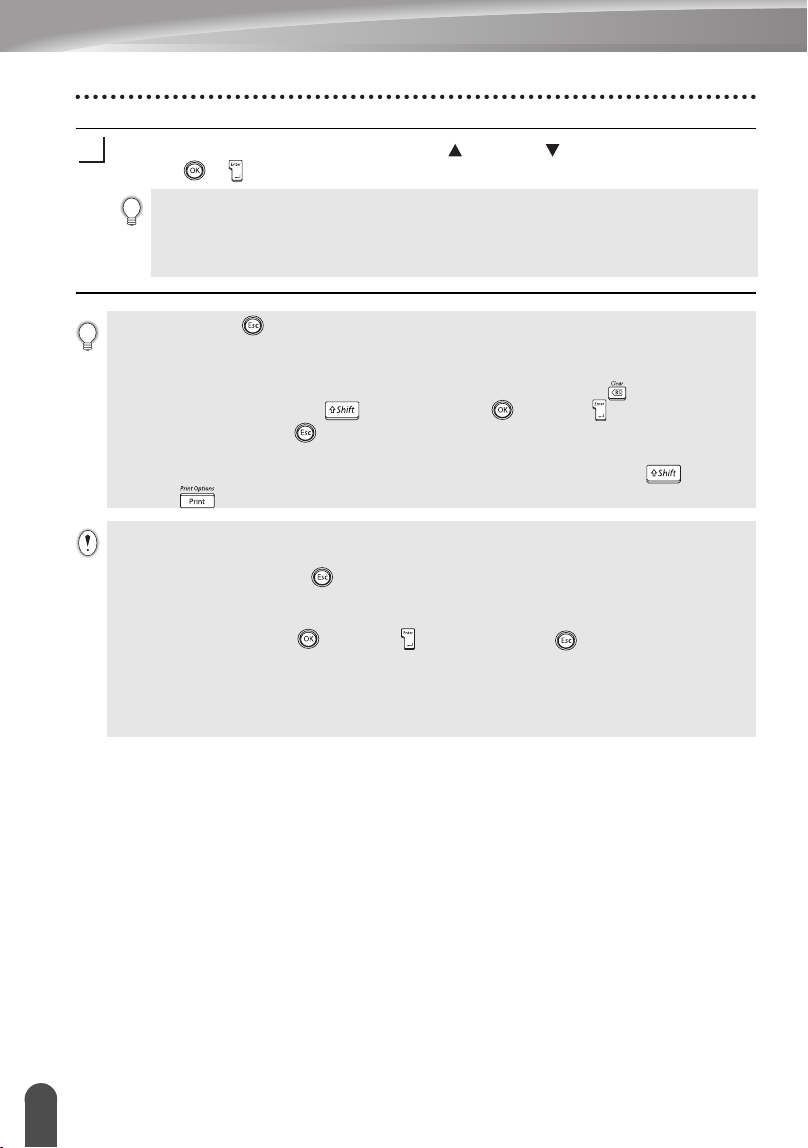
EDICIÓN DE ETIQUETAS
44
Utilización de diseños de formato automático
Seleccione "Imprimir" oprimiendo la tecla o la tecla y seguidamente oprima
la tecla
o
para imprimir la etiqueta.
9
• Seleccione "Editar" para cambiar los datos de texto o la configuración de estilo.
• Seleccione "Guardar" para guardar la etiqueta en la memoria de archivos.
• Seleccione "Salir" para salir de la función de formato automático.
• Seleccione "Cambiar diseño" para utilizar un diseño distinto.
• Oprima la tecla para regresar al paso anterior.
• Consulte la tabla Diseños de bloques para obtener una lista con todos los diseños de
bloques disponibles.
• Aparecerá el mensaje "¿Borrar todo el texto?" si oprime la tecla mientras
mantiene oprimida la tecla . Oprima la tecla o la tecla para borrar todo el
texto u oprima la tecla para no borrar el texto.
• Para imprimir múltiples copias, numeradas secuencialmente, o una imagen espejo de
la etiqueta, acceda al menú de impresión, mantenga oprimida la tecla y oprima
la tecla para que aparezca el menú "Print Options" (Opciones de impresión).
• Si el ancho del cartucho de cinta actual no coincide con el ancho establecido para el
diseño seleccionado, aparecerá un mensaje de error cuando intente imprimir la
etiqueta. Oprima la tecla , o cualquier otra, para borrar el mensaje de error e
introduzca un cartucho de cinta que tenga el ancho correcto.
• Si el número de caracteres introducido supera el límite, aparecerá un mensaje de error
cuando oprima la tecla o la tecla . Oprima la tecla , o cualquier otra, para
borrar el mensaje de error y editar el texto para que tenga menos caracteres.
• Cuando se utiliza la función de formato automático, la etiqueta se corta con un
margen en los extremos izquierdo y derecho, independientemente de la configuración
de la opción de corte de la cinta (consulte la página 62).
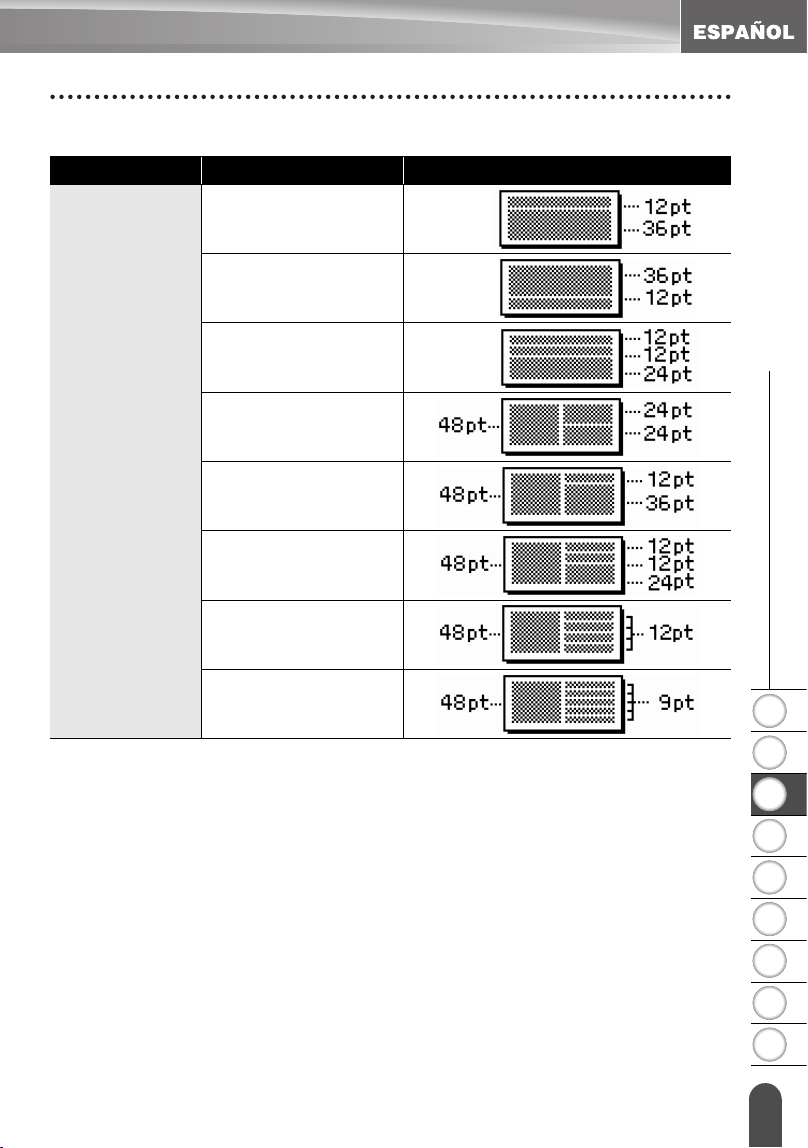
1
2
3
4
5
6
7
8
9
45
z EDICIÓN DE ETIQUETAS
Utilización de diseños de formato automático
zDiseños de bloquesz
Atributo Valor Detalles
Diseño de
bloques
(cinta de 1"
[24mm])
2LíneasA
2LíneasB
3Líneas
1+2LineasA
1+2LíneasB
1+3Líneas
1+4Líneas
1+5Líneas
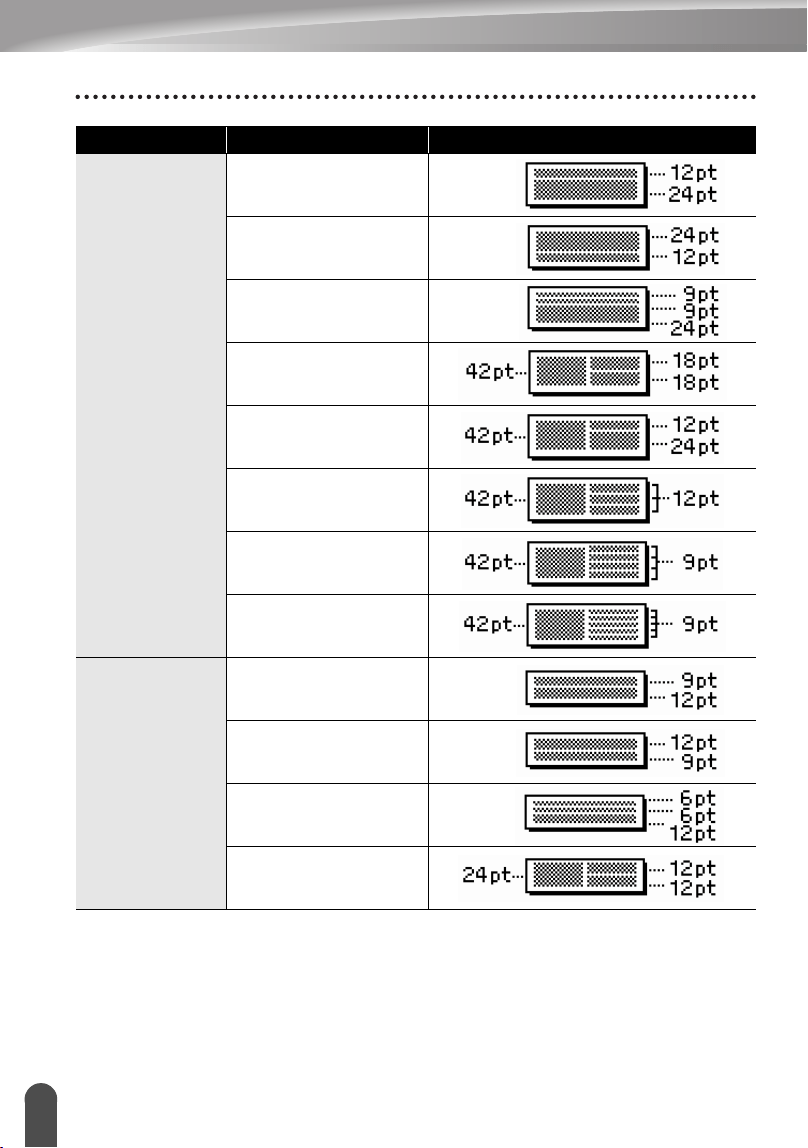
EDICIÓN DE ETIQUETAS
46
Utilización de diseños de formato automático
Diseño de
bloques
(cinta de 3/4"
[18 mm])
2LíneasA
2LíneasB
3Líneas
1+2LineasA
1+2LíneasB
1+3Líneas
1+4Líneas
1+5Líneas
Diseño de
bloques
(cinta de 1/2"
[12 mm])
2LíneasA
2LíneasB
3Líneas
1+2Lineas
Atributo Valor Detalles
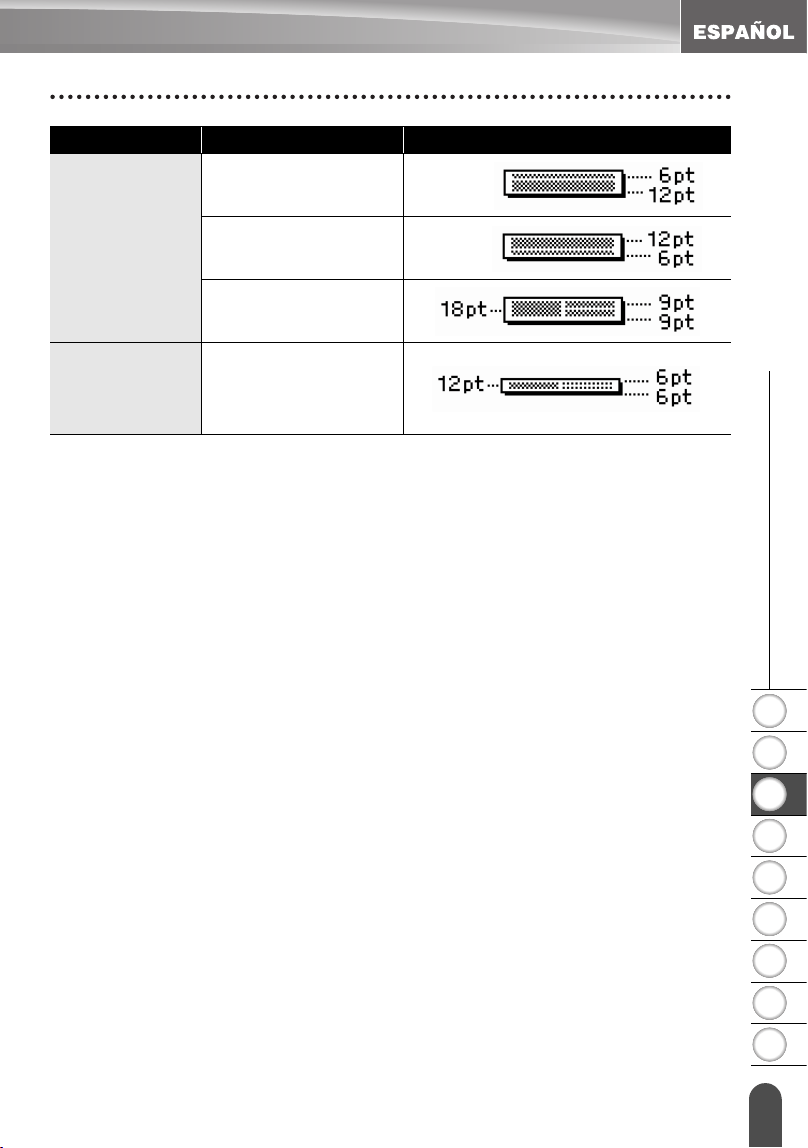
1
2
3
4
5
6
7
8
9
47
z EDICIÓN DE ETIQUETAS
Utilización de diseños de formato automático
Diseño de
bloques
(cinta de 3/8"
[9 mm])
2LíneasA
2LíneasB
1+2Lineas
Diseño de
bloques
(cinta de 1/4"
[6 mm])
1+2Lineas
Atributo Valor Detalles
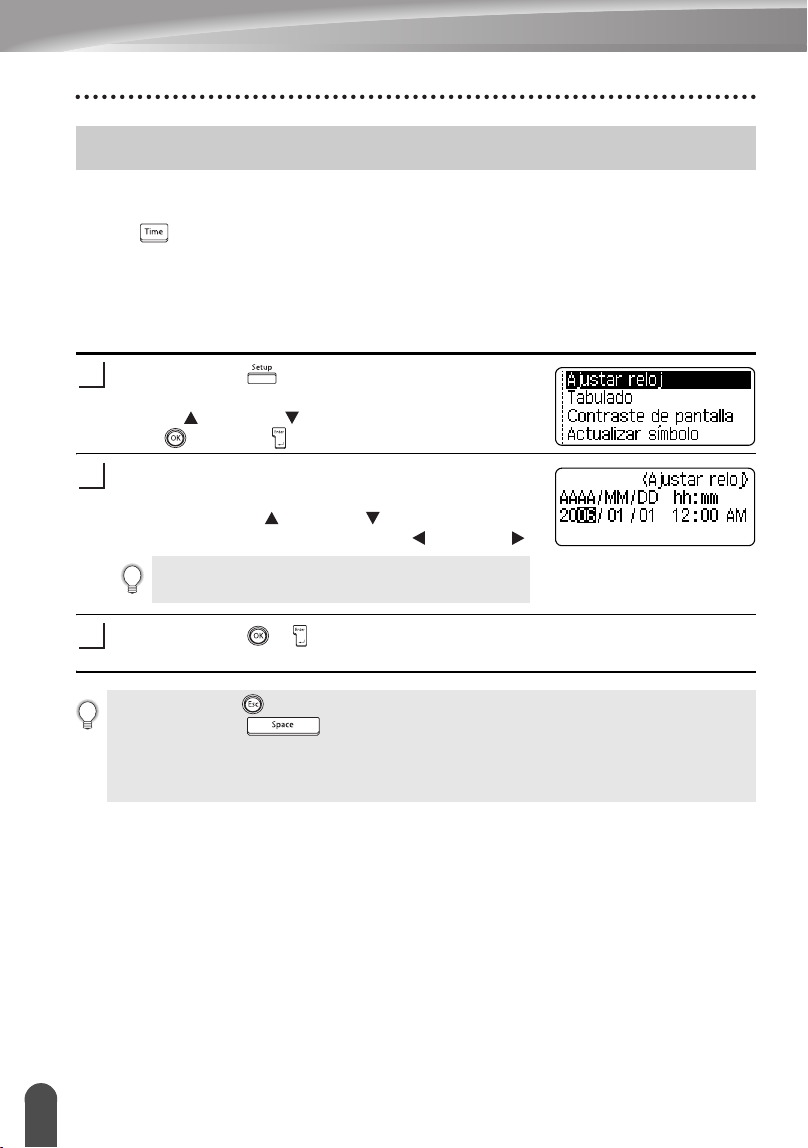
EDICIÓN DE ETIQUETAS
48
Utilización de la función de hora y fecha
Usted puede añadir la hora y la fecha a su etiqueta colocando el cursor en la pantalla
de texto en la posición donde desea efectuar esta adición y oprimiendo seguidamente
la tecla .
Ajuste del reloj
La fecha y la hora ajustadas en la configuración de reloj pueden utilizarse para la
presentación en pantalla y también para la función de hora y fecha que usted puede
añadir a su etiqueta en el formato deseado.
Oprima la tecla para mostrar el menú
Configuración, seleccione "Ajustar reloj" oprimiendo
la tecla o la tecla , y oprima seguidamente la
tecla o la tecla .
Aparece la pantalla de Ajuste del reloj.
Ajuste el año, el mes, la fecha, la hora y los minutos
utilizando la tecla o la tecla . Para pasar al
siguiente parámetro, oprima la tecla o la tecla .
Oprima la tecla o para aplicar los ajustes.
Utilización de la función de hora y fecha
1
Usted también puede usar las teclas Num (Bloque de
números) para escribir los números.
2
3
• Oprima la tecla para regresar al paso anterior.
• Oprima la tecla para ajustar el formato al valor por defecto.
• El reloj se activará a partir del momento en que se aplique el ajuste del reloj.
• Para proteger los ajustes del reloj al desconectar el adaptador de CA, por favor utilice
baterías alcalinas AA.
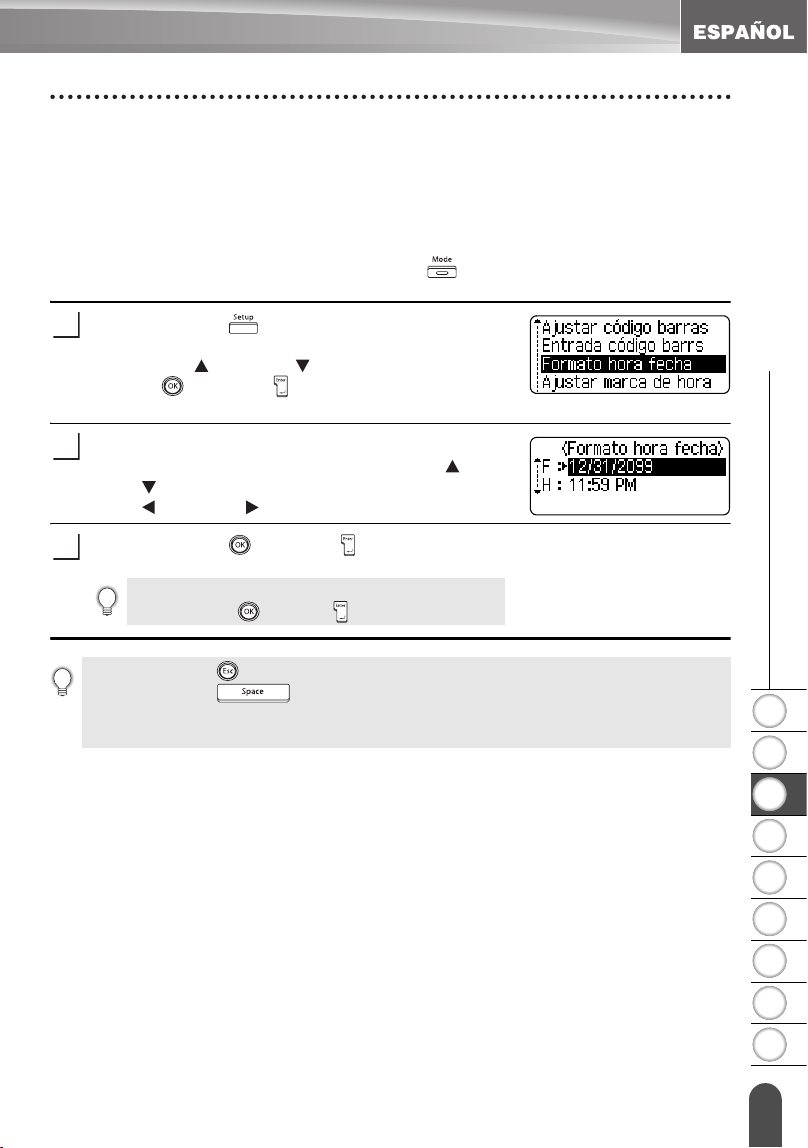
1
2
3
4
5
6
7
8
9
49
z EDICIÓN DE ETIQUETAS
Utilización de la función de hora y fecha
Ajuste del formato de hora y fecha
Usted puede seleccionar entre varios formatos de hora y fecha para añadirlos a su
etiqueta.
De igual modo, se puede escoger entre el estilo digital y el estilo analógico para la
presentación de la hora.
El formato aplicado en este ajuste también se aplicará a la presentación del reloj
que aparece en la pantalla al oprimir la tecla . (Consulte la sección “Modo de
pantalla” en la página 22 donde encontrará los detalles.)
Oprima la tecla para mostrar el menú
Configuración, seleccione "Formato hora fecha"
con la tecla o la tecla y seguidamente oprima
la tecla o la tecla .
Aparece la pantalla de Formato hora fecha.
Seleccione la fecha o la hora con la tecla o la
tecla y seguidamente ajuste el formato con la
tecla o la tecla .
Oprima la tecla o la tecla para aplicar los ajustes.
1
2
No se aplican los nuevos ajustes si usted no
oprime la tecla o la tecla .
3
• Oprima la tecla para regresar al paso anterior.
• Oprima la tecla para ajustar el formato al valor por defecto.
• Consulte la sección Opciones de formato donde encontrará una lista de todos los
formatos disponibles.
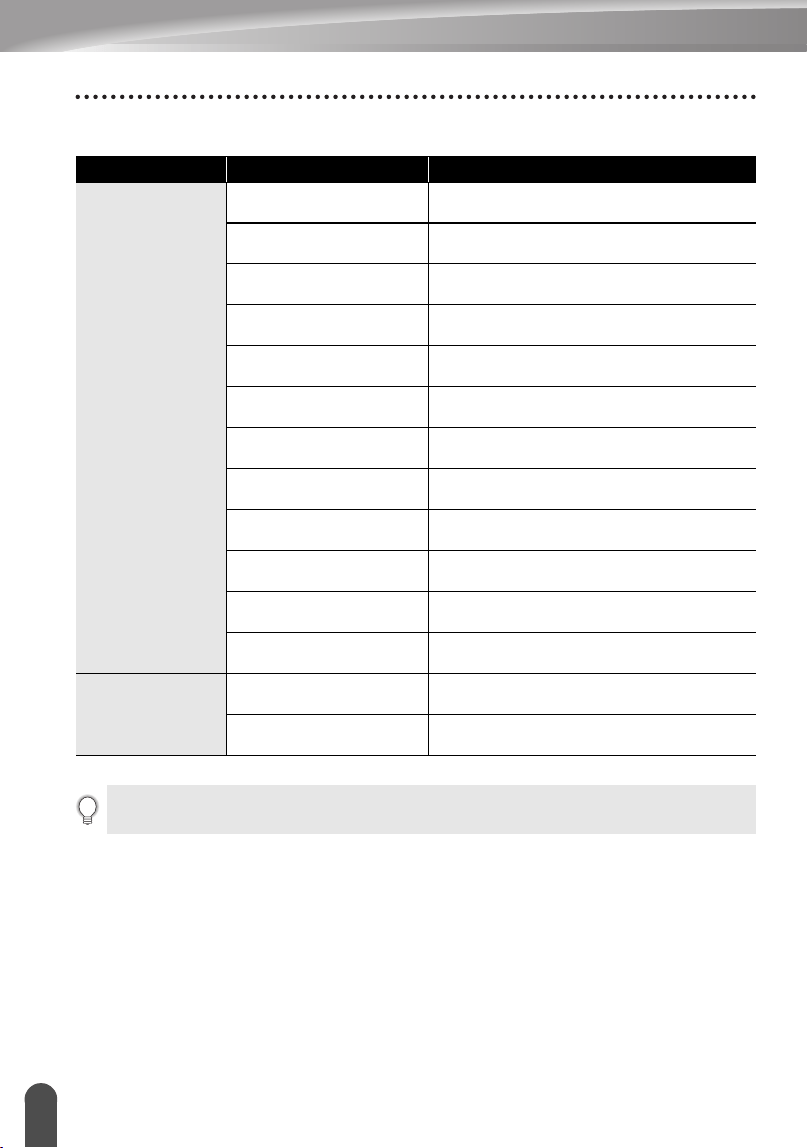
EDICIÓN DE ETIQUETAS
50
Utilización de la función de hora y fecha
zOpciones de formato de hora y fechaz
Atributo Valor Descripción
F
(Fecha)
12/31/2099
Mes / Día / Año
12 . 31 . 2099
Mes . Día . Año
12 - 31 - 2099
Mes - Día - Año
diciembre 31, 2099
Mes Día, Año
dic. 31, 2099
Mes. Día, Año
2099/12/31
Año / Mes / Día
2099 - 12 - 31
Año - Mes - Día
31/12/2099
Día / Mes / Año
31. 12. 2099
Día. Mes. Año
31 - 12 - 2099
Día - Mes - Año
31. diciembre 2099
Día. Mes Año
31. dic. 2099
Día. Mes. Año
H
(Hora)
11:59 PM
analógica
23:59
digital
La fecha y la hora que se usan como valores son ajustes de muestra. Al seleccionar un formato,
la fecha y la hora ajustadas en el reloj aparecerán en el estilo del formato seleccionado.
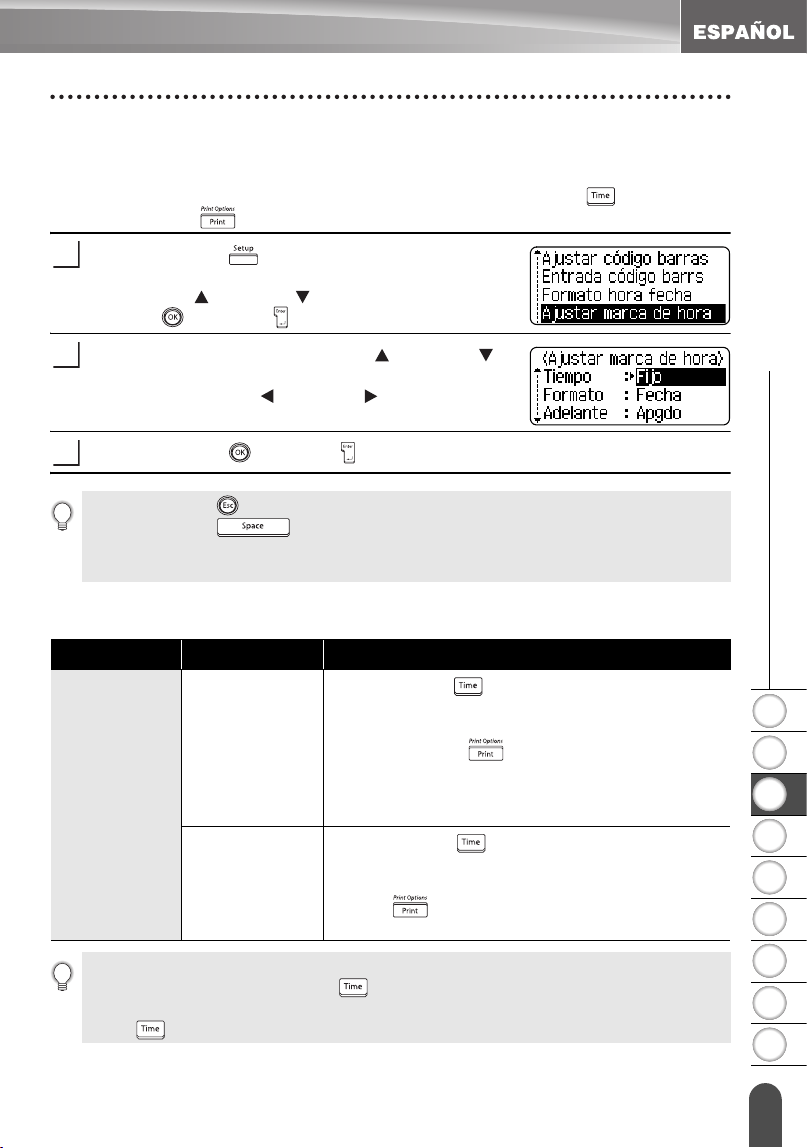
1
2
3
4
5
6
7
8
9
51
z EDICIÓN DE ETIQUETAS
Utilización de la función de hora y fecha
Ajustes de sello de hora
[Temporización]
Usted puede seleccionar imprimir la fecha/hora al oprimir la tecla o imprimirlas
al oprimir la tecla para añadirlas a su etiqueta.
Oprima la tecla para mostrar el menú
Configuración, seleccione "Ajustar marca de hora"
con la tecla o la tecla y seguidamente oprima
la tecla o la tecla .
Seleccione "Tiempo" con la tecla o la tecla y
seguidamente seleccione el valor para el ajuste
oprimiendo la tecla o la tecla .
Oprima la tecla o la tecla para aplicar los ajustes.
zSello de hora : Opciones de temporizaciónz
1
2
3
• Oprima la tecla para regresar al paso anterior.
• Oprima la tecla para ajustar el formato al valor por defecto.
• Consulte la sección Sello de hora: Opciones de Temporización donde encontrará los
ajustes disponibles.
Atributo Valor Descripción
Tiempo
Automático
Oprima la tecla ; se insertará un icono de reloj
en el lugar donde esté situado el cursor en la
pantalla de introducción de texto.
Si oprime la tecla , se imprimirá en la etiqueta
la última fecha/hora en el lugar donde se
encuentre el icono del reloj en el diseño de la
etiqueta.
Fijo
Oprima la tecla ; se insertará la fecha/hora
actuales en el lugar donde esté situado el cursor
en la pantalla de introducción de texto. Si oprime
la tecla , la fecha/hora se imprimirá como se
muestra en la pantalla de introducción.
• Al seleccionar "Automático" para el ajuste de Temporización y al añadir un icono de
reloj al texto oprimiendo la tecla , usted puede confirmar cuáles ajustes se aplican
al icono colocando el cursor bajo el icono del reloj y oprimiendo seguidamente la
tecla .
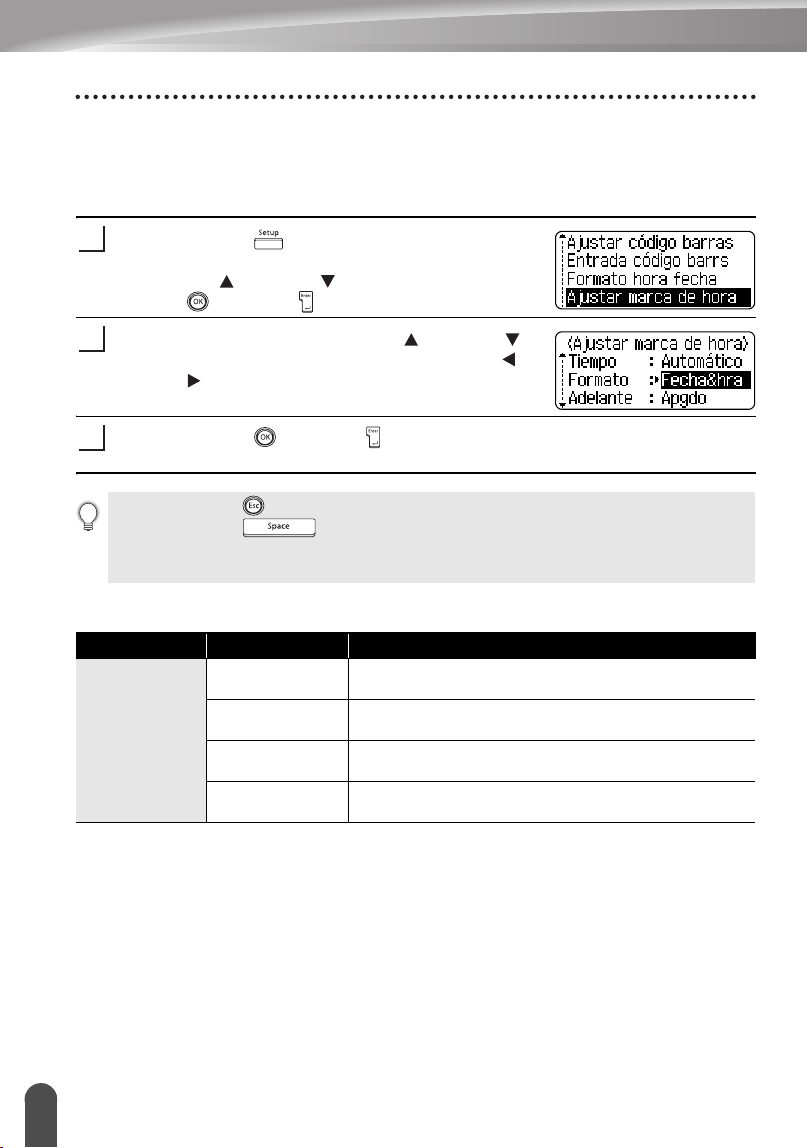
EDICIÓN DE ETIQUETAS
52
Utilización de la función de hora y fecha
[Formato del sello de hora]
Usted puede seleccionar qué información desea incluir al añadir la fecha y la hora
a su etiqueta.
Dispondrá de cuatro opciones (Fecha, Hora, Fecha y Hora u Hora y Fecha).
Oprima la tecla para mostrar el menú
Configuración, seleccione "Ajustar marca de hora"
con la tecla o la tecla y seguidamente oprima
la tecla o la tecla .
Seleccione "Formato" con la tecla o la tecla y
seleccione el valor para el ajuste con la tecla o
la tecla .
Oprima la tecla o la tecla para aplicar los ajustes.
zSello de hora : Opciones de formatoz
1
2
3
• Oprima la tecla para regresar al paso anterior.
• Oprima la tecla para utilizar el valor por defecto.
• Consulte la sección Sello de hora: Opciones de Formato donde encontrará los ajustes
disponibles.
Atributo Valor Descripción
Formato
Fecha Sólo se imprimirá la fecha en la etiqueta.
Fecha&hra Se imprimirá la fecha y la hora en la etiqueta.
Hora Sólo se imprimirá la hora en la etiqueta.
Hora&fecha Se imprimirá la hora y la fecha en la etiqueta.
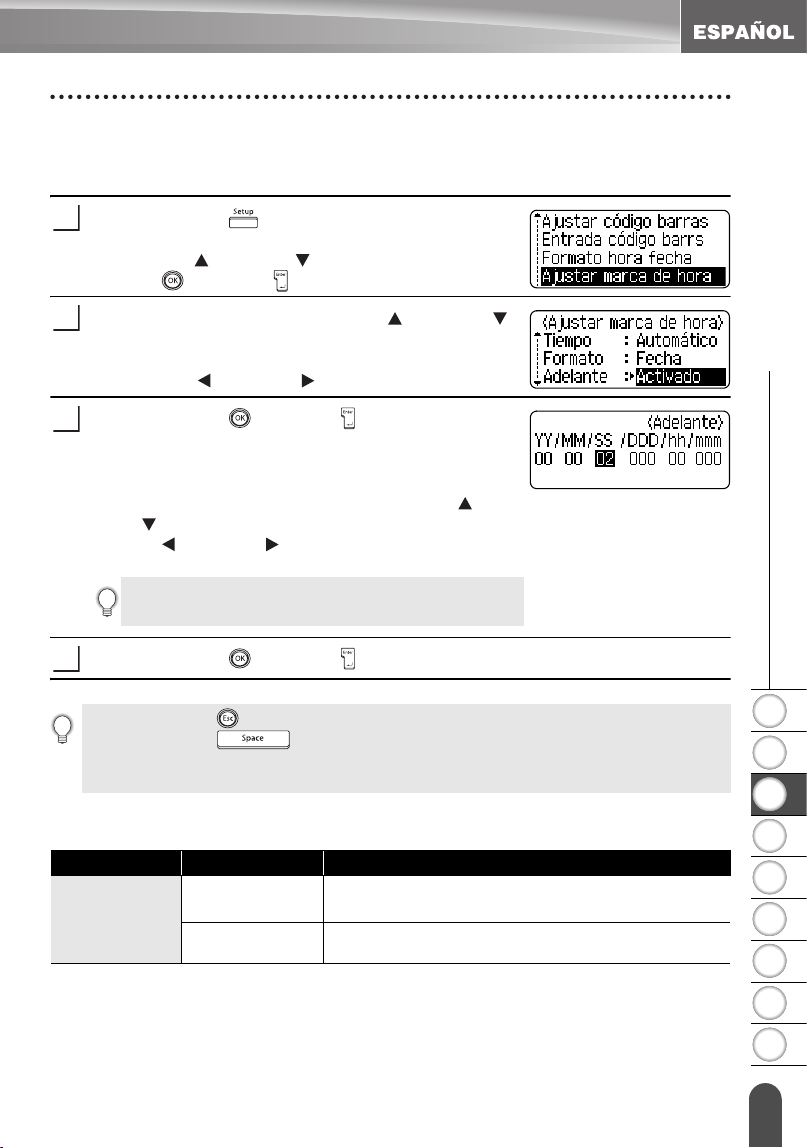
1
2
3
4
5
6
7
8
9
53
z EDICIÓN DE ETIQUETAS
Utilización de la función de hora y fecha
[Forward] [Adelanto]
Usted puede seleccionar una fecha y hora
adelantadas
o utilizar la fecha y la hora
actuales al usar la Función de hora y fecha.
Oprima la tecla para mostrar el menú
Configuración, seleccione "Ajustar marca de hora"
con la tecla o la tecla y seguidamente oprima
la tecla o la tecla .
Seleccione "Adelante" con la tecla o la tecla
y seguidamente especifique la cantidad de fecha y
hora que desea adelantar, seleccione "Activado"
con la tecla o la tecla .
Oprima la tecla o la tecla . Aparece la
pantalla "Adelante". Ajuste el número de años,
meses, semanas,
días, horas y minutos
que desea
adelantar respecto al reloj ajustado actualmente al
usar la función de hora y fecha con la tecla o la
tecla . Para pasar al siguiente parámetro, oprima
la tecla o la tecla .
Oprima la tecla o la tecla para aplicar los ajustes.
zSello de hora : Opciones de adelantoz
1
2
• Usted también puede usar las teclas Num (Bloque
de números) para escribir los números.
3
4
• Oprima la tecla para regresar al paso anterior.
• Oprima la tecla para ajustar el formato al valor por defecto.
• Consulte la sección Sello de hora: Opciones de adelanto donde encontrará una lista
de todos los formatos disponibles.
Atributo Valor Descripción
Adelante
Activado
La fecha/hora se adelantarán conforme al valor
seleccionado en el ajuste Forward (Adelanto).
Apgdo Se imprimirá la fecha y la hora actuales.
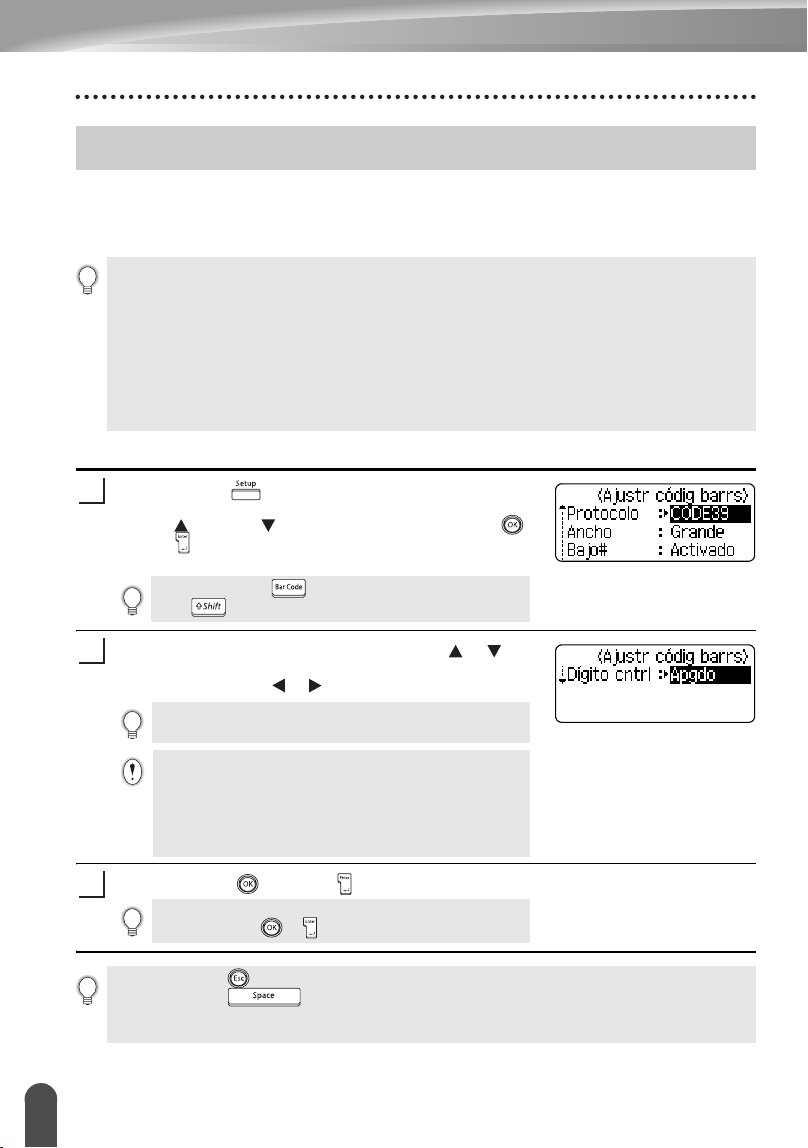
EDICIÓN DE ETIQUETAS
54
Creación de una etiqueta de código de barras
La función de código de barras le permite crear etiquetas con códigos de barras que se pueden
utilizar en cajas registradoras, sistemas de control de existencias u otros sistemas de lectura
de códigos de barras, o incluso, las etiquetas de control de activos utilizadas en los sistemas
de administración de activos.
Configuración de los parámetros de códigos de barras
Oprima la tecla para mostrar el menú Setup
(Configuración), seleccione "Ajustr códig barrs" oprimiendo
la tecla o la tecla y seguidamente oprima la tecla o
la tecla
.
Aparece la pantalla "Ajustr códig barrs".
Seleccione un atributo oprimiendo la tecla o y
seguidamente ajuste un valor para ese atributo
oprimiendo la tecla
o .
Oprima la tecla o la tecla para aplicar los ajustes.
Creación de una etiqueta de código de barras
• La etiquetadora P-touch no está diseñada exclusivamente para crear etiquetas de códigos de barras.
Compruebe siempre que el lector de código de barras puede leer las etiquetas de códigos de barras.
• Para obtener mejores resultados, imprima las etiquetas de código de barras con tinta negra en
cinta blanca. Es posible que algunos lectores de códigos de barras no puedan leer las etiquetas de
código de barras si se han creado en una cinta de color o con tinta de color.
• Utilice el valor “Grande” para “Ancho” siempre que sea posible. Es posible que algunos lectores
de códigos de barras no puedan leer las etiquetas de código de barras si se han creado con el valor
“Pequeño”.
• El cabezal de impresión se puede recalentar si se imprime continuamente un gran número de
etiquetas con códigos de barras, lo cual podría afectar la calidad de impresión.
Si oprime la tecla mientras mantiene oprimida la
tecla también podrá entrar en "Ajustr códig barrs".
El atributo "Dígito cntrl" sólo está disponible para los
protocolos CODE39, I-2/5 y CODABAR.
Es posible que los caracteres no aparezcan debajo del
código de barras aun cuando se haya seleccionado la
opción "Activado" para "Bajo#", dependiendo del ancho
de cinta que se esté utilizando, el número de líneas que se
ha introducido o la configuración actual del estilo del
caracter.
1
2
La nueva configuración NO SE APLICA si usted no
oprime la tecla o .
3
• Oprima la tecla para regresar al paso anterior.
• Oprima la tecla para que el atributo seleccionado recupere su valor por defecto.
• Consulte la tabla Configuración de código de barras para obtener una lista de todos los valores
disponibles.
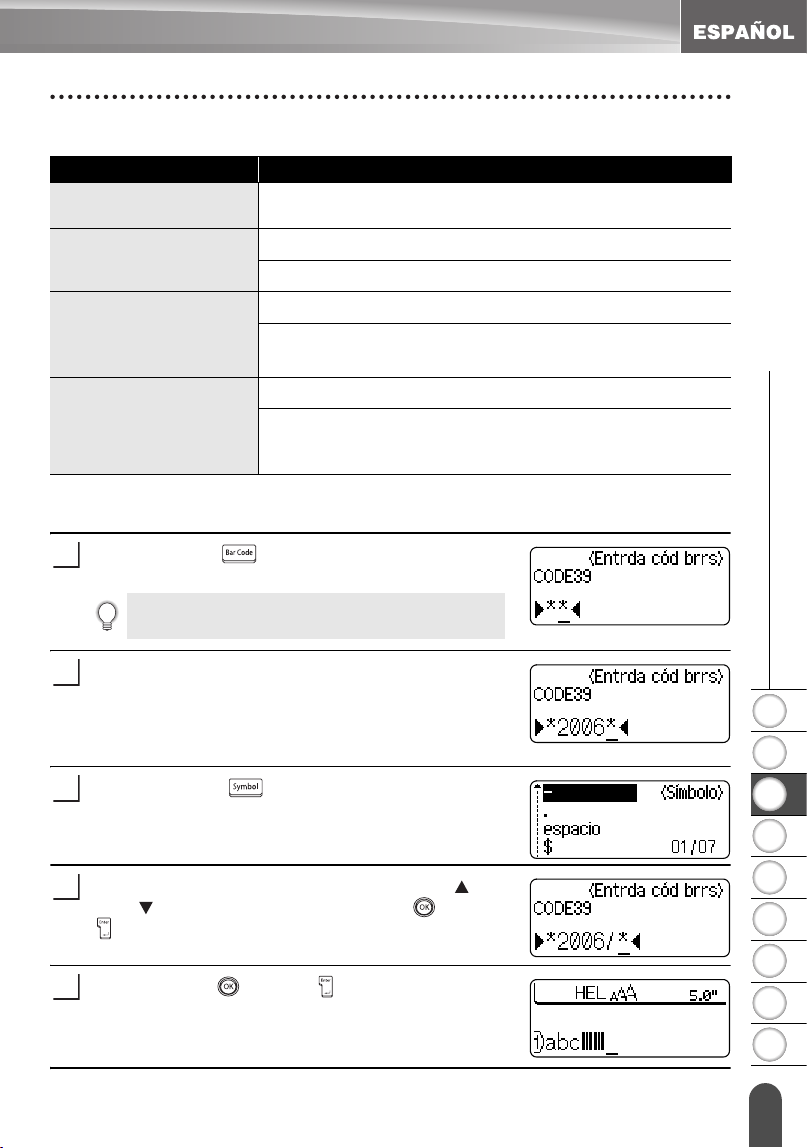
1
2
3
4
5
6
7
8
9
55
z EDICIÓN DE ETIQUETAS
Creación de una etiqueta de código de barras
zConfiguración de código de barrasz
Introducción de datos del código de barras
Oprima la tecla .
Aparece la pantalla de Entrda código brrs.
Escriba los datos del código de barras.
Los caracteres especiales se pueden introducir en el
código de barras cuando se utilizan los protocolos
CODE39, CODABAR, CODE128 o EAN128. Si no va a
utilizar ningún caracter especial, continúe en el paso 5.
Oprima la tecla .
Aparecerá una lista de los caracteres disponibles
para el protocolo actual.
Seleccione un caracter oprimiendo
la tecla o la
tecla
, seguidamente oprima
la tecla o la tecla
para insertar el caracter en los datos del código
de barras.
Oprima la tecla o la tecla
para insertar el código
de barras en la etiqueta.
Aparecerán dos marcas de código de barras en el texto.
Atributo Valor
Protocolo
CODE39
, CODE128, EAN8, EAN13, EAN128,
UPC-A, UPC-E, I-2/5 (ITF), CODABAR
Ancho
Grande
Pequeño
Bajo#
(caracteres impresos
debajo del código de
barras)
Activado
Apgdo
Dígito cntrl
(comprobar dígito)
Apgdo
Activado
(sólo disponible para los protocolos CODE39, I-2/5
y CODABAR)
Se pueden incluir hasta cinco códigos de barras en
cada etiqueta.
1
2
3
4
5
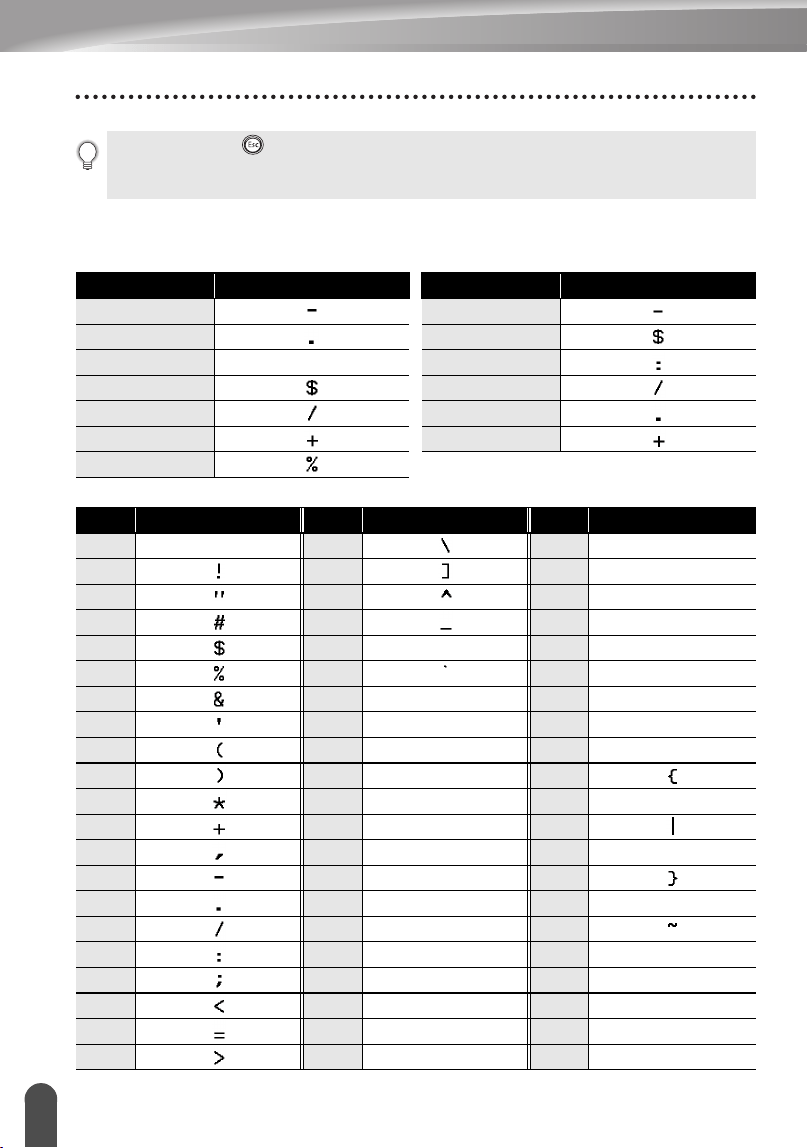
EDICIÓN DE ETIQUETAS
56
Creación de una etiqueta de código de barras
zLista de caracteres especialesz
CODE39 CODABAR
CODE128, EAN128
• Oprima la tecla para regresar al paso anterior.
• Consulte la tabla Lista de caracteres especiales para obtener una lista de todos los
valores disponibles.
Código Caracter especial Código Caracter especial
0 0
1 1
2 (ESPACIO) 2
3 3
4 4
5 5
6
Código
Caracter especial
Código
Caracter especial
Código
Caracter especial
0 (ESPACIO) 24 48 DC3
1 25 49 DC4
2 26 50 NAK
3 27 51 SYN
4 28 NUL 52 ETB
5 29 53 CAN
6 30 SOH 54 EM
7 31 STX 55 SUB
8 32 ETX 56 ESC
9 33 EOT 57
10 34 ENQ 58 FS
11 35 ACK 59
12 36 BEL 60 GS
13 37 BS 61
14 38 HT 62 RS
15 39 LF 63
16 40 VT 64 US
17 41 FF 65 DEL
18 42 CR 66 FNC3
19 43 SO 67 FNC2
20 44 SI 68 FNC4
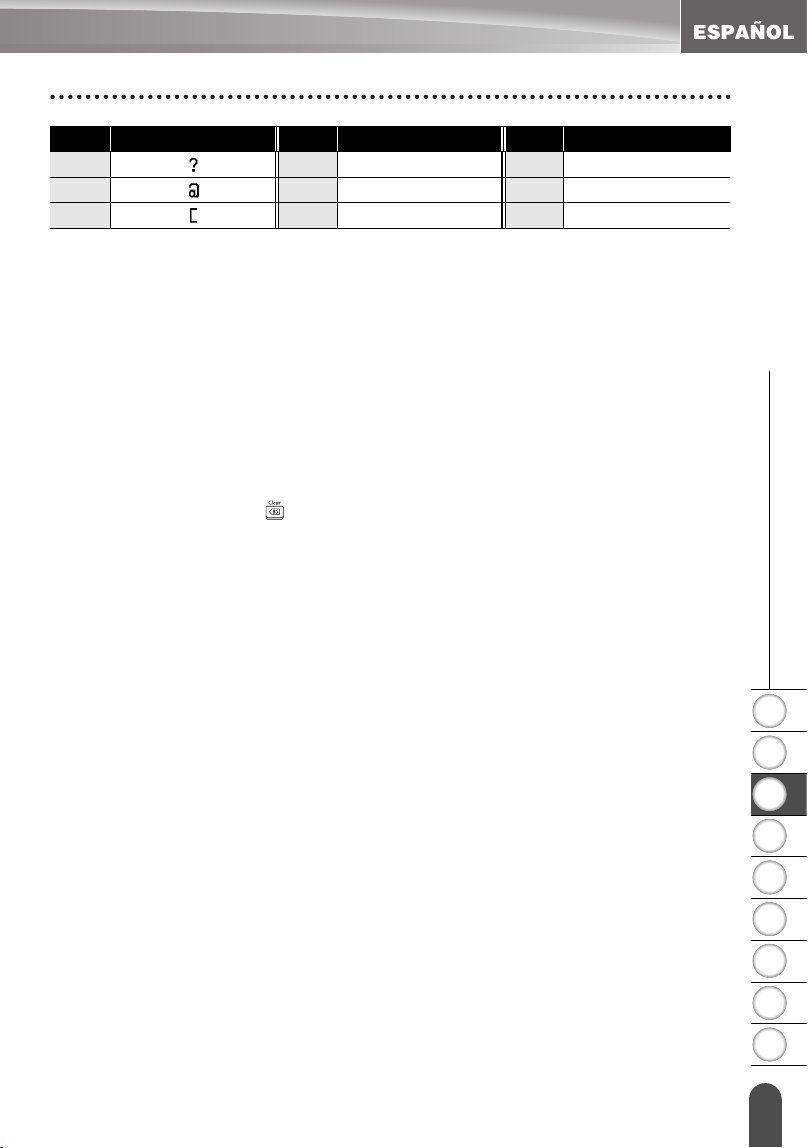
1
2
3
4
5
6
7
8
9
57
z EDICIÓN DE ETIQUETAS
Creación de una etiqueta de código de barras
Edición y eliminación de códigos de barras
•
Para editar los datos del código de barras, coloque el cursor debajo de las marcas
de código de barras que hay en la pantalla de introducción de datos y,
seguidamente, abra la pantalla Entrda código brrs.
Consulte la sección
“Introducción de datos del código de barras” en la página 55.
• Para editar los valores “Ancho” y “Bajo#” de un código de barras ya colocado en
una etiqueta, coloque el cursor debajo de cualquiera de las marcas del código
de barras de la pantalla de introducción de datos y, a continuación, abra la
pantalla Ajustr códig barrs. Consulte la sección “Configuración de los
parámetros de códigos de barras” en la página 54.
• Para eliminar un código de barras de una etiqueta, coloque el cursor a la
derecha de las marcas de código de barras de la pantalla de introducción de
datos y oprima la tecla .
21 45 DLE 69 FNC1
22 46 DC1
23 47 DC2
Código
Caracter especial
Código
Caracter especial
Código
Caracter especial
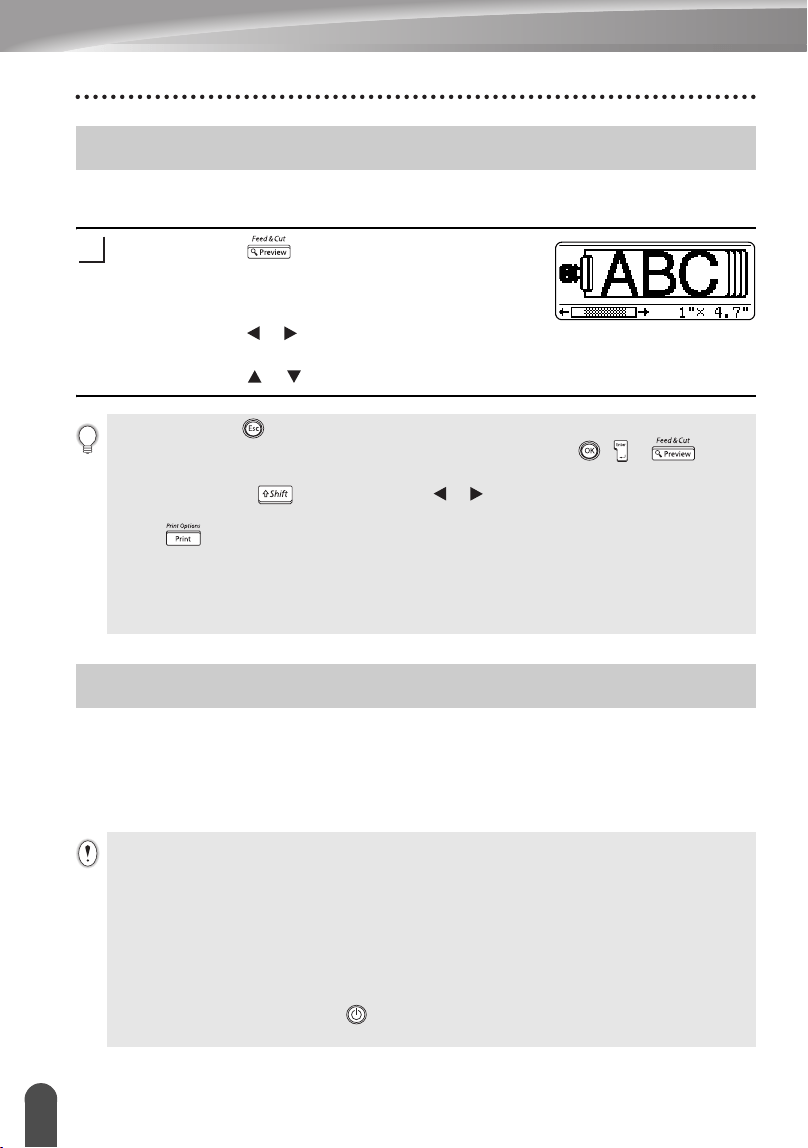
58
Vista previa de la etiqueta
IMPRESIÓN DE ETIQUETAS
Con la función de Vista previa, puede comprobar el diseño de la etiqueta antes de
imprimirla.
Oprima la tecla .
Aparece en la pantalla una imagen de la etiqueta.
La longitud de la etiqueta se muestra en la esquina
inferior derecha de la pantalla.
Oprima la tecla o para desplazar la vista previa
hacia la izquierda o la derecha.
Oprima la tecla o para cambiar el tamaño de la vista previa.
Después de introducir el texto y el formato de la etiqueta, usted ya puede imprimir
la etiqueta. Además de imprimir una sola copia de una etiqueta, su etiquetadora
P-touch tiene varias funciones de impresión que le permiten imprimir múltiples
copias de una etiqueta, etiquetas numeradas secuencialmente y etiquetas
impresas en imagen espejo.
Vista previa de la etiqueta
1
• Oprima la tecla para regresar a la pantalla de introducción de texto. (Puede volver
asimismo a la pantalla de introducción de texto oprimiendo , o .
• Para desplazar la vista previa hacia la izquierda o hacia la derecha, mantenga
oprimida la tecla
y oprima la tecla o .
• Para imprimir la etiqueta directamente desde la pantalla de vista previa, oprima la
tecla o abra la pantalla de opciones de impresión y seleccione una de esas
opciones. Consulte abajo el apartado "Impresión de etiquetas" para obtener
información más detallada.
• La vista previa de impresión es una imagen generada de la etiqueta y puede diferir
de la etiqueta real cuando se imprime.
Impresión de etiquetas
• No tire de la etiqueta que sale por la ranura de salida de la cinta. Si lo hace, la
cinta de tinta saldrá expulsada junto con la propia cinta de etiquetas.
• No bloquee la ranura de salida de la cinta durante el proceso de impresión ni cuando
la cinta está avanzando. Si lo hace, la cinta se atascará.
• Asegúrese de comprobar que queda suficiente cinta cuando vaya a imprimir varias
etiquetas una tras otra. Si queda poca cinta, indique un número menor de copias,
imprima las etiquetas de una en una o sustituya el casete de cinta.
• Si la cinta presenta franjas, esto indica el final del cartucho. Si esto aparece durante
la impresión, oprima la tecla para apagar la etiquetadora P-touch. Si continúa
imprimiendo se podría producir algún daño.
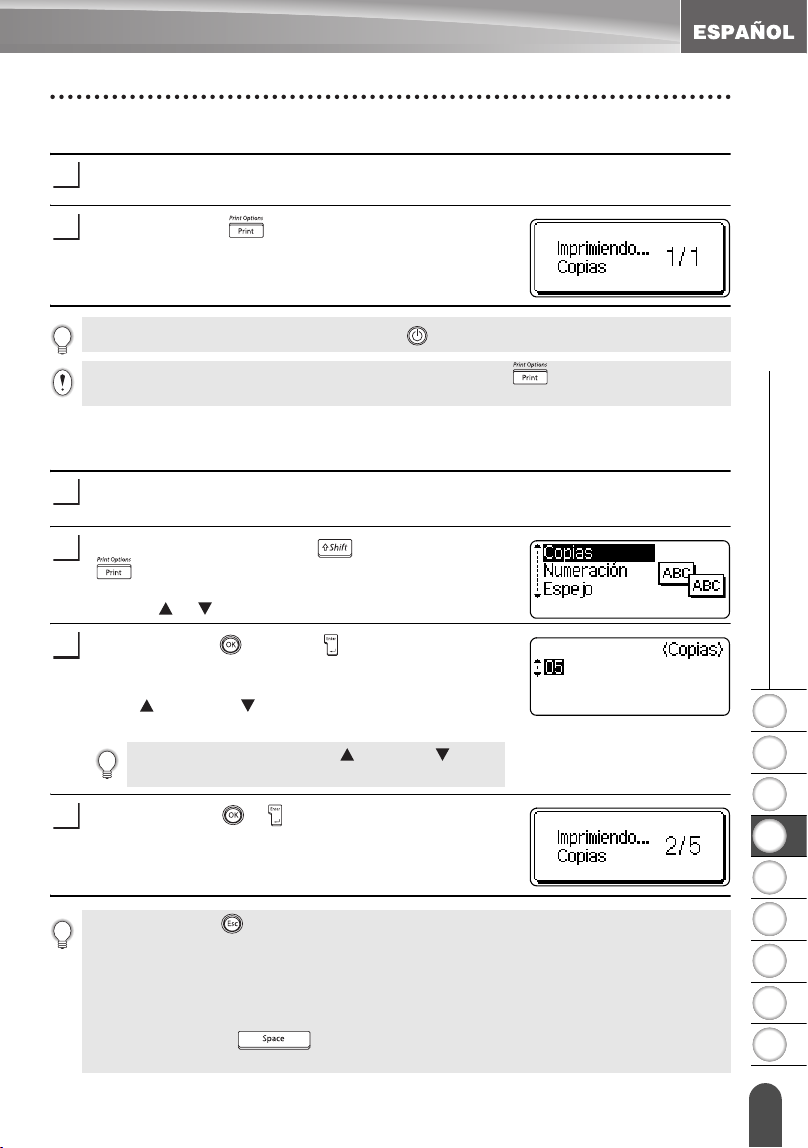
1
2
3
4
5
6
7
8
9
59
z IMPRESIÓN DE ETIQUETAS
Impresión de etiquetas
Impresión de una sola copia
Asegúrese de que se ha introducido el cartucho correcto y de que la
etiquetadora está lista para imprimir.
Oprima la tecla .
Aparece el mensaje que se muestra a la derecha
mientras se está imprimiendo la etiqueta.
Impresión de múltiples copias
Esta función le permite imprimir hasta 99 copias de la misma etiqueta.
Asegúrese de que se ha introducido el cartucho correcto y de que la etiquetadora
está lista para imprimir.
Mantenga oprimida la tecla y oprima la tecla
para que aparezca la pantalla de opciones de
impresión y, a continuación, seleccione “Copias” con
la tecla o .
Oprima la tecla o la tecla para que aparezca la
pantalla de Copias y, a continuación, indique el
número de copias que desea imprimir oprimiendo la
tecla o la tecla , o escriba el número utilizando
las teclas numéricas.
Oprima la tecla o .
Aparece el mensaje que se muestra a la derecha
mientras se imprimen las etiquetas.
1
2
Para detener la impresión, oprima la tecla y apague la etiquetadora P-touch.
Puede aparecer otra serie de mensajes si se oprime la tecla . Consulte “Mensajes de
error” en la página 76 y compruebe el significado de cualquier mensaje que aparezca.
1
2
Mantenga oprimida la tecla o la tecla para
cambiar el número de copias con mayor rapidez.
3
4
• Oprima la tecla para regresar al paso anterior.
• A menos que se indique lo contrario, la cinta se corta automáticamente después de
imprimir cada copia. Consulte la sección “Opciones de corte de cinta” en la
página 62 donde se explica cómo cambiar esta configuración.
• Las cifras que se muestran en la pantalla durante la impresión indican el "recuento o
número de copias definidos".
• Si oprime la tecla cuando está definiendo el número de copias, se
restablece el valor a 1, es decir, el valor por defecto.
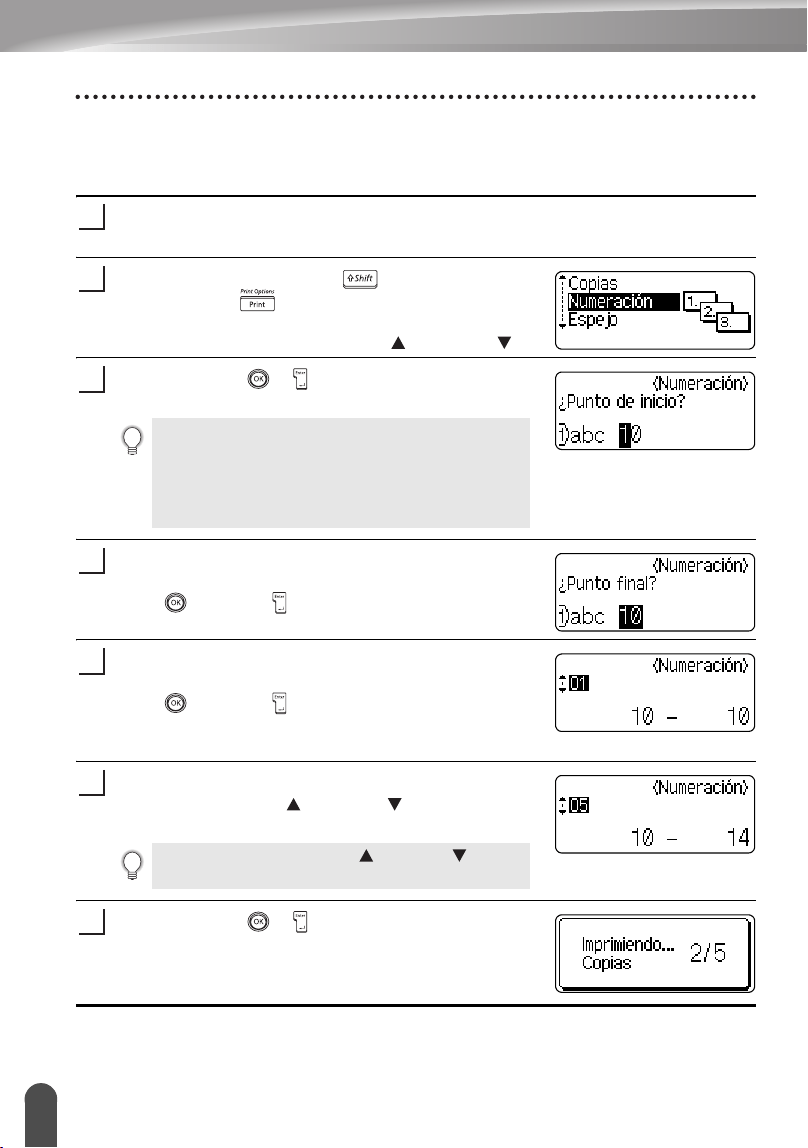
IMPRESIÓN DE ETIQUETAS
60
Impresión de etiquetas
Numeración automática de etiquetas
La función de numeración le permite crear un conjunto de etiquetas numeradas
secuencialmente a partir de un solo formato de etiqueta.
Asegúrese de que se ha introducido el cartucho correcto y de que la etiquetadora
está lista para imprimir.
Mantenga oprimida la tecla y seguidamente
oprima la tecla para que aparezca la pantalla de
opciones de impresión y entonces seleccione
“Numeración” oprimiendo la tecla o la tecla .
Oprima la tecla o .
Aparece la pantalla de punto de inicio de numeración.
Lleve el cursor al primer caracter que se va a
aumentar en la secuencia de numeración y oprima la
tecla o la tecla .
Aparece la pantalla de punto final de numeración.
Lleve el cursor al último caracter que se va a
aumentar en la secuencia de numeración y oprima la
tecla o la tecla .
Aparece el número de etiquetas que se van a
imprimir.
Seleccione el número de etiquetas que se van a
imprimir con la tecla o la tecla , o escriba el
número con las teclas numéricas.
Oprima la tecla o .
Se imprimirán las etiquetas.
A medida que se va imprimiendo cada etiqueta, se
muestra el número de copias impresas.
1
2
Para aplicar la numeración automática a un
código de barras, seleccione el código de barras
aquí. Cuando lo haya seleccionado, se le pedirá
que introduzca el número de etiquetas que desea
imprimir (paso 6).
3
4
5
Mantenga oprimida la tecla o la tecla para
cambiar el número de etiquetas con mayor rapidez.
6
7
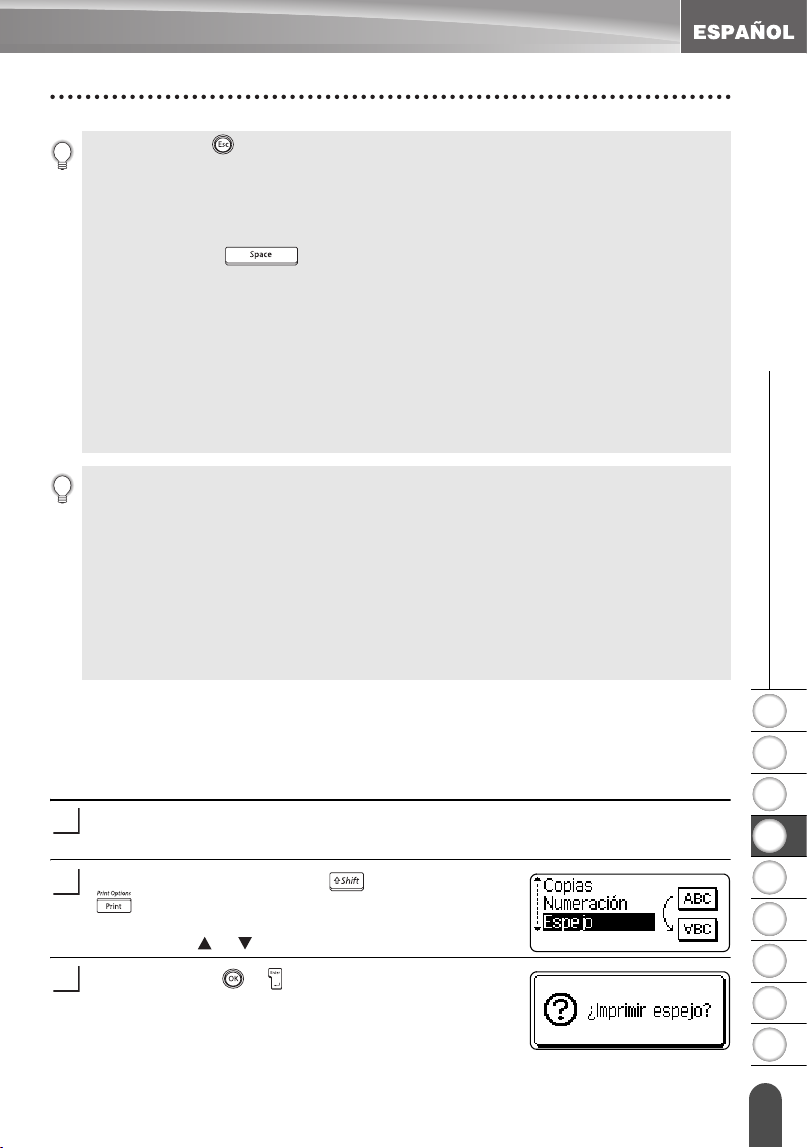
1
2
3
4
5
6
7
8
9
61
z IMPRESIÓN DE ETIQUETAS
Impresión de etiquetas
Impresión en modo espejo
La función de impresión en modo espejo le permite crear etiquetas con el texto
impreso al revés, de forma que se pueda leer correctamente cuando se pega en
un cristal o algún otro tipo de material transparente.
Asegúrese de que se ha introducido el cartucho correcto y de que la
etiquetadora está lista para imprimir.
Mantenga oprimida la tecla y oprima la tecla
para que aparezca la pantalla de opciones de
impresión y, a continuación, seleccione “Espejo”
con la tecla o .
Oprima la tecla o .
Aparecerá el mensaje "¿Imprimir espejo?".
• Oprima la tecla para regresar al paso anterior.
• A menos que se indique lo contrario, la cinta se corta automáticamente después de imprimir
cada copia. Consulte la sección “Opciones de corte de cinta” en la página 62 donde se
explica cómo cambiar esta configuración.
• Las cifras que se muestran en la pantalla durante la impresión indican el "recuento/número
de copias".
• Si oprime la tecla cuando está seleccionando el número de copias, se restablece
el valor a 1, es decir, el valor por defecto.
• La numeración automática también se puede aplicar a los códigos de barras. Cuando un
código de barras contiene una secuencia de numeración automática, ningún otro campo de
la etiqueta puede contener otra secuencia de numeración automática.
• La parte de numeración automática de la etiqueta se incrementa después de imprimir cada
etiqueta.
• En una etiqueta sólo se puede utilizar una secuencia de numeración automática.
• Se ignorará cualquier símbolo u otro caracter no alfanumérico de la secuencia de
numeración automática.
• Las secuencias de numeración automática sólo pueden contener un máximo de cinco caracteres.
• Las letras y los números aumentarán como se muestra a continuación:
0
Î
1 ...9
Î
0
Î
...
A
Î
B ...Z
Î
A
Î
...
a
Î
b ...z
Î
a
Î
...
A0
Î
A1 ...A9
Î
B0
Î
...
Los espacios (mostrados como subrayados "_" en el ejemplo siguiente) podrán utilizarse para
ajustar el espacio entre caracteres o para controlar el número de dígitos que se van a imprimir.
_9
Î
10 ...99
Î
00
Î
...
_Z
Î
AA ...ZZ
Î
AA
Î
...
1_9
Î
2_0 ...9_9
Î
0_0
Î
...
1
2
3
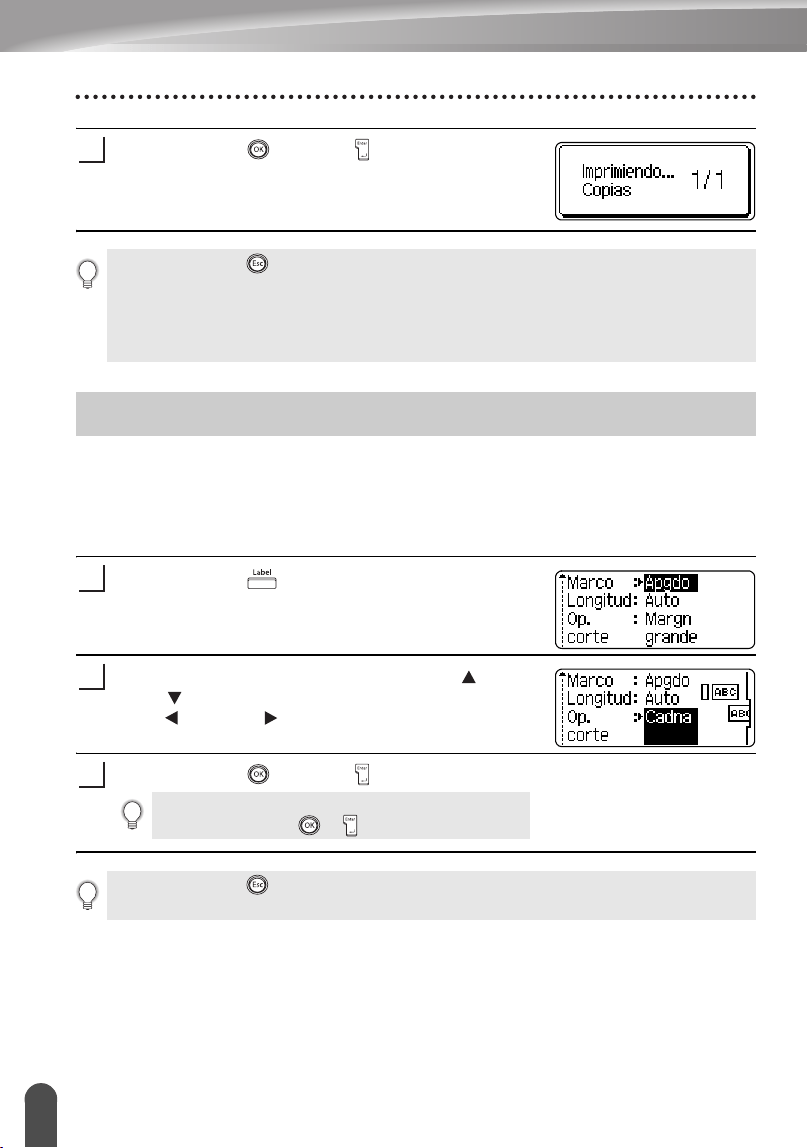
IMPRESIÓN DE ETIQUETAS
62
Opciones de corte de cinta
Oprima la tecla o la tecla .
Aparece el mensaje que se muestra a la derecha
mientras se está imprimiendo la etiqueta.
Las opciones de corte de cinta le permiten especificar cómo avanza y se corta la cinta
cuando se imprimen las etiquetas. En particular, las opciones “Cadna” y “Sin corte”
reducen en gran medida la cantidad de cinta desperdiciada ya que utilizan unos
márgenes más pequeños y eliminan el corte de las secciones blancas entre las
etiquetas.
Oprima la tecla para mostrar el menú Label
(Etiqueta).
Seleccione "Op. corte" oprimiendo la tecla o la
tecla y seguidamente ajuste el valor oprimiendo la
tecla o la tecla .
Oprima la tecla o la tecla para aplicar los ajustes.
4
• Oprima la tecla para regresar al paso anterior.
• El texto debe imprimirse en cinta transparente cuando se utiliza la función de
impresión en modo espejo.
• Las funciones de copia y de numeración automática no se pueden utilizar
conjuntamente con la función de impresión en modo espejo.
Opciones de corte de cinta
1
2
La nueva configuración NO SE APLICA si usted
no oprime la tecla o .
3
• Oprima la tecla para regresar al paso anterior.
• Consulte la tabla Corte de cinta para obtener una lista con todos los valores disponibles.
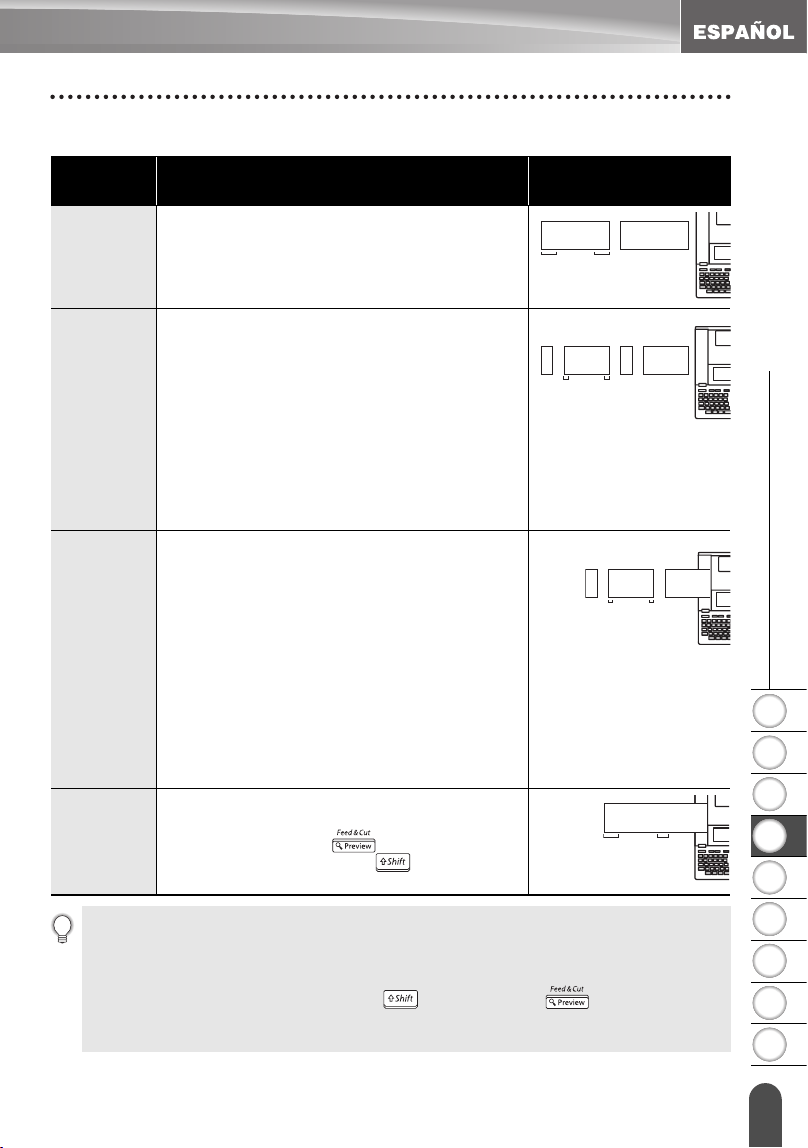
1
2
3
4
5
6
7
8
9
63
z IMPRESIÓN DE ETIQUETAS
Opciones de corte de cinta
zCorte de cintaz
Configura
ción
Descripción Ejemplo
Margn
grande
Corta automáticamente la cinta después de
imprimir cada etiqueta. Las etiquetas tienen un
margen de 0.94" (24 mm) en los lados izquierdo
y derecho.
Mrgn
pequñ
• Para imprimir etiquetas de una en una:
Automáticamente se corta un trozo de cinta
en blanco antes de imprimir la etiqueta y, a
continuación, se corta la cinta después de
imprimir la etiqueta.
• Cuando se imprimen varias etiquetas una tras
otra: Automáticamente se corta un trozo de cinta
en blanco antes de imprimir la primera etiqueta
y, a continuación, se corta la cinta después que
se imprime cada etiqueta.
• Las etiquetas tienen un margen de 0.16" (4
mm) en los lados izquierdo y derecho.
Cadna
• Para imprimir etiquetas de una en una:
Automáticamente se corta un trozo de cinta
en blanco antes de imprimir la etiqueta y, a
continuación, no se corta la cinta después de
imprimir la etiqueta.
• Cuando se imprimen varias etiquetas una tras
otra: Automáticamente se corta un trozo de cinta
en blanco antes de imprimir la primera etiqueta
y, a continuación, se corta la cinta después de
imprimir cada etiqueta.
• Las etiquetas tienen un margen de 0.16" (4
mm) en los lados izquierdo y derecho.
• La cinta no avanza ni se corta después de
imprimir la última etiqueta.
Sin corte
• Utilice esta opción para imprimir una serie de
etiquetas sin efectuar un corte entre ellas.
• Si se oprime la tecla mientras se
mantiene oprimida la tecla se hace
avanzar y se corta la última etiqueta impresa.
ABC ABC
0.94"
(24 mm)
0.94"
(24 mm)
ABC ABC
0.16"
(4 mm)
0.16"
(4 mm)
0.92" (23 mm)
ABC ABC
0.16"
(4 mm)
0.16"
(4 mm)
0.92" (23 mm)
ABC ABC
1.06"
(27 mm)
0.31"
(8 mm)
• Cuando vaya a trabajar con cintas de tela para transferencias o cintas adhesivas extra
fuertes, consulte la sección "Corte manual" en la página 64 para aplicar el ajuste
oportuno.
• La cinta no se corta después de imprimir la etiqueta si se selecciona la opción "Cadna" o
"Sin corte". Mantenga oprimida la tecla y oprima la tecla para hacer avanzar
y cortar la cinta automáticamente o para cortar la cinta manualmente si está utilizando
cinta de tela para transferencias o cintas adhesivas extrafuertes.
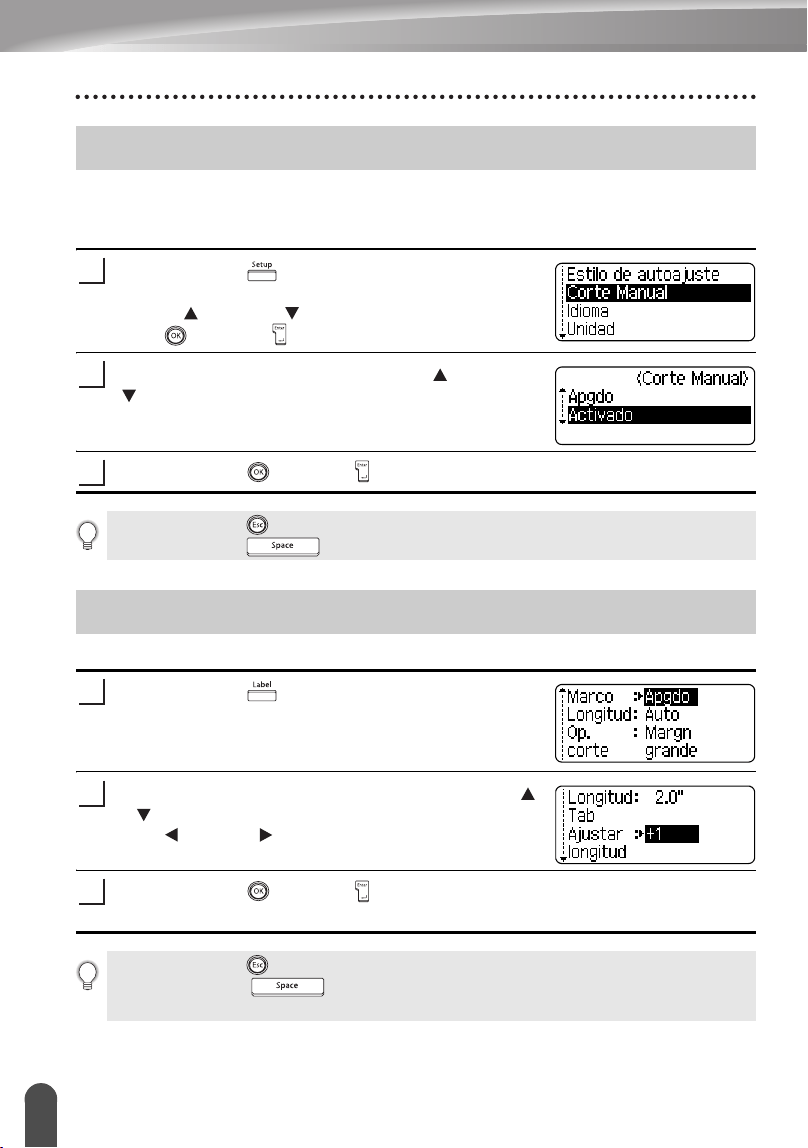
IMPRESIÓN DE ETIQUETAS
64
Corte manual
Cuando vaya a trabajar con cintas de tela para transferencias o cintas adhesivas extra
fuertes, defina "Activado" para la función de Corte manual antes de iniciar la impresión.
Después de imprimir, retire el cartucho de la máquina y corte la cinta con unas tijeras.
Oprima la tecla para mostrar el menú de
configuración, seleccione "Corte manual" oprimiendo
la tecla o la tecla y seguidamente oprima la
tecla o la tecla .
Seleccione el valor oprimiendo la tecla o la tecla
.
Oprima la tecla o la tecla para aplicar el ajuste.
Puede ajustar la longitud de la etiqueta impresa en niveles de -5 a +5.
Oprima la tecla . Aparecen los valores
configurados actuales.
Seleccione "Ajustar longitud" oprimiendo las teclas
o y seguidamente establezca el valor utilizando la
tecla o la tecla .
Oprima la tecla o la tecla para aplicar el ajuste.
Corte manual
1
2
3
• Oprima la tecla para regresar al paso anterior.
• Oprima la tecla para utilizar el valor por defecto (“Apgdo”).
Ajuste de la longitud de la etiqueta
1
2
3
• Oprima la tecla para regresar al paso anterior.
• Oprima la tecla para utilizar el valor por defecto.
• Aproximadamente el 1% de la longitud total de la etiqueta se ajustará con el nivel 1.
1
2
3
4
5
6
7
8
9
65
z IMPRESIÓN DE ETIQUETAS
Colocación de etiquetas
Si es necesario, recorte la etiqueta impresa con unas tijeras para obtener la
forma y longitud deseadas, etc.
Quite la lámina protectora que cubre la parte trasera de la etiqueta.
Coloque la etiqueta y, a continuación, presione con firmeza desde la parte
superior a la inferior con un dedo para pegar la etiqueta.
Colocación de etiquetas
1
2
3
• La lámina protectora posterior de algunas cintas puede venir ya con un corte para que
se pueda desprender la lámina con facilidad.
• Puede resultar difícil adherir la etiqueta a superficies húmedas, sucias o disparejas.
Las etiquetas pueden desprenderse fácilmente de esas superficies.
• Asegúrese de leer las instrucciones que vienen con las cintas de tela para
transferencias, cintas adhesivas extra fuertes o de otro material especial, y respete
todas las notas de precaución indicadas en las instrucciones.
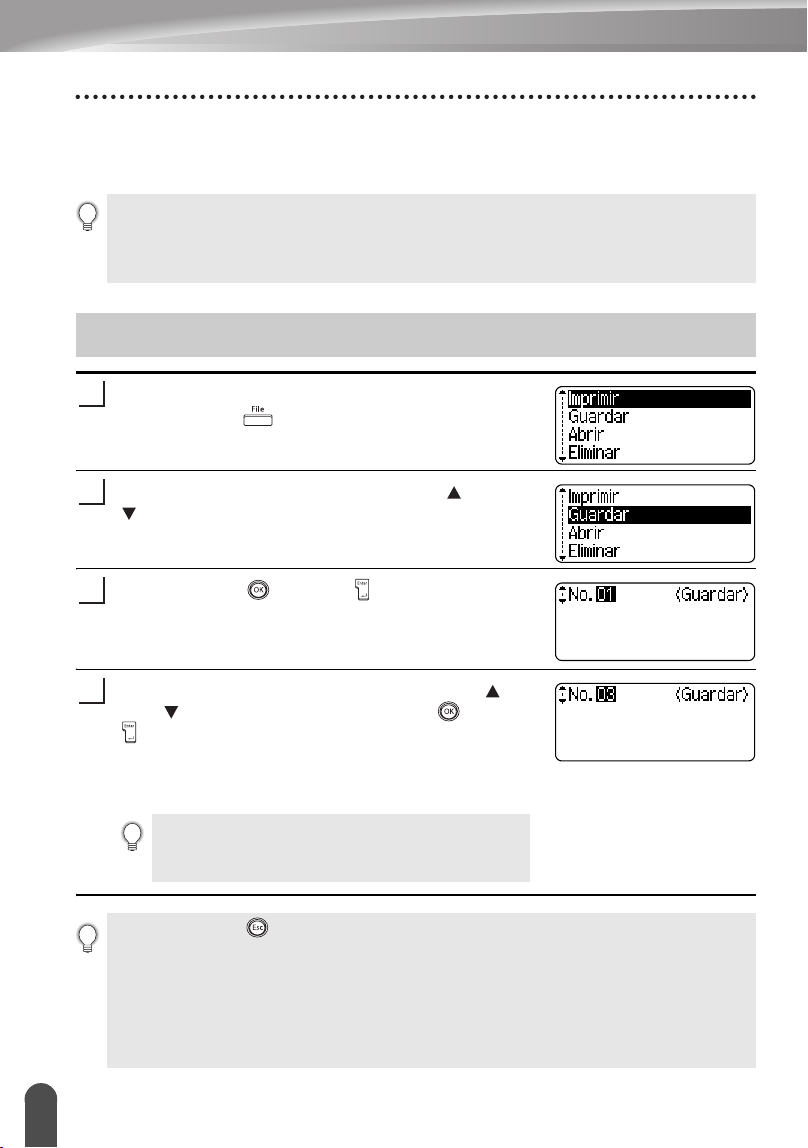
66
Almacenamiento de etiquetas en la memoria
UTILIZACIÓN DE LA MEMORIA DE ARCHIVOS
La memoria de archivos le permite almacenar hasta 99 de las etiquetas que utiliza con
mayor frecuencia. Cada etiqueta se almacena como un archivo, de esta forma usted
podrá recuperar la etiqueta posteriormente con rapidez y facilidad cuando la necesite.
Después de introducir el texto y formatear la etiqueta,
oprima la tecla para mostrar la pantalla de
Archivos.
Seleccione "Guardar" oprimiendo la tecla o la tecla
.
Oprima la tecla o la tecla .
Aparece un número de archivo.
También se muestra el texto de la etiqueta si ya se ha
guardado una etiqueta con ese número de archivo.
Seleccione un número de archivo con la tecla o la
tecla y seguidamente oprima la tecla o la tecla
para guardar la etiqueta con el número de archivo
seleccionado.
El archivo se guarda y vuelve a aparecer la pantalla
de introducción de texto.
• Cuando la memoria ya está llena, se sobrescribirá uno de los archivos almacenados
cada vez que se guarda un archivo.
• Usted perderá todos sus archivos almacenados si se desconecta el adaptador de CA
y se retiran las baterías durante más de 1 minuto.
Almacenamiento de etiquetas en la memoria
1
2
3
Si ya hubiera un archivo almacenado en el número
seleccionado, los datos quedarán sobrescritos por el
archivo que se está guardando.
4
• Oprima la tecla para regresar al paso anterior.
• En un archivo se pueden guardar hasta 280 caracteres, dependiendo del número de
líneas. No obstante, en total sólo se puede guardar un máximo de 2800 caracteres en
los 99 archivos que se pueden crear como máximo. Los datos de texto y de formato
de diseño también se guardan en el archivo.
• Para guardar una etiqueta creada con los diseños de formato automático, consulte la
sección “Utilización de diseños de formato automático” en la página 38.
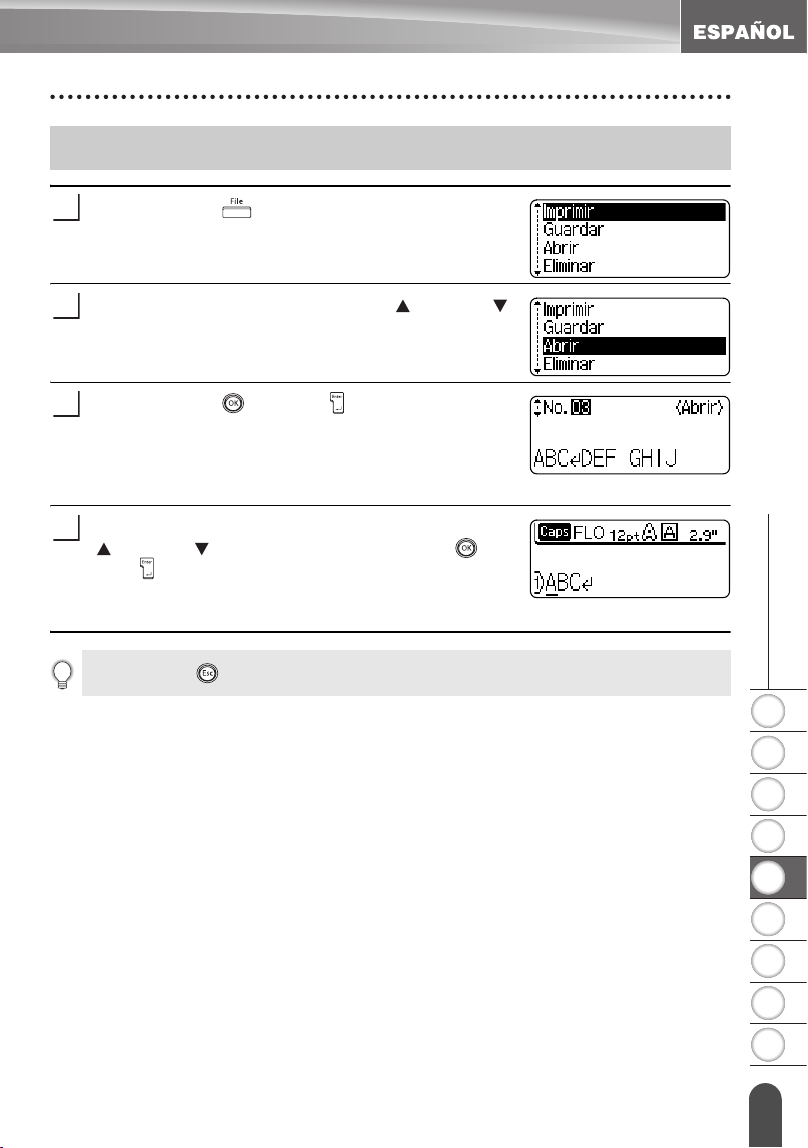
1
2
3
4
5
6
7
8
9
67
Apertura de un archivo de etiqueta almacenado
z UTILIZACIÓN DE LA MEMORIA DE ARCHIVOS
Oprima la tecla para mostrar el menú Archivo.
Seleccione "Abrir" oprimiendo la tecla o la tecla .
Oprima la tecla o la tecla .
Aparece el número de archivo de una etiqueta
almacenada.
El texto de la etiqueta también aparece para
identificar la etiqueta.
Seleccione un número de archivo utilizando la tecla
o la tecla y seguidamente pulse la tecla o la
tecla para abrir el archivo seleccionado.
El archivo se abre y aparece en la pantalla de
introducción de texto.
Apertura de un archivo de etiqueta almacenado
1
2
3
4
Oprima la tecla para regresar al paso anterior.

UTILIZACIÓN DE LA MEMORIA DE ARCHIVOS
68
Impresión de un archivo de etiqueta almacenado
Oprima la tecla para mostrar el menú Archivo.
Seleccione "Imprimir" utilizando la tecla o la tecla
.
Oprima la tecla o la tecla .
Aparece el número de archivo de una etiqueta
almacenada.
El texto de la etiqueta también aparece para
identificar la etiqueta.
Seleccione un número de archivo con la tecla o la
tecla y seguidamente oprima la tecla , o la
tecla para imprimir la etiqueta seleccionada. La
etiqueta se imprime desde la máquina.
Impresión de un archivo de etiqueta almacenado
1
2
3
4
• Oprima la tecla para regresar al paso anterior.
• Aparecerá el mensaje "No hay texto!" cuando intente imprimir un archivo que no contiene
texto ninguno.
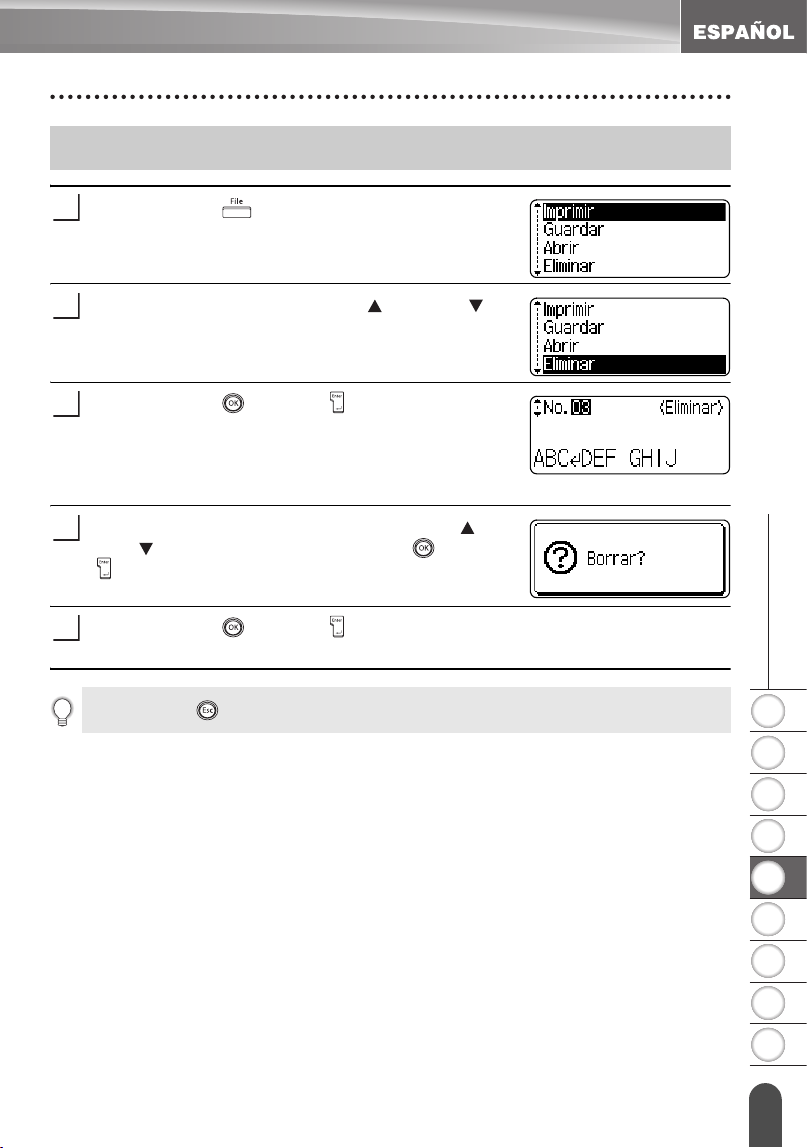
1
2
3
4
5
6
7
8
9
69
Eliminación de un archivo de etiqueta almacenado
z UTILIZACIÓN DE LA MEMORIA DE ARCHIVOS
Oprima la tecla para mostrar el menú Archivo.
Seleccione "Eliminar" con la tecla o la tecla .
Oprima la tecla o la tecla .
Aparece el número de archivo de una etiqueta
almacenada.
El texto de la etiqueta también aparece para
identificar la etiqueta.
Seleccione un número de archivo con la tecla o la
tecla y seguidamente oprima la tecla o la tecla
.
Aparece el mensaje “Borrar?”.
Oprima la tecla o la tecla para eliminar el archivo.
El archivo se elimina y vuelve a aparecer la pantalla de introducción de texto.
Eliminación de un archivo de etiqueta almacenado
1
2
3
4
5
Oprima la tecla para cancelar la eliminación del archivo y regresar a la pantalla anterior.
70
Restablecimiento de la etiquetadora P-touch
MANTENIMIENTO DE SU Etiquetadora P-touch
Es posible restablecer la memoria interna de la etiquetadora P-touch cuando se desee
borrar todos los archivos de etiqueta guardados o en caso de que la etiquetadora P-
touch no funcione con normalidad.
Apague la máquina y seguidamente, manteniendo oprimidas las teclas y
, oprima para volver a encenderla. Por último, suelte y .
La etiquetadora P-touch se enciende con la memoria interna ya restablecida.
La etiquetadora P-touch se debe limpiar con regularidad para conservar su
rendimiento y duración.
Limpieza de la unidad principal
Utilice un paño seco y suave para limpiar el polvo y cualquier mancha o sucio que haya
en la unidad principal.
Utilice un paño ligeramente humedecido pasándolo sobre el sucio o las manchas
difíciles de limpiar.
Restablecimiento de la etiquetadora P-touch
1
Suelte la tecla antes de soltar las otras teclas.
Cuando se restablece la etiquetadora P-touch se borra todo el texto, la configuración
de formato, la configuración de las opciones y los archivos de etiquetas almacenados.
También se borran los ajustes de idioma, unidad y configuración del reloj.
Mantenimiento
Extraiga siempre las baterías y desconecte el adaptador de CA antes de comenzar a
limpiar la etiquetadora P-touch.
No utilice diluyente de pintura, gasolina, alcohol ni otros disolventes orgánicos.
Dichos productos podrían deformar la cubierta o dañar el acabado de la etiquetadora
P-touch.
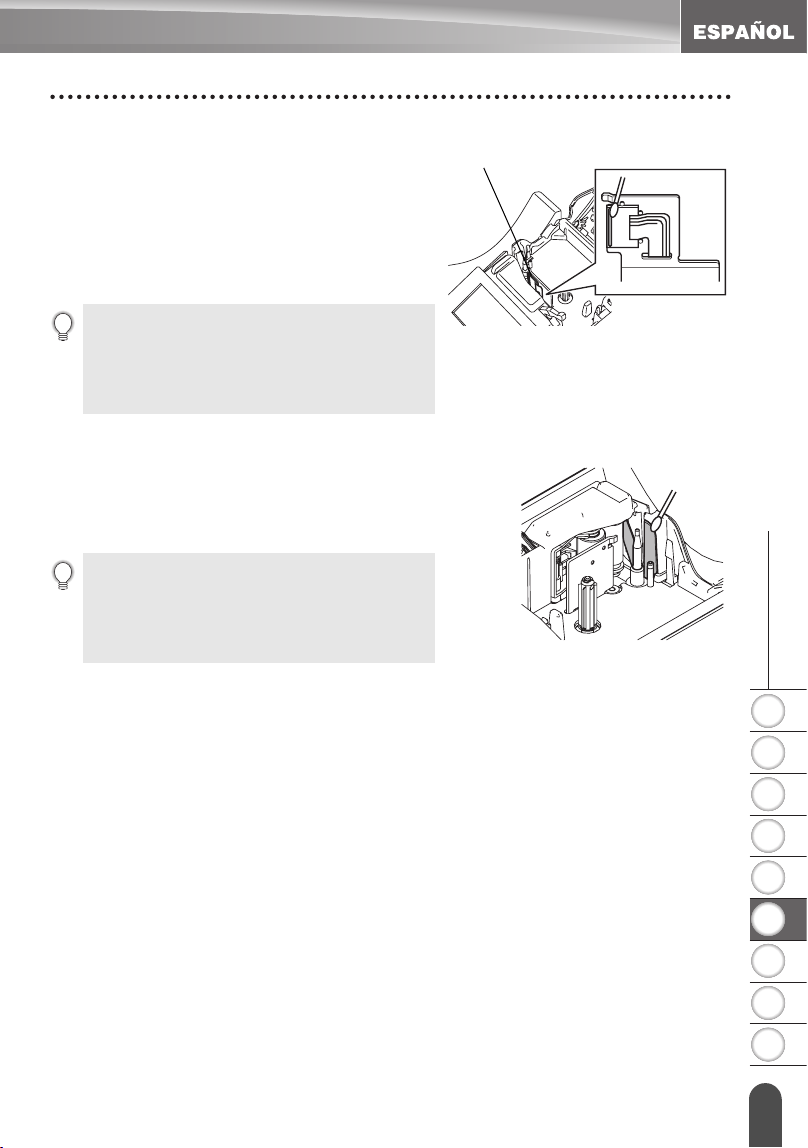
1
2
3
4
5
6
7
8
9
71
z MANTENIMIENTO DE SU Etiquetadora P-touch
Mantenimiento
Limpieza del cabezal de impresión
Si los caracteres de la etiqueta se imprimen con
franjas o con calidad deficiente, por lo general
esto indica que el cabezal de impresión está
sucio. Limpie el cabezal de impresión con un
bastoncillo de algodón o con una cinta para
limpiar cabezales de impresión (TZ-CL4), que
forma parte de las opciones de limpieza.
Limpieza de la cortadora de cinta
El uso continuado de la cortadora puede hacer que el
adhesivo de la cinta se acumule en su cuchilla, lo cual
puede desafilarla y provocar que la cinta se atasque en
la cortadora.
• No toque el cabezal de impresión
directamente con las manos.
• Consulte las instrucciones suministradas con
la cinta de limpieza para cabezales de
impresión para saber cómo debe utilizarla.
Cabezal de impresión
• Una vez al año, limpie la cuchilla de la
cortadora con un bastoncillo de algodón
humedecido en alcohol.
• No toque la cuchilla de la cortadora
directamente con las manos.
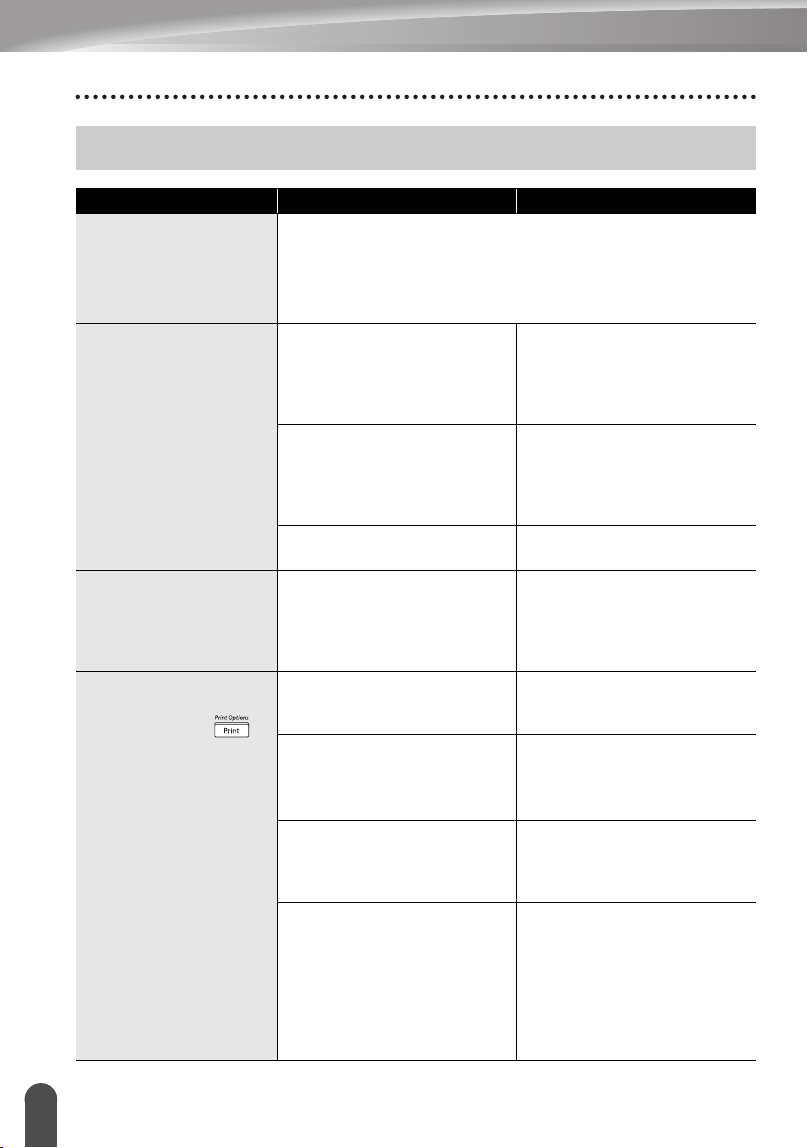
72
Qué hay que hacer cuando...
SOLUCIÓN DE PROBLEMAS
Qué hay que hacer cuando...
Problema Causa Solución
La pantalla se
"bloquea" o la
etiquetadora P-touch
no responde con
normalidad.
Consulte la sección “Restablecimiento de la etiquetadora P-
touch” en la página 70 y restablezca la configuración inicial de
la memoria interna. Si el problema no se soluciona tras
restablecer la etiquetadora P-touch, desconecte el adaptador
de CA y extraiga las baterías durante más de 10 minutos.
La pantalla
permanece apagada
tras encender el
equipo.
¿Está el adaptador de CA
bien conectado?
Compruebe que el
adaptador de CA diseñado
exclusivamente para la
etiquetadora P-touch está
correctamente conectado.
¿Está utilizando el
adaptador de CA adecuado?
Asegúrese de que está
usando el adaptador de CA
diseñado exclusivamente
para la etiquetadora P-touch
(incluido en la entrega).
¿Las baterías están
correctamente instaladas?
Extraiga las baterías y
vuelva a instalarlas.
Los mensajes en la
pantalla LCD se
muestran en un
idioma desconocido.
¿Se seleccionó el idioma
correctamente?
Consulte la sección “Ajuste
del idioma y las unidades”
en la página 23 y seleccione
el idioma deseado para los
mensajes en pantalla.
La etiqueta no se
imprime cuando se
oprime la tecla .
¿Ha introducido texto? Si no se ha introducido
ningún texto, no se imprimirá
ninguna etiqueta.
¿Se ha instalado
correctamente el cartucho
de cinta y queda cinta
suficiente?
Compruebe que el cartucho
de cinta se ha instalado
correctamente y que queda
suficiente cinta.
¿Está torcido el extremo de
la cinta?
Si lo está, corte la sección
torcida con unas tijeras y pase
correctamente la cinta por la
ranura de salida de la cinta.
¿Se ha atascado la cinta?
Si está atascada, retire el
cartucho de cinta, tire
cuidadosamente de la cinta
atascada y corte la cinta con
unas tijeras. Compruebe que
el extremo de la cinta pasa por
la guía de la cinta y vuelva a
instalar el cartucho de cinta.
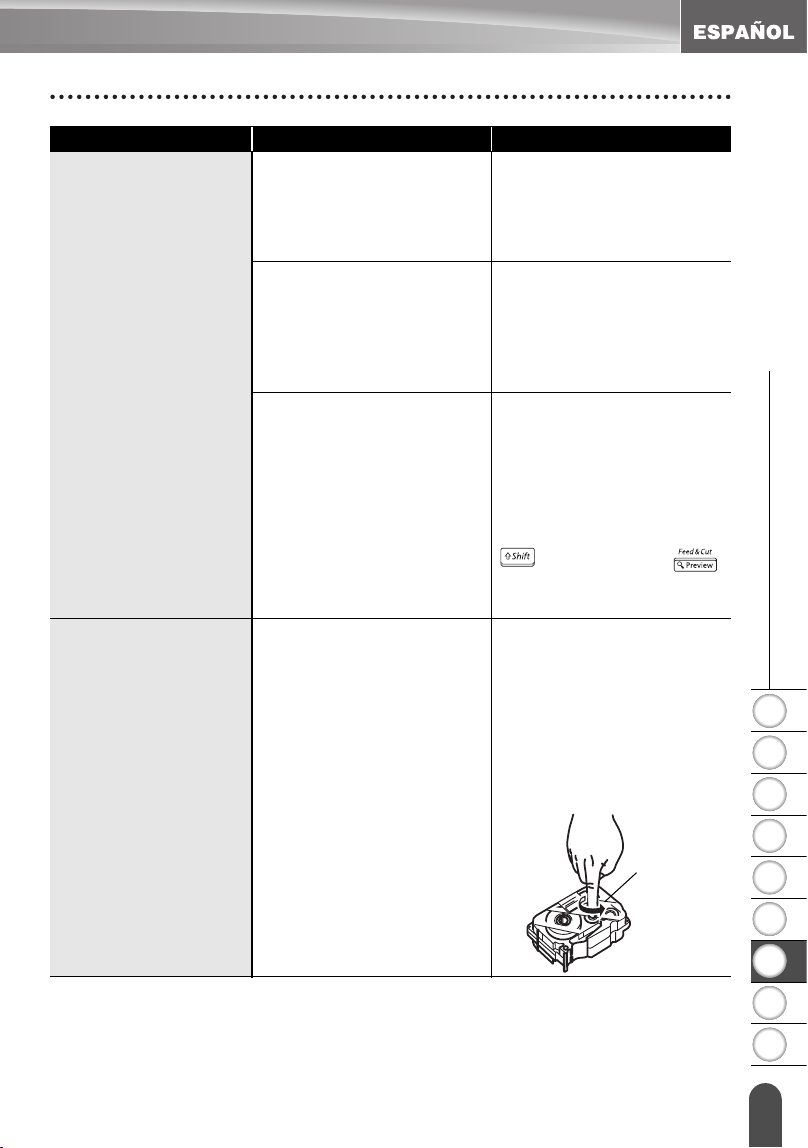
1
2
3
4
5
6
7
8
9
73
z SOLUCIÓN DE PROBLEMAS
Qué hay que hacer cuando...
La etiqueta no se
imprime
correctamente.
¿Está el cartucho de cinta
instalado correctamente?
Cuando coloque un cartucho
de cinta, presione con
firmeza hasta que oiga un
chasquido que le indica que
está en su sitio.
¿Está limpio el cabezal de
impresión?
Si no lo está, limpie el cabezal
de impresión con un
bastoncillo de algodón o con
una cinta para limpiar
cabezales de impresión (TZ-
CL4).
¿Qué opción se ha
seleccionado en el menú
"Op. corte", "Cadna" o "Sin
corte"?
Cuando se selecciona
alguna de estas opciones, la
cinta no avanza tras imprimir
la etiqueta. Compruebe cuál
opción está seleccionada en
el menú “Op. corte” o
mantenga oprimida la tecla
y oprima la tecla
para hacer avanzar la cinta y
cortarla.
La cinta de tinta está
separada del rodillo
de tinta.
¿Está la cinta de tinta suelta
en el cartucho de cinta o
usted tiró de una etiqueta
que estaba saliendo por la
ranura de salida de la cinta?
Si la cinta de tinta está rota,
sustituya el cartucho de
cinta completo. Si no está
rota, deje la cinta sin cortar y
extraiga el cartucho de cinta
y, a continuación, enrolle la
cinta de tinta suelta en el
carrete como se muestra en
la figura.
Problema Causa Solución
Carrete
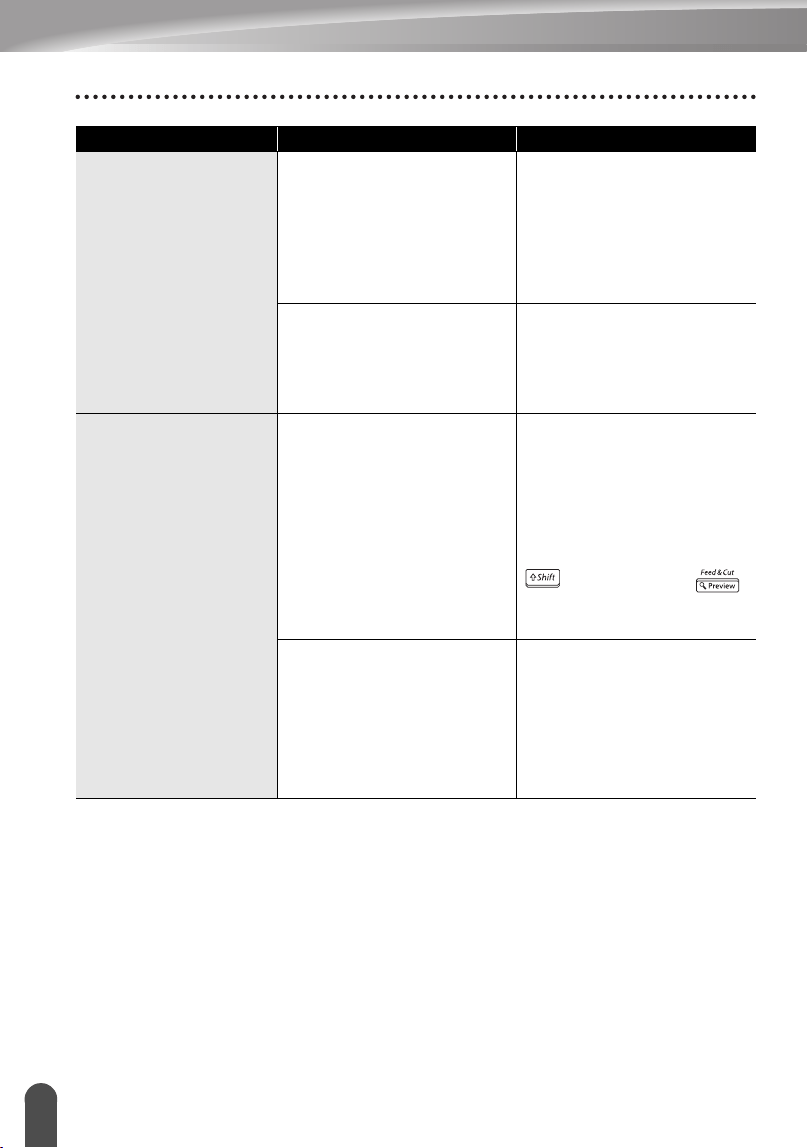
SOLUCIÓN DE PROBLEMAS
74
Qué hay que hacer cuando...
La etiquetadora P-
touch se detiene
durante la impresión
de una etiqueta.
¿Queda suficiente cinta en
el cartucho de cinta?
Cuando la cinta muestra
franjas, esto indica que se
ha llegado al final de la cinta.
Sustituya el cartucho de
cinta usado con un nuevo
cartucho de cinta cuando
aparezcan estas franjas.
¿Le queda poca carga a las
baterías y el adaptador de
CA no está conectado?
Reemplace todas las
baterías o conecte
directamente el adaptador
de CA a la etiquetadora P-
touch.
La etiqueta no se
corta
automáticamente.
¿Qué opción se ha
seleccionado en el menú
"Op. corte", "Cadna" o "Sin
corte"?
Cuando se selecciona
alguna de estas opciones, la
cinta no avanza tras imprimir
la etiqueta. Compruebe cuál
opción está seleccionada en
el menú “Op. corte” o
mantenga oprimida la tecla
y oprima la tecla
para hacer avanzar la cinta y
cortarla.
¿Está activada la función de
Corte manual?
Cuando vaya a trabajar con
cintas de tela para
transferencias o cintas
adhesivas extra fuertes,
utilice unas tijeras para
cortar la cinta al término de
la impresión.
Problema Causa Solución
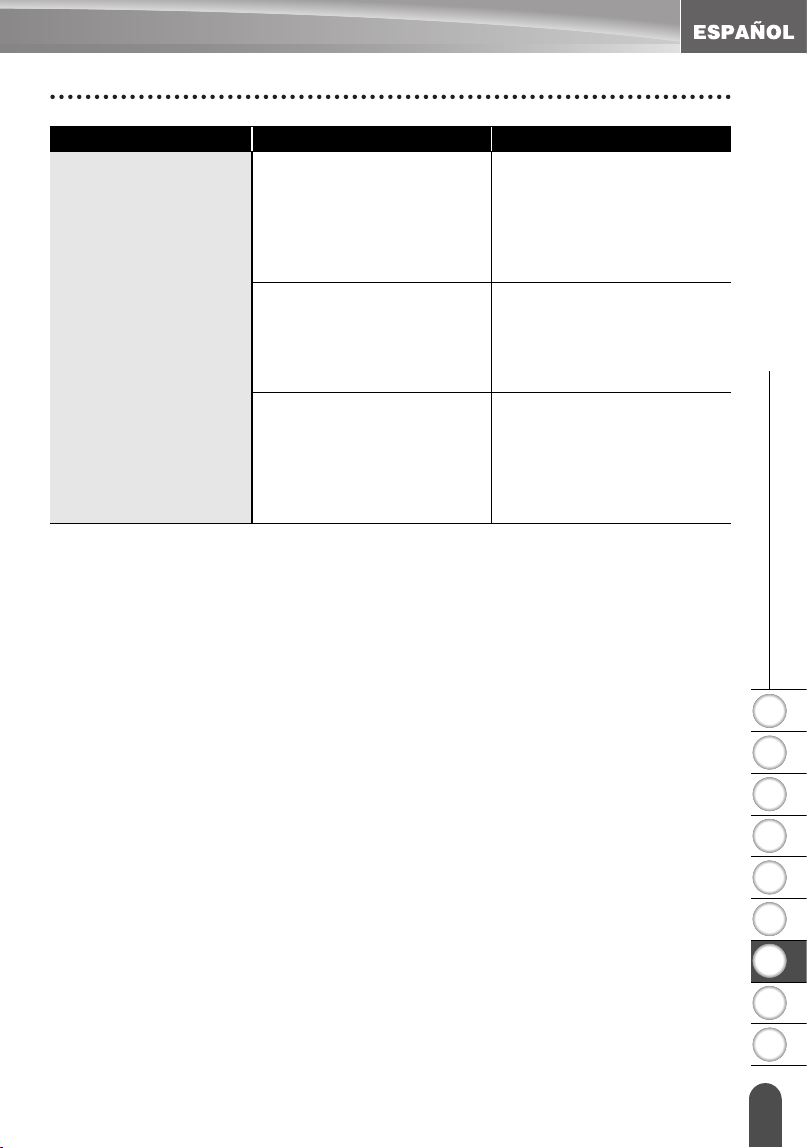
1
2
3
4
5
6
7
8
9
75
z SOLUCIÓN DE PROBLEMAS
Qué hay que hacer cuando...
Los archivos de
etiquetas guardados
anteriormente están
vacíos ahora.
¿Se han desconectado las
baterías y el adaptador de
CA?
Todos los archivos
almacenados en la memoria
interna se pierden si las
baterías y el adaptador de
CA se desconectan durante
más de 1 minuto.
¿Queda suficiente carga en
las baterías?
Todos los datos
almacenados en la memoria
interna se pierden si las
baterías se descargan
totalmente.
¿Ha utilizado la función de
Restablecimiento?
La función de
Restablecimiento borra
todos los datos
almacenados en la memoria
interna, incluidos los
archivos de etiquetas.
Problema Causa Solución
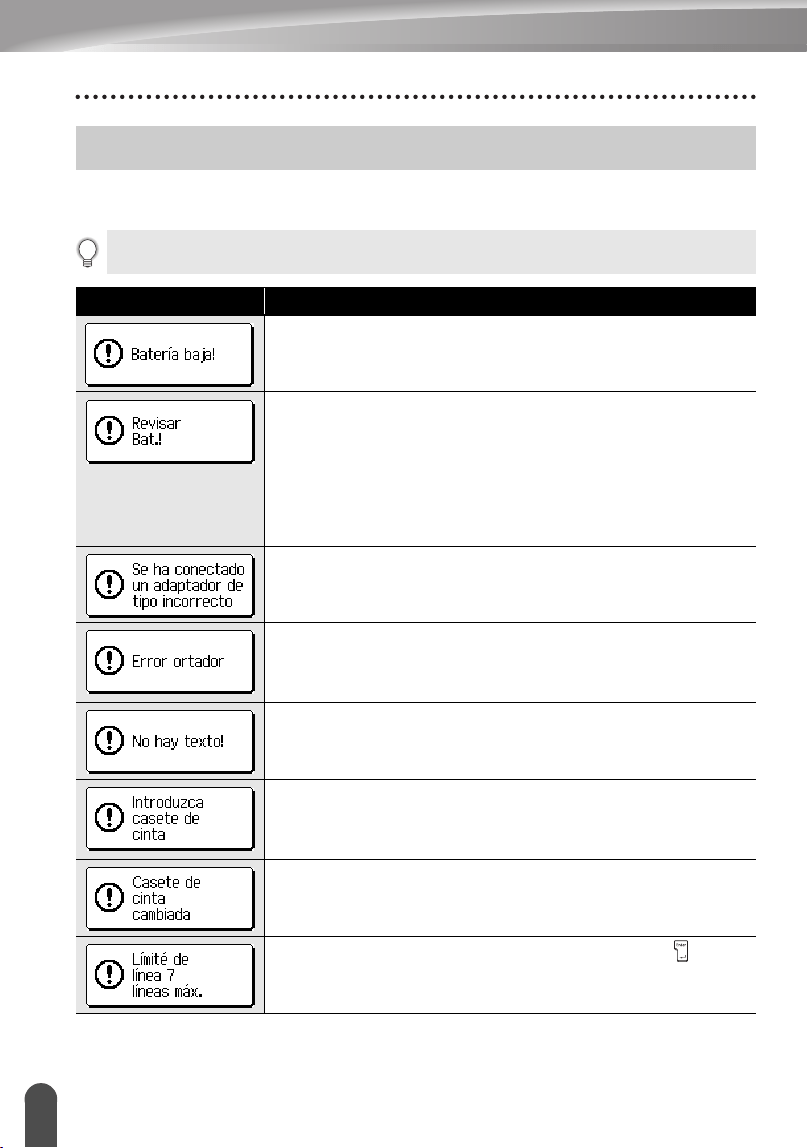
SOLUCIÓN DE PROBLEMAS
76
Mensajes de error
Si aparece un mensaje de error en pantalla, siga las instrucciones que se indican a
continuación.
Mensajes de error
Oprima cualquier tecla para que desaparezca el mensaje de error.
Mensaje Causa/Solución
Las baterías instaladas se están agotando.
• Las baterías están instaladas con el polo negativo y el positivo
en la posición incorrecta o se han mezclado baterías alcalinas
con baterías de otro tipo. Instale ocho baterías alcalinas de
tamaño AA (LR6) en la posición correcta.
• Las baterías instaladas están a punto de agotarse.
Reemplace las baterías usadas con baterías nuevas o
conecte el adaptador de CA antes de proseguir.
Se ha conectado un adaptador de CA incompatible. Utilice sólo
el adaptador de CA diseñado exclusivamente para su
etiquetadora P-touch.
La cortadora de cinta se cierra si se intenta imprimir o hacer
avanzar la cinta. Apague y vuelva a encender la etiquetadora P-
touch antes de proseguir.
Si la cinta queda enredada en la cortadora, retire la cinta.
No se ha introducido texto, símbolos ni datos de códigos de
barras cuando se intenta imprimir u obtener una vista previa de
una etiqueta. Introduzca los datos antes de proseguir.
No hay ningún cartucho de cinta instalado cuando se intenta
imprimir u obtener una vista previa de una etiqueta, o se intenta
hacer avanzar la cinta. Instale un cartucho de cinta antes de
proseguir.
El cartucho de cinta se cambia durante la impresión, etc.
Asegúrese de introducir el cartucho de cinta correcto antes de
iniciar la impresión.
Ya hay siete líneas de texto cuando se oprime la tecla . Limite
el número de líneas a siete.
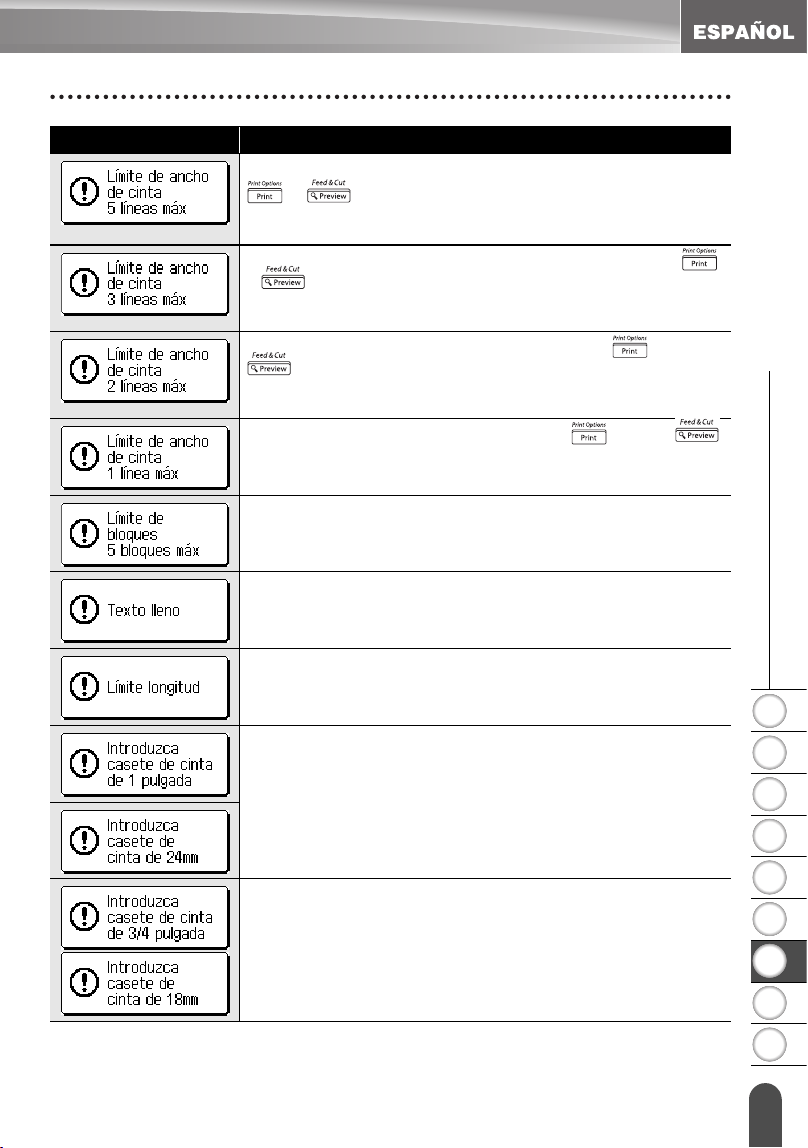
1
2
3
4
5
6
7
8
9
77
z SOLUCIÓN DE PROBLEMAS
Mensajes de error
Hay más de cinco líneas de texto cuando se oprime la tecla
o cuando se usa una cinta de 3/4" (18 mm).
Limite el número de líneas a cinco o reemplace el casete de
cinta con una cinta de mayor ancho.
Hay más de tres líneas de texto cuando se oprime la tecla
o cuando se usa una cinta de 1/2" (12 mm). Limite el
número de líneas a tres o reemplace el cartucho de cinta con una
cinta de mayor ancho.
Hay más de dos líneas de texto al oprimir la tecla o la tecla
al usar cinta de 3/8" o 1/4" (9 mm o 6 mm). Limite el
número de líneas a dos o reemplace el cartucho de cinta con una
cinta de mayor ancho.
Hay más de una línea de texto al oprimir la tecla o la tecla
al usar una cinta de 9/64" (3.5mm). Limite el número de líneas a una
o reemplace el cartucho de cinta con una cinta de mayor ancho.
Ya hay cinco bloques de texto. Limite el número de bloques de
texto a cinco.
Ya se ha introducido el número máximo de caracteres. Edite
el texto para utilizar menos caracteres.
La longitud de la etiqueta que se va a imprimir basada en el
texto introducido es superior a 39.37" (1 m). Edite el texto
para que la longitud de la etiqueta sea inferior a 39.37" (1 m).
No está instalado un cartucho de cinta de 1" (24mm) al
seleccionar un formato automático para una cinta de 1"
(24mm). Instale un cartucho de cinta de 1" (24mm).
El cartucho de cinta instalado no es de 3/4" (18 mm) cuando
está seleccionada la opción de cinta de 3/4" (18 mm) en la
función de formato automático. Instale un cartucho de cinta
de 3/4" (18 mm).
Mensaje Causa/Solución
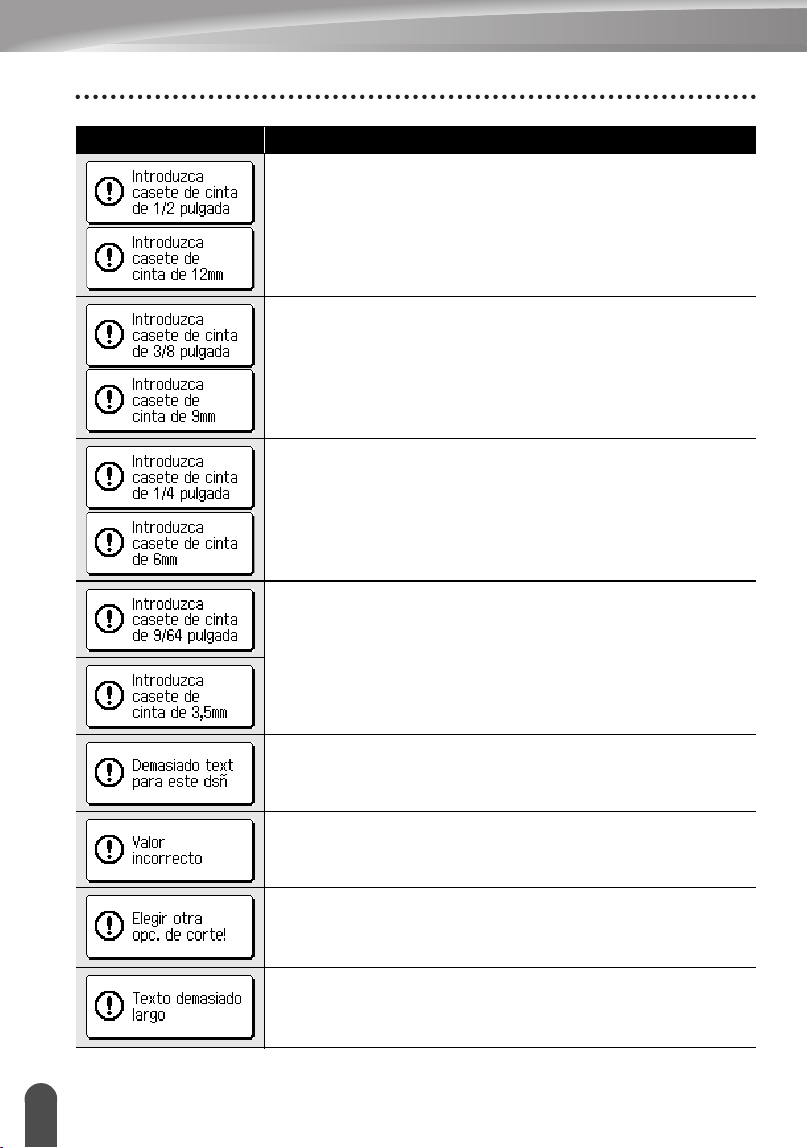
SOLUCIÓN DE PROBLEMAS
78
Mensajes de error
El cartucho de cinta instalado no es de 1/2" (12 mm) cuando
está seleccionada la opción de cinta de 1/2" (12 mm) en la
función de formato automático. Instale un cartucho de cinta
de 1/2" (12 mm).
El cartucho de cinta instalado no es de 3/8" (9 mm) cuando
está seleccionada la opción de cinta de 3/8" (9 mm) en la
función de formato automático. Instale un cartucho de cinta
de 3/8" (9 mm).
El cartucho de cinta instalado no es de 1/4" (6 mm) cuando
está seleccionada la opción de cinta de 1/4" (6 mm) en la
función de formato automático. Instale un cartucho de cinta
de 1/4" (6 mm).
El cartucho de cinta no es de 9/64" (3.5mm) cuando está
seleccionada la opción de cinta de 4/96" (3.5mm) en la función
de formato automático. Instale un cartucho de cinta de 9/64"
(3.5mm).
Ya se ha introducido el número máximo de caracteres para el
diseño seleccionado. Edite el texto para utilizar menos
caracteres o utilice un diseño diferente.
El valor introducido para la longitud de la cinta no es válido.
Introduzca un valor válido para la longitud de la cinta.
La longitud de la cinta establecida en el ajuste para la longitud de la
cinta es más corta que la longitud total de los márgenes izquierdo y
derecho aplicados a la opción de corte “Margn grande”. Seleccione
una opción de corte diferente.
La longitud de la etiqueta que se va a imprimir basada en el texto
introducido es superior a la longitud establecida. Edite el texto
para que se ajuste al valor de longitud establecido o cambie
dicho valor establecido.
Mensaje Causa/Solución
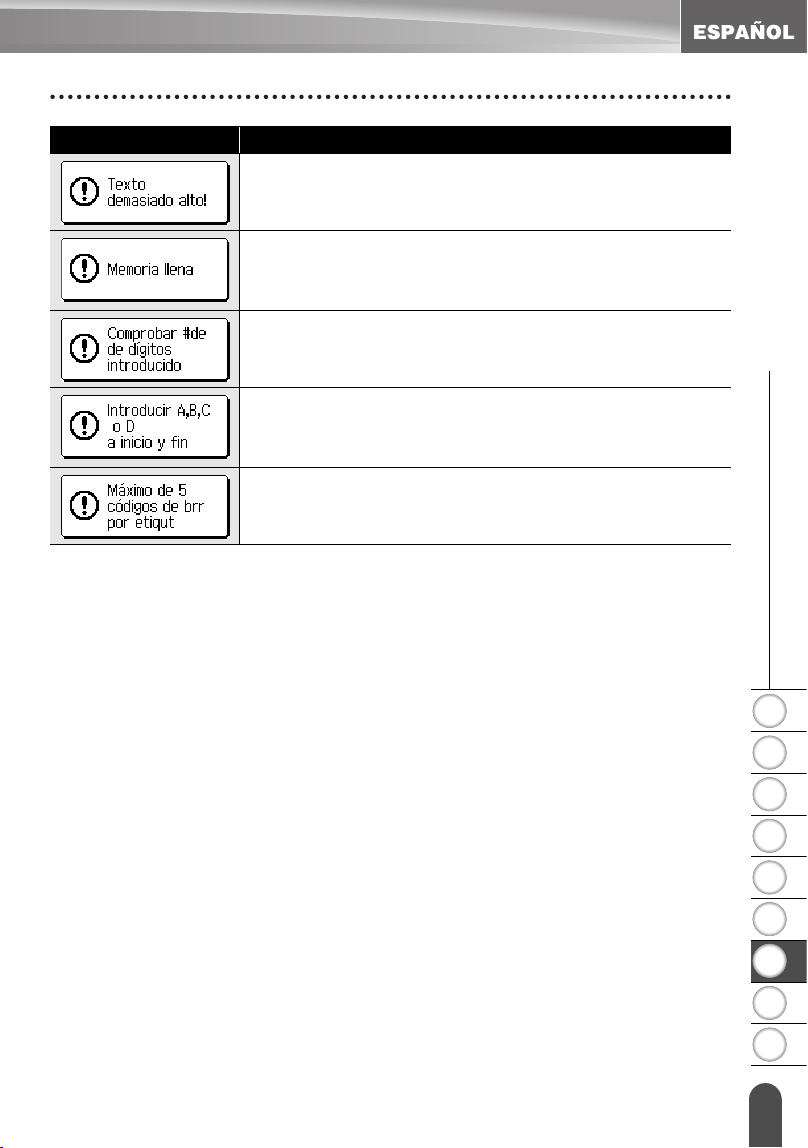
1
2
3
4
5
6
7
8
9
79
z SOLUCIÓN DE PROBLEMAS
Mensajes de error
El tamaño del texto es demasiado grande. Seleccione una
opción de tamaño diferente.
No hay suficiente memoria interna disponible cuando se intenta
guardar un archivo de etiqueta. Elimine cualquier archivo que ya
no necesite para liberar memoria y así tener espacio disponible
para el nuevo archivo de etiqueta.
El número de dígitos introducido en los datos del código de barras
no coincide con el número de dígitos establecido en los parámetros
del código de barras. Introduzca el número de dígitos correcto.
Los datos de código de barras introducidos no tienen los códigos de
inicio y fin necesarios (A, B, C o D requeridos al principio y al final de
los datos de código de barras para el protocolo CODABAR).
Introduzca correctamente los datos de código de barras.
Ya se han introducido 5 códigos de barras en los datos de texto
cuando se intenta introducir un nuevo código de barras. Como
máximo, en cada etiqueta puede haber 5 códigos de barras.
Mensaje Causa/Solución
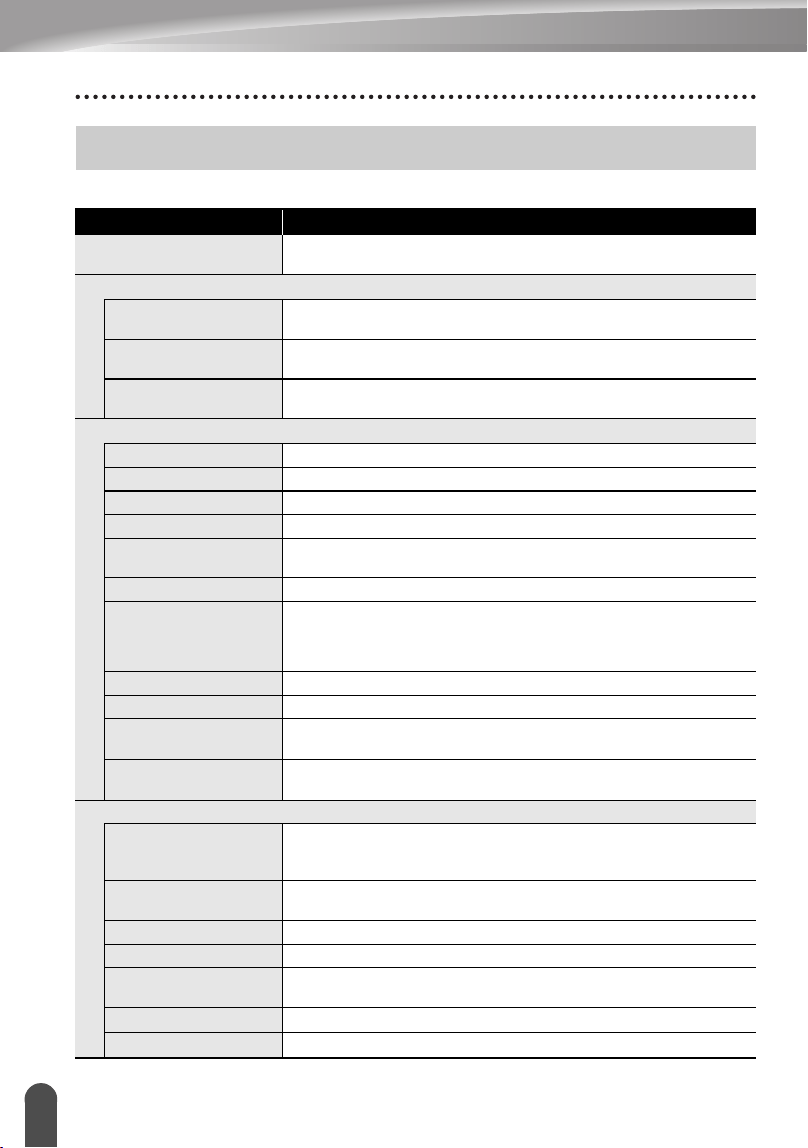
80
Especificaciones
APÉNDICE
Unidad principal
Especificaciones
Elemento Especificación
Dispositivo de entrada
(teclado)
67 teclas, teclado con disposición QWERTY de las teclas
Pantalla
Dispositivo de
visualización
LCD matricial de puntos
Visualización de
caracteres
16 caracteres x 3 líneas (128 puntos x 48 puntos)
Pantalla con
iluminación de fondo
Sí
Impresión
Método de impresión Impresora térmica
Cabezal de impresión 128 puntos / 180 ppp
Alto de impresión 0.71" (18.1mm) máx. (al usar una cinta de 1" (24mm))
Velocidad de impresión
0.39" (10 mm) /segundo aprox.
Cartucho de cinta
Cartuchos de cinta estándar TZ (4/69", 3/8", 1/2", 3/4", 1" [3.5, 6,
9, 12, 18, 24 mm] de ancho)
Cortadora de cinta Cortadora automática integrada
Nº de líneas
Cinta de 1" (24mm) : 1-7 líneas; cinta de 3/4" (18 mm) : 1 - 5
líneas; cinta de 1/2" (12 mm) : 1 - 3 líneas; cinta de 3/8" (9 mm) :
1 - 2 líneas; cinta de 1/4" (6 mm) : 1 - 2 líneas; cinta de 9/64"
(3.5mm) : 1 Line (1 línea)
Dirección de impresión
Horizontal, vertical
Impresión continua 1 ~ 99 etiquetas
Vista previa de la
impresión
Sí
Avance y corte Margn grande, Mrgn pequñ, Cadna, Sin corte
Caracteres
Conjunto de caracteres
internos:
Hay un total de 329 caracteres (62 alfanuméricos, 120 símbolos y
147 caracteres acentuados; observe que un caracter aparece tanto
en símbolos como en caracteres acentuados)
Memoria intermedia de
texto
280 caracteres máx.
Fuentes
Helsinki, Brussels, Florida, Belgium, USA, San Diego, Los Angeles, Calgary
Tamaño de caracteres Auto, 48pt, 42pt, 36pt, 24pt, 18pt, 12pt, 9pt, 6pt
Estilo de caracteres
Normal, Negrita, Perfilado, Sólido, Sombreado, Cursiva, Negrita
cursiva, Perfilado cursivo, Sólido cursivo, Sombreado cursivo, Vertical
Ancho de caracteres 2, 3/2, 1, 2/3, 1/2
Alineación del texto Izquierda, centro, derecha, justificado
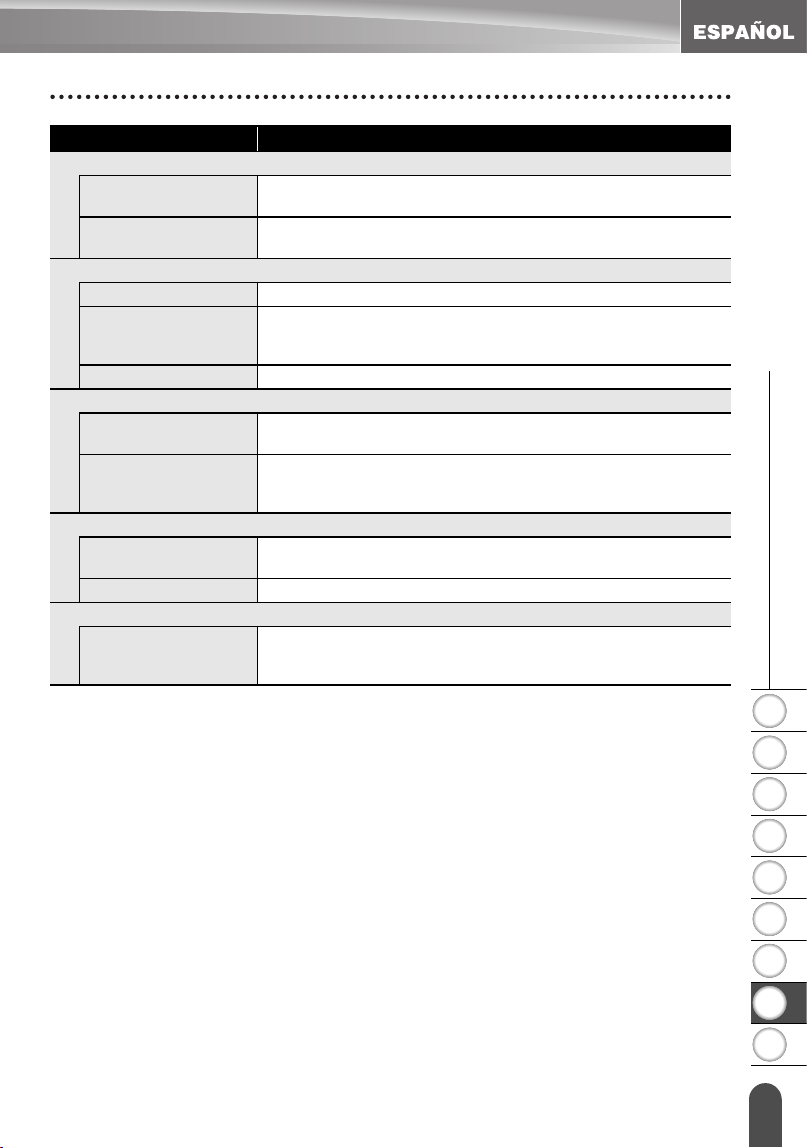
1
2
3
4
5
6
7
8
9
81
z APÉNDICE
Especificaciones
Memoria
Tamaño de la
memoria
Máximo de 2800 caracteres
Almacenamiento de
archivos
Máximo de 99 archivos
Otras características
Frame (Marco) Total de 20 patrones de marco
Formato automático Plantillas: 17
Diseños de bloques: 1" (24 mm): 8, 3/4"(18 mm):8, 1/2" (12 mm) :
4, 3/8" (9 mm) : 3, 1/4" (6 mm) : 1
Contraste de pantalla 5 niveles (+2, +1, 0, -1, -2)
Alimentación eléctrica
Alimentación eléctrica Adaptador de CA (AD-60), ocho baterías alcalinas de tamaño
AA (LR6).
Desconexión
automática
Batería: 5 min.*, adaptador de CA: 8 horas
*Sólo cuando se usa la etiquetadora P-touch. 1 hora, si está
conectada a una PC.
Size (Tamaño)
Dimensiones 7.06" (Ancho) x 9.75" (Fondo) x 2.82" (Alto)
[179.5mm (Ancho) x 247.9mm (Fondo) x 71.8mm (Alto)]
Peso 1.87lb (850g) (
sin el casete de cinta ni las baterías
)
Otros
Temperatura /
humedad de
funcionamiento
50 ~ 95ºF (10 ~ 35 ºC) / 20 ~ 80% de humedad (sin
condensación)
Temperatura bulbo húmedo máxima: 80.6°F (27° C)
Elemento Especificación
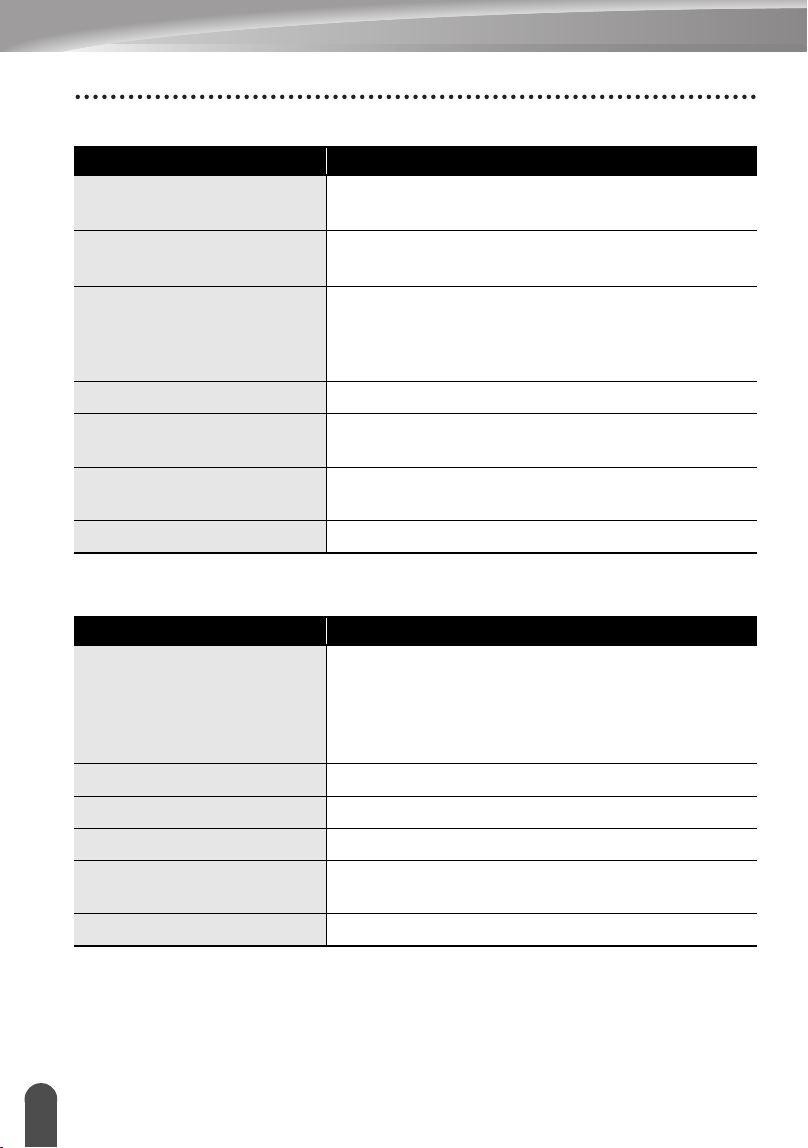
APÉNDICE
82
Especificaciones
Entorno operativo: Windows
Entorno operativo: Macintosh
Elemento Especificación
Sistema operativo
Microsoft
®
Windows
®
98SE, Me, 2000
Professional, XP
CPU
Pentium de 32 bits compatible (con un sistema
operativo de 32 bits)
Memoria
Windows
®
98SE, Me:
Se requieren 64MB o más
Windows
®
2000 Pro, XP:
Se requieren 128MB o más
Disco duro
Se requieren 70MB o más
Monitor
SVGA. tarjeta gráfica de color de alta densidad o
superior
Interface
Puerto USB (especificación USB con protocolo 1.1
o 2.0)
Otros
Unidad de CD-ROM para la instalación
Elemento Especificación
Sistema operativo
Mac OS X 10.1 - 10.4.4
Mac OS(R) 9.1 - 9.x*
(Para sistemas Mac OS(R) 9.1 - 9.x, visite nuestro
sitio Web http://solutions.brother.com para
descargar controladores y software.)
Memoria
Se requieren 32MB o más
Disco duro
Se requieren 100MB o más
Monitor
Más de 256 colores
Interface
Puerto USB (especificación USB con protocolo
1.1 o 2.0)
Otros
Unidad de CD-ROM para la instalación
1
2
3
4
5
6
7
8
9
83
z ÍNDICE
ÍNDICE
A
Adaptador de CA .............................. 17
Alimentación eléctrica ...................... 16
alineación ......................................... 31
ancho ............................................... 31
Avance y corte, función .................... 21
C
Caps, modo ................................ 13, 24
caracteres acentuados ..................... 29
Cargador de baterías ....................... 13
Cartuchos de cinta ........................... 18
contraste ........................................... 21
Corte manual .................................... 64
cursor, teclas .................................... 24
D
desconexión automática ................... 20
E
eliminar
sólo texto .................................. 25
texto y formato ......................... 25
estilo ................................................. 31
F
formato
atributos de caracteres ............. 31
atributos de etiqueta ................. 36
fuentes ............................................. 32
I
introducir
letras en mayúsculas ............... 24
símbolos ................................... 26
texto ......................................... 24
L
letras en mayúsculas ........................ 24
línea ................................................. 31
línea nueva ....................................... 24
lista de caracteres acentuados ......... 30
lista de símbolos ............................... 28
longitud ..............................................36
longitud de la cinta ............................13
M
marca de retorno ...............................13
N
Número de línea ................................13
S
símbolos ............................................26
T
tamaño ..............................................31
Teclado .............................................13
texto
introducir y editar .......................24
líneas .........................................24
84
Voz 1-877-4-PTouch, o Fax 1-901-379-1210
Los centros de servicio no prestan asistencia operativa. Consulte "Asistencia operativa".
Si necesita un centro de servicio local, llame al teléfono 1-800-284-HELP (4357)
Centros de servicio
para averiguar cuál es el centro de servicio autorizado que le queda más cerca.
Nota: Llame al centro de servicio antes de desplazarse.
Asistencia operativa
Si necesita asistencia técnica y operativa, puede llamar al Servicio de atención al cliente de Brother en:
Asistencia por Internet
Para obtener información sobre productos y descargar los controladores más recientes: http://www.brother.com
Para adquirir accesorios y determinados productos Brother: http://www.brothermall.com
Accesorios y suministros
Para pedir accesorios y suministros Brother pagando con Visa, MasterCard, Discover o American Express,
puede llamar al número gratuito 1-888-879-3232 o rellenar el formulario de pedido que encontrará en la
Guía del usuario y enviar ambas caras del formulario por fax al número 1-800-947-1445.
Para adquirir accesorios en Internet: http://www.brothermall.com
Para hacer su pedido por correo o pagar con talón, rellene el formulario de pedido de accesorios y envíelo
con el abono a nombre de:
Brother International Corporation
Attn: Consumer Accessory Division
P.O. Box 341332
Bartlett, TN 38184-1332
Sistema de respuesta por fax
El Servicio de atención al cliente de Brother ha instalado un sencillo sistema de respuesta por fax que le
permitirá obtener respuesta instantánea a preguntas técnicas frecuentes, así como información sobre todos
los productos de Brother. Este sistema está disponible 24 horas al día, 7 días a la semana. Puede usar el
sistema para enviar la información a cualquier número de fax, no sólo al número desde el que llama.
Llame al 1-800-521-2846 y siga las indicaciones de voz para recibir por fax instrucciones sobre cómo
usar el sistema, así como un índice de los temas de respuesta por fax.
Ahorre tiempo - Regístrese en Linea!
No pierda tiempo al teléfono. Despreocúpese por el correo. Visítenos en
www.registermybrother.com
Regístre su producto inmediatamente en nuestra base y listo.
También en su visita, encuentre información útil y participe en sorteos!
Información de contacto (sólo para EE.UU.)