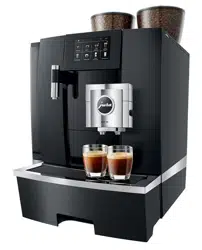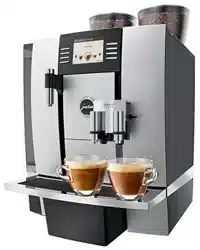
GIGA 6 Instructions for Use

2
Table of contents
Control elements 4
Important information 6
Proper use ......................................................................................................................................................6
For your safety ...............................................................................................................................................6
1 Preparing and using for the first time 10
JURA on the Internet ....................................................................................................................................10
Operation with touchscreen display and Rotary Switch .......................................................................10
Setting up the machine ...............................................................................................................................11
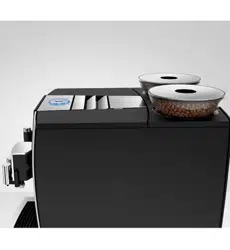
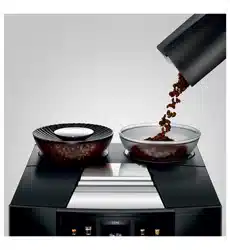
Filling the bean container ............................................................................................................................11
Determining the water hardness ...............................................................................................................11
First-time use ................................................................................................................................................12
Connecting milk ...........................................................................................................................................14
Connect accessory (with wireless connection) .......................................................................................14
2 Preparation 16
Ways of preparing a beverage ...................................................................................................................16
Preparing speciality coffees ........................................................................................................................17
Preparing two speciality coffees ................................................................................................................17
Preparing speciality coffees with milk ......................................................................................................18
Caffè Barista and lungo Barista .................................................................................................................18
Ground coffee ...............................................................................................................................................19
Hot water ......................................................................................................................................................20
3 Daily operation 21
Filling the water tank ...................................................................................................................................21
Switching on the machine ..........................................................................................................................21
Daily maintenance ......................................................................................................................................22
Regular maintenance .................................................................................................................................22
Switching off the machine .........................................................................................................................23
4 Permanent settings in programming mode 24
Product settings ..........................................................................................................................................25
Setting the consistency of grind ..............................................................................................................27
Automatic switch-off ..................................................................................................................................27
Time and date ..............................................................................................................................................28
Setting the water hardness .......................................................................................................................28
Timer .............................................................................................................................................................29
Unit for amount of water/ time format ..................................................................................................30
Energy-saving mode ..................................................................................................................................30
Language .......................................................................................................................................................31
Display brightness ........................................................................................................................................31
Restore factory settings .............................................................................................................................32
Your GIGA 6
3
Table of contents
Warnings
J WARNING
J CAUTION
Always take note of any information marked with the words CAUTION
or WARNING and a warning sign. The signal word WARNING draws your
attention to potential serious injury, and the signal word CAUTION to
potential minor injury.
CAUTION CAUTION draws your attention to potential damage to the machine.
Symbols used
T
Prompt to take action. This symbol means that you are being prompted to
perform some action.
E
Information and tips to make it even easier to use your GIGA.
‘Espresso’ Display
Symbol description
Smart mode .................................................................................................................................................32
Displaying product names ........................................................................................................................33
Query counter readings and version .......................................................................................................33
5 Maintenance 35
Rinsing the machine ...................................................................................................................................35
Automatic milk system rinsing .................................................................................................................36
Cleaning the milk system ..........................................................................................................................36
Dismantling and rinsing the dual spout .................................................................................................37
Inserting/changing the filter ......................................................................................................................39
Cleaning the machine ................................................................................................................................40
Descaling the machine ...............................................................................................................................41
Cleaning the bean container .....................................................................................................................43
Descaling the water tank ...........................................................................................................................44
6 Display messages 45
7 Troubleshooting 47
8 Transport and environmentally friendly disposal 49
Transport/ Emptying the system .............................................................................................................49
Disposal .........................................................................................................................................................49
9 Technical data 50
10 Index 51
11 JURA contact details/ Legal information 56
4
Control elements
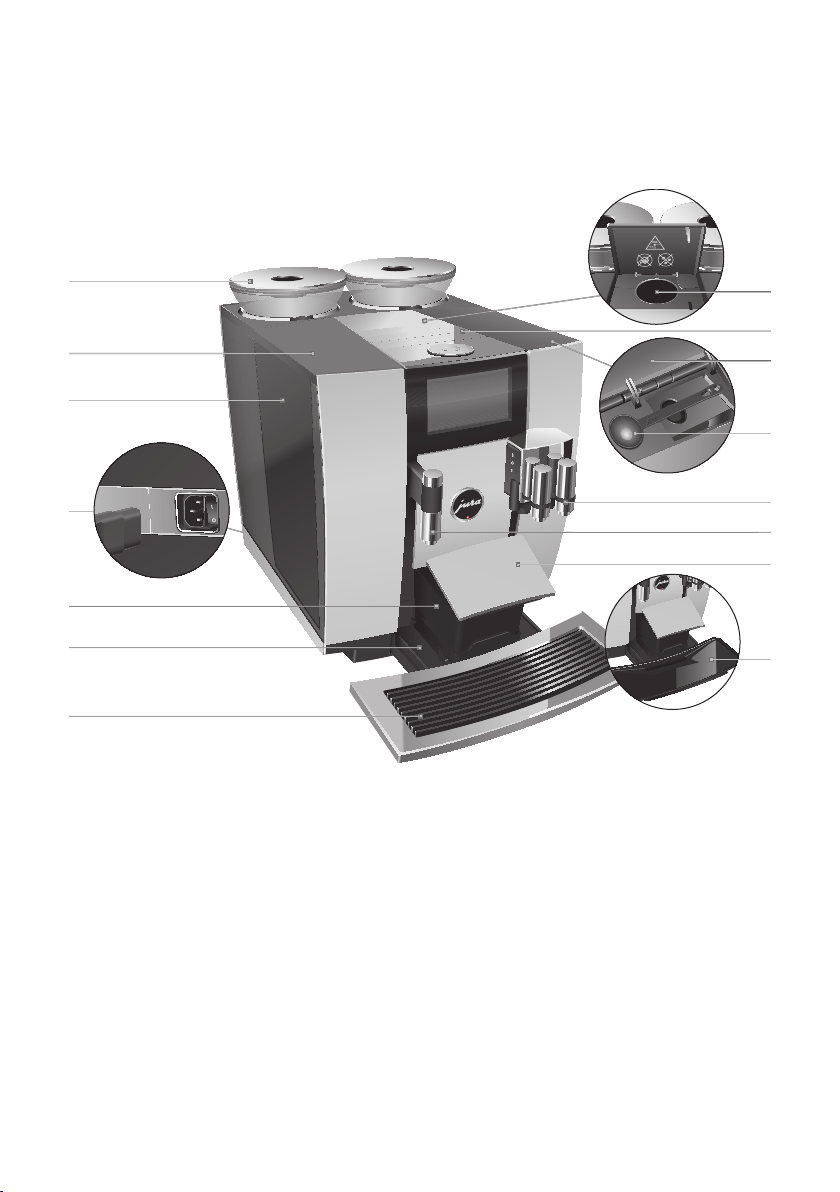
Control elements
2
7
9
13
12
10
3
11
15
14
6
5
1
8
4
1 Bean container with aroma
preservation cover
2 Water tank cover
3 Water tank
4 Power switch and plug-in mains cable
(back of the machine)
5 Coffee grounds container
6 Drip tray
7 Cup grille
8 Filler funnel for ground coffee
9 Ventilation slats (Venti Ports)
10 Storage compartment cover
11 Measuring spoon for ground coffee
12 Height- and width-adjustable dual spout
13 Height-adjustable hot-water spout
14 Drip tray cover (pivoting)
15 Insert for drip tray
5
Control elements
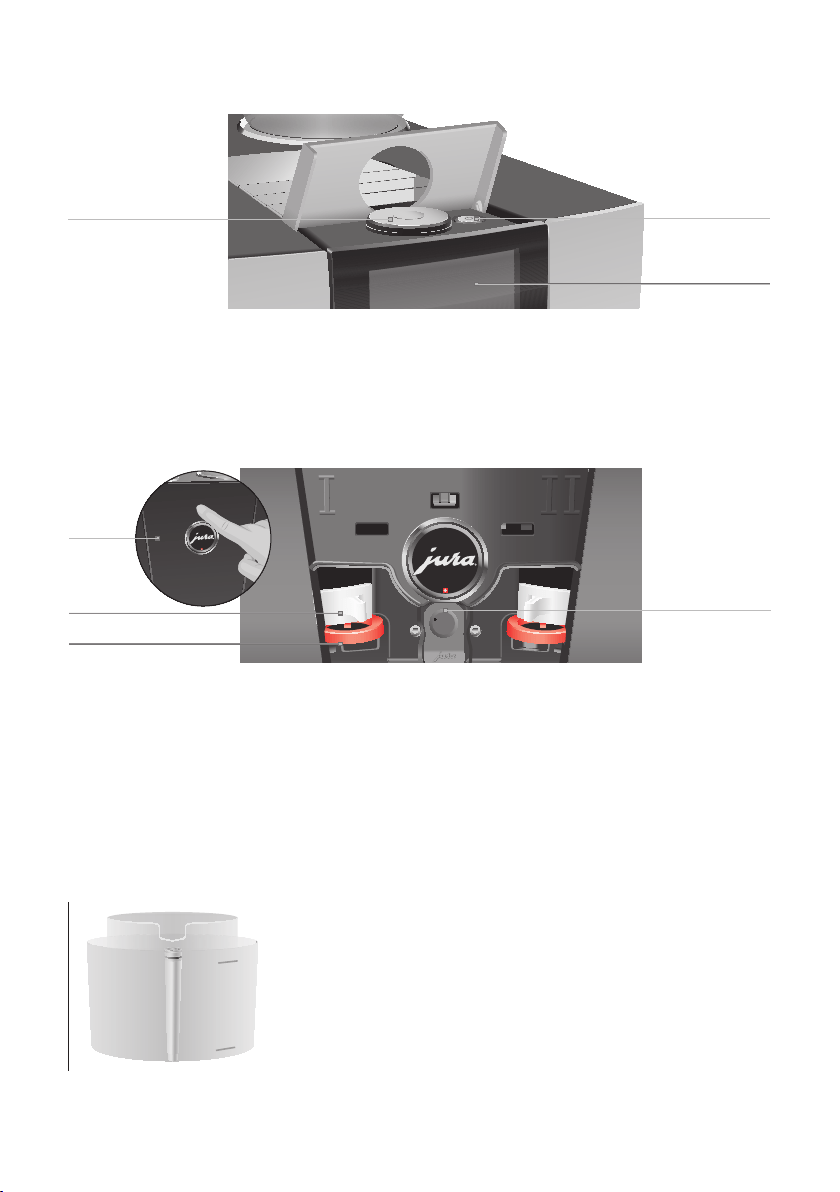
1 Rotary Switch
2 On/Off button Q (under cover)
3 Touchscreen display
1
2
3
4
Back of the machine
1 Service cover (open by pressing
with your finger)
2 Locking device
3 Sliding catch
4 Service socket with JURA Smart Connect
Accessories
Container for milk system cleaning
6
1
2
3

6
Important information
Important information
The machine is designed and intended for private
domestic use. It should only be used for coffee
preparation and to heat milk and water. Use for any
other purpose will be deemed improper. JURA
Elektroapparate AG cannot accept any responsibil-
ity for the consequences of improper use.
Before using the machine read these instructions
for use thoroughly and completely and comply
with the instructions they contain. A warranty ser-
vice is not applicable for damage or defects caused
by non-compliance with the instructions for use.
Keep these instructions for use close to the machine
and pass them on to the next user.
Please carefully read and observe the important
safety information set out below.
To avoid danger of potentially fatal electric shock:
U
Never use a machine which is damaged or has
a defective mains cable.
U
In the event of signs of damage, for example if
there is a smell of burning, unplug the machine
immediately from the power supply and con-
tact JURA service.
U
If the mains cable of this machine is damaged
it must be replaced with a special mains cable,
which is available directly from JURA or from
authorised JURA service centres.
U
Make sure that the GIGA and the mains cable
are not located close to hot surfaces.
U
Be careful to ensure that the mains cable is not
trapped and does not rub against sharp edges.
Proper use
For your safety
J

7
Important information
U
Never open and repair the machine yourself.
Do not modify the machine in any way that is
not described in these instructions for use. The
machine contains live parts. If opened, there is
a danger of potentially fatal injury. Repairs
may only be carried out by authorised JURA
service centres, using original spare parts and
accessories.
U
To completely and safely disconnect the
machine from the power supply, first switch
off the GIGA using the On/Off button Q and
then at the power switch. Only then should
you remove the mains plug from the power
socket.
There is a risk of scalds or burns on the spouts.
U
Place the machine out of the reach of children.
U
Do not touch any hot parts. Use the handles
provided.
U
Be careful to ensure that the dual spout is cor-
rectly installed and clean. If it is incorrectly fit-
ted or becomes blocked, its parts might come
off. There is a danger of parts being swallowed.
A defective machine is not safe and could cause
injury or fire. To avoid damage and any associated
risk of injury or fire:
U
Never allow the mains cable to loosely hang
down. The mains cable could pose a tripping
hazard or become damaged.
U
Protect the GIGA from environmental influ-
ences such as rain, frost and direct sunlight.
U
Do not immerse the GIGA, mains cable or con-
nections in water.

8
Important information
U
Do not put the GIGA or any individual parts in
the dishwasher.
U
On models with glass cup grille: Do not sub-
ject the glass cup grille to shock or impact.
U
Before cleaning, switch the GIGA off with the
On/Off button Q. Always wipe the GIGA with a
damp cloth rather than a wet one, and protect
it from prolonged exposure to water splash.
U
Only connect the machine to the mains volt-
age in accordance with the information on the
rating plate. The rating plate is located on the
underside of your GIGA. Further technical data
is provided in these instructions for use (see
Chapter 9 ‘Technical data’).
U
Connect the GIGA directly to a domestic power
socket. Using multi-socket adapters or exten-
sion cords may cause overheating.
U
Please only use original JURA maintenance
products. Use of products that are not explic-
itly recommended by JURA could damage the
machine.
U
Do not use alkaline cleaning agents; only use
a soft cloth and mild cleaning agents.
U
Do not use any coffee beans treated with addi-
tives or caramelised coffee beans.
U
Only fill the water tank with fresh, cold water.
U
Switch the machine off at the power switch if
you are going to be absent for a longer period
of time and remove the mains plug from the
power socket.
U
Children may not clean or service the machine
unless supervised by a responsible person.
U
Do not allow children to play with the machine.

9
Important information
U
Keep children under the age of 8 away from
the machine, or supervise them constantly.
U
Children aged 8 and over may only operate
the machine without supervision if they have
been instructed in how to use it safely. Chil-
dren must be able to recognise and under-
stand the potential dangers arising from incor-
rect use.
People, including children, who
U
do not have the physical, sensory or mental
capabilities to use the machine safely or
U
are inexperienced or lack knowledge in how to
use the machine safely
must be supervised by a responsible person when
using it, or must be instructed in how to use it cor-
rectly.
Safety when handling the CLARIS Smart filter car-
tridge:
U
Filter cartridges should be kept out of the
reach of children.
U
Store filter cartridges in a dry place in the
sealed packaging.
U
Protect cartridges from heat and direct
sunlight.
U
Do not use damaged filter cartridges.
U
Do not open filter cartridges.
10
1 Preparing and using for the first time
1 Preparing and using for the first time
Visit us on the Internet. You can download short operating instruc-
tions for your machine from the JURA website (www.jura.com). You
will also find interesting and up-to-date information on your GIGA
and on every aspect of coffee.
If you need assistance with using your machine, you can find this at
www.jura.com/service.
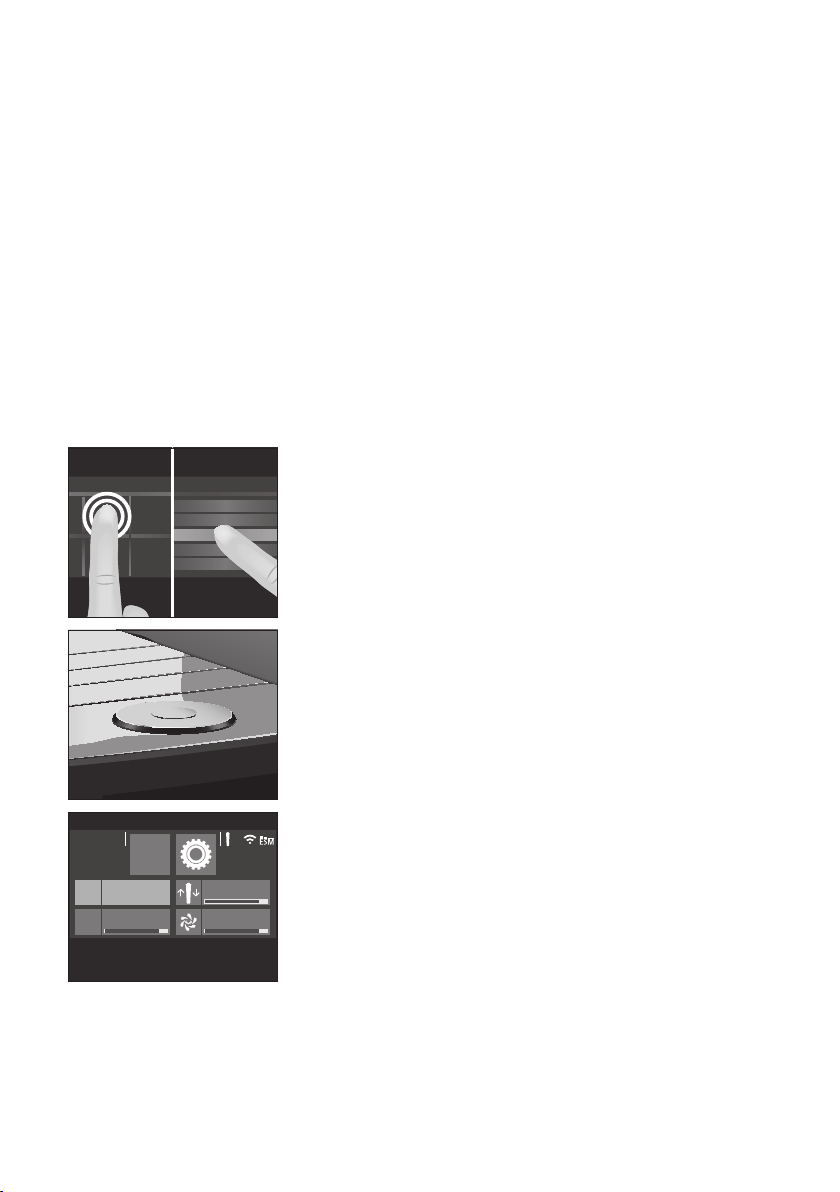
The touchscreen display and Rotary Switch combine to provide an
intuitive and convenient way of operating your GIGA:
U
Touchscreen display: Touch/swipe
Touch the display with your finger, for example to start coffee
preparation or undertake various settings in programming
mode. Move your finger across the display from left to right
or from top to bottom (or vice versa). You can change quanti-
ties whilst your coffee is being prepared, for example, or
switch between programme items in programming mode.
U
Programming with Rotary Switch: Also use the Rotary Switch.
As soon as you turn it, the product selector view is displayed.
Also navigate through the programme items in programming
mode and change various settings.
U
Press the Rotary Switch to open the dashboard of your GIGA:
U
The dashboard is divided into two sections: ‘Maintenance
status’ c and ‘Machine setting’
f.
U
If a maintenance programme needs to be initiated, a mes-
sage with a red background appears on the dashboard. You
can go straight to the maintenance programme you need by
touching this message. Maintenance programmes that are
due imminently are indicated on your GIGA by means of a
bar display within the message.
JURA on the Internet
Operation with
touchscreen display and
Rotary Switch
>>
>>
>>
>>
Ì
c
7
&
11
1 Preparing and using for the first time
U
Other symbols on the dashboard:
U
$: Filter mode
U
h: ‘Smart mode’ is activated (see Chapter 4 ‘Permanent set-
tings in programming mode – Smart mode’).
U
g: Your GIGA is connected to the Cool Control milk cooler
(available as an optional accessory).
U
k: Energy-saving mode is active.
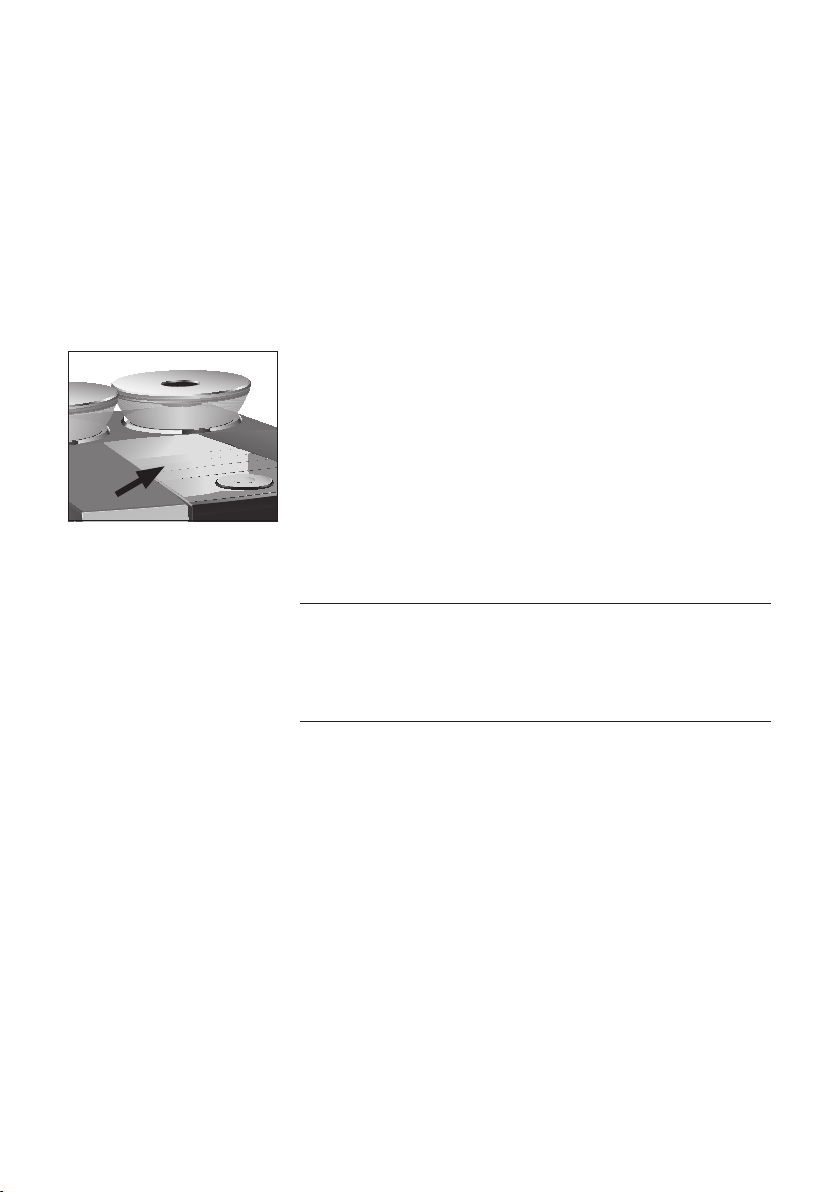
When setting up your GIGA, please note the following:
U
Place the GIGA on a horizontal surface that is not sensitive to
water.
U
Choose a spot for your GIGA which protects the machine
against overheating. Ensure that the ventilation slats are not
covered.
Coffee beans which have been treated with additives (e.g. sugar),
ground coffee or freeze-dried coffee will damage the grinder.
T Only use roasted, untreated coffee beans to fill the bean con-
tainer.
T Remove the aroma preservation cover.
T Remove any dirt or foreign objects from inside the bean
container.
T Fill the bean container with coffee beans and close the
aroma preservation cover.
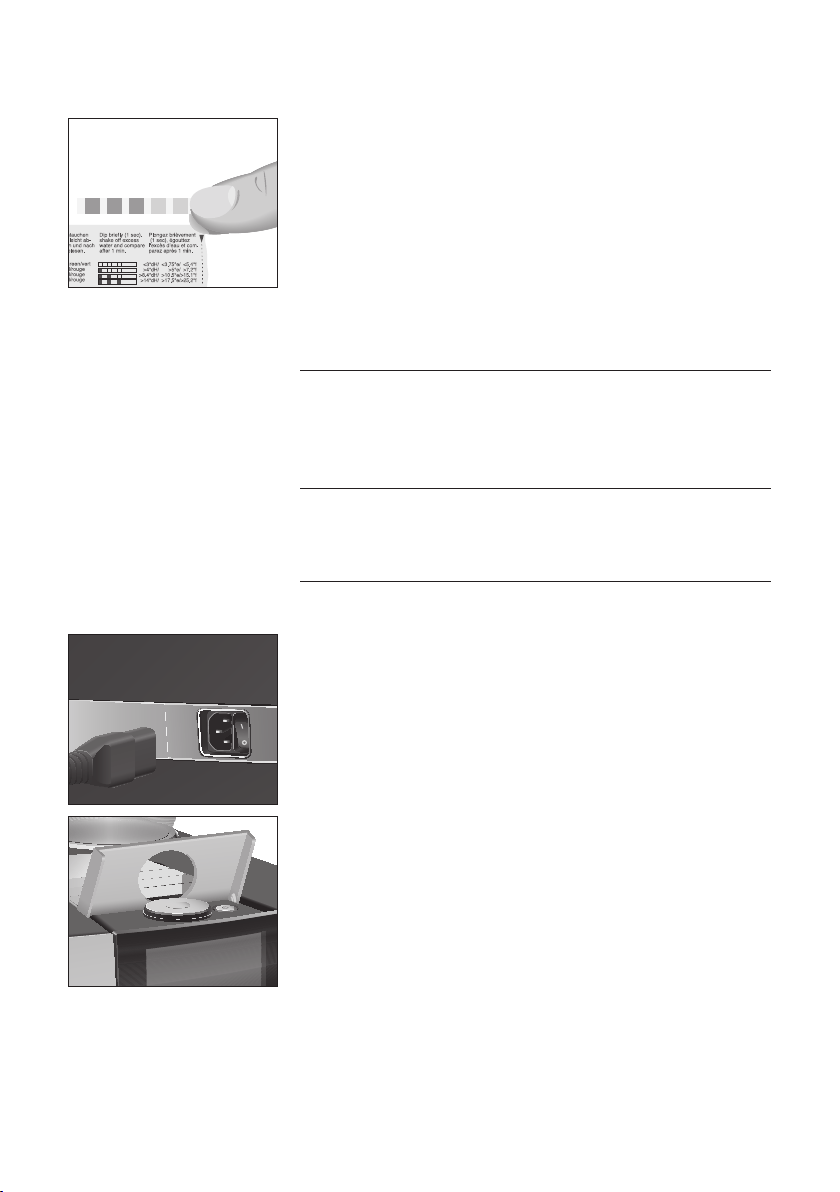
When you use the machine for the first time, you must set the water
hardness. If you do not know the hardness of your water, you can
find this out first. Use the Aquadur® test strips supplied with the
machine.
T Hold the test strip briefly (for 1second) under flowing water.
Shake off the water.
T Wait for about 1minute.
Setting up the machine
Filling the bean container
CAUTION
Determining the water
hardness
12
1 Preparing and using for the first time
T You will then be able to read the degree of water hardness
from the discolouration of the Aquadur® test strip and the
description on the packaging.
If the machine is operated with a defective mains cable, there is a
danger of potentially fatal electric shock.
T Never use a machine which is damaged or has a defective
mains cable.
Milk, sparkling mineral water or other liquids can damage the water
tank or the machine.
T Only fill the water tank with fresh, cold water.
Precondition:The bean containers have been filled.
T Connect the mains cable to the machine.
T Insert the mains plug into a power socket.
T Switch the GIGA on at the power switch.
T Open the cover of the On/Off button.
T Press the On/Off button Q to switch the GIGA on.
‘Sprachauswahl’ / ‘Deutsch’
E To display more languages, move your finger either down-
wards or upwards in the selection list until the desired lan-
guage comes into focus (e. g. ‘English’).
T Touch
‘Save’.
‘Saved’ appears briefly on the display to confirm the setting.
‘Date’
T Enter the current date (format YYYY/MM/DD).
First-time use
J
WARNING
CAUTION
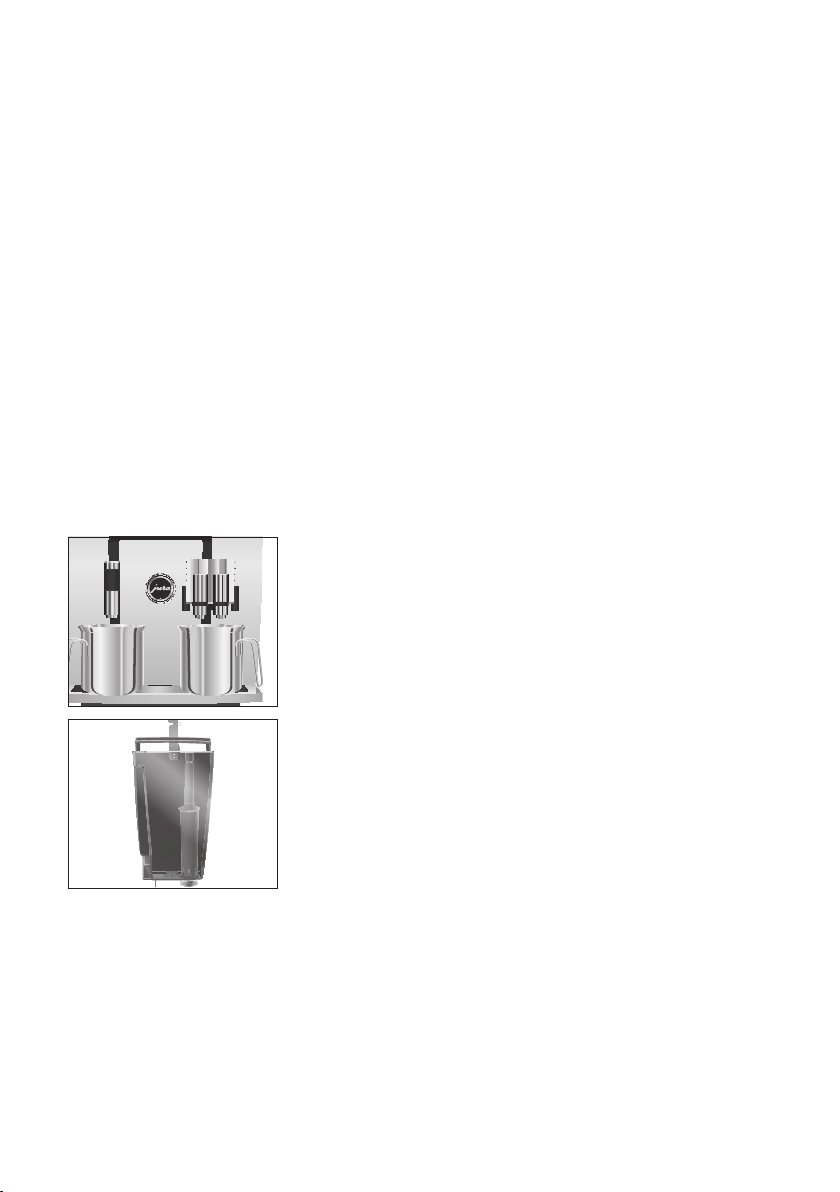
13
1 Preparing and using for the first time
T Touch ‘Save’.
‘Time format’
T Select the time format (‘24 hrs.’ or ‘AM / PM’).
T Touch
‘Save’.
‘Time’
T Enter the current time.
T Touch
‘Save’.
‘Water hardness’
E If you do not know the hardness of your water, you must find
this out first (see Chapter 1 ‘Preparing and using for the first
time – Determining the water hardness’).
T Move your finger across the display to change the water
hardness setting, e.g. to
‘25°dH’.
T Touch
‘Save’.
‘Insert filter’
T Place one receptacle under the dual spout and another
under the hot-water spout.
T Remove the water tank and rinse it with cold water.
T Open the filter holder.
T Fit the filter cartridge extension supplied on top of the
CLARIS filter cartridge Smart.
T Insert the filter cartridge with its extension into the water
tank.
T Close the filter holder. It will click into place audibly.
T Fill the water tank with fresh, cold water and reinsert the
tank.
E The machine automatically detects that you have just inserted
the filter cartridge.
‘Filter operation’ / ‘Saved’
‘Filter is being rinsed’
, water flows directly into the drip tray.
‘System is filling’, water flows out of the dual spout and the
hot-water spout.
‘Empty drip tray’
T Empty the drip tray and put it back into the machine.
14
1 Preparing and using for the first time
T Place a receptacle under the dual spout.
‘Machine is heating’
‘Machine is rinsing’
, ‘Milk system is being rinsed’. The rinse
stops automatically. The start screen is displayed. Your GIGA
is ready for use.
Your GIGA creates fine, creamy, feather-light milk foam with a per-
fect consistency. The most important requirement for frothing milk
is a milk temperature of 4–8°C. We would therefore recommend
using a milk cooler or a milk container.
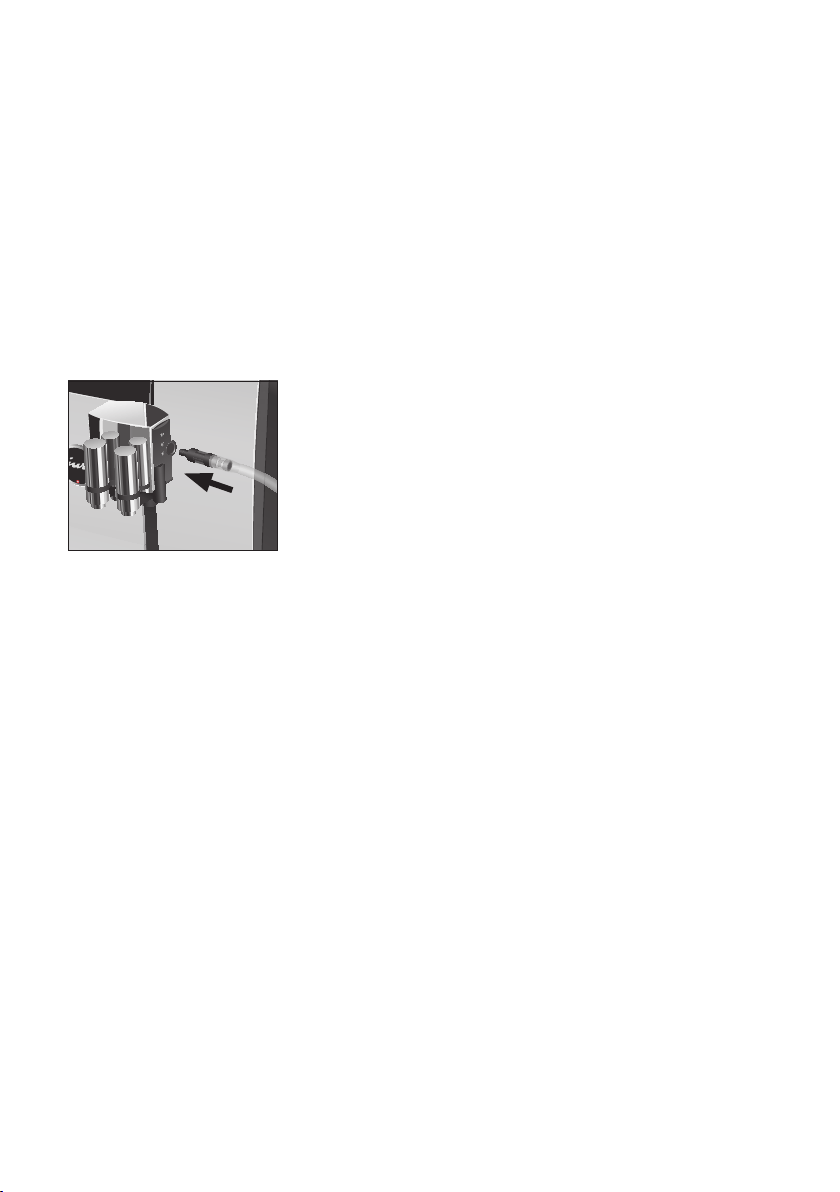
T Connect the milk pipe to the dual spout.
T Connect the other end of the milk pipe to a milk container
or a milk cooler.
Your GIGA is equipped with the JURA Smart Connect. This allows you
to connect the machine wirelessly to a compatible JURA accessory
(e.g. the Cool Control milk cooler).
E The Smart Connect can be protected against unauthorised
access using a PIN. Activate the PIN function via the JURA app.
You will find more information at
www.jura.com/smartconnect.
E Please note that you can only connect either the Cool Control
or the J.O.E.
®
app from JURA to the coffee machine via Smart
Connect and not both at the same time.
Precondition:The start screen is displayed.
T Touch
‘P’.
‘Machine settings’
T Touch ‘Machine settings’ f.
‘Switch off after’
Connecting milk
Connect accessory (with
wireless connection)

15
1 Preparing and using for the first time
T Move your finger across the display until ‘Connect acces-
sory’
is displayed in the centre.
T Touch
‘Connect accessory’.
‘Connect accessory’
T Now follow the instructions on the display to connect the
accessory to the GIGA.

16
2 Preparation
2 Preparation
Basic information about preparing drinks:
U
During the grinding operation you can change the coffee
strength of single products. To do this, move your finger
across the display or turn the Rotary Switch.
U
During preparation you can change the preset amounts (e.g.
amount of water or milk foam). To do this, move your finger
across the display or turn the Rotary Switch.
U
You can stop preparation at any time. To do this, press the
‘Cancel’ button or the Rotary Switch.
U
You can move any of the standard products programmed in
your GIGA to your preferred position on the start screen and
make it one of your favourites. You can duplicate and person-
alise your favourite speciality coffees by giving them a new
product name and individual settings (e.g. amount and coffee
strength) (see Chapter 4 ‘Permanent settings in programming
mode – Adjusting the product settings’). Please note that the
descriptions provided in the following sections always refer to
the default settings.
U
Your GIGA has a ‘Smart mode’. If this mode is activated, the
products on the start screen will be rearranged according to
the frequency of preparation after some time. The number of
products displayed on the start screen will vary according to
your personal preferences. The star on the cockpit indicates
that the ‘Smart mode’ is activated.
Coffee tastes best served hot. A cold porcelain cup cools the bever-
age – and impairs the taste. We therefore recommend prewarming
the cups. The full coffee aroma can develop only in prewarmed cups.
You can purchase a JURA cup warmer from your specialised dealer.
The GIGA offers various ways of preparing a speciality coffee, milk or
hot water.
Preparation using the start screen: Simply touch the desired prod-
uct on the start screen (page ‘ö ä ’ or ‘ä ö’).
Ways of preparing a
beverage
17
2 Preparation
Preparation using the product selector view: Only some of the
products you can prepare are shown on the start screen. As soon as
you turn the Rotary Switch, more products are displayed in a prod-
uct selector view. Turn the Rotary Switch or move your finger across
the display to bring the desired product into focus. Touch the prod-
uct or press the Rotary Switch to start preparation.
E The product selector view disappears automatically after
10seconds if no preparation is started.
E The last product selected always appears first in the product
selector view.
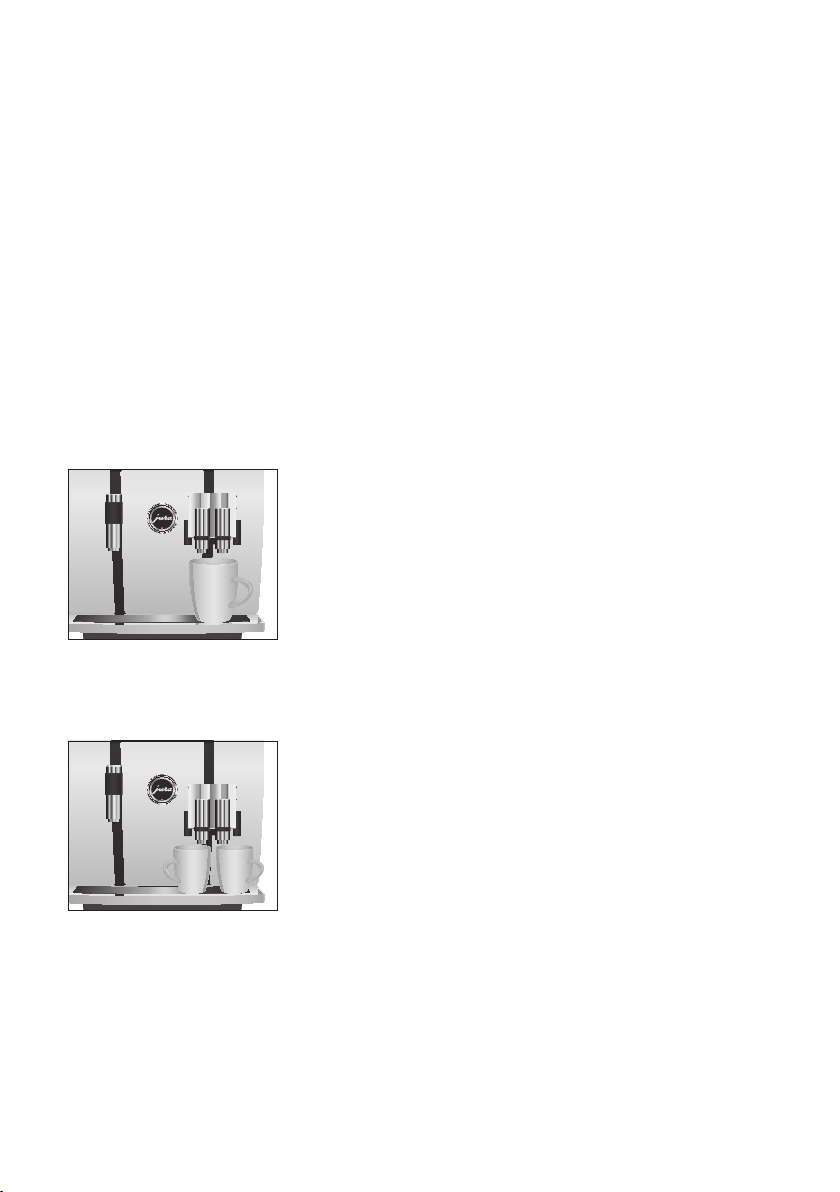
Example:Proceed as follows to prepare one coffee.
Precondition:The start screen is displayed (page ‘ö ä’).
T Place a cup under the dual spout.
T Touch ‘Coffee’.
Preparation starts. The preset amount of water for coffee
flows into the cup.
Preparation stops automatically. Your GIGA is once more
ready for use.
Example:Proceed as follows to prepare two espressi.
Precondition:The start screen is displayed (page ‘ä ö’).
T Place two cups under the dual spout.
T Touch ‘2x espresso’ to start preparation.
Preparation starts. The preset amount of water for coffee
flows into the cups. Preparation stops automatically. Your
GIGA is once more ready for use.
Preparing speciality
coffees
Preparing two speciality
coffees
18
2 Preparation
Your GIGA prepares latte macchiato, cappuccino, flat white and
other speciality coffees with milk at the touch of a button. There is
no need to move the glass or cup.
Example:Proceed as follows to prepare one latte macchiato.
Precondition:The start screen is displayed. Milk is connected to the
dual spout (page ‘ö ä’).
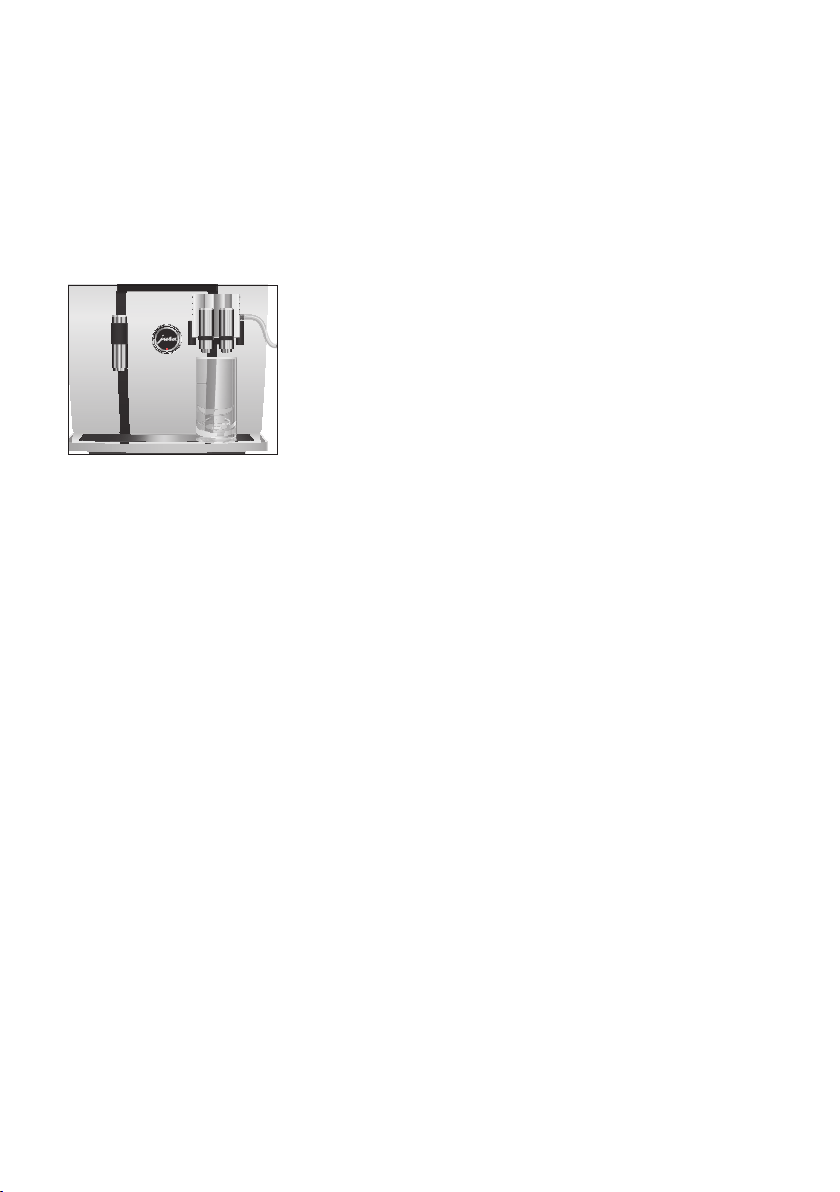
T Place a glass under the dual spout.
T Touch ‘Latte macchiato’.
‘Latte macchiato’, the preset amounts of milk and milk foam
flow into the glass.
E There is a short interval while the hot milk separates from the
milk foam. This allows the typical layers of a latte macchiato
to form.
Coffee preparation starts. The preset amount of water for
espresso flows into the glass. Preparation stops automati-
cally. Your GIGA is once more ready for use.
E 15 minutes after preparation, the milk system is automatically
rinsed (see Chapter 5 ‘Maintenance – Automatic milk system
rinsing’). Therefore always place a receptacle under the dual
spout after preparing milk.
To ensure that the milk system in the dual spout always works prop-
erly, you must clean it daily (see Chapter 5 ‘Maintenance – Cleaning
the milk system’).
For the ‘caffè Barista’ and ‘lungo Barista’, the GIGA blends the coffee
with hot water using a special preparation method. This results in a
full-bodied speciality coffee which is particularly easy to digest. You
can change the amount of this additional water (see Chapter 4 ‘Per-
manent settings in programming mode – Adjusting the product
settings’).
E The bypass amount of water cannot be changed during the
preparation process.
Preparing speciality
coffees with milk
Caffè Barista and lungo
Barista
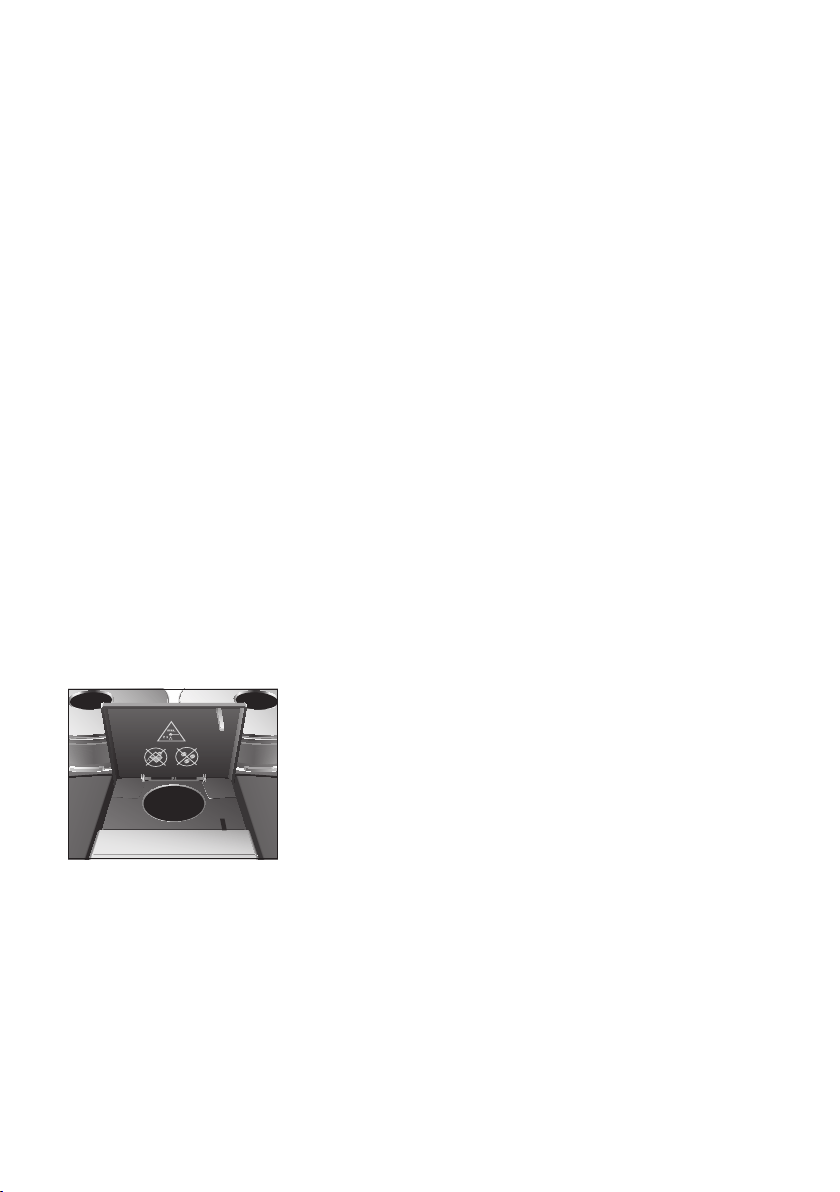
19
2 Preparation
You can choose to use another coffee variety, for example decaffein-
ated coffee, with the filter funnel for ground coffee.
Basic information about ground coffee:
U
Never add more than two level measuring spoons of ground
coffee.
U
Use ground coffee which is not ground too finely. Very fine
coffee can block up the system so that the coffee only comes
out in drips.
U
If you did not fill the machine with a sufficient amount of
ground coffee,
‘Not enough ground coffee’ is displayed and
the GIGA stops the operation.
U
The desired speciality coffee must be prepared within approx-
imately one minute after filling with the ground coffee. Oth-
erwise the GIGA stops the operation and is once more ready
for use.
U
All speciality coffees with ground coffee are always prepared
following the same model.
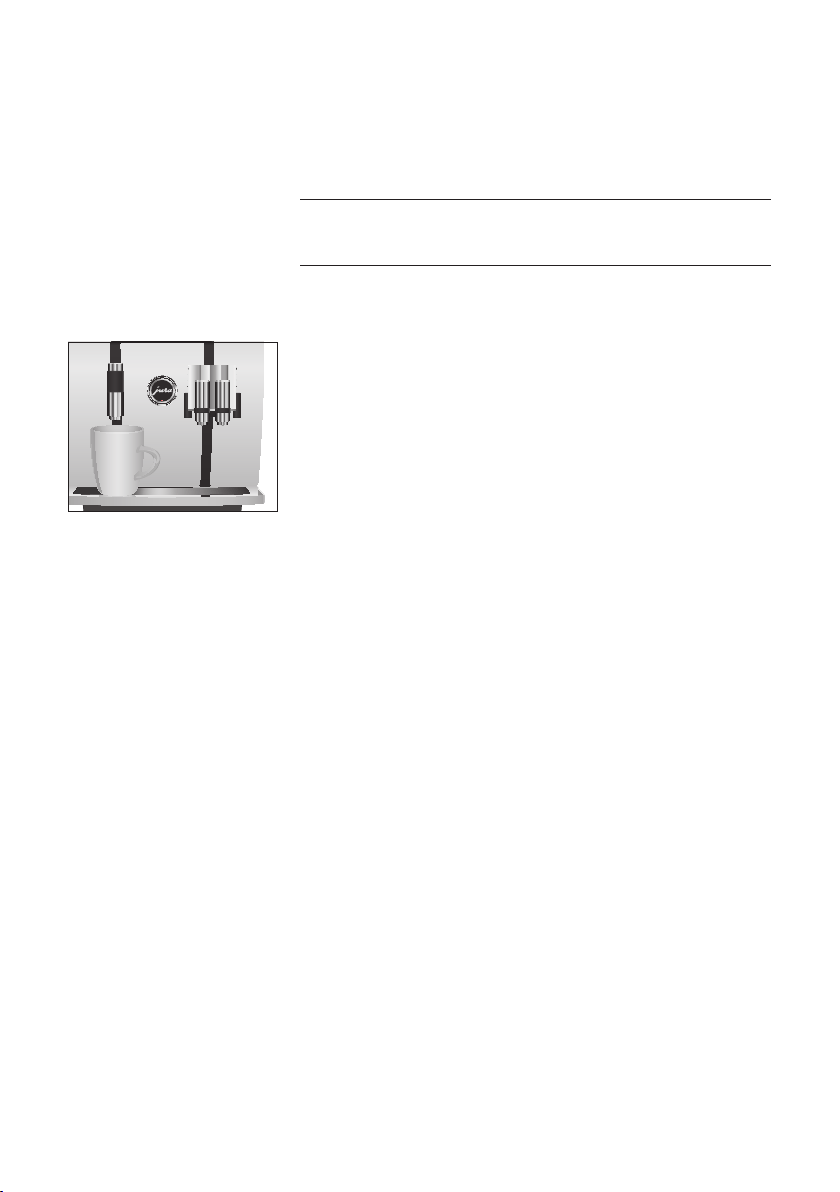
Example:Proceed as follows to prepare one coffee using ground
coffee.
Precondition:The start screen is displayed.
T Place a cup under the dual spout.
T Open the cover of the filler funnel for ground coffee.
‘Please add ground coffee’
T Place one level measuring spoon of ground coffee into the
filler funnel.
T Close the cover of the filler funnel.
The speciality coffees you can prepare with ground coffee
are displayed.
T Touch ‘Coffee’.
Preparation starts.
‘Coffee’ and the fill volume are displayed.
The preset amount of water for coffee flows into the cup.
Preparation stops automatically. Your GIGA is once more
ready for use.
Ground coffee
20
2 Preparation
The GIGA allows you to prepare different variants of hot water:
U
‘Hot water’
U
‘Hot water for green tea’
There is a danger of scalding from hot water splashes.
T Avoid direct contact with the skin.
Example:Proceed as follows to prepare hot water for green tea.
Precondition:The start screen is displayed (page ‘ä ö’).
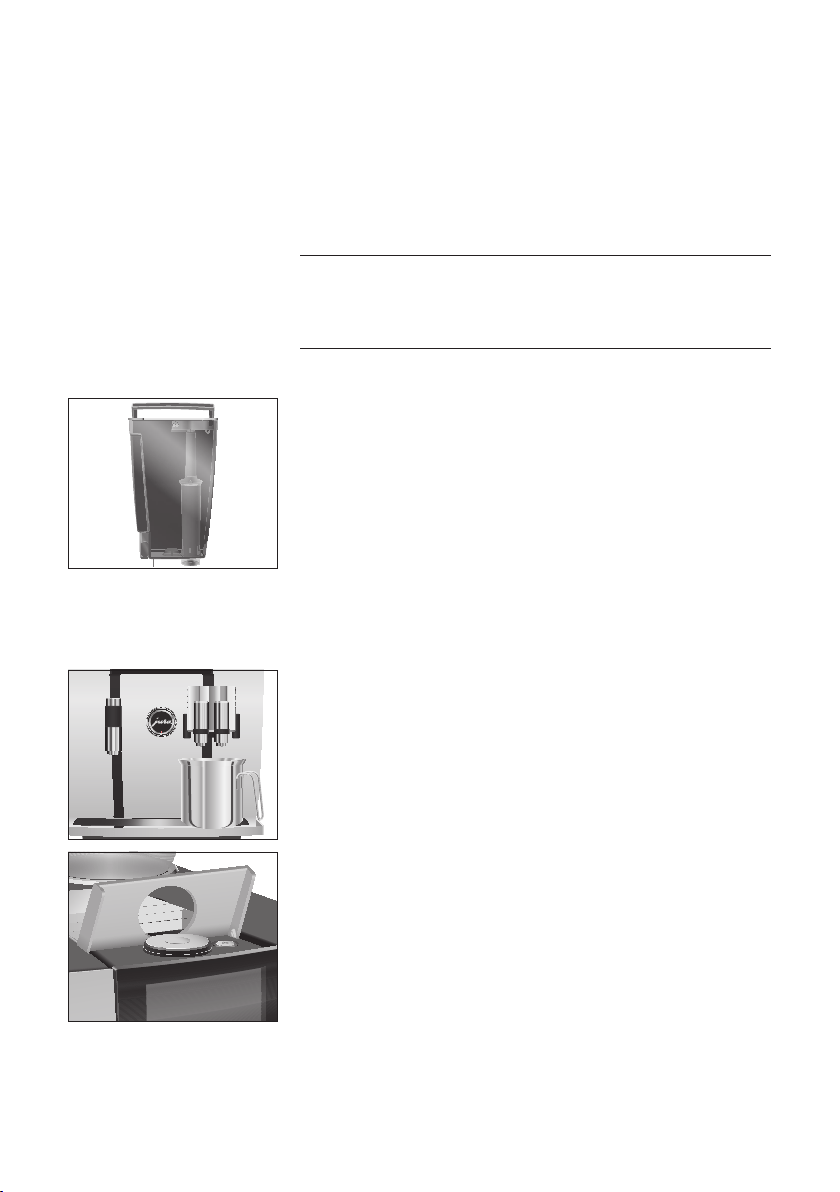
T Place a cup under the hot-water spout.
T Touch ‘Hot water for green tea’.
‘Hot water for green tea’, the preset amount of water flows
into the cup.
Preparation stops automatically. Your GIGA is once more
ready for use.
Hot water
J
CAUTION
21
3 Daily operation
3 Daily operation
Daily maintenance of the machine and hygiene when handling milk,
coffee and water are key to a perfect coffee result in the cup every
time. You should therefore change the water daily.
Milk, sparkling mineral water or other liquids can damage the water
tank or the machine.
T Only fill the water tank with fresh, cold water.
T Open the water tank cover.
T Remove the water tank and rinse it with cold water.
T Fill the water tank with fresh, cold water and reinsert the
tank.
T Close the water tank cover.
Precondition:Your GIGA is switched on at the power switch.
T Place a receptacle under the dual spout.
T Open the cover of the On/Off button.
T Press the On/Off button Q to switch the GIGA on.
‘Welcome to JURA’
‘Machine is heating’
‘Machine is rinsing’
, the system is rinsed. The rinse stops
automatically. Your GIGA is ready for use.
Filling the water tank
CAUTION
Switching on the
machine
22
3 Daily operation
To ensure that you get many years of reliable service out of your
GIGA and to guarantee the optimum coffee quality, the machine
requires daily maintenance.
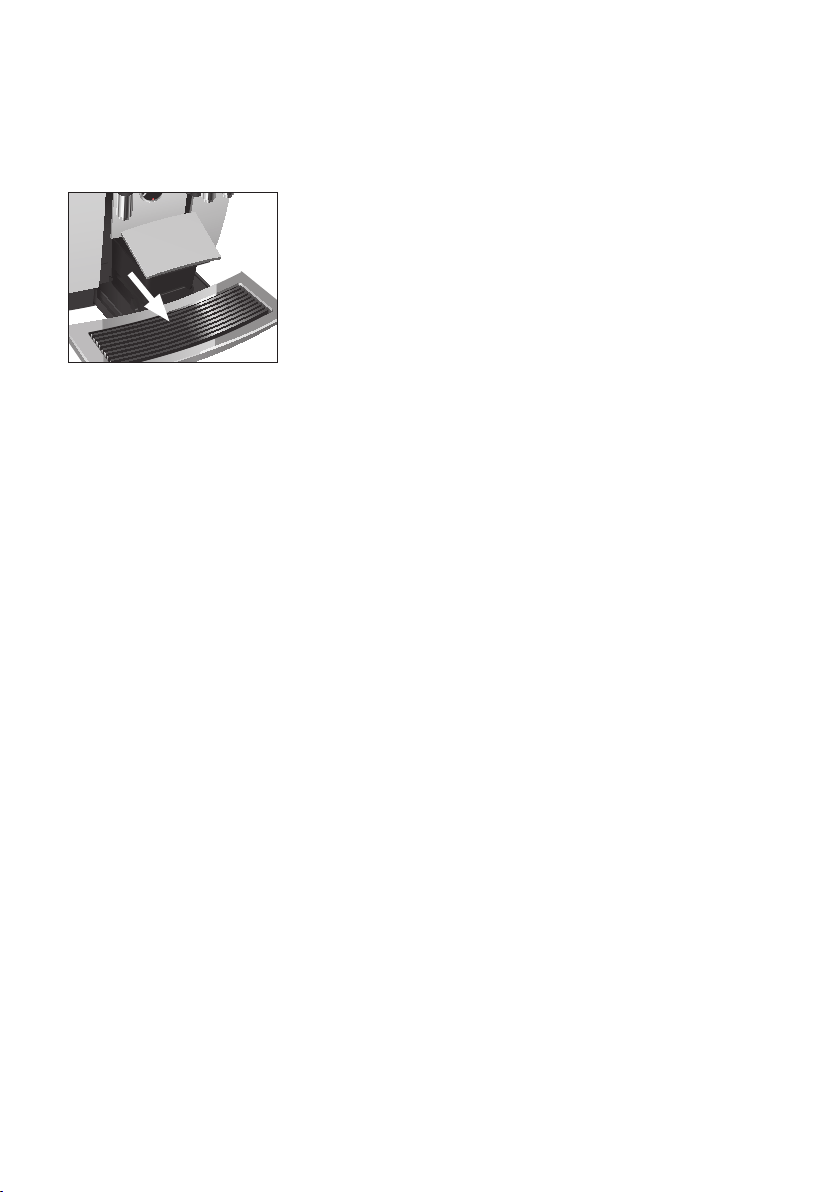
T Pull out the drip tray.
T Empty the coffee grounds container and the drip tray. Rinse
them both with warm water.
E Always empty the coffee grounds container when the machine
is switched on. This is the only way of resetting the coffee
grounds counter.
E The insert for the drip tray, including the drip tray itself, and
the coffee grounds container are dishwasher-safe.
T Refit the coffee grounds container and the drip tray.
T Rinse the water tank with clean water.
T Clean the milk system in the dual spout (see Chapter 5
‘Maintenance – Cleaning the milk system’).
T Remove the milk pipe and rinse it thoroughly under running
water.
T Dismantle and rinse the dual spout (see Chapter 5 ‘Mainte-
nance – Dismantling and rinsing the dual spout’).
T Wipe the surface of the machine with a clean, soft, damp
cloth (e.g. microfibre cloth).
E In order to clean the display without any problems, you can
disable it in the ‘Maintenance status’ c area under
‘Lock dis-
play’
.
You will find more information about caring for your GIGA in pro-
gramming mode in the ‘Maintenance status’ area under
‘Mainte-
nance information’
.
Carry out the following maintenance actions regularly or as
required:
U
In the interests of hygiene, we recommend changing the milk
pipe and interchangeable milk spout on a regular basis
(approximately every 3 months). Replacements are available
from specialised dealers. Your GIGA is equipped with the HP2
milk system.
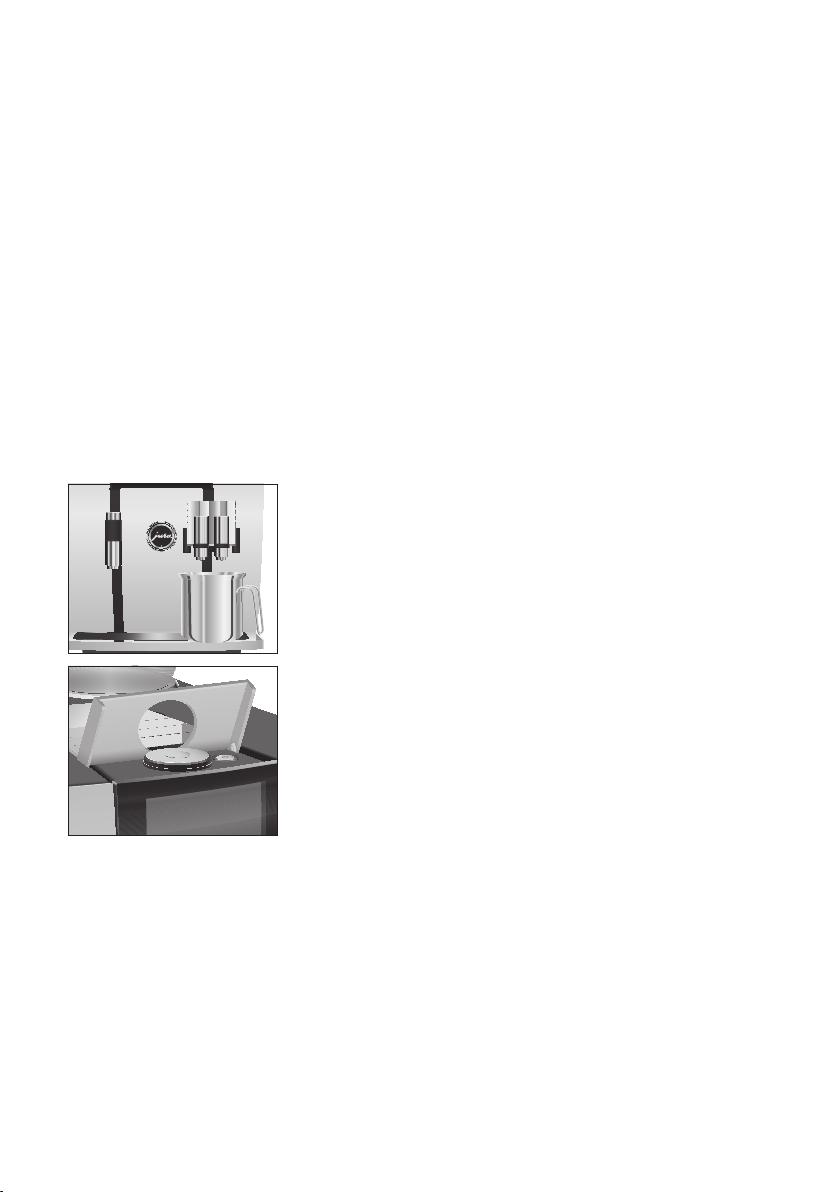
Daily maintenance
Regular maintenance
23
3 Daily operation
U
Clean the inside of the water tank, e.g. with a brush. Further
information about the water tank is provided in these instruc-
tions for use (see Chapter 5 ‘Maintenance – Descaling the
water tank’).
U
Traces of milk and coffee may stick to the top and bottom of
the cup grille. If this happens, clean the cup grille.
When the GIGA is switched off, the system is automatically rinsed if
a speciality coffee has been prepared.
E If milk has been prepared, you will also be prompted to clean
the milk system. If this happens, follow the instructions on the
display.
Precondition:The start screen is displayed.
T Place a receptacle under the dual spout.
T Open the cover of the On/Off button.
T Press the On/Off button Q.
‘Machine is rinsing’, the system rinses itself. The operation
stops automatically. Your GIGA is switched off.
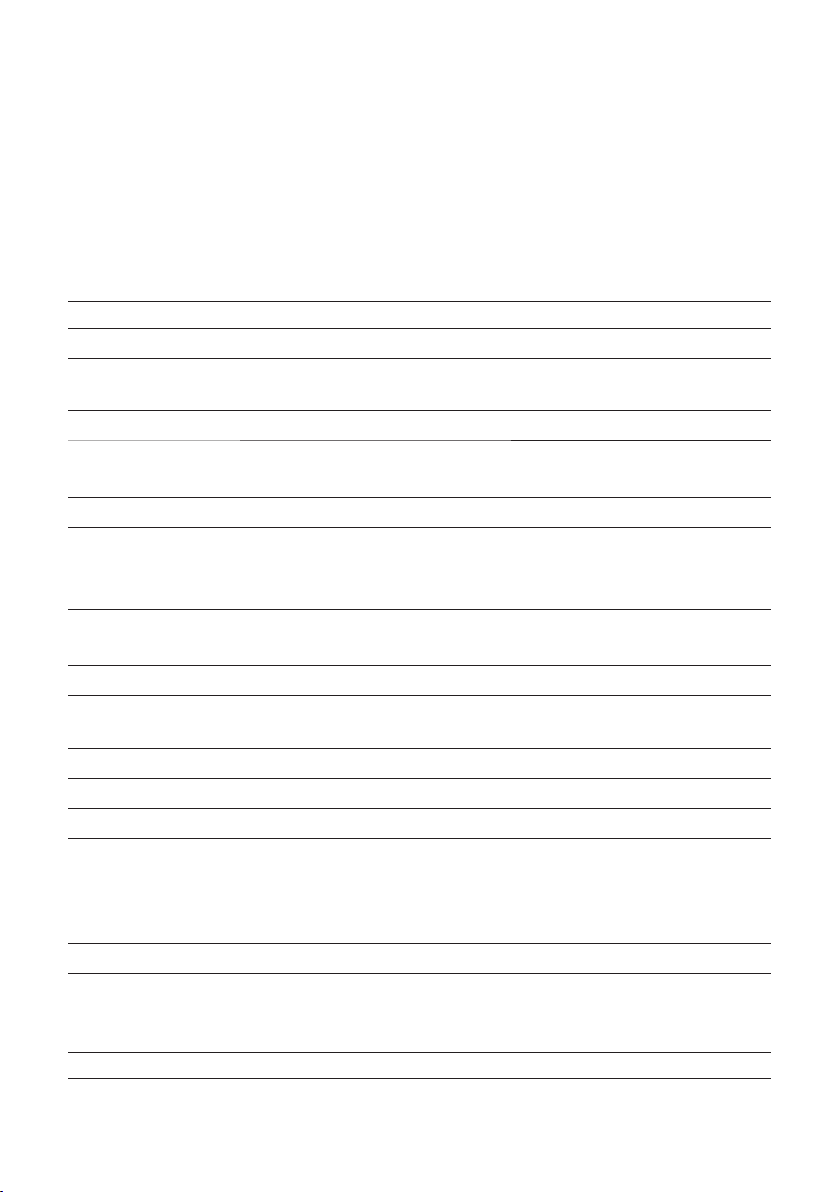
Switching off the
machine
24
4 Permanent settings in programming mode
4 Permanent settings in programming mode
Press the Rotary Switch to open the dashboard. In the ‘Machine set-
ting’
f section, you will find a wide range of settings for your GIGA.
Move your finger across the display or turn the Rotary Switch to
navigate through the programme items and permanently save the
desired settings. The following settings can be made:
Programme item Explanation
‘Switch off after’
T Set the time after which the GIGA should switch off automatically.
‘Time’,
‘Date’
T Set the time and date to use the timer function on your GIGA.
‘Timer’
T Specify a switch-on and switch-off time for each weekday.
‘Set consistency of
grind’
T Adjust the consistency of grind for both grinders to the coffee beans
used.
‘Save energy’
T Activate energy-saving mode.
‘Smart mode’
T Have the products arranged on the start screen according to how often
they are prepared. The number of products displayed on the start screen
will vary according to your personal preferences.
‘Product name’
T Define whether the product names or just the product images should
be shown on the start screen.
‘Factory setting’
TReset the machine to its factory setting.
‘Unit’,
‘Time format’
T Select the unit for the amount of water and the time format.
‘Display’
TChange the display brightness.
‘Water hardness’
T You can set the water hardness of the water used.
‘Choose language’
T Select your language.
‘Connect accessory’
(Only displayed if the
JURA Smart Connect
is being used.)
T Connect the GIGA wirelessly to a JURA accessory or disconnect the
connection again.
‘Empty system’
T Empty the system to protect it from frost during transport.
‘Product counter’,
‘Maintenance
counter’
T Keep track of all products prepared and view the number of mainte-
nance programmes performed.
‘Version’ Software version

25
4 Permanent settings in programming mode
Touch a product on the start screen for about 2 seconds to view the
list of settings:
U
‘Product settings’: Specify individual settings such as coffee
strength, amount of water, etc.
U
‘Initials’ (or ‘Product name’): Change the initials (or the name)
of the product.
U
‘Delete’: Delete the product from the start screen.
U
‘Replace product’: Replace the products on the start screen
with your favourites.
U
‘Copy product’: Duplicate any product, for example to create
a variant with a new product name and individual settings.
U
‘Double product’ (not for hot water): Create a double product
of the desired speciality.
The following settings can be set permanently for all speciality cof-
fees, milk and hot water:
Product Amount More settings
‘Espresso’ Water: 15ml–80ml Coffee strength (10 levels), temperature (low, normal,
high), left and/or right grinder (in %), product name,
delete/replace/copy/double product
‘Coffee’ Water: 25ml–240ml Coffee strength (10 levels), temperature (low, normal,
high), left and/or right grinder (in %), product name,
delete/replace/copy/double product
‘Caffè Barista’,
‘Lungo Barista’
Water: 25ml–240ml
Bypass water:
0ml–240ml
Coffee strength (10 levels), temperature (low, normal,
high), left and/or right grinder (in %), product name,
delete/replace/copy/double product
‘Espresso
doppio’
Water: 30ml–160ml
(2 strokes)
Coffee strength (10 levels), temperature (low, normal,
high), left and/or right grinder (in %), product name,
delete/replace/copy product
‘Jug of coffee’ Water: 25ml–240ml
Bypass water:
0ml–240ml
Coffee strength (10 levels), number of strokes (1–5),
temperature (low, normal, high), left and/or right
grinder (in %), product name, delete/replace/copy
product
‘Cappuccino’ Water: 25ml–240ml
Milk foam:
0sec.–120sec.
Coffee strength (10 levels), milk foam temperature,
temperature (low, normal, high), left and/or right
grinder (in %), product name, delete/replace/copy/
double product
Product settings
Adjusting the product
settings

26
4 Permanent settings in programming mode
Product Amount More settings
‘Latte
macchiato’
Water: 25ml–240ml
Milk foam:
0sec.–120sec.
Milk: 0sec.–120sec.
Interval: 0sec.–60sec.
Coffee strength (10 levels), milk and milk foam
temperature, temperature (low, normal, high), left
and/or right grinder (in %), product name, delete/
replace/copy/double product
‘Macchiato’ Water: 15ml–80ml
Milk foam:
0sec.–120sec.
Coffee strength (10 levels), milk foam temperature,
temperature (low, normal, high), left and/or right
grinder (in %), product name, delete/replace/copy/
double product
‘Flat White’,
‘Caffè latte’
Water: 25ml–240ml
Milk foam:
0sec.–120sec.
Milk: 0sec.–120sec.
Coffee strength (10 levels), milk and milk foam
temperature, temperature (low, normal, high), left
and/or right grinder (in %), product name, delete/
replace/copy/double product
‘Portion milk’,
‘Portion milk
foam’
Milk foam:
0sec.–120sec.
Milk: 0sec.–120sec.
Milk and milk foam temperature, product name,
delete/replace/copy/double product
‘Hot water’,
‘Hot water for
green tea’
Water: 25ml–450ml Temperature (low, normal, high), product name,
delete/replace/copy product
Double
products
The amounts set for
the single product are
doubled.
Temperature (as for single product), left and/or right
grinder (in %), product name, delete/replace/copy
product
Permanent settings in programming mode always follow the same
model.
Example:Proceed as follows to change the coffee strength for one
espresso.
Precondition:The start screen is displayed.
T Touch ‘Espresso’ for approximately 2 seconds until the list
of possible settings is displayed.
T Touch
‘Product settings’.
‘Espresso’
T Move your finger across the display until ‘Coffee strength’ is
displayed in the centre.
T Now move your finger to the left or right to change the set-
ting for the coffee strength.

27
4 Permanent settings in programming mode
T Touch ‘Save’.
T Touch
‘Back’ to return to the start screen.
In the programme item
‘Set consistency of grind’ you can adjust
both grinders separately to the degree of roast of your coffee.
The consistency of grind is correct if the coffee flows regularly from
the dual spout. In addition a fine, thick crema forms.
Example:Proceed as follows to change the consistency of grind for
the grinder on the right.
Precondition:The start screen is displayed.
T Press the Rotary Switch.
T Touch the ‘Machine setting’
f.
‘Switch off after’
T Turn the Rotary Switch until ‘Set consistency of grind’ is dis-
played.
T Press the Rotary Switch.
‘Mahlwerk links’
T Touch ‘Save’.
‘Mahlwerk rechts’
T Turn the Rotary Switch to change the setting.
T Touch
‘Save’.
‘Set consistency of grind’
T Touch ‘Back’ the number of times needed to display the start
screen again.
By instructing your GIGA to automatically switch itself off, you can
cut down your energy consumption. If this function is activated,
your GIGA switches off automatically after the preset time following
the last action on the machine.
You can set the automatic switch-off to 15minutes, 30minutes or
1–9hours.
Precondition:The start screen is displayed.
T Press the Rotary Switch.
T Touch the ‘Machine setting’
f.
‘Switch off after’
Setting the consistency
of grind
Automatic switch-off

28
4 Permanent settings in programming mode
T Touch ‘Switch off after’.
T Now move your finger to the left or right to change the
switch-off time.
T Touch
‘Save’.
‘Switch off after’
T Touch ‘Back’ the number of times needed to display the start
screen again.
You already set the time and date during first-time use. You can
change this setting in the machine settings (programme item
‘Time’
and
‘Date’).
E For the time format, you can choose between ‘24hrs’ and
‘AM/ PM’ (see Chapter 4 ‘Permanent settings in programming
mode – Unit for amount of water / time format’).
Example:Proceed as follows to change the time.
Precondition:The start screen is displayed.
T Press the Rotary Switch.
T Touch the ‘Machine setting’
f.
‘Switch off after’
T Turn the Rotary Switch until ‘Time’ is displayed.
T Touch
‘Time’.
‘Time’
T Enter the current time.
T Touch
‘Save’.
‘Time’
T Touch ‘Back’ the number of times needed to display the start
screen again.
The harder the water is, the more frequently the GIGA needs to be
descaled. It is therefore important to set the water hardness accu-
rately.
The water hardness was set when the machine was first used. You
can change this setting at any time.
The water hardness can be adjusted on a continuous scale between
1 °dH and 30 °dH.
Time and date
Setting the water
hardness

29
4 Permanent settings in programming mode
Precondition:The start screen is displayed.
T Press the Rotary Switch.
T Touch the ‘Machine setting’
f.
‘Switch off after’
T Turn the Rotary Switch until ‘Water hardness’ is displayed.
T Touch
‘Water hardness’.
‘Water hardness’
T Now move your finger to the left or right to change the set-
ting.
T Touch
‘Save’.
‘Water hardness’
T Touch ‘Back’ the number of times needed to display the start
screen again.
In the programme item
‘Timer’ you can set a switch-on and switch-
off time for every weekday.
E For the time format, you can choose between ‘24hrs’ and
‘AM/ PM’ (see Chapter 4 ‘Permanent settings in programming
mode – Unit for amount of water / time format’).
Example:Proceed as follows to set the GIGA to switch on on
Mondays at a time defined by you.
Precondition:The start screen is displayed.
T Press the Rotary Switch.
T Touch the ‘Machine setting’
f.
‘Switch off after’
T Turn the Rotary Switch until ‘Timer’ is displayed.
T Touch
‘Timer’.
‘Timer’
T Touch ‘Monday’.
‘Switch machine on’
T Enter the desired switch-on time.
T Touch
‘Save’.
‘Switch machine off’
T Touch ‘Back’ the number of times needed to display the start
screen again.
Timer

30
4 Permanent settings in programming mode
In the machine settings, you can change the unit for the amount of
water as well as the time format:
U
‘Unit’ (‘ml’ / ‘oz’)
U
‘Time format’ (‘24 hrs.’ / ‘AM / PM’)
Example:Proceed as follows to change the unit for the amount of
water from
‘ml’ to ‘oz’.
Precondition:The start screen is displayed.
T Press the Rotary Switch.
T Touch the ‘Machine setting’
f.
‘Switch off after’
T Turn the Rotary Switch until ‘Unit’ is displayed.
T Touch
‘Unit’.
‘Unit’
T Now move your finger to the left or right to change the set-
ting to
‘oz’.
T Touch
‘Save’.
‘Unit’
T Touch ‘Back’ the number of times needed to display the start
screen again.
In the programme item
‘Save energy’ you can set an energy-saving
mode:
U
‘1’
U
Soon after the last preparation, the GIGA stops heating up.
After approximately 5 minutes, the ‘ESM’ symbol (energy-
saving mode, E.S.M.
©
) is displayed on the dashboard.
U
Before you can prepare a speciality coffee, speciality coffee
with milk, or hot water, the machine must heat up.
U
‘0’
U
All speciality coffees, speciality coffees with milk and hot
water can be prepared without having to wait.
Example:Proceed as follows to switch energy-saving mode off.
Precondition:The start screen is displayed.
T Press the Rotary Switch.
T Touch the ‘Machine setting’
f.
‘Switch off after’
Unit for amount of
water/ time format
Energy-saving mode

31
4 Permanent settings in programming mode
T Turn the Rotary Switch until ‘Save energy’ is displayed.
T Touch
‘Save energy’.
‘Save energy’
T Now move your finger across the controller and set it to ‘0’.
T Touch
‘Save’.
‘Save energy’
T Touch ‘Back’ the number of times needed to display the start
screen again.
In this programme item you can set the language used by your
GIGA.
Example:Proceed as follows to change the language from
‘English’
to
‘Français’.
Precondition:The start screen is displayed.
T Press the Rotary Switch.
T Touch the ‘Machine setting’
f.
‘Switch off after’
T Turn the Rotary Switch until ‘Choose language’ is displayed.
T Touch
‘Choose language’.
‘Choose language’
T Move your finger across the display until the desired lan-
guage, e.g.
‘Français’, is displayed in the centre.
T Touch
‘‘Enregistrer’’.
‘Langue’
T Touch ‘Retour’ the number of times needed to display the
start screen again.
In the programme item
‘Display’ you can set the display brightness
(as a percentage).
Precondition:The start screen is displayed.
T Press the Rotary Switch.
T Touch the ‘Machine setting’
f.
‘Switch off after’
T Turn the Rotary Switch until ‘Display’ is displayed.
T Touch
‘Display’.
‘Display’
Language
Display brightness

32
4 Permanent settings in programming mode
T Now move your finger to the left or right to change the set-
ting.
T Touch
‘Save’.
‘Display’
T Touch ‘Back’ the number of times needed to display the start
screen again.
In the programme item
‘Factory setting’ the machine can be reset
to its factory setting: All user settings (apart from the ‘water hard-
ness’) are reset to factory settings. Your GIGA then switches off.
Precondition:The start screen is displayed.
T Press the Rotary Switch.
T Touch the ‘Machine setting’
f.
‘Switch off after’
T Turn the Rotary Switch until ‘Factory setting’ is displayed.
T Touch
‘Factory setting’.
‘Factory setting’ / ‘Reset the machine to the factory setting?’
T Touch ‘Yes’.
Your GIGA is switched off.
Your GIGA has a ‘Smart mode’. If this mode is activated, the prod-
ucts on the start screen will be rearranged according to the fre-
quency of preparation after some time. The number of products
displayed on the start screen will vary according to your personal
preferences.
E The star on the cockpit indicates that the ‘Smart mode’ is acti-
vated.
Example:Proceed as follows to deactivate the ‘Smart mode’.
Precondition:The start screen is displayed.
T Press the Rotary Switch.
T Touch the ‘Machine setting’
f.
‘Switch off after’
T Turn the Rotary Switch until ‘Smart mode’ is displayed.
T Touch
‘Smart mode’.
‘Smart mode’
Restore factory settings
Smart mode

33
4 Permanent settings in programming mode
T Now move your finger across the controller and set it to ‘0’.
T Touch
‘Save’.
‘Smart mode’
T Touch ‘Back’ the number of times needed to display the start
screen again.
Define whether the product names or just the product images
should be shown on the start screen.
Example:Proceed as follows to activate the product names on the
start screen.
Precondition:The start screen is displayed.
T Press the Rotary Switch.
T Touch the ‘Machine setting’
f.
‘Switch off after’
T Turn the Rotary Switch until ‘Product name’ is displayed.
T Touch
‘Product name’.
‘Product name’
T Now move your finger across the controller and set it to ‘1’.
T Touch
‘Save’.
‘Product name’
T Touch ‘Back’ the number of times needed to display the start
screen again.
In programming mode you can view the following information:
U
‘Product counter’: Number of prepared speciality coffees and
hot water
U
‘Maintenance counter’: Number of maintenance programmes
performed (cleaning, descaling etc.)
U
‘Version’: Software version
Example:Proceed as follows to view the number of speciality cof-
fees prepared.
Precondition:The start screen is displayed.
T Press the Rotary Switch.
T Touch the ‘Machine setting’
f.
‘Switch off after’
T Turn the Rotary Switch until ‘Product counter’ is displayed.
Displaying product
names
Query counter readings
and version

34
4 Permanent settings in programming mode
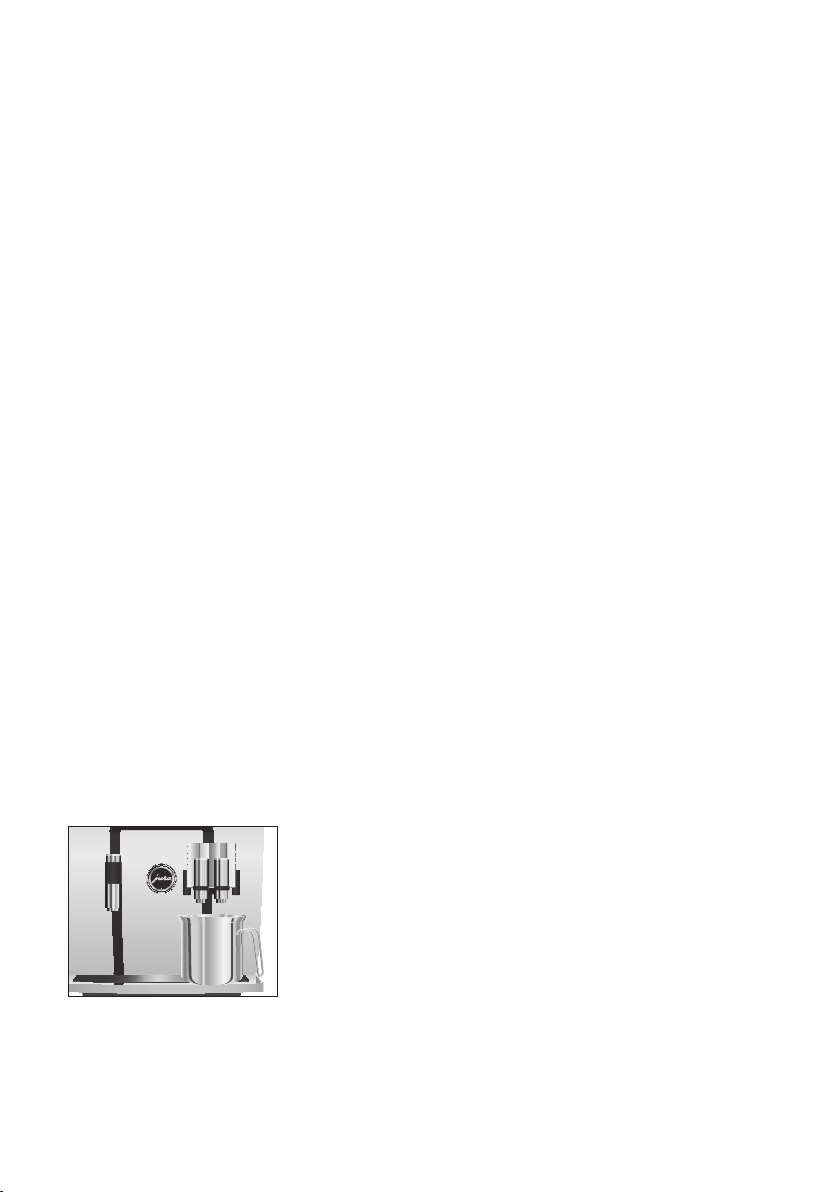
T Touch ‘Product counter’.
‘Product counter’
T Touch ‘1/3’ or turn the Rotary Switch to view the number of
other products.
T Touch ‘Back’ the number of times needed to display the start
screen again.
35
5 Maintenance
5 Maintenance
Basic information about maintenance:
U
Press the Rotary Switch to open the cockpit. This area consists
of a ‘Maintenance status’ c section and a ‘Machine setting’
f
section. You can manage the maintenance of your GIGA in the
‘Maintenance status’ c section.
U
If a maintenance programme needs to be initiated, a message
with a red background appears on the cockpit. You can go
straight to the relevant maintenance programme by touching
this message or pressing the Rotary Switch. If several mainte-
nance programmes are pending, several messages with a red
background will appear. Maintenance programmes that are
due imminently are indicated on your GIGA by means of a bar
display within the message.
U
The c symbol on the start screen informs you that a cleaning
operation, descaling operation or filter change is pending. To
start the maintenance programme, touch the c symbol or
press the Rotary Switch.
E Carry out each maintenance programme when you are
prompted to do so.
E In the interests of hygiene, you should clean the milk system
daily when you have been preparing milk.
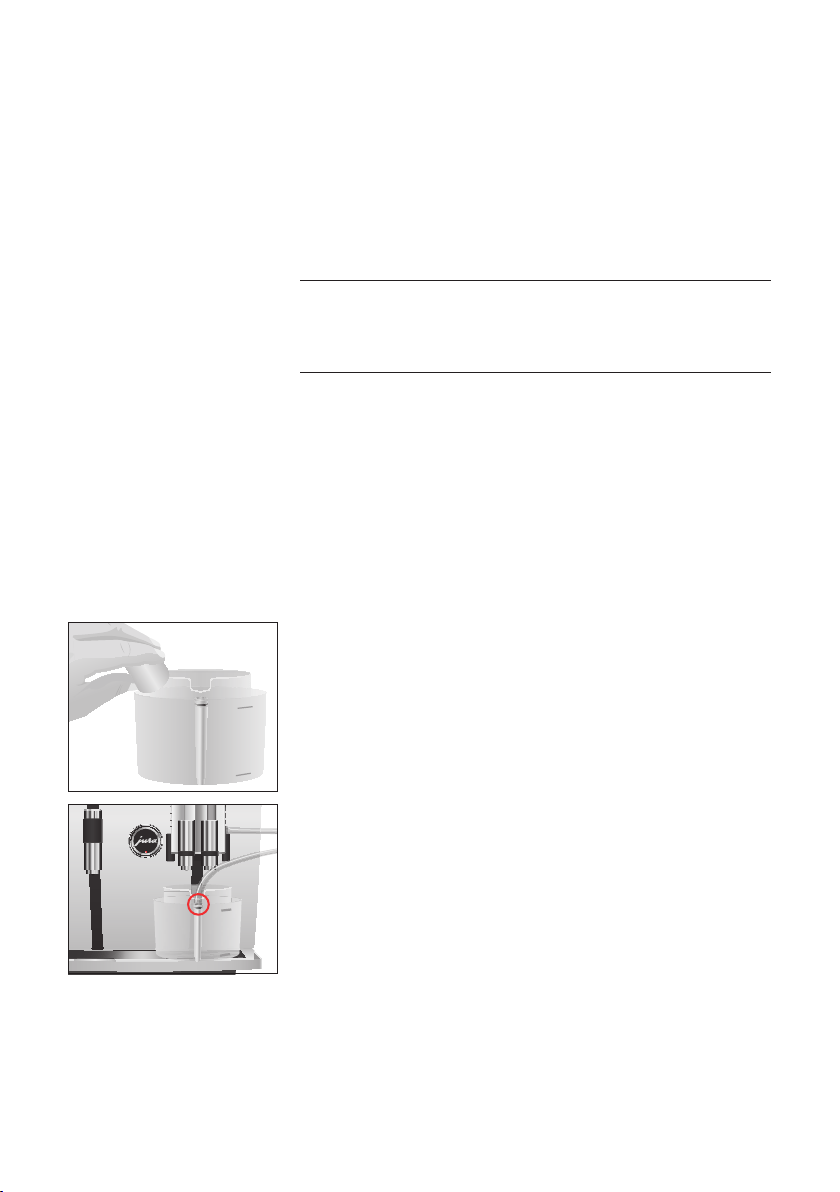
You can initiate the rinse operation manually at any time.
Precondition:The start screen is displayed.
T Place a receptacle under the dual spout.
T Press the Rotary Switch.
T Touch the c symbol.
T Turn the Rotary Switch until
‘Rinse’ is displayed in the centre.
T Touch
‘Rinse’ to start the rinse operation.
‘Machine is rinsing’, ‘Milk system is being rinsed’, water
flows out of the dual spout.
The rinse stops automatically. Your GIGA is once more ready
for use.
Rinsing the machine
36
5 Maintenance
15 minutes after milk preparation, the milk system is automatically
rinsed. Therefore always place a receptacle under the dual spout
after preparing milk.
To ensure that the milk system in the dual spout always works prop-
erly, you must clean it daily when you have been preparing milk.
If the wrong cleaning agent is used, the machine could be damaged
and/or traces could be left behind in the water.
T Use only original JURA maintenance products.
E JURA milk system cleaner is available from specialised dealers.
E To clean the milk system, use the container supplied.
Precondition:The start screen is displayed.
T Press the Rotary Switch.
T Touch
‘Clean the milk system’.
T Touch
‘Next’.
‘Cleaning agent for milk system’ / ‘Connect the milk tube’
T Remove the milk pipe from the milk container or milk cooler.
T Add milk system cleaner to the front part of the container
up to the bottom mark (indicated by 6).
T Then fill with water up to the upper mark.
T Place the container under the dual spout and connect the
milk pipe with the container.
E To connect the milk pipe to the container correctly, the pipe
must be fitted with a connector.
T Touch
‘Start’.
‘Milk system is being cleaned’, the dual spout and the milk
pipe are cleaned.
The operation is interrupted,
‘Water for cleaning milk sys-
tem’
/ ‘Connect the milk tube’
T Rinse the container thoroughly and fill the front part with
fresh water up to the upper mark.
Automatic milk system
rinsing
Cleaning the milk system
CAUTION
6
37
5 Maintenance
T Place the container under the dual spout and connect the
milk pipe with the container.
T Touch
‘Next’.
‘Milk system is being cleaned’
The operation stops automatically. Your GIGA is once more
ready for use.
The dual spout must be dismantled and rinsed daily if milk has been
prepared to make sure it functions perfectly and also in the interests
of hygiene.
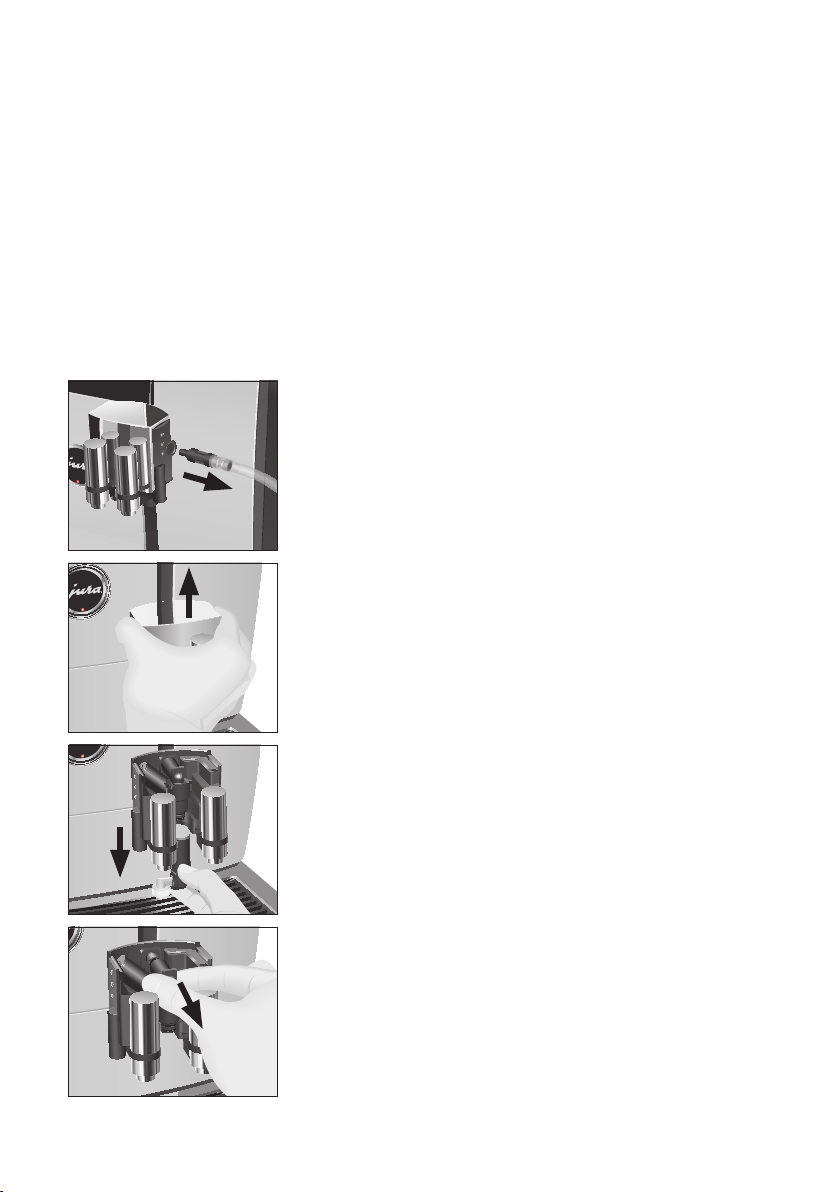
T Remove the milk pipe and rinse it thoroughly under running
water.
T Press the releasing devices and pull the cover of the dual
spout up and off.
T Carefully pull the bottom part of the milk system down and
off.
T Remove the milk system from the dual spout.
Dismantling and rinsing
the dual spout
38
5 Maintenance
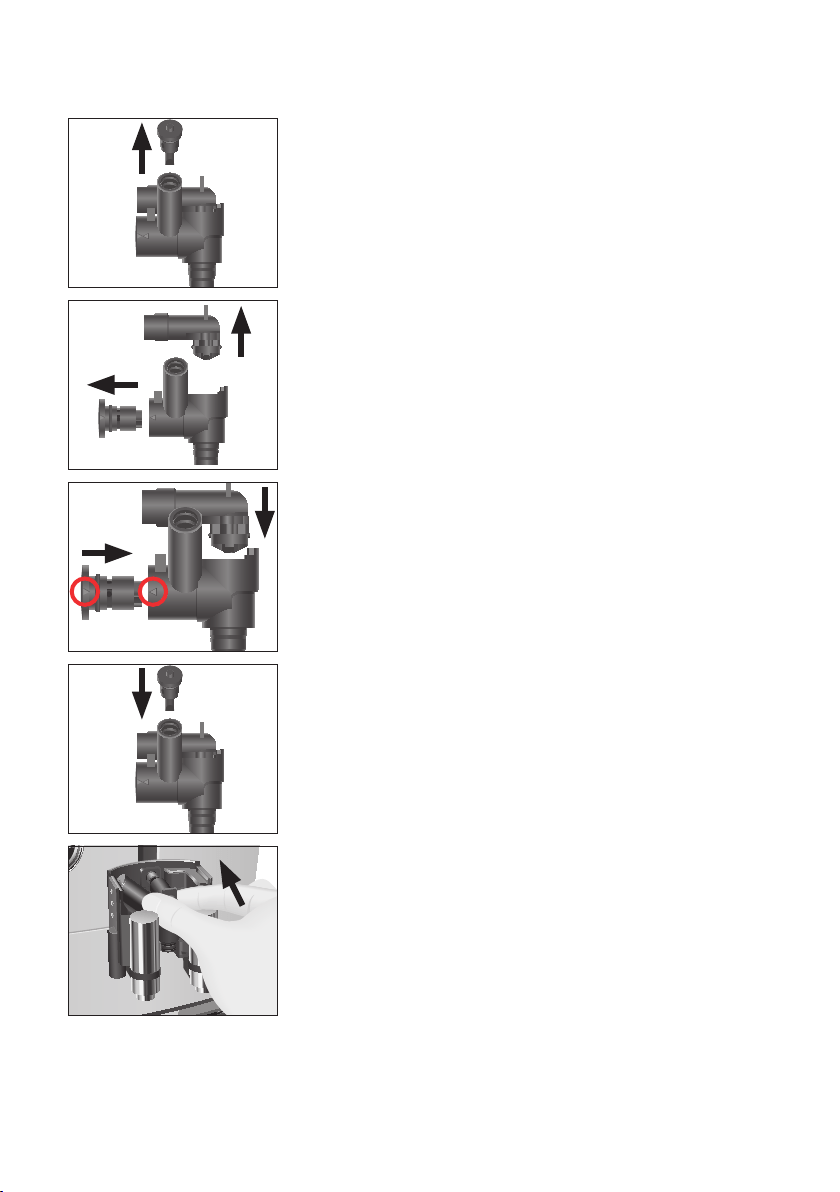
T Remove the air intake pipe.
T Dismantle the milk system into its individual parts.
T Rinse all the parts under running water. If there are severely
dried-on milk residues, firstly immerse the individual parts
in a solution of 250ml cold water and 1 capful of JURA milk
system cleaner. Then rinse the parts thoroughly.
T Reassemble the milk system. When doing this, note the
arrows on the individual parts (circled in red in the picture).
T Fit the air intake pipe.
T Fit the assembled individual parts back in the dual spout and
press it firmly.
39
5 Maintenance
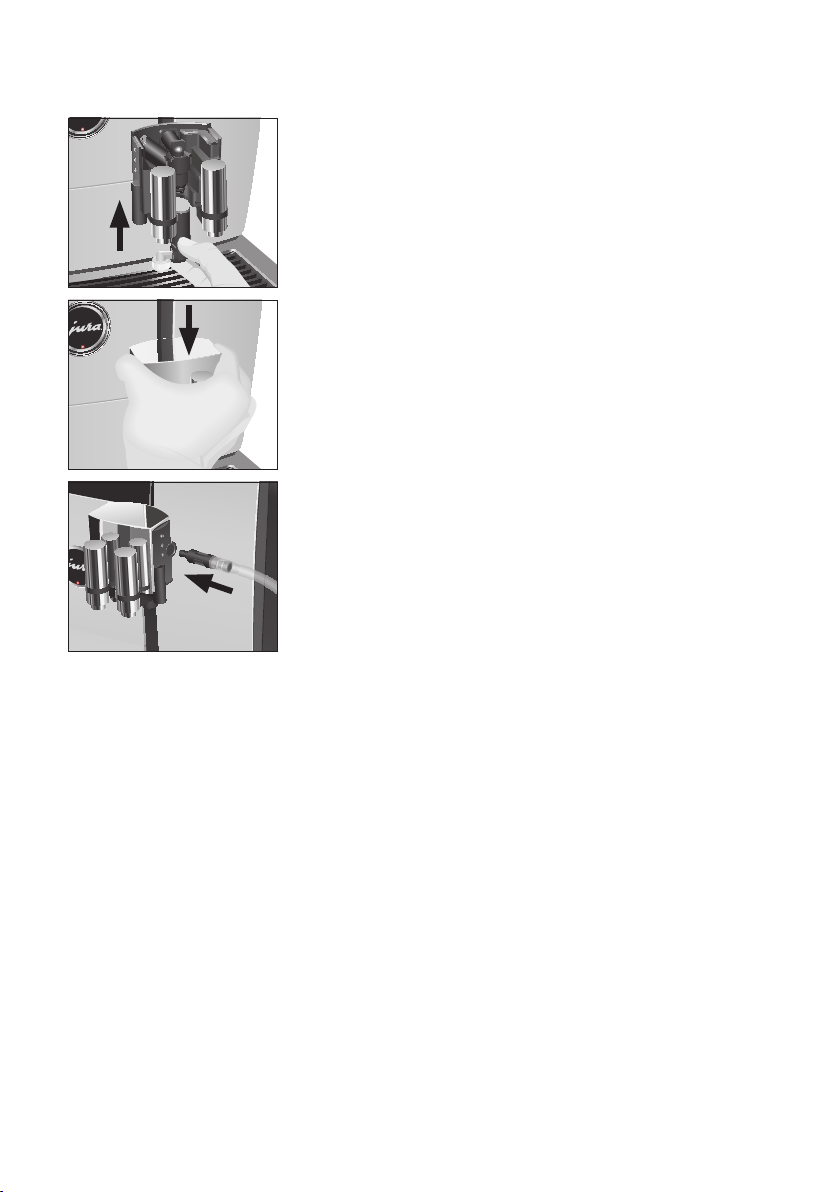
T Attach the bottom part of the milk system to the part
already inserted from below.
T Fit the cover of the dual spout. It will click into place audibly.
T Connect the milk pipe to the dual spout.
Your GIGA no longer has to be descaled if you are using the CLARIS
Smart filter cartridge.
E Once the filter cartridge stops working (depending on the
water hardness setting), the GIGA will prompt you to change
the filter.
E CLARIS Smart filter cartridges are available from specialised
dealers.
Precondition:The c symbol is displayed on the start screen (if you
are already using a filter).
T Press the Rotary Switch.
The
‘Change the filter’ message lights up red.
T Remove and empty the water tank.
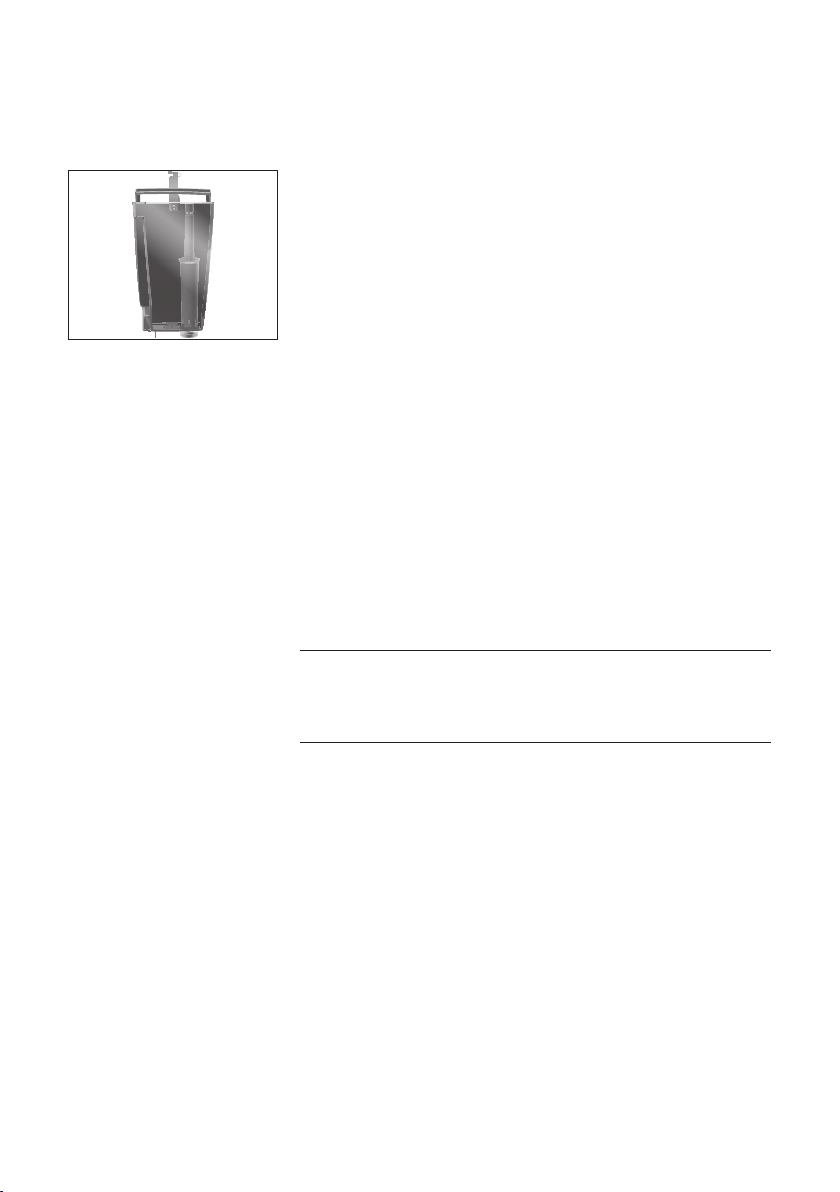
T Open the filter holder and remove the old CLARIS Smart fil-
ter cartridge and filter extension.
Inserting/changing the
filter
40
5 Maintenance
T Fit the filter cartridge extension on top of a new CLARIS
Smart filter cartridge.
T Insert the filter cartridge with its extension into the water
tank.
T Close the filter holder. It will click into place audibly.
T Fill the water tank with fresh, cold water and reinsert the
tank.
E The machine automatically detects that you have just inserted/
changed the filter cartridge.
‘Filter operation’ / ‘Saved’
‘Filter is being rinsed’
, water flows directly into the drip tray.
‘Empty drip tray’
T Empty the drip tray and coffee grounds container and put
them back into the machine.
The start screen is displayed. Your GIGA is once more ready
for use.
After 180preparations or 80switch-on rinses, the GIGA will prompt
you to clean it.
If the wrong cleaning agent is used, the machine could be damaged
and/or traces could be left behind in the water.
T Use only original JURA maintenance products.
E The cleaning programme lasts approximately 20 minutes.
E Do not interrupt the cleaning programme. The quality of
cleaning will be impaired if you do so.
E JURA cleaning tablets are available from specialised dealers.
Precondition:The c symbol is displayed on the start screen.
T Press the Rotary Switch.
The
‘Clean’ message lights up red.
T Touch
‘Clean’.
T Touch
‘Start’.
‘Empty coffee grounds container’
T Empty the drip tray and coffee grounds container and put
them back into the machine.
‘Press the Rotary Switch’
Cleaning the machine
CAUTION
41
5 Maintenance
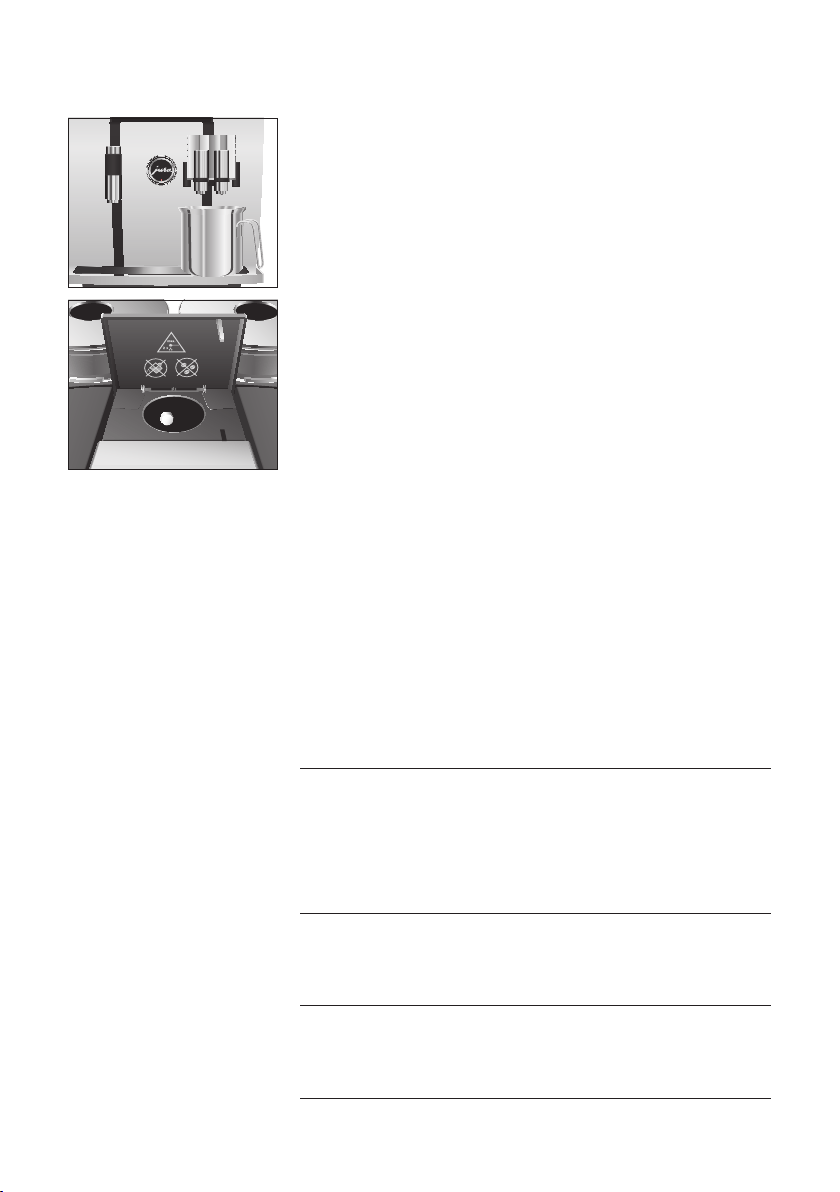
T Place a receptacle under the dual spout.
T Press the Rotary Switch.
‘Machine is being cleaned’, water flows out of the dual spout.
The operation is interrupted,
‘Add cleaning tablet’.
T Open the cover of the filler funnel for ground coffee.
T Insert a JURA cleaning tablet into the filler funnel.
T Close the cover of the filler funnel.
‘Press the Rotary Switch’
T Press the Rotary Switch.
‘Machine is being cleaned’, water flows out of the dual spout
repeatedly.
The operation stops automatically.
‘Empty coffee grounds container’
T Empty the drip tray and coffee grounds container and put
them back into the machine.
Cleaning is now complete. The start screen is displayed.
The GIGA builds up deposits of limescale over time and automati-
cally prompts you to descale it when necessary. The degree of calci-
fication depends on the hardness of your water.
E If you are using a CLARIS Smart filter cartridge, you will not be
prompted to descale.
If the descaling agent comes into contact with the skin or eyes, this
can cause irritation.
T Avoid contact with the skin or eyes.
T Rinse off the descaling agent with clean water. Should you get
any descaling agent in your eye, see a doctor.
If the wrong descaling agent is used, the machine could be dam-
aged and/or traces could be left behind in the water.
T Use only original JURA maintenance products.
If the descaling operation is interrupted, there may be damage to
the machine.
T Allow the descaling programme to run to the end.
Descaling the machine
J
CAUTION
CAUTION
CAUTION
42
5 Maintenance
If the descaling agent comes into contact with sensitive surfaces
(e.g. marble), damage cannot be ruled out.
T Clean up any splashes immediately.
E The descaling programme lasts approximately 40minutes.
E JURA descaling tablets are available from specialised dealers.
Precondition:The c symbol is displayed on the start screen.
T Press the Rotary Switch.
The
‘Descale’ message lights up red.
T Touch
‘Descale’.
T Touch
‘Start’.
‘Empty drip tray’
T Empty the drip tray and coffee grounds container and put
them back into the machine.
‘Pour descaling agent into water tank’
T Remove and empty the water tank.
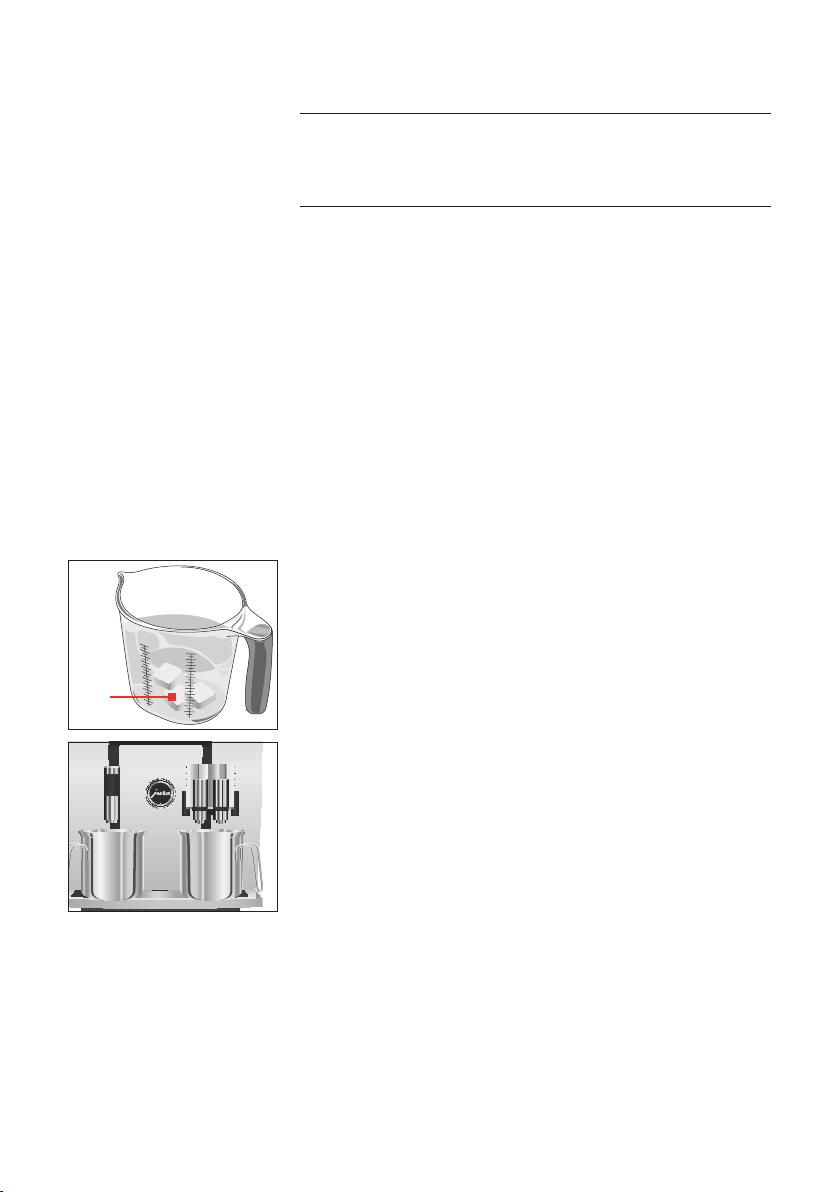
T Completely dissolve 3JURA descaling tablets in a receptacle
holding 600ml of water. This may take several minutes.
T Pour the solution into the empty water tank and insert it
into the machine.
‘Press the Rotary Switch’
T Place one receptacle under the dual spout and another
under the hot-water spout.
T Press the Rotary Switch.
‘Machine is being descaled’, water flows straight into the
drip tray and out of the hot-water spout and dual spout
repeatedly.
The operation is interrupted,
‘Empty drip tray’.
T Empty the drip tray and coffee grounds container and put
them back into the machine.
‘Fill water tank’
CAUTION
3x
43
5 Maintenance
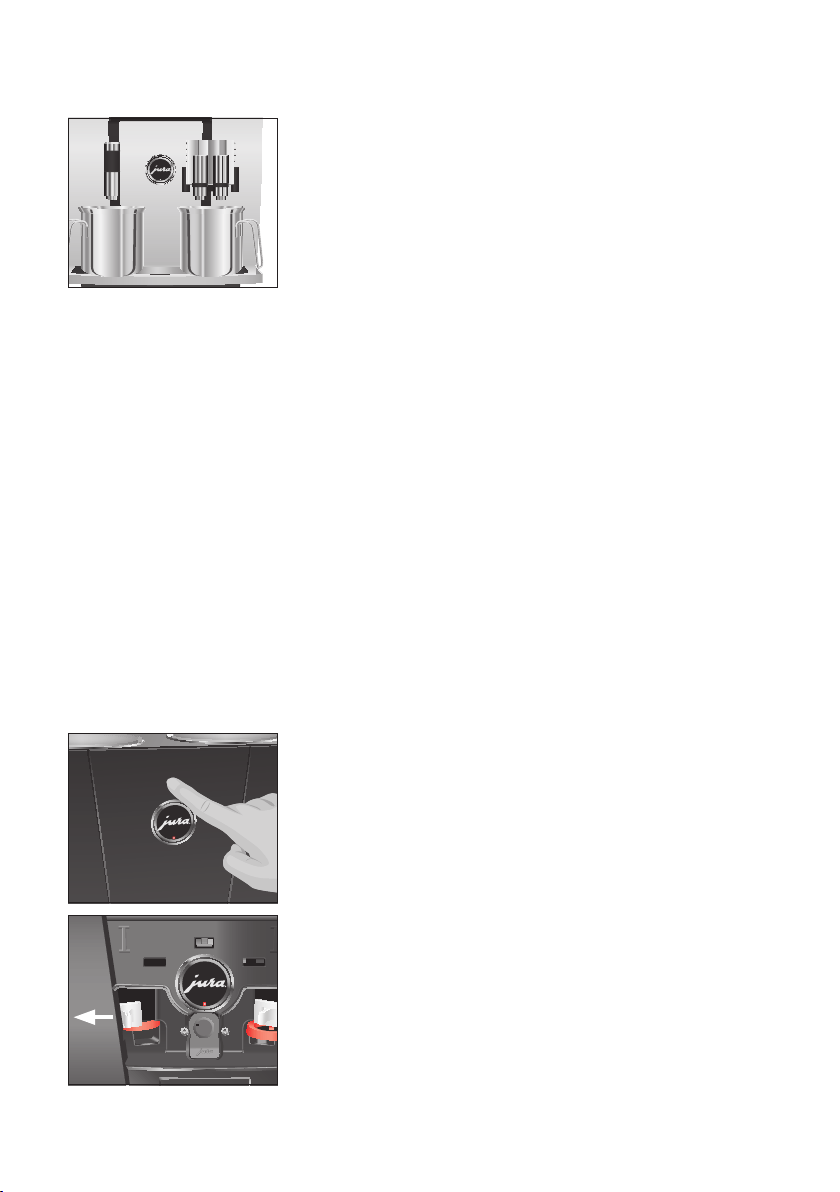
T Empty the receptacles and place them back under the dual
spout and the hot-water spout.
T Remove the water tank and rinse it thoroughly.
T Fill the water tank with fresh, cold water and reinsert the
tank.
‘Press the Rotary Switch’
T Press the Rotary Switch.
‘Machine is being descaled’, the descaling operation is con-
tinued. Water flows straight into the drip tray and out of the
hot-water spout and dual spout repeatedly.
‘Empty drip tray’
T Empty the drip tray and coffee grounds container and put
them back into the machine.
Descaling is now complete. The start screen is displayed.
E If the descaling operation stops unexpectedly, rinse the water
tank thoroughly.
Coffee beans may be covered with a slight oil film which remains on
the walls of the bean containers. These traces may negatively affect
the coffee result. For this reason clean the bean containers from time
to time.
T Press the On/Off button Q to switch the GIGA off.
T Switch the machine off at the power switch.
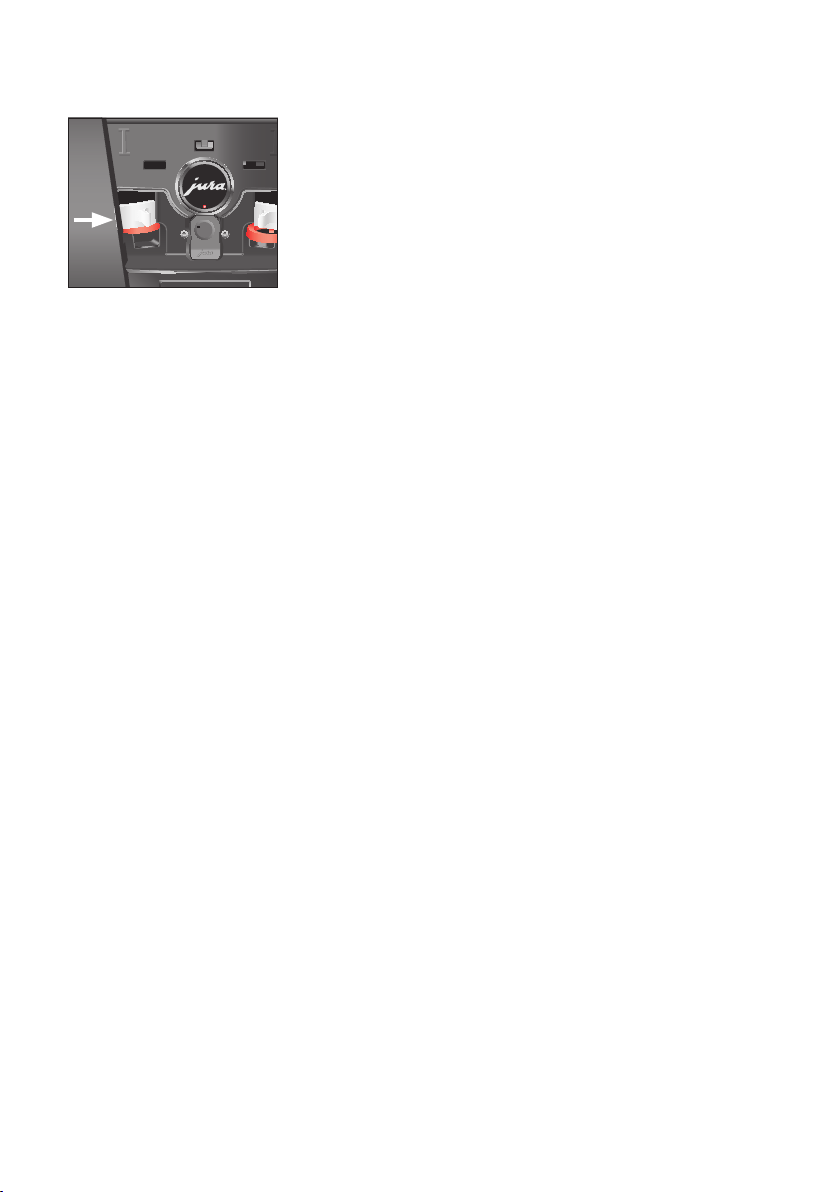
T Open the service cover on the back of the machine by press-
ing above the JURA logo.
T Push the red sliding catch completely to the rear to close the
bean container.
T Turn the blue locking device outwards.
T Remove the bean container.
T Remove the aroma preservation cover.
T Empty the bean container.
T Clean the bean container with a soft, dry cloth.
T Fit the bean container.
Cleaning the bean
container
44
5 Maintenance
T Turn the blue locking device inwards.
T Pull the red sliding catch completely forwards.
T Refit the service cover and fix it by pressing above the JURA
logo. It will click into place audibly.
T Fill the bean container with coffee beans and close the
aroma preservation cover.
Limescale deposits may form in the water tank. To ensure correct
function of the machine, descale the water tank from time to time.
T Remove the water tank.
T If you use a CLARIS Smart filter cartridge, remove this.
T Completely fill the water tank and dissolve 3 JURA descaling
tablets in it.
T Leave the water tank with the descaling solution for several
hours (e.g. overnight).
T Empty the water tank and rinse it thoroughly.
T If you use a CLARIS Smart filter cartridge, insert this again.
T Fill the water tank with fresh, cold water and reinsert the
tank.
Descaling the water tank
45
6 Display messages
6 Display messages
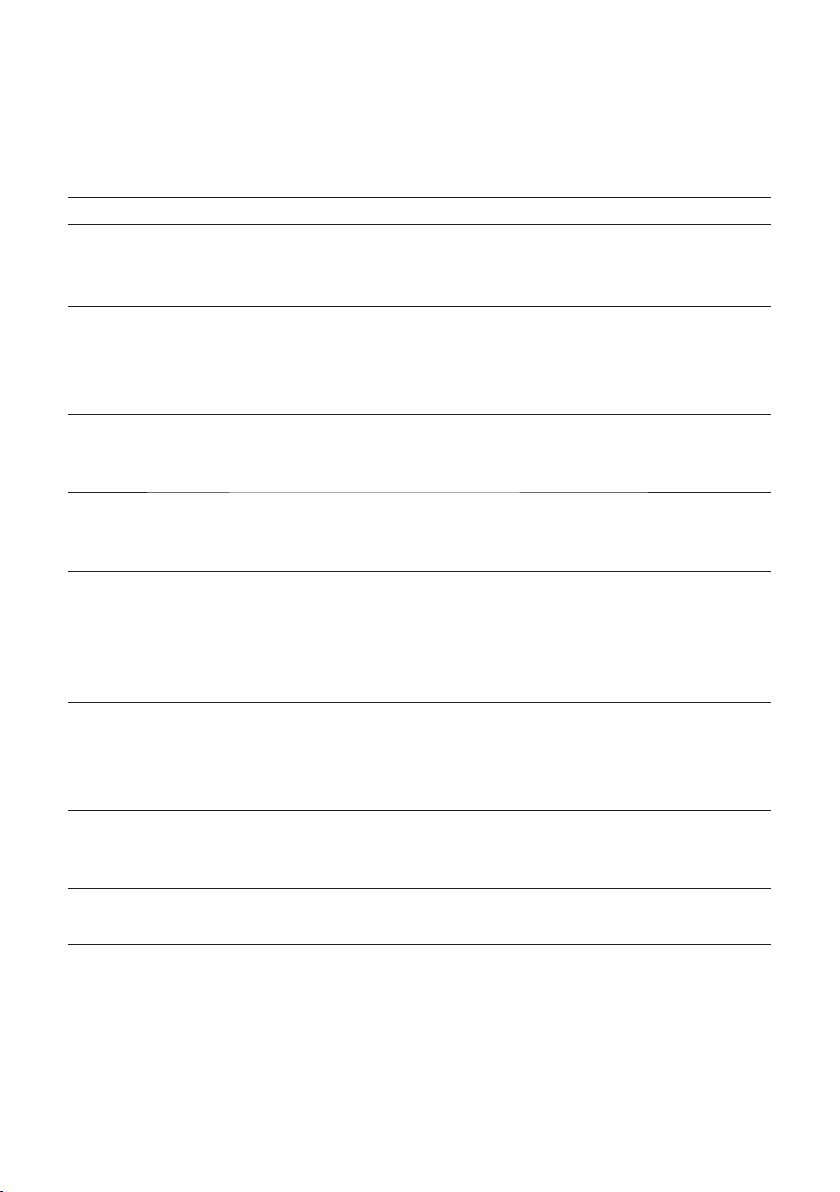
Messages on the start screen
Message Cause/Result Action
‘Fill water tank’ The water tank is empty. You cannot
prepare any products.
T Fill the water tank (see Chapter 3
‘Daily operation – Filling the water
tank’).
‘Empty coffee
grounds container’
/
‘Empty drip tray’
The coffee grounds container is full. /
The drip tray is full. You cannot
prepare any products.
T Empty the coffee grounds
container and the drip tray
(see Chapter 3 ‘Daily operation–
Daily maintenance’).
‘Close front cover’ The coffee grounds container cover
is open. You cannot prepare any
products.
T Close the cover.
‘Drip tray not fitted’ The drip tray is not inserted correctly
or is not inserted at all. You cannot
prepare any products.
T Fit the drip tray.
‘Fill left bean
container’
/ ‘Fill right
bean container’
One of the bean containers is empty.
You cannot prepare any speciality
coffees for which coffee beans are
required from this bean container.
You can prepare hot water or milk.
T Fill the bean container
(see Chapter 1 ‘Preparing and
using for the first time – Filling
the bean container’).
‘Not enough ground
coffee’
There is insufficient ground coffee
in the machine; the GIGA stops the
operation.
T The next time you prepare a
beverage, add more ground
coffee (see Chapter 2 ‘Prepara-
tion – Ground coffee’).
‘Service cover is not
fitted’
The service cover on the back of the
machine is not fitted. You cannot
prepare any products.
T Fit the service cover.
‘Spout is not fitted’ The cover of the dual spout has not
been fitted.
T Correctly fit the cover of the
dual spout.
46
6 Display messages
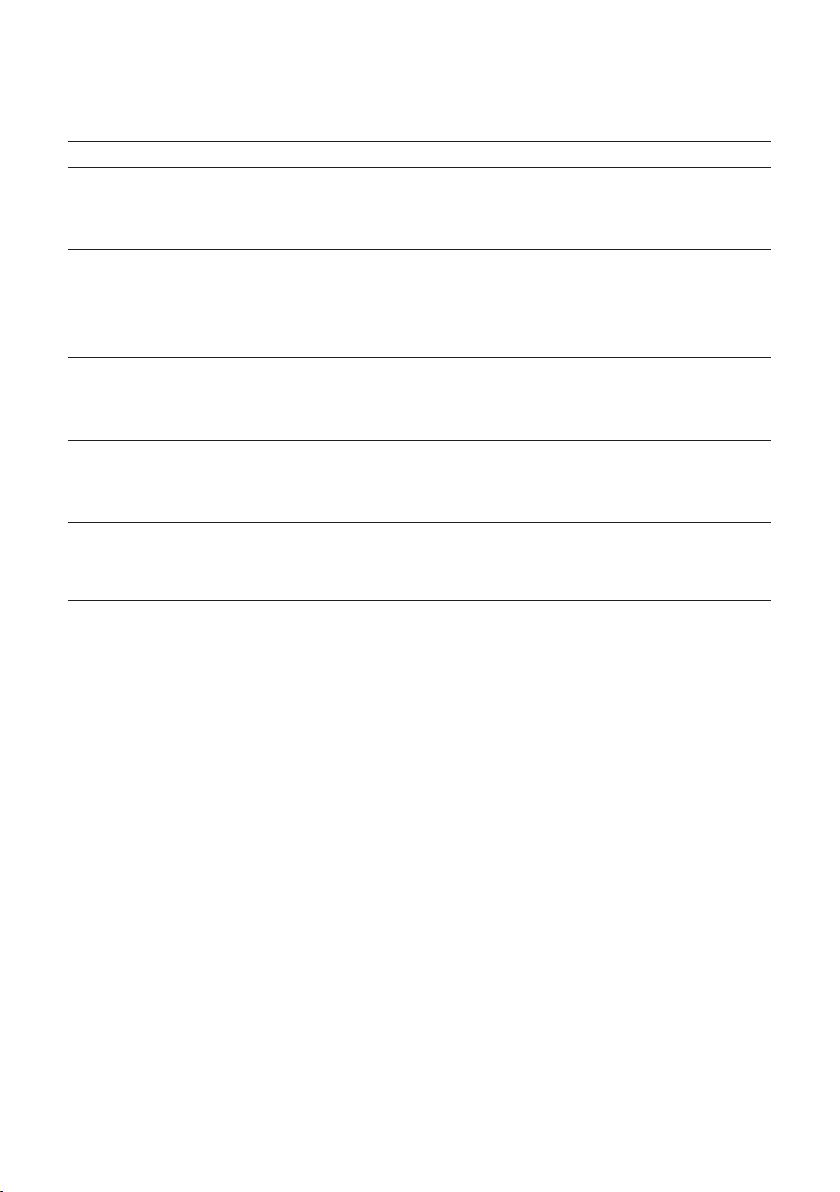
Messages on the dashboard
Message Cause/Result Action
‘Clean the milk
system’
The GIGA prompts you to clean the
milk system.
T Perform milk system cleaning
(see Chapter 5 ‘Maintenance –
Cleaning the milk system’).
‘Change the filter’ The filter cartridge no longer works.
The GIGA is prompting a filter
change.
T Replace the CLARIS Smart filter
cartridge (see Chapter 5 ‘Mainte-
nance – Inserting/changing the
filter’).
‘Clean’ The GIGA is prompting you to
clean it.
T Perform cleaning (see Chapter 5
‘Maintenance – Cleaning the
machine’).
‘Descale’ The GIGA is prompting you to
descale it.
T Perform descaling (see Chapter 5
‘Maintenance – Descaling the
machine ’).
‘Empty coffee
grounds container’
The coffee grounds container is full. Empty the coffee grounds container
(see Chapter 3 ‘Daily operation–
Daily maintenance’).

47
7 Troubleshooting
7 Troubleshooting
Problem Cause/Result Action
Insufficient foam is
produced when the milk
is frothed or milk sprays
from the dual spout.
The dual spout is dirty.
T Clean the milk system in the dual
spout (see Chapter 5 ‘Maintenance –
Cleaning the milk system’).
T Dismantle and rinse the dual spout
(see Chapter 5 ‘Maintenance – Disman-
tling and rinsing the dual spout’).
The milk and milk foam
temperature is set too
high.
T Set a lower milk and milk foam
temperature for the product.
Coffee only comes out in
drips when it is being
prepared.
Coffee or ground coffee
has been ground too
finely and is blocking the
system. The water
hardness may not have
been correctly set.
T Put the grinder on a coarser setting
or use coarser ground coffee (see
Chapter 4 ‘Permanent settings in
programming mode – Setting the
consistency of grind’).
T Perform descaling (see Chapter 5
‘Maintenance – Descaling the
machine’).
‘Fill bean container’ is not
displayed although the
bean container is empty.
The bean monitor is dirty.
T Clean the bean container (see
Chapter 5 ‘Maintenance – Cleaning the
bean container’).
Preparation stops,
‘Fill bean container’ is
briefly displayed although
the bean container has
been filled.
The sliding catch for the
bean container has not
been pulled out or has
not been pulled out
completely.
T Open the service cover on the back of
the machine and pull the sliding catch
all the way out (see Chapter 5 ‘Mainte-
nance – Cleaning the bean container’).
‘Fill water tank’ is
displayed although the
water tank is full.
The water tank float is
trapped.
T Descale the water tank (see Chapter 5
‘Maintenance – Descaling the water
tank’).
‘Empty drip tray’ is always
displayed.
The metal contacts of
the drip tray are dirty or
wet.
T Clean and dry the metal contacts on
the back of the drip tray.

48
7 Troubleshooting
Problem Cause/Result Action
‘Error2’ or ‘Error5’
is displayed.
If the machine has been
exposed to the cold for a
long period of time,
heating may be disabled
for safety reasons.
T Warm the machine at room tempera-
ture.
Other
‘Error’ messages
are displayed.
–
T Contact customer support in your
country (see Chapter 11 ‘JURA contact
details/ Legal information’).
E If you were unable to solve the problem, contact customer
support in your country (see Chapter 11 ‘JURA contact details/
Legal information’).
49
8 Transport and environmentally friendly disposal
8 Transport and environmentally friendly disposal
Keep the packaging for your GIGA. It should be used to protect the
machine during transport.
In order to protect the GIGA from frost during transport, the system
must be emptied.
Precondition:The start screen is displayed.
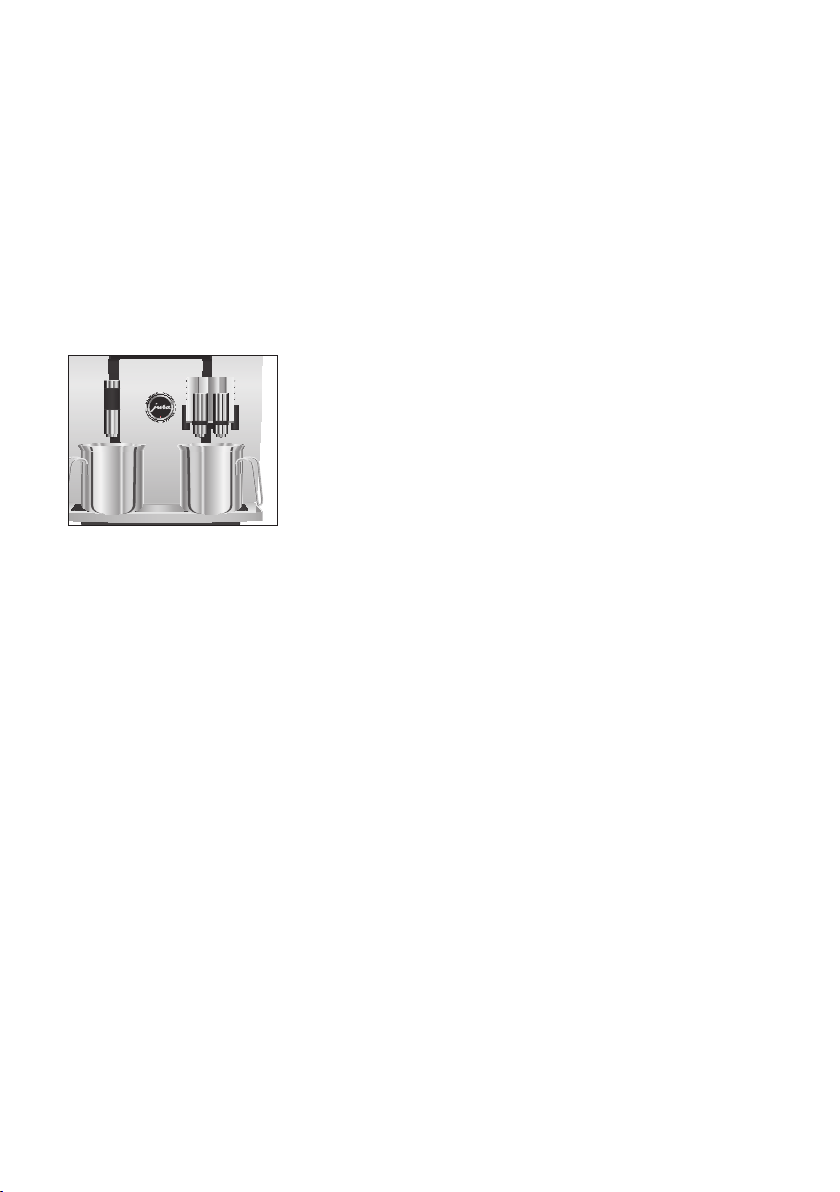
T Remove the milk pipe from the dual spout.
T Place one receptacle under the dual spout and another
under the hot-water spout.
T Press the Rotary Switch.
T Touch the ‘Machine setting’
f.
‘Switch off after’
T Turn the Rotary Switch until ‘Empty system’ is displayed.
T Touch
‘Empty system’.
‘Empty system’ / ‘Remove the water tank’
T Remove and empty the water tank.
‘Press the Rotary Switch’
T Press the Rotary Switch.
Water and steam will continue to be discharged from the
dual spout and the hot-water spout until the system is
empty.
Your GIGA is switched off.
Please dispose of old machines in an environmentally neutral way.
H
Old machines contain valuable, recyclable materials which should
be recycled. Please therefore dispose of old machines via suitable
collection systems.
Transport/ Emptying the
system
Disposal

50
9 Technical data
9 Technical data
Voltage 220–240V~, 50Hz
Power 2300W
Conformity mark
A
Energy consumption
‘Save energy’/ ‘1’
approx. 8Wh
Energy consumption
‘Save energy’/ ‘0’
approx. 26Wh
Pump pressure static, max. 15bar
Holding capacity of water tank 2.6l
Holding capacity of bean container 2×280g
Holding capacity of coffee grounds container max. 20portions
Cable length approx. 1.2m
Weight approx. 18.0kg
Dimensions (WHD) 3241.549.7cm
Information for testers (repeat test in accordance with DIN VDE
0701-0702): The central grounding point (CGP) is located on the
front of the machine below the JURA logo (turn JURA logo anti-clock-
wise).

51
10 Index
10 Index
A
Addresses 56
Adjusting the product settings 25
Aroma preservation cover
Bean container with aroma preservation
cover 4
Automatic switch-off 27
Timer 29
Automatic switch-on
Timer 29
B
Bean container
Bean container with aroma preservation
cover 4
Cleaning 43
Filling 11
Bus bar
Technical data 50
Button
On/Off button 5
Bypass amount of water 18
C
Caffè Barista 18
Caffè latte 18
Cappuccino 18
Cappuccino frother cleaning
Cleaning the milk system 36
CLARIS Smart filter cartridge
Changing 39
Inserting 39
Cleaning
Bean container 43
Machine 40
Cockpit 35
Coffee 17
Two coffees 17
Coffee grounds container 4
Configuration area 24
Connect accessory 14
Consistency of grind
Setting the consistency of grind 27
Contact details 56
Cover
Service cover 5
Storage compartment 4
Water tank 4
Cup grille 4
Customer support 56
D
Daily maintenance 22
Dashboard 10, 24
Date 28
Descaling
Machine 41
Water tank 44
Display
Touchscreen display 5, 10
Display brightness 31
Displaying product names 33
Display messages 45
Disposal 49
Double product 17
Drip tray 4
Insert 4
Dual spout
Dismantling and cleaning 37
Height- and width-adjustable dual
spout 4
E
Emptying the system 49
Energy-saving mode 30
Errors
Troubleshooting 47
Espresso 17
Two espressi 17
Espresso macchiato 18
F
Factory settings
Restore factory settings 32
Filler funnel
Filler funnel for ground coffee 4
Filling
Bean container 11
Water tank 21

52
10 Index
Filter
Changing 39
Inserting 39
First-time use 12
Flat white 18
G
Green tea 20
Grinder
Setting the consistency of grind 27
Ground coffee 19
Measuring spoon for ground coffee 4
H
Homepage 10
Hotline 56
Hot water 20
Hot-water spout
Height-adjustable hot-water spout 4
I
Insert for drip tray 4
Instant coffee
Ground coffee 19
Internet 10
J
JURA
Contact details 56
Internet 10
L
Language 31
Latte macchiato 18
Locking device 5
M
Machine
Cleaning 40
Daily maintenance 22
Descaling 41
Regular maintenance 22
Rinsing 35
Setting up 11
Switching off 23
Switching on 21
Mains cable 4
Maintenance 35
Daily maintenance 22
Regular maintenance 22
Maintenance counter 33
Measuring spoon for ground coffee 4
Messages, display 45
Milk
Connecting milk 14
Milk system
Cleaning 36
Milk system rinsing 36
N
Number
Maintenance programmes 33
Preparations 33
P
Permanent settings in programming
mode 24
Pot of coffee 17
Power switch 4
Preparation 16, 18
At the touch of a button 16
Caffè latte 18
Cappuccino 18
Coffee 17
Espresso 17
Espresso macchiato 18
Flat white 18
Green tea 20
Ground coffee 19
Hot water 20
Latte macchiato 18
Lungo Barista 18
Pot of coffee 17
Two coffees 17
Two espressi 17
Two speciality coffees 17
Using the product selector 16
Preparation options 16
Problems
Troubleshooting 47
Product counter 33
Product selector view 16
Product settings 25
Adjusting 25
Programming mode 24
Automatic switch-off 27
Counter readings and version 33
Display brightness 31

53
10 Index
Displaying product names 33
Energy-saving mode 30
Language 31
Product settings 25
Restore factory settings 32
Setting the consistency of grind 27
Setting the water hardness 28
Smart mode 32
Time and date 28
Timer 29
Unit for amount of water / time
format 30
Proper use 6
R
Regular maintenance 22
Rinsing
Machine 35
Rotary Switch 5, 10
S
Safety 6
Safety information 6
Service cover 5
Service socket 5
Settings
Permanent settings in programming
mode 24
Setting up
Setting up the machine 11
Short operating instructions 10
Sliding catch 5
Smart Connect 5, 14
Smart mode 32
Spout
Height-adjustable hot-water spout 4
Height- and width-adjustable dual
spout 4
Switching off 23
Timer 29
Switching on 21
Timer 29
Switch-off
Automatic switch-off 27
Switch-off time 29
Switch-on time 29
Symbol description 3
T
Technical data 50
Tel 56
Time 28
Time format
Programming mode 30
Timer 29
Touchscreen display 5, 10
Transport 49
Troubleshooting 47
Two products 17
U
Unit for amount of water
Programming mode 30
Use, First-time 12
V
Ventilation slats 4
Venti Ports
Ventilation slats 4
Version 33
W
Water hardness
Determining the water hardness 11
Setting the water hardness 28
Water tank 4
Descaling 44
Filling 21
Website 10
Wireless connection 14

54

55

56
11 JURA contact details/ Legal information
11 JURA contact details/ Legal information
JURA Elektroapparate AG
Kaffeeweltstrasse 10
CH-4626 Niederbuchsiten
Tel. +41 (0)62 38 98 233
E You will find additional contact details for your country at
www.jura.com.
E If you need assistance with using your machine, you can find
this at www.jura.com/service.
The machine complies with the following directives:
U
2014/35/EU– Low Voltage Directive
U
2014/30/EU– Electromagnetic Compatibility
U
2009/125/EC– Ecodesign Directive
U
2011/65/EU– RoHS Directive
We reserve the right to make technical changes. The diagrams used
in these instructions for use are for illustration purposes only and do
not represent the original colours of the machine. Some details of
your GIGA may vary.
Your opinion is important to us! Use the contact details at
www.jura.com.
The instructions for use contain information which is protected by
copyright. It is not permitted to photocopy these instructions for use
or translate them into another language without the prior written
consent of JURA Elektroapparate AG.
Directives
Technical changes
Feedback
Copyright
J74163/GIGA 6/en/201907