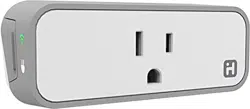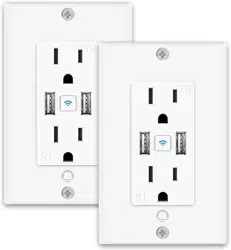

SMART Wi-Fi
OUTLET WITH 2 USB PORTS
START GUIDE
Lumary

Contents
Download & Register 02-04
Install 05-08
Reset 09
Connect 10-15
FAQ,Troubleshooting,Notices 16-19
Thank you for purchasing Lumary products. Ready to get started?
Download the Lumary App to manage your devices straight from
your phone and tablet. Easily connect to your home Wi-Fi and control
multiple devices with touching ngertips.Thank you for your support,
we will be dedicated to your service and continue to optimize the
application and products.
20-37
Voice Control Guide
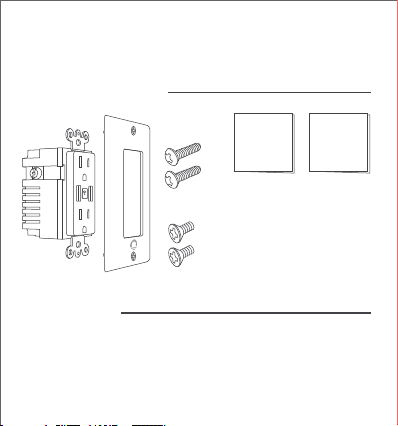
What’s in the Box
Get Ready
• 1 x Smart Wi-Fi Outlet
• 1 x Face Plate
• 2 x Screws for Outlet
• 2 x Screws for Faceplate
• Start Guide
• Voice Control Guide
• Turn OFF AC Power at the circuit breaker or fuse. Use a noncontact
voltage tester to ensure that power is o. More than one disconnect
CURRENT may be required to turn o power.
• Use Copper Conductors Only.
SMART Wi-Fi
OUTLET
WITH 2 USB PORTS
START GUIDE
VOICE
CONTROL
GUIDE
WARNING: RISK OF ELECTRIC SHOCK OR FIRE. Please follow all safety instructions on
page 17 before installing, servicing, or removing your CURRENT.
A
B
01

02
1 Download the Lumary app
03
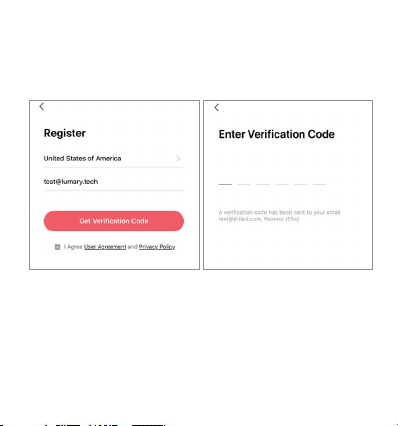
2 Register a Lumary account
STEP 1
Enter your email address.
STEP 2
Enter the verication code
and create a password.
04
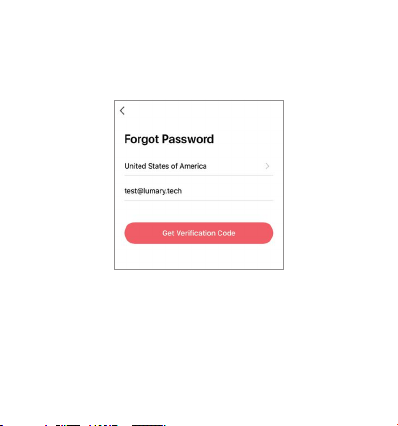
Reset Password
STEP 3
Follow the prompts to reset your password.
05
3 Install
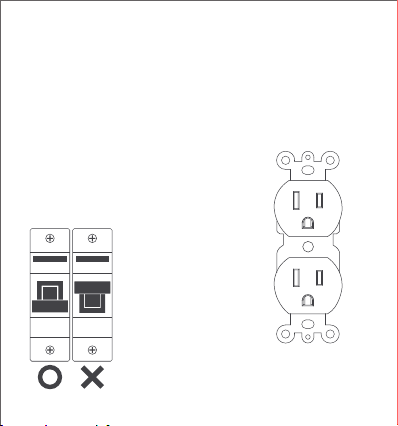
STEP 1
Shut o power at the circuit
breaker for the CURRENT that you
are replacing. More than one
disconnection may be required to
turn o power. Use a noncontact
voltage tester to ensure that
power is o.
STEP 2
Remove old outlet by
disconnecting all wires.
ON
OFF
Disconnect all wires.
06
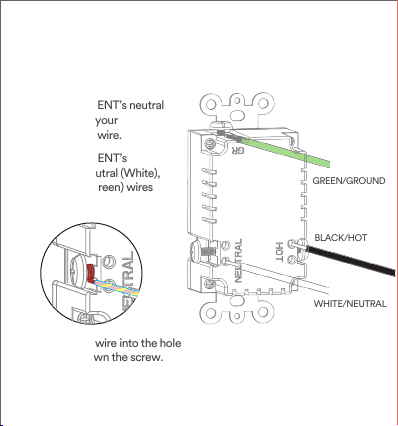
STEP 3
Connect CURRENT’s neutral
wire (white) to your
home’s neutral wire.
Connect CURRENT’s
line (Black), Neutral (White),
and Ground (Green) wires
as shown.
Place stripped wire into the hole
and tighten down the screw.
GREEN/GROUND
BLACK/HOT
WHITE/NEUTRAL
07
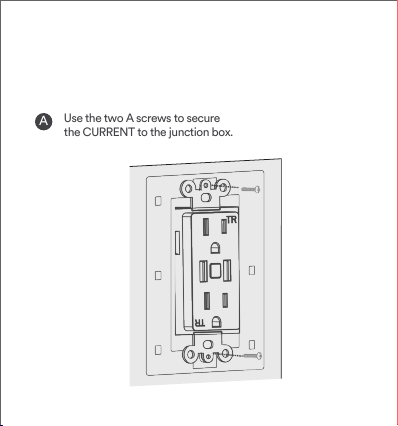
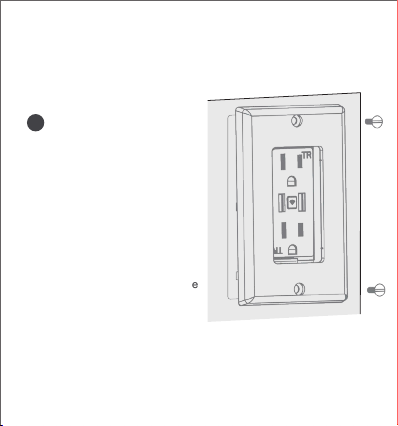
STEP 4
Use the two A screws to secure
the CURRENT to the junction box.
A
08
STEP 4
STEP 5
Use the two B screws provided to
secure the faceplate bracket to
the CURRENT.
Restore power by turning the
breaker back on.
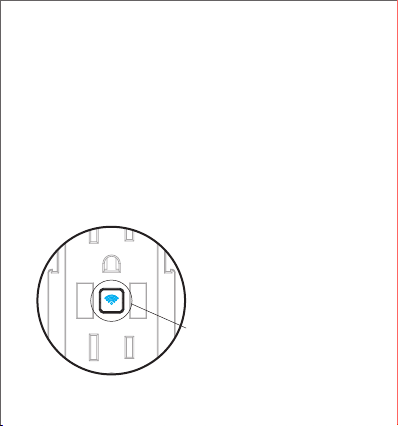
STEP 6
Once power is connected,the blue
indicator light will blink to indicate
that CURRENT is ready to
connect to Wi-Fi.
B
09
4 Reset
How do I reset the device and what does the blinking light mean?
Blinking fast: Ready for Easy Mode
Blinking slow: Ready for AP Mode
Solid: Device power on
Reset CURRENT by pressing and holding the reset button for
5 seconds until the indicator light is ashing rapidly.
- Reset one time (press and hold) to reach Easy mode
(Fast blinking blue, 2x per second)
- Reset again (press and hold) to reach AP Mode
(Slow blinking blue, every 3 seconds)
5
10
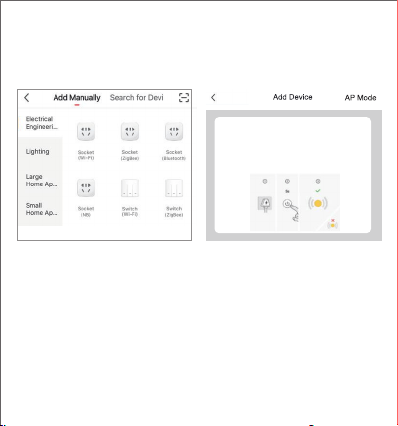
STEP 1
Open the Lumary app. In the top
corner of the Devices screen,
click (+).
Choose “Socket (Wi-Fi)”
STEP 2
Make sure CURRENT’s light is
rapidly ashing blue.
If not, reset to reach Easy Mode
to connect (Page 9).
Press “Next Step” in the app.
Connect: Easy Mode
If the indicator is blinking fast,skip the
reset step
① Power on
② Hold RESET button(switch)for 5s.
(Subject to User Manual)
③ Ensure indicator light is fast blinking
11
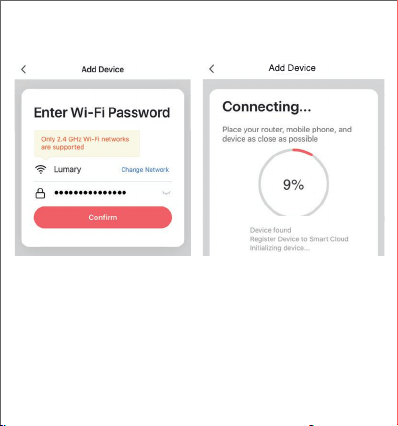
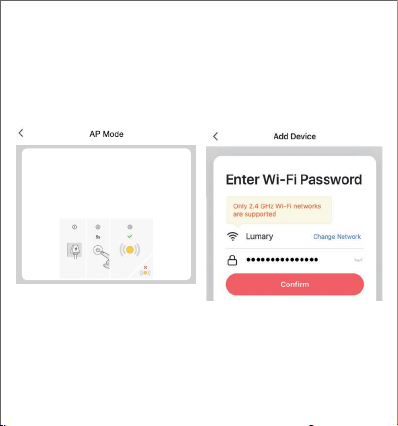
STEP 3
Enter your Wi-Fi network
and password.
NOTE: Lumary can’t connect to 5GHz networks.
*If the connection fails, try to connect using AP Mode.
STEP 4
The Lumary app will
connect to your CURRENT.
12
6 Connect: AP Mode
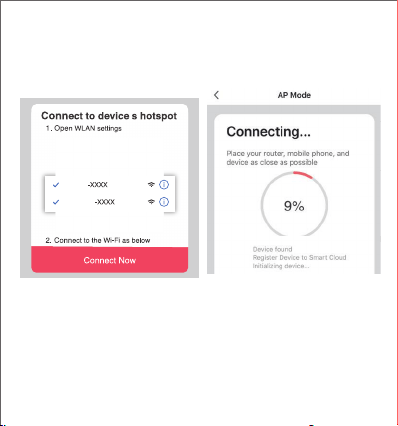
STEP 1
Make sure CURRENT’s light is slowly ashing blue.
If not, reset to reach AP mode (page 9).
STEP 2
Open the Lumary app. In the top
corner of the Devices screen, click (+).
Choose “Socket (Wi-Fi)”.
Choose “AP Mode” in the top corner.
STEP 3
Press “Next” and enter
your Wi-Fi details.
If the indicator is blinking slowly,skip the
reset step
① Power on
② Hold RESET button(switch)for 5s,After the
ash is ashing,Hold RESET button(switch)for 5s.
(Subject to User Manual)
③ Ensure indicator light is slowly ashing.
13
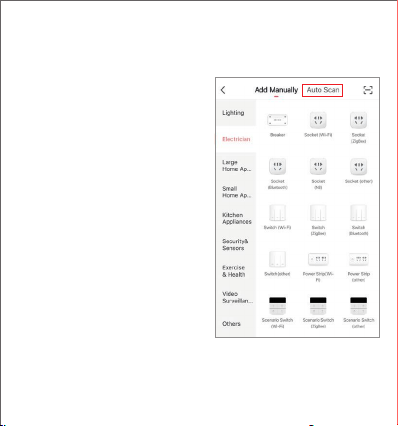
STEP 4
Follow the instructions to choose
the device from your Wi-Fi list.
STEP 5
The Lumary app will connect to
your CURRENT.
NOTE: Lumary can’t connect to 5GHz networks.
Lumary
Smart life
14
7
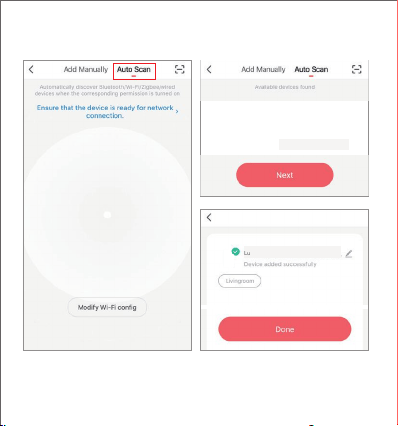
STEP 1
Connect your smart phone to a 2.4GHz Wi-Fi,
open the Lumary app. In the top right corner
of screen, click (+). Choose “Auto Scan”.
STEP 2
Power on the smart device, press and
hold the reset button for 5 seconds until
it is rapidly ashing blue.
STEP 3
Click “Start scan”, the app will search for
device automatically. Wait 5-20s until the
device appears on the screen. Click “Next”,
customize the device name as needed,
then click “Done” to complete connection.
Connect: Auto Scan
15
Lumary smart wall outlets with 2 usb
Lumary smart wall outlets with 2 usb

16
Frequently Asked Questions
1.Can I share with family and friends?
Yes,you can share access to your CURRENT and any other Lumary device.In the
Lumary app,press the"Prole”button and click on“Device Sharing”to give or revoke sharing
permissions.In order to share,the other user should already have downloaded the Lumary app and
registered an account.
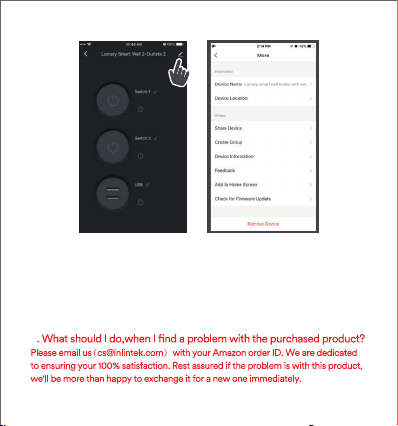
4.My Lumary device has a funny name.How do I rename it?
From your main device list,click on one of the devices you want to rename,press the
“ ”button on the top right for advanced settings,and click"Modify Device Name”
(or“Modify Group Name”).You'll then be able to choose a more familiar name.
5.What should I do if the device appears oine or is unreachable?
Make sure your Wi-Fi router is online and in range,and check that you have the latest Lumary
functionality by clicking“Check for rmware update”in your device settings.If power is connected
but the CURRENT is not responding,hold down the Restart button to cycle the fuse and give the
CURRENT a jump start.
3.How many devices can I control?
Lumary app can control an unlimited amount of devices in an unlimited amount of locations.Your
router may have a limit of how many devices can be connected to one router.
2.Can I group multiple Lumary devices together?
Yes,you can group multiple same-type devices by room,location,or however else you want.The
same devices can be in multiple groups.For example,if you create a group for"Bedroom”and
another group for“Entire House,”your Bedroom lights can be included in both groups.From your
main device list,click on one of the devices you want to group,press the“ ”button on the top
right for advanced settings,and click“Create Group.”You'll be able to name a new group and
choose which devices you'd like to group together.
17
6. What’s the wireless range?
The range of your home Wi-Fi is heavily dependent on your home router and the conditions
of the room. Check with your router specications for exact range data.
7. If my Wi-Fi/Internet goes down, will Lumary App still work?
Lumary products need to be connected to Wi-Fi in order to use them remotely.
8

18
Troubleshooting
Can’t connect to Wi-Fi?Make sure you entered the correct Wi-Fi password during the
Wi-Fi setup.
Check whether there are any Internet connection problems. If the Wi-Fi signal is too
weak, reset your Wi-Fi router and try again.
Reset the device
Reset CURRENT by pressing and holding the button for 5 seconds until the indicator
light is ashing rapidly.
- Reset one time (press and hold) to reach Easy mode (Fast blinking blue, 2x per second).
- Reset again (press and hold) to reach AP Mode (Slow blinking blue, every 3 seconds).
System Requirements
• Mobile device running iOS®9.0 or higher or Android™ 4.4 or higher
• Existing 2.4GHz Wi-Fi network (not compatible with 5GHz Wi-Fi networks)
• Existing outlet box; the box should be more than 2 inches deep
• Lumary app
IMPORTANT: Please consult a licensed electrician if you are unfamiliar with
electrical installations.
Technical Specications
• Input: 100-130VAC, 60Hz
• Single Output :10A Max. / outlet
• Total Output :15A Max.
• USB Output : 5V / 2.1A

19
FCC Notice:
This device complies with Part 15 of the FCC Rules. Operation is subject to the two following
conditions:
1. This device may not cause harmful interference.
2. This device must accept any interference received, including interference that may cause
undesired operation.
Note: This equipment has been tested and found to comply with the limits for a Class B digital
device, pursuant to Part 15 of the FCC Rules. These limits are designed to provide reasonable
protection against harmful interference in a residential installation.
Important Information:
Before installing, read and follow all precautions, including the following:
CAUTION: RISK OF ELECTRIC SHOCK OR FIRE
TAP must be installed and used in accordance with the National Electric Code. Please
consult a licensed electrician if you are uncomfortable or unfamiliar with electrical work.
Disconnect power before installing or modifying this product.
CAUTION: Suitable for indoor use only.
Support:
If you encounter any issues, please contact us at [email protected] for help.
To explore our full selection of products, visit us at: www.lumary.tech
Made in China
20
Lumary
VOICE
CONTROL
GUIDE
Name and Control Each Device by Voice
21

22
Contents
Google Assistant
Thank you for purchasing your Lumary smart home product.
Make sure your devices are already set up using the Lumary app,
then follow these steps.
23 - 28
Amazon Alexa 29 - 37
23
Voice Control Quick Guide for Google Assistant
To control your Lumary smart switch,plugs,
or surge protectors,
just say“OK Google,”and ask.
Make sure your devices are already
set up using the Lumary app.

24
Google Assistant
Things you can say*:
Hey Google,turn on all the lights in my bedroom."
Hey Google,turn o the light."
Hey Google,set the bedroom light to orange.”
Hey Google,turn o the coee machine.”
Hey Google,set the living room to 50%.”
“Hey Google,dim porch light.”
*Some commands require compatible devices.
25
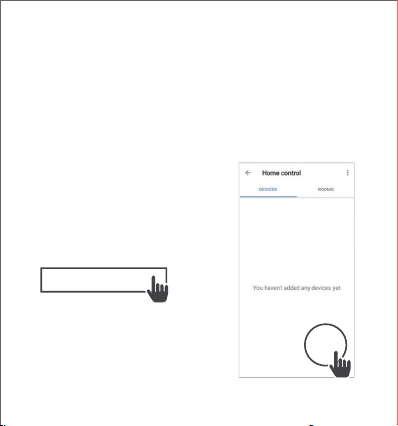
Open the Google Home App
and go to Home Control
in the menu.
Tap the
"+"
button
1 2
26
3
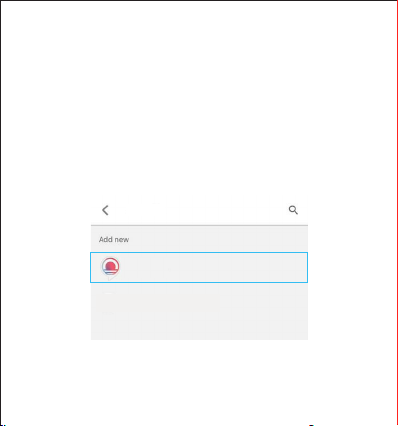
Choose “Lumary” in the list of Home
Control partners.
Lumary
Lumary
27
4
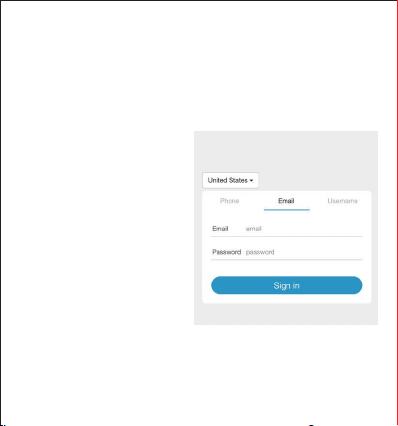
Authorize your account
with Google Assistant
using the username
and password from
your Lumary app.
Now your Google Home app
and Lumary devices are
linked!
You're now able to say
“OK Google”and control
your Lumary devices.

28
At any time,go into the“Home Control”section of the
Google Home app to set nicknames and rooms for
your devices.
You can rename your devices in the Lumary app,and
Google Assistant will refer to them by the same name.
So if you rename a smart bulb to“Living Room”or a
nickname like“Blossom,then Google Assistant will use
that same name later on.You can always give it a
nickname using the Google Home app as well.
You can also assign switch to a specicroom,like
“Bedroom”or“Kitchen.”
Google Assistant will be able to control devices by room.

29
Amazon Alexa
To control your Lumary smart switch,plugs,
or surge protectors,just ask Alexa.
Make sure your devices are already set up
using the Lumary app.

Things you can say*:
“Alexa,discover my devices."
“Alexa,turn on the bedroom light.”
Alexa,set the bedroom light to orange.”
“Alexa,turn o the coee machine.”
“Alexa,set the living room to 50%.”
Alexa,dim porch light.
*Some commands require compatible devices.
30
31
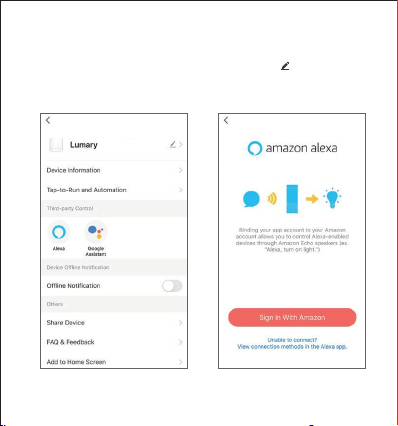
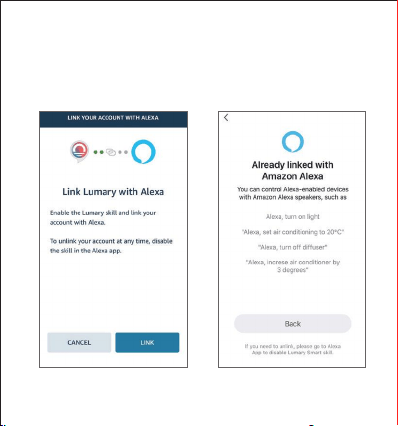
1. Log in to Lumary app, click your smart divice, click “ ” in top right corner
2. Click Alexa in Third-party Control
3. Sign in with your Alexa account
32
4. Click ‘LINK’
5. Linked successfully, when add new device, there is no need to link again,
just discover new device in Alexa.
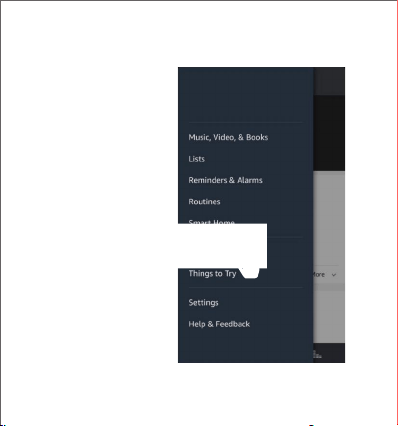
Open the Alexa App
and go to Skills
in the menu.
1
33
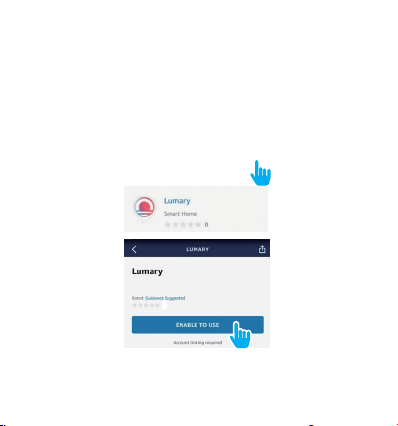
Search for Lumary then tap Enable.
2
Lumary
34
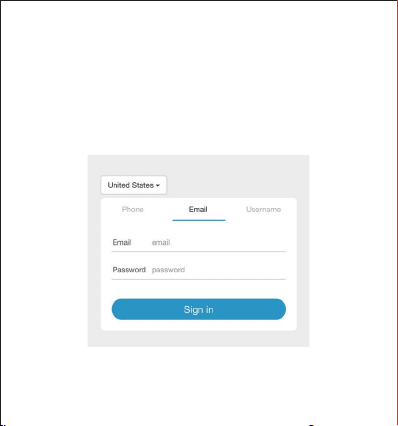
Authorize your account with Smart Home Skills
using the username and password from
your Lumary app.
3
35
36
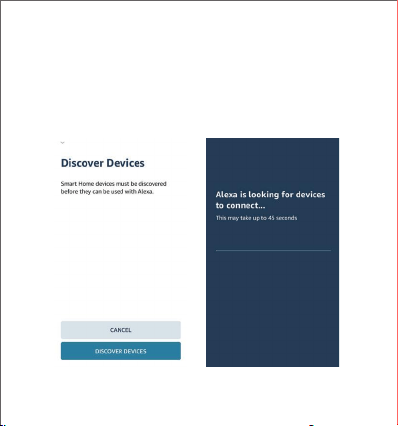
Choose“Discover Devices”. After a few seconds your Lumary
devices will be displayed under Smart Home in the Alexa app.
4

37
You can rename your devices in the Lumary app,and Alexa will refer
to them by the same name.
So if you rename a smart switch to“Living Room”or a nickname
like“Blossom,”then Alexa will use that same nickname later on.
Alternatively,you create an Alexa group,like“Bed room” or
“Downstairs,”and add the device to the group.
Alexa will recognize the group name in the Alexa app,or the device
name in the Lumary app.
More information is available at:
http://tinyurl.com/alexa-smart-home-groups

Can’t connect? Need help?
Lumary support:
Visit us at: www.lumary.tech
HAVING AN EASY TALK TO US BEFORE YOU RETURN
THE PRODUCT WILL FIX A PROBLEM MORE QUICKLY