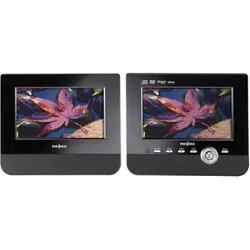
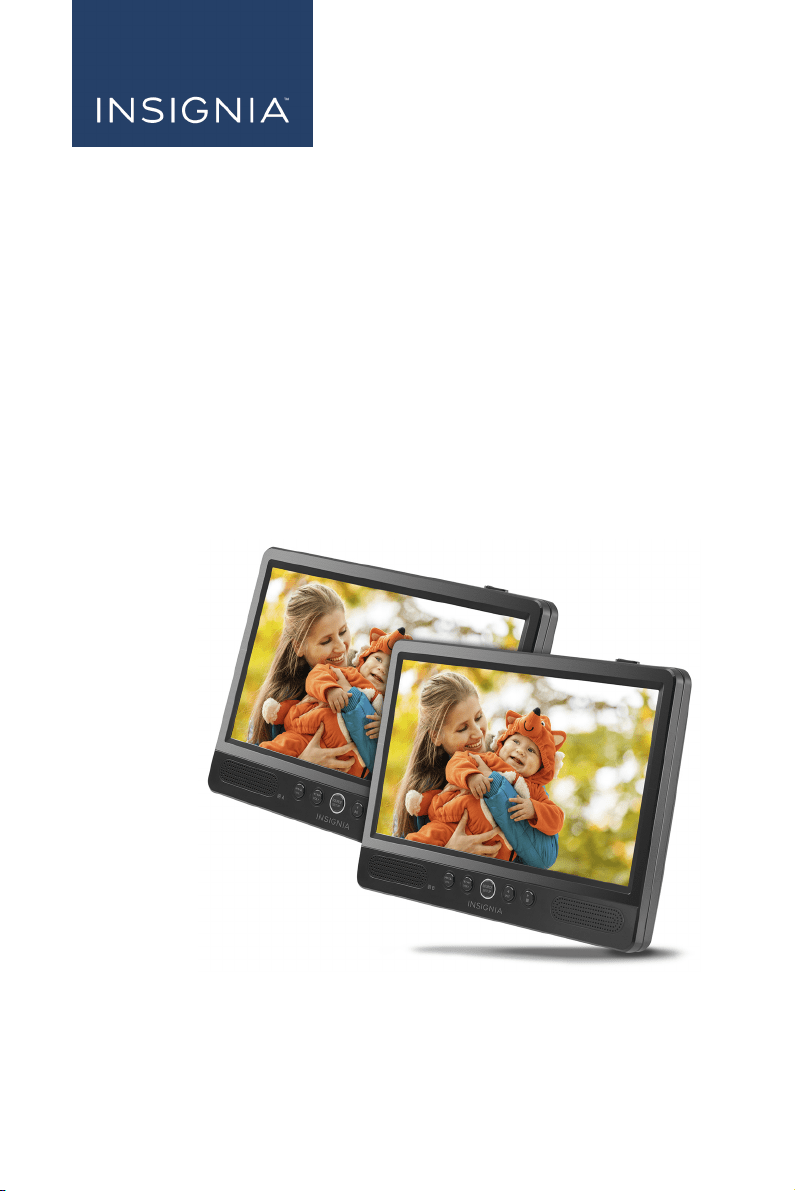
10" Dual Screen Portable
DVD Player
NS-DD10PDVD19
Before using your new product, please read these instructions to prevent any damage.
USER GUIDE

2
NS-DD10PDVD19
www.insigniaproducts.com
Contents
Introduction . . . . . . . . . . . . . . . . . . . . . . . . . . . . . . . . . . . . . . . . . . . . . . . . . . . . . . . . . . . . 3
IMPORTANT SAFEGUARDS . . . . . . . . . . . . . . . . . . . . . . . . . . . . . . . . . . . . . . . . . . . . . . . 3
WARNINGS. . . . . . . . . . . . . . . . . . . . . . . . . . . . . . . . . . . . . . . . . . . . . . . . . . . . . . . . . . 3
Safety precautions . . . . . . . . . . . . . . . . . . . . . . . . . . . . . . . . . . . . . . . . . . . . . . . . . . 4
Features . . . . . . . . . . . . . . . . . . . . . . . . . . . . . . . . . . . . . . . . . . . . . . . . . . . . . . . . . . . . . . . .5
Package contents . . . . . . . . . . . . . . . . . . . . . . . . . . . . . . . . . . . . . . . . . . . . . . . . . . . 5
About discs . . . . . . . . . . . . . . . . . . . . . . . . . . . . . . . . . . . . . . . . . . . . . . . . . . . . . . . . . 5
Front . . . . . . . . . . . . . . . . . . . . . . . . . . . . . . . . . . . . . . . . . . . . . . . . . . . . . . . . . . . . . . . 6
Top and sides . . . . . . . . . . . . . . . . . . . . . . . . . . . . . . . . . . . . . . . . . . . . . . . . . . . . . . . 7
Back . . . . . . . . . . . . . . . . . . . . . . . . . . . . . . . . . . . . . . . . . . . . . . . . . . . . . . . . . . . . . . . .8
Remote control . . . . . . . . . . . . . . . . . . . . . . . . . . . . . . . . . . . . . . . . . . . . . . . . . . . . . 9
Setting up your DVD player . . . . . . . . . . . . . . . . . . . . . . . . . . . . . . . . . . . . . . . . . . . . .11
Preparing the remote control. . . . . . . . . . . . . . . . . . . . . . . . . . . . . . . . . . . . . . .11
Connecting to AC power . . . . . . . . . . . . . . . . . . . . . . . . . . . . . . . . . . . . . . . . . . .12
Connecting to a 12V power outlet . . . . . . . . . . . . . . . . . . . . . . . . . . . . . . . . . .12
Connecting your DVD players . . . . . . . . . . . . . . . . . . . . . . . . . . . . . . . . . . . . . .13
Mounting your DVD player in a vehicle . . . . . . . . . . . . . . . . . . . . . . . . . . . . .13
Connecting headphones . . . . . . . . . . . . . . . . . . . . . . . . . . . . . . . . . . . . . . . . . . .14
Connecting to a TV or monitor. . . . . . . . . . . . . . . . . . . . . . . . . . . . . . . . . . . . . .15
Using your DVD player. . . . . . . . . . . . . . . . . . . . . . . . . . . . . . . . . . . . . . . . . . . . . . . . . .15
Turning your player on . . . . . . . . . . . . . . . . . . . . . . . . . . . . . . . . . . . . . . . . . . . . .15
Playing a DVD or Audio CD . . . . . . . . . . . . . . . . . . . . . . . . . . . . . . . . . . . . . . . . .15
Controlling DVD or Audio CD playback . . . . . . . . . . . . . . . . . . . . . . . . . . . . .16
Selecting a chapter or track. . . . . . . . . . . . . . . . . . . . . . . . . . . . . . . . . . . . . . . . .16
Viewing photos . . . . . . . . . . . . . . . . . . . . . . . . . . . . . . . . . . . . . . . . . . . . . . . . . . . .16
Setting up a playback program . . . . . . . . . . . . . . . . . . . . . . . . . . . . . . . . . . . . .16
Using zoom mode . . . . . . . . . . . . . . . . . . . . . . . . . . . . . . . . . . . . . . . . . . . . . . . . .17
Using the menus . . . . . . . . . . . . . . . . . . . . . . . . . . . . . . . . . . . . . . . . . . . . . . . . . . . . . . .17
Adjusting general setup options. . . . . . . . . . . . . . . . . . . . . . . . . . . . . . . . . . . .17
Selecting the audio mode . . . . . . . . . . . . . . . . . . . . . . . . . . . . . . . . . . . . . . . . . .18
Adjusting video options . . . . . . . . . . . . . . . . . . . . . . . . . . . . . . . . . . . . . . . . . . . .19
Setting video and audio preferences. . . . . . . . . . . . . . . . . . . . . . . . . . . . . . . .20
Using parental controls . . . . . . . . . . . . . . . . . . . . . . . . . . . . . . . . . . . . . . . . . . . . . . . . .21
Turning parental controls on or off. . . . . . . . . . . . . . . . . . . . . . . . . . . . . . . . . .21
Setting up a parental control password . . . . . . . . . . . . . . . . . . . . . . . . . . . . .21
Changing the parental control password. . . . . . . . . . . . . . . . . . . . . . . . . . . .22
Setting a parental control rating . . . . . . . . . . . . . . . . . . . . . . . . . . . . . . . . . . . .23
Maintaining your player . . . . . . . . . . . . . . . . . . . . . . . . . . . . . . . . . . . . . . . . . . . . . . . .23
Cleaning your player . . . . . . . . . . . . . . . . . . . . . . . . . . . . . . . . . . . . . . . . . . . . . . .23
Cleaning discs . . . . . . . . . . . . . . . . . . . . . . . . . . . . . . . . . . . . . . . . . . . . . . . . . . . . .24
Troubleshooting . . . . . . . . . . . . . . . . . . . . . . . . . . . . . . . . . . . . . . . . . . . . . . . . . . . . . . .24
Specifications . . . . . . . . . . . . . . . . . . . . . . . . . . . . . . . . . . . . . . . . . . . . . . . . . . . . . . . . . .25
Legal notices . . . . . . . . . . . . . . . . . . . . . . . . . . . . . . . . . . . . . . . . . . . . . . . . . . . . . . . . . . .25
ONE-YEAR LIMITED WARRANTY . . . . . . . . . . . . . . . . . . . . . . . . . . . . . . . . . . . . . . . . .26

3
10" Dual Screen Portable DVD Player
www.insigniaproducts.com
Introduction
Congratulations on your purchase of a high-quality Insignia product. Your
NS-DD10PDVD19 represents the state of the art in DVD player design and is
designed for reliable and trouble-free performance.
IMPORTANT SAFEGUARDS
1 Read these instructions.
2 Keep these instructions.
3 Heed all warnings.
4 Follow all instructions.
5 Do not use your DVD player near water.
6 Clean only with a dry cloth.
7 Do not block any ventilation openings. Install in accordance with the
manufacturer's instructions. The openings should never be blocked by placing
your DVD player on a cushion, sofa, or other similar surface.
8 Do not install near any heat sources such as radiators, heat registers, stoves, or
other apparatus (including amplifiers) that produce heat.
9 The AC adapter and vehicle charger are the disconnecting devices. The plugs
must remain readily operable.
10 Protect the power cord from being walked on or pinched particularly at plugs,
outlets, and the point where they exit from your DVD player.
11 Only use attachments/accessories specified by the manufacturer.
12 Do not place your DVD player on an unstable cart, stand, tripod,
bracket, or table. It may fall, resulting in possible damage or injury.
13 Never place heavy or sharp objects on the LCD panel or frame.
14 Unplug your DVD player during lightning storms or when unused
for long periods of time.
15 Refer all servicing to qualified service personnel. Servicing is required when
your DVD player has been damaged in any way, such as when the
power-supply cord or plug is damaged, liquid has been spilled or objects have
fallen into your player, your player has been exposed to rain or moisture, does
not operate normally, or has been dropped.
16 Remote control batteries should not be exposed to excessive heat such as
sunshine, fire, or the like.
17 Your DVD player should not be exposed to dripping or splashing, and no
objects filled with liquids, such as vases, should be placed on your player.
18 WARNING: Excessive sound pressure from earphones or headphones can
cause hearing loss.
WARNINGS
Electric shock hazard
To reduce the risk of fire or electric shock, do not remove the cover or back. Do not
expose your DVD player to rain or moisture. There are no user-serviceable parts
inside. Refer servicing to qualified service technicians.

4
NS-DD10PDVD19
www.insigniaproducts.com
Handling the LCD panel
• Never place heavy or sharp objects on the LCD panel or frame.
• Your DVD player’s screen is made of glass. Do not drop your player or hit, jolt,
or press hard against the LCD panel. If the screen breaks, be careful of broken
glass.
• If the LCD panel is broken, make absolutely sure that you do not touch the
liquid in the panel. This may cause skin inflammation.
• If the liquid gets in your mouth, immediately gargle, rinse, and consult with
your doctor. Also, if the liquid gets in your eyes or touches your skin, consult
with your doctor after rinsing for at least 15 minutes or longer in clean water.
Replacement parts
When replacement parts are required, make sure that the service technician uses
replacement parts specified by the manufacturer that have the same
characteristics as the original part. Unauthorized substitutions may result in fire,
electric shock, personal injury, or other hazards.
Safety check
After completing any service or repair to your DVD player, ask the service
technician to perform routine safety checks to determine that your player is in
correct operating condition.
Servicing
These servicing instructions are for use by qualified service personnel only. To
reduce the risk of electric shock, do not perform any servicing other than that
contained in the operating instructions unless you are qualified to do so.
End of life directives
Your DVD player may contain materials that are regulated for environmental
reasons. Your player also contains materials that can be recycled and reused. To
help protect the environment, contact your local authorities for information about
disposal or recycling and about finding a recycler in your area before you dispose
of your player.
SAVE THESE INSTRUCTIONS
Safety precautions
WARNING: Your DVD player uses a low-level laser system. Use of controls,
adjustments, or performance of procedures other than those specified in this User
Guide may result in hazardous radiation exposure.
WARNING: To prevent direct exposure to the laser beam, do not open the
enclosure. Visible laser radiation is present when open.
WARNING: Never stare directly into the laser beam.
WARNING: Class 1 laser product.
CAUTION: Do not install your player in a confined space such as a book case or
similar unit.

5
10" Dual Screen Portable DVD Player
www.insigniaproducts.com
WARNING: Chemical Burn Hazard. Do not ingest the battery.
• The remote control supplied with your DVD player contains a coin/button cell
battery. If the battery is swallowed, it can cause severe internal burns in just
two hours and can lead to death.
• If you think batteries might have been swallowed or placed inside any part of
the body, seek immediate medical attention.
• Keep new and used batteries away from children.
• If the battery compartment does not close securely, stop using your DVD
player and keep it away from children.
Features
• Two 10-inch LCD screens let you mirror a video on both displays or watch
separately
• Mounting straps secure the screens to your vehicle’s headrests
• Headphone jack on each screen for private listening
• 3.5 mm to RCA (AV) adapter lets you connect to a larger screen
• Travel case for easy portability
• Powered through your vehicle charger or a wall outlet
• Works with DVDs, DVD+R/RWs, CDs, JPEGs, and MP3s
Package contents
• 10" Portable DVD Players (2)
• AV connecting cable to connect your players
• AV (RCA) adapter cable to connect your player to a TV or monitor
• Remote controls (2)
• AC/DC power adapters (2)
• DC vehicle power adapter
• Car headrest mounts (2)
• Travel storage case
• Quick Setup Guide
About discs
• Your DVD player can play DVDs and Audio CDs (including CD-R and CD-RW).
• Your player is designed and manufactured to respond to the Region
Management Information that is encoded on DVDs. If the region number
printed on the DVD does not correspond to the region number of your player,
it cannot play that disc. The region number of your player is 1.
• If the DVD is a region 1 disc, it may have the logo on the packaging.
• Do not use irregularly shaped discs, such as heart-shaped or star-shaped discs,
because they may cause your player to malfunction.
• Do not stick paper, tape, or glue on a disc.
• Do not expose a disc to direct sunlight or heat sources.
• Do not touch the surface of a disc. Handle a disc by its edge.
• Clean a disc by wiping the disc from the center out with a cleaning cloth.
• Remove a disc from your player and store it in its case after playing.
Some playback operations may be intentionally limited by software producers.
Because your player plays discs according to the disc contents the software
producers designed, some playback features may not be available. Refer to the
instructions supplied with the discs.
6
NS-DD10PDVD19
www.insigniaproducts.com
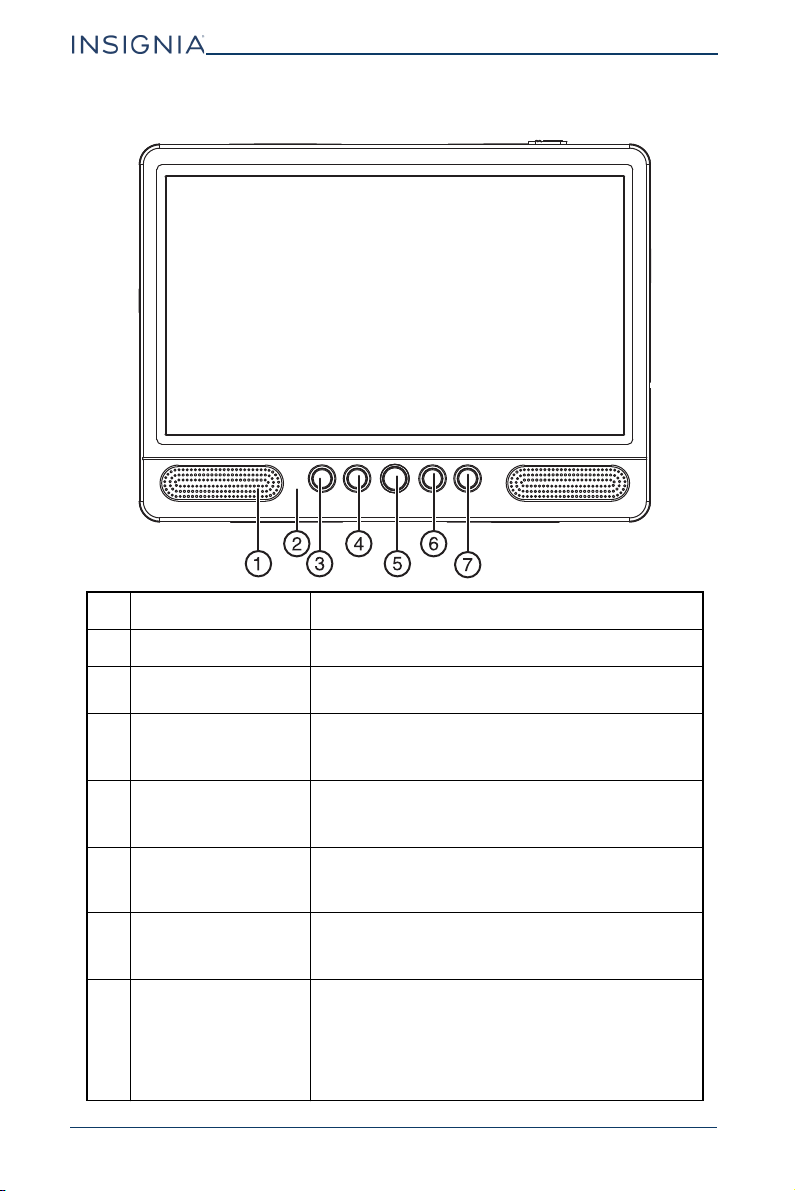
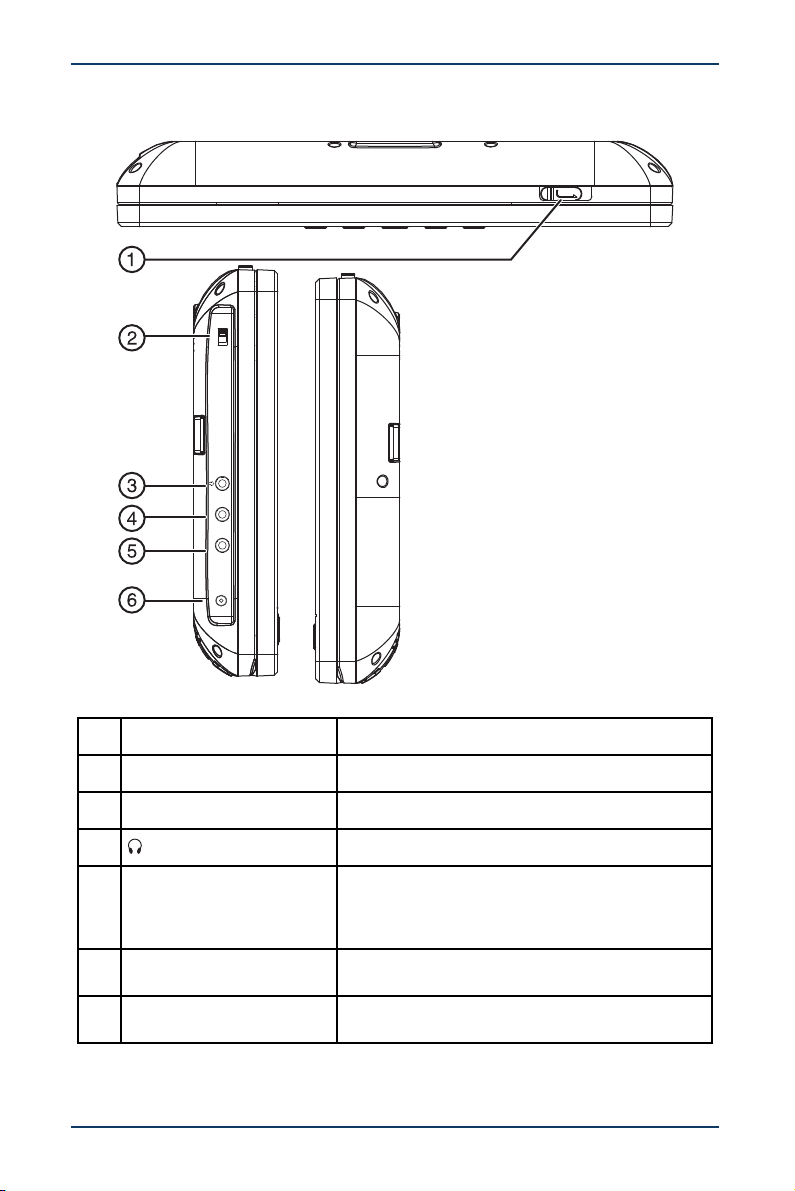
Front
# BUTTON DESCRIPTION
1 Power indicator Lights blue when your DVD player is turned on.
2 Remote sensor
Point the remote control towards the remote sensor
on the front of your DVD player.
3 Up/Previous/VOL–
In playback mode, press to skip back on a disc. Press
and hold to decrease the volume.
In menus, press to move up.
4 Down/Next/VOL+
In playback mode, press to skip forward on a disc.
Press and hold to increase the volume.
In menus, press to move down.
5 Source/Setup
Press to switch between AV mode (to play the same
disc on both players) and disc mode (to watch a
different disc on each player.
6 Left/Play/Pause
In playback mode, press and hold to start or pause
playback.
In menus, moves left.
7 Right/Stop
In playback mode, press and hold to stop playback.
If you press this button once, then press the Play
button, playback resumes where it stopped. If you
press this button twice, then press the Play button,
playback begins at the beginning of the disc.
In menus, moves right.
R
7
10" Dual Screen Portable DVD Player
www.insigniaproducts.com
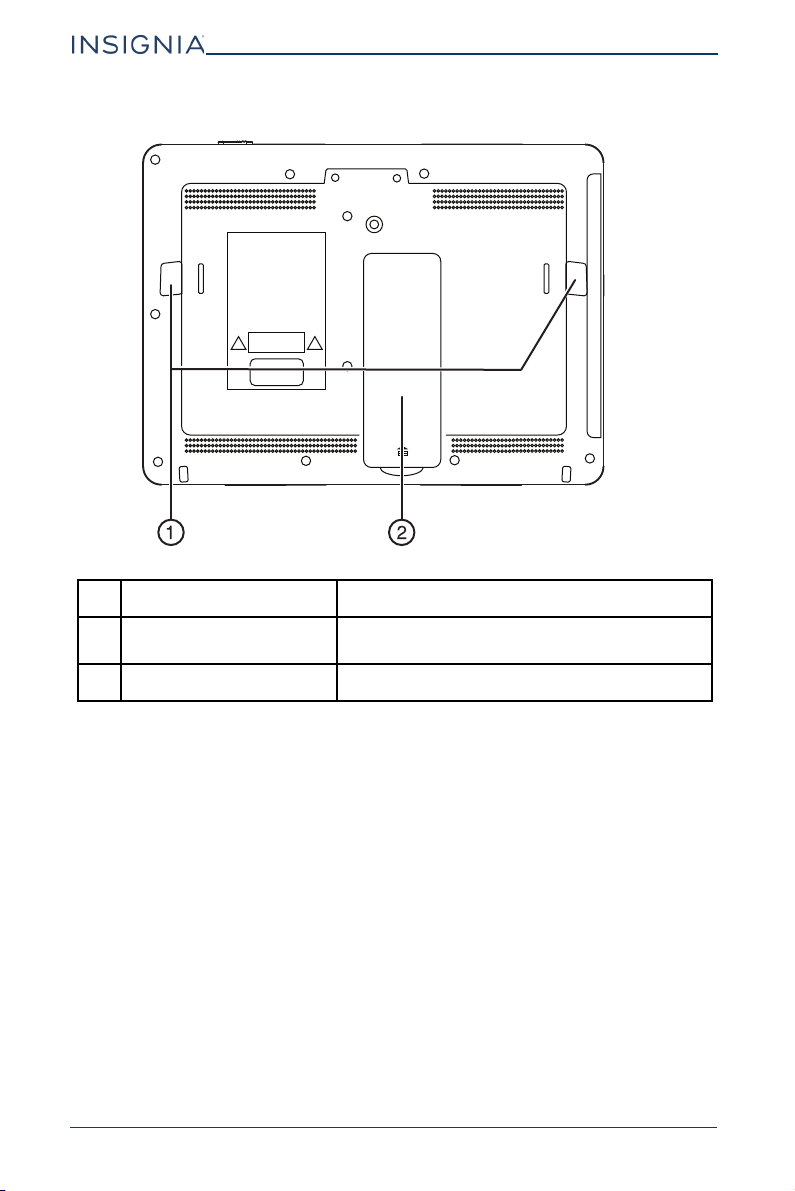
Top and sides
# ITEM DESCRIPTION
1 OPEN latch
Slide to open the disc tray.
2 ON/OFF switch
Slide to turn your player on or off.
3 (headphone out) jack
Plug headphones into this jack.
4 AV OUT jack
Connect either the AV connecting cable to this
jack to share playback with the other DVD player
or the AV adapter cable to view playback on a TV
or monitor.
5 AV IN jack
Connect the AV connecting cable to this jack to
receive playback from the other DVD player.
6
DC IN 9-12V power
connector
Plug an AC adapter or 12V car adapter into this
jack.
ON OFFON OFF
AV OUT AV IN
DC IN 9-12V
open
8
NS-DD10PDVD19
www.insigniaproducts.com
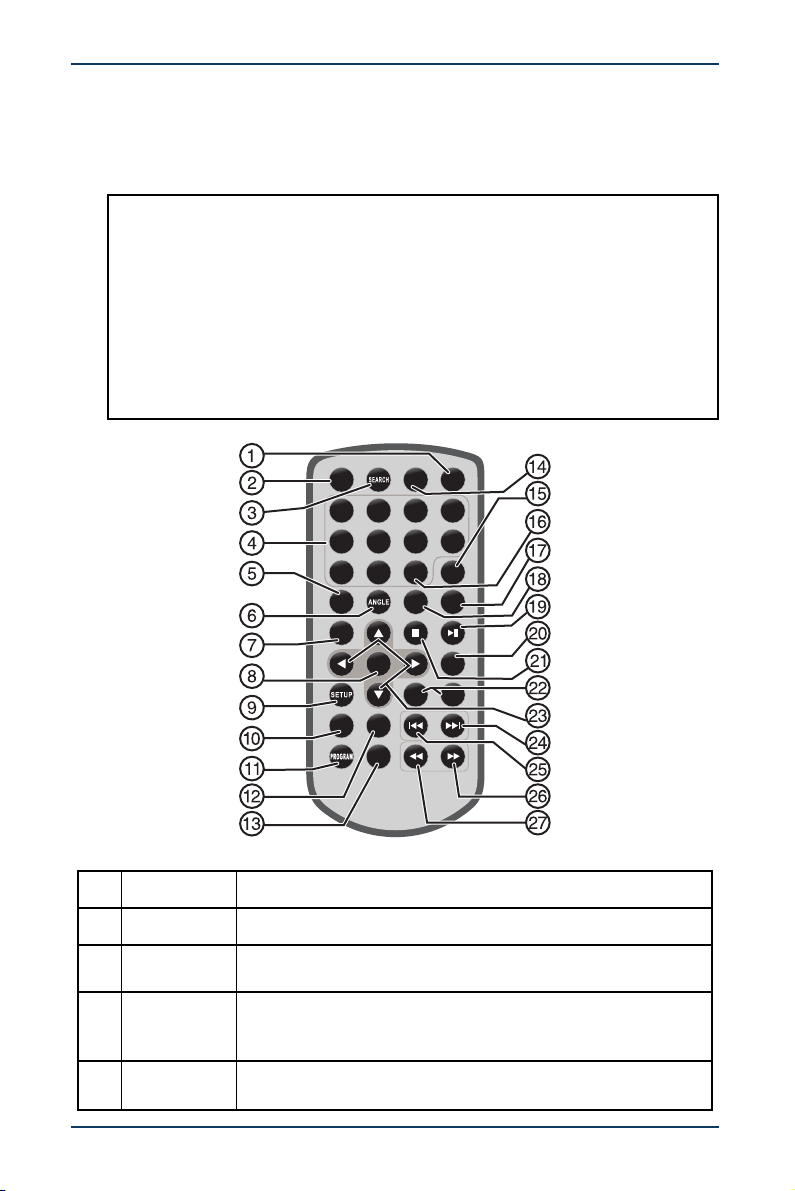
Back
# ITEM DESCRIPTION
1 Strap slots
Slide the mounting straps through these slots
when installing your player in a vehicle.
2 Stand
Pull out to set your player on a desktop or table.
9
10" Dual Screen Portable DVD Player
www.insigniaproducts.com
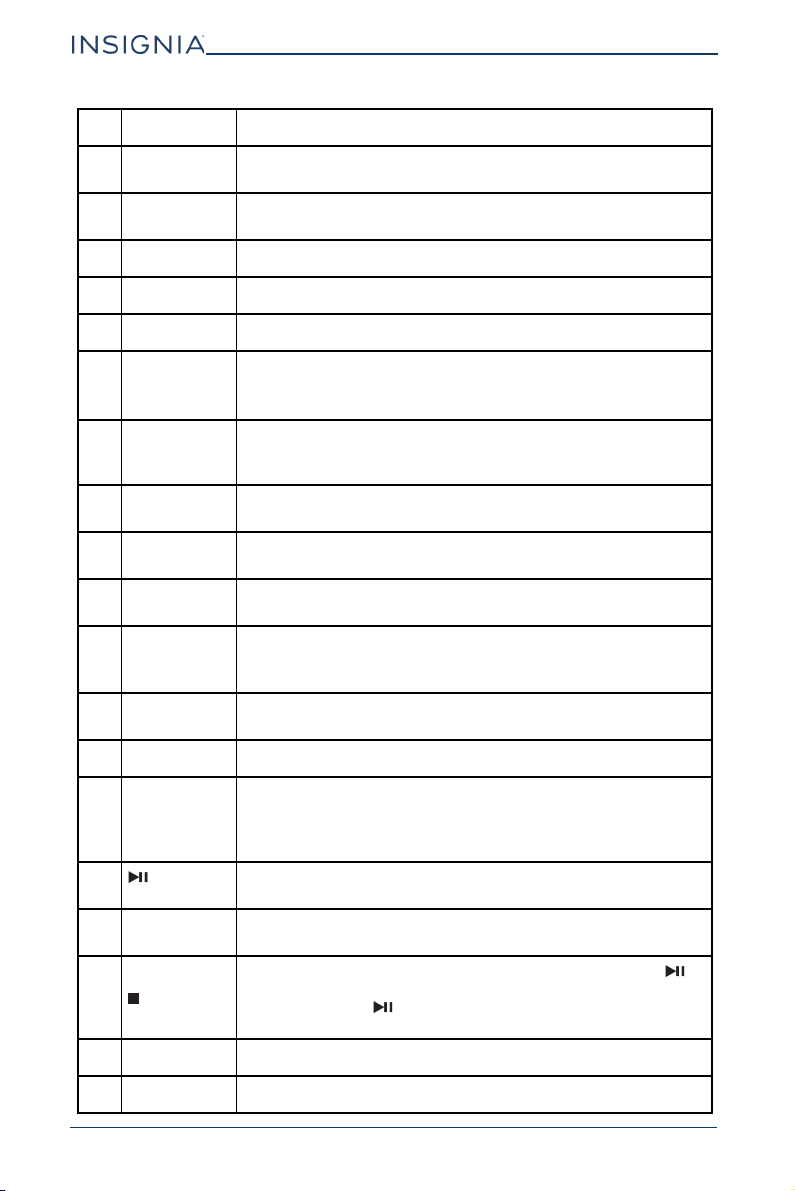
Remote control
Your players come with two remote controls, labeled A and B. Your players are also
labeled A and B on the fronts. Make sure that you use the correct remote control
for the player you are using.
Notes:
• When you connect your players, you plug the AV connecting cable into the
AV OUT jack on one player and the AV IN jack on the other player. See
Connecting your DVD players on page 13. The player with the AV OUT
connection is the master player, and the player with the AV IN connection is
the secondary player.
• Menus and other displays on your master player appear on your secondary
player, but changing settings on your master player does not change
settings on your secondary player.
• When your players are connected, the only remote control buttons that
work for your secondary player are VOL–, VOL+, MUTE, SOURCE, MODE,
and SETUP.
# BUTTON DESCRIPTION
1 SOURCE Toggles the video input between the DVD and AV IN.
2 STEP
Pauses playback and advances the DVD picture one frame at a
time.
3 SEARCH
DVD: Goes to a specific time, title, or chapter.
Audio CD: Goes to a specific track.
See Selecting a chapter or track on page 16.
4 Numbers
Playback mode: Selects a title, chapter, or track number.
Menus: Selects a numbered menu item.
12
3
4
5
678
90
10+
REPEAT
TITLE
ENTER
SUBTITLE
AUDIO
MUTE
SOURCE
STEP
DISPLAY
MENU
VOL+VOL-
SLOW
ZOOM
MODE
/PCB
10
NS-DD10PDVD19
www.insigniaproducts.com
5 SUBTITLE
During DVD playback, selects a subtitle language, if available
on the DVD.
6 ANGLE
During DVD playback, selects a viewing angle, if available on
the DVD.
7 TITLE Returns to the title menu on a DVD.
8 ENTER Confirms selections.
9 SETUP Opens or closes the menu.
10 REPEAT
During playback, selects the repeat mode.
DVD: You can select CHAPTER, TITLE, ALL, or OFF.
Audio CD: You can select TRACK, ALL, or OFF.
11 PROGRAM
Opens the PROGRAM menu, where you can specify the
playback order of titles, chapters, or tracks. See Setting up a
playback program on page 16.
12 SLOW
Enters slow playback. Each time you press this button, the
speed changes (1/2, 1/4, 1/8, 1/16, and normal playback).
13 ZOOM
When playing a DVD or viewing a JPEG, enlarges or shrinks the
picture. See Using zoom mode on page 17.
14 MUTE
Turns off the sound. Press this button again to unmute the
sound.
15 DISPLAY
DVD: Displays the DVD playtime and status information.
Audio CD: Displays the elapsed and remaining time for the
playing track and for the entire CD.
16 10+
Selects a double-digit chapter or track number. For example, to
select 12, press this button, then press the 2 button.
17 MENU/PCB Returns to the root menu on a DVD.
18 AUDIO
DVD: Selects a different audio language or audio track, if
available.
Audio CD: Selects an audio channel (Left, Right, Mix, or
Stereo).
19
(play/pause)
Starts or pauses playback.
20 MODE
Opens the VIDEO SETUP PAGE where you can adjust picture
settings. See Adjusting video options on page 19.
21 (stop)
Stops playback. If you press this button once, then press ,
playback resumes where it stopped. If you press this button
twice, then press , playback begins at the beginning of the
disc.
22 VOL–/VOL+ Increases or decreases the volume.
23 Navigates in menus.
# BUTTON DESCRIPTION
11
10" Dual Screen Portable DVD Player
www.insigniaproducts.com
Setting up your DVD player
Preparing the remote control
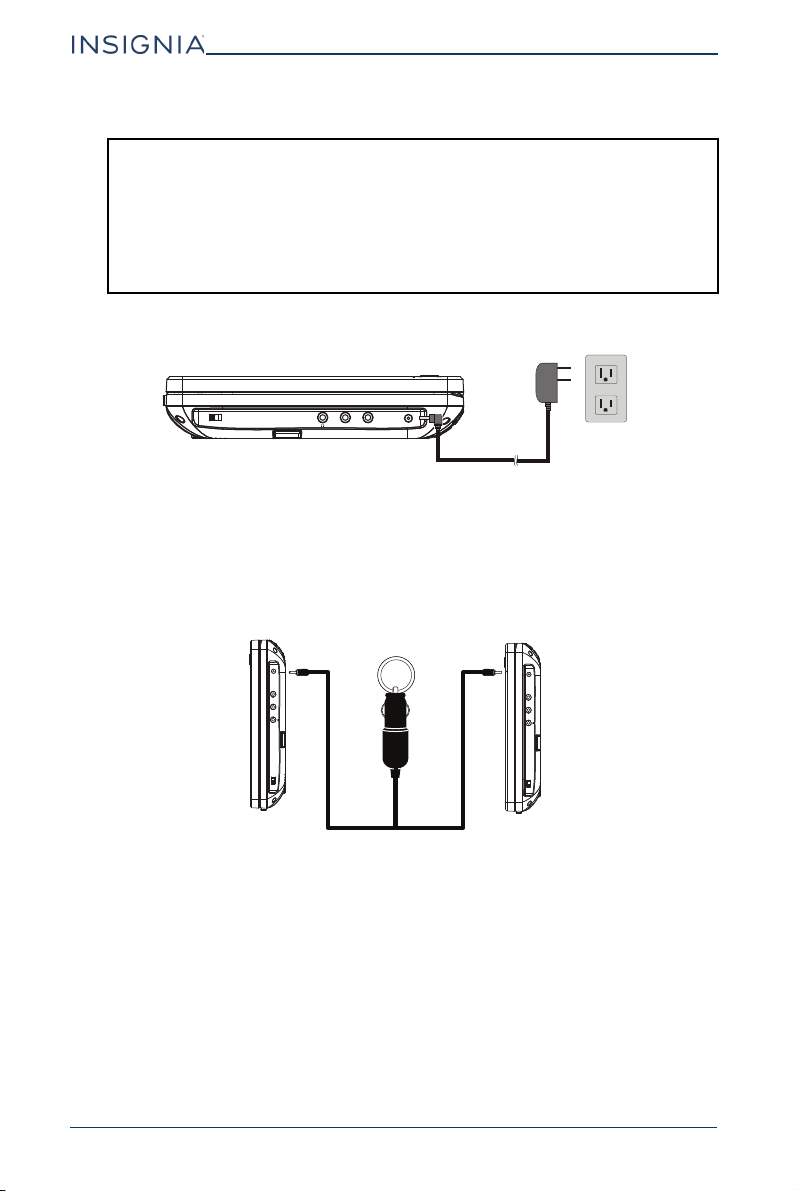
The battery comes pre-installed in the remote control. Before you can use the
remote control:
• Pull the plastic tab out of the battery compartment.
24
(skip
forward)
Goes to the next chapter or track.
25
(skip
reverse)
Goes to the previous chapter or track.
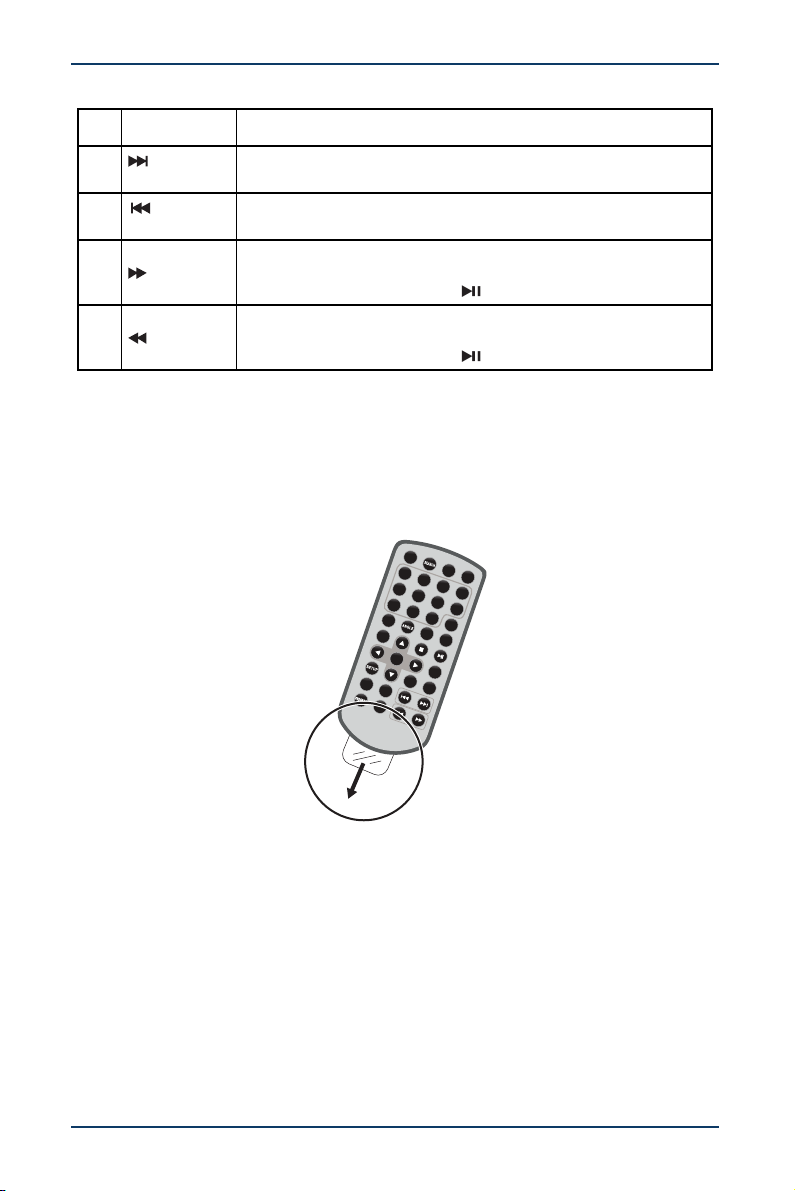
26 (forward)
Press to fast-forward on a disc. Each time you press this button,
the speed changes (2x to 4x to 8x to 16x to 32x to normal
playback). You can also press to exit fast-forward mode.
27 (reverse)
Press to fast-reverse on a disc. Each time you press this button,
the speed changes (2x to 4x to 8x to 16x to 32x to normal
playback). You can also press to exit fast-reverse mode.
# BUTTON DESCRIPTION
12
3
4
5
6
78
90
10+
R
EPE
AT
T
I
TLE
ENT
E
R
SUBTITLE
A
U
D
IO
M
U
TE
S
OURCE
S
TEP
D
I
SPL
A
Y
V
OL
+
VO
L
-
S
LO
W
Z
O
OM
M
O
D
E
M
E
NU
/
PBC
12
NS-DD10PDVD19
www.insigniaproducts.com
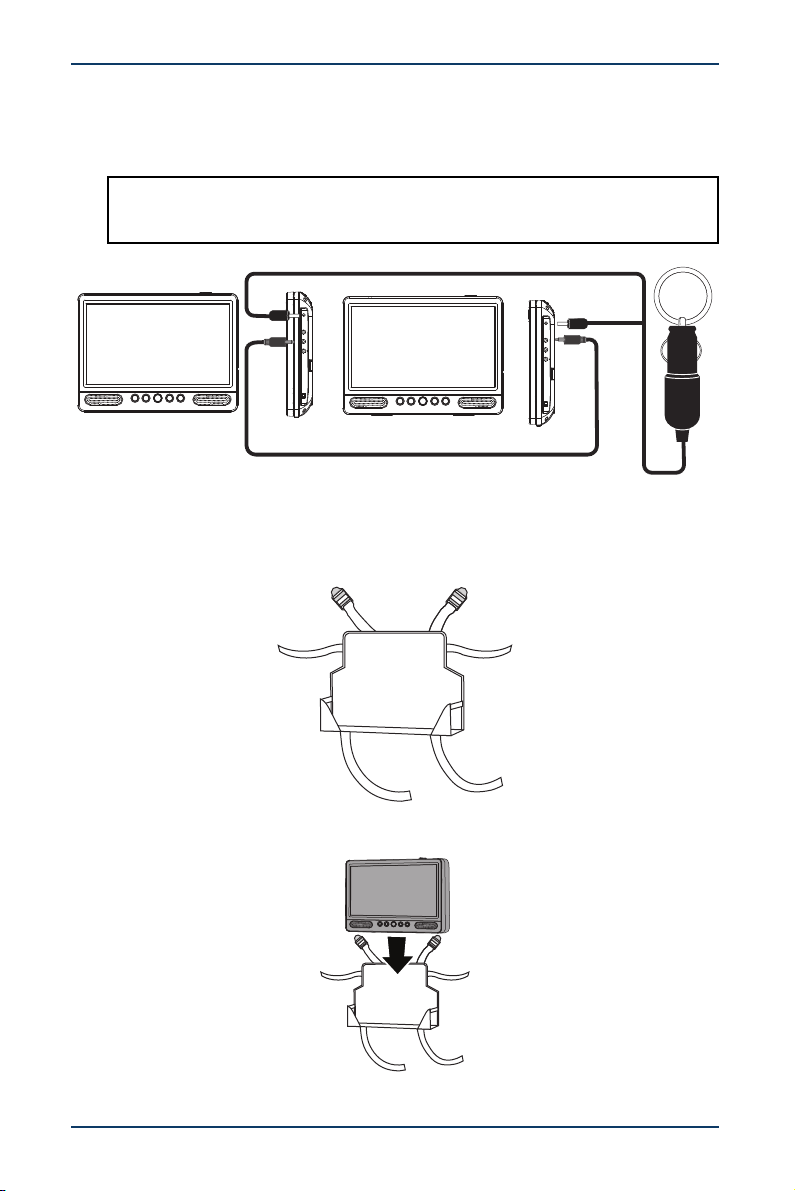
Connecting to AC power
1 Plug one end of the included AC adapter into the DC IN jack on the side of
your player, then plug the other end into an AC outlet.
2 Repeat step 1 to connect your other player.
3 Slide the ON/OFF switch on each player to the ON position.
Connecting to a 12V power outlet
1 Plug the end of the included Y-type DC vehicle power adapter (the end with
two connectors) into the DC IN jacks on your players, then the other end into a
12V power outlet (for example, a vehicle power outlet).
2 Turn on your player(s).
CAUTIONS:
• The AC adapter is used to disconnect your player from AC power. When the
AC adapter is plugged into a power outlet, your player is not completely
disconnected from power, even when the power is turned off.
• Make sure that the adapter is easily accessible during use.
• Do not use the included AC adapters with other equipment.
• When you do not plan to use your players for an extended period of time,
unplug the adapters from the wall outlet.
ON OFFON OFF
AV OUT AV IN
DC IN 9-12V
ON OFFON OFF
AV OUT
AV IN
DC IN 9-12V
ON OFFON OFF
AV OUT
AV IN
DC IN 9-12V
13
10" Dual Screen Portable DVD Player
www.insigniaproducts.com
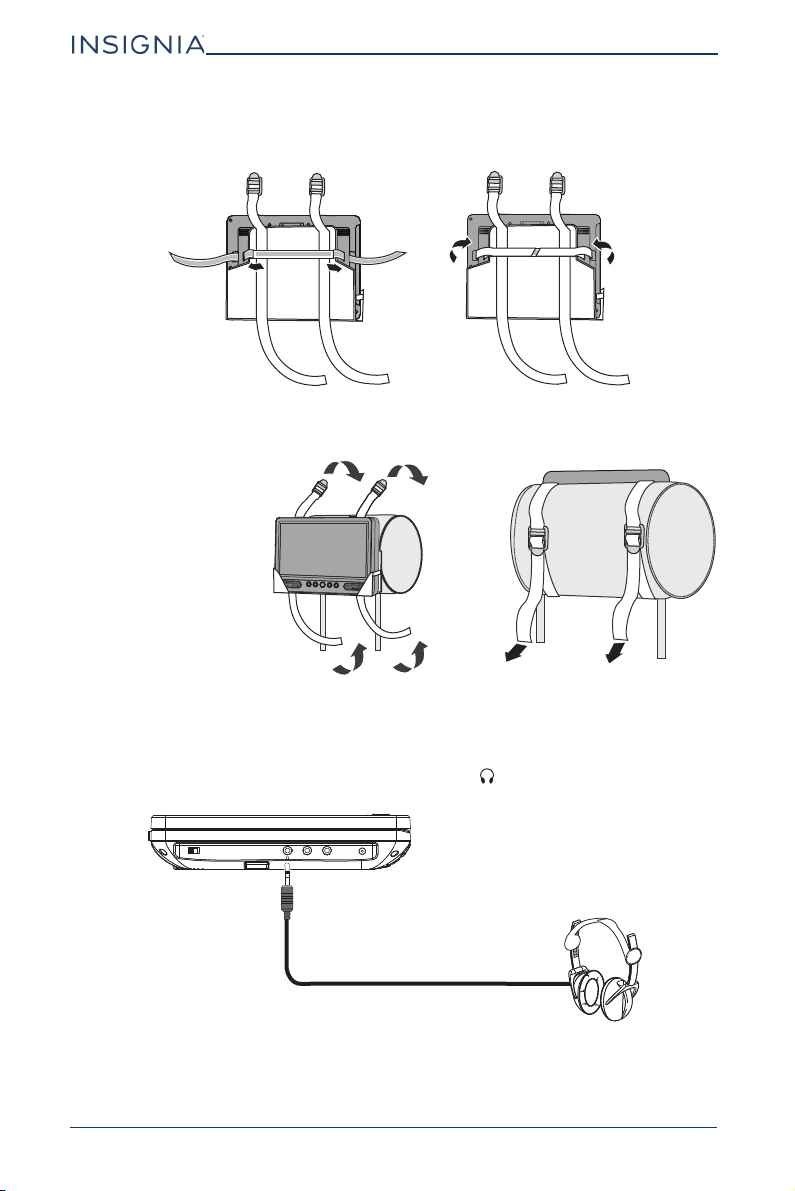
Connecting your DVD players
1 Plug the AV connecting cable to the AV OUT jack on one player and to the
AV IN jack on the other player.
2 Turn on your players.
Mounting your DVD player in a vehicle
1 Loosen the straps of the headrest mount.
2 Insert your DVD player into the front of your headrest mount.
Note:
The player with the AV OUT connection is the master player, and the player with
the AV IN connection is the secondary player.
ON OFFON OFF
AV OUT AV IN
DC IN 9-12V
ON OFFON OFF
AV OUT AV IN
DC IN 9-12V
14
NS-DD10PDVD19
www.insigniaproducts.com
3 Slide the horizontal straps A and B through the slots on the back of the
DVD player, then fold and secure them onto the back of the headrest
mount.
4 Fit the straps E1, E2, F1, and F2 around the headrest and thread them through
the plastic buckles. Pull the straps tight.
Connecting headphones
When headphones are plugged into the headphone jack, sound from the built-in
speakers is muted.
1 Plug your headphones (not included) into the (headphone) jack on the side
your DVD player.
2 Repeat step 1 for the other player.
A
B
E1
F1
E2
F2
ON OFFON OFF
AV OUT
AV IN
DC IN 9-12V
15
10" Dual Screen Portable DVD Player
www.insigniaproducts.com
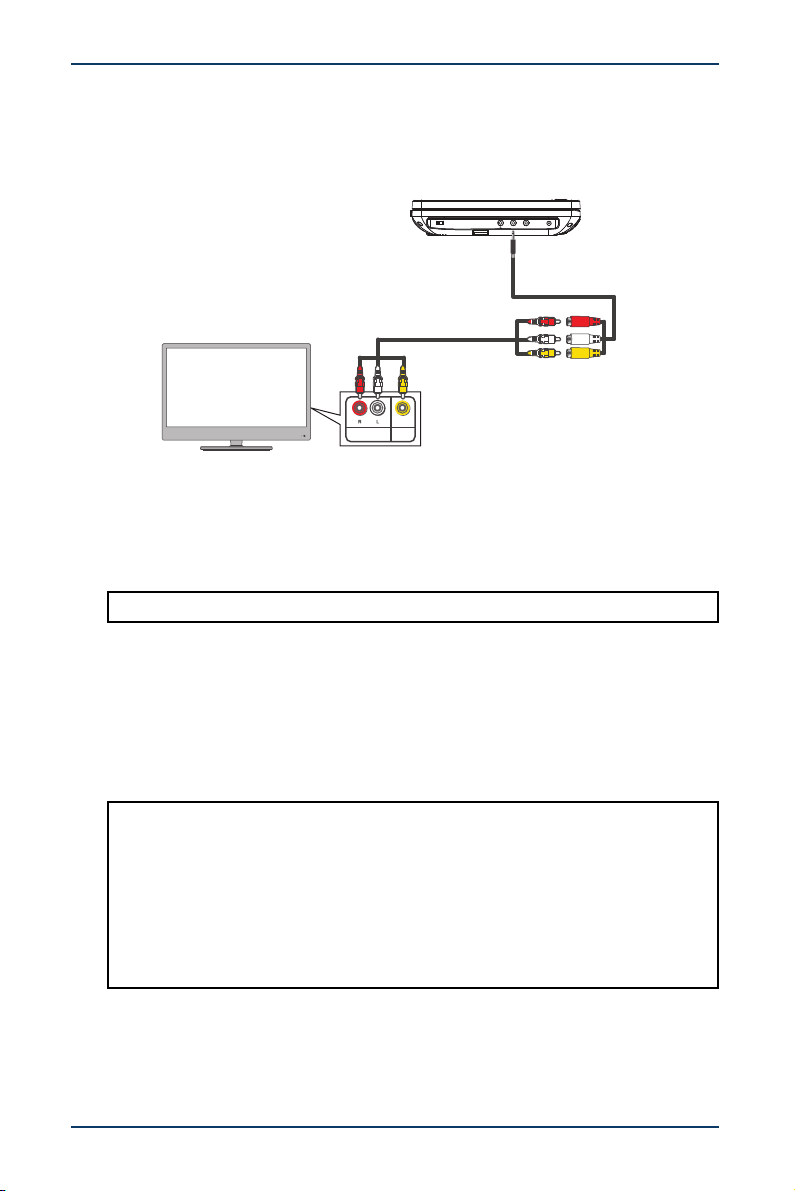
Connecting to a TV or monitor
You can connect your player to a TV or monitor so you can watch DVDs or view
photos on the TV or monitor.
1 Plug the AV adapter cable into the AV OUT jack on your DVD player.
2 Plug an AV cable (not included) into the other end of the AV adapter cable.
Make sure that the colors on the connectors match.
3 Plug the other end of the AV cable into the AV jacks on the TV or monitor,
making sure to match the colors on the connectors with the jacks.
4 Turn on the TV or monitor.
Using your DVD player
Turning your player on
1 Slide the ON/OFF switch on the side of your player to the ON position.
2 After use, slide the ON/OFF switch to the OFF position.
Playing a DVD or Audio CD
1 Make sure that your player is connected to power.
2 Slide the ON/OFF switch to the ON position.
Note: You may need to select the correct input on the TV or monitor.
Notes:
• Most DVDs and your players have region codes that help control illegal
distribution of DVDs. The region code for your player is 1. You can only play
DVDs with a region code of 1 or ALL. The region code for a DVD is usually
printed on the DVD or the DVD packaging.
• This User Guide explains the basic instructions for operating your players.
Depending on how a DVD is produced, the DVD may have specific or limited
playback features and may not respond to all your commands. THIS IS NOT
A DEFECT. Refer to the instructions accompanying a specific DVD for more
information about the options available on that DVD.
ON OFFON OFF
AV OUT
AV IN
DC IN 9-12V
VIDEO
In
AUDIO
In
White=left audio
Red=right audio
Yellow=video
AV adapter cable
TV or monitor

16
NS-DD10PDVD19
www.insigniaproducts.com
3 Slide the OPEN switch. The front and back of your player separate to give
access to the disc tray.
4 Place a disc, label side up, in the disc tray, then press the player front and back
together until you hear a click. The disc starts playing automatically.
Controlling DVD or Audio CD playback
• Press (stop) to stop playback. If you press this button once, then press ,
playback resumes playing where it stopped. If you press this button twice,
then press , playback begins at the beginning of the disc.
• Press (play/pause) to pause playback. Press this button again to resume
playback.
• Press (skip forward) or (skip back) to go to the next or previous chapter
or track.
• Press (forward) or (reverse) to fast-forward or fast-reverse on a disc.
Each time you press this button, the speed changes (2x to 4x to 8x to 16x to
32x to normal playback). You can also press to exit fast-forward mode.
Selecting a chapter or track
You can select a DVD title or chapter or an Audio CD track that you want to play.
1 Press SEARCH, then press or to select an option. You can select:
• For DVDs:
• TIME—Goes to a selected time.
• CHAPTER—Goes to a selected chapter.
• TITLE—Goes to a selected title.
• For Audio CDs:
• DISC GOTO—Goes to a selected time on a disc.
• TRACK GOTO—Goes to a selected time within a track.
• SELECT TRACK—Goes to a selected track.
2 Use your remote control to enter a time, chapter, title, or track number. The list
closes and your player goes to the time, chapter, title, or track you selected.
Viewing photos
You can view photos copied as JPEG files to a CD or DVD on your DVD player.
1 Insert the CD containing the photos into the disc tray. Your DVD player reads
the CD and displays a list of the photos on the CD.
2 Press or to select a photo, then press ENTER. The photo you selected is
displayed first, then your player displays the other photos in a slideshow.
3 To control playback:
• Press (skip forward) or (skip back) to select a photo, then press
ENTER. If you do not press ENTER, the slideshow resumes in a few seconds.
• Press
or to rotate the photo.
• Press
to flip the photo horizontally or to flip the photo vertically.
Setting up a playback program
You can set up a playback program to play DVD titles or chapters or Audio CD
tracks in a specific order.
1 Press PROGRAM. The PROGRAM menu opens.
2 Use the number keys to enter title, chapter, or track numbers in the order you
want them to play.
3 Select the START option. The titles, chapters, or tracks play in the order you
specified.
17
10" Dual Screen Portable DVD Player
www.insigniaproducts.com
4 To resume normal playback, press PROGRAM, then select the STOP.
5 Press PROGRAM again to close the PROGRAM menu.
Using zoom mode
You can enlarge or shrink the picture displayed on the screen.
• For a DVD, press ZOOM during playback or still playback to activate the Zoom
function. A square frame appears briefly in the right bottom of the picture.
Each press of the ZOOM button changes the picture size in the following
sequence: 2x to 3x to 4x to 1/2 to 1/3 to 1/4 to normal size.
• For a JPEG, press ZOOM, then press or to enlarge or shrink the picture.
Each press of the ZOOM button changes the picture size in the following
sequence: 100% to 125%, 150% to 200% to 75% to 50%, then back to normal
size.
Use
or to navigate around the picture.
Using the menus
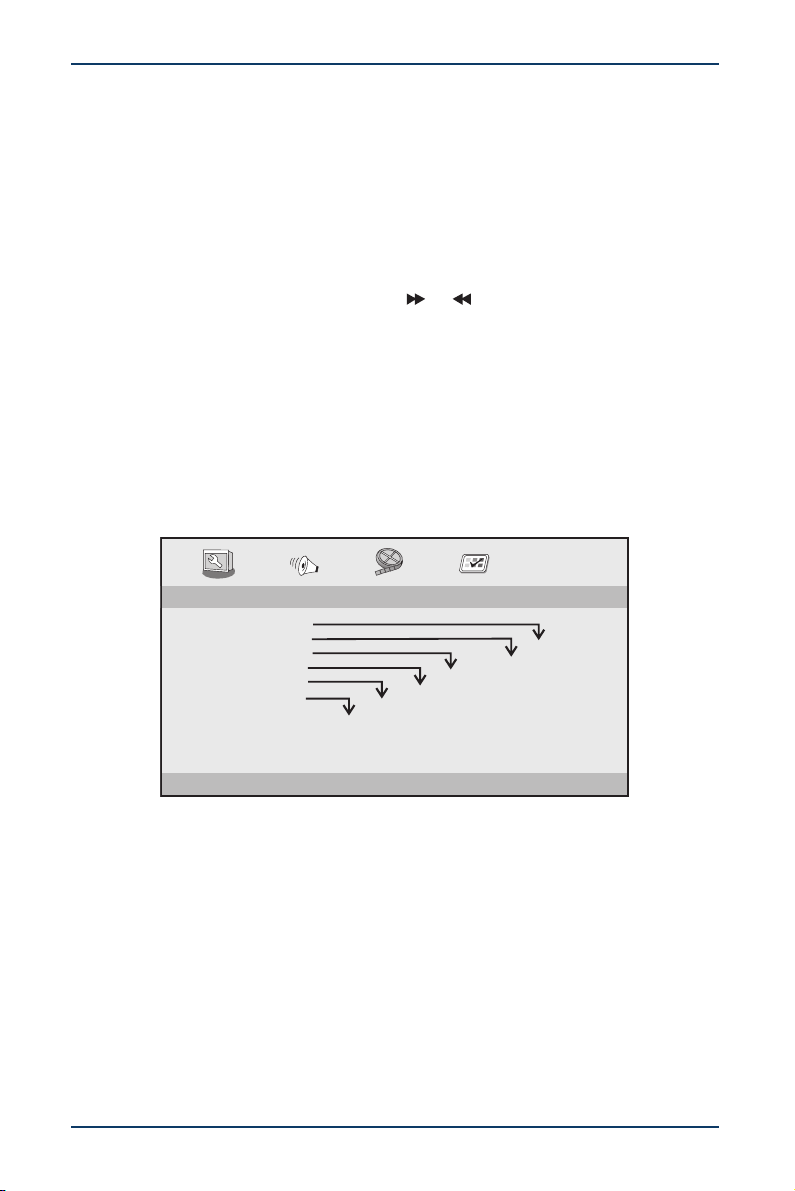
Adjusting general setup options
1 Press SETUP.
2 Use or to select GENERAL, then press ENTER.
3 Press or to select an option, then press ENTER. You can select:
• TV DISPLAY—Selects the aspect ratio. You can select:
• 4:3 PANSCAN: When you play wide-screen video, this mode crops the
right and left sides of the image so you can view the image on a
conventional screen.
Some wide-screen DVDs that do not permit playback in PanScan mode,
and the video automatically plays in letterbox mode (black bands on the
top and bottom of the screen).
• 4:3 LETTERBOX: When you play wide-screen video in this mode on a
conventional screen, black bands appear on the top and bottom of the
screen.
- - GENERALSETUP PAGE - -
GOTO GENERAL SETUP PAGE
TV DISPLAY WIDE
ANGLE MARK ON
OSD LANGUAGE ENG
SCREEN SAVER ON
TEXT TO SPEECH OFF
LAST MEMORY ON
4:3 PANSCAN
4:3 LETTERBOX
16:9
ON
OFF
ENGLISH
ESPAÑOL
FRANÇAIS
ON
OFF
ON
OFF
ON
OFF
18
NS-DD10PDVD19
www.insigniaproducts.com
• 16:9: wide screen display: Select this option to play wide-screen videos
on a wide-screen TV.
• ANGLE MARK—If this option is turned on and the DVD you are watching
has multiple viewing angles, an icon appears in scenes that have multiple
viewing angles. You can select ON or OFF.
• OSD LANGUAGE—Selects the menu language. You can select ENGLISH,
ESPAÑOL, or FRANÇAIS.
• SCREEN SAVER—When this option is turned on, your player displays a
screen saver when the same image stays on the screen for five minutes. You
can select ON or OFF.
• TEXT TO SPEECH—Your DVD player provides audio descriptions of menus
and some remote control functions. You can select ON or OFF.
• LAST MEMORY—When this option is turned on and you open the disc tray,
your player remembers where you stopped. If you close the tray with the
same disc loaded, your player resumes playing where you stopped. You can
select ON or OFF.
4 Use or to select a setting, then press ENTER.
5 Press SETUP to close the menu.
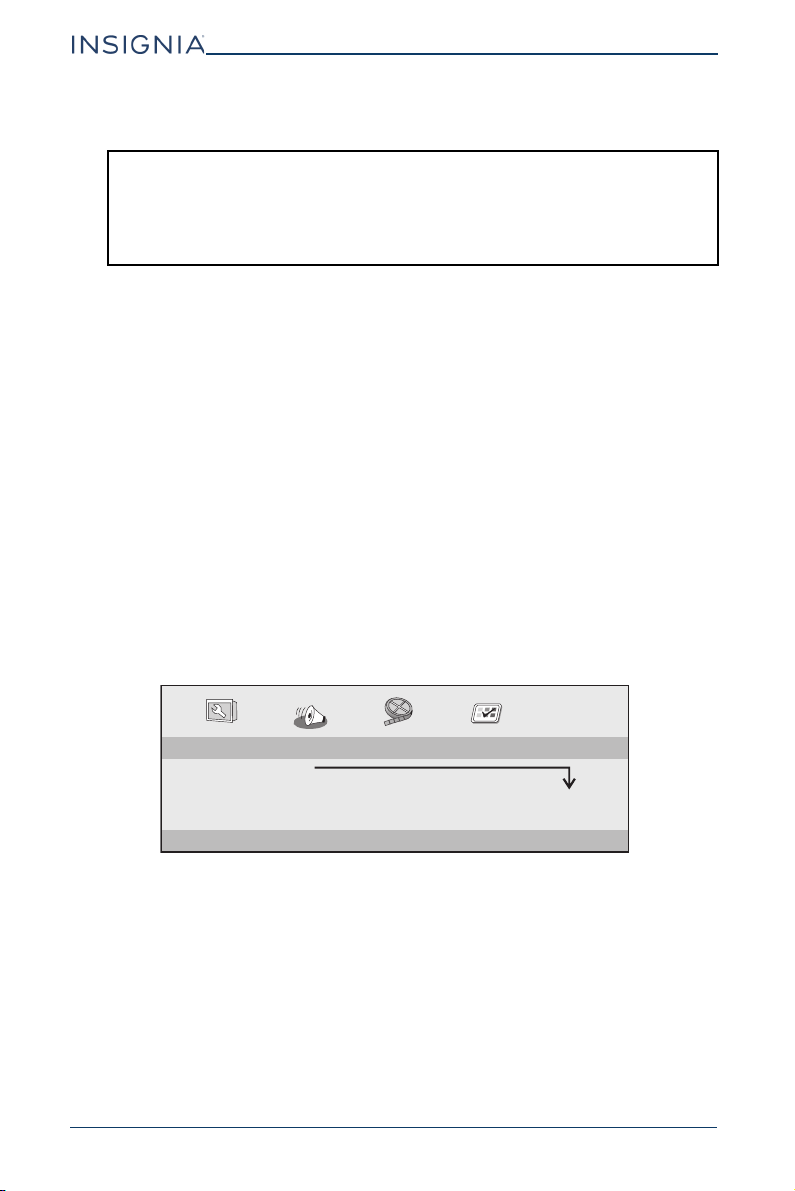
Selecting the audio mode
1 Press SETUP.
2 Press or to select AUDIO, then press ENTER.
3 Press or to select DOWNMIX, then press ENTER.
4 Press or to select a stereo analog audio mode. You can select:
• LT/RT—Select this option if your DVD Player is connected to external
speakers or a sound system with a Dolby Pro Logic decoder.
• STEREO—Select this option when using the two built-in speakers.
5 Press ENTER to save your setting, then press SETUP to close the menu.
Notes:
• The visible picture size is preset on a DVD. Therefore the playback picture of
some DVDs may not conform to the picture size you select.
• When you play DVDs recorded in the 4:3 aspect ratio, the playback picture
always appears in the 4:3 aspect ratio regardless of the TV DISPLAY option
setting.
-- --
DOWNMIX
STR
LT/RT
- - - -
SPEAKER SETUP PAGE
GO TO AUDIO SETUP PAGE
STEREO

19
10" Dual Screen Portable DVD Player
www.insigniaproducts.com
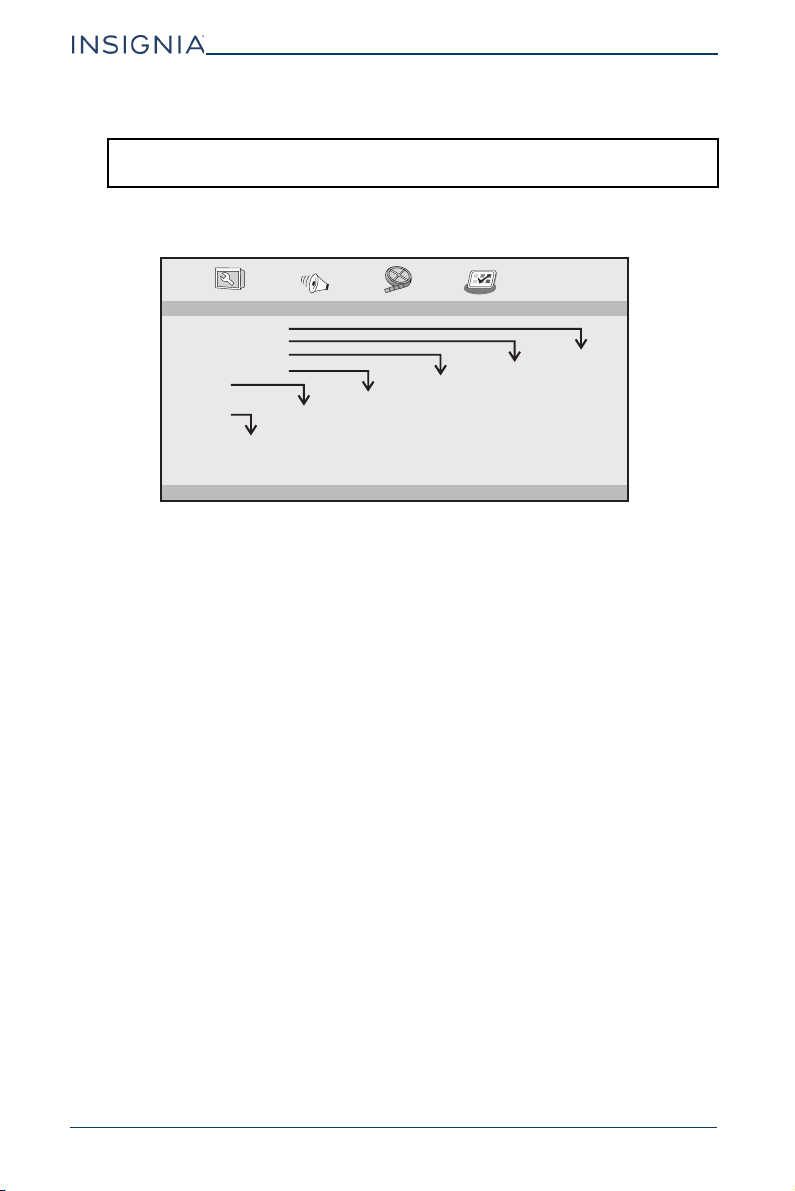
Adjusting video options
1 Press SETUP.
2 Press or to select VIDEO, then press ENTER.
3 Press or to select an option, then press or to adjust the setting. You
can select:
• BRIGHTNESS—Increases the brightness to add more light to dark areas of
the picture or decreases the brightness to add more dark to light areas of
the picture.
• CONTRAST—Increases the contrast level to adjust the white areas of the
picture or decreases the contrast level to adjust the black areas of the
picture.
• HUE—Increases the color level to add more green to skin tones or decreases
the color level to add more purple to skin tones.
• SATURATION—A high saturation level makes vivid colors brighter.
4 Press ENTER to save your setting, then press SETUP to close the menu.
- - VIDEO SETUP PAGE - -
GOTO VIDEO SETUP PAGE
BRIGHTNESS 00
CONTRAST 00
HUE 00
SATURATION 00
20
NS-DD10PDVD19
www.insigniaproducts.com
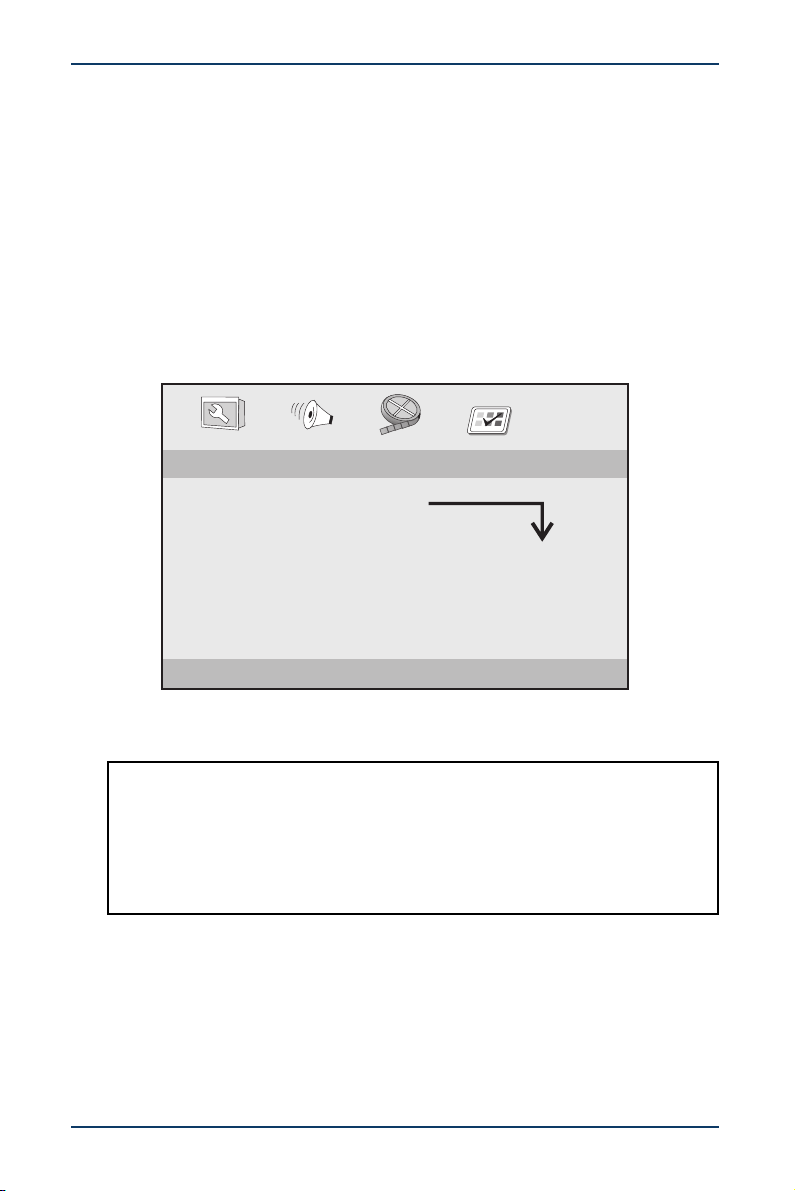
Setting video and audio preferences
1 Press SETUP.
2 Use or to select PREFERENCE, then press ENTER.
3 Press or to select an option, then press ENTER. You can select:
• TV TYPE—Selects the color system your TV uses. You can select:
• PAL—Select this option if the connected TV uses the PAL system. Your
player changes the video signal from a NTSC disc and outputs the signal in
the PAL format. This type of color system is typically used in Europe.
• AUTO—Select this option if you want your player to automatically change
the video signal based on the type of disc you are playing.
• NTSC—Select this option if the connected TV uses the NTSC system. Your
player changes the video signal from a PAL disc and outputs the signal in
the NTSC format. This type of color system is typically used in the U.S.
• AUDIO—Selects the audio language. If the language you select is not
recorded on the DVD, your player plays the default audio language. Your can
select ENGLISH, ESPAÑOL, or FRANÇAIS,
• SUBTITLE—Selects a language for subtitles (if subtitles are available on the
DVD). If the language you select is not available on the DVD, your player
displays subtitles in the default language. You can select ENGLISH,
ESPAÑOL, FRANÇAIS, or OFF.
• DISC MENU—Selects a language for a disc menu (if multiple languages are
available on the DVD). If the language you select is not available on the DVD,
your player displays the default language. You can select ENGLISH,
ESPAÑOL, or FRANÇAIS.
• PARENTAL—Some DVDs may have parental levels assigned to the complete
DVD or to certain scenes on the DVD. This feature lets you set a playback
limitation level. The rating levels are KID SAFE, G, PG, PG-13, PG-R, R, NC17,
and ADULT. Ratings are country dependent. You can block entire DVDs that
are not suitable for your children or have certain DVDs played with alternate
scenes. Based on the rating you select, your player automatically displays
alternate scenes, if available on the DVD.
Note: You can only access the PREFERENCE PAGE when there is no disc in the disc
tray.
- - PREFERENCE PAGE - -
GOTO PREFERENCE PAGE
TV TYPE NTSC
AUDIO ENG
SUBTITLE ENG
DISC MENU ENG
PARENTAL
PASSWORD
DEFAULT
PAL
AUTO
NTSC
ENGLISH
ESPAÑOL
FRANÇAIS
1 KID SAF
2 G
3 PG
4 PG-13
5 PG-R
6 R
7 NC-17
8 ADULT
RESET
ENGLISH
ESPAÑOL
FRANÇAIS
ENGLISH
ESPAÑOL
FRANÇAIS
OFF
21
10" Dual Screen Portable DVD Player
www.insigniaproducts.com
• PASSWORD—Lets you create or change a parental control password, or lets
you turn the password feature on and off. See Setting up a parental control
password on page 21.
• DEFAULT—Resets all options to the default settings.
4 Press ENTER to save your setting, then press SETUP to close the menu.
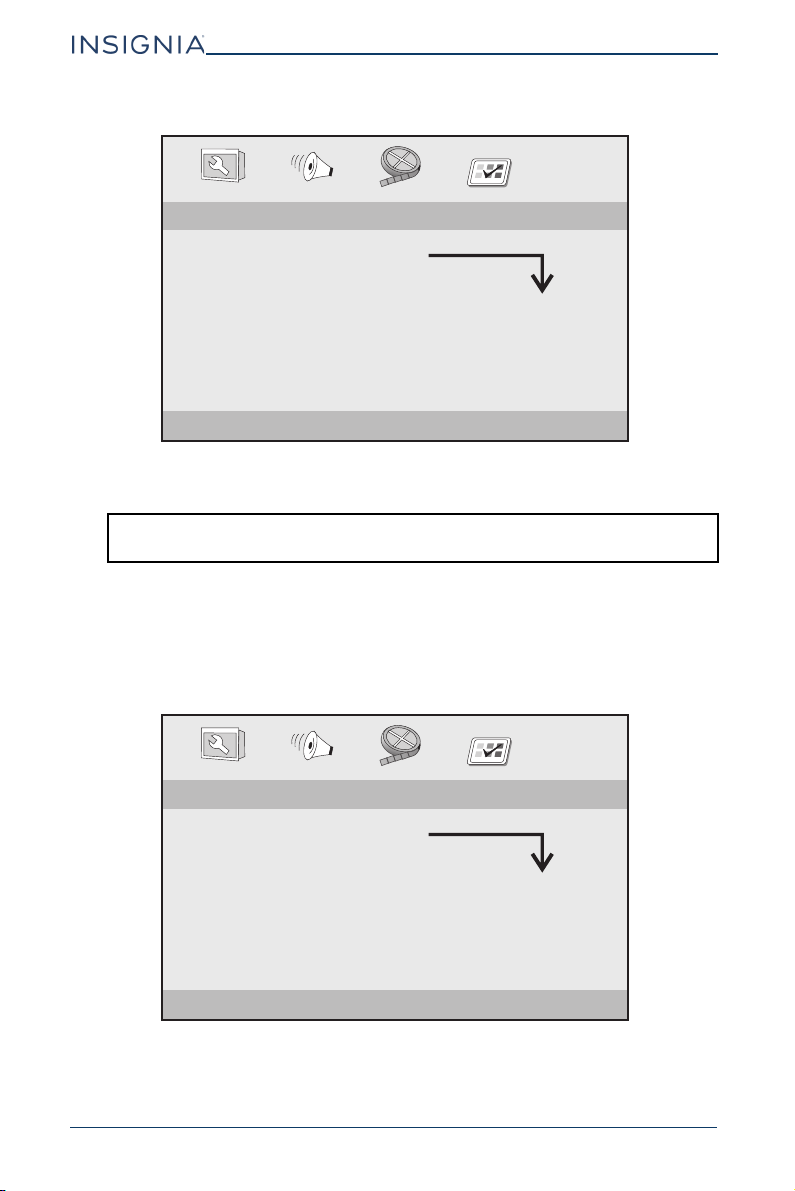
Using parental controls
Turning parental controls on or off
1 Press SETUP.
2 Press or to select PREFERENCE, then press ENTER.
3 Press or to select PASSWORD, then press ENTER.
4 Press or to select PASSWORD MODE, then press or to select ON or
OFF.
5 Press ENTER to save your setting, then press SETUP to close the menu.
Setting up a parental control password
1 Make sure that the PASSWORD MODE option is set to ON.
2 Press SETUP.
3 Press or to select PREFERENCE, then press ENTER.
Notes:
• If the PASSWORD MODE option is set to ON, you must enter the password
when you select the PARENTAL option to set a rating level.
• If the PASSWORD MODE option is set to OFF, you do not need to enter the
password.
• After you turn on the PASSWORD MODE option and set a rating level, you
are prompted for your password when watching content with a higher
rating.
- - PASSWORD SETUP PAGE - -
GOTO PASSWORD SETUP PAGE
PASSWORD MODE ON
PASSWORD CHANGE
ON
OFF
22
NS-DD10PDVD19
www.insigniaproducts.com
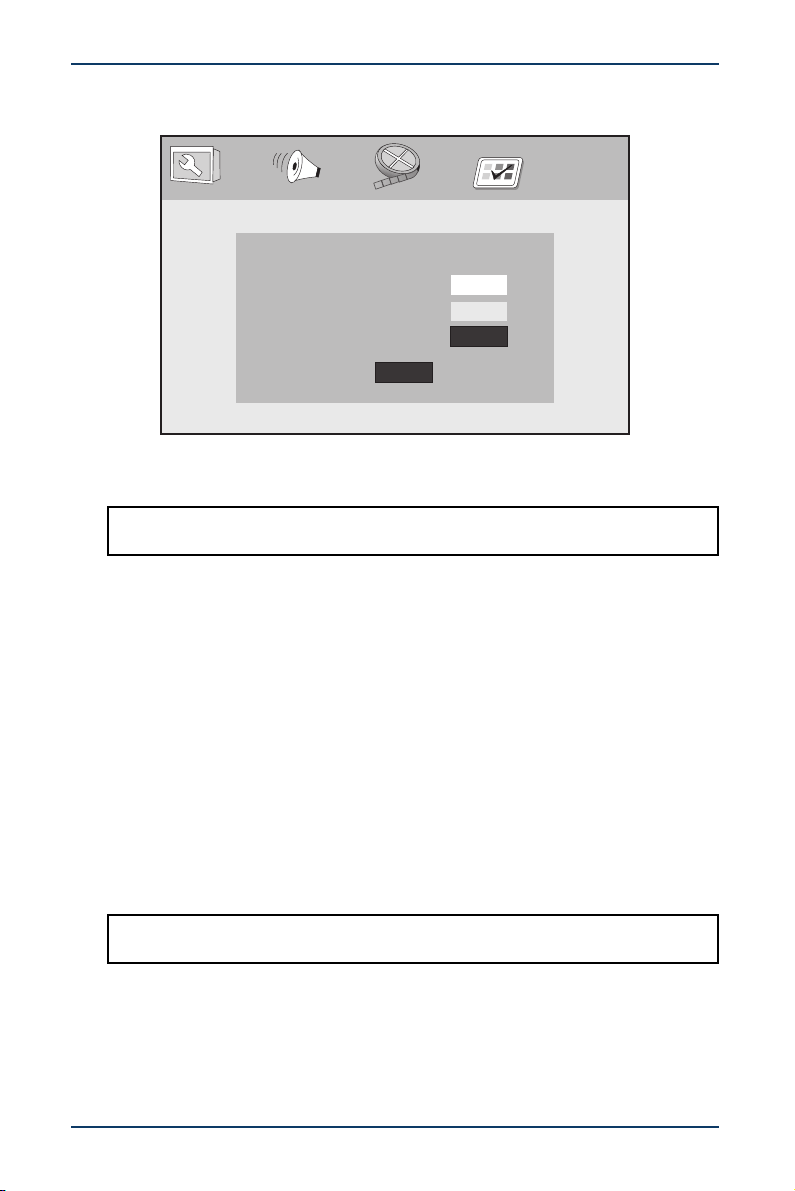
4 Press or to select PASSWORD, then press ENTER.
5 Use your remote control to enter a four-digit password, then enter the
password again.
6 Press ENTER to save your password, then press SETUP to close the menu.
Changing the parental control password
1 Press SETUP.
2 Press or to select PREFERENCE, then press ENTER.
3 Press or to select PASSWORD, then press ENTER.
Note: The master password is 1369. If you forget your password, you can enter
the master password.
- - PASSWORD SETUP PAGE - -
GOTO PASSWORD SETUP PAGE
PASSWORD MODE ON
PASSWORD CHANGE
ON
OFF
- - PASSWORD SETUP PAGE - -
GOTO PASSWORD SETUP PAGE
PASSWORD MODE ON
PASSWORD CHANGE
ON
OFF
23
10" Dual Screen Portable DVD Player
www.insigniaproducts.com
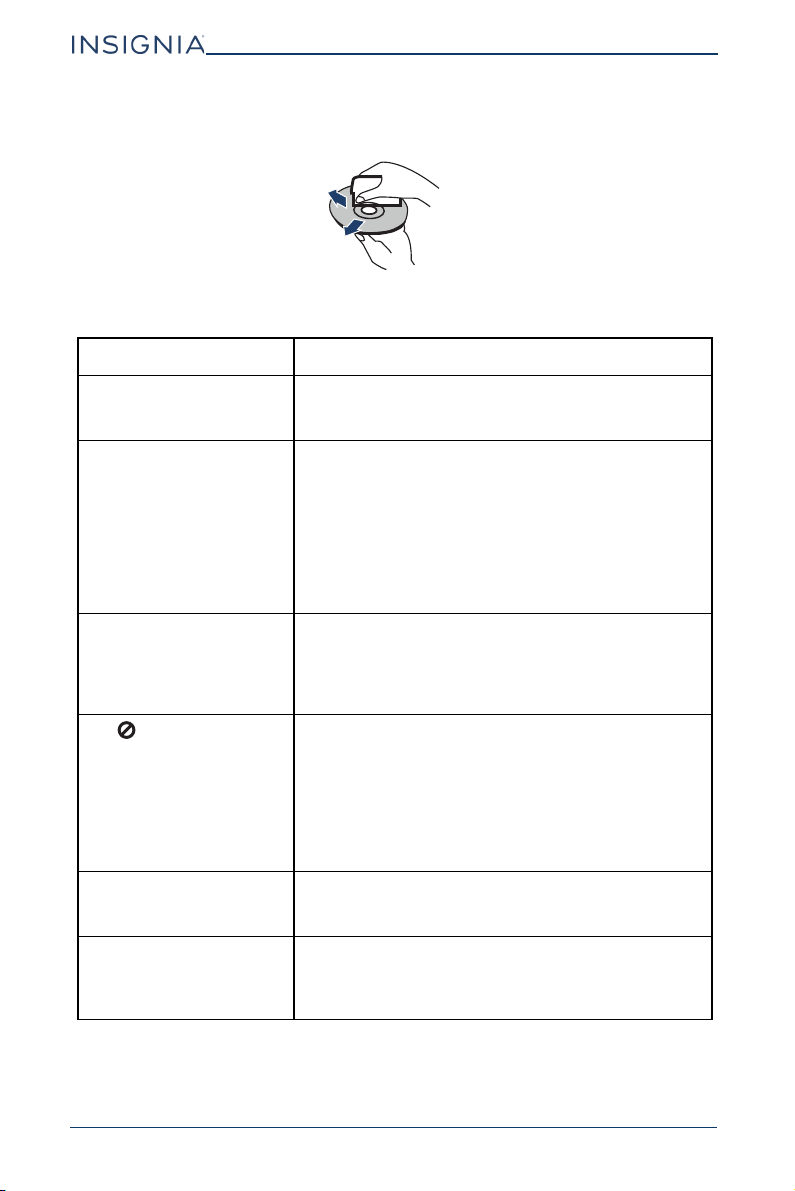
4 Press or to select PASSWORD, then press ENTER.
5 Use your remote control to enter the old four-digit password, enter the new
password, then enter the new password again.
6 Press ENTER to save your password, then press SETUP to close the menu.
Setting a parental control rating
1 Press SETUP.
2 Press or to select PREFERENCE, then press ENTER.
3 Press or to select PARENTAL, then press ENTER.
4 Press or to select a parental control rating. You can select KID SAFE, G,
PG, PG-13, PG-R, R, NC17, and ADULT.
5 Use the remote control to enter your four-digit password.
6 Press ENTER to return to the parental control rating menu.
Maintaining your player
Cleaning your player
Clean the outside of your player with a clean cloth, slightly dampened with water.
Note: If you forget your password, use the master password (1369) for the old
password.
CAUTION: Do not use liquid cleaners or aerosol cleaners because they may
damage your players.
OLD PASSWORD
NEW PASSWORD
CONFIRM PWD
OK
24
NS-DD10PDVD19
www.insigniaproducts.com
Cleaning discs
• Before playback, wipe the disc outwards from the center with a clean cloth.
Troubleshooting
PROBLEM SOLUTION
No power • Make sure that the AC adapter is plugged in and
connected.
• Make sure that your player is turned on.
No sound or distorted
sound.
• Adjust the volume.
• Make sure that all cables are inserted correctly into
the appropriate jacks.
• Make sure that your player is not paused.
• Make sure that your player is not in fast forward or
fast reverse mode.
• Make sure that your player is not too hot. Let it cool
for 30 minutes, then try it again.
• Make sure that the headphones are not plugged in.
Cannot fast-forward or
fast-reverse through a
movie.
• You cannot fast-forward through opening credits
and warning information at the beginning of a
movie.
• Some DVDs do not allow rapid scanning or
skipping of titles or chapters.
The icon appears on the
screen.
The action you tried cannot be done because:
• The DVD software does not allow it.
• The DVD does not support the feature (for example
the Subtitle feature).
• The feature is not available at the current point on
the DVD.
• You entered a title or chapter number that is out of
range.
Picture is distorted. • During fast-forwarding or fast-reversing, distortion
is normal.
• The DVD may be damaged. Try another DVD.
Disc does not play. • Make sure that the disc is inserted with the label
side up.
• Make sure that the disc is compatible with your
player. Your player can play DVDs and Audio CDs.
25
10" Dual Screen Portable DVD Player
www.insigniaproducts.com
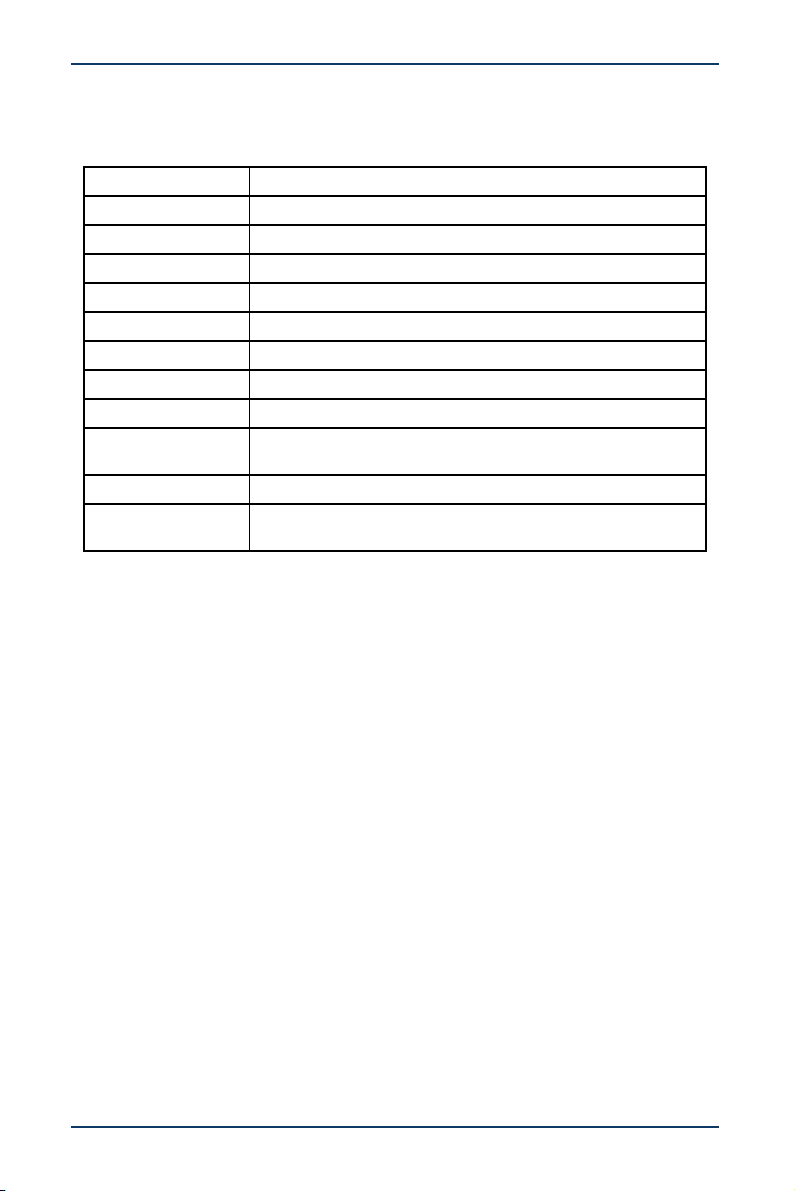
Specifications
Specifications subject to change without notice.
Legal notices
Marcovision
This product features the copy protection function developed by Macrovision.
Copy protection signals are recorded on some discs. When recording and playing
the pictures of these discs picture noise will appear. This product incorporates
copyright protection technology that is protected by method claims of certain
U.S. Patents and other intellectual property rights owned by Macrovision
Corporation and other rights owners. Use of this copyright protection technology
must be authorized by Macrovision Corporation, and is intended for home and
other limited viewing uses only unless otherwise authorized by Macrovision
Corporation. Reverse engineering or disassembly is prohibited.
Compatible discs DVDs (Region 1 for U.S.), Audio CDs, and MP3 discs
Signal system PAL or NTSC
LCD 10 inches
Frequency response 20 Hz to 20 kHz
Audio S/N > 60 dB
Dynamic range > 80 dB
Laser Semiconductor
Wave length 650 nm/795 nm
Power requirements AC 100-240 V , 50/60 Hz
Operating
temperature
32° to 104°F (0° to 40°C)
Weight Each player: 1.8 lbs. (.8 kg)
Dimensions
(W × H × D)
Each player: 9.8 × 7.2 × 1.5 in. (248.9 × 184 × 38.1 mm)

26
NS-DD10PDVD19
www.insigniaproducts.com
ONE-YEAR LIMITED WARRANTY
Definitions:
The Distributor* of Insignia branded products warrants to you, the original purchaser of this
new Insignia-branded product (“Product”), that the Product shall be free of defects in the
original manufacturer of the material or workmanship for a period of one (1) year from the
date of your purchase of the Product (“Warranty Period”).
For this warranty to apply, your Product must be purchased in the United States or Canada
from a Best Buy branded retail store or online at www.bestbuy.com or www.bestbuy.ca
and is packaged with this warranty statement.
How long does the coverage last?
The Warranty Period lasts for 1 year (365 days) from the date you purchased the Product.
Your purchase date is printed on the receipt you received with the Product.
What does this warranty cover?
During the Warranty Period, if the original manufacture of the material or workmanship of
the Product is determined to be defective by an authorized Insignia repair center or store
personnel, Insignia will (at its sole option): (1) repair the Product with new or rebuilt parts; or
(2) replace the Product at no charge with new or rebuilt comparable products or parts.
Products and parts replaced under this warranty become the property of Insignia and are
not returned to you. If service of Products or parts are required after the Warranty Period
expires, you must pay all labor and parts charges. This warranty lasts as long as you own your
Insignia Product during the Warranty Period. Warranty coverage terminates if you sell or
otherwise transfer the Product.
How to obtain warranty service?
If you purchased the Product at a Best Buy retail store location or from a Best Buy online
website (www.bestbuy.com or www.bestbuy.ca), please take your original receipt and
the Product to any Best Buy store. Make sure that you place the Product in its original
packaging or packaging that provides the same amount of protection as the original
packaging.
To obtain warranty service, in the United States call 1-888-BESTBUY or in Canada call
1-866-BESTBUY. Call agents may diagnose and correct the issue over the phone.
Where is the warranty valid?
This warranty is valid only in the United States and Canada at Best Buy branded retail stores
or websites to the original purchaser of the product in the county where the original
purchase was made.
What does the warranty not cover?
This warranty does not cover:
• Customer instruction/education
• Installation
• Set up adjustments
• Cosmetic damage
• Damage due to weather, lightning, and other acts of God, such as power surges
• Accidental damage
• Misuse
• Abuse
• Negligence
• Commercial purposes/use, including but not limited to use in a place of business or in
communal areas of a multiple dwelling condominium or apartment complex, or
otherwise used in a place of other than a private home.
• Modification of any part of the Product, including the antenna
• Display panel damaged by static (non-moving) images applied for lengthy periods
(burn-in).

27
10" Dual Screen Portable DVD Player
www.insigniaproducts.com
• Damage due to incorrect operation or maintenance
• Connection to an incorrect voltage or power supply
• Attempted repair by any person not authorized by Insignia to service the Product
• Products sold “as is” or “with all faults”
• Consumables, including but not limited to batteries (i.e. AA, AAA, C, etc.)
• Products where the factory applied serial number has been altered or removed
• Loss or Theft of this product or any part of the product
• Display panels containing up to three (3) pixel failures (dots that are dark or incorrectly
illuminated) grouped in an area smaller than one tenth (1/10) of the display size or up to
five (5) pixel failures throughout the display. (Pixel based displays may contain a limited
number of pixels that may not function normally.)
• Failures or Damage caused by any contact including but not limited to liquids, gels or
pastes.
REPAIR REPLACEMENT AS PROVIDED UNDER THIS WARRANTY IS YOUR EXCLUSIVE REMEDY
FOR BREACH OF WARRANTY. INSIGNIA SHALL NOT BE LIABLE FOR ANY INCIDENTAL OR
CONSEQUENTIAL DAMAGES FOR THE BREACH OF ANY EXPRESS OR IMPLIED WARRANTY ON
THIS PRODUCT, INCLUDING, BUT NOT LIMITED TO, LOST DATA, LOSS OF USE OF YOUR
PRODUCT, LOST BUSINESS OR LOST PROFITS. INSIGNIA PRODUCTS MAKES NO OTHER
EXPRESS WARRANTIES WITH RESPECT TO THE PRODUCT, ALL EXPRESS AND IMPLIED
WARRANTIES FOR THE PRODUCT, INCLUDING BUT NOT LIMITED TO ANY IMPLIED
WARRANTIES OF AND CONDITIONS OF MERCHANTABILITY AND FITNESS FOR A PARTICULAR
PURPOSE, ARE LIMITED IN DURATION TO THE WARRANTY PERIOD SET FORTH ABOVE AND
NO WARRANTIES, WHETHER EXPRESS OR IMPLIED, WILL APPLY AFTER THE WARRANTY
PERIOD. SOME STATES, PROVINCES AND JURISDICTIONS DO NOT ALLOW LIMITATIONS ON
HOW LONG AN IMPLIED WARRANTY LASTS, SO THE ABOVE LIMITATION MAY NOT APPLY TO
YOU. THIS WARRANTY GIVES YOU SPECIFIC LEGAL RIGHTS, AND YOU MAY ALSO HAVE OTHER
RIGHTS, WHICH VARY FROM STATE TO STATE OR PROVINCE TO PROVINCE.
Contact Insignia:
1-877-467-4289
www.insigniaproducts.com
INSIGNIA is a trademark of Best Buy and its affiliated companies.
*Distributed by Best Buy Purchasing, LLC
7601 Penn Ave South, Richfield, MN 55423 U.S.A.
©2018 Best Buy. All rights reserved.
Made in China

www.insigniaproducts.com
1-877-467-4289 (U.S. and Canada) or 01-800-926-3000 (Mexico)
INSIGNIA is a trademark of Best Buy and its affiliated companies.
Distributed by Best Buy Purchasing, LLC
7601 Penn Ave South, Richfield, MN 55423 U.S.A.
©2018 Best Buy. All rights reserved.
Made in China
V1 ENGLISH
18-0376