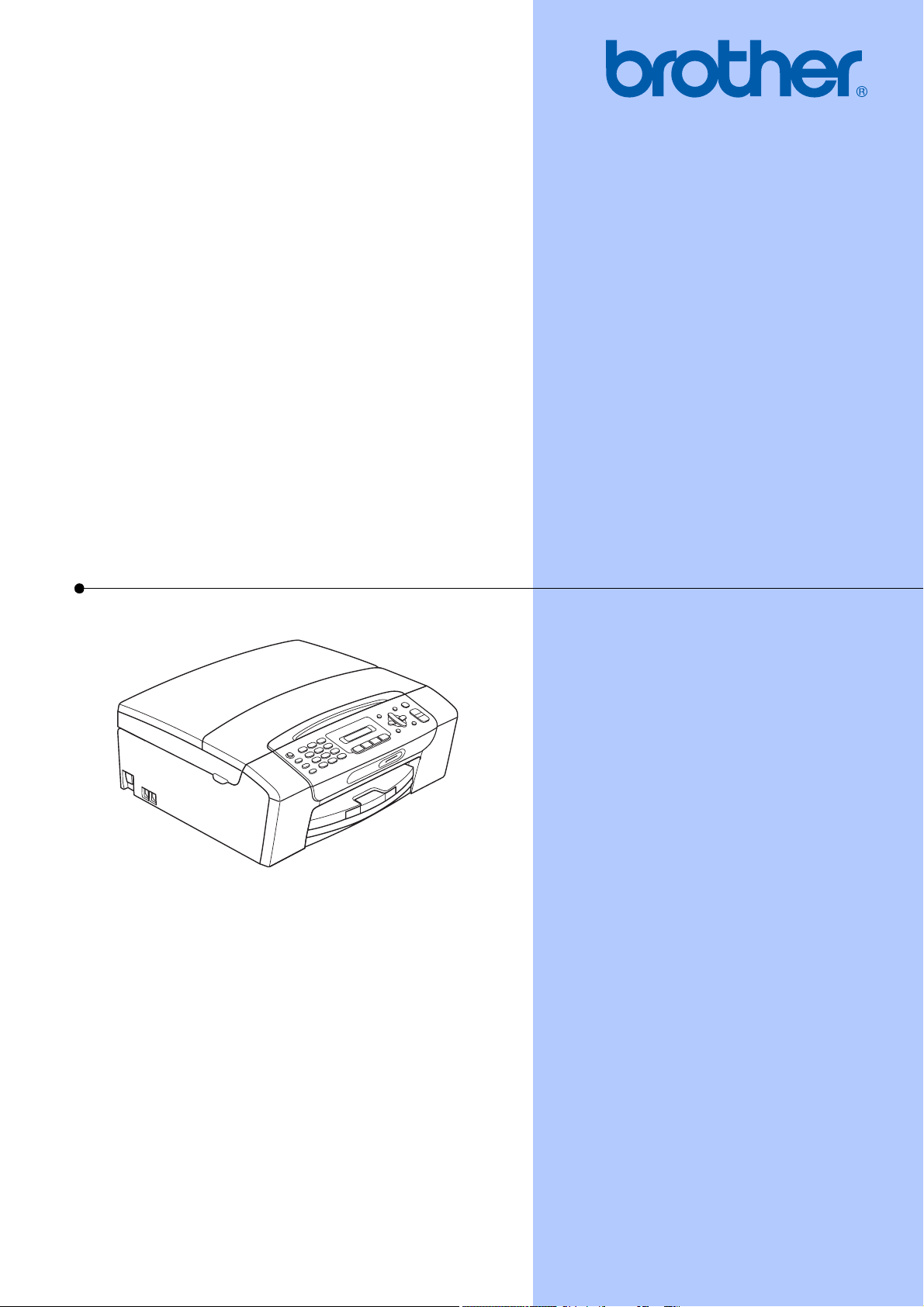
USER’S GUIDE
MFC-255CW
MFC-295CN
Version 0
USA/CAN
If you need to call Customer Service
Please complete the following information for future
reference:
Model Number: MFC-255CW and MFC-295CN
(Circle your model number)
Serial Number:
1
Date of Purchase:
Place of Purchase:
1
The serial number is on the back of the unit. Retain
this User's Guide with your sales receipt as a
permanent record of your purchase, in the event of
theft, fire or warranty service.
Register your product on-line at
http://www.brother.com/registration/
By registering your product with Brother, you will be recorded as the
original owner of the product. Your registration with Brother:
may serve as confirmation of the purchase date of your product
should you lose your receipt;
may support an insurance claim by you in the event of product loss
covered by insurance; and,
will help us notify you of enhancements to your product and special
offers.
The most convenient and efficient way to register your new product is
on-line at http://www.brother.com/registration/
.
© 2009 Brother Industries, Ltd.
i
Brother numbers
IMPORTANT
For technical help, you must call the country where you bought the machine. Calls must be
made from within that country.
Register your product
By registering your product with Brother International Corporation, you will be recorded as the
original owner of the product. Your registration with Brother:
may serve as confirmation of the purchase date of your product should you lose your receipt;
may support an insurance claim by you in the event of product loss covered by insurance; and,
will help us notify you of enhancements to your product and special offers.
Please complete and fax the Brother Warranty Registration And Test Sheet or, for your
convenience and most efficient way to register your new product, register on-line at
http://www.brother.com/registration/
FAQs (frequently asked questions)
The Brother Solutions Center is our one-stop resource for all your Fax Machine/Multi-Function
Center needs. You can download the latest software documents and utilities, read FAQs and
troubleshooting tips, and learn how to get the most from your Brother product.
http://solutions.brother.com/
Note
• You can check here for Brother driver updates.
• To keep your machine performance up to date, check here for the latest firmware upgrade (for
Windows
®
only).
For Customer Service
Service Center Locator (USA only)
For the location of a Brother authorized service center, call 1-877-BROTHER (1-877-276-8437).
Service Center Locations (Canada only)
For the location of a Brother authorized service center, call 1-877-BROTHER.
In USA: 1-877-BROTHER (1-877-276-8437)
1-901-379-1215 (fax)
In Canada: 1-877-BROTHER
(514) 685-4898 (fax)
ii
Ordering accessories and supplies
For best quality results use only genuine Brother accessories, which are available at most Brother
retailers. If you cannot find the accessory you need and you have a Visa, MasterCard, Discover,
or American Express credit card, you can order accessories directly from Brother. (You can visit
us online for a complete selection of the Brother accessories and supplies that are available for
purchase.)
Note
In Canada only Visa and MasterCard are accepted.
1
For more information about the replacement consumables, visit us at www.brother.com/pageyield.
In USA: 1-877-552-MALL (1-877-552-6255)
1-800-947-1445 (fax)
http://www.brothermall.com/
In Canada: 1-877-BROTHER
http://www.brother.ca/
Description Item
Ink Cartridge Standard <black>
LC61BK (Prints approx. 450 pages)
1
Ink Cartridge <yellow>
LC61Y (Prints approx. 325 pages)
1
Ink Cartridge <cyan> (blue)
LC61C (Prints approx. 325 pages)
1
Ink Cartridge <magenta> (red)
LC61M (Prints approx. 325 pages)
1
Premium Plus Glossy Finish Photo Paper
(Letter size / 20 sheets) BP71GLTR
(4" × 6" size / 20 sheets) BP71GP
Matte Finish Inkjet Paper
(Letter size / 25 sheets) BP60ML (USA only)
Plain Finish Inkjet Paper
(Letter size / 100 sheets) BP60PL100 (USA only)
Telephone Line Cord LG3077001 (USA only)
User's Guide LX1441001 (English for USA and Canada)
LX1441002 (French for Canada)

iii
Notice - Disclaimer of Warranties
(USA and Canada)
BROTHER'S LICENSOR(S), AND THEIR DIRECTORS, OFFICERS, EMPLOYEES OR AGENTS
(COLLECTIVELY BROTHER'S LICENSOR) MAKE NO WARRANTIES, EXPRESS OR IMPLIED,
INCLUDING WITHOUT LIMITATION THE IMPLIED WARRANTIES OF MERCHANTABILITY
AND FITNESS FOR A PARTICULAR PURPOSE, REGARDING THE SOFTWARE. BROTHER'S
LICENSOR(S) DOES NOT WARRANT, GUARANTEE OR MAKE ANY REPRESENTATIONS
REGARDING THE USE OR THE RESULTS OF THE USE OF THE SOFTWARE IN TERMS OF
ITS CORRECTNESS, ACCURACY, RELIABILITY, CURRENTNESS OR OTHERWISE. THE
ENTIRE RISK AS TO THE RESULTS AND PERFORMANCE OF THE SOFTWARE IS
ASSUMED BY YOU. THE EXCLUSION OF IMPLIED WARRANTIES IS NOT PERMITTED BY
SOME STATES IN THE USA AND SOME PROVINCES IN CANADA. THE ABOVE EXCLUSION
MAY NOT APPLY TO YOU.
IN NO EVENT WILL BROTHER'S LICENSOR(S) BE LIABLE TO YOU FOR ANY
CONSEQUENTIAL, INCIDENTAL OR INDIRECT DAMAGES (INCLUDING DAMAGES FOR
LOSS OF BUSINESS PROFITS, BUSINESS INTERRUPTION, LOSS OF BUSINESS
INFORMATION, AND THE LIKE) ARISING OUT OF THE USE OR INABILITY TO USE THE
SOFTWARE EVEN IF BROTHER'S LICENSOR HAS BEEN ADVISED OF THE POSSIBILITY OF
SUCH DAMAGES. BECAUSE SOME STATES IN THE USA AND SOME PROVINCES IN
CANADA DO NOT ALLOW THE EXCLUSION OR LIMITATION OF LIABILITY FOR
CONSEQUENTIAL OR INCIDENTAL DAMAGES, THE ABOVE LIMITATIONS MAY NOT APPLY
TO YOU. IN ANY EVENT BROTHER'S LICENSOR'S LIABILITY TO YOU FOR ACTUAL
DAMAGES FROM ANY CAUSE WHATSOEVER, AND REGARDLESS OF THE FORM OF THE
ACTION (WHETHER IN CONTRACT, TORT (INCLUDING NEGLIGENCE), PRODUCT
LIABILITY OR OTHERWISE), WILL BE LIMITED TO $50.
Compilation and Publication Notice
Under the supervision of Brother Industries, Ltd., this manual has been compiled and published,
covering the latest product descriptions and specifications.
The contents of this manual and the specifications of this product are subject to change without
notice.
Brother reserves the right to make changes without notice in the specifications and materials
contained herein and shall not be responsible for any damages (including consequential) caused
by reliance on the materials presented, including but not limited to typographical and other errors
relating to the publication.

iv
Brother
®
One-Year Limited Warranty and Replacement Service
(USA Only)
Who is covered:
This limited warranty (“warranty”) is given
only to the original end-user/retail
purchaser (referred to in this warranty as
“Original Purchaser”) of the accompanying
product, consumables and accessories
(collectively referred to in this warranty as
“this Product”).
If you purchased a product from someone
other than an authorized Brother reseller in
the United States or if the product was used
(including but not limited to floor models or
refurbished product), prior to your
purchase you are not the Original
Purchaser and the product that you
purchased is not covered by this warranty.
What is covered:
This Product includes a Machine and
Consumable and Accessory Items.
Consumable and Accessory Items include
but are not limited to print heads, toner,
drums, ink cartridges, print cartridges,
cordless handset battery, refill ribbons,
therma PLUS paper and thermal paper.
Except as otherwise provided herein,
Brother warrants that the Machine and the
accompanying Consumable and
Accessory Items will be free from defects in
materials and workmanship, when used
under normal conditions.
This warranty applies only to products
purchased and used in the United States.
For products purchased in, but used
outside, the United States, this warranty
covers only warranty service within the
United States (and does not include
shipping outside the United States).
What is the length of the Warranty Periods:
Machines: one year from the original
purchase date.
Accompanying Consumable and
Accessory Items: 90 days from the original
purchase date or the rated life of
consumable, whichever comes first.
What is NOT covered:
This warranty does not cover:
1 Physical damage to this Product;
2 Damage caused by improper installation,
improper or abnormal use, misuse, neglect
or accident (including but not limited to
transporting this Product without the proper
preparation and/or packaging);
3 Damage caused by another device or
software used with this Product (including
but not limited to damage resulting from
use of non Brother
®
-brand parts and
Consumable and Accessory Items);
4 Consumable and Accessory Items that
expired in accordance with a rated life;
5 Problems arising from other than defects in
materials or workmanship; and,
6 Normal Periodic Maintenance Items, such
as Paper Feeding Kit, Fuser and Laser
Units.
This limited warranty is VOID if this Product
has been altered or modified in any way
(including but not limited to attempted warranty
repair without authorization from Brother
and/or alteration/removal of the serial
number).
What to do if you think your Product is
eligible for warranty service:
Report your issue to either our Customer
Service Hotline at 1-877-BROTHER (1-877-
276-8437) or to a Brother Authorized Service
Center within the applicable warranty
period. Supply Brother or the Brother
Authorized Service Center with a copy of your
dated bill of sale showing that this Product was
purchased within the U.S. For the name of
local Brother Authorized Service Center(s),
call 1-877-BROTHER (1-877-276-8437) or
visit www.brother-usa.com.
What Brother will ask you to do:
After contacting Brother or a Brother
Authorized Service Center, you may be
required to deliver (by hand if you prefer) or
send the Product properly packaged, freight
prepaid, to the Authorized Service Center
together with a photocopy of your bill of sale.
You are responsible for the cost of
shipping, packing product, and insurance
(if you desire). You are also responsible for
loss or damage to this Product in shipping.
What Brother will do:
If the problem reported concerning your
Machine and/or accompanying Consumable
and Accessory Items is covered by this
warranty and
if you first reported the problem
to Brother or an Authorized Service Center
within the applicable warranty period, Brother
or its Authorized Service Center will repair or
replace the Machine and/or accompanying
Consumable and Accessory Items at no
charge to you for parts or labor. The decision
as to whether to repair or replace the Machine
and/or accompanying Consumable and
Accessory Items is made by Brother in its sole

v
Brother
®
One-Year Limited Warranty and Replacement Service
(USA Only)
discretion. Brother reserves the right to supply
a refurbished or remanufactured replacement
Machine and/or accompanying Consumable
and Accessory Items and use refurbished
parts provided such replacement products
conform to the manufacturer’s specifications
for new product/parts. The repaired or
replacement Machine and/or accompanying
Consumable and Accessory Items will be
returned to you freight prepaid or made
available for you to pick up at a conveniently
located Authorized Service Center.
If the Machine and/or accompanying
Consumable and Accessory Items are not
covered by this warranty (either stage), you
will be charged for shipping the Machine
and/or accompanying Consumable and
Accessory Items back to you and charged for
any service and/or replacement parts/products
at Brother’s then current published rates.
The foregoing are your sole (i.e., only) and
exclusive remedies under this warranty.
What happens when Brother elects to
replace your Machine:
When a replacement Machine is authorized by
Brother, and you have delivered the Machine
to an Authorized Service Center, the
Authorized Service Center will provide you with
a replacement Machine after receiving one
from Brother. If you are dealing directly with
Brother’s Express Exchange Service Brother
will send to you a replacement Machine
shipped for receipt within two business days,
with the understanding that you will, after
receipt of the replacement Machine, supply the
required proof of purchase information,
together with the Machine that Brother agreed
to replace. You are then expected to pack the
Machine that Brother agreed to replace in the
package from the replacement Machine and
return it to Brother using the pre-paid freight bill
supplied by Brother in accordance with the
instructions provided by Brother. Since you will
be in possession of two machines, Brother will
require that you provide a valid major credit
card number. Brother will issue a hold against
the credit card account number that you
provide until Brother receives your original
Product and determines that your original
Product is entitled to warranty coverage. Your
credit card will be charged up to the cost of a
new Product only if: (i) you do not return your
original Product to Brother within five (5)
business days; (ii) the problems with your
original Product are not covered by the limited
warranty; (iii) the proper packaging instructions
are not followed and has caused damage to
the product; or (iv) the warranty period on your
original Product has expired or has not been
sufficiently validated with a copy of the proof of
purchase (bill of sale). The replacement
Machine you receive (even if refurbished or
remanufactured) will be covered by the
balance of the limited warranty period
remaining on the original Product, plus an
additional thirty (30) days. You will keep the
replacement Machine that is sent to you and
your original Machine shall become the
property of Brother.
Retain your original
Accessory Items and a copy of the return
freight bill, signed by the courier.
Limitations:
Brother is not responsible for damage to or
loss of any equipment, media, programs or
data related to the use of this Product. Except
for the repair or replacement as described
above, Brother shall not be liable for any
direct, indirect, incidental or consequential
damages or specific relief. Because some
states do not allow the exclusion or limitation
of consequential or incidental damages, the
above limitation may not apply to you.
THIS WARRANTY IS GIVEN IN LIEU OF ALL
OTHER WARRANTIES, WRITTEN OR
ORAL, WHETHER EXPRESSED BY
AFFIRMATION, PROMISE, DESCRIPTION,
DRAWING, MODEL OR SAMPLE. ANY AND
ALL WARRANTIES OTHER THAN THIS
ONE, WHETHER EXPRESS OR IMPLIED,
INCLUDING IMPLIED WARRANTIES OF
MERCHANTABILITY AND FITNESS FOR A
PARTICULAR PURPOSE, ARE HEREBY
DISCLAIMED.
This Limited Warranty is the only warranty
that Brother is giving for this Product. It is
the final expression and the exclusive and
only statement of Brother’s obligations to
you. It replaces all other agreements and
understandings that you may have with
Brother or its representatives.
This warranty gives you certain rights and
you may also have other rights that may
vary from state to state.
This Limited Warranty (and Brother’s
obligation to you) may not be changed in
any way unless you and Brother sign the
same piece of paper in which we (1) refer
to this Product and your bill of sale date, (2)
describe the change to this warranty and
(3) agree to make that change.
Important: We recommend that you keep all
original packing materials, in the event that
you ship this Product.
© 2009 Brother International Corporation

vi
BROTHER MULTIFUNCTION CENTER / FAX MACHINE
LIMITED WARRANTY
(Canada only)
Pursuant to the limited warranty of 1 year from the date of purchase for labour and parts, Brother
International Corporation (Canada) Ltd. (
“
Brother
”
), or its Authorized Service Centres, will repair
or replace (at Brother's sole discretion) this MFC/Fax machine free of charge if defective in
material or workmanship. This warranty applies only to products purchased and used in Canada.
This limited Warranty does not include cleaning, consumables (including, without limitation, ink
cartridges, print cartridges, print rolls, thermal paper rolls, toner cartridges, drum units, OPC belts,
fixing units, print heads, paper feed rollers, transfer rolls, cleaning rollers, waste toner packs, oil
bottles) or damage caused by accident, neglect, misuse or improper installation or operation, any
damage caused from service, maintenance, modifications, or tampering by anyone other than a
Brother Authorized Service Representative, or if shipped out of the country.
The use of supplies or consumable items that are non-Brother products may void your warranty.
This limited warranty ceases when this machine is rented, sold, or otherwise disposed of.
Operation of the MFC/Fax machine in excess of the specifications or with the Serial Number or
Rating Label removed shall be deemed abuse and all repairs thereafter shall be the sole liability
of the end-user/purchaser.
In order to obtain warranty service, the MFC/Fax machine must be delivered or shipped
freight prepaid by the end-user/purchaser to a “Brother” Authorized Service Centre, together
with your Canadian Proof of Purchase in the form of a Sales Receipt.
When shipping or transporting your MFC/Fax machine, please refer to your Operation
Manual for the proper packaging procedures.
For Laser units: Failure to remove the Toner Cartridge (and Toner Drum Unit, waste toner
packs or oil bottles on applicable models) during shipping or transport will cause severe
damage to the Laser MFC/Fax machine and will void the Warranty.
For inkjet units: (When shipping your Inkjet MFC/Fax machine remove the ink cartridges and
replace them with the original protective parts. If original protective parts are not available,
leave ink cartridges installed. Please avoid shipping the unit without original protective parts
or ink cartridges.) Damage to your print head resulting from packing the Inkjet MFC/Fax
machine without the ink cartridges or the protective parts will void your warranty.
Improper packaging may cause severe damage to the machine during shipping and will void
the warranty.
BROTHER DISCLAIMS ALL OTHER WARRANTIES EXPRESSED OR IMPLIED INCLUDING,
WITHOUT LIMITATIONS, ANY IMPLIED WARRANTIES OF MERCHANTABILITY OR FITNESS
FOR A PARTICULAR PURPOSE, EXCEPT TO THE EXTENT THAT ANY WARRANTIES
IMPLIED BY LAW CANNOT BE VALIDLY WAIVED.
No oral or written information, advice or representation provided by Brother, its Authorized
Service Centres, Distributors, Dealers, Agents or employees, shall create another warranty
or modify this warranty. The warranty states Brother's entire liability and your exclusive
remedy against Brother for any failure of the MFC/Fax machine to operate properly.
Neither Brother nor anyone else involved in the development, production, or delivery of this
MFC/Fax machine shall be liable for any indirect, incidental, special, consequential, exemplary,
or punitive damages, including lost profits, arising from the use of or inability to use the product,
even if advised by the end user/purchaser of the possibility of such damages. Since some
Provinces do not allow the above limitation of liability, such limitation, may not apply to you.
This Limited Warranty gives you specific legal rights and you may also have other
rights which vary from Province to Province.
Warranty Service is available at Brother Authorized
Service Centres throughout Canada. For Technical
Assistance or for the name and location of your nearest
Authorized Service Centre call 1-877-BROTHER.
Internet support: support@brother.ca or browse Brother's Web Site www.brother.ca.

vii
Table of Contents
Section I General
1 General Information 2
Using the documentation.......................................................................................2
Symbols and conventions used in the documentation ....................................2
Accessing the Software User’s Guide and Network User’s Guide ........................2
Viewing Documentation...................................................................................2
Accessing Brother Support (Windows
®
)................................................................ 5
Control panel overview ..........................................................................................6
2 Loading paper and documents 8
Loading paper and other print media.....................................................................8
Loading envelopes and postcards.................................................................10
Removing small printouts from the machine .................................................12
Printable area ................................................................................................13
Acceptable paper and other print media..............................................................14
Recommended print media ...........................................................................14
Handling and using print media.....................................................................15
Choosing the right print media.......................................................................16
Loading documents .............................................................................................18
Using the ADF (MFC-295CN only) ................................................................18
Using the scanner glass ................................................................................19
Scannable area .............................................................................................20
3 General setup 21
On/Off key ...........................................................................................................21
Turning the machine off.................................................................................21
Turning the machine on.................................................................................21
Mode Timer..........................................................................................................21
Paper settings......................................................................................................22
Paper Type....................................................................................................22
Paper Size .....................................................................................................22
Volume Settings...................................................................................................22
Ring Volume ..................................................................................................22
Beeper Volume..............................................................................................22
Speaker Volume............................................................................................23
Automatic Daylight Saving Time..........................................................................23
LCD display .........................................................................................................23
LCD Contrast.................................................................................................23
Sleep Mode .........................................................................................................23
4 Security features 24
TX Lock ...............................................................................................................24
Setting and changing the TX Lock password ................................................24
Turning TX Lock on/off ..................................................................................25

viii
Section II Fax
5 Sending a Fax 28
Entering Fax mode ..............................................................................................28
Faxing from the ADF (MFC-295CN only) ......................................................28
Faxing from the scanner glass ......................................................................28
Setting the scanner glass size for faxing .......................................................29
Color fax transmission ...................................................................................29
Canceling a fax in progress ...........................................................................29
Broadcasting (Black & White only) ......................................................................29
Canceling a Broadcast in progress................................................................30
Additional sending operations..............................................................................30
Sending faxes using multiple settings ...........................................................30
Contrast .........................................................................................................31
Changing fax resolution.................................................................................31
Dual Access (Black & White only) .................................................................32
Real Time Transmission................................................................................32
Overseas Mode .............................................................................................33
Checking and canceling waiting jobs.............................................................33
Sending a fax manually .................................................................................33
Sending a fax at the end of a conversation ...................................................34
Out of Memory message ...............................................................................34
6 Receiving a Fax 35
Receive modes....................................................................................................35
Choosing the Receive Mode .........................................................................35
Using receive modes ...........................................................................................37
Fax Only ........................................................................................................37
Fax/Tel...........................................................................................................37
Manual...........................................................................................................37
External TAD .................................................................................................37
Receive Mode settings ........................................................................................38
Ring Delay .....................................................................................................38
F/T Ring Time (Fax/Tel mode only)...............................................................38
Easy Receive.................................................................................................39
Additional receiving operations............................................................................39
Printing a reduced incoming fax ....................................................................39
Receiving a fax at the end of a conversation.................................................39
Receiving faxes into memory when the paper tray is empty .........................40

ix
7 Telephone Services and External devices 41
Voice Operations .................................................................................................41
Tone or pulse (Canada only) .........................................................................41
Fax/Tel mode.................................................................................................41
Telephone services..............................................................................................41
Voice Mail ......................................................................................................41
Distinctive Ring..............................................................................................42
Caller ID.........................................................................................................44
Connecting an external TAD (telephone answering device)................................45
Connections...................................................................................................46
Recording an outgoing message (OGM) on an external TAD.......................47
Special line considerations............................................................................47
Multi-line connections (PBX) .........................................................................49
External and extension telephones......................................................................49
Connecting an external or extension telephone ............................................49
Using external and extension telephones......................................................50
Using a non-Brother cordless external telephone .........................................50
Using remote codes.......................................................................................50
8 Dialing and storing numbers 52
How to Dial ..........................................................................................................52
Manual dialing ...............................................................................................52
Speed Dialing ................................................................................................52
Search ...........................................................................................................52
Fax Redial .....................................................................................................52
Storing numbers ..................................................................................................53
Storing a pause .............................................................................................53
Storing Speed Dial numbers..........................................................................53
Changing Speed Dial numbers......................................................................53
Setting up groups for broadcasting................................................................54
Dialing access codes and credit card numbers .............................................54
9 Printing Reports 55
Fax reports...........................................................................................................55
Transmission Verification Report...................................................................55
Fax Journal (activity report) ...........................................................................56
Reports ................................................................................................................56
How to print a report ......................................................................................56

x
Section III Copy
10 Making copies 58
How to copy.........................................................................................................58
Entering Copy mode......................................................................................58
Making a single copy .....................................................................................58
Making multiple copies ..................................................................................58
Stop copying..................................................................................................58
Copy Options .......................................................................................................59
Changing copy quality ...................................................................................60
Enlarging or reducing the image copied ........................................................60
Making N in 1 copies or a poster (Page Layout) ...........................................61
Sorting copies using the ADF (Black & White only) (MFC-295CN only)........63
Adjusting Brightness and Contrast ................................................................63
Paper options ................................................................................................64
Section IV Direct Printing
11 PhotoCapture Center
®
: Printing photos from a memory card or
USB Flash memory drive 66
PhotoCapture Center
®
Operations ......................................................................66
Printing from a memory card or USB Flash memory drive without a PC.......66
Scanning to a memory card or USB Flash memory drive without a PC ........66
Using PhotoCapture Center
®
from your computer ........................................66
Using a memory card or USB Flash memory drive .......................................66
Memory cards, USB Flash memory drive and folder structures ....................67
Getting started .....................................................................................................68
How to print from a memory card or USB Flash memory drive ...........................69
Print Index (Thumbnails) ...............................................................................69
Printing Photos ..............................................................................................70
DPOF printing................................................................................................71
PhotoCapture Center
®
print settings ...................................................................72
Print Quality ...................................................................................................72
Paper Options................................................................................................72
Adjusting Brightness and Contrast ................................................................73
Cropping ........................................................................................................73
Borderless printing.........................................................................................73
Print Date.......................................................................................................74
Scan to a memory card or USB Flash memory drive ..........................................74
Changing the image quality ...........................................................................75
Changing the black & white file format ..........................................................75
Changing the color file format........................................................................75
Understanding the Error Messages.....................................................................76

xi
12 Printing photos from a camera (MFC-295CN only) 77
Printing photos directly from a PictBridge camera...............................................77
PictBridge requirements ................................................................................77
Setting your digital camera ............................................................................77
Printing Images..............................................................................................78
DPOF printing................................................................................................78
Printing photos directly from a digital camera (without PictBridge)......................79
Printing Images..............................................................................................79
Understanding the Error Messages.....................................................................80
Section V Software
13 Software and Network features 82
Section VI Appendixes
A Safety and Legal 84
Choosing a location .............................................................................................84
To use the machine safely...................................................................................85
Important safety instructions..........................................................................89
Standard telephone and FCC Notices (These notices are in effect on
models sold and used in the United States only.) .....................................91
Federal Communications Commission (FCC) Declaration of Conformity
(USA only) .................................................................................................92
Industry Canada Compliance Statement (Canada only) ...............................93
LAN connection (MFC-295CN only)..............................................................93
International ENERGY STAR
®
Qualification Statement................................93
Legal limitations for copying ................................................................................94
Trademarks..........................................................................................................95

xii
B Troubleshooting and Routine Maintenance 96
Troubleshooting...................................................................................................96
If you are having difficulty with your machine ................................................96
Dial Tone ....................................................................................................105
Telephone line interference.........................................................................105
Error and maintenance messages.....................................................................106
Transferring your faxes or Fax Journal report .............................................112
Document jam (MFC-295CN only) .............................................................112
Printer jam or paper jam ..............................................................................113
Routine maintenance.........................................................................................116
Replacing the ink cartridges ........................................................................116
Cleaning the outside of the machine ...........................................................118
Cleaning the scanner...................................................................................119
Cleaning the machine’s printer platen .........................................................120
Cleaning the paper pick-up rollers...............................................................120
Cleaning the print head ...............................................................................121
Checking the print quality ............................................................................121
Checking the print alignment .......................................................................122
Checking the ink volume .............................................................................123
Machine Information ..........................................................................................123
Checking the serial number.........................................................................123
Reset functions............................................................................................123
How to reset the machine............................................................................124
Packing and shipping the machine....................................................................124
C Menu and Features 127
On-screen programming....................................................................................127
Menu table...................................................................................................127
Memory storage...........................................................................................127
Menu keys .........................................................................................................127
Menu Table........................................................................................................129
Entering Text .....................................................................................................144
D Specifications 145
General ..............................................................................................................145
Print media.........................................................................................................147
Fax.....................................................................................................................148
Copy ..................................................................................................................150
PhotoCapture Center
®
.......................................................................................151
PictBridge (MFC-295CN only) ...........................................................................152
Scanner .............................................................................................................153
Printer ................................................................................................................154
Interfaces ...........................................................................................................155
Computer requirements .....................................................................................156
Consumable items.............................................................................................157
Network (LAN) ...................................................................................................158
Wireless one-push configuration (MFC-255CW only) .................................159
EIndex 160

2
1
Using the
documentation
1
Thank you for buying a Brother machine!
Reading the documentation will help you
make the most of your machine.
Symbols and conventions
used in the documentation 1
The following symbols and conventions are
used throughout the documentation.
Accessing the Software
User’s Guide and
Network User’s Guide
1
This User’s Guide does not contain all the
information about the machine such as how
to use the advanced features of the Printer,
Scanner, PC Fax and Network. When you are
ready to learn detailed information about
these operations, read the Software User’s
Guide and Network User’s Guide that are
on the CD-ROM.
Viewing Documentation 1
Viewing Documentation (Windows
®
) 1
To view the documentation, from the Start
menu, point to Brother, MFC-XXXX (where
XXXX is your model name) from the
programs group, and then choose
User’s Guides in HTML format.
If you have not installed the software, you can
find the documentation by following the
instructions below:
a Turn on your PC. Insert the Brother
CD-ROM into your CD-ROM drive.
Note
If the Brother screen does not appear
automatically, go to My Computer
(Computer), double-click the CD-ROM
icon, and then double-click start.exe.
General Information 1
Bold Bold typeface identifies specific
keys on the machine’s control
panel.
Italics Italicized typeface emphasizes
an important point or refers you
to a related topic.
Courier
New
Text in Courier New font
identifies messages on the
LCD of the machine.
WARNING
Warnings tell you what to do to prevent
possible personal injury.
CAUTION
Cautions specify procedures you must
follow or avoid to prevent possible minor
injuries.
IMPORTANT
IMPORTANT describes procedures you
must follow or avoid to prevent possible
machine problems or damage to other
objects.
Electrical Hazard icons alert you to a
possible electrical shock.
Hot Surface icons warn you not to
touch machine parts that are hot.
Notes tell you how you should
respond to a situation that may arise
or give tips about how the current
operation works with other features.
General Information
3
1
b If the model name screen appears, click
your model name.
c If the language screen appears, click
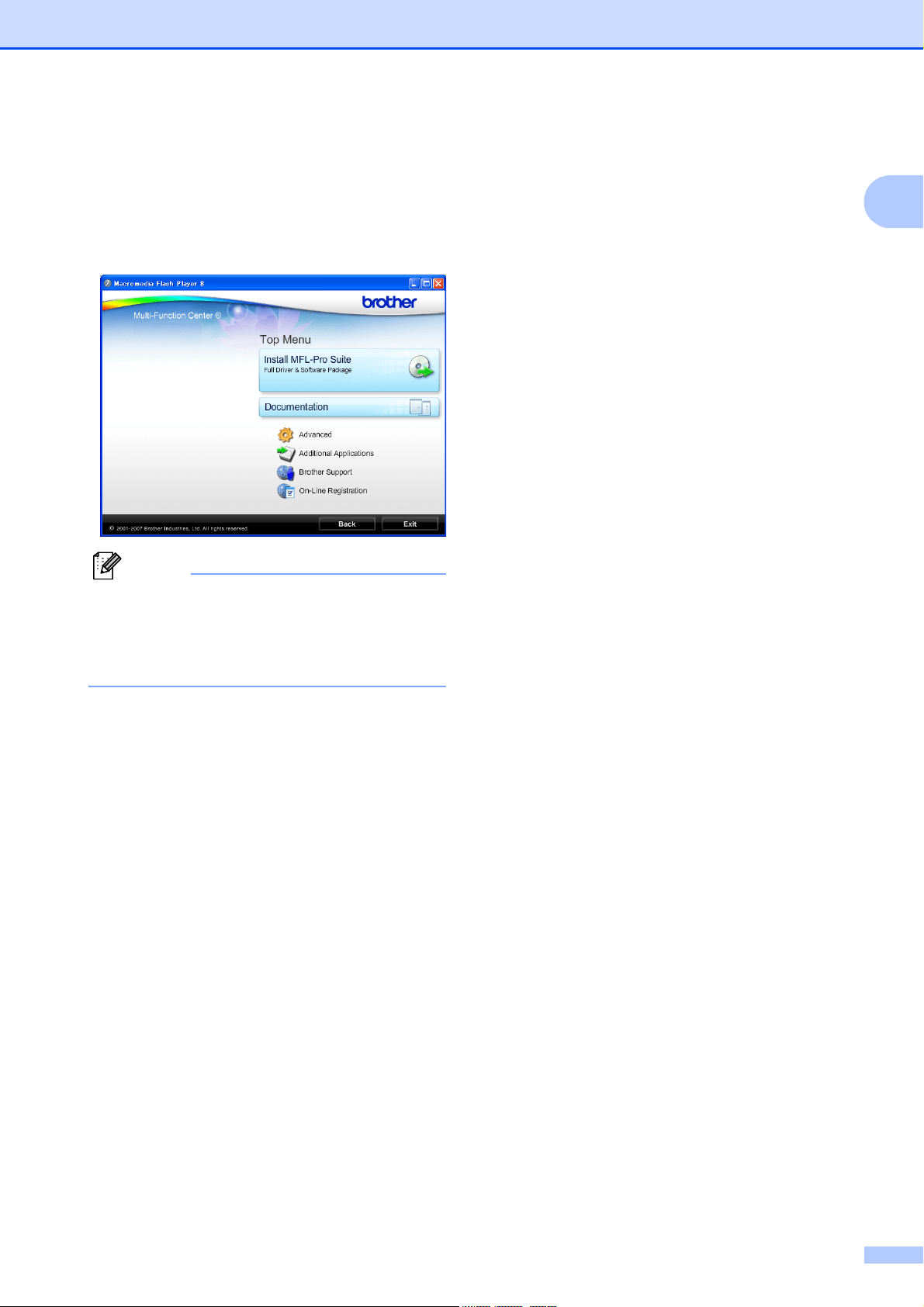
your language. The CD-ROM Top Menu
will appear.
Note
If this window does not appear, use
Windows
®
Explorer to run the start.exe
program from the root directory of the
Brother CD-ROM.
d Click Documentation.
e Click the documentation you want to
read.
HTML documents:
Software User’s Guide and
Network User’s Guide in HTML
format.
This format is recommended for
viewing on your computer.
PDF documents:
User’s Guide for stand-alone
operations and Software User’s
Guide and Network User’s Guide in
PDF format.
This format is recommended for
printing the manuals. Click to go to
the Brother Solutions Center, where
you can view or download the PDF
documents. (Internet access and
PDF Reader software are required.)
How to find Scanning instructions 1
There are several ways you can scan
documents. You can find the instructions as
follows:
Software User’s Guide
Scanning
(Windows
®
2000 Professional/
Windows
®
XP and Windows Vista
®
)
ControlCenter3
(Windows
®
2000 Professional/
Windows
®
XP and Windows Vista
®
)
Network Scanning
(Windows
®
2000 Professional/
Windows
®
XP and Windows Vista
®
)
ScanSoft™ PaperPort™ 11SE with OCR
How-to-Guides
The complete ScanSoft™ PaperPort™
11SE with OCR How-to-Guides can be
viewed from the Help selection in the
ScanSoft™ PaperPort™ 11SE
application.
How to find Network setup
instructions (MFC-255CW only)
1
Your machine can be connected to a wireless
or wired network. You can find basic setup
instructions in the Quick Setup Guide. If your
wireless access point supports
SecureEasySetup™, Wi-Fi Protected Setup
or AOSS™, follow the steps in the Quick
Setup Guide. For more information about
network setup please see the Network User's
Guide.
Chapter 1
4
Viewing Documentation (Macintosh) 1
a Turn on your Macintosh. Insert the
Brother CD-ROM into your CD-ROM
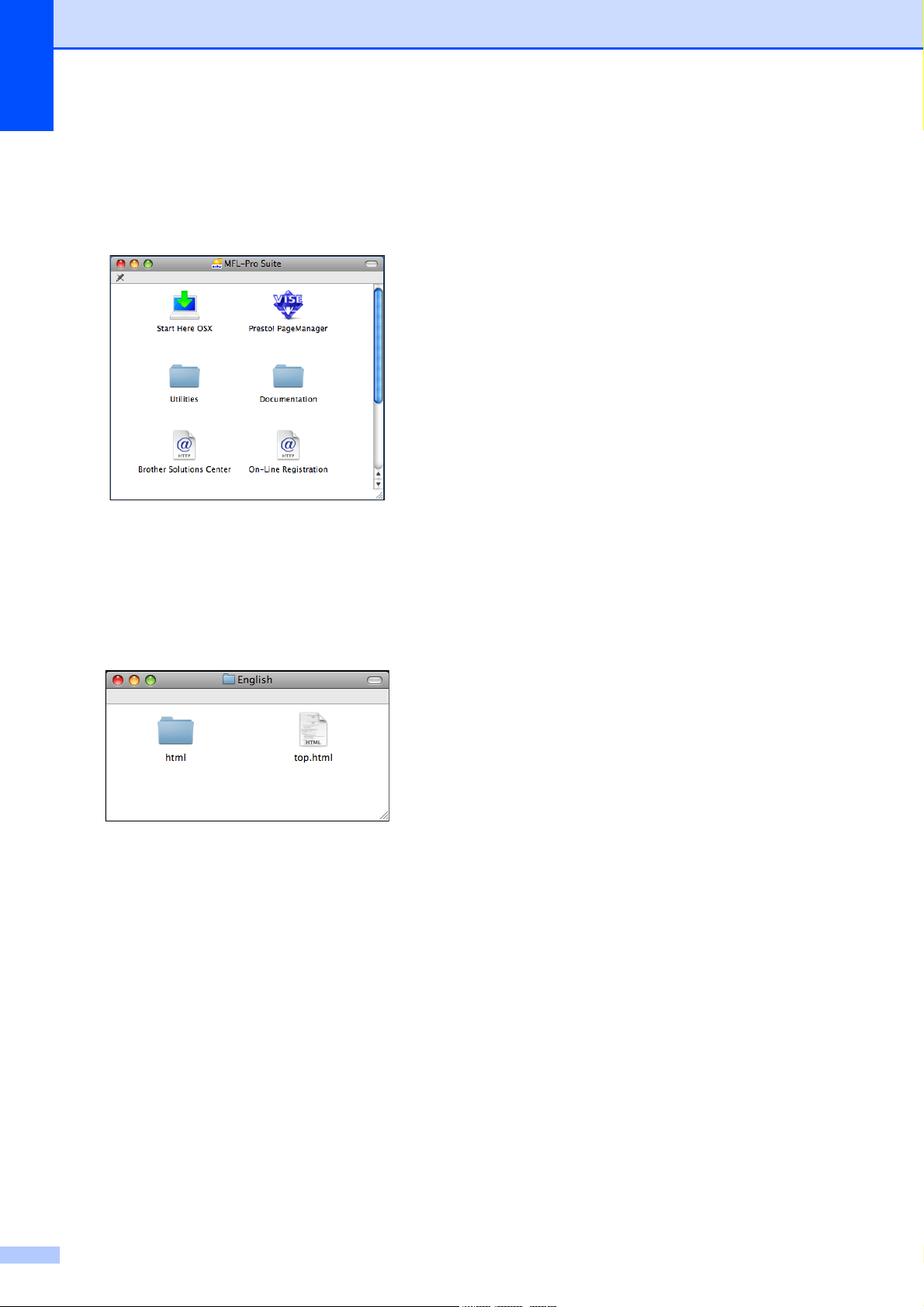
drive. The following window will appear.
b Double-click the Documentation icon.
c Double-click your language folder.
d Double-click top.html to view Software
User’s Guide and Network User’s
Guide in HTML format.
e Click the documentation you want to
read.
Software User’s Guide
Network User’s Guide
How to find Scanning instructions 1
There are several ways you can scan
documents. You can find the instructions as
follows:
Software User’s Guide
Scanning
(Mac OS X 10.3.9 or greater)
ControlCenter2
(Mac OS X 10.3.9 or greater)
Network Scanning
(Mac OS X 10.3.9 or greater)
Presto! PageManager User’s Guide
The complete Presto! PageManager
User’s Guide can be viewed from the Help
selection in the Presto! PageManager
application.
How to find Network setup
instructions (MFC-255CW only)
1
Your machine can be connected to a wireless
or wired network. You can find basic setup
instructions in the Quick Setup Guide. If your
wireless access point supports
SecureEasySetup™, Wi-Fi Protected Setup
or AOSS™, follow the steps in the Quick
Setup Guide. For more information about
network setup please see the Network User's
Guide.
General Information
5
1
Accessing Brother
Support (Windows
®
) 1
You can find all the contacts you will need,
such as Web support (Brother Solutions
Center), Customer Service and Brother
Authorized Service Centers in Brother
numbers on page i and on the Brother
CD-ROM.
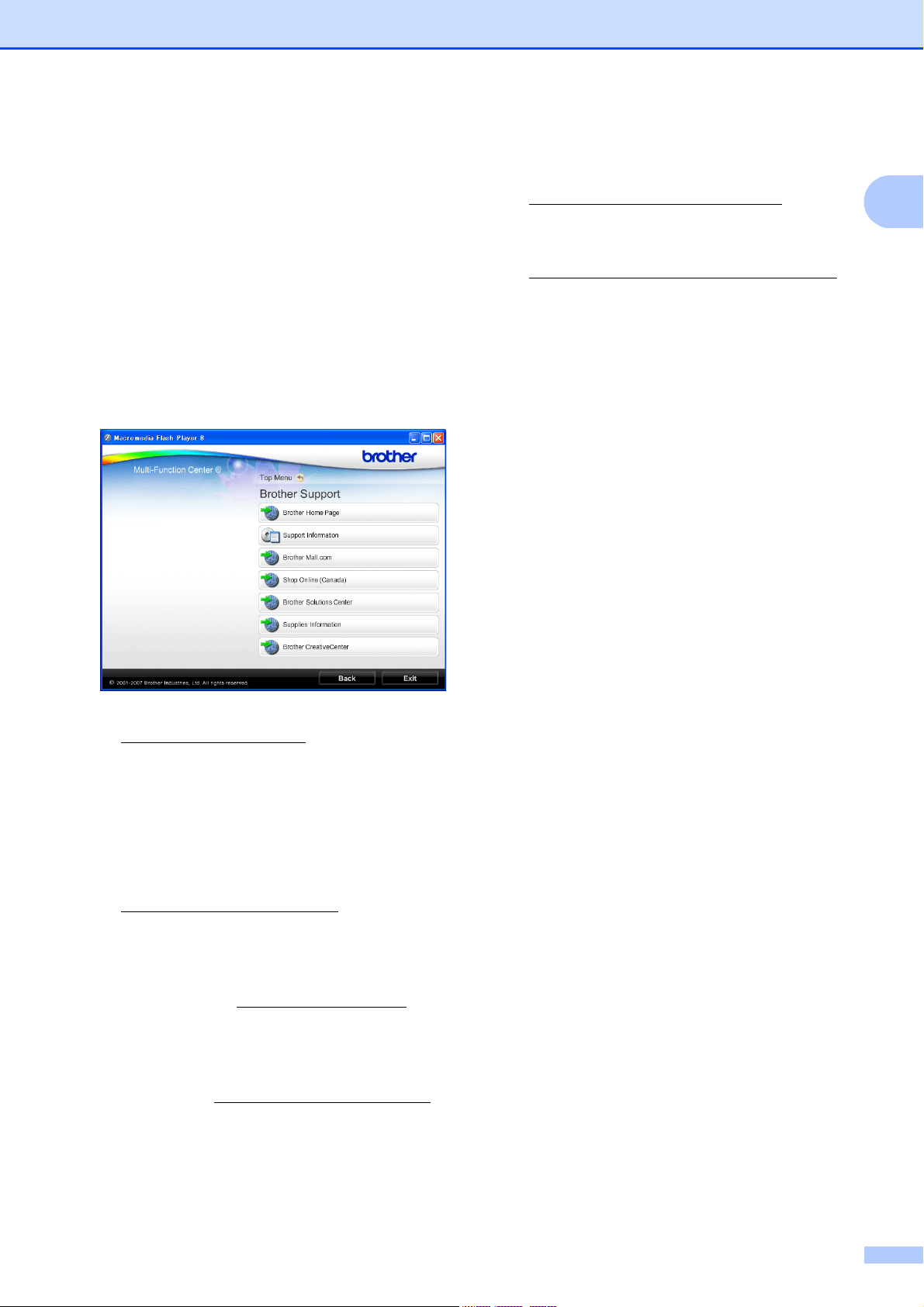
Click Brother Support on the Top Menu.
The following screen will appear:
To access our web site
(http://www.brother.com
), click
Brother Home Page.
To view all Brother Numbers, including
Customer Service numbers for the USA
and Canada, click Support Information.
To access the USA Brother online
shopping mall
(http://www.brothermall.com
) for
additional product and services
information, click Brother Mall.com.
To access Canada’s Brother online
shopping mall (http://www.brother.ca
) for
additional product and services
information, click Shop Online (Canada).
For the latest news and product support
information (http://solutions.brother.com
),
click Brother Solutions Center.
To visit our web site for original/genuine
Brother supplies
(http://www.brother.com/original/
), click
Supplies Information.
To access the Brother CreativeCenter
(http://www.brother.com/creativecenter/
)
for FREE photo projects and printable
downloads, click
Brother CreativeCenter.
To return to the Top Menu, click Back or if
you are finished, click Exit.
Chapter 1
6
Control panel overview 1
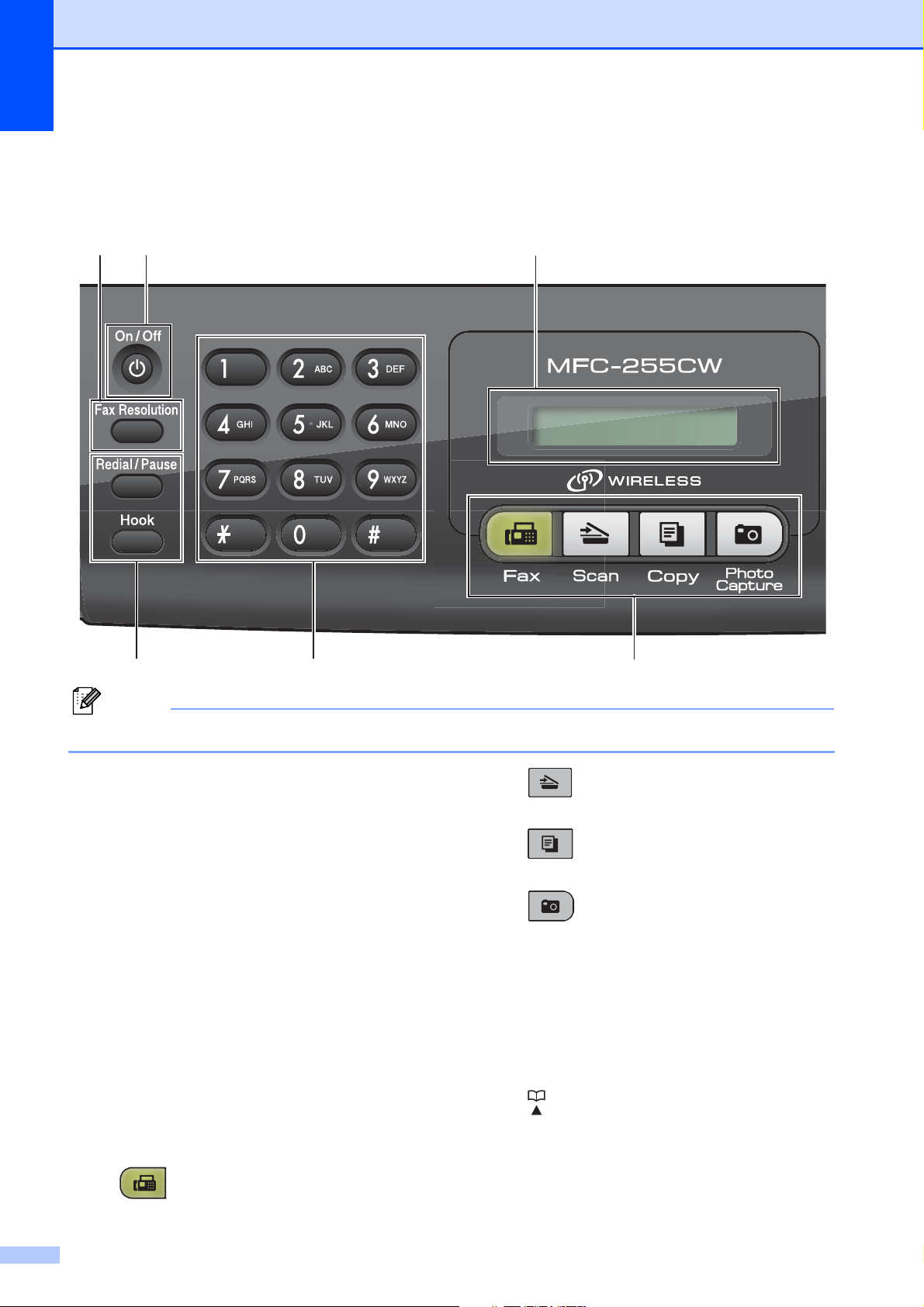
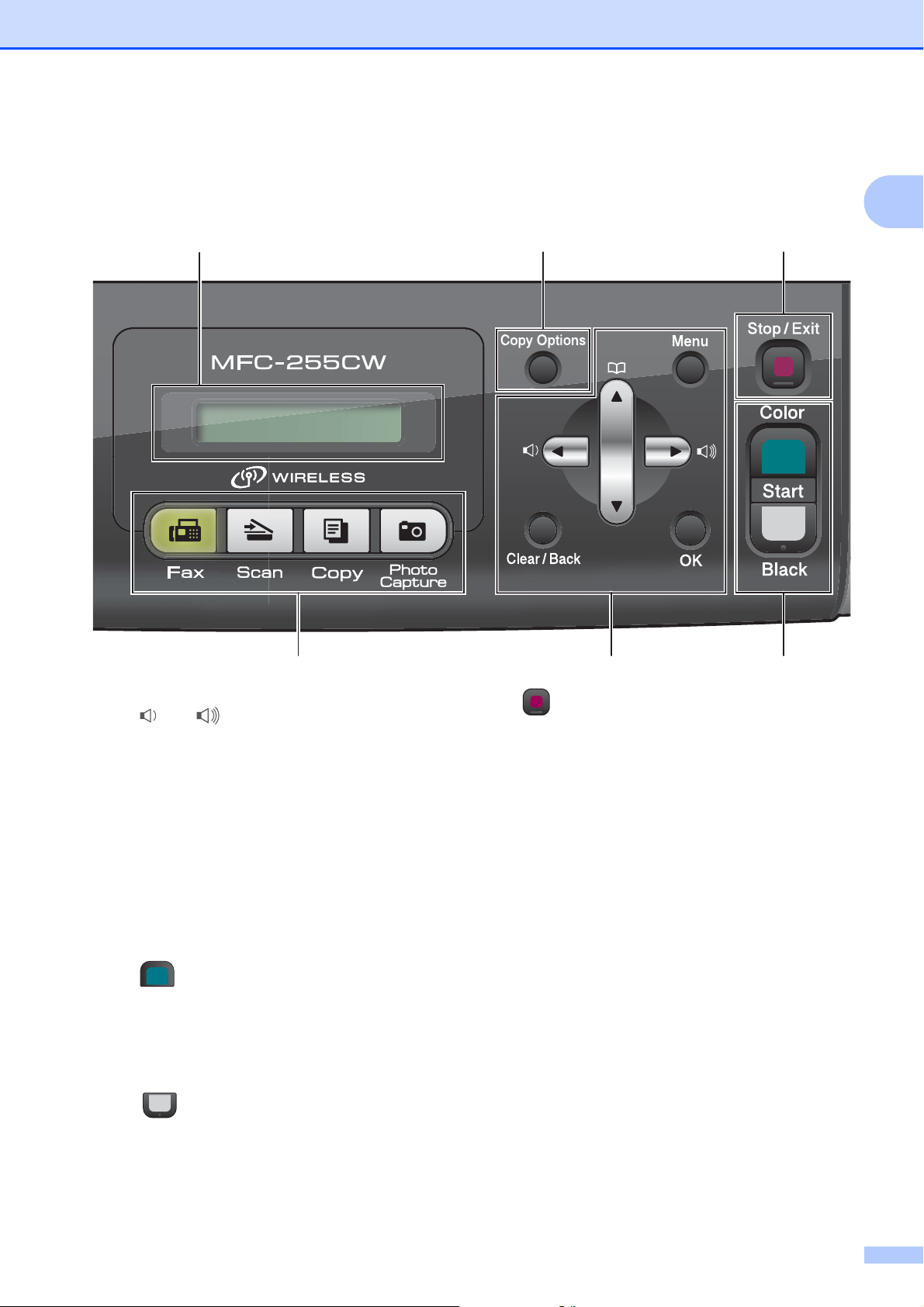
The MFC-255CW and MFC-295CN have the same control panel keys.
Note
Most of the illustrations in this User’s Guide show the MFC-255CW.
1 Fax and telephone keys:
Redial/Pause
Redials the last number called. It also inserts a
pause when programming quick dial numbers.
Hook
Press before dialing if you want to make
sure a fax machine will answer, and then
press Black Start or Color Start.
Also, press this key after picking up the
handset of the external telephone during
the F/T pseudo/double-ring.
2Dial Pad
Use these keys to dial telephone and fax
numbers and as a keyboard for entering
information into the machine.
(Canada only) The # key lets you temporarily
switch the dialing mode during a telephone call
from Pulse to Tone.
3 Mode keys:
Fax
Lets you access Fax mode.
Scan
Lets you access Scan mode.
Copy
Lets you access Copy mode.
Photo Capture
Lets you access PhotoCapture Center
®
mode.
4 Menu keys:
Menu
Lets you access the main menu to program
the machine.
Speed Dial key
Press to store Speed Dial and
Group numbers in the machine’s memory.
Lets you store, look up, and dial numbers in
the memory.
231
9810
12/10 11:53 Fax
General Information
7
1
Volume keys
d c
While the machine is idle, you can press
these keys to adjust the ring volume.
d
Press to scroll backward to a menu selection.
a or b
Press to scroll through the menus and options.
Clear/Back
Press to cancel the current setting.
OK
Lets you choose a setting.
5 Start keys:
Color Start
Lets you start sending faxes or making
copies in full color. Also lets you start a
scanning operation (in color or black &
white, depending on the scanning setting in
the ControlCenter software).
Black Start
Lets you start sending faxes or making
copies in black & white. Also lets you start
a scanning operation (in color or black &
white, depending on the scanning setting in
the ControlCenter software).
6 Stop/Exit
Stops an operation or exits the menu.
7 Copy Options
Lets you temporarily change the copy settings
when in copy mode.
8 LCD (liquid crystal display)
Displays messages on the screen to help you
set up and use your machine.
9On/Off
You can turn the machine on and off.
If you turn the machine off, it will still
periodically clean the print head to maintain
print quality. To maintain print quality, prolong
print head life, and provide the best ink
cartridge economy, you should keep your
machine connected to the power at all times.
10 Fax Resolution
Lets you temporarily change the resolution
when sending a fax.
345
876
12/10 11:53 Fax
8
2
Loading paper and
other print media
2
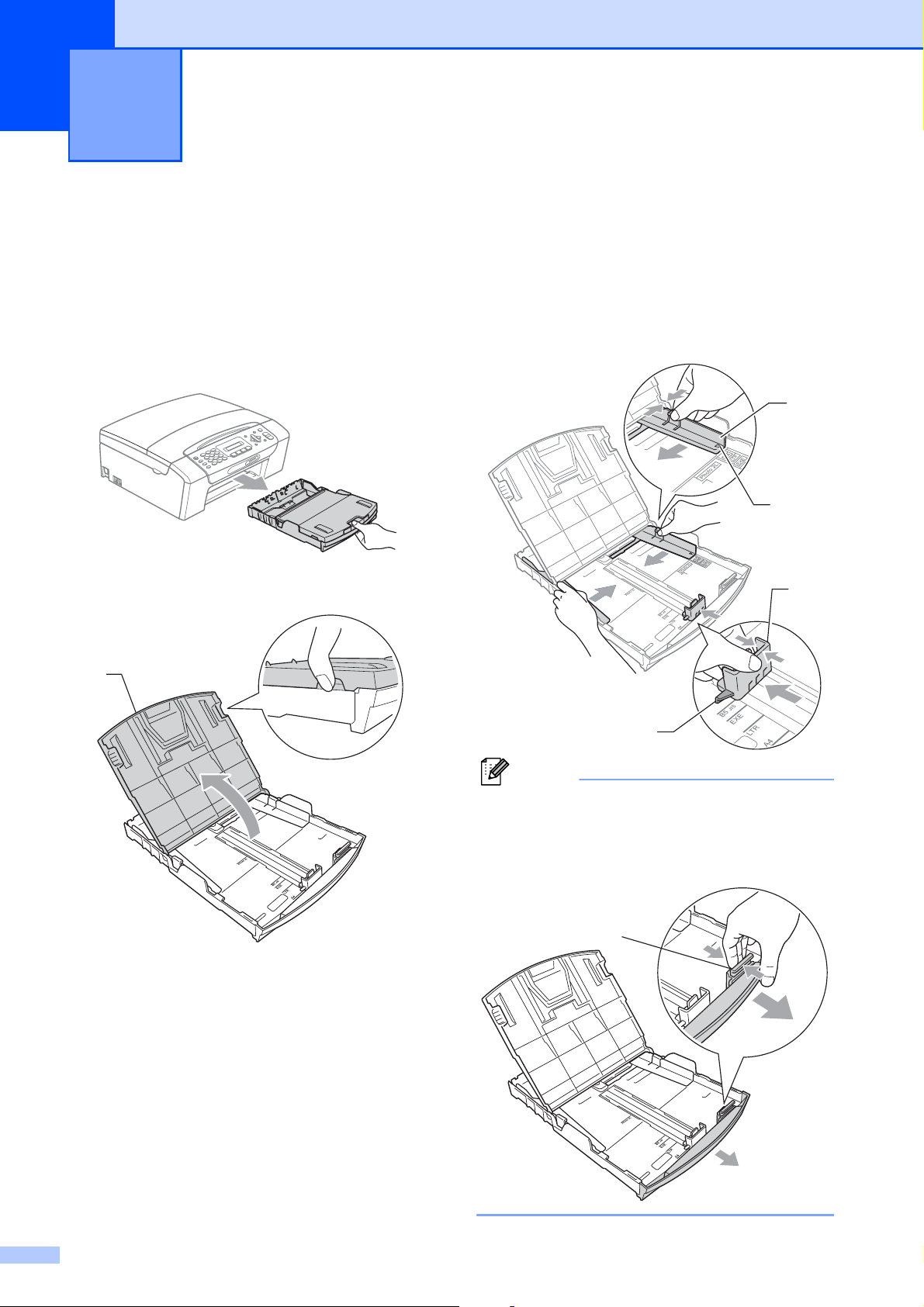
a If the paper support flap is open, close it,
and then close the paper support. Pull
the paper tray completely out of the
machine.
b Lift the output paper tray cover (1).
c
With both hands, gently press and slide
the paper side guides (1) and then the
paper length guide (2) to fit the paper size.
Make sure that the triangular marks (3)
on the paper side guides (1) and paper
length guide (2) line up with the marks
for the paper size you are using.
Note
When you use Legal size paper, press
and hold the universal guide release
button (1) as you slide out the front of the
paper tray.
Loading paper and documents 2
1
3
1
3
2
1
Loading paper and documents
9
2
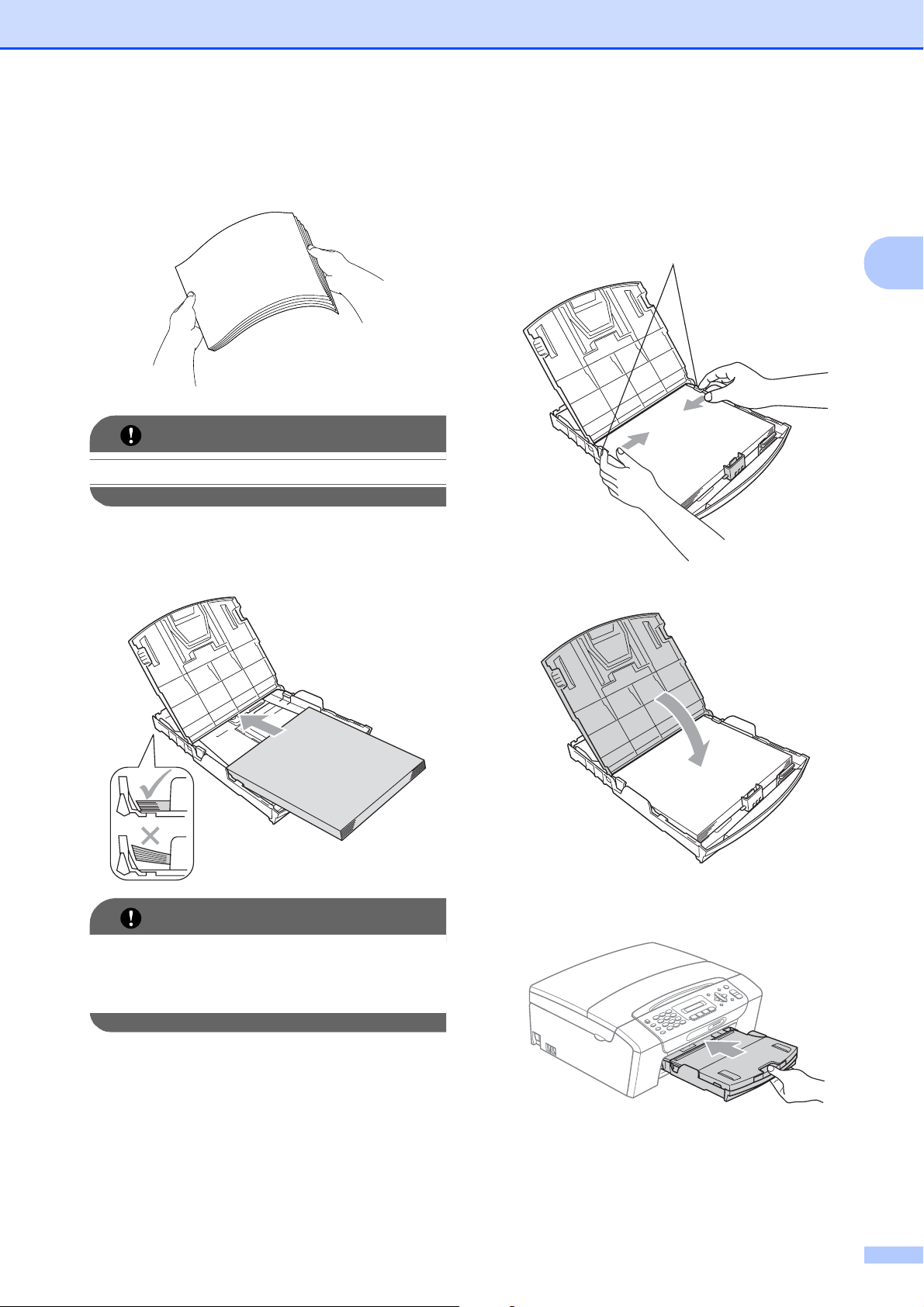
d Fan the stack of paper well to avoid
paper jams and misfeeds.
IMPORTANT
Always make sure the paper is not curled.
e Gently put the paper into the paper tray
print side down and top edge in first.
Check that the paper is flat in the tray.
IMPORTANT
Be careful that you do not push the paper
in too far; it may lift at the back of the tray
and cause feed problems.
f Gently adjust the paper side guides (1)
to fit the paper using both hands.
Make sure the paper side guides touch
the sides of the paper.
g Close the output paper tray cover.
h Slowly push the paper tray completely
into the machine.
1
Chapter 2
10
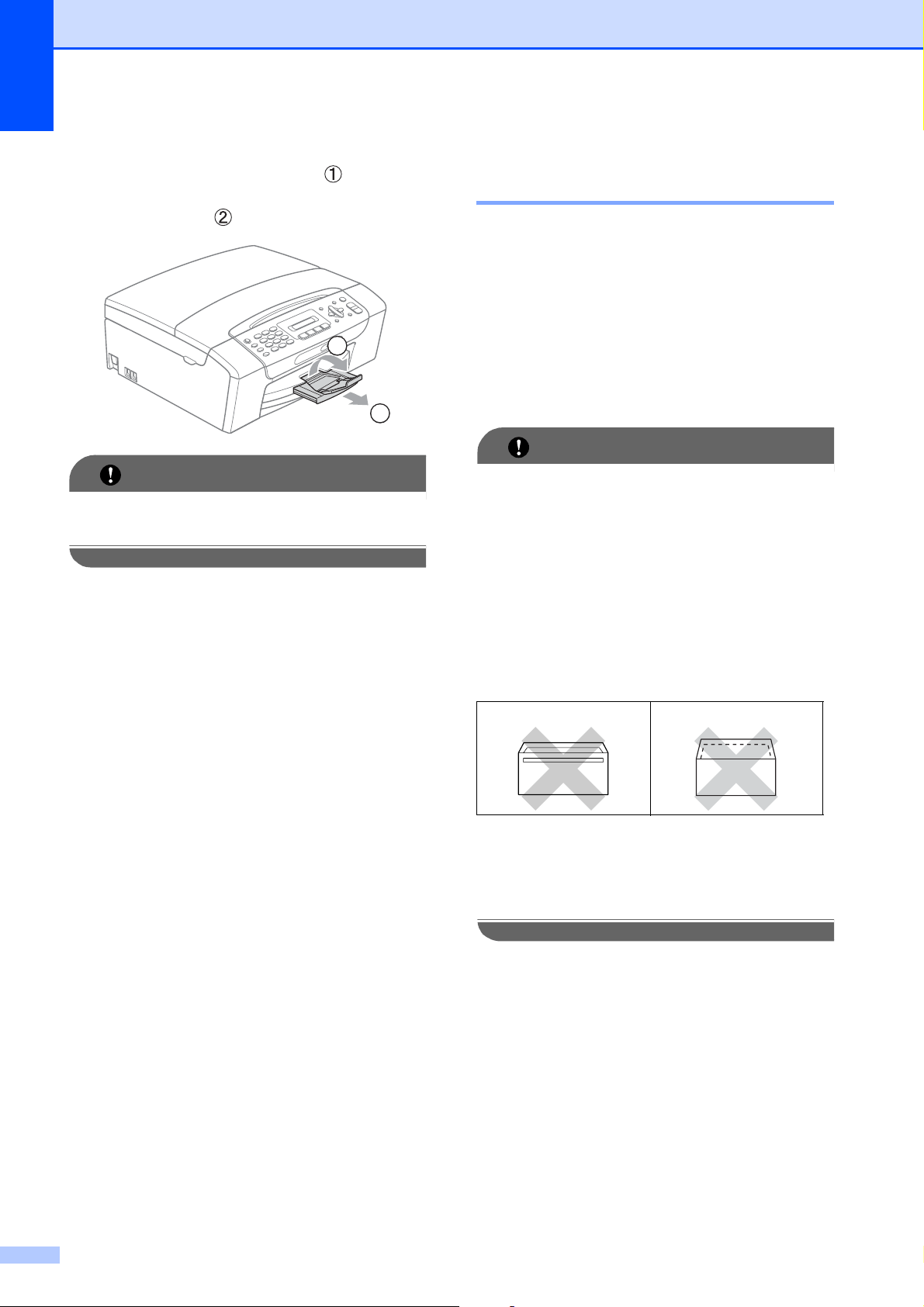
i While holding the paper tray in place,
pull out the paper support ( ) until it
clicks, and then unfold the paper
support flap ( ).
IMPORTANT
DO NOT use the paper support flap for
Legal size paper.
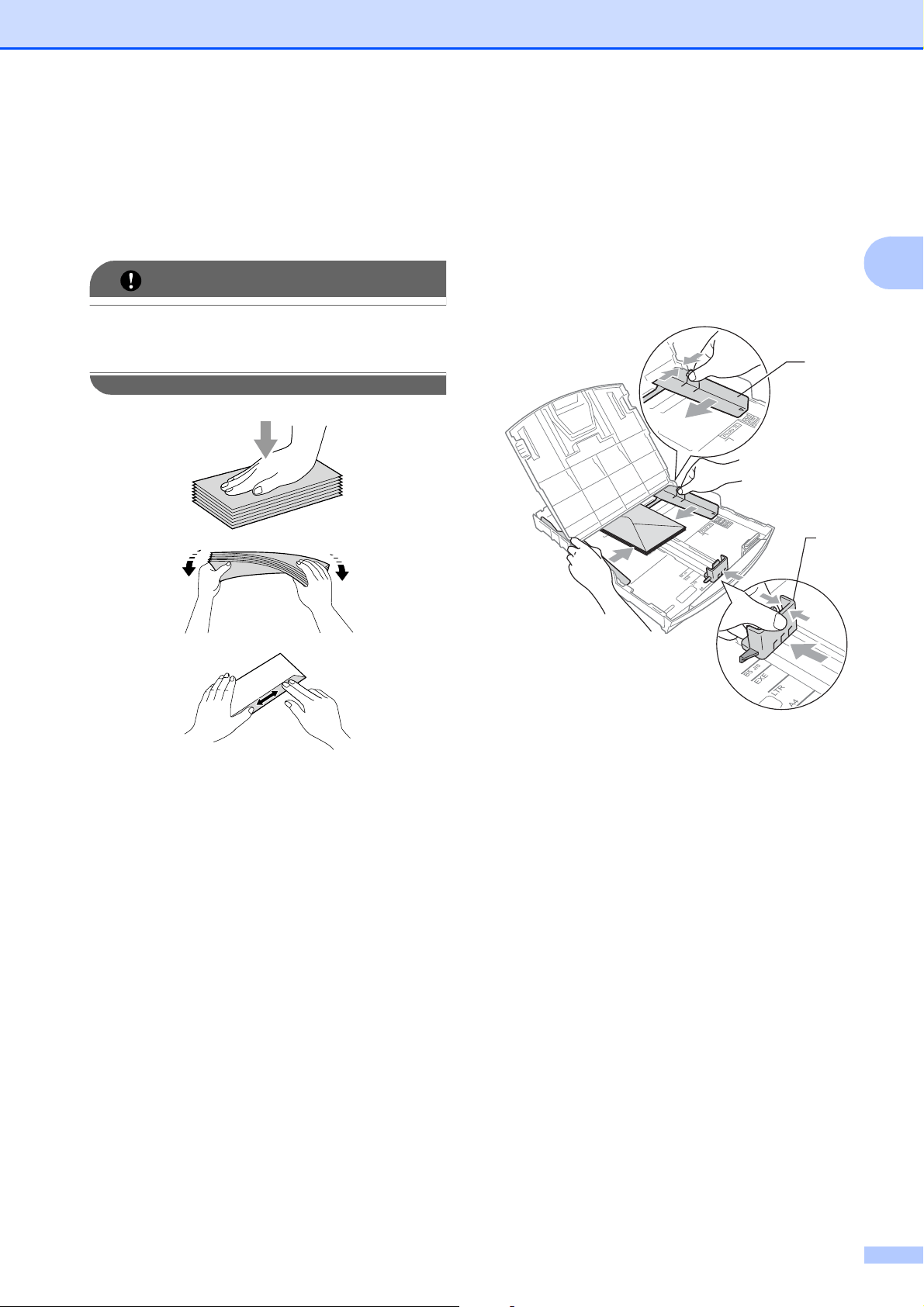
Loading envelopes and
postcards 2
About envelopes 2
Use envelopes that weigh from 20 to 25 lb
(80 to 95 g/m
2
).
Some envelopes need margin settings to
be set in the application. Make sure you
do a test print first before printing many
envelopes.
IMPORTANT
DO NOT use any of the following types of
envelopes, as they will cause paper feed
problems:
• That are of a baggy construction.
• That are embossed (have raised
writing on them).
• That have clasps or staples.
• That are pre-printed on the inside.
Occasionally you may experience paper
feed problems caused by the thickness,
size and flap shape of the envelopes you
are using.
1
2
Glue 2 Double flap 2
Loading paper and documents
11
2
Loading envelopes and postcards 2
a Before loading, press the corners and
sides of envelopes or postcards to make
them as flat as possible.
IMPORTANT
If envelopes or postcards are
‘double-feeding’, put one envelope or
postcard in the paper tray at a time.
b Put envelopes or postcards into the
paper tray with the address side down
and the leading edge in first as shown in
the illustration. With both hands, gently
press and slide the paper side
guides (1) and paper length guide (2) to
fit the size of the envelopes or
postcards.
2
1
Chapter 2
12
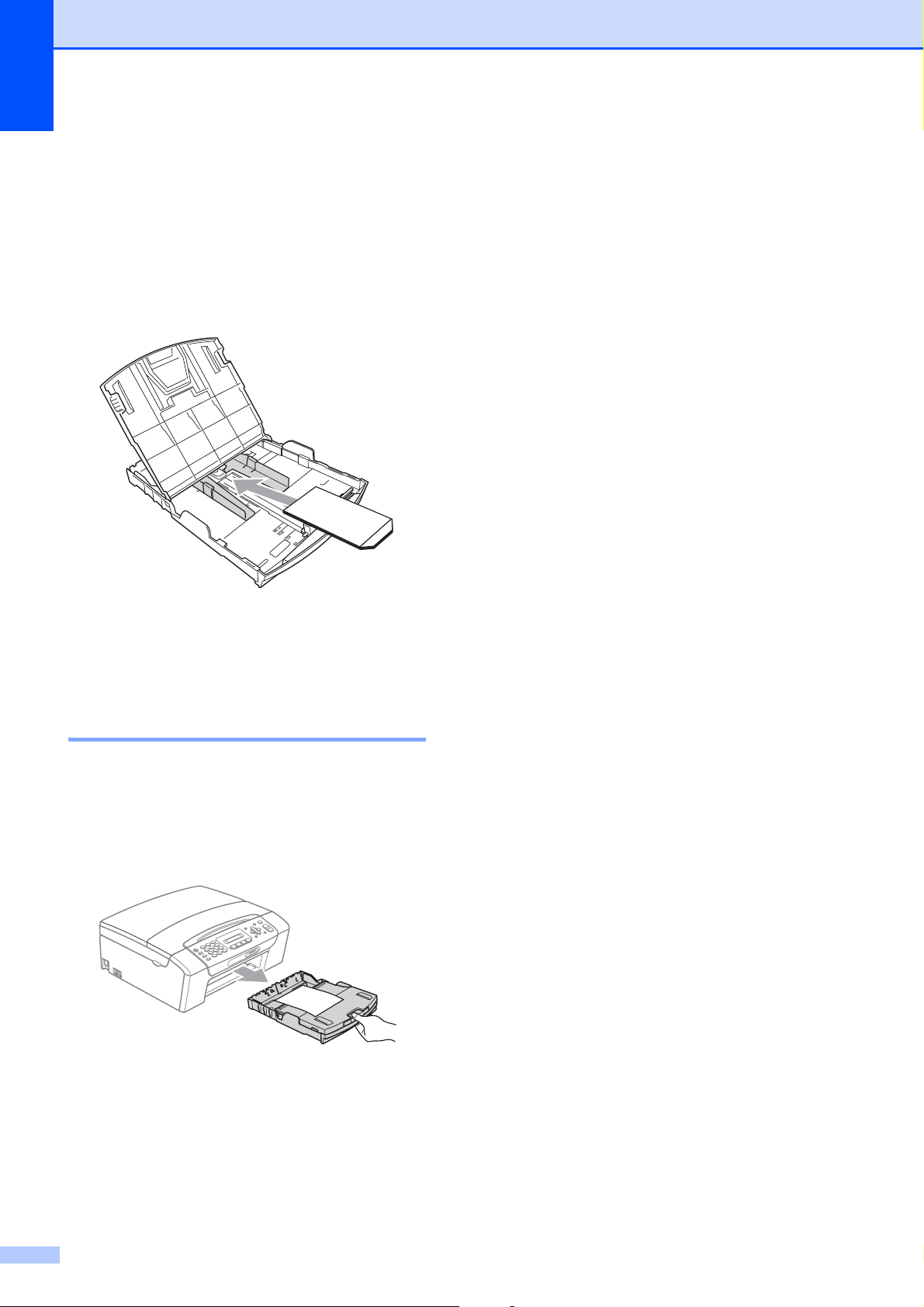
If you have problems printing on
envelopes with the flap on the short edge,
try the following:
2
a Open the envelope flap.
b Put the envelope into the paper tray with
the address side down and the flap
positioned as shown in the illustration.
c Adjust the size and margin in your
application.
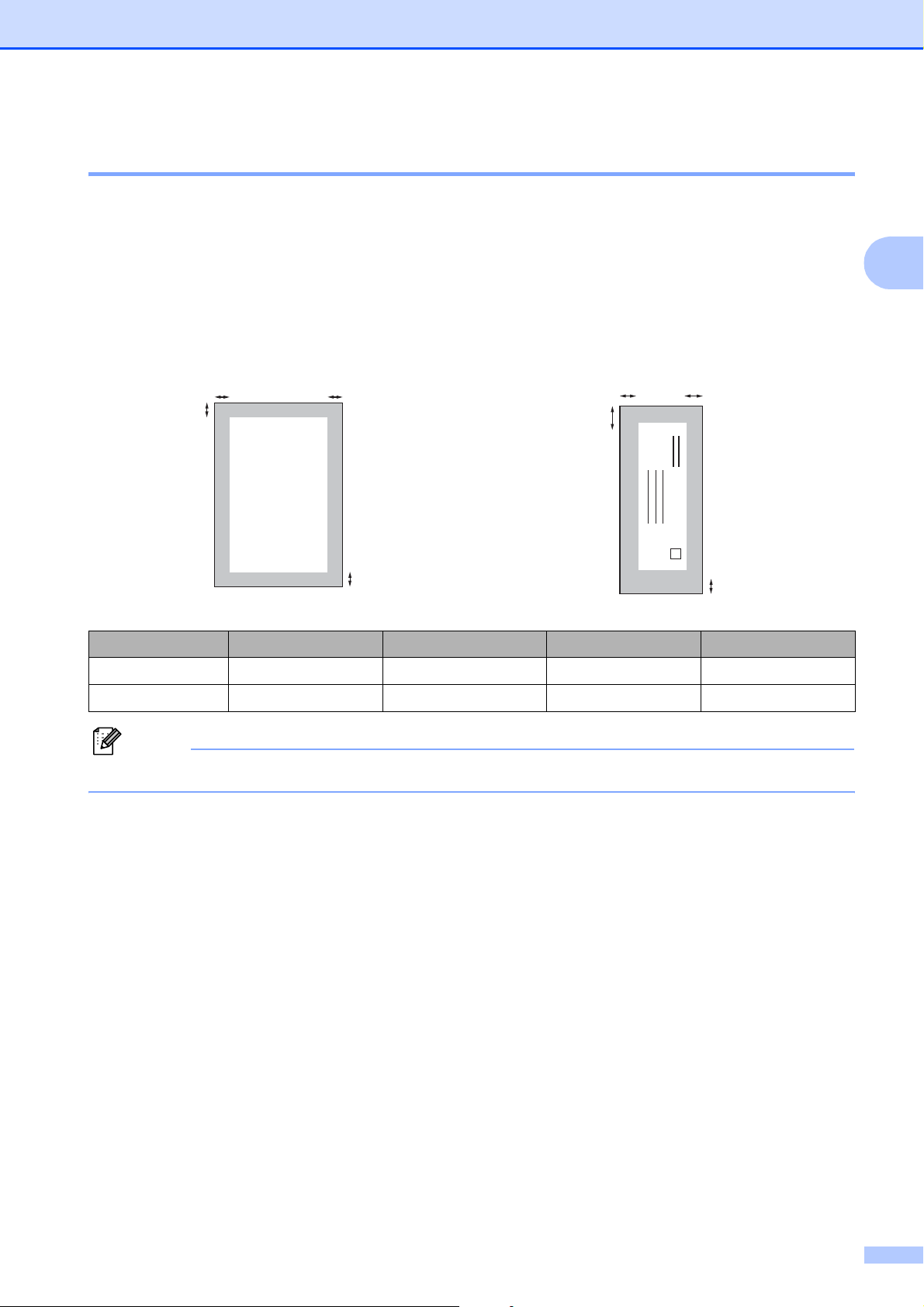
Removing small printouts
from the machine 2
When the machine ejects small paper onto
the output paper tray cover you may not be
able to reach it. Make sure printing has
finished, and then pull the tray completely out
of the machine.
Loading paper and documents
13
2
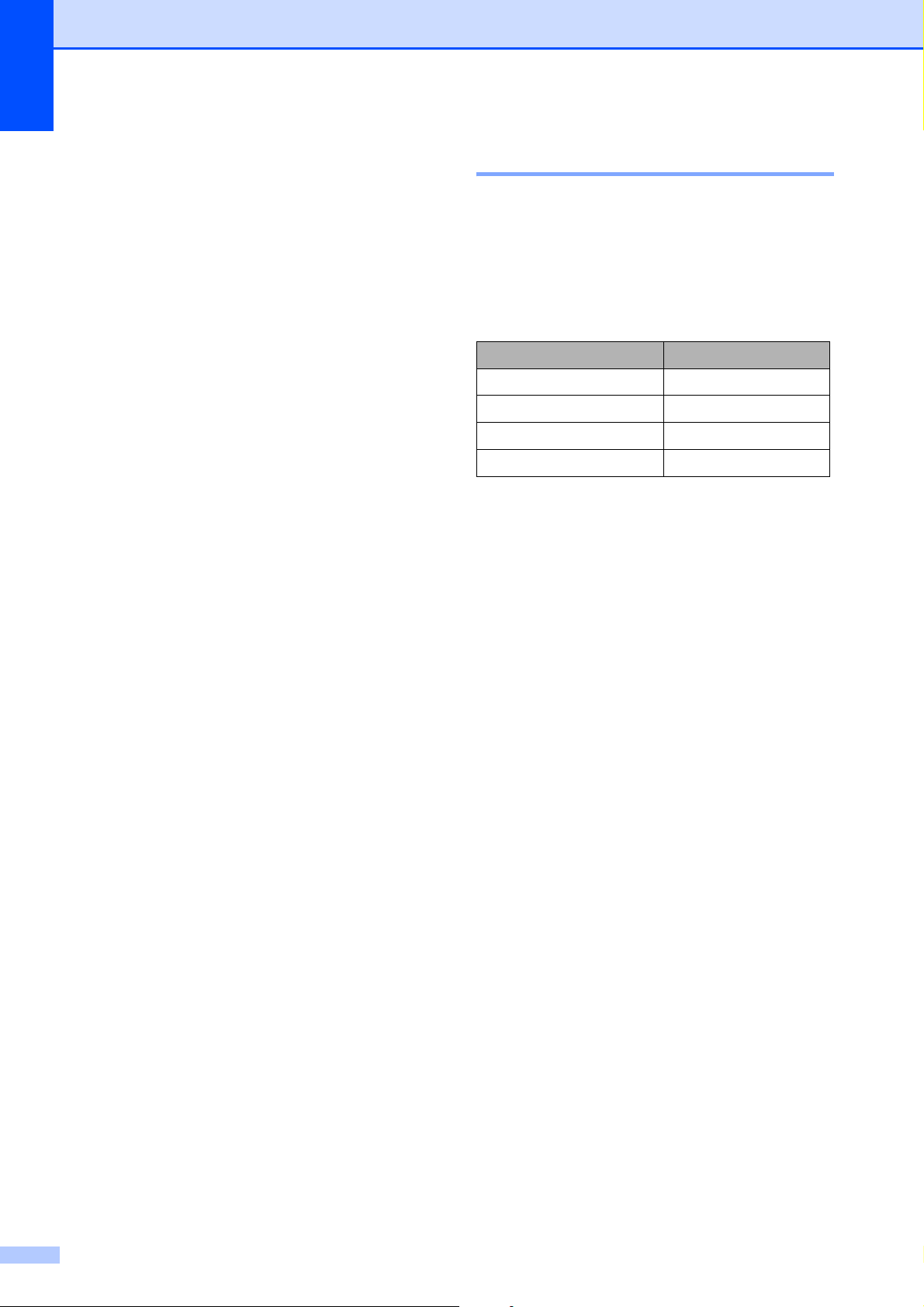
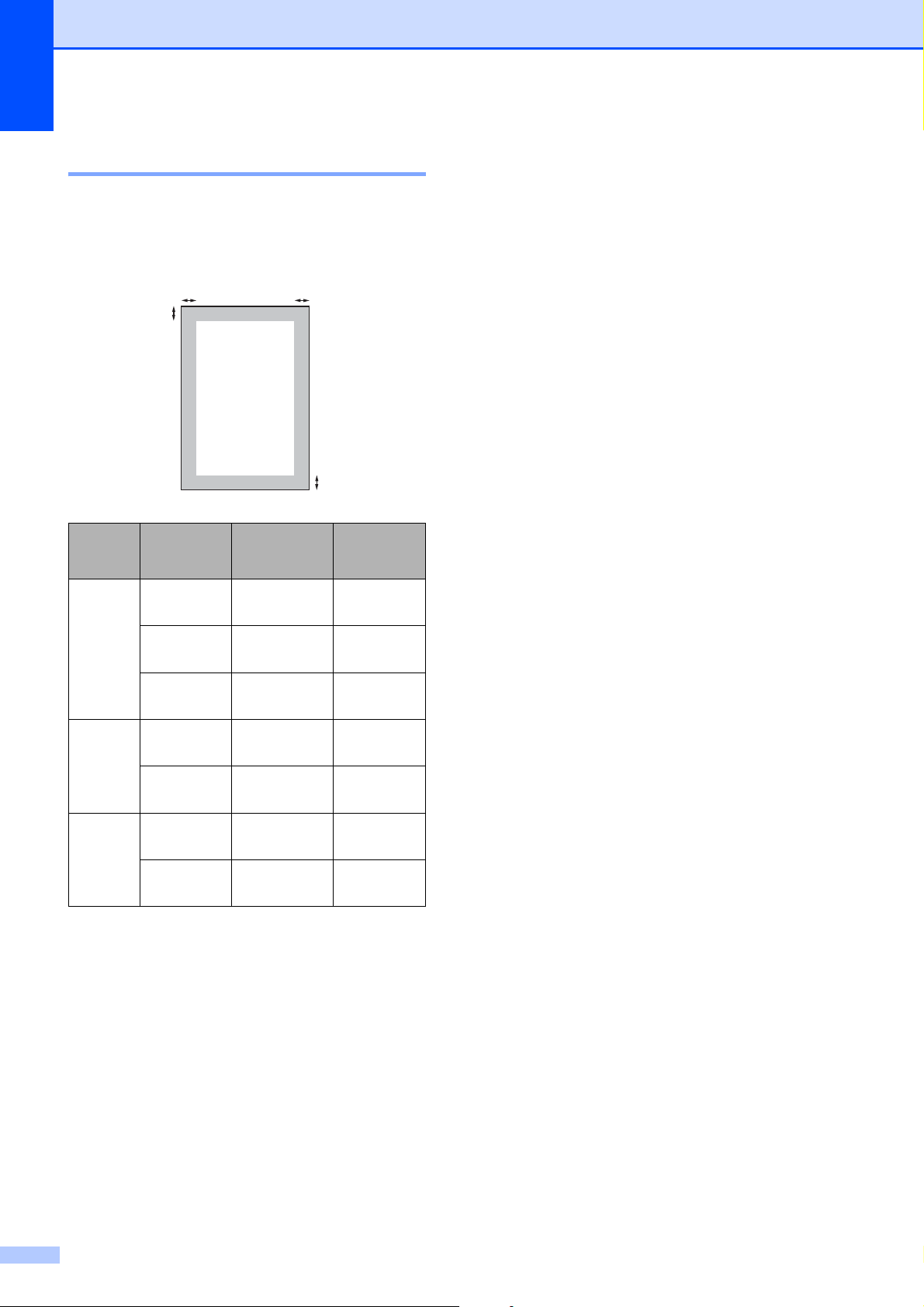
Printable area 2
The printable area depends on the settings in the application you are using. The figures below
show the unprintable areas on cut sheet paper and envelopes. The machine can print in the
shaded areas of cut sheet paper only when the Borderless print feature is available and turned
on. (See Printing for Windows
®
or Printing and Faxing for Macintosh in the Software User’s Guide
on the CD-ROM.)
Note
The Borderless feature is not available for envelopes.
Cut Sheet Paper Envelopes
Top (1) Bottom (2) Left (3) Right (4)
Cut Sheet 0.12 in. (3 mm) 0.12 in. (3 mm) 0.12 in. (3 mm) 0.12 in. (3 mm)
Envelopes 0.47 in. (12 mm) 0.95 in. (24 mm) 0.12 in. (3 mm) 0.12 in. (3 mm)
3
4
1
2
3
4
1
2
Chapter 2
14
Acceptable paper and
other print media
2
The print quality can be affected by the type
of paper you use in the machine.
To get the best print quality for the settings
you have chosen, always set the Paper Type
to match the type of paper you load.
You can use plain paper, inkjet paper (coated
paper), glossy paper, transparencies and
envelopes.
We recommend testing various paper types
before buying large quantities.
For best results, use Brother paper.
When you print on inkjet paper (coated
paper), transparencies and photo paper,
be sure to choose the proper print media
in the ‘Basic’ tab of the printer driver or in
the Paper Type setting of the machine’s
menu. (See Paper Type on page 22.)
When you print on Brother Photo paper,
load one extra sheet of the same photo
paper in the paper tray. An extra sheet has
been included in the paper package for
this purpose.
When you use transparencies or photo
paper, remove each sheet at once to
prevent smudging or paper jams.
Avoid touching the printed surface of the
paper immediately after printing; the
surface may not be completely dry and
may stain your fingers.
Recommended print media 2
To get the best print quality, we suggest using
Brother paper. (See the table below.)
We recommend using ‘3M Transparency
Film’ when you print on transparencies.
Brother paper
Paper Type Item
Letter Plain
BP60PL100 (USA only)
Letter Glossy Photo BP71GLTR
Letter Inkjet (Matte) BP60ML (USA only)
4 × 6 in. Glossy Photo BP71GP
Loading paper and documents
15
2
Handling and using print
media 2
Store paper in its original packaging, and
keep it sealed. Keep the paper flat and
away from moisture, direct sunlight and
heat.
Avoid touching the shiny (coated) side of
photo paper. Load photo paper with the
shiny side facing down.
Avoid touching either side of
transparencies because they absorb
water and perspiration easily, and this
may cause decreased output quality.
Transparencies designed for laser
printers/copiers may stain your next
document. Use only transparencies
recommended for inkjet printing.
IMPORTANT
DO NOT use the following kinds of paper:
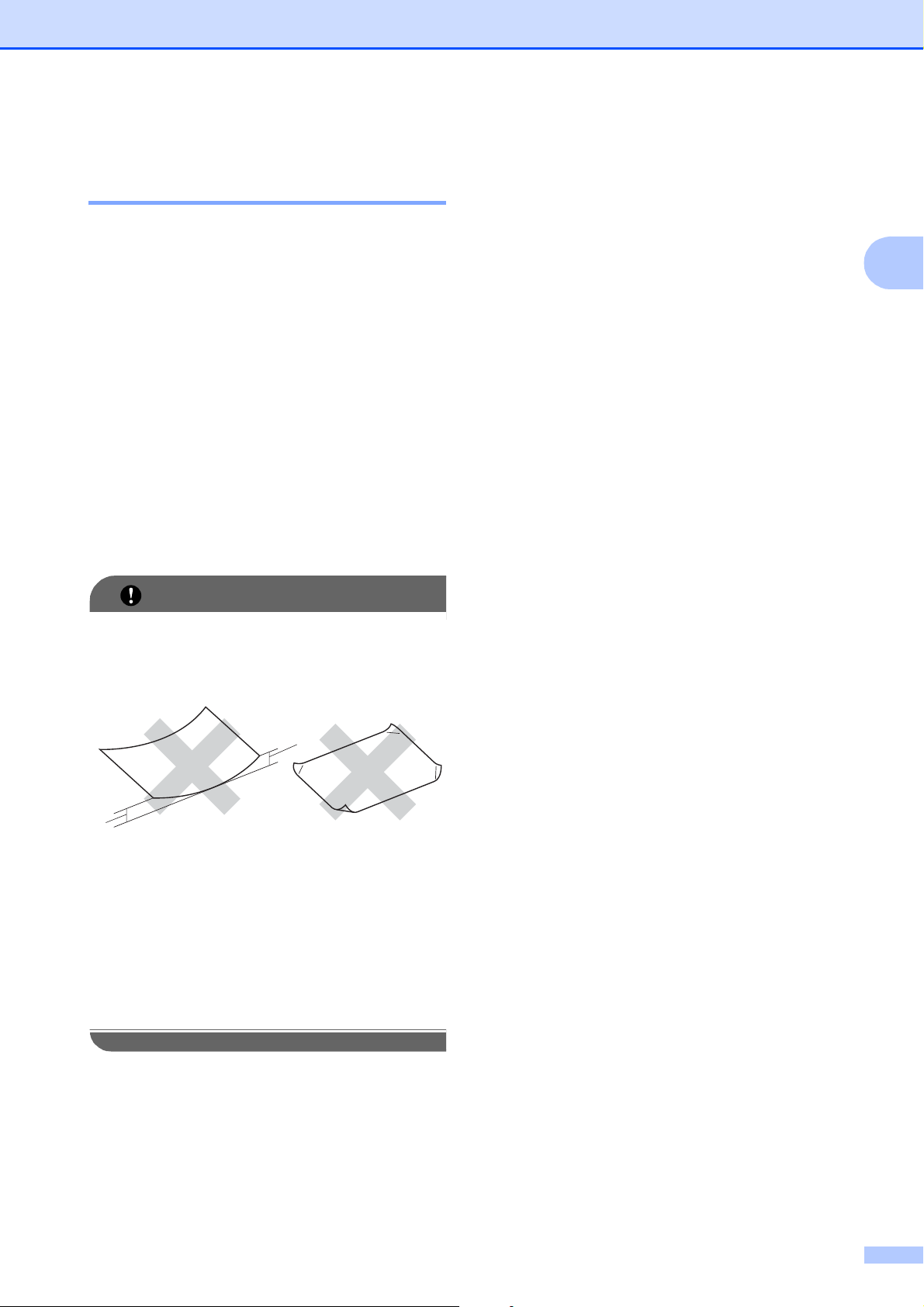
• Damaged, curled, wrinkled, or
irregularly shaped paper
1 0.08 in. (2 mm) or greater curve may
cause jam to occur.
• Extremely shiny or highly textured
paper
• Paper that cannot be arranged
uniformly when stacked
• Paper made with a short grain
Paper capacity of the output paper
tray cover
2
Up to 50 sheets of Letter, Legal or A4 20 lb
(80 g/m
2
) paper.
Transparencies and photo paper must be
picked up from the output paper tray cover
one page at a time to avoid smudging.
1
1

Chapter 2
16
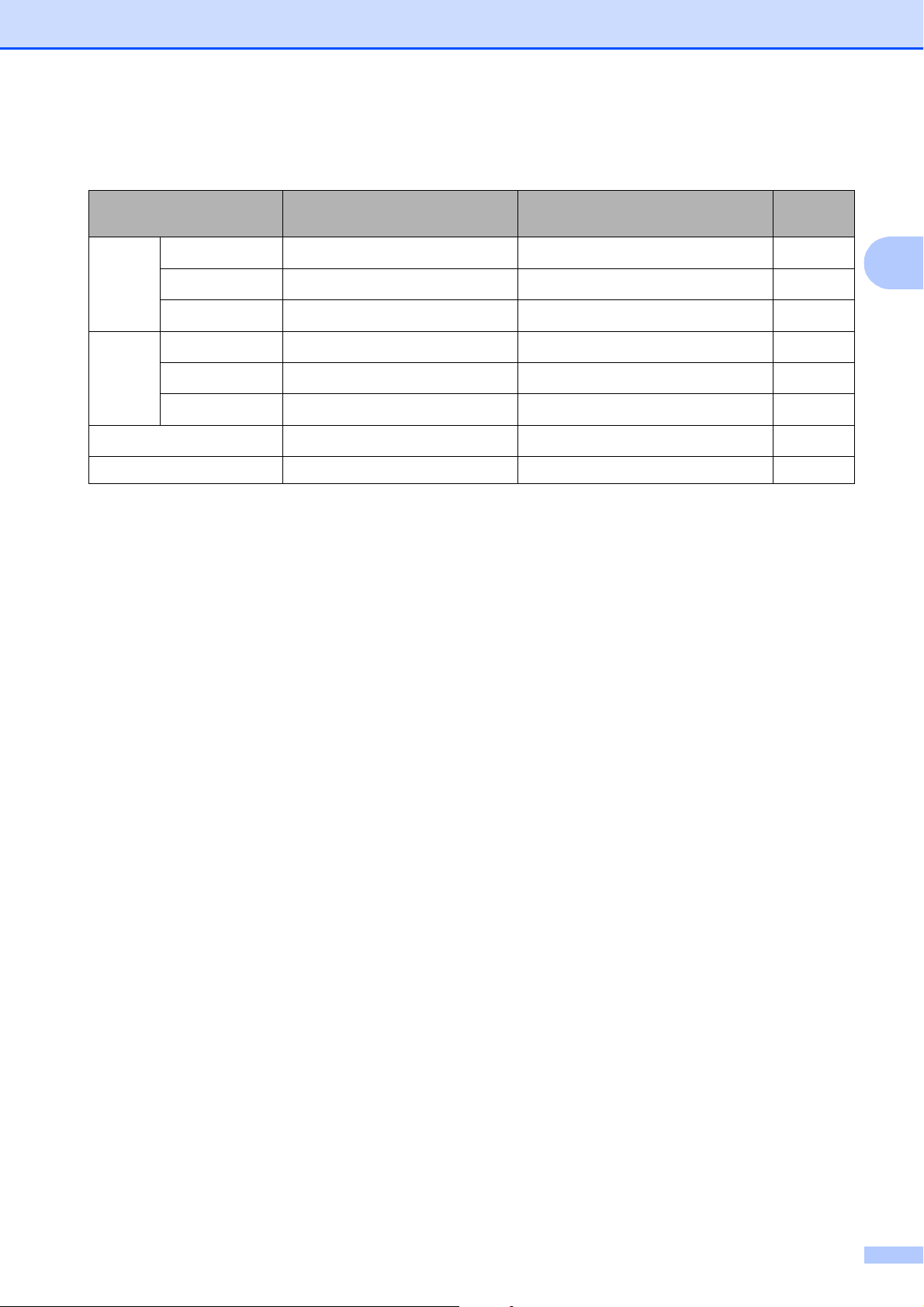
Choosing the right print media 2
Paper type and size for each operation 2
Paper Type Paper Size Usage
Fax Copy
Photo
Capture
Printer
Cut Sheet Letter 8 1/2 × 11 in. (215.9 × 279.4 mm) Yes Yes Yes Yes
A4 8.3 × 11.7 in. (210 × 297 mm) Yes Yes Yes Yes
Legal 8 1/2 × 14 in. (215.9 × 355.6 mm) Yes Yes – Yes
Executive 7 1/4 × 10 1/2 in. (184 × 267 mm) –––Yes
JIS B5 7.2 × 10.1 in. (182 × 257 mm)–––Yes
A5 5.8 × 8.3 in. (148 × 210 mm) – Yes – Yes
A6 4.1 × 5.8 in. (105 × 148 mm)–––Yes
Cards Photo 4 × 6 in. (10 × 15 cm) – Yes Yes Yes
Photo 2L 5 × 7 in. (13 × 18 cm) – – Yes Yes
Index Card 5 × 8 in. (127 × 203 mm) –––Yes
Postcard 1 3.9 × 5.8 in. (100 × 148 mm)–––Yes
Postcard 2
(Double)
5.8 × 7.9 in. (148 × 200 mm)–––Yes
Envelopes C5 Envelope 6.4 × 9 in. (162 × 229 mm) –––Yes
DL Envelope 4.3 × 8.7 in. (110 × 220 mm)–––Yes
COM-10 4 1/8 × 9 1/2 in. (105 × 241 mm) –––Yes
Monarch 3 7/8 × 7 1/2 in. (98 × 191 mm) –––Yes
JE4 Envelope 4.1 × 9.3 in. (105 × 235 mm)–––Yes
Transparencies
Letter 8 1/2 × 11 in. (215.9 × 279.4 mm) – Yes – Yes
A4 8.3 × 11.7 in. (210 × 297 mm) – Yes – Yes
Legal 8 1/2 × 14 in. (215.9 × 355.6 mm) – Yes – Yes
A5 5.8 × 8.3 in. (148 × 210 mm) – Yes – Yes
Loading paper and documents
17
2
Paper weight, thickness and capacity 2
1
Up to 100 sheets of plain paper 20 lb (80 g/m
2
).
2
BP71 69 lb (260 g/m
2
) paper is especially designed for Brother inkjet machines.
Paper Type Weight Thickness No. of
sheets
Cut
Sheet
Plain Paper
17 to 32 lb (64 to 120 g/m
2
)
3 to 6 mil (0.08 to 0.15 mm)
100
1
Inkjet Paper
17 to 53 lb (64 to 200 g/m
2
)
3 to 10 mil (0.08 to 0.25 mm) 20
Glossy Paper
Up to 58 lb (Up to 220 g/m
2
)
Up to 10 mil (Up to 0.25 mm)
20
2
Cards Photo 4" × 6"
Up to 58 lb (Up to 220 g/m
2
)
Up to 10 mil (Up to 0.25 mm)
20
2
Index Card
Up to 32 lb (Up to 120 g/m
2
)
Up to 6 mil (Up to 0.15 mm) 30
Postcard
Up to 53 lb (Up to 200 g/m
2
)
Up to 10 mil (Up to 0.25 mm) 30
Envelopes
20 to 25 lb (75 to 95 g/m
2
)
Up to 20 mil (Up to 0.52 mm) 10
Transparencies – – 10
Chapter 2
18
Loading documents 2
You can send a fax, make copies, and scan
from the ADF (automatic document feeder)
and from the scanner glass.
Using the ADF
(MFC-295CN only) 2
The ADF can hold up to 15 pages and feeds
each sheet individually. Use standard 20 lb
(80 g/m
2
) paper and always fan the pages
before putting them in the ADF.
Recommended environment 2
Document Sizes Supported 2
How to load documents 2
IMPORTANT
• DO NOT pull on the document while it is
feeding.
• DO NOT use paper that is curled,
wrinkled, folded, ripped, stapled, paper
clipped, pasted or taped.
• DO NOT use cardboard, newspaper or
fabric.
Make sure documents with ink or liquid
correction fluid are completely dry.
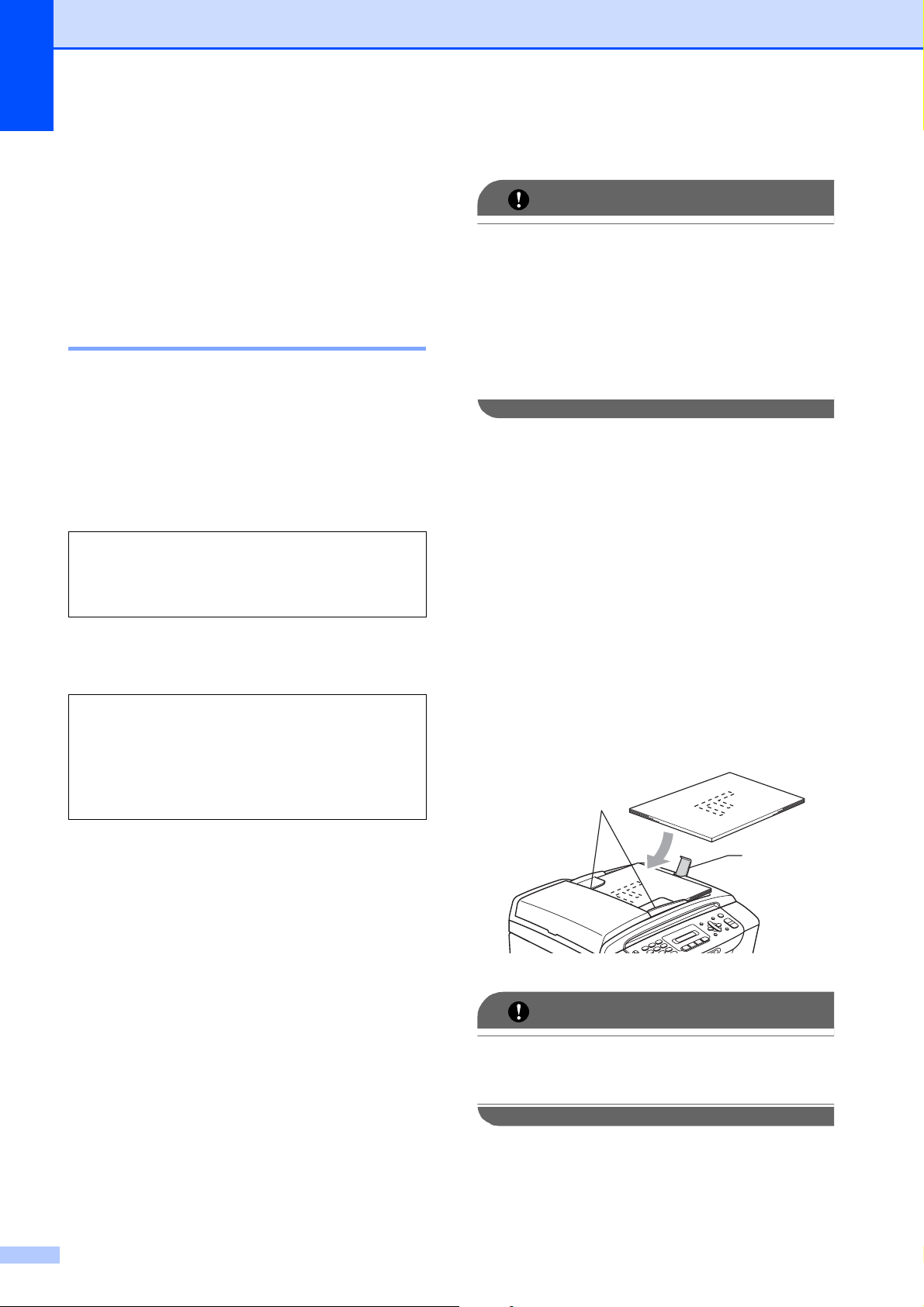
a Unfold the ADF Document Output
Support Flap (1).
b Fan the pages well.
c Adjust the paper guides (2) to fit the
width of your documents.
d Make sure you place the documents
face down, top edge first in the ADF
until the LCD says ADF Ready and you
feel them touch the feed roller.
IMPORTANT
DO NOT leave a thick document on the
scanner glass. If you do this, the ADF may
jam.
Temperature: 68 to 86 °F (20 to 30 °C)
Humidity: 50 to 70%
Paper:
20 lb LTR (80 g/m
2
A4)
Length: 5.8 to 14 in.
(148 to 355.6 mm)
Width: 5.8 to 8.5 in.
(148 to 215.9 mm)
Weight:
17 to 24 lb (64 to 90 g/m
2
)
1
2
Loading paper and documents
19
2
Using the scanner glass 2
You can use the scanner glass to fax, copy or
scan pages of a book or one page at a time.
Document Sizes Supported 2
How to load documents 2
Note
To use the scanner glass, the ADF must
be empty.
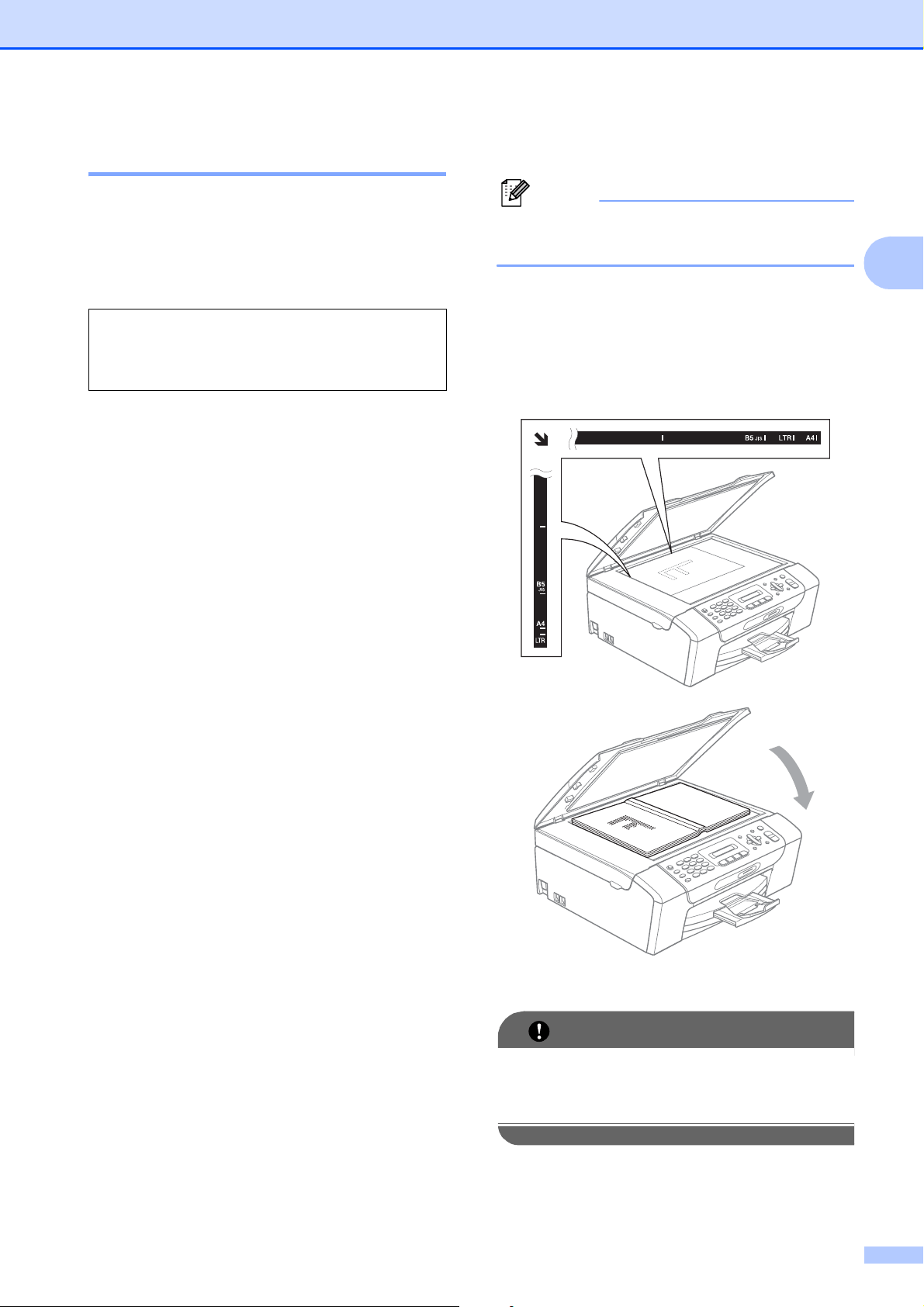
a Lift the document cover.
b Using the document guidelines on the
left and top, place the document face
down in the upper left corner of the
scanner glass.
c Close the document cover.
IMPORTANT
If you are scanning a book or thick
document, DO NOT slam the cover or
press on it.
Length: Up to 11.7 in. (297 mm)
Width: Up to 8.5 in. (215.9 mm)
Weight: Up to 4.4 lb (2 kg)
Chapter 2
20
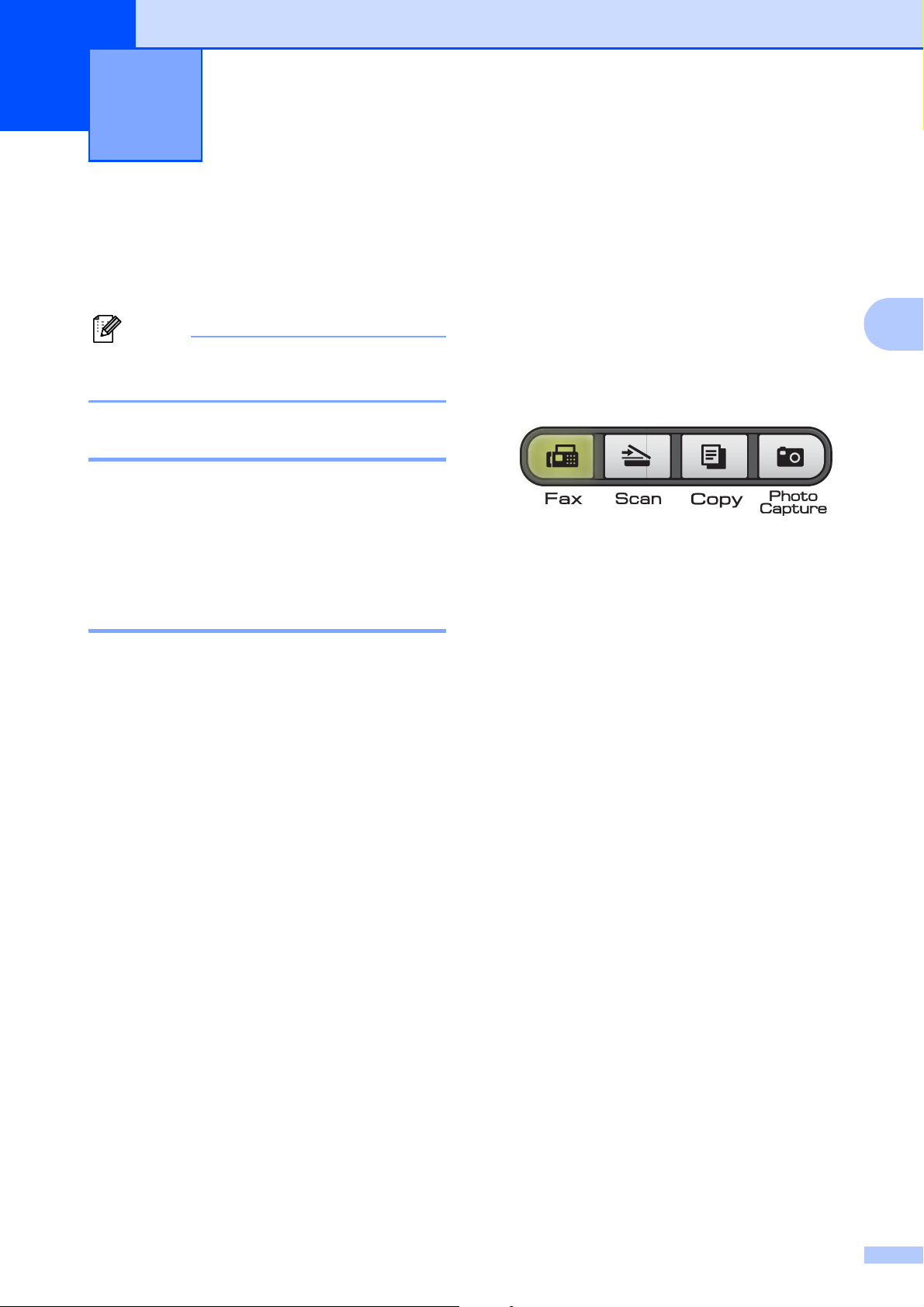
Scannable area 2
The scannable area depends on the settings
in the application you are using. The figures
below show the unscannable areas.
Usage
Document
Size
Top (1)
Bottom (2)
Left (3)
Right (4)
Fax Letter 0.12 in.
(3 mm)
0.16 in.
(4 mm)
A4 0.12 in.
(3 mm)
0.04 in.
(1 mm)
Legal
(MFC-295CN)
0.12 in.
(3 mm)
0.16 in.
(4 mm)
Copy Letter 0.12 in.
(3 mm)
0.12 in.
(3 mm)
A4 0.12 in.
(3 mm)
0.12 in.
(3 mm)
Scan Letter 0.12 in.
(3 mm)
0.12 in.
(3 mm)
A4 0.12 in.
(3 mm)
0.12 in.
(3 mm)
3
4
1
2
21
3
3
On/Off key 3
You can turn the machine on and off by
pressing the On/Off key.
Note
If you have connected an external
telephone or TAD, it is always available.
Turning the machine off 3
a Press and hold down the On/Off key.
The LCD will show Shutting Down.
The LCD will stay on for a few seconds
before going off.
Turning the machine on 3
a Press the On/Off key.
Mode Timer 3
The machine has four temporary mode keys
on the control panel: Fax, Scan, Copy and
Photo Capture. You can change the amount
of time the machine takes after the last Scan,
Copy or PhotoCapture operation before it
returns to Fax mode. If you choose Off, the
machine stays in the mode you used last.
a Press Menu, 1, 1.
b Press a or b to choose 0Sec,
30 Secs, 1 Min, 2 Mins, 5 Mins or
Off.
Press OK.
c Press Stop/Exit.
General setup 3

Chapter 3
22
Paper settings 3
Paper Type 3
To get the best print quality, set the machine
for the type of paper you are using.
a Press Menu, 1, 2.
b Press a or b to choose Plain Paper,
Inkjet Paper, Brother BP71,
Other Glossy or Transparency.
Press OK.
c Press Stop/Exit.
Note
The machine ejects paper with printed
surfaces face up onto the paper tray in
front of the machine. When you use
transparencies or glossy paper, remove
each sheet at once to prevent smudging
or paper jams.
Paper Size 3
You can use five sizes of paper for copies:
Letter, Legal, A4, A5 and 4
×
6in. (10
×
15 cm)
and three sizes for printing faxes: Letter, Legal
and A4. When you change the size of paper
you load in the machine, you will need to
change the paper size setting at the same time
so your machine can fit an incoming fax on the
page.
a Press Menu, 1, 3.
b Press a or b to choose Letter, Legal,
A4, A5 or 4"x6".
Press OK.
c Press Stop/Exit.
Volume Settings 3
Ring Volume 3
You can choose a range of ring volume
levels, from High to Off.
While the machine is idle, press d or c
to adjust the volume level. The LCD shows
the current setting, and each key press will
change the volume to the next level. The
machine will keep the new setting until you
change it.
You can also change the volume through the
menu, by following the instructions below:
Setting the Ring Volume from the
menu
3
a Press Menu, 1, 4, 1.
b Press a or b to choose Low, Med, High
or Off.
Press OK.
c Press Stop/Exit.
Beeper Volume 3
When the beeper is on, the machine will beep
when you press a key, make a mistake or
after you send or receive a fax.
You can choose a range of volume levels,
from High to Off.
a Press Menu, 1, 4, 2.
b Press a or b to choose Low, Med, High
or Off.
Press OK.
c Press Stop/Exit.

General setup
23
3
Speaker Volume 3
You can choose a range of speaker volume
levels, from High to Off.
a Press Menu, 1, 4, 3.
b Press a or b to choose Low, Med, High
or Off.
Press OK.
c Press Stop/Exit.
You can also adjust the speaker volume by
pressing Hook.
a Press Hook.
b Press d or c .
This setting will stay until you change it
again.
c Press Hook.
Automatic Daylight
Saving Time
3
You can set the machine to change
automatically for daylight saving time. It will
reset itself forward one hour in the Spring and
backward one hour in the Fall. Make sure you
have set the correct date and time in the
Date&Time setting.
The factory setting is Off, so you will have to
turn on Automatic Daylight Time as follows.
a Press Menu, 1, 5.
b Press a or b to choose On (or Off).
Press OK.
c Press Stop/Exit.
LCD display 3
LCD Contrast 3
You can adjust the LCD contrast for a sharper
and more vivid display. If you are having
difficulty reading the LCD, try changing the
contrast setting.
a Press Menu, 1, 6.
b Press a or b to choose Light or Dark.
Press OK.
c Press Stop/Exit.
Sleep Mode 3
You can choose how long the machine must
be idle (from 1 to 60 minutes) before it goes
into sleep mode. The timer will restart if any
operation is carried out on the machine.
a Press Menu, 1, 7.
b Press a or b to choose 1 Min, 2 Mins,
3 Mins, 5 Mins, 10 Mins, 30 Mins
or 60 Mins.
Press OK.
c Press Stop/Exit.

24
4
TX Lock 4
TX Lock lets you prevent unauthorized
access to the machine.
While TX Lock is On, the following operations
are available:
Receiving faxes
While TX Lock is On, the following operations
are NOT available:
Sending faxes
Copying
PC printing
Scanning
PhotoCapture
Operation from Control panel
Note
If you forget the TX Lock password,
please call Brother Customer Service.
(See Brother numbers on page i.)
Setting and changing the
TX Lock password 4
Note
If you have already set the password, you
will not need to set it again.
Setting up the password 4
a Press Menu, 2, 0, 1.
b Enter a 4-digit number for the password.
Press OK.
c When the LCD shows Verify:,
re-enter the password.
Press OK.
d Press Stop/Exit.
Changing the password 4
a Press Menu, 2, 0, 1.
b Press a or b to choose Set Password.
Press OK.
c Enter a 4-digit number for the current
password.
Press OK.
d Enter a 4-digit number for a new
password.
Press OK.
e When the LCD shows Verify:,
re-enter the password.
Press OK.
f Press Stop/Exit.
Security features 4

Security features
25
4
Turning TX Lock on/off 4
Turning TX Lock on 4
a Press Menu, 2, 0, 1.
b Press a or b to choose Set TX Lock.
Press OK.
c Enter the registered 4-digit password.
Press OK.
The machine goes offline and the LCD
shows TX Lock Mode.
Turning TX Lock off 4
a Press Menu.
b Enter the registered 4-digit password.
Press OK.
TX Lock is automatically turned off.
Note
If you enter the wrong password, the LCD
shows Wrong Password and stays
offline. The machine will stay in TX Lock
mode until the registered password is
entered.

Chapter 4
26

28
5
Entering Fax mode 5
Press (Fax) to enter Fax mode.
While the machine is scanning the document,
the LCD will show the new job number and
the memory available.The number of pages
you can scan into the memory will vary
depending on the data that is printed on them.
Faxing from the ADF
(MFC-295CN only) 5
a Make sure you are in Fax mode .
b Place the document face down in the
ADF.
(See Using the ADF (MFC-295CN only)
on page 18.)
c Enter the fax number using the dial pad,
Speed Dial or Search.
d Press Black Start or Color Start.
Note
• To cancel, press Stop/Exit.
• If you send a black & white fax when the
memory is full it will be sent in real time.
Faxing from the scanner glass5
You can use the scanner glass to fax pages
of a book one at a time. The document can be
up to Letter or A4 size.
You cannot send color faxes with multiple
pages.
Note
(MFC-295CN only)
Since you can only scan one page at a
time, it is easier to use the ADF if you are
sending a multiple page document.
a Make sure you are in Fax mode .
b Place your document face down on the
scanner glass.
c Enter the fax number using the dial pad,
Speed Dial or Search.
d
Press Black Start or Color Start.
If you press Black Start, the
machine starts scanning the first
page. Go to step e.
If you press Color Start, the
machine starts sending the
document.
e When the LCD asks you Next Page?
do one of the following:
To send a single page, press 2 to
choose No(Dial) (or press
Black Start again).
The machine starts sending the
document.
To send more than one page,
press 1 to choose Yes and go to
step f.
Sending a Fax 5
Sending a Fax
29
5
f Place the next page on the scanner
glass.
Press OK.
The machine starts scanning the page.
(Repeat steps e and f for each
additional page.)
Setting the scanner glass size
for faxing 5
When documents are A4 size, you need to
set the scan size to A4. If you do not, the
bottom portion of the faxes will be missing.
a Make sure you are in Fax mode .
b Press Menu, 2, 2, 0.
c Press a or b to choose A4.
Press OK.
d Press Stop/Exit.
Color fax transmission 5
Your machine can send a color fax to
machines that support this feature.
Color faxes cannot be stored in the machine’s
memory. When you send a color fax, the
machine will send it in real time (even if
Real Time TX is set to Off).
Canceling a fax in progress 5
If you want to cancel a fax while the machine
is scanning, dialing or sending, press
Stop/Exit.
Broadcasting
(Black & White only)
5
Broadcasting is when the same fax message
is automatically sent to more than one fax
number. You can include Groups, Speed Dial
numbers and up to 50 manually dialed
numbers in the same broadcast.
After the broadcast is finished, a Broadcast
Report will be printed.
a Make sure you are in Fax mode .
b Load your document.
c Enter a number.
Press OK.
You can use either a Speed Dial, a
Group or a manually entered number
using the dial pad.
d Repeat step c until you have entered
all the fax numbers to be included in the
broadcast.
e Press Black Start.
Note
• If you did not use up any of the numbers
for Groups, you can broadcast faxes to as
many as 90 different numbers.
• The machine’s available memory will vary
depending on the types of jobs in the
memory and the number of locations used
for broadcasting. If you broadcast to the
maximum numbers available, you will not
be able to use dual access.
• If the Out of Memory message
appears, press Stop/Exit to stop the job.
If more than one page has been scanned,
press Black Start to send the portion that
is in the machine’s memory.
Chapter 5
30
Canceling a Broadcast in
progress 5
a Press Menu, 2, 4.
The LCD will show the Broadcast job
number followed by the fax number
(or name) being dialed (for example,
#001 0123456789).
b Press OK.
The LCD will show the following
message:
#001 0123456789
1.Clear 2.Exit
c Press 1 to cancel the fax number being
dialed.
The LCD will then show the following
messages:
Broadcast#001
1.Clear 2.Exit
d To cancel the Broadcast, press 1.
e Press Stop/Exit.
Additional sending
operations
5
Sending faxes using multiple
settings 5
When you send a fax you can choose any
combination of these settings: resolution,
contrast, scan size, overseas mode and real
time transmission.
a Make sure you are in Fax mode .
b Load your document.
c Choose a setting you want to change in
the Setup Send menu (Menu, 2, 2).
Press OK.
d Choose the option you want for the
setting.
Press OK.
e Do one of the following:
Other Settings
1.Yes 2.No
Press 1 to change another setting.
Press 2 when you have finished
choosing your settings.
f Send the fax as usual.
Sending a Fax
31
5
Contrast 5
If your document is very light or very dark, you
may want to change the contrast. For most
documents the default setting Auto can be
used. It automatically chooses a suitable
contrast for your document.
Use Light when sending a light document.
Use Dark when sending a dark document.
a Make sure you are in Fax mode .
b Load your document.
c Press Menu, 2, 2, 1.
d Press a or b to choose Auto, Light or
Dark.
Press OK.
Note
Even if you choose Light or Dark, the
machine will send the fax using the Auto
setting in any of the following conditions:
• When you send a color fax.
• When you choose Photo as the Fax
Resolution.
Changing fax resolution 5
The quality of a fax can be improved by
changing the fax resolution. Resolution can
be changed for the next fax or for all faxes.
To change the fax resolution for the
next fax
5
a Make sure you are in Fax mode .
b Load your document.
c Press Fax Resolution then a or b to
choose the resolution.
Press OK.
To change the default fax resolution 5
a Make sure you are in Fax mode .
b Press Menu, 2, 2, 2.
c Press a or b to choose the resolution
you want.
Press OK.
Note
You can choose four different resolution
settings for black & white faxes and two for
color faxes.
If you choose S.Fine or Photo and then
use the Color Start key to send a fax, the
machine will send the fax using the Fine
setting.
Black & White
Standard Suitable for most typed
documents.
Fine Good for small print and
transmits a little slower than
Standard resolution.
S.Fine Good for small print or artwork
and transmits slower than Fine
resolution.
Photo Use when the document has
varying shades of gray or is a
photograph. This has the
slowest transmission.
Color
Standard Suitable for most typed
documents.
Fine Use when the document is a
photograph. The transmission
time is slower than Standard
resolution.
Chapter 5
32
Dual Access
(Black & White only) 5
You can dial a number and start scanning the
fax into memory—even when the machine is
sending from memory, receiving faxes or
printing PC data. The LCD shows the new job
number and available memory.
The number of pages you can scan into the
memory will vary depending on the data that
is printed on them.
Note
If the Out of Memory message appears
while scanning a document, press
Stop/Exit to cancel or Black Start to send
the scanned pages.
Real Time Transmission 5
When you are sending a fax, the machine will
scan the document into the memory before
sending it. Then, as soon as the telephone
line is free, the machine will start dialing and
sending.
Sometimes, you may want to send an
important document immediately, without
waiting for memory transmission. You can set
Real Time TX to On for all documents or
Next Fax Only for the next fax only.
Note
• In Real Time Transmission, the automatic
redial feature does not work when you are
using the scanner glass.
• If the memory is full, faxes from the
scanner glass cannot be sent until you
clear some of the memory.
•
(MFC-295CN)
If the memory is full and you are sending a
black and white fax from the ADF, the
machine will send the document in real time
(even if
Real Time TX
is set to
Off
).
Sending in real time for all faxes 5
a Make sure you are in Fax mode .
b Press Menu, 2, 2, 3.
3.Real Time TX
Realtime TX:On
c Press a or b to choose
Realtime TX:On or
Realtime TX:Off.
Press OK.
Sending in real time for the next fax
only
5
a Make sure you are in Fax mode .
b Press Menu, 2, 2, 3.
c Press a or b to choose
Next Fax Only. Press OK.
d Press a or b to choose Next Fax:Off
or Next Fax:On.
e Press OK.
Note
In real time transmission, the automatic
redial feature does not work when you are
using the scanner glass.
Sending a Fax
33
5
Overseas Mode 5
If you are having difficulty sending a fax
overseas due to possible interference on the
telephone line, we recommend that you turn
on the Overseas mode. After you send a fax
using this feature, the feature will turn itself
off.
a Make sure you are in Fax mode .
b Load your document.
c Press Menu, 2, 2, 4.
d Press a or b to choose On (or Off).
Press OK.
Checking and canceling
waiting jobs 5
You can check which jobs are still waiting in
the memory to be sent and cancel a job.
(If there are no jobs, the LCD shows
No Jobs Waiting.)
a Press Menu, 2, 4.
Any waiting jobs appear on the LCD.
b Press a or b to scroll through the jobs
and choose the job you want to cancel.
Press OK.
c Do one of the following:
Press 1 to cancel it.
Press 2 to exit without canceling.
d Repeat steps b and c for each job you
want to cancel.
e When you are finished, press Stop/Exit.
Sending a fax manually 5
Manual transmission lets you hear the
dialing, ringing and fax-receiving tones while
sending a fax.
a Make sure you are in Fax mode .
b Load your document.
c Pick up the handset of the external
telephone or press Hook and listen for a
dial tone.
d Dial the fax number you want to call.
e When you hear the fax tone, press
Black Start or Color Start.
If you loaded the document on the
scanner glass, press 1 to send the
fax.
1.Send 2.Receive
f If you picked up the handset of the
external telephone replace it.
Chapter 5
34
Sending a fax at the end of a
conversation 5
At the end of a conversation you can send a
fax to the other party before you both hang
up.
a Ask the other party to wait for fax tones
(beeps) and then to press the Start or
Send key before hanging up.
b Make sure you are in Fax mode .
c Load your document.
d Press Black Start or Color Start.
If you loaded the document on the
scanner glass, press 1 to send the
fax.
1.Send 2.Receive
e Replace the handset of the external
telephone.
Out of Memory message 5
If you get an Out of Memory message
while scanning the first page of a fax, press
Stop/Exit to cancel the fax.
If you get an Out of Memory message
while scanning a subsequent page, you will
have the option to press Black Start or
Color Start to send the pages scanned so
far, or to press Stop/Exit to cancel the
operation.
Note
If you do not want to delete your stored
faxes to clear the memory, you can
change the setting to send the fax in real
time. (See Real Time Transmission
on page 32.)
35
6
6
Receive modes 6
Choosing the Receive Mode 6
The diagram below will help you choose the correct Receive Mode. For more detailed information
on the receive modes see Using receive modes on page 37 and Receive Mode settings
on page 38.
Receiving a Fax 6
Will you be using a Distinctive Ring number for receiving faxes?
Brother uses the term "Distinctive Ring" but different telephone companies may have other names for this
service, such as Custom Ringing, RingMaster, Personalized Ring, Teen Ring, Ident-A-Ring, Ident-A-Call,
Data Ident-A-Call, Smart Ring and SimpleBiz Fax & Alternate Number Ringing. (See Distinctive Ring
on page 42 for instruction on setting up your machine using this feature.)
Will you be using Voice Mail on the same telephone line as your Brother machine?
If you have Voice Mail on the same telephone line as your Brother machine, there is a strong possibility
that Voice Mail and the Brother machine will conflict with each other when receiving incoming calls.
(See Voice Mail on page 41 for instructions on setting up your machine using this service.)
Will you be using a Telephone Answering Device on the same telephone line as your Brother
machine?
Your external telephone answering device (TAD) will automatically answer every call. Voice messages are
stored on the external TAD and fax messages are printed. Choose External TAD as your receive mode.
(See Connecting an external TAD (telephone answering device) on page 45.)
Will you be using your Brother machine on a dedicated fax line?
Your machine automatically answers every call as a fax. Choose Fax Only as your receive mode.
(See Fax Only on page 37.)
Will you be using your Brother machine on the same line as your telephone?
Do you want to receive voice calls and faxes automatically?
The Fax/Tel receive mode is used when sharing the Brother machine and your telephone on the
same line. Choose Fax/Tel as your receive mode. (See Fax/Tel on page 37.)
Important Note: You cannot receive voice messages on either Voice Mail or an answering machine
with the Fax/Tel mode.
Do you expect to receive very few faxes?
Choose Manual as your receive mode. You control the telephone line and must answer every call
yourself. (See Manual on page 37.)

Chapter 6
36
To set the receive mode follow the instructions below: 6
a Press Menu, 0, 1.
b Press a or b to choose Fax Only, Fax/Tel, External TAD or Manual.
Press OK.
c Press Stop/Exit.
The LCD will show the current receive mode.
1 Current receive mode
Fax: Fax Only
12/10 11:53 Fax12/10 11:53 Fax
1

Receiving a Fax
37
6
Using receive modes 6
Some receive modes answer automatically
(Fax Only and Fax/Tel). You may want to
change the ring delay before using these
modes. (See Ring Delay on page 38.)
Fax Only 6
Fax Only mode will automatically answer
every call as a fax call.
Fax/Tel 6
Fax/Tel mode helps you automatically
manage incoming calls, by recognizing
whether they are fax or voice calls and
dealing with them in one of the following
ways:
Faxes will be automatically received.
Voice calls will start the F/T Ring to tell you
to pick up the line. The F/T Ring is a fast
pseudo/double-ring made by your
machine.
(Also see F/T Ring Time (Fax/Tel mode only)
on page 38 and Ring Delay on page 38.)
Manual 6
Manual mode turns off all automatic
answering functions unless you are using the
Distinctive Ring Receive feature.
To receive a fax in manual mode lift the
handset of the external telephone or press
Hook. When you hear fax tones (short
repeating beeps), press Black Start or
Color Start, and choose 2.Receive. You
can also use the Easy Receive feature to
receive faxes by lifting a handset on the same
line as the machine.
(Also see Easy Receive on page 39.)
External TAD 6
External TAD mode lets an external
answering device manage your incoming
calls. Incoming calls will be dealt with in one
of the following ways:
Faxes will be automatically received.
Voice callers can record a message on the
external TAD.
(For more information see Connecting an
external TAD (telephone answering device)
on page 45.)

Chapter 6
38
Receive Mode settings 6
Ring Delay 6
The Ring Delay sets the number of times the
machine rings before it answers in Fax Only
or Fax/Tel mode. If you have external or
extension telephones on the same line as the
machine keep the ring delay setting of 4 rings.
(See Using external and extension
telephones on page 50 and Easy Receive
on page 39.)
a Press Menu, 2, 1, 1.
b Press a or b to choose how many times
the line rings before the machine
answers.
Press OK.
If you choose 00 the line will not ring at
all, but the machine will answer the
telephone line.
c Press Stop/Exit.
F/T Ring Time
(Fax/Tel mode only) 6
When somebody calls your machine, you and
your caller will hear the normal telephone ring
sound. The number of rings is set by the ring
delay setting.
If the call is a fax, then your machine will
receive it; however, if it is a voice call the
machine will sound the F/T Ring (a fast
double-ring) for the time you have set in the
F/T Ring Time setting. If you hear the F/T
Ring it means that you have a voice caller on
the line.
Because the F/T Ring is made by the
machine, extension and external telephones
will not ring; however, you can still answer the
call on any telephone. (For more information
see Using remote codes on page 50.)
a Press Menu, 2, 1, 2.
b Press a or b to choose how long the
machine will ring to alert you that you
have a voice call (20, 30, 40 or
70 seconds).
Press OK.
c Press Stop/Exit.
Note
Even if the caller hangs up during the
pseudo/double-ringing, the machine will
continue to ring for the set time.
Receiving a Fax
39
6
Easy Receive 6
If Easy Receive is On: 6
The machine can receive a fax automatically,
even if you answer the call. When you see
Receiving on the LCD or hear a click on the
phone line through the handset you are
using, just replace the handset. Your
machine will do the rest.
If Easy Receive is Off: 6
If you are at the machine and answer a call
first by lifting a handset, press Black Start or
Color Start then press 2 to receive.
If you answered at an extension telephone
press l 5 1. (See Using external and
extension telephones on page 50.)
Note
• If this feature is set to On, but your
machine does not connect a fax call when
you lift an extension or external telephone
handset, press the fax receive code l 5 1.
• If you send faxes from a computer on the
same telephone line and the machine
intercepts them, set Easy Receive to Off.
a Press Menu, 2, 1, 3.
b Press a or b to choose On (or Off).
Press OK.
c Press Stop/Exit.
Additional receiving
operations
6
Printing a reduced incoming
fax 6
If you choose On, the machine automatically
reduces each page of an incoming fax to fit on
one page of Letter, Legal or A4 size paper.
The machine calculates the reduction ratio by
using the page size of the fax and your Paper
Size setting (Menu, 1, 3).
a Make sure you are in Fax mode .
b Press Menu, 2, 1, 5.
5.Auto Reduction
c Press a or b to choose On (or Off).
Press OK.
d Press Stop/Exit.
Receiving a fax at the end of a
conversation 6
At the end of a conversation you can ask the
other party to send you a fax before you both
hang up.
a Ask the other party to place the
document in their machine and to press
Start or Send key.
b When you hear the CNG tones (slowly
repeating beeps), press Black Start or
Color Start.
c Press 2 to receive the fax.
1.Send 2.Receive
d Replace the external handset.

Chapter 6
40
Receiving faxes into memory
when the paper tray is empty 6
As soon as the paper tray becomes empty
during fax reception, the LCD will display
No Paper Fed, asking you to put paper in
the paper tray. (See Loading paper and other
print media on page 8.)
The machine will carry on receiving the fax,
with the remaining pages being stored in
memory, if enough memory is available.
Further incoming faxes will also be stored into
memory until the memory is full. When the
memory is full the machine will stop
automatically answering calls. To print the
faxes, put fresh paper in the tray.
Note
If color faxes are received into the
memory, they will be stored and printed in
black & white.

41
7
7
Voice Operations 7
Tone or pulse (Canada only) 7
If you are using the external telephone and
have a pulse dialing service, but need to send
tone signals (for example, for telephone
banking), follow the instructions below:
a Lift the handset of the external
telephone.
b Press # on the control panel of your
machine. Any digits dialed after this will
send tone signals.
When you hang up, the machine will
return to the pulse dialing service.
Fax/Tel mode 7
When the machine is in Fax/Tel mode, it will
use the F/T Ring (pseudo/double-ringing) to
alert you to pick up a voice call.
If you are at the external telephone, lift the
handset of the external telephone, and then
press Hook to answer.
If you are at an extension telephone, you'll
need to lift the handset during the F/T Ring
and then press #51 between the
pseudo/double-rings. If no one is on the line,
or if someone wants to send you a fax, send
the call back to the machine by pressing
l 51.
Telephone services 7
Your machine supports the Caller ID and
Distinctive Ring subscriber telephone
services that some telephone companies
offer.
Features like Voice Mail, Call Waiting, Call
Waiting/Caller ID, RingMaster, answering
services, alarm systems or other custom
features on one telephone line may create
problems with the operation of your machine.
If you have Voice Mail on your telephone line,
please read the following carefully.
Voice Mail 7
If you have Voice Mail on the same telephone
line as your Brother machine, Voice Mail and
the Brother machine will conflict with each
other when receiving incoming calls.
For example, if your Voice Mail is set to
answer after 4 rings and your Brother
machine is set to answer after 2 rings, then
your Brother machine will answer first. This
will prevent callers from being able to leave a
message in your Voice Mail.
Similarly, if your Brother machine is set to
answer after 4 rings and your Voice Mail is set
to answer after 2 rings, then your Voice Mail
will answer first. This will prevent your Brother
machine from being able to receive an
incoming fax, since Voice Mail cannot
transfer the incoming fax back to the Brother
machine.
Telephone Services and External
devices
7

Chapter 7
42
To avoid conflicts between your Brother
machine and your voice mail service, do one
of the following:
Get the Distinctive Ring service from your
telephone company. Distinctive Ring is a
feature of your Brother machine that allows a
person with one line to receive fax and voice
calls through two different phone numbers on
that one line. Brother uses the term
‘Distinctive Ring’, but telephone companies
market the service under a variety of names,
such as Custom Ringing, Personalized Ring,
Smart Ring, RingMaster, Ident-A-Ring, Ident-
A-Call, Data Ident-A-Call, Teen Ring, and
SimpleBiz Fax & Alternate Number Ringing.
This service establishes a second telephone
number on the same line as your existing
telephone number, and each number has its
own ring pattern. Typically, the original
number rings with the standard ring pattern
and is used for receiving voice calls, and the
second number rings with a different ring
pattern and is used for receiving faxes. (See
Distinctive Ring on page 42.)
OR
Set your Brother machine’s Receive Mode to
“Manual”. Manual Mode requires that you
answer every incoming call if you want to be
able to receive a fax. If the incoming call is a
telephone call, then complete the call as you
normally would. If you hear fax sending tones
you must transfer the call to the Brother
machine. (See Using external and extension
telephones on page 50.) Unanswered fax
and voice calls will go to your Voice Mail. (To
set the machine in MANUAL Mode, see
Choosing the Receive Mode on page 35.)
Distinctive Ring 7
Distinctive Ring is a function of your Brother
machine that allows a person with one line to
receive fax and voice calls through two
different phone numbers on that one line.
Brother uses the term “Distinctive Ring”, but
telephone companies market the service
under a variety of names, such as Smart
Ring, Ring Master or Ident-a-Ring. This
service establishes a second telephone
number on the same line as your existing
telephone number, and each number has its
own ring pattern. Typically, the original
number rings with the standard ring pattern
and is used for receiving voice calls, and the
second number rings with a different ring
pattern and is used for receiving faxes.
Note
• You must pay for your telephone
company’s Distinctive Ring service before
you program the machine to work with it.
• Please call your telephone company for
availability and rates.
What does your telephone company's
‘Distinctive Ring’ do?
7
Your telephone company's Distinctive Ring
service allows you to have more than one
number on the same telephone line. If you
need more than one telephone number, it
is cheaper than paying for an extra line.
Each telephone number has its own
distinctive ring pattern, so you will know
which telephone number is ringing. This is
one way you can have a separate telephone
number for your machine.
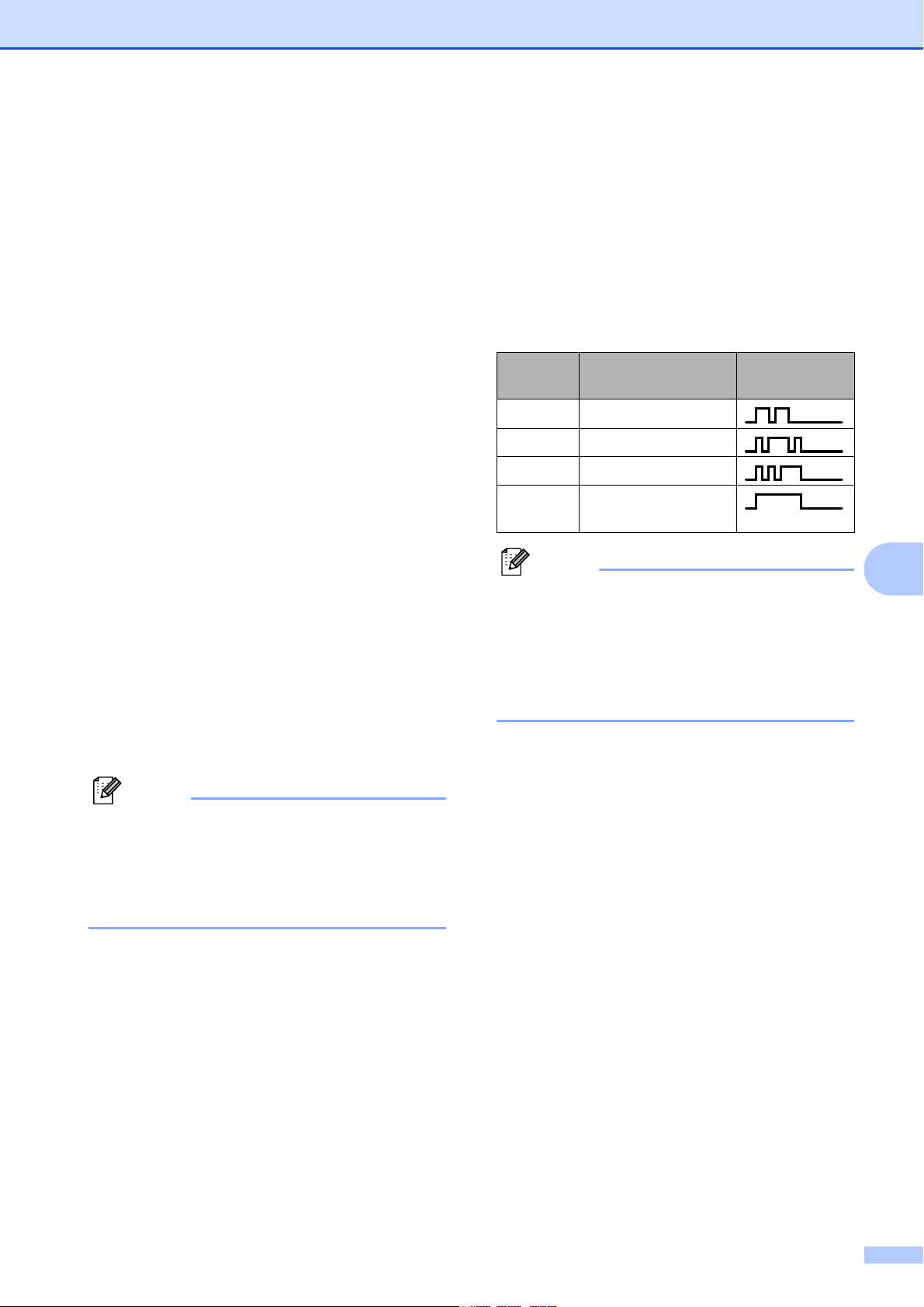
Telephone Services and External devices
43
7
What does Brother's ‘Distinctive Ring’
do?
7
The Brother machine has a Distinctive Ring
feature that allows you to use your machine to
take full advantage of the telephone
company's Distinctive Ring service. The new
telephone number on your line can just
receive faxes.
Do you have Voice Mail? 7
If you have Voice Mail on the telephone line
that you will install your new machine on,
there is a strong possibility that Voice Mail
and the machine will conflict with each other
while receiving incoming calls. However, the
Distinctive Ring feature allows you to use
more than one number on your line, so
both Voice Mail and the machine can work
together without any problems. If each one
has a separate telephone number, neither will
interfere with the other's operations.
If you decide to get the Distinctive Ring
service from the telephone company, you will
need to follow the directions on next page to
‘register’ the new Distinctive Ring pattern
they give you. This is so your machine can
recognize its incoming calls.
Note
You can change or cancel the Distinctive
Ring pattern at any time. You can switch it
off temporarily, and turn it back on later.
When you get a new fax number, make
sure you reset this feature.
Before you choose the ring pattern to
register
7
You can only register one Distinctive Ring
pattern with the machine. Some ring patterns
cannot be registered. The ring patterns below
are supported by your Brother machine.
Register the one your telephone company
gives you.
Note
Ring Pattern #1 is often called Short-Short
and is the most commonly used.
If the ring pattern you received is not on
this chart, please call your telephone
company and ask for one that is
shown.
The machine will only answer calls to its
registered number.
The first two rings are silent on the
machine. This is because the fax must
‘listen’ to the ring pattern (to compare it to
the pattern that was ‘registered’). (Other
telephones on the same line will ring.)
If you program the machine properly, it will
recognize the registered ring pattern of the
‘fax number’ within 2 ring patterns and
then answer with a fax tone. When the
‘voice number’ is called, the machine will
not answer.
Ring
Pattern
Rings
1 long-long
2 short-long-short
3 short-short-long
4very long
(normal pattern)
Chapter 7
44
Registering the Distinctive Ring
pattern
7
Very Important!
After you have set the Distinctive Ring feature
to On, your Distinctive Ring number will
receive faxes automatically. The receive
mode is set to Manual and you cannot
change it to another mode while Distinctive
Ring is set to On. This ensures the Brother
machine will only answer the Distinctive Ring
number and not interfere when your main
telephone number is called.
a Press Menu, 2, 0, 2.
0.Miscellaneous
2.Distinctive
b Press a or b to choose Set.
Press OK.
c Press a or b to choose the stored ring
pattern you want to use.
Press OK.
(You hear each pattern as you scroll
through the four patterns. Make sure
you choose the pattern that the
telephone company gave you.)
d Press Stop/Exit.
Distinctive Ring is now set to On.
Turning off Distinctive Ring 7
a Press Menu, 2, 0, 2.
b Press a or b to choose Off.
Press OK.
c Press Stop/Exit.
Note
If you turn off Distinctive Ring, the
machine will stay in Manual receive
mode. You will need to set the Receive
Mode again. (See Choosing the Receive
Mode on page 35.)
Caller ID 7
The Caller ID feature lets you use the Caller
ID subscriber service offered by many local
telephone companies. Call your telephone
company for details. This service shows the
telephone number, or name if it is available,
of your caller as the line rings.
After a few rings, the LCD shows the
telephone number of your caller (or name, if
available). Once you answer a call, the Caller
ID information disappears from the LCD, but
the call information stays stored in the Caller
ID memory.
You can see the first 16 characters of the
number (or name).
The # Unavailable message means
the call originated outside your Caller ID
service area.
The Private Call message means the
caller has intentionally blocked
transmission of information.
You can print a list of the Caller ID information
received by your machine. (See Printing
Caller ID List on page 45.)
Note
The Caller ID service varies with different
carriers. Call your local telephone
company to find out about the kind of
service available in your area.

Telephone Services and External devices
45
7
Viewing the Caller ID List 7
Your machine stores information for the last
thirty calls in the Caller ID list. You can view
or print this list. When the thirty-first call
comes in to the machine, it replaces
information about the first call.
a Press Menu, 2, 0, 3.
b Press a or b to choose Display#.
Press OK.
The Caller ID of the last call will appear
on the LCD display. If no ID is stored,
the beeper will sound and
No Caller ID will appear on the LCD
display.
c Press a or b to scroll through the Caller
ID memory to choose the Caller ID you
want to view, and then press OK.
The LCD shows the caller's number or
name and the date and time of the call.
d To finish viewing, press Stop/Exit.
Printing Caller ID List 7
a Press Menu, 2, 0, 3.
b Press a or b to choose Print Report.
Press OK.
If no ID is stored, the beeper will sound
and No Caller ID will appear on the
LCD.
c Press Black Start or Color Start.
d After printing has finished, press
Stop/Exit.
Connecting an external
TAD (telephone
answering device)
7
You may choose to connect an external
answering device. However, when you have
an external TAD on the same telephone line
as the machine, the TAD answers all calls
and the machine ‘listens’ for fax calling (CNG)
tones. If it hears them, the machine takes
over the call and receives the fax. If it does
not hear CNG tones, the machine lets the
TAD continue playing your outgoing message
so your caller can leave you a voice
message.
The TAD must answer within four rings (the
recommended setting is two rings). The
machine cannot hear CNG tones until the
TAD has answered the call, and with four
rings there are only 8 to 10 seconds of CNG
tones left for the fax ‘handshake’. Make sure
you carefully follow the instructions in this
guide for recording your outgoing message.
We do not recommend using the toll saver
feature on your external answering machine if
it exceeds five rings.
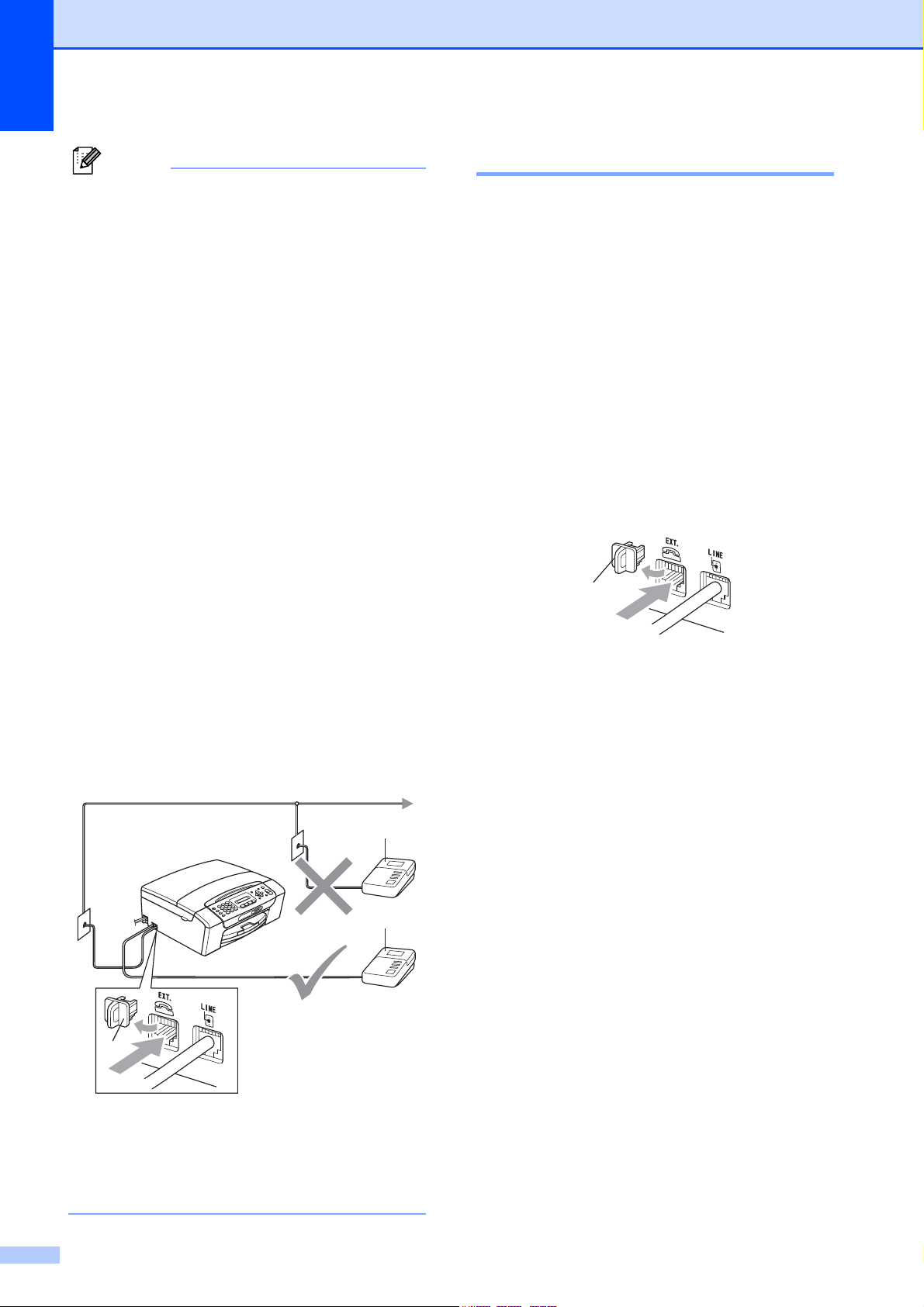
Chapter 7
46
Note
• If you do not receive all your faxes, reduce
the Ring Delay setting on your external
TAD.
• If You Subscribe to your Telephone
company's Distinctive Ring Service:
You may connect an external TAD to a
separate wall jack only if you subscribe to
your telephone company's Distinctive
Ring service, have registered the
distinctive ring pattern on your machine,
and use that number as a fax number. The
recommended setting is at least four rings
on the external TAD when you have the
telephone company's Distinctive Ring
Service. You cannot use the Toll Saver
setting.
• If You Do Not Subscribe to Distinctive
Ring Service:
You must plug your TAD into the EXT.
jack of your machine. If your TAD is
plugged into a wall jack, both your
machine and the TAD will try to control the
telephone line. (See illustration below.)
• Before you connect the external TAD,
remove the protective cap (2) from the
EXT. jack on the machine.
1TAD
2Protective Cap
When the TAD answers a call, the LCD
shows Telephone.
Connections 7
The external TAD must be plugged into the
jack labeled EXT. Your machine cannot work
properly if you plug the TAD into a wall jack
(unless you are using Distinctive Ring).
a Plug the telephone line cord from the
telephone wall jack into the jack labeled
LINE.
b Remove the protective cap (1) from the
jack labeled EXT, and then plug the
telephone line cord from the external
TAD into the EXT. jack. (Make sure this
cord is connected to the TAD at the
TAD's telephone line jack, and not its
handset jack.)
c Set your external TAD to four rings or
less. (The machine's Ring Delay setting
does not apply.)
d Record the outgoing message on your
external TAD.
e Set the TAD to answer calls.
f Set the Receive Mode to
External TAD. (See Choosing the
Receive Mode on page 35.)
1
1
2
1

Telephone Services and External devices
47
7
Recording an outgoing
message (OGM) on an
external TAD 7
Timing is important in recording this
message. The message sets up the ways to
handle both manual and automatic fax
reception.
a Record 5 seconds of silence at the
beginning of your message. (This allows
your machine time to listen for the fax
CNG tones of automatic transmissions
before they stop.)
b Limit your speaking to 20 seconds.
c End your 20-second message by giving
your Fax Receive Code for people
sending manual faxes. For example:
‘After the beep, leave a message or
send a fax by pressing l 51 and Start.’
Note
We recommend beginning your OGM with
an initial 5-second silence because the
machine cannot hear fax tones over a
resonant or loud voice. You may try
omitting this pause, but if your machine
has trouble receiving, then you must
re-record the OGM to include it.
Special line considerations 7
Roll over telephone lines 7
A roll over telephone system is a group of two
or more separate telephone lines that pass
incoming calls to each other if they are busy.
The calls are usually passed down or ‘rolled
over’ to the next available telephone line in a
preset order.
Your machine can work in a roll over system
as long as it is the last number in the
sequence, so the call cannot roll away. Do not
put the machine on any of the other numbers;
when the other lines are busy and a second
fax call is received, the fax call will be sent to
a line that does not have a fax machine. Your
machine will work best on a dedicated
line.
Two-line telephone system 7
A two-line telephone system is nothing more
than two separate telephone numbers on the
same wall outlet. The two telephone numbers
can be on separate jacks (RJ11) or mixed into
one jack (RJ14). Your machine must be
plugged into an RJ11 jack. RJ11 and RJ14
jacks may be equal in size and appearance
and both may contain four wires (black, red,
green, yellow). To test the type of jack, plug in
a two-line telephone and see if it can access
both lines. If it can, you must separate the line
for your machine. (See Easy Receive
on page 39.)
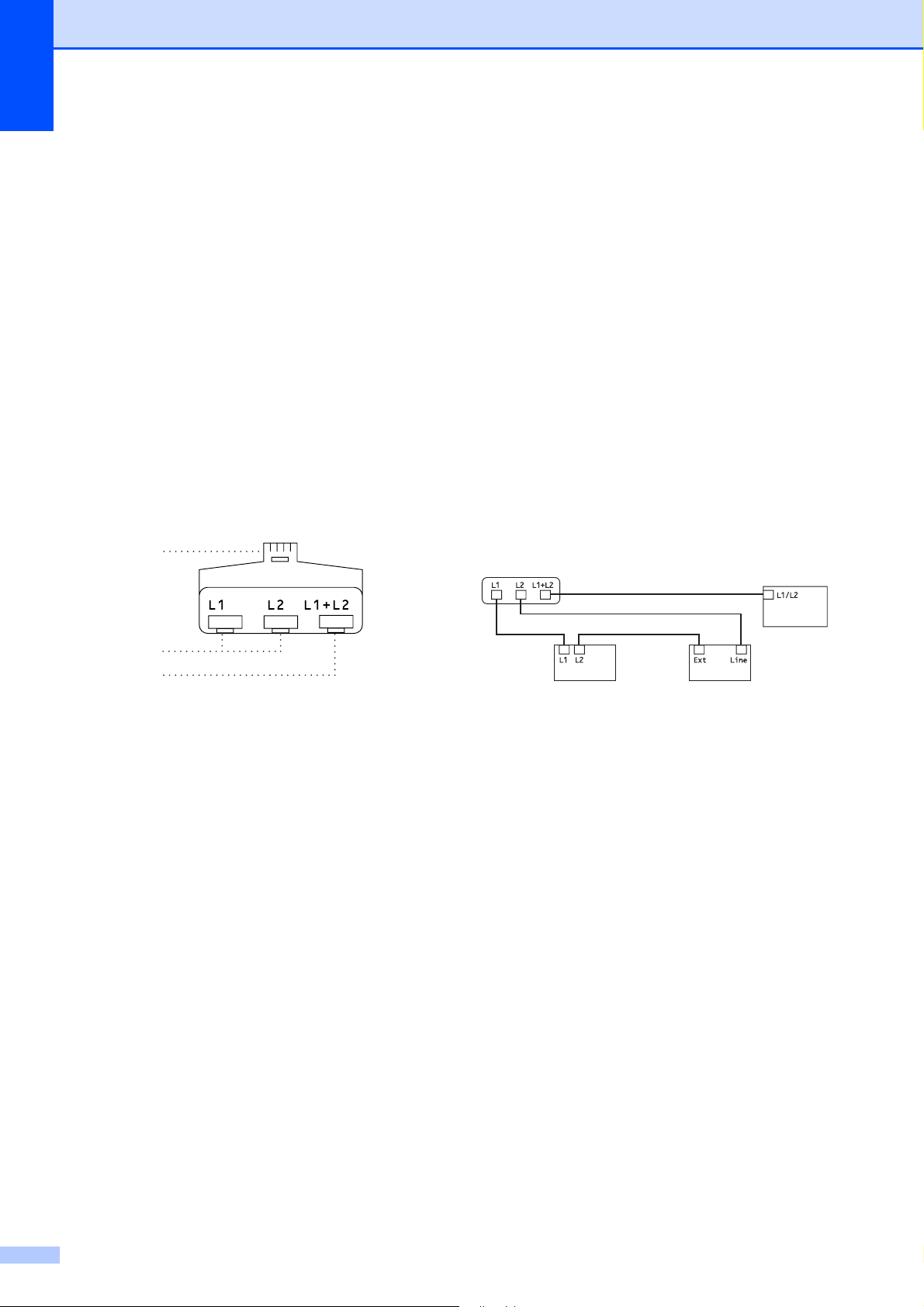
Chapter 7
48
Converting telephone wall outlets 7
There are three ways to convert to an RJ11
jack. The first two ways may require help from
the telephone company. You can change the
wall outlets from one RJ14 jack to two RJ11
jacks. Or you can have an RJ11 wall outlet
installed and slave or jump one of the
telephone numbers to it.
The third way is the easiest: Buy a triplex
adapter. You can plug a triplex adapter into
an RJ14 outlet. It separates the wires into two
separate RJ11 jacks (Line 1, Line 2) and a
third RJ14 jack (Lines 1 and 2). If your
machine is on Line 1, plug the machine into
L1 of the triplex adapter. If your machine is on
Line 2, plug it into L2 of the triple adapter.
Triplex Adapter
7
Installing machine, external two-line
TAD and two-line telephone
7
When you are installing an external two-line
telephone answering device (TAD) and a
two-line telephone, your machine must be
isolated on one line at both the wall jack and
at the TAD. The most common connection is
to put the machine on Line 2, which is
explained in the following steps. The back of
the two-line TAD must have two telephone
jacks: one labeled L1 or L1/L2, and the other
labeled L2. You will need at least three
telephone line cords, the one that came with
your machine and two for your external
two-line TAD. You will need a fourth line cord
if you add a two-line telephone.
a Put the two-line TAD and the two-line
telephone next to your machine.
b Plug one end of the telephone line cord
for your machine into the L2 jack of the
triplex adapter. Plug the other end into
the LINE jack on the back of the
machine.
c Plug one end of the first telephone line
cord for your TAD into the L1 jack of the
triplex adapter. Plug the other end into
the L1 or L1/L2 jack of the two-line TAD.
d Plug one end of the second telephone
line cord for your TAD into the L2 jack of
the two-line TAD. Plug the other end into
the EXT. jack on the left side of the
machine.
1 Triplex Adapter
2 Two Line Telephone
3 External Two Line TAD
4 Machine
You can keep two-line telephones on other
wall outlets as always. There are two ways to
add a two-line telephone to the machine's
wall outlet. You can plug the telephone line
cord from the two-line telephone into the
L1+L2 jack of the triplex adapter. Or you can
plug the two-line telephone into the TEL jack
of the two-line TAD.
RJ14
RJ11
RJ14
1
2
3
4
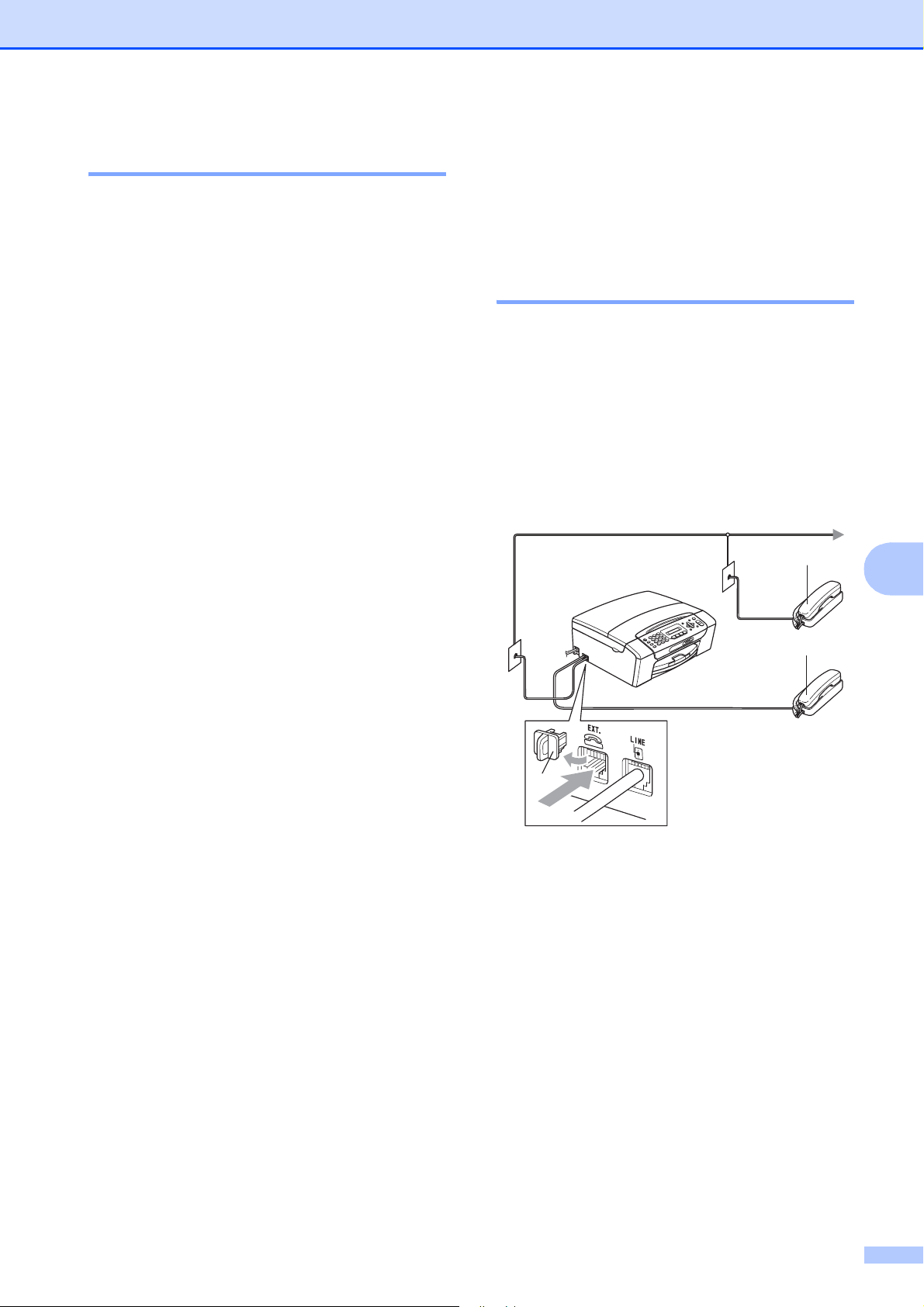
Telephone Services and External devices
49
7
Multi-line connections (PBX) 7
We suggest you ask the company who
installed your PBX to connect your machine.
If you have a multi line system we suggest
you ask the installer to connect the unit to the
last line on the system. This prevents the
machine being activated each time the
system receives telephone calls. If all
incoming calls will be answered by a
switchboard operator we recommend that
you set the Receive Mode to Manual.
We cannot guarantee that your machine will
operate properly under all circumstances
when connected to a PBX. Any difficulties
with sending or receiving faxes should be
reported first to the company who handles
your PBX.
External and extension
telephones
7
Connecting an external or
extension telephone 7
You can connect a separate telephone
directly to your machine as shown in the
diagram below.
Connect the telephone line cord to the jack
labeled EXT.
Before you connect the external telephone,
remove the protective cap (3) from the EXT.
jack on the machine.
1 Extension telephone
2 External telephone
3 Protective Cap
When you are using a telephone on the same
phone line, the LCD shows Telephone.
3
1
2

Chapter 7
50
Using external and extension
telephones 7
Using extension telephones: 7
If you answer a fax call at an extension
telephone, you can make your machine
receive the fax by pressing the Fax Receive
Code l 51.
If the machine answers a voice call and
pseudo/double-rings for you to take over, you
can take the call at an extension telephone by
pressing the Telephone Answer Code #51.
(See F/T Ring Time (Fax/Tel mode only)
on page 38.)
Using an external telephone
(connected to the EXT. jack of the
machine):
7
If you answer a fax call at the external
telephone connected to the EXT jack of the
machine, you can make the machine receive
the fax by pressing Black Start, and
choosing 2.Receive.
If the machine answers a voice call and
pseudo/double-rings for you to take over, you
can take the call at the external telephone by
pressing Hook.
If you answer a call and no one is on
the line:
7
You should assume that you're receiving a
manual fax.
Press l 51 and wait for the chirp or until the
LCD shows Receiving, and then hang up.
Note
You can also use the Easy Receive
feature to make your machine
automatically take the call. (See Easy
Receive on page 39.)
Using a non-Brother cordless
external telephone 7
If your non-brother cordless telephone is
connected to the EXT. jack of the machine
and you typically carry the cordless handset
elsewhere, it is easier to answer calls during
the Ring Delay.
If you let the machine answer first, you will
have to go to the machine so you can press
Hook to send the call to the cordless handset.
Using remote codes 7
Fax Receive Code 7
If you answer a fax call on an extension
telephone, you can tell your machine to
receive it by dialing the Fax Receive Code
l 51. Wait for the chirping sounds then
replace the handset. (See Easy Receive
on page 39.)
If you answer a fax call at the external
telephone connected to the EXT jack of the
machine, you can make the machine receive
the fax by pressing Black Start, and
choosing 2.Receive.
Telephone Answer Code 7
If you receive a voice call and the machine is
in F/T mode, it will start to sound the F/T
(pseudo/double) ring after the initial ring
delay. If you pick up the call on an extension
telephone you can turn the F/T Ring off by
pressing #51 (make sure you press this
between the rings).
If the machine answers a voice call and
pseudo/double rings for you to take over, you
can take the call at the external telephone
connected to the EXT jack of the machine by
pressing Hook.
Telephone Services and External devices
51
7
Changing the remote codes 7
The preset Fax Receive Code is l 51. The
preset Telephone Answer Code is #51. If
you want to, you can replace them with your
own codes.
a Press Menu, 2, 1, 4.
1.Setup Receive
4.Remote Codes
b Press a or b to choose On (or Off).
Press OK.
c Enter the new Fax Receive Code.
Press OK.
d Enter the new Telephone Answer Code.
Press OK.
e Press Stop/Exit.
Note
• If you are always disconnected when
accessing your external TAD remotely, try
changing the Fax Receive Code and
Telephone Answer Code to another
three-digit code (such as ### and 999).
• Remote Codes might not work with some
telephone systems.
52
8
How to Dial 8
Manual dialing 8
Press all of the digits of the fax or telephone
number.
Speed Dialing 8
a Press (Speed Dial).
b Press OK and the # (pound) key, and
then the two digit Speed Dial number
using the dial pad.
Note
If the LCD shows Not Registered
when you enter a Speed Dial number, a
number has not been stored at this
location.
Search 8
You can search for names you have stored in
the Speed Dial memory.
a Press (Speed Dial).
b Press a or b to choose Search.
Press OK.
c Do one of the following:
To search numerically, press a or b
to choose the number, and then
press OK.
To search alphabetically, enter the
first letter of the name using the dial
pad, then press d or c to choose the
name, and then press OK.
Fax Redial 8
If you are sending a fax manually and the line
is busy, press Redial/Pause, and then press
Black Start or Color Start to try again. If you
want to make a second call to the last number
dialed, you can save time by pressing
Redial/Pause and Black Start or
Color Start.
Redial/Pause only works if you dialed from
the control panel.
If you are sending a fax automatically and the
line is busy, the machine will automatically
redial one time after five minutes.
Note
In Real Time Transmission the automatic
redial feature does not work when you are
using the scanner glass.
Dialing and storing numbers 8
Dialing and storing numbers
53
8
Storing numbers 8
You can set up your machine to do the
following types of easy dialing: Speed Dial
and Groups for broadcasting faxes. When
you dial a Quick Dial number, the LCD shows
the name, if you stored it, or the number.
Note
If you lose electrical power, the Quick Dial
numbers that are in the memory will not be
lost.
Storing a pause 8
Press Redial/Pause to put a 3.5-second
pause between numbers. If you are dialing
overseas, you can press Redial/Pause as
many times as needed to increase the length
of the pause.
Storing Speed Dial numbers 8
Names and numbers can be stored in
two-digit Speed Dial locations. You can store
up to 40 different Speed Dial numbers. When
you dial you will only have to press a few keys
(for example: (Speed Dial), OK, #, the
2-digit number, and Black Start or
Color Start).
a Press (Speed Dial) and a or b to
choose Set Speed Dial.
Press OK.
b Use the dial pad to enter a 2-digit
Speed Dial location number (01-40).
Press OK.
c Enter the fax or telephone number
(up to 20 digits).
Press OK.
d Do one of the following:
Enter the name (up to 16 characters)
using the dial pad.
Press OK. (To help you enter letters,
see Entering Text on page 144.)
To store the number without a name,
press OK.
e Do one of the following:
To store another Speed Dial
number, go to step b.
If you are finished storing numbers,
press Stop/Exit.
Changing Speed Dial
numbers 8
If you try to store a Speed Dial number where
a number has already been stored, the LCD
will show the name or number that has been
stored there, and will ask you to do one of the
following:
#05:MIKE
1.Change 2.Exit
Press 1 to change the stored number.
Press 2 to exit without making a change.
If you chose 1, you will be able to change the
stored number and name, or enter a new one.
Follow the instructions below:
a Enter a new number. Press OK.
b Enter a new name. Press OK.
To change a character, use d or c to
position the cursor under the character
you want to change, then press
Clear/Back. Re-enter the character.
To finish the setting, press Stop/Exit.
Chapter 8
54
Setting up groups for
broadcasting 8
If you regularly want to send the same fax
message to many fax numbers you can set
up a Group. Groups are stored on a
Speed Dial number. Each group uses up a
Speed Dial location. You can then send the
fax message to all the numbers stored in a
group just by entering a Speed Dial number,
and then pressing Black Start.
Before you can add numbers to a Group, you
need to store them as Speed Dial numbers.
You can have up to six small Groups, or you
can assign up to 39 numbers to one large
Group.
a Press (Speed Dial) and a or b to
choose Setup Groups.
Press OK.
b Use the dial pad to enter the two-digit
Speed Dial number where you want to
store Group.
Press OK.
c Use the dial pad to enter a Group
number (1 to 6).
Press OK.
Setup Group:G0_
d To add Speed Dial numbers follow the
instructions below:
For example, for Speed Dial numbers
05 and 09. Press (Speed Dial), 05,
(Speed Dial), 09.
The LCD shows: #05#09.
G01:#05#09
e Press OK when you have finished
adding numbers.
f Use the dial pad to enter a name for the
Group.
Press OK.
Note
You can easily print a list of all your
Speed Dial numbers. Numbers that are
part of a group will be marked in the
GROUP column. (See How to print a
report on page 56.)
Dialing access codes and
credit card numbers 8
Sometimes you may want to choose from
several long distance carriers when you send
a fax. Rates may vary depending on the time
and destination. To take advantage of low
rates, you can store the access codes of long-
distance carriers and credit card numbers as
Speed Dial numbers. You can store these
long dialing sequences by dividing them and
setting them up as separate Speed Dial
numbers in any combination. You can even
include manual dialing using the dial pad.
(See Storing Speed Dial numbers
on page 53.)
For example, you might have stored ‘555’ on
Speed Dial #03 and ‘7000’ on Speed Dial
#02. You can use them both to dial ‘555-7000’
if you press the following keys:
(Speed Dial), OK, #03, (Speed Dial),
#02, and Black Start.
To temporarily change a number, you can
substitute part of the number with manual
dialing using the dial pad. For example, to
change the number to 555-7001 you could
press the following keys:
(Speed Dial), OK, #03, 7, 0, 0, 1 (on the
dial pad), and Black Start.
You can also add a pause by pressing the
Redial/Pause key.

55
9
9
Fax reports 9
You need to set up the Transmission
Verification Report and Journal Period using
the Menu key.
Transmission Verification
Report 9
You can use the Transmission Verification
Report as proof that you sent a fax. This
report lists the sender’s name or fax number,
the time and date of transmission, duration of
transmission, number of pages sent, and
whether or not the transmission was
successful.
There are several settings available for the
Transmission Verification Report:
On:
Prints a report after every fax you send.
On+Image:
Prints a report after every fax you send. A
portion of the fax’s first page appears on
the report.
Off:
Prints a report only if your fax is
unsuccessful due to a transmission error.
Off is the default setting.
Off+Image:
Prints a report only if your fax is
unsuccessful due to a transmission error.
A portion of the fax’s first page appears on
the report.
a Press Menu, 2, 3, 1.
b Press a or b to choose Off+Image, On,
On+Image or Off.
Press OK.
c Press Stop/Exit.
Note
• If you choose On+Image or Off+Image,
the image will only appear on the
Transmission Verification Report if Real
Time Transmission is set to Off. (See Real
Time Transmission on page 32.)
• If your transmission is successful, "OK" will
appear next to "RESULT" on the
Transmission Verification Report. If
transmission is not successful, "NG" will
appear next to "RESULT".
Printing Reports 9

Chapter 9
56
Fax Journal (activity report) 9
You can set the machine to print a journal at
specific intervals (every 50 faxes, 6, 12 or
24 hours, 2 or 7 days). If you set the interval
to Off, you can still print the report by
following the steps in How to print a report
on page 56. The default setting is
Every 50 Faxes.
a Press Menu, 2, 3, 2.
b Press a or b to choose an interval.
Press OK.
(If you choose 7 days, the LCD will ask
you to choose the first day for the 7-day
countdown.)
If you choose Every 50 Faxes, go to
step d.
6, 12, 24 hours, 2 or 7 days
The machine will print the report at
the chosen time and then erase all
jobs from its memory. If the
machine's memory becomes full with
200 jobs before the time you chose
has passed, the machine will print
the Journal early and then erase all
jobs from the memory. If you want an
extra report before it is due to print,
you can print it without erasing the
jobs from the memory.
Every 50 Faxes
The machine will print the Journal
when the machine has stored
50 jobs.
c Enter the time to start printing in 24-hour
format.
Press OK.
(For example: enter 19:45 for 7:45 PM.)
d Press Stop/Exit.
Reports 9
The following reports are available:
1.Transmission
Prints a Transmission Verification Report for
your last transmission.
2.Help List
A help list showing how to program your
machine.
3.Quick Dial
Lists names and numbers stored in the
Speed Dial memory, in numerical order.
4.Fax Journal
Lists information about the last incoming and
outgoing faxes.
(TX: Transmit.) (RX: Receive.)
5.User Settings
Lists your settings.
6.Network Config
Lists your Network settings.
How to print a report 9
a Press Menu, 6.
b Do one of the following:
Press a or b to choose the report you
want. Press OK.
Enter the number of the report you
want to print. For example, press 2 to
print the help list.
c Press Black Start.
d Press Stop/Exit.

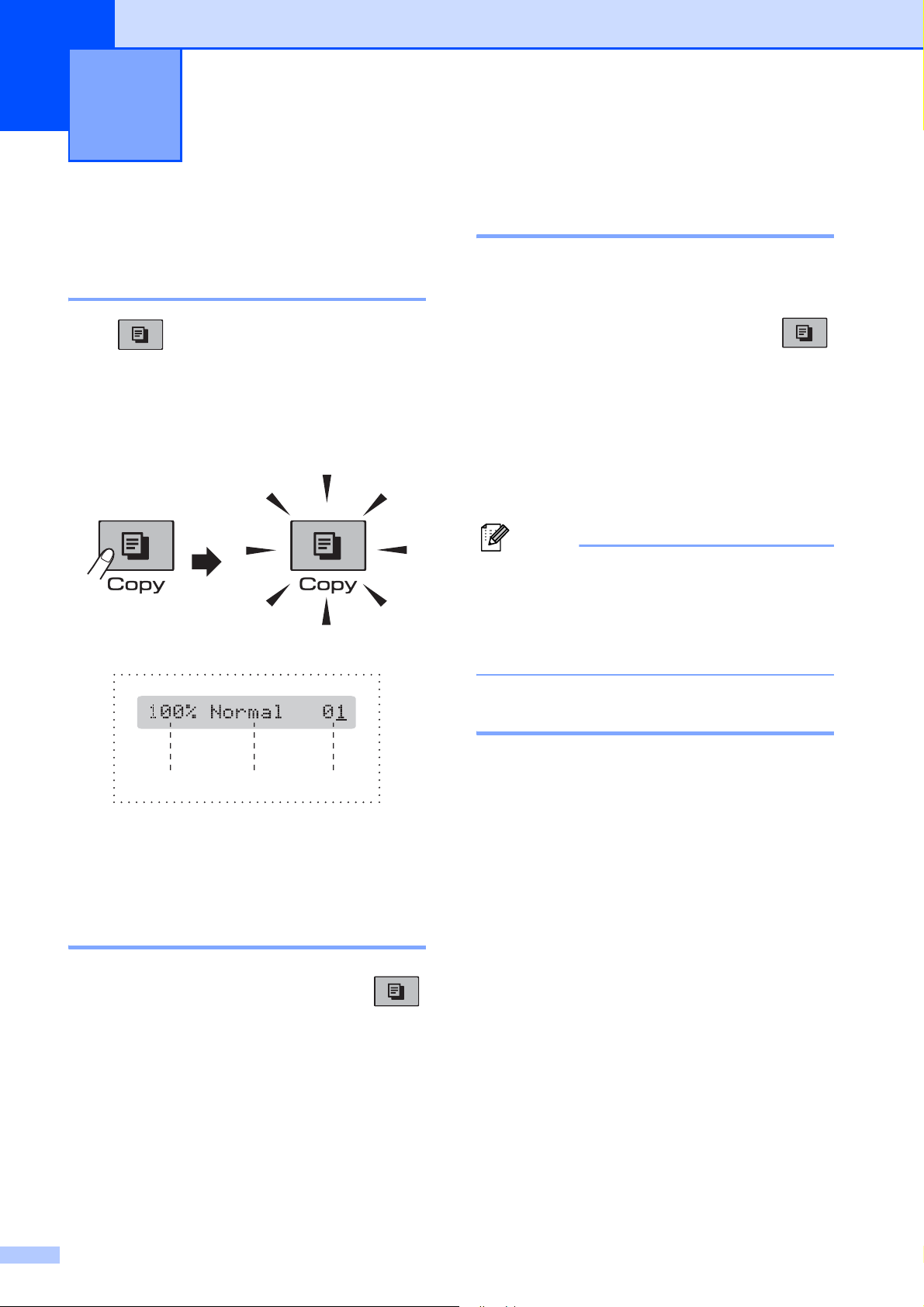
58
10
How to copy 10
Entering Copy mode 10
Press (Copy) to enter Copy mode. The
default mode is Fax. You can change the
number of seconds or minutes that the
machine stays in Copy mode after the last
copy operation. (See Mode Timer
on page 21.)
The LCD shows the default copy settings:
1 Copy Ratio
2 Quality
3 No. of Copies
Making a single copy 10
a Make sure you are in Copy mode .
b Load your document.
(See Loading documents on page 18.)
c Press Black Start or Color Start.
Making multiple copies 10
You can make up to 99 copies in one print
run.
a Make sure you are in Copy mode .
b Load your document.
(See Loading documents on page 18.)
c Use the dial pad to enter the number of
copies (up to 99).
d Press Black Start or Color Start.
Note
(MFC-295CN only)
To sort your copies, press the
Copy Options key. (See Sorting copies
using the ADF (Black & White only)
(MFC-295CN only) on page 63.)
Stop copying 10
To stop copying, press Stop/Exit.
Making copies 10
123
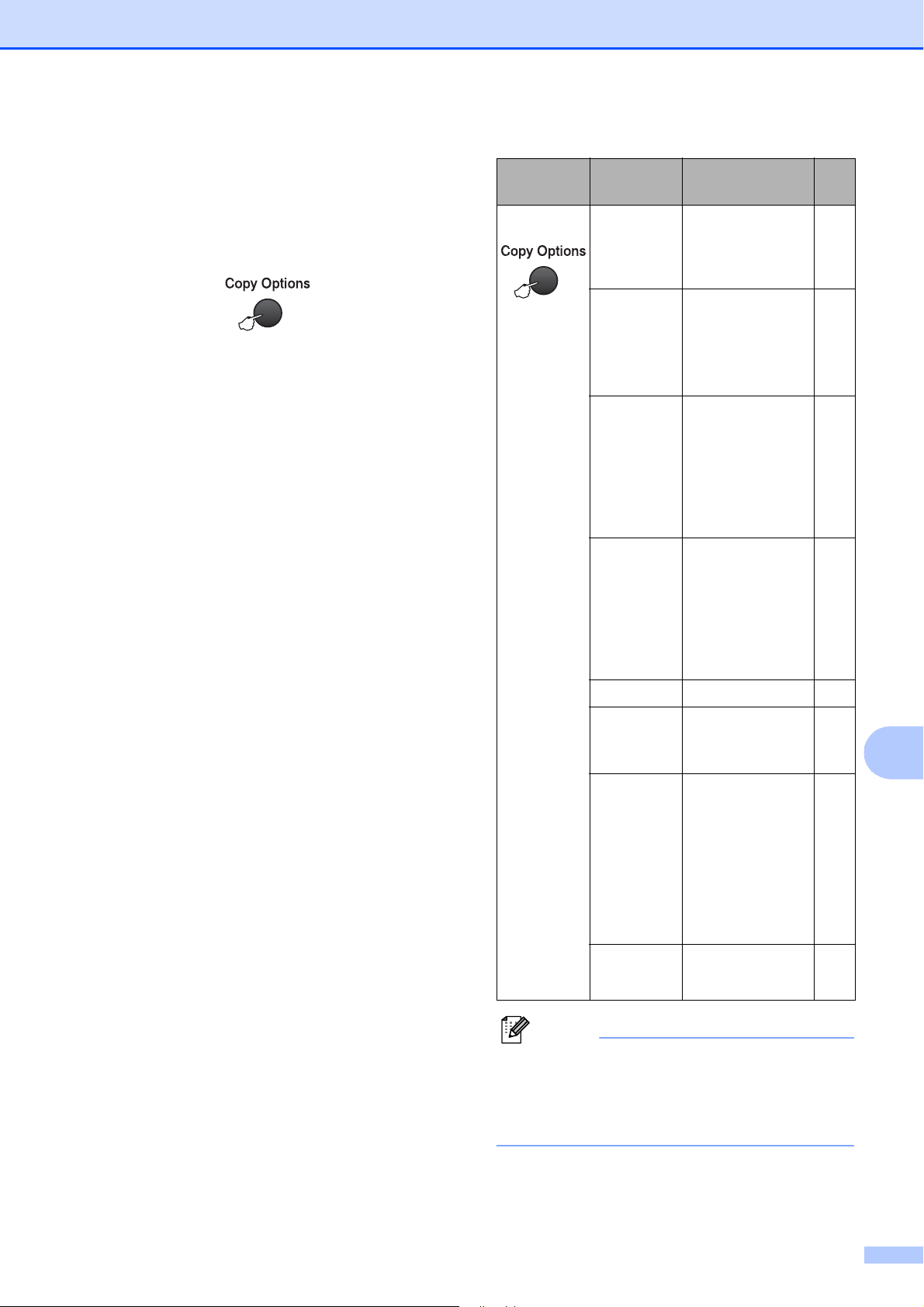
Making copies
59
10
Copy Options 10
When you want to quickly change the copy
settings temporarily for the next copy, use the
Copy Options key.
The machine returns to its default settings
2 minutes after it finishes copying, or if the
mode timer returns the machine to Fax mode.
(For more information see Mode Timer
on page 21.)
Note
You can save some of the copy settings
you use most often by setting them as
default. You can find instructions for how
to do this in the section for each feature.
Press Menu
selection
Options
Page
Press
Quality Fast
Normal
Best
60
Enlarge/
Reduce
Fit to Page/
Custom(25-400%)
/
198%
/
186%
/
104%
/
100%
/
97%
/
93%
/
83%
/
78%
/
46%
/
60
Paper Type
Plain Paper
Inkjet Paper
Brother BP71
Other Glossy
Transparency
64
Paper Size
Letter
Legal
A4
A5
4"(W)x 6"(H)
64
Brightness
- nnonn +63
Stack/Sort
(MFC-295CN
only)
Stack
Sort
63
Page Layout
Off(1 in 1)
2in1(P)
2in1(L)
4in1(P)
4in1(L)
Poster(3 x 3)
61
No. of Copies
No. of Copies:01
(01 - 99)
58
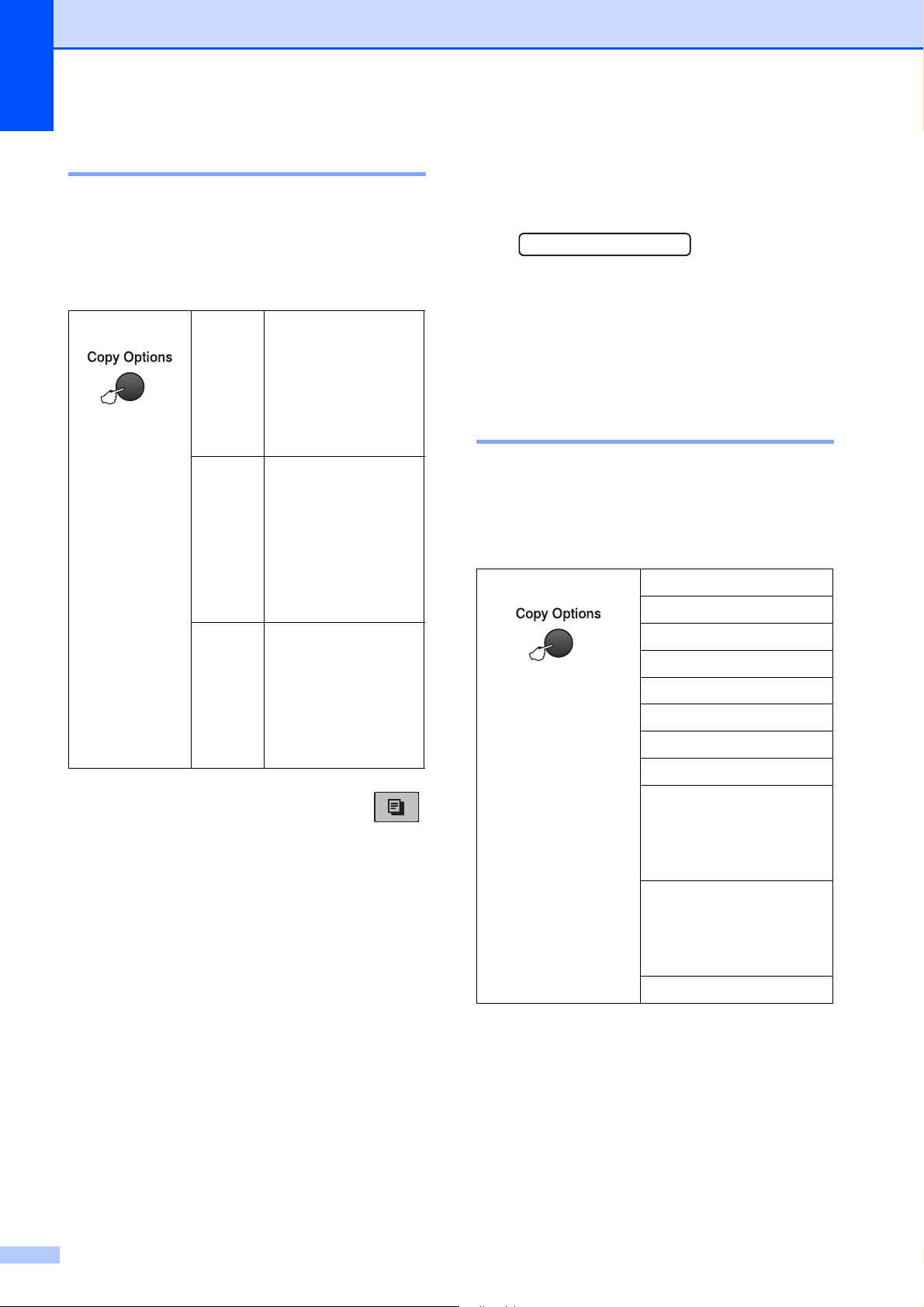
Chapter 10
60
Changing copy quality 10
You can choose from a range of quality
settings. The default setting is Normal.
To temporarily change the quality setting,
follow the instructions below:
a Make sure you are in Copy mode .
b Load your document.
c Use the dial pad to enter the number of
copies (up to 99).
d Press Copy Options and a or b to
choose Quality.
Press OK.
e Press a or b to choose Normal, Best or
Fast. Press OK.
f Press Black Start or Color Start.
To change the default setting, follow the
instructions below:
a Press Menu, 3, 1.
1.Quality
b Press a or b to choose Normal, Best or
Fast. Press OK.
c Press Stop/Exit.
Enlarging or reducing the
image copied 10
You can choose an enlargement or reduction
ratio. If you choose Fit to Page, your
machine will adjust the size automatically to
the paper size you set.
Press
and then a or b
to choose
Quality
Normal Normal is the
recommended
mode for ordinary
printouts. This
produces good copy
quality with good
copy speed.
Fast Fast copy speed
and lowest ink
consumption. Use to
save time printing
documents to be
proof-read, large
documents or many
copies.
Best
Use best mode to
copy precise images
such as photographs.
This provides the
highest resolution
and the slowest
speed.
Press Fit to Page
and then a or b
to choose
Enlarge/Reduce
Custom(25-400%)
198% 4"x6"iA4
186% 4"x6"iLTR
104% EXEiLTR
100%
97% LTRiA4
93% A4iLTR
(MFC-255CW)
83%
(MFC-295CN)
83% LGLiA4
(MFC-255CW)
78%
(MFC-295CN)
78% LGLiLTR
46% LTRi4"x6"
Making copies
61
10
To enlarge or reduce the next copy follow the
instructions below:
a Make sure you are in Copy mode .
b Load your document.
c Use the dial pad to enter the number of
copies (up to 99).
d Press Copy Options and a or b to
choose Enlarge/Reduce.
Press OK.
e Do one of the following:
Press a or b to choose the
enlargement or reduction ratio you
want. Press OK.
Press a or b to choose
Custom(25-400%). Press OK. Use
the dial pad to enter an enlargement
or reduction ratio from 25% to 400%.
(For example, press 5 3 to enter
53%.) Press OK.
Press a or b to choose 100% or
Fit to Page. Press OK.
f Press Black Start or Color Start.
Note
• Page Layout is not available with
Enlarge/Reduce.
• Fit to Page does not work properly
when the document on the scanner glass
is skewed more than 3 degrees. Using the
document guidelines on the left and top,
place your document in the upper left
hand corner, with the document face down
on the scanner glass.
• Fit to Page is not available for a Legal
size document.
Making N in 1 copies or a
poster (Page Layout) 10
The N in 1 copy feature can help you save
paper by letting you copy two or four pages
onto one printed page.
You can also produce a poster. When you
use the poster feature your machine divides
your document into sections, then enlarges
the sections so you can assemble them into a
poster. If you want to print a poster, use the
scanner glass.
IMPORTANT
• Make sure paper size is set to Letter
or A4.
• You cannot use the Enlarge/Reduce and
Stack/Sort settings (MFC-295CN) with the
N in 1 and Poster features.
• N in 1 color copies are not available.
•(P) means Portrait and (L) means
Landscape.
• You can only make one poster copy at a
time.
a Make sure you are in Copy mode .
b Load your document.
c Use the dial pad to enter the number of
copies (up to 99).
d Press Copy Options and a or b to
choose Page Layout.
Press OK.
e Press a or b to choose Off(1 in 1),
2in1(P), 2in1(L),
4in1(P), 4in1(L) or
Poster(3 x 3).
Press OK.
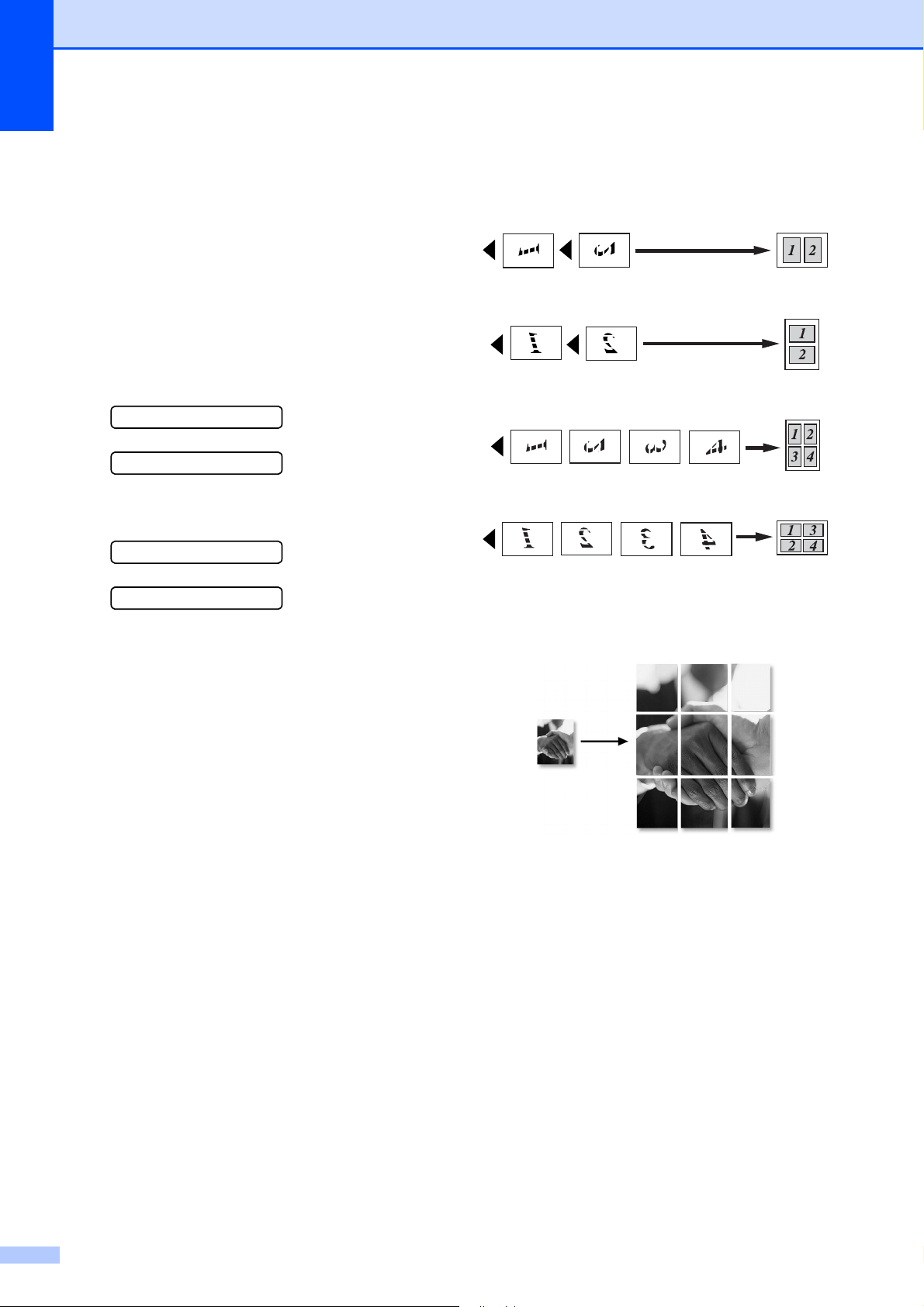
Chapter 10
62
f Press Black Start or Color Start to
scan the document.
If you placed the document in the ADF
(MFC-295CN) or are making a poster,
the machine scans the pages and starts
printing.
If you are using the scanner glass, go
to step g.
g After the machine scans the page,
press 1 to scan the next page.
Next Page?
1.Yes 2.No
h Place the next page on the scanner
glass. Press OK.
Set Next Page
Then Press OK
i Repeat steps g and h for each page of
the layout.
j After all the pages have been scanned,
press 2 in step g to finish.
Place your document face down in the
direction shown below:
2 in 1 (P)
2 in 1 (L)
4 in 1 (P)
4 in 1 (L)
Poster (3 x 3)
You can make a poster size copy of a
photograph.
Making copies
63
10
Sorting copies using the ADF
(Black & White only)
(MFC-295CN only) 10
You can sort multiple copies. Pages will be
stacked in the order 3 2 1, 3 2 1, 3 2 1, and so
on.
a Make sure you are in Copy mode .
b Load your document.
c Use the dial pad to enter the number of
copies (up to 99).
d Press Copy Options and a or b to
choose Stack/Sort.
Press OK.
e Press a or b to choose Sort.
Press OK.
f Press Black Start.
Note
Fit to Page and Page Layout are
not available with Sort.
Adjusting Brightness and
Contrast 10
Brightness 10
To temporarily change the brightness setting,
follow the instructions below:
a Make sure you are in Copy mode .
b Load your document.
c Use the dial pad to enter the number of
copies (up to 99).
d Press Copy Options and a or b to
choose Brightness.
Press OK.
-nnonn+ e
e Press a to make a lighter copy or press b
to make a darker copy. Press OK.
f Press Black Start or Color Start.
To change the default setting follow the
instructions below:
a Press Menu, 3, 2.
b Press a to make a lighter copy or press b
to make a darker copy.
Press OK.
c Press Stop/Exit.
Contrast 10
Adjust the contrast to help an image look
sharper and more vivid.
The contrast can only be changed through
the default setting.
a Press Menu, 3, 3.
3.Contrast
b Press a or b to change the contrast.
Press OK.
c Press Stop/Exit.

Chapter 10
64
Paper options 10
Paper Type 10
If you are copying on special paper, set the
machine for the type of paper you are using to
get the best print quality.
a Make sure you are in Copy mode .
b Load your document.
c Use the dial pad to enter the number of
copies (up to 99).
d Press Copy Options and a or b to
choose Paper Type.
Press OK.
e Press a or b to choose the type of paper
you are using (Plain Paper,
Inkjet Paper, Brother BP71,
Other Glossy or Transparency).
Press OK.
f Press Black Start or Color Start.
Note
To change the default paper type setting
see Paper Type on page 22.
Paper Size 10
If copying on paper other than Letter size, you
will need to change the paper size setting.
You can copy on Letter, Legal, A4, A5 or
Photo 4 × 6in. (10× 15 cm) paper.
a Make sure you are in Copy mode .
b Load your document.
c Use the dial pad to enter the number of
copies (up to 99).
d Press Copy Options and a or b to
choose Paper Size.
Press OK.
e Press a or b to choose the size of paper
you are using Letter, Legal, A4, A5
or 4"(W)x 6"(H).
Press OK.
f Press Black Start or Color Start.
Note
To change the default paper size setting
see Paper Size on page 22.


66
11
Note
The MFC-255CW only supports memory
cards.
PhotoCapture Center
®
Operations
11
Printing from a memory card
or USB Flash memory drive
without a PC 11
Even if your machine is not connected to your
computer, you can print photos directly from
digital camera media or USB Flash memory
drive. (See How to print from a memory card
or USB Flash memory drive on page 69.)
Scanning to a memory card or
USB Flash memory drive
without a PC 11
You can scan documents and save them
directly to a memory card or USB Flash
memory drive. (See Scan to a memory card
or USB Flash memory drive on page 74.)
Using PhotoCapture Center
®
from your computer 11
You can access a memory card or USB Flash
memory drive that is inserted in the front of
the machine from your computer.
(See PhotoCapture Center
®
for Windows
®
or
PhotoCapture Center
®
for Macintosh in the
Software User's Guide on the CD-ROM.)
Using a memory card or USB
Flash memory drive 11
Your Brother machine has media drives
(slots) for use with the following, popular
digital camera media: Memory Stick™,
Memory Stick PRO™, SD, SDHC, xD-Picture
Card™ and a USB Flash memory drive.
miniSD can be used with a miniSD
adapter.
microSD can be used with a microSD
adapter.
Memory Stick Duo™ can be used with a
Memory Stick Duo™ adapter.
Memory Stick PRO Duo™ can be used
with a Memory Stick PRO Duo™ adapter.
Memory Stick Micro™ (M2™) can be used
with a Memory Stick Micro™ (M2™)
adapter.
Adapters are not included with the
machine. Contact a third party supplier for
adapters.
This product supports xD-Picture Card™
Type M / Type M
+
/ Type H (Large Capacity).
IBM Microdrive™ is not compatible with
the machine.
PhotoCapture Center
®
: Printing
photos from a memory card or
USB Flash memory drive
11
Memory Stick™
Memory Stick PRO™
SD, SDHC
xD-Picture Card™ USB Flash memory
drive
0.87 in. (22 mm)
or less
0.43 in. (11 mm)
or less

PhotoCapture Center
®
: Printing photos from a memory card or USB Flash memory drive
67
11
The PhotoCapture Center
®
feature lets you
print digital photos from your digital camera at
high resolution to get photo quality printing.
Memory cards, USB Flash
memory drive and folder
structures 11
Your machine is designed to be compatible
with modern digital camera image files,
memory cards and a USB Flash memory
drive; however, please read the points below
to avoid errors:
The image file extension must be .JPG
(other image file extensions like .JPEG,
.TIF, .GIF and so on will not be
recognized).
Direct PhotoCapture Center
®
printing
must be performed separately from
PhotoCapture Center
®
operations using
the PC. (Simultaneous operation is not
available.)
The machine can read up to 999 files on a
memory card or USB Flash memory drive.
The DPOF file on the memory cards must
be in a valid DPOF format. (See DPOF
printing on page 71.)
Please be aware of the following:
When printing an index or image, the
PhotoCapture Center
®
will print all valid
images, even if one or more images have
been corrupted. Corrupted images will not
be printed.
(memory card users)
Your machine is designed to read memory
cards that have been formatted by a digital
camera.
When a digital camera formats a memory
card it creates a special folder into which it
copies image data. If you need to modify
the image data stored on a memory card
with your PC, we recommend that you do
not modify the folder structure created by
the digital camera. When saving new or
modified image files to the memory card
we also recommend you use the same
folder your digital camera uses. If the data
is not saved to the same folder, the
machine may not be able to read the file or
print the image.
(USB Flash memory drive users)
This machine supports USB Flash
memory drives that have been formatted
by Windows
®
.
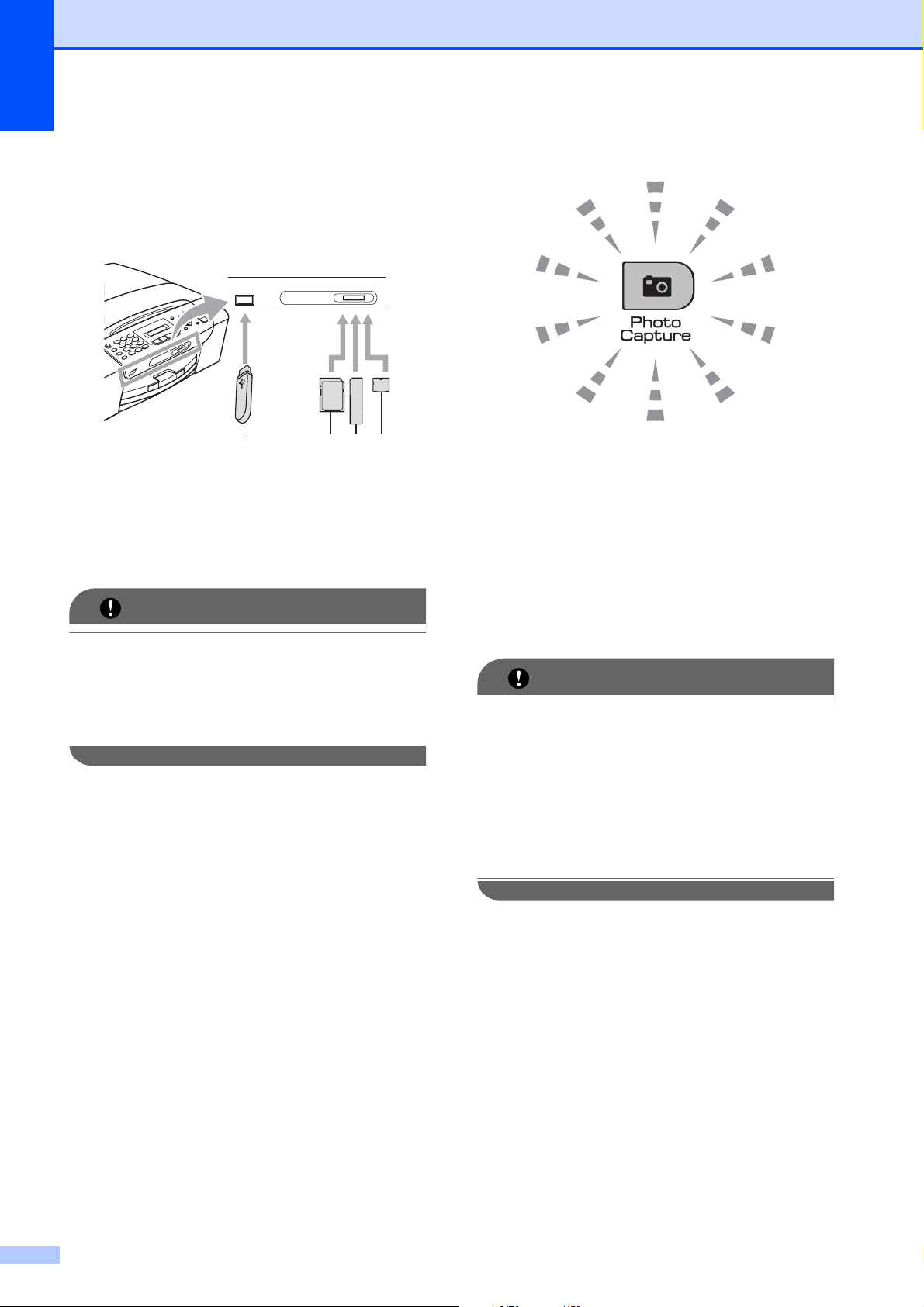
Chapter 11
68
Getting started 11
Firmly put a memory card or USB Flash
memory drive into the proper slot.
1 USB Flash memory drive
2 SD, SDHC
3 Memory Stick™, Memory Stick PRO™
4 xD-Picture Card™
IMPORTANT
The USB direct interface supports only a
USB Flash memory drive, a PictBridge
compatible camera, or a digital camera
that uses the USB mass storage standard.
Any other USB devices are not supported.
The Photo Capture key lights
Photo Capture light is on, the memory
card or USB Flash memory drive is
properly inserted.
Photo Capture light is off, the memory
card or USB Flash memory drive is not
properly inserted.
Photo Capture light is blinking, the
memory card or USB Flash memory drive
is being read or written to.
IMPORTANT
DO NOT unplug the power cord or remove
the memory card or USB Flash memory
drive from the media drive (slot) or USB
direct interface while the machine is
reading or writing to the memory card or
USB Flash memory drive (the
Photo Capture key is blinking). You will
lose your data or damage the card.
The machine can only read one device at a
time so do not put more than one device in
the machine at the same time.
234
1
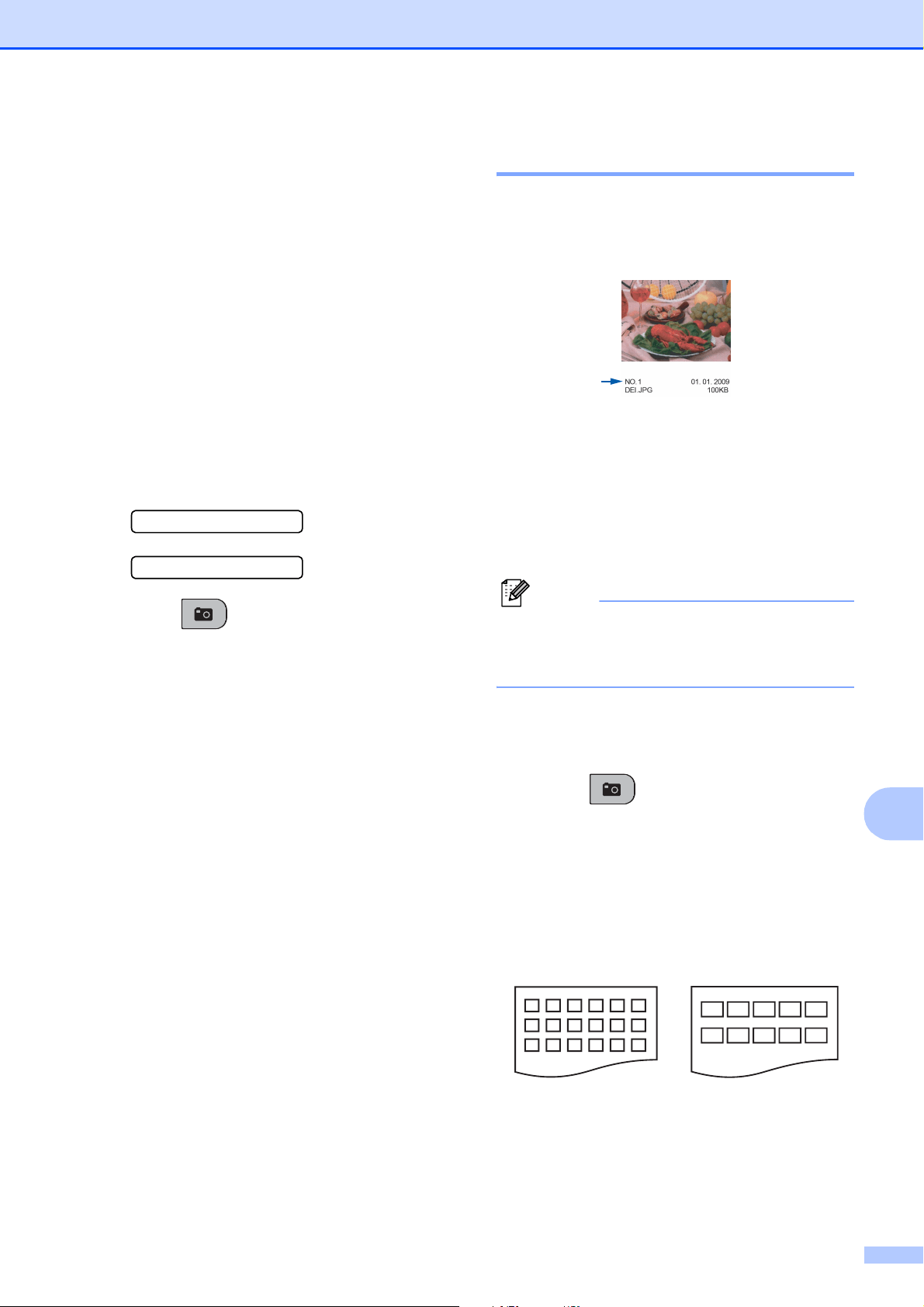
PhotoCapture Center
®
: Printing photos from a memory card or USB Flash memory drive
69
11
How to print from a
memory card or USB
Flash memory drive
11
Before printing a photo you must first print a
thumbnail index to choose the number of the
photo you want to print. Follow the
instructions below to start printing directly
from your memory card or USB Flash
memory drive:
a Make sure you have put the memory
card or USB Flash memory drive in the
proper slot. For example, the LCD will
show the following message:
M.Stick Active
Press PhotoCa...
b Press (Photo Capture). For
DPOF printing, see DPOF printing
on page 71.
c Press a or b to choose Print Index.
Press OK.
d Press Color Start to start printing the
index sheet. Make a note of the image
number you want to print. See Print
Index (Thumbnails) on page 69.
e To print images press a or b to choose
Print Images in step c and then
press OK. (See Printing Photos
on page 70.)
f Enter the image number and press OK.
g Press Color Start to start printing.
Print Index (Thumbnails) 11
The PhotoCapture Center
®
assigns numbers
for images (such as NO.1, NO.2, NO.3, and
so on).
The PhotoCapture Center
®
does not
recognize any other numbers or file names
that your digital camera or computer has
used to identify the pictures. You can print a
thumbnail page. This will show all the pictures
on the memory card or USB Flash memory
drive.
Note
Only file names that are 8 characters or
less will be printed correctly on the Index
sheet.
a Make sure you have put the memory
card or USB Flash memory drive in the
proper slot.
Press (Photo Capture).
b Press a or b to choose Print Index.
Press OK.
c Press a or b to choose
6 Images/Line or 5 Images/Line.
Press OK.
Print time for 5 Images/Line will be
slower than 6 Images/Line, but the
quality is better.
6 Images/Line 5 Images/Line

Chapter 11
70
d Press a or b to choose the type of paper
you are using, Plain Paper,
Inkjet Paper, Brother BP71 or
Other Glossy.
Press OK.
e Press a or b to choose the paper size
you are using, Letter or A4.
Press OK.
f Press Color Start to print.
Printing Photos 11
Before you can print an individual image, you
have to know the image number.
a Make sure you have put the memory
card or USB Flash memory drive in the
proper slot.
b Print the index first. (See Print Index
(Thumbnails) on page 69.)
Press (Photo Capture).
c Press a or b to choose Print Images.
Press OK.
Note
If your memory card contains valid
DPOF information, the LCD will show
DPOF Print:Yes. See DPOF printing
on page 71.
d Enter the image number that you want to
print from the thumbnail index.
Press OK.
No.:1,3,6,
Note
• Multiple numbers can be entered by using
the l key to separate numbers. For
example press 1, l, 3, l, 6 would print
images 1, 3 and 6.
The # key can be used to print a range of
numbers, for example press 1, #, 5 would
print all images from 1 to 5.
• You can enter up to 12 characters
(including commas) for the image
numbers you want to print.
e Do one of the following:
After you have chosen all the images
you want to print, press OK to
choose your settings. Go to step f.
If you do not want to change any
settings, press Color Start.
f Press a or b to choose the type of paper
you are using, Plain Paper,
Inkjet Paper, Brother BP71 or
Other Glossy.
Press OK.
g Press a or b to choose the paper size
you are using, Letter, A4, 4"x 6" or
5"x 7".
Press OK.
If you choose Letter or A4, go to
step h.
If you choose another size, go to
step i.
If you have finished choosing
settings, press Color Start.
h Press a or b to choose the print size
(3"x 4", 3.5"x 5", 4"x 6",
5"x 7", 6"x 8" or Max. Size).
Press OK.
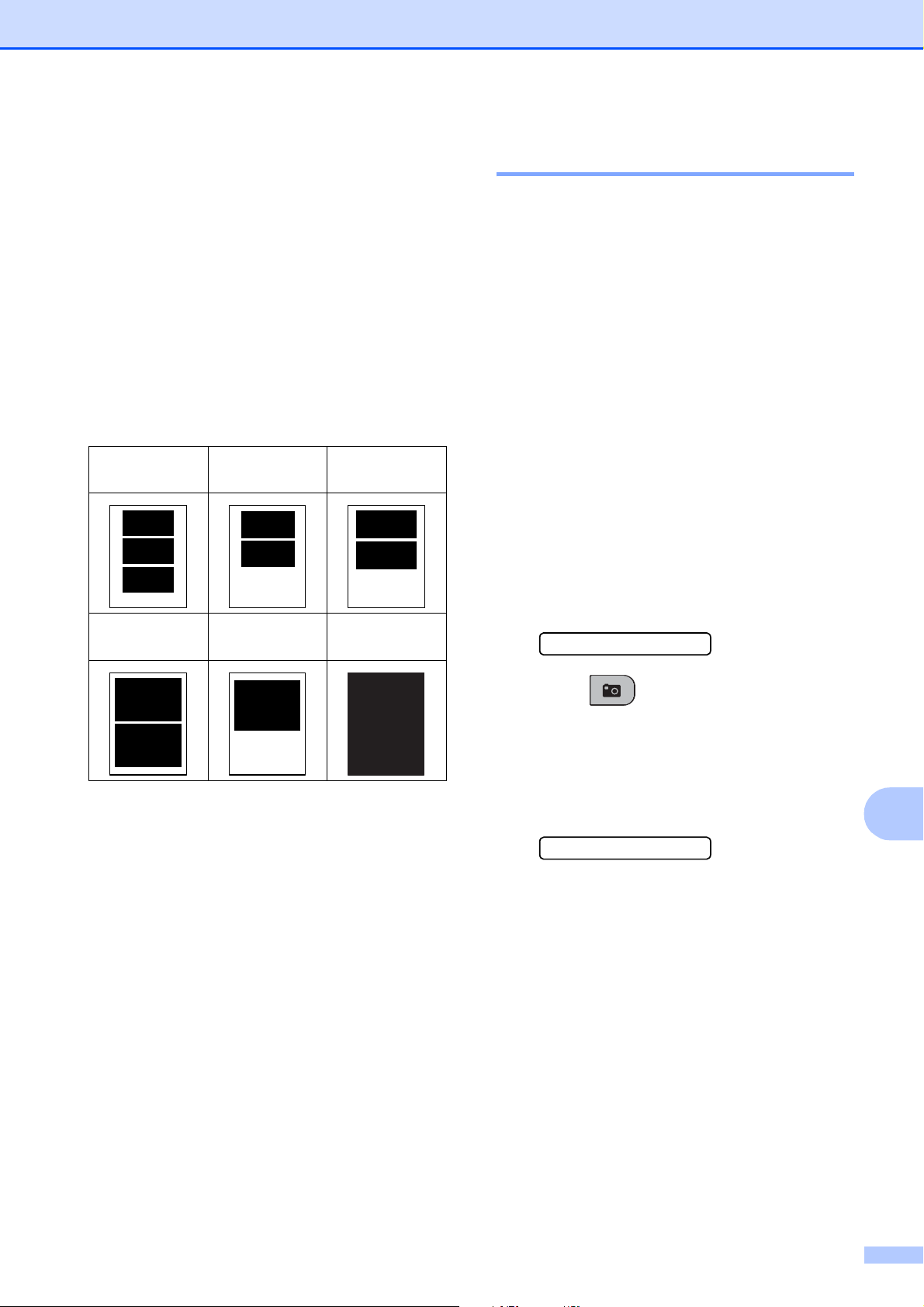
PhotoCapture Center
®
: Printing photos from a memory card or USB Flash memory drive
71
11
i Do one of the following:
To choose the number of copies go
to step j.
If you have finished choosing
settings, press Color Start.
j Enter the number of copies you want.
Press OK.
k Press Color Start to print.
The printing positions when using Letter are
shown below:
DPOF printing 11
DPOF stands for Digital Print Order Format.
Major digital camera manufacturers (Canon
Inc., Eastman Kodak Company, FUJIFILM
Corporation, Panasonic Corporation and
Sony Corporation) created this standard to
make it easier to print images from a digital
camera.
If your digital camera supports DPOF
printing, you will be able to choose on the
digital camera display the images and
number of copies you want to print.
When a memory card (Memory Stick™,
Memory Stick PRO™, SD, SDHC or
xD-Picture Card™) containing DPOF
information is put into your machine, you can
print the chosen image easily.
a Firmly insert the memory card into the
proper slot.
SD Card Active
Press (Photo Capture).
b Press a or b to choose Print Images.
Press OK.
c If there is a DPOF file on the card, the
LCD will show:
DPOF Print:Yes e
d Press a or b to choose
DPOF Print:Yes. Press OK.
e Press a or b to choose the type of paper
you are using, Plain Paper,
Inkjet Paper, Brother BP71 or
Other Glossy.
Press OK.
1
3"x 4"
2
3.5"x 5"
3
4"x 6"
4
5"x 7"
5
6"x 8"
6
Max. Size

Chapter 11
72
f Press a or b to choose the paper size
you are using, Letter, A4, 4"x 6" or
5"x 7".
Press OK.
If you chose Letter or A4, go to
step g.
If you chose another size, go to
step h.
If you have finished choosing
settings, press Color Start.
g Press a or b to choose the print size
(3"x 4", 3.5"x 5", 4"x 6",
5"x 7", 6"x 8" or Max. Size).
Press OK.
h Press Color Start to print.
Note
An invalid DPOF file error can occur if the
print order that was created on the camera
has been corrupted. Delete and recreate
the print order using your camera to
correct this problem.
For instructions on how to delete or
recreate the print order, refer to your
camera manufacturer’s support web site
or accompanying documentation.
PhotoCapture Center
®
print settings
11
These settings will remain until you change
them again.
Print Quality 11
a Press Menu, 4, 1.
b Press a or b to choose Normal or
Photo.
Press OK.
c Press Stop/Exit.
Paper Options 11
Paper Type 11
a Press Menu, 4, 2.
b Press a or b to choose Plain Paper,
Inkjet Paper, Brother BP71 or
Other Glossy.
Press OK.
c Press Stop/Exit.
Paper Size 11
a Press Menu, 4, 3.
b Press a or b to choose the paper size
you are using, Letter, A4, 4"x 6" or
5"x 7".
Press OK.
c Press Stop/Exit.
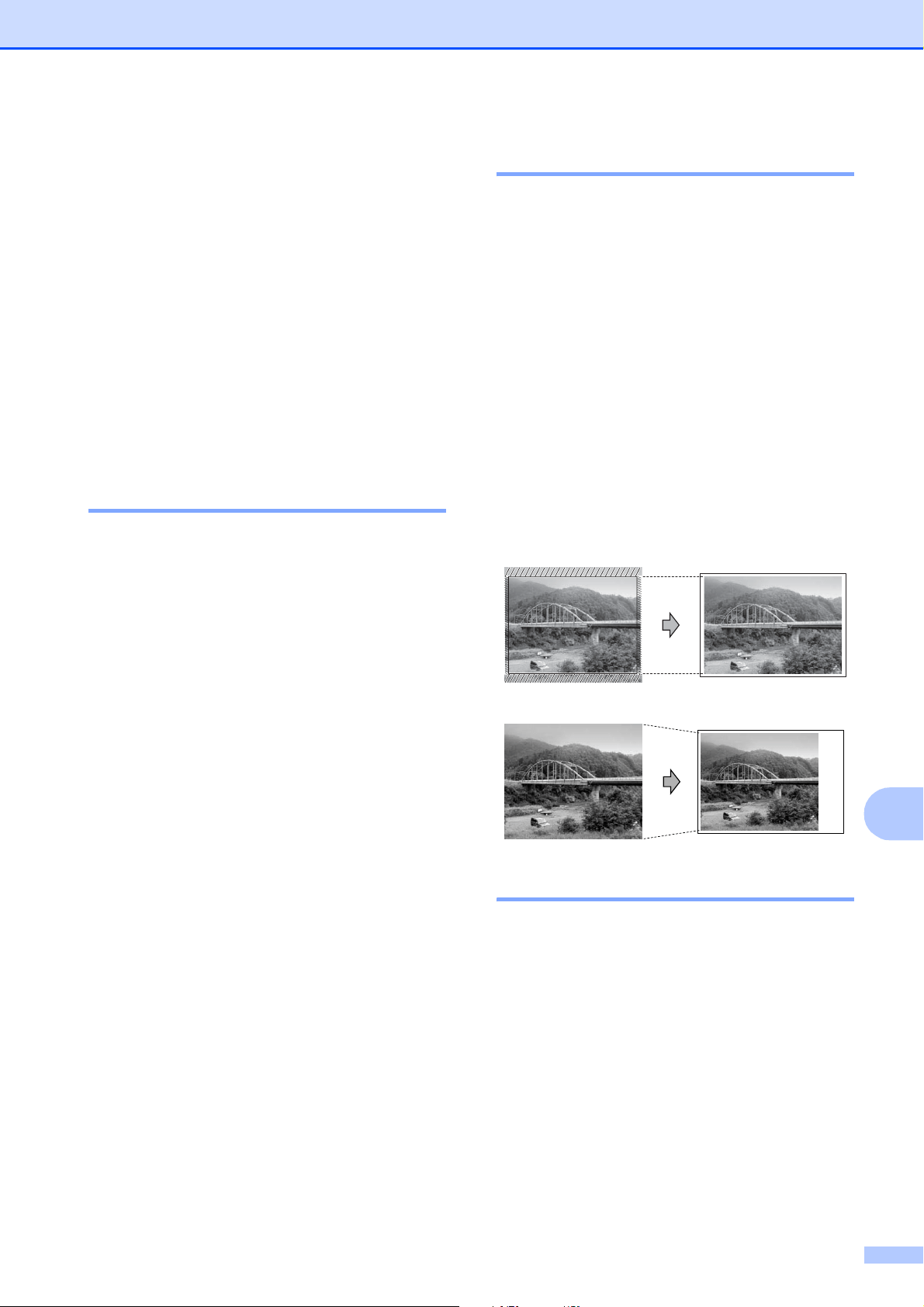
PhotoCapture Center
®
: Printing photos from a memory card or USB Flash memory drive
73
11
Print Size 11
This setting is available only when you
choose Letter or A4 in the paper size setting.
a Press Menu, 4, 4.
b Press a or b to choose the print size you
are using, 3"x 4", 3.5"x 5",
4"x 6", 5"x 7", 6"x 8" or
Max. Size.
Press OK.
c Press Stop/Exit.
Adjusting Brightness and
Contrast 11
Brightness 11
a Press Menu, 4, 5.
b Press a to make a lighter copy or
press b to make a darker copy.
Press OK.
c Press Stop/Exit.
Contrast 11
You can choose the contrast setting. More
contrast will make an image look sharper and
more vivid.
a Press Menu, 4, 6.
b Press a to increase the contrast or
press b to decrease the contrast.
Press OK.
c Press Stop/Exit.
Cropping 11
If your photo is too long or wide to fit the
available space on your chosen layout, part
of the image will be automatically cropped.
The default setting is On. If you want to print
the whole image, turn this setting to Off. If
you are also using the Borderless setting,
turn Borderless to Off. (See Borderless
printing on page 73.)
a Press Menu, 4, 7.
b Press a or b to choose Cropping:On
(or Cropping:Off).
Press OK.
c Press Stop/Exit.
Cropping: On 11
Cropping: Off 11
Borderless printing 11
This feature expands the printable area to the
edges of the paper. Printing time will be
slightly slower.
a Press Menu, 4, 8.
b Press a or b to choose
Borderless:On
(or Borderless:Off).
Press OK.
c Press Stop/Exit.
Chapter 11
74
Print Date 11
You can print the date if it is already in the
data on your photo. The date will be printed
on the lower right corner. If the data doesn’t
have the date information, you cannot use
this function.
a Press Menu, 4, 9.
b Press a or b to choose Date:On
(or Date:Off).
Press OK.
c Press Stop/Exit.
Note
The DPOF setting on your camera must
be turned off to use the Print Date
feature.
Scan to a memory card
or USB Flash memory
drive
11
You can scan black & white and color
documents into a memory card or USB Flash
memory drive. Black and white documents
will be stored in PDF (*.PDF) or TIFF (*.TIF)
file formats. Color documents may be stored
in PDF (*.PDF) or JPEG (*.JPG) file formats.
The default setting is Color 150 dpi and
the default file format is PDF. The machine
automatically creates file names based on
the current date. (For details, see the Quick
Setup Guide.) For example, the fifth image
scanned on July 1, 2009 would be named
07010905.PDF. You can change the color
and quality.
a Make sure you have put the memory
card or USB Flash memory drive in the
proper slot.
IMPORTANT
DO NOT take out the memory card or
USB Flash memory drive while
Photo Capture is blinking to avoid
damaging the card, USB Flash memory
drive or the data stored on them.
b Load your document.
c Press (Scan).
d Press
a
or
b
to choose
Scan to Media.
Quality Selectable File
Format
Color 150 dpi PDF / JPEG
Color 300 dpi PDF / JPEG
Color 600 dpi PDF / JPEG
B/W 200x100 dpi TIFF / PDF
B/W 200 dpi TIFF / PDF

PhotoCapture Center
®
: Printing photos from a memory card or USB Flash memory drive
75
11
e Do one of the following:
To change the quality press OK and
go to step f.
To start scanning press Black Start
or Color Start.
f Press a or b to choose the quality, and
then press OK.
Do one of the following:
To change the file type, go to step g.
To start scanning press Black Start
or Color Start.
g Press a or b to choose the file type,
choose one of the options below:
To change the file name press OK
and go to step h.
To start scanning press Black Start
or Color Start.
h The file name is set automatically.
However, you can set a name of your
choice using the dial pad. You can only
change the first 6 digits.
Press Black Start or Color Start.
Changing the image quality 11
a Press Menu, 4, 0, 1.
b Press a or b to choose
B/W 200x100 dpi, B/W 200 dpi,
Color 150 dpi, Color 300 dpi or
Color 600 dpi.
Press OK.
c Press Stop/Exit.
Changing the black & white
file format 11
a Press Menu, 4, 0, 2.
b Press a or b to choose TIFF or PDF.
Press OK.
c Press Stop/Exit.
Changing the color file format11
a Press Menu, 4, 0, 3.
b Press a or b to choose PDF or JPEG.
Press OK.
c Press Stop/Exit.

Chapter 11
76
Understanding the
Error Messages
11
Once you are familiar with the types of errors
that can occur while you are using
PhotoCapture Center
®
, you can easily
identify and troubleshoot any problems.
Hub is Unusable.
This message will appear if a Hub or USB
Flash memory drive with a Hub has been
put into the USB direct interface.
Media Error
This message will appear if you put in a
memory card that is either bad or not
formatted, or when there is a problem with
the media drive. To clear this error, take
out the memory card.
No File
This message will appear if you try to
access a memory card or USB Flash
memory drive in the drive (slot) that does
not contain a .JPG file.
Out of Memory
This message will appear if you are
working with images that are too large for
the machine's memory.
This message will also appear when a
memory card or USB Flash memory drive
you are using does not have enough
space available for the scanned
document.
Media is Full.
This message will appear if you are trying
to save more than 999 files in a memory
card or USB Flash memory drive.
Unusable Device
This message will appear if a USB device
or USB Flash memory drive that is not
supported has been connected to the USB
direct interface. (For more information,
visit us at http://solutions.brother.com
.)
This message will also appear if you
connect a broken device to the USB direct
interface.
77
12
12
Printing photos
directly from a
PictBridge camera
12
Your Brother machine supports the
PictBridge standard, allowing you to connect
to and print photos directly from any
PictBridge compatible digital camera.
If your camera is using the USB Mass
Storage standard, you can also print photos
from a digital camera without PictBridge.
(See Printing photos directly from a digital
camera (without PictBridge) on page 79.)
PictBridge requirements 12
To avoid errors, remember the following
points:
The machine and the digital camera must
be connected using a suitable USB cable.
The image file extension must be .JPG
(other image file extensions like .JPEG,
.TIF, .GIF and so on will not be
recognized).
PhotoCapture Center
®
operations are not
available when using the PictBridge
feature.
Setting your digital camera 12
Make sure your camera is in PictBridge
mode. The following PictBridge settings may
be available from the LCD of your PictBridge
compatible camera.
Depending on your camera some of these
settings may not be available.
1
See DPOF printing on page 78 for more details.
2
If your camera is set to use the Printer Settings
(Default setting), the machine will print your photo
using the following settings.
When your camera does not have any menu
selections, these settings are also used.
The names and availability of each setting
depends on the specification of your
camera.
Please refer to the documentation supplied
with your camera for more detailed
information on changing PictBridge settings.
Printing photos from a camera
(MFC-295CN only)
12
Camera Menu
Selections
Options
Paper Size Letter, A4, 4" × 6",
Printer Settings
(Default setting)
2
Paper Type Plain Paper,
Glossy Paper,
Inkjet Paper,
Printer Settings
(Default setting)
2
Layout Borderless: On,
Borderless: Off,
Printer Settings
(Default setting)
2
DPOF setting
1
-
Print Quality Normal, Fine,
Printer Settings
(Default setting)
2
Print Date On, Off, Printer Settings
(Default setting)
2
Settings Options
Paper Size 4" × 6"
Paper Type Glossy Paper
Layout Borderless: On
Print Quality Fine
Print Date Off
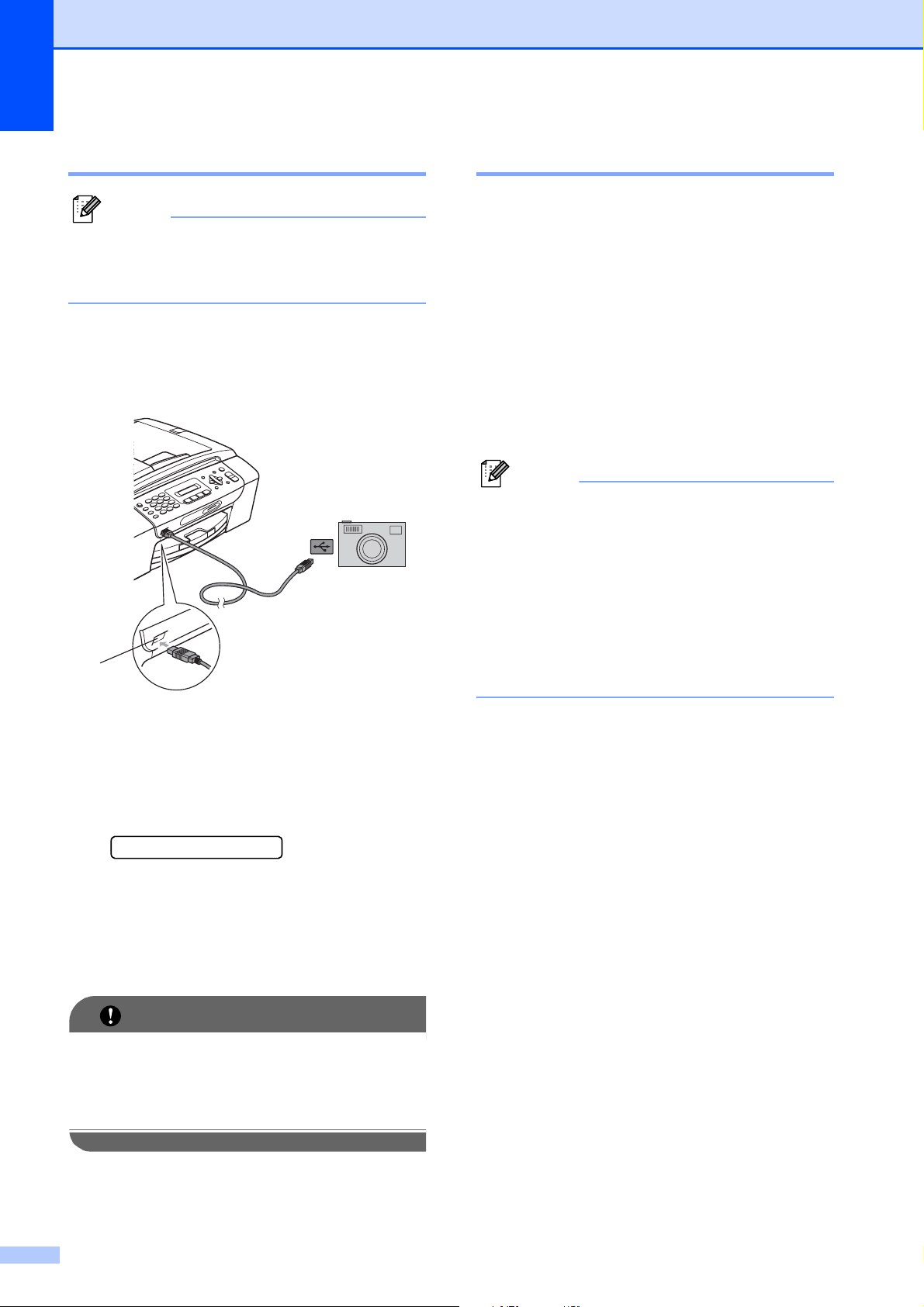
Chapter 12
78
Printing Images 12
Note
Remove any memory cards or USB Flash
memory drive from the machine before
connecting a digital camera.
a Make sure that your camera is turned
off. Connect your camera to the USB
direct interface (1) on the machine using
the USB cable.
1 USB direct interface
b Turn on the camera.
When the machine has recognized the
camera, the LCD shows the following
message:
Camera Connected
c Choose the photo you want to print
following the instructions from your
camera.
When the machine starts printing a
photo, the LCD will show Printing.
IMPORTANT
To prevent damage to your machine, do
not connect any device other than a digital
camera or USB Flash memory drive to the
USB direct interface.
DPOF printing 12
DPOF stands for Digital Print Order Format.
Major digital camera manufacturers (Canon
Inc., Eastman Kodak Company, FUJIFILM
Corporation, Panasonic Corporation and
Sony Corporation) created this standard to
make it easier to print images from a digital
camera.
If your digital camera supports DPOF
printing, you will be able to choose on the
digital camera display the images and
number of copies you want to print.
Note
An invalid DPOF File error can occur if the
print order that was created on the camera
has been corrupted. Delete and recreate
the print order using your camera to
correct this problem. For instructions on
how to delete or recreate the print order,
refer to your camera manufacturer’s
support web site or accompanying
documentation.
1
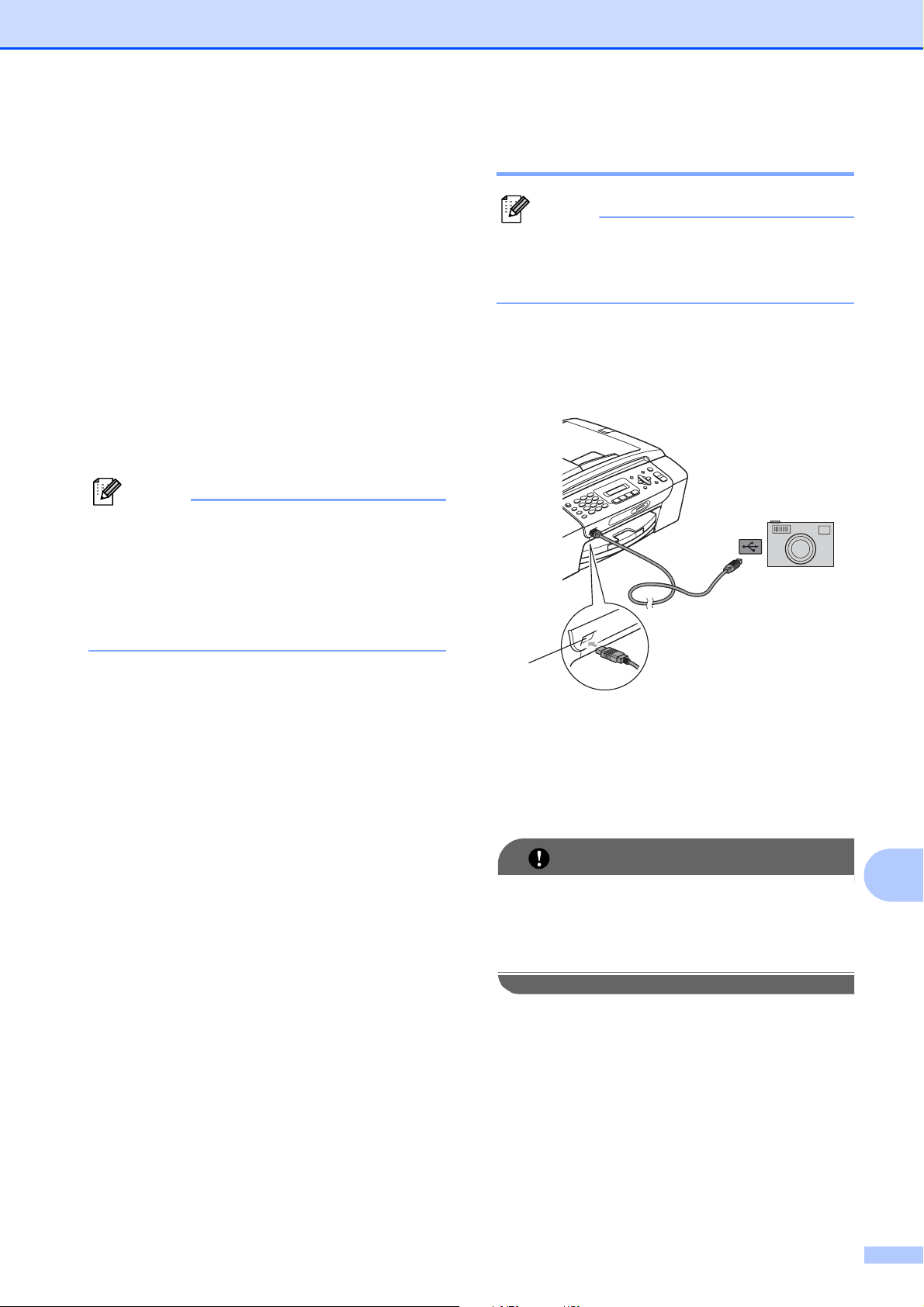
Printing photos from a camera (MFC-295CN only)
79
12
Printing photos
directly from a digital
camera (without
PictBridge)
12
If your camera is using the USB Mass
Storage standard, you can connect your
camera in storage mode. This enables you to
print photos from your camera.
(If you would like to print photos in PictBridge
mode, see Printing photos directly from a
PictBridge camera on page 77.)
Note
The name, availability and operation differ
among digital cameras. Please refer to the
documentation supplied with your camera
for detailed information, such as how to
switch from PictBridge mode to USB mass
storage mode.
Printing Images 12
Note
Remove any memory cards or a USB
Flash memory drive from the machine
before connecting a digital camera.
a Make sure that your camera is turned
off. Connect your camera to the USB
direct interface (1) on the machine using
the USB cable.
1 USB direct interface
b Turn on the camera.
c Follow the steps in Printing Photos
on page 70.
IMPORTANT
To prevent damage to your machine, do
not connect any device other than a digital
camera or USB Flash memory drive to the
USB direct interface.
1

Chapter 12
80
Understanding the
Error Messages
12
Once you are familiar with the types of errors
that can occur while you are printing from a
camera, you can easily identify and
troubleshoot any problems.
Out of Memory
This message will appear if you are
working with images that are too large for
the machine's memory.
Unusable Device
This message will appear if you connect a
camera that is not using the USB Mass
Storage standard. This message will also
appear if you connect a broken device to
the USB direct interface.
(For more detailed solutions see Error and
maintenance messages on page 106.)

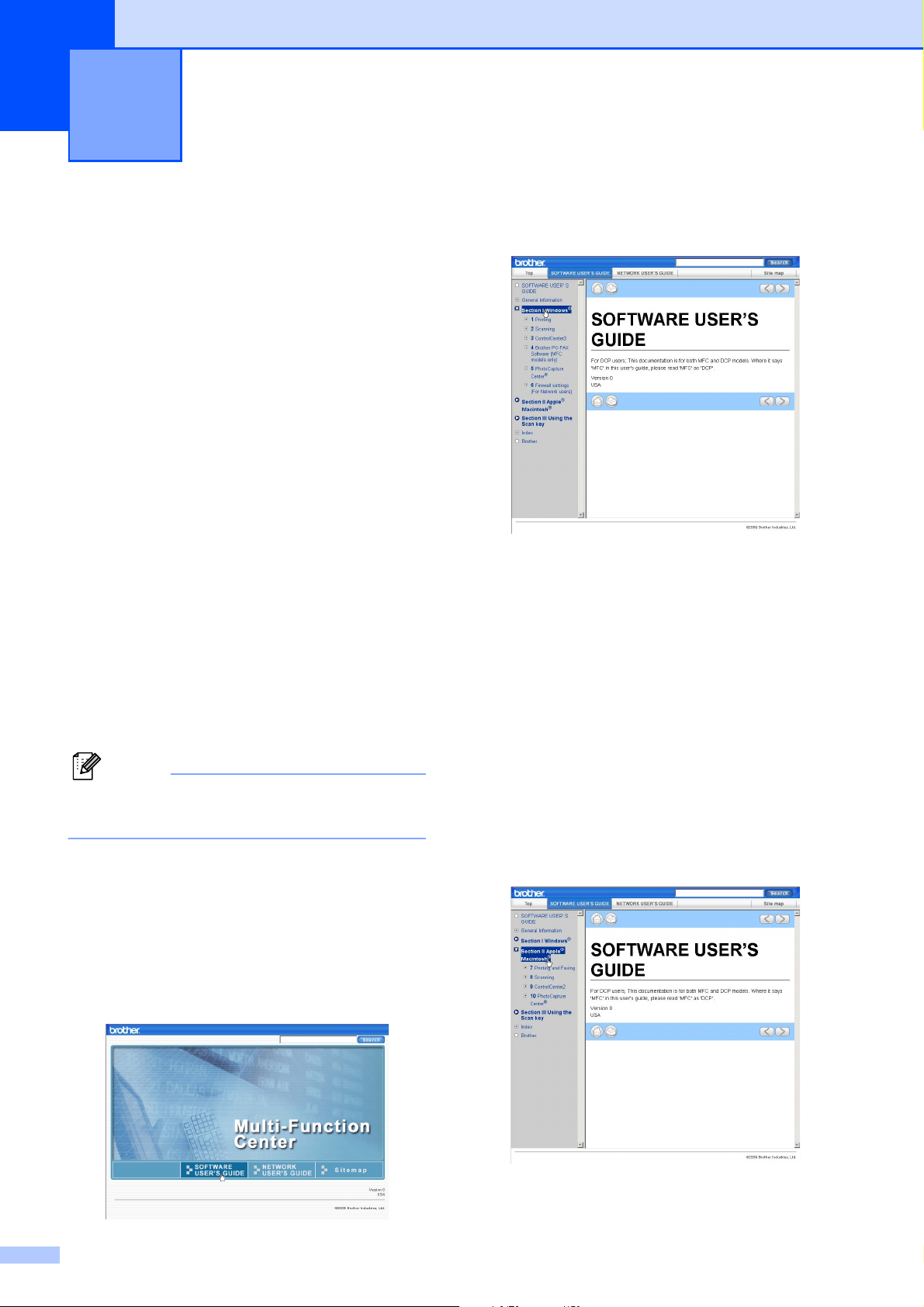
82
13
The CD-ROM includes the Software User’s
Guide and Network User’s Guide for features
available when connected to a computer (for
example, printing and scanning). The guide
has easy to use links that, when clicked, will
take you directly to a particular section.
You can find information on these features:
Printing
Scanning
ControlCenter3 (Windows
®
)
ControlCenter2 (Macintosh)
Faxing from your computer
PhotoCapture Center
®
Network Printing
Network Scanning
Wired and Wireless Network
How to read the HTML User’s Guide
This is a quick reference to use the HTML
User’s Guide.
Windows
®
Note
If you have not installed the software, see
Viewing Documentation on page 2.
a From the Start menu, point to Brother,
MFC-XXXX (where XXXX is your model
number) from the programs group, then
click User’s Guides in HTML format.
b Click SOFTWARE USER’S GUIDE (or
NETWORK USER’S GUIDE) from the
top menu.
c Click the heading you would like to view
from the list at the left of the window.
Macintosh
a Make sure your Macintosh is turned on.
Insert the Brother CD-ROM into your
CD-ROM drive.
b Double-click the Documentation icon.
c Double-click your language folder, and
then double-click top.html.
d Click SOFTWARE USER’S GUIDE (or
NETWORK USER’S GUIDE) in the top
menu, and then click the heading you
would like to read from the list at the left
of the window.
Software and Network features 13

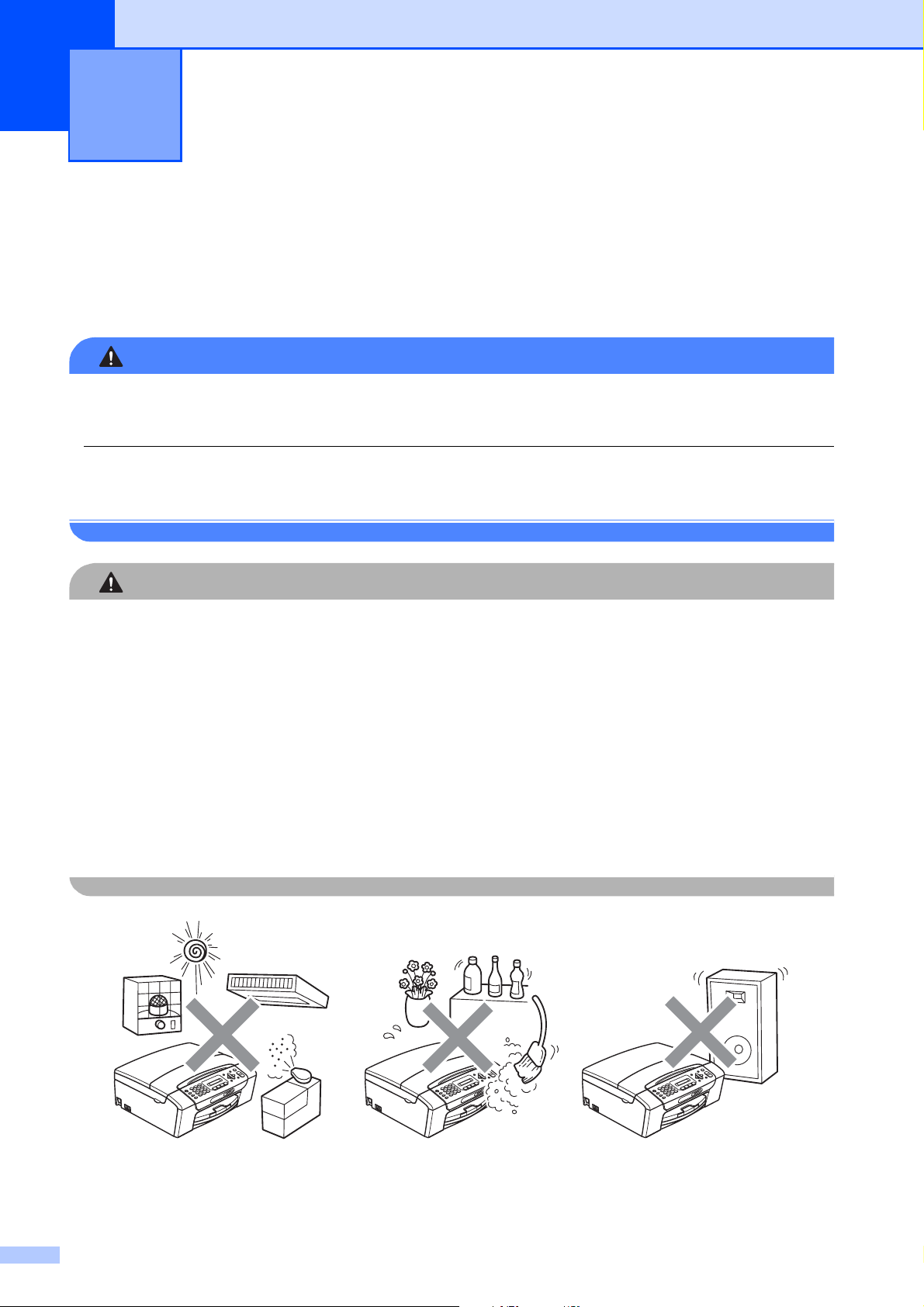
84
A
Choosing a location A
Put your machine on a flat, stable surface that is free of vibration and shocks, such as a desk. Put
the machine near a telephone wall jack and a standard AC power outlet. Choose a location where
the temperature remains between 50 °F and 95 °F (10 °C and 35 °C).
WARNING
DO NOT put the machine near heaters, air conditioners, refrigerators, medical equipment,
chemicals or water.
DO NOT connect your machine to AC power outlets controlled by wall switches or automatic
timers.
CAUTION
• Avoid placing your machine in a high-traffic area.
• Avoid placing your machine on a carpet.
• DO NOT expose the machine to direct sunlight, excessive heat, moisture, or dust.
• Disruption of power can wipe out information in the machine's memory.
• DO NOT connect your machine to AC power outlets on the same circuit as large appliances
or other equipment that might disrupt the power supply.
• Avoid interference sources, such as cordless telephone systems or speakers.
• DO NOT tip the machine, or place it on any tilted surface. Doing this may cause ink spillage
and internal damage to your machine.
Safety and Legal A
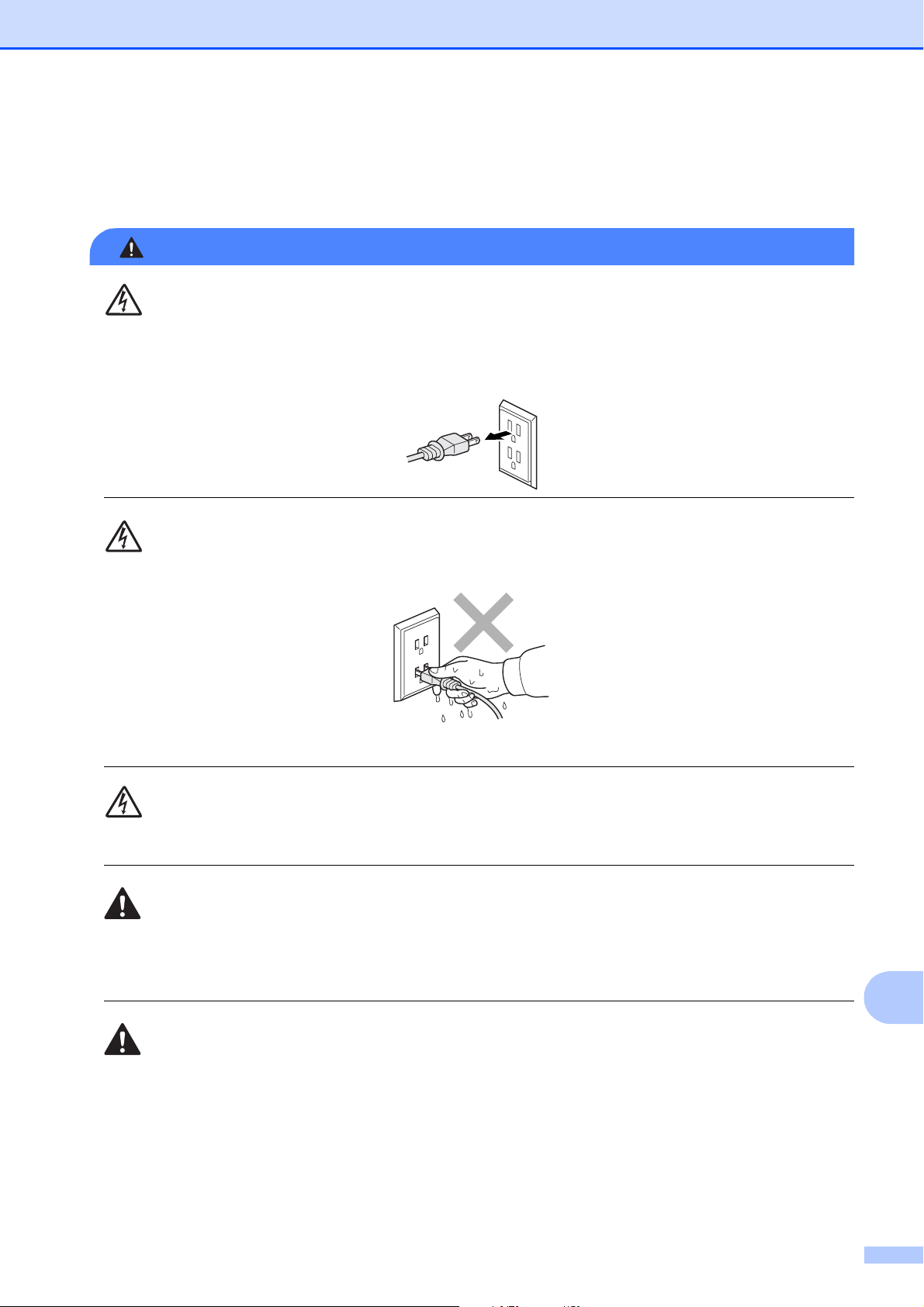
Safety and Legal
85
A
To use the machine safely A
Please keep these instructions for later reference and read them before attempting any maintenance.
WARNING
There are high voltage electrodes inside the machine. Before you clean the inside of the
machine, make sure you have unplugged the telephone line cord first and then the power cord
from the AC power outlet. Doing this will prevent an electrical shock.
DO NOT handle the plug with wet hands. Doing this might cause an electrical shock.
Always make sure the plug is fully inserted.
DO NOT pull on the middle of the AC power cord. Doing this might cause an electrical shock.
DO NOT use flammable substances, any type of spray or an organic solvent/liquid that contains
alcohol or ammonia to clean the inside or outside of the machine. Doing this may cause a fire
or electrical shock.
Unplug this product from the AC power outlet before cleaning the inside of the machine.
86
If the machine becomes hot, releases smoke, or generates any strong smells, immediately
unplug the machine from the AC power outlet. Call Brother Customer Service. (See Brother
numbers on page i.)
If metal objects, water or other liquids get inside the machine, immediately unplug the machine
from the AC power outlet. Call Brother Customer Service. (See Brother numbers on page i.)
Use caution when installing or modifying telephone lines. Never touch telephone wires or
terminals that are not insulated unless the telephone line has been unplugged at the wall jack.
Never install telephone wiring during a lightning storm. Never install a telephone wall jack in a
wet location.
This product must be installed near an AC power outlet that is easily accessible. In case of an
emergency, you must unplug the power cord from the AC power outlet to shut off the power
completely.
This product should be connected to an AC power source within the range indicated on the
rating label. DO NOT connect it to a DC power source or inverter. If you are not sure, contact a
qualified electrician.
Always make sure the plug is fully inserted.
DO NOT use the machine if the power cord is frayed or damaged, doing so may cause a fire.
To reduce the risk of shock or fire, use only a No. 26 AWG or larger telecommunication line cord.
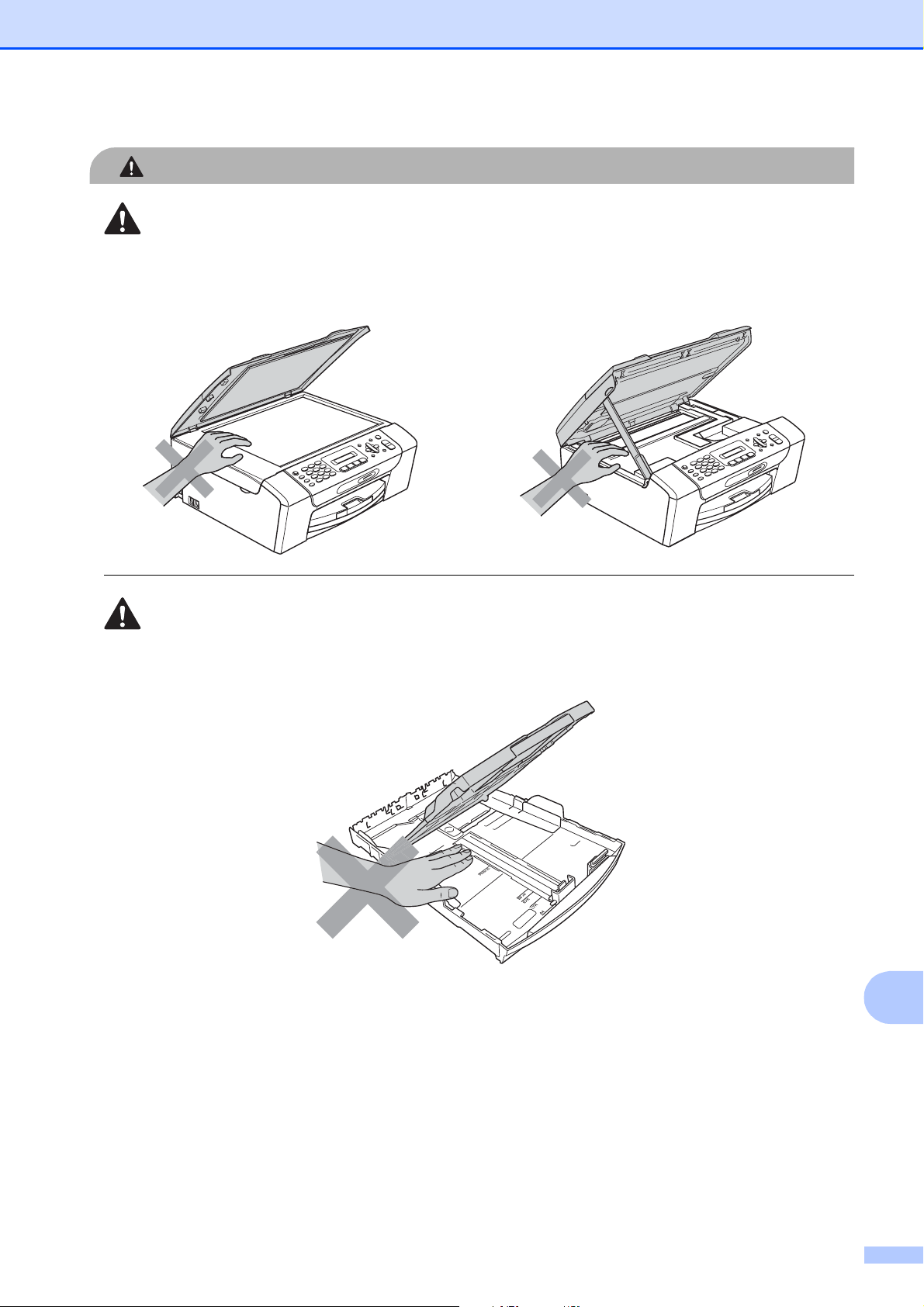
Safety and Legal
87
A
CAUTION
DO NOT put your hands on the edge of the machine under the document cover or the scanner
cover. Doing this may cause injury.
DO NOT put your hands on the edge of the paper tray under the paper tray cover. Doing this
may cause injury.
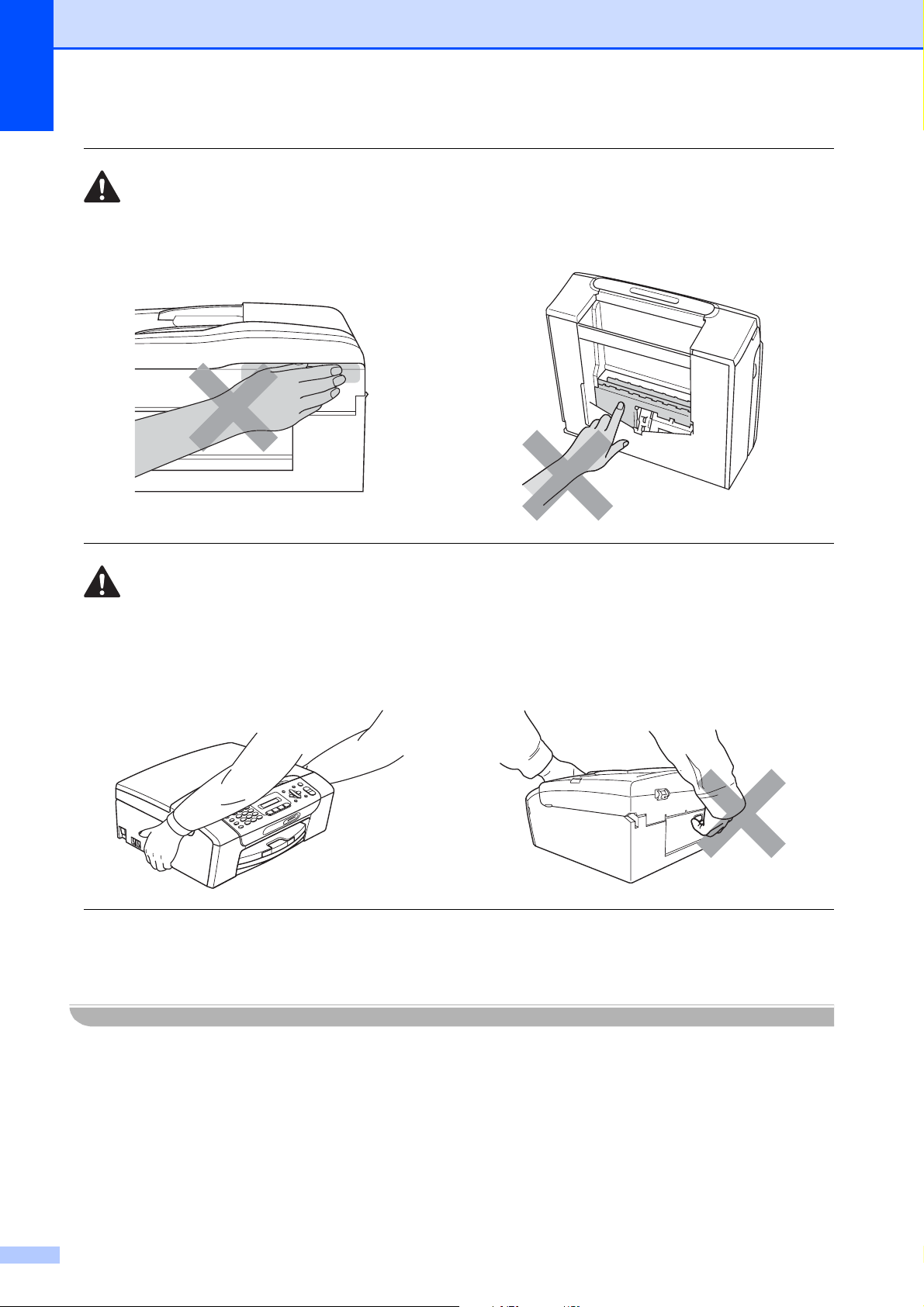
88
DO NOT touch the area shaded in the illustration. Doing this may cause injury.
When moving the machine you must lift it from the base, by placing a hand at each side of the
unit as shown in the illustration. DO NOT carry the machine by holding the scanner cover or the
Jam Clear Cover.
Lightning and power surges can damage this product! We recommend that you use a quality
surge protection device on the AC power line and on the telephone line, or unplug the cords
during a lightning storm.

Safety and Legal
89
A
WARNING
IMPORTANT SAFETY INSTRUCTIONS
When using your telephone equipment connected to this product, basic safety precautions
should always be followed to reduce the risk of fire, electric shock and injury to people, including
the following:
1 DO NOT use this product near water, for example, near a bath tub, wash bowl, kitchen sink
or washing machine, in a wet basement or near a swimming pool.
2 Avoid using this product during an electrical storm. There may be a remote risk of electric
shock from lightning.
3 DO NOT use this product to report a gas leak in the vicinity of the leak.
Important safety instructions A
1 Read all of these instructions.
2 Save them for later reference.
3 Follow all warnings and instructions marked on the product.
4 DO NOT use this product near water.
5 DO NOT place this product on an unstable cart, stand, or table. The product may fall, causing
serious damage to the product.
6 Slots and openings in the cabinet and the back or bottom are provided for ventilation. To
ensure reliable operation of the product and to protect it from overheating, these openings
must not be blocked or covered. The openings should never be blocked by placing the product
on a bed, sofa, rug, or other similar surface. This product should never be placed near or over
a radiator or heater. This product should never be placed in a built-in installation unless
adequate ventilation is provided.
7 DO NOT allow anything to rest on the power cord. DO NOT place this product where people
can walk on the cord.
8 If an extension cord is used with this product, make sure that the total ampere ratings of the
products plugged into the extension cord do not exceed the extension cord ampere rating.
Also, make sure that the total of all products plugged into the AC power outlet does not exceed
15 amperes (USA only).
9 DO NOT place anything in front of the machine that will block received faxes. DO NOT place
anything in the path of received faxes.
10 Wait until pages have exited the machine before picking them up.

90
11 Never push objects of any kind into this product through cabinet slots, since they may touch
dangerous voltage points or short out parts resulting in the risk of fire or electric shock. Never
spill liquid of any kind on the product. DO NOT attempt to service this product yourself because
opening or removing covers may expose you to dangerous voltage points and other risks and
may void your warranty. Refer all servicing to a Brother Authorized Service Center. For the
location of your nearest Brother Authorized Service Center, please call the following:
In USA: 1-877-BROTHER (1-877-276-8437)
In Canada: 1-877-BROTHER
(See Brother numbers on page i.)
12 Unplug this product from the AC power outlet and refer all servicing to Brother Authorized
Service Personnel under the following conditions:
When the power cord is damaged or frayed.
If liquid has been spilled into the product.
If the product has been exposed to rain or water.
If the product does not operate normally when the operating instructions are followed,
adjust only those controls that are covered by the operating instructions. Improper
adjustment of other controls may result in damage and will often require extensive work by
a qualified technician to restore the product to normal operation.
If the product has been dropped or the cabinet has been damaged.
If the product exhibits a distinct change in performance, indicating a need for service.
13 To protect your product against power surges, we recommend the use of a power protection
device (Surge Protector).
14 To reduce the risk of fire, electric shock and injury to people, note the following:
DO NOT use this product near appliances that use water, a swimming pool, or in a wet
basement.
DO NOT use the machine during an electrical storm (there is the remote possibility of an
electrical shock) or to report a gas leak in the vicinity of the leak.
15 Caution - To reduce the risk of fire, use only No.26 AWG or larger telecommunication line cord.

Safety and Legal
91
A
Standard telephone and FCC Notices (These notices are in effect
on models sold and used in the United States only.) A
When programming emergency numbers or making test calls to emergency numbers:
Remain on the line and briefly explain to the dispatcher the reason for the call before hanging up.
Perform these activities in the off-peak hours, such as early morning or late evening.
This equipment complies with Part 68 of the FCC rules and the requirements adopted by the
ACTA. On the backside of this equipment is a label that contains, among other information, a
product identifier in the format US: AAAEQ##TXXXX. If requested, this number must be provided
to the telephone company.
You may safely connect this equipment to the telephone line by means of a standard modular jack,
USOC RJ11C.
A plug and jack used to connect this equipment to the premises wiring and telephone network
must comply with the applicable FCC Part 68 rules and requirements adopted by the ACTA. A
compliant telephone cord and modular plug is provided with this product. It is designed to be
connected to a compatible modular jack that is also compliant. See installation instructions for
details.
The REN is used to determine the number of devices that may be connected to a telephone line.
Excessive RENs on a telephone line may result in the devices not ringing in response to an
incoming call. In most but not all areas, the sum of RENs should not exceed five (5.0). To be
certain of the number of devices that may be connected to a line, as determined by the total RENs,
contact the local telephone company. For products approved after July 23, 2001, the REN for this
product is part of the product identifier that has the format US:AAAEQ##TXXXX.The digits
represented by ## are the REN without a decimal point (e.g., 06 is a REN of 0.6). For earlier
products, the REN is separately shown on the label.
If this equipment causes harm to the telephone network, the telephone company will notify you in
advance that temporary discontinuance of service may be required. But if advance notice isn't
practical, the telephone company will notify the customer as soon as possible. Also, you will be
advised of your right to file a complaint with the FCC if you believe it is necessary.
The telephone company may make changes in its facilities, equipment, operations or procedures
that could affect the operation of the equipment. If this happens the telephone company will
provide advance notice in order for you to make necessary modifications to maintain uninterrupted
service.
If trouble is experienced with this equipment, for repair or warranty information, please contact
Brother Customer Service. (See Brother numbers on page i.) If the equipment is causing harm to
the telephone network, the telephone company may request that you disconnect the equipment
until the problem is resolved.
Connection to party line service is subject to state tariffs. Contact the state public utility
commission, public service commission or corporation commission for information.
If your home has specially wired alarm equipment connected to the telephone line, ensure the
installation of this equipment does not disable your alarm equipment. If you have questions about
what will disable alarm equipment, call your telephone company or a qualified installer.
If you are not able to solve a problem with your machine, call Brother Customer Service. (See
Brother numbers on page i.)
92
WARNING
For protection against the risk of electrical shock, always disconnect all cables from the wall
outlet before servicing, modifying or installing the equipment.
This equipment may not be used on coin service lines provided by the telephone company or
connected to party lines.
Brother cannot accept any financial or other responsibilities that may be the result of your
use of this information, including direct, special or consequential damages. There are no
warranties extended or granted by this document.
This machine has been certified to comply with FCC standards, which are applied to the
USA only.
Federal Communications Commission (FCC)
Declaration of Conformity (USA only) A
declares, that the products
Product Name: MFC-255CW and MFC-295CN
comply with Part 15 of the FCC Rules. Operation is subject to the following two conditions:
(1) This device may not cause harmful interference, and (2) this device must accept any
interference received, including interference that may cause undesired operation.
This equipment has been tested and found to comply with the limits for a Class B digital device,
pursuant to Part 15 of the FCC Rules. These limits are designed to provide reasonable protection
against harmful interference in a residential installation. This equipment generates, uses, and can
radiate radio frequency energy and, if not installed and used in accordance with the instructions,
may cause harmful interference to radio communications. However, there is no guarantee that
interference will not occur in a particular installation. If this equipment does cause harmful
interference to radio or television reception, which can be determined by turning the equipment
off and on, the user is encouraged to try to correct the interference by one or more of the following
measures:
Reorient or relocate the receiving antenna.
Increase the separation between the equipment and receiver.
Connect the equipment into an outlet on a circuit different from that to which the receiver is
connected.
Call the dealer or an experienced radio/TV technician for help.
Responsible Party: Brother International Corporation
100 Somerset Corporate Boulevard
Bridgewater, NJ 08807-0911 USA
TEL: (908) 704-1700
Safety and Legal
93
A
IMPORTANT
Changes or modifications not expressly approved by Brother Industries, Ltd. could void the
user's authority to operate the equipment.
Industry Canada Compliance Statement (Canada only) A
This Class B digital apparatus complies with Canadian ICES-003.
Cet appareil numérique de la classe B est conforme à la norme NMB-003 du Canada.
Operation is subject to the following two conditions:
(1) this device may not cause interference, and (2) this device must accept any interference,
including interference that may cause undesired operation of this device.
LAN connection (MFC-295CN only) A
CAUTION
DO NOT connect this product to a LAN connection that is subject to over-voltages.
International ENERGY STAR
®
Qualification Statement A
The purpose of the International ENERGY STAR
®
Program is to promote the development and
popularization of energy-efficient office equipment.
As an ENERGY STAR
®
Partner, Brother Industries, Ltd. has determined that this product meets
the ENERGY STAR
®
specifications for energy efficiency.

94
Legal limitations for copying A
Color reproductions of certain documents are illegal and may result in either criminal or civil
liability. This memorandum is intended to be a guide rather than a complete listing of every
possible prohibition. In case of doubt, we suggest that you check with counsel as to any particular
questionable documents.
The following documents issued by the United States/Canadian Government or any of its
Agencies may not be copied:
Money
Bonds or other certificates of indebtedness
Certificates of Deposit
Internal Revenue Stamps (canceled or uncanceled)
Selective Service or draft papers
Passports
United States/Canadian Postage Stamps (canceled or uncanceled)
Food Stamps
Immigration Papers
Checks or drafts drawn by Governmental agencies
Identifying badges or insignias
Copyrighted works cannot be copied. Sections of a copyrighted work can be copied for ‘fair use’.
Multiple copies would indicate improper use.
Works of art should be considered the equivalent of copyrighted works.
Licenses and Certificates of Title to motor vehicles may not be copied under certain
state/provincial laws.

Safety and Legal
95
A
Trademarks A
The Brother logo is a registered trademark of Brother Industries, Ltd.
Brother is a registered trademark of Brother Industries, Ltd.
Multi-Function Link is a registered trademark of Brother International Corporation.
Windows Vista is either a registered trademark or trademark of Microsoft Corporation in the United
States and/or other countries.
Microsoft, Windows, Windows Server and Internet Explorer are registered trademarks of Microsoft
Corporation in the United States and/or other countries.
Apple, Macintosh and Safari are trademarks of Apple Inc., registered in the United States and
other countries.
Adobe, Flash, Illustrator, PageMaker and Photoshop are either registered trademarks or
trademarks of Adobe Systems Incorporated in the United States and/or other countries.
Nuance, the Nuance logo, PaperPort and ScanSoft are trademarks or registered trademarks of
Nuance Communications, Inc. or its affiliates in the United States and/or other countries.
Microdrive is a trademark of International Business Machines Corporation.
Memory Stick is a trademark of Sony Corporation.
xD-Picture Card is a trademark of FUJIFILM Corporation, Toshiba Corporation and Olympus
Optical Co. Ltd.
PictBridge is a trademark.
Memory Stick PRO, Memory Stick PRO Duo, Memory Stick Duo, MagicGate Memory Stick,
Memory Stick Micro and M2 are trademarks of Sony Corporation.
BROADCOM, SecureEasySetup and the SecureEasySetup logo are trademarks or registered
trademarks of Broadcom Corporation in the United States and/or other countries.
AOSS is a trademark of Buffalo Inc.
Wi-Fi, WPA, WPA2, Wi-Fi Protected Access and Wi-Fi Protected Setup are either trademarks or
registered trademarks of Wi-Fi Alliance in the United States and/or other countries.
Intel and Pentium are trademarks of Intel Corporation in the U.S. and other countries.
AMD is a trademark of Advanced Micro Devices, Inc.
FaceFilter Studio is a trademark of Reallusion, Inc.
All other trademarks are the property of their respective owners.
96
B
Troubleshooting B
IMPORTANT
For technical help, you must call the country where you bought the machine. Calls must be
made from within that country.
If you think there is a problem with your machine, check the chart below and follow the
troubleshooting tips.
Most problems can be easily resolved by yourself. If you need additional help, the Brother
Solutions Center offers the latest FAQs and troubleshooting tips. Visit us at
http://solutions.brother.com
.
If you are having difficulty with your machine B
Troubleshooting and Routine
Maintenance
B
Printing
Difficulty Suggestions
No printout. Check the interface cable or wireless connection on both the machine and your
computer. (See the Quick Setup Guide.)
Check that the machine is plugged in and that the On/Off key is on.
Check to see if the LCD is showing an error message. (See Error and
maintenance messages on page 106.)
One or more ink cartridges have reached the end of their life. (See Replacing the
ink cartridges on page 116.)
If the LCD shows Cannot Print and Replace XX Ink (where XX is an
abbreviation of the color), see Replacing the ink cartridges on page 116.
Check that the correct printer driver has been installed and chosen.
Make sure the machine is online. Click Start and then Printers and Faxes.
Right-click and choose Brother MFC-XXXX (where XXXX is your model name),
and make sure that Use Printer Offline is unchecked.
When you choose the Print Odd Pages and Print Even Pages settings, you may
see a print error message on your computer, as the machine pauses during the
printing process. The error message will disappear after the machine re-starts
printing.
Troubleshooting and Routine Maintenance
97
B
Poor print quality. Check the print quality. (See Checking the print quality on page 121.)
Make sure that the Printer Driver or Paper Type setting in the menu matches the
type of paper you are using. (See Printing for Windows
®
or Printing and Faxing for
Macintosh in the Software User's Guide on the CD-ROM and Paper Type
on page 22.)
Make sure that your ink cartridges are fresh. The following may cause ink to clog:
The expiration date written on the cartridge package has passed. (Genuine
Brother Innobella™ ink cartridges stay usable for up to two years if kept in their
original packaging.)
The ink cartridge has been in your machine for over six months.
The ink cartridge may not have been stored properly before use.
If you are using generic ink, use Genuine Brother Innobella™ Ink.
Make sure you are using Genuine Brother Innobella™ Ink.
Try using the recommended types of paper. (See Acceptable paper and other print
media on page 14.)
The recommended environment for your machine is between 68 °F to 91 °F
(20 °C to 33 °C).
White horizontal lines appear in text
or graphics.
Clean the print head. (See Cleaning the print head on page 121.)
Make sure you are using Genuine Brother Innobella™ Ink.
Try using the recommended types of paper. (See Acceptable paper and other print
media on page 14.)
The machine prints blank pages. Clean the print head. (See Cleaning the print head on page 121.)
Make sure you are using Genuine Brother Innobella™ Ink.
Characters and lines are stacked. Check the printing alignment. (See Checking the print alignment on page 122.)
Printed text or images are skewed. Make sure the paper is loaded properly in the paper tray and the paper side guides
are adjusted correctly. (See Loading paper and other print media on page 8.)
Make sure the Jam Clear Cover is closed properly.
Smudged stain at the top center of
the printed page.
Make sure the paper is not too thick or curled. (See Acceptable paper and other
print media on page 14.)
Make sure the paper is not curled when you print on the back side of the paper
with the Print Odd Pages and Print Even Pages settings.
Smudged stain at the right or left
corner of the printed page.
Make sure the paper is not curled when you print on the back side of the paper
with the Print Odd Pages and Print Even Pages settings.
Printing appears dirty or ink seems
to run.
Make sure you are using the recommended types of paper. (See Acceptable
paper and other print media on page 14.) Don't handle the paper until the ink is
dry.
Make sure you are using Genuine Brother Innobella™ Ink.
If you are using photo paper, make sure that you have set the correct paper type.
If you are printing a photo from your PC, set the Media Type in the Basic tab of
the printer driver.
Stains appear on the reverse side
or at the bottom of the page.
Make sure the printer platen is not dirty with ink. (See Cleaning the machine’s
printer platen on page 120.)
Make sure you are using Genuine Brother Innobella™ Ink.
Make sure you are using the paper support flap. (See Loading paper and other
print media on page 8.)
Printing (continued)
Difficulty Suggestions
98
The machine prints dense lines on
the page.
Check Reverse Order in the Basic tab of the printer driver.
The printouts are wrinkled. In the printer driver Advanced tab, click Color Settings, and uncheck
Bi-Directional Printing for Windows
®
or Bi-Directional Printing for Macintosh.
Make sure you are using Genuine Brother Innobella™ Ink.
Cannot perform ‘Page Layout’
printing.
Check that the paper size setting in the application and in the printer driver are the
same.
Print speed is too slow. Try changing the printer driver setting. The highest resolution needs longer data
processing, sending and printing time. Try the other quality settings in the printer
driver Basic tab. Also, click Color Settings, and make sure you uncheck Color
Enhance (True2Life
®
).
Turn the borderless feature off. Borderless printing is slower than normal printing.
(See Printing for Windows
®
or Printing and Faxing for Macintosh in the Software
User's Guide on the CD-ROM.)
Photo paper does not feed
properly.
When you print on Brother Photo paper, load one extra sheet of the same photo
paper in the paper tray. An extra sheet has been included in the paper package
for this purpose.
Clean the paper pick-up rollers. (See Cleaning the paper pick-up rollers
on page 120.)
Machine feeds multiple pages. Make sure the paper is loaded properly in the paper tray. (See Loading paper and
other print media on page 8.)
Check that more than two types of paper are not loaded in the paper tray at any
one time.
There is a paper jam. Make sure the paper length guide is set to the paper size. Do not extend the paper
tray when you load A5 or smaller size paper. (See Printer jam or paper jam
on page 113.)
Printed pages are not stacked
neatly.
Make sure you are using the paper support flap. (See Loading paper and other
print media on page 8.)
Machine does not print from
Adobe
®
Illustrator
®
.
Try to reduce the print resolution. (See Printing for Windows
®
or Printing and
Faxing for Macintosh in the Software User's Guide on the CD-ROM.)
Printing Received Faxes
Difficulty Suggestions
Condensed print and white streaks
across the page or the top and
bottom of sentences are cut off.
You probably had a bad connection, with static or interference on the telephone
line. Ask the other party to send the fax again.
Vertical black lines when receiving. The sender's scanner may be dirty. Ask the sender to make a copy to see if the
problem is with the sending machine. Try receiving from another fax machine.
Received color fax prints only in
black & white.
Replace the color ink cartridges that have reached the end of their life, and then
ask the other person to send the color fax again. (See Replacing the ink cartridges
on page 116.)
Left and Right margins are cut off or
a single page is printed on two
pages.
Turn on Auto Reduction. (See Printing a reduced incoming fax on page 39.)
Printing (continued)
Difficulty Suggestions
Troubleshooting and Routine Maintenance
99
B
Telephone Line or Connections
Difficulty Suggestions
Dialing does not work.
(No dial tone)
Check that the machine is plugged in and switched on.
Check all line cord connections. Make sure the telephone line cord is plugged into
the telephone wall jack and the LINE jack of the machine.
(Canada only) Change the Tone/Pulse setting. (See Quick Setup Guide.)
Verify that the telephone line and jack are working by connecting a known working
telephone and telephone line to the jack. Then lift the external telephone’s handset
and listen for a dial tone. If there is no dial tone, ask your telephone company to
check the line and/or jack.
The machine does not answer
when called.
Make sure the machine is in the correct Receiving Mode for your setup. (See
Receive modes on page 35.) Check for a dial tone. If possible, call your machine
to hear it answer. If there is still no answer, check that the telephone cord is
plugged into the telephone wall jack and the LINE jack of the machine. If there is
no ringing when you call your machine, ask your telephone company to check the
line.
Receiving Faxes
Difficulty Suggestions
Cannot receive a fax. Make sure your machine has a dial tone by pressing the Hook key. If you hear
static or interference on your fax line, please contact your local telephone
company.
Check all line cord connections. Make sure the telephone line cord is plugged into
the telephone wall jack and the LINE jack of the machine. If you subscribe to DSL
or VoIP services, please contact your service provider for connection instructions.
Make sure the machine is in the correct Receive Mode. This is determined by the
external devices and telephone subscriber services you have on the same line as
the Brother machine. (See Receive Mode settings on page 38.)
If you have a dedicated fax line and want your Brother machine to automatically
answer all incoming faxes, you should select Fax Only mode.
If your Brother machine shares a line with an external answering machine, you
should select the External TAD mode. In External TAD mode, your Brother
machine will automatically receive incoming faxes and voice callers will be able to
leave a message on your answering machine.
If your Brother machine shares the line with a Voice Mail subscriber service,
please see Voice Mail on page 41.
If your Brother machine is on a line with the Distinctive Ring subscriber service,
please see Distinctive Ring on page 42.
If your Brother machine shares a line with other telephones and you want it to
automatically answer all incoming faxes, you should select the Fax/Tel mode. In
Fax/Tel mode, your Brother machine will automatically receive faxes and
produce a pseudo/double-ring to alert you to answer voice calls.
If you do not want your Brother machine to automatically answer any incoming
faxes, you should select the Manual mode. In Manual mode, you must answer
every incoming call and activate the machine to receive faxes.

100
Cannot receive a fax.
(continued)
Another device or service at your location may be answering the call before your
Brother machine answers. To test this, lower the ring delay setting:
If the answer mode is set to Fax Only or Fax/Tel, reduce the ring delay to
1 ring. (See Ring Delay on page 38.)
If the answer mode is set to External TAD, reduce the number of rings
programmed on your answering machine to 2.
If the answer mode is set to Manual, DO NOT adjust the ring delay setting.
Have someone send you a test fax:
If you received the test fax successfully, your machine is operating properly.
Remember to reset your ring delay or answering machine setting back to your
original setting. If receiving problems recur after resetting the ring delay, then
a person, device, or subscriber service is answering the fax call before the
machine has a chance to answer.
If you were not able to receive the fax, then another device or subscriber
service may be interfering with your fax reception or there may be a problem
with your fax line.
If you are using a telephone answering machine (External TAD mode) on the
same line as the Brother machine, make sure your answering machine is set up
correctly. (See Connecting an external TAD (telephone answering device)
on page 45.)
1 Plug the telephone line cord directly from the wall telephone jack to your
Brother machine’s LINE jack.
2 Remove the protective cap from your Brother machine’s EXT jack, and then
plug the telephone line cord from your answering machine into the EXT jack.
3 Set your answering machine to answer within 4 rings.
If you are having problems receiving faxes or voice messages, set your
answering machine to answer within 2 or 3 rings.
4 Record the outgoing message on your answering machine.
Record five seconds of silence at the beginning of your outgoing
message.
Limit your speaking to 20 seconds.
End your outgoing message with your Fax Receive Code for people
sending manual faxes. For example: “After the beep, leave a message or
press l 5 1 and Start to send a fax.”
5 Set your answering machine to answer calls.
6 Set your Brother machine’s Receive Mode to External TAD. (See Receive
Mode settings on page 38.)
Make sure your Brother machine’s Easy Receive feature is turned On. Easy
Receive is a feature that allows you to receive a fax even if you have answered
the call on an external or extension telephone. (See Easy Receive on page 39.)
If you often get transmission errors due to possible interference on the telephone
line, try changing the Compatibility setting to Basic(for VoIP). (See
Telephone line interference on page 105.)
Receiving Faxes (continued)
Difficulty Suggestions
Troubleshooting and Routine Maintenance
101
B
Sending Faxes
Difficulty Suggestions
Cannot send a fax. Check all line cord connections. Make sure the telephone line cord is plugged into
the telephone wall jack and the LINE jack of the machine.
Make sure that the Fax key is illuminated. (See Entering Fax mode
on page 28.)
Ask the other party to check that the receiving machine has paper.
Print the Transmission Verification Report and check for an error. (See Reports
on page 56.)
Transmission Verification Report
says ‘RESULT:NG’.
There is probably temporary noise or static on the line. Try sending the fax again.
If you send a PC FAX message and get ‘RESULT:NG’ on the Transmission
Verification Report, your machine may be out of memory. If the problem continues,
ask the telephone company to check your telephone line.
If you often get transmission errors due to possible interference on the telephone
line, try changing the menu setting of Compatibility to Basic(for VoIP). (See
Telephone line interference on page 105.)
Poor fax send quality. Try changing your resolution to Fine or S.Fine. Make a copy to check your
machine's scanner operation. If the copy quality is not good, clean the scanner.
(See Cleaning the scanner on page 119.)
Sent faxes are blank. Make sure you are loading the document properly. (See Loading documents
on page 18.)
Vertical black lines when sending.
(MFC-295CN only)
If the copy you made shows the same problem, clean the scanner. (See Cleaning
the scanner on page 119.)
Handling Incoming Calls
Difficulty Suggestions
The machine ‘Hears’ a voice as a
CNG Tone.
If Easy Receive is set to On, your machine is more sensitive to sounds. It may
mistakenly interpret certain voices or music on the line as a fax machine calling
and respond with fax receiving tones. Deactivate the machine by pressing
Stop/Exit. Try avoiding this problem by turning Easy Receive Off. (See Easy
Receive on page 39.)
Sending a fax call to the machine. If you answered at the machine, press Black Start and hang up at once. If you
answered on the extension telephone, press your Fax Receive Code (default
setting is l 5 1). If you answered on the external telephone (connected to the
EXT jack), press Start to receive the fax. When your machine answers, hang up.
Custom features on a single line. If you have Call Waiting, Call Waiting/Caller ID, Voice Mail, an alarm system or
other custom feature on a single telephone line with your machine, it may create
a problem sending or receiving faxes.
For example: If you subscribe to Call Waiting or some other custom service and
it signal comes through the line while your machine is sending or receiving a fax,
the signal can temporarily interrupt or disrupt the faxes. Brother's ECM (Error
Correction Mode) feature should help overcome this problem. This condition is
related to the telephone system industry and is common to all devices that send
and receive information on a single, shared line with custom features. If avoiding
a slight interruption is crucial to your business, a separate telephone line with no
custom features is recommended.
102
Menu Setting Difficulties
Difficulty Suggestions
The machine beeps when you try to
access the Setup Send or Setup
Receive menu.
If the Fax key is not illuminated, press it to turn on Fax mode. The Setup
Send or Setup Receive setting is available only when the machine is in Fax mode.
Copying Difficulties
Difficulty Suggestions
Cannot make a copy.
Make sure that the Copy key is illuminated. (See Entering Copy mode
on page 58.)
Copies are blank. Make sure you are loading the document properly. (See Loading documents
on page 18.)
Vertical streaks appear in copies. If you see vertical streaks on copies, clean the scanner. (See Cleaning the
scanner on page 119.)
Poor copy results when using the
ADF. (MFC-295CN only)
Try using the scanner glass. (See Using the scanner glass on page 19.)
Vertical black line appears in
copies. (MFC-295CN only)
Vertical black lines or streaks on copies are typically caused by dirt or correction
fluid on the scanner. Clean the glass strip and scanner glass and the white bar and
white plastic above them. (See Cleaning the scanner on page 119.)
Fit to Page does not work properly. Make sure the document is not skewed on the scanner glass.
Reposition the document and try again.
Scanning Difficulties
Difficulty Suggestions
TWAIN/WIA errors appear when
starting to scan.
Make sure the Brother TWAIN/WIA driver is chosen as the primary source. In
PaperPort™ 11SE with OCR, click File, Scan or Get Photo and click Select to
choose the Brother TWAIN/WIA driver.
OCR does not work. Try increasing the scanner resolution.
Fit to Page does not work. Make sure the document is not skewed on the scanner glass. Reposition the
document and try again.
Poor scanning results when using
the ADF. (MFC-295CN only)
Try using the scanner glass. (See Using the scanner glass on page 19.)
Software Difficulties
Difficulty Suggestions
Cannot install software or print. Run the Repair MFL-Pro Suite program on the CD-ROM. This program will repair
and reinstall the software.
‘Device Busy’ Make sure the machine is not showing an error message on the LCD.
Cannot print images from
FaceFilter Studio.
To use FaceFilter Studio, you must install the FaceFilter Studio application from
the CD-ROM supplied with your machine. To install FaceFilter Studio see the
Quick Setup Guide.
Also, before you start FaceFilter Studio for the first time, you must make sure your
Brother machine is turned on and connected to your computer. This will allow you
to access all the functions of FaceFilter Studio.

Troubleshooting and Routine Maintenance
103
B
PhotoCapture Center
®
Difficulties
Difficulty Suggestions
Removable Disk does not work
properly.
1 Have you installed the Windows
®
2000 update? If not, do the following:
1) Unplug the USB cable.
2) Install the Windows
®
2000 update using one of the following methods.
Install MFL-Pro Suite from the CD-ROM. (See the Quick Setup
Guide.)
Download the latest service pack from the Microsoft Web site.
3) Wait about 1 minute after you restart the PC, and then connect the USB
cable.
2 Take out the memory card or USB Flash memory drive and put it back in
again.
3 If you have tried ‘Eject’ from within Windows
®
, take out the memory card or
USB Flash memory drive before you continue.
4 If an error message appears when you try to eject the memory card or USB
Flash memory drive, it means the card is being accessed. Wait a while and
then try again.
5 If all of the above do not work, turn off your PC and machine, and then turn
them on again. (You will have to unplug the power cord of the machine to turn
it off.)
Cannot access Removable Disk
from Desktop icon.
Make sure that you have correctly inserted the memory card or USB Flash
memory drive.
Part of my photo is missing when
printed.
Make sure that Borderless printing and Cropping are turned off. (See Borderless
printing on page 73 and Cropping on page 73.)

104
Network Difficulties
Difficulty Suggestions
Cannot print over the network. Make sure that your machine is powered on and is online and in Ready mode.
Print a Network Configuration list (see Reports on page 56) and check the current
Network settings printed in this list.
(MFC-295CN only)
Reconnect the LAN cable to the hub to verify that the cabling and network
connections are good. If possible, try connecting the machine to a different port on
your hub using a different cable. If the connections are good, the machine shows
LAN Active for 2 seconds.
(If you are using a wireless connection for the MFC-255CW or are having Network
problems, see the Network User’s Guide on the CD-ROM for more information.)
The network scanning feature does
not work.
<Windows
®
users>
Firewall settings on your PC may be rejecting the necessary network connection.
Follow the instructions below to configure the Firewall. If you are using a personal
Firewall software, see the User’s Guide for your software or contact the software
manufacturer.
For Windows
®
XP SP2 and Windows Vista
®
users, see Firewall settings in the
Software User’s Guide on the CD-ROM.
For Windows
®
XP SP1 users, please visit the Brother Solutions Center.
(http://solutions.brother.com
)
<Macintosh users>
Re-select your machine in the Device Selector application located in
Macintosh HD/Library/Printers/Brother/Utilities/DeviceSelector or from the model
list in ControlCenter2.
The network PC-Fax Receive
feature does not work.
(Windows
®
users only)
Firewall settings on your PC may be rejecting the necessary network connection.
Follow the instructions below to configure the Firewall. If you are using a personal
Firewall software, see the User’s Guide for your software or contact the software
manufacturer.
For Windows
®
XP SP2 and Windows Vista
®
users, see Firewall settings in the
Software User’s Guide on the CD-ROM.
For Windows
®
XP SP1 users, please visit the Brother Solutions Center.
(http://solutions.brother.com
)
Your computer cannot find your
machine.
<Windows
®
users>
Firewall settings on your PC may be rejecting the necessary network connection.
For detail, see the instruction above.
<Macintosh users>
Re-select your machine in the Device Selector application located in
Macintosh HD/Library/Printers/Brother/Utilities/DeviceSelector or from the model
list in ControlCenter2.

Troubleshooting and Routine Maintenance
105
B
Dial Tone B
Setting the dial tone to Detection will shorten
the dial detect pause.
a Press Menu, 0, 5.
b Press a or b to choose Detection or
No Detection.
Press OK.
c Press Stop/Exit.
Telephone line interference B
If you are having problems sending or
receiving a fax due to possible interference
on the telephone line, we recommend that
you adjust the Equalization for compatibility
to reduce the modem speed for fax
operations.
a Press Menu, 0, 6.
b Press a or b to choose Normal (or
Basic(for VoIP)).
Basic(for VoIP) reduces the
modem speed to 9,600 bps. Unless
interference is a recurring problem
on your telephone line, you may
prefer to use it only when needed.
Normal sets the modem speed at
14,400 bps. (Default)
Press OK.
c Press Stop/Exit.
Note
When you change the compatibility to
Basic(for VoIP), the ECM feature is
only available for color fax sending.

106
Error and maintenance messages B
As with any sophisticated office product, errors may occur and consumable items may need to be
replaced. If this happens, your machine identifies the problem and shows an error message. The
most common error and maintenance messages are shown below.
You can correct most errors and clear routine maintenance messages by yourself. If you need
more help, the Brother Solutions Center offers the latest FAQs and troubleshooting tips.
Visit us at http://solutions.brother.com
.
Error Message Cause Action
B&W Print Only
Replace XX Ink
One or more of the color ink
cartridges have reached the end
of their life.
You can use the machine in black
& white mode for approximately
four weeks depending on the
number of pages you print.
While this message appears on
the LCD, each operation works in
the following way:
Printing
If you click Grayscale in the
Advanced tab of the printer
driver you can use the
machine as a black & white
printer.
Copying
If the paper type is set to
Plain Paper or
Inkjet Paper, you can
make copies in black & white.
Faxing
If the paper type is set to
Plain Paper or
Inkjet Paper, the machine
will receive and print faxes in
black & white.
If a sending machine has a
color fax, the machine’s
‘handshake’ will ask that the
fax be sent as black & white.
If the paper type is set to
Other Glossy or
Brother BP71, the machine will
stop all print operations. If you
unplug the machine, or take out
the ink cartridge, you cannot use
the machine until you change to a
new ink cartridge.
Replace the ink cartridge. (See Replacing
the ink cartridges on page 116.)

Troubleshooting and Routine Maintenance
107
B
Cannot Detect You installed a new ink too quickly
and the machine did not detect it.
Take out the new ink cartridge and
re-install it slowly until it clicks.
If you are not using genuine
Brother Innobella™ ink the
machine may not detect the ink
cartridge.
Use a new Genuine Brother Innobella™
Ink. If the error message is not cleared, call
Brother Customer Service.
An ink cartridge is not installed
properly.
Take out the new ink cartridge and re-
install it slowly until it clicks. (See
Replacing the ink cartridges on page 116.)
Cannot Print
Replace XX Ink
One or more of the ink cartridges
have reached the end of their life.
The machine will stop all print
operations. While memory is
available, black and white faxes
will be stored in the memory. If a
sending machine has a color fax,
the machine's ‘handshake’ will
ask that the fax be sent as black &
white. If the sending machine has
the ability to convert it, the color
fax will be stored in the memory
as a black & white fax.
Replace the ink cartridges. (See Replacing
the ink cartridges on page 116.)
Clean Unable XX
(Init Unable XX)
(Print Unable XX)
(Scan Unable XX)
(If the LCD shows
error number 46,
see the error message
Clean Unable 46
in this table.)
The machine has a mechanical
problem.
—OR—
A foreign object such as a
paperclip or ripped paper is in the
machine.
Open the scanner cover and remove any
foreign objects and paper scraps from
inside the machine. If the error message
continues, see Transferring your faxes or
Fax Journal report on page 112 before
disconnecting the machine so you will not
lose any important messages. Then,
disconnect the machine from the power for
several minutes and then reconnect it.
Error Message Cause Action
108
Clean Unable 46
(Init Unable 46)
(Print Unable 46)
The ink absorber box or flushing
box is full. These components are
periodic maintenance items that
may require replacement after a
period of time to ensure optimum
performance from your Brother
machine. The need to replace
these items and the time period
before replacement is dependent
on the number of purges and
flushes required to clean the ink
system. These boxes acquire
amounts of ink during the different
purging and flushing operations.
The number of times a machine
purges and flushes for cleaning
varies depending on different
situations. For example,
frequently powering the machine
on and off will cause numerous
cleaning cycles since the machine
automatically cleans upon power
up. The use of generic inks may
cause frequent cleanings
because generic inks could cause
poor print quality which is
resolved by cleaning. The more
cleaning the machine requires the
faster these boxes will fill up.
Note
Repairs resulting from the use
of non-genuine supplies may
not be covered under the
stated product warranty.
The ink absorber box or flushing box will
need to be replaced. Contact Brother
Customer Service or a Brother Authorized
Service Center to have your machine
serviced. (See Brother numbers
on page i.)
Other reasons for cleaning are:
1 Machine automatically cleans after
clearing a printer jam.
2 Machine automatically cleans after
sitting idle for more than 45 days
(infrequent use).
Close Ink Cover The ink cartridge cover is not
completely closed.
Firmly close the ink cartridge cover until it
clicks.
Comm.Error Poor telephone line quality
caused a communication error.
Send the fax again or connect the machine
to another telephone line. If the problem
continues, call the telephone company and
ask them to check your telephone line.
Cover is Open The scanner cover is not closed
completely.
Lift the scanner cover and then close it
again.
Data Remaining Print data is left in the machine's
memory.
Press Stop/Exit. The machine will cancel
the job and clear it from the memory. Try to
print again.
Disconnected The other person or other
person's fax machine stopped the
call.
Try to send or receive again.
Error Message Cause Action
Troubleshooting and Routine Maintenance
109
B
Document Jam The document was not inserted or
fed properly, or the document
scanned from the ADF was too
long.
See Using the ADF (MFC-295CN only)
on page 18.
See Document jam (MFC-295CN only)
on page 112.
DR Mode in Use The machine is set to Distinctive
Ring mode. You cannot change
the Receive Mode from Manual to
another mode.
Set Distinctive Ring to Off. (See Turning
off Distinctive Ring on page 44.)
High Temperature The print head is too warm. Allow the machine to cool down.
Hub is Unusable. A Hub or USB Flash memory
drive with Hub has been
connected to the USB direct
interface.
A Hub or USB Flash memory drive with
Hub are not supported. Unplug the device
from the USB direct interface.
Init Unable XX
(If the LCD shows
error number 46,
see the error message
Clean Unable 46
in this table.)
See Clean Unable XX in this
table.
See Clean Unable XX in this table.
Init Unable 46 See Clean Unable 46 in this
table.
See Clean Unable 46 in this table.
Ink Low Black
Ink Low Yellow
Ink Low Cyan
Ink Low Magenta
One or more ink cartridges are
near the end of their life. If a
sending machine has a color fax
to send, your machine’s
‘handshake’ will ask that the fax is
sent as black & white. If the
sending machine has the ability to
convert it, the color fax will be
printed at your machine as a black
& white fax.
Order a new ink cartridge. You can
continue printing until the LCD shows
Cannot Print. (See Ordering
accessories and supplies on page ii and
Replacing the ink cartridges on page 116.)
Low Temperature The print head is too cold. Allow the machine to warm up.
Media Error The memory card is either
corrupted, improperly formatted,
or there is a problem with the
memory card.
Put the card firmly into the slot again to
make sure it is in the correct position. If the
error remains, check the media drive (slot)
of the machine by putting in another
memory card that you know is working.
Media is Full. The memory card or USB Flash
memory drive you are using
already contains 999 files.
Your machine can only save to your
memory card or USB Flash memory drive
if it contains less than 999 files. Try
deleting unused files to free some space
and try again.
No Caller ID There is no incoming call history.
You did not receive calls or you
have not subscribed to the Caller
ID service from your telephone
company.
If you want to use the Caller ID feature call
your telephone company. (See Caller ID
on page 44.)
Error Message Cause Action
110
No Cartridge An ink cartridge is not installed
properly.
Take out the new ink cartridge and
re-install it slowly until it clicks. (See
Replacing the ink cartridges on page 116.)
No File The memory card or USB Flash
memory drive in the media drive
does not contain a .JPG file.
Put the correct memory card or USB Flash
memory drive into the slot again.
No Paper Fed The machine is out of paper or
paper is not properly loaded in the
paper tray.
Do one of the following:
Refill the paper in the paper tray, and
then press Black Start or Color Start.
Remove the paper and load it again
and then press Black Start or
Color Start. (See Loading paper and
other print media on page 8.)
The Jam Clear Cover is not
closed properly.
Check that the Jam Clear Cover is closed.
(See Printer jam or paper jam
on page 113.)
The paper is jammed in the
machine.
Remove the jammed paper by following
the steps in Printer jam or paper jam
on page 113.
No Response/Busy The number you dialed does not
answer or is busy.
Verify the number and try again.
Not Registered You tried to access a Speed Dial
number that is not programmed.
Set up the Speed Dial number. (See
Storing Speed Dial numbers on page 53.)
Out of Memory The machine's memory is full. Fax sending or copy operation in
progress
Press Stop/Exit and wait until the other
operations in progress finish and then try
again.
The memory card or USB Flash
memory drive you are using does
not have enough free space to
scan the documents.
Delete unused files from your memory
card or USB Flash memory drive to make
some free space and then try again.
Paper Jam Paper is jammed in the machine. Open the Jam Clear Cover (at the back of
the machine) and pull out the jammed
paper by following the steps in Printer jam
or paper jam on page 113.
Make sure the paper length guide is
adjusted to the correct paper side.
Print Unable XX
(If the LCD shows
error number 46,
see the error message
Clean Una ble 46
in this table.)
See Clean Unable XX in this
table.
See Clean Unable XX in this table.
Print Unable 46 See Clean Unable 46 in this
table.
See Clean Unable 46 in this table.
Error Message Cause Action

Troubleshooting and Routine Maintenance
111
B
Replace XX Ink
Cannot Print
One or more of the ink cartridges
have reached the end of their life.
The machine will stop all print
operations. While memory is
available, black & white faxes will
be stored in the memory. If a
sending machine has a color fax,
the machine's ‘handshake’ will
ask that the fax be sent as black &
white. If the sending machine has
the ability to convert it, the color
fax will be stored in the memory
as a black & white fax.
Replace the ink cartridges. (See Replacing
the ink cartridges on page 116.)
Scan Unable XX See Clean Unable XX in this
table.
See Clean Unable XX in this table.
Unusable Device
Disconnect device
from front connector.
Turn the machine
off & on by pressing
On/Off button on
control panel.
A broken device has been
connected to the USB direct
interface.
Unplug the device from the USB direct
interface, then press On/Off to turn the
machine off and then on again.
Unusable Device
Please Disconnect
USB Device.
A USB device or USB Flash
memory drive that is not
supported has been connected to
the USB direct interface.
(For more information, visit us at
http://solutions.brother.com
.)
Unplug the device from the USB direct
interface.
Wrong Paper Size Paper is not the correct size. Check that the Paper Size setting matches
the size of paper in the tray. Load the
correct size of paper, and then press
Black Start or Color Start. (See Paper
Size on page 22.)
Error Message Cause Action
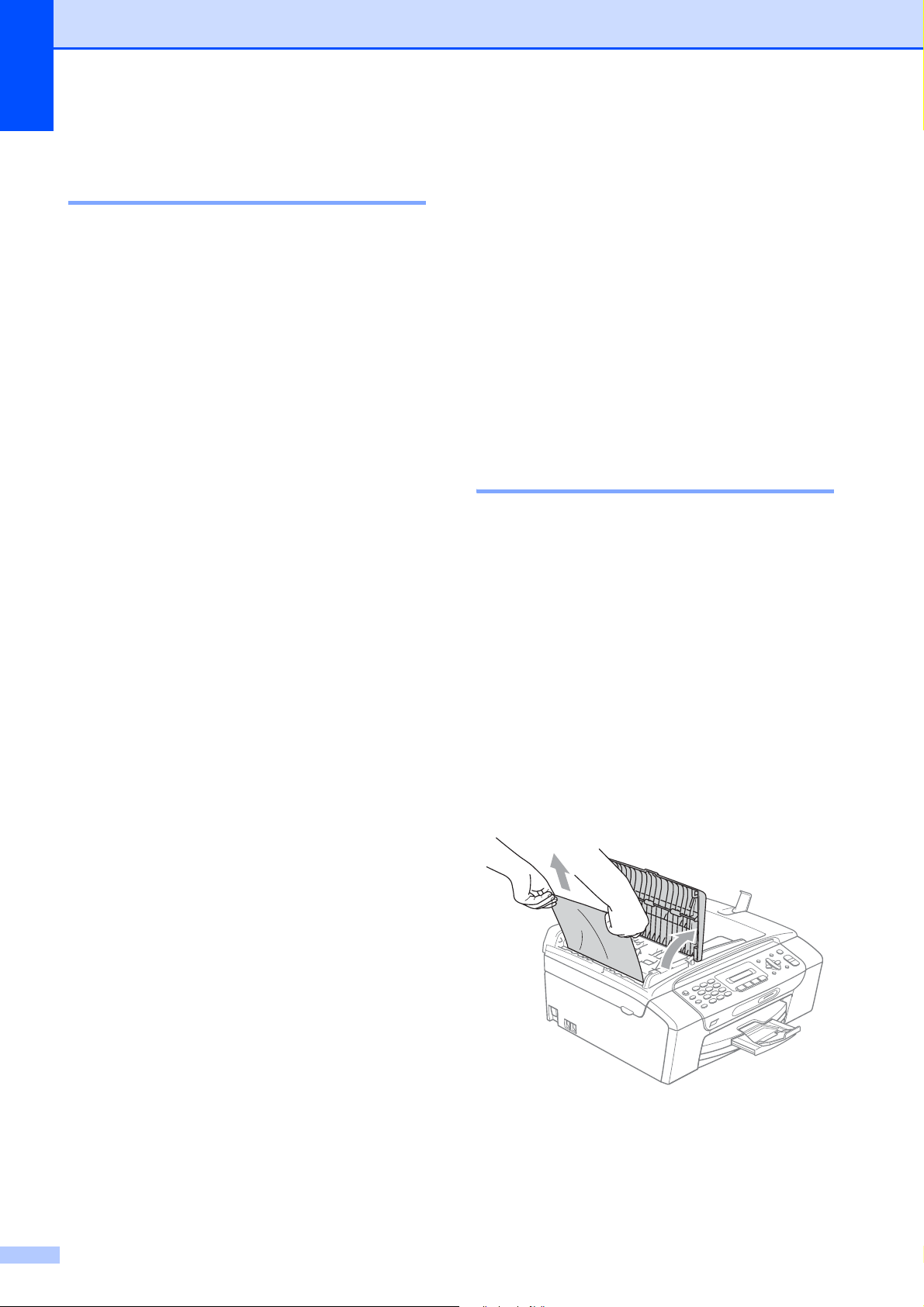
112
Transferring your faxes or Fax
Journal report B
If the LCD shows:
Clean Unable XX
Init Unable XX
Print Unable XX
Scan Unable XX
We recommend transferring your faxes to
another fax machine. (See Transferring faxes
to another fax machine on page 112.)
You can also transfer the Fax Journal report
to see if there are any faxes you need to
transfer. (See Transferring the Fax Journal
report to another fax machine on page 112.)
Transferring faxes to another fax
machine
B
If you have not set up your Station ID, you
cannot enter fax transfer mode. (See Set your
Station ID in the Quick Setup Guide.)
a Press Menu, 9, 0, 1.
b Do one of the following:
If the LCD shows No Data, there
are no faxes left in the machine's
memory.
Press Stop/Exit.
If the LCD shows Enter Fax No.,
enter the fax number to which faxes
will be forwarded.
c Press Black Start.
Transferring the Fax Journal report to
another fax machine
B
If you have not set up your Station ID, you
cannot enter fax transfer mode. (See Set your
Station ID in the Quick Setup Guide.)
a Press Menu 9, 0, 2.
b Enter the fax number to which the Fax
Journal report will be forwarded.
c Press Black Start.
Document jam
(MFC-295CN only) B
Documents can jam in the ADF unit if they are
not inserted or fed properly, or if they are too
long. Follow the steps below to clear a
document jam.
Document is jammed in the top of the
ADF unit
B
a Take out any paper from the ADF that is
not jammed.
b Open the ADF cover.
c Pull the jammed document up and to the
left.
d Close the ADF cover.
e Press Stop/Exit.
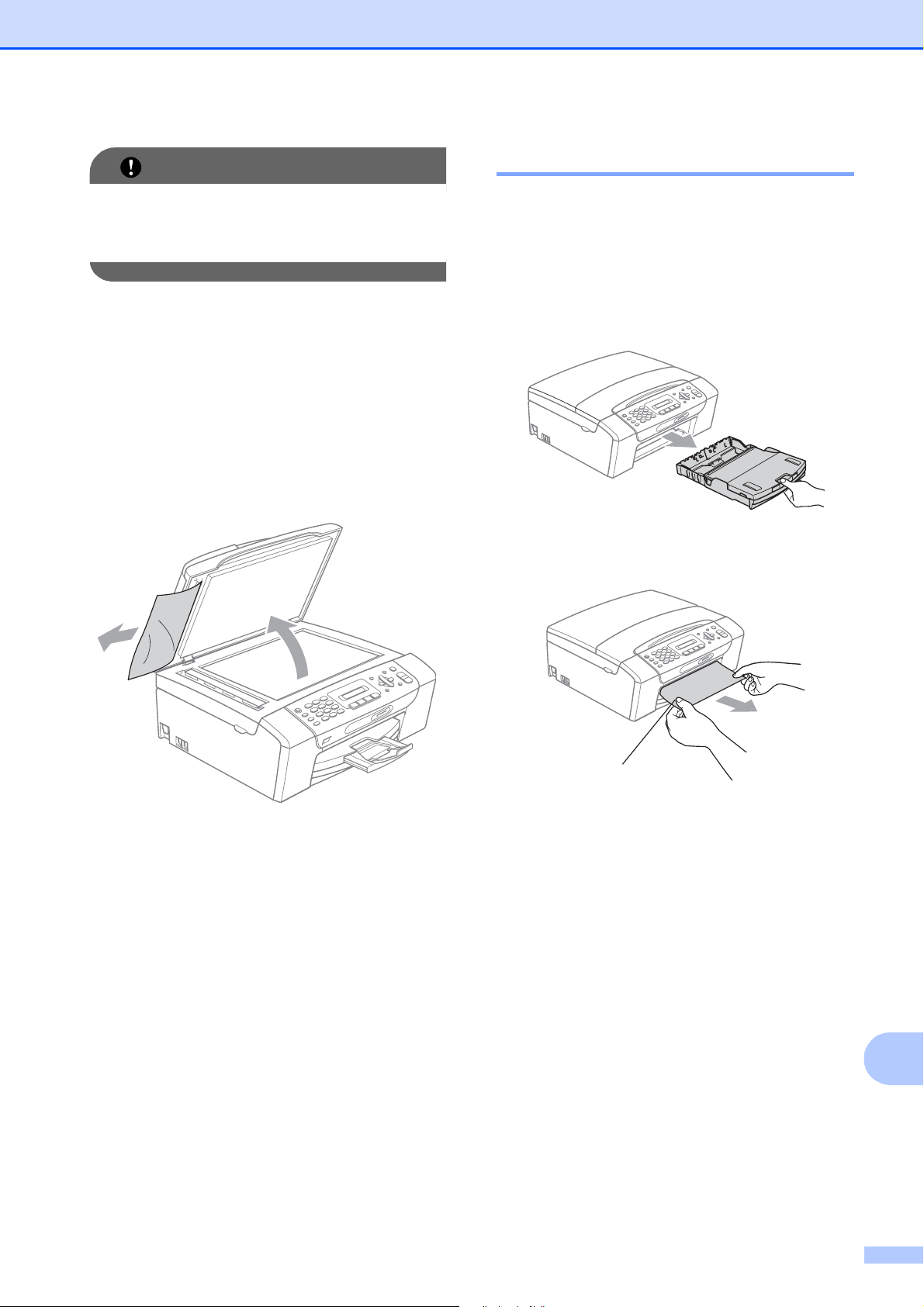
Troubleshooting and Routine Maintenance
113
B
IMPORTANT
To avoid future document jams close the
ADF cover properly by pressing it down
gently in the middle.
Document is jammed inside the ADF
unit
B
a Take out any paper from the ADF that is
not jammed.
b Lift the document cover.
c Pull the jammed document out to the
left.
d Close the document cover.
e Press Stop/Exit.
Printer jam or paper jam B
Take out the jammed paper depending on
where it is jammed in the machine.
a If the paper support flap is open, close it,
and then close the paper support. Pull
the paper tray completely out of the
machine.
b Pull out the jammed paper (1) and press
Stop/Exit.
c Reset the machine by lifting the scanner
cover from the front of the machine and
then close it.
If you cannot remove the jammed
paper from the front of the machine,
or the error message still appears on
the LCD after you have removed the
jammed paper, please go to the next
step.
1
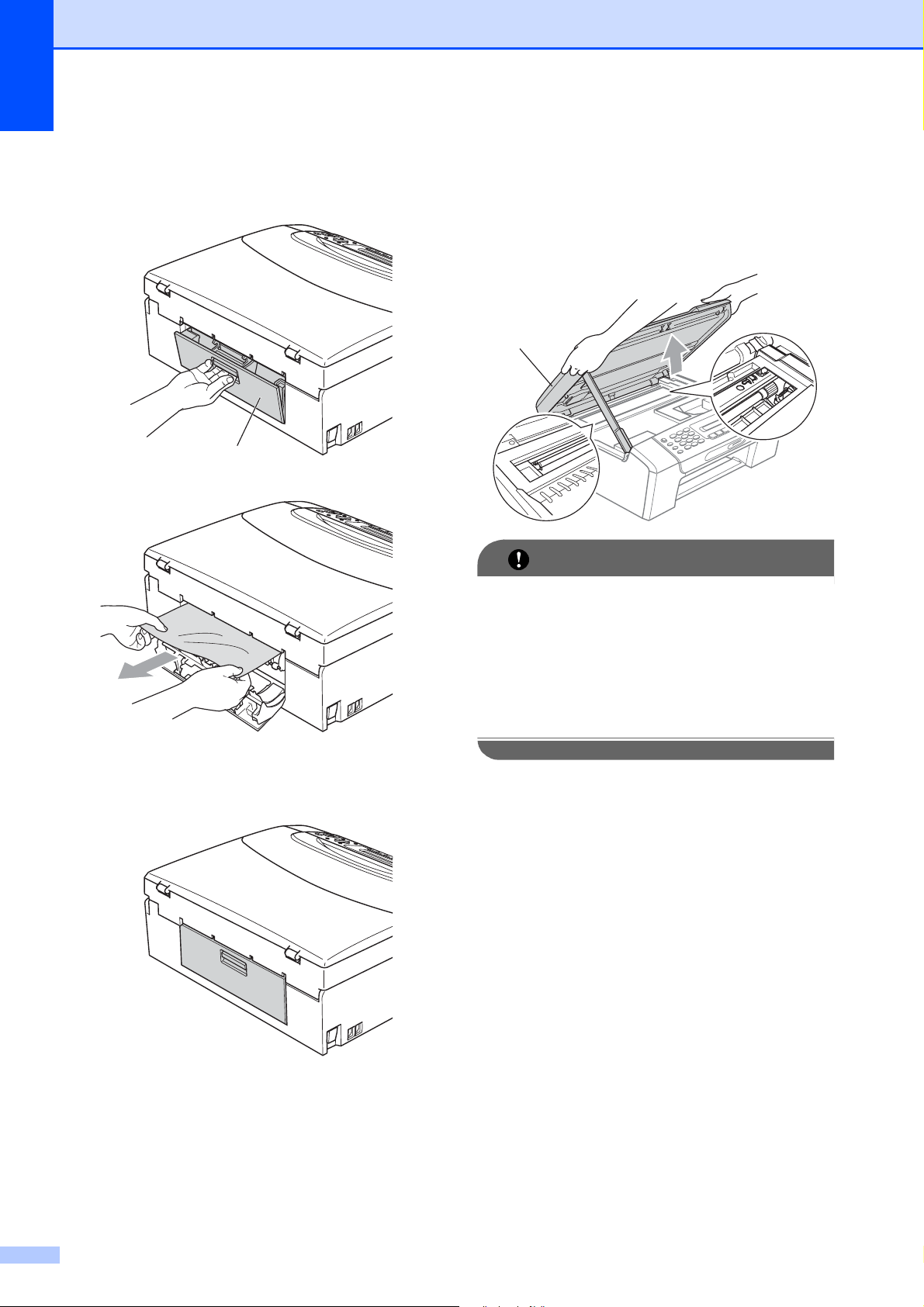
114
d Open the Jam Clear Cover (1) at the
back of the machine. Pull the jammed
paper out of the machine.
e Close the Jam Clear Cover.
Make sure the cover is closed properly.
f Lift the scanner cover (1) from the front
side of the machine until it locks
securely in the open position.
Make sure that jammed paper is not left
inside the machine.
IMPORTANT
Before you unplug the machine from the
power source, you can transfer your faxes
that are stored in the memory to your PC
or another fax machine so you will not lose
any important messages. (See
Transferring your faxes or Fax Journal
report on page 112.)
1
1
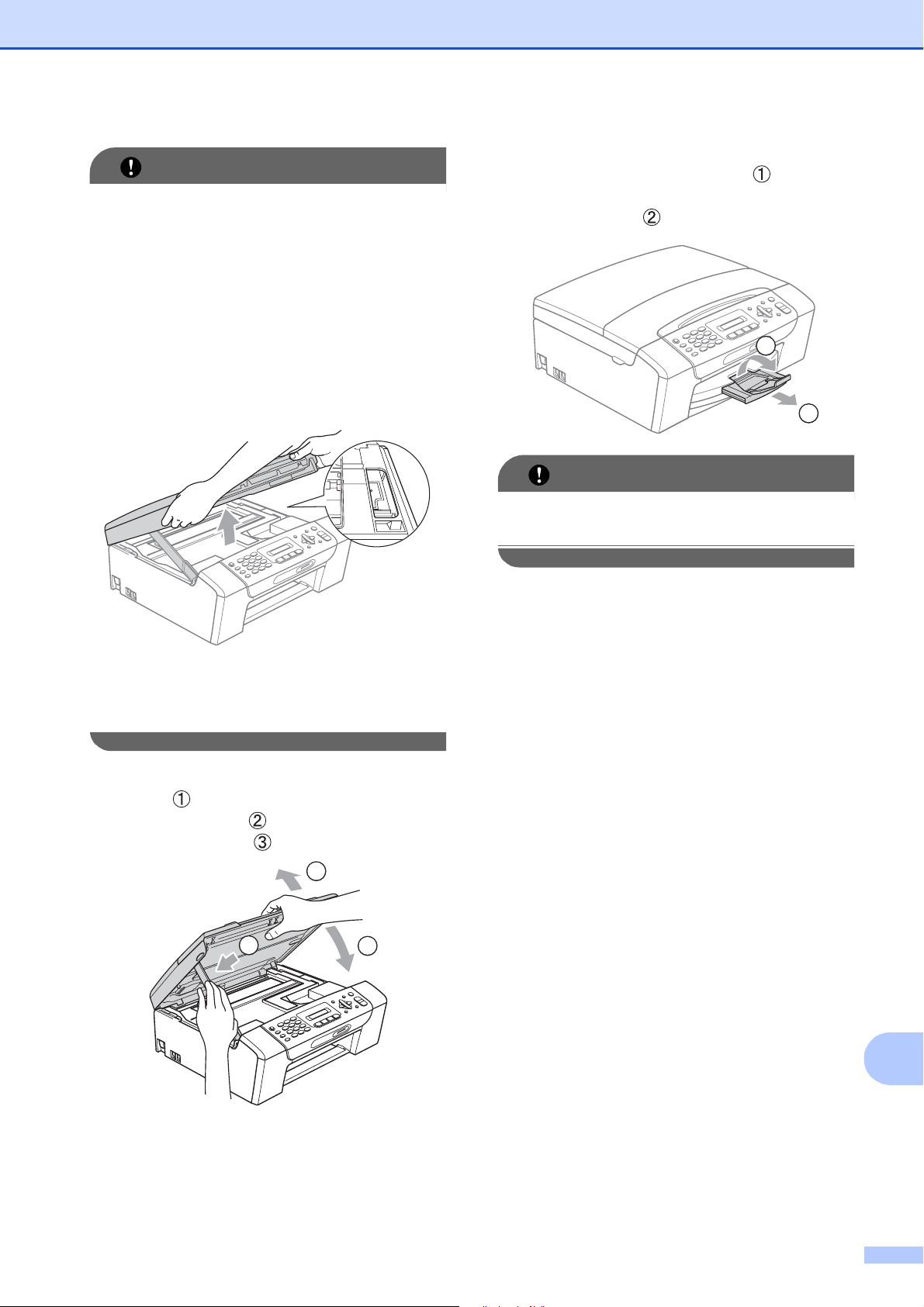
Troubleshooting and Routine Maintenance
115
B
IMPORTANT
• If the paper is jammed under the print
head, unplug the machine from the power
source, and then move the print head to
take out the paper.
• If the print head is at the right corner as
shown in the illustration, you cannot move
the print head. Hold down Stop/Exit until
the print head moves to the middle. Then
unplug the machine from the power
source, and take out the paper.
• If ink gets on your skin or clothing,
immediately wash it off with soap or
detergent.
g Lift the scanner cover to release the
lock ( ). Gently push the scanner cover
support down ( ) and close the
scanner cover ( ) using both hands.
h Push the paper tray firmly back into the
machine.
i While holding the paper tray in place,
pull out the paper support ( ) until it
clicks, and then unfold the paper
support flap ( ).
IMPORTANT
DO NOT use the paper support flap for
Legal size paper.
1
2
3
1
2
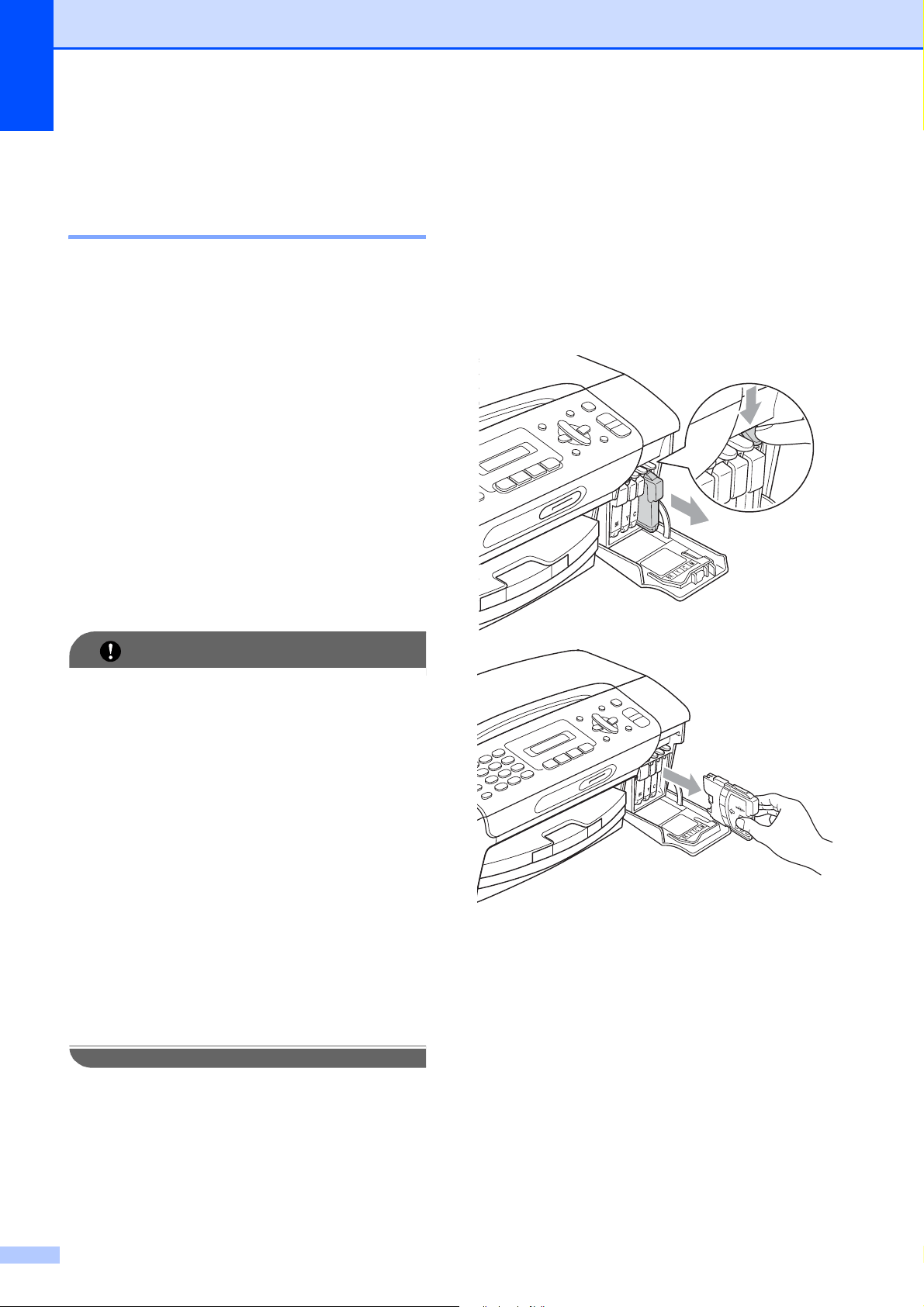
116
Routine maintenance B
Replacing the ink cartridges B
Your machine is equipped with an ink dot
counter. The ink dot counter automatically
monitors the level of ink in each of the
4 cartridges. When the machine detects an
ink cartridge is running out of ink, the machine
will tell you with a message on the LCD.
The LCD will tell you which ink cartridge is low
or needs replacing. Be sure to follow the LCD
prompts to replace the ink cartridges in the
correct order.
Even though the machine tells you to replace
an ink cartridge, there will be a small amount
of ink left in the ink cartridge. It is necessary
to keep some ink in the ink cartridge to
prevent air from drying out and damaging the
print head assembly.
IMPORTANT
Brother strongly recommends that you do
not refill the ink cartridges provided with
your machine. We also strongly
recommend that you continue to use only
Genuine Brother Brand replacement ink
cartridges. Use or attempted use of
potentially incompatible ink and/or
cartridges in the Brother machine may
cause damage to the machine and/or may
result in unsatisfactory print quality. Our
warranty coverage does not apply to any
problem that is caused by the use of
unauthorized third party ink and/or
cartridges. To protect your investment and
obtain premium performance from the
Brother machine, we strongly recommend
the use of Genuine Brother Supplies.
a Open the ink cartridge cover.
If one or more ink cartridges have
reached the end of their life, for example
Black, the LCD shows Cannot Print
and Replace BK Ink.
b Press down to unlock the release lever
and take out the ink cartridge for the
color shown on the LCD.
c Open the new ink cartridge bag for the
color shown on the LCD, and then take
out the ink cartridge.
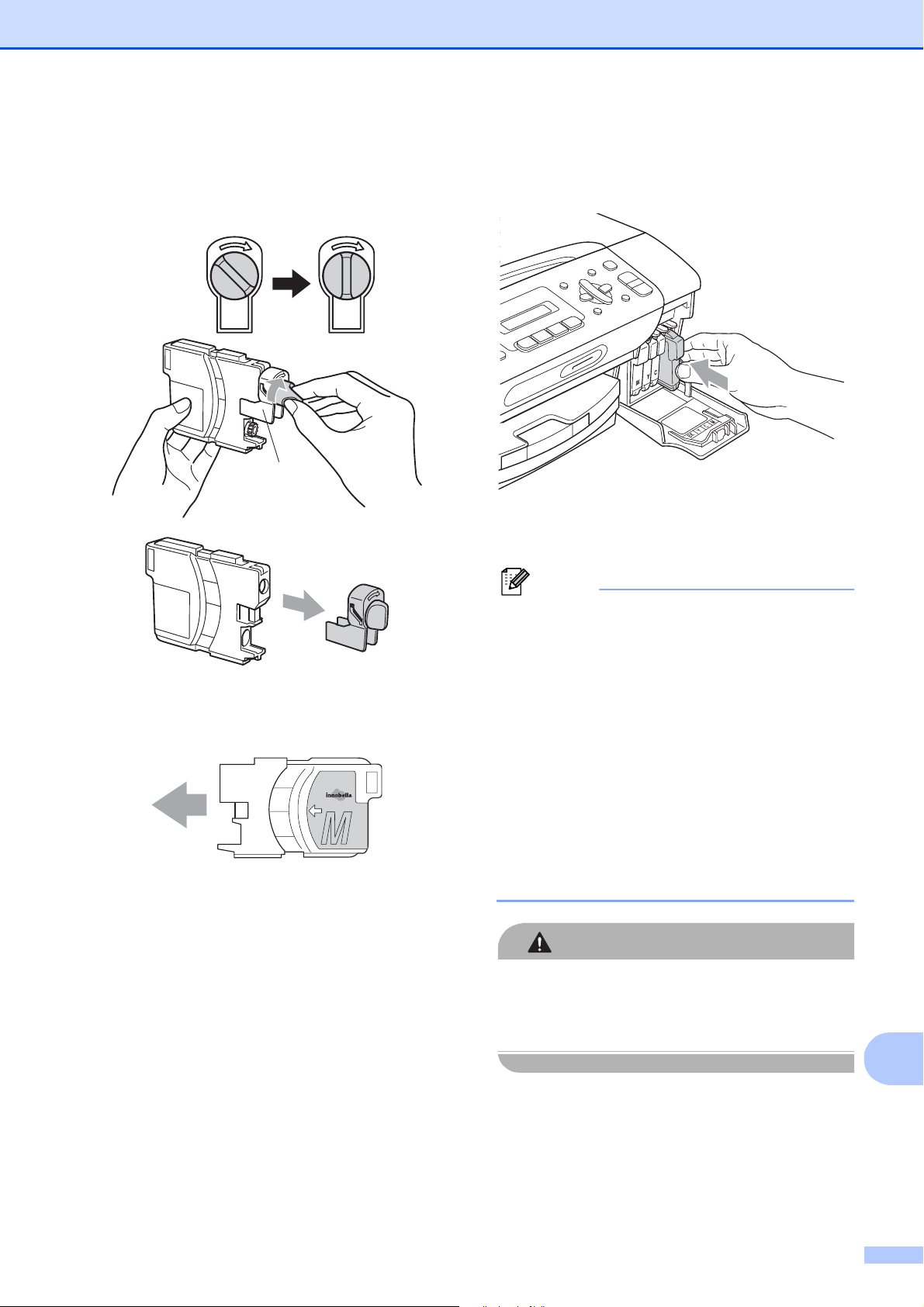
Troubleshooting and Routine Maintenance
117
B
d Turn the green knob on the protective
yellow cap clockwise until it clicks to
release the vacuum seal, then remove
the cap (1).
e Each color has its own correct position.
Insert the ink cartridge in the direction of
the arrow on the label.
f Gently push in the ink cartridge until it
clicks, and then close the ink cartridge
cover.
g The machine will automatically reset the
ink dot counter.
Note
• If you replaced an ink cartridge, for
example Black, the LCD may ask you to
verify that it was a brand new one
(Did You Change Blck?). For each
new cartridge you installed, press 1 (Yes)
to automatically reset the ink dot counter
for that color. If the ink cartridge you
installed is not a brand new one, be sure
to press 2 (No).
• If the LCD shows No Cartridge or
Cannot Detect after you install the ink
cartridges, check that the ink cartridges
are installed properly.
CAUTION
If ink gets in your eyes, wash them out with
water at once and call a doctor if you are
concerned.
1
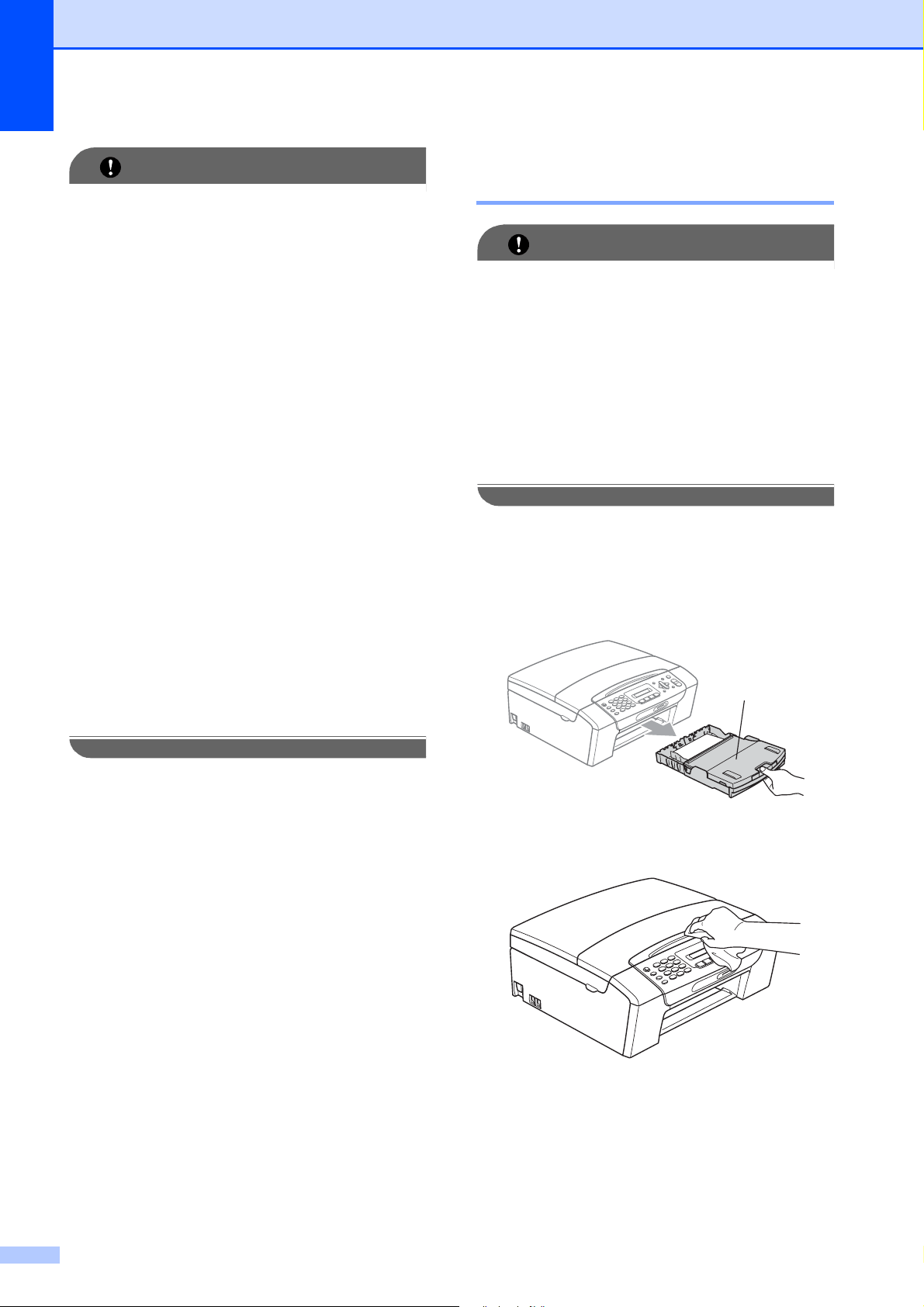
118
IMPORTANT
• DO NOT take out ink cartridges if you do
not need to replace them. If you do so, it
may reduce the ink quantity and the
machine will not know the quantity of ink
left in the cartridge.
• DO NOT touch the cartridge insertion
slots. If you do so, the ink may stain your
skin.
• If ink gets on your skin or clothing
immediately wash it off with soap or
detergent.
• If you mix the colors by installing an ink
cartridge in the wrong position, clean the
print head several times after correcting
the cartridge installation.
• Once you open an ink cartridge, install it in
the machine and use it up within six
months of installation. Use unopened ink
cartridges by the expiration date written on
the cartridge package.
• DO NOT dismantle or tamper with the ink
cartridge, this can cause the ink to leak out
of the cartridge.
Cleaning the outside of the
machine B
IMPORTANT
• Use neutral detergents. Cleaning with
volatile liquids such as thinner or benzine
will damage the outside surface of the
machine.
• DO NOT use cleaning materials that
contain ammonia.
• DO NOT use isopropyl alcohol to remove
dirt from the control panel. It may crack the
panel.
Clean the outside of the machine as
follows:
B
a Pull the paper tray (1) completely out of
the machine.
b Wipe the outside of the machine with a
dry, lint-free soft cloth to remove dust.
c Lift the output paper tray cover and
remove anything that is stuck inside the
paper tray.
1
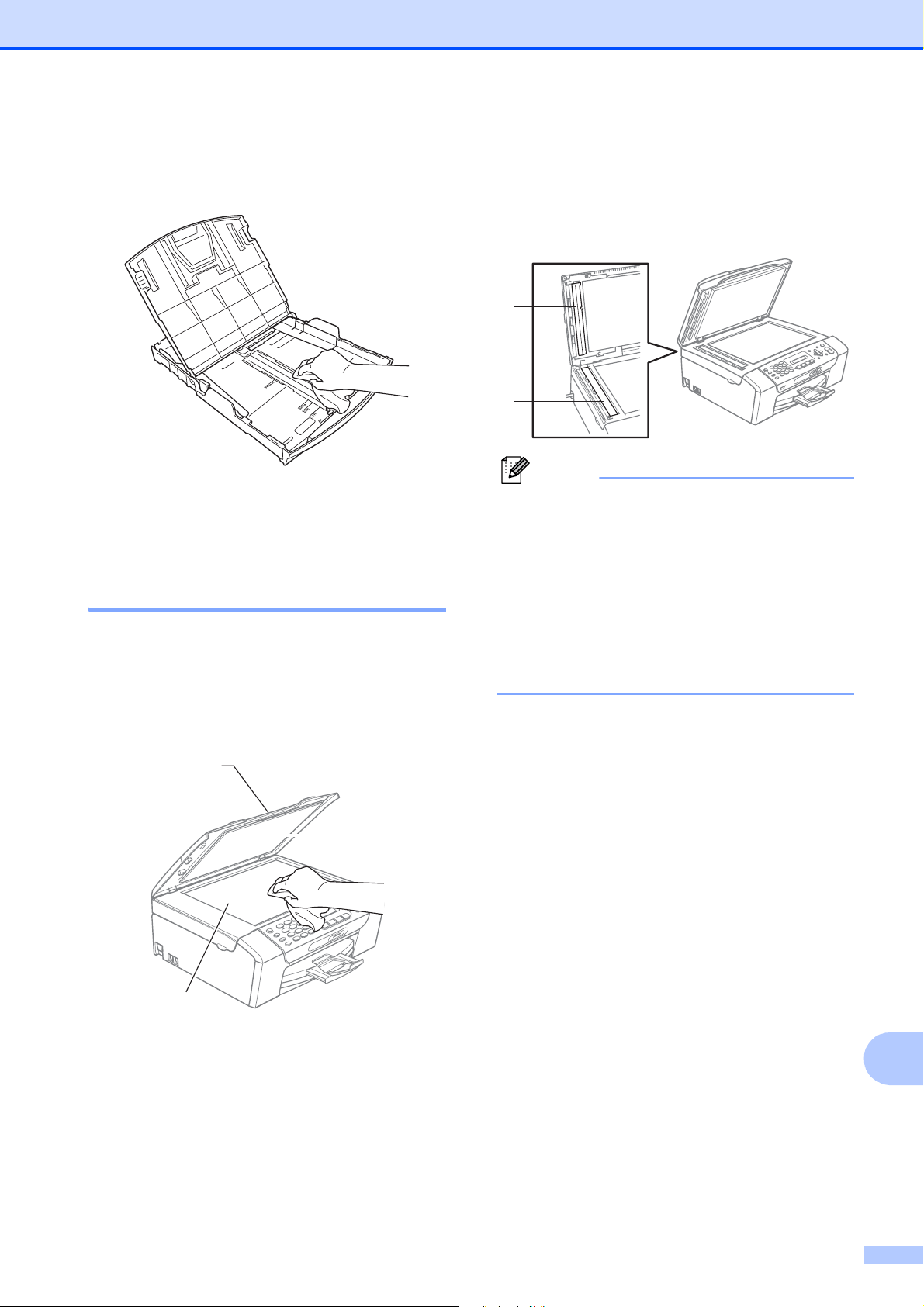
Troubleshooting and Routine Maintenance
119
B
d Wipe the inside and outside of the paper
tray with a dry, lint-free soft cloth to
remove dust.
e Close the output paper tray cover and
put the paper tray firmly back in the
machine.
Cleaning the scanner B
a Lift the document cover (1). Clean the
scanner glass (2) and the white
plastic (3) with a soft, lint-free cloth
moistened with a non-flammable glass
cleaner.
b (MFC-295CN only)
In the ADF unit, clean the white bar (1)
and the glass strip (2) with a soft,
lint-free cloth moistened with a
non-flammable glass cleaner.
Note
In addition to cleaning the scanner glass
and glass strip with a non-flammable glass
cleaner, run your finger tip over the glass
to see if you can feel anything on it. If you
feel dirt or debris, clean the glass again
concentrating on that area. You may need
to repeat the cleaning process three or
four times. To test, make a copy after each
cleaning attempt.
2
1
3
1
2
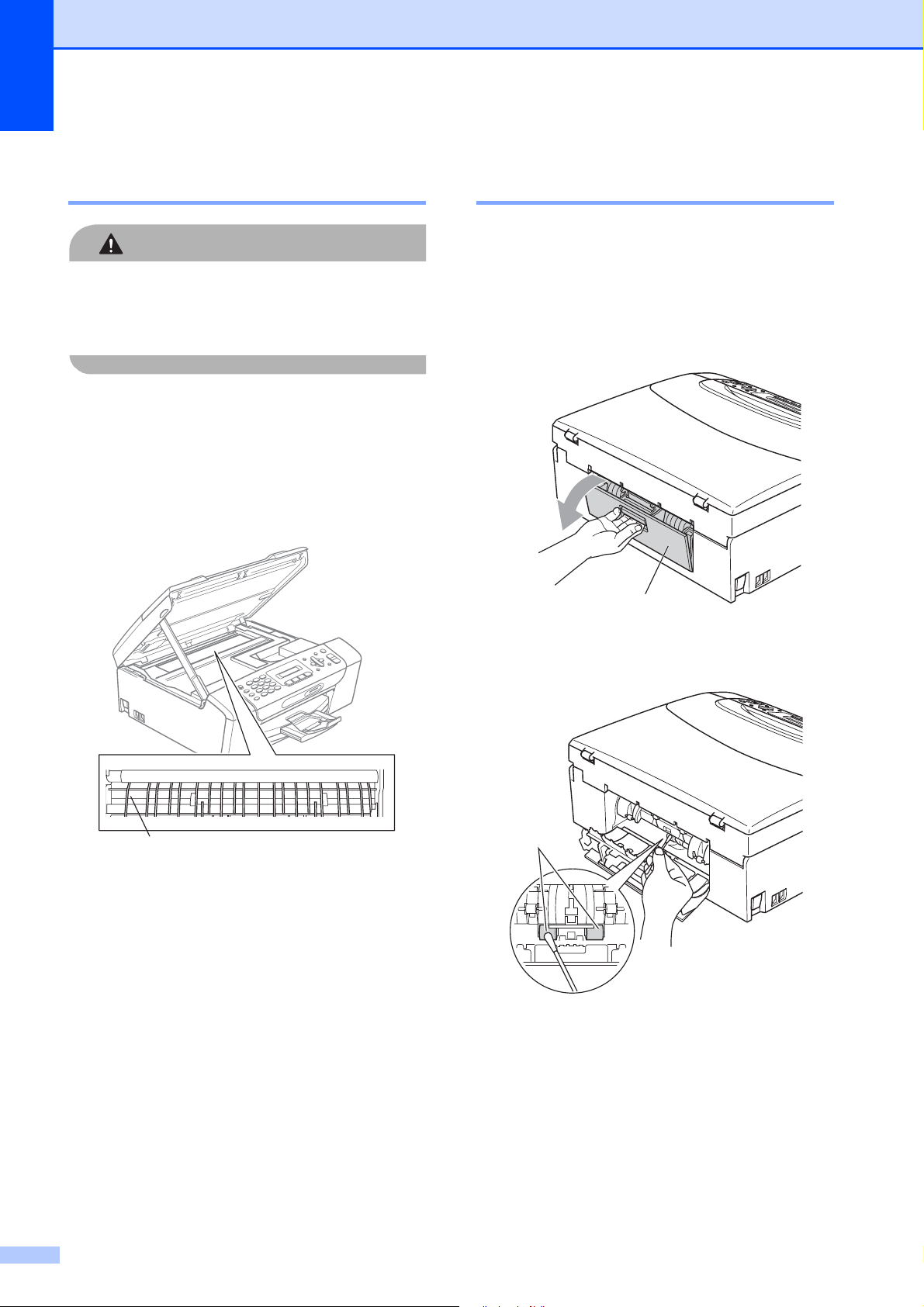
120
Cleaning the machine’s
printer platen B
CAUTION
Be sure to unplug the machine from the AC
power outlet before cleaning the printer
platen to avoid electrical shock.
a Lift the scanner cover until it locks
securely in the open position.
b Clean the machine’s printer platen (1)
and the area around it, wiping off any
scattered ink with a soft, dry lint-free
cloth.
Cleaning the paper pick-up
rollers B
a Pull the paper tray completely out of the
machine.
b Unplug the machine from the AC power
outlet and open the Jam Clear Cover (1)
at the back of the machine.
c Clean the Paper Pick-up Rollers (1) with
isopropyl alcohol on a cotton swab.
d Close the Jam Clear Cover.
Make sure the cover is closed properly.
e Put the paper tray firmly back in the
machine.
f Re-connect the power cord.
1
1
1
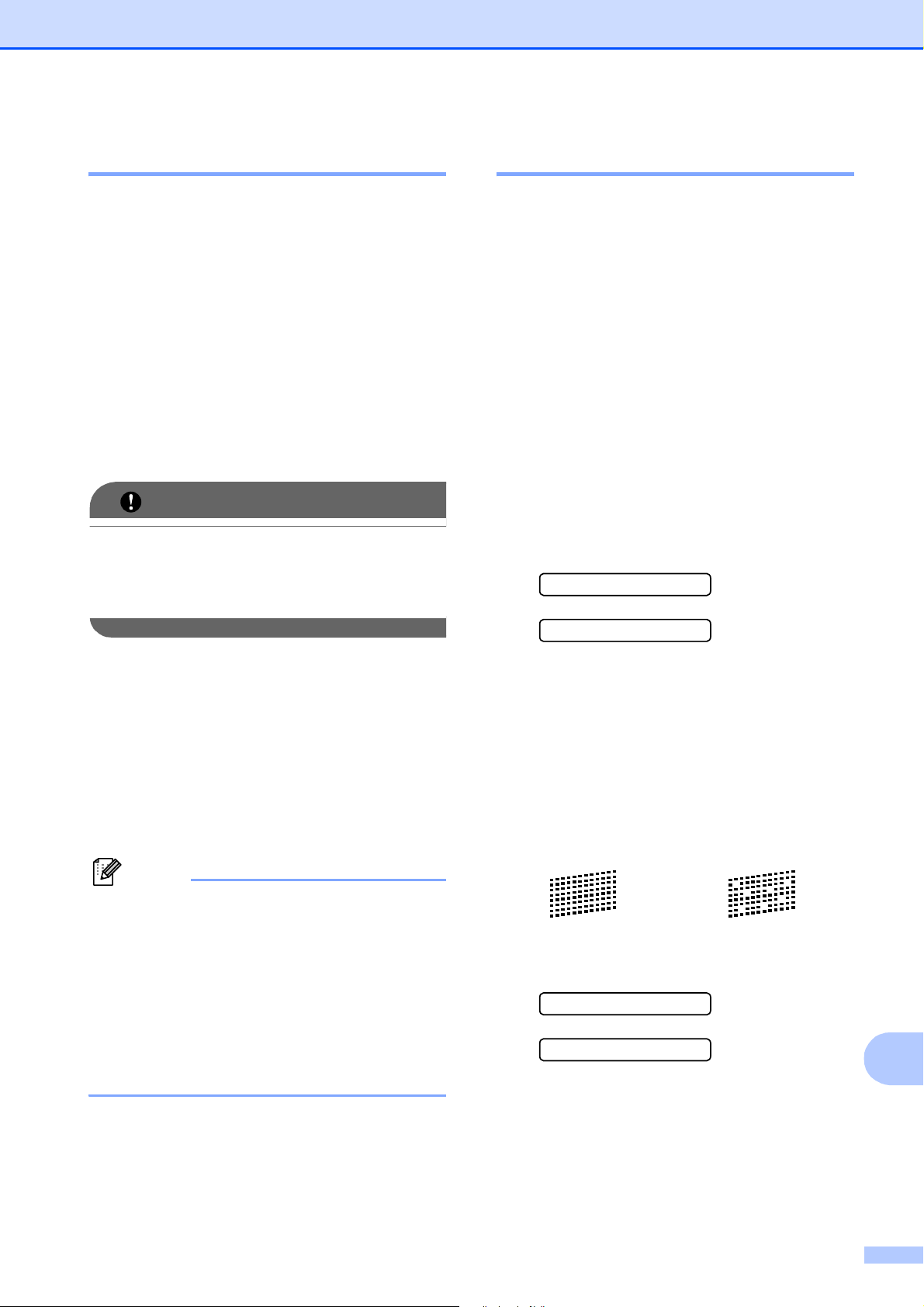
Troubleshooting and Routine Maintenance
121
B
Cleaning the print head B
To maintain good print quality, the machine
will automatically clean the print head when
needed. You can start the cleaning process
manually if there is a print quality problem.
Clean the print head and ink cartridges if you
get a horizontal line in the text or graphics or
blank text on your printed pages. You can
clean Black only, three colors at a time
(Yellow/Cyan/Magenta), or all four colors at
once.
Cleaning the print head consumes ink.
Cleaning too often uses ink unnecessarily.
IMPORTANT
DO NOT touch the print head. Touching
the print head may cause permanent
damage and may void the print head's
warranty.
a Press Menu, 8, 2.
b Press a or b to choose Black, Color or
All.
Press OK.
The machine cleans the print head.
When cleaning is finished, the machine
will go back to Ready screen
automatically.
Note
If you clean the print head at least five
times and the print has not improved, try
installing a new Genuine Brother Original
Innobella™ ink Brand replacement
cartridge for each problem color. Try
cleaning the print head again up to five
more times. If the print has not improved
call Brother Customer Service. (See
Brother numbers on page i.)
Checking the print quality B
If faded or streaked colors and text appear on
your output, some of the nozzles may be
clogged. You can check this by printing the
Print Quality Check Sheet and looking at the
nozzle check pattern.
a Press Menu, 8, 1.
b Press a or b to choose
Print Quality.
Press OK.
c Press Color Start.
The machine begins printing the Print
Quality Check Sheet.
d Check the quality of the four color blocks
on the sheet.
Is Quality OK?
1.Yes 2.No
e Do one of the following:
If all lines are clear and visible,
press 1 to choose Yes, and go to
step i.
If you can see missing short lines as
shown below, press 2 to choose No.
f The LCD asks you if the print quality is
OK for black and the three colors.
Black OK?
1.Yes 2.No
Press 1 (Yes) or 2 (No).
OK Poor
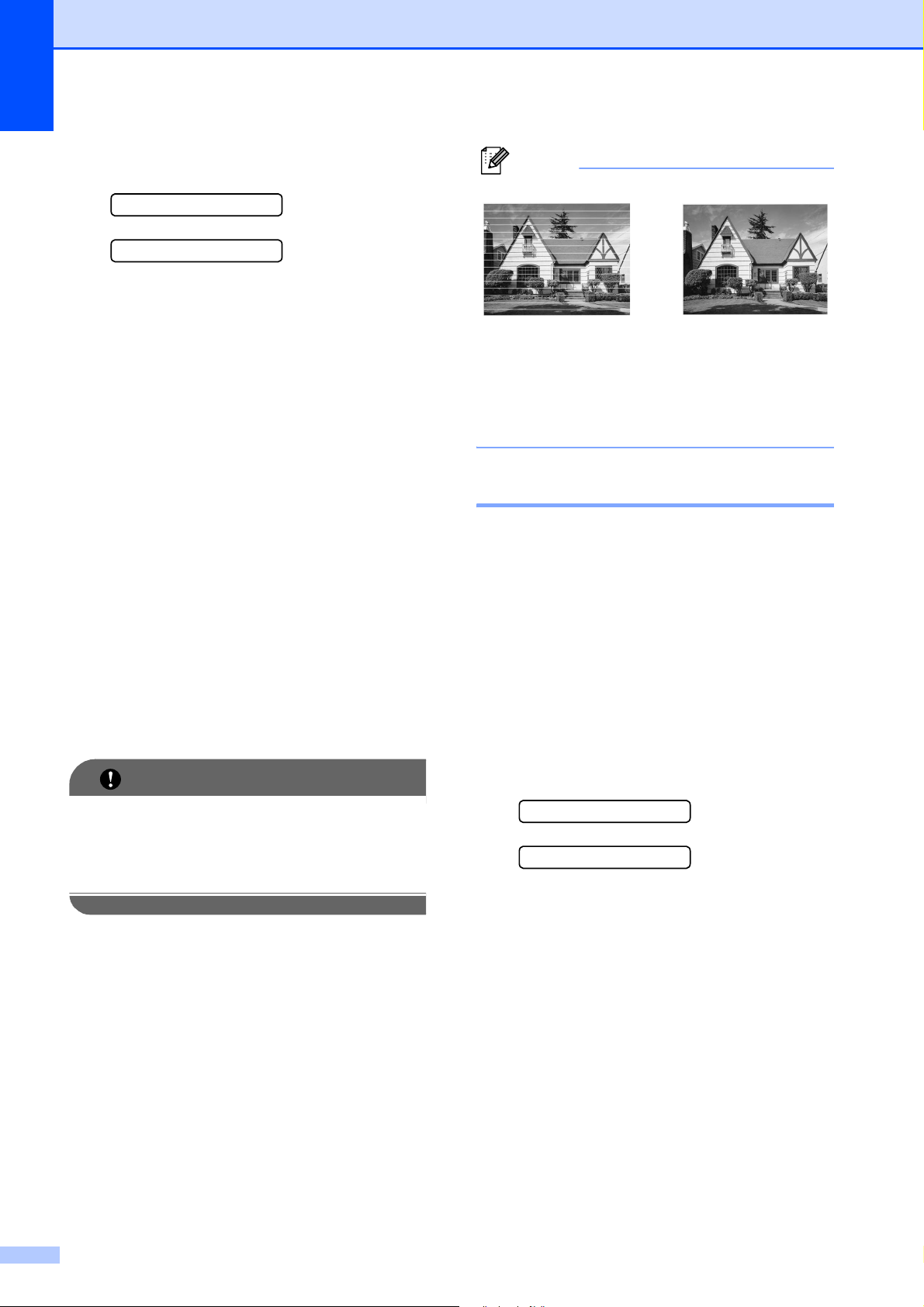
122
g The LCD asks you if you want to start
cleaning.
Start Cleaning?
1.Yes 2.No
Press 1 (Yes).
The machine starts cleaning the print
head.
h After cleaning is finished, press
Color Start.
The machine starts printing the Print
Quality Check Sheet again and then
returns to step d.
i Press Stop/Exit.
If you repeat this procedure at least five
times and the print quality is still poor,
replace the ink cartridge for the clogged
color.
After replacing the ink cartridge, check
the print quality. If the problem still
exists, repeat the cleaning and test print
procedures at least five times for the
new ink cartridge. If ink is still missing,
call Brother Customer Service. (See
Brother numbers on page i.)
IMPORTANT
DO NOT touch the print head. Touching
the print head may cause permanent
damage and may void the print head's
warranty.
Note
Checking the print alignment B
You may need to adjust the print alignment
after transporting the machine, or if your
printed text becomes blurred or images
become faded.
a Press Menu, 8, 1.
b Press a or b to choose Alignment.
Press OK.
c Press Black Start or Color Start.
The machine starts printing the
Alignment Check Sheet.
Is Alignment OK?
1.Yes 2.No
d Check the 600 dpi and 1200 dpi test
prints to see if number 5 most closely
matches number 0.
If the number 5 samples of both the
600 dpi and 1200 dpi test prints are
the best matches, press 1 (Yes) to
finish the Alignment Check, and go to
step g.
If another test print number is a
better match for either 600 dpi or
1200 dpi, press 2 (No) to choose it.
i
When a print head
nozzle is clogged
the printed
sample looks like
this.
After the print
head nozzle is
cleaned, the
horizontal lines
are gone.
Troubleshooting and Routine Maintenance
123
B
e For 600 dpi, press the number of the test
print that most closely matches the
number 0 sample (1-8).
600dpi Adjust
Select Best #5
f For 1200 dpi, press the number of the
test print that most closely matches the
number 0 sample (1-8).
1200dpi Adjust
Select Best #5
g Press Stop/Exit.
Checking the ink volume B
You can check the ink that is left in the
cartridge.
a Press Menu, 8, 3.
b The LCD shows the ink volume.
c Press a or b to choose the color you
want to check.
d Press Stop/Exit.
Note
You can check the ink volume from your
computer. (See Printing for Windows
®
or
Printing and Faxing for Macintosh in the
Software User's Guide on the CD-ROM.)
Machine Information B
Checking the serial number B
You can see the machine’s serial number on
the LCD.
a Press Menu, 7, 1.
1.Serial No.
XXXXXXXXX
b Press Stop/Exit.
Reset functions B
The following reset functions are available:
1 Network
You can reset the print server back to its
default factory settings such as the
password and IP address information.
2 Speed Dial&Fax
Speed Dial resets the following settings:
Speed Dial
(Speed-Dial and Setup Groups)
Station ID
(Name and Number)
Report settings
(Transmission Verification Report,
Quick Dial List and Fax Journal)
3 All Settings
You can reset all the machine settings
back to the settings that were set at the
factory.
Brother strongly recommends you use this
operation when you dispose of the
machine.
Note
Unplug the interface cable before you
choose Network or All Settings.
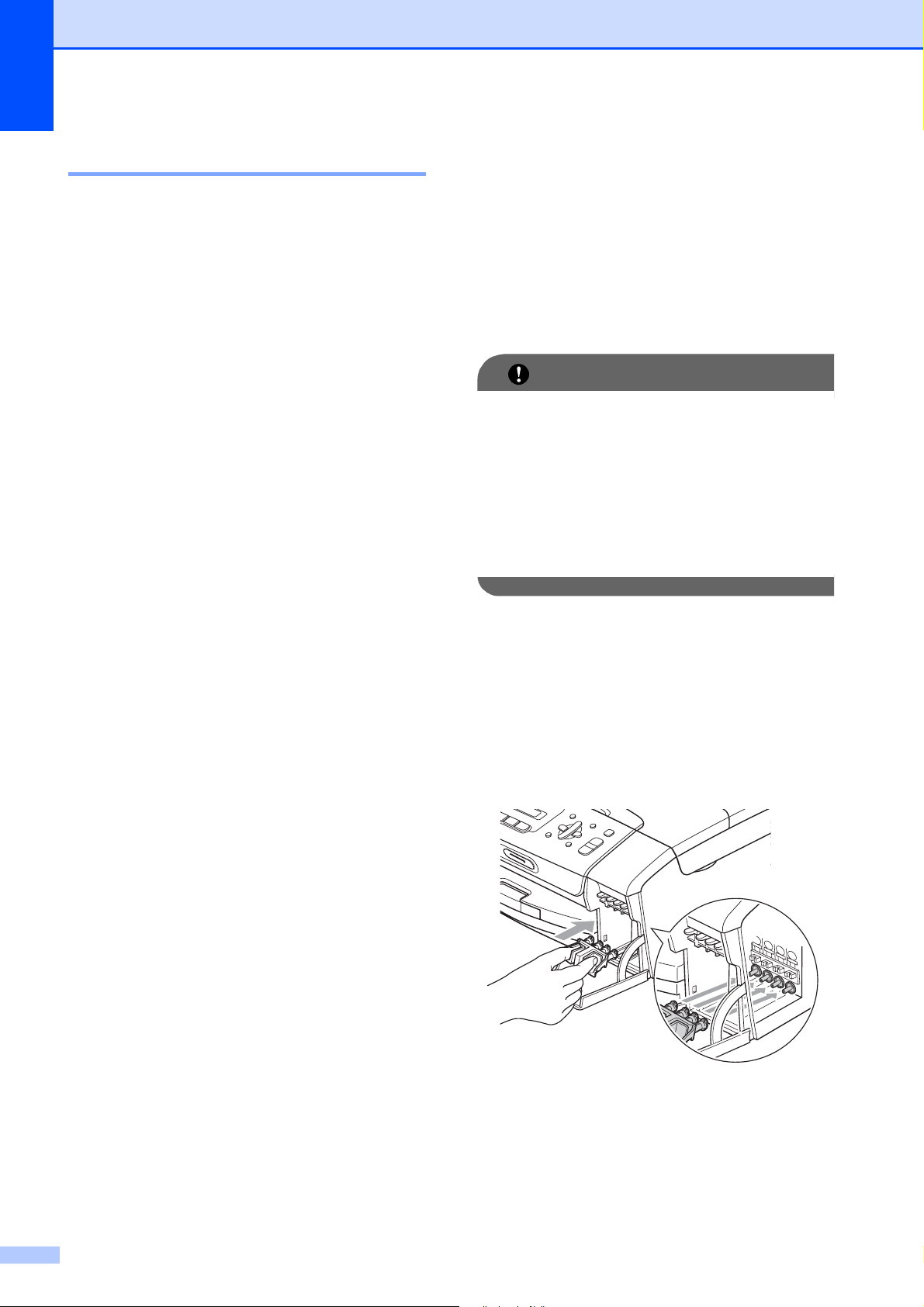
124
How to reset the machine B
a Press Menu, 0, 7.
b Press a or b to choose the reset you
want.
Press OK.
c Press 1 to reset the machine or press 2
to exit from the reset function.
Packing and shipping
the machine
B
When you transport the machine, use the
packing materials that came with your
machine. If you do not pack the machine
properly, any damage that may occur in
transit will not be covered by your warranty.
IMPORTANT
It is important to allow the machine to
‘park’ the print head after a print job. Listen
carefully to the machine before
unplugging it to make sure that all
mechanical noise has stopped. Not
allowing the machine to finish this parking
process may lead to print problems and
possible damage to the print head.
a Open the ink cartridge cover.
b Press the lock release lever to release
the ink cartridge and take out all the ink
cartridges. (See Replacing the ink
cartridges on page 116.)
c Install the green protective part, and
then close the ink cartridge cover.
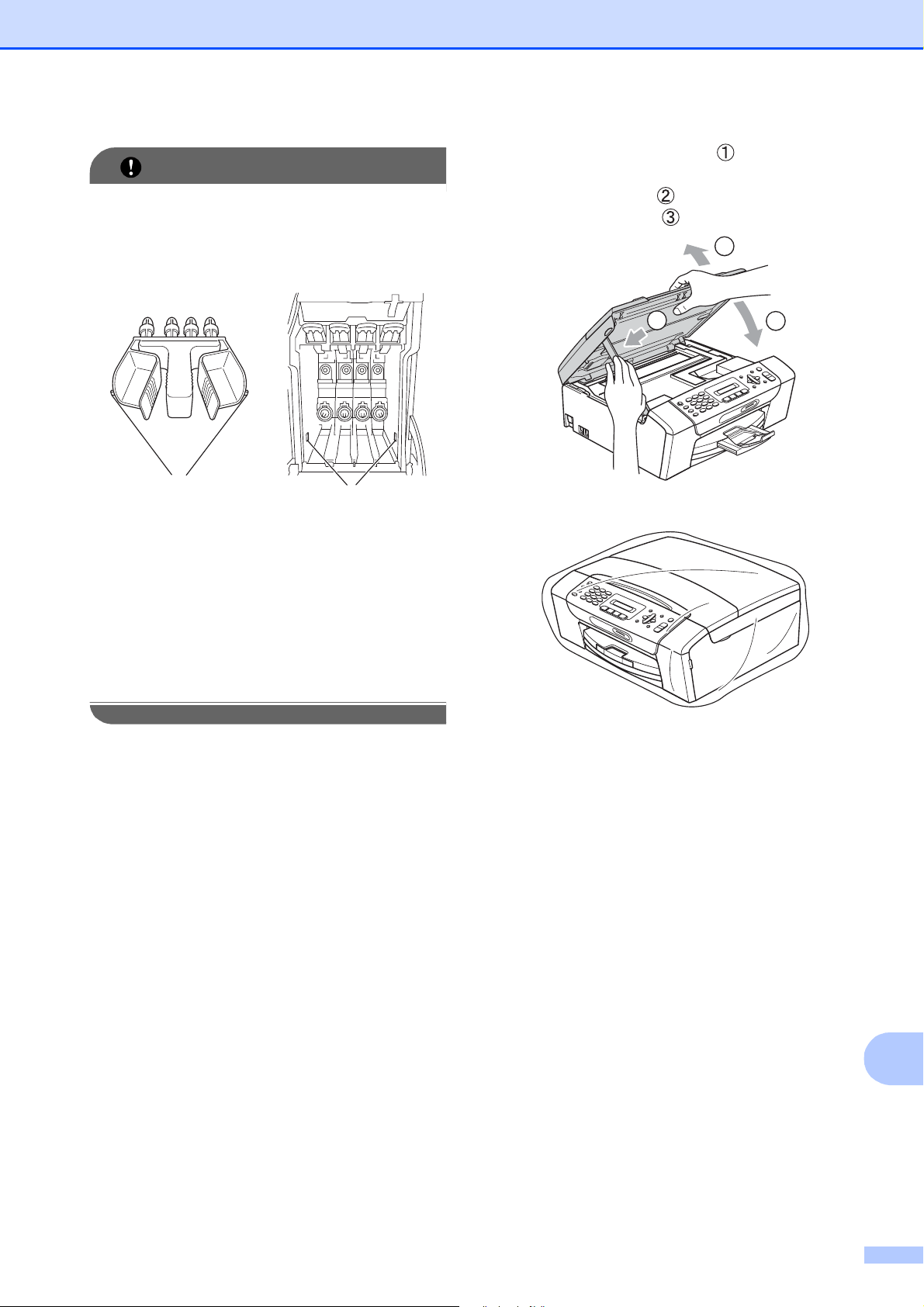
Troubleshooting and Routine Maintenance
125
B
IMPORTANT
• Make sure that the plastic tabs on both
sides of the green protective part (1) have
securely clicked into place (2).
• If you are not able to find the green
protective part, DO NOT remove the ink
cartridges before shipping. It is essential
that the machine be shipped with either
the green protective part or the ink
cartridges in position. Shipping without
them will cause damage to your machine
and may void your warranty.
d Unplug the machine from the telephone
wall jack and take the telephone line
cord out of the machine.
e Unplug the machine from the AC power
outlet.
f Using both hands, use the plastic tabs
on both sides of the machine to lift the
scanner cover until it locks securely into
the open position. Then unplug the
interface cable from the machine, if it is
connected.
g Lift the scanner cover ( ) to release the
lock. Gently push the scanner cover
support down ( ) and close the
scanner cover ( ).
h Wrap the machine in the bag.
1
2
1
2
3
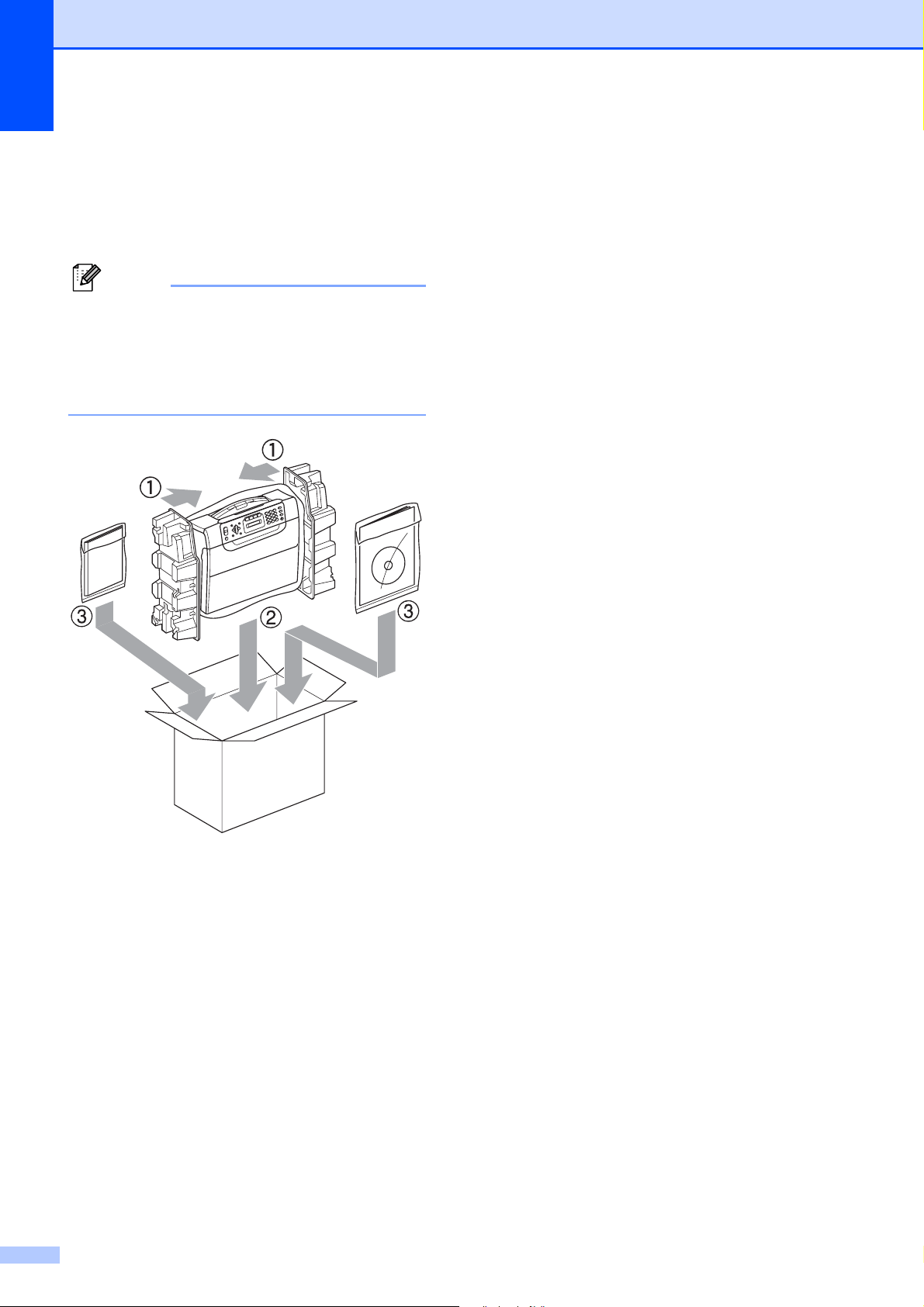
126
i Pack the machine and the printed
materials in the original carton with the
original packing material as shown
below. Do not pack the used ink
cartridges in the carton.
Note
If you are returning your machine to
Brother as part of the Exchange Service,
pack only the machine. Keep all separate
parts and printed materials to use with
your ‘Exchange’ machine.
j Close the carton and tape it shut.
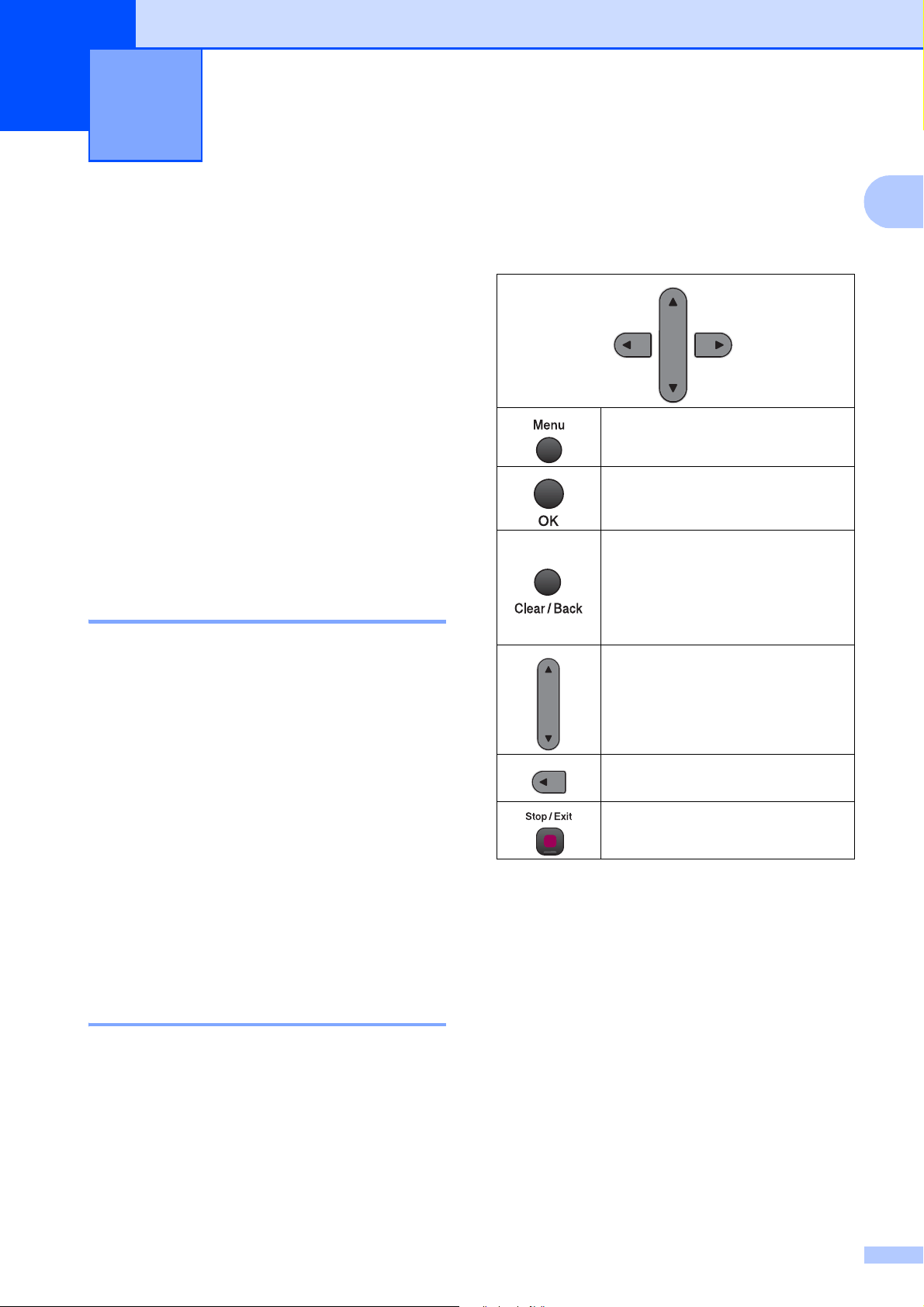
127
C
C
On-screen
programming
C
Your machine is designed to be easy to
operate with LCD on-screen programming
using the menu keys. User-friendly
programming helps you take full advantage of
all the menu selections your machine has to
offer.
Since your programming is done on the LCD,
we have created step-by-step on-screen
instructions to help you program your
machine. All you need to do is follow the
instructions as they guide you through the
menu selections and programming options.
Menu table C
You can program your machine without the
User’s Guide by using the Menu table that
begins on page 129. These pages list the
menu selections and options.
Press Menu followed by the menu numbers
to program your machine.
For example, to set beeper volume to Med.
a Press Menu, 1, 4, 2.
b Press a or b to choose Beeper:Med.
c Press OK.
d Press Stop/Exit.
Memory storage C
Even if there is a power failure, you will not
lose your menu settings because they are
stored permanently. Temporary settings
(such as Contrast, Overseas mode, and so
on) will be lost. You may have to reset the
date and time.
Menu keys C
Menu and Features C
Access the menu.
Go to the next menu level.
Accept an option.
Go back to the previous menu
level.
Delete an incorrect letter when
you need to enter text into the
machine.
Scroll through the current menu
level.
Go back to the previous menu
level.
Exit the menu or stop the current
operation.

128
To access the menu mode:
a Press Menu.
b Choose an option.
Press 1 for General Setup menu.
Press 2 for Fax menu.
Press 3 for Copy menu.
Press 0 for Initial Setup menu.
You can scroll more quickly through
each menu level by pressing a or b for
the direction you want.
c Press OK when that option appears on
the LCD.
The LCD will then show the next menu
level.
d Press a or b to scroll to your next menu
selection.
e Press OK.
When you finish setting an option, the
LCD shows Accepted.
f Press Stop/Exit.
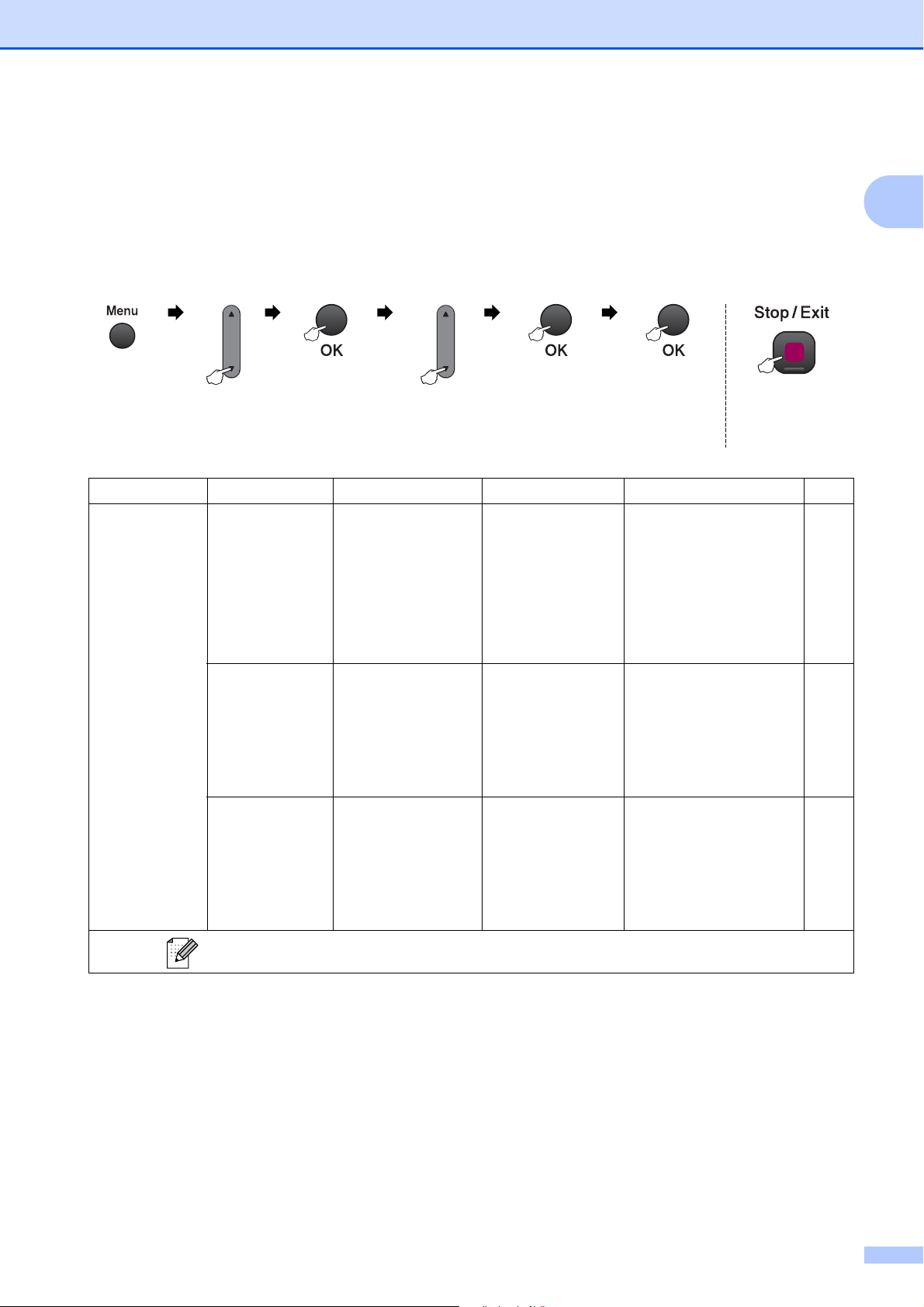
Menu and Features
129
C
Menu Table C
The menu table will help you understand the menu selections and options that are found in the
machine's programs. The factory settings are shown in Bold with an asterisk.
Choose & OK Choose & OK to accept to exit
Main Menu Submenu Menu Selections Options Descriptions Page
1.
General Setup
1.Mode Timer — 0 Sec
30 Secs
1 Min
2 Mins*
5 Mins
Off
Sets the time to return to
Fax mode.
21
2.Paper Type — Plain Paper*
Inkjet Paper
Brother BP71
Other Glossy
Transparency
Sets the type of paper in
the paper tray.
22
3.Paper Size — Letter*
Legal
A4
A5
4"x6"
Sets the size of the paper
in the paper tray.
22
The factory settings are shown in Bold with an asterisk.
130
1.
General Setup
(Continued)
4.Volume 1.Ring Off
Low
Med*
High
Adjusts the ring volume. 22
2.Beeper Off
Low*
Med
High
Adjusts the volume level
of the beeper.
22
3.Speaker Off
Low
Med*
High
Adjusts the speaker
volume.
23
5.
Auto Daylight
— On
Off*
Change this setting to On
if you want the machine to
change automatically for
Daylight Saving Time.
23
6.
LCD Contrast
— Light
Dark*
Adjusts the contrast of the
LCD.
23
7.Sleep Mode — 1 Min
2 Mins
3 Mins
5 Mins*
10 Mins
30 Mins
60 Mins
You can choose how long
the machine will remain
idle before it goes into
sleep mode.
23
2.Fax 1.
Setup Receive
(In Fax mode
only)
1.Ring Delay 00
01
02
03
04*
Sets the number of rings
before the machine
answers in Fax Only or
Fax/Tel mode.
38
2.F/T Ring Time 20Secs*
30Secs
40Secs
70Secs
Sets the F/T
pseudo/double-ring time
in Fax/Tel mode.
38
3.Easy Receive On*
Off
Receives fax messages
without pressing Start.
39
Main Menu Submenu Menu Selections Options Descriptions Page
The factory settings are shown in Bold with an asterisk.
Menu and Features
131
C
2.Fax
(Continued)
1.
Setup Receive
(In Fax mode
only)
(Continued)
4.Remote Codes On* (l 51, #51)
Off
Allows you to answer all
calls at an extension or
external telephone and
use codes to turn the
machine on or off. You
can personalize these
codes.
50
5.
Auto Reduction
On*
Off
Cuts the size of incoming
faxes.
39
2.Setup Send
(In Fax mode
only)
1.Contrast Auto*
Light
Dark
Changes the lightness or
darkness of faxes you
send.
31
2.
Fax Resolution
Standard*
Fine
S.Fine
Photo
Sets the default resolution
for outgoing faxes.
31
3.Real Time TX Next Fax Only
On
Off*
Sends a fax without using
the memory.
32
4.Overseas Mode On
Off*
If you are having problems
sending faxes overseas,
set this to on.
33
0.
Glass ScanSize
A4
Letter*
Adjusts the scan area of
the scanner glass to the
size of the document.
29
3.
Report Setting
1.Transmission On
On+Image
Off*
Off+Image
Sets initial setup for
Transmission Verification
Report and Fax Journal.
55
2.
Journal Period
Off
Every 50 Faxes*
Every 6 Hours
Every 12 Hours
Every 24 Hours
Every 2 Days
Every 7 Days
56
4.
Remaining Jobs
— — Checks which jobs are in
the memory and lets you
cancel chosen jobs.
30
Main Menu Submenu Menu Selections Options Descriptions Page
The factory settings are shown in Bold with an asterisk.
132
2.Fax
(Continued)
0.
Miscellaneous
1.TX Lock — Stops unauthorized users
from changing the
machine’s current
settings.
24
2.Distinctive Off*
Set (On)
Uses the Telephone
Company’s Distinctive
Ring subscriber service to
register the ring pattern
with the machine.
42
3.Caller ID Display#
Print Report
View or print a list of the
last 30 Caller IDs stored in
the memory.
44
3.Copy 1.Quality — Fast
Normal*
Best
Chooses the Copy
resolution for your type of
document.
60
2.Brightness — -nnnno+
-nnnon+
-nnonn+*
-nonnn+
-onnnn+
Adjusts the brightness for
copies.
63
3.Contrast — -nnnno+
-nnnon+
-nnonn+*
-nonnn+
-onnnn+
Adjusts the contrast for
copies.
63
Main Menu Submenu Menu Selections Options Descriptions Page
The factory settings are shown in Bold with an asterisk.
Menu and Features
133
C
4.
PhotoCapture
1.
Print Quality
— Normal
Photo*
Choose the print quality. 72
2.Paper Type — Plain Paper
Inkjet Paper
Brother BP71
Other Glossy*
Choose the paper and
paper type.
72
3.Paper Size — 4"x 6"*
5"x 7"
Letter
A4
Choose the paper size. 72
4.Print Size — 3"x 4"
3.5"x 5"
4"x 6"
5"x 7"
6"x 8"
Max. Size*
Choose the print size.
(Appears when A4 or
Letter is chosen in the
Paper Size menu.)
73
5.Brightness — -nnnno+
-nnnon+
-nnonn+*
-nonnn+
-onnnn+
Adjusts the brightness. 73
6.Contrast — -nnnno+
-nnnon+
-nnonn+*
-nonnn+
-onnnn+
Adjusts the contrast. 73
7.Cropping — Cropping:On*
Cropping:Off
Crops the image around
the margin to fit the paper
size or print size. Turn this
feature off if you want to
print whole images or
prevent unwanted
cropping.
73
8.Borderless — Borderless:On*
Borderless:Off
Expands the printable
area to fit the edges of the
paper.
73
9.Print Date — Date:On
Date:Off*
Prints the date on your
photo.
74
Main Menu Submenu Menu Selections Options Descriptions Page
The factory settings are shown in Bold with an asterisk.
134
4.
PhotoCapture
(Continued)
0.
Scan to Media
1.Quality
B/W 200x100 dpi
B/W 200 dpi
Color 150 dpi*
Color 300 dpi
Color 600 dpi
Selects the Scan
resolution for your type of
document.
75
2.B/W File Type TIFF*
PDF
Selects the default file
format for black and white
scanning.
75
3.
ColorFile Type
PDF*
JPEG
Selects the default file
format for color scanning.
75
Main Menu Submenu Menu Selections Options Descriptions Page
The factory settings are shown in Bold with an asterisk.
Menu and Features
135
C
Network menu
(MFC-255CW)
Level1 Level2 Level3 Level4 Options Descriptions
5.Network 1.TCP/IP 1.
BOOT Method
— Auto*
Static
RARP
BOOTP
DHCP
Chooses the
BOOT method
that best suits
your needs.
2.IP Address — [000-255].
[000-255].
[000-255].
[000-255]
Enter the IP
address.
3.
Subnet Mask
— [000-255].
[000-255].
[000-255].
[000-255]
Enter the Subnet
mask.
4.Gateway — [000-255].
[000-255].
[000-255].
[000-255]
Enter the
Gateway
address.
5.Node Name —
BRWXXXXXXXXXXXX
Enter the Node
name.
6.
WINS Config
— Auto*
Static
Chooses the
WINS
configuration
mode.
7.
WINS Server
— (Primary)
000.000.000.000
(Secondary)
000.000.000.000
Specifies the IP
address of the
primary or
secondary
server.
8.DNS Server — (Primary)
000.000.000.000
(Secondary)
000.000.000.000
Specifies the IP
address of the
primary or
secondary
server.
9.APIPA — On*
Off
Automatically
allocates the IP
address from the
link-local address
range.
See Network User's Guide on the CD-ROM.
The factory settings are shown in Bold with an asterisk.
136
5.Network
(Continued)
2.
Setup Wizard
— — — You can
configure your
print server.
3.
SES/WPS/AOSS
— — — You can easily
configure your
wireless network
settings using the
one-button push
method.
4.
WPS w/PIN Code
— — — You can easily
configure your
wireless network
settings using
WPS with a PIN
code.
5.WLAN Status 1.Status — — You can see the
current wireless
network status.
2.Signal — — You can see the
current wireless
network signal
strength.
3.SSID — — You can see the
current SSID.
4.Comm. Mode — — You can see the
current
Communication
Mode.
6.MAC Address — — — You can see your
machine’s MAC
address from the
control panel.
7.WLAN Enable —— On
Off*
Lets you use the
wireless network
connection.
0.
Network Reset
—— — Restores all
network settings
to the factory
default.
Level1 Level2 Level3 Level4 Options Descriptions
See Network User's Guide on the CD-ROM.
The factory settings are shown in Bold with an asterisk.
Menu and Features
137
C
(MFC-295CN)
Level1 Level2 Level3 Level4 Options Descriptions
5.Network 1.TCP/IP 1.
BOOT Method
— Auto*
Static
RARP
BOOTP
DHCP
Chooses the
BOOT method
that best suits
your needs.
2.IP Address — [000-255].
[000-255].
[000-255].
[000-255]
Enter the IP
address.
3.
Subnet Mask
— [000-255].
[000-255].
[000-255].
[000-255]
Enter the Subnet
mask.
4.Gateway — [000-255].
[000-255].
[000-255].
[000-255]
Enter the
Gateway
address.
5.Node Name —
BRNXXXXXXXXXXXX
Enter the Node
name.
6.
WINS Config
— Auto*
Static
Chooses the
WINS
configuration
mode.
7.
WINS Server
— (Primary)
000.000.000.000
(Secondary)
000.000.000.000
Specifies the IP
address of the
primary or
secondary
server.
8.DNS Server — (Primary)
000.000.000.000
(Secondary)
000.000.000.000
Specifies the IP
address of the
primary or
secondary
server.
9.APIPA — On*
Off
Automatically
allocates the IP
address from the
link-local address
range.
See Network User's Guide on the CD-ROM.
The factory settings are shown in Bold with an asterisk.
138
5.Network
(Continued)
2.Ethernet —— Auto*
100B-FD
100B-HD
10B-FD
10B-HD
Chooses the
Ethernet link
mode.
3.MAC Address — — — You can see your
machine’s MAC
address from the
control panel.
0.
Network Reset
—— — Restores all
network settings
to the factory
default.
Level1 Level2 Level3 Level4 Options Descriptions
See Network User's Guide on the CD-ROM.
The factory settings are shown in Bold with an asterisk.
Menu and Features
139
C
Main Menu Submenu Menu Selections Options Descriptions Page
6.
Print Reports
1.
Transmission
— — Prints a Transmission
Verification Report for
your last transmission.
56
2.Help List — — Prints the Help List so you
can see at-a-glance how
to quickly program your
machine.
56
3.Quick Dial — — Lists name and numbers
stored in the Speed Dial
memory, in numerical
order.
56
4.
Fax Journal
— — Lists information about the
last incoming and
outgoing faxes.
(TX means Transmit.)
(RX means Receive.)
56
5.
User Settings
— — Lists your settings. 56
6.
Network Config
— — Lists your Network
settings.
56
7.
Machine Info.
1.Serial No. — — Lets you check the serial
number of your machine.
123
8.Ink 1.Test Print — Print Quality
Alignment
Lets you check the print
quality or alignment.
121
2.Cleaning — Black
Color
All
Lets you clean the print
head.
121
3.Ink Volume — — Lets you check the
available ink volume.
123
0.
Initial Setup
1.
Receive Mode
— Fax Only*
Fax/Tel
External TAD
Manual
Choose the Receive
mode that best suits your
needs.
35
2.Date&Time — — Puts the date and time on
the LCD and in headings
of faxes you send.
See
Quick
Setup
Guide.
3.Station ID — Fax:
Name:
Set your name and fax
number to appear on each
page you fax.
4.Tone/Pulse
(Canada only)
— Tone*
Pulse
Choose the dialing mode.
5.Dial Tone — Detection
No Detection*
You can shorten the dial
tone detect pause.
105
See Network User's Guide on the CD-ROM.
The factory settings are shown in Bold with an asterisk.
140
Fax Resolution ( )
0.
Initial Setup
(Continued)
6.
Compatibility
— Normal*
Basic(for VoIP)
Adjusts the equalization
for transmission
problems.
105
7.Reset 1.Network — Resets the print server
back to its factory default
settings, such as the
password and IP address
information.
123
2.
Speed Dial&Fax
— Deletes all stored
Speed Dial numbers and
restores the Station ID,
Quick Dial List,
Transmission Verification
Report and Fax Journal
back to the factory default
settings.
123
3.All Settings — Resets all the machine’s
settings back to the
settings that were set at
the factory.
123
0.
Local Language
(USA only)
— English*
Spanish
Allows you to change the
LCD language.
See
Quick
Setup
Guide.
0.
Local Language
(Canada only)
— English*
French
Allows you to change the
LCD language.
Level1 Level2 Level3 Options Descriptions Page
—— — Standard*
Fine
S.Fine
Photo
Sets the resolution for
outgoing faxes.
31
See Network User's Guide on the CD-ROM.
The factory settings are shown in Bold with an asterisk.
Main Menu Submenu Menu Selections Options Descriptions Page
See Network User's Guide on the CD-ROM.
The factory settings are shown in Bold with an asterisk.
Menu and Features
141
C
Copy Options ( )
Level1 Level2 Level3 Options Descriptions Page
Quality ——Fast
Normal*
Best
Choose the Copy
resolution for the next
copy.
60
Enlarge/Reduce
——Fit to Page
Custom(25-400%)
198% 4"x6"iA4
186% 4"x6"iLTR
104% EXEiLTR
100%
97% LTRiA4
93% A4iLTR
(MFC-255CW)
83%
78%
46% LTRi4"x6"
(MFC-295CN)
83% LGLiA4
78% LGLiLTR
46% LTRi4"x6"
You can choose the
enlargement/reduce ratio
for the next copy.
60
Paper Type ——Plain Paper*
Inkjet Paper
Brother BP71
Other Glossy
Transparency
Choose the paper type
that matches the paper in
the tray.
64
Paper Size ——Letter*
Legal
A4
A5
4"(W)x 6"(H)
Choose the paper size
that matches the paper in
the tray.
64
Brightness ——-onnnn+
-nonnn+
-nnonn+*
-nnnon+
-nnnno+
Adjusts the brightness of
copies.
63
See Network User's Guide on the CD-ROM.
The factory settings are shown in Bold with an asterisk.
142
Scan ( )
Stack/Sort
(MFC-295CN)
——Stack*
Sort
You can choose to stack
or sort multiple copies.
63
Page Layout ——Off(1 in 1)*
2in1(P)
2in1(L)
4in1(P)
4in1(L)
Poster(3 x 3)
You can make N in 1 or
Poster copies.
61
No. of Copies
— — — You can enter the number
of copies that you want to
make.
58
Level1 Level2 Level3 Options Descriptions Page
Scan to E-mail
— — — You can scan a black &
white or color document
into your E-mail application.
See Software
User's Guide
on the CD-ROM.
Scan to Image
— — — You can scan a color
picture into your graphics
application.
Scan to OCR — — — You can have your text
document converted to an
editable text file.
Scan to File — — — You can scan a black and
white or color document
into your computer.
Scan to Media
(when a
memory card or
USB Flash
memory drive is
inserted)
Color 150 dpi
*
Color 300 dpi
Color 600 dpi
B/W 200x100 dpi
B/W 200 dpi
Color:
PDF*/JPEG
B/W:
TIFF*/PDF
— You can choose the scan
resolution, file format and
enter a file name for your
document.
74
See Network User's Guide on the CD-ROM.
The factory settings are shown in Bold with an asterisk.
Level1 Level2 Level3 Options Descriptions Page
See Network User's Guide on the CD-ROM.
The factory settings are shown in Bold with an asterisk.
Menu and Features
143
C
Photo Capture ( )
Speed Dial ( )
Level1 Option1 Option2 Option3 Descriptions Page
Print Index 6 Images/Line
5 Images/Line
Paper Type Plain Paper*
Inkjet Paper
Brother BP71
Other Glossy
You can print a thumbnail
page.
69
Paper Size Letter*
A4
Print Images
— — — You can print an individual
image.
70
See Network User's Guide on the CD-ROM.
The factory settings are shown in Bold with an asterisk.
Level1 Option1 Option2 Option3 Descriptions Page
Search — — — You can set up dial by pressing
only a few keys.
52
Set Speed Dial
— — — You can set up Speed Dial
numbers, so you can dial by
pressing only a few keys (and
Start).
53
Setup Groups
— — — You can set up a Group
number Broadcasting.
54
See Network User's Guide on the CD-ROM.
The factory settings are shown in Bold with an asterisk.

144
Entering Text C
When you are setting certain menu selections, such as the Station ID, you may need to enter text
into the machine. Most dial pad keys have three or four letters printed on keys. The keys for 0, #
and l do not have printed letters because they are used for special characters.
Press the appropriate dial pad key the number of times shown in this reference table to access
the character you want.
Inserting spaces
To enter a space in a fax number, press c once between numbers. To enter a space in a name,
press c twice between characters.
Making corrections
If you entered an incorrect letter and want to change it, press d to move the cursor under the
incorrect character. Then press Clear/Back. Re-enter the correct character. You can also back
up and insert letters.
Repeating letters
If you need to enter a letter that is on the same key as the letter before, press c to move the cursor
to the right before you press the key again.
Special characters and symbols
Press l, # or 0, and then press d or c to move the cursor under the special character or symbol
you want. Then press OK to choose it.
Press
Key
one
time
two
times
three
times
four
times
five
times
2 ABC2A
3 DEF3D
4 GH I 4G
5 JKL5J
6 MNO6M
7 PQRS7
8 TUV8T
9 WX Y Z 9
Press l for (space) ! ” # $ % & ’ ( ) + , - . / m
Press # for : ; < = > ? @ [ ] ^ _
Press 0 for English: Á À Ã Â Ç É È Ê Ë Í Î Ï Ó Õ Ô Ö Ú Ù 0
French: À Â Ç É È Ê Ë Î Ï Ô Ú Ù 0
Spanish: Á É Í Ñ Ó Ú 0

145
D
D
General D
Specifications D
Printer Type Inkjet
Print Method Black:
Color:
Piezo with 94 × 1 nozzle
Piezo with 94 × 3 nozzles
Memory Capacity 32 MB
LCD (liquid crystal display) 16 characters × 1line
Power Source AC 100 to 120V 50/60Hz
Power Consumption (MFC-255CW)
Off: Average 0.7 W
Sleep Mode: Average 3 W
Standby: Average 5 W
Operating: Average 23 W
(MFC-295CN)
Off: Average 0.85 W
Sleep Mode: Average 3.5 W
Standby: Average 6 W
Operating: Average 26 W
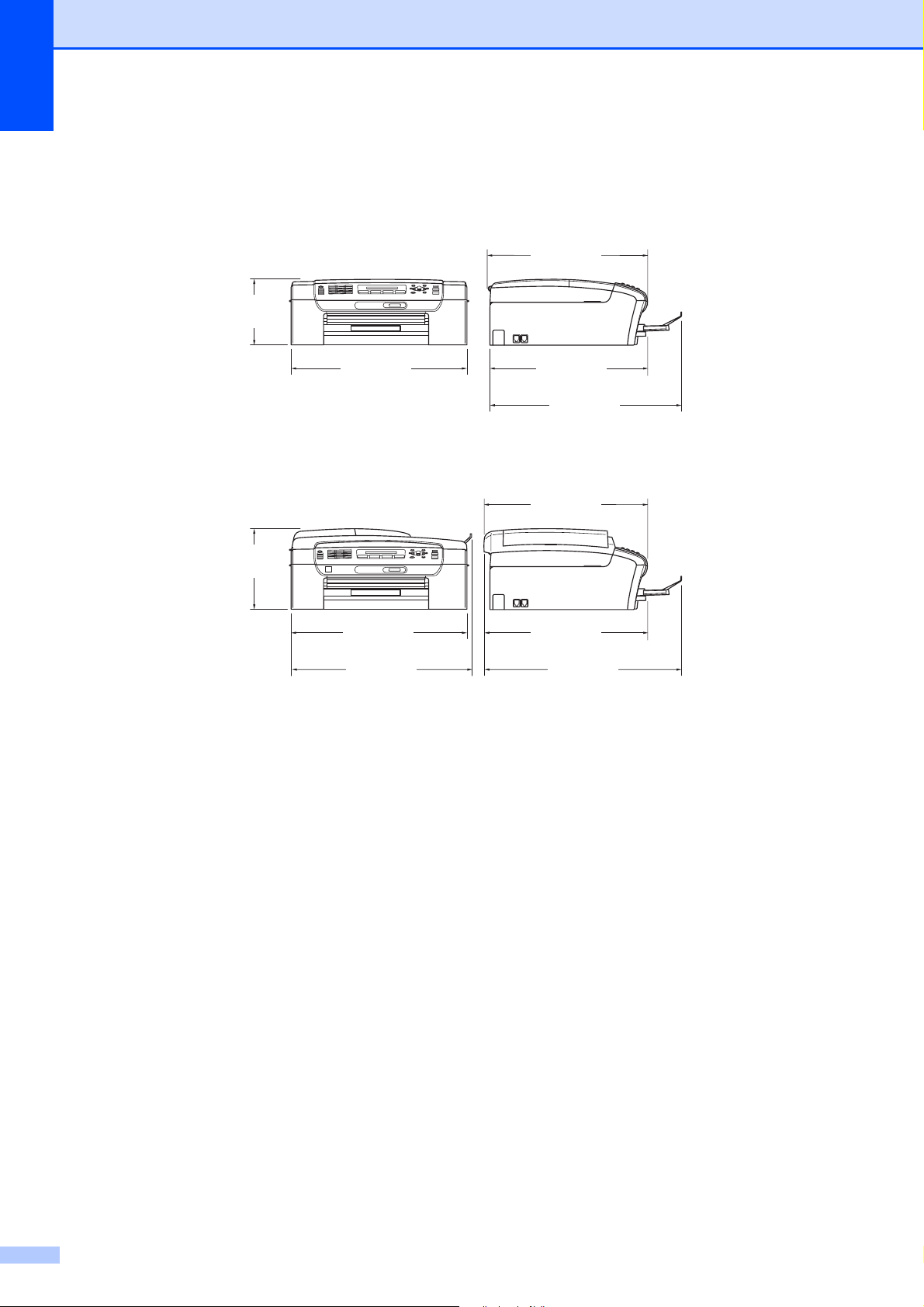
146
1
This depends on printing conditions.
Dimensions
(MFC-255CW)
(MFC-295CN)
Weight 15.9 lb (7.2 kg) (MFC-255CW)
17.2 lb (7.8 kg) (MFC-295CN)
Noise Operating:
50 dB or less
1
Temperature Operating:
Best Print Quality:
50 to 95 °F (10 to 35 °C)
68 to 91 °F (20 to 33 °C)
Humidity Operating:
Best Print Quality:
20 to 80% (without condensation)
20 to 80% (without condensation)
ADF (automatic
document feeder)
(MFC-295CN only)
Up to 15 pages
Recommended Environment for Best Results:
Temperature: 68 to 86 °F (20 to 30 °C)
Humidity: 50 to 70%
Paper: [20 lb (80 g/m
2
)] A4 or Letter size
15.4 in.
(390 mm)
5.9 in.
(150 mm)
14.4 in.
(365 mm)
14.2 in.
(360 mm)
17.7 in.
(450 mm)
7.1 in.
(180 mm)
15.4 in.
(390 mm)
14.6 in.
(370 mm)
16.1 in.
(410 mm)
18.1 in.
(460 mm)
14.8 in.
(375 mm)

Specifications
147
D
Print media D
1
For glossy photo paper or transparencies, we recommend removing printed pages from the output paper tray
immediately after they exit the machine to avoid smudging.
2
Use only transparencies recommended for inkjet printing.
Paper Input Paper Tray
Paper Type:
Plain Paper, Inkjet Paper (coated paper),
Glossy Photo Paper
1
, Transparency
12
and Envelopes
Paper size:
Letter, Legal, Executive, A4, A5, A6, JIS B5,
Envelopes (commercial No.10, DL, C5, Monarch, JE4),
Photo 4" × 6", Photo 2L 5" × 7", Index Card,
Postcard 1 (3.9" × 5.8") and Postcard 2 (5.8" × 7.9")
Width: 3 7/8 - 8.5 in. (98 - 215.9 mm)
Length: 5.8 - 14.0 in. (148 - 355.6 mm)
For more details, see Paper weight, thickness and
capacity on page 17.
Maximum paper tray capacity:
Approx. 100 sheets of 20 lb (80 g/m
2
) plain paper
Paper Output
Up to 50 sheets of 20 lb (80 g/m
2
) plain paper
(face up print delivery to the output paper tray)
1

148
Fax D
Compatibility ITU-T Group 3
Coding System MH/MR/MMR/JPEG
Modem Speed Automatic Fallback
14,400 bps
Document Size ADF Width: (MFC-295CN)
5.8 to 8.5 in. (148 to 215.9 mm)
ADF Length: (MFC-295CN)
5.8 to 14 in. (148 to 355.6 mm)
Scanner Glass Width: Max. 8.5 in. (215.9 mm)
Scanner Glass Length: Max. 11.7 in. (297 mm)
Scanning Width 8.2 in. (208 mm)
Printing Width 8.2 in. (208 mm)
Gray scale Levels: 64 (B&W) / 256 (Color)
Contrast Control Automatic/Light/Dark (B&W only)
(manual setting)
Resolution Horizontal 203 dot/in. (8 dot/mm)
Vertical
Standard
98 line/in. (3.85 line/mm) (Black)
196 line/in. (7.7 line/mm) (Color)
Fine
196 line/in. (7.7 line/mm) (Black/Color)
Photo
196 line/in. (7.7 line/mm) (Black)
Superfine
392 line/in. (15.4 line/mm) (Black)
Speed Dial 40 stations
Groups Up to 6

Specifications
149
D
1
Black & White only
2
‘Pages’ refers to the ‘Brother Standard Chart No. 1’ (a typical business letter, Standard resolution, MMR code).
Specifications and printed materials are subject to change without prior notice.
3
‘Pages’ refers to the ‘ITU-T Test Chart #1’ (a typical business letter, Standard resolution, MMR code). Specifications
and printed materials are subject to change without prior notice.
Broadcasting
1
90 stations
Automatic Redial 1 time after 5 minutes
Ring Delay 0, 1, 2, 3 or 4 rings
Communication Source Public switched telephone network
Memory Transmission
Up to 200
2
/170
3
pages
Out of Paper Reception
Up to 200
2
/170
3
pages

150
Copy D
Color/Black Yes/Yes
Document Size ADF Width: (MFC-295CN)
5.8 to 8.5 in. (148 to 215.9 mm)
ADF Length: (MFC-295CN)
5.8 to 14 in. (148 to 355.6 mm)
Scanner Glass Width: Max. 8.5 in. (215.9 mm)
Scanner Glass Length: Max. 11.7 in. (297 mm)
Copy Width: Max. 8.26 in. (210 mm) (Letter paper)
Multiple Copies Stacks up to 99 pages
Sorts up to 99 pages (Black only) (MFC-295CN only)
Enlarge/Reduce 25 to 400% (in increments of 1%)
Resolution (Black)
Scans up to 1200 × 1200 dpi
Prints up to 1200 × 1200 dpi
(Color)
Scans up to 600 × 1200 dpi
Prints up to 600 × 1200 dpi

Specifications
151
D
PhotoCapture Center
®
D
Note
The MFC-255CW only supports memory cards.
1
Memory cards, Adapters and USB Flash memory drive are not included.
2
16 MB to 2 GB
3
4 GB to 16 GB
4
xD-Picture Card™ Conventional Card from 16MB to 512MB
xD-Picture Card™ Type M from 256MB to 2GB
xD-Picture Card™ Type M
+
1GB and 2GB
xD-Picture Card™ Type H from 256MB to 2GB
5
USB 2.0 standard
USB Mass Storage Class from 16 MB to 32 GB
Support format: FAT 12/FAT16/FAT32
6
Progressive JPEG format is not supported.
7
See Paper type and size for each operation on page 16.
Compatible Media
1
Memory Stick™ (16 MB - 128 MB)
Memory Stick PRO™ (256 MB - 16 GB)
(Not available for music data with MagicGate™)
Memory Stick Duo™ with adapter (16 MB - 128 MB)
Memory Stick Micro™ (M2™) with adapter
SD
2
SDHC
3
miniSD with adapter
microSD with adapter
xD-Picture Card™
4
USB Flash memory drive
5
(MFC-295CN)
Resolution Up to 1200 × 2400 dpi
File Extension
(Media Format) DPOF (ver. 1.0, ver. 1.1), Exif DCF (up to ver. 2.1)
(Image Format) Photo Print: JPEG
6
Scan to Media: JPEG, PDF (Color)
TIFF, PDF (Black)
Number of Files Up to 999 files
(The folder inside a memory card or USB Flash memory drive
is also counted.)
Folder File must be in the 4th folder level of the memory card or USB
Flash memory drive.
Borderless
Letter, A4, Photo 4" × 6", Photo 2L 5" × 7"
7


Specifications
153
D
Scanner D
1
For the latest driver updates for the Mac OS X you are using, visit us at http://solutions.brother.com.
2
Windows
®
XP in this User’s Guide includes Windows
®
XP Home Edition, Windows
®
XP Professional, and Windows
®
XP Professional x64 Edition.
3
Maximum 1200 × 1200 dpi scanning when using the WIA Driver for Windows
®
XP and Windows Vista
®
(resolution up
to 19200 × 19200 dpi can be chosen by using the Brother scanner utility)
Color/Black Yes/Yes
TWAIN Compliant
Yes (Windows
®
2000 Professional/Windows
®
XP/
Windows
®
XP Professional x64 Edition/Windows Vista
®
)
Mac OS X 10.3.9 or greater
1
WIA Compliant
Yes (Windows
®
XP
2
/Windows Vista
®
)
Color Depth 36 bit color Processing (Input)
24 bit color Processing (Output)
(Actual Input: 30 bit color/Actual Output: 24 bit color)
Resolution
Up to 19200 × 19200 dpi (interpolated)
3
Up to 1200 × 2400 dpi (optical)
Document Size ADF Width (MFC-295CN): 5.8 to 8.5 in. (148 to 215.9 mm)
ADF Length (MFC-295CN): 5.8 to 14 in. (148 to 355.6 mm)
Scanner Glass Width: Max. 8.5 in. (215.9 mm)
Scanner Glass Length: Max. 11.7 in. (297 mm)
Scanning Width Up to 8.26 in. (210 mm)
Gray scale 256 levels

154
Printer D
1
For the latest driver updates for the Mac OS X you are using, visit us at http://solutions.brother.com.
2
When the Borderless feature is set to On.
3
See Paper type and size for each operation on page 16.
Printer Driver
Windows
®
2000 Professional/Windows
®
XP/
Windows
®
XP Professional x64 Edition/
Windows Vista
®
driver supporting Brother Native
Compression mode
Mac OS X 10.3.9 or greater
1
: Brother Ink Driver
Resolution Up to 1200 × 6000 dpi
1200 × 2400 dpi
1200 × 1200 dpi
600 × 1200 dpi
600 × 600 dpi
600 × 300 dpi
600 × 150 dpi (Color)
450 × 150 dpi (Black & White)
Printing Width
8.26 in. [8.5 in. (borderless)
2
] (Letter size)
Borderless Letter, A4, A6, Photo 4" × 6", Photo2L5"× 7",
Index Card (5" × 8"), Postcard 1 (3.9" × 5.8")
3

Specifications
155
D
Interfaces D
1
Your machine has a USB 2.0 Full-speed interface. This interface is compatible with USB 2.0 Hi-Speed; however, the
maximum data transfer rate will be 12 Mbits/s. The machine can also be connected to a computer that has a USB 1.1
interface.
2
Third party USB ports are not supported.
3
See Network (LAN) on page 158 and the Network User's Guide for detailed network specifications.
USB
1
2
Use a USB 2.0 interface cable that is no longer than 6 feet (2 m).
LAN
3
(MFC-295CN)
Use an Ethernet UTP cable category 5 or greater.
Wireless LAN
(MFC-255CW)
Your machine supports IEEE 802.11b/g wireless communication with
your wireless LAN using Infrastructure mode or a wireless
Peer-to-Peer connection in Ad-hoc Mode.

156
Computer requirements D
SUPPORTED OPERATING SYSTEMS AND SOFTWARE FUNCTIONS
Computer Platform &
Operating System
Version
Supported
PC Software
Functions
PC
Interface
Processor
Minimum
Speed
Minimum
RAM
Recommended
RAM
Hard Disk Space to install
For
Drivers
For
Applications
Windows
®
Operating
System
1
Windows
®
2000
Professional
5
Printing,
PC Fax
Send
4
,
Scanning,
Removable
Disk
6
USB
10/100
Base-TX
(Ethernet)
(MFC-295CN),
Wireless
802.11b/g
(MFC-255CW)
Intel
®
Pentium
®
II
or equivalent
64 MB
256 MB 110 MB 340 MB
Windows
®
XP
Home
25
Windows
®
XP
Professional
25
128 MB 110 MB 340 MB
Windows
®
XP
Professional
x64 Edition
2
64-bit (Intel
®
64
or AMD64)
supported CPU
256 MB 512 MB 110 MB 340 MB
Windows
Vista
®2
Intel
®
Pentium
®
4
or equivalent
64-bit (Intel
®
64
or AMD64)
supported CPU
512 MB
1GB
600 MB 530 MB
Macintosh
Operating
System
Mac OS X
10.3.9 - 10.4.3
Printing,
PC Fax
Send
4
,
Scanning,
Removable
Disk
6
USB
3
10/100
Base-TX
(Ethernet)
(MFC-295CN),
Wireless
802.11b/g
(MFC-255CW)
PowerPC
®
G4/G5
PowerPC
®
G3
350MHz
128 MB 256 MB
80 MB
400 MB
Mac OS X
10.4.4 or
greater
PowerPC
®
G4/G5
Intel
®
Core
™
Processor
512 MB
1GB
Conditions:
1
Microsoft
®
Internet Explorer
®
5.5 or greater.
2
For WIA, 1200 × 1200 resolution. Brother Scanner
Utility enables to enhance up to 19200 × 19200 dpi.
3
Third party USB ports are not supported.
4
PC Fax supports black and white only.
5
PaperPort™ 11SE supports Microsoft
®
SP4 or
higher for Windows
®
2000 and SP2 or higher for XP.
6
Removable disk is a function of PhotoCapture
Center
®
.
For the latest driver updates, visit us at
(in USA) www.brother.com
(in Canada) www.brother.ca
All trademarks, brand and product names are the
property of their respective companies.

Specifications
157
D
Consumable items D
Ink The machine uses individual Black, Yellow, Cyan and Magenta ink
cartridges that are separate from the print head assembly.
Service Life of Ink
Cartridge
Starter ink cartridges are in the box. The first time you install the ink
cartridges the machine will use extra ink to fill the ink delivery tubes.
This is a one-time process that enables high quality printing.
Afterward, replacement ink cartridges will print the specified
number of pages. Starter Cartridge yield is approx. 65% yield of the
LC61 replacement cartridge.
Replacement
Consumables
<Black> LC61BK, <Cyan> LC61C,
<Magenta> LC61M, <Yellow> LC61Y
Black - Approximately 450 pages
1
Cyan, Magenta,Yellow - Approximately 325 pages
1
1
Approx. cartridge yield is declared in accordance with ISO/IEC 24711.
For more information about the replacement consumables,
visit us at www.brother.com/pageyield
.
What is Innobella™?
Innobella™ is a range of genuine consumables offered by Brother.
The name "Innobella™" derives from the words "Innovation" and
"Bella" (meaning "Beautiful" in Italian) and is a representation of the
"innovative" technology providing you with "beautiful" and "long
lasting" print results.
When you print photo images, Brother recommends Innobella™
glossy photo paper (BP71 series) for high quality. Brilliant prints are
made easier with Innobella™ Ink and paper.

158
Network (LAN) D
1
See the Computer Requirements chart on page 156.
2
If you require more advanced printer management, use the latest Brother BRAdmin Professional utility version that is
available as a download from http://solutions.brother.com
.
3
For the latest driver updates, visit us at http://solutions.brother.com.
LAN You can connect your machine to a network for Network Printing,
Network Scanning, PC Fax Send and access photos from
PhotoCapture Center
®1
. Also included is Brother BRAdmin Light
2
Network Management software.
Support for
Windows
®
2000 Professional/Windows
®
XP/
Windows
®
XP Professional x64 Edition/Windows Vista
®
Mac OS X 10.3.9 or greater
3
(MFC-295CN)
Ethernet 10/100 Base-TX Auto Negotiation (Wired LAN)
(MFC-255CW)
IEEE 802.11 b/g (Wireless LAN)
Protocols TCP/IP for IPv4: ARP, RARP, BOOTP, DHCP,
APIPA (Auto IP), NetBIOS/WINS, LPR/LPD,
Custom Raw Port/Port9100, DNS Resolver,
mDNS, LLMNR responder, FTP Server,
TELNET, SNMPv1, TFTP, Scanner Port,
LLTD responder, Web Services
Network Security
(MFC-255CW)
SSID/ESSID, 128 (104) / 64 (40) bit WEP,
WPA2-PSK (AES), WPA-PSK (TKIP/AES)
Setup Support Utility
(one
-
push configuration)
(MFC-255CW only)
SecureEasySetup™ Yes (simple setup with your
SecureEasySetup™-capable access
point/router)
AOSS™ Yes (simple setup with your AOSS™-capable
access point/router)
WPS Yes (simple setup with your Wi-Fi Protected
Setup-capable access point/router)
Specifications
159
D
Wireless one-push configuration (MFC-255CW only) D
If your wireless access point supports either SecureEasySetup™, Wi-Fi Protected Setup (PBC
1
)
or AOSS™, you can configure the machine easily without a computer. By pushing a button on the
wireless LAN router/access point and the machine, you can set up the wireless network and
security settings. See the user’s guide for your wireless LAN router/access point for instructions
on how to access one-push mode.
1
Push Button Configuration
Note
Access point/routers that support SecureEasySetup™, Wi-Fi Protected Setup or AOSS™
have the symbols shown below.

Index
160
E
A
Accessories and supplies .......................... ii
ADF (automatic document feeder)
.... 18, 28
Answering machine (TAD)
.......................45
connecting
.............................................46
Apple Macintosh
See Software User's Guide on the
CD-ROM.
Automatic
fax receive
.............................................35
Easy Receive
.....................................39
B
Broadcasting ............................................29
setting up Groups for
............................54
Brother
accessories and supplies
........................ ii
Brother numbers
...................................... i
CreativeCenter
........................................5
Customer Service
.................................... i
FAQs (frequently asked questions)
.......... i
product support
........................................i
service centers (Canada)
.........................i
service centers (USA)
..............................i
warranties
.................................... iii, iv, vi
C
Caller ID ...................................................44
print list
..................................................45
view list
.................................................45
Canceling
jobs awaiting redial
...............................33
Cleaning
paper pick-up rollers
...........................120
print head
............................................121
printer platen
.......................................120
scanner
...............................................119
Connecting
external TAD
.........................................45
external telephone
................................49
two-line external TAD or telephone
.......48
Consumable items
.................................157
Control panel overview
..............................6
ControlCenter
See Software User's Guide on the
CD-ROM.
Copy
Enlarge/Reduce
.................................... 60
enter Copy mode
.................................. 58
key
........................................................ 59
multiple
................................................. 58
paper
.................................................... 64
single
.................................................... 58
sort
....................................................... 63
temporary settings
................................ 59
using ADF
............................................. 18
using scanner glass
.............................. 19
Copy Options key (copying)
brightness
............................................. 63
enlarge/ reduce
.................................... 60
No. of copies
........................................ 59
page layout
........................................... 61
paper size
............................................. 64
paper type
............................................ 64
quality
................................................... 60
Cordless telephone
................................. 50
Custom Ringing
....................................... 42
Custom telephone features on a single
line
......................................................... 101
D
Data Ident-A-Call ..................................... 42
Dialing
a pause
................................................. 53
access codes and credit card
numbers
......................................... 53, 54
Groups
.................................................. 29
manual
.................................................. 52
Speed Dial
............................................ 52
Direct printing
from a non-PictBridge camera
.............. 79
from a PictBridge camera
..................... 77
Distinctive Ring
........................................ 42
setting ring pattern
................................ 44
turning off
............................................. 44
Dual Access
............................................ 32

161
E
E
Easy Receive ...........................................39
Envelopes
...................... 10, 11, 12, 16, 17
Error messages on LCD
........................106
B&W Print Only
...................................106
Cannot Detect
.....................................107
Cannot Print
.......................106, 107, 111
Comm. Error
.......................................108
Ink Low
...............................................109
No Cartridge
.......................................110
No Paper Fed
.....................................110
Not Registered
............................. 52, 110
Out of Memory
....................... 32, 34, 110
Unable to Clean
..................................107
Unable to Init.
......................................109
Unable to Print
....................................110
Unable to Scan
...................................111
Extension telephone, using
......................50
External telephone, connecting
................49
F
Fax codes
changing
...............................................51
Fax Receive Code
......................... 39, 50
Telephone Answer Code
......................50
Fax, from PC
See Software User's Guide on the
CD-ROM.
Fax, stand-alone
receiving
...............................................35
at end of conversation
................ 37, 39
difficulties
.................................... 96, 98
Easy Receive
.....................................39
F/T Ring Time, setting
.......................38
from extension telephone
..................50
Receive Mode, choosing
...................35
reducing to fit on paper
......................39
Ring Delay, setting
.............................38
telephone line interference
..............105
sending
.................................................28
at end of conversation
.......................34
Broadcasting
......................................29
canceling from memory
.....................33
changing scanner glass size
..............29
color fax
.............................................29
contrast
..............................................31
enter Fax mode
..................................28
from ADF (MFC-295CN only) ............ 28
from memory (Dual Access)
.............. 32
from scanner glass
............................ 28
manual
.............................................. 33
overseas
............................................ 33
Real Time Transmission
................... 32
Resolution
......................................... 31
telephone line interference
.............. 105
Fax/Tel mode
answering at extension telephones
...... 50
Fax Receive Code
................................ 50
Ring Delay
............................................ 38
Telephone Answer Code
...................... 50
FCC notices
............................................. 91
G
Gray scale ..................................... 148, 153
Groups for Broadcasting
......................... 54
H
Help
LCD messages
................................... 127
using menu keys
............................. 127
Menu Table
................................ 127, 129
Hook key, using
......................................... 6
I
Ident-A-Call ............................................. 42
Ident-A-Ring
............................................ 42
Ink cartridges
checking ink volume
........................... 123
ink dot counter
.................................... 116
replacing
............................................. 116
Innobella™
............................................ 157
J
Jacks
convert to RJ11 jack
triplex adapter
................................... 47
EXT
external telephone
............................. 45
TAD (answering machine)
................. 45
Jams
document
........................................... 112
paper
.................................................. 113

162
L
LCD (liquid crystal display) ....................127
Contrast
................................................23
M
Macintosh
See Software User's Guide on the
CD-ROM.
Maintenance, routine
.............................116
replacing ink cartridges
.......................116
Manual
dialing
....................................................52
receive
..................................................35
transmission
..........................................33
Memory Storage
....................................127
Menu Table
............................................127
Mode, entering
Copy
......................................................58
Fax
........................................................28
PhotoCapture
..........................................6
Scan
........................................................6
Multi-line connections (PBX)
....................49
N
Network
Printing
See Network User's Guide on the
CD-ROM.
Scanning
See Software User's Guide on the
CD-ROM.
O
Out of Memory message ...........32, 34, 110
P
Packing the machine ..............................124
Paper
.............................................. 14, 147
capacity
.................................................17
document size
.......................................28
loading
....................................................8
size
................................................. 16, 22
size of document
...................................18
type
................................................ 16, 22
PaperPort™ 11SE with OCR
See Software User's Guide on the
CD-ROM and Help in the PaperPort™
11SE application to access How-to-Guides.
Personalized Ring
................................... 42
PhotoCapture Center
®
DPOF printing ....................................... 71
from PC
See Software User's Guide on the
CD-ROM.
Memory Stick PRO™
........................... 66
Memory Stick™
.................................... 66
Print Date
............................................. 74
Print settings
Borderless
......................................... 73
Brightness
......................................... 73
Contrast
............................................. 73
Cropping
............................................ 73
Paper type & size
........................ 72, 73
Print Date
.......................................... 74
Print quality
....................................... 72
Scan to Media
...................................... 74
SecureDigital
........................................ 66
specifications
...................................... 151
xD-Picture Card™
................................ 66
PictBridge
DPOF Printing
...................................... 78
Power failure
......................................... 127
Print
area
...................................................... 13
difficulties
........................................96, 98
drivers
................................................. 154
improving quality
................................ 121
paper jams
.......................................... 113
photos
................................................... 70
reports
.................................................. 56
resolution
............................................ 154
specifications
...................................... 154
Printing
on small paper
...................................... 12
photos
................................................... 70
See Software User’s Guide on the
CD-ROM.
Programming your machine
.................. 127

163
E
Q
Quick Dial
access codes and credit card
numbers
................................................54
Broadcasting
.........................................29
using Groups
.....................................29
Group dial
changing
............................................53
setting up Groups for Broadcasting
...54
Search
..................................................52
Speed Dial
changing
............................................53
setting up
...........................................53
using
..................................................52
R
Receive Mode ..........................................35
External TAD
........................................35
Fax Only
...............................................35
Fax/Tel
..................................................35
Manual
..................................................35
Redial/Pause
............................................52
Reducing
copies
...................................................60
incoming faxes
......................................39
Reports
....................................................55
Caller ID List
.........................................45
Fax Journal
...........................................56
Journal Period
....................................56
Help List
................................................56
how to print
...........................................56
Network Configuration
..........................56
Quick Dial List
.......................................56
Transmission Verification
............... 55, 56
User Settings
........................................56
Resolution
copy
....................................................150
fax
.......................................................148
print
.....................................................154
scan
....................................................153
setting for next fax
................................31
Ring Delay, setting
...................................38
RingMaster
...............................................42
S
Safety Instructions ................................... 89
Scan to Media
change file name
.................................. 74
memory card
........................................ 74
USB Flash memory
.............................. 74
Scanner glass
cleaning
.............................................. 119
using
..................................................... 19
Scanning
See Software User's Guide on the
CD-ROM.
Serial Number
how to find ...............See inside front cover
Shipping the machine
............................ 124
SimpleBiz Fax & Alternative Number
Ringing
.................................................... 42
Sleep Mode
............................................. 23
Smart Ring
.............................................. 42
Speed Dial
changing
............................................... 53
setting up
.............................................. 53
using
..................................................... 52
T
TAD (telephone answering device),
external
........................................35, 45, 48
connecting
...................................... 45, 46
receive mode
........................................ 35
recording OGM
..................................... 47
with two-line jack
.................................. 48
Teen Ring
................................................ 42
Telephone line
connections
.......................................... 46
difficulties
............................................. 99
interference
........................................ 105
multi-line (PBX)
.................................... 49
roll over lines
........................................ 47
two-line telephone system
.................... 47
Temporary copy settings
......................... 59
Text, entering
........................................ 144
special characters
.............................. 144
Transparencies
.............14, 15, 16, 17, 147

164
Troubleshooting .......................................96
checking ink volume
............................123
document jam
.....................................112
error messages on LCD
......................106
if you are having difficulty
....................112
copying
.............................................102
incoming calls
..................................101
Network
............................................104
PhotoCapture Center
®
.....................103
printing
...............................................96
printing received faxes
.......................98
receiving faxes
...................................99
scanning
...........................................102
sending faxes
...................................101
software
...........................................102
telephone line or connections
............99
paper jam
............................................113
print quality
..........................................121
Two-line telephone system
......................47
TX Lock
turning on/off
.........................................25
V
Voice Mail ................................................41
Volume, setting
beeper
...................................................22
ring
........................................................22
speaker
.................................................23
W
Warranties ................................................. iii
Canada
.................................................. vi
Notice-Disclaimer
................................... iii
USA
........................................................ iv
Windows
®
See Software User's Guide on the
CD-ROM.
Wireless Network
See Quick Setup Guide and Network
User's Guide on the CD-ROM.
World Wide Web
.........................................i

EQUIPMENT ATTACHMENT LIMITATIONS
(Canada only)
NOTICE
This product meets the applicable Industry Canada technical specifications.
NOTICE
The Ringer Equivalence Number is an indication of the maximum number of devices allowed to
be connected to a telephone interface. The termination on an interface may consist of any
combination of devices subject only to the requirement that the sum of the RENs of all the devices
does not exceed five.
Brother International Corporation
100 Somerset Corporate Boulevard
P.O. Box 6911
Bridgewater, NJ 08807-0911 USA
Brother International Corporation (Canada) Ltd.
1 rue Hôtel de Ville,
Dollard-des-Ormeaux, QC, Canada H9B 3H6
Visit us on the World Wide Web
http://www.brother.com
These machines are made for use in the USA and Canada only. We cannot recommend using
them overseas because it may violate the Telecommunications Regulations of that country and
the power requirements of your machine may not be compatible with the power available in foreign
countries. Using USA or Canada models overseas is at your own risk and may void your
warranty.