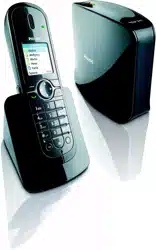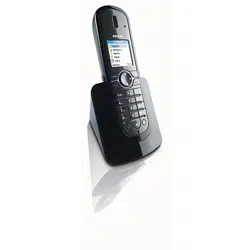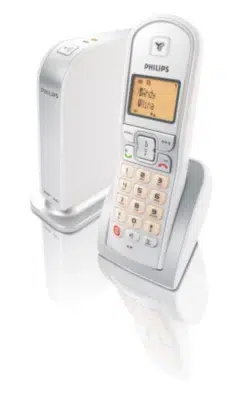
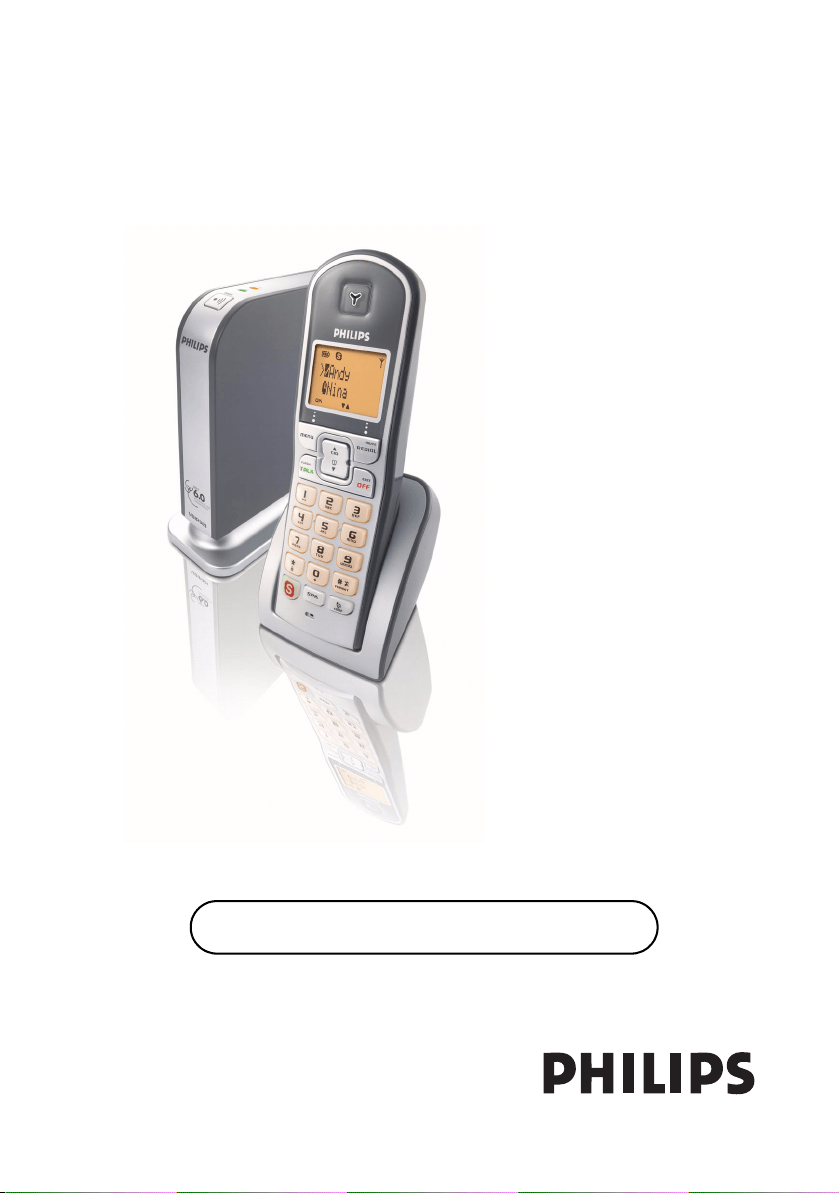
User manual
Charge the handset(s) for 24 hours before use !


3
US
3Contents
4 Important Safety Instructions
5 Environment and safety
7 What’s in the box
8 Your VOIP 321
10 Icons on the handset display
11 Install
13 Connect
14 Main menu
15 Call
22 Phonebook
25 Call log
27 Redial list
29 Other features
37 Using the intercom
39 Default settings
40 Troubleshooting
41 Information
43 Index
45 FCC and IC statements
Contents

4
US
Some of the following information may not apply to your
particular product; however, when using telephone
equipment, basic safety precautions should always be
followed to reduce the risk of fire, electric shock and injury
to persons, including the following :
1. Read and understand all instructions.
2. Follow all warnings and instructions marked on the
product.
3. Unplug this product from the wall outlet before cleaning.
Do not use liquid cleaners or aerosol cleaners. Use a
damp cloth for cleaning.
4. Telephones should not be used while you are in a
bathtub, shower or pool. Immersion of the telephone or
handset in water could cause an electrical shock.
5. Slots and openings in the cabinet back or bottom are
provided for ventilation, to protect it from overheating.
These openings must not be blocked or covered. The
openings should never be blocked by placing the product
on the bed, sofa, rug, or other similar surface. This
product should not be placed in a built-in installation
unless proper ventilation is provided.
6. This product should be operated only from the type of
power source indicated on the marking label. If you are
not sure of the type of power supply to your home,
consult your dealer or local power company.
7. Do not allow anything to rest on the power cord. Do not
locate this product where the cord will be abused by
persons walking on it.
8. Do not overload wall outlets and extension cords as this
can result in the risk of fire or electric shock.
9. Never push objects of any kind into this product through
cabinet slots as they may touch dangerous voltage points
or short out parts that could result in a risk of fire or
electric shock. Never spill liquid of any kind on the
product.
10. To reduce the risk of electric shock, do not disassemble
this product, but take it to a qualified service personnel
when service or repair work is required. Opening or
removing covers may expose you to dangerous voltages
or other risks. Incorrect reassembly can cause electric
shock when the appliance is subsequently used.
11. Do not expose the product to extreme temperatures
such as areas near a hot radiator or stove or in a hot car.
12. Do not place lighted candles, cigarettes, cigars, etc., on
the telephone.
13. Never touch uninsulated telephone wires or terminals
unless the telephone line has been disconnected at the
network interface.
14. Never install or modify telephone wiring during a
lightning storm.
15. Never install telephone jacks in wet locations unless the
jack is specifically designed for wet locations.
16. Use caution when installing or modifying telephone lines
to prevent electrical shock and/or fire.
17. Unplug this product from the wall outlet and refer
servicing to qualified service personnel under the
following conditions:
A. When the power supply cord or plug is damaged or
frayed.
B. If the product has been exposed to rain or water.
C. If the product does not operate normally by following the
operating instructions.
D. If the product’s cabinet has been damaged.
E. If the product exhibits a distinct change in performance.
18. Avoid using a telephone (other than a cordless type)
during an electrical storm. There may be a remote risk of
electric shock from lightning.
19. Do not use the telephone to report a gas leak in the
vicinity of the leak.
20. Do not place this product on an unstable cart, stand or
table. The product may fall, causing serious damage to the
product.
IF YOUR PRODUCT UTILIZES BATTERIES, THE
FOLLOWING ADDITIONAL PRECAUTIONS
SHOULD BE OBSERVED :
1. Use only the type and size of battery(ies) specified in the
user manual.
2. Do not dispose of the battery(ies) in fire. They may
explode. Check with local codes for possible special
disposal instructions.
3. Do not open or mutilate the battery(ies). Released
electrolyte is corrosive and may cause damage to the
eyes or skin. It may be toxic if swallowed.
4. Exercise care in handling battery(ies) in order not to
short out the battery(ies) with conducting materials such
as rings, bracelets, and keys. The battery(ies) or
conductor may overheat and cause burns.
5. Do not attempt to recharge the battery(ies) provided
with or identified for use with this product that are not
intended to be charged. The battery(ies) may leak
corrosive electrolyte or explode.
6. Do not attempt to rejuvenate the battery(ies) provided
with or identified for use with this product by heating
them. Sudden release of the battery(ies) electrolyte may
occur causing burns or irritation to eyes or skin.
7. When replacing battery(ies), all batteries should be
replaced at the same time. Mixing fresh and discharged
batteries could increase internal cell pressure and
rupture the discharged battery(ies). (Applies to products
employing more than one separately replaceable primary
battery.)
8. When inserting battery(ies) into this product, the proper
polarity or direction must be observed. Reverse insertion
of battery(ies) can cause charging, and that may result in
leakage or explosion.
9. Remove battery(ies) from this product if storing over 30
days because the battery(ies) could leak and damage the
product.
10. Discard “dead” battery(ies) as soon as possible since
“dead“ batteries are more likely to leak in a product.
11. Do not store this product, or the battery(ies) provided
with or identified for use with this product, in high-
temperature areas.
Batteries that are stored in a freezer or refrigerator for
the purpose of extending shelf life should be protected
from condensation during storage and defrosting.
Batteries should be stabilized at room temperature prior
to use after cold storage.
12. If your product uses rechargeable battery(ies), charge the
battery(ies) only in accordance with the instructions and
limitation specified in the User Manual.
SAVE THESE INSTRUCTIONS
Important Safety Instructions

5
US
Safety information
This telephone is not designed for making emergency telephone calls when the power fails. An alternative
should be made available for access to emergency calling.
Power requirements
The product requires an electrical supply of 120 volts, single phase alternating current, excluding IT installations
defined in standard EN UL 60950.
Battery requirements
The handset requires power source of two rechargeable NiMH batteries, size AAA 1.2V 650mAh (Hr11/45).
IF THE INCORRECT TYPE OF BATTERIES ARE USED, A WARNING MESSAGE WILL BE DISPLAYED.
Telephone connection
The voltage on the network is classified as TNV-3 (Telecommunication Network Voltages, as defined in the
standard UL 60950). Following a power cut, the call in progress is lost.
Safety precautions
> Do not allow the handset to come into contact with liquids or moisture.
> Do not open the handset, base station or charger. This could expose you to high voltages.
> Do not allow the charging contacts of the charger or the battery to come into contact with extraneous
conductive materials.
> There is a slight chance that the telephone could be damaged by an electrical storm. It is recommended
that users unplug the phone from the USB socket and the phone line from the phone wall socket during
a storm.
> Do not use the handset in an explosive hazard area such as where there is gas leaking.
> Young children should be supervised to ensure that they do not play with the telephone.
> Because the phone works by sending radio signals between the base unit and the handset, wearers of
hearing aids may experience interference in the form of a humming noise.
> We advise that this phone should not be used near intensive care medical equipment or by persons with
pacemakers.
> Your phone can interfere with electrical equipment such as answering machines, TV and radio sets if placed
too close. It is recommended that you position the base unit at least one meter from such appliances.
FCC CERTIFICATION NUMBER IS LOCATED ON THE CABINET BOTTOM
WARNING :
The electrical network is classified as dangerous according to criteria in the standard
UL 60950. The only way to power down this product is by unplugging the power supply from the
electrical outlet. Ensure the electrical outlet is located close to the apparatus and is always easily
accessible.
CAUTION : Use only the mains adapter supplied with this telephone. Incorrect adapter polarity
or voltage can seriously damage the unit.
Base adapter Charger adapter
Input : 120VAC 60 Hz Input : 120VAC 60 Hz
Output : 9VDC 300mA Output: 9VDC 150mA
CAUTION :
RISK OF EXPLOSION IF BATTERY IS REPLACED BY AN INCORRECT TYPE.
Never use non-rechargeable batteries; use recommended type supplied with this telephone. NiMH
batteries must be disposed of in accordance with the applicable waste disposal regulations.
Environment and safety

6
US
The term „IC:“ before the certification number signifies that Industry Canada technical
specifications were met. This certification means that the equipment meets certain radio
communications and operational requirements.
Install requirements
In order to use the phone, your computer should meet the following requirements :
• PC running Windows 2000 or XP
• 400 MHz processor
•128 MB RAM
• Free USB slot on the PC
• Internet Connection (boardband recommended)
Need help
For more information on troubleshooting and FAQ’s:
Online help : www.p4c.philips.com
Troubleshooting : see page 40
DFU update on : www.p4c.philips.com
Hereby, Philips declares that the VOIP321 is in compliance with the essential
requirements and other relevant provisions of Directive 1999/5/EC. This product can only
be connected to the analog telephone network of the country indicated on the sticker
located under the base station.
Important information
7
US
What else you need :
A desktop or a laptop
with free USB port
A telephone line
• Internet connection
(broadband recommen-
ded)
• Only the Skype version
printed on the CD ROM
is granted for a full
compatibility. New
feature may not work
with VOIP 321 when
upgrading Skype.
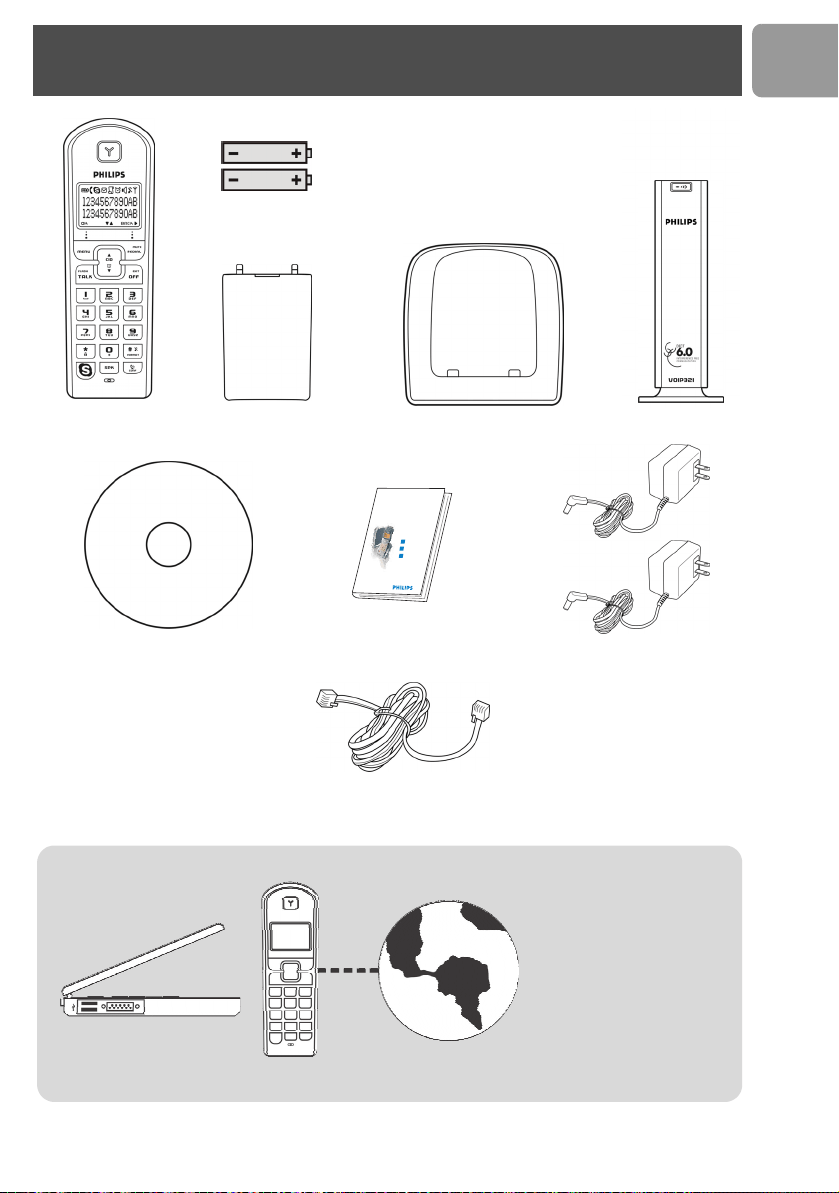
What’s in the box
Quick start guide
1
2
3
Connect
Install
Enjoy
Welcome
Handset VOIP 321
Base station VOIP 321
Quick Start Guide
1 power supply for base station
and 1 power supply for charger
Line Cord to plug the RJ11/RJ11 Line Cord
(see below) in your wall plug
2 AAA Battery
Battery door
Charger
Installation CDROM
8
US
1
3
7
8
9
11
12
13
4
2
5
6
10
1415
16
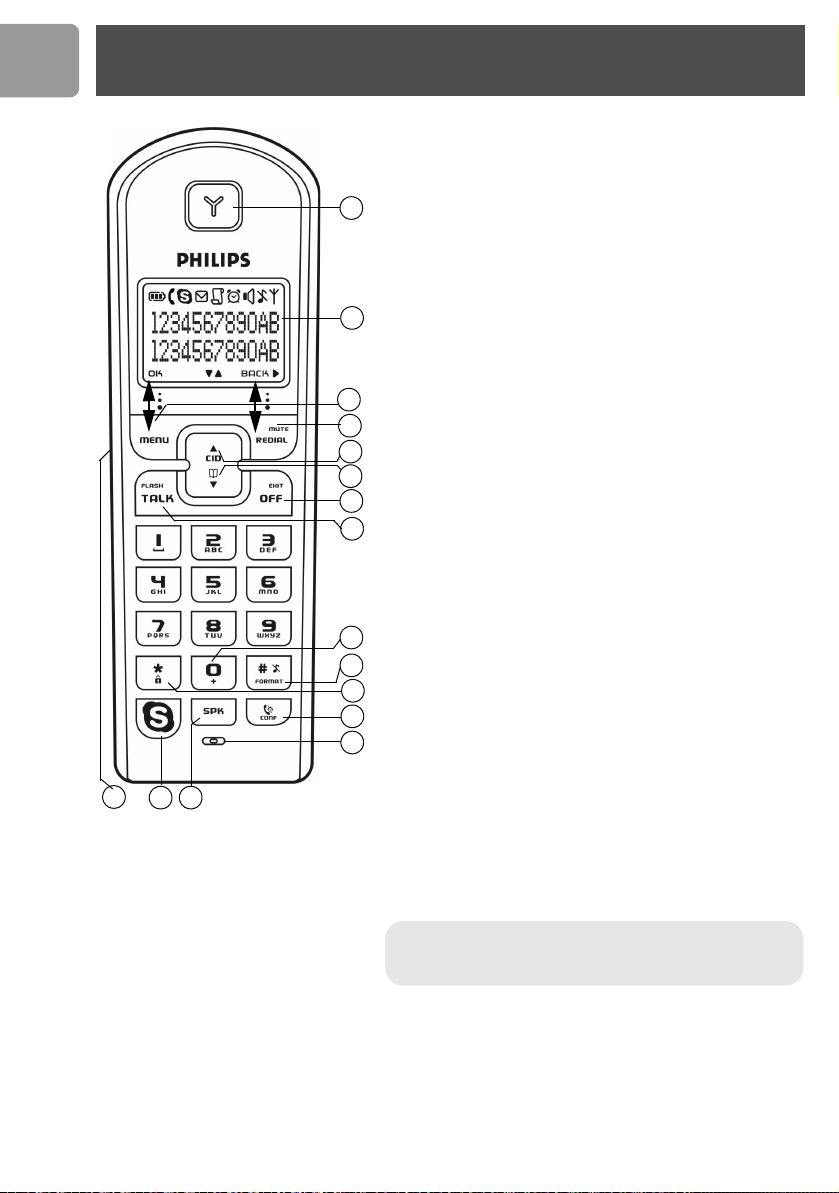
Your VOIP 321
Overview handset
1
Earpiece
2 Display, icons see page 10
3 Menu key & Softkey OK
Use to enter menus.
Use to select menu.
Use to confirm an operation.
4 Redial, Mute & Softkey Back
Use to switch between call details.
Use to enter dial list.
Use to redial last dialed number.
Use to mute/unmute a call
Use to delete text and digits.
5 CID & Scroll up Key
Use to enter call list.
Use to scroll up items
Use to increase ringer and receiver volume.
6 Phonebook & Scroll down Key
Use to access phonebook.
Use to scroll down items.
Use to reduce ringer and receiver volume.
7Off & Exit Key
Use to end a call.
Use to exit menus.
Use to turn the hanset ON/OFF.
8 Talk & Flash Key
Use to make and receive calls.
Use to send flash signal.
Use to pick up or make second incoming calls on Skype.
90 and + key
Use to enter 0 when making a call.
Press and hold to enter + while making SkypeOut calls.
10 Pound, Ringer off, Pause Key & Format Key
Use to enter a pause.
Use to turn the ringer on/off.
11 Star & Key lock Key
Use to lock the keypad.
12 Intercom and Conference Key
Use to make intercom calls.
Use to set up 3-way conference.
13 Microphone
14 Loudspeaker Key*
Use to turn the speaker on/off.
15 Skype key
Use to make SkypeOut calls.
Use to launch Skype contact list.
16 Headset jack
Allow communication through the headset.
*Warning !
Handsfree activation could suddenly increase
the volume in the loudspeaker to a very high level. Make
sure the handset is not too close to your ear.
9
US
Main features
• Contact list display on handset.
• Connection and Skype status display.
• Skype status display for each contact on the contact list.
• Change your online status on the handset.
Dual line phone
• Able to receive calls from Skype as well as from regular telephone line.
• User selectable melodies for each line for easy recognition.
• Call waiting alert when there is another incoming call from another line.
2
1
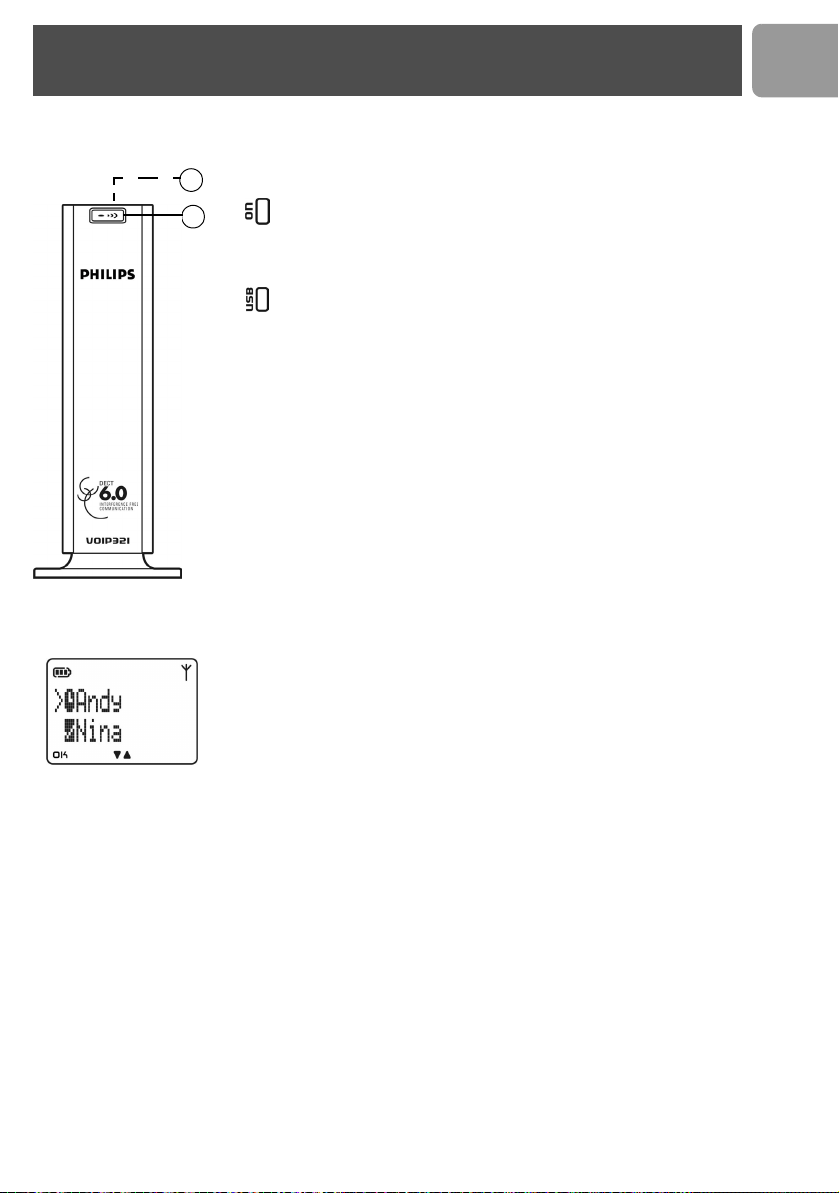
Overview base station
1 LED on base station
2 Paging key
Use to page the handset.
Use to register a handset.
- On when the base is powered up.
- Blinks normally when there is an incoming telephone call or
during a telephone call.
- Blinks slowly while paging the handset.
- Blinks quickly during registration mode.
- Steady ON when the USB is plugged in and the base is powered
up.
- Flash when there is data communication with USB.
Your VOIP 321
10
US
When being used for the first time, it is sometimes necessary to wait until the battery is
sufficiently charged before the icons appear on the display.
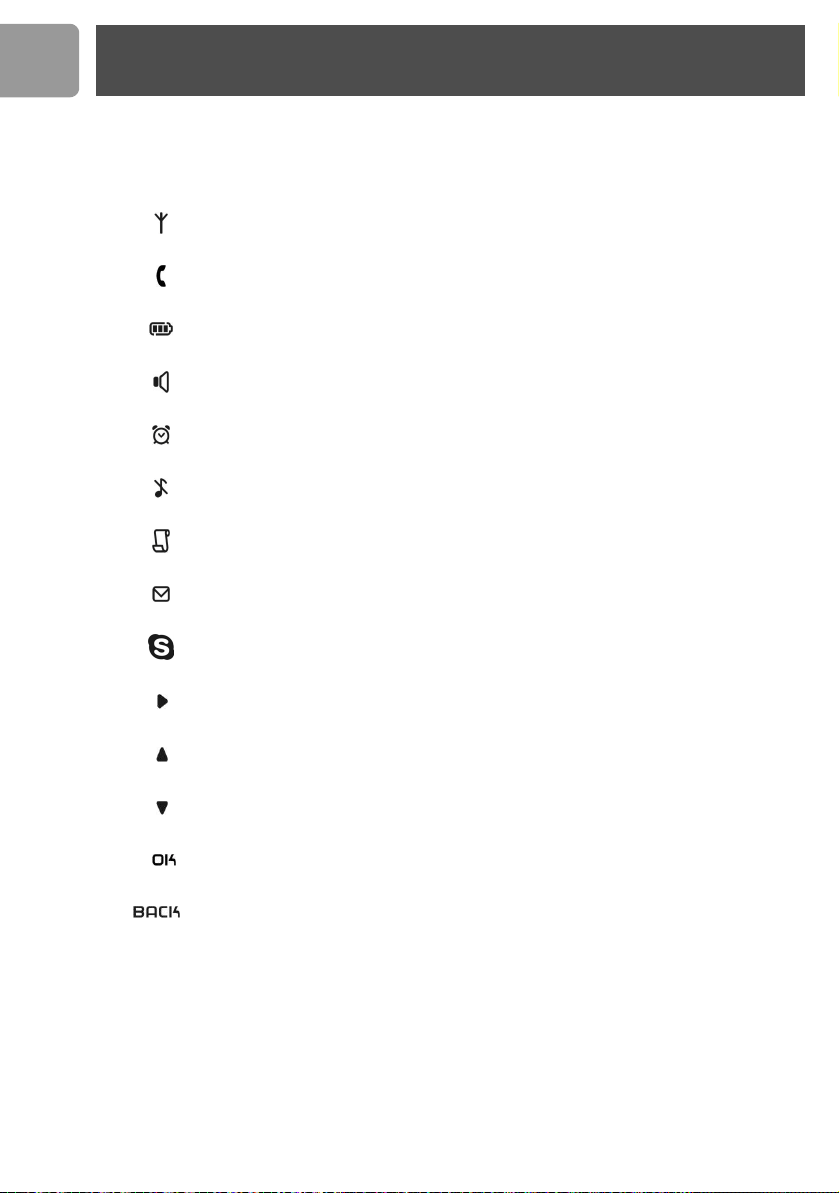
The display gives information about the operation of your telephone. Following icons can be
shown in the headline of the display.
Base/Handset link.
Telephone call in progress.
Battery full; 2/3 full; 1/3 full; Empty, please charge.
Loudspeaker is turned on.
The alarm clock is turned on.
The ringer is turned off.
There is a new Caller ID record or Caller ID records are being reviewed.
Message Waiting Indicator.
Skype call in progress.
Digits/characters on the right.
More menu options are available upward.
More menu options are available downward.
OK/Confirmation of selection.
Press to return to the previous screen.
Press to erase text or digits.
Icons on the handset display
11
US
How to install the software
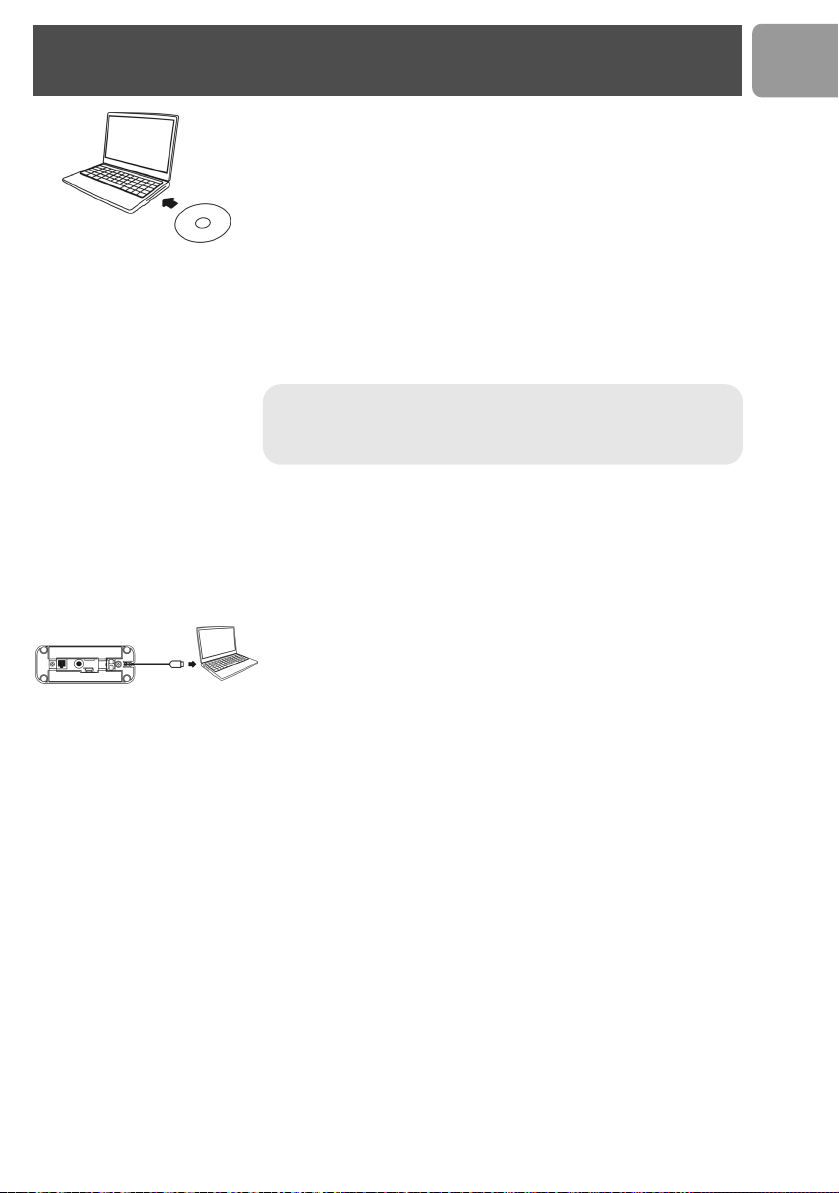
Before using your phone, please install the VOIP321 driver provided in the
enclosed CD.
To install the VOIP321 driver :
1. Insert the installation CD into the PC's CD ROM (or DVDROM)
drive.
2. The installation program will start automatically.
3. Follow the instructions on the screen.
4. Click on Quit.
5. Remove the installation CD from the PC's CD ROM (or DVDROM)
drive.
> If your operating system is Windows 2000, you need to restart your PC to
complete the setup.
> The VOIP 321 driver should autostart if this option is checked during
installation.
Getting Ready
To start making Skype call
1. Power up your base and connect your USB base on a free USB port of
your PC if you have not already done so.
2. Start the VOIP 321driver by double clicking on the shortcut icon
created on your desktop if it is not already started.
3. If this is the first time you use the VOIP 321 driver, you will see the
message ANOTHER PROGRAM WANTS TO USE SKYPE.
Simply select
ALLOW THIS PROGRAM TO USE SKYPE
and
press OK.
4. Start Skype if the VOIP 321driver has not started Skype for you; login
to your Skype account.
5. From Skype, click on To o l s . Select Options. Select Sound Devices
from the left.
6. For XP user, select Philips VOIP321 from Audio IN, Audio OUT
and Ringing pull down box. Press SAVE.
For Windows 2000 user, select USB Audio Device from Audio IN,
Audio OUT and Ringing pull down box. Press SAVE.
7. Now your phone is ready for use. The status icon should be shown on
the handset to indicate your current status.
About the VOIP321 Driver
Once VOIP 321driver is installed and started on your PC, a tray icon will
be shown when the VOIP321 driver is loaded.
TIP :
If for some reason the installation does not start automatically :
- Click on Windows START and then Run.
- Type explorer and navigate to the CD ROM (or DVDROM) drive.
- Double-click on Setupwizard.exe.
Install
12
US
Double click on the tray icon will return the ABOUT page of the
VOIP 321driver, where the current status will be shown. If there are
problems with the connection, the problem will be displayed; otherwise
CONNECTED will be shown.
Right click on the tray icon either to stop the VOIP 321 driver or to see
the status of VOIP 321 driver.
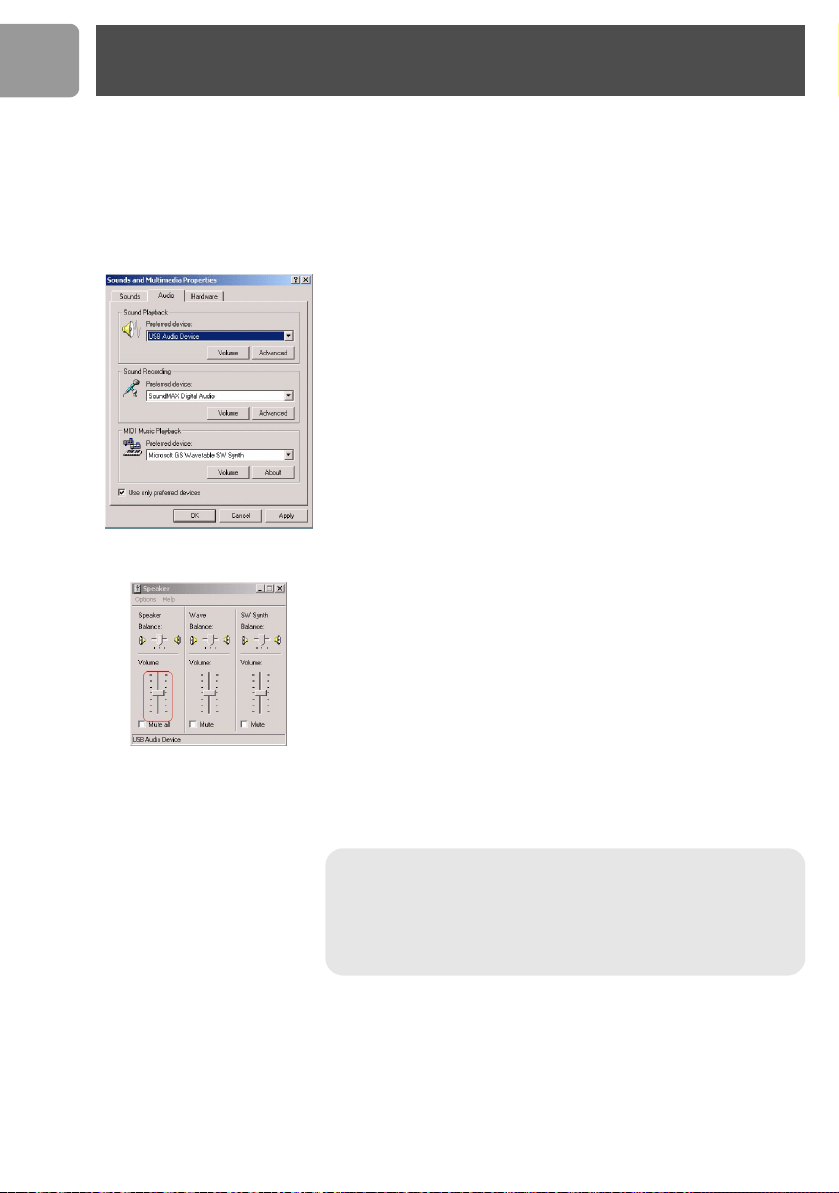
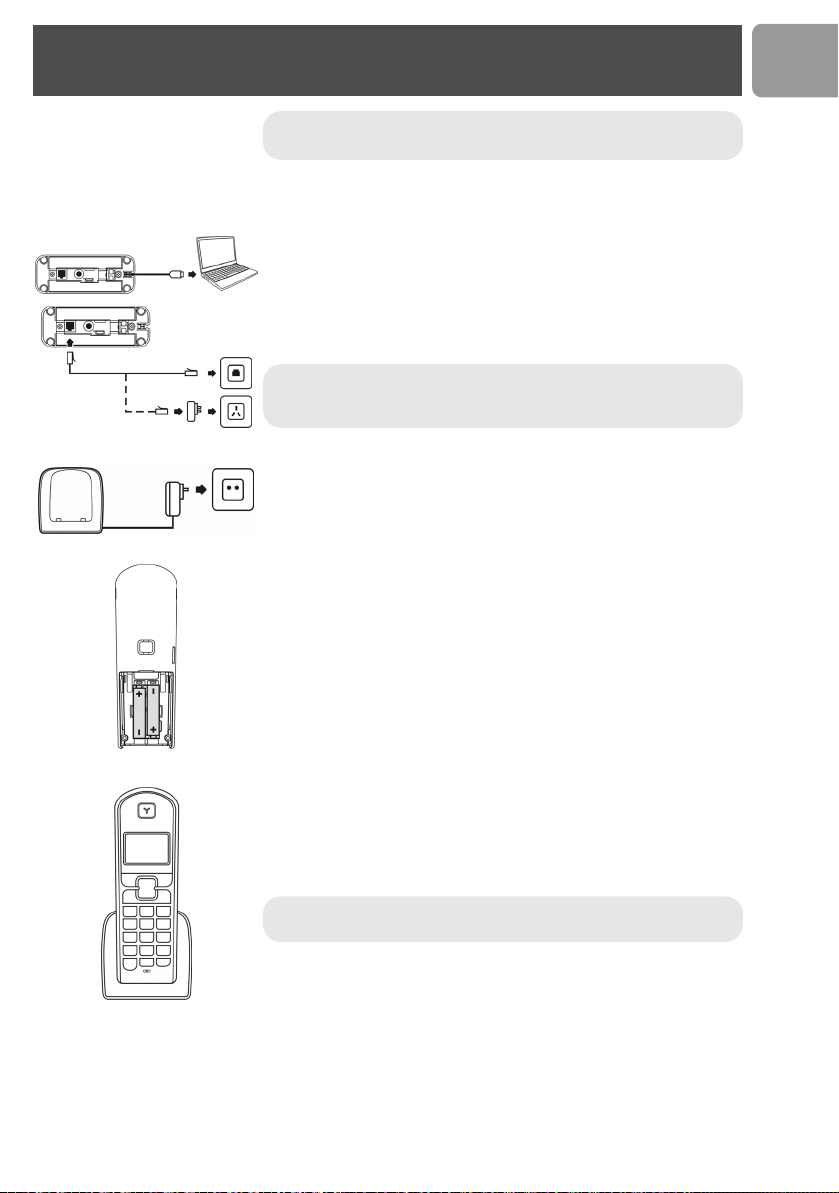
Adjusting the handset speaker volume on
your PC
The earpiece volume setting on your PC affects the sound quality of your
phone.
Please follow the steps below to adjust your earpiece volume.
On the PC, click on the Start button and select
Settings
. Select
Control
Panel.
For Windows 2000 users,
•Click on Sound and Multimedia.
• Under Sounds and Multimedia Properties, select the Audio tab.
• To adjust the earpiece volume, select USB audio Device from the
Preferred device pulldown menu under Sound Playback; to adjust
the microphone volume, select USB audio Device from the
Preferred device under Sound Recording.
•Click the Volum e button.
• Adjust the volume using the slider. Close the window when finished.
• When finished, click CANCEL to retain audio driver selection.
For Windows XP users,
•Click on Sound and Audio Devices.
• Select the Audio tab.
• To adjust the earpiece volume, select
Philips VOIP321
from the
Default device pulldown menu under Sound Playback; to adjust
the microphone volume, select USB audio Device from the Default
device
under
Sound Recording
.
•Click the Volum e button.
• Adjust the volume using the slider. Close the window when finished.
• When finished, click
CANCEL
to retain audio driver selection.
Note : Before exiting sound and audio properties, please make sure
that Use only Preferred Devices (for Windows 2000 user) or
Use only Default Devices (for Windows XP user) checkbox is
checked. Once this checkbox is checked, you will be able to separate
the audio path of your PC, such that audio from Skype will come out
from the handset and audio from other PC applications will come out
from the preferred audio device.
Install
13
US
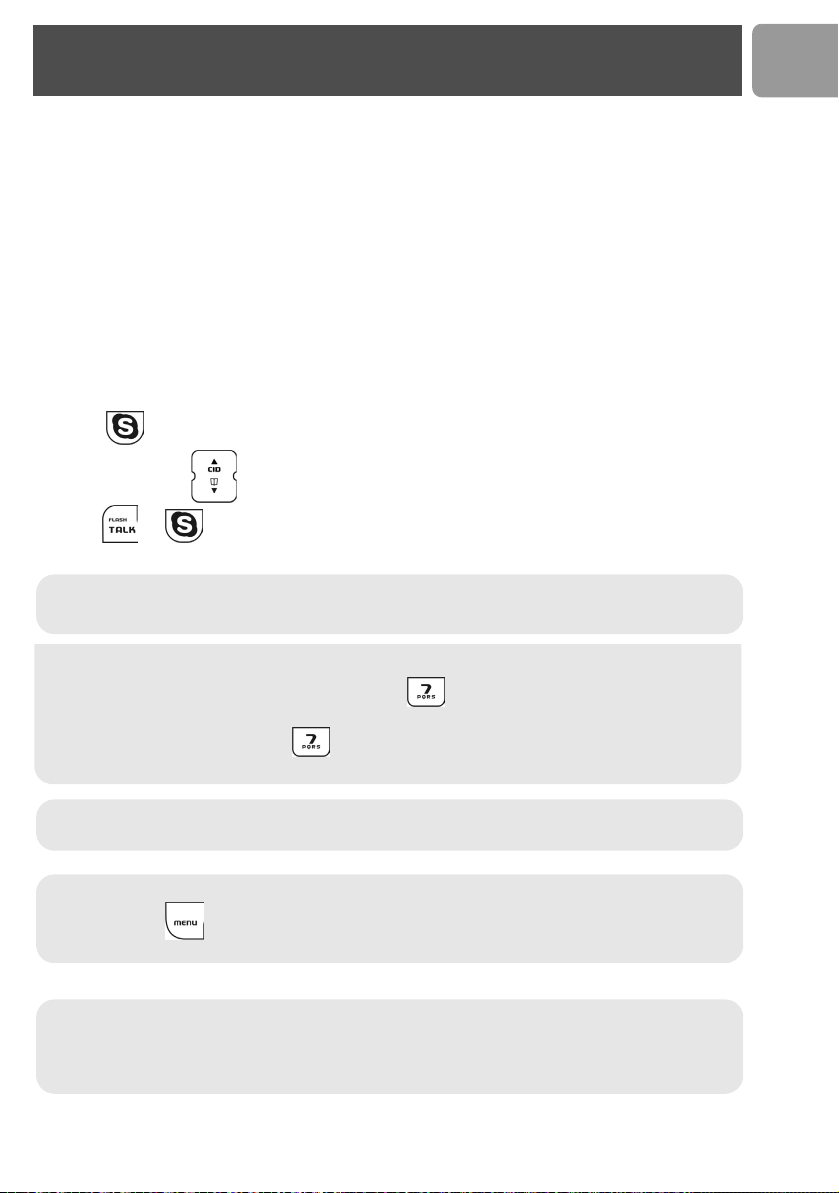
1. Connect the output plug of the base adapter to the adapter socket on
the back of the base unit and the base adapter to the wall main supply.
A click should be heard when the cord is properly connected to the
base.
2. Connect the USB plug directly to your PC's USB slot.
3. Connect the telephone line cord to the phone socket on the back of
the base unit and to the plug (optional and country dependent) then
to the wall phone socket.
4. Each handset comes with a charger and an adapter. Connect the
adapter to the wall main supply.
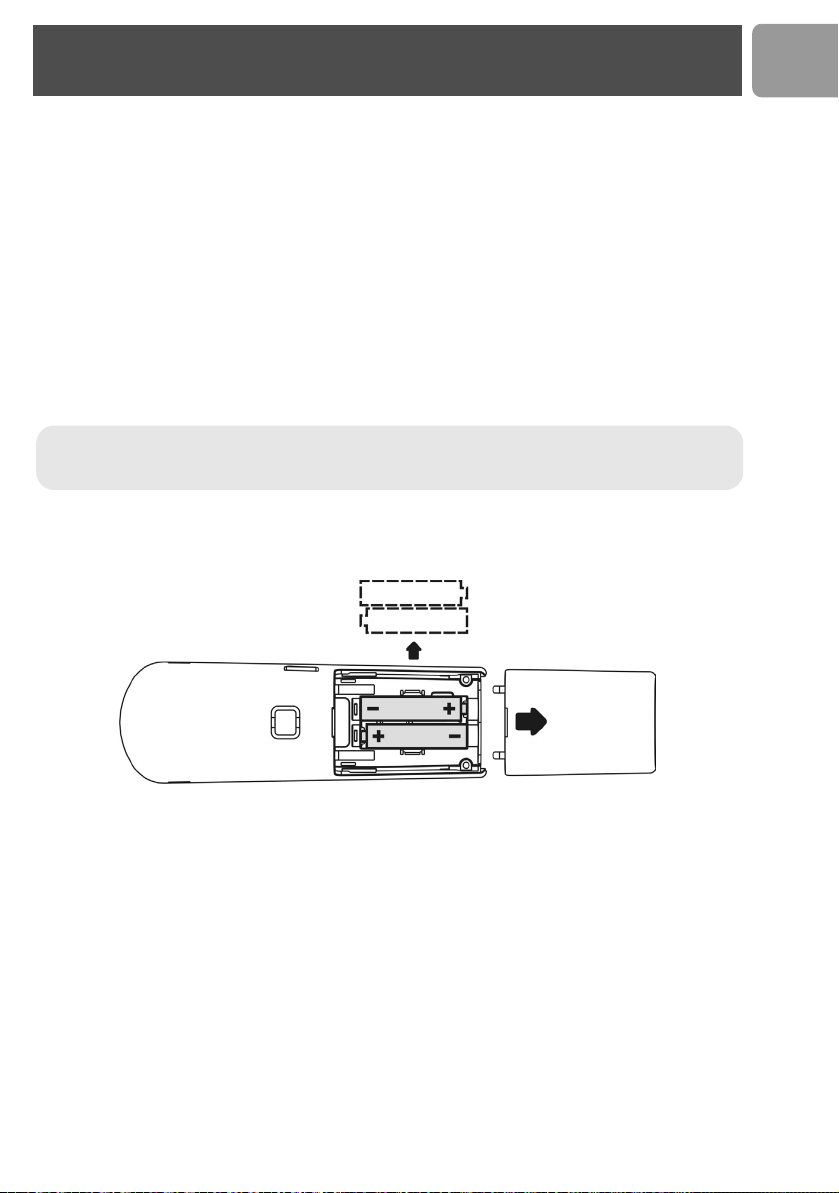
5. Place the 2 rechargeable NiMH AAA batteries (included), observing
their polarities, into the battery compartment on the handset.
6. Slide the battery door firmly into place.
7. Place the handset on the charger and let the batteries continuously
charge for 24 hours before using. The handset may get warm during
the initial charge. This is normal.
8. Please note that handset may not turn ON for up to 15 minutes if the
batteries are too low.
Note :
Install the drivers and software first (see page 11) and
connect the USB phone only once it is done.
Note : You may find in the box the line adaptor delivered separately
from the line cord. In this case, please, first plug this line adaptor onto
the line cord before connecting it to the line socket.
Note : Before first use, put the product on the charger and charge
batteries for 24 hours minimum.
Connect

14
US
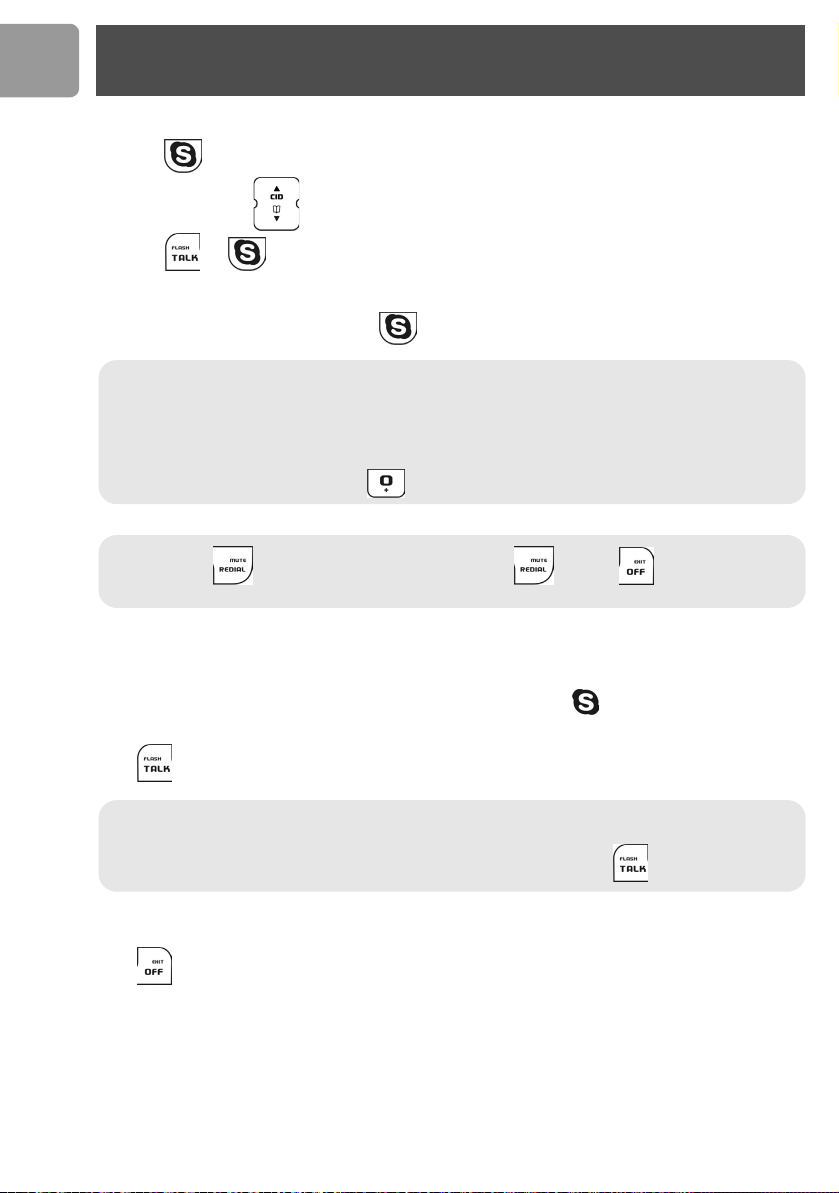
Your phone offers a variety of functions and features that are grouped in the menus.
To access the main menu, press and press UP / DOWN to browse the menu.
Press to exit the menus.
Main menu
SKYPE PHONEBOOK
Private Shared
Contacts
User Status
Voicemail
Credits
View
Add
Edit
Quick Dial
To S h a r e d
Delete
Delete All
Status
View
Add
Edit
To P r i v a t e
Delete
Delete All
Status
CLOCK / ALARM PERSONAL SET ADVANCED SET
Set Clock
Set Alarm
Alarm Tone
Handset Tone
Handset Name
Contrast
Auto Answer
Backlit
Language
Flash Time
Dial Mode
Pause
PABX
Baby Call
Registration
Base Select
Delete HS
Area Code
Reset
Call records menu
Missed Received Dialed
To P r i v a t e
To S h a r e d
Delete
Delete All
To P r i v a t e
To S h a r e d
Delete
Delete All
To P r i v a t e
To S h a r e d
Delete
Delete All
Main menu
15
US
General Information
Before any call is made, please note the following.
Emergency Calls
Skype does not support emergency call; all emergency calls will be routed to the telephone line.
Low battery warning
If your phone is almost out of battery during a call, it will sound an alert tone. Place your phone on the charger
for charging as soon as possible or it would turn off when it is out of battery. Placing the phone on the charger
for charging will end the current call.
Call timer
The call timer shows the duration of your current call on display. It is shown in minutes and seconds (MM-SS)
in the first hour. After that, it will be shown in hours and minutes (HH-MM).
Make a Skype call
1. Press to access Skype contact list.
2. Press UP / DOWN to select the Skype user you would like to call.
3. Press or to call the selected contact. The selected contact's name will be displayed and
called.
Note : The contact list shows the Skype contact list of the user who is currently logged in to Skype on
the PC. The icon on the left of each entry shows the online status of that entry. See page 36 for user
status display icon.
TIP : Search by letter - Using the keypad, enter the first letter of the name you wish to find.
E.g. If you want to find the contact name "Peter", press once should return the first contact begins
with the letter P.
E.g. If you want to find "Sam", press four times, the first contact begins with the letter S will be
selected.
Note : You can also change your online status on the handset. Refer to the menu - Skype section for
instruction on how to change online status, see page 36.
Note : The full name of the contacts on the contact list will be shown. If you want to view the contact's
Skype ID, press when the contact is selected. If a SkypeOut entry is selected, the number of the
entry will be shown.
Making a Skype call while the Telephone line is in used
If you have two handsets, you can make a Skype call while another handset is on a Telephone call.
To make a Skype call while the telephone line is in used, follow the instruction in “Make a Skype call”,
page 15. If the Skype line is in used, UNAVAILABLE will be shown when you attempt to launch the
contact list, or busy tone will be returned.
Call
16
US
Make a SkypeOut call
1. Press to access Skype contact list.
2. Press UP / DOWN to select the SkypeOut number to call.
3. Press or to call the selected contact. The selected number will be displayed and called.
OR
Enter the SkypeOut number and press to make a SkypeOut call.
Answer a Skype call
When you receive a call,
If the incoming call is from the Skype line, the Skype melody will ring and will flash in the display and the
Skype ID will display on the phone.
Press to answer the call.
End a Skype call
Press or place the phone on the charger will end the call and return the phone to idle mode.
Note : In order to make SkypeOut calls, you need to purchase SkypeOut credits; please go to
http://www.skype.com/store/buy/skypeout.html for further details.
When making SkypeOut calls, it is necessary to dial the country prefix of the phone number you are
calling, i.e. 00, 011 or + .
For example, when making calls to North America: 00-1-905-5251258 or 011-1-905-3456622
when making international calls: 00-852-25447555 or +852-90446577
To enter
+
: In idle mode, long press .
Note : Press to delete an incorrect digit. Long press or press to return to idle
mode.
Note : You will be able to receive second incoming call from the other line (i.e. receive a telephone call
while on a Skype call). A special call waiting tone will be heard and the caller ID will be shown on the
display.To pick up the call on the other line, end the current call and press again.
Call
17
US
Reject a Skype call
To reject an incoming Skype call, press when the call is received on the handset.
The incoming call information will be stored in the MISSED call list.
3- way Skype conference
You can start a 3-way Skype conference call.
1. Call the first party.
2. After the first party answered the call, put the first party on hold by pressing and make a Skype call
to the second party.
3. When the second party answered the call, press and hold to join the two parties.
Flash
While on a call, you can use the flash function to make a second outgoing call or receive a second incoming call.
To make a second outgoing call while on a Skype call,
1. While on the first call, press .
A dial tone should be heard; the first call will be put on hold.
2. To call a Skype contact, press to obtain the contact list; select the contact to call and press .
3. To make a SkypeOut call, enter the number to call.
4. To return to the first call or to toggle between calls, press .
To make a second outgoing call while on a telephone call (note: this is a network dependent feature),
1. While on the first call, press .
A dial tone should be heard; the first call will be put on hold.
2. Enter the number to call.
3. To toggle between the two calls on the telephone line, press .
Note : If you are using Skype, you will be able to make or receive second calls without extra charges.
However if you are using the telephone line, you have to subscribe to the call waiting service from your
local service provider to use this feature.
Note : You can only make second outgoing call via the line your current call is on. If you are currently
on Skype call, you can make a second call to a contact on your Skype list or a SkypeOut call; if you are
currently on telephone call, you can make a second call to another landline number.
Call
18
US
To receive a second incoming call (note: this is a network dependent feature),
1. When there is a second incoming call, a call-waiting alert will be heard; if the second incoming call is from
the other line, a special call-waiting alert will be heard.
2. If the second incoming call is from the other line, press to terminate the current call first.
3. Press to pick up the second call.
4. Press again to return to the first call, and to toggle between the two calls if both calls are on the
same line.
Chaining Dialing
You can dial out numbers from the phonebook even after you have seized the phone line. And there is no
limit to the number of times chain dialing is accessed.
1. During off hook, press DOWN for 2 seconds to access the phonebook.
2. Press UP / DOWN to scroll through the phonebook records or you can use the number keys to
jump directly to the record starting with the corresponding letters of that key.
3. Press OK.
Skype voice mail access
Your phone allows you to access your Skype voicemail box with just a few presses.
Retrieving voicemail
When there are new voicemails waiting for you, the icon will appear on the top line of the display during
standby. The icon will be gone when there is no more new message in your voicemail box.
1. Press .
2. Press UP / DOWN to select SKYPE and press OK.
3. Press UP / DOWN to select VOICEMAIL and press OK.
Note :
If you decide to quit using chain dialing, simply press DOWN for 2 seconds again to exit.
Note : To get a voicemail account, please go to http://www.skype.com/products/skypevoicemail/ for further
details.
Call
19
US
4. Press UP / DOWN to select the voicemail to listen to and press .
5. Press UP / DOWN to select PLAY to play the message.
Deleting a voicemail
1. Press .
2. Press UP / DOWN to select SKYPE and press OK.
3. Press UP / DOWN to select VOICEMAIL and press OK.
4. Press UP / DOWN to select the voicemail to delete and press .
5. Press UP / DOWN to select DELETE and press OK to confirm.
Deleting all voicemails
1. Press .
2. Press UP / DOWN to select SKYPE and press OK.
3. Press UP / DOWN to select
VOICEMAIL
and press
OK
.
4. Press to enter the voicemail menu.
5. Press UP / DOWN to select
DELETE ALL
and press
OK
.
6. A confirmation prompt should be shown; press
OK
to confirm.
Note : While you are browsing the voicemail list, an asterisk (* ) is used on the second line to indicate
that the voicemail is new.
Call
20
US
Make a telephone call
Call from telephone line
1. Press to obtain the line; a dial tone should be heard.
2. Enter the number to dial.
Pre-dial
1. Enter the number you want to call. The number will appear on the display.
You can enter up to 20 digits.
2. Press to dial the number.
Answer a call
If the incoming call is from the landline, the landline melody will ring and will flash in the display.
The caller ID will display if you have subscribed caller ID service from your local telephone service provider.
Press to to answer the call.
End a call
Press or place the phone on the charger will end the call and return the phone to standby.
Quick dialing
You can assign frequently dialed number from the phonebook to keys on the handset. Once assigned, press
and hold the key on the handset during standby will dial the stored number. The number will be dialed using
your landline.
Note : Long press where you want to enter a pause.
Making a Telephone call while the Skype line is in used
If you have two handsets, you can make a Telephone call while another handset is on a Skype call.
To make a telephone call while the Skype line is in used, follow the steps in “Make a telephone call”,
page 20. If the telephone line is in used, busy tone will be returned.
Call
21
US
Call in progress
Set the earpiece volume during a call
You can increase or decrease the volume of a caller's voice during a call. There are 5 volume levels for
selection.
To adjust the volume, during a call :
1. Press UP or DOWN . The display shows the current volume level.
2. Press UP or DOWN again to adjust the volume.
Microphone mute
During a call, if you wish to speak to someone privately without having the caller hear your conversation,
1. Press ; the caller cannot hear you, but you can hear the caller.
2. Press again to communicate with your caller again.
Handsfree call
Handsfree provides the convenience of talking to the caller without holding onto the phone. You can
communicate by using the speaker/microphone of the phone or use a headset. Handsfree also allows others
in the room to be involved in the conversation if you are not using the headset.
If you want to use the speaker, during a call,
1. Press .
You can hear the caller over the loudspeaker and you can speak via the microphone. will appear on
the display.
2. Press again to deactivate the handsfree mode.
If you want to use the headset
1. Plug in the headset to the headset jack at the side of your phone. You can hear the caller from the
earpiece of the headset, and you can speak via the headset's microphone. A headset using a 2.5mm plug
can be used.
2. Unplug the headset to end handsfree.
Setting the loudspeaker volume during a handsfree call
1. While the phone is off hook, press UP or DOWN . The display shows the current volume level.
2. Press UP or DOWN again to adjust the volume.
Note : Besides adjusting the volume on the handset, you might also need to adjust the volume on your
PC in order to set the speaker to the most comfortable volume.
Please refer to “Adjusting the handset speaker volume on your PC”, page 12 for information on how to
adjust the volume on the PC.
Call
22
US
Viewing phonebook
To view your phonebook,
1. Press , select
PHONEBOOK
and press
OK
.
2. Select the phonebook to open, PRIVATE or SHARED and press OK.
3. Press UP / DOWN to select VIEW and press OK.
Add entry in phonebook
Each record can store a name up to 10 characters and a number up to 20 digits.
To add an entry to your phonebook,
1. Press , select
PHONEBOOK
and press
OK
.
2. Select the phonebook to open,
PRIVATE
or
SHARED
and press
OK
.
3. Press UP / DOWN to select ADD and press OK.
4. Enter the name for the record. A name must be entered and it must be unique. Press
OK
to continue.
5. Enter the number for the record. You must enter a number
Edit phonebook entry
1. Press , select PHONEBOOK and press OK.
2. Press UP / DOWN to select the phonebook you want to open,
PRIVATE
or
SHARED
; press
OK to continue.
3. Press UP / DOWN to select EDIT and press OK.
4. Press UP / DOWN to scroll to the entries you wish to edit or search by letter, press OK.
Note : Please note that contacts on the Skype contact list cannot be stored to the phonebook (both
shared and private).
If your phonebook is full, FULL is displayed. You have to delete some records before entering new
ones.
Note : Long press where you want to enter a pause.
You cannot enter an identical name for two different records in your phonebook. If so, DUPLICATE
REPLACE?
is displayed. Press
OK
to replace the existing record with the new entry or press
BACK
to return to the previous display and make changes to the name.
Phonebook
23
US
5. Edit the name and number using the keypad. Press to erase a character or digit.
6. Press OK to save your changes.
Delete phonebook entry
1. Press , select PHONEBOOK and press OK.
2. Press UP / DOWN to select the phonebook you want to open, PRIVATE or SHARED; press
OK to continue.
3. Press UP / DOWN to select DELETE and press OK.
4. Press UP / DOWN to select the record to delete and press OK.
5. Press OK to confirm.
Phonebook record search by letter
1. Press DOWN to directly access the phonebook.
2. Press the key with the first letter of the record you want to find, i.e. one time to find Peter.
Quick dial to entries in your private phonebook
This feature allows you to dial to the entries in your private phonebook by pressing and holding a quick dial
key that you have assigned. You can assign 9 quick dial keys (keys 1-9).
Assign a quick dial key
1. Press , select PHONEBOOK and press OK.
2. Press UP / DOWN to select the PRIVATE phonebook and press OK.
3. Press UP / DOWN to select QUICK DIAL and press OK.
4. Press UP / DOWN to select the key to assign a number to; press OK.
5. Press UP / DOWN to select the record to assign to the key selected in the previous step; press
OK to save.
Note :
Contacts on the contact list cannot be assigned to quick dial keys.
Phonebook
24
US
Change a quick dial key
1. Press , select PHONEBOOK and press OK.
2. Press UP / DOWN to select the PRIVATE phonebook and press OK.
3. Press UP / DOWN to select QUICK DIAL and press OK.
The first quick dial key is displayed.
4. Press OK. Press UP / DOWN to select EDIT. Press OK.
5. Press UP / DOWN to select a new entry for the selected key. Press OK when the entry is
selected.
Delete a quick dial key
1. Press , select PHONEBOOK and press OK.
2. Press UP / DOWN to select the PRIVATE phonebook and press OK.
3. Press UP / DOWN to select
QUICK DIAL
and press
OK
.
The first quick dial key is displayed.
4. Press UP / DOWN to scroll to the quick dial key you wish to delete and press OK.
5. Press UP / DOWN to select DELETE and press OK.
6. CONFIRM? is displayed. Press OK to confirm.
View available phonebook space
Your phone keeps track of how much memory you have used and how much is still available in your
phonebook.
1. Press , select PHONEBOOK and press OK.
2. Press UP / DOWN to select the phonebook you want to open, PRIVATE or SHARED and
press OK.
3. Press UP / DOWN to select STATUS. Press OK when finished.
Phonebook
25
US
Your phone keeps a record each time you make, receive or miss a call. You can access a list of the last 15 calls
that you have missed, the last 5 calls you have received, and the last 10 dialed numbers you have dialed. Each
record stores a name up to 12 characters and a 20 digits number and up to 32 alphanumeric characters for
contact.
For missed and received calls, the call records will automatically be stored only if you have subscribed to caller
ID service from your local Telephone line service provider, otherwise only Skype calls will be stored.
If you have more than one handset, each handset has its own call list.
View caller ID
1. Press UP to directly access the call log. Press UP / DOWN to select MISSED or
RECEIVED call list and press OK.
2. Browse in the call records.
3. Press to view the number.
The following table describes the available number display formats.
Number of digits Explanation Example
11 digits Long distance code “1” +
3-digit area code +
7-digit telephone number
13175551234
10 digits 3-digit area code +
7-digit telephone number
3175551234
7 digits 7-digit telephone number 5551234
Note : The caller ID will be formatted according to the local area code entered in the AREA CODE
menu. If the number is not formatted correctly, Flash/Format button lets you change the format of the
displayed number. Long distance code “1” will be added to out of area numbers so that a call can be
returned to the number correctly.
Call log
26
US
To call / redial
1. Press UP to directly reach the call log in idle mode. Press UP / DOWN to select MISSED
or RECEIVED call list and press OK.
2. Browse in the call records to select an entry.
3. Press .
Copy call log entry in the phonebook
To save the phone number of your family, friends, and colleagues, you can save the call records to your
phonebook if you do not already have their contact information.
While you are viewing the call record that you would like to save,
1. Press .
2. To save the call log record to your private phonebook, select TO PRIVATE and press OK.
OR
to save it to your shared phonebook, select TO SHARED and press OK.
3. Enter a name for this entry and press OK.
4. Edit the number if necessary and press OK.
The record will be saved in the selected phonebook.
Delete a call log entry
You can delete each individual call record one at a time. To delete a record :
1. While viewing the call record, press .
2. Press UP / DOWN to select DELETE and press OK.
3. CONFIRM? is displayed. Press OK to confirm.
Note : To be able to call back a correspondent in the case of an incoming call, you need to subscribe
to the Caller Line Identification service.
Note : The call record saved into the phonebook is still in your call list but it will show the new name
entered.
Skype contacts, SkypeIn or SkypeOut numbers cannot be saved to the phonebook.
Call log
27
US
Delete all the call log entries
You can delete all the call records at once. To delete all call records list :
1. While viewing the call record, press .
2. Press UP / DOWN to select DELETE ALL and press OK.
3.
CONFIRM?
is displayed. Press
OK
to confirm.
You phone stores the last 10 numbers/contacts you have dialed, up to 32 alphanumeric characters each. If you
have more than one handset, each handset has its own redial list.
View the redial list
1. Press , the last number/contact dialed is displayed.
2. Browse through the last 10 dialed numbers.
Call / redial
1. Press to directly reach the redial list in idle mode.
2. Browse through the redial list to select the wanted number.
3. Press .
Redial list
Matching your phonebook record
If a dialed number matches a phone number stored in the phonebook, that phonebook name will be
displayed instead of the dialed number.
Call log
28
US
Record a number from redial into phonebook
While you are viewing a dial record that you would like to save :
1. Press to directly reach the redial list in idle mode.
2. Browse through the redial list to select the wanted record.
3. Press .
4. To save the record to the private phonebook, select TO PRIVATE and press OK
OR
to save the record to the shared phonebook, select TO SHARED and press OK.
5. Enter a name for this record and press
OK
.
6. Edit the number if necessary and press
OK
.
Delete last numbers dialed
While you are viewing a dial record that you would like to delete,
1. Press .
2. Select
DELETE
and press
OK
.
3. Press
OK
to confirm.
Delete whole redial list
Instead of deleting the records one by one, you have this option to delete the entire dial list.
While you are viewing any dial record,
1. Press .
2. Select DELETE ALL and press OK.
3. Press OK to confirm.
Matching your phonebook record
If a dialed number matches a phone number stored in the phonebook, that phonebook name will be
displayed instead of the dialed number.
Note : The redial record saved into the phonebook is still in your redial list but it will show the new
name entered.
Skype contacts, SkypeIn or SkypeOut numbers cannot be saved to the phonebook.
Redial list
29
US
Lock keypad
Keypad can be locked to prevent accidental key press.
When the keypad is locked, you can still answer an incoming call by pressing .
During the call, the keypad is active. When the call is ended, the keypad will be locked again.
1. In idle mode, long press . When locked, LOCKED appears on the display.
2. Long press again to unlock the keypad.
Paging
You can locate the handsets by using this feature.
Press on the base.
All handsets registered to the base will produce the paging tone for 30 seconds and the screen displays
PAGING.
To stop paging :
Press on one of the handsets or press on the base again.
CallerID first ring suppression
If you have subscribed for CallerID service, your phone will suppress the first ring before the CID. After
resetting, first ring suppression will be deactivated. After the first call, your phone will automatically detect if
CID service is subscribed. If CID service is detected, your phone will start suppressing the first ring after the
first call.
Switch on/off the handset
To switch off the your phone, long press while in idle mode.
To switch on the power of your phone, press or return the handset to the charger.
The handset should be automatically turned on.
Note : If an external call comes in, all the handsets will stop paging, and play the external call melody.
A handset will not play the paging melody if it is powered off or not in idle mode. However, all the other
handsets will still ring.
Note : Once first ring suppression is activated, the first ring before CID will be suppressed even after
you have unsubscribed the CID service. If you have unsubscribed the CID service and do not wish to
have the first ring suppressed, please power recycle the base.
Other features
30
US
Personalizing your sounds
You can assign different ringing melodies for each handset at different volume levels.
You can select a different ringtone for Skype, Telephone and intercom calls.
Selecting your handset's ringing melody
1. In idle mode, press .
2. Select PERSONAL SET and press OK.
3. Select HANDSET TONE and press OK.
4. Select the line to select ringtone for and press OK.
5. Select the desired ringtone and press OK to confirm.
Selecting your handset's ringing volume
1. In idle mode, press .
2. Select PERSONAL SET and press OK.
3. Select HANDSET TONE and press OK.
4. Select VOLUME and press OK.
5. Press UP / DOWN to select the volume level and press
OK
to confirm.
Shortcut for turning handset ringer on/off
In idle mode, long press to turn on/off the handset ringer.
appears to indicate the ringer is turned off. The handset will not emit any sound for any incoming call.
Set key tones on/off
1. In idle mode, press .
2. Select PERSONAL SET and press OK.
3. Select HANDSET TONE and press OK.
4. Select KEYBEEP and press OK. The current setting is displayed.
5. Select ON or OFF and press OK to confirm.
Other features

31
US
Rename handset
You can give your phone a different name. If you have more than one handset, you can give each handset its
own name.
The handset name can be up to 10 characters long and it can be composed of A-Z, 0-9, and space.
1. In idle mode, press .
2. Select PERSONAL SET and press OK.
3. Select HANDSET NAME and press OK. The current handset name is displayed.
4. Edit the handset name and press OK to confirm.
Set time
Once the base is powered up and connected to the PC and the USB driver is running, your handset will obtain
the current time from the PC.
However, you can still adjust the clock manually. To adjust your clock :
1. In idle mode, press .
2. Press UP / DOWN to select CLOCK/ALARM and press OK.
3. Press UP / DOWN to select SET CLOCK and press OK.
4. Use numeric keys to enter the time for the clock in 24 hours format and press OK.
Setting the alarm clock
You can set the alarm time and personalize the alarm tone.
Setting the alarm time
1. In idle mode, press .
2. Select CLOCK/ALARM and press OK.
3. Select SET ALARM and press OK. The current setting is displayed.
4. Select ON or OFF and press OK. If you selected ON, continue to step 5.
5. Enter the alarm time using the digit keys and press OK.
The alarm tone rings for at most 1 minute. Press to turn off the alarm clock.
Other features

32
US
Selecting the alarm clock's ringing melody
1. In idle mode, press .
2. Select
CLOCK/ALARM
and press
OK
.
3. Select ALARM TONE and press OK.
4. Select MELODY and press OK. The current setting is displayed.
5. Select the desired melody and press OK to confirm.
Setting the alarm volume
1. In idle mode, press .
2. Select
CLOCK/ALARM
and press
OK
.
3. Select
ALARM TONE
and press
OK
.
4. Select
VOLUME
and press
OK
. The current setting is displayed.
5. Select the desired volume level and press
OK
to confirm.
Auto-answer on/off
Auto answer gives you the convenience of answering a call by just picking up the phone from the cradle or
charger. You don't need to press .
1. In idle mode, press .
2. Select PERSONAL SET and press OK.
3. Select
AUTO ANSWER
and press
OK
. The current setting is displayed.
4. Select ON or OFF and press OK to confirm.
Language setting
Your phone comes with several languages. When you change your phone's language, the menus will be
displayed in the chosen language.
1. In idle mode, press .
2. Select PERSONAL SET and press OK.
3. Select LANGUAGE and press OK. The current language is displayed.
4. Select the desired language and press OK to confirm.
Other features
33
US
Set dialing mode (Tone/Pulse)
Dialing mode applies only when you are making a telephone call. Your phone is by default set to tone dialing.
You can switch to pulse dialing if necessary.
1. In idle mode, press .
2. Select ADVANCED SET and press OK.
3. Select DIAL MODE and press OK. The current setting is displayed.
4. Select TONE or PULSE and press OK to confirm.
Flash duration
Your phone comes with 2 factory programmed flash durations. Check with your local service provider if you
are not sure which duration to use.
1. Press .
2. Select ADVANCED SET and press OK.
3. Select FLASH and press OK. The current duration is displayed.
4. Select FLASH 1 or FLASH 2.
5. Press OK to confirm.
Area code formatting
Enter the 3 digits local area code so that the caller ID can be formatted properly.
1. Press .
2. Select ADVANCED SET and press OK.
3. Select AREA CODE and press OK.
4. Enter the area code.
5. Press OK to confirm.
Set display contrast
1. In idle mode, press .
2. Select
PERSONAL SET
and press
OK
.
3. Select CONTRAST and press OK. The current setting is displayed.
4. Press UP / DOWN to adjust the contrast and press OK to confirm.
Temporary tone dialing in pulse dial mode
If the dialing mode is set to pulse, you can long press to set temporary tone dialing. d will be
displayed on the screen. All the following digits will be dialed as tones until you hang up.
Other features

34
US
Turning the backlit on/off
The LCD and keypad will be lit when the phone is being used.
1. In idle mode, press .
2. Select PERSONAL SET and press OK.
3. Select BACKLIT and press OK. The current backlit is displayed.
4. Select ON or OFF and press OK to confirm.
Restore handset default settings
You can reset the display, sounds, and other settings of your phone. Refer to the chapter “Default settings”,
page 39.
1. In idle mode, press .
2. Select
ADVANCED SET
and press
OK
.
3. Select
RESET
and press
OK
.
4. Press
OK
to confirm.
Set Baby call on/off
Baby call allows you to dial out a programmed number via the telephone line by pressing any key on the handset
(except the OFF key).
1. In idle mode, press .
2. Select
ADVANCED SET
and press
OK
.
3. Select BABY CALL and press OK. The current setting is displayed.
4. Select ON and press OK.
5. Enter or edit the number and press
OK
to confirm.
BABY CALL is displayed when you return to standby mode.
To turn off baby call,
1. Press .
2. Select OFF and press OK.
Other features

35
US
Registering
Register a new handset to base station
Each base can register up to 4 handsets.
1. In idle mode, press .
2. Select ADVANCED SET and press OK.
3. Select REGISTRATION and press OK.
4. Long press on the base for 4 seconds.
Unregister a handset
A handset can un-register another handset registered to the same base. It can also un-register itself.
1. In idle mode, press .
2. Select
ADVANCED SET
and press
OK
.
3. Select DELETE HS and press OK.
4. Select the handset you would like to un-register and press OK.
5. Press OK to confirm.
Select the base station
If your handset is registered to more than 1 base, you can select which base the handset will use.
1. In idle mode, press .
2. Select ADVANCED SET and press OK.
3. Select BASE SELECT and press OK.
4. Select the base to use and press OK.
Note : If the base is full, the base would not go into registration mode. See the section “Unregister a
handset”, page 35 to unregister a currently registered handset.
Note : The range of this handset is 250 m outdoor and 50 m indoor. An out of range warning will be
emitted and the range icon will be flashing on the display if you move too far away from the base unit
during a call. You will need to move closer to the base unit or your call will be disconnected.
Note :
Bases your handset is registered to which is not Philips VOIP 321 base will be labelled as GAP
BASE; your Philips VOIP 321 base will be labelled as BASE in Base Select.
Other features

36
US
User status
User status display
Skype status icons are used on the handset to represent different online status as well as each contact's online
status on the Skype contact list. Please refer to the following table for the description of each status.
User status settings
You can change you current Skype status on the handset. To change your online status :
1. In idle mode, press .
2. Select
SKYPE
and press
OK
.
3. Select
USER STATUS
and press
OK
.
4. Select the status to change into and press
OK
to save the status.
Check your Skype credits
You can also check your SkypeOut account credits before you make a SkypeOut call.
To check your SkypeOut credits,
1. In idle mode, press .
2. Press UP / DOWN to select SKYPE and press OK.
3. Press UP / DOWN to select CREDITS and press OK when finish.
Online / SKYPE ME
Offline
Away
Not Available
Not Disturb
Invisible
SkypeOut entry
Other features
37
US
Make an internal call
You can call someone in the house by using the intercom function on your phone.
To make an intercom call :
1. Press .
2. Select the handset you want to call and press OK
OR
enter the number of the handset that you want to call.
Make an internal call during an external call
While you are on an outside call, you can put the outside call on hold and make a call (inquiry call) to someone
in the house.
To make an inquiry call, during an outside call :
1. Press .
2. Select the handset you want to call and press
OK
OR
enter the number of the handset that you want to call.
3. Wait for the other handset to answer your call.
Transfer an external call to another handset
During an external call,
1. Press .
2. Select the handset you want to call and press OK
OR
enter the number of the handset that you want to call.
3. When the other handset has answered your call, press or place the handset on cradle.
The external call is transferred.
Note : You need at least 2 handsets to carry out the functions mentioned in this chapter.
Note :
You will hear a busy tone if the other handset is not available.
Note : If the other handset does not answer, press again to cancel the attempt and return to the
external call.
Using the intercom
38
US
Make a conference call
You can invite another handset to join a call with the external line.
During an outside call,
1. Press .
2. Select the handset you want to call and press OK
OR
enter the number of the handset that you want to call.
3. When the other handset has answered your call, long press .
You are then in a conference call.
Answer a call from the telephone line while
on Skype call (Multi-handset)
The other handsets will ring the telephone melody.
Press on the other handset to pick up the call.
Answer a Skype call while on a call on the
telephone line (multi-handset case)
The other handsets will ring the Skype melody.
Press on the other handset to pick up the call.
Note : Any handset hangs up during a conference call will leave the other handset still connecting with
the external call.
Using the intercom

39
US
Handset name : PHILIPS
Time : 00:00
Ringer melody (fixed lines) : Party
Ringer melody (Skype) : Dring
Ringer melody (Internal call) : Party
Ringer volume : Level 3
Alarm : Off
Alarm ringer melody : Party
Alarm ringer volume : Level 3
Key tone : ON
Backlit : ON
Flash duration : 600 ms
Dial mode : Tone
Contrast : Level 2
Auto answer : OFF
Menu language : English
Pause duration : Pause 1
Baby call : Off
Baby call number : Empty
Base select : Auto
CID first ring suppression : OFF
Message waiting indicator : OFF
Keypad lock : OFF
Earpiece volume : Medium
Default settings
40
US
If the above solutions do not help, remove the power from the handset and the base and restart Skype as well
as the PC software. Wait for 15 minutes and try again.
Problems Solutions
No dial tone when pressing .
• Make sure that the adapter and the phone cord is connected
properly.
• Check that the batteries are fully charged and installed
properly.
• This phone does not work during power failure.
Signal icon is flashing.
• Register your handset to a base.
• Move closer to the base unit.
The phone does not ring. • Make sure the adapter and the phone cord are connected
properly.
• Move the handset closer to the base unit.
• Turn on the ringer.
When the handset is placed on the
charger, no beep is heard.
• Take the handset off the charger and put it back again.
• Clean charging contacts with a clean and dry cloth.
• Turn on the handset tone from the PERSONAL SET Menu.
• There will be no beep if the handset's power is turned off
previously.
The call waiting call cannot be
answered.
• Check with your local phone company and select the correct
flash duration.
• End the current call, and press TALK again to pick up the
second call.
Battery icon remains empty although
the handset has charged for 24
hours.
• Please contact your dealer to purchase new rechargeable
battery.
• Check to make sure the battery icon is scrolling while being
charged.
No symbol on the display. • Charge battery.
• Make sure the batteries are in the compartment and your
handset is ON.
Bad audio quality (crackles, echo,
etc.).
• Install the base unit in a different room or higher location or
away from other electronic appliances.
• Move closer to the base unit.
Cannot hear the other party clearly/
speaker too loud/quiet.
• Refer to “Adjusting the handset speaker volume on your PC”,
page 12.
Contact list/ User status returns
UNAVAILABLE.
• Check if your base is connected to the PC.
• Check if Skype is running on the PC. Start Skype if the
VOIP 321 driver has not started Skype for you.
• Check if the VOIP 321 driver is running on the PC.
• Move the handset closer to the base if it is out of range.
Cannot make SkypeOut calls. • Enter 00, + (press and hold 0) or 011 before the number to
dial.
• Check your account to see if you have enough credit.
• Check to see if a link is established between then handset and
the base.
• Refer to “Make a SkypeOut call”, page 16 for more detail.
Busy tone is returned while making
Skype call.
• Make sure both Skype and the PC application is/are started on
the PC and running properly.
• Make sure the phone is setup correctly.
• Wait for the remote party to be online.
Troubleshooting
41
US
Safety information
This equipment is not designed to make emergency calls when the power fails. An alternative has to be made
available to allow emergency calls.
Warranty
The warranty informations are available on www.p4c.philips.com.
Conformity
The Declaration of conformity is available on www.p4c.philips.com.
Safety precautions
Do not allow the handset to come into contact with water. Do not open the handset or the base station. You
could be exposed to high voltages. Do not allow the charging contacts or the batteries to come into contact
with conductive materials. Never use any battery type other than the one supplied : risk of explosion.
Replace handset batteries
Electric, Magnetic and Electromagnetic Fields
("EMF")
1. Philips Royal Electronics manufactures and sells many consumers oriented products, which usually, as with
any electronic apparatus, have the ability to emit and receive electro magnetic signals.
2. One of Philips' leading Business Principles is to take all necessary health and safety precautions for our
products, to comply with all applicable legal requirements and to stay well within the EMF standards
applicable at the time of producing the products.
3. Philips is committed to develop, produce and market products that cause no adverse health effects.
4. Philips confirms that if its products are handled properly for their intended use, they are safe to use
according to scientific evidence available today.
5. Philips plays an active role in the development of international EMF and safety standards, enabling Philips
to anticipate further developments in standardization for early integration in its products.
WARNING ! Never use non-rechargeable batteries; use only the recommanded type supplied with
this telephone. IF RECHARGEABLE BATTERIES ARE NOT USED, A WARNING MESSAGE WILL BE
DISPLAYED.
Information

42
US
Environmental care
Please remember to observe the local regulations regarding the disposal of your packaging materials, exhausted
batteries and old phone and, where possible, promote their recycling.
Philips has marked the packaging with standard symbols designed to promote the recycling and
appropriate disposal of your eventual waste.
A financial contribution has been paid to the associated national recovery & recycling system.
The labelled packaging material is recyclable.
Information

US
43
Numerics
3- way Skype conference 17
A
Add entry in phonebook 22
Alarm clock,set 31
Alarm melody 32
Alarm volume 32
Answer a call 20
Answer a call from the telephone line while on
Skype call 38
Answer a Skype call 16
Answer a Skype call while on a call on the
telephone line 38
Area code formatting 33
Assign a quick dial key 23
Auto-answer on/off 32
B
Baby call on/off 34
Backlit on/off 34
Base station 9
Base station, select 35
Batteries, insert 13
Battery requirements 5
C
Call 21
Call / redial from call log 26
Call / redial from redial list 27
Call from telephone line 20
Call in progress 21
Call log 25
Call timer 15
CallerID first ring suppression 29
Chaining Dialing 18
Change a quick dial key 24
Conference call 38
Conformity 41
Connect 13
Contents 3
Contrast 33
Copy call list entry in the phonebook 26
D
Date & time, set 31
Default settings 39
Delete a call log entry 26
Delete a quick dial key 24
Delete last numbers dialed 28
Delete phonebook entry 23
Delete whole redial list 28
Deleting a voicemail 19
Dialing mode 33
Display contrast 33
Driver 11
E
Earpiece volume,set 21
Edit phonebook entry 22
Electric, Magnetic and Electromagnetic Fields
("EMF") 41
End a call 20
End a Skype call 16
Environmental care 42
Equipment approval Information 45
F
FCC RF Radiation Exposure Statement 46
Flash 17
Flash duration 33
H
Handset 8
Handsfree call 21
Headset 21
Hearing Aid Compatibility (HAC) 46
Help 6
I
Icons on the handset display 10
Install 11
Install requirements 6
Install the software 11
Installation CD 11
Intercom 37
Interference Information 46
Internal call 37
Internal call during an external call 37
K
Key tones on/off 30
Keys handset 8
L
Language setting 32
LED on base station 9
Lock keypad 29
Loudspeaker volume, adjust 21
Low battery warning 15
M
Main menu 14
Mute 21
N
Noise 46
Notification to the local telephone company 45
P
Paging 29
Paging key 9
Phonebook 22
Index

US
44
Power requirements 5
Pre-dial 20
Privacy 47
Q
Quick dial 23
Quick dialing 20
R
Radio Equipment 47
Range 35
Receive a second incoming call 18
Record a number from redial into phonebook 28
Recycling & disposal 42
Redial list 27
Registering 35
Reject a Skype call 17
Rename handset 31
Replace handset batteries 41
Restore handset default settings 34
Retrieving voicemail 18
Rights of the Phone Company 45
Ringing melody 30
Ringing volume 30
S
Safety 5, 41
Safety information 5
Search by letter 15
Search by letter in phonebook 23
Second outgoing call 17
Service Centers 47
Shortcut for turning handset ringer on/off 30
Skype call 15
Skype contacts list 9
Skype credits, check 36
Skype status icons 36
Skype voice mail access 18
SkypeOut call 16
Sounds 30
Speaker volume, adjust on PC 12
Status, phonebook 24
Switch on/off the handset 29
T
Telephone call 20
Telephone connection 5
Terminal Equipment 47
Transfer an external call to another handset 37
Troubleshooting 40
U
Unregister 35
User status 36
User status settings 36
V
View available phonebook space 24
View caller ID 25
View the redial list 27
Viewing phonebook 22
W
What else you need 7
What’s in the box 7
Index

45
US
Equipment approval Information
Your telephone equipment is approved for connection to the public switched telephone network and is in
compliance with parts 15 and 68, FCC Rules and Regulations and the Technical Requirements for Telephone
Terminal Equipment published by ACTA.
Notification to the local telephone company
On the bottom of this equipment is a label indicating, among other information, the US number and Ringer
Equivalence Number (REN) for the equipment. You must, upon request, provide this information to your
telephone company.
The REN is useful in determining the number of devices you may connect to your telephone line and still have
all of these devices ring when your telephone number is called. In most (but not all) areas, the sum of the RENs
of all devices connected to one line should not exceed 5. to be certain of the number of devices you may
connect to your line as determined by the REN, you should contact your local telephone company.
A plug and jack used to connect this equipment to the premises wiring and telephone network must comply
with the applicable FCC Part 68 rules and requirements adopted by the ACTA. A compliant telephone cord
and modular plug is provided with this product. It is designed to be connected to a compatible modular jack
that is also compliant. See installation instructions for details.
Notes
• This equipment may not be used on coin service provided by the telephone company.
• Party lines are subject to state tariffs, and therefore, you may not be able to use your own telephone
equipment if you are on a party line. Check with your local telephone company.
• Notice must be given to the telephone company upon permanent disconnection of your telephone from
your line.
• If your home has specially wired alarm equipment connected to the telephone line, ensure the installation
of this product does not disable your alarm equipment. If you have questions about what will disable
alarm equipment, consult your telephone company or a qualified installer.
Rights of the Phone Company
Should your equipment cause trouble on your line which may harm the telephone network, the telephone
company shall, where practicable, notify you that temporary discontinuance of service may be required. Where
prior notice is not practicable and the circumstances warrant such action, the telephone company may
temporarily discontinue service immediately. In case of such temporary discontinuance, the telephone
company must:
(1) promptly notify you of such temporary discontinuance; (2) afford you the opportunity to correct the
situation; and (3) inform you of your right to bring a complaint to the Commission pursuant to procedures set
forth in Subpart E of Part 68, FCC Rules and Regulations.
The telephone company may make changes in its communications facilities, equipment, operations or
procedures where such action is required in the operation of its business and not inconsistent with FCC rules
and Regulations. If these changes are expected to affect the use or performance of your telephone equipment,
the telephone company must give you adequate notice, in writing, to allow you to maintain uninterrupted
service.
FCC and IC statements

46
US
Interference Information
This device complies with Part 15 of the FCC Rules. Operation is subject to the following two conditions:
(1) this device may not cause harmful interference; and (2) this device must accept any interference received,
including interference that may cause undesired operation.
This equipment has been tested and found to comply with the limits for a Class b digital device, pursuant to
Part 15 of the FCC Rules. These limits are designed to provide reasonable protection against harmful
interference in a residential installation.
This equipment generates, uses, and can radiate radio frequency energy and, if not installed and used in
accordance with the instructions, may cause harmful interference to radio communications. However, there
is no guarantee that interference will not occur in a particular installation.
If this equipment does cause harmful interference to radio or television reception, which can be determined
by turning the equipment off and on, the user is encouraged to try to correct the interference by one or more
of the following measures:
• Reorient or relocate the receiving antenna (that is, the antenna for radio or television that is “receiving”
the interference).
• Reorient or relocate and increase the separation between the telecommunications equipment and
receiving antenna.
• Connect the telecommunications equipment into an outlet on a circuit different from that to which the
receiving antenna is connected.
If these measures do not eliminate the interference, please consult your dealer or an experienced radio/
television technician for additional suggestions. Also, the Federal Communications Commission has prepared
a helpful booklet, “How To Identify and Resolve Radio/TV Interference Problems”. This booklet is available
from the U.S. Government Printing Office, Washington, D.C. 20402.
Please specify stock number 004-000-00345-4 when ordering copies.
Noise
Electrical pulse noise is present at one time or another. This is most intense during electrical storms. Certain
kinds of electrical equipment, such as light dimmers, fluorescent bulbs, motors, fans, etc., also generate pulse
noise. Because radio frequencies are susceptible to this, you may on occasion hear pulse noise through the
receiver. This is usually only a minor annoyance and should not be interpreted as a defect of the unit.
FCC RF Radiation Exposure Statement
This equipment complies with FCC RF radiation exposure limits set forth for an uncontrolled environment.
This equipment should be installed and operated with a minimum distance of 20 centimeters between the
radiator and your body. This transmitter must not be co-located or operating in conjunction with any other
antenna or transmitter.
For hand held operation, this phone has been tested and meets the FCC RF exposure guidelines. Use of other
accessories may not ensure compliance with FCC RF exposure guidelines.
Hearing Aid Compatibility (HAC)
This telephone system meets FCC and Industry Canada standards for Hearing Aid Compatibility.
FCC and IC statements

47
US
Privacy
Privacy of communications may not be ensured when using this telephone.
Additional Information
I.C. Notice
Terminal Equipment
NOTICE : This equipment meets the applicable Industry Canada Terminal Equipment Technical Specifications.
This is confirmed by the registration number. The abbreviation, IC, before the registration number signifies
that registration was performed based on a Declaration of Conformity indicating that Industry Canada
technical specifications were met. It does not imply that Industry Canada approved the equipment.
NOTICE : The Ringer Equivalence Number (REN) for this terminal equipment is marked on the equipment
itself. The REN assigned to each terminal equipment provides an indication of the maximum number of
terminals allowed to be connected to a telephone interface. The termination on an interface may consist of
any combination of devices subject only to the requirement that the sum of the Ringer Equivalence Numbers
of all the devices does not exceed five.
Radio Equipment
The term “IC:” before the radio certification number only signifies that Industry Canada technical specifications
were met. Operation is subject to the following two conditions : (1) this device may not cause interference,
and (2) this device must accept any interference, including interference that may cause undesired operation of
the device.
Do not attempt to repair or modify this
equipment
Repairs to certified equipment should be made by an authorized maintenance facility designated by the supplier.
Any repairs or alterations made by the user to the equipment may render the equipment void in product
warranty and compliance. This could also void the user’s authority to operate the equipment.
Service Centers
USA CANADA
Philips Consumer Electronics
P.O. Box 671539
Marietta, GA 30006-0026
Phone: 1-888-PHILIPS (744-5477)
Phone: 1-800-363-7278 (English)
Phone: 1-800-661-6162 (Français)
Philips - Consumer Service Division
4977 Levy Street
Ville St. Lurent,
Quebec H4R 2N9
Phone: 1-800-363-7278 (English)
Phone: 1-800-661-6162 (Français)
FCC and IC statements

48
US
Notes