

1
Table of contents
Table of contents
1 Important safety information 3
1.1 Power requirements 3
1.2 Digital security system 3
1.3 Hearing aid compatibility (HAC) 3
1.4 Noise 4
1.5 Software licences 4
1.6 Conformity 4
1.7 Recycling and disposal 4
1.8 Warranty 4
2 Your phone 5
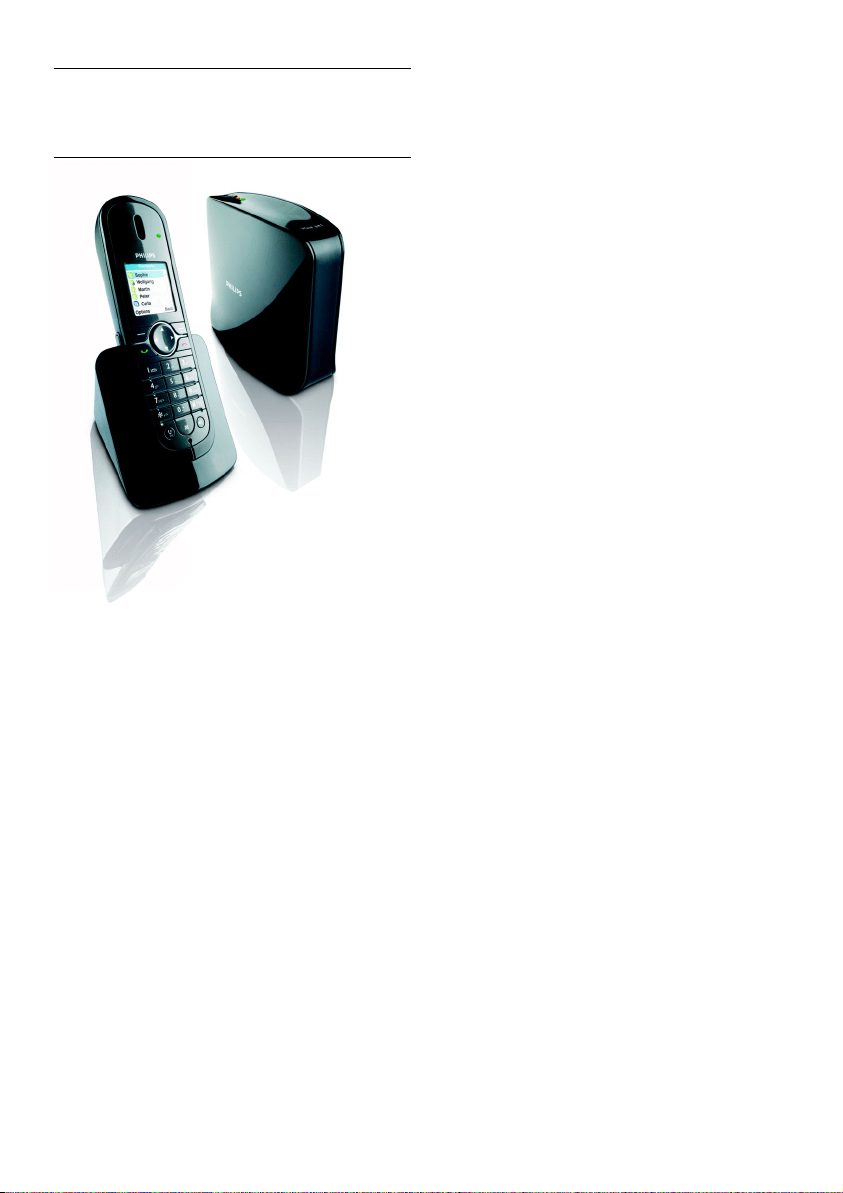
2.1 What’s in the box 5
2.2 What else will you need 5
2.3 Overview of the phone 6
2.4 Overview of the base 7
2.5 Display icons 7
2.6 Menu operation 8
3 Getting started 9
3.1 Connect the base 9
3.2 Connect the charger 9
3.3 Insert the batteries 9
3.4 Settings before first use 10
3.5 Standby mode 10
3.6 Register the handset 11
3.7 Turn the handset ON/OFF 11
3.8 Set the clock 11
4 Skype® and Skype tools 14
4.1 What is Skype®? 14
4.2 Other Skype products 14
4.3 Common terminologies 14
4.4 Skype Tools 14
5 Using your phone 16
5.1 Call 16
5.2 End a call 17
5.3 Answer a call 17
5.4 Turn off all the ringers 17
5.5 Call in progress 18
5.6 Intercom and Conference Calls 19
6 Use more of your phone 20
6.1 Voicemails 20
6.2 Skype Voicemail™ 20

Table of contents
2
Table of contents
6.3 Landline Voicemail indication 21
6.4 Contact List 21
6.5 Find a Skype user 22
6.6 Add a contact 22
6.7 Manage your contacts 22
6.8 Call History 23
6.9 Text and number entry 24
7 Your Skype profile 25
7.1 Public details 25
7.2 Private details 25
8 Settings 26
8.1 Personalize your phone’s display 26
8.2 Personalize your phone’s sounds 26
8.3 Call features 27
8.4 Skype call features 28
8.5 Landline call features 29
8.6 Extra features 30
8.7 System settings 30
8.8 Network settings 31
8.9 Web page configuration 32
8.10 Country codes list 34
9 Default settings 35
10 Menu structure 36
11 Technical data 37
12 Frequently asked questions 38
13 VOIP841 Glossary 39
14 Index 40
Contact information 43

3
Important safety information
1 Important safety
information
Take time to read this user manual before you
use your Telephone. It contains important
information and notes regarding your Telephone.
1.1 Power requirements
• This product requires an electrical supply of
120 V AC for North America and 230 V AC for
Europe. Observe the electrical ratings and
other markings on the power adapters and
make sure they are appropriate for use with
the outlet supply.
• In case of power failure, the communication
can be lost as well as the date and time settings.
• The Electrical network is classified as
hazardous. The only way to power down the
charger is to unplug the power supply from the
electrical outlet. Ensure that the electrical
outlet is alway easily accessible.
Warning
• Use only the mains adapter supplied with this
equipment. Incorrect adapter polarity or
voltage can seriously damage the unit.
• Do not allow the charging contacts or the
battery to come into contact with conductive
materials.
• Do not allow the handset to come into contact
with liquids or moisture.
• Never use any other battery than the one
delivered with the product or recommended
by Philips: risk of explosion.
• Always use the cables provided with the
product.
• Handsfree activation could suddenly increase
the volume in the earpiece to a very high level:
make sure the handset is not too close to your
ear.
• This equipment is not designed to make
emergency calls when the power fails.
Alternative arrangements should be made for
access to emergency services.
• No Emergency Calls for Skype line. Skype is
not a replacement for your ordinary telephone
and cannot be used for emergency calling.
• Do not open the handset, base unit or charger.
This could expose you to high voltages.
• There is a slight chance that your product
could be damaged by an electrical storm.
Unplug the product from the power supply and
telephone socket during a storm.
• Do not use the handset in an explosive hazard
area such as where there is gas leaking.
• Do not use this product near intensive care
medical equipments or by persons with
pacemakers.
• This product can interfere with electrical
equipment such as answering machine,
television, radio, and computers if placed too
close. Put the base unit at least one meter from
such appliances.
1.2 Digital security system
Your cordless phone uses a digital security
system to protect against false ringing,
unauthorized access, and charges to your phone
line.
There is a unique digital security code
programmed in each unit. When the base and the
handset are powered up the first time, the
handset automatically links with the base ready
for normal and secure use. If you have purchased
additional accessory handset(s), you will need to
follow the registration procedure in “Handset
Registration” in this manual to maintain intact the
digital security.
1.3 Hearing aid compatibility (HAC)
This telephone system meets FCC and Industry
Canada standards for Hearing Aid Compatibility.
Please note that this telephone works by sending
radio signals between the base unit and the
handset. These signals may interfere with some
hearing aids, causing a humming noise.
!
4
Important safety information
1.4 Noise
Electrical pulse noise is present at one time or
another. This is most intense during electrical
storms. Certain kinds of electrical equipment,
such as light dimmers, fluorescent bulbs, motors,
fans, etc., also generate pulse noise.
Because radio frequencies are susceptible to this,
you may on occasion hear pulse noise through
the base unit. This is usually only a minor
annoyance and should not be interpreted as a
defect of the unit. Humming noice, if present in
hearing aid through the handset, falls into the
same category.
1.5 Software licences
This product contains open source software
packages. An overview of these packages, the
licences and/or notices that apply to them, and
the source code for a number of these packages
are available in the on-line product
documentation, which is visible on
www.philips.com/support.
1.6 Conformity
We, Philips declare that the product is in
compliance with the essential requirements and
other relevant provisions of R&TTE Directive
1999/5/EC.
You can find the Declaration of Conformity on
www.philips.com/support.
1.7 Recycling and disposal
Disposal instructions for old products:
The WEEE directive (Waste Electrical and
Electronic Equipment Directive ; 2000/96/EC) has
been put in place to ensure that products are
recycled using best available treatment, recovery
and recycling techniques to ensure human health
and high environmental protection.
Your product is designed and manufactured with
high quality materials and components, which can
be recycled and reused.
Do not dispose of your old product in your
general household waste bin.
Inform yourself about the local separate
collection system for electrical and electronic
products marked by this symbol.
Use one of the following disposal options:
• Dispose of the complete product (including its
cables, plugs and accessories) in the designated
WEEE collection facilities.
• If you purchase a replacement product, hand
your complete old product back to the retailer.
The shop should accept it as required by the
WEEE directive.
Disposal instructions for batteries:
Batteries should not be disposed of with
general household waste.
Packaging information:
Philips has marked the packaging with standard
symbols designed to promote the recycling and
appropriate disposal of your eventual waste.
A financial contribution has been paid to
the associated national recovery &
recycling system.
The labeled packaging material is
recyclable.
1.8 Warranty
The warranty informations are available on
www.philips.com/support
5
Your phone
2Your phone
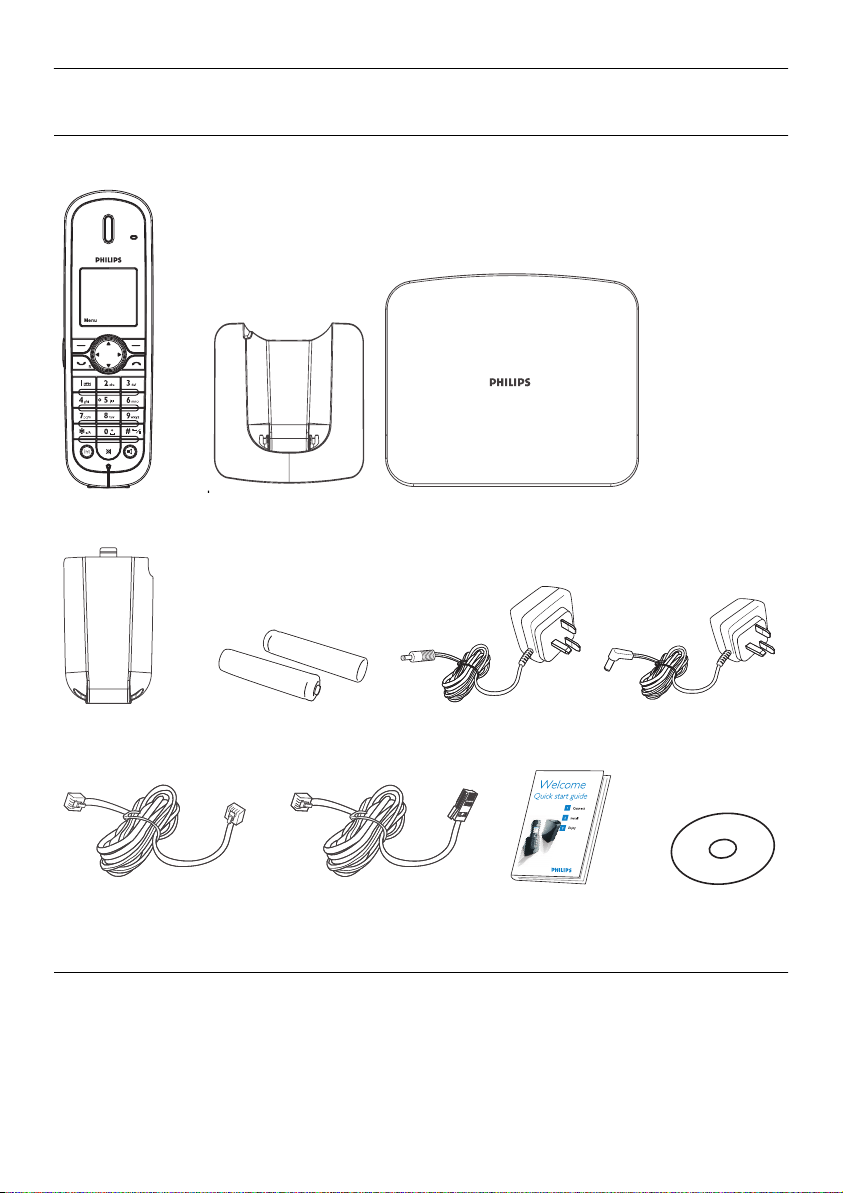
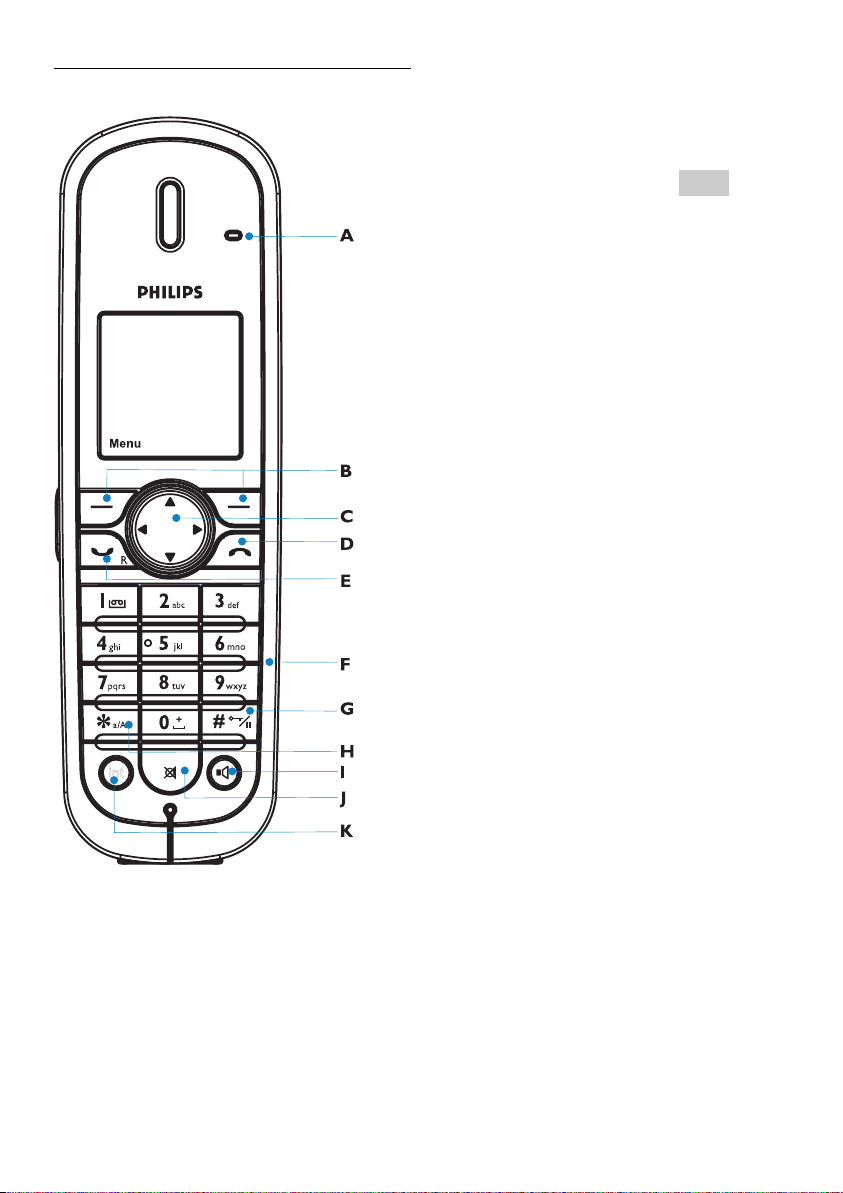
2.1 What’s in the box
2.2 What else will you need
• A telephone line and an Internet connection (High speed Internet 512kb minimum recommended).
• Also needed is a router or a modem-router with a free ethernet port.
One telephone
handset
Charger
Base unit
Quick start guide
User manual
One handset
battery cover
Two NiMH AAA
750mAh batteries
One base power
adapter
One charger power
adapter
One telephone line cord One blue Ethernet cable
(with RJ45 connector)
on CDROM
6
Your phone
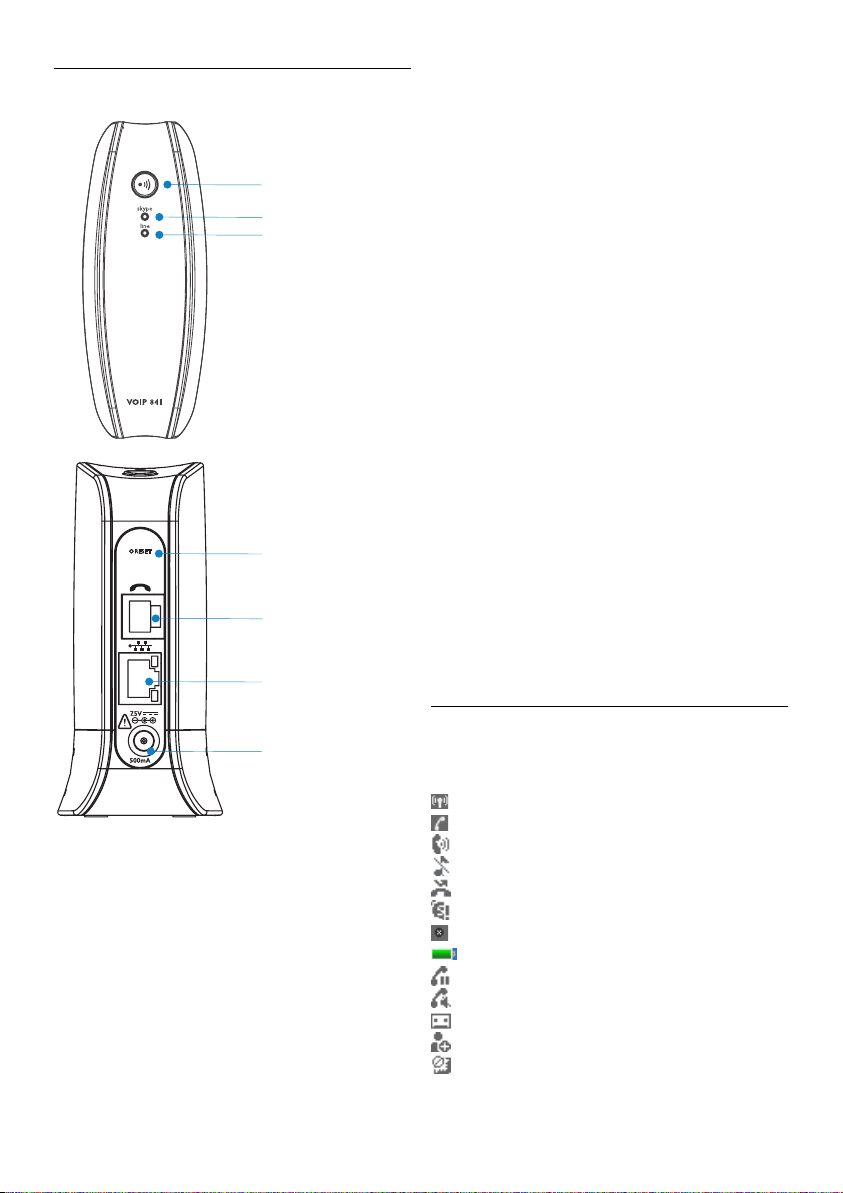
2.3 Overview of the phone
A Handset Indicator
Lit when call in progress.
Blink when receiving a call or new voicemail(s).
B Soft keys
Use to perform function displayed above the key.
It is displayed as text in a box (i.e ) in this
guide.
C Navigation keys
Left/Right: To move the cursor or to change
selection.
Up: Shortcut to Skype Change Status menu.
To scroll up menu items or to increase
the ringer and receiver volume.
Down: Shortcut to All Calls List.
To scroll down menu items or to reduce
the ringer and receiver volume.
D End and On/Off key
To end a call or to exit menus. To power on the
handset or to enter the power menu.
E Talk and Recall key
To make and receive calls. To send flash signal for
landline calls.
F Digit keys
To enter digits and characters.
G Pound, Keylock and Pause key
To enter character # or to insert a pause. In idle
mode, press to lock the keypad or to display the
symbols matrix.
H Star and Text edit key
Short press to insert *.
Long press to enter editing mode.
I Loudspeaker
During a call, the loudspeaker can be switched
on/off.
JMute key
To mute/un-mute the handset microphone
during a call.
K Call Tranfer/Intercom
To initiate an internal call (a second handset is
needed to inititate an internal call).
Menu
7
Your phone
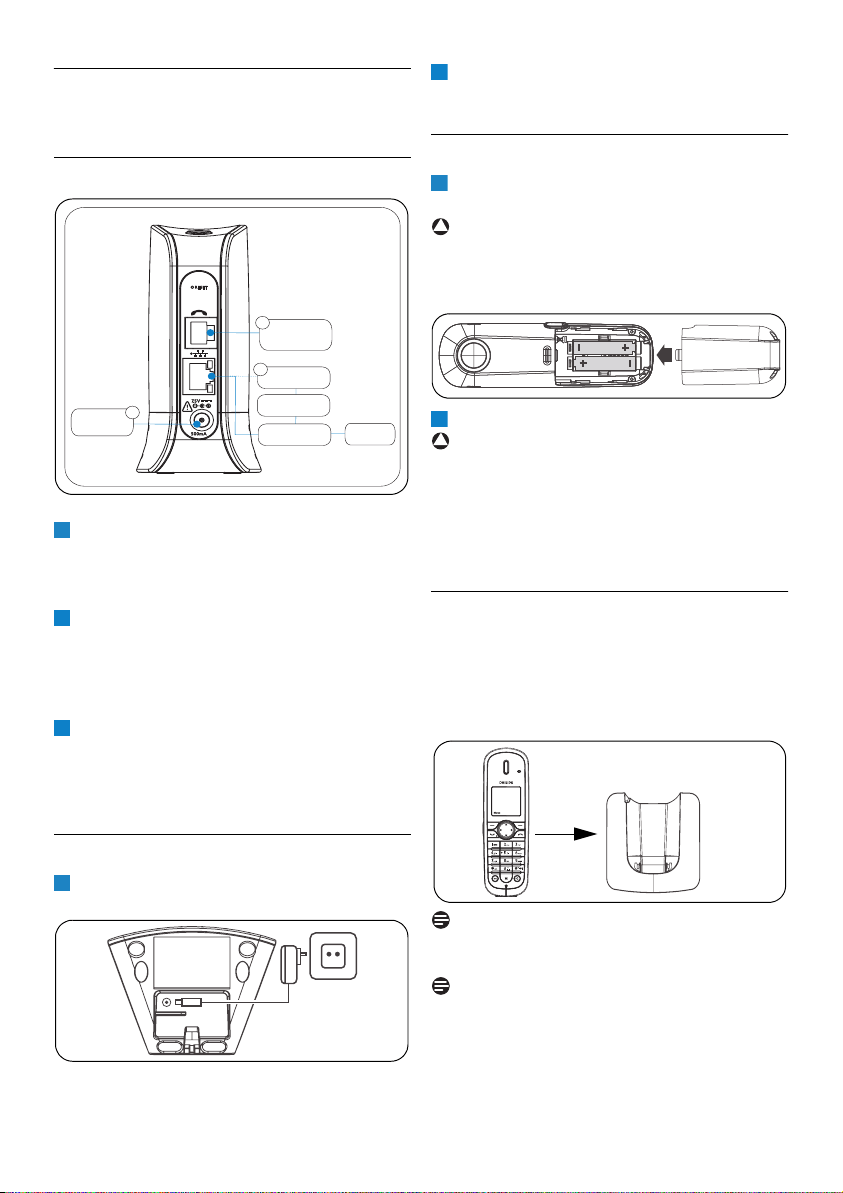
2.4 Overview of the base
A Page key
To find handset(s) or to register handset(s).
B Skype line indicator
Blink when receiving a Skype line call.
Lit when Skype line is in use.
C Landline indicator
Blink when receiving a landline call.
Lit when landline is in use.
D Reset button
Short press to reset the power.
Long press for 5 seconds and then release to
reset to factory default settings.
E Telephone (Landline) jack
Connect to the landline.
F Ethernet jack
Connect to the Internet.
GPower jack
Connect to the power supply.
2.5 Display icons
Each icon gives you a visual message of what is
happening on your handset.
Signal strength
Call in progress
Speaker on
Ringer Off
New missed call
Skype network alert
Handset lost link
Battery level
Line on hold
Microphone muted
New voicemail
New request waiting
Keypad locked
A
B
C
D
E
F
G

8
Your phone
2.6 Menu operation
Your phone offers a variety of features and
functions grouped in the menus.
The main menu includes the Contacts, History,
Status, Add Contact, Search, Services, and
Settings menu. Menu overview see page 36.
• Press to enter the main menu.
• Press to view the contact list.
• Press to enter the Change Status menu.
• Press to enter the All Calls list.
Tip
Use (Up or Down) to navigate the menus.
Press to exit from any menu instantly. All
unconfirmed changes will not be saved.
Menu
Contact
9
Getting started
3 Getting started
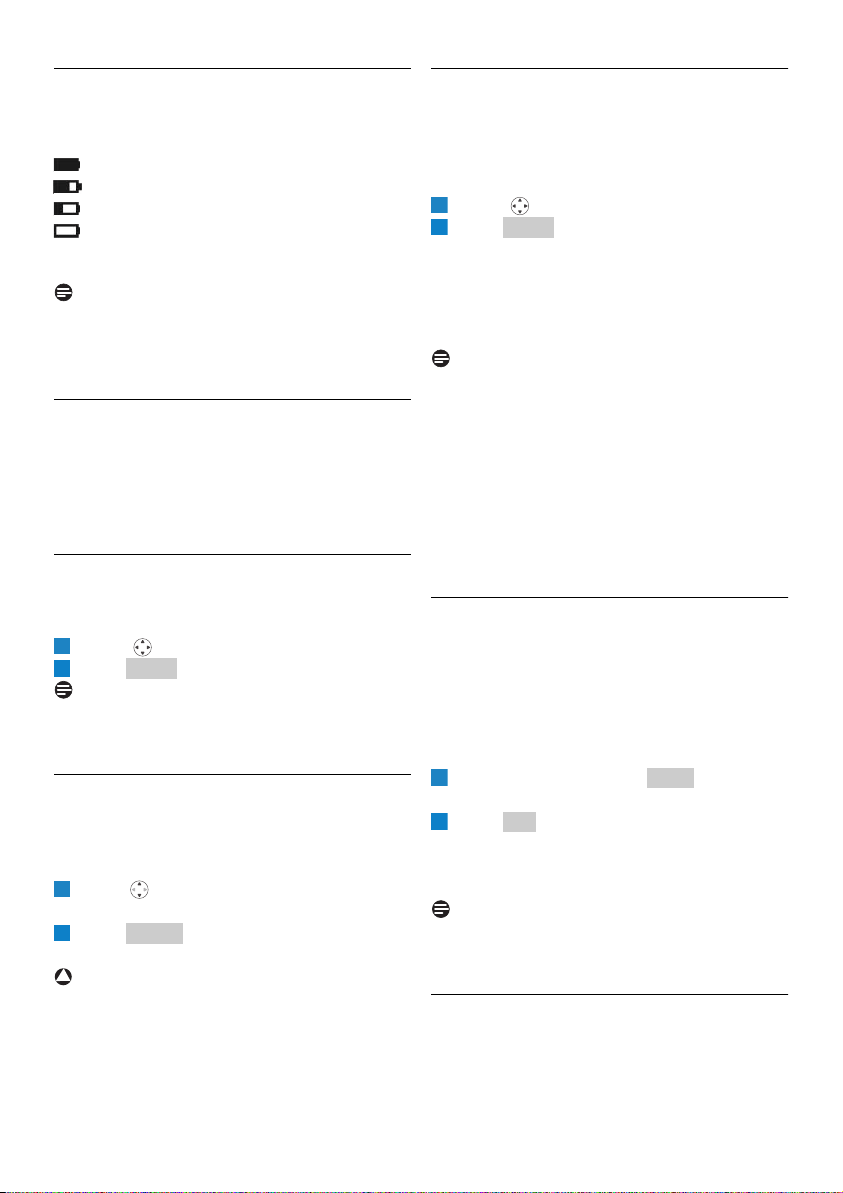
3.1 Connect the base
Insert the plug of the base power adapter into
the socket on the side of the base unit.
Plug the power adapter into your power
outlet.
Connect one end of the Ethernet cable to the
Ethernet socket on the side of the base unit.
Plug the other end to an ADSL/Cable modem
or a router or a switch/hub connected to the
Internet.
Connect the telephone line cord to the
phone socket on the side of the base unit and
the wall phone socket using the proper
socket phone adapter provided in the box.
3.2 Connect the charger
Insert the plug of the charger power adapter
into the socket on the bottom of the charger.
Plug the power adapter into your power
outlet.
3.3 Insert the batteries
Place the two rechargeable batteries
(included) into the battery compartment.
Warning
Verify the batteries polarity when inserting the
batteries. Incorrect polarity may damage the
product.
Slide the battery door firmly into place.
Warning
RISK OF EXPLOSION IF BATTERY IS
REPLACED BY AN INCORRECT TYPE. USE
RECOMMENDED TYPE SUPPLIED WITH THIS
PRODUCT. NEVER USE NON-
RECHARGEABLE BATTERIES.
3.3.1 Place the handset on the charger
Place the handset on the charger. The power
supply of the charger must be connected to the
power outlet.
• The battery icon appears on the screen:
charging has started.
Note
Leave the handset(s) on the charger for at least
14 hours before first use.
Note
If the batteries are completely exhausted, the
product will not be able to power-on
immediately. Handset may get warm during initial
charge. This is normal.
Phone
(Landline)
Socket
Power
Supply
1
2
Router
(Optional)
Switch/Hub
(Optional)
ADSL
Cable Modem
Internet
3
1
2
3
1
2
1
!
2
!
10
Getting started
3.3.2 Verify the battery level
The battery icon displays the current battery
level:
100% full
60% full
30% full
Empty. Require charging.
Your handset may power down shortly if it is not
charged after the battery is empty.
Note
If you are on the phone while the battery is nearly
empty, you will hear warning tones. Your call
maybe cut off shortly after the warning.
3.4 Settings before first use
At first start up, you will be asked to set the
language, accept an agreement, select the country
where the phone is to be used and set the area
code.
3.4.1 Set the language
This setting determines the display language for
the menus and messages.
Scroll to the language you want.
Press to confirm.
Note
If you need to re-set the language, see “Set the
display language”, page 26.
3.4.2 Review the agreement
Read the agreement carefully. It is necessary you
understand and accept the terms and conditions
of the agreement before using the phone.
Press (Up or Down) to scroll through
the agreement.
Press to accept the agreement and
proceed.
Warning
If you do not accept the agreement, you will not
be able to use the phone.
3.4.3 Select your country
It is necessary to select the correct country
where the phone is to be used. This makes sure
that the phone will work properly according to
your country's standards.
Scroll to your country name.
Press to confirm.
• When a country is selected, the phone will
reset and update the international calling code
of the selected country (example, 33 for
France). It will power up automatically after a
few seconds.
Note
The phone is best configured for the available
countries in the list. If you don't see your country
name in the list you can enter your country's
international calling code by selecting "OTHERS"
at the bottom of the list. Please refer to the
country codes list on page 34 to see your
country's international calling code.
If you need to re-select the country, see “Set
your country code”, page 30.
3.4.4 Set your area code
After setting your country code, you need to set
the correct area code for returning local,
national, or international calls received on the
Landline. This function is not for all countries,
please refer to glossary for area code
functionality, see page 39.
Enter the area code. Use to correct
typing errors.
Press to confirm.
• Your phone needs to reset and update the
information. It will power up automatically
after a few seconds.
Note
If you need to re-configure your area code
setting, see “Area code management”, page 27.
3.5 Standby mode
Your phone is in standby mode when it is idle.
The standby screen displays your Skype status
icon, your Skype ID (if available), the handset
1
2
Select
1
2
Accept
!
1
2
Select
1
Clear
2
OK
11
Getting started
number, the system time, the signal icon, and the
battery icon. When the handset is not on the
charger, the backlight goes off. This is a normal
status.
3.6 Register the handset
Registration allows communication between the
base unit and handset(s). If the handset cannot
communicate with its base, you will not be able to
make any call or use many of the functions and
features on the phone.
Note
Your handset should be already registered on the
base unless you have de-registered a handset.
If the handset displays Unregistered, follow the
steps below to register the handset.
Warning
Make sure you have configured the language,
country code, and area code of your phone
before registering additional handsets.
Press . Register shall be highlighted.
Scroll to Register. Press .
Enter the system PIN (Default: 0000). Use
to correct typing errors.
Press to confirm.
• Your handset starts searching for the base.
Press on the base unit until the two
indications turn off.
• If registration is successful, the signal icon
displays steadily.
Tip
If registration failed, repeat the above procedure.
Note
The base can register up to 4 handsets, then the
base unit registration memory is full. If you
attempt to register an additional handset, the
registration process will be aborted. You can use
additional base units, see “Register your
handset(s) with additional base”, page 30.
3.6.1 Verify the signal stength
The signal icon displays the link status
between the handset and the base unit.
Signal icon : The handset and base unit are
linked. They can communicate.
No signal icon : The handset and base unit
have lost link. They are not able to communicate.
Take your handset closer to the base unit to
reconnect the link.
If you move too far away from the base unit while
you are on the phone, you will hear warning
tones notifying you that the handset is almost out
of range - lost link. Take the handset closer to the
base unit or your call will be cut off shortly after
the warning.
Note
If your handset has lost link, you will not be able
to make or receive any call. In addition, you will
not be able to carry out many of the phone
functions and features.
3.7 Turn the handset ON/OFF
3.7.1 Turn the handset ON
Press
.
• The handset may take a few seconds to power
up.
3.7.2 Turn the handset OFF
Press and hold for 2 seconds.
• The power menu is displayed.
Scroll to Switch Off. Press .
• The handset is switched off.
Note
The handset cannot receive any call if the power
is switched off.
3.8 Set the clock
Your phone has a calendar and digital clock. Set
the date and time before initial use of the phone.
Note
After resetting the phone, you may have to set
the date and time again.
Tip
Use (Up or Down) to navigate the menus.
!
1
Reg.
2
Select
3
Clear
4
Enter
5
1
2
Select
12
Getting started
3.8.1 Select the time zone
Press .
Scroll to Settings. Press .
Scroll to Time & Date. Press .
Scroll to Time Zone. Press .
Scroll to the time zone you want.
Press when finished.
• The new setting is saved.
Note
Once you have connected to the internet, your
phone will update the clock automatically
according to your time zone setting.
3.8.2 Select the date format
Press .
Scroll to Settings. Press .
Scroll to Time & Date. Press .
Scroll to Date Format. Press .
Scroll to the date format you want.
Press when finished.
• The new setting is saved.
3.8.3 Set the date
Note
If you use this menu to set the date manually,
your phone will use this new setting, and stop
automatic update until the base power is reset.
Press .
Scroll to Settings. Press .
Scroll to Time & Date. Press .
Scroll to Date. Press .
Use the digit keys to enter the Month/Day/
Year.
Press when finished.
• The new setting is saved.
3.8.4 Select the date separator
The date separator is a symbol such as a slash that
separates the month, day, and year (i.e. 08/25/
2006). Your phone supports 3 styles (/ : .).
Press .
Scroll to Settings. Press .
Scroll to Time & Date. Press .
Scroll to Date Separator. Press .
Scroll to the date separator you want.
Press when finished.
• The new setting is saved.
3.8.5 Select daylight time
Press .
Scroll to Settings. Press .
Scroll to Time & Date. Press .
Scroll to Daylight Time. Press .
Scroll to the new setting.
Press when finished.
• The new setting is saved.
3.8.6 Select the time format
Press .
Scroll to Settings. Press .
Scroll to Time & Date. Press .
Scroll to Time Format. Press .
Scroll to the time format you want.
Press when finished.
• The new setting is saved.
3.8.7 Set the time
Note
If you use this menu to set the time manually,
your phone will use this new setting, and stop
automatic update until the base power is reset.
Press .
Scroll to Settings. Press .
Scroll to Time & Date. Press .
Scroll to Time. Press .
Use the digit keys to enter the Hour/Minute.
Press when finished.
• The new setting is saved.
3.8.8 Select the time separator
The time separator is a symbol such as a colon
that separates the hour and minute (i.e. 18:30).
Your phone supports 2 styles (: .).
Press .
Scroll to Settings. Press .
Scroll to Time & Date. Press .
1
Menu
2
Select
3
Select
4
Select
5
6
OK
1
Menu
2
Select
3
Select
4
Select
5
6
OK
1
Menu
2
Select
3
Select
4
Select
5
6
OK
1
Menu
2
Select
3
Select
4
Select
5
6
OK
1
Menu
2
Select
3
Select
4
Select
5
6
OK
1
Menu
2
Select
3
Select
4
Select
5
6
OK
1
Menu
2
Select
3
Select
4
Select
5
6
OK
1
Menu
2
Select
3
Select

13
Getting started
Scroll to Time Separator. Press .
Scroll to the time separator you want.
Press when finished.
• The new setting is saved.
4
Select
5
6
OK
14
Skype® and Skype tools
4Skype
®
and Skype tools
4.1 What is Skype
®
?
Skype
®
is a little piece of software that lets you
make free Internet calls to your friends all over
the world.
Warning
No Emergency Calls. Skype is not a replacement
for your ordinary telephone and cannot be used
for emergency calling.
4.2 Other Skype products
You can talk to anyone over the Internet for free
with Skype, and you will always be able to do that.
There are some other useful things you can do on
Skype that are not free (but they are pretty
cheap, actually).
4.2.1 SkypeOut™
SkypeOut is a cheap way to call out from Skype
to landlines and mobile phones. You can also use
SkypeOut when you are on the move, to forward
your Skype calls to any phone.
4.2.2 SkypeIn™ with free Skype
Voicemail™
SkypeIn is a number your friends can call you
from any phone. You answer in Skype. You can
get numbers in one or more of the places offered,
and receive calls in Skype from anywhere in the
world.
4.2.3 Skype Voicemail™
Skype Voicemail takes your calls when you are
busy or offline.
4.3 Common terminologies
These are some of the Skype terminologies used
in this user guide.
• Outgoing call: When A calls B.
• Incoming call: When A receives a call from B.
• Missed call: When A receives a call from B
but fails to answer it.
• SkypeOut: Calling regular landline or mobile
phone from Skype.
• SkypeIn: Calling a regular number which
connects the call to a Skype account.
• Skype credit: Skype credit allows you to
purchase a number of different products and
services from Skype. Skype credit can be used
to place SkypeOut calls and purchase a SkypeIn
subscription.
Tip
All information obtained from Skype content
guideline and website. For more information, visit
skype.com.
4.4 Skype Tools
This section describes the Skype tools that you
can access from this phone.
4.4.1 Sign in automatically
You can set your phone to automatically sign into
your Skype account every time the base unit
powers up.
Press .
Scroll to Settings. Press .
Scroll to General. Press .
Scroll to Auto Sign In. Press .
Select the new setting you want.
Press .
• The new setting is saved.
!
1
Menu
2
Select
3
Select
4
Select
5
6
OK

15
Skype® and Skype tools
4.4.2 Change your Skype status
Press .
Scroll to Status. Press .
Scroll to Change Status. Press .
Scroll to the new setting.
Press .
• The new setting is saved.
Tip
You can also use the Shortcut to access the
Change Status Menu: In standby press (Up).
4.4.3 Verify your SkypeOut credits
Your Skype credit is displayed during standby.
4.4.4 Change your Skype password
Your password provides security to your Skype
account, and it ensures no one can access your
account. This password is different from the
system PIN of this phone.
Press .
Scroll to Settings. Press .
Scroll to General. Press .
Scroll to Change Passwd. Press .
Enter your password. Press .
Enter your new password. Press .
Repeat your new password and press .
• The new setting is saved.
4.4.5 Update Skype software
Press .
Scroll to Settings. Press .
Scroll to Advanced. Press .
Scroll to SW Update. Press .
Follow the on-screen instruction.
4.4.6 Activate auto update
You can program your phone to notify you of
new Skype software update. This will save you
time and energy to check for new update
manually.
Note
Regardless of your auto update setting, your
phone will notify you of any new Skype required
update. You must accept any required update to
continue using the phone.
Press .
Scroll to Settings. Press .
Scroll to Advanced. Press .
Scroll to Auto Update. Press .
Scroll to the new setting you want.
Press .
• The new setting is saved. Your phone will notify
you when there is new Skype software update.
Note
After activating auto update, your phone displays
a notification message when there is a new
update. Press to install the update now.
Press to have your phone remind you
again at a later time.
1
Menu
2
Select
3
Select
4
5
Select
1
Menu
2
Select
3
Select
4
Select
5
OK
6
OK
7
OK
1
Menu
2
Select
3
Select
4
Select
5
1
Menu
2
Select
3
Select
4
Select
5
6
Select
OK
Later
16
Using your phone
5 Using your phone
5.1 Call
Your phone supports both Skype line and PSTN
landline calls. A Skype call is a call using the Skype
line. A landline call is a call using your regular
phone line.
Note
This telephone is not designed for making
emergency telephone calls when the power fails.
Alternative arrangements should be made for
access to emergency services.
Tip
Use (Up or Down) to navigate in the menus.
5.1.1 Make a call
Press for the landline.
Enter the phone number.
• The number is dialed out on the landline.
Note
Check the signal strength before making a call and
during a call. For details, see “Verify the signal
stength”, page 11.
5.1.2 Assign a preferred line
A preferred line is the line of priority for
SkypeOut contact. After setting the preferred
line, all SkypeOut contacts (except from the
outgoing call list) will always be dialed out from
the preferred line when you press .
Press .
Scroll to Settings. Press .
Scroll to Call Settings. Press .
Scroll to Preferred line. Press .
Scroll to the setting you want.
Press .
• The new setting is saved.
5.1.3 Pre-dial
Enter the phone number or Skype contact
name.
Note
Press and hold to enter alphanumeric mode
during standby. You can enter any Skype contact
name you want to call. For details, see “Text and
number entry”, page 24.
Tip
• Press to erase a digit.
• Use Left and Right to move the cursor.
• Press and hold to enter a pause after a
digit has been entered. P displays on the
screen.
Press .
• The number is dialed out on the preferred line.
For details on preferred line, see “Preferred
line”, page 28.
• During a call, the call timer displays the talk
time of your current call.
Tip
You can also use the SkypeOut Shortcut: Press
twice to call from SkypeOut. The preferred
line setting will be ignored.
5.1.4 Call from the landline
Enter the phone number.
Press .
Scroll to Landline.
Press .
• The number is dialed out.
5.1.5 Call from SkypeOut
Enter the phone number. The phone number
shall include +, the international calling code,
area code, and subscriber number.
Tip
To insert +: Press and hold 0.
Press .
Scroll to SkypeOut.
Press .
• The number is dialed out.
Note
You need to purchase Skype credit to make
SkypeOut calls. Your phone will give you an alert
when your account is low on Skype credits or
have no credits.
1
2
1
Menu
2
Select
3
Select
4
Select
5
6
Select
1
Clear
2
1
2
Options
3
4
Select
1
2
Options
3
4
Select
17
Using your phone
5.1.6 Call from the contact list
In idle mode:
Press .
Scroll to the contact.
Press .
• The number is dialed out on the preferred line.
Note
For details on the contact list, see “Contact List”,
page 21.
5.1.7 Redial the last number
In idle mode:
Press twice within 1 second.
• The last number you called is dialed out using
the same line as before.
Tip
To redial the last landline number: Press ,
and then press . The last number you
called using the landline will be dialed out.
5.1.8 Call from the outgoing call list
The outgoing call list stores the number(s) you
have dialed. The most recent dialed number is
stored at the top of the list. For details on the
outgoing call list, see “Call History”, page 23.
In idle mode:
Press .
Scroll to History. Press .
Scroll to Outgoing. Press .
Scroll to the number you want.
Press .
• The number is dialed out using the same line
as before. For example, if you made the call
using SkypeOut, the call will be dialed out using
SkypeOut again.
OR
Press , and then select Call to dial
on the preferred line.
5.1.9 Call from the call history
Your phone stores the outgoing, incoming, and
missed calls. For details, see “Call History”,
page 23.
In idle mode:
Press .
Scroll to History. Press .
Scroll to the call list you want. Press .
Scroll to the record you want.
Press .
• The number is dialed out on the preferred line.
5.2 End a call
Press
OR
place the handset on the charger.
• The call ends.
5.3 Answer a call
When the phone rings, press .
• The call is established.
Notes
• Caller ID Service: Consult and subscribe from
your service provider.
• Missed Call Alert: When a call is missed, your
phone displays You have Missed Calls. Press
for more options.
Tip
When a Skype call comes in, you can reject the
call by pressing .
5.4 Turn off all the ringers
You can turn off the ringers for all the incoming
calls including Skype, landline, and intercom calls.
For details on ringer setting, see “Personalize
your phone’s sounds”, page 26.
Press .
Scroll to Status. Press .
Scroll to Change Status. Press .
Scroll to Silent.
Press .
• All the ringers are turned off.
Tip
• You can also use the Change Status Menu
Shortcut: Press (Up) during standby.
• To turn ON all Ringers: Scroll to Sounds On
in the Change Status menu, and press
.
1
Contact
2
3
Redial
1
Menu
2
Select
3
Select
4
5
5
Options
1
Menu
2
Select
3
Select
4
5
View
Reject
1
Menu
2
Select
3
Select
4
5
Select
Select
18
Using your phone
5.4.1 Turn off the landline ringer
When a landline call comes in, you can silent the
ringer for the current call.
Press to turn off the ringer for the
current incoming landline call.
5.5 Call in progress
This section describes the features that are
available during a call.
5.5.1 Make a second landline call
Note
The Second Call Service only applies to calls using
the landline. Consult and subscribe from your
service provider.
Press .
• The current caller is put on hold.
Dial the number you want.
• The number displays on the screen and is
dialed out.
Press to toggle between the two callers
OR
Press to end the current call and return
to the other caller.
Note
Toggling between two calls is a network and
country dependent feature.
5.5.2 Answer a second landline call
Note
The Second Call Service only applies to calls using
the landline. Consult and subscribe from your
service provider.
During a landline call, your phone sounds a short
beep periodically to notify you of another
incoming landline call.
Press to answer the call.
• The first call is put on hold, and you are now
connected to the second call.
Press to toggle between the two callers
OR
press to end the current call and return
to the other caller.
5.5.3 Answer a second Skype call
During a Skype call, your phone sounds a short
beep periodically to notify you of another
incoming Skype call.
Press to answer the call.
• The first call is put on hold, and you are now
connected to the second call.
Press to toggle between the two callers
OR
press to end the current call and return
to standby.
• Your phone will ring to notify you that a caller
is being placed on hold.
Press to re-establish your call with the
on-hold caller.
5.5.4 Adjust the earpiece volume
During a call press (Up or Down) to
adjust the volume.
5.5.5 Mute / Unmute the microphone
This feature enables you to mute / unmute the
microphone. When the microphone is muted, the
other party cannot hear you.
During a call, press
to mute the
microphone.
• The caller cannot hear you, but you can still
hear his voice.
When the microphone is muted, press
to unmute the microphone.
• You can now communicate with the caller.
5.5.6 Switch handsfree ON / OFF
Warning
Handsfree activation can suddenly increase the
volume in the earpiece to a very high level. Make
sure the handset is not too close to your hear.
The handsfree features let you talk on the phone
without holding onto the handset.
Tips
• Use the speaker to involve everyone in the
room in the conversation.
1
2
3
3
1
2
2
1
2
2
3
!
19
Using your phone
• Use the headset to talk privately with the
caller.
During a call, press .
• The speaker is turned on. Start talking.
Press again to turn off the speaker.
5.5.7 Use the headset
Note
Headset is optinonal and not provided. A headset
with 2.5mm jack and minimum 32 ohm speaker
impedance must be used. It is available from retail
store.
Plug the headset into the headset jack at the
side of your handset.
5.6 Intercom and Conference Calls
An intercom call is a call to another handset
registered on the same base unit. This function
can only be used with a multi-handset
configuration. It allows you to make free internal
calls, transfer external calls from one handset to
another and to use the conference option.
A conference call involves conversation between
other handset(s) and outside caller(s).
Note
Some of these functions could be unavailable if
the extra handset used is not a VOIP841.
Tip
Use (Up or Down) to navigate in the menus.
5.6.1 Call another handset
An intercom call can only involve two handsets
registered on the same base unit.
In idle mode:
Press .
Scroll to the handset you want to call.
Press .
• Wait for the other party to answer your call.
Press to cancel or end the intercom call.
Tip
To customize your intercom ringer, see
“Personalize your phone’s sounds”, page 26.
5.6.2 Internal call during an external call
While talking on the phone on the Skype line or
landline, you can call another handset.
Press during the call.
Scroll to the handset you want to call.
Press .
• Wait for the other party to answer your call.
To return to the external caller:
Press during the intercom call.
• You are now connected to the external caller.
5.6.3 Call transfer
During a call in progress you can tranfer the
external call to a specific handset.
Press during the call.
Scroll to the handset you want to call.
Press .
Press after the other party answers
your call.
• The external call is now transferred to the
other handset.
5.6.4 Conference call
Conference call allows one external call to be
shared with two handsets registered on the same
base. The three people can share the
conversation. No operator subscription is
needed.
Press during the call with the external
caller.
Scroll to the handset you want to call.
Press .
• Wait for the other party to answer your call.
Press .
• You are now on a 3-way conference call.
Press to end the conference call.
1
2
1
2
3
Call
4
1
2
3
Call
End
1
2
3
Call
4
1
2
3
Call
4
Conf.
5
20
Use more of your phone
6 Use more of your phone
6.1 Voicemails
Your phone supports landline voicemail service
and Skype Voicemail™.
Tip
Use (Up or Down) to navigate in the menus.
6.2 Skype Voicemail™
Note
For Skype Voicemail™ service consult and
subscribe from Skype.
You can record your own greeting. You can play,
listen to, or delete a voicemail. In addition, you
can return a call or send a voicemail to the caller.
6.2.1 Record “My Greeting”
My Greeting is the message people hear before
leaving you a voicemail.
In idle mode:
Press .
Scroll to Settings. Press .
Scroll to Call Settings. Press .
Scroll to Voicemail. Press .
Scroll to My Greeting. Press and
then press .
Scroll to Record New.
Press and start recording.
6.2.2 Listen to “My Greeting”
In idle mode:
Press .
Scroll to Settings. Press .
Scroll to Call Settings. Press .
Scroll to Voicemail. Press .
Scroll to My Greeting. Press and
then press .
Scroll to Play.
Press .
• “My Greeting” starts playing.
6.2.3 Reset “My Greeting”
You can reset “My Greeting” to the default Skype
Voicemail comes greeting.
In idle mode:
Press .
Scroll to Settings. Press .
Scroll to Call Settings. Press .
Scroll to Voicemail. Press .
Scroll to My Greeting. Press and
then press .
Scroll to Reset Default. Press .
• A confirmation request is displayed.
Press .
• “My Greeting” is reset.
6.2.4 Retrieve voicemail(s)
The voicemail icon appears on the screen
when you have new voicemail(s).
In idle mode:
Press .
Scroll to History. Press .
Scroll to Voicemails. Press .
Scroll to Skype VM. Press .
Scroll to the voicemail you want.
Scroll to Play. Press .
• Your messages start playing.
6.2.5 Return a call
You can return a call to the voicemail sender.
In idle mode:
Press .
Scroll to History. Press .
Scroll to Voicemails. Press .
Scroll to Skype VM. Press .
Scroll to the voicemail you want.
Scroll to Call. Press .
6.2.6 Send a Skype voicemail
You can return a voicemail to the caller.
In idle mode:
Press .
Scroll to History. Press .
Scroll to Voicemails. Press .
1
Menu
2
Select
3
Select
4
Select
5
Select
Options
6
7
Select
1
Menu
2
Select
3
Select
4
Select
5
Select
Options
6
7
Select
1
Menu
2
Select
3
Select
4
Select
5
Select
Options
6
Select
7
Yes
1
Menu
2
Select
3
Select
4
Options
5
6
Select
1
Menu
2
Select
3
Select
4
Options
5
6
Select
1
Menu
2
Select
3
Select
21
Use more of your phone
Scroll to Skype VM. Press .
Scroll to the voicemail you want.
Scroll to Send Voicemail.
Press . Start recording after the beep.
6.2.7 Delete a Skype voicemail
In idle mode:
Press .
Scroll to History. Press .
Scroll to Voicemails. Press .
Scroll to Skype VM. Press .
Scroll to the voicemail you want.
Scroll to Delete. Press .
• A confirmation request is displayed.
Press to confirm.
• The voicemail is deleted.
6.3 Landline Voicemail indication
Note
For landline voicemail service consult and
subscribe from your service provider.
The voicemail icon appears on the screen
when you have new voicemail(s) in your
mailbox(es).
6.3.1 Retrieve voicemail(s)
Call your voicemail service provider to retrieve
your voicemail(s). To find out your service
provider's number, consult your service provider.
In idle mode:
Press .
Scroll to History. Press .
Scroll to Voicemails. Press .
Scroll to Landline VMWI. Press .
Scroll to the service provider you want. Press
.
Scroll to Call. Press .
• Wait for voice instruction.
6.3.2 Edit the service provider number
In idle mode:
Press .
Scroll to History. Press .
Scroll to Voicemails. Press .
Scroll to Landline VMWI. Press .
Scroll to the service provider you want. Press
.
Scroll to Edit and edit the number.
Press .
• The new number is saved.
6.3.3 Delete the service provider number
In idle mode:
Press .
Scroll to History. Press .
Scroll to Voicemails. Press .
Scroll to Landline VMWI. Press .
Scroll to the service provider you want. Press
.
Scroll to Delete.
• A confirmation request is displayed.
Press to confirm.
• The number is deleted.
6.3.4 Clear the voicemail indicator
Note
This feature does not apply to all models.
After verify your voicemail(s), the voicemail icon
turns off automatically. You can also turn off
the voicemail icon manually before you finished
checking all your voicemails.
In idle mode:
Press .
Scroll to History. Press .
Scroll to Voicemails. Press .
Scroll to Clear VMWI. Press .
• A confirmation request is displayed.
Press to confirm.
• The voicemail icon is cleared.
6.4 Contact List
Your phone can store a total of 500 Skype and
SkypeOut contacts.
Tip
Use (Up or Down) to navigate in the menus.
4
Options
5
6
7
Select
1
Menu
2
Select
3
Select
4
Options
5
6
Select
7
Yes
1
Menu
2
Select
3
Select
4
Select
5
Options
6
Select
1
Menu
2
Select
3
Select
4
Select
5
Options
6
7
Enter
1
Menu
2
Select
3
Select
4
Select
5
Options
6
7
Yes
1
Menu
2
Select
3
Select
4
Select
5
Yes
22
Use more of your phone
6.4.1 View the contact list
In idle mode:
Press to enter the contact list.
Scroll to the contact you want. If you want to
view the profile of the contact, continue to
step 3.
Press .
Scroll to View Profile. Press .
• The profile is displayed.
Search a contact by scrolling
While at the contact list, press (Up or Down)
to scroll.
Search a contact by entring initial letter
While at the contact list, press the digit key that
contains the character that you want to search.
For example, you want to search a contact
starting with N. Press [6] twice, all contacts
starting with N displays in alphabetical order.
Note
To call from the contact list, see “Call from the
contact list”, page 17.
6.5 Find a Skype user
You can search for a Skype user that is not on
your contact list. After finding the user, you can
make a call, view the profile or add the user to
your contact list.
In idle mode:
Press .
Scroll to Search. Press .
Enter the Skype name or full name of the
Skype user. Press .
• A list of matching names is displayed.
Scroll to the user you want, and press
for more functions.
6.6 Add a contact
Note
If your contact list is full, a notification displays.
Delete unnecessary contact before adding new
ones.
6.6.1 Add a Skype contact
In idle mode:
Press .
Scroll to Add Contact. Press .
Scroll to Skype. Press .
Enter the Skype name or full name of the
Skype user. Press .
• A list of matching names is displayed.
Scroll to the contact you want. Press
.
Scroll to Add to contact. Press .
Edit the request details if you want and press
.
• The new contact will be added after the user
accepts your request.
6.6.2 Add a SkypeOut contact
In idle mode:
Press .
Scroll to Add Contact. Press .
Scroll to SkypeOut. Press .
Enter the name of the SkypeOut user. Press
.
• A list of matching names is displayed.
Enter the number in this format (+,
international calling code, area code, and the
phone number).
Press .
• The new contact is saved.
Note
Contacts with identical numbers cannot be saved.
6.7 Manage your contacts
You can rename, block or remove each contact
on your contact list.
6.7.1 Rename a contact
You can change the display name of a contact.
Select the contact on your contact list and
press .
Scroll to Rename. Press .
Edit the name. Use to make
corrections.
1
Contact
2
3
Options
4
Select
1
Menu
2
Select
3
OK
4
Options
1
Menu
2
Select
3
OK
4
Enter
5
Options
6
Select
7
Enter
1
Menu
2
Select
3
OK
4
Enter
5
6
OK
1
Options
2
Select
3
Clear
23
Use more of your phone
Press .
• The edited contact is saved.
6.7.2 Block / un-block a contact
You can block a user from contacting you and
vice versa. You will always appear as offline to the
user that you have blocked.
Select the contact on your contact list and
press .
Scroll to Block. Press .
• A confirmation request is displayed.
Press to confirm.
• A request to remove the contact is displayed.
Press to remove the contact from the
contact list
OR
Press to leave the contact in the contact
list.
Un-block a contact
In idle mode:
Press .
Scroll to Settings. Press .
Scroll to Privacy. Press .
Scroll to Blocked Users. Press .
Scroll to the contact you want to un-block.
Press .
Press .
• The contact is unblocked.
6.7.3 Remove a contact
Select the contact on your contact list and
press .
Scroll to Remove. Press .
• A confirmation request is displayed.
Press to confirm.
• The contact is removed.
6.8 Call History
Your phone stores the call history composed of
four lists:
• All: Include all missed, incoming, and outgoing
calls.
• Missed: Calls that you received but did not
answer.
• Incoming: Calls that you received and
answered.
• Outgoing: Calls that you made.
A call history record is saved for each call and
includes information of the caller name, number,
call time, and date.
Your phone also saves a history of received Skype
voicemail, new request(s), and landline voicemail.
Notes
• Your phone will not store any call history if you
are not signed in to Skype.
• When you sign out from Skype, your phone
clears all the call history, voicemails, and new
requests saved under your account. When you
or another user signs in to Skype again, your
phone starts saving the new call history under
the signed-in account.
6.8.1 View the call records
In idle mode:
Press .
Scroll to History. Press .
Scroll to the call list you want. Press .
Scroll to the call record you want.
View the details of a call record
Select a call record and press .
Scroll to Details. Press to view the
details.
6.8.2 Call from the Call History
Return a call
To return a call from the missed or incoming call
lists, see “Call from the call history”, page 17.
Redial a call
To make a call that you have made previously, see
“Call from the outgoing call list”, page 17.
Send a Skype voicemail
Select a call record and press .
Scroll to Send Voicemail. Press .
Start recording your message after the beep.
Press to end the call.
4
OK
1
Options
2
Select
3
Yes
4
Yes
4
No
1
Menu
2
Select
3
Select
4
Select
5
Options
6
Unblock
1
Options
2
Select
3
Yes
1
Menu
2
Select
3
Select
4
1
Options
2
Select
1
Options
2
Select
3
4
24
Use more of your phone
6.8.3 Save a call record to your contact list
Save a Skype contact
Select a call record and press .
Scroll to Add To Contact. Press .
• The record is saved.
Save a SkypeOut contact
Select a call record and press .
Scroll to Add To Contact. Press .
Edit the name if necessary. Press .
Edit the number if necessary.
Press .
• The record is saved.
6.8.4 Delete call record(s)
Delete a single call record
Select a call record and press .
Scroll to Delete. Press .
Press to confirm.
• The record is deleted.
Delete all call records of a call list
In idle mode:
Press .
Scroll to History. Press .
Scroll to the call list you want. Press .
Press .
Scroll to Clear List. Press .
Press to confirm.
• All records are deleted.
6.9 Text and number entry
You can enter text and numbers for the contact
information and other features.
Change the input method
Your phone supports 3 input methods: lower
case, upper case, and numeric.
Press during editing.
• The lower right hand corner displays the
method you have currently selected. A for
upper case; a for lower case; 1 for numeric
mode.
Enter text and numbers
Find the key with the character you want.
Press it as many times as needed for the
character to display on the screen.
• The preview area shows the available
characters of the key.
Tip
Use (Left or Right) to move the cursor.
Enter symbols
You can enter special symbols such as ? ! : ( )
and many more.
Press while editing in lower case or
upper case mode.
• A table of symbols is displayed.
Use to select the symbol your want.
Press to enter the symbol.
Tip
To insert +: press and hold digit key 0.
Delete characters
Press to delete the character left of the
cursor.
Press and hold to delete all the characters
on screen.
1
Options
2
Select
1
Options
2
Select
3
OK
4
5
OK
1
Options
2
Select
3
Yes
1
Menu
2
Select
3
Select
4
Options
5
Select
6
Yes
1
2
Symbols input table
. , ’ ? ! " - ( ) @
/ : _ ; + & % * = <
> £ € $ ¥ ° [ ] { }
\ ~ ^ ¡ § ¿ # |
Upper case input table
Keys Assigned characters
0 space 0
1 1 . , ? ! - _ @ / %
2 A B C 2 À Ä Å Æ Ç Γ
3 D E F 3 È É ∆
Φ
4 G H I 4 Ì
5J K L 5 Λ
6 M N O 6 Ñ Ò Ö Ø Ω
7P Q R S 7 Π Ψ Σ
8 T U V 8 Ù Ü Θ
9W X Y Z 9 Ξ
1
2
3
Select
Clear
Clear

25
Your Skype profile
7 Your Skype profile
Your Skype profile stores information about you
such as your name, gender, birthdate, phone
numbers, etc. Your profile has public and private
details. Public details can be viewed by other
Skype users, but private details cannot.
You are not required to enter any information
into your profile. It is strictly optional.
7.1 Public details
View or add/edit the details
In idle mode:
Press .
Scroll to Status. Press .
Scroll to My Profile. Press .
Scroll to Public Detail. Press .
Scroll to the item you want. Press .
• The current setting is displayed.
Modify the setting.
Press or when finished.
• The new setting is saved.
7.2 Private details
The only information stores as private detail is
your email addresses (up to 3). Your friends can
easily find you on the Skype network if they know
your email address.
7.2.1 View the details
In idle mode:
Press .
Scroll to Status. Press .
Scroll to My Profile. Press .
Scroll to Private Detail. Press .
• The private details are displayed.
7.2.2 Add an email address
In idle mode:
Press .
Scroll to Status. Press .
Scroll to My Profile. Press .
Scroll to Private Detail. Press .
• The private details are displayed.
Press .
Scroll to Add. Press .
Enter the new email address. Press
when finished.
• The new setting is saved.
7.2.3 Edit an email address
In idle mode:
Press .
Scroll to Status. Press .
Scroll to My Profile. Press .
Scroll to Private Detail. Press .
Scroll to the email address you want. Press
.
Scroll to Edit. Use to make
corrections.
Press when finished.
• The new setting is saved.
7.2.4 Delete an email address
In idle mode:
Press .
Scroll to Status. Press .
Scroll to My Profile. Press .
Scroll to Private Detail. Press .
Scroll to the email address you want. Press
.
Scroll to Remove.
• A confirmation request is displayed.
Press to confirm.
• The email address is deleted.
1
Menu
2
Select
3
Select
4
Select
5
Select
6
7
OK Select
1
Menu
2
Select
3
Select
4
Select
1
Menu
2
Select
3
Select
4
Select
5
Options
6
Select
7
OK
1
Menu
2
Select
3
Select
4
Select
5
Options
6
Clear
7
Enter
1
Menu
2
Select
3
Select
4
Select
5
Options
6
7
Yes

26
Settings
8Settings
Make this your handset - change the look and
sound to suit your needs and tastes. From the
display to sound, this section shows you how to
set your preference.
8.1 Personalize your phone’s display
Set the display language
This section only applies to model(s) with
multiple language support.
In idle mode:
Press .
Scroll to Settings. Press .
Scroll to General. Press .
Scroll to Language. Press .
Scroll to the new setting. Press .
• The new setting is saved.
Set the backlit
Backlit is the background light of the screen. The
backlit turns on when you press a key on the
handset, and it turns off after the time-out period
to save power. You can set the backlit time-out
period. For example, if the time-out period is
1 minute, the backlit turns off after 1 minute from
the last key press.
In idle mode:
Press .
Scroll to Settings. Press .
Scroll to Screen. Press .
Scroll to Backlight. Press .
Scroll to the new setting. Press .
• The new setting is saved.
Adjusting LCD contrast
Contrast is the intensity of the text and
background color displayed on the screen.
Adjusting the contrast changes the darkness of
the text and background color.
In idle mode:
Press .
Scroll to Settings. Press .
Scroll to Screen. Press .
Scroll to Contrast. Press .
Press (Left or Right) to adjust the
contrast.
Press .
• The new setting is saved.
Adjust LCD brightness
Brightness is the amount of light emitted from the
screen.
In idle mode:
Press .
Scroll to Settings. Press .
Scroll to Screen. Press .
Scroll to Brightness. Press .
Press (Left or Right) to adjust the
brightness.
Press .
• The new setting is saved.
8.2 Personalize your phone’s sounds
Set your handset's ringer melody
Your handset has 4 ringers: Skype, SkypeIn,
Landline, and Intercom. You can change the
melody of each ringer.
In idle mode:
Press .
Scroll to Settings. Press .
Scroll to Tones. Press .
Scroll to Ring Tone. Press .
Scroll to the ringer you want. Press .
Scroll to the melody you want. Press .
• The new setting is saved.
Set your handset's ringer volume
Your handset has 5 ringer volume levels. This
setting changes the volume level of all ringers.
In idle mode:
Press .
Scroll to Settings. Press .
Scroll to Tones. Press .
Scroll to Ring Volume. Press .
Press (Up or Down) to select the volume
level.
Press
• The new setting is saved.
1
Menu
2
Select
3
Select
4
Select
5
OK
1
Menu
2
Select
3
Select
4
Select
5
OK
1
Menu
2
Select
3
Select
4
Select
5
6
OK
1
Menu
2
Select
3
Select
4
Select
5
6
OK
1
Menu
2
Select
3
Select
4
Select
5
Select
6
OK
1
Menu
2
Select
3
Select
4
Select
5
6
Select

27
Settings
Set your handset's ringer style
Your handset has 5 ringer styles: Ringing,
Ascending, Ring Once, Beep Once, Off. This
setting changes the ringer type of all ringers.
In idle mode:
Press .
Scroll to Settings. Press .
Scroll to Tones. Press .
Scroll to Ring Type. Press .
Scroll to the new setting. Press .
• The new setting is saved.
Set the notification tones
Notification tones will sound when you have a
new missed call, new voicemail or new
request(s).
In idle mode:
Press .
Scroll to Settings. Press .
Scroll to Tones. Press .
Scroll to Notification. Press .
Scroll to the new setting. Press .
• The new setting is saved.
Set the keypad tone
Key tone is the sound you hear when you press a
key on your handset.
In idle mode:
Press .
Scroll to Settings. Press .
Scroll to Tones. Press .
Scroll to Keypad Tone. Press .
Scroll to the new setting. Press .
• The new setting is saved.
Set the confirmation tones
Handset tones will sound upon a successful or
unsuccessful operation and upon placing the
handset on the charger.
In idle mode:
Press .
Scroll to Settings. Press .
Scroll to Tones. Press .
Scroll to Confirmation. Press .
Scroll to the new setting. Press .
• The new setting is saved.
8.3 Call features
Your phone supports a number of call-related
features to help you handle and manage your calls
more effectively and conveniently. This section
describes the call-related features that apply to
both the Skype line and landline.
8.3.1 Auto answer
Auto answer enables you to answer an incoming
call by simply picking up the handset from the
charging cradle. You do not need to press a key
to answer the call.
Activate/deactivate auto answer
In idle mode:
Press .
Scroll to Settings. Press .
Scroll to General. Press .
Scroll to Auto Answer. Press .
Scroll to the new setting. Press .
• The new setting is saved.
8.3.2 Area code management
The area code feature automatically adds or
removes an area code of an outgoing call. You can
define an area code (up to 5 digits) you want to
add or remove. Depending on the country, your
phone decides either to add or remove an area
code.
Note
Country code must be set for the area code
feature to work properly. See “Select your
country”, page 10.
Enter and activate the area code
In idle mode:
Press .
Scroll to Settings. Press .
Scroll to Call Settings. Press .
Scroll to Area Code. Press .
Enter the area code (any digit between 0-9,
up to 5 digits). Press .
• The new setting is saved.
Deactivate the area code
In idle mode:
Press .
1
Menu
2
Select
3
Select
4
Select
5
OK
1
Menu
2
Select
3
Select
4
Select
5
OK
1
Menu
2
Select
3
Select
4
Select
5
OK
1
Menu
2
Select
3
Select
4
Select
5
OK
1
Menu
2
Select
3
Select
4
Select
5
Select
1
Menu
2
Select
3
Select
4
Select
5
OK
1
Menu
28
Settings
Scroll to Settings. Press .
Scroll to Call Settings. Press .
Scroll to Area Code. Press .
Press to delete the area code.
Press .
• The new setting is saved.
8.4 Skype call features
Skype offers a lot call-related features. This
section describes the call-related features that
apply to the Skype line only.
8.4.1 Preferred line
See “Assign a preferred line”, page 16.
8.4.2 Call forward
If you do not want to miss a call you can re-direct
Skype calls to another landline or mobile number
when you are away from your home or office.
Activate call forward and enter a number
In idle mode:
Press .
Scroll to Settings. Press .
Scroll to Call Settings. Press .
Scroll to Call Forward. Press .
Scroll to Call Forward. Press .
Scroll to Yes. Press .
Enter the number you want to forward your
calls to. Press .
• Your calls will be forwarded to the other
number.
Note
Skype Voicemail Disabled: After you have
activated call forwarding, all your calls will be
diverted to the forwarded number. If you are
unable to answer calls, callers will not be able to
leave a message at your Skype voicemail until you
have deactivated call forwarding.
Change the forwarding number
In idle mode:
Press .
Scroll to Settings. Press .
Scroll to Call Settings. Press .
Scroll to Call Forward. Press .
Scroll to Forward To. Press .
Enter/Edit the number you want to forward
your calls to.
Press .
• Your calls will be forwarded to the other
number.
Deactivate call forward
In idle mode:
Press .
Scroll to Settings. Press .
Scroll to Call Settings. Press .
Scroll to Call Forward. Press .
Scroll to Call Forward. Press .
Scroll to No. Press .
• Call forward is cancelled.
8.4.3 Do not disturb
Change your Skype status to DND (Do not
disturb), and Skype turns off all the ringers for all
Skype and SkypeIn calls. Your handset will not
ring when it receives Skype calls.
Activate/Deactivate do not disturb
In idle mode:
Press .
Scroll to Status. Press .
Scroll to Change Status. Press .
Scroll to DND. Press .
• The new setting is saved.
Tip
You can also use the change status menu
Shortcut: Press (Up) during standby.
8.4.4 Privacy
The privacy feature lets you configure which
contact can call you. It is possible to configure
Skype so that anyone can call you or only your
contacts can call you or only authorized users can
call you. Explore the different options in the
menu.
In idle mode:
Press .
Scroll to Settings. Press .
Scroll to Privacy. Press .
Scroll to the kind of calls you want to modify.
Press .
2
Select
3
Select
4
Select
5
Clear
6
OK
1
Menu
2
Select
3
Select
4
Select
5
Select
6
Select
7
OK
1
Menu
2
Select
3
Select
4
Select
5
Select
6
7
OK
1
Menu
2
Select
3
Select
4
Select
5
Select
6
Select
1
Menu
2
Select
3
Select
4
Select
1
Menu
2
Select
3
Select
4
Select
29
Settings
Scroll to the new setting. Press .
• The new setting is saved.
8.5 Landline call features
This section describes the call-related features
that apply to the landline only.
8.5.1 Dial mode
Dial mode is the telephone signal used in your
country. Your phone supports tone (DTMF) and
pulse (rotary) dialing. Your phone shall already be
set up for use in your country. For details, consult
your service provider.
Select dial mode
In idle mode:
Press .
Scroll to Settings. Press .
Scroll to Advanced. Press .
Scroll to Landline. Press .
Scroll to Dial Mode. Press .
Scroll to the new setting. Press .
• The new setting is saved.
Tip
Temporary Tone Mode: If your phone is set to
pulse dialing, press and hold during a call for
temporary tone mode. “d” displays. Digits
entered after “d” are sent out as tone signal (on
this call only).
8.5.2 Recall selection
Recall is a signal that needs to be sent when using
some of the calling features such as making or
answering a second call. Your phone supports
different recall signals. You can make changes
depending on the requirements. Your phone shall
already be set up for use in your country. For
details, consult your service provider.
Select recall duration
In idle mode:
Press .
Scroll to Settings. Press .
Scroll to Advanced. Press .
Scroll to Landline. Press .
Scroll to Flash. Press .
Scroll to the new setting. Press .
• The new setting is saved.
8.5.3 Pause selection
A pause is a break you can enter when making a
call. A pause is used for calls such as PABX and
operator services. Your phone supports different
pause durations. For details, consult your service
provider.
Select pause duration
In idle mode:
Press .
Scroll to Settings. Press .
Scroll to Advanced. Press .
Scroll to Landline. Press .
Scroll to Pause. Press .
Scroll to the new setting. Press .
• The new setting is saved.
8.5.4 Category number
Note
This section only applies to model(s) with
Category number support.
Some telephone providers send a category
number along with the CallerID. Consult your
service provider on category number handling.
To call back from the history properly, change
setting to Yes if your telephone service provider
sends out a category number, or change setting
to No if the category number is not sent.
Set category number
In idle mode:
Press .
Scroll to Settings. Press .
Scroll to Advanced. Press .
Scroll to Landline. Press .
Scroll to Cat. Number. Press .
Scroll to the new setting. Press .
• The new setting is saved.
5
Select
1
Menu
2
Select
3
Select
4
Select
5
Select
6
OK
1
Menu
2
Select
3
Select
4
Select
5
Select
6
OK
1
Menu
2
Select
3
Select
4
Select
5
Select
6
OK
1
Menu
2
Select
3
Select
4
Select
5
Select
6
OK
30
Settings
8.6 Extra features
Discover and explore the additional features your
phone offers! Find out how these features can
benefit you and help you make the most from
your phone.
8.6.1 Keypad lock
You can lock the keypad to prevent accidental
presses on the handset while you are carrying it
around.
Lock the keypad
In idle mode:
Press and hold .
• The keypad is locked, and is displayed.
Unlock the keypad
In idle mode:
Press .
• Press * to unlock? is displayed.
Press to unlock.
• The keypad is unlocked.
8.6.2 Search missing handset(s)
In idle mode:
Press on the base unit.
• All the handsets connected to this base unit
ring.
Press on the base unit again to stop
paging.
• All the handsets stop ringing.
OR
Press any key on the handset to stop the
paging of that handset.
8.7 System settings
8.7.1 Set your country code
The country setting of your phone has been set
during the initial set up of your phone. You can
make changes to the country code on your
phone. The country code is the international
calling code for a country (example, “1” for
Canada), see“Country codes list”, page 34.
Please refer to glossary for details about country
code, see page 39.
In idle mode:
Press .
Scroll to Settings. Press .
Scroll to Call Settings. Press .
Scroll to Country Code. Press .
Edit the country code. Use to make
corrections.
Press .
• The new setting is saved.
Warning
The phone may not work properly without
correct country code entry.
Note
After country set up, your handset's power
switches off. It will switch back on in a few
seconds after updating the country settings.
8.7.2 Register your handset(s) with
additional base
This section shows you how to register your
handset to additional base unit(s). If your handset
displays Unregistered, refer to “Register the
handset”, page 11.
In idle mode:
Press .
Scroll to Settings. Press .
Scroll to Handset. Press .
Scroll to Register. Press .
Enter the system PIN (Default: 0000). Use
to make corrections.
Press to confirm.
• Your handset starts searching for the base.
Press on the base unit until the two
indicators start blinking.
Note
Each handset can register up to 4 base units. After
registering to 4 base units, your handset
registration memory is full.
8.7.3 Select a base unit
You can switch your handset between different
base units if your handset has registered to these
base units. For your convenience, you can
1
Unlock
2
1
2
2
1
Menu
2
Select
3
Select
4
OK
5
Clear
6
OK
!
1
Menu
2
Select
3
Select
4
Select
5
Clear
6
Enter
7
31
Settings
program the handset to automatically connect to
the closest base unit. You can also program the
handset to only connect to a fixed base unit you
have specified.
Note
Your handset must be registered to the base units
you want to select beforehand.
In idle mode:
Press .
Scroll to Settings. Press .
Scroll to Handset. Press .
Scroll to Select Base. Press .
Scroll to the base unit you want or select
Auto if you want your handset to
automatically connect to the closest base
unit.
Press .
• The new setting is saved.
8.7.4 Unregister a handset
Use one handset to unregister another handset
that shares the same base unit.
In idle mode:
Press .
Scroll to Settings. Press .
Scroll to Handset. Press .
Scroll to De-register. Press .
Scroll to the handset (number) you want to
delete. Press .
Tip
The handset number displays beside the word
“Skype” during standby. For example, Skype (1).
Enter the system PIN (Default: 0000). Use
to make corrections.
Press to confirm.
• The handset is unregistered.
8.7.5 Change the system PIN
The system PIN is used for registering, deleting
handsets, and protecting the access rights to
some of the other menus. The default system PIN
is 0000. You can personalize the PIN for greater
security.
In idle mode:
Press .
Scroll to Settings. Press .
Scroll to Handset. Press .
Scroll to Change PIN. Press .
Enter the system PIN. Press to
confirm. Use to make corrections.
Enter the new system PIN. Press .
Enter the new system PIN again for
verification. Press .
• The new setting is saved.
Note
Write down your PIN and save it for future use.
If you have forgotten the PIN, call your dealer for
assistance.
8.7.6 Reset the default settings
The default settings are the original factory
settings of your phone. You can reset your phone
settings to factory default. You can reset all the
settings, but keep the network settings.
In idle mode:
Press .
Scroll to Settings. Press .
Scroll to Advanced. Press .
Scroll to Reset Device. Press .
Scroll to Reset All to reset all the settings
including the network settings,
OR
Scroll to Keep Network to reset all the
settings except the network settings.
Press . Enter the system PIN. Press
to confirm. Use to make
corrections.
• A confirmation request is displayed.
Press to confirm.
• All settings have reset.
Note
After reset, your handset's power switches off. It
will switch back on in a few seconds after
updating all the settings.
To find out what settings are being reset, see
“Default settings”, page 35.
8.8 Network settings
This section describes the information on viewing
and changing the internet network settings of
1
Menu
2
Select
3
Select
4
Select
5
6
Select
1
Menu
2
Select
3
Select
4
Select
5
Enter
6
Clear
7
Enter
1
Menu
2
Select
3
Select
4
Select
5
Enter
Clear
6
Enter
7
Enter
1
Menu
2
Select
3
Select
4
Select
5
5
6
Select
Enter Clear
7
Yes

32
Settings
your phone. You shall not need to configure the
network after setting up the phone. This section
is recommended for advanced users who want to
configure the network with their static IP
address.
Warning
Incorrect settings will affect Skype usage on this
phone. We recommend that you consult your
network administrator or service provider
before making any changes to the network
settings.
8.8.1 View your network setting
In idle mode:
Press .
Scroll to Settings. Press .
Scroll to Information. Press .
Scroll to view the information. Press
when finished.
8.8.2 DHCP
By default, DHCP is activated. If you configure the
network to use your own static IP address,
DHCP will be deactivated. You can re-activate
DHCP.
Activate DHCP
In idle mode:
Press .
Scroll to Settings. Press .
Scroll to Network. Press .
Scroll to DHCP. Press .
• An activation request is displayed.
Press to confirm.
• Your IP address is displayed. The new setting is
saved.
8.8.3 PPPoE
If your internet service provider requires you to
use PPPoE, you can configure your user name and
password for the PPPoE connection.
Activate PPPoE
In idle mode:
Press .
Scroll to Settings. Press .
Scroll to Network. Press .
Scroll to PPPoE. Press .
• An activation request is displayed.
Press to confirm.
• The new setting is saved.
8.8.4 Configure a static IP
You can configure the network to use your own
static IP. In idle mode:
Press .
Scroll to Settings. Press .
Scroll to Network. Press .
Scroll to Static IP. Press .
• A confirmation request is displayed.
Press to confirm.
Follow the on-screen instruction to finish
configuring your network.
Configure individual network settings
After configuring to use your own static IP, you
can also make changes to other settings in the
network such as subnet mask, gateway address,
DNS, etc.
In idle mode:
Press .
Scroll to Settings. Press .
Scroll to Network. Press .
Scroll to the item you want to change. Press
.
Edit the information. Press .
• The new setting is saved.
8.8.5 Reset the Network
In idle mode:
Press .
Scroll to Settings. Press .
Scroll to Network. Press .
Scroll to Reset Network. Press .
• A confirmation request is displayed.
Press to confirm.
• The network setting is reset.
8.9 Web page configuration
You can configure some of the network settings,
Skype settings, system upgrade, and
!
1
Menu
2
Select
3
Select
4
Back
1
Menu
2
Select
3
Select
4
Select
5
OK
1
Menu
2
Select
3
Select
4
Select
5
Yes
1
Menu
2
Select
3
Select
4
Select
5
Yes
6
1
Menu
2
Select
3
Select
4
Select
5
Enter
1
Menu
2
Select
3
Select
4
Select
5
Yes
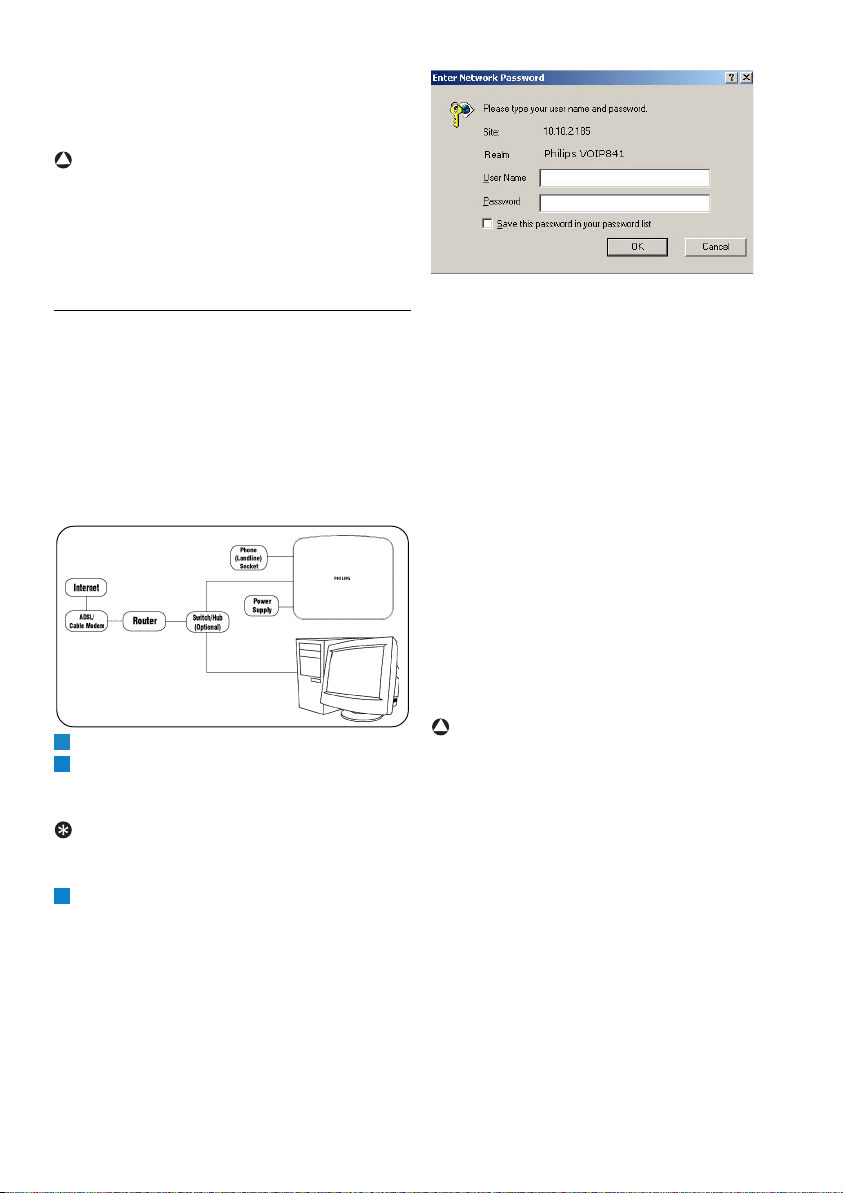
33
Settings
administrative settings from the web page. You
shall not need to configure most of these settings
after setting up the phone. This section is
recommended for advanced users only.
Warning
Incorrect network settings will affect Skype usage
on this phone. We recommend that you consult
your network administrator or service provider
before making any changes to the network
settings.
8.9.1 Access the Web page
Minimum system requirement:
• VOIP841 set
• Computer with a web browser
•Router
• Internet connection
Make sure your phone is properly connected and
set up sharing the same network with your
computer as shown below.
Open a Web browser.
Enter your phone's IP address at the address
bar.
• An authentication window pops out.
Tip
To find your phone's IP address, see “View your
network setting”, page 32.
Enter the user name and password.
The default user name is philips and
the default password is voip841.
After verifying your user name and password, you
will see the configuration home page (see next
page).
The home page
The home page shows your current system and
network settings.
The network page
The network page shows your current internet
connection type and Ethernet speed. You can
make changes to these settings on this page.
The Skype page
The Skype page shows your current Skype status.
You can create a new Skype account or sign in to
Skype from this page.
The system page
You can upgrade your phone's operating system
from this page. You will first need to download
the latest software image from the Philips
Consumer Electronics web page, philips.com.
Warning
System upgrade must not be interrupted. During
system upgrade, make sure your base unit is
powered on at all times. Interrupting the upgrade
process will cause your phone to become non-
functional. Contact your Service Center if your
phone has become non-functional.
The administration page
You can change the web page access password on
this page. You can also reset your phone to
factory default feature and network settings.
!
1
2
3
!
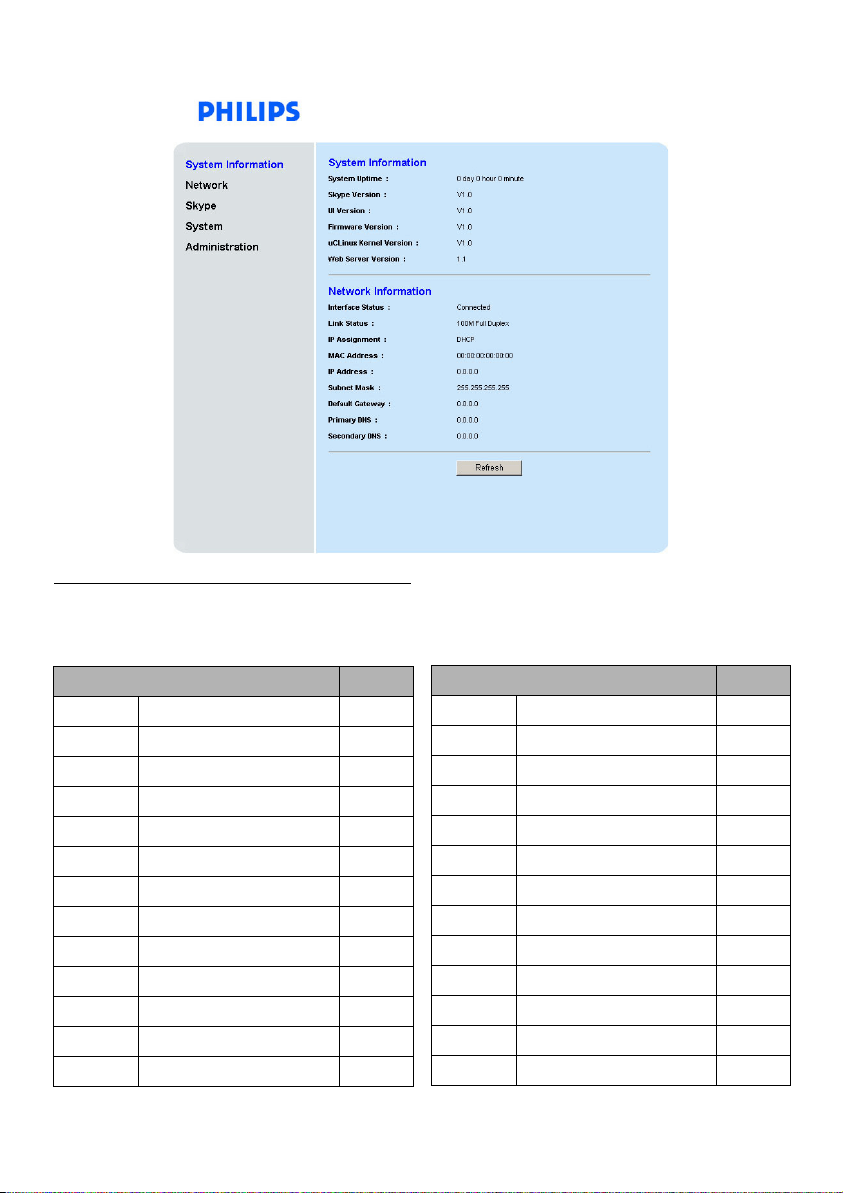
34
Settings
8.10 Country codes list
The country code is the international calling code
for a country, see page 10 and page 30 for details.
Abbreviation - Country Code
AU Australia 61
AT Austria 43
BE Belgium 32
CA Canada 1
CZ Czech Republic 420
DK Denmark 45
FI Finland 358
FR France 33
DE Germany 49
GR Greece 30
IE Ireland 353
IT Italy 39
LU Luxembourg 352
Abbreviation - Country Code
NL Netherlands 31
NZ New Zealand (Aotearoa) 64
NO Norway 47
PL Poland 48
PT Portugal 351
RO Romania 40
SK Slovak Republic 421
ES Spain 34
SE Sweden 46
CH Switzerland 41
TR Turkey 90
GB United Kingdom 44
US United States 1
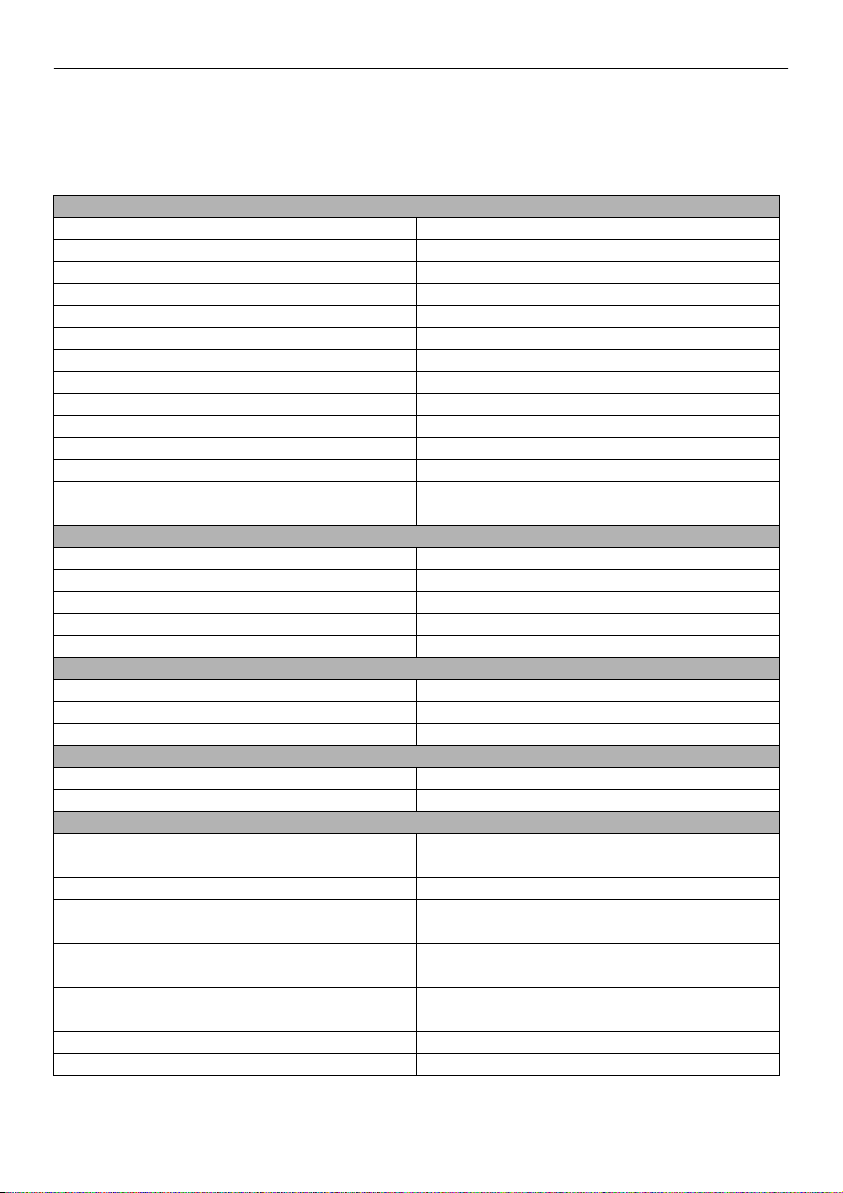
35
Default settings
9 Default settings
These are the factory pre-programmed settings of your phone.
General Setting
Language Language 1 Time Zone GMT
Date Jan 1 2006 Time 12:00 AM
Date Format Country 1 Time Format Country 1
Date Separator Country 1 Time Separator Country 1
Backlit 1 minute Auto Answer OFF
LCD Contrast Mid Level LCD Brightness Mid Level
Preferred Line Always Ask Auto Sign in Yes
Dial Mode Country 1 Category Number OFF
Recall Recall one Pause Selection Pause one
Area Code number Empty Skype User Name Empty
Skype Password Empty Time out 1 minute
Auto Update No VMWI indication Reset
CID format
(if applicable)
Disabled
Sound Setting
Skype Ring Melody Melody 2 Landline Ring Melody Melody 1
SkypeIn Ring Melody Melody 1 Intercom Ring Melody Melody 1
Ring Volume Volume 3 Receiver Volume Volume 3
Ring Type Ringer ON Notification Tone ON
Keypad Tone ON Confirmation Tones ON
Call History Setting
All Calls List Keep all Incoming Call List Keep all
Missed Call List Keep all Outgoing Call List Keep all
Voicemail Indicator Reset
System Setting
PIN Code 0000 Base Selection Auto
Country Reset
Network Setting
DHCP Enabled Network Proxy
Option Auto detect
Network Proxy Host Auto detect Network Proxy Port Auto detect
Proxy Authentication Disabled Authentication User
Name Empty
Authentication
Password Empty
Application Port Skype default
Alternate Application
Ports Skype default
IP address DHCP
Subnet mask DHCP Default gateway DHCP
Primary DNS DHCP Secondary DNS DHCP

36
Menu structure
10 Menu structure
The table below describes the menu tree of your phone.
Reminder: Press to enter the main menu.
Use (Up or Down) to navigate the menus.
Press to exit from any menu instantly.
*This menu only applies to a certain model or country group.
Contacts History Status Add Contact
Options
Call
Send voicemail
View profile
Rename
Remove
Block
Request detail
All calls
Missed calls
Incoming calls
Outgoing calls
Voicemails
New contact
Change status
My profile
Sign out
Skype
SkypeOut
Search Services Settings
Enter name Skype credit
SkypeIn
Voicemail
General
Call settings
Privacy
Tones
Screen
Time & Date
Network
Handset
Information
Advanced
Menu

37
Technical data
11 Technical data
Display
• High quality 1.5" display
• 65k colors
• 128 x 128 pixels
• Progressive LCD backlight
General telephone features
• Caller name & number identification
• Skype and Landline calls
• Skype and Landline voicemails
• Ring profiles
Contacts list and Call history list
• 500 Skype and SkypeOut contacts
• Call history list with 50 missed calls,
50 incoming calls, 20 outgoing calls
Battery
• 2 x AAA NiMH 750mAh batteries
Weight and dimensions
• Handset: 140 grams
151.7 x 28.3 x 45.7 mm (H x D x W)
• Base: 240 grams
113.5 x 53 x 135 mm (H x D x W)
Temperature range
• Operation: 0°C to +46°C
• Storage: -25°C to +70°C
Relative humidity
• Operation: Up to 95% at 40°C
• Storage: Up to 95% at 40°C

38
Frequently asked questions
12 Frequently asked questions
In this chapter you will find the most frequently
asked questions and answers about your phone.
Set up
The handset does not switch on.
• Charge the battery: Put the handset on
charger. The battery icon is animated while
charging. After a few moments the phone will
switch on.
The handset does not charge.
• Check charger connections.
• The battery may be defective. Purchase new
battery from your dealer.
• Check that the batteries are inserted correctly.
Communication is lost during a call.
• Charge the battery.
• Move closer to the basestation.
“Range” icon is flashing
• Move closer to the basestation.
• If the handset displays Unregistered, it is un-
registered. Register the handset, see page 11.
No dial tone on landline.
• Check the phone and power connections.
• The handset may be out of range. Move closer
to the basestation.
• The battery capacity may be low. Charge
battery.
Sound
Handset does not ring.
Check that the handset ringer is turned on. See
page 27.
Caller does not hear me.
Microphone may be muted: during call, press
to unmute the microphone.
No parking tone from the handset.
• Check the power connections of the charger.
• The handset may not be placed properly. Try
again.
• Charging contacts may be dirty. Clean contacts
with a damp cloth.
• Turn on the handset tone. See page 27.
• Switch on the handset's power. See page 11.
Product behaviour
Keypad does not work.
Unlock your keypad: press and press
to unlock.
The handset warms up when making a long
call.
This is normal behavior. The handset consumes
energy while calling.
Bad audio quality (crackles, echo, etc.)
during a call
• The handset may be nearly out of range. Move
closer.
• The phone may be interfered by nearby
electrical appliance. Move the base unit to a
different location.
• The phone may be at a location with thick
walls. Move the base unit to a different
location.
Caller ID does not display
• Caller ID service may not be activated. Check
with your service provider.
• The caller's information may be withheld or is
unavailable.
Make/answer a second call does not work.
• Second call service may not be activated. The
second call service may not be available from
your telephone operator, check availability of
the service with your telephone service
provider.
• Check that the recall selection is correct. See
page 29.
Unlock

39
VOIP841 Glossary
13 VOIP841 Glossary
Area Code
Area codes usually indicate geographical areas
within one country that are covered by one or
more telephone exchanges. You may need this to
return local, national or international calls
received on the landline (for example, area code
20 is added in front of the local number if you are
calling to London from outside of the London
area in UK).
Country Code
This is the international calling code for your
country (for example, 1 for US, 44 for UK or 33
for France).
Proper country code entry is required to ensure
landline functionality configured to correspond to
your country.
DHCP
Dynamic Host Configuration Protocol
(automating the configuration of devices that use
TCP/IP).
DNS
Domain Name System (an Internet service that
translates domain names into IP addresses.
Example: domain name www.example.com may
translate to 198.103.243.5).
Gateway Address
A default gateway is a router on a computer
network that serves as an access point to another
network.
In homes, the gateway is the ISP that connects the
user to the Internet.
IP Address
A unique number that devices use for
identification and communication purpose with
each other on a network utilizing the Internet
Protocol standard.
LCD
Liquid Crystal Display (a thin, flat display device
made up of any number of color or monochrome
pixels)
Ports
A port is an endpoint to a logical connection. Port
numbers range from 0 to 65536. (Example: ftp
uses port 21).
PPPoE
Point-to-Point Protocol Over Ethernet (used
mainly in ADSL services).
Proxy Server
A device that offers a network service to allow
clients to make indirect network connections to
other network services.
Static IP Address
A constant IP address used to identify semi-
permanent devices such as servers.
Subnet Mask
A mask used to determine what subnetwork an IP
address belongs to. (Example: 255.255.255.0).
VMWI
Voice Mail Waiting Indication (for Landline only).
A
AC
D
FG
FGI
FGIL
FGILP
DS
DSV

40
Index
14 Index
Add a contact 22
Add a Skype contact 22
Add a SkypeOut contact 22
Add an email address 25
Additional base, register 30
Agreement 10
Answer a call 17
Area code management 27
Area code, set 10
Assign a preferred line 16
Auto answer 27
Backlit, set 26
Base unit, select 30
Base, overview 7
Batteries 9, 37
Battery level 10
Block / un-block a contact 23
Brightness, adjust 26
Call another handset 19
Call features 27
Call forward 28
Call from SkypeOut 16
Call from the Call History 17, 23
Call from the contact list 17
Call from the landline 16
Call from the outgoing call list 17
Call History 23
Call in progress 18
Call transfer 19
Category number 29
Charger 9
Clear the voicemail indicator 21
Clock, set 11
Conference Calls 19
Configure a static IP 32
Configure individual network settings 32
Confirmation tones, set 27
Conformity 4
Connect the base 9
Connect the charger 9
Contact information 43
Contact List 21
Contrast, adjust 26
Country code, set 30
Country codes list 34
Country, select 10
Date format, select 12
Date separator, set 12
Date, set 12
Daylight time, set 12
Default settings 35
Delete a Skype voicemail 21
Delete call record(s) 24
Delete characters 24
Delete the service provider number 21
DHCP 32
Dial mode 29
Digital security system 3
Display icons 7
Display language, set 26
Disposal 4
Do not disturb 28
Earpiece volume, adjust 18
Edit the service provider number 21
Email address 25
End a call 17
Frequently asked questions 38
Glossary 39
Handset ON/OFF 11
Handset, charge 9
Handsfree ON / OFF 18
Headset 19
Hearing aid compatibility (HAC) 3
A
B
C
D
E
F
FG
H

41
Index
Insert the batteries 9
Intercom 19
Internal call during an external call 19
Keypad lock 30
Keypad tone, set 27
Landline ringer, turn off 18
Landline Voicemail indication 21
Language, set 10
Listen to “My Greeting” 20
Make a call 16
Menu operation 8
Menu structure 36
Mute / Unmute the microphone 18
Network settings 31
Noise 4
Notification tones, set 27
Pause duration 29
Phone, overview 6
Power requirements 3
PPPoE 32
Preferred line, Skype 28
Privacy, Skype 28
Private details, Skype 25
Public details 25
Recall duration 29
Record “My Greeting” 20
Recycling 4
Redial the last number 17
Register the handset 11
Register your handset(s) with additional base 30
Remove a contact 23
Rename a contact 22
Reset “My Greeting” 20
Reset the default settings 31
Reset the Network 32
Retrieve voicemail(s) 20, 21
Return a call 20
Ringer melody, set 26
Ringer style, set 27
Ringer volume, set 26
Ringers, turn off 17
Save a Skype contact 24
Search a contact 22
Search missing handset(s) 30
Second landline call 18
Second Skype call 18
Send a Skype voicemail 20, 23
Settings before first use 10
Sign in 14
Signal stength, verify 11
Skype password, change 15
Skype products 14
Skype profile 25
Skype status, change 15
Skype terminologies 14
Skype Tools 14
Skype user, find 22
Skype Voicemail™ 14, 20
Skype® and Skype tools 14
SkypeIn™ with free Skype Voicemail™ 14
SkypeOut credits, verify 15
SkypeOut™ 14
Software licences 4
Standby mode 10
Symbols, enter 24
System PIN, change 31
Technical data 37
Text and number entry 24
Time format, select 12
Time separator, select 12
Time zone, select 12
Time, set 12
Turn off ringers 17
Unregister a handset 31
Update Skype software 15
I
K
L
M
N
P
R
S
T
U