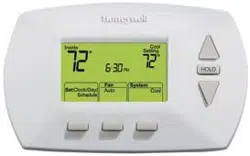
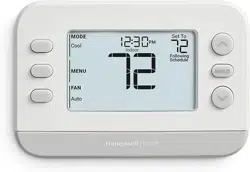
Removing your old thermostat
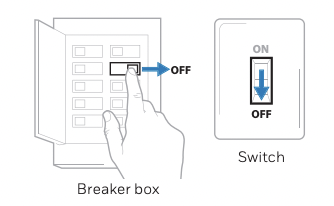
1 Turn power OFF.
 To protect yourself and your equipment, Turn off the power at the breaker box or switch that controls your heating/cooling system.
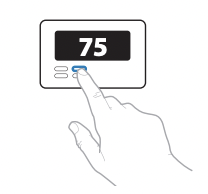
2 Check that your system is off.
Change the temperature on your old thermostat. If you don’t hear the system turn on within 5 minutes, the power is off.
Note: If you have a digital thermostat that has a blank display, skip this step
3 Remove the old thermostat’s faceplate.
On most thermostats, you can take off the faceplate by grasping and gently pulling. Some thermostats may have screws, buttons, or clasps.
Do not remove any wires from your thermostat at this time!
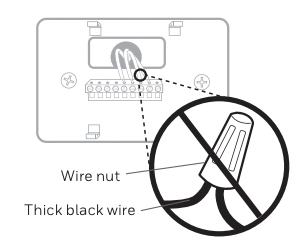
4 Make sure there are no 120/240V wires.
Do you have thick black wires with wire nuts?
Is your thermostat 120V or higher? If you answered yes to either of these questions, you have a line voltage system and the thermostat will not work.
5 Take a picture of how your wiring looks right now.
Be sure to include the letters next to the terminals where the wires are inserted. This will be a helpful reference when wiring your thermostat.
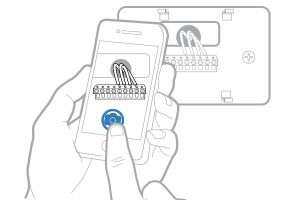
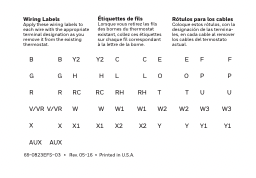
Tip: If the color of your wires has faded or if 2 terminals have the same wire color, use the wire labels provided in the package to label each wire.
6 Record if you have wires in the following terminals. Do not include jumpers as a part of your count. The thermostat does not need jumpers.
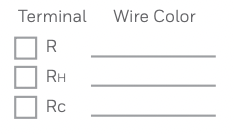
7 Write down the color of the wires.
Check mark the wires that are connected to terminals. Next to the check mark, write down the color of the wire. Do not include jumpers as a part of your count.
Check all that apply (Not all will apply):
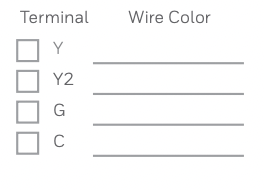
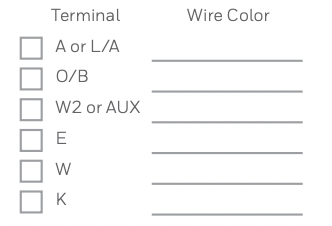
The RTH8500 thermostat does not support S or U terminals.
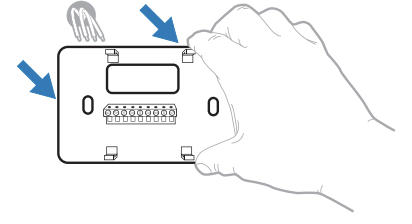
8 Disconnect the wires and remove the old wall plate.
Use a screwdriver to release wires from terminals. Then, use a wire label to identify each wire as it’s disconnected. The letter on the wire label should match the letter on the terminal.
Tip: To prevent wires from falling back into the wall, wrap the wires around a pencil.
Installing your RTH8500 thermostat
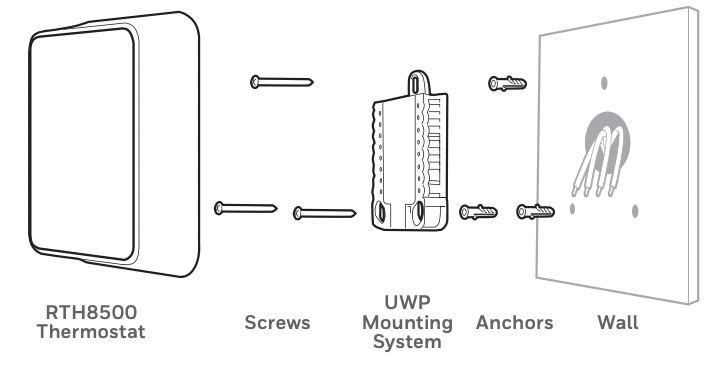
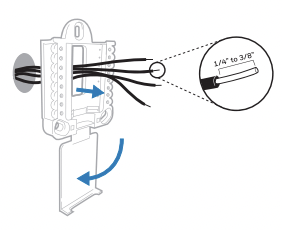
9 Bundle and insert wires through the UWP.
Pull open the UWP and insert the bundle of wires through the back of the UWP. Make sure at least 1/4-inch of each wire is exposed for easy insertion into the wire terminals.
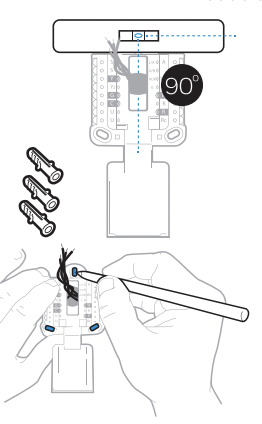
10 Insert the wall anchors.
It is recommended that you use the wall anchors included in the box to mount your thermostat. You can use the UWP to mark where you want to place the wall anchors.
a) Level the wall plate.
b) Mark the location of the wall anchors using a pencil.
c) Drill the holes.
d) Insert wall anchors.
e) Make sure anchors are flush with wall.
Tip: If your box contains red anchors, drill 7/32” holes. If your box contains yellow anchors, drill 3/16” holes.
11 Set R-switch position and insert R-wire or wires.
Set the R-switch up or down based on your wiring notes in Step 7.
Insert wires into the inner holes of the terminals on the UWP. The tabs will stay down once the wire is inserted.
If you have 1 R-wire (R,Rh, or Rc)
 1. Set R-switch to the up position.
 2. Insert your R-wire (R, Rh or Rc) into R-terminal.
or If you have 2 R-wires (R or Rh, and Rc)
 1. Set R-switch to the down position.
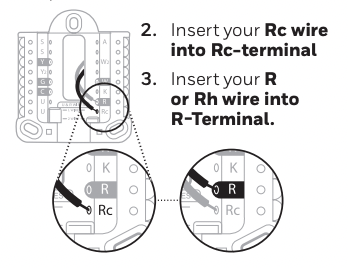
2. Insert your Rc wire into Rc-terminal
3. Insert your R or Rh wire into R-Terminal.
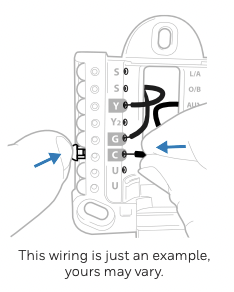
12 Connect wires from Step 7.
Depress the tabs to put the wires into the inner holes of their corresponding terminals on the UWP (one wire per terminal) until it is firmly in place. Gently tug on the wires to verify they are secure.
Tip: If you need to release the wires again, push down the terminal tabs on the sides of the UWP
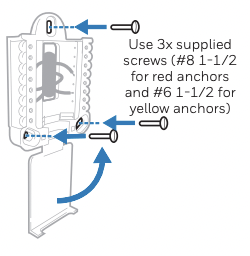
13 Mount the UWP and close the door.
Mount the UWP using the provided screws. Install all three screws into the wall anchors for a secure fit on your wall. Close the door after you’re finished.
14 Confirm wiring matches snapshot.
Please confirm wiring matches terminals from the photo you took in Step 5.
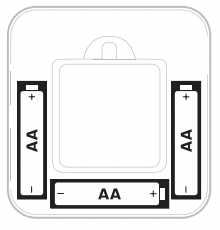
15 Install batteries.
Insert three AA alkaline batteries in the back of the thermostat as shown.
NOTE: The RTH8500 thermostat works in battery mode or normal power mode if a C-wire is available.
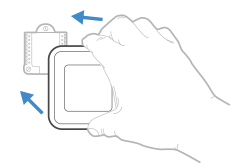
16 Attach your thermostat.
Align the thermostat onto the UWP and firmly snap it into place.
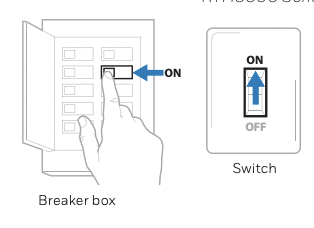
17 Turn your power ON.
Turn on the power at the breaker box or switch that controls the heating/ cooling system.
18 Return to the thermostat
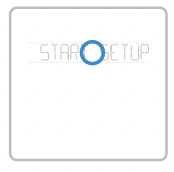
Return to the thermostat. Confirm the screen shows START SETUP. If your thermostat does not show START SETUP, please contact Honeywell Home support.
19 Start setup.
Touch START SETUP to begin
20 Navigate and edit setup options.
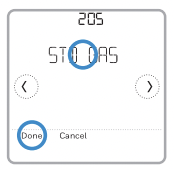
Use the  or to navigate through all the setup options. To see a list of all setup options, go to pages 9-10. To edit an option, touch Edit or touch text area. The value is now blinking. Use or
 to select the correct value. Touch Done or touch text area once the correct value is selected.
21 Finish setup.
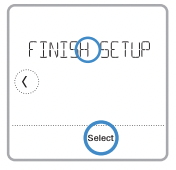
Touch until you see FINISH SETUP. Touch Select or touch text area.
22 Set time and date.
Set daylight saving time if you are in an area that follows daylight saving time. Set date, clock format, and time on the next screens.
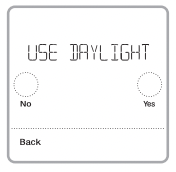
23 Your thermostat is now setup.
Refer to page 8 for more information about basic operation.
Key features
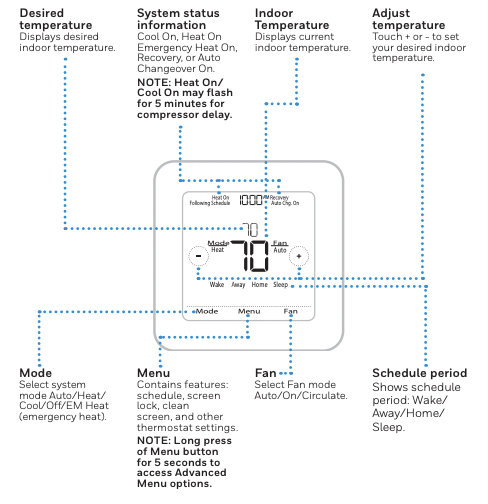
System Setup options
To access all system options in the table below, press and hold MENU for 5 seconds. Touch or to scroll through the list.
Number : 120
Description Scheduling Options
Options (factory default in bold)
- 0 = Non-Programmable
- 1 = 1-Week Programmable
- 2 = 5-2 Programmable
- 3 = 5-1-1 Programmable
- 4 = 7-Day Programmable
- Note: You can change default MO-FR, SA-SU schedule here. To edit periods during days, temperature setpoints, or to turn Schedule On/Off, touch MENU and go to SCHEDULE.
Number: 125
Description Temperature Indication Scale
Options (factory default in bold)
- 0 = Fahrenheit
- 1 = Celsius
Number: 200
Description Heating System Type
Options (factory default in bold)
- 1 = Conventional Forced Air Heat
- 2 = Heat Pump
- 3 = Radiant Heat (Boiler)
- 5 = None (Cool Only)
- Note: This option selects the basic system type your thermostat will control.
Number: 205
Description Heating Equipment Type
Options (factory default in bold)
Conventional Forced Air Heat:
- 1 = Standard Efficiency Gas Forced Air
- 2 = High Efficiency Gas Forced Air
- 3 = Oil Forced Air
- 4 = Electric Forced Air
- 5 = Hot Water Fan Coil Heat Pump:
- 7 = Air to Air Heat Pump
- 8 = Geothermal
Radiant Heat:
- 9 = Hot Water Radiant Heat
- 12 = Steam
- Note: This option selects the equipment type your thermostat will control.
- Note: This feature is NOT displayed if feature 200 is set to Cool Only
Number: 218
Description Reversing Valve O/B
Options (factory default in bold)
- 0 = O (O/B in Cool)
- 1 = B (O/B in Heat)
- Note: This option is only displayed if the Heat Pump configured. Select whether reversing valve O/B should energize in cool or in heat.
Number: 220
Description Cool Stages / Compressor Stages 200=Conv / 200=HP
Options (factory default in bold)
- 0, 1, 2
- Note: Select how many Cool or Compressor stages of your equipment the thermostat will control. Maximum of 2 Cool/Compressor Stages. Set value to 0 if you do not have Cool Stage/ Compressor Stage.
Number: 221
Description Heat Stages / Backup Heat Stages Heat Stages
Options (factory default in bold)
- Heat Stages: 1, 2
- Backup Heat Stages: 0, 1
- Note: Select how many Heat or Aux/E stages of your equipment the thermostat will control. Maximum of 2 Heat Stages for conventional systems. Maximum of 1 Aux/E stage for systems with more than 1 heating equipment type. Set value to 0 if you do not have Heat Stage/Backup Heat Stage.
Number: 230
Description Fan Control
Options (factory default in bold)
- 1 = Equipment
- 2 = Thermostat
- Note: This ISU is only displayed if ISU 205 is set to Electric Forced Air or Fan Coil.
Number: 300
Description System Changeover
Options (factory default in bold)
- 0 = Manual
- 1 = Automatic
- Note: Thermostat can automatically control both heating and cooling to maintain the desired indoor temperature. To be able to select “automatic” system mode on thermostat home screen, turn this feature ON. Turn OFF if you want to control heating or cooling manually
Number: 303
Description Auto Differential
Options (factory default in bold)
- 0 °F to 5 °F or 0.0 °C to 2.5 °C
- Note: Differential is the minimum number of degrees rise or fall required during off cycle to switch from the last active mode (heat or cool) to the opposite mode when the thermostat is in auto-changeover. Differential is NOT deadband. The deadband temperature between when heating (or cooling) cycles on and cycles off to maintain setpoint is not adjustable. Honeywell Home uses an algorithm that fixes deadband at 0 °F
Number: 365
Description Cool 1 CPH (Cooling cycle rate stage 1)
Options (factory default in bold)
- 1 - 6 CPH (3 CPH)
- Note: This ISU is only displayed when Cool /Compressor Stages is set to 1 or more stages. Cycle rate limits the maximum number of times the system can cycle in a 1 hour period measured at a 50% load. For example, when set to 3 CPH, at a 50% load, the most the system will cycle is 3 times per hour (10 minutes on, 10 minutes off). The system cycles less often when load conditions are less than or greater than a 50% load.
Number: 366
Description Cool 2 CPH (Cooling cycle rate stage 2)
Options (factory default in bold)
- 1 - 6 CPH (3 CPH)
- Note: This ISU is only displayed when Cool /Compressor Stages is set to 2.
Number: 370
Description Heat 1 CPH (Heating cycle rate stage 1)
Options (factory default in bold)
- 1 - 12 CPH
- Note: This ISU is only displayed when Heat Stages is set to 1 stage or more stages. Cycle rate limits the maximum number of times the system can cycle in a 1 hour period measured at a 50% load. For example, when set to 3 CPH, at a 50% load, the most the system will cycle is 3 times per hour (10 minutes on, 10 minutes off). The system cycles less often when load conditions are less than or greater than a 50% load. The recommended (default) cycle rate settings are below for each heating equipment type:
- Standard Efficiency Gas Forced Air = 5 CPH; High Efficiency Gas Forced Air = 3 CPH; Oil Forced Air = 5 CPH; Electric Forced Air = 9 CPH; Fan Coil = 3 CPH; Hot Water Radiant Heat = 3 CPH; Steam = 1 CPH.
Number: 371
Description Heat 2 CPH (Heating cycle rate stage 2)
Options (factory default in bold)
- 1 - 12 CPH
- Note: This ISU is only displayed when Heat Stages is set to 2 stages. The recommended (default) cycle rate settings are below for each heating equipment type:
- Standard Efficiency Gas Forced Air = 5 CPH; High Efficiency Gas Forced Air = 3 CPH; Oil Forced Air = 5 CPH; Electric Forced Air = 9 CPH; Fan Coil = 3 CPH; Hot Water Radiant Heat = 3 CPH; Steam = 1 CPH.
Number: 375
Description Aux Heat CPH (Heating cycle rate Auxiliary Heat)
Options (factory default in bold)
- 1 - 12 CPH
- Note: This ISU is only displayed when ISU 200 = Heat Pump and ISU 221=1. It is only displayed when Auxiliary Heat is configured. The recommended cycle rate settings are below for each heating equipment type:
- Standard Efficiency Gas Forced Air = 5 CPH; High Efficiency Gas Forced Air = 3 CPH; Oil Forced Air = 5 CPH; Electric Forced Air = 9 CPH.
Number: 425
Description Smart Response
Options (factory default in bold)
- 0 = No
- 1 = Yes
- Note: Smart Response is a comfort setting. Heat or Cooling equipment will turn on earlier, ensuring the indoor temperature will match the setpoint at the scheduled time. See page 16.
Number: 430
Description Minimum Cool Temperature Setpoint
Options (factory default in bold)
- 50 °F to 99 °F (50 °F)
- 10.0 °C to 37.0 °C (10.0 °C)
- Note: The cool temperature cannot be set below this level.
Number: 431
Description Maximum Heat Temperature Setpoint
Options (factory default in bold)
- 40 °F to 90 °F (90 °F) 4.5 °C to 32.0 °C (32.0 °C)
- Note: The heat temperature cannot be set above this level.
Number: 702
Description Air Filters
Options (factory default in bold)
- 0 - 1
- Note: This ISU refers to the number of air filters in the system
Number: 711
Description Air Filter 1 Replacement Reminder
Options (factory default in bold)
- 0 = Off
- 1 = 10 Run Time Days
- 2 = 20 Run Time Days
- 3 = 30 Run Time Days
- 4 = 45 Run Time Days
- 5 = 60 Run Time Days
- 6 = 90 Run Time Days
- 7 = 120 Run Time Days
- 8 = 150 Run Time Days
- 9 = 30 Calendar Days
- 10 = 45 Calendar Days
- 11 = 60 Calendar Days
- 12 = 75 Calendar Days
- 13 = 3 Calendar Months
- 14 = 4 Calendar Months
- 15 = 5 Calendar Months
- 16 = 6 Calendar Months
- 17 = 9 Calendar Months
- 18 = 12 Calendar Months
- 19 = 15 Calendar Months
- Note: Set a reminder for when to change your air filter. Choose either calendar or equipment run time-based reminder.
Number: 1401
Description Idle Brightness
Options (factory default in bold)
- 0= Off, 0 - 5
- Note: Adjust brightness of an inactive backlight (idle screen) from default 0 (backlight off) to 5 (maximum brightness). Common wire required for settings 1-5.
Number: 1410
Description Clock Format
Options (factory default in bold)
Number: 1415
Description Daylight saving time
Options (factory default in bold)
- 0 = Off
- 1 = On
- Note: Set to Off in areas that do not follow Daylight Saving Time.
NOTE: Once you have cycled through all of the System Setup numbers, Done is displayed. Press Select to save and exit.
System operation settings
1 Press the Mode button to cycle to the next available System mode.
2 Cycle through the modes until the required System mode is displayed and leave it to activate
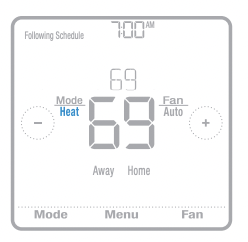
NOTE: Available System modes vary by model and system settings.
System modes:
‒ Auto: Thermostat selects heating or cooling as needed.
‒ Heat: Thermostat controls only the heating system.
‒ Cool: Thermostat controls only the cooling system.
‒ Em Heat (only for heat pumps with auxiliary heat): Thermostat controls Auxiliary Heat. Compressor is not used.
‒ Off: Heating and cooling system is off. Fan will still operate if fan is set to On or Circulate.
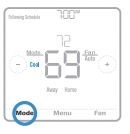
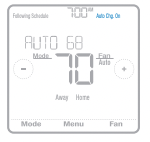
Fan operation settings
1 Press the Fan button to cycle to the next available Fan mode.
2 Cycle through the modes until the required Fan mode is displayed and leave it to activate.
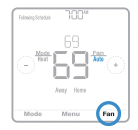
NOTE: Available Fan modes vary with system settings.
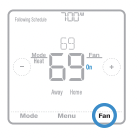
Fan modes:
‒ Auto: Fan runs only when the heating or cooling system is on.
‒ On: Fan is always on.
‒ Circ: Fan circulates randomly about 33% of the time.
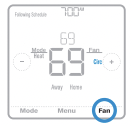
Program Schedule
You can program four time periods each day, with different settings for weekdays and weekends. We recommend the pre-set settings (shown in the table below), since they can reduce your heating/cooling expenses.
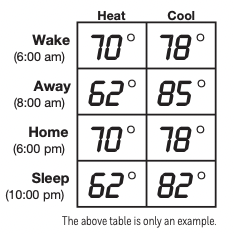
- Wake - Set to the time you wake up and the temperature you want during the morning, until you leave for the day.
- Away - Set to the time you leave home and the temperature you want while you are away (usually an energy-saving level).
- Home - Set to the time you return home and the temperature you want during the evening, until bedtime.
- Sleep - Set to the time you go to bed and the temperature you want overnight (usually an energysaving level).
NOTE: To temporarily or permanently override any of the above program schedules, see page 13.
To adjust program schedules
1 Touch Menu on the thermostat home screen.
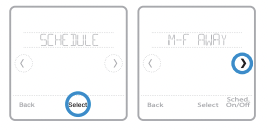
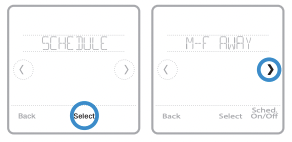
2 Touch the or arrows until you see SCHEDULE, then touch Select.
3 Touch the  or
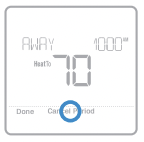
or arrows to select a period in a day or set of days, then touch Select on the period you want to edit. (You can only edit a period of days according to the schedule type selected. To change schedule type, see setup # 120 on page 9.)
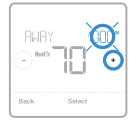
4 Touch the time area, then touch or to adjust when the period starts. Touch Select to confirm.
5 Touch the temperature area, then touch or
or to adjust your preferred temperature for the mode that’s currently active (either heating or cooling). Touch Select to confirm. Then touch or to adjust your preferred temperature for the inactive mode. Touch Select to confirm.
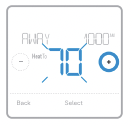
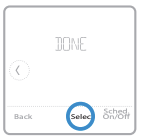
6 Edit the next period or use the until you see Done, then press Select to save changes and go to the home screen.
Schedule overrides
Hold Until (temporary hold): Overrides the current temperature setpoint for a maximum of 12 hours. You might use this feature to hold a temperature until a specific time.
Permanent hold: Overrides the current temperature set point permanently until you manually change it or reactivate a schedule.
Program schedule override (temporary)
1 Touch or on the thermostat home screen to set your desired temperature. Hold Until will appear together with the time the hold will end.
2 To change when the hold will end, touch the time and wait until the time starts blinking. Then, touch or to set when you want the hold to end. Touch Hold Until once more to confirm changes and return to the home screen.
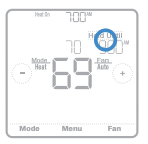
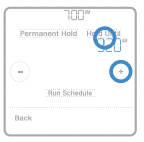
NOTE: After the hold period ends, the thermostat will automatically return to the program schedule. If you want to cancel the hold, touch Hold Until and then touch Run Schedule.
Program schedule override (permanent)
1 Touch or on the thermostat home screen to reach your desired temperature. Hold Until will appear together with the time you want the hold to end.
2 Touch Hold Until. Permanent Hold will appear on screen. Touch Permanent Hold to hold this temperature until you manually change it.
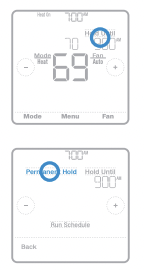
NOTE: To end permanent hold and return to the program schedule, touch Permanent Hold and then touch Run Schedule
Wiring—conventional systems
Alternate wiring (conventional systems)
If labels do not match terminals, connect wires as shown below (see notes, below).
NOTES:
1. If you must connect both R and Rc wires, set the R Slider Tab to the down position (2 wires).
2. If your old thermostat had both R and RH wires, set the R Slider Tab to the down position (2 wires). Then connect the R wire to the Rc terminal, and the RH wire to the R terminal.
3. If your old thermostat had only 1 C or C1 wire, connect it to the C terminal. If your old thermostat had 2 C or C1 wires, wrap each separately with electrical tape and do not connect them.
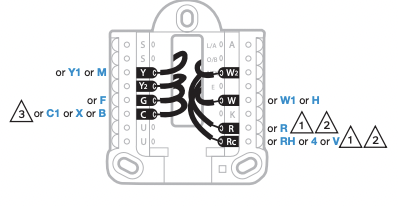
Wiring—heat pump
Connect wires: heat pump
1 Match each labeled wire with same letter on new thermostat.
2 Insert the wires into the matching terminal.
NOTE: If you have difficulty inserting wires, you may have to press down the terminal push button next to the corresponding terminal.
Labels don’t match? If labels do not match the letters on the thermostat, see “Alternate wiring (for heat pumps only)” below.
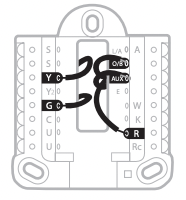
Alternate wiring (for heat pumps only)
NOTES:
1. Keep R Slider Tab in the up position (1 wire).
2. If your old thermostat had both V and VR wires, stop now and contact a qualified contractor for help.
3. If your old thermostat had separate O and B wires, attach the B wire to the C terminal. If another wire is attached to the C terminal, stop now and contact a qualified contractor for help.
4. If your old thermostat had Y1, W1 and W2 wires, stop now and contact a qualified contractor for help.
5. This model doesn’t support the heat pump fault alert (L/A terminal). If this is desired, please contact a contractor for replacement model.
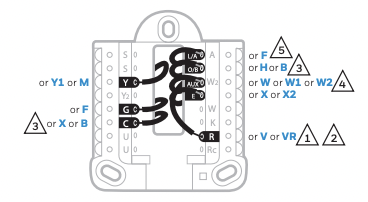
NOTE: Do NOT use W for heat pump applications. Auxiliary heat must wire to AUX or E.
Smart Response® Technology
This feature allows the thermostat to “learn” how long the furnace and air conditioner take to reach programmed temperature settings, so the temperature is reached at the time you set. For example: Set the Wake time to 6 am, and the temperature to 70°. The heat will come on before 6 am, so the temperature is 70° by the time you wake at 6. The message “Recovery” is displayed when the system is activated before a scheduled time period.
Battery replacement

Batteries are required to provide power when common wire is not used. Batteries are recommended to provide backup power if common wire is used. Install fresh batteries immediately when the low battery icon appears. The icon appears about two months before the batteries are depleted.
Even if the low battery icon does not appear, you should replace batteries once a year, or before leaving home for more than a month.
If batteries are inserted within two minutes, the time and day will not have to be reset. All other settings are permanently stored in memory, and do not require battery power.
NOTE: When replacing batteries, alkaline batteries are recommended.
Setting the time and date
Setting the time
1 Touch Menu on the thermostat home screen.
2 Touch the or arrows until you see CLOCK, then touch Select.
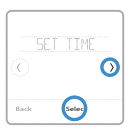
3 Touch the or arrows until you see SET TIME, then touch Select.
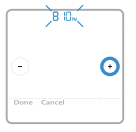
4 Press or to set the time (or press and hold the buttons to move more quickly). Touch Done when finished.
5 Set clock format (12 hours or 24 hours) and daylight saving time in the same CLOCK sub-menu.
Setting the date
1 Touch Menu on the thermostat home screen.
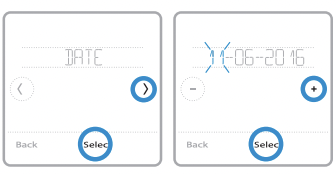
2 Touch the or arrows until you see DATE, then touch Select.
3 Touch or to set the month, then touch Select to confirm.
4 Continue to set day and year in the same way. Touch Select to save your changes.
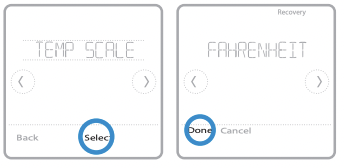
Choosing Fahrenheit or Celsius
To select a temperature scale, follow the steps below.
1 Touch Menu on the thermostat home screen.
2 Touch the or arrows until you see TEMP SCALE, then touch Select.
3 Touch the or arrows to select FAHRENHEIT or CELSIUS then touch Done to save your changes.
4 Touch Back to return to the thermostat home screen.
Alerts and maintenance reminders
1 Touch Menu on the thermostat home screen, then you’ll see the ALERTS submenu. (The ALERTS sub-menu will only be available when there’s an active alert.)
2 Touch Select to view the alert. A 3-digit alert code will appear by the thermostat’s clock and a description of the alert will scroll on the screen.
3 If the alert is non-critical, you’ll have the option to Snooze or Dismiss it. If you have multiple alerts, touch the or arrows to page through the list of active alerts and follow steps 1 and 2 above. To see what each 3-digit alert code means and the action you should take, refer to the chart below.
Number : 170
Alert/Reminder: Internal Memory
Definition : The memory of the thermostat has encountered an error. Please replace the thermostat.
Number : 173
Alert/Reminder: Thermostat Temperature Sensor Error
Definition : The sensor of the thermostat has encountered an error. Please replace the thermostat.
Number : 181
Alert/Reminder: Replace Air Filter (1)
Definition : Replace air filter (1). Reset the timer by touching the "dismiss" button on thermostat screen after it is replaced.
Number : 405
Alert/Reminder: Low Battery Alert
Definition : The batteries are getting low. Replace them within two months
Number : 407
Alert/Reminder: Critical Low Battery
Definition : The batteries are almost depleted and should be replaced as soon as possible.
Troubleshooting
If you have difficulty with your thermostat, please try the following suggestions.
Most problems can be corrected quickly and easily.
Display is blank
- Make sure fresh AA alkaline batteries are properly installed (see page 6).
- If powered by common (C-wire), verify circuit breaker and furnace switch are turned on.
- Verify furnace door is securely closed.
Cannot change system setting to Cool
- Check System Setup Option 220 to make sure the options are set to either 1 or 2 (see page 9).
Fan does not turn on when heat is required
- Check System Setup Option 205 to make sure it is set to match your heating equipment (see page 9).
Heating system is running in cool mode
- Check System Setup Option 200 or 218 to make sure it is set to match your heating and cooling equipment (see page 9).
Heating or cooling system does not respond
- Press System to set system to Heat. Make sure the temperature is set higher than the Inside temperature.
- Press System to set system to Cool. Make sure the temperature is set lower than the Inside temperature.
- Check circuit breaker and reset if necessary.
- Make sure power switch at heating & cooling system is on.
- Make sure furnace door is closed securely.
- Wait 5 minutes for the system to respond.
Heat On / Cool On flashing on the screen
- Compressor protection feature is engaged. Wait 5 minutes for the system to restart safely, without damage to the compressor.
Heat pump issues cool air in heat mode, or warm air in cool mode
Check System Setup Option 200 or 218 to make sure it is set to match your heating and cooling equipment (see page 9).
Aux heat runs in cooling
- For heat pump systems, verify there is not a wire attached to W on UWP systems. See “Wiring—heat pump” on page 15.
Cool runs with a call for heat
- For heat pump systems, verify there is not a wire attached to W on UWP systems. See “Wiring—heat pump” on page 15.