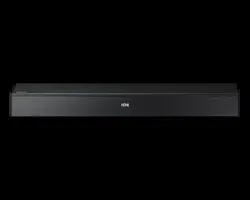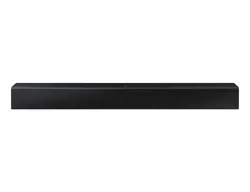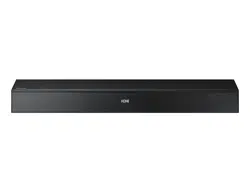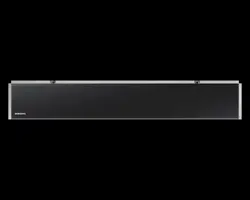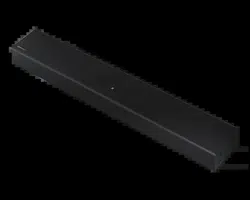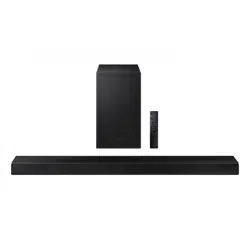

HW-Q600A
FULL MANUAL
Imagine the possibilities
Thank you for purchasing this Samsung product.
To receive more complete service, please register
your product at www.samsung.com/register
ENG - ii
SAFETY INFORMATION
SAFETY WARNINGS
TO REDUCE THE RISK OF ELECTRIC SHOCK, DO
NOT REMOVE THE COVER (OR BACK).
NO USER-SERVICEABLE PARTS ARE INSIDE.
REFER SERVICING TO QUALIFIED SERVICE
PERSONNEL.
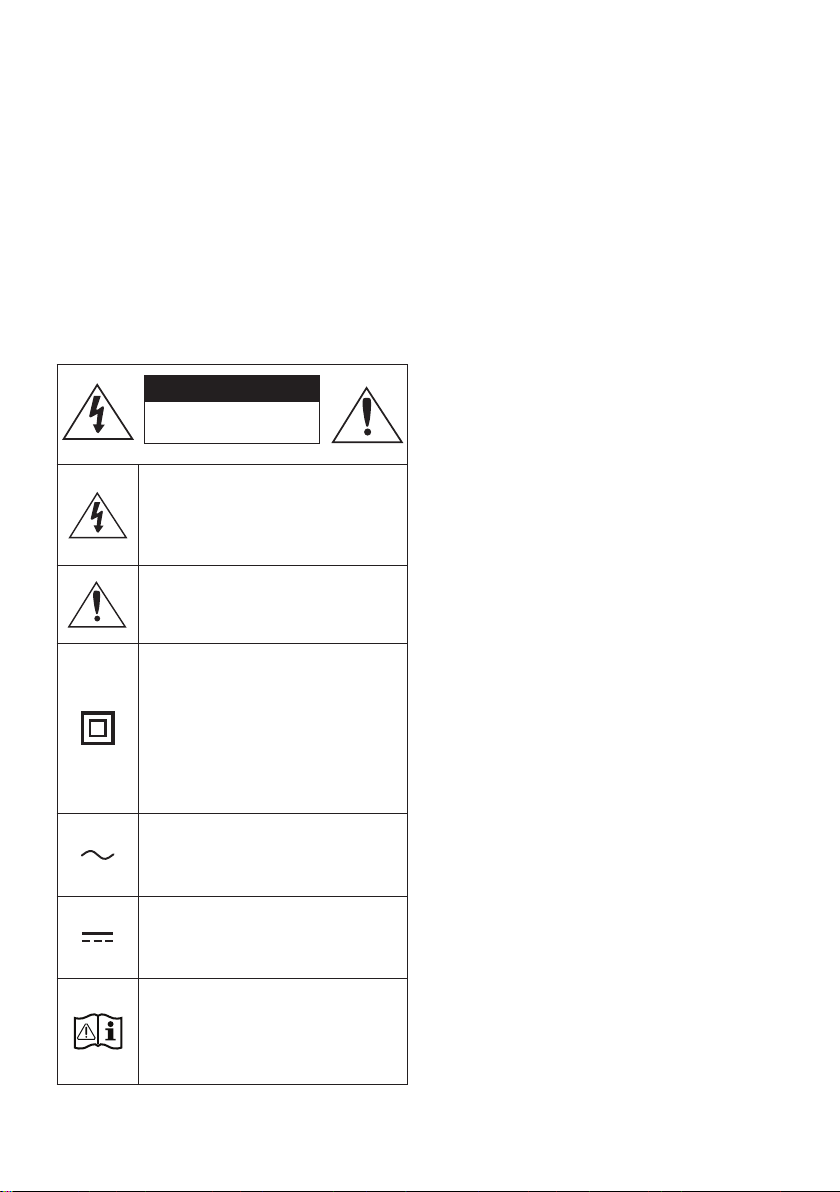
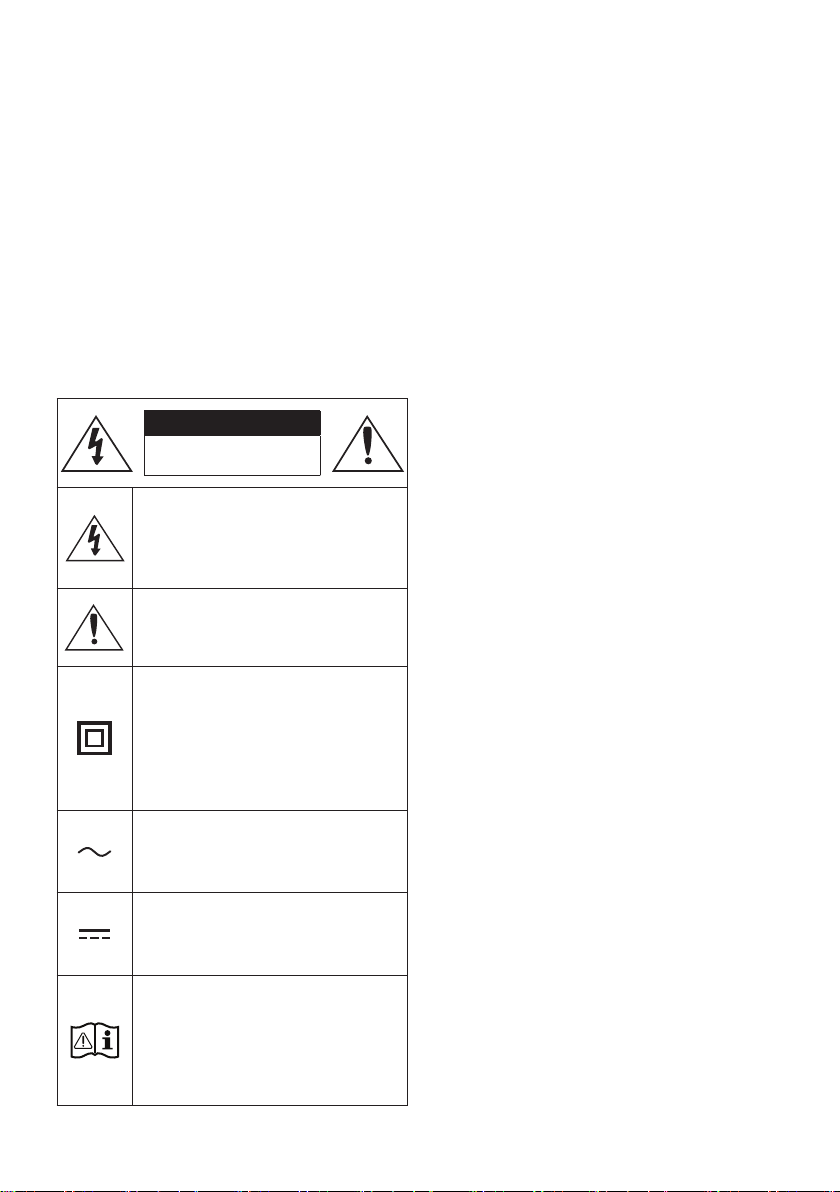
Refer to the table below for an explanation of
symbols which may be on your Samsung product.
CAUTION
RISK OF ELECTRIC SHOCK.
DO NOT OPEN.
This symbol indicates that high voltage
is present inside. It is dangerous to
make any kind of contact with any
internal part of this product.
This symbol indicates that this product
has included important literature
concerning operation and maintenance.
Class II product : This symbol indicates
that it does not require a safety
connection to electrical earth (ground).
If this symbol is not present on a
product with a power cord, the product
MUST have a reliable connection to
protective earth (ground).
AC voltage : This symbol indicates that
the rated voltage marked with the
symbol is AC voltage.
DC voltage : This symbol indicates that
the rated voltage marked with the
symbol is DC voltage.
Caution, Consult instructions for use :
This symbol instructs the user to
consult the user manual for further
safety related information.
WARNING
not expose this appliance to rain or moisture.
CAUTION
TO PREVENT ELECTRIC SHOCK, MATCH WIDE
BLADE OF PLUG TO WIDE SLOT, FULLY INSERT.
This apparatus shall always be connected to a
AC outlet with a protective grounding
connection.
To disconnect the apparatus from the mains,
the plug must be pulled out from the mains
socket, therefore the mains plug shall be
readily operable.
Do not expose this apparatus to dripping or
liquids, such as vases on the apparatus.
To turn this apparatus off completely, you
must pull the power plug out of the wall
socket. Consequently, the power plug must
be easily and readily accessible at all times.
ENG - iii
PRECAUTIONS
1. Ensure that the AC power supply in your
house complies with the power
sticker located on the bottom of your
product. Install your product horizontally, on
a suitable base (furniture), with enough
space around it for ventilation (7~10 cm).
Make sure the ventilation slots are not
or other equipment which may become hot.
This unit is designed for continuous use. To
fully turn off the unit, disconnect the AC plug
from the wall outlet. Unplug the unit if you
intend to leave it unused for a long period of
time.
2. During thunderstorms, disconnect the AC
plug from the wall outlet. Voltage peaks due
to lightning could damage the unit.
3. Do not expose the unit to direct sunlight or
other heat sources. This could lead to
overheating and cause the unit to
malfunction.
4. Protect the product from moisture (i.e.
equipment creating strong magnetic or
the AC wall socket if the unit malfunctions.
Your product is not intended for industrial
use. It is for personal use only. Condensation
may occur if your product has been stored in
cold temperatures. If transporting the unit
during the winter, wait approximately
2 hours until the unit has reached room
temperature before using.
5. The battery used with this product contains
chemicals that are harmful to the
environment. Do not dispose of the battery
in the general household trash. Do not
expose the battery to excess heat, direct
disassemble, or overheat the battery.
CAUTION : Danger of explosion if the battery
is replaced incorrectly. Replace only with the
same or equivalent type.
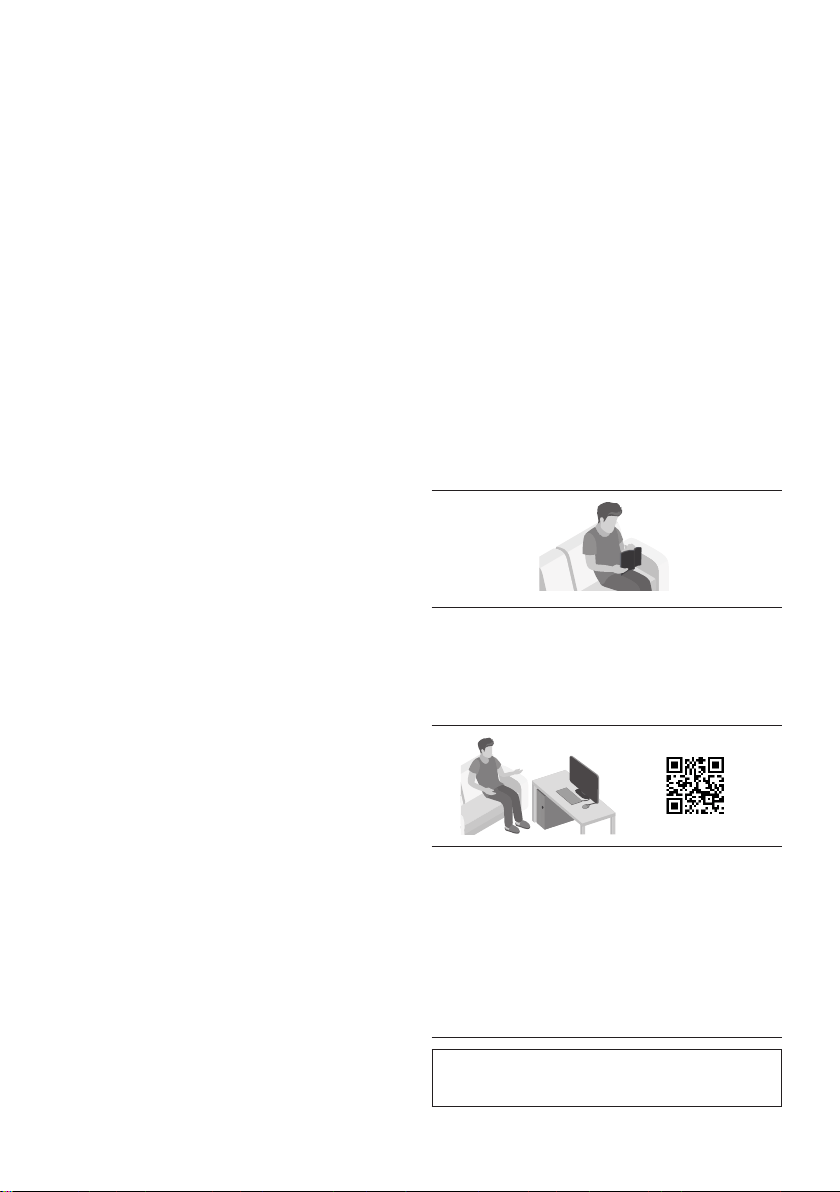
ABOUT THIS MANUAL
The user manual has two parts: simple paper
USER MANUAL and a detailed FULL MANUAL you
can download.
USER MANUAL
See this manual for safety instructions,
product installation, components,
FULL MANUAL
You can access the FULL MANUAL on
Samsung’s on-line customer support centre by
scanning the QR code. To see the manual on
your PC or mobile device, download the
manual in document format from Samsung’s
website. (http://www.samsung.com/support)
without prior notice.

ENG - iv
CONTENTS
01 Checking the Components 2
Inserting Batteries before using the Remote Control (AA batteries X 2) ------------------------- 2
02 Product Overview 3
Front Panel / Top Panel of the Soundbar ------------------------- 3
Bottom Panel of the Soundbar ------------------------- 4
03 Connecting the Soundbar 5
Connecting Electrical Power
-------------------------
5
Connecting the Soundbar to the Subwoofer
-------------------------
6
– Automatic connection between the Subwoofer and the Soundbar
-------------------------
6
– Manually connecting the Subwoofer if automatic connection fails
-------------------------
7
Connecting an SWA-9100S (Sold Separately) to your Soundbar
-------------------------
9
04 Connecting to your TV 11
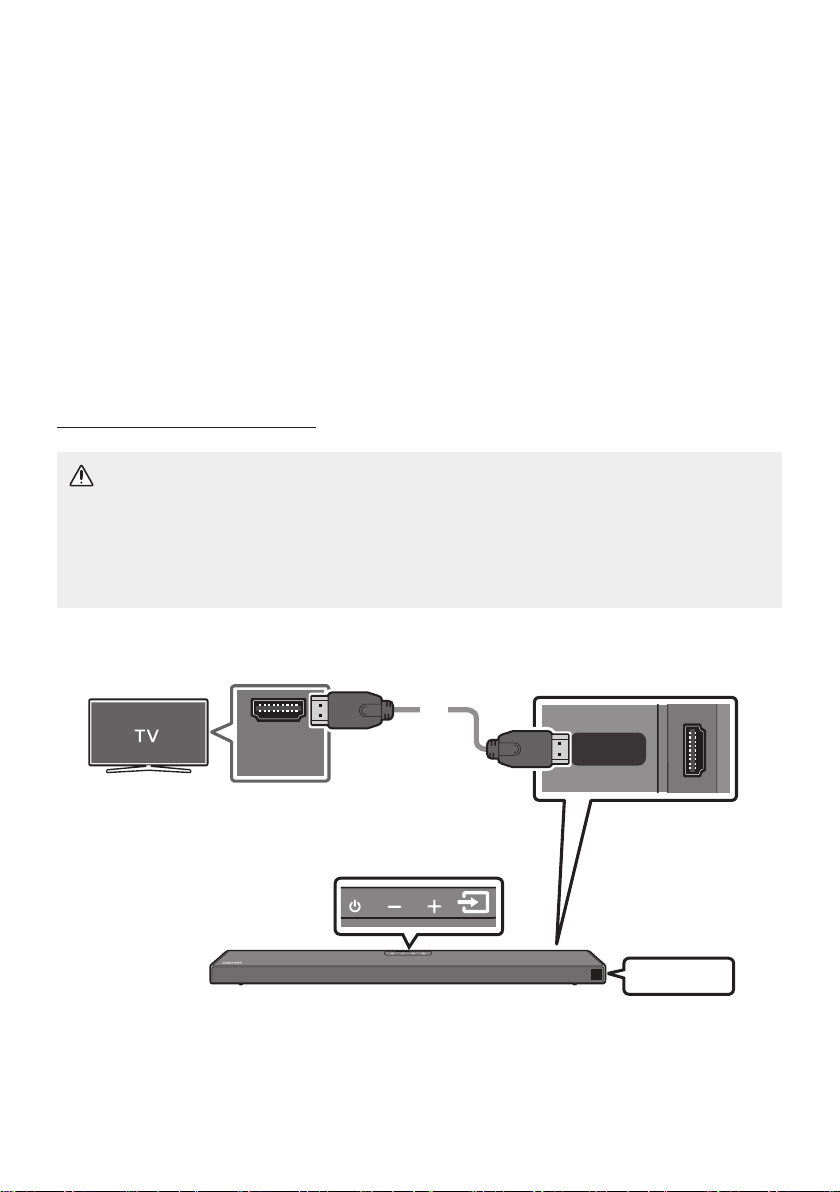
Method 1. Connecting with a Cable
-------------------------
11
– Connecting a TV using an HDMI Cable
-------------------------
11
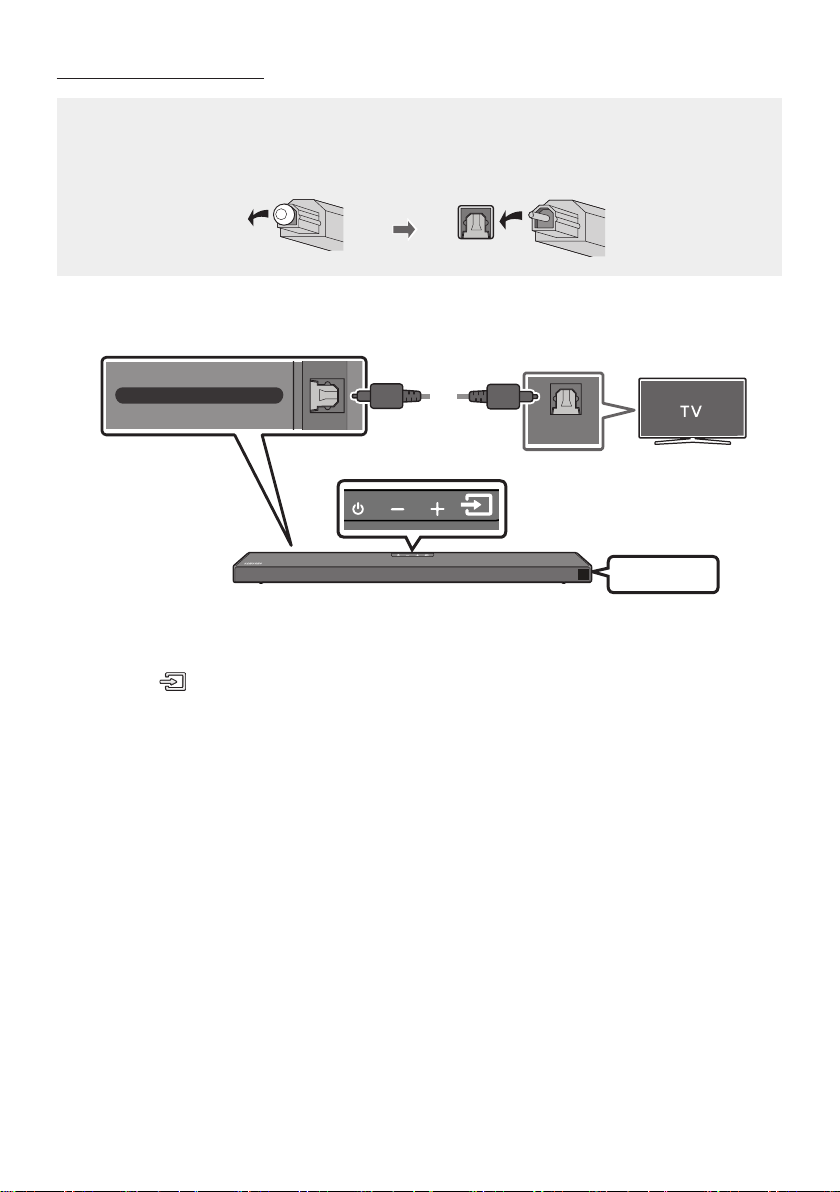
– Connecting using an Optical Cable
-------------------------
13
Method 2. Connecting Wirelessly
-------------------------
15
– Connecting a TV via Bluetooth
-------------------------
15
05 Connecting an External Device 17
Connecting using an HDMI Cable
(Capable of Dolby Atmos decoding and playback)
-------------------------
17
Connecting using an Optical Cable
-------------------------
18
06 Connecting a USB Storage Device 19

ENG - v
07 Connecting a Mobile Device 20
Connecting via Bluetooth
-------------------------
20
Using the Tap Sound
-------------------------
24
08 Using the Remote Control 25
How to Use the Remote Control
-------------------------
25
Adjusting the Soundbar volume with a TV remote control ------------------------- 28
Using the Hidden Buttons (Buttons with more than one function)
-------------------------
29
-------------------------
29
09 Installing the Wall Mount 30
Installation Precautions
-------------------------
30
Wallmount Components
-------------------------
30
10 Placing the Soundbar on a TV stand 32
11 Software Update 33
Update Procedure
-------------------------
33
If UPDATE is not displayed
-------------------------
34
Reset
-------------------------
34
12 Troubleshooting 35
13 Licence 37
14 Open Source Licence Notice 38
15 Important Notes About Service 38
16 SpecicationsandGuide 39
-------------------------
39
ENG - 2
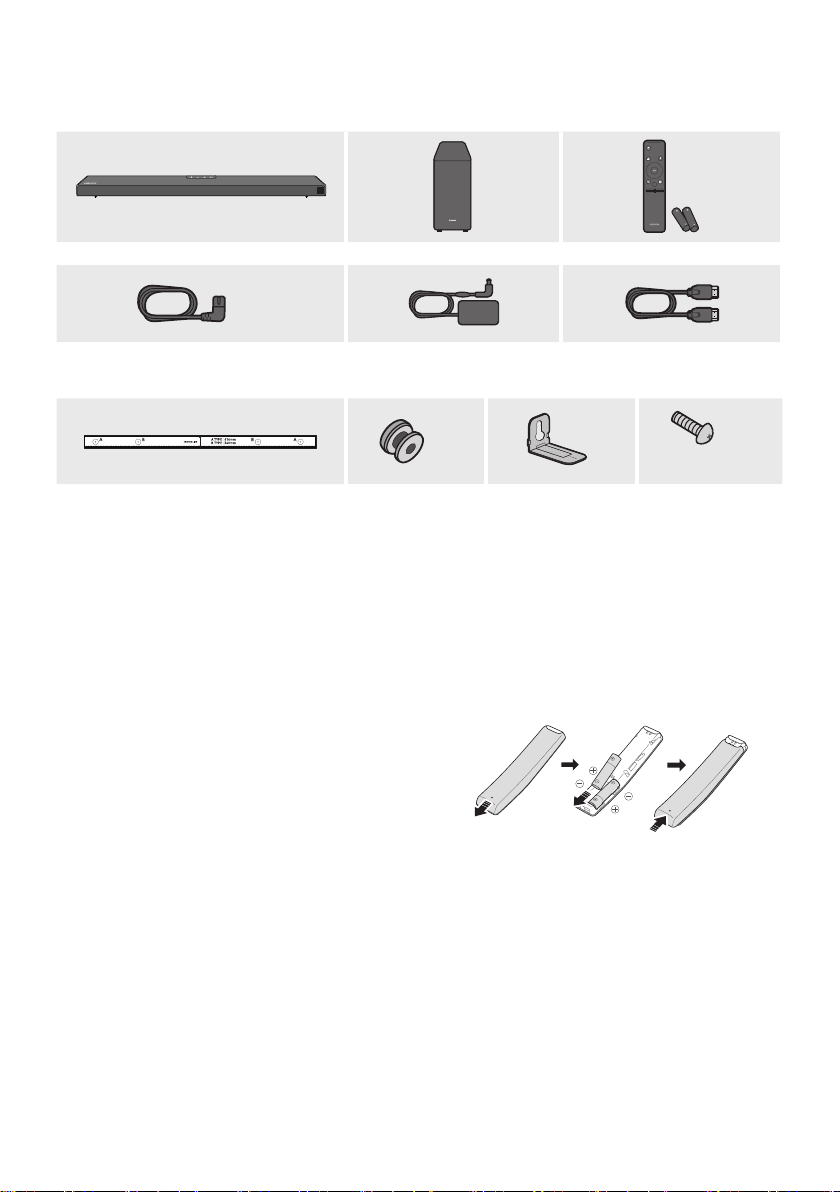
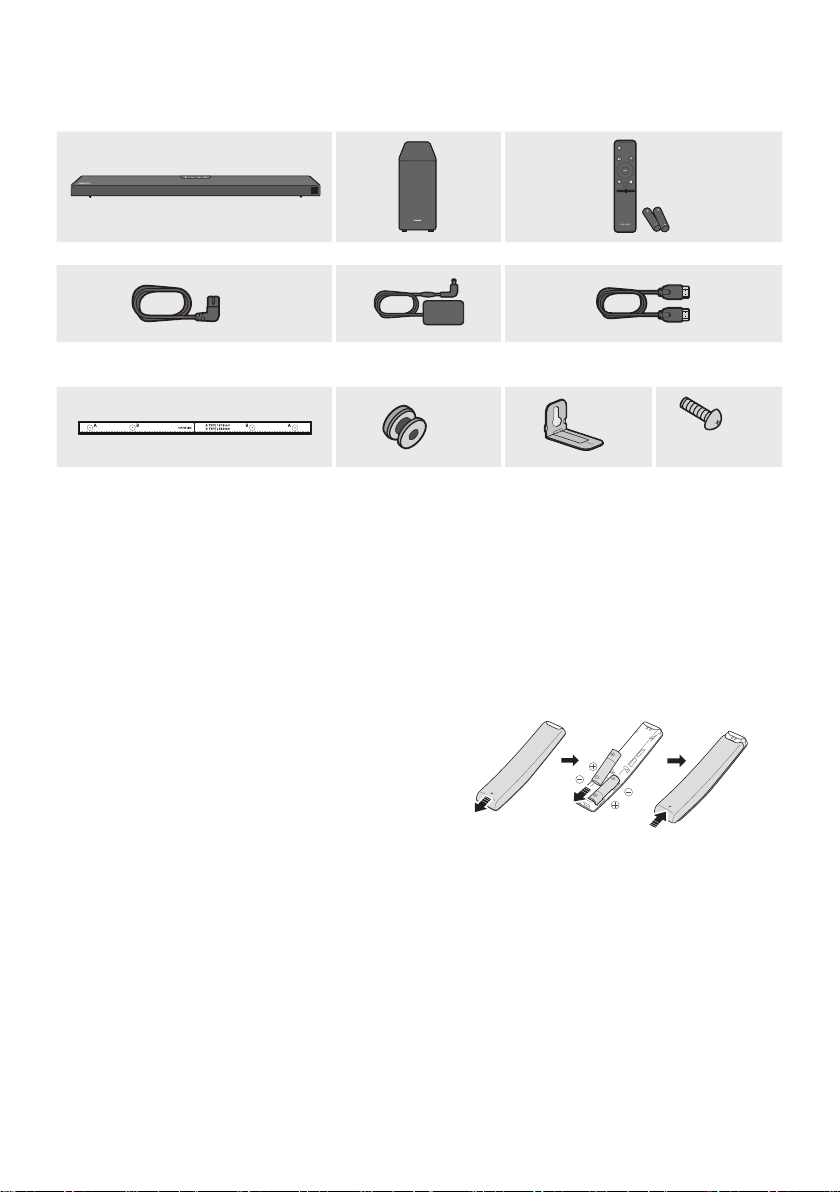
01 CHECKING THE COMPONENTS
VOL WOOFER
SOUNDBAR
SOUND
MODE
PAIR
Soundbar Main Unit Subwoofer Remote Control / Batteries
x 2
Power Cord
(Subwoofer, Soundbar)
AC/DC Adapter
(Soundbar)
HDMI Cable
x 2
x 2
(M4 x L10)
x 2
Wall Mount Guide
Holder-Screw
Bracket-Wall Mount
Screw
For more information about the power supply and power consumption, refer to the label attached
to the product. (Label: Bottom of the Soundbar Main Unit)
To purchase additional components or optional cables, contact a Samsung Service Centre or
Samsung Customer Care.
The appearance of the accessories may differ slightly from the illustrations above.
Inserting Batteries before using the Remote Control (AA batteries X 2)
Slide the back cover in the direction of the arrow
until it is completely removed. Insert 2 AA batteries
(1.5V) oriented so that their polarity is correct. Slide
the back cover back into position.
ENG - 3
02 PRODUCT OVERVIEW
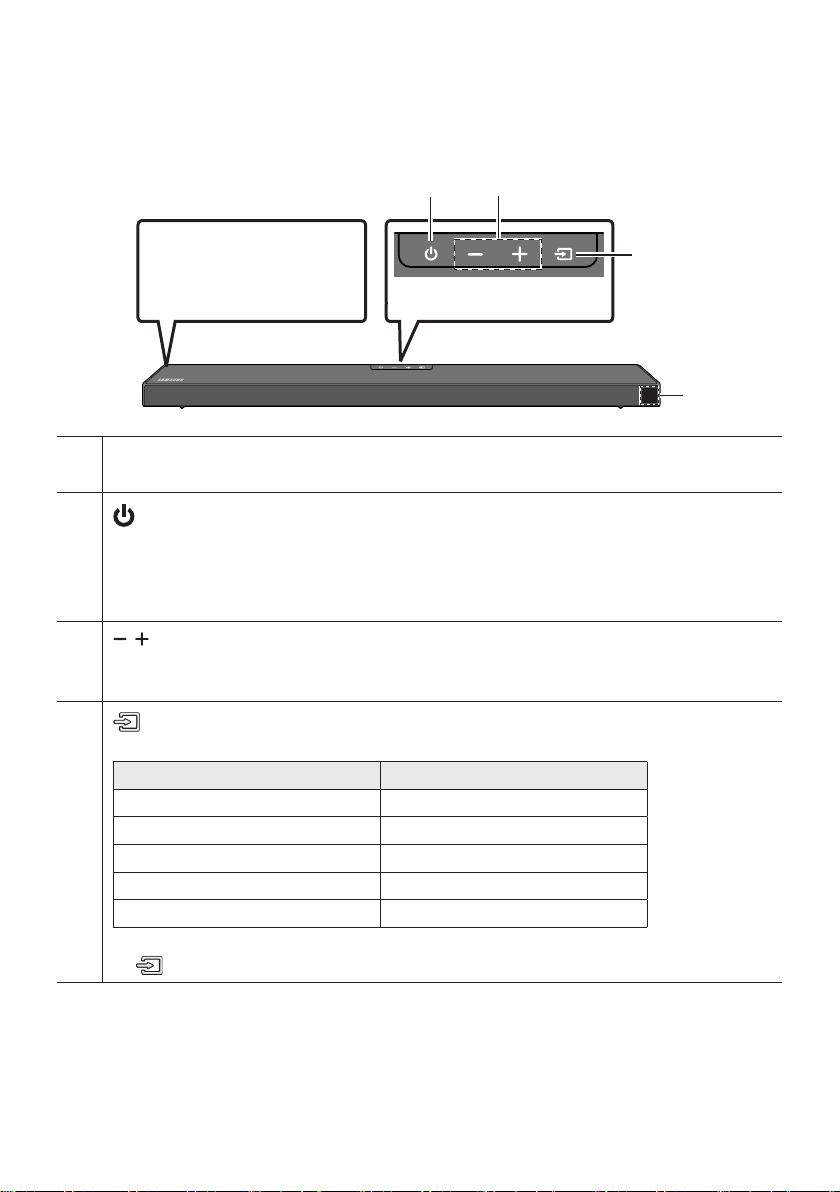
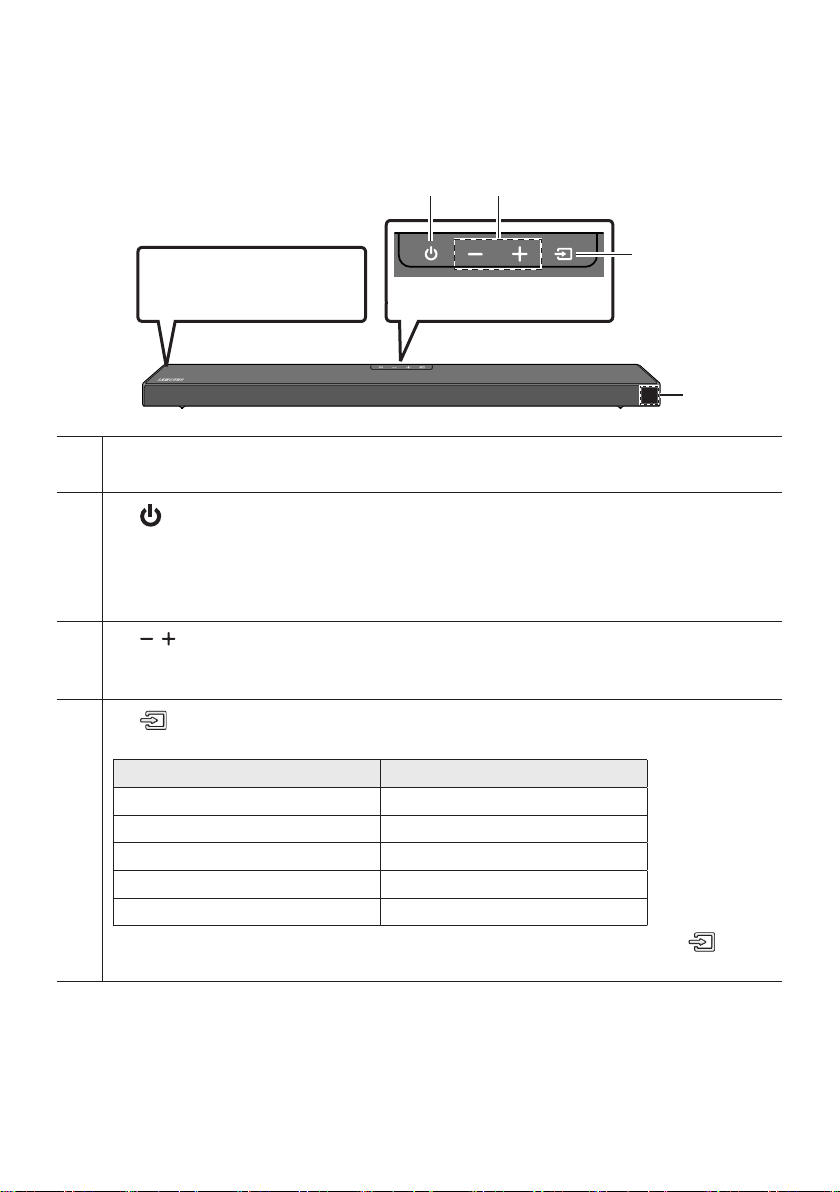
Front Panel / Top Panel of the Soundbar
Position the product so that
the SAMSUNG logo is
located on the top.
Top Panel
Display
Displays the product’s status and current mode.
(Power) Button
Turns the power on and off.
Auto Power Down Function
The unit turns off automatically in the following situations:
– In D.IN / HDMI / BT / USB Mode : If there is no audio signal for 20 minutes.
(Volume) Button
Adjusts the volume.
When adjusted, the volume level appears on the Soundbar’s front display.
(Source) Button
Selects the source input mode.
Input mode Display
Optical Digital input D.IN
ARC (HDMI OUT) input D.IN TV ARC (Auto conversion)
HDMI input HDMI
BLUETOOTH mode BT
USB mode USB
To turn on “BT PAIRING” mode, change the source to “BT” mode, and then press and hold the
(Source) button for more than 5 seconds.
When you plug in the AC cord, the power button will begin working in 4 to 6 seconds.
When you turn on this unit, there will be a 4 to 5 second delay before it produces sound.
If you want to enjoy sound only from the Soundbar, you must turn off the TV’s speakers in the Audio
Setup menu of your TV. Refer to the owner’s manual supplied with your TV.
ENG - 4
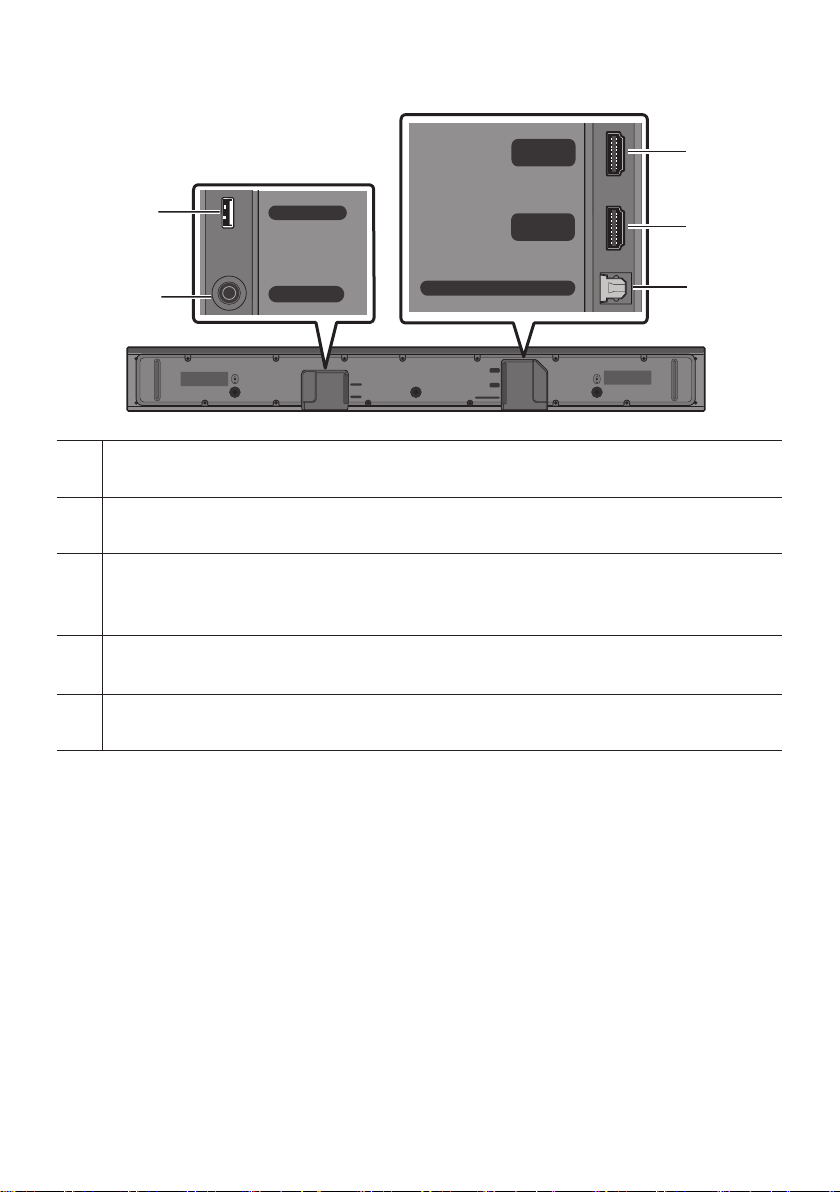
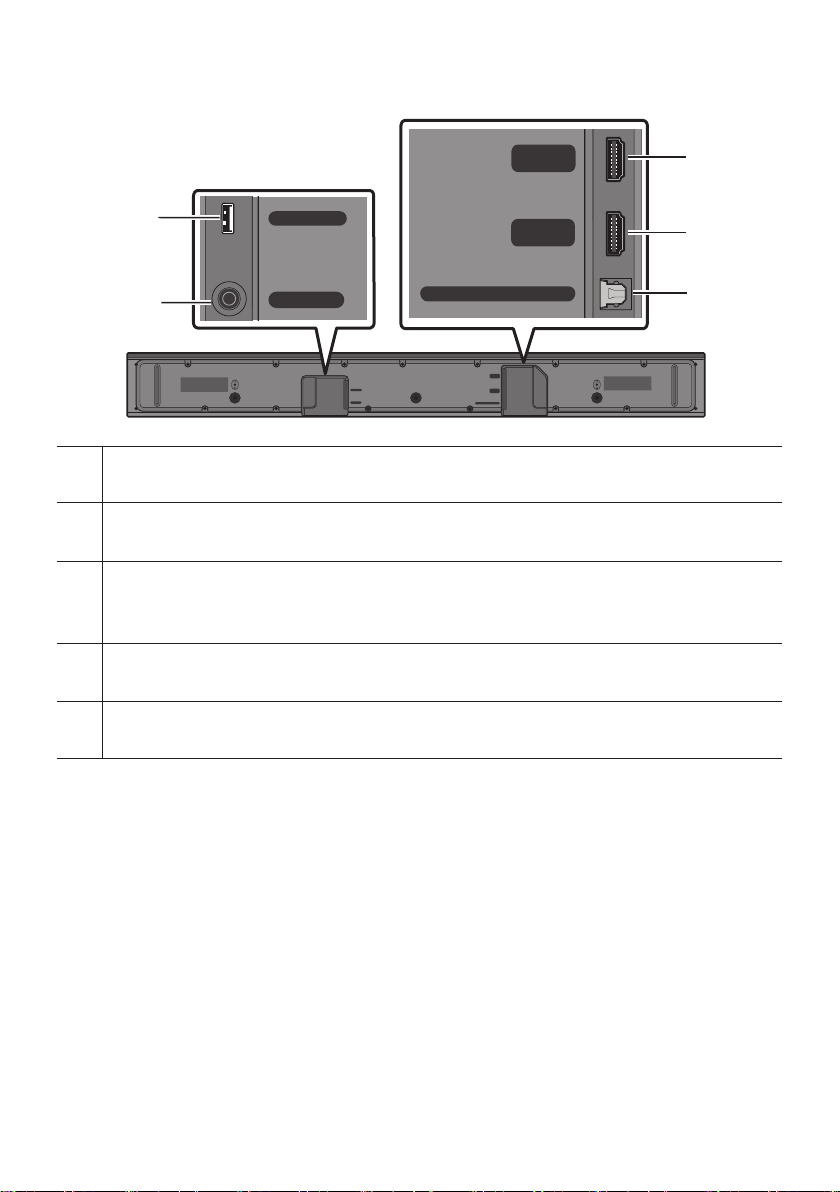
Bottom Panel of the Soundbar
HDMI
HDMI TO TV
(ARC)
USB (5V 0.5A)
DC 24V
DIGITAL AUDIO IN (OPTICAL)
HDMI
HDMI TO TV
(ARC)
DIGITAL AUDIO IN (OPTICAL)
USB (5V 0.5A)
DC 24V
HDMI
HDMI TO TV
(ARC)
USB (5V 0.5A)
DC 24V
DIGITAL AUDIO IN (OPTICAL)
HDMI
HDMI TO TV
(ARC)
DIGITAL AUDIO IN (OPTICAL)
USB (5V 0.5A)
DC 24V
HDMI
HDMI TO TV
(ARC)
USB (5V 0.5A)
DC 24V
DIGITAL AUDIO IN (OPTICAL)
HDMI
HDMI TO TV
(ARC)
DIGITAL AUDIO IN (OPTICAL)
USB (5V 0.5A)
DC 24V
USB (5V 0.5A)
DC 24V (Power Supply In)
Connect the AC/DC power adapter.
HDMI
Inputs digital video and audio signals simultaneously using an HDMI cable.
Connect to the HDMI output of an external device.
HDMI TO TV (ARC)
Connect to the HDMI (ARC) port on a TV.
DIGITAL AUDIO IN (OPTICAL)
Connect to the digital (optical) output of an external device.
When disconnecting the power cable of the AC/DC power adapter from a wall outlet, pull the plug.
Do not pull the cable.
Do not connect this unit or other components to an AC outlet until all connections between
components are complete.
ENG - 5
03 CONNECTING THE SOUNDBAR
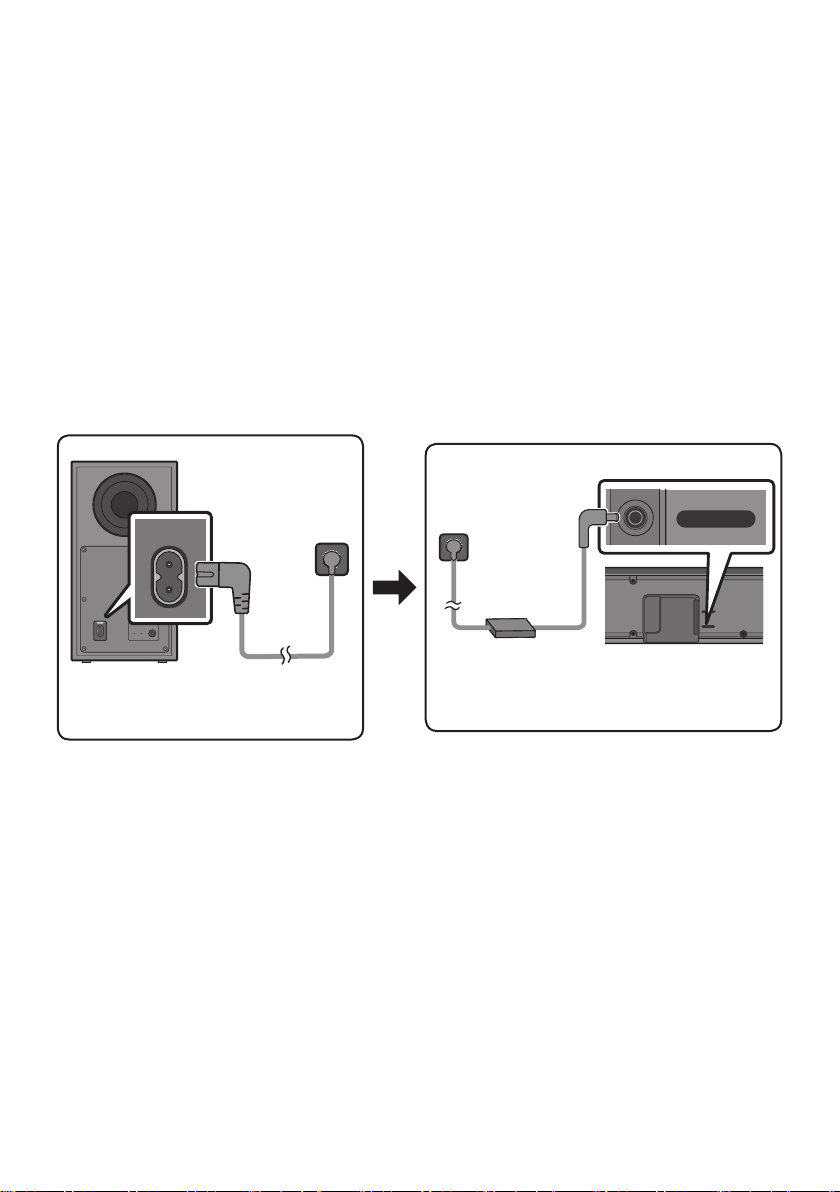
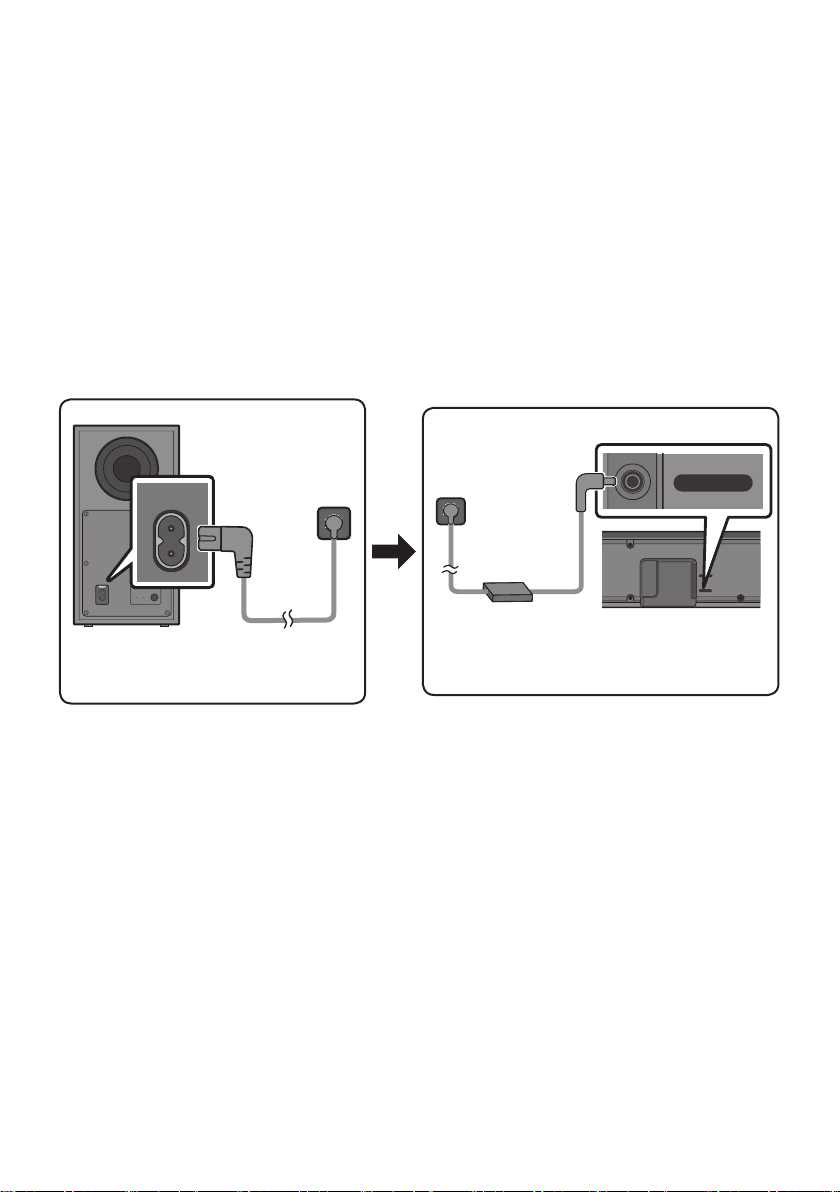
Connecting Electrical Power
Use the power components to connect the Subwoofer and Soundbar to an electrical outlet in the following
order:
1. Connect the power cord to the Subwoofer.
2. Connect the power output cable to the power adapter, and then to the Soundbar.
3. Connect the power cord to a wall socket.
See the illustrations below.
For more information about the required electrical power and power consumption, refer to the
label attached to the product. (Label: Bottom of the Soundbar Main Unit)
POWER
Rear of Subwoofer
Power Cord
Connecting
Electrical Power
USB (5V 0.5A)
DC 24V
DC 24V
Bottom of the
Soundbar Main Unit
AC/DC Adapter
Power Cord
Connecting
Electrical Power
that it is hanging with the AC cord input facing upwards, water or other foreign substances could
enter the Adapter and cause the Adapter to malfunction.

ENG - 6
Connecting the Soundbar to the Subwoofer
When the subwoofer is connected, you can enjoy rich bass sound.
Automatic connection between the Subwoofer and the Soundbar
When you turn the power on after connecting the power cables to the Soundbar and subwoofer, the
subwoofer is automatically connected to the Soundbar.
When auto pairing is complete, the blue indicator at the rear of the subwoofer turn on.
LED Indicator Lights on the Rear of Subwoofer
LED Status Description Resolution
Blue
On
Successfully connected
(normal operation)
-
Blinking Recovering the connection
Check if the power cable attached to the
main Soundbar unit is connected properly
or wait about 5 minutes. If blinking persists,
try manually connecting the subwoofer.
See page 7.
Red On
Standby (with the Soundbar
main unit turned off)
Check if the power cable attached to the
main Soundbar unit is connected properly.
Connection failed
Connect again. See the instructions for
manual connection on page 7.
Red and
blue
Blinking Malfunction
See the contact information for the
Samsung Service Centre in this manual.
ENG - 7
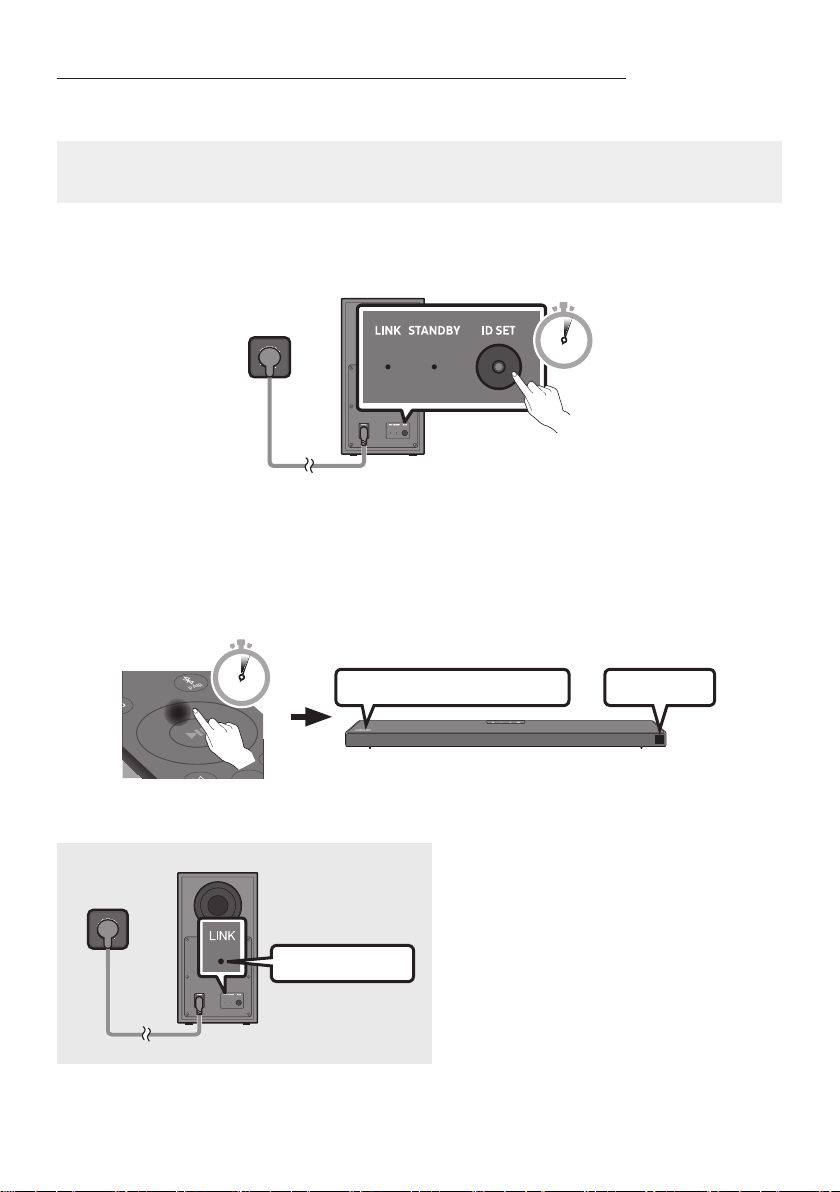
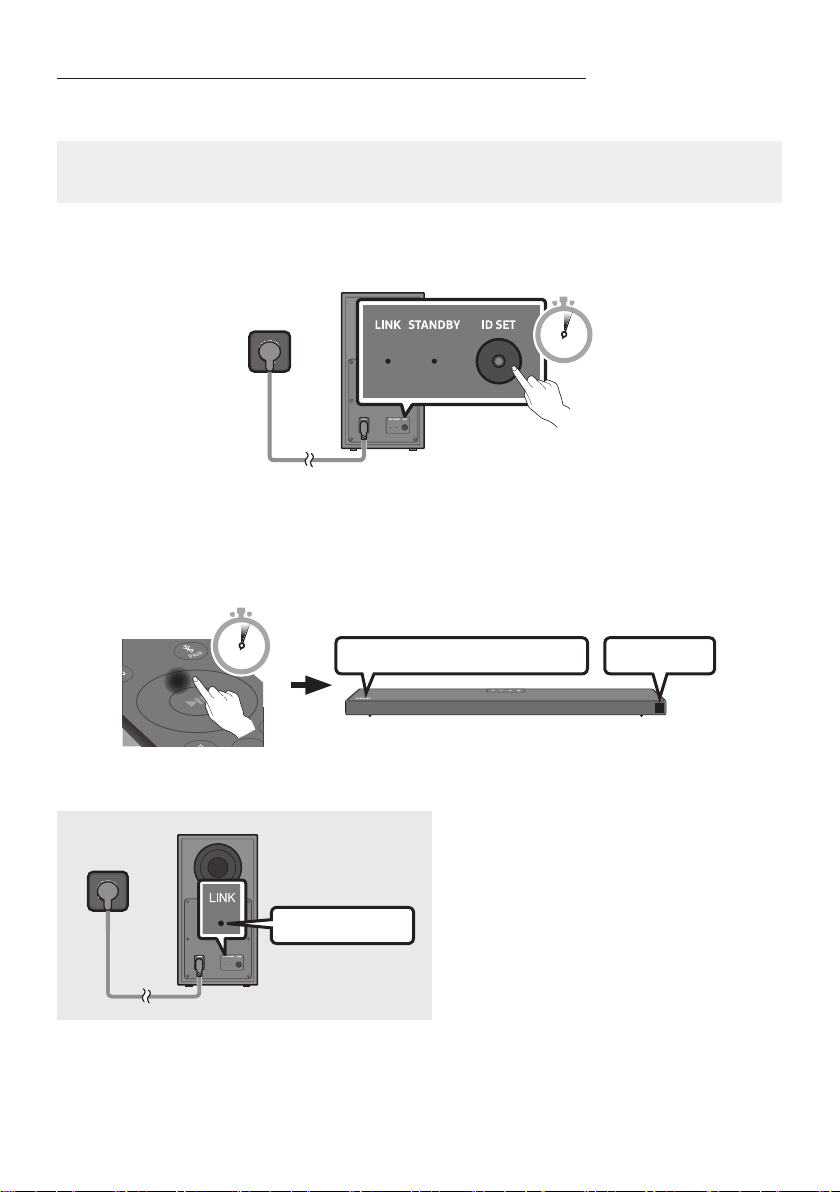
Manually connecting the Subwoofer if automatic connection fails
Before performing the manual connection procedure below:
Check whether the power cables for the Soundbar and subwoofer are connected properly.
Make sure that the Soundbar is turned on.
1. Press and hold ID SET on the rear of the subwoofer for at least 5 seconds.
The red indicator on the rear of the subwoofer turns off and the blue indicator blinks.
5 Sec
Rear of Subwoofer
2. Press and hold the Up button on the remote control for at least 5 seconds.
The ID SET message appears on the display of the Soundbar for a moment, and then it
disappears.
The Soundbar will automatically power on when ID SET is complete.
SOUND
MODE
PAIR
5 Sec
ID SET
SAMSUNG logo is on the top
3. Check if the LINK LED is solid blue (connection complete).
Blue is On
The LINK LED indicator stops blinking and
glows a solid blue when a connection is
established between the Soundbar and the
Wireless Subwoofer.

ENG - 8
NOTES
Do not connect the power cord of this product or your TV to a wall outlet until all connections
between components are complete.
Before moving or installing this product, be sure to turn off the power and disconnect the power cord.
If the main unit is powered off, the wireless subwoofer will go into stand-by mode and the
STANDBY LED on the rear of the sub-woofer will turn red after blinking blue several times.
If you use a device that uses the same frequency (5.8GHz) as the Soundbar near the Soundbar,
interference may cause some sound interruption.
The maximum transmission distance of the main unit’s wireless signal is about 10 meters, but may
vary depending on your operating environment. If a steel-concrete or metallic wall is between the
main unit and the wireless subwoofer, the system may not operate at all because the wireless
signal cannot penetrate metal.
PRECAUTIONS
Wireless receiving antennas are built into the wireless subwoofer. Keep the unit away from water
and moisture.
For optimal listening performance, make sure that the area around the wireless subwoofer and the
Wireless Receiver Module (sold separately) is clear of any obstructions.
ENG - 9
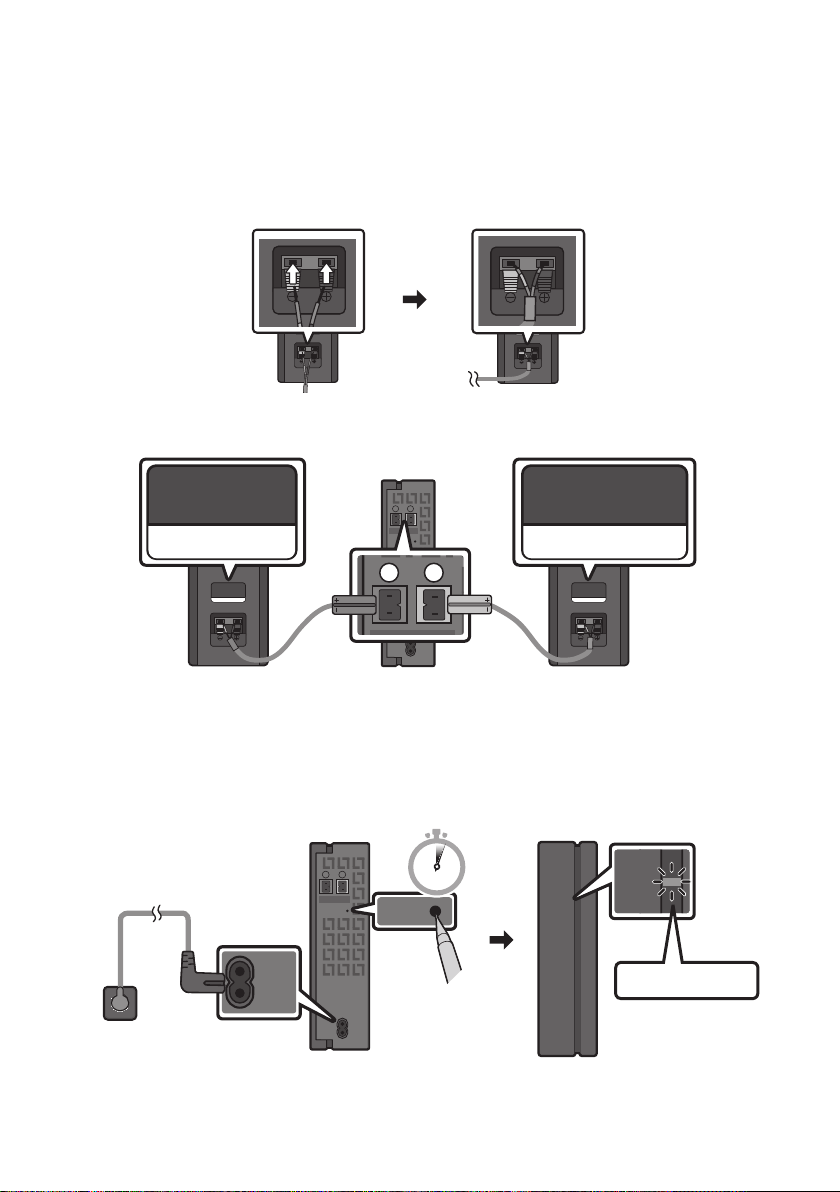
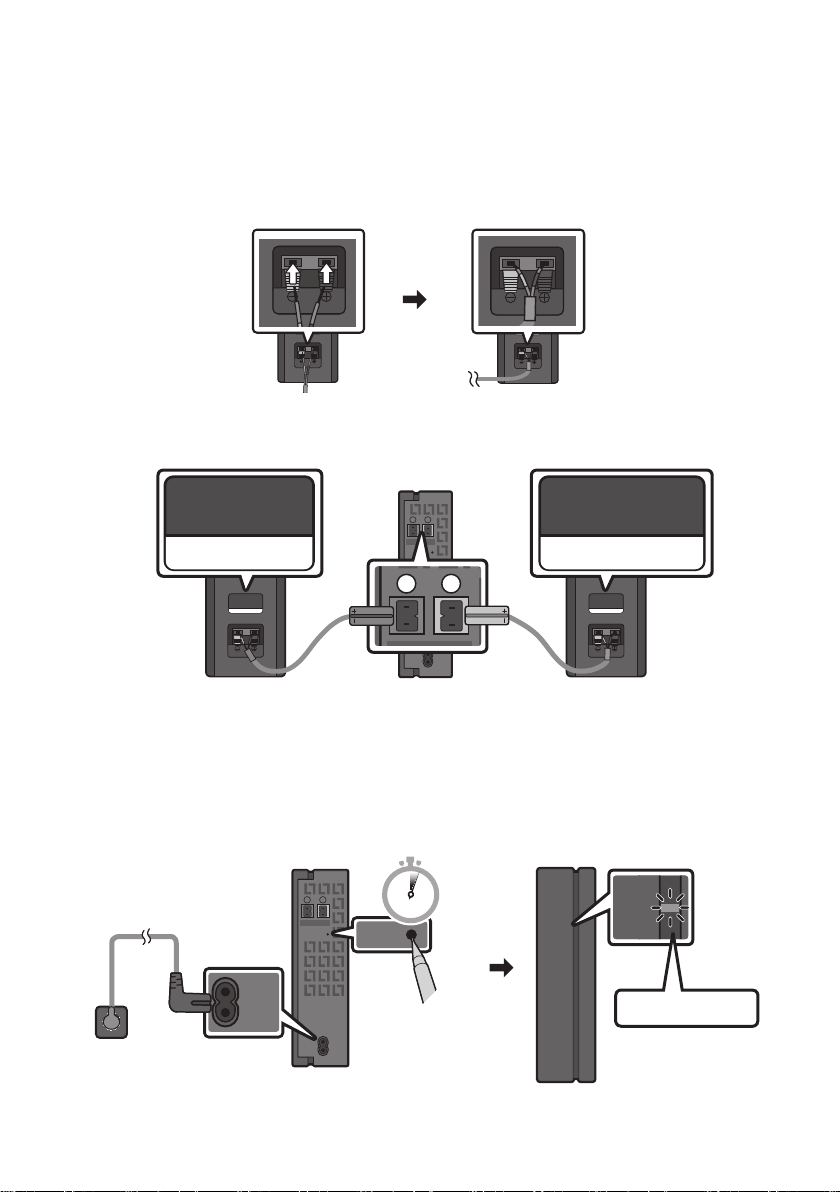
Connecting an SWA-9100S (Sold Separately) to your Soundbar
Expand to true wireless surround sound by connecting the Samsung Wireless Rear Speaker Kit
(SWA-9100S, sold separately) to your Soundbar.
1. Connect the Wireless Receiver Module to 2 Surround Speakers.
– When connecting the speaker cable, connect the core wire to the speaker.
SURROUND-RIGHT
SURROUND-RIGHT
– The speaker cables are colour coded.
SURROUND-LEFT
ID SET
L
R
SURROUND SPEAKERS OUT
SPEAKER IMPEDANCE : 3Ω
POWER
ID SET
L
R
SURROUND SPEAKERS OUT
SPEAKER IMPEDANCE : 3Ω
SURROUND-RIGHT
SURROUND-LEFT SURROUND-RIGHT
2. Check the standby status of the Wireless Receiver Module after plugging it into an electrical outlet.
The LINK LED indicator (blue LED) on the Wireless Receiver Module blinks. If the LED does not
blink, press the ID SET button on the back of the Wireless Receiver Module with a pen tip for
5~6 seconds until the LINK LED indicator blinks (in Blue). For more about the LED, please refer
to the SWA-9100S user manual.
ID SET
L
R
SURROUND SPEAKERS OUT
SPEAKER IMPEDANCE : 3Ω
POWER
POWER
ID SET
SURROUND SPEAKERS OUT
SPEAKER IMPEDANCE : 3Ω
STANDBY
LINK
STANDBY
LINK
Blue blinking
5 Sec
ENG - 10
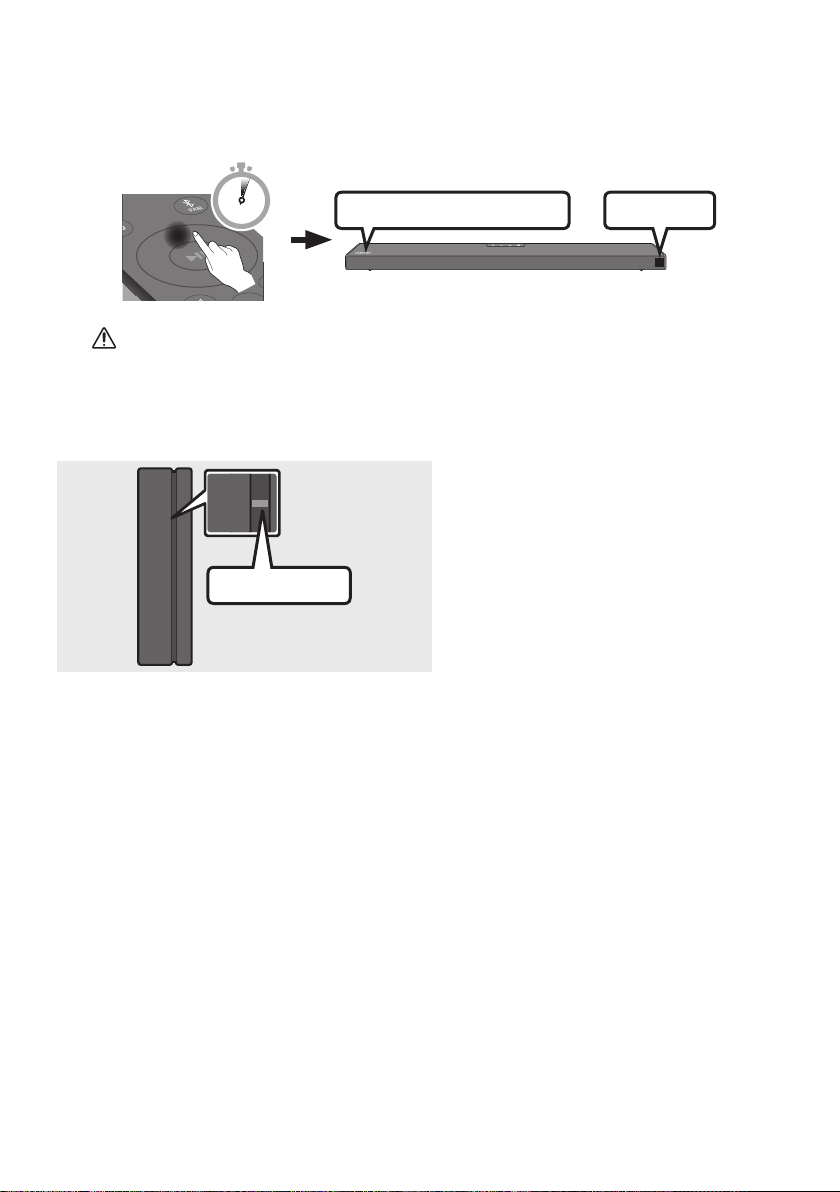
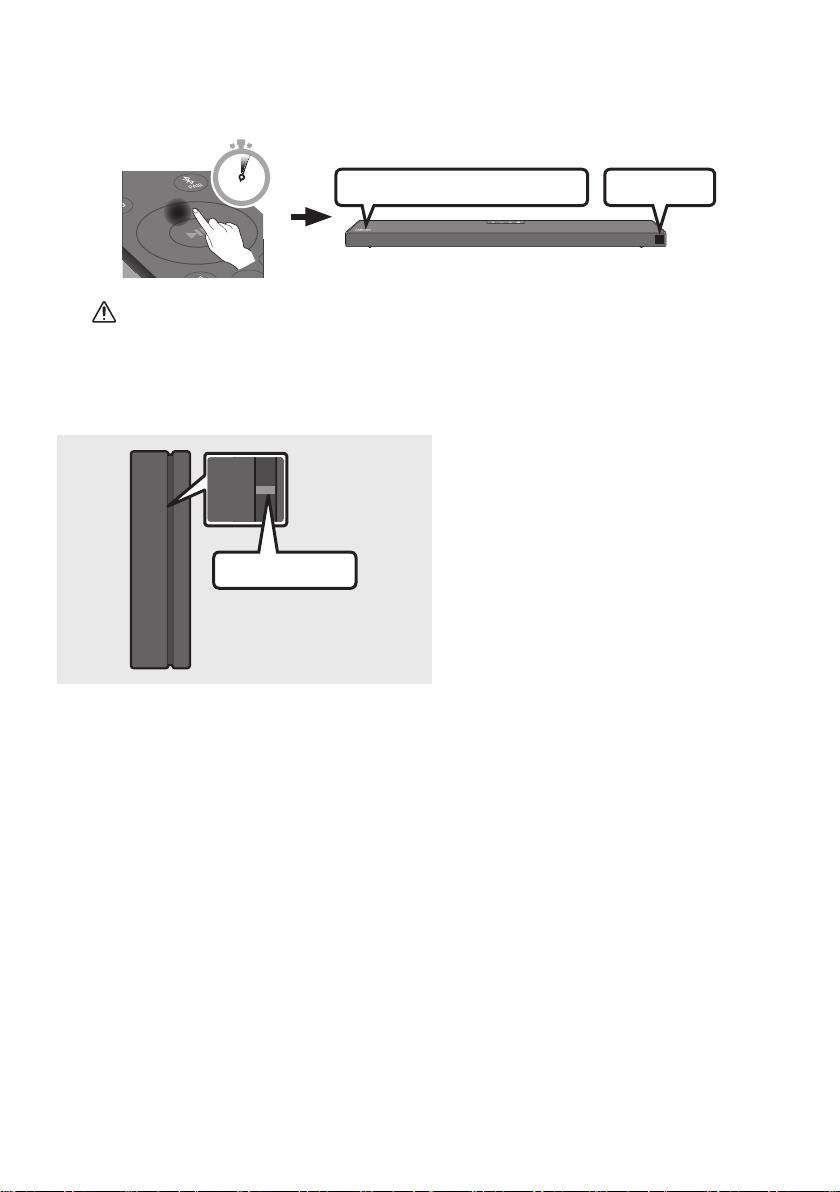
3. Press and hold the Up button on the remote control for at least 5 seconds.
The ID SET message appears on the display of the Soundbar for a moment, and then it
disappears.
The Soundbar will automatically power on when ID SET is complete.
SOUND
MODE
PAIR
5 Sec
ID SET
SAMSUNG logo is on the top
CAUTION
If your Soundbar was playing music when it connects to the SWA-9100S, you may hear some
4. Check if the LINK LED is solid blue (connection complete).
STANDBY
LINK
STANDBY
LINK
Blue is On
The LINK LED indicator stops blinking and
glows a solid blue when a connection is
established between the Soundbar and the
Wireless Receiver Module.
5. If the SWA-9100S is not connected, repeat the procedure from Step 2.
ENG - 11
04 CONNECTING TO YOUR TV
Hear TV sound from your Soundbar through wired or wireless connections.
When the Soundbar is connected to selected Samsung TVs, the Soundbar can be controlled using
the TV’s remote control.
– This feature is supported by 2017 and later Samsung Smart TVs that support Bluetooth when
you connect the Soundbar to the TV using an optical cable.
–
as well as the volume and mute.
Method 1. Connecting with a Cable
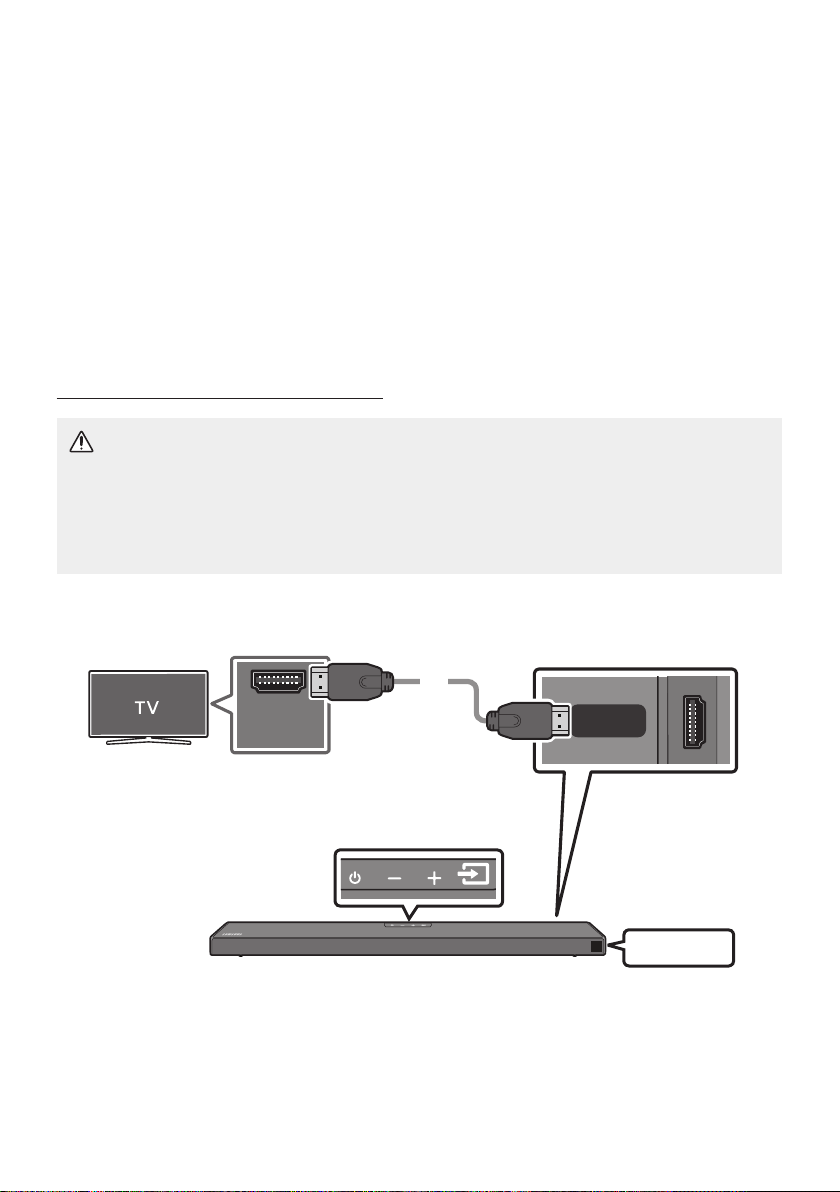
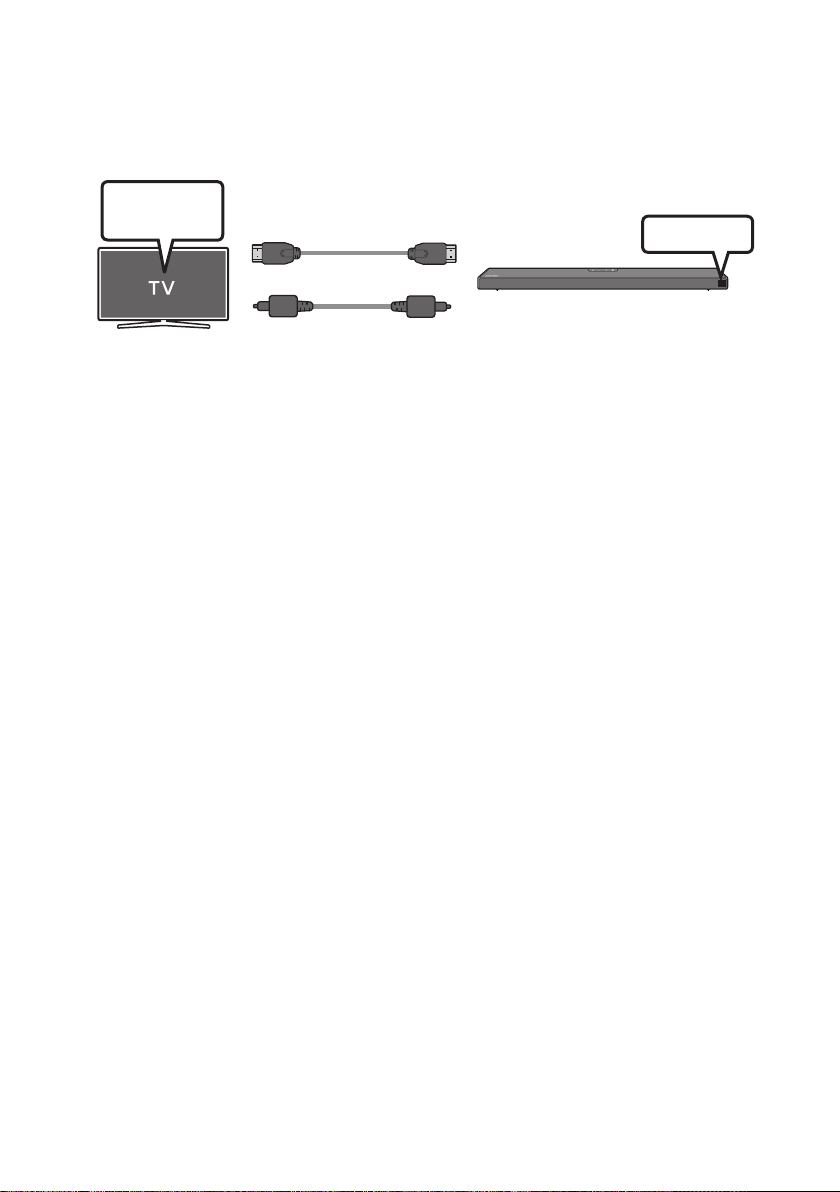
Connecting a TV using an HDMI Cable
CAUTION
To connect the HDMI cable between the TV and Soundbar, be sure to connect the terminals
marked ARC. Otherwise, the TV sound may not be output.
The recommended cable is High Speed HDMI Cable with Ethernet.
Connect to the HDMI IN
(ARC) port of your TV.
HDMI IN
(ARC)
HDMI TO TV
(ARC)
DIGITAL AUDIO IN (OPTICAL)
HDMI Cable
Bottom of the Soundbar
Connect to the HDMI TO TV (ARC) port
of the Soundbar main unit.
Top of the Soundbar
TV ARC
1.
2. “TV ARC” appears in the display window of the Soundbar main unit and the Soundbar plays TV
sound.

ENG - 12
If TV sound is inaudible, press the (Source) button on the remote control or on the top of
the Soundbar to switch to “D.IN” mode. The screen displays “D.IN” and “TV ARC” in sequence,
and TV sound is played.
If “TV ARC
HDMI cable is connected to the correct port.
Use the volume buttons on the TV’s remote control to change the volume on the Soundbar.
NOTES
HDMI is an interface that enables the digital transmission of video and audio data with just a single
connector.
If the TV provides an ARC port, connect the HDMI cable to the HDMI IN (ARC) port.
We recommend you use a coreless HDMI cable if possible. If you use a cored HDMI cable, use one
whose diameter is less than 14 mm.
This function is not available if the HDMI cable does not support ARC
When the audio in a broadcast is encoded in Dolby Digital and the “Digital Output Audio Format” on
your TV is set to PCM, we recommend that you change the setting to Dolby Digital. When the
setting on the TV is changed, you will experience better sound quality. (The TV menu may use
different words for Dolby Digital and PCM depending on the TV manufacturer.).
ENG - 13
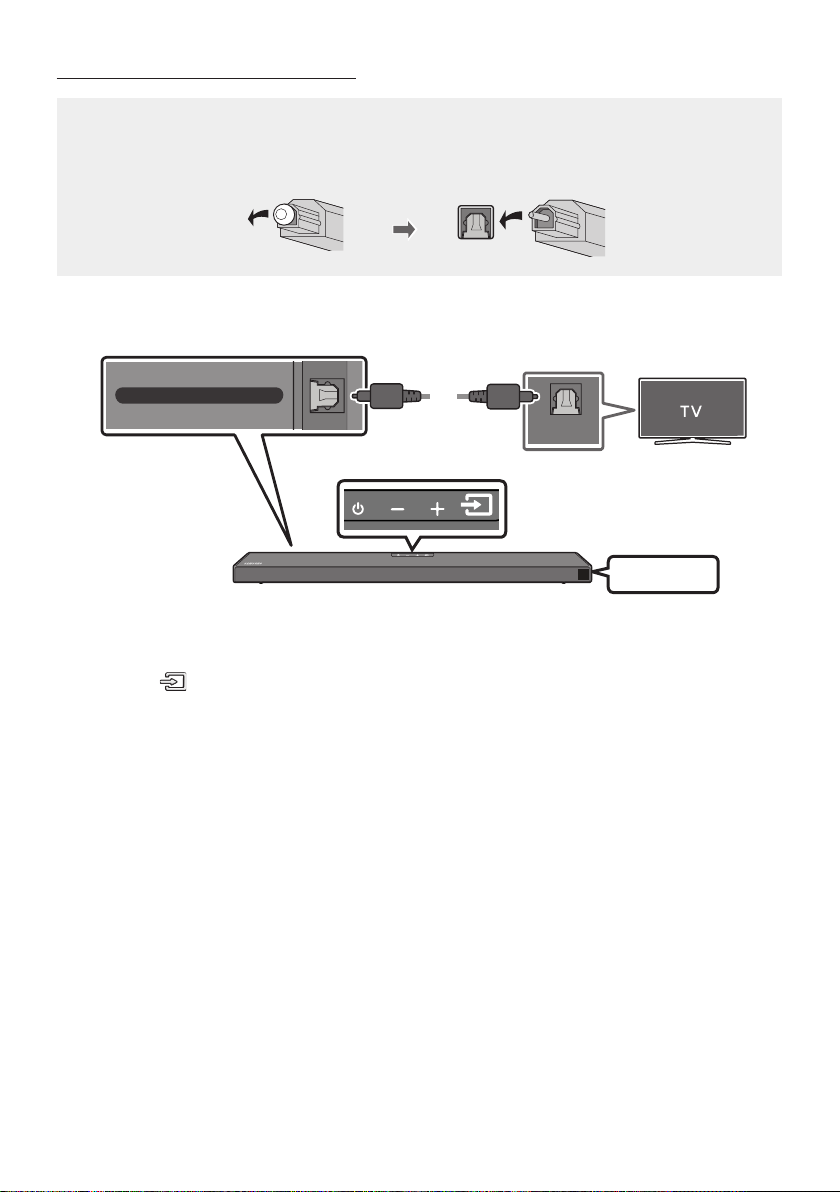
Connecting using an Optical Cable
Pre-connection Checklist
When you use an optical cable and the terminals have covers, be sure to remove the covers.
OPTICAL OUT
DIGITAL AUDIO IN (OPTICAL)
Bottom of the Soundbar
Top of the Soundbar
Optical Cable
(not supplied)
D.IN
1. Connect the DIGITAL AUDIO IN (OPTICAL) port on the Soundbar to the OPTICAL OUT port of the
TV with a digital Optical Cable (not supplied).
2. Press the (Source) button on the top panel or remote control, and then select the “D.IN” mode.
ENG - 14
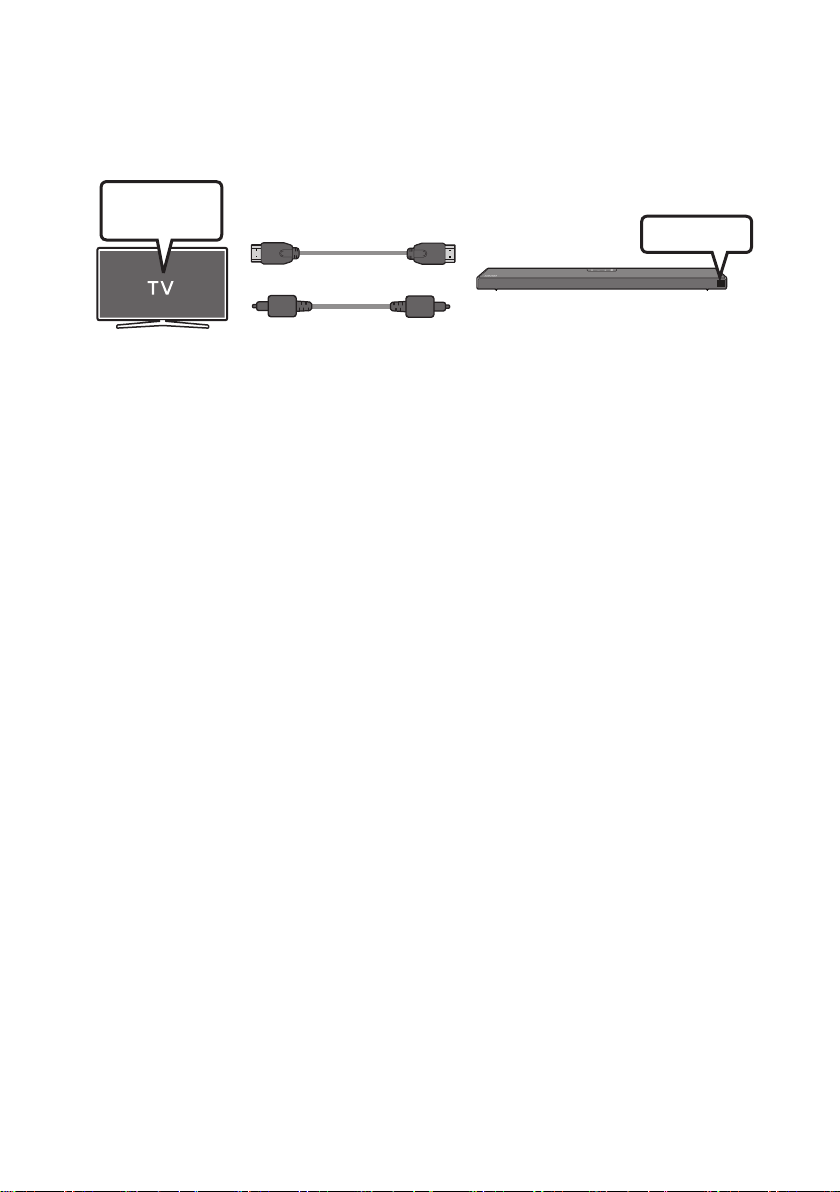
Using the Q-Symphony Function
For Q-Symphony, the Soundbar syncs with a Samsung TV to output sound through two devices for
optimum surround effect. When the Soundbar is connected, the option, “TV+Soundbar” appears under
the Sound Output menu of the TV. Select the corresponding menu.
TV Menu
OR
Optical Cable (not supplied)
HDMI Cable
D.IN
TV menu example: TV + [AV] Soundbar series name [HDMI]
NOTES
It can operate according to the Codec supported by TV.
This function is supported only when the HDMI Cable or Optical Cable (not supplied) is connected.
This function is available in Samsung TVs released in or after 2020 and some Soundbar models.
ENG - 15
Method 2. Connecting Wirelessly
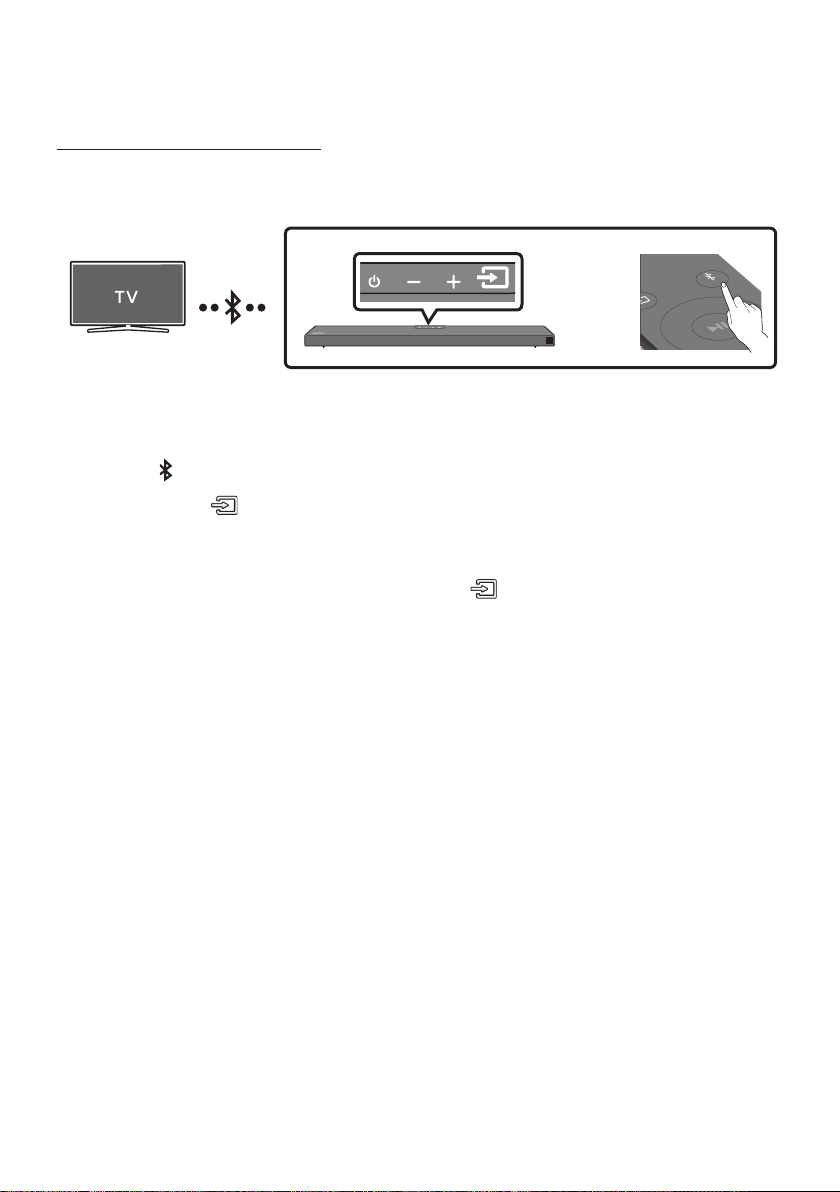
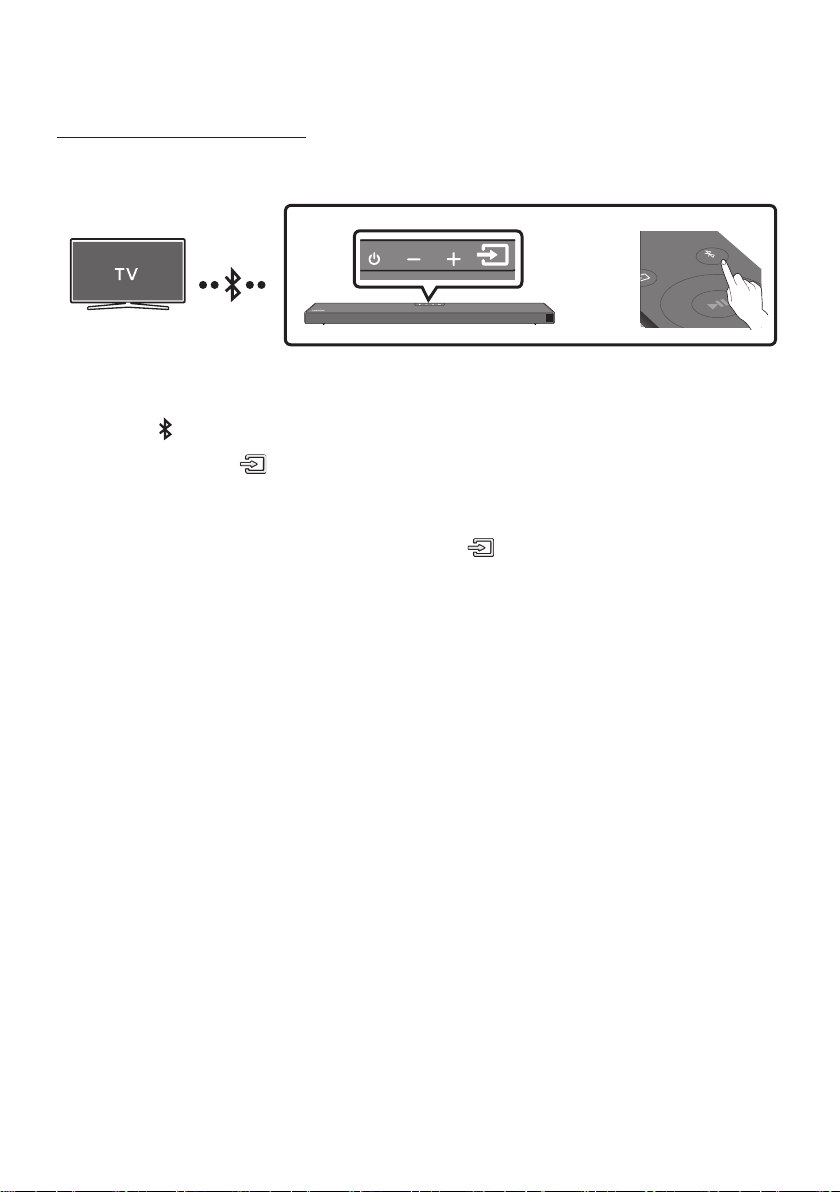
Connecting a TV via Bluetooth
When a TV is connected using Bluetooth, you can hear stereo sound without the hassle of cabling.
Only one TV can be connected at a time.
SOUND
MODE
PAIR
OR
The initial connection
1. Press the PAIR button on the remote control to enter the “BT PAIRING” mode.
(OR)
a. Press the (Source) button on the top panel and then select “BT”.
“BT” changes to “BT PAIRING” in a few seconds automatically or changes to “BT READY” if
there is a connect record.
b. When “BT READY” appears, press and hold the (Source) button on the top panel of the
Soundbar for more than 5 seconds to display “BT PAIRING”.
2. Select Bluetooth mode on the TV. (For more information, see the TV’s manual.)
3. Select “[AV] Samsung Soundbar Q6A-Series” from the list on TV’s screen.
An available Soundbar is indicated with “Need Pairing” or “Paired” on the TV’s Bluetooth device
list. To connect the TV to the Soundbar, select the message, and then establish a connection.
When the TV is connected, [TV NameBT” appears on the Soundbar’s front display.
4. You can now hear TV sound from the Soundbar.
If the device fails to connect
If a previously connected Soundbar listing (e.g. “[AV] Samsung Soundbar Q6A-Series”) appears in
the list, delete it.
Then repeat steps 1 through 3.
NOTE
BT READY” mode to
reconnect.

ENG - 16
Disconnecting the Soundbar from the TV
Press the (Source) button on the top panel or on the remote control and switch to any mode but “BT”.
Disconnecting takes time because the TV must receive a response from the Soundbar.
(The time required may differ, depending on the TV model.)
To cancel the automatic Bluetooth connection between the Soundbar and TV, press the
Left button
on the remote control for 5 seconds with the Soundbar in “BT READY
What is the difference between BT READY and BT PAIRING?
BT READY : In this mode, you can search for previously connected TVs or connect a previously
connected mobile device to the Soundbar.
BT PAIRING : In this mode, you can connect a new device to the Soundbar. (Press the PAIR button
on the remote control or press and hold the (Source) button on the top of the Soundbar for
more than 5 seconds while the Soundbar is in “BT” mode.)
NOTES
If asked for a PIN code when connecting a Bluetooth device, enter <0000>.
In Bluetooth connection mode, the Bluetooth connection will be lost if the distance between the
Soundbar and the Bluetooth device exceeds 10 meters.
The Soundbar automatically turns off after 20 minutes in the Ready state.
The Soundbar may not perform Bluetooth search or connection correctly under the following
circumstances:
–
– If two or more Bluetooth devices are simultaneously paired with the Soundbar.
– If the Bluetooth device is turned off, not in place, or malfunctions.
Electronic devices may cause radio interference. Devices that generate electromagnetic waves
must be kept away from the Soundbar main unit - e.g., microwaves, wireless LAN devices, etc.
ENG - 17
05 CONNECTING AN EXTERNAL DEVICE
Connect to an external device via a wired connection or Bluetooth connection to play the external
device’s sound through the Soundbar.
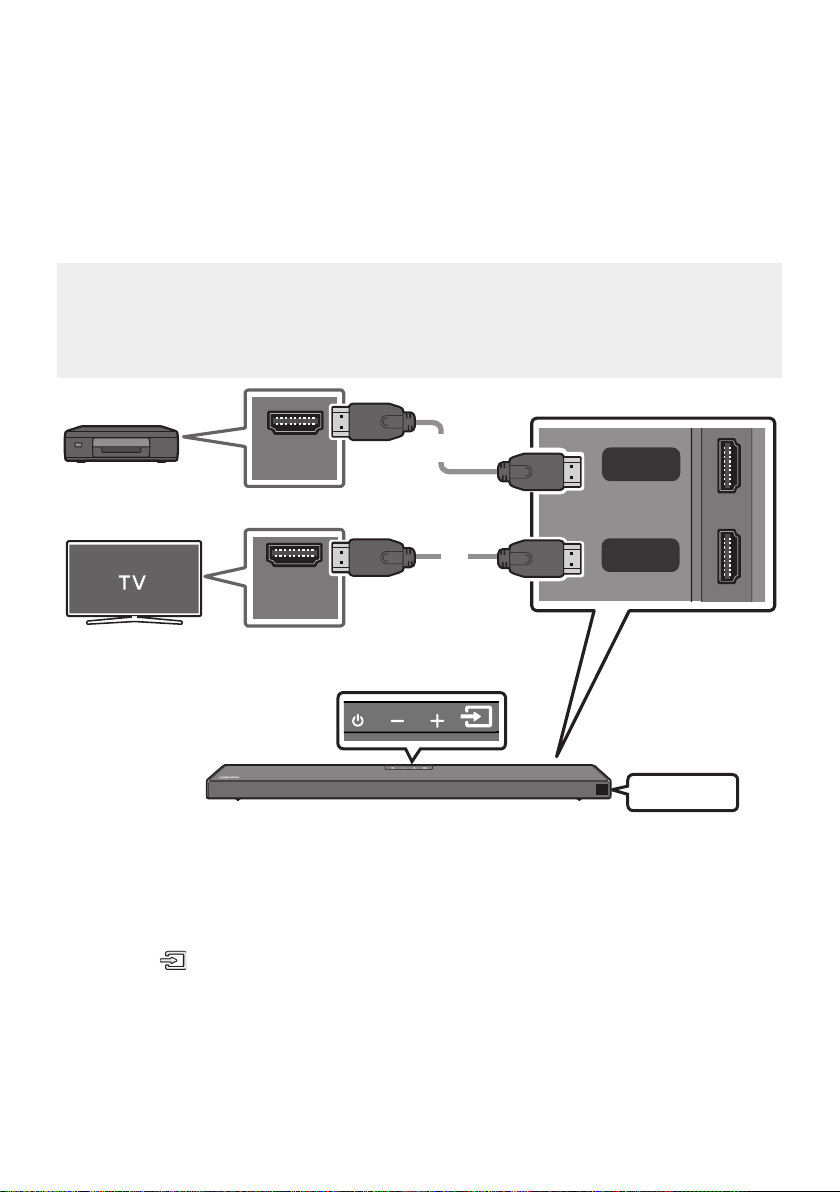
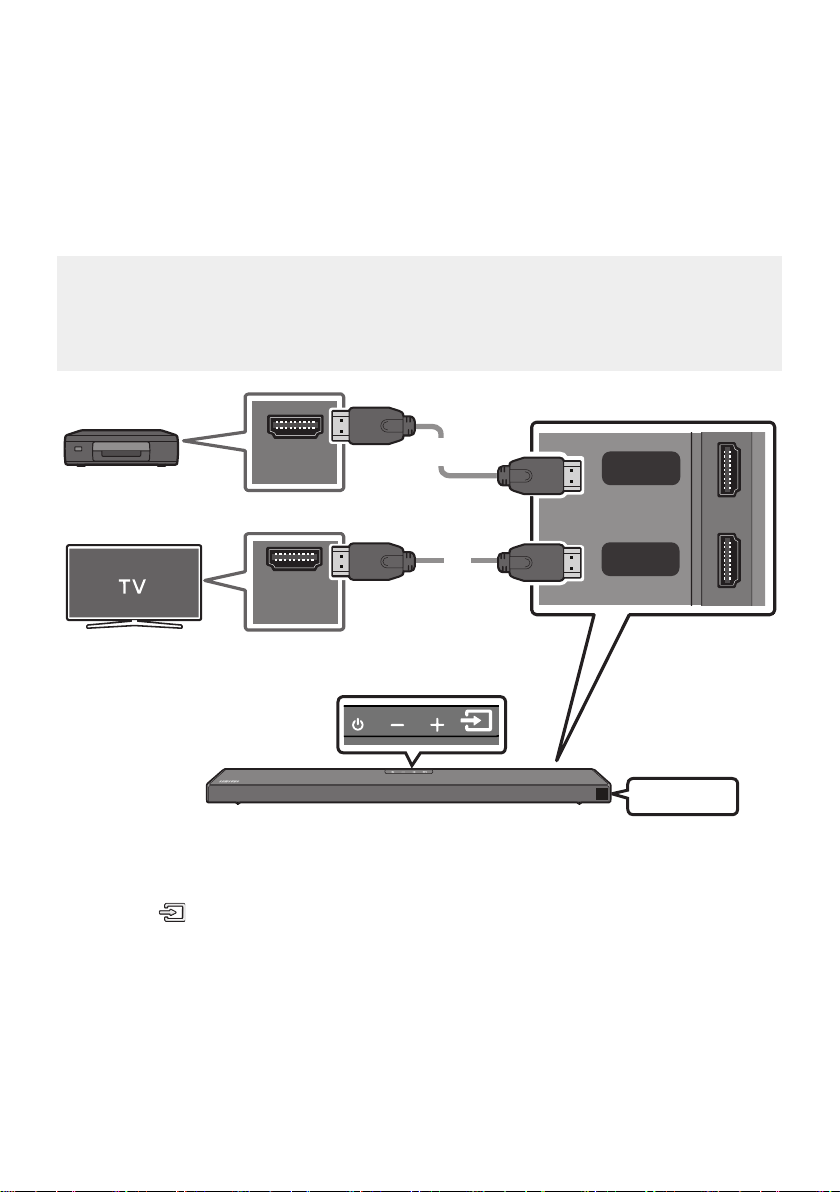
Connecting using an HDMI Cable (Capable of Dolby Atmos decoding
and playback)
Pre-connection Checklist
Dolby Atmos® and DTS:X are supported in HDMI mode only.
If the Audio Output options include Secondary Audio, make sure Secondary Audio is set to Off.
Make sure that the content supports Dolby Atmos®.
HDMI OUT
HDMI IN
(ARC)
HDMI
HDMI TO TV
(ARC)
DIGITAL AUDIO IN (OPTICAL)
HDMI Cable
HDMI Cable
Bottom of the Soundbar
External Device
Top of the Soundbar
HDMI
1. Connect an HDMI cable from the HDMI port on the back of the product to the HDMI OUT port on
your digital device.
2. Connect an HDMI cable from the HDMI TO TV (ARC) port on the back of the product to the HDMI IN
port on your TV.
3. Press the (Source) button on the top panel or on the remote control, and then select “HDMI”.
4. “HDMI” mode is displayed on the Soundbar display panel and sound plays.
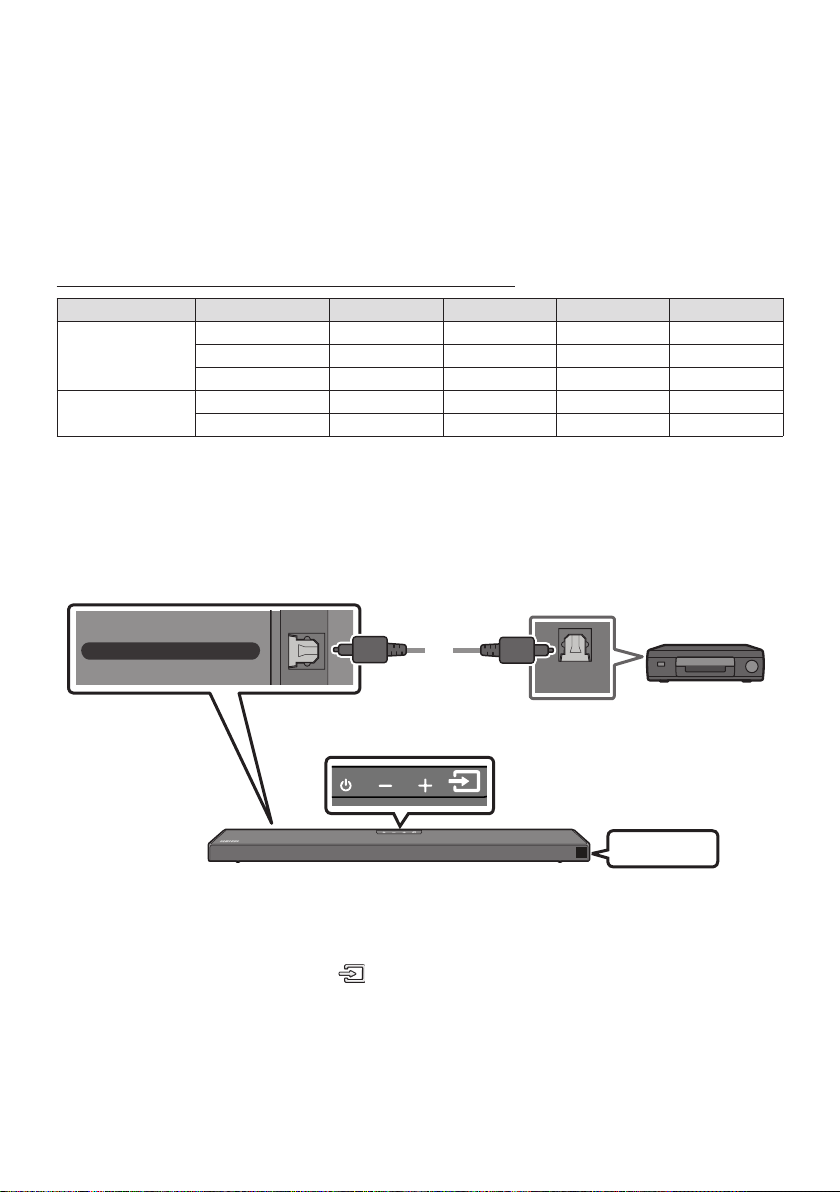
ENG - 18
NOTES
When you use Dolby Atmos®: If the input source is Dolby Atmos®, 5.1.2 channels are outputted.
When Dolby Atmos® is activated, “DOLBY ATMOS” appears in the front display.
ConguringDolbyAtmos®onyourBDplayerorotherdevice.
Open the audio output options on the settings menu of your BD player or other device and make
sure that “No Encoding” is selected for Bitstream. For example, on a Samsung BD Player, go to
SupportedUHDSignalsSpecication(3840x2160p)
Frame rate (fps) Colour depth RGB4:4:4 YCbCr4:4:4 YCbCr4:2:2 YCbCr4:2:0
< 60
8 bit
10 bit - -
12 bit - -
120
8 bit - - - -
10 bit - - - -
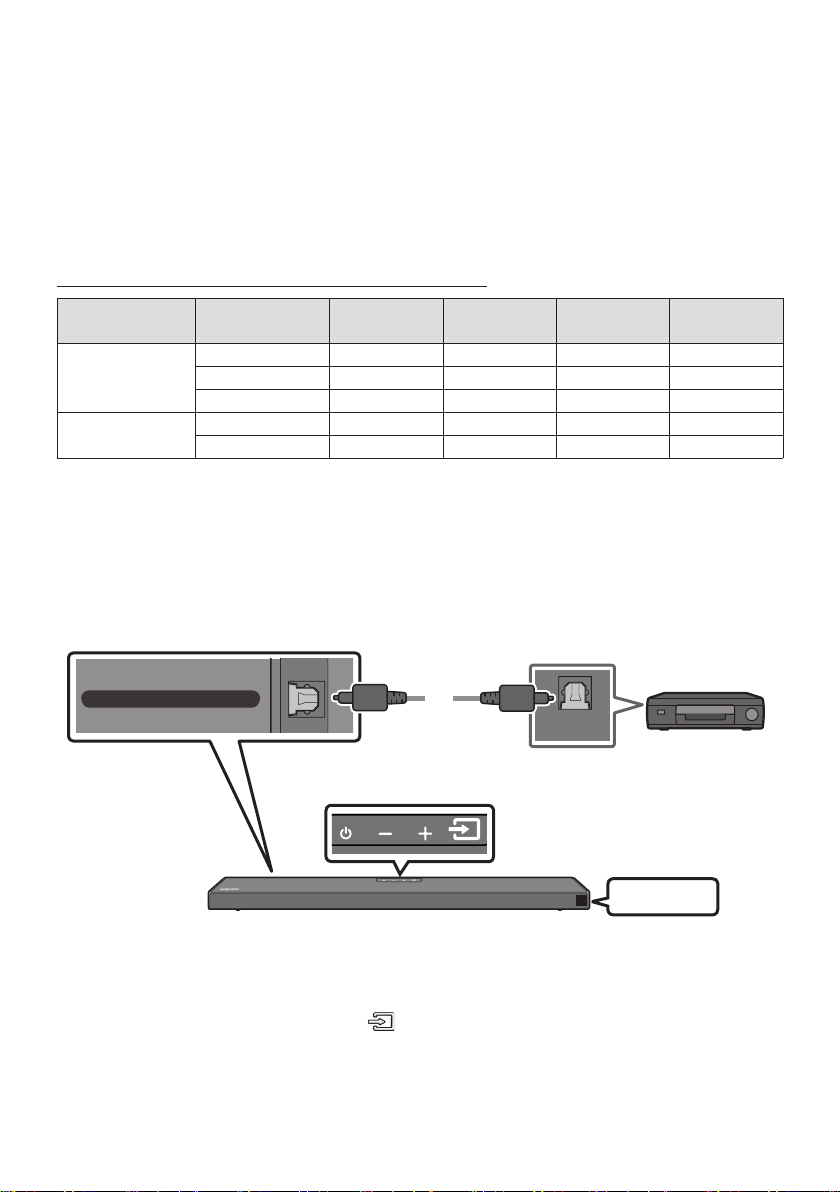
Connecting using an Optical Cable
OPTICAL OUT
HDMI TO TV
(ARC)
DIGITAL AUDIO IN (OPTICAL)
Optical Cable
(not supplied)
Bottom of the Soundbar
BD / DVD player /
Set-top box /
Game console
Top of the Soundbar
D.IN
1. Connect DIGITAL AUDIO IN (OPTICAL) on the main unit to the OPTICAL OUT port of the Source
Device using a digital Optical Cable (not supplied).
2. Select “D.IN” mode by pressing the (Source) button on the top panel or on the remote control.
ENG - 19
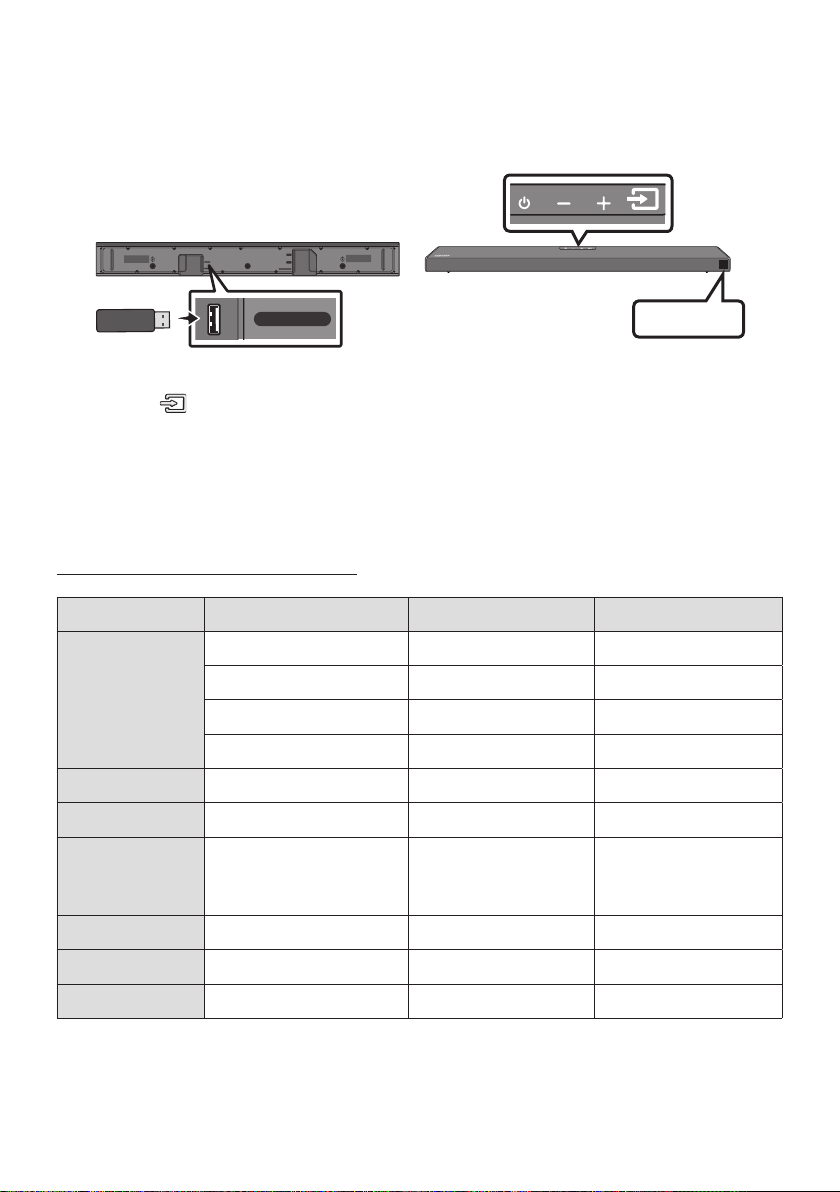
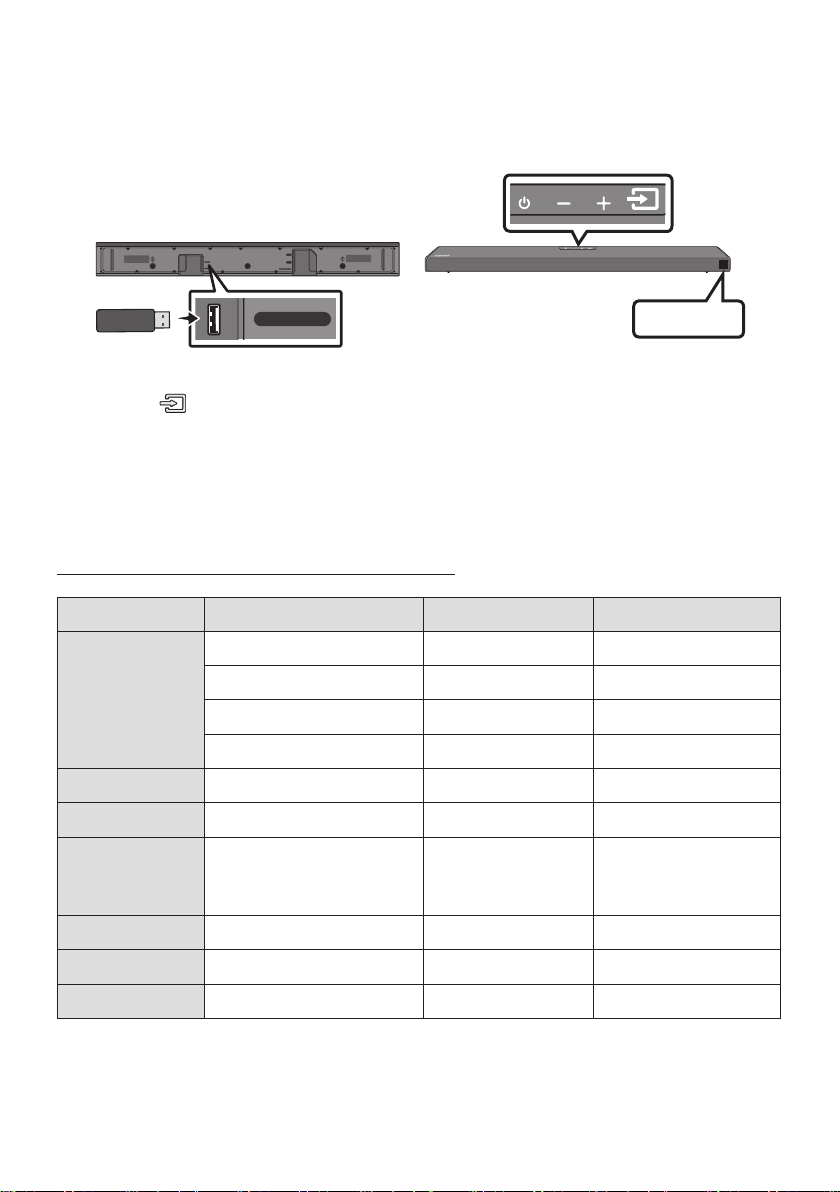
06 CONNECTING A USB STORAGE DEVICE
USB port
HDMI
HDMI TO TV
(ARC)
USB (5V 0.5A)
DC 24V
DIGITAL AUDIO IN (OPTICAL)
USB (5V 0.5A)
USB
1. Connect the USB device to the USB port on the bottom of the product.
2. Press the (Source) button on the top panel or on the remote control, and then select “USB”.
3. “USB” appears in the display screen.
4.
The Soundbar automatically turns off (Auto Power Down) if no USB device has been connected
for more than 20 minutes.
File Format Type Compatibility list
Extension Codec Sampling Rate Bit rate
*.mp3 MPEG1 Layer2 32kHz ~ 48kHz 32kbps ~ 320kbps
MPEG1 Layer3 32kHz ~ 48kHz 32kbps ~ 320kbps
MPEG2 Layer3 16kHz ~ 24kHz 8kbps ~ 160kbps
MPEG2.5 Layer3 8kHz ~ 12kHz 8kbps ~ 160kbps
*.wma WMA7/8/9 (Audio Only) 32kHz ~ 48kHz 32kbps ~ 320kbps
*.ogg Vorbis 32kHz ~ 48kHz 45kbps ~ 500kbps
*.aac
*.m4a
*.mp4
A AC-LC
(MPEG2/MPEG4 Audio Only)
32kHz ~ 48kHz 32kbps ~ 320kbps
*.wav LPCM 32kHz ~ 192kHz 1,024kbps ~ 9,216kbps
*.ac FLAC 32kHz ~ 192kHz 162kbps ~ 8,100kbps
*.aiff AIFF 32kHz ~ 192kHz 1,024kbps ~ 9,216kbps
ENG - 20
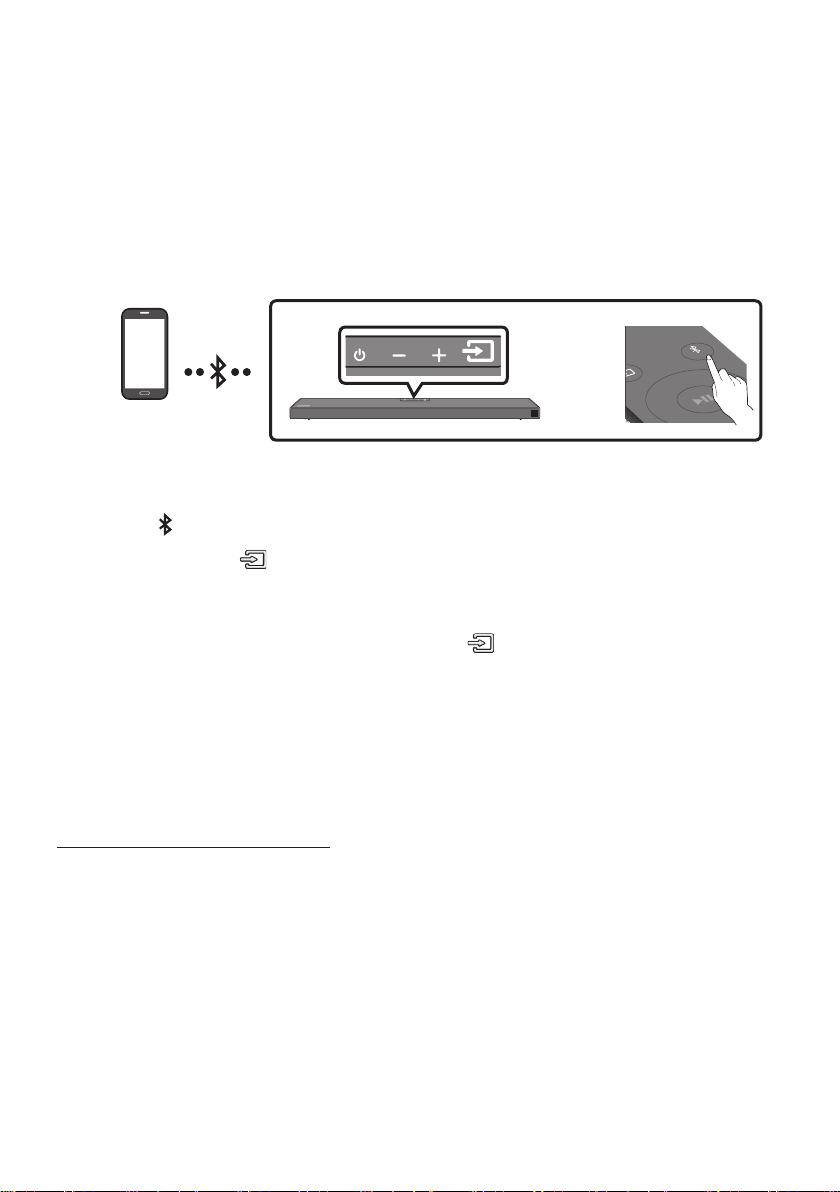
07 CONNECTING A MOBILE DEVICE
Connecting via Bluetooth
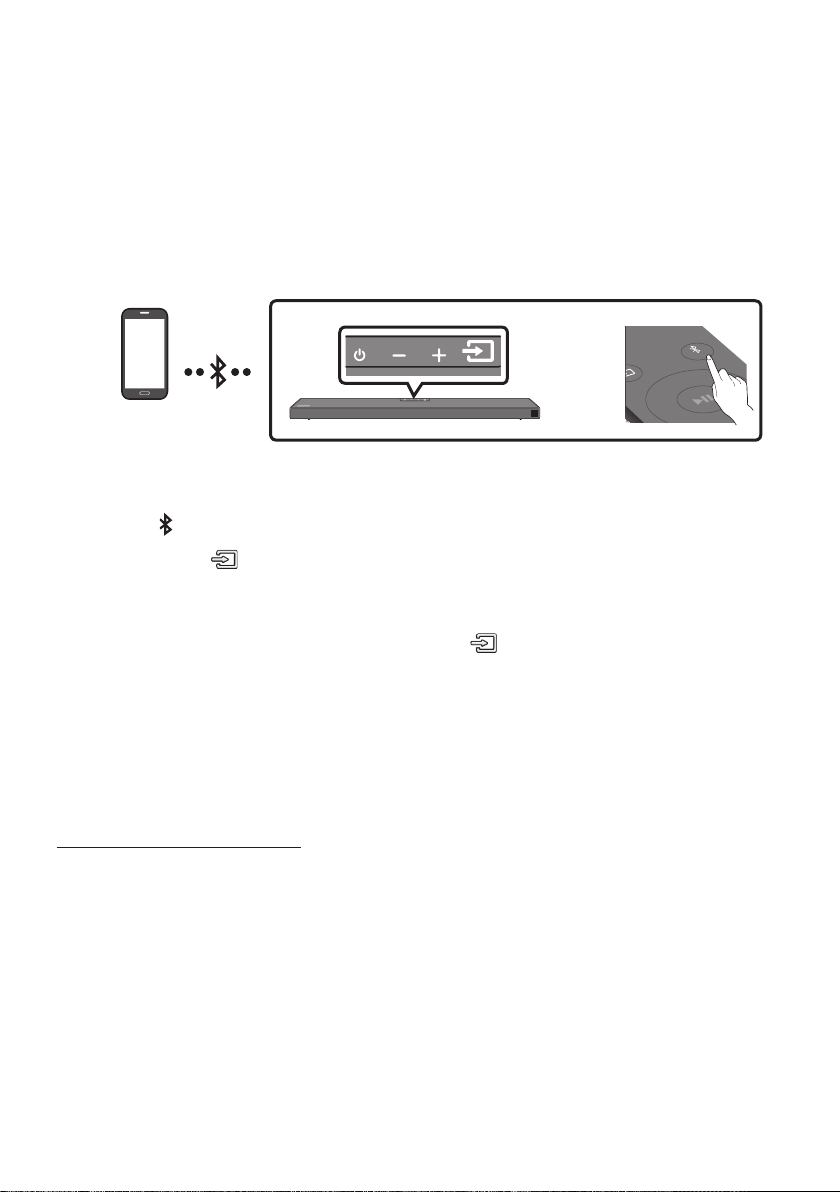
When a mobile device is connected using Bluetooth, you can hear stereo sound without the hassle of
cabling.
The connection is limited to one TV or two Bluetooth devices at the same time.
Bluetooth device
SOUND
MODE
PAIR
OR
The initial connection
1. Press the PAIR button on the remote control to enter the “BT PAIRING” mode.
(OR)
a. Press the (Source) button on the top panel and then select “BT”.
“BT” changes to “BT PAIRING” in a few seconds automatically or changes to “BT READY” if
there is a connect record.
b. When “BT READY” appears, press and hold the (Source) button on the top panel of the
Soundbar for more than 5 seconds to display “BT PAIRING”.
2. On your device, select “[AV] Samsung Soundbar Q6A-Series” from the list that appears.
When the Soundbar is connected to the Bluetooth device, [Bluetooth Device NameBT”
appears in the front display.
3.
If the device fails to connect
If a previously connected Soundbar listing (e.g. “[AV] Samsung Soundbar Q6A-Series”) appears in
the list, delete it.
Then repeat steps 1 and 2.
NOTE
BT READY”
mode to reconnect.

ENG - 21
What is the difference between BT READY and BT PAIRING?
BT READY : In this mode, you can search for previously connected TVs or connect a previously
connected mobile device to the Soundbar.
BT PAIRING : In this mode, you can connect a new device to the Soundbar. (Press the PAIR button
on the remote control or press and hold the (Source) button on the top of the Soundbar for
more than 5 seconds while the Soundbar is in “BT” mode.)
NOTES
If asked for a PIN code when connecting a Bluetooth device, enter <0000>.
In Bluetooth connection mode, the Bluetooth connection will be lost if the distance between the
Soundbar and the Bluetooth device exceeds 10 meters.
The Soundbar automatically turns off after 20 minutes in the Ready state.
The Soundbar may not perform Bluetooth search or connection correctly under the following
circumstances:
–
– If several Bluetooth devices are simultaneously paired with the Soundbar.
– If the Bluetooth device is turned off, not in place, or malfunctions.
Electronic devices may cause radio interference. Devices that generate electromagnetic waves
must be kept away from the Soundbar main unit - e.g., microwaves, wireless LAN devices, etc.
The Soundbar supports SBC data (44.1kHz, 48kHz).
Connect only to a Bluetooth device that supports the A2DP (AV) function.
You cannot connect the Soundbar to a Bluetooth device that supports only the HF (Hands Free)
function.
Once you have paired the Soundbar to a Bluetooth device, selecting “[AV] Samsung Soundbar Q6A-
Series” from the device’s scanned devices list will automatically change the Soundbar to “BT” mode.
– Available only if the Soundbar is listed among the Bluetooth device’s paired devices.
(The Bluetooth device and the Soundbar must have been previously paired at least once.)
The Soundbar will appear in the Bluetooth device’s searched devices list only when the Soundbar is
displaying “BT READY”.
Bluetooth Power On (SOUND MODE)
If a previously paired Bluetooth device tries to pair with the Soundbar when the Bluetooth Power On
function is on and the Soundbar is turned off, the Soundbar turns on automatically.
1. Press and hold the SOUND MODE button for more than 5 seconds on the remote while the
Soundbar is turned on.
2. “ON-BLUETOOTH POWER” appears on the Soundbar’s display.

ENG - 22
Disconnecting the Bluetooth device from a Soundbar
You can disconnect a Bluetooth device from the Soundbar. For instructions, see the Bluetooth device’s
user manual.
The Soundbar will be disconnected.
When the Soundbar is disconnected from the Bluetooth device, the Soundbar will display
“BT DISCONNECTED” on the front display.
Disconnecting the Soundbar from the Bluetooth device
Press the (Source) button on the top panel or on the remote control, and then change to any mode
except “BT”.
Disconnecting takes time because the Bluetooth device must receive a response from the
Soundbar. (Disconnection time may differ, depending on the Bluetooth device)
When the Soundbar is disconnected from the Bluetooth device, the Soundbar will display
“BT DISCONNECTED” on the front display.
NOTES
In Bluetooth connection mode, the Bluetooth connection will be lost if the distance between the
Soundbar and the Bluetooth device exceeds 10 meters.
The Soundbar automatically turns off after 20 minutes in the Ready state.
More About Bluetooth
Bluetooth is a technology that enables Bluetooth-compliant devices to interconnect easily with each
other using a short wireless connection.
A Bluetooth device may cause noise or malfunction, depending on usage, if:
– A part of your body is in contact with the receiving/transmitting system of the Bluetooth
device or the Soundbar.
–
– It is exposed to electrical interference from same frequency-band devices including medical
equipment, microwave ovens, and wireless LANs.
Pair the Soundbar with the Bluetooth device while they are close together.
The further the distance between the Soundbar and Bluetooth device, the worse the quality is.
If the distance exceeds the Bluetooth operational range, the connection is lost.
In poor reception areas, the Bluetooth connection may not work properly.
The Bluetooth connection only works when it is close to the unit. The connection will be
automatically cut off if the Bluetooth device is out of range. Even within range, the sound quality
may be degraded by obstacles such as walls or doors.
This wireless device may cause electric interference during its operation.
ENG - 23
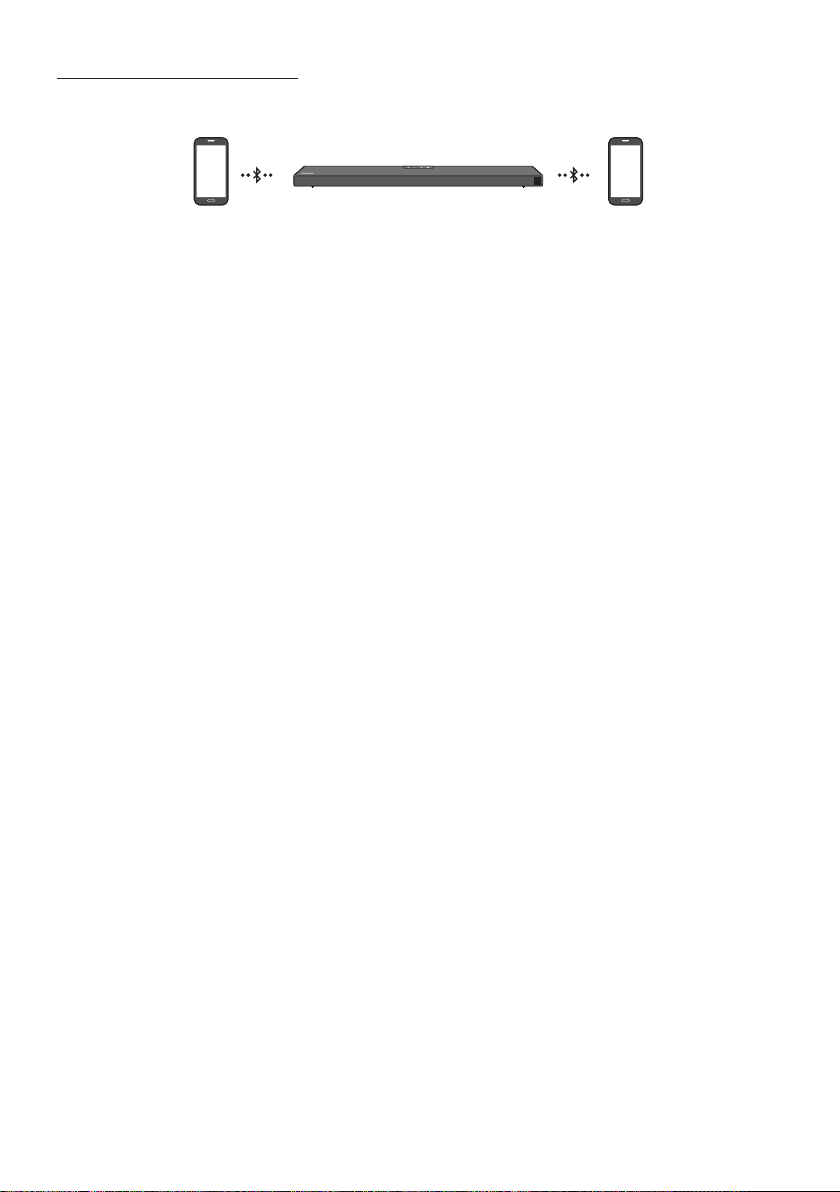
Bluetooth Multi connection
The Soundbar can be connected to 2 Bluetooth devices at the same time.
Bluetooth device A Bluetooth device B
1. Connect the Soundbar to up to two Bluetooth devices. (See page 20)
2. Play music from one of the connected Bluetooth devices while two devices are connected.
3. If music is played from the Bluetooth device “B” while playing from the device “A”, the music is
started playing on the device “B” and automatically being stopped/paused playback on the device
“A”.
4. In versions prior to AVRCP V1.4, the switching time of the device playing music may be delayed.
NOTES
Some devices do not support Bluetooth multi connection.
“BT PAIRING” mode stops when no device is paired within 3 minutes.
Switching devices may take about 7 seconds on some apps.
If you attempt to connect a 3rd Bluetooth device, the A or B devices will be disconnected.
(A device that is not currently playing will be disconnected.)
Only one Samsung TV, or 2 Bluetooth devices can be connected at the same time.
The Soundbar will be disconnected from Bluetooth devices when it receives a connection request
from a Samsung TV.
ENG - 24
Using the Tap Sound
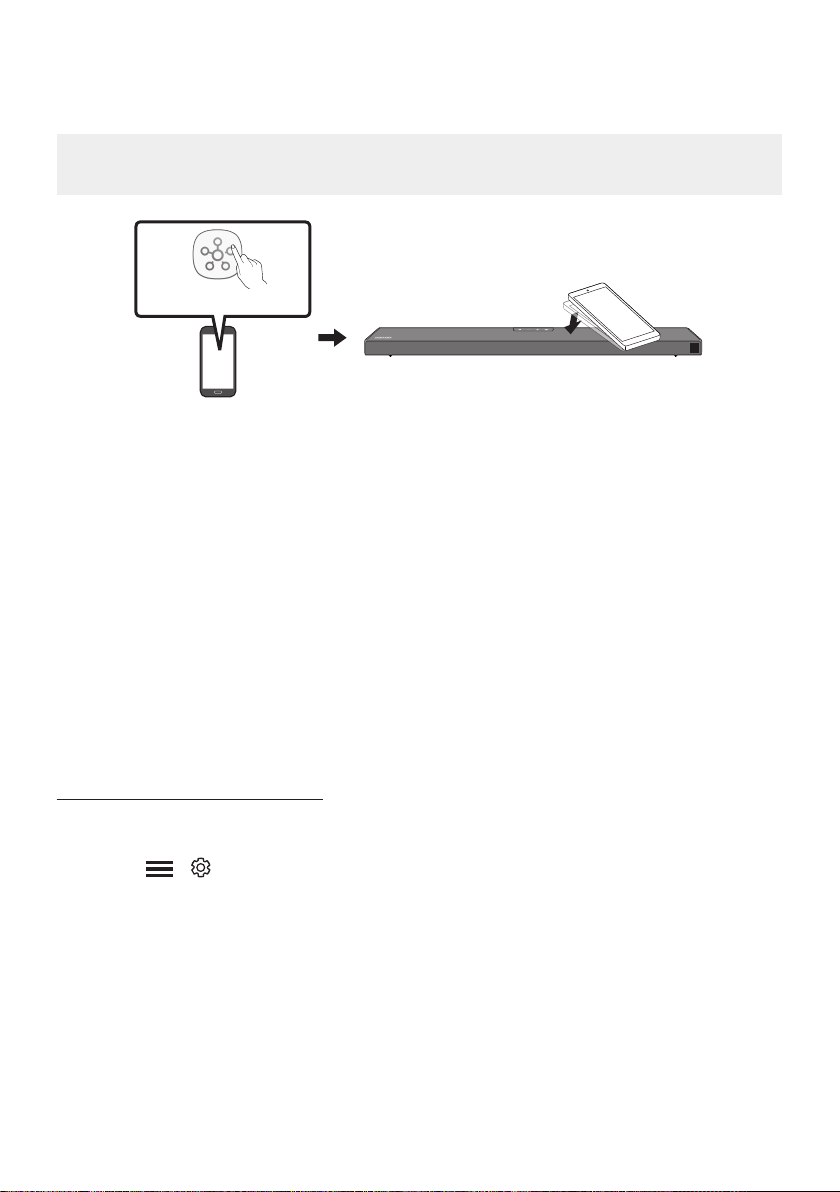
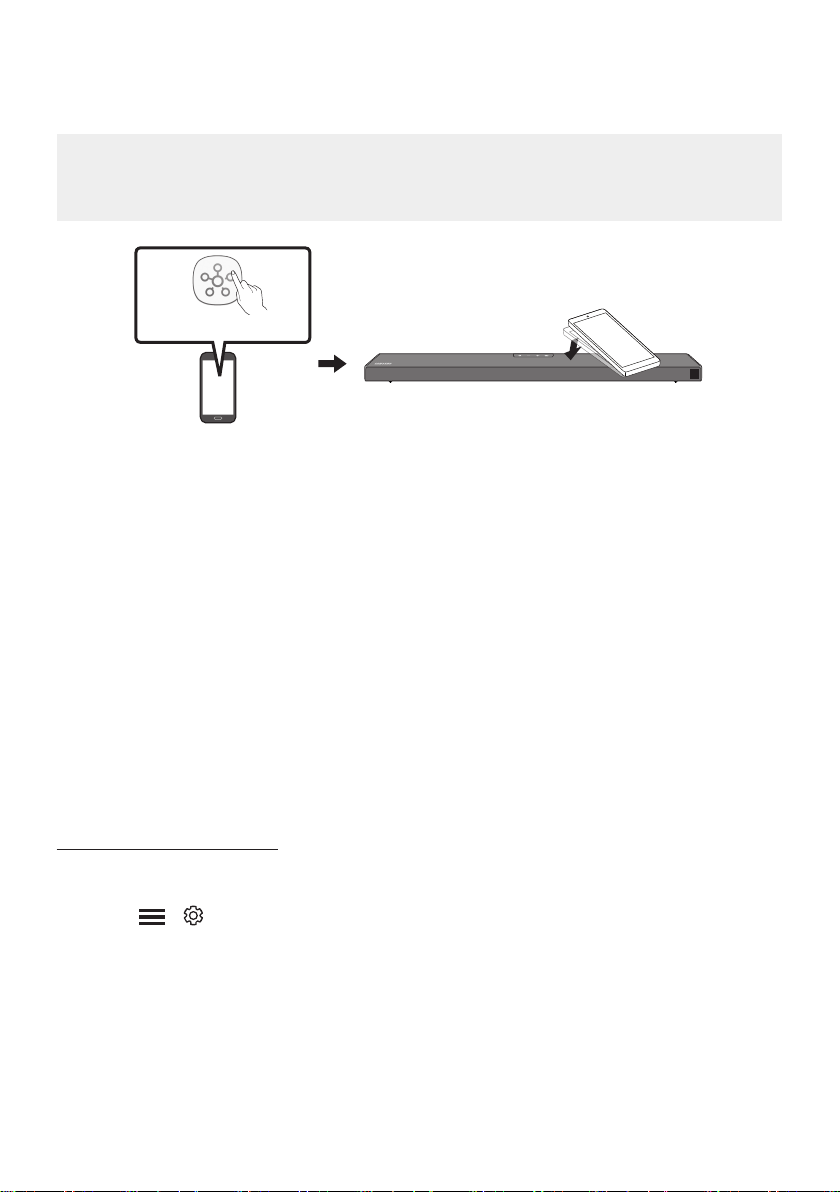
Tap the Soundbar with your mobile device to play audio from the mobile device through the Soundbar.
This function may not be supported, depending on the mobile device.
This function is only compatible with Samsung mobile devices with Android 8.1 or later.
Mobile device
SmartThings App
Top of the Soundbar
1. Turn on the Tap Sound function on your mobile device.
For details on how to turn on the function, refer to “Enable the Tap Sound function” below.
2. Tap the Soundbar with the mobile device. Select “Start now” in the displayed message window.
A connection is established between the mobile device and Soundbar via Bluetooth.
3. Play audio from the mobile device through the Soundbar.
This function connects a mobile device to the Soundbar via Bluetooth by detecting vibration
that occurs when the device touches the Soundbar.
Make sure the mobile device does not tap a sharp corner of the Soundbar. The Soundbar or
mobile device may become scratched or damaged.
It is recommended that the mobile device be covered with a case. Lightly tap the wide area in
the upper portion of the Soundbar, without using excessive force.
To use this function, update the SmartThings app to the latest version.
The function may not be supported, depending on the app version.
Enable the Tap Sound function
Use the SmartThings app to turn on the Tap View, Tap Sound function.
1. On the mobile device, run the SmartThings app.
2. Select ( ) in the SmartThings app screen displayed on the mobile device.
3. Set “Tap View, Tap Sound” to On to allow the function to work when a mobile device moves close to
the Soundbar.
NOTES
When the mobile device is in power-saving mode, the Tap Sound function does not work.
The Tap Sound function may not work if there are devices near the Soundbar that cause radio
interference such as electric devices. Make sure devices that may cause radio interference are
ENG - 25
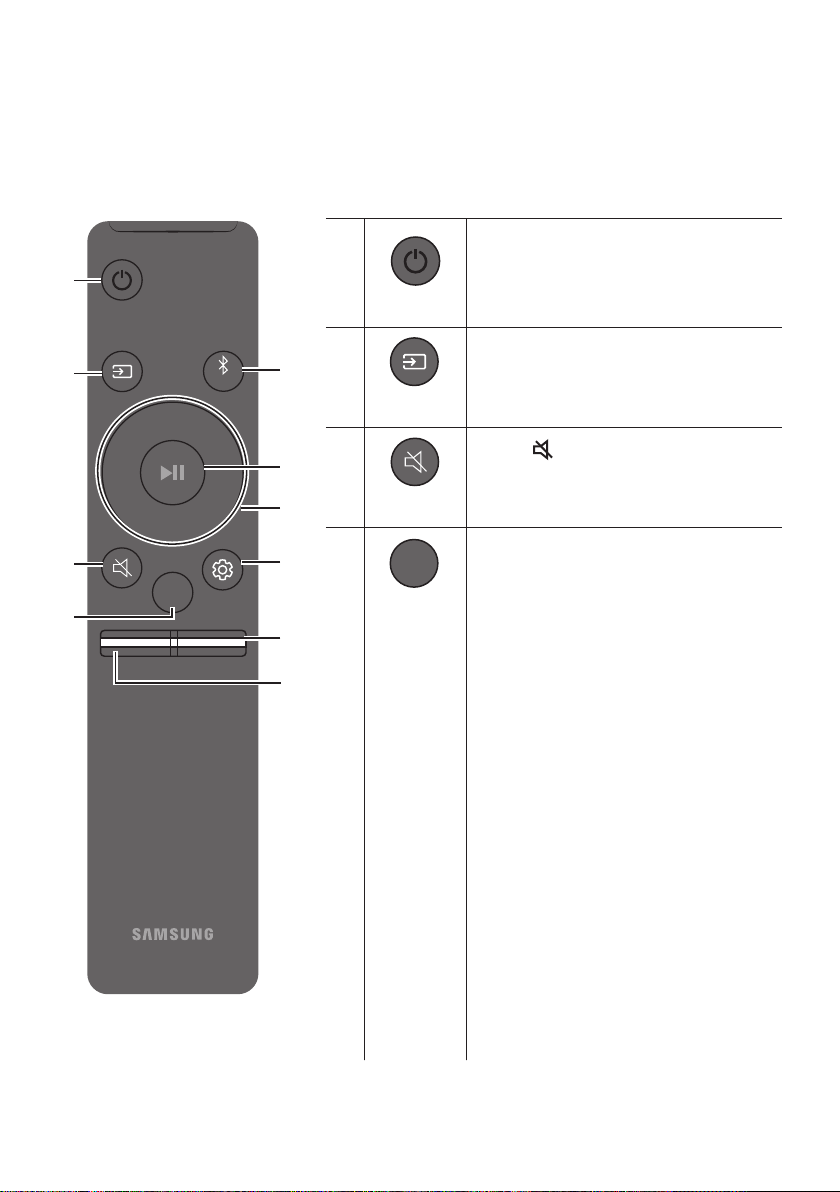
08 USING THE REMOTE CONTROL
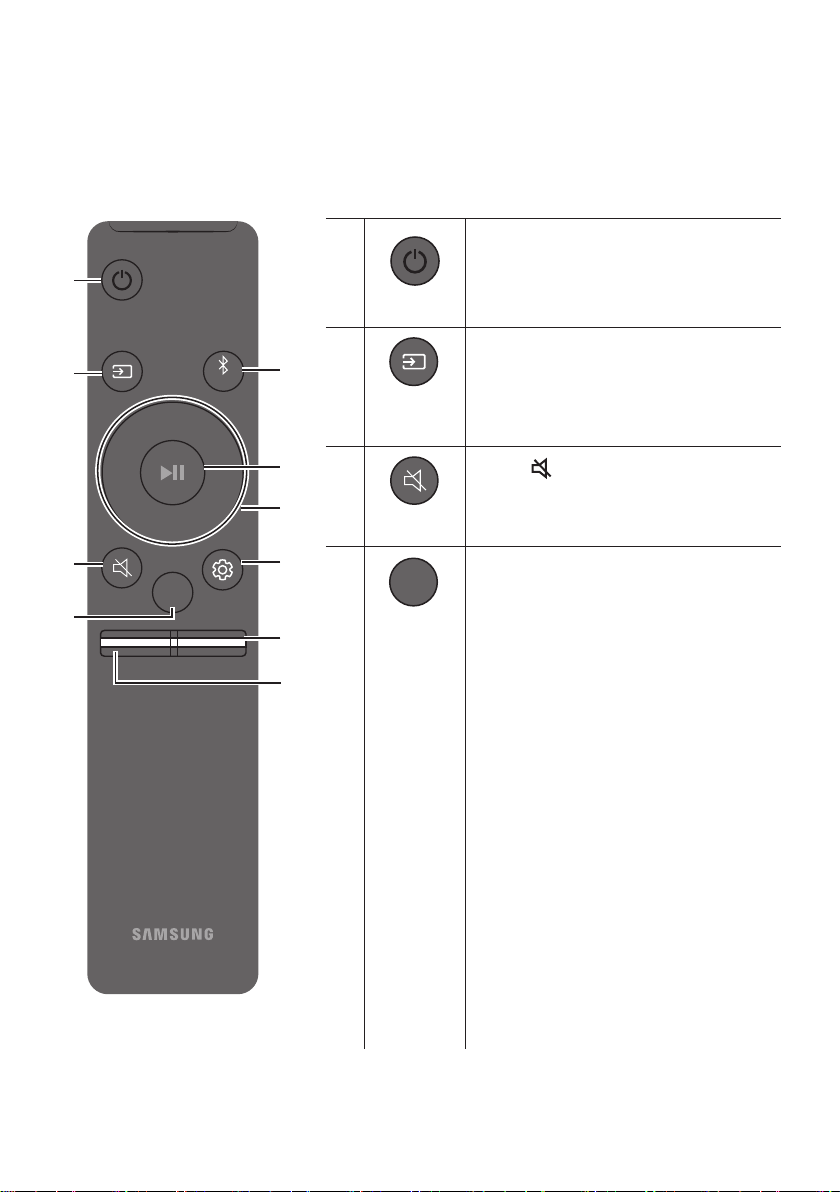
How to Use the Remote Control
VOL WOOFER
SOUNDBAR
SOUND
MODE
PAIR
Power
VOL WOOFER
SOUND
MODE
PAIR
Turns the Soundbar on and off.
VOL WOOFER
SOUND
MODE
PAIR
Source
Press to select a source connected to the
Soundbar.
Mute
VOL WOOFER
SOUND
MODE
PAIR
Press the (Mute) button to mute the sound.
Press it again to unmute the sound.
SOUND MODE
VOL WOOFER
SOUND
MODE
PAIR
Press to cycle through the available sound modes:
SURROUND SOUND, GAME PRO, ADAPTIVE
SOUND,
or STANDARD.
– SURROUND SOUND
– GAME PRO
Provides stereoscopic sound to immerse
you in the action while gaming.
– ADAPTIVE SOUND
Analyses the content in real time and
automatically provides an optimal sound
content.
– STANDARD
Outputs the original sound.
DRC (Dynamic Range Control)
Lets you apply dynamic range control to
Dolby Digital tracks. Press and hold the
SOUND MODE button for more than
to turn DRC (Dynamic Range Control) on or
off. With the DRC turned on, loud sound is
reduced. (The sound may be distorted.)
ENG - 26
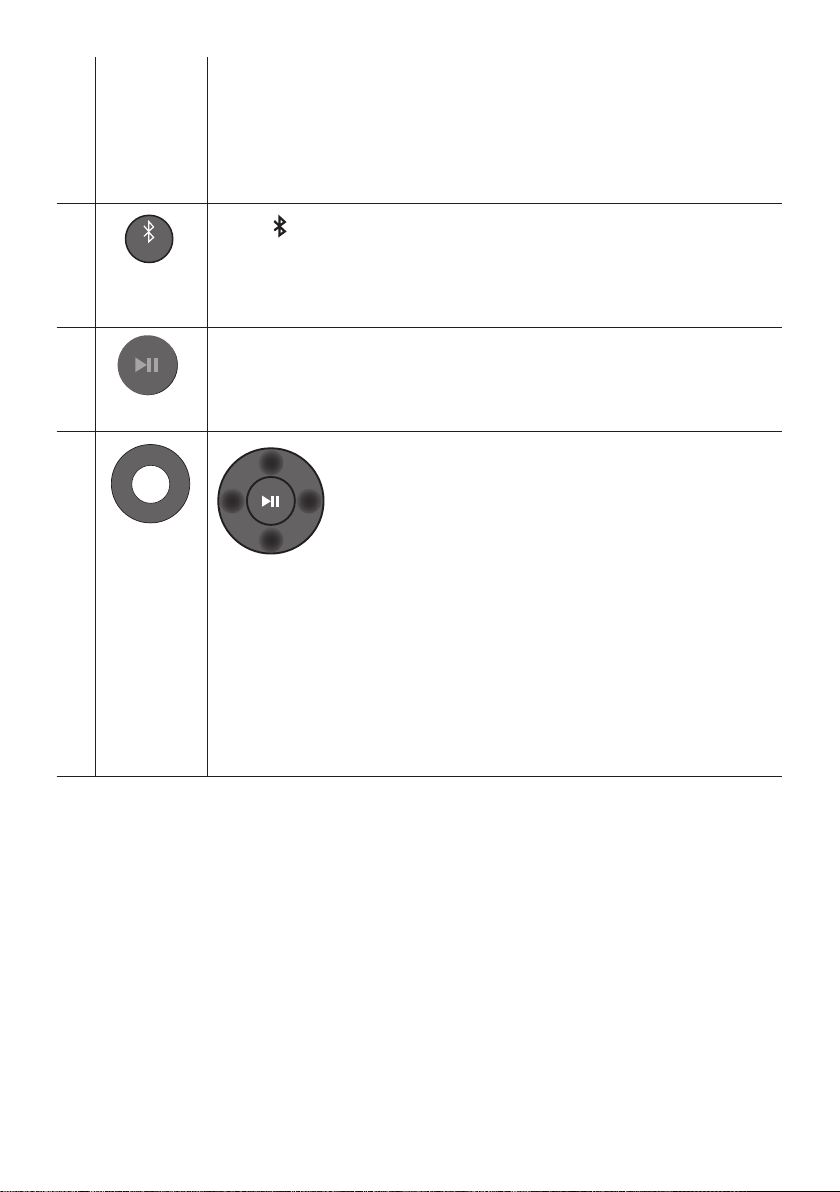
Bluetooth Power
This feature automatically turns the Soundbar on when it receives a connection
request from a previously connected TV or Bluetooth device. The setting is On by
default.
– Press and hold the SOUND MODE button for more than 5 seconds to turn off the
Bluetooth Power function.
VOL WOOFER
SOUND
MODE
PAIR
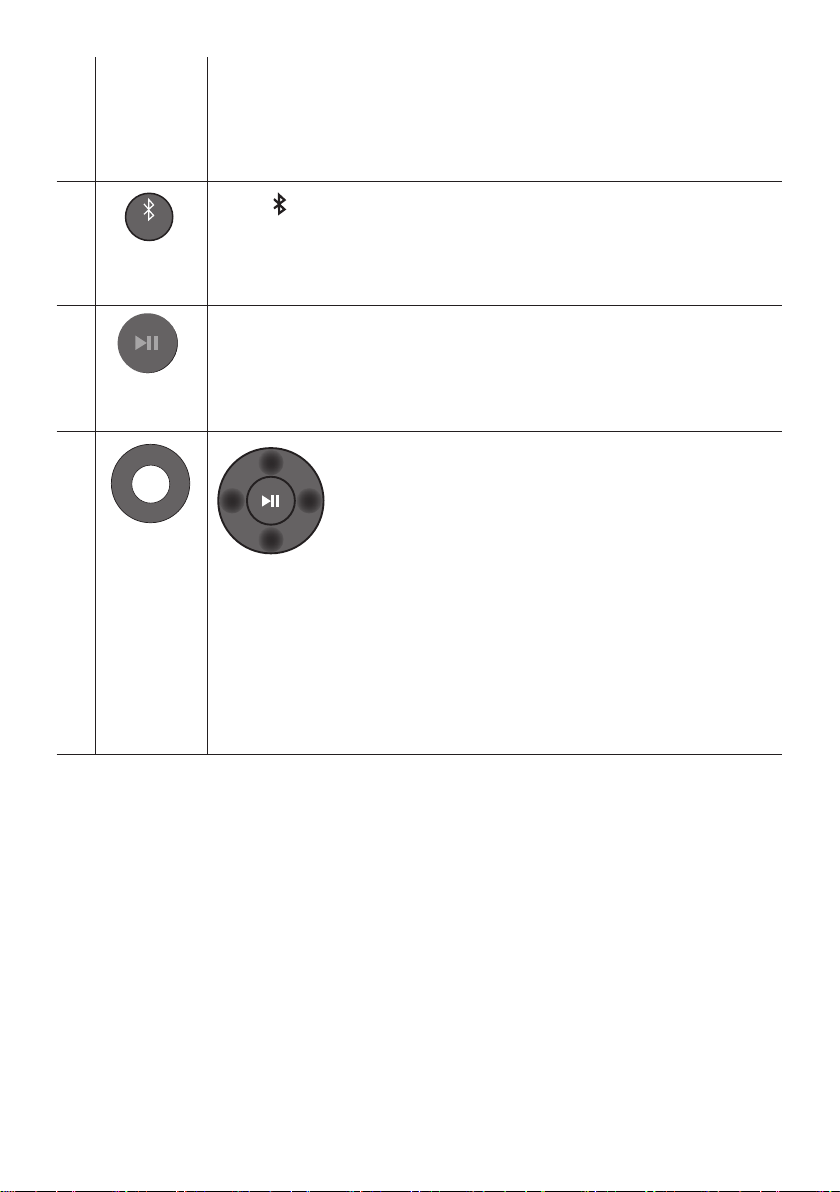
Bluetooth
PAIR
Press the PAIR button. “BT PAIRING” appears in the Soundbar’s display.
You can connect the Soundbar to a new Bluetooth device in this mode by selecting the
Soundbar from the Bluetooth device's search list.
Play / Pause
VOL WOOFER
SOUND
MODE
PAIR
Press the p
VOL WOOFER
SOUND
MODE
PAIR
Up/Down/
Left/Right
Press the indicated areas to select Up/Down/Left/Right.
Press Up/Down/Left/Right on the button to select or set functions.
Repeat
To use the Repeat function in “USB” mode, press the Up button.
Music Skip
Press the RightLeft button to select the
ID SET
Press and hold the Up button for 5 seconds to complete ID SET (when connecting to a
wireless subwoofer or wireless rear speakers).
ENG - 27
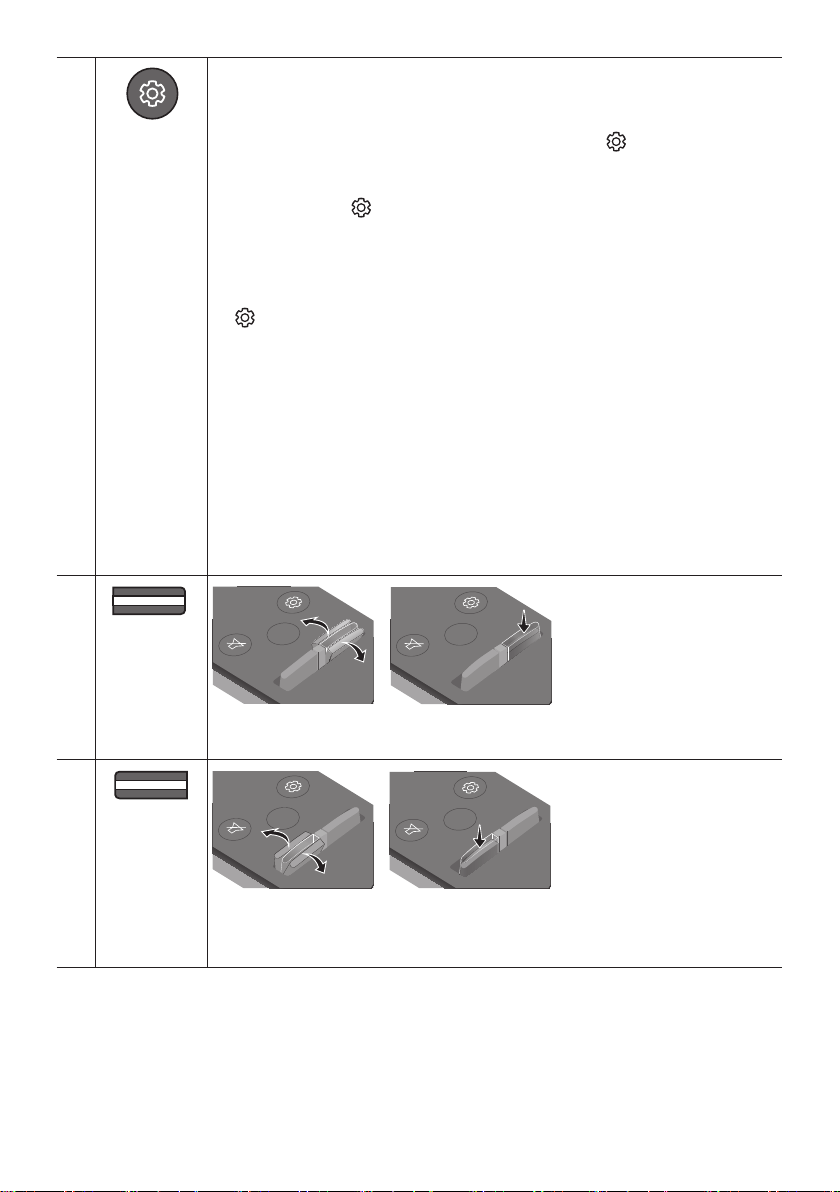
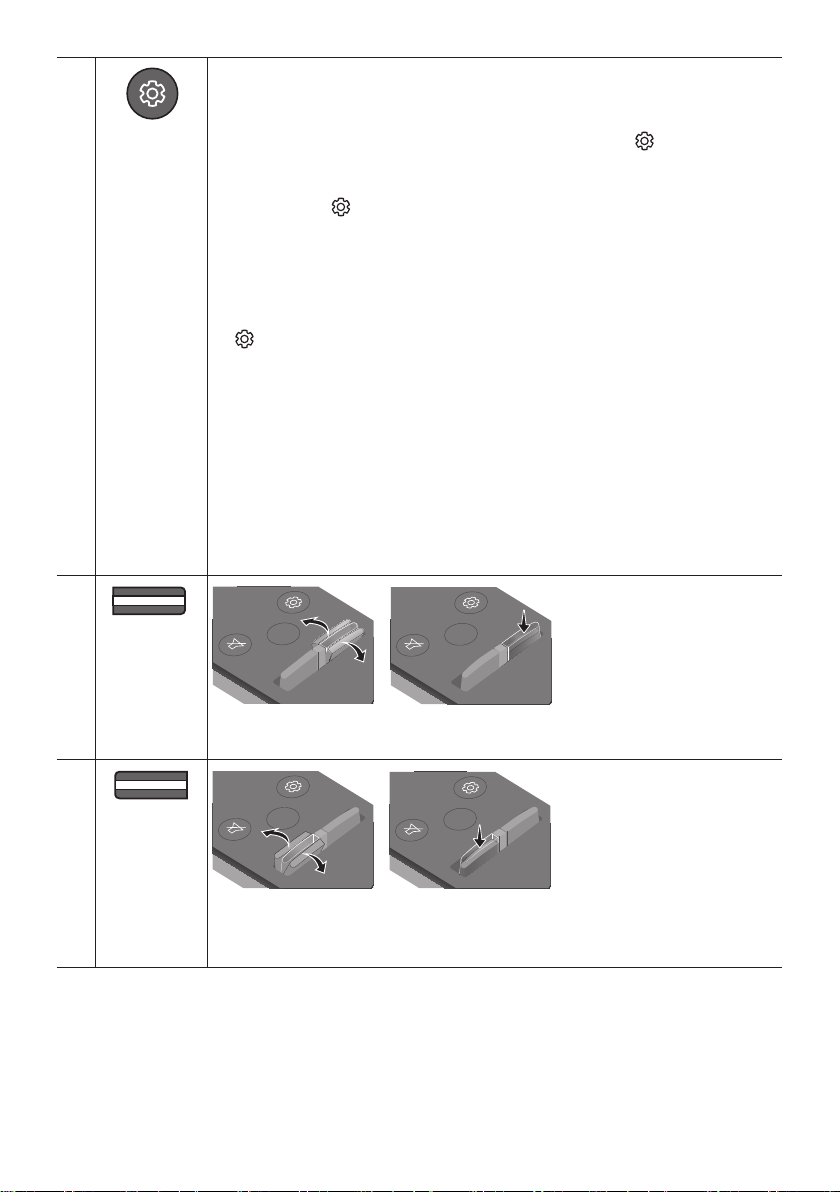
Sound Control
VOL WOOFER
SOUND
MODE
PAIR
When pressed, the settings TREBLE, BASS, AUDIO SYNC, CENTER LEVEL, TOP LEVEL, and
VIRTUAL ON/OFF are displayed in sequence.
The desired settings can be adjusted using the Up/Down buttons.
To control the volume of the treble or bass sound, press the (Sound Control)
button to select TREBLE or BASS and then adjust the volume between -6~+6 by using
the Up/Down buttons.
(Make sure the Sound mode is set to “STANDARD”.)
Press and hold the (Sound Control) button for about 5 seconds to adjust the sound
for each frequency band. 150Hz, 300Hz, 600Hz, 1.2kHz, 2.5kHz, 5kHz, and 10kHz are
selectable using the Left/Right buttons and each can be adjusted to a setting between
-6 to +6 using the Up/Down buttons. (Make sure the Sound mode is set to “STANDARD”.)
If the video on the TV and audio from the Soundbar are not synchronised, press the
(Sound Control) button to select AUDIO SYNC and then
set the audio delay
by using the Up/Down buttons. (Not available in “USB” or
“BT” mode.)
AUDIO SYNC is only supported for some functions.
To control the volume of the each speaker select CENTER LEVEL, or TOP LEVEL in
Sound Settings, and then adjust the volume between -6~+6 by using the Up/Down
buttons.
The VIRTUAL Speaker function can be turned ON/OFF by using the Up/Down buttons.
When the Rear Speakers (sold separately) are connected, the settings REAR SPEAKER
ON/OFF and REAR LEVEL are supported.
Use the Up/Down buttons to set the REAR SPEAKER ON/OFF and to adjust the
volume of the REAR LEVEL between -6 to +6.
VOL WOOFER
SOUND
MODE
PAIR
WOOFER
(BASS) LEVEL
SOUND
MODE
VOL
WOOFER
SOUNDBAR
SOUND
MODE
VOL
WOOFER
SOUNDBAR
SOUND
MODE
VOL
WOOFER
SOUNDBAR
SOUND
MODE
VOL
WOOFER
SOUNDBAR
Push the button up or down to adjust the level of the woofer (bass) to -12 or between -6 to
+6. To set the woofer (bass) volume level to 0 (Default), press the button.
VOL WOOFER
SOUND
MODE
PAIR
VOL
(Volume)
SOUND
MODE
VOL
WOOFER
SOUNDBAR
SOUND
MODE
VOL
WOOFER
SOUNDBAR
SOUND
MODE
VOL
WOOFER
SOUNDBAR
SOUND
MODE
VOL
WOOFER
SOUNDBAR
Push the button up or down to adjust the volume.
Mute
Press the VOL button in to mute the sound. Press it in again to unmute the sound.
ENG - 28
Adjusting the Soundbar volume with a TV remote control
Adjust the Soundbar volume using the TV’s remote control.
This function can be used with IR remote controls only. Bluetooth remote controls (remote
controls that require pairing) are not supported.
Set the TV speaker to External Speaker to use this function.
Manufacturers supporting this function:
VIZIO, LG, Sony, Sharp, PHILIPS, PANASONIC, TOSHIBA, Hisense, RCA
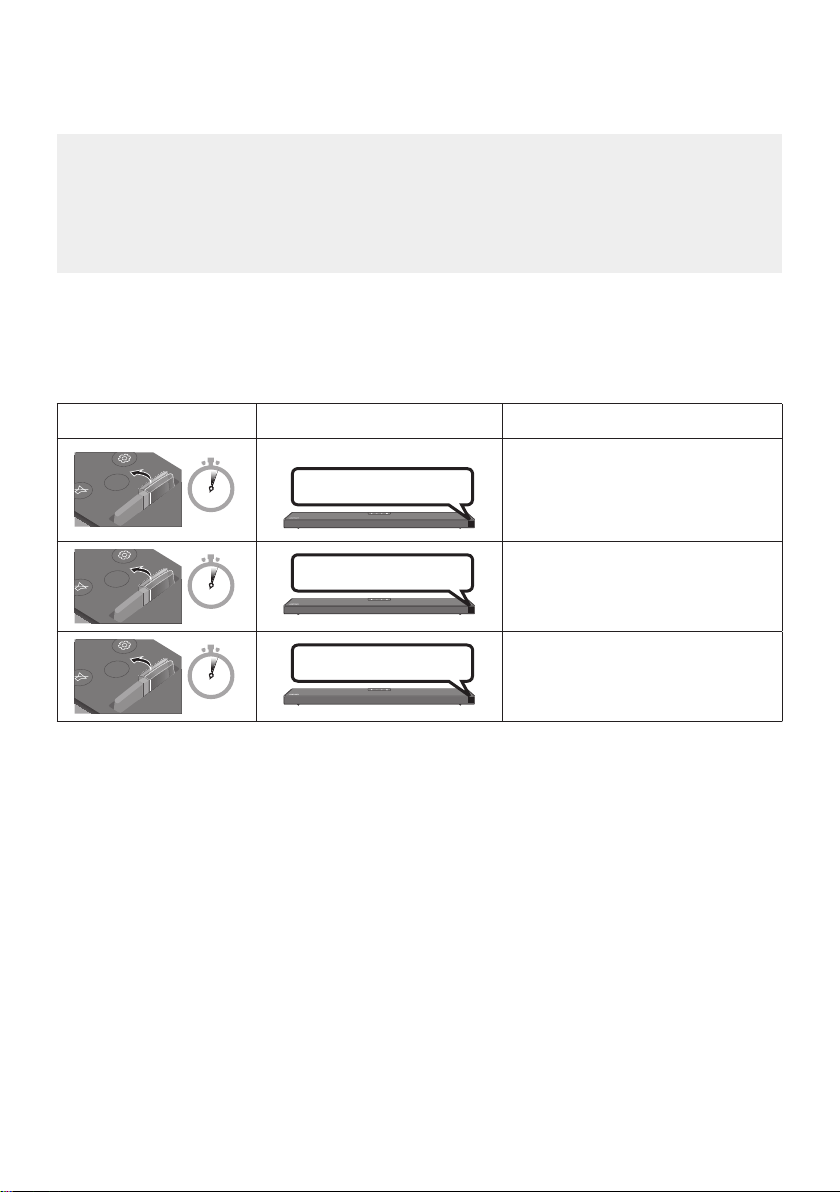
1. Turn Off the Soundbar.
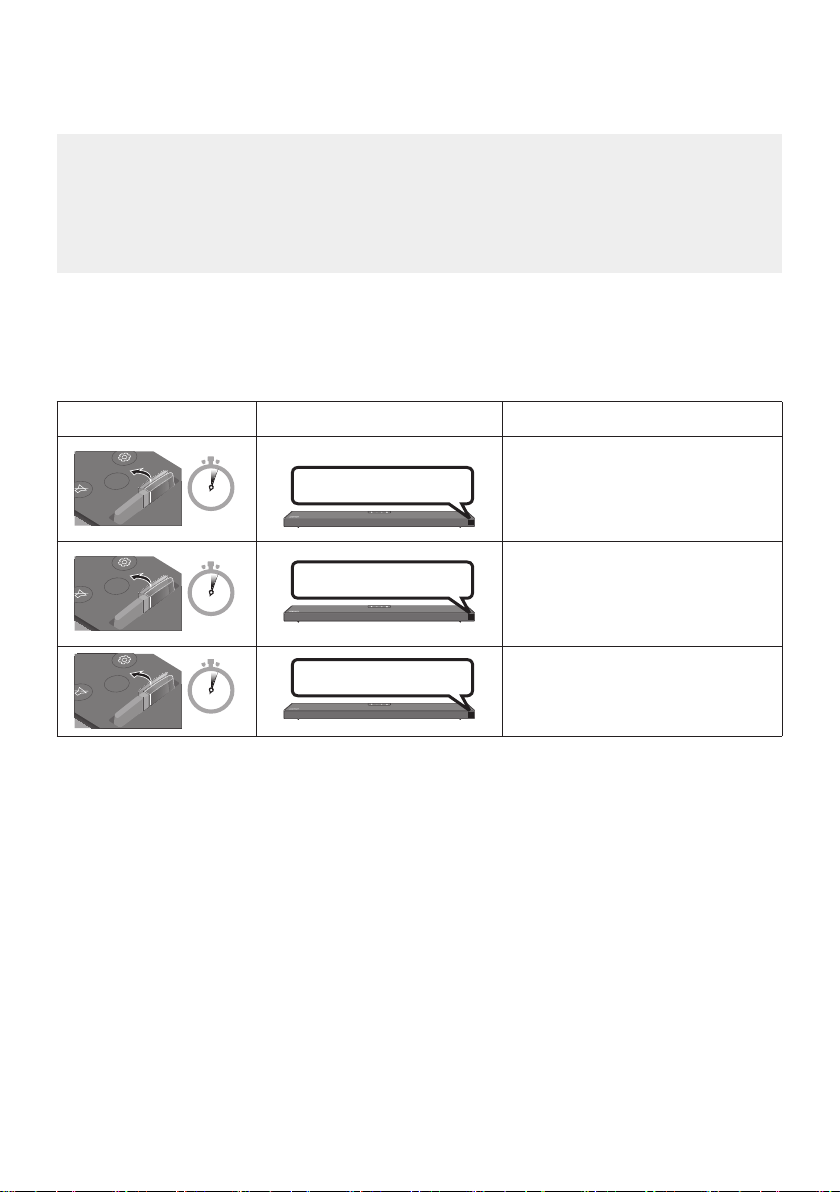
2. Push up and hold the WOOFER button for 5 seconds.
Each time you push the WOOFER button up and hold it for 5 seconds, the mode switches in the
following order: “OFF-TV REMOTE” (Default mode), “SAMSUNG-TV REMOTE”, “ALL-TV REMOTE”.
Remote Control Button Display Status
SOUND
MODE
VOL
WOOFER
SOUNDBAR
5 Sec
OFF-TV REMOTE
(Default mode)
Disable the TV remote control.
SOUND
MODE
VOL
WOOFER
SOUNDBAR
5 Sec
SAMSUNG-TV REMOTE
Enable a Samsung TV’s IR remote
control.
SOUND
MODE
VOL
WOOFER
SOUNDBAR
5 Sec
ALL-TV REMOTE
Enable a third-party TV’s IR remote
control.
ENG - 29
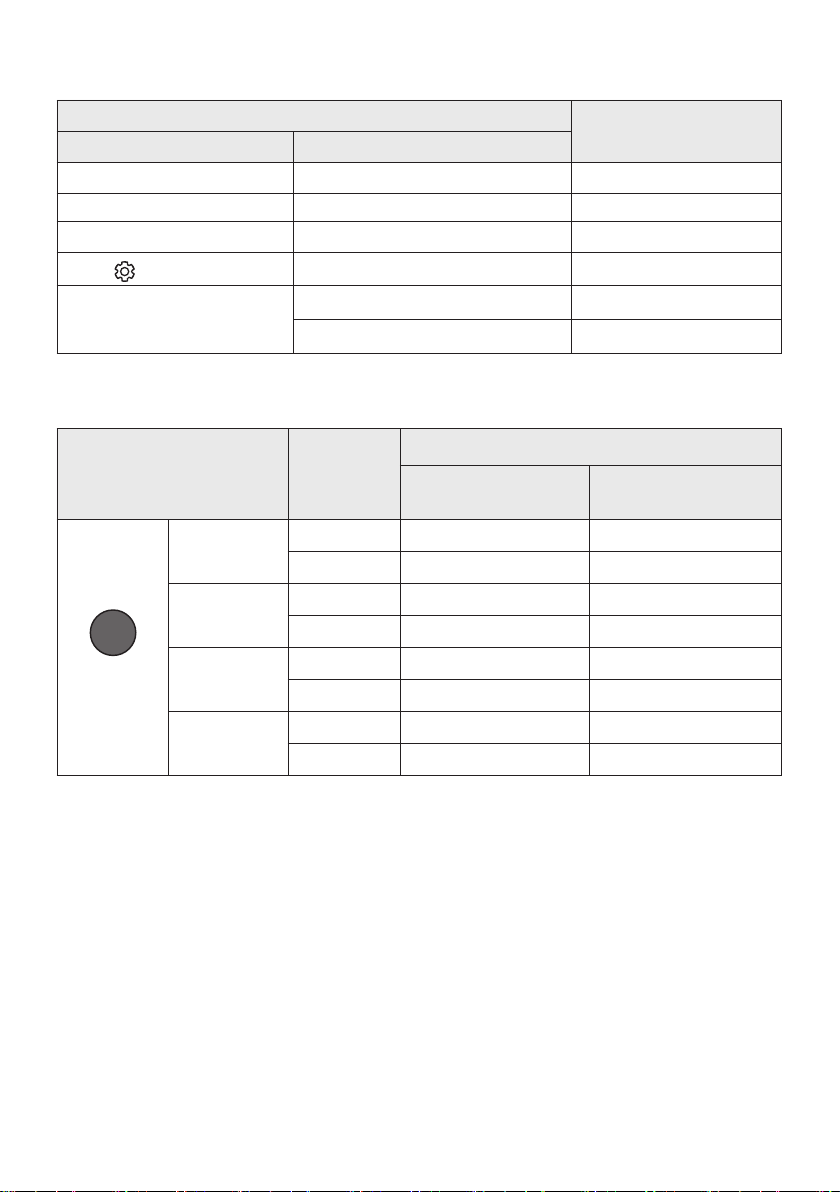
Using the Hidden Buttons (Buttons with more than one function)
Hidden Button
Reference page
Remote Control Button Function
WOOFER (Up) TV remote control On/Off (Standby) page 28
Left TV Auto connect On/Off (BT Ready) page 16
Up ID SET page 26
(Sound Control)
7 Band EQ page 27
SOUND MODE
DRC ON/OFF (Standby) page 25
Bluetooth Power page 26
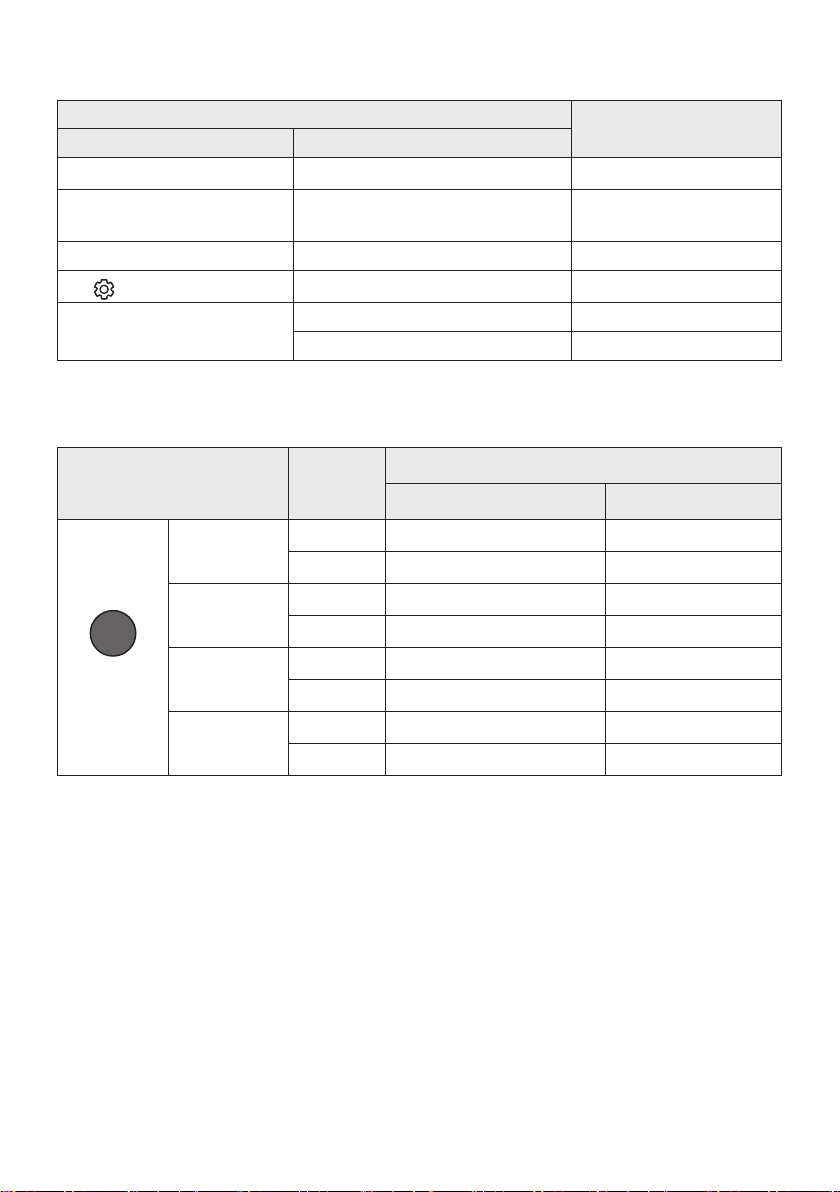
Outputspecicationsforthedifferentsoundeffectmodes
Effect Input
Output
Without Wireless Rear
Speaker Kit
With Wireless Rear
Speaker Kit
SOUND MODE
Surround
VOL WOOFER
SOUND
MODE
Bluetooth
POWER
SURROUND
SOUND
2.0 ch
3.1.2 ch 5.1.2 ch
5.1 ch 3.1.2 ch 5.1.2 ch
GAME PRO
2.0 ch
3.1.2 ch 5.1.2 ch
5.1 ch 3.1.2 ch 5.1.2 ch
ADAPTIVE
SOUND
2.0 ch
3.1.2 ch 5.1.2 ch
5.1 ch 3.1.2 ch 5.1.2 ch
STANDARD
2.0 ch
2.1 ch 2.1 ch
5.1 ch 3.1 ch 5.1 ch
The Samsung Wireless Rear Speaker Kit can be purchased separately. To purchase a Kit, contact the
vendor you purchased the Soundbar from.
When the input source is Dolby Atmos®, the Subwoofer-only setup provides 3.1.2 channel audio,
while the Subwoofer & Wireless Rear Speaker Kit setup provides 5.1.2 channel audio.
The Surround Speakers will not produce sounds for 2 channel output while STANDARD mode is in
use. To enable sound for the Surround Speakers, change the effect mode to SURROUND SOUND.

ENG - 30
09 INSTALLING THE
WALL MOUNT
Installation Precautions
Install on a vertical wall only.
Do not install in a place with high
temperature or humidity.
Verify whether the wall is strong enough to
support the product’s weight. If not, reinforce
the wall or choose another installation point.
anchors appropriate for the kind of wall you
have (plaster board, iron board, wood, etc.). If
studs.
Purchase wall mounting screws according to
the type and thickness of the wall you want to
mount the Soundbar on.
– Diameter: M5
– Length: 35 mm or longer recommended.
Connect cables from the unit to external
devices before you install the Soundbar on
the wall.
Make sure the unit is turned off and
unplugged from the power source before you
install it. Otherwise, it may cause an electric
shock.
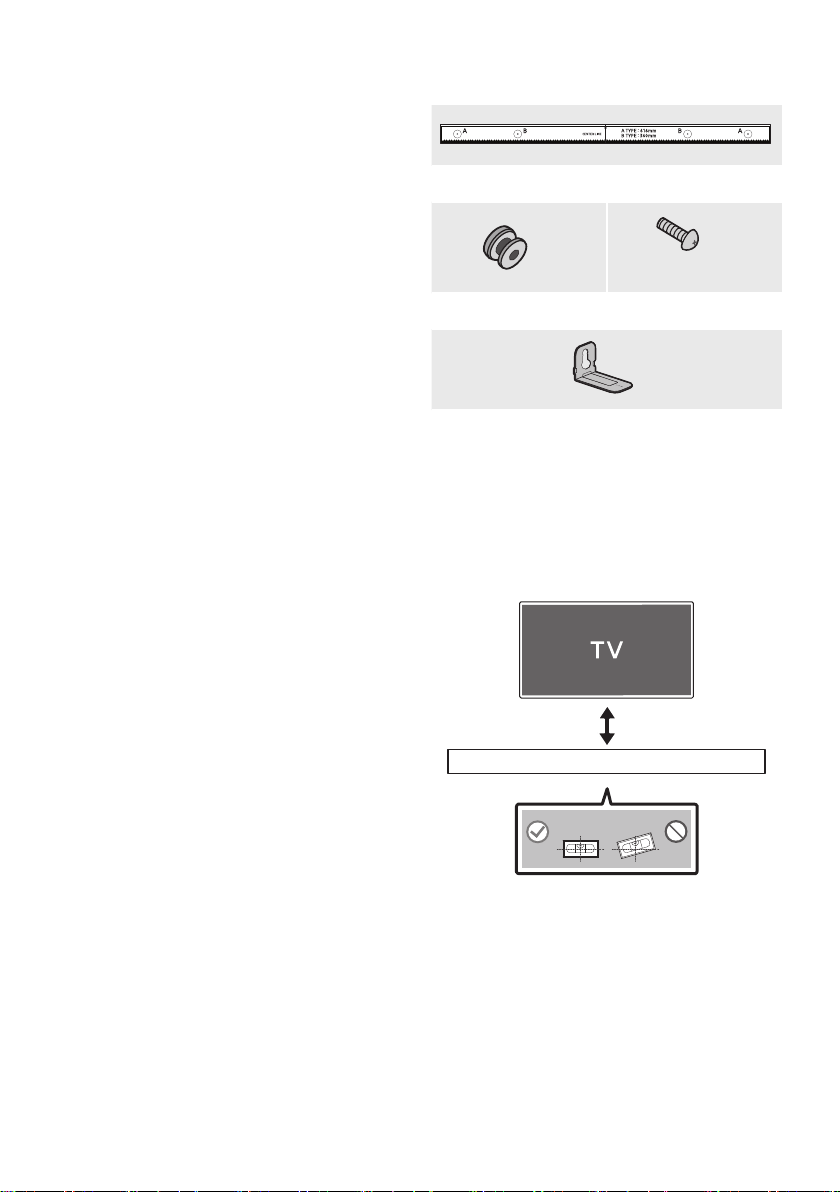
Wallmount Components
Wall Mount Guide
x 2
(M4 x L10)
x 2
Holder-Screw Screw
x 2
Bracket-Wall Mount
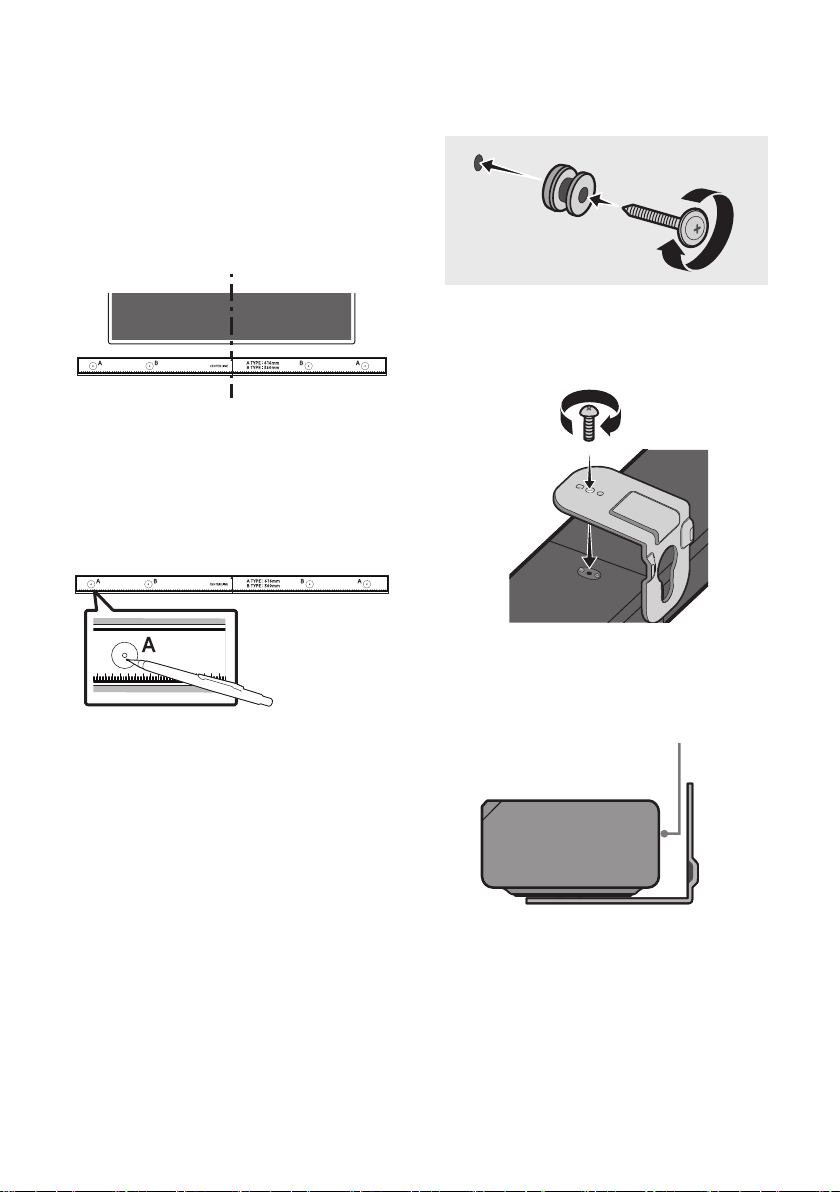
1. Place the Wall Mount Guide against the wall
surface.
The Wall Mount Guide must be level.
If your TV is mounted on the wall, install
the Soundbar at least 5 cm below the TV.
5 cm or more
ENG - 31
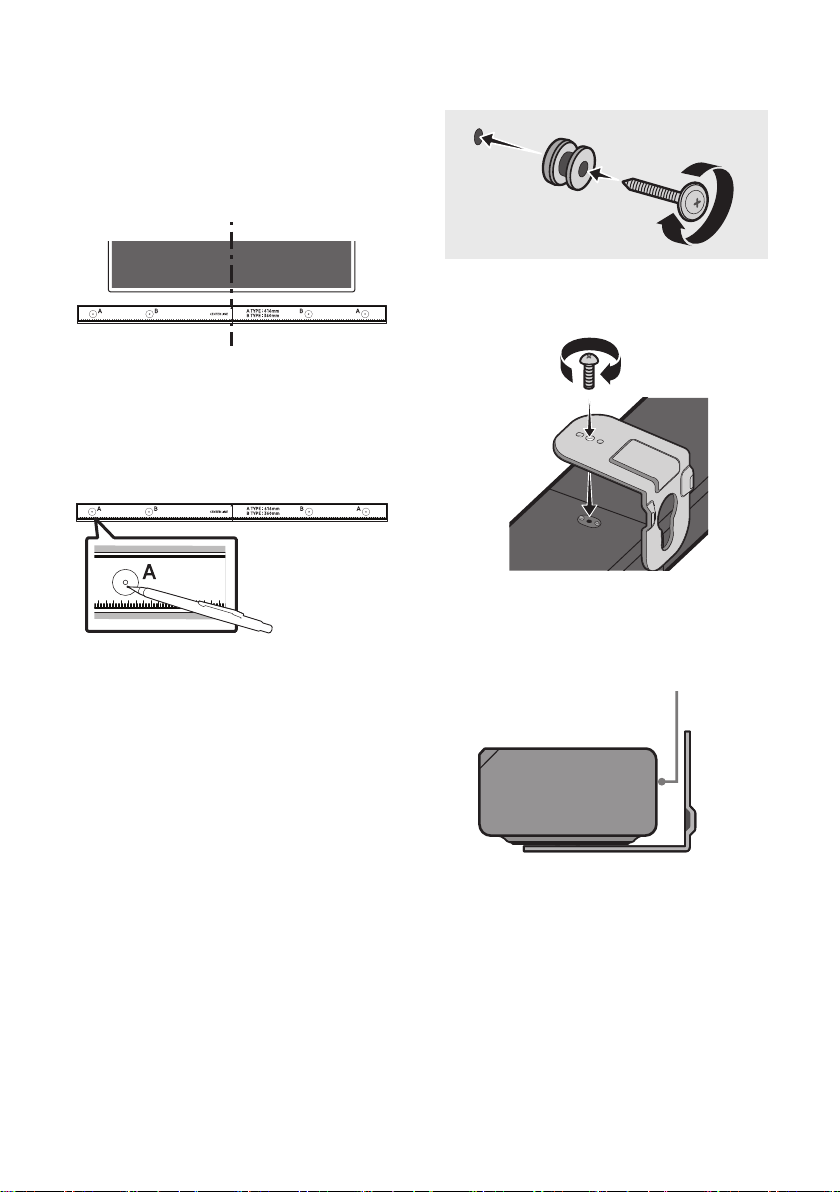
2. Align the Wall Mount Guide’s Centre Line
with the centre of your TV (if you are
mounting the Soundbar below your TV), and
Wall Mount Guide to the wall
using tape.
If you are not mounting below a TV, place
the Centre Line in the centre of the
installation area.
Centre Line
3. Push a pen tip or sharpened pencil tip
through the centre of the A-TYPE images on
each end of the Guide to mark the holes for
the supporting screws, and then remove the
Wall Mount Guide.
4. Using an appropriately sized drill bit, drill a
hole in the wall at each marking.
If the markings do not correspond to the
positions of studs, make sure you insert
appropriate anchors into the holes before
you insert the support screws. If you use
anchors, make sure the holes you drill are
large enough for the anchors you use.
5. Push a screw (not supplied) through each
Holder-Screw, and then screw each screw
6. Install the 2 Bracket-Wall Mounts in the
correct orientation on the bottom of the
Soundbar using 2 Screws.
When assembling, make sure the hanger
part of the Bracket-Wall Mounts are
located behind the rear of the Soundbar.
Rear of Soundbar
Right end of Soundbar
ENG - 32
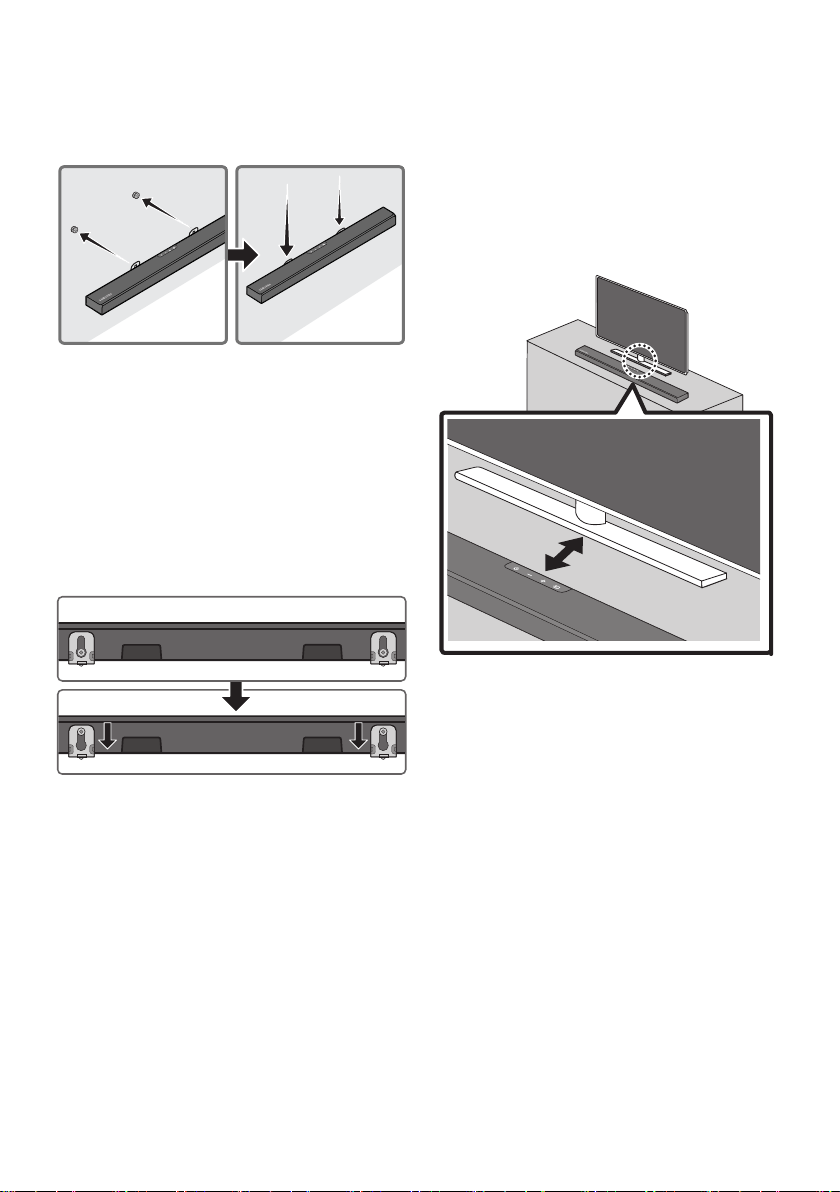
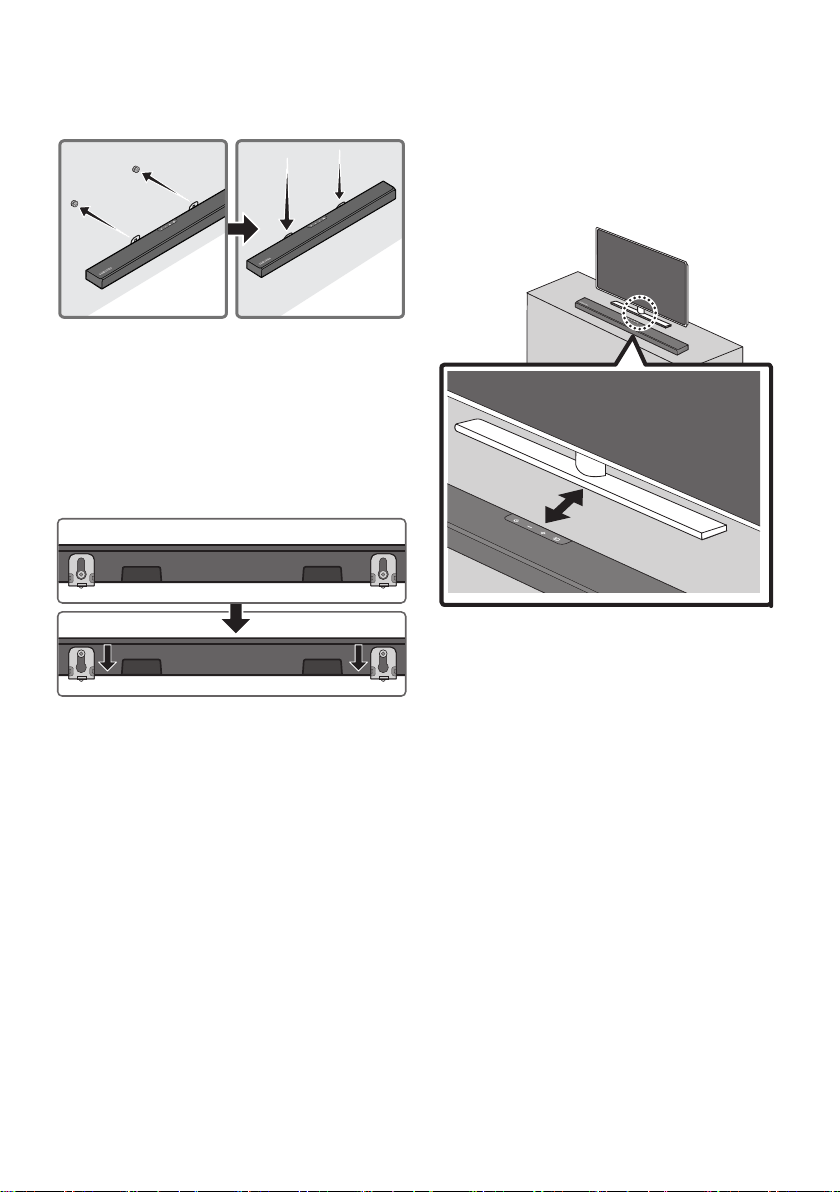
7. Install the Soundbar with the attached
Bracket-Wall Mounts by hanging the
Bracket-Wall Mounts on the Holder-Screws
on the wall.
8. Slide the Soundbar down as shown below so
that the Bracket-Wall Mounts rest securely
on the Holder-Screws.
Insert the Holder-Screws into the wide
(bottom) part of the Bracket-Wall
Mounts, and then slide the Bracket-Wall
Mounts down so that the Bracket-Wall
Mounts rest securely on the
Holder-Screws.
10 PLACING THE
SOUNDBAR ON A
TV STAND
Place the Soundbar on a TV stand.
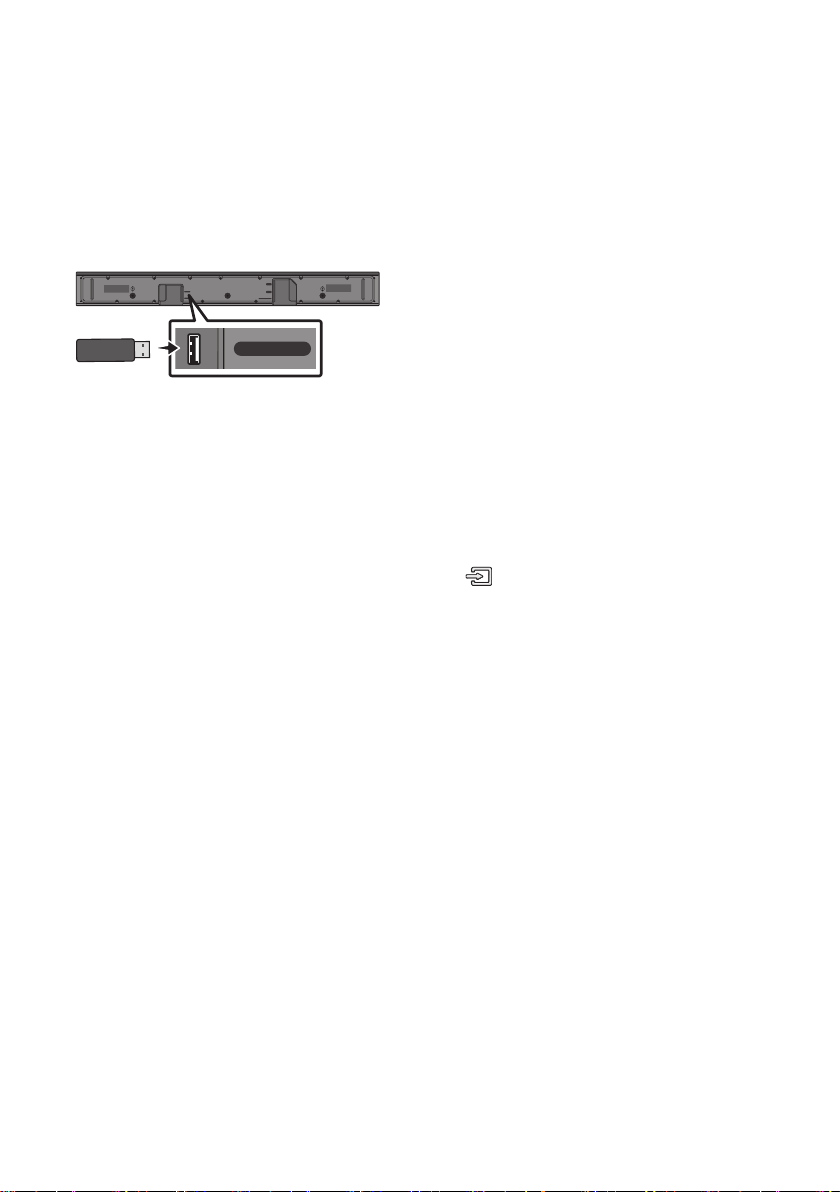
3cm or more
As illustrated in the image, align the centre of the
Soundbar with the centre of the TV, carefully
place the Soundbar onto the TV stand.
For optimal sound quality, position the Soundbar
at least 3 cm away from the TV front.
NOTE
and solid surface.
ENG - 33
11 SOFTWARE
UPDATE
Samsung may offer updates for the Soundbar’s
systemrmwareinthefuture.
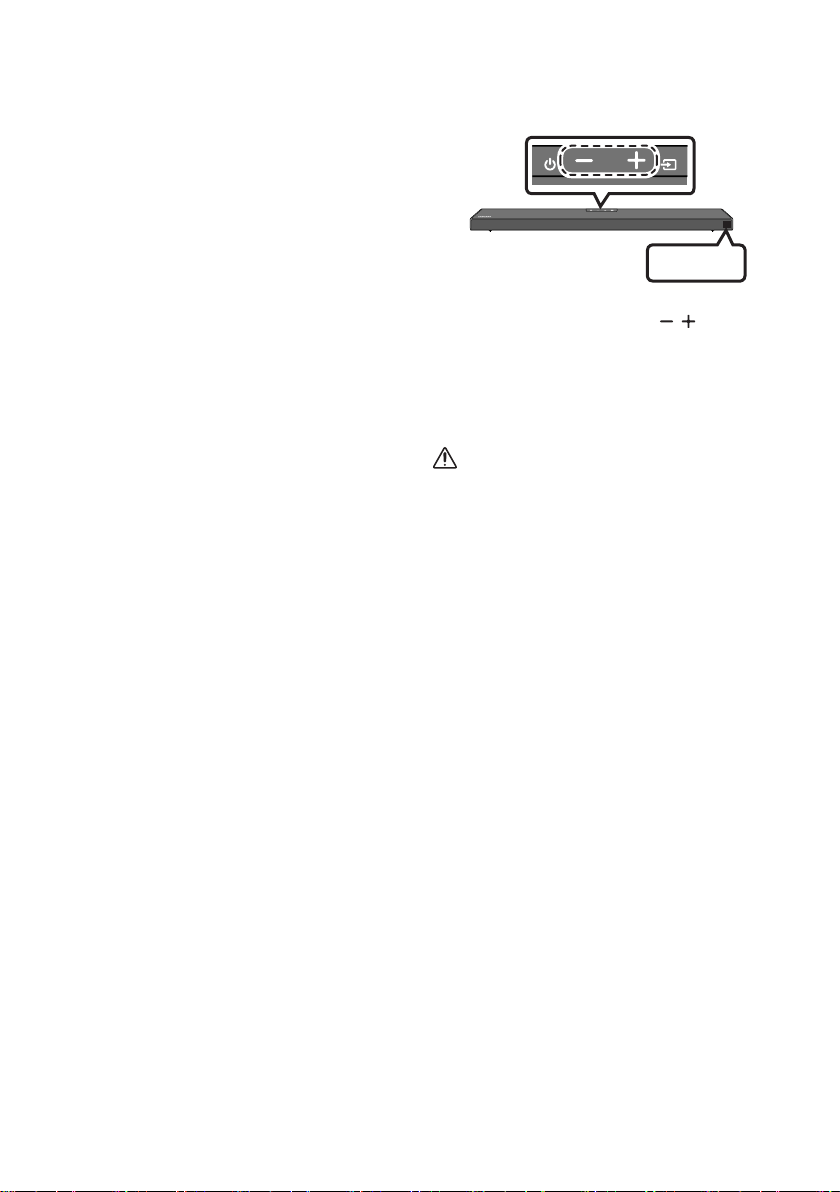
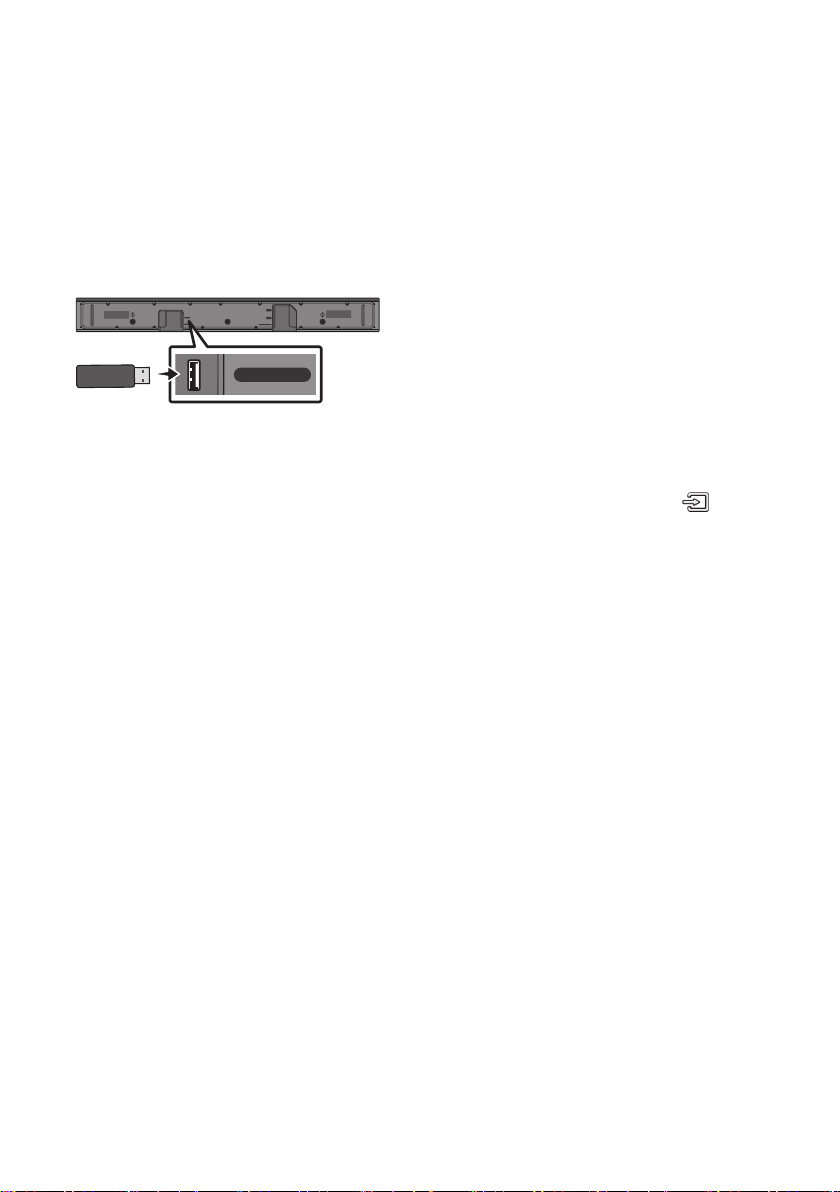
USB port
HDMI
HDMI TO TV
(ARC)
USB (5V 0.5A)
DC 24V
DIGITAL AUDIO IN (OPTICAL)
USB (5V 0.5A)
If an update is offered, you can update the
your Soundbar. For more information about how
Electronics website at
www.samsung.com
Support.
Then, select the product type or enter the model
number of your Soundbar, select the Software &
Apps option, and then Downloads. Note that the
option names can vary.
Update Procedure
After the update completes, all your customized
user settings are maintained.
1. Connect a USB thumb drive to the USB port
on your computer.
Important: Make sure there are no music
2. Go to (samsung.com) select Enter Model
Number and enter the model of your
Soundbar. Select manuals and downloads
3. Save the downloaded software to a USB
stick and select “Extract Here” to unzip the
folder.
4. Turn off the Soundbar and connect the USB
stick containing the software update to the
USB port.
5. Power on the Soundbar, press the
(Source) button on the Soundbar, and
then select the “USB” mode. “UPDATE”
appears on the display, starting the update.
Soundbar is rebooted automatically when
the update is completed.
This product has a DUAL BOOT function.
During update, do not turn it off or
remove the USB.
If the latest version is already installed on
the Soundbar, the update will not install.
Depending on the USB type, update may
not be supported.
6. Restore your settings on the Soundbar.
ENG - 34
If UPDATE is not displayed
1. Turn off the Soundbar, disconnect and then
reconnect the USB storage device that
USB port.
2. Disconnect the Soundbar’s power cord,
reconnect it, and then turn on the Soundbar.
NOTES
stored in the USB storage device.
Do not disconnect the power or remove the
USB device while updates are being applied.
The main unit will turn on automatically after
If the connection to the subwoofer is not
re-established automatically after the
update, refer to page 6.
If the software update fails, check if the USB
stick is defective.
Mac OS users should use MS-DOS (FAT) as the
USB format.
Updating via USB may not be available,
depending on the USB storage device
manufacturer.
Reset
INIT OK
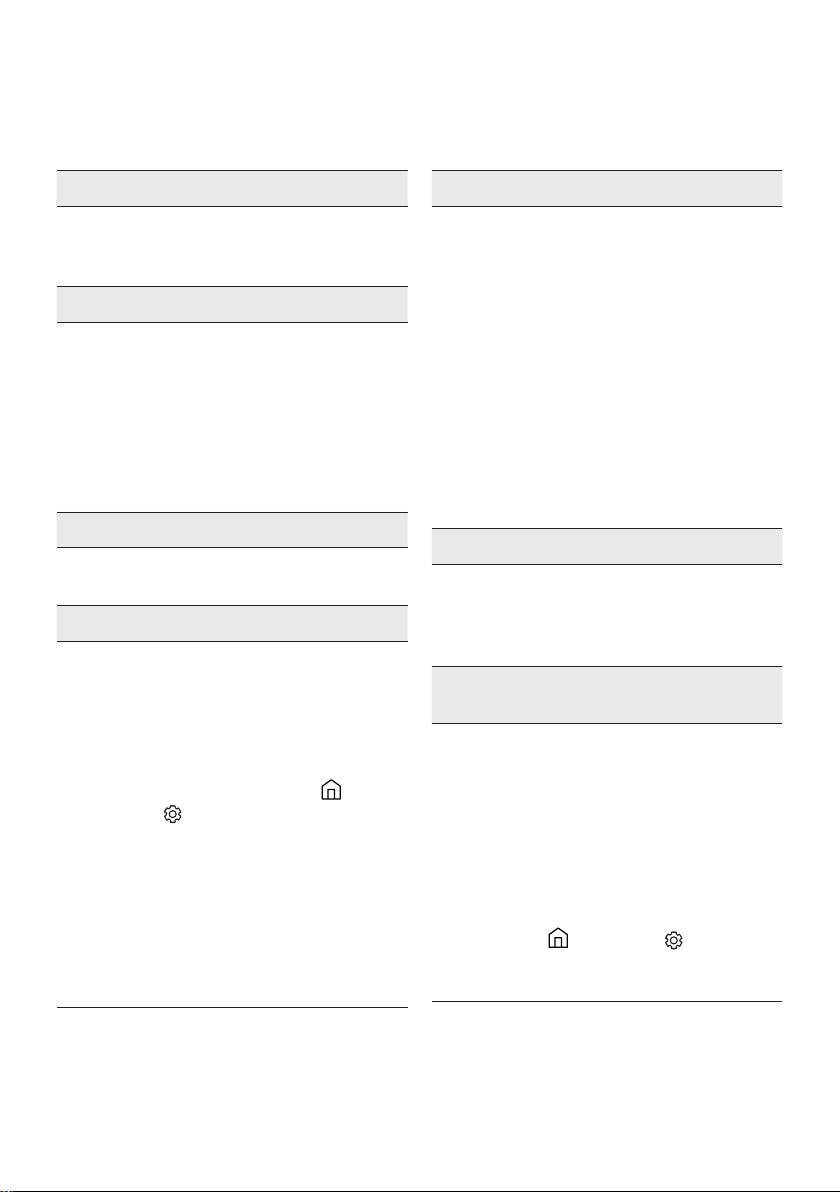
Top of the Soundbar
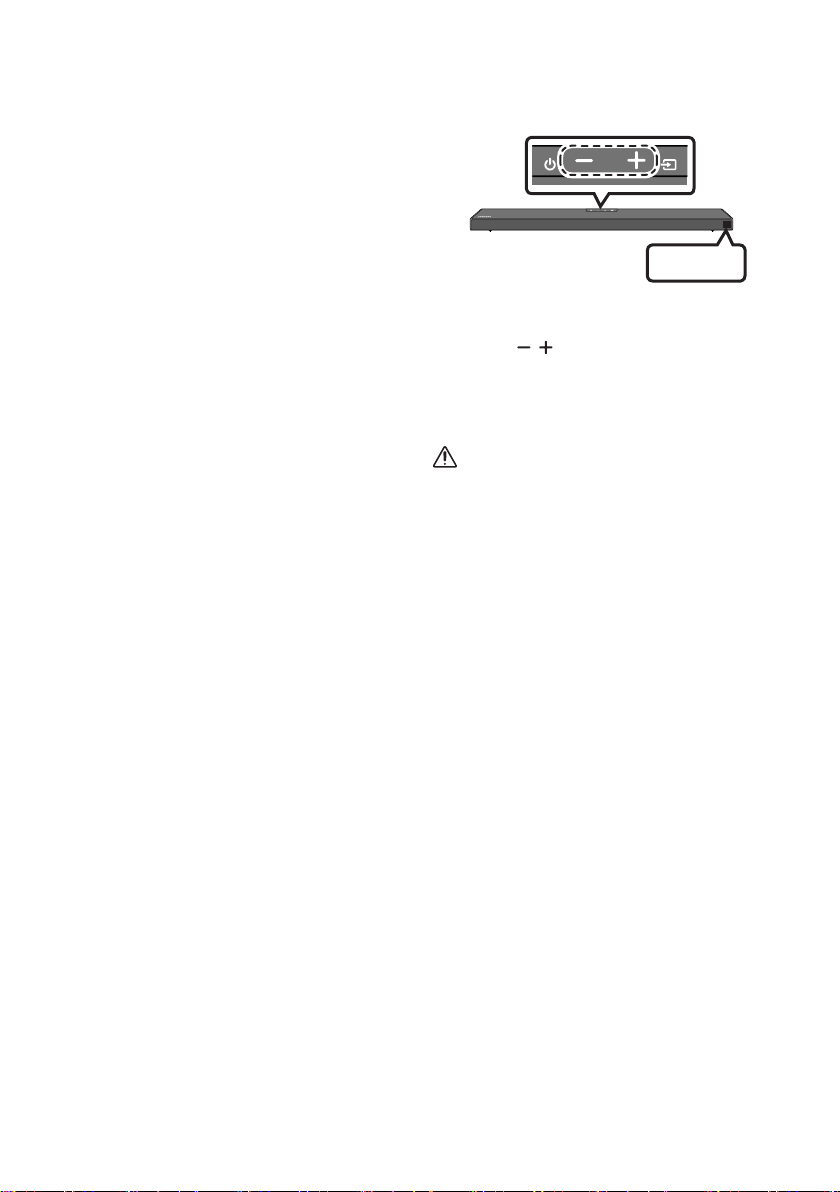
With the Soundbar on, press the (Volume)
buttons on the body at the same time for at least
5 seconds. “INIT OK” appears on the display and
then the Soundbar is reset.
CAUTION
All the settings of the Soundbar are reset.
Be sure to perform this only when a reset is
required.
ENG - 35
12 TROUBLESHOOTING
Before seeking assistance, check the following.
Soundbar does not turn on.
; Check whether the power cord of the
Soundbar is correctly inserted into the
outlet.
Soundbar works erratically.
; After removing the power cord, insert it
again.
; Remote the power cord from the external
device and try again.
; If there is no signal, the Soundbar
automatically turns off after a certain
period of time. Turn on the power. (See
page 3.)
In case the remote control does not work.
; Point the remote directly at the Soundbar.
; Replace the batteries with new ones.
Soundbar does not output any sound.
; The volume of the Soundbar is too low or
muted. Adjust the volume.
; When any external device (STB, Bluetooth
device, mobile device, etc.) is connected,
adjust the volume of the external device.
; For sound output of the TV, select
Soundbar. (Samsung TV: Home (
Settings (
Select Soundbar)
; The cable connection to the Soundbar may
not be loose. Remove the cable and
connect again.
; Remove the power cord completely,
reconnect, and turn the power on.
; Reset the product and try again.
(See page 34.)
Subwoofer does not output any sound.
; Check whether the LED indicator on the
rear of the Subwoofer is on in blue.
Reconnect the Soundbar and Subwoofer if
the indicator is blinking in blue or turned
red. (See page 7.)
; You may experience an issue if there is an
obstacle between the Soundbar and
Subwoofer. Move devices to an area away
from obstacles.
; Other devices sending radio frequency
signals in proximity may interrupt the
connection.
Keep your speaker away from such devices.
; Remove and reconnect the power plug.
The Subwoofer volume is too low.
; The original volume of the content you are
playing may be low. Try adjusting the
Subwoofer level. (See page 27.)
; Bring the Subwoofer speaker closer to you.
In case the TV is not connected via HDMI TO
TV (ARC).
; Check whether the HDMI cable is correctly
connected to the ARC terminal.
11.)
; Connection may not be possible due to the
connected external device (set-top box,
game machine, etc.). Directly connect the
Soundbar.
; HDMI-CEC may not be activated on the TV.
Turn on the CEC on the TV menu. (Samsung
TV: Home (
(HDMI-CEC) ON)

ENG - 36
There is no sound in when connecting to the
TV in HDMI TO TV (ARC) mode.
; Your device is unable to play the input
signal. Change the TV’s audio output to
PCM or Dolby Digital.
(For a Samsung TV: Home (
(
Output Audio Format)
Soundbar does not connect via Bluetooth.
; When connecting a new device, switch to
“BT PAIRING” for connection. (Press the
PAIR button on the remote control or
press the (Source) button on the body
for at least 5 seconds.)
; If the Soundbar is connected to another
switch the device.
; Reconnect it after removing the Bluetooth
speaker list on the device to connect.
(Samsung TV: Home ( )
Speaker List)
; The automatic TV connection may be
disabled. While the Soundbar is in “BT
READY”, press and hold the Left button on
the Soundbar remote control for 5 seconds
to select ON-TV CONNECT. If you see
OFF-TV CONNECT, press and hold Left
button again for 5 seconds to switch the
selection.
; Remove and reconnect the power plug,
then try again.
; Reset the product and try again.
(See page 34.)
Sound drops out when connected via
Bluetooth.
; Some devices can cause radio interference
if they are located too close to the
Soundbar. e. g. microwaves, wireless
routers, etc.
; If your device that is connected via
Bluetooth moves too far away from the
Soundbar, it may cause the sound to drop
out. Move the device closer to the
Soundbar.
; If a part of your body is in contact with the
Bluetooth transceiver or the product is
installed on metal furniture, sound may
drop out. Check the installation
environment and conditions for use.
Bluetooth multi connection does not work.
; When the TV is connected to the soundbar,
Bluetooth multi connection may not
operate. Disconnect the Soundbar from the
TV and try again.
; Check whether the Bluetooth Multi
connection setting is turned on.
(Refer to the “Soundbar does not connect
via Bluetooth.” section.)
; Disconnect the device currently playing,
pair with the device that you want to
connect, and reconnect the previous
device.
; If the sound is inaudible even after
connecting properly, refer to the “Sound
drops out when connected via Bluetooth.”
section.
Soundbar does not turn on automatically with
the TV.
; When you turn off the Soundbar while
watching TV, power synchronization with
the TV is disabled. First turn off the TV.

ENG - 37
13 LICENCE
Dolby, Dolby Atmos, and the double-D symbol
are registered trademarks of Dolby
Laboratories Licensing Corporation.
Manufactured under license from Dolby
Copyright © 2012-2020 Dolby Laboratories. All
rights reserved.
For DTS patents, see http://patents.dts.com.
Manufactured under license from DTS, Inc. (for
companies headquartered in the U.S./Japan/
Taiwan) or under license from DTS Licensing
Limited (for all other companies). DTS, DTS:X,
and the DTS:X logo are registered trademarks
or trademarks of DTS, Inc. in the United States
and other countries. © 2020 DTS, Inc. ALL
RIGHTS RESERVED.
Multimedia Interface, and the HDMI Logo are
trademarks or registered trademarks of HDMI
Licensing Administrator, Inc. in the United
States and other countries.
The Bluetooth® word mark and logos are
registered trademarks owned by the Bluetooth
SIG, Inc. and any use of such marks by Samsung
Electronics Co., Ltd. is under license. Other
trademarks and trade names are those of their
respective owners.
[ENERGY STAR]
ENERGYSTARqualiedmodelonly
– Your Samsung product is ENERGY STAR
Change to certain features, settings and
functionality in this product can change the
power consumption, possibly beyond the
limits required for ENERGY STAR
– Environmental Protection Agency and
Department of Energy. ENERGY STAR is a
joint program of the Government agencies,
products and practices.
Refer to www.energystar.gov for more
information of the ENERGY STAR Program.
ENERGYSTARqualiedmodelonly
(Applicable to Thin Client models only)
As an ENERGY STAR® Partner, SAMSUNG has
determined that this product meets the
ENERGY STAR® guidelines for energy
– The ENERGY STAR Program has been to
reduced greenhouse gas emissions and
save energy through voluntary labeling.
– Power management setting of this product
have been enabled by default, and have
various timing setting from 1 minutes to 5
hours.
– The product can wake with a button press
on the chassis from sleep mode.
ENERGYSTARqualiedmodelonly(Theother
models)
– As an ENERGY STAR Partner, Samsung has
determined that this product or product
models meets the ENERGY STAR guideline

ENG - 38
14 OPEN SOURCE
LICENCE NOTICE
To send inquiries and requests for questions
regarding open sources, contact Samsung Open
Source (http://opensource.samsung.com)
15 IMPORTANT
NOTES ABOUT
SERVICE
Figures and illustrations in this User Manual are
provided for reference only and may differ from
actual product appearance.

ENG - 39
16 SPECIFICATIONS AND GUIDE
Specications
Model Name HW-Q600A
USB 5V/0.5A
Weight 3.4 kg
Dimensions (W x H x D) 980.0 x 58.0 x 105.0 mm
Operating Temperature Range +5°C to +35°C
Operating Humidity Range 10 % ~ 75 %
AMPLIFIER
Rated Output power 200W (30W x 6 + 10W x 2)
Supported play formats
Dolby Atmos (True HD / Digital Plus), Dolby
Digital, DTS-HD Master Audio, DTS:X, DTS
Subwoofer Name PS-WA67B
Weight 5.8 kg
Dimensions (W x H x D) 205.0 x 353.0 x 303.2 mm
AMPLIFIER
Rated Output power 160W
NOTES
Weight and dimensions are approximate.
For India Only
“This product is RoHS compliant”
For Taiwan Only
HW-Q600A : DC 24V, 42W
PS-WA67B : AC110-240V ~ 50/60Hz, 28W
VIE - ii
THÔNG TIN AN TOÀN
CHÚ Ý
CHÚ Ý
VIE - iii
1.
2.
3.
4.
5.
CHÚ Ý :

-------------------------
------------------------- 3
------------------------- 4
-------------------------
5
-------------------------
6
–
-------------------------
6
–
-------------------------
-------------------------
-------------------------
–
-------------------------
–
-------------------------
-------------------------
–
-------------------------
-------------------------
-------------------------

-------------------------
-------------------------
-------------------------
-------------------------
-------------------------
-------------------------
-------------------------
-------------------------
-------------------------
33
-------------------------
34
-------------------------
34
-------------------------
01
VOL WOOFER
SOUNDBAR
SOUND
MODE
PAIR
VIE - 3
02
–
VIE - 4
HDMI
HDMI TO TV
(ARC)
USB (5V 0.5A)
DC 24V
DIGITAL AUDIO IN (OPTICAL)
HDMI
HDMI TO TV
(ARC)
DIGITAL AUDIO IN (OPTICAL)
USB (5V 0.5A)
DC 24V
HDMI
HDMI TO TV
(ARC)
USB (5V 0.5A)
DC 24V
DIGITAL AUDIO IN (OPTICAL)
HDMI
HDMI TO TV
(ARC)
DIGITAL AUDIO IN (OPTICAL)
USB (5V 0.5A)
DC 24V
HDMI
HDMI TO TV
(ARC)
USB (5V 0.5A)
DC 24V
DIGITAL AUDIO IN (OPTICAL)
HDMI
HDMI TO TV
(ARC)
DIGITAL AUDIO IN (OPTICAL)
USB (5V 0.5A)
DC 24V
VIE - 5
03
1.
2.
3.
POWER
USB (5V 0.5A)
DC 24V
DC 24V

VIE - 6
-
1.
5 Sec
2.
SOUND
MODE
PAIR
5 Sec
3.

GHI CHÚ
1.
–
SURROUND-RIGHT
SURROUND-RIGHT
–
SURROUND-LEFT
ID SET
L
R
SURROUND SPEAKERS OUT
SPEAKER IMPEDANCE : 3Ω
POWER
ID SET
L
R
SURROUND SPEAKERS OUT
SPEAKER IMPEDANCE : 3Ω
SURROUND-RIGHT
SURROUND-LEFT SURROUND-RIGHT
2.
ID SET
L
R
SURROUND SPEAKERS OUT
SPEAKER IMPEDANCE : 3Ω
POWER
POWER
ID SET
SURROUND SPEAKERS OUT
SPEAKER IMPEDANCE : 3Ω
STANDBY
LINK
STANDBY
LINK
5 Sec
3.
SOUND
MODE
PAIR
5 Sec
CHÚ Ý
4.
STANDBY
LINK
STANDBY
LINK
5.
04
–
–
CHÚ Ý
HDMI IN
(ARC)
HDMI TO TV
(ARC)
DIGITAL AUDIO IN (OPTICAL)
1.
2.

GHI CHÚ
OPTICAL OUT
DIGITAL AUDIO IN (OPTICAL)
1.
2.
GHI CHÚ
SOUND
MODE
PAIR
1.
2.
3.
4.

GHI CHÚ
–
–
–
05
HDMI OUT
HDMI IN
(ARC)
HDMI
HDMI TO TV
(ARC)
DIGITAL AUDIO IN (OPTICAL)
1.
2.
3.
4.
GHI CHÚ
- -
- -
- - - -
- - - -
OPTICAL OUT
HDMI TO TV
(ARC)
DIGITAL AUDIO IN (OPTICAL)
1.
2.
06
HDMI
HDMI TO TV
(ARC)
USB (5V 0.5A)
DC 24V
DIGITAL AUDIO IN (OPTICAL)
USB (5V 0.5A)
1.
2.
3.
4.
SOUND
MODE
PAIR
1.
2.
3.

GHI CHÚ
–
–
–
–
1.
2.

”
”
GHI CHÚ
–
–
–

1.
2.
3.
4.
GHI CHÚ
1.
2.
3.
1.
2.
3.
GHI CHÚ
08
VOL WOOFER
SOUNDBAR
SOUND
MODE
PAIR
VOL WOOFER
SOUND
MODE
PAIR
VOL WOOFER
SOUND
MODE
PAIR
VOL WOOFER
SOUND
MODE
PAIR
VOL WOOFER
SOUND
MODE
PAIR
–
–
–
–
–
VOL WOOFER
SOUND
MODE
PAIR
VOL WOOFER
SOUND
MODE
PAIR
p
VOL WOOFER
SOUND
MODE
PAIR
VOL WOOFER
SOUND
MODE
PAIR
VOL WOOFER
SOUND
MODE
PAIR
SOUND
MODE
VOL
WOOFER
SOUNDBAR
SOUND
MODE
VOL
WOOFER
SOUNDBAR
SOUND
MODE
VOL
WOOFER
SOUNDBAR
SOUND
MODE
VOL
WOOFER
SOUNDBAR
VOL WOOFER
SOUND
MODE
PAIR
SOUND
MODE
VOL
WOOFER
SOUNDBAR
SOUND
MODE
VOL
WOOFER
SOUNDBAR
SOUND
MODE
VOL
WOOFER
SOUNDBAR
SOUND
MODE
VOL
WOOFER
SOUNDBAR
1.
2.
SOUND
MODE
VOL
WOOFER
SOUNDBAR
5 Sec
SOUND
MODE
VOL
WOOFER
SOUNDBAR
5 Sec
SOUND
MODE
VOL
WOOFER
SOUNDBAR
5 Sec
Surround
VOL WOOFER
SOUND
MODE
Bluetooth
POWER
–
–
1.
2.
3.
4.
5.
6.
8.
10
VIE - 33
11
HDMI
HDMI TO TV
(ARC)
USB (5V 0.5A)
DC 24V
DIGITAL AUDIO IN (OPTICAL)
USB (5V 0.5A)
1.
2.
3.
4.
5.
6.
VIE - 34
1.
2.
GHI CHÚ
6
INIT OK
INIT OK
CHÚ Ý
VIE - 35
12
;
;
;
;
3
;
;
;
;
;
;
;
;
34
;
;
;
;
;
;
;
;
;
VIE - 36
;
;
;
;
;
;
;
34
;
;
;
;
;
”
;
;
”
;

13
–
–
–
–
–
–

14
15

16
GHI CHÚ

1.
2.
-
-
-
-
-
-
-
3.
4.
5.
1.
2.
-
-
-
3.
4.
5.
6.
7.
1.
-
-
-
2.
-
-
3.
-
-
-
TPE - ii
安全資訊
安全警告
為減少觸電的危險,請勿取下機蓋(或後蓋)。
本裝置內部沒有使用者可自行維修的零件。請
讓合格的維修人員進行維修。
請參閱以下表格,查看可能出現在 Samsung
產品上的符號說明。
注意
存 在 觸 電 的 危 險,
請勿打開
此 符 號 表 示 內 部 有 高 壓 電。
以任何方式碰觸本產品的任何內部
零 件 均 有 危 險。
此符號表示本產品隨附關於操作與
維 護 的 重 要 說 明 文 件。
II 類產品:此符號表示不需要連接
接 地。
若此符號沒有出現在含電源線的產
品上,則該產品必須牢固連接至保
護性接地 (地線)。
AC 電壓:此符號表示額定電壓的
標記為 AC 電壓。
DC 電壓:此符號表示額定電壓的
標記為 DC 電壓。
注 意,使 用 時 須 參 照 說 明 指 示:此
符號指示用戶查閱使用者手冊以取
得 進 一 步 的 安 全相 關 資 訊。
警告
• 為降低發生火災或觸電的風險,請勿使
本裝置淋雨或將其放置在潮濕的環境
中。
注意
• 為 避 免 觸 電,請 將 插 頭 的 寬 插 腳 對 準 寬
插 槽 並 將 它 完 全 插 入。
• 本裝置一律要連接至帶有保護接地連接
的 交 流 電 源 插 座。
• 要斷開本裝置的電源,必須從電源插座
上拔下插頭,因此電源插頭應該易於操
作。
• 請勿使本裝置滴到水或濺到水。請勿在
本裝置上放置裝有液體的物件,如花
瓶。
• 若要完全關閉本裝置,必須從牆上插座
拔下電源插頭。因此,電源插頭必須隨
時 都 可 輕 鬆 快 速 拔 插。
TPE - iii
注意事項
1. 請確保家中的交流電符合本產品底部的
識別貼紙上所列的電源要求。產品水平
安 裝 在 平 台( 傢 俱 )上,並 在 周 圍 留 出 足
夠的空間用於通風 7~10 公分。請確保
通風槽沒有被遮擋。不要將裝置放置在
放大器或可能會變熱的裝置上。本裝置
設 計 為 可 以 連 續 使 用。
若要完全關閉裝置,請從牆上插座拔下
交流電源插頭。如果您打算長時間不使
用裝置,請拔下裝置的電源插頭。
2. 在雷暴期間,請從牆上插座拔下交流電
源轉接器。閃電造成的電壓尖峰可能會
損 壞 裝 置。
3. 不要將裝置放置在陽光直射到的位置
或靠近熱源的位置。這可能導致產品過
熱,從 而 使 得 裝 置 發 生 故 障。
4. 避免產品受潮(例如遠離 花瓶)、遠離
高熱位置(例如壁爐)或會形成強磁場
或電場的裝置。如果裝置發生故障,請
從交流電源插座中拔下電源插頭。本產
品並非設計為供工業使用。僅限個人使
用。如 果 您 的 產 品 貯 藏 在 寒 冷 的 溫 度
中,則 可 能 會 發 生 冷 凝。如 果 在 冬 天 運
輸裝置,請靜候約 2 小時,直到裝置達
到 室 溫 後 再 使 用。
5. 與產品配合使用的電池含有對環境有
害 的 化 學 物 品。 請 勿 將 電 池 放 入一 般
家 庭 垃 圾 筒 中。請 勿 將 電 池 置 於 火
中。不要使電池短路、分解或過熱。
注意 : 若沒有正確更換電池,將會有爆
炸的危險。 請使用相同類型的電池來
更 換。
關於本手冊
使用者手冊分為兩個部分:簡化的使用者手
冊和詳細的完整手冊可供您下載。
使用者手冊
查看本手冊可瞭解安全說明、產品安裝、
元 件、連 線 和 產 品 規 格。
完整手冊
您可以在 Samsung 的線上客戶支援中心
掃描 QR 代碼,以取得完整手冊。若要在
電腦或行動裝置上查看手冊,請從
Samsung 網站以文件格式下載手冊。
(http://www.samsung.com/support)
設計和規格若有變更,恕不另行通知。
TPE - iv
目錄
01 檢查元件 2
在使用遙控器前插入電池 (AA 電池 X 2) --------------------------------- 2
02 產品概覽 3
有源音箱前方面板/上方面板
---------------------------------
3
有源音箱底部面板
---------------------------------
4
03 連接有源音箱 5
連接電力
---------------------------------
5
將有源音箱連接至有源重低音音箱
---------------------------------
6
– 有源重低音音箱和有源音箱之間的自動連線
---------------------------------
6
– 若自動連線失敗,請手動連線有源重低音音箱
---------------------------------
7
將 SWA-9100S (分售) 連接至有源音箱
---------------------------------
9
04 連接至您的電視 11
方法 1。以纜線連接
---------------------------------
11
– 使用 HDMI 纜線連接電視
---------------------------------
11
– 使用光纖纜線連接
---------------------------------
13
方法 2。無線連線
---------------------------------
15
– 透過藍牙連線電視
---------------------------------
15
05 連線外部裝置 17
使用 HDMI 纜線連接 (能夠使用 Dolby Atmos 解碼和播放)
---------------------------------
17
使用光纖纜線連接
---------------------------------
18
06 連接 USB 儲存裝置 19
TPE - v
07 連線行動裝置 20
透過藍牙連線
---------------------------------
20
使用感應連結
---------------------------------
24
08 使用遙控器 25
如何使用遙控器
---------------------------------
25
使用電視遙控器調整有源音箱音量 --------------------------------- 28
使用隱藏按鈕 (多功能按鈕)
---------------------------------
29
不同音效模式的輸出規格
---------------------------------
29
09 安裝掛牆托架 30
安裝注意事項
---------------------------------
30
牆面安裝元件
---------------------------------
30
10 將有源音箱放置在電視架上 32
11 軟體更新 33
更新程序
---------------------------------
33
若沒有顯示 UPDATE
---------------------------------
34
重設
---------------------------------
34
12 疑難排解 35
13 授權 37
14 開放式原始碼授權聲明 38
15 關於維修的重要說明 38
16 規格和指南 39
規格
---------------------------------
39
TPE - 2
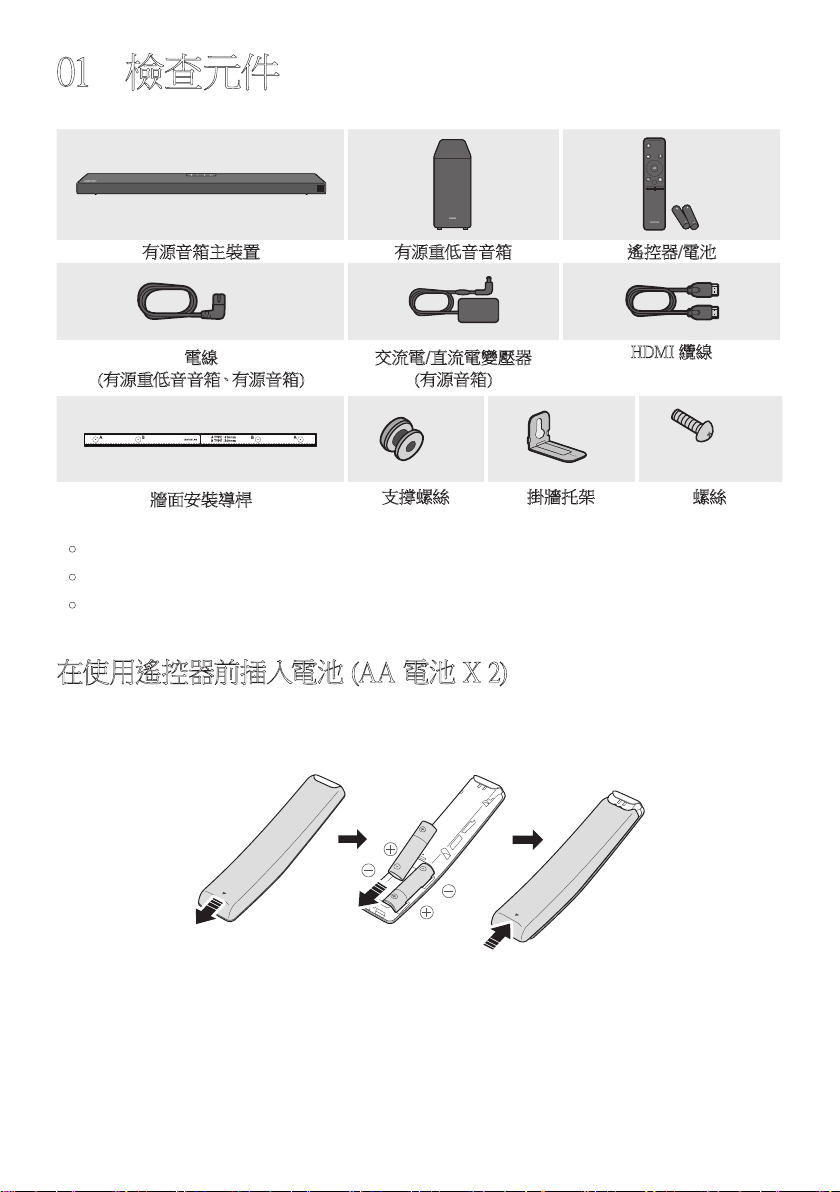
01 檢查元件
VOL WOOFER
SOUNDBAR
SOUND
MODE
PAIR
有源音箱主裝置 有源重低音音箱 遙控器/電池
x 2
電線
(有源重低音音箱、有源音箱)
交流電/直流電變壓器
(有源音箱)
HDMI 纜線
x 2
x 2
(M4 x L10)
x 2
牆面安裝導桿
支撐螺絲 掛牆托架 螺絲
• 電源和消耗功率,請參考本產品上的標籤。(標籤 : 有源音箱主裝置底部)
• 若要購買其他元件或選用纜線,請洽詢 Samsung 服務中心或是 Samsung 客戶服務。
• 配件的外觀可能與上面的圖例略有差異。
在使用遙控器前插入電池 (AA 電池 X 2)
以 箭 頭 方 向 滑 動 後 蓋,直 到 完 全 卸 下 為 止。
按照正確的電極方向插入 2 個 AA 電池 (1.5V)。將後蓋滑回原位。
TPE - 3
02
產品概覽
有源音箱前方面板/上方面板
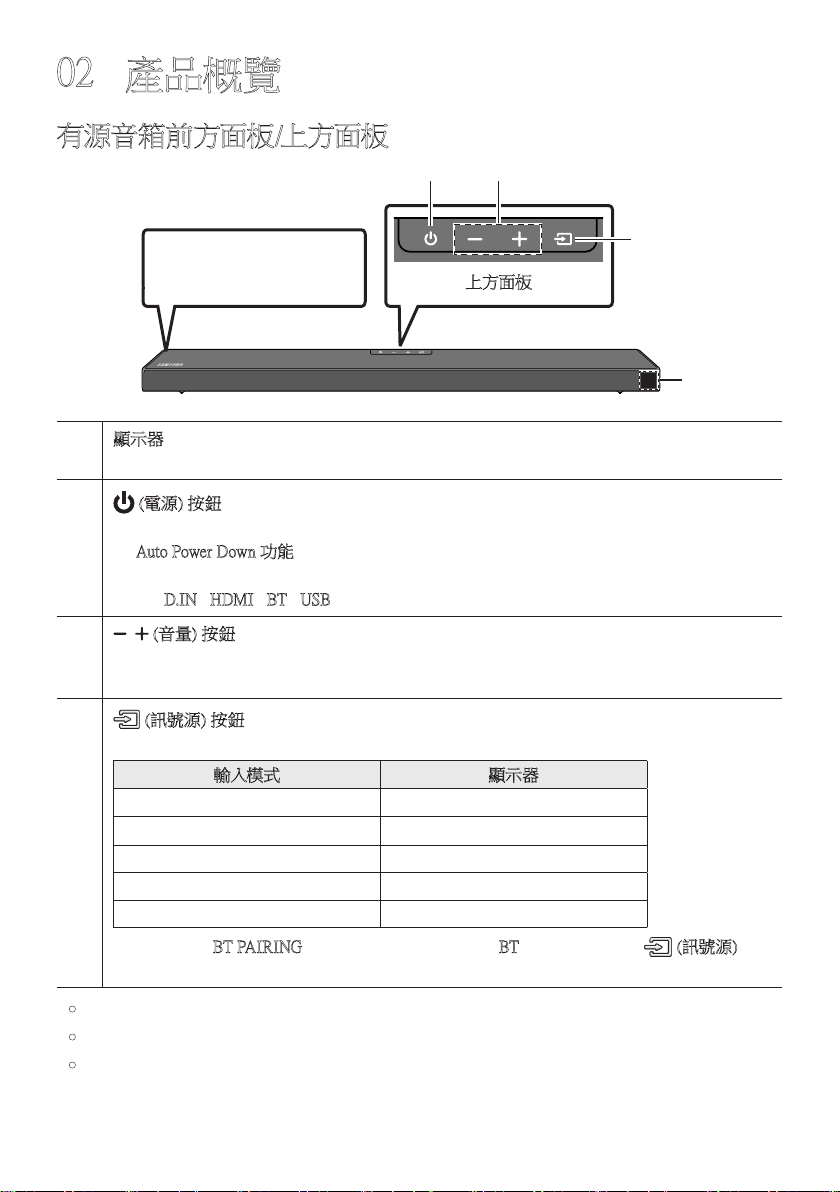
以 正 確 方 式 放 置 產 品,讓
SAMSUNG 標誌位於上方。
上方面板
顯示器
顯示產品狀態和目前模式。
(電源) 按鈕
開 啟 及 關 閉 電 源。
• Auto Power Down 功能
裝 置 會 在 下 列 情 況 自 動 關 閉。
– D.IN / HDMI / BT / USB 模式:若連續 20 分鐘都沒有音訊訊號。
(音量) 按鈕
調 整 音 量。
• 調整時,音量等級會顯示在有源音箱前方顯示器上。
(訊號源) 按鈕
選擇訊號源輸入模式。
輸入模式 顯示器
光纖數位數入 D.IN
ARC (HDMI OUT) 輸入
D.IN TV ARC (自動轉換)
HDMI 輸入 HDMI
BLUETOOTH 模式 BT
USB 模式 USB
• 若要開啟「BT PAIRING」模式,請將訊號源變更為「BT」模 式,然 後 按 住 (訊號源) 按
鈕超過 5 秒。
• 您插入交流電源線後,電源鍵會 4 到 6 秒鐘內生效。
• 當您開啟本裝置時,可能會延遲 4 到 5 秒後,裝置才會發出聲音。
• 如果您只想從有源音箱欣賞聲音,則必須從電視的 音訊設定 選單中關閉電視的揚聲
器。請 參 閱 電 視 隨 附 的 使 用 者 手 冊。
TPE - 4
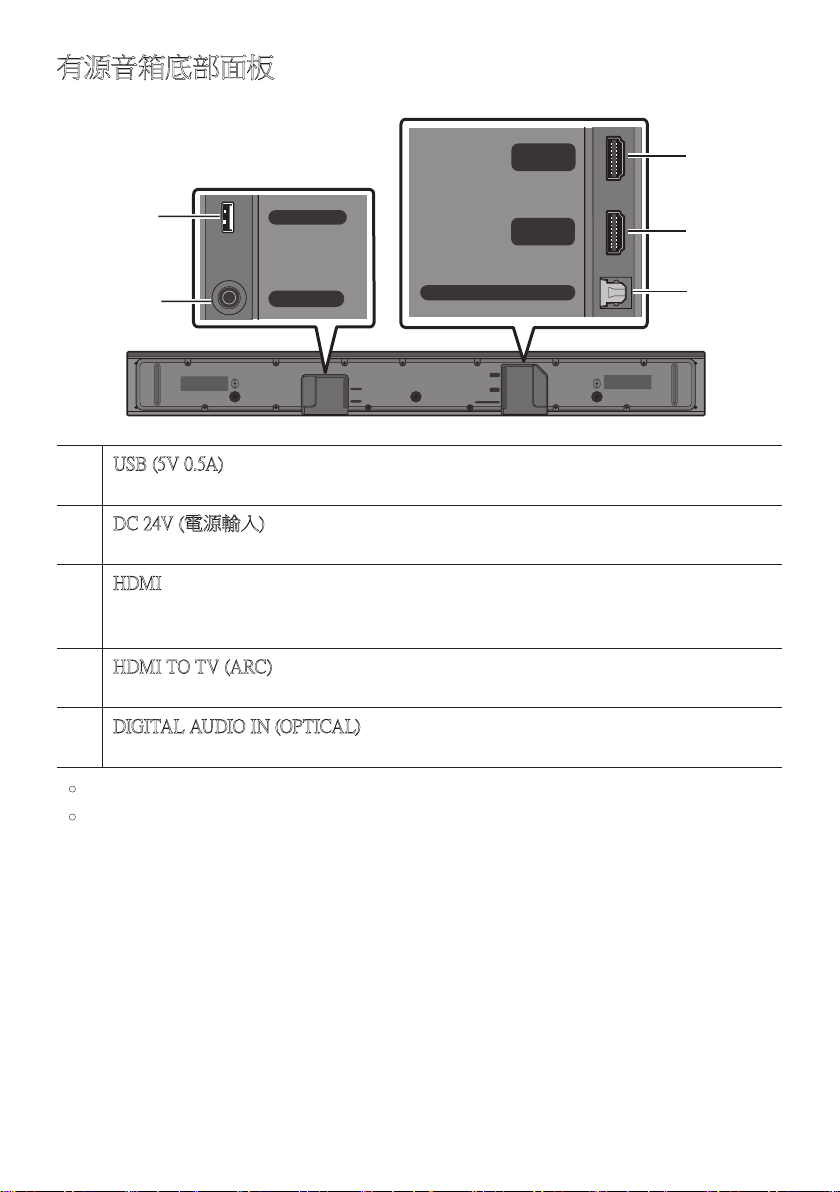
有源音箱底部面板
HDMI
HDMI TO TV
(ARC)
USB (5V 0.5A)
DC 24V
DIGITAL AUDIO IN (OPTICAL)
HDMI
HDMI TO TV
(ARC)
DIGITAL AUDIO IN (OPTICAL)
USB (5V 0.5A)
DC 24V
HDMI
HDMI TO TV
(ARC)
USB (5V 0.5A)
DC 24V
DIGITAL AUDIO IN (OPTICAL)
HDMI
HDMI TO TV
(ARC)
DIGITAL AUDIO IN (OPTICAL)
USB (5V 0.5A)
DC 24V
HDMI
HDMI TO TV
(ARC)
USB (5V 0.5A)
DC 24V
DIGITAL AUDIO IN (OPTICAL)
HDMI
HDMI TO TV
(ARC)
DIGITAL AUDIO IN (OPTICAL)
USB (5V 0.5A)
DC 24V
USB (5V 0.5A)
在此處連接 USB 裝置,即可透過有源音箱播放 USB 裝置上的音樂檔案。
DC 24V (電源輸入)
連接交流電/直流電變壓器。
HDMI
使用 HDMI 纜線同時輸入數位視訊和音訊訊號。
連接至外部裝置的 HDMI 輸出。
HDMI TO TV (ARC)
連接至電視上的 HDMI (ARC) 插孔。
DIGITAL AUDIO IN (OPTICAL)
連接至外部裝置的數位 (光纖) 輸出。
• 從牆面插座拔除交流電/直流電轉接器電纜時,請拉動插頭。請勿拉動纜線。
• 在完成元件之間的所有連接之前,請勿將此裝置或其他元件連接至交流電插座。
TPE - 5
03 連接有源音箱
連接電力
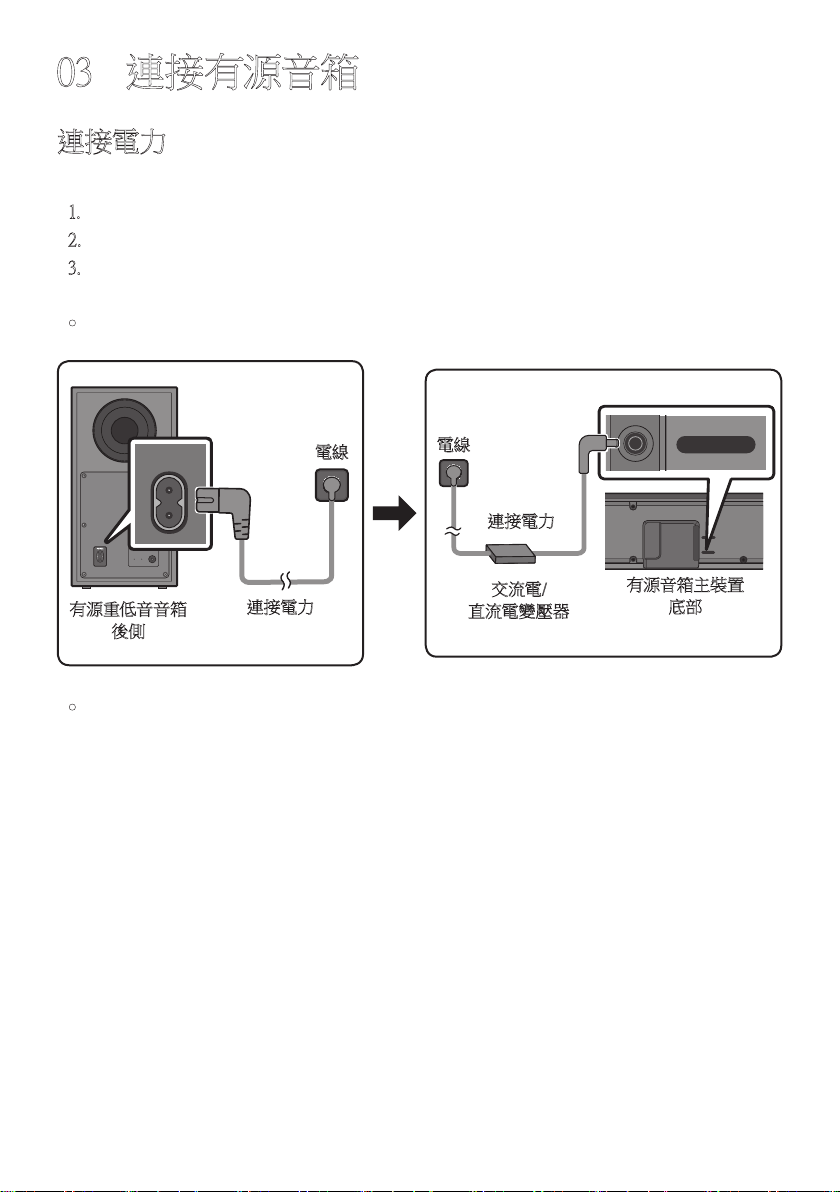
使用電源元件以下列順序將有源重低音音箱和有源音箱連接至電源插座:
1. 將電源線連接至有源重低音音箱。
2. 將電源輸出纜線連接至變壓器,然後連接至有源音箱。
3. 將電源線連接至牆壁插座。
請參見下圖。
• 電源和消耗功率,請參考本產品上的標籤。(標籤 : 有源音箱主裝置底部)
POWER
有源重低音音箱
後側
電線
連接電力
USB (5V 0.5A)
DC 24V
DC 24V
有源音箱主裝置
底部
交流電/
直流電變壓器
電線
連接電力
• 請務必將交流電/直流電變壓器平放在桌面或地面上。如果您將交流電/直流電變壓器的
交流電電線輸入端朝上懸掛,水或其他異物可能會進入變壓器,並造成變壓器故障。
TPE - 6
將有源音箱連接至有源重低音音箱
連接有源重低音音箱後,即可享受豐富的低音音效。
有源重低音音箱和有源音箱之間的自動連線
將電纜連接至有源音箱和有源重低音音箱之後,再開啟電源時,有源重低音音箱會自動連
線 至 有 源 音 箱。
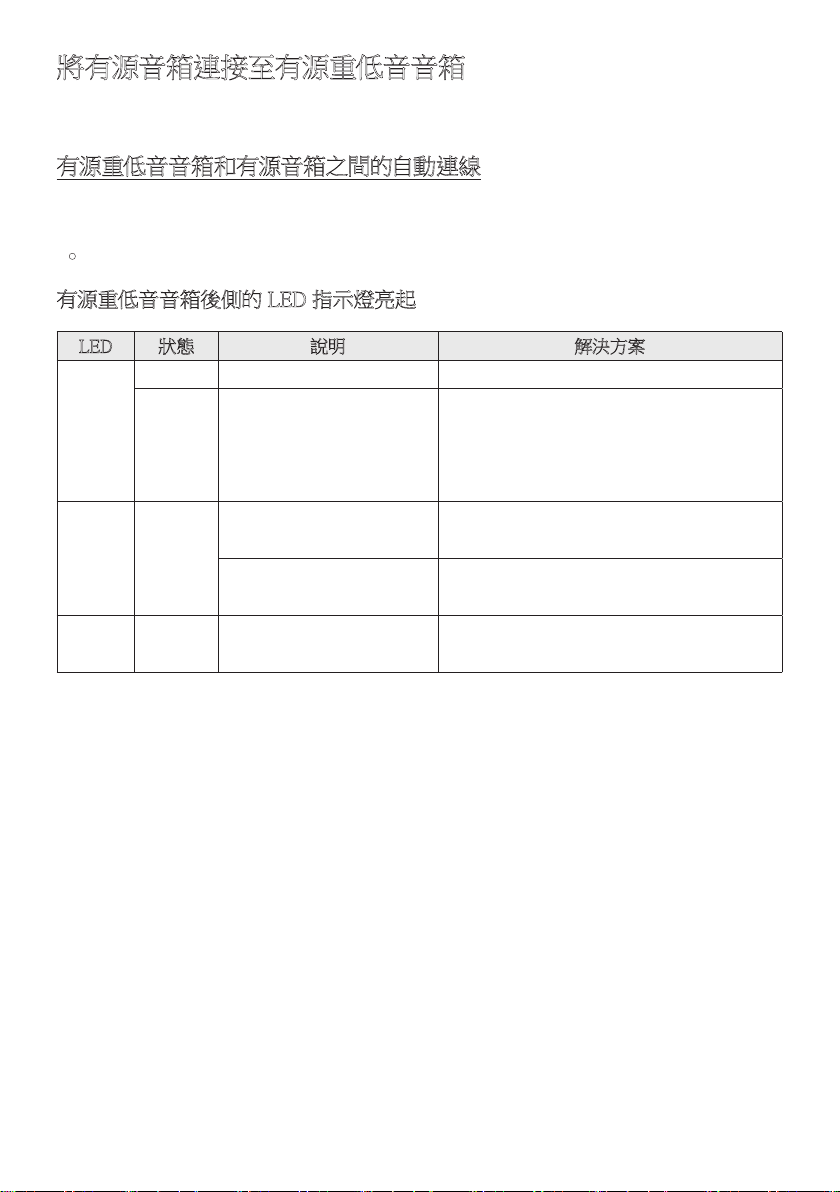
• 自動配對完成後,有源重低音音箱後側的藍色指示燈會亮起。
有源重低音音箱後側的 LED 指示燈亮起
LED 狀態 說明 解決方案
藍色
亮
成功連線 (正常運作) -
閃爍
正在恢復連線
檢查連接至有源音箱主裝置的電源線是否
正確連接,或等待大約 5 分鐘。若持續閃
爍,請 嘗 試 手 動 連 線 有 源 重 低 音 音 箱。
請參閱第 7 頁。
紅色 亮
待命 (有源音箱主裝置關
閉)
檢查連接至有源音箱主裝置的電纜是否
正 確 連 接。
連線失敗
重 新 連 線。請 參 見 第 7 頁的手動連線
說 明。
紅色和
藍色
閃爍
故障
請查看手冊中 Samsung 服務中心的聯絡資
訊。
TPE - 7
若自動連線失敗,請手動連線有源重低音音箱
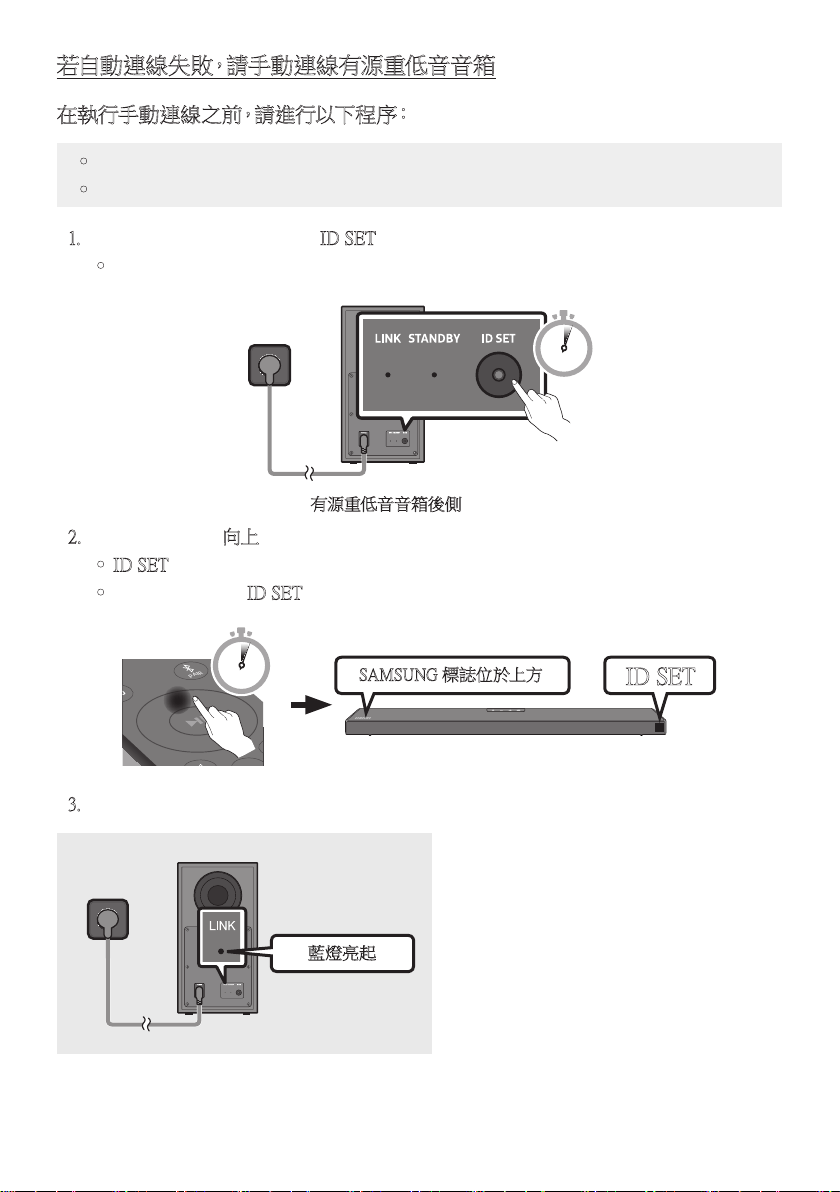
在執行手動連線之前,請進行以下程序:
• 檢查有源音箱和有源重低音音箱之間的電纜是否正確連接。
• 確 認 有 源 音 箱 為 開 啟。
1. 按住有源重低音音箱後側的 ID SET 至少 5 秒。
• 有源重低音音箱後側的紅色指示燈會關閉,而且藍色指示燈會閃爍。
5 Sec
有源重低音音箱後側
2. 按住遙控器上的向上按鈕至少 5 秒。
• ID SET 訊息會短暫地出現在有源音箱的顯示器上,然後消失。
• 有源音箱將會在 ID SET 完成後自動開啟電源。
SOUND
MODE
PAIR
5 Sec
ID SET
SAMSUNG 標誌位於上方
3. 檢查 LINK LED 燈是否持續亮著藍燈 (連線完成)。
藍燈亮起
有源音箱和無線有源重低音音箱之間
建立連線後,LINK LED 指示燈就會停
止 閃 爍,並 持 續 亮 著 藍 燈。

TPE - 8
附註
• 在完成元件之間的所有連接之前,請勿將本產品電線或電視連接至牆面插座。
• 在移動或安裝本產品之前,務必關閉電源並拔除電線。
• 如果主裝置已關閉電源,無線有源重低音音箱將會進入待機模式,而且後面的
STANDBY LED 燈將會在閃爍藍燈數次後呈現紅色。
• 若您在有源音箱附近使用頻率 (5.8GHz) 與有源音箱相同的裝置,干擾可能會造成聲音
中 斷。
• 主裝置無線訊號的最大發射距離約為 10 公尺,但可能因不同的操作環境而異。若鋼筋
水 泥 或 金 屬 牆 位 於 主 裝 置 和 無 線 有 源 重 低 音 音 箱 之 間,則 系 統 可 能 完 全 無 法 操 作,因 為
無線訊號無法穿透金屬。
注意事項
• 無線接收天線內建於無線有源重低音音箱。讓裝置遠離水和濕氣。
• 為達到最佳的聆聽效能,請確認無線有源重低音音箱和無線接收器模組(分售)位置的
週圍區域沒有任何障礙物。
TPE - 9
將 SWA-9100S (分售) 連接至有源音箱
透過將 Samsung 無線後置揚聲器套件 (SWA-9100S, 分售) 連接至有源音箱,可擴大至逼真
的無線環場音效。
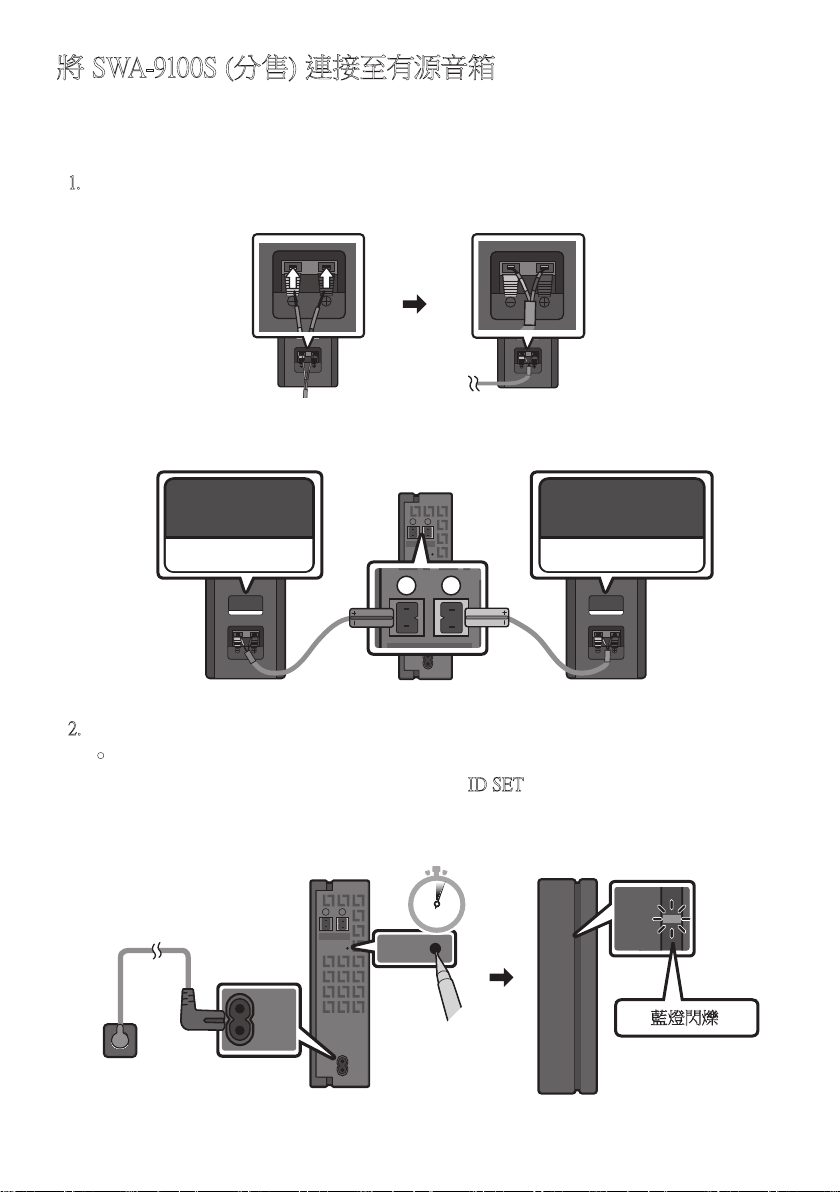
1. 將無線接收器模組連接至 2 後環繞喇叭。
– 連接揚聲器纜線時,請將心線連接至揚聲器。
SURROUND-RIGHT
SURROUND-RIGHT
– 揚聲器纜線以顏色編碼。
SURROUND-LEFT
ID SET
L
R
SURROUND SPEAKERS OUT
SPEAKER IMPEDANCE : 3Ω
POWER
ID SET
L
R
SURROUND SPEAKERS OUT
SPEAKER IMPEDANCE : 3Ω
SURROUND-RIGHT
SURROUND-LEFT SURROUND-RIGHT
2. 在插入電源插座後,檢查無線接收器模組是否處於待命狀態。
• 無線接收器模組上的 LINK LED 指示燈 (藍色 LED 燈) 會閃爍。若 LED 燈沒有閃
爍,請使用筆尖按住無線接收器模組背面的 ID SET 按鈕 5~6 秒,直到 LINK LED
指示燈閃爍 (藍色) 為止。如需更多關於 LED 燈的資訊,請參閱 SWA-9100S 使用者
手 冊。
ID SET
L
R
SURROUND SPEAKERS OUT
SPEAKER IMPEDANCE : 3Ω
POWER
POWER
ID SET
SURROUND SPEAKERS OUT
SPEAKER IMPEDANCE : 3Ω
STANDBY
LINK
STANDBY
LINK
藍燈閃爍
5 Sec
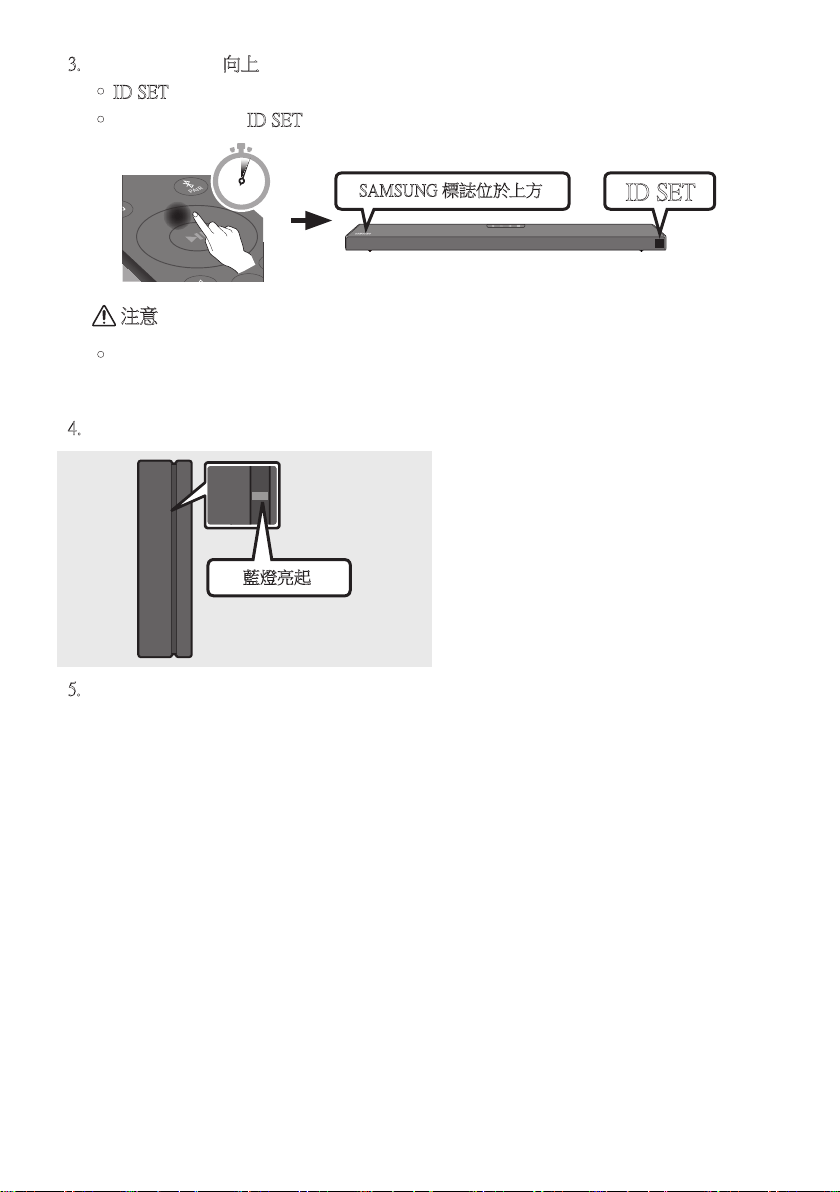
TPE - 10
3. 按住遙控器上的向上按鈕至少 5 秒。
• ID SET 訊息會短暫地出現在有源音箱的顯示器上,然後消失。
• 有源音箱將會在 ID SET 完成後自動開啟電源。
SOUND
MODE
PAIR
5 Sec
ID SET
SAMSUNG 標誌位於上方
注意
• 若您的有源音箱在連線至 SWA-9100S 時播放音樂,可以在連線完成時聽見有源重低
音音箱有一些斷斷續續的聲音。
4. 檢查 LINK LED 燈是否持續亮著藍燈 (連線完成)。
STANDBY
LINK
STANDBY
LINK
藍燈亮起
有源音箱和無線接收器模組之間建立
連線後,LINK LED 指示燈就會停止閃
爍,並 持 續 亮 著 藍 燈。
5. 若 SWA-9100S 未連接,請重複步驟 2 的程序。
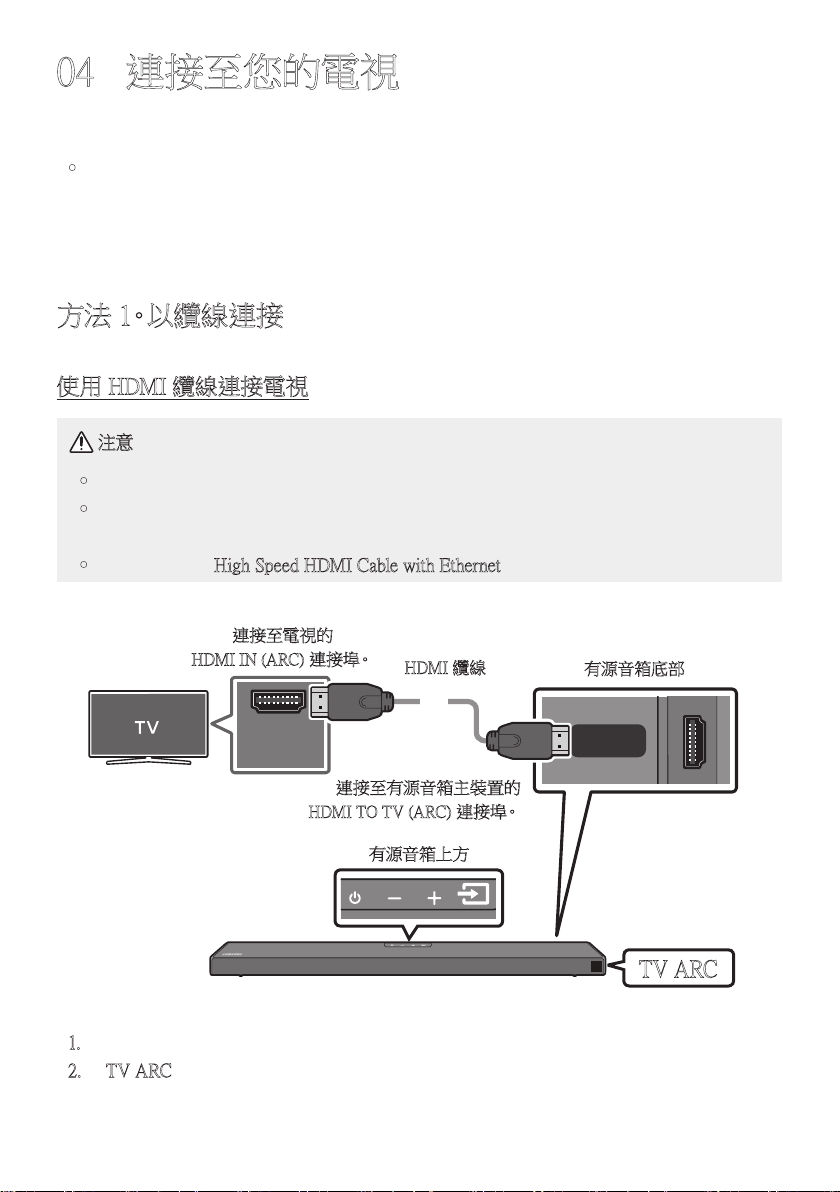
TPE - 11
04 連接至您的電視
從有源音箱透過有線或無線連接聆聽電視聲音。
• 若有源音箱連接至所選的 Samsung TV,則可使用電視遙控器控制有源音箱。
– 在您使用光纖纜線將有源音箱連接至電視後,2017 年及之後支援藍牙功能的
Samsung Smart TV 可支援此功能。
– 此功能也可以使用電視功能表調整音場和各種設定,以及音量和靜音。
方法 1。以纜線連接
使用 HDMI 纜線連接電視
注意
• 若同時連接了 HDMI 纜線和光纖纜線,則會先收到 HDMI 訊號。
• 若要在電視和有源音箱之間連接 HDMI 纜線,務必連接標記 ARC 的終端。否則,電
視聲音可能無法輸出。
• 建議的纜線為 High Speed HDMI Cable with Ethernet。
連接至電視的
HDMI IN (ARC) 連接埠。
HDMI IN
(ARC)
HDMI TO TV
(ARC)
DIGITAL AUDIO IN (OPTICAL)
HDMI 纜線
有源音箱底部
連接至有源音箱主裝置的
HDMI TO TV (ARC) 連接埠。
有源音箱上方
TV ARC
1. 在有源音箱和電視開啟時,連接 HDMI 纜線,如圖所示。
2. 「TV ARC」出現在有源音箱主裝置的顯示視窗上,而有源音箱會播放電視聲音。

TPE - 12
• 若聽不到電視聲音,請按下遙控器上或有源音箱上方的 (訊號源) 按鈕以切換至
「D.IN」模式。螢幕會依序顯示「D.IN」和「TV ARC」, 並 播 放 電 視 聲 音 。
• 若「TV ARC」沒有出現在有源音箱主裝置的顯示視窗中,請確認 HDMI 纜線是否連
接 至 正 確 的 連 接 埠。
• 使用電視遙控器上的音量按鈕變更有源音箱的音量。
附註
• HDMI 是一種介面,可使用單一接頭進行視訊和音訊資料的數位傳輸。
• 若電視提供 ARC 連接埠,請將 HDMI 纜線連接至 HDMI IN (ARC) 連接埠。
• 如果可能,建議您使用空心 HDMI 纜線。若您使用實心 HDMI 纜線,請使用直徑小於
14 公釐的纜線。
• 若 HDMI 纜線不支援 ARC,則此功能無法使用。
• 若廣播中的音訊以杜比數位編碼,而電視上的「數位輸出音訊格式」設定為 PCM,則建
議您將設定變更為杜比數位。變更電視上的設定後,將能體驗更好的聲音品質。(不同的
電視製造商可能會在電視功能表使用不同的字詞來表示 Dolby Digital 和 PCM)
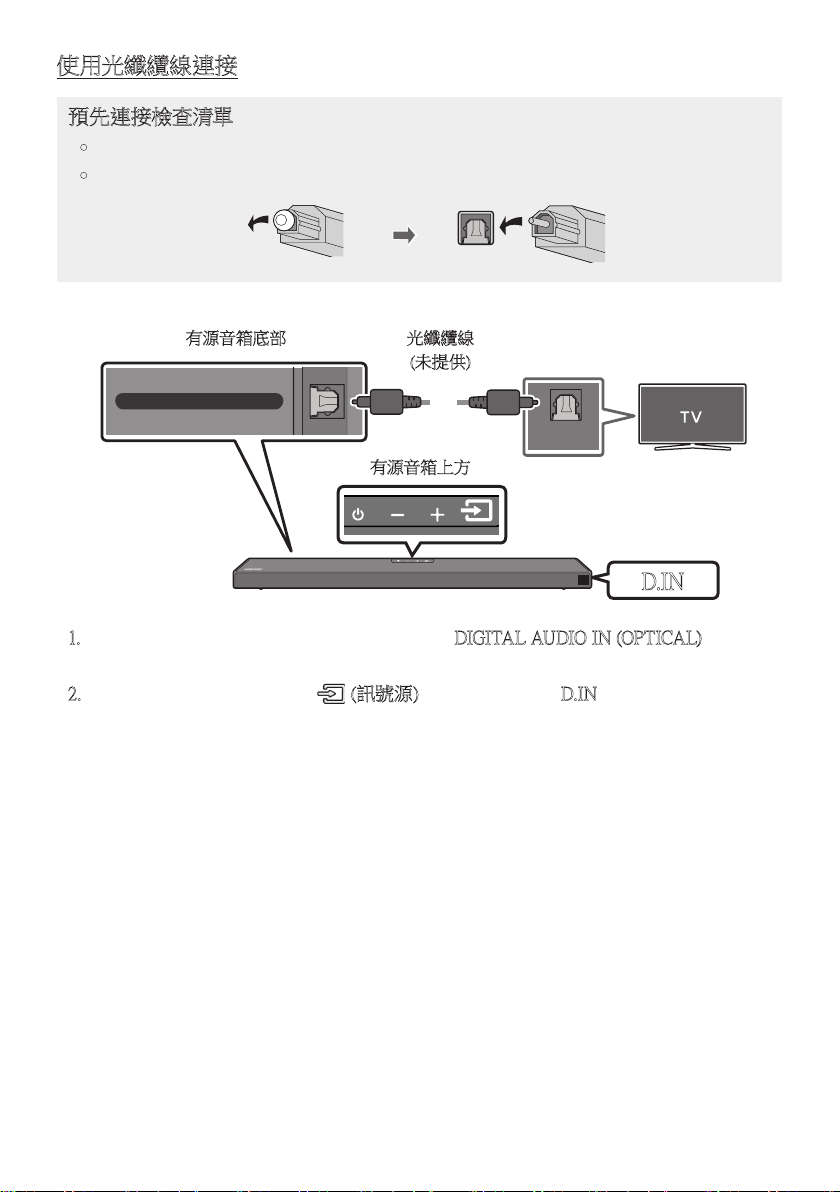
TPE - 13
使用光纖纜線連接
預先連接檢查清單
• 若同時連接了 HDMI 纜線和光纖纜線,則會先收到 HDMI 訊號。
• 若使用光纖纜線且終端有蓋子,務必取下蓋子。
OPTICAL OUT
DIGITAL AUDIO IN (OPTICAL)
有源音箱底部
有源音箱上方
光纖纜線
(未提供)
D.IN
1. 使用數位光纖纜線 (未提供) 將有源音箱上的 DIGITAL AUDIO IN (OPTICAL) 插孔連
接至電視上的 OPTICAL OUT 插孔。
2. 按 下上 方 面 板 或 遙 控 器 上 的 (訊號源) 按 鈕,然 後 選 擇「D.IN」模 式。
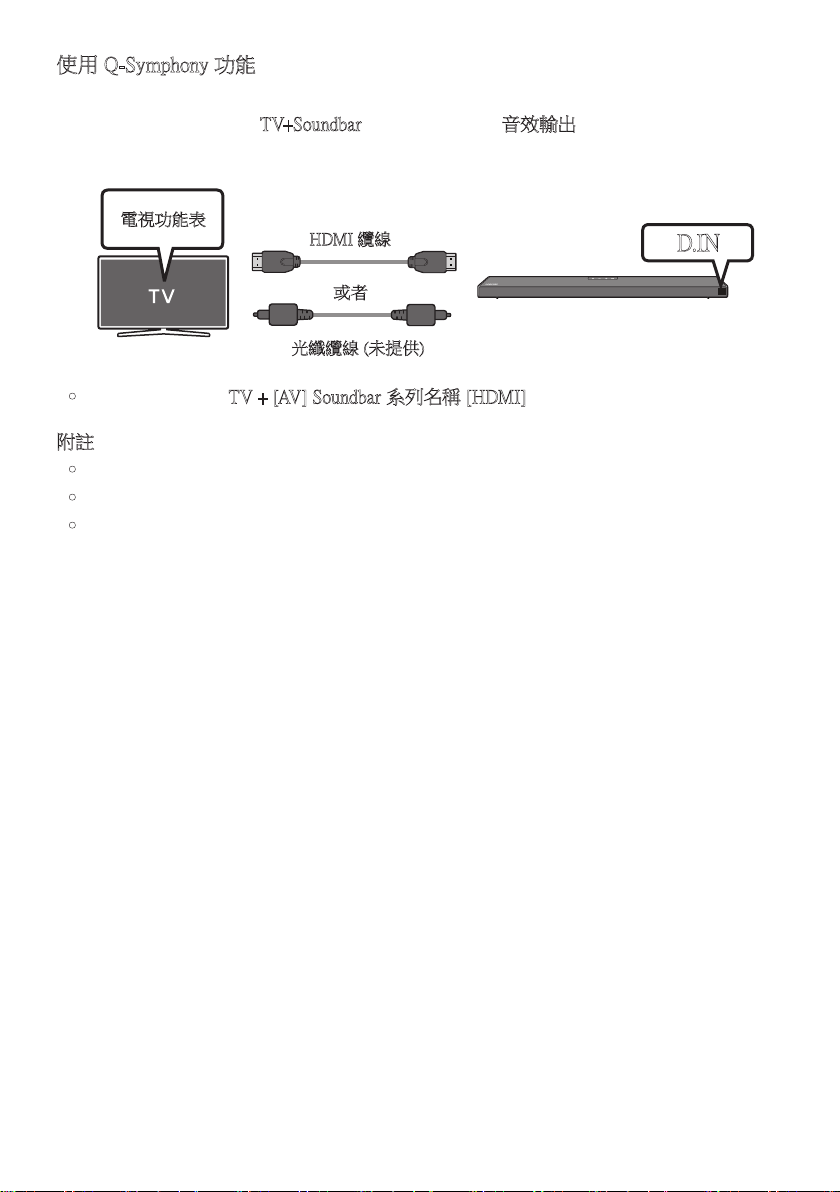
TPE - 14
使用 Q-Symphony 功能
對於 Q-Symphony,有源音箱會與 Samsung TV 同步,以透過兩個裝置輸出聲音,提供最佳
音 效 。 連 接 有 源 音 箱 時 ,「 TV+Soundbar」會 出 現 在 電 視 的 音效輸出功 能 表 下 方。選 擇 相 應 的
功 能 表。
電視功能表
或者
光纖纜線 (未提供)
HDMI 纜線
D.IN
• 電 視 功 能 表 範 例:TV + [AV] Soundbar 系列名稱 [HDMI]
附註
• 這可以根據電視支援的轉碼器來操作。
• 只有在連接 HDMI 纜線或光纖纜線 (未提供) 時,才支援此功能。
• 此功能可用於 2020 年和之後推出的 Samsung TV 和某些有源音箱型號。
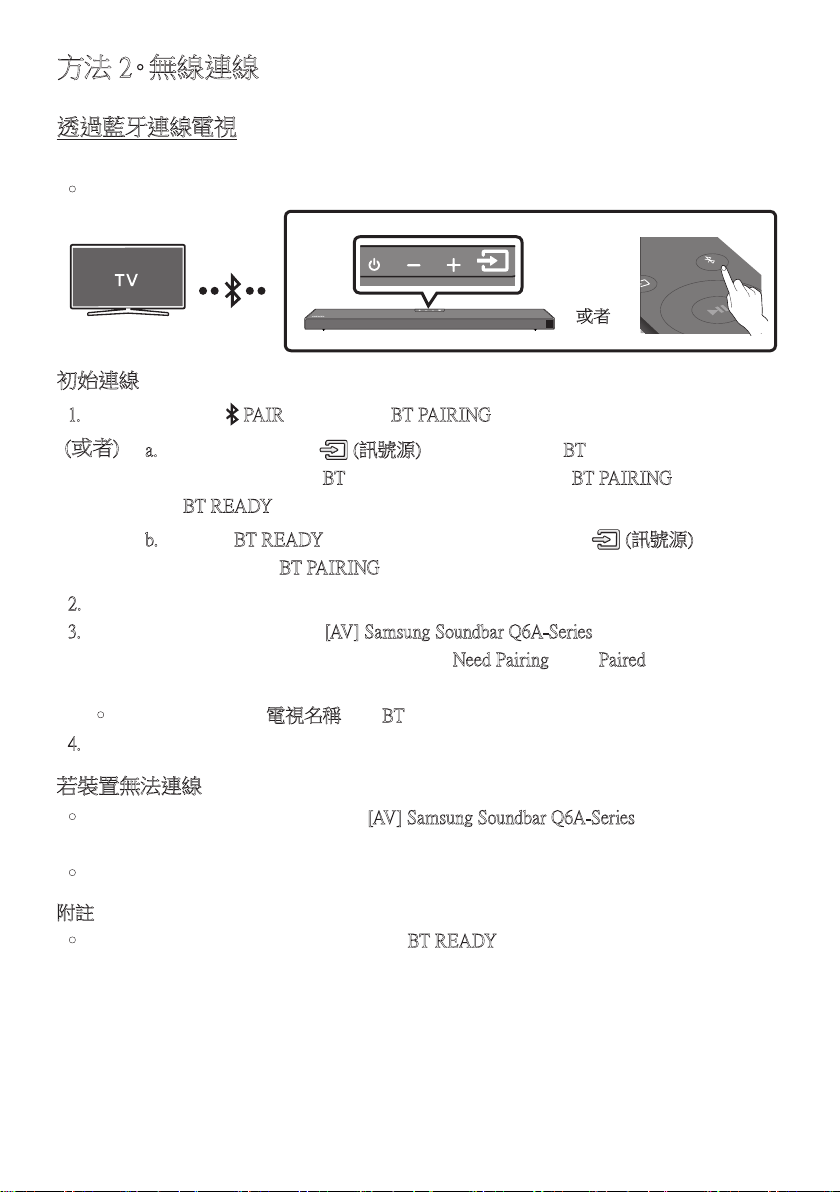
TPE - 15
方法 2。無線連線
透過藍牙連線電視
若電視使用藍牙連線,您可以聆聽立體聲音效,且省去連接纜線的麻煩。
• 一 次 只 能 連 線 一 台 電 視。
SOUND
MODE
PAIR
或者
初始連線
1. 按下遙控器上的 PAIR 按 鈕 以 進 入「 BT PAIRING」模 式。
(或者)
a. 按 下上 方 面 板 上 的 (訊號源) 按 鈕,然 後 選 擇「BT」。
如 果 有 連 線 記 錄 ,「 BT」會在幾秒鐘後自動變更為「BT PAIRING」或 變 更 為
「BT READY」。
b. 若 出 現「BT READY」,請在有源音箱的上方面板按住 (訊號源) 超過
5 秒,以顯示「BT PAIRING」。
2. 選擇電視上的藍牙模式。 (如需更多資訊,請參見電視手冊。)
3. 從電視畫面上的清單中選擇「[AV] Samsung Soundbar Q6A-Series」。
可 用 的 有 源 音 箱 會 在 電 視 藍 牙 裝 置 清 單 中 以「Need Pairing 」或「Paired」顯 示。
若要連線至有源音箱,請選擇訊息並建立連線。
• 若電視已連線,則 [電視名稱] →「BT」會出現在有源音箱前方顯示器上。
4. 您現在可以從有源音箱聆聽電視聲音。
若裝置無法連線
• 若先前連線的有源音箱清單 (例如「[AV] Samsung Soundbar Q6A-Series」) 出 現 在 清 單 中,
請 刪 除。
• 然後重複步驟 1 到 3。
附註
• 首次將有源音箱連線至電視後,請使用「BT READY」模 式 重 新 連 線。
TPE - 16
從電視中斷有源音箱連線
按 下上 方 面 板 或 遙 控 器 上 的
(訊號源)
按 鈕,然 後 切 換 為 除 了「BT」以 外 的 任 何 模 式。
• 中斷連線需要時間,因為電視必須收到來自有源音箱的回應。(所需時間依電視型號而
不 同。)
• 若要取消有源音箱和電視之間的自動藍牙連線,請在有源音箱處於「BT READY」狀 態
時,按 下 遙 控 器 上 的 向左按鈕 5 秒。(切換開啟 → 關閉)
BT READY 和 BT PAIRING 之間有什麼差異?
• BT READY:在此模式中,您可以搜尋先前連線的電視或將先前連線的行動裝置連線至
有 源 音 箱。
• BT PAIRING : 在此模式中,您可以將新的裝置連線至有源音箱。
(按下遙控器上的 PAIR 按鈕,或按住有源音箱上方的 (訊號源) 按鈕超過 5 秒,同
時 有 源 音 箱 處 於「BT」模 式。)
附註
• 連線藍牙裝置時,若要求 PIN 碼,請輸入 <0000>。
• 在藍牙連線模式中,若有源音箱和藍牙裝置之間的距離超過 10 公尺,會遺失藍牙連
線。
• 有源音箱會在就緒狀態持續 20 分鐘後自動關閉。
• 在 下 列 狀 況 下,有 源 音 箱 無 法 正 確 執 行 藍 牙 搜 尋 或 連 線:
– 若 有 源 音 箱 附 近有 強 烈 電 場。
– 若有兩個或更多藍牙裝置同時與有源音箱配對。
– 若藍牙裝置關閉、位置不正確或故障。
• 電子裝置可能會造成無線電波干擾。產生電磁波的裝置必須遠離有源音箱主裝置 - 例
如微波爐、無線 LAN 裝置等。
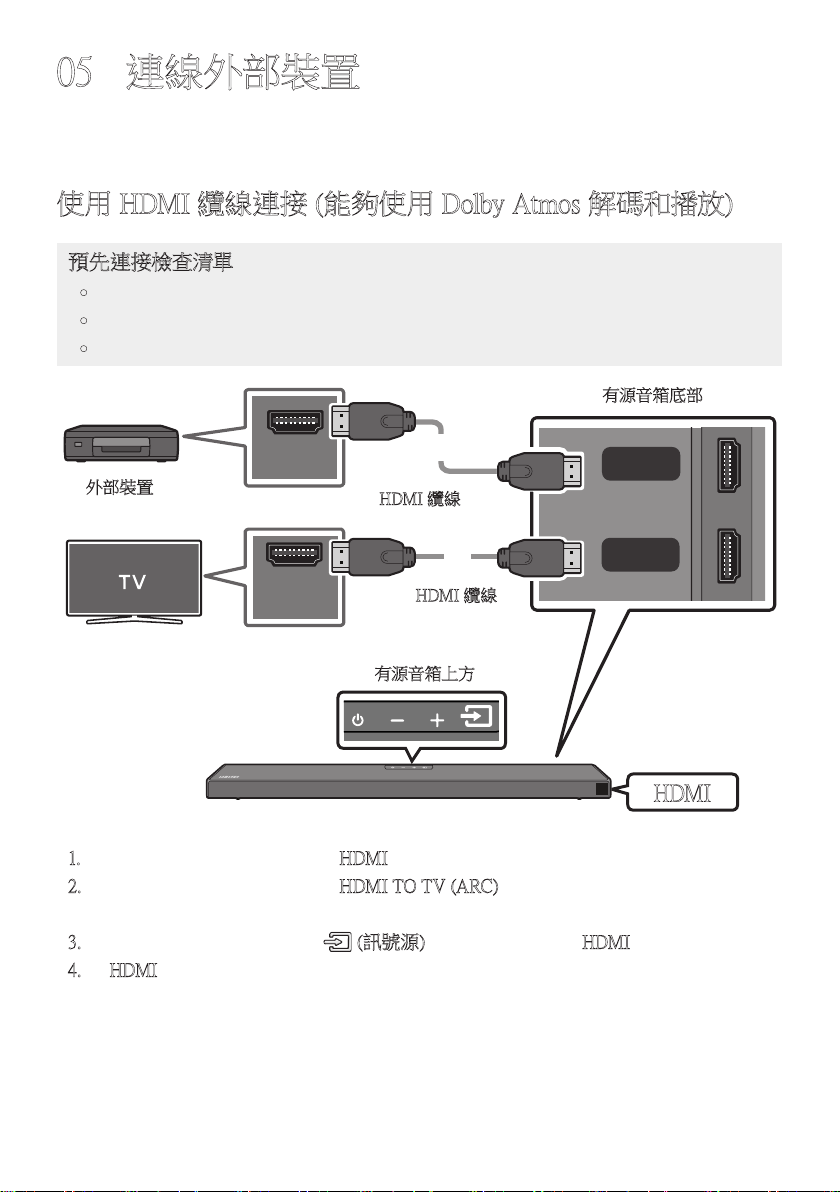
TPE - 17
05 連線外部裝置
透過有線連接或藍牙連接連接至外部裝置,以透過有源音箱播放外部裝置的聲音。
使用 HDMI 纜線連接 (能夠使用 Dolby Atmos 解碼和播放)
預先連接檢查清單
• Dolby Atmos® 和 DTS:X 僅在 HDMI 模式中才受到支援。
• 若音訊輸出選項包括次要音訊,請務必將其設定為關閉。
• 確認內容支援 Dolby Atmos®。
HDMI OUT
HDMI IN
(ARC)
HDMI
HDMI TO TV
(ARC)
DIGITAL AUDIO IN (OPTICAL)
HDMI 纜線
HDMI 纜線
有源音箱底部
外部裝置
有源音箱上方
HDMI
1. 將 HDMI 纜線從本產品背面的 HDMI 插孔連接至數位裝置上的 HDMI OUT 插孔。
2. 將 HDMI 纜線從本產品背面的 HDMI TO TV (ARC) 插孔連接至電視上的 HDMI IN 插
孔。
3. 按下上方面板或遙控器上的 (訊號源) 按鈕,然後選擇「HDMI」。
4. 「HDMI」模式會顯示在有源音箱顯示面板上並播放聲音。
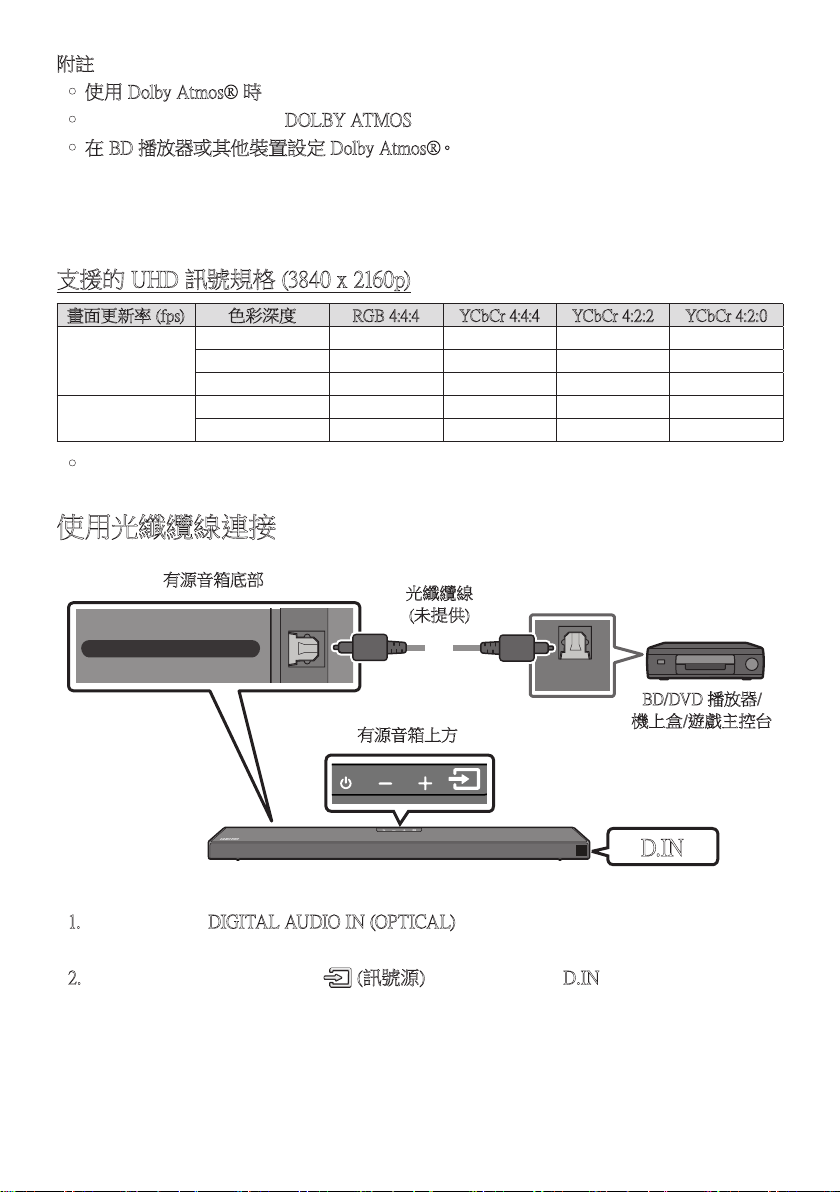
TPE - 18
附註
• 使用 Dolby Atmos® 時:若輸入訊號源為 Dolby Atmos®,則會輸出 5.1.2 頻道。
• 啟用 Dolby Atmos® 時,「DOLBY ATMOS」會顯示在前方顯示器。
• 在 BD 播放器或其他裝置設定 Dolby Atmos®。
開啟 BD 播放器或其他裝置的設定功能表上的音訊輸出選項,並確認針對位元流選擇「
無編碼」。例如,在 Samsung BD 播放器上,前往首頁功能表 → 聲音 → 數位輸出,然後
選擇位元流 (未處理)。
支援的 UHD 訊號規格 (3840 x 2160p)
畫面更新率 (fps) 色彩深度 RGB 4:4:4 YCbCr 4:4:4 YCbCr 4:2:2 YCbCr 4:2:0
< 60
8 位元 O O O O
10 位元 - - O O
12 位元 - - O O
120
8 位元 - - - -
10 位元 - - - -
• 支援的規格可能因連接的外部裝置或使用條件而異。
使用光纖纜線連接
OPTICAL OUT
HDMI TO TV
(ARC)
DIGITAL AUDIO IN (OPTICAL)
光纖纜線
(未提供)
有源音箱底部
BD/DVD 播放器/
機上盒/遊戲主控台
有源音箱上方
D.IN
1. 將主裝置上的 DIGITAL AUDIO IN (OPTICAL) 連接至訊號源上的 OPTICAL OUT 插孔
裝置使用數位光纖纜線 (未提供)。
2. 按下上方面板或遙控器上的 (訊號源) 按鈕,以選擇「D.IN」。
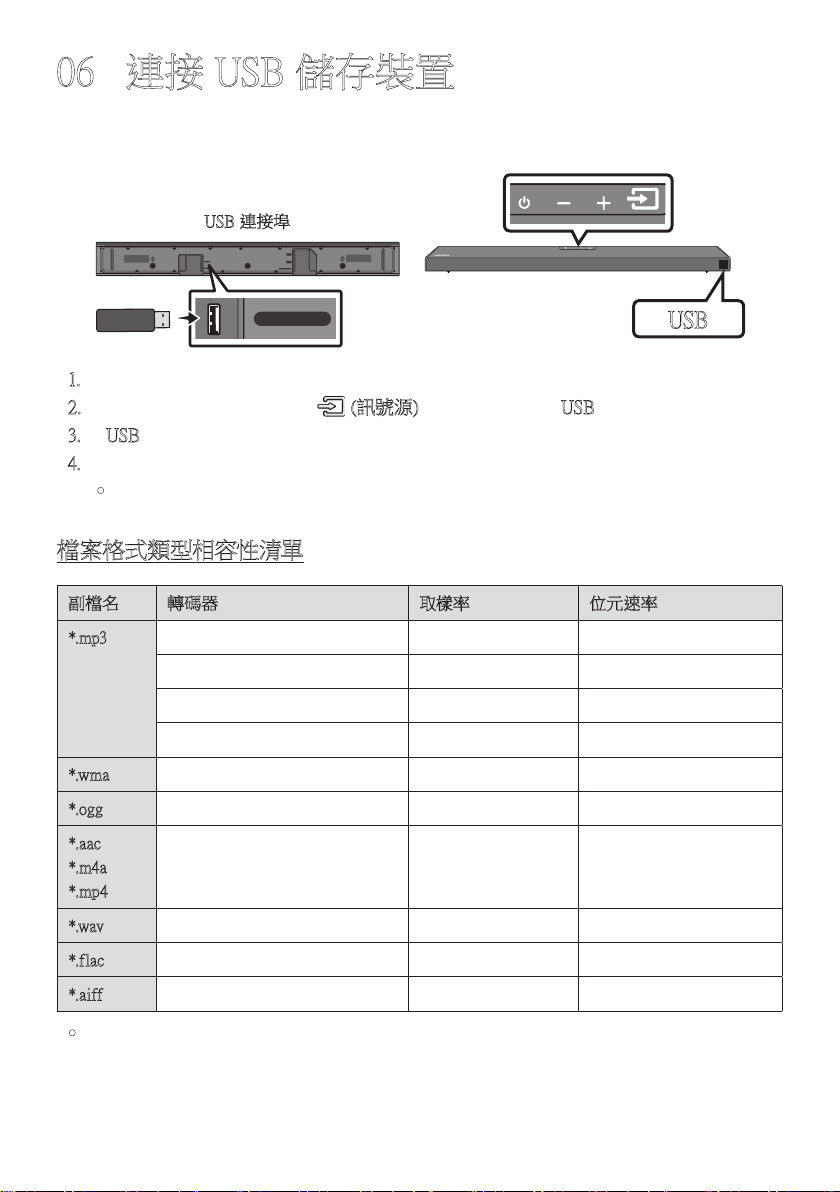
TPE - 19
06 連接 USB 儲存裝置
您可以透過有源音箱播放位於 USB 儲存裝置的音樂檔案。
USB 連接埠
HDMI
HDMI TO TV
(ARC)
USB (5V 0.5A)
DC 24V
DIGITAL AUDIO IN (OPTICAL)
USB (5V 0.5A)
USB
1. 將 USB 裝置連接至產品底部的 USB 連接埠。
2. 按 下上 方 面 板 或 遙 控 器 上 的 (訊號源) 按 鈕,然 後 選 擇「USB」。
3. 「USB」會 出 現 在 顯 示 畫 面 中。
4. 透過有源音箱從 USB 儲存裝置播放音樂檔案。
• 若持續超過 20 分鐘沒有連接 USB 裝置,有源音箱就會自動關閉 (自動電源關閉)。
檔案格式類型相容性清單
副檔名 轉碼器 取樣率 位元速率
*.mp3 MPEG1 Layer2 32kHz ~ 48kHz 32kbps ~ 320kbps
MPEG1 Layer3 32kHz ~ 48kHz 32kbps ~ 320kbps
MPEG2 Layer3 16kHz ~ 24kHz 8kbps ~ 160kbps
MPEG2.5 Layer3 8kHz ~ 12kHz 8kbps ~ 160kbps
*.wma
WMA7/8/9 (僅限音訊) 32kHz ~ 48kHz 32kbps ~ 320kbps
*.ogg Vorbis 32kHz ~ 48kHz 45kbps ~ 500kbps
*.aac
*.m4a
*.mp4
AAC-LC
(僅限 MPEG2/MPEG4 音訊)
32kHz ~ 48kHz 32kbps ~ 320kbps
*.wav LPCM 32kHz ~ 192kHz 1024kbps ~ 9216kbps
*.flac FLAC 32kHz ~ 192kHz 162kbps ~ 8100kbps
*.aiff AIFF 32kHz ~ 192kHz 1024kbps ~ 9216kbps
• 如果在 USB 裝置上儲存太多資料夾 (約 200 個) 與檔案 (約 2000 個),有源音箱可能需要
一些時間來存取和播放檔案。
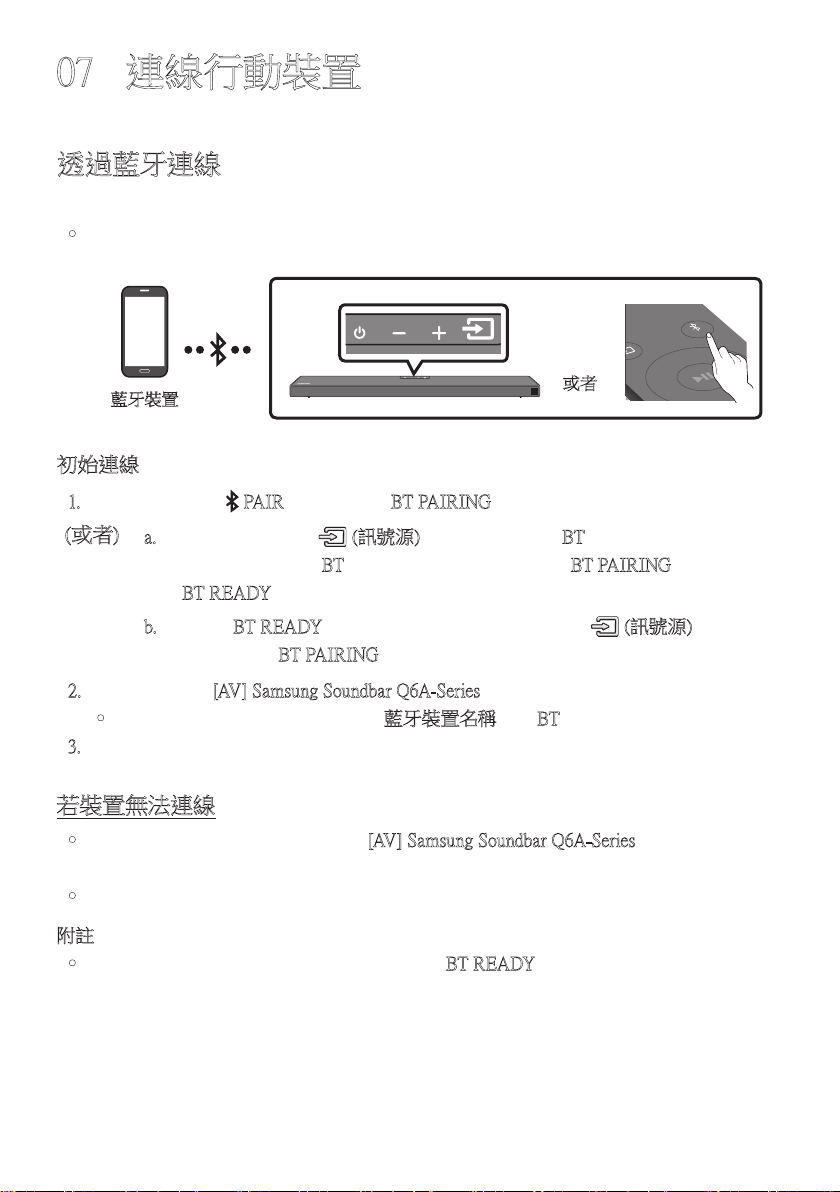
TPE - 20
07 連線行動裝置
透過藍牙連線
若行動裝置使用藍牙連線,您可以聆聽立體聲音效,且省去連接纜線的麻煩。
• 僅 限 於 同 時 連 線 一 個 電 視 或 兩 個 藍 牙 裝 置。
藍牙裝置
SOUND
MODE
PAIR
或者
初始連線
1. 按下遙控器上的 PAIR 按 鈕 以 進 入「 BT PAIRING」模 式。
(或者)
a. 按 下上 方 面 板 上 的 (訊號源) 按 鈕,然 後 選 擇「BT」。
如 果 有 連 線 記 錄 ,「 BT」會在幾秒鐘後自動變更為「BT PAIRING」或 變 更 為
「BT READY」。
b. 若 出 現「BT READY」,請在有源音箱的上方面板按住 (訊號源) 超過
5 秒,以顯示「BT PAIRING」。
2. 從 清 單 中 選 擇「[AV] Samsung Soundbar Q6A-Series」。
• 當有源音箱連線至藍牙裝置時, [藍牙裝置名稱] →「BT」就 會 出 現 在 前 方 顯 示 器。
3. 透過有源音箱從藍牙連線裝置播放音樂檔案。
若裝置無法連線
• 若先前連線的有源音箱清單 (例如「[AV] Samsung Soundbar Q6A-Series」)
出 現 在 清 單 中,請 刪 除。
• 然後重複步驟 1 到 2。
附註
• 首次將有源音箱連線至行動裝置後,請使用「BT READY」模 式 重 新 連 線。
TPE - 21
BT READY 和 BT PAIRING 之間有什麼差異?
• BT READY:在此模式中,您可以搜尋先前連線的電視或將先前連線的行動裝置連線至
有 源 音 箱。
• BT PAIRING : 在此模式中,您可以將新的裝置連線至有源音箱。
(按下遙控器上的 PAIR 按鈕,或按住有源音箱上方的 (訊號源) 按鈕超過 5 秒,同
時 有 源 音 箱 處 於「BT」模 式。)
附註
• 連線藍牙裝置時,若要求 PIN 碼,請輸入 <0000>。
• 在藍牙連線模式中,若有源音箱和藍牙裝置之間的距離超過 10 公尺,會遺失藍牙連
線。
• 有源音箱會在就緒狀態持續 20 分鐘後自動關閉。
• 在 下 列 狀 況 下,有 源 音 箱 無 法 正 確 執 行 藍 牙 搜 尋 或 連 線:
– 若 有 源 音 箱 附 近有 強 烈 電 場。
– 若有數個藍牙裝置同時與有源音箱配對。
– 若藍牙裝置關閉、位置不正確或故障。
• 電子裝置可能會造成無線電波干擾。產生電磁波的裝置必須遠離有源音箱主裝置 - 例
如微波爐、無線 LAN 裝置等。
• 有源音箱僅支援中等品質 SBC 資料(44.1kHz, 48kHz)
• 只能連接至支援 A2DP(AV)功能的藍牙裝置。
• 不能將有源音箱連接至僅支援 HF(Hands Free)功能的藍牙裝置。
• 配對有源音箱與藍牙裝置後,如果從裝置的已掃描裝置清單中選取
「[AV] Samsung Soundbar Q6A-Series」,則會自動將有源音箱切換至 「BT」模 式。
– 僅當有源音箱列出在藍牙裝置的搜尋到的裝置清單中時才可用。(藍牙裝置和有源
音箱先前必須至少已配對 一次。)
• 僅 當 有 源 音 箱 顯 示「BT READY」 時,有源音箱才會出現在藍牙裝置的搜尋到的裝置清
單中。
Bluetooth Power 開啟 (SOUND MODE)
如果之前已配對的藍芽裝置嘗試在 Bluetooth Power 開啟 功能開啟且有源音箱關閉時與有
源音箱配對,有源音箱會自動開啟。
1. 在有源音箱開啟時,按住遙控器上的 SOUND MODE 按鈕超過 5 秒。
2. 「ON-BLUETOOTH POWER」 會出現在有源音箱的顯示器上。
TPE - 22
從有源音箱中斷藍牙裝置的連線
您可以從有源音箱斷開藍牙裝置的連線。如需說明,請參閱藍牙裝置的使用者手冊。
• 有 源 音 箱 將 斷 開 連 線。
• 當有源音箱從藍牙裝置中斷連線時,有源音箱就會在前方顯示器上顯示
「BT DISCONNECTED」。
從藍牙裝置中斷有源音箱連線
按 下上 方 面 板 或 遙 控 器 上 的 (訊號源) 按 鈕,然 後 變 更 為「BT」以 外 的 任 何 模 式。
• 中斷連線需要時間,因為藍牙裝置必須收到來自有源音箱的回應。(不同的藍牙裝置需
要不同的中斷連線時間)
• 當有源音箱從藍牙裝置中斷連線時,有源音箱就會在前方顯示器上顯示
「BT DISCONNECTED」。
附註
• 在藍牙連線模式中,如果有源音箱與藍牙裝置之間的距離超過 10 公尺,藍牙連線將會
中 斷。
• 保持「備妥」狀態 20 分鐘後,有源音箱將會自動關閉。
藍牙相關詳細資訊
藍牙技術可讓符合藍牙的裝置使用無線連線輕鬆互連。
• 在下列情況下,藍牙裝置可能導致噪音或發生故障,具體視使用情況而定:
– 您身體的某個部位接觸藍牙裝置或有源音箱的接收/傳送系統。
– 受來自牆壁、角落或辦公室分隔物形成之障礙的電子變體影響。
– 受相同頻段裝置(包括醫裝置、微波爐和無線 LAN)的電子干擾。
• 當有源音箱與藍牙裝置靠得很近時使兩者配對。
• 有 源 音 箱 與 藍 牙 裝 置 之 間 的 距 離 越 遠,品 質 就 越 差。
如果距離超出藍牙工作範圍,連線將會中斷。
• 在接收敏感度較差的區域中,藍牙連線可能無法正常工作。
• 藍牙連線只能在靠近裝置時才能正常工作。如果藍牙裝置超出範圍,則會自動切斷連
線。即使在範圍內,牆壁或門等障礙物也可能導致聲音品質下降。
• 這個 無 線 裝 置 可能 會 在 其 操 作 期 間 造 成 電子 干 擾。
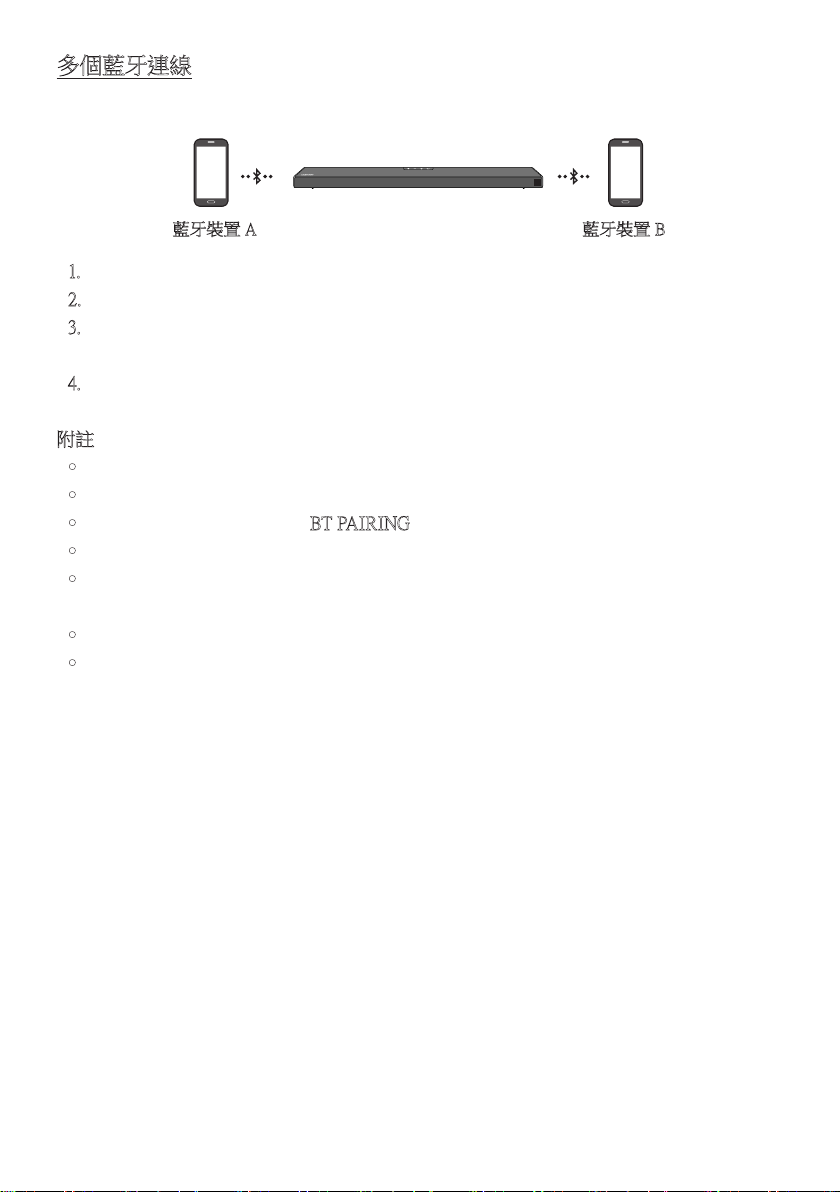
TPE - 23
多個藍牙連線
有源音箱可同時連線至 2 個藍牙裝置。
藍牙裝置 A 藍牙裝置 B
1. 將有源音箱最多連線至兩個藍牙裝置。(請參閱第 20 頁)
2. 在連線兩個裝置時,從連線的藍牙裝置之一播放音樂。
3. 如 果 在 裝 置「A」上 播 放 時,從 B l u e t o o t h 裝 置「B」播 放 音 樂,音 樂 就 會 是 從 裝 置「B」開
始 播 放,並 會 自 動 停 止 / 暫 停 在 裝 置「A」播 放。
4. 在早於 AVRCP V1.4 的版本中,播放音樂的裝置切換時間可能會延遲。
附註
• 於某些裝置上,可以藉由通知或鬧鐘來切換裝置。
• 有些裝置不支援多個 Bluetooth 連線。
• 3 分鐘內沒有與裝置配對,「BT PAIRING」模 式 會 停 止。
• 在某些應用程式上,切換裝置可能會需要約 7 秒的時間。
• 若您嘗試連線第三個藍牙裝置,將會中斷連線 A 或 B 裝置。
(將會中斷連線目前沒有播放的裝置。)
• 只能同時連接一個 Samsung TV 或 2 個藍牙裝置。
• 若有源音箱收到來自 Samsung TV 的連線要求,將會中斷與藍牙裝置的連線。
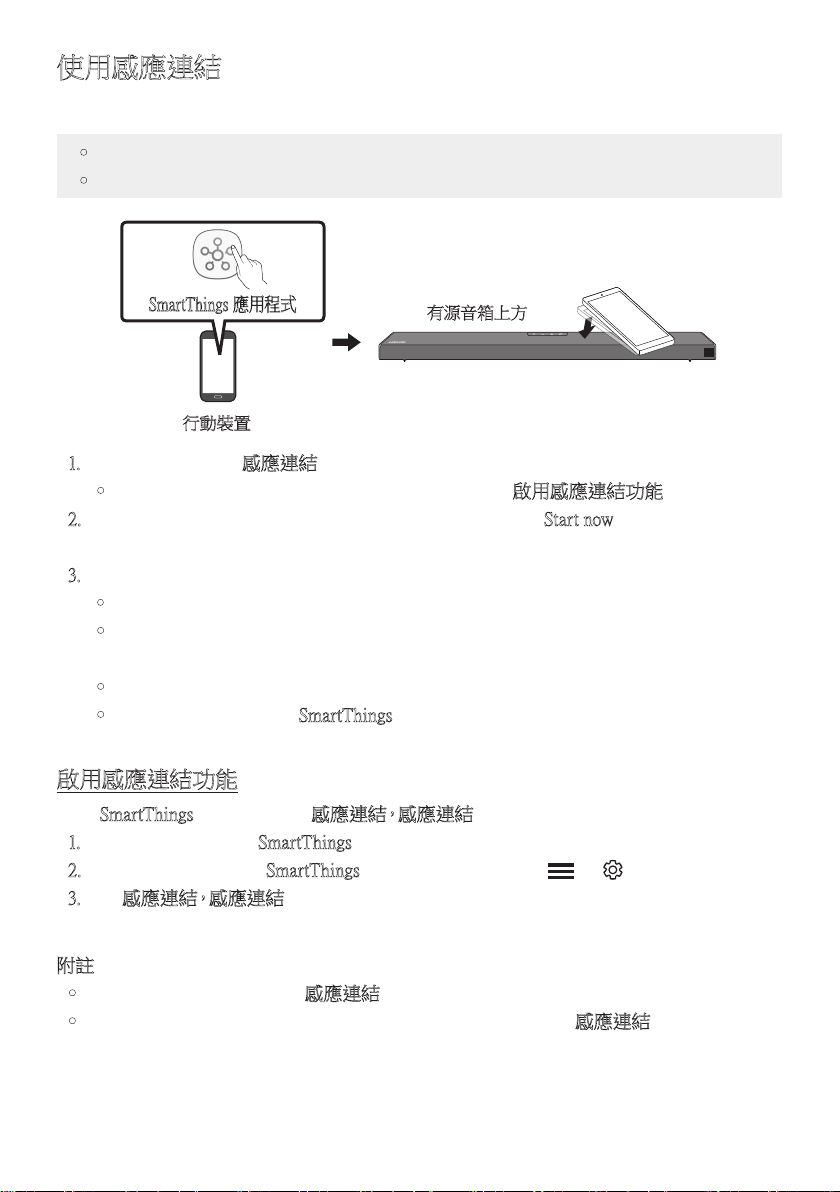
TPE - 24
使用感應連結
使用行動裝置輕觸有源音箱,以透過有源音箱播放行動裝置上的音訊。
• 此 功 能 可 能 不 受 支 援,視 行 動 裝 置 而 定。
• 此功能僅與具有 Android 8.1 或更高版本的 Samsung 行動裝置相容。
行動裝置
SmartThings 應用程式
有源音箱上方
1. 在行動裝置上開啟感應連結功 能。
• 如需如何開啟該功能的詳細資訊,請參閱下面的「啟用感應連結功能」。
2. 使用行動裝置輕觸有源音箱。在顯示的訊息視窗中選擇「Start now」。
會透過藍牙在行動裝置和有源音箱之間建立連線。
3. 透過有源音箱播放行動裝置上的音訊。
• 此功能偵測裝置觸碰有源音箱時產生的振動,以透過藍牙將行動裝置連線至有源音箱。
• 確保行動裝置沒有輕觸有源音箱的尖銳邊緣。有源音箱或行動裝置可能會被刮傷
或 損 壞。
• 建議為行動裝置套上外殼。輕觸有源音箱上方部分的寬廣區域,不要過度施力。
• 若要使用此功能,請將 SmartThings 應用程式更新為最新版本。
該 功 能 可 能 不 受 支 援,視 應 用 程 式 版 本 而 定。
啟用感應連結功能
使用 SmartThings 應用程式開啟感應連結,感應連結功 能。
1. 在行動裝置上,執行 SmartThings 應 用 程 式。
2. 在行動裝置上顯示的 SmartThings 應用程式畫面中選擇 ( → )。
3. 將「感應連結,感應連結」設定為開啟,以便在行動裝置移近有源音箱時允許該功能運
作。
附註
• 行動裝置處於省電模式時,感應連結功能無法運作。
• 若 有 電 子 設 備 等 裝 置 位 於 有 源 音 箱 附 近,造 成 無 線 電 干 擾,則 感應連結功能可能無法運
作。確認可能會造成無線電干擾的裝置與有源音箱之間有充足的距離。
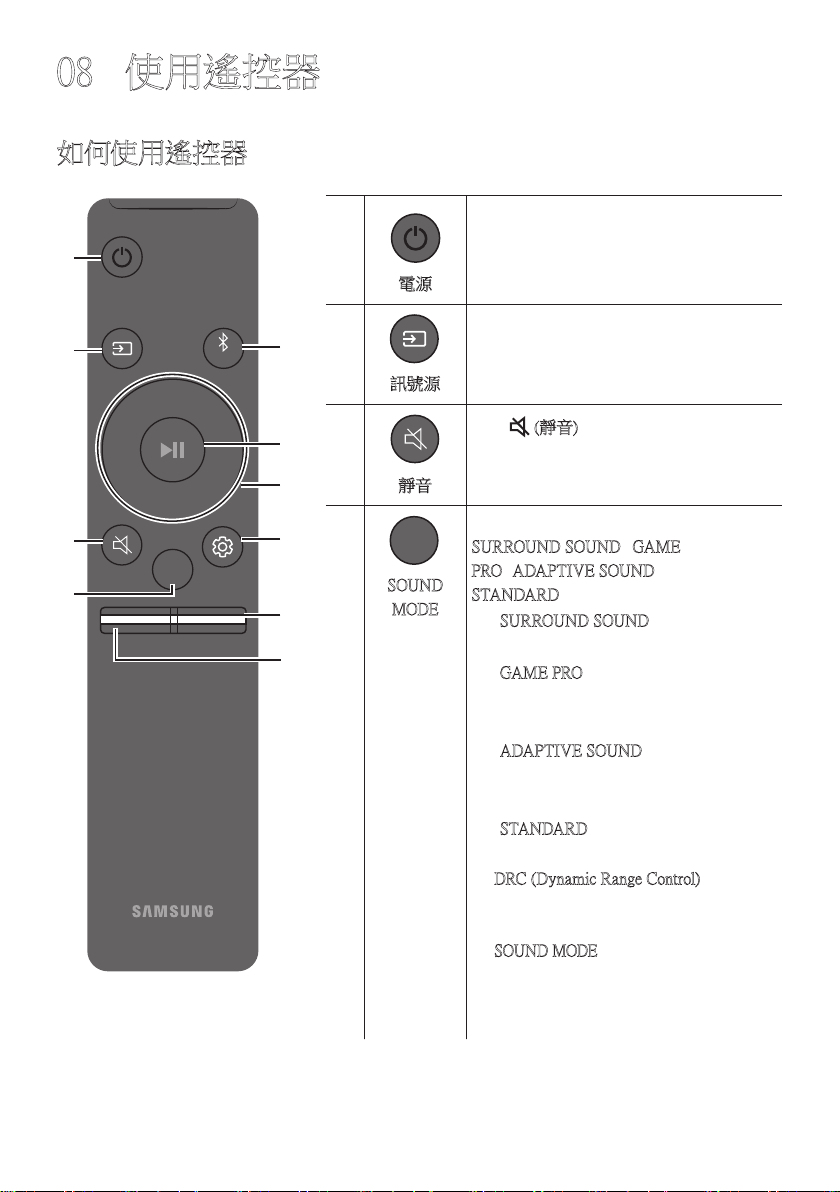
TPE - 25
08 使用遙控器
如何使用遙控器
VOL WOOFER
SOUNDBAR
SOUND
MODE
PAIR
電源
VOL WOOFER
SOUND
MODE
PAIR
開 啟 及 關 閉 有 源 音 箱。
VOL WOOFER
SOUND
MODE
PAIR
訊號源
按下可選擇連接至有源音箱的訊號源。
靜音
VOL WOOFER
SOUND
MODE
PAIR
按下 (靜音) 按鈕以靜音聲音。
再次按下以取消靜音聲音。
SOUND
MODE
VOL WOOFER
SOUND
MODE
PAIR
按下按鈕即可切換可用的聲音模式:
SURROUND SOUND、GAME
PRO、ADAPTIVE SOUND 或
STANDARD。
– SURROUND SOUND
提 供 比 標 準 更 廣 的 音 場。
– GAME PRO
提供立體聲以讓您在遊戲時沉浸在動
作 中。
– ADAPTIVE SOUND
即時分析內容並根據內容特徵自動提
供最 佳 音 場。
– STANDARD
輸 出 原 始 聲 音。
• DRC (Dynamic Range Control)
讓您將動態範圍控制套用至 Dolby
Digital 音軌。當有源音箱關閉時按住
SOUND MODE 按鈕 5 秒鐘以上,即可開
啟或關閉 DRC (動態範圍控制)。DRC 開
啟 時,會 降 低 過 大 的 音 量。( 聲 音 可 能 會
扭 曲。)
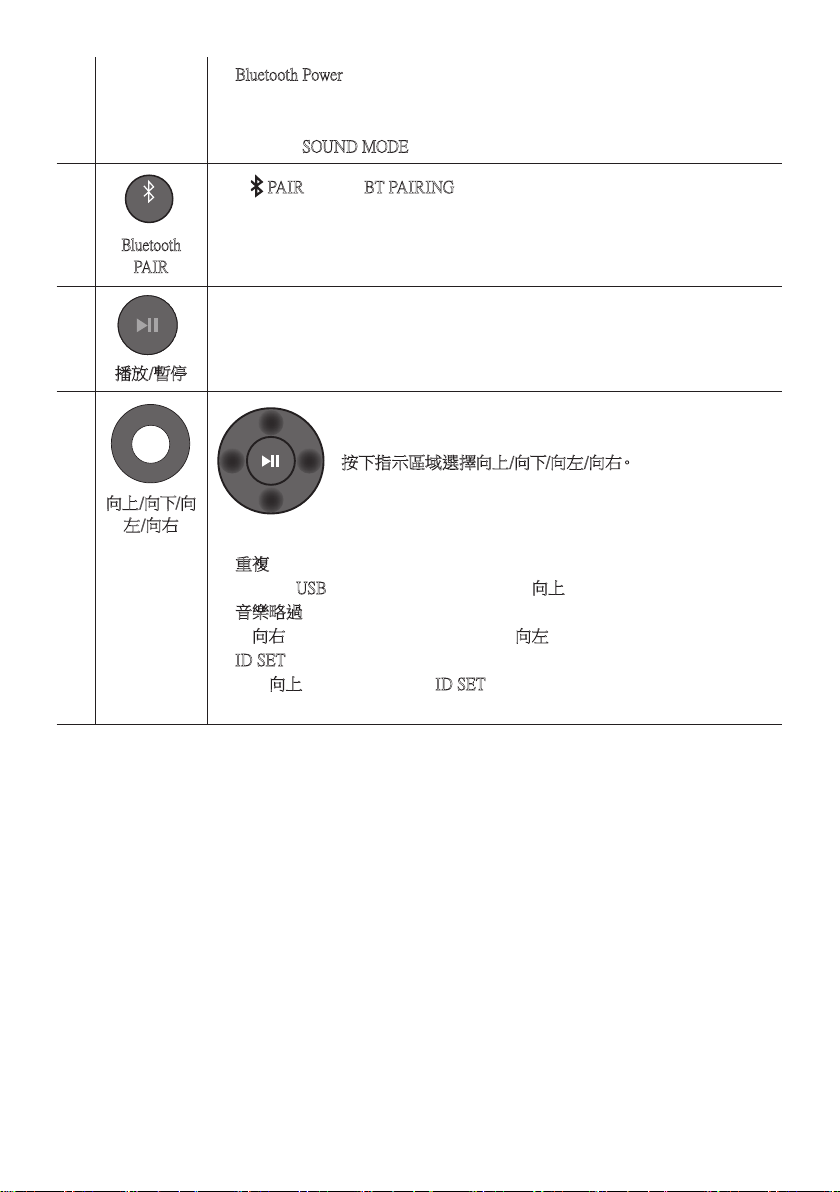
TPE - 26
• Bluetooth Power
此功能可讓有源音箱在接收來自先前連線的電視或藍牙裝置的連線請求
時,自動開啟有源音箱。預設設定為開啟。
– 按住 SOUND MODE 按鈕超過 5 秒,可關閉 Bluetooth Power 功能。
VOL WOOFER
SOUND
MODE
PAIR
Bluetooth
PAIR
按下 PAIR 按 鈕 。「 BT PAIRING」會顯示在有源音箱的顯示器中。
在此模式中,您可以從藍牙裝置的搜尋清單中選擇有源音箱,以將有源音箱連
線 至 新 的 藍 牙 裝 置。
播放/暫停
Surround
VOL WOOFER
SOUND
MODE
Bluetooth
POWER
按下 p 按鈕可暫停音樂檔案。
若您再次按下此按鈕,就會播放音樂檔案。
VOL WOOFER
SOUND
MODE
PAIR
向上/向下/向
左/向右
按下指示區域選擇向上/向下/向左/向右。
按下按鈕上的向上/向下/向左/向右選擇或設定功能。
• 重複
若 要 在「USB」模 式 中 使 用 重 複 功 能,請 按 向上按 鈕。
• 音樂略過
按向右按鈕可選擇下一個音樂檔案。按向左按鈕可選擇上一個音樂檔案。
• ID SET
按住向上按鈕 5 秒,以完成 ID SET (連接至無線有源重低音音箱或無線後
置 揚 聲 器 時 )。
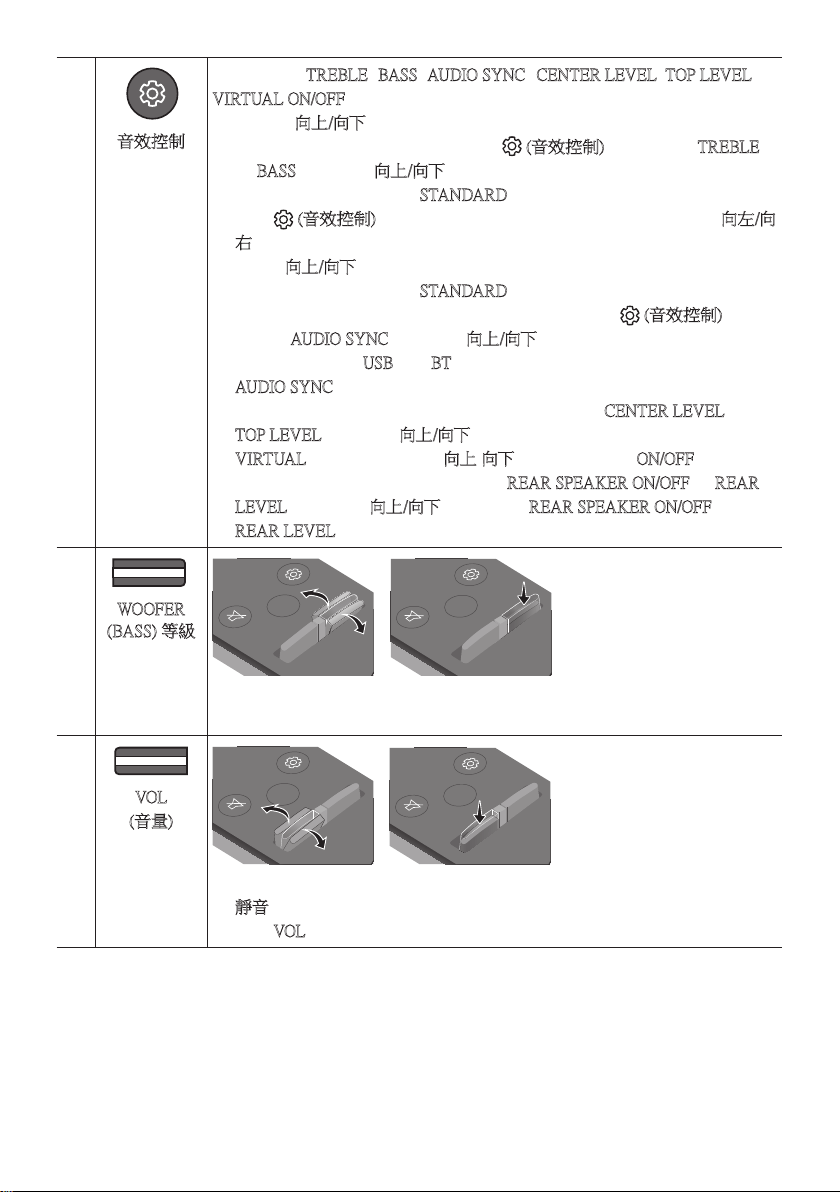
TPE - 27
音效控制
VOL WOOFER
SOUND
MODE
PAIR
按 下 按 鈕 時,TREBLE、BASS、AUDIO SYNC、CENTER LEVEL、TOP LEVEL 和
VIRTUAL ON/OFF 設 定 會 依 序 顯 示。
您可以使用向上/向下按鈕調整所需設定。
• 若要控制高音或低音的音量,請按下 (音效控制) 按鈕以選擇 TREBLE
或 BASS,然 後 使 用 向上/向下按鈕介於 -6~+6 之間調整音量。
( 請 確 認 聲 音 模 式 設 定 為「STANDARD」。 )
• 按住 (音效控制) 按鈕大約 5 秒,以調整每個頻帶的聲音。可使用向左/向
右按鈕選擇 150Hz、300Hz、600Hz、1.2kHz、2.5kHz、5kHz 和 10kHz,每項都
能使用向上/向下按鈕調整為介於 -6 到 +6 之間的設定。
( 請 確 認 聲 音 模 式 設 定 為「STANDARD」。 )
• 如果電視上的視訊與有源音箱的音訊不同步,請按下 (音效控制) 按鈕
以選擇 AUDIO SYNC,然 後 使 用 向上/向下按鈕在 0~300 毫秒之間設定音訊
延 遲。( 不 可 用 於「USB」或「BT」模 式。)
• AUDIO SYNC 僅在 某 些 功 能 受 到 支 援。
• 若要控制每個揚聲器的音量,請選擇聲音設定中的 CENTER LEVEL 或
TOP LEVEL,然 後 使 用 向上/向下按鈕介於 -6~+6 之間調整音量。
• VIRTUAL 揚聲器功能可使用向上/向下按鈕開啟或進行 ON/OFF。
• 當連接後環繞喇叭 (另售) 時,會支援 REAR SPEAKER ON/OFF 和 REAR
LEVEL 設 定。使 用 向上/向下按鈕以設定 REAR SPEAKER ON/OFF,並 將
REAR LEVEL 的音量調整為介於 -6 到 +6 之間。
VOL WOOFER
SOUND
MODE
PAIR
WOOFER
(BASS) 等級
SOUND
MODE
VOL
WOOFER
SOUNDBAR
SOUND
MODE
VOL
WOOFER
SOUNDBAR
SOUND
MODE
VOL
WOOFER
SOUNDBAR
SOUND
MODE
VOL
WOOFER
SOUNDBAR
向上或向下推動按鈕以將有源重低音音箱 (低音) 的音量調整為 -12 或介於 -6
到 +6 之間。若要將有源重低音音箱 (低音)音量設定為 0 (預設),請按下按鈕。
VOL WOOFER
SOUND
MODE
PAIR
VOL
(音量)
SOUND
MODE
VOL
WOOFER
SOUNDBAR
SOUND
MODE
VOL
WOOFER
SOUNDBAR
SOUND
MODE
VOL
WOOFER
SOUNDBAR
SOUND
MODE
VOL
WOOFER
SOUNDBAR
向上或向下推動按鈕可調整音量。
• 靜音
按下 VOL 按鈕以靜音。再次按下可取消靜音。
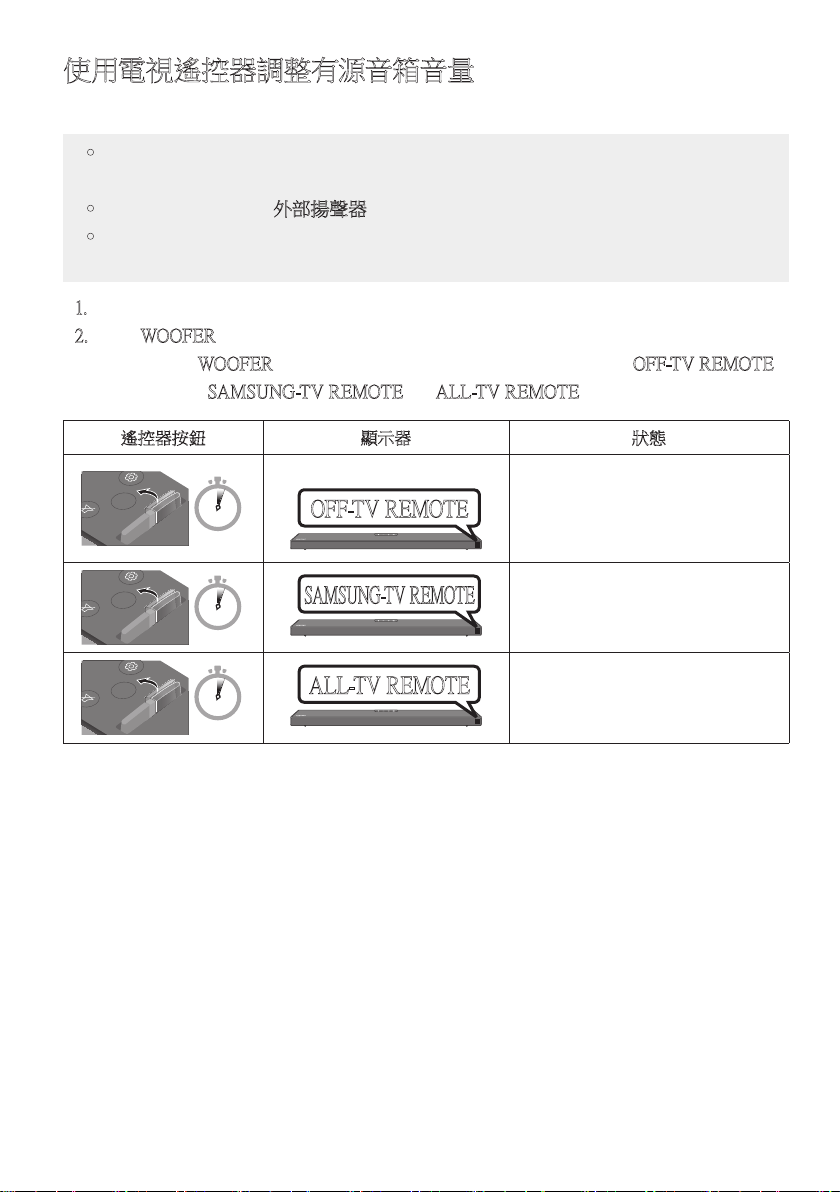
TPE - 28
使用電視遙控器調整有源音箱音量
使用電視遙控器調整有源音箱音量。
• 只有在使用紅外線遙控器時才能使用此功能。 不支援藍牙遙控器 (需要配對的遙控
器 )。
• 將電視揚聲器設定為外部揚聲器以 使 用 此 功 能。
• 支 援 此 功 能 的 製 造 商:
VIZIO、LG、Sony、Sharp、PHILIPS、PANASONIC、TOSHIBA、Hisense、RCA
1. 關 閉 有 源 音 箱。
2. 按住 WOOFER 按鈕 5 秒。
每次您按住 WOOFER 按鈕 5 秒時,就會按照下列順序切換模式:「OFF-T V R EMOTE」
(預設模式)、「SAMSUNG-TV REMOTE」、「 ALL-TV REMOTE」。
遙控器按鈕 顯示器 狀態
SOUND
MODE
VOL
WOOFER
SOUNDBAR
5 Sec
OFF-TV REMOTE
(預設模式)
停用電視遙控器。
SOUND
MODE
VOL
WOOFER
SOUNDBAR
5 Sec
SAMSUNG-TV REMOTE
啟用 Samsung TV 的紅外線遙控器。
SOUND
MODE
VOL
WOOFER
SOUNDBAR
5 Sec
ALL-TV REMOTE
啟用第三方電視的紅外線遙控器。
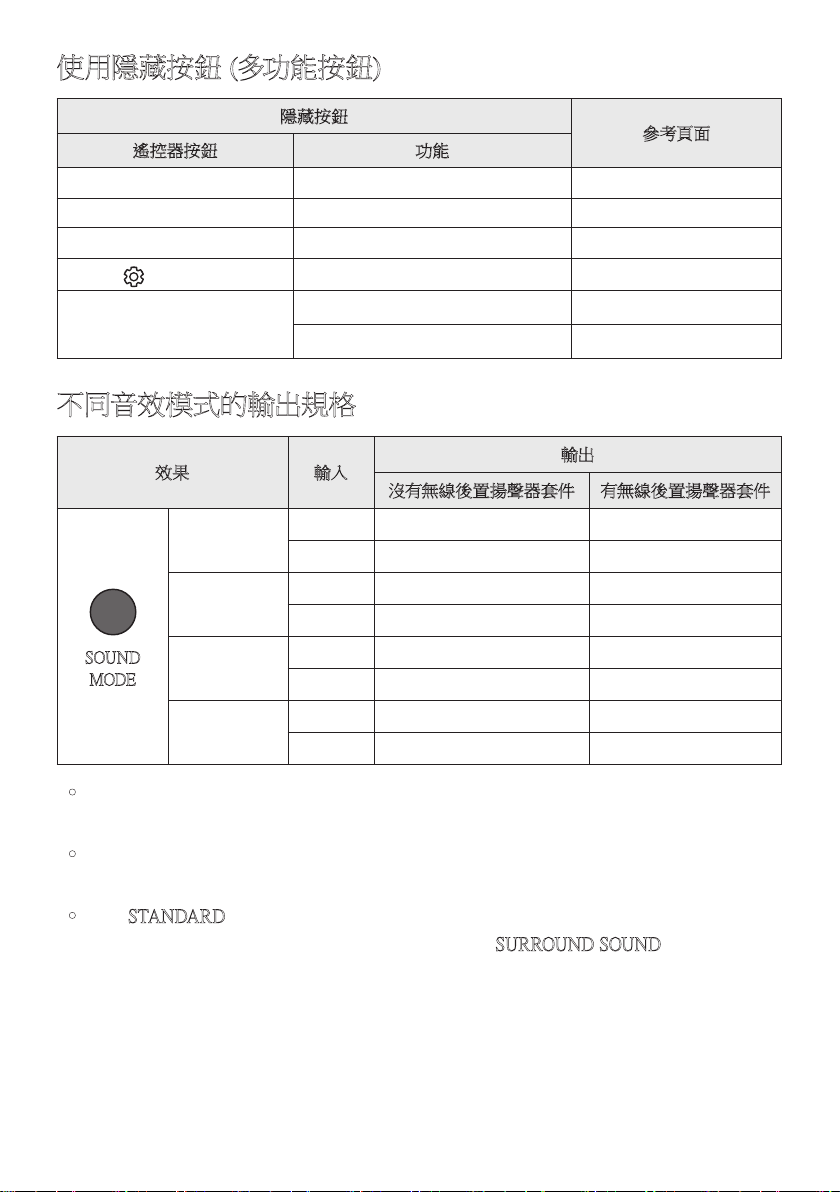
TPE - 29
使用隱藏按鈕 (多功能按鈕)
隱藏按鈕
參考頁面
遙控器按鈕 功能
WOOFER (向上) 電視遙控器 開啟/關閉 (待命) 第 28 頁
向左 電視自動連線開啟/關閉 (藍牙就緒) 第 16 頁
向上 ID SET 第 26 頁
(音效控制)
7 環帶 EQ 第 27 頁
SOUND MODE
DRC ON/OFF (待命) 第 25 頁
Bluetooth Power 第 26 頁
不同音效模式的輸出規格
效果 輸入
輸出
沒有無線後置揚聲器套件 有無線後置揚聲器套件
SOUND
MODE
Surround
VOL WOOFER
SOUND
MODE
Bluetooth
POWER
SURROUND
SOUND
2.0 頻道 3.1.2 頻道 5.1.2 頻道
5.1 頻道 3.1.2 頻道 5.1.2 頻道
GAME PRO
2.0 頻道 3.1.2 頻道 5.1.2 頻道
5.1 頻道 3.1.2 頻道 5.1.2 頻道
ADAPTIVE
SOUND
2.0 頻道 3.1.2 頻道 5.1.2 頻道
5.1 頻道 3.1.2 頻道 5.1.2 頻道
STANDARD
2.0 頻道 2.1 頻道 2.1 頻道
5.1 頻道 3.1 頻道 5.1 頻道
• Samsung 無線後置揚聲器套件可另外購買。若要購買套件,請聯絡您購買有源音箱時的
廠 商。
• 若輸入訊號源是 Dolby Atmos®,則僅限有源重低音音箱的設定可提供 3.1.2 頻道音訊,
而有源重低音音箱與無線後置揚聲器套件設定可提供 5.1.2 頻道音訊。
• 使用 STANDARD 模式時,後環繞喇叭將不會產生用於 2 個頻道輸出的聲音。
若要啟用後環繞喇叭的聲音,請將音效模式變更為 SURROUND SOUND。
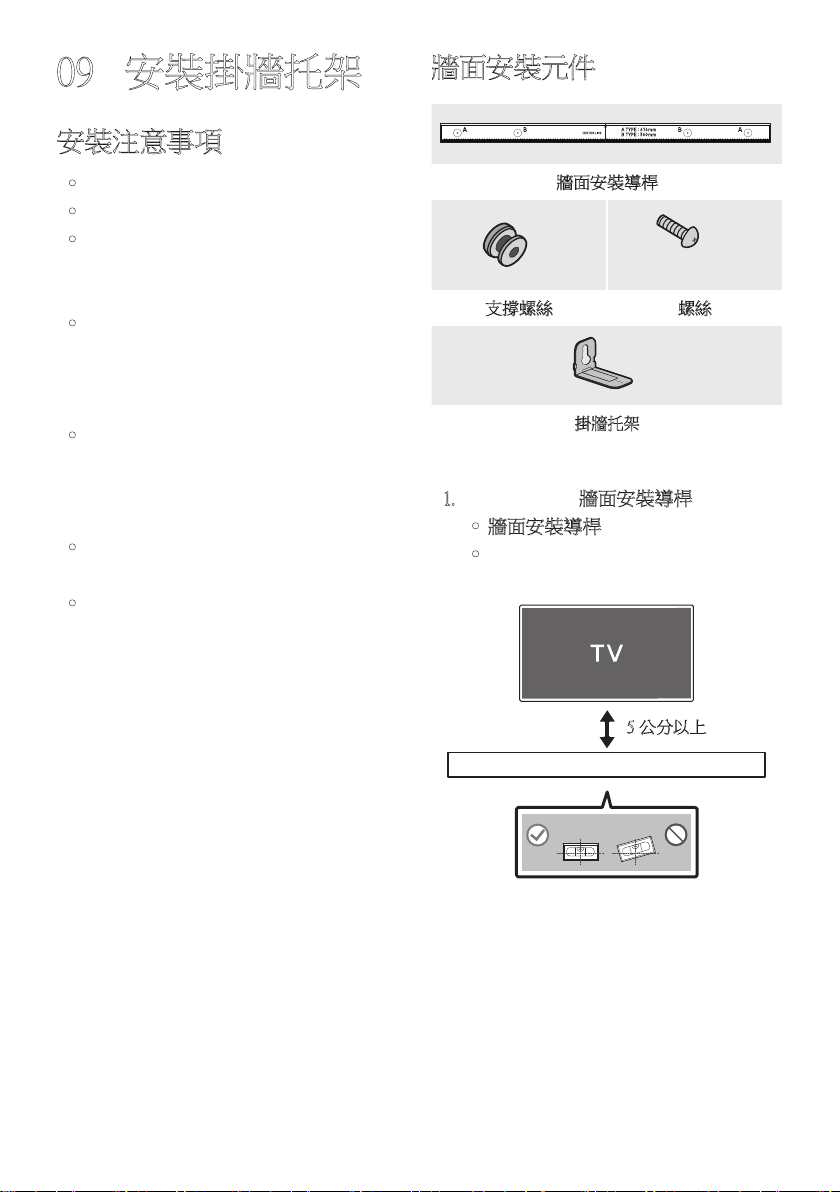
TPE - 30
09 安裝掛牆托架
安裝注意事項
• 僅安裝於垂直牆面。
• 請勿安裝於高溫或高濕度的地方。
• 檢查牆壁是否夠堅固,能夠支撐產品重
量。若無法支撐,請強化牆壁或選擇其
他 安 裝 點。
• 購買並使用適合用於該牆壁種類 (灰漿
板、鐵 板、木 材 等 ) 的 銼 屑 螺 絲 或 固 定
器。若 可 能,請 支 撐 螺 絲 固 定 在 牆 壁 螺
栓 中。
• 根據您要安裝有源音箱的牆壁類型和厚
度,購 買 牆 面 安 裝 螺 絲。
– 直 徑:M 5
– 長度:建議使用 35 毫米以上。
• 請先將纜線從裝置連接至外部裝置,再
將 有 源 音 箱 安 裝 到 牆 上。
• 在安裝前,請確認裝置已關閉並拔下電
源插頭。否則,可能會造成觸電。
牆面安裝元件
牆面安裝導桿
x 2
(M4 x L10)
x 2
支撐螺絲 螺絲
x 2
掛牆托架
1. 對著牆面放置牆面安裝導桿。
• 牆面安裝導桿必 須 水平。
• 若電視安裝於牆面,請將有源音箱安
裝在距離電視下方至少 5 公分處。
5 公分以上
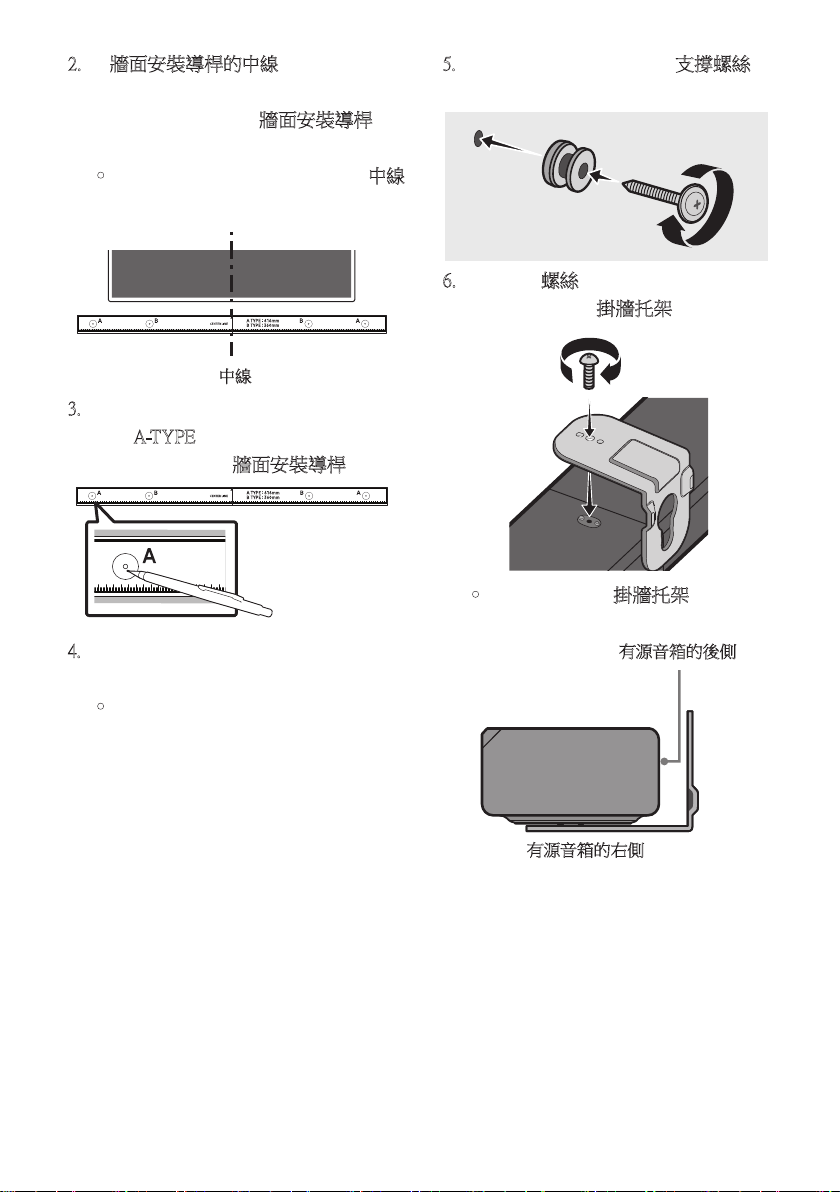
TPE - 31
2. 將牆面安裝導桿的中線與電視的中央
對齊 (如果您將有源音箱安裝在電視下
方 ),然 後 使 用 膠 帶 將 牆面安裝導桿固
定 在 牆 上。
• 如 果 您 未 在 電 視 下 方 安 裝,請 將 中線
放在安裝區域的中央。
中線
3. 將筆尖或銳利的鉛筆筆尖穿過導桿每
端的 A-TYPE 影 像 中 央,以 標 示 支 撐 螺
絲的孔,然後移除牆面安裝導桿。
4. 使用適當大小的鑽頭,在牆上的每個標
記 鑽 孔。
• 如 果 標 記 與 掛 釘 的 位 置 不 一 致,請 務
必將適當的膨脹管先插入孔中,再插
入支撐螺絲。如果您使用膨脹管,請
確定您鑽的孔足以容納要使用的膨脹
管。
5. 將螺釘 (未提供) 推入每個支撐螺絲,然
後將每個螺釘緊緊地鎖入支撐螺孔中。
6. 使用 2 個螺絲,以 正 確 的 方 向 在 有 源 音
箱底部安裝 2 個掛牆托架。
• 組 裝 時,請 確 認 掛牆托架的吊掛部位
位於有源音箱後側的後方。
有源音箱的後側
有源音箱的右側
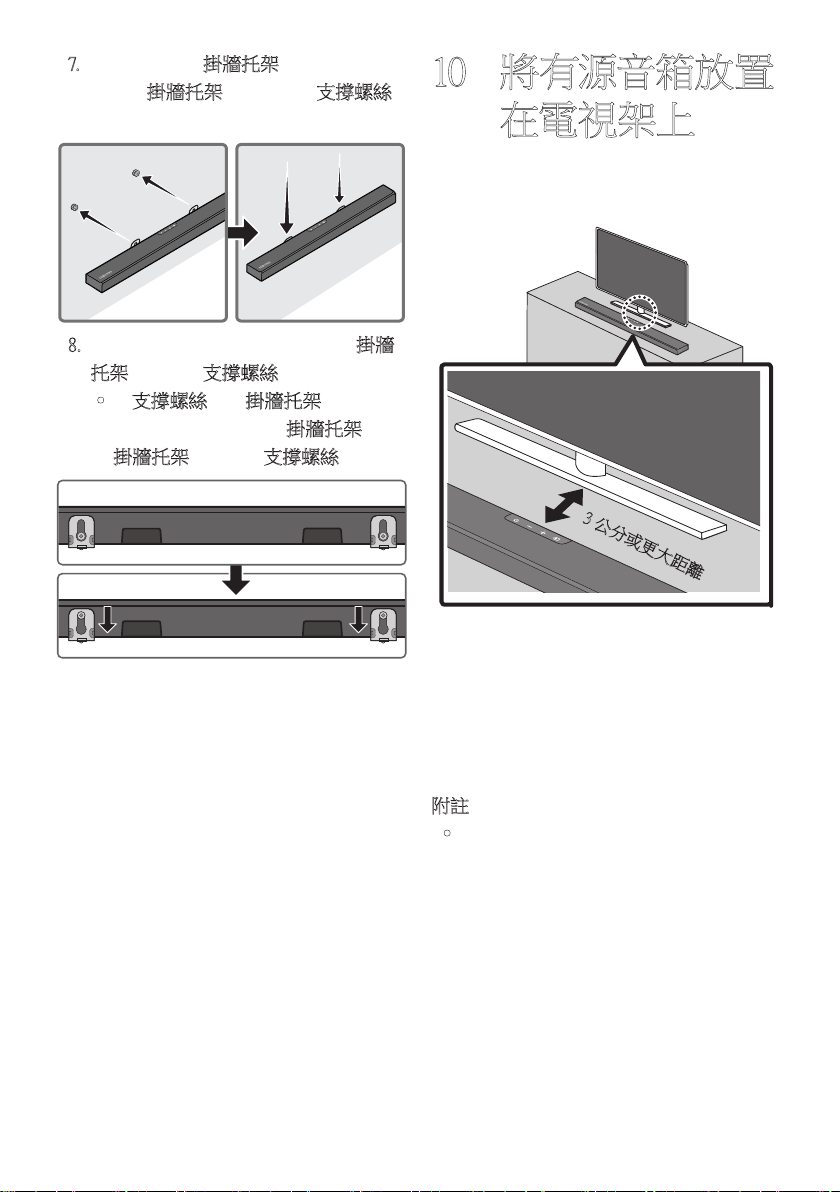
TPE - 32
7. 使用已固定的掛牆托架安 裝 有 源 音 箱,
只要將掛牆托架掛在牆上的支撐螺絲
即 可。
8. 如下所示,向下滑動有源音箱,讓掛牆
托架牢固置於支撐螺絲。
• 將支撐螺絲插入掛牆托架寬的部分
(底部),然後向下滑動掛牆托架,讓
掛牆托架牢固置於支撐螺絲。
10 將有源音箱放置
在電視架上
將 有 源 音 箱 放 置 在 電 視 架 上。
3 公分或更大距離
如圖中所示,對齊有源音箱中央與電視中
央,小心地將有源音箱置於電視架上。
為了 獲 得 最 佳 的 聲 音 品 質,請 將 有 源 音 箱 置
於距離電視前方至少 3 公分的位置。
附註
• 務必將有源音箱置於平坦且堅固的表
面。
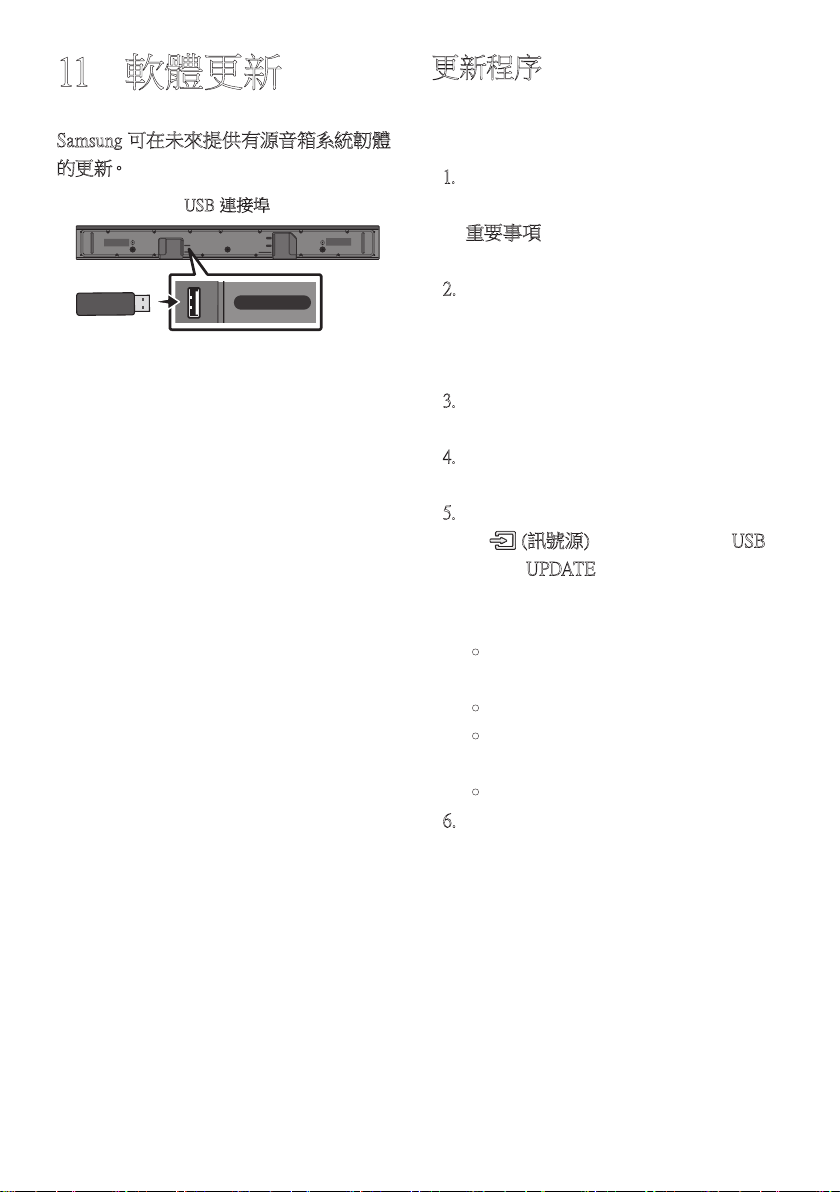
TPE - 33
11 軟體更新
Samsung 可在未來提供有源音箱系統韌體
的 更 新。
USB 連接埠
HDMI
HDMI TO TV
(ARC)
USB (5V 0.5A)
DC 24V
DIGITAL AUDIO IN (OPTICAL)
USB (5V 0.5A)
若提供更新,您可以將儲存韌體更新的
USB 裝置,連接至有源音箱上的 USB 連接
埠,以 便 更 新 韌 體。
如需更多關於如何下載更新檔案的資訊,請
至 Samsung Electronics 網站
(www.samsung.com
Support)。
然後選擇產品類型或輸入有源音箱的型號,
選擇軟體與應用程式選項,然後選擇下載。
請 注 意,選 項 名 稱 可 能 會 不 同。
更新程序
更新完成之後,您自訂的使用者設定全都會
保 留 原 樣。
1. 將 USB 隨身碟連接至電腦上的 USB 連
接 埠。
重要事項:確認 USB 隨身碟上沒有音
樂 檔 案。這 可 能 會 造 成 韌 體 更 新 失 敗。
2. 前往 (samsung.com)
並選取 [Enter
Model Number] (輸入型號),接著輸入您
的有源音箱型號。選取手冊與下載,接
著 下 載 最 新 的 軟 體 檔 案。
3. 將下載的軟體儲存至 USB 碟並選擇
「在此解壓縮」以解壓縮資料夾。
4. 關閉有源音箱並將包含軟體更新的
USB 隨身碟連接至 USB 連接埠。
5. 開啟有源音箱的電源,按下有源音箱上
的 (訊號源) 按 鈕,然 後 選 擇「USB」
模 式 。「 UPDATE」會 出 現 在 顯 示 器 上,
並開始進行更新。更新完成時,有源音
箱 會自 動 重 新 啟 動。
• 本產品具有 DUAL BOOT 功能。若韌
體更新失敗,您可以重新更新韌體。
• 更新期間,請勿關閉或移除 USB。
• 若 有 源 音 箱 已 安 裝 最 新 版 本,則 不 會
安 裝 更 新。
• 根據 USB 類型,可能不支援更新。
6. 還 原 有 源 音 箱 上 的 設 定。
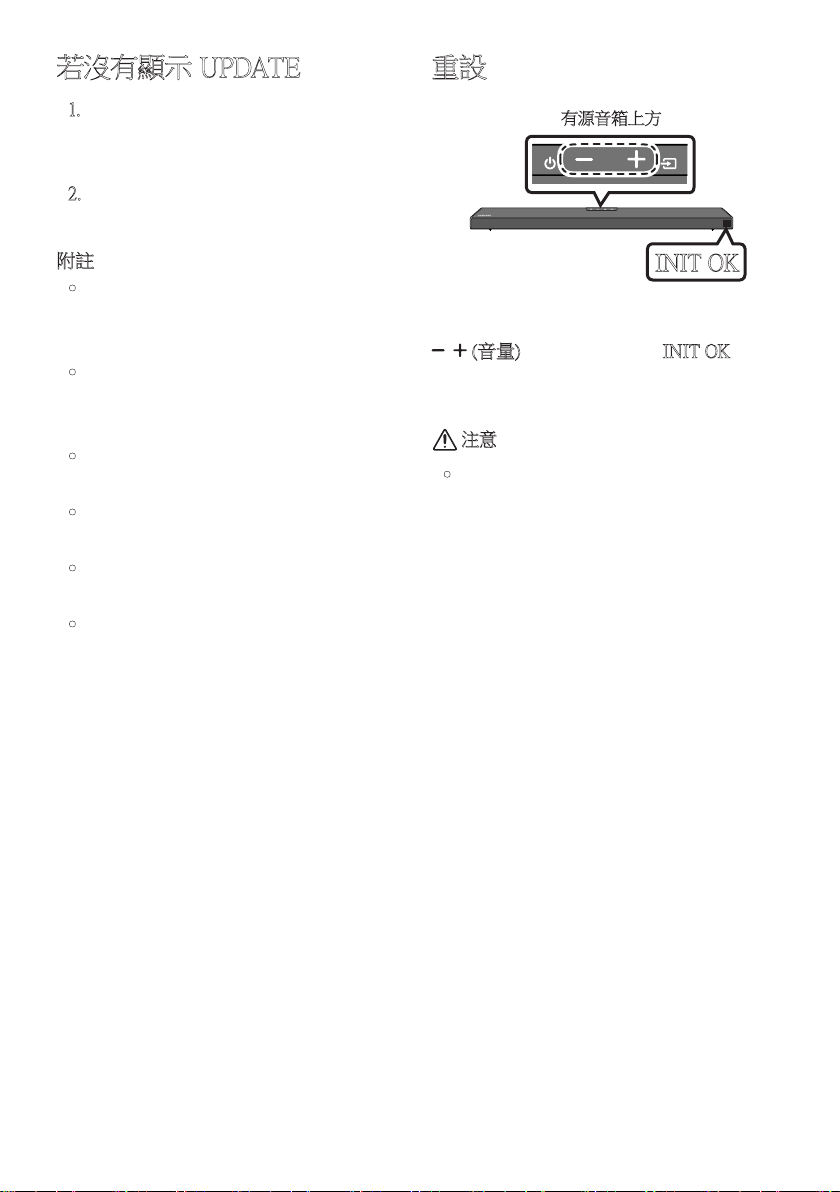
TPE - 34
若沒有顯示 UPDATE
1. 關閉有源音箱,拔除含有更新檔案的
USB 儲存裝置,然後重新連接至有源音
箱的 USB 連接埠。
2. 中斷連接有源音箱的電線、重新連接
它,然 後 開 啟 有 源 音 箱。
附註
• 若有源音箱支援的音訊檔案儲存在 USB
儲存裝置中,韌體更新可能無法正常運
作。
• 請勿在套用更新時中斷電源或移除 USB
裝置。在完成韌體更新後,主裝置會自動
開 啟。
• 若在更新後,沒有自動重新建立有源重
低音音箱連接,請參閱第 6 頁。
• 若軟體更新失敗,請檢查 USB 碟是否有
缺 陷。
• Mac OS 使用者應使用 MS-DOS (FAT) 作
為 USB 格式。
• 某些製造商的 USB 儲存裝置可能無法
讓人透過 USB 更新。
重設
INIT OK
有源音箱上方
在有源音箱開啟時,同時按下機身上的
(音量) 按鈕至少 5 秒。「INIT OK」會 出
現在顯示器上,然後重設有源音箱。
注意
• 會重設有源音箱的所有設定。
務 必 僅 在 需 要 進 行 重 設 時 才 執 行。
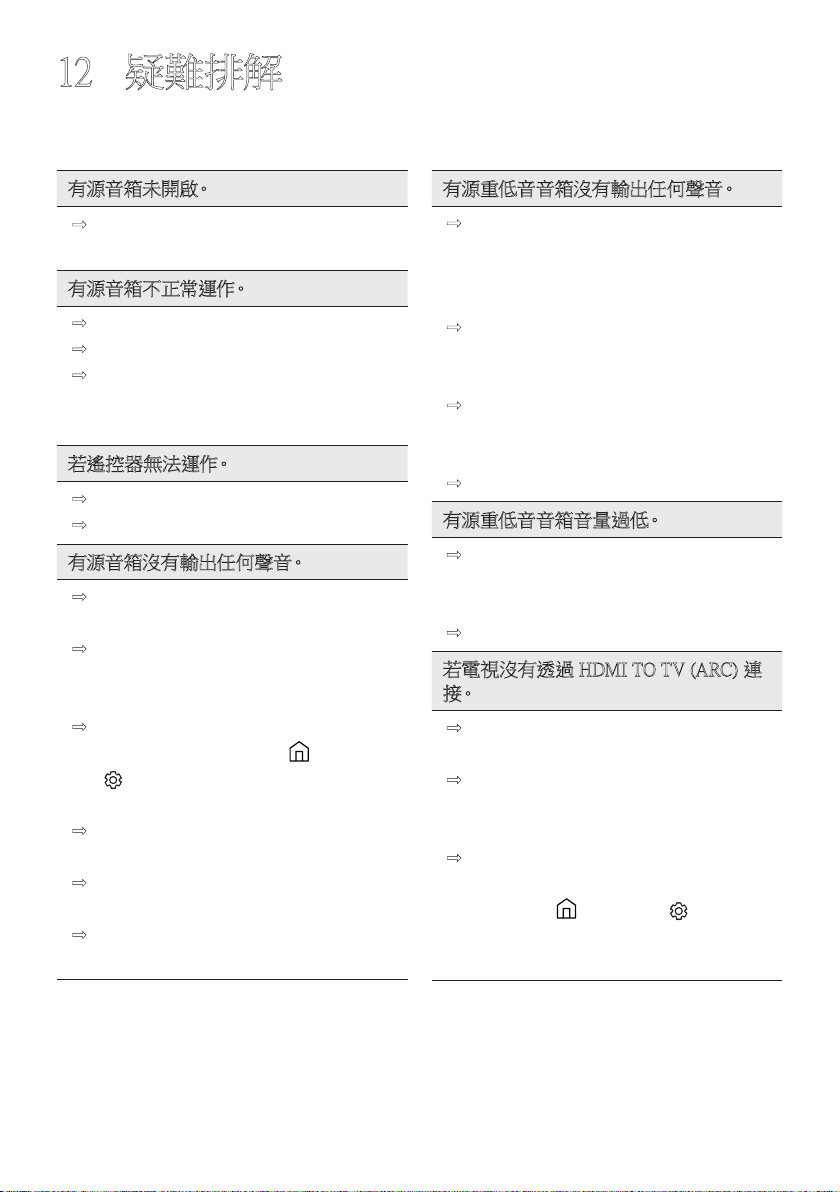
TPE - 35
12 疑難排解
尋求協助之前,請先檢查下列項目。
有 源 音 箱 未 開 啟。
; 檢查有源音箱的電源線是否正確插入
插 座 中。
有 源 音 箱 不 正 常 運 作。
; 在 拔 下 電 源 線 後,重 新 插 入。
; 從外部裝置拔除電源線並重試。
; 若沒有訊號,有源音箱會在一段特定
時間後自動關閉。開啟電源。
(請參閱第 3 頁 )。
若 遙 控 器 無 法 運 作。
; 操將遙控器直接對準有源音箱。
; 更換新的電池。
有源音箱沒有輸出任何聲音。
; 有 源 音 箱 音 量 太 低 或 靜 音。調 整 音
量。
; 連接任何外部裝置 (STB 藍牙裝置、行
動裝置等) 時,請調整外部裝置的音
量。
; 如需電視的聲音輸出,請選擇有源音
箱。(Samsung TV:首頁 ( ) → 設定
( ) → 音效 → 音效輸出 → 選擇有
源音箱)
; 連接至有源音箱的纜線不可鬆脫。拔
除纜線並重新連接。
; 完全拔除電源線,重新連接,然後開啟
電 源。
; 初始化產品並重試。(請參閱第 34
頁 )。
有源重低音音箱沒有輸出任何聲音。
; 檢查有源重低音音箱後方的 LED 指示
燈是否亮藍燈。若指示燈閃爍藍燈或
變成紅燈,請重新連接有源音箱和有
源重低音音箱。(請參閱第 7 頁 )。
; 若有源音箱和有源重低音音箱之間有
障 礙 物,您 可 能 會 遇 到 問 題。將 裝 置 移
到 遠 離 障 礙 物 的 區 域。
; 若附近有其他傳送無線電射頻訊號的
裝 置,可 能 會 中 斷 連 接。讓 揚 聲 器 遠 離
這 類 裝 置。
; 拔 除 並 重 新 連 接 電 源 插 頭。
有源重低音音箱音量過低。
; 正在播放的內容原始音量可能很低。
嘗試調整有源重低音音箱音量。
(請參閱第 27 頁 )。
; 讓 有 源 重低 音 音 箱 更 靠 近 您。
若電視沒有透過 HDMI TO TV (ARC) 連
接。
; 檢查 HDMI 纜線是否正確連接至
ARC 終端。 (請參閱第 11 頁 )。
; 可能因為連接的外部裝置 (機上盒、遊
戲機等) 而無法進行連接。直接連接有
源 音 箱。
; 可能沒有在電視上啟動 HDMI-CEC。
在電視功能表上開啟 CEC。(Samsung
TV:首頁 ( ) → 設定 ( ) → 一般
→ 外部裝置管理員 → Anynet+
(HDMI-CEC) 開啟)
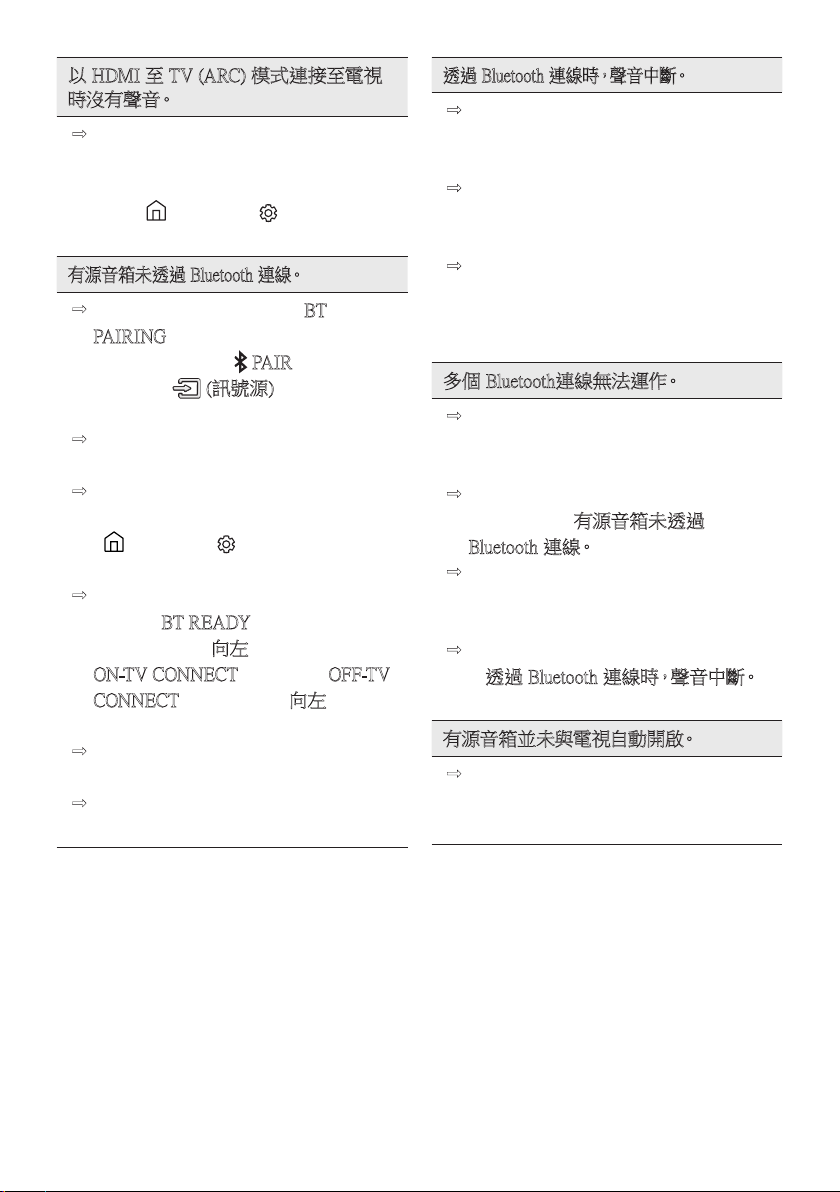
TPE - 36
以 HDMI 至 TV (ARC) 模式連接至電視
時沒 有 聲 音。
; 裝置無法播放輸入訊號源。將電視的
音訊輸出變更為 PCM 或 Dolby
Digital。(對於 Samsung TV:
首頁 ( ) → 設定 ( ) → 音效 →
進階設定 → 數位輸出音訊格式)
有源音箱未透過 Bluetooth 連線。
; 連 線 新 的 裝 置 時,切 換 至「BT
PAI RING」以進行連線。
(按下遙控器上的 PAIR 按鈕或按下
機身上的 (訊號源) 按鈕至少
5 秒。)
; 若 有 源 音 箱 已 連 接 至 另 一 個 裝 置,請
先中斷連接該裝置,再切換裝置。
; 在要連線的裝置上移除藍牙揚聲器清
單後重新連線。(Samsung TV:首頁
( ) → 設定 ( ) → 音效 → 音效輸
出 → 藍牙揚聲器清單)
; 可能已停用自動電視連接。當有源音
箱 處 於「BT READY」時,按 住 有 源 音
箱遙控器上的 向左 按鈕 5 秒,以選擇
ON-TV CONNECT。若 您 看見 OF F-TV
CONNECT,請 再 次 按 住 向左 按鈕 5
秒,以 切 換 選 項。
; 拔 除 並 重 新 連 接 電 源 插 頭,然 後 重
試。
; 初 始 化 產 品 並 重 試。
(請參閱第 34 頁 )。
透過 Bluetooth 連線時,聲音中斷。
; 有些產品在太靠近有源音箱時會造成
無線電干擾。例如:微波爐、無線路由
器 等。
; 若透過 Bluetooth 連線的裝置離有源音
箱 過 遠,可 能 會 造 成 聲 音 中 斷。請 將 裝
置移到更靠近有源音箱的位置。
; 若您身體的一部分接觸到 Bluetooth 收
發器或本產品安裝於金屬家具上,則
聲 音 可 能 會 中 斷。
請 檢 查 安 裝 環 境 和 使 用 情 況。
多個 Bluetooth連線無法運作。
; 當 電 視 連 線 至 有 源 音 箱 時,多 個
Bluetooth 連線可能無法運作。從電視
中 斷 有 源 音 箱 連 線 並 再 試 一 次。
; 檢查多個 Bluetooth 連線設定是否開
啟。( 請 參 閱「有源音箱未透過
Bluetooth 連線。」一 節 )。
; 將目 前 播 放 的 裝 置 中 斷 連 線,配 對 欲
連線的裝置,並將之前的裝置重新連
線。
; 若正確連線後仍聽不到聲音,請參閱
「透過 Bluetooth 連線時,聲音中斷。」
一 節。
有 源 音 箱 並 未 與 電 視 自 動 開 啟。
; 若您在觀看電視時關閉有源音箱,會
停 用 與 電 視 之 間 的 電 源 同 步。請 先 關
閉 電 視。
TPE - 37
13 授權
Dolby, Dolby Atmos, and the double-D
symbol are registered trademarks of Dolby
Laboratories Licensing Corporation.
Manufactured under license from Dolby
Laboratories. Confidential unpublished works.
Copyright © 2012-2020 Dolby Laboratories.
All rights reserved.
For DTS patents, see http://patents.dts.com.
Manufactured under license from DTS, Inc.
(for companies headquartered in the U.S./
Japan/Taiwan) or under license from DTS
Licensing Limited (for all other companies).
DTS, DTS:X, and the DTS:X logo are
registered trademarks or trademarks of DTS,
Inc. in the United States and other countries.
© 2020 DTS, Inc. ALL RIGHTS
RESERVED.
HDMI、HDMI高清晰度多媒体接口及
HDMI 商標為HDMI Licensing
Administrator, Inc. 在美國及其他國家的商
標 或 註 冊 商 標。
The Bluetooth® word mark and logos are
registered trademarks owned by the Bluetooth
SIG, Inc. and any use of such marks by
Samsung Electronics Co., Ltd. is under
license. Other trademarks and trade names
are those of their respective owners.
[ENERGY STAR]
ENERGY STAR qualified model only
– Your Samsung product is ENERGY STAR
qualified in its factory default setting.
Change to certain features, settings and
functionality in this product can change the
power consumption, possibly beyond the
limits required for ENERGY STAR
qualification.
– Environmental Protection Agency and
Department of Energy. ENERGY STAR
is a joint program of the Government
agencies, designed to promote energy
efficient products and practices.
Refer to www.energystar.gov for more information
of the ENERGY STAR Program.
ENERGY STAR qualified model only
(Applicable to Thin Client models only)
As an ENERGY STAR® Partner,
SAMSUNG has determined that this product
meets the ENERGY STAR® guidelines for
energy efficiency.
– The ENERGY STAR Program has been
to reduced greenhouse gas emissions and
save energy through voluntary labeling.
– Power management setting of this product
have been enabled by default, and have
various timing setting from 1 minutes to
5 hours.
– The product can wake with a button press
on the chassis from sleep mode.
ENERGY STAR qualified model only (The
other models)
– As an ENERGY STAR Partner, Samsung
has determined that this product or
product models meets the ENERGY
STAR guideline for energy efficiency.

TPE - 38
14 開放式原始碼授
權聲明
若要針對開放原始碼相關問題傳送詢問和
要求,請聯絡 Samsung Open Source
(http://opensource.samsung.com)
15 關於維修的重要
說明
本使用說明書中的圖片和圖解僅供參考,可
能與實際的產品外觀有所不同。
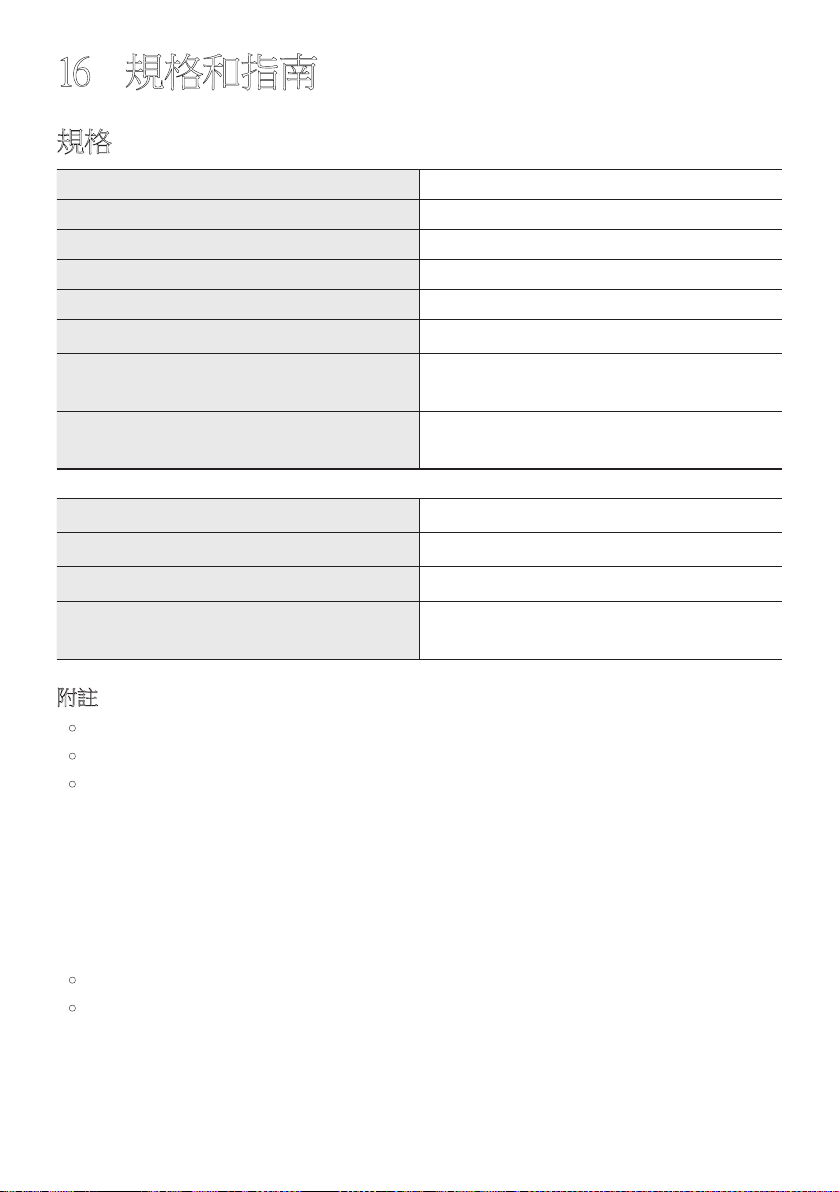
TPE - 39
16 規格和指南
規格
型號名稱 HW-Q600A
USB 5V/0.5A
重量 3.4 千克
尺寸 (寬 x 高 x 厚) 980.0 x 58.0 x 105.0 毫米
工作溫度範圍 +5°C 到 +35°C
工作濕度範圍 10 % 到 75 %
放大器
額定輸出功率 200W (30W x 6 + 10W x 2)
支援的播放格式
Dolby Atmos (True HD / Digital Plus), Dolby
Digital, DTS-HD Master Audio, DTS:X, DTS
有源重低音音箱名稱 PS-WA67B
重量 5.8 千克
尺寸 (寬 x 高 x 厚) 205.0 x 353.0 x 303.2 毫米
放大器
額定輸出功率 160W
附註
• Samsung Electronics Co., Ltd 保留隨時變更規格的權利,恕不另行通知。
• 重 量 和 尺 寸 為 估 計 值。
• 取得審驗證明之低功率射頻器材,非經核准,公司、商號或使用者均不得擅自變更頻
率、加 大 功 率 或 變 更 原 設 計 之 特 性 及 功 能。
低功率射頻器材之使用不得影響飛航安全及干擾合法通信;經發現有干擾現象時,應
立即停用,並改善至無干擾時方得繼續使用。
前述合法通信,指依電信管理法規定作業之無線電通信。低功率射頻器材須忍受合法通
信或工業、科學及醫療用電波輻射性電機設備之干擾。
應避免影響附近雷達系統之操作。
• HW-Q600A : DC 24V、42W
• PS-WA67B : AC110-240V ~ 50/60Hz、28W
RoHS
設 備 名 稱:有 源 音 箱 型 號 ( 型 式 ): H W - Q 6 0 0 A
Equipment name Type designation (Type)
單元
Unit
限用物質及其化學符號
Restricted substances and its chemical symbols
鉛
Lead
(Pb)
汞
Mercury
(Hg)
鎘
Cadmium
(Cd)
六價鉻
Hexavalent
chromium
(C r
+6
)
多溴聯苯
Polybrominated
biphenyls
(PBB)
多溴二苯醚
Polybrominated
diphenyl ethers
(PBDE)
電路板 - ○ ○ ○ ○ ○
外殼 ○ ○ ○ ○ ○ ○
金屬零件 - ○ ○ ○ ○ ○
揚聲器 ○ ○ ○ ○ ○ ○
電源供應器 - ○ ○ ○ ○ ○
配件 (例:線材,
遙控器)
- ○ ○ ○ ○ ○
備考1.〝○〞係指該項限用物質之百分比含量未超出百分比含量基準值。
Note 1:“○” indicates that the percentage content of the restricted substance does not exceed the percentage of
reference value of presence.
備考2.〝-〞係指該項限用物質為排除項目。
Note 2:The “-” indicates that the restricted substance corresponds to the exemption.
設 備 名 稱:有 源 重 低 音 音 箱 型 號 ( 型 式 ): P S - W A 6 7 B
Equipment name Type designation (Type)
單元
Unit
限用物質及其化學符號
Restricted substances and its chemical symbols
鉛
Lead
(Pb)
汞
Mercury
(Hg)
鎘
Cadmium
(Cd)
六價鉻
Hexavalent
chromium
(C r
+6
)
多溴聯苯
Polybrominated
biphenyls
(PBB)
多溴二苯醚
Polybrominated
diphenyl ethers
(PBDE)
電路板 - ○ ○ ○ ○ ○
外殼 ○ ○ ○ ○ ○ ○
金屬零件 - ○ ○ ○ ○ ○
揚聲器 ○ ○ ○ ○ ○ ○
配件 (例:線材,
遙控器)
- ○ ○ ○ ○ ○
備考1.〝○〞係指該項限用物質之百分比含量未超出百分比含量基準值。
Note 1:“○” indicates that the percentage content of the restricted substance does not exceed the percentage of
reference value of presence.
備考2.〝-〞係指該項限用物質為排除項目。
Note 2:The “-” indicates that the restricted substance corresponds to the exemption.
© 2021 Samsung Electronics Co., Ltd. All rights reserved.
Contact SAMSUNG WORLD WIDE
If you have any questions or comments relating to Samsung products, please contact the SAMSUNG customer
care Centre.
Country /Area Samsung Service Centre
Web Site
`
Asia Pacifi c
CHINA 400-810-5858 www.samsung.com/cn/support
TAIWAN
0800-329-999
0809-00-5237 ( B2B / Dealer)
www.samsung.com/tw/support
HONG KONG 3698 4698
www.samsung.com/hk/support (Chinese)
www.samsung.com/hk_en/support (English)
MACAU 0800 333
SINGAPORE 1800 7267864 | 1800-SAMSUNG www.samsung.com/sg/support
AUSTRALIA 1300 362 603 www.samsung.com/au/support
NEW ZEALAND 0800 726 786 www.samsung.com/nz/support
VIETNAM 1800 588 889 www.samsung.com/vn/support
THAILAND 1800-29-3232 (Toll free for all product) www.samsung.com/th/support
MYANMAR +95-1-2399-888 www.samsung.com/mm/support
CAMBODIA 1800-20-3232 (Toll free)
www.samsung.com/th/support
LAOS +856-214-17333
MALAYSIA
1800-88-9999
+603-7713 7420 (Overseas contact)
www.samsung.com/my/support
INDONESIA
021-5699-7777
0800-112-8888 (All Product, Toll Free)
www.samsung.com/id/support
PHILIPPINES
1-800-10-726-7864 [ PLDT Toll Free ]
1-800-8-726-7864 [ Globe Landline and Mobile ]
02-8-422-2111 [ Standard Landline ]
www.samsung.com/ph/support
INDIA
1800 40 SAMSUNG (1800 40 7267864) (Toll-Free)
1800 5 SAMSUNG (1800 5 7267864) (Toll-Free)
www.samsung.com/in/support
NEPAL
16600172667 (Toll Free for NTC Only)
9801572667 (Toll Free for Ncell users)
BANGLADESH
08000-300-300 (Toll free)
09612-300-300
SRI LANKA 011 SAMSUNG (011 7267864)