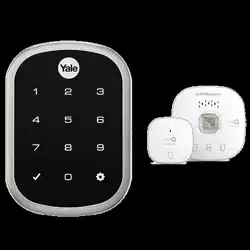
Using Your Lock instructions will help you customize your lock.
Using Your Lock
Creating Master Entry Code
The Master Entry Code is used to change the lock settings.
A security best practice is to set your Master Entry Code with 6 or more digits and create a separate code that is used daily to lock and unlock the door.
Creating Entry Codes
Master Entry Code must be created first.
*Max Entry codes = 250 with Smart Module; 25 without.
Deleting Entry Codes
Deleting one Entry Code: To delete one Entry Code, you must enter the Entry Code you wish to delete.
To delete all Entry Codes (Does not delete Master Entry Code):
Unlocking Door with Entry Codes
Setting Definitions
Settings
Default Setting
Definition
Master Entry Code
Creation required*
The Master Entry Code is used for programming and feature settings. It must be created prior to programming the lock. The Master Entry Code will also operate (unlock/lock) the lock-
All Code Lockout
Disabled
This feature is enabled by the Master Entry Code. When enabled, it restricts all Entry Code access (except Master). When attempting to enter a code while the lock is in Alt Code Lockout, the RED locked padlock will appear on the screen.
Auto Re-lock
Disabled
After a successful code entry or manual unlock with the key, the lock will automatically re-lock after each unlock in an effort to keep your home secure. This feature is optional, and can be turned off.
When enabled, the lock will automatically re-lock after thirty (30) seconds.
Inside Indicator Light
Disabled (Off)
Located on the inside lock. Shows active status (Locked) of lock and can be enabled or disabled in Advanced Lock Settings (Main Menu selection #3).
Language
English
Choosing English (1), Spanish (2) or French (3) becomes the (default) setting for the lock voice prompts.
One Touch Locking
Enabled
When the latch is retracted, activating the keypad will extend the latch (during Auto Re-lock duration or when Auto Re-lock is disabled). When One-Touch Re-lock is not in use (disabled), any valid Entry Code will re-lock the lock.
Privacy Button
Disabled
Privacy mode is disabled by default. When enabled, activate Privacy mode by pressing the privacy button for 4 seconds to put the lock in do-not-disturb mode (all Entry Codes are disabled).
Shutdown Time
60 Seconds
The lock will shutdown (flashing RED) for sixty (60) seconds and not allow operation after the wrong code entry limit (5 attempts) has been met.
Volume
Enabled (Low)
The volume setting for Entry Code verification is set to Low (2) by default; otherwise it can be set to High (1) or Silent (3) for quiet areas.
Wrong Code Entry Limit
5 Times
After five (5) unsuccessful attempts at entering a valid Entry Code, the lock will shut down and not allow operation for sixty (60) seconds.
*The Master Entry Code must be created prior to any other programming of the lock
Customizing Lock Using Settings Menu
*Master Entry Code required
1. Press Yale logo to wake up lock .
2. Enter Master Entry Code* * ** followed by icon.
Lock Response: "Welcome to the Settings Menu. Press each number to hear available settings and then press the settings icon to enter."
3. Enter digit corresponding to the function to be performed followed by the icon. Follow the voice commands.
Here is an example of how to set Auto Lock to 30 seconds:
Master Entry Code, 3, 1, 2 ,
*The Master Entry Code must be created prior to any other programming of the lock.
**Network Module Setting function appears only with Yale Smart module installed.
Troubleshooting
Symptom
Suggested Action
Lock does not respond -door is open and accessible.
Keypad becomes active when the Yale logo is pressed.
Verify contact with the logo.
If keypad numbers are visible, check they respond when pressed.
Check batteries are installed and oriented correctly (polarity) in battery case.
Replace batteries* if batteries are dead.
Check keypad cable is fully connected and not pinched.
Lock does not respond -door is locked and inaccessible.
Batteries may not have enough power. Replace batteries*.
Apply a 9V battery to terminals below the keypad for backup power option.
Lock is on for a while then shows no reaction. Lights dim.
Batteries do not have enough power. Replace batteries*.
Lock chimes indicating code acceptance, but door will not open.
Check for any foreign objects between door and frame.
Check that the cable is firmly connected to inside lock.
Lock operates to allow access, but will not automatically re-lock.
Check to see if Auto Re-lock is enabled.
Disable Auto Re-lock to lock the door (manually).
Entry Codes will not register.
If low battery indicator is lit, change batteries*.
Entry Codes must consist of 4 to 8 digits.
The same Entry Code cannot be used for multiple users.
Entry Codes are set by the Master Entry Code, which is set first.
Contact the Master user.
Entry Codes must be entered within 5 seconds (while keypad is active) or process will have to be restarted.
Check or gearcannot be part of the Entry Code.
Upon entering an Entry Code and pressing key, the lock displays "invalid code" error or lock times out without responding.
Verify entered code is a valid, previously programmed, 4 to 8 digit code.
All Code Lockout is enabled. Only the Master Entry Code can change All Code Lockout. Contact the Master user.
Upon entering an Entry Code and pressing the key, red padlock icon appears and there are different tones.
Check to see if the lock is set to All Code Lockout. Setting/managing All Code Lockout is done through Master Entry Code only.
Lock operates, but makes no sound.
Check to see if Volume is set to Silent (see Feature #4).
Lock responds "Low Battery"
This is the alert to replace the batteries. Replace all four (4) batteries* with new AA Alkaline batteries.
Upon entering an Entry Code and pressing the key, lock responds "Wrong number of digits".
The digits entered were incorrect or incomplete. Re-enter the correct code followed by thekey.
Lock shows an X on keypad after entering a code.
Bolt failed to fully retract. Refer to "Hardware Troubleshooting".
Entry Code has not been scheduled for use at time of day it is tried. Try Entry Code again during scheduled time.
Deadbolt does not extend when locking the door with keypad.
Lock was not handed properly. Rehand lock through Settings Menu.
* When batteries are replaced, Smart Module locks have a real time clock that will be set through the User Interface. It is recommended to verify correct date and time; particularly those locks operating under Daylight Savings Time.
Hardware Troubleshooting
If deadbolt does not extend or retract easily when testing thumbturn and keypad operation, revisit installation steps. It is important that the bolt be in the retracted position during lock installation and that installation procedure is followed carefully.
Attempt rehanding using Settings Menu.
Helpful Tip:
Ensuring smooth deadbolt operation can enhance your battery life.
If you feel resistance, ensure deadbolt strike plate aligns with deadbolt. If deadbolt strike plate is out of alignment, please attempt to adjust knob/ lever/ handleset strike using steps below. The knob/ lever/ handleset latch engagement into the strike is the main component used for door alignment.
If deadbolt does not fully extend, consider increasing depth of deadbolt strike pocket in frame.
To adjust Knob/Lever/Handleset strike plate:
1.Remove plate from door frame with a manual
screwdriver. (Using an electric driver may strip screw heads or enlarge screw holes.)
2.Locate strike plate tab.
Bend the tab towards surface of strike. Note: A small change may be all that is required.
3. Reinstall strike plate using a manual screw driver and test again.
4. If door cannot be adjusted sufficiently with strike tab, both knob/lever/handleset latch and deadbolt latch could require adjustment - we suggest you contact a local locksmith for assistance.
Resetting Lock to Factory Defaults
When lock is reset to factory defaults all Entry Codes (including the Master Entry Code*) are deleted and all programming features are reset to original default settings (see below).
1. Remove battery cover and batteries.
2. Remove inside lock to access reset button.
3. Reset button (see image at right) is located beside cable adapter.
4. While pressing reset button reinstall batteries. Hold reset button a minimum of 3 seconds then release.
5. Replace battery cover.
After reset, Master Entry Code creation is the only option available and must be performed prior to any other programming of the lock.
NOTE TO INSTALLER AND CONSUMER
While Yale® has included several features to prevent lockout (9-Volt battery jumper, low battery warnings), it is still possible for a lockout situation to occur. Because this product does not have a mechanical override (a key), Yale® recommends to use this product in an environment where there are additional entry points into the dwelling.
FCC:
Class B Equipment
This equipment has been tested and found to comply with the limits for a Class B digital device, pursuant to Part 15 of the FCC Rules. These limits are designed to provide reasonable protection against harmful interference in a residential installation. This equipment generates, uses, and can radiate radio frequency energy and, if not installed and used in accordance with the instructions, may cause harmful interference to radio communications. However, there is no guarantee that interference will not occur in a particular installation. If this equipment does cause harmful Interference to radio or television reception, which can be determined by turning the equipment off and on, the user is encouraged to try to correct the interference by one or more of the following measures:
Reorient or relocate the receiving antenna.
Increase the separation between the equipment and receiver.
Connect the equipment into an outlet on a circuit different from that to which the receiver is connected.
Consult the dealer or an experienced radio/TV technician for help.
Warning: Changes or modifications to this device, not expressly approved by Yale Home could void the user's authority to operate the equipment. Industry Canada:
This Class A digital apparatus meets all requirements of the Canadian Interference Causing Equipment Regulations.
Cet appareillage numerique de la classe A repond a toutes les exigences de interference canadienne causant des reglements d'equipement.