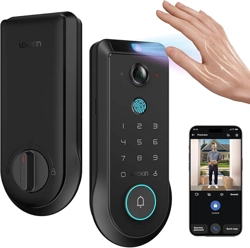

Lockin Veno User Manual
Get familiar with Lockin Veno's core setup and functions in about 10 minutes
– optimized for first-time installation and initial configuration.
Version
Release date
Update
V1.1
2025-11-13
Second edition
Product Installation
1. Pre-installation checklist: Lockin Veno product kit with accessories, #2 Philips
screwdriver, 2.4GHz WiFi network. Total installation time: 15~30 mins – please allocate
sufficient time.
2. Reference: watch the step-by-step installation video:
https://youtu.be/dEUE78mUhxc?si=AUWPuE1VNmypJVjM
Initial Startup
1.
After door lock installation → Insert lithium battery → Upon hearing the
startup prompt, exterior-assembly button lights will illuminate.
2.
Download Lockin Smart App → Register & log in → Tap "Devices" → Tap
"+" → Select "Veno" → Follow pairing process → Click interior-assembly
[SET] key → Bind lock to App → Connect to Wi-Fi (optional) → Set admin
credentials (6-digit pincode/palm vein/fingerprint) → Calibrate lock →
Configure: Auto-lock initialization, Firmware auto-updates setup, Family
member permissions, User access management.
Daily Access Methods
Unlock Method
1. Unlock Method: Palm Vein
How to use
:
Position your palm facing the sensor at approx. 4 inches (10 cm) for authentication.
Unlock initiates automatically upon successful scan.
Tips&Recommendation:
1. When approaching the door, the palm vein module automatically wakes up; if not
activated, touch the key to wake it.
2. If rejected: Adjust palm position & angle, or clean the sensor surface before retry.
3. Capacity: Stores 50 profiles (max 5 per user).
4. To prevent frequent power consumption, the palm vein recognition enters a 5-second
wake-up silent period when leaving home.
2. Unlock Method: Fingerprint
How to use
Center your registered fingertip firmly on the sensor area → Automatic unlock upon
successful recognition.
Tips&Recommendation:
1. Capacity: Stores 50 profiles (max 5 per user).
3. Unlock Method: PIN Code
How to use
Tap digital keys to wake keyboard → Enter 6-digit code → Door unlocks
Tips&Recommendation:
1. Anti-Peeping Feature: Add extra digits before/after real PIN (supports up to 20 digits)
2. First Tap Behavior: Initial touch only wakes keyboard, doesn't input numbers.
4. Unlock Method: Mobile App Remote Unlocking
How to use
Lockin Smart App Home → Press and hold "Unlock" icon
Tips&Recommendation:
Requirement: Wi-Fi must remain connected.
5. Unlock Method: Physical Key
How to use
Open doorbell cover → Insert physical key into cylinder → Rotate 90° to unlock
Tips&Recommendation:
Key Storage Tip: Keep in secure locations (e.g. vehicle/office)
6. Unlock Method: Voice Unlock
How to use
When connected to Apple/Alexa/Google, enjoy:
✅ Voice Control through smart assistants
✅ Remote Unlocking via Apple/Google/Alexa apps
*Apple/Google Requires Matter-over-Thread certified hub.
Tips&Recommendation:
1. Matter-certified Thread Hub must be operational for Apple/Google.
2. Platform Limitation: Apple HomeKit blocks voice-initiated unlocking per security
policies
Lock Method
1. Lock Method: One-touch Locking
How to use
:
Instant Lock & Go: When leaving home in a hurry - whether rushing to work or taking out
the trash, simply: locate the key button on your lock keypad,
press the key button on
the keypad to wake it up. press again to lock the door. For quicker operation,
double-press the key button.
✓ Hear a confirmation beep
✓ See the status light turn solid white
Tips&Recommendation
:
Please make sure you have enabled this feature in the app. The setting path is: Lockin
Smart App
→
Devices
→
Select your Veno lock
→
Settings
→
Door Lock Settings
→
One-Touch Locking
→
Enable toggle switch
3. Unlock Method: Mobile App Remote Locking
How to use
Lockin Smart App Home
→
Press and hold "Lock" icon
Tips&Recommendation
:
Requirement: Wi-Fi must remain connected.
4. Unlock Method: Physical Key
How to use
Open doorbell cover
→
Insert physical key into cylinder
→
Rotate 90
°
to lock
Tips&Recommendation
:
Key Storage Tip: Keep in secure locations (e.g. vehicle/office)
5. Lock Method: Voice lock
How to use
When connected to Apple/Alexa/Google, enjoy:
✅ Voice Control through smart assistants
✅ Remote locking via Apple/Google/Alexa apps
*Apple/Google Requires Matter-over-Thread certified hub.
Tips&Recommendation:
1. Matter-certified Thread Hub must be operational for Apple/Google.
Core & Smart Functions
Features: Home Management
Function
:
1. Manage your home profile where purchased locks are installed.
2. Grant family members full administrative permissions (except lock deletion).
Setup Path
:
Lockin Smart App → Devices → Tap ▼ dropdown arrow next to XXX's Home →
Select Home Management → Create New Home, Manage Settings (by tapping existing
home names).
Usage Instructions & Recommendations
:
1. This feature is designed for sharing your smart lock's management privileges with your
closest family members, such as your spouse, as the recipient will gain virtually all
permissions (except lock removal capabilities).
2. Additional administrators can be added through the "Add New Member" option to
grant co-management rights for your smart lock within the household.
Features: Manage Access
Function
:
Set biometrics/passwords for trusted users (family/friends).
Setup Path
:
Lockin Smart App > Devices > Select your Veno lock > Settings > Manage Access >+
Tap the "+" Floating Action Button (bottom-right corner) > Complete:
User's name (e.g. "Family_Member")
Choose authentication methods:
•
Palm vein recognition
•
Fingerprint scanning
•
6-10 digit PIN code
Usage Instructions & Recommendations
:
1. This feature is designed for granting door lock access permissions to regular guests,
such as family members or friends.
2. While user permission revocation can be managed remotely via the Lockin Smart App,

adding palm vein or fingerprint credentials requires Bluetooth connectivity between the
app and the door lock.
Features: Periodic Password
Function:
Assign Recurring Passcodes for periodic visitors (cleaners, dog walkers).
Setup Path:
Lockin Smart App → Devices → Select your Veno lock → Settings → Temporary
Password → Periodic Password →
Configure: Password (6-10 digits)
Assignee Name (e.g. "Cleaning Service")
Active Hours: Example: Mon/Wed/Fri 9:00-11:00
Generate → Copy & Share instantly via app/text
(Automatic expiration when schedule ends)
Usage Instructions & Recommendations:
1. After generating a periodic passcode, retrieval is unavailable. Please immediately copy
and share it.
2. If the original passcode is forgotten, delete it and regenerate a new one. Access the
deletion function via the Periodic Password List in the upper right corner of the settings.
3. Periodic passwords support up to 16 groups, with code lengths ranging from 6 to 10
digits.
4. Periodic passwords also support the anti-peep feature (e.g., entering random digits
before/after the actual code).
Features: One-Time Password
Function:
Generate One-Time Passcodes (1-hour validity) for temporary guests.
Setup Path:
Lockin Smart App → Devices → Select your Veno lock → Settings → Temporary
Password → One-Time Password → Generate Password → Copy & Securely Share
(Expires after first use)
Usage Instructions & Recommendations:
1. One-Time Passcodes remain valid even when the door lock is offline (WiFi
disconnected). Once generated, retrieval is impossible.
2. A maximum of 8 unused one-time passcodes can coexist within the same time period.
3. One-Time Passcodes do not support anti-peep features.
Features: Auto-Lock
Function:
Enable Auto-Lock when door closes to prevent security oversights.

Setup Path:
Lockin Smart App → Devices → Select your Veno lock → Settings → Auto-Lock →
➊ Toggle ON/OFF➋ Adjust countdown duration (at once - 30mins)
Usage Instructions & Recommendations:
1. Enabled by default
Features: One-Touch Locking
Function:
Instant Lock & Go: When leaving home in a hurry - whether rushing to work or taking out
the trash, simply: locate the key button on your lock keypad, press the key button on the
keypad to wake it up. press again to lock the door. For quicker operation, double-press
the key button.
✓ Hear a confirmation beep
✓ See the status light turn solid white
Setup Path:
Please make sure you have enabled this feature in the app. The setting path is: Lockin
Smart App → Devices → Select your Veno lock → Settings → Door Lock Settings
→ One-Touch Locking → Enable toggle switch
Usage Instructions & Recommendations:
1. Enabled by default
Features: Lock Events
Function:
View lock event history and family access timelines.
Setup Path:
Lockin Smart App → Events → Review Lock Event History
Usage Instructions & Recommendations:
You may filter door lock event logs by date range and event type using the control panel
at the top to view timestamped access records.
Features: Auto Wake-UP with Palm Vein
Function:
Seamless Touch-Free Entry
As you approach within 6.5 feet (2 meters), our built-in precision radar sensor:
✓ Automatically wakes up the palm vein scanner

✓ Pre-position recognition system for instant authentication
Perfect when carrying groceries, with wet hands, or during nighttime when visibility is low.
No fumbling - just natural approach-and-enter fluidity.
Setup Path:
Lockin Smart App → Devices → Select your lock → Settings → Door Lock Settings
→ Auto Wake-Up with Palm Vein → Enable feature toggle
Usage Instructions & Recommendations:
1. This feature refines palm vein recognition for a fluid walk-up unlock experience, at the
cost of increased battery consumption.
2. To conserve battery life, deactivate auto-wake—manually trigger palm vein scanning
by tapping the keypad.
3. Technical insight: Near-field radar detects approach movement while maintaining
privacy (non-visual sensing).
Features: Door Open Alert
Function:
Door Ajar Alert: Audible alarm + red key icon flashing.
Setup Path:
Lockin Smart App → Devices → Select your lock → Settings → Audio Settings →
Alarm Volume (Adjust: Mute, Low, Medium, High)
Activation Delay (Set: 10s, 20s, 30s, 60s before alerts trigger)
Duration (Configure: 3s, 5s, 10s alarm sustainment)
Usage Instructions & Recommendations:
When installing the lock strike plate, using a plate without door status detection may
result in inaccurate door state monitoring. Always install Lockin's standard door
detection strike plate.
Features: Low-battery Alert
Function:
Low Battery (<10%): "Low battery, please recharge." + red LED flash x3.
Setup Path:
Pre-configured and built-in (ready-to-use)
Usage Instructions & Recommendations:
1. During lock/unlock operations, monitor the lock's alert notifications. Immediately
replace batteries if any warnings occur.
2. Post low-battery alert, the lock maintains ~7 days* of normal operation. Replace
batteries or recharge promptly.

*Actual duration varies by usage frequency and temperature
Features: Moter Jam Alert
Function:
Motor Protection Alert System
When abnormal resistance is detected during locking/unlocking (typically caused by
obstructions or extreme temperatures):
⚠Your lock will:
Emit a continuous warning tone
Flash the key icon red repeatedly
Announce audibly: "Failed to Open or Close the Door"
This safety feature prevents damage from current overloads and alerts you to potential
physical blockages.
Setup Path:
Pre-configured and built-in (ready-to-use)
Usage Instructions & Recommendations:
Changes in door alignment may cause mechanical interference between the lock bolt
and door frame. If this occurs, we recommend recalibrating the lock or inspecting the
door frame's alignment.
Common triggers: Debris in strike plate • Frozen components • Warped door frames
Features: Emergency Unlock
Function:
Emergency manual unlock during power outages.
Setup Path:
Pre-configured and built-in (ready-to-use)
Usage Instructions & Recommendations:
1. Insert a Type-C cable connected to a power bank or power-delivery-enabled phone
into the lock's emergency charging port. After 3–5 minutes of charging, enter your
passcode to unlock.
2. Post-unlock, immediately replace the lock's batteries or recharge them to full capacity.
Features: Wrong-Try Protection
Function:
Intrusion lockout: "Too many attempts. Locked for 1 minute." + app alert.
Setup Path:
Lockin Smart App → Devices → Select your lock → Settings → Wrong-Try
Protection → Set Attempt Limit (3 times, 5 times, 10 times, 15 times tries before
lockdown)
Usage Instructions & Recommendations:
Lockouts triggered by excessive password attempts only restrict password-based
authentication. During such lockouts: Palm vein/Fingerprint recognition remains fully
operational, All non-password authentication methods operate normally."
Features: Anti-peep Password
Function:
Password Masking: Enter random characters before/after real Pincode.
Setup Path:
Pre-configured and built-in (ready-to-use)
Usage Instructions & Recommendations:
Your real passcode + masking digits combine to support passcode entries up to 20
digits in total length.
Features: Rain-proof Touch Keypad
Function:
Rainproof touch rejection to prevent false touch keypad triggers.
Setup Path:
Pre-configured and built-in (ready-to-use)
Usage Instructions & Recommendations:
/
Features: Vacation Security
Function:
Activate this feature when traveling for extended periods. Your lock will:
✓ Trigger a siren to deter intruders if:
• Someone unlocks the door from inside without authorization
• Mechanical lock tampering is detected
✓ Instantly notify you via Lockin Smart App
Rest easy knowing your home actively protects itself while you're away.
Setup Path:
Lockin Smart App → Devices → Select your lock → Settings → Door Lock Settings
→ Vacation Security → Enable feature toggle in App
Activation Sequence:
When the door is locked and closed, the key icon glows steadily for 5 seconds

Press illuminated key during this window
Lock announces: "Vacation Security enabled"
Usage Instructions & Recommendations:
When Vacation Security Mode is active, unlocking the door via any pre-authorized
method (passcode, fingerprint, Palm vein, etc.) will immediately deactivate the Vacation
Security Mode.
Features: Lock Reboot Key
Function:
Emergency Reboot Procedure
If your lock malfunctions unexpectedly and won't unlock (e.g., after power surges or
system errors):
1. Locate the recessed reset button hidden under the doorbell cover
2. Press with a paperclip
3. Wait for 4~5 seconds and after hearing a beep
Your lock will reboot automatically!
Setup Path:
Pre-configured and built-in (ready-to-use)
Usage Instructions & Recommendations:
1. Restart Procedure: Open the exterior doorbell cover, then use a pen tip or similar
non-metallic pointed object to momentarily press the lock's reset button. The lock will
restart and emit an audible beep (approx. 4–5 seconds later) indicating completion.
2. Post-Restart Status: The lock resumes full functionality after reboot, enabling normal
locking/unlocking operations without restrictions.
Features: Deadbolt Status Detection
Function:
Smart Door Sensor Technology
Your lock's built-in magnetic sensor constantly communicates with the strike plate on
your door frame, working together to:
✓ Precisely track whether your door is fully closed or open
✓ Automatically send real-time status updates to your phone
✓ Trigger customizable alerts if doors stay open unexpectedly
This vigilant system eliminates guesswork about whether your home is securely sealed.
Setup Path:
Lockin Smart App → Devices → Select your lock → Settings → Audio Settings →
├─ Alarm Volume (Adjust: Mute, Low, Medium, High)
├─ Activation Delay (Set: 10s, 20s, 30s, 60s before alerts trigger)
└─ Duration (Configure: 3s, 5s, 10s alarm sustainment)
Usage Instructions & Recommendations:
When installing the lock strike plate, using a plate without door status detection may
result in inaccurate door state monitoring. Always install Lockin's standard door
detection strike plate.
Features: Matter Integration
Function:
Matter integration with Apple/Alexa/Google for voice control and automation.
Setup Path:
Refer to the detailed instructions in the "Connecting to Smart Home Ecosystems" section
of the FAQ.
Usage Instructions & Recommendations:
Refer to the detailed instructions in the "Connecting to Smart Home Ecosystems" section
of the FAQ.
Features: Lock Management
Function:
Rename/delete locks, configure auto-updates.
Setup Path:
Lockin Smart App → Profile → Manage Devices → Tap (top-right corner)
Usage Instructions & Recommendations:
1. Auto Device Upgrade: Toggles automatic firmware updates for the lock.
2. Rename Device: Edits the lock's display name in the app/system.
3. Remove Device: Deletes the lock from your account permanently.
Features: Audio Settings
Function:
This feature manages all sound-related settings of the lock, including: lock volume,
incorrect entry alarm volume, door ajar alarm (volume, duration, and delay), doorbell
volume, and lock language.
Setup Path:
Lockin Smart App → Devices → Select your lock → Settings → Audio Settings
Usage Instructions & Recommendations:
/

Features: Rich Notification
Function:
This feature lets you choose the types of push notifications you want to receive in the
app. When tapping a motion detection notification, you can choose to view the live feed
or access the corresponding event record. Supported event types include doorbell,
lock/unlock, door ajar, and abnormal events.
Setup Path:
Lockin Smart App → Devices → Select your lock → Settings → Rich Notification
Usage Instructions & Recommendations:
Turning off push notifications for an event does not affect its recording in the Events log.
The corresponding records and videos will still be saved.
Features: WiFi Connection
Function:
This feature allows you to view the WiFi network connected to the lock and switch
networks when needed.
Setup Path:
Lockin Smart App → Devices → Select your lock → Settings → Device Information
→ WiFi → Check wifi status or switch WiFi network
Usage Instructions & Recommendations:
Check three critical WiFi metrics:
Signal Strength: Require >70%, Packet Loss Rate: Require <30%, RSSI (Received Signal
Strength Indicator): Require ≥-50 dBm (values like -70 dBmindicate poor coverage).

Product Indicator Light Function Guide
Location
Indicator
Type
Color
Pattern
Meaning
Action
Product
Exterior
Assembly
Key
Indicator
Light
Red
Blinks twice
Password/fingerprint
verification failed or
excessive retries
Re-enter
password/fingerprint
for verification
Steady on for
1.5 seconds
Vacation security mode
activated
Blinks 3 times
Low battery alert
Replace battery or
charge promptly
White
Steady on for
1.5 seconds
Unlock successful
(password/fingerprint/palm
vein/mechanical key)
Steady on for 5
seconds
Vacation security mode
configurable
Optional to enable
vacation security mode
Palm Vein
Indicator
Light
Neon
Gradient
Breathing light
effect
Palm vein function
awakened
Proceed with palm vein
unlock or ignore
Green
Blinks 3 times
Unlock recognized
Red
Blinks 3 times
Unlock failed
Adjust gesture and retry
unlocking
Battery
Charging
Indicator
Red
Steady on
Charging
Green
Steady on
Fully charged
Red and
green
alternate
Continuous
blinking
Battery charging error
1. Try replacing USB
cable and charger
2. If unresolved,
contact customer
service
