
En
En
Printed in Japan
S2G04000301(11)
6MAA2611-03
DIGITAL CAMERA
The Guide to Digital Photography
with the
Shoot, View, and Enjoy
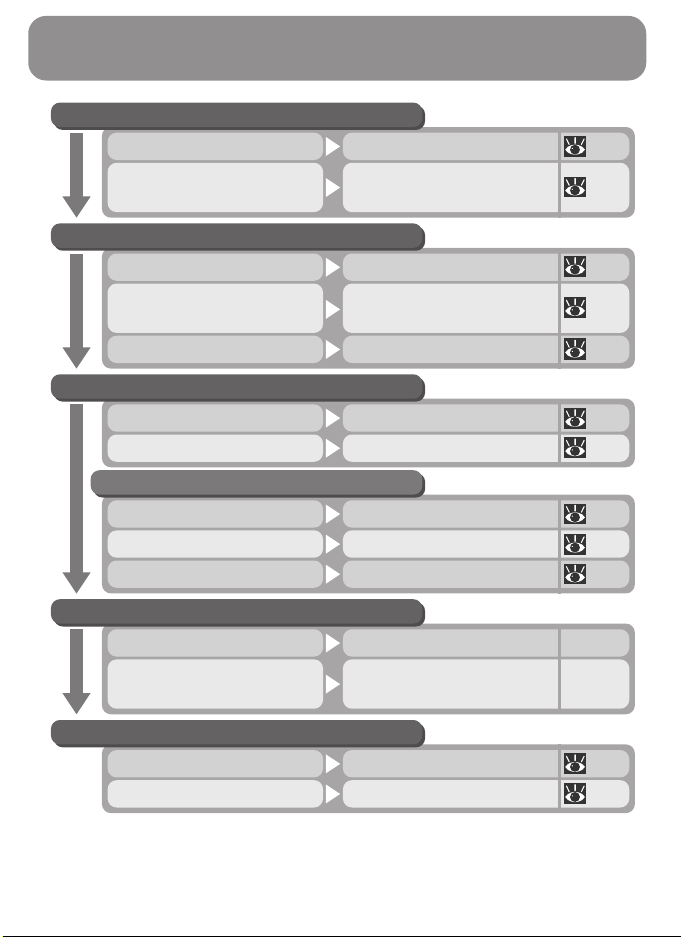
A Flowchart Guide to Using Your Camera
STEP 1—Ready the camera
Getting ready First Steps 9
Camera setup
First Steps
Camera Setup
9
74
STEP 2—Take pictures
Tutorial: Taking PicturesSnapshots (auto mode) 16
Getting Creative
Creative photography
(scene and movie modes)
25
Beyond Point-and-ShootCustom shots 39
STEP 3—Play them back…
Tutorial: Reviewing Pictures…while shooting… 22
Basic Playback…after shooting… 45
STEP 4—Install camera software
Quick Start Guide (provided)Install software
Nikon View 5 Reference
Manual (provided on CD)
Get to know Nikon View 5 —
Tutorial: Reviewing Pictures…while shooting 22
Basic Playback…during playback 45
Deleting PicturesDelete multiple pictures 66
…and delete unwanted pictures…
—
STEP 5—Enjoy your pictures…
Connections…with a computer 30
Connections…on a television 38
i
Product Documentation
Getting to Know the COOLPIX 2000
Overview
Taking Pictures
Reviewing Pictures
Getting Creative
Connecting to a Computer
Connecting to a Television or VCR
Beyond Point-and-Shoot
Basic Playback
The Shooting Menu
The Playback Menu
The Setup Menu
Technical Notes
Index
First Steps
The documentation for this product
includes the manuals listed below.
Please be sure to read all instructions
thoroughly to get the most from your
camera.
Quick-Start Guide
The Quick-Start Guide takes you
through the process of unpacking
and setting up your Nikon digital
camera, taking your first pictures, in-
stalling software, and transferring
pictures to your computer.
Guide to Digital Photography
The Guide to Digital Photography
(this manual) provides complete op-
erating instructions for your camera.
Nikon View 5 Reference Manual
The Nikon View 5 Reference Manual
can be found in electronic format
on the reference CD provided with
your camera. For information on
viewing the Reference Manual, see
“Connections” in this manual.
ii
To prevent damage to your Nikon product or injury to yourself or to others,
read the following safety precautions in their entirety before using this equip-
ment. Keep these safety instructions where all those who use the product
will read them.
The consequences that could result from failure to observe the precautions
listed in this section are indicated by the following symbol:
WARNINGS
Turn off immediately in the event
of malfunction
Should you notice smoke or an un-
usual smell coming from the equip-
ment or from the AC adapter (avail-
able separately), unplug the AC
adapter and remove the batteries im-
mediately, taking care to avoid burns.
Continued operation could result in
injury. After removing the batteries,
take the equipment to a Nikon-autho-
rized service center for inspection.
Do not use in the presence of flam-
mable gas
Do not use electronic equipment in
the presence of flammable gas, as this
could result in explosion or fire.
Observe caution when using the
camera strap
Caution should be exercised to pre-
vent strangulation when wearing the
camera strap around your neck. Never
place the strap around the neck of an
infant or child.
Do not disassemble
Touching the product’s internal parts
could result in injury. In the event of
a malfunction, the product should be
repaired only by a qualified technician.
Should the product break open as the
result of a fall or other accident, re-
move the batteries and AC adapter
(if using) and then take the product
to a Nikon-authorized service center
for inspection.
Observe proper precautions when
handling batteries
Batteries may leak or explode if im-
properly handled. Observe the follow-
ing precautions when handling bat-
teries for use in this product:
• Be sure the product is off before re-
placing the batteries. If you are using
an AC adapter, be sure it is un-
plugged.
• Use only LR6 (AA) alkaline, NiCad, or
NiMH batteries.
•When inserting batteries, be sure to
orient the + and – terminals correctly.
• Do not short or disassemble.
• Do not expose to flame or to exces-
sive heat.
• Do not immerse in or expose to water.
• Do not transport or store with metal
objects such as necklaces or hairpins.
For Your Safety
This icon marks warnings, information that should be read before us-
ing your Nikon product to prevent possible injury.
iii
• Batteries are prone to leakage when
fully discharged. To avoid damage to
the product, be sure to remove the
battery when no charge remains.
•Immediately after use, or when the
product is used on battery power for
an extended period, the batteries may
become hot. Before removing the
battery, turn the camera off and al-
low the batteries to cool.
•Discontinue use immediately should
you notice any changes in the batter-
ies, such as discoloration or deforma-
tion.
Use appropriate cables
When connecting cables to the input
and output jacks, use only the cables
provided or sold by Nikon for the pur-
pose, to maintain compliance with
product regulations.
Keep out of reach of children
Particular care should be taken to pre-
vent infants from putting the battery
or other small parts into their mouths.
Removing memory cards
Memory cards may become hot dur-
ing use. Observe due caution when
removing memory cards from the
camera.
CD-ROMs
The CD-ROMs on which the software
and manuals are distributed should
not be played back on audio CD
equipment. Playing CD-ROMs on an
audio CD player could cause hearing
loss or damage the equipment.
Observe caution when operating
the flash
Using the flash close to your subject’s
eyes could cause temporary visual im-
pairment. Particular care should be
observed if photographing infants,
when the flash should be no less than
one meter (39˝) from the subject.
Avoid contact with liquid crystal
Should the monitor break, care should
be taken to avoid injury due to bro-
ken glass and to prevent liquid crystal
from the monitor touching the skin
or entering the eyes or mouth.
iv
•No part of the manuals included with this
product may be reproduced, transmitted,
transcribed, stored in a retrieval system,
or translated into any language in any
form, by any means, without Nikon’s
prior written permission.
•Nikon reserves the right to change the
specifications of the hardware and soft-
ware described in these manuals at any
time and without prior notice.
Notices
•Nikon will not be held liable for any dam-
ages resulting from the use of this prod-
uct.
• While every effort has been made to en-
sure that the information in these manu-
als is accurate and complete, we would
appreciate it were you to bring any er-
rors or omissions to the attention of the
Nikon representative in your area (ad-
dress provided separately).
Notice for customers in the U.S.A.
Federal Communications Commission (FCC) Radio Frequency Interference Statement
This equipment has been tested and found
to comply with the limits for a Class B digi-
tal device, pursuant to Part 15 of the FCC
rules. These limits are designed to pro-
vide reasonable protection against harm-
ful interference in a residential installation.
This equipment generates, uses, and can
radiate radio frequency energy and, if not
installed and used in accordance with the
instructions, may cause harmful interfer-
ence to radio communications. However,
there is no guarantee that interference will
not occur in a particular installation. If this
equipment does cause harmful interfer-
ence to radio or television reception, which
can be determined by turning the equip-
ment off and on, the user is encouraged
to try to correct the interference by one or
more of the following measures:
• Reorient or relocate the receiving an-
tenna.
• Increase the separation between the
equipment and receiver.
•Connect the equipment into an outlet
on a circuit different from that to which
the receiver is connected.
• Consult the dealer or an experienced ra-
dio/television technician for help.
CAUTIONS
Modifications
The FCC requires the user to be notified
that any changes or modifications made
to this device that are not expressly ap-
proved by Nikon Corporation may void the
user's authority to operate the equipment.
Interface Cables
Use the interface cables sold or provided
by Nikon for your equipment. Using other
interface cables may exceed the limits of
Class B Part 15 of the FCC rules.
Nikon Inc.,
1300 Walt Whitman Road,
Melville, New York
11747-3064, U.S.A.
Tel.: 631-547-4200
E2000
FOR HOME OR OFFICE USE
Tested To Comply
With FCC Standards

v
Notice for customers in Canada
CAUTION
This class B digital apparatus meets all re-
quirements of the Canadian Interference
Causing Equipment Regulations.
ATTENTION
Cet appareil numérique de la classe B res-
pecte toutes les exigences du Règlement
sur le matériel brouilleur du Canada.
Notice Concerning Prohibition of Copying or Reproduction
Note that simply being in possession of material that has been digitally copied or repro-
duced by means of a scanner, digital camera or other device may be punishable by law.
• Items prohibited by law from being
copied or reproduced
Do not copy or reproduce paper money,
coins, securities, government bonds, or
local government bonds, even if such
copies or reproductions are stamped
“Sample.”
The copying or reproduction of paper
money, coins, or securities which are cir-
culated in a foreign country is prohib-
ited.
Unless the prior permission of the gov-
ernment has been obtained, the copy-
ing or reproduction of unused postage
stamps or post cards issued by the gov-
ernment is prohibited.
The copying or reproduction of stamps
issued by the government and of certi-
fied documents stipulated by law is pro-
hibited.
• Cautions on certain copies and repro-
ductions
The government has issued cautions on
copies or reproductions of securities is-
sued by private companies (shares, bills,
checks, gift certificates, etc.), commuter
passes, or coupon tickets, except when
a minimum of necessary copies are to
be provided for business use by a com-
pany. Also, do not copy or reproduce
passports issued by the government, li-
censes issued by public agencies and pri-
vate groups, ID cards, and tickets, such
as passes and meal coupons.
• Comply with copyright notices
The copying or reproduction of copy-
righted creative works such as books,
music, paintings, woodcut prints, maps,
drawings, movies, and photographs is
prohibited except when it is done for per-
sonal use at home or for similar restricted
and non-commercial use.
Trademark Information
Apple, the Apple logo, Macintosh, Mac OS, Power Macintosh, PowerBook, and QuickTime are registered
trademarks of Apple Computer, Inc. Finder, Power Mac, iMac, and iBook are trademarks of Apple Computer,
Inc. IBM is a registered trademark of International Business Machines Corporation. Microsoft and Windows
are registered trademarks of Microsoft Corporation. Pentium is a trademark of Intel Corporation. Internet is
a trademark of Digital Equipment Corporation. CompactFlash is a trademark of SanDisk Corporation. Lexar
Media is a trademark of Lexar Media Corporation. Adobe and Acrobat are registered trademarks of Adobe
Systems Inc. Zip is a registered trademark of Iomega Corporation in the U.S. and other countries. All other
trade names mentioned in this manual or the other documentation provided with your Nikon product are
trademarks or registered trademarks of their respective holders.

vi
Table of Contents
Product Documentation .............................................................................. i
For Your Safety ........................................................................................... ii
Notices ....................................................................................................... iv
Introduction: Before You Begin ...................................................................... 1
Overview: About This Manual ....................................................................... 2
Familiarization: The Parts of the Camera and Their Functions ................... 4
Where to Find It—Parts of the COOLPIX 2000 ................................................ 4
How to Use It—Camera Controls and Displays ................................................ 6
First Steps: Getting Ready to Use Your Camera ............................................ 9
Step 1—Attach the Camera Strap ................................................................... 9
Step 2—Insert Batteries .................................................................................. 9
Step 3—Insert the Memory Card .................................................................... 10
Step 4—Choose a Language .......................................................................... 12
Step 5—Set the Time and Date ....................................................................... 13
Tutorial: Getting Started ................................................................................. 15
Taking Pictures: The Basics ............................................................................. 16
Step 1—Ready the Camera ............................................................................. 16
Step 2—Adjust Camera Settings (Optional) ..................................................... 18
Step 3—Frame the Picture .............................................................................. 19
Step 4—Focus and Shoot ............................................................................... 20
Step 5—Turn the Camera Off ......................................................................... 21
Reviewing Pictures: Quick Review ................................................................. 22
Quick Review .................................................................................................. 22
Thumbnail Review .......................................................................................... 24
Getting Creative: Choosing a Mode .............................................................. 25
Connections: Connecting to External Devices ............................................... 29
Connecting to a Computer: Nikon View 5 .................................................... 30
Before You Begin: Installing Nikon View 5 ....................................................... 30
Making the Connection: Connecting to Your Computer ................................. 32
Connecting to a Television or VCR: Television Playback .............................. 38
Beyond Point-and-Shoot: Adjusting Camera Settings .................................. 39
Focus-Mode Selection: The Button ....................................................... 40
Delaying Shutter Release: Self-Timer Mode ................................................. 41
Framing Pictures: Optical and Digital Zoom ................................................. 42
Flash Photography: The Button ............................................................ 43

vii
Basic Playback: Playback Mode ...................................................................... 45
Full-Frame Playback ........................................................................................ 46
Thumbnail Playback ........................................................................................ 48
Taking a Closer Look: Playback Zoom .............................................................. 49
Creating a Small Copy of a Picture: Small Picture ............................................ 50
Movie Playback ............................................................................................... 52
Menu Guide: Using Camera Menus ............................................................... 53
The Shooting Menu: Fine-Tuning Shooting Options ................................... 54
Making Effective Use of Memory: Image Quality and Size ............................... 56
Keeping Colors True: White Balance ............................................................... 58
Measuring Light: Metering ............................................................................. 60
Taking Pictures in a Sequence: Continuous ...................................................... 61
Getting Sharper Pictures: BSS (Best Shot Selector) ........................................... 62
Adjusting Exposure: Exp. +/–........................................................................... 63
Making Edges More Distinct: Image Sharpening ............................................. 64
The Playback Menu: Managing Pictures ....................................................... 65
Deleting Pictures: Delete ................................................................................. 66
Automated Playback: Slide Show .................................................................... 68
Safeguarding Valuable Pictures: Protect .......................................................... 70
Ordering Prints: Print Set................................................................................. 71
Marking All Pictures for Transfer: Auto Transfer ............................................... 73
The Setup Menu: Camera Setup .................................................................... 74
Adjusting Monitor Brightness: Brightness ........................................................ 75
Formatting Memory Cards: CF Card Format .................................................... 75
Conserving Battery Power: Auto Off ............................................................... 76
Choosing a Video Standard: Video Mode ........................................................ 76
Choosing a USB Protocol: USB ........................................................................ 77
Technical Notes: Camera Care, Options, and Resources ............................... 79
Optional Accessories ....................................................................................... 80
Caring for the Camera and Battery ................................................................. 81
Web Resources ............................................................................................... 83
Troubleshooting .............................................................................................. 83
Specifications ................................................................................................. 89
Index ................................................................................................................. 92

viii
1
First Steps
9–14
Overview
2–3
Familiarization
4–8
This chapter is divided into the following sections:
Overview
Read this section for a description of how this
manual is organized and for an explanation of the
symbols and conventions used.
Getting to Know the COOLPIX 2000
Bookmark this section and refer to it as you read
through the manual for information on the names
and functions of camera parts.
First Steps
This section details the steps you will take when
using your camera for the first time:
Introduction
Before You Begin
9STEP 1
9–10
10–11
12
13–14
STEP 2
STEP 3
STEP 4
STEP 5
Attach the Camera Strap
Insert the Battery
Insert the Memory Card
Choose a Language
Set the Time and Date
2
Introduction—Overview
Thank you for your purchase of a COOLPIX 2000 digital camera. This manual
has been written to help you enjoy taking digital photographs with your
COOLPIX 2000. As you read through it, you will find explanations not only of
how the camera works but also of why certain features have been included,
and how they may be used to take photographs in many different situations.
Overview
About This Manual
Use Only Nikon Brand Electronic Accessories
Your Nikon COOLPIX digital camera is designed to the highest standards and
includes complex electronic circuitry. Only Nikon brand electronic accessories
(including AC adapters) certified by Nikon specifically for use with your Nikon
digital camera are engineered and proven to operate within the operational
and safety requirements of this electronic circuitry.
THE USE OF NON-NIKON ELECTRONIC ACCESSORIES COULD DAMAGE YOUR CAMERA AND MAY VOID
YOUR
NIKON WARRANTY.
For more information about Nikon brand accessories, contact your local au-
thorized Nikon dealer.
3
Introduction—Overview
To make it easier to find the information you need, the following symbols and
conventions are used:
Life-Long Learning
As part of Nikon’s “Life-Long Learning” commitment to ongoing product sup-
port and education, continually-updated information is available on-line at
the following sites:
•For users in the U.S.A.: http://www.nikonusa.com/
•For users in Europe: http://www.nikon-euro.com/
•For users in Asia, Oceania, the Middle East, and Africa: http://www.nikon-
asia.com/
Visit these sites to keep up-to-date with the latest product information, tips,
answers to frequently-asked questions (FAQs), and general advice on digital
imaging and photography. Additional information may be available from the
Nikon representative in your area. See the URL below for contact information:
http://www.nikon-image.com/eng/
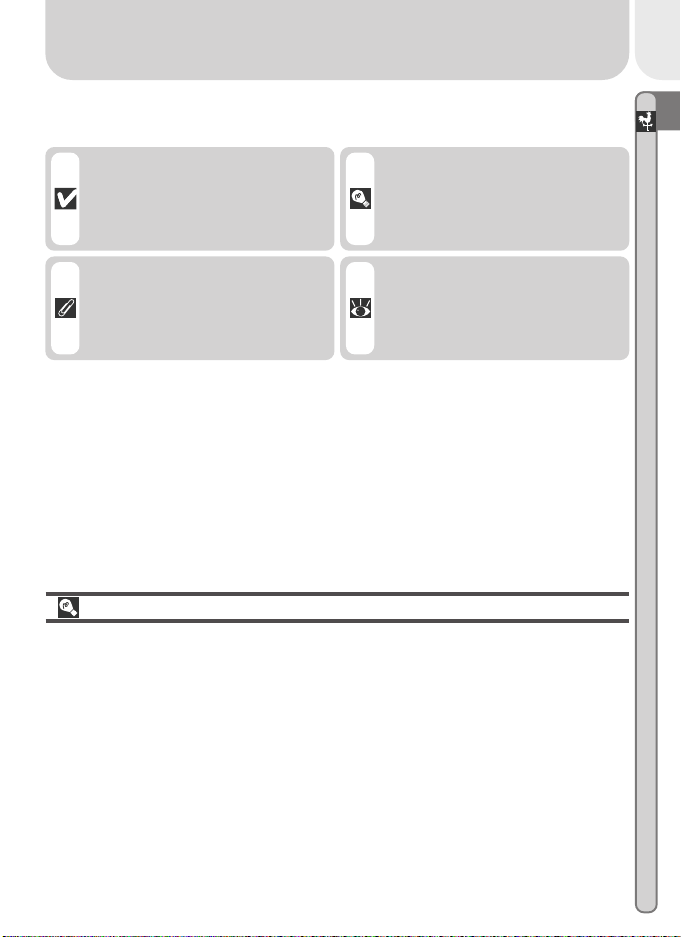
This icon marks cautions, infor-
mation that you should read be-
fore use to prevent damage to
your camera.
This icon marks tips, additional
information you may find help-
ful when using your camera.
This icon marks notes, informa-
tion that you should read before
using your camera.
This icon indicates that more in-
formation is available elsewhere
in this manual.
4
Introduction—Getting to Know the COOLPIX 2000
Familiarization
The Parts of the Camera and Their Functions
Take a few moments to familiarize yourself with camera controls and displays.
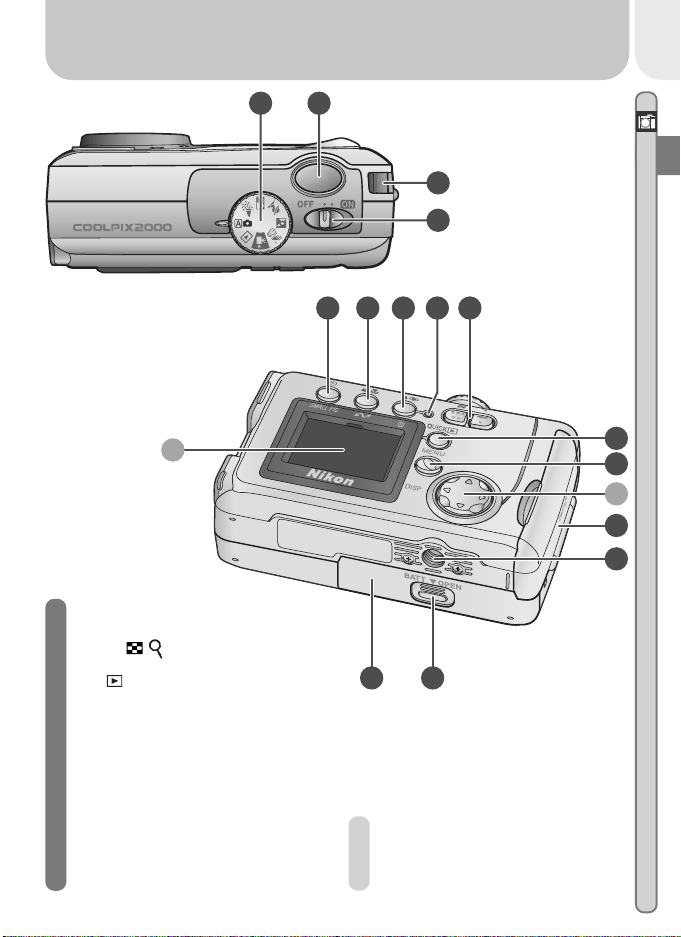
Where to Find It—Parts of the COOLPIX 2000
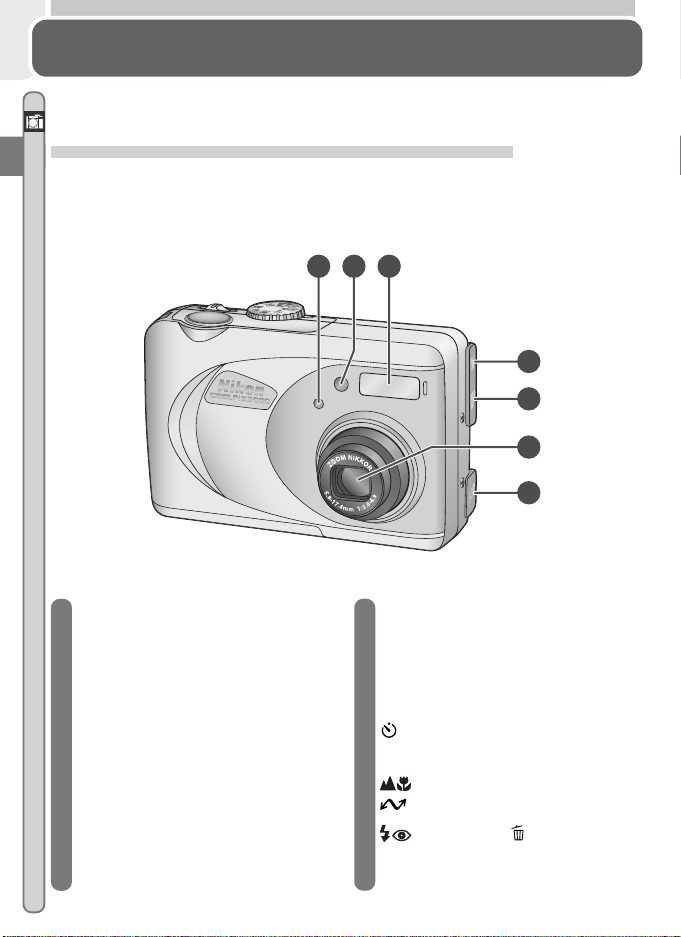
The parts of the camera are identified below. For more information on the
function of each part, refer to the page numbers listed.
1 Photocell
2 Self-timer lamp ...................... 41
3 Built-in Speedlight ................. 19
4 Video-out connector
(under cover) ......................... 38
5 USB connector
(under cover) ......................... 33
6 Lens ...................................... 19
7 DC-in connector (under cover)
8 Mode dial .................. 16, 25, 46
9 Shutter-release button
................................. 20–21, 41
10 Eyelet for camera strap ............ 9
11 Power switch ............. 16, 21, 33
12 (self-timer)/
SMALL PIC. button ......... 41, 50
13
(focus mode)/
(transfer) button . 32–33, 40
14
(flash mode)/ (delete) button
............................
23–24, 46, 48
1 2 3
4
5
7
6
5
Introduction—Getting to Know the COOLPIX 2000
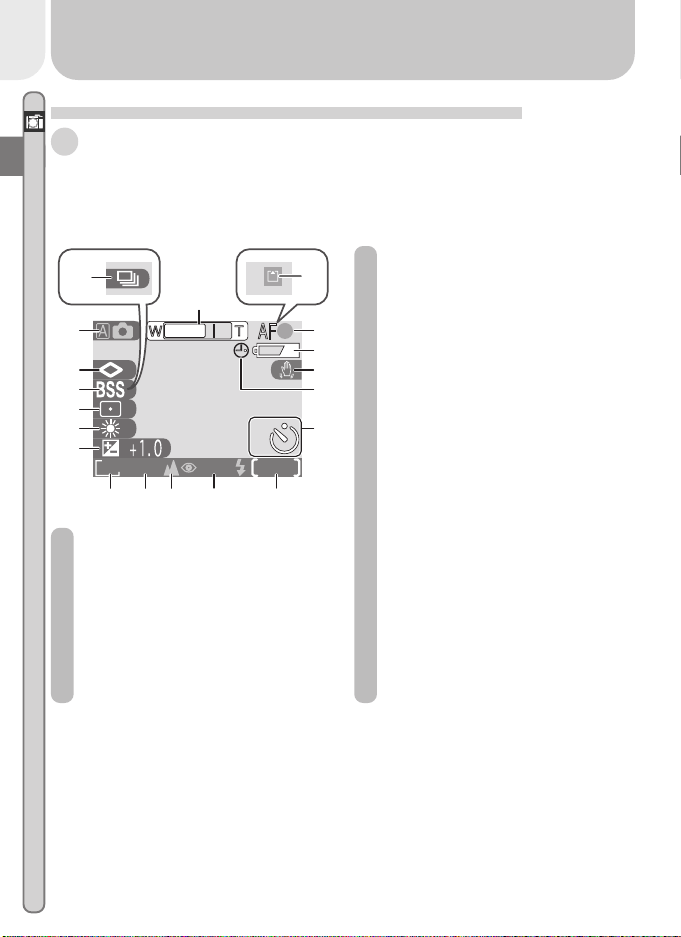
A Monitor................................... 6
B Multi selector .......................... 8
15
Flash-ready lamp ................
16, 20
16 Zoom ( / ) buttons....... 19, 42
17
QUICK
QUICK
(quick review)
button................. 22, 66, 70, 72
18 MENU button ........... 54, 65, 74
19 Memory card slot cover ... 10–11
20 Tripod socket
21 Battery-chamber cover latch .... 9
22 Battery-chamber cover ...... 9–10
A
19
20
B
18
17
22 21
12 13 14 1615
8 9
10
11
6
Introduction—Getting to Know the COOLPIX 2000
How to Use It—Camera Controls and Displays
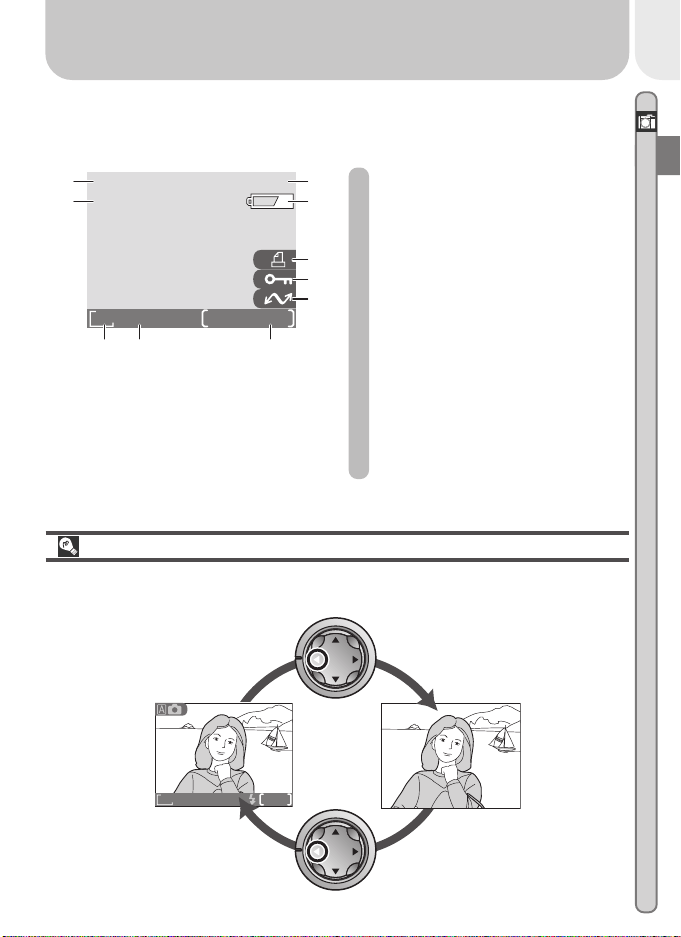
A The Monitor
The monitor is where you compose pictures before shooting. In shooting
mode, the monitor shows the view through the camera lens. It also gives
information on how the camera is set up.
1 Zoom indicator ................ 19, 42
2 Recording indicator
1
........ 21, 86
3
Focus indicator
2
..................... 20
4 Battery level indicator
3
.......... 17
5 Camera shake icon
4
........................... 25–26, 44, 86
6 “Date not set” icon
5
............. 14
7 Self-timer indicator ................ 41
8 Number of exposures remaining
............................................. 17
9 Flash mode...................... 25, 43
10 Focus mode ........................... 40
11 Image quality ........................ 57
12 Image size ............................. 57
13 Exposure compensation ......... 63
14 White balance ....................... 58
15 Metering mode ..................... 60
16 Best shot selector (BSS) .......... 62
17 Image sharpening .................. 64
18 Shooting/scene mode ...... 16, 25
19 Continuous shooting mode
6
............................................. 61
1 Appears in same position as focus indicator.
2Displayed only when shutter-release button is
pressed halfway.
3 Appears only when battery is running low.
FINE
10
10
AUTO
9999
1632
1
8
9101112
4
3
2
5
6
7
17
18
16
19
15
14
13
4 Appears only at slow shutter speeds.
5Appears when clock-calendar has not been set.
6Appears in same position as BSS indicator.
7
Introduction—Getting to Know the COOLPIX 2000
FINE
AUTO
8
1632
The monitor is also used to view pictures after they have been taken. When a
picture is displayed full screen, information about the image is shown super-
imposed on the photo.
Controlling the Monitor
To hide camera settings or photo info, press the multi selector to the left.
Press the multi selector to the left a second time to view indicators again.
Indicators
hidden
Indicators
displayed
1 File number and type............. 47
2 Battery level indicator
*
........... 17
3 Print-order icon ..................... 71
4 Protect icon ..................... 67, 70
5 Transfer icon.......................... 75
6 Current frame number/
total number of frames
7 Image quality ........................ 57
8 Image size ............................. 57
9 Time of recording .................. 13
10 Date of recording .................. 13
* Appears only when battery is running low.
FINE
9999/9999
1632
2002
2002
.08
.08
.05
.05
9999
9999
.
JPG
JPG
10
10
:00
00
678
1
2
4
5
3
10
9
8
Introduction—Getting to Know the COOLPIX 2000
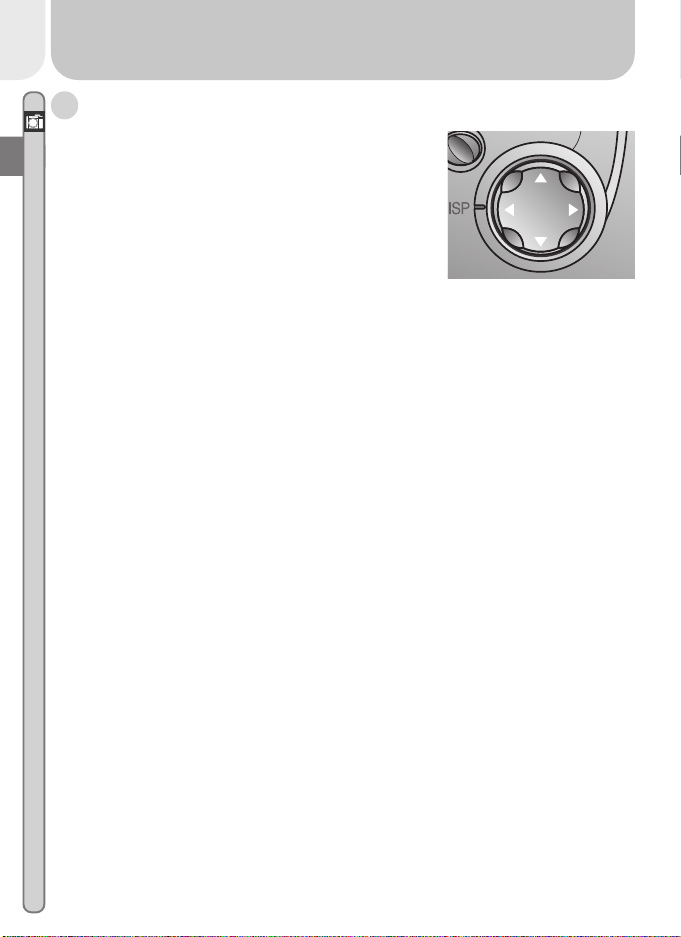
B The Multi Selector
The multi selector is used to navigate through cam-
era menus, to page through or select pictures
during playback, scroll images during playback
zoom, and to control the display of indicators in
the monitor.
Introduction—First Steps
9
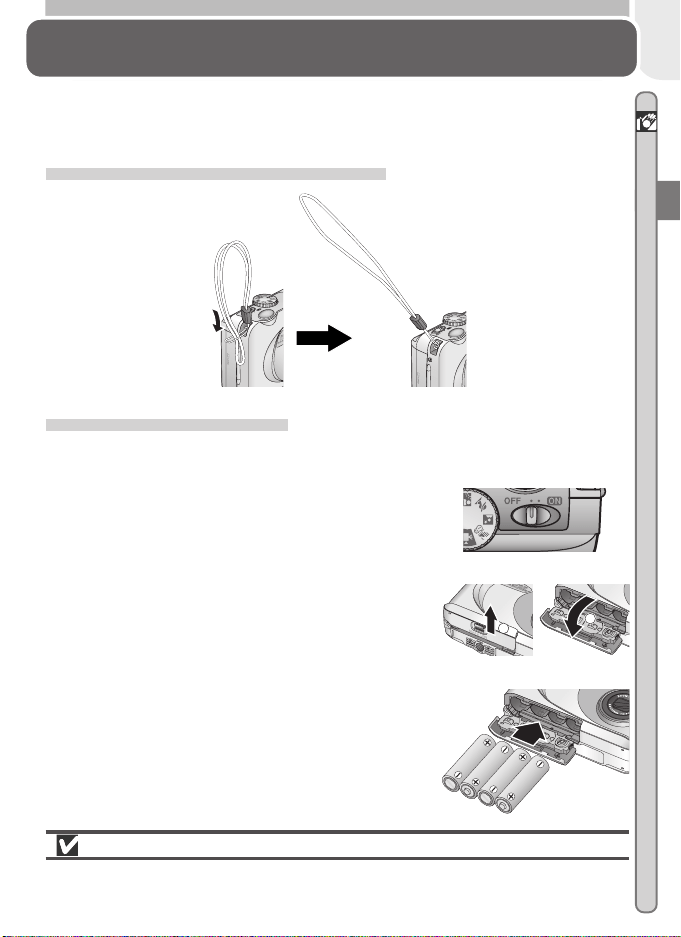
Step 2—Insert Batteries
Your camera is powered four LR6 (AA) alkaline, NiCad, or NiMH batteries.
2
.1 Turn the camera off
Turn the camera off before inserting or re-
moving batteries.
First Steps
Getting Ready to Use Your Camera
Before using your camera for the first time, you will need to complete the
following steps.
Step 1—Attach the Camera Strap
Attach the strap as shown.
2
.2 Open the battery-chamber cover
Pressing the battery-chamber cover latch,
slide the cover out (1) and flip it open (2).
2
.3 Insert the batteries
Insert the batteries with the “+” and “–”
contacts oriented as shown.
1
2
The Battery-Chamber Cover
The cover can be damaged by application of excessive force.
Introduction—First Steps
10
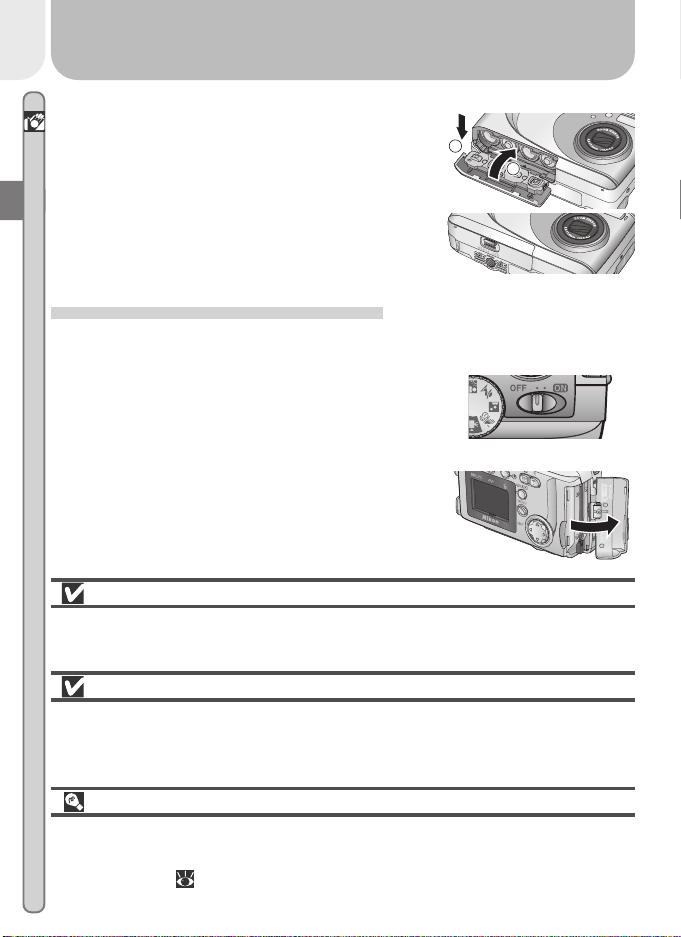
Step 3—Insert the Memory Card
The COOLPIX 2000 stores pictures on CompactFlash
™
memory cards.
3
.1 Turn the camera off
Turn the camera off before inserting or re-
moving memory cards.
Read Battery Warnings
Read and follow all warnings and instructions supplied by the battery
manufacturer.
Before Removing the Batteries
Before removing the batteries, make sure that the camera is off and that the
flash-ready lamp is out. Failure to observe this precaution could result in
damage to the camera or memory card or in loss of data or stored settings.
Alternative Power Sources
To power your camera continuously for extended playback or while the cam-
era is connected to a computer, we recommend the EH-53 AC adapter (avail-
able separately; 80).
2
.4 Close the battery-chamber cover
Flip the battery-chamber cover up (1) and
slide it down until you hear the latch click
into place (2). To prevent the batteries be-
ing dislodged during operation, be sure that
the cover is securely latched.
2
1
3
.2 Open the memory card slot cover
Open the card slot cover as shown at right.
Introduction—First Steps
11
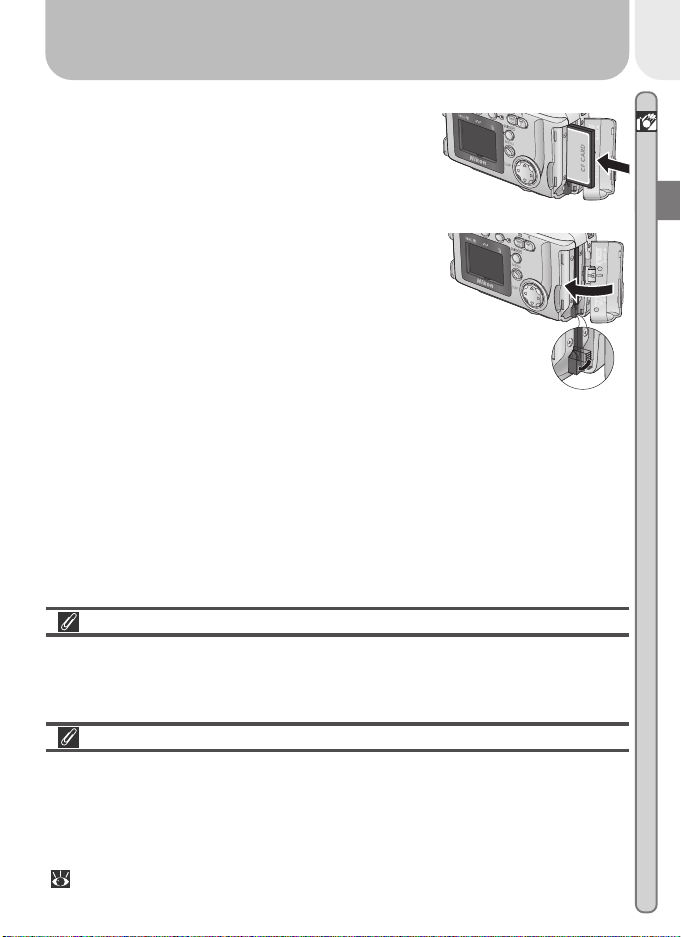
Closing the Memory Card Slot Cover
Fold the eject button over before closing the memory card slot cover. If the
eject button is upright when the cover is closed, closing the cover may par-
tially eject the card, causing errors when the camera is turned on.
Formatting Memory Cards
“Formatting” is the term used to describe the action of permanently erasing
all data from a memory card to make room for more pictures. The memory
card supplied with your camera is formatted at shipment. Other memory
cards, however, must be formatted before first use. For information on for-
matting memory cards, see “The Setup Menu: Formatting Memory Cards”
( 75).
3
.3 Insert the memory card
Holding the camera with the monitor toward
you, slide the card in face up until it is firmly
seated in the contacts at the back of the
slot.
3
.4 Close the card-slot cover
Fold the eject button over and close the
memory card slot cover.
Introduction—First Steps
12
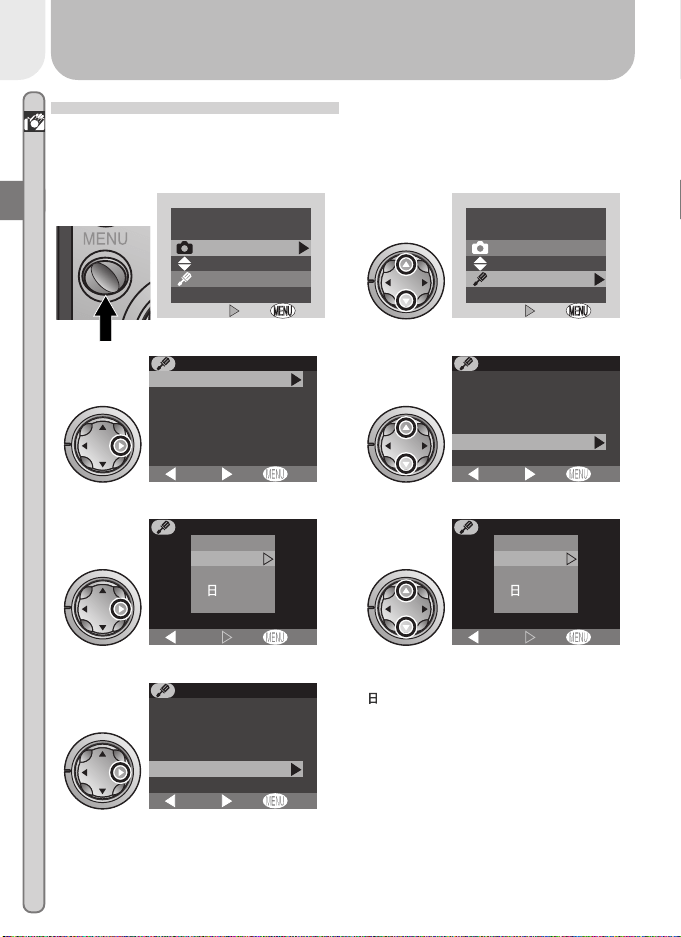
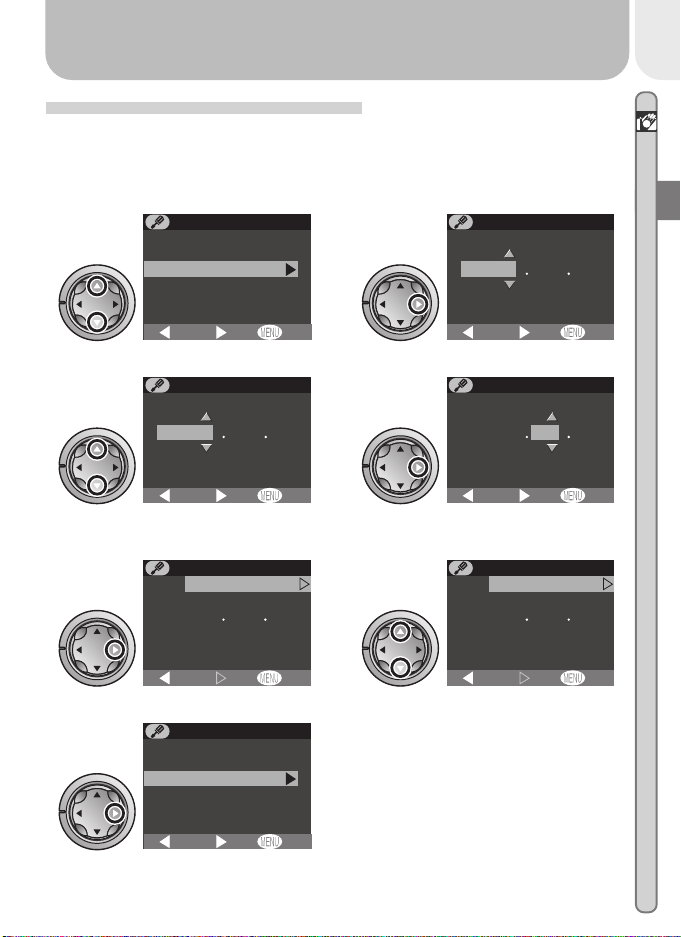
Step 4—Choose a Language
Camera menus and messages can be displayed in your choice of German,
English, French, Japanese, and Spanish. To choose a language, make sure
that the camera is on and then follow the steps below.
Display camera menus
OFF
OFF
MENU
Set
Set
Shooting menu
Setup menu
4
.1
Highlight SETUP
4
.2
OFF
OFF
Set
Set
MENU
Shooting menu
Setup menu
Display SETUP menu
4
.3
OFF
Brightness
CF card format
Date
Auto off
Video mode
Language
BK
Set
SETUP MENU
Highlight Language
4
.4
OFF
CF card format
Date
Auto off
Video mode
Language
USB
BK
Set
SETUP MENU
Display options
4
.5
OFF
En
De
Fr
Es
Set
LANGUAGE
BK
Choose language from Deutsch
(German), English, Français (French),
(Japanese), or Español (Spanish)
4
.6
OFF
En
De
Fr
Es
Set
LANGUAGE
BK
Return to SETUP menu. Proceed to
Step 5.1 to set time and date.
4
.7
OFF
CF card format
Date
Auto off
Video mode
Language
USB
BK
Set
SETUP MENU
Introduction—First Steps
13
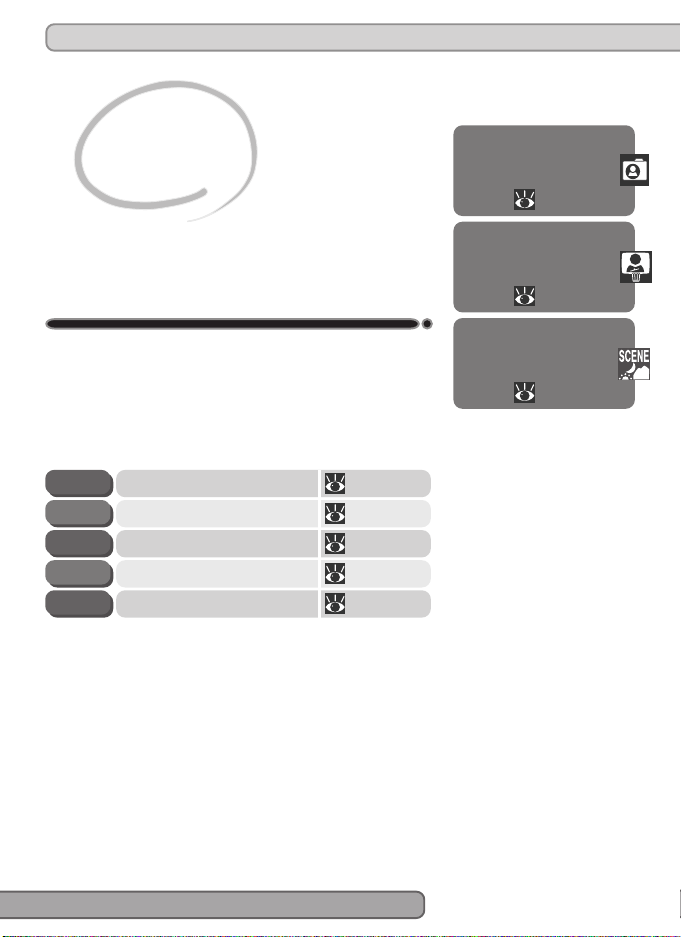
Step 5—Set the Time and Date
Information on the time and date of recording is included with all pictures
taken with your Nikon digital camera. To set the camera’s internal clock to
the correct time and date, first display the SETUP menu (see Step 5), and then
follow the steps below.
Highlight Date
5
.1
OFF
CF card format
Date
Auto off
Video mode
Language
BK
Set
SETUP MENU
Brightness
Display DATE menu
5
.2
OFF
2 0 0 2 0 1
0 0 0 0
0 1
:
YMD
Set
DATE
BK
Edit Year
5
.3
OFF
2 0 0 2 0 1
0 0 0 0
0 1
:
YMD
Set
DATE
BK
Select Month. Repeat steps 5.3–5.4
to edit remaining items.
5
.4
OFF
2 0 0 2 0 1
0 0 0 0
0 1
:
YMD
Set
DATE
BK
Highlight YMD
5
.5
OFF
2 0 0 2 0 8
1 0 0 0
0 5
:
YMD
Set
BK
DATE
Choose order in which Year, Month,
and Day will be displayed
5
.6
OFF
2 0 0 2 0 8
1 0 0 0
0 5
:
YMD
Set
BK
DATE
Return to SETUP menu
5
.7
OFF
CF card format
Date
Auto off
Video mode
Language
BK
Set
SETUP MENU
Brightness

Introduction—First Steps
14
Any pictures taken before the time and date have been set will have a time
stamp of “0000.00.00 00:00.” If the time and date have not been set, a
flashing (“Date not set”) icon will be displayed in the top right corner of
the monitor when the camera is in shooting mode.
The Clock Battery
The camera’s internal clock-calendar is powered by a separate, rechargeable
power source, which is charged as necessary when the main battery is in-
stalled. If the camera has been stored for an extended period with the main
battery removed, the clock may need to be reset. The clock power source can
provide roughly twenty-four hours of back-up power after charging for about
six hours.
15
Reviewing Pictures
22–24
Getting Creative
25–27
Taking Pictures
16–21
Tutorial
Getting Started
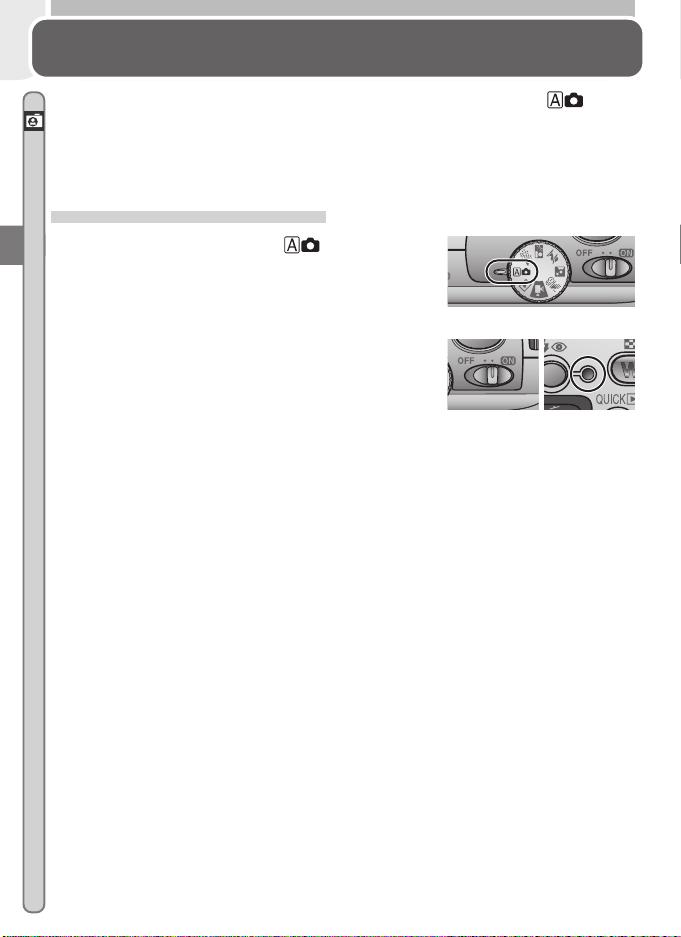
This chapter is divided into the following three sec-
tions:
Taking Pictures
Read this section for a step-by-step guide to the
basics of taking pictures with the COOLPIX 2000.
16–17STEP 1
18
19
20–21
21
STEP 2
STEP 3
STEP 4
STEP 5
Ready the Camera
Adjust Camera Settings
Frame the Picture
Focus and Shoot
Turn the Camera Off
Reviewing Pictures
Learn how to view and delete pictures.
Getting Creative
Explore the creative possibilities of scene and movie
modes.
16
Tutorial—Taking Pictures
Taking Pictures
The Basics
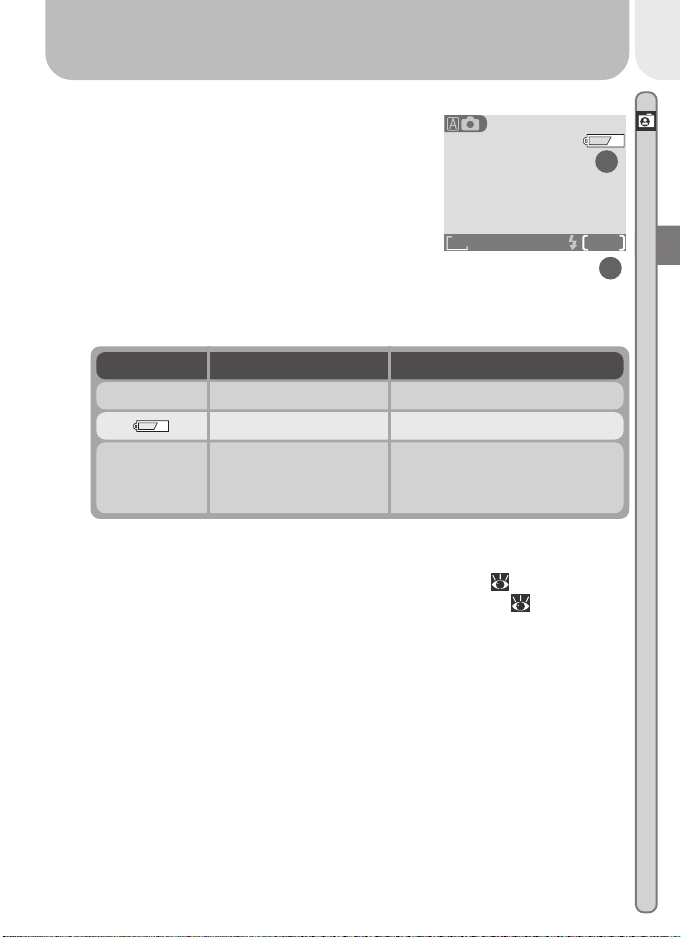
This section details the basic steps involved in taking pictures in (auto)
mode. In this automatic, “point-and-shoot” mode, the majority of camera
settings are controlled by the camera in response to shooting conditions, pro-
ducing the best possible results in most situations.
Step 1—Ready the Camera
1
.1 Turn the mode dial to
1
.2 Turn the camera on
The lens cover will open, the lens will ex-
tend, and the flash-ready lamp will light.
17
Tutorial—Taking Pictures
1
.3 Check indicators in the monitor
Before shooting, check the battery level (A)
and number of exposures remaining (B).
Battery Level (A)
The battery level is displayed as follows:
Number of Exposures Remaining (B)
If the number of exposures remaining is zero, a message will be dis-
played in the monitor. In this case, delete pictures (
66), use a new
memory card, or choose a lower quality or image size ( 56).
FINE
AUTO
8
1632
A
B
— Batteries fully charged Camera functions normally.
Display Meaning Camera status
Low battery Ready a set of new batteries.
Warning ! !
Battery
exhausted
Batteries exhausted
No pictures can be taken until
batteries have been replaced.
18
Tutorial—Taking Pictures
Step 2—Adjust Camera Settings (Optional)
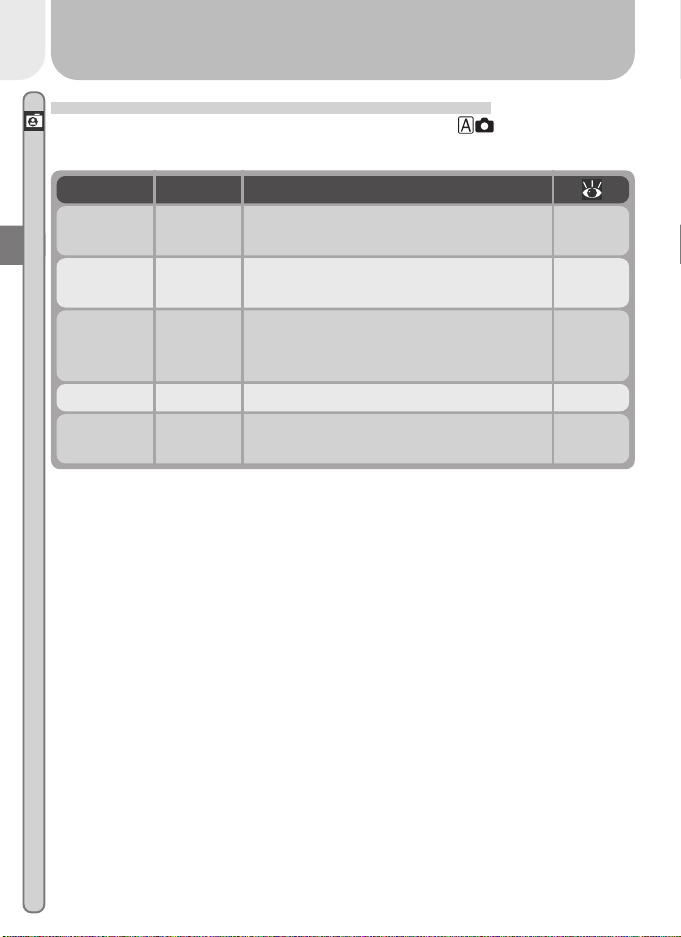
The following table shows the default settings for mode. For more
information, refer to the page numbers in the rightmost column.
Flash mode Auto
Flash fires automatically when lighting is
poor.
43
Image
quality
NORMAL
Pictures compressed for balance between
quality and file size that is ideal for snap-
shots.
56
Image size 1632 Pictures are 1,632 × 1,224 pixels in size. 57
Setting Default Description
Focus
mode
Autofocus
Camera focuses automatically at distanc-
es over 30 cm (1´).
40
Continuous Single
One shot taken each time shutter-release
button is pressed.
61
19
Tutorial—Taking Pictures
Zoom out Zoom in
FINE
AUTO
8
163 2
Step 3—Frame the Picture
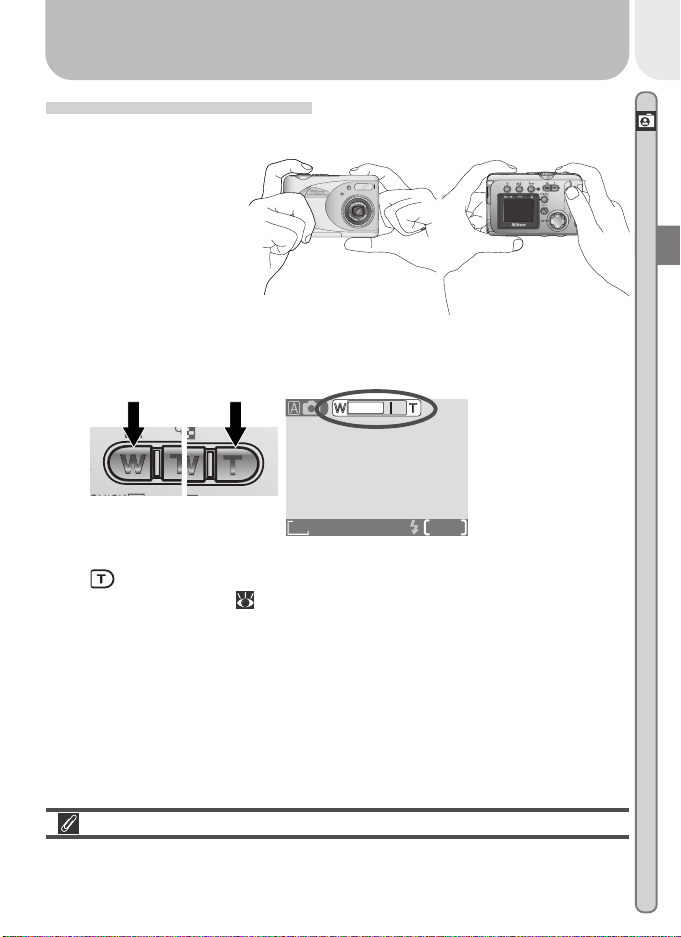
3
.1 Ready the camera
Hold the camera
steadily in both
hands.
3
.2 Frame your subject
Use the zoom buttons to frame your subject against the background.
Don’t Block the Shot
To avoid dark or partially obscured pictures, keep your fingers and other ob-
jects away from the lens and flash window.
Indicator in monitor
shows amount of
zoom while either
button is pressed
When the camera is zoomed in to maximum magnification, holding the
button down for about two seconds extends the zoom range digi-
tally (digital zoom; 42). The zoom indicator turns yellow when digi-
tal zoom is in effect.
20
Tutorial—Taking Pictures
Step 4—Focus and Shoot
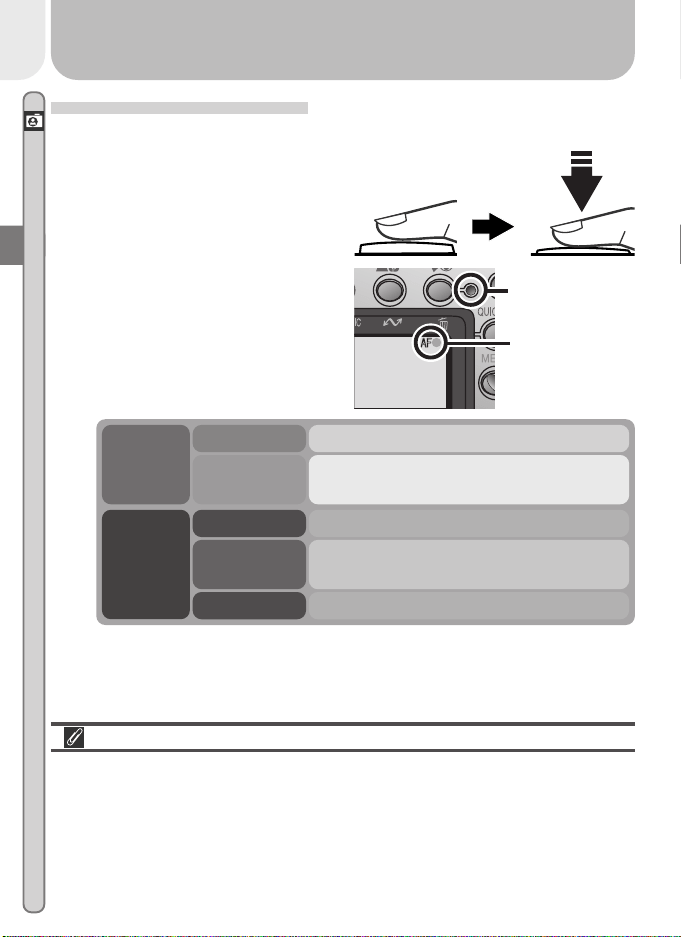
4
.1 Focus
Press the shutter-release button
halfway to set focus and expo-
sure.
Focus
indicator
Flash-
ready
lamp
Camera unable to focus. Change your
composition and try again.
Flash charging. Remove finger briefly from
shutter-release button, then try again.
Subject in focus.
Flash will fire when picture is taken.
Flash off or not required.
Flashes red
Flickers
Green
On
Off
Getting Good Results with Autofocus
Autofocus performs best when there is contrast between the subject and
background and the subject is evenly lit. It does not perform well if the sub-
ject is very dark or moving rapidly, if there are objects of sharply differing
brightness in the scene (e.g., the sun is behind your subjects and their fea-
tures are in deep shadow), or if the subject contains objects at different dis-
tances from the camera (e.g., the subject is inside a cage).
Focus indicator
lights when
shutter-release
button is pressed
halfway
Flash-ready lamp
With the shutter-release button
pressed halfway, check the fo-
cus indicator and flash-ready
lamp.
21
Tutorial—Taking Pictures
4
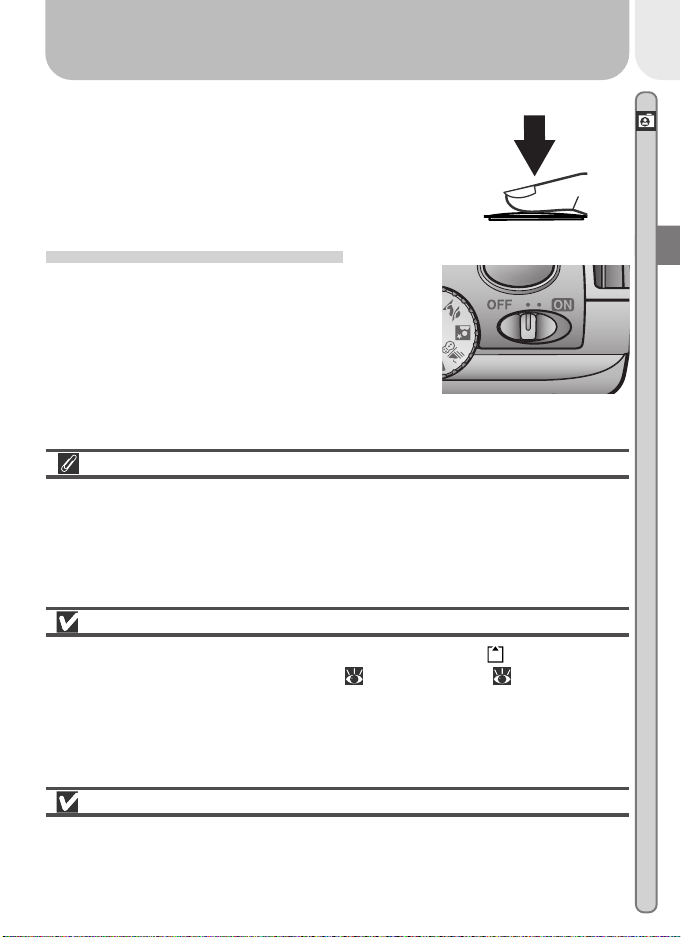
.2 Take the picture
Smoothly press the shutter-release button
the rest of the way down to take a picture.
Step 5—Turn the Camera Off
When you have finished using the camera, turn
the camera off to save battery power. The lens
will retract and the lens cover will close.
Avoiding Blurred Pictures
One of the most common sources of disappointing pictures is blurring caused
by the camera moving suddenly as the shutter-release button is pressed. To
avoid this, hold the camera steady and press the shutter-release button
smoothly, pausing slightly at the halfway point to give the camera a chance to
set focus and exposure.
During Recording
While pictures are being recorded to the memory card, a icon will be dis-
played in the monitor. In continuous ( 61) and movie ( 26) modes, an
hourglass icon will be displayed. Do not turn the camera off, remove the
memory card, or remove or disconnect the power source while either icon is
displayed. Failure to observe this precaution could result in lost or damaged
pictures.
Turning the Camera Off
After the camera is turned off, the flash-ready lamp may remain lit while
camera settings are recorded to memory. Do not remove the batteries until
the flash-ready lamp has gone out.
22
Tutorial—Reviewing Pictures
Reviewing Pictures
Quick Review
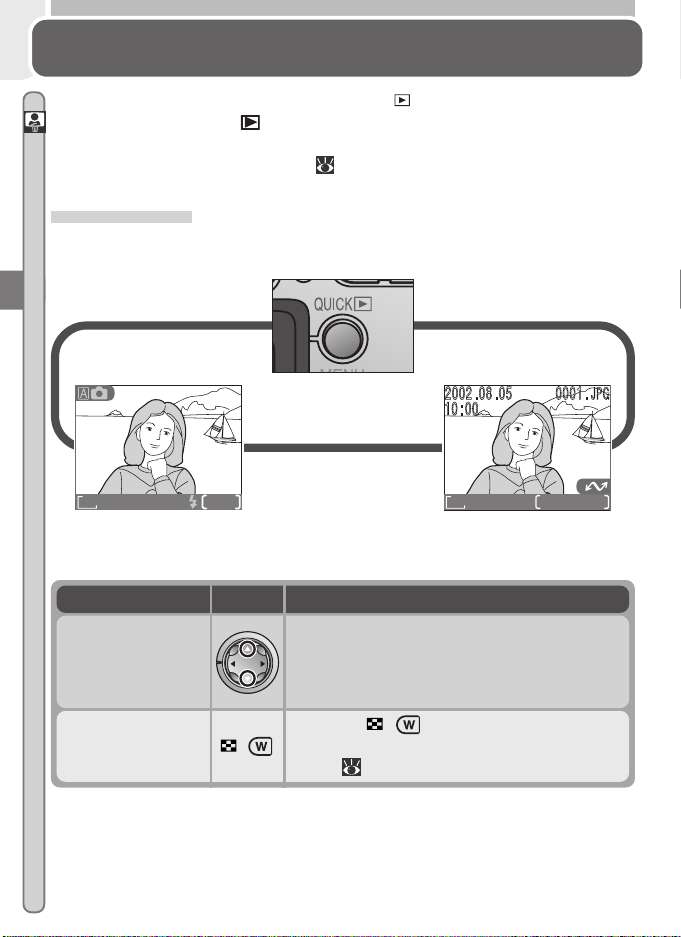
Pictures can be played back using the
QUICK
QUICK
button (quick review) or by
setting the mode dial to (playback mode). This section covers the opera-
tions that can be performed in quick review. For more information on play-
back mode, see “Basic Playback” ( 46).
Quick Review
Quick review allows you to view earlier pictures while shooting. If you are not
satisfied with the results, you can take another picture immediately.
The following operations can be performed in quick review:
Shooting mode
Press
Quick review
FINE
AUTO
8
1632
FINE
1632
0001/0008
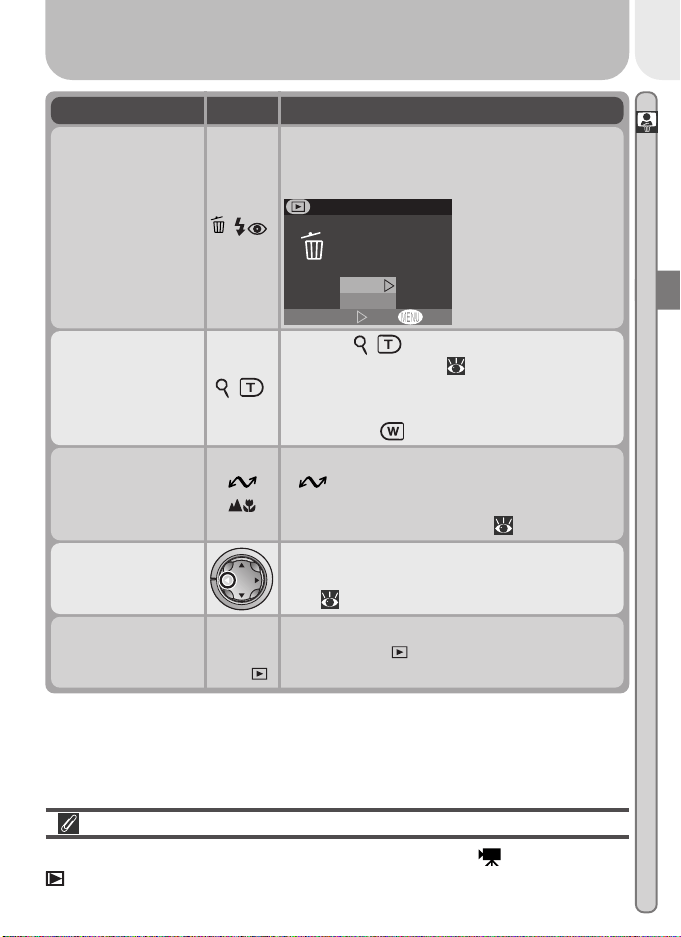
Press DescriptionTo
( )
Press the ( ) button to display four or
nine pictures at a time as small thumbnail pre-
views ( 24).
View multiple
pictures
Press the multi selector up to view pictures
recorded before the current photo, down to
view pictures recorded after the current pho-
to.
View other
pictures
23
Tutorial—Reviewing Pictures
( )
Press the ( ) button for an enlarged view
of the current photo ( 49). While the pho-
to is zoomed in, use the multi selector to view
areas not visible in the monitor. To cancel
zoom, press .
Zoom photo in
( )
A confirmation dialog will be displayed. Press
multi selector up or down to highlight op-
tion, press to right to select.
•Select No to exit
without deleting
picture
•Select Yes to de-
lete picture
OFF
Erase 1 image
Yes or No ?
Set
DELETE
No
Ye s
Delete current
picture
Press DescriptionTo
( )
Pictures selected for transfer are marked with
a icon. Turn this marking on or off to
select the pictures that will be transferred to
a computer at a later date ( 73).
Select current
picture for transfer
to a computer
Shutter
release/
QUICK
QUICK
To end review and return to shooting mode,
press the
QUICK
QUICK
button or press the shutter-
release button halfway.
Return to
shooting mode
Press multi selector to left to hide or display
photo info superimposed on picture in mon-
itor ( 7).
Hide or display
photo info
Quick Review
Quick review is not available when the mode dial is set to (movie mode) or
(playback mode).
24
Tutorial—Reviewing Pictures
1
3
2
4
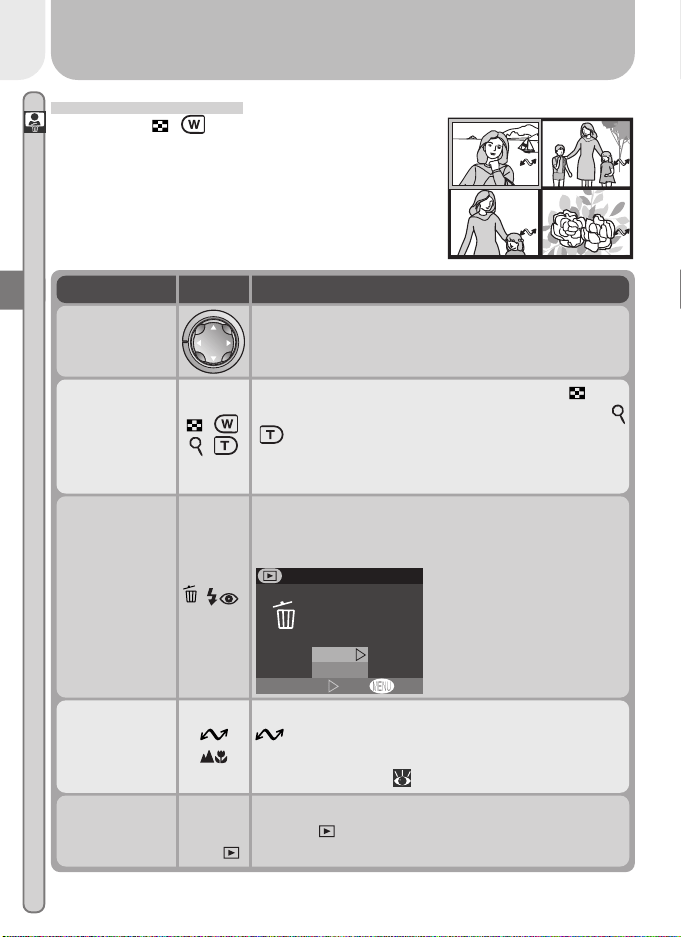
Thumbnail Review
Pressing the ( ) button in quick review dis-
plays a menu of four thumbnail images. The fol-
lowing operations can be performed while thumb-
nails are displayed:
( )
/ ( )
With four thumbnails displayed, press the
but-
ton once to view nine thumbnail images. Press
( ) to “zoom in” from nine thumbnails to a four-
thumbnail view or, when four thumbnails are dis-
played, to view highlighted picture full size.
Change
number of
pictures
displayed
Press DescriptionTo
( )
Pictures selected for transfer are marked with a
icon. Turn this marking on or off to select
the pictures that will be transferred to a comput-
er at a later date ( 73).
Select high-
lighted picture
for transfer to
a computer
( )
A confirmation dialog will be displayed. Press multi
selector up or down to highlight option, press to
right to select.
•Select No to exit with-
out deleting picture
•Select Yes to delete
picture
Delete
highlighted
picture
OFF
Erase 1 image
Yes or No ?
Set
DELETE
No
Ye s
Press the multi selector up, down, left, or right to
highlight thumbnails.
Highlight
pictures
Shutter
release/
QUICK
QUICK
To end review and return to shooting mode, press
the
QUICK
QUICK
button or press the shutter-release but-
ton halfway.
Return to
shooting
mode
25
Tutorial—Getting Creative
Camera Shake
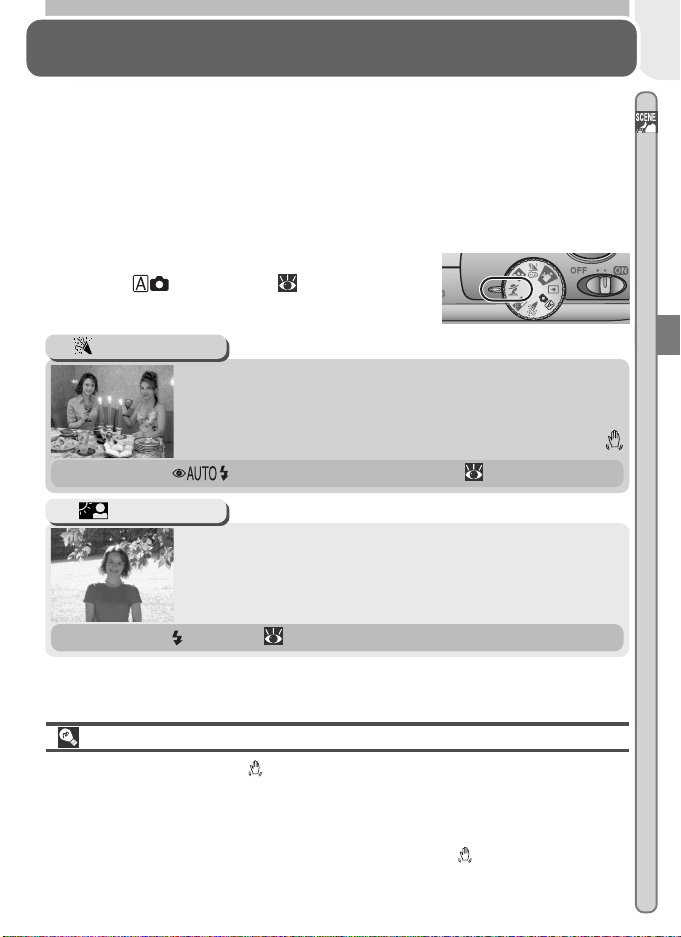
At slow shutter speeds, a icon appears in the monitor. Pictures taken at
these speeds may be blurred by inadvertent camera movement (“camera
shake”). While use of a tripod is recommended when this icon is displayed,
you may also be able to prevent blurring by holding the camera steadily in
both hands with your elbows against your torso. The icon on these pages
marks scenes in which blurring is likely to occur.
Getting Creative
Choosing a Mode
Your Nikon digital camera offers a choice of five “scene” modes for common
compositions, such as portraits, landscapes, and close-ups, which require special
combinations of settings that apply to any scene of the same type. When a
scene is selected using the mode dial, camera settings are automatically ad-
justed to produce optimal results for the selected composition, sparing you
the necessity of adjusting camera settings one-by-one. A movie mode is also
available for recording silent movies up to twenty seconds long.
Mode selection is made using the mode dial. In
addition to
(auto) mode ( 15), the follow-
ing options are available:
Use for shots that include details of the background be-
hind the main subject, or to capture the effects of candle-
light and other indoor background lighting.
Party/Indoor
Use when light is coming from behind your subject, throw-
ing their features into shadow, or when your subject is in
the shade but the background is brightly lit. The flash will
fire automatically to “fill in” (illuminate) shadows.
Back Light
•Flash is set to (fill flash; 43).
•Flash is set to (auto with red-eye reduction; 43).
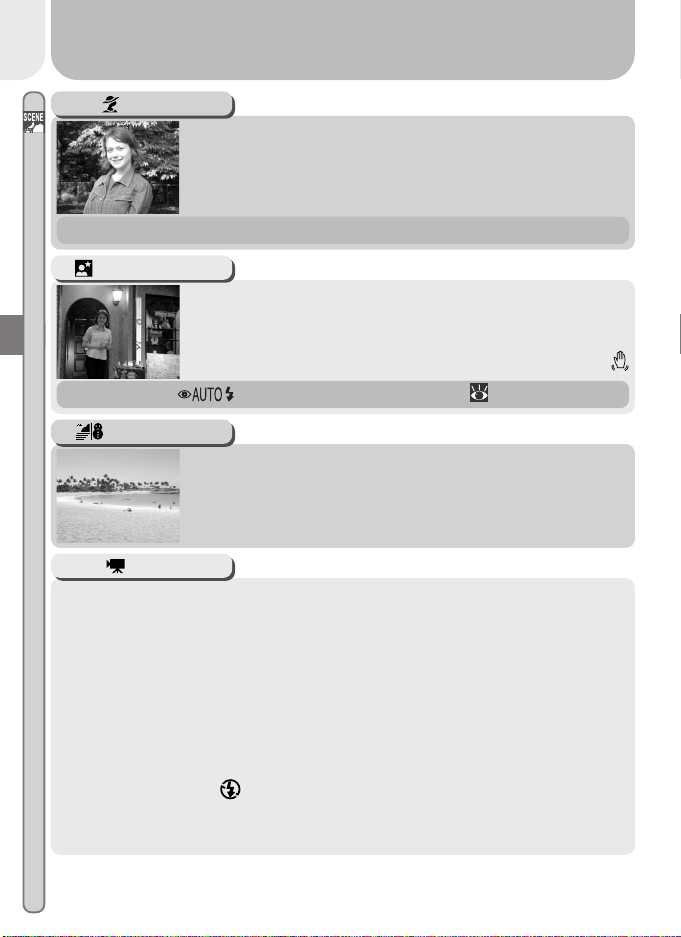
26
Tutorial—Getting Creative
Use for portraits. Main subject stands out clearly while back-
ground details are softened, lending the composition a sense
of depth.
Portrait
•Degree of softening depends on amount of light available.
Vividly captures the brightness of such subjects as snow-
fields, beaches, or sunlight expanses of water.
Beach/Snow
Use for shots that provide a natural balance between the
main subject and the background when shooting portraits
against a backdrop of night scenery.
Night Portrait
•Flash is set to (auto with red-eye reduction; 43).
This mode is used to record NORMAL-quality silent movies 320 × 240 pixels
in size (QVGA) at a rate of about fifteen frames per second. Recording
begins when the shutter-release button is pressed all the way down and
ends when the shutter-release button is fully pressed a second time.
•In place of the number of exposures remaining, the exposure-count dis-
play in monitor shows the length of the movie that can be recorded.
•Movie ends automatically after twenty seconds or when no more space is
available on the memory card.
•Movies are stored as QuickTime movie files ending in “.MOV”.
•The flash turns off ( ) automatically, and digital zoom is disabled. Opti-
cal zoom can only be adjusted before shooting begins.
•Menus are disabled in movie mode.
Movie
27
Tutorial—Getting Creative
Focus Mode/Self-Timer
Macro close-up and infinity ( 40) are available only in (auto) and
(Beach/Snow) modes. In all other modes, the camera is set to focus automati-
cally on subjects 30 cm (1´) or more from the camera. The self-timer is avail-
able in all modes except (movie).
Noise Reduction
A special feature called “noise reduction” is enabled in Night Portrait mode
to help make pictures as clear as possible. When noise reduction is in effect,
slightly more time is required to process pictures before they are saved to the
memory card.

28
29
Connections
Connecting to External Devices
This chapter provides information on connecting
your camera to a computer and to a television or
videocassette recorder (VCR)
Connecting to a Computer
Read this section to learn how to copy pictures from
the camera memory card to your computer using
Nikon View 5.
Connecting to a Television or VCR
This section details how a television can be used to
mirror the display in the camera monitor.
Connecting to a
Tel evision or VCR
38
Connecting to a
Computer
30–37
Printing Your Pictures
Pictures taken with the COOLPIX 2000 can be printed in a variety of ways.
For example, many photofinishers accept delivery of photographs on memory
cards, floppy disks, or other removable media (contact your photofinisher for
information on the type of media and file formats supported). Pictures that
have been transferred to your computer using Nikon View 5 can be printed
using a color printer. In the case of printers and photofinishing systems that
support Digital Print Order Format (DPOF), you can select pictures for printing
using the camera Print Set option ( 71) and print them directly from the
memory card.
30
Connections—Connecting to a Computer
Your COOLPIX digital camera saves each picture as an image file that can be
copied to your computer using the Nikon View 5 software provided. Once
transferred to your computer, your pictures can be viewed, printed, sent to
your acquaintances via e-mail, or saved to a CD or other removable media for
delivery to a photofinisher. Any copies stored on the memory card after trans-
fer can be deleted to make way for new pictures, which you can then add to
the growing digital photo album on your computer.
Before You Begin: Installing Nikon View 5
Before copying pictures to your computer, you will need to install Nikon View 5,
an application that allows you to transfer pictures from the camera memory
card to a computer hard disk and view them on the computer monitor. To
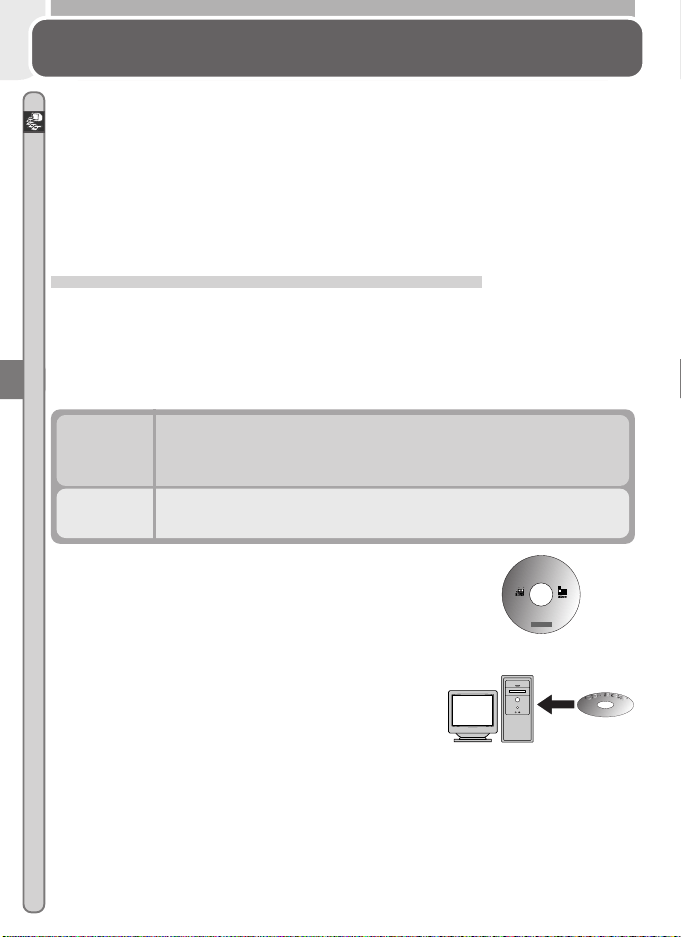
install Nikon View 5, you must have a computer running one of the following
operating systems:
Pre-installed versions of Windows XP Home Edition, Windows
XP Professional, Windows 2000 Professional, Windows
Millennium Edition (Me), or Windows 98 Second Edition (SE).
Windows
Mac OS 9.0, 9.1, 9.2, Mac OS X (10.1.2 or later). Only models
with built-in USB ports supported.
Macintosh
Nikon View 5
Reference Manual
En
De Fr
Es Nl It
Jp
Macintosh and Windows
Although the instructions in the Quick Start Guide
will get you started with Nikon View 5, we rec-
ommend that you also read the material on the
Nikon View 5 reference CD (provided).
1
Insert the reference CD
After turning on your computer and waiting
for the operating system to start up, place the
reference CD in a CD-ROM drive.
If you are using a Macintosh computer, the reference CD window will open
automatically on the desktop. Windows users will need first to double-
click the My Computer icon and then the Nikon icon to open the refer-
ence CD window.
Connecting to a Computer
Nikon View 5
31
Connections—Connecting to a Computer
2
Install Adobe Acrobat Reader
The material on the Nikon View 5 reference CD is in Portable Document
Format (PDF), which can be viewed in Adobe Acrobat Reader 4.0 or later.
If you have already installed this version of Acrobat, proceed to Step 3.
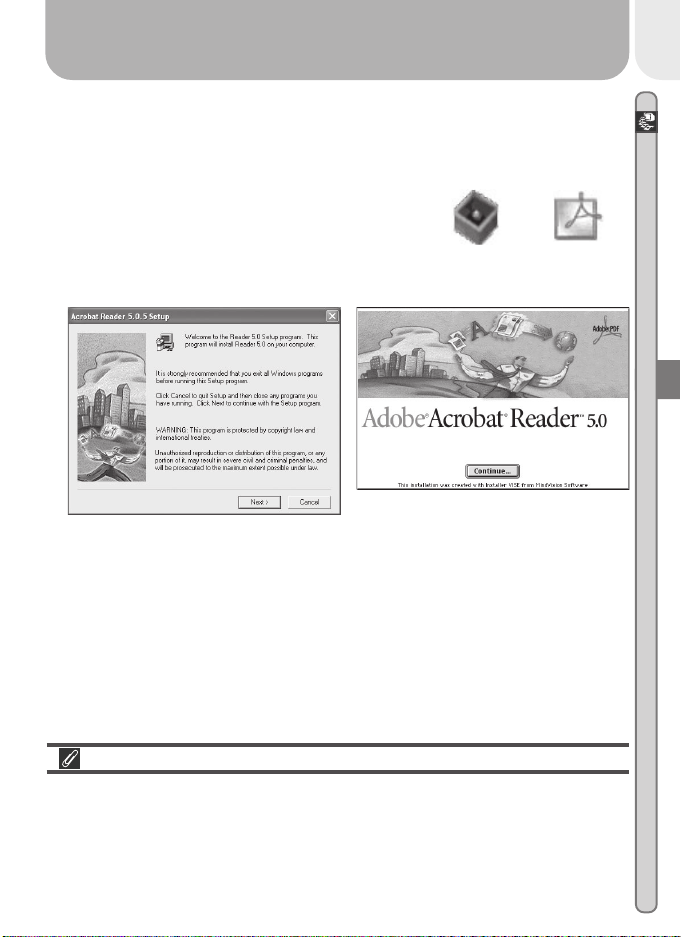
To install Adobe Acrobat Reader, open the
folder for the language of your choice and
double-click the installer icon. The installer
start-up screen will be displayed; follow the on-
screen instructions to complete installation.
Start-up screen (Windows)
Installer icon
(Windows)
Installer icon
(Macintosh)
Start-up screen (Macintosh)
3
Read the instructions for Nikon View 5
Once you have installed Adobe Acrobat Reader, double-click the INDEX.pdf
icon in the root directory of the reference CD to view a clickable index of
the documentation available for Nikon View 5. If you have not already
installed Nikon View 5, you can follow the links to view detailed installa-
tion instructions for your computer system. If desired, you can print the
installation instructions using the Print… command in the Acrobat File
menu, and follow along during installation of Nikon View 5.
Already Have Nikon View?
In order to transfer pictures to your computer using the UC-E5 USB cable, the
COOLPIX 2000 requires the version of Nikon View 5 provided with the cam-
era. If you have a version of Nikon View that was included with another
Nikon digital camera, you will need to upgrade to the version provided with
the COOLPIX 2000.
32
Connections—Connecting to a Computer
Making the Connection: Connecting to Your Computer
Once you have installed Nikon View 5, you are ready to transfer photographs
and movies to your computer. Pictures can be transferred via a direct USB
connection between the camera and computer, or by removing the memory
card from the camera and inserting it in a card reader or PC card slot.
Direct Connection: Connecting Your Camera by Cable
If your computer has a built-in USB connection, you can transfer your pictures
using the supplied UC-E5 USB cable.
1
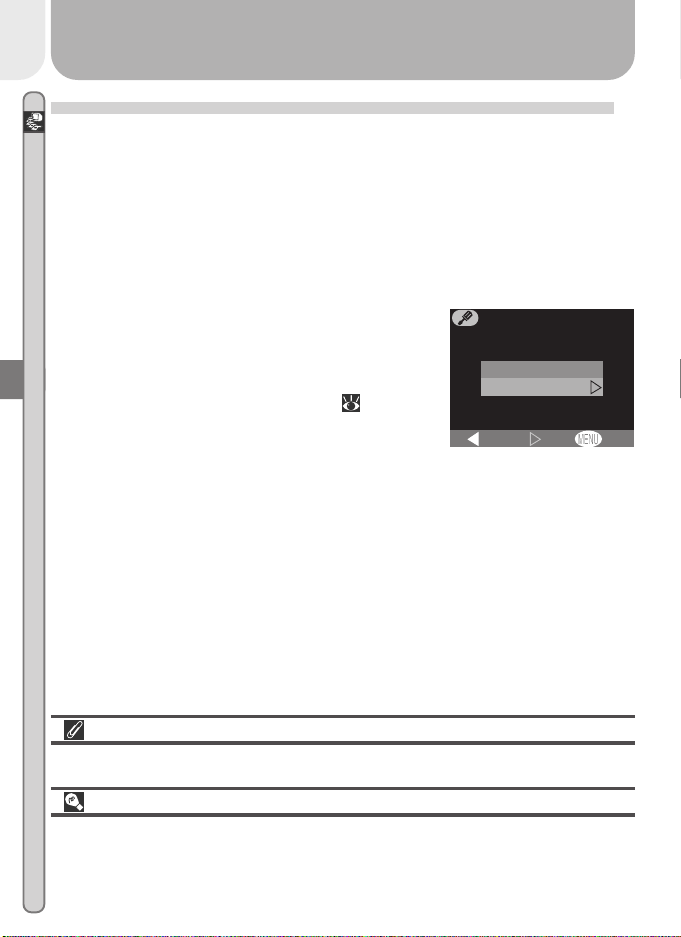
Choose a USB protocol
The COOLPIX 2000 supports two USB proto-
cols: Mass Storage (the default option) and Pic-
ture Transfer Protocol (PTP). Before connect-
ing the camera to a computer, select the USB
option in the camera setup menu ( 77) and
choose a USB protocol that matches that used
by your computer’s operating system. If you
are connecting the camera to a computer running Windows XP Home
Edition, Windows XP Professional, or Mac OS X (10.1.2 or later), choose
PTP. If you are connecting the camera to a computer running Windows
2000 Professional, Windows Millennium Edition (Me), Windows 98 Sec-
ond Edition (SE), or Mac OS 9 (9.0, 9.1, or 9.2) and have changed the USB
setting to PTP, return to the USB menu and select Mass Storage.
OFF
PTP
Mass Storage
Set
USB
BK
Install Nikon View 5
Be sure to install Nikon View 5 before connecting the camera.
Use a Reliable Power Source
When transferring data between the camera and the computer, be sure that
the battery is fully charged. If in doubt, recharge the battery before begin-
ning transfer or use the optional EH-53 AC adapter.

33
Connections—Connecting to a Computer
2
Select the pictures to be transferred
In quick review ( 22) or playback mode (
46), press the ( ) button to display the
pictures on the memory card in “contact
sheets” of four or nine thumbnails ( 48).
Confirm that only the pictures you want to copy
to the computer are marked with a icon.
To remove the icon from a picture, or to
select an unmarked picture for transfer, high-
light the image with the multi selector and press the ( ) button.
3
Turn the camera off
Turn the camera off before connecting the USB cable.
4
Turn the computer on
Turn the computer on and wait for the operating system to start up.
5
Connect the camera and computer
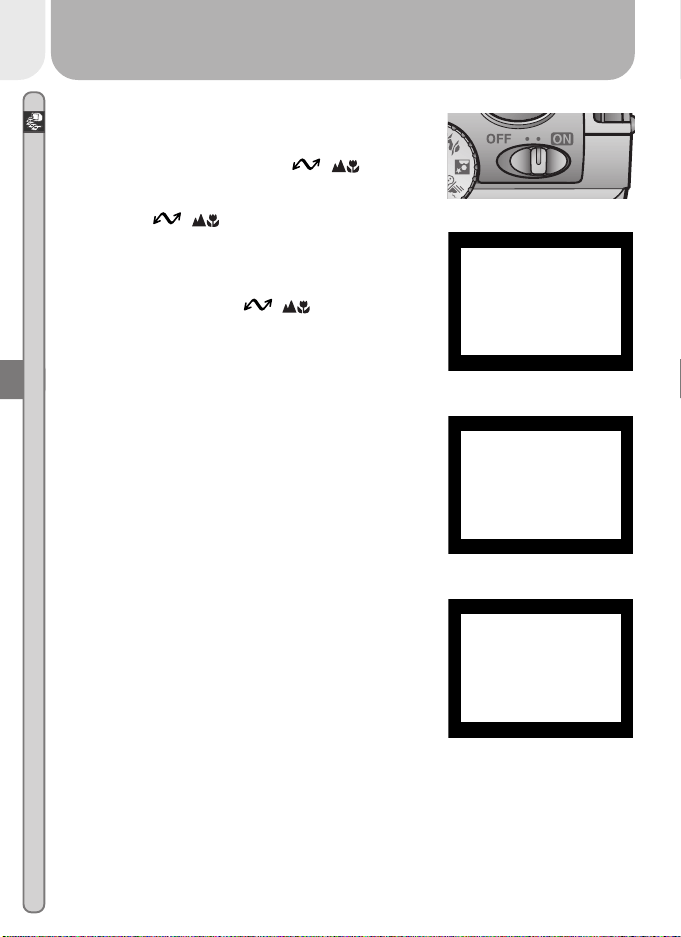
Connect the UC-E5 USB cable as shown below. Use the flat connector for
connection to the computer, and connect the other end of the cable to the
camera’s USB connector. Do not connect the camera via a USB hub or
keyboard.
Transferring More than 999 Pictures
No more than 999 pictures can be transferred at one time using the ( )
button. To copy more pictures, use Nikon View 5. See the Nikon View 5
Reference Manual (on CD) for details.
1
4
7
2
5
8
3
6
9
34
Connections—Connecting to a Computer
TRANSFER COMPLETED
6
Turn the camera on
When the camera is turned on with the UC-E5
cable connected, the monitor will remain off,
and all controls except the ( ) button
and power switch will be inactive.
7
Press the ( ) button
When the camera is connected and turned on,
Nikon View 5 will start automatically (see the
reference CD for details). Once Nikon View 5
has started, press the ( ) button to be-
gin copying the pictures selected in Step 2 to
the computer. The message “PREPARING TO
TRANSFER” will appear in the camera monitor.
8
Wait for the pictures to be transferred to the computer
While pictures being copied to the computer,
the camera monitor will show “TRANSFERRING
IMAGE TO COMPUTER.” While transfer is in
progress, do not:
• Disconnect the USB cable
•Turn the camera off
• Remove the memory card from the camera
9
Disconnect the camera
When all marked pictures have been trans-
ferred, the message “TRANSFER COMPLETED”
will be displayed in the camera monitor. If you
are using Windows XP Home Edition, Windows
XP Professional, or Mac OS X (version 10.1.2
or later) with the camera USB protocol set to
PTP (see Step 1), you can now turn the camera
off and disconnect the USB cable.
PREPARING
TO TRANSFER
TRANSFERRING
IMAGE TO
COMPUTER
35
Connections—Connecting to a Computer
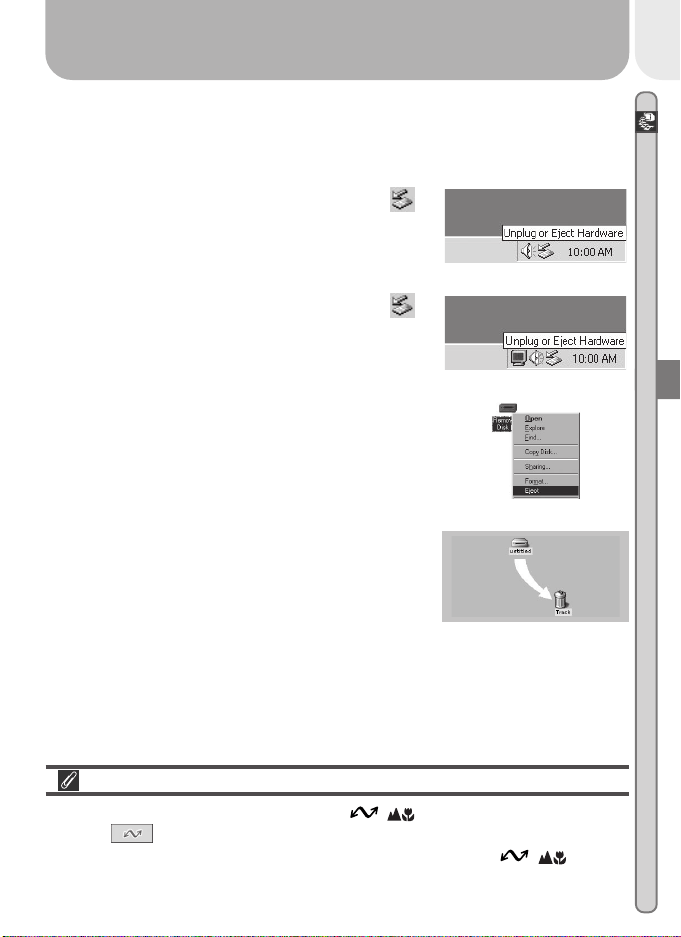
Mac OS 9
Drag the “untitled” camera volume into the
Trash.
If you are using one of the following operating systems, you must remove
the camera from the system as described below before disconnecting the
cable or turning the camera off.
Windows 2000 Professional
Click the “Unplug or Eject Hardware” icon ( )
in the taskbar and select Stop USB Mass Stor-
age Device from the menu that appears.
Windows Millennium Edition (Me)
Click the “Unplug or Eject Hardware” icon (
)
in the taskbar and select Stop USB Disk from
the menu that appears.
Mac OS X
Pictures can not be transferred using the ( ) button in Mac OS X 10.1.2.
Use the button in Nikon View 5 to transfer pictures. See the Nikon
View 5 Reference Manual (on CD) for details. The camera ( ) button
can be used to transfer images in Mac OS X 10.1.3 or later.
Windows 98 Second Edition (SE)
In My Computer, click with the right mouse but-
ton on the removable disk corresponding to the
camera and select Eject from the menu that
appears.
Once you have removed the camera from the system, you can disconnect
the interface cable or turn the camera off.
36
Connections—Connecting to a Computer
Reading Pictures from Memory Cards
If you have a CompactFlash
™
card reader or your computer is equipped with a
PC card slot, you can transfer pictures directly from the memory card. Before
inserting the memory card in a card reader or card slot, turn the camera off
and remove the card from the camera.
If you are using a PC card slot, insert the memory card into a PC card adapter
(see note below), and then insert the adapter into the PC card slot. If you are
using a card reader, insert the memory card directly into the card reader. If
installed, Nikon View 5 will detect cards from Nikon digital cameras and start
automatically. See the Nikon View 5 Reference Manual (on CD) for informa-
tion on transferring pictures to your computer.
CompactFlash
™
Card Readers
Before using a card reader, be sure to read all documentation provided by the
manufacturer.
PC Card Adapter
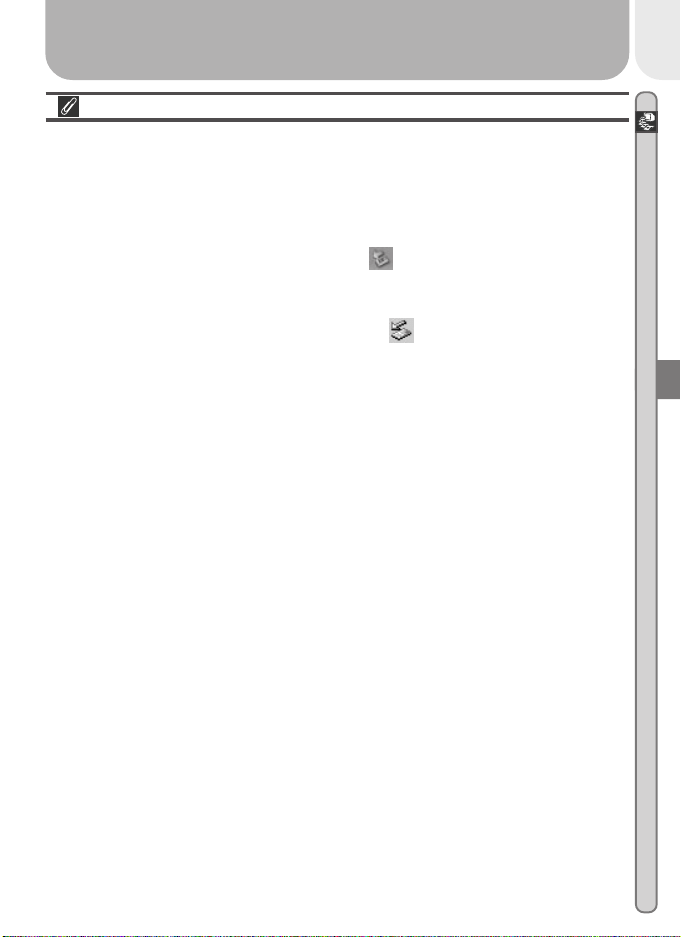
To read CompactFlash
™
memory cards using a PC
card slot, you will require an EC-AD1 PC-card
adapter (shown at right), available separately from
Nikon.
37
Connections—Connecting to a Computer
Removing the Memory Card
Be sure that transfer is complete before removing memory cards from the
card reader or PC card slot.
Before removing the memory card from a PC card slot or card reader, you will
need to remove the card from the system:
Windows XP Home Edition/Windows XP Professional
Click the “Safely Remove Hardware” icon ( ) in the taskbar and remove the
memory card from the system.
Windows 2000 Professional/Windows Millennium Edition (Me)
Click the “Unplug or Eject Hardware” icon ( ) in the taskbar and remove
the memory card from the system.
Windows 98 Second Edition (SE)
In My Computer, right click on the removable disk corresponding to the memory
card and select Eject from the menu that appears.
Mac OS X
Drag the “NO_NAME” volume that represents the memory card into the Trash.
Mac OS 9
Drag the “untitled” volume that represents the memory card into the Trash.
38
Connections—Connecting to a Television or VCR
Connecting to a Television or VCR
Television Playback
Using the video cable provided with your camera, you can connect the COOLPIX
2000 to a television or VCR.
1
Turn the camera off
Turn the camera off before connecting or disconnecting the video cable.
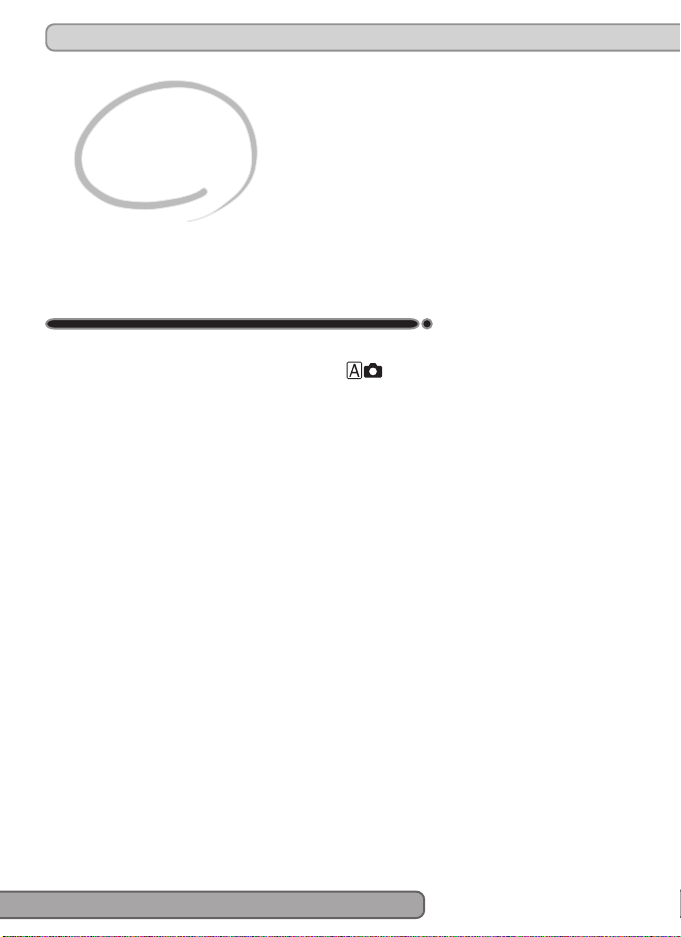
2
Connect the video cable to the camera
Insert the pin jack into the camera’s video out
connector.
3
Connect the video cable to the video device
Connect the other end of the cable to the video-
in jack on the television or VCR.
Use an AC Adapter
To prevent the display in the television from turning off whenever the camera
enters sleep mode, connect the camera to an EH-53 AC adapter (available
separately).
Choosing a Video Mode ( 76)
The Video Mode item offers a choice of NTSC and PAL standards for video
output. Be sure that the standard selected matches that of any video device
to which you connect the camera.
4
Tune the television to the video channel
5
Turn the camera on
The television will show the image normally displayed in the monitor. The
camera monitor will be blank.
VIDEO
39
In “Tutorial: Taking Pictures,” you learned the basic
order of operations for taking pictures in (auto)
mode. This chapter offers advice on focus and flash
mode selection, zoom, and the self-timer.
Beyond Point-
and-Shoot
Adjusting Camera Settings
40
Beyond Point-and-Shoot
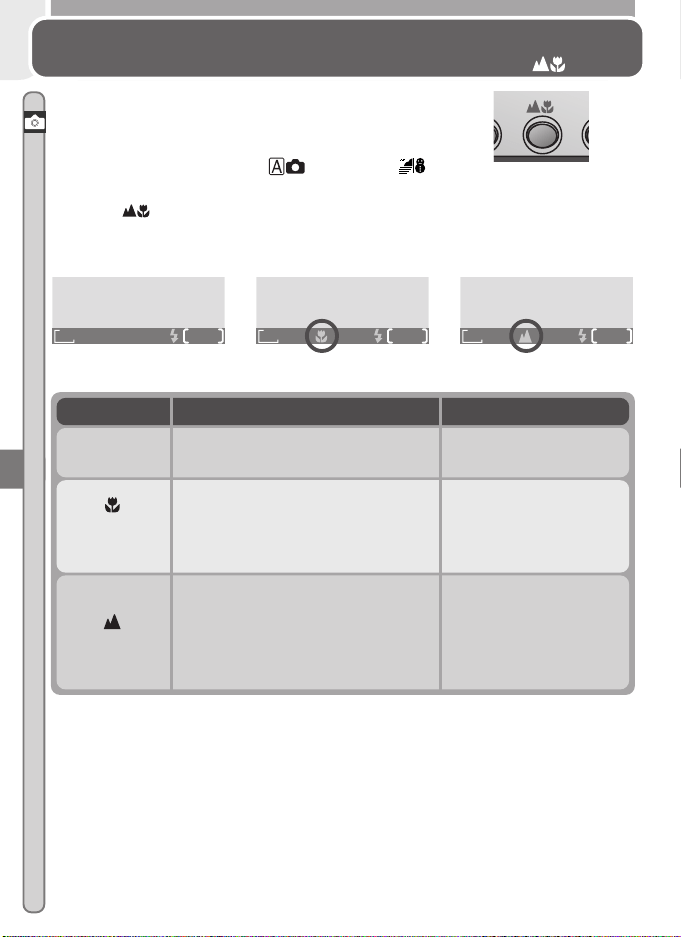
Focus-Mode Selection
The Button
The camera automatically adjusts focus for objects
30 cm (1´) or more from the lens. Two other op-
tions for objects that are very close to or far from
the camera are available in (auto) and
(Beach/Snow) modes. To select the focus mode,
press the button until the desired mode is dis-
played in the status bar in the bottom of the moni-
tor.
Mode How it works When to use it
NO ICON
Autofocus
Camera automatically adjusts focus
according to distance to subject.
Use with subjects 30 cm
(1´) or more from lens.
Macro
close-up
Camera can focus on objects as
close as 4 cm/1.6˝ (measured from
lens). Camera adjusts focus con-
tinuously (continuous AF).
Use for close-ups.
Infinity
Focus is fixed at infinity. Flash is
disabled. No focus indicator ap-
pears in monitor when shutter-re-
lease button is pressed halfway.
Use when photograph-
ing distant scenes
through foreground ob-
jects such as a window
or a screen of branches.
FINE
AUTO
8
1632
FINE
AUTO
8
1632
FINE
AUTO
8
1632
Autofocus Macro close-up Infinity
41
Beyond Point-and-Shoot
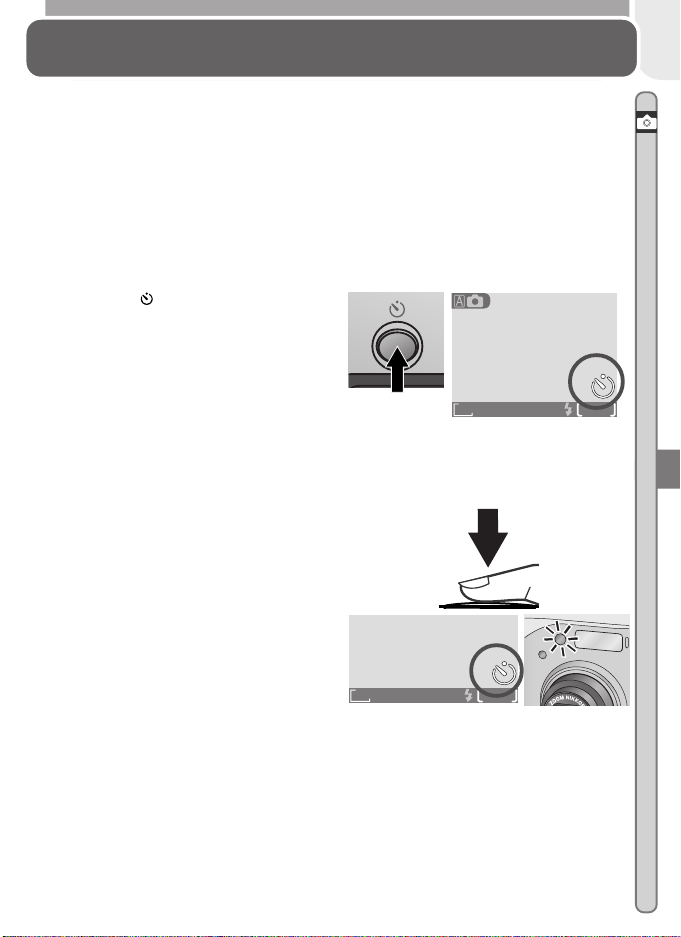
The self-timer is used to delay shutter release until either ten or three seconds
after the shutter-release button is pressed all the way down. Use the ten-
second timer for self-portraits, the three second-timer to prevent blurring
caused by
the camera moving
when the shutter-release button is pressed.
1
Position the camera
Mount the camera on a tripod (recommended) or rest it on a flat, stable
surface.
2
Turn the self-timer on
Press the button once for a ten-
second delay, twice for a three-sec-
ond delay.
Delaying Shutter Release
Self-Timer Mode
3
Compose the picture
Adjust camera settings and frame the picture.
4
Start the timer
Press the shutter-release button all
the way down to lock focus on the
subject in the center of the frame
and activate the timer. The self-
timer lamp next to the flash win-
dow will blink until one second be-
fore the photo is taken, staying lit
during the final second to warn
that the shutter is about to be re-
leased. To stop the timer before a
picture is taken, press the shutter-
release button.
FINE
AUTO
8
1632
10
10
Count-down timer in monitor shows
number of seconds remaining until pic-
ture is taken; self-timer lamp blinks
FINE
AUTO
8
1632
10
10
42
Beyond Point-and-Shoot
Framing Pictures
Optical and Digital Zoom
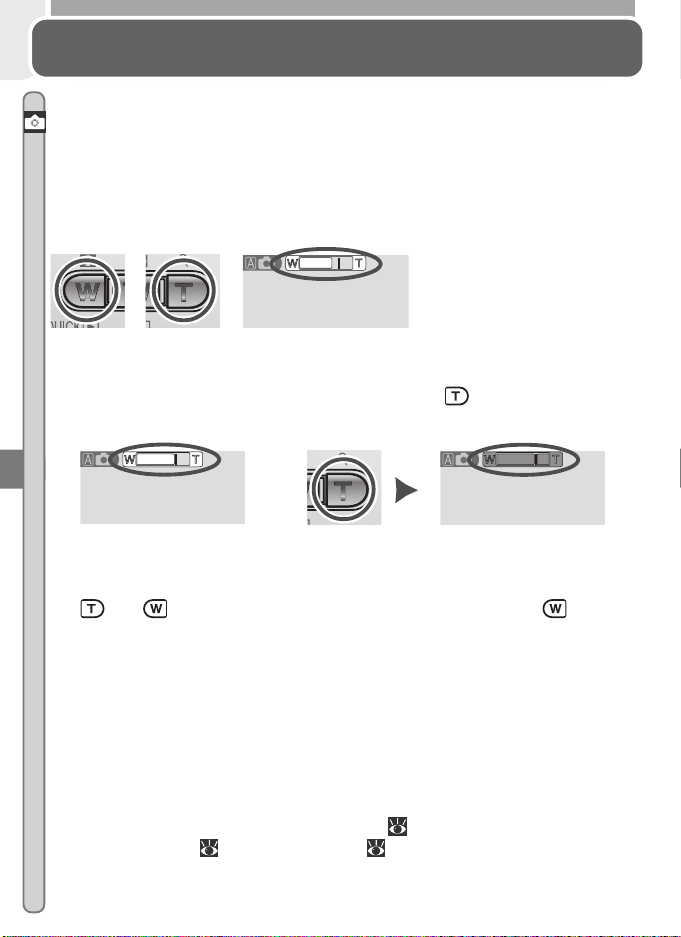
Your Nikon digital camera offers two kinds of zoom: optical zoom, in which
the camera’s telescoping lens can be used to magnify the subject up to 3 ×,
and digital zoom, in which digital processing is used to further magnify the
image up to 2.5 ×.
Optical Zoom
Photos can be framed in the monitor using the zoom buttons.
Digital Zoom
At the maximum optical zoom position, holding the button down triggers
digital zoom.
The camera can be zoomed in and out in the digital zoom range by pressing
the
and buttons. To restore ordinary optical zoom, press until the
zoom indicator turns white.
In digital zoom, data from the camera’s image sensor are processed digitally,
enlarging the center portion of the picture to fill the frame. Unlike optical
zoom, digital zoom does not increase the amount of detail visible in the pic-
ture. Instead, details visible at maximum optical zoom are enlarged, produc-
ing a slightly “grainy” image. While digital zoom is in effect, the camera
focuses on the subject in the center of the frame, even if objects in other
areas of the frame are closer to the camera.
Digital zoom is not available in movie mode ( 26), at CONTINUOUS settings
other than Single ( 61), or when BSS ( 62) is on.
Zoom out Zoom in
Indicator in monitor displays
amount of zoom while either
button is pressed
Maximum optical zoom
position
Zoom indicator turns yellow
in digital zoom range
Hold
43
Beyond Point-and-Shoot
Flash Photography
The Button
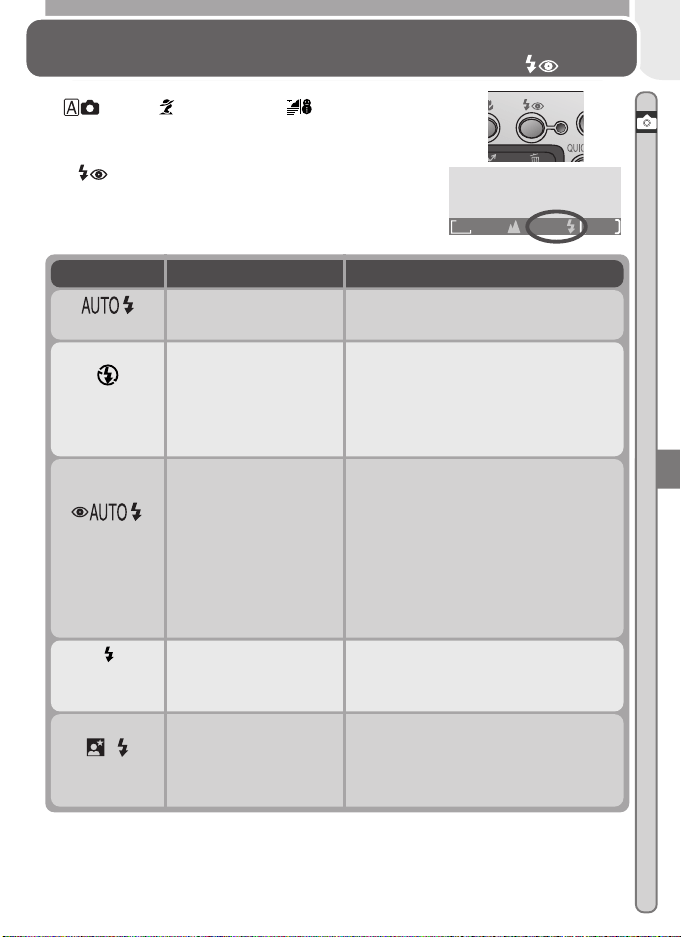
In (auto), (Portrait), and (Beach/Snow)
modes, you can choose from the flash modes listed
in the table below. To select the flash mode, press
the button until the desired mode is dis-
played in the monitor.
Mode How it works When to use it
Flash Cancel
(off)
Flash will not fire even
when lighting is poor.
Use when subject is outside range
of flash, to capture natural lighting
under dim light, or where use of a
flash is prohibited. Use of a tripod is
recommended to prevent blurring.
Auto with
red-eye
reduction
Pre-flash fires before
main flash. This caus-
es subjects’ pupils to
contract before photo
is taken, minimizing
“red-eye” effect
caused by flash re-
flecting from retina.
Use for portraits (works best when
subjects are well within range of
flash and looking at pre-flash). Note
that red-eye reduction pre-flash
delays shutter release; choose an-
other mode when photographing
moving subjects.
Anytime Flash
(fill flash)
Flash fires whenever
picture is taken.
Use to “fill-in” (illuminate) shadows
and back-lit subjects.
Auto
Flash fires when light-
ing is poor.
Best choice in most circumstances.
Slow sync
Auto flash combined
with slow shutter
speed.
Use to capture both subject and
background at night or under dim
light. Use of a tripod is recommend-
ed to prevent blurring.
FINE
AUTO
8
1632
44
Beyond Point-and-Shoot
The (Camera Shake) Icon
When lighting is poor and the flash is off ( ) or set to slow sync ( ),
shutter speeds will slow and pictures may be blurred. If the shutter speed
required for exposure is very slow, a (camera shake) icon will appear in the
monitor. Use of a tripod or support is recommended.
45
Basic
Playback
Playback Mode
This section details the operations that can be per-
formed when the mode dial is set to (playback
mode).
46
Basic Playback
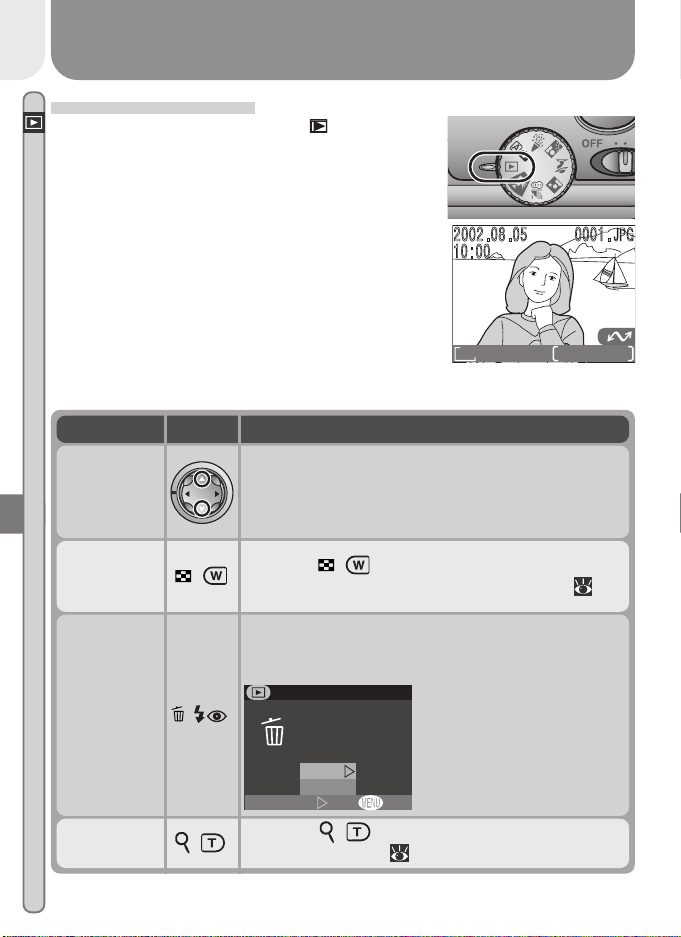
Full-Frame Playback
When the mode dial is turned to , the camera
enters playback mode with the most recent pic-
ture displayed in the monitor.
FINE
1632
0001/0008
View
multiple
pictures
( )
Press the
( ) button to display up to nine pic-
tures at a time as small thumbnail previews ( 48).
Press DescriptionTo
The following operations can be performed in playback mode:
( )
A confirmation dialog will be displayed. Press multi
selector up or down to highlight option, press to
right to select.
•Select No to exit without
deleting picture
•Select Yes to delete
picture
Delete
current
picture
OFF
Erase 1 image
Yes or No ?
Set
DELETE
No
Ye s
Press the multi selector down to view pictures in
the order recorded, up to go back. Keep multi se-
lector pressed to scroll rapidly to the desired frame
number.
View other
pictures
( )
Press the
( ) button for an enlarged view of
the current photo ( 49).
Zoom
photo in
47
Basic Playback
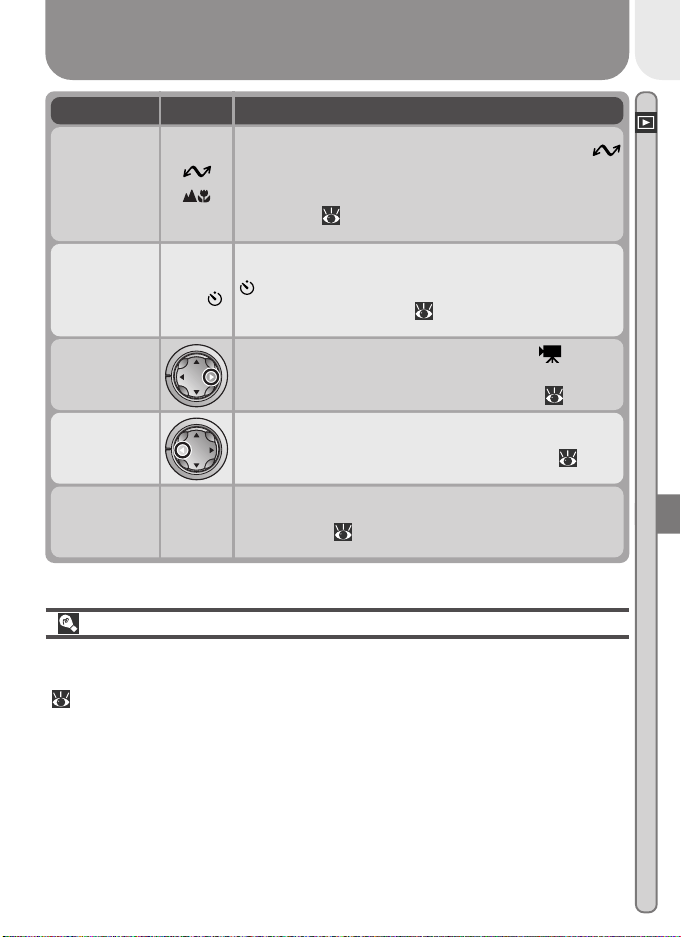
Press DescriptionTo
Image File and Folder Names
Pictures taken with the COOLPIX 2000 are identified by file names that begin
with “DSCN” or, in the case of pictures created with the small picture function
( 50), “SSCN,” followed by a four-digit file number from 0001 to 9999
assigned automatically in ascending order by the camera. Each file name ends
in a three-letter “extension” that identifies the type of picture: “.JPG” for
photographs and “.MOV” for movies. Picture files are stored in folders cre-
ated automatically by the camera and named with a three digit folder number
followed by “NIKON” (e.g., “100NIKON”).
To reset file numbering to 0001, format the memory card (note that this per-
manently deletes all data on the card, including protected pictures; before
formatting, be sure to copy to a computer any pictures you want to keep).
( )
Pictures selected for transfer are marked with a
icon. Turn this marking on or off to select the pic-
tures that will be transferred to a computer at a
later date ( 73).
Select
current
picture for
transfer to a
computer
SMALL
PIC. ( )
If the current picture is a photograph, pressing the
button will create a small copy (320 × 240) for
electronic distribution ( 50).
Create small
copy of
current
picture
If the current picture is marked with a icon to
show that it is a movie, pressing the multi selector
right starts and pauses movie playback ( 52).
Play movie
back
Press multi selector to left to hide or display photo
info superimposed on picture in monitor ( 7).
Hide or
display
photo info
MENU
Press the MENU button to display or hide the play-
back menu (
53).
Display
playback
menu
48
Basic Playback
1
3
2
4
Thumbnail Playback
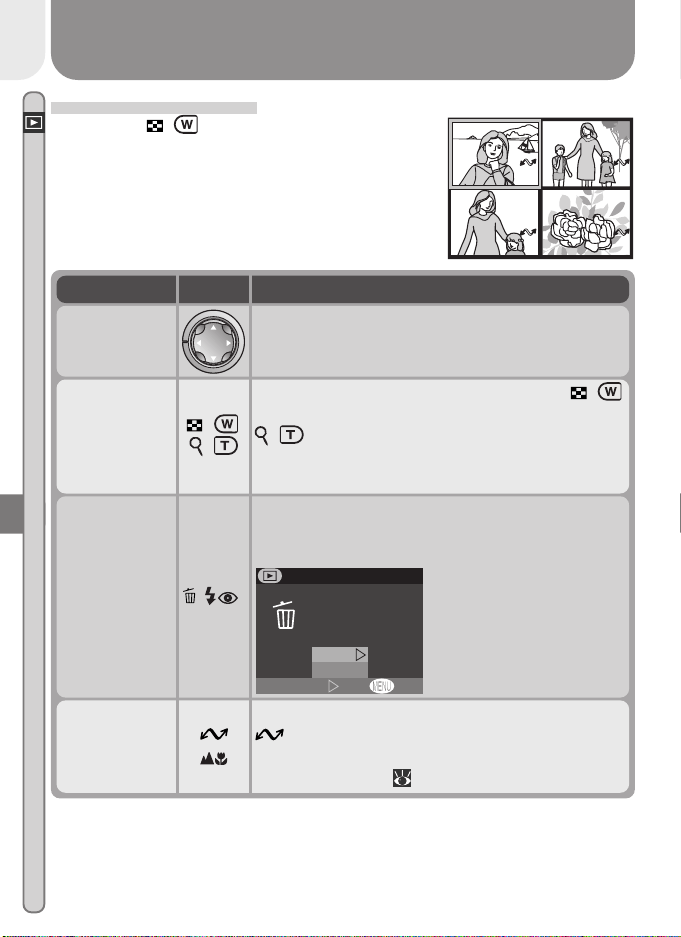
Pressing the ( ) button in full-frame playback
displays a menu of four thumbnail images. The
following operations can be performed while
thumbnails are displayed:
( )
/ ( )
With four thumbnails displayed, press the
( )
button once to view nine thumbnail images. Press
( ) to “zoom in” from nine thumbnails to a
four-thumbnail view or, when four thumbnails are
displayed, to view highlighted picture full size.
Change
number of
pictures
displayed
Press DescriptionTo
( )
Pictures selected for transfer are marked with a
icon. Turn this marking on or off to select
the pictures that will be transferred to a comput-
er at a later date ( 73).
Select high-
lighted picture
for transfer to
a computer
( )
A confirmation dialog will be displayed. Press multi
selector up or down to highlight option, press to
right to select.
•Select No to exit with-
out deleting picture
•Select Yes to delete
picture
Delete
highlighted
picture
OFF
Erase 1 image
Yes or No ?
Set
DELETE
No
Ye s
Press the multi selector up, down, left, or right to
highlight thumbnails.
Highlight
pictures
49
Basic Playback
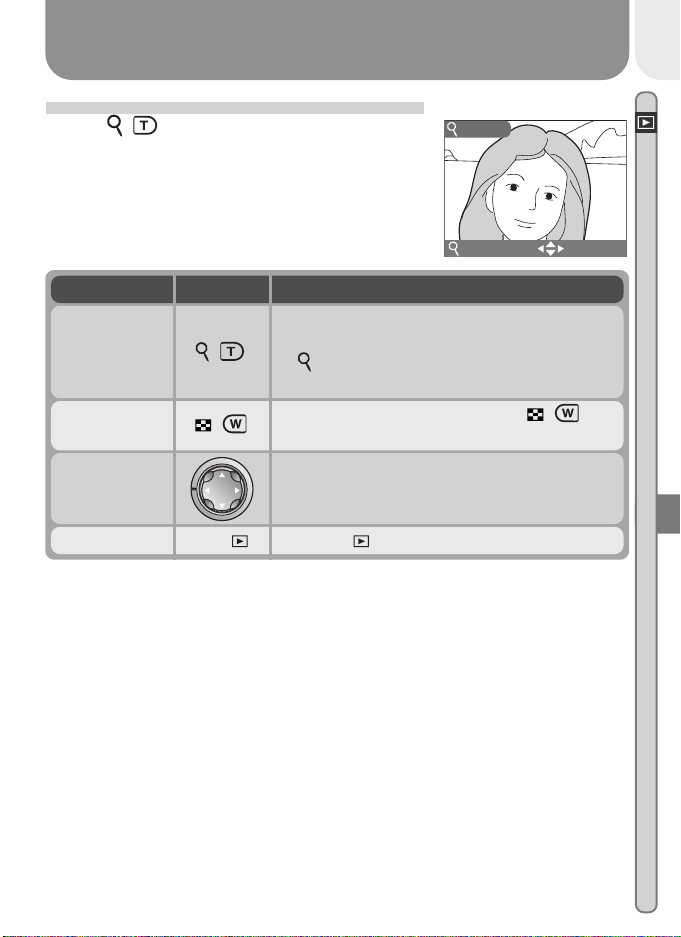
Taking a Closer Look: Playback Zoom
Use the ( ) button to zoom in on photos dis-
played in full-frame playback (playback zoom can
not be used with movies or copies created with
the small picture function).
DescriptionTo P ress
Zoom increases each time button is pressed,
to a maximum of 16 ×. While image is zoomed
in, icon and zoom ratio are displayed in up-
per left corner of monitor.
Zoom photo in
( )
X
2.0
ZOOM SCROLL
Press the multi selector to scroll to areas of the
image not visible in the monitor.
View other
areas of image
Press
QUICK
QUICK
to cancel zoom.Cancel zoom
QUICK
QUICK
While image is zoomed in, press ( ) but-
ton to zoom out.
Zoom photo
out
( )
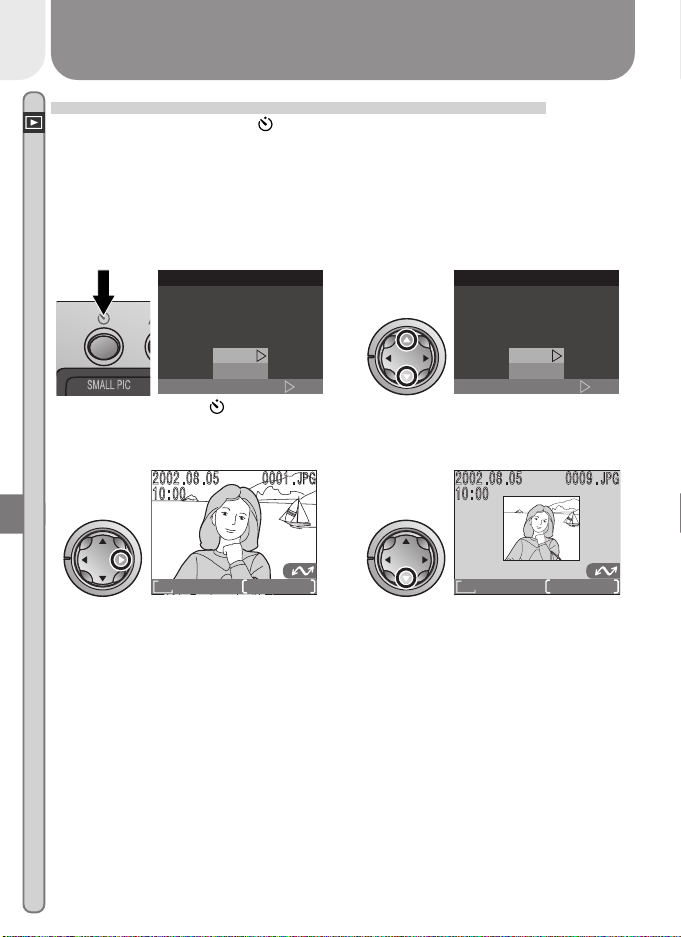
50
Basic Playback
Creating a Small Copy of a Picture: Small Picture
Pressing the SMALL PIC. ( ) button in full-frame playback creates a small
copy of the current picture. Copies are 320 × 240 pixels in size and have an
image quality of BASIC, making them ideal for distribution by e-mail or for
use in web pages.
To create a small copy of the picture currently displayed in full-frame play-
back:
Press SMALL PIC. ( ) button to
display confirmation dialog
1
SET
S
m
all Pic
small picture file ?
Creating
No
Ye s
Highlight Yes (to exit without creat-
ing copy, highlight No and press
multi selector to right)
2
SET
S
m
all Pic
small picture file ?
Creating
No
Ye s
Create small copy and return to
playback mode with original picture
displayed
3
FINE
1632
0001/0008
To view copy, press multi selector
down (copy will appear after last
picture recorded). Copy has same
time and date of creation as original.
BASIC
320
0009/0009
4
51
Basic Playback
Once created, copies are independent of the original: deleting a copy has no
effect on the original, deleting the original no effect on the copy. Copies are
stored on the memory card as independent files with names of the form
“SSCNnnnn.JPG”, where “nnnn” is a four-digit number assigned automati-
cally by the camera. Copies will have the same transfer marking as the origi-
nals; print and protect attributes, however, must be set separately.
When displayed in full-frame playback and full-screen review, copies will oc-
cupy roughly one-quarter of the monitor. In thumbnail playback and review,
copies are indicated by a border. Copies can not be viewed using playback
zoom (
49).
Restrictions on Small Picture
The small picture function described in this section can not be used in quick
review or thumbnail playback.
Copies can not be created from movies. Additional copies of an image can
not be created from a small picture file; pressing the SMALL PIC. ( ) button
when a copy is displayed will have no effect. Pressing the SMALL PIC. button
will also have no effect if there is not enough space for the copy on the
memory card.
The COOLPIX 2000 may not be able to create small copies from images taken
with another make of camera.
Viewing Small Picture Files on Other Cameras
Copies created with the small picture function may not display correctly when
viewed on other models of Nikon digital camera. You may also not be able to
transfer copies from other models of Nikon digital camera to a computer.
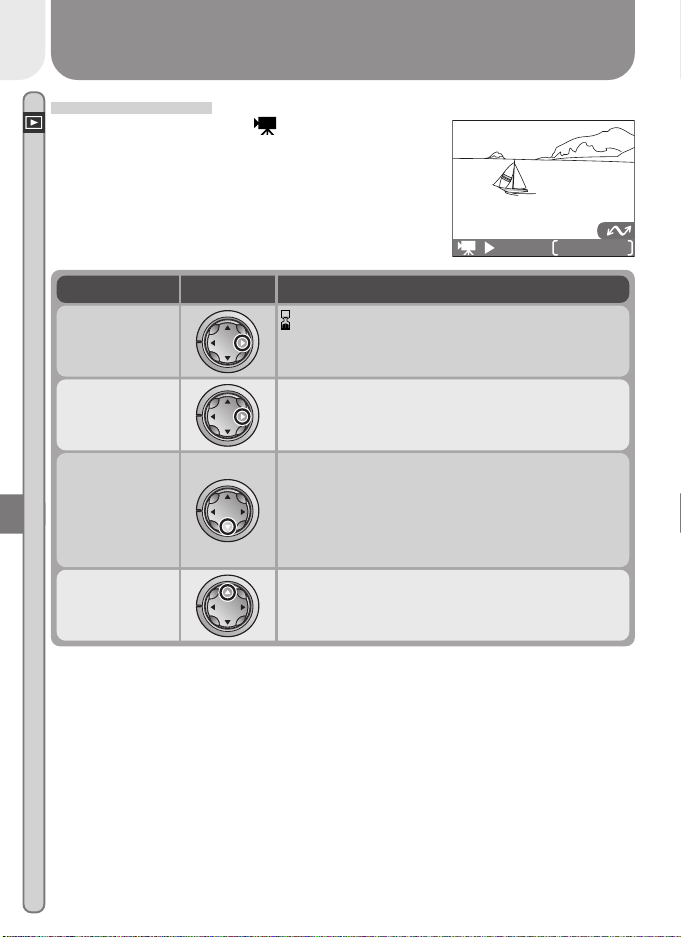
52
Basic Playback
DescriptionTo Pr ess
icon displayed while movie loads. Playback
begins when loading complete. Still image of
first frame is displayed when movie ends.
Start playback
Pressing multi selector to right while playback
is in progress pauses display. To resume play-
back, press to right again.
Pause/resume
playback
Movie Playback
Movies are indicated by a icon. In full-frame
playback, movies can be viewed using the multi
selector. Movies can not be played back when
thumbnails are displayed.
0010/0015
2002
2002
.08
.08
.06
.06
0010
0010
.
MOV
MOV
15 :00
00
START
When movie is paused, press multi selector
up to rewind.
Rewind
When movie is paused, press multi selector
down to advance through movie. If the last
frame of the movie is displayed, pressing the
multi selector down ends movie playback and
displays the first frame of the movie.
Advance
53
The Playback Menu
65–73
The Shooting Menu
54–64
Changes to some shooting, playback, and setup
options are made with the help of menus that ap-
pear in the monitor.
The Shooting Menu
This section describes the options in the shooting
menu, which is available when the mode dial is set
to (auto) or scene modes.
The Playback Menu
Read this section for a description of the options in
the playback menu, which is available when the
mode dial is set to
.
The Setup Menu
This menu, which is available in all modes except
movie mode, contains options for basic camera
setup, such as formatting memory cards.
Menu Guide
Using Camera Menus
The Setup Menu
74–78
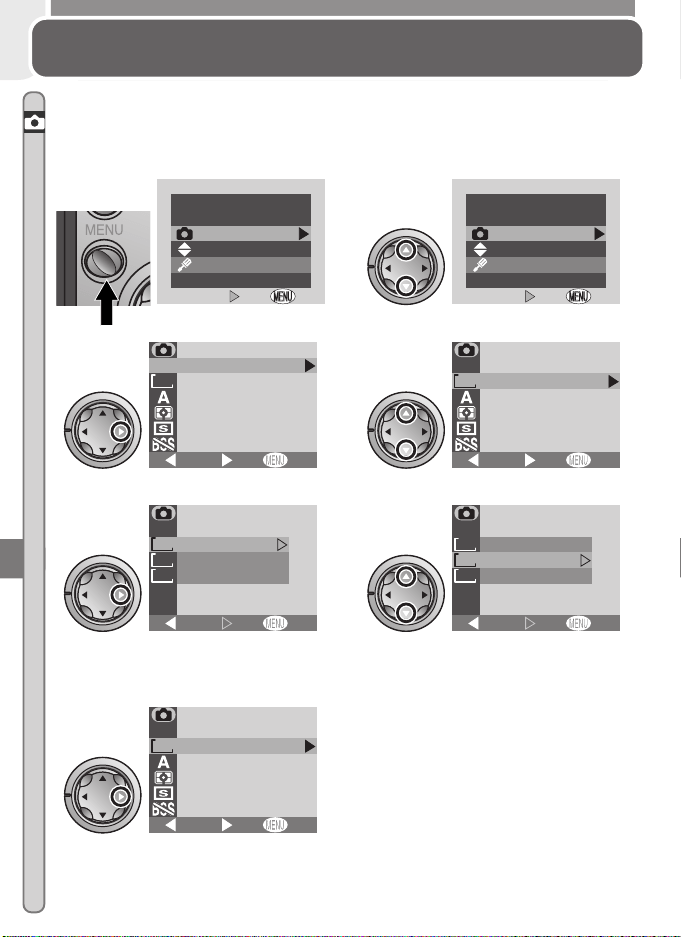
54
Menu Guide—The Shooting Menu
The Shooting Menu
Fine-Tuning Shooting Options
In shooting mode, changes to some settings are made with the help of the
shooting menu.
To make selections from the shooting menu:
To return to the menu selection page
when the main shooting menu is dis-
played, press the multi selector to the
left. To exit the menus and return to
shooting mode at any time, press the
MENU button.
Highlight SHOOTING MENU
2
OFF
OFF
MENU
Set
Set
Shooting menu
Setup menu
Press MENU button
1
OFF
OFF
MENU
Set
Set
Shooting menu
Setup menu
Display shooting menu
3
FINE
1632
OFF
White balance
Image quality
Image size
Continuous
Metering
Best shot selector
BK
SHOOTING MENU
SHOOTING MENU
Set
Highlight menu item
4
FINE
1632
OFF
White balance
Image quality
Image size
Continuous
Metering
Best shot selector
BK
SHOOTING MENU
SHOOTING MENU
Set
Display options
5
1632
1024
640
OFF
1632 1224
X
1024
768
X
640
480
X
IMAGE SIZE
IMAGE SIZE
Set
BK
Highlight option
(to return to previous menu, press
multi selector to left)
6
1632
1024
640
OFF
1632 1224
X
1024
768
X
640
480
X
IMAGE SIZE
IMAGE SIZE
Set
BK
Make selection
7
FINE
1024
OFF
White balance
Image quality
Image size
Continuous
Metering
Best shot selector
BK
SHOOTING MENU
SHOOTING MENU
Set
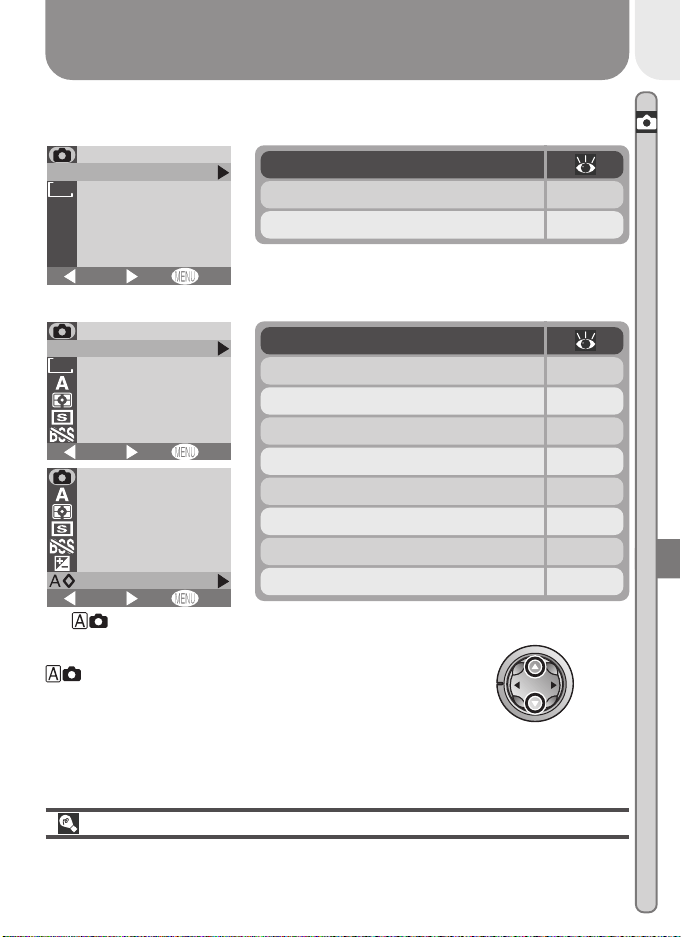
55
Menu Guide—The Shooting Menu
The options available in the shooting menu depend on the mode selected.
No menu is available in movie mode.
Taking Pictures while Menus Are Displayed
The view through the lens is visible behind the shooting menu. To take a
picture while the menu is displayed, press the shutter-release button.
To scroll between pages of the shooting menu in
mode, press the multi selector up or down
until the next page is displayed.
FINE
1632
OFF
Image quality
Image size
BK
SHOOTING MENU
SHOOTING MENU
Set
Option
Image quality 56–57
Image size 56–57
Scene mode
FINE
1632
OFF
White balance
Image quality
Image size
Continuous
Metering
Best shot selector
BK
SHOOTING MENU
SHOOTING MENU
Set
OFF
Continuous
White balance
Metering
Exp. +/–
Best shot selector
Image Sharpening
BK
SHOOTING MENU
SHOOTING MENU
Set
Option
Image quality 56–57
Image size 56–57
White balance 58–59
Metering 60
Continuous 61
Best Shot Selector 62
Exp. +/– 63
Image sharpening 64
(auto) mode
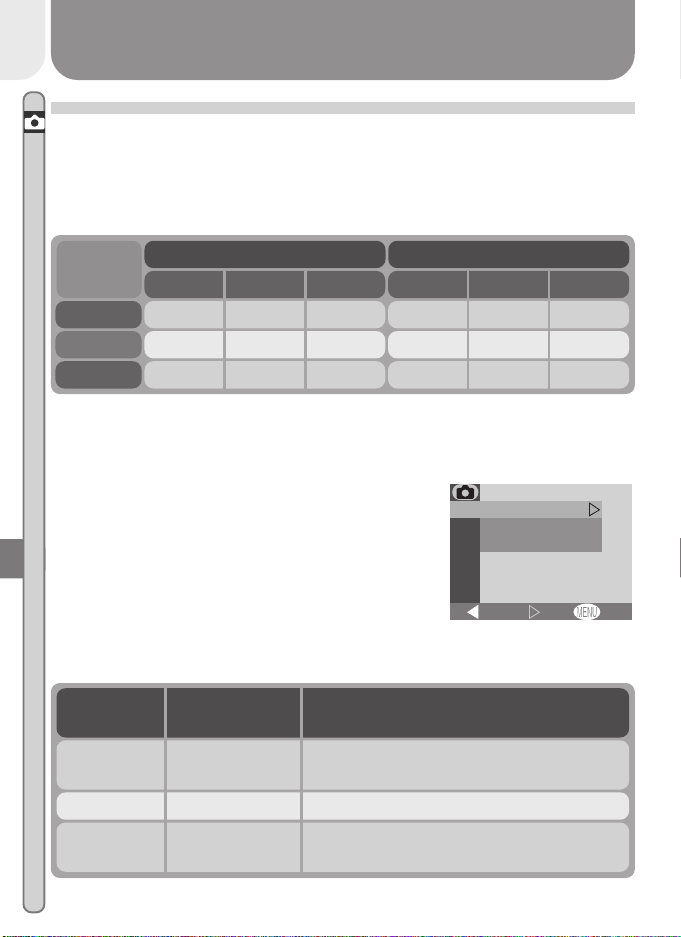
56
Menu Guide—The Shooting Menu
FINE
BASIC
FINE
NORM
BASIC
NORMA L
OFF
IMAGE QUALITY
IMAGE QUALITY
Set
BK
Option Description
*Figures are approximate. File size of JPEG images depends on scene record-
ed, producing wide variations in number of images that can be stored.
Image Quality
To reduce the amount of memory each shot occu-
pies, pictures are compressed as they are saved to
the memory card. Compression selectively reduces
the quality of the image; the more the picture is
compressed, the more noticeable this loss of qual-
ity is likely to be (the actual effect depends on the
size of the picture when printed or displayed and
on the type of subject). The image-quality menu
allows you to choose the amount of compression performed.
Making Effective Use of Memory: Image Quality and Size
Together, image quality and size determine how much space each picture
occupies on the memory card, which in turn determines the total number of
pictures that can be stored. The table below shows the approximate number
of pictures that can be stored on eight- and sixteen-megabyte memory cards
at different combinations of image quality and size.
Compression
ratio (approx.)
FINE
NORMAL
BASIC
8-MB memory card 16-MB memory card
16
31
62
1024
16
33
65
1632
32
64
127
1024
80
146
247
640
8
16
32
1632
39
72
121
640
FINE
Suitable for enlargements or high-quality
prints.
1:4
NORMAL Suited to most applications.1:8
BASIC
Suitable for pictures that will be distribut-
ed by e-mail or used in web pages.
1:16
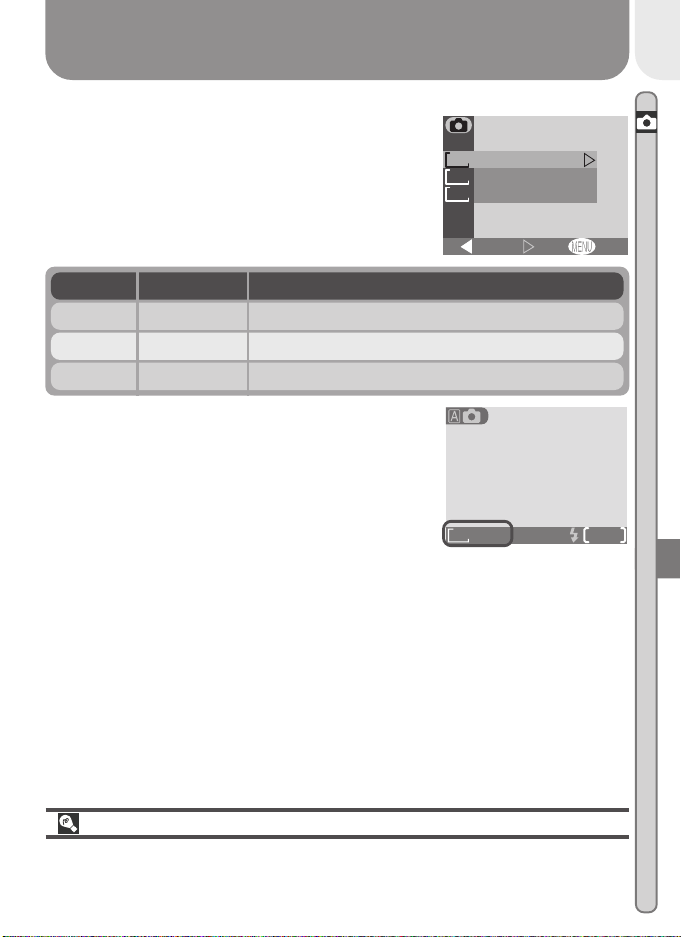
57
Menu Guide—The Shooting Menu
Option Approximate size when printed at 300 dpiSize (pixels)
1632 13 × 10 cm (5.1˝ × 3.9˝)1,632 × 1,224
1024 9 × 7cm (3.5˝ × 2.8˝)1,024 × 768
640 5 × 4cm (2.0˝ × 1.6˝)640 × 480
1632
1024
640
OFF
1632 1224
X
1024
768
X
640
480
X
IMAGE SIZEIMAGE SIZE
Set
BK
Image Size
Image size refers to the physical dimensions of the
image, measured in pixels. Choose an image size
according to the space available on the memory
card and the task at hand.
Print Size
The size of pictures when printed depends on the resolution of the printer
(the higher the resolution, the smaller the final print size).
The current image quality and size settings are dis-
played in the monitor.
FINE
AUTO
8
1632
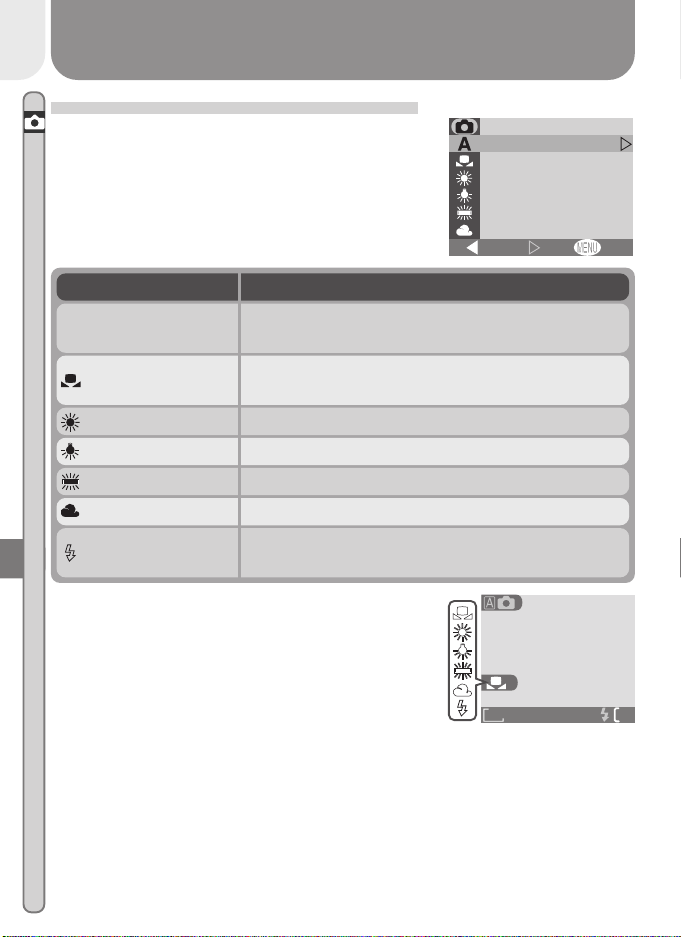
58
Menu Guide—The Shooting Menu
FINE
AUTO
1632
Keeping Colors True: White Balance
White balance is used to preserve natural colors
under different types of lighting. The following
options are available:
OFF
WHITE BALANCE
WHITE BALANCE
Fine
Auto
White bal preset
Fluorescent
Incandescent
Cloudy
Set
BK
Option Description
Auto
A
White balance automatically adjusted to suit light-
ing conditions. Best choice in most circumstances.
White bal preset
White object used as reference to set white bal-
ance under unusual lighting conditions.
Fine White balance adjusted for direct sunlight.
Incandescent For use with incandescent lighting.
Fluorescent For use with most types of fluorescent lighting.
Cloudy Use for pictures taken under cloudy skies.
Speedlight
White balance adjusted to match light produced
the flash.
At settings other than Auto, the current white
balance setting is shown in the monitor.
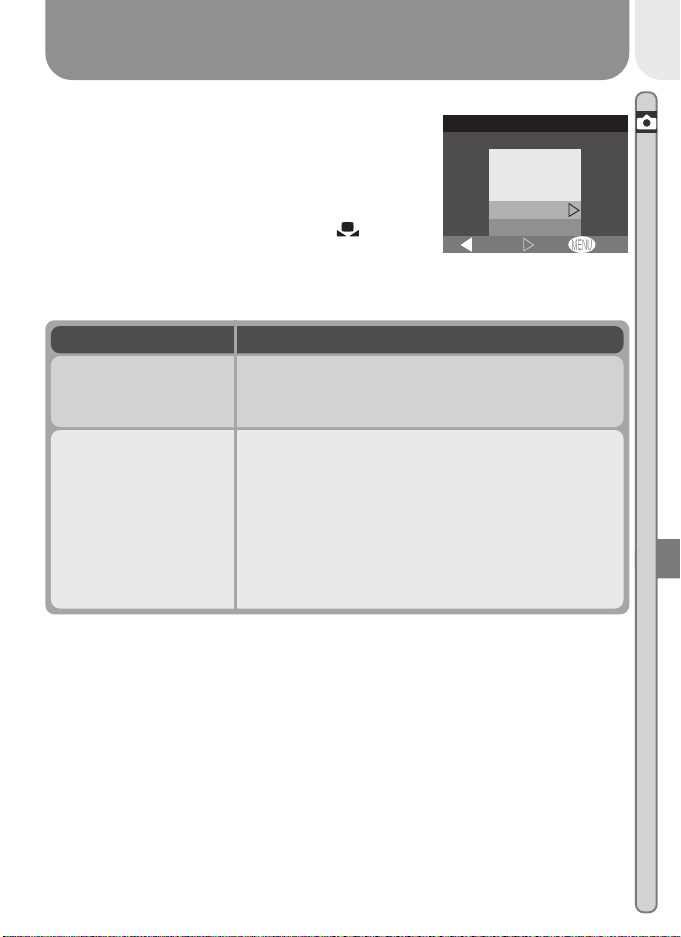
59
Menu Guide—The Shooting Menu
Preset White Balance
Preset white balance is used to adjust white bal-
ance when shooting under mixed lighting or to
compensate for light sources with a strong color
cast (for example, to make pictures taken under a
lamp with a red shade look as though they had
been taken under white light). When (White
bal preset) is selected from the white-balance
menu, the menu shown at right will be displayed
in the monitor.
Option Description
Cancel
Recalls the most recent setting for preset white
balance from memory and sets white balance to
this value.
Measure
To measure a new value for white balance, place a
neutral gray object under the lighting that will be
used in the final photograph. Frame this object so
that it fills the square in the center of the menu
shown above. Highlight Measure and press the
multi selector to the right to measure a new value
for white balance (shutter will be released, but no
picture will be recorded).
OFFSet
Cancel
Measure
BK
WHITE BAL PRESET
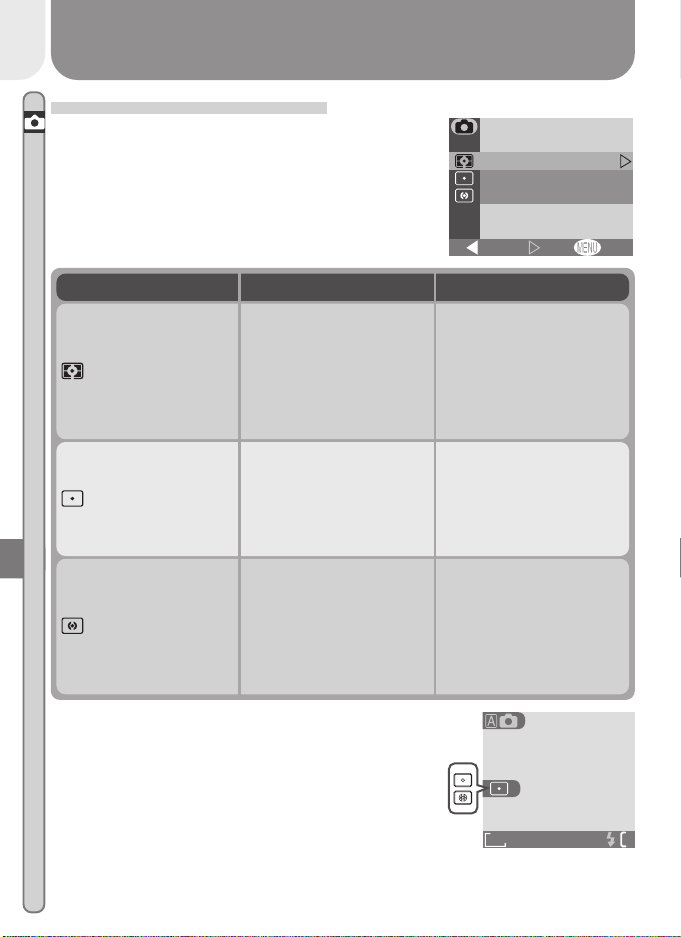
60
Menu Guide—The Shooting Menu
Measuring Light: Metering
The options in the metering menu determine how
the camera sets exposure.
OFFSet
METERING
METERING
Spot
Matrix
Center-weighted
BK
Option When to use itHow it works
Matrix
Best choice in most cir-
cumstances.
Compares measure-
ments from sixty areas of
frame with library of typ-
ical compositions to pro-
duce optimal exposure
for entire picture.
Spot
Ensures that subject in
center of frame will be
correctly exposed even if
background is very bright
or very dark.
Camera meters area at
center of frame equiva-
lent to about
1
/
60
of total.
Metered area shown by
square in monitor.
Center-weighted
Classic meter for por-
traits; preserves back-
ground details while let-
ting lighting conditions at
center of frame deter-
mine exposure.
Camera meters entire
frame but assigns great-
est weight to area in cen-
ter of frame occupying
about
1
/
15
of total.
At settings other than Matrix, the current meter-
ing setting is indicated by an icon in the monitor.
FINE
AUTO
1632
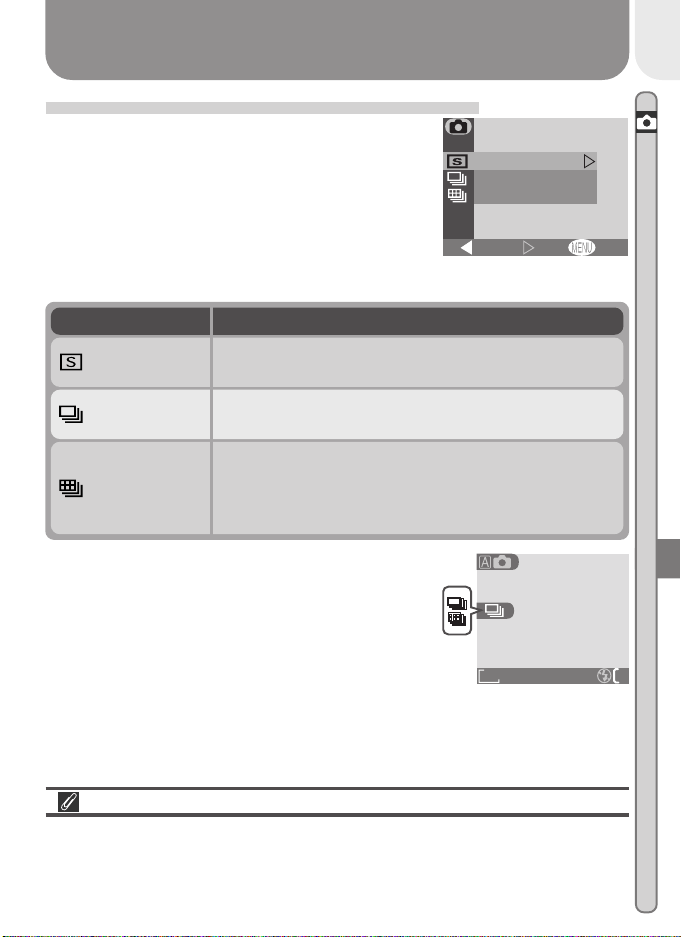
61
Menu Guide—The Shooting Menu
Taking Pictures in a Sequence: Continuous
The options in the “continuous” menu are used
to take pictures in a continuous sequence. This
can be useful when, for example, you are trying
to capture a fleeting expression on a portrait sub-
ject, or photograph a subject that is moving un-
predictably. With the Multi-shot 16 option, you
can record movement in a single picture consist-
ing of sixteen consecutive frames.
OFFSet
CONTINUOUS
CONTINUOUS
Continuous
Single
Multi-Shot 16
BK
Flash, Focus Exposure, White Balance, and Digital Zoom
At settings of Continuous and Multi-shot 16, the flash turns off, and focus
distance, exposure, and auto white balance are determined by the first pic-
ture in each series. Digital zoom can not be used.
Option Description
Camera takes one picture each time the shutter-re-
lease button is pressed all the way down.
Single
Camera continues to take pictures as long as shutter-
release button is held down.
Continuous
Each time the shutter-release button is pressed, the
camera takes sixteen consecutive “thumbnail” imag-
es and arranges them in a single picture consisting of
four rows of four images each.
Multi-shot 16
At settings other than Single, the current “con-
tinuous” setting is indicated by an icon in the moni-
tor.
FINE
1632
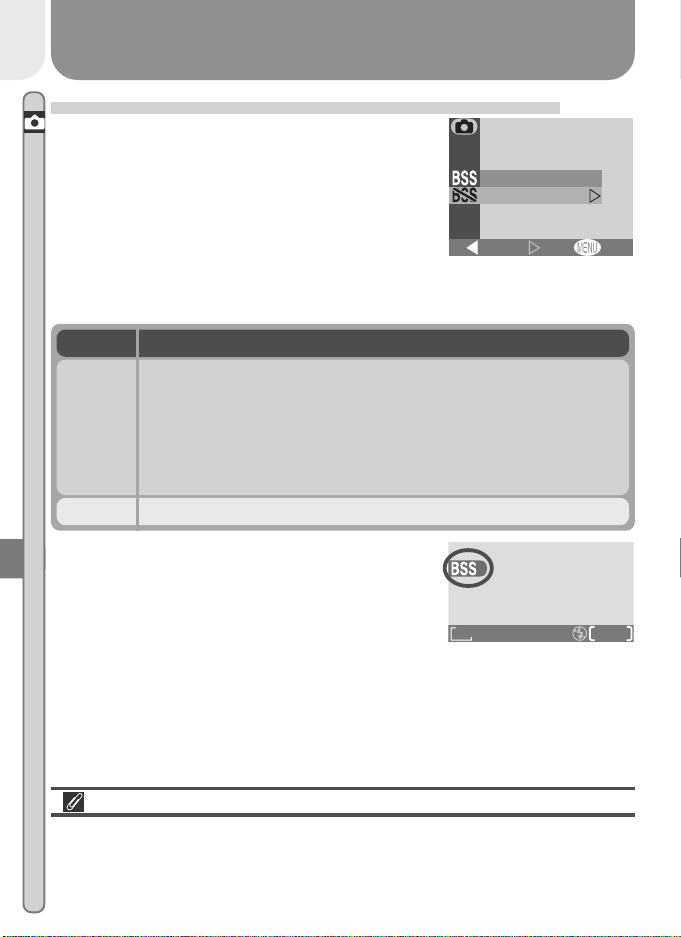
62
Menu Guide—The Shooting Menu
Getting Sharper Pictures: BSS (Best Shot Selector)
The “Best Shot Selector” (BSS) is recommended for
situations in which inadvertent camera movement
can produce blurred pictures, for example when:
•the camera is zoomed in
• the flash can not be used although lighting is
poor
OFFSet
Off
On
BEST SHOT SELECTOR
BEST SHOT SELECTOR
BK
Option Description
Off BSS off; camera functions normally.
On
Camera takes photos as long as the shutter-release button is
held down, to a maximum of ten. These images are then com-
pared and the sharpest photo (the image with the highest level
of detail) saved to the memory card. The flash turns off, and
focus distance, exposure, and auto white balance are determined
by the first photograph in the series.
Restrictions on BSS
BSS is not available at CONTINUOUS settings other than Single. Selecting
Continuous or Multi-Shot 16 automatically cancels BSS. Digital zoom can
not be used while BSS is on.
When BSS is on, a BSS icon appears in the monitor.
BSS may not produce the desired results with a moving subject or if you change
the composition while the shutter-release button is pressed all the way down.
FINE
8
1632
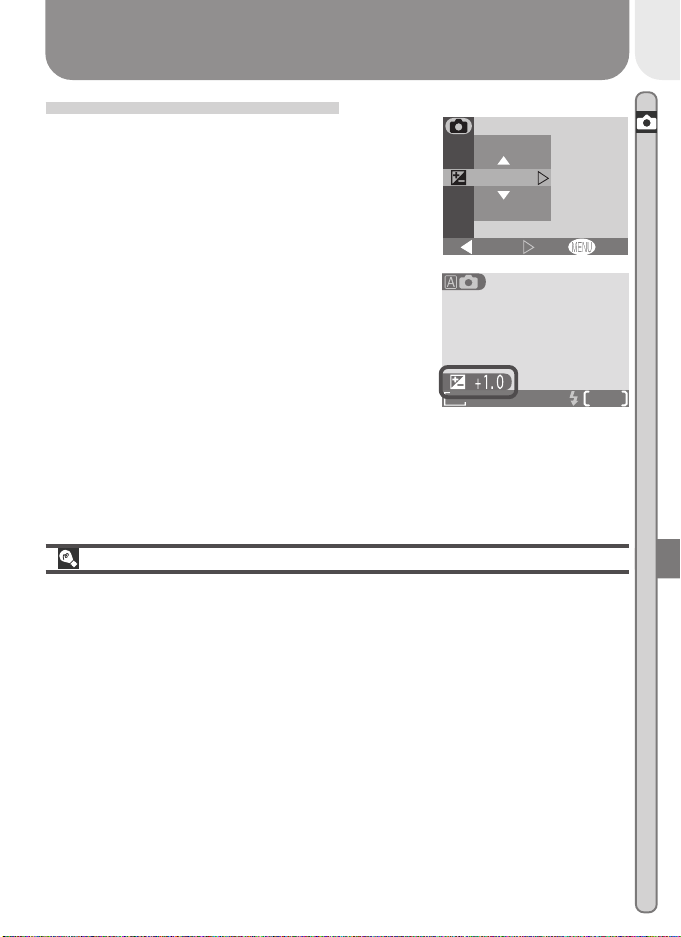
63
Menu Guide—The Shooting Menu
Adjusting Exposure: Exp. +/–
The Exp. +/– (exposure compensation) menu al-
lows you to alter exposure from the value sug-
gested by the camera, making pictures brighter
or darker.
OFF
0.3
0.3
0
+
-
Set
EXP. +/
EXP. +/
–
BK
FINE
AUTO
8
1632
At values other than ±0, exposure compensation
is shown in the monitor.
Choosing an Exposure Compensation Value
As a rule of thumb, select positive values when large areas of the frame are
very bright (for example, when photographing an expanse of sunlit water,
sand, or snow) or when the background is much brighter than the main sub-
ject. Use negative values when large areas of the frame are very dark (for
example, when photographing a forest of dark green leaves) or when the
background is much darker than the main subject. This is because the cam-
era, in order to avoid extreme over- or under-exposure, tends to lower expo-
sure when the frame is very bright and raise exposure when the frame is very
dark, which can make naturally bright subjects look dim and naturally dark
subjects appear over-bright, or “washed out.”
The easiest way to choose an exposure compensation value is to examine the
view through the lens in the monitor. If image appears too dark, raise expo-
sure compensation. If it is too bright, lower compensation. Continue to
adjust exposure until the desired result has been achieved.
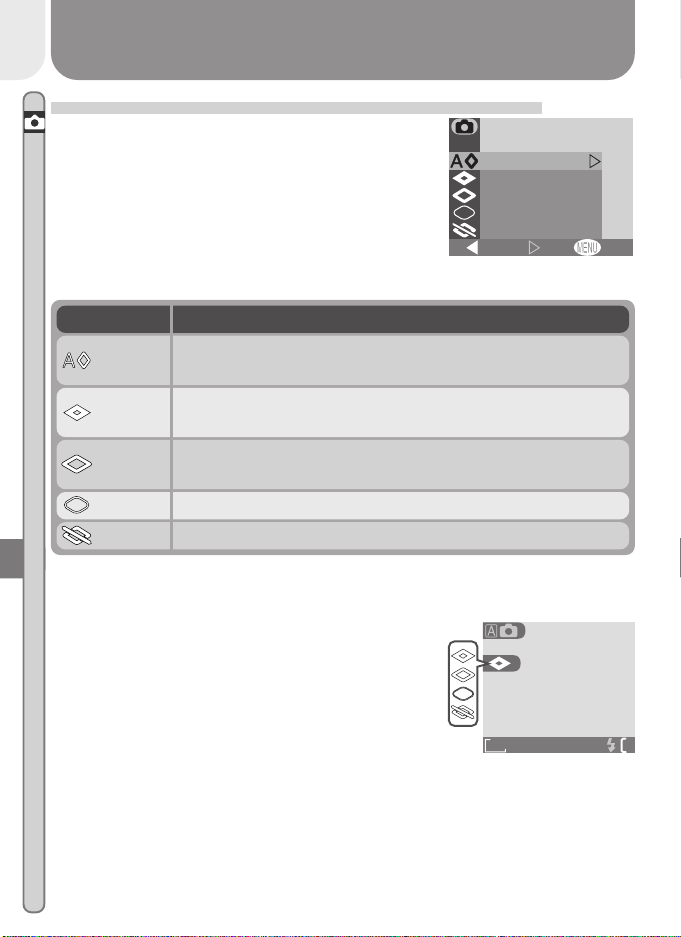
64
Menu Guide—The Shooting Menu
Option Description
Making Edges More Distinct: Image Sharpening
The camera automatically processes pictures to
emphasize the borders between light and dark ar-
eas of each picture, making the image seem
sharper. As this processing takes place after shoot-
ing, the effects of sharpening cannot be previewed
in the monitor, but they will be visible in the final
picture. The image-sharpening menu gives you
control over the amount of sharpening performed.
Auto
Camera sharpens edges for optimal results; adjustment per-
formed differs from image to image.
High
Image processed to increase sharpness, making edges more
distinct.
Normal
Camera performs same standard level of sharpening on all
images.
Low Amount of sharpening reduced below normal level.
Off No sharpening performed.
High
Normal
Low
Off
Auto
OFF
IMAGE SHARPENING
IMAGE SHARPENING
Set
BK
FINE
AUTO
1632
When taking pictures that will later be retouched, choose settings of Normal
or Low.
At settings other than Auto, an image-sharpening
icon appears in the monitor.
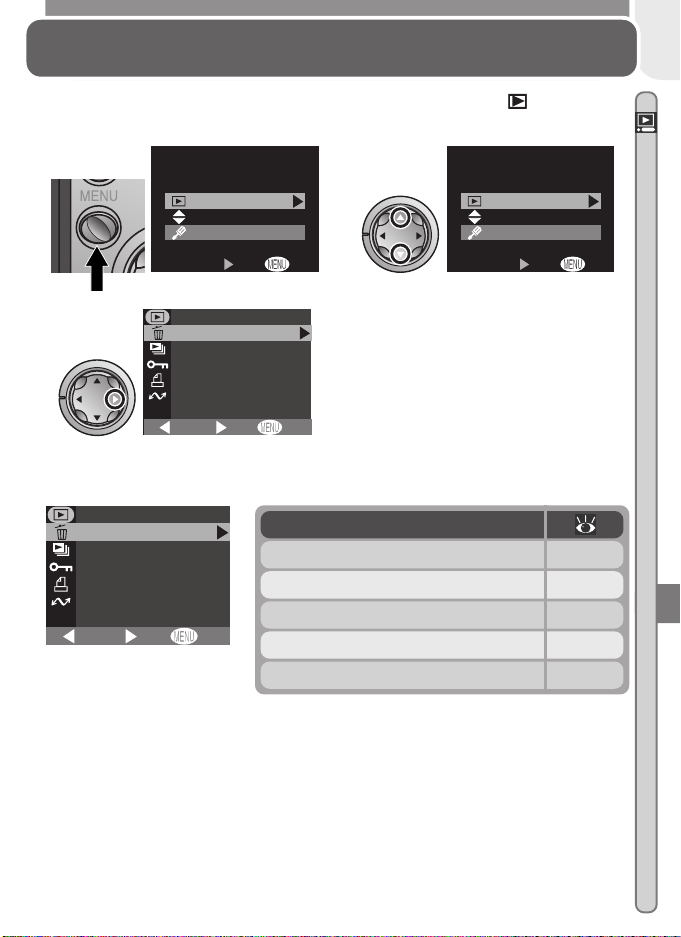
65
Menu Guide—The Playback Menu
The Playback Menu
Managing Pictures
The playback menu is available when the mode dial is set to . To view the
playback menu:
The playback menu contains the following options:
OFF
Protect
Delete
Slide show
Auto transfer
Print set
BK
PLAYBACK MENU
Set
Option
Delete 66–67
Slide show 68–69
Protect 70
Print set 71–72
Highlight PLAYBACK MENU
2
OFFSet
Playback menu
MENU
Setup menu
Press MENU button
1
OFFSet
Playback menu
MENU
Setup menu
Display playback menu
3
OFF
Protect
Delete
Slide show
Auto transfer
Print set
BK
PLAYBACK MENU
Set
To make a selection from the playback
menu, use the multi selector as de-
scribed in steps 4–7 on page 54.
Auto transfer 73
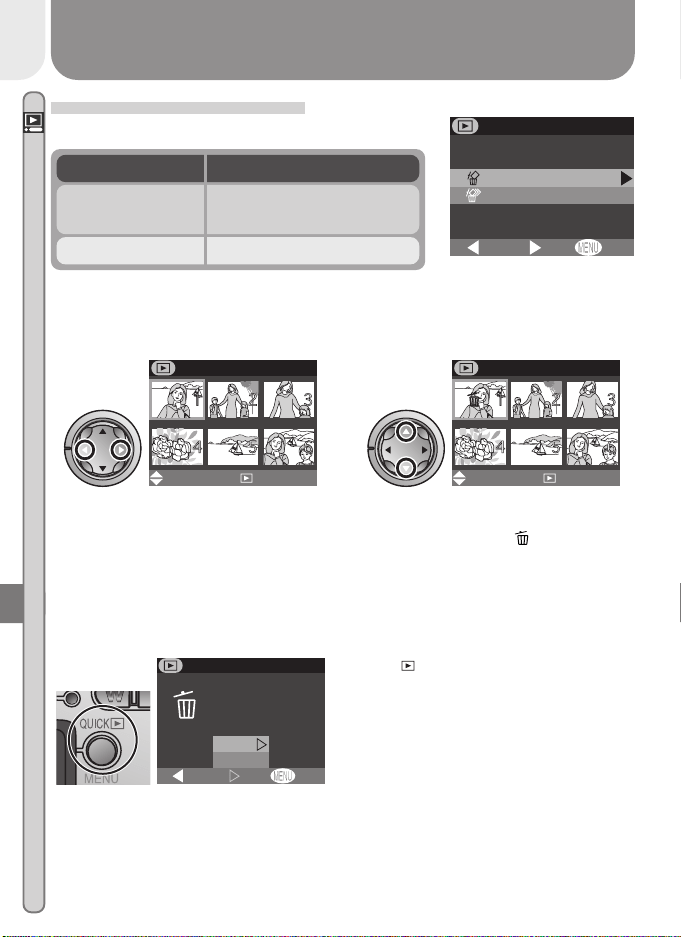
66
Menu Guide—The Playback Menu
Deleting Selected Photographs and Movies
Choosing Selected images from the Delete menu displays the pictures on
the memory card as thumbnail images. To select pictures for deletion:
Deleting Pictures: Delete
The Delete menu contains the following options:
OFFSet
Selected images
Erase all images
BK
DELETE
DescriptionOption
Delete selected photo-
graphs and movies.
Selected images
Delete all pictures.Erase all images
Highlight picture Press multi selector up or down to se-
lect picture for deletion. Selected pic-
tures are marked by icon. Repeat
steps 1 and 2 to select additional pic-
tures for deletion. To deselect picture,
highlight and press multi selector up
or down. To exit without deleting pic-
tures, press MENU button.
12
DELETE IMAGES
Set
Done
QUICK
DELETE IMAGES
Set
Done
QUICK
Press
QUICK
QUICK
to display a confirmation dia-
log. Press multi selector up or down to
highlight option, press to right to select:
• Select No to return to playback menu
without deleting pictures
• Select Yes to delete all selected pictures
OFF
Erase 1 image
Yes or No ?
Set
DELETE
No
Ye s
BK
3
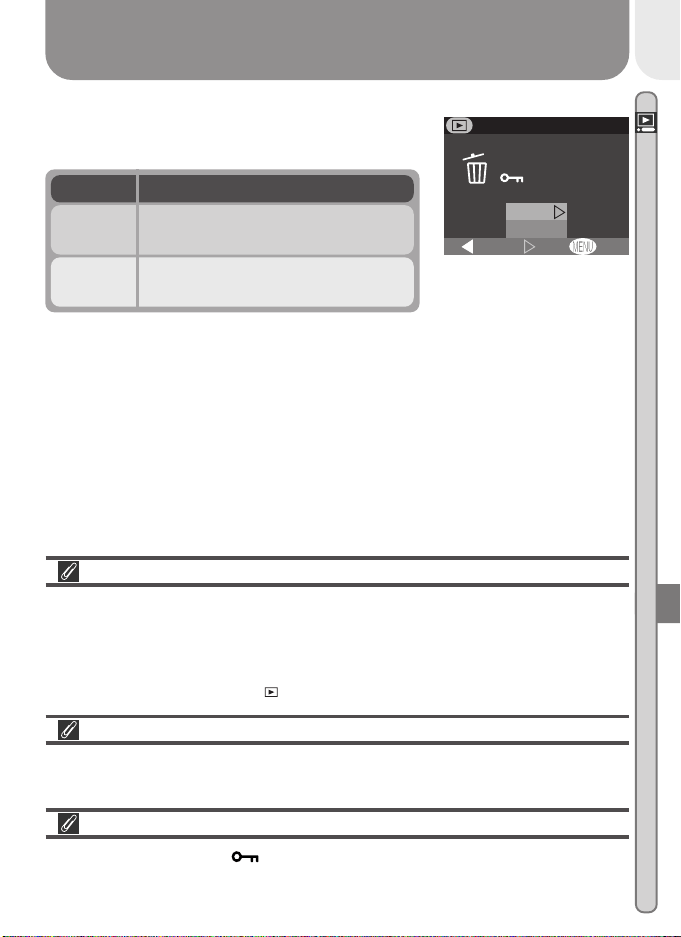
67
Menu Guide—The Playback Menu
Selecting Pictures for Deletion
No more than fifty pictures can be selected at one time using the Delete >
Selected images option. At the fifty-first picture, the message “IMAGE CAN-
NOT BE SAVED” will be briefly displayed and you will be returned to the
thumbnail menu. Any pictures after the fiftieth will not be selected for dele-
tion when you press the
QUICK
QUICK
button.
Before Deletion
Once deleted, pictures can not be recovered. Be sure that any pictures you
would like to keep have been transferred to your computer.
Protected Pictures
Pictures marked with a icon are protected and can not be selected for
deletion.
Deleting All Photographs and Movies
Selecting Erase all images from the Delete menu
displays the confirmation dialog shown at right.
OFF
No
Ye s
Erasing all images
( Excluded)
Set
BK
ERASE ALL IMAGES
Option
No
Description
Return to playback menu without
deleting pictures.
Yes
Delete all unprotected pictures on
memory card.
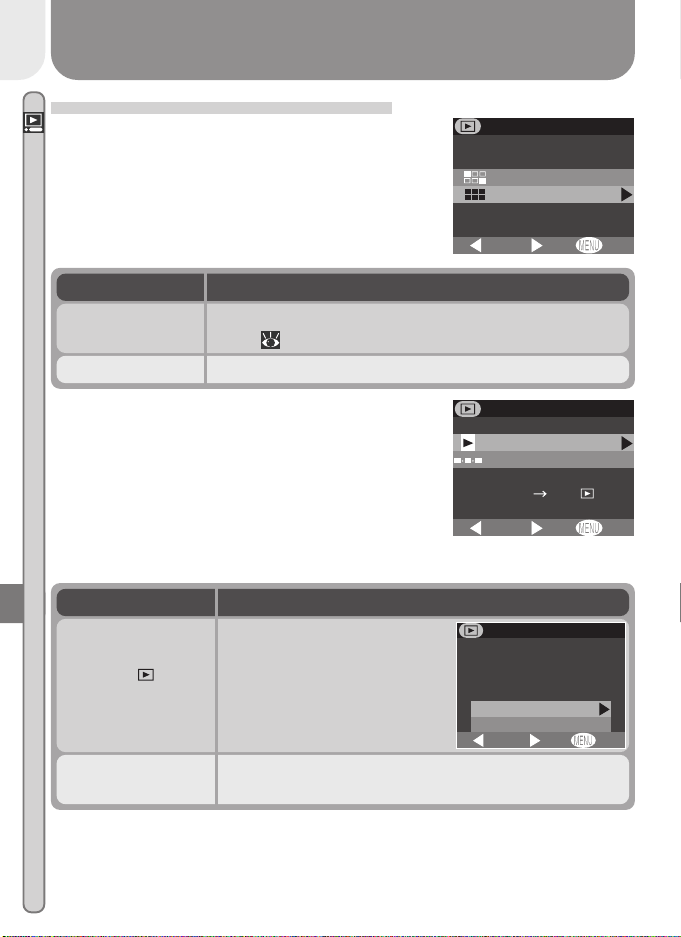
68
Menu Guide—The Playback Menu
Automated Playback: Slide Show
Use this option to play pictures back one after the
other in an automated “slide show.” The slide
show menu contains the following options:
OFFSet
Selected images
All images
BK
SLIDE SHOW
Option Description
All images Slide show includes all pictures on the memory card.
Selected images
Slide show includes only the pictures in the current print
order (
71).
Selecting either of the above options displays the
menu shown at right. To start the show, highlight
Start and press the multi selector to the right.
Pictures will be played back one-by-one in the or-
der recorded, with a pause to view each picture.
Movies will be played back as still images show-
ing the movie’s first frame. During the show, you
can:
OFF
Start
Frame intvl
(
Pause
)
QUICK
SET
BK
SLIDE SHOW
Press
QUICK
QUICK
button
to pause slide show
Menu at right will be displayed.
To restart slide show, highlight
Restart and press multi selec-
tor to right.
Press MENU button
to exit slide show
Camera returns to full-frame playback.
OFFSET
Restart
Frame intvl
BK
PAUSE
When the slide show ends, the pause menu shown above will be displayed.
Operation Description
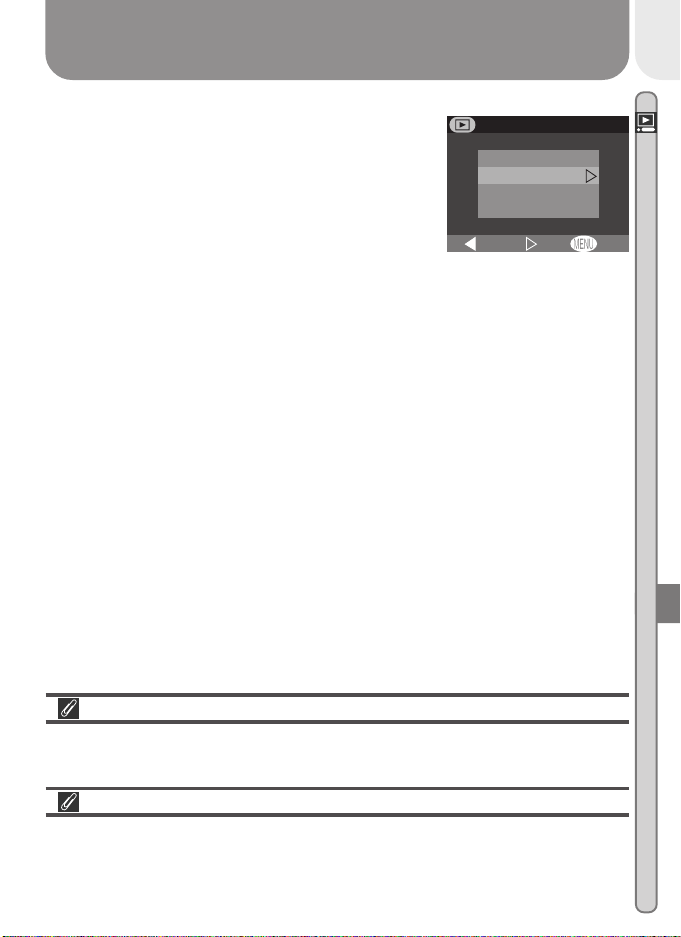
69
Menu Guide—The Playback Menu
Changing the Display Interval
Selecting Frame Intvl from the SLIDE SHOW or
PAUSE menus displays the menu shown at right.
To change the length of time each image is dis-
played, highlight the desired option and then press
the multi selector to the right to restart the slide
show.
OFFSet
S
10
S
5
3
S
2
S
FRAME INTVL
BK
“Selected Images”
The maximum number of images that can be selected for display in a slide
show is 999.
Frame Interval
Owing to differences in file size and the speed at which pictures can be read
from the memory card, the actual frame interval may differ from the value
selected in the FRAME INTVL menu.
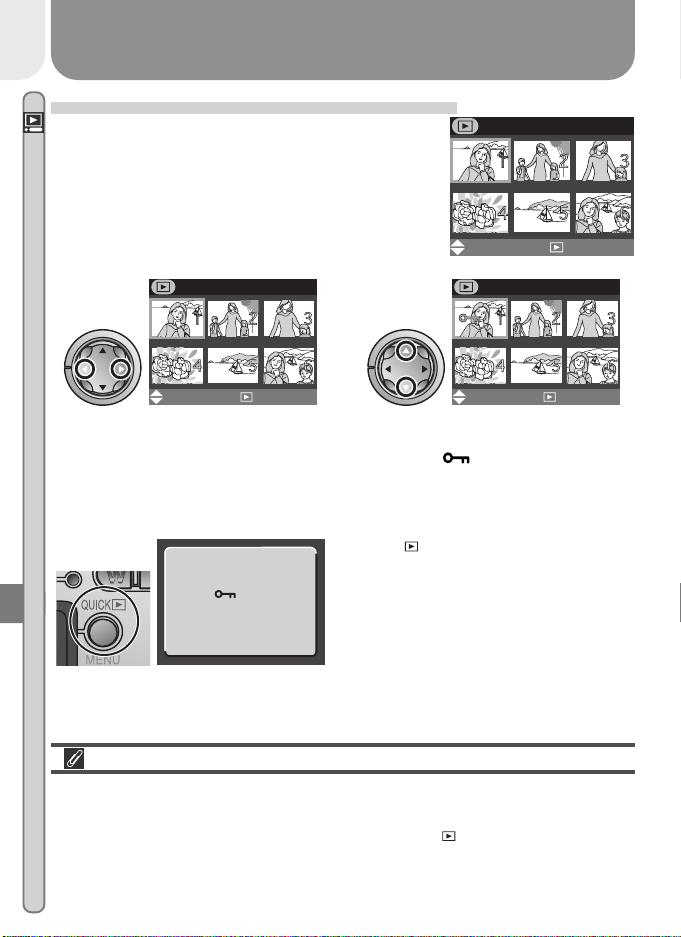
70
Menu Guide—The Playback Menu
Safeguarding Valuable Pictures: Protect
Selecting Protect from the playback menu displays
the menu shown at right, where you can select
pictures to protect from accidental deletion. Pro-
tected files can not be deleted in review, single-
image playback, or from the Delete sub-menu.
Note, however, that protected pictures will be de-
leted when the memory card is formatted.
PROTECT
Set
Done
QUICK
Done
Press
QUICK
QUICK
to complete operation. To
exit Protect menu without changing pro-
tected status of pictures, press MENU but-
ton.
3
Highlight picture
1
PROTECT
Set
Done
QUICK
Press multi selector up or down to se-
lect picture. Selected pictures are
marked by icon. Repeat steps 1
and 2 to select additional pictures. To
deselect picture, highlight and press
multi selector up or down.
2
PROTECT
Set
Done
QUICK
Selecting Pictures for Protection
No more than fifty pictures can be selected at one time. At the fifty-first pic-
ture, the message “Image cannot be saved” will be briefly displayed and you
will be returned to the thumbnail menu. Press
QUICK
QUICK
to protect the fifty pic-
tures currently selected and exit the Protect menu. To protect additional
pictures, select Protect from the playback menu.

71
Menu Guide—The Playback Menu
Ordering Prints: Print Set
Selecting Print set from the playback menu dis-
plays the menu shown at right. Using the Print
option, you can specify the pictures to be printed,
the number of prints, and the information to be
included on each print. This information is stored
on the memory card in Digital Print Order Format
(DPOF). Once a print order has been created, the
memory card can be removed from the camera
and inserted in any DPOF-compatible device—be it your personal photo printer
or a photofinisher’s print system—and pictures printed directly from the card.
OFFSet
BK
PRINT SET
Print
Delete print set
PRINT
Set
Done
QUICK
DescriptionOption
Create or modify print order.Print
Cancel the current print order.Delete print set
Selecting Pictures for Printing
To create a print order, or to modify the existing
print order, highlight Print in the print set menu
and press the multi selector to the right. The menu
shown at right will be displayed. To select pic-
tures for printing:
Highlight pictures
1
PRINT
Set
Done
QUICK
Press multi selector up to select
picture. Selected pictures are
marked by icon.
2
PRINT
Set
Done
QUICK
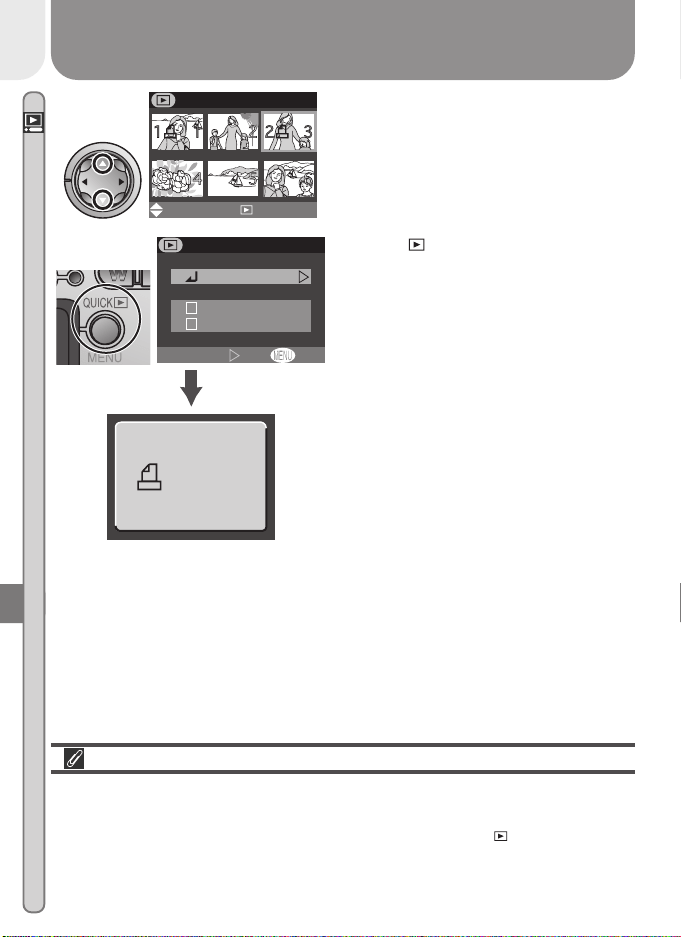
72
Menu Guide—The Playback Menu
Use multi selector to specify number of
prints. Press up to increase (maximum 9),
down to decrease. To deselect picture,
press multi selector down when number
of prints is 1. Repeat steps 1–3 to select
additional pictures. To exit without alter-
ing print order, press MENU button.
3
PRINT
Set
Done
QUICK
4
Press
QUICK
QUICK
to complete operation and
display menu of print options. To high-
light option, press multi selector up or
down.
•To print shutter speed and aperture on
all selected photographs, highlight Info
and press multi selector to right. Check
will appear in box next to item.
•To print date of recording on all selected
photographs, highlight Date and press
multi selector to right. Check will ap-
pear in box next to item.
•To deselect a checked item, highlight
and press multi selector to right.
•To complete print order and return to
playback, highlight Done and press multi
selector to right. To exit without alter-
ing print order, press MENU button.
OFFSet
Done
Info
Date
PRINT SET
Cancelling the Current Print Order
To cancel the current print order when it is no longer needed, select Delete
print set from the print set menu.
Done
Selecting Pictures for Printing
No more than fifty pictures can be selected at one time . At the fifty-first
picture, the message “Image cannot be saved” will be briefly displayed and
you will be returned to the thumbnail menu. Press
QUICK
QUICK
to add the fifty
pictures currently selected to the print order and exit the thumbnail menu. To
select additional pictures for printing, choose Print from the Print set menu.
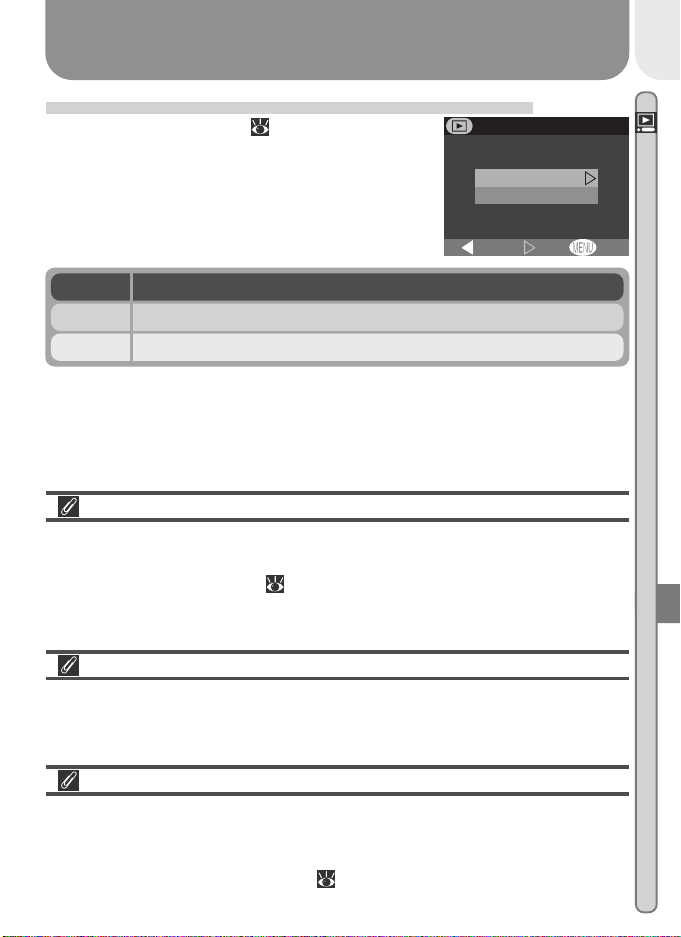
73
Menu Guide—The Playback Menu
OFFSet
All on
All off
BK
AUTO TRANSFER
Marking All Pictures for Transfer: Auto Transfer
To turn transfer marking ( 7) on or off for all
pictures simultaneously, select Auto transfer from
the playback menu. The following options will be
displayed:
Transferring More than 999 Pictures
While the Auto transfer option can be used to select all pictures on the
memory card for transfer to a computer, note that no more than 999 pictures
can be marked for transfer ( 32). If the memory card contains more pic-
tures, Nikon View 5 can be used to transfer all pictures on the memory card.
See the Nikon View 5 Reference Manual (on CD) for details.
Marking Pictures for Transfer with Other Cameras
Pictures selected for transfer with another model of Nikon digital camera can
not be transferred when the memory card is inserted in the COOLPIX 2000.
Use the COOLPIX 2000 to reselect the images.
Selecting Pictures for Slide Shows
The Print Set > Print option can be used to select the pictures that will be
played back during a slide show. When Selected images is chosen in the
Slide show menu, only the images in the current print order will be played
back. See “Automated Playback” ( 68) for more information.
DescriptionOption
Mark all pictures on the memory card for transfer to a computer.All on
Remove transfer marking from all pictures on the memory card.All off
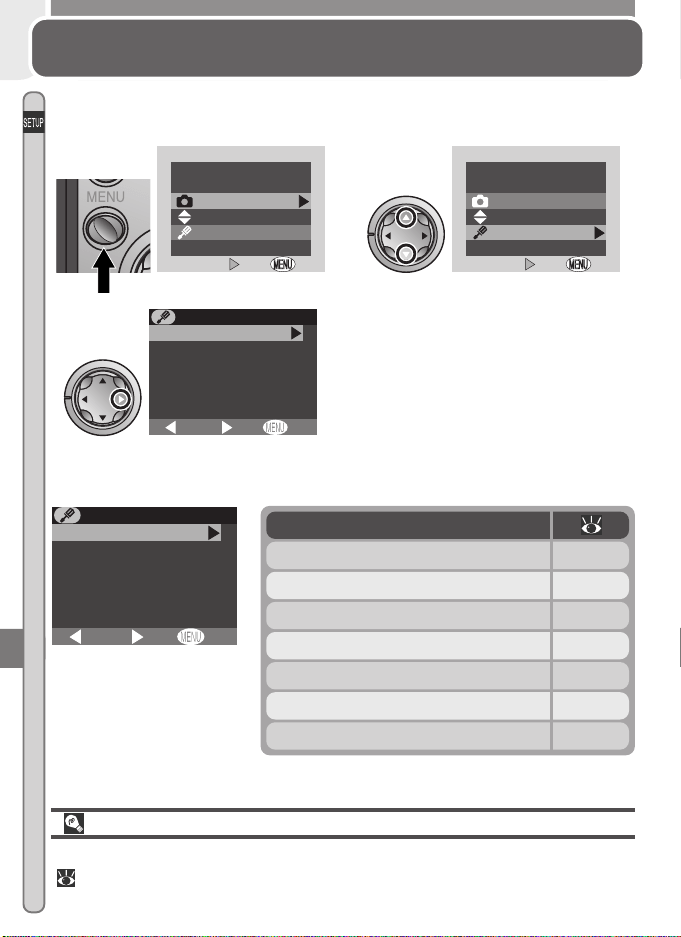
74
Menu Guide—The Setup Menu
The SETUP menu contains the following options:
OFF
Brightness
CF card format
Date
Auto off
Video mode
Language
BK
Set
SETUP MENU
Option
Brightness 75
CF card format 75
Date 13–14
Auto off 76
Video mode 76
Language 12
USB 77–78
The setup menu, which is available in all modes except movie mode, contains
options for basic camera setup. To display the setup menu:
The Setup Menu
Camera Setup
Highlight SETUP
2
OFF
OFF
Set
Set
MENU
Shooting menu
Setup menu
Press MENU button
1
OFF
OFF
MENU
Set
Set
Shooting menu
Setup menu
Display SETUP menu
3
OFF
Brightness
CF card format
Date
Auto off
Video mode
Language
BK
Set
SETUP MENU
To make a selection from the setup
menu, use the multi selector as de-
scribed in steps 4–7 on page 54.
“Date” and “Language”
The Date and Language options are described in “Introduction: First Steps”
( 9).
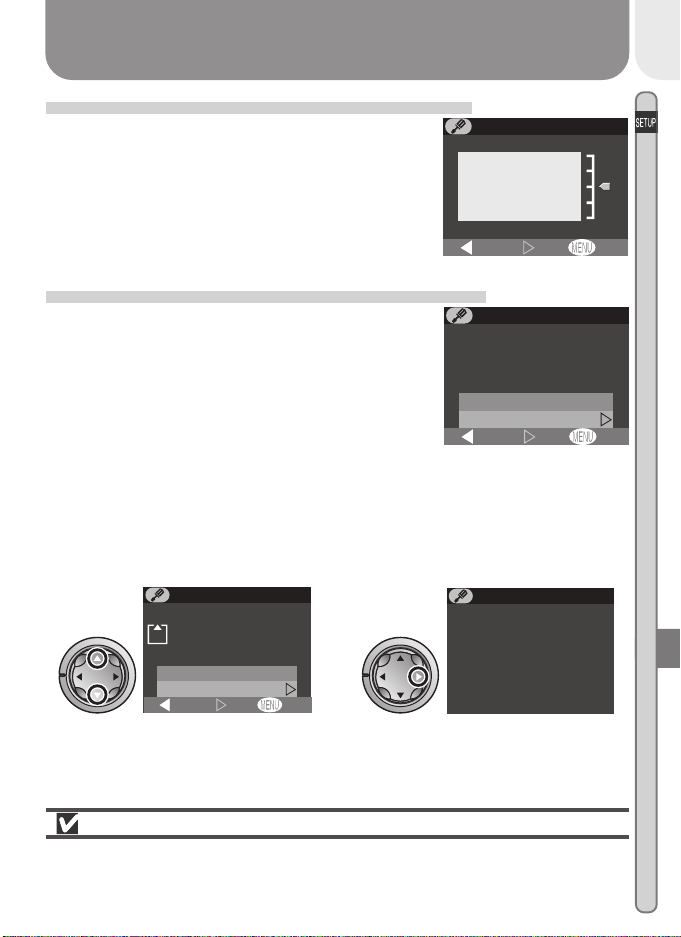
75
Menu Guide—The Setup Menu
Adjusting Monitor Brightness: Brightness
This option controls monitor brightness. Press the
multi selector up or down to increase or decrease
the brightness of the monitor by moving the ar-
row to the right of the display up or down.
+
−
OFFSet
BRIGHTNESS
BK
Formatting Memory Cards: CF Card Format
The memory card provided with your camera is
formatted at shipment. If you purchase additional
memory cards for added storage, you will how-
ever need to format the cards before first use to
ensure that they work properly in your camera.
Formatting memory cards is also an effective way
of deleting all pictures on the card. Note that for-
matting permanently deletes all data, including protected pictures. Before
formatting, be sure to transfer to a computer any pictures you would like to
keep.
Selecting CF card format displays the confirmation dialog shown above. To
format the memory card:
OFFSet
BK
WARNING !
All images will
be deleted !
CF CARD FORMAT
No
Format
Highlight Format (to exit without
formatting card, highlight No and
press multi selector to right)
OFFSet
BK
No
Format
WARNING !
All images will
be deleted !
CF CARD FORMAT
1
Formatting begins immediately.
During formatting, message shown
above will be displayed.
FORMATTING
CF CARD FORMAT
2
During Formatting
Do not remove the memory card, remove the battery, or unplug the
AC adapter (available separately) while formatting is in progress.
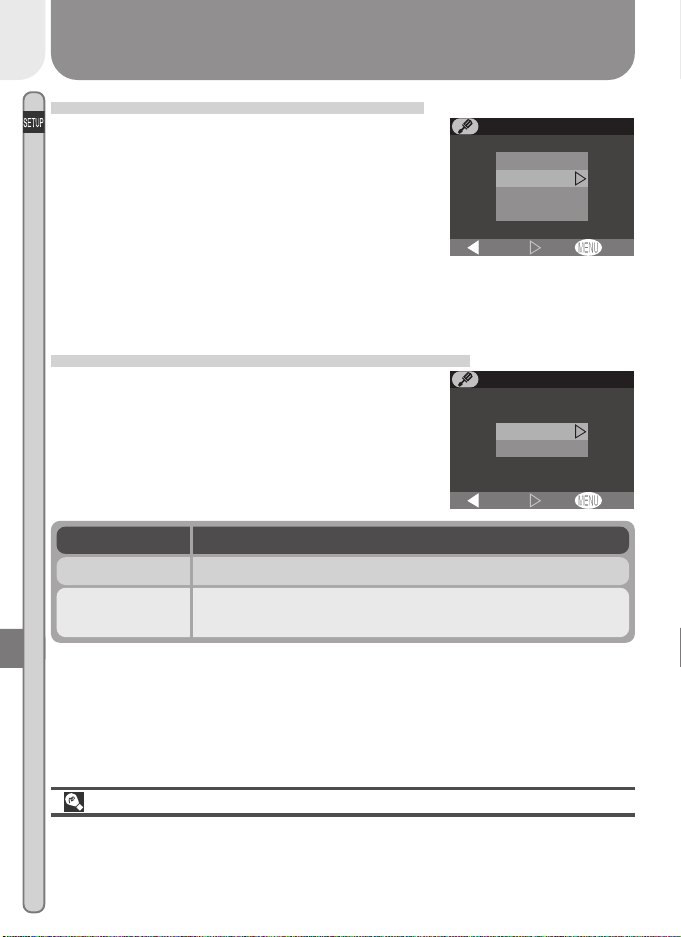
76
Menu Guide—The Setup Menu
Conserving Battery Power: Auto Off
When operated on battery power, the camera will
turn off automatically if no operations are per-
formed for the amount of time chosen in the Auto
off menu. When the camera turns off automati-
cally, the lens will return to the camera body and
the lens cover will close. To reactivate the cam-
era, turn the power switch off and then on again.
The time limit for Auto off can be chosen from thirty seconds (30 s), one
minute (1m, the default setting), five minutes (5m), and thirty minutes (30 m).
Choosing a Video Standard: Video Mode
Use the Video mode option to select a standard
for video output. Choose a setting that matches
the standard used in any video device to which
you connect the camera.
Auto Off
When powered by the EH-53 AC adapter (available separately), the camera
will remain on for thirty minutes if no operations are performed, regardless of
the setting in the Auto off menu.
OFF
s
m
m
m
3 0
1
5
3 0
SET
AUTO OFF
BK
OFF
NTSC
PAL
Set
VIDEO MODE
BK
Option Description
NTSC Use when connecting to NTSC devices.
PAL
Use when connecting to PAL devices. If video cable is
connected at this setting, camera monitor will turn off.
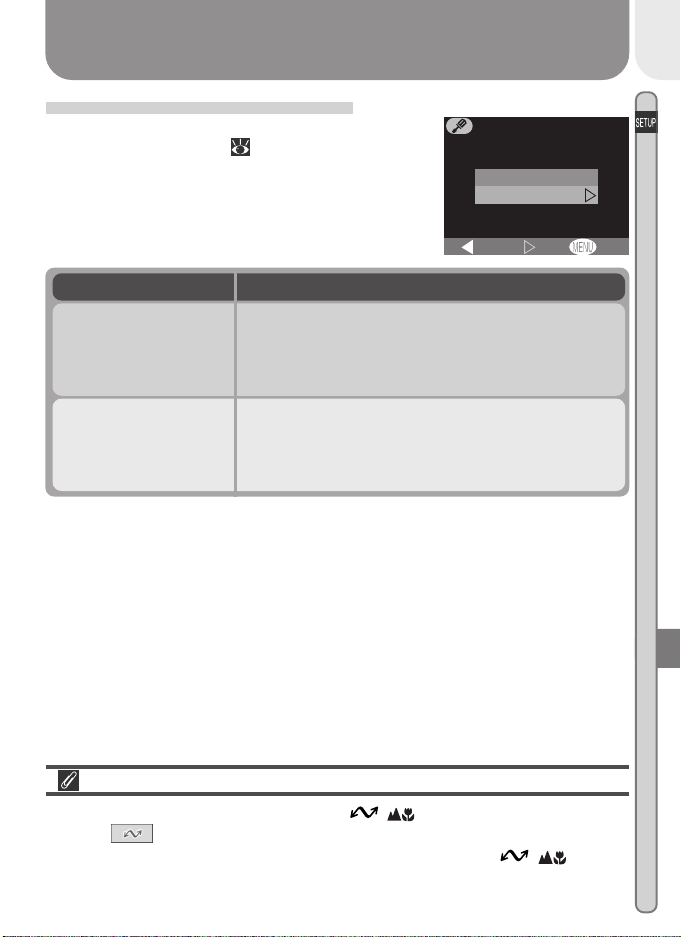
77
Menu Guide—The Setup Menu
OFF
PTP
Mass Storage
Set
USB
BK
Choosing a USB Protocol: USB
Before pictures can be copied to a computer via
direct USB connection ( 33), you will need to
select a USB transfer protocol that matches that
used by your computer’s operating system. Your
camera supports two protocols: PTP (Picture Trans-
fer Protocol) and Mass Storage.
Mac OS X
Pictures can not be transferred using the ( ) button in Mac OS X 10.1.2.
Use the button in Nikon View 5 to transfer pictures. See the Nikon
View 5 Reference Manual (on CD) for details. The camera ( ) button
can be used to transfer images in Mac OS X 10.1.3 or later.
Protocol Description
PTP
Choose this option when connecting the camera
to a computer running Windows XP Home Edition,
Windows XP Professional, or Mac OS X (version
10.1.2 or later).
Mass Storage
Choose this option when connecting the camera
to a computer running Windows 2000 Profession-
al, Windows Millennium Edition (Me), Windows 98
Second Edition (SE), or Mac OS 9.0, 9.1, or 9.2.
78
Menu Guide—The Setup Menu
Windows 2000 Professional, Windows Millennium Edition
(Me), Windows 98 Second Edition (SE), Mac OS 9
Do not select PTP when connecting the COOLPIX 2000 to a computer run-
ning one of the above operating systems (there is no need to change the USB
setting when using the camera for the first time, as Mass Storage is selected
at shipment).
If you have already changed the USB setting to PTP, be sure to select Mass
Storage before connecting the camera to your computer.
If you have connected the camera to a computer running one of the above
operating systems with PTP selected in the USB menu, disconnect the cam-
era as described below. Be sure to select Mass Storage in the USB menu
before reconnecting the camera.
Windows 2000 Professional
A dialog will be displayed welcoming you to the Found New Hardware Wiz-
ard. Click Cancel to close the dialog, and then disconnect the camera.
Windows Millennium Edition (Me)
After displaying a message stating that the hardware information database is
being updated, the computer will start the Add New Hardware Wizard. Click
Cancel to exit the wizard, and then disconnect the camera.
Windows 98 Second Edition (SE)
The Add New Hardware Wizard will be displayed. Click Cancel to exit the
wizard, and then disconnect the camera.
Mac OS 9
A dialog will be displayed stating that the computer is unable to use the driver
needed for the “Nikon Digital Camera E2000_PTP” USB device. Click Cancel
to close the dialog, and then disconnect the camera.

79
Te c h n ical
Notes
Camera Care, Options, and Resources
This chapter provides tips on cleaning and storing
your camera, a list of optional accessories available
for the COOLPIX 2000, information on where to
get help on line, troubleshooting advice, and cam-
era specifications.
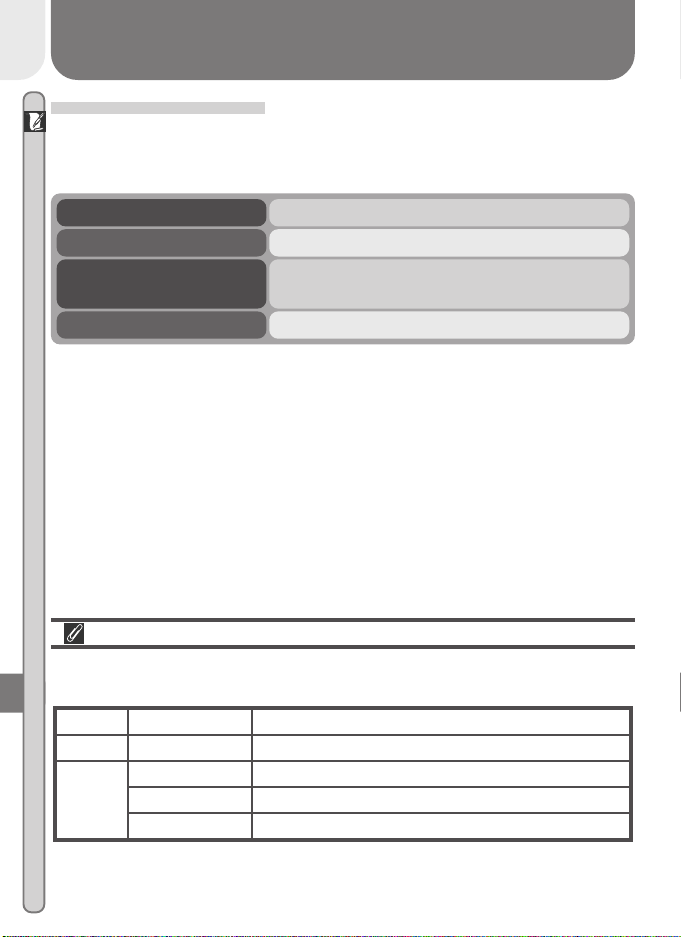
80
Technical Notes
Optional Accessories
At the time of writing, the following optional accessories were available for
the COOLPIX 2000. Contact your retailer or local Nikon representative for
details.
EH-53 AC adapterAC adapter
CS-CP12 soft caseCarrying case
EC-AD1 PC-card adapter
CompactFlash
™
memory
card adapters
HL-CP11 monitor hoodMonitor hood
Approved Memory Cards
In addition to the card provided with your camera, the following memory
cards have been tested and approved for use in the COOLPIX 2000:
Lexar
Media
Nikon EC-CF series
All capacities
SanDisk SDCFB series 16 MB, 32 MB, 48 MB, 64 MB, 96 MB, 128 MB
4× USB series 8MB, 16 MB, 32 MB, 48 MB, 64 MB, 80 MB
8× USB series 8MB, 16 MB, 32 MB, 48 MB, 64 MB, 80 MB
10× USB series 128 MB, 160 MB
Operation is not guaranteed with other makes of memory card. For more
details on the above cards, please contact the manufacturer.
81
Technical Notes
Caring for the Camera and Battery
To ensure continued enjoyment of your Nikon product, observe the following
precautions when using or storing the device:
Keep dry
The device will be damaged if immersed in water or subjected to high
levels of moisture.
Do not drop
The product may malfunction if subjected to strong shocks or vibration.
Do not apply force to moving parts
Do not apply force to the lens, lens cover, battery-chamber cover, memory
card slot cover, or the connector covers. These parts are especially
susceptible to damage.
Avoid sudden changes in temperature
Sudden changes in temperature can cause condensation inside the device,
particularly in humid environments.
Turn the product off before removing or disconnecting the power source
Before disconnecting the AC adapter (available separately) or removing
the batteries, turn the device off after ensuring that it has completed any
operations that may be in progress, including recording or deletion. After
turning the camera off, wait for the flash-ready lamp to go out before
removing the batteries or disconnecting the AC adapter.
Keep away from strong magnetic fields
Strong magnetic fields can damage electronic products.
82
Technical Notes
Storage
When storing the for an extended period, choose a location with a humidity
of under 60% and a temperature of between –10 °C (14 °F) and +50 °C
(122 °F).
Cleaning
For optimum results when cleaning the lens or monitor, use a blower to re-
move dust and debris. To remove fingerprints, wipe the lens gently in a circu-
lar motion using a lint-free or specialist lens cleaning cloth. To clean the body,
use a cloth lightly dampened with fresh water and then dry thoroughly.
Do not use alcohol, thinner, or other volatile chemicals.
Avoid Contact with Liquid Crystal
Should the monitor break, care should be taken to avoid injury due to broken
glass and to prevent the liquid crystal from the monitor touching the skin or
entering the eyes or mouth.
Notes on the Monitor
When you frame bright subjects, vertical comet-like streaks that whiten to-
ward either end may appear in the monitor. This phenomenon, known as
“smear,” does not appear in the final photograph and does not indicate a
malfunction. Some smearing may appear in movies.
The monitor may contain a few pixels that are always lit or that do not light.
This is a characteristic common to all TFT LCD monitors and does not indicate
a malfunction. Images recorded with the product will not be affected.
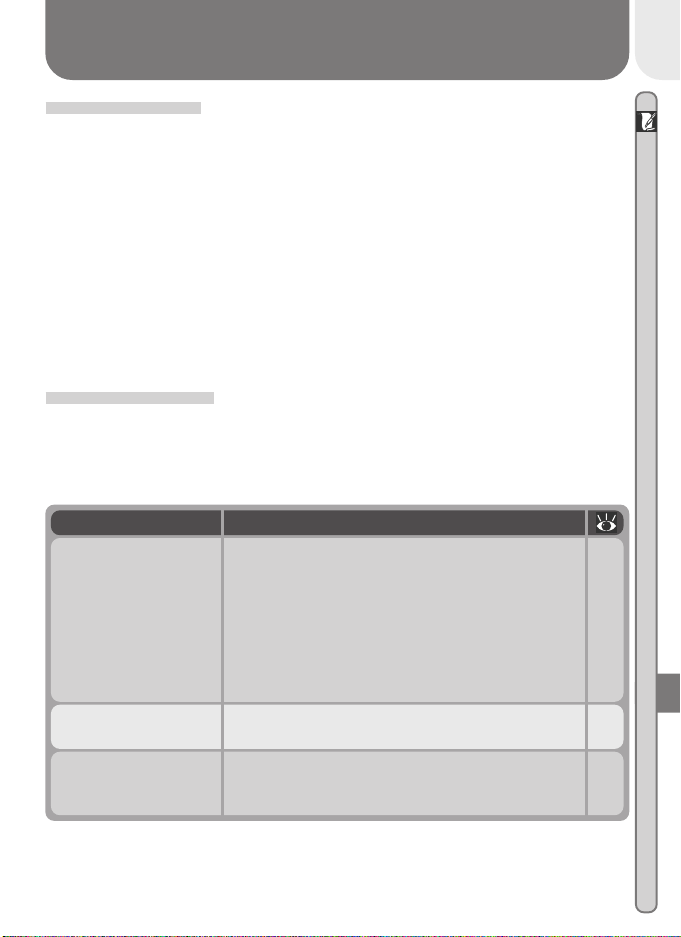
83
Technical Notes
Web Resources
At the time of writing, the following on-line resources were available for users
of Nikon digital imaging equipment:
For Product Information and Tips
• For users in the USA: http://www.nikonusa.com/
•For users in Europe: http://www.nikon-euro.com/
• For users in Asia, Oceania, the Middle East, and Africa:
http://www.nikon-asia.com/
For Contact Information
Contact information for the Nikon representative in your area may be found at:
http://www.nikon-image.com/eng/
Troubleshooting
If your camera fails to function as expected, check the list of common prob-
lems below before consulting your retailer or Nikon representative. Refer to
the page numbers listed in the rightmost column for information on solving
the problems listed here.
Monitor is blank
• Camera is off.
• Battery is not correctly inserted.
• Battery is exhausted.
•EH-53 AC adapter (available separately) is not prop-
erly connected.
• USB cable is connected.
•Video cable is connected and Video mode is set to
PAL.
16
9
17
—
73
76
No indicators appear in
monitor
• Indicators are hidden. Press multi selector to left
until indicators are displayed.
•Slide show is in progress.
7
68
Camera turns off
immediately
•Battery is low.
•Battery is cold.
17
82
Problem Possible cause
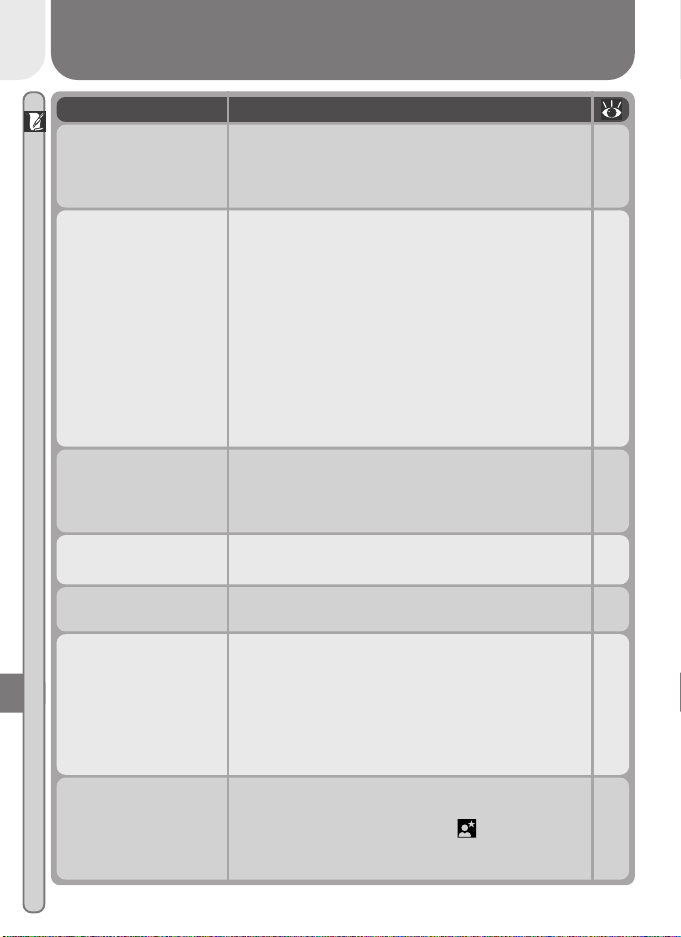
84
Technical Notes
Monitor is hard
to read
• Ambient lighting too bright: go to darker location
or use HL-CP11 monitor hood (sold separately).
•Monitor is dirty.
•Monitor brightness requires adjustment.
80
82
75
Photos are too bright
(overexposed)
• Exposure compensation is too high. 63
Photos are too dark
(underexposed)
•Flash is off.
• Flash window is blocked.
• Subject is outside range of flash.
•Exposure compensation is too low.
43
19
90
63
Photos are out of focus
•Main subject was not object closest to camera when
shutter-release button was pressed halfway.
20
Problem Possible cause
No photo is taken
when shutter-release
button is fully pressed
• Camera is in playback mode.
• Battery is exhausted.
•Message “Memory Card full” appears in monitor:
not enough memory remaining to record further pic-
tures at current settings.
•AF● indicator flashes red: camera unable to focus.
•Flash-ready lamp flickers: flash is charging.
•Message “Memory Card is not formatted” appears
in monitor: memory card is not formatted for use in
COOLPIX 2000.
•Message “No Memory Card” appears in monitor:
no memory card in camera.
46
17
17
20
20
75
10
Photos are blurred
• Camera shook during shot. Blurring caused by cam-
era shake can be reduced by:
– Using the flash
– Zooming the camera out
–Using the Best-Shot Selector (BSS)
–Using the self-timer
– Using a tripod
43
42
62
41
—
Randomly-spaced
bright pixels (“noise”)
appear in image
• Shutter speed too slow. Use the flash.
• Noise reduction, which helps reduce noise at slow
shutter speeds, is available in (Night Portrait)
mode. Using this scene when appropriate can re-
duce noise.
43
27
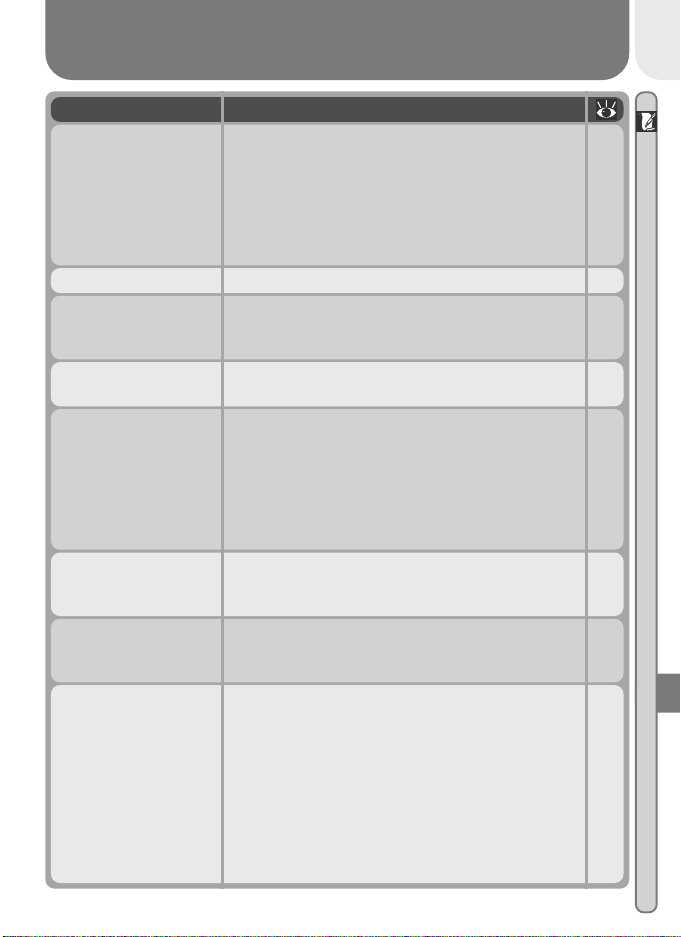
85
Technical Notes
Colors are unnatural • White balance does not match light source. 58
Picture can not be
played back
•Picture has been overwritten or renamed by a com-
puter or other make of camera.
—
Pressing SMALL PIC.
button when picture is
displayed full screen
does not create small
picture
•Picture is displayed in quick review. Small pictures
can only be created in playback mode.
•Picture is a movie. Small pictures can only be creat-
ed from photos.
• Picture is already a small picture.
• There is not enough free space on the memory card
for a small picture.
22
52
51
51
Nikon View 5 does not
start when camera
connected or memory
card inserted in card
reader or card slot
• Camera is off.
•EH-53 AC adapter (available separately) is not prop-
erly connected, or battery is dead.
• USB cable not correctly connected, or card not prop-
erly inserted in card reader, card adapter, or card
slot.
•Camera is not registered in Device Manager
(Windows only).
See Nikon View 5 Reference Manual (on CD) for fur-
ther information on troubleshooting Nikon View 5.
16
—
33
—
No menu is displayed
when MENU button is
pressed
• Camera is in movie mode. 26
Flash does not fire
•Flash is off. Note that flash turns off automatically
when:
– Camera is in movie mode
– Continuous or Multi-shot 16 is selected in the
CONTINUOUS menu
– BSS is on
• Battery level is low.
43
26
61
62
17
Problem Possible cause
Television blank when
camera connected via
video cable
•Video cable not correctly connected.
•Television not tuned to video channel.
• Video mode setting does not match device.
38
Can not zoom in on
picture during playback
or review
• Picture is a movie.
•Picture was created using small picture option.
49
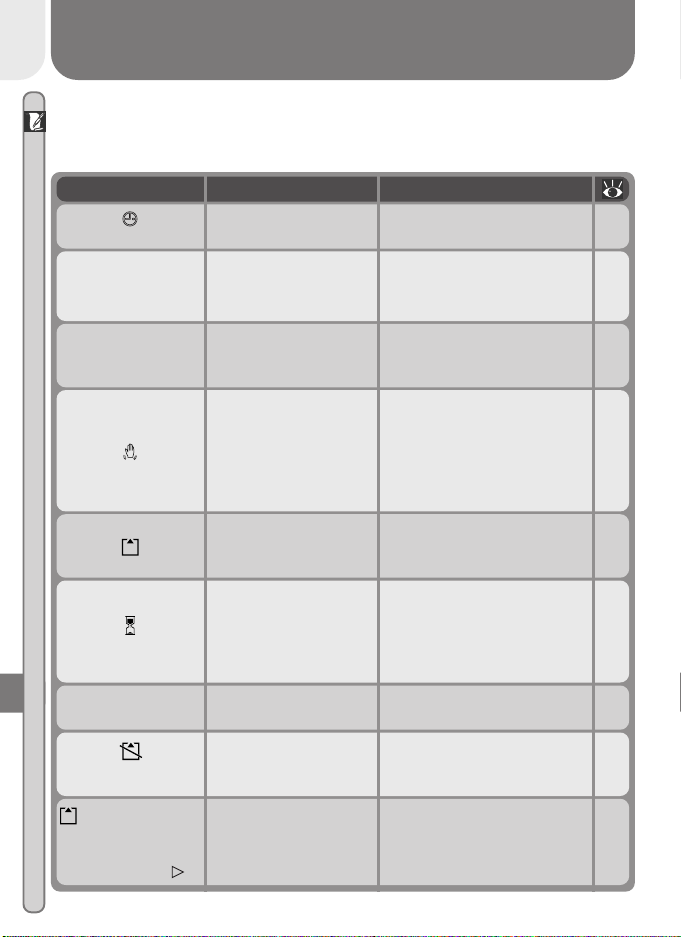
86
Technical Notes
MENU button pressed in
movie mode.
To use menus, turn mode dial
to another setting.
Warning !
No menu
10
Memory card has not
been formatted for
use in COOLPIX 2000.
Press multi selector up to high-
light FORMAT and press to
right to format card, or turn
camera off and replace card.
Memory Card is
not formatted
Format
No
75
Picture being read from
memory card, movie be-
ing recorded to card, or
picture being recorded in
continuous mode.
Icon clears from display auto-
matically when operation is
complete.
52
61
Problem SolutionDisplay
Clock calendar not set.
Set clock calendar to current
date and time.(Flashes)
13–
14
Battery exhausted.
Turn camera off and replace
battery.
Warning!!
Battery
exhausted
17
Camera cannot focus.
Use focus lock to focus on an-
other subject at same distance,
then recompose photograph.
AF●
(● flashes red)
20
Slow shutter speed.
Photos may be blurred.
Use the flash, or steady the
camera by mounting it on a tri-
pod, placing it on a level sur-
face, or holding it in both hands
with your elbows against your
torso.
25,
44
Error Messages
The following table lists the error messages and other warnings that appear
in the monitor and how to deal with them.
Camera can not detect
memory card.
Turn camera off and confirm
that memory card is correctly
inserted.
No Memory Card
10
Pictures being recorded
to memory card.
Icon clears from display auto-
matically when recording is
complete.
21
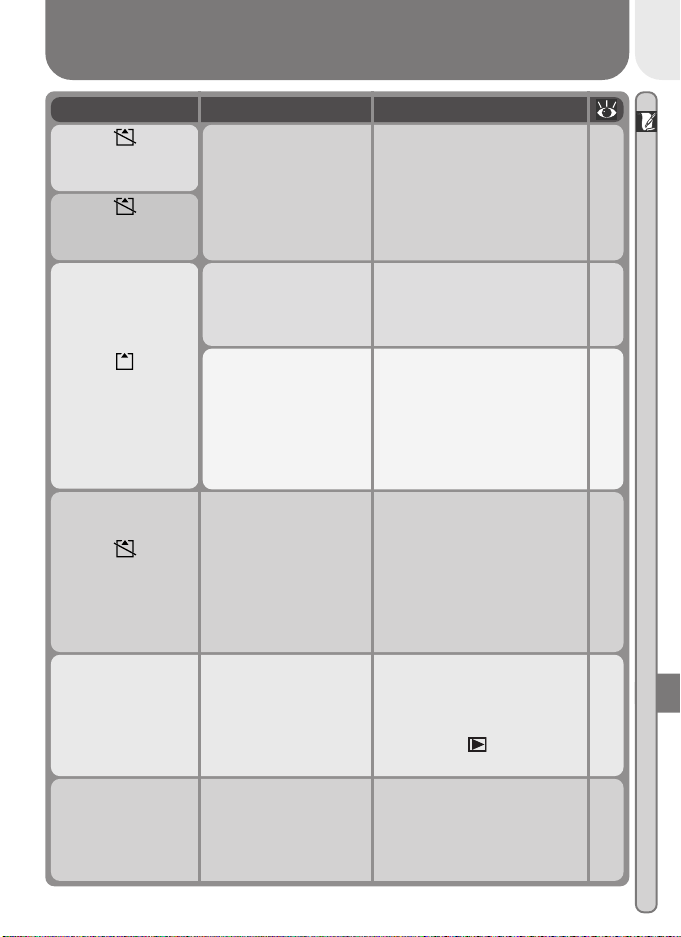
87
Technical Notes
Error accessing memory
card.
•Use approved card.
• Check that connectors are
clean. If card is damaged,
contact retailer or Nikon rep-
resentative.
80
—
This Card is
incompatible
This Card
cannot be used
•Memory card has not
been formatted for use
in camera.
•Error encountered
while saving photo.
•More than 50 pictures
selected for delete,
protect, or print set.
• Reformat memory card or in-
sert new memory card.
• Reformat memory card or in-
sert new memory card.
•Return to menu and select 50
or fewer pictures.
Image cannot
be saved
75
10
75
10
67
70
72
Problem SolutionDisplay
Card contains no
images
23
4
No pictures on memory
card.
• Camera in quick review
mode: half-press shutter-re-
lease button to return to
shooting mode.
• Camera in mode: select
another mode.
Error occurs when you
try to transfer images to
computer:
Not enough space on
memory card to record
information needed for
transfer.
Disconnect camera, delete un-
wanted photographs and try
again.
66
Shooting mode:
Insufficient memory to
record pictures at current
settings.
• Reduce image quality or size.
• Delete photographs.
• Insert new memory card.
56
66
10
Memory Card full
File contains
no image data
66
75
File created by computer
or different make of
camera, or by other
COOLPIX camera at im-
age-quality setting of HI.
Delete file or reformat memory
card.

88
Technical Notes
77
Protocol selected in USB
menu does not match
that used by computer
operating system, caus-
ing error when
( )
button is pressed.
Turn camera off and disconnect
USB cable, then change USB
selection in camera setup menu
and reconnect camera. If error
reoccurs, transfer pictures with
Nikon View 5 button.
No images are
marked for transfer
73
No pictures marked for
transfer when ( )
button pressed to copy
pictures to computer.
Disconnect camera and mark at
least one picture for transfer
before connecting camera
again.
Transfer error
33
Error occurred while pic-
tures were being trans-
ferred to a computer.
Check that the camera is prop-
erly connected and that the
battery is fully charged.
System error
10
Error has occurred in
camera’s internal circuit-
ry.
Turn camera off, unplug op-
tional AC adapter (if using) or
remove and re-insert battery,
and turn camera on. If error
persists, contact retailer or Ni-
kon representative.
Display Problem Solution
A Note on Electronically-Controlled Cameras
In extremely rare instances, unusual characters may appear in the monitor
and the camera may stop functioning. In most cases, this phenomenon is
caused by a strong external static charge. Turn the camera off, remove and
replace the battery, and turn the camera on again, or, if you are using an AC
adapter (available separately), disconnect and reconnect the adapter and turn
the camera on again. In the event of continued malfunction, contact your
retailer or Nikon representative. Note that disconnecting the power source as
described above may result in loss of any data not recorded to the memory
card at the time the problem occurred. Data already recorded to the memory
card will not be affected.
Communications
error
10
33
USB cable disconnected
or memory card removed
during transfer.
If computer displays error, click
OK to exit Nikon View 5. Turn
camera off, reconnect cable or
replace card, and turn camera on.
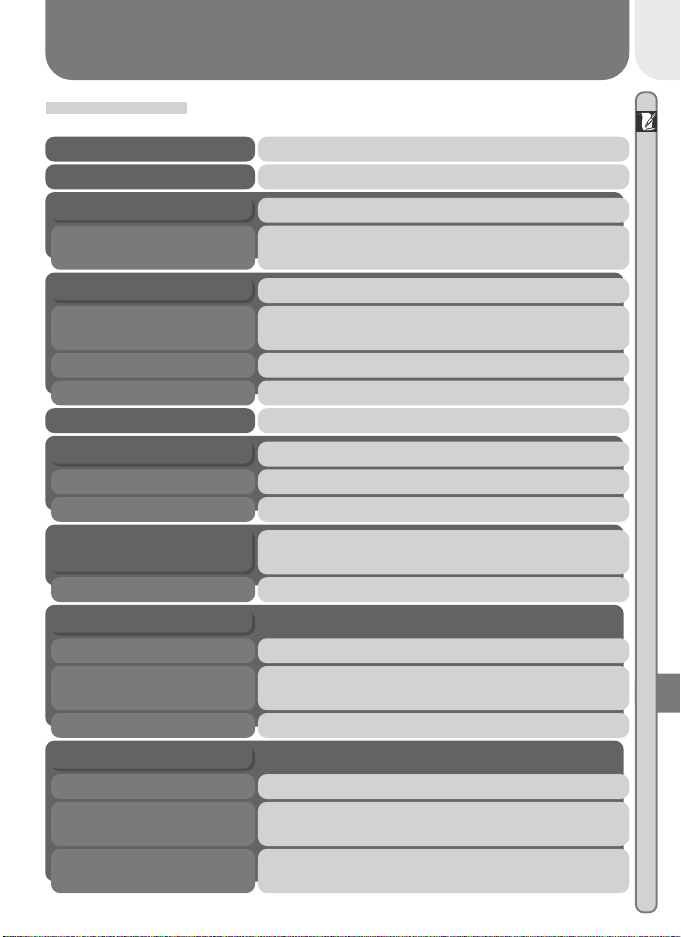
89
Technical Notes
Specifications
Type E2000 digital camera
Digital zoom 2.5 × (during recording)
Effective pixels 2.0 million
1
/
2.7
˝ high-density CCD; total pixels: 2.11 millionCCD
Image size (pixels) • 1632 × 1224 (1632)
• 1024 × 768 (1024)
• 640 × 480 (640)
3 × Zoom NikkorLens
Focal length F=5.8 – 17.4 mm (35-mm [135] camera format equiv-
alent: 38 – 114 mm)
f/-number f/2.8 – f/4.9
Construction Seven elements in six groups
Contrast-detect through-the-lens (TTL) AFAutofocus (AF)
Focus range 30 cm (1´) – ∞; 4 cm (1.6˝) – ∞ in macro close-up mode
Focus mode Single AF (continuous AF in macro close-up mode)
Storage
Media Type I CompactFlash
™
(CF) cards
File system Compliant with Design rule for Camera File systems
(DCF), Exif 2.2, and Digital Print Order Format (DPOF)
Compression JPEG-baseline-compliant
1.5˝, 110,000-dot, low temperature polysilicon TFT LCD
with brightness adjustment
Monitor
Frame coverage Approximately 95% vertical and 95% horizontal
Exposure
Metering 60-segment matrix metering, spot, center-weighted
Exposure control Programmed auto exposure with exposure compensa-
tion (–2.0 – +2.0 EV in steps of
1
/
3
EV)
Range (ISO 100 equivalent) W: 1.9 – 15.9 EV
T: 3.5 – 17.6 EV
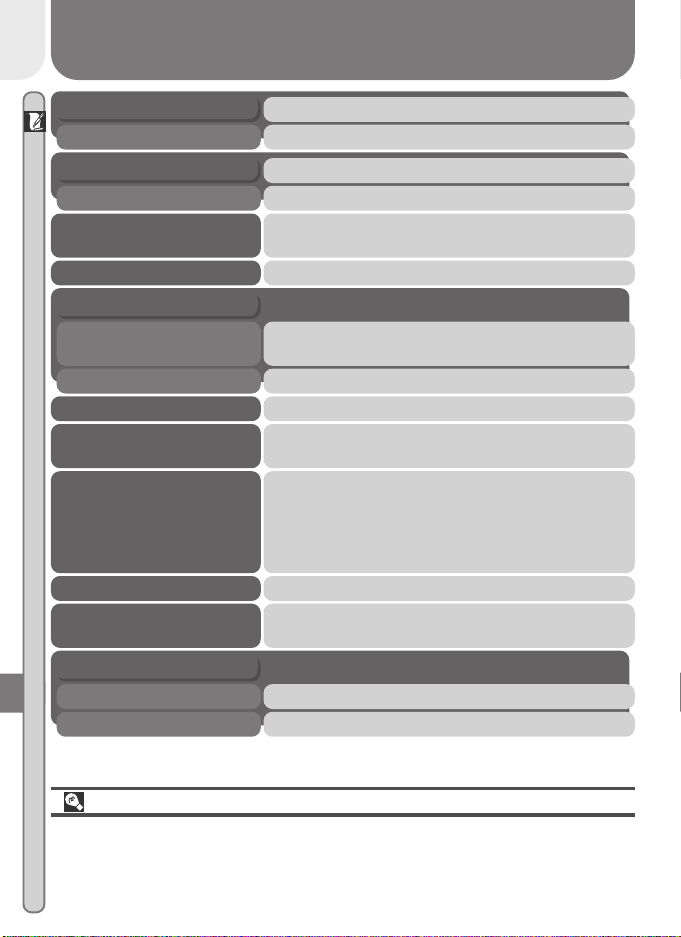
90
Technical Notes
Design Rule for Camera File Systems (DCF)
Your camera names pictures according to the Design Rule for Camera File
Systems (DCF), a standard widely used in the digital camera industry to ensure
compatibility among different makes of camera.
Sensitivity Auto (ISO 50 equivalent with auto gain to ISO 100
equivalent)
Self-timer Ten- and three-second duration
Interface USB
Power sources • Four LR6 (AA) batteries
• EH-53 AC adapter (available separately)
Battery life Approximately 60 minutes (measured at room temper-
ature [20 °C/68 °F] under standard Nikon test condi-
tions: zoom adjusted with each shot, flash used in ap-
proximately one third of photographs, image size set
to 1632, image quality set to NORMAL)
Dimensions (W ×H × D) 108 × 69 × 38 mm (4.2˝ × 2.7˝ × 1.5˝)
Weight Approximately 190 g (6.8 oz) without battery or mem-
ory card
Electronically-controlled preset apertureAperture
Range Two steps
Mechanical and charge-coupled electronic shutterShutter
Speed 1–
1
/
1000
s
Built-in Speedlight
Range 0.4 – 2.7 m (1´4˝ – 8´10˝) (W)
0.4 – 1.3 m (1´4˝ – 4´3˝) (T)
Flash control Sensor flash system
Operating Environment
Te mperature 0–40°C (32 – 104 °F)
Humidity Less than 80% (no condensation)
91
Technical Notes
Pre-installed versions of Windows XP Home Edition, Windows
XP Professional, Windows 2000 Professional, Windows Me,
Windows 98 SE
OS
System requirements (Nikon View 5): Windows
Models Only models with built-in USB ports supported
CPU 300 MHz Pentium or better
RAM 64 MB or more recommended
Hard-disk space
25 MB required for installation, with additional free disk space
of 10 MB plus double the capacity of camera memory card avail-
able on system disk when Nikon View 5 is running.
Video resolution
800 × 600 or better with High Color (True Color recommended)
Miscellaneous CD-ROM drive required for installation
Hard-disk space 25 MB required for installation, with additional free disk space
of 10 MB plus double the capacity of camera memory card avail-
able on start-up disk when Nikon View 5 is running.
System requirements (Nikon View 5): Macintosh
OS
Mac OS 9.0, Mac OS 9.1, Mac OS 9.2, Mac OS X (10.1.2 or later)
Models iMac, iMac DV, Power Macintosh G3 (Blue & White), Power
Mac G4 or later, iBook, PowerBook G3 or later; only models
with built-in USB ports supported
RAM 64 MB or more recommended
Video resolution 800 × 600 or better with thousands of colors (millions of colors
recommended)
Miscellaneous CD-ROM drive required for installation
Index
92
Index
Index
Symbols
1632, 1024, 640, 56–57
. See shooting mode, auto
, , , , , , 25–
27
, 46–47
button, 24, 48
button, 23, 47, 49
button, 4, 41
, See self timer
button, 4, 40
button, 23, 46
button, 24, 47
, 6–7, 17
, 6, 14
, 6, 25, 44
, , , , 6, 43
, , , 6, 60
, , , 6, 61
, 6, 63
, , , , , 6,
64
, , , 7, 70–71, 73
A, , , , , , , 58–59
A
Accessories. See optional ac-
cessories
AF●. See focus indicator
Autofocus, 20
Auto off, 76
Auto transfer, 73
B
Backlight. See shooting mode,
Backlight, 25, 43
BASIC, 56
Battery, 9, 17, 81
life, 90
Beach/Snow. See shooting
mode, Beach/Snow
Best Shot Selector, 62
Brightness, 75
BSS. See Best Shot Selector
C
Camera strap, 9
CF card. See memory card
CF card format, 11, 75
Clock-calendar, 14
Close ups. See focus mode,
macro close-up, 40
CompactFlash
™
card. See
memory card
Compression. See image qual-
ity
Computer. See Nikon View 5;
transfer
Continuous, 61
Copying images. See small pic-
ture; transfer
D
Date, 13
DCF. See Design rule for Cam-
era File systems
Delete,
Deleting images
from playback menu, 66–67
in full-frame playback, 46
in quick review, 23
in thumbnail playback, 24,
46, 48
Design rule for Camera File sys-
tems, 47
Digital Print Order Format, 71
DPOF. See digital Print Order
Format
E
Error messages, 86–88
Exp +/–. See exposure com-
pensation
Exposure compensation, 63
F
FINE, 56
Flash, 43
Flash mode, 43
Flash-ready lamp, 5, 20
Focus. See autofocus, focus
mode
Focus indicator, 6, 20
Focus mode, 40
autofocus. See autofocus
infinity, 40
macro close-up, 40
Formatting. See memory card,
formatting
I
Image quality, 56
Image quality, 6–7, 56
Image size, 57
Image size, 6–7, 57
Image sharpening, 64
J
JPEG. See image quality
L
Language, 12
M
Mass storage. See USB
Memory card, 11
approved cards, 80
capacity of, 56
formatting, 75
insertion and removal of, 11
reading pictures from, 36–37
MENU button, 5, 12, 54, 65, 74
Menus, 53
Metering, 60
Mode dial, 4–5
Monitor, 4–5
brightness, 75
indicators, 6–7
framing photographs in, 19
MOV. See movies
Movies, 26, 52
playing back, 52
recording, 26
Multi-selector, 5, 8
Index
93
Index
N
Night Portrait. See shooting
mode, Night Portrait
Nikon View 5, i, 30
system requirements for, 91
Noise, 27
Noise reduction, 27
NORMAL, 56
Number of exposures remain-
ing, 6, 17
O
On/off. See Power switch
Optional accessories, 80
P
Party/Indoor. See shooting
mode, Party/Indoor
Photo information, 7, 23, 47
Picture Transfer Protocol. See
USB
Playback, 45. See also quick re-
view
full frame, 46
movie, 52
thumbnail, 24, 48
zoom, 23
PLAYBACK menu, 65–73
Portrait. See shooting mode,
Portrait
Power switch, 5–6, 16, 21, 33
Print set, 71
Protect, 70
PTP. See USB
Q
Quality. See image quality
QUICK
QUICK
button, 5, 22
Quick review, 22–24
QuickTime. See movies
QVGA. See movies
R
Red-eye reduction. See flash
mode
S
Scene modes, 25–27
Self-portrait. See monitor; self-
timer
Self-timer, 41
SETUP menu, 74–78
Sharpening. See Image sharp-
ening
SHOOTING menu, 54–64
Shooting mode, 6, 25
auto, 16
Backlight, 25
Beach/Snow, 26
movie, 26
Night Portrait, 26
Party/Indoor, 25
Portrait, 26
Shutter-release button, 4, 20
Shutter release delay. See self-
timer
Size. See image size
Slide show, 68–69
SMALL PIC. button, 4, 50
Small picture, 50–51
Smear, 82
Specifications, 89
Speedlight. See flash
Strap. See camera strap
T
T. See zoom, indicator
. See zoom, buttons
Telephoto. See zoom
Te levision playback, 38
Thumbnail display, 24, 48
Time and date. See Date
Timer. See self-timer
Transfer, 32–37
marking images for, 23–24,
47–48
Troubleshooting, 83–85
U
USB, 76
USB, 32, 76,. See also transfer
V
Video mode, 76
VCR, 38
W
W. See zoom, indicator
. See zoom, buttons
Web resources, 83
White balance, 58–59
Wide angle. See zoom
Z
Zoom
buttons, 5, 19, 42
digital, 42
indicator, 19, 42
optical, 42

En
En
Printed in Japan
S2G04000301(11)
6MAA2611-03
DIGITAL CAMERA
The Guide to Digital Photography
with the