
Owner’s Manual
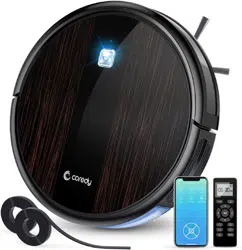
Coredy L900W Robot

1
1.1 Use Restrictions ............................................................................................................
1.2 Battery and Charging ..................................................................................................
Important Safety Information
2.1 Robot ...............................................................................................................................
2.2 Accessories ....................................................................................................................
2.3 Charging Dock ..............................................................................................................
2.4 LED Indication .............................................................................................................
3.1 Important Tips Before Use .........................................................................................
3.2 Map Navigation and Management............................................................................
3.3 Quick Start .....................................................................................................................
3.4 Use Your Coredy L900W Robot with the “Coredy Robot” APP..........................
3.5 How Coredy L900W Robot Clean Your Home ......................................................
3.6 Use Mopping System ..................................................................................................
4.1 Empty Robot's Dust Bin...............................................................................................
4.2 Clean Robot's Filter.......................................................................................................
4.3 Clean Robot's Side Brush...........................................................................................
4.4 Clean Robot's Cliff Sensors and Charging Contacts............................................
4.5 Clean Robot's Floor Tracking Sensor.......................................................................
4.6 Clean Robot's Rolling Brush.......................................................................................
4.7 Battery and Charging Information ............................................................................
01
02
04
06
07
08
09
11
12
14
21
23
26
26
27
27
28
28
29
2
Product Diagram
3
Operating and Programming
4
Regular Robot Care
5
Troubleshooting
01
04
09
25
30
6
Wi-Fi Connection
35
7
Specifications
36
8
Customer Service
37
Table of
Contents

1.1 Use Restrictions
1 Important Safety Information
This appliance can be used by children aged from 8 years and above and persons with reduced physical, sensory or mental
capabilities or lack of experience and knowledge if they have been given supervision or instruction concerning use of the
appliance in a safe way and understand the hazards involved. Children shall not play with the appliance. Cleaning and user
maintenance shall not be made by children without supervision.
The robot must be used in accordance with the directions in this Instruction Manual. Coredy inc cannot be held liable or
responsible for any damages or injuries caused by improper use.
Do not dispose of electrical appliances as unsorted municipal waste, use separate collection facilities. Contact your local
authority for information regarding the collection systems available. If electrical appliances are disposed of in landfills or dumps,
hazardous substances can leak into the groundwater and get into the food chain, damaging your health and well-being. Please
contact your local or regional waste authority for more information on collection, reuse and recycling programs.
To reduce the risk of injury or damage, keep these safety precautions in mind when setting up, using and maintaining your
robot:
Your robot is for indoor use only. Do not use the robot outdoor, commercial or industrial environments.
Before using this device, pick up objects like clothing, loose papers, pull cords for blinds or curtains, power cords, and any
fragile objects. If the device passes over a power cord and drags it, there is a chance an object could be pulled or a table or
shelf.
Read all safety and operating instructions before operating your robot.
Retain the safety and operating instructions for future reference.
Heed all warnings on your robot, battery, charging Dock and in the owner’s manual.
Follow all operating and use instructions.
The symbol on the product or its packaging indicates:
01

1.2 Battery and Charging
Your robot is not a toy. Do not sit or stand on this device. Small children and pets should be supervised when your robot is
operating.
Store and operate your robot in room temperature environments only.
Do not use this device to pick up anything that is burning or smoking.
Do not use this device to pick up spills of bleach, paint, or other chemicals, or anything wet.
If the room to be cleaned contains a balcony, a physical barrier should be used to prevent access to the balcony and ensure
safe operation.
This appliance is not intended for use by persons (including children) with reduced physical, sensory or mental capabilities,
or lack of experience and knowledge, unless they have been given supervision or instruction concerning use of the
appliance by a person responsible for their safety.
Children should be supervised to ensure they do not play with the robot. Cleaning and maintenance shall not be performed
by children without supervision.
Do not place anything on top of your robot.
Be aware that the robot moves on its own. Take care when walking in the area that the robot is operating in to avoid stepping
on it.
Do not operate the robot in areas with exposed electrical outlets in the floor.
Use only rechargeable battery packs with the correct specification approved by Coredy.
Charge using a standard outlet only. Product may not be used with any type of power converter. Use of other power convert-
ers will immediately void the warranty.
Do not use a Charging Dock with a damaged cord or plug. If the cord or plug is damaged, it must be serviced by the manu-
facturer or similarly qualified persons.
Always charge and remove the battery from your robot and accessories before long-term storage or transportation.
Charge indoors only.
02

Your robot’s Charging Dock may be protected with a surge protector in the event of severe electrical storms.
Never handle the Charging Dock with wet hands.
Always disconnect your robot from the Charging Dock before cleaning or maintaining it.
Please ensure voltage rating for enclosed Charging Dock matches standard outlet voltage.
Used battery packs should be placed in a sealed plastic bag and disposed of safely according to local environmental regula-
tions.
Before every use, check the battery pack for any sign of damage or leakage. Do not charge damaged or leaking battery
packs.
If the battery pack is leaking, contact Coredy Customer Service for disposal.
The battery pack must be removed from the robot before disposal.
Do not crush or dismantle battery packs. Do not heat or place the battery pack near any heat source.
Do not incinerate the battery pack. Do not short-circuit the battery pack.
Do not immerse the battery pack in any liquid.
This device complies with Part 15 of the FCC Rules. Operation is subject to the following two conditions: (1) this device may
not cause harmful interference, and (2) this device must accept any interference received, including interference that may
cause undesired operation.
03
2 Product Diagram
2.1 Robot
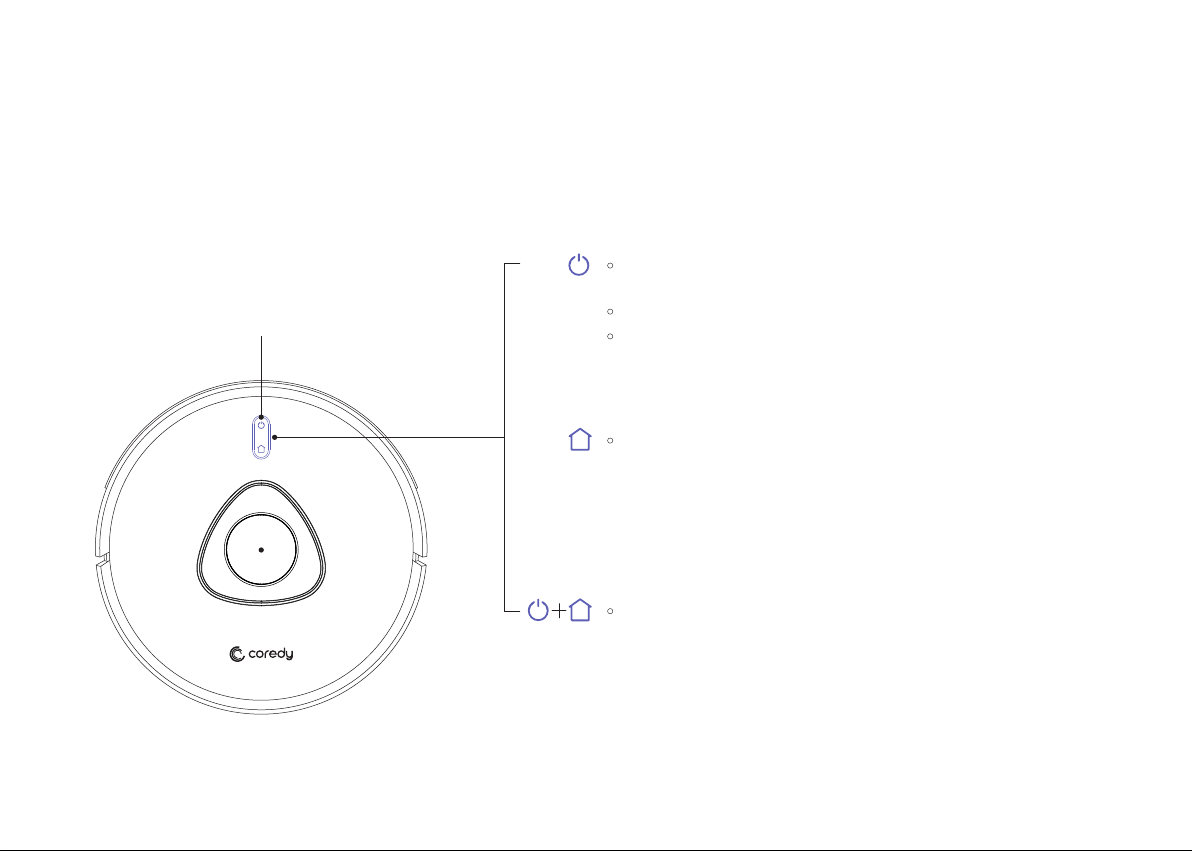
Press and hold for 3 seconds to
turn on or off (when not in Charging status)
Press to return Coredy L900W Robot to the Charging Dock;
press again to pause
Press to start Auto cleaning
Press to pause the current task when working
04
Press and hold both buttons for 5 seconds to active Wi-Fi
pairing mode or reset Wi-Fi connection
Wi-Fi status light
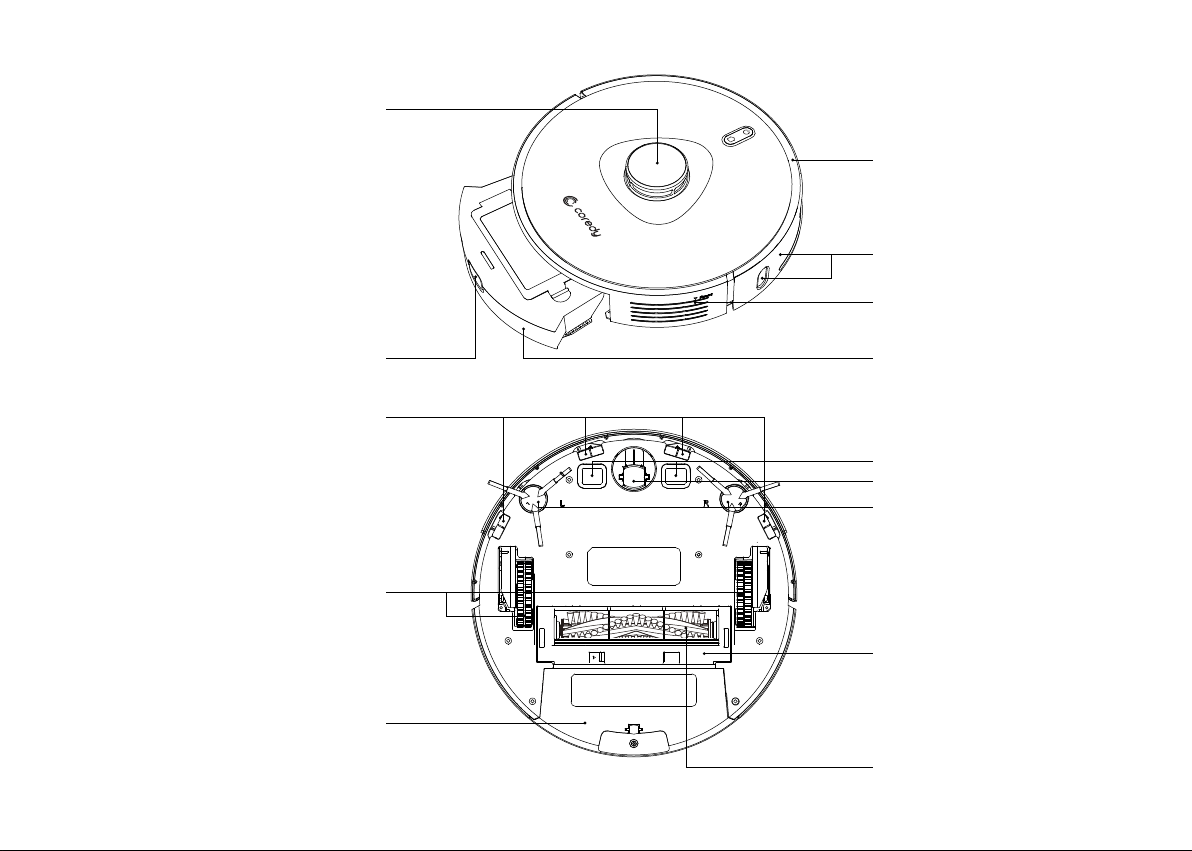
Dust Bin
Driving Wheels
Anti-Drop Sensors
Charging Contacts
Universal Wheel
Side Brushes
Rolling Brush
Brush Guard
05
Dust Bin Release Button
Dust Bin
Infrared Sensor
Reset Button
Bumper
Laser distance sensor (LDS)
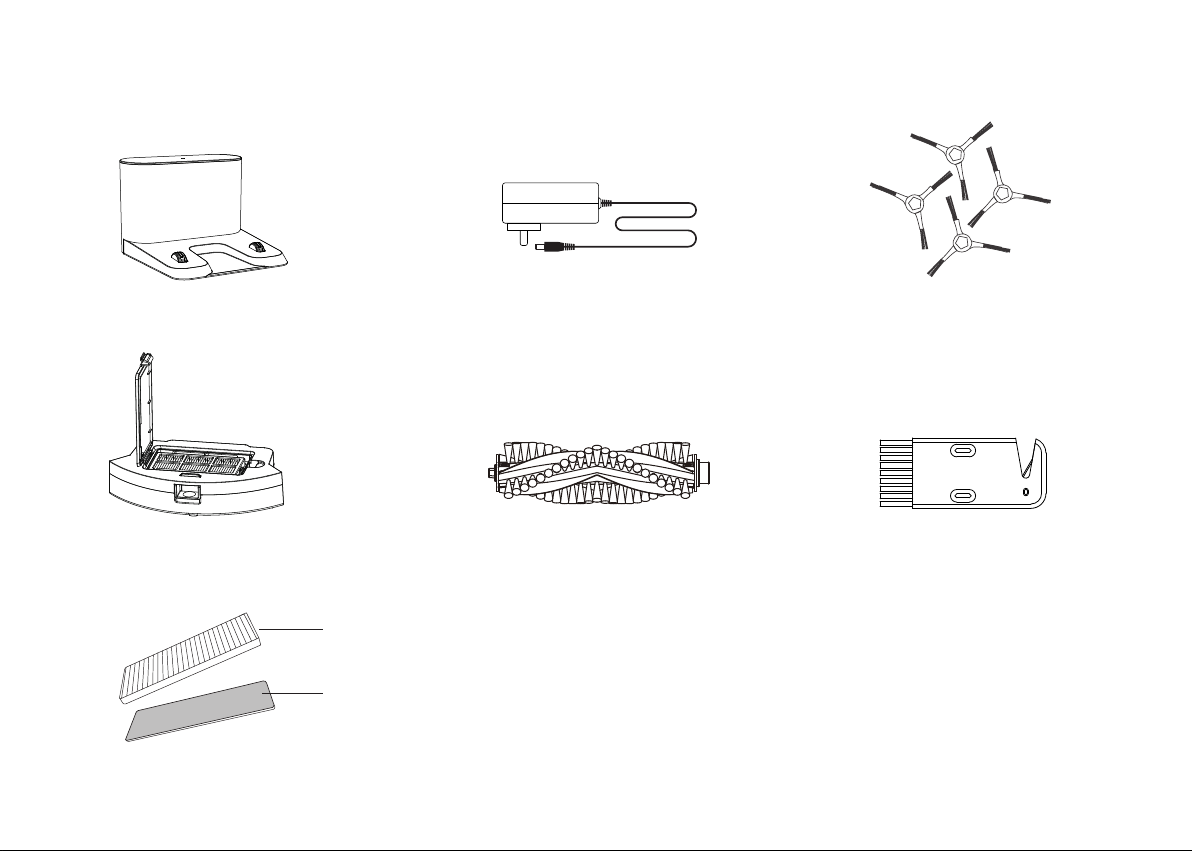
2.2 Accessories
1 x Charging Dock 1 x Adapter 4 x Side Brushes
1 x Cleaning Brush
1 x Rolling Brush
1 x Washable HEPA Filter
High-performance filter
Foam filter
06
1 x Dust Bin
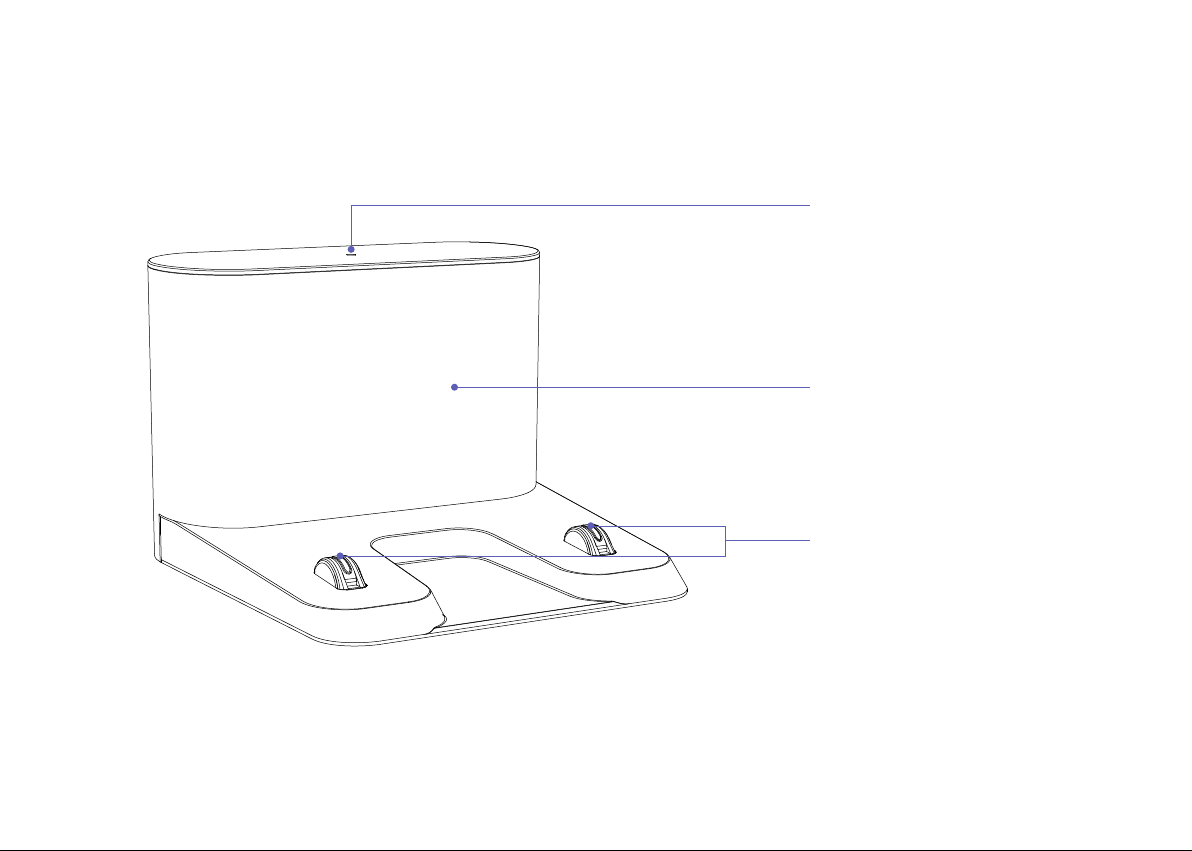
2.3 Charging Dock
07
Charging indicator
Signal transmission area
Butting charging pole piece
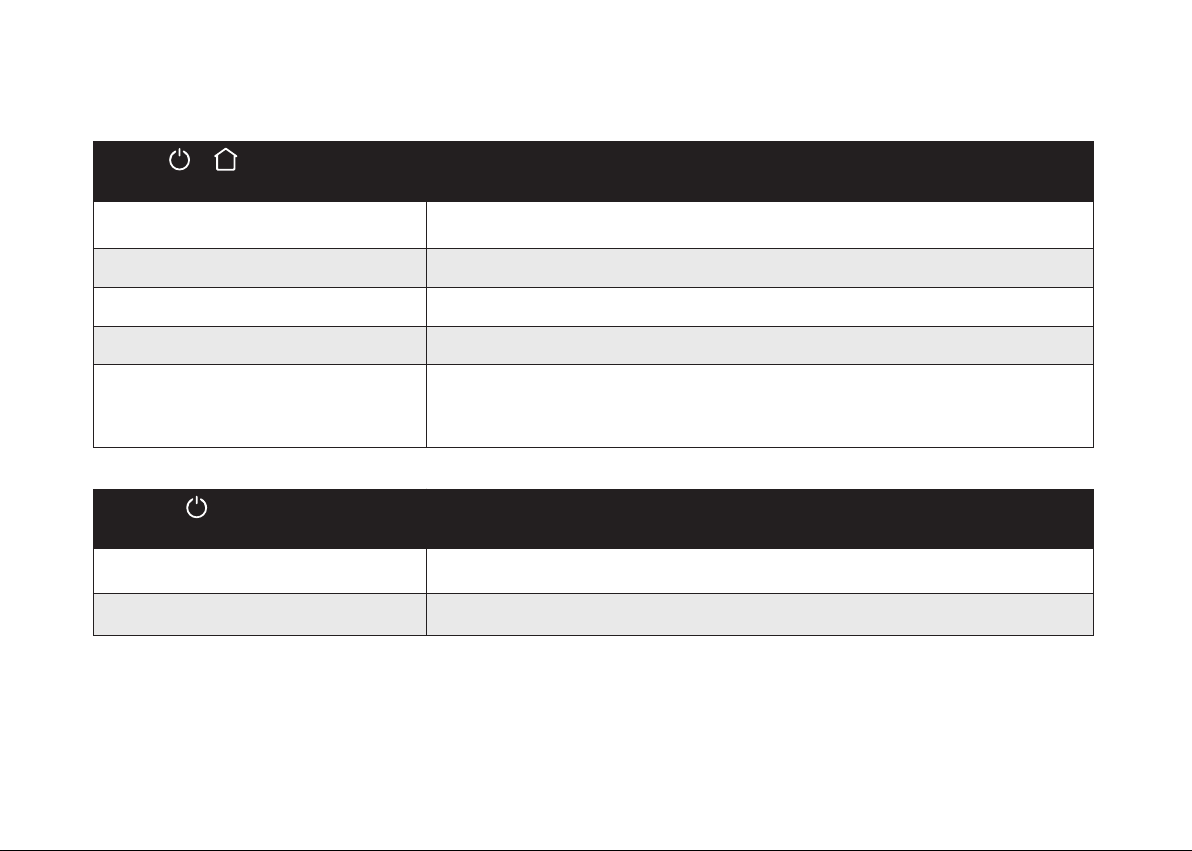
2.4 LED Indication
You can see the status of Coredy L900W Robot from the LED indicators.
(Power Status Lights)
Status
Solid purple Low power and returning to Charging Dock
Flashing red
Error indication (along with voice prompts)
Refer to the “Troubleshooting>Voice Alert” section in this
manual for solutions.
Solid blue
Standby / Cleaning (when not on Charging Dock)
Fully charged
Breathing purple Charging
Flashes blue 3 times
Status indication (along with voice prompts)
&
(Wi-Fi Status Light)
Status
Rapidly flashing blue Connecting with your wireless router
Solid blue Connected with your wireless router
08
3 Operating and Programming
3.1 Important Tips Before Use
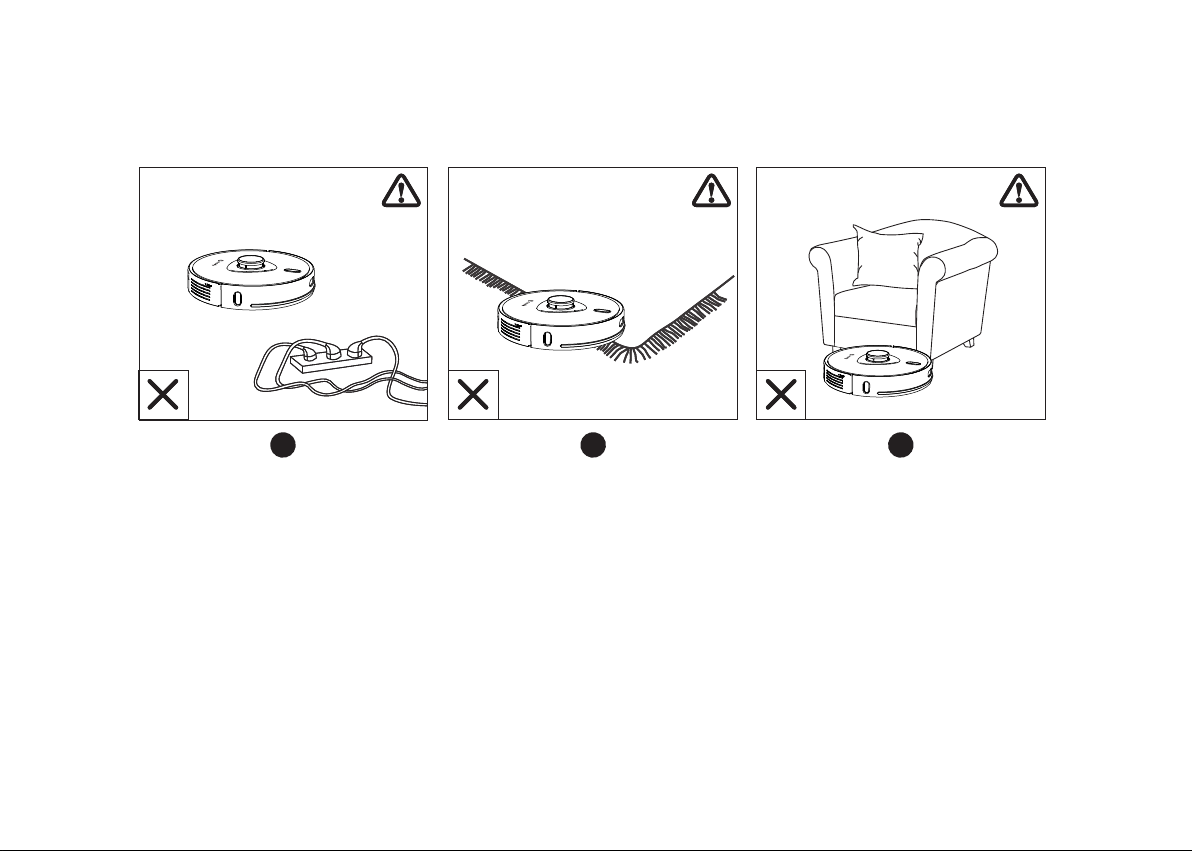
a. Remove power cords and small objects from the floor that may entangle Coredy L900W Robot.
b. Fold tasseled edges of area rugs underneath to prevent tangling Coredy L900W Robot. Avoid cleaning very
dark-colored high-pile rugs or rugs thicker than 1.02 in/26 mm as they may cause Coredy L900W Robot to
malfunction.
c. Keep Coredy L900W Robot away from spaces lower than 4.17 in/106 mm to prevent Coredy L900W Robot
from getting stuck. If necessary, place a physical barrier to block off the problem areas.
09
a
b
c
a
b
c
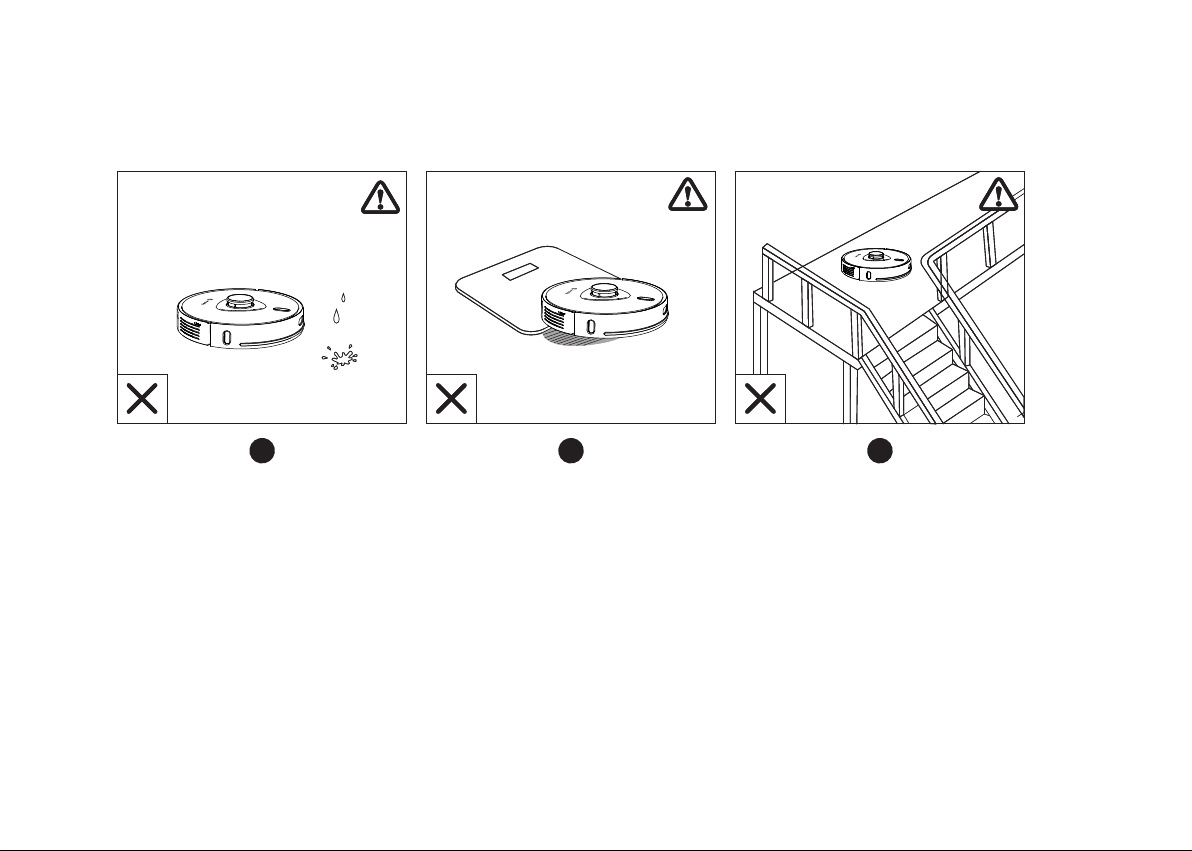
d. Keep Coredy L900W Robot away from wet areas during cleaning.
e. Coredy L900W Robot may climb on top of objects less than 0.67 in/17 mm in height (the height will be reduced
if the mopping module is installed). Remove these objects if possible.
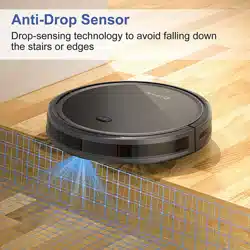
f. Anti-drop sensors will prevent Coredy L900W Robot from tumbling down stairs and steep drops in.most cases.
Sensors are less effective if dirty or used on carpeted/reflective/very darkcolored floors. It is recommended to
place physical barriers to block off areas where Coredy L900W Robot may fall.
10
d
e
f
d
e
f
3.2 Map Navigation and Management
Navigation
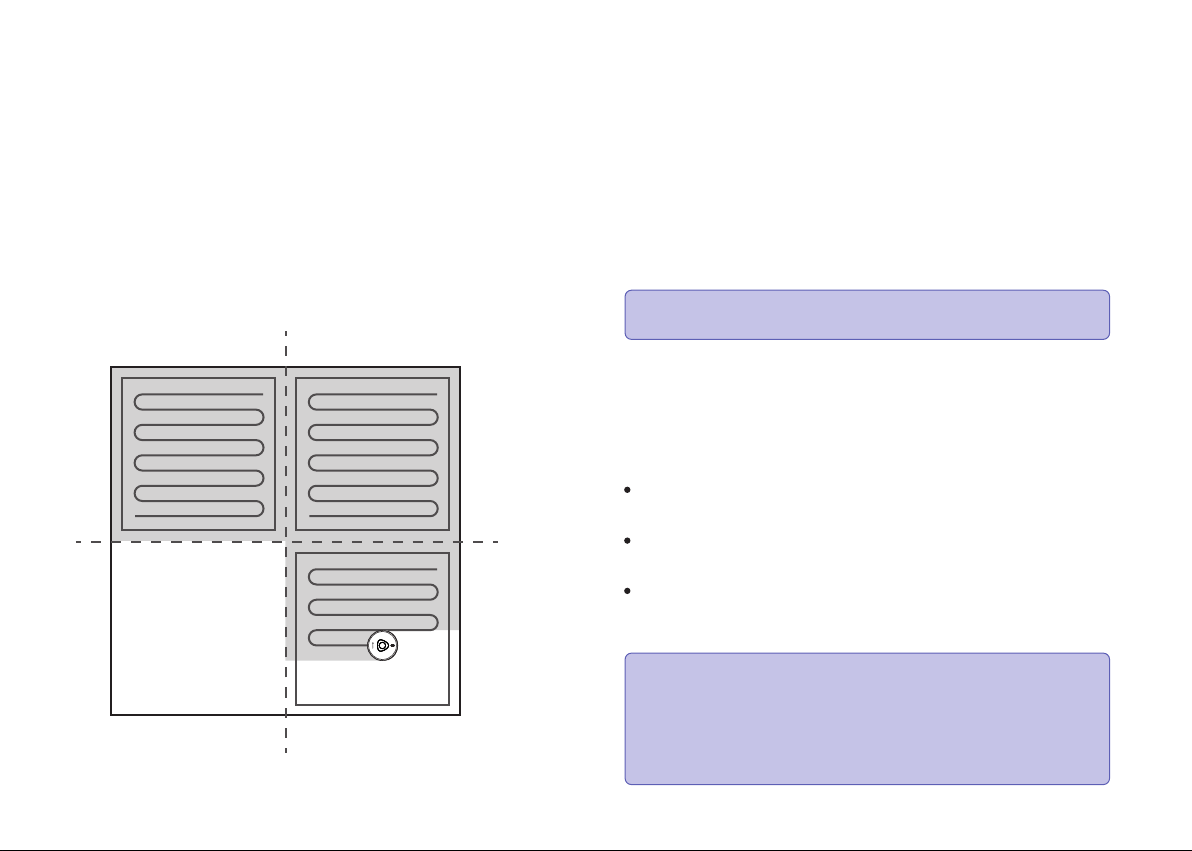
Once Auto cleaning starts, Coredy L900W Robot moves
from the Charging Dock, automatically scans to generate
maps, intelligently determines its cleaning route, and divides
the space into zones.
The cleaning paths are planned along the walls, following a
bow-shaped cleaning method to complete the cleaning of
each zone one by one.
Real-time Mapping & Floor Plan
Real-time mapping helps you know the cleaning path and
environment easily. A floor plan will be built after cleaning. The
map will be updated real-time during each cleaning to ensure
normal navigation.
Relocalization & Remapping
If the position of Coredy L900W Robot / Charging Dock is
adjusted or the surroundings are changed significantly, Coredy
L900W Robot will try to relocalize and may remap to match
the surroundings.
Coredy L900W Robot will resume cleaning if the relocaliza-
tion is successful.
If the relocalization fails, Coredy L900W Robot will remap to
ensure normal navigation with a new cleaning.
If the original map has the virtual boundary information,
Coredy L900W Robot will not start a new cleaning to avoid
going across the restricted zone.
1. open your doors for Coredy L900W Robot to map each room;
2. remove any objects that may be in the way or get Coredy
L900W Robot stuck.
Note: Do not remove the Charging Dock after a floor plan
is created.
Note:
During cleaning, do not move the device frequently. If
moved, place Coredy L900W Robot back to the original
position.
11
To create a complete floor plan:
Make sure Coredy L900W Robot starts each cleaning
from the Charging Dock.
3.3 Quick Start
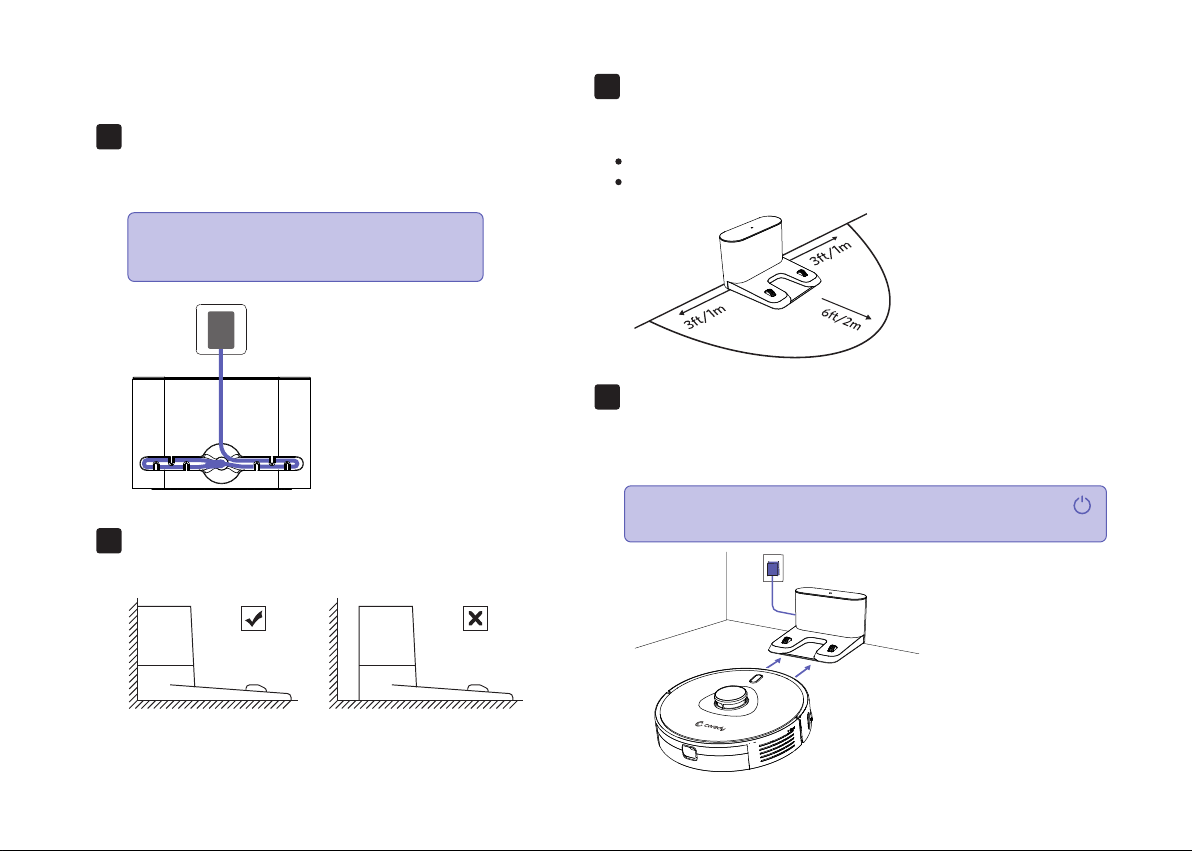
Charging Dock Position.
Place the Charging Dock against the wall and make sure
it is in an open and uncluttered area leaving at least:
Place the Charging Dock on a hard
level surface and against a wall.
2 meters (6 feet) in the front of the Charging Dock.
1 meter (3 feet) on both sides of the Charging Dock.
Plug in the Charging Dock and place
the remaining wire into the trunking
at the bottom of the Charging Dock.
1.
3.
2.
Activate the Robot
Place Coredy L900W Robot onto the Charging Dock, making
sure the metal charging contacts on the Charging Dock
match up with those underneath the robot.
4.
12
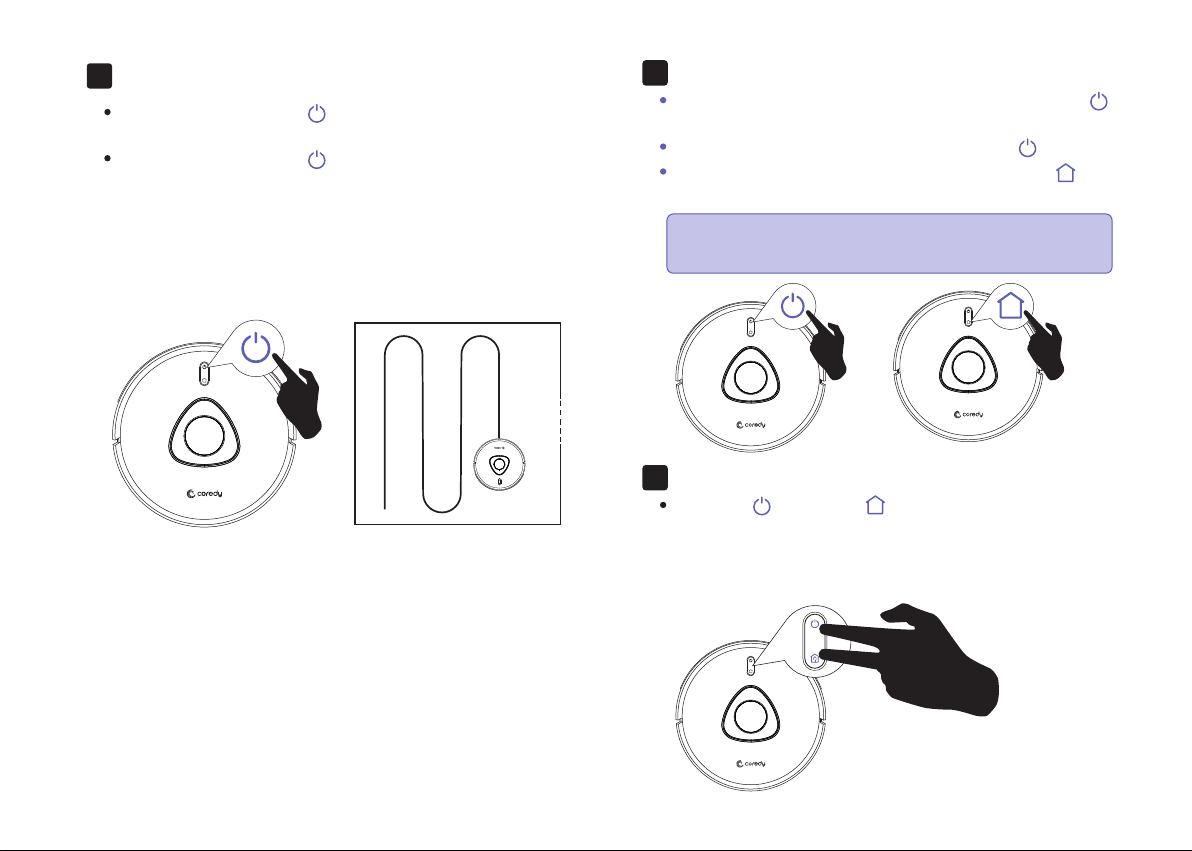
Initial Use, Press and hold on the power button
3 seconds on Robot to power on the Robot.
Note:
Note: Failure to place the remaining wire
into the trunking, may cause Robot to
become stuck while charging or cleaning.
If the Charging Dock is inaccessible, Robot will not be
able to recharge, please place the robot manually on
Charging Dock for charging. (Refer Activate the Robot).
Start Cleaning Cycle
Press the power button and hold on about 3 seconds
to wake up the Coredy L900W Robot.
Press the power button again to start a cleaning cycle.
If its battery gets low before finishing a cleaning cycle,
robot returns to the Charging Dock to recharge.
5.
Pause
To pause the robot during a cleaning cycle press the
button on robot.
To resume the cleaning cycle, press button again.
To send robot back to the Charging Dock, press
button on Robot.
6.
Wi-Fi Pairing Mode
Press the button and button on Robot
simultaneously and hold on about 5 seconds , when
you hear voice prompts from the Robot and the power
indicator light flashing PURPLE slowly. The Robot is in
Wi-Fi pairing mode.
7.
Note: The actions listed above can also be managed
from the Coredy APP.
13
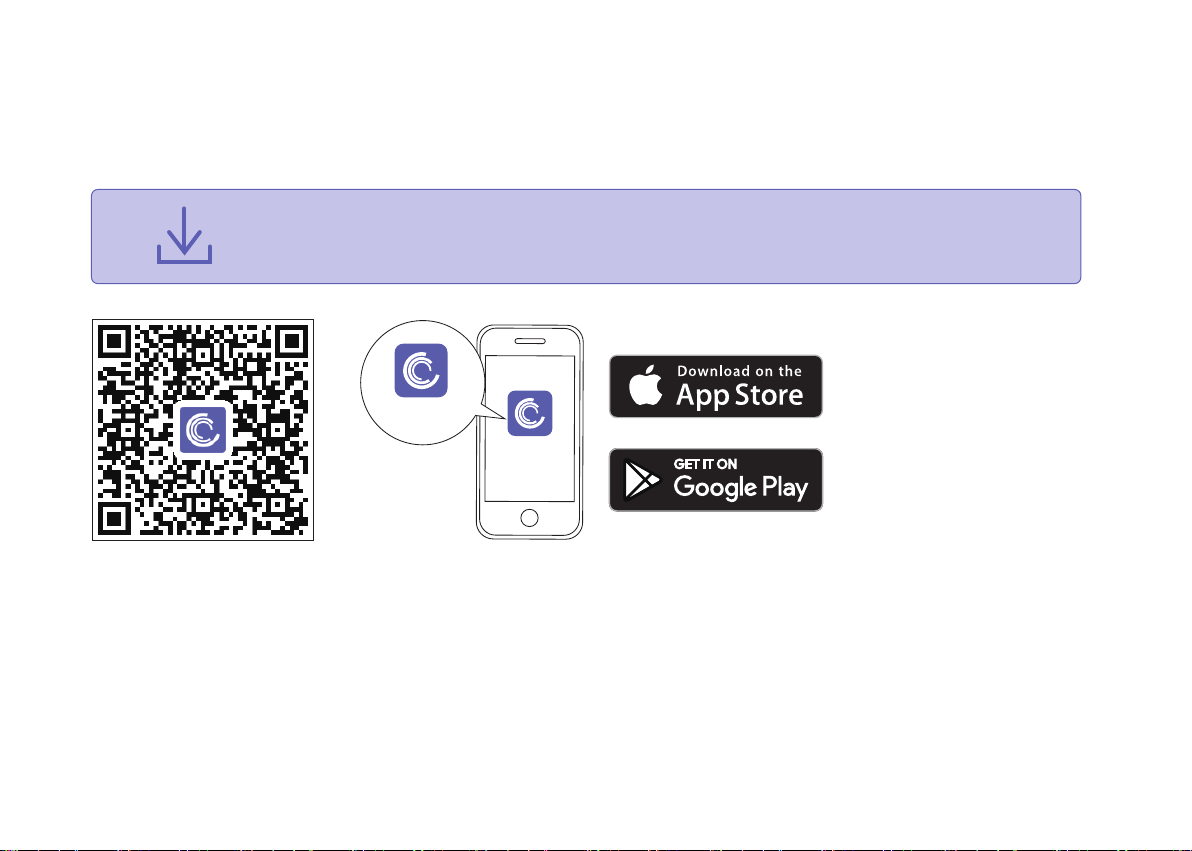
3.4 Use Your Coredy L900W Robot with the “Coredy Robot” APP
Before you start, make sure that:
To enjoy all available features, it is recommended to control your Robot via the Coredy Robot app.
1. Your smartphone or tablet is connected to a 2.4GHz Wi-Fi network ( Only support 2.4GHz network).
2. Your smartphone or tablet is running iOS 8.0 (or above) or Android 4.4 (or above).
3. Open the Coredy Robot APP and create a user account.
4. Tap the “+” icon to add Coredy L900W Robot to your “Coredy Robot APP”account.
5. Follow the instructions in the app to set up the Wi-Fi connection.
14
Coredy Robot
Coredy Robot
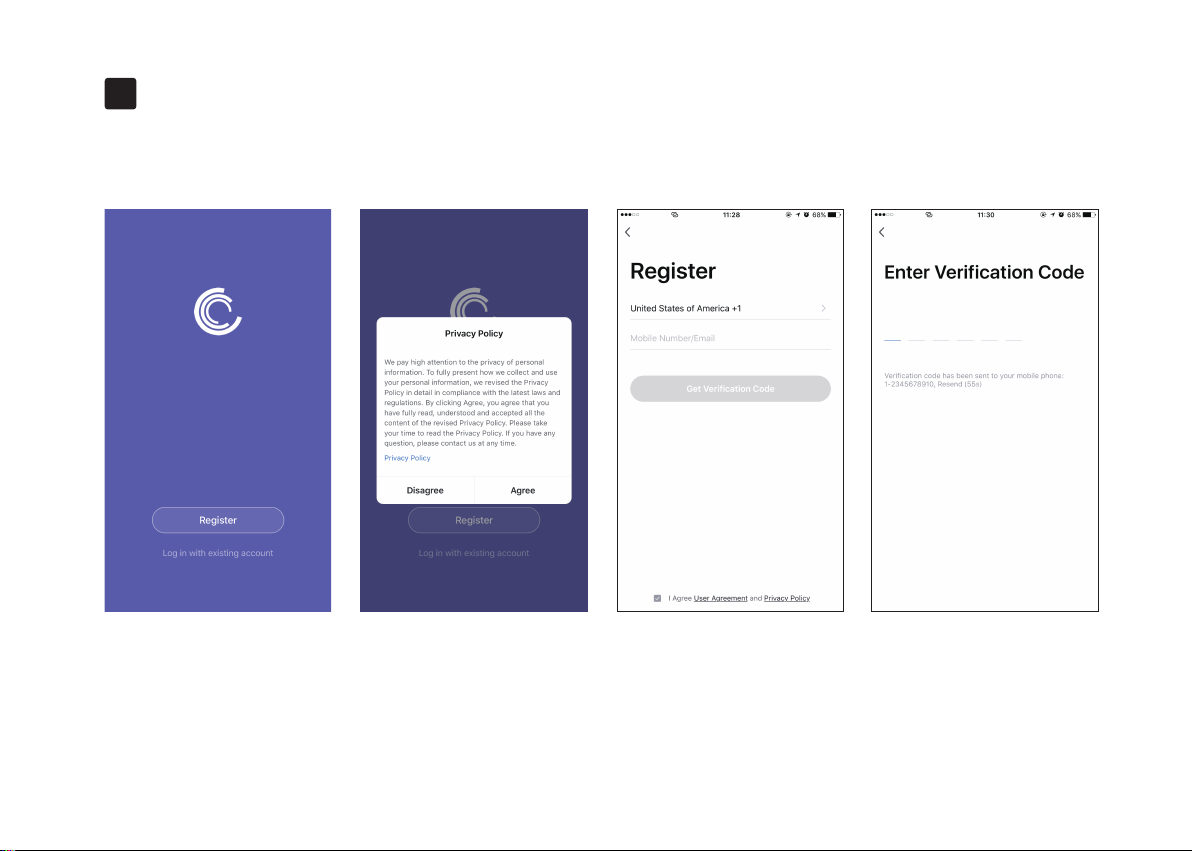
Scan the QR code as below to download the latest version of APP or download from the App Store
(iOS devices) or Google Play (Android devices).
Create a user account
15
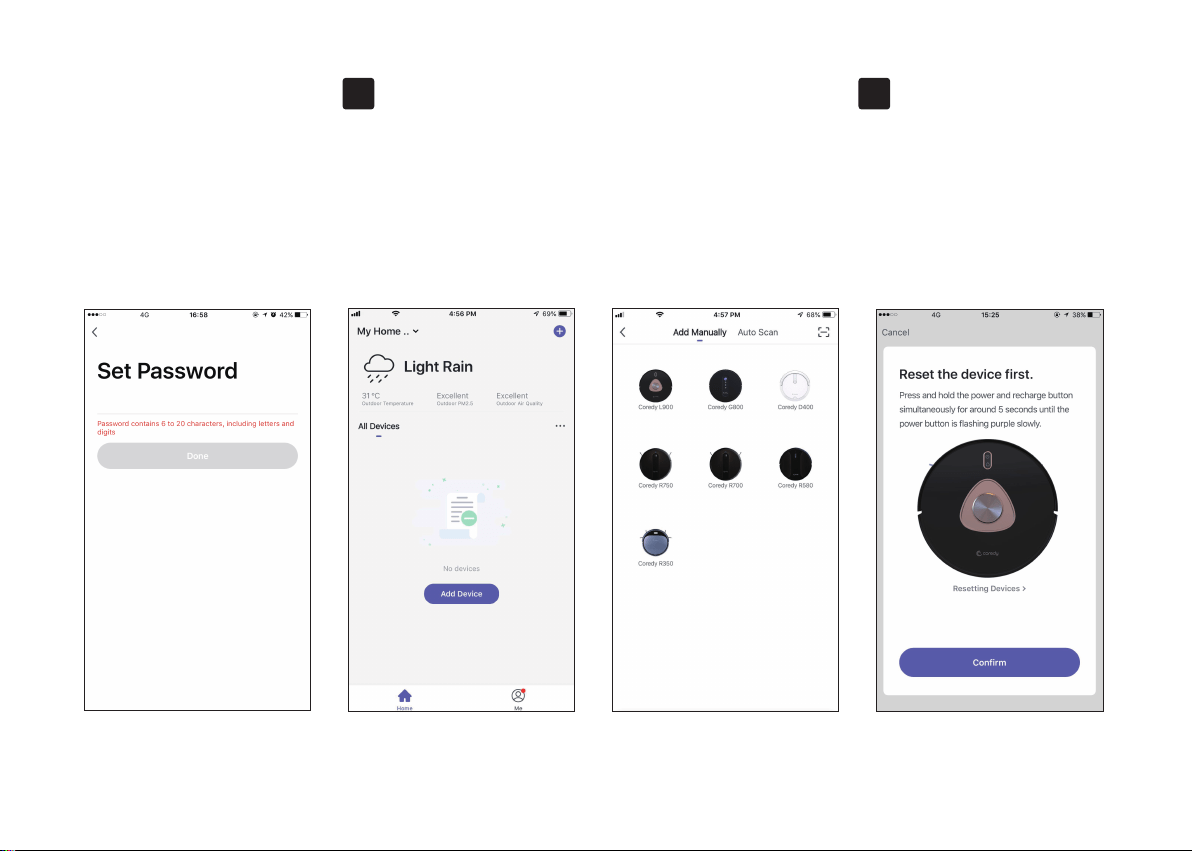
1. Open the app and create a
user account.
2. Agree the “privacy Policy” 3. Create your account with
the mobile phone number
or E-mail ID.
4. Enter verification code
1.
16
Add Device
1. Press “Add Device” or tap
the “+” in the top right
corner to add.
2. Add a Coredy L900W Robot
to your Coredy account.
1. Press and hold the power
and recharge both button
on the Robot around 5
seconds, make sure the
Wi-Fi indicator light on Robot
is slowly flashing purple, then
press the "Confirm" button to
next step.
Wifi Connection
5. Set your password with
6-20 characters.
2. 3.
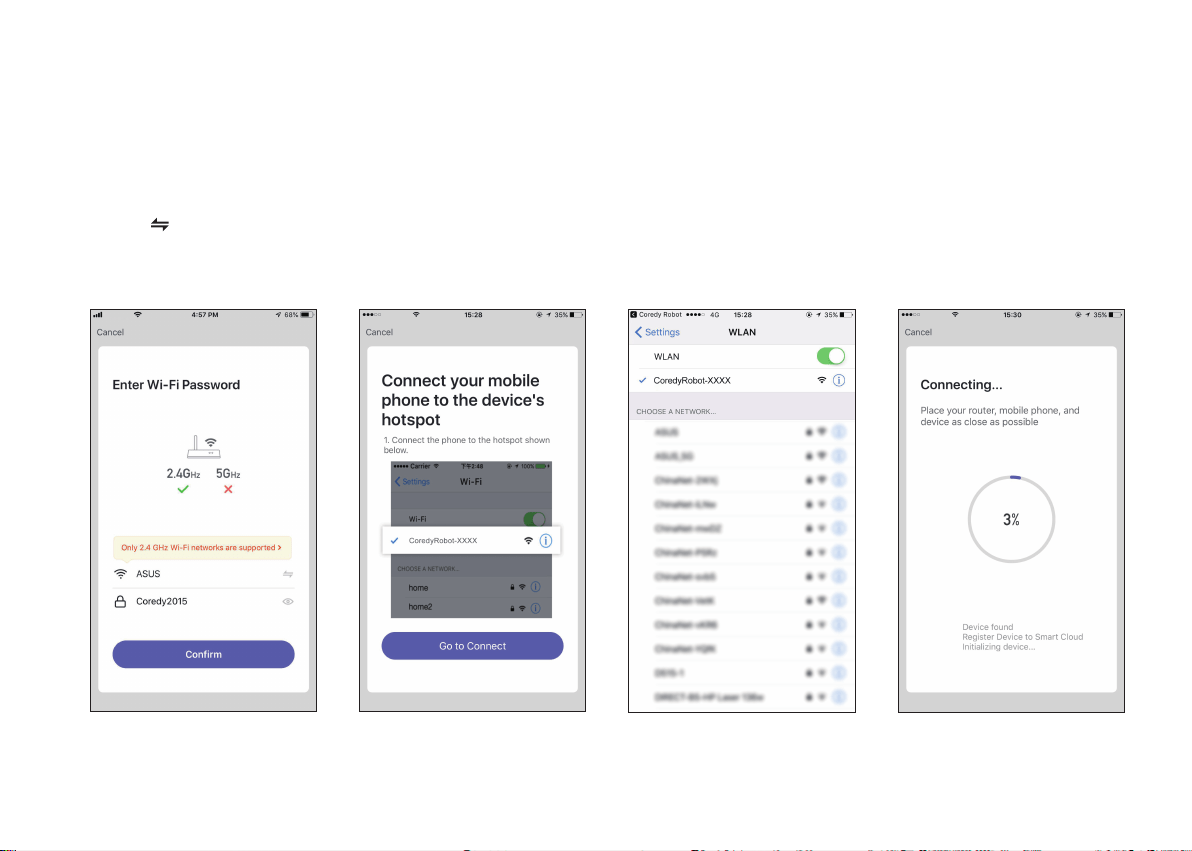
17
2. Select the network you want
Robot to use. You need to
select an exact Wi-Fi as your
usually using network. If no
Wi-Fi network list for you
choosing, check and set your
phone Wi-Fi setting first, then
press " " to connect and
choose the exact network you
need. Enter Wi-Fi password,
press "Confirm" to connect.
3. Press "Go to Connect", to
connect the mobile phone
to the device's hotspot.
4. Select the hotspot
"CoredyRobot-XXXX" of
Robot to connect.
5. Wait 1-2 seconds for the
connecting until "100%".
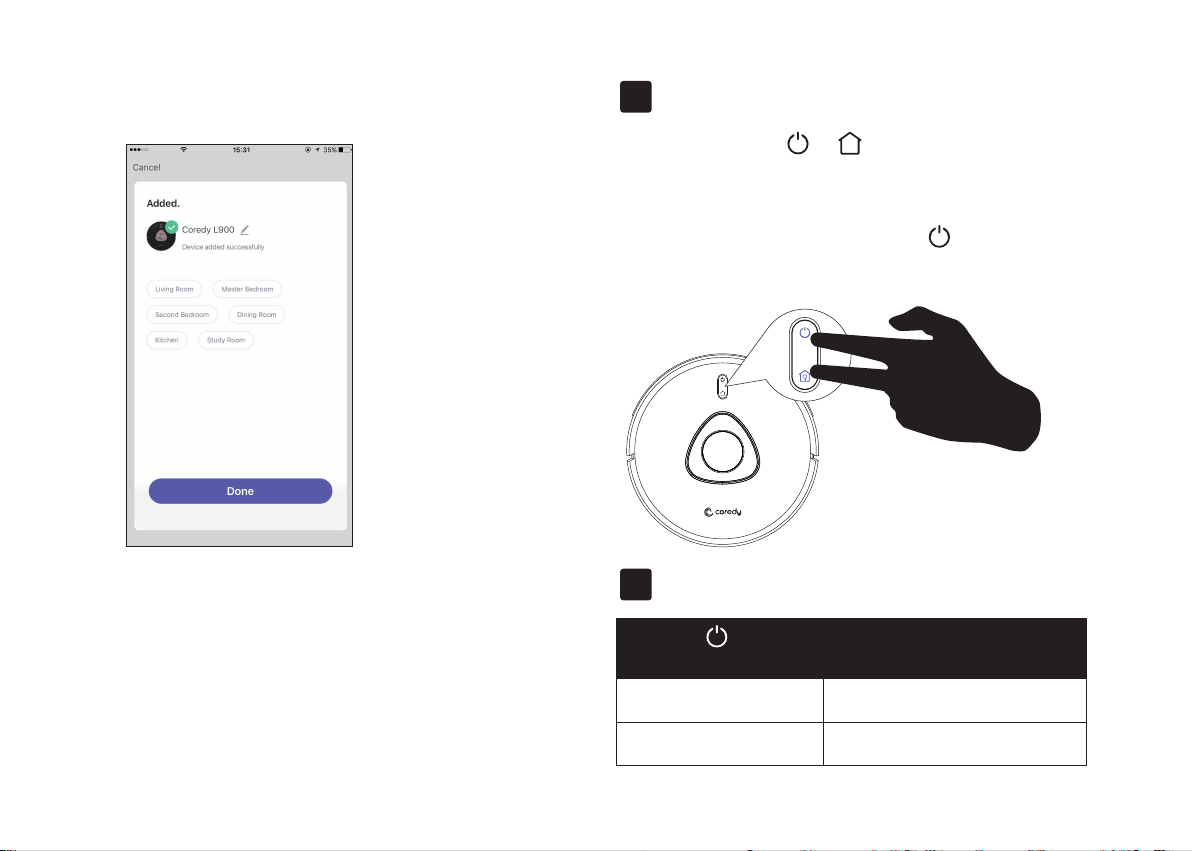
6. Your device added successfully,
press "Done".
18
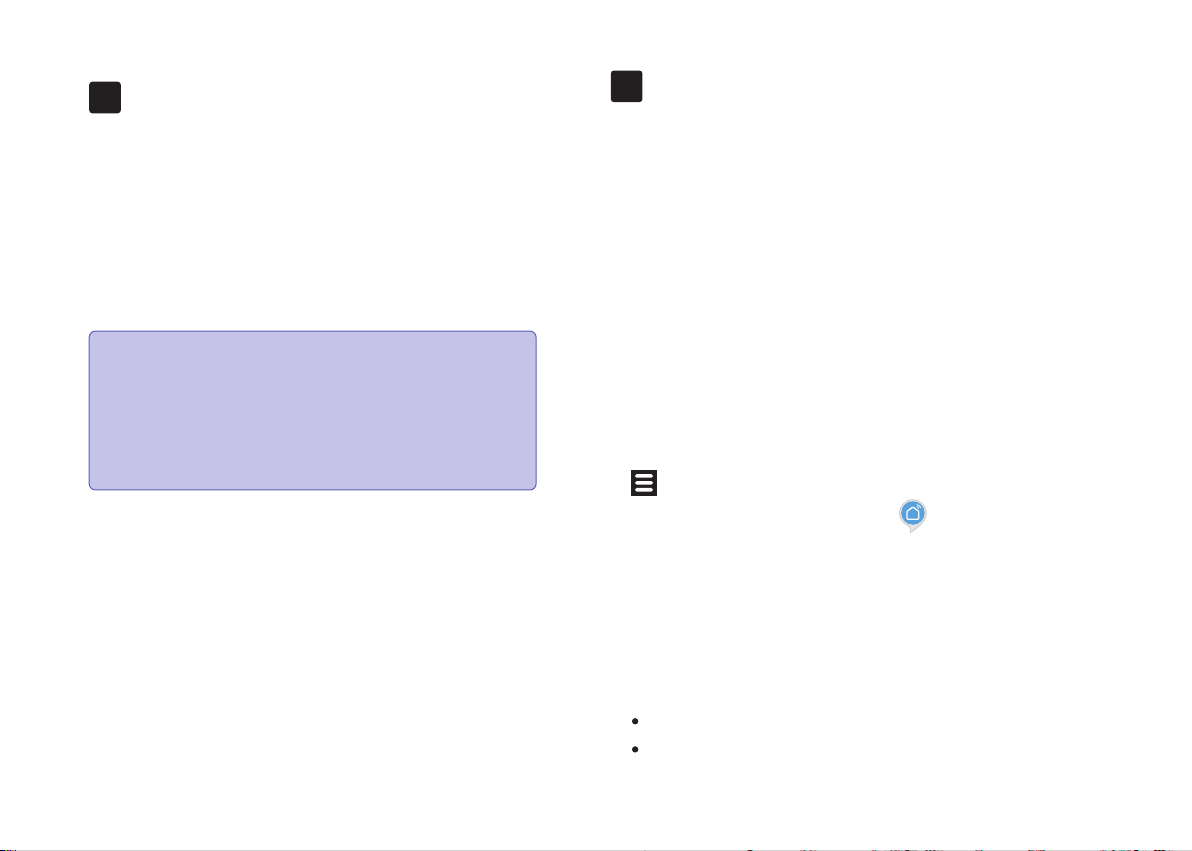
Reset the Wi-Fi Connection
Press and hold the & button simultaneously for 5
seconds on Coredy L900W Robot to reset the Wi-Fi connec-
tion.
You will hear a voice prompt when the Wi-Fi connection has
been reset, and the Wi-Fi status light will slowly flash
purple. Then you can follow the Wi-Fi instructions in the
Coredy Robot app to set up the Wi-Fi connection.
4.
Wi-Fi Status Light
5.
Rapidly flashing blue Wi-Fi Connecting
Solid blue Wi-Fi connected successfully
(Wi-Fi Status Light)
Status
Coredy APP Control
Follow the instructions in the app to set up the Wi-Fi
connection.
After connecting successfully, you can control Coredy
L900W Robot with the app, you can select cleaning at
your desired suction level, schedule cleaning, view the
cleaning map, set up “Zone cleaning” or “No-Go” zones,
check the network connection status, and access
additional features.
6.
19
Using Amazon Alexa
Follow the instructions to control your Coredy devices
with Amazon Alexa. If you run into any difficulties during
the process, please scroll down to the bottom for
Troubleshooting.
Your Coredy Devices are connected with the Coredy Robot
app.
You have an Alexa-enabled device (i.e. Amazon Echo, Echo
Dot and Amazon Tap).
The Amazon Alexa app is installed on your smart device and
you have created an account.
To control Coredy devices with Amazon Alexa:
For Robot only, do the following steps:
1. Open the Alexa app and select “Skills & Game” from the
menu.
2. On the Skills screen, search for “ Smart Life”.
3. Select your Smart Life skill, then press "Enable".
4. Login with your Coredy Robot account so Alexa can control
your Coredy devices.
5. Using “Smart Life” skill (for Robot only):
You do not need to discover your device as you can control
the Robot with your voice.
Say simple commands to Alexa. Examples:
"Alexa, turn on Coredy L900W"
"Alexa, turn off Coredy L900W"
Before you start, make sure that:
7.
Note: If you have any problems during the W-Fi
setup process, visit http://shop.coredy.com to
contact our customer service.
If Coredy L900W Robot gets stuck in any space,
tap Find Me in the app to find the machine. This
function is available in the app only.

20
6. If you add two or more Robot devices to Coredy Robot
App, you can edit name for each Coredy robot on Coredy
App or Alexa, they're Synchronous. After named, giving a
command by using your robot name. Examples, named
"Robot 1":
What do I do if Alexa fails to discover my devices?
Check if there are any Internet connection problems.
Try to reboot the smart device and re-discover the device on
Alexa.
Why does the device’s status Show “Offline” on Alexa?
Your wireless connection might have been lost. Reboot the
smart device and re-discover on Alexa.
Internet access on your router could be unavailable. Check if
your router is connected to the Internet and try again.
Why can't I control Coredy devices with Amazon Alexa?
Check if there are any Internet connection problems.
Check if you are using the proper commands when talking to
Alexa. You must say the wake word “Alexa” first when making
your request.
Repeat your question. Speak naturally and clearly to Alexa.
Make sure your Coredy device is at least eight inches away
from walls or other objects that may cause interference (such
as microwave ovens).
Troubleshooting
"Alexa, turn on Robot 1"
"Alexa, turn off Robot 1"
Using Google Assistant
These instructions will help enable you to control your Coredy
devices with Google Assistant.
Your Coredy Devices are connected with the Coredy Robot app.
You have a Google Assistant enabled device (i.e. Google
Home).
The Google Home app is already installed on your smart
device, and you have created an account.
To control Coredy devices with Google Assistant:
For Robot only, do the following steps:
1. Open the Google Home app.
2. Say “OK Google, talk to Robot” to the Google Assistant-en
abled device (i.e. Google Home) to initiate the Google
action for Robot.
3. Follow the instructions in the Google Home app to authorize
Google Assistant with your Coredy Robot account.
4. To control Robot with your voice, say simple commands to
Google Assistant:
5. If you add two or more Robot devices to Coredy Robot
App, you can edit name for each Coredy robot on Coredy
App or Alexa, they're Synchronous. After named, giving a
command by using your robot name. Examples, named
"Robot 2":
"OK Google, turn on Coredy L900W"
"OK Google, turn off Coredy L900W"
"OK Google, find Coredy L900W"
"OK Google, go home Coredy L900W"
Before you start, please make sure that:
"OK Google, turn on Robot 2"
"OK Google, turn off Robot 2"
"OK Google, find Robot 2"
"OK Google, go home Robot 2"
8.
3.5 How Coredy L900W Robot Clean Your
Home
Auto Cleaning
Coredy L900W Robot continues this process until it has cleaned
an entire level of your home. If its battery gets low before finishing
a cleaning cycle, Coredy L900W Robot returns to the Charging
Dock to recharge.
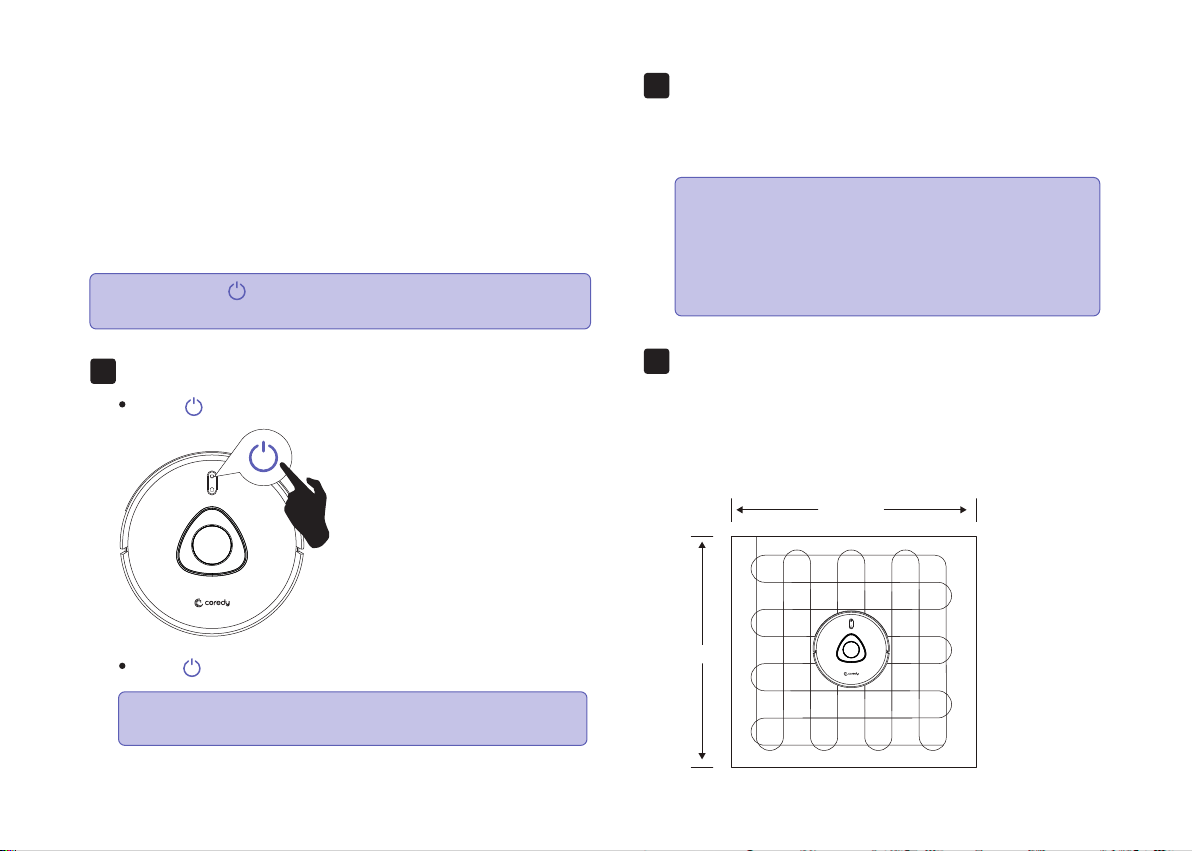
Press to start cleaning in Auto Mode.
Press again to pause cleaning.
1.
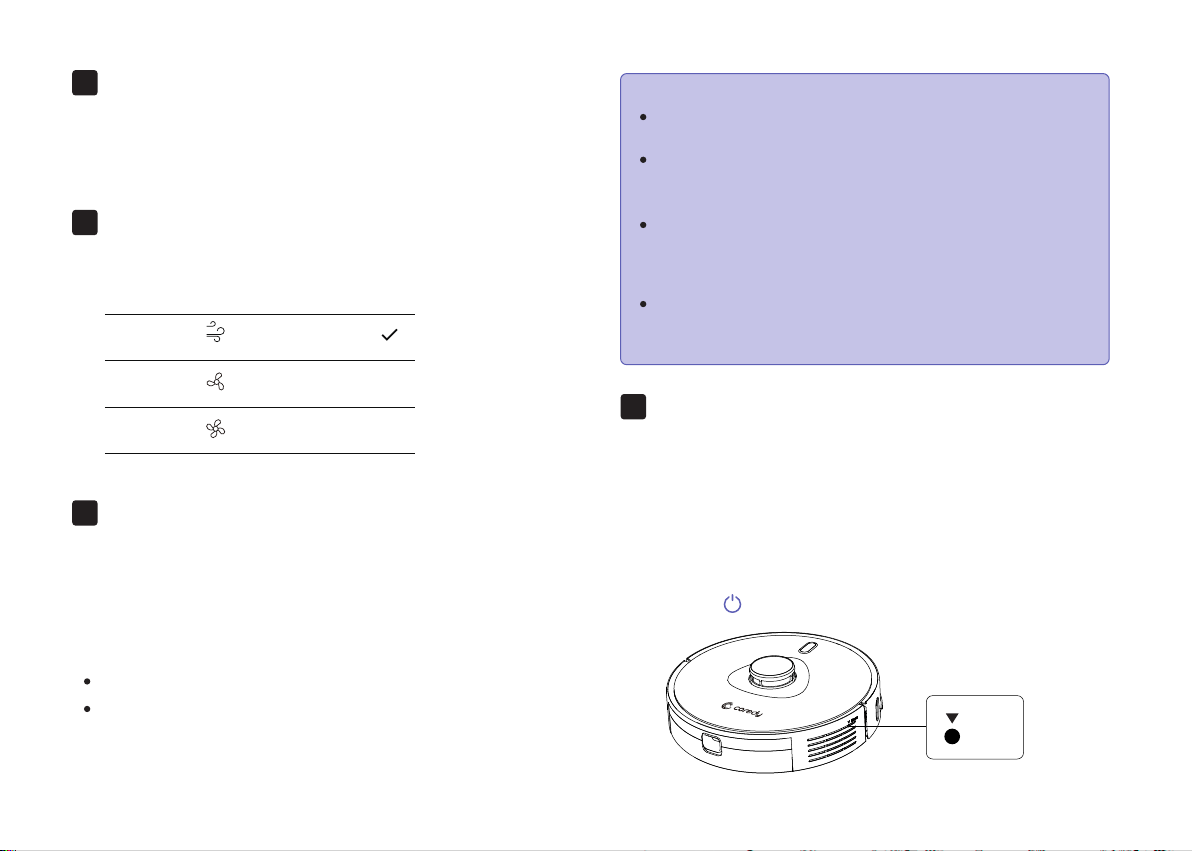
Zone cleaning (available via the app only)
In this mode, set up a cleaning zone in the Coredy
Robot app. Coredy L900W Robot will clean this zone
only and return to the Charging Dock after cleaning.
2.
Spot Cleaning (available via the app only)
Coredy L900W Robot intensively cleans a specific area
with a size of 4.9 ft x 4.9 ft / 1.5 m x 1.5 m.
Useful if there is a concentrated area of dust or debris.
When the cleaning of a certain zone is finished, it
automatically returns to the Charging Dock.
3.
21
Note: Note By default, Coredy L900W Robot
starts in Auto cleaning mode when it is turned on.
Start Zone cleaning only after Coredy L900W
Robot has created the map.
It is recommended that Coredy L900W Robot
moves from the Charging Dock to start Zone
cleaning.
You can press at any time to pause the current cleaning
cycle.
Select a Cleaning Mode
Note:
4.9ft/1.5m
4.9ft/1.5m
Manual-controlled cleaning (available via
the app only)
You can direct Coredy L900W Robot to clean a
particular area by using manual controls in the Coredy
Robot app.
In the Coredy app, you can set up a “No-Go Zone” as a
virtual restricted area. This feature is designed for dividing
the cleaning zones, not for isolating hazardous areas.
No add-ons devices or boundary strips required.
No-Go Zone: Coredy L900W Robot will not enter the zone
to vacuum or mop.
4.
Select a Suction Power Level
In the Coredy Robot app, select a suction power level
according to your needs:
5.
6.
Reset the Robot
You can reset the system if there is no response when
pressing any button on Coredy L900W Robot.
1. Make sure Coredy L900W Robot is not on the Charging
Dock.
2. Use a clip to press the Reset button.
3. Coredy L900W Robot will automatically turn off.
4. Dock Coredy L900W Robot onto the Charging Dock or
press to turn it on. The system is reset.
7.
22
Edit No-Go Zone ( don’t support physical
barriers)
Virtual Boundary (Available on the App Only)
To set a virtual boundary, Coredy L900W Robot must
initially perform a cleaning run to create a floor plan.
Note:
Quiet
Standard
Max
To clean your home with virtual boundary, ensure that
Coredy L900W Robot is on the Charging Dock and that
the Dock has not been manually moved during cleaning.
Although a virtual boundary is set, Coredy L900W
Robot may still enter the restricted zone due to such
reasons as relocalization, wrong positioning or abnor-
mal sensors.
Moving the device or changing the environment may
cause mapping failed and rebuilt with virtual boundary
lost.
Reset
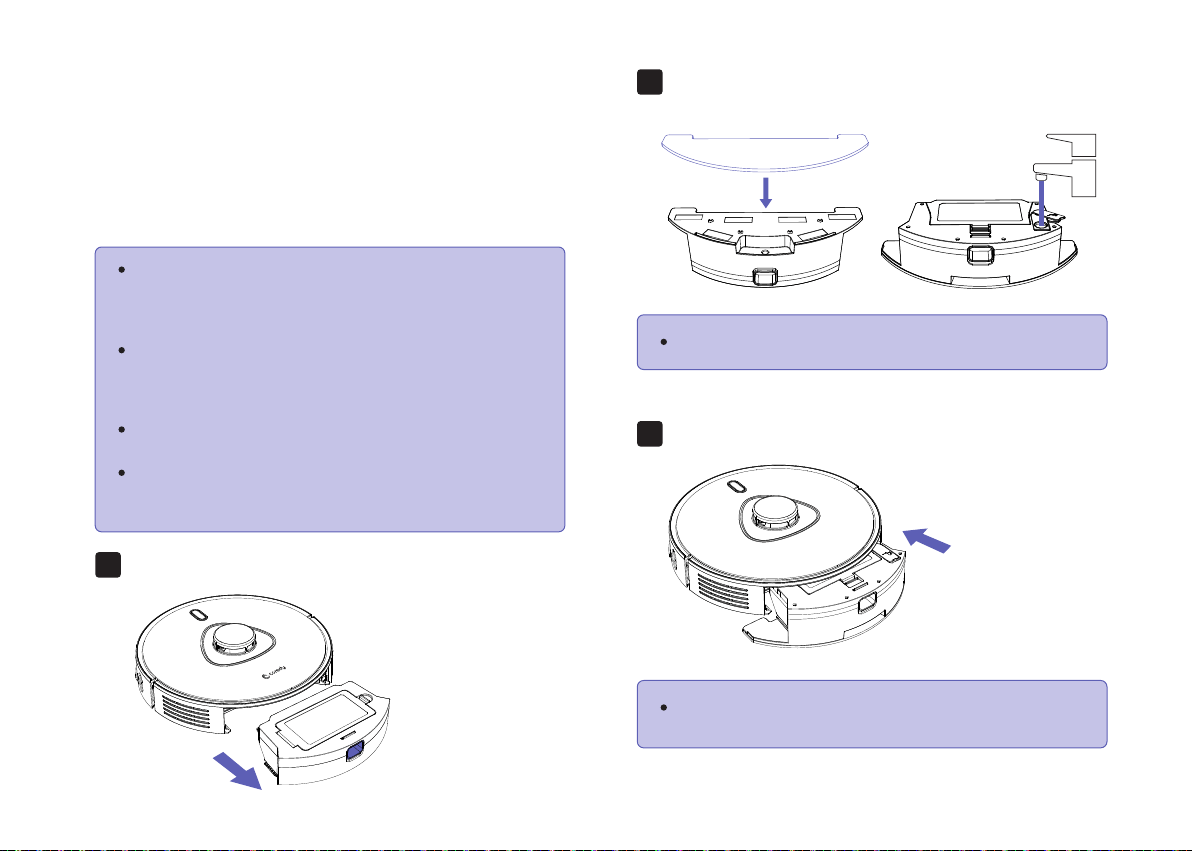
Remove the dust bin from the robot.
1.
Attach the mop cloth to the water tank and fill the water
tank with water.
2.
Insert the water tank into robot until a voice prompt is
heard.
3.
3.6 Use Mopping System
Coredy L900W supports wet/dry mopping function (water
tank and mopping cloth sold separately), the robot has a
mopping system with an electronically-controlled water
pump, can automatically control water flow to start/stop,
offers 3 water flow levels (Low, Medium, High), ensuring
intelligent mopping cleaning for your home.
23
The mopping mode is only intended for a clean floor
without stubborn stains or liquids. To avoid staining
floors, do not use the mopping function when dust
is mixed with liquids such as coffee or ink.
Water tank and mop cloth sold separately.
When the water tank is inserted, Coredy L900W
automatically switches to the mopping mode.
Mopping System cleans best on smooth hard
surfaces and may not perform so well on uneven
tiles, heavily waxed floors or rough surfaces like
slate or brick, which may snag the mopping cloth.
The mopping mode is not recommended when no
one is at home.
Do not use the mopping mode on a carpeted floor.
It is recommended to set a No-Go” zone in the
Coredy app to avoid cleaning the carpeted area.
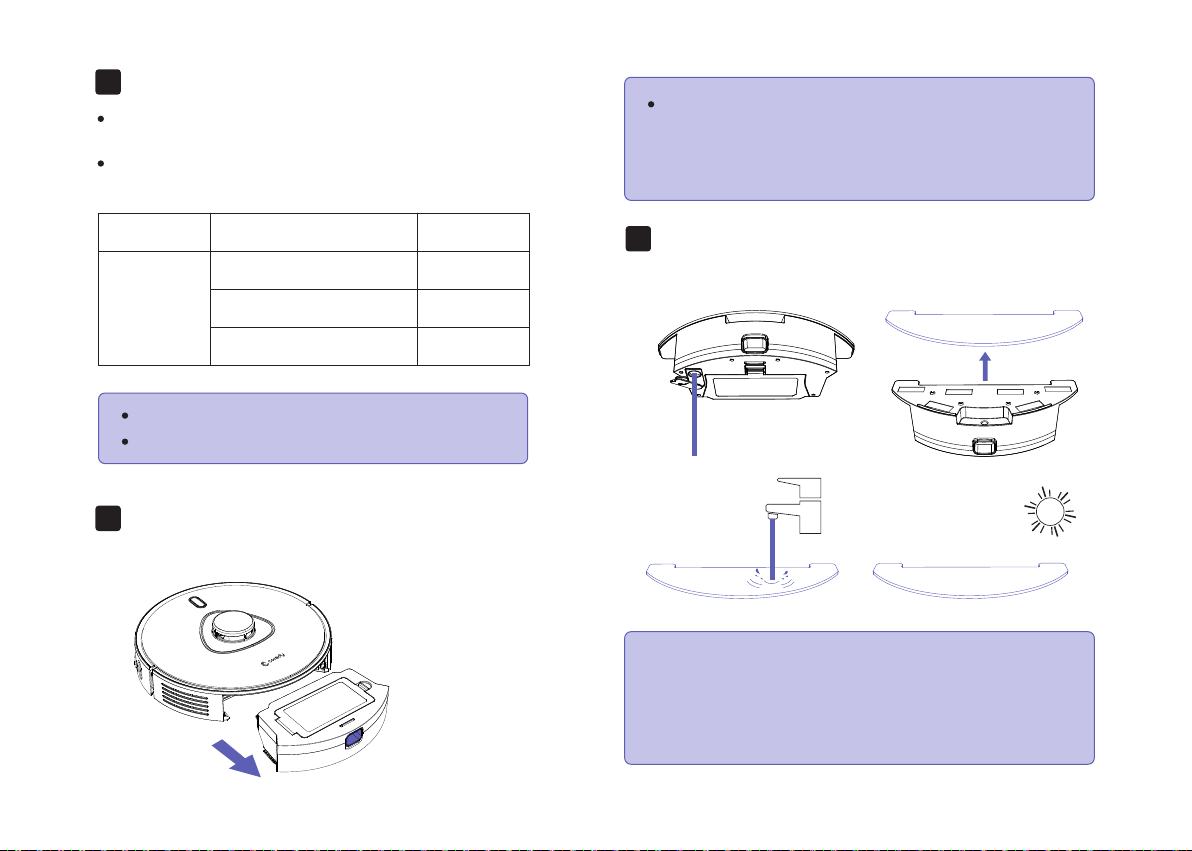
Select a cleaning mode to start mopping cleaning.
4.
When L900W finishes working and returns to the
charging dock, hold the water tank release button
by hand, drag backward and remove the water tank.
5.
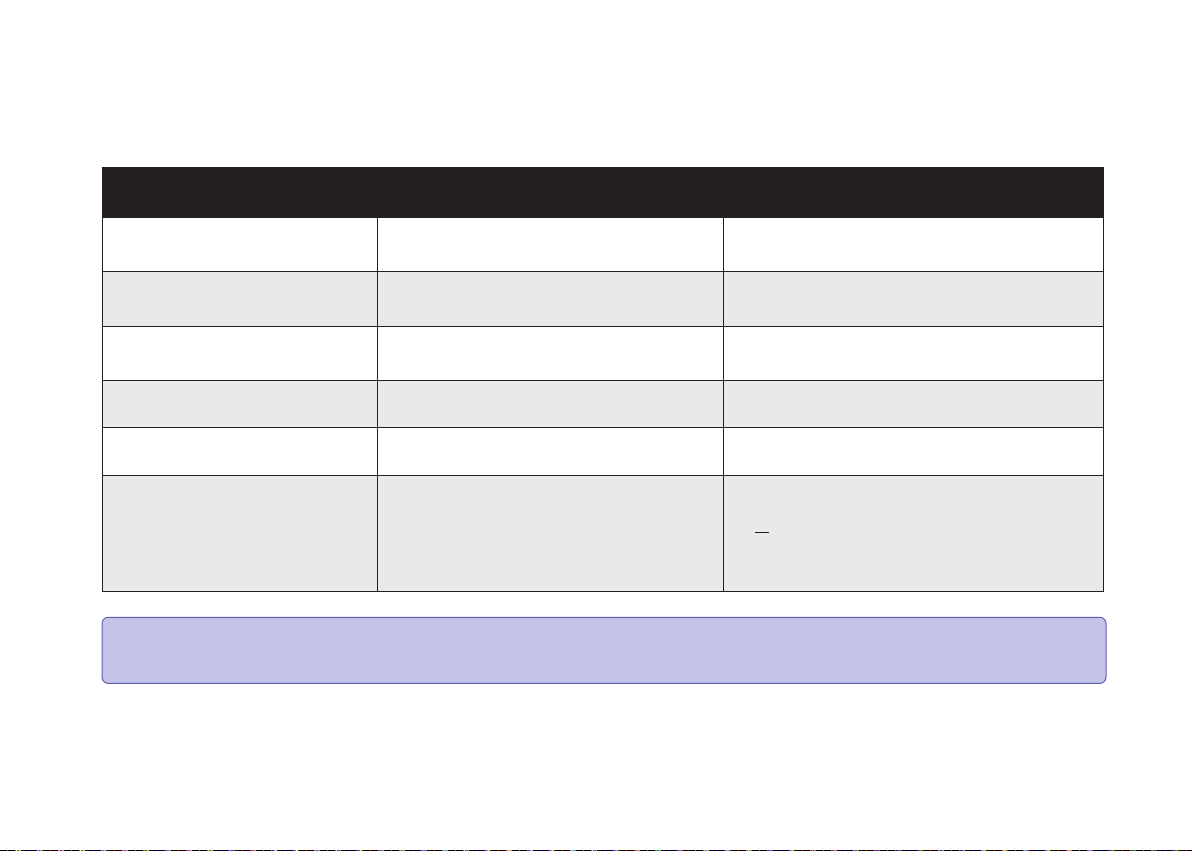
Empty any remaining water from the water tank. Clean the
mopping cloth to avoid it being mildewed and producing
unpleasant smell.
6.
24
Although water release is stopped when mopping
cleaning is paused, the mopping cloth will still be
wet, be careful not to keep robot in one location for
too long, as the excessive moisture caused by the
cloth may damage the floor.
It is recommended to clean the mopping cloth after
mopping each time.
Remove the mopping cloth when Robot is under
charging or not in use.
Default suction level: Quiet.
Default water level: Low.
Coredy L900W automatically sweeps and mops in
the default suction level and mopping water level.
You can select the mopping water level (3 levels) in
the app according to your needs.
Suction LV
Quiet
Mopping Water Level Runtime
Low 190mins
Medium 150mins
High 120mins
Note:
25
To keep robot running at peak performance, perform the following care procedures. If you notice robot picks up less debris
from your floor, then empty the bin, clean the filter and clean the rolling brush.
4 Regular Robot Care
Robot Part Care Frequency Replacement Frequency
Side Brush
Once per week (twice per week in
homes with pets)
Every 2-3 months (or when visibly worn)
Every 3-6 months
Every 3-6 months
Cliff Sensors
Charging Contacts
Floor Tracking Sensor
Front Driving Wheel
Unversal Wheel
Once per month
Filter
Once per week (twice per week in
homes with pets)
Every 2-3 months
Rolling Brush
Once per week (twice per week in
homes with pets)
Brush Guard Once per month
Every 12 monthsDust Bin After each use
Note: Coredy manufactures various replacement parts and assemblies. If you think you need a replacement part, please
contact Coredy Customer Care for more information.
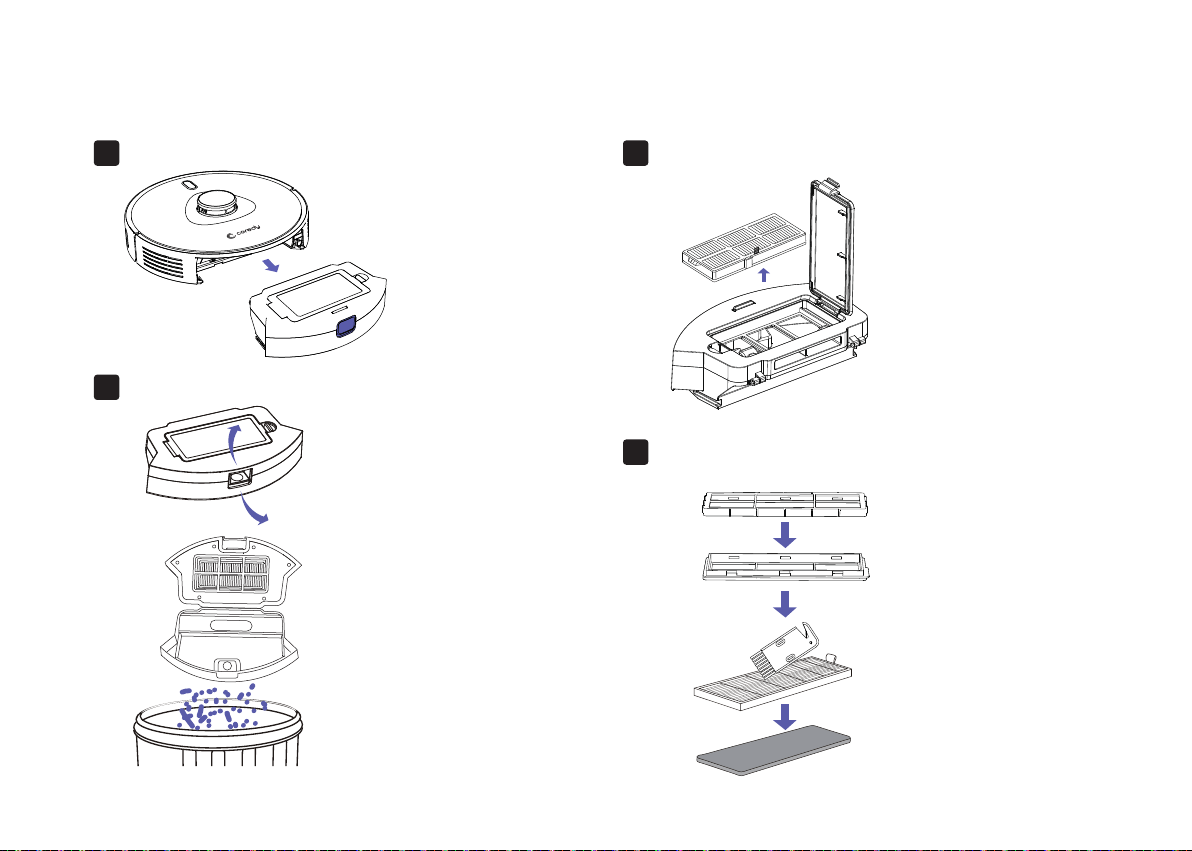
4.1 Empty Robot's Dust Bin
Press dust bin release button to remove it.
1.
4.2 Clean Robot's Filter
Remove filter by grasping the white tab.
1.
Shake off debris by tapping the filter against your
trash container.
2.
Open dust bin door to empty it.
2.
26
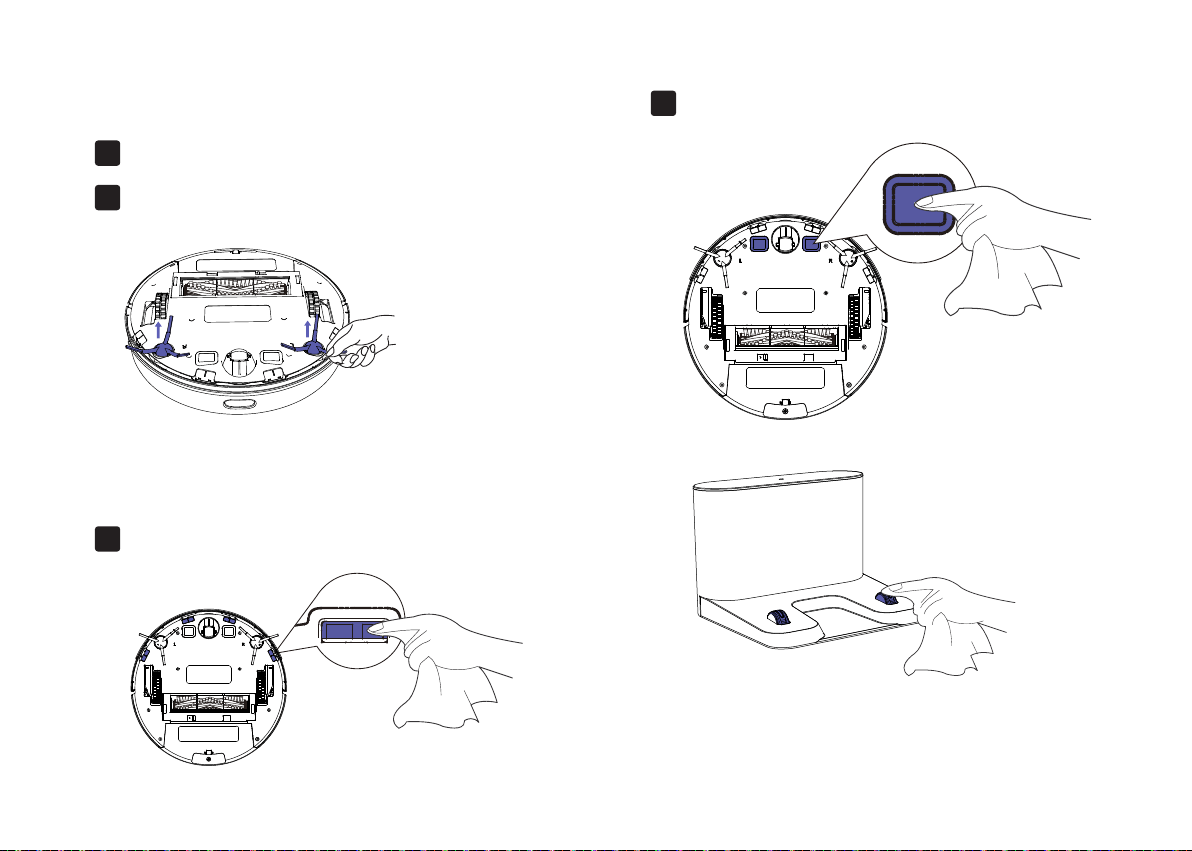
4.3 Clean Robot's Side Brush
4.4 Clean Robot's Cliff Sensors
and Charging Contacts
Remove the brush1.
Wipe Robot’s Cliff Sensors with a clean, dry cloth.1.
Wipe the charging contacts on Robot and the
Charging Dock with a clean, dry cloth.
2.
Clean the brush and the brush stand, and
reinstall the brush.
2.
27
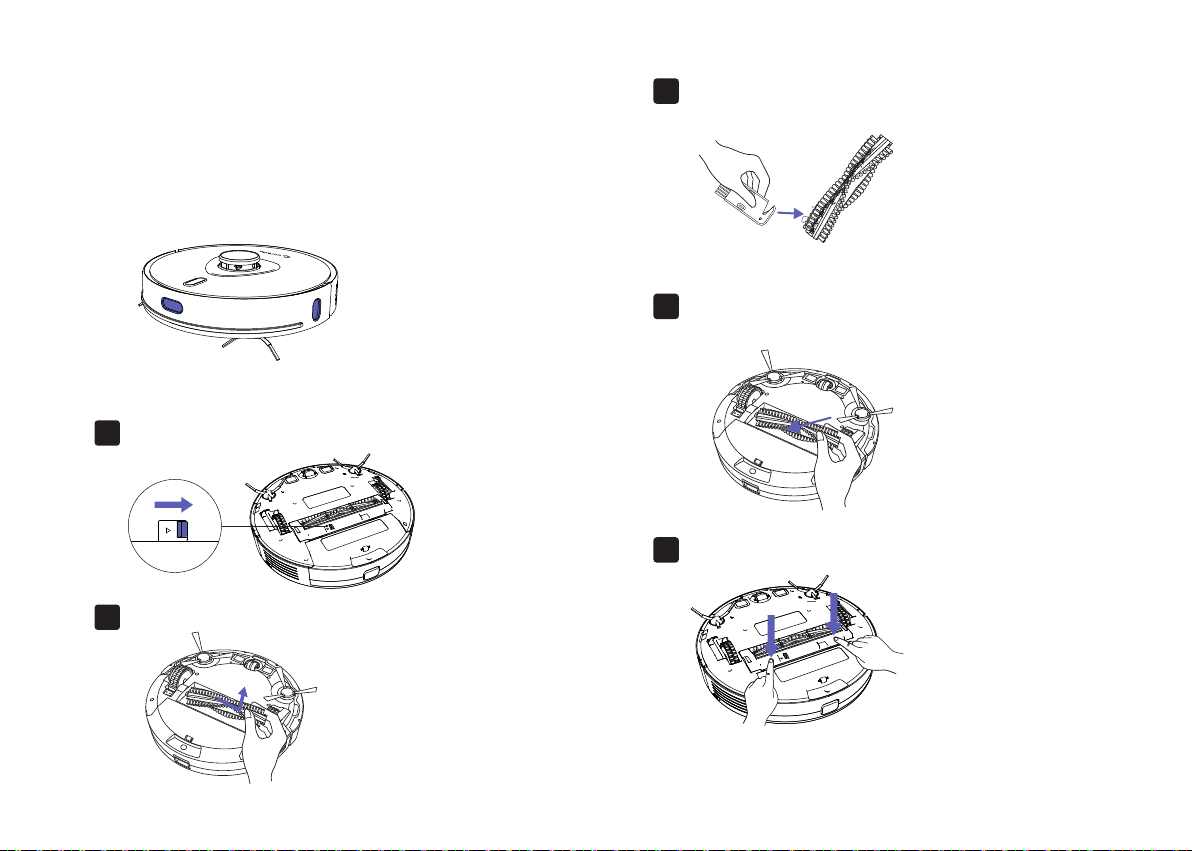
4.5 Clean Robot's Floor Tracking
Sensor
4.6 Clean Robot's Rolling Brush
Use a clean, dry microfiber or soft cotton cloth to wipe
any debris that has accumulated in the round sensor
opening on the right side of the bottom surface.
Do not spray cleaning solution directly into the sensor
entrance.
Pull on the release tabs to unlock the brush guard
as shown.
1.
Lift the rolling brush to remove.
2.
Clean the rolling brush with the provided cleaning
tool or a vacuum cleaner.
3.
Reinstall the rolling brush by inserting the fixed
protruding end first and then clicking into place.
4.
Press down to snap the brush guard into place.
5.
28

Lithium Ion Battery
Battery Charging
4.7 Battery and Charging Information
To extend battery life, always keep robot charged on the Charging Dock when not in use.
Battery Storage
If storing robot off of the Charging Dock, remove the battery first. Then store robot and the battery in a cool, dry place.
Battery Disposal
Contact your local waste management authority for battery recycling and disposal regulations in your area.
Battery Replacement
You can visit Coredy’s website http://shop.coredy.com to purchase the battery or other accessories for the robot.
Remove the lithium ion battery from the product
Place a piece of tape over the battery’s metal charging contacts
Reinstall the battery (with the tape on it) in the product and secure the battery door
Package the product in its original packaging or in your own packaging that prevents any movement during transportation
Ship via ground transportation only (no air shipping)
Important: Lithium ion batteries and products that contain lithium ion batteries are subject to stringent transportation
regulations.
If you need to ship this product (with the battery included) for service, travel or any other reason, you MUST comply with the
following shipping instructions:
29
30
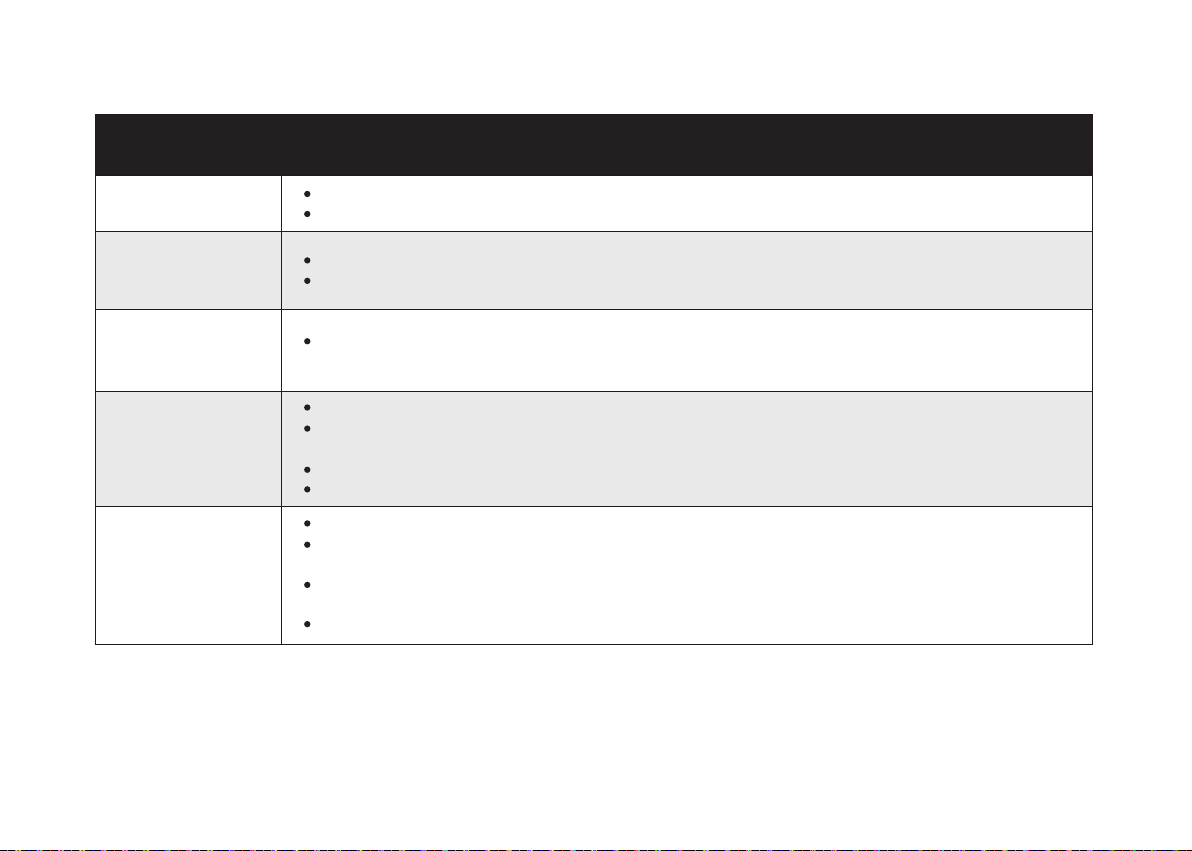
Coredy L900W Robot
cannot be activated.
Make sure Coredy L900W Robot is connected to a power source.
Make sure the battery is fully charged.
If you still have trouble, reset the Coredy L900W Robot (refer to the “Using Your Coredy L900W Robot >
Reset the System” section in this manual).
5 Troubleshooting
Coredy L900W Robot
suddenly stops
working.
Check if Coredy L900W Robot is trapped or stuck on an obstacle.
Check if the battery level is too low.
If you still have trouble, turn off Coredy L900W Robot, wait for 3 seconds, and then turn it back on.
You cannot schedule
cleanings.
Make sure Coredy L900W Robot is turned on.
You can set the time of day and scheduled cleaning time via the Coredy Robot app.
Make sure the scheduled time has been set correctly.
Check if Coredy L900W Robot’s power is too low to start cleaning.
Coredy L900W Robot will not start a scheduled cleaning while already performing a task.
Suction power is
weak.
Check if any obstructions are blocking the suction inlet.
Empty the dust collector.
Clean the filter with water.
Check if the filter is wet due to water or other liquid on the floor. Air-dry the filter completely before use.
Coredy L900W Robot
cannot be charged.
Check if the indicator on the Charging Dock lights up (when Coredy L900W Robot is not on the Charging
Dock). If not, contact the Coredy service center to repair or replace the Charging Dock.
Check if the indicator on the Charging Dock is off and the light on the main unit is breathing during charging.
Dust off the charging contact pins with a dry cloth.
Coredy L900W Robot
cannot return to the
Charging Dock.
Remove objects within 1.6 ft/0.5 m to the left and right side and within 4.9 ft/1.5 m of the front of the Charging Dock.
Make sure Coredy L900W Robot started cleaning from the Charging Dock and has not been moved during cleaning.
When Coredy L900W Robot is in the vicinity of the Charging Dock, it will return more quickly. However, if the
Charging Dock is located far away, Coredy L900W Robot will need more time to return. Please be patient as it works
its way back.
Clean the charging contact pins.
Problems Solutions
31
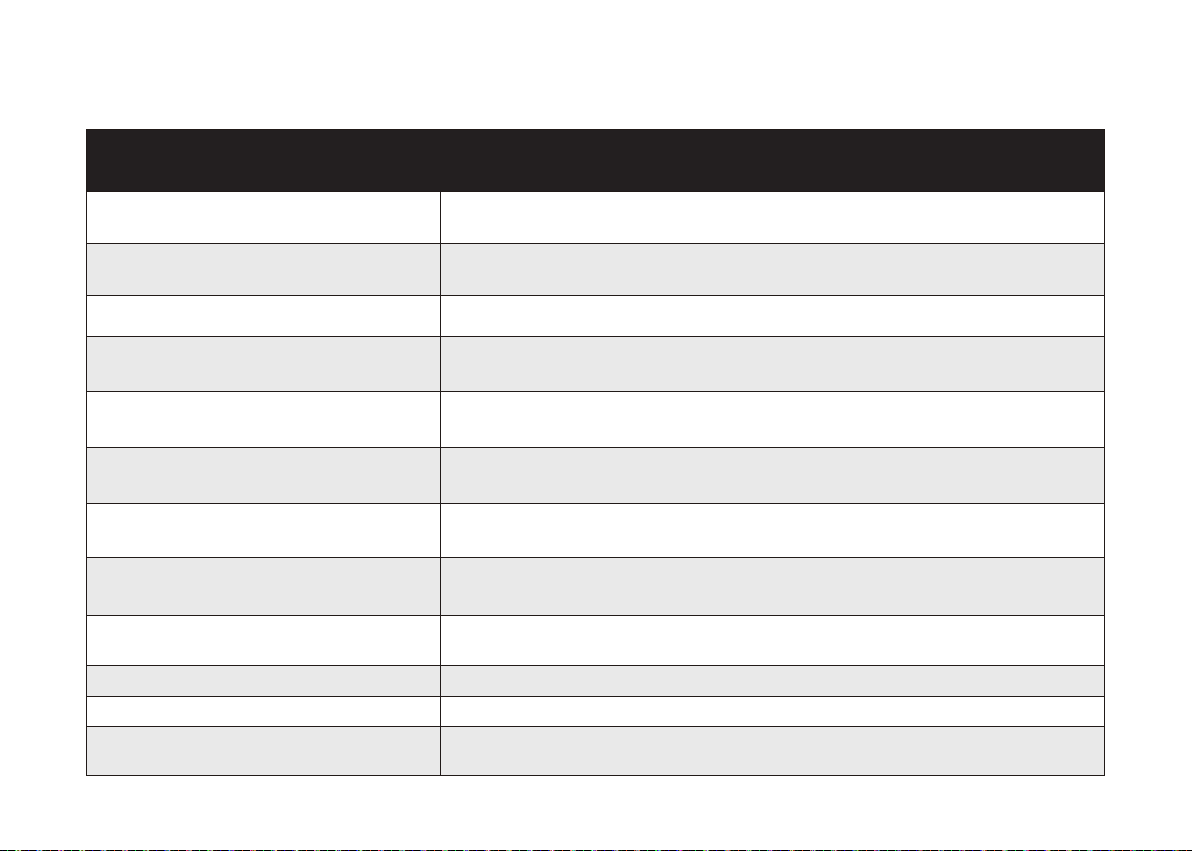
The rolling brush does
not rotate.
Clean the rolling brush.
Check if the rolling brush and brush guard have been installed properly.
Coredy L900W Robot’s
movements or travel
path are abnormal.
Clean the sensors carefully with a dry cloth.
Restart Coredy L900W Robot by turning Coredy L900W Robot off and on.
Coredy L900W Robot
cannot connect to a
Wi-Fi network.
Make sure your Wi-Fi router supports the 2.4GHz and 802.11b/g/n bands; the 5GHz band is not supported.
For details, refer to the “Troubleshooting > Wi-Fi connection” section in this manual.
You cannot control
Coredy L900W Robot
with Amazon Alexa.
Check if there are any Internet connection problems.
Check whether you have installed the Amazon Alexa app onto your smart device and enabled “Smart Life”
Skill in the Amazon Alexa app. For details, refer to the “Smart Integrations” page in the Coredy Robot App.
Make sure you have a Coredy Robot account and that it is connected to Coredy L900W Robot.
Make sure you are using correct Alexa voice-commands.
You cannot control
Coredy L900W Robot
with the Google
Assistant.
Check if there are any Internet connection problems.
Check if you have installed the Google Home app onto your smart device and initiated the “Coredy Robot”
action in the Google Home app. For details, refer to the “Smart Integrations” page in the Coredy Robot App.
Check if you are using the proper commands when talking to the Google Assistant. When making your
request, first say the wake words “Ok Google”.
Repeat your question. Speak clearly to the Google Assistant.
Problems Solutions
Voice Alert
32
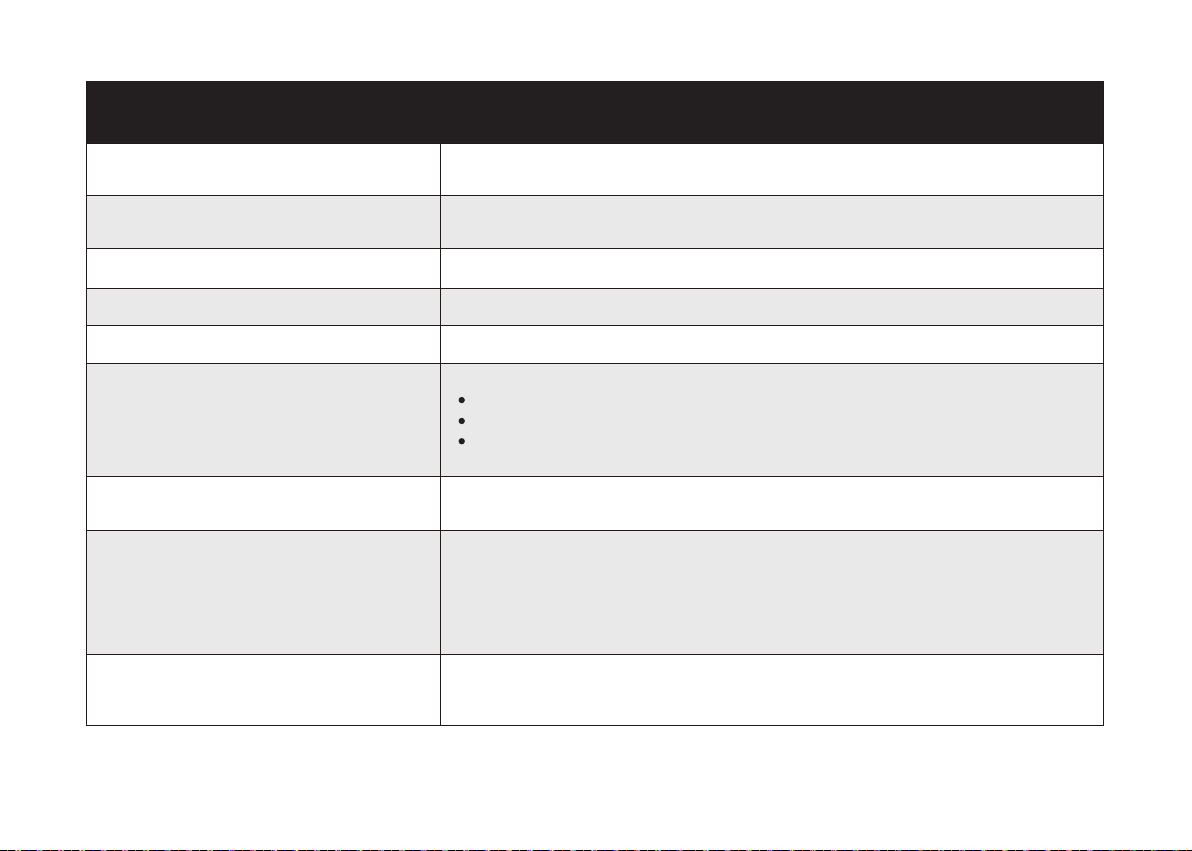
Error 1: Front bumper stuck
Front bumper is stuck. Tap it repeatedly to remove any dust;
if not, then move the device to a new position and try again.
Error 2: Wheel stuck. Check the wheel and
move it to a new position.
Wheel may be stuck or trapped. Clear any obstacles in the surrounding area and check
the wheel for any trapped dust. Move the device to a new position and try again.
Error 3: Side brush stuck.
Side brush may be stuck. Please clean it and try again.
Error 4: Rolling brush stuck.
Remove and clean the rolling brush.
Remove the rolling brush, roller joint, roller brush cover, and suction inlet to clean it.
Once cleaned, place the items back into the device and try again.
Error 5: Device trapped. Clear the
surrounding area.
Device is trapped. Clear any obstacles in the surrounding area and try again.
Error 6: Device trapped. Place device near the
position where the problem occurred.
Device may be suspended in air. Move it to a new position close to the original position
and try again. If the device is still unable to start, clean the edge sensor and try again.
Error 8: Low battery, shutting
down device. Please charge your device.
Low Battery; system will shut down. Charge the device and try again.
Error 9: Magnetic Boundary
Strip detected. Move device to a different area.
Device is too close to a strong magnetic field or strip.
Move the device to a different area and try again.
Error 10: Front infrared sensor needs cleaning.
Front infrared sensor is blocked by dust and requires cleaning.
Error 11: Right wall sensor needs cleaning.
Clean the right side wall sensor since it's covered in dust.
Error 12: Device tilted. Please put the device
on a flat surface to start.
Device may be tilted. Put the device on a flat surface and try again.
Error 7: Wheel suspended.
Please move the device to a new position.
Wheels may be suspended in air. Move the device to a flat surface and a new position
close to the original position then try again.
Voice Prompt Cause and Solution
When Coredy L900W Robot encounters a problem, the red indicator on Coredy L900W Robot will be flashing and you will hear
the relevant voice prompts. Follow the voice prompts to solve the problems.
33
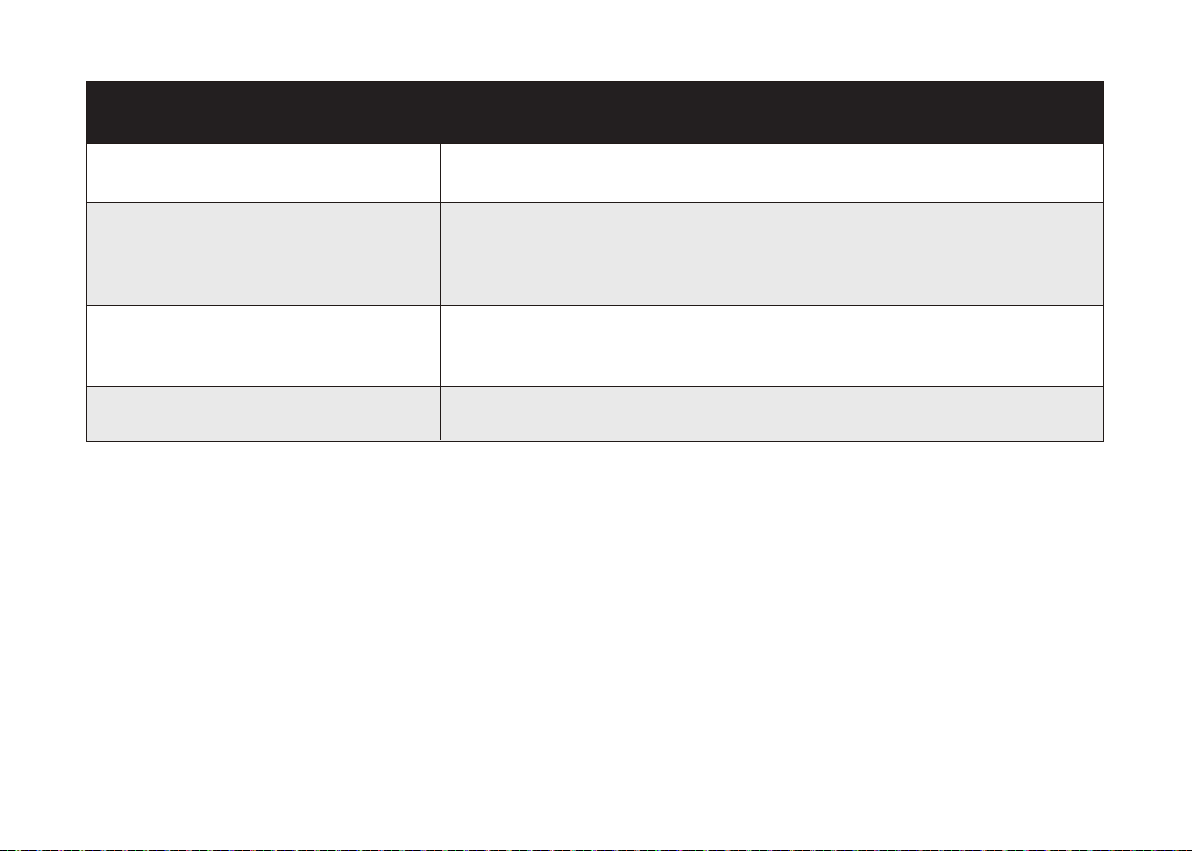
Error 13: Please insert dust collector and filter.
Put the dust collector and filter back in and confirm that they are in place. Then restart
the device.
Error 14: Restricted area detected. Move
device to a different area.
Device is too close to the restricted area. Move the device to a new position and try again.
Error 15: Side brush stuck.
Side brush may be stuck. Please clean it and try again.
Error 16: Laser cover may be stuck.
Pressure sensor for laser cover is stuck. Move the device to a new position and try again.
Error 17: Laser sensor may be stuck.
Laser ranging sensor is covered in dust. Clean it and try again.
Error 18: Laser sensor may be blocked.
Laser sensor is blocked by:
An empty environment
Metal mirrors
Other multi-reflection devices
Remove any obstacles and move the device to a different area.
Error S1: Battery Error. Refer to Owner's
Manual or App for help.
- Open the battery compartment and check whether the battery is connected and restart
the device.
- Battery Temperature may be too high or low; wait until the battery falls to normal
temperatures before usage (0 ° ~ 40 ° C/C 32 ° F to 104 ° F).
- If the issue persists, contact customer support for help.
Error S2: Wheel Module Error.
Refer to Owner's Manual or App for help.
- Check whether the wheels are stuck or dust is trapped inside before restarting the
device.
- If the issue persists, contact customer support for help.
Error 19: Charging Dock blocked by surrounding
obstacles
Charging Dock is blocked by obstacles, clear any obstacles around the Charging Dock
and try again.
Voice Prompt Cause and Solution
34
Error S3: Side Brush Error. Refer to Owner's
Manual or App for help.
- Check whether the side brush is stuck in an unknown object before restarting the device.
- If the issue persists, contact customer support for help.
Error S4: Suction Fan Error. Refer to Owner's
Manual or App for help.
- Check whether the fan blades are stuck in an unknown object before restarting the
device.
- Clean the dust collector and filter before restarting the device.
- If the issue persists, contact customer support for help.
Error S5: Rolling Brush Error.
Refer to Owner's Manual or App for help.
- Remove and clean the roller brush, roller brush connection, roller brush cover and
suction inlet before restarting the device.
- If the issue persists, contact customer support for help.
Error S6: Laser Sensor Error.
Refer to Owner's Manual or App for help.
- Check and clean the laser sensor for unknown objects before restarting the device.
- If the issue persists, contact customer support for help.
Voice Prompt Cause and Solution

6 Wi-Fi Connection
35
Before Wi-Fi setup, make sure Coredy L900W Robot and
your Wi-Fi network meet the following requirements.
- Coredy L900W Robot is fully charged.
- Wi-Fi status light slowly flashes purple.
- Use the correct password for your network.
- Do not use a VPN (Virtual Private Network) or Proxy
Server.
- Your Wi-Fi router supports 802.11b/g/n and IPv4 protocol.
- You are using a 2.4GHz router or a dual-band router that
is configured to support a 2.4GHz frequency band.
Coredy L900W Robot does not support 5GHz frequency
band.
- WPA and WPA2 using TKIP, PSK, AES/CCMP encryption.
If Coredy L900W Robot cannot connect to the Wi-Fi
network and you are using a 2.4/5GHz mixed network,
switch to a 2.4GHz network for Wi-Fi setup. You can switch
back once your setup is complete.
When connecting to a hidden network, make sure you
enter the correct network name, SSID (case sensitive),
and connecting to a 2.4GHz wireless network.
When using a network extender/repeater, make sure the
network name (SSID) and password are the same as your
primary network.
The firewall and port settings of your Wi-Fi router allow
Coredy L900W Robot to connect with the Coredy servers.
Wi-Fi Setup Requirements
Coredy L900W Robot:
Wi-Fi Network:
Network Security Requirement
- The FCC requires that all wireless devices in the United
States operate on the 1-11 wireless spectrum channels.
- Some countries outside North America can use spectrum
channels higher than channel 11. Refer to your local
regulatory agency to determine which channels are
accessible.
- A future software release will support access to channels
above 11 for users outside North America. Until then, use
channels 1-11.
If you cannot control Coredy L900W Robot with your
smartphone, try the solutions below to solve the problem. If
the problem persists, contact the Coredy service center for
help.
Wi-Fi Channels
36
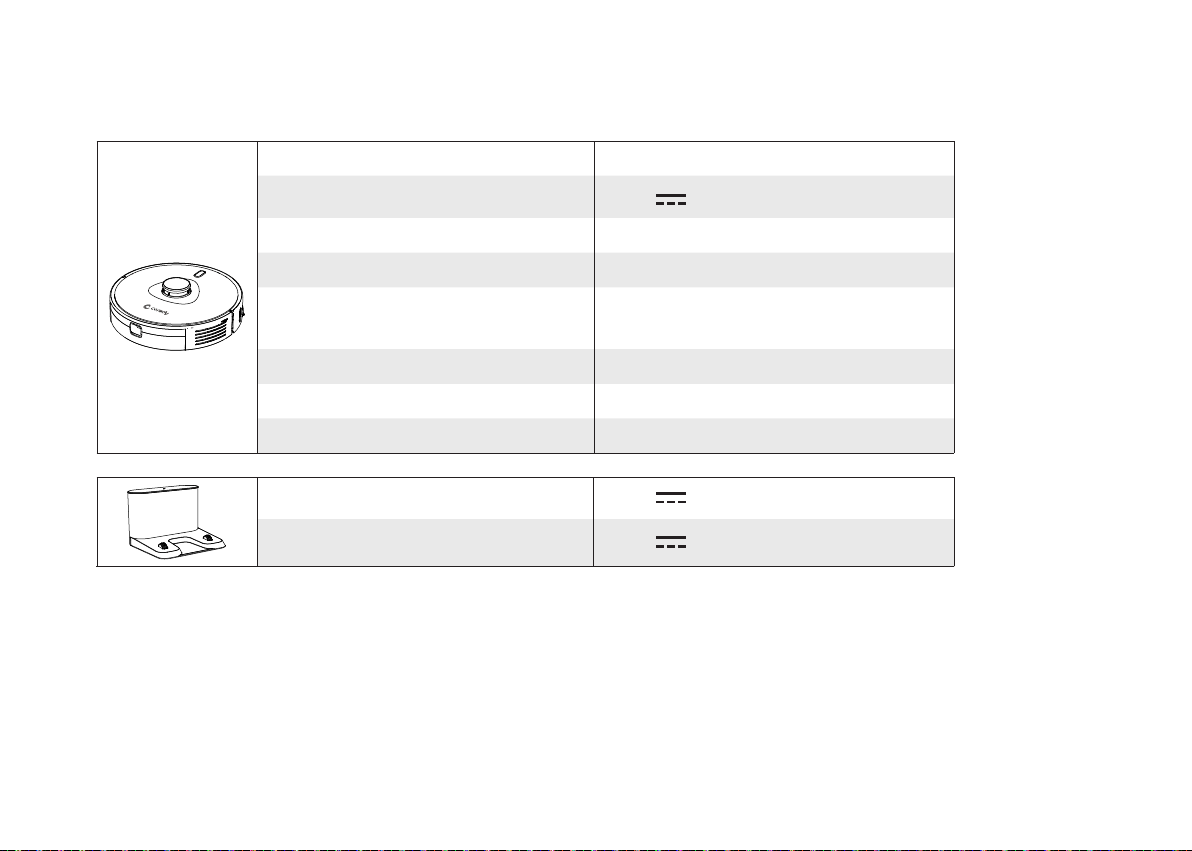
7 Specifications
Product Model L900W
Input
24 V
1.2A
Battery Voltage DC 14.4 V
Power Consumption 50 W
Battery Type
DC 14.4 V
Li-ion 5200 mAh
Dust Collector Capacity 0.5 L
Cleaning Time Max. 200 mins
Charging Time 240 - 300 mins
Input
24 V
1.2 A
Output
24 V
1.2 A
37
8 Customer Service
Website: http://shop.coredy.com
E-mail: [email protected]
US COST FREE Tech Support:
+1 (800) 999 8470
UK COST FREE Tech Support:
+44 (808) 134 9909
@coredytech @CoredyOfficial @coredy_robotvacuum @Coredy Official
V1.1
MODEL: L900W
Website: http://shop.coredy.com
E-mail: [email protected]
US COST FREE Tech Support:
(PST Mon-Sun 06:00-24:00) (GMT Mon-Sun 14:00-08:00)
+1 (800) 999 8470
UK COST FREE Tech Support:
+44 (808) 134 9909