©2010 Sony Corporation 4-257-507-11(2)
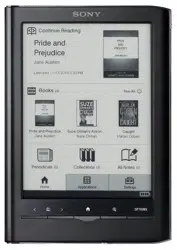
PRS-350
User Guide
Digital Book Reader
Click for instant access!
Table of Contents Index
2
Table of Contents Index
CONGRATULATIONS
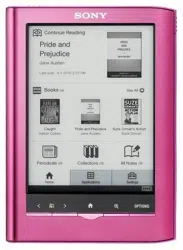
Your Reader Pocket Edition™ comes with these
useful features:
Clear touch – a high quality touch screen that
allows you to navigate effortlessly by swiping
to turn pages, tap to bookmark, take notes
and highlight.
Font Zoom – increase or decrease the text
size to your preference, or zoom into images
to take a closer look.
Dictionary – simply double-tap a word to see
its meaning and to translate it.
Read on. There’s so much more.
Personalize the standby screen with your
favorite picture.
3
Table of Contents Index
Use the “Collections” feature to organize your
library on your Reader™ to find the book you
want to read.
Never lose track of time with the clock* view
(whenever the OPTIONS button is pressed).
* Set the time using the [Date and Time] setting (
87).
For more details, please refer to this User Guide.

5
Table of Contents Index
Searching
Finding notes within a book (
44), among
books (
46)
Searching keywords (
55)
Searching a book (
34)
Jumping to a page (
57)
Dictionary
When reading a book (
60)
As an application (
82)
List of previously looked up words (
63)
Reading Periodicals (
65)
Collection Management
Creating (
68)
Adding contents (
70)
Deleting (
72)

7
Table of Contents Index
Chapter 1
Getting Started ........................................... 8-20
Parts and Controls ...................................................... 8
Charging the Reader ...............................................12
Power Saving Tips ....................................................14
How to Get eBooks ..................................................17
Support ........................................................................18
Specifications ............................................................19
Getting Started
8
Table of Contents Index
Parts and Controls
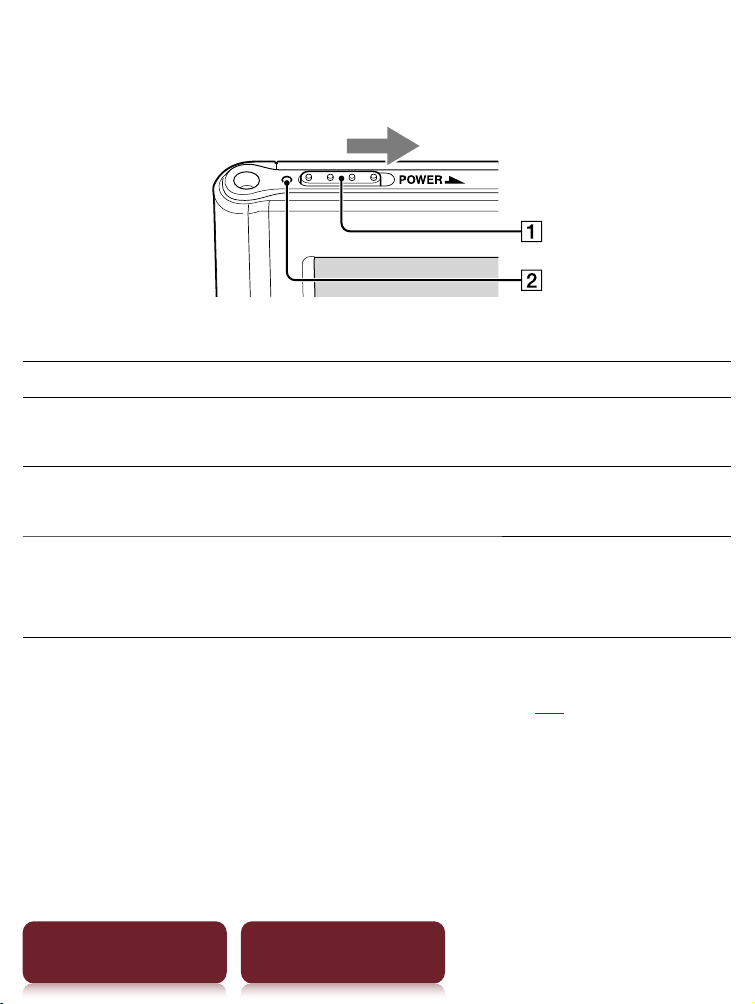
Power Switch
To Action
Power on or wake up
from sleep mode*
1
Slide to the right and release quickly.
Enter sleep mode Slide and release quickly. The standby
screen*
2
appears.
Power off
completely
When not in sleep mode slide and
hold for mor
e than 3 seconds. Follow
the instructions on the screen.
*
1
Battery consumption is minimized in sleep mode.
*
2
For details about [Standby Screen], see
91.
Charge/Busy indicator
Red: Charging in progress
Orange: When booting/shutting down/internal
memory access
Off: Off/Sleep mode/Reader in operation
Getting Started
Parts and Controls
9
Table of Contents Index
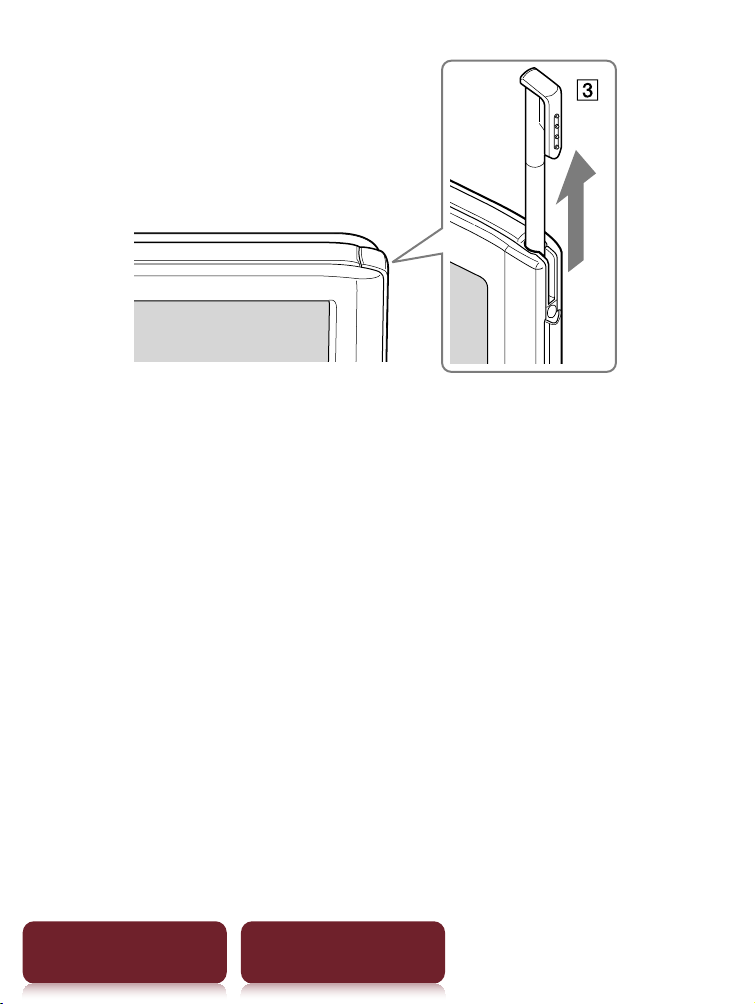
Stylus
For more precise operations, use the supplied stylus.
Insert fully into the holder when not in use.
Parts and Controls
10
Table of Contents Index
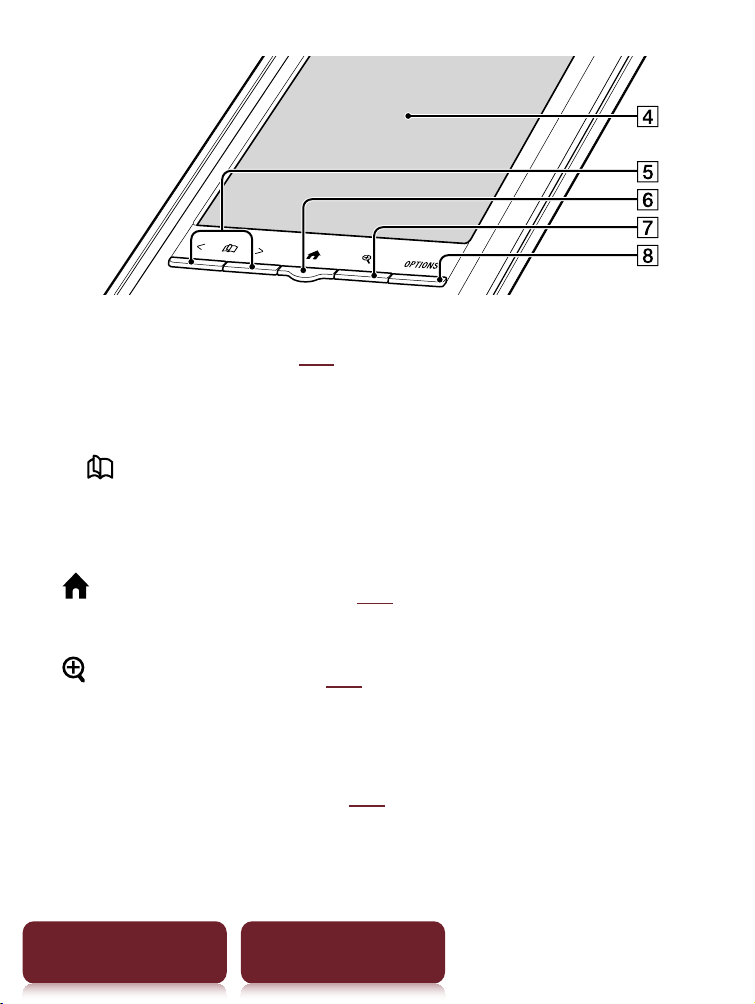
Touch screen (
23)
Lightly tap the screen either with a finger, or the
supplied stylus to navigate.
< > (Page Turn) buttons
Press < (previous) or > (next) to turn the page.
Press and hold < or > to turn pages continuously.
(Home) button (
29)
Shows the [Home] menu.
(Size) button (
47)
Shows a utility to change text size, zoom a page and
select a page mode.
OPTIONS button (
31)
Shows the menu for relevant optional functions.
Charging the Reader
12
Table of Contents Index
Charging the Reader
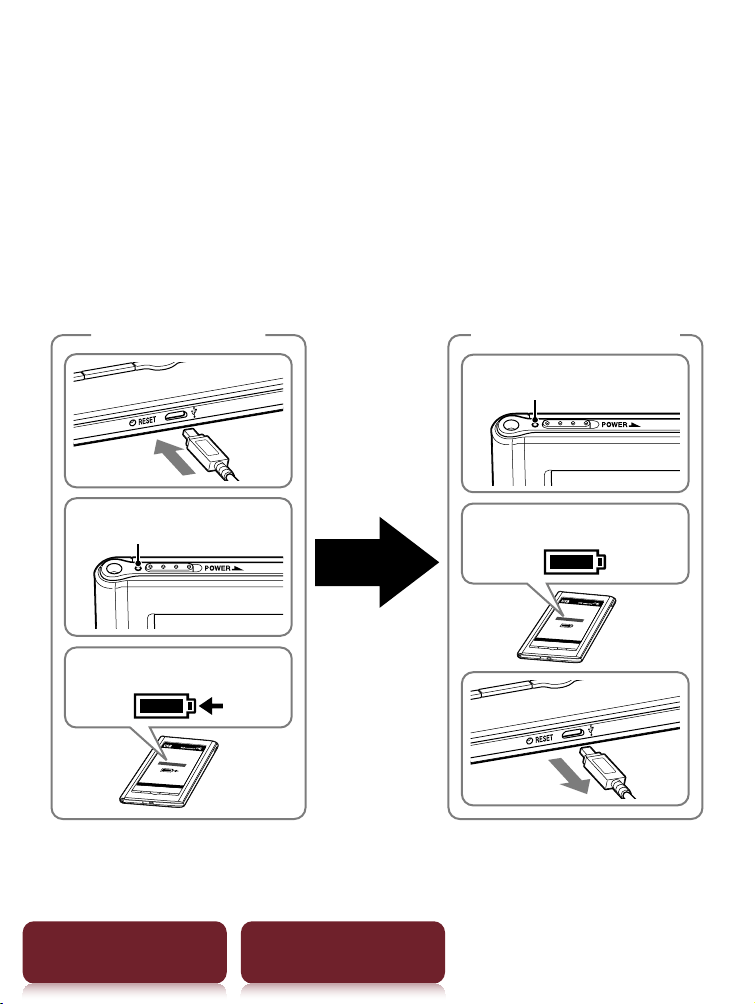
Charge your Reader by connecting it to your computer
with the USB cable (supplied).
The time to completely charge a depleted battery is about 3
hours with a USB connection, or about 2 hours by the
optional AC adapter (PRSA-AC1).
Lights up in red
Charging battery*
Turns off
Charging complete
Begin Charging Charge Completed!
Charging time
up to 3 hours
* The screen will appear after about 5 minutes if charging starts
with a completely depleted battery.
Charging the Reader
13
Table of Contents Index
Note
The Reader only charges when the connected computer is
powered on.
The Reader cannot be operated when connected to a
computer via USB.
Status indicators during charging
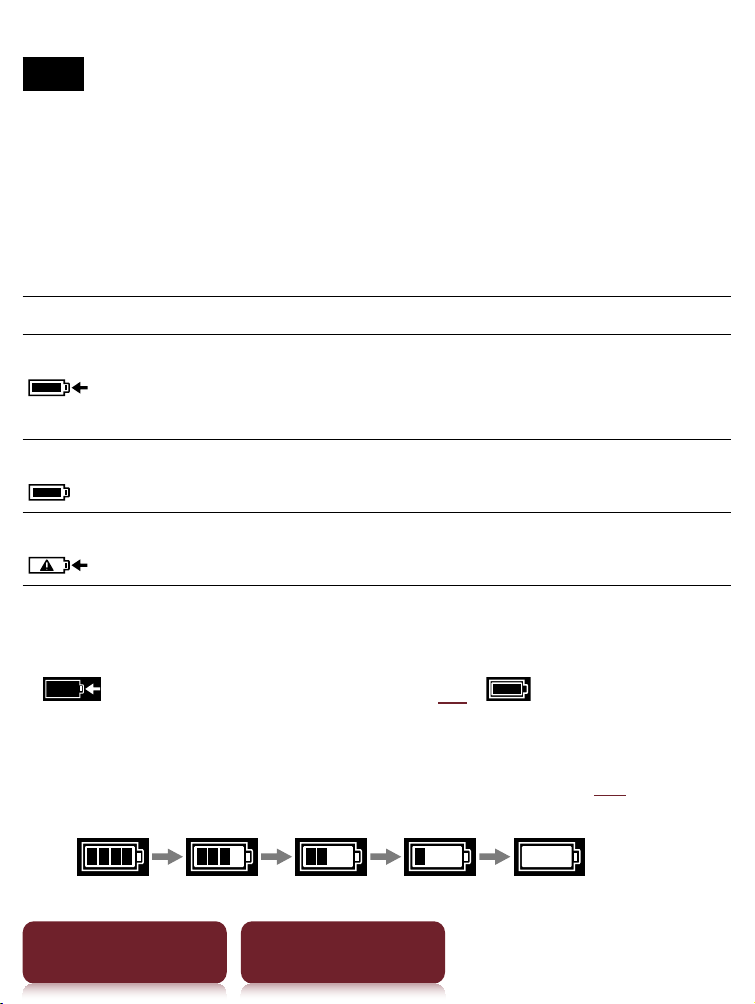
Icon and message Status
[Charging battery]
Charging in progress. The battery
icon does not indicate remaining
battery power during charging.
[Charging complete]
Fully charged
[Charging stopped]
The Reader is not charging its battery.
Follow the on-screen instructions.
Tip
While charging with the optional AC adapter (PRSA-AC1),
appears in the status bar (
30). appears when
fully charged.
To check battery status in the status bar (
30) during
use
Charging battery recommended
Power Saving Tips
14
Table of Contents Index
Power Saving Tips
Charging Battery
To fully charge your Reader, continue
charging until indicator shows completion of
charge (
12).
Charging a completely depleted battery will
take
3 hours when connected to the USB
port of a powered on computer, 2 hours
when connected to the optional AC adapter
(PRSA-AC1).
Operating your Reader while charging with
the optional A
C adapter may extend time to
fully charge depending on how the Reader is
being operated.
Recommended Temperature
Please use your Reader within the recommended
operating temperature range (
19).
Power Saving Tips
15
Table of Contents Index
More power requiring operations
The following cases may consume more power.
Graphics intensive content
Photo slideshow with a short duration
ePub and PDF files partially conforming to
documen
t standard
Annotation, keyword search and dictionary
sear
ch functions

Power Saving Tips
16
Table of Contents Index
Tips to save Power
If you do not use the Reader for more than
one day, power off the Reader completely
(
8, 86).
Do not leave the Reader uncharged for a
pr
olonged period of time. This may reduce
the charging capability.
We recommend the optional AC adapter
(PRSA
-AC1). The performance of any third
party charger is not guaranteed.
Please keep the Reader at normal
t
emperature operation (
19).

How to Get eBooks
17
How to Get eBooks
To purchase and transfer eBooks to your Reader, please
carry out the following initial steps.
1 Install Reader™ Library software.
2
Create an account at your Reader Store or your
eBook store.
3 P
urchase and download eBooks.
4
Authorize your computer and Reader.
5
Select and transfer purchased eBooks to your Reader.
After the initial steps, you only need steps 3 and 5 to enjoy
more eBooks. Reader comes with step-by-step instructions
describing the above initial steps. Here is how to access the
instructions.
PC: From the “Start” menu, click “My Computer”
(“Computer” in the case of Windows Vista, Windows 7)
and then double-click the “READER” drive. Drag the
“How to get eBooks on Reader” file and drop it on the
desktop.
Mac: Double-click “READER” on the desktop, and drag
the “How to get eBooks on Reader” file and drop it on
the desktop.
Double-click the file to open it and follow the step-by-step
instructions.

Support
18
Table of Contents Index
Support
First, check “Troubleshooting” (
93) and refer to the
Reader Library Help to resolve the issue.
Support Web site and contact list:
USA:
www.sony.com/readersupport
Phone number: 1-866-962-7669
Canada:
www.sony.ca/readersupport
Phone number: 1-877-899-7669
Europe:
support.sony-europe.com/eBook/PRS
Australia:
www.sony.com.au/support
Phone number
: 1300-137-669
Warranty Information for Australia customers:
www.sony.com.au/warranty

Specifications
19
Table of Contents Index
Specifications
Model name
PRS-350
Power source
Built-in rechargeable battery: 3.7 V DC, 940 mA
USB communication: Hi-Speed USB (USB 2.0 compliant)
Battery life (continuous playback)
Maximum Battery: Approx. 10,000 continuous page turns
when reading only *
1
*
1
Measured using a text based content in ePub format and a
fully charged battery, consecutive page-turns at
approximately one second per page under the
recommended operating temperature. Actual battery life
may vary based on usage patterns and individual device.
User available capacity
Approx. 1.4 GB after initial setting
Depending on size of pre-loaded excerpts, available memory
capacity may vary.
Operating/charging temperature
41°F to 95°F (5°C to 35°C)

Specifications
20
Table of Contents Index
Dimensions (w/h/d)
Approx. 104.3 × 145 × 8.5 mm (4 1/8 × 5 3/4 × 11/32 inches)
Mass
Approx. 155 g (5.47 oz.)
Display:
127.0 mm (5") diagonal electrophoretic display
600 × 800 pixel, 0.127 × 0.127 pixel/mm
16-level gray scale
Optional Accessories:
AC Adapter for Reader (PRSA-AC1)
Design and specifications are subject to change
without notice.
21
Table of Contents Index
Chapter 2
Basic Operation ..............................................22
Reading Content .............................................36
Collections .......................................................68
Applications ....................................................76
Settings ...........................................................85
Troubleshooting .............................................93
Appendix ...................................................... 101

Basic Operation
22
Table of Contents Index
About the User Guide
When using your Reader to view this User Guide,
please note the following instructions.
To use the page links
Tap the page link to jump to the page directly
(e.g.,
4). To return to the previous page, press
OPTIONS
tap [Go to]
[Previous View].
To enlarge a page
See “Zooming in” (
49).
Screen shots in this manual may be different from the actual
display in the Reader.
To use the link icons
Tap one of icons located at the bottom of the page to
view either “Table of Contents” or “Index”.
Basic Operation
Touch Screen
23
Table of Contents Index
Touch Screen
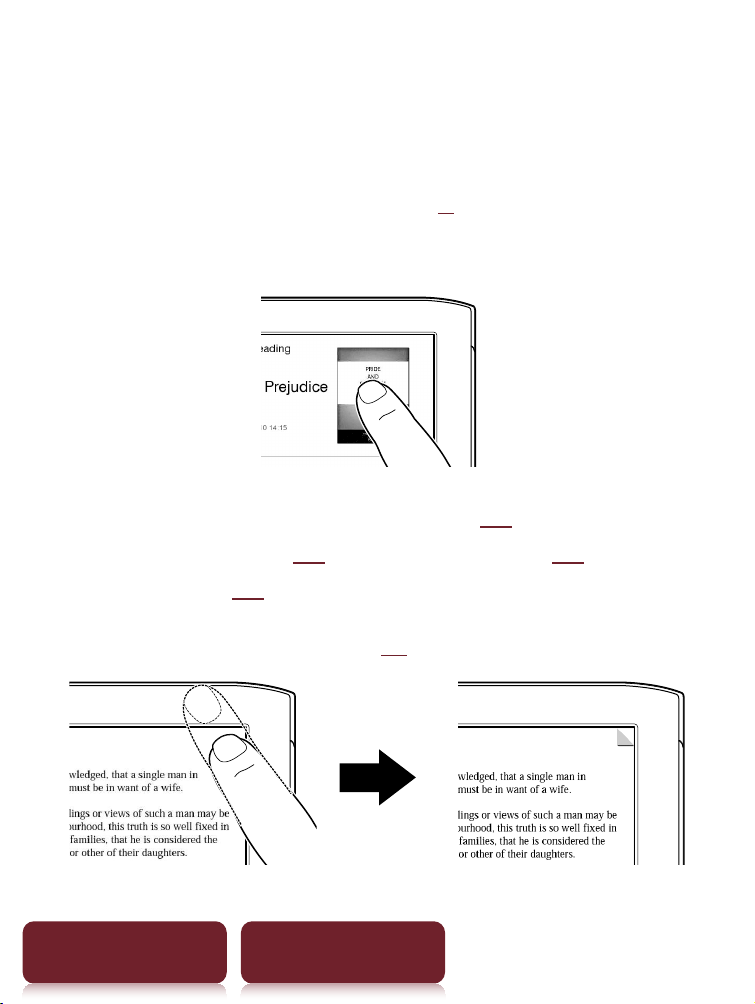
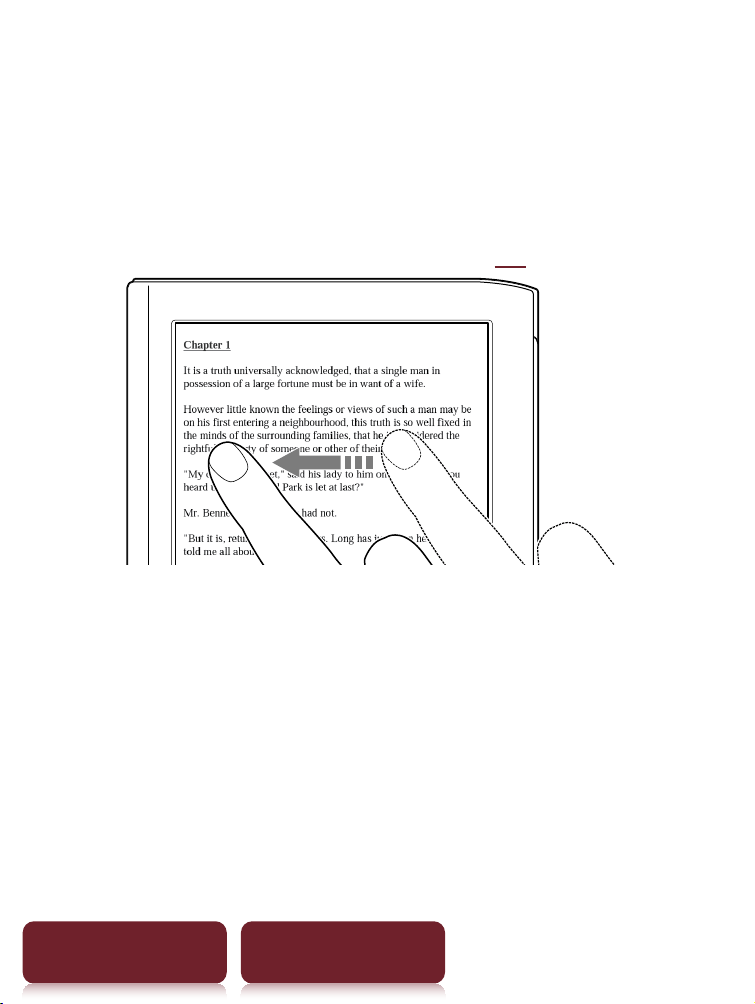
You can perform various touch operations with a
finger or the supplied stylus. (
9)
Single-tapping: for selecting an item
Double-tapping: for bookmarks (
39), instant
dictionary search (
60), word search (
55),
highlighting (
40), etc.
Example: creating a bookmark (
39)
Touch Screen
25
Table of Contents Index
Dragging
In zoom-in mode (
49), tap and drag to reposition
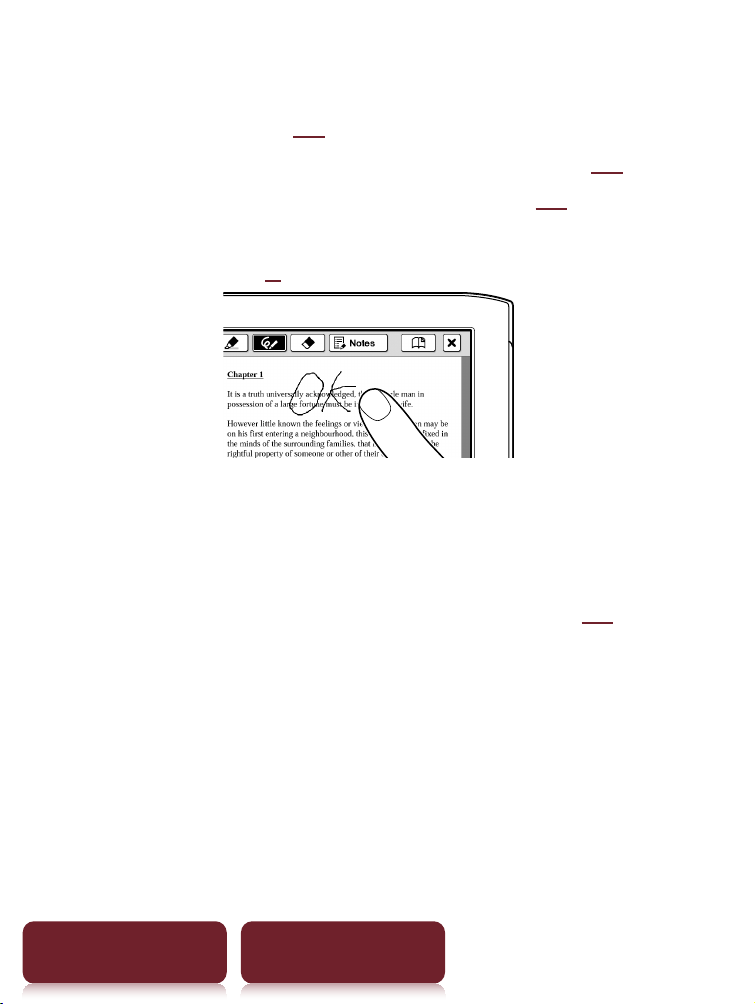
the displayed page. In the [Handwriting] (
77)
application or [Create/Edit] function (
41),
handwriting on the screen can be performed with the
supplied stylus (
9) or a finger.
Double-tapping and dragging
Double-tap the first word, drag to the last word slowly
and release to select consecutive words (
40).
Touch Screen
26
Table of Contents Index
On-screen keyboard
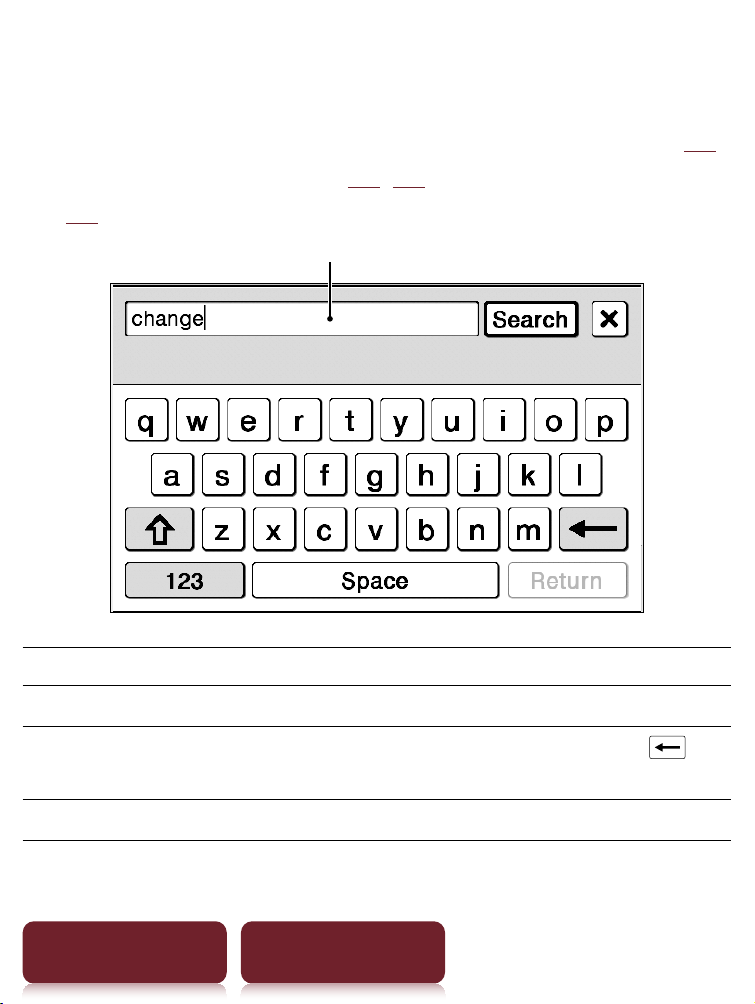
The on-screen keyboard is used for word search (
55),
creating a text memo (
42, 80), and dictionary search
(
62).
Input area
To Perform at input area
Edit Tap to place the cursor.
Delete a character Tap to place the cursor and tap
to
delete a character before the cursor.
Finish inputting Tap [OK], [Search] or [Done].
Touch Screen
27
Table of Contents Index
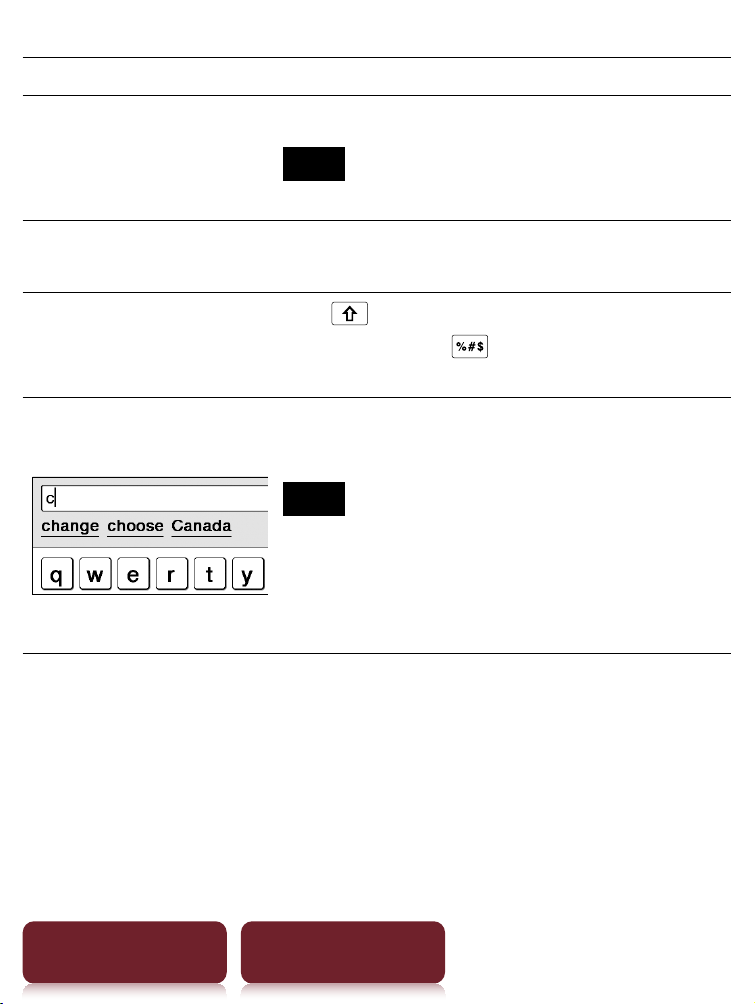
To Perform at input area
Insert line feed
Tap [Return].
Note
[Return] is invalid with [Search].
Switch the keyboard
type
Tap [12
3] to switch to the symbol
keyboard. To return, tap [Abc].
Switch the character
type
Tap
to switch to the upper-case
keyboard. Tap
to switch to
additional characters.
Input previously
entered words
Tap one of previously entered words
shown below the input area.
Note
Keyboard history only records
(hyphened) words of 4 to 15 letters.
Numbers or other symbols are
excluded.
Touch Screen
28
Table of Contents Index
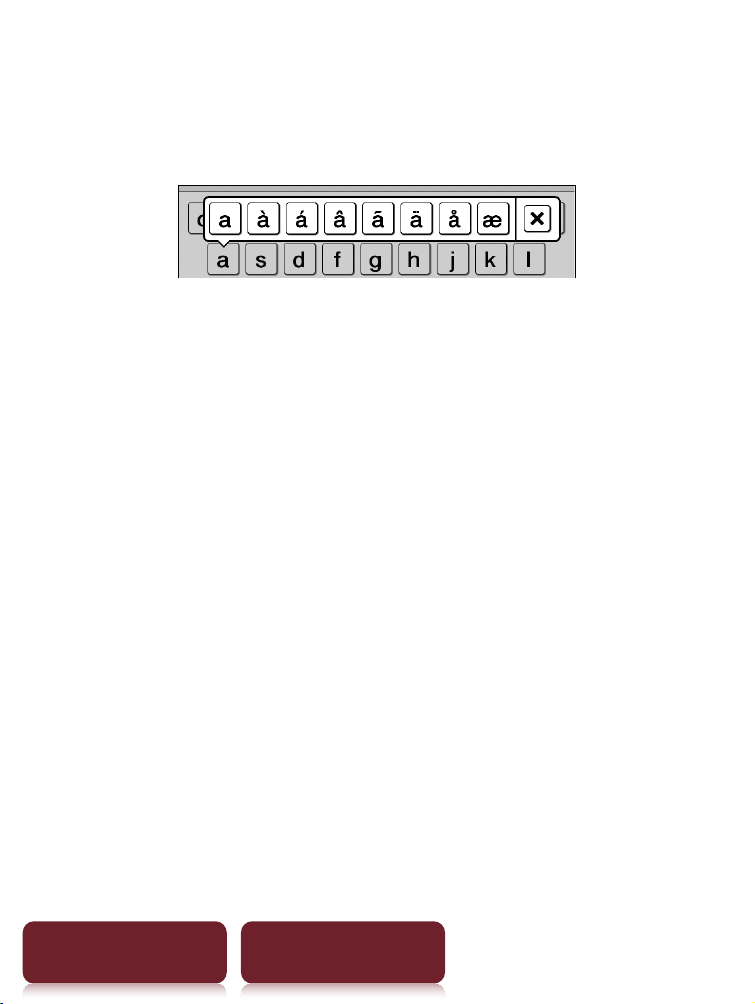
To input optional characters
Tap and hold an applicable character key will pop up
optional characters.
Home Menu
29
Table of Contents Index
Home Menu
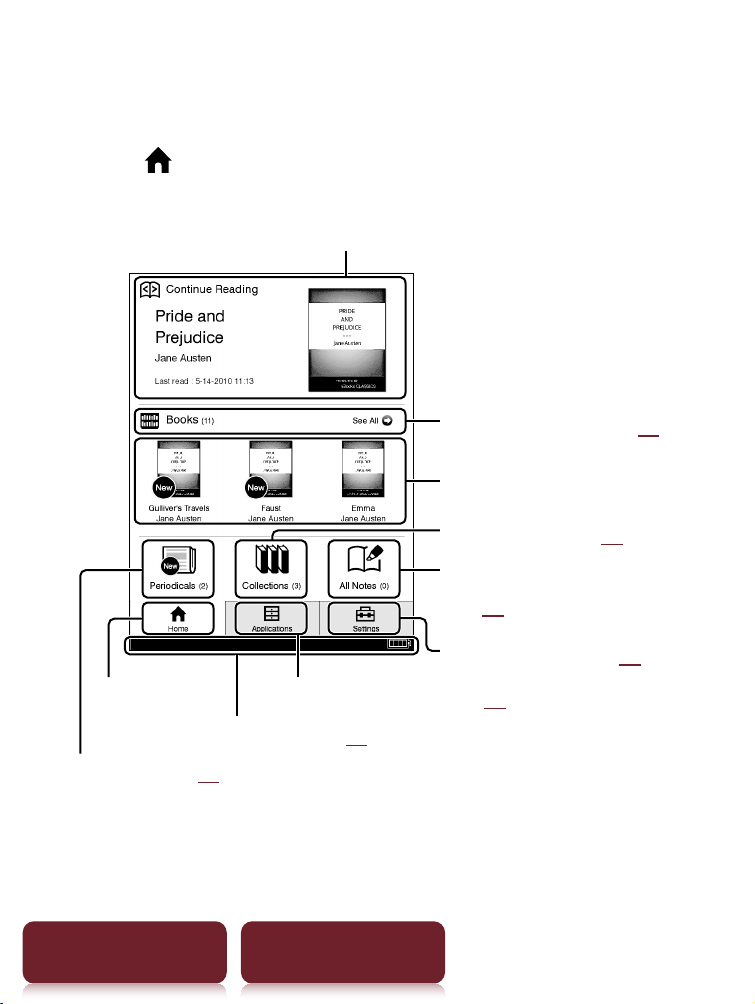
Press the (Home) button to display the [Home]
menu.
Periodicals (
65)
Last read content
Tap to list book(s) (
36)
Newly loaded book(s)
Collection list (
68)
Bookmarks and annotations
(
46)
Reader settings (
85)
More applications (
76)
Status bar (
30)
[Home] menu
Tip
[New Delivery] appears when a periodical is transferred.
Home Menu
30
Table of Contents Index
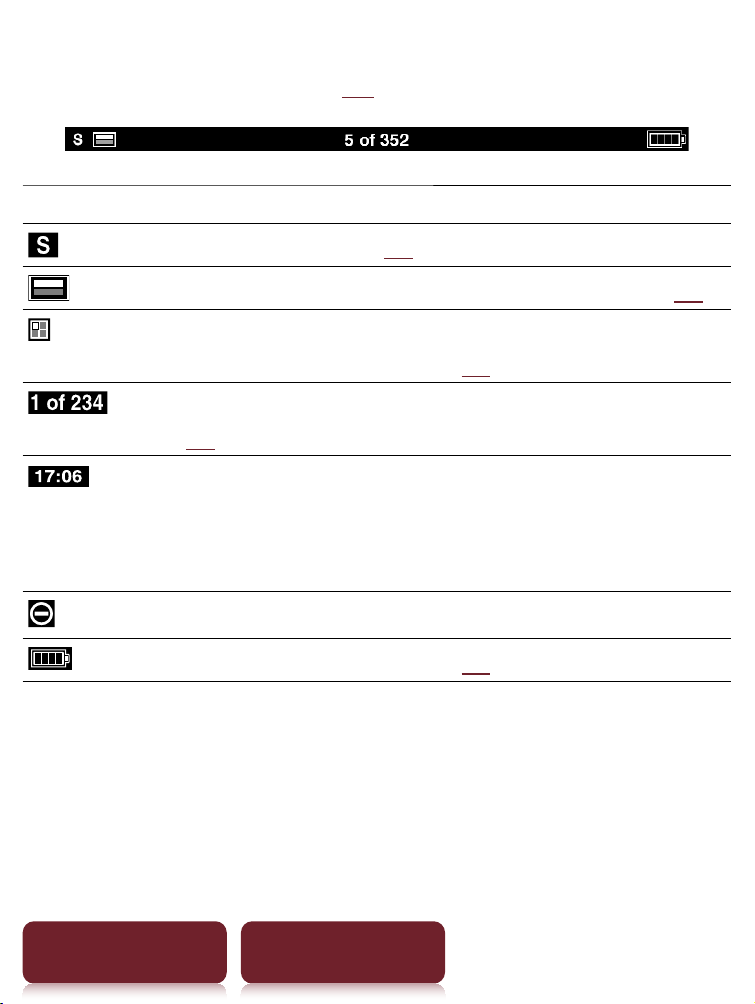
About the status bar (
29)
Icon Description
Current text Size (
47).
Current page position in landscape mode (
54).
Current page position indicator when in either 2
or 3 column split mode (
48).
Page Indicator. Tap this to jump to another page
(
57).
Current time indicator. Reader shows current time
in the middle of the status bar for 5 seconds after
the OPTIONS button is pressed and returns to the
previous display (either blank or page indicator).
An invalid operation.
Battery status indicator (
13).
OPTIONS Menu
31
Table of Contents Index
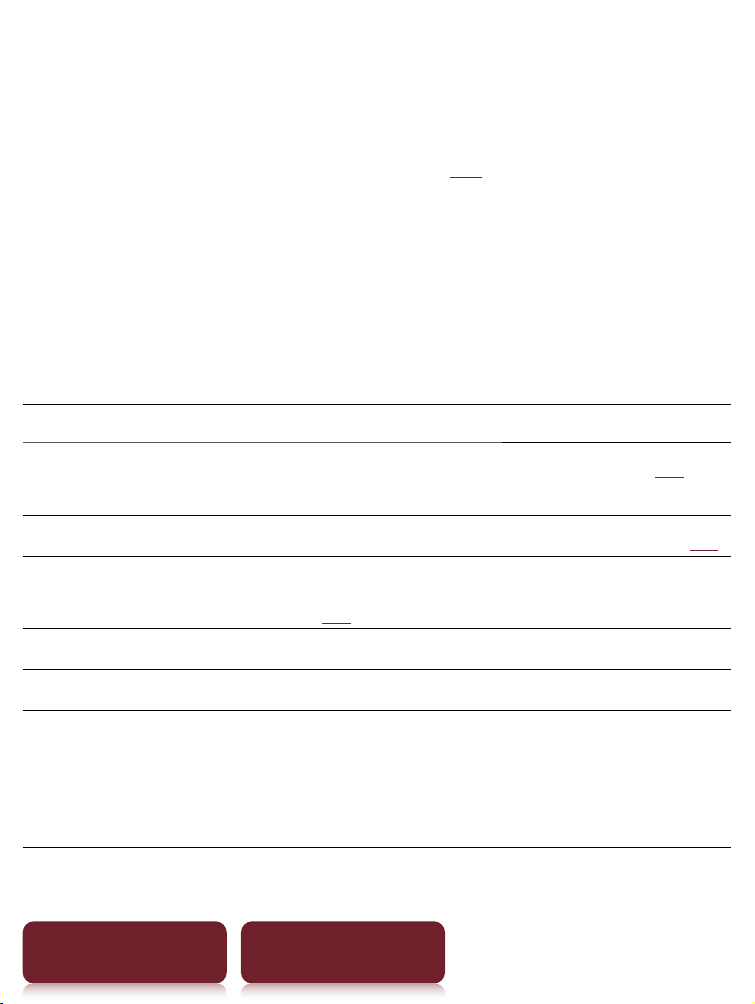
OPTIONS Menu
Pressing the OPTIONS button (
10) will display the
menu for related supplementary functions.
Items in the OPTIONS menu
The following items are listed in alphabetical order.
When displaying the OPTIONS menu, not all items
listed below will be shown in any given circumstance.
Item Description/Reference page
[Add Content],
[Add to Collection]
Adds content to a collection (
70).
[Add Bookmark]
Creates a bookmark on the page (
39).
[Adjust View]
Adjusts how content is displayed
(
52).
[Change Dictionary] Shows a list of dictionaries to select.
[Continue Reading] Shows the last read page of the content.
[Delete Book],
[Delete Drawing],
[Delete Issue],
[Delete Memo]
Deletes the currently-viewed book,
drawing, issue or text memo from the
Reader.

OPTIONS Menu
32
Table of Contents Index
Item Description/Reference page
[Delete Books],
[Delete Collections],
[Delete Drawings],
[Delete Issues],
[Delete Memos],
[Delete Notes],
[Delete Pictures]
Selects and deletes books, collections,
drawings, issues, text memos, notes or
pictures from the Reader (
74).
[Delete Word Logs]
Selects and deletes previous
dictionary word searches (
64).
[Go to]
[Previous View]: Jumps to the
previously viewed page (
59).
[History]: Navigates previously-
viewed pages. (
59)
[Select Page]: Jumps to another page
(
57).
[Table of Contents]: Displays the
table of contents.
[Info] Displays the content information.

OPTIONS Menu
33
Table of Contents Index
Item Description/Reference page
[New Collection],
[New Drawing],
[New Memo]
Creates a new collection (
68),
a drawing (
77) or a text memo
(
80).
[Notes]
[List]: Displays the [Notes] list in the
content (
44).
[Create/Edit ]: Shows tools to
bookmark, highlight, handwrite and
remove annotations (
41).
[Hide]/[Show]: Toggle displaying
annotations (
59).
[Orientation]
Toggles the screen orientation either
in portrait or landscape mode (
54).
[Previous View] Returns to the previously viewed
page.
[Protect Books],
[Protect Drawings],
[Protect Issues],
[Protect Memos],
[Protect Pictures]
Protects books, drawings, issues, text
memos or pictures from accidental
deletion (
75).
OPTIONS Menu
34
Table of Contents Index
Item Description/Reference page
[Remove Bookmark]
Deletes the bookmark on the page
(
39).
[Remove Content]
Removes content from a collection
(
73).
[Rename Collection]
Changes the collection name (
69).
[Return to List] Shows content list.
[Search]
Searches for either content title or
words in the contents with the
keyword inputted by on-screen
keyboard (
56).
[Select Standby Screen]
Selects pictures for the standby screen
(
84).
[Slideshow On]/
[Slideshow Off]
Starts/Stops a slideshow of pictures
(
83).
[Sort:]
Changes sort order of the list (
36).
[View:] Changes the appearance of the list.
OPTIONS Menu
35
Table of Contents Index
Item Description/Reference page
[Word Logs: Book]
[Word Logs: Periodical]
Within either a book or a periodical,
shows a list of the last 100 words
previously searched in the dictionary
(
63).
[Word Logs: Dictionary]
Within a dictionary, shows a list of the
last 100 words previously searched
(
82).
/
Displays the previous/next OPTIONS
menu.
Tip
Pressing and holding the OPTIONS button for 2 seconds is
the same as tapping
or pressing OPTIONS
tapping
[Return to List].
Reading Content
36
Table of Contents Index
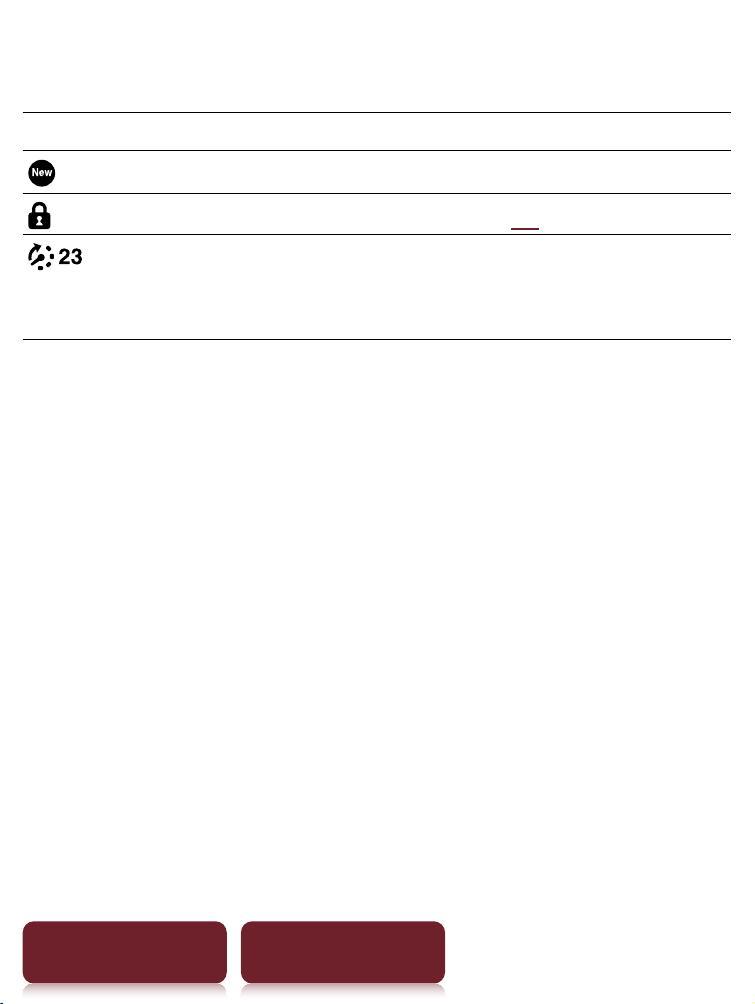
Reading Books
Tap [Books] at [Home] menu to view a book list. Tap
a desired book to open.
Tap to open a book
Tap to previous page Tap to change sorting order
Scroll bar
Title
Date of
transfer
to Reader
Conditional icon
display (
37)
Tips
About the OPTIONS menu, see
31.
To transfer eBooks to the Reader, please see
17.
Reading Content
Reading Books
38
Table of Contents Index
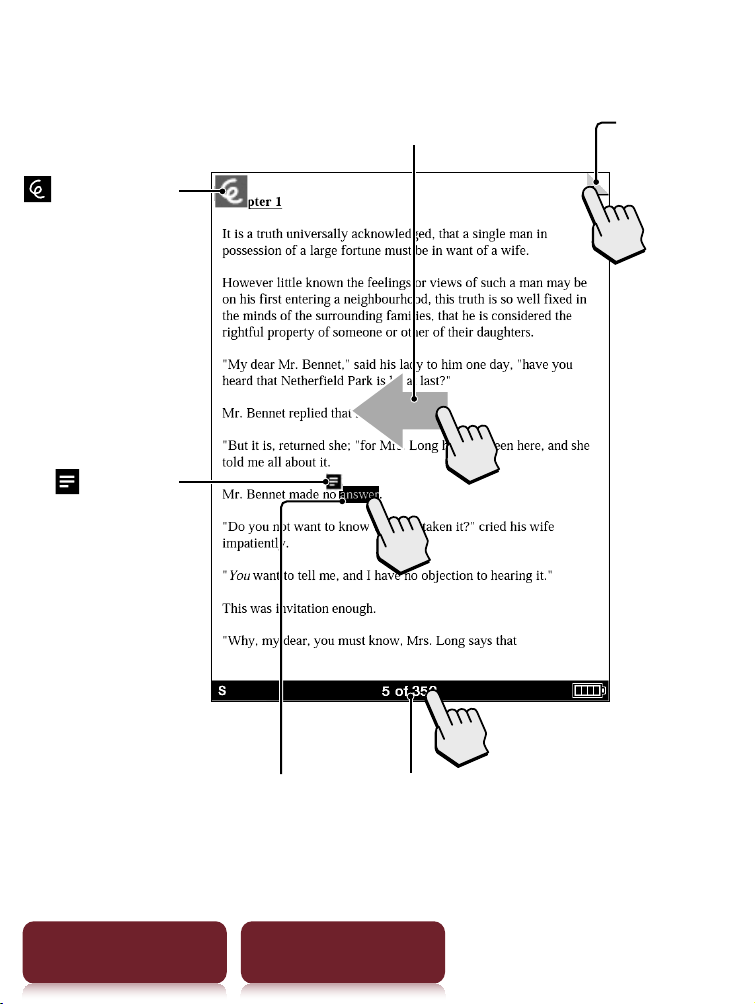
Operation at page view
: An added
note.
Tap to view the
added note.
: Handwritten
memo. Tap to
show its
thumbnail. Tap
the thumbnail to
display in full size.
Swipe the screen to turn page
Double-tap
to bookmark
Double-tap to open
dictionary/search/
add highlight
Tap to jump to
another page

Annotation
40
Table of Contents Index
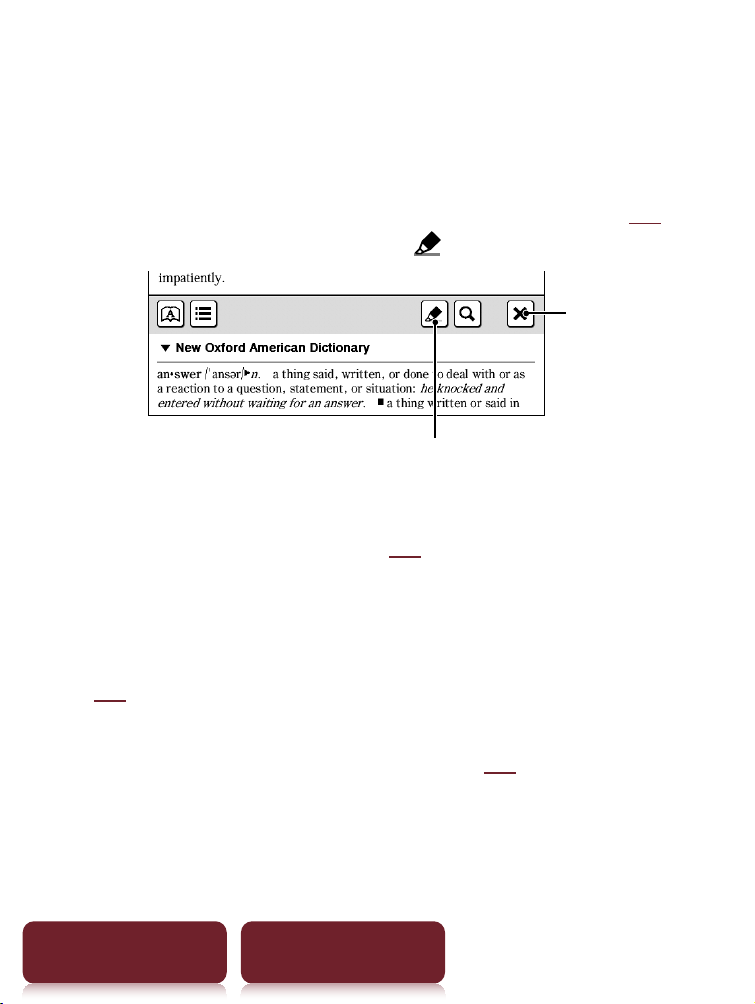
Highlighting word(s)
Highlighting at page view:
– A word: Double-tap a word.
– Consecutive words: Double-tap and drag (
25).
– At pop
-up tool window, tap
marker to highlight.
Marker
Quit
– Highlighting can be done in the OPTIONS menu:
[Notes]
[Create/Edit] (
41).
Deleting:
– Fr
om the OPTIONS menu: [Notes]
[Create/Edit]
(
41).
Adding a note in a highlight: See
42.
Annotation
41
Table of Contents Index
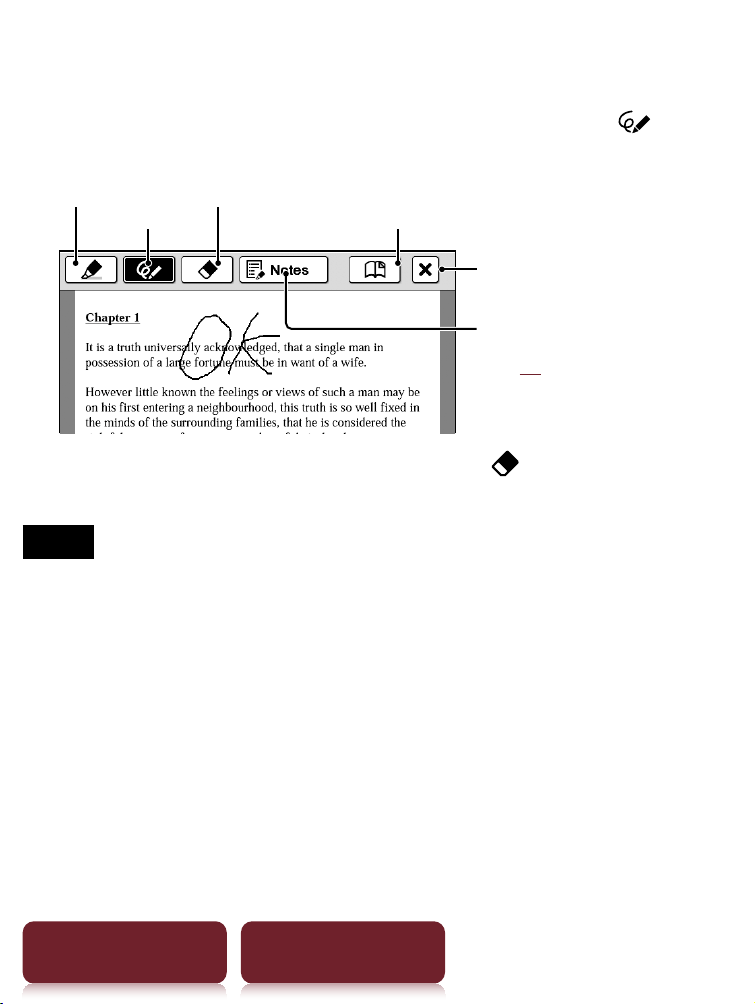
Handwriting a note
Press OPTIONS
tap [Notes]
[Create/Edit]
use
a stylus or finger to mark your note.
Pen
Lists notes in the content
(
44)
Marker
Eraser
Bookmark
Auto save and quit
Deleting a drawn line/highlight: Tap and stroke
across the drawn line or highlight.
Notes
While writing, make sure that you are not touching another
area on the screen – this could affect the notes that you
write with the stylus or your finger.
To ensure your notes are correctly saved, do not handwrite
notes too close to the edge of the screen.
If you experience difficulties when handwriting or drawing
on your Reader:
– a
v
oid applying excessive pressure to the screen.
– try not to handwrite or draw too quickly.
– the notes functionality is not designed for very detailed
drawings or for writing small characters.
Annotation
42
Table of Contents Index
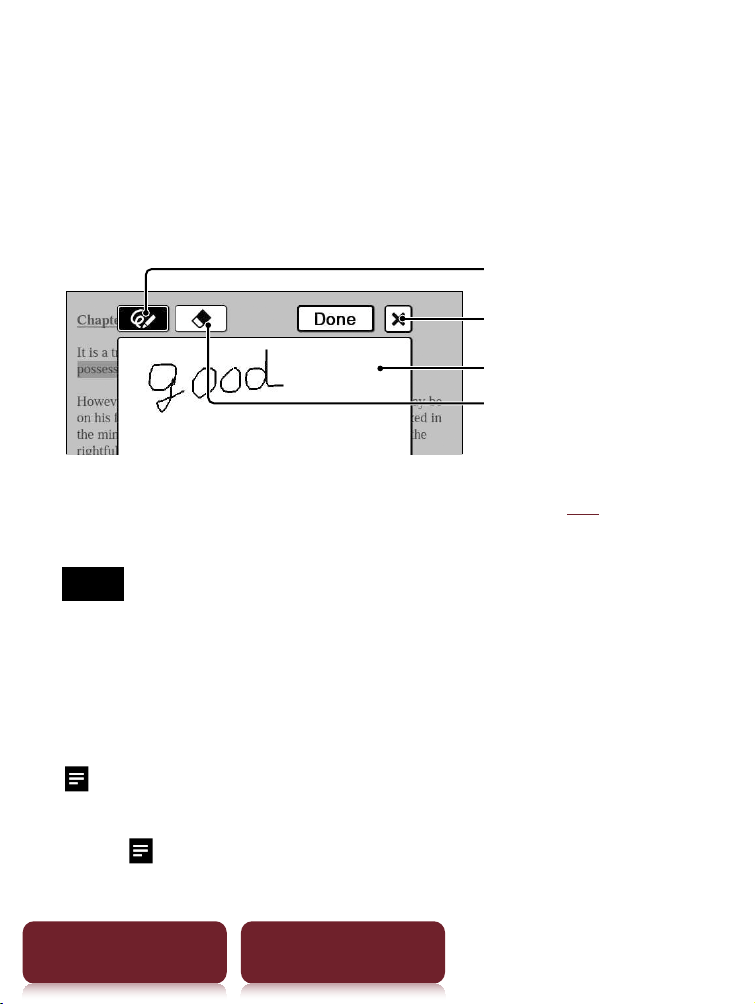
Adding a note
1 Tap a bookmark or highlighted word
[by
Drawing] or [by Keyboard].
To enter a handwritten note, tap [by Drawing].
Pen
Eraser
Quit
Drawing area
To enter a memo with typed in text (
26), tap [by
Keyboard].
Note
When adding a note to the highlighted text in [Create/
Edit], unselect any annotation tool icon and then tap
the highlight.
2 Enter a note
tap [Done].
will be attached to the bookmark or highlight. To
view the added note, tap a bookmark or highlight
with
.
Annotation
43
Table of Contents Index
Notes
While writing, make sure that you are not touching another
area on the screen – this could affect the notes that you
write with the stylus or your finger.
To ensure your notes are correctly saved, do not handwrite
notes too close to the edge of the screen.
If you experience difficulties when handwriting or drawing
on your Reader:
– av
oid applying excessive pressure to the screen.
– try not to handwrite or draw too quickly.
– the notes functionality is not designed for very detailed
drawings or for writing small characters.
To edit a note
Tap a bookmark or highlight with
[Edit]
edit a
note
tap [Done].
To delete a note
Tap a bookmark or highlight with
[Delete]
[Yes].
Finding a Note
44
Table of Contents Index
Finding a Note
Searching for notes within a book
1 Press OPTIONS
tap [Notes]
[List].
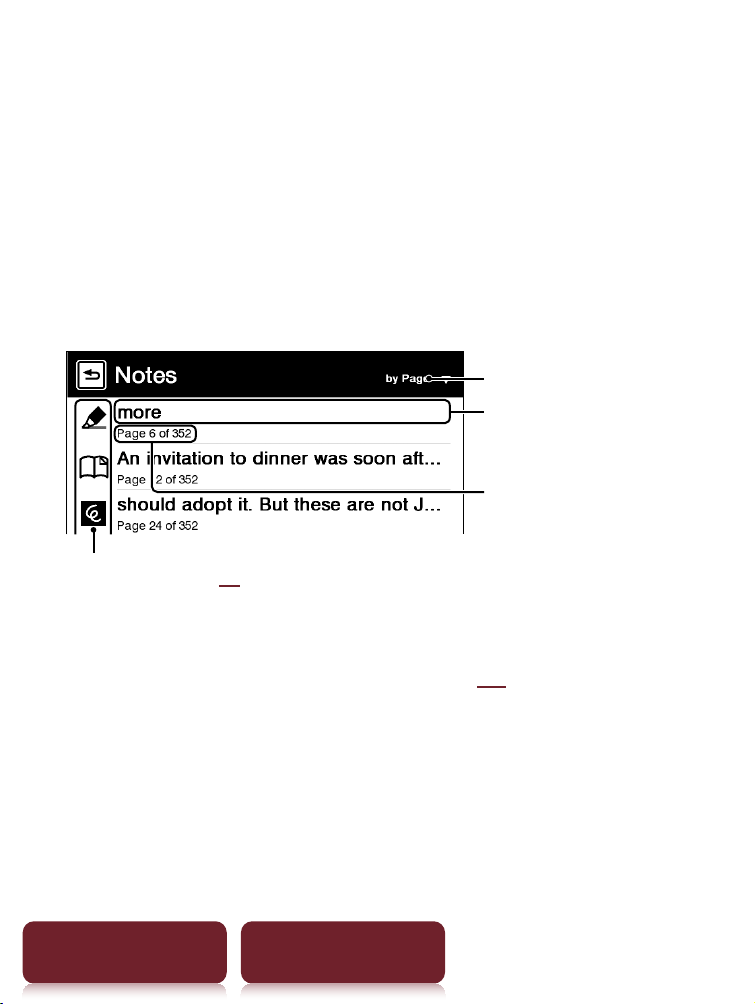
A list of all the bookmarks, highlights, and
handwritten memos in the current book appears.
Headline
Annotated page number
Types of note (
45)
Tap to change sort type
Tip
About the OPTIONS menu, see
31.
2 Tap a note.
The page containing the selected note is displayed.
Finding a Note
45
Table of Contents Index
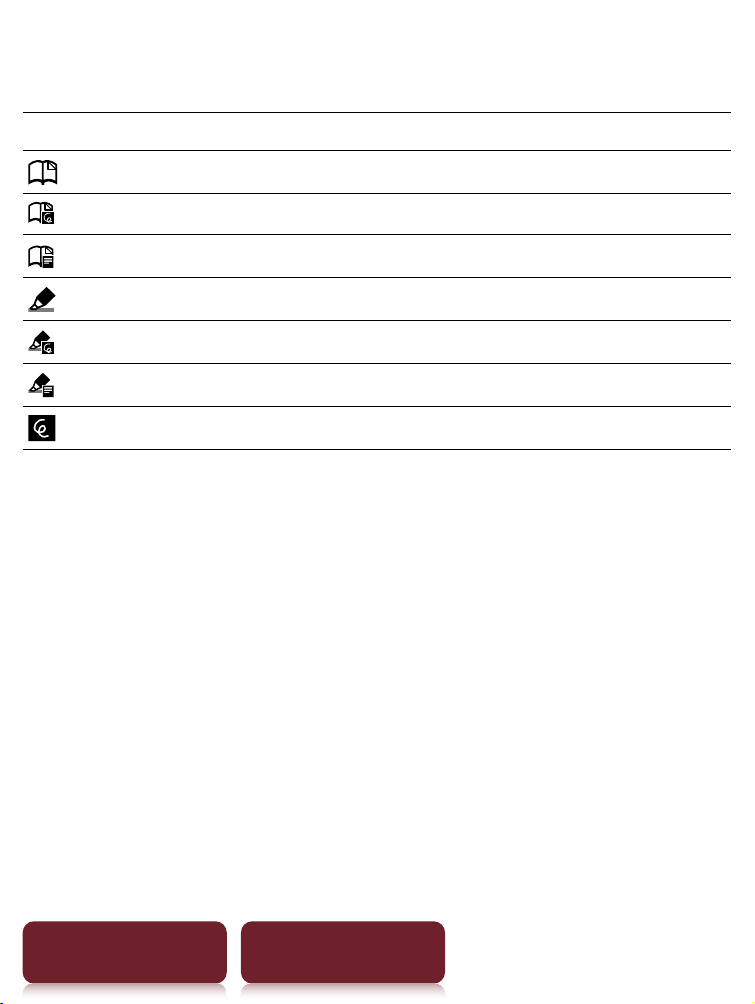
Icons and types of note in the [Notes] list
Icon Types of note
Bookmark
Bookmark with a handwritten note
Bookmark with a text note
Highlight
Highlight with a handwritten note
Highlight with a text note
Handwritten memo
Tip
You can set to merge the notes of the Reader and Reader
Library when synchronizing. For further instructions, refer
to Reader Library Help.
Finding a Note
46
Table of Contents Index
Finding the notes in all contents
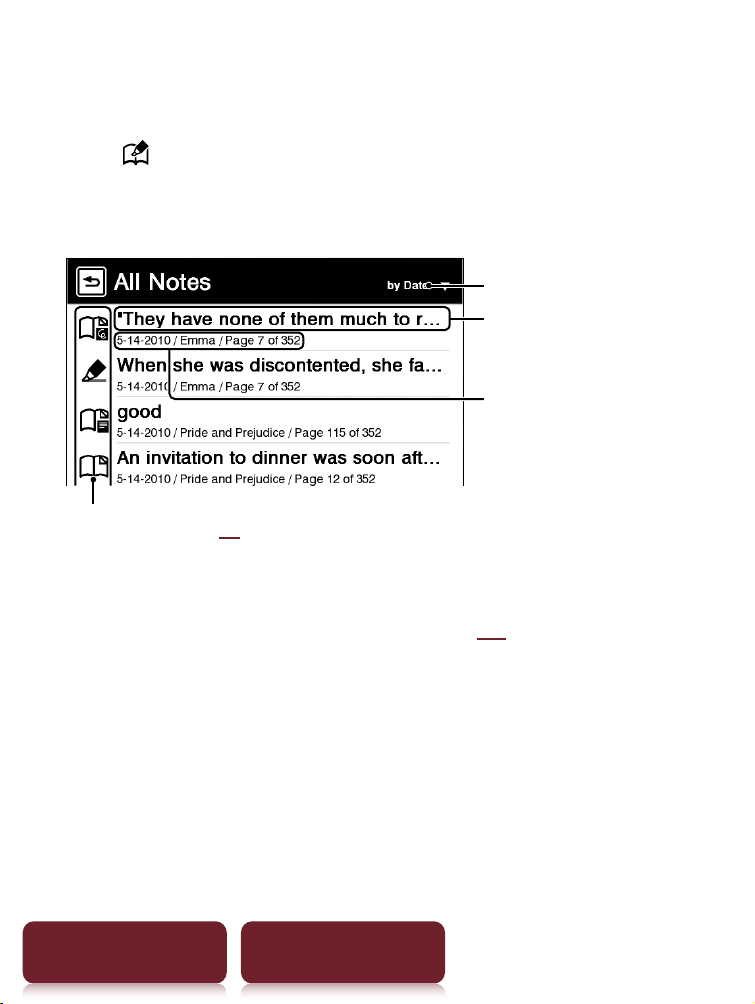
1 Tap [All Notes] at [Home] menu.
A list of all the bookmarks, highlights, and
handwritten memos in all contents appears.
Headline
Annotated date/Book or
Periodical title/Issue date/
Annotated page number
Types of note (
45)
Tap to change sort type
Tip
About the OPTIONS menu, see
31.
2 Tap a note on the list.
The page containing the selected note is displayed.
Resizing
47
Table of Contents Index
Resizing
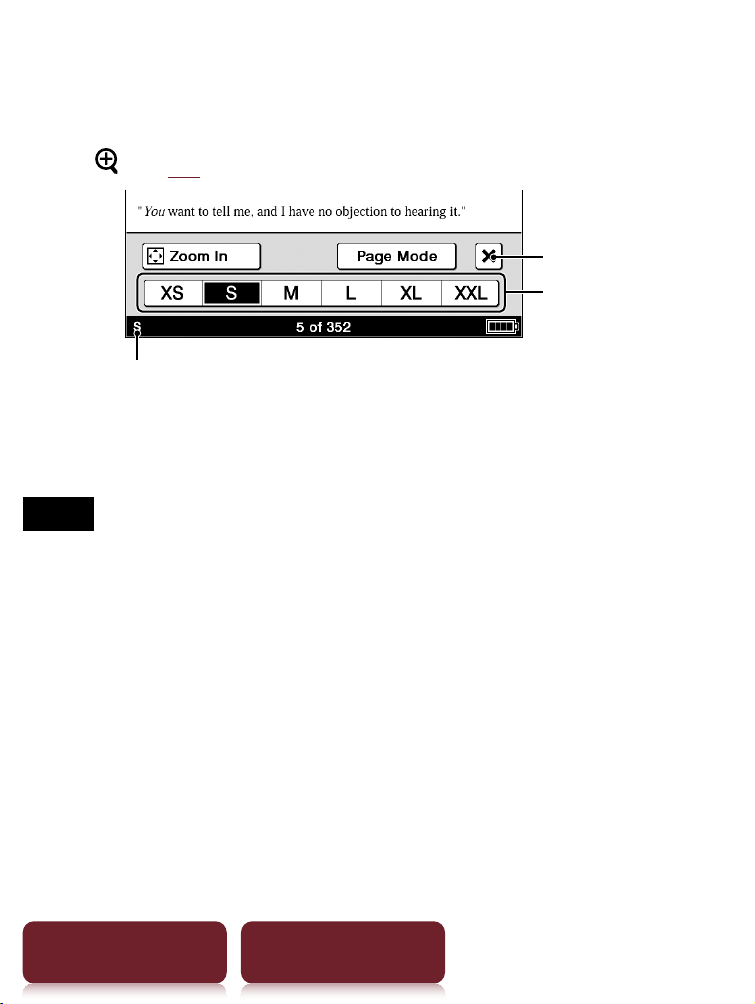
Press (
10) for re-sizing.
Size indicator
Quit
Text sizes
Adjusting the text size: Select one of text size icons and
close.
Notes
When you view PDF files in a size other than [S], the
following may occur.
[S] size is the default font size. If another size is selected,
text size may not change correctly.
Functions such as highlighting, searching, or temporary
word selection may not work correctly.
The table and graphics may not be correctly displayed.
A page containing only images cannot be resized.
Resizing
48
Table of Contents Index
Changing a page mode
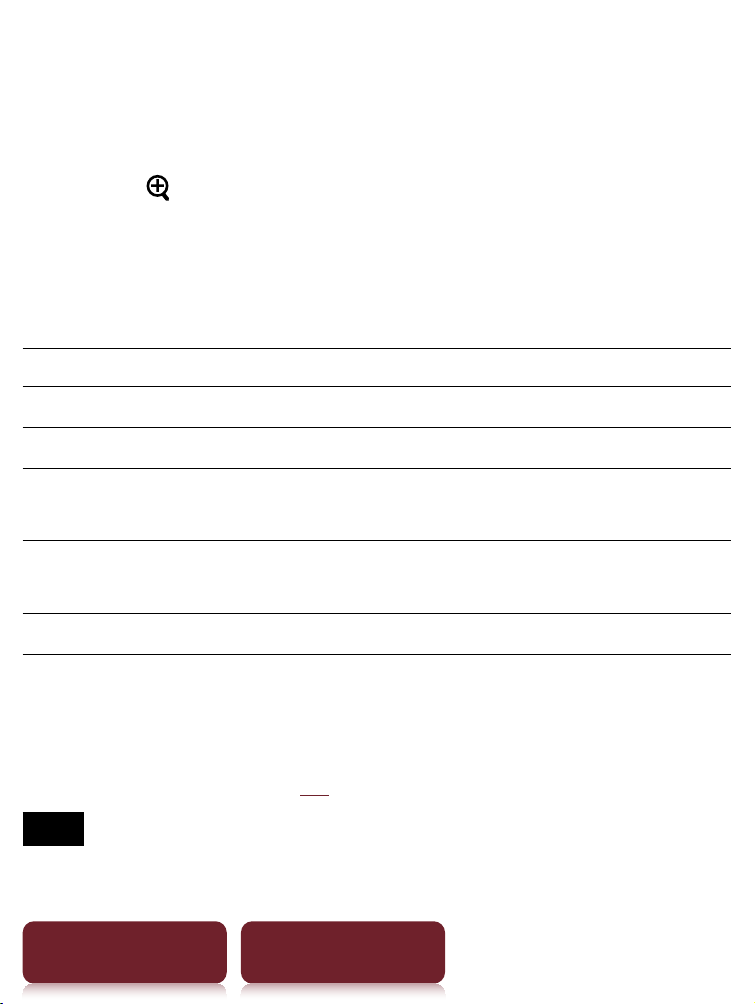
A page can be magnified by selecting the page mode.
1 Press
tap [Page Mode].
2 Tap a desired item from the following.
[Page Mode] menu
[Page Mode] item Description
[Original] Displays the original page layout.
[Margin Cut]*
1
Removes the margins.
[2-Column Split] Displays the page in numerical order
by dividing the page into four.
[3-C
olumn Split] Displays the page in numerical order
by dividing the page into six.
[Full Page]*
2
Expands the page to a full page.
*
1
Depending on the content, you may not be able to
enlarge a page.
*
2
[Full page] mode is only effective when the screen is in
landscape display (
54).
Note
In order to attach a handwritten memo, the page mode
needs to be restored to [Original].
Resizing
49
Table of Contents Index
Zooming in
The current page in view can be magnified. Also, the
magnification can be locked so that the desired setting
can be maintained. This feature is useful when reading
a book containing scanned images.
1 Press
tap [ Zoom In].
Tip
Pressing
and > simultaneously at the page view
screen instantly magnifies the page by 10%.
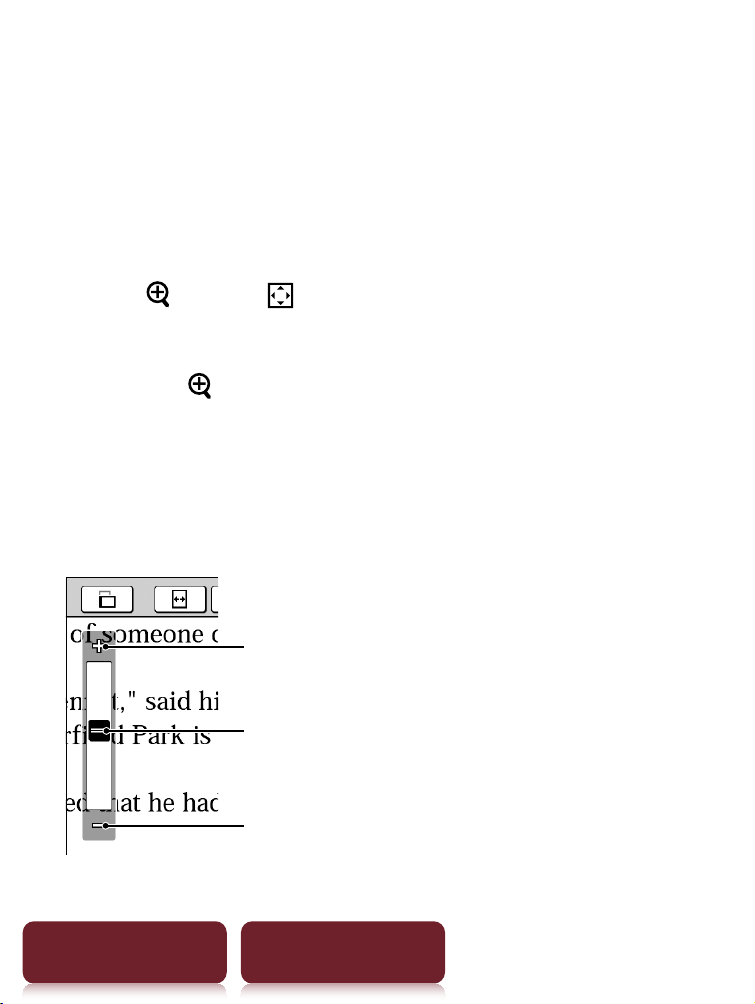
2 Drag the zoom slider, or tap + or – of the zoom
bar repeatedly until the page is zoomed to the
desired scale.
Zoom in
Zoom slider
Zoom out to the original size
Resizing
50
Table of Contents Index
Zooming a specified image or column to the
screen size
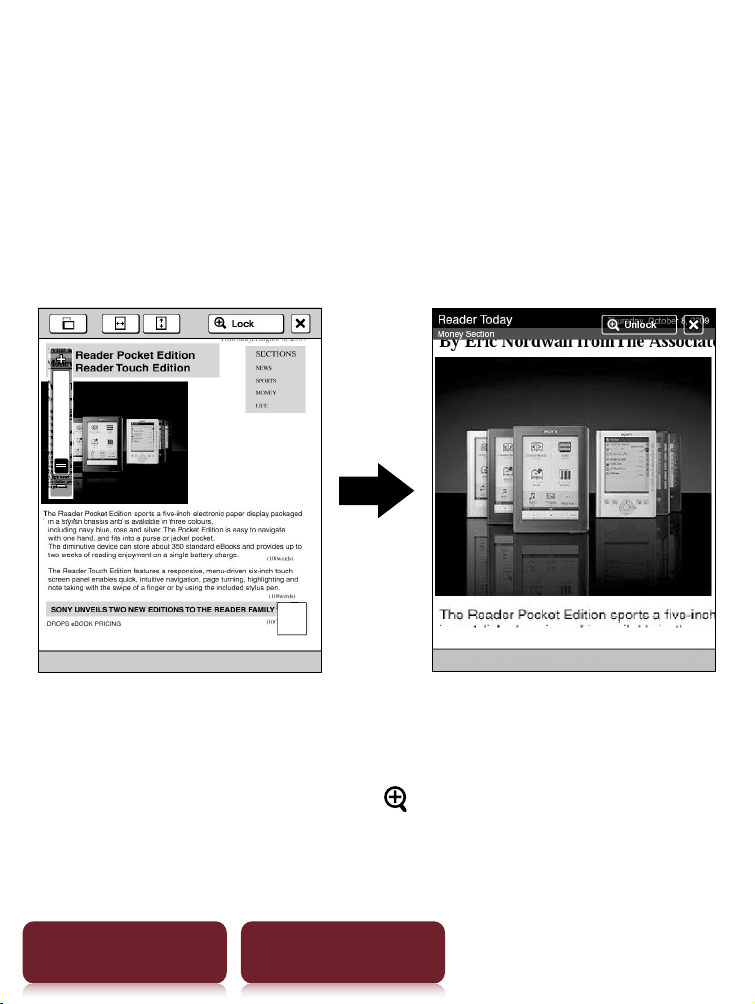
While in zoom-in mode, double-tap an image or
column which you wish to magnify.
The image or column size is magnified automatically to
fit the screen size, and the magnification is locked.
Tip
When in zoom-in mode, you may move to the next/
previous page at zoom lock ([
Lock]) mode.
Resizing
51
Table of Contents Index
Using the zoom-in mode
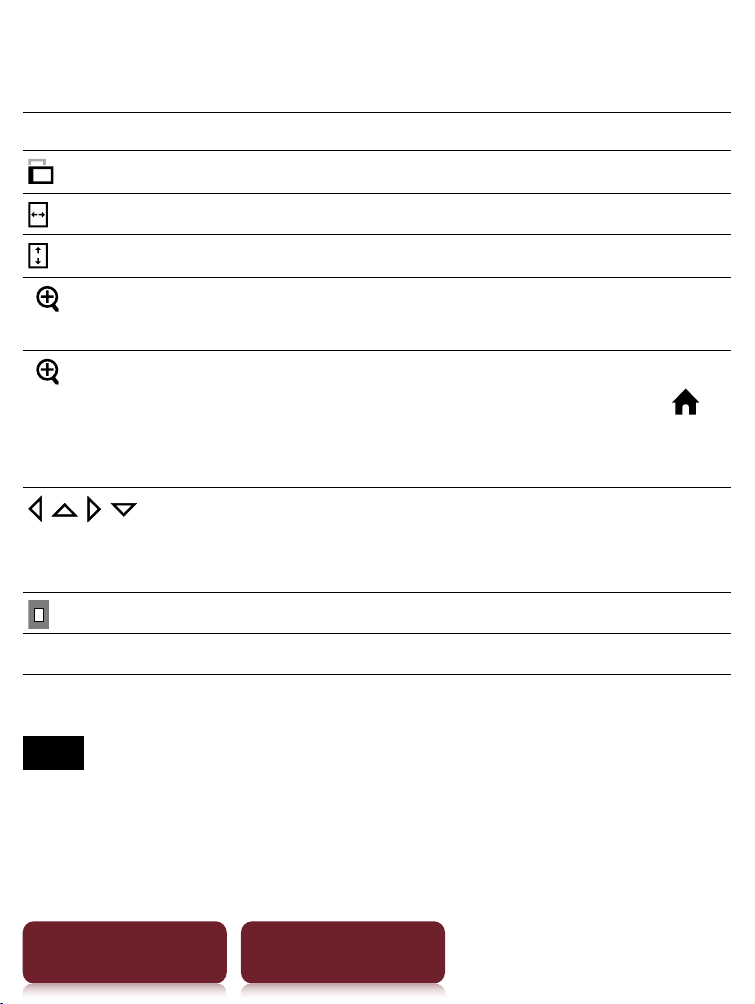
Tap To
Switch the screen orientation.
Fit the page width to the screen width.
Fit the page height to the screen height.
[
Lock]
Lock the zoom ratio and the magnified
area. The book can be read as it is.
[
Unlock]
Return to the zoom-in mode.
To keep the zoom locked screen, press
to quit. When opening the book next time
the zoom locked screen will be restored.
/ / / * Scroll the page. You can also scroll the page
by dragging or tap on a page where you
want to zoom in.
Check which part on the page is displayed.
Return to original view.
* Displa
y
s when in zoom-in mode.
Note
In zoom-in mode, page links are not available.
Adjusting Content View
52
Table of Contents Index
Adjusting Content View
A page that is hard to read, such as a scanned or color
converted document, can be made more readable by
adjusting the brightness and contrast.
1 Press OPTIONS
tap [Adjust View].
2 Tap the desired item from the following.
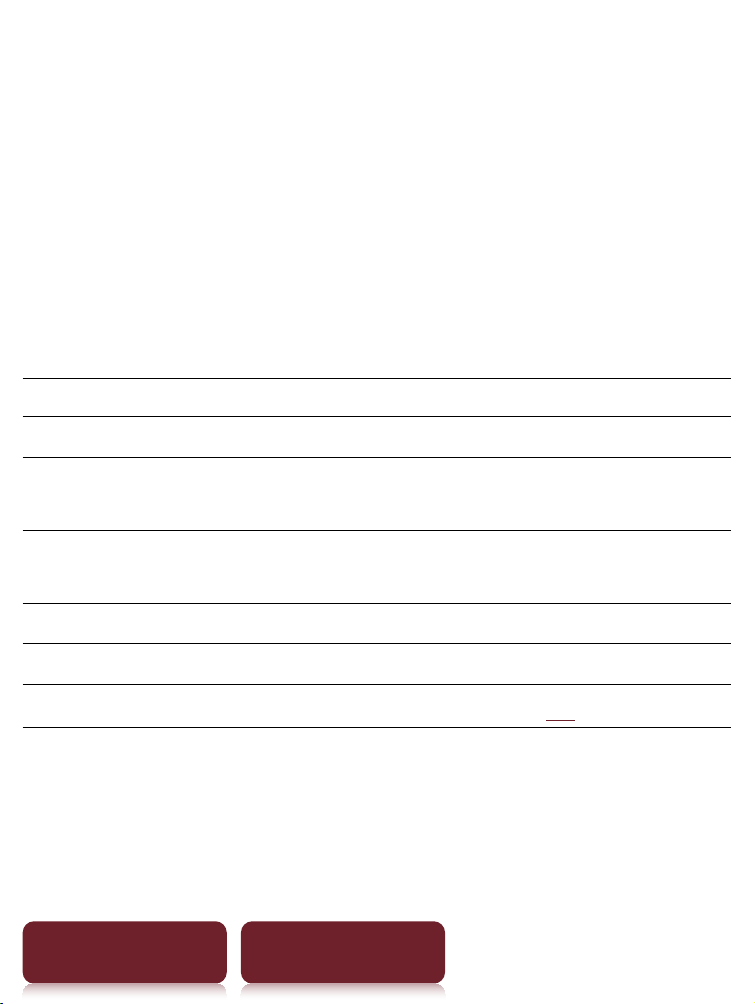
Item Description
[Original] Displays the page in the original quality.
[Saturated] Improves readability by emphasizing
contrast.
[Details] Backlight compensation; brings up
details in a dark area.
[Brighter] Increases the brightness.
[Darker] Decreases the brightness.
[Custom]
Custom setting mode (
53).
3 Tap to apply the setting and exit.
The change will only be stored in the content being
adjusted. Select [Original] when it is necessary to
restore the default setting.
Adjusting Content View
53
Table of Contents Index
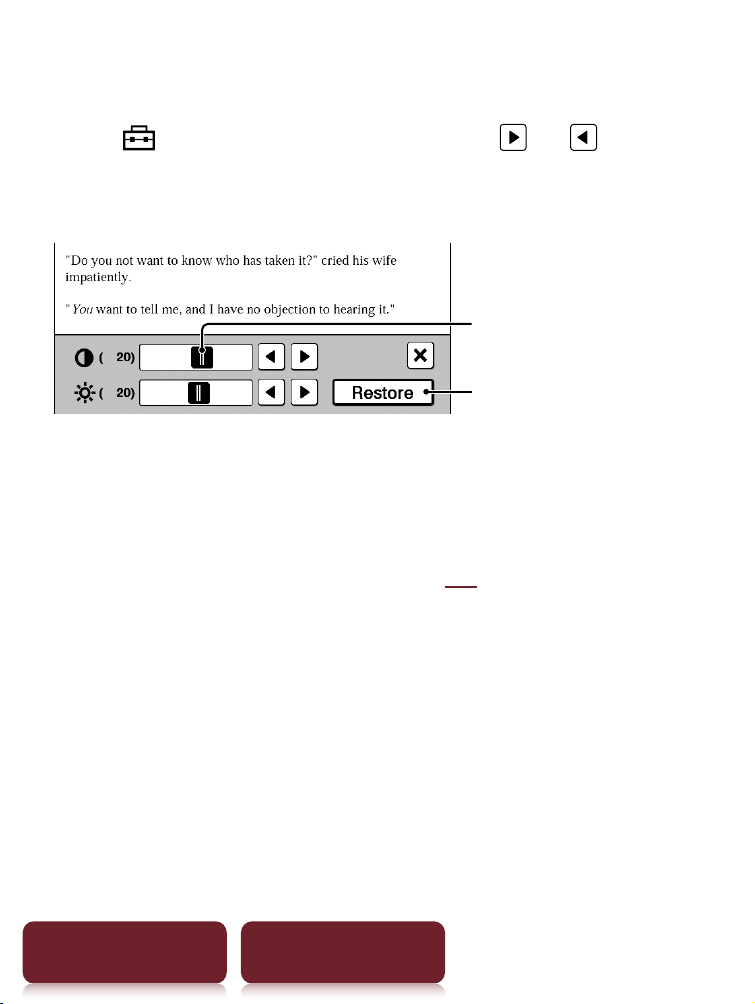
Custom setting mode
1 Tap
drag the slider, or tap or
repeatedly until the page is adjusted to the
desired brightness and contrast.
Slider
Restores the value of
previous custom settings.
2 Tap to apply the setting and exit.
The change will only be stored in the content being
adjusted. Select [Original] (
52) when it is
necessary to restore the default setting.
Screen Orientation
54
Table of Contents Index
Screen Orientation
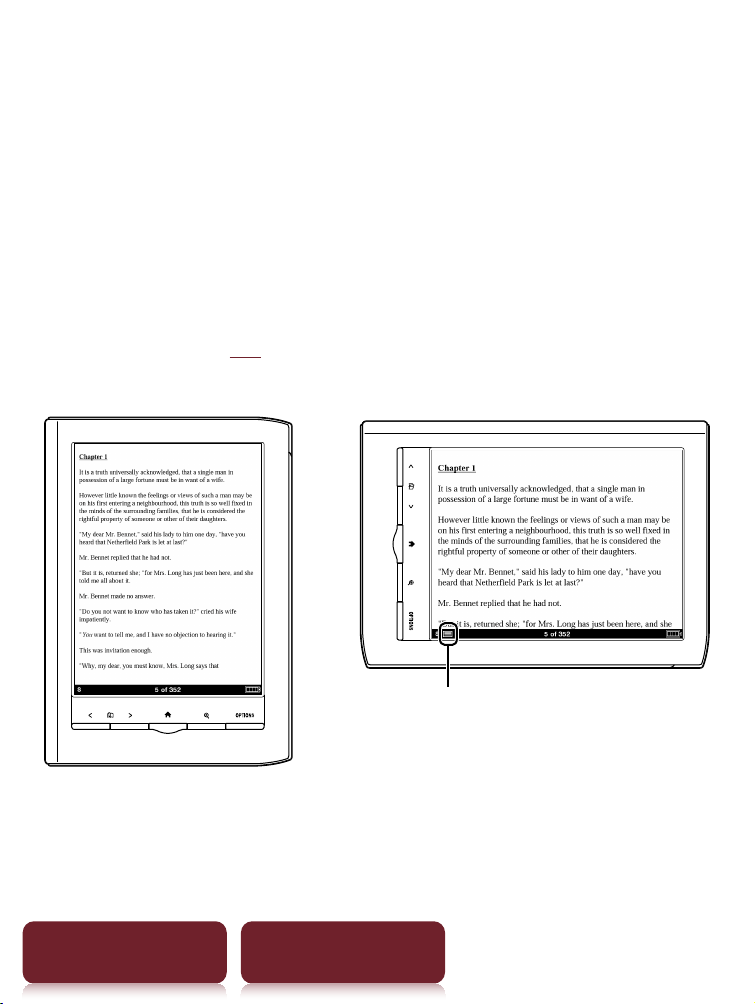
The screen orientation can be switched to either
portrait (vertical) or landscape (horizontal) mode by
selecting [Orientation] in any OPTIONS menu.
To change the direction of screen rotation, see [Screen
Orientation] (
88).
Portrait Landscape
Position indicator
Searching
55
Table of Contents Index
Searching
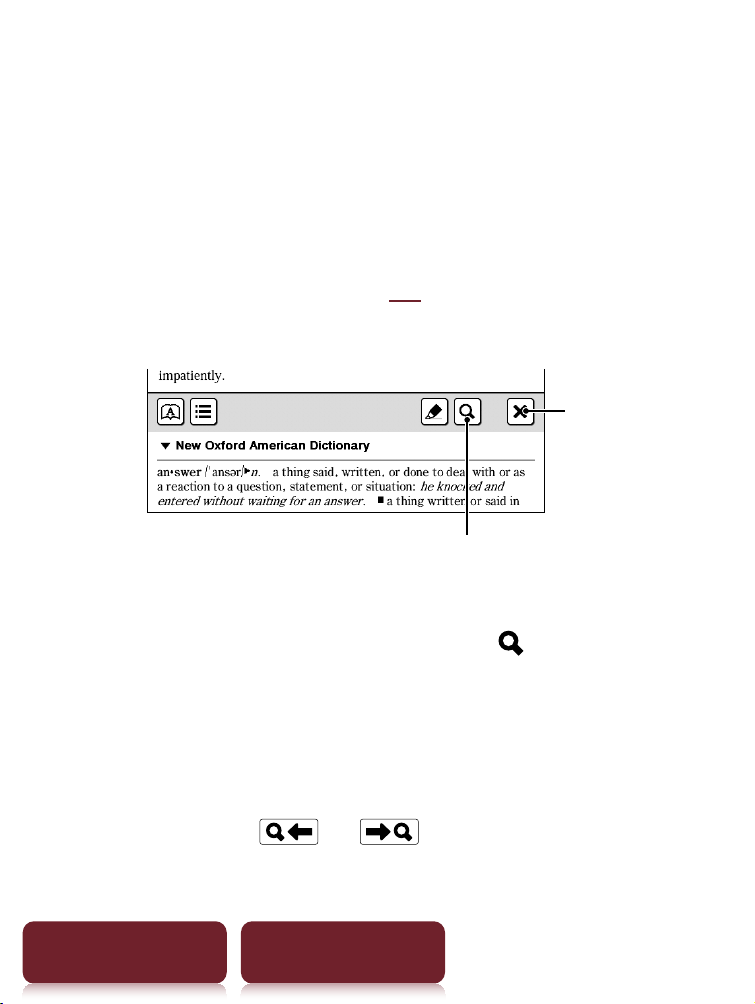
By selecting a word(s)
To select a word, double-tap a desired word at page
view. To select consecutive words, see “Double-
tapping and dragging” (
25).
The following screen will appear.
Search
Quit
To cancel, tap and tap anywhere on the page view.
To search the selected word(s), tap
.
The search for result screen will appear. The results
are highlighted on the page.
To cancel, tap and quit.
To navigate, tap
or to move to the
previous/next result.
Searching
56
Table of Contents Index
From the on-screen keyboard
1 Press OPTIONS
tap [Search]
input a word
using the on-screen keyboard (
26)
tap
[Search].
The search result screen will appear. The results are
highlighted on the page.
2 Tap or to move to the previous/next
result.
To cancel, tap and quit.
Tip
Before searching, a selected word can be modified.
Double-tap a word
press OPTIONS
tap [Search]
modify the word in the input area of the on-screen
keyboard
tap [Search].
Jumping to a Page
57
Table of Contents Index
Jumping to a Page
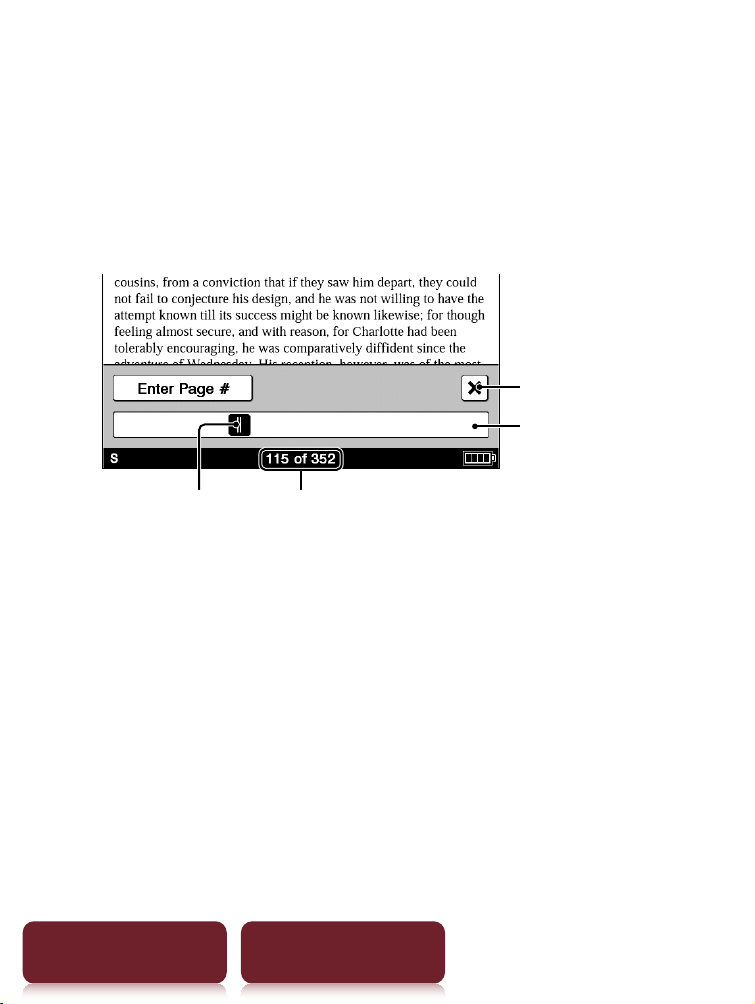
By using the slider
Tap the page number shown in the status bar
drag
the slider, or tap a point on the page jump bar.
Slider
Page jump bar
Page number
Quit
Tip
Jumping to a page can be done from the OPTIONS menu.
Press OPTIONS
tap [Go to]
[Select Page].
Jumping to a Page
58
Table of Contents Index
By page number
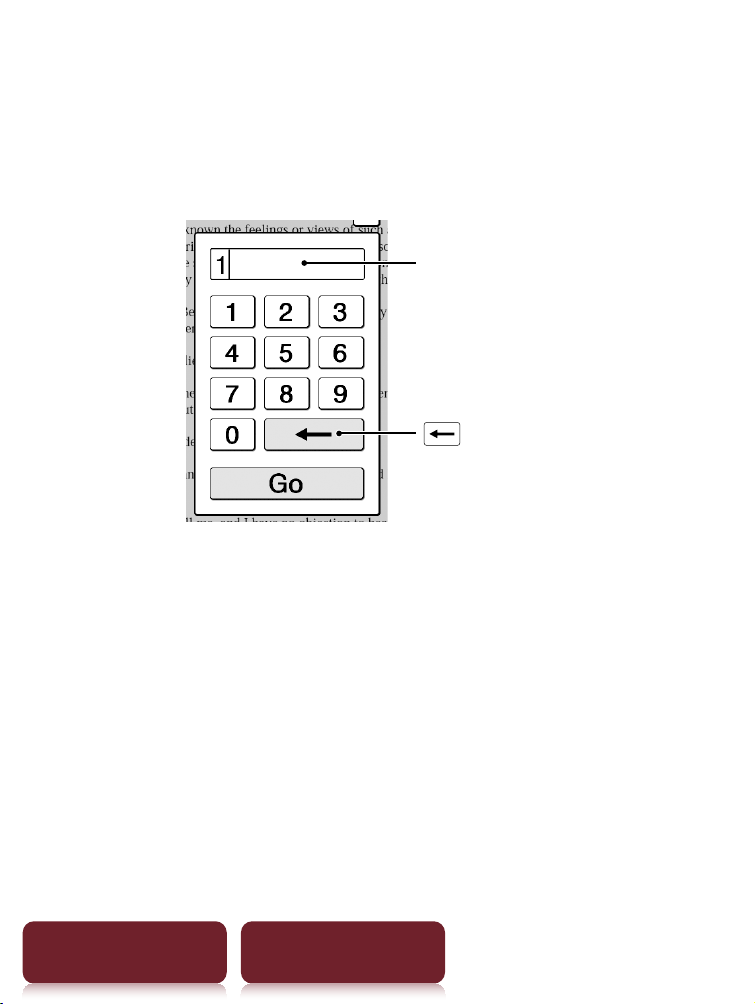
Tap the page number shown in the status bar
[Enter
Page #]
tap the number keys to input a page number
[Go]. You will jump to the specified page.
Input area
(Delete) key
If the input page number exceeds the number of
pages in the book, the Reader will show the last page.
If 0 is input, the first page will be displayed.
Jumping to a Page
59
Table of Contents Index
By tapping a link
The link appears highlighted on the screen. Tap the
link to jump to the linked page.
Note
If a hyperlink is covered with highlighting, press OPTIONS
tap [Notes]
[Hide] to hide highlighting.
Returning to the previously displayed page
Press OPTIONS
tap [Go to]
[Previous View].
Jump to viewed pages
Press OPTIONS
tap [Go to]
[History]
(previous view) or (next view)
.
Using Embedded Dictionaries
60
Table of Contents Index
Using Embedded Dictionaries
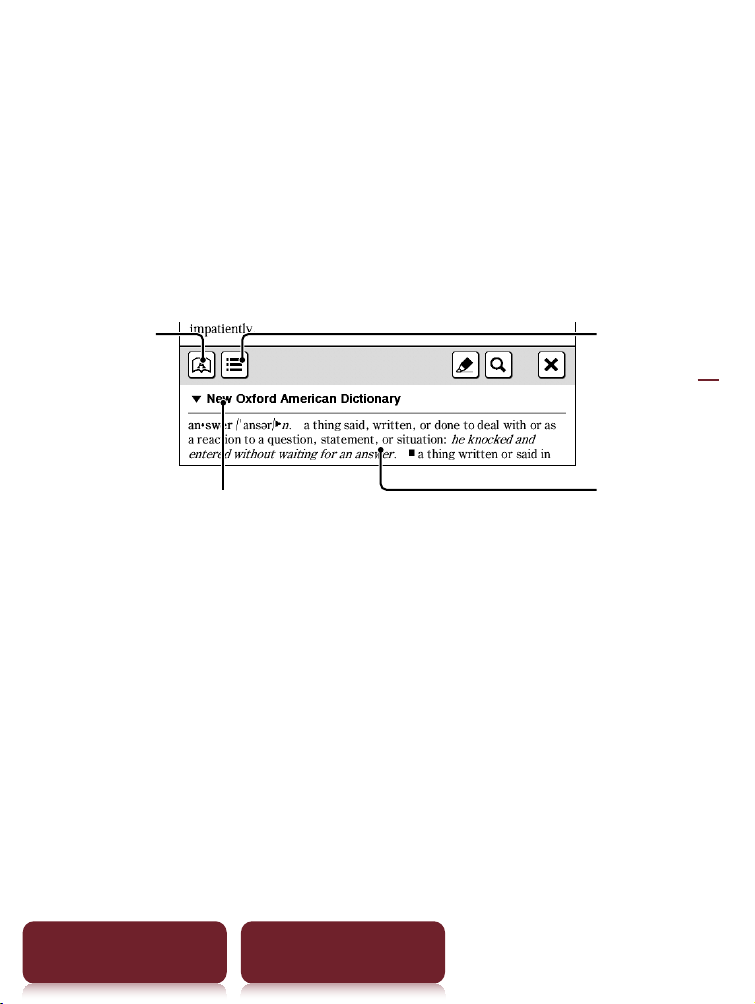
An instant search for a meaning or translation is
possible with the embedded dictionaries.
1 Double-tap a word.
The headline of the word definition is displayed.
Candidates
words (
62)
Definition area
Dictionary
Title of current dictionary
Tips
Tap
to switch and search in another dictionary.
Reader comes with 12 embedded dictionaries.
– 2 English dic
tionar
ies
– 10 Translation dictionaries
An English word can be translated to French, German,
Spanish, Italian or Dutch, or vice versa.
Using Embedded Dictionaries
61
Table of Contents Index
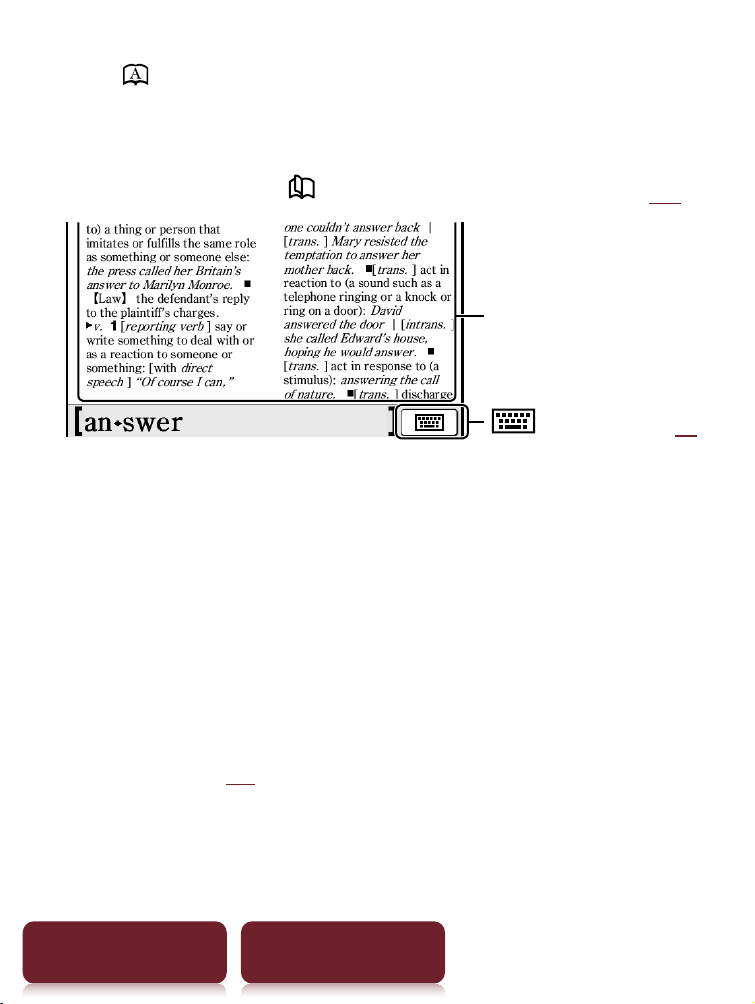
2 Tap or the definition area.
The definition is displayed in-full in the dictionary
viewer. To go to the next page, either swipe the
screen or press <
> (Page Turn) buttons (
10).
Definition area
(Keyboard) (
62)
Tips
Double-tapping a word in the definition area will look up
the selected word in the same dictionary. To return to the
previously viewed definition page, press OPTIONS
tap
[Previous View].
From the OPTIONS menu, following functions can be done.
– Chang
ing t
o another dictionary and searching again.
– Listing previously looked up words in the selected
dictionary (
63).
Using Embedded Dictionaries
62
Table of Contents Index
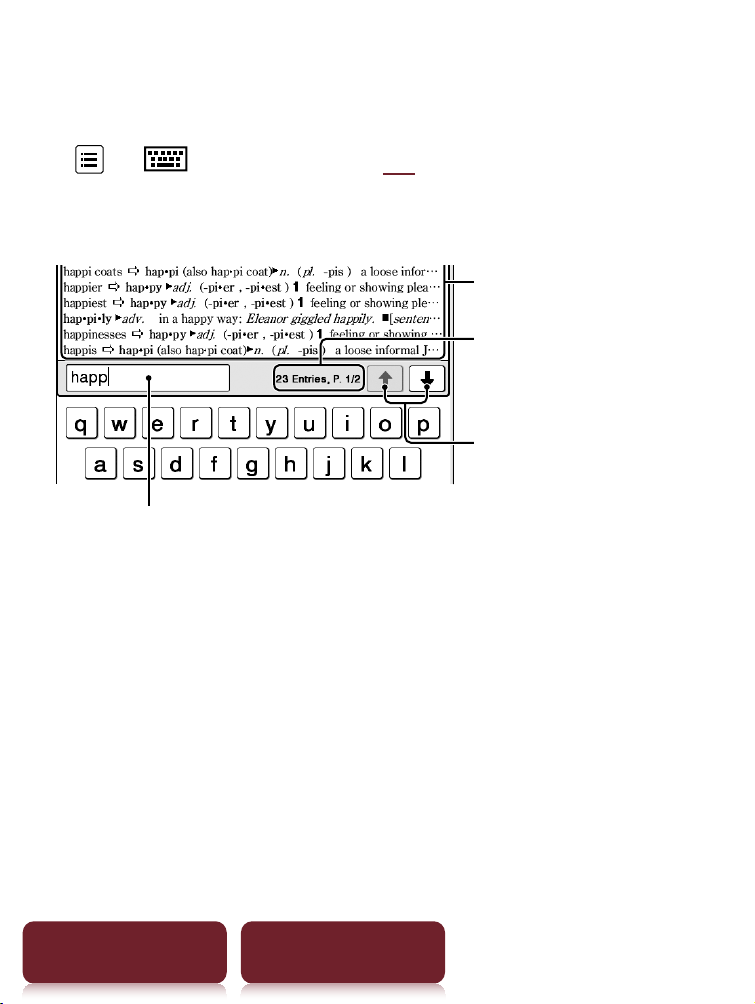
To list words with same head letters as previously
entered word
Tap or (keyboard) (
26).
The list of candidate words changes dynamically
whenever the word in the input area is modified.
Listed candidate words
Number of entries and
page number/total pages
Scrolls the page
Input area
Using Embedded Dictionaries
63
Table of Contents Index
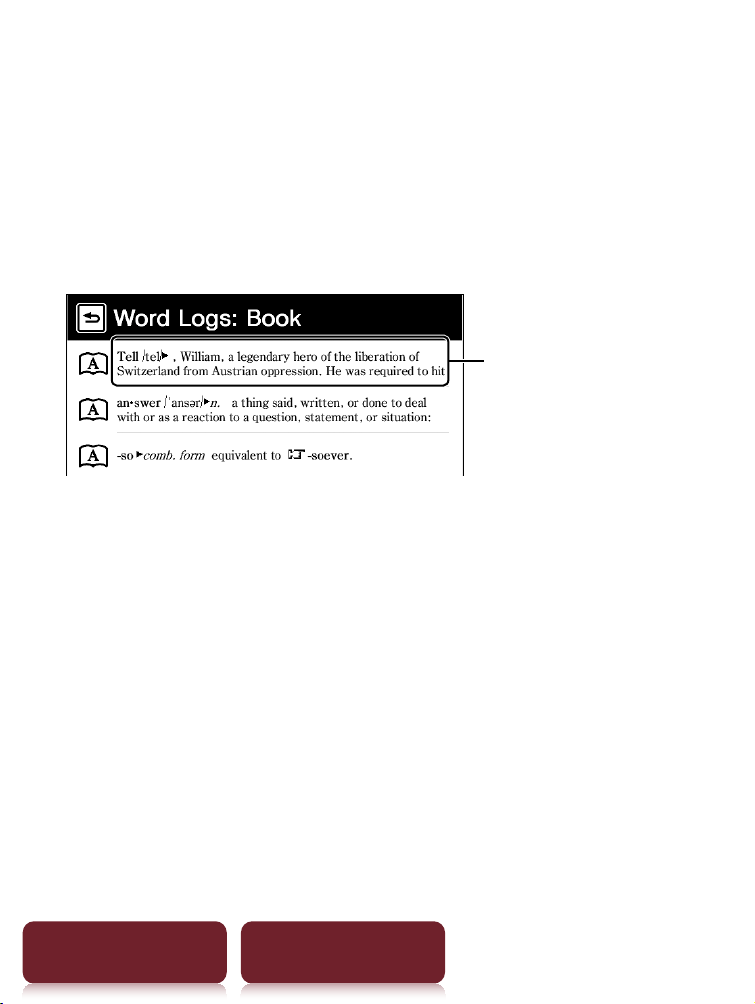
Listing previously looked up words
1 At page view, press OPTIONS
tap [Word
Logs: Book].
The looked up words are listed in the order of most
recently looked up.
Word and definition
2 Tap a desired word.

Using Embedded Dictionaries
64
Table of Contents Index
To delete word logs
Press OPTIONS
tap [Delete Word Logs]
tap the
check box of each word to be deleted
[Done]
[Yes].
Tip
A list of looked up words within a dictionary can be also
viewed by pressing OPTIONS
tap [Word Logs: Dictionary]
when viewing the definition area (
61) or the candidate
word list (
62).
Reading Periodicals
65
Table of Contents Index
Reading Periodicals
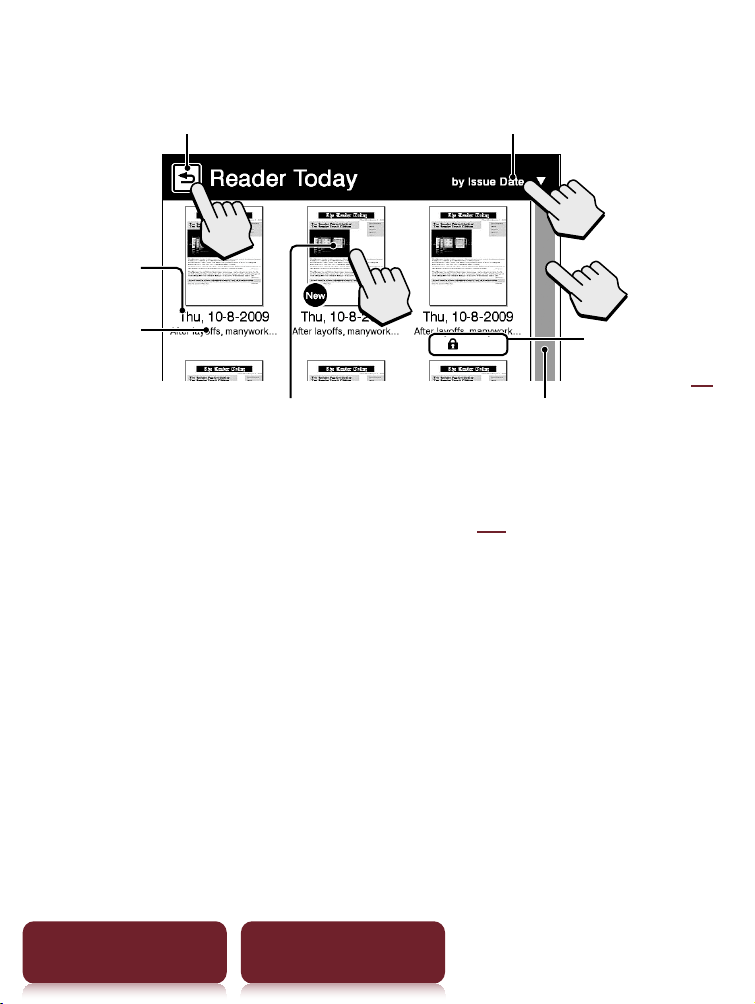
You can read newspapers/magazines from
[Periodicals] in the [Home] menu.
1 Tap [Periodicals] at [Home] menu.
Tip
The most recently transferred periodical is displayed as
[New Delivery] in the [Home] menu.
2 Tap a desired periodical to go to issue list.
Tip
About the OPTIONS menu, see
31.
Reading Periodicals
67
Table of Contents Index
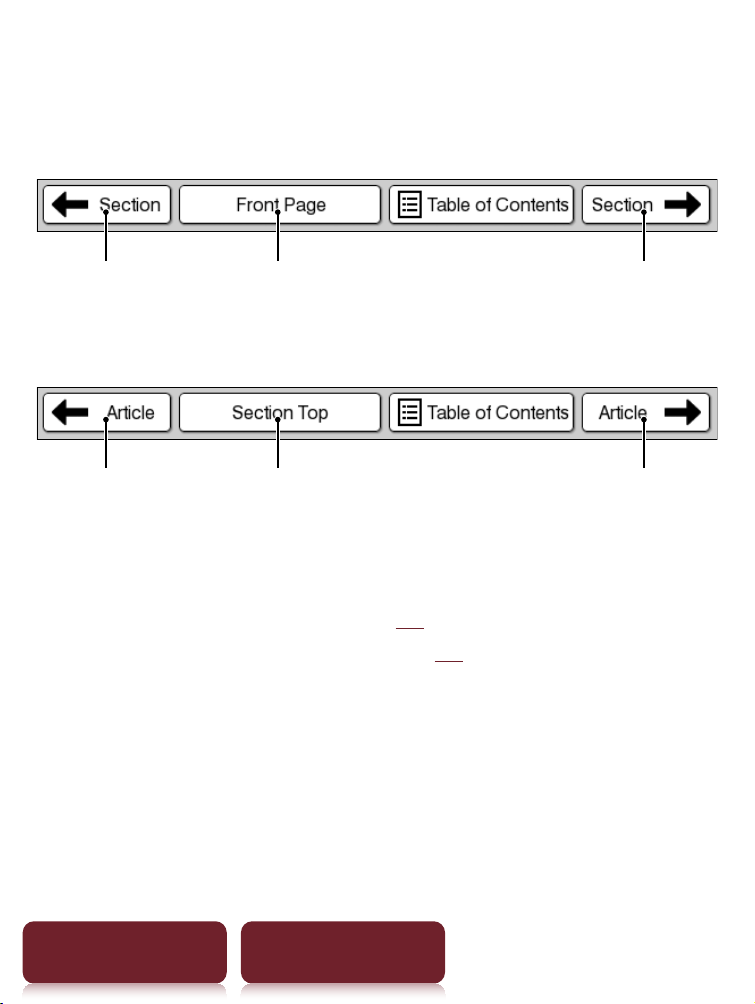
4 Use the navigation bar to read.
Operations on a section
Previous section Return to the first page Next section
Operations on an article
Previous article Return to the first page
of the section
Next article
Tips
Annotations can be added (
39).
About the OPTIONS menu, see
31.

Collections
68
Table of Contents Index
Collections
Creating
You can group desired content in Reader as a
collection.
1 Tap [Collections] at [Home] menu
[New
Collection].
[New Collection]
Tip
Press OPTIONS
tap [New Collection] to create a
collection.
Collections

Collections
69
Table of Contents Index
2 Enter the collection name using the on-screen
keyboard (
26)
tap [OK].
A new collection is created in the [Collections] list.
Tip
You can create/sync a collection by Reader Library. For
details, refer to the Reader Library Help.
To change a collection name
In the [Collections] list, tap the collection
press
OPTIONS
tap [Rename Collection]
enter a new
collection name using the on-screen keyboard
tap
[OK].

Collections
70
Table of Contents Index
Adding contents
From the collections
1 Tap [Collections] at [Home] menu
tap a
created collection.
2 Press OPTIONS
tap [Add Content]
[Books]
or [Periodicals].
In the periodical list, select a periodical and then
select issues.
3 Tap the thumbnail of a desired content
[Done].

Collections
71
Table of Contents Index
From either the books or issues list
1 In the books or issues list, press OPTIONS
tap
[Add to Collection].
2 In the collection list, tap a collection you want
to add the content.
3 Tap the thumbnail of the desired content
[Done].
You can check added content in the collection list.
Tip
To select all books or issues, press OPTIONS in the [Add
Books] or [Add Issues] list
tap [Select All].

Collections
72
Table of Contents Index
Deleting a collection
Even if you delete a collection, all contents in the
collection will remain undeleted on the Reader.
1 Tap [Collections] at [Home] menu.
2 Press OPTIONS
tap [Delete Collections].
3 Tap the check box of each collection to be
deleted
[Done]
[Yes].
Tip
Also, you can delete a collection using Reader Library. For
details, refer to the Reader Library Help.
Collections
73
Table of Contents Index
Removing contents
Even if you delete content in a collection, the
corresponding content will remain undeleted on the
Reader.
1 Tap [Collections] at [Home] menu
tap a
collection.
2 Press OPTIONS
tap [Remove Content].
3 Tap the thumbnail of each content to be
deleted
[Done]
[Yes].
Tips
To select all contents, press OPTIONS after step 2 above
tap [Select All].
When you delete contents in
[Books] or [Periodicals],
corresponding contents are also deleted from relevant
collections.

Deleting Content
74
Table of Contents Index
Deleting Content
Example: [Books] list
1 Tap [Books]
press OPTIONS
tap [Delete
Books].
To delete: tap a book thumbnail with the blank
check box.
To delete all: press OPTIONS
tap [Select All].
To undelete: tap a book thumbnail with a checked
check box.
To unselect all: press OPTIONS
tap [Unselect All].
2 Tap [Done]
[Yes].
Selected number of items
(Protect)
Check box
Tip
You can also delete the currently viewed book. Press
OPTIONS in the page view
tap [Delete Book]
[Yes].
Protecting Content
75
Table of Contents Index
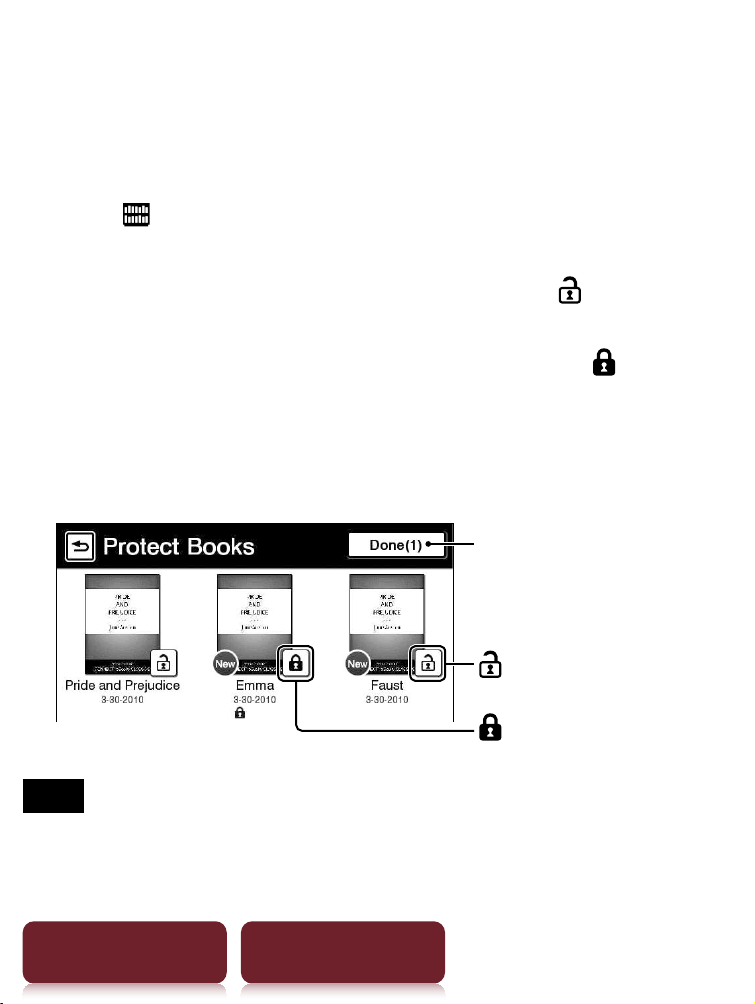
Protecting Content
Example: [Books] list
1 Tap [Books]
press OPTIONS
tap [Protect
Books].
To protect: tap a book thumbnail with .
To protect all: press OPTIONS
tap [Protect All].
To unprotect: tap a book thumbnail with
.
To unprotect all: press OPTIONS
tap [Unprotect
All].
2 Tap [Done].
Selected number of items
(Unprotect)
(Protect)
Note
This protection feature works only on the Reader. Protected
content may still be deleted via your computer.
Applications
76
Table of Contents Index
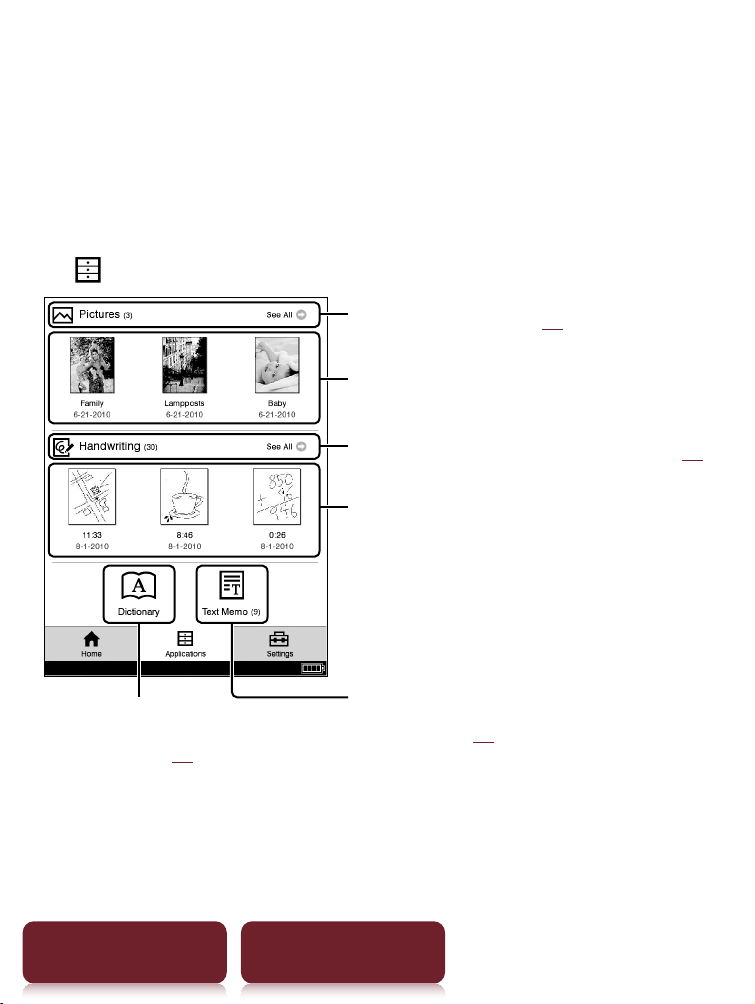
Applications menu
The [Applications] menu provides useful functions,
such as creating a text or a handwritten memo, and
more.
Tap
[Applications] at [Home] menu.
To list all pictures (
83)
Latest pictures
To list/create handwritten note(s) (
77)
Latest drawings
To create/edit/view text
memo(s) (
80)
To use the currently selected
dictionary (
82)
Applications
Applications menu
77
Table of Contents Index
Creating drawings
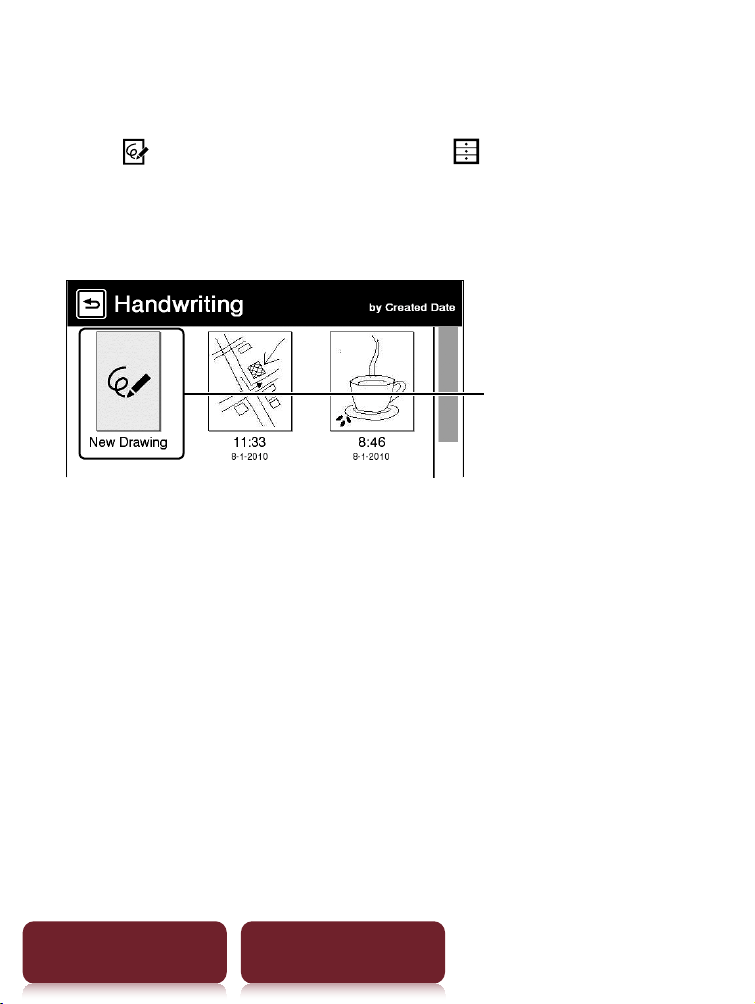
1 Tap [Handwriting] under [Applications] at
[Home] menu.
2 Tap [New Drawing].
[New Drawing]
Tip
Press OPTIONS
tap [New Drawing] to create a
drawing.
Applications menu
78
Table of Contents Index
3 Draw in the drawing area with the supplied
stylus or your finger
tap [Done].
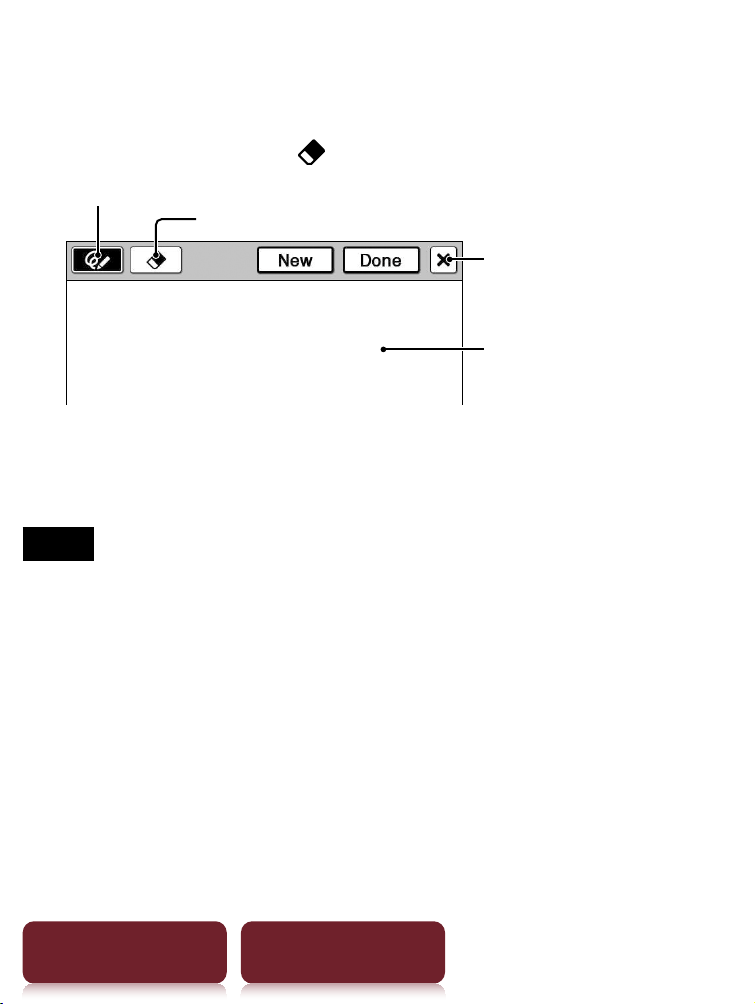
To erase a line, tap
tap or stroke a part of the line.
Pen
Drawing area
Eraser
Quit
Tip
If you tap [New], the current drawing is saved, and a new
drawing editor opens.
Notes
While writing, make sure that you are not touching another
area on the screen – this could affect the notes that you
write with the stylus or your finger.
To ensure your notes are correctly saved, do not handwrite
notes too close to the edge of the screen.
If you experience difficulties when handwriting or drawing
on your Reader:
– a
v
oid applying excessive pressure to the screen.
– try not to handwrite or draw too quickly.
– the notes functionality is not designed for very detailed
drawings or for writing small characters.
Applications menu
79
Table of Contents Index
Viewing/editing created drawings
After step 1 (
77), tap a drawing thumbnail to view.
Tap [Edit] and follow step 3 above.
To delete/protect a drawing(s)
Tap [Handwriting] under [Applications] at [Home]
menu, press OPTIONS
tap [Delete Drawings] or
[Protect Drawings].
To delete, refer to the example instructions for deleting
books in “Deleting Content” (
74).
To protect, refer to the example instructions for
protecting books in “Protecting Content” (
75).
Tip
After step 1 (
77), tap a drawing thumbnail to view and
press OPTIONS
tap [Delete Drawing] to delete the
currently viewed drawing.
Applications menu
80
Table of Contents Index
Creating text memos
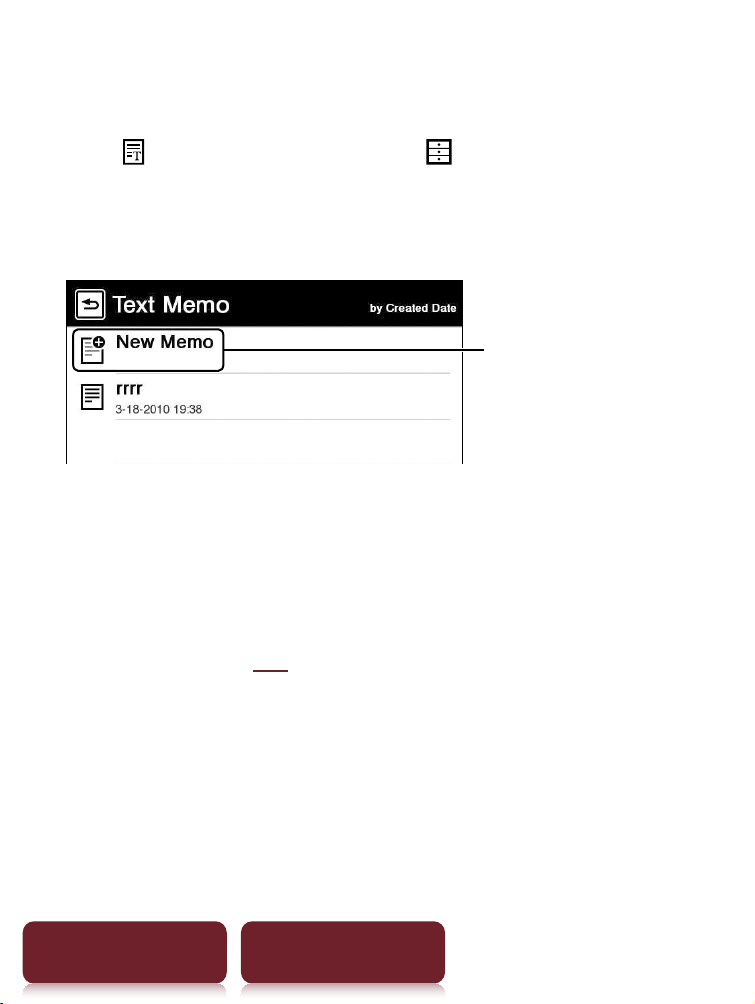
1 Tap [Text Memo] under [Applications] at
[Home] menu.
2 Tap [New Memo].
[New Memo]
Tip
Press OPTIONS
tap [New Memo] to create a text
memo.
3 Enter text in the input area using the on-screen
keyboard (
26)
Tap [Done].
Tip
If you tap [New], the current text memo is saved, and a new
text memo editor opens.
Applications menu
81
Table of Contents Index
Viewing/editing text memos
After step 1 (
80), tap a memo to view. Tap [Edit] and
follow the step 3 (
80).
To delete/protect a text memo in the list
Tap [Text Memo] under [Applications] at [Home]
menu, press OPTIONS
tap [Delete Memos] or
[Protect Memos].
To delete, refer to the example instructions for deleting
books in “Deleting Content” (
74).
To protect, refer to the example instructions for
protecting books in “Protecting Content” (
75).
Tip
After step 1 (
80), tap a memo to view and press OPTIONS
tap [Delete Memo] to delete the currently viewed memo.
Applications menu
82
Table of Contents Index
Using embedded dictionaries
1 Tap [Dictionary] under [Applications] at
[Home] menu.
The name of the currently selected dictionary is
shown at the top of the screen. To switch to another
dictionary, press OPTIONS
tap [Change
Dictionary].
2 Input a word using the on-screen keyboard
(
26)
tap a candidate word.
The definition is displayed in-full in the dictionary
viewer (
61).
To list words with same head letters as the inputted
word
Tap (keyboard) (
62).
To list previously looked up words
Press OPTIONS
tap [Word Logs: Dictionary].
To delete word logs, see
64.
Applications menu
83
Table of Contents Index
Viewing pictures
You can view pictures stored in internal memory. Also,
you can set your favorite pictures to the standby
screen.
1 Tap [Pictures] under [Applications] at
[Home] menu.
2 Tap a thumbnail of desired picture on the list.
Tips
About the OPTIONS menu, see
31.
See “Supported File Formats” (
113).
To transfer pictures to the Reader using Reader Library,
refer to Reader Library Help.
To set slideshow
Press OPTIONS
tap [Slideshow On].
To set the duration of a slideshow, see [Slideshow] of
[Application Preferences] (
88).
Applications menu
84
Table of Contents Index
To set as a standby screen
In the [Pictures] list, press OPTIONS
tap [Select
Standby Screen]
tap the thumbnail of candidate
picture
tap [Done].
The [Standby Screen] setting is configured from the
[Settings] menu (
91).
Tip
When two pictures or more have been selected, the
displayed picture is changed every time the Reader enters
the sleep mode (
8).
To zoom in a picture
Press (
10) to switch to the zoom-in mode. Drag
the zoom slider (
49) and scroll the picture by
dragging.
Tip
Double-tap where you wish to zoom in further. The
double-tapped area will be shown centered automatically
after zooming in.

Settings
85
Table of Contents Index
Changing Settings
Tap [Settings] tab at [Home] menu.
[General Settings] (
87)
[Date and Time]
[Date and Time Format]
[Page Turn Preference]
[Menu Language]
[Keyboard]
[Screen Orientation]
[Application Preferences] (
88)
[Dictionary]
[Slideshow]
[System Management] (
89)
[Power Management]
[Device Lock]
[Standby Screen]
Settings


Changing Settings
87
Table of Contents Index
[General Settings] menu items
[Date and Time]
Tap a field to change.
Input a number by tapping the numeric key pad.
Tap [OK] to apply the change.
Tip
The date and time of your Reader will be automatically
synchronized to your computer by the Reader Library after
connection.
[Date and Time Format]
Tap [Month-Day-Year] or [Day-Month-Year] to select
the date format.
Tap [12 hour] or [24 hour] to select the time format.
Tap [OK] to apply the changes.
[Page Turn Preference]
Sets the swiping direction to turn pages forward.
Swiping to left is default setting.
[Menu Language]
Selects the language of the Reader’s menu and
messages.

Changing Settings
88
Table of Contents Index
[Keyboard]
Selects a preferred on-screen keyboard.
[Screen Orientation]
Sets the direction to rotate when changing from
portrait to landscape mode.
[Application Preferences] menu items
[Dictionary]
Selects a default dictionary to use.
[Slideshow]
Sets the slideshow on/off and its duration up to 60
seconds.
Note
Slideshow may take a longer time to display depending on
the size of picture.

Changing Settings
89
Table of Contents Index
[System Management] menu items
[Power Management]
Power management helps avoid unnecessary battery
consumption.
Power management operates as follows:
After 10 minutes of inactivity, the Reader enters the
sleep mode automatically and battery consumption
is minimized.
After two* days of inactivity, the Reader
automatically shuts down and stops consuming
battery power.
* If battery power is at a low level, the Reader will shut down
within two days of inactivity.
Note
The Reader does not enter the sleep mode after 10 minutes
of inactivity even if [Power Management] is set to [On],
when:
– c
onnec
ted to a computer using the supplied USB cable
– charging with an AC adapter (PRSA-AC1) (optional)
– when a slideshow is set

Changing Settings
90
Table of Contents Index
[Device Lock]
Locks the Reader by setting a pass code.
Tap [On] to set a pass code.
Input a 4-digit number by tapping the numeric key
pad.
Tap [OK] to lock the Reader.
To unlock, input the pass code and tap [OK]. Then tap
[Off] to unlock the Reader, and tap [OK].
Notes
[0000] is the factory setting.
You are recommended to make a note of your pass code
and keep it in a safe place separate from the Reader.
If you forget your pass code, contact your Sony Customer
Support (
18); however, note that in unlocking your
device, all content on it will be erased.
When the [Device Lock] setting is activated, the Reader will
not be recognized by your computer, please set to [Off ]
before connecting.

Changing Settings
91
Table of Contents Index
[Standby Screen]
Sets the standby screen during the sleep mode. [Off]
displays nothing in the sleep mode.
[Show picture]: Set [On] to show the selected
pictures on the standby screen. For details on setting
the pictures, see “To set as a standby screen” (
84).
[Show message]: Set [On] to show messages on the
standby screen.

Changing Settings
92
Table of Contents Index
[Initialization] menu items
[Restore Defaults]
Restores the Reader to its default settings.
You will need to perform the initial settings after
restoring.
[Clear Keyboard History]
Deletes predictive words for the on-screen keyboard.
[Format Internal Memory]
Formats the internal memory of the Reader.
Formatting will erase all the contents in the storage.
Note
Before formatting, make sure to backup data you wish to
keep to your computer via Reader Library. Note that
protected content will also be deleted by formatting.

Troubleshooting
93
Table of Contents Index
Troubleshooting
If the Reader does not function as expected, try the
following steps to resolve the issue.
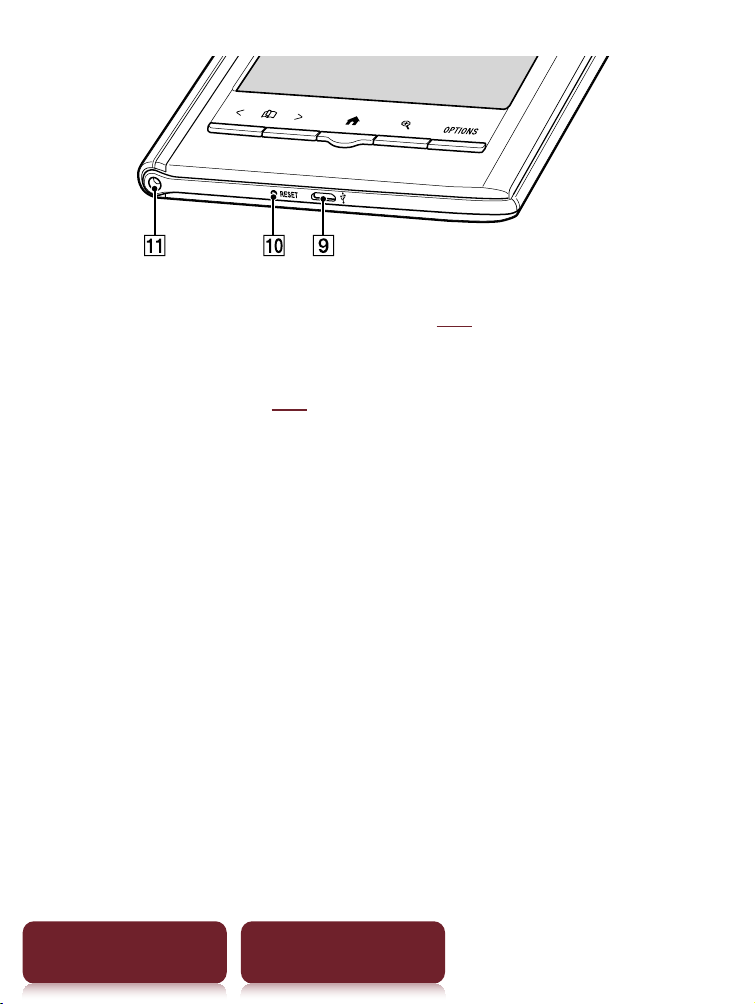
1 Reset the Reader by pressing the RESET hole
with a small pin or clip
after 5 seconds, slide
the power switch to restart the Reader.
The content and settings stored on the Reader are
not affected by resetting.
Notes
The bookmarks, highlights, handwritten memos, or the
setting information may be deleted by resetting.
The screen will not change after pressing the RESET
hole. Slide the power switch to restart the Reader.
Do not push the RESET hole with a breakable point,
such as the graphite of a mechanical pencil. It causes
the RESET hole to be blocked.
2 Check the symptoms list (
94).
3 If it is an issue regarding Reader Library, check
for information in Reader Library Help.
4 Look for information on the support Web sites
(
18).
Troubleshooting

Troubleshooting
94
Table of Contents Index
Symptoms
Power
Battery cannot charge.
If [Charging stopped] is displayed on the screen, check
the conditions to charge the Reader again (
12). If
charging the Reader by connecting to your computer,
make sure your computer is powered on.
Char
ge the ba
ttery within the temperature range of 41°F
to 95°F (5°C to 35°C) (
19).
Battery life seems short.
The operating temperature is below 41°F (5°C). This is due
to the battery characteristics and not a malfunction.
The R
eader is discharged automatically even when not in
use for a prolonged period. It is recommended that you
charge the Reader again before turning on the Reader.
The ba
ttery was not been given enough time to charge
fully. Charge the Reader until the charge/busy indicator
turns off. (The battery icon does not indicate remaining
battery power during charging.)

Troubleshooting
95
Table of Contents Index
By sliding the power switch, the Reader enters sleep
mode in which the battery power is consumed slightly. To
minimize battery consumption, before entering the sleep
mode, slide and hold the po
wer switch for more than 3
seconds to shut down the Reader.
The Reader cannot turn on.
Moisture condensation may have occurred. Wait for a few
hours and then turn on the Reader.
Batt
ery power has been fully depleted. Charge the
Reader by connecting to the computer via the supplied
USB cable (
12).
Screen
Display takes a long time to appear.
In a cold place such as outdoors, it may take time for the
display to appear. This is due to the display characteristics
and not a malfunction.
It ma
y take a few moments for the Reader start-up screen
to appear after a reset or shutdown.

Troubleshooting
96
Table of Contents Index
The screen is frozen.
Reset the Reader by pressing the RESET hole. Then, slide
the power switch to turn on the Reader again (
8).
Touch operation is not effective.
If condensation occurs in the touch screen, or dust
attaches to the touch screen, it may cause a malfunction.
For details, see “On Cleaning” (
108).
I
f an
y objects are placed on the touch screen, it may
cause a malfunction. When not in use, leave the Reader in
sleep mode, or shut it down.
Reading contents
A book cannot be read.
If the book has an expiration date, confirm whether the
book has already been expired (
37).
A book that has been transferred from your computer cannot be read.
Either the Reader, your computer, or both may not have
been authorized by Reader Library, refer to Reader
Library Help (
17).
Y
o
u may have tried to read the content owned by another
user. The content owned by another user may not have
been authorized.
T
he author
ization data may have been damaged as a
result of shutting down while reading a content. De-
authorize your computer and the Reader, then authorize
again via Reader Library. Refer to Reader Library Help for
further information.

Troubleshooting
97
Table of Contents Index
The book may be protected by unsupported digital rights
management. Check the book source for compatibility.
The book ma
y contain an unsupported file format. Check
the file format compatibility (
113).
[Continue Reading] does not work, or bookmarks are missing.
If the file status has changed (such as in the following
cases), data on [Continue Reading] or notes may be
deleted.
A Text/RTF/PDF file is edited.
You cannot find a transferred book.
Protected content on the Reader can be deleted if it is
deleted from your computer after being connected. It is
recommended to manage content using Reader Library.
Books being tr
ansferred to the Reader by synchronization
are deleted automatically if the same books are deleted
in Reader Library before synchronization. For details, refer
to Reader Library Help.
D
o not delet
e folders or files from any of the “database”
folder in the Reader. The content or notes may be
deleted.

Troubleshooting
98
Table of Contents Index
Viewing pictures
A picture cannot be displayed.
Picture files that are not supported by the Reader cannot
be viewed. For details on supported picture files, see
“Supported File Formats” (
113).
A large file siz
e of picture may not be displayable, and its
file will not appear in the list. Delete the picture file using
Reader Library.

Troubleshooting
99
Table of Contents Index
Connection to the computer
The Reader cannot be operated.
The Reader cannot be operated when connected to a
computer via USB.
The Reader cannot be recognized by your computer.
A USB hub or USB extension cable is used for the
connection. Connection via an extension cable or USB
hub is not guaranteed. Connect the USB cable directly to
the computer.
Disc
onnec
t the USB cable from the Reader, then
reconnect it after a while.
If the R
eader is locked, it will not be recognized by your
computer , set [Device Lock] to [Off] (
90).
While the R
eader is connected to a computer, do not turn
on, restart, wake up from sleep mode, or shut down the
computer. These operations may influence the Reader
unrecognizable by the computer. Disconnect the Reader
from the computer before performing these operations.
U
se the supplied USB cable
.
Ther
e may be a malfunction with the USB port on your
computer. Connect the supplied USB cable to another
port on the computer.
It ma
y take a while for the software to be recognized by
the computer. Wait for a moment.

Troubleshooting
100
Table of Contents Index
If none of the above solves the problem, press the RESET
hole of the Reader (
93), turn on the Reader again, and
then reconnect the supplied USB cable.
Content cannot be transferred to the Reader from your computer.
There is not enough free space on the Reader memory.
Check [About] (
86) for free space on internal memory,
then delete unnecessary data.
The R
eader is not authorized. Authorize the Reader using
Reader Library. Refer to “Authorizing Your Computer and
the Reader Device for eBook Stores” in Reader Library
Help.
Reader Library does not recognize the Reader.
Disconnect the USB cable from the Reader, then
reconnect it.
The Reader becomes unstable while connected to a computer.
A USB hub or USB extension cable is used for the
connection. Connection via an extension cable or USB
hub is not guaranteed. Connect the USB cable directly to
the computer.
Appendix
101
Table of Contents Index
Precautions
Reader Disposal Reference
The built-in rechargeable battery of the Reader is recyclable. Do not remove the
battery yourself, consult Sony Support Center (
18).
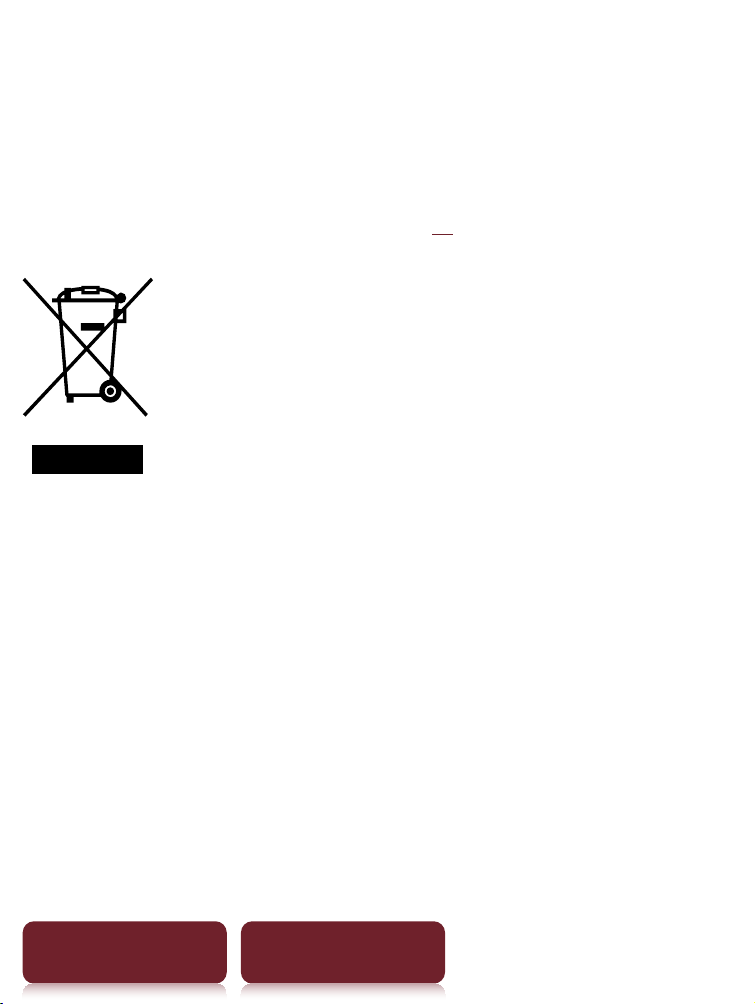
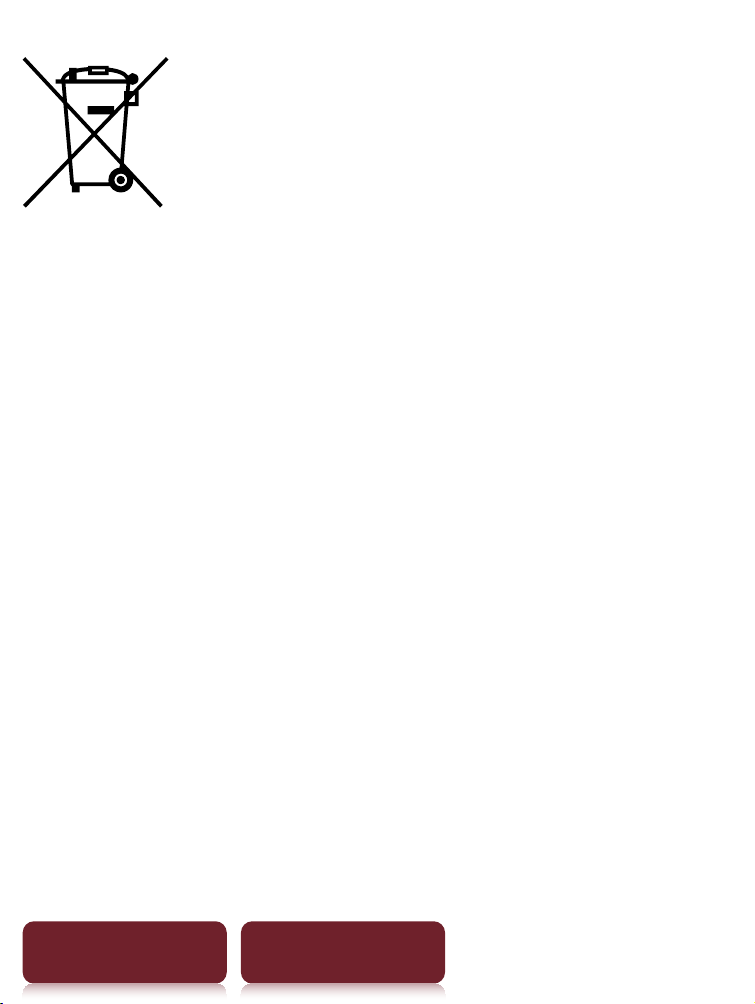
Disposal of Old Electrical & Electronic Equipment
(Applicable in the European Union and other European countries
with separate collection systems)
This symbol on the product or on its packaging indicates that this
product shall not be treated as household waste. Instead it shall be
handed over to the applicable collection point for the recycling of
electrical and electronic equipment. By ensuring this product is
disposed of correctly, you will help prevent potential negative
consequences for the environment and human health, which could
otherwise be caused by inappropriate waste handling of this product. The recycling
of materials will help to conserve natural resources. For more detailed information
about recycling of this product, please contact your local Civic Office, your household
waste disposal service or the shop where you purchased the product.
Appendix
Precautions
102
Table of Contents Index
Disposal of waste batteries (applicable in the European Union and
other European countries with separate collection systems)
This symbol on the battery or on the packaging indicates that the
battery provided with this product shall not be treated as
household waste. On certain batteries this symbol might be used
in combination with a chemical symbol. The chemical symbols for
mercury (Hg) or lead (Pb) are added if the battery contains more
than 0.0005% mercury or 0.004% lead.
By ensuring these batteries are disposed of correctly, you will help prevent
potentially negative consequences for the environment and human health which
could otherwise be caused by inappropriate waste handling of the battery. The
recycling of the materials will help to conserve natural resources.
In case of products that for safety, performance or data integrity reasons require a
permanent connection with an incorporated battery, this battery should be replaced
by qualified service staff only.
To ensure that the battery will be treated properly, hand over the product at end-of-
life to the applicable collection point for the recycling of electrical and electronic
equipment.
For all other batteries, please view the section on how to remove the battery from the
product safely. Hand the battery over to the applicable collection point for the
recycling of waste batteries.
For more detailed information about recycling of this product or battery, please
contact your local Civic Office, your household waste disposal service or the shop
where you purchased the product.

Precautions
103
Table of Contents Index
Notice for customers: the following information is only applicable to equipment sold
in countries applying EU directives
The manufacturer of this product is Sony Corporation, 1-7-1 Konan, Minato-ku, Tokyo,
108-0075 Japan. The Authorized Representative for EMC and product safety is Sony
Deutschland GmbH, Hedelfinger Strasse 61, 70327 Stuttgart, Germany.
For any service or guarantee matters please refer to the addresses given in separate
service or guarantee documents.
FCC Compliance Statement:
The following FCC statement applies only to the version of this model manufactured
for sale in the USA.
Other versions may not comply with FCC technical regulations.
NOTE: This equipment has been tested and found to comply with the limits for a Class
B digital device, pursuant to Part 15 of the FCC Rules. These limits are designed to
provide reasonable protection against harmful interference in a residential
installation. This equipment generates, uses and can radiate radio frequency energy
and, if not installed and used in accordance with the instructions, may cause harmful
interference to radio communications.
However, there is no guarantee that interference will not occur in a particular
installation. If this equipment does cause harmful interference to radio or television
reception, which can be determined by turning the equipment off and on, the user is
encouraged to try to correct the interference by one or more of the following
measures:
– Reorient or relocate the receiving antenna.
– Increase the separation between the equipment and receiver.
– Connect the equipment into an outlet on a circuit different from that to which the
receiver is connected.
– Consult the dealer or an experienced radio/TV technician for help.
You are cautioned that any changes or modifications not expressly approved in this
manual could void your authority to operate this equipment.
Precautions
104
Table of Contents Index
If you have any questions about this product:
Visit:
www.sony.com/readersupport
Contact:
Sony “Digital Book Reader” Customer Support at
1-(866)-962-7669
Write:
Sony Customer Information Service Center
12451 Gateway Blvd., Fort Myers, FL 33913
Declaration of Conformity
Trade Name: SONY
Model No.: PRS-350
Responsible Party: Sony Electronics Inc.
Address: 16530 Via Esprillo, San Diego, CA 92127 U.S.A.
Telephone Number: 858-942-2230
This device complies with Part 15 of the FCC Rules. Operation is subject to the
following two conditions: (1) this device may not cause harmful interference, and
(2) this device must accept any interference received, including interference that
may cause undesired operation.
Precautions
105
Table of Contents Index
For customers in the USA and Canada
RECYCLING LITHIUM-ION BATTERIES
Lithium-ion batteries are recyclable.
You can help preserve our environment by returning your used
rechargeable batteries to the collection and recycling location nearest
you. For more information regarding recycling of rechargeable
batteries, call toll free 1-800-822-8837, or visit http://www.rbrc.org/.
Caution: Do not handle damaged or leaking Lithium-ion batteries.
Owner's Record
The model and serial numbers are located on the rear side of the Reader. Record
them in the space provided below. Refer to these numbers whenever you contact
your Sony dealer regarding this product.
Model No. ___________________________
Serial No. ___________________________

Precautions
106
Table of Contents Index
Safety Information
Recorded content is limited to private use only. Use of the content beyond this
limit requires permission of the copyright holders.
Sony is not responsible for incomplete recording/downloading or damaged data
due to problems of the Reader or computer.
Be sure not to short-circuit the terminals of the Reader with metallic objects.
If part of the device that generates heat contacts your skin for a prolonged period,
you may suffer from symptom of burn, such as redness, swelling, even if
temperature is moderate. Avoid prolonged contact, especially if you have sensitive
skin.
Please do not drop, do not add excessive power.
Never subject the Reader to extremes of light, temperature, moisture or vibration.
Never wrap the Reader in anything when it is being used with the AC adapter. Heat
build-up in the Reader may cause malfunction or damage.
Do not put any heavy object on top of the Reader or apply a strong shock to the
Reader. It may cause a malfunction or damage.
Do not leave the Reader on an unstable surface.
Do not expose the Reader to water. The Reader is not waterproof.
Remember to follow the precautions below.
− Be careful not to drop the Reader into a sink or other container filled with water.
− Do not use the Reader in humid locations or bad weather, such as in the rain or
snow.
− Do not get the Reader wet.
If you touch the Reader with wet hands, or put the Reader in a damp article of
clothing, the Reader may get wet and this may cause a malfunction.
The screen is delicate and subject to cracking. Handle the Reader with care.
Do not poke people using the supplied stylus.
Do not treat or use the supplied stylus roughly, such as bending it, or scratching
the touch screen with it.
Use the supplied stylus only for touch screen operations.
Do not use the stylus if it is damaged or deformed.
If any objects are placed on the touch screen, it may cause a malfunction. When
not in use, leave Reader in sleep mode, or shut it down.

Precautions
107
Table of Contents Index
Do not put any cards such as cash cards or credit cards with magnetic coding near
the magnet stored in the Reader. Otherwise, your cards may become impaired due
to the magnetic effect.
On heat build-up
Heat may build up in the Reader while charging, or if it is used for an extended period
of time.
On software
Copyright laws prohibit reproducing the software or the manual accompanying it
in whole or in part, or renting the software without the permission of the copyright
holder.
In no event will SONY be liable for any financial damage, or loss of profits,
including claims made by third parties, arising out of the use of the software
supplied with this Reader.
The software provided with this Reader cannot be used with equipment other than
that which is so designated.
Please note that, due to continued efforts to improve quality, software
specifications may be changed without notice.
Operation of this Reader with software other than that provided is not covered by
the warranty.
Depending on the types of the text and characters, the text shown on the Reader
Library may not be displayed properly on device. This is due to:
− The capacity of the Reader.
− The Reader is not functioning normally.
− Content information is written in the language or the character that is not
supported by the Reader.
The ability to display the languages on your Reader Library will depend on the OS
installed on your computer. For better results, please ensure that the installed OS is
compatible with the desired language you want to display.
− We do not guarantee all the languages will be able to be displayed properly on
your Reader Library.
− User-created characters and some special characters may not be displayed.

Precautions
108
Table of Contents Index
Explanations in this manual assume that you are familiar with the basic operations
of Windows or Mac OS. For details on the use of your computer and operating
system, please refer to the respective manuals.
By updating the Reader device software, you can ensure your Reader has the latest
features. The latest software updates can be performed from the update menu on
Reader Library Help – “Check for Updates”.
About Pre-loaded Contents
Sample content is pre-installed in the Reader so that you can try them out right away.
The pre-installed sample content is for the purpose of trial reading and viewing.
Note
If you delete pre-installed sample content, you cannot restore it, and Sony will not supply any
replacement content.
On cleaning
Clean the Reader with a soft cloth, such as a cleaning cloth for eyeglasses.
If the Reader becomes very dirty, clean it with a soft cloth slightly moistened with
water or a mild detergent solution.
Do not use any type of abrasive pad, scouring powder, or solvent, such as alcohol
or benzene, as it may mar the finish of the case.
Tapping or dragging on the touch screen using a dirty stylus may damage the
surface. Wipe the stylus with a dry cloth when it gets dirty.
Copyright Notice
109
Table of Contents Index
Copyright Notice
The contents of each book pre-loaded on this product are copyrighted works,
edited with the cooperation of the publisher.
Copyright laws prohibit copying the data of this product or the contents of this
manual (illustrations, related documents, etc.) in whole or in part without the
permission of the copyright holder. Additionally, use of the data of this product or
the contents of this manual is not allowed without Sony’s permission except for
personal use.
Besides individually enjoying, it is against the copyright law to use any picture you
recorded without prior consent of the copyright holder.
Sony, the Sony logo, “BBeB”, “Reader”, “Reader Pocket Edition” and their logos are
either trademarks or registered trademarks of Sony Corporation.
Bitstream is a registered trademark, and Dutch, Font Fusion, and Swiss are
trademarks, of Bitstream Inc.
Microsoft, Windows, Windows Vista and Windows Media are trademarks or
registered trademarks of Microsoft Corporation in the United States and / or other
countries.
Macintosh and Mac OS are trademarks of Apple Inc., registered in the U.S. and
other countries.
This PRS
-350 contains Adobe® Reader® Mobile software under license from Adobe
Systems Incorporated, Copyright © 1995-2009 Adobe Systems Incorporated. All
rights reserved. Adobe and Reader are trademarks of Adobe Systems Incorporated.

Copyright Notice
110
Table of Contents Index
This product includes software developed by the OpenSSL Project for use in the
OpenSSL Toolkit. (http://www.openssl.org/) Copyright© 1998-2008 The OpenSSL
Project. All rights reserved. This product includes cryptographic software written
by Eric Young (eay@cryptsoft.com). This product includes software written by Tim
Hudson (tjh@cryptsoft.com). For details on OpenSSL License, refer to “END USER
LICENSE AGREEMENT” in the book list on the Reader.
All other system names and product names appearing in this document are the
registered trademarks or trademarks of their respective owners. Further, the
trademark ™ and registered trademark ® symbols are not indicated throughout this
document.
Program ©2010 Sony Corporation
Documentation ©2010 Sony Corporation

GNU GENERAL PUBLIC LICENSE
111
Table of Contents Index
GNU GENERAL PUBLIC LICENSE
This product contains the following software covered by the GNU General Public
License (hereinafter referred to as “GPL”) and/or GNU Lesser General Public License
(hereinafter referred to as “LGPL”).
You may obtain, alter, and redistribute the source code of these software products.
busybox
dosfstools
freetype
intiscripts
kernel
linux-kernel-headers
make
MAKEDEV
modules
mtd
nandboot
procps
sourceryg++
tar
udev
util-linux

GNU GENERAL PUBLIC LICENSE
112
Table of Contents Index
For the terms and conditions concerning GPL and LGPL, please refer to below.
The source code for these software products is available on Sony’s website. To
download, please visit the following URL: http://www.sony.net/Products/Linux/
Please note that Sony accepts no inquiries concerning the content of the source
code.
For details on GNU GENERAL PUBLIC LICENSE, refer to “END USER LICENSE
AGREEMENT” in the book list on the Reader.

Supported File Formats
113
Table of Contents Index
Supported File Formats
The following file formats can be managed within
Reader Library and transferred to your Reader.
Book
EPUB file (.epub file extension)
EPUB (OPS version 2.0) supported
PDF file (.pdf file extension)
Support is based on the PDF 1.6 specification.
BBeB (.lrf or .lrx file extension)
Text file (.txt file extension)
RTF file (.rtf file extension)
Word file (.doc or .docx file extension)*
1
*
1
In case of using Windows, you need Microsoft Word
installed on your computer. Word files will be
automatically converted to RTF files by Reader Library
during transfer to your Reader.

Supported File Formats
114
Table of Contents Index
Picture
JPEG file (.jpg or .jpeg file extension)
GIF file (.gif file extension)*
PNG file (.png file extension)
BMP file (.bmp file extension)
* F
or an anima
tion GIF file, only the first frame will be
shown.
System Requirements
115
Table of Contents Index
System Requirements
Reader Library will work with the following operating
systems.
OS Description
Microsoft Windows 7
(32/64 bit)
Windows 7 Starter
Windows 7 Home Basic
Windows 7 Home Premium
Windows 7 Professional
Windows 7 Ultimate
Microsoft Windows
V
ista (
32/64 bit)
Windows Vista Home Basic with
Service Pack 2 or later
Windows Vista Home Premium with
Service Pack 2 or later
Windows Vista Business with Service
Pack 2 or later
Windows Vista Ultimate with Service
Pack 2 or later
Microsoft Windows
XP (32 bit only)
Microsoft Windows XP Home Edition
with S
er
vice Pack 3 or later
Windows XP Professional with Service
Pack
3 or later
Windows XP Media Center Edition 2004
&
2005 with Service Pack 3 or later
System Requirements
116
Table of Contents Index
OS Description
Apple Macintosh
(32 bit only)
Mac OS X v
ersion 10.6.3 or later
Mac OS X version 10.5.8 or later
Mac OS X version 10.4.11 or later
CPU Windows: 800 MHz Celeron class
processor or better
Macin
tosh: Intel, PowerPC G3, G4 or
G5 processor
RAM 128 MB or more (minimum 512 MB for
Windows 7, Windows Vista)
Free space on hard
disc
Windows: 100 MB or more
Macintosh: 60 MB or more
Depending on the content amount,
more space may be required.
Monitor High Color or more, 1024 × 768 pixels
or more (True Color, 1280 × 1024
pixels, or more recommended)
Other devices USB port (High-Speed USB
Compatible), pointing device such as
mouse or track pad
Internet connection (broadband recommended, some fees
may apply) is also required on your computer.

System Requirements
117
Table of Contents Index
Reader Library is not supported by the following
environments:
– An operating system other than those included above
– Personally built computer or operating system
– Multi-boot environment
– Multi-monitor environment

118
Table of Contents Index
Table of Contents
CONGRATULATIONS ................................................2
Useful Features ........................................................4
Chapter 1
Getting Started
Parts and Controls ...................................................................8
Charging the Reader ............................................................12
Power Saving Tips .................................................................14
How to Get eBooks ...............................................................17
Support .....................................................................................18
Specifications ..........................................................................19
Table of Contents

119
Table of Contents Index
Chapter 2
Basic Operation
About the User Guide ..........................................................22
Touch Screen ...........................................................................23
On-screen keyboard ........................................................26
Home Menu .............................................................................29
OPTIONS Menu ......................................................................31
Reading Content
Reading Books ........................................................................36
Annotation ...............................................................................39
Bookmarking .....................................................................39
Highlighting word(s) .......................................................40
Handwriting a note .........................................................41
Adding a note ....................................................................42

120
Table of Contents Index
Finding a Note ........................................................................44
Searching for notes within a book .............................44
Finding the notes in all contents ................................46
Resizing .....................................................................................47
Changing a page mode .................................................48
Zooming in .........................................................................49
Adjusting Content View ......................................................52
Screen Orientation ................................................................54
Searching .................................................................................55
Jumping to a Page ................................................................57
Using Embedded Dictionaries ..........................................60
Listing previously looked up words ..........................63
Reading Periodicals ..............................................................65

121
Table of Contents Index
Collections
Collections ...............................................................................68
Creating ...............................................................................68
Adding contents ...............................................................70
Deleting a collection .......................................................72
Removing contents .........................................................73
Deleting Content ...................................................................74
Protecting Content ...............................................................75
Applications
Applications menu ................................................................76
Creating drawings ............................................................77
Creating text memos ......................................................80
Using embedded dictionaries .....................................82
Viewing pictures ...............................................................83

122
Table of Contents Index
Settings
Changing Settings ................................................................85
[General Settings] menu items ....................................87
[Application Preferences] menu items .....................88
[System Management] menu items ..........................89
[Initialization] menu items ............................................92
Troubleshooting
Troubleshooting ....................................................................93
Symptoms ...........................................................................94
Appendix
Precautions ........................................................................... 101
Copyright Notice ................................................................ 109
GNU GENERAL PUBLIC LICENSE ............................... 111
Supported File Formats .................................................... 113
System Requirements ....................................................... 115

Index
124
Table of Contents Index
Index
Symbols
(Home) button .........10, 29
OPTIONS button ...........10, 31
(Page Turn) buttons .......10
(Size) button .......10, 47, 84
[All Notes] ..................29, 46
[Applications] ...........29, 76
[Books] ........................29, 36
[Collections] ..............29, 68
[Dictionary]................76, 82
[Handwriting] ...........76, 77
[Home] ...............................29
[Periodicals] ..............29, 65
[Pictures] ...................76, 83
[Settings] ...................29, 85
[Text Memo]...............76, 80
[2-Column Split] ...................48
[3-C
olumn Split] ...................48
A
About the User Guide ........22
Adding a note .......................42
Adding contents ..................70
Adjusting Content View ....52
All Notes ...........................29, 46
Annotation .............................39
Appendix ............................. 101
Applications ..........................76
Applications menu ..............76
[About] ....................................86
[Add Content] ................31, 70
[Add Bookmark] ............31, 39
[Add to Collection] .......31, 71
[Adjust View] ..................31, 52
[Application Preferences]
.........................................85, 88

Index
125
Table of Contents Index
B
Basic Operation ....................22
Battery status .................13, 30
Bookmarking ........................39
Books .......................................36
[Brighter].................................52
[Books] list ..............................36
Conditional icon .............37
Sort ...............................34, 36
[Search] ..............................34
[Sort:] ..................................34
[View:] ................................34
C
Changing a page mode ....48
Changing dictionary
..................................31, 60, 88
Charge/Busy indicator
........................................... 8, 12
Charging the Reader ..........12
Battery status ...................13
Charge/Busy indicator
...................................... 8, 12
Status indicators during
charging .........................13
USB connector .........11, 12
Changing Settings ..............85
Collections ......................29, 68
Conditional icon ..................37
Copyright Notice .............. 109
Creating a collection ..........68
Creating drawings ...............77
Creating text memos .........80
[Change Dictionary] ...........31
[Clear Keyboard History]
.........................................86, 92
[Continue Reading] .............31
[Create/Edit] ...................33, 41
[Custom] .................................52
D
Default settings ....................92
[Restore Defaults] ....86, 92
Deleting a collection ..........72
Deleting Content .................74

Index
126
Table of Contents Index
Dictionary .................60, 82, 88
Changing dictionary
.............................31, 60, 88
[Word Logs: Dictionary]
....................................35, 64
Drawing ....................41, 42, 77
[Darker] ...................................52
[Date and Time] ....................87
[Date and Time Format] ....87
[Delete Book] .................31, 74
[Delete Books] ...............32, 74
[Delete Collections] .....32, 72
[Delete Drawing] ..........31, 79
[Delete Drawings].........32, 79
[Delete Issue] ........................31
[Delete Issues] .......................32
[Delete Memo] ...............31, 81
[Delete Memos] .............32, 81
[Delete Notes] .......................32
[Delete Pictures] ...................32
[Delete Word Logs] ......32, 64
[Details] ...................................52
[Device Lock] ..................85, 90
[Device Shutdown] .............86
[Dictionary] ............................88
E
eBook store ............................17
F
Features .................................... 4
Finding a Note ......................44
Annotation .......................39
Icons and types of note
in the [Notes] list .........45
Finding the notes in all
contents ..............................46
[Format Internal Memory]
.........................................86, 92
[Full Page] ...............................48
G
Getting Started....................... 8
GNU GENERAL PUBLIC
LICENSE ............................. 111

Index
127
Table of Contents Index
[General Settings] .........85, 87
[Go to] ........................32, 57, 59
[History] ......................32, 59
[Previous View] .........32, 59
[Select Page] .............32, 57
[Table of Contents] ........32
H
Handwriting .....41, 42, 76, 77
Finding a Note .................44
[Notes] ..................33, 41, 44
Handwriting a note .............41
Highlighting word(s) ..........40
Holes for optional cover
attachment .........................11
Home Menu ...........................29
How to Get eBooks .............17
[Hide]/[Show] ........................33
[History] ..................................32
I
Icons and types of note in
the [Notes] list ...................45
Issues .................................66, 71
[Info] .........................................32
[Initialization] .................86, 92
J
Jumping to a Page ..............57
Link ...............................22, 59
[Go to] ..................32, 57, 59
[Previous View] .........32, 59
[Select Page] .............32, 57
K
[Keyboard] ......................85, 88
L
Link ....................................22, 59
Listing previously looked up
words ....................................63
[List] ...................................33, 44
M
Magazines .......................29, 65
[Margin Cut] ..........................48
[Menu Language] ................87

Index
128
Table of Contents Index
N
Newspapers ....................29, 65
Note ............................39, 42, 44
Annotation .......................39
Bookmarking ...................39
Drawing ......................41, 42
Finding a Note .................44
Handwriting a note .......41
Highlighting word(s) .....40
[Notes] ..................33, 41, 44
[New Collection] ...........33, 68
[New Drawing] ..............33, 77
[New Memo] ...................33, 80
[Notes] .......................33, 41, 44
[Create/Edit] ..............33, 41
[Hide]/[Show] ..................33
[List] .............................33, 44
O
On-screen keyboard ...........26
[Clear Keyboard History]
....................................86, 92
[Keyboard] .................85, 88
Operation at page view ....38
OPTIONS Menu ....................31
[Orientation] ...................33, 54
[Original] ..........................48, 52
P
Parts and Controls ................. 8
Periodicals .......................29, 65
Pictures .............................76, 83
Slideshow ............34, 83, 88
Standby screen
.............................34, 84, 91
Supported File Formats
........................................ 113
Zooming in ................49, 84
[Select Standby Screen]
....................................34, 84
[Slideshow On]/
[Slideshow Off] .....34, 83
[Slideshow] ................85, 88
[Standby Screen] .....85, 91
Power saving Tips ................14

Index
129
Table of Contents Index
Power management ....85, 89
Charging the Reader
...........................................12
Power saving Tips ...........14
Power switch ...................... 8
Standby screen
.............................34, 84, 91
[Device Shutdown] ........86
Power switch ........................... 8
Charging the Reader
...........................................12
Standby screen
.............................34, 84, 91
[Device Shutdown] ........86
Precautions ......................... 101
Protecting Content .............75
Conditional icon ............37
[Page Mode] ..........................48
[Page Turn Preference].......87
[Power Management]
.........................................85, 89
[Previous View]
...........................32, 33, 59, 61
[Protect Books] ..............33, 75
[Protect Drawings] .......33, 79
[Protect Issues] .....................33
[Protect Memos] ...........33, 81
[Protect Pictures] .................33
R
Reader Library ......................17
Reading Books ......................36
Reading Content ..................36
Reading Periodicals ............65
Removing contents ............73
Reset .........................................93
RESET hole ......................11, 93
Resizing ...................................47
[Remove Bookmark] ...........34
[Remove Content] ........34, 73
[Rename Collection] ....34, 69
[Restore Defaults] .........86, 92
[Return to List] ......................34

Index
130
Table of Contents Index
S
Screen Orientation ..............54
Zoom-in mode ................51
[Orientation] .............33, 54
[Screen Orientation]
....................................85, 88
Searching ........................34, 55
Searching for notes within
a book ..................................44
Settings ...................................85
Slideshow .................34, 83, 88
Sort ....................................34, 36
Specifications ........................19
Standby screen .......34, 84, 91
Status bar ...............................30
Status indicators during
charging ..............................13
Stylus.......................................... 9
Support ...................................18
Supported File Formats
............................................. 113
Symptoms ..............................94
System Requirements ..... 115
[Saturated] .............................52
[Screen Orientation] ....85, 88
[Search] ............................34, 56
[Select All]/[Unselect All]
................................................74
[Select Page] ...................32, 57
[Select Standby Screen]
.........................................34, 84
[Settings] menu.............29, 85
[Slideshow On]/
[Slideshow Off] ..........34, 83
[Slideshow] ............................88
[Sort:] .......................................34
[Standby Screen] ..........85, 91
[System Management]
.........................................85, 89

Index
131
Table of Contents Index
T
Text Memo ......................76, 80
On-screen keyboard ......26
Touch screen ..................10, 23
Troubleshooting ..................93
[Table of Contents] .............32
U
USB connector ...............11, 12
Useful Features ....................... 4
Using Embedded
Dictionaries .................60, 82
V
Viewing pictures ..................83
[View:] ......................................34
W
[Word Logs: Book] ........35, 63
[Word Logs: Dictionary] ....35
[Word Logs: Periodicals]....35
Z
Zooming in .....................49, 84