User Manual
Robotic vacuum
Cleaner Model: V5x
‘
www.iliferobot.com
Important Tips
How to use
•
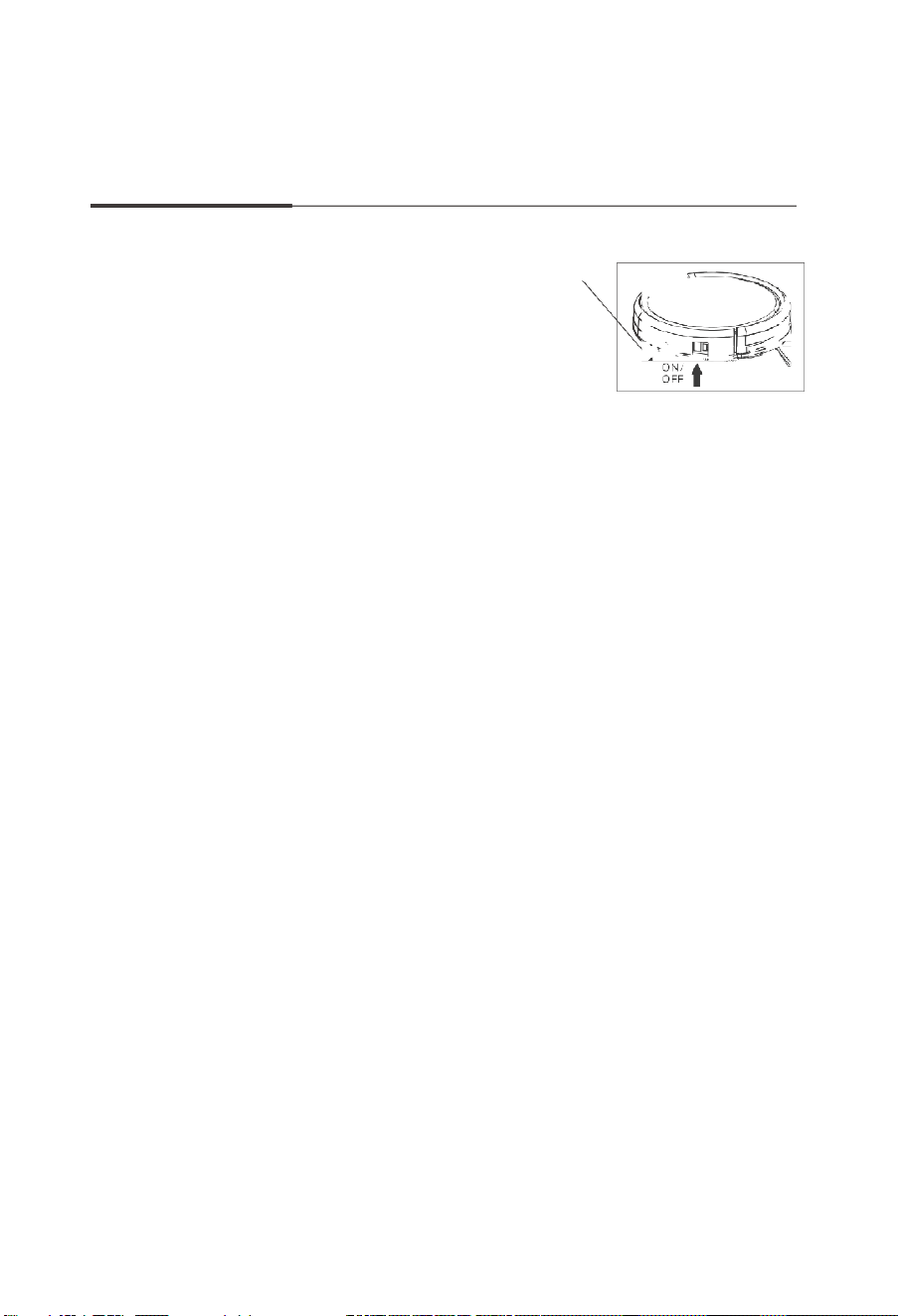
Before using the robot, please ensure the
power switch is on. Take a few moments to
survey the area to be cleaned and
remove
any obstacles.
•
The robot will pass over the same area of
the floor multiple
times to ensure
thoroughly clean.
•
The spinning brushes may flick small granule
(dog food, cat li tter) here and there, but finally
the robot will vacuum them all in within few
minutes.
•
Before replacing side brushes, check and match "L" "R" mark on
both side brush and
bottom of robot.
•
When you set the clock time or schedule, the final operation will
be confirmed by beep
from robot. If no tone received, your
setting is unsuccessful.
•
Empty the dustbin. You could notice the robot vacuum less,
even spits out. when the
dustbin is full, though there is no
any warning beep sound.
For Best Performance
•
Empty V5x's dustbi n and clean i ts filter after every use.
•
Filter could not be washed by water.
•
Replace new Filter when you notice V5x vacuum gets weaker and pick
up less than before.
•
Put charging dock against the wall and remove obstacl es about
1 meter at two sides
and about 2 meters forward.

•
Fully charge robot' s battery before each cleaning cycle.
Battery Life
To extend V5x’s battery life and keep i ts cleaning at peak performa nc e:
•
Charge the robot overnight before first time use.
•
Recharge the robot as soon as possible. Waiting several days to
recharge may damage
the battery.
•
If the robot is not used for long ti me, please turn off the power switch
Note: Warning:
The product contains electronic parts. DO NOT
submerg e V5x or spray it
with water, clean with a dry cloth only.
For More detailed information, please visit: wwww.iliferobot.com

Table of Contents
Safety Instruction…………………………………………………………………………4
Product Composition…………………………………………………………………. 5
List of Accessories……………………………………………………………………… 5
Robot Anatomy…………………………………………………………………………. 6
Dustbin……………………………………………………………………………………….7
Charging Dock…………………………………………………………………………….7
Remote Control………………………………………………………………………….7
CLEAN Button Status………………………………………………………………….8
How to us……………………………………………………………………………………9
Remote Control Operation…………………………………………………………9
Getting Started………………………………………………………………………….10
Start/Pause/Sleep………………………………………………………………………11
Schedule…………………………………………………………………………………….12
Cleaning Mode………………………………………………………………………….13
App Download……………………………………………………………………………14
Maintenance………………………………………………………………………………15
Cleaning Side Brushes……………………………………………………………….15
Cleaning Dustbin and Filter………………………………………………………15
Cleaning Cliff Sensors And Auto Charging Pins…………………………15
Nose Wheel Clean Up………………………………………………………………16
Trouble shooting……………………………………………………………………….17
Error Code Sheet……………………………………………………………………….17
Error Appearance………………………………………………………………………18
Product Specifications……………………………………………………………….19
Annex Operation Manual………………………………………………………….20
For More detailed information, please visit: wwww.iliferobot.com

Safety Instructions
Before using the robot, please read and follow the
below safety
instructions and precautions.
•
Read through this user manual carefull y befor e using the robot.
•
Retain this user manual.
•
Any operation that is not descri be d in this user manual
may injure the users
and cause product damage
.
WARNINGS
1.
Only certified technicians may disassemble the robot.
Users must not disassemble or
repair the robot.
2.
Use factory authorize d adapter only. Using nonspecific
adapter may cause electric
shock, fire or robot
damage.
3.
Do not touch the power cord, plug or adapter with wet
hands.
4.
Do not allow clothes or any part of your body to be drown
into the robot's wheels.
5.
Do not place the robot near cigarette, lighter, matches or
other flammables.
6.
Clean the robot after charging finishes.
7.
Do not over-bend the power cord or pressure the
power cord with heavy or sharp
objects.
8.
Do not use the robot outdoor.
9.
Do not sit on the robot or attach any object on it.
10.
Do not use the robot on the floor.
For More detailed information, please visit:wwww.iliferobot.com

11.
Before using the robot, remove all fragile objects (textile,
glass, lighting, etc.) and other objects that could get caught
in the brushes or suction opening (cords, clothing,
papers,
drapes, blind, etc.) on the floor.
12.Do not place the robot where it could easily fall off (tables,
chairs, etc.).
13.Turn off the power switch during transportation or when
the robot will not be used for
a long time.
14.To avoid battery damage, check if the adapter and
outlet are properly connected
before using the robot.
15.To avoid tripping, make sure everyone in the house knows the
robot is working.
16.Use the robot in environment between -10° and 40° Celsius.
17.Do not place the robot in high-temperature environment.
18.Before scrapping the battery, remove it from the robot.
19.Disconnec t electricity supply before removing the battery.
20.The battery is to be disposed of safety according to local
regulations
.
NOTE:
This robot should not be used by children, mentally challenged people or people who lack
related experience and backspace knowledge (unless they are under proper supervision).
For More detailed information, please visit: wwww.iliferobot.com
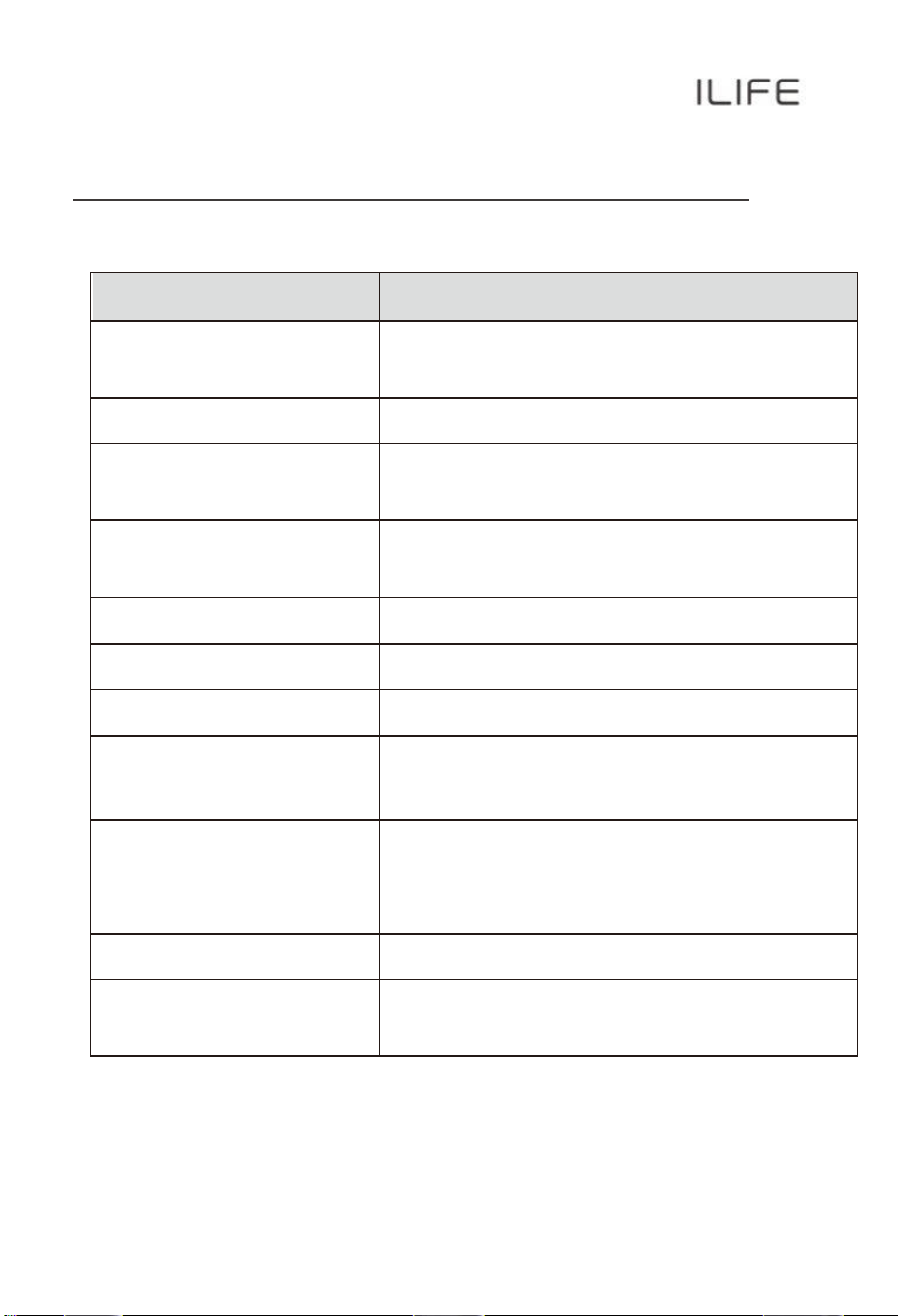
Product
Composition
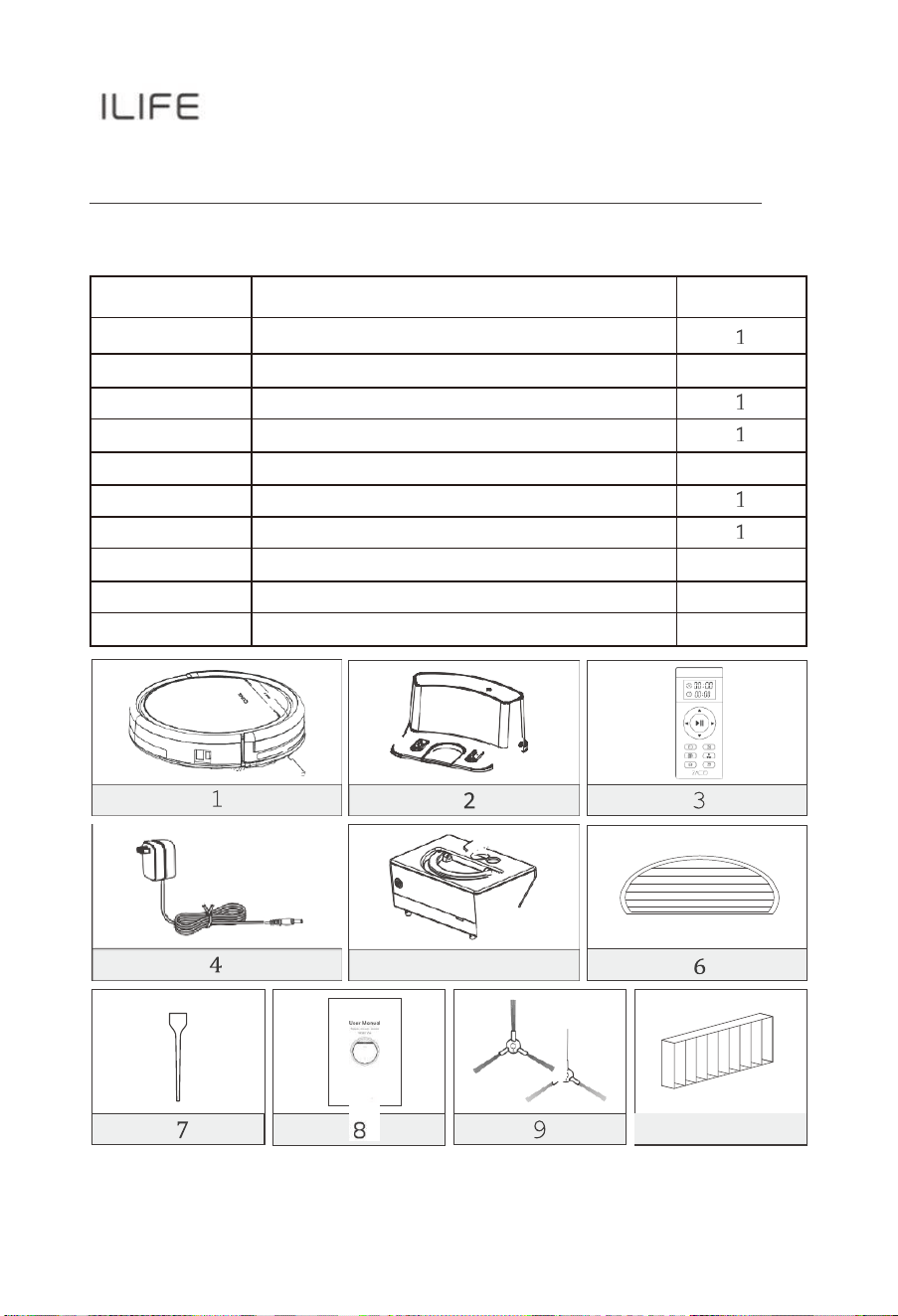
List of Accessories
Serial Number
Description
Q'ty
1
Main Bo dy (battery included)
2
Charging Dock
1
3
Remote Control (battery not included)
4
Power Adapter
5
Water Tank
1
6
Mop Cloth
7
Cleaning Tool
8
User Manual
1
9
Extra Sid e Brushes
2
10
High Performances Filter
2
For More detailed information, please visit: wwww.iliferobot.com
5
10
•
Product Composition
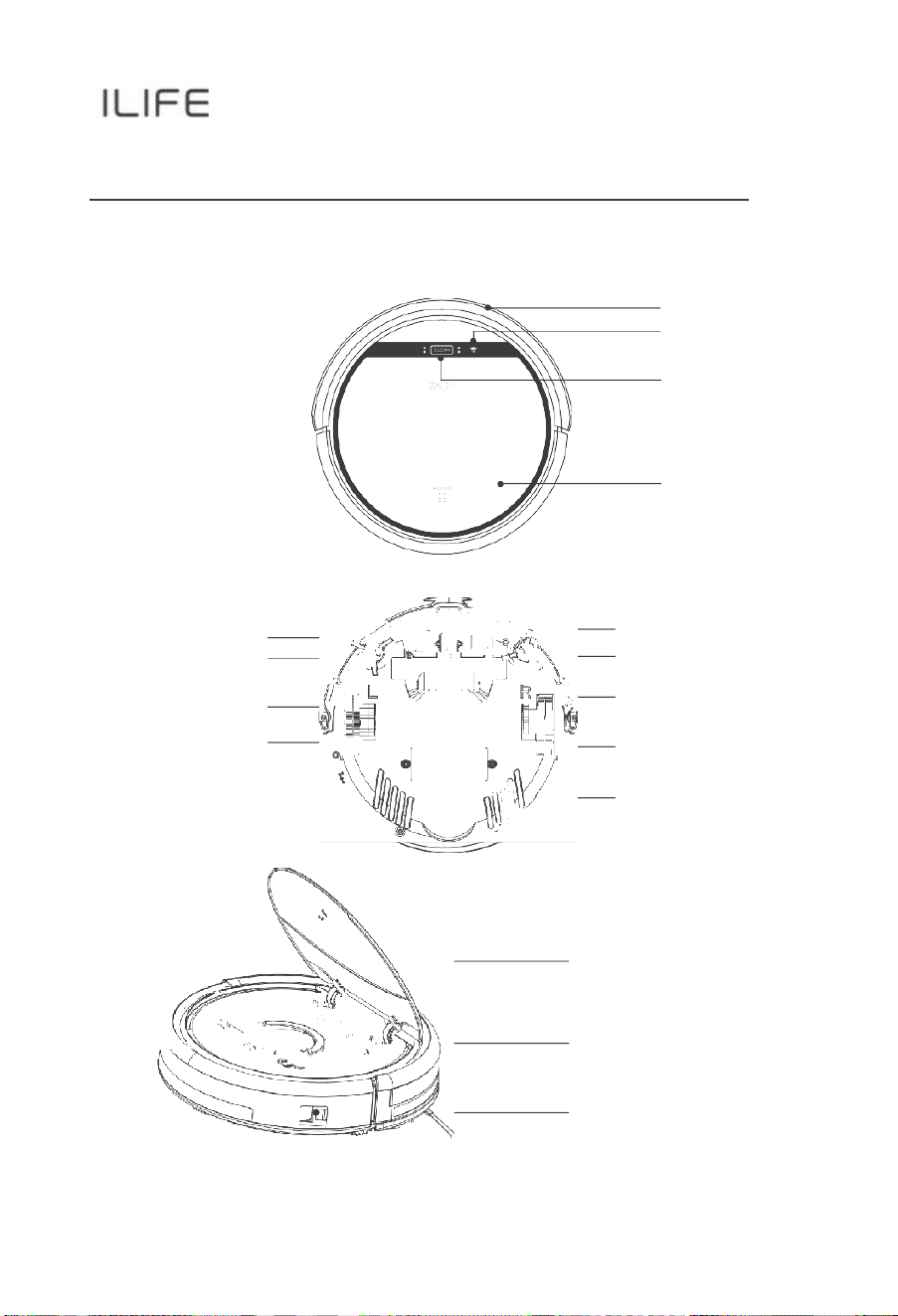
Robot Anatomy
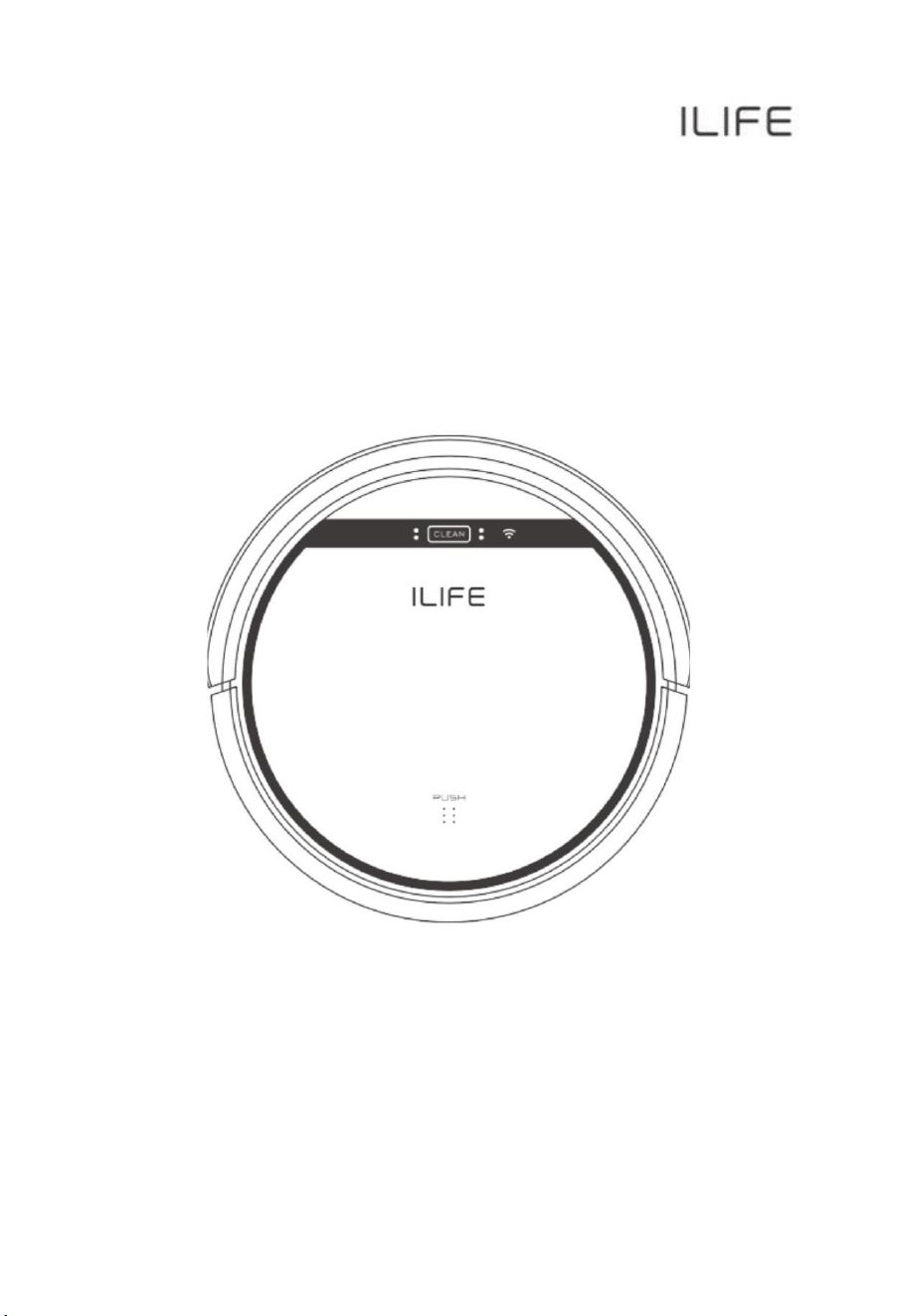
Bumper
Wi-Fi indicator
CLEAN Button
Middle Cover
Charging Pin
Left Side Bru sh
Battery Cover
Left Wheel
Nose Wheel
Right Side B rush
Suck Passage
Right Wheel
Bottom Cover
Middle Cover
Dustbin/Water Tank
Power Switch
For More detailed information, please visit: wwww.iliferobot.com
Product
Composition
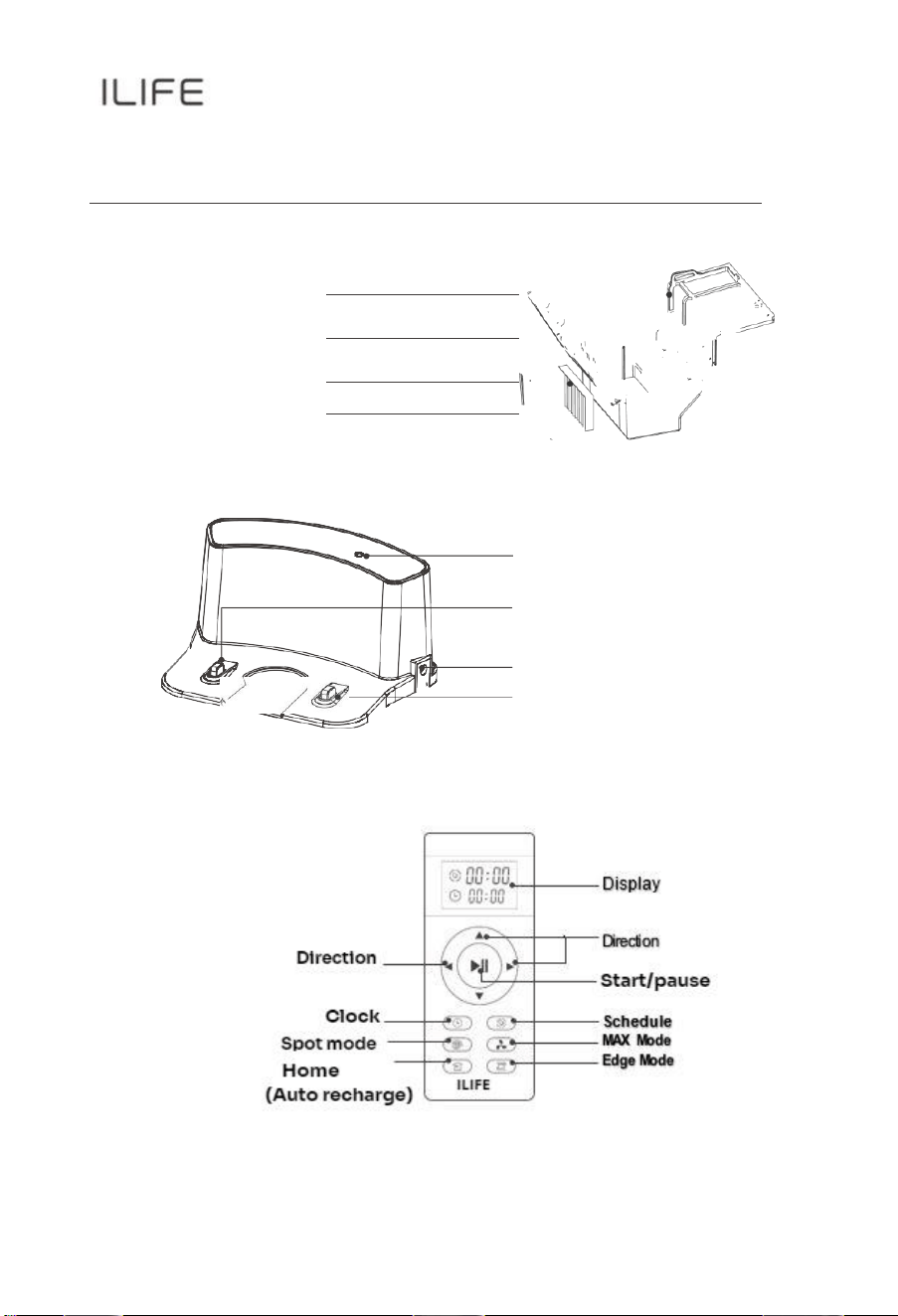
Dustbin
Primary Filter
Dustbin
High Performance Filter
Filter Fram e
Charging Dock
Signal Light
Charging Port
Power Supply Socket
Charging Port
Remote
Product Composition
CLEAN button status
Robot Status
Light status
Charging
The lower and upper indicators flash
quickly.
Charging finished
All indicators are on.
In selected mode
Th e lower and upper indicators fade in
and ou t.
When robot in error
The lower and upper indicators flash
gradually.
Low battery
Th e lower indicator flashes.
In home mode
Th e lower indicator fades in and ou t.
In cleanin g mode
Th e upper indicator is con stan tly on.
In edge mode
The upper indicator is
constantly on,
The lower
indicator flashes.
In spot mode
The lower indicator is
constantly on,
The upper
indicator flashes.
Distribution mode
Wi-Fi indicator flashes.
Distribution network
success
Wi-Fi indicator is constantly on.
For More detailed information, please visit: wwww.iliferobot.com
How to Use
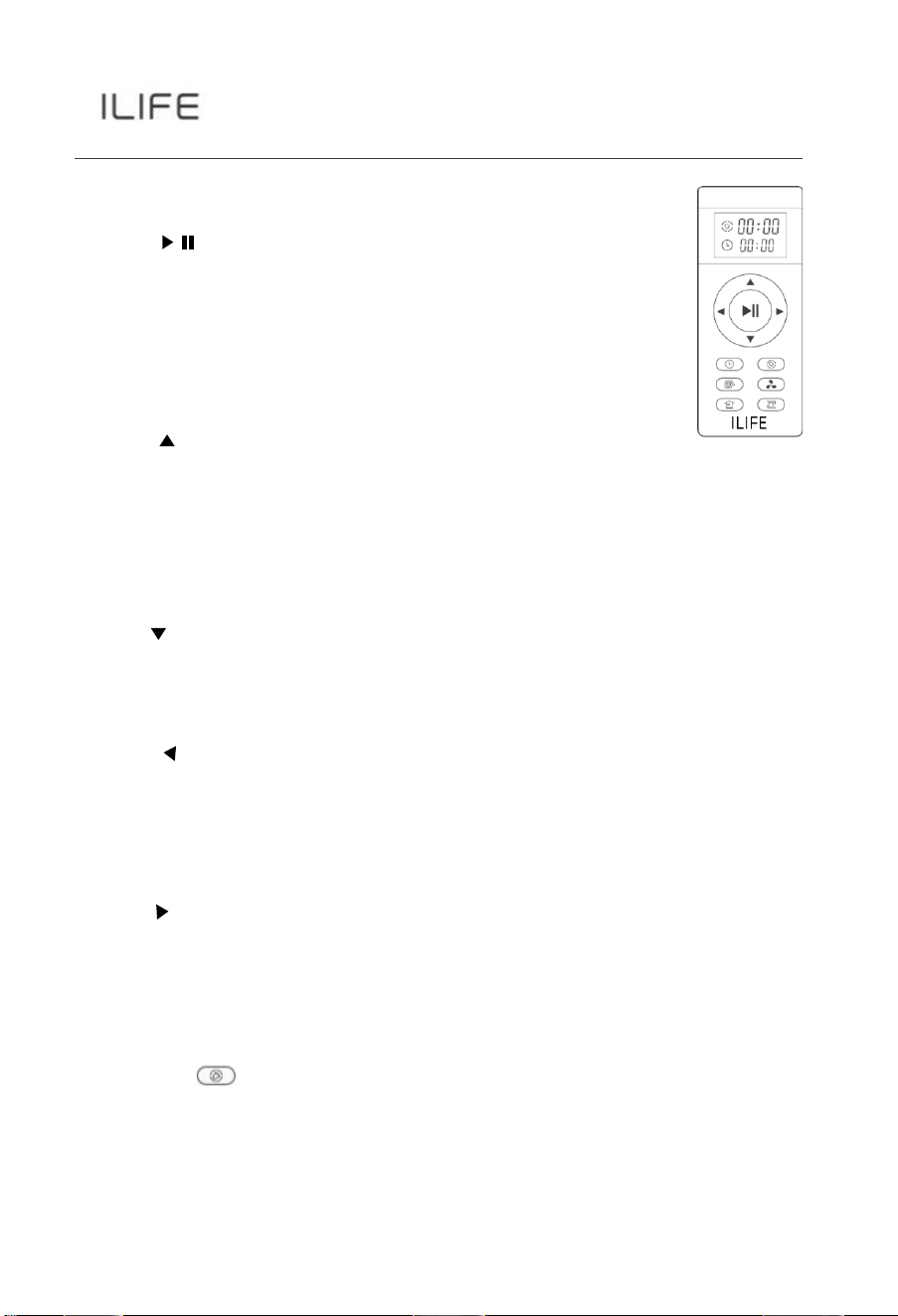
Remote control operating
1.“ “Starting up/Pause
•
To start cleaning in selected mode.
•
To stop current cleaning cycle.
•
To change from sleep mode to selected mode.
2.
Direction Buttons
A.
“ ”
Button
•
To increase minute and hour setting in schedule or clock
mode.
•
To move robot forward in selected mode.
•
To stop the robot when it hits against objects.
B. “ ” Button
•
To decrease minute and hour setting in schedule or clock
mode.
C. “ ” Button
•
To change from minute to hour in schedule or clock
mode.
•
To turn the robot left.
D.
“ ” Button
•
To change from hour to minute in schedule or clock
mode.
•
To turn the robot right.
3.
" ” Plan
•
To enter schedule mode when robot is in selected mode.
•
To confirm cleaning schedule.
For More detailed information, please visit: wwww.iliferobot.com
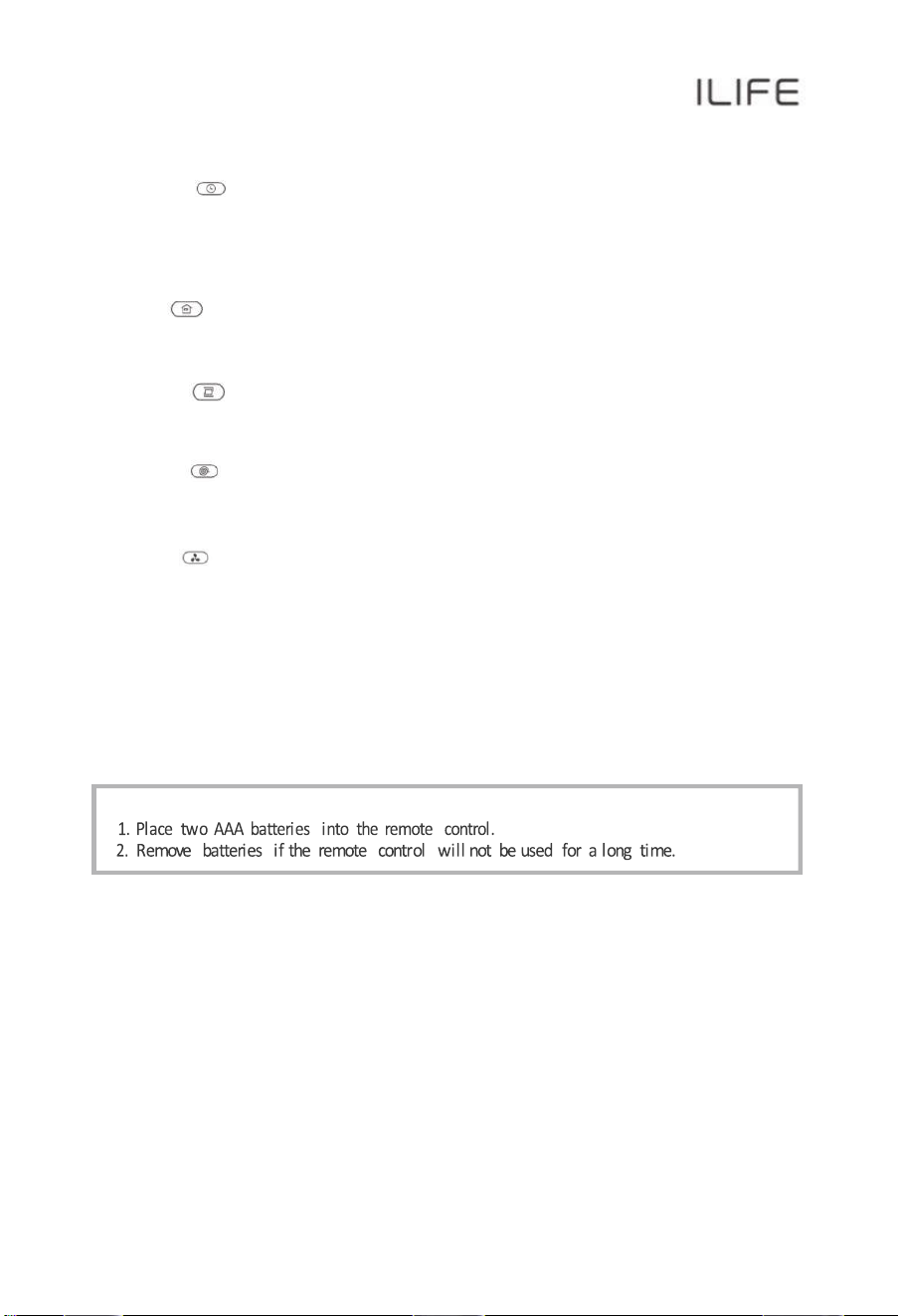
4.
“ ” Clock
•
To enter clock mode when robot is in selected mode.
•
To confirm time setting.
5.
“ " Home
To return robot to charging dock.
6.
" ” Edge
To clean along the edge of the walls.
7.
" ” Spot
To clean specific areas
8.
" ” MAX
To maximize vacuuming power.
Note:
How to Use
1.
Getting started
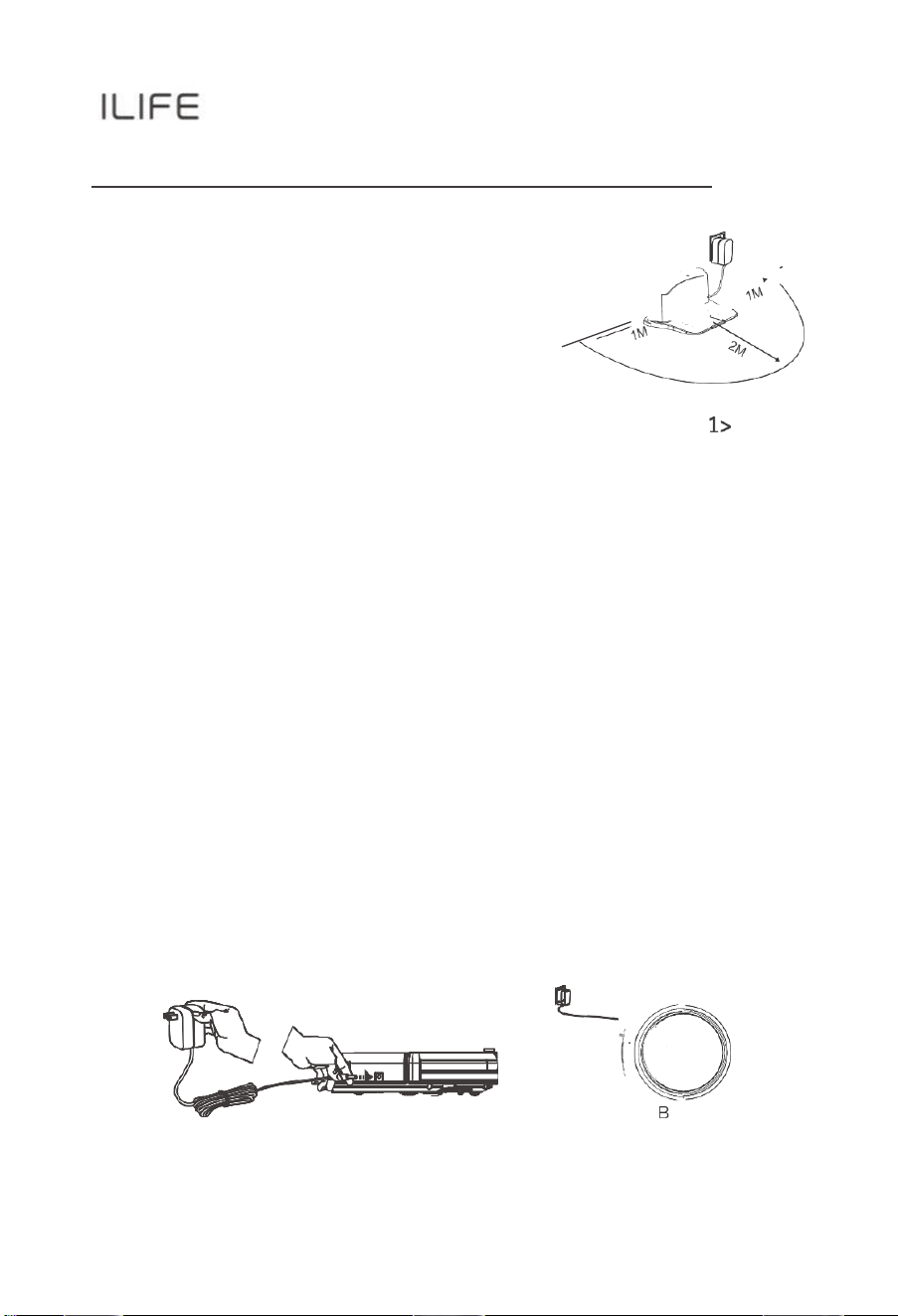
1>. Place charging dock on the floor and plug-in adapter.
Signal light on charging dock will turn solid.
Note:
Put charging dock against a wall and
remove obstacles about 1 meter on
both sides and
about 2meters in
front.
2>. Display panel will flash after the power
switch (near the power socket) is turned
on.
(If no command is received, the robot will switch to sleep mode after
10min)
Note:
A.
Always keep the power swi tch on, otherwise the robot will not
work.
B.
If power switch is turned off, all scheduled cleaning will
be lost.
Caution:
Before charging the robot, make sure the power swi tch is turned on.
3>. Robot can be recharged by:
A.
plugging into an electrical outlet;
B.
pressing (HOME) button on remote control — the robot
will return to
charging dock for auto recharge.
A

Extending battery life:
A.
Before first use, charge the robot overnight. When charging
finishes,
all lights will turn on.
B.
Always place the robot on the charging dock that is connected to
power.
C.
If the robot will not be used for a long time, fully recharge it
and turn off
the power switch before storing it in a cool,
dry place.
4>. Auto charging: The robot will automatically return to charging dock
when battery runs low.
For More detailed information, please visit: wwww.iliferobot.com

How to Use
2.
Start/Pause/Sleep
Sleep mode: robot is not working, light at CLEAN button is off and
power switch is on.
Selected mode: robot is not working, blue light at CLEAN button
fades in and out. Cleaning mode: robot is working, blue light at
CLEAN button turns solid.
1>. Starting up
A.
Make sure the power switch is on.
B.
Press CLEAN button on robot or remote control to start
cleaning.
Note: If robot is in sleep mode, press CLEAN button to restart it
from sleep mode.
Press CLEAN button again to start the cleaning cycle.
2>. Pause
Press CLEAN button on robot or remote control to change from
Clean mode to
selected mode.
Note: When robot is paused, press CLEAN button to
restart the cleaning cycle.
3>. Sleep
Change from selected mode to sleep mode:
Robot automatically enters sleep mode if no command is
received after 10 mins.
For More detailed information, please visit: wwww.iliferobot.com

How to Use
3.Schedule
You can schedule to let the robot start cleaning from a certain time.
Note:
Remember to set the clock time and schedule once replace the
remote-c ontr ol battery. Once the cl ock time is set, any schedul i ng
you have set will make robot
work on the scheduled time.
Setting the clock time
1.
Point the remote control at robot (make sure the power switch is
on).
2.
Press CLOCK and then use directional buttons to set the correct
time.
3.
Press CLOCK to save the setting. To cancel the schedule,
please turn off
the robot.
Setting a schedule
The robot will always work at the scheduled time unless power swi tch
of the robot
is turned off.
1.
Point the remote towards the robot.
2.
Press PLAN and then use directi onal buttons to set the schedule.
3.
Press PLAN to save the setting. To cancel the schedule, please turn
off the robot.
Note:
When you set the clock time or schedule, the final operation will
be confirmed
by beep from robot; If no tone received, your
setting is unsuccessful
.

How to Use
4.
Cleaning mode
1>. Auto cleaning
The robot will clean a room automatically and adjust its cleaning according
to the
situation.
Note: Press CLEAN button on robot or remote control to start Auto
Cleaning.
2>. Spot cleaning
A.
Press Spot on the remote towards the robot when the robot is
working.
The robot will circle around and turn i nto Auto clean mode after
Spot clean is
finished.
B.
Press Spot on the remote toward s the robot when the robot is in
selected mode and the robot will begin to circle around. The robot
will turn into selected mode
after Spot clean is finished.
3>. Edge cleaning
Put the robot near the edge (wall) and press EDGE on remote control
to start
edge cleaning.
Note: Edge cleaning will automatically stop when robot could not
detect any edges. or you could manually press CLEAN to stop
edge cleaning.
Maintenance
1.
Cleaning side brushes
Clean the side brushes when it gets dirty and replace if it's are
damaged.
Note: Before replacing side brushes, check and match "L" "R"
marks on both and
bottom of robot.
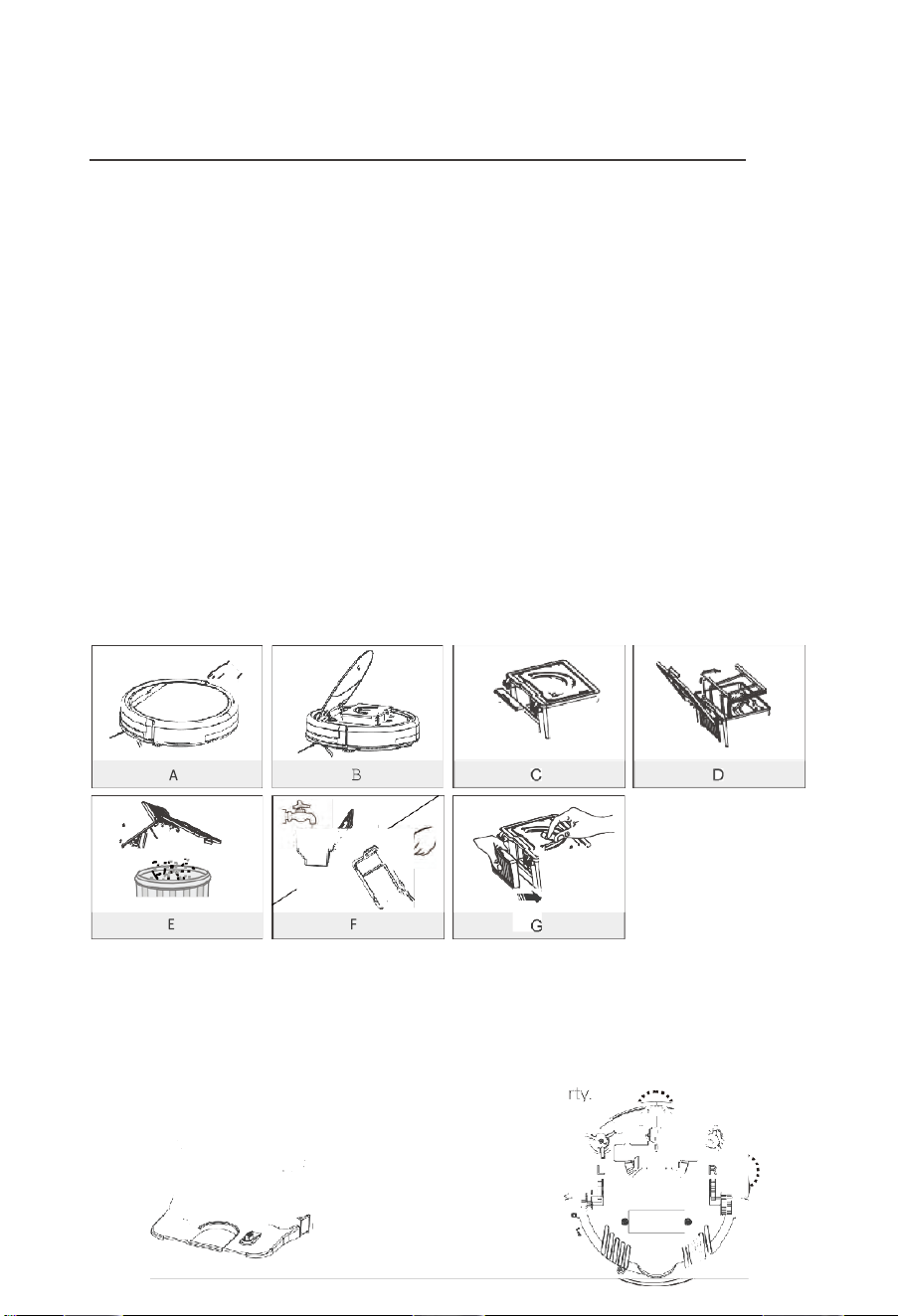
2.
Cleaning dustbin and filter
Clean and empty dustbi n after each use, steps are as shown in below
figures.
•
After taking dustbin, check whether there is foreign matter stuck
in suck passage and clean it.
•
Clean Filter after 15-30 days of use. And replace it after
use for 6 months at maximum.
•
Install both Filter and primary filters when they are dry.
•
Filter and primary filter could be replaced if needed.
3.
Cleaning cliff sensors and auto charging pins
Slightly clean the sensor window and onto charging pins with a
soft dry cloth. Note: Charging pins on charging dock need to
clean if dirty.
Maintenance
4.
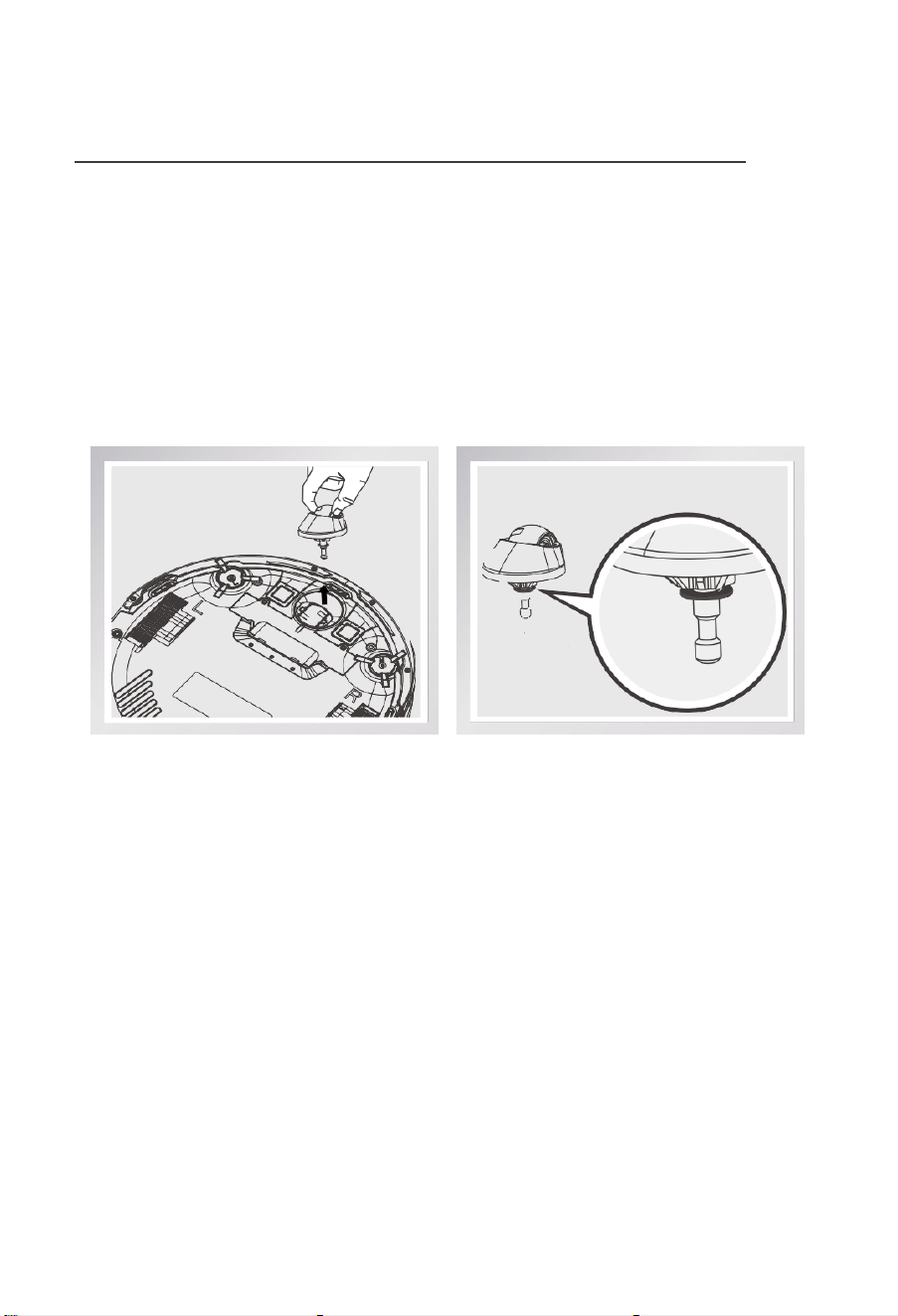
Nose wheel clean up
When th ere is foreign matter in nose wheel, it will affect th e cleaning
performance, please clean it follow the way below:
(1)
Pull the wheel up vertically and clean it. Please note whether the
gasket is off.
(2)
It should be noted that whether the gasket is installed well after
clean the
nose wheel.
For More detailed information, please visit: wwww.iliferobot.com
P T 7
Trouble shooting
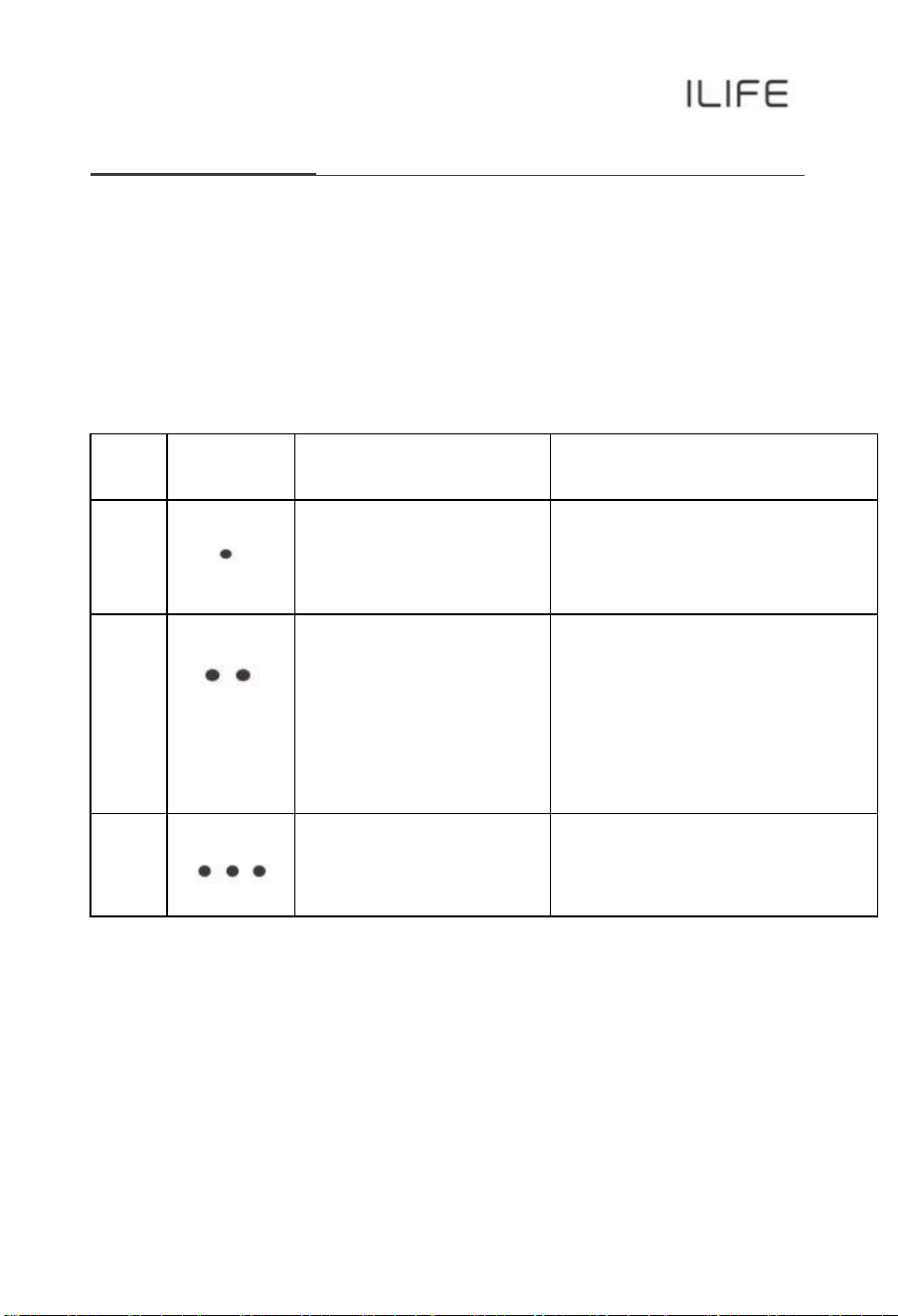
1. Error code sheet
When the robot meets with some routine troubles, it will remind you
by beep.
•
Short tone
NO.
Tone
Cause
Solution
01
Wheels or side brushes
no work
check wheels or side brushes
02
Cliff sensor or bumper
sensor failure
Clean cliff sensor and
shake
bumper slightly,
check
whether there is foreign
matter
03
Main body gets stuck
Move main body
and start again
For More detailed information, please visit: wwww.iliferobot.com

Error
appearance
Likely Cause
Solution
Circle
around
a
small area
Side wheels are jammed
-
Remove hair and debris from side wheels.
-
While reinstalling, push the wheels in
and
out to make sure they can rotate
freely.
-
Restart robot in another spot.
Keep
moving
backward
Cliff sensor is dirty
or
broken
Check cliff sensor lens. Clean or replace
it if needed.
Bump
into
obstacles
repeatedl
y
The bumper is stucke d
Tap the bumper 10-20 times to remove
debris lodged in it.
Loosen the screw of the bumper.
Working
time
shortened
-
Battery capacity droppe d
-
Robot is not fully
charged
-
Replace battery
-
Recharge robot
CLEAN
button
light
is off
while
charging
-
Hair or small debris
stuck
in charging
pins.
-
Robot is not properly
conne ct ed to charging
pins.
-
Clean charging pins
-
Check if r obot is connec te d to
charging
pins
Pick up less
dirt and
debris
Filter is dirty or wet
Clean or replace filter
Spit out litter
Dustbin is full
Empty the dustbin
Robot
doesn't
start
at
scheduled
time
-
Schedul e was not
saved
successfully
-
Schedul e was
canceled after you
restarted robot
-
Power Switc h is off
-
Battery is low
-
Debris jammed
in
compone nts
-
Reset schedule. Wait for a beep to
confir m completion of scheduli ng.
-
Turn on power switch on robot
-
Keep the robot's
power
switch on and
put it on charging dock to make sure
robot is
fully charged for the next job
-
Turn off the power switch on robot
and empty the dustbin
-
Clean side br ushes and main brushes
P T 7
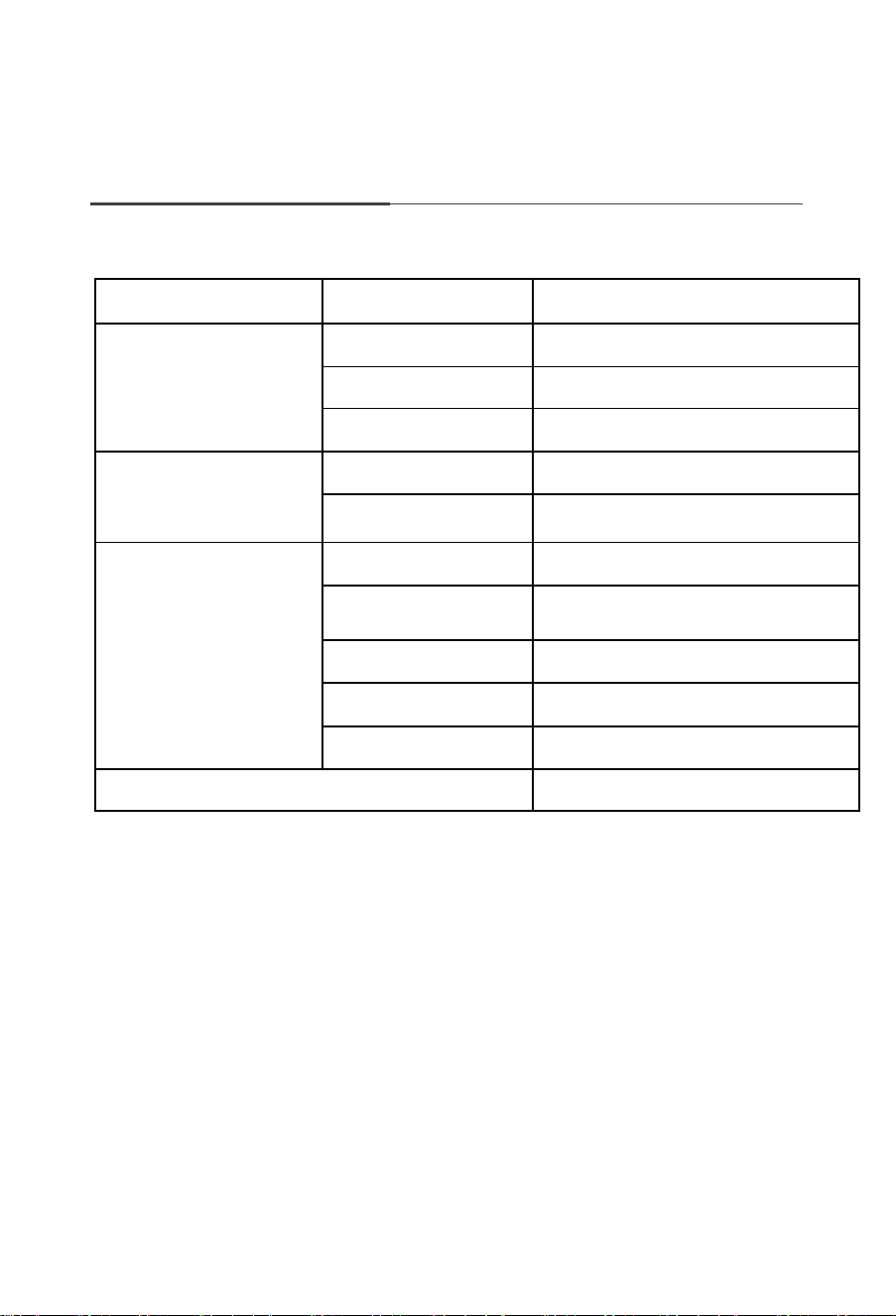
2. Error appearanc e
Product
Specifications
Classification
Item
Detail
Mechanical
Specifications
Diameter
300mm
Height
81mm
Weight
2.24kg
Electrical
Specifications
Voltage/Power
14.4V/22W
Battery type
Li-ion
Cleaning
Specifications
Dustbin capacity
0.3L
Charging type
A uto Charging /
Manual Charging
Cleani n g mode
Auto, Spot, Edge, Daily Schedule
Charging time
4350 mins
Cleaning ti me
About 90 mins
Main Body Button Type
Touch button
Remark: The storage temperature of this product is between -10°C and 40°C.
For More detailed information, please visit: wwww.iliferobot.com
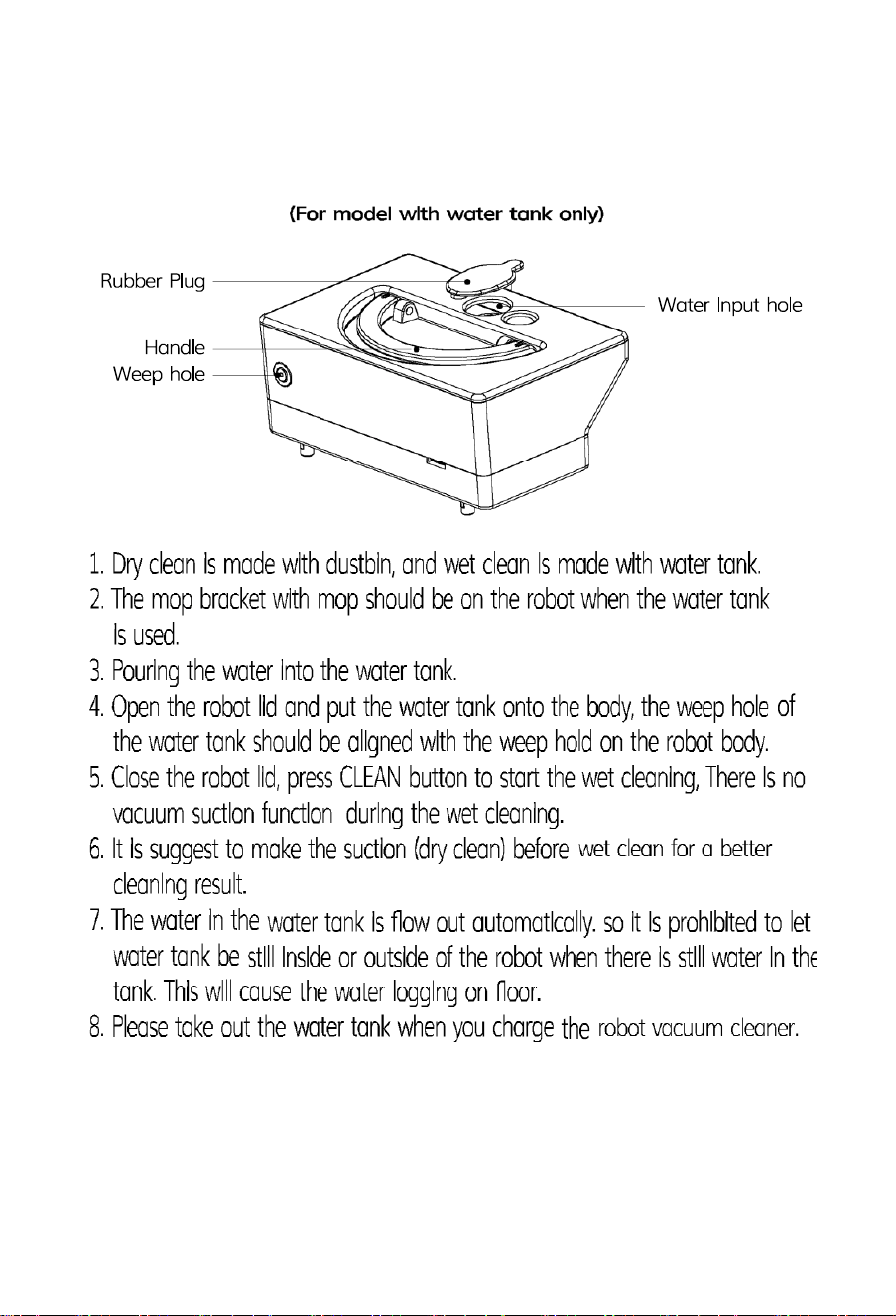
Annex-operation manual

For More detailed information, please visit:
wwww.iliferobot.com
PT7