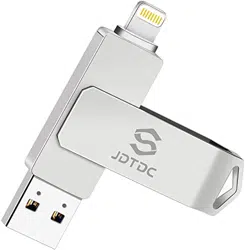

JD Drive User Manual
USB Lightning Flash Drive
For iPhone, iPad, iPod and Computers

Menu
1 Foreword.............................................5
2 APP Installation & Main Interface........6
2.1 APP Installation.............................6
2.2 Main Interface.............................10
3 File Management...............................14
4 Classification Management................30
5 Backup...............................................32
5.1 Back Up Contacts........................33

6 Camera..............................................35
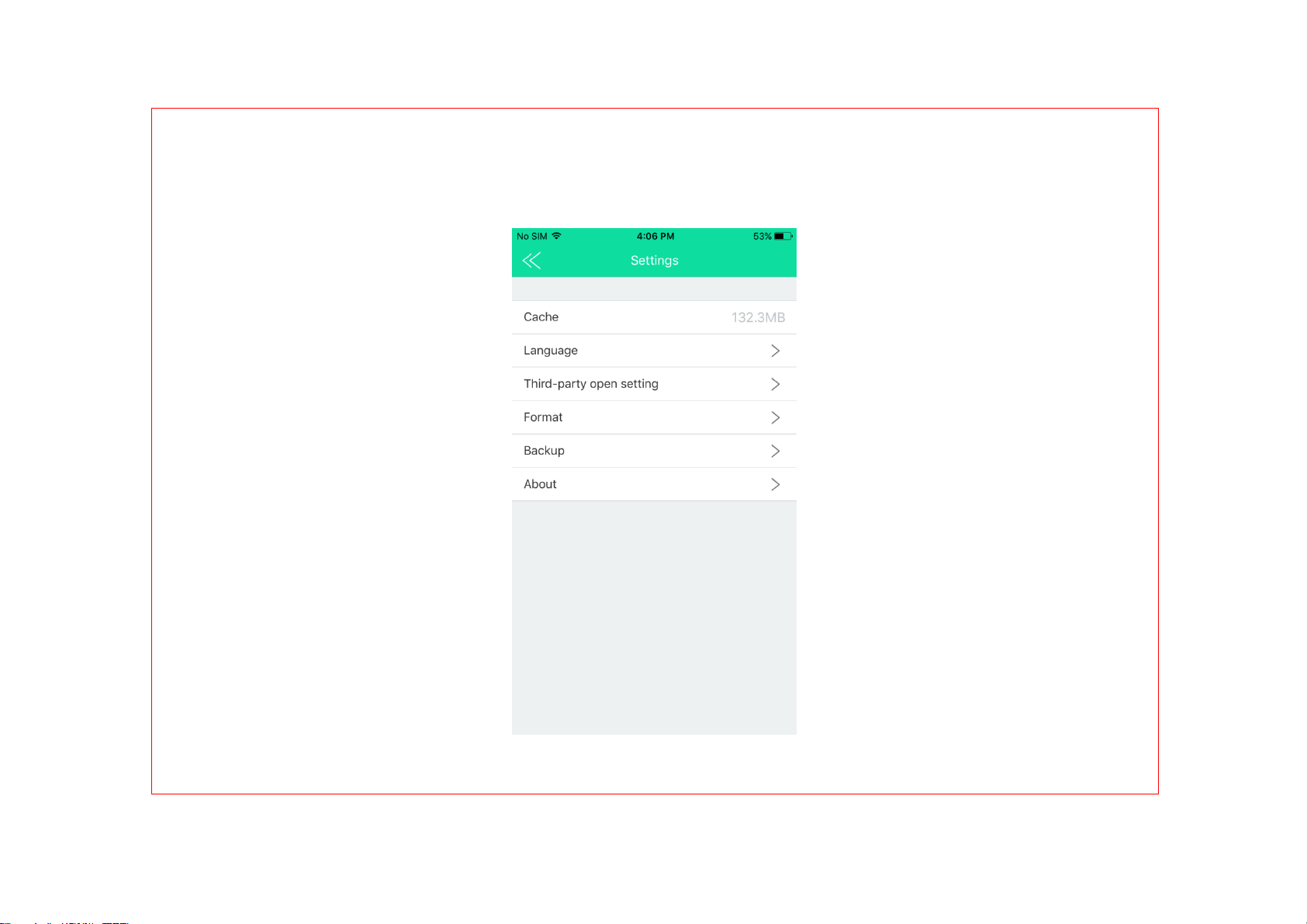
7 Settings..............................................37
7.1 Clear Cache................................38
7.2 Setting Laguage .........................39
7.3 Disk Folder Encryption................41
7.4 Third-party Open Setting.............56
7.5 Format USB Flash Drive.............57
7.6 Backup........................................58
7.7 About...........................................63

8 FAQ & Notes......................................64
9 Warranty & Contact US......................85
9.1 Warranty......................................85
9.2 Contact US..................................86


2 APP Installation & Main Interface
2.1 APP Installation
When Plugging the JD Flash Drive into
our Apple device for the first time, there
will be installation message pop-up.
Please click "App Store" to download and
install. We also can download the app
from the App Store. Search for "JD
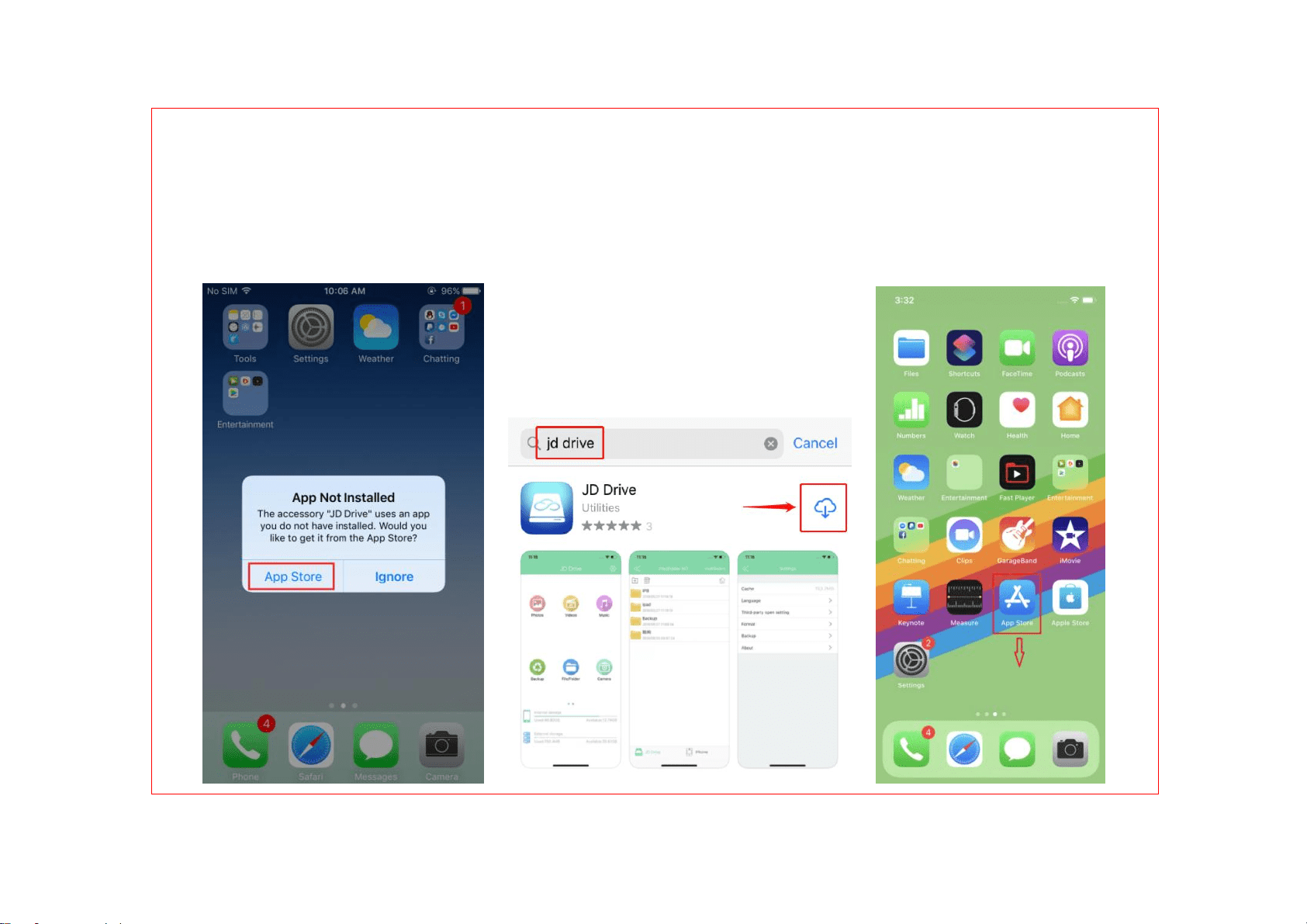
Drive".(Please Note: search from APP
store, not Apple Store)

NOTES:
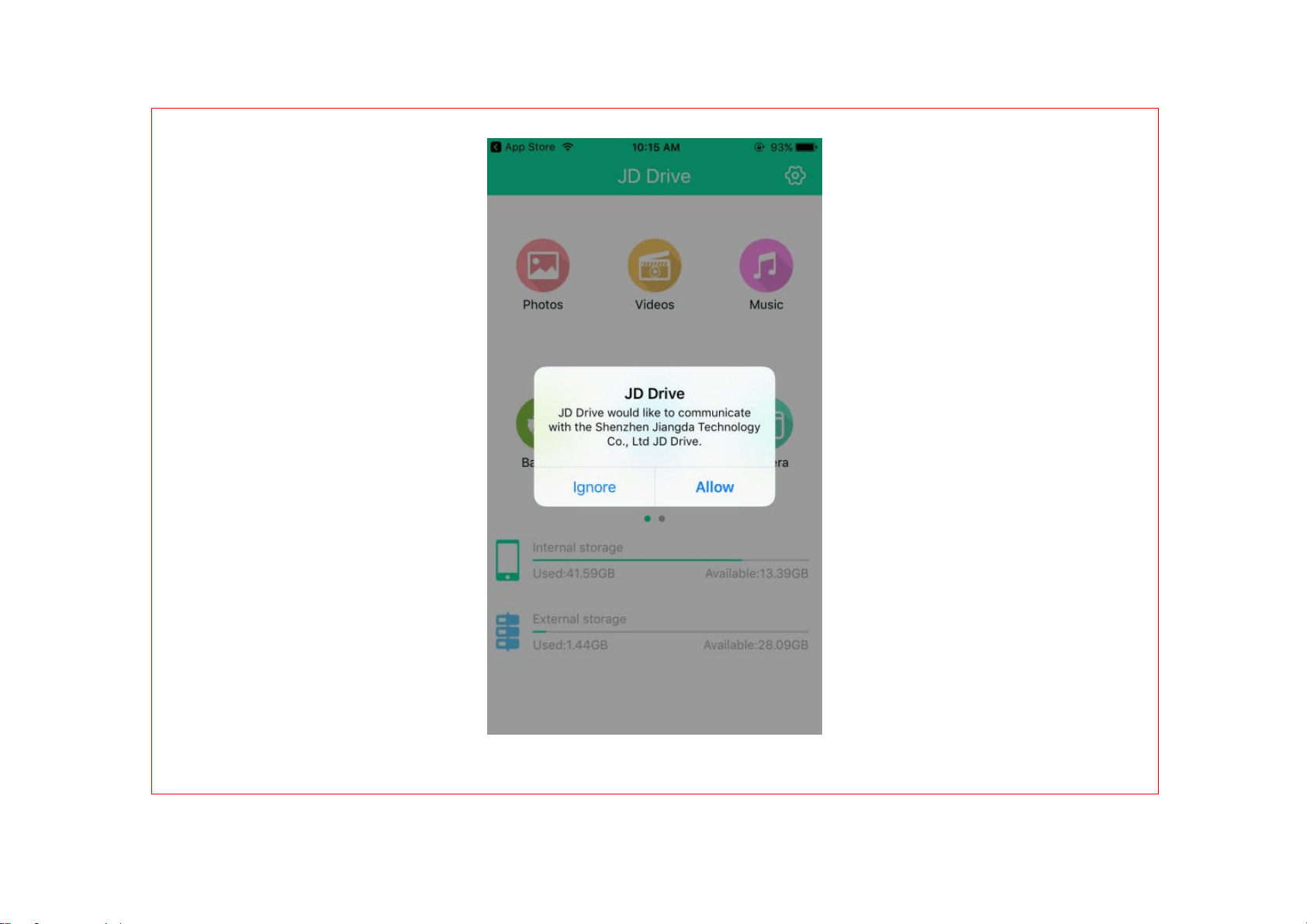
It is normal to receive the following
message when the JD Drive connected to
our iPhone or iPad. JD Drive
(Manufacturer: Shenzhen Jiangda
Technology Co., Ltd.) is Apple MFi
certified product and this message is
required for any external device to iPhone
or iPad. Please click Allow to go ahead.

2.2 Main Interface

① File/Folder
Create new folder, Sort browsing, open,
copy to, delete, share, rename
② Classification management
Automatically search for files stored in
the local and external USB flash drive,
sorted by picture, video, music.
③ Backup
We can backup the photos in the Album

and videos taken by the iPhone, also
other images generated by other
applications.
④ Camera
Taking photos or videos and store into
this USB Flash Drive directly.
⑤ Back Up Contacts
We can backup Contacts of the iPhone.
⑥ Settings

We can Clear Cache, set App Language,
Set Disk Folder Encryption, Third-party
open setting, format USB Flash Drive,
Backup, etc.
⑦ Display the storage status of
Internal storage and External storage
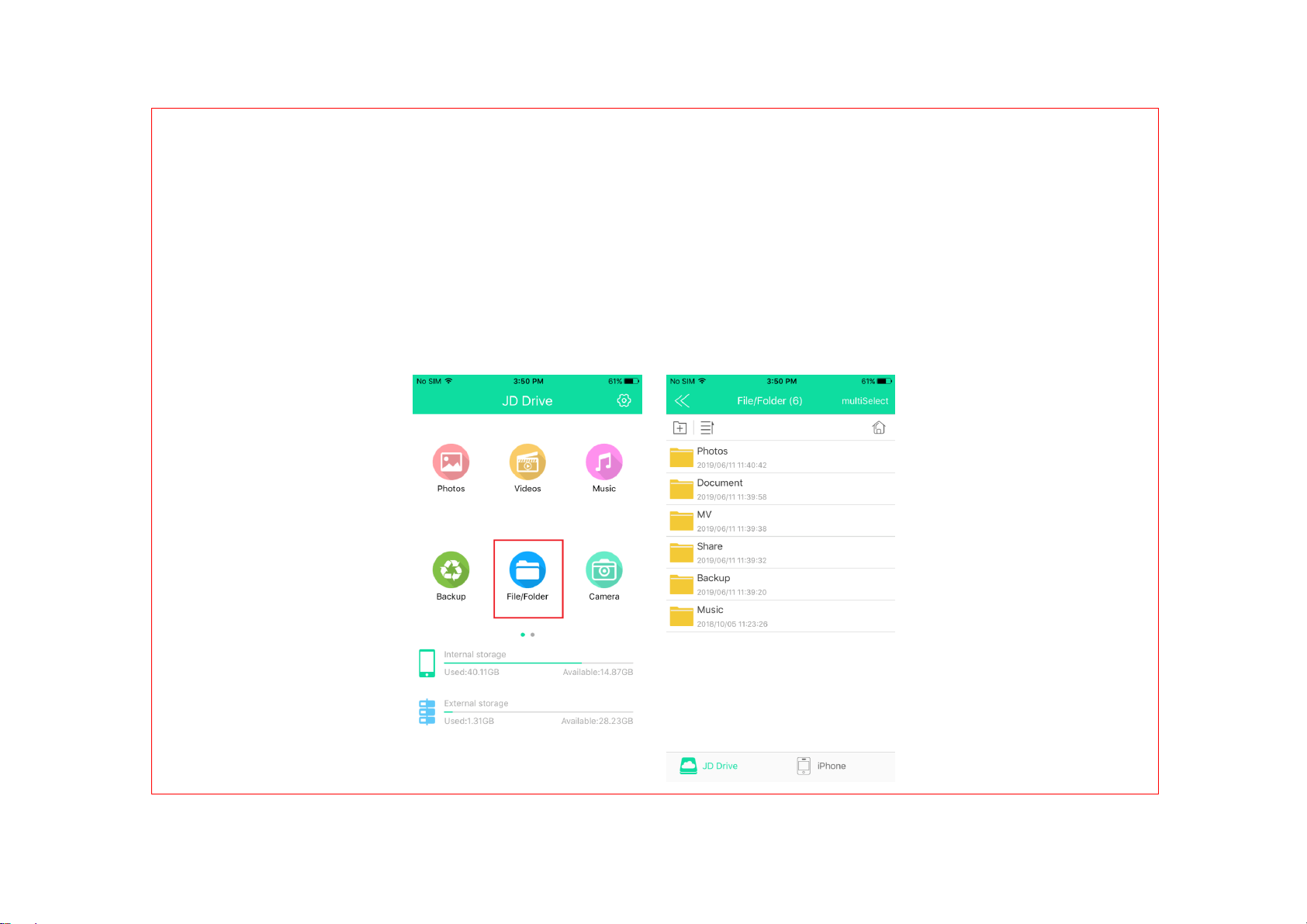
3 File/Folder (File Management)
Main Interface ---> Single Click
File/Folder ---> File Management
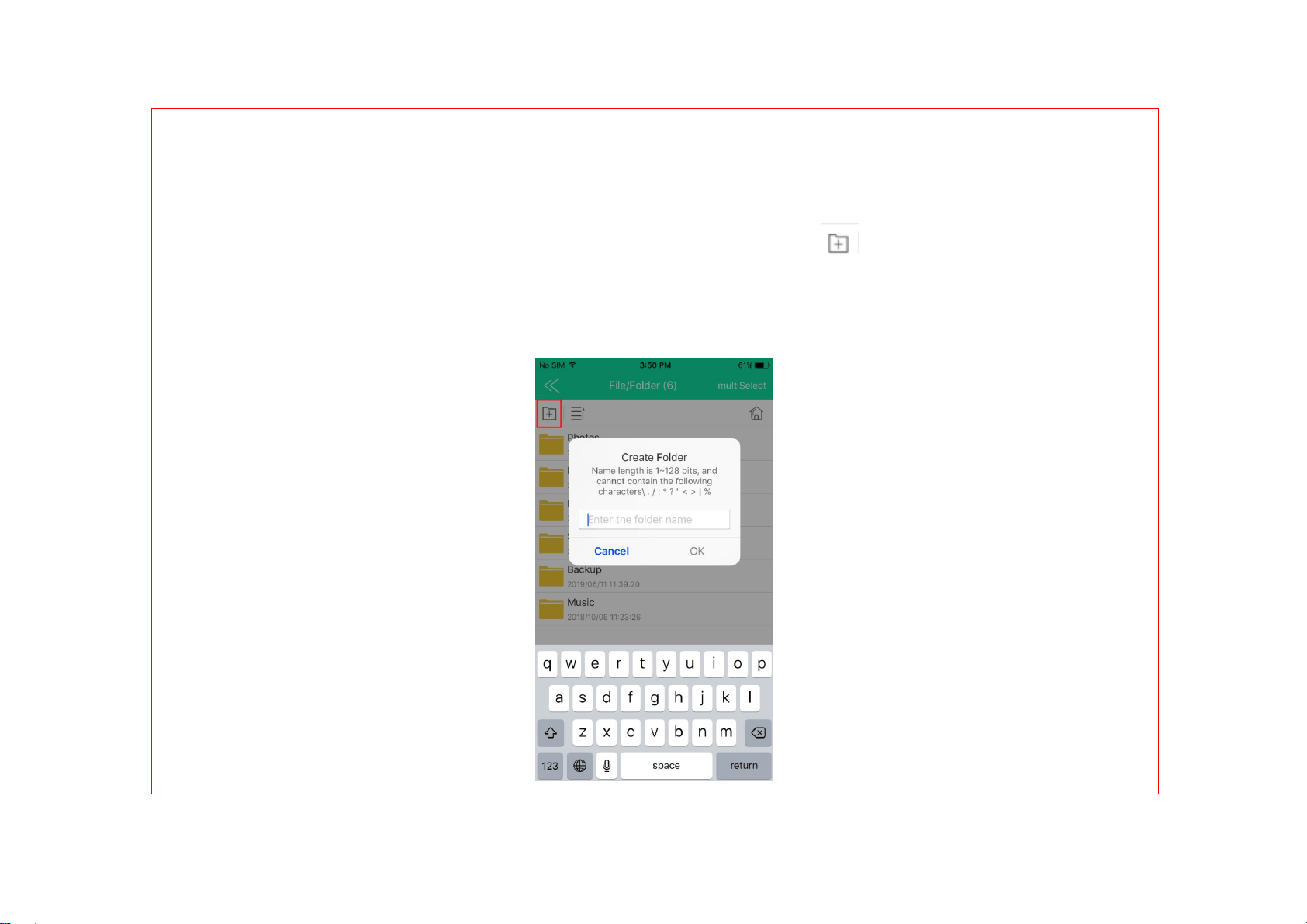
① Create New Folder
File/Folder ---> Single Click ---> Pop-up
"Create Folder" window

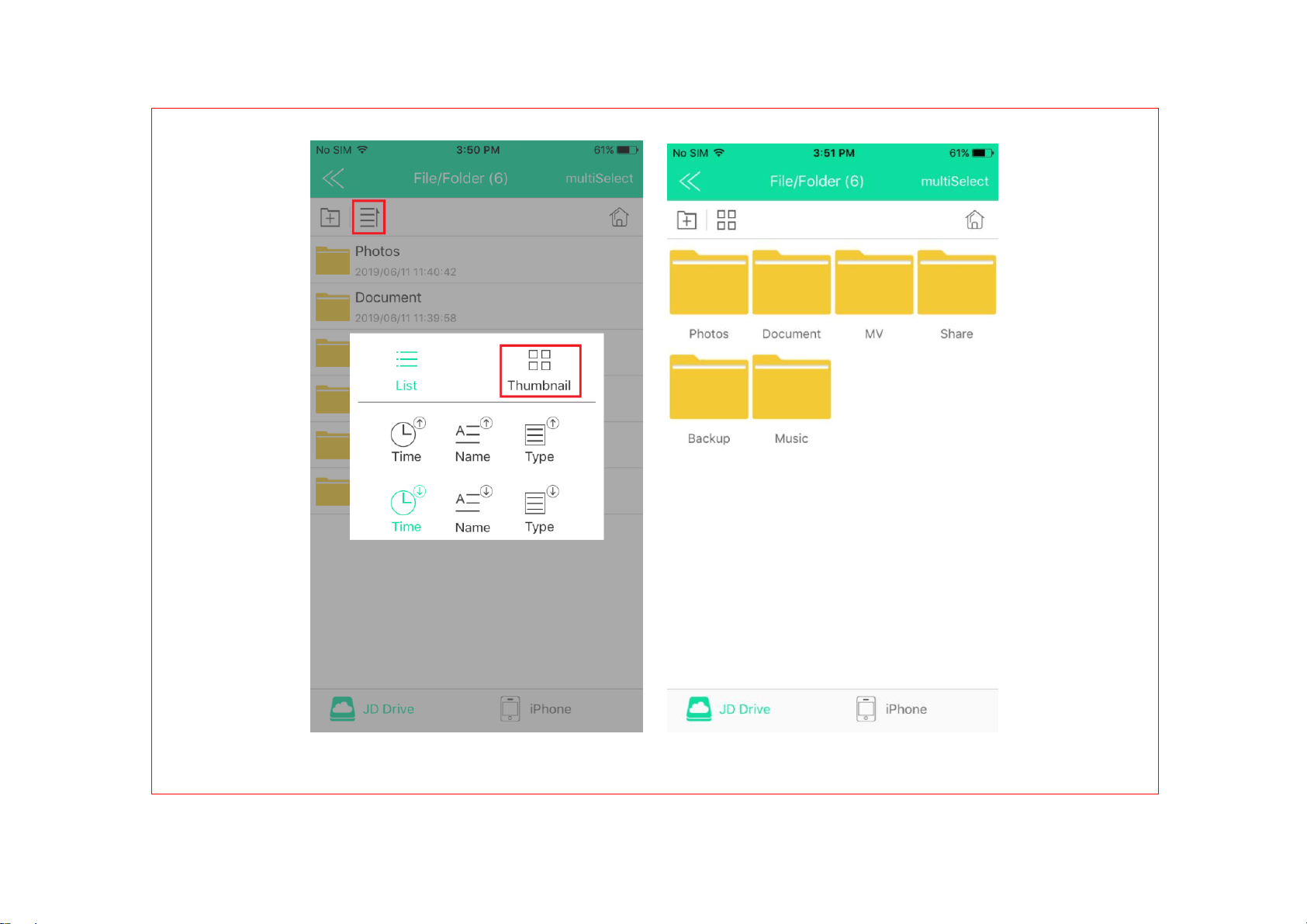
② Sort
File/Folder ---> single click --->
Pop-up Sort interface ---> we can also
switch to Thumbnail display

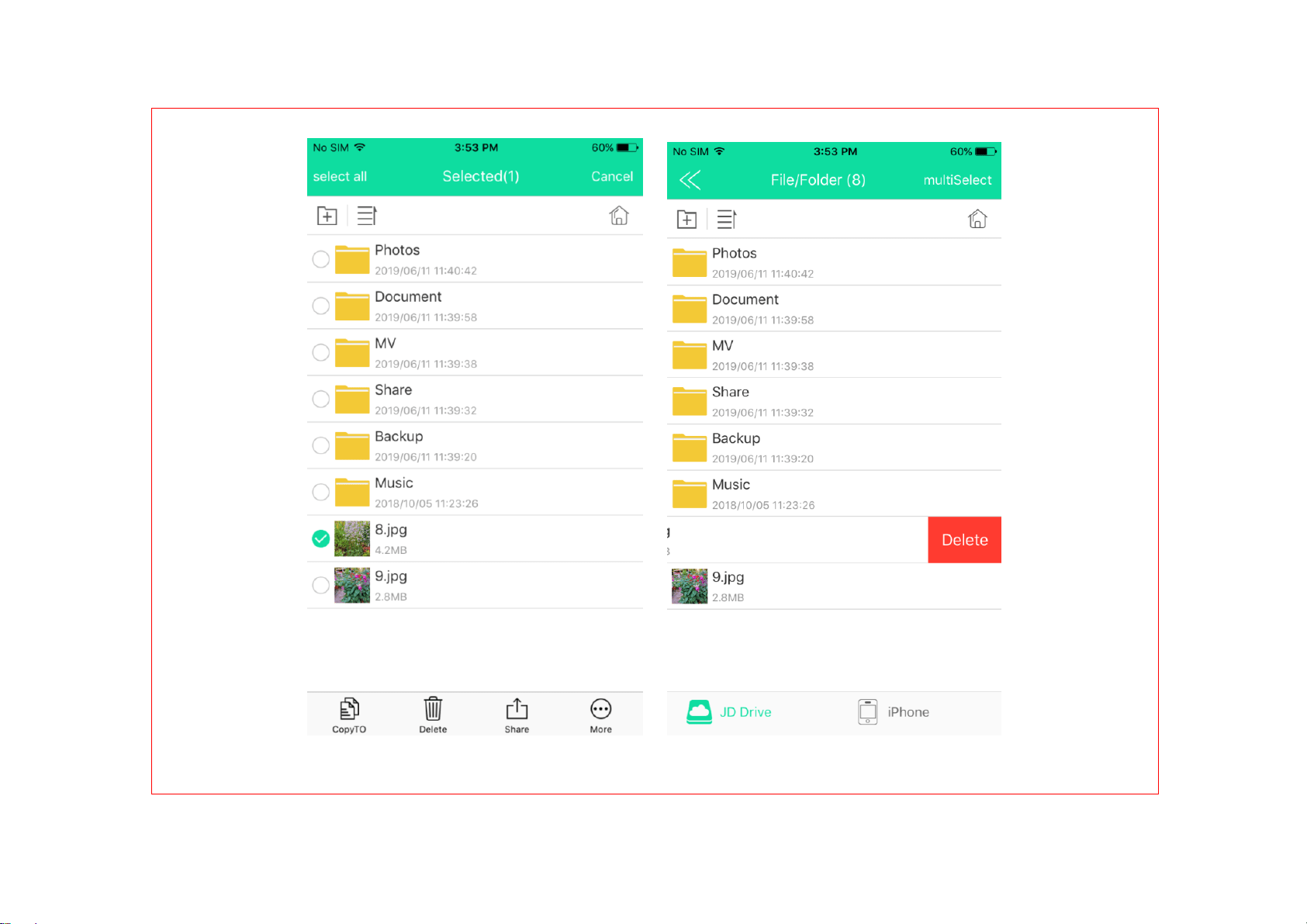
③ Select File
Multi-select button---> select file ---> Long
press---> Select file, slide to left, single
click to delete

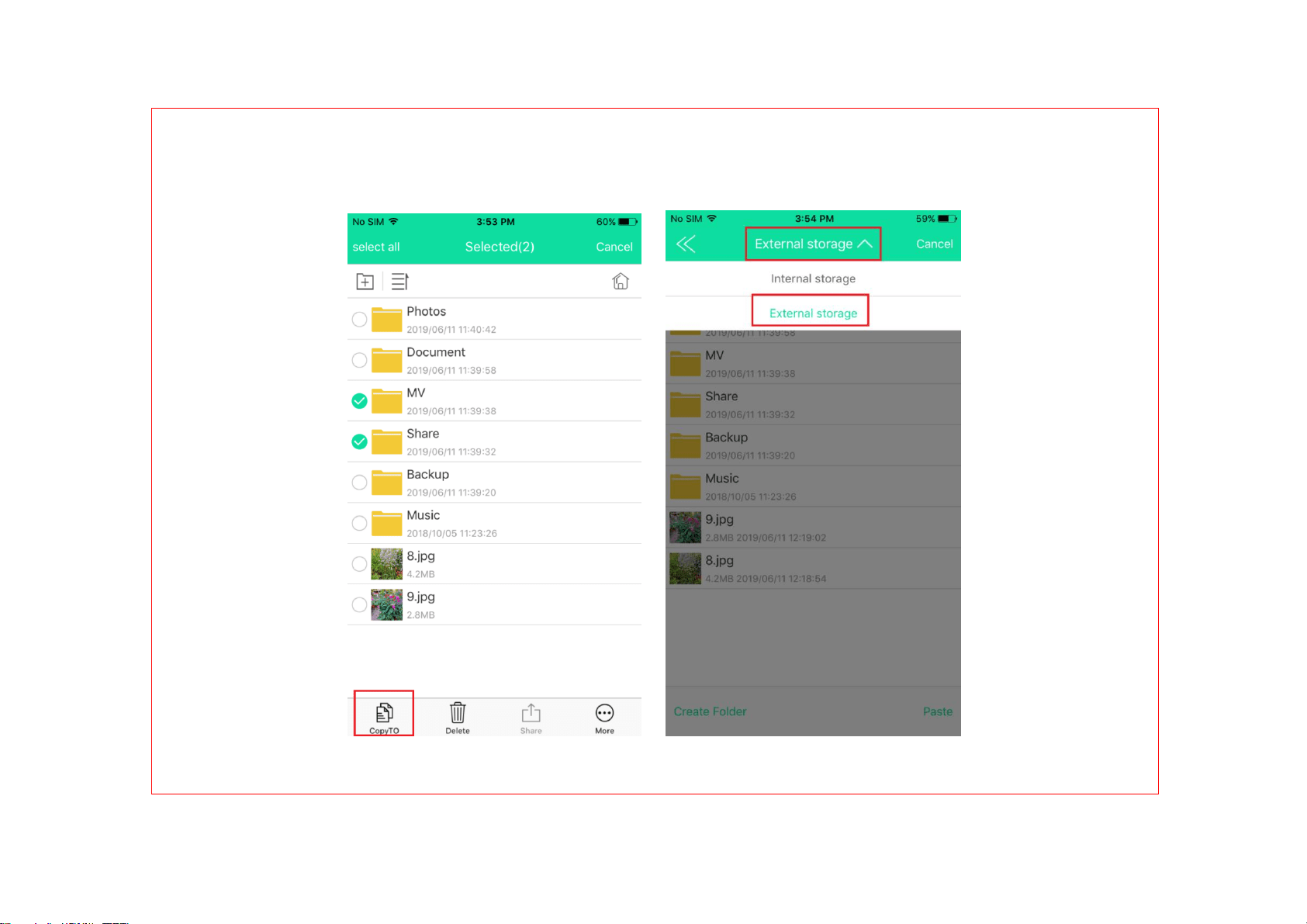
④ Copy
Select ---> single click ‘Copy To’-->
Pop-up the choices which can copy to
---> Pull down the arrow to select Internal
storage or External storage
NOTE: To finish the transmission as the
fastest speed and save users’ waiting
time, the internal storage only displays
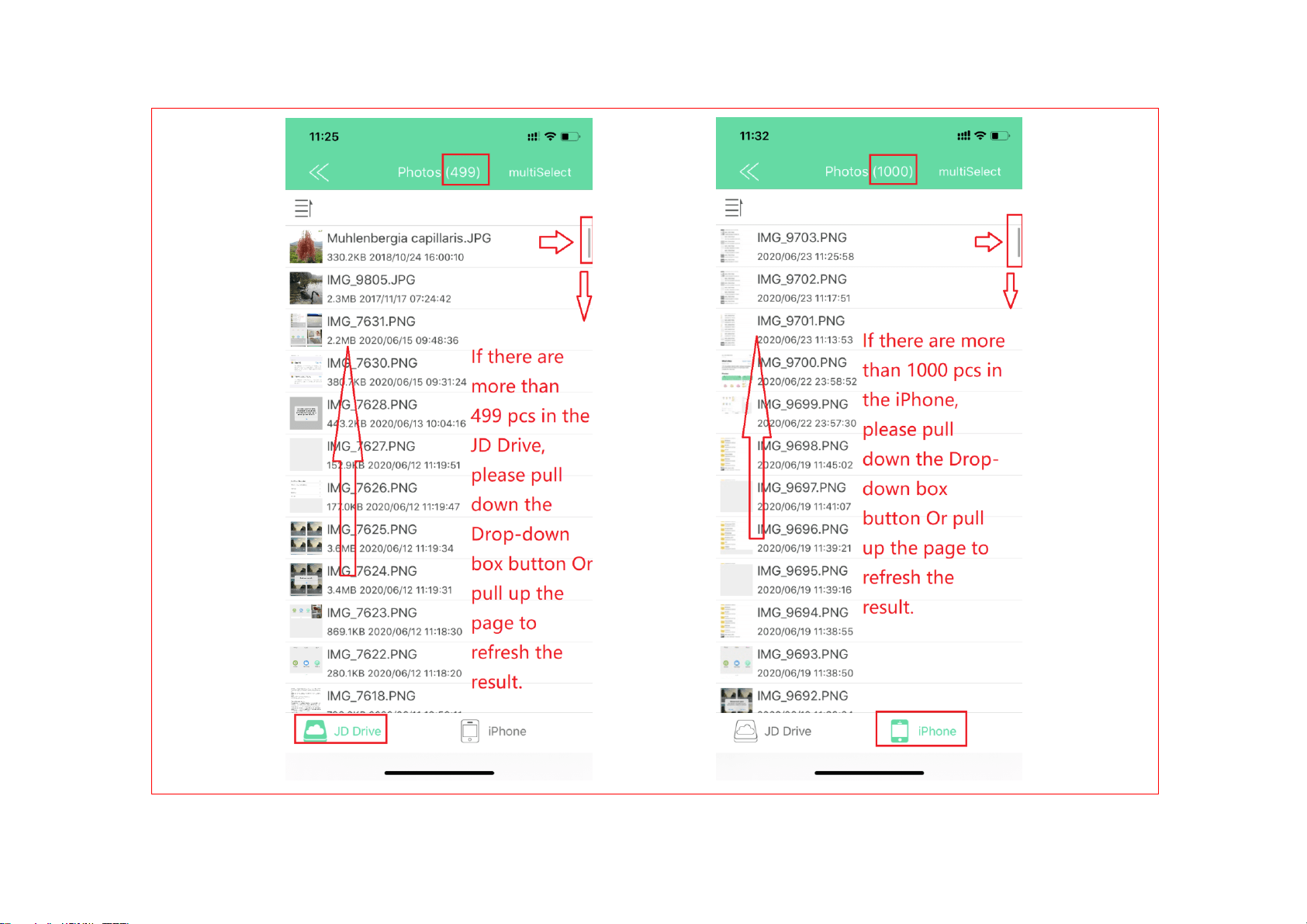
1000 photos each time. If there are more

than 1000 photos, even if you select all, it
only displays 1000 photos. In this
situation, please pull up the page or pull
down the Drop-down box button to
refresh the display. Then increase by a
multiple of 1000, all your photos will be
pulled to the end display.
The external storage displays 499 pcs,
please pull down to refresh the display,
too.

⑤ Delete
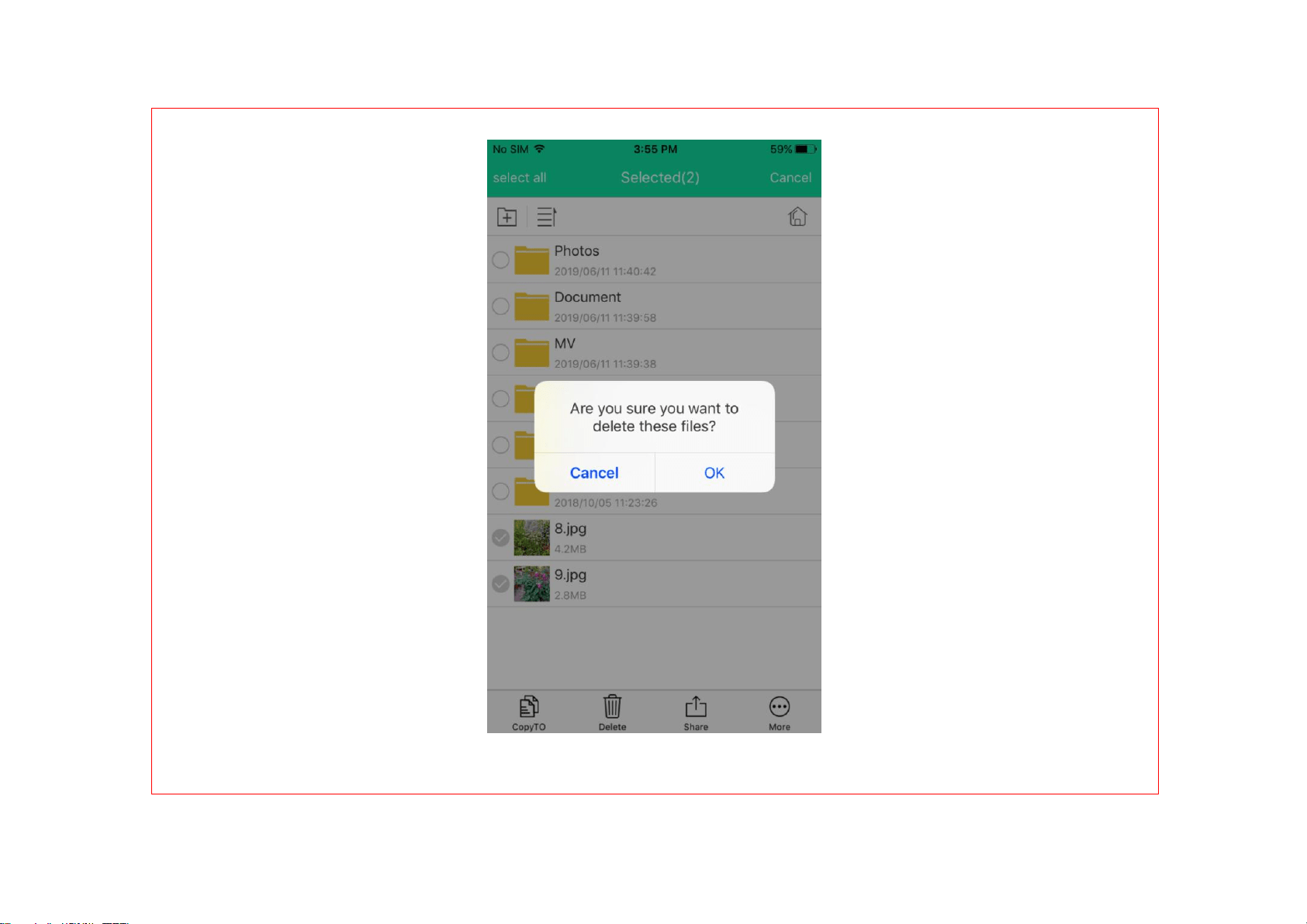
Select ---> single click Delete ---> Pop-up
the following message, OK means delete,
Cancel means do not delete.
NOTE: Manually transfer or deletion may
not be 100% completed even though we
choose Select All. If we need to delete
more than 499 pcs, we suggest to release
the space once we finished the Backup.
⑥ Share
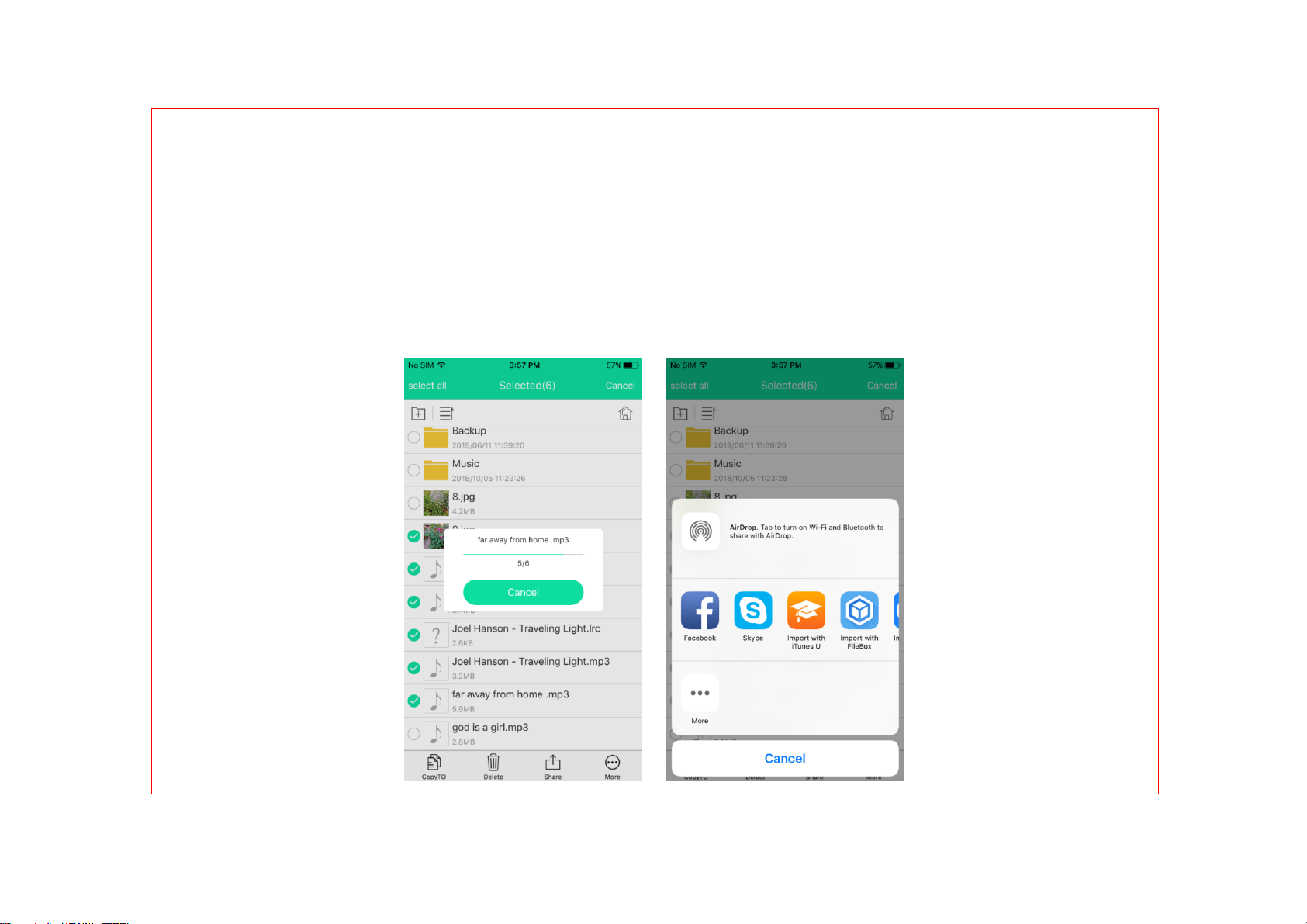
Select ---> single click Share ---> Pop-up
AirDrop message as the following:
⑦ More (Rename)
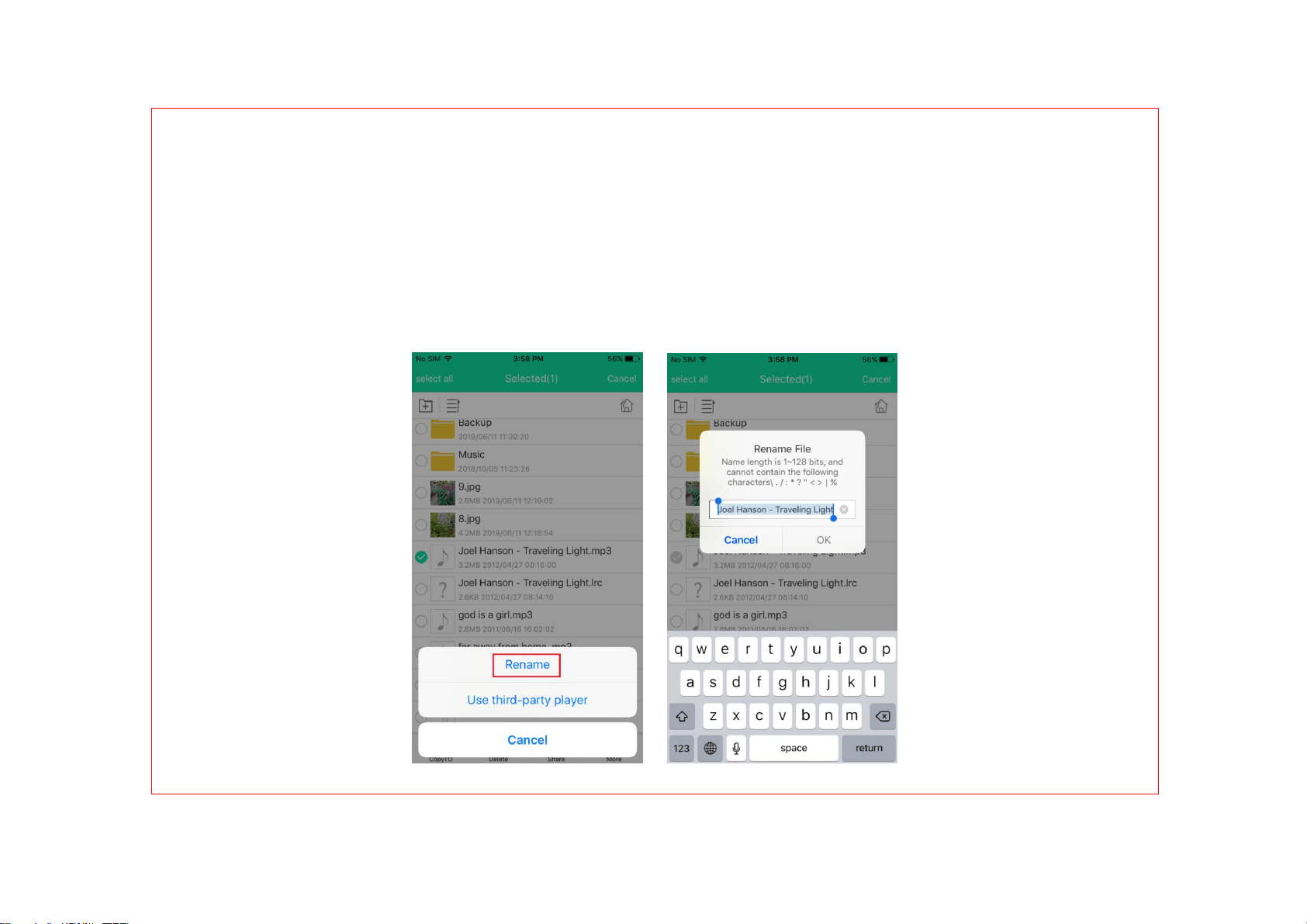
Select ---> More ---> Rename ---> Pop-up
the Rename interface

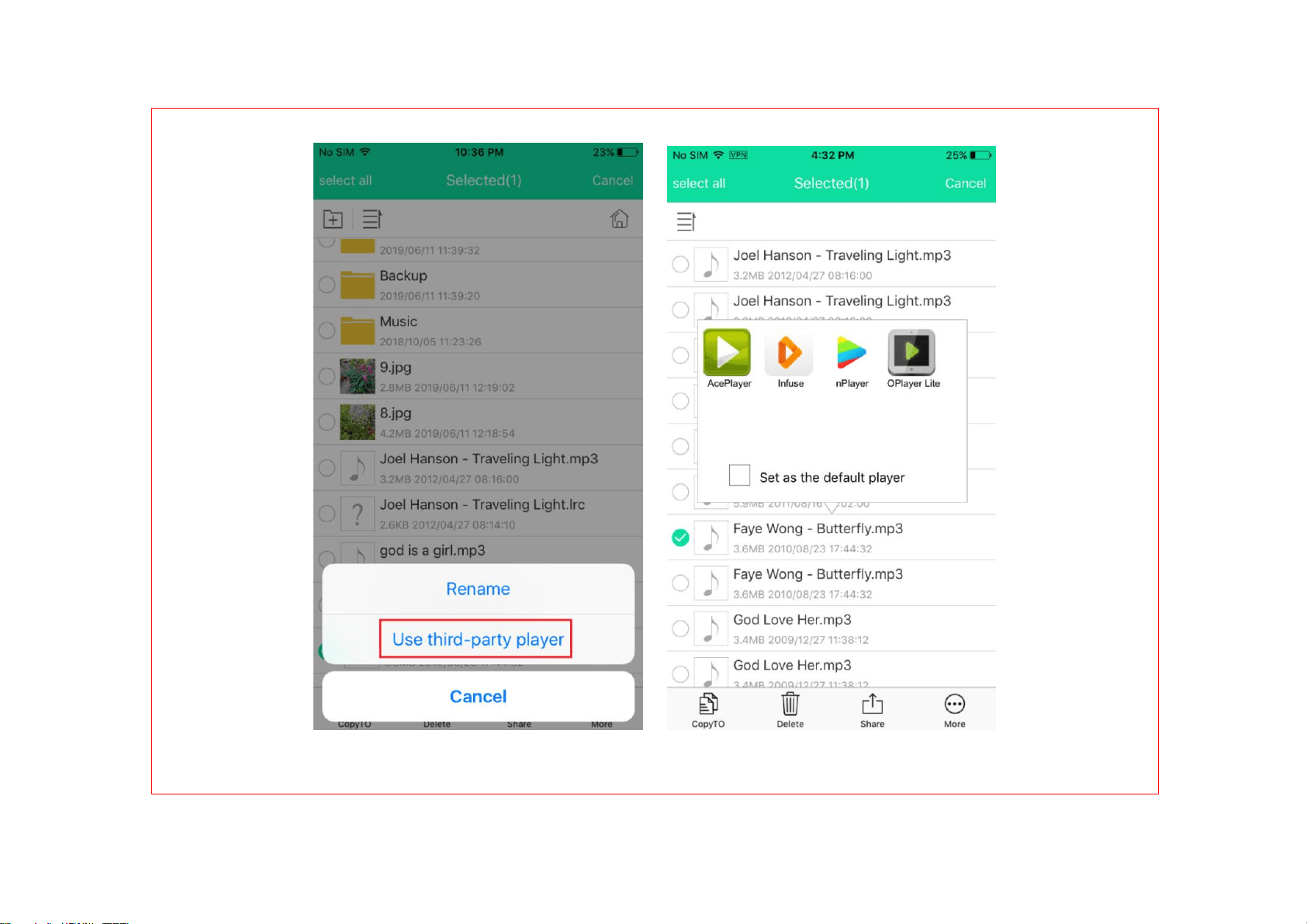
⑨ More (Use third-party player)
Select video file ---> single click More --->
Select Use third-party player (please
download the third-party player before
using)
4 Classification Management
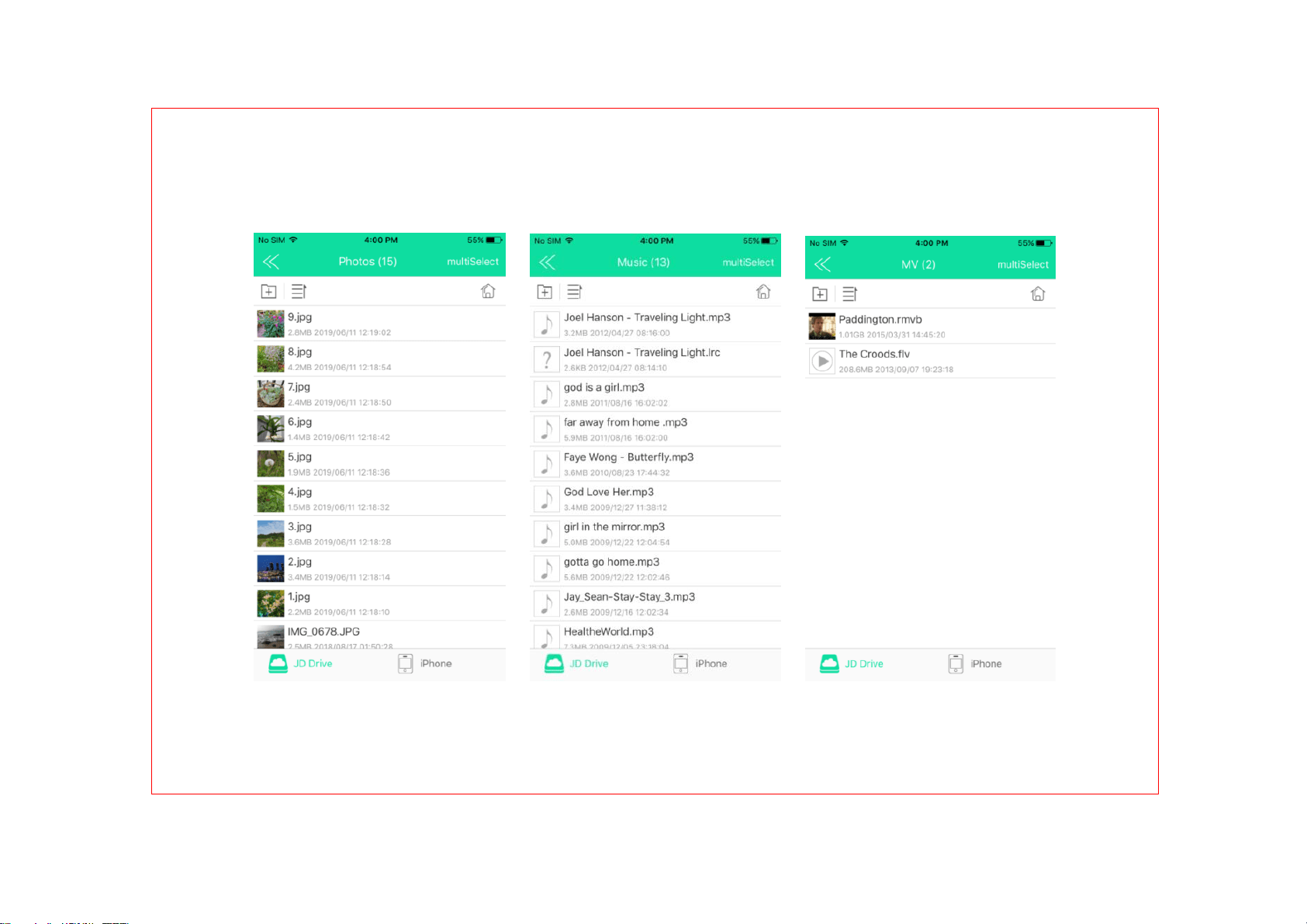
Pictures Musics Videos

Automatically search for files stored in the
local and external USB flash drive, sorted
by picture, video, music. Please refer the
File Management for basic operations.
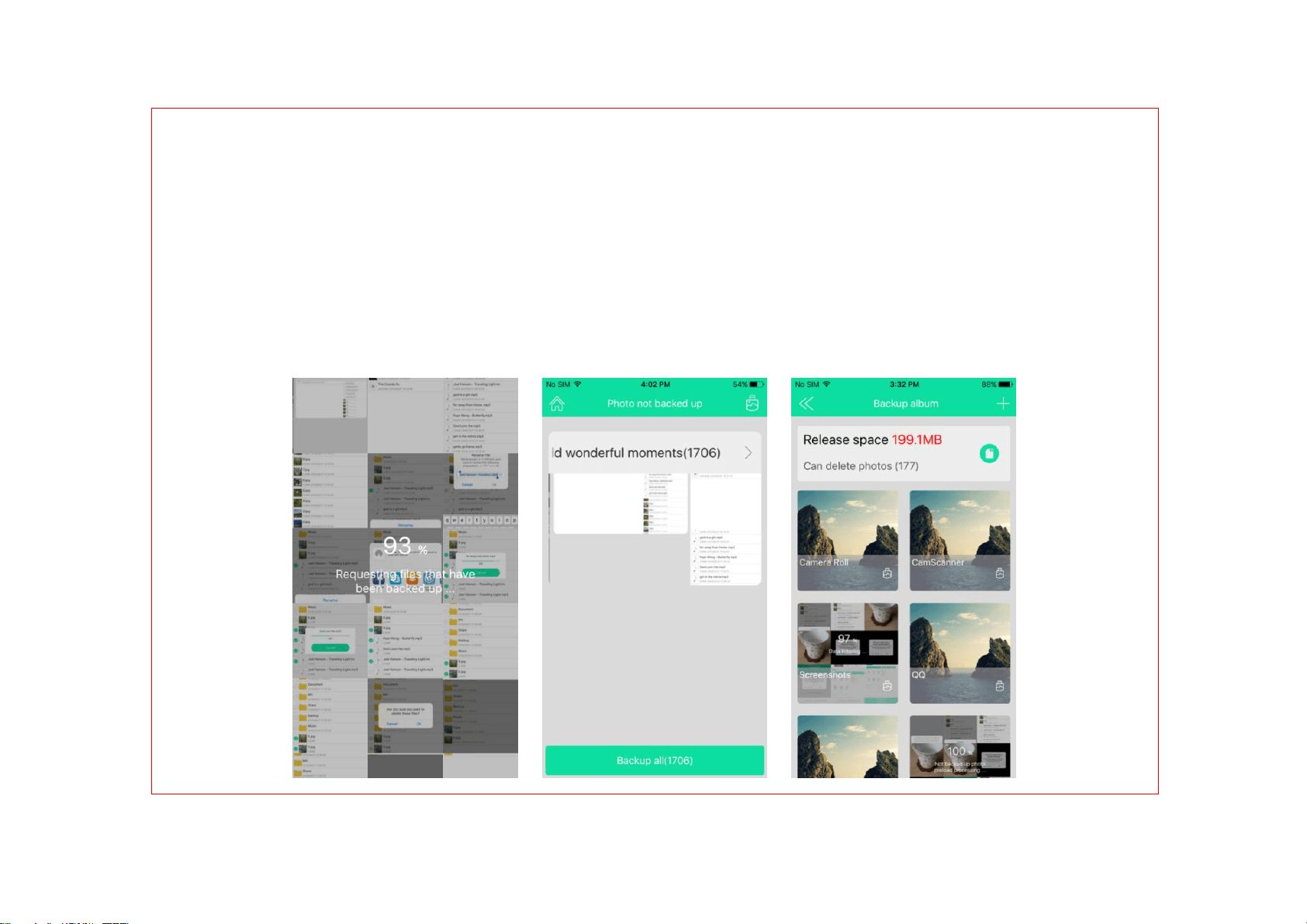
5 Backup
Single click Backup ---> Enter into the
backup subdirectory

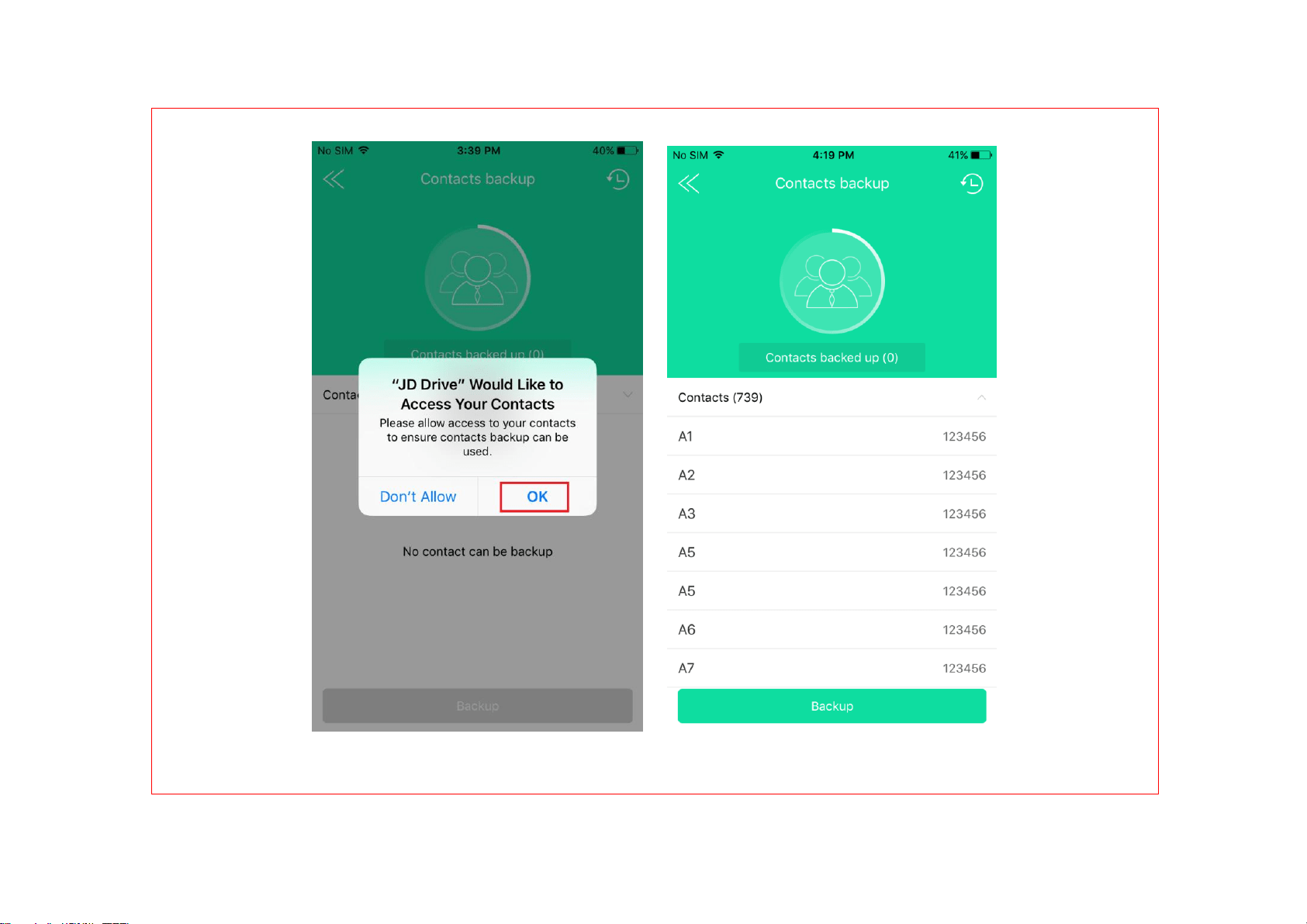
5.1 Back Up Contacts
Click Back Up Contacts ---> Pop-up
message ---> Select OK to go to the next
interface

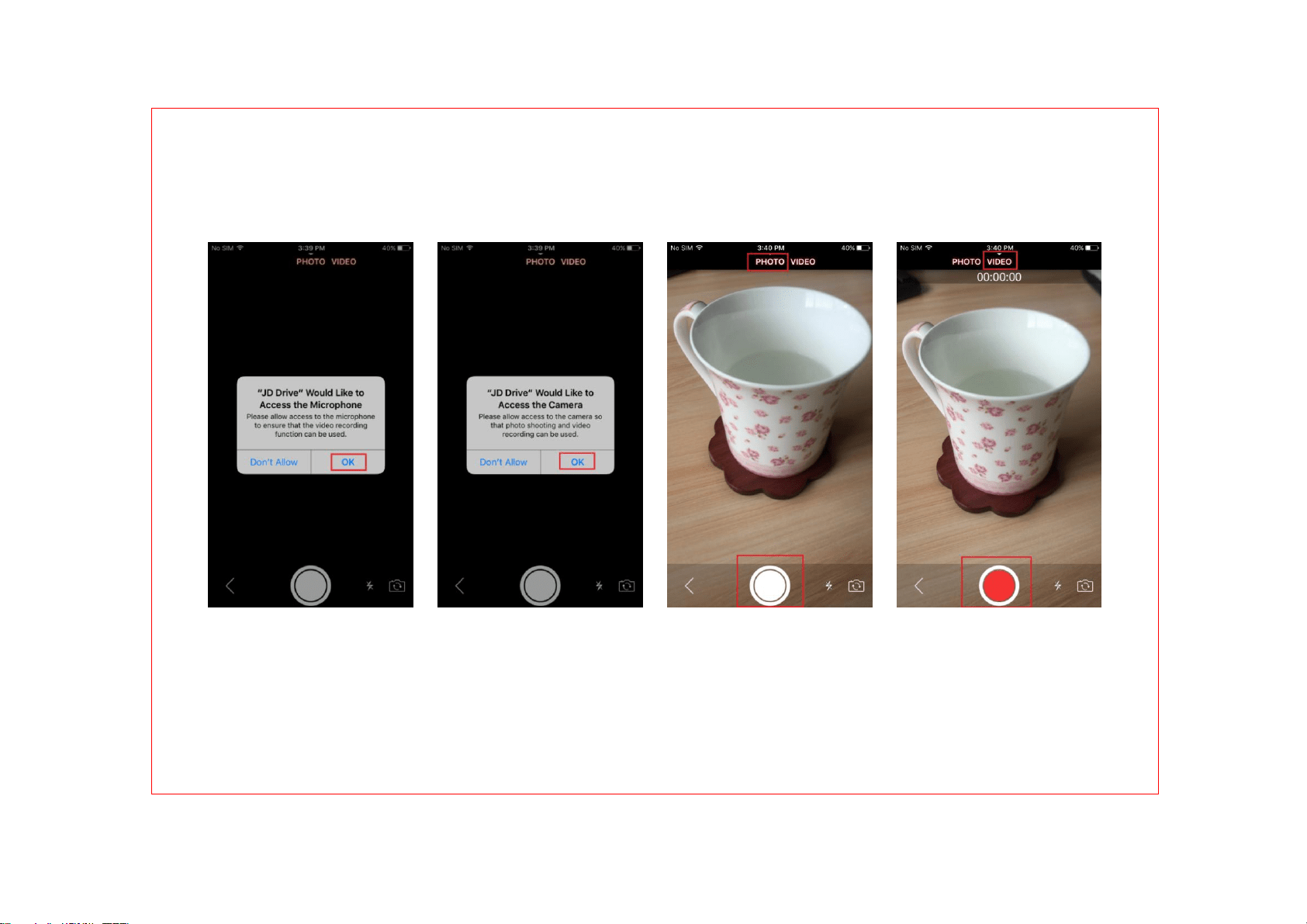
6 Camera
Click Camera ---> Pop-up message --->
Select OK to go to the next Taking
Photo/Video interface ---> Uploading the
video to the USB flash drive while
recording, which greatly improving the
recording storage time
7 Settings

7.1 Clear Cache
Click Cache to clear the cache

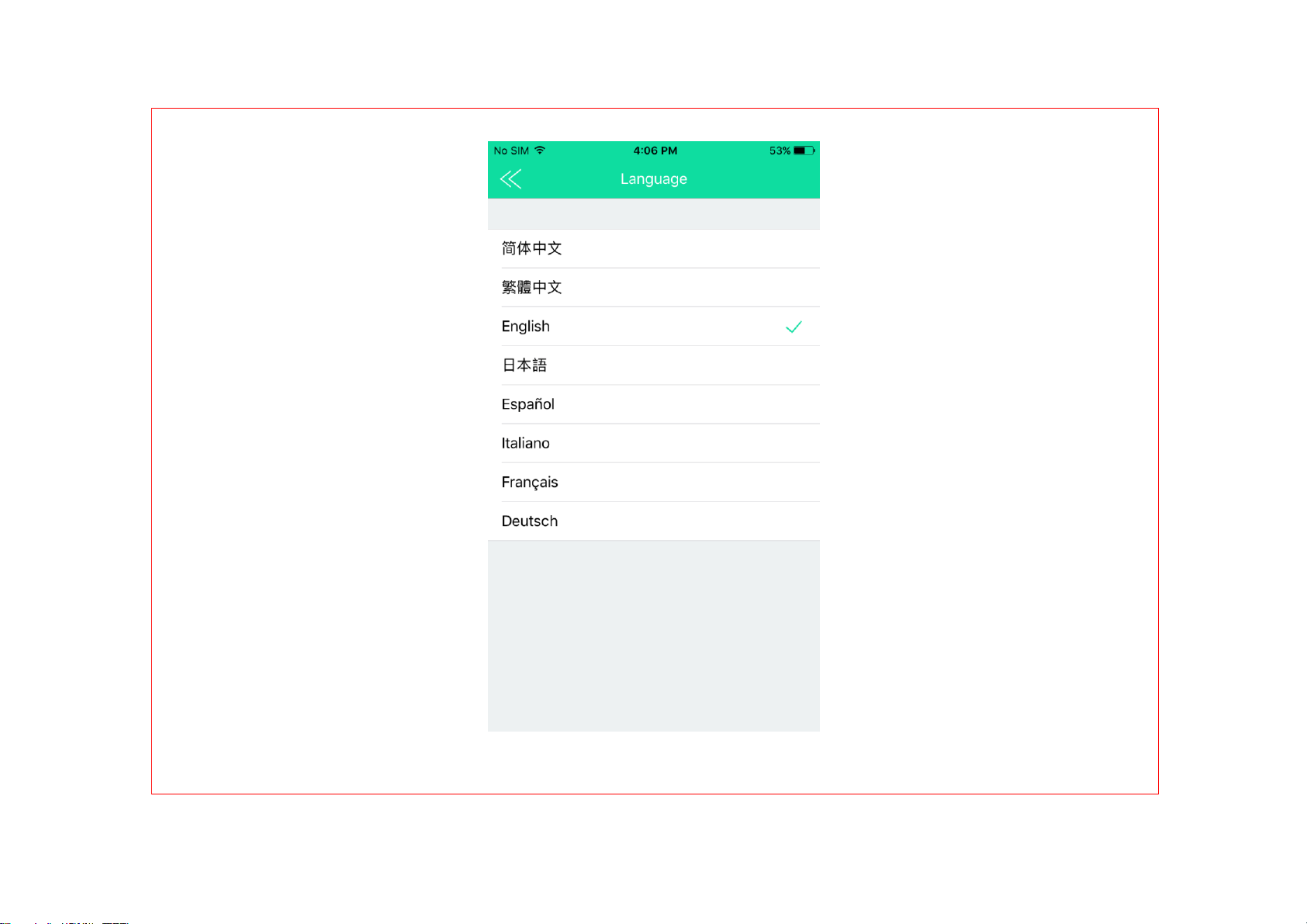
7.2 Setting Language
Select the Language we want to use,
then back to the last step, the Language
would be changed accordingly.

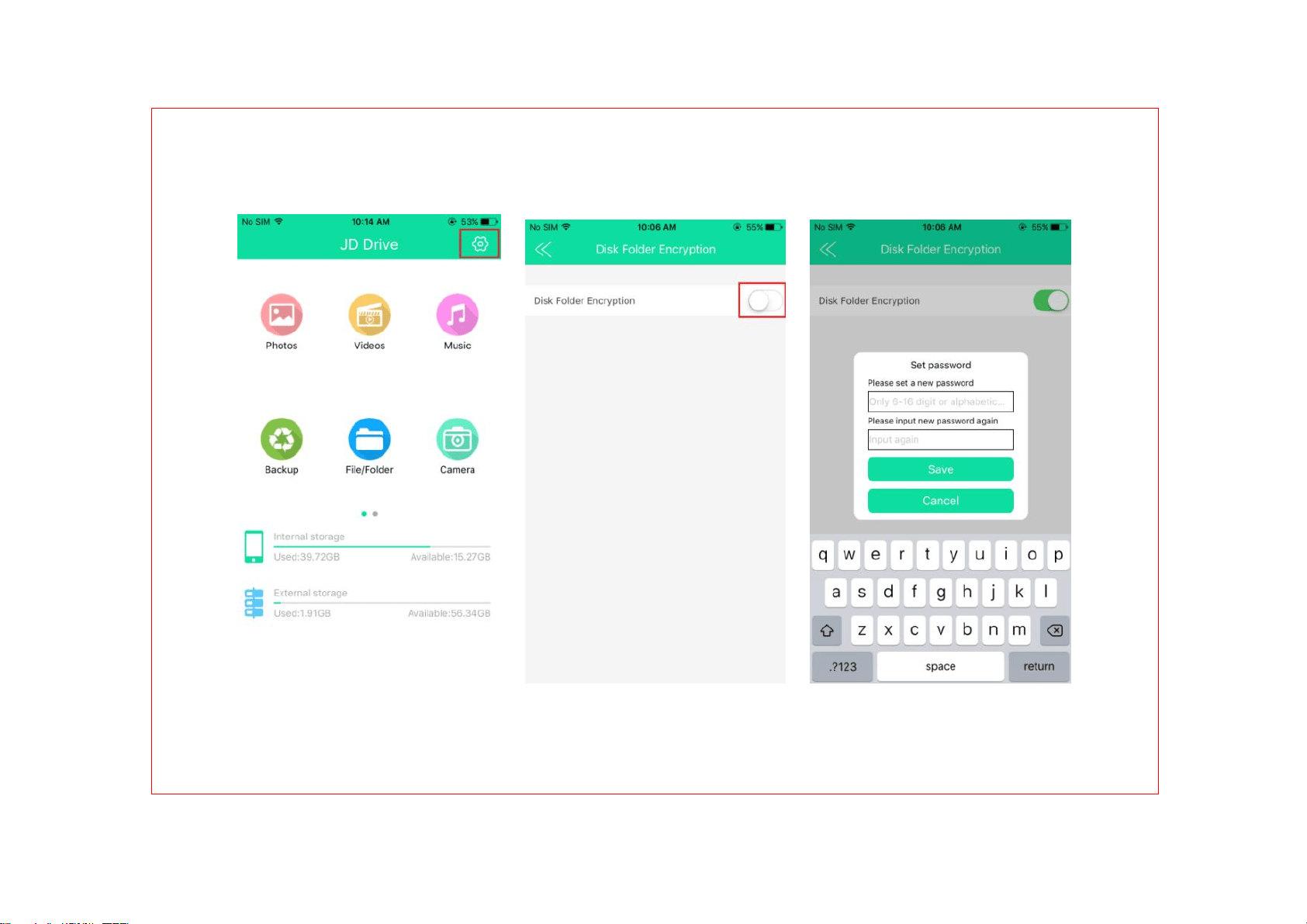
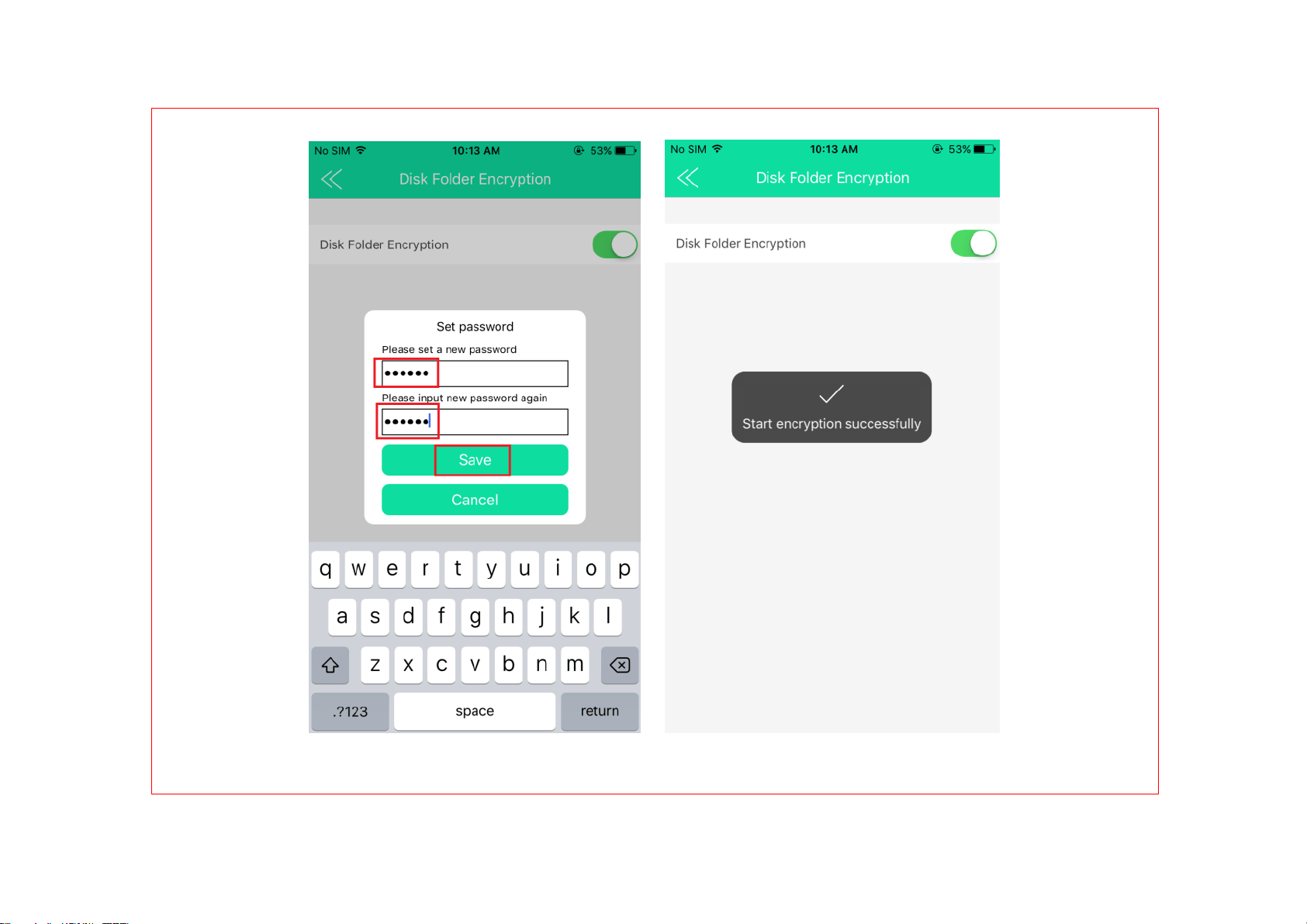
7.3 Disk Folder Encryption
7.3.1 Set Password
Settings ---> Disk Folder Encryption ---
Turn on the Disk Folder Encryption --->
Set Password

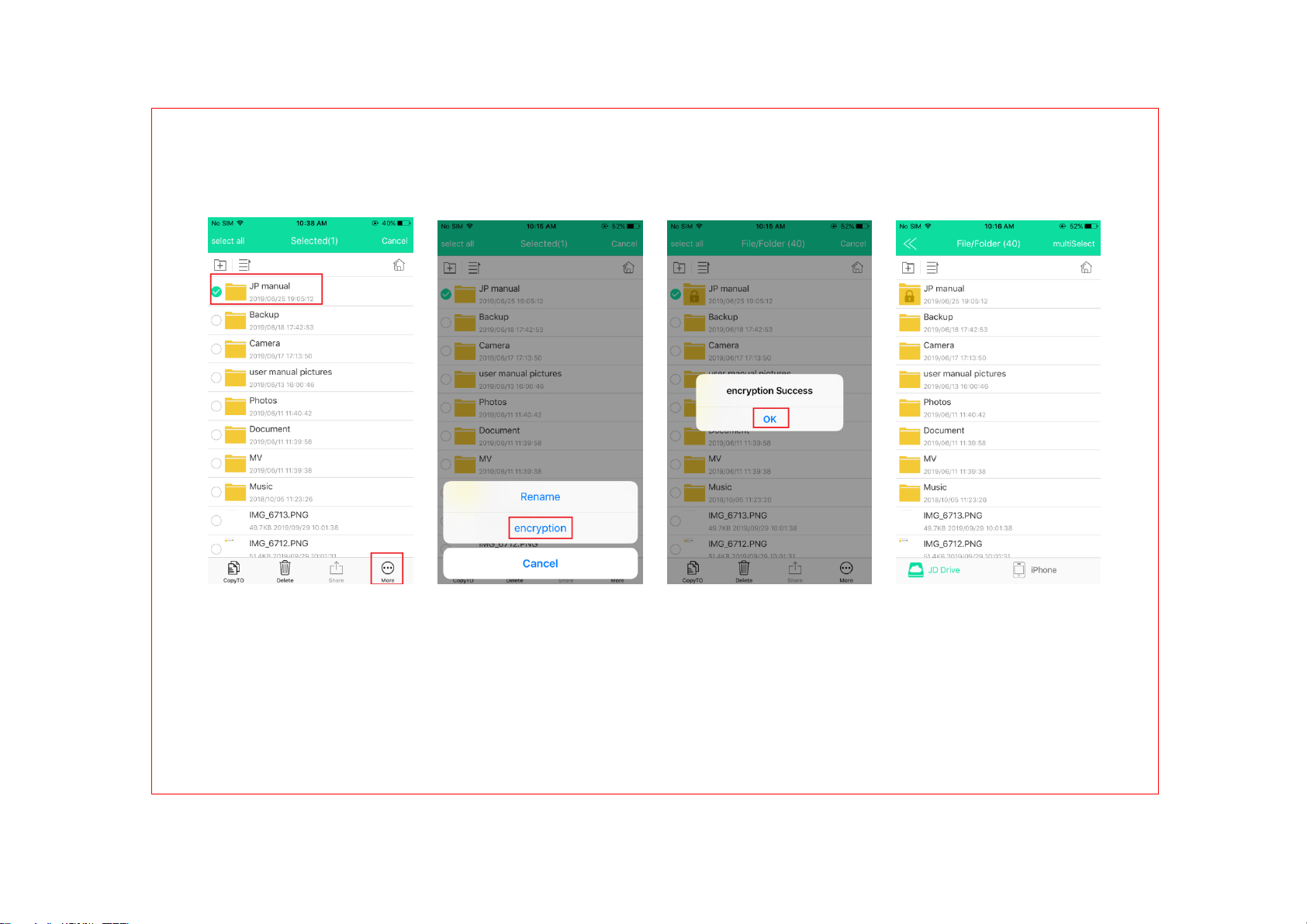
7.3.2 Encrypt the File
Enter into File/Folder ---> Long press the
file we want to encrypt ---> More --->
Encryption ---> There will be a window
pop-up show us Encryption Success --->
Click OK to end the Encryption.

7.3.3 View the Encrypted File
7.3.3.1 From iPhone or iPad: Back to
File/Folder, we can see the file with a
Lock means it was encrypted. When we
open the file, need to input the password,
then the Lock is Open. (once we entered
into the Encrypted file, no need the
password except we remove the USB
Flash Drive from our iPhone/iPad, and
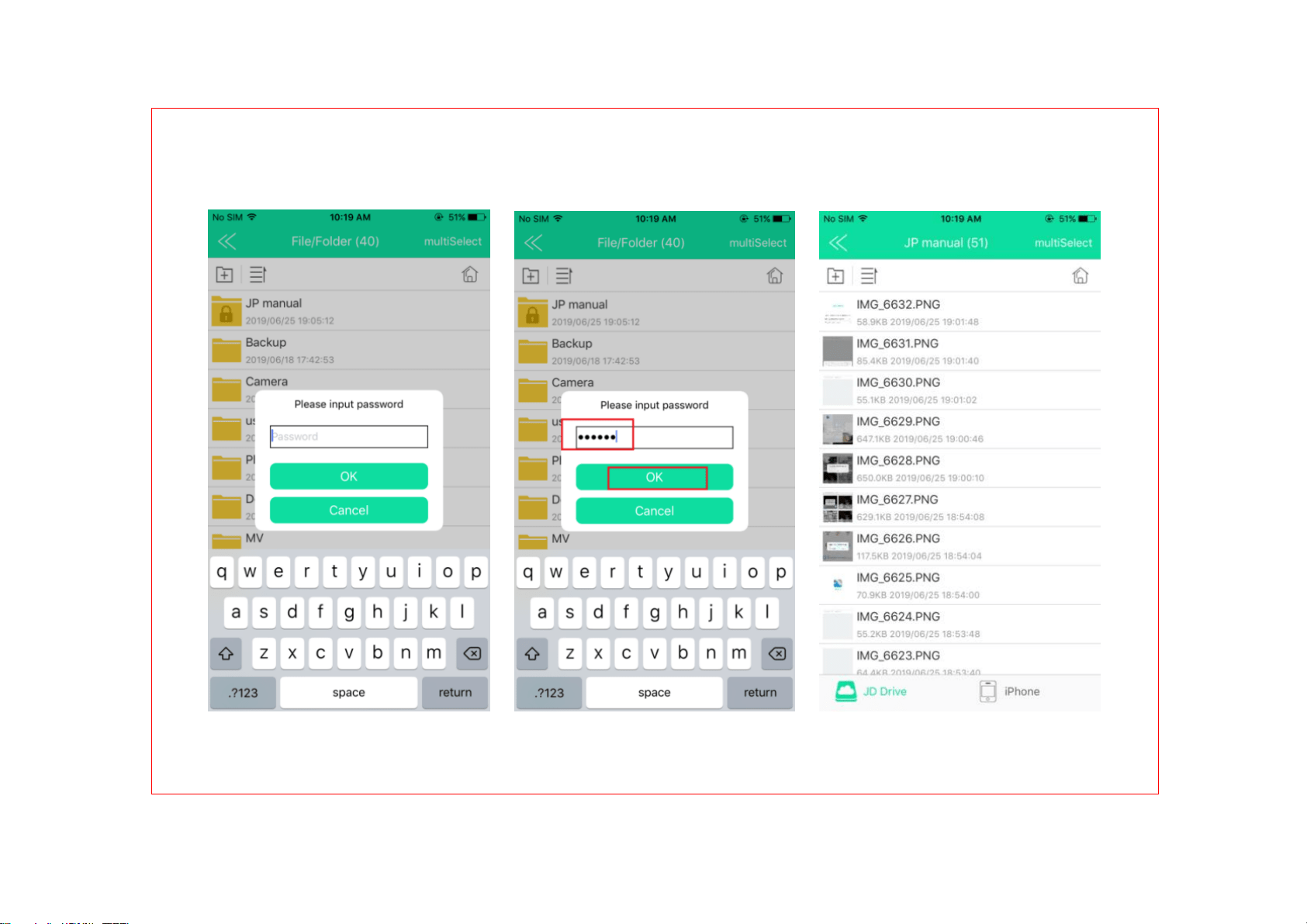
plug in again)

7.3.3.2 From Computer: Please note that,
due to safety consideration, the
encrypted file is invisible on computer, we
cannot find it, if we want to view the file
from computer, need to decrypt from JD
Drive App from iPhone or iPad
first.(please see the following point about
how to Decrypt the Encrypted File)

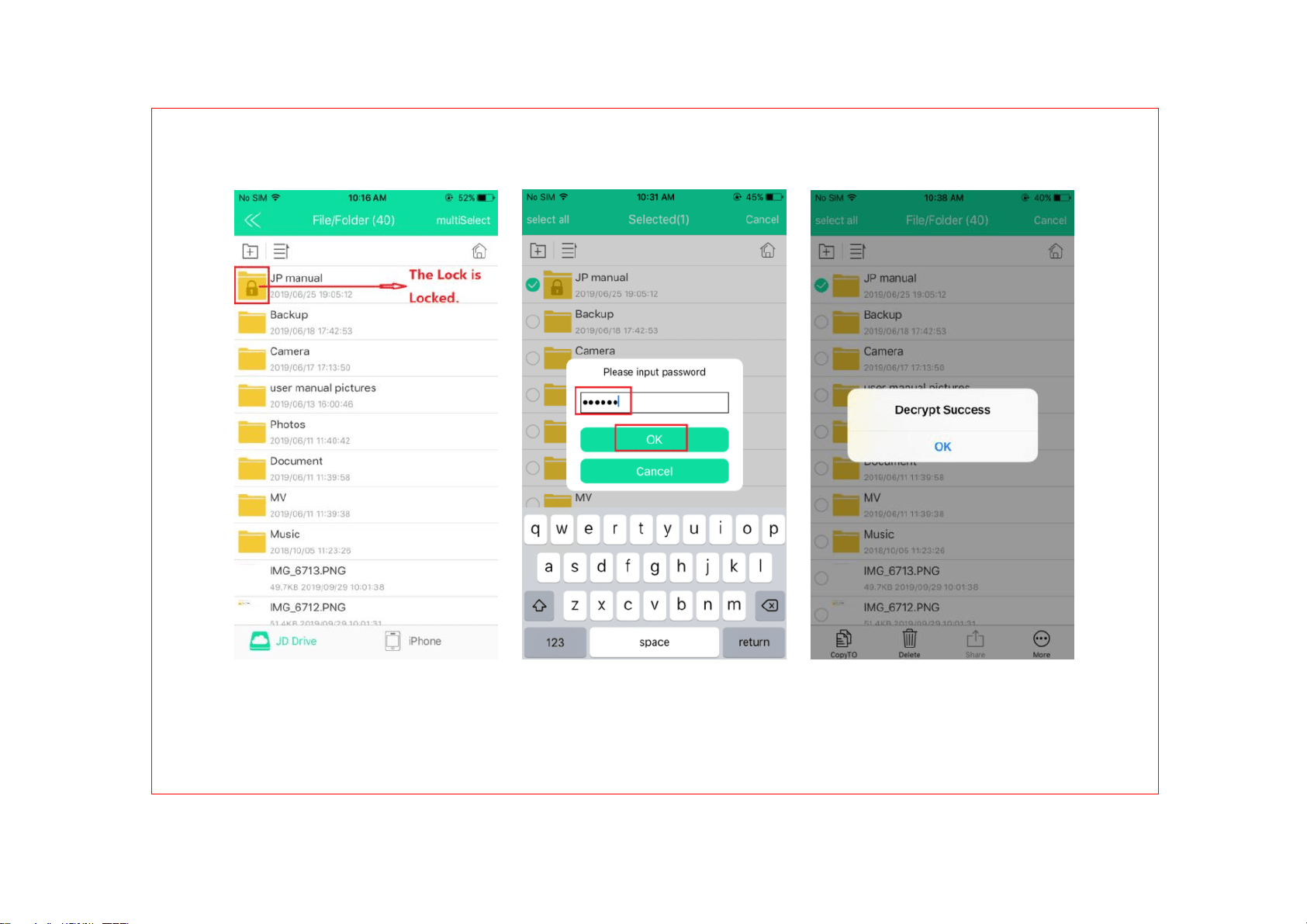
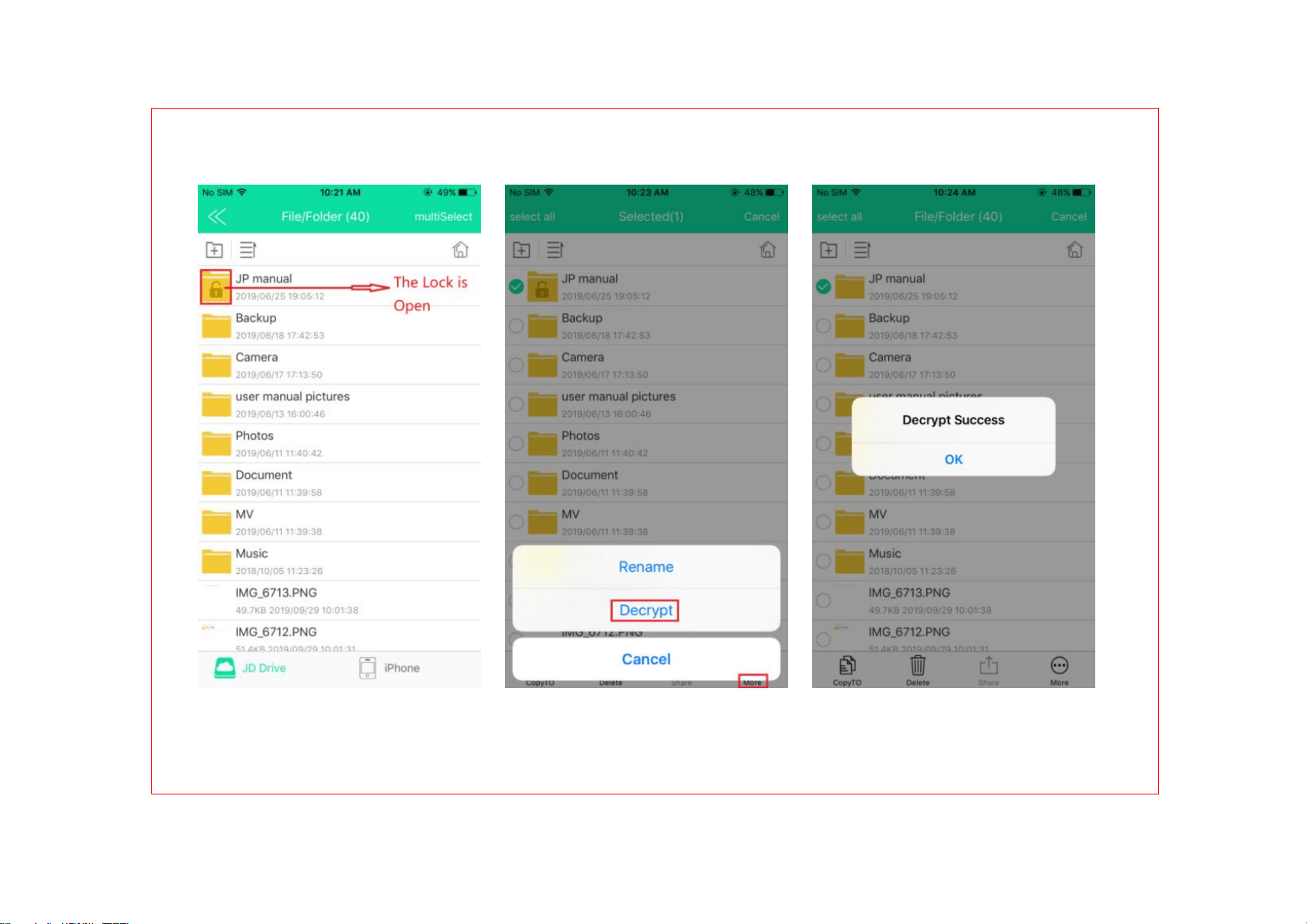
7.3.4 Decrypt the Encrypted File
7.3.4.1 If the Lock is Locked: File/Folder
---> Long press the Encrypted file --->
More ---> Decrypt ---> input password
--->OK ---> there will be message pop-up
to show us Decrypt Success ---> OK

7.3.4.2 If the Lock is Open: File/Folder
---> Long press the Encrypted file --->
More ---> Decrypt --->no need to input the
password again.

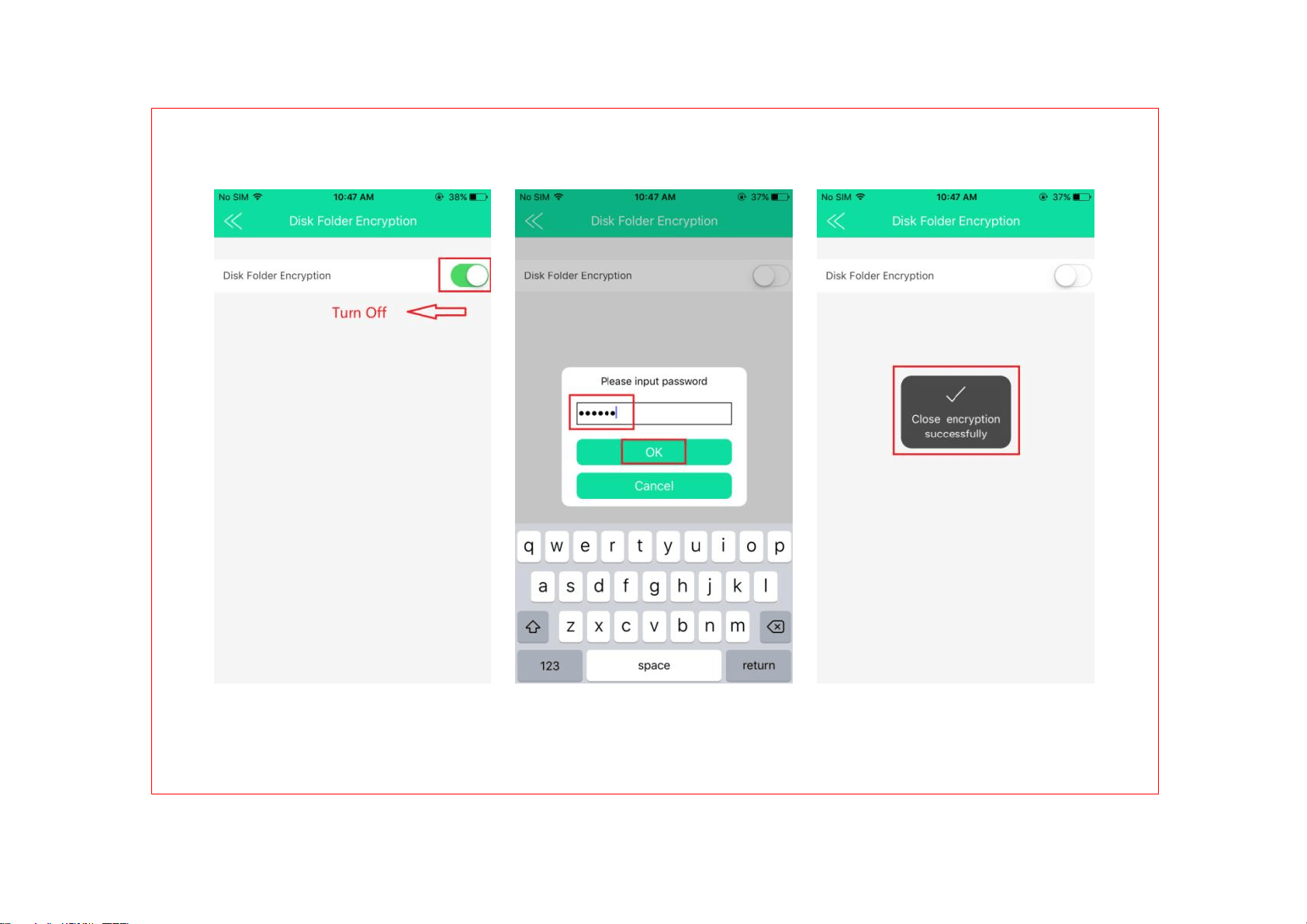
7.3.5 Close the Encryption Function
Settings ---> Disk Folder Encryption --->
Turn Off the Disk Folder Encryption --->
Input the Password ---> Close Encryption
Successfully

Note: The Password used in this JD
Drive is Unified and Only, so please
remember this Password, there is no way
to reset the Encrypted File if we forgot the
password due to safety consideration.
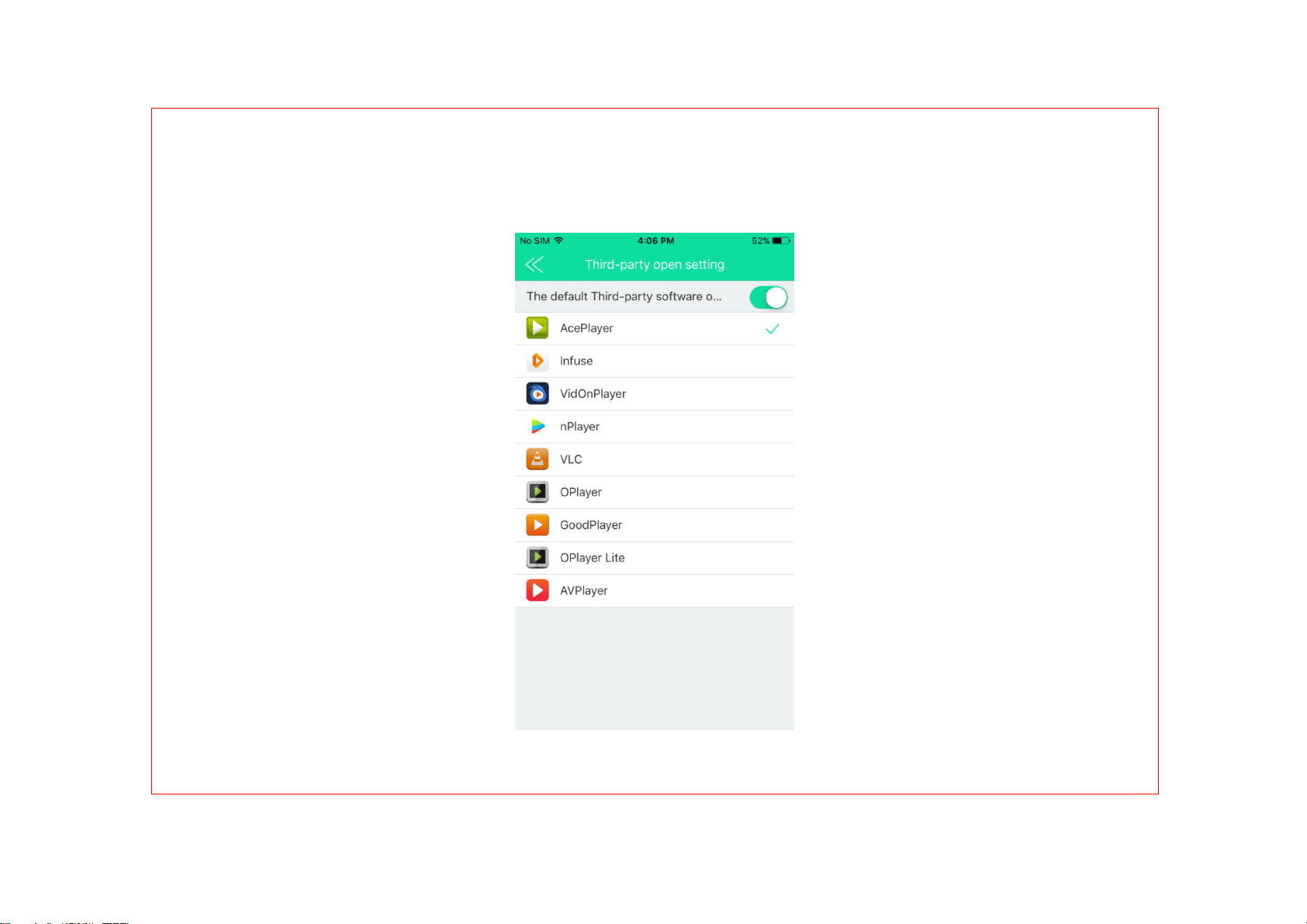
7.4 Third-party open setting
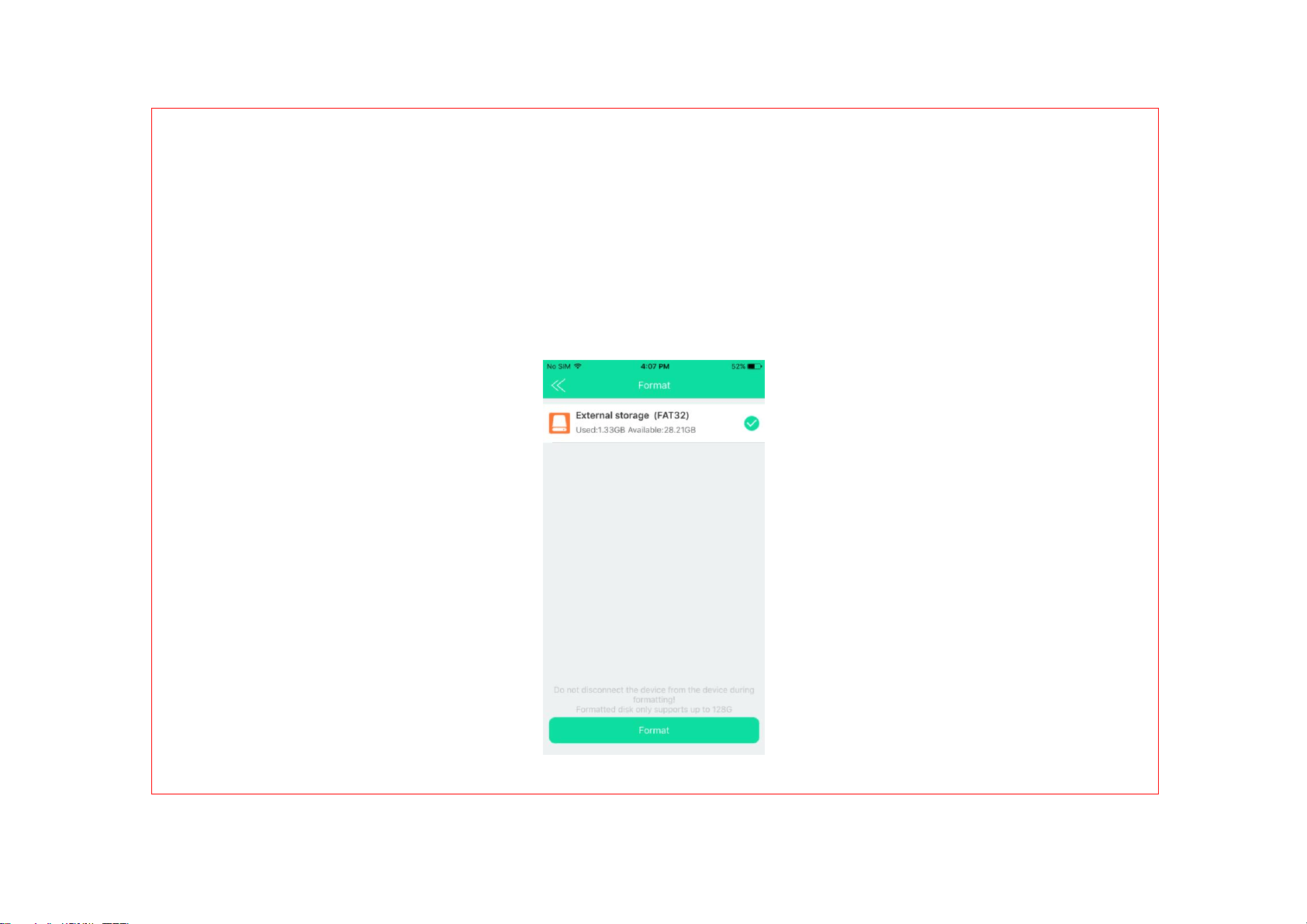
7.5 Format USB flash drive
We can format the external storage
device if necessary.
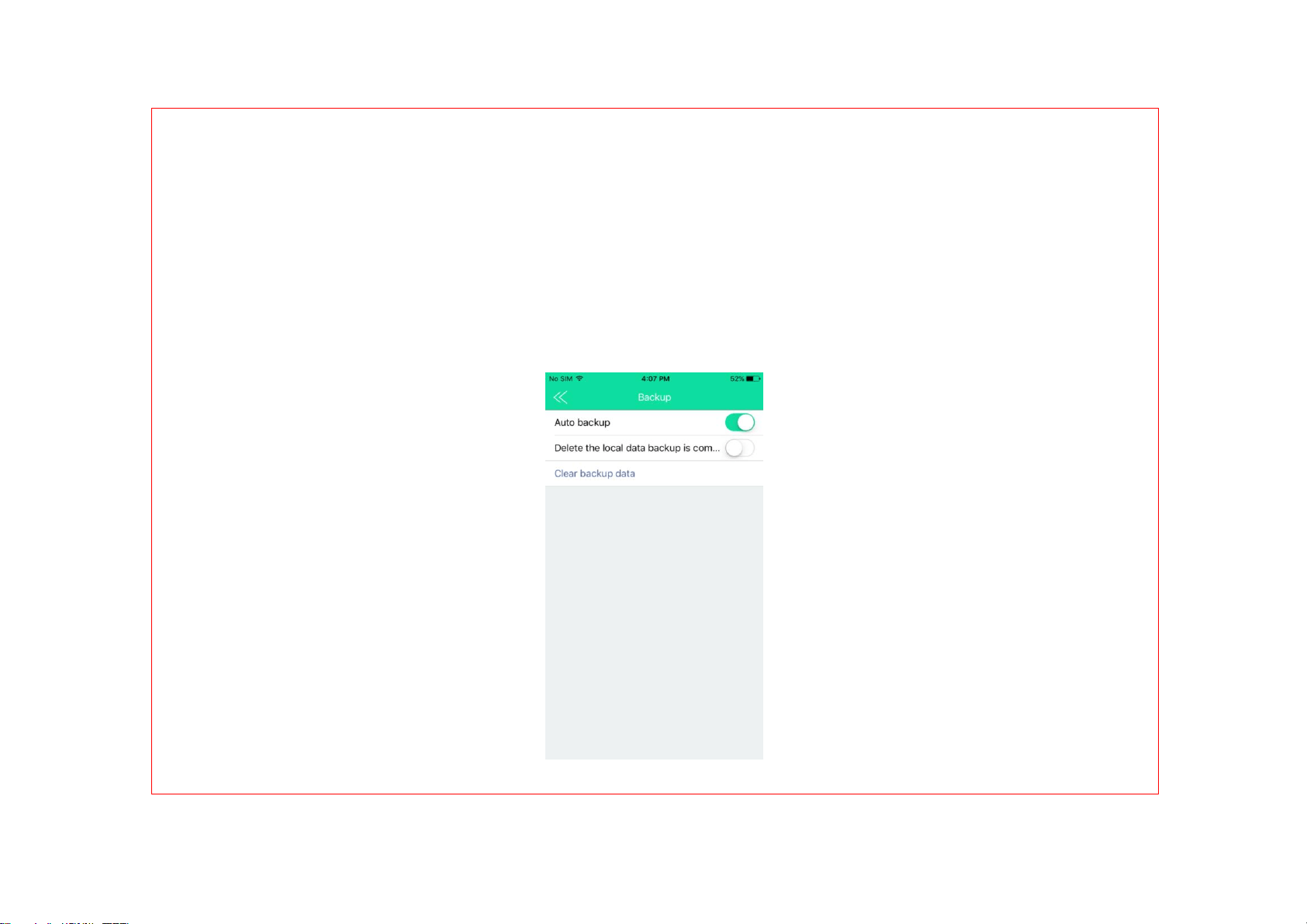
7.6 Backup
7.6.1 Click Backup ---> Turn on the Auto
backup

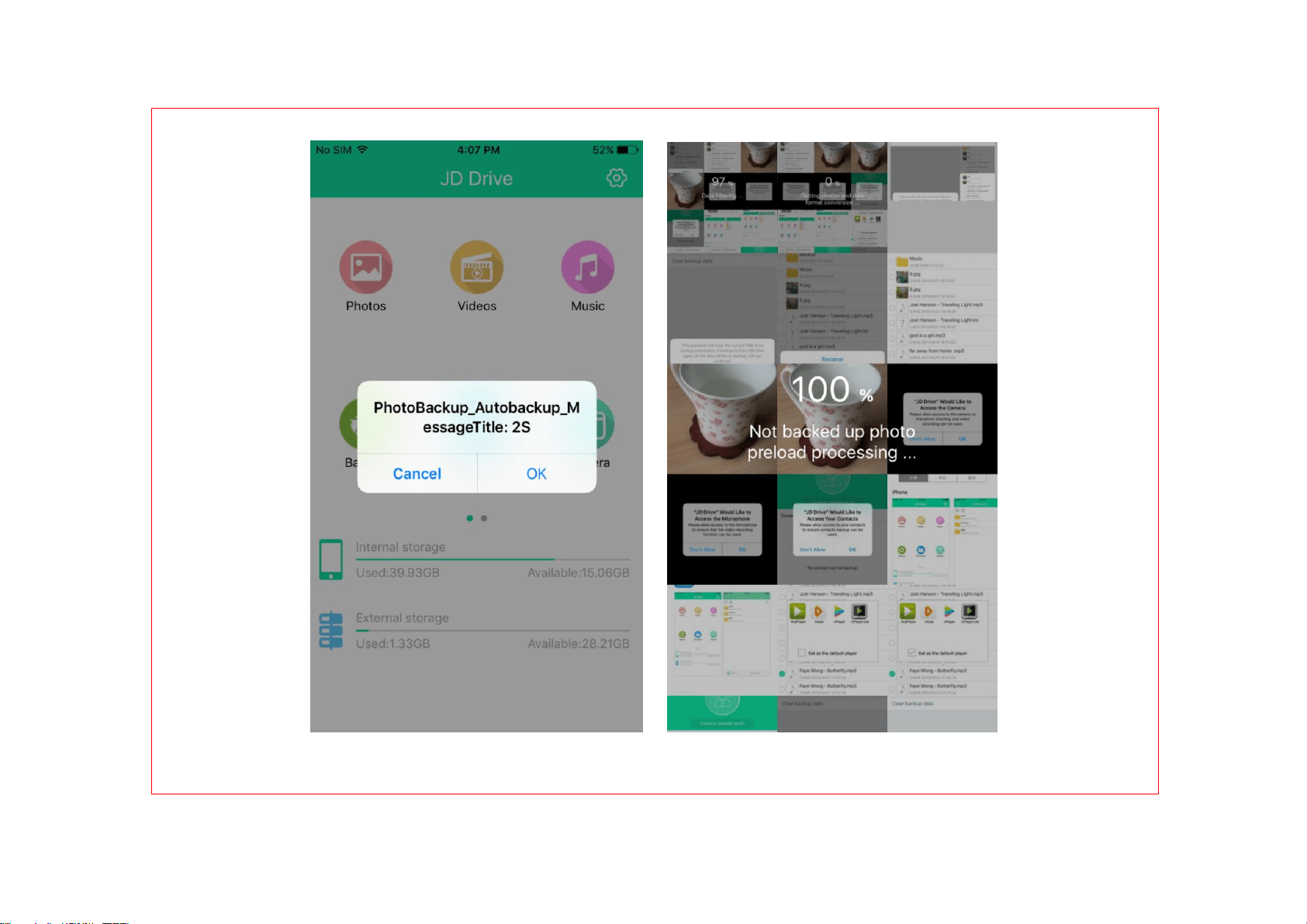
7.6.2 Exit the App, pop-up Auto
backup prompt when enter into the app
again, click OK to start auto backup, click
Cancel to close.
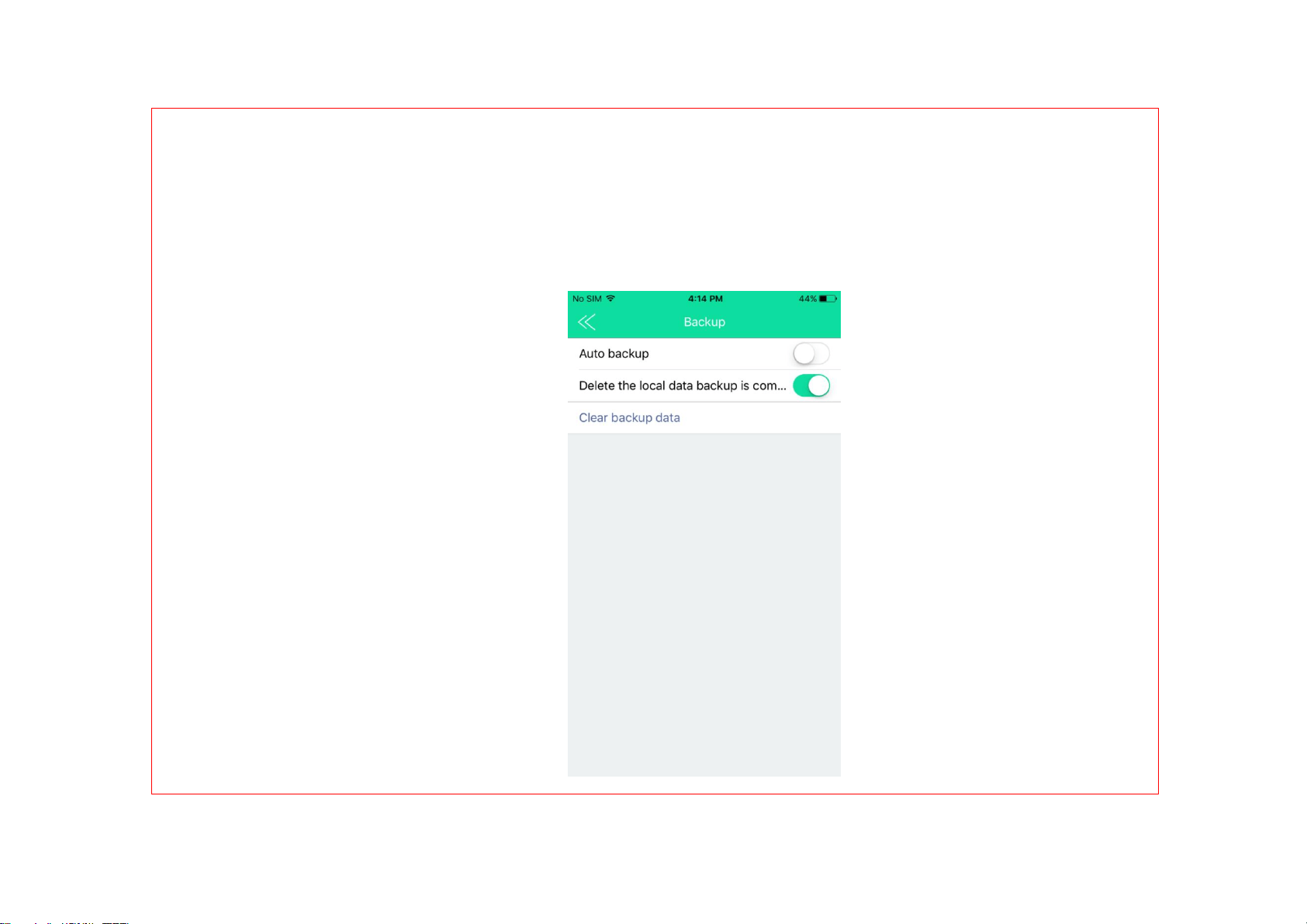
7.6.3 Delete the local data when
backup is completed
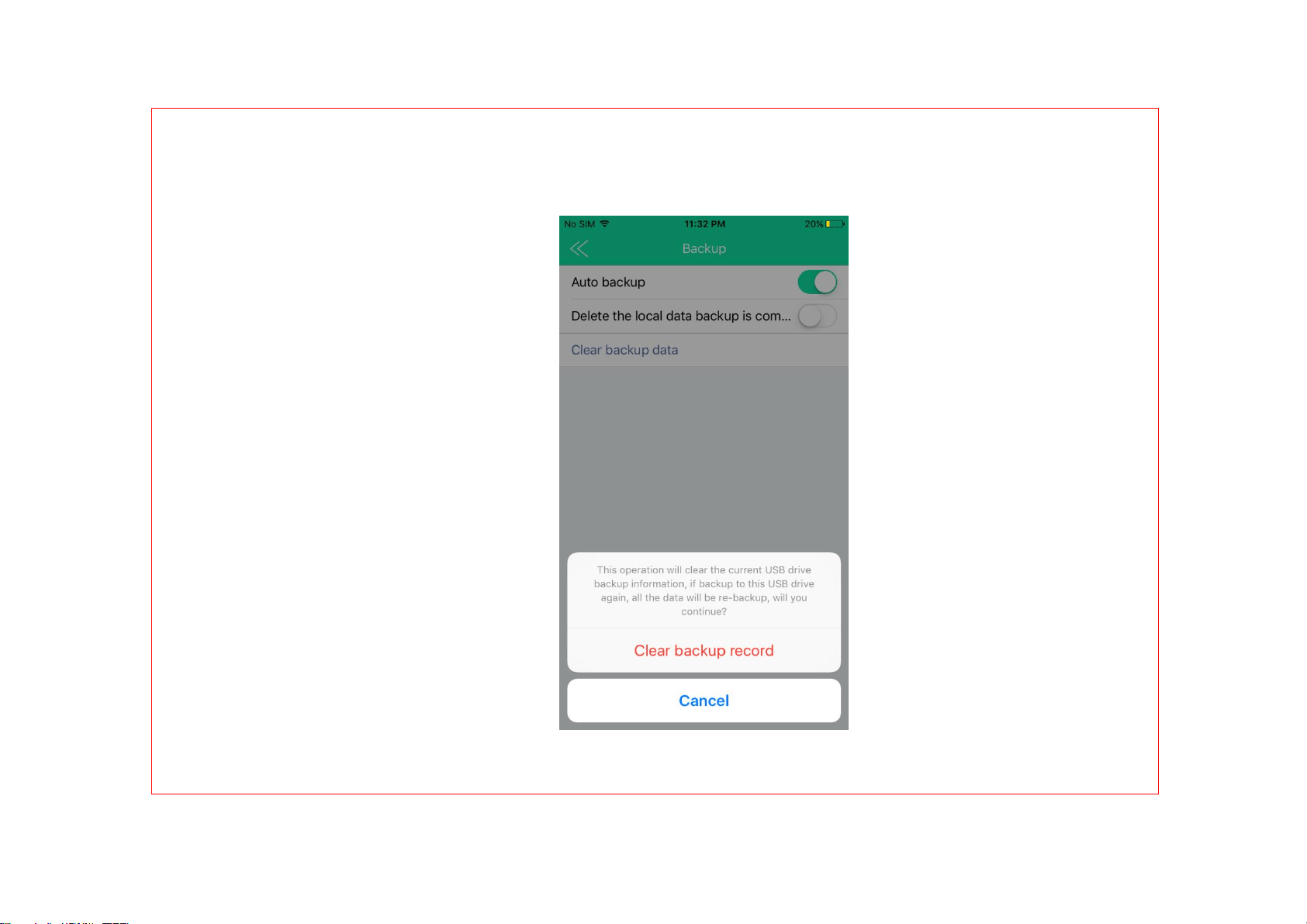
7.6.4 Clear backup data
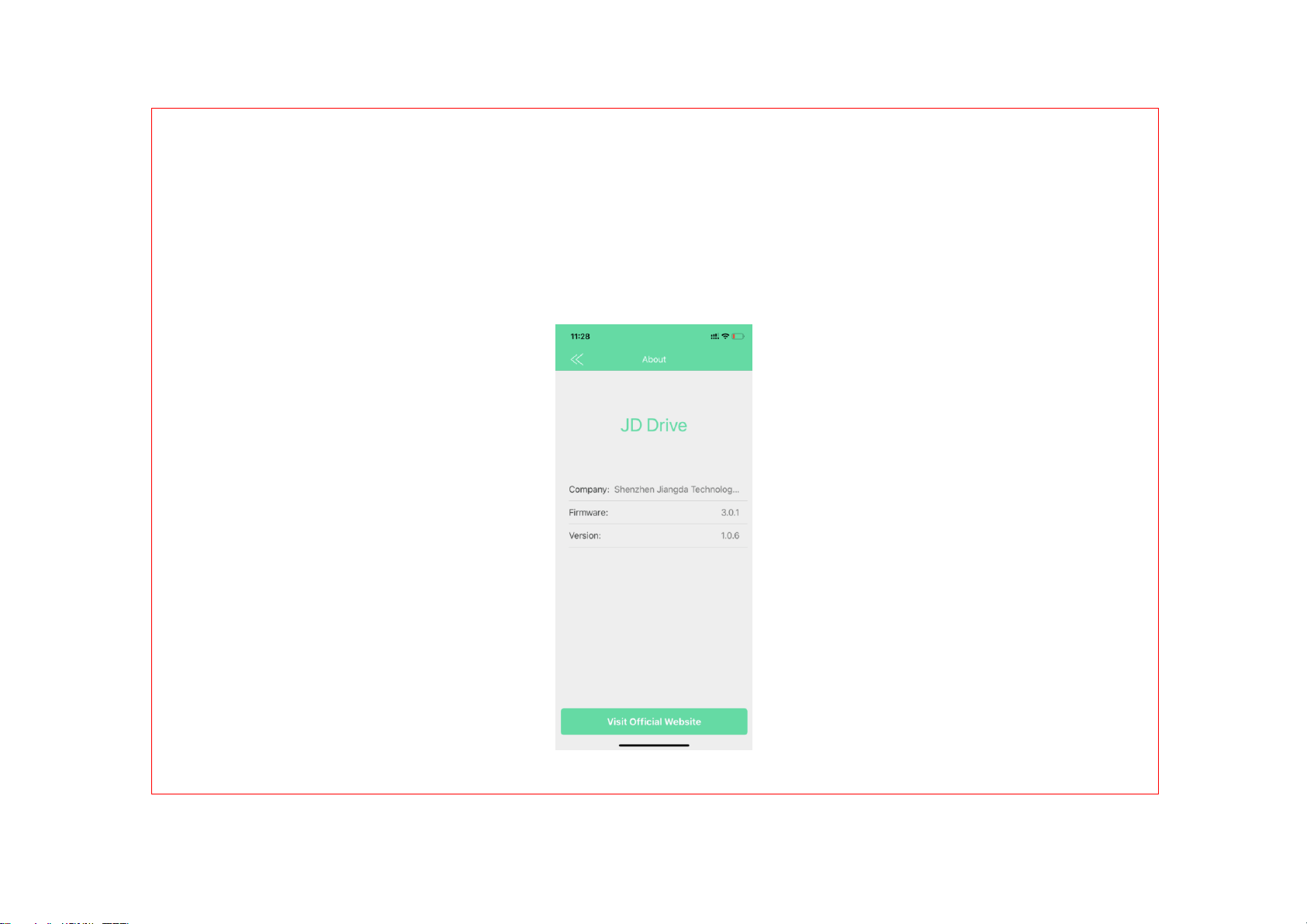
7.7 About (the APP version keeps
upgrading)

8 FAQ & Notes
Q1.Do I need to take the protective case off
when using it?
A: Normally, no need, the lightning connector of
this unit has extended 2mm from the body. So it
will be compatible with most of iOS device with
case. Sometimes, better to take the thick phone
case off if necessary, such as Otter box case.

Q2: Does it have transfer limitation at one
time?
A: No, there isn’t transfer amounts limit. But
decided by the capacity of our flash drive and
the rest available space of apple device. We
tested transfer 10000+ picture and video files
from iPhone to flash drive one time. It works
without any problem.

Q3: Only few pictures show up on the drive
as available from my iPhone?
A: One situation is the iCloud have a new
feature called "Optimize iPhone Storage", if we
selected it, full-resolution photos and videos are
automatically replaced with optimized versions.
And all of our photos have been uploaded in
iCloud and none of recognizable photo stored
in our iPhone storage, so the app “ JD Drive

“cannot find all photos in our iPhone. We could
try to connect our phone to PC, make sure
whether there are any photos in our iPhone or
not. And we suggest that select "Download and
keep originals". Because "Optimize iPhone
Storage" would waste our time to download the
full-resolution photos each time when we want
to see our photo. After changing the settings
from "Optimize iPhone Storage" to 'Download &

keep original photo', the photos already saved
in iCloud will stay the same, we have to log in at
iCloud.com with our apple ID to transfer the
photos to our PC, further to our flash drive. But
the photos we take after the setting can be
move to the drive directly.
Q4: Why can’t my device read the USB drive
when it’s plugged in?
A: 1) If we are using it on our iPhone/iPad, we

need to install the “JD Drive” app on our device
before using the USB drive.
2) If we are using it on our computer
(Windows/Mac), it does not need app installed.
This iPhone USB flash drive works as regular
USB flash drive.
Q5: Can I use the JD flash drive for
installing APPs or save my game data?
A: No, it does not support. Apple devices do not

permit any external drive to install Apps or save
data.
Q6: Can I use this JD flash drive without JD
Drive App on my iOS 13 devices?
A: No, when this JD flash drive is connected
directly with iOS devices, need to follow Apple
MFi Protocol, Apple certified APP is necessary
to visit iOS devices.The program certifications
between MFi products and normal OTG are

different. Apple doesn't allow the compatibility
between them. And the function of App is
stronger than the Apple's own file transfer
function, we think it is more valuable to users.
Q7: When I insert this JD flash drive into an
iOS 13 device, can I transfer files between
File and this JD flash drive?
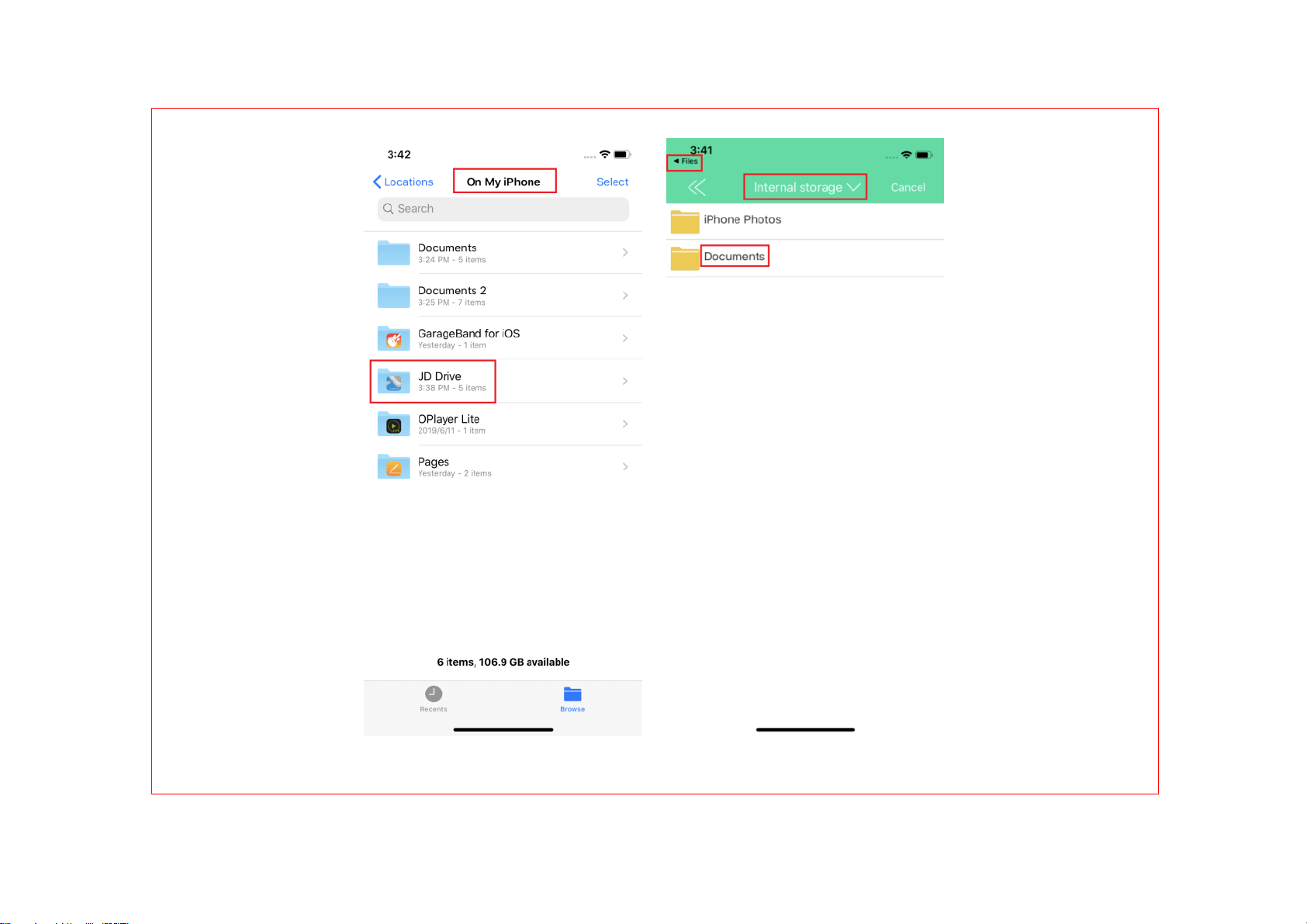
A: Yes, we can transfer files between File and
JD flash drive. After installing the JD Drive App

into iOS 13 devices, there is JD Drive under
File (File --- Browse --- On My iPhone), and in
the JD Drive App, there is iPhone Photos and
Documents under Internal Storage. File and JD
Drive are interlinked. Please contact
dorali[email protected] about the detailed
operation.

Q8: I have thousands of photos stored in the
JD Drive and in my iPhone, but it only
shows 499 pcs in the JD Drive and 1000 pcs
in the iPhone from the JD Drive APP. Why
doesn't the APP show the whole result?
A: In order to display better and not take up too
much memory, we set up an internal storage
one-time display 1000 pcs, external one-time
display 499 pcs, only when we slide to the

lowest end, it will be displayed again in
multiples.
We suggest to use the One-Click Backup
function if there are lots of pictures need to
transfer. All the photos would be shown once
Backup finished.
Q9: When we transfer photos or videos, we
choose MultiSelect ---Select all --- Copy To,
but the Selected quantity is 499 for JD Drive

and 1000 for iPhone, only partial photos and
videos are transferred.
A: In order to display better and not take up too
much memory, we set up an internal storage
one-time display 1000 pcs, external one-time
display 499 pcs. When we do transfer or
deletion, only for the displayed items. The
photos or videos not displayed would not be
processed. We suggest to use the One-Click

Backup function if there are lots of pictures
need to transfer. All the photos would be shown
once Backup finished.
Q10: When I am going to save my pictures
from my iPhone 8 to this JD Drive, I got
Error message that says the file has failed.
Can you tell me what I am doing wrong and
how to solve the issue?
A: iPhone 8, iPhone 8 Plus and iPhone X made

in 2017 has bigger power consumption and
working current, but our MFi products have
strict requirement for operating current. It is
required that once the operating current of the
8/8plus/X model is exceeded, the software will
stop working to protect the iPhone device. In
this case, please contact us for further solution.
Note: there may be some difference
among different iOS versions, for any


NOTES:
(1) We are not allowed to transfer
downloaded media files(music, movies)
from third party in our iPhone/iPad to the
FLASH DRIVE. As they are DRM (Digital
Rights Management) protected under
iOS. However, we can download music
and movies to computer first, and transfer
them to flash drive, then play on our

apple devices when this flash drive
connected.
(2) If we find only partial pictures(not all
of them) can be transferred, that is
because we used ‘iCloud’ for storing
pictures, and this part of pictures cannot
be recognized by JD Drive app. In order
to successfully back up all the pictures
taken by our iPhone/iPad to flash drive.

Please refer the ‘FAQ’ part at the end of
this manual.
(3) It’s normal that flash drive shows
less capacity on PC and our devices than
it states. Because flash industry uses
different measuring sizes from PC
industry. We can know better from
Wikipedia by search 'Gigabyte'.
(4) Please understand that this

Apple MFi certified iPhone flash drive is
main designed for iPhone and iPad, we
need to install JD Drive app before using
it on iPhone or iPad, and we can backup
by one click or automatically, it also has
sort photos, and other strong and
convenient functions. But for computers
( no matter Windows computer,
or Apple computer, since they have USB

port, they would be supported), no need
to install any app, it doesn’t have the one
click backup function, it only works as
normal USB flash drive, that means if we
want to back up or transfer photos from
computer, we need to do it manually.

9 Warranty & Contact US
9.1 Warranty
All of our Jiangda Products are
covered by a 18 months Limited warranty
from the date of its original purchase. If
any questions, please contact our
after-sales support team, who are 24H
online for you.


Scan to download the APP