GB
FR
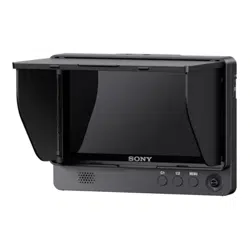
CLM-V55
4-279-123-13(1)
Clip-on LCD
Monitor
Moniteur LCD avec
attache clip
Operating Instructions
Mode d’emploi
2-GB
Before operating the product, please read this manual thoroughly and retain it for
future reference.
WARNING
To reduce fire or shock hazard, do not expose the unit to
rain or moisture.
CAUTION
Replace the battery with the specified type only. Otherwise, fire or injury may
result.
Do not expose the batteries to excessive heat such as sunshine, fire or the like.
Excessive sound pressure from earphones and headphones can cause hearing loss.
3-GB
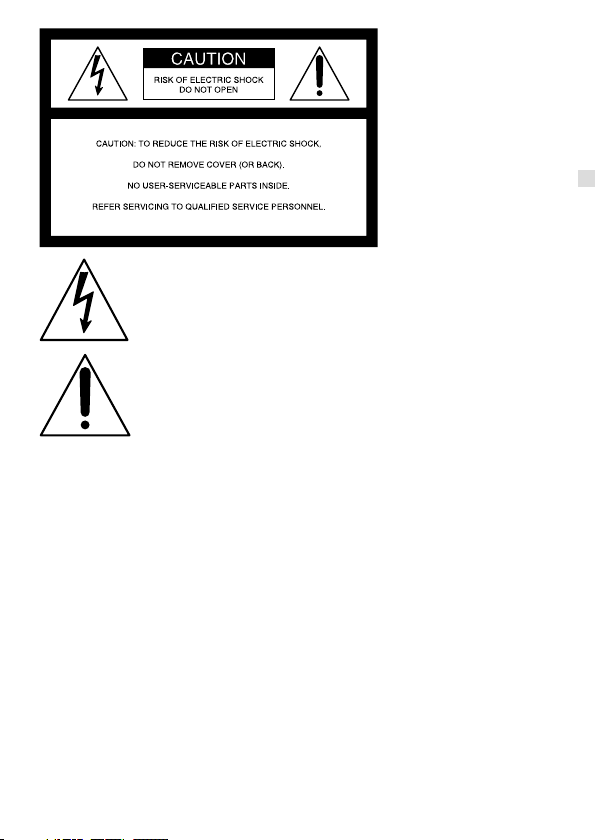
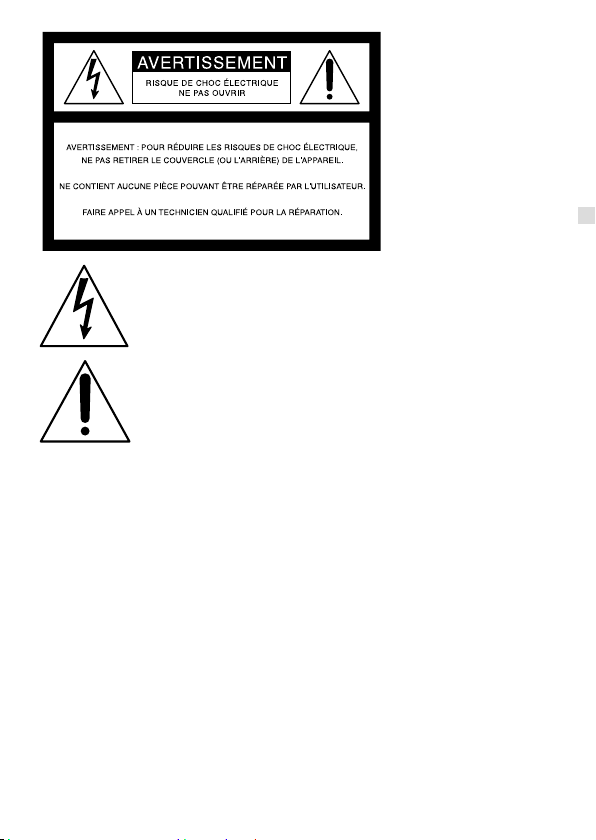
This symbol is intended to alert the user to the presence of
uninsulated “dangerous voltage” within the product’s enclosure
that may be of sufficient magnitude to constitute a risk of electric
shock to persons.
This symbol is intended to alert the user to the presence of
important operating and maintenance (servicing) instructions in
the literature accompanying the appliance.
4-GB
IMPORTANT SAFETY
INSTRUCTIONS
Read these instructions.
Keep these instructions.
Heed all warnings.
Follow all instructions.
Do not use this apparatus near water.
Clean only with dry cloth.
Do not block any ventilation openings. Install in accordance with the
manufacturer’s instructions.
Do not install near any heat sources such as radiators, heat registers, stoves, or
other apparatus (including amplifiers) that produce heat.
Do not defeat the safety purpose of the polarized or grounding-type plug. A
polarized plug has two blades with one wider than the other. A grounding type
plug has two blades and a third grounding prong. The wide blade or the third
prong are provided for your safety. If the provided plug does not fit into your
outlet, consult an electrician for replacement of the obsolete outlet.
Protect the power cord from being walked on or pinched particularly at plugs,
convenience receptacles, and the point where they exit from the apparatus.
Only use attachments/accessories specified by the manufacturer.
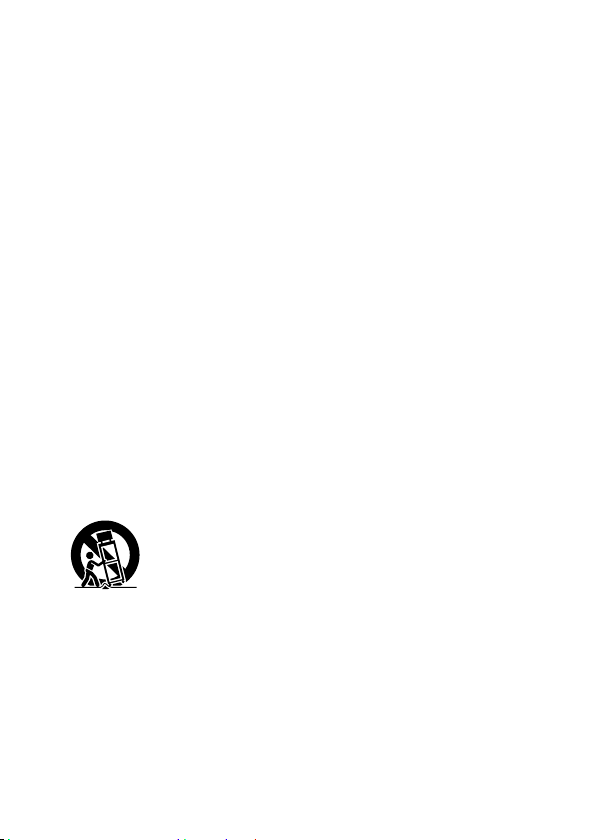
Use only with the cart, stand, tripod, bracket, or table specified by the
manufacturer, or sold with the apparatus. When a cart is used, use caution when
moving the cart/apparatus combination to avoid injury from tip-over.
Unplug this apparatus during lightning storms or when unused for long periods
of time.
Refer all servicing to qualified service personnel. Servicing is required when the
apparatus has been damaged in any way, such as power-supply cord or plug is
damaged, liquid has been spilled or objects have fallen into the apparatus, the
apparatus has been exposed to rain or moisture, does not operate normally, or
has been dropped.

5-GB
For Customers in the U.S.A.
CAUTION
You are cautioned that any changes or modifications not expressly approved in this
manual could void your authority to operate this equipment.
Note:
This equipment has been tested and found to comply with the limits for a Class
B digital device, pursuant to Part 15 of the FCC Rules. These limits are designed
to provide reasonable protection against harmful interference in a residential
installation. This equipment generates, uses, and can radiate radio frequency
energy and, if not installed and used in accordance with the instructions, may cause
harmful interference to radio communications. However, there is no guarantee that
interference will not occur in a particular installation. If this equipment does cause
harmful interference to radio or television reception, which can be determined
by turning the equipment off and on, the user is encouraged to try to correct the
interference by one or more of the following measures:
Reorient or relocate the receiving antenna.
Increase the separation between the equipment and receiver.
Connect the equipment into an outlet on a circuit different from that to which
the receiver is connected.
Consult the dealer or an experienced radio/TV technician for help.
6-GB
For Customers in Europe
This product has been tested and found compliant with the limits sets out in the
EMC regulation for using connection cables shorter than 3 meters (9.8 feet).
Notice for the customers in the countries applying EU
Directives
The manufacturer of this product is Sony Corporation, 1-7-1 Konan Minato-ku
Tokyo, 108-0075 Japan.
The Authorized Representative for EMC and product safety is Sony Deutschland
GmbH, Hedelfinger Strasse 61, 70327 Stuttgart, Germany. For any service or
guarantee matters please refer to the addresses given in separate service or
guarantee documents.
Disposal of Old Electrical & Electronic Equipment
(Applicable in the European Union and other European
countries with separate collection systems)
This symbol on the product or on its packaging indicates
that this product shall not be treated as household waste.
Instead it shall be handed over to the applicable collection
point for the recycling of electrical and electronic
equipment. By ensuring this product is disposed of correctly,
you will help prevent potential negative consequences for
the environment and human health, which could otherwise
be caused by inappropriate waste handling of this product.
The recycling of materials will help to conserve natural
resources. For more detailed information about recycling
of this product, please contact your local Civic Office, your
household waste disposal service or the shop where you
purchased the product.

7-GB
Table of contents
Precaution
................................................................................................................8
Before use
...............................................................................................................10
Checking the accessories ....................................................................................10
Features
...................................................................................................................11
Identifying the parts
..........................................................................................12
Supplying power
.................................................................................................14
Attaching the battery...........................................................................................14
Connecting to an AC adaptor ............................................................................16
Attaching to the camera
..................................................................................17
Attaching to the camera ......................................................................................17
Adjusting the direction of the screen ................................................................22
Attaching the sun shade hood ...........................................................................23
Using the monitor
..............................................................................................26
Menu and operation ............................................................................................26
Available functions ..............................................................................................28
Troubleshooting
..................................................................................................32
Specifications
........................................................................................................34

8-GB
Precaution
About the battery pack, AC adaptor and charger
A battery pack, AC adaptor and charger are not supplied.
Use a compatible battery pack or AC adaptor (pages 14, 16).
If you do not have a battery pack or AC adaptor, purchase them separately.
Handling the LCD screen
Do not leave the LCD screen facing the sun as it can damage the LCD screen.
Take care when you place the unit by a window.
Do not push or scratch the LCD monitor’s screen. Do not place a heavy object on
the LCD monitor’s screen. This may cause the screen to lose uniformity.
If the unit is used in a cold place, horizontal lines or a residual image may appear
on the screen. This is not a malfunction. When the monitor becomes warm, the
screen returns to normal.
If a fixed picture such as a frame of a divided picture or time code, or a still
picture is displayed for a long time, an image may remain on the screen and be
superimposed as a ghosting image.
The screen and the cabinet become warm during operation. This is not a
malfunction.
The LCD panel fitted to this unit is manufactured with high precision
technology. Thus a very small proportion of pixels may be “stuck”, either always
off (black), always on (red, green, or blue), or flashing. In addition, over a long
period of use, because of the physical characteristics of the liquid crystal display,
such “stuck” pixels may appear spontaneously. These problems are not a
malfunction.

9-GB
On cleaning
Before cleaning
Be sure to remove the battery first.
On cleaning the monitor screen
The monitor screen surface is especially treated to reduce reflection of light.
As incorrect maintenance may impair the performance of the monitor, take care
with respect to the following:
Wipe the screen gently with a soft cloth such as a cleaning cloth or glass cleaning
cloth.
Stubborn stains may be removed with a soft cloth such as a cleaning cloth or
glass cleaning cloth lightly dampened with water.
Never use solvent such as alcohol, benzene or thinner, or acid, alkaline or
abrasive detergent, or chemical cleaning cloth, as they will damage the screen
surface.
On cleaning the cabinet
Clean the cabinet gently with a soft dry cloth. Stubborn stains may be removed
with a cloth lightly dampened with mild detergent solution, followed by wiping
with a soft dry cloth.
Use of alcohol, benzene, thinner or insecticide may damage the finish of the
cabinet or remove the indications on the cabinet. Do not use these chemicals.
If you rub on the cabinet with a stained cloth, the cabinet may be scratched.
If the cabinet is in contact with a rubber or vinyl resin product for a long period
of time, the finish of the cabinet may deteriorate or the coating may come off.
On disposal
Do not dispose of this unit with ordinary garbage. Do not throw the monitor
away with garbage that will be placed in a landfill.
On this unit
The top of this unit and the ventilation holes and metal parts may become hot
after long use. Be very careful if holding this unit during or after use.
Using in an airplane
During take-off and landing, follow the onboard instructions concerning this unit.
10-GB
Before use
Read this instruction manual together with the instruction manual of your camera.
This unit is not dust-proof, splash-proof or waterproof.
Do not place this unit in the following locations
Regardless of whether this unit is in use or in storage, do not place it in any of the
following locations. Doing so may lead to a malfunction.
Placing this unit in locations subject to direct sunlight such as on dashboards or
near a heater may cause this unit to deform or malfunction.
Locations with excessive vibration
Locations with strong electromagnetism
Locations with excessive sand
In locations such as the seashore and other sandy areas or where dust clouds
occur, protect the unit from sand and dust. This may lead to a malfunction.
Checking the accessories
Check that the following accessories are supplied. If anything is missing, contact
your Sony dealer.
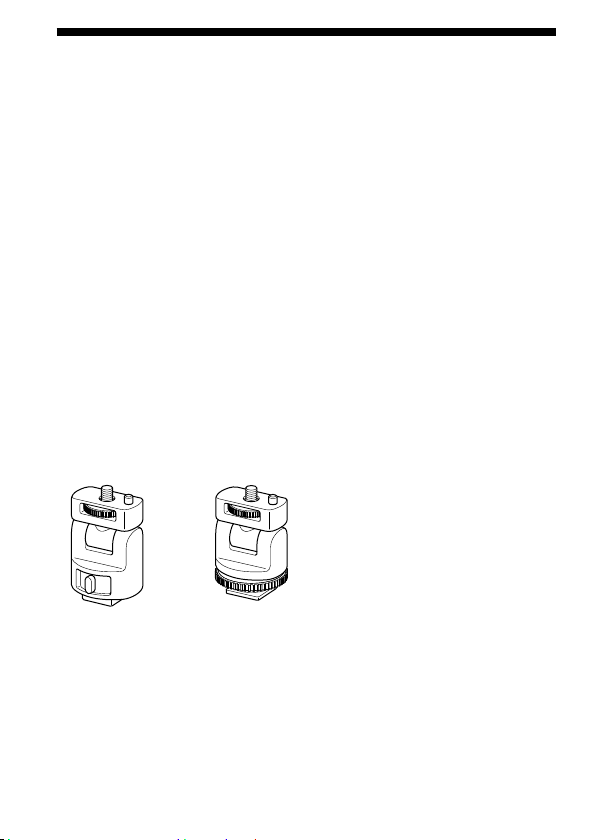
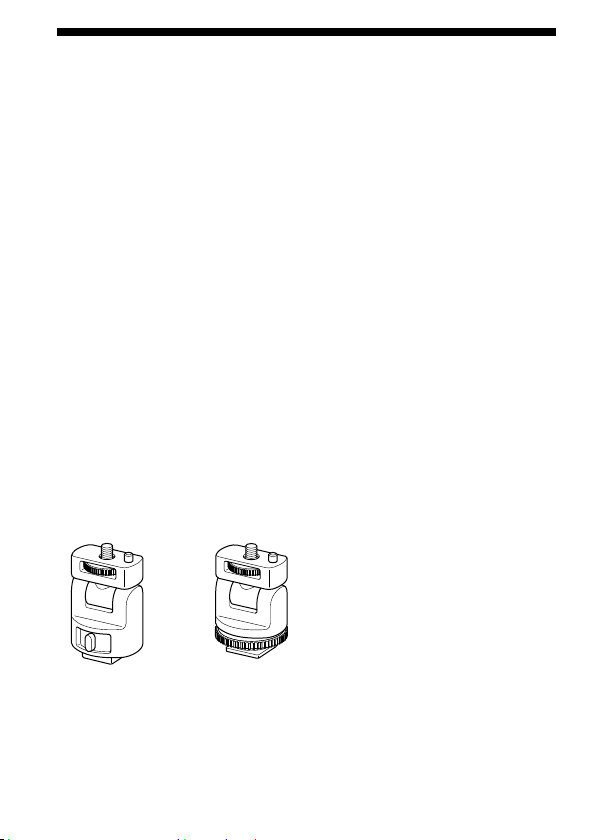
Shoe adaptor (for auto lock accessory shoe and accessory shoe)
11-GB
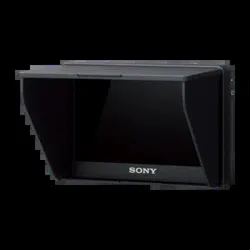
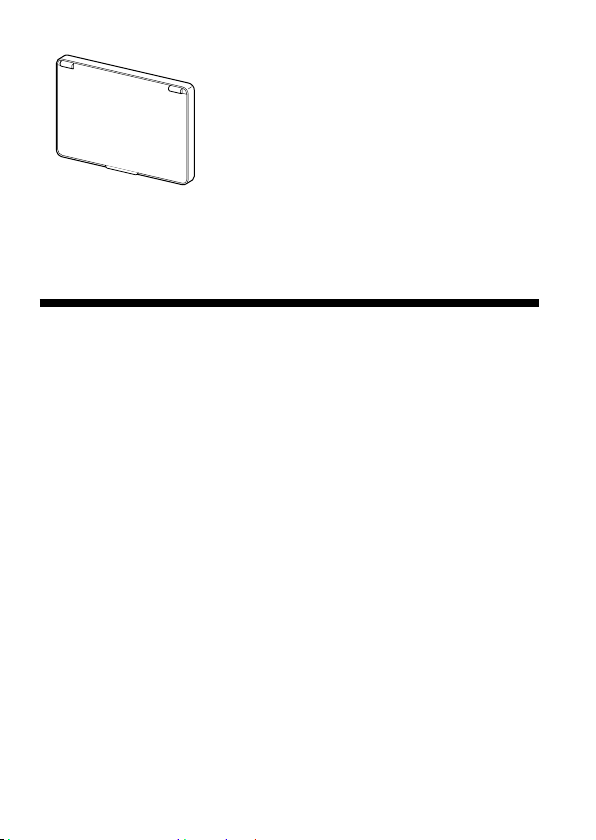
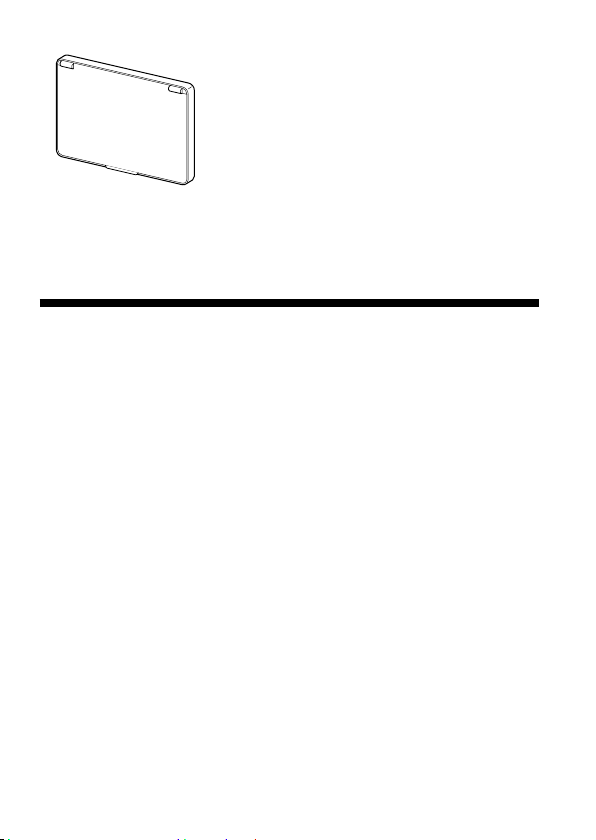
Sun shade hood
HDMI cable (Approx. 45 cm, Type A
Type C)
Carrying pouch
Set of printed documentation
Features
This unit is a portable LCD monitor for use with an Interchangeable Lens Digital
Camera or an Interchangeable Lens Digital HD Video Camera Recorder with an
HDMI terminal and live view mode. It can display HDMI video output from the
camera.
The following functions help you to see the image more clearly and take better
pictures.
Wide viewing angle LCD screen
Useful functions such as peaking and pixel-by-pixel zoom
Moveable shoe adaptor enables easy removal when using a camera that has an
auto lock accessory shoe.

12-GB
Identifying the parts
13-GB
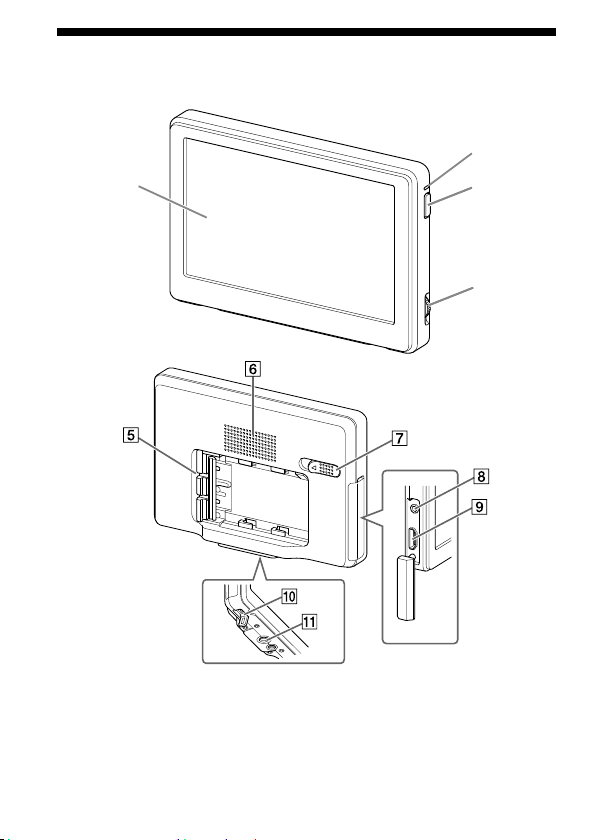
LCD screen
Power lamp
When the power is on, this lamp lights up or blinks depending on the status of
this unit. (Page 15)
Power button
Press and hold down to turn this unit on or off.
Operation dial
Brings up and operates the menu.
Press the dial to the left* Brings up the menu./Executes the selection.
Turn the dial Selects the menu item./Changes the setting
value.
* The function varies depending on the status of this unit.
Battery pack terminal
Speaker
This is a monaural speaker for checking sound.
Battery release lever
Headphone jack
You can connect headphones with a 3.5 mm stereo mini-plug to listen to sound.
No sound comes from the speaker when headphones are connected.
HDMI (Type A) jack
DC IN jack
Tripod receptacle
14-GB
Supplying power
This unit can be powered by a Sony rechargeable battery pack or a Sony AC
adaptor.
Attaching the battery
The following Sony rechargeable battery packs (not supplied) can be used with this
unit. You cannot use other battery packs because this unit will not work properly
with them.
NP-FM500H
NP-QM71D
NP-QM91D
Note
When using the NP-QM71D or NP-QM91D, attach the camera to a tripod
first.
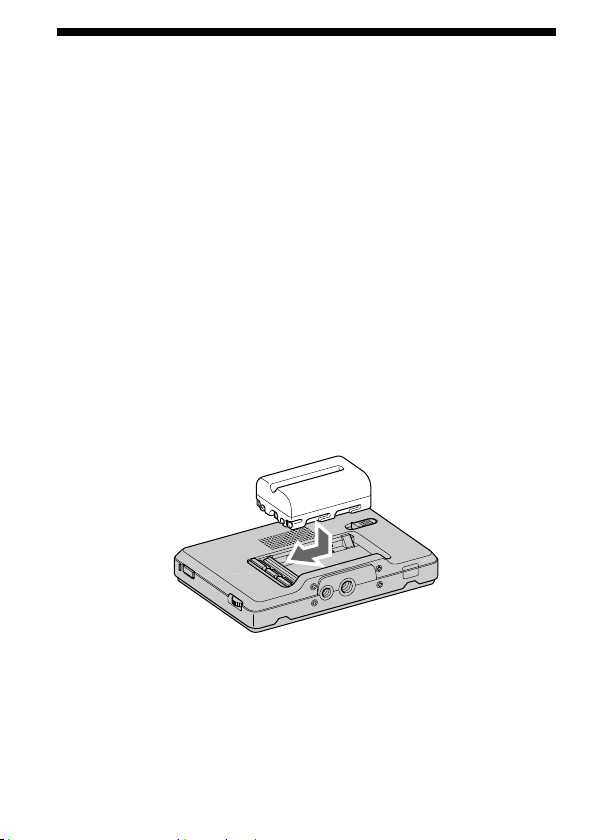
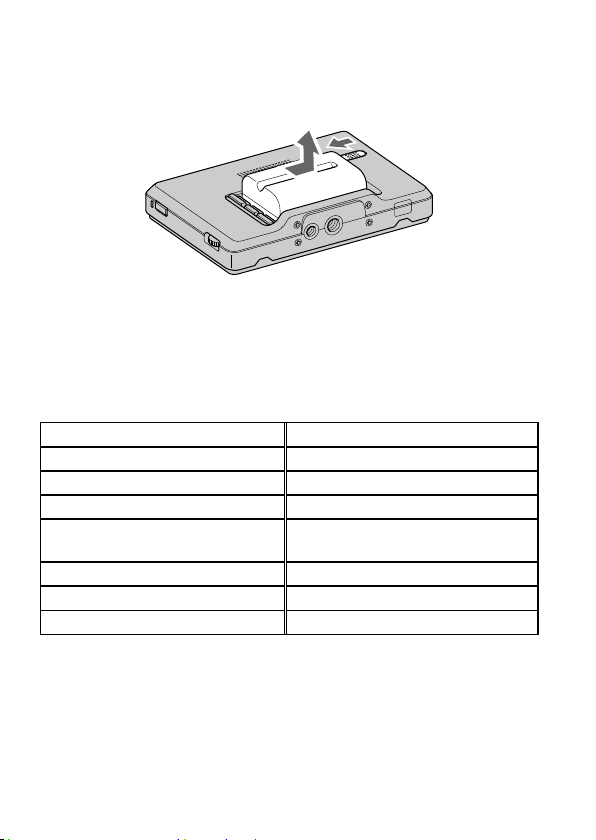
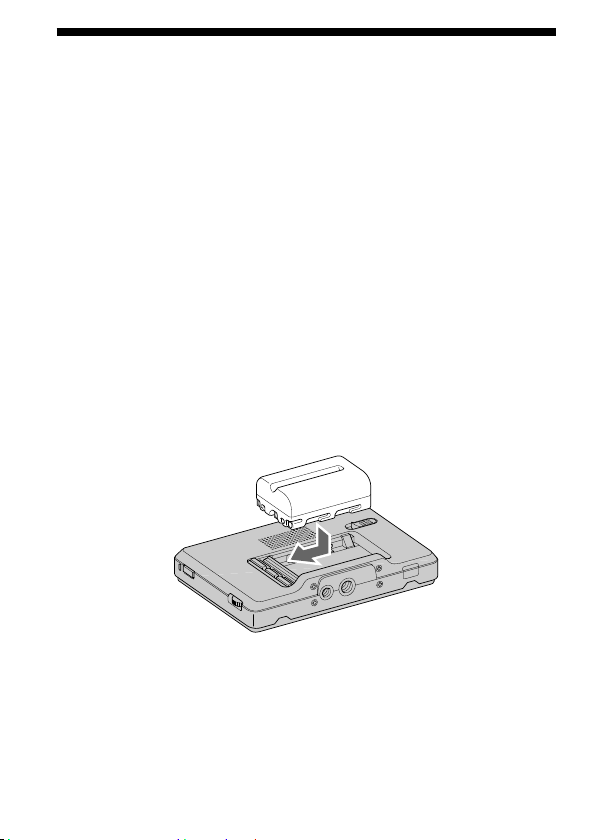
Push the battery in gently in the direction shown, then slide it
to the left while still pushing.
There is a click as the battery is fixed into place.
15-GB
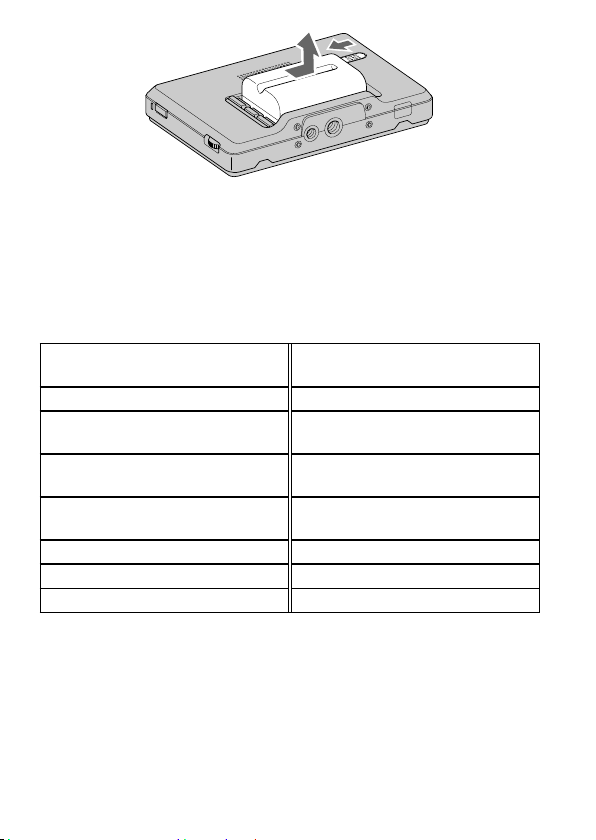
To remove the battery
Slide the battery to the right while sliding the battery release lever to the
left.
The battery pack comes away from this unit.
Note
Be careful not to drop the battery while removing it.
To check the remaining battery power
You can check the remaining battery power with the power lamp. When the lamp
becomes red, replace the battery pack soon with a fully charged battery pack.
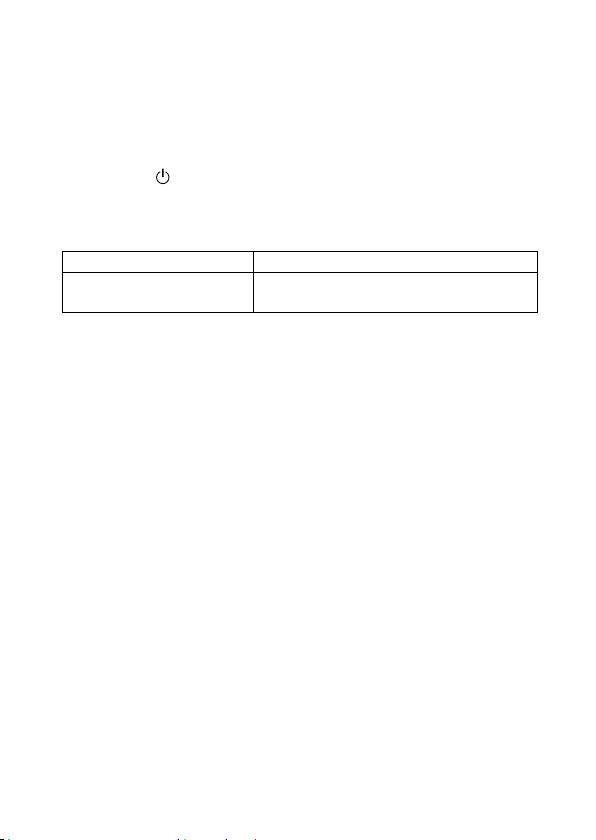
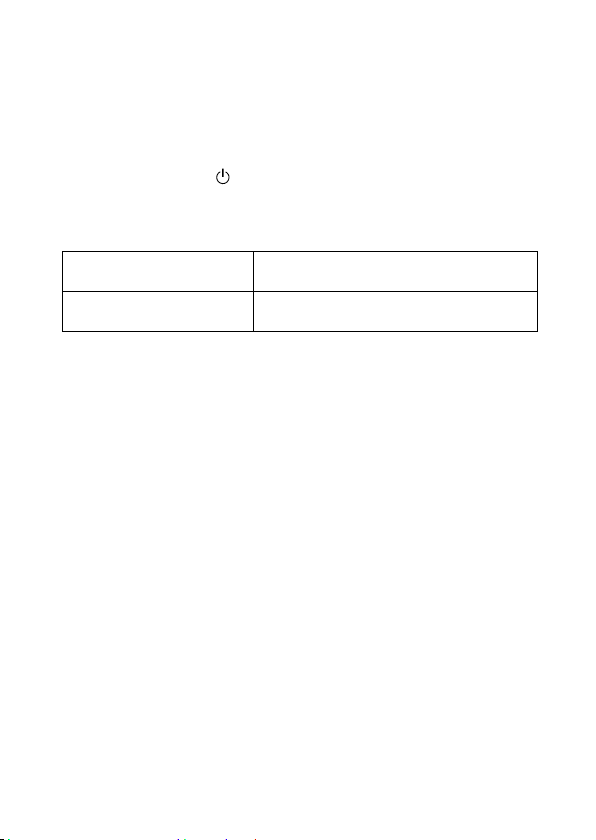
Lighting status of the power lamp Status of this unit
Green (lit) Power is on. (Operated by battery)
Green (flashing slowly) Turning on or off. (Operated by battery)
White (lit) Power is on. (Operated by AC adaptor)
White (flashing slowly) Turning on or off. (Operated by AC
adaptor)
Red (lit) Battery level is low.
Red (flashing rapidly) Batteries have run out.
Off Power is off.
Notes
Do not disconnect or remove the battery or AC adaptor when turning
this unit on or off (the power lamp flashes slowly). This may cause
malfunction.
Just before the battery runs out, the power lamp turns red and flashes
rapidly. The power to this unit automatically turns off about 10 seconds
later.
16-GB
Battery life
(When using this unit continuously at 25°C (77 °F) with a brand-new battery
attached and connecting to the camera via HDMI)
NP-FM500H: Approx. 3 hours
NP-QM71D: Approx. 5 hours
NP-QM91D: Approx. 8 hours
* The battery life may differ from the above depending on operation status and
environmental conditions.
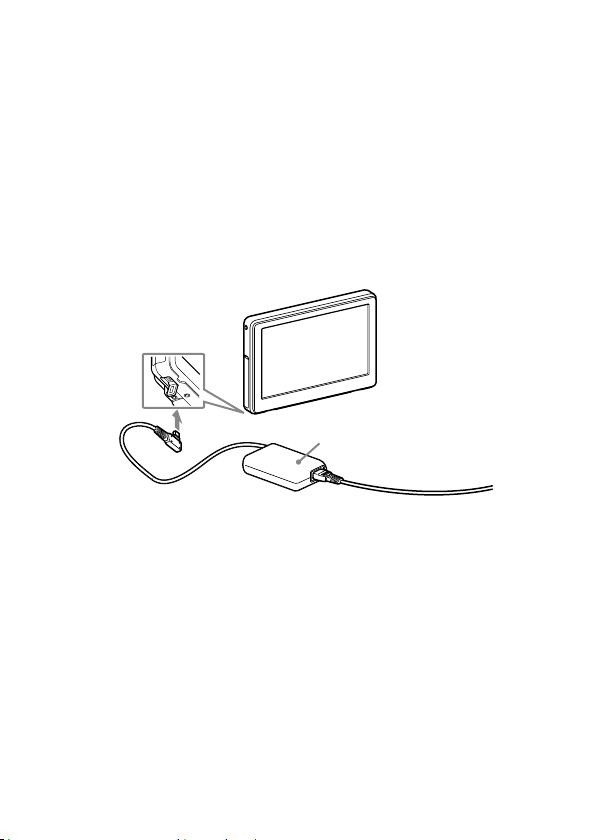
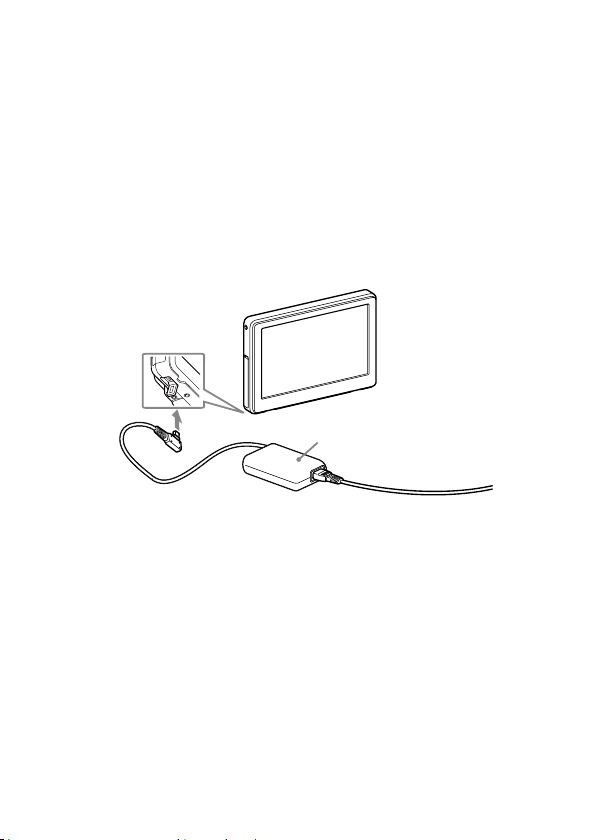
Connecting to an AC adaptor
This unit can be powered from the domestic power supply using a Sony AC adaptor
such as the AC-PW10AM (not supplied).
AC-PW10AM (not supplied)
Notes
A battery pack attached to this unit is not recharged even when an AC
adaptor is connected.
If this unit is connected to an AC adaptor while a battery pack is attached,
the AC adaptor power source takes priority.
17-GB
Attaching to the camera
Attaching to the camera
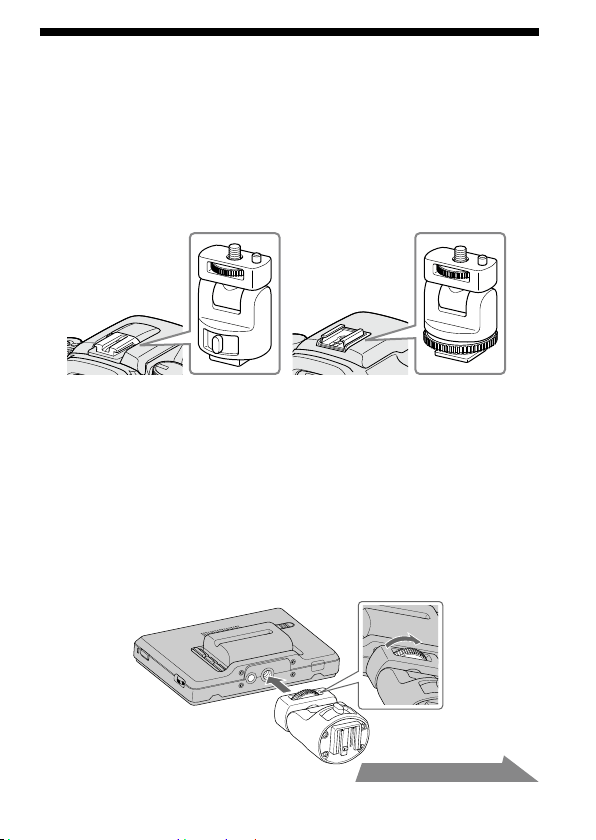
1
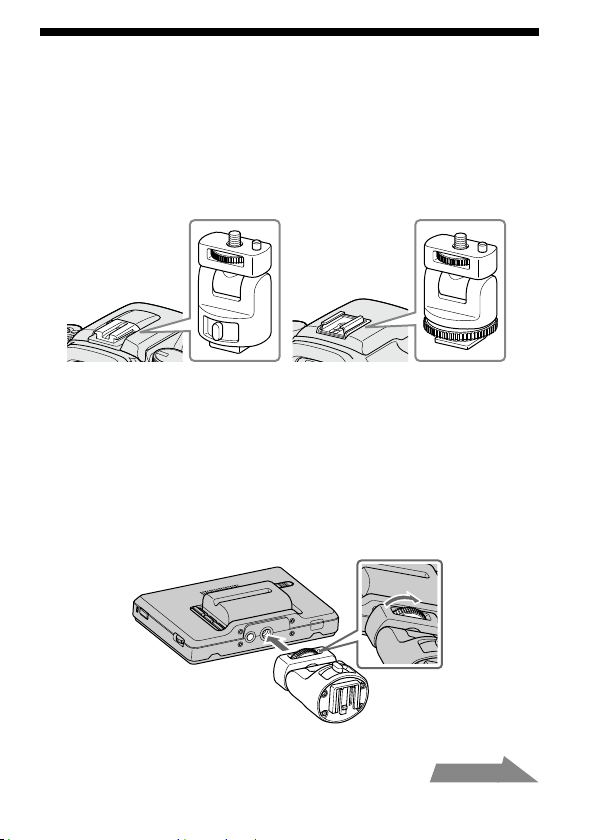
Select one of the provided shoe adaptors according to the
shape of the accessory shoe on the camera.
Auto lock
accessory shoe:
Accessory
shoe:
Note
Do not attach a shoe adaptor except for this unit.
2
Insert the tripod screw of the shoe adaptor into the tripod
receptacle on the bottom of this unit.
3
Turn the shoe adaptor dial to lock.
continued
18-GB
4
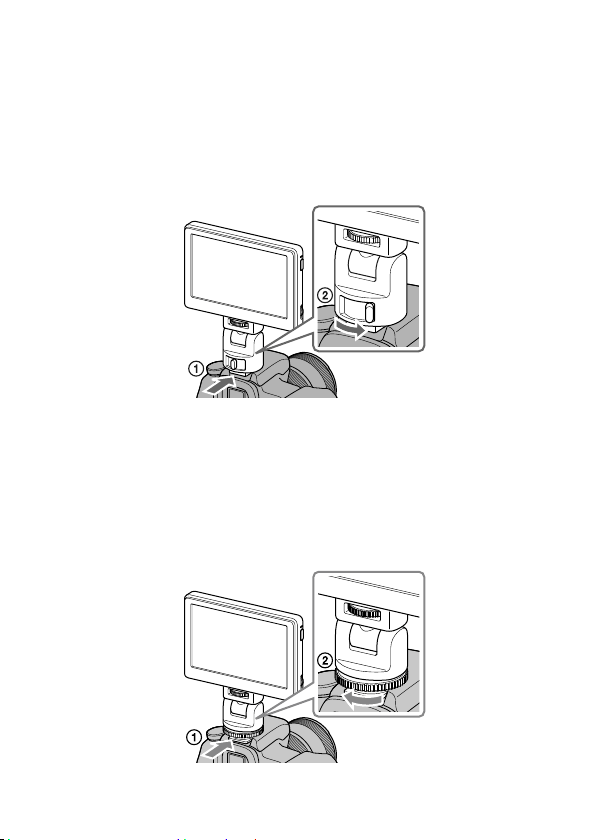
Attach (clip) the correct type of shoe adaptor onto the
camera shoe, as illustrated.
If using auto lock accessory shoe:
Insert the foot of the shoe adaptor fully into the auto lock accessory shoe in
the direction illustrated.
Push the lock lever of the shoe adaptor down to the right to fix it firmly to
the camera.
Note
Insert the shoe adaptor fully until it clicks into place.
If using accessory shoe:
Insert the foot of the shoe adaptor fully into the accessory shoe in the
direction illustrated.
Rotate the dial of the shoe adaptor fully to the left to fix it firmly to the
camera.
19-GB
Note
When attaching to a camera that has an accessory shoe, read the
instruction manual of the camera too.
Notes
If using a camera equipped with a pop-up built-in flash, be careful of the
following:
Always close the built-in flash of the camera. If your camera has a built-in auto
flash function, turn that function off.
Before using the flash, remove this unit from the camera.
Make sure this unit is firmly fixed to the camera before use to prevent
this unit from falling during shooting.
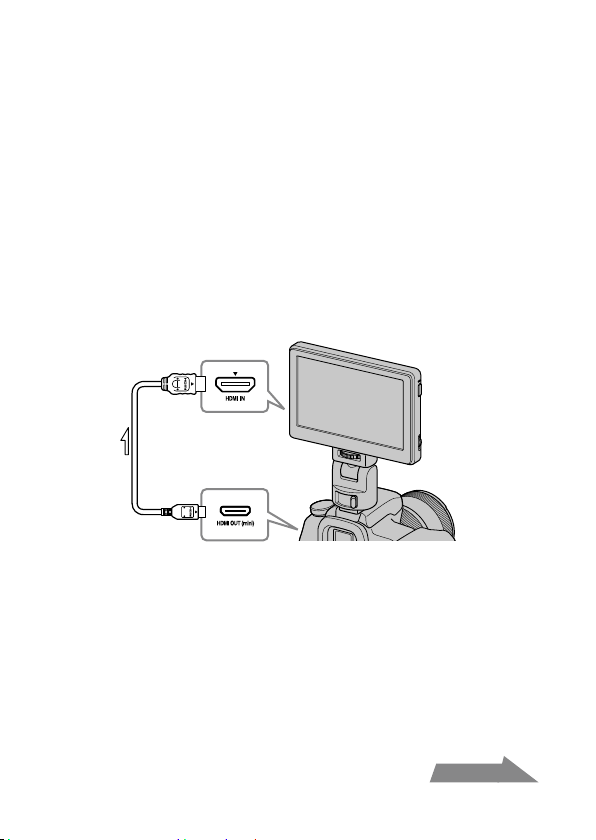
5
Connect this unit to the camera with the HDMI cable
supplied.
Tip
If the cable is not long enough, use a Sony HDMI cable Type A-TypeC (not
supplied).
6
Turn on the power to the camera and this unit.
Press and hold down the power button to turn this unit on.
The viewfinder image of the camera is displayed on the LCD screen of this
unit. If your camera has an HDMI output setting function, set it to AUTO or
16:9.
continued
20-GB
Note
When this unit is connected to the camera by the HDMI cable, the following
may happen depending on the camera.
No image appears on the camera’s LCD screen.
The camera switches to playback mode. (Make sure the camera is in shooting
mode before taking pictures.)
Tip
After a certain time in either of the following conditions, the backlight of this
unit turns off.
No HDMI signal is output from the camera
The HDMI cable is disconnected
Carrying out the following turns the backlight on again.
Press the operation dial of this unit.
Operate the camera so that an HDMI signal is output.
Reconnect the HDMI cable and turn the camera on.
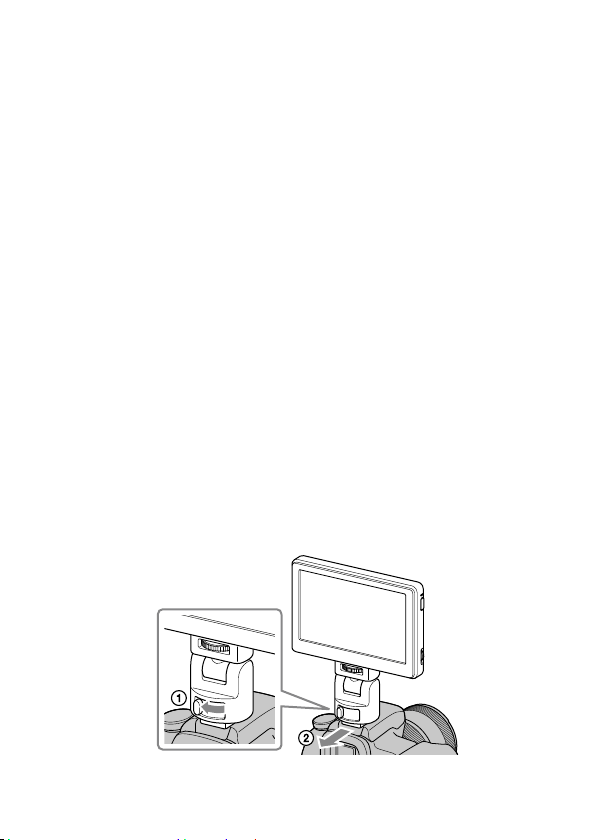
To remove from the camera
Disconnect the HDMI cable and remove this unit as below.
Note
When removing, be careful not to drop this unit or the camera. It is
recommended that you attach the camera to a tripod before removing
this unit.
When using an auto lock accessory shoe:
Push the lock lever of the shoe adaptor down to the left to release the lock.
Keeping the lock lever pressed to the left, slide the shoe adaptor toward you.
21-GB
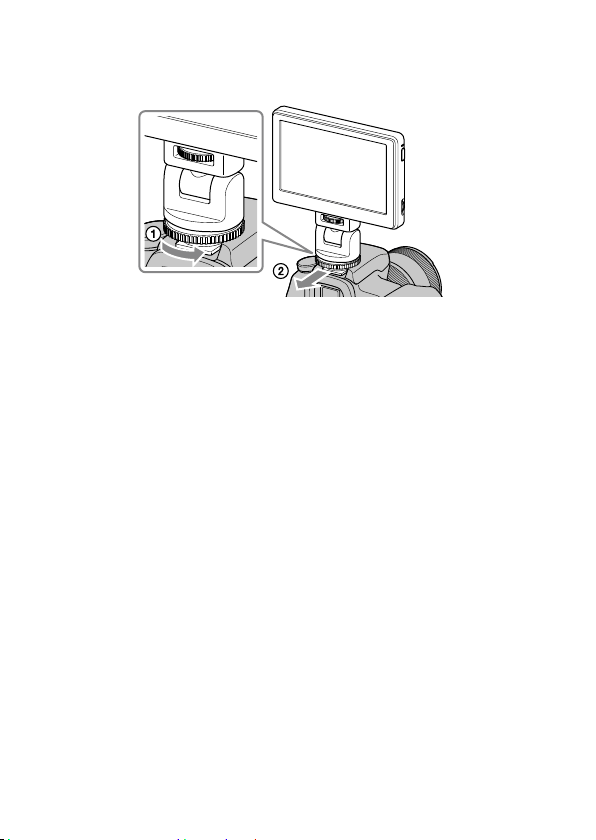
If using accessory shoe:
Rotate the dial of the shoe adaptor to the right to release the lock.
Check that the lock is released before sliding the shoe adaptor toward you.
22-GB
Adjusting the direction of the screen
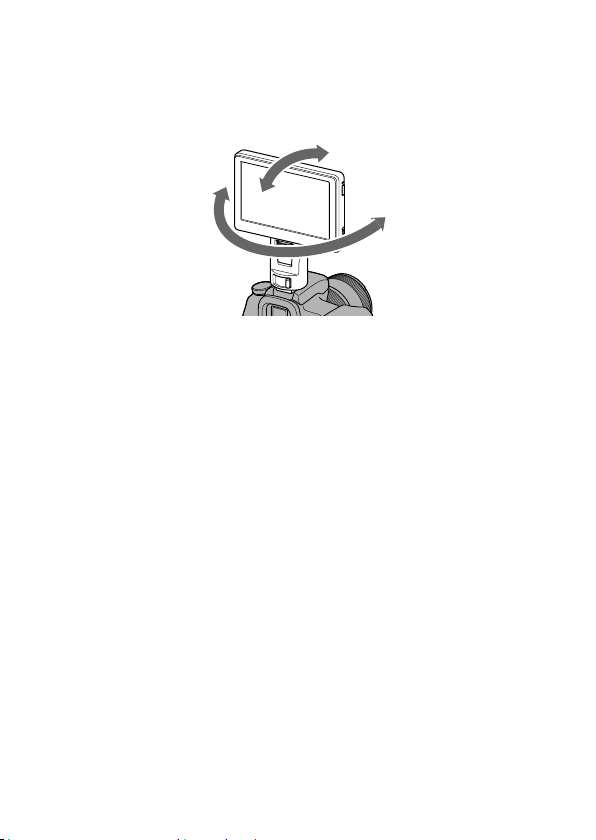
The pan and tilt function of the shoe adaptor lets you move the screen of this unit
in any direction.
Approx. 90 degrees forwards or
backwards
Approx. 180
degrees left or
right
Tip
The moveable range of the shoe adaptor is about 90 degrees forwards or
backwards and about 180 degrees left or right.
Notes
Depending on your battery pack and camera, this unit may interfere with
the built-in flash. Do not pan or tilt with excessive force.
Be careful when you pull the HDMI cable not to stretch it or get it caught
in any moveable part.
23-GB
Attaching the sun shade hood
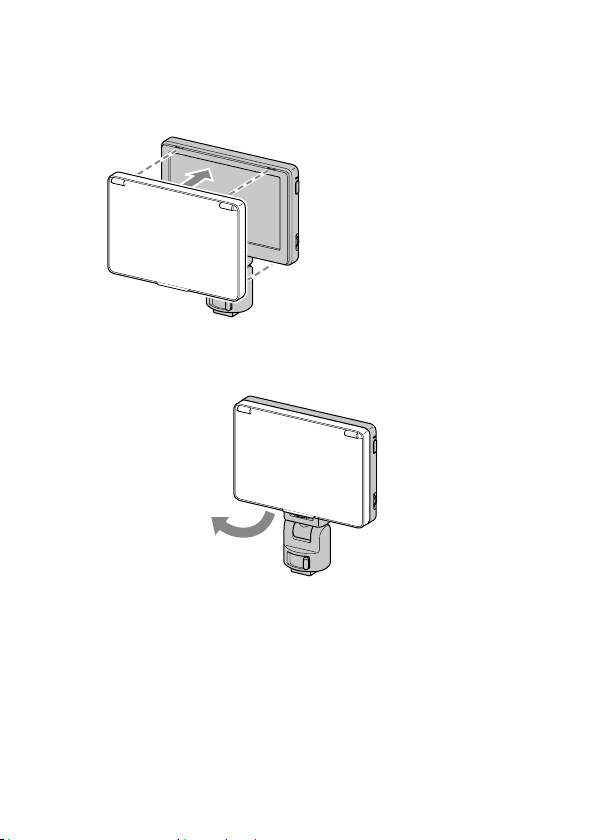
Align the clips on the frame of the sun shade hood with the
holes in the outer frame of this unit and attach, as illustrated.
Fit the top part of the
panel first and then press
in the bottom part of the
panel.
To remove the sun shade hood
Pull the bottom part of the sun shade hood frame towards you to remove it.

24-GB
To open and close the sun shade hood
Open and close the sun shade hood as illustrated.
If the hood panels come away from the frame
A force applied to the top or side hood panels can detach them from the frame to
prevent them from breaking. If this happens, reattach the hood panels as follows.
Side panels
Push the projecting end of the spring into the middle groove along the side of the
frame, and fit the projections of the side panel into the top and bottom grooves
along the side of the frame.

25-GB
Top panel
Fit the projection of the top panel into the groove along the top of the frame.
Note
The side panels only open if the projecting end of the spring is placed
correctly into the groove. If the panels do not open, reattach the spring
so that its projecting end is in the groove.
26-GB
Using the monitor
Menu and operation
The functions that can be set with this unit appear as icons in the menu on the
right of the screen.
Tip
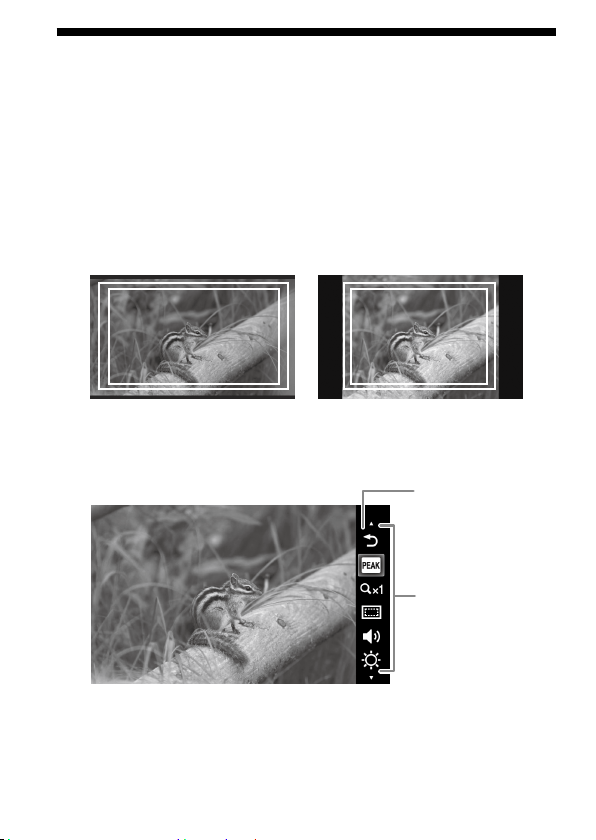
The aspect ratio of the LCD panel of this unit is 15:9, so black stripes may appear
above and below or on each side of movie images that have an aspect ratio of
16:9, 4:3 or 3:2.
16:9 3:2
1
Move the operation dial.
The menu appears on the right of the screen.
Cursor
Menu
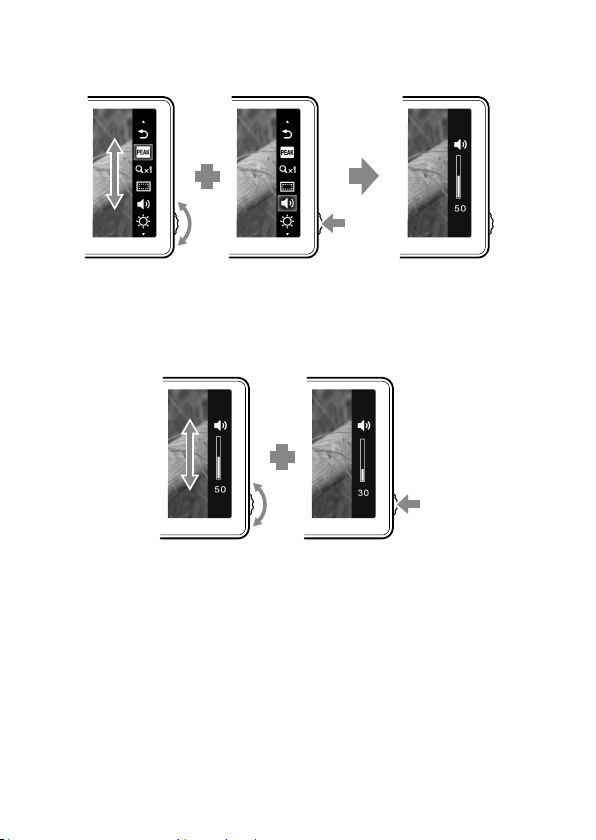
2
Turn the operation dial to align the cursor with the icon of
the function you want to use.
27-GB
3
Press the dial to the left to confirm.
The setup window of the selected function appears.
4
Turn the operation dial to select the setup details and press
the dial to the left to confirm.
The setting is saved and the setup window disappears.
Tips
Turn on the peaking function by selecting the peaking icon and confirming.
When the peaking function is on, the menu is not shown. To turn the function
off, press the operation dial to the left.
The menu and setup window automatically close in the following cases.
When the dial is not touched for about one minute.
When the setup operation is completed.
28-GB
Available functions
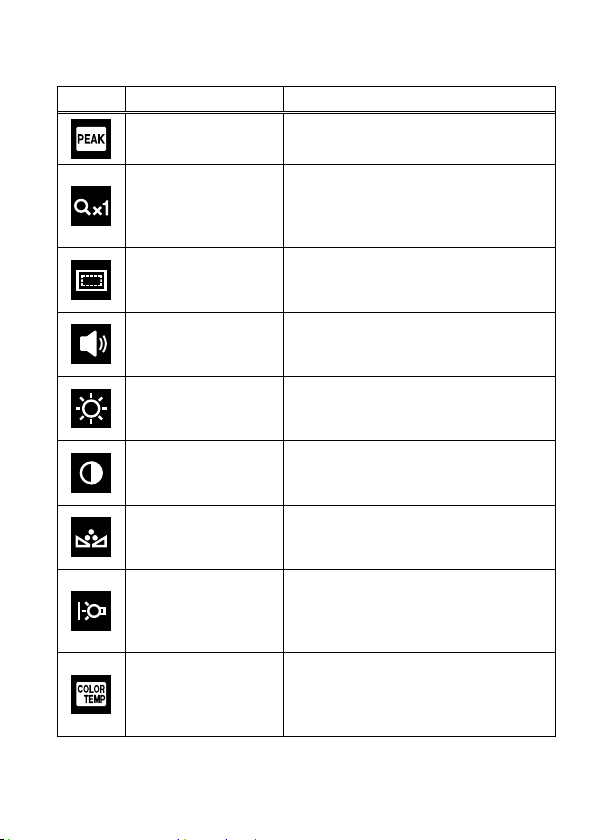
You can set the following functions with this unit.
Icon Function Name Setup details
Peaking
Displays the focused part of the image in
color. (Page 30)
Pixel magnification
(Pixel-by-pixel)
Displays the image resolution output from
the camera. (If the image resolution is “800
x 480” or over, zooms in on the center of
the image.) (Page 30)
TV display area
(Marker display)
Displays a grid just inside the angle of view
that acts as a guide to the area shown on a
LCD screen. (Page 31)
Volume
Adjusts the volume.
Settings: 0 (low) to 100 (high)
Default: 30
Brightness
Adjusts the brightness of displayed images.
Settings: 0 (dark) to 100 (bright)
Default: 50
Contrast
Adjusts the contrast of displayed images.
Settings: 0 (soft) to 100 (sharp)
Default: 50
Color-tone (Phase)
Adjusts the hue of displayed images.
Settings: 0 (green) to 100 (violet)
Default: 50
Backlight
Adjusts the brightness of the screen
backlight.
Settings: 0 (dark) to 5 (bright)
Default: 5
Color temperature
Selects the color temperature and adjusts
the white balance of the screen.
Settings: 9300K, 7200K, 6500K
Default: 6500K
29-GB
Icon Function Name Setup details
Exit
Closes the menu.
Note
The menu is not shown when the peaking function is on. When setting
other functions, set them before turning peaking on.
Tip
The setting functions of this unit only affect the image displayed on the LCD
screen. They do not affect the actual recorded image.
To restore the default settings
1
Turn this unit off.
2
Turn this unit on while holding down the operation dial.
3
Hold down the operation dial and power button for more
than 5 seconds.
4
Release the operation dial and power button.
The default settings of this unit are restored.
30-GB
Peaking
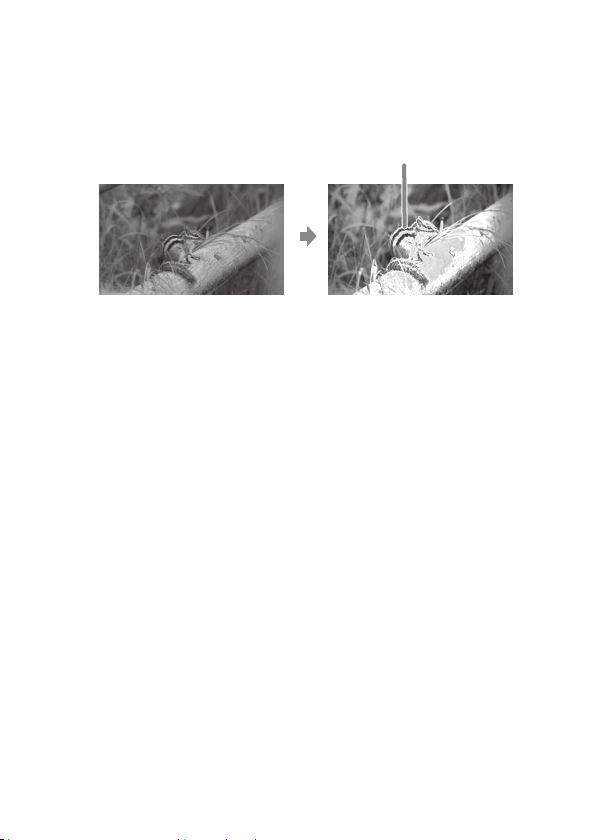
This function displays the whole image in black and white and the focused parts in
color. This makes it easier to check which parts are actually in focus whatever the
shooting conditions.
Color is applied to
focused parts
Note
Color may be added to the menu display of your camera, depending on
the specifications of this unit. This is not a malfunction.
Tip
When the peaking function is on, the image displayed on the LCD screen is only
for checking the focus. The peaking function does not affect the actual recorded
image.
Pixel magnification (Pixel-by-pixel)
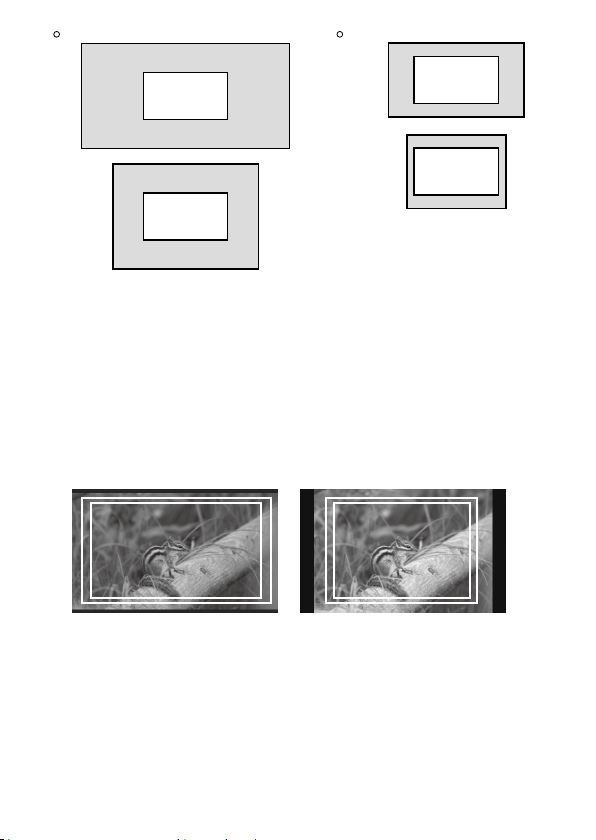
This function magnifies the center of the image (800 x 480 pixels) by displaying it
pixel by pixel on the whole LCD of this unit. Therefore the higher the image
resolution from the camera, the smaller the area magnified.
31-GB
1080i/1080p
720p
1920 × 1080 (16:9)
1440 × 1080 (4:3)
1280 × 720 (16:9)
960 × 720 (4:3)
800 × 480
800 × 480
800 × 480
800 × 480
Note
There is no zoom effect if the image resolution is less than the LCD screen
resolution (800 x 480 pixels).
TV display area (Marker display)
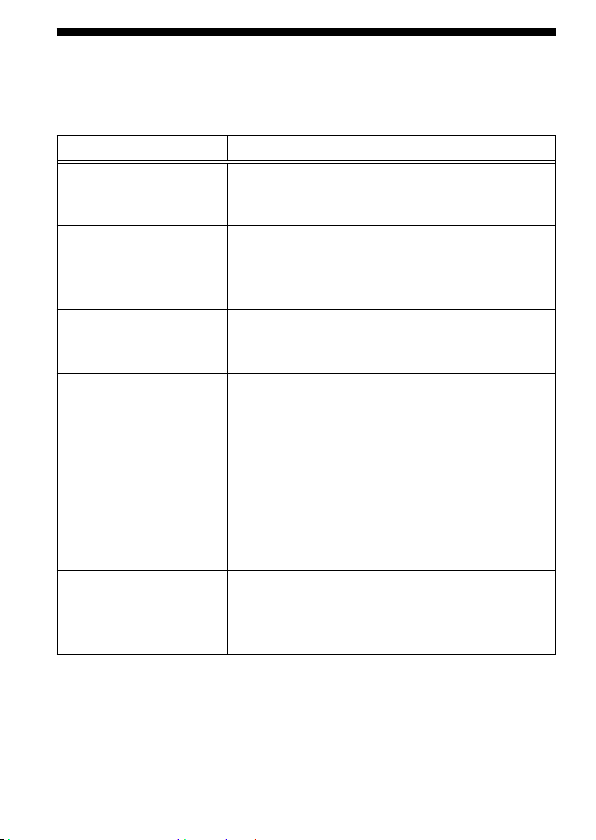
This function displays a grid just inside the angle of view that acts as a rough guide
to the shooting area. There are two types of grid, 80% and 90% of the angle of view.
You can select either one to suit your TV’s playback conditions.
(Settings: 80% (16:9), 90% (16:9), 80% (4:3), 90% (4:3))
16:9 4:3
(The outer marker is 90% and the inner marker is 80%)
Tip
The grid marker on the LCD screen of this unit is not recorded.
32-GB
Troubleshooting
Before requesting repairs, carry out one more check. Then, if this unit still does not
work properly, contact your Sony dealer.
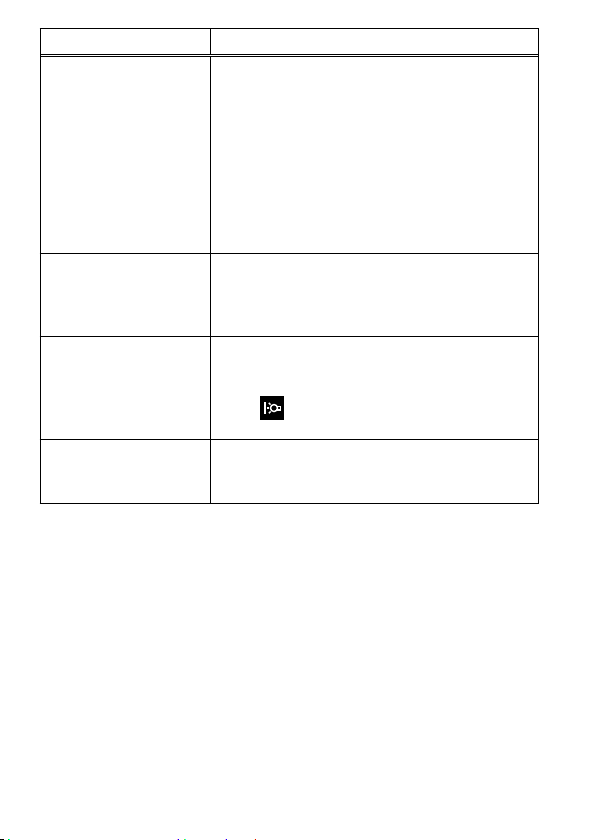
Problem Cause / Countermeasures
Cannot remove the
battery
The battery lock is not released.
Slide the battery release lever to the left to
remove the battery. (Page 15)
No power to this unit The battery has run out.
Replace the battery pack. (Page 14)
The AC adaptor (not supplied) is disconnected.
Reconnect it correctly. (Page 16)
Cannot attach this unit to
the camera
You are using the wrong type of shoe adaptor.
Check the camera shoe type and select the
correct shoe adaptor. (Page 17)
No image appears on the
screen of this unit
The camera is in power save mode.
Carry out some camera function such as
half-pressing the shutter button to leave power
save mode.
The HDMI cable is disconnected.
Reconnect it properly. (Page 19)
The shooting image may not be displayed on this
unit when using a camera that does not have the
live view function. For details, refer to the
instruction manual of your camera.
No image appears on the
screen of the camera
Depending on your camera, when it is connected
to this unit by the HDMI cable, the image may
only appear on the screen of this unit. For details,
see the instruction manual of your camera.
33-GB
Problem Cause / Countermeasures
Cannot hear sound The headphones are connected.
When the headphones are connected, no
sound is output from the speaker of this unit.
Make sure the volume of this unit is not set to 0.
(Page 28)
Make sure the sound setting of your camera is not
set to OFF.
Some cameras do not output sound.
For details, check the instruction manual of your
camera.
Cannot record Depending on your camera, it may switch to
playback mode when connected to this unit.
Switch the camera to shooting mode before taking
pictures.
The screen is difficult to
see
Use the sun shade hood to block sunlight. (Page
23)
If the screen is dark, adjust the screen brightness
with (backlight) in the menu of this unit.
(Page 28)
Black stripes appear on
the screen
The aspect ratio of the LCD panel of this unit is
15:9, so black stripes may appear depending on
the image. (Page 26)

34-GB
Specifications
Picture performance
LCD panel TFT Normally Black
Picture size 5 type
Viewing angle 90°/90°
Efficient picture size (w × h) Approx. 108 mm × 64.8 mm
(4 3/8 in. × 2 5/8 in.)
Resolution 800 × 480 pixels
Aspect ratio 15:9
Input/output
Input
HDMI input jack HDMI (Type A) (1)
DC IN jack DC 7.6 V
Output
Built-in speaker output Approx. 0.5 W Monaural
Headphones output jack Ø 3.5 Stereo mini jack (1)
General
Power DC 7.2 V Sony M series battery
DC 7.6 V AC-PW10AM
Power consumption Approx. 5 W
Dimensions (w/h/d) Approx. 129 mm × 88.5 mm × 20 mm (5 1/8 in.
× 3 1/2 in. × 13/16 in.)
(Excluding projecting parts)
Mass Approx. 250 g (main unit only) (8.9 oz)
Operating temperature Approx. 0 °C to 40 °C (32 °F to 104 °F)
Storage temperature Approx. -20 °C to +60 °C (-4 °F to +140 °F)
35-GB
Accessories supplied Shoe adaptor (2), HDMI cable (Type A
Type
C) (1), Sun shade hood (1), Carrying pouch (1),
Set of printed documentation
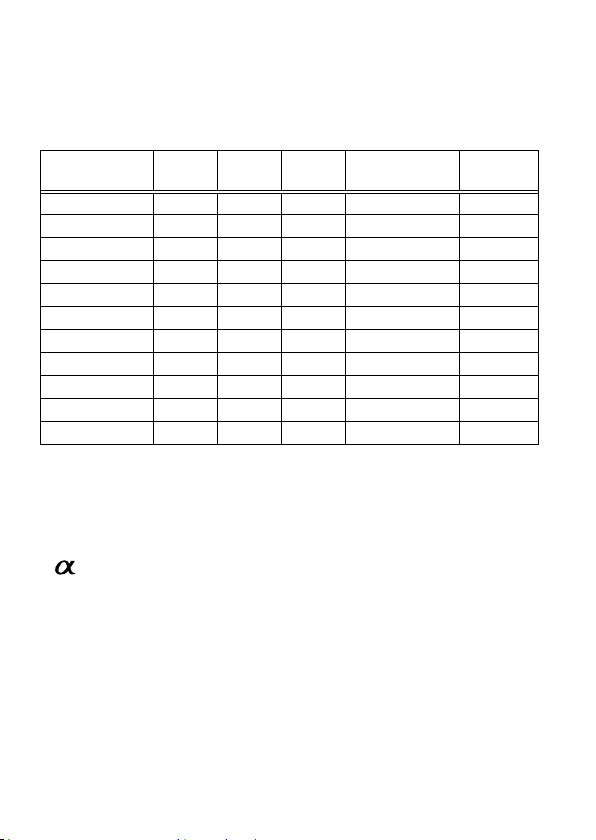
Available signal formats
The unit is applicable to the following signal formats.
System
Total
lines
Active
lines
Frame
rate
Scanning
Aspect
ratio
575/50I (PAL) 625 575 25 2:1 interlace 16:9/4:3
480/60I (NTSC) 525 483 30 2:1 interlace 16:9/4:3
576/50P 625 576 50 Progressive 16:9/4:3
480/60P 525 483 60 Progressive 16:9/4:3
640x480/60P 525 480 60 Progressive 4:3
1080/50I 1125 1080 25 2:1 interlace 16:9
1080/60I 1125 1080 30 2:1 interlace 16:9
720/50P 750 720 50 Progressive 16:9
720/60P 750 720 60 Progressive 16:9
1080/50P 1125 1080 50 Progressive 16:9
1080/60P 1125 1080 60 Progressive 16:9
Design and specifications are subject to change without notice.
Trademark
is a trademark of Sony Corporation.
HDMI, the HDMI logo and High-Definition Multimedia Interface are
trademarks or registered trademarks of HDMI Licensing LLC.

2-FR
Avant d’utiliser cet appareil, lisez attentivement ce mode d’emploi et conservez-le
pour toute référence ultérieure.
AVERTISSEMENT
Afin de réduire les risques d’incendie ou de décharge
électrique, n’exposez pas cet appareil à la pluie ou à
l’humidité.
ATTENTION
Remplacez la batterie par une batterie correspondant au type spécifié uniquement.
Sinon vous risquez de provoquer un incendie ou des blessures.
N’exposez pas les batteries à une chaleur excessive, notamment aux rayons directs
du soleil, à une flamme, etc.
Une pression sonore excessive des écouteurs ou du casque peut provoquer des
pertes d’audition.
3-FR
Ce symbole avise l’utilisateur de la présence de pièces « sous
tension dangereuse » non isolées à l’intérieur du boîtier de
l’appareil; leur tension est suffisante pour représenter un risque
d’électrocution pour les personnes.
Ce symbole avise l’utilisateur de la présence d’instructions
importantes concernant le fonctionnement et l’entretien (la
réparation) de l’appareil dans la documentation accompagnant
celui-ci.

4-FR
CONSIGNES DE SÉCURITÉ
IMPORTANTES
Lire ces consignes.
Conserver ces consignes.
Tenir compte de tous les avertissements.
Suivre toutes les instructions.
Ne pas utiliser cet appareil près de l’eau.
Nettoyer uniquement avec un chiffon sec.
Ne pas bloquer les ailettes de ventilation. Installer selon les instructions du
fabricant.
Ne pas installer près de sources de chaleur, comme les radiateurs, les résistances
électriques, les poêles ou autres appareils (amplificateurs compris) diffusant de la
chaleur.
Ne pas supprimer le dispositif de sécurité d’une fiche polarisée ou avec terre. Une
fiche polarisée a deux lames, dont une est plus large que l’autre. Une fiche avec
terre a deux lames et une broche. La lame la plus large et la broche servent de
dispositif de sécurité. Si la fiche fournie ne s’insère pas dans la prise électrique,
consulter un électricien pour faire remplacer la prise obsolète.
Protéger le cordon d’alimentation particulièrement au niveau des fiches, des
prises de courant et de la sortie du câble de l’appareil pour qu’il ne soit pas piétiné
ou coincé.
N’utiliser que les fixations et accessoires spécifiés par le fabricant.
N’utiliser qu’avec le chariot, meuble, trépied, support ou table spécifié par le
fabricant, ou vendu avec l’appareil. Si un chariot est utilisé, faire très attention
pendant le transport de ne pas renverser le chariot avec l’appareil pour éviter
toute blessure.
Débrancher cet appareil pendant les orages électriques et s’il ne doit pas être
utilisé pendant un certain temps.
Pour toute réparation s’adresser à un personnel qualifié. Une réparation est
nécessaire lorsque l’appareil a été endommagé d’une façon quelconque, par
exemple lorsque le cordon d’alimentation ou sa fiche a été endommagé, du
liquide s’est répandu ou des objets sont tombés dans l’appareil, l’appareil a été
exposé à la pluie ou à l’humidité, ne fonctionne pas normalement ou est tombé.

5-FR
À l’intention des clients aux É.-U.
AVERTISSEMENT
Par la présente, vous êtes avisé du fait que tout changement ou toute modification
ne faisant pas l’objet d’une autorisation expresse dans le présent manuel pourrait
annuler votre droit d’utiliser l’appareil.
Note
L’appareil a été testé et est conforme aux exigences d’un appareil numérique de
Classe B, conformément à la Partie 15 de la réglementation de la FCC.
Ces critères sont conçus pour fournir une protection raisonnable contre les
interférences nuisibles dans un environnement résidentiel. L’appareil génère,
utilise et peut émettre des fréquences radio; s’il n’est pas installé et utilisé
conformément aux instructions, il pourrait provoquer des interférences nuisibles
aux communications radio.
Cependant, il n’est pas possible de garantir que des interférences ne seront pas
provoquées dans certaines conditions particulières. Si l’appareil devait provoquer
des interférences nuisibles à la réception radio ou à la télévision, ce qui peut être
démontré en allumant et éteignant l’appareil, il est recommandé à l’utilisateur
d’essayer de corriger cette situation par l’une ou l’autre des mesures suivantes :
Réorienter ou déplacer l’antenne réceptrice.
Augmenter la distance entre l’appareil et le récepteur.
Brancher l’appareil dans une prise ou sur un circuit différent de celui sur lequel
le récepteur est branché.
Consulter le détaillant ou un technicien expérimenté en radio/téléviseurs.
6-FR
Note pour les clients européens
Cet appareil a été testé et jugé conforme aux limites établies par la directive EMC
visant l’utilisation de câbles de connexion de moins de 3 mètres.
Avis aux consommateurs des pays appliquant les
Directives UE
Le fabricant de ce produit est Sony Corporation, 1-7-1 Konan Minato-ku Tokyo,
108-0075 Japon. Le représentant agréé pour la compatibilité électromagnétique et
la sécurité du produit est Sony Deutschland GmbH, Hedelfinger Strasse 61, 70327
Stuttgart, Allemagne. Pour toute question relative à la garantie ou aux réparations,
reportez-vous à l’adresse que vous trouverez dans les documents ci-joints, relatifs à
la garantie et aux réparations.
Traitement des appareils électriques et électroniques
en fin de vie (Applicable dans les pays de l’Union
Européenne et aux autres pays européens disposant de
systèmes de collecte sélective)
Ce symbole, apposé sur le produit ou sur son emballage,
indique que ce produit ne doit pas être traité avec les
déchets ménagers. Il doit être remis à un point de collecte
approprié pour le recyclage des équipements électriques et
électroniques. En s’assurant que ce produit est bien mis au
rebut de manière appropriée, vous aiderez à prévenir les
conséquences négatives potentielles pour l’environnement
et la santé humaine. Le recyclage des matériaux aidera à
préserver les ressources naturelles. Pour toute information
supplémentaire au sujet du recyclage de ce produit, vous
pouvez contacter votre municipalité, votre déchetterie ou le
magasin où vous avez acheté le produit.

7-FR
Table des matières
Précautions
..............................................................................................................8
Informations préliminaires
............................................................................10
Vérification des accessoires ................................................................................10
Caractéristiques
...................................................................................................11
Identification des éléments
............................................................................12
Alimentation
........................................................................................................14
Fixation de la batterie ..........................................................................................14
Raccordement d’un adaptateur secteur ............................................................16
Fixation sur la caméra
......................................................................................17
Fixation sur la caméra .........................................................................................17
Réglage de la direction de l’écran .......................................................................22
Fixation du parasoleil ..........................................................................................23
Utilisation du moniteur
...................................................................................26
Menu et fonctionnement ....................................................................................26
Fonctions disponibles .........................................................................................28
En cas de problème
............................................................................................32
Spécifications
........................................................................................................34

8-FR
Précautions
À propos de la batterie, de l’adaptateur secteur et du chargeur
La batterie, l’adaptateur secteur et le chargeur ne sont pas fournis.
Utilisez une batterie ou un adaptateur secteur compatible (pages 14, 16).
Si vous n’avez pas de batterie ni d’adaptateur secteur, achetez-les séparément.
Traitement de l’écran LCD
Ne laissez pas l’écran LCD face au soleil car il pourrait l’endommager. Faites
attention lorsque vous installez l’appareil près d’une fenêtre.
N’appuyez pas ou ne rayez pas l’écran du moniteur LCD. Ne posez pas d’objet
lourd sur l’écran du moniteur LCD. L’écran pourrait perdre son uniformité.
Si cet appareil est utilisé dans un lieu froid, des lignes horizontales ou une image
résiduelle peuvent apparaître sur l’écran. Il ne s’agit pas d’une défectuosité.
Lorsque le moniteur devient chaud, l’écran redevient normal.
Si une image fixe, par exemple l’image d’une image divisée ou le code temporel,
ou si une photo est affichée pendant un certain temps, une image peut rester sur
l’écran et être superposée comme une image fantôme.
L’écran et le coffret peuvent devenir chauds en cours d’utilisation. Il ne s’agit pas
d’une défectuosité.
Le panneau LCD de cet appareil est le produit d’une très haute technologie. Mais
une très petite proportion de pixels risquent de se «bloquer» et seront soit
toujours éteints (noirs) soit toujours éclairés (rouges, verts ou bleus), ou bien
clignoteront. De plus, compte tenu des caractéristiques physiques de l’affichage à
cristaux liquides, des pixels «bloqués» peuvent apparaître spontanément après
une très longue période d’utilisation. Ces phénomènes ne proviennent pas d’une
défectuosité.

9-FR
Nettoyage
Avant le nettoyage
Veillez à retirer d’abord la batterie.
Nettoyage de l’écran du moniteur
La surface de l’écran du moniteur a reçu un traitement spécial qui réduit la réflexion
de la lumière.
Comme un mauvais entretien peut réduire les performances du moniteur, veuillez
respecter les consignes suivantes :
Essuyez l’écran doucement avec un chiffon doux, par exemple un tissu de
nettoyage ou tissu spécial pour le nettoyage du verre.
Les tâches persistantes peuvent être enlevées avec un chiffon doux, comme un
tissu de nettoyage ou un tissu spécial pour le nettoyage du verre légèrement
mouillé d’eau.
N’utilisez jamais de solvant, comme l’alcool, le benzène ou le diluant, ni de
détergent acide, alcalin ou abrasif ou de tissu de nettoyage chimique qui risquent
d’endommager la surface de l’écran.
Nettoyage du coffret
Nettoyez doucement le coffret avec un chiffon sec et doux. Les tâches persistantes
peuvent être enlevées avec un chiffon légèrement mouillé d’une solution
détergente douce, puis essuyées avec un chiffon sec et doux.
L’alcool, le benzène et les diluants ou insecticides peuvent endommager la
finition du coffret ou effacer les marques sur le coffret. N’utilisez pas ces produits
chimiques.
Le coffret peut être rayé si vous le frottez avec un chiffon sale.
La finition du coffret peut se détériorer ou le revêtement se détacher si le coffret
est laissé au contact d’un produit en caoutchouc ou en vinyle pendant un certain
temps.
Mise au rebut
Ne déposez pas cet appareil dans les ordures ménagères. Ne jetez pas le moniteur
avec des ordures déposées dans une décharge.
Utilisation de cet appareil
Le haut de cet appareil, les orifices de ventilation et les parties métalliques
deviennent chauds au bout d’un certain temps d’utilisation. Faites attention si
vous prenez cet appareil pendant ou après utilisation.
Utilisation en avion
Au cours des décollage et atterrissage, suivez les instructions du personnel
concernant cet appareil.
10-FR
Informations préliminaires
Lisez ce mode d’emploi ainsi que le mode d’emploi de votre caméra.
Cet appareil n’est pas étanche à la poussière, aux éclaboussures d’eau ou à
l’eau.
Ne rangez cet appareil aux endroits suivants
Cet appareil ne doit être ni utilisé ni rangé aux endroits suivants. Il risquerait sinon
de tomber en panne.
Endroits exposés à la lumière directe du soleil, par exemple sur le tableau de bord
d’une voiture ou près d’un appareil de chauffage, où l’appareil risquerait de se
déformer et de ne plus fonctionner ;
Endroits exposés à des vibrations excessives ;
Endroits exposés à un électromagnétisme puissant ;
Endroits exposés à du sable excessif ;
Sur la plage ou à des endroits sableux ou exposés à des nuages de poussière,
protégez l’appareil du sable et de la poussière. Sinon il pourrait tomber en panne.
Vérification des accessoires
Assurez-vous que les accessoires suivants vous ont été fournis. Si l’un d’entre eux
devait manquer, contactez votre revendeur Sony.
Adaptateur de griffe porte-accessoire (pour griffe porte-accessoire à verrouillage
automatique et griffe porte-accessoire)
11-FR
Parasoleil
Câble HDMI (Environ 45 cm, Type A
Type C)
Étui de transport
Jeu de documents imprimés
Caractéristiques
Cet appareil est un moniteur LCD portable pouvant être utilisé avec un appareil
photo à objectifs interchangeables ou un caméscope numérique HD à objectifs
interchangeables disposant d’une prise HDMI et du mode de visionnage en direct.
Il peut afficher la sortie vidéo HDMI de la caméra. Les fonctions suivantes vous
aideront à mieux voir l’image et à prendre de meilleures images.
Écran LCD à vision grand angle
Fonctions utiles comme l’écrêtage et le zoom pixel par pixel.
L’adaptateur de griffe porte-accessoire à pince mobile facilite le retrait lorsqu’une
caméra pourvue d’une griffe porte-accessoire à verrouillage automatique est
utilisée.
12-FR
Identification des éléments
13-FR
Écran LCD
Témoin
Lorsque l’appareil est allumé, ce témoin s’éclaire ou clignote selon l’état de cet
appareil. (Page 15)
Bouton d’alimentation
Appuyez dessus et maintenez enfoncée pour allumer ou éteindre cet appareil.
Molette d’exploitation
Affiche le menu et effectue les opérations.
Pression du cadran vers la
gauche*
Affiche le menu/Exécute la sélection.
Rotation du cadran Sélectionne le paramètre/change la valeur du
réglage.
* La fonction dépend de l’état de cet appareil.
Prise de batterie
Haut-parleur
Ce haut-parleur mono permet de contrôler le son.
Bouton de libération de la batterie
Prise de casque
Vous pouvez y raccorder un casque pourvu d’une minifiche stéréo 3,5 mm pour
écouter le son.
Aucun son n’est émis par le haut-parleur lorsqu’un casque est raccordé.
Prise HDMI (Type A)
Prise DC IN
Douille de trépied
14-FR
Alimentation
Cet appareil peut être alimenté par une batterie rechargeable Sony ou un adaptateur
secteur.
Fixation de la batterie
Les batteries rechargeables Sony suivantes (non fournies) peuvent être utilisées avec
cet appareil. Vous ne pouvez pas utiliser d’autres batteries, qui ne permettent pas à
cet appareil de fonctionner correctement.
NP-FM500H
NP-QM71D
NP-QM91D
Remarque
Lorsque la NP-QM71D ou la NP-QM91D est utilisée, fixez d’abord la
caméra sur un trépied.
Poussez doucement la batterie dans le sens indiqué, puis
faites-la glisser vers la gauche tout en continuant de pousser.
Un clic est audible lorsque la batterie se met en place.
Pour retirer la batterie
Faites glisser la batterie vers la droite tout en poussant le
bouton de libération de la batterie vers la gauche.
La batterie se détache de cet appareil.
15-FR
Remarque
Attention de ne pas laisser tomber la batterie lorsque vous la retirez.
Pour vérifier la charge de la batterie
Vous pouvez vérifier la charge de la batterie d’après le témoin d’alimentation.
Lorsque le témoin devient rouge, remplacez la batterie dès que possible par une
batterie complètement chargée.
État de l’éclairage du témoin
d’alimentation
État de cet appareil
Vert (allumé) Allumé. (Fonctionne sur la batterie)
Vert (clignotement lent) Allumé ou éteint. (Fonctionne sur la
batterie)
Blanc (allumé) Allumé. (Fonctionne sur l’adaptateur
secteur)
Blanc (clignotement lent) Allumé ou éteint. (Fonctionne sur
l’adaptateur secteur)
Rouge (allumé) Le niveau de la batterie est faible.
Rouge (clignotement rapide) La batterie est vide.
Éteint Hors tension
Remarques
Juste avant que la batterie ne soit complètement vide, le témoin
d’alimentation devient rouge et clignote rapidement. L’alimentation de
cet appareil est automatiquement coupée environ 10 secondes plus tard.
Ne débranchez pas ou ne retirez pas la batterie ou l’adaptateur secteur
lorsque vous allumez ou éteignez cet appareil (le témoin d’alimentation
clignote lentement). Ceci peut causer un problème.
16-FR
Autonomie de la batterie
(Lorsque cet appareil est utilisé en continu avec une batterie toute neuve à 25°C et
que l’appareil photo est raccordé par HDMI)
NP-FM500H : Environ 3 heures
NP-QM71D : Environ 5 heures
NP-QM91D : Environ 8 heures
* L’autonomie de la batterie peut varier selon les conditions de fonctionnement ou
les conditions ambiantes.
Raccordement d’un adaptateur secteur
Cet appareil peut être alimenté par le courant domestique via un reportez-vous à
l’adresse adaptateur secteur Sony, tel que l’AC-PW10AM (non fourni).
AC-PW10AM (non fourni)
Remarques
La batterie rattachée à cet appareil n’est pas rechargée lorsqu’un
adaptateur secteur est raccordé.
Si un adaptateur secteur est raccordé à cet appareil lorsqu’une batterie
est rattachée, l’alimentation par l’adaptateur secteur est prioritaire.
17-FR
Fixation sur la caméra
Fixation sur la caméra
1
Sélectionnez un des adaptateurs de griffe porte-accessoire
fournis selon la forme de la griffe porte-accessoire de la
caméra.
Griffe porte-
accessoire à
verrouillage
automatique :
Griffe porte-
accessoire :
Remarque
Ne fixez d’adaptateur de griffe porte-accessoire que pour cet appareil.
2
Insérez la vis de trépied de l’adaptateur de griffe
porte-accessoire dans la douille de trépied sous cet
appareil.
3
Tournez la molette de l’adaptateur de griffe
porte-accessoire pour le verrouiller.
Suite page suivante
18-FR
4
Rattachez (fixez) l’adaptateur de griffe porte-accessoire
correct à la griffe porte-accessoire, de la façon illustrée.
Si vous utilisez une griffe porte-accessoire à verrouillage automatique :
Insérez le pied de l’adaptateur de griffe porte-accessoire à fond dans la griffe
porte-accessoire à verrouillage automatique dans le sens indiqué.
Appuyez sur l’adaptateur de griffe porte-accessoire tout en le poussant vers
la droite pour bien le fixer à la caméra.
Remarque
Insérez l’adaptateur de griffe porte-accessoire à fond jusqu’à ce qu’il
s’encliquette.
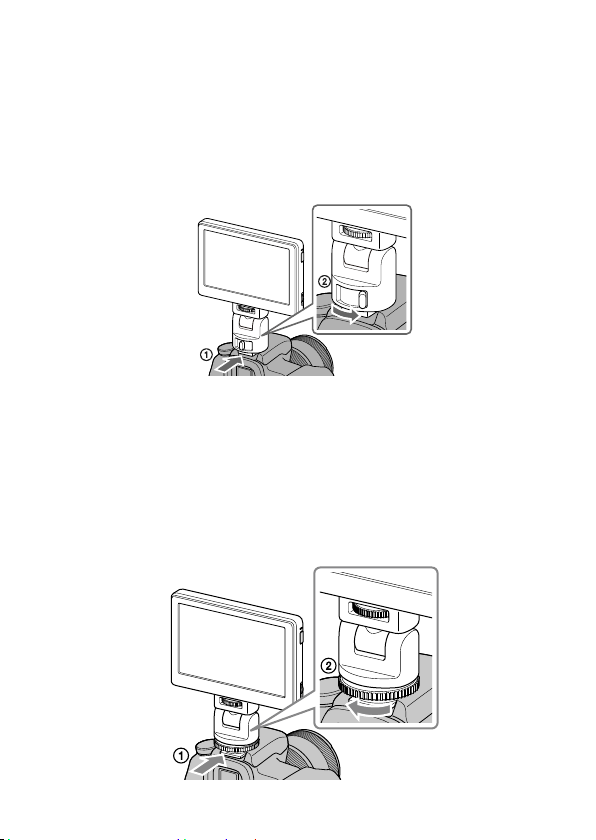
Si un adaptateur de griffe porte-accessoire est utilisé :
Insérez le pied de l’adaptateur de griffe porte-accessoire à fond dans la griffe
porte-accessoire dans le sens indiqué.
Tournez la molette de l’adaptateur de griffe porte-accessoire à fond vers la
gauche pour bien le fixer à la caméra.
19-FR
Remarque
Lors de la fixation sur une caméra pourvue d’une griffe porte-
accessoire, lisez également le mode d’emploi de la caméra.
Remarques
Si vous utilisez une caméra pourvue d’un flash rétractable, prêtez
attention aux points suivants :
Fermez toujours le flash intégré de la caméra. Si votre caméra a un flash
automatique, désactivez cette fonction.
Avant d’utiliser le flash, retirez cet appareil de la caméra.
Assurez-vous que cet appareil est bien rattaché à la caméra avant de
l’utiliser pour éviter qu’il ne tombe pendant la prise de vue.
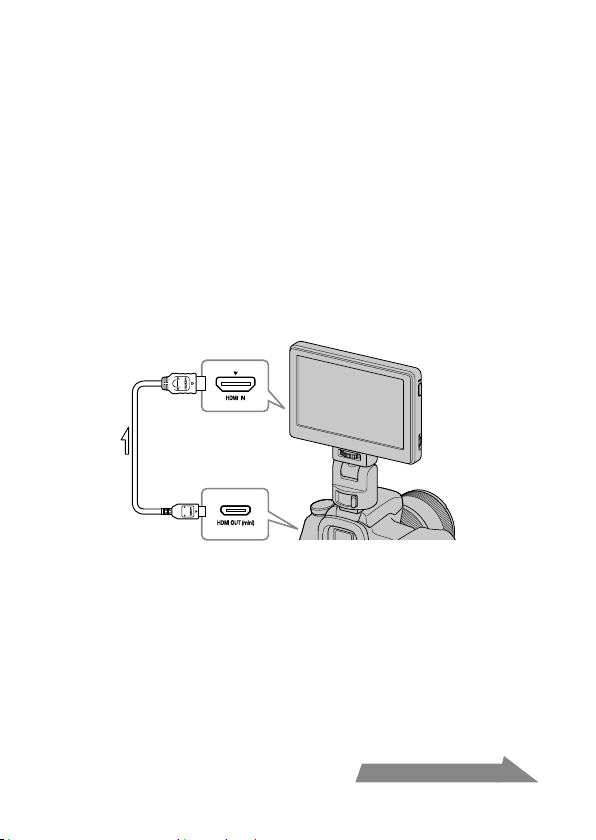
5
Raccordez cet appareil à la caméra avec le câble HDMI
fourni.
Conseil
Si le câble n’est pas suffisamment long, utilisez un câble Sony HDMI Type A-Type
C (non fourni).
6
Allumez la caméra et cet appareil.
Appuyez sur la touche d’alimentation pour allumer ou éteindre cet appareil.
L’image visible sur le viseur de la caméra apparaît sur l’écran LCD de cet
appareil. S’il est possible de régler la sortie HDMI sur votre caméra, réglez-la
sur AUTO ou 16:9.
Suite page suivante
20-FR
Remarque
Lorsque cet appareil est raccordé à la caméra par le câble HDMI, les
phénomènes suivants peuvent se produire selon la caméra utilisée.
Aucune image n’apparaît sur l’écran LCD de la caméra.
La caméra passe au mode de lecture. (Assurez-vous que la caméra est en mode
de prise de vue avant la prise de vue.)
Conseil
Un certain temps après une des situations suivantes, le rétroéclairage de cet
appareil s’éteint.
Aucun signal HDMI ne sort de la caméra.
Le câble HDMI est débranché.
Effectuez les opérations suivantes pour rallumer le rétroéclairage.
Appuyez sur la molette d’exploitation de cet appareil.
Faites les opérations nécessaires pour qu’un signal HDMI sorte de la caméra.
Rebranchez le câble HDMI et allumez la caméra.
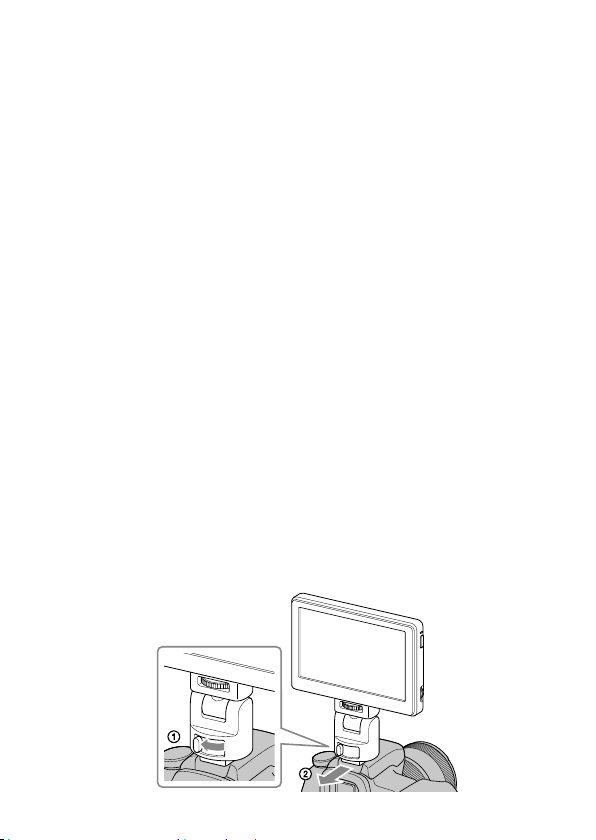
Pour retirer l’appareil de la caméra
Débranchez le câble HDMI et retirez cet appareil de la façon suivante.
Remarque
Lors de son retrait, faites attention de ne pas laisser tomber cet appareil
ou la caméra. Il est conseillé de poser la caméra sur un trépied avant de
retirer cet appareil.
Quand une griffe porte-accessoire à verrouillage automatique est utilisée :
Appuyez sur le bouton de verrouillage de l’adaptateur de griffe porte-accessoire
tout en le poussant vers la gauche pour libérer le verrou.
Tout en tenant le levier de verrouillage pressé à gauche, faites glisser l’adaptateur
de griffe porte-accessoire vers vous.
21-FR
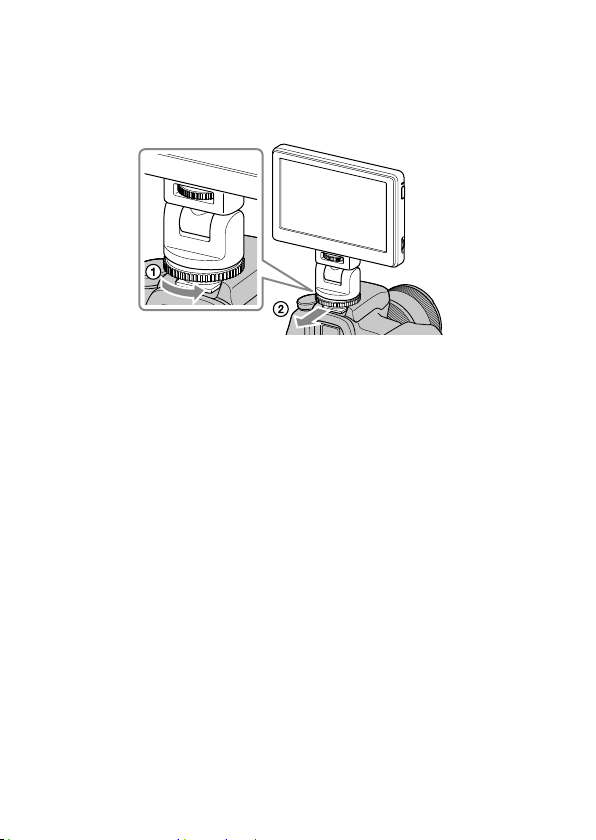
Si un adaptateur de griffe porte-accessoire est utilisé :
Tournez la commande de l’adaptateur de griffe porte-accessoire vers la droite
pour libérer le verrou.
Assurez-vous que le verrou est libéré avant de faire glisser l’adaptateur de griffe
porte-accessoire vers vous
22-FR
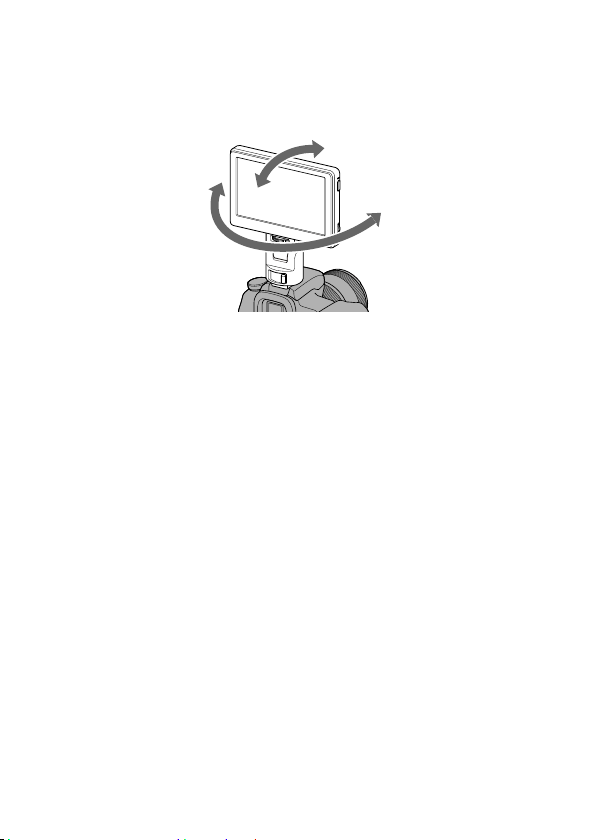
Réglage de la direction de l’écran
Le fonctionnement horizontal et vertical de l’adaptateur de griffe porte-accessoire
permet de tourner l’écran de cet appareil dans toutes les directions.
Environ 90 degrés vers l’avant
ou l’arrière
Environ 180
degrés vers la
gauche ou la
droite
Conseil
L’angle d’orientation de l’adaptateur de griffe porte-accessoire est d’environ 90
degrés vers l’avant ou l’arrière et d’environ 180 degrés vers la gauche ou la droite.
Remarques
Selon la batterie et la caméra utilisées, cet appareil peut gêner le flash
intégré. Ne forcez pas lorsque vous le tournez ou inclinez.
Lorsque vous tirez sur le câble HDMI faites attention de ne pas l’étirer ou
de le coincer dans une pièce mobile.
23-FR
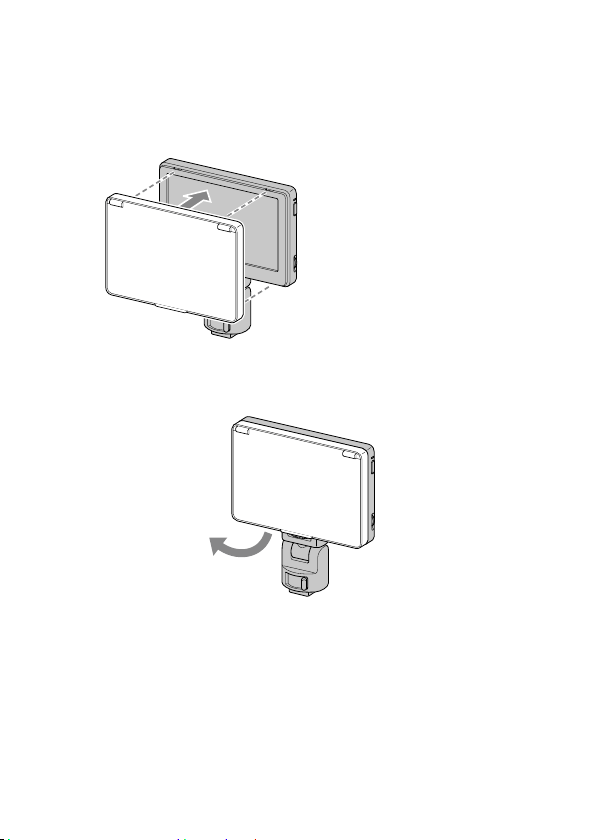
Fixation du parasoleil
Alignez les onglets sur le cadre du parasoleil sur les orifices du
cadre extérieur de cet appareil et fixez le parasoleil, comme
illustré.
Alignez d’abord le
panneau supérieur puis
emboîtez-le dans le
panneau inférieur.
Pour retirer le parasoleil
Tirez la partie inférieure du cadre du parasoleil vers vous pour le retirer.
24-FR
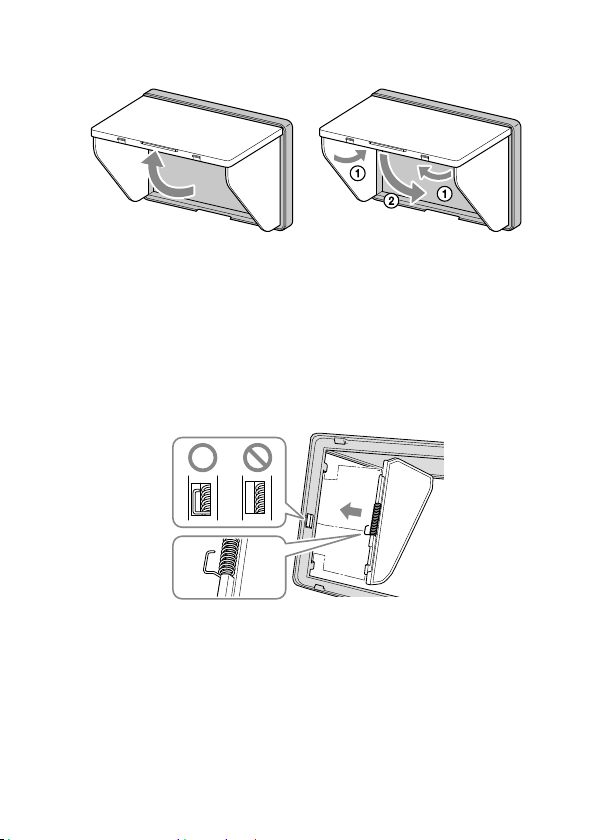
Pour ouvrir et fermer le parasoleil
Ouvrez et fermez le parasoleil comme illustré.
Si les panneaux du parasoleil se détachent du cadre
Les panneaux supérieur et latéraux peuvent se détacher du cadre pour éviter qu’ils
ne se brisent si vous exercez une force dessus. Le cas échéant, rattachez les
panneaux du parasoleil de la façon suivante.
Panneaux latéraux
Insérez l’extrémité du ressort faisant saillie dans le renfoncement central sur le côté
du cadre et les saillies du panneau latéral dans les renfoncements supérieur et
inférieur sur le côté du cadre.
25-FR
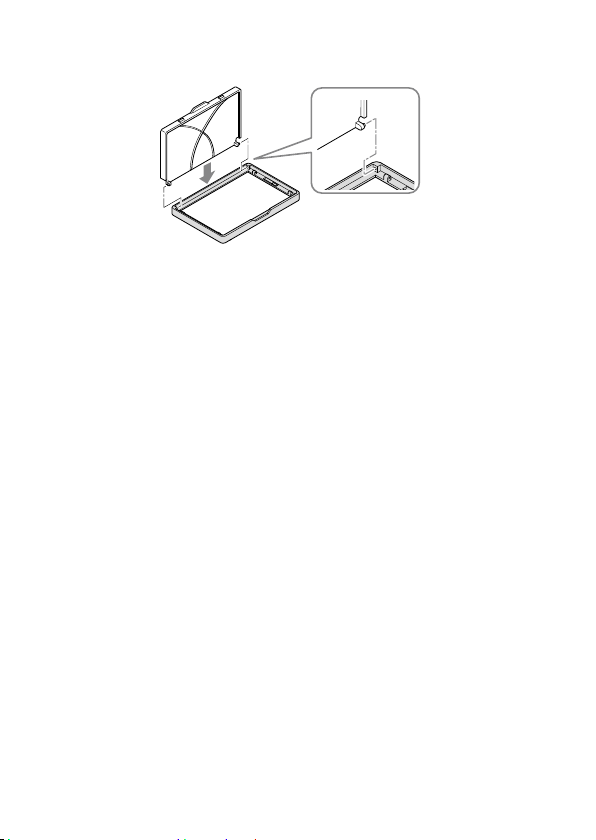
Panneau supérieur
Insérez la saillie du panneau supérieur dans le renfoncement sur le haut du cadre.
Remarque
Les panneaux latéraux ne s’ouvrent que si l’extrémité du ressort faisant
saillie est placée correctement dans le renfoncement. Si les panneaux ne
s’ouvrent pas, rattachez le ressort de sorte que l’extrémité faisant saillie
soit dans le renfoncement.
26-FR
Utilisation du moniteur
Menu et fonctionnement
Les fonctions pouvant être réglées avec cet appareil apparaissent sous forme
d’icônes sur le menu à la droite de l’écran.
Conseil
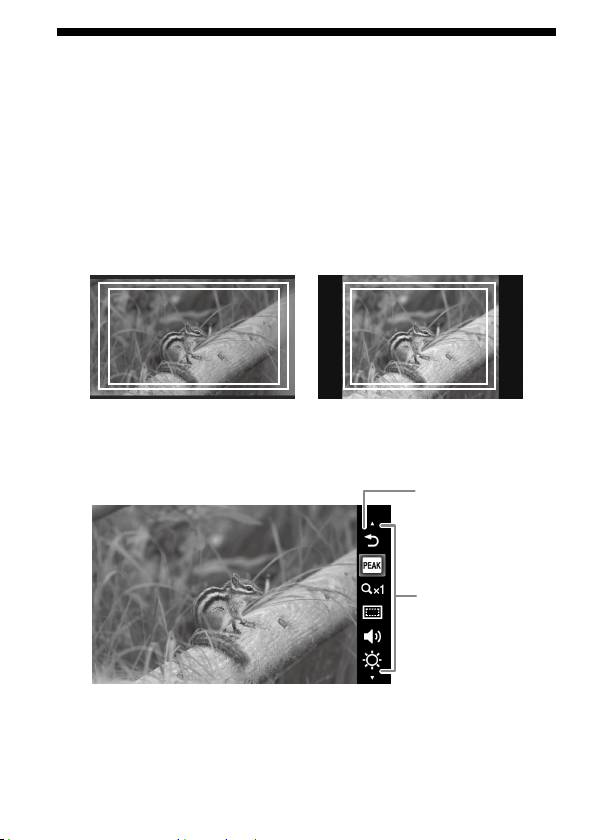
Le format du panneau LCD de cet appareil est 15:9, de sorte que des bandes
noires apparaissent au-dessus et au-dessous ou bien sur chaque côté des images
vidéos de format 16:9, 4:3 ou 3:2.
16:9 3:2
1
Bougez la molette d’exploitation.
Le menu apparaît à la droite de l’écran.
Curseur
Menu
2
Tournez la molette d’exploitation pour amener le curseur
sur l’icône de la fonction que vous voulez utiliser.
27-FR
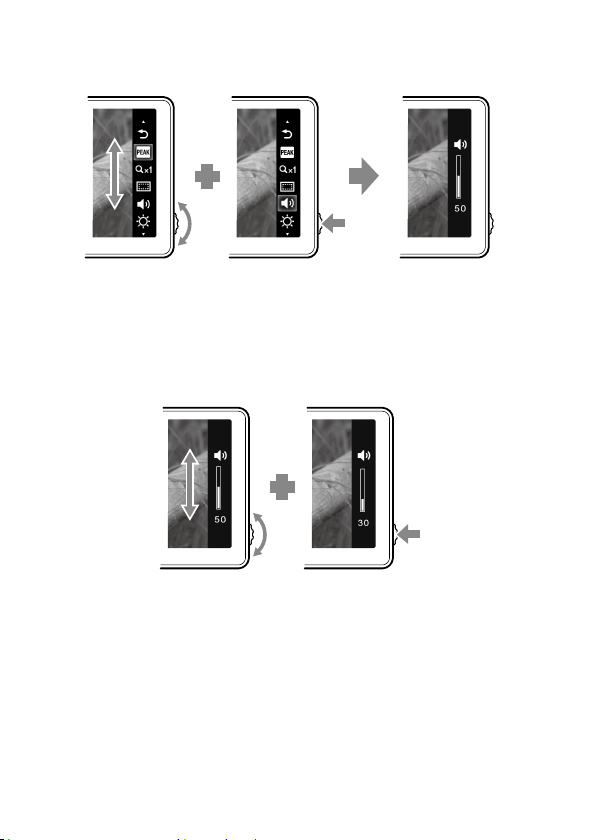
3
Pressez la molette vers la gauche pour confirmer.
La fenêtre de configuration de la fonction sélectionnée apparaît.
4
Tournez la molette d’exploitation pour sélectionner les
détails de la configuration et pressez-la vers la gauche
pour confirmer.
Le réglage est sauvegardé et la fenêtre de configuration disparaît.
Conseils
Activez la fonction d’écrêtage en sélectionnant l’icône d’écrêtage et la confirmant.
Lorsque la fonction d’écrêtage est activée, le menu n’apparaît pas. Pour désactiver
la fonction, pressez la molette d’exploitation vers la gauche.
Le menu et la fenêtre de configuration se ferment automatiquement dans les
situations suivantes.
Le cadran n’est pas touché pendant environ une minute.
La configuration est terminée.
28-FR
Fonctions disponibles
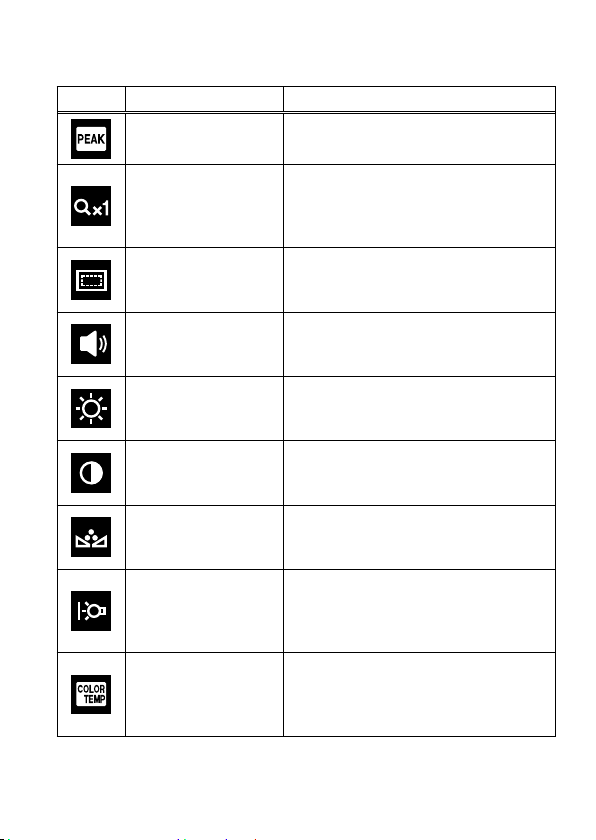
Vous pouvez régler les fonctions suivantes avec cet appareil.
Icône Nom de la fonction Détails de la configuration
Écrêtage
Affiche la partie nette de l’image en
couleur. (Page 30)
Grossissement de
pixels
(Zoom pixel par pixel)
Affiche l’image dans la résolution sortant
de la caméra. (Si la résolution de l’image est
«800 × 480» ou plus, agrandit au centre de
l’image.) (Page 30)
Zone d’affichage TV
(Affichage de repères)
Affiche une grille juste à l’intérieur de
l’angle de vision, qui donne une idée de la
zone affichée sur un écran LCD. (Page 31)
Volume
Ajuste le volume.
Réglages : 0 (faible) à 100 (élevé)
Défaut : 30
Luminosité
Ajuste la luminosité des images affichées.
Réglages : 0 (sombre) à 100 (lumineux)
Défaut : 50
Contraste
Ajuste le contraste des images affichées.
Réglages : 0 (doux) à 100 (net)
Défaut : 50
Tonalité couleur
(Phase)
Ajuste la teinte des images affichées.
Réglages : 0 (vert) à 100 (violet)
Défaut : 50
Rétroéclairage
Ajuste la luminosité du rétroéclairage de
l’écran.
Réglages : 0 (sombre) à 5 (lumineux)
Défaut : 5
Température de
couleur
Sélectionne la température de couleur et
ajuste la balance des blancs de l’écran.
Réglages : 9300K, 7200K, 6500K
Défaut : 6500K
29-FR
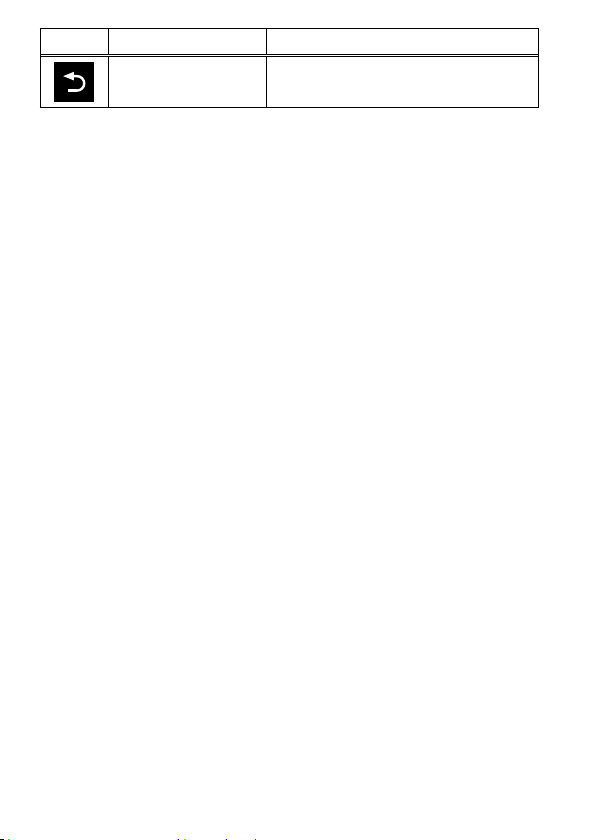
Icône Nom de la fonction Détails de la configuration
Sortie
Ferme le menu.
Remarque
Le menu n’apparaît pas lorsque la fonction d’écrêtage est activée. Si vous
voulez régler d’autres fonctions, faites-le avant d’activer l’écrêtage.
Conseil
Les réglages effectués sur cet appareil n’affectent que l’image affichée sur l’écran
LCD. Ils n’affectent pas l’image enregistrée.
Pour rétablir les réglages par défaut
1
Éteignez cet appareil.
2
Allumez cet appareil tout en tenant la molette
d’exploitation enfoncée.
3
Appuyez sur la molette d’exploitation et sur la touche
d’alimentation pendant plus de 5 secondes.
4
Relâchez la molette d’exploitation et le bouton
d’alimentation.
Les réglages par défaut de cet appareil sont rétablis.
30-FR
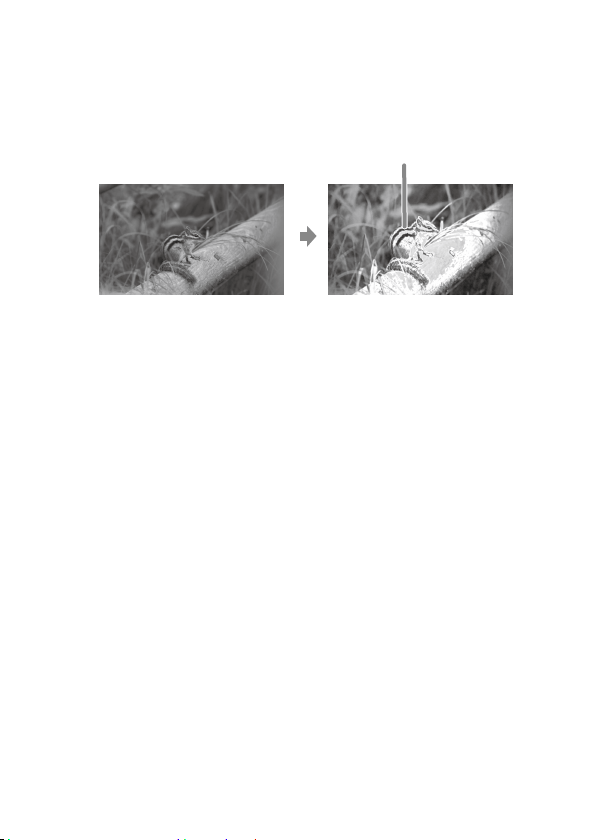
Écrêtage
Cette fonction permet d’afficher toute l’image en noir et blanc et les parties nettes
en couleur. Elle permet de voir rapidement quelles sont les parties nettes, quelles
que soient les conditions de la prise de vue.
Les parties nettes sont
en couleur
Remarque
Selon les caractéristiques de cet appareil, de la couleur peut être ajoutée
à l’affichage du menu de votre caméra. Il ne s’agit pas d’une défectuosité.
Conseil
Lorsque la fonction d’écrêtage est activée, l’image ne reste affichée sur l’écran
LCD que le temps de vérifier la mise au point. La fonction d’écrêtage n’affecte pas
l’image enregistrée.
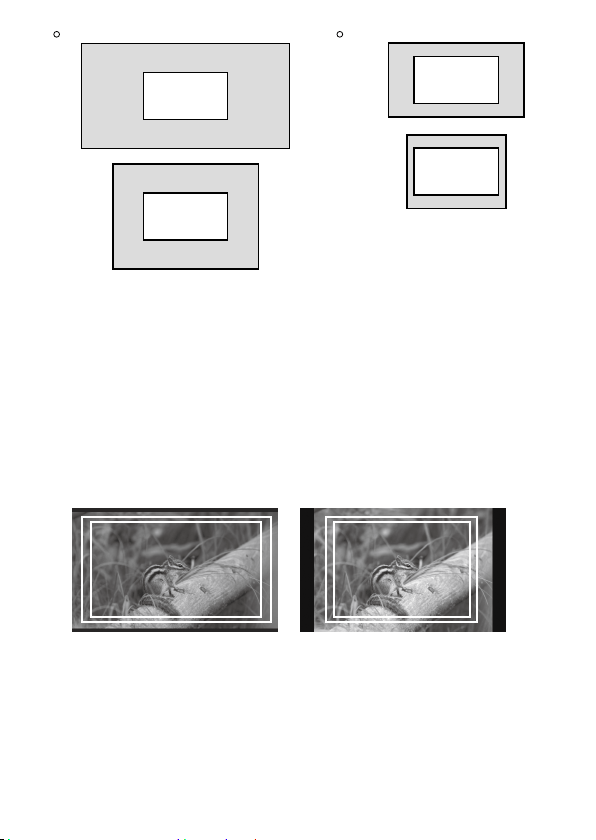
Grossissement de pixels (Zoom pixel par pixel)
Cette fonction permet de grossir le centre de l’image (800 × 480 pixels) en
l’affichant pixel par pixel sur tout l’écran LCD de cet appareil. Donc, plus la
résolution d’image de la caméra sera élevée, plus la zone pouvant être agrandie sera
petite.
31-FR
1080i/1080p
720p
1920 × 1080 (16:9)
1440 × 1080 (4:3)
1280 × 720 (16:9)
960 × 720 (4:3)
800 × 480
800 × 480
800 × 480
800 × 480
Remarque
Il n’y aura pas d’effet de zoom si la résolution de l’image est inférieure à
la résolution de l’écran LCD (800 × 480 pixels).
Zone d’affichage TV (Affichage de repères)
Cette fonction permet d’afficher une grille à l’intérieur de l’angle de vision qui
donne une idée approximative de la zone de prise de vue. Il y a deux types de grille,
80% et 90% de l’angle de vision.
Vous pouvez sélectionner l’une ou l’autre selon le format de lecture sur le téléviseur.
(Réglages : 80% (16:9), 90% (16:9), 80% (4:3), 90% (4:3))
16:9 4:3
(Le repère extérieur correspond à 90% et le repère intérieur correspond à 80%)
Conseil
Le repère de grille sur l’écran LCD de cet appareil n’est pas enregistré.

32-FR
En cas de problème
Avant toute demande de réparation, effectuez les contrôles suivants. Si l’appareil ne
fonctionne toujours pas correctement, contactez votre revendeur Sony.
Problème Cause / Mesures à prendre
Impossible de retirer la
batterie.
Le verrou de batterie n’est pas libéré.
Poussez le bouton de libération de la batterie
vers la gauche pour retirer la batterie. (Page
15)
Cet appareil n’est pas
alimenté.
La batterie est vide.
Remplacez la batterie. (Page 14)
L’adaptateur secteur (non fourni) est débranché.
Rebranchez-le correctement. (Page 16)
Impossible de rattacher
cet appareil à la caméra.
Vous n’utilisez pas le bon type d’adaptateur de
griffe porte-accessoire.
Vérifiez le type de griffe porte-accessoire sur
la caméra et sélectionnez l’adaptateur de griffe
porte-accessoire approprié. (Page 17)
Aucune image n’apparaît
sur l’écran de cet appareil.
La caméra est en mode d’économie d’énergie.
Activez une fonction de la caméra, par
exemple appuyez sur le déclencheur, pour
quitter le mode d’économie d’énergie.
Le câble HDMI est débranché.
Rebranchez-le correctement. (Page 19)
L’image en train d’être prise peut ne pas s’afficher
sur cet appareil si la caméra utilisée ne présente
pas la fonction de visionnage en direct. Pour le
détail, reportez-vous au mode d’emploi de votre
caméra.
Aucune image n’apparaît
sur l’écran de la caméra.
Selon votre caméra, si elle est raccordée à cet
appareil par le câble HDMI, l’image peut
n’apparaître que sur l’écran de cet appareil. Pour le
détail, reportez-vous au mode d’emploi de votre
caméra.
33-FR
Problème Cause / Mesures à prendre
Pas de son. Le casque est raccordé.
Lorsque le casque est raccordé, aucun son ne
sort du haut-parleur de cet appareil.
Assurez-vous que le volume de cet appareil n’est
pas réglé sur 0. (Page 28)
Assurez-vous que le réglage du son de votre
caméra n’est pas sur OFF.
Certaines caméras n’émettent pas de son.
Pour le détail, reportez-vous au mode d’emploi de
votre caméra.
Impossible d’enregistrer Certaines caméras basculent en mode de lecture
lorsqu’elles sont raccordées à cet appareil. Mettez
la caméra en mode de prise de vue avant la prise
de vue.
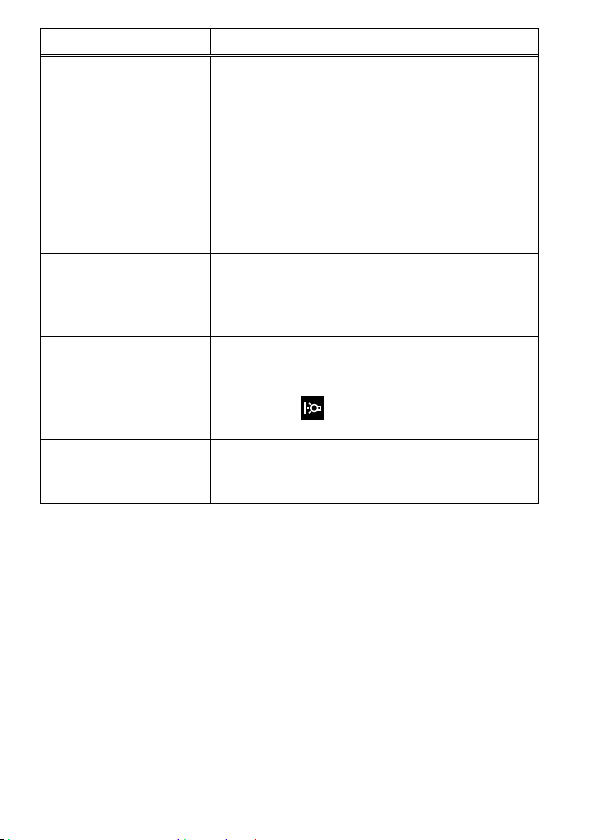
L’écran est difficile à voir. Utilisez le parasoleil pour bloquer la lumière du
soleil. (Page 23)
Si l’écran est sombre, ajustez la luminosité de
l’écran avec (rétroéclairage) dans le menu de
cet appareil. (Page 28)
Des bandes noires
apparaissent sur l’écran
Le format du panneau LCD de cet appareil est
15:9, de sorte que des bandes noires apparaissent
selon l’image. (Page 26)

34-FR
Spécifications
Performance de l’image
Panneau LCD TFT Normalement noir
Taille de l’image Type 5
Angle de vision 90°/90°
Taille d’image efficace (l × h) Environ 108 mm × 64,8 mm
(4 3/8 po × 2 5/8 po)
Résolution 800 × 480 pixels
Format 15:9
Entrée/sortie
Entrée
Prise d’entréeHDMI HDMI (Type A) (1)
Prise DC IN CC 7,6 V
Sortie
Sortie de haut-parleur intégré Environ 0,5 W Mono
Prise de sortie de casque Minijack stéréo Ø 3,5 (1)
Caractéristiques générales
Alimentation Batterie Sony série M CC 7,2 V
CC 7,6 V AC-PW10AM
Consommation Environ 5 W
Dimensions (l/h/p) Environ 129 mm × 88,5 mm × 20 mm
(5 1/8 po × 3 1/2 po × 13/16 po)
(sans les saillies)
Poids Environ 250 g (8,9 oz) (appareil principal
seulement)
Température de
fonctionnement
Environ 0°C à 40°C (32 °F à 104 °F)
Température d’entreposage Environ -20°C à +60°C (-4 °F à +140 °F)
Accessoires fournis Adaptateur de griffe porte-accessoire (2), Câble
HDMI (Type A
Type C) (1), Parasoleil (1), Étui
de transport (1), Jeu de documents imprimés
35-FR
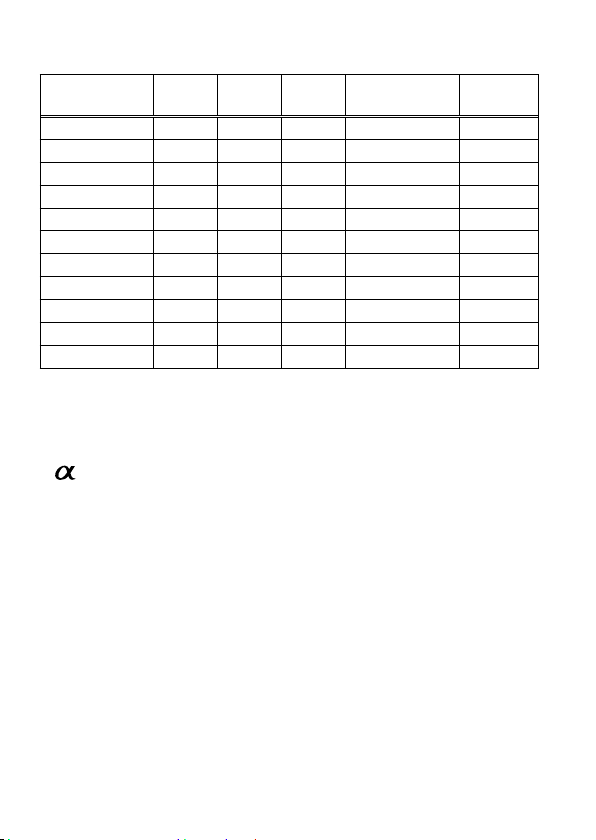
Formats de signaux disponibles
L’appareil prend en charge les formats de signaux suivants.
Système
Total
lignes
Lignes
actives
Cadence Balayage
Rapport
d’aspect
575/50I (PAL) 625 575 25 2:1 entrelacé 16:9/4:3
480/60I (NTSC) 525 483 30 2:1 entrelacé 16:9/4:3
576/50P 625 576 50 Progressif 16:9/4:3
480/60P 525 483 60 Progressif 16:9/4:3
640×480/60P 525 480 60 Progressif 4:3
1080/50I 1125 1080 25 2:1 entrelacé 16:9
1080/60I 1125 1080 30 2:1 entrelacé 16:9
720/50P 750 720 50 Progressif 16:9
720/60P 750 720 60 Progressif 16:9
1080/50P 1125 1080 50 Progressif 16:9
1080/60P 1125 1080 60 Progressif 16:9
La conception et les spécifications peuvent être modifiées sans préavis.
Marque commerciale
est une marque commerciale de Sony Corporation.
HDMI, le logo HDMI et High-Definition Multimedia Interface sont des marques
commerciales ou des marques déposées de HDMI Licensing LLC.
2011 Sony Corporation Printed in China