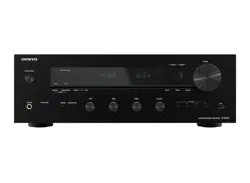
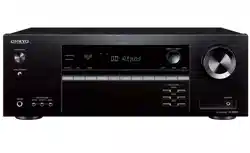
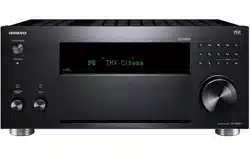
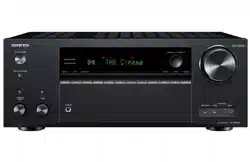
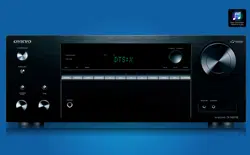
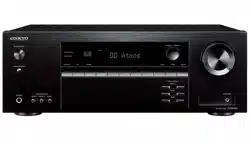
1. ON/STANDBY button 2. MUSIC OPTIMIZER button: Turns on/off the MUSIC OPTIMIZER function that improves the quality of the compressed audio. 3. BLUETOOTH indicator: Lights up when this unit and a BLUETOOTH-enabled device are connected. 4. DOLBY ATMOS indicator: Lights up when Dolby Atmos signals are reproduced in appropriate listening mode. 5. Remote control sensor: Receives signals from the remote controller. • The reception range of the remote controller is within a distance of approx. 16´/5 m, and an angle of 20° in vertical direction and 30° to right and left. 6. ZONE A/B button: Selects an audio output destination from among "ZONE A", "ZONE B" and "ZONE A+B". 7. INFO button: Switches the information on the display and is used to operate RDS 8. DIMMER button: Switches the brightness of the display with three levels. It cannot be turned off completely. 9. Display 10. SETUP button: You can display advanced setting items on the TV and the display to have a more enjoyable experience with this unit. 11. Cursor buttons () and ENTER button: Select an item with the cursors, and press ENTER to confirm your selection. When using TUNER, use them to tune in to stations. 12. RETURN button: Returns the display to the previous state while setting. 13. MASTER VOLUME 14. PHONES jack: Connect headphones with a standard plug (ø1/4"/6.3 mm). 15. LISTENING MODE button: Switches the listening mode by pressing "STEREO", "MOVIE/TV" and "MUSIC" repeatedly. 16. Input selector buttons: Switches the input to be played. 17. TONE CONTROL button: Adjusts the sound quality. Press of "TREBLE", "VOCAL" or "BASS" respectively. 18. SETUP MIC jack: Connect the supplied speaker setup microphone.
Display
1. Speaker/Channel display: Displays the output channel that corresponds to the selected listening mode. 2. Displays the audio output destination. A: Outputs audio only to the main room (ZONE A). B: Outputs audio only to the separate room (ZONE B). AB: Outputs audio to both the main room (ZONE A) and separate room (ZONEB). 3. Lights in the following conditions. : Headphones are connected. : Connected by BLUETOOTH. HDMI: HDMI signals are input and the HDMI input is selected. DIGITAL: Digital signals are input and the digital input is selected. 4. Lights according to the type of input digital audio signal and the listening mode. 5. Lights in the following conditions.
RDS (European, Australian and Asian models): Receiving RDS broadcasting.
TUNED: Receiving AM/FM radio.
FM ST: Receiving FM stereo.
SLEEP: Sleep timer is set.
AUTO STBY: Auto Standby is set.
6. Blinks when muting is on. 7. Displays various information of the input signals.
Rear Panel
HDMI OUT jacks: Transmit video signals and audio signals with an HDMI cable connected to a TV.
HDMI IN jacks: Transmit video signals and audio signals with an HDMI cable connected to an AV component.
POWER OUT port: You can also supply power (5 V/1 A) to the Streaming media player connected to the HDMI IN terminal of this unit with a USB cable. The playback function of music files and power supply to smart phones/tablets, or other devices are not supported.
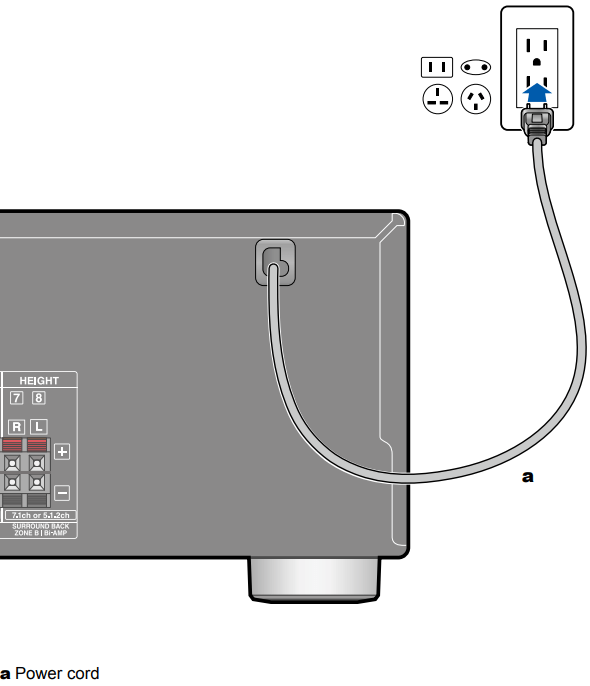
Power cord
DIGITAL IN OPTICAL/COAXIAL jacks: Input TV or AV component digital audio signals with a digital optical cable or digital coaxial cable.
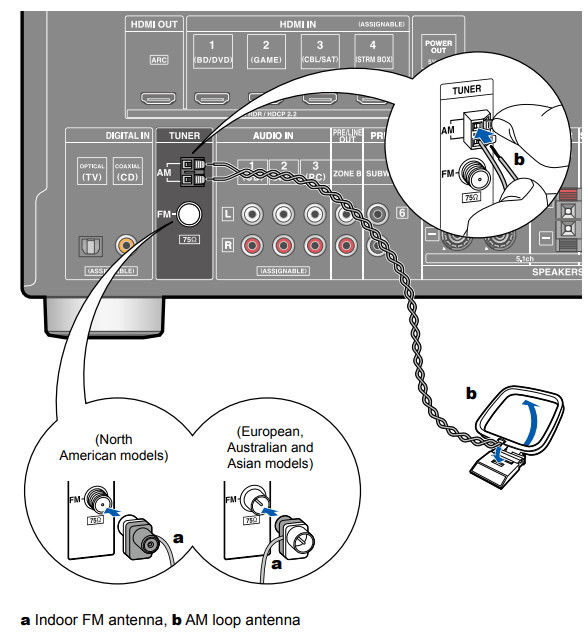
TUNER AM/FM terminal: Connect the supplied antennas.
AUDIO IN jacks: Input TV or AV component audio signals with an analog audio cable.
ZONE B PRE/LINE OUT jacks: Output audio signals with an analog audio cable connected to a pre-main amplifier or a power amplifier in a separate room (ZONE B).
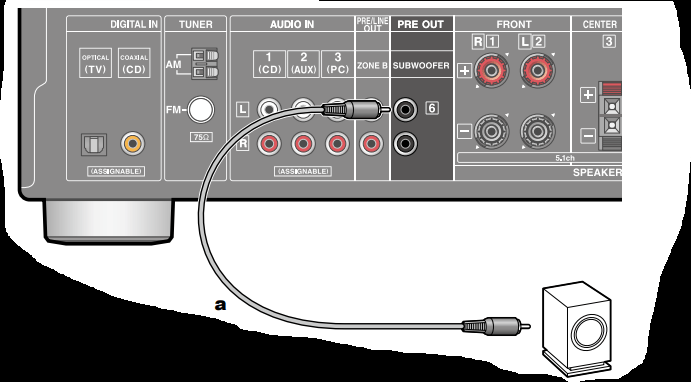
SUBWOOFER PRE OUT jacks: Connect a powered subwoofer with a subwoofer cable. Up to two powered subwoofers can be connected. The same signal is output from each SUBWOOFER PRE OUT jack.
SPEAKERS terminals: Connect speakers with speaker cables. (FRONT L/R terminals of North American models support banana plugs.)
Remote Controller
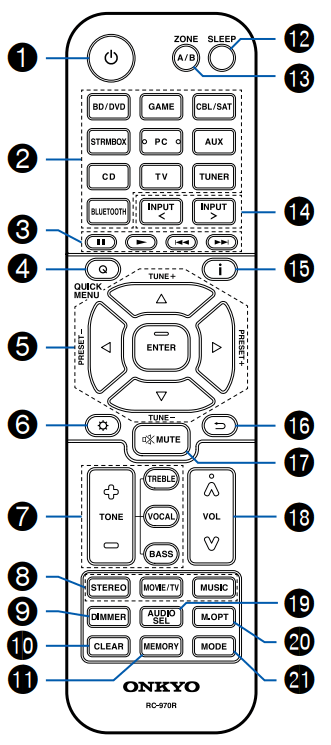
ON/STANDBY button
Input selector buttons: Switches the input to be played.
Play buttons: Used for playback operation of a BLUETOOTH-enabled device. If the unit is switched to "CEC MODE" using the MODE button, an HDMI CEC function-enabled AV component can be operated. (Depending on the device, operation may not be possible.)
Q (QUICK MENU) button: Pressing this button during playback can make settings such as "HDMI" and "Audio" quickly on the TV screen while playing. ( p83)
Cursor buttons and ENTER button: Select an item with the cursors, and press ENTER to confirm your selection.
button: Display advanced setting items on the TV or the display to have a more enjoyable experience with this unit.
TONE button: Adjusts the sound quality.
LISTENING MODE button: Select a listening mode
DIMMER button: Switches the brightness of the display with three levels. It cannot be turned off completely.
CLEAR button: Deletes all characters you have entered when entering text on the TV screen.
MEMORY button: Used to register AM/FM radio stations.
SLEEP button: Set the sleep timer. Select the time from "30 min", "60 min" and "90 min".
ZONE A/B button: Selects an audio output destination from among "ZONE A", ZONE B" and "ZONE A+B".
Input selector cursors: Switches the input to be played.
button: Switches the information on the display and is used to operate RDS p45).
button: Returns the display to the previous state while setting. button: Temporarily mutes audio. Press the button again to cancel muting.
VOLUME buttons
AUDIO SEL button: When a device is connected to two or more audio input terminals for one input selector, you can select which audio input signal to play.
M.OPT button: Turns on/off the MUSIC OPTIMIZER function that improves the quality of the compressed audio.
MODE button: Switches between automatic tuning and manual tuning for AM/FM stations. Also, when an HDMI CEC function-enabled AV component is connected to this unit, you can switch "3. Play buttons" between
CEC MODE" and "RCV MODE" (normal mode).
Connecting Speaker
Speaker Installation
5.1 Channel System
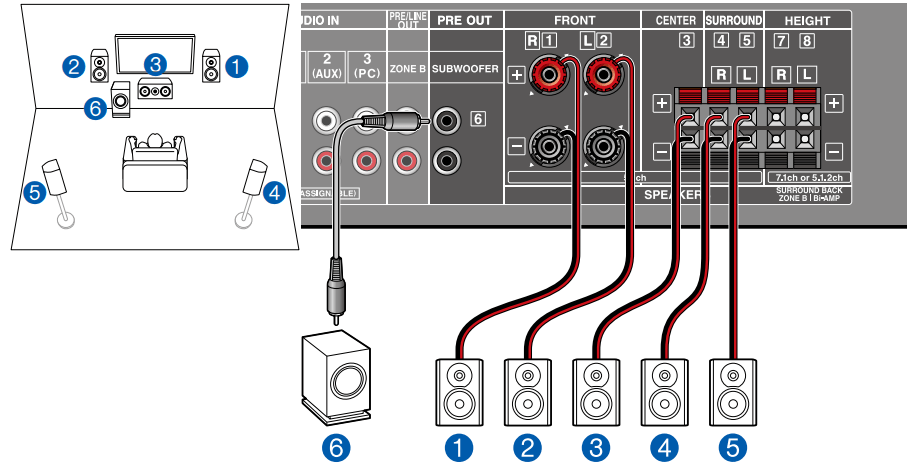
This is a basic 5.1 Channel System. Front speakers output the front stereo sound, and a center speaker outputs the sound of the center of the screen, such as dialogs and vocals. Surround speakers create the back sound field. Powered subwoofer reproduces the bass sound, and creates the rich sound field. The front speakers should be positioned at ear height while the surround speakers should be positioned just above ear height. The center speaker should be set up facing the listening position at an angle. Placing the powered subwoofer between the center speaker and the front speaker gives you a natural sound even when playing music sources.
1,2 Front Speakers 3 Center Speaker 4,5 Surround Speakers 6 Powered Subwoofer
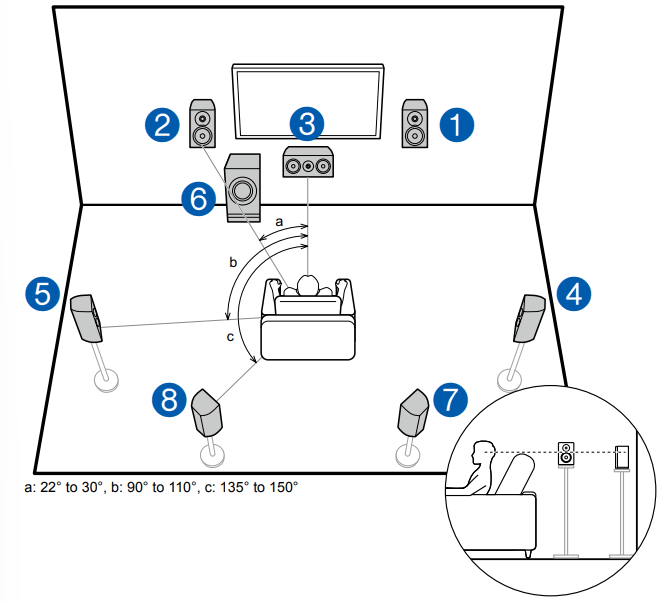
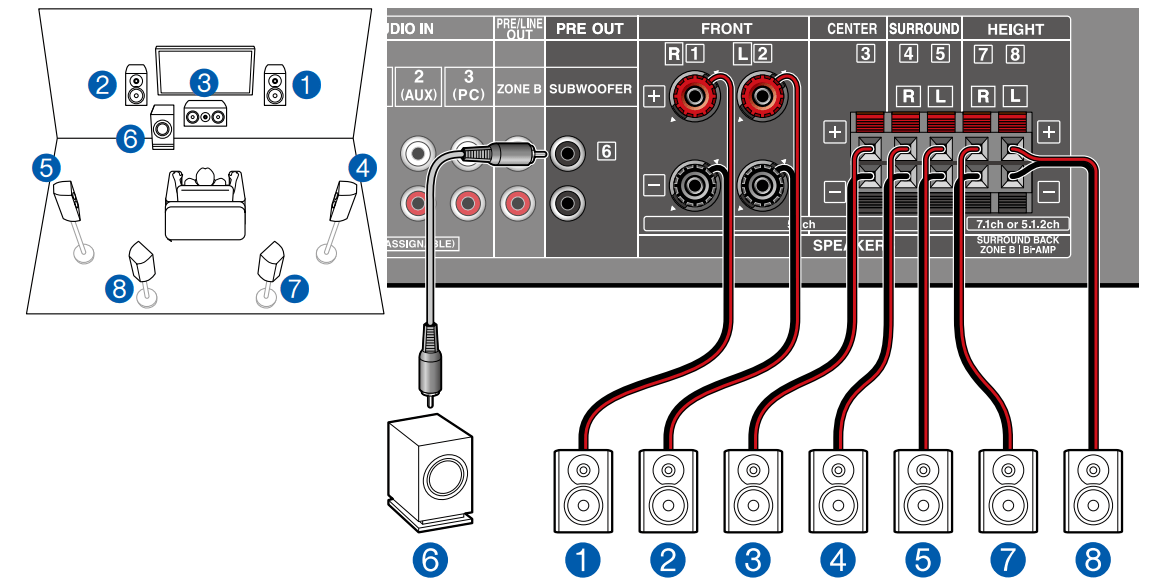
7.1 Channel System
This is a 7.1 Channel System that consists of the basic 5.1 Channel System ( p16) and added surround back speakers. Front speakers output the front stereo sound, and a center speaker outputs the sound of the center of the screen, such as dialogs and vocals. Surround speakers create the back sound field. Powered subwoofer reproduces the bass sound, and creates the rich sound field. Surround back speakers improves the sense of envelopment and connectivity of sound in the back sound field, and provides a more real sound field.
The front speakers should be positioned at ear height while the surround speakers should be positioned just above ear height. The center speaker should be set up facing the listening position at an angle. Placing the powered subwoofer between the center speaker and the front speaker gives you a natural sound even when playing music sources. The surround back speakers should be positioned at ear height.
• If surround back speakers are installed, be sure to install surround speakers as well.
1,2 Front Speakers 3 Center Speaker 4,5 Surround Speakers 6 Powered Subwoofer 7,8 Surround Back Speakers
Speaker Connections and "Speaker Setup" Settings
Connections
(Note) Speaker Impedance
Connect speakers with an impedance of 4 Ω to 16 Ω. If any of the speakers to be connected has an impedance of 4 Ω or more and less than 6 Ω, set "Speaker Impedance" to "4 ohms" for "Speaker Setup" in the Initial Setup section. When setting "Speaker Impedance" from the Setup menu, press on the remote controller, and set "2. Speaker" - "Configuration" - “Speaker Impedance” to "4 ohms".
Connect the Speaker Cables
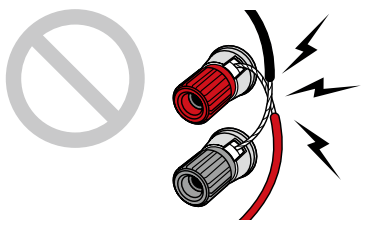
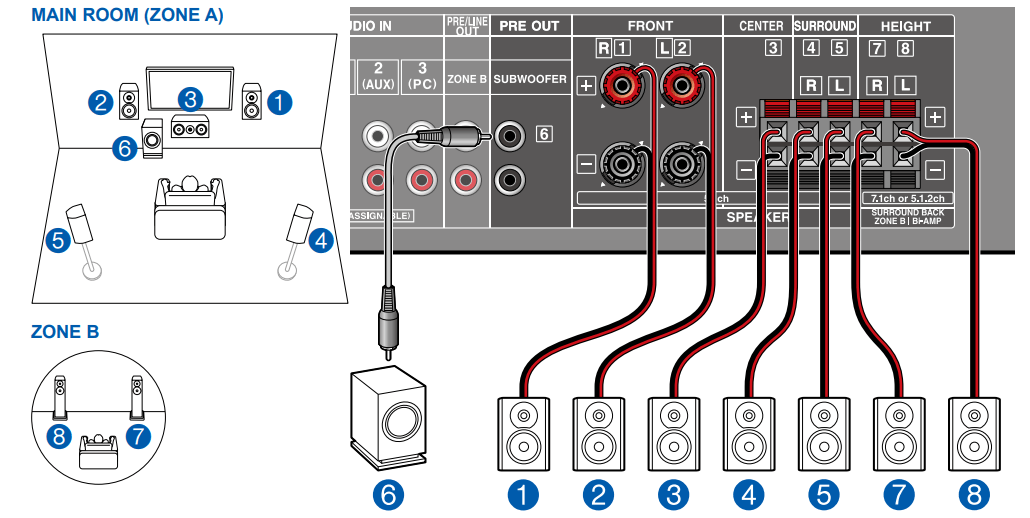
Make correct connection between the unit's jacks and speaker's jacks (+ side to + side, and - side to - side) for each channel. If the connection is wrong, a bass sound will not be reproduced properly due to reverse phase. Twist the wires exposed from the tip of the speaker cable so that the wires do not stick out of the speaker terminal when connecting. If the exposed wires touch the rear panel, or the + side and - side wires touch each other, a malfunction may occur.
Connect the Subwoofer
a Subwoofer cable Connect a powered subwoofer with this unit using a subwoofer cable. Up to two powered subwoofers can be connected. The same signal is output from each SUBWOOFER PRE OUT jack.
5.1 Channel System
5.1 Channel System + ZONE B SPEAKER
5.1 Channel System (Bi-Amping the Speakers)
You can configure a 5.1 Channel System by connecting front speakers that support Bi-Amping connection. The Bi-Amping connection can improve the quality of the low and high pitched ranges. Be sure to remove the jumper bar connecting between the woofer jacks and tweeter jacks of the Bi-Amping supported speakers. Refer to the instruction manual of your speakers as well.
7.1 Channel System
This is a 7.1 Channel System that consists of the basic 5.1 Channel System and added surround back speakers.
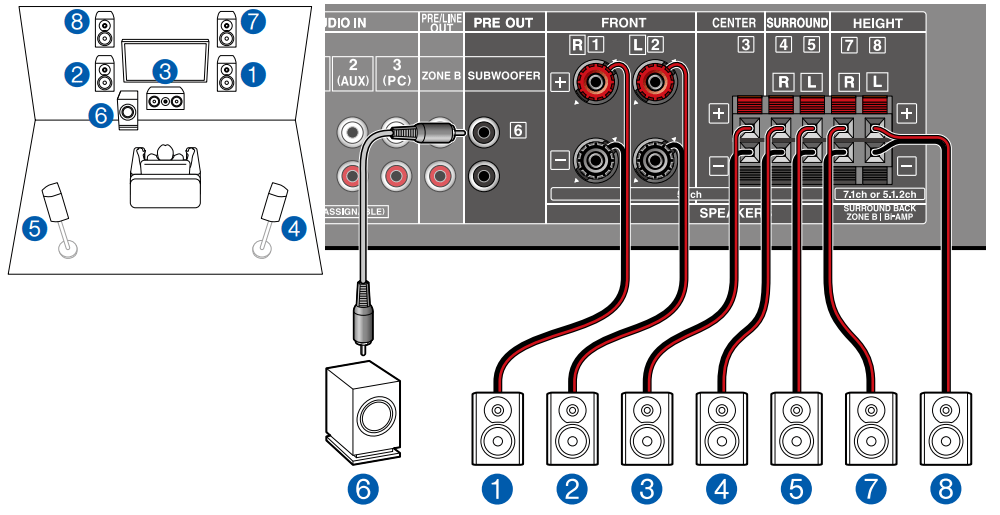
5.1.2 Channel System
This is a combination of the 5.1 Channel System and front high speakers. A front high speaker is a type of height speaker. You can select only one set of height speakers from the following three types for connection. ❏ Front High Speakers/Rear High Speakers Installation Example ❏ Ceiling Speakers Installation Example ❏ Dolby Enabled Speakers (Dolby Speakers) Installation Example
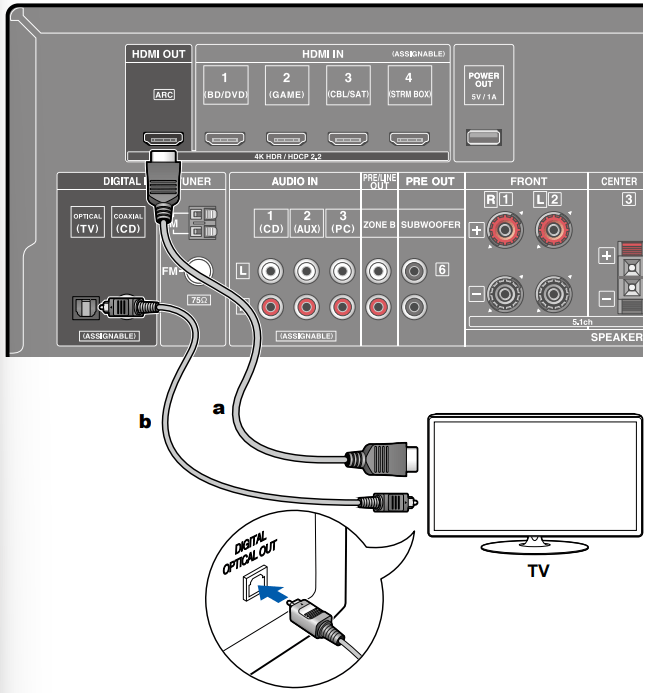
Connecting the TV
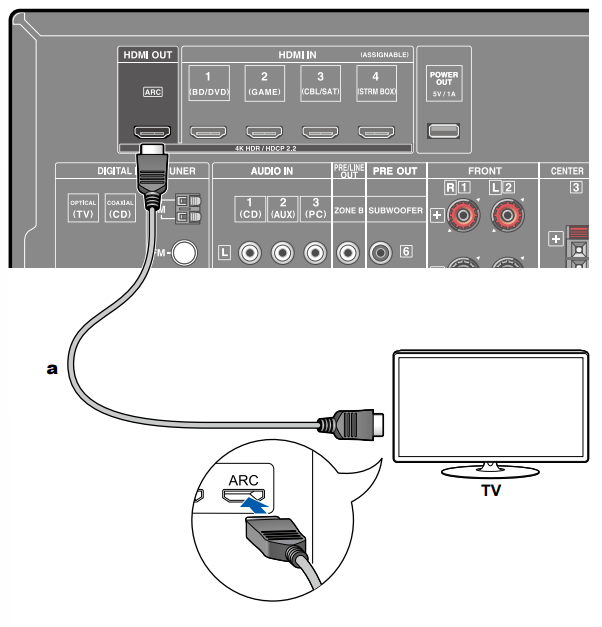
To ARC TV
If the TV supports the ARC (Audio Return Channel) function (*), use only the HDMI cable to connect with the TV. Use the ARC-compatible HDMI IN jack of the TV for connection. You connect the HDMI cable to the port labeled OUT on the receiver side.
• If a 4K high-quality video is played, use a Premium High Speed HDMI Cable or Premium High Speed HDMI Cable with Ethernet whose package has a "PREMIUM Certified Cable" label.
Setup
• Settings are required to use the ARC function. Select "Yes" for "3. ARC Setup" in Initial Setup ( p85). If "No, Skip" is selected, settings are required in the Setup menu after Initial Setup is completed. Press on the remote controller, and set "5. Hardware" - "HDMI" - "Audio Return Channel" to "On".
• For detailed settings for TV connection, CEC function and audio output, refer to the instruction manual of the TV.
(*) ARC function: This function transmits the audio signals of the TV via an HDMI cable, and plays the audio of the TV on this unit. Connection to an ARCcompatible TV is complete with one HDMI cable. To check if the TV supports the ARC function, refer to the instruction manual of the TV, etc.
To Non-ARC TV
If the TV does not support the ARC (Audio Return Channel) function (*), connect an HDMI cable and digital optical cable.
• If you use a cable set-top box, etc. connected to the input jack of this unit to watch TV (without using a TV’s built-in tuner), connection with a digital optical cable or analog audio cable is not required.
• If a 4K high-quality video is played, use a Premium High Speed HDMI Cable or Premium High Speed HDMI Cable with Ethernet whose package has a "PREMIUM Certified Cable" label.
(*) ARC function: This function transmits the audio signals of the TV via an HDMI cable, and plays the audio of the TV on this unit. Connection to an ARCcompatible TV is complete with one HDMI cable. To check if the TV supports the ARC function, refer to the instruction manual of the TV, etc.
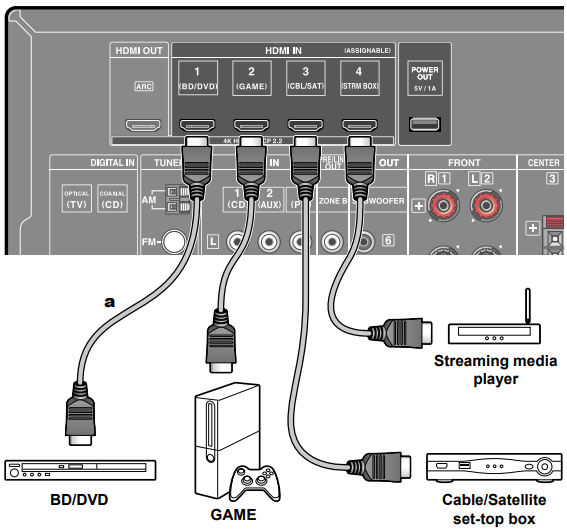
Connecting Playback Devices
Connecting an AV Component with HDMI Jack Mounted
This is a connection example of an AV component equipped with an HDMI jack. When connecting with an AV component that conforms to the CEC (Consumer Electronics Control) standard, you can use the HDMI CEC function (*) that enables linking with input selectors, etc. and the HDMI Standby Through function that can transmit video and audio signals of the AV component to the TV even if this unit is in standby mode. Also, the POWER OUT jack on the rear panel can supply power (5 V/1 A) to a streaming media player connected to HDMI IN jack of this unit. To supply power even when this unit is in standby mode, change the setting value of "USB Power Out at Standby" ( p81) to "On".
• If a 4K high-quality video is played, use a Premium High Speed HDMI Cable or Premium High Speed HDMI Cable with Ethernet whose package has a "PREMIUM Certified Cable" label.
• The POWER OUT jack cannot support playback of music files or power supply to smart phones/tablets, or other devices.
Setup
• The HDMI CEC function and HDMI Standby Through function are automatically enabled if you select "Yes" for "3. ARC Setup" in Initial Setup ( p85). If "No, Skip" is selected, settings are required in the Setup menu after Initial Setup is completed. Press on the remote controller, and select "5. Hardware" - "HDMI" to make the settings.
• To enjoy digital surround sound including Dolby Digital, set the audio output of the connected Blu-ray Disc player etc. to the Bitstream output.
(*)The HDMI CEC function: This function enables various linking operations with CEC-compliant devices, such as switching input selectors interlocking with a CEC-compliant player, switching audio output between TV and this unit or adjusting the volume using the remote controller of a CEC-compliant TV, and automatically switching this unit to standby when the TV is turned off.
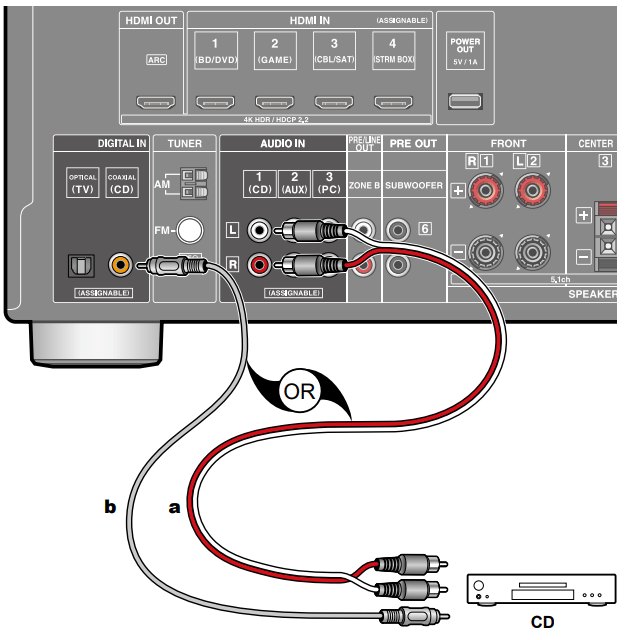
Connecting an Audio Component
an Analog audio cable, b Digital coaxial cable
This is a connection example of an audio component. Connect a CD player using a digital coaxial cable or analog audio cable.
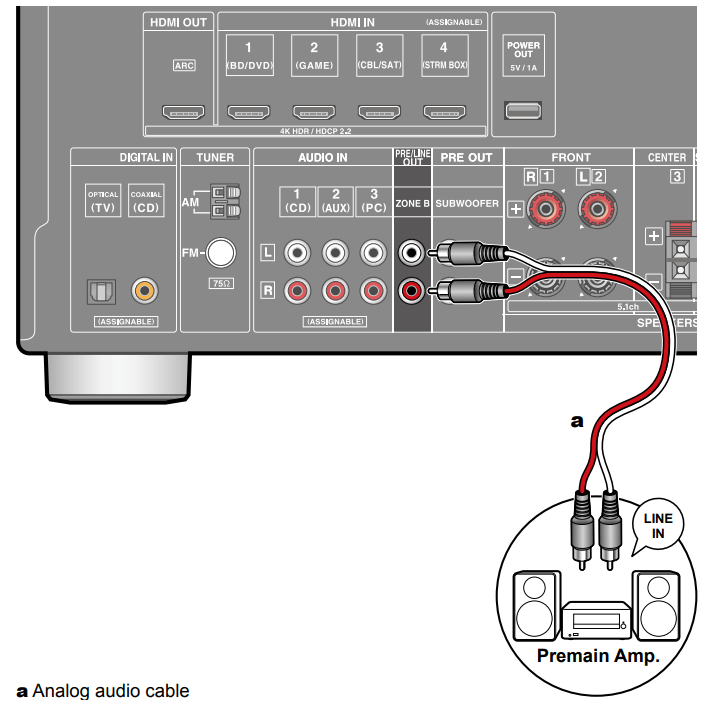
Connecting an AV Component in a Separate Room (ZONE B Connection)
Connecting a Pre-main Amplifier (ZONE B)
While performing playback in the main room (ZONE A), you can enjoy 2-ch audio of the same source in the separate room (ZONE B) at the same time. Use an analog cable to connect the ZONE B PRE/LINE OUT jack of this unit and the LINE IN jack of the pre-main amplifier or power amplifier in the separate room.
Setup
When connecting the power amplifier, set "Zone B Output Level" to "Variable" for "Speaker Setup" in the Initial Setup section. When setting "Zone B Output Level" from the Setup menu, press on the remote controller, and set "2. Speaker" - "Configuration" - "Zone B Output Level" to "Variable". If it is not set, a large volume is output and the power amplifier, speakers, etc. may be damaged.
Connecting Antennas
Connect the antenna to this unit, and set up the antenna at the best position for listening while receiving radio signals. Attach the indoor FM antenna to the wall using push pins or adhesive tape.
Connecting the Power Cord
Connect the power cord after all the connections are completed.
Setup
Menu operations
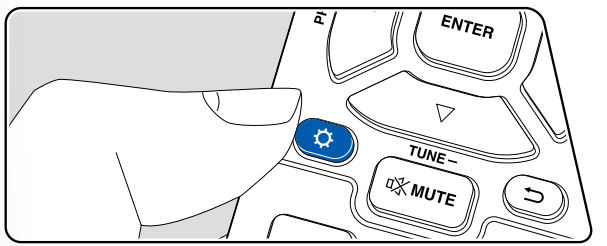
Use the on-screen displays (OSD) that appear on the TV to make the settings. Press on the remote controller to display the Setup menu.
Select the item with the cursors of the remote controller, and press ENTER to confirm your selection. Use the cursors to change the default values.
• To return to the previous screen, press .
• To exit the settings, press .
Input/Output Assign
❏ TV Out / OSD
Setting Item
Default Value
Setting Details
1080p -> 4K Upscaling
Off
When using a TV that supports 4K, video signals input at 1080p can be automatically upscaled to 4K for output.
"Off": When this function is not to be used "Auto": When this function is to be used Select "Off" if your TV does not support 4K.
• If the TV does not support the 4K resolution with the same frequency as the frequency of HDMI input video signals, upscaling to 4K is not correctly performed. Check the frequency of 4K resolution supported by the TV, and change the resolution of the video signals input from the AV component.
Super Resolution
2
When you have set "1080p -> 4K Upscaling" to "Auto", you can select the degree of video signal correction from "Off" and between "1" (weak) and "3" (strong).
OSD Language
English
Select the on-screen display language from the following.
(North American models) English, German, French, Spanish, Italian, Dutch, Swedish (European, Australian and Asian models) English, German, French, Spanish, Italian, Dutch, Swedish, Russian, Chinese
Setting Item
Default Value
Setting Details
Impose OSD
On
Set whether or not to display information such as volume adjustment or switching of input on the TV screen.
"On": OSD is displayed on the TV.
"Off": OSD is not displayed on the TV.
• OSD may not be displayed depending on the input signal even if "On" is selected. In this case, change the resolution of the connected device.
Mini Player OSD
Always On
You can display on the TV the images from another input selected last while playing the audio from BLUETOOTH input. After switching the input to BLUETOOTH, play the images and audio. And then when you press MODE on the remote controller, the image is displayed in full-screen mode, and the audio information (Mini Player) for BLUETOOTH is displayed in the corner of the screen. You can set whether to always display this Mini Player on the screen.
"Always On": The Mini Player is always displayed. "Auto Off": The Mini Player turns off automatically in 30 seconds after displayed. If operation such as changing the volume is performed, it is displayed again for 30 seconds.
• Each time the MODE button is pressed, the image display/non-display can be switched.
• This setting cannot be selected if "Impose OSD" is set to "Off".
• When "OSD Language" is set to Chinese, this function cannot be used. (European, Australian and Asian models)
Screen Saver
3 minutes
Set the time to start the screen saver.
Select a value from "3 minutes", "5 minutes", "10 minutes" and "Off".
❏ HDMI Input
Setting Item
Default Value
Setting Details
BD/DVD
HDMI 1
"HDMI 1" to "HDMI 4": Assign a desired HDMI IN jack to the BD/DVD button. If you do not assign a jack, select "—". To select an HDMI IN jack already assigned to another input selector, change its setting to "—" first.
GAME
HDMI 2
"HDMI 1" to "HDMI 4": Assign a desired HDMI IN jack to the GAME button. If you do not assign a jack, select "—". To select an HDMI IN jack already assigned to another input selector, change its setting to "—" first.
CBL/SAT
HDMI 3
"HDMI 1" to "HDMI 4": Assign a desired HDMI IN jack to the CBL/SAT button. If you do not assign a jack, select "—". To select an HDMI IN jack already assigned to another input selector, change its setting to "—" first.
STRM BOX
HDMI 4
"HDMI 1" to "HDMI 4": Assign a desired HDMI IN jack to the STRM BOX button. If you do not assign a jack, select "—". To select an HDMI IN jack already assigned to another input selector, change its setting to "—" first.
PC
"HDMI 1" to "HDMI 4": Assign a desired HDMI IN jack to the PC button. If you do not assign a jack, select "—". To select an HDMI IN jack already assigned to another input selector, change its setting to "—" first.
CD
"HDMI 1" to "HDMI 4": Assign a desired HDMI IN jack to the CD button. If you do not assign a jack, select "—". To select an HDMI IN jack already assigned to another input selector, change its setting to "—" first.
Setting Item
Default Value
Setting Details
TV
"HDMI 1" to "HDMI 4": Assign a desired HDMI IN jack to the TV button. If you do not assign a jack, select "—". To select an HDMI IN jack already assigned to another input selector, change its setting to "—" first.
❏ Digital Audio Input
Setting Item
Default Value
Setting Details
BD/DVD
—
"COAXIAL", "OPTICAL": Assign a desired DIGITAL IN jack to the BD/DVD button.
GAME
---
"COAXIAL", "OPTICAL": Assign a desired DIGITAL IN jack to the GAME button.
CBL/SAT
---
"COAXIAL", "OPTICAL": Assign a desired DIGITAL IN jack to the CBL/SAT button.
STRM BOX
---
"COAXIAL", "OPTICAL": Assign a desired DIGITAL IN jack to the STRM BOX button.
PC
---
"COAXIAL", "OPTICAL": Assign a desired DIGITAL IN jack to the PC button.
CD
COAXIAL
"COAXIAL", "OPTICAL": Assign a desired DIGITAL IN jack to the CD button.
TV
OPTICAL
"COAXIAL", "OPTICAL": Assign a desired DIGITAL IN jack to the TV button.
❏ Analog Audio Input
Setting Item
Default Value
Setting Details
BD/DVD
---
"AUDIO 1" to "AUDIO 3": Assign a desired AUDIO IN jack to the BD/DVD button.
GAME
---
"AUDIO 1" to "AUDIO 3": Assign a desired AUDIO IN jack to the GAME button.
CBL/SAT
---
"AUDIO 1" to "AUDIO 3": Assign a desired AUDIO IN jack to the CBL/SAT button.
STRM BOX
---
"AUDIO 1" to "AUDIO 3": Assign a desired AUDIO IN jack to the STRM BOX button.
PC
AUDIO 3
"AUDIO 1" to "AUDIO 3": Assign a desired AUDIO IN jack to the PC button.
AUX
AUDIO 2
"AUDIO 1" to "AUDIO 3": Assign a desired AUDIO IN jack to the AUX button.
CD
AUDIO 1
"AUDIO 1" to "AUDIO 3": Assign a desired AUDIO IN jack to the CD button.
TV
---
"AUDIO 1" to "AUDIO 3": Assign a desired AUDIO IN jack to the TV button.
Speaker
❏ Configuration
Setting Item
Default Value
Setting Details
Speaker
Channels
7.1 ch
Select "2.1 ch", "3.1 ch", "4.1 ch", "5.1 ch", "6.1 ch", "7.1 ch", "2.1.2 ch", "3.1.2 ch", "4.1.2 ch" or "5.1.2 ch" to suit the number of speaker channels connected.
Subwoofer
Yes
Set whether a subwoofer is connected or not. "Yes": When a subwoofer is connected "No": When a subwoofer is not connected
Height Speaker
Top Middle
Set the speaker type if height speakers are connected to the SURROUND BACK or HEIGHT terminals.
Select "Top Middle", "Top Rear", "Rear High", "Dolby Speaker (Front)", "Dolby Speaker (Surr)", "Front High" or "Top Front" according to the type and layout of the connected speakers.
• If the item cannot be selected even though connection is correct, check if the setting in "Speaker Channels" matches the number of connected channels.
Zone B Speaker
No
Set whether speakers are connected to Zone B speaker terminals.
"Yes": When speakers are connected to Zone B speaker terminals
"No": When speakers are not connected to Zone B speaker terminals
Zone B Output Level
Fixed
Select whether to adjust the volume on the premain amplifier in the separate room or on this unit when outputting to Zone B.
"Fixed": Adjust on the pre-main amplifier in the separate room "Variable": Adjust on this unit • This setting is fixed to "Variable" if "Zone B Speaker" is set to "Yes".
Setting Item
Default Value
Setting Details
Bi-Amp
No
Set whether the front speakers are bi-amp connected.
"No": When front speakers are not bi-amp connected
"Yes": When front speakers are bi-amp connected
• This setting is fixed to "No" if "Zone B Speaker" is set to "Yes".
• This setting cannot be selected when surround back speakers or height speakers are installed.
Speaker
Impedance
6 ohms or above
Set the impedance (0) of the connected speakers. "4 ohms": When any of the connected speakers have 4 0 or more to less than 6 0 impedance "6 ohms or above": When the connected speakers all have 6 0 or more impedance • For impedance, check the indications on the back of the speakers or their instruction manual.
❏ Crossover
Setting Item
Default Value
Setting Details
Front
100 Hz
Select the crossover frequency from "40 Hz" to "200 Hz" to start outputting frequencies for each channel.
"Full Band": Full band will be output.
• If "Configuration" - "Subwoofer" is set to "No", "Front" is fixed to "Full Band", and the low pitched range of the other channels is output from the front speakers. Refer to the instruction manual of your speakers to make the setting.
Center
100 Hz
Select the crossover frequency from "40 Hz" to "200 Hz" to start outputting frequencies for each channel.
"Full Band": Full band will be output.
• "Full Band" can be selected only when "Front" is set to "Full Band".
• If the item cannot be selected even though connection is correct, check if the setting in "Configuration" - "Speaker Channels" matches the number of connected channels.
Height
100 Hz
Select the crossover frequency from "40 Hz" to "200 Hz" to start outputting frequencies for each channel.
"Full Band": Full band will be output.
• "Full Band" can be selected only when "Front" is set to "Full Band".
• If the item cannot be selected even though connection is correct, check if the setting in "Configuration" - "Speaker Channels" matches the number of connected channels.
Setting Item
Default Value
Setting Details
Surround
100 Hz
Select the crossover frequency from "40 Hz" to "200 Hz" to start outputting frequencies for each channel.
"Full Band": Full band will be output.
• "Full Band" can be selected only when "Front" is set to "Full Band".
• If the item cannot be selected even though connection is correct, check if the setting in "Configuration" - "Speaker Channels" matches the number of connected channels.
Surround Back
100 Hz
Select the crossover frequency from "40 Hz" to "200 Hz" to start outputting frequencies for each channel.
"Full Band": Full band will be output.
• "Full Band" can be selected only when "Surround" is set to "Full Band".
• If the item cannot be selected even though connection is correct, check if the setting in "Configuration" - "Speaker Channels" matches the number of connected channels.
LPF of LFE
120 Hz
Set the low-pass filter for LFE (low-frequency effect) signals in order to pass only the lower frequency signals than the set value, and thus cancel unwanted noises. The low-pass filter is effective only on sources with LFE channel. The value from "80 Hz" to "120 Hz" can be set. "Off": When this function is not used
Double Bass
On
This can be selected only when "Configuration"
- "Subwoofer" is set to "Yes" and "Front" is set to "Full Band".
Bass output is boosted by feeding bass sounds from the front right and left, and center speakers to the subwoofer.
"On": Bass output is boosted.
"Off": Bass output is not boosted.
• This function is not automatically set even if AccuEQ Room Calibration is performed.
❏ Distance
Setting Item
Default Value
Setting Details
Front Left
12.0 ft/3.60 m
Specify the distance between each speaker and the listening position.
Center
12.0 ft/3.60 m
Specify the distance between each speaker and the listening position.
Front Right
12.0 ft/3.60 m
Specify the distance between each speaker and the listening position.
Height Left
9.0 ft/2.70 m
Specify the distance between each speaker and the listening position.
Height Right
9.0 ft/2.70 m
Specify the distance between each speaker and the listening position.
Surround Right
7.0 ft/2.10 m
Specify the distance between each speaker and the listening position.
Surr Back Right
7.0 ft/2.10 m
Specify the distance between each speaker and the listening position.
Surr Back Left
7.0 ft/2.10 m
Specify the distance between each speaker and the listening position.
Surround Left
7.0 ft/2.10 m
Specify the distance between each speaker and the listening position.
Subwoofer
12.0 ft/3.60 m
Specify the distance between each speaker and the listening position.
• Default values vary depending on the regions.
• The unit of distance can be changed by pressing the MODE button on the remote controller. When using the unit "feet", the setting is available in increments of 0.1 ft from 0.1 ft to 30.0 ft. When using the unit "meter", the setting is available in increments of 0.03 m from 0.03 m to 9.00 m.
❏ Level Calibration
Setting Item
Default Value
Setting Details
Front Left
0 dB
Select a value between "-12 dB" and "+12 dB"
(in 1 dB increments). A test tone will be output each time you change the value. Select the desired level.
Center
0 dB
Select a value between "-12 dB" and "+12 dB"
(in 1 dB increments). A test tone will be output each time you change the value. Select the desired level.
Front Right
0 dB
Select a value between "-12 dB" and "+12 dB"
(in 1 dB increments). A test tone will be output each time you change the value. Select the desired level.
Height Left
0 dB
Select a value between "-12 dB" and "+12 dB"
(in 1 dB increments). A test tone will be output each time you change the value. Select the desired level.
Height Right
0 dB
Select a value between "-12 dB" and "+12 dB"
(in 1 dB increments). A test tone will be output each time you change the value. Select the desired level.
Surround Right
0 dB
Select a value between "-12 dB" and "+12 dB"
(in 1 dB increments). A test tone will be output each time you change the value. Select the desired level.
Surr Back Right
0 dB
Select a value between "-12 dB" and "+12 dB"
(in 1 dB increments). A test tone will be output each time you change the value. Select the desired level.
Surr Back Left
0 dB
Select a value between "-12 dB" and "+12 dB"
(in 1 dB increments). A test tone will be output each time you change the value. Select the desired level.
Surround Left
0 dB
Select a value between "-12 dB" and "+12 dB"
(in 1 dB increments). A test tone will be output each time you change the value. Select the desired level.
Subwoofer
0 dB
Select a value between "-15 dB" and "+12 dB"
(in 1 dB increments). A test tone will be output each time you change the value. Select the desired level.
❏ Dolby Enabled Speaker
Setting Item
Default Value
Setting Details
Dolby Enabled Speaker to Ceiling
6.0 ft/1.80 m
Set the distance between the Dolby Enabled Speaker and the ceiling. Select between "0.1 ft/0.03 m" and "15.0 ft/4.50 m" (0.1 ft/0.03 m units).
• The unit of distance (ft/m) is displayed using the unit selected for the "Distance" setting.
AccuReflex
Off
You can enhance the reflection effect of Dolby Enabled Speakers from the ceiling.
"Off": When this function is not used "On": When this function is used
❏ Speaker Virtualizer
Setting Item
Default Value
Setting Details
Speaker
Virtualizer
On
"On": Listening modes such as T-D that have virtual speaker effects can be selected.
"Off": Listening modes such as T-D that have virtual speaker effects cannot be selected.
Audio Adjust
❏ Multiplex/Mono
Setting Item
Default Value
Setting Details
Multiplex Input Channel
Main
Set the audio channel or language to be output when playing multiplex audio or multilingual broadcasts, etc.
"Main": Main channel only "Sub": Sub channel only
"Main/Sub": Main and sub channels are output at the same time.
• For multiplex audio broadcasts, pressing the i button on the remote controller will display "1+1" on the main unit's display.
Mono Input Channel
Left + Right
Set the input channel to play 2-ch digital sources such as Dolby Digital, or 2-ch analog/PCM sources in the Mono listening mode.
"Left": Left channel only
"Right": Right channel only
"Left + Right": Left and right channels
❏ Dolby
Setting Item
Default Value
Setting Details
Loudness
Management
On
When playing Dolby TrueHD, enable the dialog normalization function which keeps the volume of dialog at a certain level. Note that when this setting is Off, the Late Night function that allows you to enjoy surround at low volumes is fixed to off when playing Dolby Digital Plus/Dolby TrueHD.
"On": When this function is used "Off": When this function is not used
Center Spread*
Off
Adjust the width of the sound field of the front channel when playing in the Dolby Audio - Surr listening mode.
"On": To spread the width of the sound field to the right and left
"Off": To concentrate the sound in the center • Depending on the speaker settings, "Off" is applied.
* This function will become unavailable for selection if the firmware is updated after purchase or the firmware is switched in the product production process. For details of firmware update, see “Additional Function (Firmware Update)”.
❏ DTS
Setting Item
Default Value
Setting Details
DTS Auto Surround
On
When inputting DTS signals that include extended channel information, the optimum listening mode is automatically selected according to the extended information contained in the input signal and the speaker configuration of this unit when playing in the straight decoding listening mode.
"On": When this function is used "Off": Audio is played using the same number of channels in the input signal according to the speaker configuration of this unit.
• If this function is set to "Off", the ES Matrix and ES Discrete listening modes cannot be selected.
Dialog Control
0 dB
You can increase the volume of dialog portion of the audio up to 6 dB by 1 dB step so that you can hear the dialog easily in noisy atmosphere.
• This cannot be set for content other than DTS:X.
• Depending on the content, this function may not be selected.
❏ LFE Level
Set the low-frequency effect (LFE) level for Dolby Digital series, DTS series, Multichannel PCM, and DSD signals.
Setting Item
Default Value
Setting Details
LFE Level
0 dB
Select the low-frequency effect (LFE) level of each signal from "0 dB" to "-“ dB". If the low-frequency effect sound is too strong, select "-20 dB" or "-“ dB".
❏ Volume
Setting Item
Default Value
Setting Details
Mute Level
-“ dB
Set the volume lowered from the listening volume when muting is on. Select a value from "-“ dB", "-40 dB" and "-20 dB".
Maximum Volume
Off
Set the maximum value to prevent the volume from becoming too loud. Select a value from "Off", and "50" to "99".
Power On Volume
Last
Set the volume level of when the power is turned on. Select a value from "Last" (Volume level before entering standby mode), "Min", "1" to "99" and "Max".
• You cannot set a higher value than that of "Maximum Volume".
Headphone Level
0 dB
Adjust the output level of headphones. Select a value between "-12 dB" and "+12 dB".
Source
❏ IntelliVolume
Setting Item
Default Value
Setting Details
IntelliVolume
0 dB
Select a value between "-12 dB" and "+12 dB". Set a negative value if the volume of the target device is larger than the others and a positive value if smaller. To check the audio, play back the connected device. • This function does not work in Zone B.
❏ Name Edit
Setting Item
Default Value
Setting Details
Name Edit
Input name
1. Select a character or symbol with the cursors, and press ENTER.
Repeat this operation to input up to 10 characters. "A/a": Switches between upper and lower cases. (Pressing MODE on the remote controller also toggles between upper and lower cases)
: Moves the cursor in the arrow direction.
"": Removes a character on the left of the cursor.
"Space": Enters a space.
• Pressing CLEAR on the remote controller will remove all the input characters.
2. After inputting, select "OK" with the cursors, and press ENTER.
The input name will be saved.
To restore the name to the default value, press CLEAR on the remote controller on the input screen. Then while nothing is entered, select "OK", and press ENTER.
❏ Audio Select
Setting Item
Default Value
Setting Details
Audio Select
BD/DVD:
HDMI
GAME:
HDMI
CBL/SAT:
HDMI
STRM BOX: HDMI PC:
Analog
CD:
COAXIAL
TV:
OPTICAL
"ARC": When giving priority to the input signal from ARC-compatible TV.
• This item can be selected only when "5. Hardware" - "HDMI" - "Audio Return Channel" is set to "On" and also the "TV" input is selected.
"HDMI": When giving priority to the input signal from HDMI IN jacks
• This item can be selected only when the input to be set is assigned to the HDMI jack in the "1. Input/Output Assign" - "HDMI Input" setting.
"COAXIAL": When giving priority to the input signal from DIGITAL IN COAXIAL jacks
• This item can be selected only when the input to be set is assigned to the COAXIAL jack in the "1. Input/Output Assign" - "Digital Audio Input" setting.
"OPTICAL": When giving priority to the input signal from DIGITAL IN OPTICAL jacks
• This item can be selected only when the input to b
e set is assigned to the OPTICAL jack in the "1. Input/Output Assign" - "Digital Audio Input" setting.
"Analog": When giving priority to the input signal from AUDIO IN jacks
• This item can be selected only when the input to be set is assigned to the AUDIO IN jack in the "1. Input/Output Assign" - "Analog Audio Input" setting.
Setting Item
Default Value
Setting Details
PCM Fixed Mode
Off
Select whether to fix input signals to PCM (except multi-channel PCM) when you select "HDMI", "COAXIAL", or "OPTICAL" in the "Audio Select" setting. Set this item to "On" if noise is produced or truncation occurs at the beginning of a track when playing PCM sources. Select "Off" normally.
• Each time the "Audio Select" setting is changed, the setting is restored to "Off".
❏ Video Select
Setting Item
Default Value
Setting Details
Video Select
Last
"Last": Select the video input played last. "BD/DVD", "GAME", "CBL/SAT", "STRM BOX", "PC", "CD", "TV": Play the video of each input.
• This setting is effective for an input selector assigned in "1. Input/Output Assign" - "HDMI Input".
Hardware
❏ HDMI
Setting Item
Default Value
Setting Details
HDMI CEC
Off
Setting this to "On" enables the input selection link and other link functions with HDMI-connected CEC-compatible device.
"On": When this function is used
"Off": When this function is not used
When this setting is changed, turn off and then on
again the power of all connected devices.
• Depending on the TV to use, a link setting may be required on the TV.
• Setting this to "On" and closing the operation screen will display the name of the connected CEC-compatible device and "CEC On" on the main unit's display.
• When this is set to "On", the power consumption in standby mode may increase. (Depending
on the TV status, the unit will enter the normal standby mode.)
• If you operate the MASTER VOLUME dial on the main unit when this setting is "On" and audio is output from the TV speakers, audio will be output also from the speakers connected to this unit. To output audio from only either of them, change the setting of this unit or TV, or reduce the volume of this unit.
• If abnormal behavior is observed when this is set to "On", set it to "Off".
• If a connected device is not CEC-compatible, or if you are not sure whether it is compatible, set it to "Off".
Setting Item
Default Value
Setting Details
HDMI Standby Through
Off
When this is set to anything other than "Off", you can play the video and audio of an HDMI-connected player on the TV even if the unit is in standby mode. Also, only "Auto" and "Auto(Eco)" can be selected if "HDMI CEC" is set to "On". If you select anything else, set "HDMI CEC" to "Off".
• The power consumption in standby mode will increase if it is set to anything other than "Off".
"BD/DVD", "GAME", "CBL/SAT", "STRM BOX", "PC", "CD", "TV": For example, if you select "BD/ DVD", you can play the device connected to the "BD/DVD" jack on the TV even if the unit is in standby mode. Select this setting if you have decided which player to use with this function. "Last": You can play on the TV the video and audio of the input selected immediately before the unit is switched to standby.
"Auto", "Auto (Eco)": Select either of the settings if the connected player conforms to the CEC standard. You can play the video and audio of the player on the TV using the CEC link function, irrespective of what input is selected immediately before the unit is switched to standby.
• To play a non-CEC compliant player on the TV, turn the unit on and switch the input.
• When using a CEC-compliant TV, you can reduce the power consumption in standby mode by selecting "Auto (Eco)".
Setting Item
Default Value
Setting Details
Audio TV Out
Off
You can enjoy audio through the speakers of the
TV while this unit is on.
"On": When this function is used
"Off": When this function is not used
• Listening mode cannot be changed while "Audio TV Out" is set to "On" and audio is being output from the TV.
• Depending on your TV or input signal of the connected device, audio may not be output from the TV even if this is set to "On". In such a case, audio is output from the speakers of the unit.
• Audio is output from this unit if you operate the MASTER VOLUME dial on this unit when audio that is input to this unit is output from your TV speakers. If you do not want to output audio, change the setting of this unit or TV, or reduce the volume of this unit.
Audio Return Channel
Off
You can enjoy the sound of the HDMI-connected ARC-compatible TV through the speakers connected to the unit.
"On": When enjoying the TV sound through the
speakers of this unit
"Off": When not using the ARC function
Auto Lip Sync
On
This setting automatically corrects desynchronization between the video and audio signals based on the information from the HDMI Lip Sync-compatible TV.
"On": When enabling the automatic correction function
"Off": When not using the automatic correction function
❏ Bluetooth
Setting Item
Default Value
Setting Details
Bluetooth
On
Select whether or not to use the BLUETOOTH function.
"On": Enables connection with a BLUETOOTH-enabled device by using the BLUETOOTH function. Select "On" also when making various BLUETOOTH settings.
"Off': When not using the BLUETOOTH function
Auto Input Change
On
When a BLUETOOTH-enabled device is played while it is connected to the unit, the input of the unit can be automatically switched to "BLUETOOTH".
"On": The input is automatically set to "BLUETOOTH" responding to the playback operation of the BLUETOOTH-enabled device. "Off": The function is disabled.
• If the input is not switched automatically, set this to "Off', and change the input manually.
Auto Reconnect
On
This function automatically reconnects to the BLUETOOTH-enabled device connected last when you change the input to "BLUETOOTH". "On": When this function is used "Off": When this function is not used • This may not work with some BLUETOOTH-enabled devices.
Setting Item
Default Value
Setting Details
Pairing
Information
You can initialize the pairing information stored on this unit.
Pressing ENTER when "Clear" is displayed initializes the pairing information stored on this unit.
• This function does not initialize the pairing information on the BLUETOOTH-enabled device. When pairing the unit again with the device, be sure to clear the pairing information on the BLUETOOTH-enabled device beforehand. For information on how to clear the pairing information, refer to the instruction manual of the BLUETOOTH-enabled device.
Device
Displays the name of the BLUETOOTH-enabled device connected to the unit.
• The name is not displayed when "Status" is "Ready" and "Pairing".
Status
Displays the status of the BLUETOOTH-enabled device connected to the unit.
"Ready": Not paired "Pairing": Paired
"Connected": Successfully connected
❏ Power Management
Setting Item
Default Value
Setting Details
Sleep Timer
Off
You can allow the unit to enter standby automatically when the specified time elapses. Select a value from "30 minutes", "60 minutes" and "90 minutes".
"Off": The unit does not automatically enter standby mode.
Setting Item
Default Value
Setting Details
Auto Standby
On/Off
This setting allows the unit to enter standby mode automatically after 20 minutes of inactivity without any video or audio input. (When "USB Power Out at Standby" is enabled, the unit enters the HYBRID STANDBY mode which minimizes the increase in power consumption.)
"On": The unit automatically enters standby mode ("AUTO STBY" lights up).
"Off": The unit does not automatically enter standby mode.
• "Auto Standby" is displayed on the main unit's display and TV screen 30 seconds before entering standby mode.
• Default values vary depending on the regions.
Auto Standby in HDMI Standby Through
On/Off
Enable or disable "Auto Standby" while "HDMI Standby Through" is on.
"On": The setting is enabled.
"Off": The setting is disabled.
• This setting cannot be set to "On" if "Auto Standby" and "HDMI Standby Through" are set to "Off".
• Default values vary depending on the regions.
USB Power Out at Standby
Off
When this function is set to "On", electricity can be supplied to the Streaming media player connected to the POWER OUT port even if this unit is in standby mode.
• The POWER OUT jack is cannot supply power to smart phones/tablets or other devices.
• While using this function, power consumption increases in standby mode, however, the increase in power consumption is minimized by automatically entering the HYBRID STANDBY mode where only the essential circuits are operating.
Miscellaneous
❏ Tuner
Setting Item
Default Value
Setting Details
AM/FM
Frequency Step (North American models)
10 kHz/0.2 MHz
Select a frequency step to suit your residential area.
Select "10 kHz/0.2 MHz" or "9 kHz/0.05 MHz".
• When this setting is changed, all radio presets are deleted.
AM Frequency Step (European, Australian and Asian models)
9 kHz
Select a frequency step to suit your residential area.
Select "10 kHz" or "9 kHz".
• When this setting is changed, all radio presets are deleted.
❏ Firmware Update
Setting Item
Default Value
Setting Details
Version
-
The current firmware version is displayed.
Update via USB
-
Press ENTER to select when updating the firmware via USB.
❏ Initial Setup
Make the initial setup from the setup menu.
❏ Lock
Setting Item
Default Value
Setting Details
Setup Parameter
Unlocked
Lock the Setup menu so that the settings cannot be changed.
"Locked": The menu is locked.
"Unlocked": The menu is unlocked.
Troubleshooting
Power
❏ When the power is turned on, "AMP Diag Mode" appears on the display of the main unit.
• The protection circuit function may have operated. If the unit suddenly enters the standby state and "AMP Diag Mode" appears on the display of the main unit when the power is turned on again, this function is diagnosing whether or not the main unit is malfunctioning or there is an abnormality with the speaker cable connection. When the diagnosis is complete, the following messages are displayed.
CH SP WIRE
If the unit returns to the normal ON state after "CH SP WIRE" appears on the display, the speaker cable may have been shortcircuited. After setting the power of this unit to standby state, connect the speaker cable again. Twist the wires exposed from the tip of
NG:*****
If the operation has stopped with "NG" displayed on the display, set the power of this unit to standby state immediately and remove the
❏ The unit turns off unexpectedly
• If "5. Hardware" - "Power Management" - "Auto Standby" on the Setup menu is activated, the unit automatically enters the standby mode.
• The protection circuit function may have operated due to an abnormal rise in temperature of the unit. In such a case, the power turns off repeatedly even if the power is turned on each time. Secure sufficient ventilation space around the unit, wait for a while until the temperature of the unit decreases. Then, turn the power on again.
WARNING: If smoke, smell or abnormal noise is produced by the unit, unplug the power cord from the outlet immediately, and contact the dealer or our company's Support.
Audio
• Make sure that the speaker setup microphone is no longer connected. • Confirm that the connection between the output jack on the connected device and the input jack on this unit is correct. • Make sure that none of the connecting cables are bent, twisted, or damaged. • If the MUTE indicator on the display blinks, press on the remote controller to cancel muting. • While headphones are connected to the PHONES jack, no sound is output from the speakers. • When "4. Source" - "Audio Select" - "PCM Fixed Mode" in the Setup menu is set to "On", no sound is played if signals other than PCM are input. Change the setting to Off. Check the following if the problem persists after you have confirmed the above
❏ No sound from the TV • Change the input selector on this unit to the position of the terminal to which the TV is connected. • If the TV does not support the ARC function, along with the connection by an HDMI cable, connect the TV with this unit using a digital optical cable. ❏ No sound from a connected player • Change the input selector on this unit to the position of the terminal to which the player is connected. • Check the digital audio output setting on the connected device. On some game consoles, such as those supporting DVD, the default setting may be off. • For some DVD-Video discs, you need to select an audio output format from a menu. ❏ A speaker produces no sound • Make sure that the polarity (+/-) of the speaker cables is correct, and that no bare wires are in contact with the metal part of speaker terminals. • Make sure that the speaker cables are not shorting out. • Depending on the input signal and listening mode, not much sound may be output from speakers. Select another listening mode to see if sound is output. • If surround back speakers are installed, be sure to install surround speakers as well. • A maximum of 5.1 ch playback is possible when Bi-Amping connection is used. Be sure to remove the jumper bar on the speakers when using Bi-Amping connection. ❏ The subwoofer produces no sound If the setting of the front speakers is "Full Band", the low range elements will be output from the front speakers instead of from the subwoofer during 2 ch audio input of TV or music. To output the sound from the subwoofer, make one of the following settings.
Change the setting for the front speakers to a setting of crossover frequency value other than "Full Band". The range below the specified frequency will be output from the subwoofer instead of from the front speakers. If your front speakers have a high low-range reproduction capability, changing this setting is not recommended.
Change "Double Bass" to "On". The low range elements of the front speakers will be output from both the front speakers and the subwoofer. Due to this, the bass sound may beemphasized too much. In such a case, do not change the setting, or make the setting with the above option 1.
• For the setting details, refer to "2. Speaker" - "Crossover" in the Setup menu. • If the input signals do not contain subwoofer audio elements (LFE), the subwoofer may produce no sound.
❏ Noise can be heard • Using cable ties to bundle audio pin cables, power cords, speaker cables, etc. may degrade the audio performance. Do not bundle the cords. • An audio cable may be picking up interference. Change the position of the cables. ❏ The beginning of audio received by an HDMI IN cannot be heard • Since it takes longer to identify the format of an HDMI signal than it does for other digital audio signals, audio output may not start immediately. ❏ Sound suddenly reduces • When using the unit for extended periods with the temperature inside the unit exceeding a certain temperature, the volume may be reduced automatically to protect the circuits.
Listening Modes
• To enjoy digital surround playback in formats such as Dolby Digital, you need to make a connection for audio signals with an HDMI cable, digital coaxial cable or digital optical cable. Also, audio output need to be set to Bitstream output on the connected Blu-ray Disc player, etc. • Press on the remote controller several times to switch the display of the main unit, and you can check the input format. When using a BLUETOOTH connection, press the INFO button on the main unit. Check the following if the problem persists after you have confirmed the above. ❏ Cannot select a desired listening mode • Depending on the connection status of the speaker, some listening modes may not be selected. ❏ Cannot listen to the sound in Dolby TrueHD, Dolby Atmos or DTS-HD Master Audio format • If the audio in Dolby TrueHD, Dolby Atmos or DTS-HD Master Audio format cannot be output correctly in the source format, set "BD video supplementary sound" (or reencode, secondary sound, video additional audio, etc.) to "Off" in the setting of a connected Blu-ray Disc player, etc. After changing the setting, switch the listening mode to that for each source, and confirm. ❏ About DTS signals • With media that switches suddenly from DTS to PCM, PCM playback may not start immediately. In such a case, stop playback on the player side for approx. 3 seconds or more. Then, resume playback. The playback will be performed normally. • DTS playback may not be performed normally on some CD and LD players even if the player and this unit are digitally connected. If some processing (e.g., output level adjustment, sampling frequency conversion, or frequency characteristic conversion) has been executed for the DTS signal being output, this unit cannot recognize it as a genuine DTS signal, and noise may occur. • While playing a DTS-compatible disc, if a pause or skip
Video
Confirm that the connection between the output jack on the connected device and the input jack on this unit is correct. • Make sure that none of the connecting cables are bent, twisted, or damaged. • When the TV image is blurry or unclear, the power cord or connection cables of the unit may have interfered. In such a case, keep distance between TV antenna cable and cables of the unit. • Check the switching of the input screen on the monitor side such as a TV. Check the following if the problem persists after you have confirmed the above. ❏ No image appears • If a 4K high-quality video is played, use a Premium High Speed HDMI Cable or Premium High Speed HDMI Cable with Ethernet whose packagehas a "PREMIUM Certified Cable" label. • Change the input selector on this unit to the position of the terminal to which the player is connected. ❏ No image from a device connected to HDMI IN jack • To display video from the connected player on the TV while the unit is in standby, you need to enable "5. Hardware" - "HDMI" - "HDMI StandbyThrough" in the Setup menu. For details of the HDMI Standby Through function, refer to "5. Hardware" - "HDMI" in the Setup menu. • Check if "Resolution Error" is displayed on the main unit display when video input via HDMI IN jack is not displayed. In this case, the TV does notsupport the resolution of the video input from the player. Change the setting on the player. • Normal operation with an HDMI-DVI adapter is not guaranteed. In addition, video signals output from a PC are not guaranteed. ❏ Images flicker • The output resolution of the player may not be compatible with the resolution of the TV. If the player is connected to this unit with an HDMI cable,change the output resolution on the player. Also this may be solved by changing the screen mode on the TV. ❏ Video and audio are out of synch • Depending on the settings on your TV and connection environment, the video may be behind the audio. Press Q on the remote controller to display "Quick Menu", select "HDMI" - "A/V Sync", and make the adjustment.
Linked operation
❏ HDMI linked operation does not work with CEC-compliant devices, such as a TV
• In the Setup menu of the unit, set "5. Hardware" - "HDMI" - "HDMI CEC" to "On".
• It is also necessary to set HDMI linking on the CEC-compliant device. Check the instruction manual.
Tuner
❏ Poor reception or much noise • Recheck the antenna connection. • Move the antenna away from the speaker cord or power cord. • Move the unit away from your TV or PC. • Passing cars or airplanes in the vicinity can cause interference. • If radio waves are blocked by concrete walls, etc., radio reception may be poor. • Change the reception mode to mono ( p42). • Operating the remote controller during AM reception may cause noise. • FM reception may be clearer if you use the antenna jack on the wall used for the TV.
BLUETOOTH function
Unplug and plug the power cord of the unit, or turn off and on the BLUETOOTH-enabled device. Restart of the BLUETOOTH-enabled device maybe effective. • BLUETOOTH-enabled devices must support the A2DP profile. • Because a radio wave interference will occur, this unit may not be used near devices such as a microwave oven or cordless phone which use the radio wave in the 2.4 GHz range. • A metallic object near the unit can affect on the radio wave, and BLUETOOTH connection may not be possible. Check the following if the problem persists after you have confirmed the above.
❏ Cannot connect with this unit • Check if the BLUETOOTH function of the BLUETOOTH-enabled device is enabled. ( p80) ❏ Music playback is unavailable on the unit even after successful BLUETOOTH connection • When the audio volume of your BLUETOOTH-enabled device is set low, the audio may not be played back. Turn up the volume of the BLUETOOTH-enabled device. • Depending on the BLUETOOTH-enabled device, the Send/Receive selector switch may be equipped. Select Send mode. • Depending on the characteristics or specifications of the BLUETOOTH-enabled device, music may not be played back on this unit. ❏ Sound is interrupted • There may a problem with the BLUETOOTH-enabled device. Check the information on a web page. ❏ The audio quality is poor after connection with a BLUETOOTH-enabled device • The BLUETOOTH reception is poor. Move the BLUETOOTH-enabled device closer to the unit, or remove any obstacle between the BLUETOOTH-enabled device and this unit.
ZONE B function
❏ Cannot ZONE B-output the audio of externally connected AV components • To output audio to ZONE B, set the audio output destination to "ZONE A+B" or "ZONE B".
Remote Controller
• Make sure that the batteries are inserted with the correct polarity. • Insert new batteries. Do not mix different types of batteries, or old and new batteries. • Make sure that the sensor of the main unit is not subjected to direct sunlight or inverter-type fluorescent lights. Relocate it if necessary. • If the main unit is installed in a rack or cabinet with colored-glass doors, or if the doors are closed, the remote controller may not work normally.
Others
❏ Strange noise can be heard from the unit • If you have connected another device to the same outlet as this unit, strange noise may occur under the influence of the device. If the symptom is remedied by removing the power plug of the other device from the outlet, use different outlets for this unit and the device. ❏ The message "Noise Error" appears during AccuEQ Room Calibration • This can be caused by a malfunction in your speaker unit. Check the speaker output, etc. ❏ The measurement results of AccuEQ Room Calibration show different distances to the speakers from the actual ones • Depending on the speakers you are using, some errors may occur in the measurement results. ❏ The measurement results of AccuEQ Room Calibration show that the volume level of the subwoofer has been corrected to the lower limit • The volume level correction of the subwoofer may not have been completed. Lower the volume of the subwoofer before AccuEQ Room Calibration measurement. ❏ The POWER OUT jack cannot supply power to smart phones/tablets or other devices • The POWER OUT jack on the rear panel is only intended to supply power (5 V/1 A) to the Streaming media player connected to HDMI IN jack of this unit with a USB cable. It cannot supply power to smart phones/tablets or other devices.
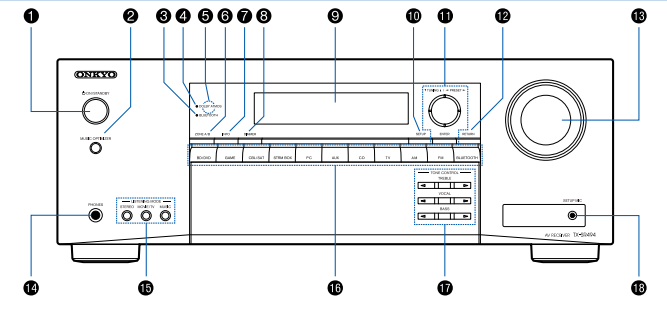
 ) and ENTER button: Select an item with the cursors, and press ENTER to confirm your selection. When using TUNER, use them to tune in to stations.
 of "TREBLE", "VOCAL" or "BASS" respectively.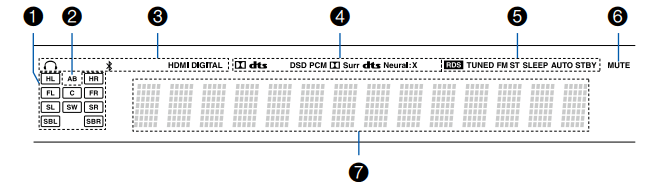
 : Headphones are connected.
 : Connected by BLUETOOTH.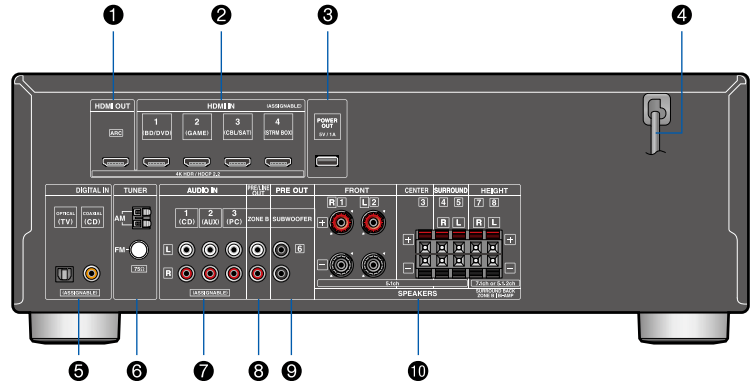
 ON/STANDBY button
 button: Display advanced setting items on the TV or the display to have a more enjoyable experience with this unit.
 button: Switches the information on the display and is used to operate RDS p45).
 button: Returns the display to the previous state while setting. button: Temporarily mutes audio. Press the button again to cancel muting.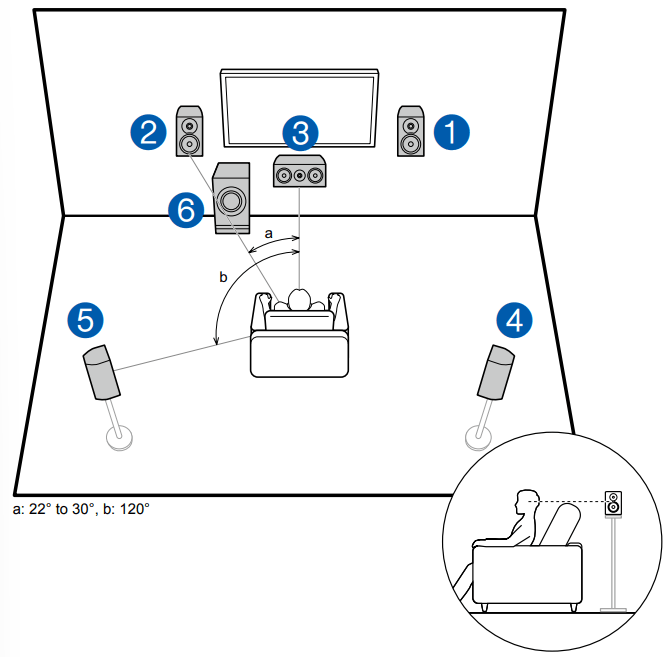
 on the remote controller, and set "2. Speaker" - "Configuration" - “Speaker Impedance” to "4 ohms".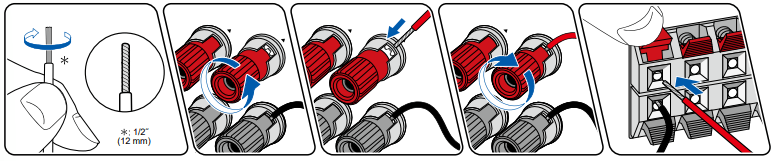

 on the remote controller to display the Setup menu.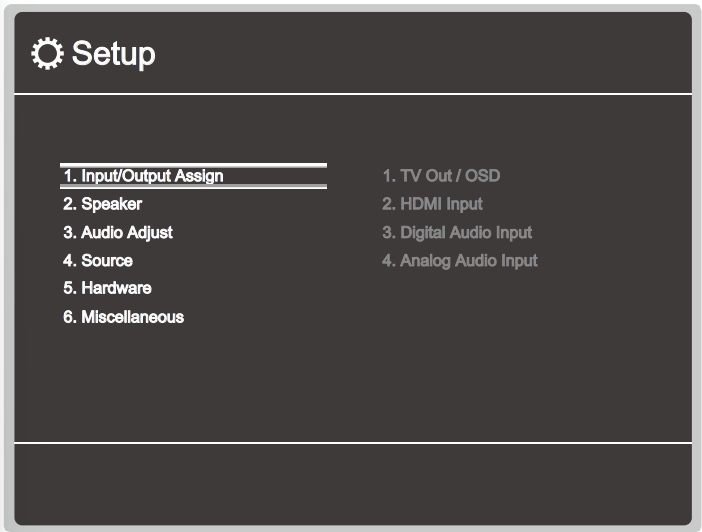
 of the remote controller, and press ENTER to confirm your selection. Use the cursors
  .
. : Moves the cursor in the arrow direction.