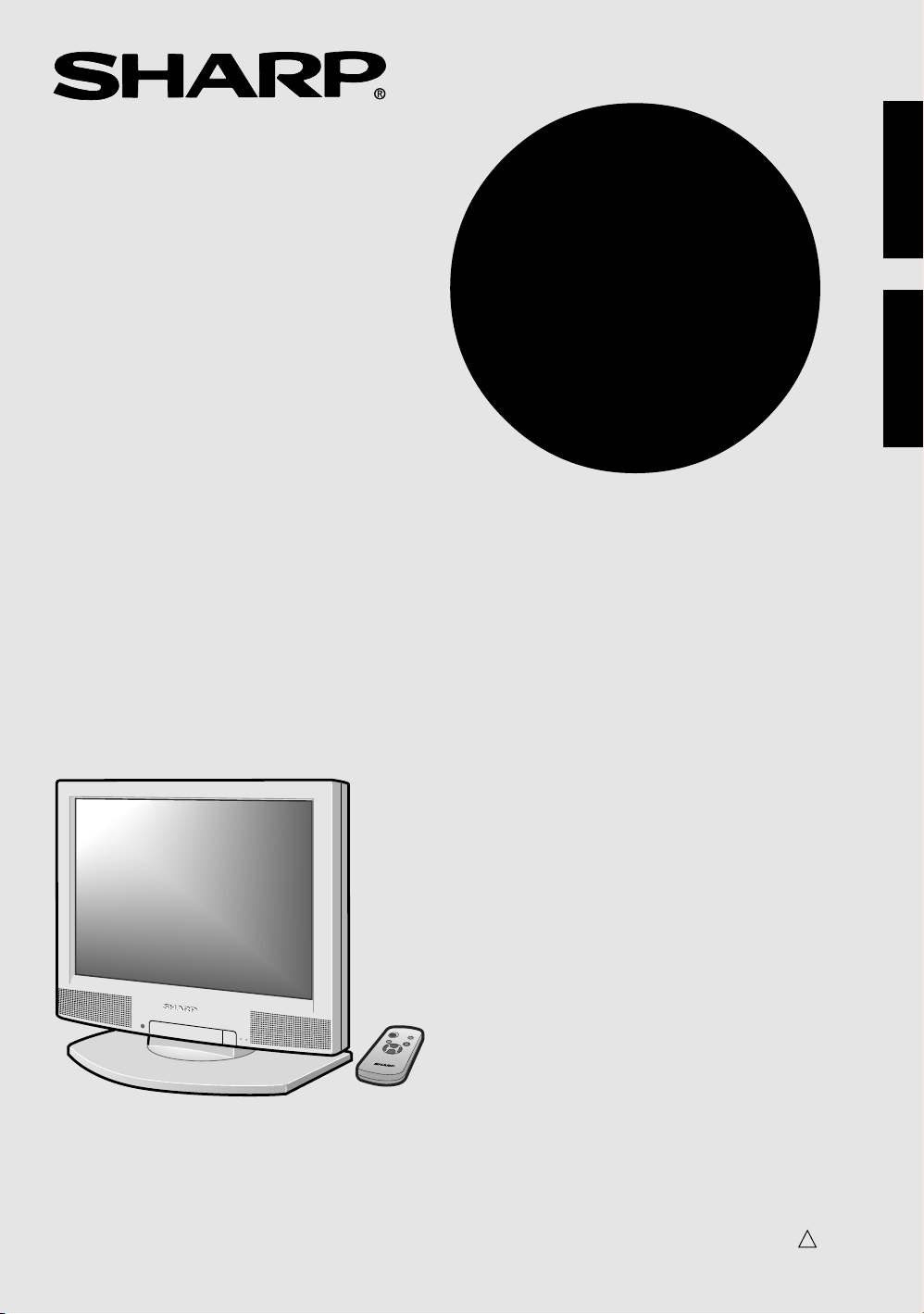
LCD AV MONITOR
LC-20M4U
ENGLISH
LC-20M4U
Printed in Japan
Imprimé au Japon
TINS-7530CEZZ
01P11-JKK
Printed on post-consumer recycled paper.
Imprimé sur du papier recyclé.
FRANÇAIS
MONITEUR AV À CRISTAUX
LIQUIDES
MONITOR AV LCD
MANUAL DE MANEJO
LC-20M4U
ESPAÑOL
Impreso en Japón
Impresso no Japão
TINS-7530CEZZ
01P11-JKK
Impreso en papel reciclado.
Impresso em papel reciclado pós utilização.
PORTUGUÊS
MONITOR AV DE TELA
DE CRISTAL LÍQUIDO
MANUAL DE OPERAÇÃO
OPERATION MANUAL
MODE D’EMPLOI
20M4UCover 01.11.15
2
2
LC-20M4U
LCD AV MONITOR
OPERATION MANUAL
ENGLISH
ENGLISH
IMPORTANT INFORMATION
WARNING: TO REDUCE THE RISK OF FIRE OR ELECTRIC SHOCK, DO
NOT EXPOSE THIS PRODUCT TO RAIN OR MOISTURE.
CAUTION
RISK OF ELECTRIC SHOCK.
DO NOT OPEN.
CAUTION: TO REDUCE THE RISK OF ELECTRIC SHOCK,
DO NOT REMOVE COVER (OR BACK).
NO USER-SERVICEABLE PARTS INSIDE.
REFER SERVICING TO QUALIFIED SERVICE
PERSONNEL.
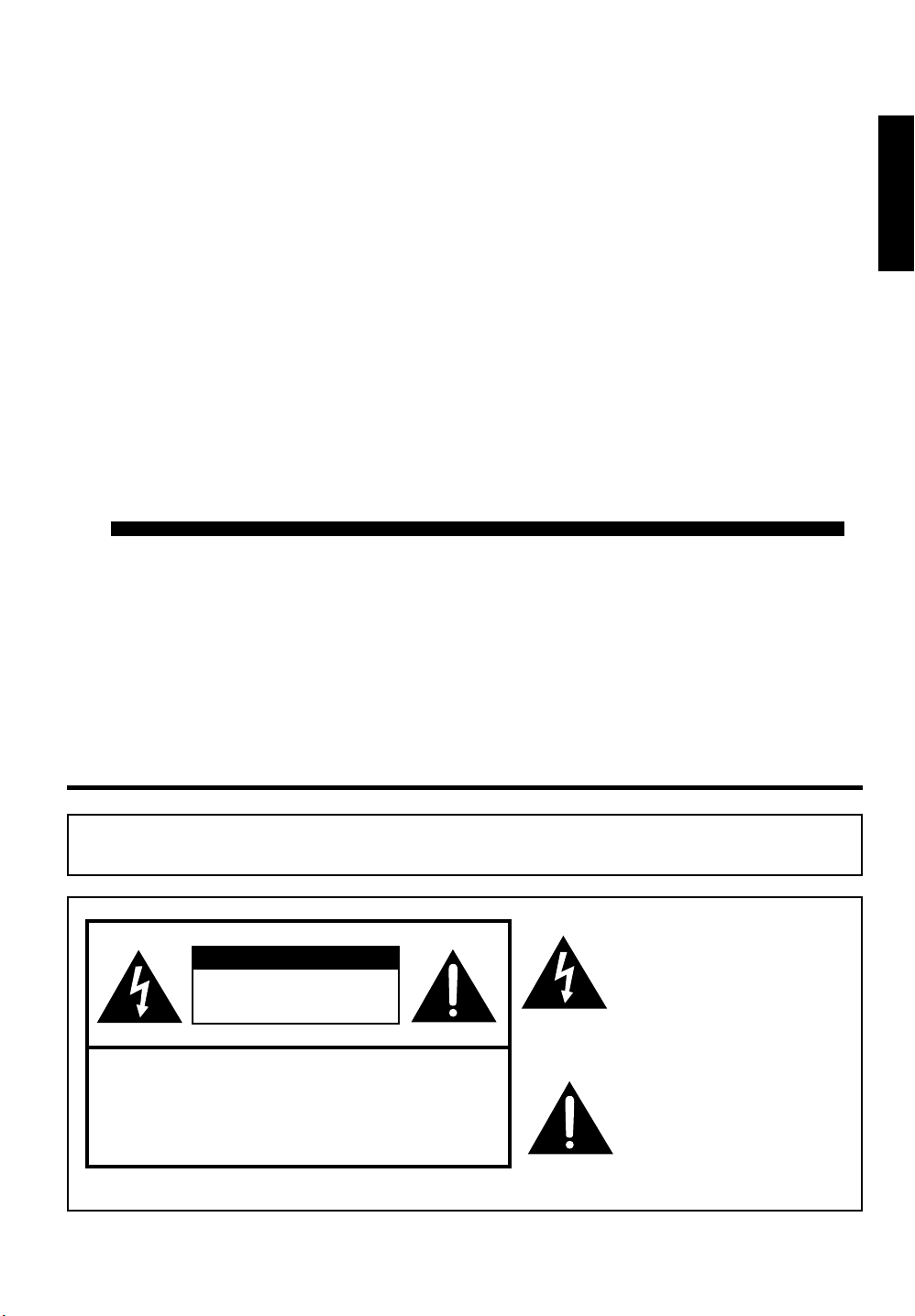
The lightning flash with arrow-
head symbol, within an equilat-
eral triangle, is intended to alert
the user to the presence of
uninsulated “dangerous voltage”
within the product’s enclosure
that may be of sufficient
magnitude to constitute a risk of
electric shock to persons.
The exclamation point within a
triangle is intended to alert the
user to the presence of impor-
tant operating and maintenance
(servicing) instructions in the
literature accompanying the
product.
LC-20M4U(01-08)Eng.p65 01.11.13, 1:06 PM1
2
IMPORTANT INFORMATION
WARNING: FCC Regulations state that any unauthorized changes or modifications to this equipment
not expressly approved by the manufacturer could void the user’s authority to operate this equipment.
U.S.A. ONLY
Declaration of Conformity
SHARP LCD AV MONITOR MODEL LC-20M4U
This device complies with part 15 of the FCC rules. Operation is subject to the following conditions: (1) This
device may not cause harmful interference, and (2) this device must accept any interference received,
including interference that may cause undesired operation.
Responsible Party:
SHARP ELECTRONICS CORPORATION
Sharp Plaza, Mahwah, New Jersey 07430
TEL : 1-800-BE-SHARP (1-800-237-4277)
U.S.A. ONLY
CAUTION: Use the supplied AC cord as it is.
Do not remove the core part from the AC cord, and do not
change the way of winding cables around the core part.
INFORMATION
This equipment has been tested and found to comply with the limits for a Class B digital device, pursuant to
Part 15 of the FCC Rules. These limits are designed to provide reasonable protection against harmful
interference in a residential installation. This equipment generates, uses, and can radiate radio frequency
energy and, if not installed and used in accordance with instructions, may cause harmful interference to
radio communications. However, there is no guarantee that interference will not occur in a particular
installation. If this equipment does cause harmful interference to radio or television reception, which can be
determined by turning the equipment off and on, the user is encouraged to try to correct the interference by
one or more of the following measures:
• Relocate or adjust the receiving antenna.
• Increase the separation between the equipment and receiver.
• Connect the equipment into an outlet on a circuit different from that to which the receiver is connected.
• Consult the dealer or an experienced radio/TV technician for help.
U.S.A. ONLY
LC-20M4U(01-08)Eng.p65 01.11.13, 1:06 PM2
3
IMPORTANT INFORMATION (Continued)
CAUTION: TO PREVENT ELECTRIC SHOCK, MATCH WIDE BLADE OF
PLUG TO WIDE SLOT, FULLY INSERT.
This product utilizes tin-lead solder, and fluorescent lamp containing a small amount of mercury.
Disposal of these materials may be regulated due to environmental considerations. For disposal or
recycling information, please contact your local authorities or the Electronic Industries Alliance:
www.eia.org
LC-20M4U(01-08)Eng.p65 01.11.13, 1:06 PM3
4
IMPORTANT SAFETY PRECAUTIONS
Electricity is used to perform many useful functions, but it can also cause personal injuries and property
damage if improperly handled. This product has been engineered and manufactured with the highest
priority on safety. However, improper use can result in electric shock and/or fire. In order to prevent
potential danger, please observe the following instructions when installing, operating and cleaning the
product. To ensure your safety and prolong the service life of your LCD product, please read the following
precautions carefully before using the product.
1. Read instructions—All operating instructions must be read and understood before the product is
operated.
2. Keep this manual in a safe place—These safety and operating instructions must be kept in a safe
place for future reference.
3. Observe warnings—All warnings on the product and in the instructions must be observed closely.
4. Follow instructions—All operating instructions must be followed.
5. Cleaning—Unplug the power cord from the AC outlet before cleaning the product. Use a damp
cloth to clean the product. Do not use liquid cleaners or aerosol cleaners.
6. Attachments—Do not use attachments not recommended by the manufacturer. Use of inadequate
attachments can result in accidents.
7. Water and moisture—Do not use the product near water, such as bathtub, washbasin, kitchen
sink and laundry tub, swimming pool and in a wet basement.
8. Stand—Do not place the product on an unstable cart, stand, tripod or table. Placing the product
on an unstable base can cause the product to fall, resulting in serious personal injuries as well as
damage to the product. Use only a cart, stand, tripod, bracket or table recommended by the
manufacturer or sold with the product.
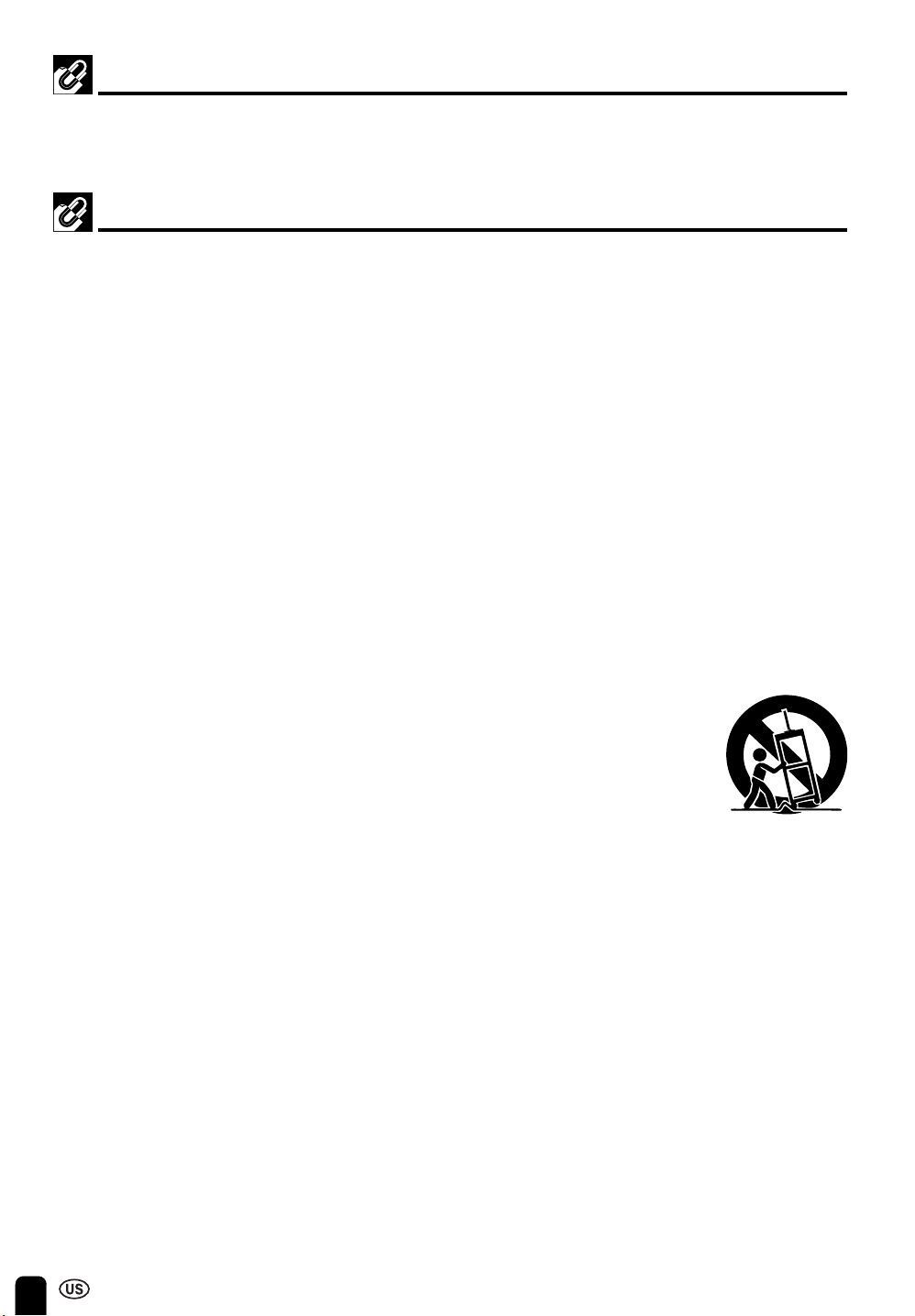
9. When relocating the product placed on a cart, it must be moved with utmost care. Sudden stops,
excessive force and uneven floor surface can cause the product to fall from the
cart.
10. Ventilation—The vents and other openings in the cabinet are designed for
ventilation. Do not cover or block these vents and openings since insufficient
ventilation can cause overheating and/or shorten the life of the product. Do not
place the product on a bed, sofa, rug or other similar surface, since they can
block ventilation openings. This product is not designed for built-in installation; do
not place the product in an enclosed place such as a bookcase or rack, unless
proper ventilation is provided or the manufacturer’s instructions are followed.
11. Power source—This product must operate on a power source specified on the
specification label. If you are not sure of the type of power supply used in your home, consult your
dealer or local power company. For units designed to operate on batteries or another power
source, refer to the operating instructions.
12. Power cord protection—The power cords must be routed properly to prevent people from stepping
on them or objects from resting on them. Check the cords at the plugs and product.
13. If the AC adapter is misplaced or needs to be replaced, obtain the same type of adapter from a
SHARP service center or your dealer.
14. If you plan to use a 13-VDC power supply unit other than the AC adapter supplied with the
product, make sure the power supply unit provides stable voltage with minimum fluctuations.
Unstable power supply can cause problems in the product.
15. The LCD panel used in this product is made of glass. Therefore, it can break when the product is
dropped or applied with impact. Be careful not to be injured by broken glass pieces in case the
LCD panel breaks.
16. Overloading—Do not overload AC outlets or extension cords. Overloading can cause fire or
electric shock.
17. Entering of objects and liquids—Never insert an object into the product through vents or openings.
High voltage flows in the product, and inserting an object can cause electric shock and/or short
internal parts. For the same reason, do not spill water or liquid on the product.
DEAR SHARP CUSTOMER
Thank you for your purchase of the Sharp LCD product. To ensure safety and many
years of trouble-free operation of your product, please read the Safety Precautions
carefully before using this product.
LC-20M4U(01-08)Eng.p65 01.11.13, 1:06 PM4
5
18. Servicing—Do not attempt to service the product yourself. Removing covers can expose you to
high voltage and other dangerous conditions. Request a qualified service person to perform
servicing.
19. Repair—If any of the following conditions occurs, unplug the power cord from the AC outlet, and
request a qualified service person to perform repairs.
a.When the power cord or plug is damaged.
b.When a liquid was spilled on the product or when objects have fallen into the product.
c.When the product has been exposed to rain or water.
d.When the product does not operate properly as described in the operating instructions.
Do not touch the controls other than those described in the operating instructions. Improper
adjustment of controls not described in the instructions can cause damage, which often requires
extensive adjustment work by a qualified technician.
e.When the product has been dropped or damaged.
f. When the product displays an abnormal condition. Any noticeable abnormality in the product
indicates that the product needs servicing.
20. Replacement parts—In case the product needs replacement parts, make sure that the service
person uses replacement parts specified by the manufacturer, or those with the same characteris-
tics and performance as the original parts. Use of unauthorized parts can result in fire, electric
shock and/or other danger.
21. Safety checks—Upon completion of service or repair work, request the service technician to
perform safety checks to ensure that the product is in proper operating condition.
22. Heat sources—Keep the product away from heat sources such as radiators, heaters, stoves and
other heat-generating products (including amplifiers).
23. Polarization—This AC adapter may be equipped with a polarized alternating current line plug (a
plug having one blade wider than the other). This plug will fit into the power outlet only one way.
This is a safety feature. If you are unable to insert the plug fully into the outlet, try reversing the
plug. If the plug should still fail to fit, contact your electrician to replace your obsolete outlet.
Do not defeat the safety purpose of the polarized plug.
The LCD panel is a very high technology product with 921,600 thin film transistors, giving you fine
picture details.
Occasionally, a few non-active pixels may appear on the screen as a fixed point of blue, green or
red.
Please note that this does not affect the performance of your product.
LC-20M4U(01-08)Eng.p65 01.11.13, 1:06 PM5

6
CONTENTS
Page
DEAR SHARP CUSTOMER .............................................................................................................4
IMPORTANT SAFETY PRECAUTIONS .......................................................................................... 4
SUPPLIED ACCESSORIES ............................................................................................................. 7
PREPARATION................................................................................................................................. 8
Power Connection ...................................................................................................................... 8
Batteries for Remote Control ....................................................................................................8
PART NAMES (Main Unit) ............................................................................................................... 9
Opening and Closing Front Cover ............................................................................................ 9
Removing Back Cover .............................................................................................................. 10
PART NAMES (Remote Control) .................................................................................................. 11
BASIC OPERATION ....................................................................................................................... 12
Turning on MAIN POWER ........................................................................................................ 12
Switching the AV INPUT [AV1/AV2] Mode ............................................................................. 12
Sound Volume ........................................................................................................................... 13
ON/OFF Standby ....................................................................................................................... 13
SELECTING THE MENU ITEMS .................................................................................................... 14
ADJUSTMENT ................................................................................................................................ 15
Adjusting the LANGUAGE Settings........................................................................................ 15
Adjusting the PICTURE Settings ............................................................................................ 16
Adjusting the SET UP Settings ............................................................................................... 18
Adjusting the SLEEP TIMER Settings .................................................................................... 19
CONNECTING TO EXTERNAL DEVICES..................................................................................... 20
Connecting to a VCR, a DVD player etc. (AV 1/2 IN) ............................................................ 20
Connecting to a DVD player (COMPONENT terminal) ......................................................... 21
Outputting video and audio (video output) ........................................................................... 22
Listening with Headphones ..................................................................................................... 22
Fixing the Cables ...................................................................................................................... 22
Watching TV .............................................................................................................................. 23
TROUBLESHOOTING .................................................................................................................... 24
SPECIFICATIONS........................................................................................................................... 25
DIMENSIONAL DRAWINGS .......................................................................................................... 26
LC-20M4U(01-08)Eng.p65 01.11.13, 1:06 PM6
7
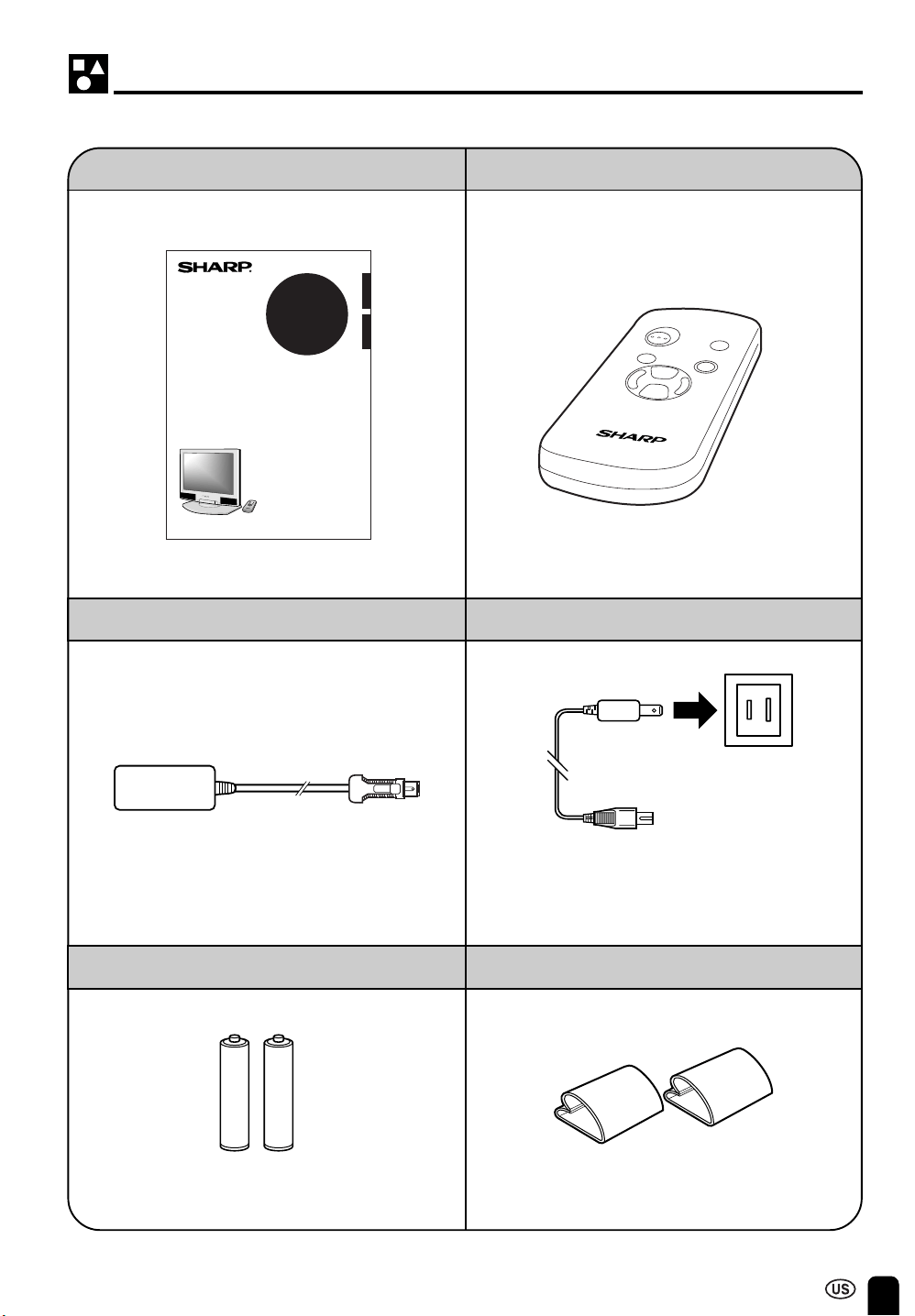
Make sure the following accessories are provided with the product.
SUPPLIED ACCESSORIES
Operation Manual (×1) Wireless Remote Control (×1)
AC Cord (×1)
“AAA” size (UM/SUM-4) Dry Battery (×2)
AC Adapter (×1)
LC-20M4U
ENGLISH
Imprimé au Japon
01P11-JKK
TINS-7530CEZZ
Printed on post-consumer recycled paper.
Imprimé sur du papier recyclé.
FRANÇAIS
Printed in Japan
OPERATION MANUAL
MODE D’EMPLOI
LCD AV MONITOR
MONITEUR AV Á CRISTAUX
LIQUIDES
* Product shape varies in some countries
Cable Clamp (×2)
TINS-7530CEZZ
RRMCG1459CESA
UADP-0220CEZZ
QACCD3088CEZZ
UBATU0026GEZZ LHLDW1028GEZZ
LC-20M4U(01-08)Eng.p65 01.11.13, 1:06 PM7
8
PREPARATION
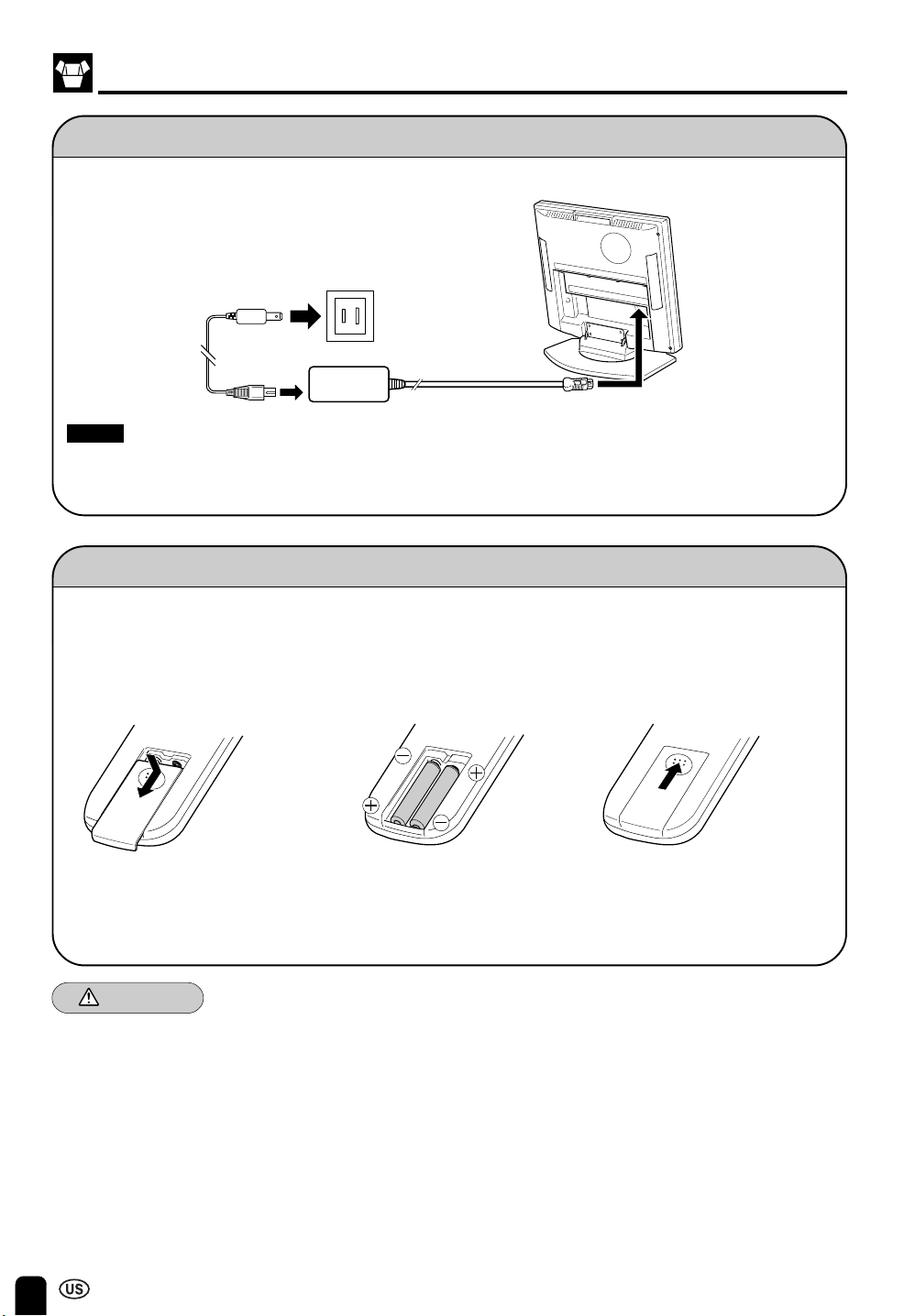
Power Connection
Batteries for Remote Control
If the remote control fails to operate monitor functions, replace the batteries in the remote control.
1 Open the battery
cover.
2 Insert batteries (two “AAA”
size (UM/SUM-4) batteries,
supplied with product).
3 Close the battery
cover.
■ Slide the cover while
pressing down.
■ Place batteries with their
terminals corresponding to
the (+) and (–) indications
in the battery compartment.
Caution!
Cautions regarding batteries
Improper use of batteries can result in a leakage of chemicals and/or explosion. Be sure to follow the
instructions below.
• Place batteries with their terminals corresponding to the (+) and (–) indications.
• Different types of batteries have different characteristics. Do not mix batteries of different types.
• Do not mix old and new batteries. Mixing old and new batteries can shorten the life of new batteries
and/or cause old batteries to leak chemicals.
• Remove batteries when they become weak.
Chemicals that leak from batteries can cause a rash. If chemical leakage is found, wipe with a cloth.
• The batteries supplied with the product may have a shorter life expectancy due to storage conditions.
• If the remote control is not used for an extended period of time, remove batteries from the remote
control.
Notes:
■ Use a commercially available AC plug adapter, if necessary, depending on the design of the wall.
■ Always turn the main power switch of the LCD monitor to OFF when connecting the AC adapter.
■ Always unplug the AC adapter from the product and power outlet when not being used for a long period of time.
Plug into AC outlet.
AC electrical outlet
AC cord
AC adapter
Connect to DC input
terminal of the product.
DC input terminal
(DC 13 V)
LC-20M4U(01-08)Eng.p65 01.11.13, 1:06 PM8
9
PART NAMES (Main Unit)
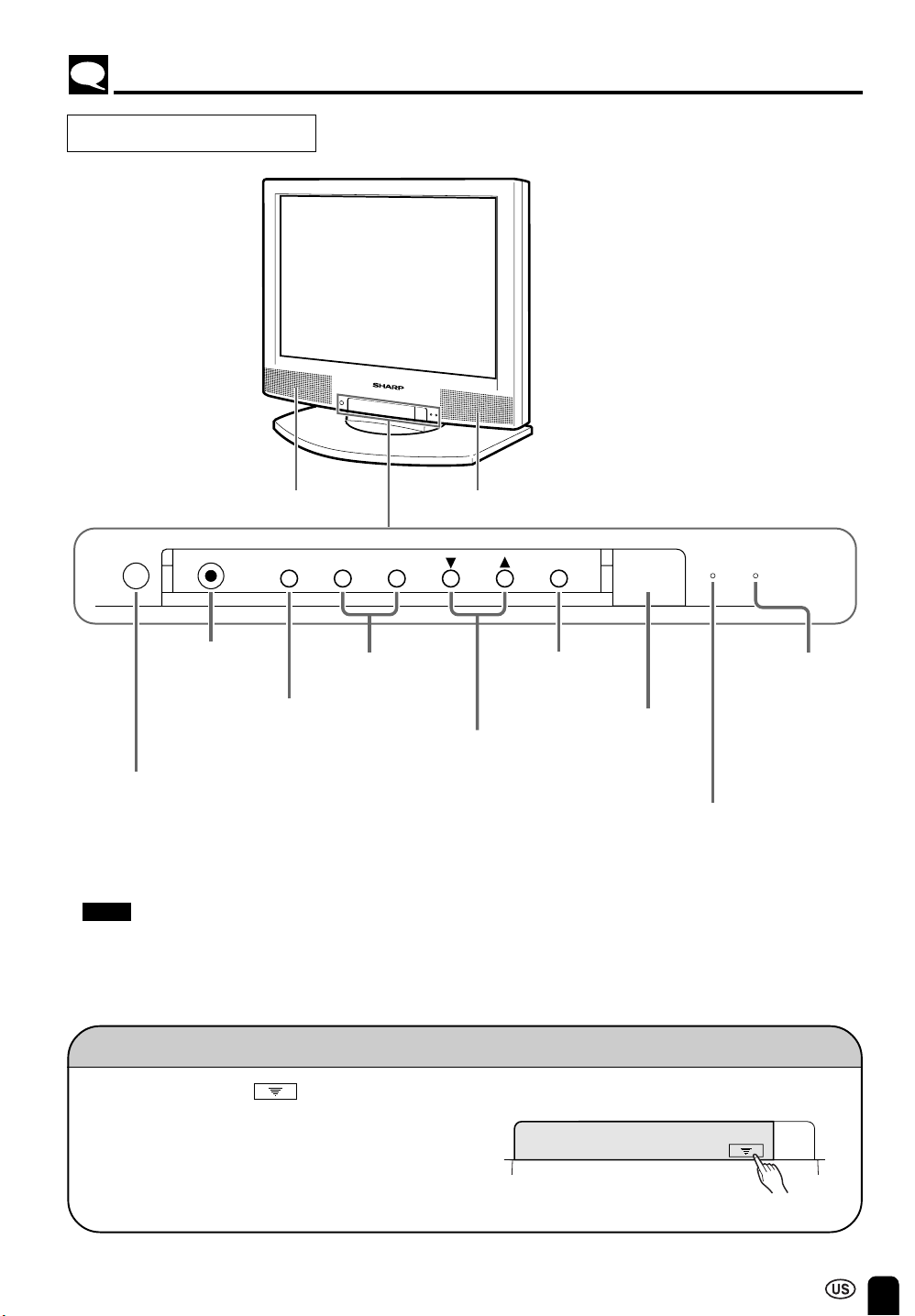
Main unit (front view)
Speaker
MAIN POWER
switch
AV INPUT
button
VOL (+)/(–)
buttons
SELECT (])/([)
buttons
MENU
button
Speaker
HEADPHONE
To change the vertical angle of
the LCD monitor, tilt the screen
up to 10 degrees backward.
The monitor can also be
rotated 20 degrees horizontally.
Please adjust the angle so that
the monitor can be watched
most comfortably.
POWER indicator
A green indicator lights when the power
is on and a red indicator lights when in
the standby mode (the indicator will not
light when the main power is off).
Remote sensor window
Note:
■ MENU, VOL (+)/(–), SELECT(])/([), and AV INPUT on the main unit have the same functions as the same
buttons on the remote control. Fundamentally, this operation manual provides a description based on operation
using the remote control.
Opening and Closing Front Cover
■ To open the cover, push .
■ To close the cover, press the upper part of the cover.
SLEEP indicator
MAIN
POWER
MENU – +
AV INPUT MAIN
POWER
POWER SLEEP
VOL SELECT
HEAD
PHONE
LC-20M4U(09-14)Eng.p65 01.11.13, 1:07 PM9
10
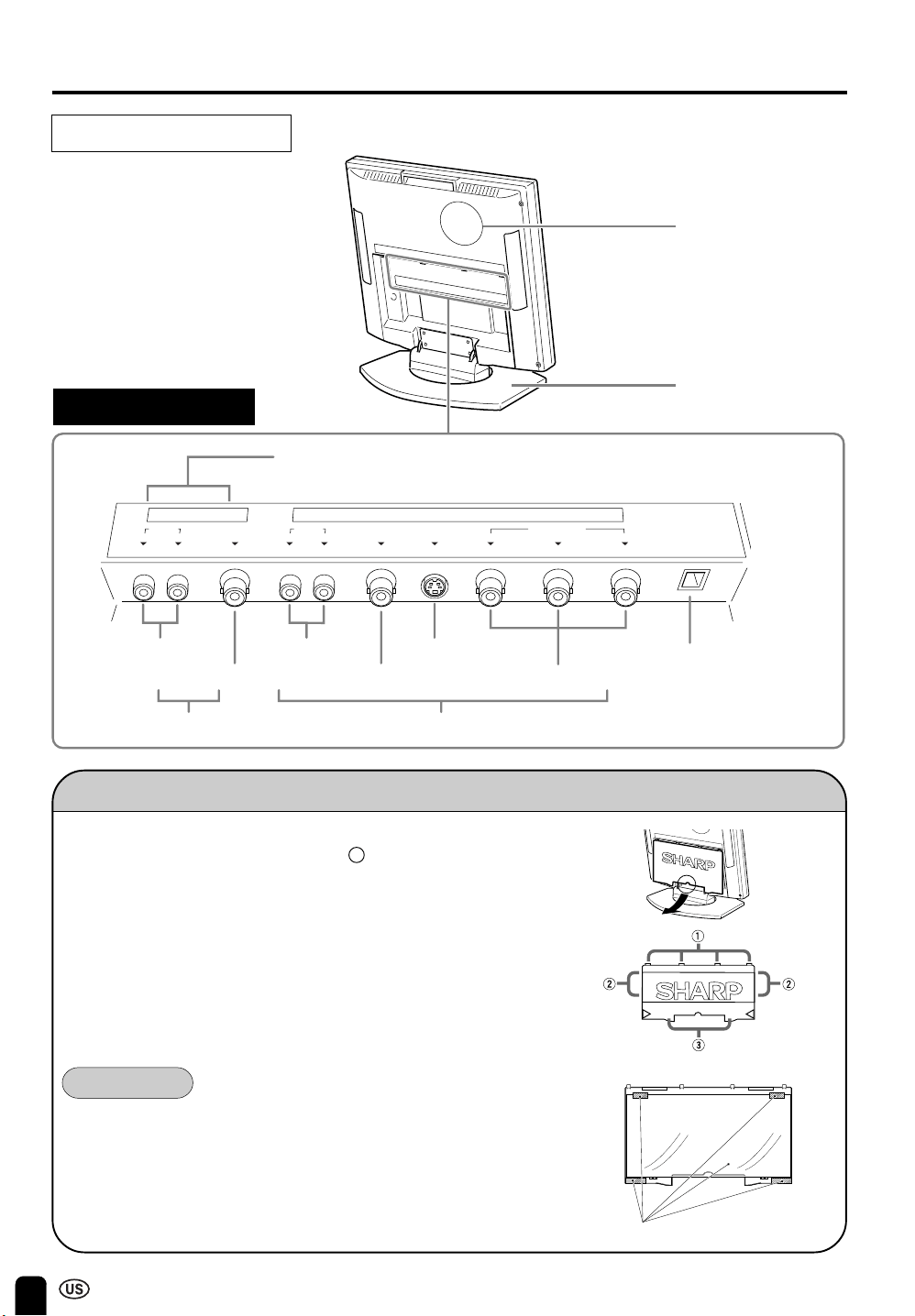
Main unit (rear view)
PART NAMES (Main Unit) (Continued)
Stand
Rear Speaker
(woofer)
Can also be used as video
output terminals.
AUDIO
VIDEO
COMPONENT
AUDIO
VIDEO
S-VIDEO
POWER INPUT
DC13V
AV 1 IN
AV 2 IN/OUT
Removing Back Cover
■ When connecting the cords to the terminals, remove the back
cover by gently pulling the part marked forward.
■ To replace the back cover, first fit the four top clips (1) into the
corresponding slots of the terminal section, and then align the four
side clips (2) with the corresponding slots. Then, press the marked
parts (3) until the two hooks on the bottom of the cover lock in
place with a click.
Rear terminal section
AUDIO
Y P
B
(
C
B
)
P
R
(
C
R
)
COMPONENT
R L
AV 1 IN
VIDEO
POWER
INPUT
DC13V
AUDIO
VIDEO S-VIDEO
AV 2 IN/OUT
R L
Caution!
Before using the LCD AV monitor, be sure to remove the protection tape
and sheet from the back cover.
protection tape and sheet
LC-20M4U(09-14)Eng.p65 01.11.15, 1:58 PM10
11
PART NAMES (Remote Control)
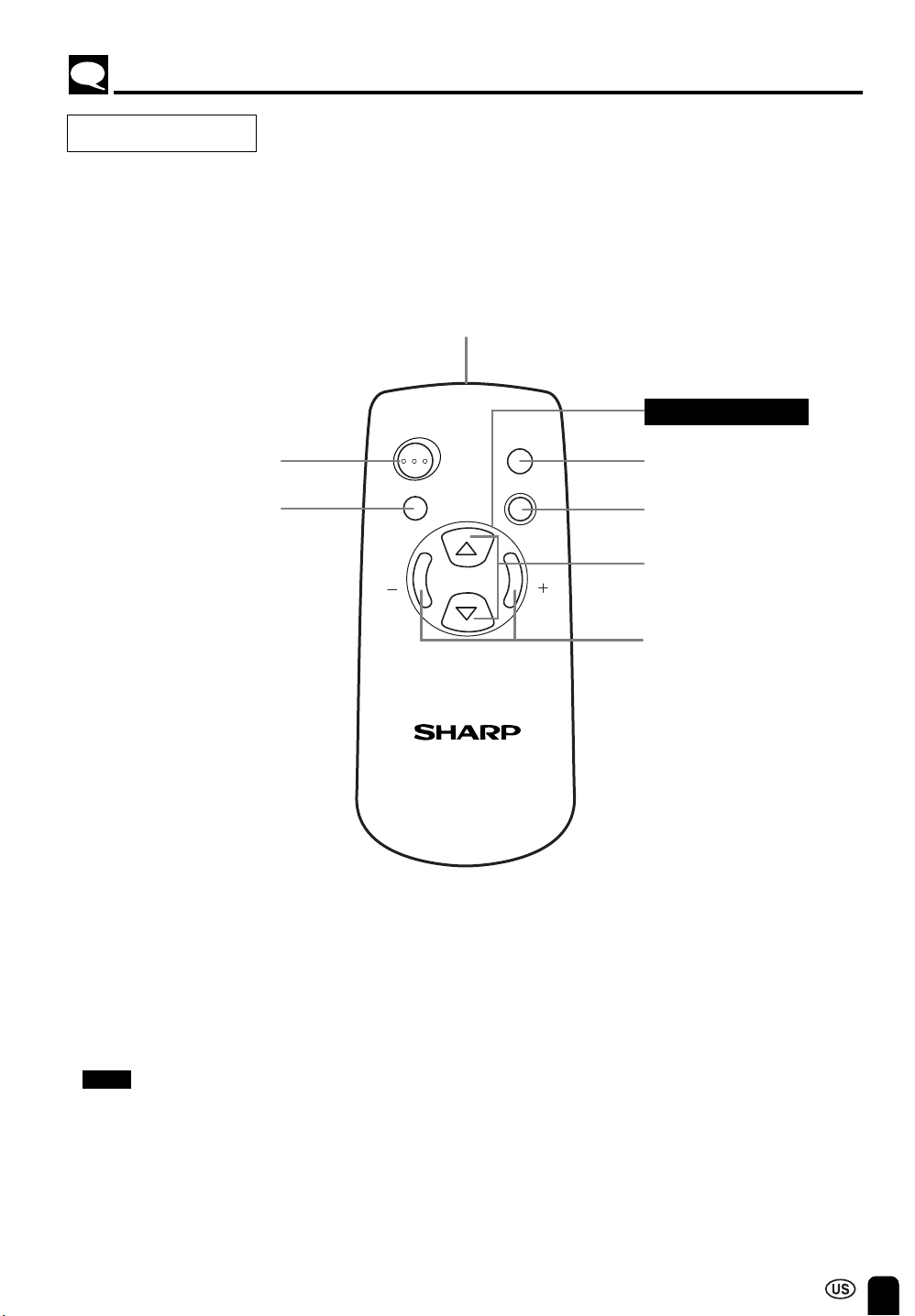
Remote control
LCD MONITOR
SELECT
SELECT
VOLVOL
MENU
MUTE
AV INPUT
ON/OFF
Power ON/OFF
button
AV INPUT
button
SELECT (])/([) buttons
Sound MUTE button
Infrared transmitter window
MENU button
VOL (+)/(–) buttons
Menu control section
Note:
■ MENU, VOL (+)/(–), SELECT(])/([), and AV INPUT on the main unit have the same functions as the same
buttons on the remote control. Fundamentally, this operation manual provides a description based on operation
using the remote control.
LC-20M4U(09-14)Eng.p65 01.11.13, 1:07 PM11
12
BASIC OPERATION
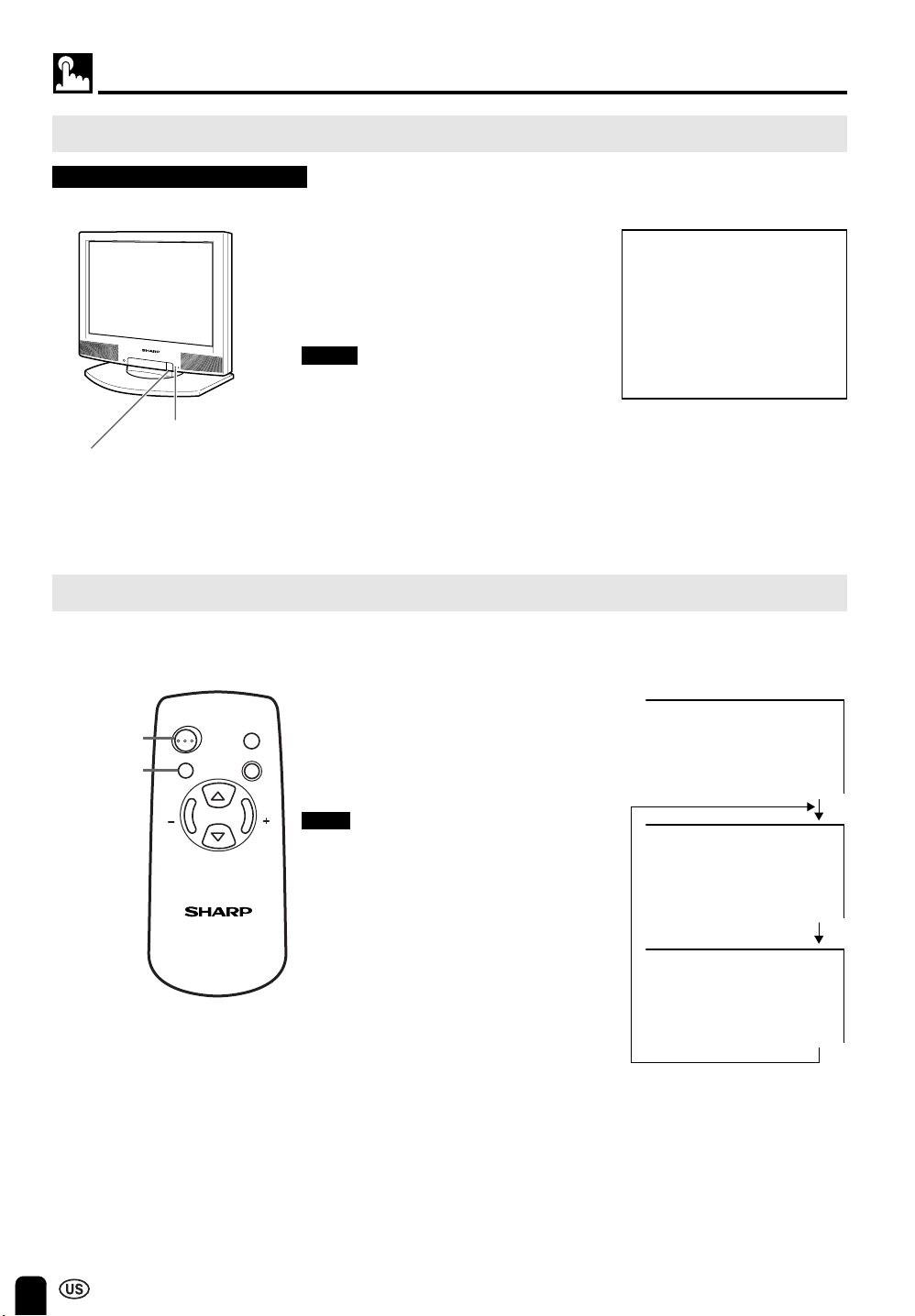
1 Press MAIN POWER, located on the
front side of the main unit.
2 The POWER indicator
instantaneously changes from red to
green and the main unit is turned on.
Notes:
■ When the POWER indicator is red, press
ON/OFF on the remote control to turn on
the monitor.
The POWER indicator changes from red to
green.
■ The input mode indication disappears after
five seconds.
Turning on MAIN POWER
Switching the AV INPUT [AV1/AV2] Mode
Initial mode (AV1)
1 Turn on the power of the connected
video equipment.
2 Press AV INPUT and select the
applicable input source. The screen
displays AV1 or AV2 mode at the
upper right corner each time AV
INPUT is pressed.
Note:
■ The AV input mode indication remains for
five seconds.
• AV1: Select AV1 when video equipment is
connected to the AV 1 IN terminals.
The display of the AV1 mode indicates
either AV1 or COMPONENT depend-
ing on the adjustment of the SET UP
settings.
AV1 is displayed when AV1 is set to
NORMAL in the SET UP settings, and
COMPONENT is displayed when AV1
is set to COMPONENT.
(see page 18)
• AV2: The AV2 mode can be set to either IN
or OUT in the SET UP settings.
(see page 18)
AV2 indication is not displayed when
the mode is selected to OUT.
LCD MONITOR
SELECT
SELECT
VOLVOL
MENU
MUTE
AV INPUT
ON/OFF
AV INPUT
ON/OFF
Control section of main unit
▼ On-screen display
AV1
N358
AV1
AV2
AV1 mode
AV2 mode
POWER indicator
MAIN POWER
LC-20M4U(09-14)Eng.p65 01.11.13, 1:07 PM12
13
VOLUME
10
Sound Volume
VOLUME
30
ON/OFF Standby
LCD MONITOR
SELECT
SELECT
VOLVOL
MENU
MUTE
AV INPUT
ON/OFF
VOL
(+)/( )
MUTE
LCD MONITOR
SELECT
SELECT
VOLVOL
MENU
MUTE
AV INPUT
ON/OFF
ON/OFF
BASIC OPERATION (Continued)
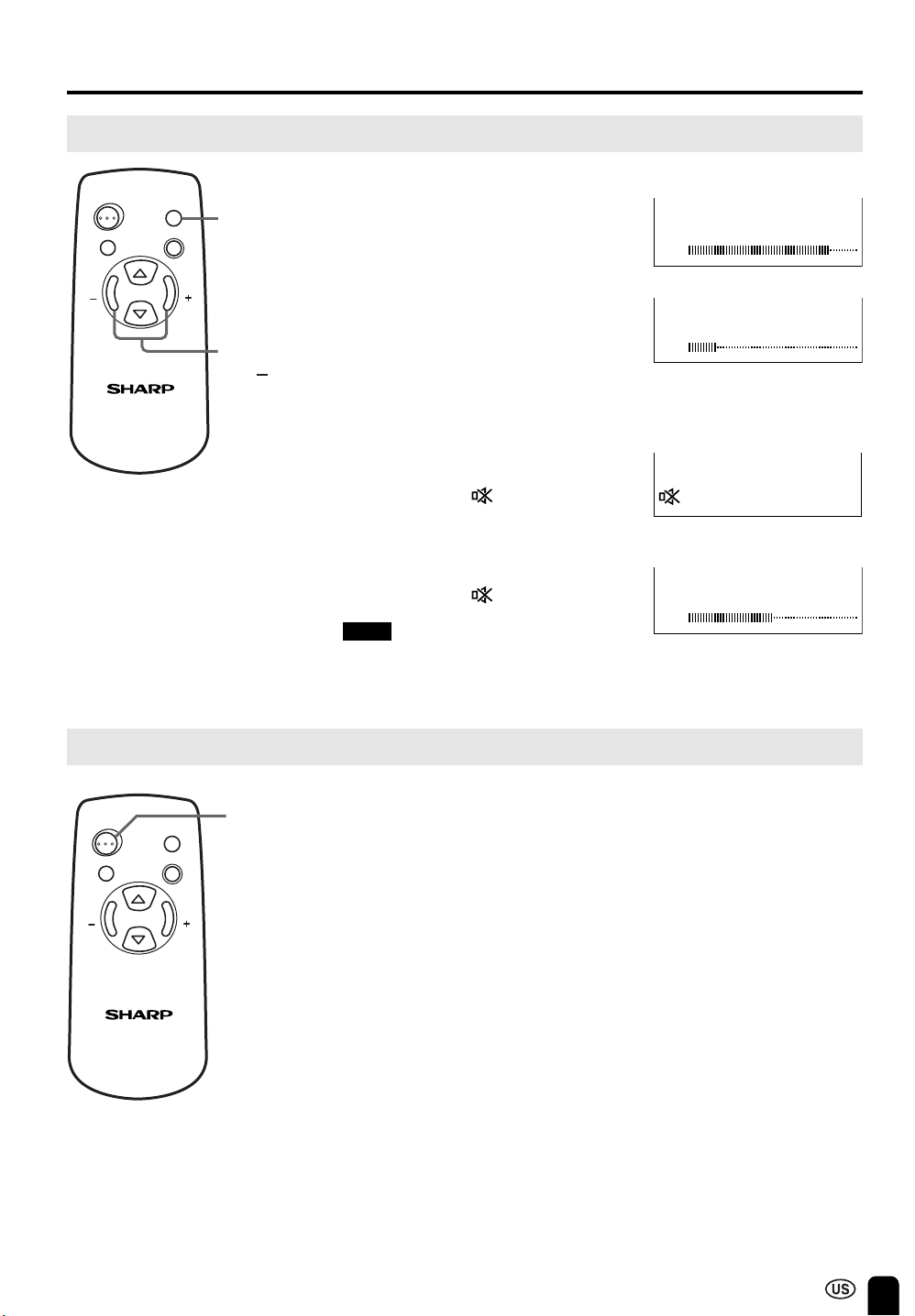
To adjust the volume
|
Press VOL (+) to increase the sound
volume. The indicator segment
increases.
|
Press VOL (–) to decrease the sound
volume. The indicator segment
decreases.
To mute the sound
|
Press MUTE to temporarily turn off the
sound.
The MUTE mark
is displayed.
|
Press MUTE or VOL (+)/(–) to turn the
sound back to the previous level.
The MUTE mark
disappears.
Note:
■ MUTE is automatically cleared when the
following button is pressed: ON/OFF,
VOL (+)/(–) or MUTE.
To turn off the LCD monitor
Press ON/OFF.
The POWER indicator turns red.
To turn the LCD monitor back on
Press ON/OFF again.
The POWER indicator turns green.
VOLUME
50
LC-20M4U(09-14)Eng.p65 01.11.13, 1:07 PM13
14
SELECTING THE MENU ITEMS
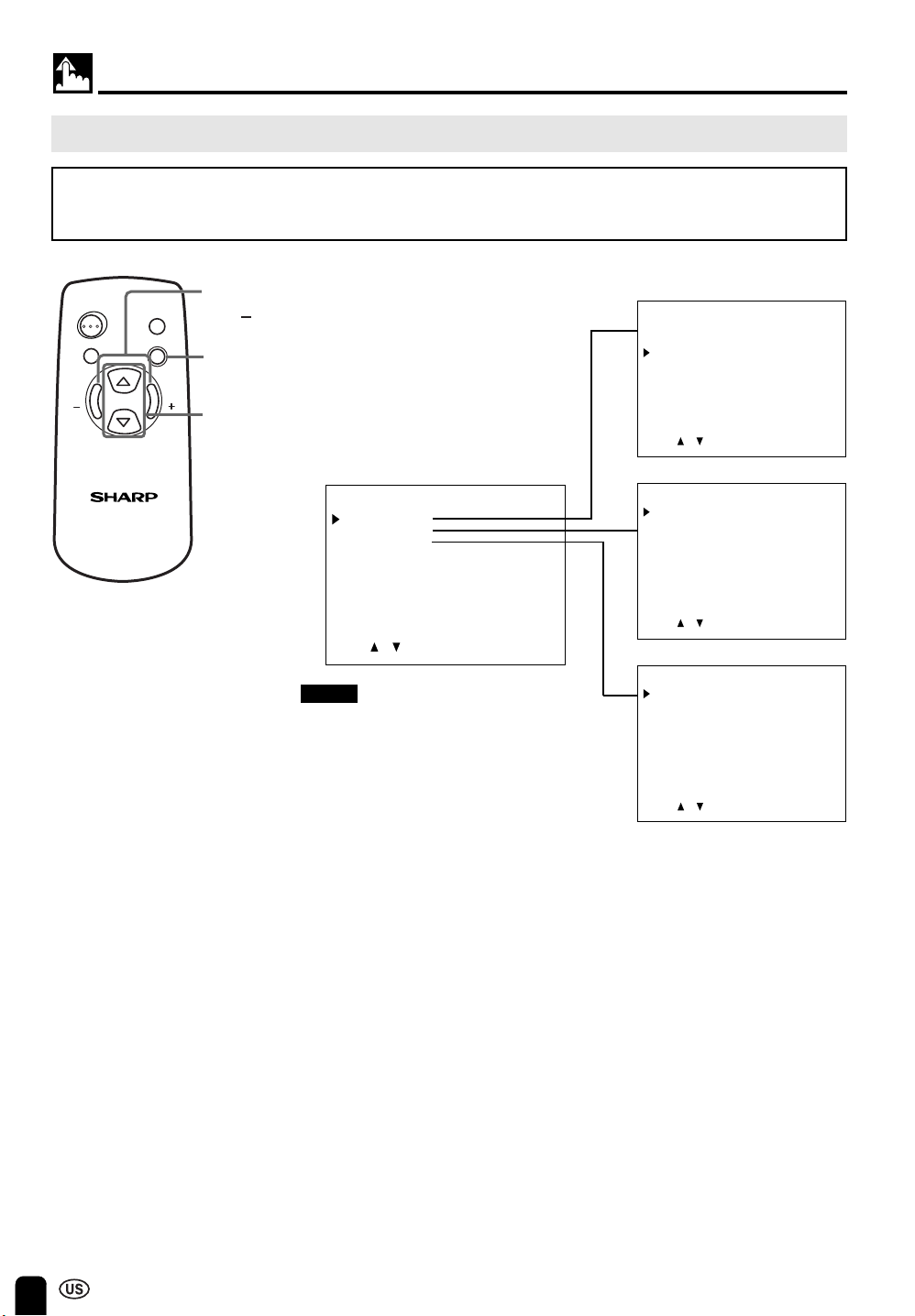
• This LCD monitor set allows you to adjust the picture, sound, and other features using the On-screen
Display. Select the desired menu item by following the steps below and then refer to the indicated page
for details.
1 Press MENU to display the MENU
screen.
2 Press SELECT (])/([) to select
the desired menu item.
• The cursor moves up or down.
• The cursor indicates the selected
menu item.
3 Press VOL (+)/(–) to enter.
4 Press MENU again to exit.
Selecting the Menu Items
Notes:
■ The displayed items differ depending
on the setting conditions.
■ The selected item is highlighted in
yellow.
■ Items in purple cannot be selected.
■ The original screen is restored by
pressing MENU on the menu screen
or any of the adjustment screens.
The original screen is also restored
when no buttons have been pressed
for about a period of 30 seconds.
The adjustment values and settings
that were changed before the screen
is restored are saved as is in the
memory.
LCD MONITOR
SELECT
SELECT
VOLVOL
MENU
MUTE
AV INPUT
ON/OFF
MENU
SELECT
(])/([)
VOL
(+)/( )
* The screen indications shown above are larger than actual size for easy reading.
MENU
PICTURE
SET UP
LANGUAGE
ENTER: –VOL+SELECT: EXIT: MENU
PICTURE(AV1)
CONTRAST
TINT
COLOR
BLACK LEVEL
SHARPNESS
RED-BLUE
GREEN
COLOR SYSTEM
RESET
[ 30]
[ 0]
[ 0]
[ 0]
[ 0]
[ 0]
[ 0]
[ N358]
ENTER: –VOL+SELECT: EXIT: MENU
ADJUST: –VOL+SELECT: EXIT: MENU
SET UP
BRIGHTNESS
UPSIDE
RIGHT/LEFT
BLUE SCREEN
AV1
AV2 IN/OUT
SLEEP TIMER
[BRIGHT ]
[NORMAL]
[NORMAL]
[OFF ]
[NORMAL]
[IN ]
[ – – – REMAIN]
(Pages 18 and 19)
(Pages 16 and 17)
LANGUAGE
SELECT: EXIT: MENU
ENGLISH
ESPAÑOL
FRANÇAIS
(Page 15)
LC-20M4U(09-14)Eng.p65 01.11.13, 1:07 PM14
15
ADJUSTMENT
MENU
PICTURE
SET UP
LANGUAGE
ENTER: –VOL+SELECT: EXIT: MENU
Adjusting the LANGUAGE Settings
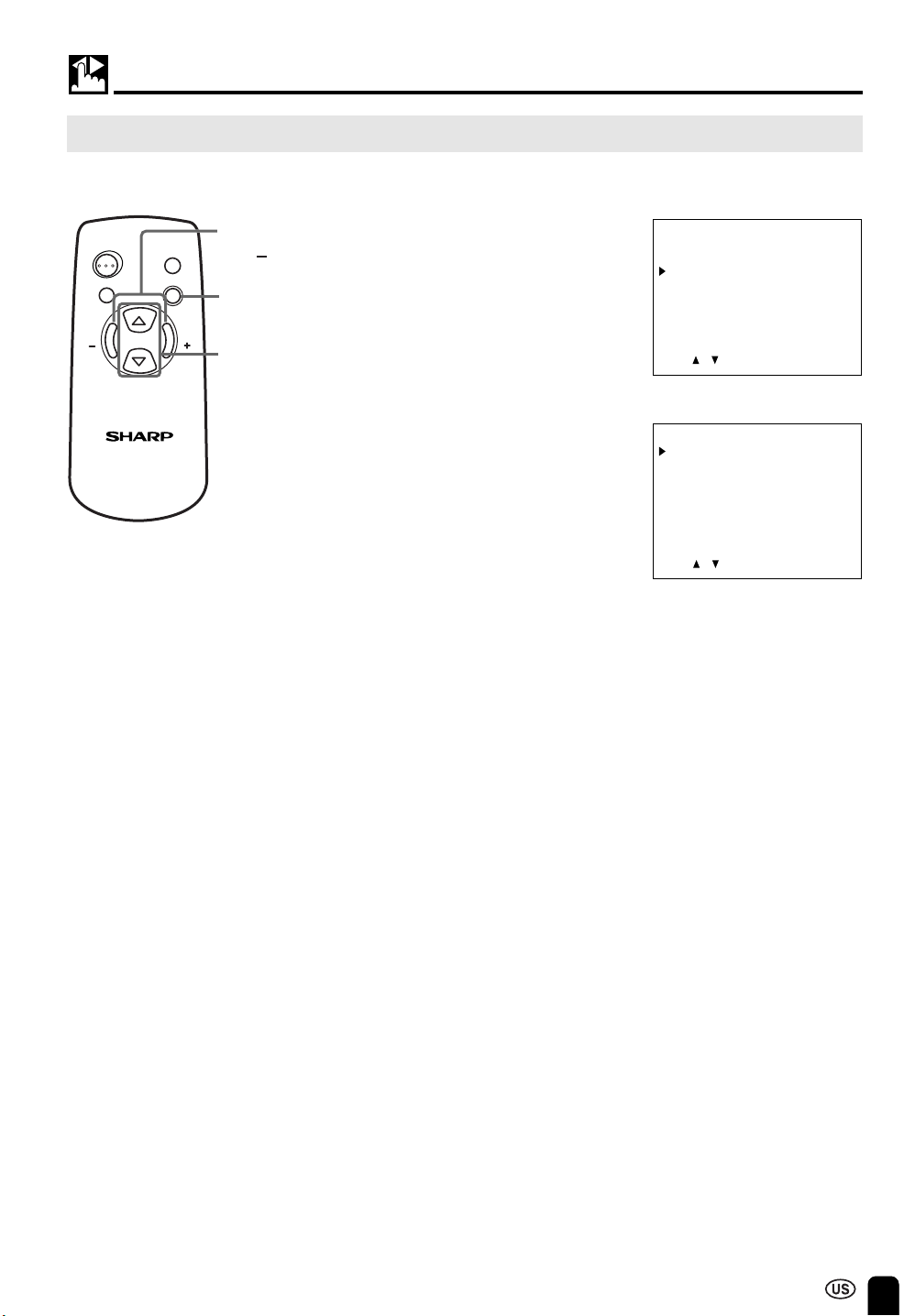
MENU on the LCD monitor set can also be used to select the language.
1 Press MENU to display the MENU
screen.
2 Press SELECT (])/([)
to move the
cursor to LANGUAGE, and then press
VOL (+)/(–)
to display the LANGUAGE
screen.
3 Press SELECT (])/([) to select the
language you want to display.
4 Press MENU again to exit.
LANGUAGE
SELECT: EXIT: MENU
ENGLISH
ESPAÑOL
FRANÇAIS
LCD MONITOR
SELECT
SELECT
VOLVOL
MENU
MUTE
AV INPUT
ON/OFF
MENU
SELECT
(])/([)
VOL
(+)/( )
LC-20M4U(15-19)Eng.p65 01.11.13, 1:08 PM15
16
ADJUSTMENT (Continued)
Adjusting the PICTURE Settings
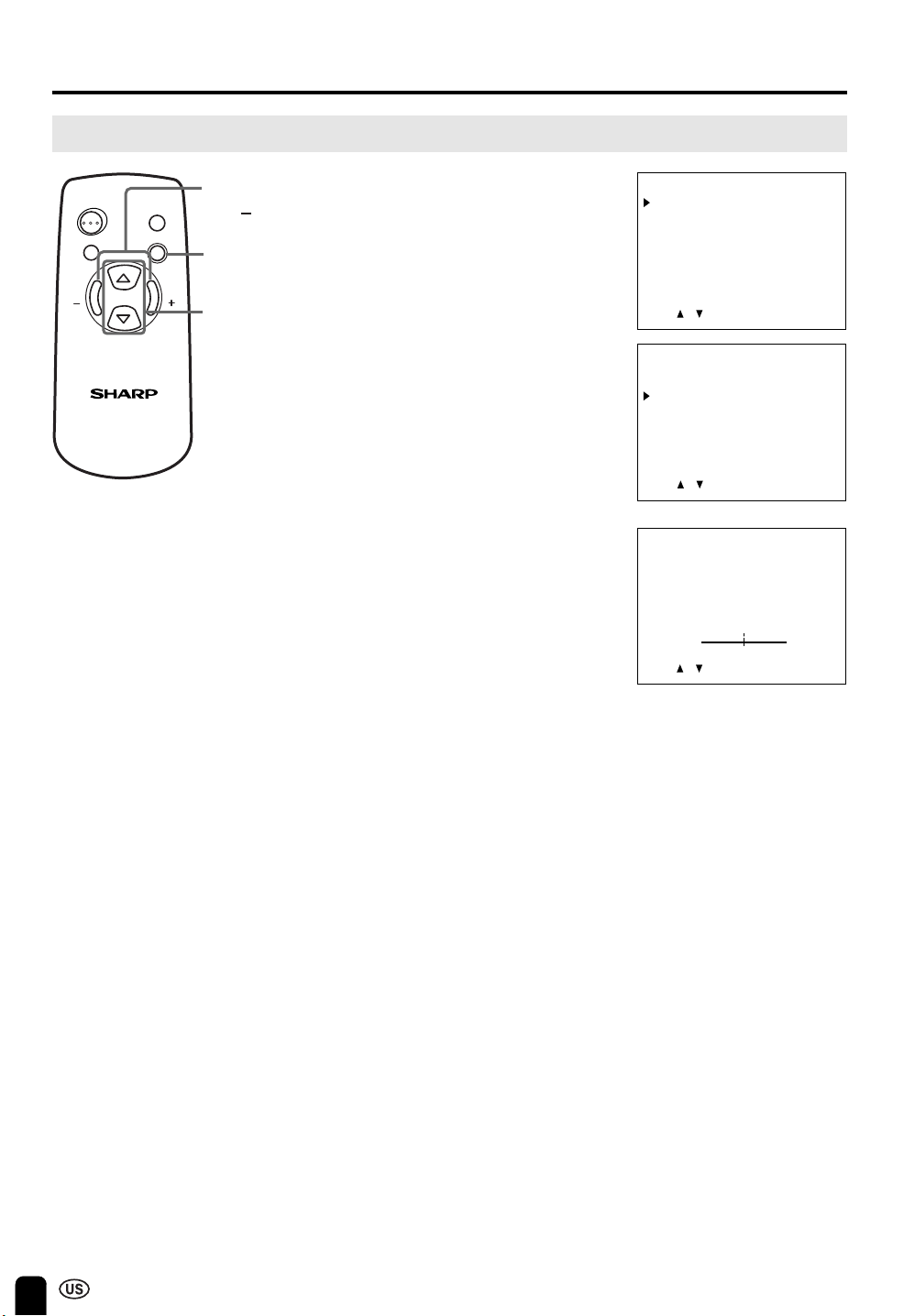
1 Press MENU to display the MENU
screen.
2 Press SELECT (])/([ ) to move the
cursor to PICTURE, and then press
VOL (+)/(–) to display the PICTURE
screen.
3 Press SELECT (])/([) to move the
cursor and select the desired
adjustment item.
All items that can be adjusted are
shown in the table on the next page.
4 Press VOL (+)/(–) to display the screen
for the selected adjustment item.
5 Press VOL (+)/(–) to make the
adjustment.
6 Press MENU again to exit.
MENU
PICTURE
SET UP
LANGUAGE
ENTER: –VOL+SELECT: EXIT: MENU
LCD MONITOR
SELECT
SELECT
VOLVOL
MENU
MUTE
AV INPUT
ON/OFF
MENU
SELECT
(])/([)
VOL
(+)/( )
PICTURE(AV1)
CONTRAST
TINT
COLOR
BLACK LEVEL
SHARPNESS
RED-BLUE
GREEN
COLOR SYSTEM
RESET
[ 30]
[ 0]
[ 0]
[ 0]
[ 0]
[ 0]
[ 0]
[ N358]
ENTER: –VOL+SELECT: EXIT: MENU
COLOR
0
– +
ADJUST: –VOL+SELECT: EXIT: MENU
LC-20M4U(15-19)Eng.p65 01.11.13, 1:08 PM16
17
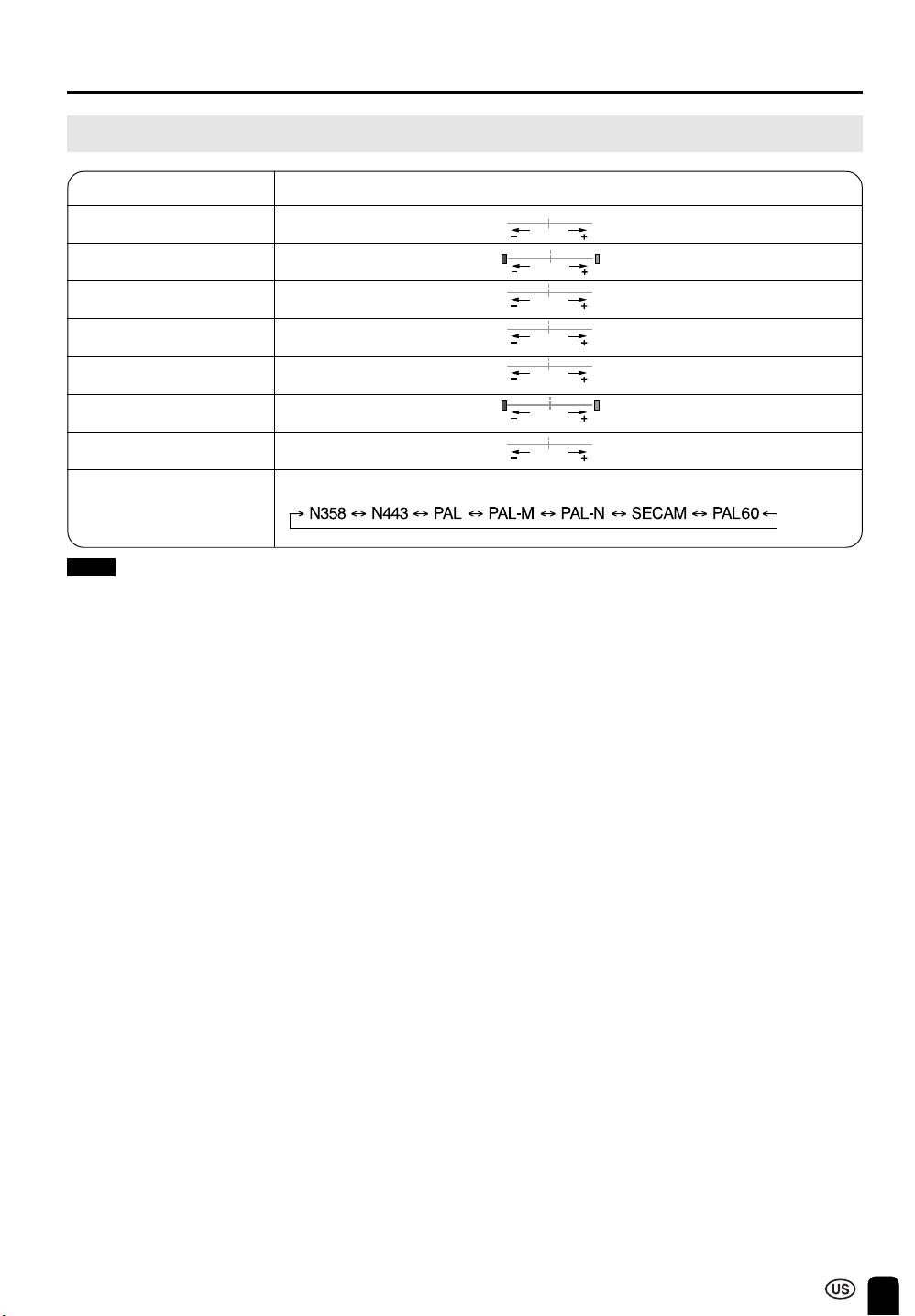
Selected item Press VOL (–). Press VOL (+).
CONTRAST Decrease contrast Increase contrast
TINT Toward purple Toward green
COLOR Lower color intensity Higher color intensity
BLACK LEVEL Decrease brightness Increase brightness
SHARPNESS Soft picture Sharp picture
RED-BLUE More red More blue
GREEN Less green More green
COLOR SYSTEM Press VOL (+)/(–) to select COLOR SYSTEM.
Note:
■ TINT is displayed only when N358 or N443 is selected.
Switching the COLOR SYSTEM
Set the system to N358 for normal reception.
When the picture is not stable, switching to an appropriate system may improve the picture quality.
ADJUSTMENT (Continued)
Adjusting the PICTURE Settings (Continued)
LC-20M4U(15-19)Eng.p65 01.11.13, 1:08 PM17
18
ADJUSTMENT (Continued)
LCD MONITOR
SELECT
SELECT
VOLVOL
MENU
MUTE
AV INPUT
ON/OFF
MENU
SELECT
(])/([)
VOL
(+)/( )
MENU
PICTURE
SET UP
LANGUAGE
ENTER: –VOL+SELECT: EXIT: MENU
Adjusting the SET UP Settings
The SET UP items can be set by the user.
1 Press MENU to display the MENU
screen.
2 Press SELECT (])/([) to move the
cursor to SET UP.
3 Press VOL (+)/(–) to display the SET
UP screen.
4 Check the factory setting of each item
on the SET UP screen.
The user can change the settings with
SELECT (])/([ ) and VOL (+)/(–).
5 Press MENU again to exit.
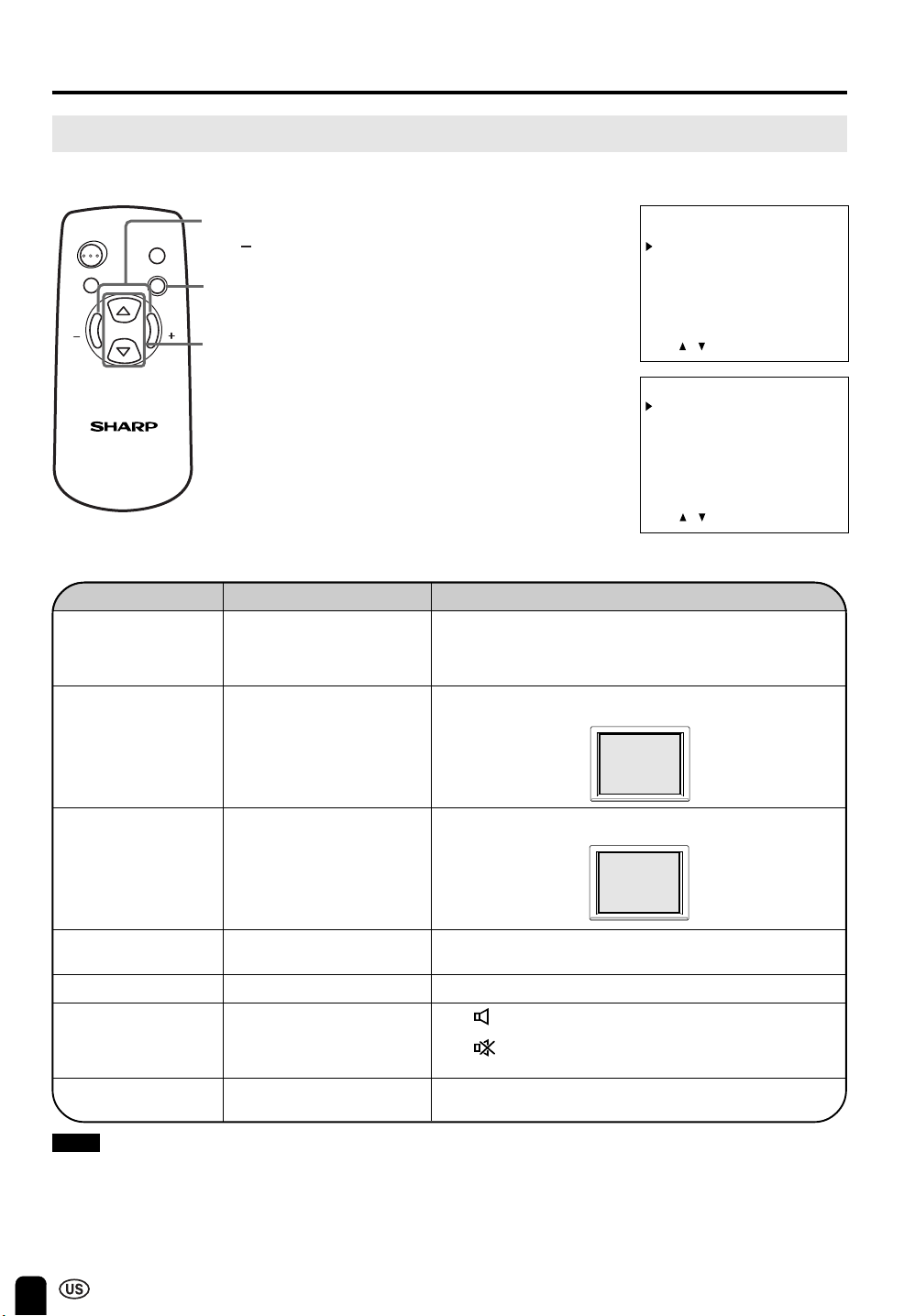
Selected item Factory setting Setting change
BRIGHTNESS
UPSIDE
RIGHT/LEFT
BLUE SCREEN
AV1
AV2 IN/OUT
SLEEP TIMER
[NORMAL] Brightness 60% → Suitable for viewing in well-lit areas.
Saves energy.
[DARK] Brightness 20% → Sufficiently bright when viewing in
dim areas.
[DOWN] Inverted image → To display images upside down for
special applications.
[MIRROR] Mirror image → To display mirror images for special
applications.
[ON] The screen is turned blue when there is no signal.
[COMPONENT]
[OUT
] Line Output is selected, Output volume is fixed, Speaker
output is available.
[OUT
] Line Output is selected, Output volume is variable,
Speaker output is Mute.
The setting can be specified in increments of 30 minutes and in a
range between 30 and 120 minutes. (see page 19)
[BRIGHT] Maximum brightness
[NORMAL] Normal vertical
image orientation
[NORMAL] Normal horizontal
image orientation
[OFF] This feature is
inactive.
[NORMAL]
[IN]
[ – – – REMAIN]
ABC
ABC
ABC
Note:
■ In BLUE SCREEN, PICTURE setting displayed in purple cannot be selected.
ADJUST: –VOL+SELECT: EXIT: MENU
SET UP
BRIGHTNESS
UPSIDE
RIGHT/LEFT
BLUE SCREEN
AV1
AV2 IN/OUT
SLEEP TIMER
[BRIGHT ]
[NORMAL]
[NORMAL]
[OFF ]
[NORMAL]
[IN ]
[ – – – REMAIN]
LC-20M4U(15-19)Eng.p65 01.11.13, 1:08 PM18
19
LCD MONITOR
SELECT
SELECT
VOLVOL
MENU
MUTE
AV INPUT
ON/OFF
MENU
SELECT
(])/([)
VOL
(+)/( )
ADJUSTMENT (Continued)
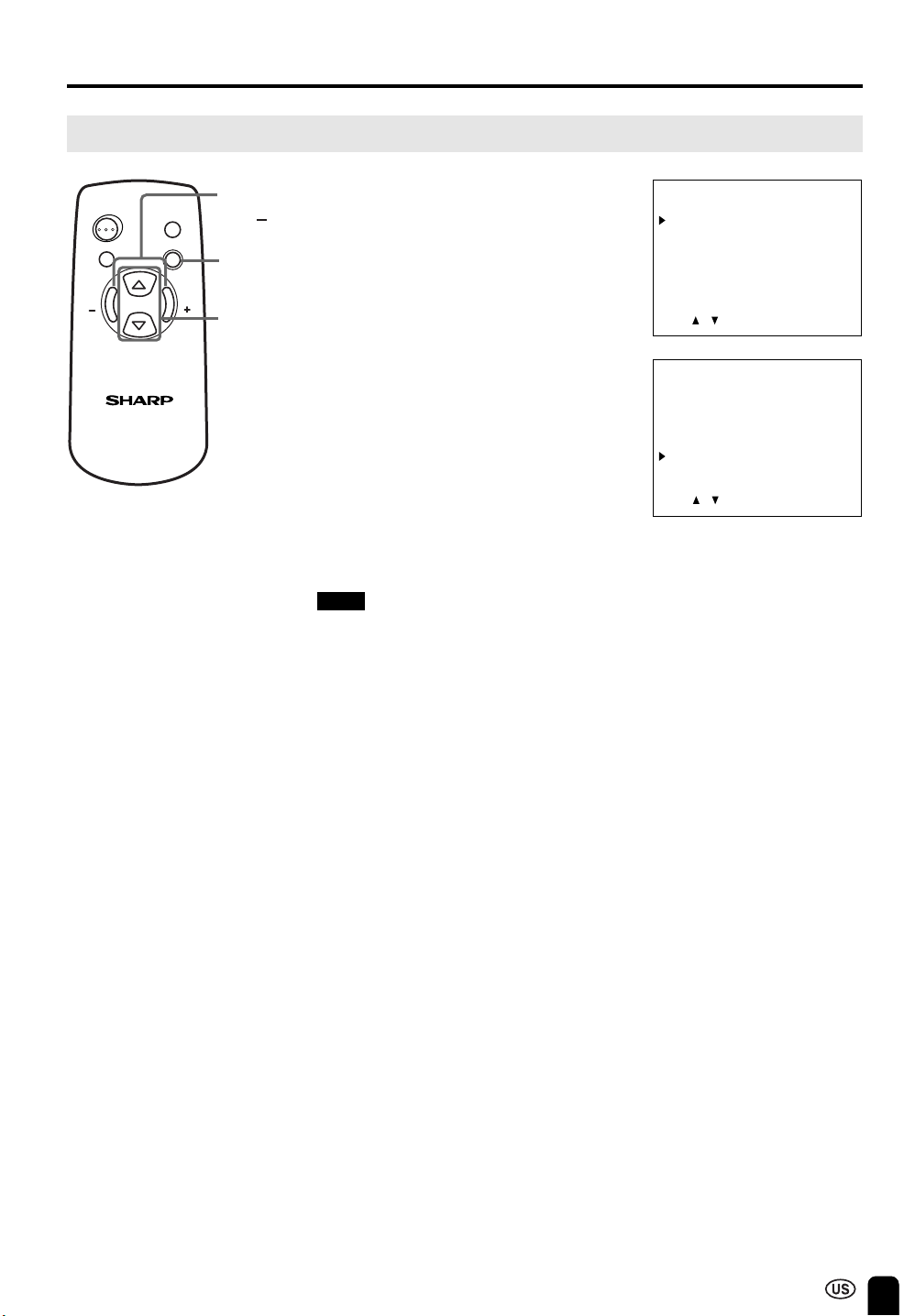
Adjusting the SLEEP TIMER Settings
1 Press MENU to display the MENU
screen.
2 Press SELECT (])/([)
to move the
cursor to SET UP, and then press VOL
(+)/(–)
to display the SET UP screen.
3 Press SELECT (])/([)
to move the
cursor to SLEEP TIMER, and then
press VOL (+)/(–)
to set SLEEP TIMER
(in minutes).
The setting can be specified in
increments of 30 minutes and in a
range between 30 and 120 minutes.
The setting is turned off when --- is
displayed.
4 Press MENU again to exit.
Note:
■ If the monitor’s power is turned off and then
turned back on again after the SLEEP TIMER
has been set, the setting will be canceled.
MENU
PICTURE
SET UP
LANGUAGE
ENTER: –VOL+SELECT: EXIT: MENU
ADJUST: –VOL+SELECT: EXIT: MENU
SET UP
BRIGHTNESS
UPSIDE
RIGHT/LEFT
BLUE SCREEN
AV1
AV2 IN/OUT
SLEEP TIMER
[BRIGHT ]
[NORMAL]
[NORMAL]
[OFF ]
[NORMAL]
[IN ]
[ – – – REMAIN]
LC-20M4U(15-19)Eng.p65 01.11.13, 1:08 PM19
20
CONNECTING TO EXTERNAL DEVICES
Notes:
■ PC connection is not possible.
■ Use a commercially available audio/video cord for the cable.
■ When connecting or disconnecting the video cord (BNC TYPE) to or from the VIDEO input terminal, disconnect the
audio cable.
■ Only connect audio/video signals to AV 1/2 IN terminals. Connecting other signals may result in a malfunction.
■ When external devices are connected to both the VIDEO and S-VIDEO terminals (and AV1 is selected), priority is
given to the S-VIDEO input terminal. To view images from the VIDEO input terminal, do not connect any cable to the
S-VIDEO terminal.
■ For details concerning the usage and connection of external devices, see their respective instruction manuals.
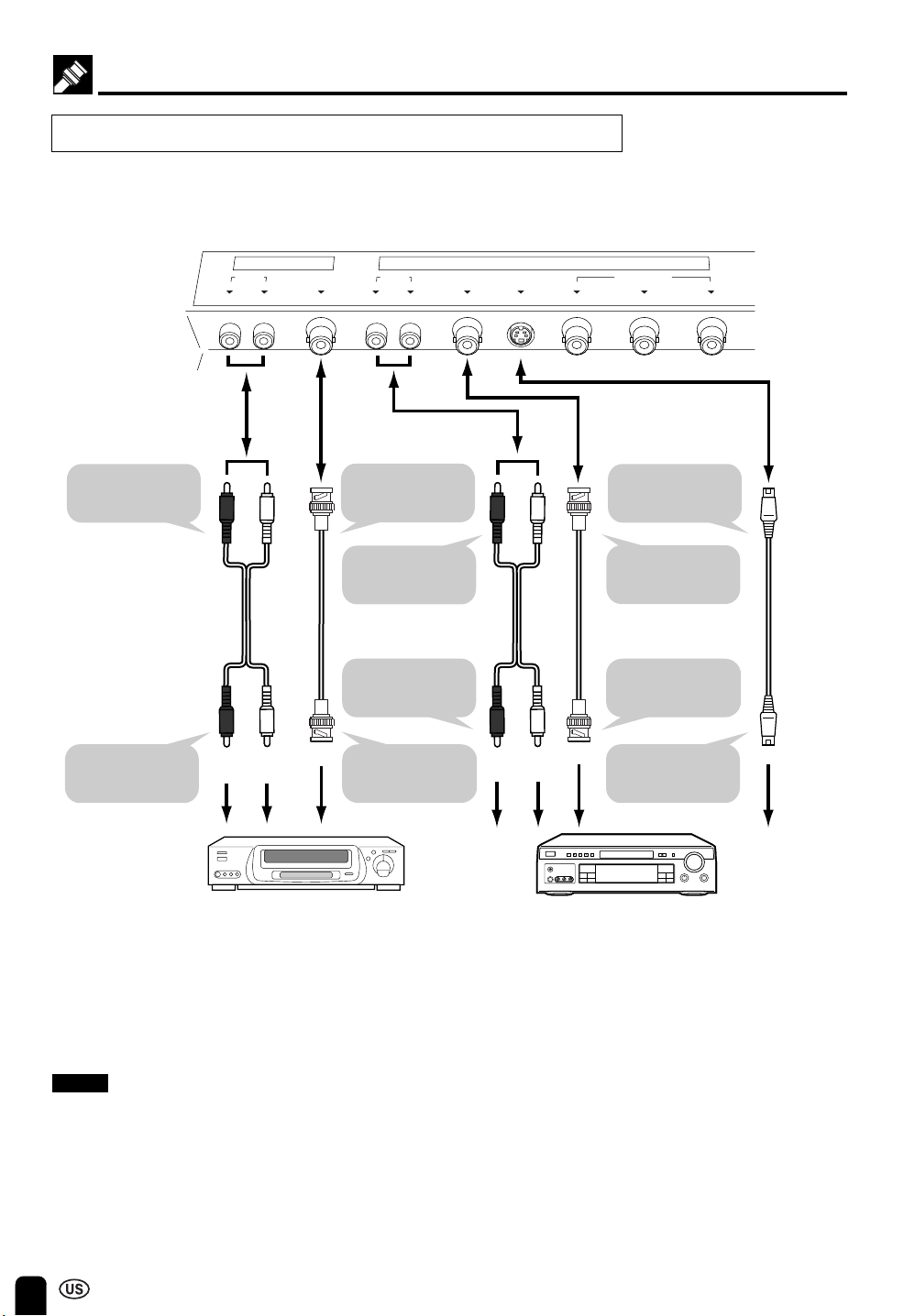
AUDIO
Y P
B
P
R
COMPONENT
R L
AV 1 IN
VIDEO
POWER
INPUT
DC13V
AUDIO
VIDEO S-VIDEO
AV 2 IN/OUT
R L
TUNER/BAND
DVD
AUX 1
AUX 3AUX 2
SURROUND
ON/OFF
TUNER/BAND
DVD
AUX 1
AUX 3AUX 2
SURROUND
ON/OFF
VCR, Laser disc player, etc. DVD Player, etc.
Video
Audio
(R)
Audio
(L)
Video
S-Video
Audio
(R)
Audio
(L)
To AUDIO input
terminal
Audio cord
To audio output
terminal
To S-VIDEO input
terminal
S-video cord
To S-Video
output terminal
To AUDIO input
terminal
To audio output
terminal
To VIDEO input
terminal
To video output
terminal
To VIDEO input
terminal
To video output
terminal
Audio cord
Video cord
(BNC TYPE)
Video cord
(BNC TYPE)
This LCD monitor can be connected to most external devices as shown below.
When connecting to an external device, turn off the power of the main unit and then connect to the device
to prevent any possible damage.
* For improved picture quality from video
sources with COMPONENT output, use
the connection diagram on page 21.
Connecting to a VCR, a DVD Player, etc. (AV 1/2 IN)
LC-20M4U(20-28)Eng.p65 01.11.13, 1:08 PM20
21
CONNECTING TO EXTERNAL DEVICES (Continued)
AUDIO
Y P
B
P
R
COMPONENT
R L
AV 1 IN
VIDEO
POWER
INPUT
DC13V
AUDIO
VIDEO S-VIDEO
AV 2 IN/OUT
R L
TUNER/BAND
DVD
AUX 1
AUX 3AUX 2
SURROUND
ON/OFF
TUNER/BAND
DVD
AUX 1
AUX 3AUX 2
SURROUND
ON/OFF
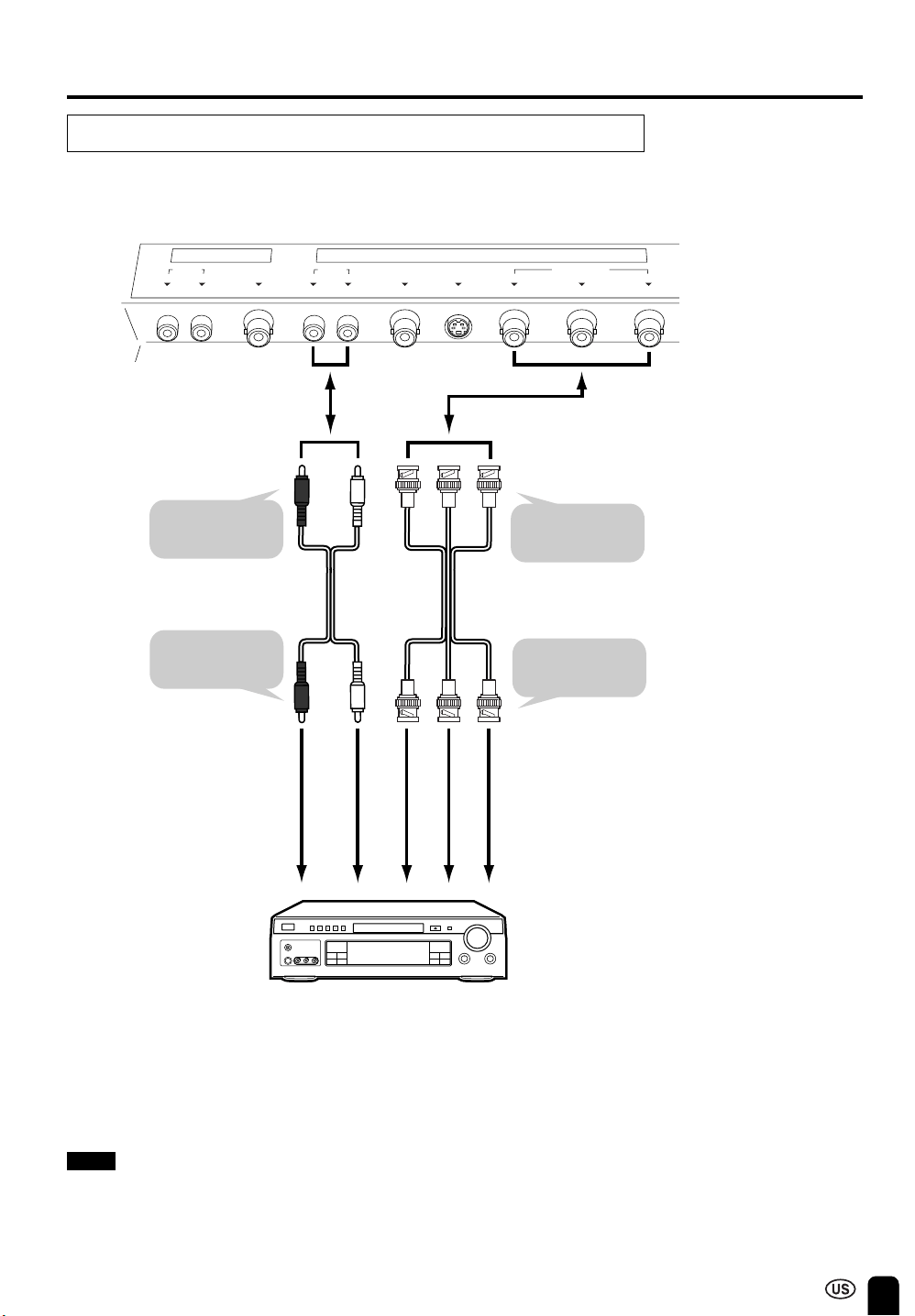
To AUDIO
input terminal
Audio cord
To audio
output terminal
Audio
(R)
To COMPONENT
terminal
To COMPONENT
terminal
Video cord
(BNC TYPE)
Y
DVD Player
Audio
(L)
P
R
P
B
Note:
■ To view the image from the component connected to the terminals for AV 1 IN, set AV1 to COMPONENT with the
SET UP setting (see page 18).
Connecting to a DVD player (COMPONENT terminal)
LC-20M4U(20-28)Eng.p65 01.11.13, 1:08 PM21
22
CONNECTING TO EXTERNAL DEVICES (Continued)
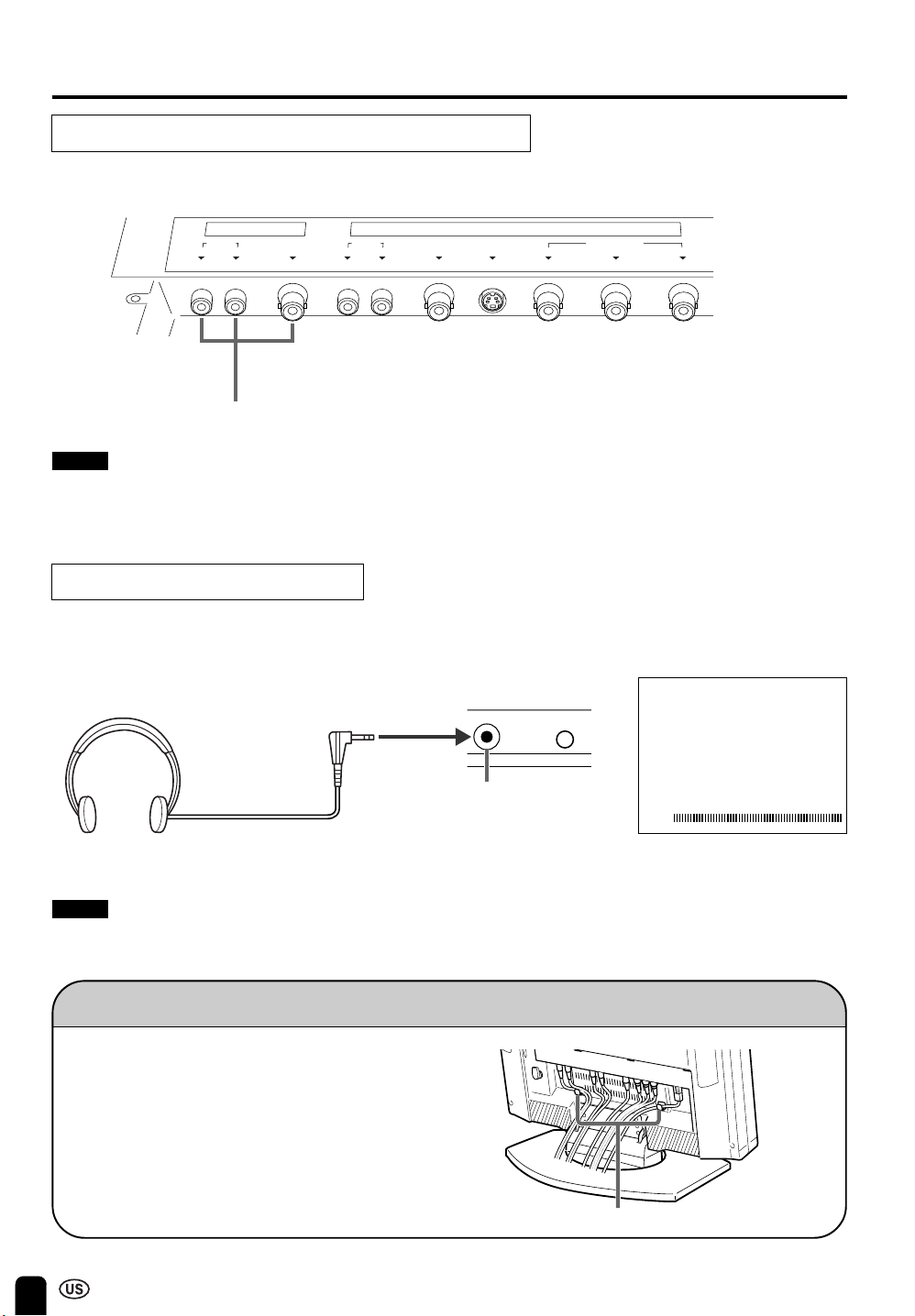
Outputting video and audio (video output)
It is possible to output video and audio from the set through the AV output terminals (AV 2 IN/OUT).
Connect a VCR, Audio amplifies, etc
Notes:
■ AV2 can be set to input or output. When set to input, output is not possible and vice versa.
■ When using COMPONENT and/or S-VIDEO terminal, it is not possible to output video, but it is possible to output
audio for connecting to audio systems.
■ Plug the headphone mini-plug into the headphone jack located on the front side of the set.
HEADPHONE
jack
Mini-plug
Headphones
Listening with Headphones
Notes:
■ The headphones are not included in the supplied accessories.
■ No sound will be heard from the main unit speakers when the headphones are connected.
▼ On-screen display
VOLUME
60
Fixing the Cables
• Secure cables and cords with the supplied
cable clamps so that they do not get caught
when mounting the cover.
• Connect the cables and cords after affixing the
cable clamps (2 positions) close to the AUDIO
input terminal and the POWER INPUT terminal.
Cable clamps
AUDIO
Y PB
P
R
COMPONENT
R L
AV 1 IN
VIDEO
POWER
INPUT
DC13V
AUDIO
VIDEO S-VIDEO
AV 2 IN/OUT
R L
MENU
HEAD
PHONE
LC-20M4U(20-28)Eng.p65 01.11.13, 1:08 PM22
23
CONNECTING TO EXTERNAL DEVICES (Continued)
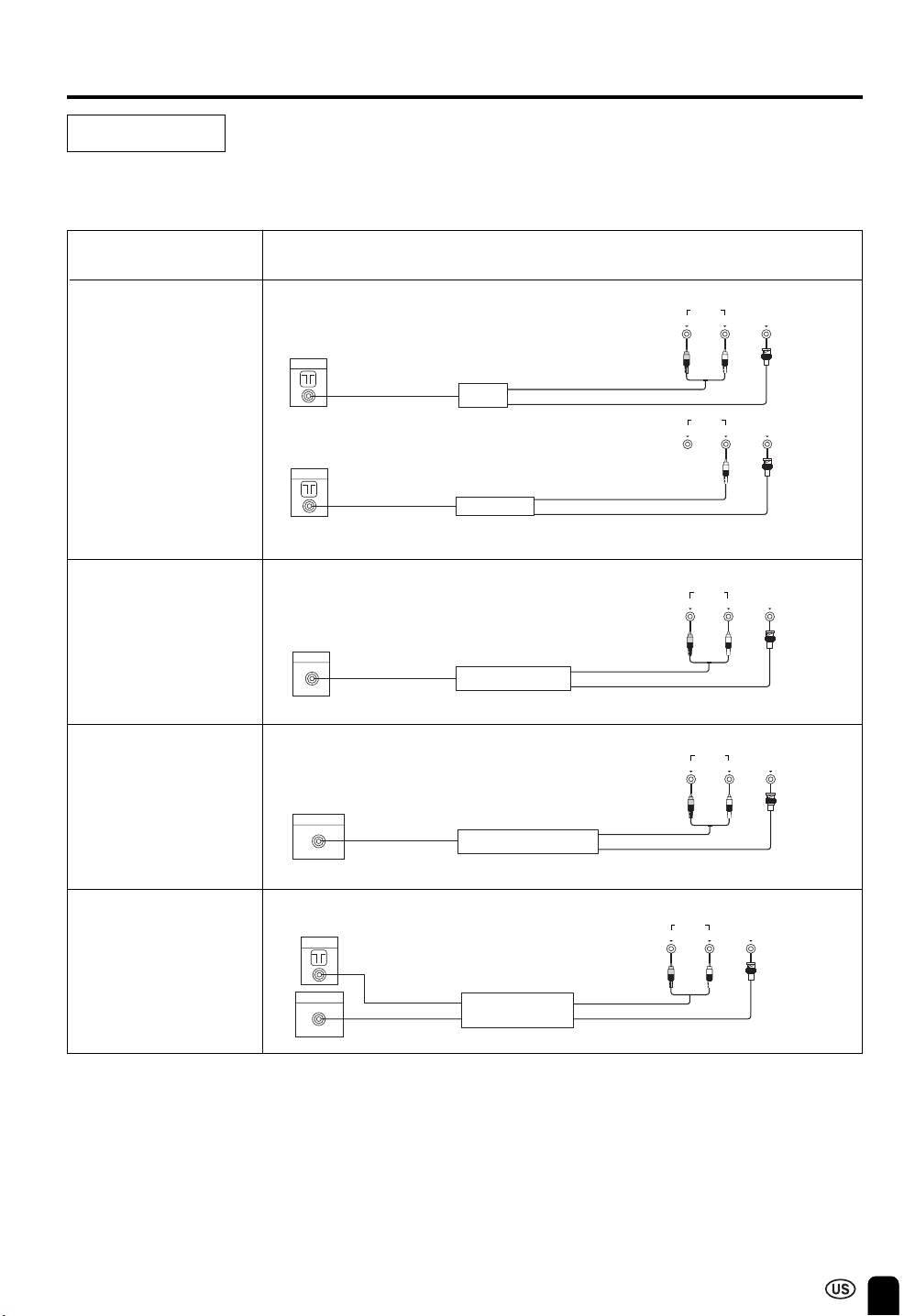
Watching TV
To view a TV broadcast on the LCD monitor, the set-top box must be used with a TV tuner, satellite tuner
or VCR. Refer to the diagram below for wiring.
TV ROOM ANTENNA SET-TOP BOX MONITOR
TERMINAL
TV BROADCAST
(ON AIR)
VIDEOAUDIO
RL
VIDEO OUT
(BNC TYPE)
TV ANT
RF IN
VCR
VIDEOAUDIO
RL
(BNC TYPE)
TV TUNER
RF IN
TV ANT
VIDEO OUT
VIDEOAUDIO
RL
VIDEO OUT
(BNC TYPE)
CABLE
RF IN
SET-TOP BOX
VIDEOAUDIO
RL
VIDEO OUT
(BNC TYPE)
SATELLITE
SATELLITE TUNER
RF IN
VIDEOAUDIO
RL
TEL, LINE
VIDEO OUT
Web
SET-TOP BOX
TV ANT
RF IN
(BNC TYPE)
PAY TV
SATELLITE TV
WEB TV
LC-20M4U(20-28)Eng.p65 01.11.13, 1:08 PM23
24
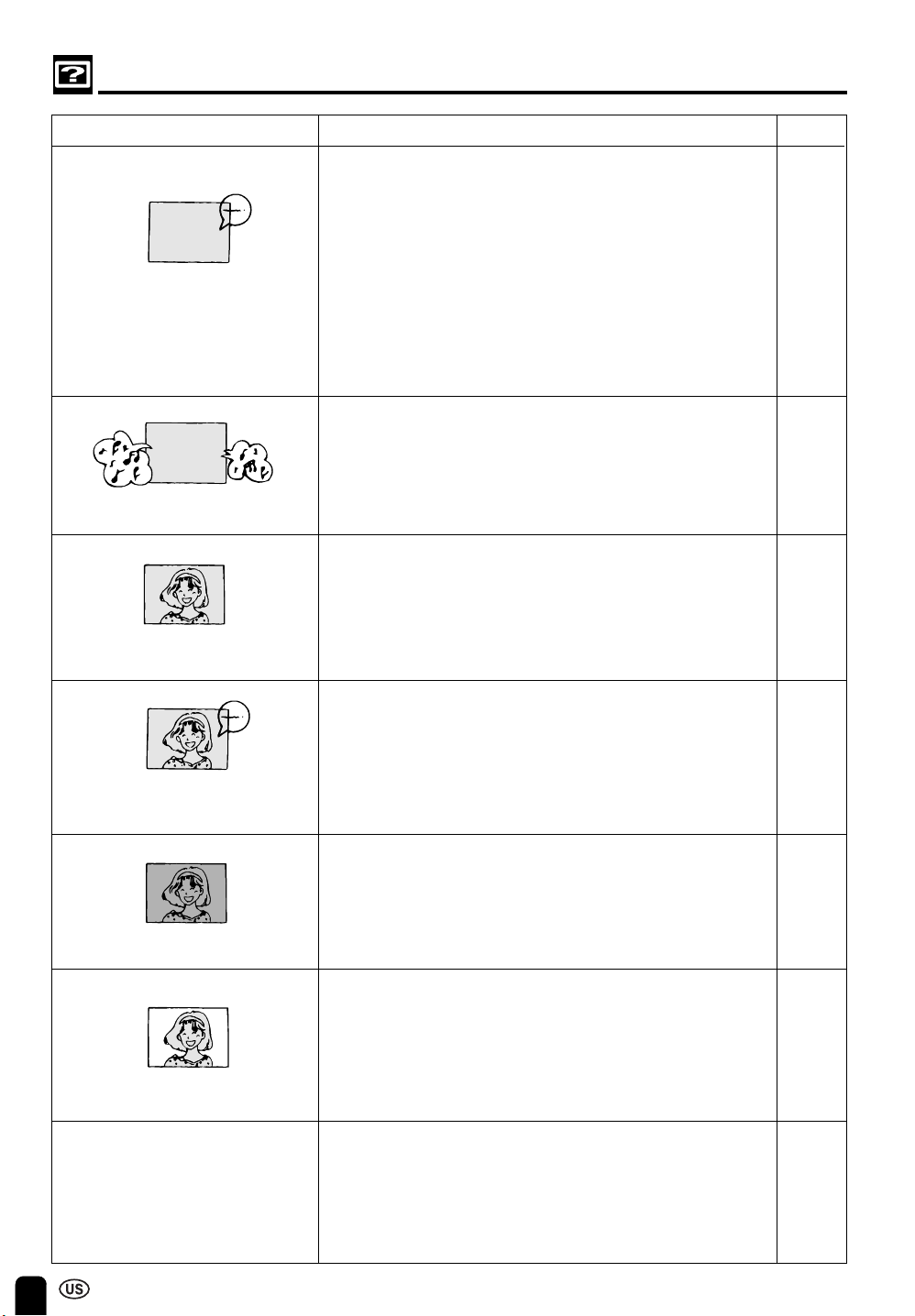
TROUBLESHOOTING
Problem Check item Pages
No image on screen, and
no sound from speakers.
• Make sure that the AC power cord plug is securely
inserted in AC power outlet and AC adapter.
• Make sure that the AC adapter’s DC output is securely
connected to main unit’s DC input terminal.
• Make sure that the main power switch of the main unit is
on.
• Make sure that the AV input is properly set.
• Make sure that the cables are correctly connected to
rear terminal section of LCD monitor.
• Check to see if the batteries in the remote control have
sufficient power.
• Make sure that the unit is not in the standby mode
(power indicator is red).
Speakers produce sound,
but no image on screen.
• Make sure that the cables are correctly connected.
• Make sure that AV1 is set to COMPONENT to view
the image from component sources.
Image is too light or
improperly tinted.
• Check COLOR and TINT adjustments. (NTSC ONLY)
• Check CONTRAST and BLACK LEVEL adjustments.
• Check RED-BLUE adjustments.
• Make sure that the DVD connection cord is correctly
connected to the COMPONENT terminal.
Image is displayed, but no
sound from speakers.
• Make sure that the cables are properly connected to
rear terminal section of LCD monitor.
• Check the volume adjustment.
• Make sure that the sound is not muted.
• Make sure that the headphones are not connected.
Image is too dark.
• Check to see if BRIGHTNESS is set to DARK.
• Check CONTRAST and BLACK LEVEL adjustments.
• Lamp may have reached the end of its life. (Contact
an authorized Sharp service facility for replacement
lamp(s).)
No colors on image.
• Check COLOR adjustment.
• Check the color system setting.
• Make sure that the DVD connection cord is correctly
connected to P
B and PR of the COMPONENT terminal.
8
12
12
8
13
20, 21
18
17
13
13
22
18
17
• Check to see if the batteries in the remote control
have sufficient power.
• Make sure that (+) and (–) side of batteries are
properly positioned in remote control.
• Make sure that the remote sensor window is not
under strong fluorescent lighting.
Remote control does not work.
8
17
17
8
17
LC-20M4U(20-28)Eng.p65 01.11.13, 1:08 PM24
25
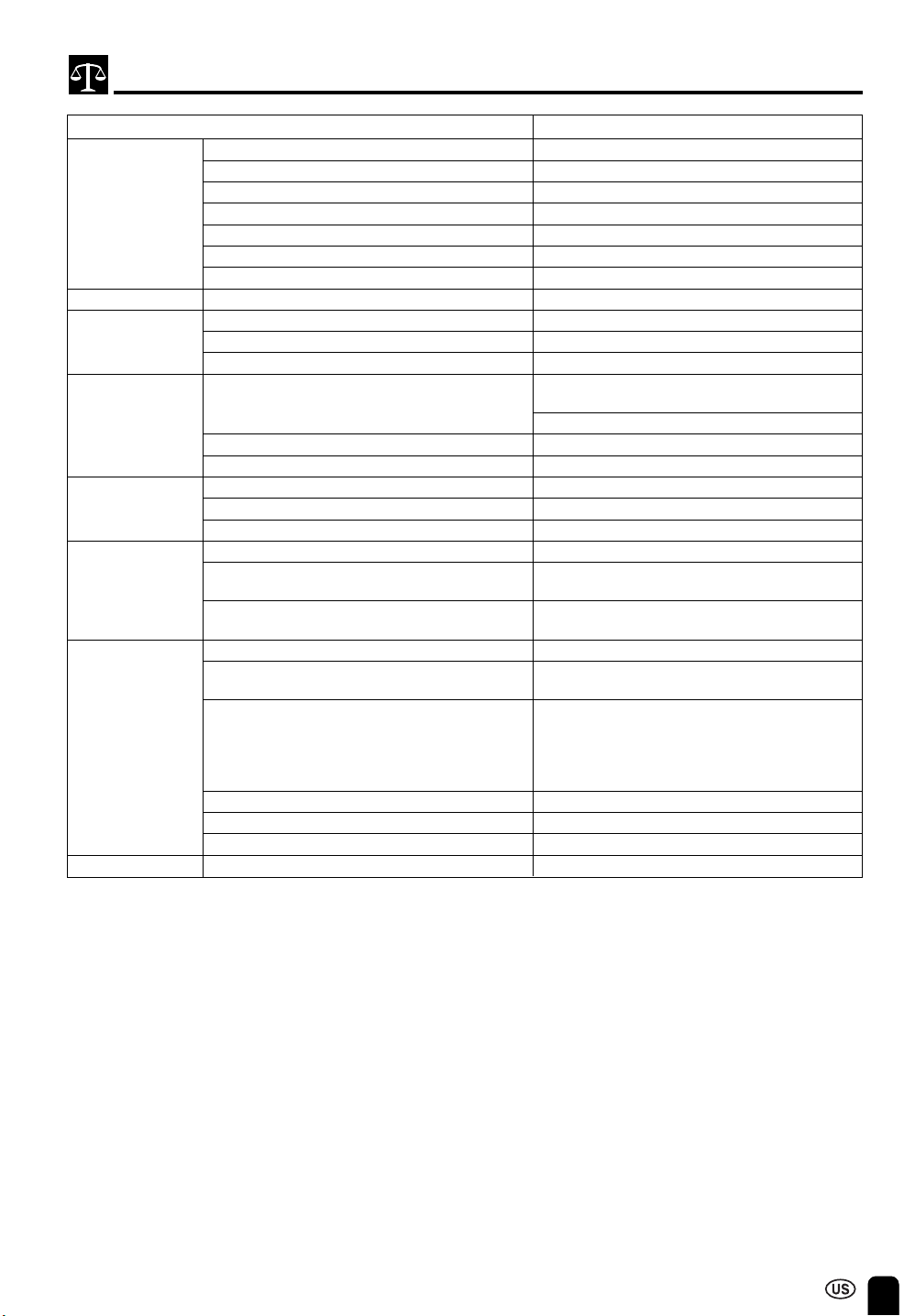
SPECIFICATIONS
ITEMS LC-20M4U
LCD Panel 20” Black TFT LCD
Number of dots 921,600 (640 × 3 × 480) dots
Low reflection Non-glare
Brightness 430 cd/m
2
Viewing angles Left to right 160°
Upper to lower 160°
Lamp Life 40,000 hours (at normal mode)
COLOR SYSTEM System N358/N443/PAL/PAL-M/PAL-N/PAL-60/SECAM
AUDIO Output 4.0 W (0.7 W × 2 + 2.6 W)
Speaker Full range 1.2 × 1.6 in. (3 × 4 cm) Oval, 2 pcs.
Woofer 3.1 in. (8 cm) Round, 1 pc.
TERMINALS AV 1 IN Video Composite (BNC TYPE), S-Video,
Audio R/L
Component input, Y/PB/PR (BNC TYPE)
AV 2 IN/OUT Video Composite (BNC TYPE), Audio R/L
Headphone jack 0.1 in. (3.5 mm) ø jack
POWER SUPPLY DC operation DC 13 V, Typical: 3.0 A, Max: 3.8 A
AC operation AC 110~240 V, 50/60 Hz with AC adapter
Power consumption AC 120 V, Typical: 50 W, Standby: 0.5 W
APPEARANCE Exterior color Silver
Outside dimensions 18.1 (W) × 17.2 (H) × 7.3 (D) in.
(460 (W) × 437.5 (H) × 186 (D) mm)
Net weight 19.0 lbs (8.6 kg), incl. stand, excl. accessories
13.4 lbs (6.1 kg), excl. stand
ACCESSORIES Operation manual Language: English/French/Spanish/Portuguese
Remote control Infrared wireless type
(Infrared carrier frequency: 38 kHz)
AC adapter Multi-Voltage type, 1 pc.
DC cable: 6.5 ft (2 m)
DC power converter:
2.6 (W) x 1.5 (H) x 5.5 (D) in.
(67 (W) x 37 (H) x 140 (D) mm)
AC cord 6.1 ft (1.85 m), 1 pc.
Batteries “AAA” size (UM/SUM-4) Dry Battery × 2 pcs.
Cable clamp 2 pcs.
OSD LANGUAGE Language English/French/Spanish
As a part of policy of continuous improvement, SHARP reserves the right to make design and specification changes for
product improvement without prior notice. The performance specification figures indicated are nominal values of
production units. There may be some deviations from these values in individual units.
LC-20M4U(20-28)Eng.p65 01.11.13, 1:09 PM25
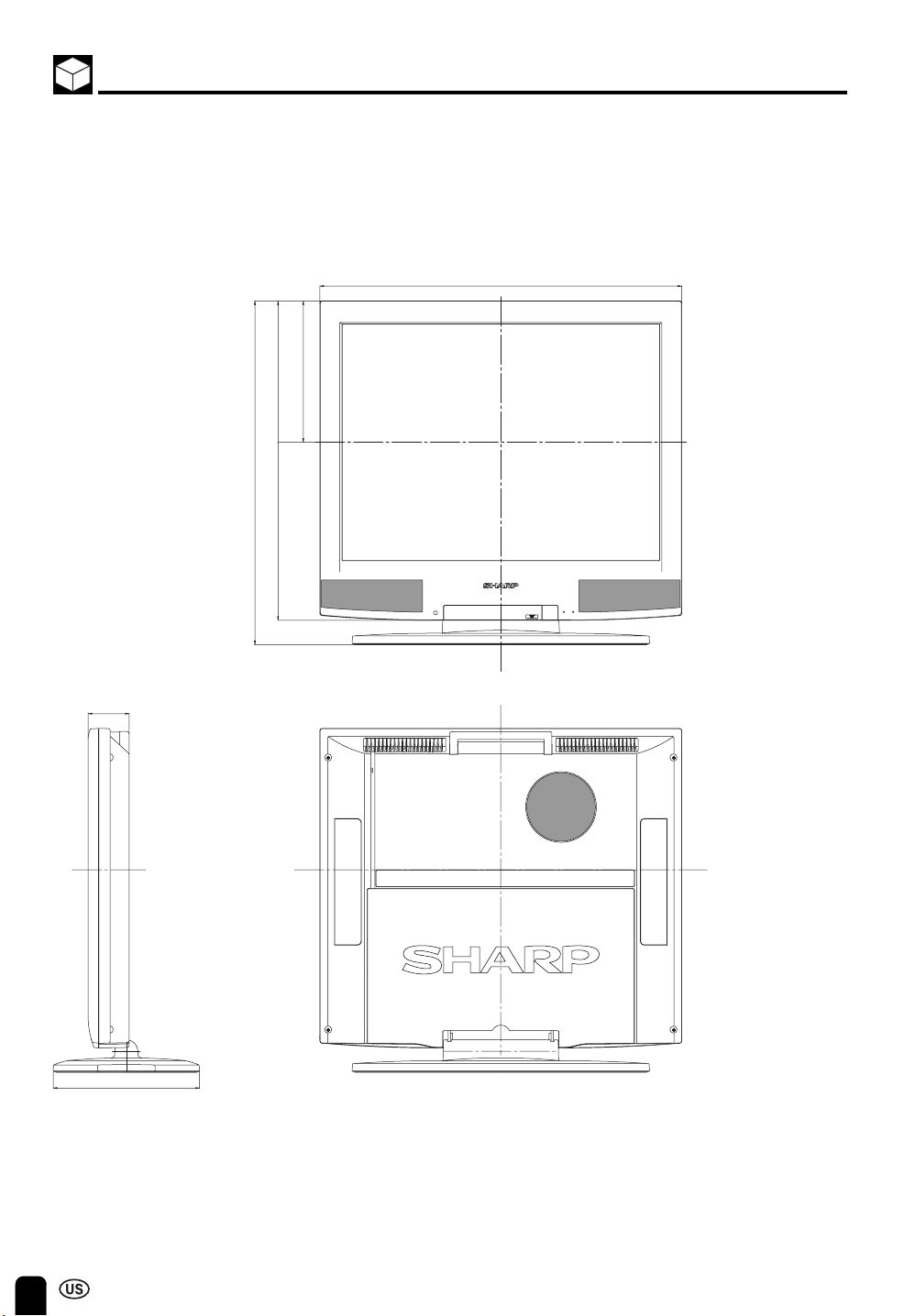
26
DIMENSIONAL DRAWINGS
Unit: inch/mm
MAIN
POWER
2.0/52
7.3/186
17.2/437.5
16.0/406.3
7.1/179.9
18.1/460
POWER SLEEP
LC-20M4U(20-28)Eng.p65 01.11.13, 1:09 PM26
SHARP ELECTRONICS CORPORATION
Sharp Plaza, Mahwah, New Jersey 07430-2135
SHARP CORPORATION
OSAKA, JAPAN
LIMITED WARRANTY
END-USER LIMITED WARRANTY
SHARP ELECTRONICS CORPORATION warrants to the first end user purchaser that this Sharp brand product (the
“Product”), when shipped in its original container, will be free from defective workmanship and materials, and agrees that it
will, at its option, either repair the defect or replace the defective Product or part thereof with a new or remanufactured
equivalent at no charge to the purchaser for parts or labor for the period(s) set forth below.
This warranty does not apply to any appearance items of the Product nor to the additional excluded item(s) set forth below
nor to any Product the exterior of which has been damaged or defaced, which has been subjected to improper voltage or
other misuse, abnormal service or handling, or which has been altered or modified in design or construction.
In order to enforce the rights under this limited warranty, the purchaser should follow the steps set forth below and provide
proof of purchase to the servicer.
To the extent permitted by applicable state law, the warranties set forth herein are in lieu of, and exclusive of, all other
warranties, express or implied. Specifically, ALL OTHER WARRANTIES OTHER THAN THOSE SET FORTH ABOVE ARE
EXCLUDED. ALL EXPRESS AND IMPLIED WARRANTIES INCLUDING THE WARRANTIES OF MERCHANTABILITY,
FITNESS FOR USE, AND FITNESS FOR A PARTICULAR PURPOSE ARE SPECIFICALLY EXCLUDED. If, under
applicable state law, implied warranties may not validly be disclaimed or excluded, the duration of such implied warranties is
limited to the period(s) from the date of purchase set forth below.
Neither the sales personnel of the seller nor any other person is authorized to make any warranties other than those
described herein, or to extend the duration of any warranties beyond the time period described herein on behalf of Sharp.
The warranties described herein shall be the sole and exclusive warranties granted by Sharp and shall be the sole and
exclusive remedy available to the purchaser. Correction of defects, in the manner and for the period of time described
herein, shall constitute complete fulfillment of all liabilities and responsibilities of Sharp to the purchaser with respect to the
Product, and shall constitute full satisfaction of all claims, whether based on contract, negligence, strict liability or otherwise.
In no event shall Sharp be liable, or in any way responsible, for any damages or defects in the Product which were caused
by repairs or attempted repairs performed by anyone other than an authorized servicer. Nor shall Sharp be liable or in any
way responsible for any incidental or consequential economic or property damage. Some states do not allow limits on
warranties or on remedies for breach in certain transactions; in such states, the limits herein may not apply.
Model Specific Section
Your Product Model Number & Description: LC-20M4U LCD AV MONITOR
(Be sure to have this information available when you need service for
your Product.)
Warranty Period for this Product: One (1) year parts and labor from the date of purchase.
Additional Item(s) Excluded from
Warranty Coverage (if any): None
Where to Obtain Service: From a Sharp Authorized Servicer located in the United States.
To find the location of the nearest Sharp Authorized Servicer, call
Sharp toll free at 1-800-BE-SHARP.
What to do to Obtain Service: Ship prepaid or carry in your Product to a Sharp Authorized Servicer.
Be sure to have Proof of Purchase available. If you ship the Product,
be sure it is insured and packaged securely.
TO OBTAIN PRODUCT INFORMATION, CALL 1-888-LCD-SHARP.
Calling for Service
For location of the nearest Sharp Authorized Service, or to obtain product literature, accessories, supplies, or customer
assistance, please call 1-800-BE-SHARP.
LC-20M4U(20-28)Eng.p65 01.11.13, 1:09 PM27
LIMITED WARRANTY
Information Systems Products
Congratulations on your purchase!
Sharp Electronics of Canada Ltd. (hereinafter called “Sharp”) gives the following express warranty to the first consumer purchaser for this
Sharp brand product, when shipped in its original container and sold or distributed in Canada by Sharp or by an Authorized Sharp Dealer:
Sharp warrants that this product is free, under normal use and maintenance, from any defects in material and workmanship. If any such
defects should be found in this product within the applicable warranty period, Sharp shall, at its option, repair or replace the product as
specified herein.
This warranty shall not apply to:
(a) Any defects caused or repairs required as a result of abusive operation, negligence, accident, improper installation or inappropriate
use as outlined in the owner’s manual.
(b) Any Sharp product tampered with, modified, adjusted or repaired by any party other than Sharp, Sharp’s Authorized Service Centres
or Sharp’s Authorized Servicing Dealers.
(c) Damage caused or repairs required as a result of the use with items not specified or approved by Sharp, including but not limited to
software, toner, paper and batteries.
(d) Any replacement of accessories, glassware, consumable or peripheral items required through normal use of the product including but
not limited to AC adapters, ribbon, correction tape, printwheel, ink rollers, toner, developer, drum, cables, paper, filters, software.
(e) Any cosmetic damage to the surface or exterior that has been defaced or caused by normal wear and tear.
(f) Any damage caused by external or environmental conditions, including but not limited to transmission line/power line voltage or liquid
spillage.
(g) Any product received without appropriate model, serial number and CSA/cUL markings.
(h) Any products used for rental purposes.
(i) Any installation, setup and/or programming charges.
Should this Sharp product fail to operate during the warranty period, warranty service may be obtained upon delivery of the Sharp product
together with proof of purchase and a copy of this LIMITED WARRANTY statement to an Authorized Sharp Service Centre or an
Authorized Sharp Servicing Dealer.
This warranty constitutes the entire express warranty granted by Sharp and no other dealer, service centre or their agent or employee is
authorized to extend, enlarge or transfer this warranty on behalf of Sharp. To the extent the law permits, Sharp disclaims any and all
liability for direct or indirect damages or losses or for any incidental, special or consequential damages or loss of profits resulting from a
defect in material or workmanship relating to the product, including damages for the loss of time or use of this Sharp product or the loss
of information. The purchaser will be responsible for any removal, reinstallation, transportation and insurance costs incurred. Correction of
defects, in the manner and period of time described herein, constitute complete fulfillment of all obligations and responsibilities of Sharp
to the purchaser with respect to the product and shall constitute full satisfaction of all claims, whether based on contract, negligence, strict
liability or otherwise.
WARRANTY PERIODS
Personal Copier 3 years
Personal Facsimile 1 year
High End Personal Computer 3 years (rechargeable battery 1 year)
LCD Projectors (XG & PG Series) 3 years (bulb 90 days)
LCD Monitor 1 year
Laser Printer 1 year
Inkjet Printer 1 year
Open Line Electronic Cash Register 6 months
To obtain the name and address of the nearest Authorized Sharp Service Centre or Dealer, please contact:
SHARP ELECTRONICS OF CANADA LTD.
SHARP ELECTRONICS OF CANADA LTD
335 Britannia Road East
Mississauga, Ontario
L4Z 1W9
(905) 568-7140 or 1 (877) SHARP-CC
Website: www.sharp.ca
VALID IN CANADA ONLY
LC-20M4U(20-28)Eng.p65 01.11.13, 1:09 PM28