
This equipment complies with the requirements of Directives 89/336/EEC and 73/23/EEC as amended by 93/68/
EEC.
Dieses Gerät entspricht den Anforderungen der EG-Richtlinien 89/336/EWG und 73/23/EWG mit Änderung 93/
68/EWG.
Ce matériel répond aux exigences contenues dans les directives 89/336/CEE et 73/23/CEE modifiées par la
directive 93/68/CEE.
Dit apparaat voldoet aan de eisen van de richtlijnen 89/336/EEG en 73/23/EEG, gewijzigd door 93/68/EEG.
Dette udstyr overholder kravene i direktiv nr. 89/336/EEC og 73/23/EEC med tillæg nr. 93/68/EEC.
Quest’ apparecchio è conforme ai requisiti delle direttive 89/336/EEC e 73/23/EEC, come emendata dalla
direttiva 93/68/EEC.
∏ εγκατάσταση αυτή αντα οκρίνεται στις α αιτήσεις των οδηγιών της ∂ υρω αϊκής ∂ νωσης 89/336/
∂√∫ και 73/23/∂√∫ , ως οι κανονισµοί αυτοί συµ ληρώθηκαν α την οδηγία 93/68/∂√∫ .
Este equipamento obedece às exigências das directivas 89/336/CEE e 73/23/CEE, na sua versão corrigida
pela directiva 93/68/CEE.
Este aparato satisface las exigencias de las Directivas 89/336/CEE y 73/23/CEE, modificadas por medio de la
93/68/CEE.
Denna utrustning uppfyller kraven enligt riktlinjerna 89/336/EEC och 73/23/EEC så som kompletteras av 93/68/
EEC.
Dette produktet oppfyller betingelsene i direktivene 89/336/EEC og 73/23/EEC i endringen 93/68/EEC.
Tämä laite täyttää direktiivien 89/336/EEC ja 73/23/EEC vaatimukset, joita on muutettu direktiivillä 93/68/EEC.
IMPORTANT
For your assistance in reporting the loss or theft of your
Projector, please record the Serial Number located on
the bottom of the projector and retain this information.
Before recycling the packaging, please be sure that
you have checked the contents of the carton thoroughly
against the list of “Supplied accessories” on page 14.
Model No.: PG-M20X
Serial No.:

SPECIAL NOTE FOR USERS IN THE U.K.
The mains lead of this product is fitted with a non-rewireable (moulded) plug incorporating a 13A fuse. Should
the fuse need to be replaced, a BSI or ASTA approved BS 1362 fuse marked
or and of the same rating as
above, which is also indicated on the pin face of the plug, must be used.
Always refit the fuse cover after replacing the fuse. Never use the plug without the fuse cover fitted.
In the unlikely event of the socket outlet in your home not being compatible with the plug supplied, cut off the
mains plug and fit an appropriate type.
DANGER:
The fuse from the cut-off plug should be removed and the cut-off plug destroyed immediately and disposed of
in a safe manner.
Under no circumstances should the cut-off plug be inserted elsewhere into a 13A socket outlet, as a serious
electric shock may occur.
To fit an appropriate plug to the mains lead, follow the instructions below:
IMPORTANT:
The wires in the mains lead are coloured in accordance with the following code:
Blue: Neutral
Brown: Live
As the colours of the wires in the mains lead of this product may not correspond with the coloured markings
identifying the terminals in your plug, proceed as follows:
• The wire which is coloured blue must be connected to the plug terminal which is marked N or coloured black.
• The wire which is coloured brown must be connected to the plug terminal which is marked L or coloured red.
Ensure that neither the brown nor the blue wire is connected to the earth terminal in your three-pin plug.
Before replacing the plug cover make sure that:
• If the new fitted plug contains a fuse, its value is the same as that removed from the cut-off plug.
• The cord grip is clamped over the sheath of the mains lead, and not simply over the lead wires.
IF YOU HAVE ANY DOUBT, CONSULT A QUALIFIED ELECTRICIAN.
The supplied CD-ROM contains operation instructions in English, German, French, Swedish, Spanish, Italian,
Dutch, Portuguese, Chinese (Traditional Chinese and Simplified Chinese), Korean and Arabic. Carefully read
through the operation instructions before operating the projector.
Die mitgelieferte CD-ROM enthält Bedienungsanleitungen in Englisch, Deutsch, Französisch, Schwedisch, Spanisch,
Italienisch, Niederländisch, Portugiesisch, Chinese (Traditionelles Chinesisch und einfaches Chinesisch), Koreanisch
und Arabisch. Bitte lesen Sie die Bedienungsanleitung vor der Verwendung des Projektors sorgfältig durch.
Le CD-ROM fourni contient les instructions de fonctionnement en anglais, allemand, français, suédois,
espagnol, italien, néerlandais, portugais, chinois (chinois traditionnel et chinois simplifié), coréen et arabe.
Veuillez lire attentivement ces instructions avant de faire fonctionner le projecteur.
Den medföljande CD-ROM-skivan innehåller bruksanvisningar på engelska, tyska, franska, svenska, spanska,
italienska, holländska, portugisiska, kinesiska (traditionell kinesiska och förenklad kinesiska), koreanska och
arabiska. Läs noga igenom bruksanvisningen innan projektorn tas i bruk.
El CD-ROM suministrado contiene instrucciones de operación en inglés, alemán, francés, sueco, español,
italiano, holandés, portugués, chino (chino tradicional y chino simplificado), coreano y árabe. Lea
cuidadosamente las instrucciones de operación antes de utilizar el proyector.
Il CD-ROM in dotazione contiene istruzioni per l’uso in inglese, tedesco, francese, svedese, spagnolo, italiano,
olandese, portoghese, cinese (cinese tradizionale e cinese semplificato), coreano e arabo. Leggere
attentamente le istruzioni per l’uso prima di usare il proiettore.
De meegeleverde CD-ROM bevat handleidingen in het Engels, Duits, Frans, Zweeds, Spaans, Italiaans,
Nederlands, Portugees, Chinees (Traditioneel Chinees en Vereenvoudigd Chinees), Koreaans en Arabisch.
Lees de handleiding zorgvuldig door voor u de projector in gebruik neemt.
O CD-ROM fornecido contém instruções de operação em Inglês, Alemão, Francês, Sueco, Espanhol, Italiano,
Holandês, Português, Chinês, Chinês (Tradicional e Chinês Simplificado), Coreano e Árabe. Leia
cuidadosamente todas as instruções de operação antes de operar o projetor.
Introduction
-1
Before using the projector, please read this operation manual carefully.
There are two important reasons for prompt warranty registration of your new SHARP Projector, using
the REGISTRATION CARD packed with the projector.
1. WARRANTY
This is to assure that you immediately receive the full benefit of the parts, service and labor
warranty applicable to your purchase.
2. CONSUMER PRODUCT SAFETY ACT
To ensure that you will promptly receive any safety notification of inspection, modification, or
recall that SHARP may be required to give under the 1972 Consumer Product Safety Act, PLEASE
READ CAREFULLY THE IMPORTANT “LIMITED WARRANTY” CLAUSE.
WARNING: High brightness light source. Do not stare into the beam of light, or view directly. Be especially
careful that children do not stare directly into the beam of light.
WARNING:
To reduce the risk of fire or electric shock, do not expose this product to rain or moisture.
WARNING: FCC Regulations state that any unauthorized changes or modifications to this equipment not
expressly approved by the manufacturer could void the user’s authority to operate this equip-
ment.
CAUTION: TO REDUCE THE RISK OF ELECTRIC SHOCK,
DO NOT REMOVE COVER.
NO USER-SERVICEABLE PARTS EXCEPT LAMP UNIT.
REFER SERVICING TO QUALIFIED SERVICE
PERSONNEL.
The lightning flash with arrowhead symbol,
within an equilateral triangle, is intended to
alert the user to the presence of uninsulated
“dangerous voltage” within the product’s
enclosure that may be of sufficient magnitude
to constitute a risk or electric shock to
persons.
The exclamation point within a triangle is
intended to alert the user to the presence of
important operating and maintenance
(servicing) instructions in the literature
accompanying the product.
Introduction
ENGLISH
CAUTION
RISK OF ELECTRIC SHOCK.
DO NOT REMOVE SCREWS
EXCEPT SPECIFIED USER
SERVICE SCREWS.
INFORMATION
This equipment has been tested and found to comply with the limits for a Class A digital device, pursuant to
Part 15 of the FCC Rules. These limits are designed to provide reasonable protection against harmful
interference when the equipment is operated in a commercial environment. This equipment generates,
uses, and can radiate radio frequency energy and, if not installed and used in accordance with the operation
manual, may cause harmful interference to radio communications. Operation of this equipment in a residential
area is likely to cause harmful interference, in which case the user will be required to correct the interference
at his own expense.
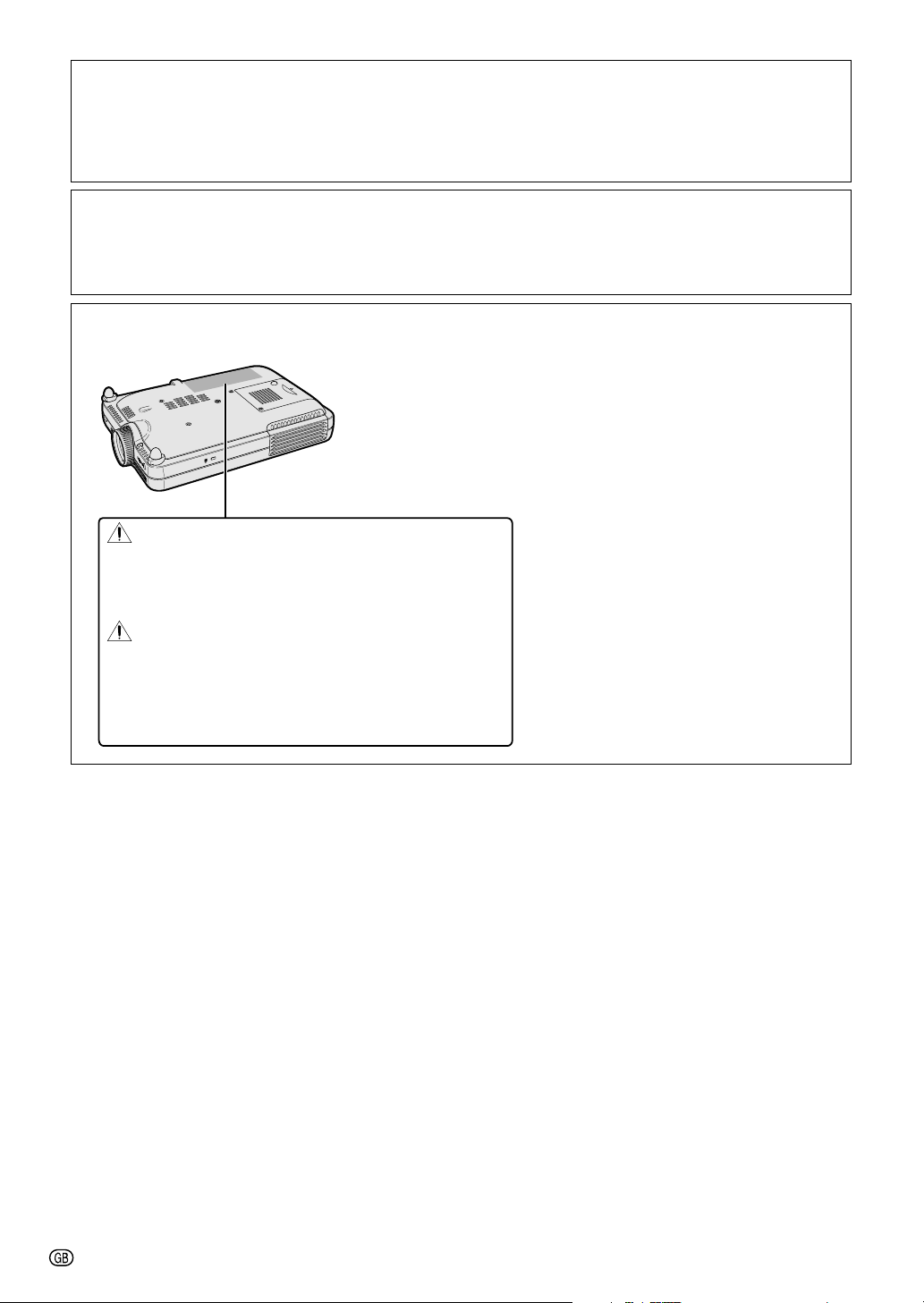
See bottom of actual set.
The enclosed computer cable must be used with the device. The cable is provided to ensure that the device
complies with FCC Class A verification.
WARNING:
This is a Class A product. In a domestic environment this product may cause radio interference in which case the
user may be required to take adequate measures.
U.S.A. ONLY
U.S.A. ONLY
U.S.A. ONLY
U.S.A. ONLY
-2
WARNING:
The cooling fan in this projector continues to run for about 90 seconds after the projector is turned off. During
normal operation, when turning the power off always use the POWER button on the projector or on the remote
control. Ensure the cooling fan has stopped before disconnecting the power cord.
DURING NORMAL OPERATION, NEVER TURN THE PROJECTOR OFF BY DISCONNECTING THE POWER CORD.
FAILURE TO OBSERVE THIS WILL RESULT IN PREMATURE LAMP FAILURE.
Caution Concerning the Lamp Replacement
See “Replacing the Lamp” on page 71.
PRODUCT DISPOSAL
This projector utilizes tin-lead solder, and a pressurized lamp containing a small amount of mercury. Disposal of
these materials may be regulated due to environmental considerations. For disposal or recycling information,
please contact your local authorities or, if you are located in the United States of America, the Electronic Industries
Alliance: www.eiae.org .
PRECAUTIONS A OBSERVER LORS
DU REMPLACEMENT DE LA LAMPE.
DEBRANCHER LE CORDON D’ALIMENTATION AVANT DE RETIRER LES VIS.
L’INTERIEUR DU BOITIER ETANT EXTREMEMENT CHAUD, ATTENDRE 1 HEURE
AVANT DE PROCEDER AU REMPLACEMENT DE LA LAMPE.
NE REMPLACER QUE PAR UNE LAMPE SHARP DE TYPE BQC-PGM20X//1.
RAYONS ULTRAVIOLETS : PEUVENT ENDOMMAGER LES YEUX.
ETEINDRE LA LAMPE AVANT DE PROCEDER A L’ENTRETIEN.
LAMPE A MOYENNE PRESSION : RISQUE D’EXPLOSION. DANGER POTENTIEL
DE PARTICULES DE VERRE EN CAS D’ECLATEMENT DE LA LAMPE
A MANIPULER AVEC PRECAUTION, SE REPORTER AU MODE D’EMPLOI.
BEFORE REMOVING THE SCREW, DISCONNECT POWER CORD.
HOT SURFACE INSIDE. ALLOW 1 HOUR TO COOL BEFORE REPLACING THE LAMP.
REPLACE WITH SAME SHARP LAMP UNIT TYPE BQC-PGM20X//1 ONLY.
UV RADIATION : CAN CAUSE EYE DAMAGE. TURN OFF LAMP BEFORE SERVICING.
MEDIUM PRESSURE LAMP : RISK OF EXPLOSION. POTENTIAL HAZARD OF GLASS
PARTICLES IF LAMP HAS RUPTURED. HANDLE WITH CARE. SEE OPERATION MANUAL.
LAMP REPLACEMENT CAUTION
Introduction
-3
Outstanding Features
1. Image Quality
• Superior image quality with Fujinon™ optical lens system
• Newly developed DDR (Double Data Rate) chip eliminates Color Break-
ing phenomena common with previous generation DLP™ projectors.
• Newly developed 12° DMD™ chip provides significantly improved opti-
cal efficiency and excellent contrast ratio.
2. Light, Compact, and Unique Slim Design
• A new optical engine creates a unique slim design and compact size
(4.2 liters, 5.8 lbs. (2.6 kg)).
3. Superior PC Compatibility
• Supports a refresh rate (vertical frequency) of up to 200 Hz and a wide
range of synchronous signals.
• Using Advanced Intelligent Compression Technology, computer screens
of UXGA (1,600 # 1,200) resolution can be displayed with minimal dis-
tortion.
4. Advanced Computer & Video lntegrated Composer Technology
• Realizes vivid images using the latest high image quality circuitry.
• New I/P conversion algorithm enhances the performance of the motion detect I/P
conversion.
Extensive improvements on the jagged edges or slanted lines in moving images.
• Contrast Control Dynamic Gamma
Improved contrast and natural color gradation by minimizing hue change.
• Color Management Function
Supports sRGB (color management).
• Noise Reduction
Allows for a clear image even with noisy source signals.
• New Edge Up-Scaling
Reduces jaggies and flickering when up-scaling edges of slanted lines, enabling sharper quality
images.
-4
Contents
Adjusting the Picture ........................................ 40
Adjusting Image Preferences ..................................40
Selecting the Signal Type ....................................... 40
Progressive Mode....................................................41
Adjusting Computer Images ............................ 42
When Auto Sync is OFF...........................................42
Saving Adjustment Settings.....................................42
Selecting Adjustment Settings ................................43
Special Mode settings .............................................43
Checking the Input Signal .......................................43
Auto Sync Adjustment .............................................44
Auto Sync Display Function ................................... 44
Easy to Use Functions
Selecting the Picture Display Mode ................ 46
Displaying a Still Image .................................... 48
Enlarging a Specific Portion of an Image ....... 49
Gamma Correction Function............................ 50
Displaying Dual Pictures (Pict in Pict) ............ 51
Selecting the Power Save Mode ...................... 52
Setting the Power Save Mode .................................52
Automatic Power Shutoff Function.......................... 52
Activating the sRGB Color Management
Function ....................................................... 53
Auto Search Function ....................................... 53
Video Digital Noise Reduction (DNR) System ...
54
Setting the On-screen Display ......................... 54
Setting the Video Signal ................................... 55
Saving Projected Images.................................. 56
Capturing the Image .............................................. 56
Deleting the Captured Image ..................................56
Setting a Background Image............................ 57
Selecting a Startup Image ................................ 57
Using an RGB Monitor Loop-out Adaptor ...... 58
Displaying the Lamp Usage Time .................... 58
Displaying the Break Timer .............................. 59
Reversing/Inverting Projected Images ............ 60
Locking the Operation
Buttons on the Projector ............................ 60
Setting up the Keylock ............................................60
Canceling the Keylock Setting ................................61
Setting up a Password...................................... 61
Entering the Password.............................................61
Changing the Password ......................................... 62
If You Forget Your Password................................... 62
Introduction
Outstanding Features ......................................... 3
Contents............................................................... 4
IMPORTANT SAFEGUARDS ............................... 6
How to Access the PDF Operation Manuals..... 9
Part Names ........................................................ 10
Projector (Front and Top View) ................................10
Projector (Side View) .............................................. 11
Remote Control ....................................................... 12
Using the Remote Control ................................ 13
Available Range of the Remote Control ................. 13
Inserting the Batteries .............................................13
Accessories ....................................................... 14
Setup and Connections
Setup .................................................................. 16
Using the Adjustment Feet ..................................... 16
Setting up the Screen ..............................................17
Screen Size and Projection Distance ......................18
Projecting a Reversed/Inverted Image ................... 19
Connecting the Projector to Other Devices.... 20
Before Connecting.................................................. 20
This projector can be connected to: .......................20
Connecting the Power Cord ................................... 20
Connecting the Projector to a Computer .......... 21
Connecting to Video Equipment ....................... 23
Connecting to a Monitor ................................... 25
Using the Wireless Presentation Function
of the Remote Control ................................ 26
Basic Operation
Setting with the Buttons
Image Projection ............................................... 28
Basic Procedure ......................................................28
Selecting the On-screen Display Language ...........30
Adjusting the Lens .................................................. 31
Correcting the Trapezoidal Distortion
(Keystone Correction)................................. 32
Setting with the Menus
Menu Bar Items ................................................. 34
Using the Menu Screen .................................... 36
Basic Operations (Adjustments) ............................ 36
Basic Operations (Settings).....................................38
Introduction
-5
Setting the Anti-Theft........................................ 63
Entering the Keycode ..............................................63
Changing the Keycode ...........................................64
Initializing the Settings ..................................... 65
Displaying the Adjustment Settings................ 66
Appendix
Carrying the Projector ...................................... 68
Maintenance ...................................................... 69
Maintenance Indicators .................................... 70
Regarding the Lamp ......................................... 71
Lamp ...................................................................... 71
Caution Concerning the Lamp ................................71
Replacing the Lamp ................................................71
Removing and Installing the Lamp Unit ................. 72
Resetting the Lamp Timer .......................................73
Connecting Pin Assignments .......................... 74
Computer Compatibility Chart ......................... 75
Troubleshooting ................................................ 76
For SHARP Assistance ..................................... 78
Specifications .................................................... 79
Dimensions ........................................................ 80
Glossary ............................................................. 81
Index ................................................................... 82

-6
1. Read Instructions
All the safety and operating instructions should be read
before the product is operated.
2. Retain Instructions
The safety and operating instructions should be
retained for future reference.
3. Heed Warnings
All warnings on the product and in the operating
instructions should be adhered to.
4. Follow Instructions
All operating and use instructions should be followed.
5. Cleaning
Unplug this product from the wall outlet before cleaning.
Do not use liquid cleaners or aerosol cleaners. Use a
damp cloth for cleaning.
6. Attachments
Do not use attachments not recommended by the
product manufacturer as they may cause hazards.
7. Water and Moisture
Do not use this product near water–for example, near
a bath tub, wash bowl, kitchen sink, or laundry tub; in a
wet basement; or near a swimming pool; and the like.
8. Accessories
Do not place this product on an unstable cart, stand,
tripod, bracket, or table. The product may fall, causing
serious injury to a child or adult, and serious damage
to the product. Use only with a cart, stand, tripod,
bracket, or table recommended by the manufacturer,
or sold with the product. Any mounting of the product
should follow the manufacturer’s instructions, and
should use a mounting accessory recommended by
the manufacturer.
9. Transportation
A product and cart combination
should be moved with care. Quick
stops, excessive force, and
uneven surfaces may cause the
product and cart combination to
overturn.
10.Ventilation
Slots and openings in the cabinet are provided for
ventilation to ensure reliable operation of the product
and to protect it from overheating, and these openings
must not be blocked or covered. The openings should
never be blocked by placing the product on a bed,
sofa, rug, or other similar surface. This product should
not be placed in a built-in installation such as a book-
case or rack unless proper ventilation is provided or
the manufacturer’s instructions have been adhered to.
IMPORTANT SAFEGUARDS
11. Power Sources
This product should be operated only from the type of
power source indicated on the marking label. If you
are not sure of the type of power supply to your home,
consult your product dealer or local power company.
For products intended to operate from battery power,
or other sources, refer to the operating instructions.
12. Grounding or Polarization
This product is provided with one of the following types
of plugs. If the plug should fail to fit into the power outlet,
please contact your electrician.
Do not defeat the safety purpose of the plug.
a. Two-wire type (mains) plug.
b. Three-wire grounding type (mains) plug with a
grounding terminal.
This plug will only fit into a grounding type power
outlet.
13. Power-Cord Protection
Power-supply cords should be routed so that they are
not likely to be walked on or pinched by items placed
upon or against them, paying particular attention to
cords at plugs, convenience receptacles, and the point
where they exit from the product.
14. Lightning
For added protection for this product during a lightning
storm, or when it is left unattended and unused for long
periods of time, unplug it from the wall outlet and
disconnect the cable system. This will prevent damage
to the product due to lightning and power-line surges.
15. Overloading
Do not overload wall outlets, extension cords, or integral
convenience receptacles as this can result in a risk of
fire or electric shock.
16. Object and Liquid Entry
Never push objects of any kind into this product through
openings as they may touch dangerous voltage points
or short-out parts that could result in a fire or electric
shock. Never spill liquid of any kind on the product.
17. Servicing
Do not attempt to service this product yourself as
opening or removing covers may expose you to dan-
gerous voltage or other hazards. Refer all servicing to
qualified service personnel.
CAUTION: Please read all of these instructions before you operate this product and save these
instructions for later use.
Electrical energy can perform many useful functions. This product has been engineered and manufactured to
assure your personal safety. BUT IMPROPER USE CAN RESULT IN POTENTIAL ELECTRICAL SHOCK OR
FIRE HAZARDS. In order not to defeat the safeguards incorporated in this product, observe the following basic
rules for its installation, use and servicing.
Introduction
-7
18. Damage Requiring Service
Unplug this product from the wall outlet and refer
servicing to qualified service personnel under the
following conditions:
a. When the power-supply cord or plug is damaged.
b. If liquid has been spilled, or objects have fallen
into the product.
c. If the product has been exposed to rain or water.
d. If the product does not operate normally by
following the operating instructions. Adjust only
those controls that are covered by the operating
instructions, as an improper adjustment of other
controls may result in damage and will often
require extensive work by a qualified technician
to restore the product to normal operation.
e. If the product has been dropped or damaged in
any way.
f. When the product exhibits a distinct change in
performance, this indicates a need for service.
INTELLECTUAL PROPERTY RIGHTS
IMPORTANT
READ BEFORE USING THE PRODUCT
• You have acquired a product that includes software licensed to SHARP Corporation by Lineo, Inc. (“Lineo”).
The Software is protected by copyright laws, international copyright treaties, and other intellectual prop-
erty laws and treaties. Lineo and its suppliers retain all ownership of, and intellectual property rights in
(including copyright), the Software components and all copies thereof, provided however, that certain
components of the Software are components licensed under the GNU General Public License (version
2), which Lineo supports. You may obtain a copy of the GNU General Public License at http://www.fsf.org/
copyleft/gpl.html. Lineo will provide source code for any of the components of the Software licensed
under the GNU General Public License. To obtain such source code, send email to embedix-
• OS: Embedix (Embedded Linux) Embedix (TM) is a registered trademark of
U.S.A. LINEO, Inc.
• DLP™ (Digital Light Processing) and DMD™ (Digital Micromirror Device) are trademarks of Texas Instru-
ments, Inc.
• Microsoft and Windows are registered trademarks of Microsoft Corporation, in the United States and/or
other countries.
• PC/AT is a registered trademark of International Business Machines Corporation in the United States.
• Adobe Acrobat is a trademark of Adobe Systems Incorporated.
• Macintosh is a registered trademark of Apple Computer, Inc. in the United States and/or other countries.
• All other company or product names are trademarks or registered trademarks of their respective compa-
nies.
• Some IC chips in this product include confidential and/or trade secret property belonging to Texas Instru-
ments. Therefore you may not copy, modify, adapt, translate, distribute, reverse engineer, reverse as-
semble or discompile the contents thereof.
19. Replacement Parts
When replacement parts are required, be sure the
service technician has used replacement parts
specified by the manufacturer or have the same
characteristics as the original part. Unauthorized
substitutions may result in fire, electric shock, or other
hazards.
20. Safety Check
Upon completion of any service or repairs to this
product, ask the service technician to perform safety
checks to determine that the product is in proper
operating condition.
21. Wall or Ceiling Mounting
This product should be mounted to a wall or ceiling
only as recommended by the manufacturer.
22. Heat
This product should be situated away from heat sources
such as radiators, heat registers, stoves, or other
products (including amplifiers) that produce heat.
-8
IMPORTANT SAFEGUARDS (cont.)
Be sure to read the following safeguards when setting up
your projector.
Caution concerning the lamp unit
■ Potential hazard of glass particles if
lamp ruptures. In case of lamp rup-
ture, contact your nearest Sharp Au-
thorized Projector Dealer or Service
Center for a replacement.
See “Replacing the Lamp” on page 71.
Cautions concerning the setup of the projector
■ For minimal servicing and to maintain high image qual-
ity, SHARP recommends that this projector be installed
in an area free from humidity, dust and cigarette smoke.
When the projector is subjected to these environments,
the lens must be cleaned more often. As long as the
projector is regularly cleaned, use in these environ-
ments will not reduce the overall operation life of the
unit. Internal cleaning should only be performed by a
Sharp Authorized Projector Dealer or Service Center.
Do not set up the projector in places exposed to
direct sunlight or bright light.
■ Position the screen so that it is not in direct sunlight or
room light. Light falling directly on the screen washes
out the colors, making viewing difficult. Close the cur-
tains and dim the lights when setting up the screen in a
sunny or bright room.
Tilt the projector so that it does not go over an
angle of 10 degrees when setting it.
■ The placement range (the
horizontal angle) should
be within ±10 degrees.
Do not subject the projector to hard impact and/
or vibration.
■ Take care with the lens so as not to hit or damage the
surface of the lens.
Rest your eyes occasionally.
■ Continuously watching the screen for long hours will
make your eyes tired. Be sure to occasionally rest your
eyes.
Avoid locations with high or low temperature.
■ The operating temperature for the projector is from 41°F
to 95°F (+5°C to +35°C)
■ The storage temperature for the projector is from
–4°F to 140°F (–20°C to +60° C)
Do not block the exhaust and intake vents.
■ Allow at least 11.8 inches (30 cm) of space between
the exhaust vent and the nearest wall or obstruction.
■ Be sure that the intake vent and the exhaust vent are
not obstructed.
■ If the cooling fan becomes obstructed, a protection cir-
cuit will automatically turn off the projector. This does
not indicate a malfunction. Remove the projector power
cord from the wall outlet and wait more than 10 min-
utes. Place the projector where the intake and exhaust
vents are not blocked, plug the power cord back in and
turn on the projector. This will return the projector to
the normal operating condition.
Cautions regarding the transportation of the pro-
jector
■ When transporting the projector, be sure not to subject
it to hard impact and/or vibration, as this can result in
damage. Take extra caution with the lens. Before mov-
ing the projector, be sure to unplug the power cord from
the wall outlet, and disconnect any other cables con-
nected to it.
Other connected equipment
■ When connecting a computer or other audio-visual
equipment to the projector, make the connections AF-
TER turning off the projector and the equipment to be
connected.
■ Please read the operation manuals of the projector and
the equipment to be connected for instructions on how
to make the connections.
Using the projector in other Countries
■ The power supply voltage and the shape of the plug
may vary depending on the region or country you are
using the projector in. When using the projector over-
seas, be sure to use the appropriate power cord for
the country you are in.
Temperature monitor function
■ If the projector starts to overheat
due to setup problems or block-
age of the air vents, “ ” and
“ ” will blink in the lower left
corner of the picture. If the temperature continues to
rise, the lamp will turn off, the TEMPERATURE WARN-
ING indicator on the projector will blink, and after a 90-
second cooling-off period the power will shut off. Refer
to “Maintenance Indicators” on page 70 for details.
Info
• The cooling fan regulates the internal temperature, and
its performance is automatically controlled. The sound
of the fan may change during projector operation due
to changes in the fan speed. This does not indicate
malfunction.
• Do not unplug the power cord during projection or cool-
ing fan operation. This can create damage due to the
rise in internal temperature, as the cooling fan also
stops.
CAUTION
PRECAUCI
N
PR
CAUTION
BQC-PGM20X//1

Introduction
-9
PDF operation manuals in several languages are included in the CD-ROM. To utilize these
manuals, you need to install Adobe Acrobat Reader on your PC (Windows or Macintosh). If
you have not installed Acrobat Reader yet, you can download it from the Internet (http://
www.adobe.com) or install it from the CD-ROM.
To install Acrobat Reader from the CD-ROM
For Windows:
1 Insert the CD-ROM in the CD-ROM drive.
2 Double click on the “My Computer” icon.
3 Double click on the “CD-ROM” drive.
4 Double click on the “acrobat” folder.
5 Double click on the “windows” folder.
6 Double click on the desired installation program
and follow the instructions on the screen.
For Macintosh:
1 Insert the CD-ROM in the CD-ROM drive.
2 Double click on the “CD-ROM” icon.
3 Double click on the “acrobat” folder.
4 Double click on the “mac” folder.
5 Double click on the desired installation
program and follow the instructions on the
screen.
For other operating systems:
Please download Acrobat Reader from the Internet (http://www.adobe.com).
For other languages:
If you prefer using Acrobat Reader for languages other than those included in the CD-ROM, please
download the appropriate version from the Internet.
Accessing the PDF Manuals
For Windows:
1 Insert the CD-ROM in the CD-ROM drive.
2 Double click on the “My Computer” icon.
3 Double click on the “CD-ROM” drive.
4 Double click on the “manuals” folder.
5 Double click on the “pgm20x” folder.
6 Double click on the language (name of the
folder) that you want to view.
7 Double click on the pdf file.
Note
• If the desired PDF file cannot be opened by double clicking the mouse, start Acrobat Reader first, then
specify the desired file using the “File”, “Open” menu.
• See the “readme.txt” file on the CD-ROM for important information on the CD-ROM not included in this
operation manual.
For Macintosh:
1 Insert the CD-ROM in the CD-ROM drive.
2 Double click on the “CD-ROM” icon.
3 Double click on the “manuals” folder.
4 Double click on the “pgm20x” folder.
5 Double click on the language (name of the
folder) that you want to view.
6 Double click on the pdf file.
How to Access the PDF Operation Manuals
-10
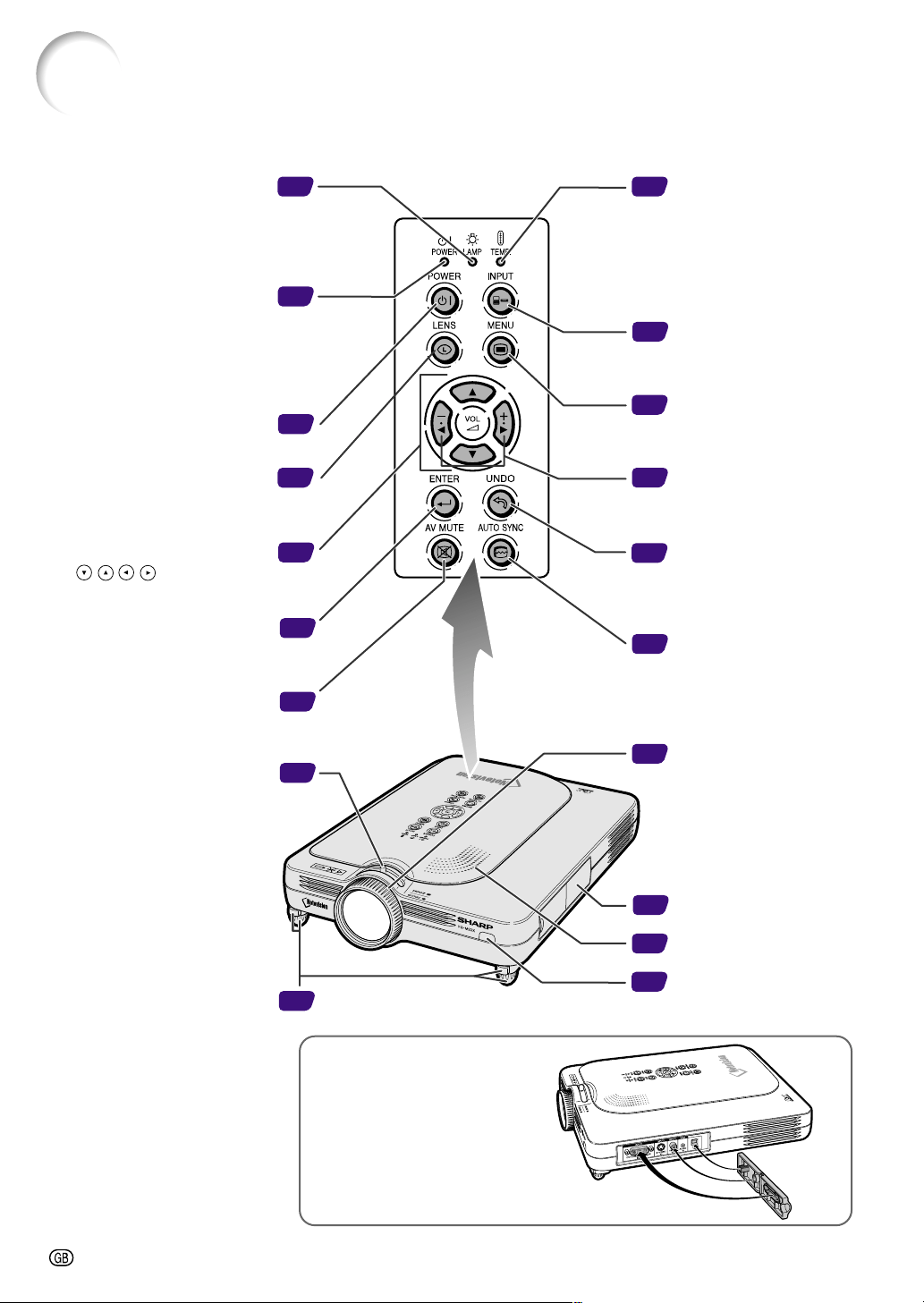
Projector (Front and Top View)
Part Names
28
70
70
28
32
36
36
30
31
29
36
29
33
44
16
29
10
13
31
Foot releases/Adjustment
feet
For adjusting the projector’s
height.
Attaching the terminal cover
Attach the terminal cover by
placing it on the side panel of the
projector and pressing it into
place, as shown in the illustration.
TEMPERATURE
WARNING indicator
Illuminates in green
normally. When the
internal temperature
rises, this indicator will
illuminate in red.
Zoom knob
Focus ring
AV MUTE button
For temporarily turning off the
sound and picture.
ENTER button
For setting items selected
or adjusted on the menu.
Adjustment buttons
( )
For selecting menu items.
LENS button
For adjusting Keystone or
Digital Shift setting.
POWER button
Turns the power on or off.
POWER indicator
Illuminates in red, when the
projector is in standby.
When the power is turned
on, this indicator will
illuminate in green.
LAMP REPLACEMENT
indicator
Illuminates in green normally.
Replace the lamp when the
indicator illuminates in red.
AUTO SYNC button
For automatically
adjusting images when
connected to a computer.
UNDO button
For undoing an operation
or returning to the default
settings.
VOLUME buttons
For adjusting the
speaker sound level.
MENU button
For displaying adjustment
and setting screens.
INPUT button
For switching input mode
1, 2 or 3.
Remote control
sensor
Terminal cover
Speaker
Introduction
-11
24
20
69
11
26
21
21
24
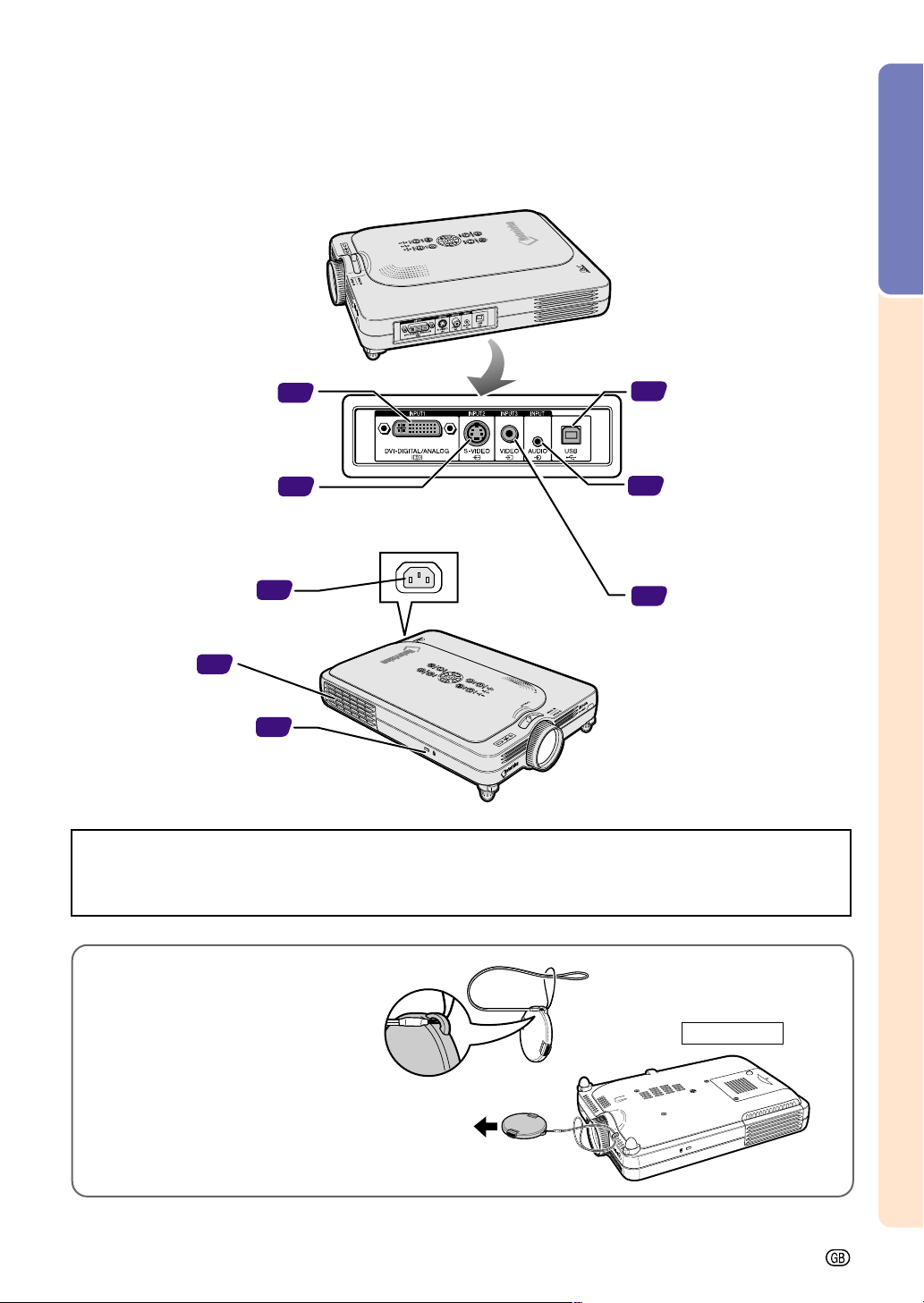
Projector (Side View)
Exhaust vent
AC socket
Kensington Security
Standard connector
Using the Kensington Lock
•
This projector has a Kensington Security Standard connector for use with a Kensington MicroSaver Security
System. Refer to the information that came with the system for instructions on how to use it to secure the
projector.
Attaching the lens cap
After putting the lens cap strap on the
lens cap, pass the other end of the strap
through the hole under the projector, next
to the lens, as shown in the illustration.
Bottom View
INPUT 2 terminal
Terminal for connecting video
equipment with an S-VIDEO
terminal.
INPUT 1 terminal
Port for DVI digital, computer
RGB, and COMPONENT
signals.
INPUT 3 terminal
For connecting video
equipment.
INPUT AUDIO terminal
Shared audio terminal for
INPUT 1, INPUT 2, and
INPUT 3.
USB terminal
For connecting a compu-
ter using a USB cable.
-12
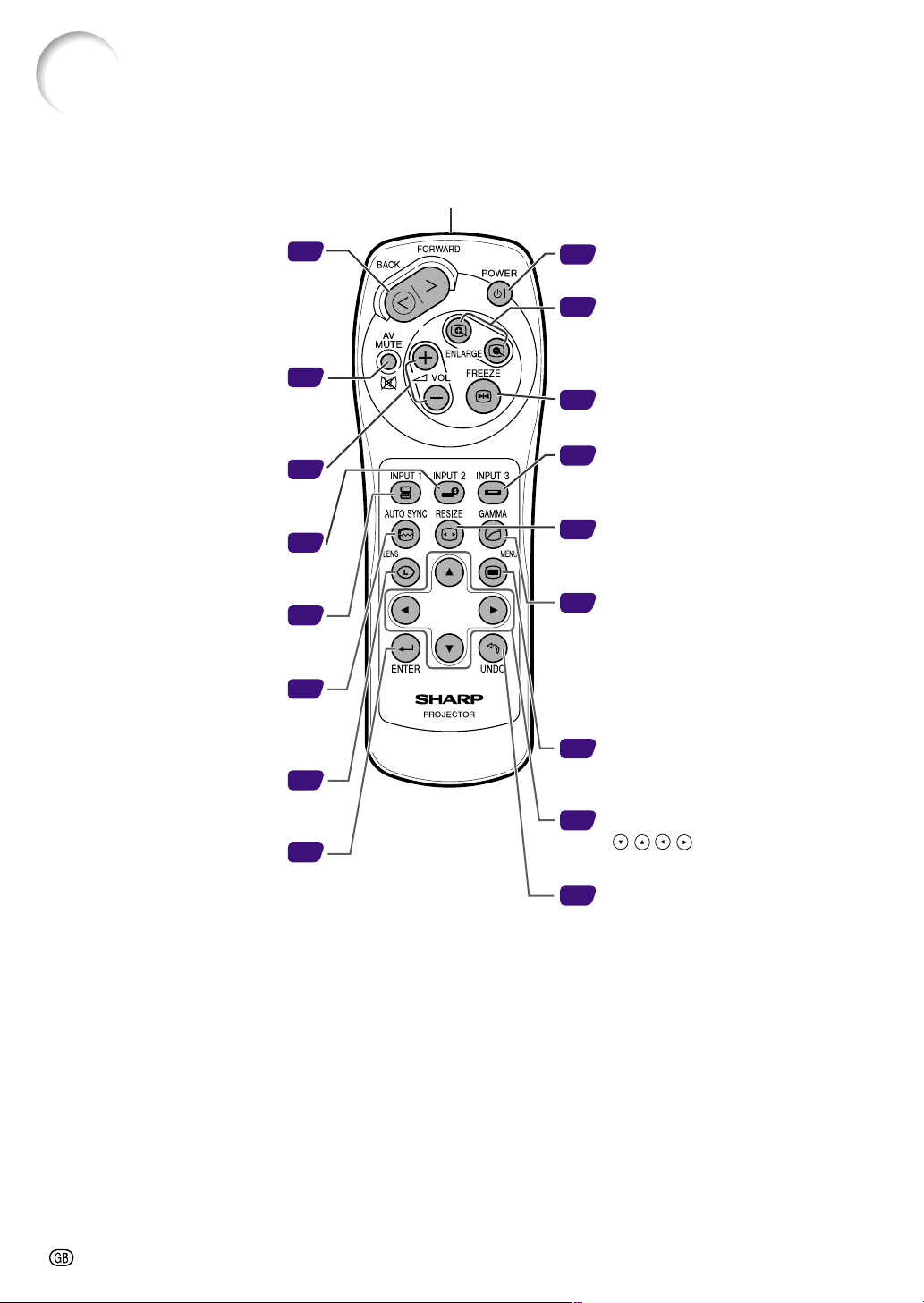
Remote Control
Part Names (cont.)
28
49
48
30
29
29
29
29
44
32
36
46
36
50
36
33
26
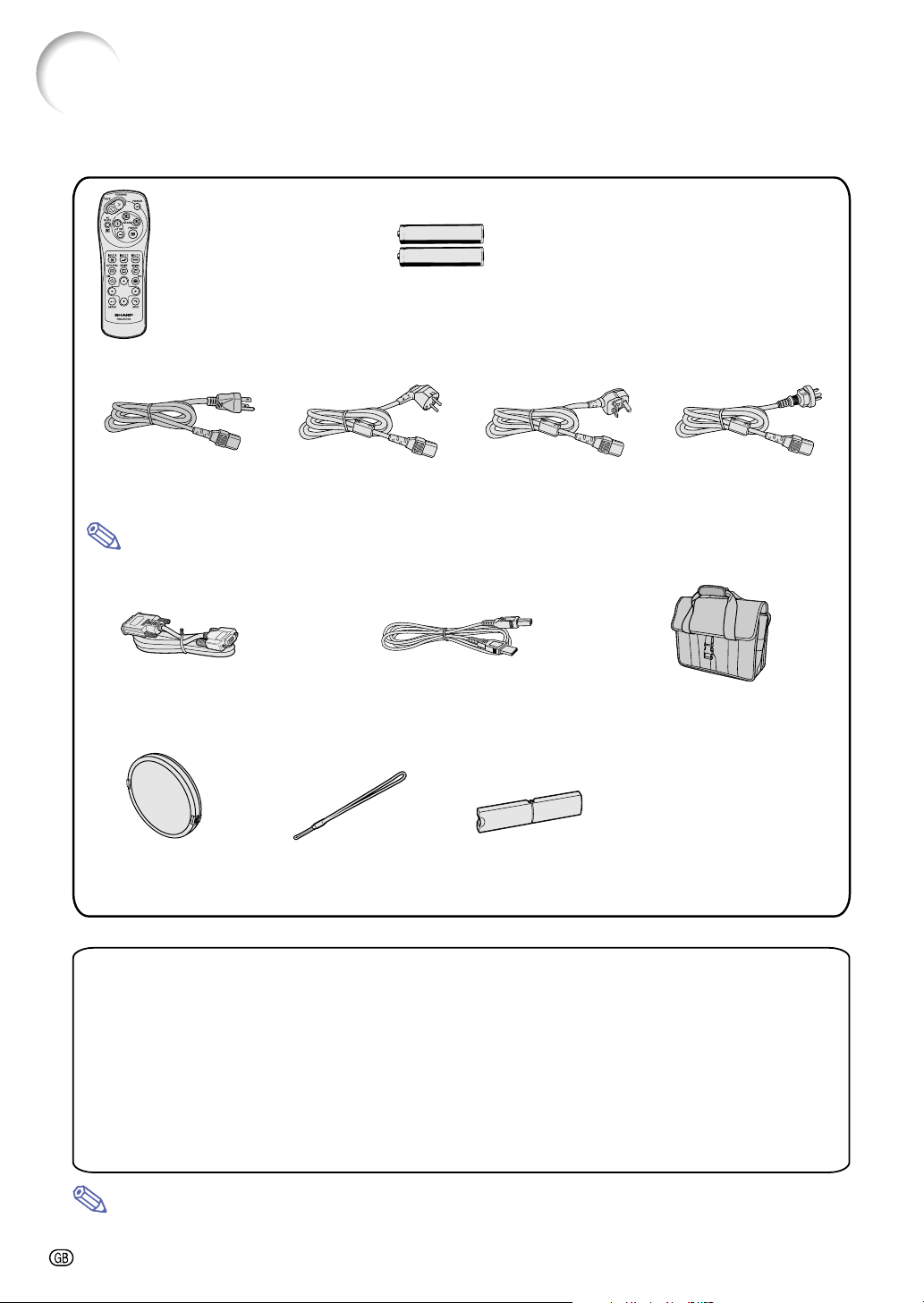
FORWARD/BACK button
Moves forward or backwards
when connected to a computer
using a USB cable. Same as the
[Page Down] and [Page Up]
keys on a computer keyboard.
AV MUTE button
For temporarily turning off the
sound and picture.
VOLUME buttons
For adjusting the speaker
sound level.
INPUT 2 button
For switching the input mode to
INPUT 2.
INPUT 1 button
For switching the input mode to
INPUT 1.
AUTO SYNC button
For automatically adjusting
images when connected to a
computer.
LENS button
For adjusting Keystone or
Digital Shift setting.
ENTER button
For setting items selected or
adjusted on the menu.
POWER button
Turns the power on or off.
ENLARGE (Enlarge/Reduce)
buttons
For enlarging or reducing part of the
image.
FREEZE button
For freezing images.
INPUT 3 button
For switching the input mode to
INPUT 3.
RESIZE button
For switching the screen size
(NORMAL, BORDER, etc).
GAMMA button
For correcting the brightness of an
image, when the images displayed
are hard to see because of the
brightness of the room. Four
gamma modes are available to
choose from.
MENU button
For displaying adjustment and
setting screens.
Adjustment buttons
( )
For selecting menu items.
UNDO button
For undoing an operation or
returning to the default settings.
Remote control signal transmitter
Introduction
-13
23' (7 m)
30°
30°
45°
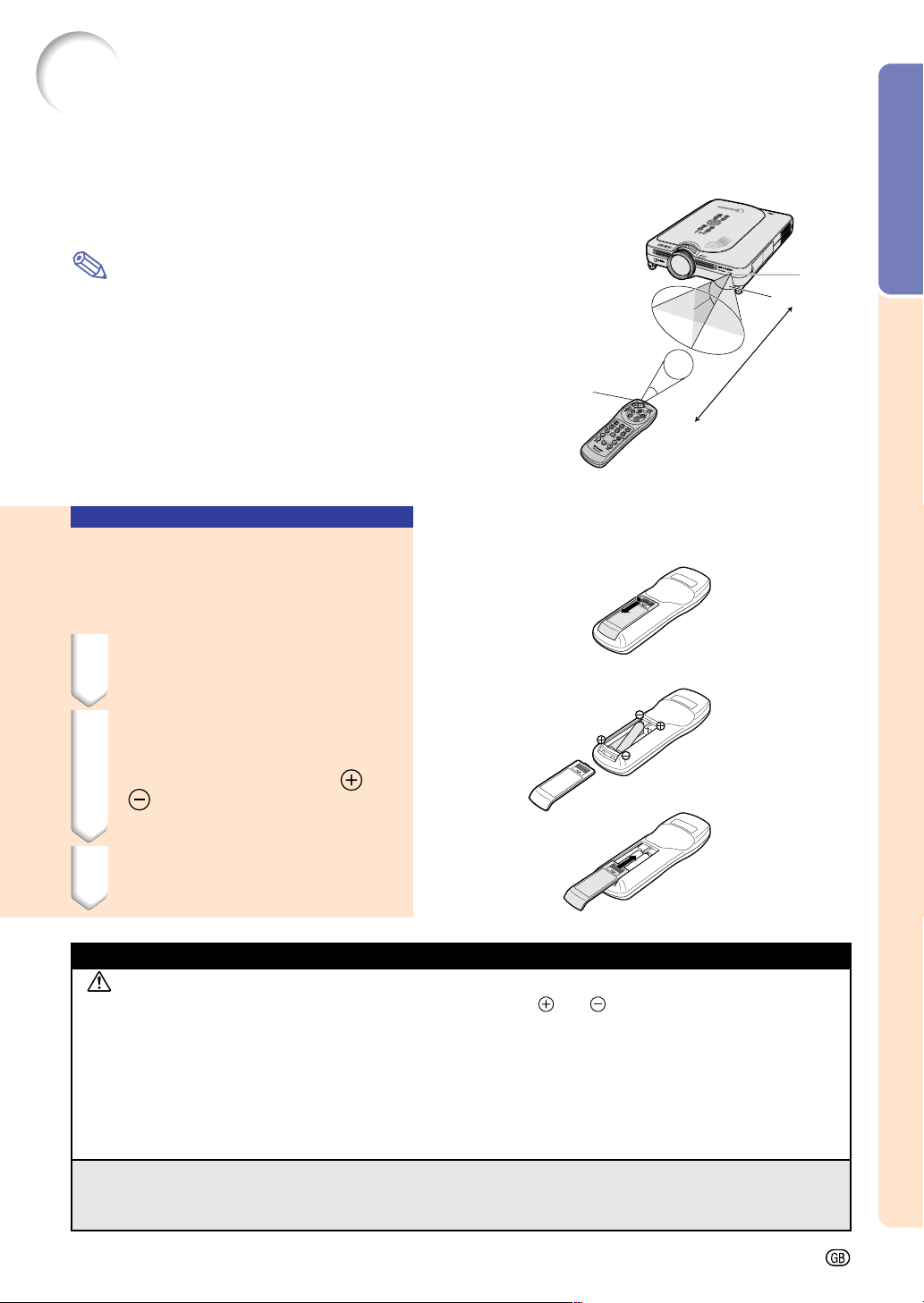
Using the Remote Control
■ The remote control can be used to control the projector
within the ranges shown in the illustration.
Note
• The signal from the remote control can be reflected off a screen
for easy operation. However, the effective distance of the signal
may differ due to the screen material.
When using the remote control:
• Be sure not to drop, expose to moisture or high temperature.
• The remote control may malfunction under a fluorescent lamp.
Under that circumstance, move the projector away from the fluo-
rescent lamp.
Inserting the Batteries
The batteries (two R-03 batteries (“AAA” size,
UM/SUM-4, HP-16 or similar)) are included in
the package.
1 Slide the cover in the direction
of the arrow to open it.
2 Insert the included batteries.
• Insert the batteries making sure the
polarities correctly match the
and
marks inside the battery compart-
ment.
3 Slide the cover in the direction
of the arrow to close it.
Available Range of the Remote Control
Incorrect use of the batteries may cause them to leak or explode. Please follow the precautions below.
Caution
• Insert the batteries making sure the polarities correctly match the and marks inside the battery compart-
ment.
• Batteries of different types have different properties, therefore do not mix batteries of different types.
• Do not mix new and old batteries.
This may shorten the life of new batteries or may cause old batteries to leak.
• Remove the batteries from the remote control once they have run out, as leaving them can cause them to leak.
Battery fluid from leaked batteries is harmful to your skin, therefore be sure to first wipe them and then remove
them using a cloth.
• The batteries included with this projector may be used up over a short period, depending on how they are
kept. Be sure to replace them as soon as possible with new batteries.
• Remove the batteries from the remote control if you will not be using the remote control for a long time.
Remote
control
sensor
Signal
transmitter
Remote control
-14
Note
Accessories
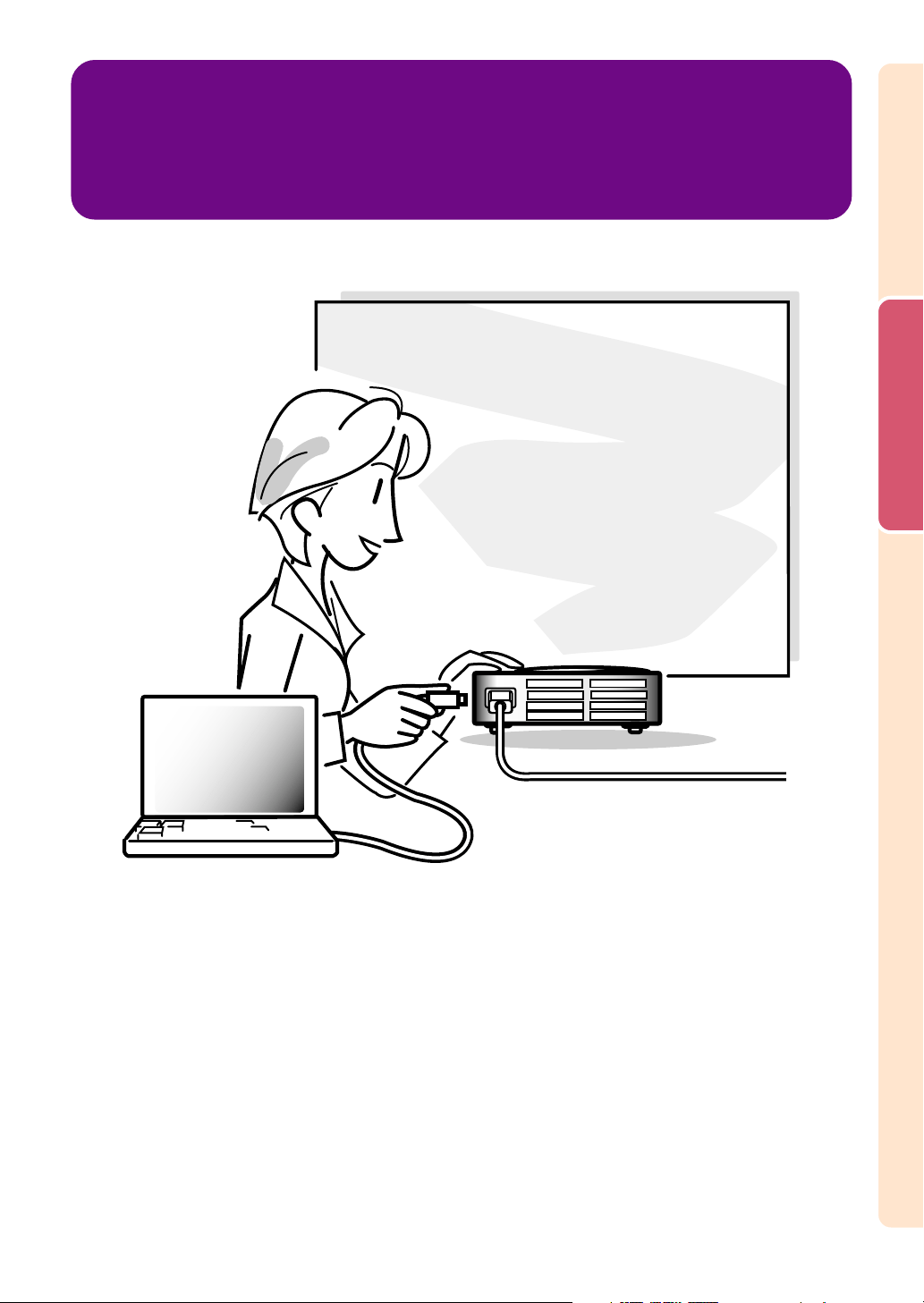
Remote control
RRMCGA013WJSA
Two R-03 batteries
(“AAA” size, UM/SUM-4, HP-16 or similar)
Power cord (6' (1.8m))
For U.S., Canada, etc.
QACCDA007WJPZ
For Europe, except U.K.
QACCV4002CEZZ
For U.K., Hong Kong
and Singapore
QACCB5024CENA
For Australia, New
Zealand and Oceania
QACCL3022CEZZ
• Depending on the region, projectors only ship with one power cord (see above). Use the power cord that
corresponds to the wall outlet in your country.
DVI to 15-pin D-sub
cable (6' (1.8m))
QCNWGA010WJZZ
USB cable
(6' (1.8 m))
QCNWG0001WJPZ
Carrying case
GCASN0005CESA
Lens cap
(attached)
CCAPHA001WJ01
Lens cap strap
UBNDT0013CEZZ
Terminal cover
(attached)
GCOVD0103CESA
Optional accessories
Supplied accessories
DVI cable (9'10'' (3.0 m)) AN-C3DV
3 RCA to 15-pin D-sub cable (9'10'' (3.0 m)) AN-C3CP
Computer RGB cable (32'10'' (10.0 m)) AN-C10BM
<for IBM-PC, PC9821, and PC98NX systems>
AN-C10PC
<for PC98 systems (Except PC9821 and PC98NX systems)>
5 BNC to 15-pin D-sub cable (9'10'' (3.0 m)) AN-C3BN
RGB monitor loop-out adaptor (7.9'' (20 cm)) AN-A1MY
DVI to 15-pin D-sub adaptor (7.9'' (20 cm)) AN-A1DV
• If you cannot connect after changing computer ports, be sure to check you computer’s specifications.
If you are still having difficulty connecting, a conversion connector (commercially available) may be necessary.
Note
• All cables may not be available in all regions. Please check with your nearest Sharp Authorized
Projector Dealer or Service Center.
CD-ROM
UDSKA0058CEN2
Operation manual
(this manual)
Quick reference guides
(1)
(2) (3)
(4)
Setup and Connections
Setup and Connections
Up Down
Foot releases
Adjustment feet
Setup
Using the Adjustment
Feet
The height of the projector can be adjusted
using the adjustment feet when the surface
of the projector is placed on is uneven or when
the screen is slanted.
The projection of the image can be made
higher by adjusting the projector when it is in
a location lower than the screen.
1 Press the foot releases.
2 Lift the projector to adjust its
height and remove your hands
from the foot releases.
3 Rotate the adjustment feet to
make minor changes.
Note
• When returning the projector to its origi-
nal position, hold the projector firmly, press
the foot releases and then lower it.
• The projector is adjustable up to approxi-
mately 5.5 degrees from the standard po-
sition.
Info
• Do not press the foot releases when the
feet are extended without firmly holding
the projector.
• Do not hold the lens when lifting or lower-
ing the projector.
•
When lowering the projector, be careful not
to get your fingers caught in the area be-
tween the adjustment feet and the projector.
-16
Setup and Connections
-17
90°
90°
Example of Standard Setup
Setting up the Screen
Position the projector perpendicular to the screen with all feet flat and level to achieve an optimal image.
Note
• The projector lens should be centered in the middle of the screen. If the horizontal line passing through the
lens center is not perpendicular to the screen, the image will be distorted, making viewing difficult.
• For optimal image, position the screen so that it is not in direct sunlight or room light. Light falling directly on
the screen washes out the colors, making viewing difficult. Close the curtains and dim the lights when
setting up the screen in a sunny or bright room.
• A polarizing screen cannot be used with this projector.
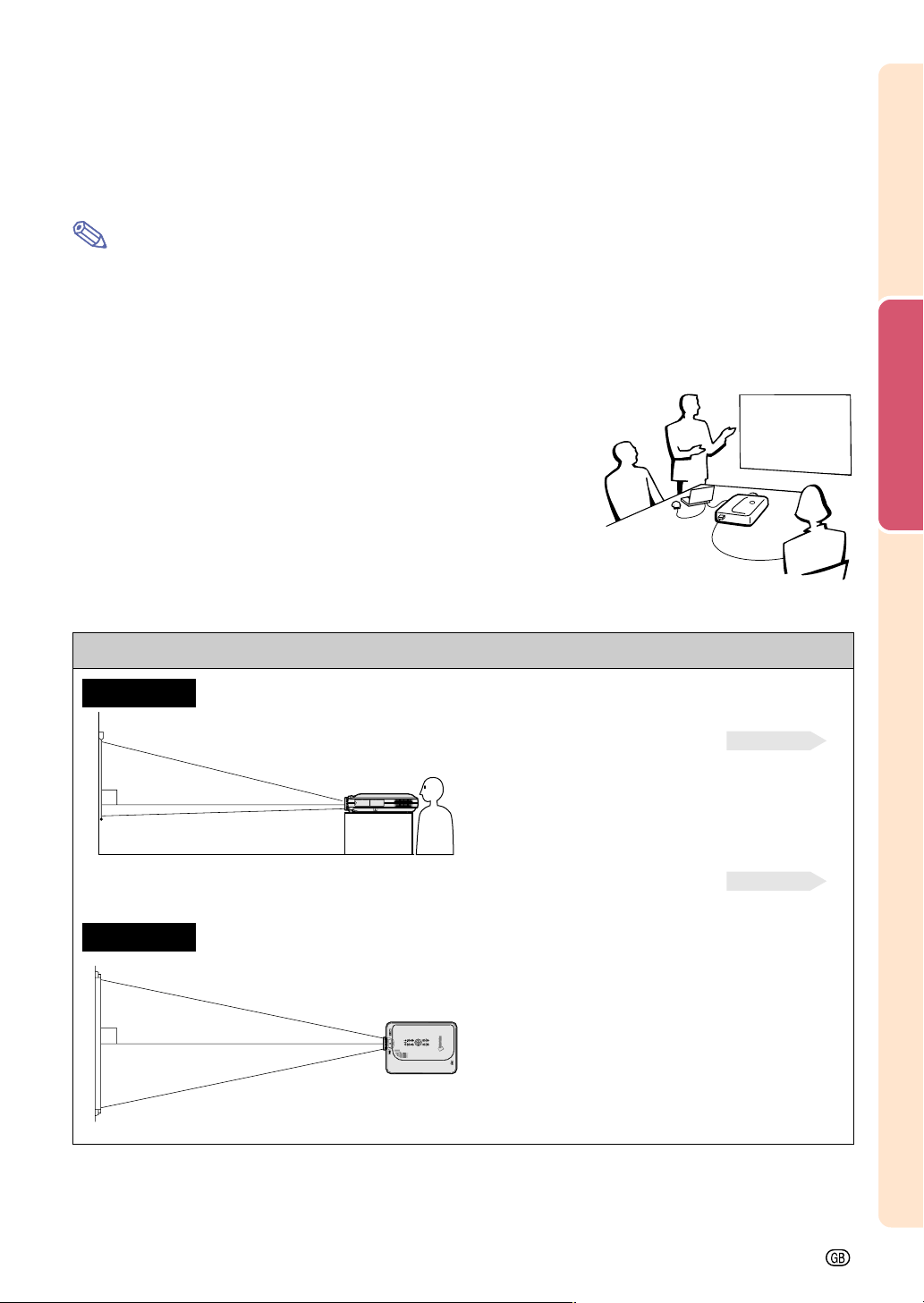
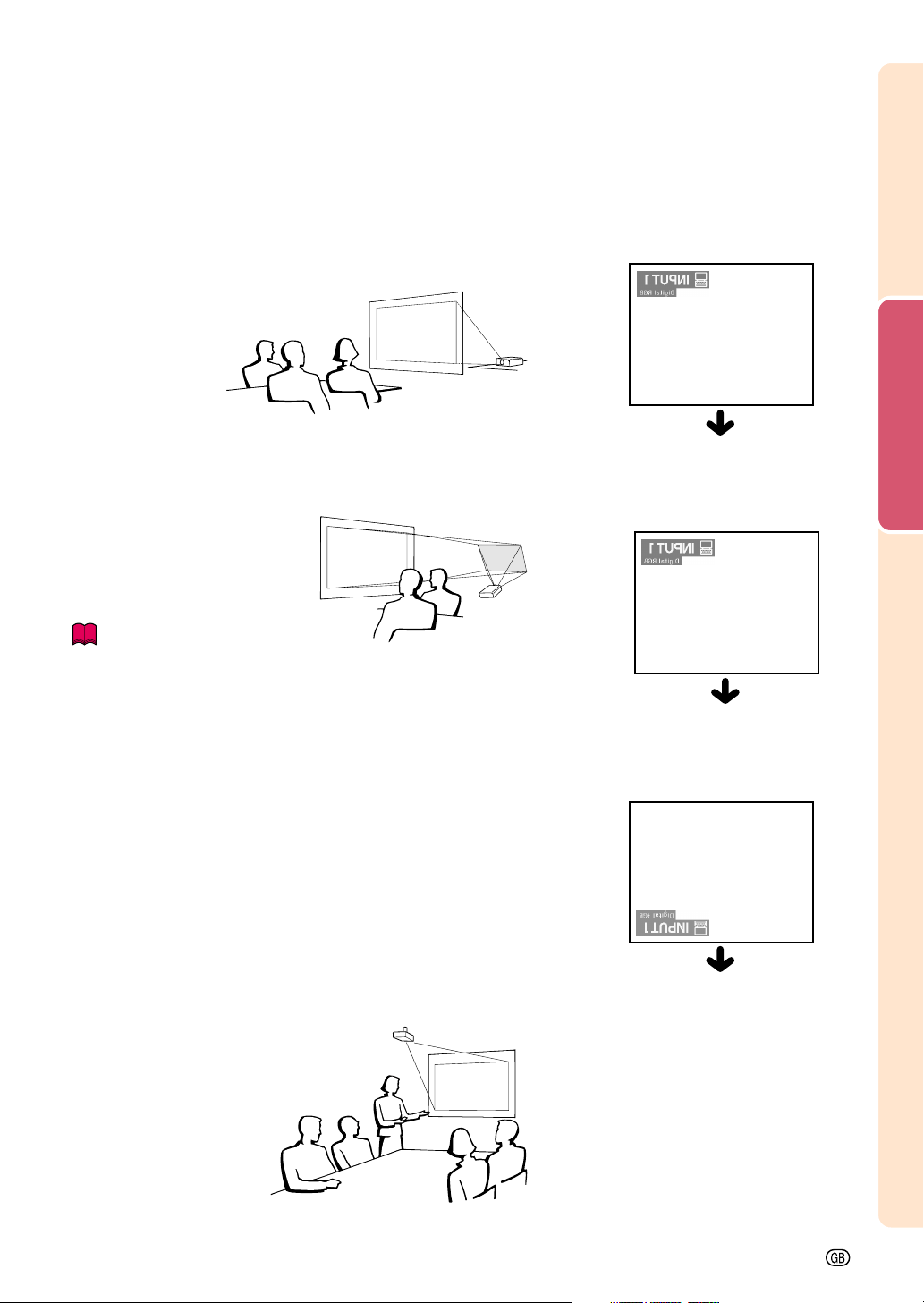
Standard Setup (Front Projection)
■ Place the projector at the required distance from the screen
according to the desired picture size. (See page 18.)
Side View
Top View
• The distance from the screen to the projec-
tor may vary depending on the size of the
screen. P.18
• The default setting can be used, when plac-
ing the projector in front of the screen. If the
projected image is reversed or inverted, re-
adjust the setting to “Front” in “PRJ Mode”.
P.60
• Place the projector so that the horizontal line
that passes through the center of the lens is
perpendicular to the screen.
Audi-
ence
-18
Setup (cont.)
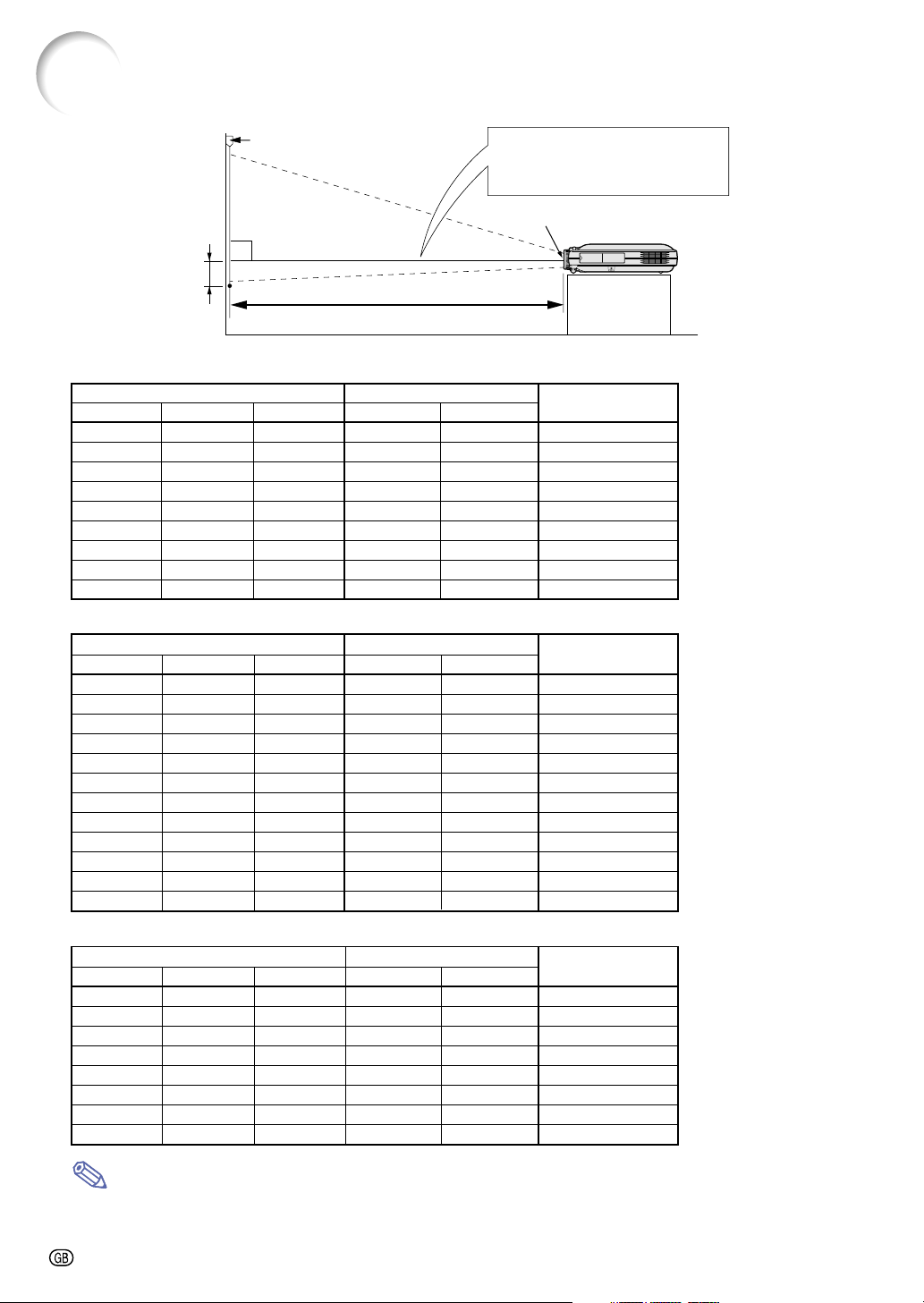
Screen Size and Projection Distance
90°
H
Screen
Base line:
Horizontal line passing through
the lens center.
Lens center
L:Projection distance
The formula for picture size and
projection distance
L1 (ft)
= (0.048539X – 0.037278) / 0.3048
L2 (ft)
= (0.040172X – 0.037561) / 0.3048
H (in) = 0
X: Picture size (diag.) (in)
L: Projection distance (m)
L1: Maximum projection distance (ft)
L2: Minimum projection distance (ft)
H: Distance from the lens center to
the bottom of the image (in)
The formula for picture size and
projection distance
L1 (ft)
= (0.052882X – 0.037278) / 0.3048
L2 (ft)
= (0.043766X – 0.037561) / 0.3048
H (in) = –0.08171X
The formula for picture size and
projection distance
L1 (ft)
= (0.064719X – 0.037278) / 0.3048
L2 (ft)
= (0.053563X – 0.037561) / 0.3048
H (in) = 0.100X
Note
• There is an error of ± 3% in the formula above.
• Values with a minus (–) sign indicate the distance of the lens center below the bottom of the image.
NORMAL Mode (4:3)
Picture (Screen) size Projection distance (L)
Diag. (X) Width Height Maximum (L1) Minimum (L2)
300"(762 cm) 240" (610 cm) 180" (457 cm) – 39' 5" (12.0 m) 0" (0.0 cm)
250"(635 cm) 200" (508 cm) 150" (381 cm) 39' 8" (12.1 m) 32' 10"(10.0 m) 0" (0.0 cm)
200"(508 cm) 160" (406 cm) 120" (305 cm) 31' 9" (9.7 m) 26' 3" (8.0 m) 0" (0.0 cm)
150"(381 cm) 120" (305 cm) 90" (229 cm) 23' 9" (7.2 m) 19' 8" (6.0 m) 0" (0.0 cm)
100"(254 cm) 80" (203 cm) 60" (152 cm) 15' 10" (4.8 m) 13' 1" (4.0 m) 0" (0.0 cm)
84" (213 cm) 67" (170 cm) 50" (127 cm) 13' 3" (4.0 m) 10' 11"(3.3 m) 0" (0.0 cm)
72" (183 cm) 58" (147 cm) 43" (109 cm) 11' 4" (3.5 m) 9' 4" (2.9 m) 0" (0.0 cm)
60" (152 cm) 48" (122 cm) 36" (91 cm) 9' 5" (2.9 m) 7' 9" (2.4 m) 0" (0.0 cm)
40" (102 cm) 32" (81 cm) 24" (61 cm) 6' 3" (1.9 m) 5' 2" (1.6 m) 0" (0.0 cm)
STRETCH Mode (16:9)
Picture (Screen) size Projection distance (L)
Diag. (X) Width Height Maximum (L1) Minimum (L2)
250" (635 cm) 218" (554 cm) 123" (312 cm) – 35'9" (10.9 m) –20 27 / 64" (–51.9 cm)
225" (572 cm) 196" (498 cm) 110" (279 cm) 38' 11"(11.9 m) 32' 2" (9.8 m) –18 25 / 64" (–46.7 cm)
200" (508 cm) 174" (442 cm) 98" (249 cm) 34' 7" (10.5 m) 28' 7" (8.7 m) –16 22 / 64" (–41.5 cm)
150" (381 cm) 131" (333 cm) 74" (188 cm) 25' 11" (7.9 m) 21' 5" (6.5 m) –12 16 / 64" (–31.1 cm)
133" (338 cm) 116" (295 cm) 65" (165 cm) 22' 11" (7.0 m) 18' 12" (5.8 m) –10 56 / 64" (–27.6 cm)
106" (269 cm) 92" (234 cm) 52" (132 cm) 18' 3" (5.6 m) 15' 1" (4.6 m) –8 42 / 64" (–22.0 cm)
100" (254 cm) 87" (221 cm) 49" (124 cm) 17' 3" (5.3 m) 14' 3" (4.3 m) –8 11 / 64" (–20.8 cm)
92" (234 cm) 80" (203 cm) 45" (114 cm) 15' 10" (4.8 m) 13' 1" (4.0 m) –7 33 / 64" (–19.1 cm)
84" (213 cm) 73" (185 cm) 41" (104 cm) 14' 5" (4.4 m) 11' 11"(3.6 m) –6 55 / 64" (–17.4 cm)
72" (183 cm) 63" (160 cm) 35" (89 cm) 12' 4" (3.8 m) 10' 3" (3.1 m) –5 57 / 64" (–14.9 cm)
60" (152 cm) 52" (132 cm) 29" (74 cm) 10' 3" (3.1 m) 8' 6" (2.6 m) –4 58 / 64" (–12.5 cm)
40" (102 cm) 35" (89 cm) 20" (51 cm) 6' 10" (2.1 m) 5' 7" (1.7 m) –3 17 / 64" (–8.3 cm)
BORDER Mode (4:3)
Picture (Screen) size Projection distance (L)
Diag. (X) Width Height Maximum (L1) Minimum (L2)
200" (508 cm) 160" (406 cm) 120" (305 cm) – 35' 0" (10.7 m) –20" (–50.8 cm)
180" (457 cm) 144" (366 cm) 108" (274 cm) 38' 1" (11.6 m) 31' 6" (9.6 m) –18" (–45.7 cm)
150" (381 cm) 120" (305 cm) 90" (229 cm) 31' 9" (9.7 m) 26' 3" (8.0 m) –15" (–38.1 cm)
100" (254 cm) 80" (203 cm) 60" (152 cm) 21' 1" (6.4 m) 17' 5" (5.3 m) –10" (–25.4 cm)
84" (213 cm) 67" (170 cm) 50" (127 cm) 17' 9" (5.4 m) 14' 8" (4.5 m) –8 26 / 64" (–21.3 cm)
72" (183 cm) 58" (147 cm) 43" (109 cm) 15' 2" (4.6 m) 12' 6" (3.8 m) –7 13 / 64" (–18.3 cm)
60" (152 cm) 48" (122 cm) 36" (91 cm) 12' 7" (3.8 m) 10' 5" (3.2 m) –6" (–15.2 cm)
40" (102 cm) 32" (81 cm) 24" (61 cm) 8' 4" (2.6 m) 6' 11" (2.1 m) –4
" (–10.2 cm)
Distance from the lens
center to the bottom
of the image (H)
Distance from the lens
center to the bottom
of the image (H)
Distance from the lens
center to the bottom
of the image (H)
Setup and Connections
-19
When using the default setting.
▼On-screen Display
Projecting a Reversed/Inverted Image
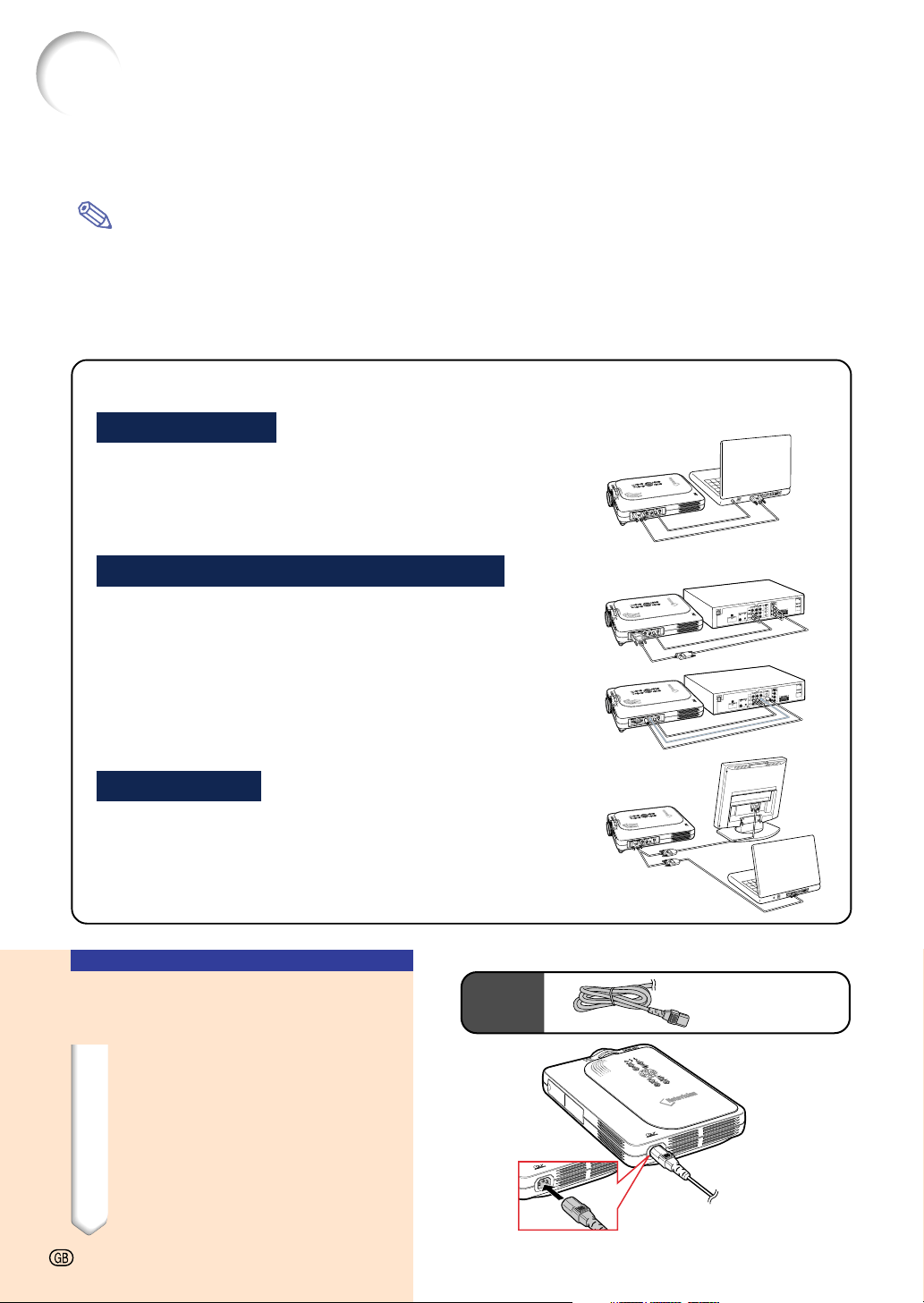
Projection from behind the screen
■ Place a translucent screen between the projector and the
audience.
■ Reverse the image by setting “Rear” in “PRJ Mode”. See
page 60 for use of this function.
Projection using a mirror
■ Place a mirror (normal flat type) in front of the lens.
■ Reverse the image by setting “Rear” in “PRJ Mode”, when the
mirror is placed on the audience side. See page 60 for use of
this function.
Info
• When using a mirror, be sure to carefully position both the pro-
jector and the mirror so the light does not shine into the eyes of
the audience.
Ceiling-mount setup
■ It is recommended that you use the optional Sharp ceiling-mount
bracket for this installation.
Before mounting the projector, contact your nearest Sharp
Authorized Projector Dealer or Service Center to obtain the
recommended ceiling-mount bracket (sold separately.) (AN-
PGCM90 ceiling-mount bracket, its AN-EP101B extension tube
and AN-JT200 universal bracket, adaptor for non-level ceiling
installation (for U.S.A.), BB-M20T ceiling adaptor, its BB-
NVHOLDER280, BB-NVHOLDER550, BB-NVHOLDER900
ceiling mount systems (for GERMANY), or AN-60KT ceiling-
mount bracket, its AN-TK301/AN-TK201 and AN-TK302/AN-
TK202 extension tubes (for countries other than the U.S.A. and
GERMANY))
■ Be sure to adjust the position of the pro-
jector to match the distance (H) from
the lens center position (see page 18)
to the lower edge of the image, when
mounting the projector on
the ceiling.
■ Invert the image by
setting “Ceiling + Front”
in “PRJ Mode”.
The image is reversed.
When using the default setting.
▼On-screen Display
The image is reversed.
When using the default setting.
▼On-screen Display
The image is inverted.
Connecting the Projector to Other Devices
Before Connecting
Note
• Before connecting, be sure to turn off both the projector and the devices to be connected. After making all
connections, turn on the projector and then the other devices.
When connecting a computer, be sure that it is the last device to be turned on after all the connections are
made.
• Be sure to read the operation manuals of the devices to be connected before making connections.
Connecting the Power
Cord
1 Plug in the supplied power
cord into the AC socket on the
rear of the projector.
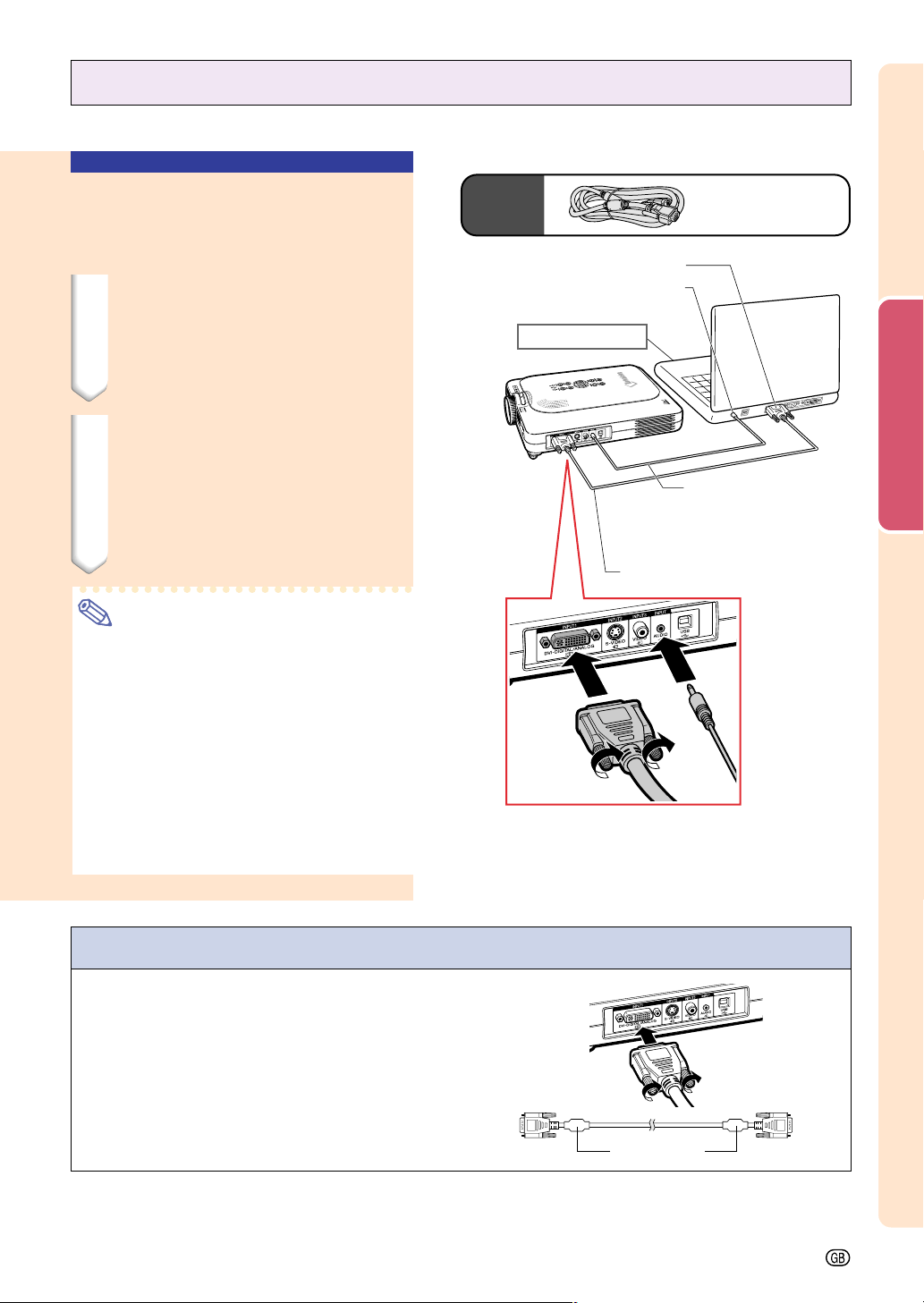
This projector can be connected to:
A computer using:
■ A DVI to 15-pin D-sub cable (See page 21.)
■ A DVI cable (type AN-C3DV) (sold separately)
(See page 22.)
Component video or audio-visual equipment:
■ A DVD player or DTV* decoder (See page 23.)
■ A VCR, Laser disc player or other audio-visual equipment
(See page 24.)
*DTV is the umbrella term used to describe the new digital television
system in the United States.
A monitor using:
■ An RGB monitor loop-out adaptor (AN-A1MY) (sold sepa-
rately) and an RGB cable (commercially available). (See
page 25.)
Supplied
accessory
Power cord
-20
Setup and Connections
-21
1
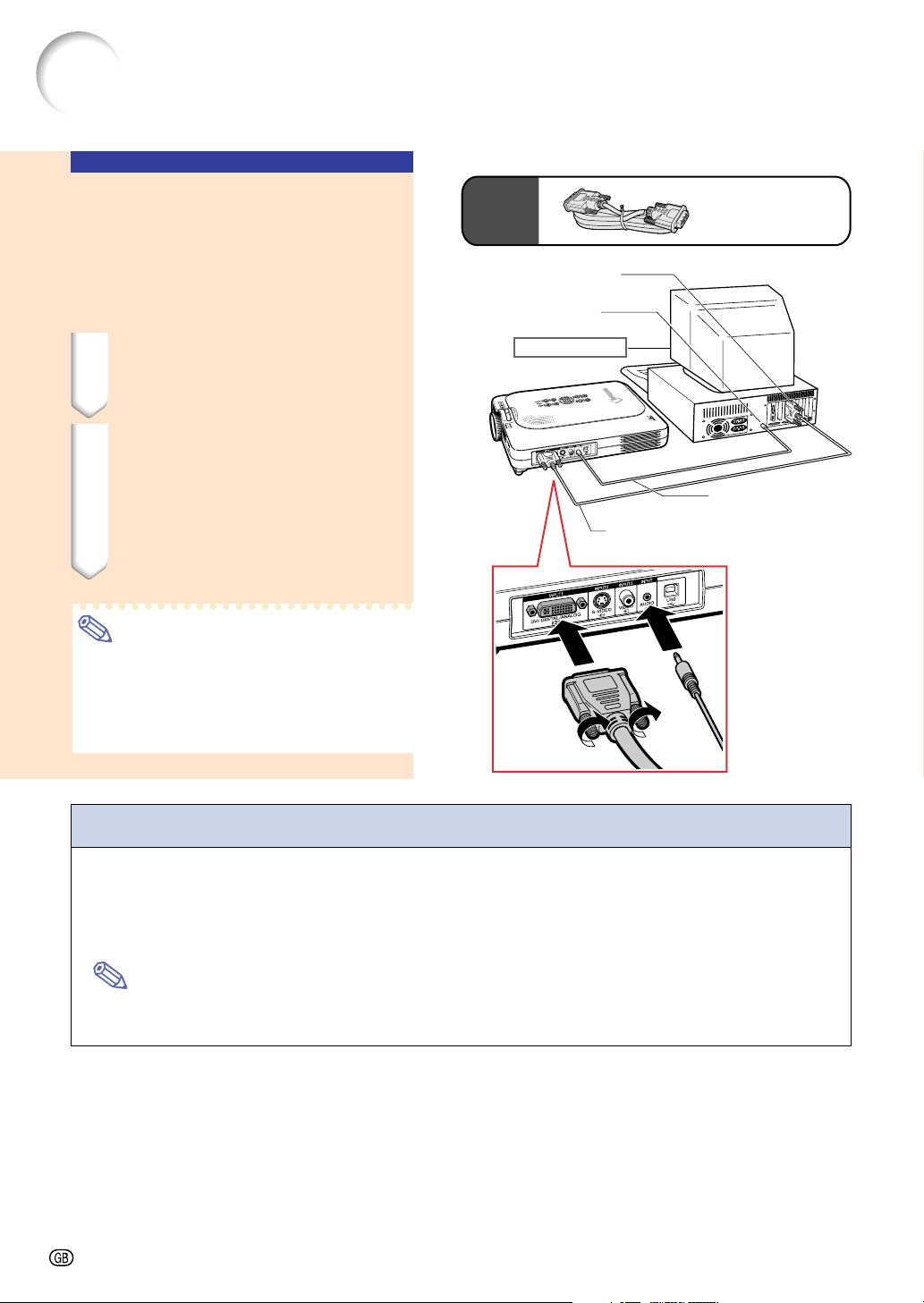
DVI to 15-pin D-sub cable
Connecting the Projector to a Computer
Connecting to a Computer
Using the DVI to 15-pin
D-sub Cable
1 Connect the projector to the
computer using the supplied
DVI to 15-pin D-sub cable.
• Secure the connectors by tightening
the thumbscrews.
2 To input audio signal, connect
the projector to the computer
using a ø3.5 mm stereo audio
cable (commercially available
or available as Sharp service
part QCNW-4870CEZZ).
Note
•See page 75 “Computer Compatibility
Chart” for a list of computer signals com-
patible with the projector. Use with com-
puter signals other than those listed may
cause some of the functions not to work.
• When connecting the projector to a com-
puter in this way, select “RGB” for “Signal
Type” in the “Picture” menu. See page 40.
• A Macintosh adaptor may be required for
use with some Macintosh computers. Con-
tact your nearest Sharp Authorized
Projector Dealer or Service Center.
Connecting the thumbscrew cables
■ Connect the thumbscrew cable making sure that it
fits correctly into the port. Then, firmly secure the
connectors by tightening the screws on both sides
of the plug.
■ Do not remove the ferrite core attached to the D VI
to 15-pin D-sub cable.
Ferrite core
Supplied
accessory
DVI to 15-pin
D-sub cable
To RGB Output port
To Audio Output port
Notebook computer
2
ø3.5 mm stereo audio cable
(commercially available or
available as Sharp service
part QCNW-4870CEZZ)
-22
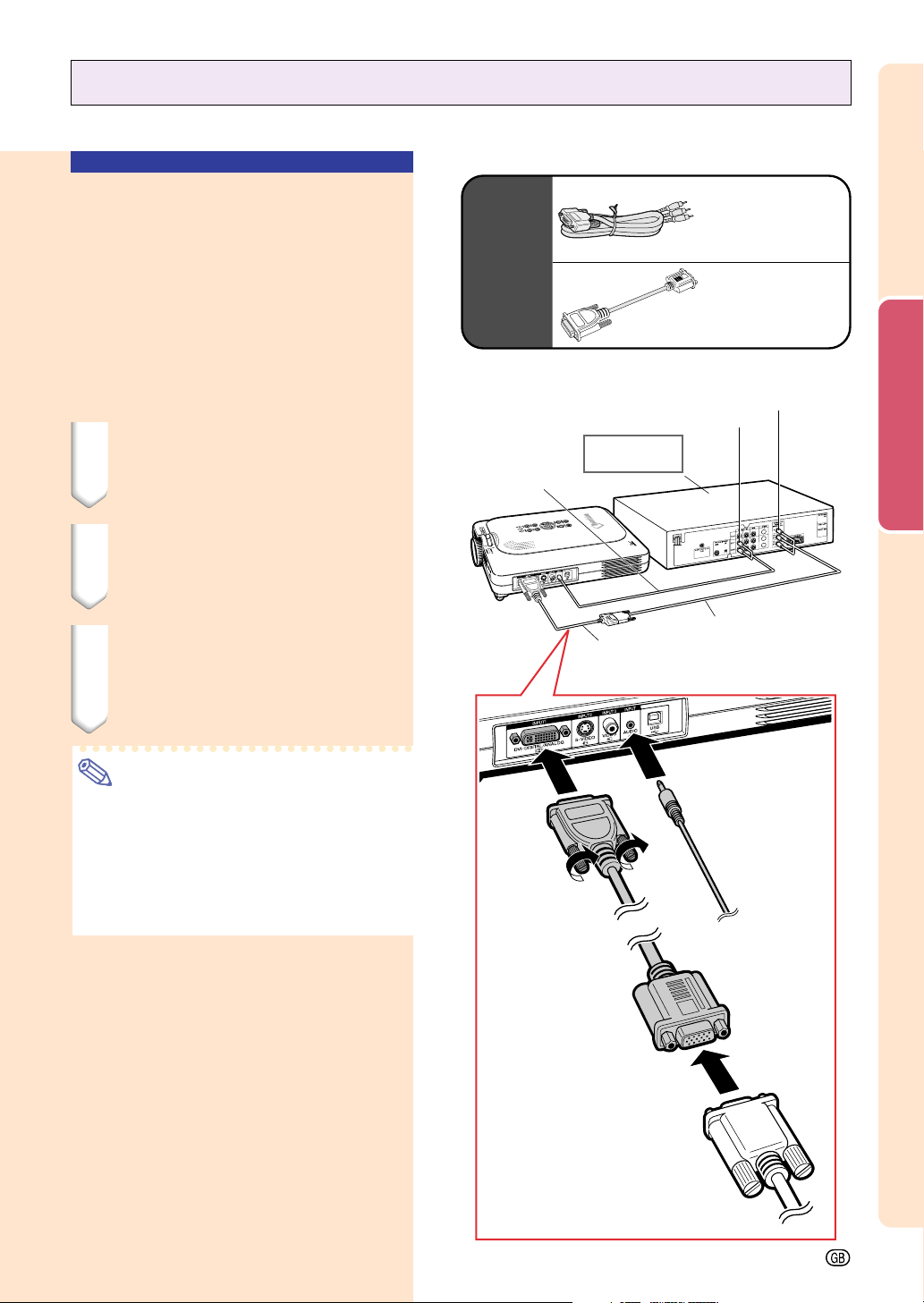
1
DVI cable
(sold separately)
Connecting the Projector to Other Devices (cont.)
Connecting to a
Computer Using a DVI
Cable (Sold Separately)
This projector comes installed with a DVI digi-
tal input terminal in which computer digital im-
age signals can be directly input.
1 Connect the projector to the
computer using the DVI cable.
2 To input audio signal, connect
the projector to the computer
using a ø3.5 mm stereo audio
cable (commercially available
or available as Sharp service
part QCNW-4870CEZZ).
Note
• This DVI port is DVI version 1.0 compat-
ible. Therefore when the signal is input
from copy guard system compatible (DVI
version 2.0) equipment, no signal will be
received.
“Plug and Play” function (when connecting to a 15-pin terminal)
■ This projector is compatible with VESA-standard DDC 1/DDC 2B. The projector and a VESA DDC
compatible computer will communicate their setting requirements, allowing for quick and easy setup.
■ Before using the “Plug and Play” function, be sure to turn on the projector first and the connected
computer last.
Note
• The DDC “Plug and Play” function of this projector operates only when used in conjunction with a VESA
DDC compatible computer.
Optional
accessory
DVI cable
Type: AN-C3DV
(9'10" (3.0 m))
To DVI Digital Output port
To Audio
Output port
2
ø3.5 mm stereo
audio cable
(commercially
available or available
as Sharp service part
QCNW-4870CEZZ)
Desktop computer
Setup and Connections
-23
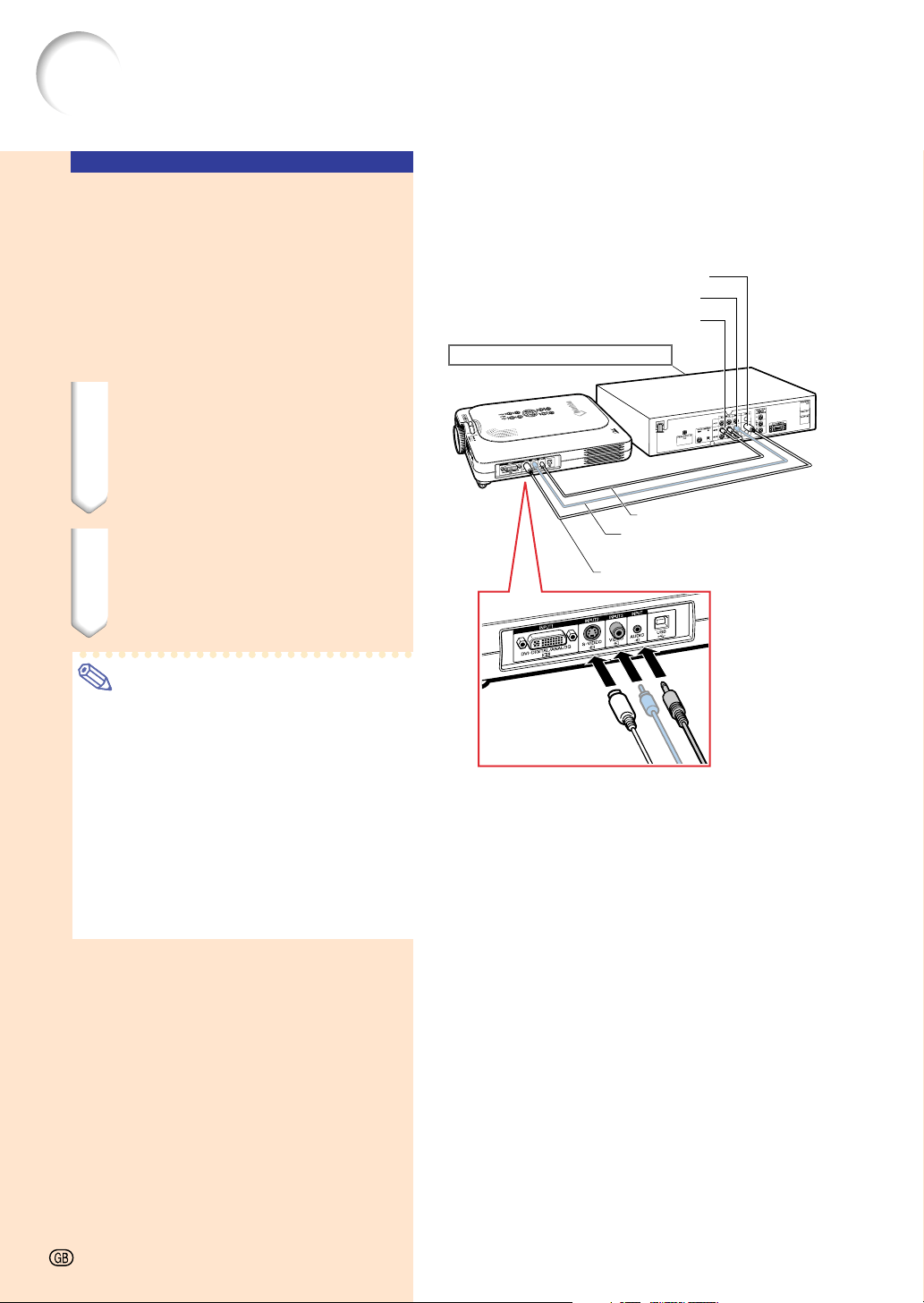
1
DVI to 15-pin
D-sub adaptor
(sold separately)
Connecting to Video Equipment
Connecting to
Component Video
Equipment
Use a 3 RCA to 15-pin D-sub cable and DVI to
15-pin D-sub adaptor when connecting to the
INPUT 1 terminal, component video equipment
such as DVD players and DTV* decoders.
*DTV is the umbrella term used to describe
the new digital television system in the United
States.
1 Connect the 3 RCA to 15-pin D-
sub cable using the DVI to 15-
pin D-sub adaptor.
2 Use the above cables to con-
nect the projector and the
video equipment.
3 Connect the projector and the
video equipment using an au-
dio cable (commercially avail-
able).
Note
• When connecting the projector to the
video equipment in this way, select “Com-
ponent” for “Signal Type” in the “Picture”
menu. See page 40.
• A ø3.5 mm stereo minijack to RCA audio
cable (commercially available) is recom-
mended for audio input.
Optional
accessories
3RCA to 15-pin
D-sub cable
Type: AN-C3CP
(9'10" (3.0 m))
DVI to 15-pin
D-sub adaptor
Model: AN-A1DV
(7.9" (20 cm))
To analog component
output terminal
To audio output terminal
DVD player or
DTV* decoder
3
Audio cable
(commercially available)
2
3 RCA to 15-pin
D-sub cable
(sold separately)
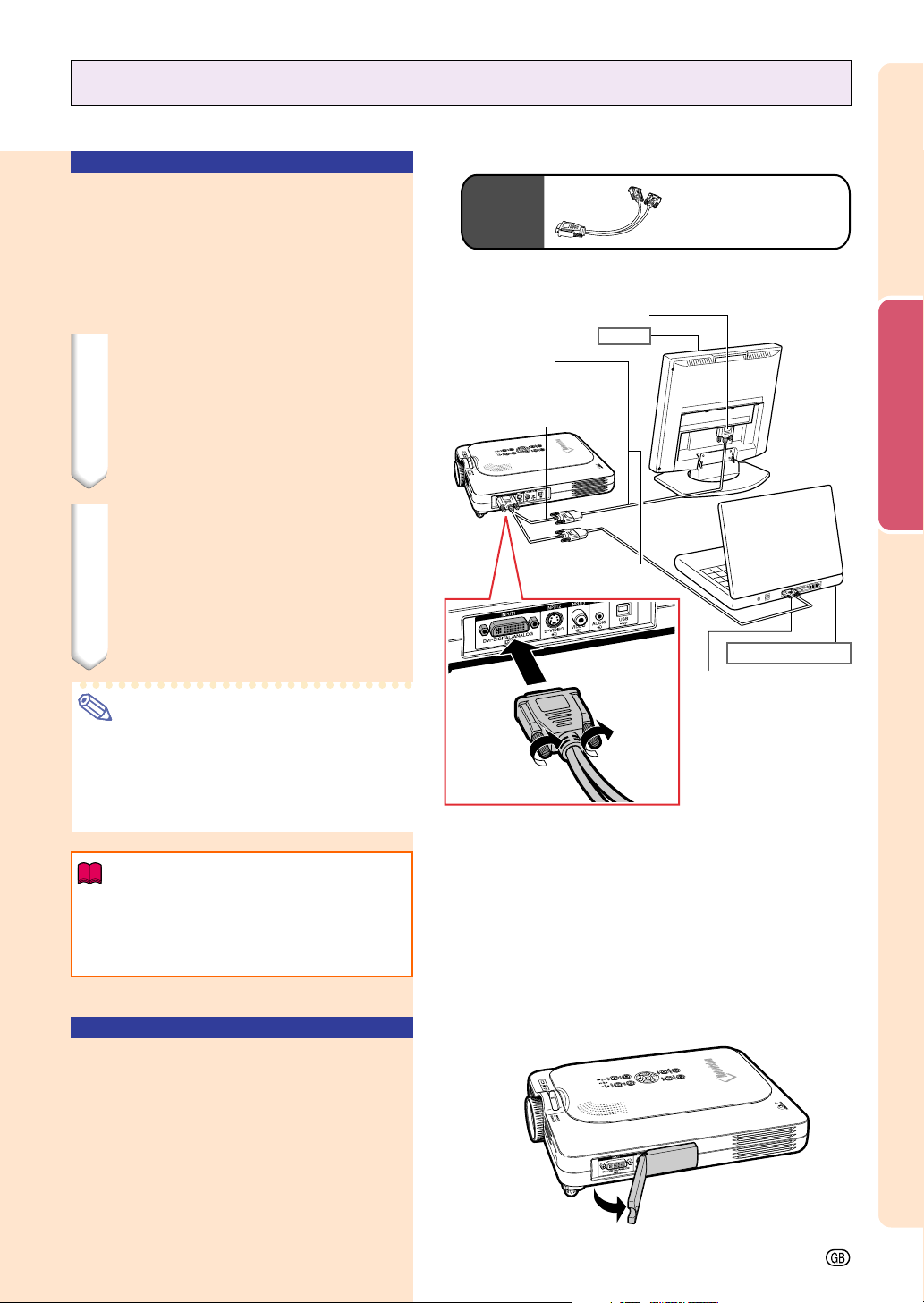
1
S-VIDEO cable (commercially available)
Connecting the Projector to Other Devices (cont.)
Connecting to Video
Equipment Using an
S-VIDEO, a Composite
Video or an Audio Cable
Using an S-VIDEO, video, or audio cable, a VCR,
laser disc player or other audio-visual
equipment can be connected to INPUT 2, IN-
PUT 3 and AUDIO terminals.
1 Connect the projector to the
video equipment using an S-
VIDEO cable or a composite
video cable (both commercially
available).
2 Connect the projector to the
video equipment using an au-
dio cable (commercially avail-
able).
Note
• The S-VIDEO INPUT terminal uses a
video signal system in which the picture
is separated into color and luminance sig-
nals to realize a higher-quality image. For
realizing a higher-quality image, use a
commercially available S-VIDEO cable to
connect the S-VIDEO terminal on the pro-
jector and the S-VIDEO output terminal
on the video equipment.
• A ø3.5 mm minijack to RCA audio cable
(commercially available) is recommended
for audio input.
To S-VIDEO output terminal
To video output terminal
To audio output terminal
VCR or other audio-visual equipment
2
Audio cable (commercially available)
1
Composite video cable
(commercially available)
-24
Setup and Connections
-25
To RGB output port
Connecting to a Monitor
Watching Images on
Both the Projector and
a Monitor
You can display computer images on both the
projector and a separate monitor using an RGB
monitor loop-out adaptor and an RGB cable.
1 Connect the projector to the
computer and monitor using
an RGB monitor loop-out adap-
tor (sold separately) and an
RGB cable (commercially avail-
able).
2 In the “Options(1)” menu, se-
lect “Monitor Out” and then
“Yes (Y cable)”.
• If “Disable” is selected, the projected
image will be dimmer. This does not
indicate a malfunction. For details, see
page 58.
Note
• When using an RGB monitor loop-out
adaptor (sold separately), make sure that
the cable is connected to the monitor.
• Analog RGB signals as well as Component
signals can be output to the monitor.
Info
• Only analog RGB/Component signals
entered into the DVI port can be output.
Signals from equipment connected to the
DVI digital port cannot be output.
Using INPUT 1 Terminal
with the Terminal Cover
Attached to the
Projector
The INPUT 1 terminal can be used with the ter-
minal cover folded as shown in the illustra-
tion.
Optional
accessory
RGB monitor loop-out
adaptor
Type: AN-A1MY
(7.9" (20 cm))
To RGB input port
Monitor
RGB cable
(commercially available)
1
RGB monitor loop-out adaptor
(sold separately)
Black: to the monitor
Blue: to the computer
Notebook computer
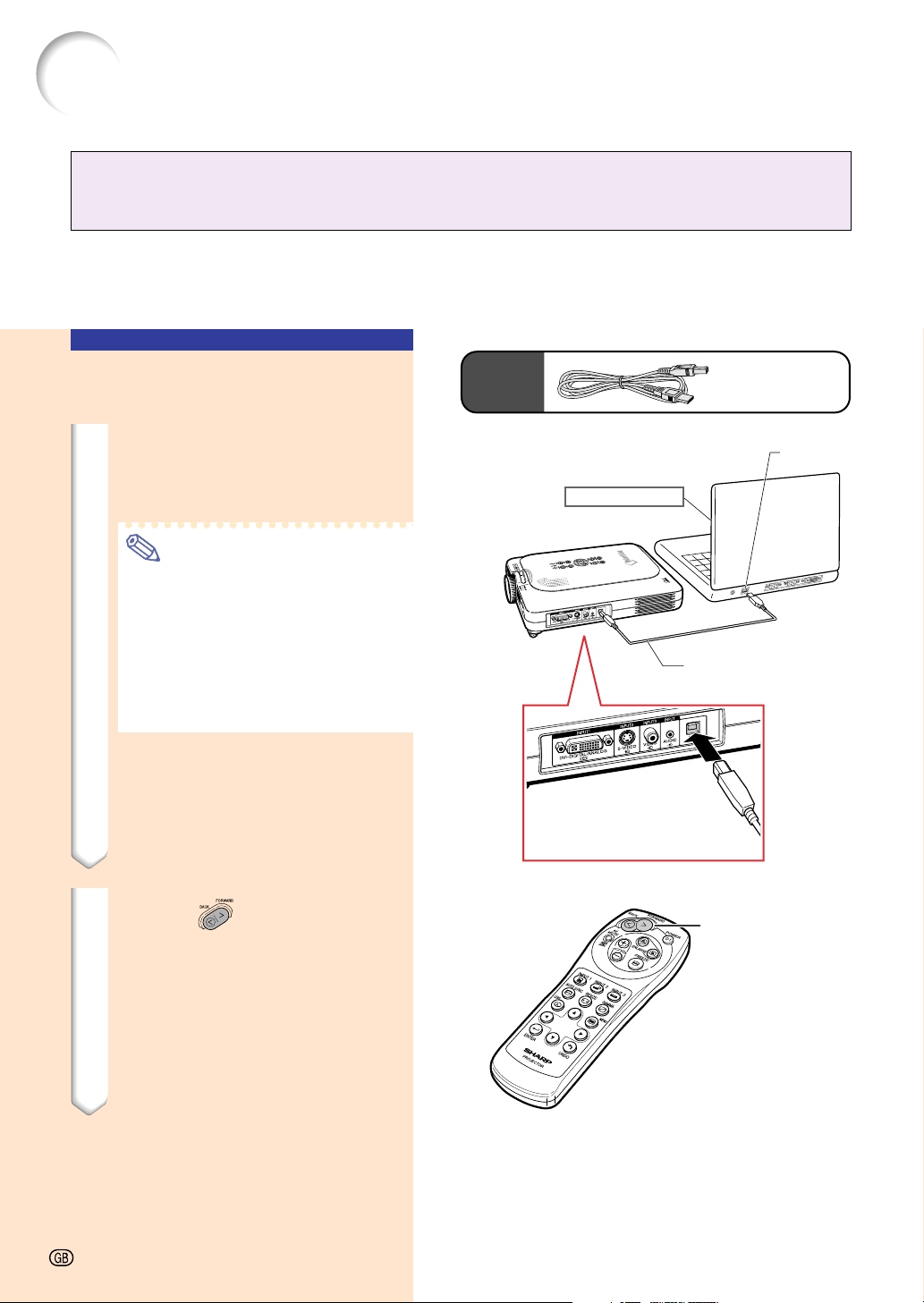
FORWARD/BACK
button
Connecting the Projector to Other Devices (cont.)
Using the Wireless Presentation Function of the
Remote Control
The Wireless Presentation function on the projector works the same as the [Page Up] and
[Page Down] keys on a computer keyboard. It can also be used to move forward or backward
when viewing images of presentation software such as Power Point
TM
.
Using the Wireless Pre-
sentation Function
1 Connect the projector to the
computer using the supplied
USB cable.
Note
• This function only works with
Microsoft Windows OS and Mac OS.
However, this function does not
work with the following operating
systems that do not support USB.
• Versions earlier than Windows 95.
•
Versions earlier than Windows NT 4.0.
• Versions earlier than Mac OS 8.5.
2 Press while using
presentation software on your
computer.
• Press FORWARD to move the page
down.
• Press BACK to move the page up.
Supplied
accessory
USB cable
USB port
Notebook computer
USB cable
-26
Basic Operation
Basic Operation
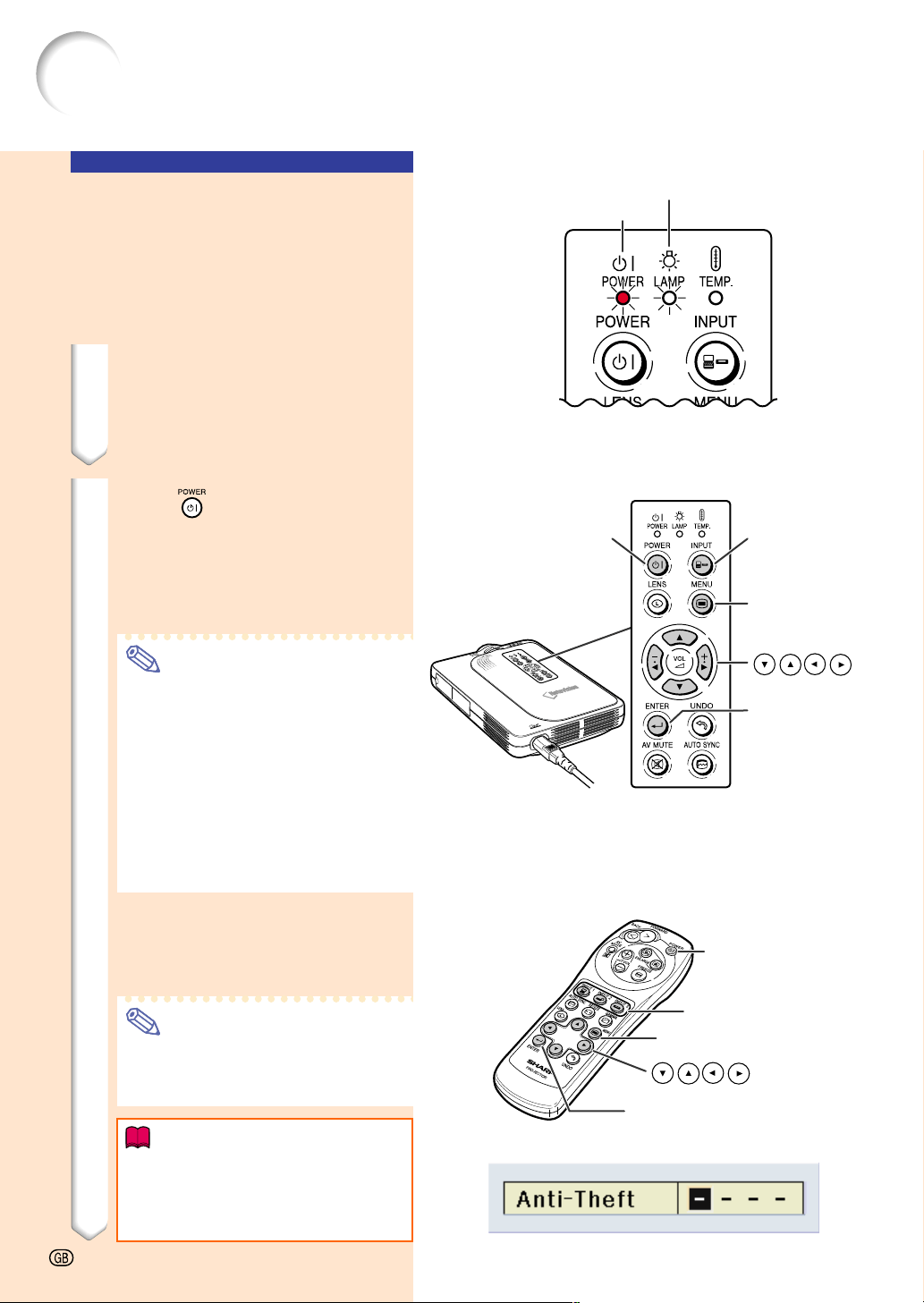
Image Projection
Basic Procedure
Connect the required external equipment to
the projector before operating the following
procedures.
The language preset at the factory is English.
If you want to change the on-screen display
to another language, reset the language ac-
cording to the procedure on page 30.
1 Plug the power cord into the
wall outlet.
• The POWER indicator illuminates up
in red, and the projector enters
standby mode.
2 Press
on the projector or
on the remote control.
• The POWER indicator illuminates in
green. After the LAMP REPLACEMENT
indicator illuminates, the projector is
ready to start operation.
Note
• The LAMP REPLACEMENT indica-
tor illuminates, indicating the status
of the lamp.
Green: The lamp is ready.
Green blinking: The lamp is
warming up.
Red:
The lamp should be replaced.
•
If the power is turned off and on right
after again, the LAMP REPLACEMENT
indicator may take time to
illuminate
.
When “Anti-Theft” is set, the
keycode input box will appear.
• Enter the keycode.
Note
• When entering the keycode, press
the buttons previously set on the
projector or the remote control.
Info
• When “Anti-Theft” is set, enter the
keycode or the input display will not
appear. Even when the signal is in-
put, the display cannot appear.
▼Projector indicators
LAMP REPLACEMENT indicator
POWER indicator
POWER button
POWER button
INPUT
button
MENU
button
buttons
ENTER
button
INPUT 1/2/3 buttons
MENU button
buttons
ENTER button
▼Keycode input box
-28
Basic Operation
-29
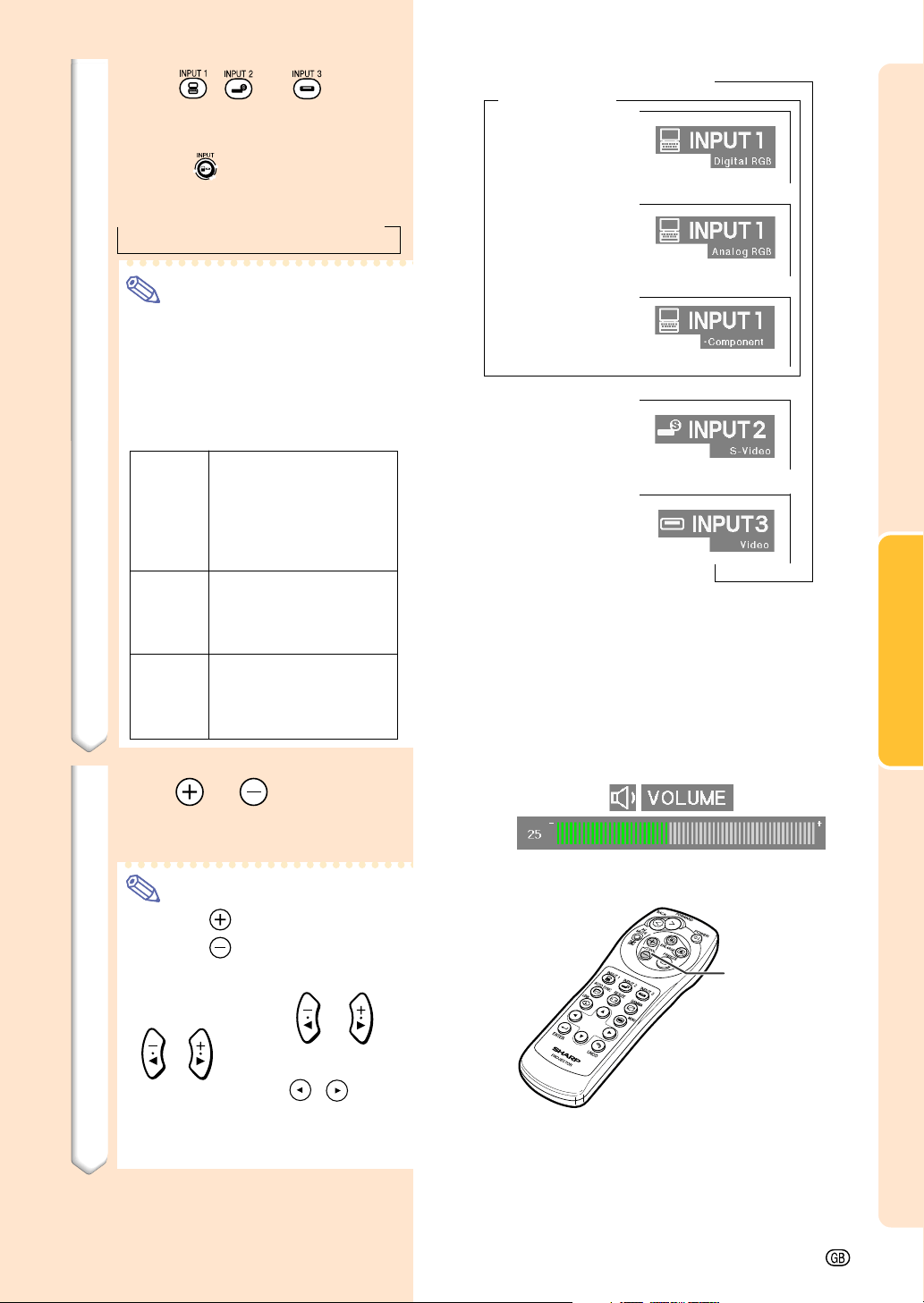
"On-screen Display (Example)
➝
➝➝
Using Analog
RGB
Using
Component
INPUT 2 Mode
Using S-Video
INPUT 3 Mode
Using Video
3 Press , or on the
remote control to select the
INPUT Mode.
• Pressing on the projector switches
the inputs in the following order:
→ INPUT 1 → INPUT 2 → INPUT 3
Note
• When no signal is received, “NO
SIGNAL” will be displayed. When a
signal that the projector is not pre-
set to receive is received, “NOT
REG.” will be displayed.
About the INPUT Modes
Used for projecting im-
ages from equipment that
sends RGB signals or
Component signals con-
nected to the DVI-DIGI-
TAL/ANALOG input port.
Used for projecting im-
ages from equipment
connected to the S-
VIDEO input terminal.
Used for
projecting
im-
ages
from equipment
connected to the VIDEO
input terminal.
INPUT 1
(RGB/
Component)
INPUT 2
(S-Video)
INPUT 3
(Video)
INPUT 1 Mode
Using
DVI digital
4 Press or on the remote
control to adjust the volume of
the speaker.
Note
• Pressing will raise the volume.
Pressing
will lower the volume.
• On the projector, the volume can be
adjusted by pressing or .
•
, on the projector operate
as cursor buttons (
, ) when
selecting setup or adjustment
functions while adjusting menus or
the lens.
VOLUME
buttons
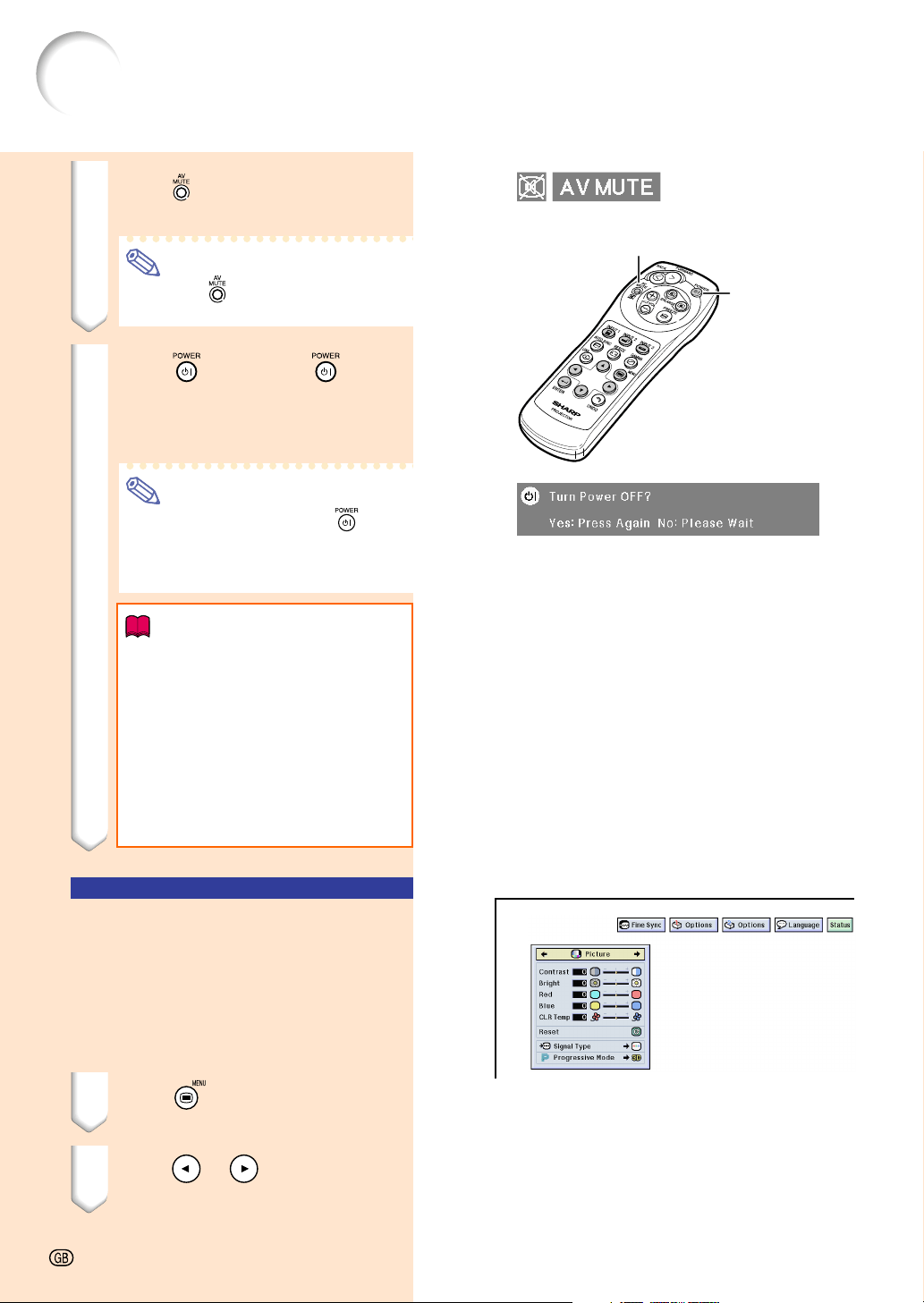
Image Projection (cont.)
POWER
button
5 Press to temporarily turn off
the picture and sound.
Note
• Pressing again will turn the pic-
ture and the sound back on.
6 Press , then press again
while the confirmation message
is displayed, to turn off the pro-
jector.
Note
• If you accidentally pressed and
do not want to turn off the power,
wait until the confirmation message
disappears.
Info
• Do not unplug the power cord dur-
ing projection or cooling fan opera-
tion. This can cause damage due
to the rise in internal temperature,
as the cooling fan also stops.
• When connected to equipment such
as an amplifier, be sure to turn off
the power to the equipment con-
nected first and then to the projec-
tor.
Selecting the On-screen
Display Language
• The on-screen display language of the
projector can be set to English, German,
Spanish, Dutch, French, Italian, Swedish,
Portuguese, Chinese, Korean or Japa-
nese.
1 Press .
• The menu will be displayed.
2 Press or to select “Lan-
guage”.
AV MUTE button
-30
Basic Operation
-31
Zoom
in
Z
o
o
m
o
u
t
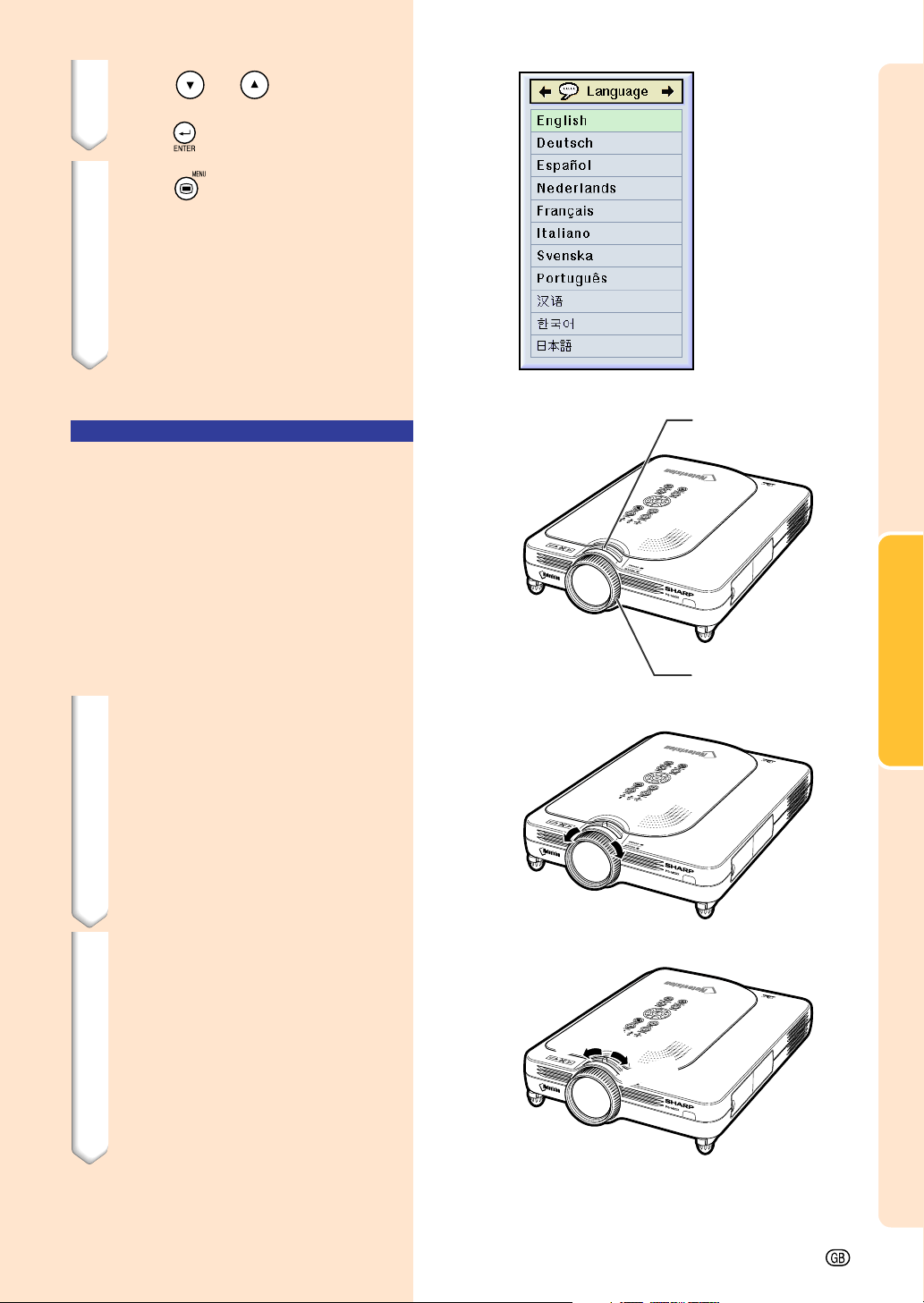
3 Press or to select the
desired language, and then
press
.
4 Press .
• The desired language will be set as
the on-screen display.
Adjusting the Lens
The image is focused and adjusted to the
desired size using the focus ring or zoom
knob on the projector.
1 The focus is adjusted by rotat-
ing the focus ring.
2 Zooming is adjusted by mov-
ing the zoom knob.
Zoom knob
Focus ring
Correcting the Trapezoidal Distortion (Keystone Correction)
Correcting the Trap-
ezoidal Distortion
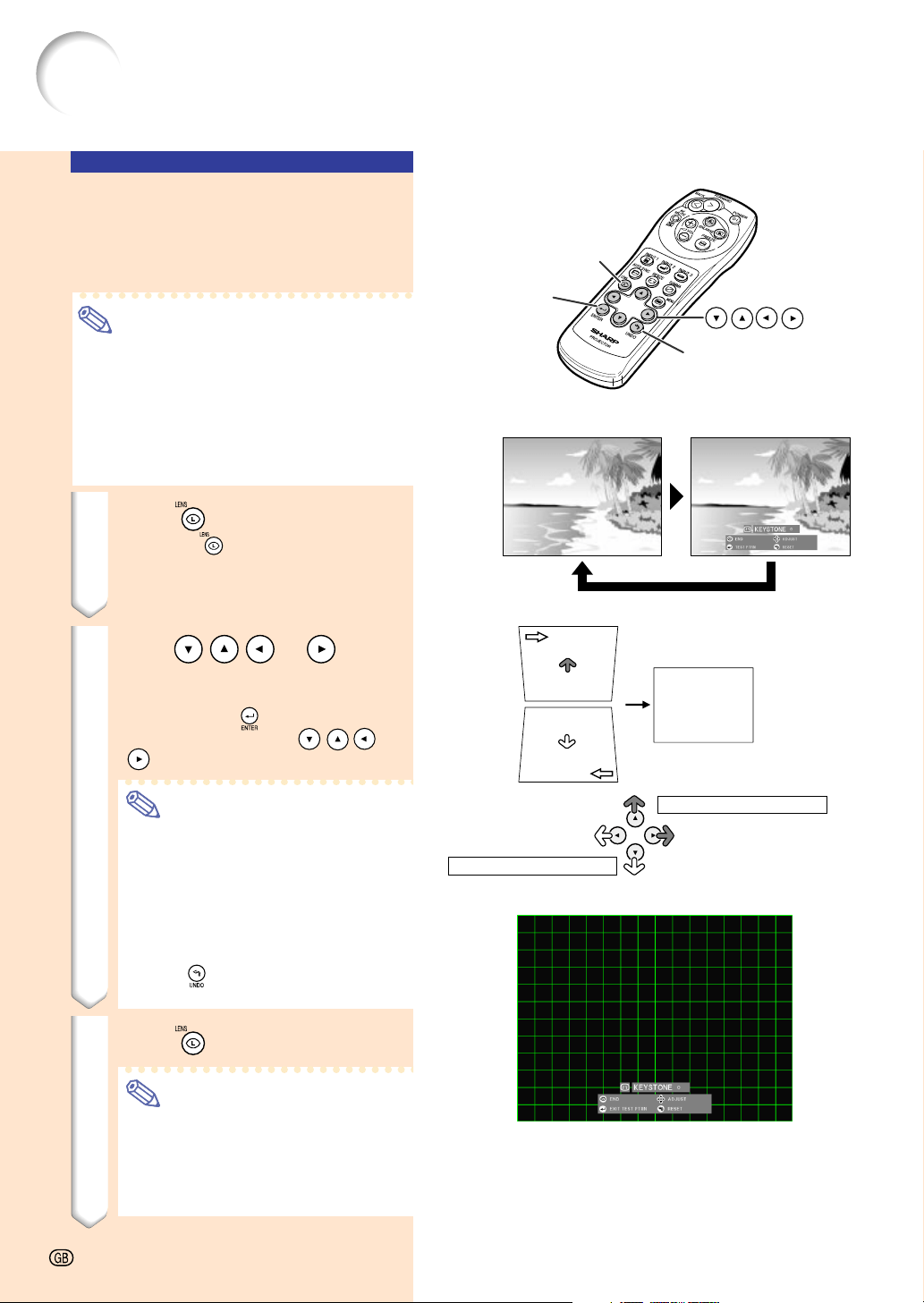
This function allows for Keystone (On-screen
Trapezoidal Distortion) Correction.
Note
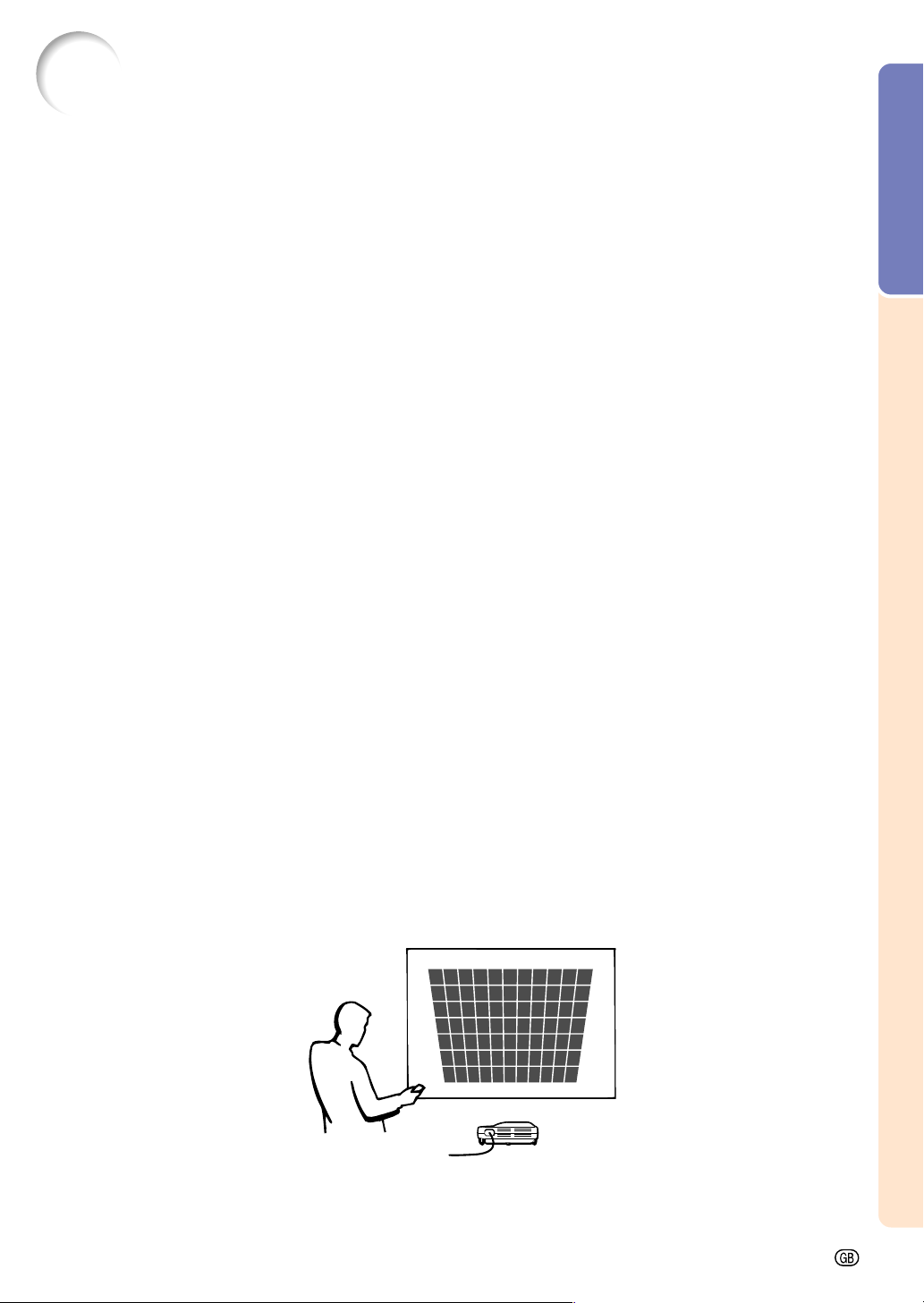
• Keystone Correction is the correction for
trapezoidal distortion that occurs when
the image is positioned away from the
center axis of the screen.
• The trapezoidal distortion can be corrected
up to an angle of approximately ±35 de-
grees.
1 Press
.
• Pressing
again while the BOR-
DER, STRETCH or SMART STRETCH
screen is displayed will start the Digital
Shift function. See page 33.
2 Press
or
to ad-
just the Keystone correction.
• If you want to make more detailed cor-
rections, press
to display the test
pattern, and then press
or
to make the adjustments.
Note
• Since the trapezoidal distortion of
the image can be corrected up to
an angle of approximately ±35 de-
grees, the actual screen can be di-
agonally set up to that angle as well.
(For more details on the settings,
see page 8.)
• Press
to cancel Keystone Cor-
rection.
3 Press
.
Note
• You can use the same settings used
in NORMAL mode 4:3 for 16:9.
• Straight lines or the edges of images
may appear jagged while adjusting
the image.
LENS button
buttons
UNDO button
ENTER
button
Normal screen
Keystone Correction screen
Compresses upper side.
Compresses lower side.
Test pattern
-32
Basic Operation
-33
Easy to Use Functions
■ Setting the Video Signal......................................................................................page 55
■ Displaying Dual Pictures (Pict in Pict) ..............................................................page 51
■ Video Digital Noise Reduction (DNR) System ..................................................page 54
• For details, see the explanation of each setting on the respective page.
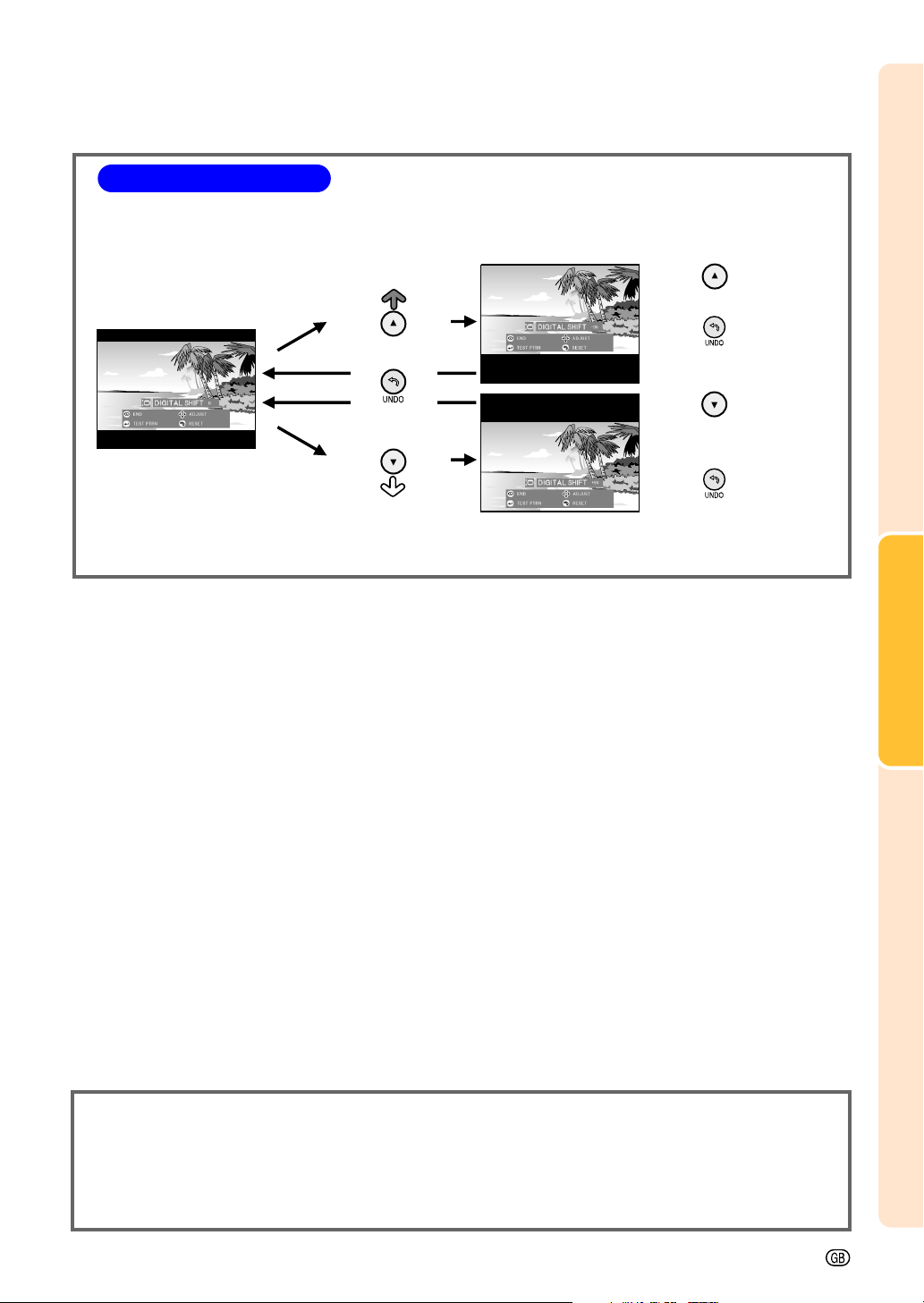
• The Digital Shift function works with BORDER, STRETCH or SMART STRETCH screen. For details,
see page 47.
Digital Shift Setting
For easier viewing, this function shifts the entire image projected on
the screen up or down when projecting 16:9 images from DVD
players and DTV* decoders.
* DTV is the umbrella term used to describe the new digital television
system in the United States.
UNDO button
Press to move the
projected image upwards.
Press to reset the
image.
Press to move the
projected image
downwards.
Press to reset the
image.
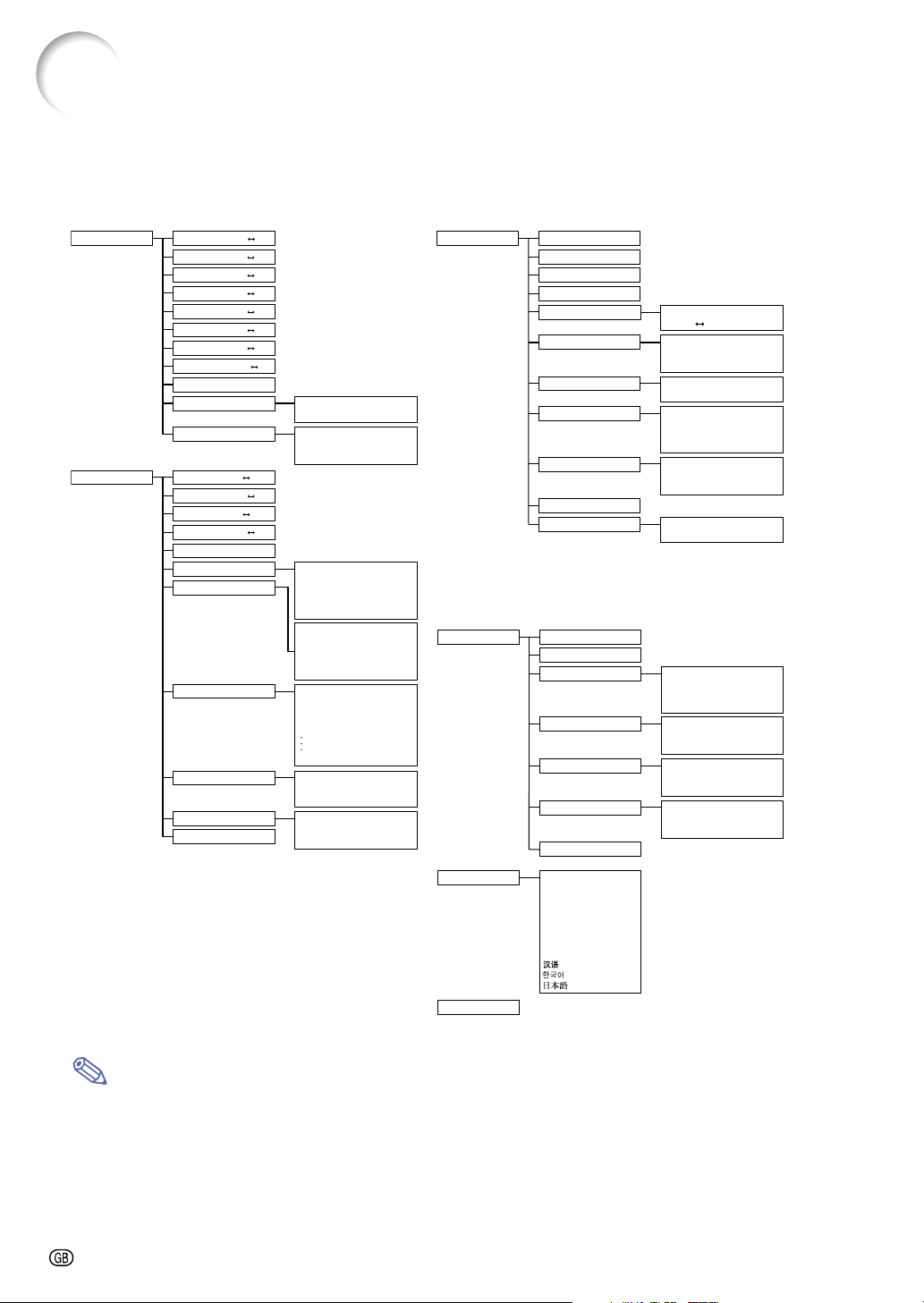
-34
Menu Bar Items
This list shows the items that can be set in the projector.
■ INPUT 1 Mode
Page 66
Note
• The resolution, vertical frequency and horizontal frequency figures displayed above are for example
purposes only.
• When DVI digital signals have been entered into INPUT 1, in “Picture” only “CLR Temp”, “Red” and “Blue”
can be adjusted and in “Fine Sync” only “Signal Info”, “Auto Sync” and “Auto Sync Disp” can be used.
• When the signal type is set as “Component”, in the “Picture” menu of INPUT 1 “Color”, “Tint” and “Sharp”
are displayed.
•
Some items cannot be reset, even when “All Reset” in Options (2) has been selected. For details see page
65.
+30-30
+30
-30
+30-30
+30
-30
+30
-30
+30
-30
+30
-30
+3
-3
+150
–150
+150
–150
+30
–30
+60
–60
1
2
•
•
7
1
2
•
•
7
1
2
3
7
640
×
480
720
×
480
480p
Resolution
1024
×
768
800
×
600
Vert Freq
60 Hz
75 Hz
Resolution
1024
×
768
800
×
600
Vert Freq
60 Hz
75 Hz
640
×
480
31.5 KHz
60 Hz
English
Deutsch
Español
Nederlands
Français
Italiano
Svenska
Português
Picture
Page 40
Contrast
Bright
Color
Tint
Sharp
Red
Blue
CLR Temp
Reset
Signal Type
Progressive Mode
Fine Sync Clock
Phase
H-Pos
V-Pos
Reset
Save Setting
Select Setting
Special Modes
Signal Info
Auto Sync
Auto Sync Disp [ON/OFF]
RGB
Component
2D Progressive
3D Progressive
Film Mode
Resolution Vert Freq
Resolution Vert Freq
Resolution
Hor Freq
Vert Freq
OFF
Normal
High Speed
Options (1)
Pict in Pict [ON/OFF]
Power Save [ON/OFF]
sRGB [ON/OFF]
Auto Search [ON/OFF]
DNR
OSD Display
Image Capture
Background
Startup Image
Monitor Out
Auto Power Off [ON/OFF]
Options (2)
Lamp Timer
PRJ Mode
Keylock Level
Password
Anti-Theft
All Reset
Break Timer
Language
OFF
Level 1 Level 3
Normal
Level A
Level B
Save Image
Delete
Sharp
Custom
Blue
None
Sharp
Custom
None
Disable
Yes (Y Cable)
Front
Ceiling + Front
Rear
Ceiling + Rear
Normal
Level A
Level B
Old Password
New Password
Reconfirm
Old Code
New Code
Reconfirm
Page 42
Page 51
Page 58
Page 31
Status
Main menu Sub menu Main menu Sub menu
Resolution
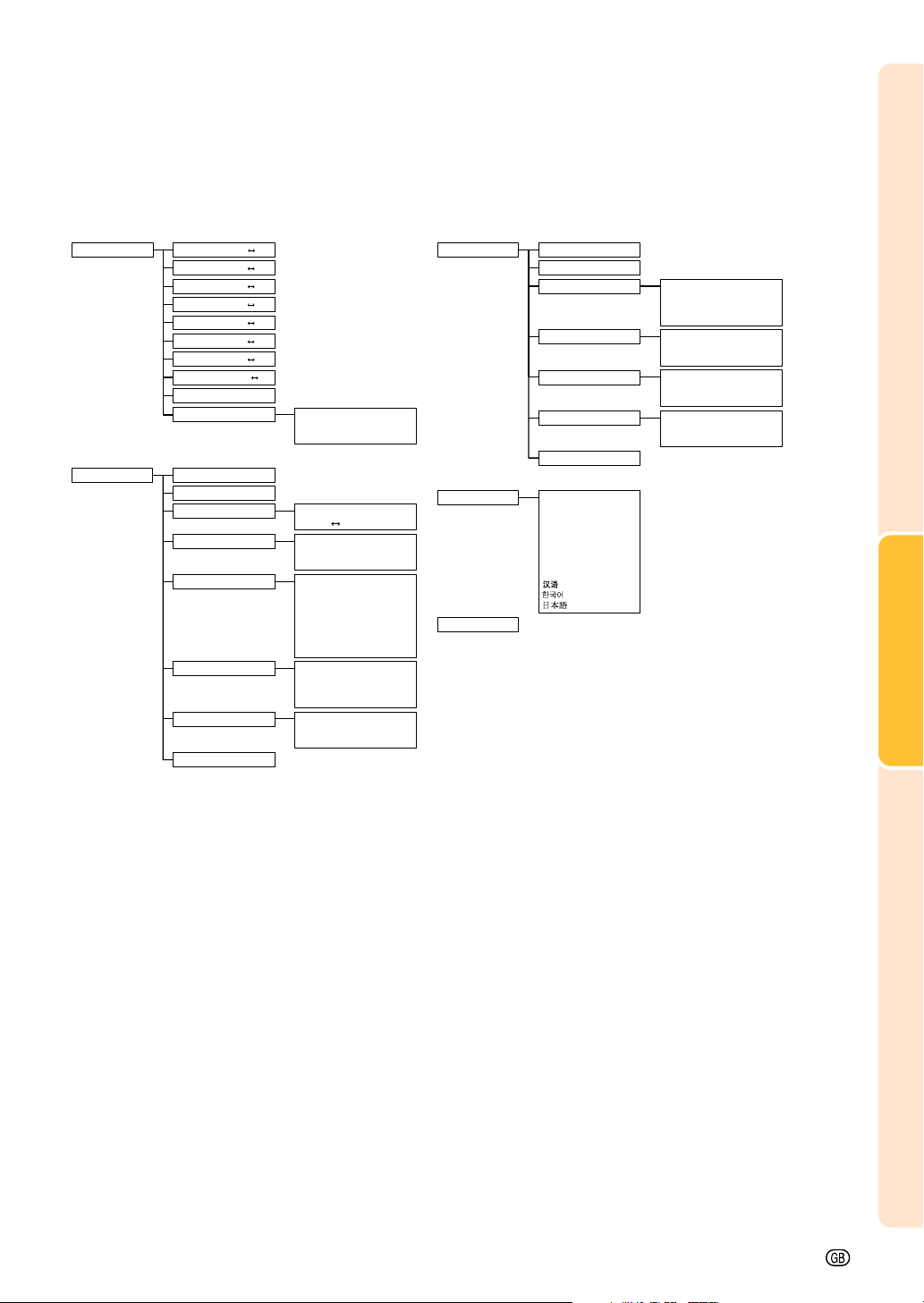
Basic Operation
-35
■ INPUT 2 / 3 Mode
+30–30
+30–30
+30–30
+30–30
+30–30
+30–30
+30–30
+3–3
English
Deutsch
Español
Nederlands
Français
Italiano
Svenska
Português
Picture
Options (1)
Contrast
Bright
Color
Tint
Sharp
Red
Blue
CLR Temp
Reset
Progressive Mode
Power Save [ON/OFF]
Auto Search [ON/OFF]
DNR
OSD Display
Video System
Background
Startup Image
Auto Power Off [ON/OFF]
2D Progressive
3D Progressive
Film Mode
OFF
Level 1 Level 3
Normal
Level A
Level B
Auto
PAL (50/60Hz)
SECAM
NTSC4.43
NTSC3.58
PAL-M
PAL-N
Sharp
Custom
Blue
None
Sharp
Custom
None
Options (2) Lamp Timer
Break Timer
PRJ Mode
Keylock Level
Password
Anti-Theft
All Reset
Front
Ceiling + Front
Rear
Ceiling + Rear
Normal
Level A
Level B
Old Password
New Password
Reconfirm
Old Code
New Code
Reconfirm
Language
Status
Page 40 Page 58
Page 52
Page 31
Page 66
Main menu Sub menu Main menu Sub menu
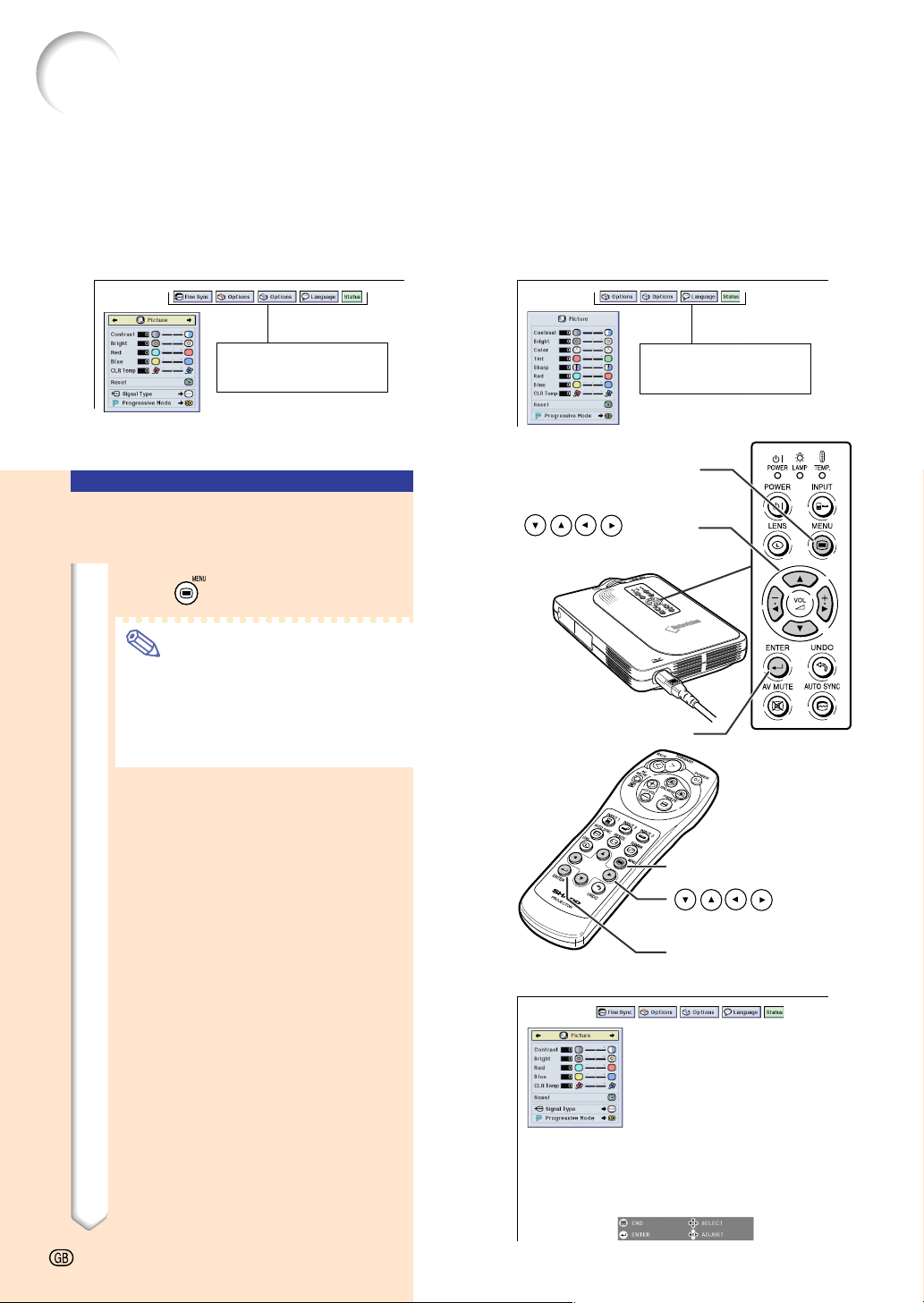
This projector has two sets of menu screens that allow you to adjust the image and various
projector settings.
You can operate the menus from the projector or remote control using the following proce-
dure.
Using the Menu Screen
On-screen menu for INPUT 1 RGB mode
On-screen menu for INPUT 2
or INPUT 3 Mode
Menu Bar
(Main Menu)
MENU button
buttons
ENTER button
MENU button
buttons
ENTER button
""
""
"On-screen Display
Basic Operations
(Adjustments)
1 Press .
Note
• The “Picture” menu screen for the
selected input mode is displayed.
• The on-screen display shown on the
right is displayed when the INPUT
1 mode is selected.
Menu Bar
(Main Menu)
-36
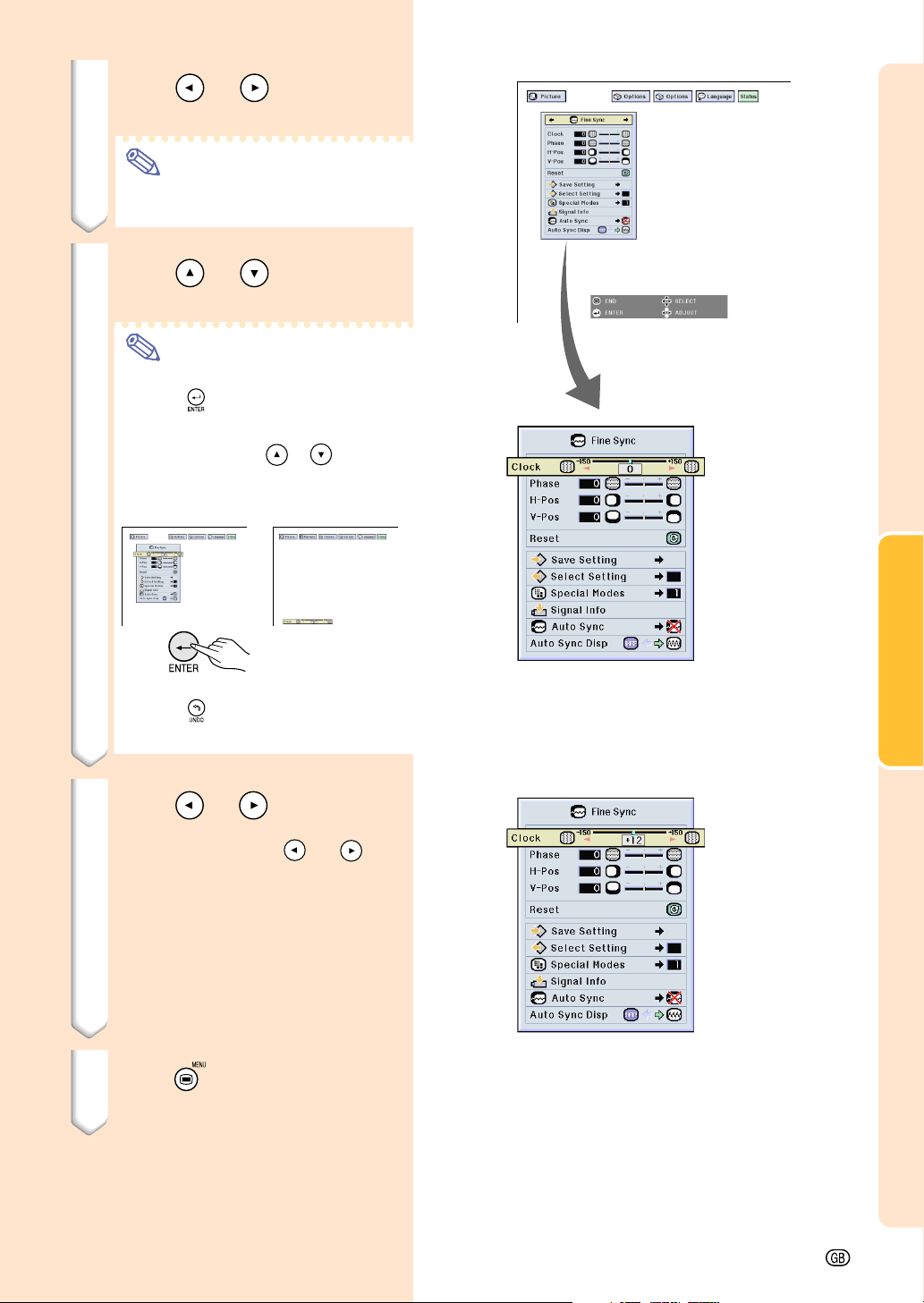
Basic Operation
-37
2 Press
or
to select the
menu you want to adjust.
Note
• For details on the menus, see the
tree charts on pages 34 and 35.
3 Press
or
to select the
item you want to adjust.
Note
• To display a single adjustment item,
press
after selecting the item.
Only the menu bar and the selected
adjustment item will be displayed.
Then if you press
or
, the fol-
lowing item (“Phase” is after “Clock”)
will be displayed.
• Press
to return to the previous
screen.
4 Press
or
to adjust the
item selected.
• When you release
or
the
adjustement is stored.
5 Press
.
• The on-screen display is cleared.
||
||
|
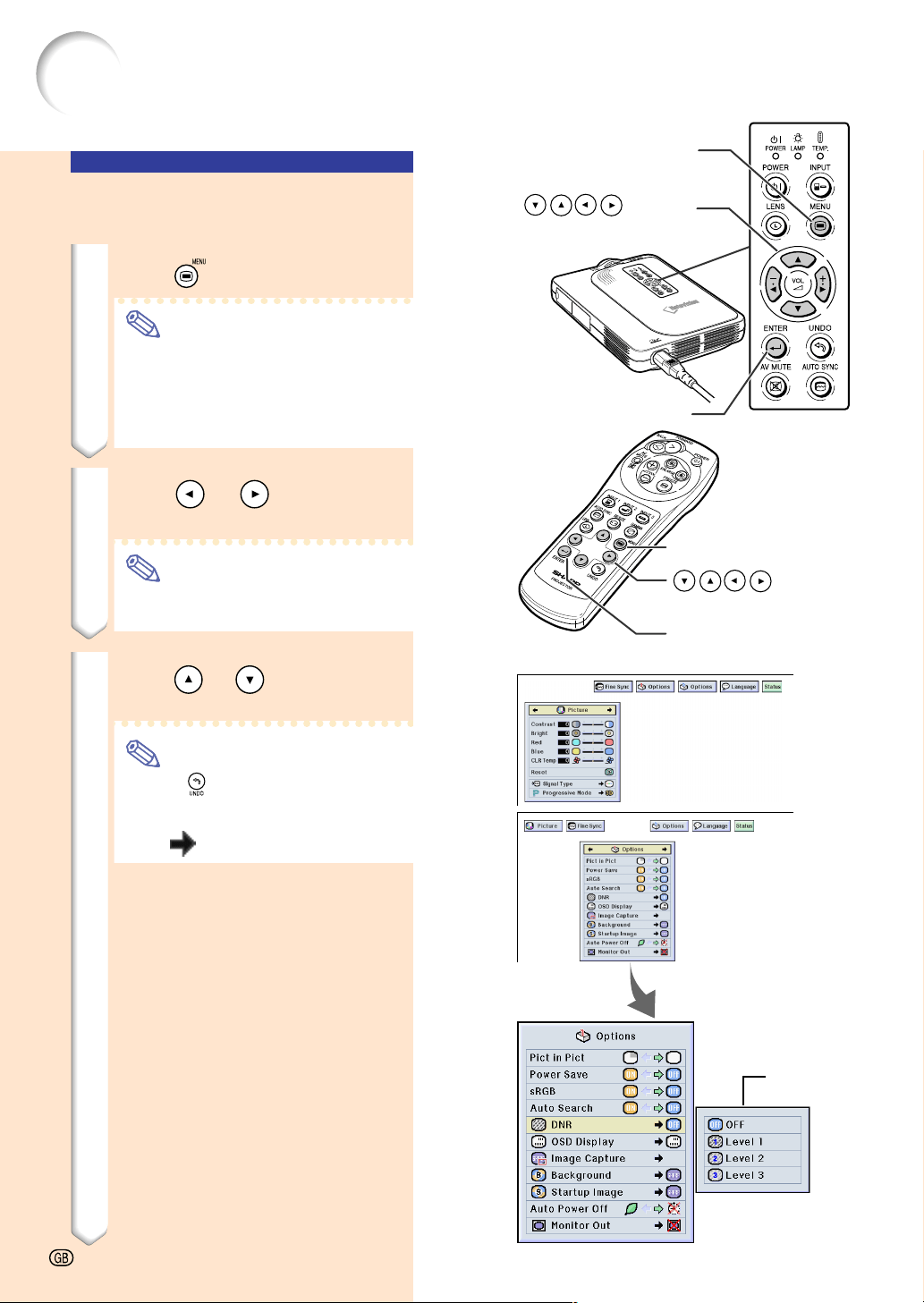
MENU button
buttons
ENTER button
MENU button
buttons
ENTER button
▼ On-screen Display
Basic Operations
(Settings)
1 Press
.
Note
• The “Picture” menu screen for the
selected input mode is displayed.
• The on-screen display shown on the
right is displayed when the INPUT 1
mode is selected.
2 Press
or
to select the
menu you want to adjust.
Note
• For details on the menus, see the
tree charts on pages 34 and 35.
3 Press
or
to select the
item you want to set.
Note
• Press
to return to the previous
screen.
• In some menus, select the icon us-
ing “ ”.
Using the Menu Screen (cont.)
Sub menu
-38
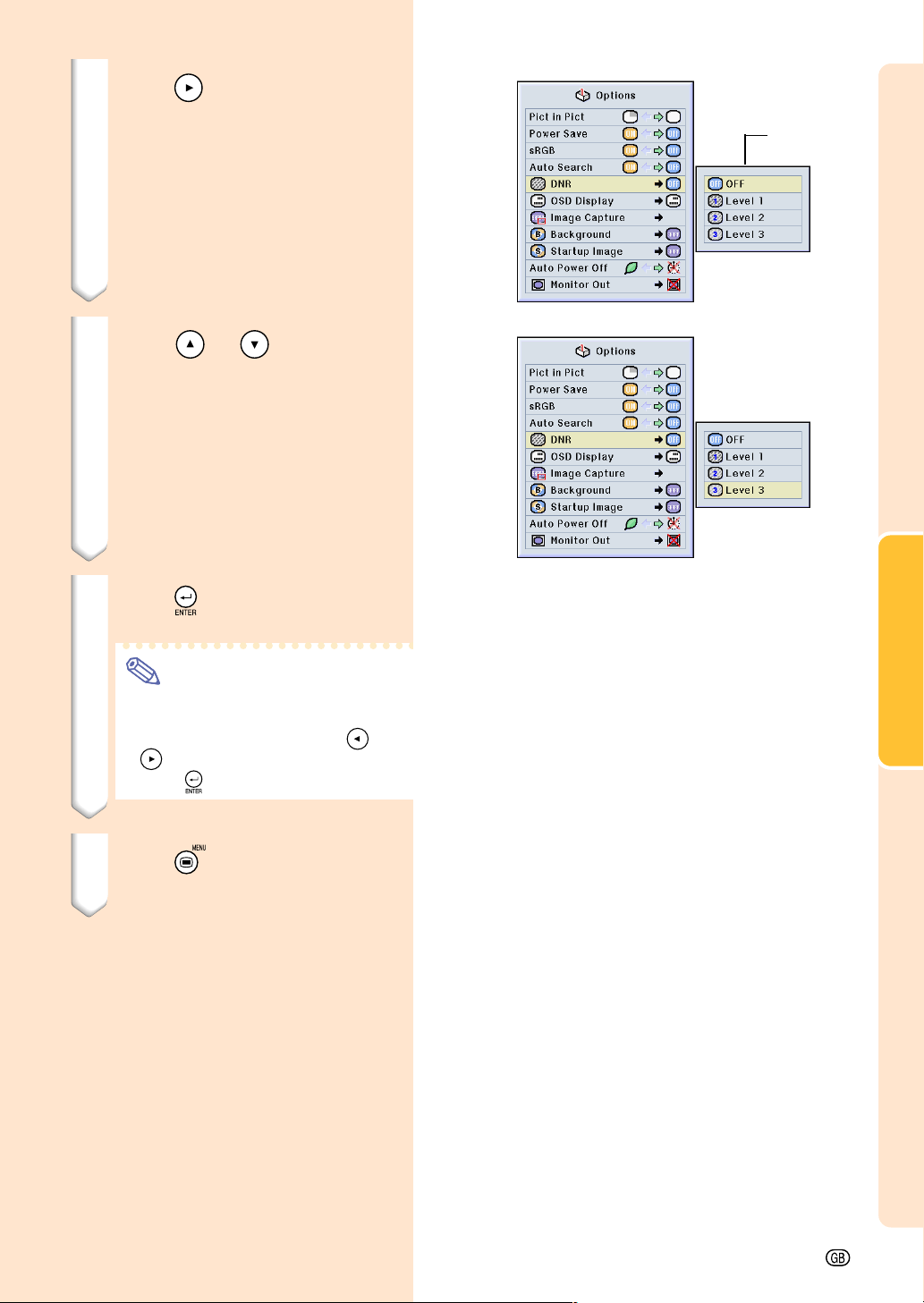
Basic Operation
-39
4 Press .
• The cursor shifts to the sub menu.
5 Press or to select the
setting of the item displayed in
the sub menu.
6 Press .
• The item selected is set.
Note
• Some adjustment items will display
a confirmation message.
When setting an item, press or
to select “Ye s ” or “OK” and then
press
.
7 Press .
• The menu will disappear.
Sub menu
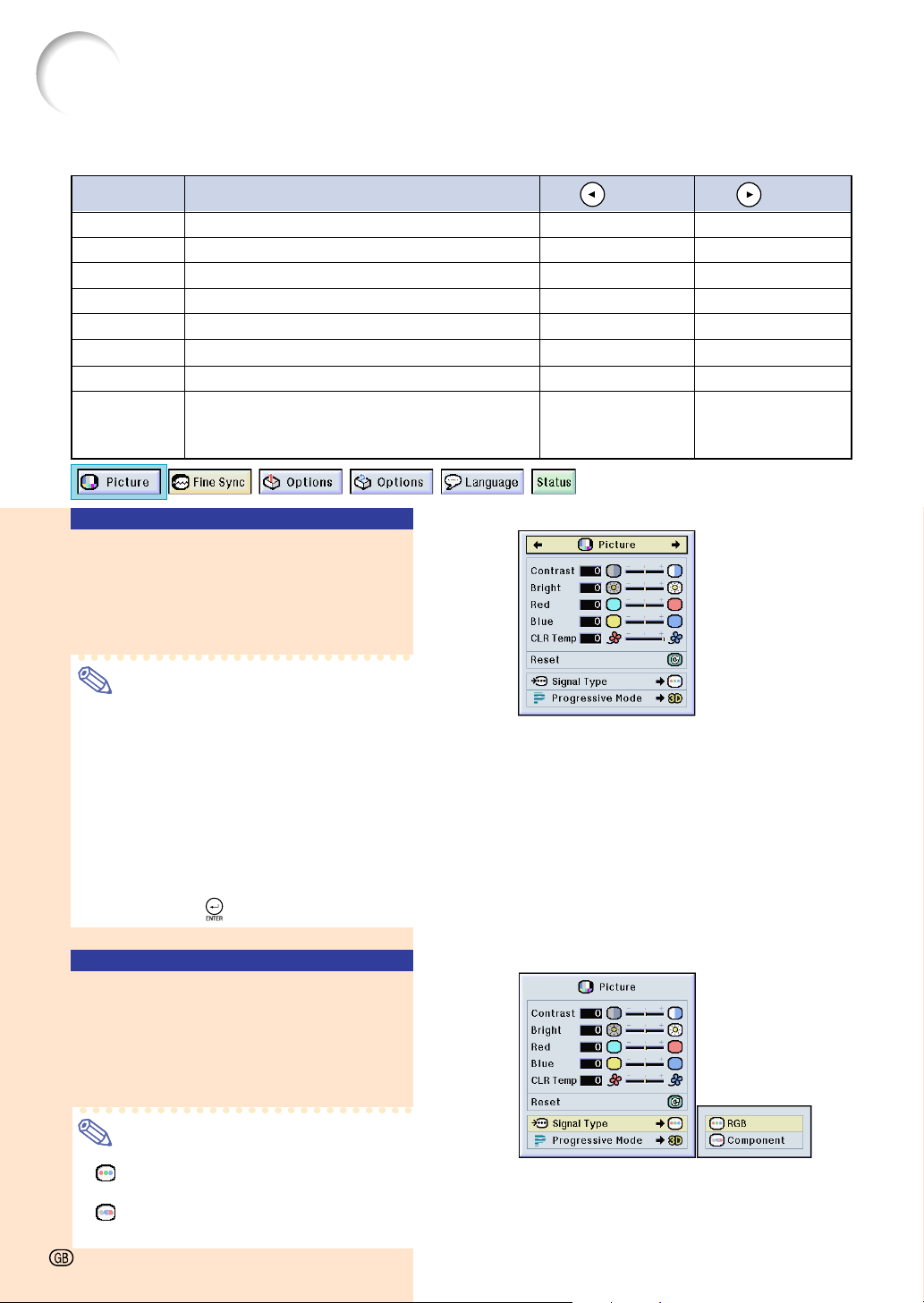
Adjusting the Picture
You can adjust the projector’s picture to your preferences with the following picture settings.
Selected Item Description
button
button
Contrast
Bright
Color
Tint
Sharp
Red
Blue
CLR Temp
For adjusting the contrast level
For adjusting the brightness of an image
For adjusting the color intensity of the image
For adjusting the tones of an image
For making sharper or softer the contour of an image
For adjusting the redness level
For adjusting the blue level
For adjusting the color temperature of an image
For less contrast
For less brightness
For less color intensity
Skin tones become purplish
For less sharpness
For weaker red
For weaker blue
Decreases color
temperature for warmer,
reddish, incandescent-
like images.
For more contrast
For more brightness
For more color intensity
Skin tones become greenish
For more sharpness
For stronger red
For stronger blue
Increases color
temperature for cooler,
bluish, fluorescent-like
images.
Adjusting Image
Preferences
Adjust the Picture menu➝
For adjustments, see page 36.
Note
• “Color”, “Tint” and “Sharp” are not dis-
played when selecting INPUT 1 and the
“Signal Type” is “RGB” .
• The picture adjustments can be stored
separately in each input mode.
• When the signal type in INPUT 1 has
been set to Component, “Sharp” can be
adjusted when 480I, 480P, 720P or 1080I
signals are entered.
• To reset all adjustment items, select “Re-
set” and press
.
Selecting the Signal Type
This function allows you to select the input
signal type RGB or Component for INPUT1.
Select “Signal Type” in the “Picture”
menu➝ For settings, see page 38.
Note
• RGB
Set when RGB signals are received.
• Component
Set when Component signals are received.
-40
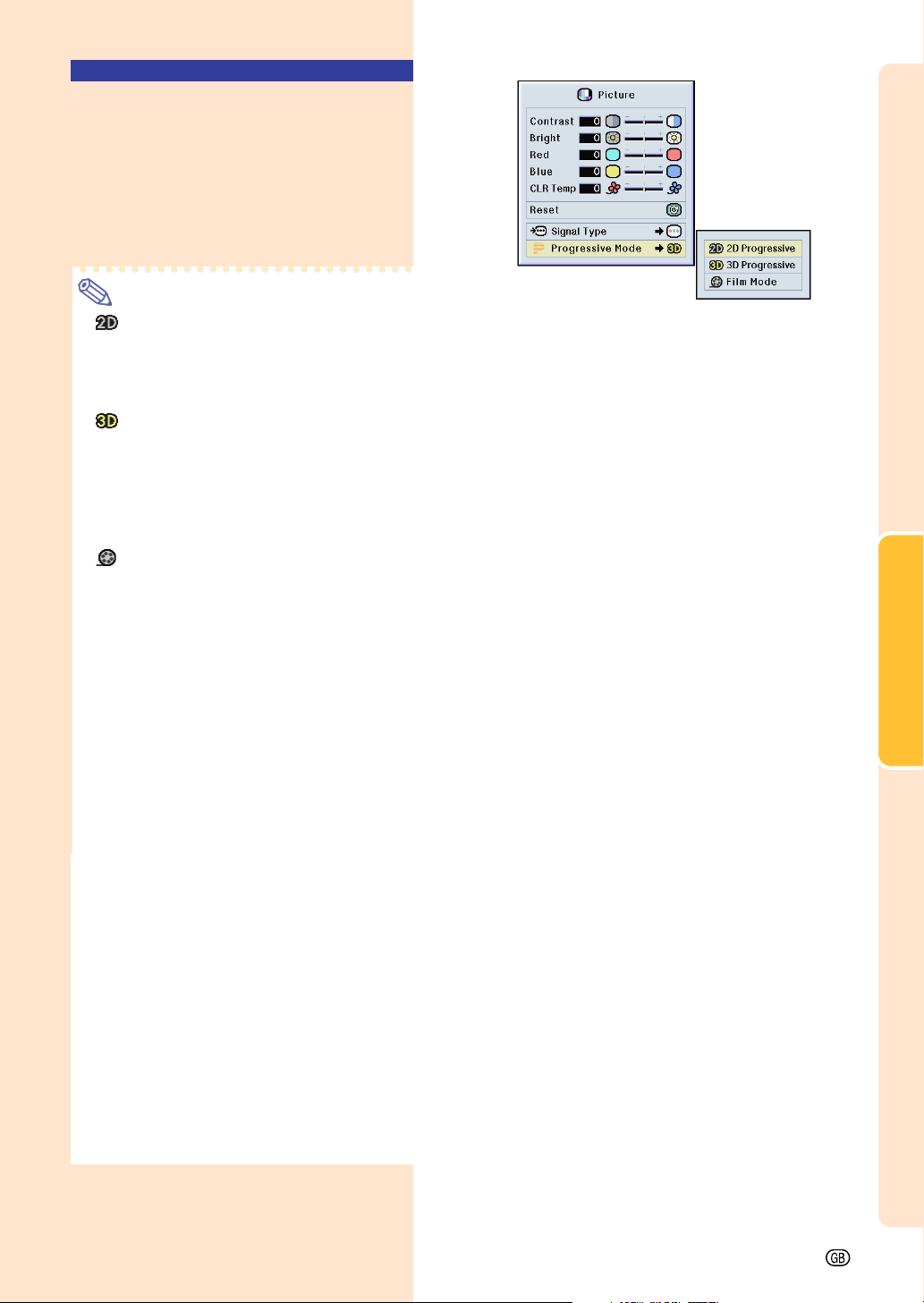
Basic Operation
-41
Progressive Mode
This function allows you to select the pro-
gressive display of a video signal. The pro-
gressive display projects a smoother video
image.
Select “Progressive Mode” in the “Pic-
ture” menu ➝ For settings, see page 38.
Note
• 2D Progressive
This function is useful to display fast-
moving images such as sports and ac-
tion films. This mode optimizes the im-
age in a displayed frame.
•
3D Progressive
This function is useful to display relatively
slow-moving images such as drama and
documentary more clearly.
This mode optimizes the image by esti-
mating the movement of a number of pre-
ceding and succeeding frames.
•
Film Mode
Reproduces the image of film source
clearly. Displays the optimized image of
film transformed with three-two pull down
(NTSC and PAL60Hz) or two-two pull
down (PAL50Hz and SECAM) enhance-
ment to progressive mode images.
* The film source is a digital video record-
ing with the original encoded as is at 24
frames/second. The projector can con-
vert this film source to progressive video
at 60 frames/second with NTSC and
PAL60Hz or at 50 frames/second with
PAL50Hz and SECAM to play back a
high-definition image.
• When using progressive inputs, these
inputs are directly displayed therefore 2D
Progressive, 3D Progressive and Film
Mode cannot be selected. These modes
can be selected in interlace signals other
than 1080
I.
• In NTSC or PAL60Hz, even if the 3D Pro-
gressive mode has been set, the three-
two pull down enhancement will be en-
abled automatically, when the film source
has been entered.
• In PAL50Hz or SECAM, the two-two pull
down enhancement will be enabled only
in the Film Mode, when the film source
has been entered.
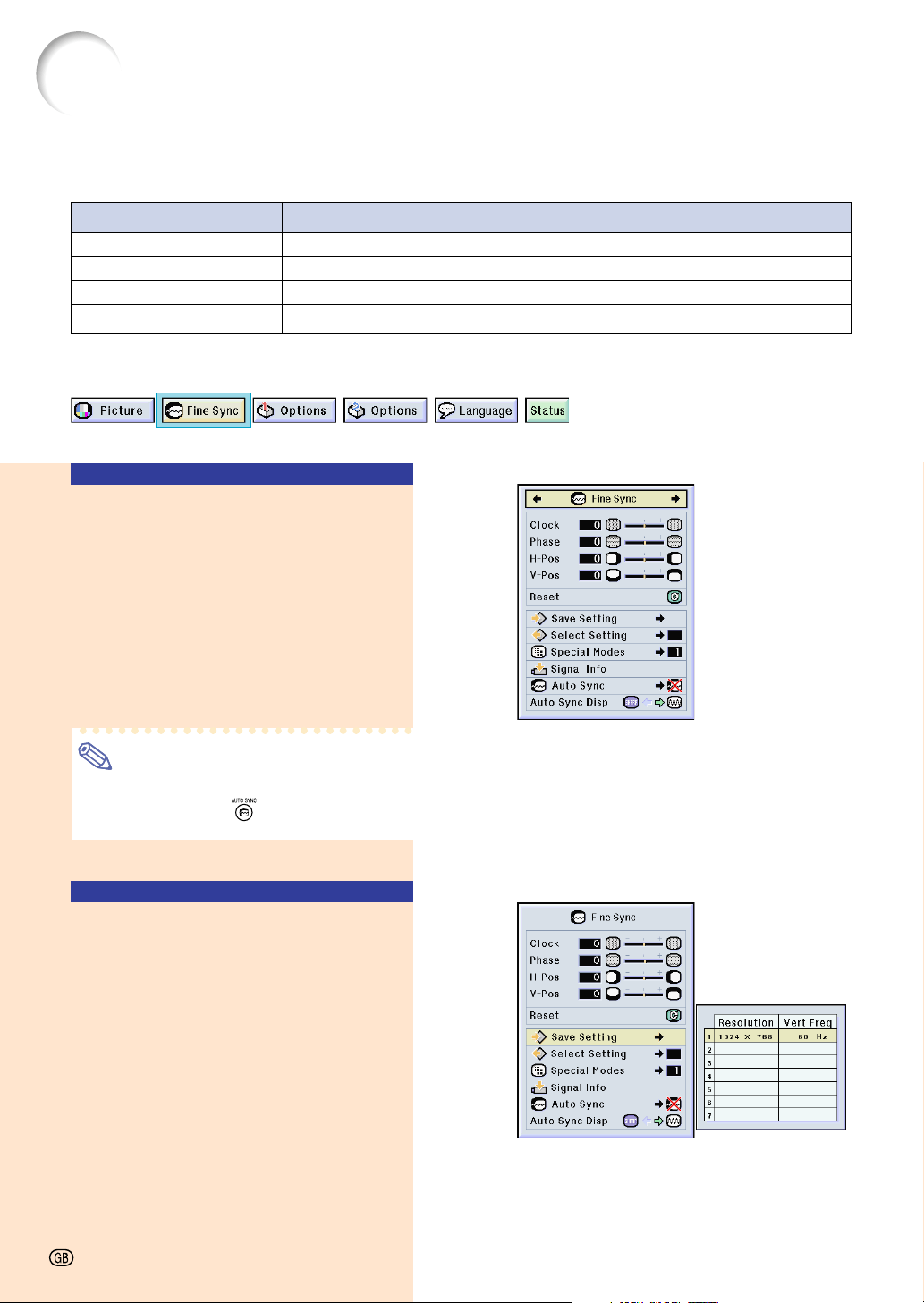
Adjusting Computer Images
Use the Fine Sync function in case of irregularities such as vertical stripes or flickering in
portions of the screen.
When Auto Sync is OFF
When “Auto Sync” is “OFF”, interference
such as flickering or vertical stripes may oc-
cur if displaying tilings or vertical stripes.
Should this occur, adjust “Clock”, “Phase”,
“H-Pos” and “V-Pos” for obtaining an opti-
mum image.
Select “Clock”, “Phase”, “H-Pos” or “V-
Pos” in the “Fine Sync” menu ➝ For
adjustments, see page 36.
Note
• Computer image adjustments can be made
easily by pressing
. See page 44 for
details.
Saving Adjustment
Settings
This projector allows you to store up to seven
adjustment settings for use with various com-
puters.
Select “Save Setting” in the “Fine Sync”
menu ➝ For saving, see page 38.
Selected Item Description
Clock
Phase
H-Pos
V-Pos
Adjusts vertical noise.
Adjusts horizontal noise (similar to tracking on your VCR).
Centers the on-screen image by moving it to the left or right.
Centers the on-screen image by moving it up or down.
-42
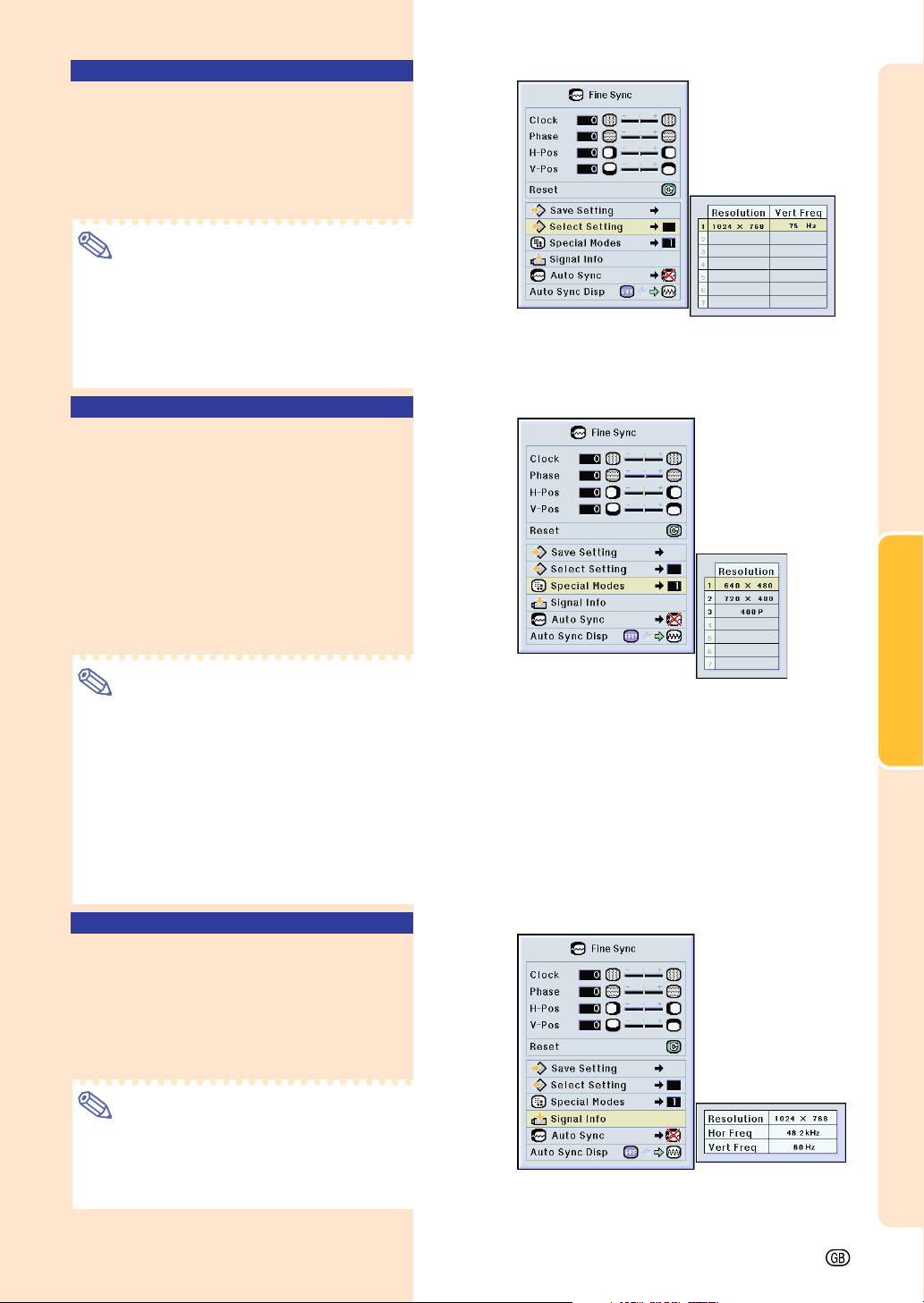
Basic Operation
-43
Selecting Adjustment Settings
Adjustment settings stored in the projector
can be easily accessed.
Select “Select Setting” in the “Fine
Sync” menu ➝ For details, see page 38.
Note
• If a memory position has not been set, a
resolution and frequency setting will not
be displayed.
• When selecting a stored adjustment set-
ting with “Select Setting”, you can set the
projector in the stored adjustments.
Special Mode Settings
Ordinarily, the type of input signal is detected
and the correct resolution mode is automati-
cally selected. However, for some signals, the
optimal resolution mode in “Special Modes” on
the “Fine Sync” menu screen may need to be
selected to match the computer display mode.
Set the resolution by selecting “Special
Modes” in the “Fine Sync” menu ➝ For
details, see page 38.
Note
• Avoid displaying computer patterns which
repeat every other line (horizontal stripes).
(Flickering may occur, making the image
hard to see.)
• When a DVD player or Digital Video is
connected, select 480P as the input sig-
nal.
•
See “Checking the Input Signal” below for
information on the currently selected input
signal.
Checking the Input Signal
This function allows you to check the current
input signal information.
Select “Signal Info” in the “Fine Sync”
menu ➝ For confirmation, see page 36.
Note
• The projector will display the number of
scanned lines available input from audio-
visual equipment such as a DVD player
or Digital Video.
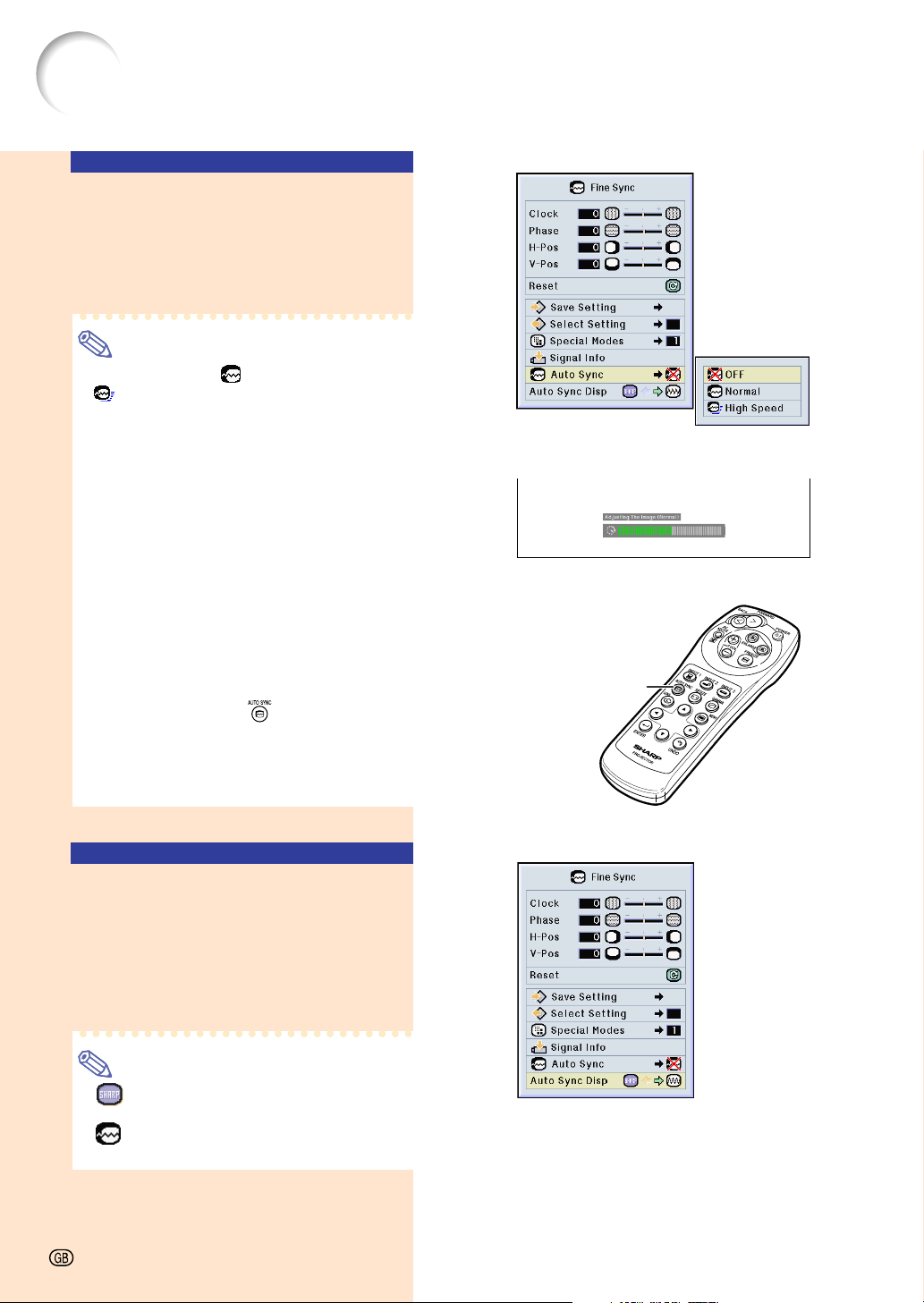
Auto Sync Adjustment
Used to automatically adjust a computer im-
age.
Select “Auto Sync” in the “Fine Sync”
menu ➝ For settings, see page 38.
Note
When setting to “ Normal” or
“
High Speed”:
• Auto Sync adjustment will occur when the
projector is turned on or when the inputs
are switched, when connected to a com-
puter.
Manual adjustments should be per-
formed:
• When the optimum image cannot be
achieved with Auto Sync adjustment. See
page 42.
• Auto Sync adjustment may take some
time to complete, depending on the im-
age of the computer connected to the pro-
jector.
• When setting “Auto Sync” to “OFF” or
“High Speed”, and if
is pressed Auto
Sync will be executed in “High Speed”
mode. If the button is pressed again
within one minute, Auto Sync will be ex-
ecuted in “Normal” mode.
Auto Sync Display
Function
Used to set the screen displayed during Auto
Sync.
Select “Auto Sync Disp” in the “Fine
Sync” menu ➝ For settings, see page 36.
Note
• .....The image set as a background
image is projected.
• ..... The computer image being ad-
justed is displayed.
Adjusting Computer Images (cont.)
AUTO SYNC button
Screen display during Auto Sync
-44
Easy to Use Functions
Easy to Use Functions
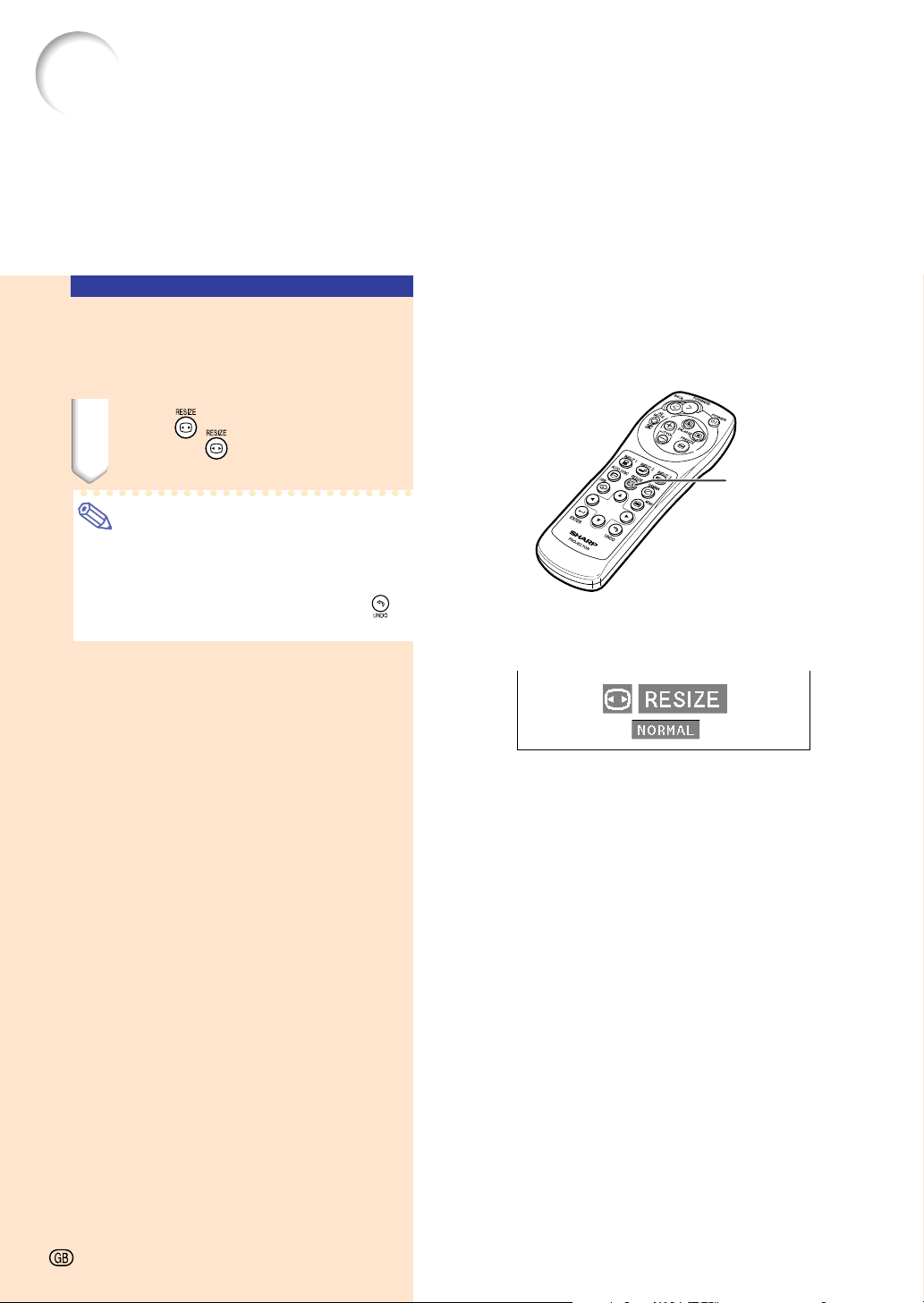
46
Selecting the Picture Display Mode
Switching the Picture
Display Using Different
Input Signals
1 Press
.
• Each time
is pressed, the display
changes as shown on page 47.
Note
• In the Dot by Dot Mode, images are dis-
played in the original resolution, therefore
they will not be enlarged.
• To return to the standard image, press
while “RESIZE” is displayed on the screen.
This function allows you to modify or customize the picture display mode to enhance the
input image. Depending on the input signal, you can choose “NORMAL”, “FULL”, “DOT BY
DOT”, “BORDER”, “STRETCH” or “SMART STRETCH” image.
RESIZE
button
Screen display of the picture display mode
-46
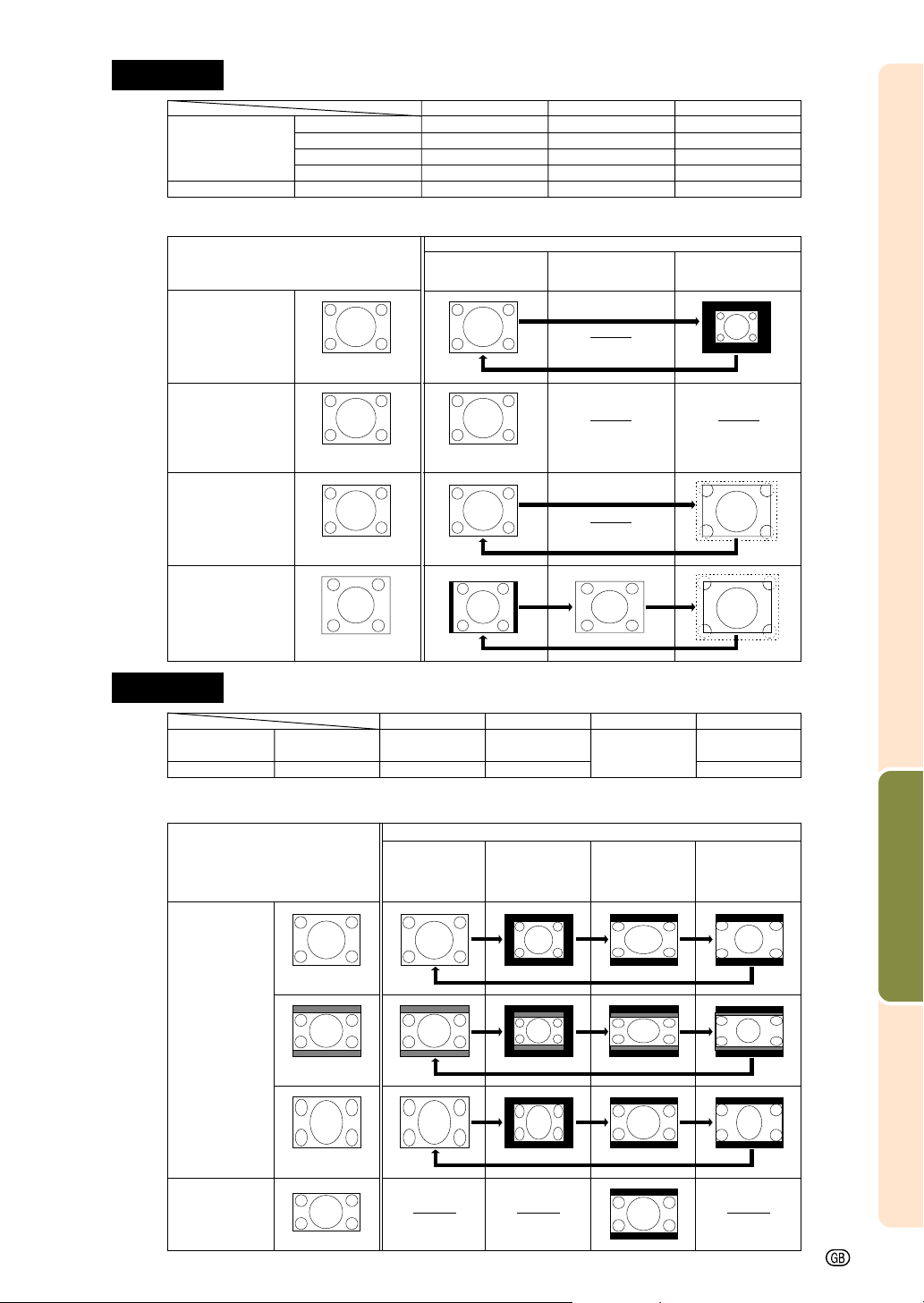
Easy to Use Functions
-47
4:3 aspect ratio
Other aspect ratios
SVGA (800 × 600)
XGA (1024 × 768)
SXGA (1280 × 960)
UXGA (1600 × 1200)
SXGA (1280 × 1024)
NORMAL
1024 × 768
1024 × 768
1024 × 768
1024 × 768
960 × 768
FULL
—
—
—
—
1024 × 768
DOT BY DOT
800 × 600
—
1280 × 960
1600 × 1200
1280 × 1024
480I, 480P, NTSC
PAL, SECAM
720P, 1080I
4:3 aspect ratio.
Letter box, squeeze
16:9 aspect ratio
NORMAL
1024 × 768
—
BORDER
768 × 576*
—
STRETCH
1024 × 576*
SMART STRETCH
1024 × 576*
—
Resolution lower than
XGA
NORMAL
Projects a full screen image
while maintaining the aspect ratio.
FULL
Projects a full screen image
while ignoring the aspect ratio.
DOT BY DOT
Projects the original resolution
signal of the image.
4:3 aspect ratio
Input Signal
Output screen image
XGA
Resolution higher than
XGA
480I, 480P, NTSC,
PAL, SECAM
4:3 aspect ratio
Input Signal
Output screen image
720P, 1080I
Letter box
Squeeze
16:9 aspect ratio
COMPUTER
VIDEO
• “NORMAL” is fixed when XGA (1024 × 768) signals are entered.
• “STRETCH” is fixed when 720P or 1080
I signals are entered.
* The Digital Shift function can be used with these images.
4:3 aspect ratio
4:3 aspect ratio
SXGA (1280 × 1024)
SMART STRETCH
Projects the image fully in a
16:9 screen by enlarging only
the surrounding areas while
keeping the aspect ratio in
the middle part of the image
at 4:3.
NORMAL
Projects a full screen image.
BORDER
Projects 4:3 image fully in
STRETCH (the following
column) image.
STRETCH
Projects 16:9 image evenly
over entire screen
(top/bottom black bands).
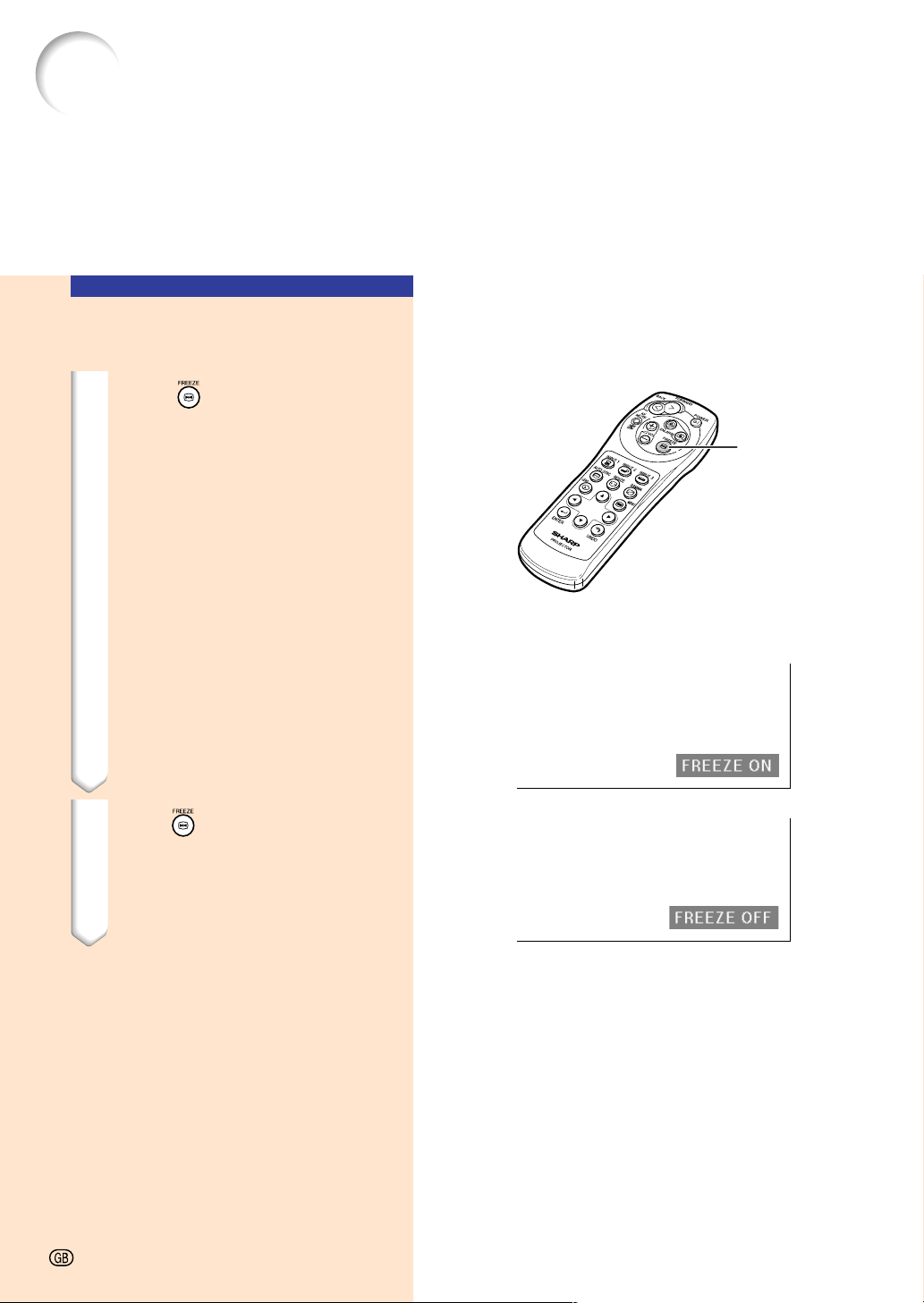
48
Storing an Image in
Still Image Format
1 Press .
• The projected image is frozen.
2 Press again to return to the
moving image from the cur-
rently connected device.
Displaying a Still Image
This function allows you to instantly freeze a moving image. This is useful when you want to
display a still image from a computer or video, giving you more time to explain the image to
the audience.
FREEZE
button
"On-screen Display
-48
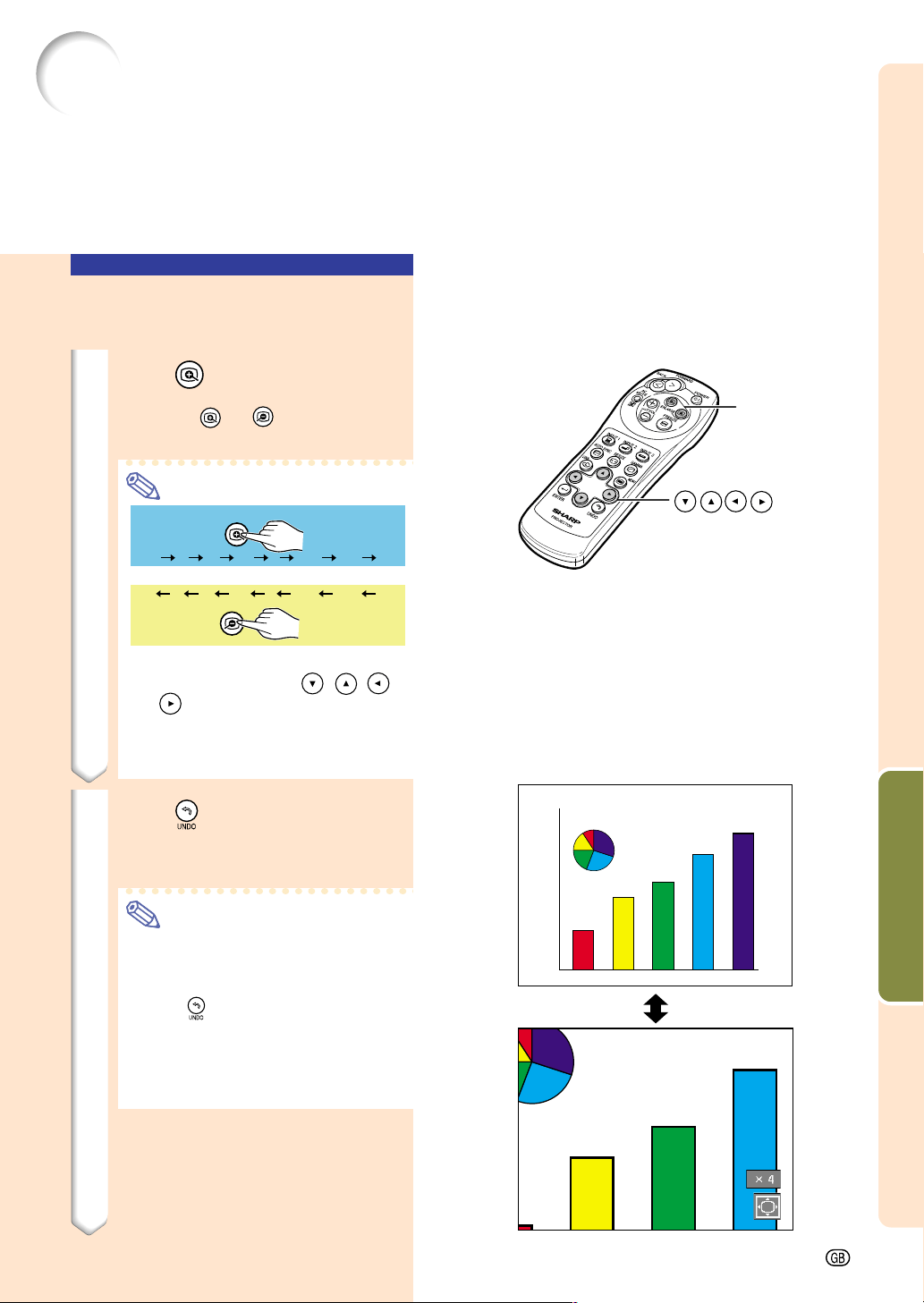
Easy to Use Functions
-49
Enlarging a Specific Portion of an Image
Displaying an Enlarged
Portion of an Image
1 Press
.
• Enlarges the image.
• Pressing
or enlarges or re-
duces the projected image.
Note
• You can change the location of the
enlarged image using
,
,
or
.
• When an SXGA
+
or UXGA image is
displayed, “×2” and “×3” cannot be
selected.
2 Press
to cancel the opera-
tion, then the magnification
returns to ×1.
Note
In the following cases, the image will
return to the normal size (×1).
• When the input mode is changed.
• When
has been pressed.
• When the input signal is changed.
• When the input signal resolution
and refresh rate (vertical frequency)
change.
This function allows you to enlarge a specific portion of an image. This is useful when you
want to display a detailed portion of the image.
ENLARGE
(Enlarge/
Reduce)
buttons
×1 ×4 ×9 ×16 ×36 ×64×2 ×3
To enlarge
To reduce
"On-screen Display
buttons
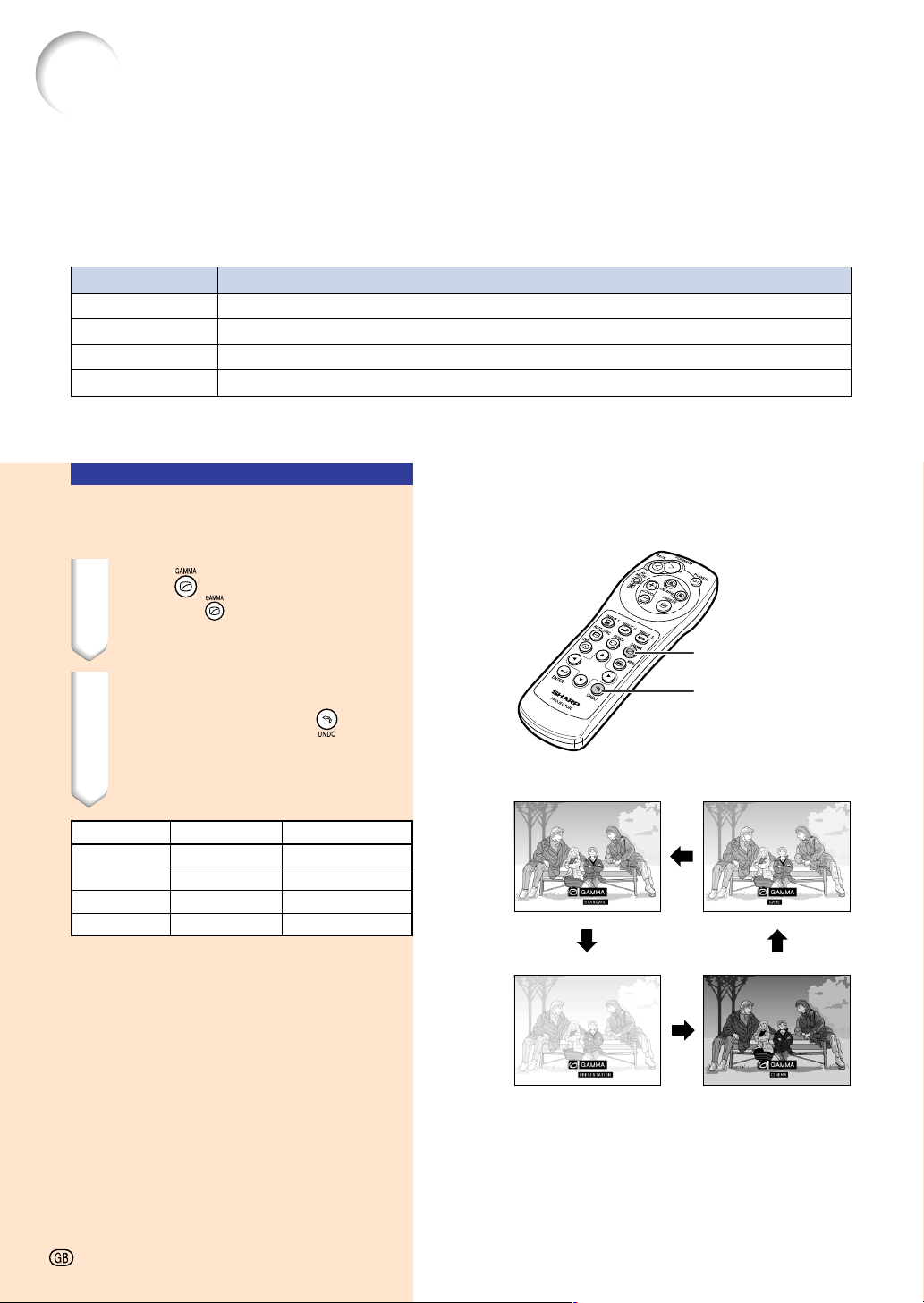
50
Selected Mode
STANDARD
PRESENTATION
CINEMA
GAME
Description
For Standard picture
Brightens darker portions of image for more enhanced presentations.
Gives greater depth to darker portions of image for a more exciting theater experience.
Natural color gradation for playing a game, etc.
Gamma Correction Function
Gamma is an image quality enhancement function that offers a richer image by brightening
the darker portions of the image without altering the brightness of the brighter portions.
When you are displaying images with frequent dark scenes, such as a film or concert, or
when you are displaying images in a bright room, this feature makes the dark scenes easier
to see and gives the impression of greater depth in the image.
GAMMA button
UNDO button
STANDARD GAME
PRESENTATION CINEMA
-50
INPUT mode
INPUT signal GAMMA mode
INPUT1
RGB
PRESENTATION
Component
CINEMA
INPUT2 S-Video STANDARD
INPUT3 Video STANDARD
Adjusting Gamma
Correction
1 Press .
• Each time is pressed, the gamma
level toggles between the different
types of gamma modes.
2 Depending on the input mode
and signal, pressing
while
“GAMMA” is displayed will re-
turn you to the respective
gamma mode.
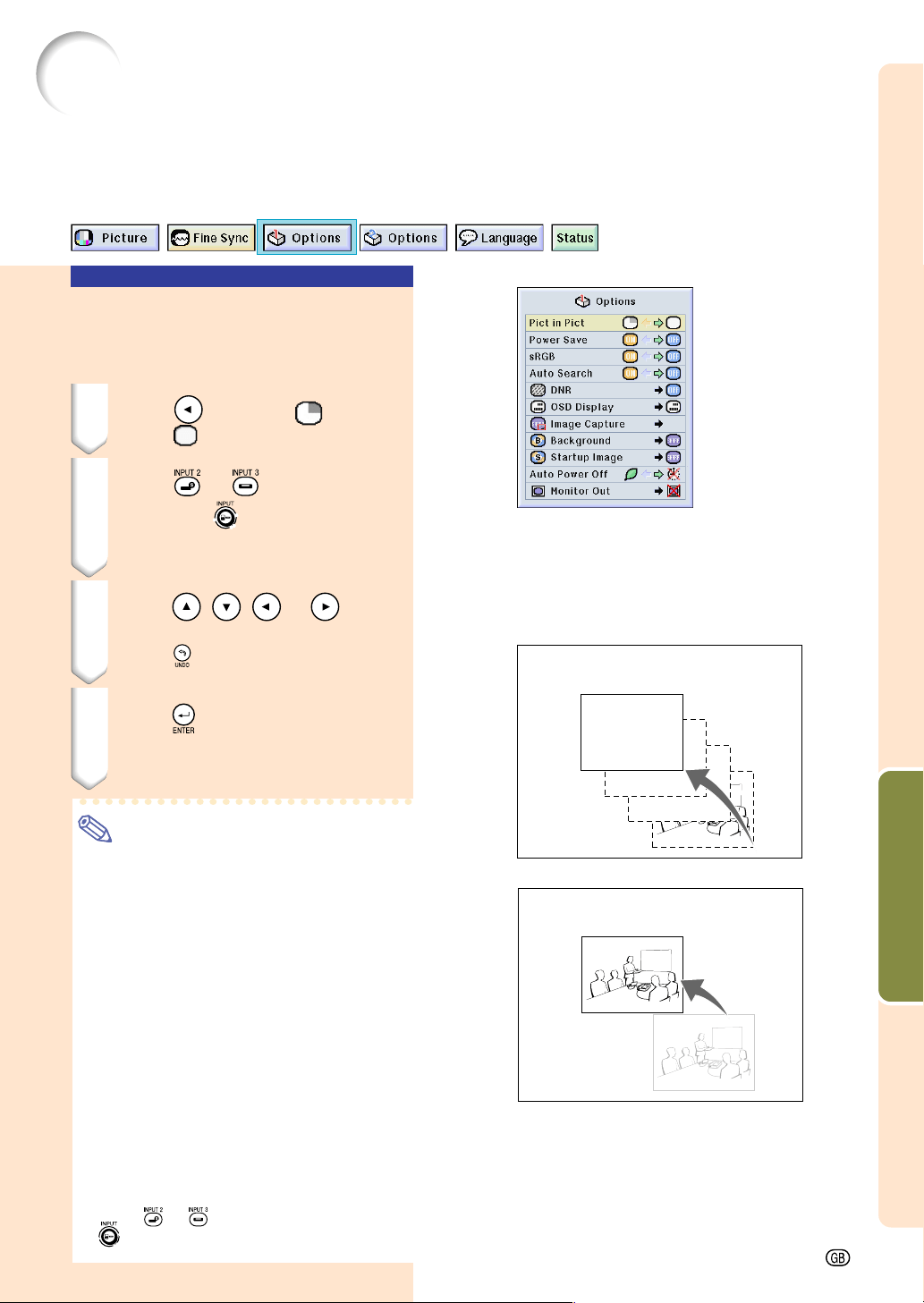
Easy to Use Functions
-51
Displaying Dual Pictures (Pict in Pict)
Picture in Picture function allows you to display two pictures on the same screen. You can
display the image input from INPUT 2 or 3 as an inset picture overlapping the main picture
from INPUT 1. (This function can only be set in the RGB menu.)
Displaying the Inset Picture
Select “Pict in Pict” in the “Options (1)”
menu ➝ For displaying, see page 36.
1 Press
to select .
• Select to clear the Pict in Pict mode.
2 Press or on the remote
control or
on the projector
to switch the image in the inset
picture.
3 Press
,
,
or
to set
the position of the inset picture.
• Press
to stop the frame from mov-
ing or to make the frame disappear.
4 Press
to move the inset pic-
ture.
• The inset picture will be moved to the
inset picture frame.
Note
• The inset picture can only be displayed
with composite video (NTSC/PAL/
SECAM) or S-Video signal.
• The Freeze function works only with the
inset picture, when the Pict in Pict mode
is in operation.
When the signal entered into INPUT 1 is
as follows, Pict in Pict does not work:
• With a resolution that overexceeds
SXGA.
• When the input signal is 480
I, 480P,
720P or 1080I.
• When the input signal has changed to
the Interlace mode using RGB signals.
• When the picture display mode is set to
“DOT BY DOT”.
• When no signals are sent to INPUT 1,
or when the resolution or refresh rate
(vertical frequency) is changed.
• Press
or
on the remote control or
on the projector to switch the image
in the inset picture.
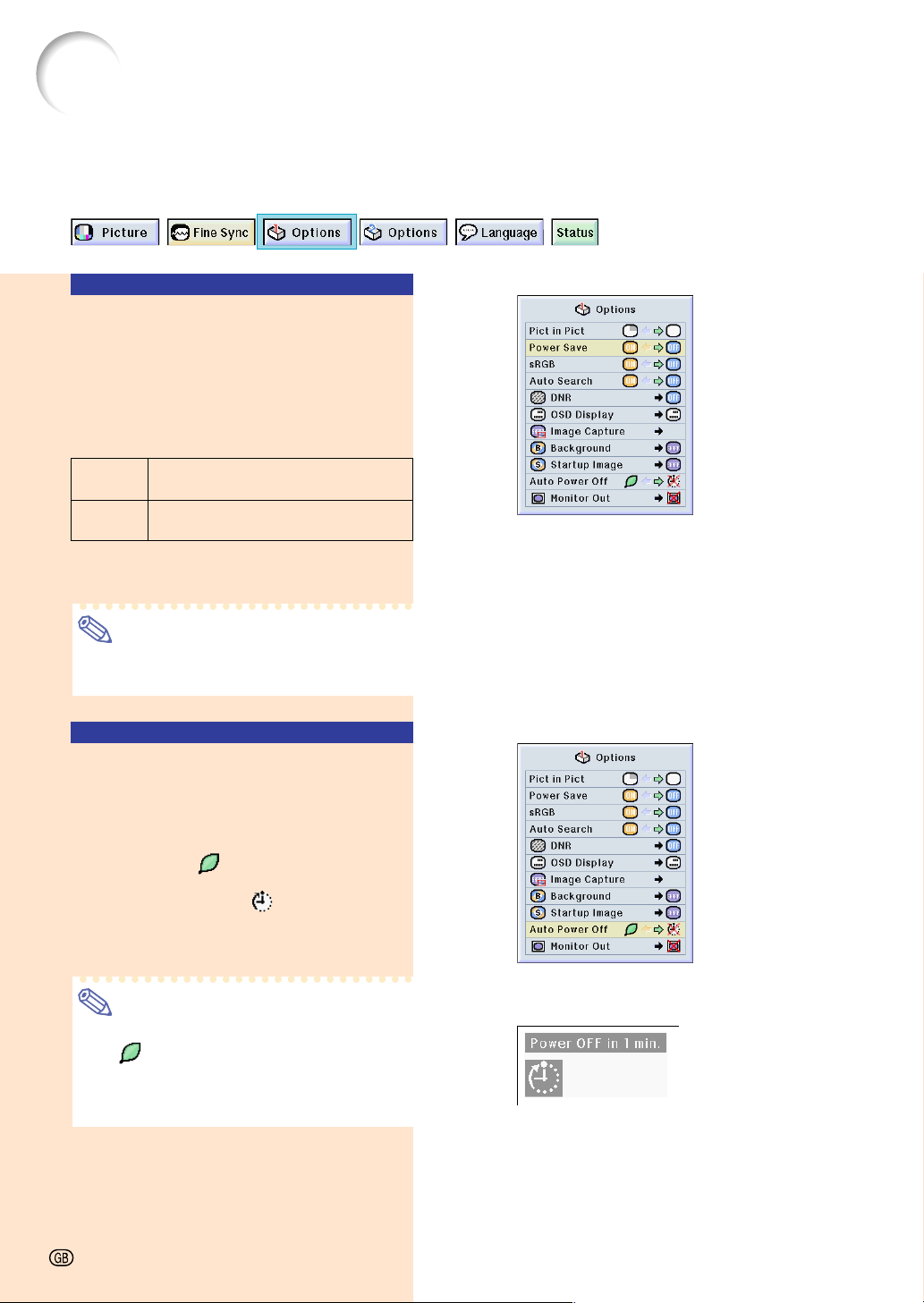
52
Selecting the Power Save Mode
The Power Save Mode or the Automatic Power Shutoff function allows you to reduce the
power consumption of the projector.
Setting the Power Save
Mode
Function to control the quantity of projected
light. Select “ON” or “OFF” to decrease or
increase brightness and power consumption.
Description of Power Save Modes
ON
Quantity of light is 80%.
Power consumption is 250W.
OFF
Quantity of light is 100%.
Power consumption is 290W.
Select “Power Save” in the “Options (1)”
menu ➝ For settings, see page 36.
Note
• “Power Save” mode is factory preset to
“OFF”.
Automatic Power
Shutoff Function
When no input signal is detected for more than
15 minutes, the projector will automatically
shut off if set to “
(On)”.
The Auto Power Off function will be disabled
when it has been set to “
(Off)”.
Select “Auto Power Off” in the “Options (1)”
menu ➝ For settings, see page 36.
Note
• When the Auto Power Off function is set
to “
(On)”, 5 minutes before the power
turns off, the message “Power OFF in X
min.” will appear on the screen to indicate
the remaining minutes.
-52
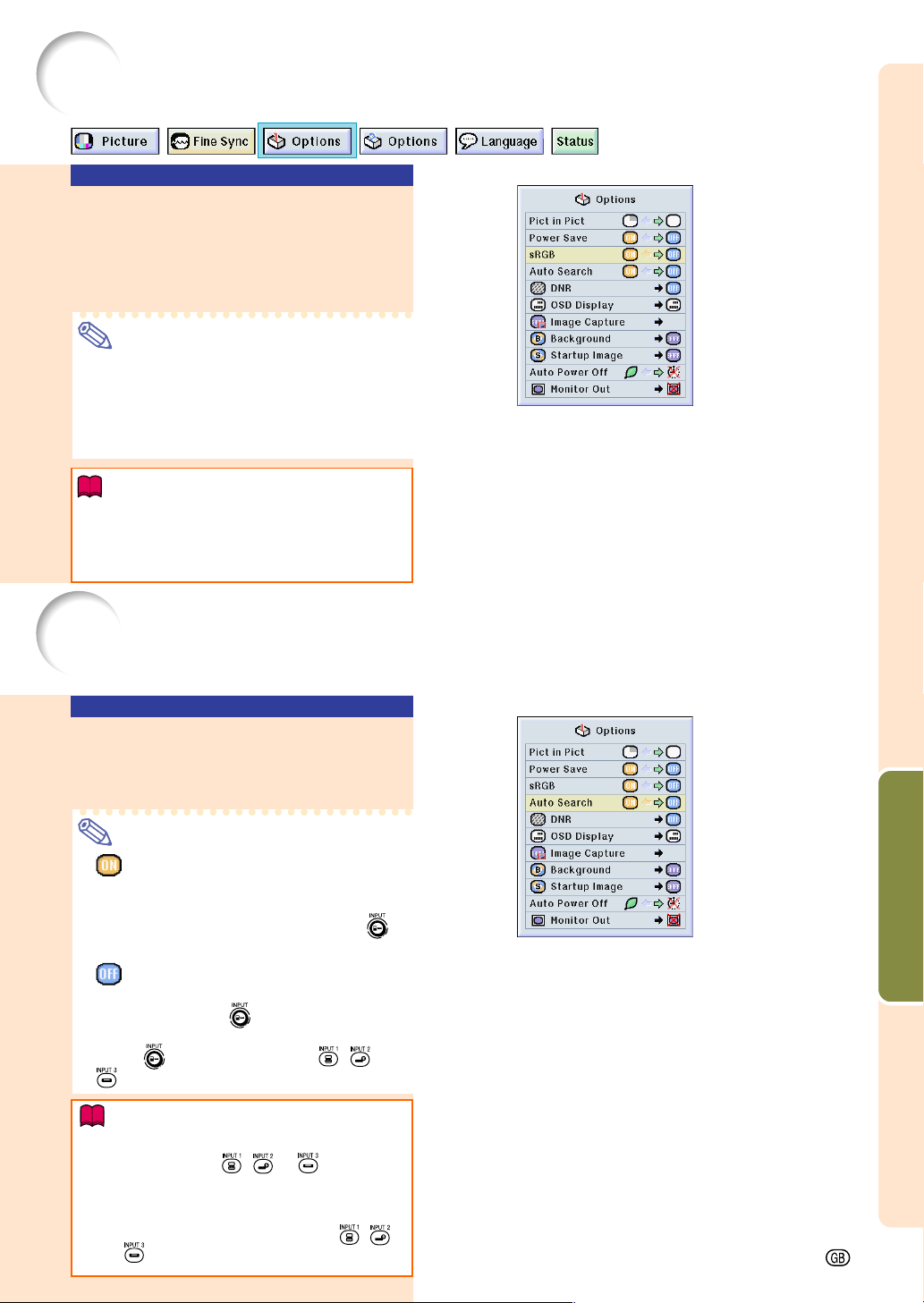
Easy to Use Functions
-53
Activating the sRGB Color Management Function
This function calibrates the projector’s output to conform to sRGB standard (6,500K).
Using Auto Search
Select “Auto Search” in the “Options
(1)” menu ➝ For settings, see page 36.
Note
• ON
Automatically switches to the input mode
in which signals are being received, when
turning on the projector or pressing
on the projector.
• OFF
For switching input modes manually in
order by pressing
on the projector.
• To stop searching for the input mode,
press
on the projector, or ,
or
on the remote control.
Info
•
Even while this function is searching for input
signals, whenever
,
or
on the re-
mote control is pressed, the input mode is
switched to the respective one.
• Even while the function is searching for input
signals, pressing any buttons besides
,
and
returns to the previous input mode.
Auto Search Function
This function automatically searches for and switches to the input mode in which signals are
being received, when the projector is turned on, or when the INPUT button is pressed.
Setting the Color Manage-
ment Function (sRGB)
Select “sRGB” in the “Options (1)” menu
➝ For settings, see page 36.
Note
• When setting sRGB to “ON”, the pro-
jected image may become dark; however,
this does not indicate a malfunction.
•
For additional information about sRGB
function, please visit “http://www.srgb.com/”.
Info
When “sRGB” is set to “ON”;
• The gamma correction cannot be set.
• “Red”, “Blue” or “CLR Temp” in “Picture”
cannot be adjusted.
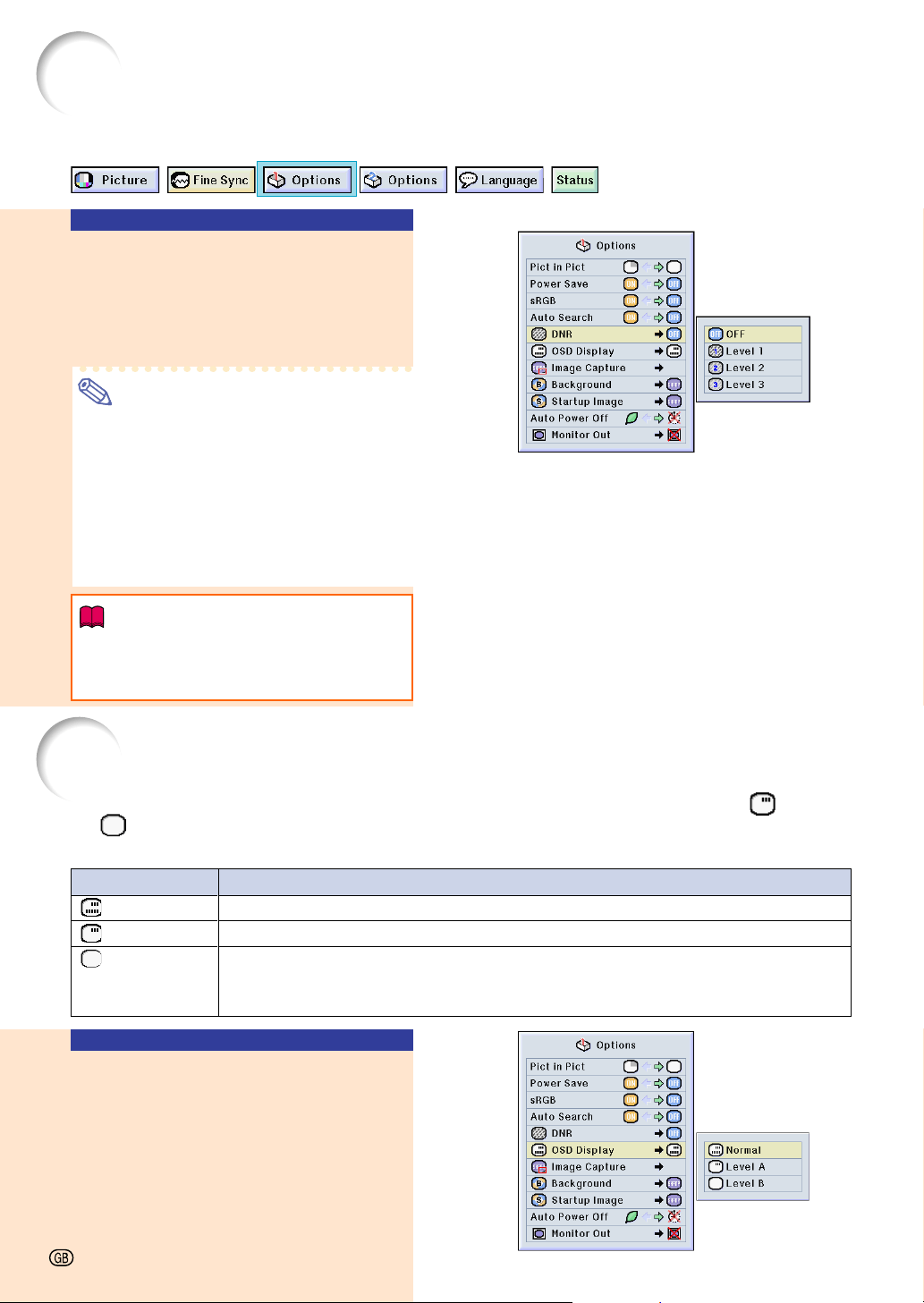
54
Video Digital Noise Reduction (DNR) System
Reducing Image Noise
(DNR)
Select “DNR” in the “Options (1)”
menu ➝ For settings, see page 38.
Note
• Set a level so as to view a clearer picture.
Make sure to set DNR to “OFF” in the fol-
lowing cases:
• When the image is blurry.
• When the contours and colors of moving
images drag.
• When TV broadcasts with weak signals
are projected.
Info
• This function is available with INPUT 1
(480
I and 480P signals) and INPUT 2, 3
(all signals).
Digital Noise Reduction (DNR) provides high quality images with minimal dot crawl and cross
color noise.
This function allows you to turn on or off the on-screen messages. When setting “ Level A”
or “ Level B” in “OSD Display”, the input mode display (e.g. INPUT 1) will not appear, even
if the INPUT button is pressed.
Turning Off the
On-screen Display
Select “OSD Display” in the “Options
(1)” menu ➝ For settings, see page 38.
Setting the On-screen Display
Selected Item
Normal
Level A
Level B
Description
All On-screen Displays are displayed.
Input/Freeze/Enlarge/Auto Sync/Volume/AV Mute are not displayed.
All On-screen Displays are not displayed.
(except Menu, On-screen displays displayed when the LENS button is pressed and
warning displays (Power off/Temp./Lamp, etc.))
-54
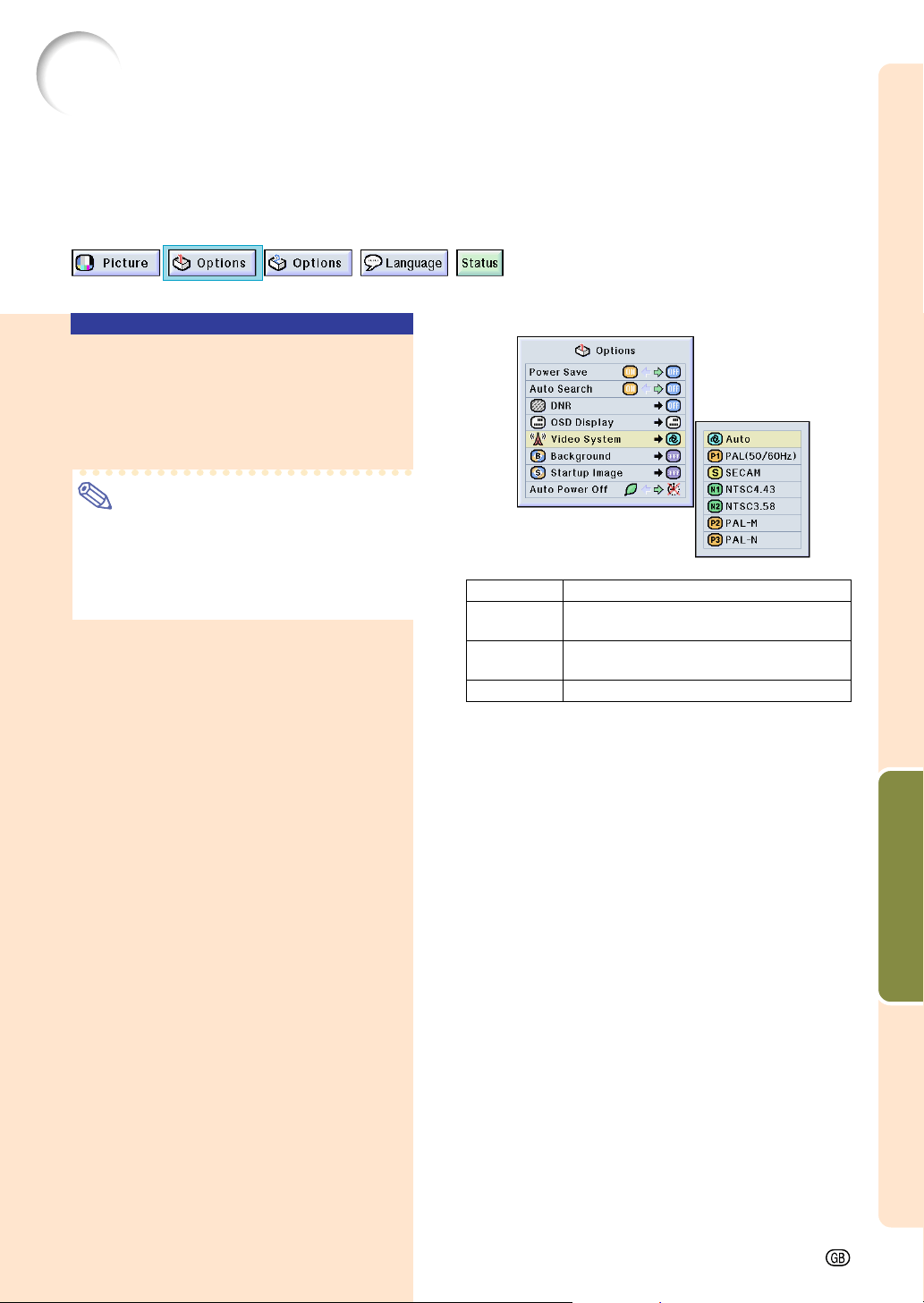
Easy to Use Functions
-55
Setting the Video Signal
Setting the Video
Signal
Select “Video System” in the “Options
(1)” menu ➝ For settings, see page 38.
Note
• The video signal can only be set in IN-
PUT 2 or INPUT 3 mode.
• In “Auto”, images are displayed in PAL
even if PAL-N or PAL-M input signals are
received.
When connected to PAL video equipment.
When connected to SECAM video
equipment.
When reproducing NTSC signals in
PAL video equipment.
When connected to NTSC video equipment.
PA L
SECAM
NTSC4.43
NTSC3.58
The video input system mode is preset to “Auto”; however, a clear picture from the con-
nected audio-visual equipment may not be received, depending on the video signal differ-
ence. In that case, switch the video signal.
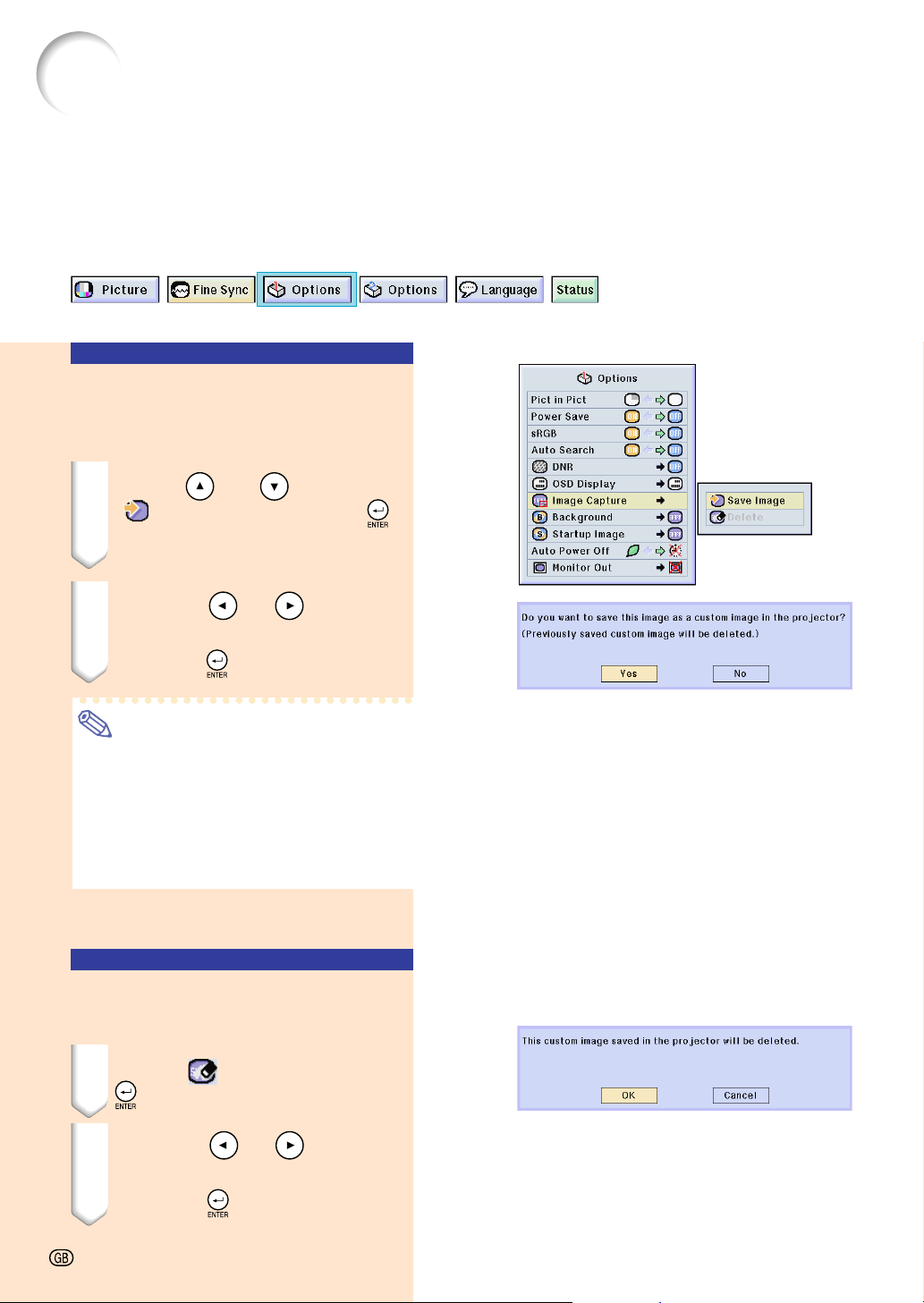
56
Saving Projected Images
• This projector allows you to capture projected images (RGB signals) and set them as a
startup image, or background image when no signals are being received.
• You can capture the images that are input using analog RGB signals and Digital DVI XGA
signals.
Capturing the Image
Select “Image Capture” in the “Options
(1)” menu ➝ For details, see page 38.
1 Press
or
to select
“
Save Image” and press
.
• The projected image is captured. It
may take some time for capturing.
2
11
11
1 Press
or
to select
“Yes”.
22
22
2 Press
.
Note
• This function only works in 1024 x 768
(XGA) with the exception of 43 Hz vertical
which is a interlaced signal.
• The saved image is reduced to 256 col-
ors.
• Images from equipment connected to IN-
PUT 2 or INPUT 3 cannot be captured.
Deleting the Captured
Image
1 Select “ Delete” and press
.
2
11
11
1 Press
or
to select
“OK”.
22
22
2 Press
.
-56
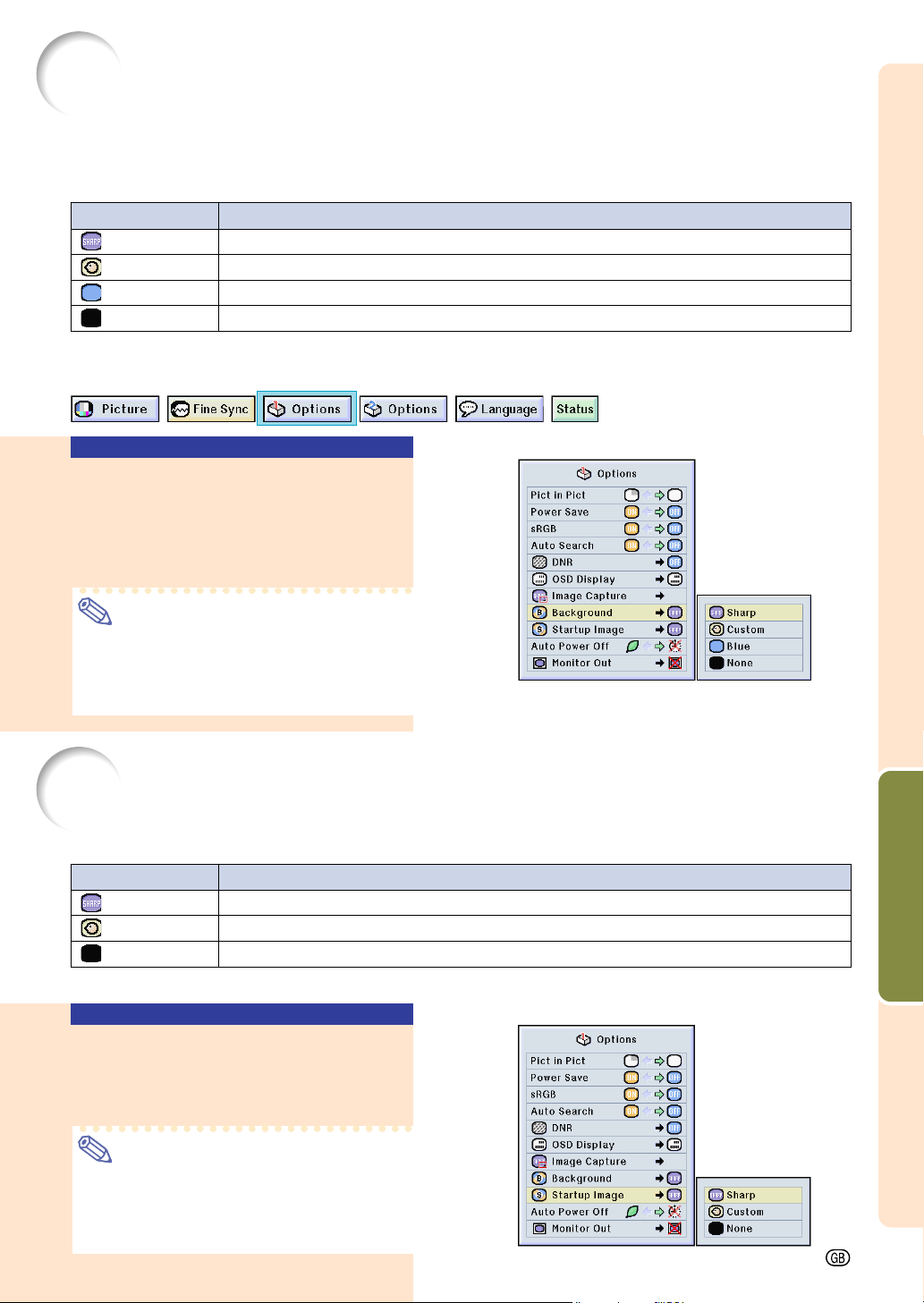
Easy to Use Functions
-57
Setting a Background Image
This function allows you to select the image displayed when no signal is being sent to the
projector.
*1 You can set a captured image as a background image in “Image Capture”.
*2 If the input signal has interference, the screen will be displayed with the interference.
Selecting a
Background Image
Select “Background” in the “Options
(1)” menu ➝ For settings, see page 38.
Note
•When “Custom” is selected, an image
saved using “Image Capture” can be dis-
played as a background image.
•
A “Custom” image is preset as a black screen.
Selecting a Startup Image
This function allows you to specify the image to be displayed upon the projector’s startup.
* You can set a captured image as a startup image by selecting "Custom".
Selecting a Startup Image
Select “Startup Image” in the “Options
(1)” menu ➝ For settings, see page 38.
Note
• When “Custom” is selected, an image
saved using “Image Capture” can be dis-
played as a startup image.
•
A “Custom” image is preset as a black screen.
Selected Item
Sharp
Custom
*1
Blue
None
Description
SHARP default image
User customized image (i.e. company logo)
Blue screen
Black screen
*2
Selected Item
Sharp
Custom *
None
Description
SHARP default image
User customized image (i.e. company logo)
Black screen
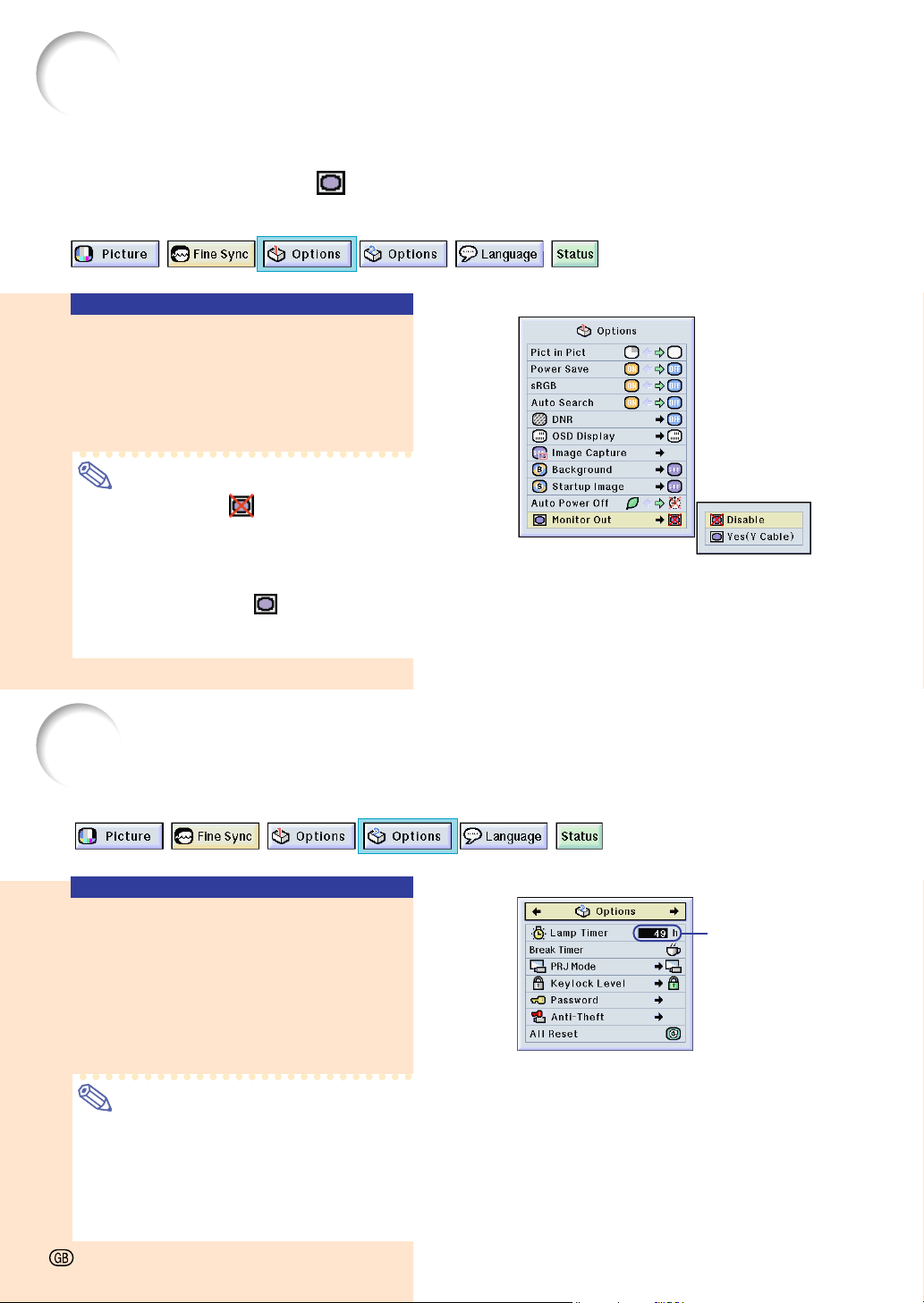
58
Lamp Usage Time
Using an RGB monitor loop-out adaptor (sold separately) and an RGB cable (commercially
available), be sure to set to “ Yes (Y Cable)” when you want to display computer images
both on the projector and on a monitor.
Using a RGB Monitor
Loop-out Adaptor
Select “Monitor Out” in the “Options (1)”
menu ➝ For settings, see page 38.
Note
• Be sure to set to “ Disable” when not
using an RGB monitor loop-out adaptor.
• If the setting is not correct, the image may
be dark, too bright or whitish. This does
not indicate malfunction.
• Make sure to set to “
Yes (Y Cable)”
when using the RGB monitor loop-out
adaptor.
Using an RGB Monitor Loop-out Adaptor
Confirming the Lamp
Usage Time
This function allows you to check the lamp us-
age time.
Select “Options (2)” menu to see the
lamp usage time.
Note
• It is recommended that the lamp be
changed after approximately 1,900 cumu-
lative hours of use.
For lamp replacement, contact your near-
est Sharp Authorized Projector Dealer or
Service Center.
Displaying the Lamp Usage Time
-58
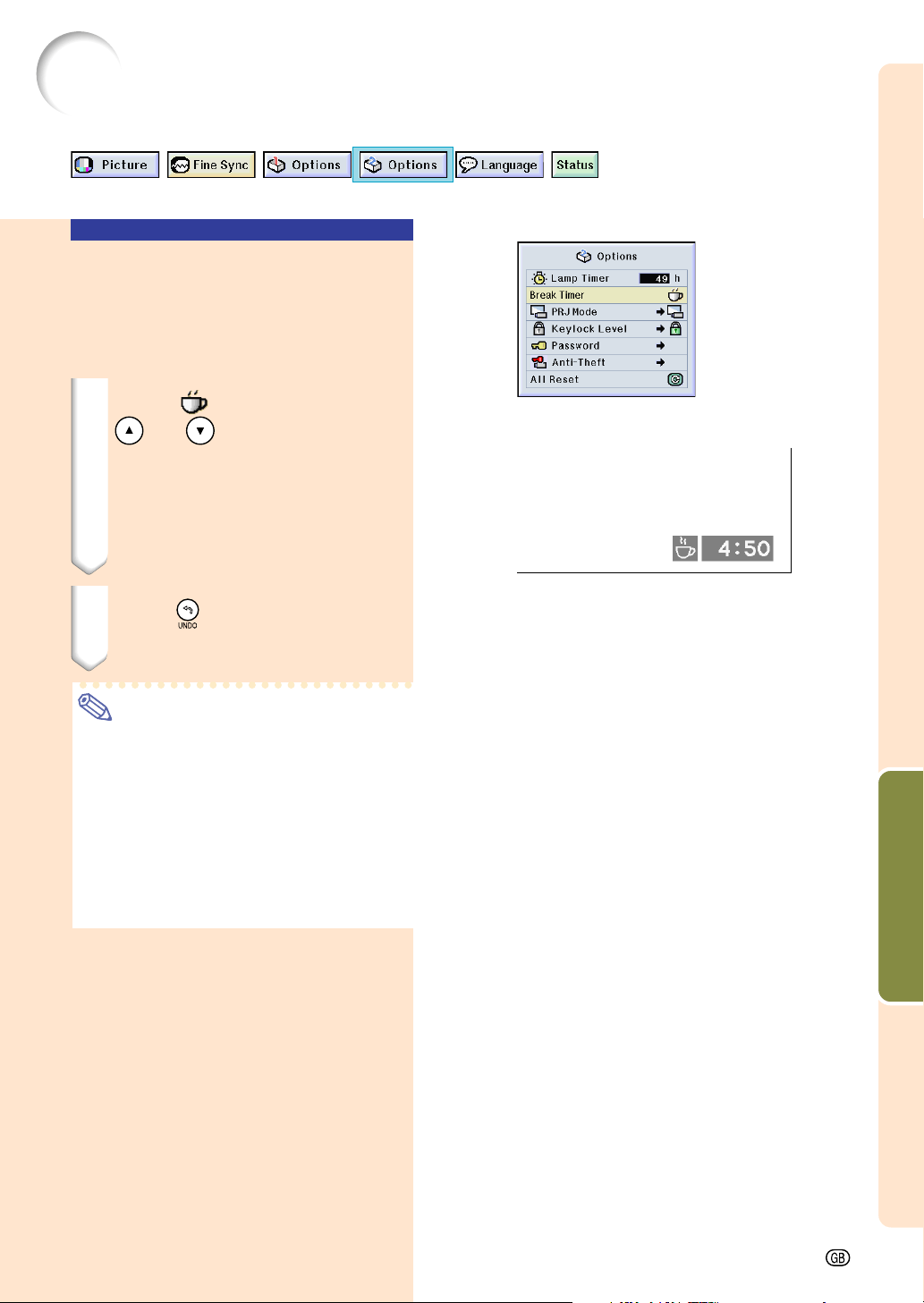
Easy to Use Functions
-59
Displaying the Break Timer
"On-screen Display
Displaying and Setting
the Break Timer
Select “Break Timer” from the “Options
(2)” menu ➝ For details, see page 36.
1 When
“ ”
is displayed, press
or
to set the Break
Timer.
• You can set anywhere between 1 and
60 minutes (in 1 minute units).
2 Press
to cancel the Break
Timer.
Note
• Auto Power Off will be temporarily dis-
abled during the Break Timer.
If no signal transmission occurs for more
than 15 minutes after the Break Timer has
completed, the projector will turn off.
• The Break Timer will be displayed on the
startup image. To change the screen dis-
played during the Break Timer, change
the setting of “Startup Image” (see page
57).
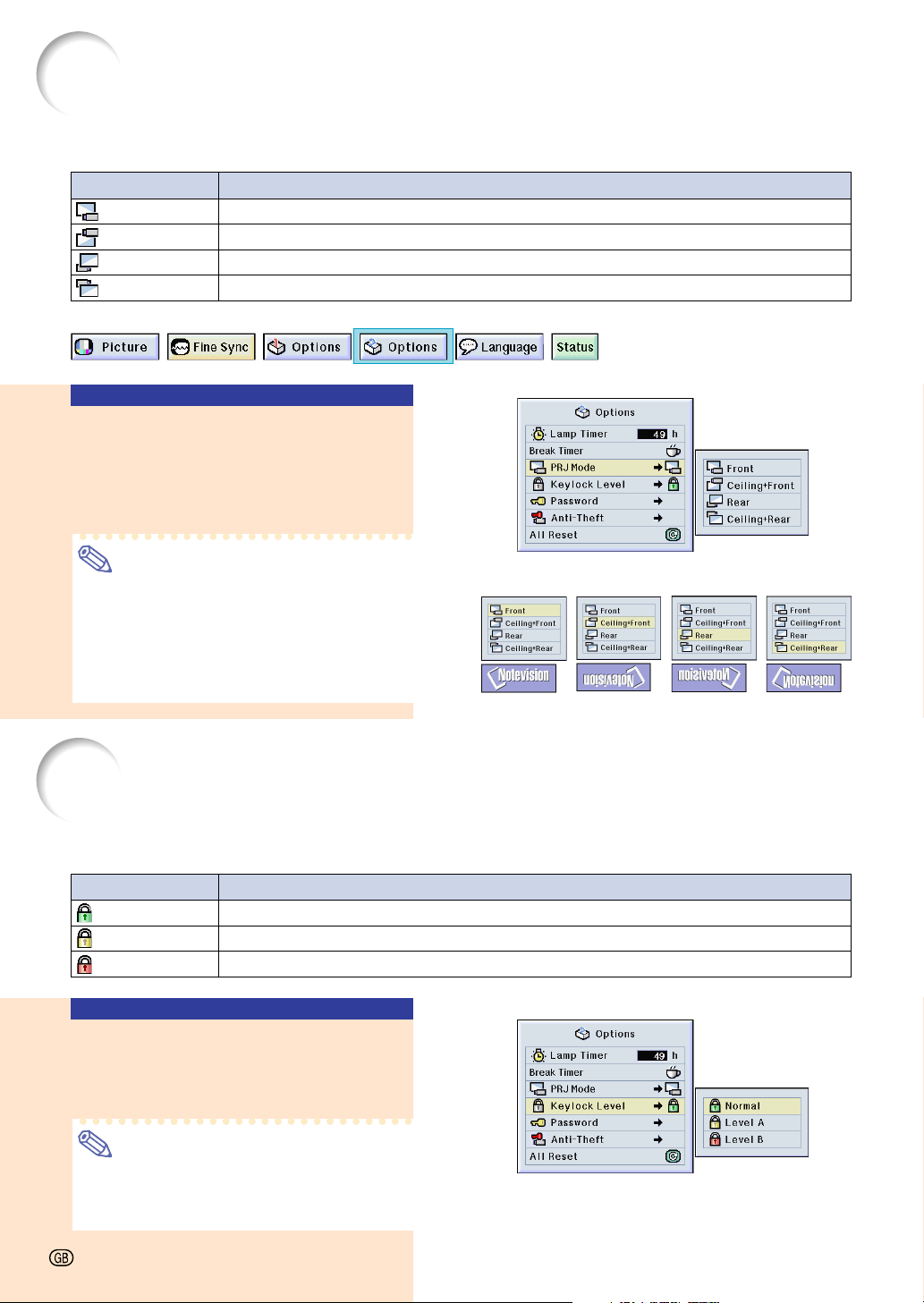
Reversing/Inverting Projected Images
This projector is equipped with a reserve/invert image function that allows you to reverse or
invert the projected image for various applications.
Setting the Projection
Mode
Select “PRJ Mode” in the “Options (2)”
menu ➝ For settings, see page 38.
Note
• If a password has been set, the password
input box will be displayed when select-
ing the “PRJ Mode”.
• This function is used for the reversed im-
age and ceiling-mount setups. See page
19 for these setups.
Locking the Operation Buttons on the Projector
This function can be used to lock the use of certain operation buttons on the projector.
The following are the three keylock levels.
Setting up the Keylock
Select “Keylock Level” in the “Options
(2)” menu ➝ For settings, see page 38.
Note
• If a password has been set, the password
input box will be displayed when select-
ing the “Keylock Level”.
Selected Item
Front
Ceiling + Front
Rear
Ceiling + Rear
Description
Normal image
Inverted image
Reversed image
Reversed and inverted image
Keylock Level
Normal
Level A
Level B
Description
All operation buttons are functional.
Only INPUT/VOLUME/AV MUTE buttons on the projector are available.
All operation buttons on the projector are unavailable.
Front Ceiling+Front Rear Ceiling+Rear
-60
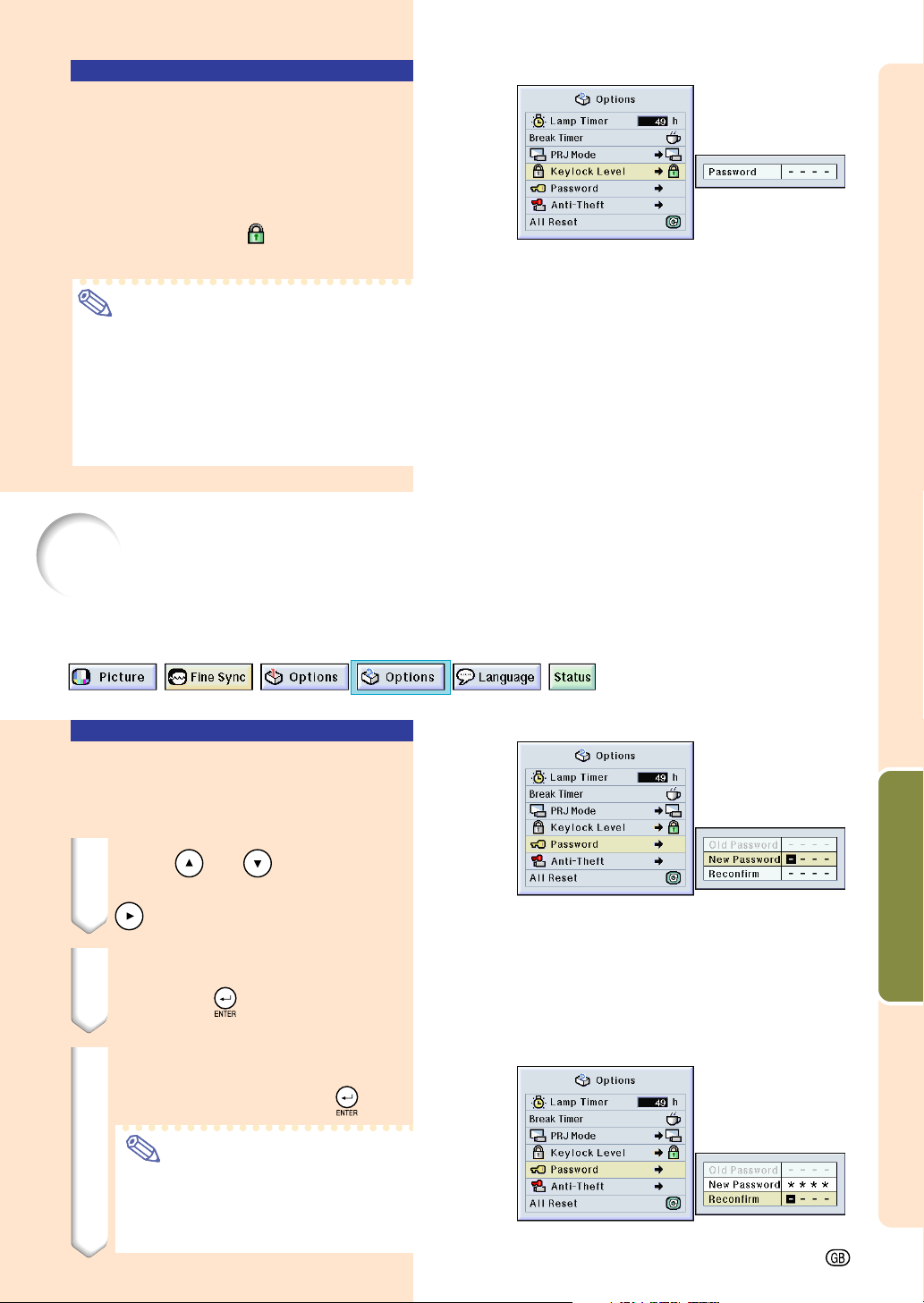
Easy to Use Functions
-61
Canceling the Keylock
Setting
When the Keylock Level is set to “Normal”,
all buttons are functional.
Select “Keylock Level” in the “Options
(2)” menu and set
“ Normal”
. ➝ For
settings, see page 38.
Note
• When a password has been set, and
“Keylock Level” is selected, the password
input box will be displayed.
• If both a password and the Keylock Level
have been set at the same time, the pass-
word will be necessary before changing
the Keylock Level.
Setting up a Password
A password can be set by the user to prevent adjustments to certain settings on the “Options
(2)” menu. Using a password together with the Keylock Level (page 60) is more effective.
Entering the Password
Select “Password” in the “Options (2)”
menu ➝ For details, see page 38.
1 Press
or
to select the
desired number and then press
.
2 Enter the 3 remaining digits
and press
.
3 Enter the password again in
“Reconfirm” and press
.
Note
• When a password is set, you need
to enter the password to change
“PRJ Mode”, “Keylock Level”, “Anti-
Theft” and “All Reset” settings.
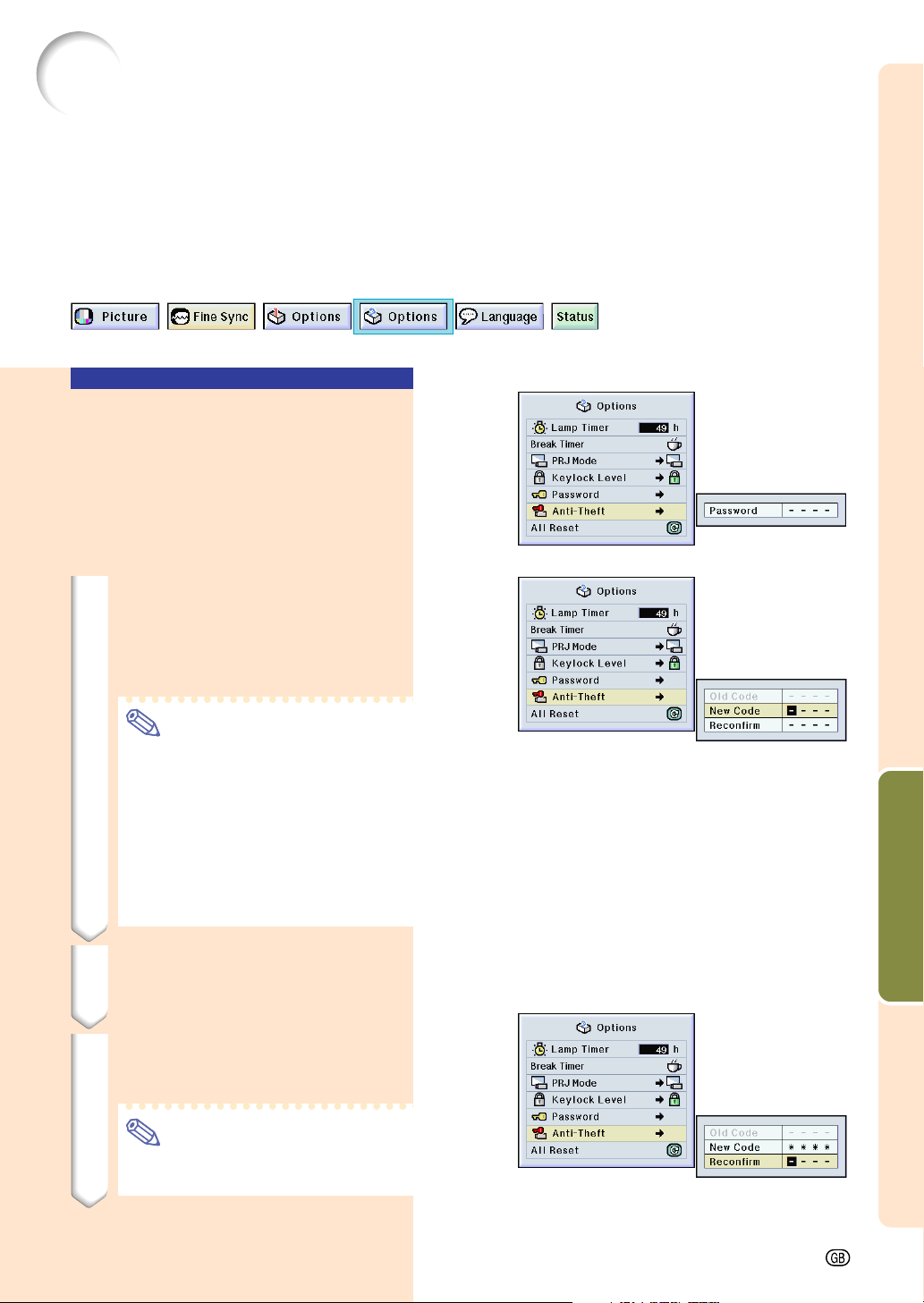
Easy to Use Functions
-63
Setting the Anti-Theft
The anti-theft function prevents unauthorized use of the projector. You can choose to use
this function or not. If you do not want to use this function, just do not enter the keycode.
Once the theft-deterrent function is activated, users will need to enter the correct keycode
each time the projector is started. Failure to enter the correct keycode will prevent images
from being projected. The following procedures explain how to use this function.
Entering the Keycode
• “Anti-Theft” cannot be selected unless
“Password” is set. (See page 61.)
• When “Anti-Theft” is selected, the password
input box will appear. Enter the keycode af-
ter the right password is entered.
Select “Anti-Theft” in the “Options (2)”
menu ➝ For details, see page 38.
1 Press any button you like on
the remote control or projec-
tor to set the first digit in “New
Code”.
Note
• The following buttons on the remote
control and projector cannot be set
as keycodes:
• POWER button
• ENTER button
• UNDO button
• MENU button
• FORWARD button
• BACK button
2 Enter the remaining 3 digits by
pressing any buttons you like.
3 Enter the same keycode once
more in “Reconfirm”.
Note
• The Keylock function will become
temporarily disabled.
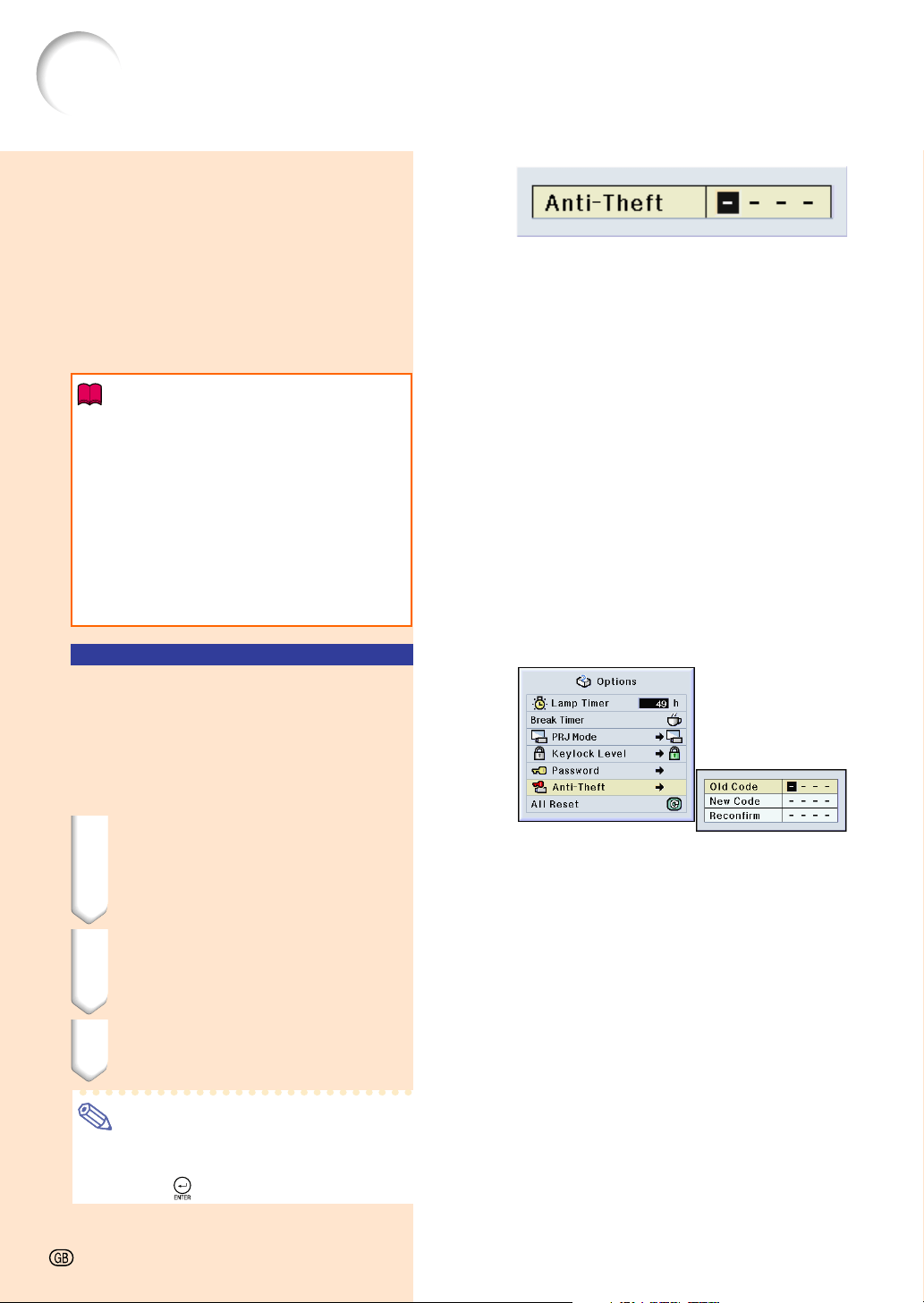
Setting the Anti-Theft (cont.)
When “Anti-Theft” is set, the keycode
inputting section appears after the
power is turned on. At that time, enter
the right keycode.
• Press the buttons on the remote control if
the buttons on the remote control are used
for setting the keycode. In the same manner,
press the buttons on the projector if the
buttons on the projector are used for setting
the keycode.
Info
• Once the function is activated, you must
remember the correct keycode. We
suggest you record the keycode in a safe
place where only authorized users will
have access. If you lose or forget your
keycode, you will need to contact your
nearest Sharp Authorized Projector Dealer
or Service Center (see page 78). You may
need to bring your projector to them to
restore the projector to original factory
condition (password and keycode reset).
Changing the Keycode
• When “Anti-Theft” is selected, the password
input box is displayed. After the password has
been entered, you can change the keycode.
Select “Anti-Theft” in the “Options (2)”
menu ➝ For details, see page 38.
1 Press the buttons on the
remote control or the projector
to enter the preset 4-digit
keycode in “Old Code”.
2
Press any button you like on the
remote control or the projector
to enter the new keycode.
3 Enter the same 4-digit keycode
in “Reconfirm”.
Note
• If you do not want to set a keycode, leave
the keycode field blank in steps 2 and 3
and press
.
-64
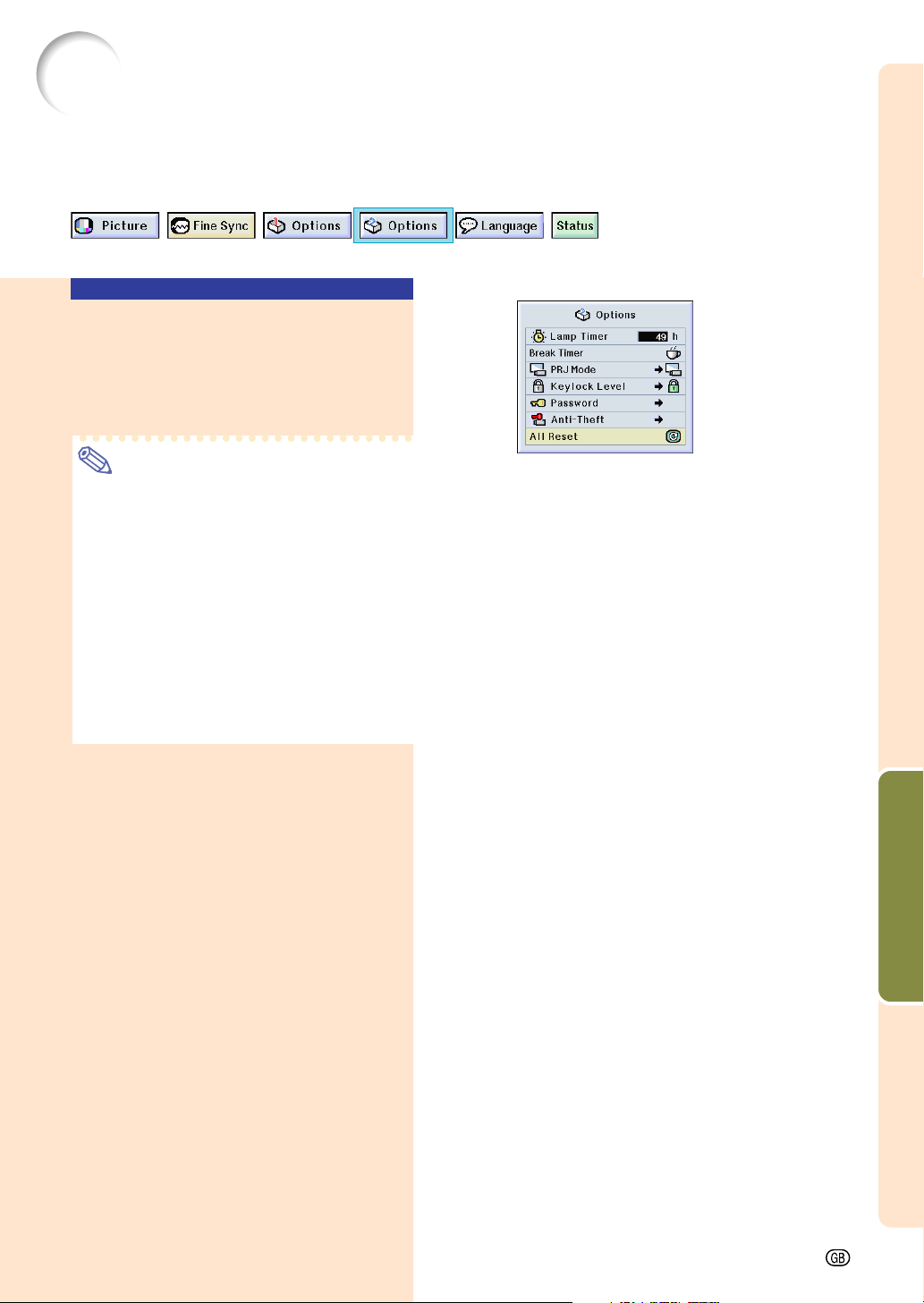
Easy to Use Functions
-65
Initializing the Settings
This function allows you to initialize the settings you have made in the projector.
Returning to the
Default Settings
Select “All Reset” in the “Options (2)”
menu ➝ For resetting, see page 36.
Note
• If a password has been set, the pass-
word input box will be displayed when
selecting “All Reset”.
The following items cannot be initialized.
• Fine Sync
• Special Modes
• Signal Info
• Options
• Lamp Timer
• Anti-Theft
• Language
• Image stored using “Image Capture”
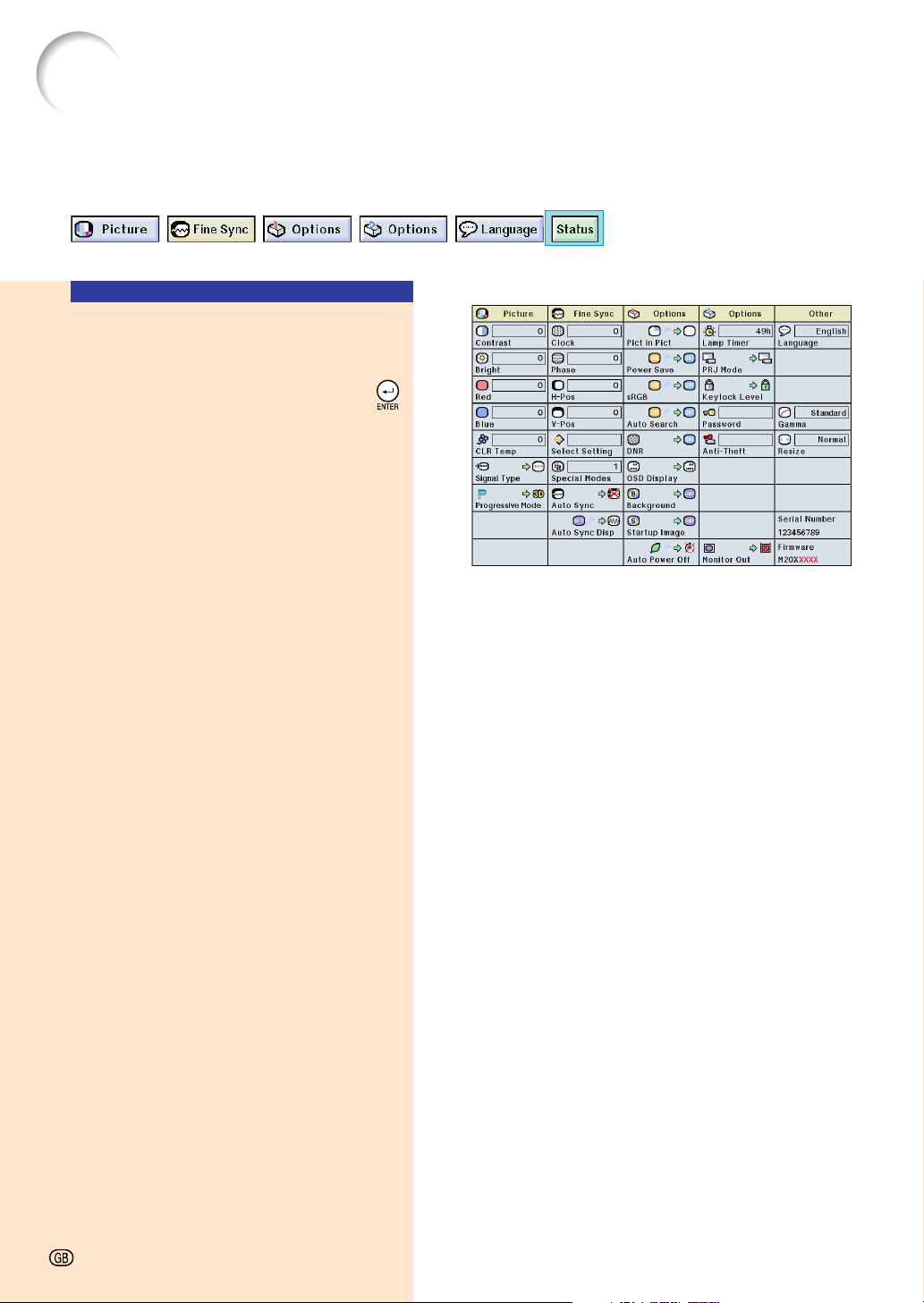
Appendix
Appendix
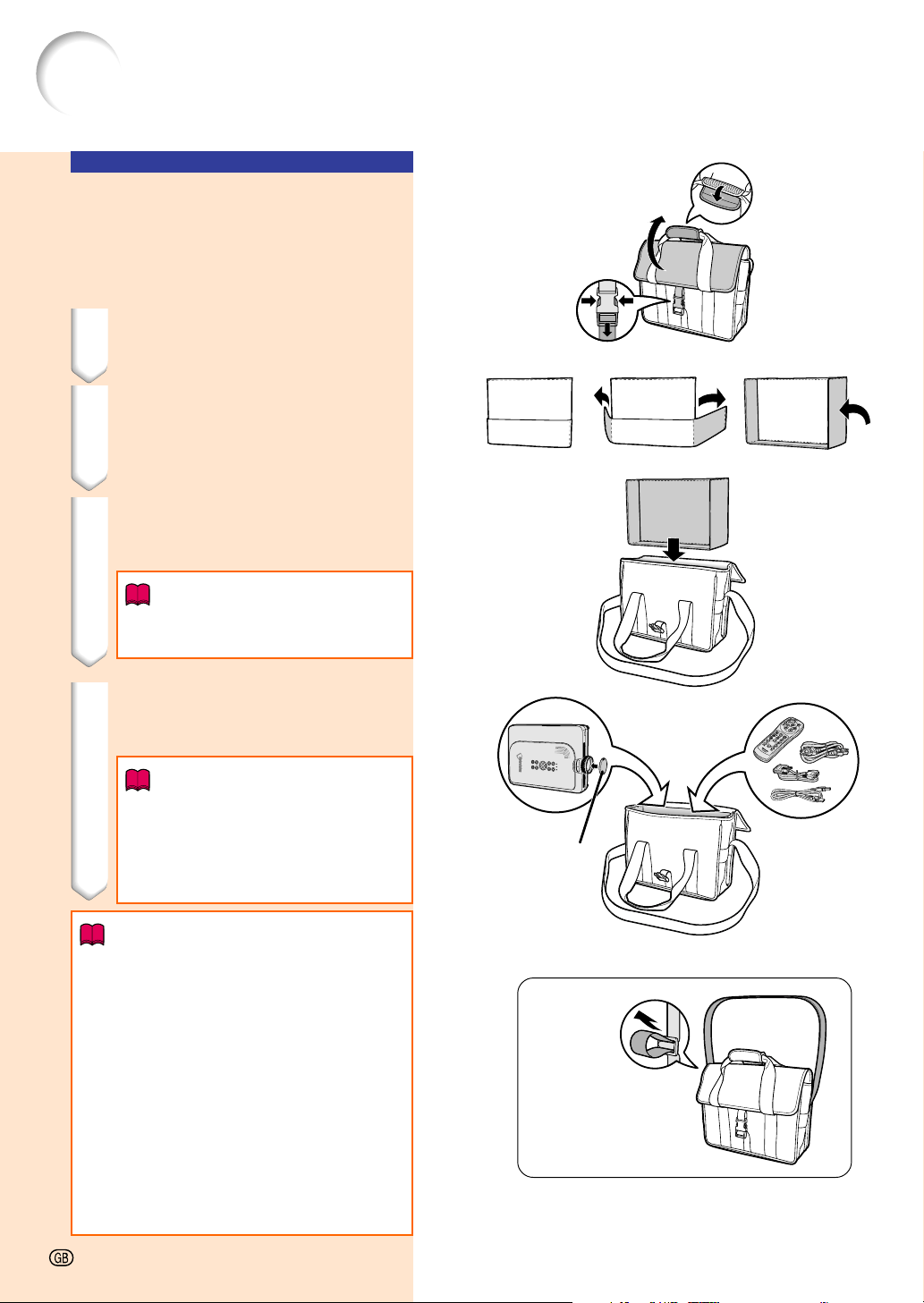
Carrying the Projector
How to Use the
Carrying Case
When carrying the projector, attach the lens
cap to the lens, and place it in the included
carrying case.
1 Open the cover of the carrying
case.
2 Remove the inner padding
from the carrying case, and
fold it in the direction of the
arrows.
3 Reinsert the inner padding into
the carrying case.
Info
• Be sure to insert the inner padding
to protect the lens and the projector.
4 Place the projector and the ac-
cessories in the carrying case.
Info
• Be sure to attach the lens cap to
protect the lens.
• Be sure the projector has cooled
down enough before placing it in the
case.
Info
• This carrying case is only for storing and
carrying the projector.
• Sending the projector in the carrying case
as a parcel may cause damage to the
projector. If you send the projector in the
carrying case as a parcel, be sure to
place it in a sturdy case and with enough
shock absorbing material to avoid any
damage.
• Do not expose the carrying case or pro-
jector to direct sunlight, near heat
sources, or leave them in a car. The car-
rying case or projector may change color
or become deformed.
Adjust the
shoulder
strap.
Lens cap
-68
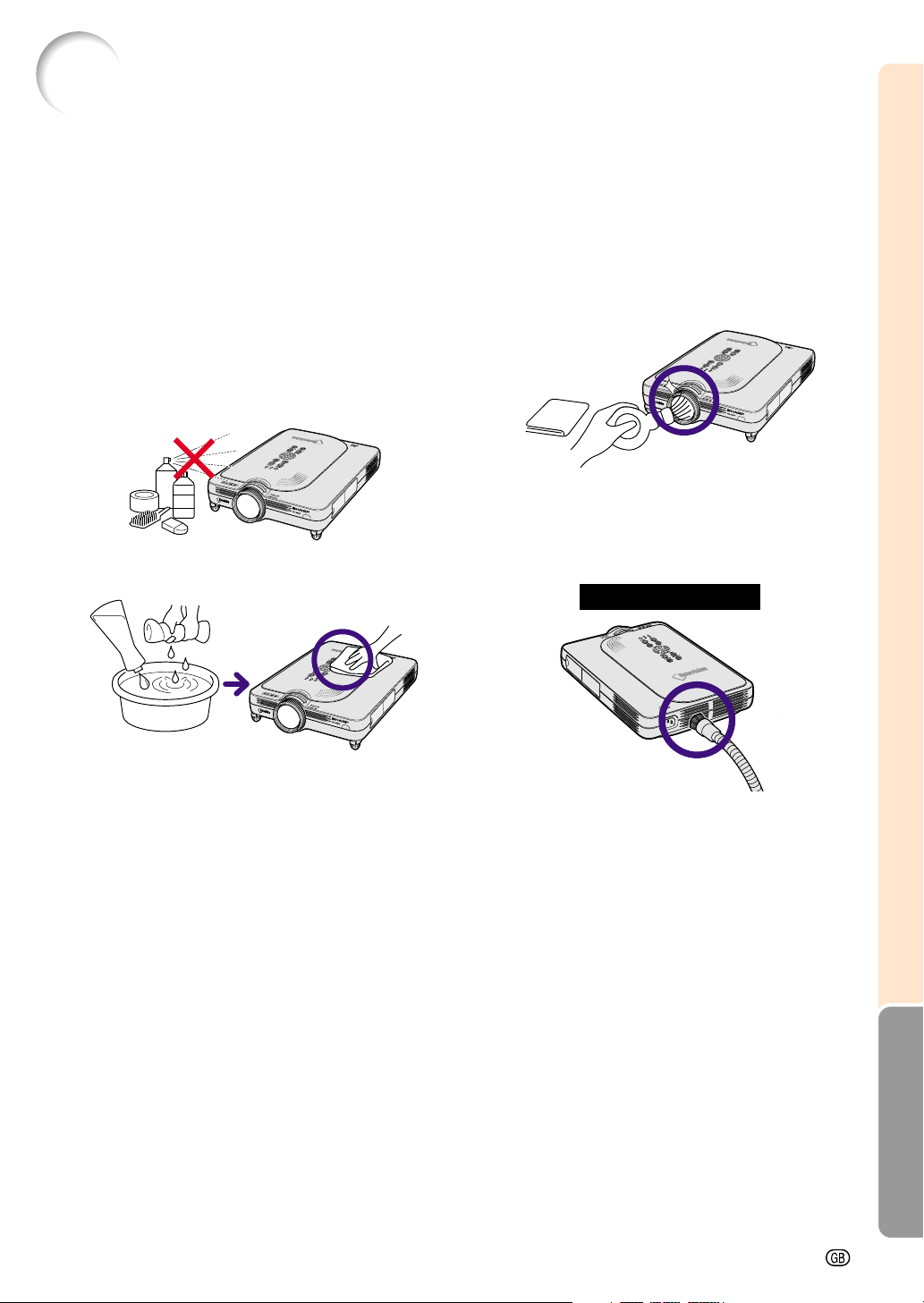
Appendix
-69
Cleaning the lens
■ Use a commercially available blower or lens
cleaning paper (for glasses and camera lenses)
for cleaning the lens. Do not use any liquid type
cleaning agents, as they may wear off the coat-
ing film on the surface of the lens.
■ As the surface of the lens can easily get dam-
aged, be sure not to scrape or hit the lens.
Cleaning the exhaust and intake vents
■ Use a vacuum cleaner to clean dust from the
exhaust vent and the intake vent.
Cleaning
Paper
Maintenance
Cleaning the projector
■ Be sure to unplug the power cord before clean-
ing the projector.
■ The cabinet as well as the operation panel is
made of plastic. Avoid using benzene or thinner,
as these can damage the finish on the cabinet.
■ Do not use volatile agents such as insecticides
on the projector.
Do not attach rubber or plastic items on the pro-
jector for long time.
The effects of some of the agents in the plastic
may cause damage to the quality or finish of the
projector.
■ Wipe off dirt gently with a soft flannel cloth.
■ When the dirt is hard to remove, soak a cloth in a
neutral detergent diluted with water, wring the
cloth well and then wipe the projector.
Strong cleaning detergents may discolor, warp
or damage the coating on the projector.
Make sure to test on a small, inconspicuous area
on the projector before using.
Projector’s Rear View
Wax
Thinner
Neutral detergent
diluted with water
N
e
u
tra
l d
e
te
rg
e
n
t
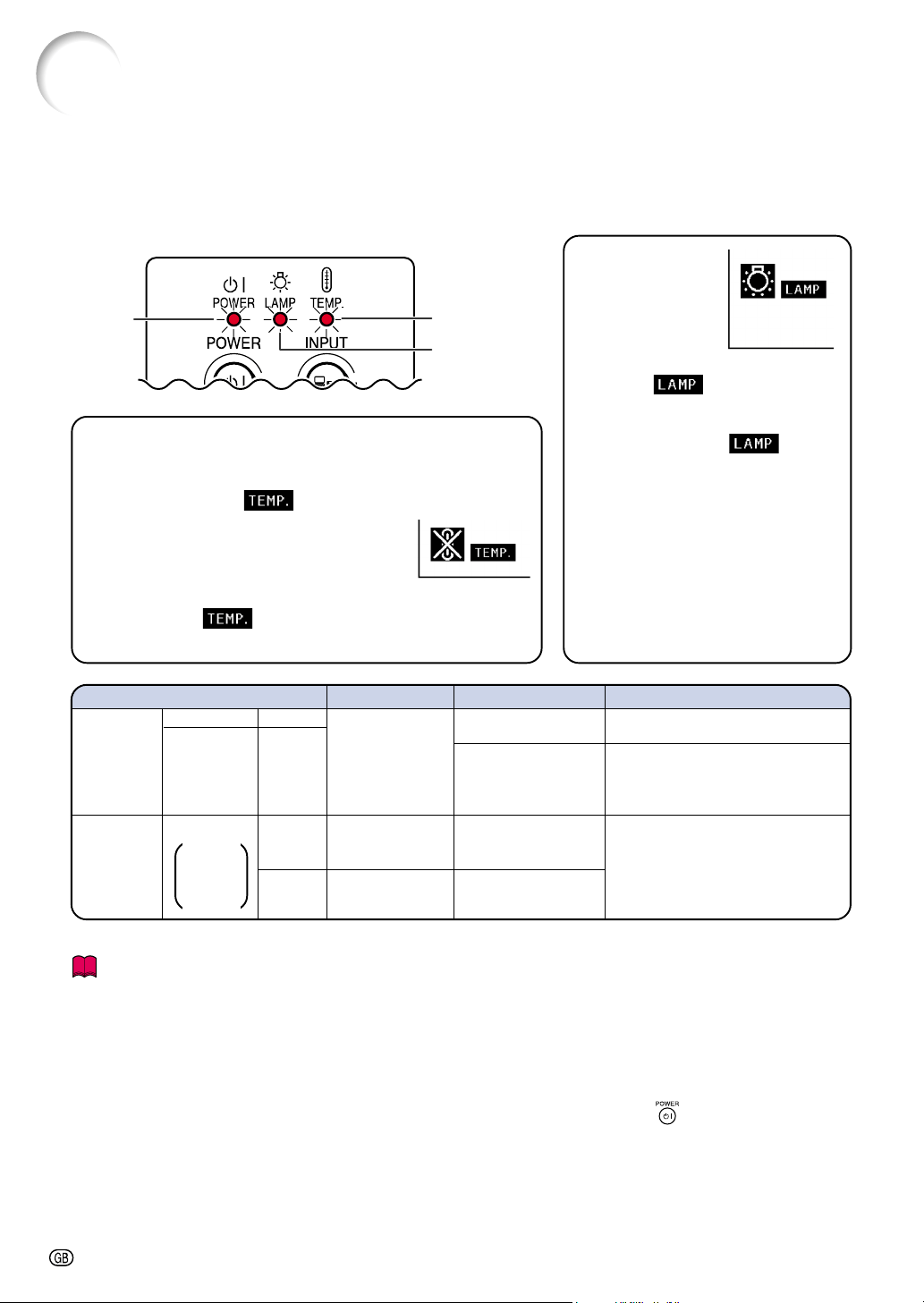
-70
Maintenance Indicators
Info
•If the TEMPERATURE WARNING indicator illuminates, and the power turns off, follow the above possible
solutions and then wait until the projector has cooled down completely before plugging in the power cord
and turning the power back on. (At least 5 minutes.)
• If the power is turned off and then turned on again, as during a brief test, the LAMP REPLACEMENT indica-
tor may be triggered, preventing the power from going on. Should this occur, take the power cord out of the
wall outlet and plug it back in again.
• If you want to clean the air vents during projector operation, be sure to first press
and after the power has
turned off and the cooling fan has stopped, then clean the vents.
• Do not unplug the power cord after the power has been turned off and while the cooling fan is running. The
cooling fan runs for about 90 seconds.
About the TEMPERATURE WARNING indicator
If the temperature inside the projector in-
creases, due to blockage of the air vents, or
the setting location, “ ” will blink in the
lower left corner of the picture. If the tem-
perature keeps on rising, the lamp will turn
off and the TEMPERATURE WARNING in-
dicator will blink, the cooling fan will run for
further 90 seconds, then the power will be
shut off. After “
” appears, be sure to
perform the following measures.
■ The warning lights on the projector indicate problems inside the projector.
■ If a problem occurs, either the TEMPERATURE WARNING indicator or the LAMP REPLACEMENT
indicator will illuminate red, and the power will turn off. After the power has been turned off, follow
the procedures given below.
About the
LAMP
REPLACEMENT
indicator
■ When the lamp
exceeds 1,900 cumulative hours
of use, “ ” will be displayed
on the screen in yellow. When
the cumulative hours of use
reach 2,000, “
” will
change to red, the lamp will au-
tomatically turn off and then the
projector as well. At this time, the
LAMP REPLACEMENT indica-
tor will illuminate in red.
■ If you try to turn on the projector
a fourth time without replacing
the lamp, the projector will not
turn on.
Maintenance indicator Condition Problem Possible Solution
TEMPERA-
TURE
WARNING
indicator
Normal Abnormal
Off
Red on/
Power off
The internal
temperature is
abnormally high.
Abnormal
• Blocked air intake
• Relocate the projector to an area
with proper ventilation.
• Cooling fan break-
down
• Internal circuit failure
• Clogged air intake
• Take the projector to your nearest
Sharp Authorized Projector Dealer
or Service Center (see page 78)
for repair.
LAMP
REPLACE-
MENT
indicator
Red on/
Power off
The lamp does
not illuminate.
• Burnt-out lamp
• Lamp circuit failure
• Take the projector to your nearest
Sharp Authorized Projector Dealer
or Service Center (see page 78)
for repair or lamp replacement.
• Please exercise care when
replacing the lamp.
Green on
Green
blinks
when the
lamp is
active.
Red
blinks
Time to change
the lamp
• Lamp usage time
exceeded 1,900
hours
TEMPERATURE
WARNING
indicator
LAMP
REPLACEMENT
indicator
POWER
indicator
Appendix
-71
Lamp
■ It is recommended that the lamp (sold separately) be replaced after approximately 1,900 cumulative
hours of use or when you notice a significant deterioration of the picture and color quality. The lamp
usage time can be checked with the on-screen display. See page 58.
■ For lamp replacement, please consult your nearest Sharp Authorized Projector Dealer or Service
Center.
IMPORTANT NOTE TO U.S. CUSTOMERS:
The lamp included with this projector is backed by a 90-day parts and labor limited warranty. All service
of this projector under warranty, including lamp replacement, must be obtained through a Sharp Autho-
rized Projector Dealer or Service Center. For the name of the nearest Sharp Authorized Projector Dealer
or Service Center, please call toll-free: 1-888-GO-SHARP (1-888-467-4277).
U.S.A. ONLY
Caution Concerning the Lamp
■ This projector utilizes a pressurized mercury lamp. A loud sound may indicate lamp failure. Lamp
failure can be attributed to numerous sources such as: excessive shock, improper cooling, surface
scratches or deterioration of the lamp due to a lapse of usage time. The period of time up to failure
largely varies depending on the individual lamp and/or the condition and the frequency of use. It is
important to note that failure can often result in the bulb cracking.
■ When the LAMP REPLACEMENT indicator and on-screen display icon are illuminated or flash, it is
recommended that the lamp be replaced with a new one immediately, even if the lamp appears to be
operating normally.
■ Should the lamp break, the glass particles may spread inside the lamp cage or gas contained in the
lamp may be vented into the room from the exhaust vent. Because the gas in this lamp includes
mercury, ventilate the room well if the lamp breaks and avoid all exposure to the released gas. In
case of exposure to the gas, consult with a doctor as soon as possible.
■ Should the lamp break, there is also a possibility that glass particles may spread inside of the
projector. In such a case, it is recommended you contact your nearest Sharp Authorized Projector
Dealer or Service Center to remove the damaged lamp and assure safe operation.
Replacing the Lamp
Caution
• Do not remove the lamp unit immediately after operation of the projector. The lamp will be hot and touching
it can lead to burn or injury.
• Wait at least one hour after the power cord is disconnected to allow the surface of the lamp unit to fully cool
before removing the lamp unit.
■ If the new lamp does not light after replacement, take your projector to the nearest Sharp Autho-
rized Projector Dealer or Service Center for repair. Purchase a replacement lamp unit of type BQC-
PGM20X//1 from your nearest Sharp Authorized Projector Dealer or Service Center. Then carefully
change the lamp by following the instructions described in this section. If you wish, you may have
the lamp replaced at your nearest Sharp Authorized Projector Dealer or Service Center.
Regarding the Lamp
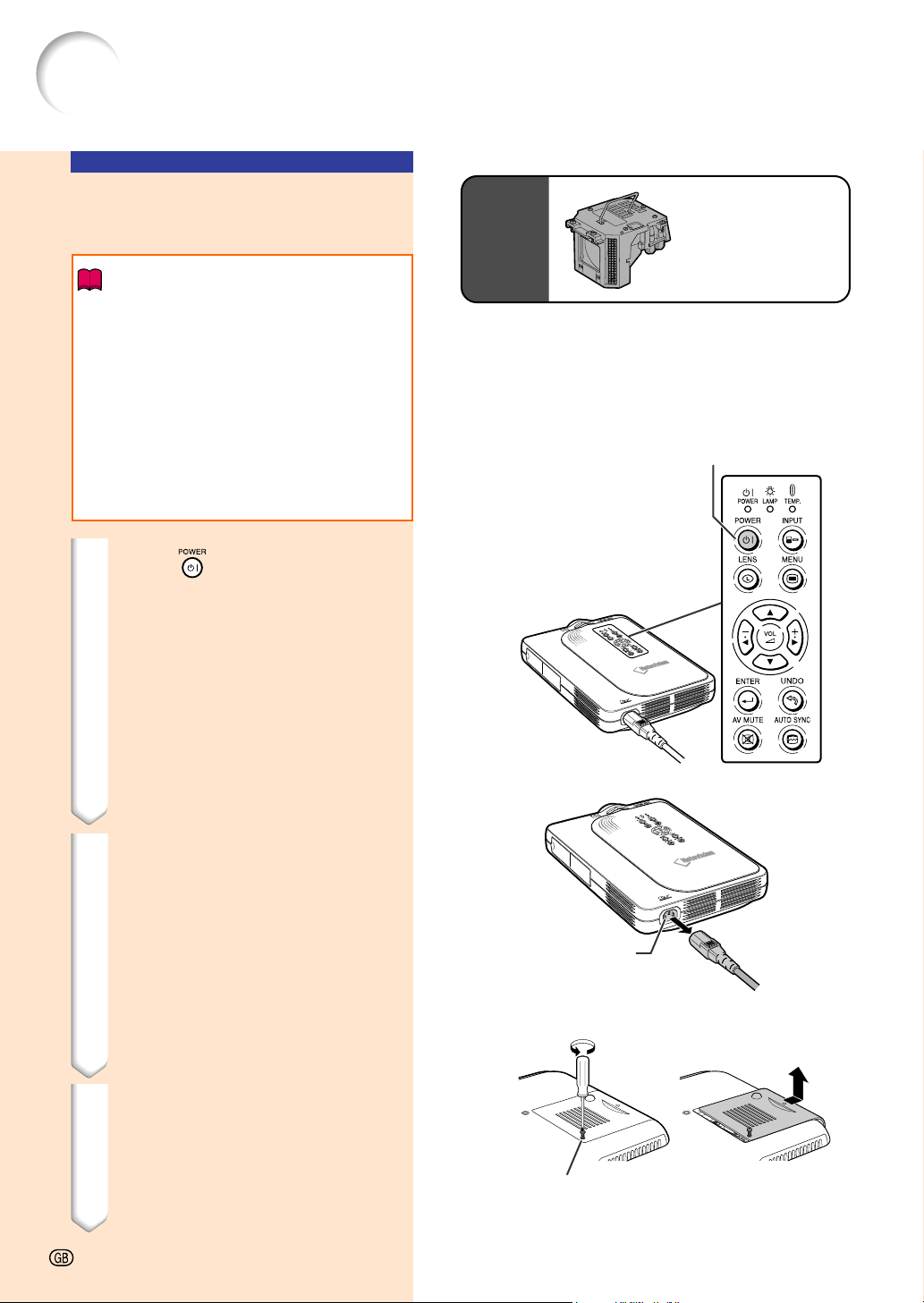
POWER button
Regarding the Lamp (cont.)
Removing and Install-
ing the Lamp Unit
Info
• Be sure to remove the lamp unit by the
handle. Be sure not to touch the glass
surface of the lamp unit or the inside of
the projector.
• To avoid injury to yourself and damage
to the lamp, be sure to carefully follow
the steps below.
• Do not remove other screws except for
the lamp cover screws.
• Please refer to the installation manual
included with the lamp unit.
1 Press on the projector to
turn off the power.
• Wait until the cooling fan stops.
2 Disconnect the power cord.
• Unplug the power cord from the AC
socket.
• Leave the lamp until it has fully cooled
down (about 1 hour).
3 Remove the lamp unit cover.
• Turn over the projector, and loosen the
user service screw that secures the
lamp unit cover. Then slide the cover
in the direction of the arrow.
Lamp
unit
BQC-PGM20X//1
AC socket
User service screw
-72
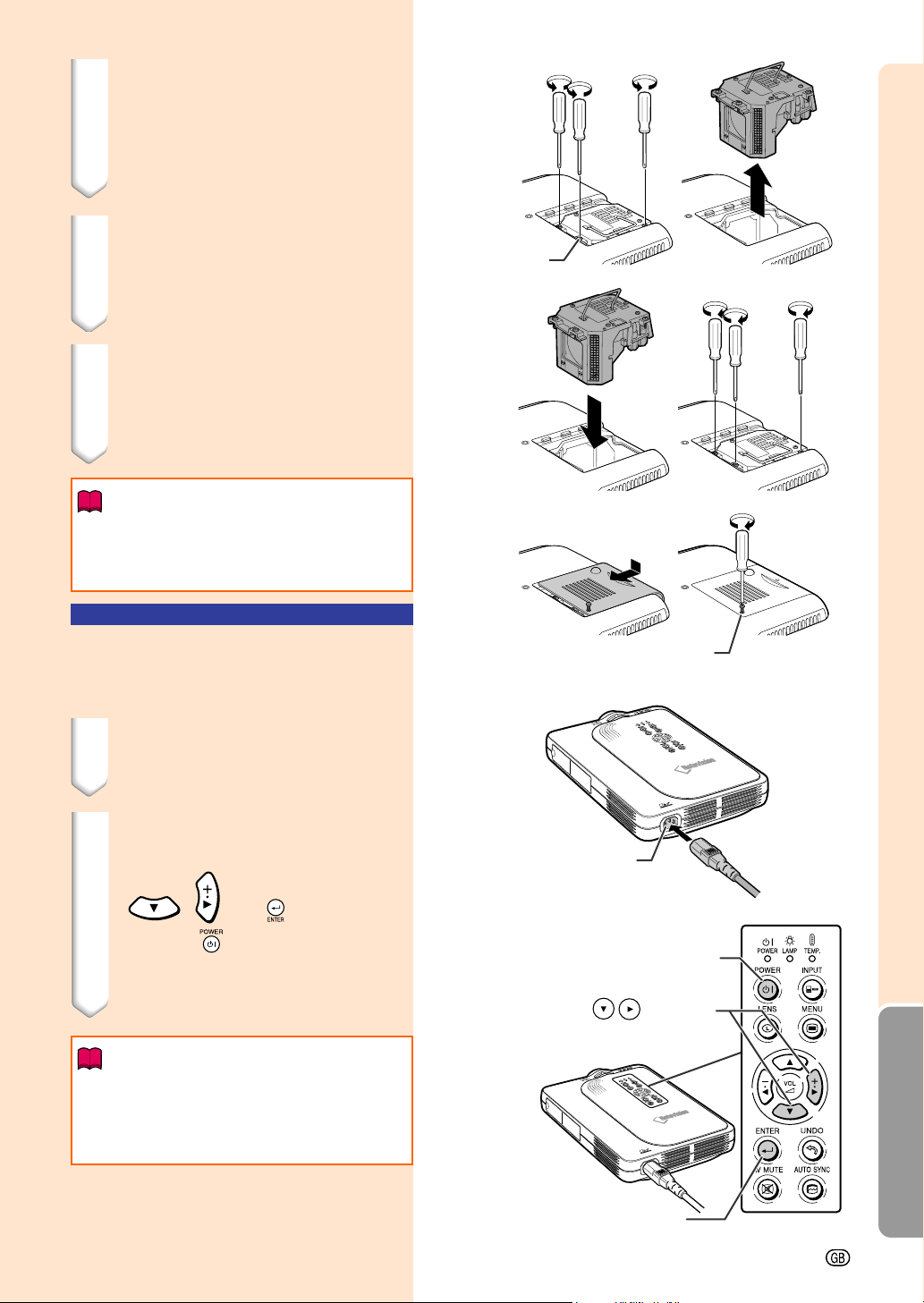
Appendix
-73
AC socket
POWER button
buttons
ENTER button
User service screw
4 Remove the lamp unit.
• Remove the securing screws from the
lamp unit. Hold the lamp unit by the
handle and pull it in the direction of
the arrow.
5 Insert the new lamp unit.
• Press the lamp unit firmly into the lamp
unit compartment. Fasten the secur-
ing screws.
6 Attach the lamp unit cover.
• Slide the lamp unit cover in the direc-
tion of the arrow. Then tighten the user
service screw.
Info
• If the lamp unit is not correctly installed,
the power will not turn on, even if the
power cord is connected to the projector.
Resetting the Lamp
Timer
Reset the lamp timer after replacing the lamp.
1 Connect the power cord.
• Plug the power cord into the AC socket
of the projector.
2 Reset the lamp timer.
•
While pressing simultaneously
, , and on the projec-
tor, press
on the projector.
• “LAMP 0000H” is displayed, indicating
that the lamp timer is reset.
Info
• Make sure to reset the lamp timer only
when replacing the lamp. Otherwise, this
may cause the lamp to become damaged
or explode.
Securing
screw
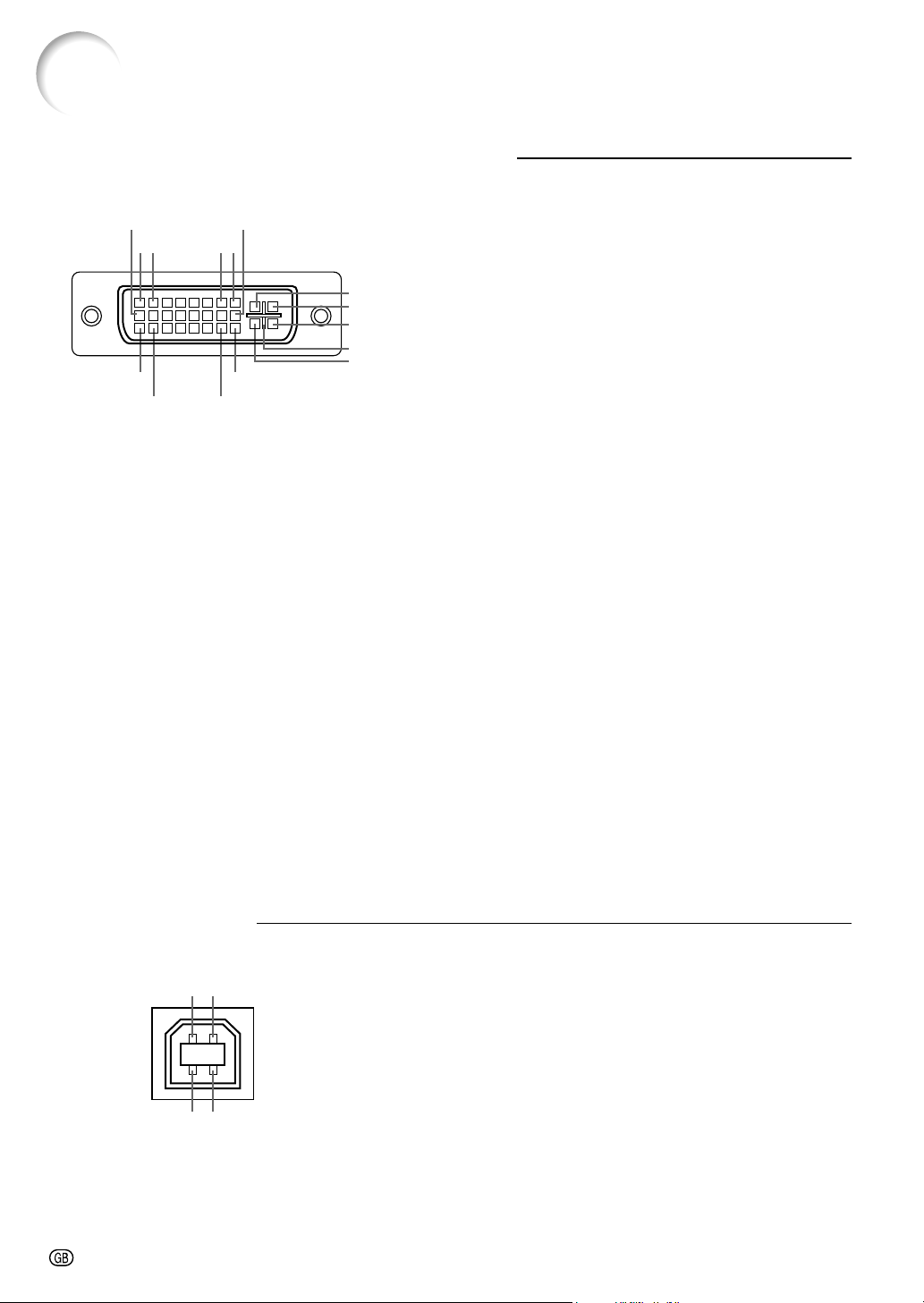
-74
12
43
17
•••••••••
~
•••••••••
••••
~
••••
••••
~
••••
24
18 23
C3
21
9
16
C1
C2
C4
C5
87
• DVI Digital INPUT
Pin No. Signal Pin No. Signal
1 T.M.D.S data 2– 16 Hot plug detection
2 T.M.D.S data 2+ 17 T.M.D.S data 0–
3 T.M.D.S data 2 shield 18 T.M.D.S data 0+
4 Not connected 19 T.M.D.S data 0 shield
5 Not connected 20 Not connected
6 DDC clock 21 Not connected
7 DDC data 22 T.M.D.S clock shield
8 Not connected 23 T.M.D.S clock+
9 T.M.D.S data 1– 24 T.M.D.S clock–
10 T.M.D.S data 1+ C1 Not connected
11 T.M.D.S data 1 shield C2 Not connected
12 Not connected C3 Not connected
13 Not connected C4 Not connected
14 +5V power C5 Ground
15 Ground
DVI Digital / Analog INPUT 1 port : 29 pin connector
• DVI Analog RGB Input
Pin No. Signal Pin No. Signal
1 Not connected 16 Hot plug detection
2 Not connected 17 Not connected
3 Not connected 18 Not connected
4 Not connected 19 Not connected
5 Not connected 20 Not connected
6 DDC clock 21 Not connected
7 DDC data 22 Not connected
8 Vertical sync 23 Not connected
9 Not connected 24 Not connected
10 Not connected C1 Analog input Red
11 Not connected C2 Analog input Green
12 Not connected C3 Analog input Blue
13 Not connected C4 Horizontal sync
14 +5V power C5 Ground
15 Ground
• DVI Analog Component Input
Pin No. Signal Pin No. Signal
1 Not connected 16 Not connected
2 Not connected 17 Not connected
3 Not connected 18 Not connected
4 Not connected 19 Not connected
5 Not connected 20 Not connected
6 Not connected 21 Not connected
7 Not connected 22 Not connected
8 Not connected 23 Not connected
9 Not connected 24 Not connected
10 Not connected C1 Analog input Pr/Cr
11 Not connected C2 Analog input Y
12 Not connected C3 Analog input Pb/Cb
13 Not connected C4 Not connected
14 Not connected C5 Ground
15 Ground
4-pin USB connector
• USB connector: 4 pin B-type USB connector
Pin no. Signal Name
1 VCC USB power
2 USB– USB data–
3 USB+ USB data+
4 SG Signal Ground
Connecting Pin Assignments
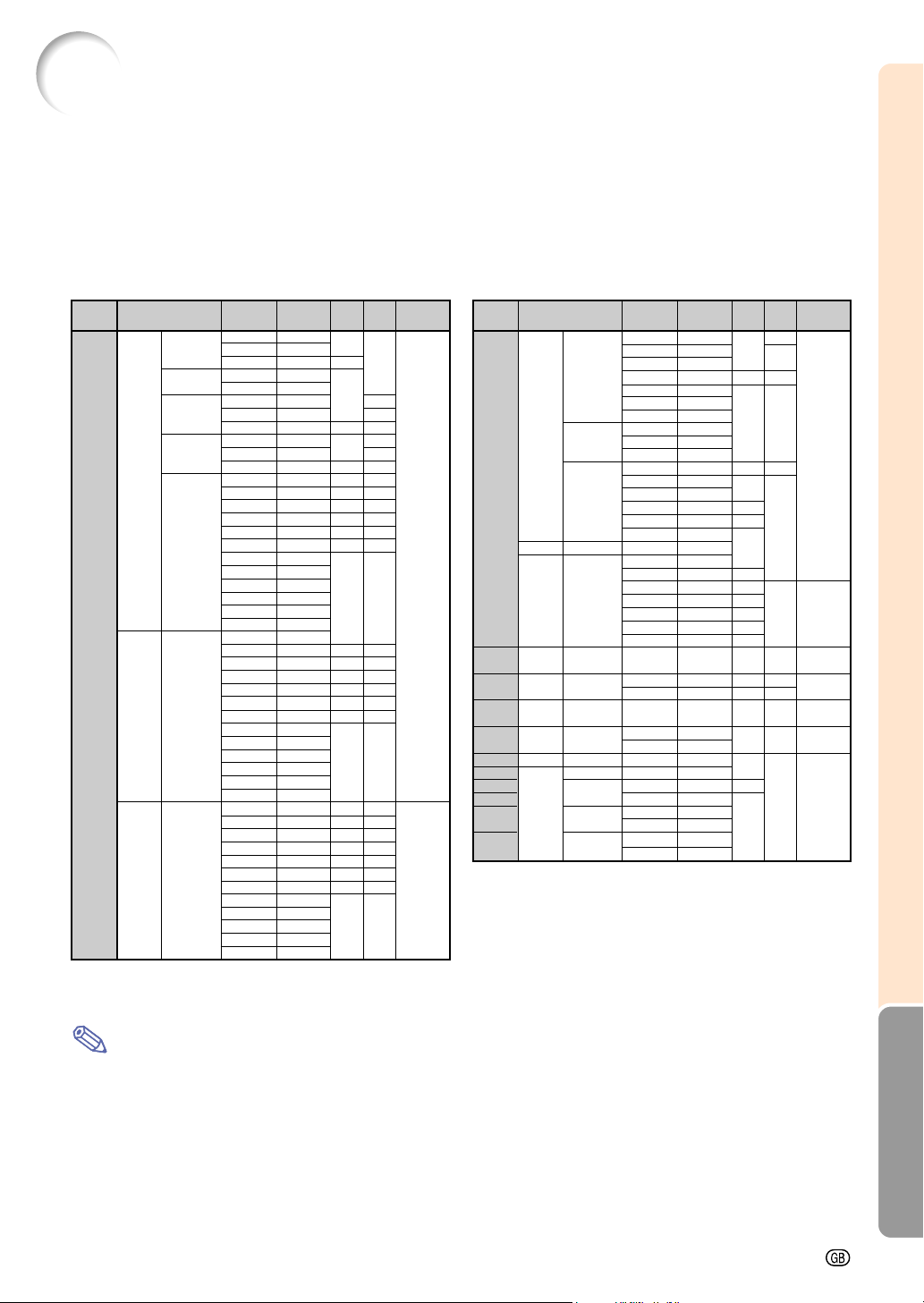
Appendix
-75
Computer Compatibility Chart
* Temporary noise may be visible with vertical frequencies above 100Hz if OSD functions are activated.
Note
• This projector may not be able to display images from notebook computers in simultaneous (CRT/LCD) mode. Should this
occur, turn off the LCD display on the notebook computer and output the display data in “CRT only” mode. Details on how
to change display modes can be found in your notebook computer’s operation manual.
• When this projector receives 640 × 350 VESA format VGA signals, “640 × 400” appears on the screen.
• When receiving 1,600 × 1,200 VESA format signals, sampling occurs and part of the image may be cut as the image is
displayed in 1,024 lines.
• Multiple signal support
Horizontal Frequency: 15–126 kHz
Vertical Frequency: 43–200 Hz*
Pixel Clock: 12–230 MHz
• Compatible with sync on green and composite sync signals
• UXGA and SXGA compatible in advanced intelligent compression
• AICS (Advanced Intelligent Compression and Expansion System) resizing technology
The following is a list of modes that conform to VESA. However, this projector supports other signals
that are not VESA standards.
Upscale
True
640 × 350
720 × 350
640 × 400
720 × 400
640 × 480
800 × 600
1,024 × 768
31.5
37.9
27.0
31.5
27.0
31.5
37.9
27.0
31.5
37.9
26.2
31.5
34.7
37.9
37.5
43.3
47.9
53.0
61.8
78.5
80.9
100.4
31.4
35.1
37.9
44.5
48.1
46.9
53.7
56.8
64.0
77.2
98.3
102.1
125.6
70
85
60
70
60
70
85
60
70
85
60
70
72
75
85
90
100
120
160
200
50
56
60
70
72
75
85
90
100
120
150
160
200
✔
✔
✔
✔
✔
✔
✔
PC
XGA
SVGA
VGA
✔
✔
50
150
35.5
40.3
48.4
56.5
58.1
60.0
68.7
73.5
77.2
80.6
98.8
113.2
43
50
60
70
72
75
85
90
96
100
120
140
✔
Display
PC/
MAC/
WS
Resolution
Horizontal
Frequency
(kHz)
Vertical
Frequency
(Hz)
VESA
Stan-
dard
27.0 60
DVI
Supp-
ort
✔
✔
✔
✔
✔
✔
✔
✔
✔
✔
✔
✔
✔
✔
✔
✔
✔✔
✔
✔✔
✔
✔
✔
✔
1,152 × 864
1,152 × 882
1,280×1,024
54.3
64.0
64.1
67.5
60
70
72
75
✔
Advanced
Intelligent
Compression
SXGA
77.3
90.2
54.8
65.9
67.4
64.0
74.6
85
100
60
72
74
60
70
1,280
×
1,024
Upscale
Tr u e
Advanced
Intelligent
Compression
Upscale
Advanced
Intelligent
Compression
✔
75.7 80
1,400 ×1,050
SXGA
+
Display
PC/
MAC/
WS
Resolution
Horizontal
Frequency
(kHz)
Vertical
Frequency
(Hz)
VESA
Stan-
dard
DVI
Supp-
ort
✔
✔
✔
78.1 74
80.0 75
✔
91.1 85
✔
108.4 100
64.0 60
74.7 52
75.0 60 ✔
81.3 65 ✔
87.5 70 ✔
90.1 72
93.8 75 ✔
106.3 85 ✔
640 × 480 34.9 67
48.4 60 ✔✔
60.0 75 ✔✔
80.0 75
46.8 75
49.6 75
✔
68.5 75
78.1 72
60.0 60
85.9 85
53.5 50
76.8 72
60.9 66
71.9 76
UXGA
1,600
×
1,200
VGA
XGA
SXGA
SVGA
1,024 × 768
832
×
624
1,152
×
870
1,280×1,024
SXGA
1,280
×
960
1,280×1,024
1,152
×
900
HP (WS)
PC (WS)
WS
SGI (WS)
SUN (WS)
PC/
MAC 21”
MAC
16”
MAC 21”
PC/
MAC 13”
PC/
MAC 19”
SXGA
✔
PC
Intelligent
Compression
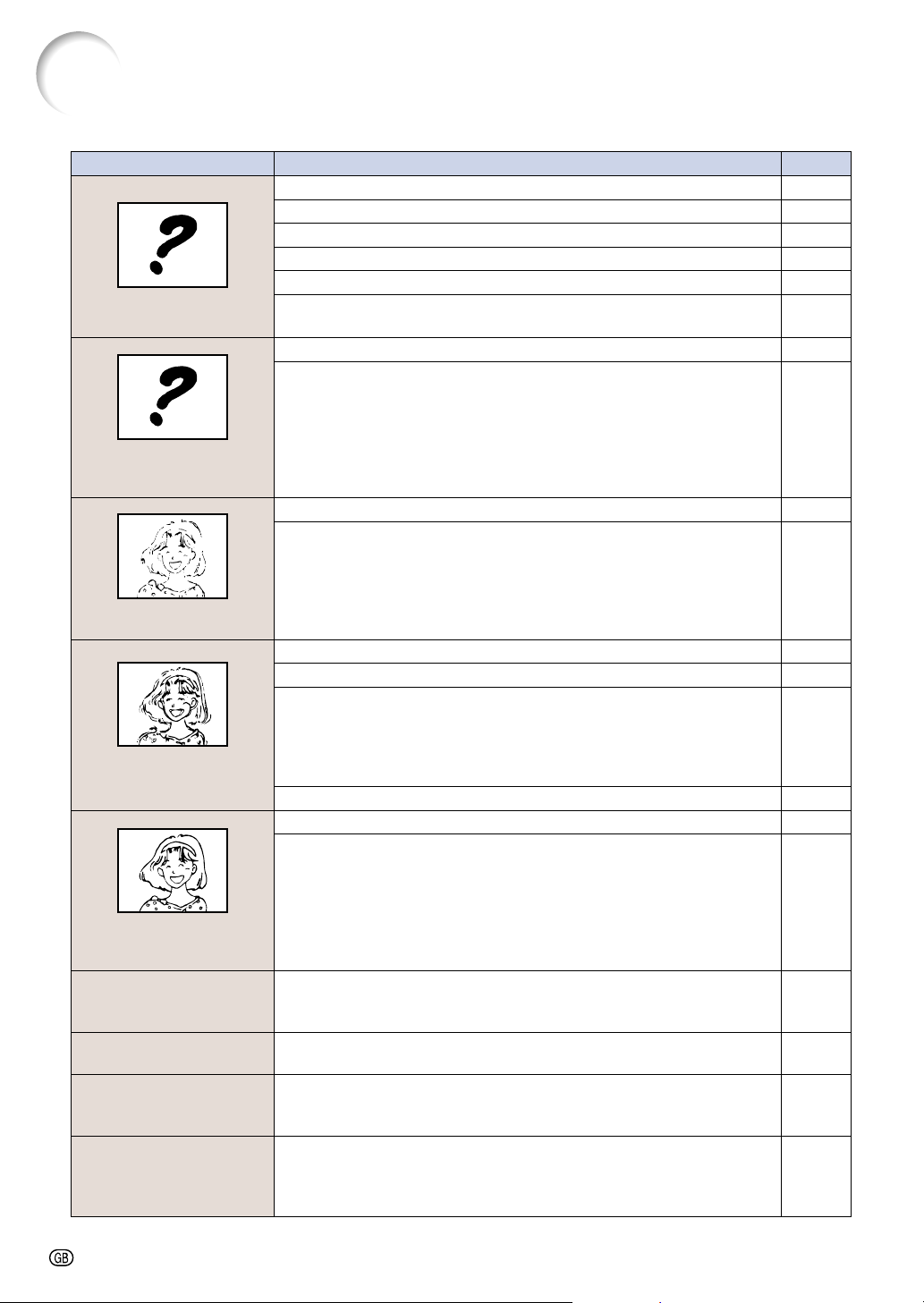
-76
Troubleshooting
Check
• Projector power cord is not plugged into the wall outlet.
• Power to the external connected devices is off.
• The selected input mode is wrong.
• Cables incorrectly connected to side panel of the projector.
• Remote control batteries have run out.
•
External output has not been set when connecting notebook computer.
• The AV MUTE display appears.
• Cables incorrectly connected to the side panel of the projector.
• “Bright” is set to minimum position.
• Picture adjustments are incorrectly set.
(Video Input only)
• Video input system is incorrectly set.
(INPUT 1 only)
• Input signal type RGB/Component is incorrectly set.
• Adjust the focus.
• The projection distance exceeds the focus range.
(Computer Input only)
• Perform “Fine Sync” Adjustments (“Clock” Adjustment)
• Perform “Fine Sync” Adjustments (“Phase” Adjustment)
• Noise will appear depending on the computer.
• The “DNR” (Digital Noise Reduction) setting is not correct.
• Cables incorrectly connected to side panel of projector.
• Volume is set to minimum.
• If the picture is normal, the sound is due to cabinet shrinkage
caused by a room temperature changes. This will not affect
operation or performance.
• See “Maintenance Indicators”.
• The signal in INPUT 1 is not an analog RGB/Digital RGB XGA
(1024 × 768) signal. Images cannot be captured if the signals
are different from the above.
• The signal in INPUT 1 is set to a resolution that exceeds SXGA.
• The signal in INPUT 1 is sending Component signals 480I,
480P, 720P, or 1080I.
•
The signal in INPUT 1 is set to interlace mode using RGB signals.
Problem
An unusual sound is
occasionally heard
from the cabinet
Maintenance
indicator illuminates
Image cannot be
captured
Pict in Pict does not
work
Page
20
—
29
21–26
13
—
30
21–26
40
40
55
40
31
17–18
42·44
42
—
54
21–26
29
—
70
56
51
No picture and no sound
Sound is heard but no
picture appears
Color is faded or poor
Picture is blurred;
noise appears
Picture appears but no
sound is heard
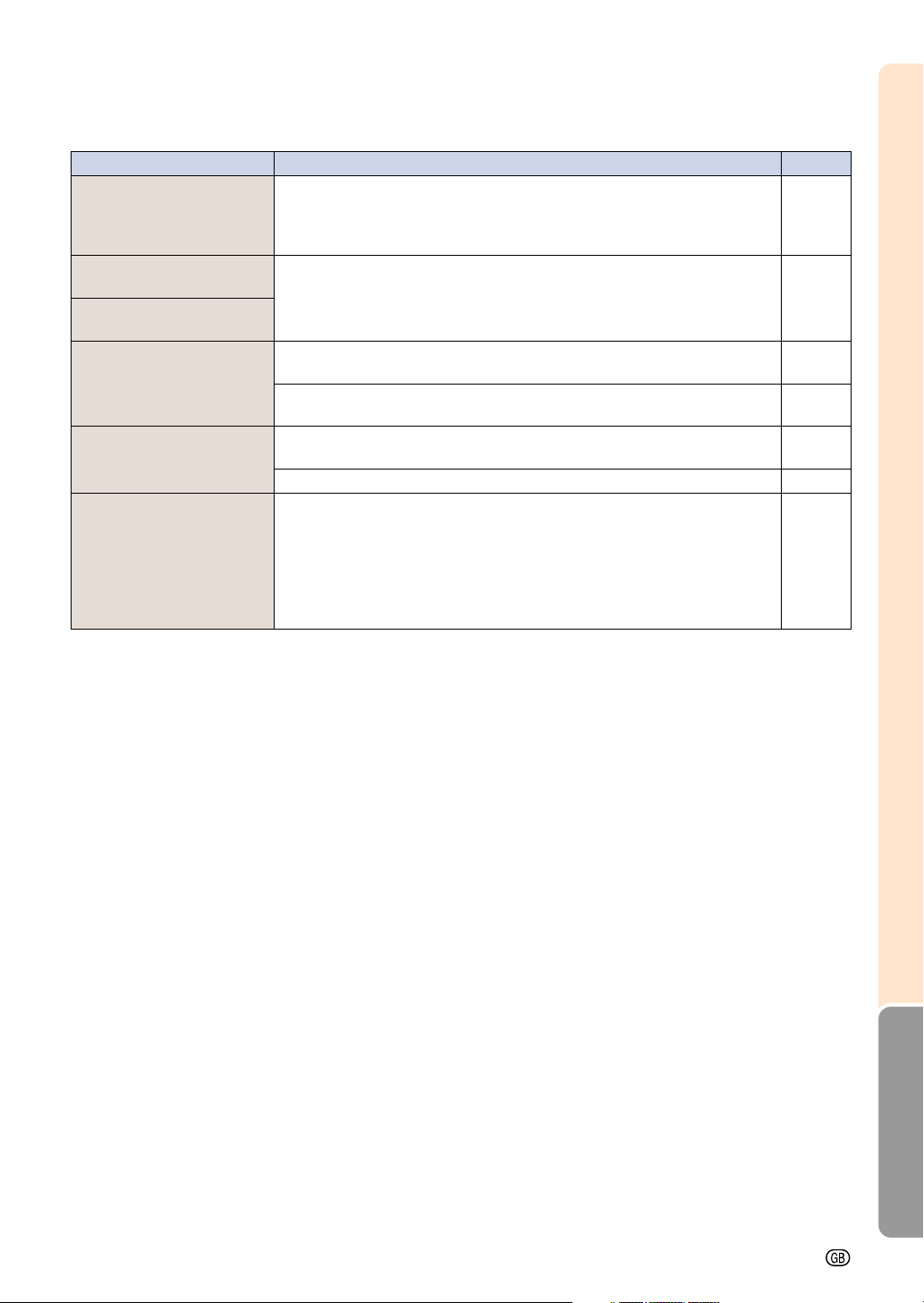
Appendix
-77
CheckProblem Page
Power cannot be turned
on or off using the
POWER button on the
projector
Picture is green on
INPUT 1 COMPONENT
Picture is pink (no green)
on INPUT 1 RGB
Picture is dark
Picture is too bright and
whitish
The VOLUME buttons
on the projector do not
work
• The Keylock level is set.
If the Keylock level is set to Level B, all the buttons are locked.
If the Keylock level is set to Level A, only the INPUT, VOLUME
and AV MUTE buttons work.
• Change the input signal type setting.
• The LAMP REPLACEMENT indicator is blinking in red. Replace
the lamp.
• “Monitor Out” is set to “Disable” when the RGB monitor loop-out
adaptor is connected to Monitor Out.
• “Monitor Out” is set to “Yes (Y Cable)” when the RGB monitor
loop-out adaptor is not connected to Monitor Out.
• Picture adjustments are incorrectly set.
The VOLUME buttons do not work when: (try the VOL+/– on the
remote control)
• when the menu is displayed
• when the lens menu is displayed
• when Pict in Pict is working
• during Enlarge (More than double size)
• a dot by dot screen resolution larger the panel resolution.
60
40
72·73
58
58
40
—

-78
For SHARP Assistance
If you encounter any problems during setup or operation of this projector, first refer to the
“Troubleshooting” section on pages 76 and 77. If this operation manual does not answer
your question, please contact the SHARP Service departments listed below.
U.S.A. Sharp Electronics Corporation
1-888-GO-SHARP (1-888-467-4277)
http://www.sharplcd.com
Canada Sharp Electronics of Canada Ltd.
(905) 568-7140
http://www.sharp.ca
Mexico Sharp Electronics Corporation Mexico Branch
(525) 716-9000
http://www.sharp.com.mx
Germany Sharp Electronics (Europe) GMBH
01805-234675
http://www.sharp.de
U.K. Sharp Electronics (U.K.) Ltd.
0161-205-2333
http://www.sharp.co.uk
Italy Sharp Electronics (Italy) S.P.A.
(39) 02-89595-1
http://www.sharp.it
Australia Sharp Corporation of Australia Pty. Ltd.
1300-135-022
http://www.sharp.net.au
New Zealand Sharp Corporation of New Zealand
(09) 634-2059, (09) 636-6972
http://www.sharpnz.co.nz
Singapore Sharp-Roxy Sales (S) Pte. Ltd.
65-226-6556
http://www.sharp.com.sg
Hong Kong Sharp-Roxy (HK) Ltd.
(852) 2410-2623
http://www.sharp.com.hk
Malaysia Sharp-Roxy Sales & Service Co.
(60) 3-5125678
U.A.E. Sharp Middle East Fze
971-4-81-5311
Thailand Sharp Thebnakorn Co. Ltd.
02-236-0170
http://www.sharp-th.com
Korea Sharp Electronics Incorporated of Korea
(82) 2-3660-2002
http://www.sharp-korea.co.kr

Appendix
-79
Specifications
Digital Multimedia Projector
PG-M20X
NTSC 3.58/NTSC 4.43/PAL/PAL-M/PAL-N/PAL 60/SECAM/
DTV480I/DTV480P/DTV720P/DTV1080I
Single Chip Digital Micromirror Device™ (DMD™) by Texas Instruments
Panel size: 0.7" (17.8 mm), 1 chip XGA DMD
No. of dots: 786,432 dots (1,024 [H] × 768 [V])
1–1.2 × zoom lens, F1.75–2.04, f = 28.0–33.5 mm
High Intensity Discharge Lamp (HID Lamp), DC 210 W
29-pin connector
DVI input signal: Digital 250–1,000 mV 50 Ω
Analog 0.7 Vp-p 75 Ω
Y: 1.0 Vp-p, sync negative, 75 Ω terminated
P
B
: 0.7 Vp-p, 75 Ω terminated
P
R
: 0.7 Vp-p, 75 Ω terminated
700 TV lines (DTV720P)
29-pin connector
RGB separate/sync on green type analog input: 0–0.7 Vp-p, positive, 75 Ω terminated
HORIZONTAL SYNC. SIGNAL: TTL level (positive/negative)
VERTICAL SYNC. SIGNAL: Same as above
4-pin Mini DIN connector
Y (luminance signal): 1.0 Vp-p, sync negative, 75 Ω terminated
C (chrominance signal): Burst 0.286 Vp-p, 75 Ω terminated
RCA connector: VIDEO, composite video, 1.0 Vp-p, sync negative, 75 Ω
terminated
12–230 MHz
43–200 Hz*
15–126 kHz
ø3.5 mm MINIJACK: AUDIO, 0.5 Vrms, more than 47 kΩ (stereo)
2.0 W (monaural)
4 cm × 3 cm
AC 100–240 V
3.2 A
50/60 Hz
290 W
1,090 BTU/hour
41°F to 95°F (+5°C to +35°C)
–4°F to 140°F (–20°C to +60°C)
Plastic
38 kHz
8
5
⁄8" × 3" × 11
15
⁄16" (219 (W) × 76 (H) × 303 (D) mm) (main body only)
8
3
⁄4" × 3
1
⁄4" × 12
1
⁄2" (223 (W) × 83 (H) × 318 (D) mm) (including adjustment feet
and projecting parts)
5.8 lbs. (2.6 kg)
Remote control, Two R-03 batteries, Power cord for U.S., Canada etc. (6', 1.8 m), Power
cord for Europe, except U.K. (6', 1.8 m), Power cord for U.K., Hong Kong and Singapore (6',
1.8 m), Power cord for Australia, New Zealand and Oceania (6', 1.8 m), DVI to 15-pin D-sub
cable (6', 1.8 m), USB cable (6', 1.8 m), Carrying case, Lens cap (attached), Lens cap
strap, Terminal cover (attached), CD-ROM, Operation manual, Quick reference guides
Lamp unit (Lamp/cage module) (BQC-PGM20X//1), Remote control (RRMCGA013WJSA),
Two R-03 batteries (“AAA” size, UM/SUM-4, HP-16, or similar), Power cord for U.S., Canada
etc. (QACCDA007WJPZ), Power cord for Europe, except U.K. (QACCV4002CEZZ), Power
cord for U.K., Hong Kong and Singapore (QACCB5024CENA), Power cord for Australia,
New Zealand and Oceania (QACCL3022CEZZ), DVI to 15-pin D-sub cable
(QCNWGA010WJZZ), USB cable (QCNWG0001WJPZ), Carrying case
(GCASN0005CESA), Lens cap (CCAPHA001WJ01), Lens cap strap (UBNDT0013CEZZ),
Terminal cover (GCOVD0103CESA), CD-ROM (UDSKA0058CEN2), Operation manual
(TINS-7609CEN1), Quick reference guides
Product type
Model
Video system
Display method
DMD panel
Lens
Projection lamp
Component input signal
(INPUT1)
Horizontal resolution
Computer RGB input signal
(INPUT 1)
S-video input signal
(INPUT 2)
Video input signal
(INPUT 3)
Pixel clock
Vertical frequency
Horizontal frequency
Audio input signal
Audio output
Speaker system
Rated voltage
Input current
Rated frequency
Power consumption
Heat dissipation
Operating temperature
Storage temperature
Cabinet
I/R carrier frequency
Dimensions (approx.)
Weight (approx.)
Supplied accessories
Replacement parts
This SHARP projector uses a DMD panel. This very sophis-
ticated panel contains 786,432 pixels. As with any high tech-
nology electronic equipment such as large screen TVs, video
systems and video cameras, there are certain acceptable
tolerances that the equipment must conform to.
This unit has some inactive pixels within acceptable toler-
ances which may result in inactive dots on the picture screen.
This will not affect the picture quality or the life expectancy
of the unit.
Specifications are subject to change without notice.
* Temporary noise may be visible with vertical frequencies above 100Hz if OSD functions are activated.
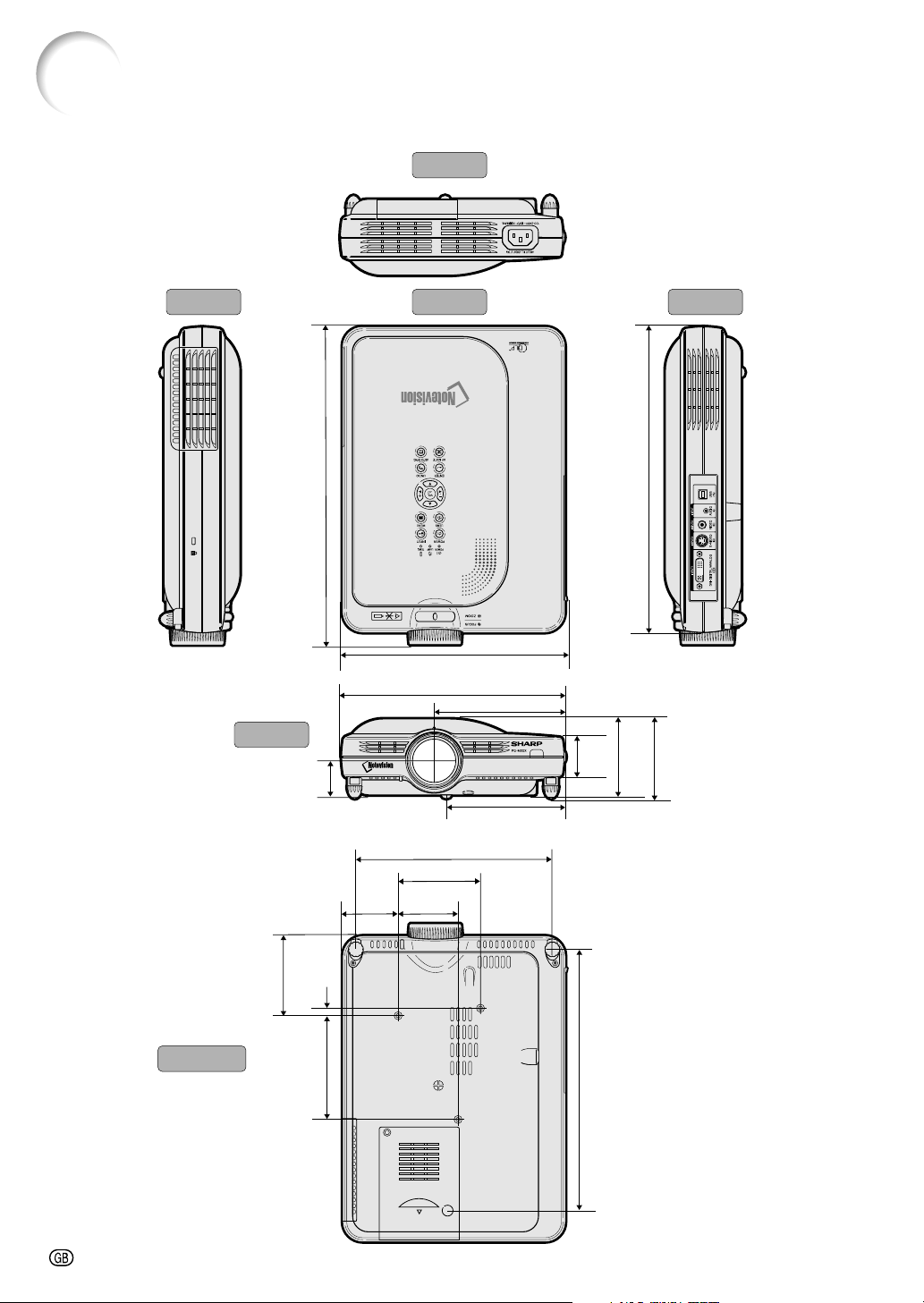
-80
Side View Side ViewTop View
Rear View
Front View
Bottom View
11
15
/
16
(302.5)
1
1
/
2
(38.7)
1
3
/
8
(34.2)
3
1
/
4
(82.9)
3
(76.1)
10
5
/
16
(261.5)
4
1
/
8
(104)
3
1
/
8
(80)
5
/
16
(7.5)
12
9
/
16
(318.3)
8
5
/
8
(219)
5
1
/
16
(128)
4
9
/
16
(115.5)
8
3
/
4
(223)
7
11
/
16
(195)
2
3
/
8
(60)
2
3
/
16
(55.5)
3
1
/
4
(82.5)
Units: inches (mm)
Dimensions

Appendix
-81
Glossary
Advanced intelligent compression
High quality resizing of lower and higher resolu-
tion images to fit the projector’s native resolution.
Anti-theft
In case the projector is stolen, this function dis-
ables projection of images if the correct keycode
is not entered.
Aspect Ratio
Width and height ratio of an image. The normal
aspect ratio of a computer and video image is 4:3.
There are also wide images with an aspect ratio
of 16:9 and 21:9.
Auto Sync
Optimizes projected computer images by auto-
matically adjusting certain characteristics.
Background
Initial setting image projected when no signal is
being output.
Border
Projects a 4:3 image fully within a 16:9 screen by
keeping the aspect ratio at 4:3.
Clock
Clock adjustment is used to adjust vertical noise
when clock level is incorrect.
CLR Temp (Color temperature)
Function that can be used to adjust the color tem-
perature to suit the type of image input to the pro-
jector. Decrease the color temperature to create
warmer, reddish images for natural flesh tones,
or increase to create cooler, bluish images for a
brighter picture.
Digital Shift
Shifts image up or down easily by
,
but-
tons when RESIZE mode of input image is BOR-
DER, STRETCH or SMART STRETCH of the
video or the DTV signals.
Dot by dot
Mode that projects images in their native resolution.
DVI (Digital Visual Interface)
Display digital interface that also supports Ana-
log interfaces.
Freeze
Temporarily freezes a moving image.
GAMMA
Image quality enhancement function that offers a
richer image by brightening the darker portions of
the image without altering the brightness of the
brighter portions. You can select four different
modes: STANDARD, PRESENTATION, CINEMA
and GAME.
Keylock Level
Mode that can lock the operation of projector but-
tons to prevent mischief.
Keystone correction
Function to digitally correct a distorted image when
the projector is set up at an angle, smoothens out
jaggies on keystone images and compresses the
image not only horizontally but vertically keeping
the 4:3 aspect ratio.
Password
A password is set so that changes cannot be made
in the settings of the “Options (2)” menu.
Phase
Phase shift is a timing shift between isomorphic
signals with the same resolution. When phase
level is incorrect, the projected image typically
displays horizontal flicker.
Picture in Picture
Allows you to add video images onto a data screen
image, providing you with even more effective pre-
sentations.
Progressive Mode
The progressive display projects a smoother video
image. You can select three different modes: 2D
Progressive, 3D Progressive and Film Mode.
RESIZE
Allows you to modify or customize the picture dis-
play mode to enhance the input image. You can
select six different modes: NORMAL, FULL, DOT
BY DOT, BORDER, STRETCH and SMART
STRETCH.
Smart Stretch
Projects the image fully in a 16:9 screen by en-
larging only the surrounding areas while keeping
the aspect ratio in the middle part of the image at
4:3.
sRGB
An international standard of color reproduction
regulated by the IEC (International
Electrotechnical Commission). As the fixed color
area has been decided by the IEC, the color
changes according to DLP features, so that the
images are displayed in a natural tint based on
an original image, when switching to the “sRGB”
mode.
Startup Image
The image displayed when the projector is turned
on.
Status function
Displays the settings of each adjustment item.
Stretch
Mode that stretches the 4:3 image horizontally to
display it fully on a 16:9 screen.

-82
2D Progressive .................................................... 41
3D Progressive .................................................... 41
AC socket ............................................................ 20
Adjustment buttons .............................................. 36
Adjustment feet .................................................... 16
All Reset .............................................................. 65
Anti-Theft ............................................................. 63
Aspect ratio .......................................................... 47
Auto Power Off .................................................... 52
Auto Search ......................................................... 53
Auto Sync adjustment.......................................... 44
AUTO SYNC button ............................................. 44
Auto Sync Display ............................................... 44
AV MUTE button .................................................. 30
BACK button ........................................................ 26
Background image............................................... 57
Batteries............................................................... 13
BORDER.............................................................. 47
Carrying case....................................................... 68
Ceiling-mount....................................................... 19
Clock .................................................................... 42
CLR Temp (Color Temperature) .......................... 40
Component input ................................................. 23
Computer images adjustment ............................. 42
Digital Shift........................................................... 33
DNR ..................................................................... 54
DOT BY DOT ....................................................... 47
DVI to 15-pin D-sub cable ................................... 21
ENLARGE buttons............................................... 49
ENTER button...................................................... 36
Exhaust vent ........................................................ 69
Film Mode ............................................................ 41
Fine Sync ............................................................. 42
Focus ring ............................................................ 31
Foot releases ....................................................... 16
FORWARD button ............................................... 26
FREEZE button.................................................... 48
FULL .................................................................... 47
GAMMA button .................................................... 50
Image Capture ..................................................... 56
INPUT 1 terminal ................................................. 21
INPUT 1 – 3 modes ............................................. 29
INPUT 2 terminal ................................................. 24
INPUT 3 terminal ................................................. 24
INPUT AUDIO terminal ........................................ 21
INPUT button ....................................................... 29
Intake vent ........................................................... 69
Kensington Security Standard connector............ 11
Keylock level ........................................................ 60
Keystone correction (adjustment) ....................... 32
Lamp .................................................................... 71
LAMP REPLACEMENT indicator ........................ 70
Lamp Timer .......................................................... 58
Language selection ............................................. 30
Index
Lens adjustment .................................................. 31
LENS button ........................................................ 32
Lens cap .............................................................. 68
Lens cap strap ..................................................... 11
MENU button ....................................................... 36
Monitor Out .......................................................... 58
NORMAL.............................................................. 47
Optional accessories ........................................... 14
OSD Display (On-screen display) ....................... 54
Password ............................................................. 61
PDF ........................................................................ 9
Phase ................................................................... 42
Pict in Pict ............................................................ 51
Picture adjustments ............................................. 40
POWER button .................................................... 28
Power cord........................................................... 20
POWER indicator................................................. 28
Power Save Mode ............................................... 52
PRJ mode ............................................................ 60
Progressive Mode................................................ 41
Remote control .................................................... 12
Remote control sensor ........................................ 13
Remote control signal transmitter ....................... 12
Replacing the lamp .............................................. 71
RESIZE button ..................................................... 46
Reversing/Inverting Images................................. 60
Save Setting ........................................................ 42
Select Setting....................................................... 43
Signal Info ............................................................ 43
Signal Type .......................................................... 40
SMART STRETCH .............................................. 47
Speaker................................................................ 29
Special Mode adjustment .................................... 43
sRGB ................................................................... 53
Startup image ...................................................... 57
Status ................................................................... 66
STRETCH ............................................................ 47
Supplied accessories........................................... 14
TEMPERATURE WARNING indicator................. 70
Terminal cover ..................................................... 10
UNDO button ....................................................... 33
USB cable ............................................................ 26
USB port .............................................................. 26
Video System....................................................... 55
VOLUME buttons ................................................. 29
Wireless Presentation.......................................... 26
Zoom knob ........................................................... 31

SHARP CORPORATION