1
Mini Hi-Fi
Component
System
Operating Instructions
4-239-951-11(1)
MHC-GS100
Owner’s Record
The model and serial numbers are located on the rear of the unit. Record the serial number
in the space provided below. Refer to them whenever you call upon your Sony dealer
regarding this product.
Model No. _______________ Serial No. _______________
© 2002 Sony Corporation
2
US
Warning
To prevent fire or shock hazard, do not
expose the unit to rain or moisture.
To avoid electrical shock, do not open the cabinet. Refer
servicing to qualified personnel only.
NOTICE FOR THE CUSTOMERS IN THE
U.S.A.
This symbol is intended to alert the
user to the presence of uninsulated
“dangerous voltage” within the
product’s enclosure that may be of
sufficient magnitude to constitute a risk
of electric shock to persons.
This symbol is intended to alert the
user to the presence of important
operating and maintenance (servicing)
instructions in the literature
accompanying the appliance.
WARNING
This equipment has been tested and found to comply with
the limits for a Class B digital device, pursuant to Part 15
of the FCC Rules. These limits are designed to provide
reasonable protection against harmful interference in a
residential installation. This equipment generates, uses,
and can radiate radio frequency energy and, if not
installed and used in accordance with the instructions,
may cause harmful interference to radio communications.
However, there is no guarantee that interference will not
occur in a particular installation. If this equipment does
cause harmful interference to radio or television
reception, which can be determined by turning the
equipment off and on, the user is encouraged to try to
correct the interference by one or more of the following
measures:
– Reorient or relocate the receiving antenna.
– Increase the separation between the equipment and
receiver.
– Connect the equipment into an outlet on a circuit
different from that to which the receiver is connected.
– Consult the dealer or an experienced radio/TV
technician for help.
CAUTION
• The use of optical instruments with this product will
increase eye hazard.
• You are cautioned that any changes or modifications
not expressly approved in this manual could void your
authority to operate this equipment.
Note to CATV system installer:
This reminder is provided to call the CATV system
installer’s attention to Article 820-40 of the NEC that
provides guidelines for proper grounding and, in
particular, specifies that the cable ground shall be
connected to the grounding system of the building, as
close to the point of cable entry as practical.
NOTICE FOR THE CUSTOMERS IN
CANADA
CAUTION
TO PREVENT ELECTRIC SHOCK, DO NOT USE
THIS POLARIZED AC PLUG WITH AN EXTENSION
CORD, RECEPTACLE OR OTHER OUTLET UNLESS
THE BLADES CAN BE FULLY INSERTED TO
PREVENT BLADE EXPOSURE.
FOR THE CUSTOMERS IN NORTH
AMERICA
ENERGY STAR
®
is a U.S. registered
mark.
As an
ENERGY STAR
®
partner, Sony
Corporation has determined that this
product meets the
ENERGY STAR
®
guidelines for energy efficiency.
3
US
Table of Contents
List of Button Locations
and Reference Pages
Main unit ............................................... 4
Remote Control ..................................... 5
Getting Started
Hooking up the system .......................... 6
Inserting two size AA (R6) batteries into
the remote ........................................ 8
Setting the clock .................................... 8
CD
Loading a CD ........................................ 9
Playing a CD
— Normal Play/Shuffle Play/
Repeat Play ................................... 10
Programing CD tracks
— Program Play ............................ 11
Labeling a CD
— Disc Memo ............................... 12
Tuner
Presetting radio stations....................... 14
Listening to the radio
— Preset Tuning/
Manual Tuning .............................. 16
Labeling the preset stations
— Station Name ............................ 16
Tape
Loading a tape ..................................... 17
Playing a tape ...................................... 17
Recording to a tape
— CD Synchro Recording/
Recording Manually/
Program Edit ................................. 18
Timer-recording radio programs ......... 19
Sound Adjustment
Adjusting the sound
— GROOVE/SURROUND ..........20
Selecting the sound effect....................21
Display
Turning off the display
— Power Saving Mode ................. 21
Using the display ................................. 22
Other Features
Falling asleep to music
— Sleep Timer .............................. 23
Waking up to music
— Daily Timer .............................. 23
Optional Components
Hooking up optional components........24
Listening to audio from a connected
component ..................................... 25
Recording audio from a connected
component ..................................... 25
Troubleshooting
Problems and remedies........................26
Messages ............................................. 28
Additional Information
Precautions .......................................... 28
Specifications ...................................... 30
4
US
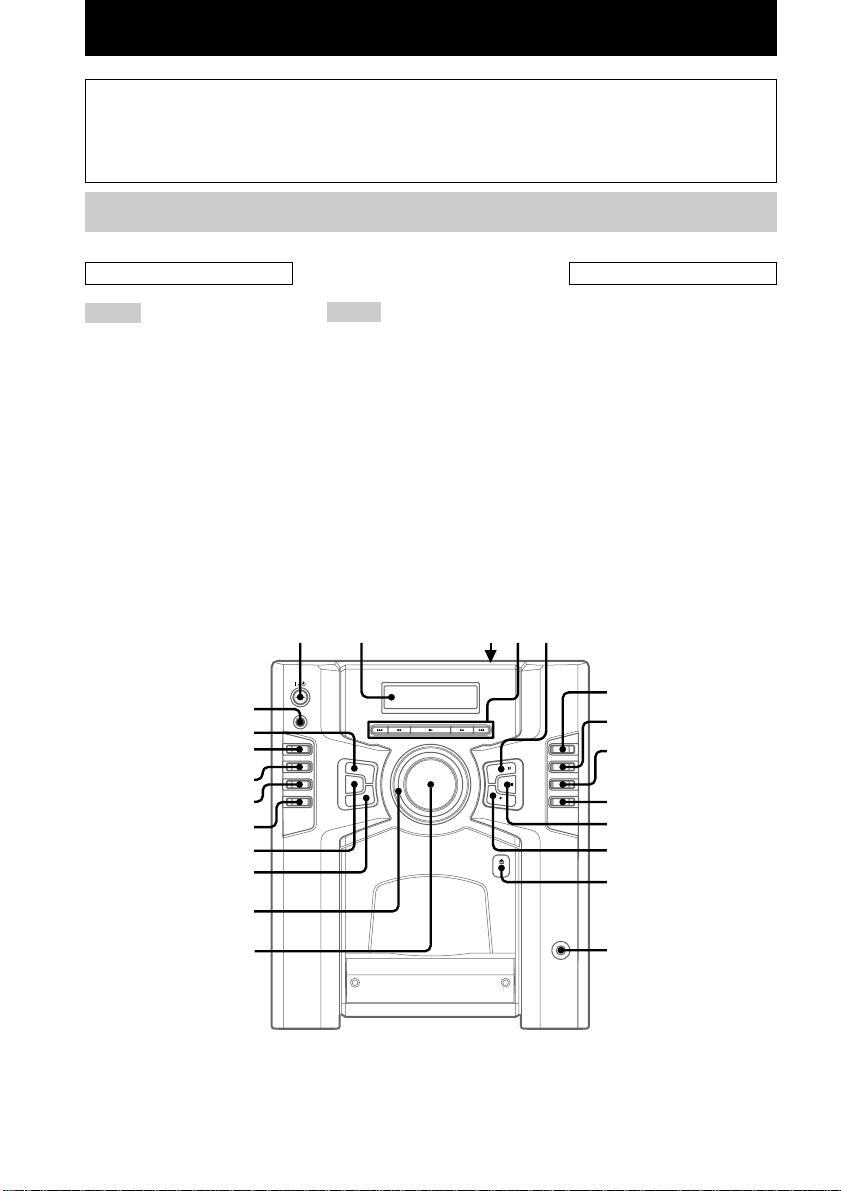
ALPHABETICAL ORDER
A – Q
CD wa (10, 12, 13, 18)
CLEAR qh (12, 16, 28)
DISC SELECT qg (9 – 13, 18)
DISPLAY wd (16, 21, 22, 28)
Display window 2
ENTER qj (8, 11 – 16, 19, 20, 23,
24)
MENU ws (12 – 16)
PAUSE X 5 (11, 17)
PHONES jack qd
PLAY MODE 8 (10, 11)
PRESET +/– 4 (14 – 16)
Illustration number
r
List of Button Locations and Reference Pages
How to use this page
Use this page to find the location of buttons and other
parts of the system that are mentioned in the text.
Main unit
R – Z
REC z PAUSE/START qa
(18, 19)
REPEAT/FM MODE 9 (11, 16)
STOP x 0 (11, 17, 18, 25, 28)
TAPE ql (17)
Tape deck 3
TIMER SELECT 7 (20, 24, 26)
TIMER SET 6 (8, 19, 23)
TUNER/BAND w; (14 – 16)
TUNING +/– 4 (14 – 16)
VIDEO (MD) qk (25, 26)
VOLUME qf
BUTTON DESCRIPTIONS
=/1 (power) 1
m (rewind) 4
N (play) 4
M (fast forward) 4
. (go back) 4
> (go forward) 4
Z PUSH (front cover) qs
Z PUSH (tape deck) 3
1
wd
ws
wa
w;
ql
qk
qj
qh
2345
6
7
8
9
q;
qa
qs
qd
qf
qg
PLAY MODE 8 (10, 11)
RR
Name of button/part Reference page
5
US
List of Button Locations and Reference Pages
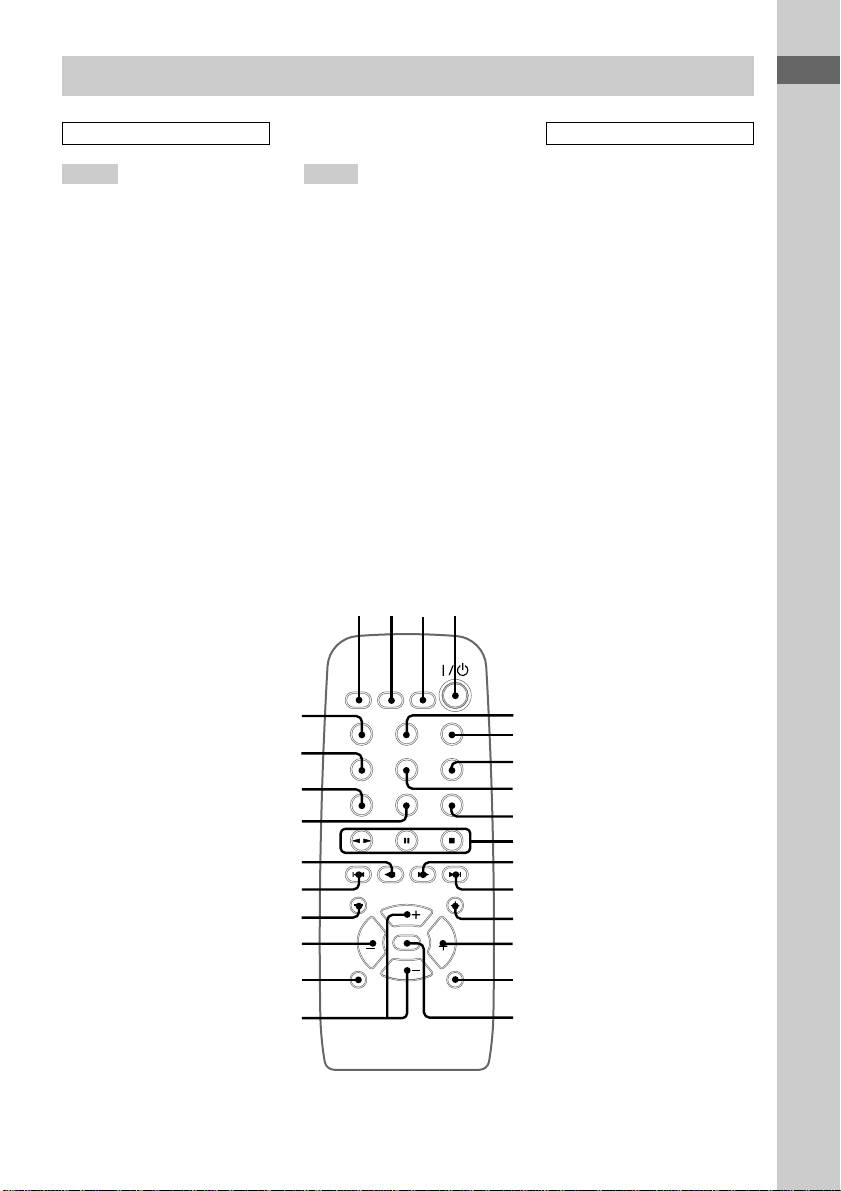
BUTTON DESCRIPTIONS
@/1 (power) 4
n N (play)** 0
X (pause) 0
x (stop) 0
. (go back) wa
m (rewind) ws
M (fast forward) qa
> (go forward) qs
Notes for the supplied
remote
* The GAME button and the
ALBM –/ALBM + buttons are
not available.
**The tape deck does not play the
reverse side.
Remote Control
ALPHABETICAL ORDER
A – Q
ALBM +/ALBM –* qd w;
CD wg (10, 12, 13, 18)
CD SYNC wf (18, 19)
DISC +/DISC – qf ql
(9 – 13, 18)
DISPLAY wh (16, 21, 22)
ENTER 5 (8, 11 – 16, 19, 20,
23, 24)
GAME* 6
GROOVE qh (20)
PLAY MODE 2 (10, 11)
PRESET +/PRESET – qs wa
(14 – 16)
PRESET EQ qg (21)
R – Z
REC wd (18)
REPEAT 3 (11)
SLEEP 1 (23)
SURROUND qk (20)
TAPE 7 (17)
TUNER/BAND 8 (14 – 16)
TUNING +/TUNING – qa ws
(14 – 16)
VIDEO (MD) 9 (25, 26)
VOL +/– qj
6
7
8
9
5
qf
qg
qh
0
qd
qa
qs
ql
qk
qj
w;
1234
wa
ws
wd
wh
wg
wf
6
US
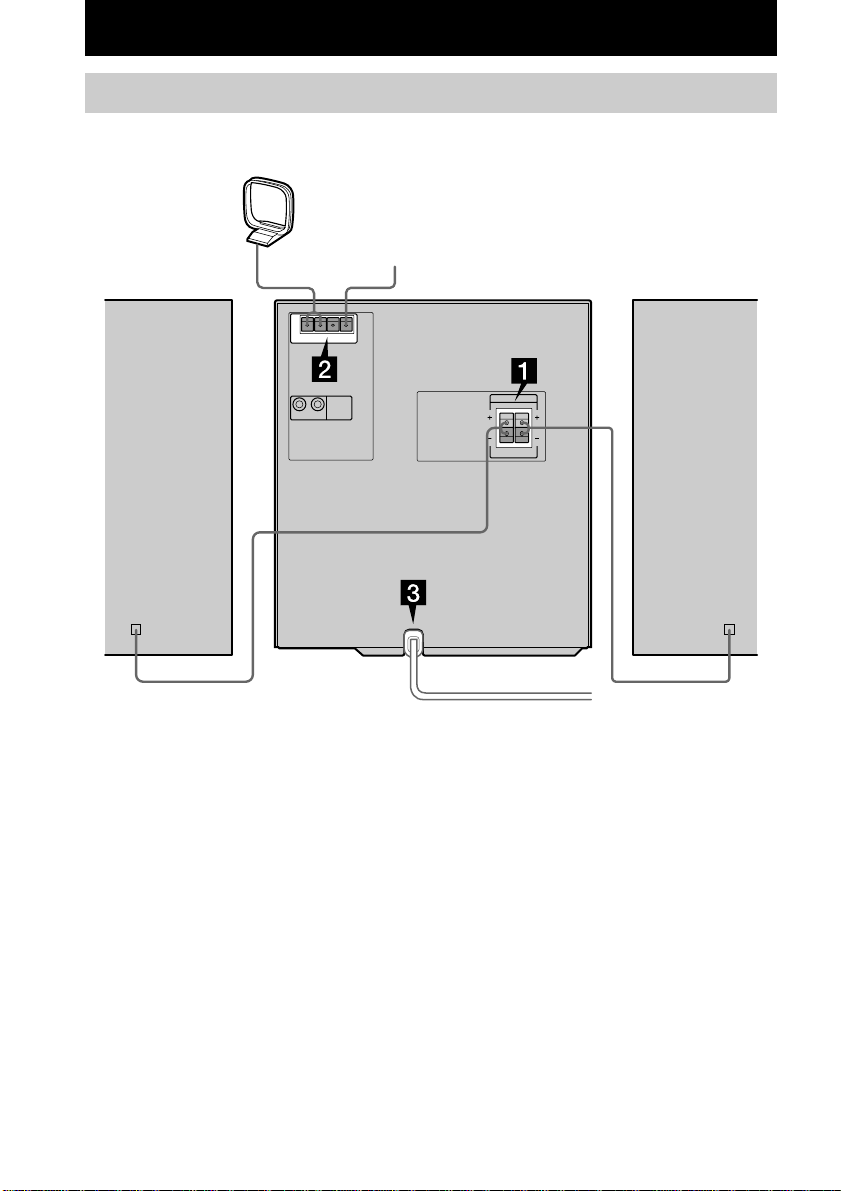
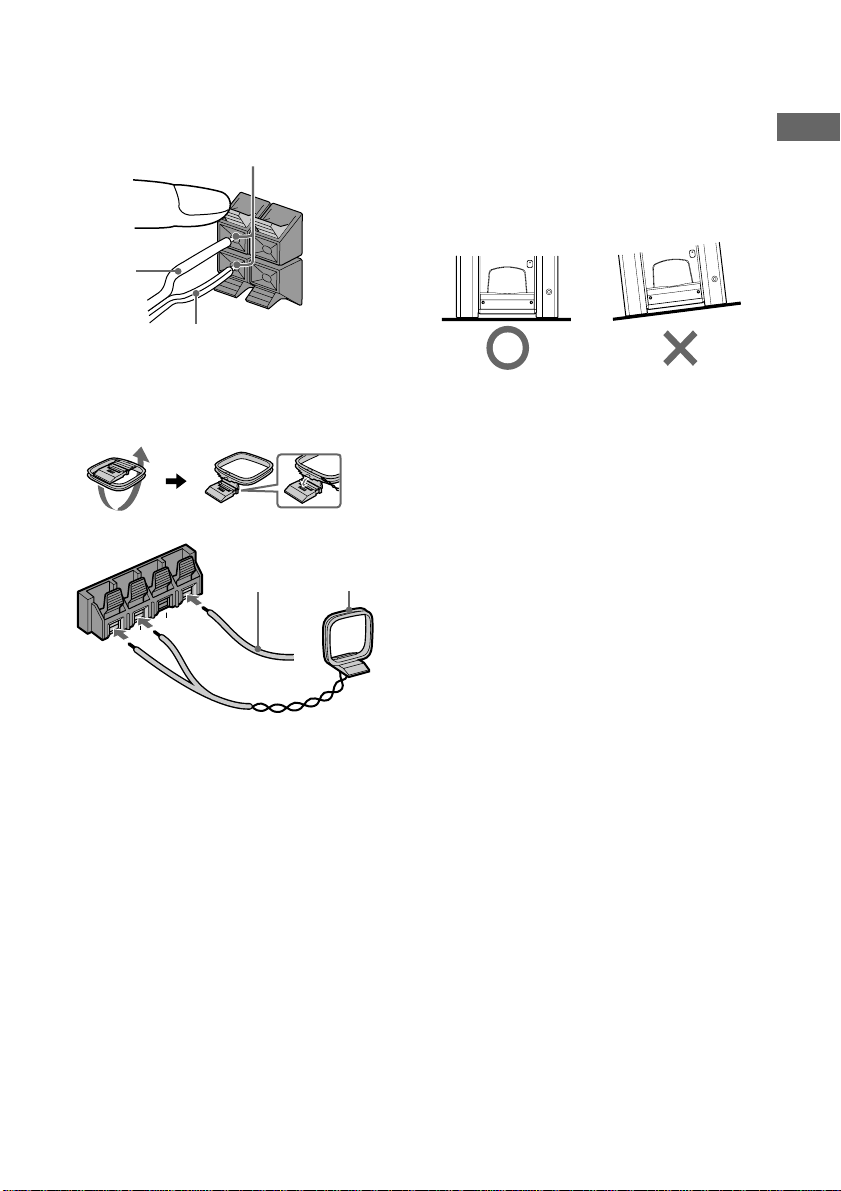
Hooking up the system
Perform the following procedure 1 to 3 to hook up your system using the supplied cords and
accessories.
Front speaker (Right)
FM antenna
AM loop antenna
Front speaker (Left)
Getting Started
Getting Started
7
US
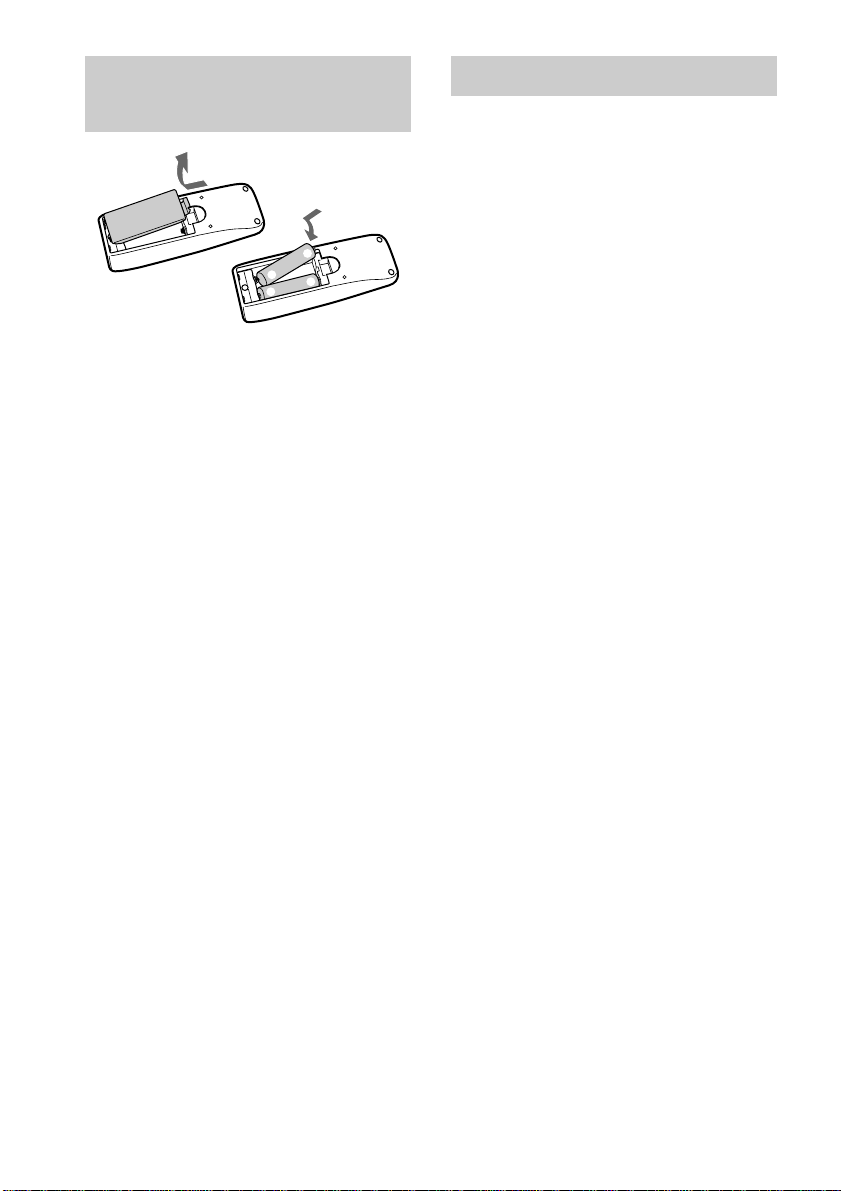
2 Connect the FM/AM antennas.
Set up the AM loop antenna, then connect
it.
F
M
75
Ω
AM
A
N
T
E
N
N
A
U
U
1 Connect the front speakers.
Connect the speaker cords to the SPEAKER
jacks on the unit as shown below.
R
L
+
–
Insert only the stripped portion
Solid (3)
Stripe (#)
3 Connect the power cord to a wall outlet.
The demonstration appears in the display.
When you press ?/1, the system turns on
and the demonstration automatically ends.
Note on placement
Be sure to place this unit on a horizontal place.
If the unit is slanted, it may cause malfunction
or damage to the system.
To connect optional components
See page 24 for details.
Note
Keep the speaker cords away from the antennas to
prevent noise.
AM loop
antenna
Extend the
FM antenna
horizontally
8
US
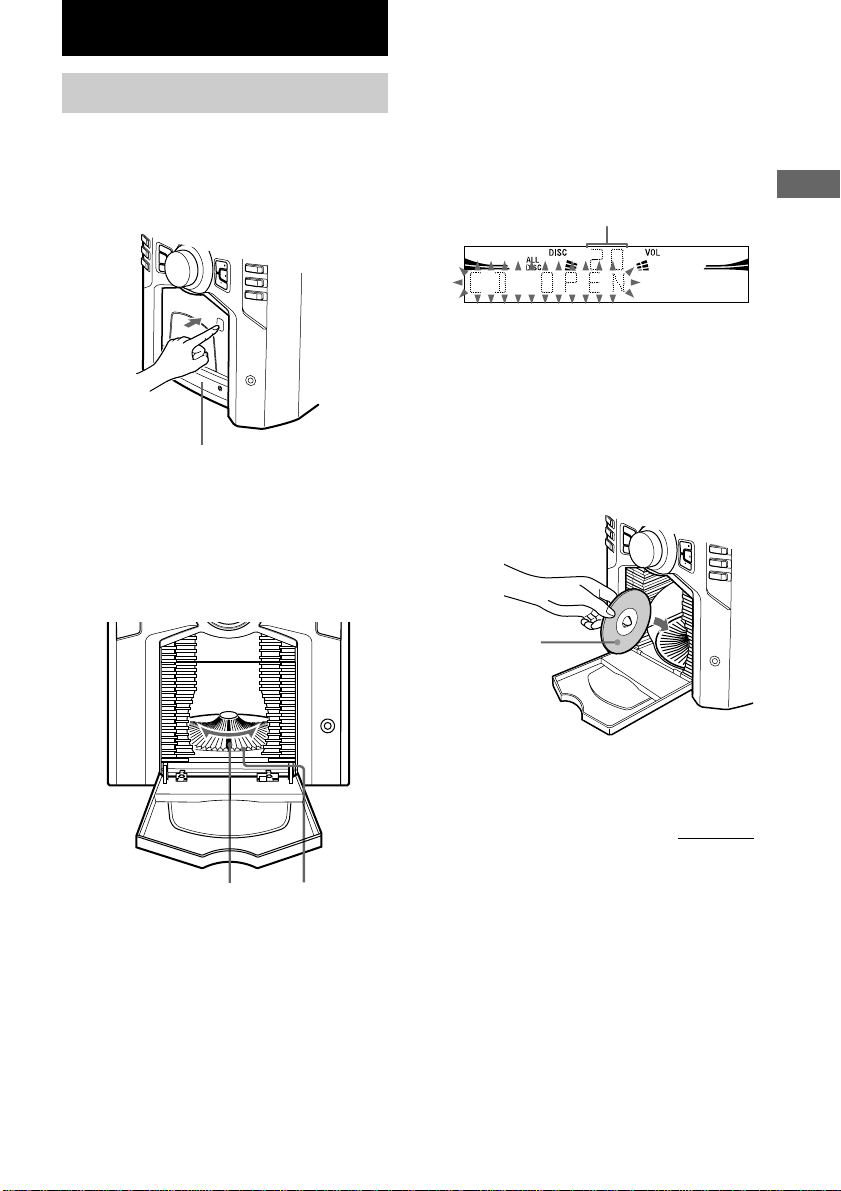
Inserting two size AA (R6)
batteries into the remote
E
e
e
E
Tip
With normal use, the batteries should last for about
six months. When the remote no longer operates the
system, replace both batteries with new ones.
Note
If you do not use the remote for a long period of time,
remove the batteries to avoid possible damage from
battery leakage.
Setting the clock
1 Press =/1 to turn on the system.
2Press TIMER SET.
3Press . or > repeatedly to set the
hour.
4Press ENTER.
5Press . or > repeatedly to set the
minute.
6Press ENTER.
To adjust the clock
1 Press TIMER SET.
2 Press . or > repeatedly to select
“CLOCK SET”, then press ENTER.
3 Do the same procedures as step 3 to 6
above.
Notes
• The clock settings are canceled when you
disconnect the power cord or if a power failure
occurs.
• You cannot set the clock in Power Saving Mode.
CD
9
US
CD
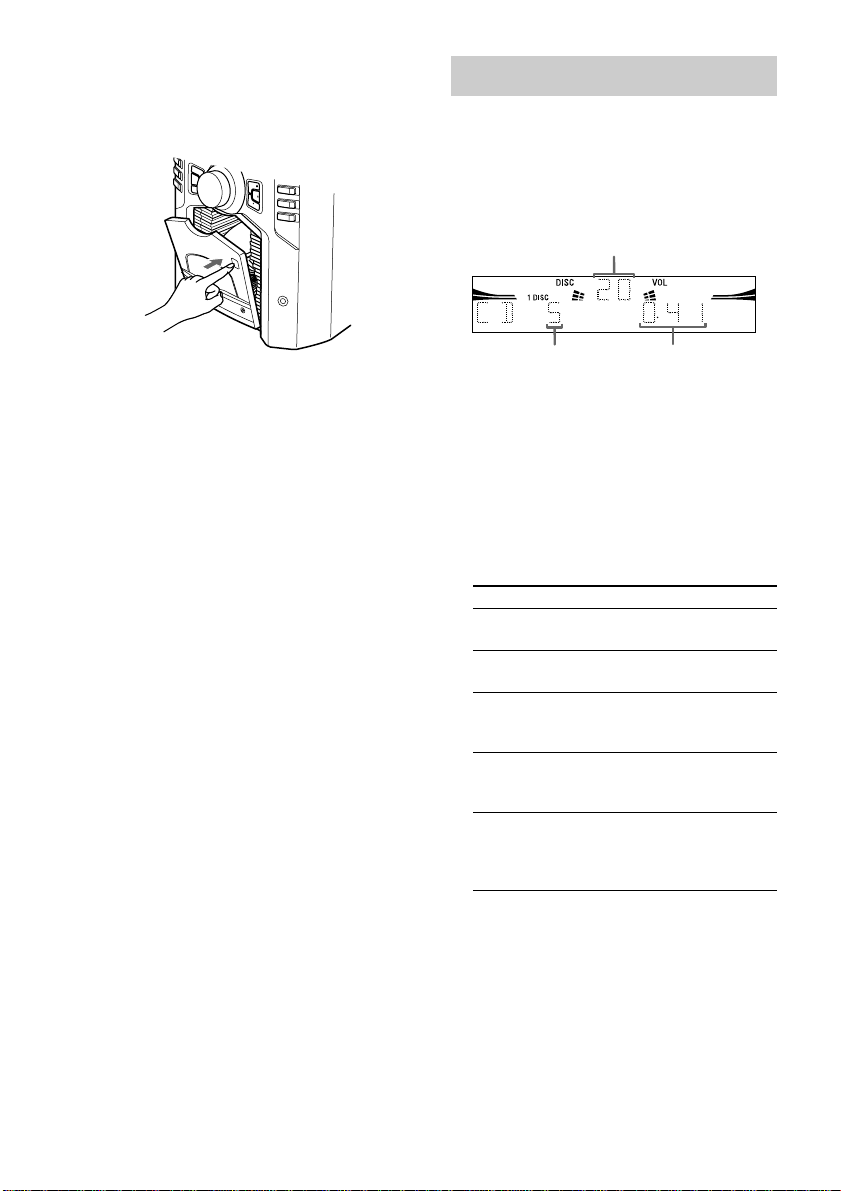
Loading a CD
You can load up to 60 discs into this unit.
Turn on the system before you load CDs.
1 Open the front cover by pressing
Z PUSH on the front cover.
Disc slot at the loading
position
(located at the very front)
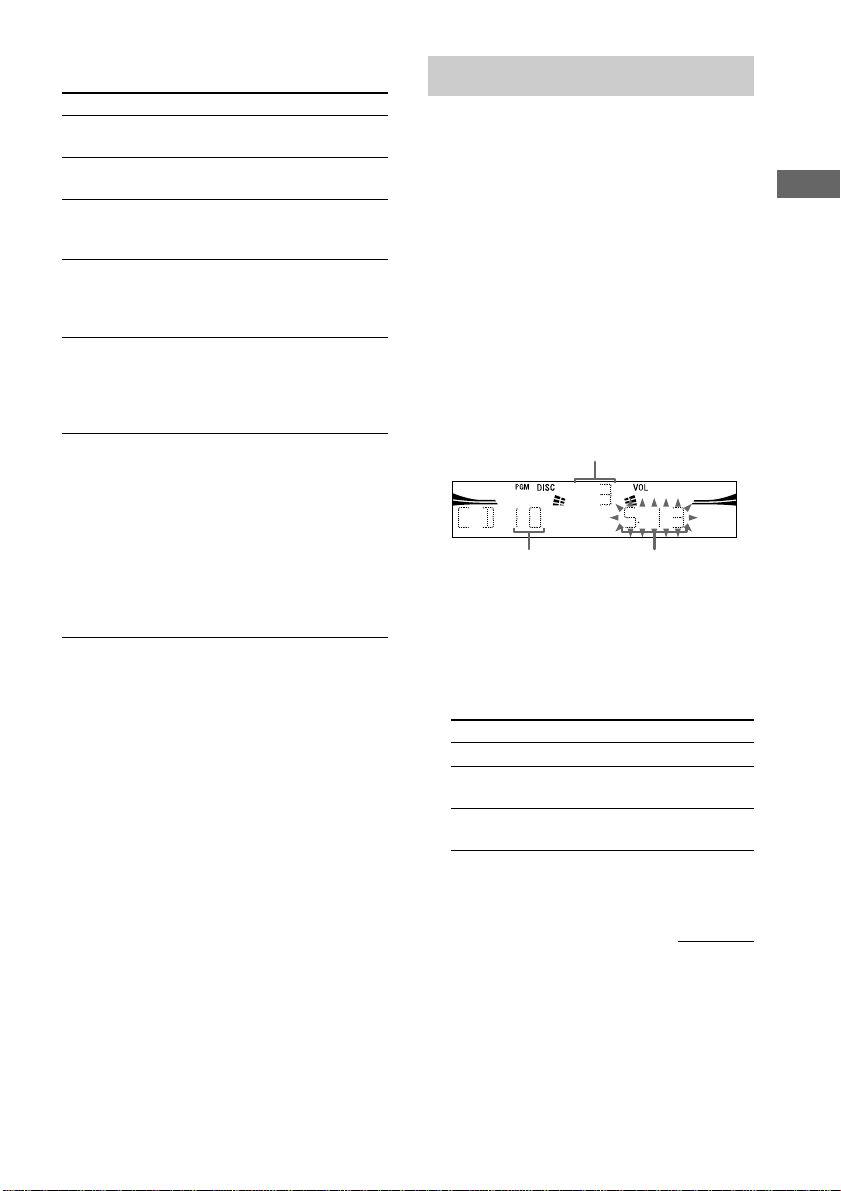
Disc number
The disc number* at the loading position
appears in the display. As you turn DISC
SELECT, the disc number changes.
* If you have already loaded discs, the disc
number at the playing position appears. When
you turn DISC SELECT, the displayed disc
number changes to the one at the loading
position.
Disc number
3 Insert a disc with the label side facing
right.
Notes
• Make sure you have loaded the disc into each
slot at a right angle to the rotary table. If the
disc is not put in straight, it may damage the
unit or the disc.
• Make sure the rotary table comes to a complete
stop before loading or removing discs.
With the label
side facing
right
4 Repeat steps 2 and 3 to load additional
discs.
continued
Front cover
2 Turn DISC SELECT (or press DISC – or
DISC + on the remote) until you find the
disc slot where you want to insert a
disc, while checking the disc number
(written beside every slot and also
indicated in the display).
10
US
The tracks on all CDs in the
order you want them to be
played (see “Programing
CD tracks ” on page 11).
4Press N (or n N on the remote).
The tracks on the CD you
have selected in random
order.
PGM (Program
Play)
The tracks on all CDs in
random order.
1 DISC SHUF
(Shuffle Play)
The CD you have selected
in original order.
ALL DISCS
SHUF
(Shuffle Play)
All CDs in the disc tray
continuously.
1 DISC (Normal
Play)
5 Close the front cover by pressing
Z PUSH on the front cover.
The rotary table turns and the disc slot at the
loading position is set to the playing
position.
Removing CDs
After following step 1 of “Loading a CD” on
page 9, remove the discs. Then close the front
cover.
Notes
• Always close the front cover except when you load
or remove discs.
• Do not load an empty 8 cm CD adaptor. It may
damage the unit.
• Do not attach anything such as seals or sleeves to
CDs. It may damage the unit or the disc.
• If you drop a disc into the unit and the CD will not
go into the slot correctly, consult your nearest Sony
dealer.
• When transporting the unit, remove all discs from
the unit.
• If you want to remove the disc played, open the
front cover. The disc comes to the loading position.
Remove the disc after the rotary table comes to a
complete stop.
Tip
You can display the original Disc Memos instead of
total number of tracks and total playing time (see
“Labeling a CD” on page 12) to locate the disc easily
when you start playing.
When you select a CD-TEXT disc, the disc title is
displayed instead of total number of tracks and total
playing time.
Playing a CD
— Normal Play/Shuffle Play/Repeat
Play
You can play up to 60 CDs continuously. This
system lets you play the CD in different play
modes.
Disc number
Track number Playing time
1Press CD to switch the function to CD.
2When you want to specify the disc for
1 DISC, turn DISC SELECT (or press
DISC – or DISC + on the remote) until
the desired disc number or Disc Memo
appears.
3In stop mode, press PLAY MODE
repeatedly until the mode you want
appears.
Select To play
ALL DISCS
(Normal Play)
Loading a CD (continued)
CD
11
US
Programing CD tracks
— Program Play
You can make a program of up to 25 tracks
from all the CDs in the order you want to play
them.
1 Press CD to switch the function to CD.
2 Press PLAY MODE repeatedly until
“PGM” appears.
3 Turn DISC SELECT (or press DISC – or
DISC + on the remote) to select a CD.
To program all the tracks on a CD at once,
go to step 5 with “CDAL” displayed.
4 Press . or > repeatedly until the
desired track appears.
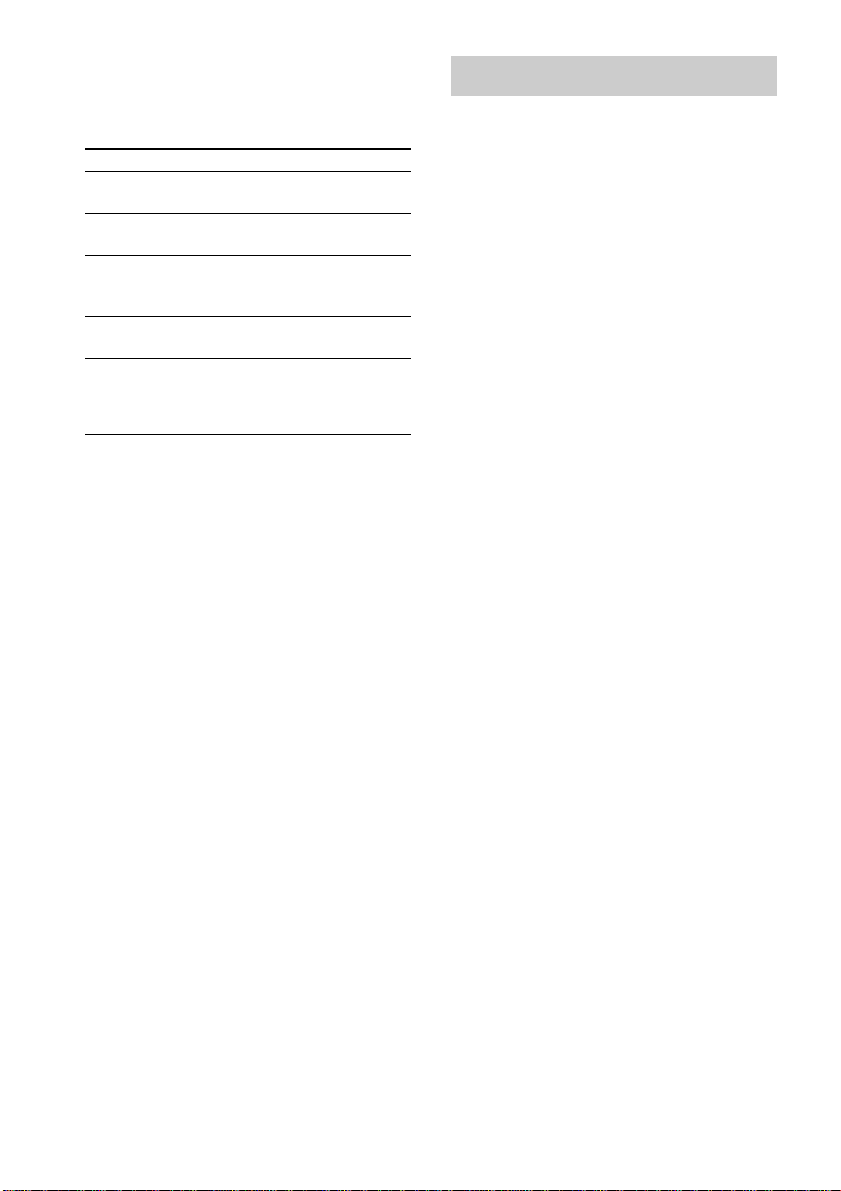
Disc number
Other Operations
To Do this
Stop play Press STOP x (or x on the
remote).
Pause Press PAUSE X (or X on the
remote). Press again to resume play.
Select a track During play or pause, press > (to
go forward) or . (to go back).
Find a point in
a track
During play, press and hold M (to
go forward) or m (to go back).
Release it when you find the desired
point.
Select a CD in
stop mode
Turn DISC SELECT to the right (to
go forward) or to the left (to go
back) and release it when you reach
the desired CD (or press DISC + or
DISC – on the remote).
Play repeatedly
(Repeat Play)
Press REPEAT/FM MODE (or
REPEAT on the remote) during
play until “REP” or “REP 1”
appears.
REP*: For all the tracks on a CD up
to five times.
REP 1**: For a single track only.
To cancel Repeat Play, press
REPEAT/FM MODE (or REPEAT
on the remote) until “REP” and
“REP 1” disappear.
* For all the tracks on all CDs, press PLAY MODE
repeatedly in stop mode to select “ALL DISCS”.
However, you cannot select “ALL DISCS SHUF”
and “REP” at the same time.
**When you select “REP 1”, that track is repeated
endlessly until Repeat Play is canceled.
continued
Selected track
number
Playing time of
selected track
5 Press ENTER.
The track is programed. The programed
track and corresponding step (playing order)
appear.
6 Program additional discs or tracks.
To program Repeat steps
Other discs 3 and 5
Other tracks on the
same disc
4 and 5
Other tracks on other
discs
3 to 5
7 Press N (or n N on the remote).
12
US
Clear the entire
program
Press . or > repeatedly
during Program Play.
Clear a track or
disc from the
end
Press CLEAR in stop mode.
Other Operations
To Do this
Press PLAY MODE repeatedly
until “PGM” disappears.
Check the
program
Cancel Program
play
Labeling a CD
— Disc Memo
You can label up to 60 CDs with titles of up to
20 characters. Whenever you load a labeled
CD, the title appears in the display.
Notes
• You cannot label a CD-TEXT disc.
• To ensure that Disc Memos are not erased from
memory, have the system connected to a wall outlet
at least once a day.
• You can label a CD only during Normal Play (when
“1 DISC” or “ALL DISCS” is displayed) in stop
mode.
1Press CD to switch the function to CD.
If “SHUF” or “PGM”appears, press PLAY
MODE repeatedly until both disappear.
2Turn DISC SELECT (or press DISC – or
DISC + on the remote) until the disc
number you want to label appears.
3Press MENU.
4Press . or > repeatedly until
“NAME IN” appears.
5Press ENTER.
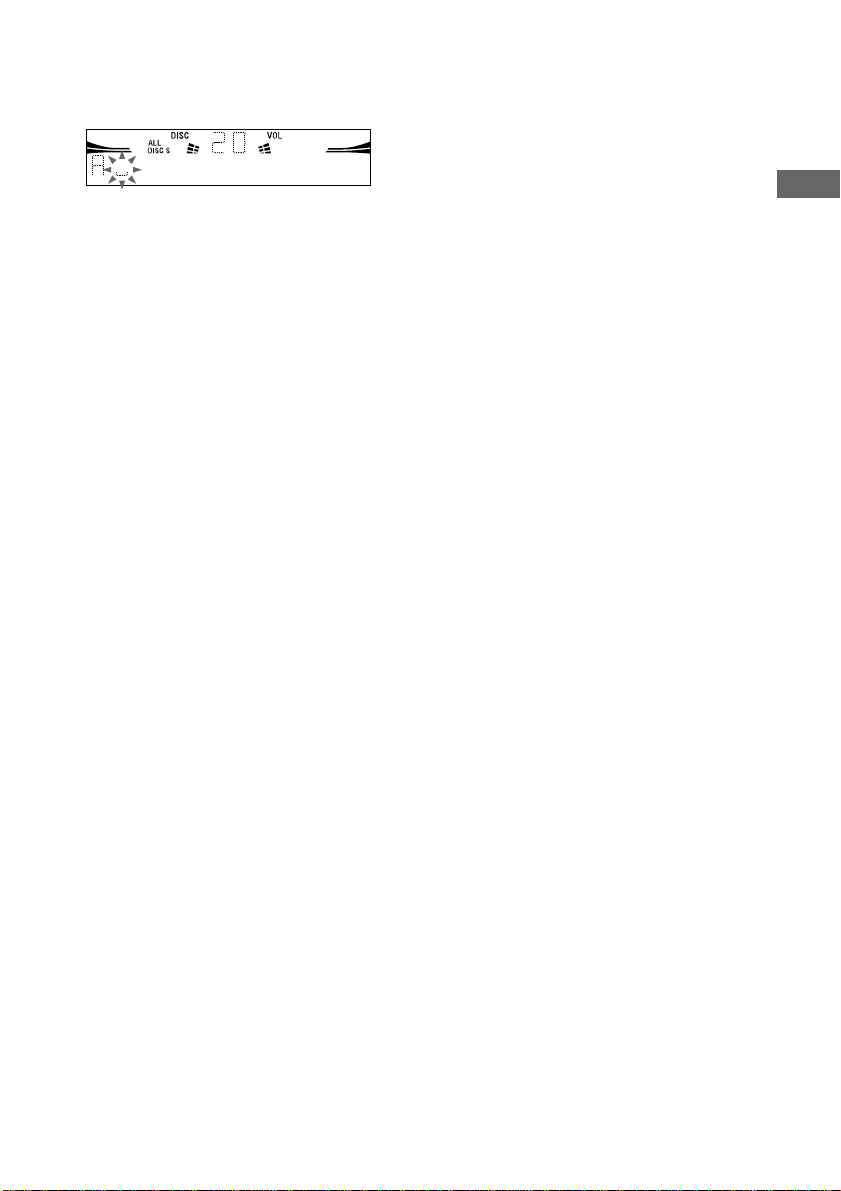
The cursor appears.
6Turn DISC SELECT until the character
you want appears.
You can input the following characters:
• Upper cases (A – Z)
• Numbers (0 – 9)
• Symbols (‘ – ⁄ , + < > _ = `)
Programing CD tracks (continued)
Press and hold CLEAR in stop
mode.
Add tracks or
discs to the end
of program in
stop mode
Perform step 6.
Tips
• The program you made remains after Program Play
finishes. To play the same program again, press CD,
then press N (or n N on the remote) in
Program Play mode.
•“– –.– –” appears when the total CD program time
exceeds 100 minutes, or when you select a CD track
whose number is 21 or over.
• The programed disc and track numbers remain until
you erase them, so that the system plays only the
existing disc and track numbers if you replace discs.
However, the disc and track numbers that are not
found in the system or on the disc are deleted from
the program, and the rest of the program is played
in the programed order.
CD
13
US
7 Press M.
The character you selected in step 6 stops
flashing and the cursor shifts to the right.
8 Repeat steps 6 and 7 to complete the
entire title.
If you make a mistake
Press m or M until the character you
want to change flashes, then repeat steps 6
and 7.
To erase a character
Press CLEAR while the character is
flashing. You cannot insert characters.
9 Press ENTER to complete the labeling
procedure.
To cancel labeling
Press MENU.
Tip
When you replace a disc with a CD-TEXT disc, the
disc title of the CD-TEXT disc is automatically
restored. The disc title of the CD-TEXT disc is no
longer stored (disappears) when the disc is removed.
Note
The Disc Memo stores the number of the slot in
which the CD was loaded. Re-enter the Disc Memo
when loading a new CD into that slot.
Checking the Disc Memos
1 Press CD to switch the function to CD.
2 Press MENU.
3 Press . or > repeatedly until
“NAME CHECK” appears, then press
ENTER.
4 Turn DISC SELECT to select the Disc
Memos stored in the system memory
between 01 and 60, then press MENU.
To check the current Disc Memo
Press DISPLAY repeatedly until the Disc
Memo appears in stop mode.
Erasing a Disc Memo
1 Press CD to switch the function to CD.
If “SHUF” or “PGM”appears, press PLAY
MODE repeatedly until both disappear.
2 Press MENU.
3 Press . or > repeatedly until “NAME
ERASE” appears, then press ENTER.
4 Turn DISC SELECT to select the disc
number with the Disc Memo you want to
erase, then press ENTER.
Erasing all Disc Memos of all
discs
1 Press CD to switch the function to CD.
If “SHUF” or “PGM”appears, press PLAY
MODE repeatedly until both disappear.
2 Press MENU.
3 Press . or > repeatedly until “ALL
ERASE” appears, then press ENTER.
4 Press ENTER again until “COMPLETE”
appears.
14
US
Tuner
Presetting radio stations
You can preset up to 20 FM stations and 10
AM stations. You can then tune in any of those
stations simply by selecting the corresponding
preset number.
There are two ways to store the station presets.
To Method
Automatically tune in
all of the stations that
can be received in your
area and then store
them manually
Automatic Tuning Preset
Manually tune in and
store the radio
frequency of your
favorite stations
Manual Tuning Preset
Setting presets through
automatic tuning
1Press TUNER/BAND repeatedly to
select “FM” or “AM”.
2Press and hold TUNING – or + until the
frequency indication starts to change,
then release it.
Scanning stops automatically when the
system tunes in a station. “TUNED” and
“ST” (for a stereo program) appear.
If “TUNED” does not appear and the
scanning does not stop
Set the frequency of the desired radio
station as described in steps 2 through 7 of
“Setting presets through manual tuning”.
3Press MENU.
4Press PRESET – or + repeatedly until
“MEMORY” appears, then press
ENTER.
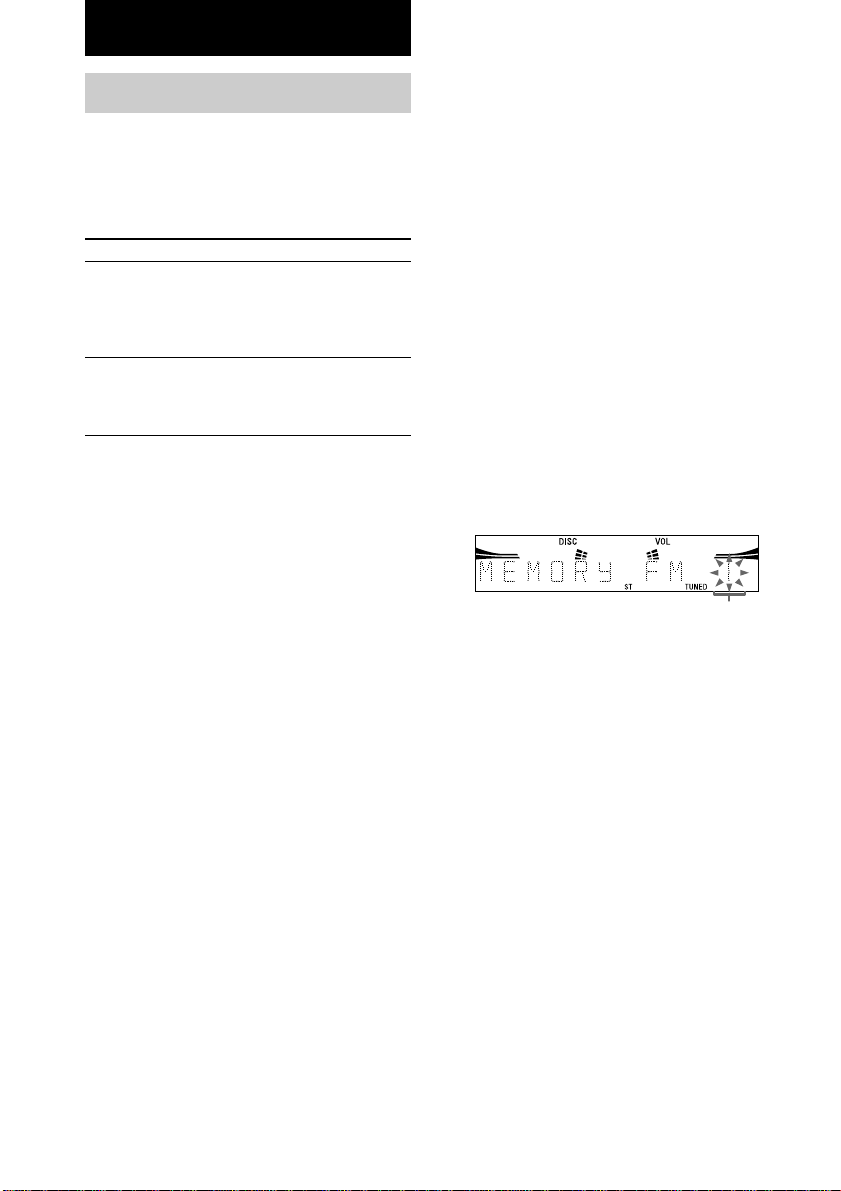
A preset number appears.
Preset number
5Press PRESET – or + repeatedly to
select the desired preset number.
6Press ENTER.
“COMPLETE” appears.
The station is stored.
7Repeat steps 1 to 6 to store other
stations.
Tuner
15
US
Start over from step 1.
Follow the procedure described in
“Setting presets through manual
tuning”.
Stop setting
presets
Press MENU.
Change the
preset station
Setting presets through
manual tuning
1 Press TUNER/BAND repeatedly to
select “FM” or “AM”.
2 Press TUNING – or + repeatedly to tune
in the desired station.
3 Press MENU.
4 Press PRESET – or + repeatedly until
“MEMORY” appears, then press
ENTER.
A preset number appears.
5 Press PRESET – or + repeatedly to
select the desired preset number.
6 Press ENTER.
7 Repeat steps 1 to 6 to store other
stations.
Other Operations
To Do this
Tune in a station
with a weak
signal
To change the AM tuning interval
The AM tuning interval is factory-set to 9 kHz
(10 kHz in some areas). To change the AM
tuning interval, tune in any AM station first,
then turn off the system. While holding down
ENTER, turn the system back on. When you
change the interval, all the AM preset stations
are erased. To reset the interval, repeat the
same procedure.
Note
You cannot change the AM tuning interval in
Power Saving Mode.
Tips
• The preset stations are retained for about a day even
if you disconnect the mains lead or if a power
failure occurs.
• You can label the preset stations (see page 16).
• To improve broadcast reception, reorient or move
the supplied antennas near a window or outdoors.

16
US
Listening to the radio
You can listen to a radio station either by
selecting a preset station, or by manually tuning
in the station.
Listening to a preset station
— Preset Tuning
Preset radio stations in the tuner’s memory first
(see “Presetting radio stations” on page 14).
1 Press TUNER/BAND repeatedly to
select “FM” or “AM”.
2 Press PRESET – or + repeatedly to tune
in the desired preset station.
Listening to non-preset radio
station
— Manual Tuning
1 Press TUNER/BAND repeatedly to
select “FM” or “AM”.
2 Press TUNING – or + repeatedly to tune
in the desired station.
Tips
• To improve broadcast reception, adjust the supplied
antennas, or connect a commercially available
external antenna.
• When an FM stereo program has static noise, press
REPEAT/FM MODE repeatedly until “MONO”
appears. There will be no stereo effect, but the
reception will improve.
• By pressing and holding TUNING – or +, the
frequency indication changes and scanning stops
when the system tunes in a station (Automatic
Tuning).
• To record from the radio, see “Recording to a tape”
on page 18.
Labeling the preset
stations
— Station Name
You can label each preset station with up to
12 characters (Station Name).
1Tune in the preset station you want to
label (see “Listening to the radio” on
this page).
2Follow the same procedures as from
steps 3 to 9 of “Labeling a CD” on
page 12.
To cancel labeling
Press MENU.
To check the preset number and
frequency
The station name appears when you tune in the
labeled station.
To check the preset number and frequency,
press DISPLAY. The preset number and
frequency are displayed for 4 seconds and it
returns to the station name display.
To erase the name
1 Tune in the station.
2 Press MENU.
3 Press PRESET – or + repeatedly to select
“NAME IN”, then press ENTER.
4 Press CLEAR repeatedly to erase the
name.
5 Press ENTER.
Tape
17
US
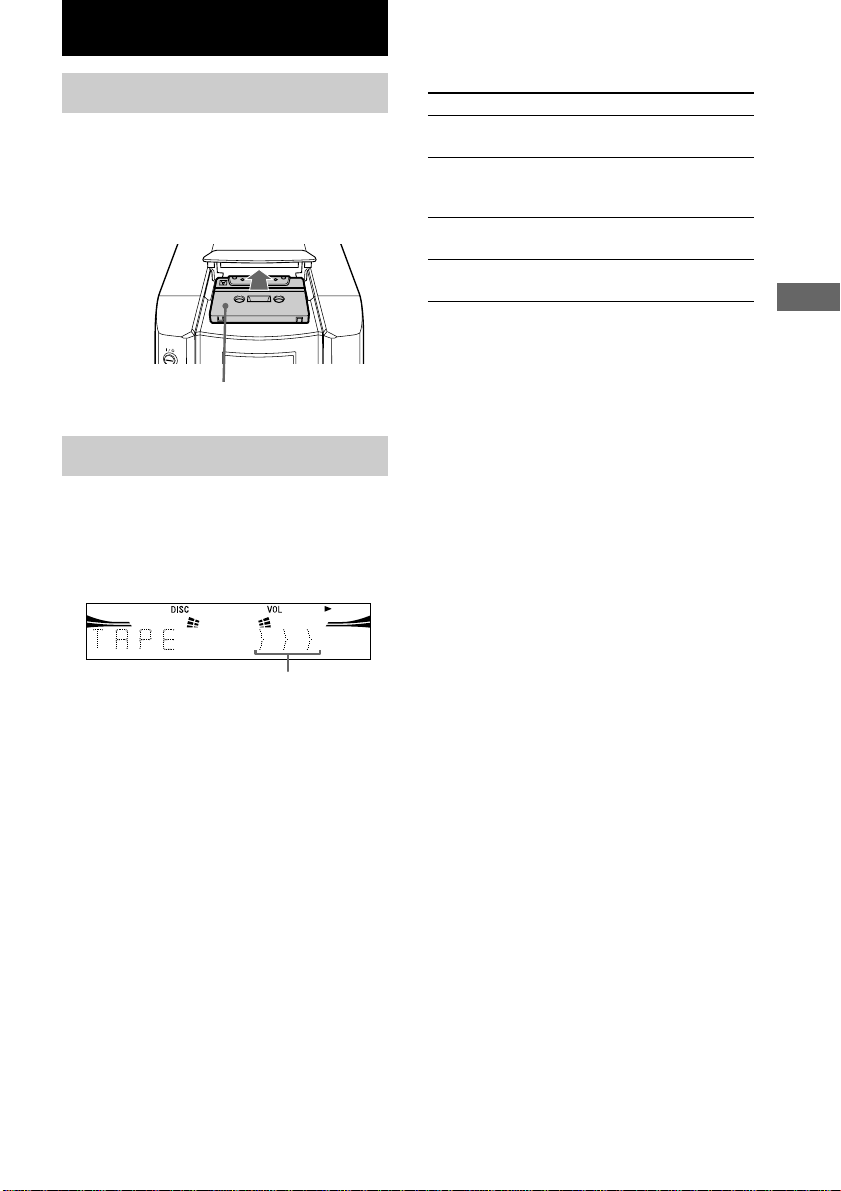
Loading a tape
You can use only TYPE I (normal) tape.
1 Press Z PUSH on the tape deck.
2 Insert a tape with the side you want to
play/record facing up.
Other Operations
To Do this
Tape
With the side you want to
play/record facing up
Playing a tape
1 Load a tape.
2 Press TAPE.
3 Press N (or n N on the remote).
Tape playback side
Stop play Press STOP x (or x on the
remote).
Pause Press PAUSE X (or X on the
remote). Press again to
resume play.
Fast-forward
or rewind
Press m or M.
Remove
the cassette
Press Z PUSH on the tape
deck in stop mode.
Note
If the system stops during tape playback or recording
due to a power failure or other reason, do not attempt
to forcibly eject the tape as this may damage the
heads. Wait until the power is restored, then be sure
to press ?/1 to turn on the system before ejecting the
tape.
18
US
Press REC z PAUSE/START (or REC on
the remote).
Tape stands by for recording.
3 Turn DISC SELECT (or press
DISC – or DISC + on the remote)
to select the CD you want to
record.
Load the CD (or other audio source), or
tune in the station you want to record.
Recording to a tape
— CD Synchro Recording/Recording Manually/Program Edit
You can record from a CD (or connected components) or radio. The recording level is adjusted
automatically.
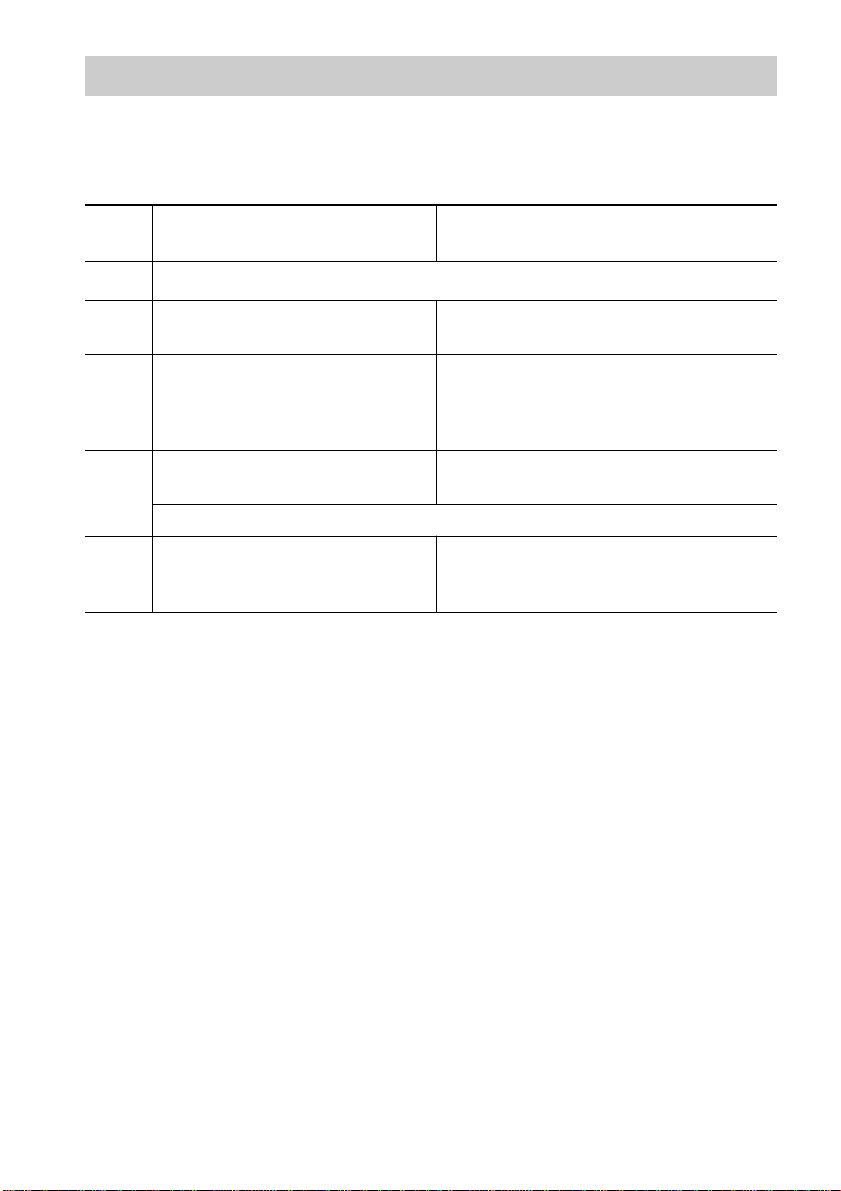
Steps
Recording from a CD
(CD Synchro Recording)
To stop recording
Press STOP x (or x on the remote).
Recording from a CD (or connected
components) or radio manually
1 Load a recordable tape into the deck.
2 Press CD. Press the function button of the source
you want to record.
4 Press CD SYNC on the remote.
5 Press REC z PAUSE/START
(or X on the remote).
Recording starts.
Press REC z PAUSE/START (or X on the
remote) and then start playing the
desired source.
Note
After step 4, you cannot pause a CD even if you press
PAUSE X (or X on the remote).

Tape
19
US
Recording a CD by specifying
track order
— Program Edit
1 Load a recordable tape into the deck.
2 Program CD tracks following step 1 to 6
in “Programing CD tracks” on page 11.
3 Press CD SYNC on the remote.
Tape stands by for recording and CD pauses
for play.
4 Press REC z PAUSE/START (or X on
the remote).
Recording starts.
Note
After step 3, you cannot pause a CD even if you press
PAUSE X (or X on the remote).
Timer-recording radio
programs
You can record a preset radio station from a
specified time.
To timer-record, you must first preset the radio
station (see “Presetting radio stations” on
page 14) and set the clock (see “Setting the
clock” on page 8).
1 Tune in the preset radio station (see
“Listening to the radio” on page 16).
2 Press TIMER SET.
3 Press . or > repeatedly to select
“REC SET”, then press ENTER.
“ON” appears and the hour indication
flashes.
4 Set the time to start recording.
Press . or > repeatedly to set the
hour, then press ENTER.
The minute indication flashes.
Press . or > repeatedly to set the
minute, then press ENTER.
5 Set the time to stop recording following
the procedure in step 4.
The start time appears, followed by the stop
time, the preset radio station to be recorded
(e.g., “TUNER FM 5”), then the original
display appears.
6 Load a recordable tape into the deck.
7 Press ?/1 to turn off the system.
When the recording starts, the volume is
reduced to minimum.
continued

20
US
Press TIMER SELECT and press
. or > repeatedly to select
“TIMER OFF”, then press ENTER.
Notes
• If the system is on at the preset time, the recording
will not be made.
• When you use the Sleep Timer, Timer-recording
will not turn on the system until the Sleep Timer
turns it off.
Press TIMER SELECT and press
. or > repeatedly to select
“REC”. Then, press ENTER. To
change the setting, start over from
step 1.
Cancel the
timer
Other Operations
To Do this
Check the
setting
Sound Adjustment
Adjusting the sound
Enjoying the powerful sound
— GROOVE
You can reinforce the bass and create a more
powerful sound.
Press GROOVE on the remote.
Each time you press the button, the display
changes as follows:
GROOVE ON y GROOVE OFF (off)
Tip
GROOVE is factory-set to on.
Selecting the surround effect
— SURROUND
Press SURROUND on the remote.
Each time you press the button, the display
changes as follows:
SURROUND ON y SURROUND OFF (off)
Note
When you select other sound effect, the surround
effect will be canceled.
Timer-recording radio programs
(continued)
Sound Adjustment/Display
21
US
Standard music sources
Selecting the sound effect
The preset music menu lets you select the
sound characteristics according to the sound
you are listening to.
Selecting the effect from the
music menu
Press PRESET EQ on the remote
repeatedly to select the preset you want.
The preset name appears in the display.
See the chart “Sound effect options”.
Sound effect options
“SUR” appears if you select an effect with
surround effects.
Effect
ROCK
POP
JAZZ
To cancel the effect
Press PRESET EQ on the remote repeatedly
until “FLAT” appears.
Display
Turning off the display
— Power Saving Mode
The demonstration display (display window
and buttons lighting and flashing even when
the system power is off) and the clock display
can be turned off to minimize the amount of
power consumed during standby (Power
Saving Mode).
Press DISPLAY repeatedly while the
system is off until the demonstration
display and the clock display disappear.
To cancel Power Saving Mode
Press DISPLAY while the system is off. Each
time you press the button, the display switches
cyclically as follows:
Demonstration display t Clock display* t
No display (Power Saving Mode)
* “– –:– –” is displayed if you do not set the clock.
Tips
• The timer continues to operate in Power Saving
Mode.
• ?/1 indicator lights up even in Power Saving
Mode.

22
US
Using the display
You can check the remaining time of the
current track or the entire CD. When a CD-
TEXT disc is loaded, you can also check the
information recorded on the disc, such as the
titles.
Checking the remaining time
Press DISPLAY repeatedly during normal
play.
Each time you press the button, the display
changes cyclically as follows:
Elapsed playing time of the current track t
Remaining time of the current track* t
Remaining time of the disc** t Track title
(CD-TEXT disc only) t Clock display t
Effect status
* “– –.– –” appears when you check the remaining
time of a CD track whose number is 21 or over.
** “– –.– –” appears during Shuffle Play of a CD
which has 21 or more tracks, or during Programme
Play when a CD track whose number is 21 or over
is selected. “– –.– –” also appears when either
“ALL DISCS”, “ALL DISCS SHUF”, “1 DISC
SHUF” or “PGM” is displayed (see page 10).
Checking the total playing
time
Press DISPLAY repeatedly in stop mode.
Each time you press the button, the display
changes cyclically as follows:
TOC display*
1
t Disc Memo or Disc title*
2
t Clock display t Effect status
*
1
TOC = Table of Contents; displays current disc
number, total number of tracks on the disc, and
total playing time of the disc
*
2
For labeled CD or CD with CD-TEXT
Depending on the disc, some CD-TEXT information
may not appears.
Other Features
23
US
SLEEP on the remote
repeatedly until “SLEEP OFF”
appears.
** You cannot check the remaining time when you
select “SLEEP AUTO”.
SLEEP on the remote
repeatedly to select the time you
want.
Cancel the Sleep
Timer function
SLEEP on the remote once.
Change the
time to turn off
Falling asleep to music
— Sleep Timer
You can set the system to turn off after a
certain time, so that you can fall asleep to
music.
Press SLEEP on the remote.
Each time you press the button, the minute
display (the turn-off time) changes cyclically as
follows:
SLEEP AUTO* t SLEEP 90MIN t SLEEP
80MIN t SLEEP 70MIN t
…
t SLEEP
10MIN t SLEEP OFF
* The system turns off when the current CD or tape
finishes playback (for up to 100 minutes).
To Press
Waking up to music
— Daily Timer
You can wake up to music at a preset time.
Make sure you have set the clock (see “Setting
the clock” on page 8).
1 Prepare the music source you want to
play.
• CD: Load a CD. To start from a
specific track, make a program (see
“Programing CD tracks” on page 11).
• Tape: Load a tape with the side you
want to play facing forward.
• Radio: Tune in the preset station you
want (see “Listening to the radio” on
page 16).
2 Adjust the volume.
3 Press TIMER SET.
4 Press . or > repeatedly to select
“DAILY SET”, then press ENTER.
“ON” appears and the hour indication
flashes.
5 Set the time to start playing.
Press . or > repeatedly to set the
hour, then press ENTER.
The minute indication flashes.
Press . or > repeatedly to set the
minute, then press ENTER.
6 Set the time to stop playing following
the procedure in step 5.
Other Features
continued
Check the
remaining time**
24
US
Press TIMER SELECT and
press . or > repeatedly
to select “TIMER OFF”, then
press ENTER.
Tip
The system turns on 15 seconds before the preset
time.
Notes
• When you use the Sleep Timer, the Daily Timer
will not turn on the system until the Sleep Timer
turns it off.
• You cannot activate the Daily Timer and the Timer-
recording at the same time.
Start over from step 1.
Cancel the timer
Press TIMER SELECT and
press . or > repeatedly
to select “DAILY”, then press
ENTER.
Change the setting
7 Press . or > repeatedly until the
music source you want appears.
The indication changes as follows:
t
TUNER
y
CD PLAY
T
t
TAPE PLAY
T
8 Press ENTER.
The type of timer, followed by the start
time, stop time, and the music source,
appear, then the original display appears.
9 Press ?/1 to turn off the system.
Other Operations
To Do this
Check the setting
Optional Components
Hooking up optional
components
You can connect an optional component to this
system.
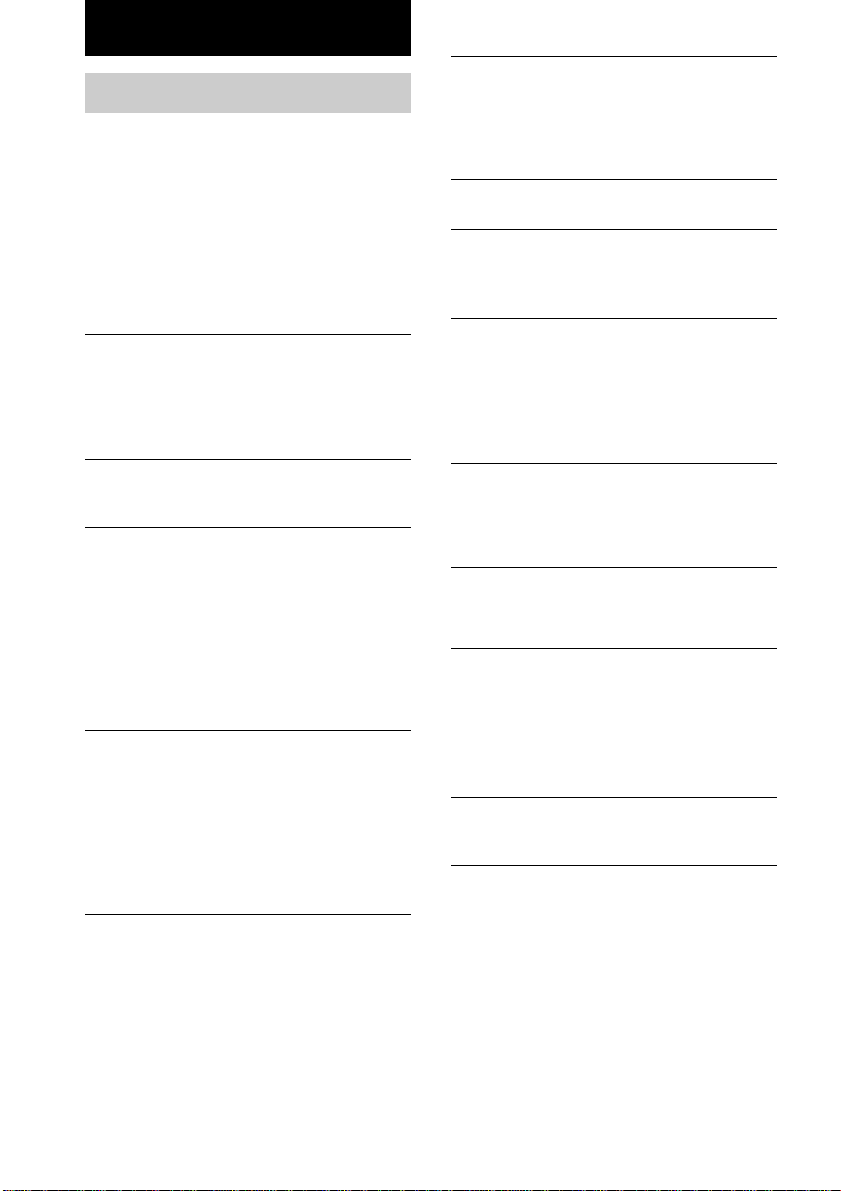
From the audio output jacks of an MD
deck, a VCR, etc.
VIDEO (MD) IN
Use audio cords (not supplied) to connect an
optional component (such as an MD deck, a
VCR, etc.) to these jacks. You can then record
or listen to analog audio from that component
through this system.
Waking up to music (continued)

Optional Components
25
US
Listening to audio from a
connected component
Listening to the analog sound
of an MD deck, a VCR, etc.
1 Connect the audio cords.
See “Hooking up optional components” on
page 24.
2 Press VIDEO (MD) to select “VIDEO” or
“MD”.
Start playing the connected component.
To switch the VIDEO function to MD
When you listen to a connected MD deck,
perform the following operation.
1 Turn off the system.
2 Press VIDEO (MD) while holding down
STOP x.
The function switches to MD.
Tip
Once you enable the MD function, just press VIDEO
(MD).
Notes
• The function is factory-set to VIDEO.
• If you want to switch back to the VIDEO funtion,
perform the operation described above to switch to
the VIDEO function.
• You cannot switch the function in Power Saving
Mode.
Recording audio from a
connected component
1 Connect the audio cords.
See “Hooking up optional components” on
page 24.
2 Start recording manually.
See “Recording to a tape” on page 18.
26
US
The sound from the connected source is
distorted when VIDEO function is selected.
• Select the MD function. If “VIDEO” appears in
the display when you press VIDEO (MD), switch
the function to MD (see “Listening to audio from
a connected component” on page 25).
The timer does not function.
• Set the clock correctly.
“DAILY”, and “REC” do not appear when you
press TIMER SELECT.
• Set the timer correctly.
• Set the clock.
The remote does not function.
• There is an obstacle between the remote and the
system.
• The remote is not pointing in the direction of the
system’s sensor.
• The batteries have run down. Replace the
batteries.
The color irregularity on a TV screen persists.
• Turn off the TV set once, then turn it on after 15
to 30 minutes. If the color irregularity still
persists, place the speakers farther away from the
TV set.
Speakers
Sound comes from one channel or unbalanced
left and right volume.
• Connect the speaker cords properly (see page 7).
• Place the speakers as symmetrically as possible.
• Connect only one of the supplied speakers to
each set of speaker terminals.
• Connect the supplied speakers.
Sound lacks bass.
• Check that the speaker’s + and – jacks are
connected correctly.
Troubleshooting
Problems and remedies
If you have any problem using this system, use
the following check list.
First, check that the power cord is connected
firmly and the speakers are connected correctly
and firmly.
Should any problem persist, consult your
nearest Sony dealer.
General
The display starts flashing as soon as you plug
in the power cord even though you have not
turned on the system (see step 3 of “Hooking up
the system” on page 6).
• Press DISPLAY twice when the system is turned
off. The demonstration disappears.
“– –:– –” appears in the display.
• A power interruption occurred. Set the clock and
timer settings again.
The clock setting/radio presetting/timer is
canceled.
• The power cord is disconnected or a power
failure occurs longer than half a day.
Redo the following:
—“Setting the clock” on page 8
—“Presetting radio stations” on page 14
If you have set the timer, also redo “Waking up
to music” on page 23 and “Timer-recording radio
programs” on page 19.
There is no sound.
• Turn VOLUME clockwise (or press VOL + on
the remote).
• The headphones are connected.
• Insert only the stripped portion of the speaker
cord into the SPEAKER jack. Inserting the vinyl
portion of the speaker cord will obstruct the
speaker connections.
• There is no audio output during timer recording.
There is severe hum or noise.
• A TV or VCR is placed too close to the stereo
system. Move the stereo system away from the
TV or VCR.
• Connect the system to a different wall outlet.
• Install a noise filter (commercially available) to
the power line.
Troubleshooting
27
US
CD Player
The CD will not play.
• Close the front cover.
• Check if the CD is correctly loaded in the slot.
• The CD is dirty.
• The CD is loaded with the label side facing left.
• There is moisture on the CD.
Play does not start from the first track.
• The player is in Program or Shuffle Play mode.
Press PLAY MODE repeatedly until “PGM” or
“SHUF” disappears.
The sound skips.
• The CD is dirty.
• Replace the CD.
• Try moving the system to a place without
vibration (e.g., on top of a stable stand).
• Try moving the speakers away from the system,
or placing them on separate stands.
• When you listen to a track with bass sounds at
high volume, the speaker vibration may cause the
sound to skip.
Tape Deck
The tape does not record.
• No tape in the cassette holder.
• The tab has been removed from the cassette (see
“To save a tape permanently” on page 29).
• The tape has reeled to the end.
The tape does not record nor play or there is a
decrease in sound level.
• The heads are dirty (see “Cleaning the tape
heads” on page 29).
• The record/playback heads are magnetized (see
“Demagnetizing the tape heads” on page 29).
The tape does not erase completely.
• The record/playback heads are magnetized (see
“Demagnetizing the tape heads” on page 29).
There is excessive wow or flutter, or the sound
drops out.
• The capstans or pinch rollers are dirty (see
“Cleaning the tape heads” on page 29).
Noise increases or the high frequencies are
erased.
• The record/playback heads are magnetized (see
“Demagnetizing the tape heads” on page 29).
After pressing N (or n N on the remote) or
Z PUSH on the tape deck, there is a mechanical
noise, “EJECT” appears, and the system enters
standby mode automatically.
• The tape was not loaded correctly.
Tuner
There is severe hum or noise (“TUNED” or “ST”
flashes in the display).
• Adjust the antenna.
• The signal strength is too weak. Connect the
external antenna.
• The supplied FM antenna receives signals along
its entire length, so make sure you extend it fully.
• Locate the antennas as far away from the speaker
cords as possible.
• Consult your nearest Sony dealer if the supplied
AM antenna has come off the plastic stand.
• Try turning off surrounding electrical
equipments.
A stereo FM program cannot be received in
stereo.
• Press REPEAT/FM MODE so that “ST” appears.
continued
28
US
If other troubles not described above
occur, reset the system as follows:
1 Unplug the power cord.
2 Plug the power cord back in.
3 Press ?/1 to turn on the system.
4 Press STOP x, CLEAR, and DISPLAY at
the same time.
The system is reset to the factory settings. All
the settings you made are cleared. Be sure to
restore all necessary settings.
Messages
One of the following messages may appear or
flash in the display during operation.
NO DISC
• There is no CD in the disc slot.
OVER
• You have reached the end of the CD.
STEP FULL
• You tried to program 26 or more tracks (steps).
Problems and remedies (continued)
Additional Information
Precautions
On operating voltage
Before operating the system, check that the operating
voltage of your system is identical with the voltage of
your local power supply.
On safety
• Unplug the system from the wall outlet (mains) if it
is not to be used for an extended period of time. To
disconnect the cord (mains lead), pull it out by the
plug. Never pull the cord itself.
• Should any solid object or liquid fall into the
component, unplug the system and have it checked
by qualified personnel before operating it any
further.
On placement
• Do not place the system in an inclined position.
• Do not place the system in locations where it is:
— Extremely hot or cold
— Dusty or dirty
— Very humid
— Subject to vibrations
— Subject to direct sunlight.
On heat buildup
• Although the unit heats up during operation, this is
not a malfunction.
• Place the unit in a location with adequate
ventilation to prevent heat buildup in the unit.
If you continuously use this unit at a large volume,
the cabinet temperature of the top, side and bottom
rises considerably. To avoid burning yourself, do not
touch the cabinet.
To prevent a malfunction, do not cover the ventilation
hole for the cooling fan.
Additional Information
29
US
On operation
• If the system is brought directly from a cold to a
warm location, or is placed in a very damp room,
moisture may condense on the lens inside the CD
player. Should this occur, the system will not
operate properly. Remove the CD and leave the
system turned on for about an hour until the
moisture evaporates.
• When you move the system, take out any discs.
If you have any questions or problems concerning
your stereo system, please consult your nearest Sony
dealer.
On the speaker system
This speaker system is not magnetically shielded.
Therefore, leave a space of 5 to 10 cm or more when
placing the speakers next to a television.
Notes on CDs
• Before playing, clean the CD with a cleaning cloth.
Wipe the CD from the center out.
• Do not use solvents.
• Do not expose the CD to direct sunlight or heat
sources.
• Discs with non-standard shapes (e.g., heart, square,
star) cannot be played on this unit. Attempting to do
so may damage the unit. Do not use such discs.
Note on CD-R/CD-RW playback
Discs recorded on CD-R/CD-RW drives may not be
played back because of scratches, dirt, recording
condition or the drive’s characteristics. Besides, the
discs, which are not yet finalized at the end of
recording, cannot be played back.
Cleaning the cabinet
Use a soft cloth slightly moistened with mild
detergent solution.
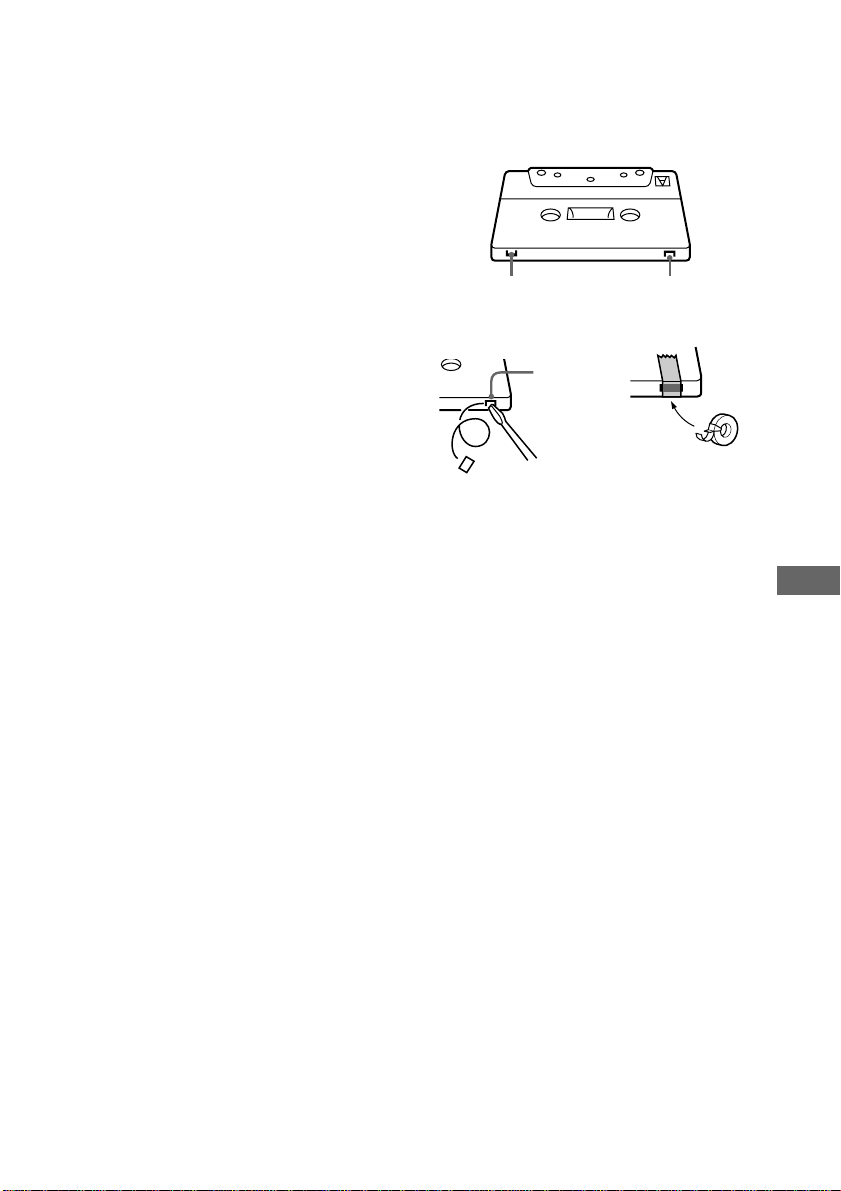
To save a tape permanently
To prevent a tape from being accidentally recorded
over, break off the cassette tab from side A or B as
illustrated. If you later want to reuse the tape for
recording, cover the broken tab with adhesive tape.
Tab of side B Tab of side A
Break off
the cassette
tab of side A
Before placing a cassette in the tape
deck
Take up any slack in the tape. Otherwise the tape may
get entangled in the parts of the tape deck and become
damaged.
When using a tape longer than 90
minutes
The tape is very elastic. Do not change the tape
operations such as play, stop, and fast-winding
frequently. The tape may get entangled in the tape
deck.
Cleaning the tape heads
Clean the tape heads after every 10 hours of use.
Be sure to clean the tape heads before you start an
important recording or after playing an old tape. Use
a separately sold dry-type or wet-type cleaning
cassette. For details, refer to the instructions of the
cleaning cassette.
Demagnetizing the tape heads
Demagnetize the tape heads and the metal parts that
have contact with the tape every 20 to 30 hours of use
with a separately sold demagnetizing cassette. For
details, refer to the instructions of the demagnetizing
cassette.

30
US
Specifications
Amplifier section
U.S.A. model:
AUDIO POWER SPECIFICATIONS
POWER OUTPUT AND TOTAL
HARMONIC DISTORTION:
with 6 ohms loads both channels driven, from
120 – 10,000 Hz; rated 50 watts per channel
minimum RMS power, with no more than 10%
total harmonic distortion from 250 milliwatts to
rated output.
Continuous RMS power output
50 + 50 watts
(6 ohms at 1 kHz,
10% THD)
Total harmonic distortion less than 0.09%
(6 ohms at 1 kHz,
30 watts)
Inputs
VIDEO (MD) (phono jacks):
voltage 250 mV/450 mV,
impedance 47 kilohms
Outputs
PHONES (stereo phone jack):
accepts headphones of
8 ohms or more
SPEAKER: accepts impedance of 6 to
16 ohms
CD player section
System Compact disc and digital
audio system
Laser Semiconductor laser
(λ = 780 nm)
Emission duration:
continuous
Frequency response 2 Hz – 20 kHz (±0.5 dB)
Wavelength 780 – 790 nm
Signal-to-noise ratio More than 90 dB
Dynamic range More than 90 dB
Tape player section
Recording system 4-track 2-channel stereo
Frequency response 40 – 13,000 Hz (±3 dB),
using Sony TYPE I
cassette
Wow and flutter ±0.15% W.Peak (IEC)
0.1% W.RMS (NAB)
±0.2% W.Peak (DIN)
Tuner section
FM stereo, FM/AM superheterodyne tuner
FM tuner section
Tuning range 87.5 – 108.0 MHz
Antenna FM lead antenna
Antenna terminals 75 ohms unbalanced
Intermediate frequency 10.7 MHz
AM tuner section
Tuning range 530 – 1,710 kHz
(with the interval set at
10 kHz)
531 – 1,710 kHz
(with the interval set at
9 kHz)
Antenna AM loop antenna
Antenna terminals External antenna terminal
Intermediate frequency 450 kHz
Speaker
Speaker system 3-way, bass-reflex type
Speaker units
Woofer: 13 cm, cone type
Tweeter: 5 cm, cone type
Super Tweeter: 2 cm, dome type
Nominal impedance 6 ohms
Dimensions (w/h/d) Approx. 210 × 325 ×
241 mm
Mass Approx. 2.8 kg net per
speaker
General
Power requirements: 120 V AC, 60 Hz
Power consumption: 100 watts
Dimensions (w/h/d) incl. projecting parts and
controls:
Approx. 280 × 325 ×
465 mm
Mass : Approx. 8.8 kg
Supplied accessories: Remote commander (1)
Batteries (2)
AM loop antenna (1)
FM lead antenna (1)
Design and specifications are subject to change
without notice.


Sony Corporation Printed in China