©2003 Sony Corporation
4-245-555-12(1)
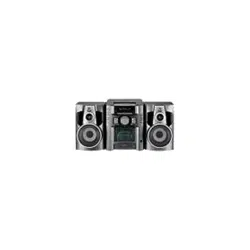
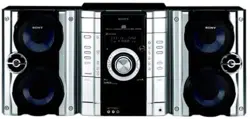
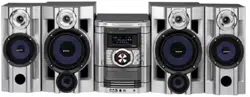
Mini Hi-Fi
Component
System
Operating Instructions
Owner’s Record
The model and serial numbers are located on the rear of the unit. Record the serial number
in the space provided below. Refer to them whenever you call upon your Sony dealer
regarding this product.
Model No. ______________ Serial No. ______________
MHC-GX45/GX35/GX25
MHC-RG440S/RG330/RG310/
RG220
2
GB
To prevent fire or shock hazard, do not
expose the unit to rain or moisture.
To prevent fire, do not cover the ventilation of the
apparatus with news papers, table-cloths, curtains, etc.
And don’t place lighted candles on the apparatus.
To prevent fire or shock hazard, do not place objects
filled with liquids, such as vases, on the apparatus.
This appliance is
classified as a CLASS 1
LASER product. This
label is located on the
rear exterior.
Don’t throw away the battery with
general house waste, dispose of it
correctly as chemical waste.
NOTICE FOR THE CUSTOMERS IN THE
U.S.A.
This symbol is intended to alert the
user to the presence of uninsulated
“dangerous voltage” within the
product’s enclosure that may be of
sufficient magnitude to constitute a
risk of electric shock to persons.
This symbol is intended to alert the
user to the presence of important
operating and maintenance (servicing)
instructions in the literature
accompanying the appliance.
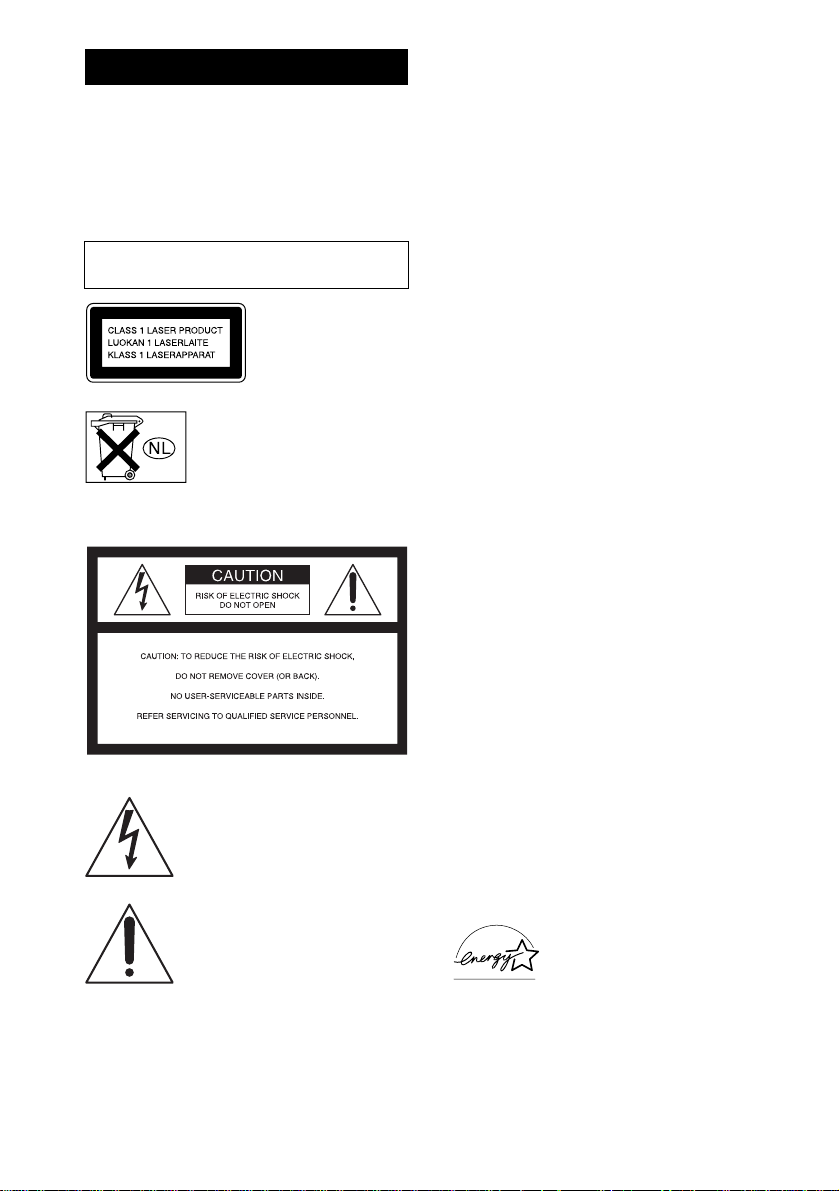
CAUTION
The use of optical instruments with this product will
increase eye hazard.
WARNING
This equipment has been tested and found to comply
with the limits for a Class B digital device, pursuant to
Part 15 of the FCC Rules. These limits are designed to
provide reasonable protection against harmful
interference in a residential installation. This
equipment generates, uses, and can radiate radio
frequency energy and, if not installed and used in
accordance with the instructions, may cause harmful
interference to radio communications. However, there
is no guarantee that interference will not occur in a
particular installation. If this equipment does cause
harmful interference to radio or television reception,
which can be determined by turning the equipment off
and on, the user is encouraged to try to correct the
interference by one or more of the following measures:
– Reorient or relocate the receiving antenna.
– Increase the separation between the equipment and
receiver.
– Connect the equipment into an outlet on a circuit
different from that to which the receiver is
connected.
– Consult the dealer or an experienced radio/TV
technician for help.
CAUTION
You are cautioned that any changes or modifications
not expressly approved in this manual could void your
authority to operate this equipment.
Note to CATV system installer:
This reminder is provided to call the CATV system
installer’s attention to Article 820-40 of the NEC that
provides guidelines for proper grounding and, in
particular, specifies that the cable ground shall be
connected to the grounding system of the building, as
close to the point of cable entry as practical.
NOTICE FOR THE CUSTOMERS IN CANADA
CAUTION
TO PREVENT ELECTRIC SHOCK, DO NOT USE
THIS POLARIZED AC PLUG WITH AN
EXTENSION CORD, RECEPTACLE OR OTHER
OUTLET UNLESS THE BLADES CAN BE FULLY
INSERTED TO PREVENT BLADE EXPOSURE.
Except for European model
ENERGY STAR
®
is a U.S.
registered mark. As an E
NERGY
S
TAR
®
partner, Sony Corporation
has determined that this product
meets the E
NERGY STAR
®
guidelines for energy efficiency.
WARNING
Do not install the appliance in a confined space,
such as a bookcase or built-in cabinet.
3
GB
How to use this manual...........................4
Playable discs..........................................4
Getting Started
Hooking up the system............................6
Setting the clock......................................8
CD/MP3 – Play
Loading a disc.........................................9
Playing a disc..........................................9
— Normal Play/Shuffle Play
Playing repeatedly.................................11
— Repeat Play
Creating your own program..................12
— Program Play
Tuner
Presetting radio stations........................13
Listening to the radio............................14
— Preset Tuning
— Manual Tuning
Using the Radio Data System (RDS)....15
(European model only)
Tape – Play
Loading a tape.......................................16
Playing a tape........................................16
Tape – Recording
Recording your favorite CD tracks on a
tape..................................................17
— CD-TAPE Synchro Recording
Recording on a tape manually...............17
— Manual Recording
Sound Adjustment
Adjusting the sound.............................. 18
Using the sub woofer............................ 18
(MHC-GX45 and RG440S only)
Selecting the sound effect..................... 18
Selecting the surround effect................ 19
Enhancing video game sound............... 19
— Game Sync
Mixing video game sound with other
sound source...................................19
— Game Mixing
Timer
Falling asleep to music......................... 20
— Sleep Timer
Waking up to music.............................. 20
— Daily Timer
Timer recording radio programs........... 21
Display
Turning off the display......................... 22
— Power Saving Mode
Viewing information about the disc in the
display ............................................ 23
Changing the Power illuminator...........24
(MHC-GX45/GX35/RG440S/
RG330/RG310 and MHC-RG220
(European and Russian models)
only)
Optional Components
Hooking up optional components......... 25
Troubleshooting
Problems and remedies......................... 26
Messages...............................................28
Additional Information
Precautions............................................29
Specifications........................................ 30
List of button locations and reference
pages............................................... 35
Table of Contents
4
GB
• This manual mainly explains operations using
the remote, but the same operations can also
be performed using the buttons on the unit
having the same or similar names.
• The following symbols are used in this
manual.
• MHC-GX45/GX35/RG440S/RG330/RG310
and MHC-RG220 (European and Russian
models) are the models used for illustration
purposes.
You can play back the following discs on this
system. Other discs cannot be played back.
List of playable discs
* MHC-GX45/GX35/RG440S/RG330/RG310 and
MHC-RG220 (European and Russian models) only
Discs that this system cannot
play
•CD-ROMs
• CD-Rs/CD-RWs other than those recorded in
the following formats:
– music CD format
– MP3 format that conforms to ISO9660*
1
Level 1/Level 2, Joliet*
2
, Romeo*
2
or
Multi Session*
3
• A disc that has a non-standard shape (e.g.,
card, heart).
• A disc with paper or stickers on it.
• A disc that has the adhesive, cellophane tape,
or a sticker still left on it.
*1
A logical format of files and folders on CD-ROMs,
defined by ISO (International Standard
Organization)
*2
Up to 31 characters can be displayed.
*3
Multi Session
This is a recording method that enables adding of
data using the Track-At-Once method.
Conventional CDs begin at a CD control area called
the Lead-in and end at an area called Lead-out. A
Multi Session CD is a CD having multiple sessions,
with each segment from Lead-in to Lead-out
regarded as a single session.
CD-Extra: This format records audio (audio CD
data) on the tracks in session 1 and data on the tracks
in session 2.
Mixed CD: This format records data on the first
track and audio (audio CD data) on the second and
subsequent tracks of a session.
How to use this manual
Symbol Meaning
Functions that can be used with
audio CDs
Functions that can be used with
MP3
Playable discs
Format of
discs
Disc logo Contents
Audio CDs Audio
CD-R/CD-RW
(audio data)
Audio
CD-R/CD-RW
(MP3 files*)
Audio

5
GB
Notes on CD-R and CD-RW
• This system can play CD-R/CD-RW discs
edited by the user. However, note that
playback of some discs may not be possible
depending on the recording device used for
recording or the disc condition.
• Discs recorded on CD-R/CD-RW drives may
not be played back because of scratches, dirt,
recording condition or the driver’s
characteristics.
• CD-R and CD-RW discs that have not been
finalized (processing to allow play by a
normal CD player) cannot be played.
• CD-R and CD-RW discs recorded in multi-
session that have not ended by “closing the
session” are not supported.
• The system may be unable to play MP3
format files that do not have the extender
“.MP3”.
• Attempting to play non-MP3 format files that
have the extender “.MP3” may result in noise
or malfunction.
• With formats other than ISO 9660 level 1 and
2, folder names or file names may not be
displayed correctly.
• The following discs take a longer time to start
playback.
– a disc recorded with complicated tree
structure.
– a disc recorded in Multi Session.
– a disc to which data can be added (non-
finalized disc).
Music discs encoded with
copyright protection
technologies
This product is designed to playback discs that
conform to the Compact Disc (CD) standard.
Recently, various music discs encoded with
copyright protection technologies are marketed
by some record companies. Please be aware that
among those discs, there are some that do not
conform to the CD standard and may not be
playable by this product.
Cautions when playing a disc
that is recorded in Multi
Session
• If the disc begins with a CD-DA session, it is
recognized as a CD-DA (audio) disc, and
playback continues until an MP3 session is
encountered.
• If the disc begins with an MP3 session, it is
recognized as an MP3 disc, and playback
continues until a CD-DA (audio) session is
encountered.
• The playback range of an MP3 disc is
determined by the tree structure of files
produced by analyzing of the disc.
• A disc with a mixed CD format will be
recognized as a CD-DA (audio) disc.
6
GB
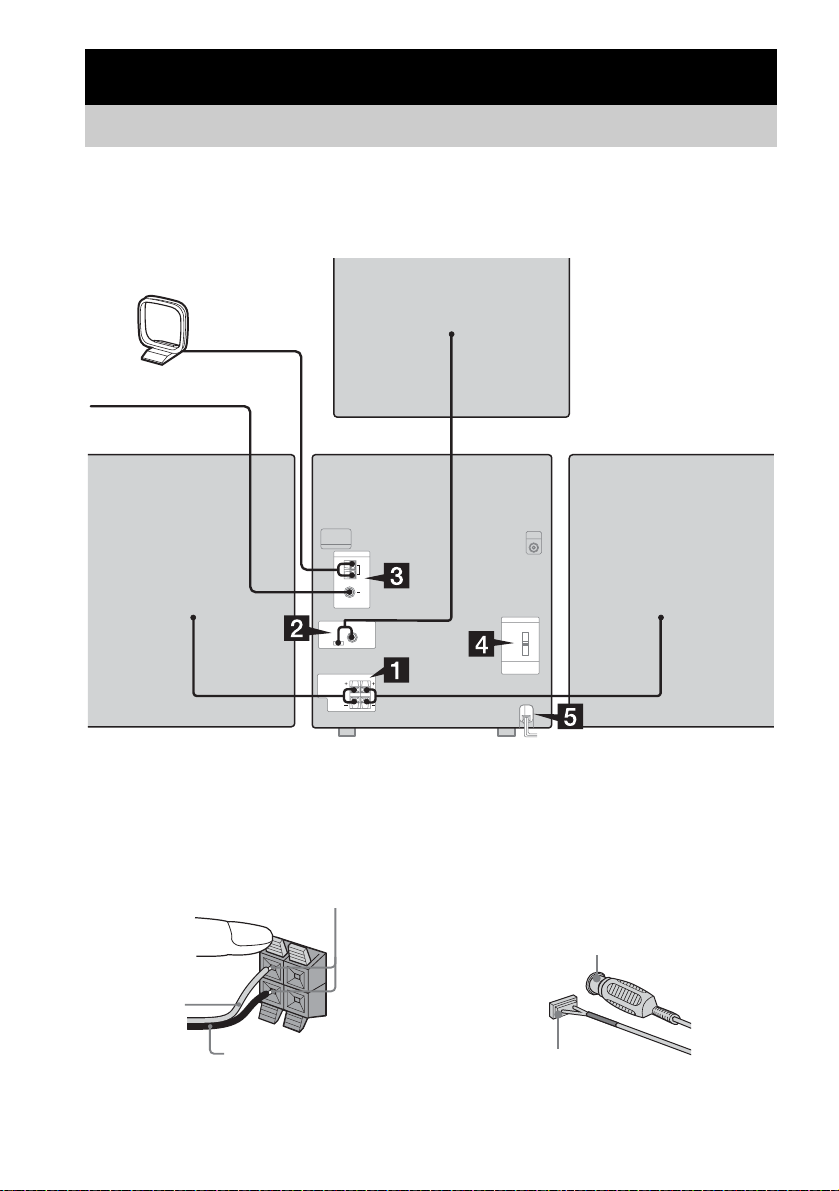
Perform the following procedures 1 to 5 to hook up your system using the supplied cords and
accessories.
1 Connect the speakers.
Connect the right and left speaker cords to
the SPEAKER terminals as shown below.
2 Connect the sub woofer speaker.
(MHC-GX45 and MHC-RG440S only)
Connect the speaker cords to the SUB
WOOFER OUT jack and SUB WOOFER
CONTROL jack as shown below.
Getting Started
Hooking up the system
AM loop antenna
Front speaker (right) Front speaker (left)
FM lead antenna
Sub woofer speaker*
* MHC-GX45 and MHC-RG440S only
R
L
+
–
Black/Stripe (#)
Red/Solid (3)
Insert only the stripped portion
SUB WOOFER OUT jack
SUB WOOFER CONTROL jack
Getting Started
7
GB
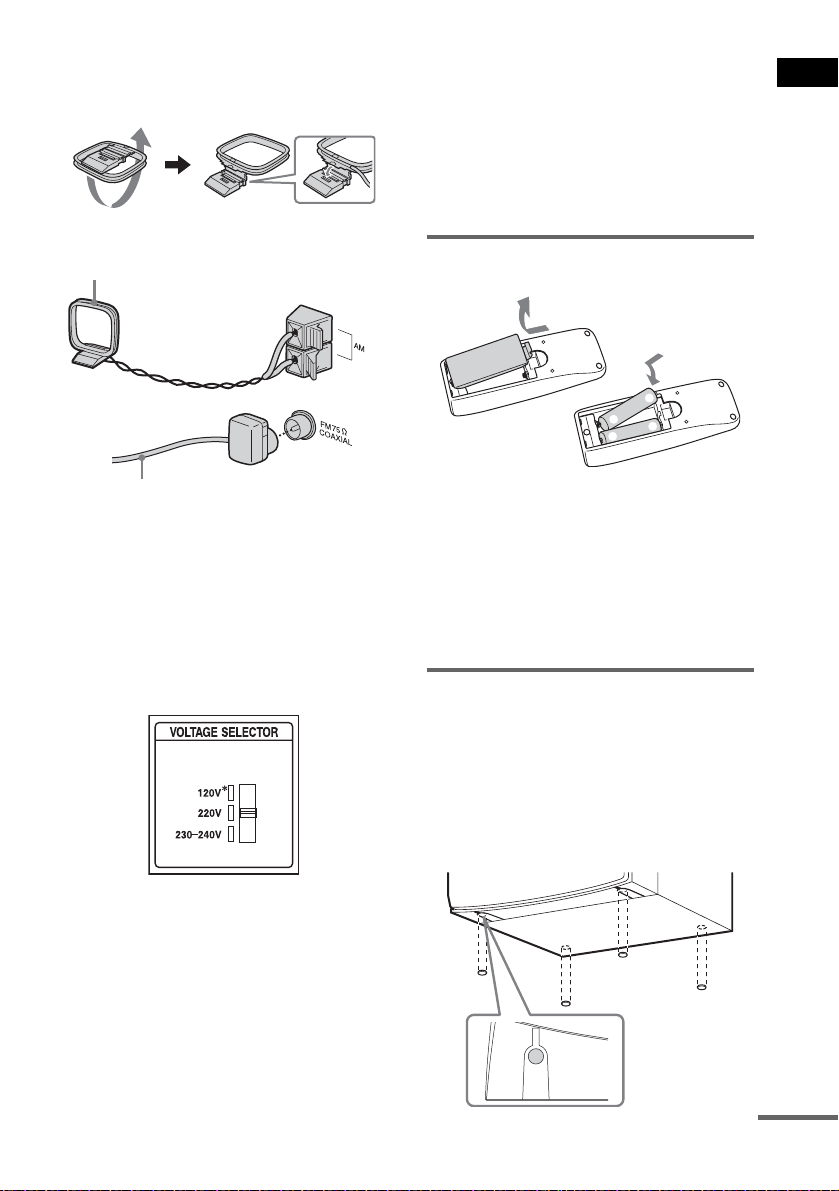
3 Connect the FM and AM antennas.
Set up the AM loop antenna, then connect
it.
Note
Keep the antennas away from the speaker cords.
4 For models with a voltage selector, set
VOLTAGE SELECTOR to the local
power line voltage.
Refer to the print on your system’s
VOLTAGE SELECTOR for available
settings.
* Saudi Arabian model: 120 – 127 V
5 Connect the power cord to a wall
outlet.
The demonstration appears in the display.
When you press ?/1, the system turns on
and the demonstration automatically ends.
If the plug does not fit the wall socket,
detach the supplied plug adaptor (only for
models equipped with an adaptor).
Inserting two R6 (size AA)
batteries into the remote
Note
If you do not use the remote for a long period of time,
remove the batteries to avoid possible damage from
battery leakage and corrosion.
Tip
With normal use, the batteries should last for about six
months. When the remote no longer operates the
system, replace both batteries with new ones.
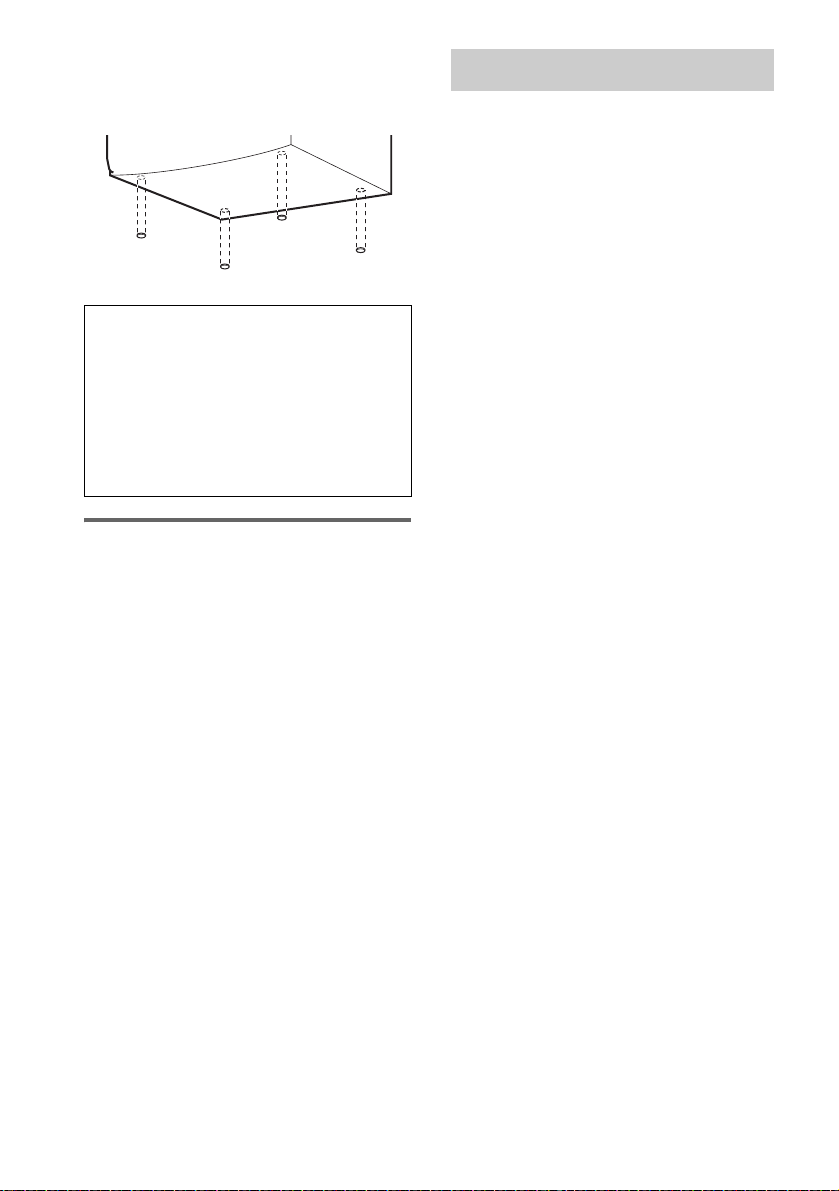
Attaching the speaker pads
Attach the supplied front speaker pads to the
bottom of the speakers to stabilize the speakers
and prevent them from slipping.
Front speaker (Left (4)/Right (4)) for MHC-
GX45/GX25/RG440S/RG310 and MHC-
RG220
Extend the FM lead antenna horizontally
AM loop
antenna
E
e
e
E
continued
8
GB
Front speaker (Left (4)/Right (4)) for MHC-
GX35 and MHC-RG330
Sub woofer (4) for MHC-GX45 and MHC-
RG440S
Placing the Sub woofer
(MHC-GX45 and MHC-RG440S
only)
Since the human ear cannot detect the direction
and position where the bass sound being
reproduced by a subwoofer (below 150 Hz)
comes from, you can place the subwoofer
wherever you like in your room. To obtain a
better bass reproduction, we recommend you to
place the subwoofer on a solid floor where
resonance is unlikely to occur.
Notes
• Always place the subwoofer vertically, keeping it a
few centimeters away from the wall.
• If the subwoofer is placed in the center of a room, the
bass could be extremely weakened. This is due to the
influence of the standing wave of the room. If this
happens, move the subwoofer away from the center
of the room or eliminate the cause of the standing
wave, by placing a bookshelf against the wall, etc.
1 Press ?/1 to turn on the system.
2 Press CLOCK/TIMER SET.
3 Press . or > repeatedly to set the
hour.
4 Press ENTER.
5 Press . or > repeatedly to set the
minute.
6 Press ENTER.
The clock starts working.
To adjust the clock
1 Press CLOCK/TIMER SET.
2 Press . or > to select “CLOCK SET”,
then press ENTER.
3 Do the same procedures as step 3 to 6
above.
Note
The clock settings are canceled when you disconnect
the power cord or if a power failure occurs.
When carrying this system
Perform the following procedure to protect
the CD mechanism.
1 Make sure that all discs are removed
from the system.
2 Press ?/1 to turn off the system.
3 Unplug the power cord.
Setting the clock
CD/MP3 – Play
9
GB
1 Press Z on the unit.
2 Place a disc with the label side up on
the disc tray.
To insert additional discs, press DISC
SKIP/EX-CHANGE on the unit to rotate
the disc tray.
3 Press Z on the unit again to close the
disc tray.
Notes
• Do not use a disc with tape, seals or paste on it as this
may cause malfunction.
• Do not forcibly press the disc tray closed with your
finger, as this may cause malfunction.
This system lets you play audio CDs and discs
with MP3 audio tracks.
MP3 audio tracks cannot be played on MHC-
GX25 and MHC-RG220 (except for European
and Russian models).
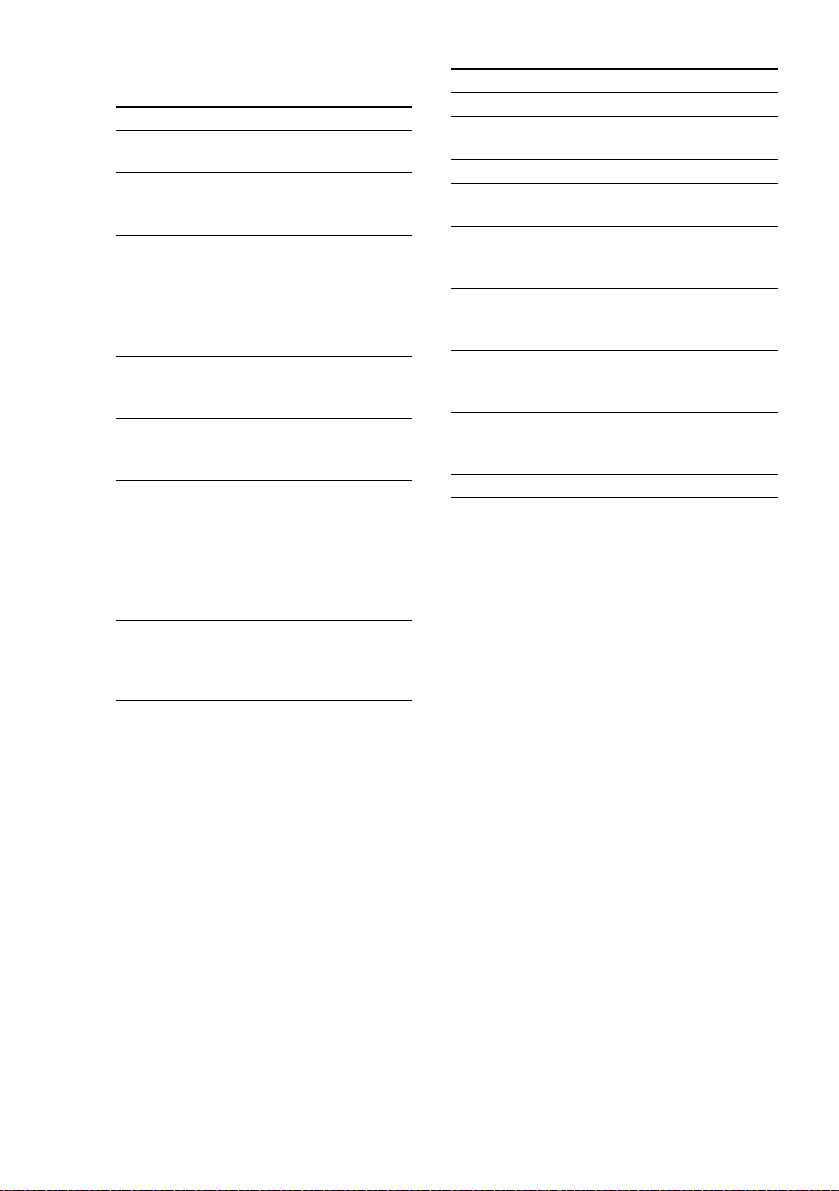
Example: When a disc is loaded
1 Press CD.
CD/MP3 – Play
Loading a disc
Playing a disc
— Normal Play/Shuffle Play
Track number
Disc indicator Playing time
Disc tray number
continued
10
GB
2 Press PLAY MODE in stop mode
repeatedly until the mode you want
appears in the display.
* MHC-GX45/GX35/RG440S/RG330/RG310
and MHC-RG220 (European and Russian
models) only
3 Press N.
Other operations
*
1
You may not be able to search between multiple
files. Also, the time may not be displayed correctly
for some files.
*
2
except for MP3 audio tracks
*
3
DISC 1 – 3 on the unit are not available when “ALL
DISCS SHUF” is selected.
Select To play
ALL DISCS
(Normal Play)
All discs in the disc tray
continuously.
1DISC
(Normal Play)
The tracks on the disc you
have selected in original
order.
ALBM*
(Normal Play)
All MP3 audio tracks in the
album on the disc you have
selected in original order.
When playing a non-MP3
disc, Album Play becomes
1DISC Play.
ALL DISCS
SHUF (Shuffle
Play)
The tracks on all discs in
random order.
1DISC SHUF
(Shuffle Play)
The tracks on the disc you
have selected in random
order.
ALBM SHUF*
(Shuffle Play)
The MP3 audio tracks in the
album on the disc you have
selected in random order.
When playing a non-MP3
disc, Album Shuffle Play
becomes 1 DISC SHUF
Play.
PGM
(Program Play)
The tracks on the disc in the
order you want them to be
played (see “Creating your
own program” on page 12).
To Do this
Stop play Press x.
Pause Press X. Press again to resume
play.
Select a track Press . or > repeatedly.
Select an album
of MP3*
1
Press ALBUM – or + repeatedly
after step 2.
Find a point in a
track*
2
Keep pressing m or M during
playback and release it at the
desired point.
Select a disc in
stop mode
Press D. SKIP (or DISC 1 – 3*
3
or
DISC SKIP/EX-CHANGE on the
unit).
Switch to CD
function from
another source
Press DISC 1 – 3 on the unit
(Automatic Source Selection).
Exchange other
discs while
playing
Press DISC SKIP/EX-CHANGE
on the unit.
Remove a disc Press Z on the unit.
CD/MP3 – Play
11
GB
Notes
• You cannot change the play mode during playback.
• Some time may be needed to start playback of discs
recorded in complex configurations such as many
layers.
• When the disc is inserted, the player reads all the
tracks on that disc. If there are many albums or non-
MP3 audio tracks on the disc, it may take a long time
for play to begin or for the next MP3 audio track to
start play.
• Do not save unnecessary albums or tracks other than
MP3 ones in the disc to be used for MP3 listening.
We recommend that you do not save other types of
tracks or unnecessary albums on a disc that has MP3
audio tracks.
• An album that does not include an MP3 audio track
is skipped.
• Maximum album number: 150 (including root
folder)
• The maximum number of MP3 audio tracks and
albums that can be contained on a single disc is 300.
• Playback is possible up to 8 levels.
• MP3 audio tracks are played back in the order that
they are recorded on the disc.
• Depending on the encoding/writing software,
recording device, or the recording media used at the
time an MP3 audio track is recorded, you may
encounter such problems as disabled playback,
sound interruptions, and noise.
You can play all the tracks or a single track on a
disc.
MP3 audio tracks cannot be played on MHC-
GX25 and MHC-RG220 (except for European
and Russian models).
Using the display window
Press REPEAT until “REP” or “REP1”
appears.
REP: For all the tracks on the disc up to five
times.
REP1: For a single track only.
To cancel Repeat Play
Press REPEAT repeatedly until both “REP” and
“REP1” disappear.
Notes
• You cannot select “REP” and “ALL DISCS SHUF”
at the same time.
• When you select “REP1”, that track is repeated
endlessly until “REP1” is canceled.
Playing repeatedly
— Repeat Play
12
GB
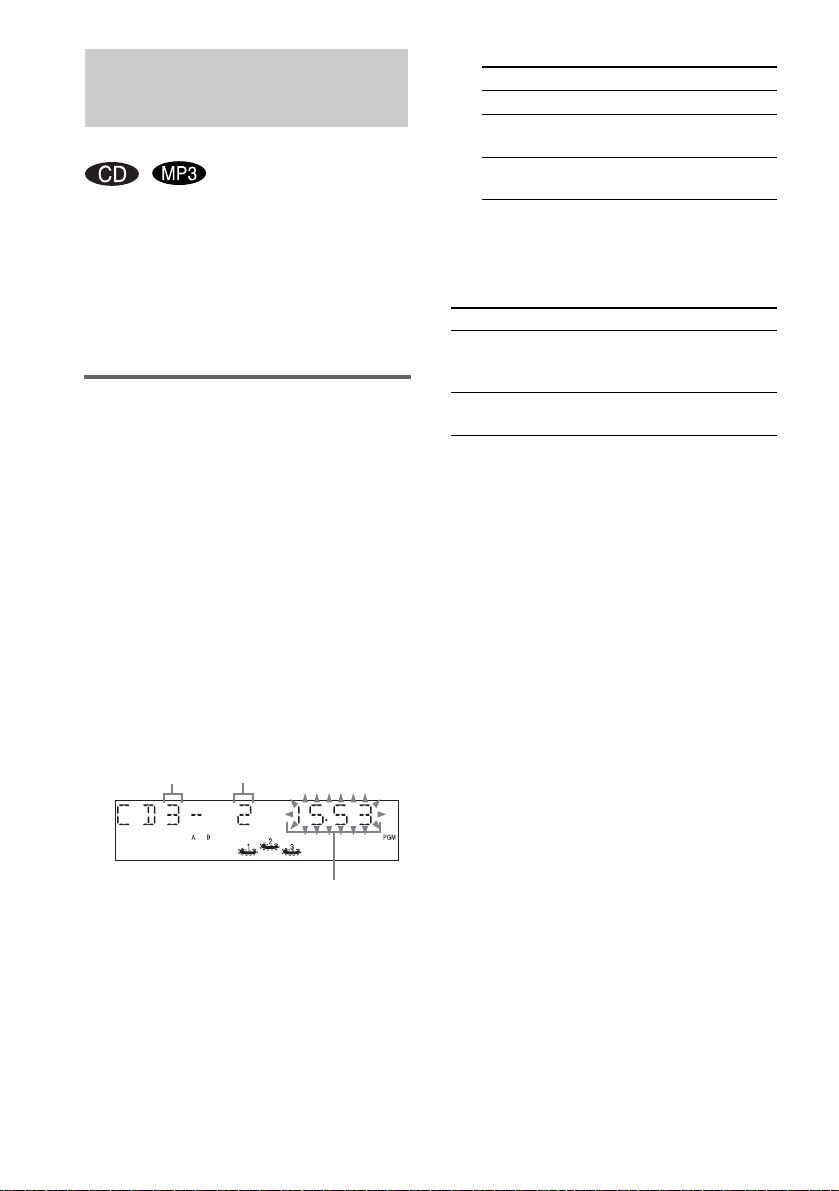
You can make a program of up to 25 steps from
all the discs in the order you want to play them.
You can synchro record the programmed tracks
onto a cassette tape (page 17).
MP3 audio tracks cannot be played on
MHC-GX25 and MHC-RG220 (except for
European and Russian models).
Using the display window
1 Press CD.
2 Press PLAY MODE in stop mode
repeatedly until “PGM” appears.
3 Press D.SKIP (or DISC 1 – 3 or DISC
SKIP/EX-CHANGE on the unit) to select
a disc.
To program all the tracks on a disc at once,
proceed to step 5 with “AL” displayed.
4 Press . or > repeatedly until the
desired track number appears.
When programming an MP3, press
ALBUM – or + to select album, then press
. or > repeatedly until the desired
track number appears.
5 Press ENTER.
The track is programmed.
The program step number appears,
followed by the total playing time.
6 Program additional discs or tracks.
7 Press N.
Program Play starts.
Other operations
Tips
• The program you made remains after Program Play
finishes. To play the same program again, press CD,
then press N. However, the program is cleared
when you open the disc tray.
• “– –.– –” appears when the total CD program time
exceeds 100 minutes, or when you select a CD track
whose number is 21 or over, or when you select an
MP3 audio track.
Creating your own
program
— Program Play
Selected track number
Disc tray number
Total playing time
(including selected track)
To program Repeat steps
Other discs 3 and 5
Other tracks on the
same disc
4 and 5
Other tracks on
other discs
3 to 5
To Do this
Cancel Program
Play
Press PLAY MODE in stop
mode repeatedly until “PGM”
disappears.
Clear a track from
the end
Press CLEAR in stop mode.
Tuner
13
GB
You can preset up to 20 FM stations and 10 AM
stations. You can then tune in any of those
stations simply by selecting the corresponding
preset number.
Automatic tuning preset
You can automatically tune in all of the stations
that can be received in your area and then store
the radio frequency of the desired stations.
1 Press TUNER/BAND repeatedly to
select “FM” or “AM”.
2 Press and hold TUNING –/+ (or –m or
M+ on the unit) until the frequency
indication starts to change, then
release it.
The frequency changes as the system scans
for a station. Scanning stops automatically
when a station is tuned in. At that time,
“TUNED” and “STEREO” (for an FM
stereo program) appear.
If “TUNED” does not appear and the
scanning does not stop
Set the frequency of the desired radio
station as described in steps 2 and 6 of
“Manual tuning preset” (page 13).
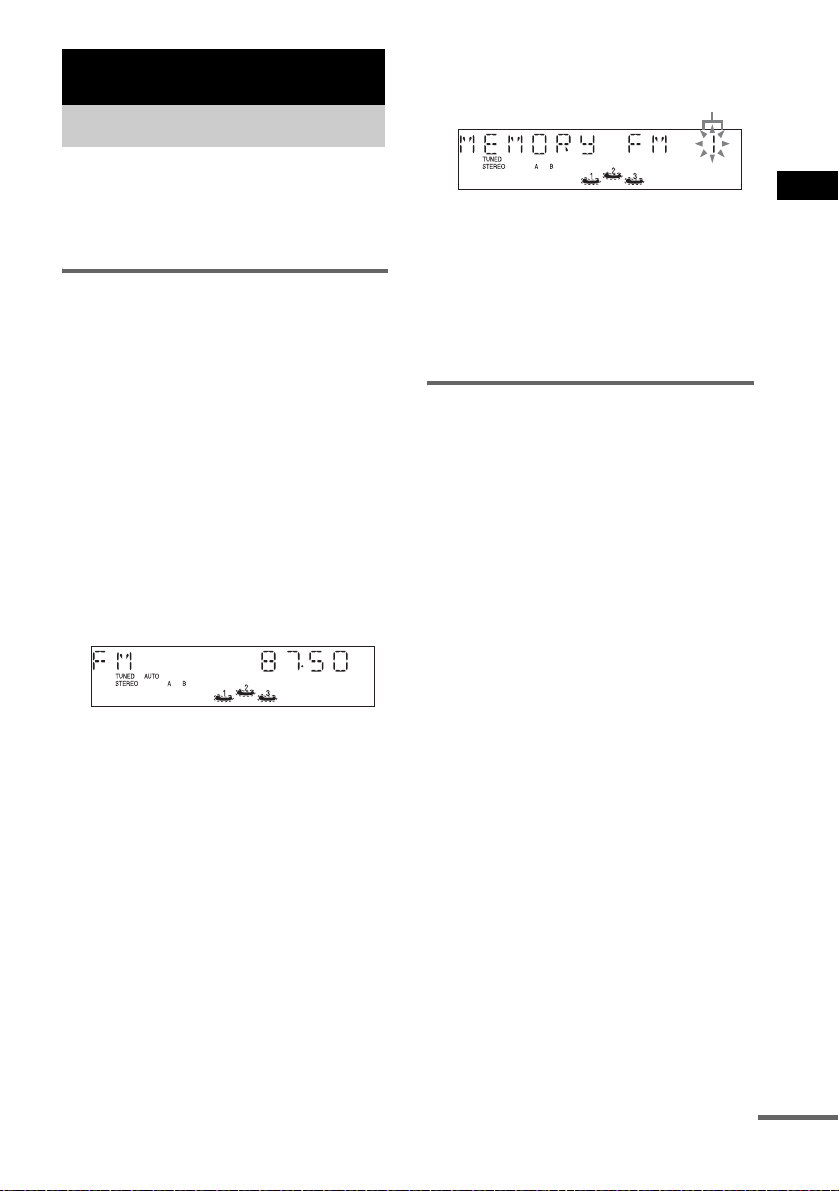
3 Press TUNER MEMORY.
A preset number appears.
4 Press PRESET –/+ (or . or > on
the unit) repeatedly to select the
desired preset number.
5 Press ENTER.
6 Repeat steps 1 through 5 to store other
stations.
Manual tuning preset
You can manually tune in and store the radio
frequency of the desired stations.
1 Press TUNER/BAND repeatedly to
select “FM” or “AM”.
2 Press TUNING –/+ (or –m or M+ on
the unit) repeatedly to tune in the
desired station.
3 Press TUNER MEMORY.
A preset number appears.
4 Press PRESET –/+ (or . or > on
the unit) repeatedly to select the
desired preset number.
5 Press ENTER.
6 Repeat steps 1 through 5 to store other
stations.
Tuner
Presetting radio stations
Preset number
continued
14
GB
Other Operations
To change the AM tuning interval
(except for European, Russian,
Middle Eastern and Philippine
models)
The AM tuning interval is factory-preset to
9 kHz (or 10 kHz for some areas). To change the
AM tuning interval, tune in any AM station first,
then turn off the system. While holding TUNER/
BAND on the unit, press ?/1 on the unit. When
you change the interval, all the AM preset
stations are erased. To reset the interval, repeat
the same procedure.
Note
You cannot change the AM tuning interval in the
Power Saving Mode.
Tips
• The preset stations are retained for about a day even
if you disconnect the power cord or if a power failure
occurs.
• To improve the reception, adjust the supplied
antennas or connect an external antenna.
You can listen to a radio station either by
selecting a preset station, or by manually tuning
in the station.
Listening to a preset station
— Preset Tuning
Preset radio stations in the tuner’s memory first
(see “Presetting radio stations” on page 13).
1 Press TUNER/BAND repeatedly to
select “FM” or “AM”.
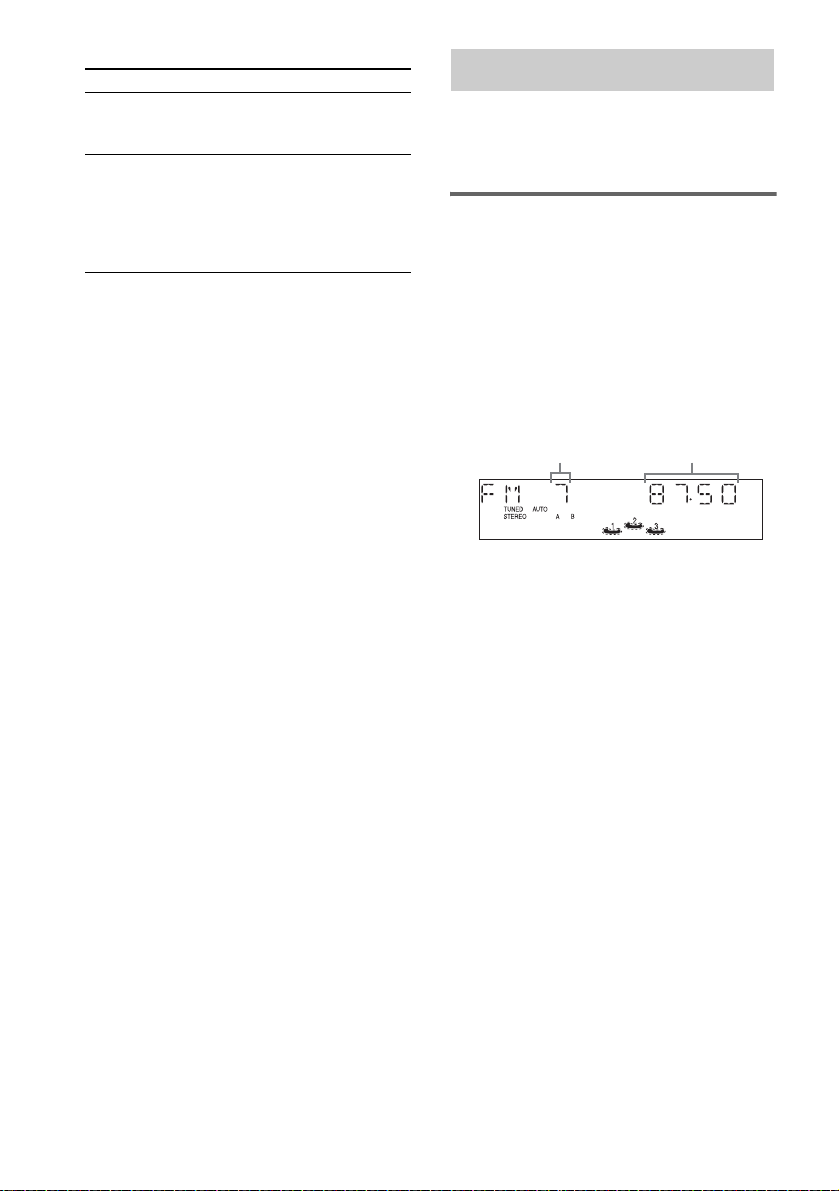
2 Press PRESET –/+ (or . or > on
the unit) repeatedly to select the
desired preset station.
To Do this
Tune in a station
with a weak signal
Follow the procedure described
in “Manual tuning preset”
(page 13).
Set another station
to the existing
preset number
Start over from step 1. After
step 3, press PRESET –/+ (or
. or > on the unit)
repeatedly to select the preset
number you want to store the
other station.
Listening to the radio
FrequencyPreset number
Tuner
15
GB
Listening to non-preset radio
station
— Manual Tuning
1 Press TUNER/BAND repeatedly to
select “FM” or “AM”.
2 Press TUNING –/+ (or –m or M+ on
the unit) repeatedly to tune in the
desired station.
Tips
• To improve broadcast reception, adjust the supplied
antennas, or connect a commercially available
external antenna.
• When an FM stereo program has static noise, press
FM MODE or STEREO/MONO* repeatedly until
“MONO” appears. There will be no stereo effect, but
the reception will improve.
• Press and hold TUNING –/+ (or –m or M+ on
the unit). The frequency indication changes and
scanning stops when the system tunes in a station
(Automatic Tuning).
• To record the radio programs, use manual recording
(page 17).
* for MHC-GX25 and MHC-RG220 (except for
European and Russian models)
What is the Radio Data
System?
Radio Data System (RDS) is a broadcasting
service that allows radio stations to send
additional information along with the regular
program signal. RDS is available only on FM
stations.*
Note
RDS may not work properly if the station you are tuned
in is not transmitting the RDS signal properly or if the
signal is weak.
* Not all FM stations provide RDS service, nor do they
provide the same types of services. If you are not
familiar with the RDS system, check with your local
radio stations for details on RDS services in your
area.
Receiving RDS broadcasts
Simply select a station from the FM band.
When you tune in a station that provides RDS
services, the station name appears in the display.
To check the RDS information
Each time you press DISPLAY, the display
changes cyclically as follows:
Station name* t Frequency t Program type*
t Clock display t Effect status
* If the RDS broadcast is not properly received, the
station name may not appear in the display.
Using the Radio Data
System (RDS)
(European model only)
16
GB
1 Press TAPE A/B repeatedly to select
deck A or B.
2 Press PUSH Z on the unit.
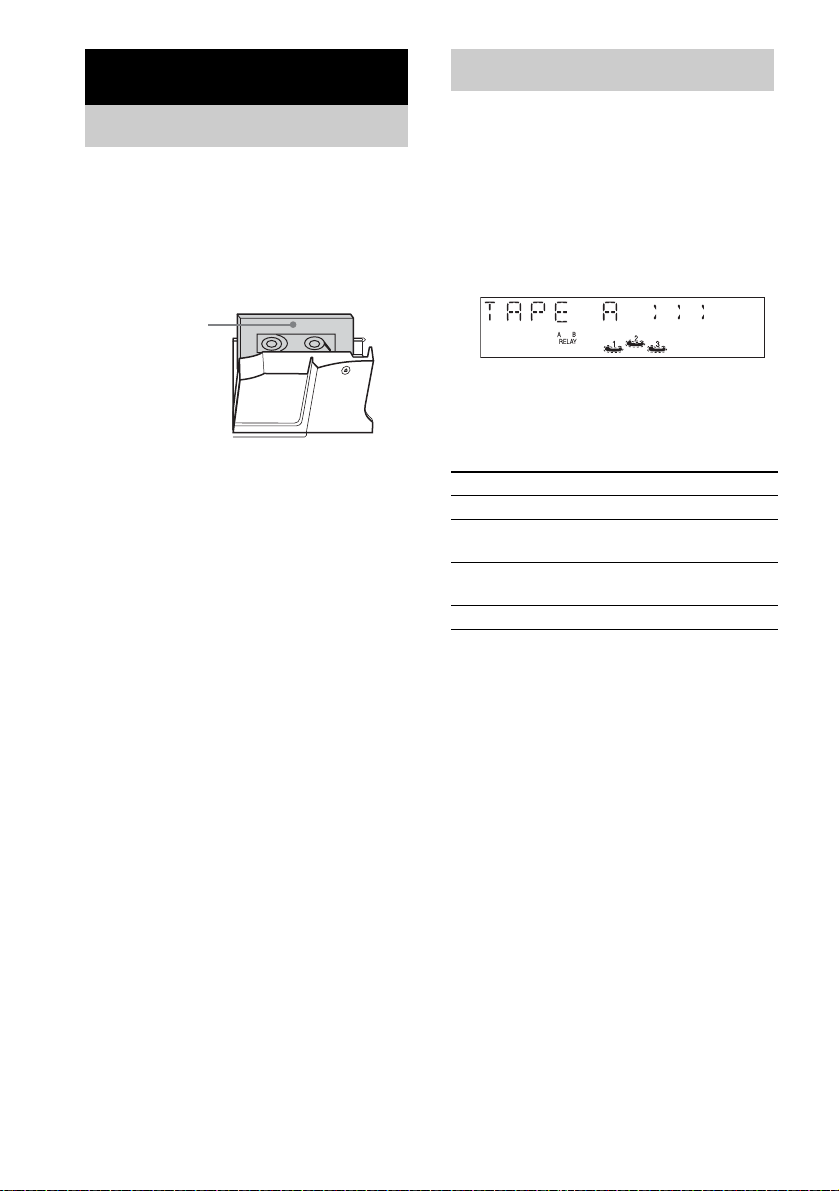
3 Load a recorded/recordable tape in
deck A or B with the side you want to
play/record facing forward.
You can use TYPE I (normal) tape.
1 Load a tape.
To play both decks in succession, press
PLAY MODE repeatedly until “RELAY”
(Relay Play)* appears in the display.
2 Press N.
The tape starts playing.
*After the playback of the front side of
deck A, deck B plays the front side, then
stops.
Other operations
Searching for the beginning of
the current or the next track
(AMS)*
To go forward
Press > during playback.
“TAPE A (or TAPE B) >>> +1” appears.
To go back
Press . during playback.
“TAPE A (or TAPE B) <<< –1” appears.
* AMS (Automatic Music Sensor)
Note
The AMS function may not operate correctly under the
following circumstances:
– When the unrecorded space between songs is less
than 4 seconds long.
– When the system is placed near a television.
Tape – Play
Loading a tape
With the side
you want to
play/record
facing
forward.
Playing a tape
To Do this
Stop play Press x.
Pause Press X. Press again to resume
play.
Fast-forward or
rewind
Press m or M.
Remove a tape Press PUSH Z on the unit.

Tape – Play/Tape – Recording
17
GB
You can record a whole CD on a tape.
You can use TYPE I (normal) tape. The
recording level is ajusted automatically.
1 Load a recordable tape into deck B.
2 Press CD and load a disc you want to
record.
3 Press CD SYNC on the unit.
Deck B stands by for recording.
“REC” flashes.
4 Press REC PAUSE/START on the unit.
Recording starts.
To stop recording
Press x.
To record a disc by specifying
track order
You can record only your favorite CD tracks
using Program Play. Between steps 2 and 3,
perform steps 2 to 6 of “Creating your own
program” (page 12).
You can record just the portions you like from a
CD, tape or radio program on a tape.
You can also record from connected
components (see “Hooking up optional
components” on page 25).
1 Load a recordable tape into deck B.
2 Press CD, TAPE A/B, TUNER/BAND or
GAME (MD) (or GAME
*) to select the
desired source to record.
• CD: To record from this system’s CD
player.
• Tape: To record from this system’s tape
deck A.
• Tuner: To record from this system’s
tuner.
• Game: To record from the connected
video game machine to GAME INPUT
AUDIO L/R jacks.
* for MHC-GX25 and MHC-RG220 (except
for European and Russian models)
3 Press REC PAUSE/START on the unit.
Deck B stands by for recording.
“REC” flashes.
4 Press REC PAUSE/START on the unit,
then start playing the desired source to
record.
Recording starts.
To stop recording
Press x.
Note
You cannot listen to other sources while recording.
Tip
For recording from the radio:
If noise is heard while recording from the radio, move
the respective antenna to reduce the noise.
Tape – Recording
Recording your favorite
CD tracks on a tape
— CD-TAPE Synchro Recording
Recording on a tape
manually
— Manual Recording
18
GB
You can reinforce the bass and create a more
powerful sound.
Press GROOVE.
Each time you press the button, the display
changes cyclically as follows:
GROOVE ON* t V-GROOVE ON* t
GROOVE OFF
* The volume switches to power mode, the equalizer
curve changes, and the “GROOVE” or
“V GROOVE” lights up.
You can use the sound of the sub woofer to suit
the sound source.
Press SUB WOOFER ON/OFF on the sub
woofer.
The indicator lights up while the sub woofer
turns on. Press the button again to turn off the
sub woofer.
Tip
You can use VOL +/– (or VOLUME control on the
unit) to adjust the volume of the sub woofer linked to
the front speakers.
Selecting the effect from the
music menu
Press PRESET EQ or EQ +/–* (or MUSIC
EQ, MOVIE EQ or GAME EQ on the unit)
repeatedly to select the preset you desire.
The preset name appears in the display.
See the chart “Sound effect options”.
* for MHC-GX25 and MHC-RG220 (except for
European and Russian models)
To cancel the sound effect
Press EFFECT ON/OFF on the unit or ON/
OFF*.
* for MHC-GX25 and MHC-RG220 (except for
European and Russian models)
Sound effect options
“SURR” appears if you select an effect with
surround effects.
MUSIC EQ
MOVIE EQ
GAME EQ
Tip
You can also select “GROOVE”, “V GROOVE” or
“EFFECT OFF” by pressing PRESET EQ (or EQ +/–
for MHC-GX25 and MHC-RG220 (except for
European and Russian models)) repeatedly.
Sound Adjustment
Adjusting the sound
Using the sub woofer
(MHC-GX45 and MHC-RG440S only)
Selecting the sound effect
Effect
ROCK
POP
Standard music sources
Effect
MOVIE Soundtracks and special listening
situations
Effect
GAME PlayStation 1, 2 and other video
game music sources

Sound Adjustment
19
GB
Press SURROUND.
“SURR” appears in the display.
Press the button again to cancel SURROUND.
You need to connect a video game machine (see
“Hooking up optional components” on page 25).
Press GAME (MD) or GAME*.
* for MHC-GX25 and MHC-RG220 (except for
European and Russian models)
Tips
• In the standby mode, the system automatically turns
on.
• The GAME EQ is automatically selected.
• These operations cannot be performed in the Power
Saving Mode.
1 Select the desired source sound.
2 Press GAME MIXING on the unit.
Each time you press the button, the level of
the game sound changes cyclically as
follows:
MIXING LOW t MIXING MID t
MIXING HIGH t MIXING OFF
Note
If you start recording while Game Mixing is activated,
Game Mixing is canceled. To record the mixed sound,
press GAME MIXING on the unit after step 3 of
“Recording on a tape manually” on page 17, and then
press REC PAUSE/START on the unit to start the
recording.
Tips
• The GAME MIXING indicator lights up while Game
Mixing is activated.
• Once Game Mixing is activated, it will remain active
while the power is on even if the source sound is
changed.
Selecting the surround
effect
Enhancing video game
sound
—Game Sync
Mixing video game sound
with other sound source
— Game Mixing
20
GB
You can set the system to turn off after a certain
time, so that you can fall asleep to music.
Press SLEEP.
Each time you press the button, the minute
display (the turn-off time) changes cyclically as
follows:
AUTO* t 90MIN t 80MIN t 70MIN
t … t 10MIN t OFF
* The system automatically turns off in 100 minutes or
after the current disc or tape finishes playing.
Other operations
**You cannot check the remaining time if you select
“AUTO”.
You can wake up to music at a preset time. Make
sure you have set the clock (see “Setting the
clock” on page 8).
1 Prepare the sound source you want to
play.
• CD: Load a disc. To start from a specific
track, make a program (see “Creating
your own program” on page 12).
• Tape: Load a tape.
• Tuner: Tune in the preset radio station
(see “Listening to the radio” on page 14).
2 Press VOL +/– (or turn VOLUME control
on the unit) to adjust the volume.
3 Press CLOCK/TIMER SET until “DAILY
SET” appears.
4 Press ENTER.
“ON” appears and the hour indication
flashes.
5 Set the time to start playing.
Press . or > repeatedly to set the
hour, then press ENTER.
The minute indication flashes.
Press . or > repeatedly to set the
minute, then press ENTER.
6 Set the time to stop playing following
the same procedure as step 5.
7 Press . or > repeatedly until the
desired sound source appears.
Each time you press the button, the display
changes cyclically as follows:
8 Press ENTER.
The type of timer (“DAILY”), the start
time, the stop time, and the sound source
appear in turn, before the original display
returns.
9 Press ?/1 to turn off the system.
Timer
Falling asleep to music
— Sleep Timer
To Press
Check the
remaining time**
SLEEP once.
Change the time
to turn off
SLEEP repeatedly to select the
time you want.
Cancel the Sleep
Timer Function
SLEEP repeatedly until “SLEEP
OFF” appears.
Waking up to music
— Daily Timer
t
TUNER
y
CD PLAY
T
t
TAPE PLAY
T
Timer
21
GB
Other operations
Notes
• You cannot activate the Daily Timer and recording
timer at the same time.
• If you use the Daily Timer and the Sleep Timer at the
same time, the Sleep Timer has priority.
• If the system is on at the preset time, the Daily Timer
will not be activated.
Tip
The system turns on 15 seconds before the preset time.
You can record a preset radio station from a
specified time.
To timer record, you must first preset the radio
station (see “Presetting radio stations” on
page 13) and set the clock (see “Setting the
clock” on page 8).
1 Tune in the preset radio station (see
“Listening to a preset station” on
page 14).
2 Press CLOCK/TIMER SET.
“DAILY SET” appears.
3 Press . or > repeatedly to select
“REC SET”, then press ENTER.
“ON” appears and the hour indication
flashes.
4 Set the time to start recording.
Press . or > repeatedly to set the
hour, then press ENTER.
The minute indication flashes.
Press . or > repeatedly to set the
minute, then press ENTER.
5 Set the time to stop recording following
the same procedure as step 4.
The start time, the stop time, and the preset
radio station to be recorded (e.g., “TUNER
FM 5”) appear in turn, before the original
display returns.
6 Load a recordable tape into deck B.
7 Press ?/1 to turn off the system.
To Do this
Check the setting 1 Press CLOCK/TIMER
SELECT.
2 Press . or >
repeatedly until “DAILY”
appears, then press ENTER.
Change the setting Start over from step 1.
Cancel the timer
1 Press CLOCK/TIMER
SELECT.
2 Press . or >
repeatedly until “TIMER
OFF” appears, then press
ENTER.
Timer recording radio
programs
continued

22
GB
Other operations
Notes
• You cannot activate the Daily Timer and recording
timer at the same time.
• If you use the recording timer, the Daily Timer and
the Sleep Timer at the same time, the Sleep Timer
has priority.
• If the system is on at the preset time, the timer-
recording will not be activated.
• The volume is reduced to minimum during
recording.
The demonstration display (display window and
buttons lighting and flashing even when the
system power is off) and the clock display can
be turned off to minimize the amount of power
consumed during standby (Power Saving
Mode).
Press DISPLAY repeatedly while the
system is off until the demonstration
display or the clock display disappears.
To cancel Power Saving Mode
Press DISPLAY while the system is off. Each
time you press the button, the display switches
cyclically as follows:
Demonstration display t Clock display* t
No display (Power Saving Mode)
* The clock is displayed only if you set the clock.
Note
You cannot perform the following operations in Power
Saving Mode.
– setting the clock
– changing the AM tuning interval (except for
European, Russian, Middle Eastern and Philippine
models)
– turning on the system by pressing the function
buttons
Tip
The timer continues to operate in Power Saving Mode.
To Do this
Check the setting 1 Press CLOCK/TIMER
SELECT.
2 Press . or >
repeatedly until “REC
SELECT” appears, then
press ENTER.
Change the setting Start over from step 1.
Cancel the timer
1 Press CLOCK/TIMER
SELECT.
2 Press . or >
repeatedly until “TIMER
OFF” appears, then press
ENTER.
Display
Turning off the display
— Power Saving Mode
Display
23
GB
You can check the playing time and remaining
time of the current track or that of the disc.
Checking the remaining time
and titles (CD/MP3)
Press DISPLAY during Normal Play.
Each time you press the button, the display
changes cyclically as follows:
x When playing a CD
Elapsed playing time of the current track t
Remaining time of the current track*
1
t
Remaining time of the current disc
*
2
t
Clock display (for eight seconds) t
Effect status
*1
“– –.– –” appears when playing the program
containing more than 20 tracks or 100 minutes.
*2
“– –.– –” appears in ALL DISCS or program play
mode.
x When playing an MP3 (MHC-GX45/GX35/
RG440S/RG330/RG310 and MHC-RG220
(European and Russian models) only)
Elapsed playing time of the current track t
Remaining time of the current track*
1
t
Remaining time of the current disc*
2
t
Track title*
3
t Album name t Clock display
(for eight seconds) t Effect status
*1
“– –.– –” appears when playing the program
containing more than 20 tracks or 100 minutes, or
MP3 audio tracks.
*2
“– –.– –” appears in ALL DISCS or program play
mode or when playing back MP3 audio tracks.
*3
When you play back a track with an ID3 tag ver. 1
(ver. 1.0 or 1.1), the ID3 tag appears. The ID3 tag
displays only the track title information.
Checking the total playing
time and titles (CD)
Press DISPLAY in stop mode.
Each time you press the button, the display
changes cyclically as follows:
x When a CD is in Normal Play mode
TOC display*
1
or total album number of the
disc*
2
or total number of the current album*
2
t
Album name*
2
t Clock display (for eight
seconds) t Effect status
*
1
TOC = Table of Contents; displays current disc
number, total number of tracks on the disc, and total
playing time of the disc.
*
2
For discs with MP3 audio tracks, album titles may
not be displayed depending on the play mode.
Notes
• The total playing time is not displayed for a disc with
MP3 audio tracks.
• ID3 tag applies only to version 1.
• If the MP3 file you play back has an ID3 tag, the ID3
tag information is displayed as a track title.
• In the following case, elapsed playing time and
remaining time of the track may not be displayed
accurately.
– when an MP3 file of VBR (variable bit rate) is
played.
– when fast forward or fast reverse is performed.
Viewing information
about the disc in the
display

24
GB
Press ILLUMINATION.
Each time you press the button, the power illuminator
changes cyclically as follows:
For MHC-GX45/GX35/RG440S/RG330/
RG310
PATTERN 1 t PATTERN 2 t PATTERN 3 t
PATTERN 4 t PATTERN 5 (FLT) t PATTERN
OFF (No display)
For MHC-RG220 (European and Russian
models)
On y Off (No display)
Changing the Power
illuminator
(MHC-GX45/GX35/RG440S/RG330/
RG310 and MHC-RG220 (European
and Russian models) only)
Optional Components
25
GB
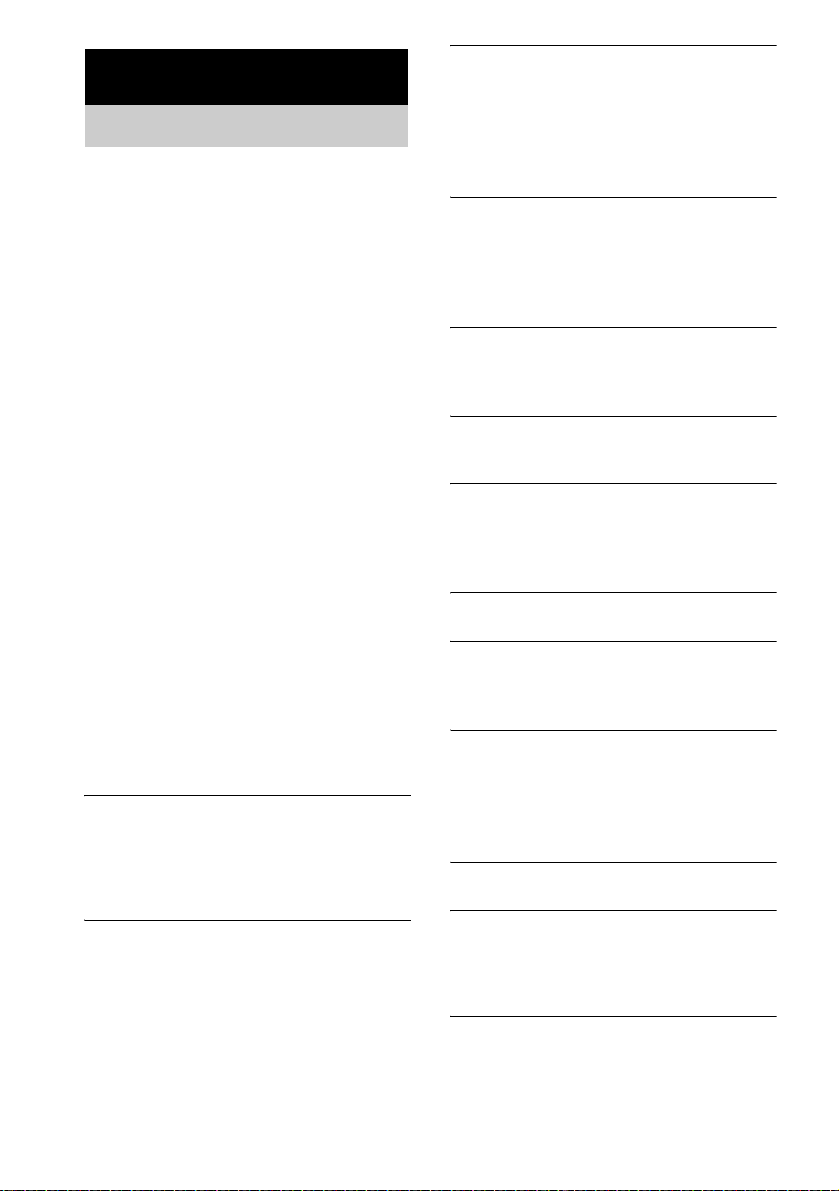
To enhance your system, you can connect optional components. Refer to the operating instructions
provided with each component.
A GAME INPUT VIDEO jack
Use a video cable (not supplied) to connect the
video output of the optional video game
machine to this jack.
B GAME INPUT AUDIO L/R jacks
Use audio cords (not supplied) to connect the
audio output of the optional video game
machine to these jacks. You can then output
audio through this system.
C VIDEO OUT jack
Use a video cable (not supplied) to connect the
video input of TV to this jack.
Notes
• The video game machine image may appear on the
TV screen even if the system is turned off.
• See “Selecting the surround effect” on page 19 for
video game sound effects.
• If you press GAME on the unit while the system is
off, the system turns on, the function switches to
GAME, and the equalizer also switches to the
GAME EQ.
• If you press GAME (MD) or GAME* while the
system is on, the function switches to GAME and the
equalizer automatically switches to the GAME EQ in
the same manner.
* for MHC-GX25 and MHC-RG220 (except for
European and Russian models)
Optional Components
Hooking up optional components
ALBUM
ALBUM
Optional video game
machine
TV
From the audio and video output of the
video game machine
To the video input of a TV
26
GB
Should you encounter a problem with your
system, do the following:
1 Make sure the power cord and speaker
cords are correctly and firmly connected.
2 Find your problem in the troubleshooting
checklist below and take the indicated
corrective action.
If the problem persists after doing all of the
above, consult your nearest Sony dealer.
When the ?/1 indicator flashes
Immediately unplug the power cord and check
the following items.
• Is the voltage selector set to the correct
voltage?
Check the voltage for your region, then make
sure the voltage selector is set correctly.
• Are the + and – speaker cords short-circuited?
• Are you using only the prescribed speakers?
• Is anything blocking the ventilation holes on
the rear of the system?
After checking the above items and fixing any
problems, connect the power cord again and turn
on the system. If the indicator still flashes, or if
the cause of the problem cannot be found even
after checking all the above items, consult your
nearest Sony dealer.
General
The display starts flashing as soon as you
plug in the power cord even though you have
not turned on the system (see step 5 of
“Hooking up the system” (page 6)).
• Press DISPLAY twice while the system is off. The
demonstration disappears.
“– –:– –” appears in the display.
• A power interruption has occurred. Set the clock
(page 8) and timer settings (pages 21 and 22)
again.
The clock setting/radio presetting/timer is
canceled.
• Redo the following:
–“Setting the clock” (page 8)
–“Presetting radio stations” (page 13)
–“Check the setting” (page 21)
–“Timer recording radio programs” (page 21)
There is no sound.
• Press VOL +/– or turn VOLUME control on the
unit clockwise.
• Make sure the headphones are not connected.
• Check the speaker connections (page 6).
• There is no audio output during timer-recording.
Sound comes from one channel, or
unbalanced left and right volume.
• Place the speakers as symmetrically as possible.
• Connect the supplied speakers.
Sound lacks bass.
• Check that the speaker’s + and – jacks are
connected correctly.
There is severe hum or noise.
• Move the system away from the source of noise.
• Connect the system to a different wall outlet.
• Install a noise filter (commercially available) to
the mains line.
The timer cannot be set.
• Set the clock again (page 8).
The timer does not function.
• Check the timer setting and set the correct time
(pages 21 and 22).
• Cancel the Sleep Timer Function (page 20).
The remote does not function.
• Remove the obstacle.
• Move the remote closer to the system.
• Point the remote at the system’s sensor.
• Replace the batteries (R6/size AA).
• Locate the system away from the fluorescent light.
There is acoustic feedback.
• Reduce the volume.
The color irregularity on a TV screen persists.
• Turn off the TV set once, then turn it on after 15
to 30 minutes. If the color irregularity still
persists, place the speakers farther away from the
TV set.
Troubleshooting
Problems and remedies
Troubleshooting
27
GB
CD/MP3 player
The disc tray does not open and “LOCKED”
appears.
• Contact your Sony dealer or local authorized Sony
service facility.
The disc tray does not close.
• Place the disc correctly.
• Always close the tray by pressing Z on the unit.
Trying to press the tray closed with your fingers
may cause problems with the player.
The disc does not eject.
• You cannot eject the disc during CD Synchro
Recording. Press x to cancel the CD Synchro
Recording, then press Z on the unit to eject the
disc.
• Consult your nearest Sony dealer.
Play does not start.
• Open the disc tray and check whether a disc is
loaded.
• Wipe the disc clean (page 29).
• Replace the disc.
• Place the disc that this system can play (page 4).
• Place the disc correctly.
• Place the disc in the tray with the label side up.
• Remove the disc and wipe away the moisture on
the disc, then leave the system turned on for a few
hours until the moisture evaporates.
•Press N to start play.
The sound skips.
• Wipe the disc clean (page 29).
• Replace the disc.
• Try moving the system to a place without
vibration (e.g., on top of a stable stand).
• Try moving the speakers away from the system, or
placing them on separate stands. When you listen
to a track with bass sounds at high volume, the
speaker vibration may cause the sound to skip.
Play does not start from the first track.
• Press PLAY MODE repeatedly until both “PGM”
and “SHUF” disappear to return to Normal Play.
MP3 audio track cannot be played back.*
• Recording was not performed according to the
ISO 9660 level 1 or level 2 format, Joliet or
Romeo in the expansion format.
• The MP3 audio track does not have the extension
“.MP3”.
• The data is not stored in MP3 format.
• Discs containing files other than MPEG 1 Audio
Layer-3 files cannot be played.
MP3 audio tracks take longer to play back than
others.*
• After the system reads all tracks on the discs,
playback may take more time than usual if:
– the number of albums or tracks on the disc is
very large.
– the album and track organization structure is
very complex.
The album title, track title and ID3 tag do not
appear correctly.*
• Use a disc that conforms with ISO 9660 level 1,
level 2, Joliet or Romeo in the expansion format.
• The disc ID3 tag is not ver. 1 (ver. 1.0 or 1.1).
* MHC-GX45/GX35/RG440S/RG330/RG310 and
MHC-RG220 (European and Russian models) only
Tuner
Severe hum or noise/stations cannot be
received.
• Set the proper band and frequency (page 13).
• Connect the antenna properly (page 7).
• Find a place and an orientation that provide good
reception, then set up the antenna again. If you
cannot obtain good reception, we recommend you
connect a commercially available external
antenna.
• The supplied FM lead antenna receives signals
along its entire length, so make sure you extend it
fully.
• Locate the antennas as far away from the speaker
cords as possible.
• Try turning off surrounding electrical equipment.
continued
28
GB
A stereo FM program cannot be received in
stereo.
• Press FM MODE (or STEREO/MONO for MHC-
GX25 and MHC-RG220 (except for European
and Russian models)) until “MONO” disappears.
Tape deck
The tape does not record or play, or there is a
decrease in sound level.
• The heads are dirty. Clean them (page 30).
• The record/playback heads are magnetised.
Demagnetise them (page 30).
The tape does not erase completely.
• The record/playback heads are magnetised.
Demagnetise them (page 30).
There is excessive wow or flutter, or the sound
drops out.
• The capstans or pinch rollers are dirty. Clean them
(page 30).
Noise increases or the high frequencies are
erased.
• The record/playback heads are magnetised.
Demagnetise them (page 30).
The tape does not record.
• No cassette is loaded. Load a cassette.
• The tab has been removed from the cassette.
Cover the broken tab with adhesive tape
(page 30).
• The tape has wound to the end.
If the system still does not
operate properly after performing
the above measures, reset the
system as follows:
1 Disconnect the power cord.
2 Reconnect the power cord.
3 Press x, GROOVE and ?/1 at the same
time.
4 Press ?/1 to turn on the system.
The system is reset to the factory settings. You
should set the settings you made, such as the
preset stations, clock, and timer.
One of the following messages may appear or
flash in the display during operation.
CD/MP3
NO DISC
There is no disc in the player.
OVER
You have reached the end of the disc while pressing
M during playback or pause.
Messages
Additional Information
29
GB
On operating voltage
Before operating the system, check that the operating
voltage of your system is identical with the voltage of
your local power supply.
On safety
• The unit is not disconnected from the AC power
source (mains) as long as it is connected to the wall
outlet, even if the unit itself has been turned off.
• Unplug the system from the wall outlet (mains) if it
is not to be used for an extended period of time. To
disconnect the power cord (mains lead), pull it out by
the plug. Never pull the cord itself.
• Should any solid object or liquid fall into the system,
unplug the system and have it checked by qualified
personnel before operating it any further.
• AC power cord must be changed only at the qualified
service shop.
On placement
• Do not place the system in an inclined position.
• Do not place the system in locations where it is;
– Extremely hot or cold
– Dusty or dirty
– Very humid
– Subject to vibrations
– Subject to direct sunlight.
• Use caution when placing the unit or speakers on
surfaces that have been specially treated (with wax,
oil, polish, etc.) as staining or discoloration of the
surface may result.
On heat buildup
• Although the system heats up during operation, this
is not a malfunction.
• Place the system in a location with adequate
ventilation to prevent heat buildup in the system.
• If you continuously use this system at a high volume,
the cabinet temperature of the top, side and bottom
rises considerably. To avoid burning yourself, do not
touch the cabinet.
• To prevent a malfunction, do not cover the
ventilation hole for the cooling fan.
On operation
• If the system is brought directly from a cold to a
warm location, or is placed in a very damp room,
moisture may condense on the lens inside the CD
player. Should this occur, the system will not operate
properly. Remove the disc and leave the system
turned on for about an hour until the moisture
evaporates.
• When you move the system, take out any disc.
If you have any questions or problems concerning your
system, please consult your nearest Sony dealer.
Notes on discs
• Before playing, clean the disc with a cleaning cloth.
Wipe the disc from the center out.
• Do not expose the disc to direct sunlight or heat
sources such as hot air ducts, nor leave it in a car
parked in direct sunlight.
• When using discs that have glue or similar tacky
substance on the label side of the disc or that used a
special ink when the label was printed, there is a
chance that the disc or label may become attached to
parts inside this unit. When this occurs, it may not be
possible to remove the disc, and may also cause this
unit to malfunction. Be sure to check that the label
side of the disc is not sticky before using.
The following types of disc should not be used:
– Rental or used discs with attached seals where the
glue extends beyond the seal. The perimeter of the
seal on the disc is tacky.
– Discs that have labels printed using a special ink
that feels tacky when touched.
• Discs with non-standard shapes (e.g., heart, square,
star) cannot be played on this unit. Attempting to do
so may damage the unit. Do not use such discs.
Additional Information
Precautions
continued
30
GB
Cleaning the cabinet
Clean the cabinet, panel and controls with a soft cloth
slightly moistened with mild detergent solution. Do not
use any type of abrasive pad, scouring powder or
solvent such as thinner, benzene or alcohol.
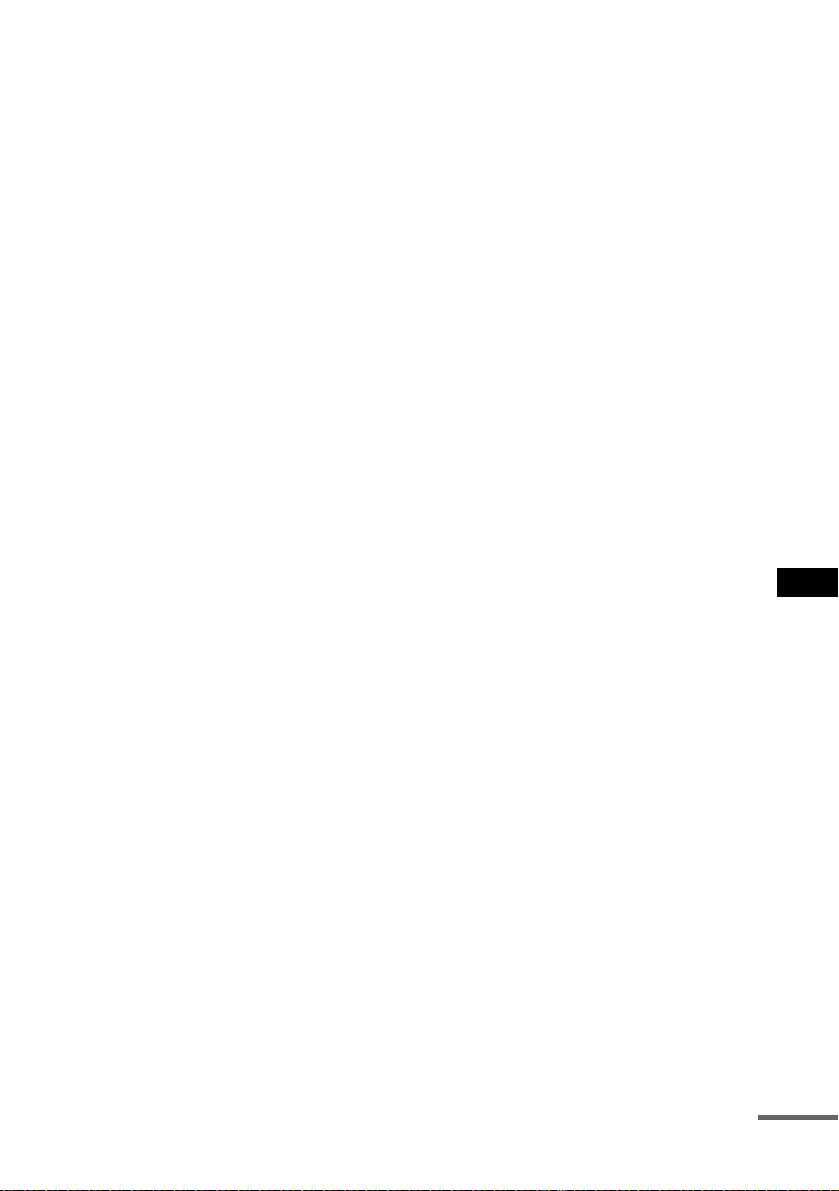
To save a tape permanently
To prevent a tape from being accidentally recorded
over, break off the cassette tab from side A or B as
illustrated.
If you later want to reuse the tape for recording, cover
the broken tab with adhesive tape.
Before placing a cassette in the tape
deck
Take up any slack in the tape. Otherwise, the tape may
get entangled in the parts of the tape deck and become
damaged.
When using a tape longer than
90 minutes
The tape is very elastic. Do not change the tape
operations such as play, stop, and fast-winding
frequently. The tape may get entangled in the tape
deck.
Cleaning the tape heads
Clean the tape heads after every 10 hours of use. Be
sure to clean the tape heads before you start an
important recording or after playing an old tape. Use a
separately sold dry-type or wet-type cleaning cassette.
For details, refer to the instructions of the cleaning
cassette.
Demagnetising the tape heads
Demagnetise the tape heads and the metal parts that
have contact with the tape after every 20 to 30 hours of
use with a separately sold demagnetising cassette. For
details, refer to the instructions of the demagnetising
cassette.
AUDIO POWER SPECIFICATIONS
(MHC-GX45/GX25 USA model only)
POWER OUTPUT AND TOTAL HARMONIC
DISTORTION:
With 6 ohm loads, both channels driven, from
120 – 10,000 Hz: rated 120 watts per channel
minimum RMS power, with no more than 10%
total harmonic distortion from 250 milliwatts to
rated output.
Amplifier section
North American models:
MHC-GX45
Front speaker
Continuous RMS power output (reference):
120 + 120 watts (6 ohms at
1 kHz, 10% THD)
Total harmonic distortion less than 0.07% (6 ohms at
1 kHz, 60 W)
Sub woofer
Continuous RMS power output (reference):
120 watts (6 ohms at
60 Hz, 10% THD)
Total harmonic distortion less than 0.07% (6 ohms at
60 Hz, 60 W)
MHC-GX35
Continuous RMS power output (reference):
120 + 120 watts (6 ohms at
1 kHz, 10% THD)
Total harmonic distortion less than 0.07% (6 ohms at
1 kHz, 60 W)
MHC-GX25
Continuous RMS power output (reference):
120 + 120 watts (6 ohms at
1 kHz, 10% THD)
Total harmonic distortion less than 0.07% (6 ohms at
1 kHz, 60 W)
Break off the
cassette tab
Specifications
Additional Information
31
GB
European and Russian models:
MHC-RG440S
Front speaker
DIN power output (rated): 80 + 80 watts (6 ohms at
1 kHz, DIN)
Continuous RMS power output (reference):
100 + 100 watts (6 ohms at
1 kHz, 10% THD)
Music power output (reference):
200 + 200 watts (6 ohms at
1 kHz, 10% THD)
Sub woofer
DIN power output (rated): 80 watts (6 ohms at
60 Hz, DIN)
Continuous RMS power output (reference):
100 watts (6 ohms at
60 Hz, 10% THD)
Music power output (reference):
200 watts (6 ohms at
60 Hz, 10% THD)
MHC-RG330
DIN power output (rated): 100 + 100 watts (6 ohms at
1 kHz, DIN)
Continuous RMS power output (reference):
120 + 120 watts (6 ohms at
1 kHz, 10% THD)
Music power output (reference):
240 + 240 watts (6 ohms at
1 kHz, 10% THD)
MHC-RG310
DIN power output (rated): 80 + 80 watts (6 ohms at
1 kHz, DIN)
Continuous RMS power output (reference):
100 + 100 watts (6 ohms at
1 kHz, 10% THD)
Music power output (reference):
200 + 200 watts (6 ohms at
1 kHz, 10% THD)
MHC-RG220
DIN power output (rated): 50 + 50 watts (6 ohms at
1 kHz, DIN)
Continuous RMS power output (reference):
60 + 60 watts (6 ohms at
1 kHz, 10% THD)
Music power output (reference):
120 + 120 watts (6 ohms at
1 kHz, 10% THD)
Other models:
MHC-RG440S
The following measured at AC 120, 220, 240 V
50/60 Hz
DIN power output (rated): 80 + 80 watts (6 ohms at
1 kHz, DIN)
Continuous RMS power output (reference):
100 + 100 watts (6 ohms at
1 kHz, 10% THD)
MHC-RG330
The following measured at AC 120, 127, 220, 240 V
50/60 Hz
DIN power output (rated): 100 + 100 watts (6 ohms at
1 kHz, DIN)
Continuous RMS power output (reference):
120 + 120 watts (6 ohms at
1 kHz, 10% THD)
MHC-RG220
The following measured at AC 120, 127, 220, 240 V
50/60 Hz
DIN power output (rated): 80 + 80 watts (6 ohms at
1 kHz, DIN)
Continuous RMS power output (reference):
100 + 100 watts (6 ohms at
1 kHz, 10% THD)
Inputs
GAME INPUT AUDIO L/R (phono jacks):
voltage 250 mV,
impedance 47 kilohms
GAME INPUT VIDEO (phono jack):
1Vp-p, 75 ohms
Outputs
PHONES (stereo mini jack):
accepts headphones of
8ohms or more
VIDEO OUT (phono jack):
max. output level 1Vp-p,
unbalanced, Sync
negative, load impedance
75 ohms
SPEAKER: accepts impedance of 6 to
16 ohms.
SUB WOOFER OUT (MHC-GX45 and MHC-
RG440S only): accepts impedance of 6 to
16 ohms.
continued

32
GB
CD player section
System Compact disc and digital
audio system
Laser Semiconductor laser
(λ=780 nm)
Emission duration:
continuous
Frequency response 2 Hz – 20 kHz (±0.5 dB)
Wavelength 780 – 790 nm
Signal-to-noise ratio More than 90 dB
Dynamic range More than 90 dB
Tape deck section
Recording system 4-track 2-channel, stereo
Frequency response 50 – 13,000 Hz (±3 dB),
using Sony TYPE I
cassettes
Wow and flutter ±0.15% W. Peak (IEC)
0.1% W. RMS (NAB)
±0.2% W. Peak (DIN)
Tuner section
FM stereo, FM/AM superheterodyne tuner
FM tuner section
Tuning range
Russian models 65.0 – 74.0 MHz
(There is no stereo effect)
87.5 – 108.0 MHz
Other models 87.5 – 108.0 MHz
Antenna FM lead antenna
Antenna terminals 75 ohms unbalanced
Intermediate frequency 10.7 MHz
AM tuner section
Tuning range
Pan-American models: 530 – 1,710 kHz
(with the tuning interval
set at 10 kHz)
531 – 1,710 kHz
(with the tuning interval
set at 9 kHz)
European, Russian, Middle Eastern and Philippine
models: 531 – 1,602 kHz (with the
tuning interval set at
9kHz)
Other models: 530 – 1,710 kHz
(with the tuning interval
set at 10 kHz)
531 – 1,602 kHz
(with the tuning interval
set at 9 kHz)
Antenna AM loop antenna
Antenna terminals External antenna terminal
Intermediate frequency 450 kHz
Speaker
North American models:
Front speaker SS-RG440 for MHC-GX45/
GX25
Speaker system 3-way, 3-unit, bass-reflex
type
Speaker units
Woofer: 13 cm, cone type
Sub woofer: 13 cm, cone type
Tweeter: 5 cm, cone type
Nominal impedance 6 ohms
Dimensions (w/h/d) Approx. 240 × 325 ×
243 mm
Mass Approx. 4.3 kg net per
speaker
Sub woofer speaker SS-WG990 for MHC-
GX45
Speaker system Bass-reflex type
Speaker units
Woofer: 20 cm, cone type
Nominal impedance 6 ohms
Dimensions (w/h/d) Approx. 265 × 325 ×
350 mm
Mass Approx. 6.4 kg
Canadian model:
Front speaker SS-RG660 for MHC-GX35
Speaker system 3-way, 3-unit, bass-reflex
type
Speaker units
Woofer: 15 cm, cone type
Sub Woofer: 15 cm, cone type
Tweeter: 5 cm, cone type
Nominal impedance 6 ohms
Dimensions (w/h/d) Approx. 240 × 363 ×
290 mm
Mass Approx. 4.7 kg net per
speaker
Additional Information
33
GB
European and Russian models:
Front speaker SS-RG440 for MHC-RG440S/
RG310/RG220
Speaker system 3-way, 3-unit, bass-reflex
type
Speaker units
Woofer: 13 cm, cone type
Sub woofer: 13 cm, cone type
Tweeter: 5 cm, cone type
Nominal impedance 6 ohms
Dimensions (w/h/d) Approx. 240 × 325 ×
243 mm
Mass Approx. 4.3 kg net per
speaker
Sub woofer speaker SS-WG990 for MHC-
RG440S
Speaker system Bass-reflex type
Speaker units
Woofer: 20 cm, cone type
Nominal impedance 6 ohms
Dimensions (w/h/d) Approx. 265 × 325 ×
350 mm
Mass Approx. 6.4 kg
Front speaker SS-RG660 for MHC-RG330
Speaker system 3-way, 3-unit, bass-reflex
type
Speaker units
Sub Woofer: 15 cm, cone type
Woofer: 15 cm, cone type
Tweeter: 5 cm, cone type
Nominal impedance 6 ohms
Dimensions (w/h/d) Approx. 240 × 363 ×
290 mm
Mass Approx. 4.7 kg net per
speaker
Other models:
Front speaker SS-RG660 for MHC-RG330
Speaker system 3-way, 3-unit, bass-reflex
type
Speaker units
Sub Woofer: 15 cm, cone type
Woofer: 15 cm, cone type
Tweeter: 5 cm, cone type
Nominal impedance 6 ohms
Dimensions (w/h/d) Approx. 240 × 363 ×
290 mm
Mass Approx. 4.7 kg net per
speaker
Front speaker SS-RG440 for MHC-RG220
Speaker system 3-way, 3-unit, bass-reflex
type
Speaker units
Woofer: 13 cm, cone type
Sub woofer: 13 cm, cone type
Tweeter: 5 cm, cone type
Nominal impedance 6 ohms
Dimensions (w/h/d) Approx. 240 × 325 ×
243 mm
Mass Approx. 4.3 kg net per
speaker
General
Power requirements
North American models: 120 V AC, 60 Hz
European and Russian models:
230 V AC, 50/60 Hz
Australian model: 230 – 240 V AC, 50/60 Hz
Argentine models: 220 V AC, 50/60 Hz
Mexican models: 127 V AC, 60 Hz
Saudi Arabian model: 120 – 127/220 or 230 –
240 V AC, 50/60 Hz
Adjustable with voltage
selector
Korean model: 220 V AC, 60 Hz
Other models: 120 V, 220 V or 230 –
240 V AC, 50/60 Hz
Adjustable with voltage
selector
Power consumption
USA models:
MHC-GX45: 180 watts
MHC-GX25: 120 watts
Canadian models:
MHC-GX35: 120 watts
European and Russian models:
MHC-RG440S: 150 watts
0.35 watts (at the Power
Saving Mode)
MHC-RG330: 120 watts
0.35 watts (at the Power
Saving Mode)
MHC-RG310: 110 watts
0.35 watts (at the Power
Saving Mode)
MHC-RG220: 80 watts
0.35 watts (at the Power
Saving Mode)
Other models:
MHC-RG440S: 150 watts
MHC-RG330: 120 watts
MHC-RG220: 110 watts
continued

34
GB
Dimensions (w/h/d) Approx. 280 × 325 ×
407 mm
Mass
North American models:
HCD-GX45: Approx. 9.0 kg
HCD-GX35: Approx. 9.0 kg
HCD-GX25: Approx. 8.5 kg
European and Russian models:
HCD-RG440: Approx. 9.0 kg
HCD-RG330: Approx. 9.0 kg
HCD-RG310: Approx. 9.0 kg
HCD-RG220: Approx. 8.5 kg
Other models:
HCD-RG330: Approx. 9.0 kg
HCD-RG220: Approx. 8.5 kg
Supplied accessories: Remote Commander (1)
Batteries (2)
AM loop antenna (1)
FM lead antenna (1)
Speaker pads
MHC-GX45/RG440S
(12)
MHC-GX35/GX25/
RG330/RG310/RG220
(8)
Design and specifications are subject to change
without notice.
Additional Information
35
GB
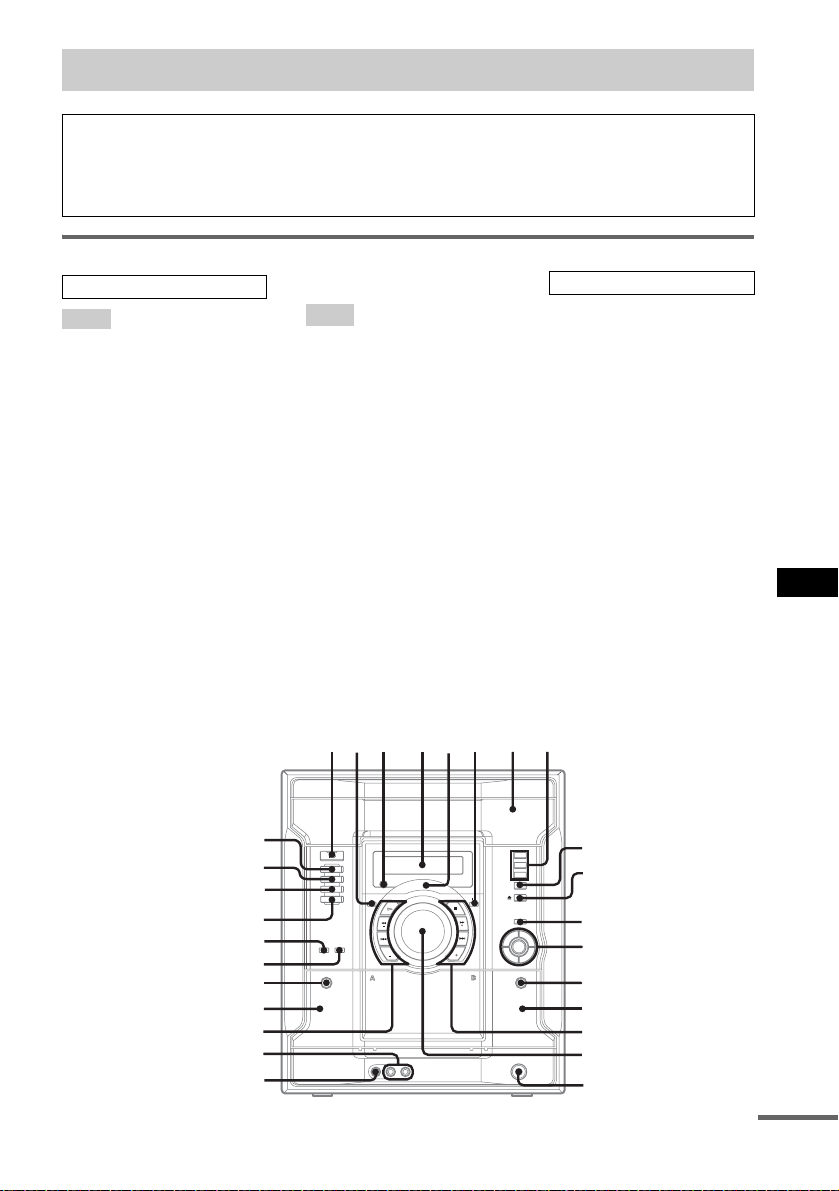
Main unit
ALBUM +* qg (10, 12)
ALBUM –* w; (10, 12)
CD wk (9, 12, 17)
CD SYNC wf (17)
Deck A wa (16)
Deck B qf (16, 17)
DISC 1 – 3 8 (10, 12)
DISC SKIP/EX-CHANGE 9 (9,
10)
Disc tray 7 (9)
DISPLAY 2 (15, 22, 23)
Display window 4
EFFECT ON/OFF qa (18)
GAME wg (19, 25)
GAME EQ qs (18)
GAME INPUT AUDIO L/R jacks
ql (25)
GAME INPUT VIDEO jack qk
(25)
GAME MIXING qs (19)
GROOVE qs (18, 28)
MOVIE EQ qs (18)
MUSIC EQ qs (18)
PHONES jack qj
Power illuminator 5 (24)
Remote sensor 3
REC PAUSE/START wd (17, 19)
TAPE A/B wh (16, 17)
TUNER/BAND wj (13, 14, 17)
VOLUME control qh (18, 20)
?/1 (power) 1 (7, 14, 20, 26,
28)
X (pause) 6 (10, 16)
Z (eject) 0 (9)
PUSH Z (deck B) (eject) qd (16)
x (stop) qg (10, 16, 17)
M+ (fast forward) qg (10, 13,
16)
> (go forward) qg (8, 10, 13,
16, 20)
H (play) w; (10, 16)
–m (rewind) w; (10, 13, 16)
. (go back) w; (8, 10, 13, 16,
20)
Z PUSH (deck A) (eject) ws (16)
* MHC-GX45/GX35/RG440S/
RG330/RG310 and MHC-
RG220 (European and Russian
models) only
List of button locations and reference pages
How to use this page
Use this page to find the location of buttons and other
parts of the system that are mentioned in the text.
Ill
us
t
ra
ti
on num
b
er
r
TAPE A/B wh (16, 17)
RR
Name of button/part Reference page
ALPHABETICAL ORDER
A – L
M – Z
BUTTON DESCRIPTIONS
continued
ALBUM
ALBUM
ql
1
2
3
45
67
8
9
q;
qf
qs
qa
qg
qd
qj
qh
qk
w;
wa
ws
wd
wf
wg
wk
wj
wh

Additional Information
37
GB
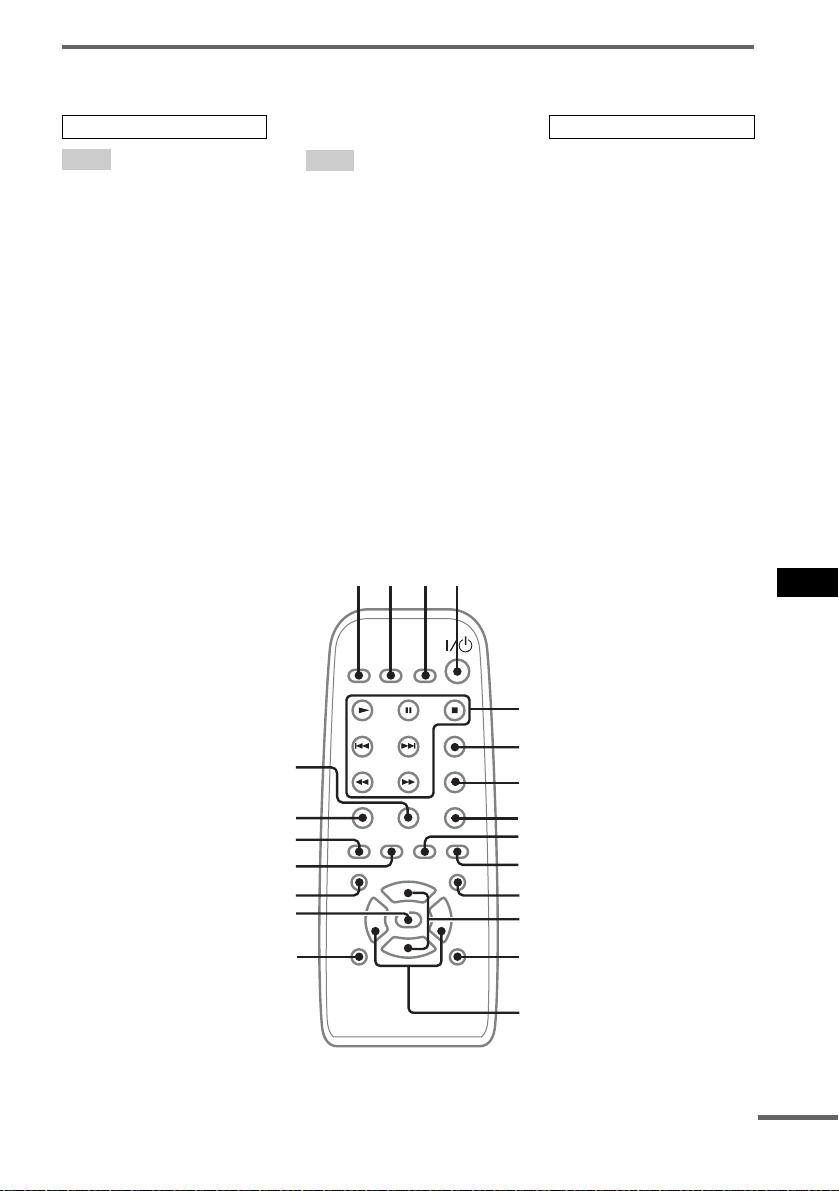
Remote control for MHC-GX45/GX35/RG440S/RG330/RG310 and
MHC-RG220 (European and Russian models)
ALBUM +/– qf (10, 12)
CD ql (9, 12, 17)
CLEAR 5 (12)
CLOCK/TIMER SELECT 2
(21, 22)
CLOCK/TIMER SET 3 (8, 20,
21)
DISPLAY 6 (15, 22, 23)
D. SKIP 7 (10)
ENTER qh (8, 12, 13, 20, 21)
FM MODE wa (15)
GAME (MD)* q; (19, 25)
GROOVE qd (18, 28)
ILLUMINATION qg (24)
PLAY MODE w; (10, 12, 16)
PRESET EQ qj (18)
PRESET –/+ 5 (13, 14)
REPEAT wa (11)
SLEEP 1 (20)
SURROUND qa (19)
TAPE A/B 9 (16, 17)
TUNER/BAND qk (13, 14, 17)
TUNER MEMORY 8 (13)
TUNING –/+ 5 (13, 15)
VOL +/– qs (18, 20)
?/1 (power) 4 (7, 14, 20, 26,
28)
m/M (rewind/fast forward)
5 (10, 16)
./> (go back/go forward)
5 (8, 10, 13, 16, 20)
N (play) 5 (10, 16)
X (pause) 5 (10, 16)
x (stop) 5 (10, 16, 17)
* This button is used to switch
to GAME function.
ALPHABETICAL ORDER
A – H
I – Z
BUTTON DESCRIPTIONS
1
234
5
6
7
8
9
q;
qa
qs
qd
qf
qg
qh
qj
qk
ql
w;
wa
continued
38
GB
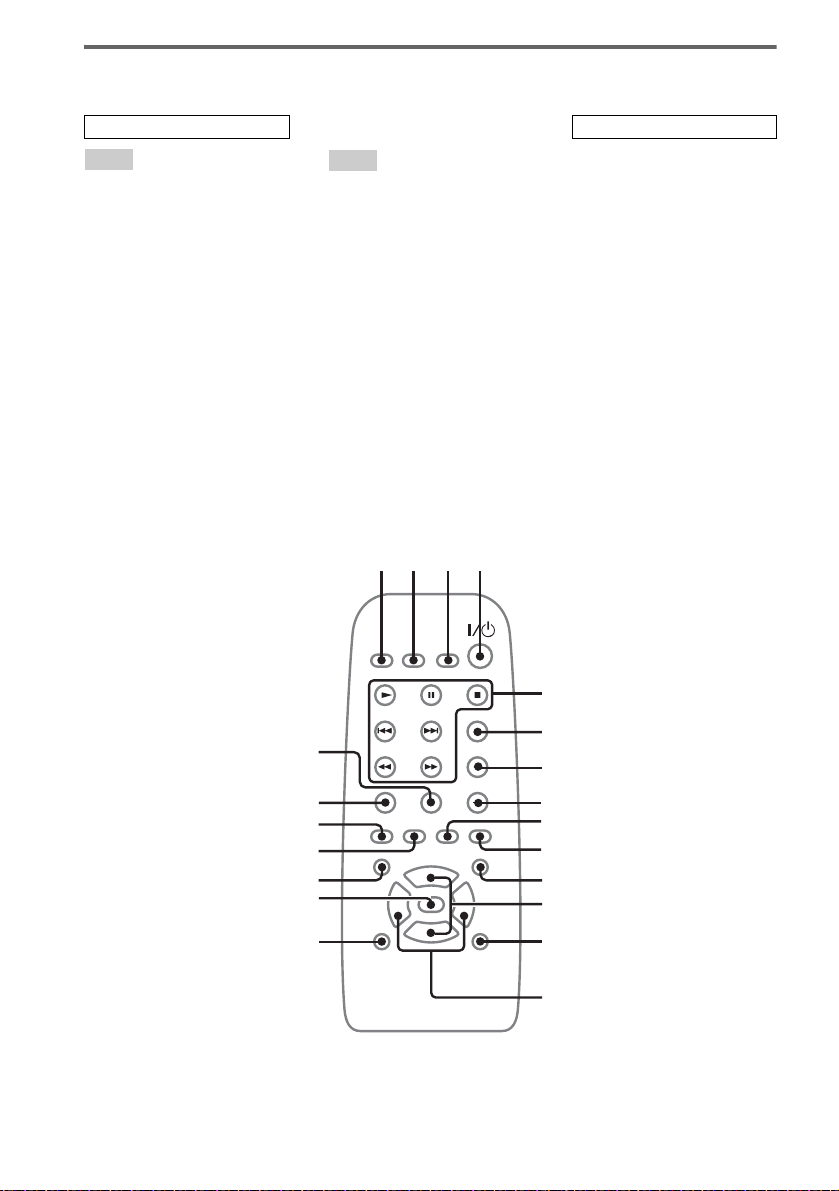
Remote control for MHC-GX25 and MHC-RG220 (except for
European and Russian models)
CD ql (9, 12, 17)
CLEAR w; (12)
CLOCK/TIMER SELECT 2
(21, 22)
CLOCK/TIMER SET 3 (8, 20,
21)
DISPLAY 6 (15, 22, 23)
D. SKIP 7 (10)
ENTER qg (8, 12, 13, 20, 21)
EQ +/– qf (18)
GAME q; (19, 25)
GROOVE qd (18, 28)
ON/OFF qh (18)
PLAY MODE wa (10, 12, 16)
PRESET –/+ 5 (13, 14)
REPEAT 8 (11)
SLEEP 1 (20)
STEREO/MONO 8 (15)
SURROUND qa (19)
TAPE A/B 9 (16, 17)
TUNER/BAND qk (13, 14, 17)
TUNER MEMORY qj (13)
TUNING –/+ 5 (13, 15)
VOL +/– qs (18, 20)
?/1 (power) 4 (7, 14, 20, 26,
28)
m/M (rewind/fast forward)
5 (10, 16)
./> (go back/go forward)
5 (8, 10, 13, 16, 20)
N (play) 5 (10, 16)
X (pause) 5 (10, 16)
x (stop) 5 (10, 16, 17)
ALPHABETICAL ORDER
A – N
O – Z
BUTTON DESCRIPTIONS
1
234
5
6
7
8
9
q;
qa
qs
qd
qf
qg
qh
qj
qk
ql
w;
wa


Sony Corporation Printed in China