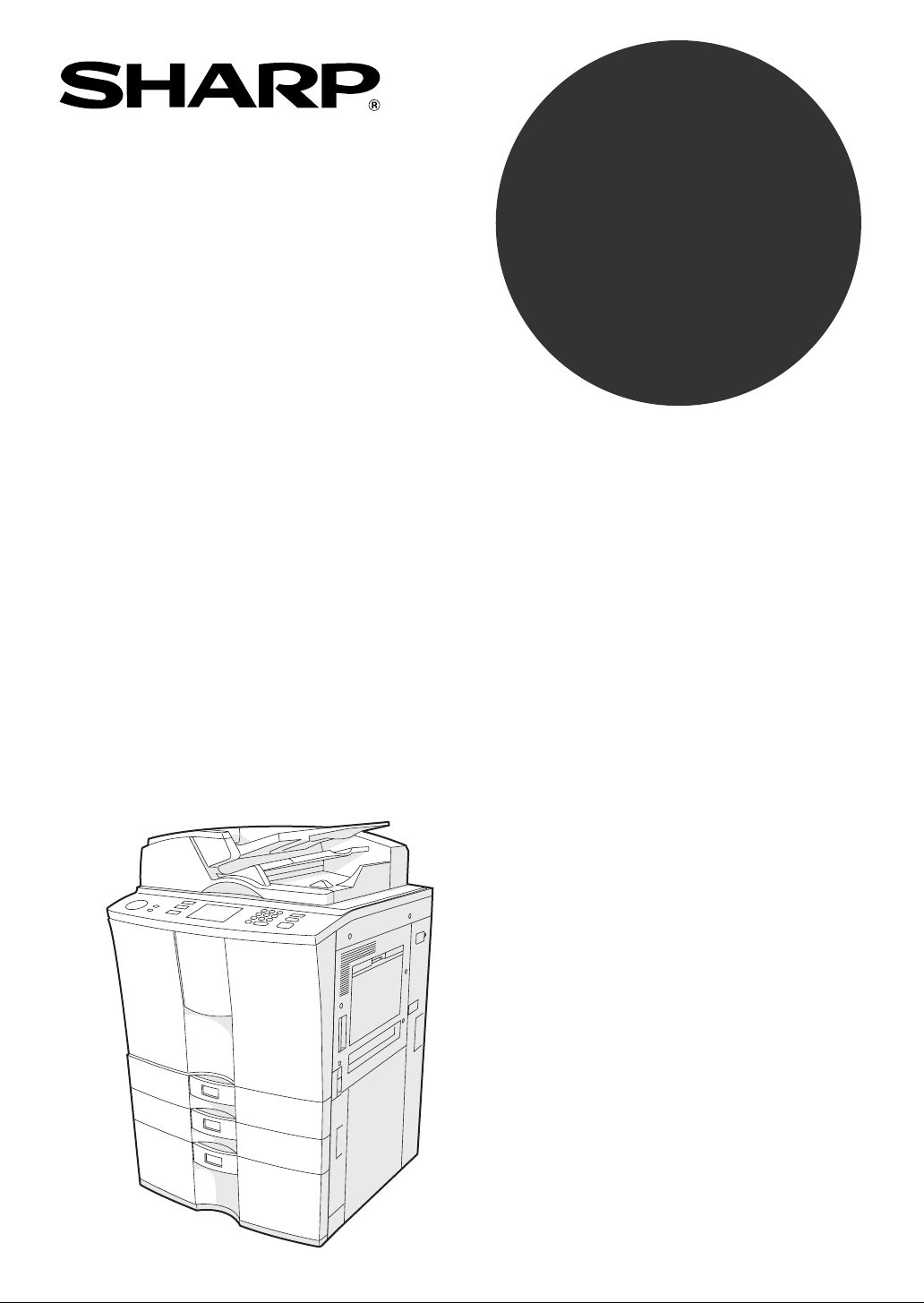
DIGITAL COPYING MACHINE
OPERATION MANUAL
MODEL
AR-651
AR-810
PRINTED IN JAPAN
XXXXXXXXXXXX
AR-651/AR-810
SHARP ELECTRONICS CORPORATION
Sharp Plaza, Mahwah, New Jersey 07430-2135.
SHARP ELECTRONICS OF CANADA LTD.
335 Britannia Road East, Mississauga, Ontario, L4Z 1W9
SHARP CORPORATION
www.sharp-usa.com
DIGITAL COPYING MACHINE
AR-651/AR-810

❧❧❧❧❧❧❧❧❧❧❧❧❧❧❧❧❧❧❧❧❧❧❧❧❧❧❧❧❧❧❧❧❧❧❧❧❧❧❧❧❧❧❧❧❧❧❧
❧
❧❧❧❧❧❧❧❧❧❧❧❧❧❧❧❧❧
❧
❧❧❧❧❧❧❧❧❧❧❧❧❧❧❧ ❧❧❧❧❧❧❧❧❧❧❧❧❧❧❧❧❧❧❧❧❧❧❧❧❧❧❧❧❧❧❧❧
❧
❧❧❧❧❧❧❧❧❧❧❧❧❧❧❧❧❧
❧
➢➣➢➣➢➣➢➣➢➣➢➣➢➣➢➣➢➣➢➣➢➣➢➣➢➣➢➣➢➣➢➣
➢
➣➢➣➢➣➢➣➢➣➢➣➢➣➢➣➢➣➢➣
➢
➣➢➣➢➣➢➣➢➣➢➣➢➣➢➣➢➣➢➣➢➣➢➣➢➣➢➣➢➣➢➣➢➣
➢
➣➢➣➢➣➢➣➢➣➢➣➢➣➢➣➢➣➢➣
➢
➣
The power switch positions are marked “ ” to indicate power “ON” and
“
” to indicate stand-by.
In the stand-by position, power is being supplied to a drying heater within
the optical system of the copier.
Caution:
For complete electrical disconnection, pull out the main plug.
The socket-outlet shall be installed near the equipment and shall be
easily accessible.
FOR YOUR RECORDS ...
To protect against loss or theft, record and retain for reference the
copier’s serial number located on the left hand side at the rear corner of
the copier.
Model Number
Serial Number
Date of Purchase
Place of Purchase
Authorized Sharp Copier
Service Department Number
NOTICE
BE SURE TO ASK YOUR AUTHORIZED SHARP DEALER ABOUT THE WAR-
RANTY THAT YOUR SELLING DEALER EXTENDS TO YOU. In order to assure
you, the end-user, of warranty protection, Sharp extends a limited warranty to
each of its authorized dealers and, in turn, requires each of its authorized dealers
to extend its own warranty to you on terms that are no less favorable than those
given to the dealer by Sharp. You should be aware, however, that Sharp does not
itself extend any warranties, either express or implied, directly to you, the end-user
and no one is authorized to make any representations or warranties on behalf of
Sharp. Specifically, SHARP DOES NOT EXTEND TO YOU, THE END-USER, ANY
EXPRESS WARRANTY OR ANY IMPLIED WARRANTY OF MERCHANTABILITY,
FITNESS FOR USE OR FITNESS FOR ANY PARTICULAR PURPOSE IN CON-
NECTION WITH THE HARDWARE, SOFTWARE OR FIRMWARE EMBODIED
IN, OR USED IN CONJUNCTION WITH THIS PRODUCT. Sharp is not responsi-
ble for any damages or loss, either direct, incidental or consequential, which you,
the end-user, may experience as a result of your purchase or use of the hardware,
software or firmware embodied in or used in conjunction with this Product. Your
sole remedy, in the event that you encounter any difficulties with this Product, is
against the authorized dealer from which you purchased the Product.
In the event that this authorized dealer does not honor its warranty commitments,
please contact the General Manager , Business Products Group, Sharp Electronics
Corporation, Sharp Plaza, Mahwah, NJ 07430-2135, so that Sharp can try to help
assure complete satisfaction of all the warranty rights to which you are entitled
from the authorized dealer
.

1
FCC NOTICE
This equipment has been tested and found to comply with the limits for a Class A digital device,
pursuant to Part 15 of the FCC Rules. These limits are designed to provide reasonable
protection against harmful interference when the equipment is operated in a commercial
environment. This equipment generates, uses, and can radiate radio frequency energy and, if
not installed and used in accordance with the instruction manual, may cause harmful
interference to radio communications. Operation of this equipment in a residential area is likely
to cause harmful interference in which case the user will be required to correct the interference
at his own expense.
This Class A digital apparatus complies with Canadian ICES-003.
Cet appareil numérique de la classe A est conforme á la norme NMB-003 du Canada.
WARNING:
FCC Regulations state that any unauthorized changes or modifications to this equipment
not expressly approved by the manufacturer could void the user's authority to operate this
equipment.

2
EPA ENERGY STAR ® (MFD)
The United States Environmental Protection Agency (EPA) has introduced a voluntary program, the ENERGY
STAR Program, to encourage the widespread and voluntary use of energy-efficient technologies that
enhance the workplace, improve product performance and prevent pollution. As an
ENERGY STAR Partner,
the SHARP Corp. has determined that this copier model meets the
ENERGY STAR guidelines for energy
efficiency.
ENERGY STAR guidelines for this class of copier require ENERGY STAR copiers to have an 'Off Mode'
feature that automatically turns the copier off after a period of inactivity, ensuring night and weekend shut-off.
The copier must also automatically change to a 'Low Power Mode' (Automatic Energy Save) after a period of
time since the last usage.
For Copier+Printer models,
ENERGY STAR guidelines require ENERGY STAR Multifunction copiers to have
a 'Sleep Mode' feature that automatically makes the copier enter the sleep mode after a period of inactivity.
The copier must also automatically change to a 'Low Power Mode' (Automatic Energy Save) after a period of
time since the last usage.
Specifically, this copier complies with the following requirements ––––
The AR-651/810 Copier model (Base model)
'Off Mode'-
The copier consumes less than 20 watts in the 'Off Mode'.
'Off Mode' Default Time-
The default time for the 'Off Mode' is 90 minutes.
'Automatic Energy Save'-
The copier consumes less than 255 watts (AR-651)/ 316 watts (AR-810) while in Energy Save Mode.
'Automatic Energy Save' Default Time-
The default time before switching to 'Automatic Energy Save Mode' is 15 minutes.
The AR-651/810 Copier + Printer model (Multifunction model)
'Sleep Mode'-
The copier consumes less than 95 watts in the 'Sleep Mode'.
'Sleep Mode' Default Time-
The default time while in 'Sleep Mode Mode' is 90 minutes.
'Automatic Energy Save'-
The copier consumes less than 300 watts (AR-651)/ 361 watts (AR-810) while in Energy Save Mode.
'Automatic Energy Save' Default Time-
The default time before swtching to 'Automatic Energy Save Mode' is 15 minutes.
Note1- The default setting for the 'Off Mode' or 'Sleep Mode' and 'Automatic Energy save' can be changed.
Note2- To restart the copier after auto shutoff, turn on the power switch. To restart the copier after sleep mode,
press the start key.
Note3- In the sleep mode, if printer data is received, or the start key on the control panel is pressed, the copier
starts warming itself up and prints out the data when it becomes ready.
If you have any questions regarding the use of recycled paper or some recommended types of recycled paper,
please contact your authorized Sharp dealer.
ENERGY STAR is a U. S. registered mark.
1
2
3
4
5
6
7
8
9
10
11
12
1
PREFACE
COPYRIGHT 2002
SHARP CORPORATION
Thank you for purchasing the Sharp Digital Copier AR-651/810. This Operator’s Manual describes the
following:
• how to use the digital copier
• how to inspect and carry out maintenance on the digital copier
• how to remedy mechanical and copying problems
Before using the digital copier, thoroughly read and understand this Operator’s Manual. To ensure that
clean copies are made at all times and to keep your digital copier in optimum working order, this Operator’s
Manual should be readily available for future reference.
To ensure correct and safe use of the Sharp Digital Copier AR-651/810, this Operator’s Manual
describes safety precautions according to the following three levels of warning:
Before reading this Operator’s Manual, you should fully understand the meaning and importance of
these signal words.
Warning .. Indicates a potentially hazardous situation which, if not avoided, could result in death, serious
injury, or serious damage, or fire in the equipment or surrounding assets.
Caution ... Indicates a potentially hazardous situation which, if not avoided, may result in minor or moder-
ate injury, partial damage of the equipment or surrounding assets, or loss of data.
Note ........ Indicates a procedure you should follow to ensure the optimal performance of the digital
copier and problem-free copying.
Tip .......... Describes handy information that is useful to know when operating the digital copier.
Advice ..... Describes an operation you should follow to keep the digital copier in good working order.
User Safety
This Sharp digital plain paper copier does not produce laser radiation hazardous to the user. It is certified as
a Class 1 laser product under the U.S. Department of Health and Human Services (DHHS) Radiation Perfor-
mance Standard according to the Radiation Control for Health and Safety Act of 1968.
Protective housing and external covers completely confine the laser light emitted inside the plain paper
copier. The laser beam cannot escape from the machine during any phase of user operation.
Regulations implemented on August 2, 1976 by the Bureau of Radiological Health (BRH) of the U.S. Food
and Drug Administration apply to laser products manufactured from August 1, 1976. Laser products mar-
keted in the United States must comply with these regulations.
CAUTION: Using controls or adjustments or performing procedures, other than those specified herein
may result in hazardous radiation exposure.

1
2
3
4
5
6
7
8
9
10
11
12
2
PREFACE (Cont.)
Features of the AR-651/810
The AR-651/810 is a digital copier which is high-speed, compact and high-durability. The AR-651/810 can
read the image in the memory temporarily after scanning, so you can operate sorting/grouping, etc. as well
as processing/editing quietly, quickly and easily. And the combination of various finishing function such as
thick paper and tab paper, etc. makes finishing easier as you request.
The AR-651/810 also has the following convenient features, functions and options.
The copying speed is 65 copies (LT) per minute for the AR-651 and 81 copies (LT) per minute for the
AR-810.
You can scan the originals that you request to copy during printing.
The warm-up time has been drastically shortened to approximately 160 seconds (about half of that of
the Sharp copier AR-650).
A wide variety of media from thick paper ( up to 110lb. Index) to tab paper, OHP-films, hole punched
paper, etc. are acceptable.
'Finishing mode' and '2-sided copy', which are frequently used, put together to one display (Quick tab on
the touch panel) to access easily.
'Automatic density mode' reads the density of originals automatically and sets the proper copy density.
'Automatic paper selection' reads the size of originals automatically and sets the paper size, and 'Auto
matic zoom selection' calculates the copy magnification.
Comes with rich editing functions specific to digital such as '2in1/ 4in1’, ‘Annotation’ and ‘Page Numberring’,
etc.
Using the reversing automatic document feeder allows you to copy at once with 'Mixed-sized original
mode' though the original sizes are different.
Loading the page memory and hard disc as standard equipment enables 2 in 1/4 in 1, 'Electronic sort'
and 'Magazine sort' etc.
When using the external LCF (optional), you can make maximum of 7500 copies continuously. (External
LCF:4000 sheets, drawer: 500 sheets x 2, Tandem LCF: 2500 sheets)
Installing an optional finisher, an optional hole punch and an optional inserter offer quick sorting such as
'Staple', 'Magazine sort' 'Hole punch' and 'Paper insert' of copies automatically.
The optional printer controller also allows you to scan from the touch panel.
1
2
3
4
5
6
7
8
9
10
11
12
3
TABLE OF CONTENTS
Preface ................................................................................................................................................ 1
Features of the AR-651/810 ................................................................................................................ 2
Table of contents ................................................................................................................................. 3
Disclaimer notice ................................................................................................................................. 6
Precautions ......................................................................................................................................... 7
1. Installation ....................................................................................................................................... 7
2. General precautions ........................................................................................................................ 8
1.Before making copies ................................................................................................................... 1-1
1. Description of the digital copier and the optional equipment ...................................................... 1-2
- Main components ..................................................................................................................... 1-2
- Optional equipment .................................................................................................................. 1-3
- Control panel ............................................................................................................................ 1-4
- Touch panel .............................................................................................................................. 1-6
2. Turning ON the power switch ....................................................................................................... 1-8
- Turning on the power switch/Auto job start ............................................................................... 1-8
- Controlling the use of the copier with account numbers .......................................................... 1-9
2.How to make copies ...................................................................................................................... 2-1
1. General copying procedures ....................................................................................................... 2-2
2. Setting copy paper ...................................................................................................................... 2-4
- Acceptable copy paper types and sizes ................................................................................... 2-4
- Handling and storing paper ...................................................................................................... 2-5
- Changing the paper size of the drawer / Setting the drawer for special uses .......................... 2-6
3. Setting originals ........................................................................................................................... 2-9
- Acceptable original types and sizes ......................................................................................... 2-9
- When placing an original on the glass ................................................................................... 2-10
- When using the reversing automatic document feeder .......................................................... 2-11
4. Auto job start (Job preset) ......................................................................................................... 2-13
5. Interrupt copying ........................................................................................................................ 2-14
6. Stopping the copy operation ...................................................................................................... 2-15
7. Deleting or changing order of pending jobs .............................................................................. 2-17
3.Setting of basic copy modes........................................................................................................ 3-1
1. Paper selection ............................................................................................................................ 3-2
- Automatic paper selection (APS) ............................................................................................. 3-2
- Manual paper selection ............................................................................................................ 3-3
2. Reduction and enlargement copying ........................................................................................... 3-4
3. Duplex copying (1-sided, 2-sided, book-type) ............................................................................. 3-7
4. Copy density adjustment ........................................................................................................... 3-11
5. Selecting original mode ............................................................................................................. 3-13
6. Quick access mode ................................................................................................................... 3-14

1
2
3
4
5
6
7
8
9
10
11
12
4
TABLE OF CONTENTS (Cont.)
4.Using the editing functions .......................................................................................................... 4-1
1. Image shift ................................................................................................................................... 4-2
2. Edge erase .................................................................................................................................. 4-4
3. Dual-page .................................................................................................................................... 4-5
4. X-Y zoom ..................................................................................................................................... 4-7
5. Image editing ............................................................................................................................... 4-8
- Trimming/Masking ..................................................................................................................... 4-8
- Mirror image ........................................................................................................................... 4-10
- Negative/Positive reversal ...................................................................................................... 4-11
6. 2 IN 1 /4 IN 1 ............................................................................................................................. 4-12
7. Copying with annotation ............................................................................................................ 4-14
8. Page numbering copying ........................................................................................................... 4-15
9. Magazine sort (From the editing menu) .................................................................................... 4-16
10. Cover copying .......................................................................................................................... 4-18
11. Sheet insertion copying ........................................................................................................... 4-20
12. Tab paper mode ....................................................................................................................... 4-22
13. Document storage ................................................................................................................... 4-28
14. Overlay .................................................................................................................................... 4-30
15. Sharpness adjustment ............................................................................................................ 4-33
16. Direction of duplex images (Rotation) ..................................................................................... 4-34
5.Using the special functions ......................................................................................................... 5-1
1. Continuous original feeding / Single original feeding .................................................................. 5-2
2. Mixed-sized originals ................................................................................................................... 5-4
3. Job memory ................................................................................................................................. 5-5
4. Bypass copying ........................................................................................................................... 5-8
- Bypass copying on standard size paper ................................................................................ 5-10
- Bypass copying on non-standard size paper ......................................................................... 5-11
5. Weekly timer .............................................................................................................................. 5-13
6. Setting the “OTHER” size key .................................................................................................... 5-14
7. Setting the date and time .......................................................................................................... 5-15
8. Setting the automatic energy save mode .................................................................................. 5-16
9. Setting the automatic off-mode ................................................................................................. 5-17
10. Switching languages ............................................................................................................... 5-18
11. Account number ...................................................................................................................... 5-19
12. Entering letters ........................................................................................................................ 5-28
6.Selecting finishing modes (Using the optional finishers and the inserter) ............................. 6-1
1. Finishing modes and finishers (optional) .................................................................................... 6-2
2. Sort/group copying ...................................................................................................................... 6-3
3. Staple sorting (optional) .............................................................................................................. 6-4
4. Magazine sort & saddle stitch mode (booklet mode)(optional) ................................................... 6-6
5. Hole punch mode (optional) ........................................................................................................ 6-8
6. Inserter mode (optional) .............................................................................................................. 6-9
- Setting the inserter ................................................................................................................. 6-10
- Using only staple and hole punch .......................................................................................... 6-13

1
2
3
4
5
6
7
8
9
10
11
12
5
9.Specifications & Options .............................................................................................................. 9-1
1. Specifications ............................................................................................................................. 9-2
2. Specifications of options ............................................................................................................. 9-4
3. Packing list .................................................................................................................................. 9-6
4. Index ........................................................................................................................................... 9-7
8.Maintenance ................................................................................................................................... 8-1
1. Daily inspection ........................................................................................................................... 8-2
2. Simple troubleshooting ................................................................................................................ 8-3
7.When the graphic symbols flash on the touch panel ................................................................ 7-1
1. Description of the flashing graphic symbols ................................................................................ 7-2
2. Add paper symbol ....................................................................................................................... 7-3
- Adding paper to the drawers .................................................................................................... 7-3
- Adding paper to the Tandem LCF (Large Capacity Feeder) .................................................... 7-4
- Adding paper to the External LCF (Lage Capacity Feeder) (optional) ..................................... 7-5
3. Replace toner cartridge symbol .................................................................................................. 7-6
4. Clear paper symbol ..................................................................................................................... 7-9
Reversing automatic document feeder ................................................................................. 7-10
Inside of the copier ............................................................................................................... 7-12
Bypass guide ........................................................................................................................ 7-15
External LCF (optional) ........................................................................................................ 7-15
Inserter (optional) ................................................................................................................. 7-16
Hole punch unit (optional) .................................................................................................... 7-17
Finisher (optional) ................................................................................................................. 7-18
Saddle stitch unit (optional) .................................................................................................. 7-19
5. Adding staples (optional) ........................................................................................................... 7-21
6. Removing jammed staples (optional) ........................................................................................ 7-24
7. Disposing accumulated punched paper bits (optional) ............................................................. 7-27
8. Call service symbol/Periodic maintenance message ................................................................ 7-28

1
2
3
4
5
6
7
8
9
10
11
12
6
The following notice sets out the exclusions and limitations of liability of SHARP Corp. (including its employees,
agents and sub-contractors) to any purchaser or user ("User") of the AR-651/810, including its accessories,
options and bundled software ("Product")
1. The exclusions and limitations of liability referred to in this notice shall be effective to the fullest extent
permissible at law. For the avoidance of doubt, nothing in this notice shall be taken to exclude or limit
SHARP CORP.'s liability for death or personal injury caused by SHARP CORP.'s negligence or SHARP
CORP.'s fraudulent misrepresentation.
2. All warranties, conditions and other terms implied by law are, to the fullest extent permitted by law,
excluded and no such implied warranties are given or apply in relation to the Products.
3. SHARP Corp. shall not be liable for any loss, cost, expense, claim or damage whatsoever caused by
any of the following:
(a) use or handling of the Product otherwise than in accordance with the manuals, including but
not limited to Operator's Manual, Users' Guide, and/or incorrect or careless handling or use of the
Product;
(b) any cause which prevents the Product from operating or functioning correctly which arises from or
is attributable to either acts, omissions, events or accidents beyond the reasonable control of
SHARP Corp. including without limitation acts of God, war, riot, civil commotion, malicious or
deliberate damage, fire, flood, or storm, natural calamity, earthquakes, abnormal voltage or
other disasters;
(c) additions, modifications, disassembly, transportation, or repairs by any person other than service
technicians authorized by SHARP Corp.; or
(d) use of paper, supplies or parts other than those recommended by SHARP Corp..
4. Subject to paragraph 1, SHARP Corp. shall not be liable to Customer for:
(a) loss of profits; loss of sales or turnover; loss of or damage to reputation; loss of production; loss
of anticipated savings; loss of goodwill or business opportunities; loss of customers; loss of, or loss
of use of, any software or data; loss under or in relation to any contract; or
(b) any special, incidental, consequential or indirect loss or damage, costs, expenses, financial loss or
claims for consequential compensation;
whatsoever and howsoever caused which arise out of or in connection with the Product or the use or
handling of the Product even if SHARP Corp. is advised of the possibility of such damages.
SHARP Corp. shall not be liable for any loss, cost, expense, claim or damage caused by any inability to
use (including, but not limited to failure, malfunction, hang-up, virus infection or other problems) which
arises from use of the Product with hardware, goods or software which SHARP Corp. has not directly
or indirectly supplied.
DISCLAIMER NOTICE
1
2
3
4
5
6
7
8
9
10
11
12
7
PRECAUTIONS
1. Installation
1
The AR-651/810 should be installed by a qualified service technician.
Note: The packing material should be disposed of properly.
2
To obtain the best possible results, this copier should be used in conjunction with a
dedicated AC power line with the following ratings.
115V— 60Hz,20A
Notes:
1. The use of other appliances or other equipment on the same line as this copier may adversely
affect performance and copy quality.
2. Be sure to use a 3-conductor, grounded wall outlet.
3. In areas where a 2-pin plug is used, the copier must be grounded for safety.
Never ground it to a gas pipe, a water pipe, or any other object not suitable for grounding.
3
After a suitable place has been selected for installation of the AR-651/810, please do
not change it. Avoid excessive heat, dust, vibration and direct sunlight. Also, provide
proper ventilation as the copier emits a small amount of ozone.
Notes:
1. The recommended environmental range for use is as follows:
• Temperature: 10~30°C/50~86°F
• Humidity: 20~85% RH (Non condensing)
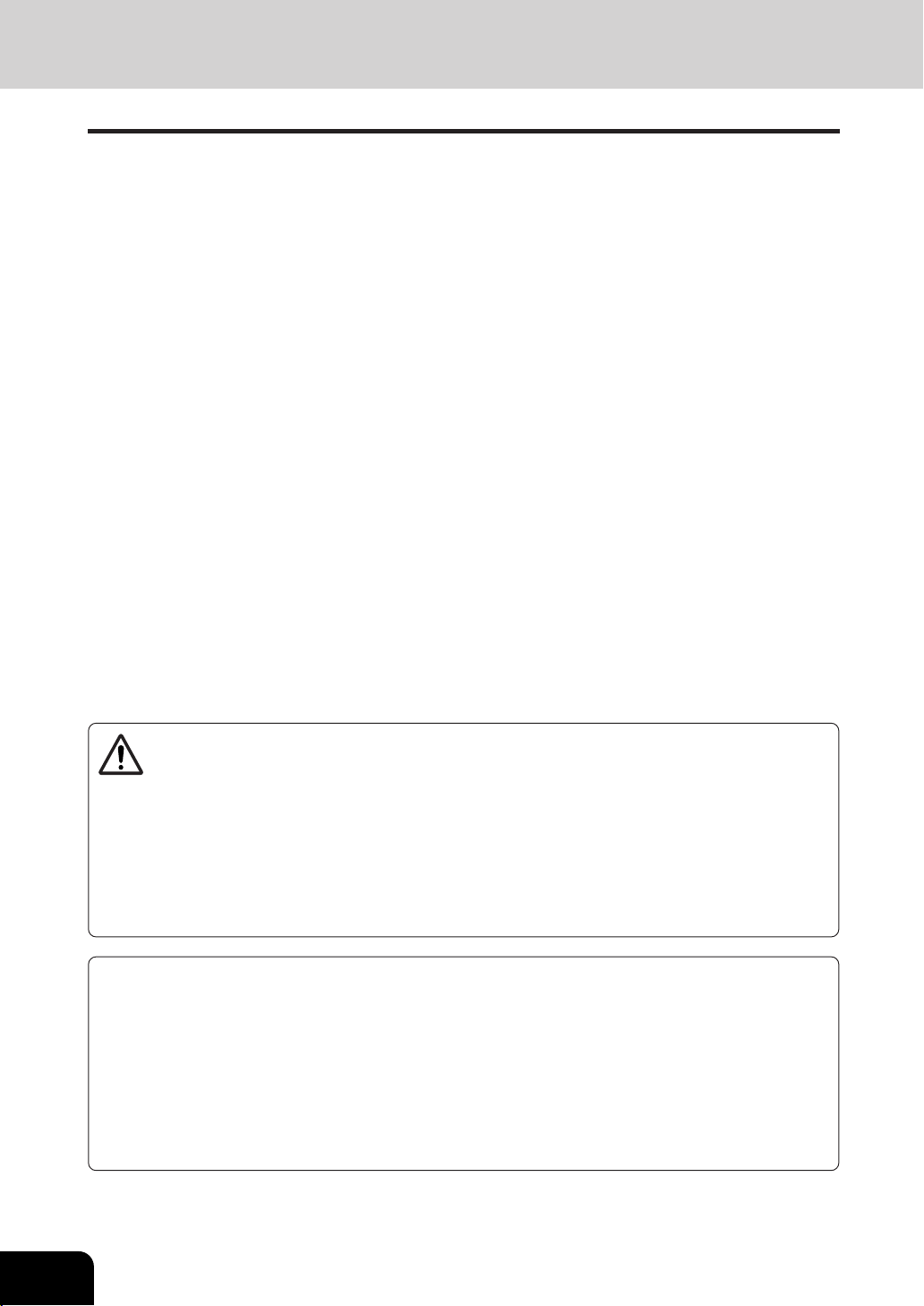
2. To insure optimal operation, allow clearances of at least 31.5" on the left, 31.5" on the right and 3.9"
behind (refer to the illustration below).
The socket outlet should be near the equipment and be easily accessible.
3.9"
31.5"
31.5"
A small amount of ozone is produced within the printer during operation. The emission level is
insufficient to cause any health hazard.
Note:
The present recommended long term exposure limit for ozone is 0.1 ppm (0.2 mg/m
3
) calculated as
an 8 hr. time-weighted average concentration.
However, since the small amount that is emitted may have an objectionable odor, it is advisable to
place the copier in a ventilated area.
1
2
3
4
5
6
7
8
9
10
11
12
8
1
Handle and use the copier gently and carefully.
• Do not place anything on the paper drawers or the original feeding tray.
• Never allow the power cable to be trampled on or pinched between hard objects, otherwise an
accident or electrical trouble might occur.
• Do not allow any metal items such as paper clips to fall into the copier.
2
Be sure to turn OFF the power switch (unless using the weekly timer mode):
• When you leave your office at night.
• If a power failure occurs.
Caution: When turning OFF the power switch, be sure to do so only after the machine cycling
has come to a complete stop.
Be sure to disconnect the power-cord plug:
• When you do not intend to use the copier for an extended period of time.
Be sure to turn OFF the power switch immediately and call for service:
• If an unusual noise is heard from the copier.
• If the outside of the copier becomes unusually hot.
• If any part of this copier is damaged, or if it has been dropped.
• If the copier has been exposed to rain or liquid.
3
It is recommended that only supplies made or designated by Sharp be used for the
AR-651/810 in order to optimize copy quality. All supplies should be stored in a cool,
dry area.
For optimum performance, it is recommended that 20lb. Bond xerographic bond paper of high quality
be used. Paper of lower quality may contain inherent properties such as excess paper dust and may
lead to premature servicing.
WARNING:
1. Do not apply force or place heavy objects (8.82 lb. or more) on the original glass. Breaking the
glass may cause personal injury.
2. Do not place heavy objects on the copier. They may fall and injure you.
3. Do not lean on, apply force or place heavy objects on the finisher (optional). Personal injury or
property damage may result.
4. Do not place some objects or step on the external LCF (Large Capacity Feeder)(optional).
They may fall and injure you.
PRECAUTIONS (Cont.)
2. General Precautions
"BATTERY DISPOSAL"
THIS PRODUCT CONTAINS A LITHIUM PRIMARY MEMORY BACK-UP BATTERY THAT MUST BE
DISPOSED OF PROPERLY. PLEASE CONTACT YOUR LOCAL SHARP DEALER OR AUTHORIZED
SERVICE REPRESENTATIVE FOR ASSISTANCE IN DISPOSING OF THIS BATTERY.
This product utilizes tin-lead solder, and a fluorescent lamp containing a small amount of mercury.
Disposal of these materials may be regulated due to environmental considerations.
For disposal or recycling information, please contact your local authorities or the Electronics Industries
Alliance: www.eia.org
1
2
3
4
5
6
7
8
9
10
11
12
9
Explanatory Label
CLASS 1 LASER PRODUCT
APPAREIL A LASER DE CLASSE 1
LASER KLASSE 1
PRODUCTO DE LASER DE CLASE 1
>
PS
<
Certification Label
Identification Label
Warning Label
>
PS
<
Warning for high temperature areas
1
2
3
4
5
6
7
8
9
10
11
12
10
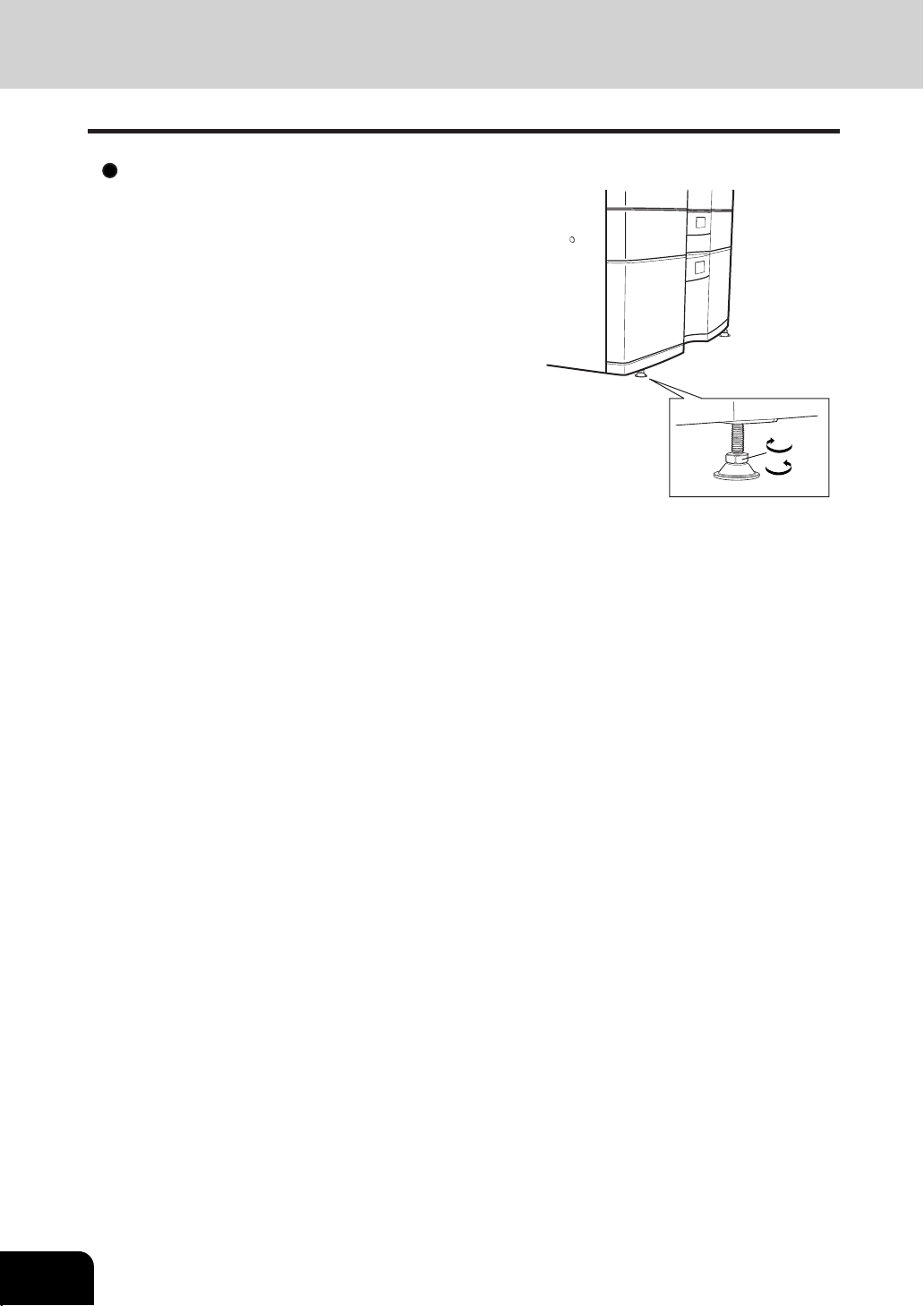
Fixing the adjusters (stoppers)
There are four adjusters (stoppers) located in front and rear
bottom (two adjusters each) of the copier. After moving/
installing the copier, be sure to turn the adjusters clockwise
to fix them firmly on the ground.
*To unlock the adjusters when moving the copier, turn
them counterclockwise.
If the copier is not steady, it may fall over and result in
personal injury.
To lock
To unlock
2. General Precautions (Cont.)
PRECAUTIONS (Cont.)

1
2
3
4
5
6
7
8
9
10
11
12
1-1
1. BEFORE MAKING COPIES
1. Description of the digital copier and the optional equipment ...........
1-2
- Main components ..........................................................................................1-2
- Optional equipment ....................................................................................... 1-3
- Control panel ................................................................................................. 1-4
- Touch panel ...................................................................................................1-6
2. Turning ON the power switch ..................................................... 1-8
- Turning ON the Power Switch/Auto Job Start................................................. 1-8
- Controlling the use of the copier with account numbers................................. 1-9

1
2
3
4
5
6
7
8
9
10
11
12
1-2
BEFORE MAKING COPIES
1. DESCRIPTION OF THE DIGITAL COPIER AND THE OPTIONAL EQUIPMENT
Main Components
Original scales
Control panel
Drawers
Paper size indicator
Feed side cover
Bypass guide
Toner cartridge
Front cover
Exit cover
Power switch
Reversing automatic document feeder
Operator’s manual pocket
(Back side)
Transfer unit
Transfer unit lever
Original glass
Tandem LCF
(Large Capacity Feeder)
Touch Panel Contrast Adjustment Volume
(back side of the control panel)
* When adjusting the contrast of the touch panel,
pull the toner cartridge holder out, and turn the
volume on the backside of the control panel.
Bypass cover
1
2
3
4
5
6
7
8
9
10
11
12
1-3
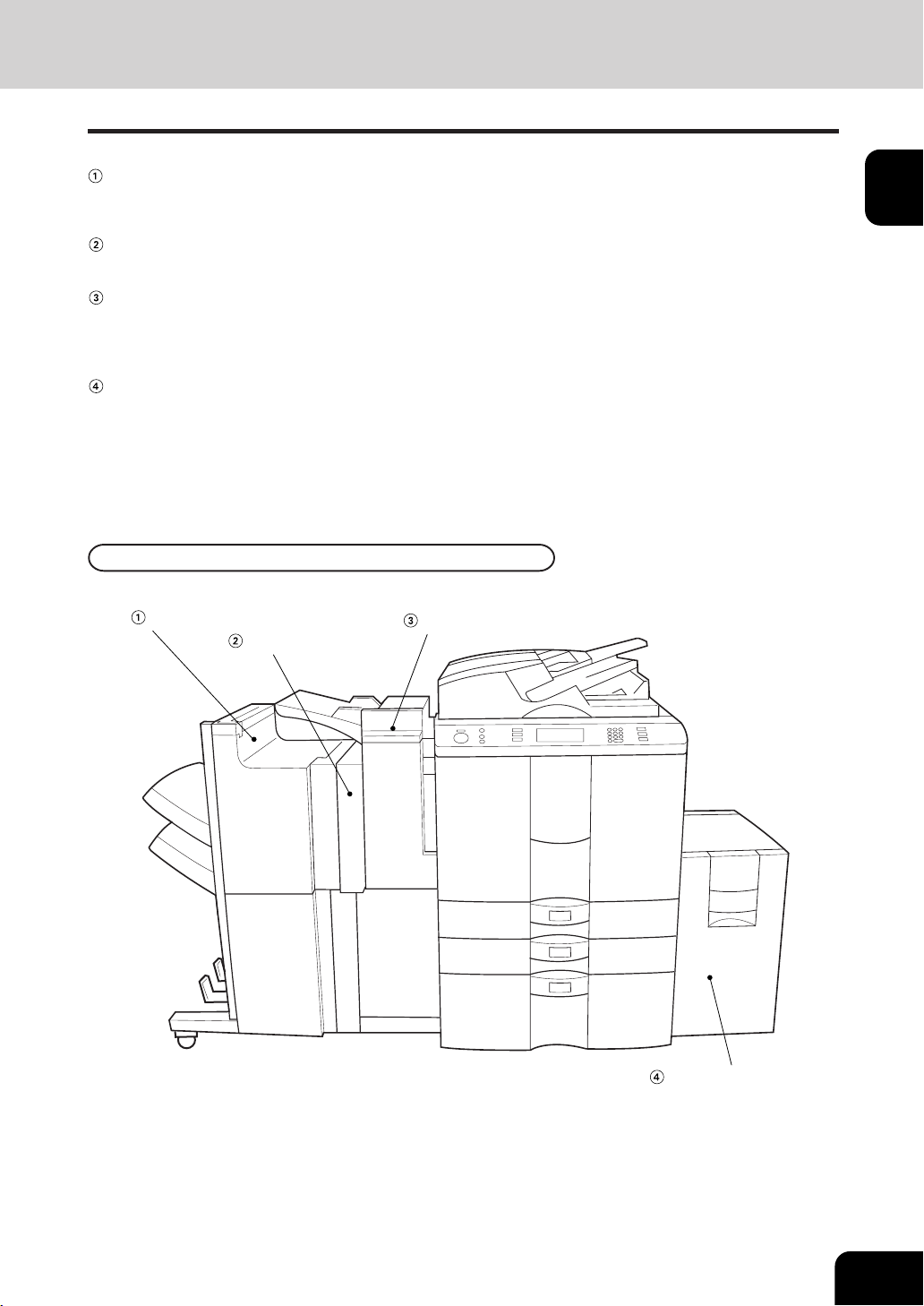
Optional Equipment
Finisher
Hole punch unit
External LCF
(Large Capacity Feeder)
Optional Equipment Configuration
Inserter
Finisher
Enables the use of sort, group and staple modes, plus the hole punch (available when the optional
hole punch unit is installed) and saddle stitch modes (AR-F12 only).
Hole punch unit
Makes punching holes on copies for binding in netebooks.
Inserter
Enable the use of special types of paper and printed paper in addition to the staple sorting or the hole
punch mode (Available when the optional staple sorting and the hole punch mode units are installed.)
This paper is not run through fuser (heat).
External LCF ( Large Capacity Feeder)
Feeds up to 4000 sheets of LT-sized paper (20lb. Bond)(recommended by Sharp) continuously.
1
2
3
4
5
6
7
8
9
10
11
12
1-4
BEFORE MAKING COPIES
1. DESCRIPTION OF THE DIGITAL COPIER AND THE OPTIONAL EQUIPMENT (Cont.)
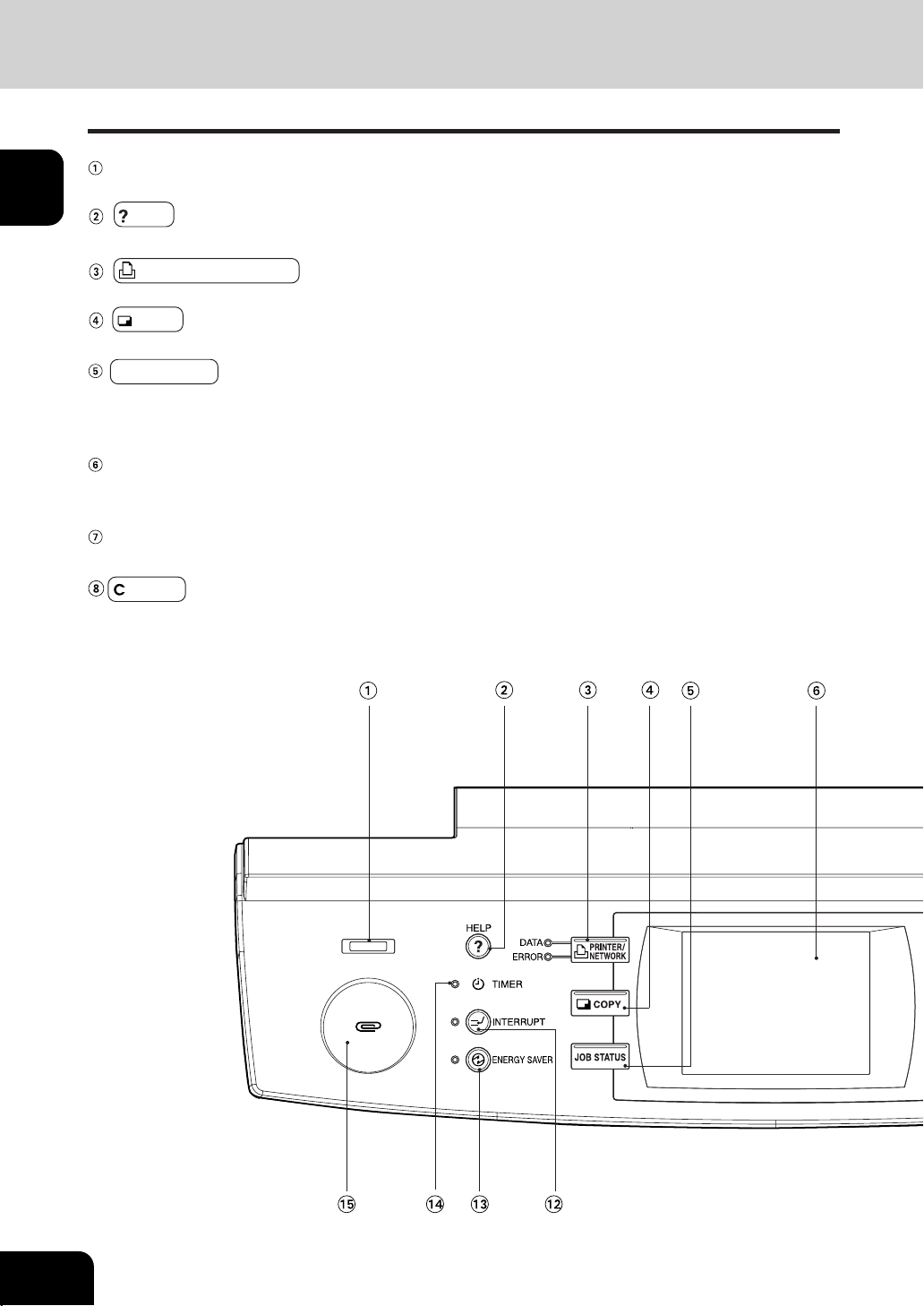
Control Panel
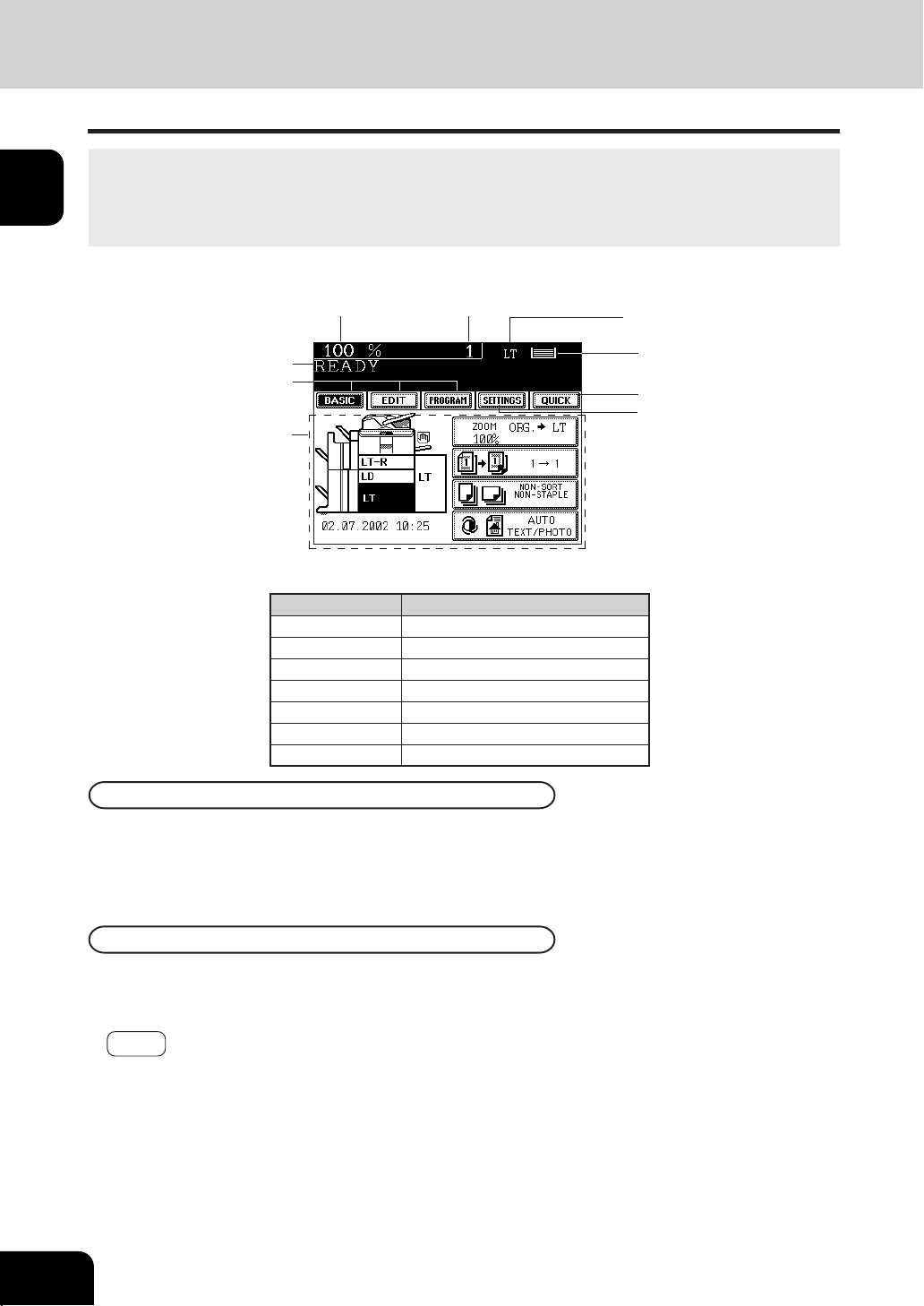
Total Counter
Shows the total of copied paper since the set up of the copier.
HELP key
When this key is pressed, the appropriate operation procedures are displayed.
PRINTER/NETWORK key
Press this key to switch between the printer and the network (optional) functions.
COPY key
Press this key to select the copy functions.
JOB STATUS key
Press this key to monitor the statuses of 1) Job list, 2) Deleting jobs, 3) Moving jobs, 4) Copying status
and 5) Setting drawers. This key flashes in case of 1) No paper in the drawers, 2) Incorrect drawer
setting, 3) Full of paper in the finisher and 4) Hole punching dust bin is full
Touch panel
Displays the copier conditions, operating procedures, and various instructions and information to the
user in text and illustrations.
Digital keys
Use these keys to enter the number of copies you wan to make and so on.
CLEAR key
Use this key to correct numbers entered with the digital keys such as an incorrect copy quantity.
1
2
3
4
5
6
7
8
9
10
11
12
1-5
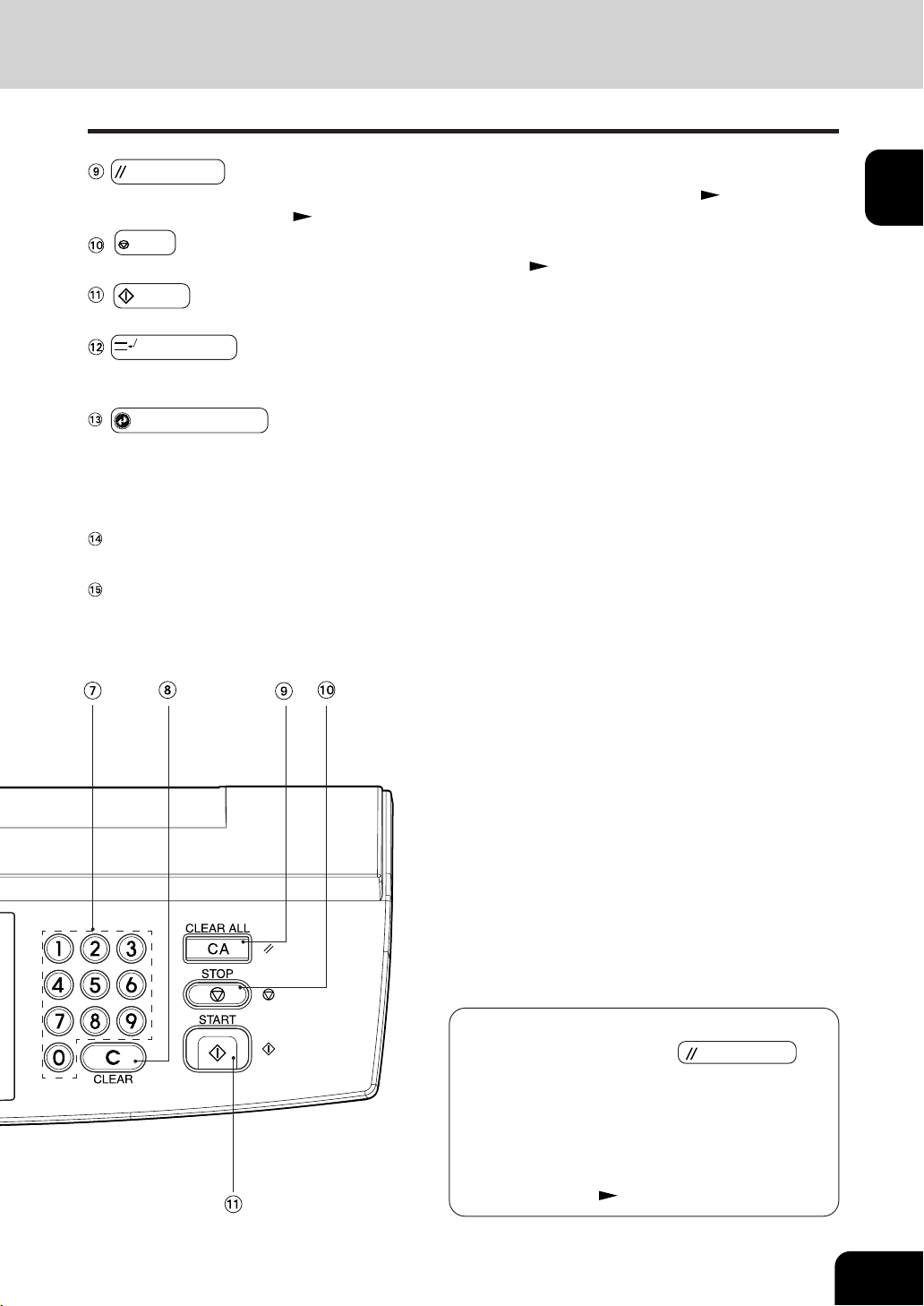
CLEAR ALL key
When this key is pressed, all selected copy modes are cleared to default settings.
Page 2-2
* Automatic CLEAR ALL
Right bottom of this page
STOP key
Use this key to stop an ongoing scan and copy operation.
Page 2-15
START key
Press this key to start copying.
INTERRUPT key
While copying is already in progress, press this key when you want to make copies of different origi-
nals. Pressing the key again will return you to the previous copy job.
ENERGY SAVER key
When you are not going to use the copier for a while, press this key, which automatically turns off all
display lamps. To resume copying, press this key again.
If you press this key when the optional printer controller is installed, the power supply to the printer
board is not cut off, which allows automatic return of the device when it receives printer data.
TIMER lamp
TIMER lamp lights when the weekly timer is being used.
Clip tray
Put clips or staples unfastened out of originals.
Automatic CLEAR ALL
Even if you do not press the CLEAR ALL key,
within the specified period of time after copying is
finished or after the last key is pressed in a copy
procedure, the automatic CLEAR ALL mode will work
to clear all settings to defaults, and the basic screen
will be displayed. While the Account Number mode
is being operated, the display returns to the access
code input screen.
Page 1-9
1
2
3
4
5
6
7
8
9
10
11
12
1-6
BEFORE MAKING COPIES
1. DESCRIPTION OF THE DIGITAL COPIER AND THE OPTIONAL EQUIPMENT (Cont.)
Touch Panel
The following information is shown on the touch panel:
Copier status, operational instructions, cautionary messages, reproduction ratios, total copy quantity, paper
size of a selected drawer and amount of paper in a selected drawer.
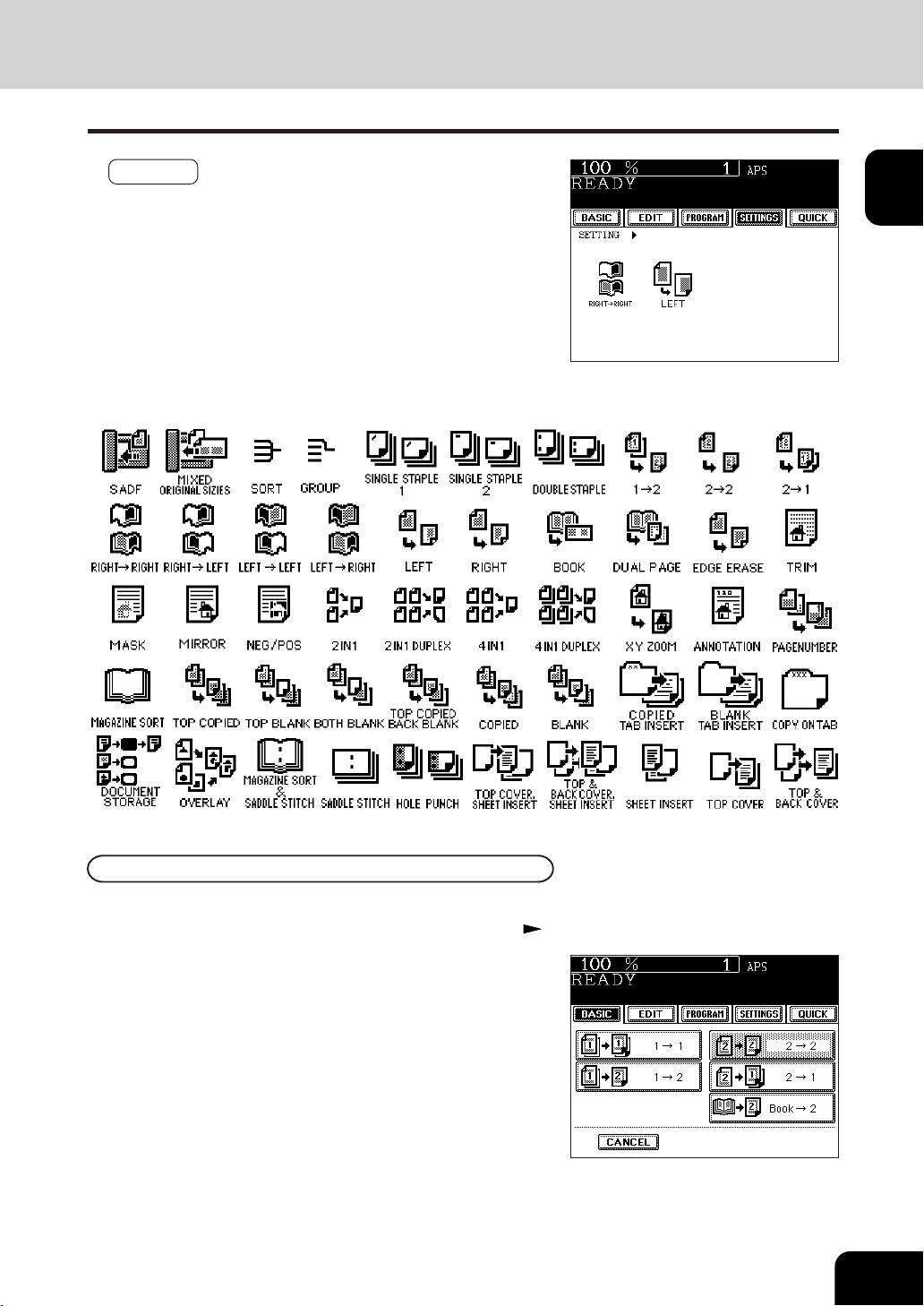
When the power is turned on, and ‘READY’ is displayed, the following basic screen is shown on the touch panel.
On the screen, currently set functions, selected functions and the copier status are shown using messages
and illustrations.
* The contents of the touch panel screens on this manual show a copier equipped with full-options.
Function setting area
Total copy quantity
Reproduction ratio
Message
Index keys
Set functions confirmation key
Message Display
Touch-keys
Currently selected drawer size
Quick access key
Remaining paper level
- Index keys
Used for switching the Basic, Editing, Program menu.
- QUICK (Quick access) key
The finishing mode and duplex copying with high frequency of use can be set on one screen simulta-
neously. Also, this screen is easier to see for visually impaired persons by displaying black letters
on white background.
- Function setting area
This is where you select or set various functions.
The various function items are touch-key selectable. Press any key lightly with your finger.
The table to show the relation between the paper size display on this
machine and the actual dimensions is as follows:
Paper Size Dimensions
LT 8-1/2" x 11"
LD 11" x 17"
LG 8-1/2" x 14"
ST-R 5-1/2" x 8-1/2"R
COMP 10-1/8" x 14"
FOLIO 8.27" x 13"
LG13 8-1/2" x 13"
1
2
3
4
5
6
7
8
9
10
11
12
1-7
Clearing the Functions Selected
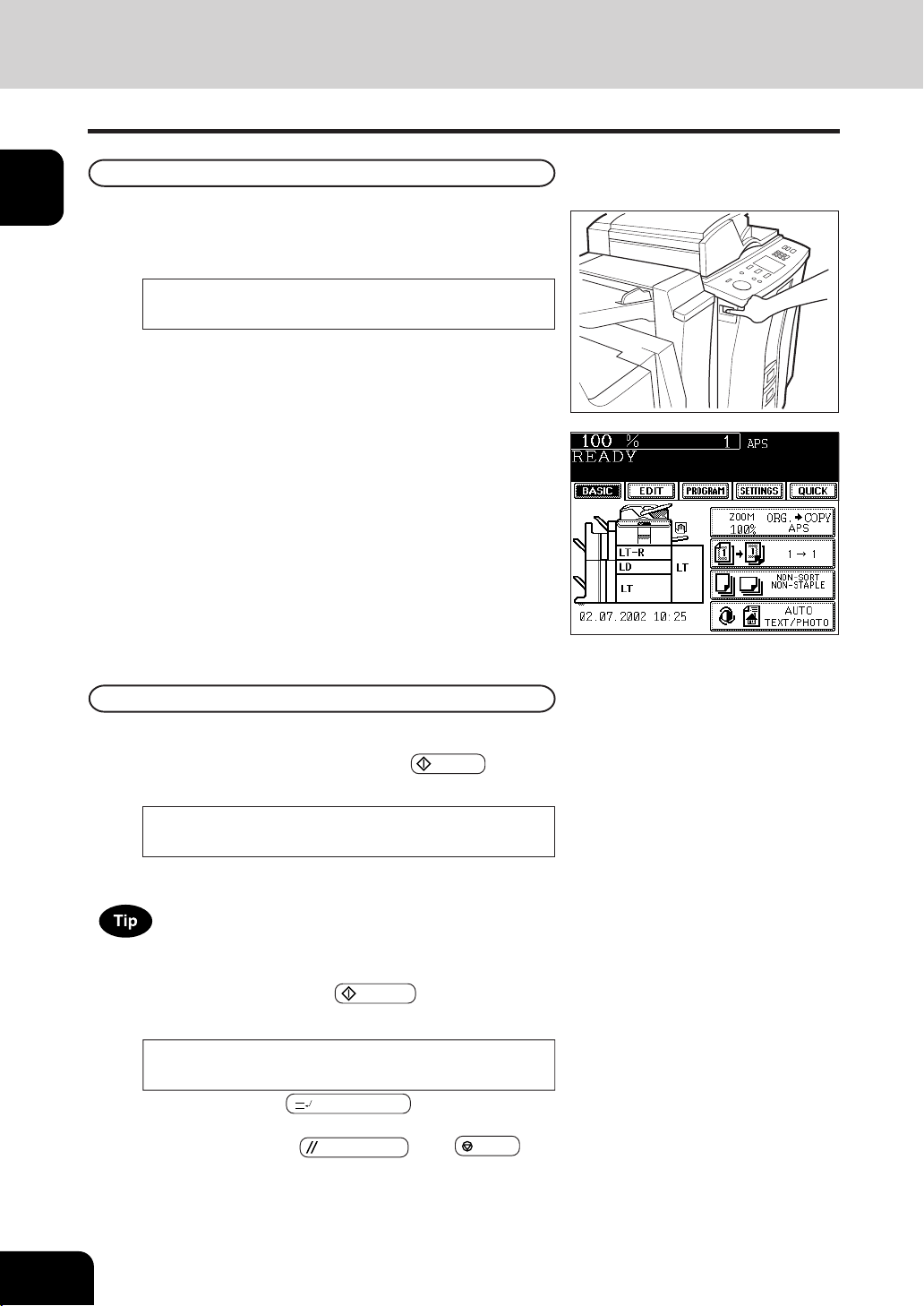
The icons displayed on the screen are as follows(some icons may not appear on the screen):
If you press any key that is half-tone shaded, the function selected is cleared. Also, if the copier is left
inactive for approx. 45 seconds, the automatic CLEAR ALL ( Page 1-5) works and the settings will be
cleared.
- SETTINGS (set functions confirmation) key
This key allows you to confirm the functions that have been
set. (The display shown on the right is an example.)
1
2
3
4
5
6
7
8
9
10
11
12
1-8
BEFORE MAKING COPIES
2. TURNING ON THE POWER SWITCH
Turning ON the Power Switch/Auto Job Start
2
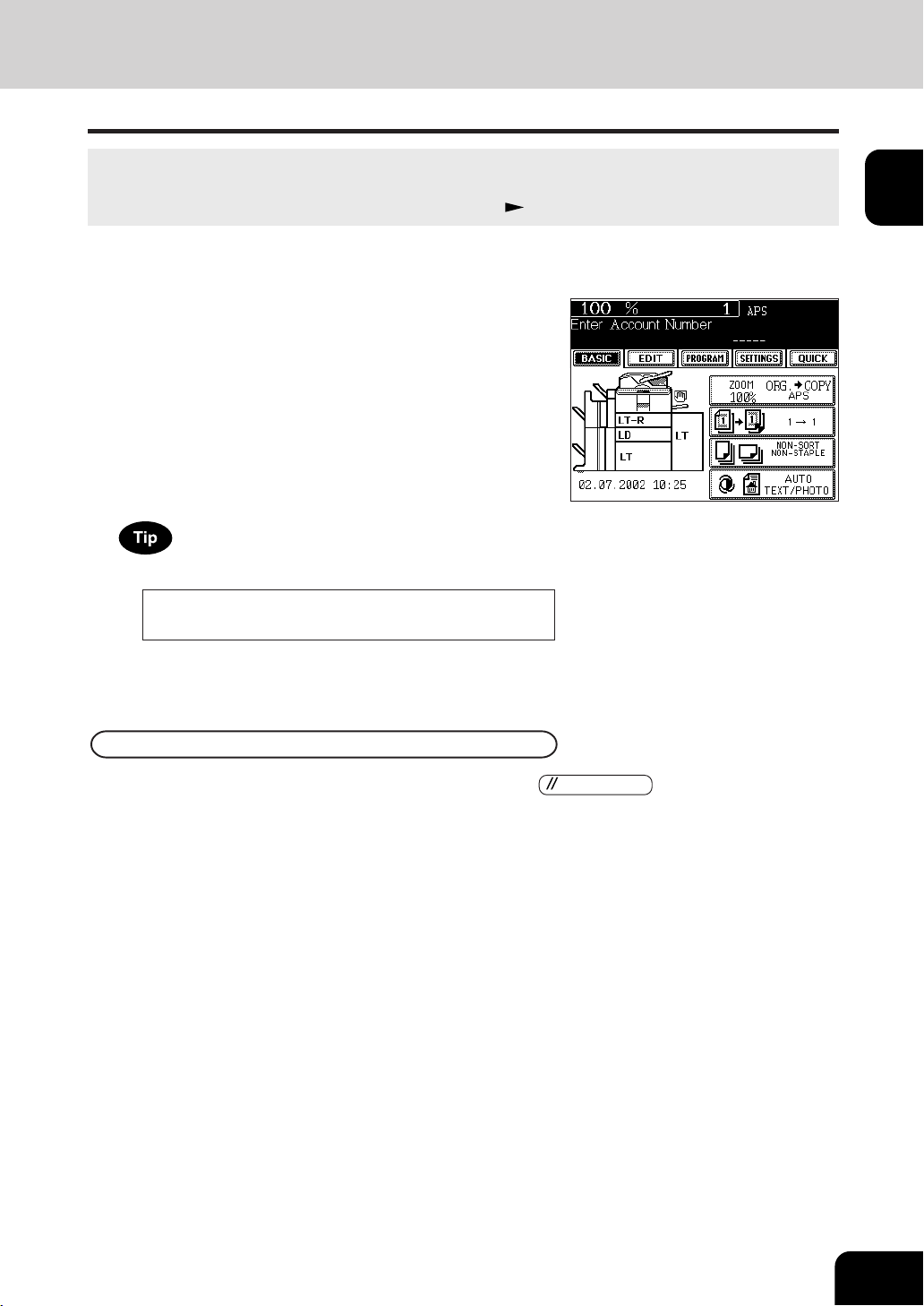
When “READY” appears, the copier is ready for
copying.
1
Turn ON the power switch.
- This message appears on the message panel of the Basic
Screen:
Wait Warming Up
Up to 5 jobs can be stored in the memory. Place the originals
for the 6th job on the original glass or the reversing automatic
document feeder and press the START key. The following
message will appear:
Turning ON the Power Switch
Auto Job Start
While the copier is warming up, place the original on the glass,
select the desired copy modes and press the
START key. The
copier starts scanning the originals.
When this message appears, copying will automatically start.
In this status, pressing the INTERRUPT key cancels the 6th
preset job.
To clear this status, press the CLEAR ALL or the STOP key.
- Time of warming up
AR-651/810: Approx. 160seconds
READY
Auto Start
1
2
3
4
5
6
7
8
9
10
11
12
1-9
Controlling the Use of the Copier with Account Numbers
1
When the account number function is in use, the
screen shown on the right appears immediately af-
ter the power switch is turned on or the auto-clear is
carried out.
2
Key in a registered account number (5-digit).
- The copier will be ready for copying.
With the use of account numbers, you can restrict copier users as well as manage copy volumes made
by individual groups or departments of your company.
* Registering, changing and deleting a account number
Page 5-21
If the account number function is in use, be sure to press the
CLEAR ALL key on the control panel
twice after finishing copying. The display returns to the account number input screen and the account
number function will remain active.
After Copying is Finished
the account number you have entered may be incorrect. Key
in the correct code.
Enter Account Number
If the following message remains displayed,


1
2
3
4
5
6
7
8
9
10
11
12
2-1
2. HOW TO MAKE COPIES
1. General copying procedures ..................................................... 2-2
2. Setting copy paper..................................................................... 2-4
- Acceptable copy paper types and sizes .......................................................2-4
- Handling and sorting paper .......................................................................... 2-5
-
Changing the paper size of the drawer / Setting the drawer for special uses .............
2-6
3. Setting originals ......................................................................... 2-9
- Acceptable original types and sizes ............................................................. 2-9
- When placing an original on the glass .......................................................2-10
- When using the reversing automatic document feeder .............................. 2-11
4. Auto job start (Job preset) ........................................................2-13
5. Interrupt copying ....................................................................... 2-14
6. Stopping the copy operation ..................................................... 2-15
7. Deleting or changing order of pending jobs .............................. 2-16
1
2
3
4
5
6
7
8
9
10
11
12
2-2
HOW TO MAKE COPIES
Initial (default) settings
1. GENERAL COPYING PROCEDURES
After placing, or confirming that there is, paper in the drawers, place the originals. When the START key
is pressed with any settings unchanged, copies are made in the initial (default) settings *
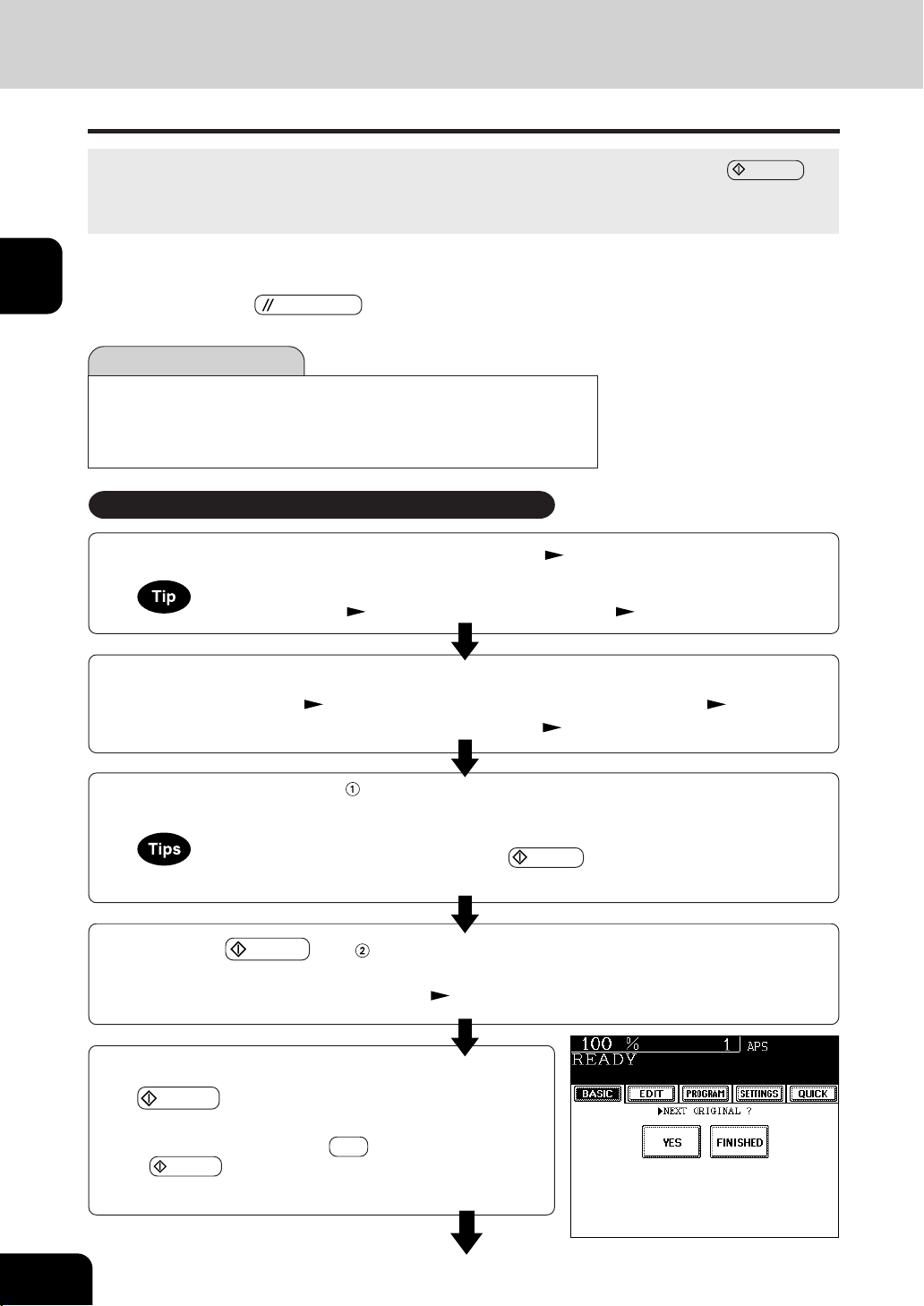
1
. You can make
copies as desired by setting different copy modes.
The initial (default) settings of the copier at the time of installation are as shown below.
*1
The copy modes that are automatically set when the power is turned on, when the energy-saving mode is
cleared or when the
CLEAR ALL key is pressed on the control panel are called the initial (default) settings.
3
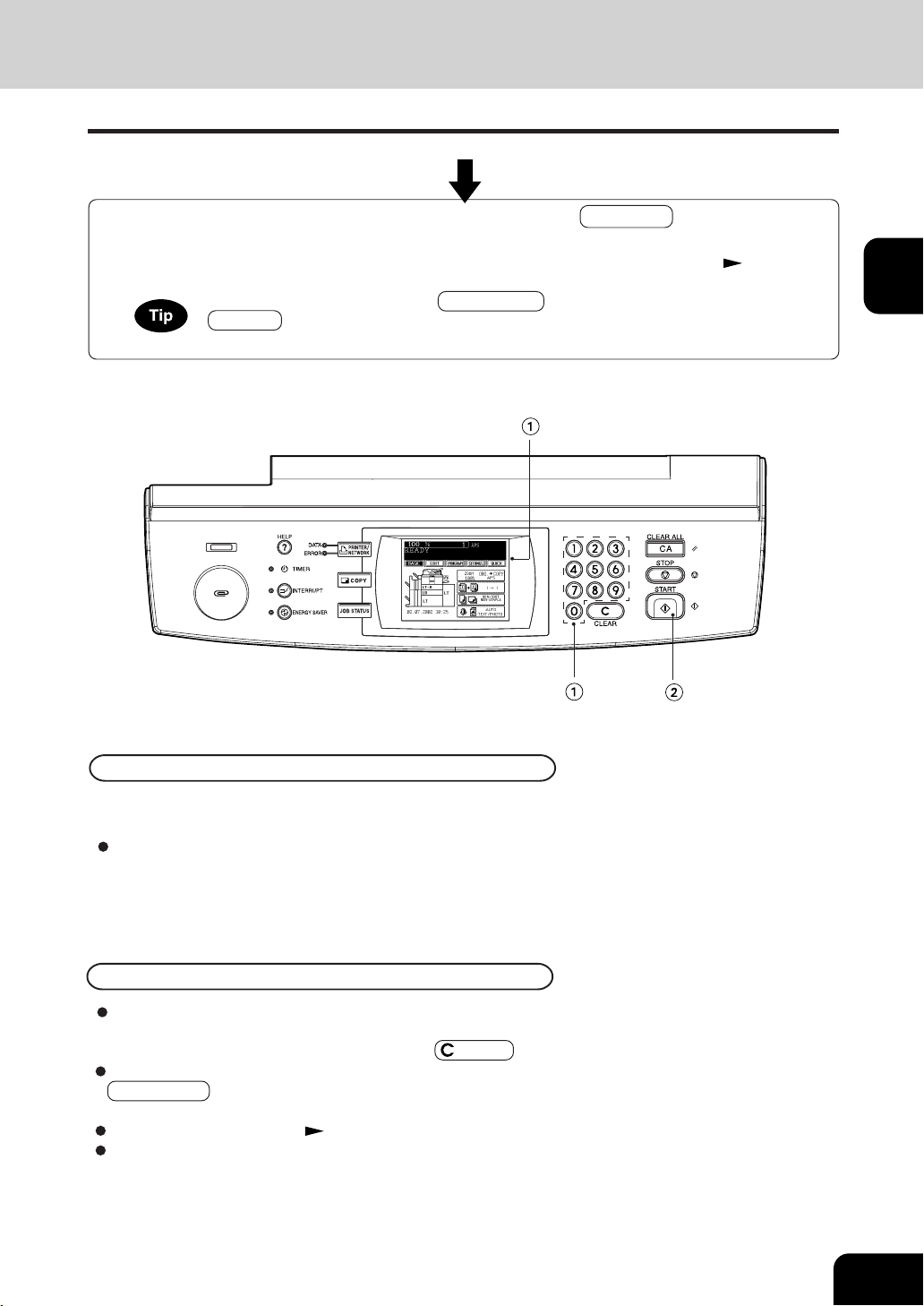
Select the copy modes ( in the illustration on the page on the right).
- Use the touch panel and the digital keys.
4
Press the START key ( in the illustration on the page on the right).
- When the reversing automatic document feeder is used and
the continuous feed mode is selected (
Page 5-2), copying begins.
2
Place the original(s).
- Acceptable originals Page 2-9 -When placing an original on the glass Page 2-10
- When using the reversing automatic document feeder Page 2-11
1
Place paper in the drawer(s).
-Acceptable copy paper Page 2-4
5
Place the next original (2nd side) and press the
START key.
- Set the first page of your originals first.
- You can also press the YES key before pressing the
START key to perform the same operation.
- Repeat this step for the subsequent originals.
Reproduction ratio. ...100% Copy quantity ......1
Automatic paper selection
1-sided
copies from
1-sided
originals
Auto image density Standard mode (original image type)
Non-sort Non-staple mode Continuous original feed mode
Copying Procedure
When the desired paper is not placed in any of the drawers or the large capacity feeder :
- Setting the drawer
Page 2-6 - Bypass copying Page 5-8
- Selecting multiple copy modes may be restricted depending on their combination.
- Copy modes cannot be changed after the
START key is pressed (including the case
when originals are divided into multiple sets when fed).
1
2
3
4
5
6
7
8
9
10
11
12
2-3
- After starting copying, press the JOB STATUS key on the control panel, then press the
STATUS key on the touch panel to indicate which drawer is in use. When paper runs
out of each drawer, the empty drawer will flash.
6
Once the final original has been scanned, press the FINISHED key.
- When the reversing automatic document feeder is used, and the single-feed mode is selected, the
procedure is slightly different from the above. Procedure of using the single-feed mode
Page 5-3
The paper exits with its printed side down except in the following
cases.
When paper is exited with its printed side up:
- When ‘Non-sort / Non-staple’ mode is selected for setting
the original on the original glass.
- When the paper size is not set for bypass copying.
Exiting Copy Papers
To make multiple sets of copies:
- Key in the copy quantity.
- To correct the input copy quantity, press the
CLEAR key.
When the paper has run out in the middle of copying:
JOB STATUS key flashes. Press this key to check which drawer
is flashing and add papers.
To stop a copy operation Page 2-15
When this message appears “Wait ”:
The copier may automatically go into the adjustment mode. It
will soon start working. Do not turn OFF the power. Just wait
for a while.
When Coming Across the Situations below
1
2
3
4
5
6
7
8
9
10
11
12
2-4
HOW TO MAKE COPIES
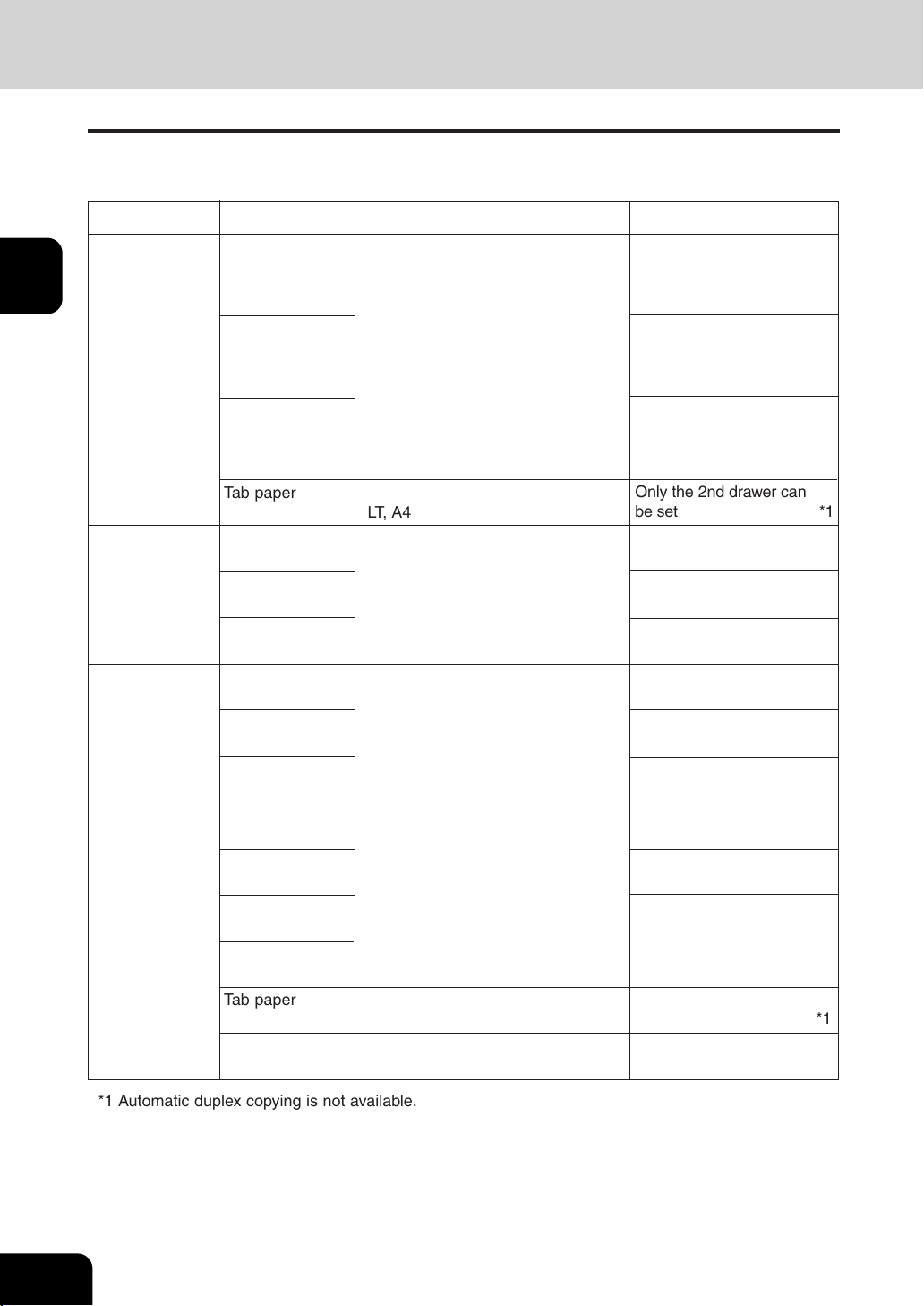
*1 Automatic duplex copying is not available.
*2 Available only when non-sort non-staple mode. Staple and hole punch is not available.
- Paper between 20lb. Bond and 110lb. Index can be copied if the thick mode is used.
- The following sizes of paper can be used for hole punch: LG, LT-R (2 holes, 0.315" diameter),
LD, LT, A3, A4 ( 3 holes, 0.315" diameter)
- “Maximum capacity” refers to the number of sheets when the paper recommended by Sharp is set.
2. SETTING COPY PAPER
Acceptable Copy Paper Types and Sizes
For optimum copy quality, use the paper recommended by Sharp. Consult your service technician for details.
(Standard size)
LT format : LD, LG, LT, LT -R, ST-R,
COMP (10½"
x 14"), 13" LG (8½" x13")
8.5" SQ (8½" x 8½")
A/B format : A3
(297 x 420mm)
,
A4
(297 x 210mm)
, A4-R
(210 x 297mm)
,
A5-R
(148 x 210mm)
, B4
(257 x 364mm)
,
B5
(257 x 182mm)
, B5-R
(182 x 257mm)
,
FOLIO
(210 x 330mm)
Drawers
Feeder
Paper Type Paper Size Remarks
Tandem LCF
External LCF
(optional)
Sheet Bypass
Plain Paper
(17- 20 lb. Bond)
Thick 1
( - 90 lb. Index)
Thick 2
( -110 lb. Index)
Plain Paper
(17 - 20 lb. Bond)
Thick 1
( - 90 lb. Index)
Tracing Paper
OHP film
(Standard size)
LT
*1
Tab paper
(Standard size)
LT, A 4
100 sheets (20 lb. Bond)
Tab paper
(Standard size)
LT, A4
Only the 2nd drawer can
be set *1
2500 sheets (20 lb. Bond)
500 sheets (20 lb. Bond)
8
(Standard size)
LT format: LD, LG, LT, LT -R, ST-R,
COMP, 13" LG, 8.5" SQ
A/B format: A3, A4, A4-R, A5-R,
B4, B5, B5-R, FOLIO
(Non-Standard size)
Length: 3.9" - 12"
Width: 5.8" - 18"
Thick 2
( - 110 lb. Index)
Plain Paper
(17 - 20 lb. Bond)
Thick 1
( - 90 lb. Index)
Thick 2
( - 110 lb. Index)
(Standard size)
LT
4000 sheets (20 lb. Bond)
Plain Paper
(17- 20 lb. Bond)
Thick 1
( - 90 lb. Index)
Thick 2
( -110 lb. Index)
(Standard size)
LT, A 4
*1
*1, *2

1
2
3
4
5
6
7
8
9
10
11
12
2-5
Pay attention to the following points:
- Avoid using paper that is specially treated or paper that was printed on another machine, and also
avoid performing double copying on the same side of paper; this may cause a malfunction.
- Do not use paper with creases, wrinkles, curled paper, paper prone to curling, smooth paper, or tough
paper; this may cause paper misfeeds.
- Paper should be wrapped in its wrapping paper and stored in a damp-free place.
- To prevent paper from being folded or bent, store it evenly on a flat surface.
Handling and Storing Paper
1
2
3
4
5
6
7
8
9
10
11
12
2-6
HOW TO MAKE COPIES
Slide rail
2. SETTING COPY PAPER (Cont.)
Changing the Paper Size of the Drawer/Setting the Drawer for Special Uses
The paper size of the drawers of the copier can be changed to desired size. The drawers can also be set
for cover sheet, insertion, tab paper, thick paper and special sheets.
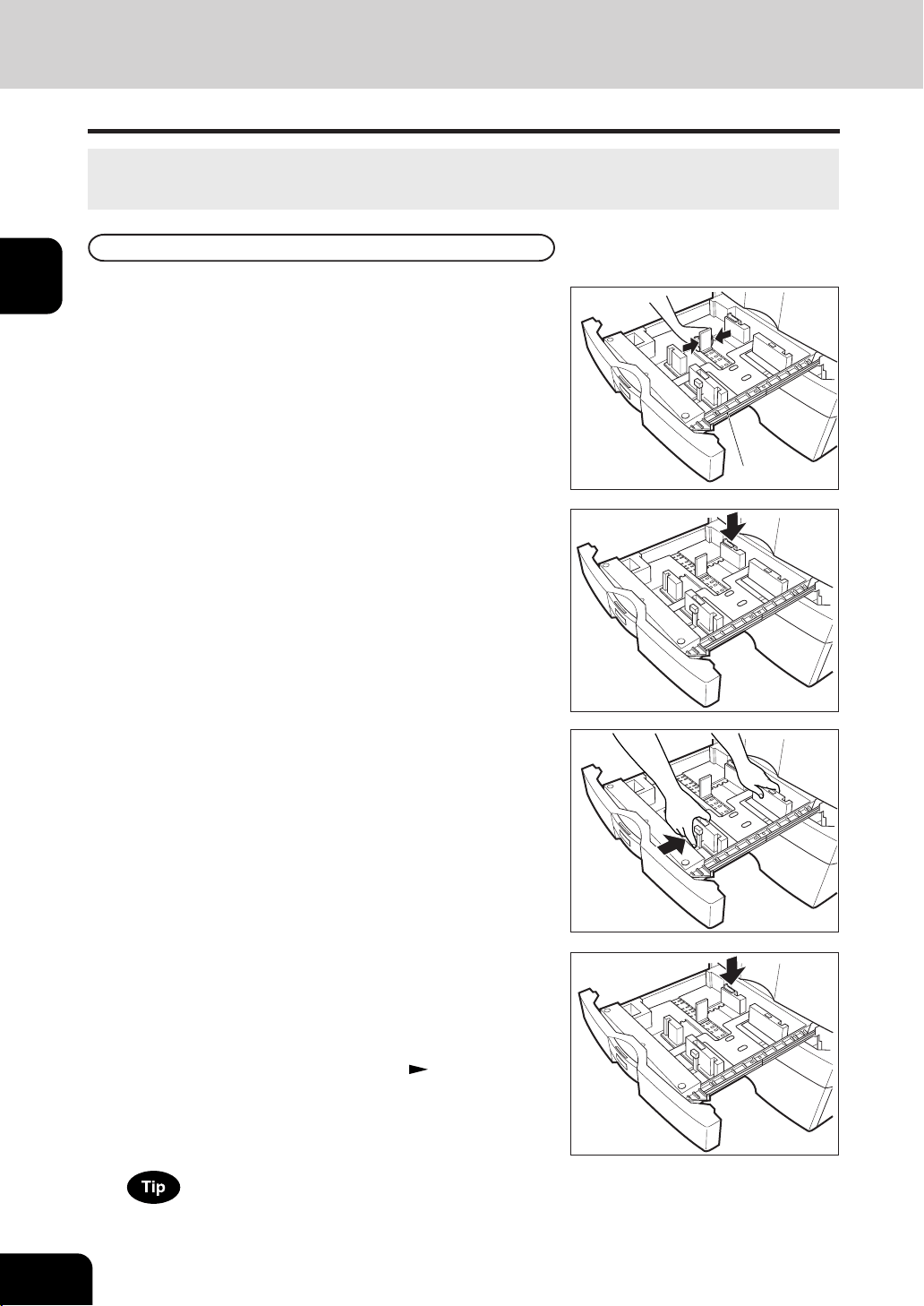
4
While pushing the size selection lever in the direction of
the arrow, set the side guide to the desired paper width
(indicated on the bottom surface of the drawer).
- Adjust the side guides with both hands.
3
Push the arrow part (right side) of the size selection
lever to unlock it.
5
Push the arrow part (left side) to lock the size selection
lever.
6
Place paper in the drawer(s).
- Place the paper in face down.
- Notes for placing paper in the drawer. Page 7-3, step 2
7
Push the drawer straight into the copier until it comes
to a stop.
- Be sure to push the drawer carefully and fully in.
Be careful not to let your fingers be caught when closing
the drawer.
Changing the Paper Size of the Drawer
1
Pull out the drawer toward you.
-Do not touch the slide rail of the drawer.
2
Push the lower part of the width guide in the direction of
the arrow to remove it, and reinstall the width guide
at the desired paper size (indicated on the bottom
surface of the drawer).
1
2
3
4
5
6
7
8
9
10
11
12
2-7
8
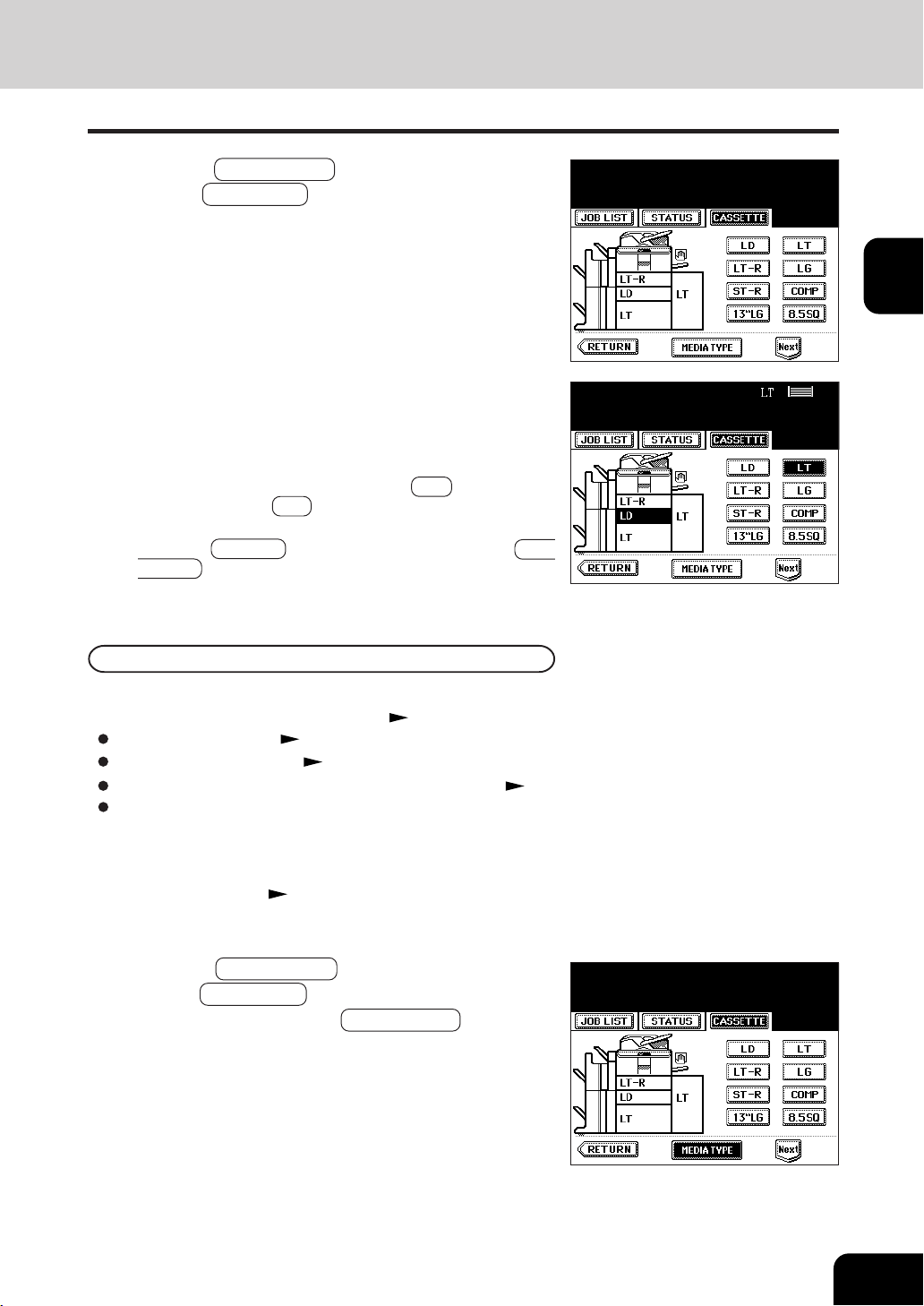
Press the JOB STATUS key on the control panel,
then the CASSETTE key on the touch panel.
9
Press the drawer key corresponding to that in which
the paper size has been changed, then press the
key of the paper size newly set.
- Chinese paper sizes (16K, 8K and 16K-R) can be selected
on the screen which appears when the Next key is pressed
once. Pressing the Next key again will display the AB format
paper sizes.
- Press the RETURN key on the touch panel or the JOB
STATUS key on the control panel to return to the basic
screen.
You can set the drawer for various uses (cover sheet, sheet insertion and tab paper, thick paper special
sheets).The default paper is plain paper Page 2-4
Drawer for cover sheet Page 4-18
Drawer for sheet insertion Page 4-20
Drawer for tab paper (must be used in second drawer) Page 4-22
Drawer for special sheets...Colored paper, paper with a watermark, etc.
1
Place paper in the drawer(s).
- Place the paper with its face down.
- Setting tab paper
Page 4-22
- For changing the paper size in the drawer, follow step 1 to 9
on the previous page.
2
Press the JOB STATUS key on the control panel,
then the CASSETTE key on the touch panel. After
this procedure, press the MEDIA TYPE key.
Setting the Drawer for Special Uses
1
2
3
4
5
6
7
8
9
10
11
12
2-8
HOW TO MAKE COPIES
2. SETTING COPY PAPER (Cont.)
Changing the Paper Size of the Drawer/Setting the Drawer for Special Uses(Cont.)
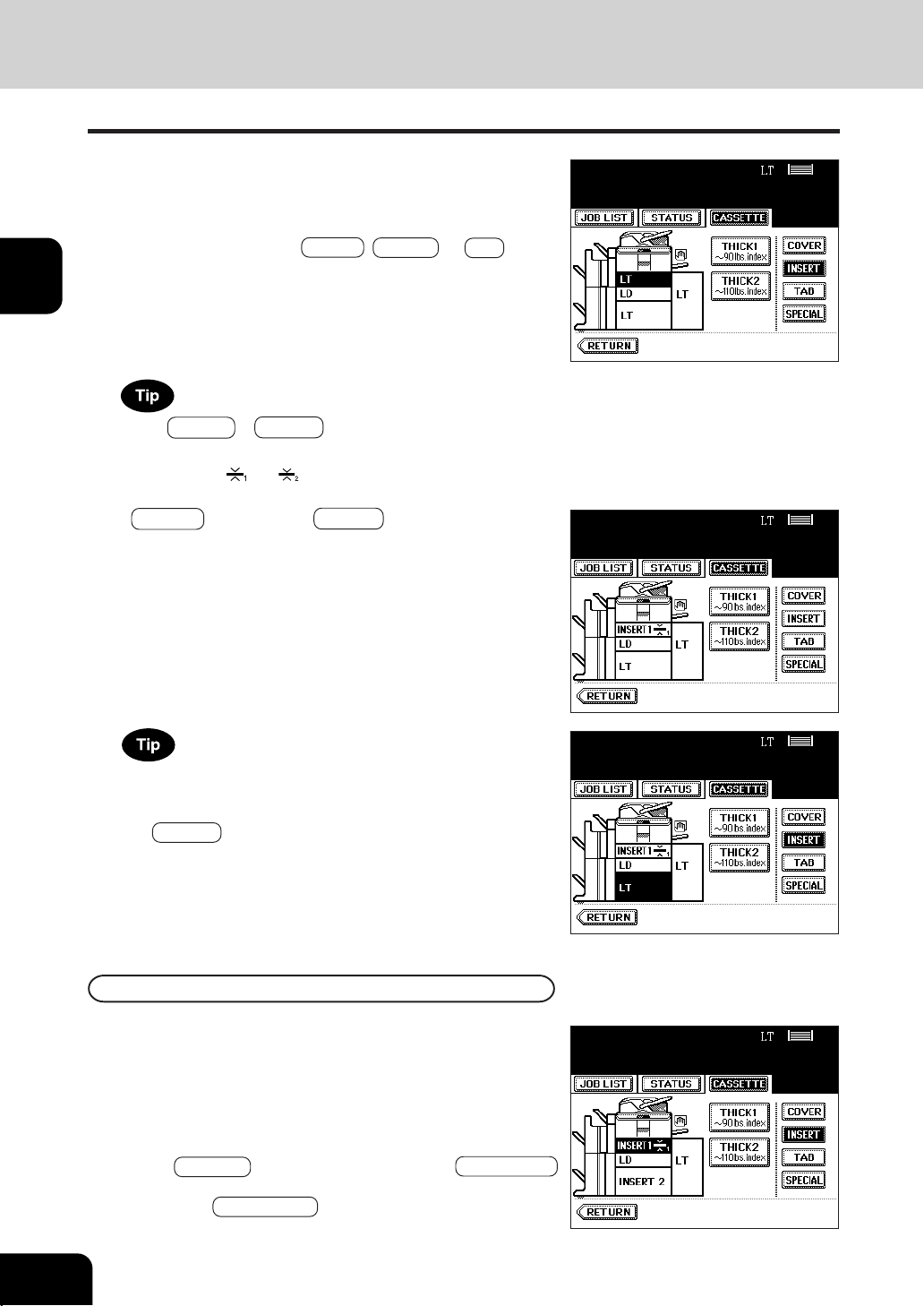
3
Press the drawer key corresponding to that in which
the paper has been set, then press the key of the
paper type newly set.
- If you want to select the COVER , INSERT , or TAB , make
sure that paper with the same size as that for the COVER,
INSERT, or TAB PAPER is set in the other drawer including
the optional external LCF (Large Capacity Feeder).
Press THICK 1 or THICK 2 depending on the paper weight of
cover sheet, insertion, tab paper and special sheet.
In that case, ‘
’ or ‘ ’ is displayed in the drawer key.
* For example, when inserting 90lb. Index paper, press
INSERT key, and press THICK 1 key.
- The setting is completed as shown on the right.
Clearing the Drawer for Special Uses
Press the drawer key corresponding to that which is set
for the special use, then press the key of the same mode
as the drawer.
- If you clear INSERT 1 when both INSERT 1 and INSERT 2 are
set, the drawer for INSERT 2 changes to INSERT 1.
- Replace the paper set in the drawer as required.
- Press the RETURN key on the touch panel or the JOB STATUS
key on the control panel to return to the machine to the basic
screen (before JOB STATUS key is pressed on the step 2).
Up to 2 drawers can be set for the sheet insertion.
After having set INSERT 1, press the drawer key corresponding to
that in which the paper for INSERT 2 has been set, and press
the INSERT key.
1
2
3
4
5
6
7
8
9
10
11
12
2-9
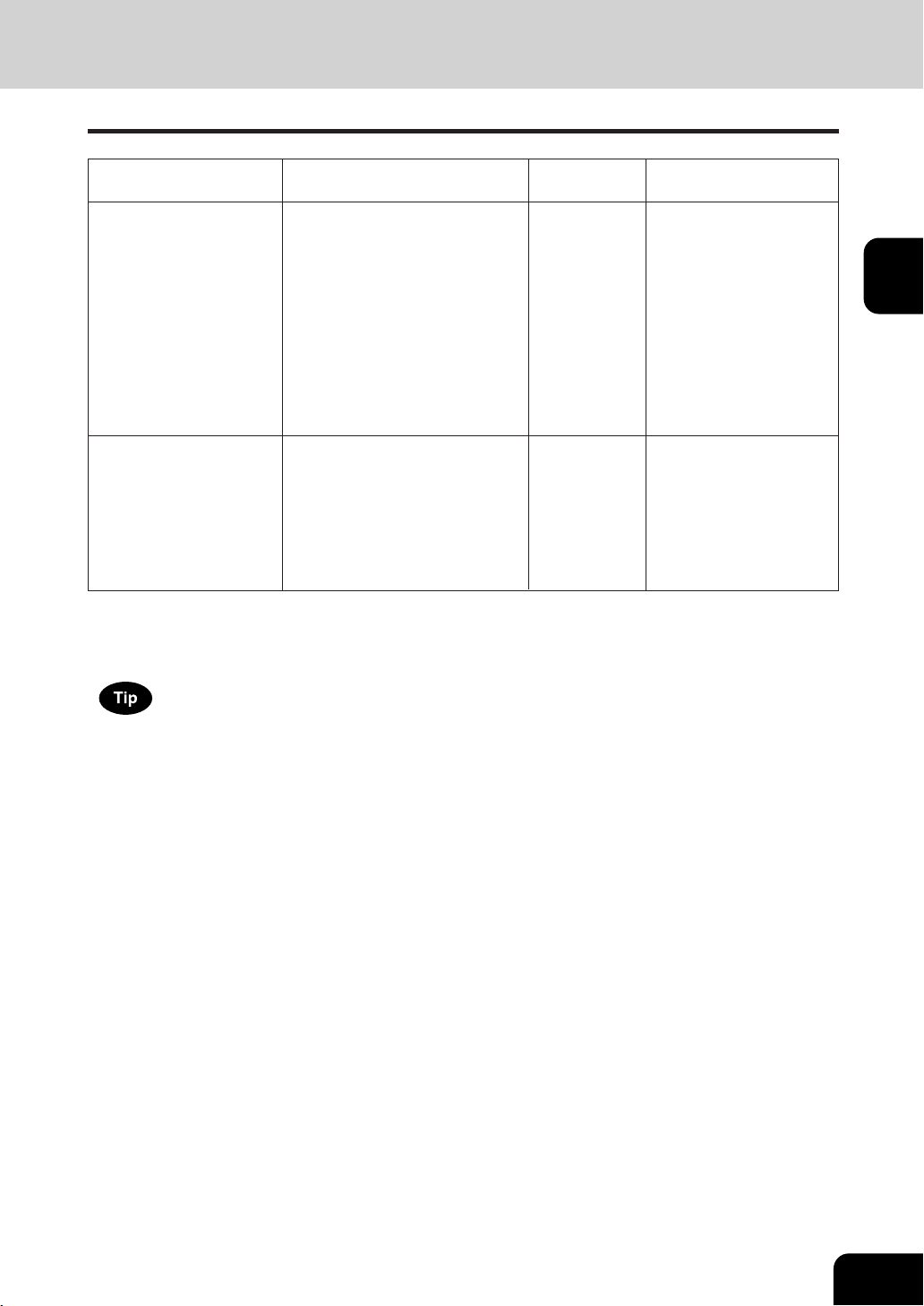
Acceptable Original Types and Sizes
Maximum number of sheets (all sizes) can be set in the reversing document feeder: 100 sheets (20
lb.Bond) or less than 0.62" in height.
*1 Do not place any heavy object (8.82 lb. or over) on the glass.
*2 Even listed under “Types of originals”, some of the originals may not be used depending on paper quality.
*3 Automatic detection cannot be worked when the different paper formats are mixed.
3. SETTING ORIGINALS
(Standard size)
LT format:
LD, LG, LT, LT-R, ST-R
A / B format:
A3 (297 x 420mm),
A4 (297 x 210mm),
A4-R (210 x 297mm),
A5-R (148 x 210mm),
B4 (257 x 364mm),
B5 (257 x 182mm),
B5-R (182 x 257mm)
Setting place
Types of originals
Maximum size
Sizes capable of
automatic detection
Glass Sheets
Three-dimensional objects
Books
Width: 11.6"
Length: 17"
*1
Reversing automatic
document feeder
Plain paper, recycled paper:
13.3 - 33.8 lb.
(1-Sided Original)
13.3 - 27.7 lb
(2-Sided Original)
Width: 11.6"
Length: 17"
*2
(Standard size)
LT format:
LD, LG, LT, LT-R, ST-R,
COMP
A / B format:
A3, A4, A4-R, A5-R,
B4, B5, B5-R, FOLIO
*3
1
2
3
4
5
6
7
8
9
10
11
12
2-10
HOW TO MAKE COPIES
3. SETTING ORIGINALS (Cont.)
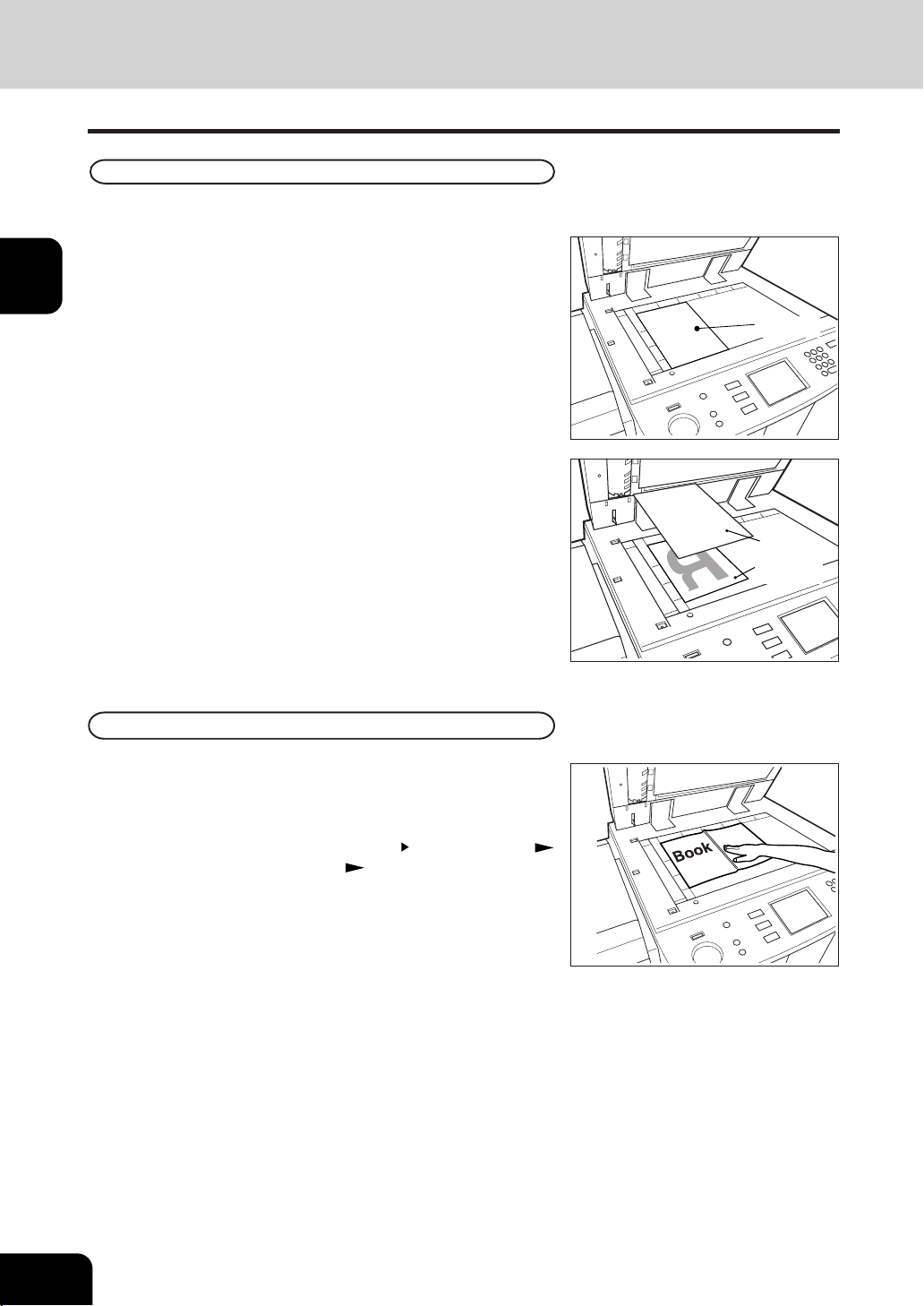
1
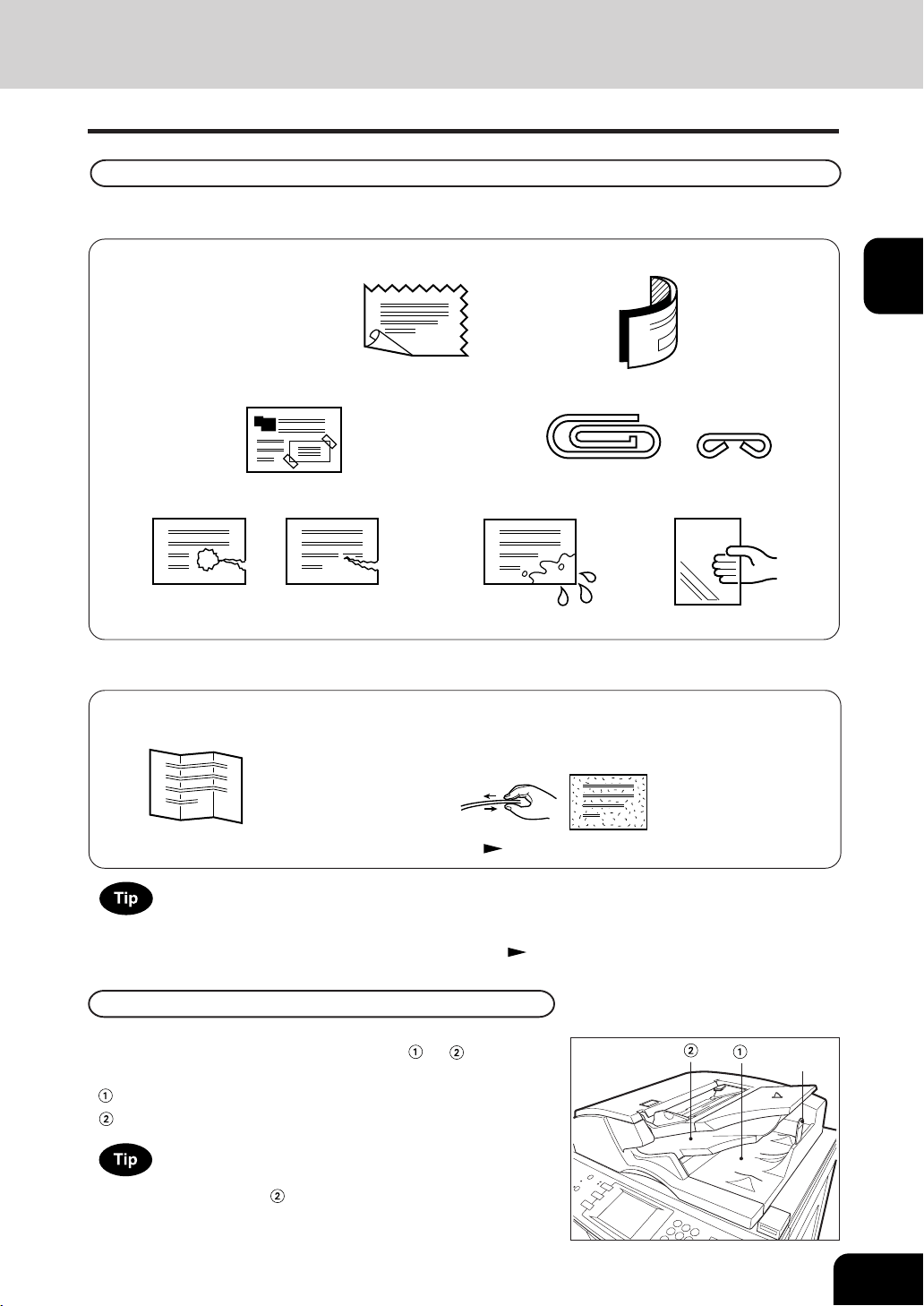
Raising the reversing automatic document feeder,
place the original in the direction as shown in the
illustration.
- When using the Book-Type Originals 2-sided Copies (
Page 3-8) or the Dual-Page ( Page 4-5) function, center
the book original on the yellow indicator line.
When Placing an Original on the Glass
Blank sheet
Original
Original
Sheet Originals
1
Raising the reversing automatic document feeder,
place the original face down on the glass.
2
Align the original against the left inner corner of the
glass.
3
Lower the reversing automatic document feeder
slowly.
When using the non sorting and non staple mode, the paper exits face up.
- When copying originals with high transparency, such as OHP
films and tracing paper, place a blank sheet of paper the
size of the original or larger over the original.
Book-type Originals
2
Lower the reversing automatic document feeder
slowly.
- Do not try to force the reversing automatic document feeder
to fully close over a very thick original, such as a big book.
Copies can be made even if the cover or feeder does not
close fully.
- During copying, an intense light may leak out. Do not look
at the original glass surface.
1
2
3
4
5
6
7
8
9
10
11
12
2-11
When Using the Reversing Automatic Document Feeder
Originals in progress automatically exit on or depending
upon the size of originals.
…… LT, ST-R, A4, A5-R, B5
…… LD, LG, LT-R, COMP, A3, A4-R, B4, B5-R, FOLIO
When the papers exit on , pull up the stopper to prevent originals
from falling.
Exiting Originals
stopper
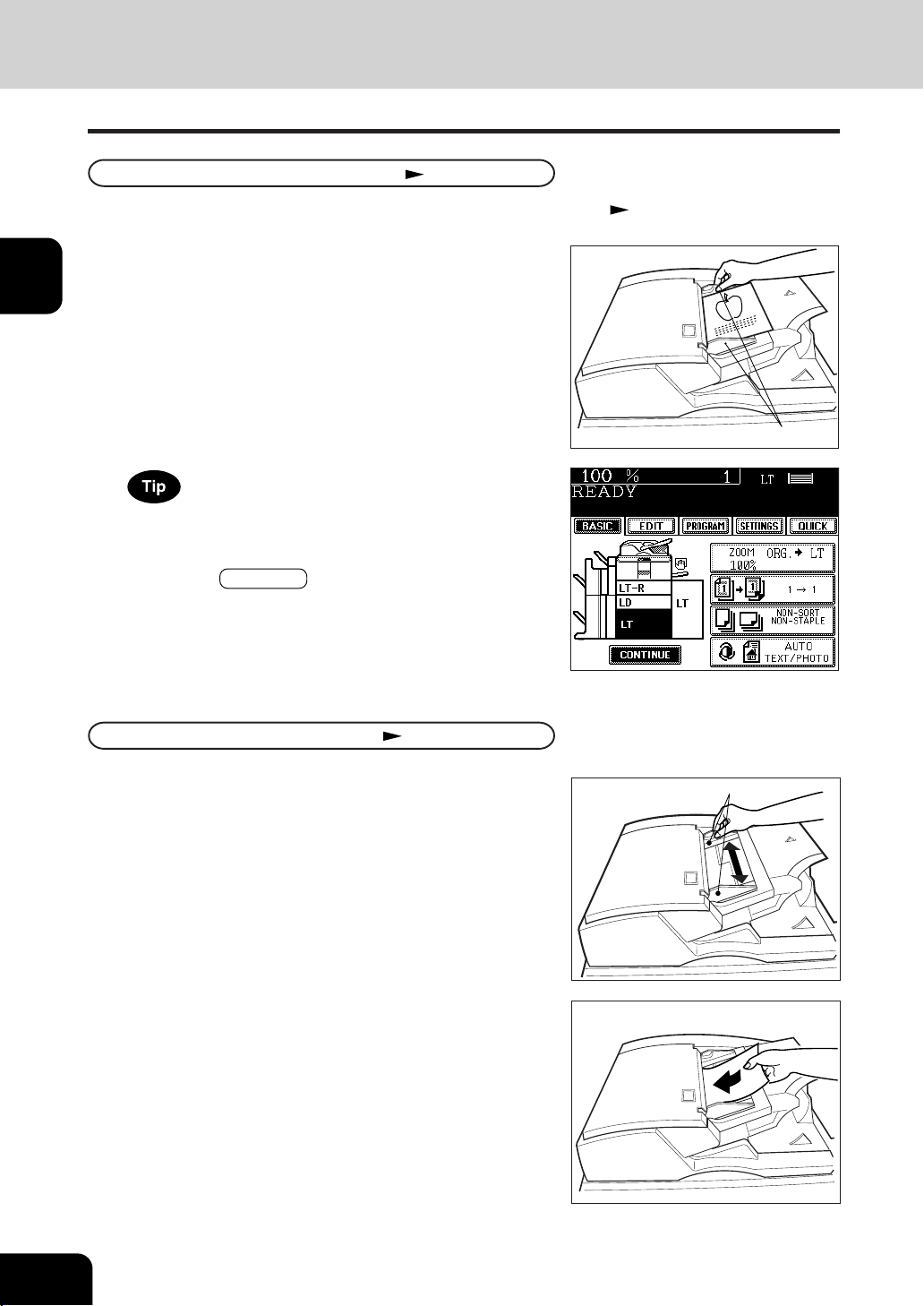
Precautions for Using the Reversing Automatic Document Feeder
Also, the following originals should be handled carefully:
(1) Folded or curled originals should be
smoothed out before being used.
(2) Originals, two of which, when pinched between two
fingers, cannot be moved, or originals which are
surface-treated may fail to be separated properly.
Do not use the following types of originals as they tend to misfeed or become damaged:
(1)
Badly wrinkled or folded originals;
in particular, originals whose
leading edge is curled may fail
to be correctly fed.
(4) Clipped or stapled originals
(2) Originals with carbon paper
(5) Originals with holes or torn originals
(3) Taped, pasted or clipped (cut
out) originals
(6) Damp originals
*Do not use tracing paper, permeable paper and coating paper (coated with wax,etc).
*The different sized originals are limited for setting. Page 5-4
If the scanning area and guide area are dirty, it may cause black streaks, etc. on the printed paper.
Cleaning them preferably once a week is recommended.
Page 8-2
(7) OHP film originals
1
2
3
4
5
6
7
8
9
10
11
12
2-12
HOW TO MAKE COPIES
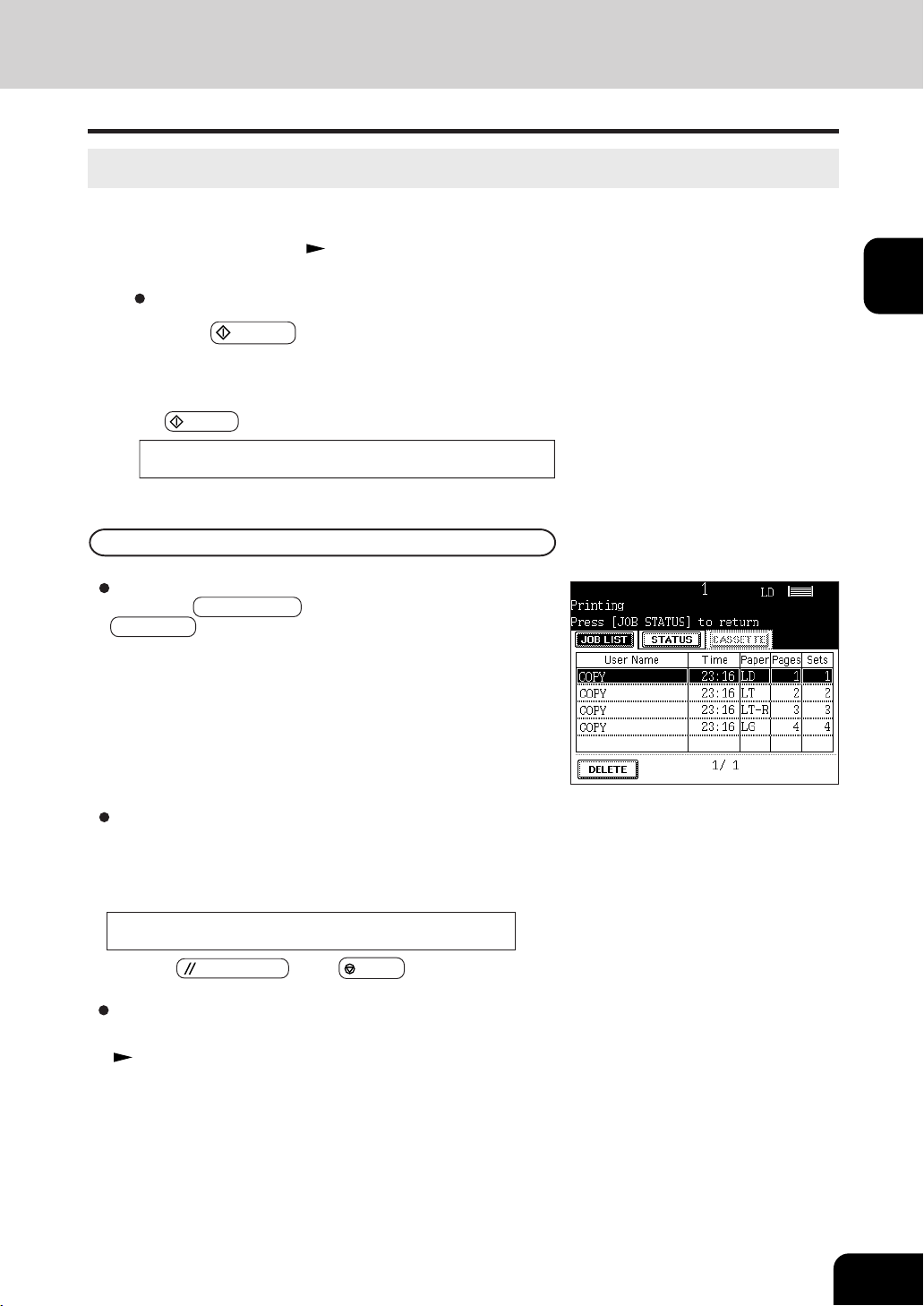
When the number of originals is too large to be set at one time,
you can divide the originals into two to ten sets and set them
one after another. To do so, place the first set of originals first,
and press the CONTINUE key while the scanning is in progress.
After they have been scanned, place the previous set of
originals.
When Using the Reversing Automatic Document Feeder (Cont.)
In the Single-feed Mode Page 5-3
2
Insert the original face up and straight along the
slides; it will then be pulled in automatically.
- When the original starts being pulled in, let go of it.
Slide
Slide
In the Continuous Feed Mode Page 5-2
1
After aligning the edges of originals well, place them
face up and align the slides to the width of the originals.
- Align the originals in the order from the top because they
will be fed from the top.
- One original sheet is also acceptable.
- Maximum number of sheets (all sizes) can be set in the
reversing automatic document feeder: 100 sheets (20lb.
Bond) or less than 0.62" in height.
- Be sure to set only originals with the same size. Mixed-sized originals Page 5-4
1
Align the slides to the desired original size.
3. SETTING ORIGINALS (Cont.)
1
2
3
4
5
6
7
8
9
10
11
12
2-13
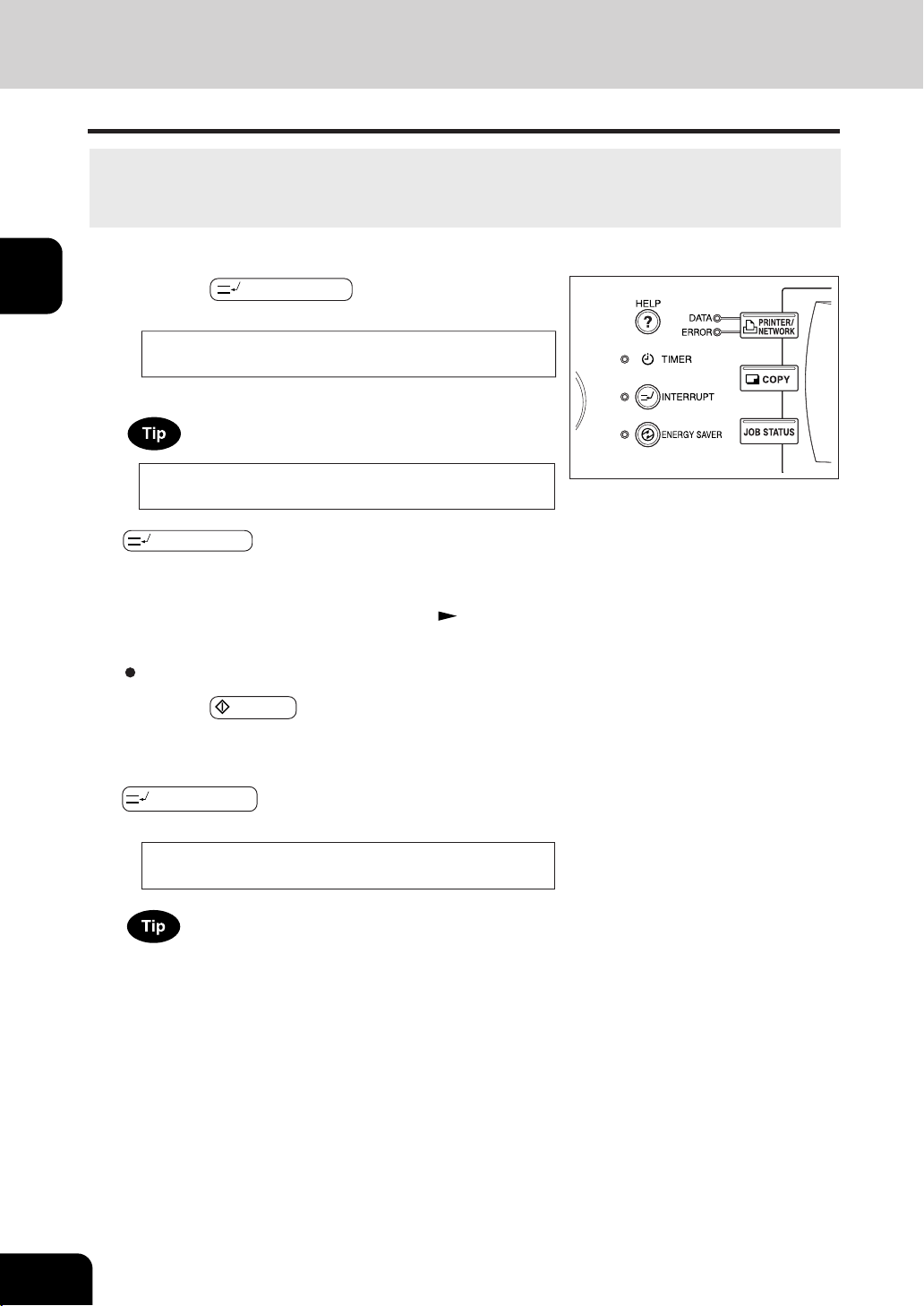
4. AUTO JOB START (JOB PRESET)
While multi-copying is in process, you can reserve the next copy.
1
Place the original(s). Page 2-9
2
Press the START key.
- Up to 5 jobs including the current printing job can be stored in
the memory. Place the originals of the 6th job on the original
glass or the reversing automatic document feeder and press
the
START key. The following message will appear:
Select copy modes as required.
Auto Start
Confirming and Cancelling Auto Job Start
Cancelling the job while waiting for the original to be stored
in the memory.
If you want to cancel copying the original when it has already
been set on the glass or the reversing automatic document feeder
and the following message is displayed:
Auto Start
press the
CLEAR ALL or the STOP key.
Cancelling the job while waiting for the original to be copied.
Deleting the data waiting to be printed (except for the case above)
Page 2-15
Confirming auto job start
Press the JOB STATUS key on the control panel, then the
JOB LIST key on the touch panel.
1
2
3
4
5
6
7
8
9
10
11
12
2-14
HOW TO MAKE COPIES
5. INTERRUPT COPYING
4
After you have finished interrupt copying, press the
INTERRUPT key again.
- The following message appears:
Select other copy modes as required.
3
Press the START key.
While multicopying is in progress, you can interrupt it and make copies from different originals.
* The following modes cannot be used with interrupt copying.
- Cover sheet copying - Sheet insertion copying - Document storage - Overlay
2
Replace the original with a new one. Page 2-9
1
Press the INTERRUPT key.
- This message appears:
Without performing step 4, the interrupt copying mode will
automatically be cancelled and the previously interrupted copy
job will resume in a certain period of time after the interrupt
copying has finished.
Job interrupted job 1 saved
- Interrupt copying is available while copying is in progress.
When the above message is displayed, pressing the
INTERRUPT key cancels the job of auto start (the 6th
job) .
READY to resume job 1
Auto Start
1
2
3
4
5
6
7
8
9
10
11
12
2-15
1
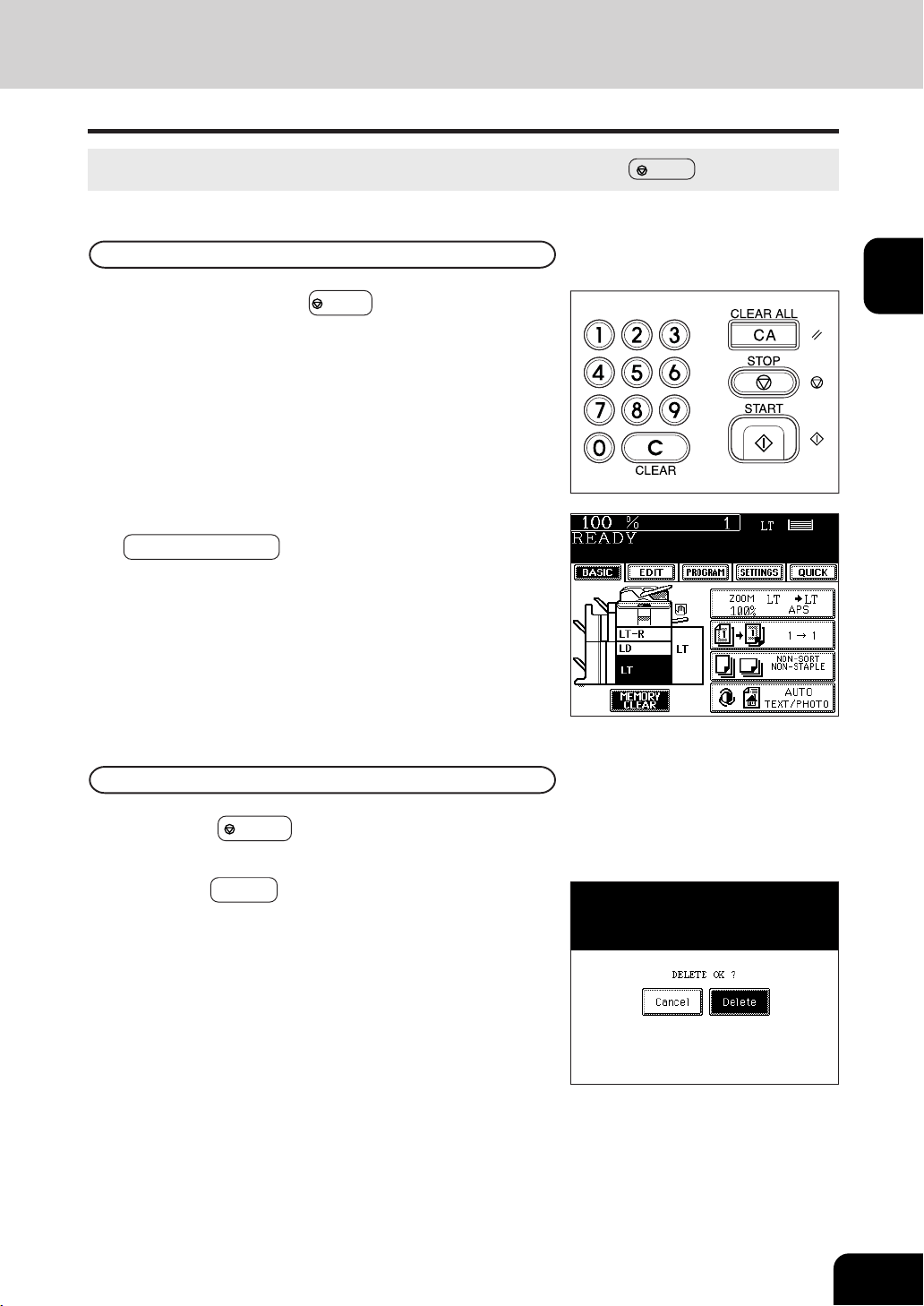
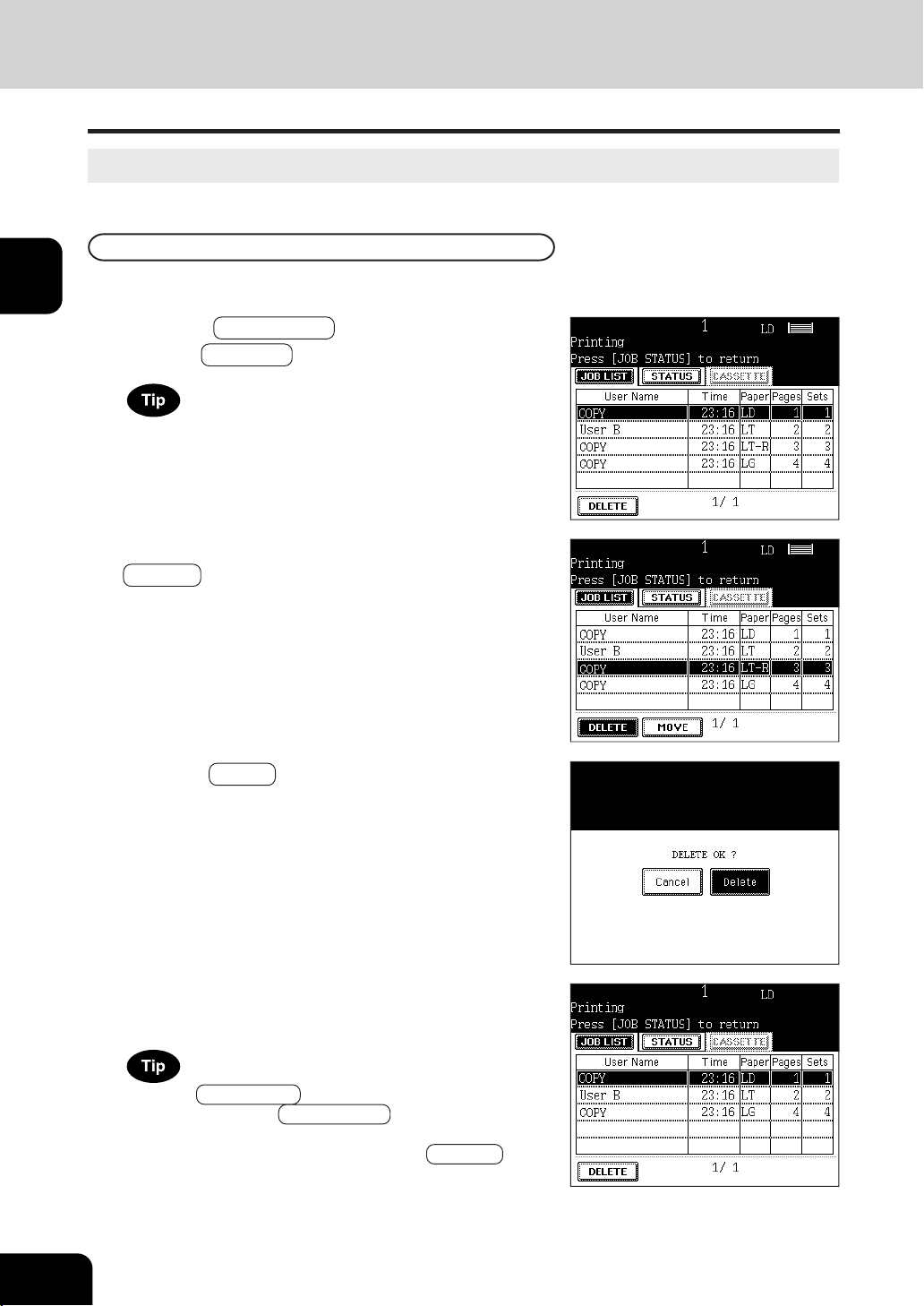
Press the STOP key on the operational panel
during the multicopying operation.
If you want to stop the operation during scanning or multicopying, use the STOP key.
Stopping the Scanning of the Original
1
Press the control panel STOP key on the operational
panel during the scanning.
2
If the screen on the right appears, press the
MEMORY CLEAR key.
Stopping a Multicopying Operation
6. STOPPING THE COPY OPERATION
3
The data will be deleted and the multicopying
operation will stop.
- If there is other data waiting to be printed, will start being
output.
2
Press the Delete key.
1
2
3
4
5
6
7
8
9
10
11
12
2-16
HOW TO MAKE COPIES
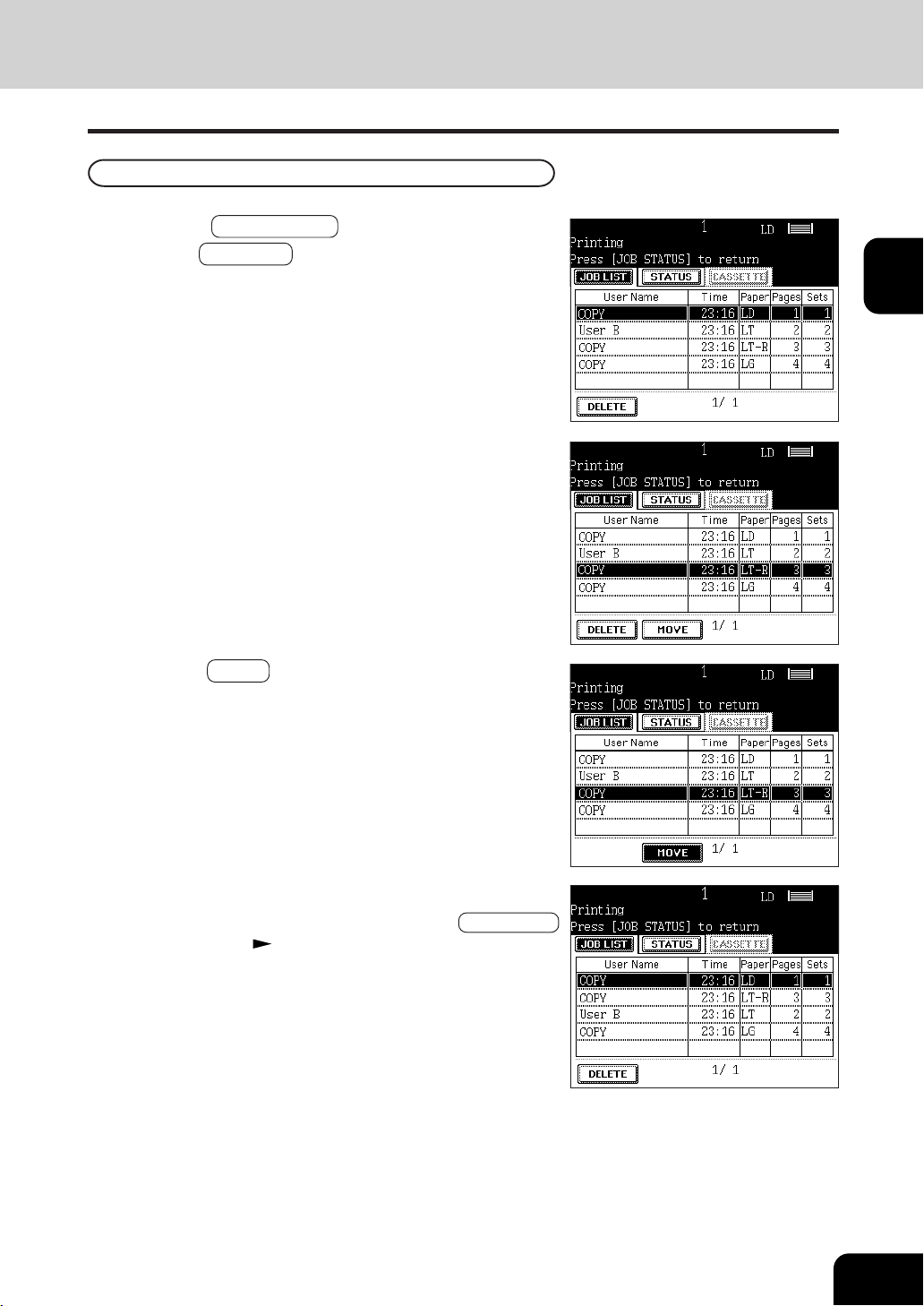
If data is waiting to be printed, you can delete them, or change the printing order.
7. DELETING OR CHANGING ORDER OF PENDING JOBS
Deleting the Job
In the following procedure, you can delete the multicopying operation as well.
1
Press the JOB STATUS key on the control panel,
then the JOB LIST key on the touch panel.
2
Select the job you want to delete, then press the
DELETE key.
3
Press the Delete key.
4
The job will be deleted.
The menu on the right shows an example of the queue.
Press the JOB STATUS key on the control panel to return the
basic screen (before JOB STATUS key is pressed on the
step 1). If there is no job waiting to be printed, you can also
return to the basic screen by pressing the RETURN key on
the touch panel.
1
2
3
4
5
6
7
8
9
10
11
12
2-17
Changing the Printing Order
1
Press the JOB STATUS key on the control panel,
then the JOB LIST key on the touch panel.
2
Select the job you want to move.
3
Press the MOVE key, then press the position where
the selected job is to move to.
- The job to be moved will be shifted next to new priority.
- The job with top priority (having been printed or suspended)
cannot be moved.
4
The changing order is completed.
- If you want to return to the basic screen (before JOB STATUS
key is pressed): Page 2-16, Tip


1
2
3
4
5
6
7
8
9
10
11
12
3-1
3. SETTING OF BASIC COPY MODES
1. Paper selection .......................................................................... 3-2
- Automatic paper selection (APS) ................................................................... 3-2
- Manual paper selection ................................................................................. 3-3
2. Reduction and enlargement copying ......................................... 3-4
3. Duplex copying (1-sided, 2-sided, book-type) ........................... 3-7
4. Copy density adjustment ..........................................................3-11
5. Selecting original mode ............................................................3-13
6.
Quick
access menu ................................................................. 3-14

1
2
3
4
5
6
7
8
9
10
11
12
3-2
SETTING OF BASIC COPY MODES
1. PAPER SELECTION
Automatic Paper Selection (APS)
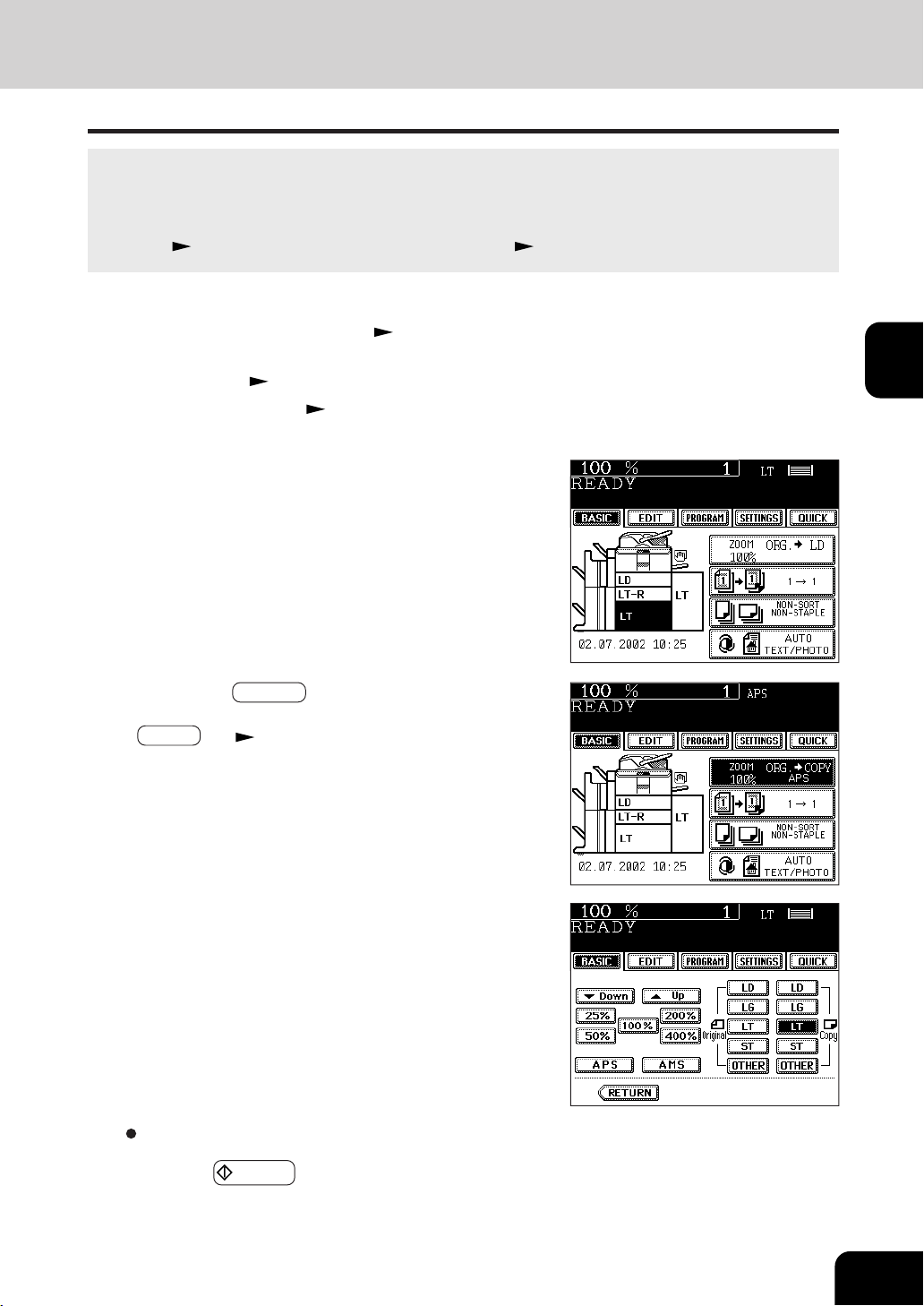
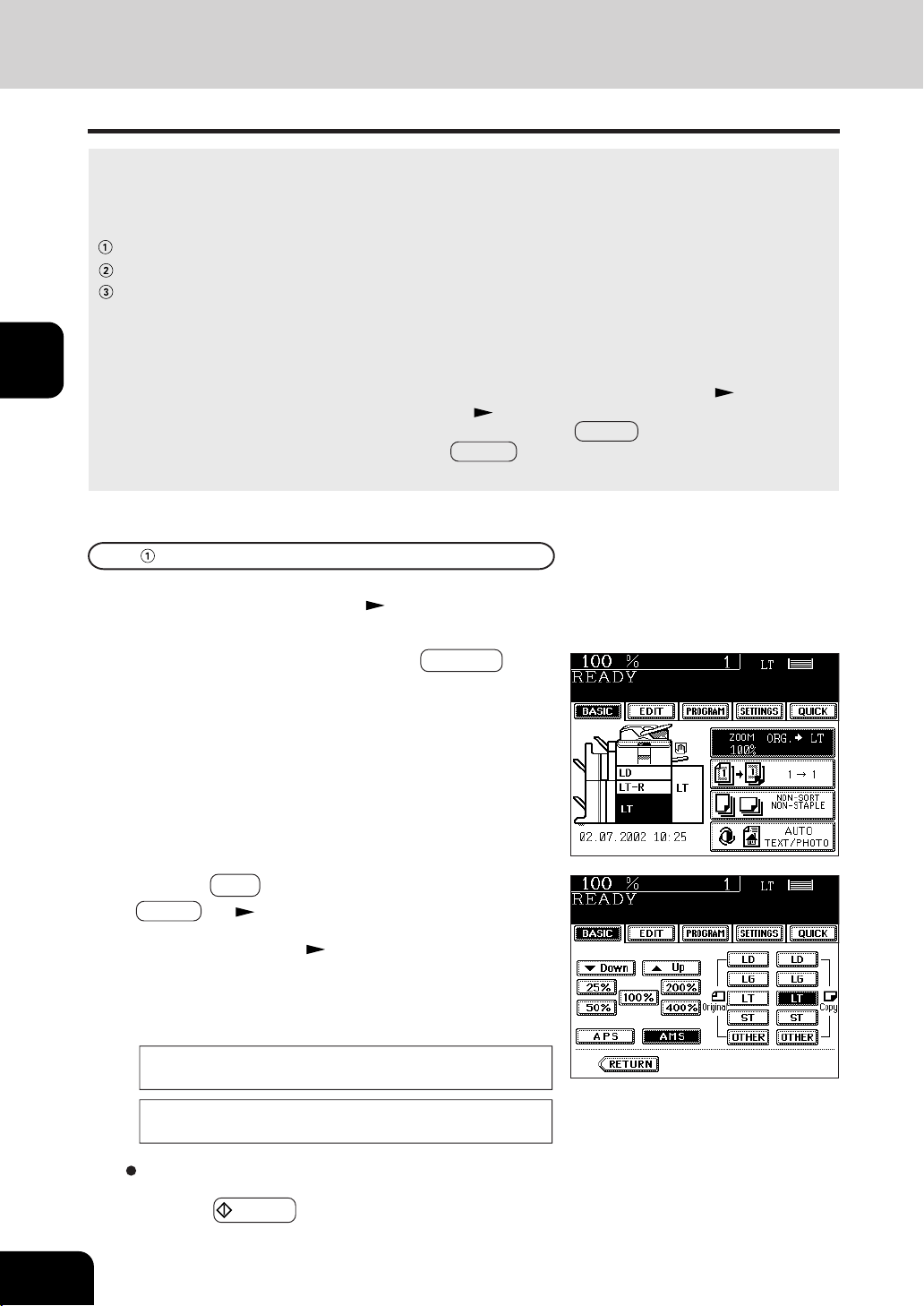
- If the Automatic Paper Selection mode is not selected, press
the ZOOM··· key, then press the APS key on the next
screen.
- If the following messages are shown, proceed as directed:
Change direction of original
Set correct drawer
When the selected drawer size and the original size are the
same, the copier rotates the original data 90° and makes a
copy in the same size as the original even if those directions
differ (e.g. a LT-size original is set while the same size paper
is set in R direction). This function, however, is applicable
to plain paper only.
When you place regular-sized originals on the glass or in the reversing automatic document feeder, the
built-in sensors automatically work to detect the size of the originals, helping the copier select and copy on
paper that is the same size as the original.
* Depending on the condition of the original, automatic paper selection may not work correctly. In that case,
select the paper size manually.
Page 3-3
* This mode can only be used for actual-size (100%) copying.
* Original sizes capable of automatic detection
Page 2-9
2
Place the original(s). Page 2-9
3
Confirm that the Automatic Paper Selection mode
(default setting) is selected on the basic screen.
1
Place paper in the drawer(s). Page 2-4
Select other copy modes as required.
4
Press the START key.
1
2
3
4
5
6
7
8
9
10
11
12
3-3
3
On the basic screen, press the drawer icon
representing the desired paper size.
1
Place paper in the drawer(s). Page2-4
- When using this mode in bypass copying, be sure to specify
the paper size. Page 5-10, 5-11
4
Press the START key.
Manual Paper Selection
It may not be possible for the device to perform Automatic Paper Selection with highly transparent originals
such as OHP films and tracing paper, wholly dark originals or originals with dark borders, or irregular sized
originals such as newspapers and magazines. For these types of originals, use manual paper selection.
* When the desired size of paper is not set in any of the drawers, you can change the paper size of the
drawer (
Page 2-6) or use the sheet bypass copying ( Page 5-8).
- Or press the ZOOM··· key to enter the next screen, and
press the key of the desired paper size.
- OTHER key
Page 5-14
2
Place the original(s). Page 2-9
Select other copy modes as required.
1
2
3
4
5
6
7
8
9
10
11
12
3-4
SETTING OF BASIC COPY MODES
2. REDUCTION AND ENLARGEMENT COPYING
When placing originals on the glass, you can copy them at the reducing and enlarging rate of 25 to 400%.
For the reversing automatic document feeder, you can make the copy at the reducing and enlarging rate of
25 to 200%.
There are the following three ways of making copies in the reduction and enlargement mode:
Using Automatic Magnification Selection (AMS)
Specifying both original size and copy size
Using the reduction/enlargement zoom keys or the one-touch zoom keys
* It is not possible for the device to perform Automatic Magnification Selection with highly transparent
originals such as OHP films and tracing paper, wholly dark originals or originals with dark borders, or
irregular sized originals such as newspapers and magazines. For these types of originals, use the other
reduction/enlargement modes.
Original sizes for which Automatic Magnification Selection (automatic detection) is available
Page 2-9
* Set the paper size for “the OTHER” key as required ( Page 5-14). When the set originals or paper are
a non-standard size other than LD, LG, LT or ST you will select the OTHER key on the screen of step 3
below. Before pressing it, you need to make the OTHER key recognize the same size as the originals
or paper that have been set.
2
Press the desired drawer, then the ZOOM··· key.
- The copy paper size is selectable on the screen in step 3 as
well.
1
Place paper in the drawer(s). Page2-4
Automatic Magnification Selection (AMS)
3
Press the AMS key.
- OTHER key Page 5-14
5
Press the START key.
4
Place the original(s). Page 2-9
- The built-in sensors automatically detect the size of the
original(s) and compute the reproduction ratio using the
specified paper size.
- If the following messages are shown, proceed as directed:
Change direction of original
Use reduced-size cassette
Select other copy modes as required.
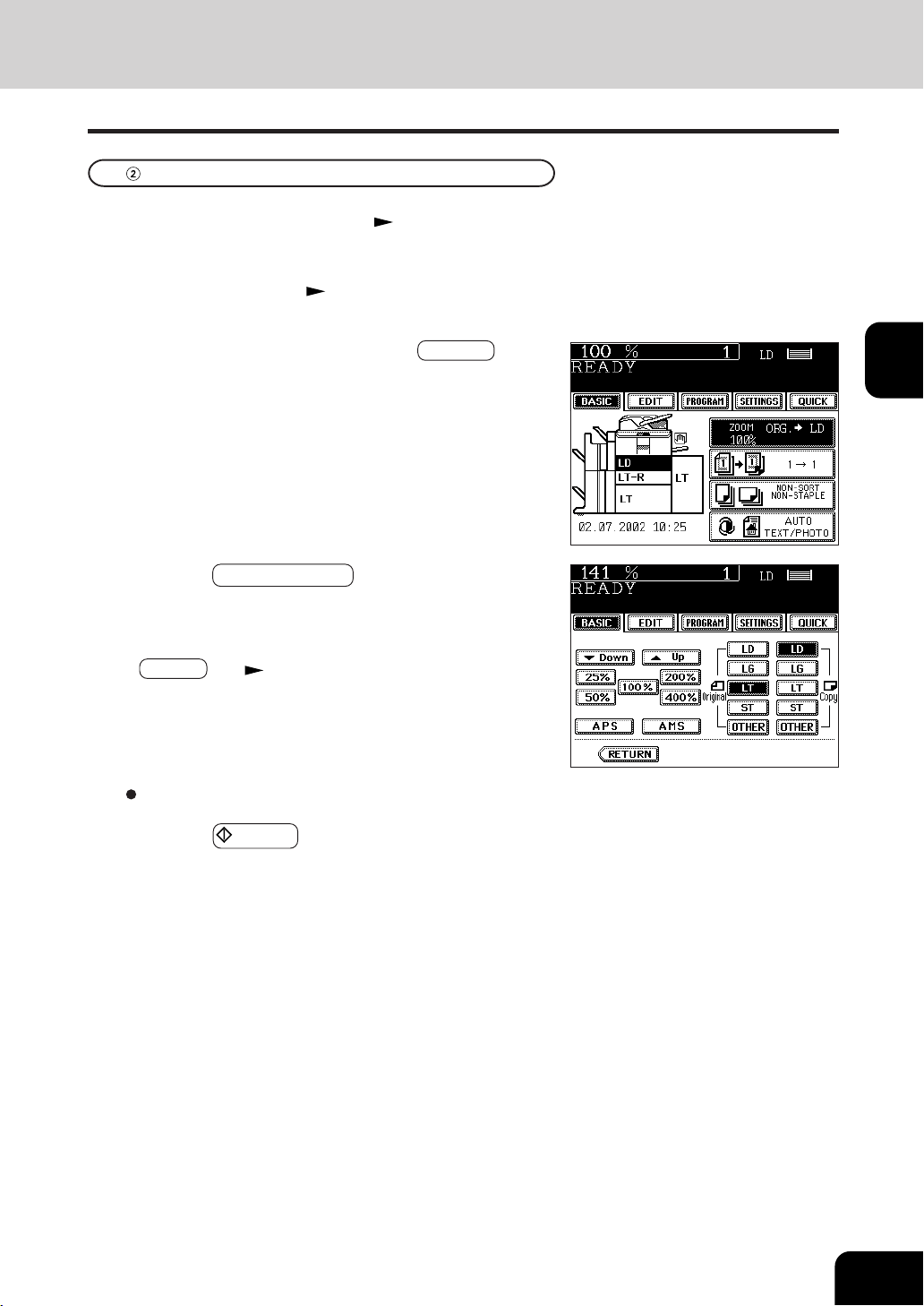
1
2
3
4
5
6
7
8
9
10
11
12
3-5
5
Press the START key.
4
Press the ORIGINAL SIZE key of the same size as
the original.
- Using the original size and copy size, the correct reproduction
ratio is computed and displayed on the screen.
- OTHER key
Page 5-14
Specifying both Original Size and Copy Size
2
Place the original(s). Page 2-9
3
Press the desired drawer, then the ZOOM··· key.
- The copy paper size is selectable on the screen in step 4 as
well.
1
Place paper in the drawer(s). Page 2-4
Select other copy modes as required.
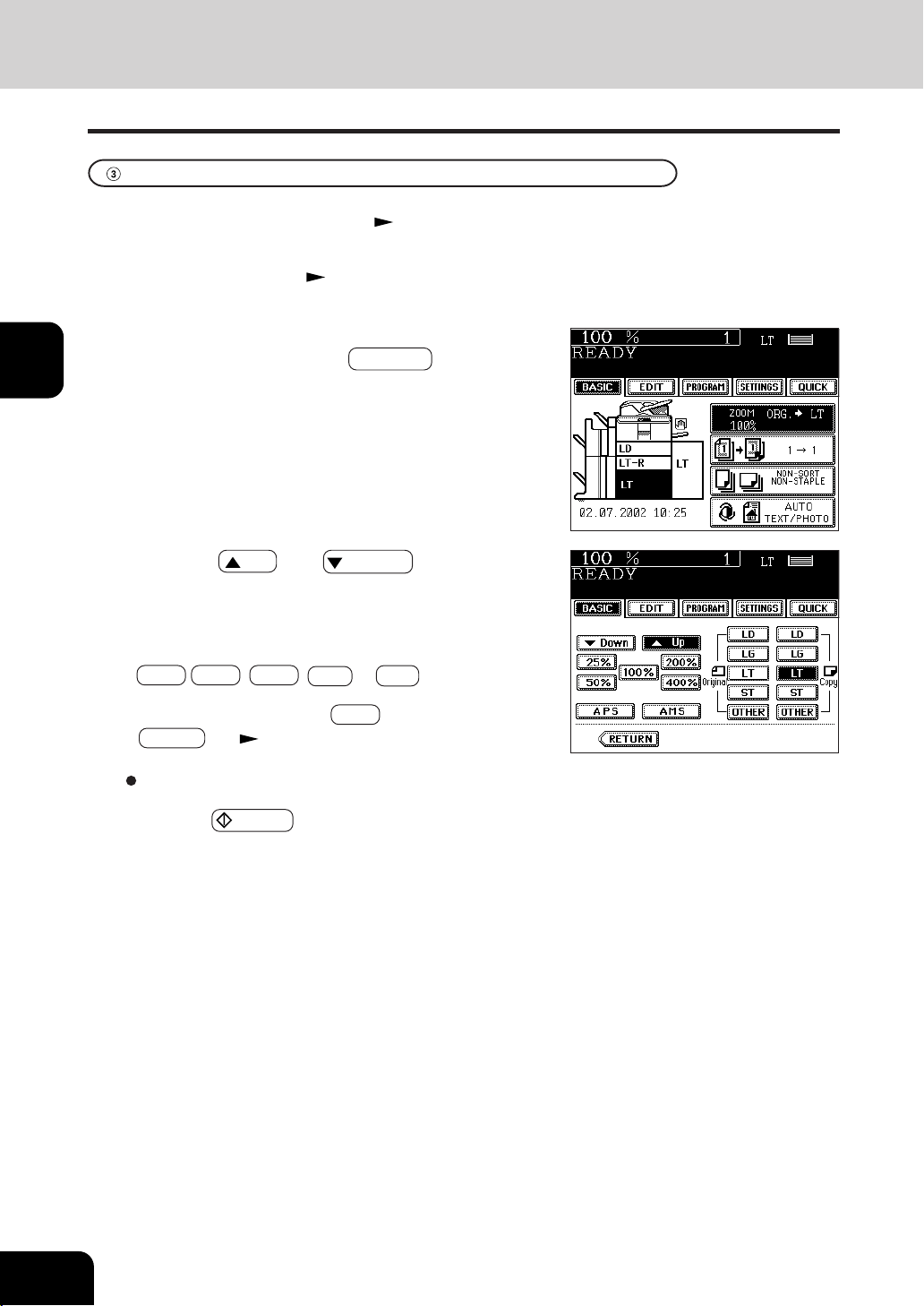
1
2
3
4
5
6
7
8
9
10
11
12
3-6
SETTING OF BASIC COPY MODES
2. REDUCTION AND ENLARGEMENT COPYING (Cont.)
3
Press the drawer icon representing the desired copy
paper size, then press the ZOOM···· key.
- The copy paper size is selectable on the screen in step 4 as
well.
4
Press the UP (or DOWN ) key to set the
desired reproduction ratio.
- Each time you press either key, the reproduction ratio changes
by 1%. Holding down the key changes it continuously.
- You can also select the reproduction ratio by pressing the
400% , 200% , 100% , 50% or 25% key directly. (When
placing the originals on the reversing automatic document
feeder, you cannnot select 400% key.)
- OTHER key
Page 5-14
2
Place the original(s). Page 2-9
Using the Reduction / Enlargement Zoom Keys or One-touch Zoom Keys
1
Place paper in the drawer(s). Page 2-4
5
Press the START key.
Select other copy modes as required.
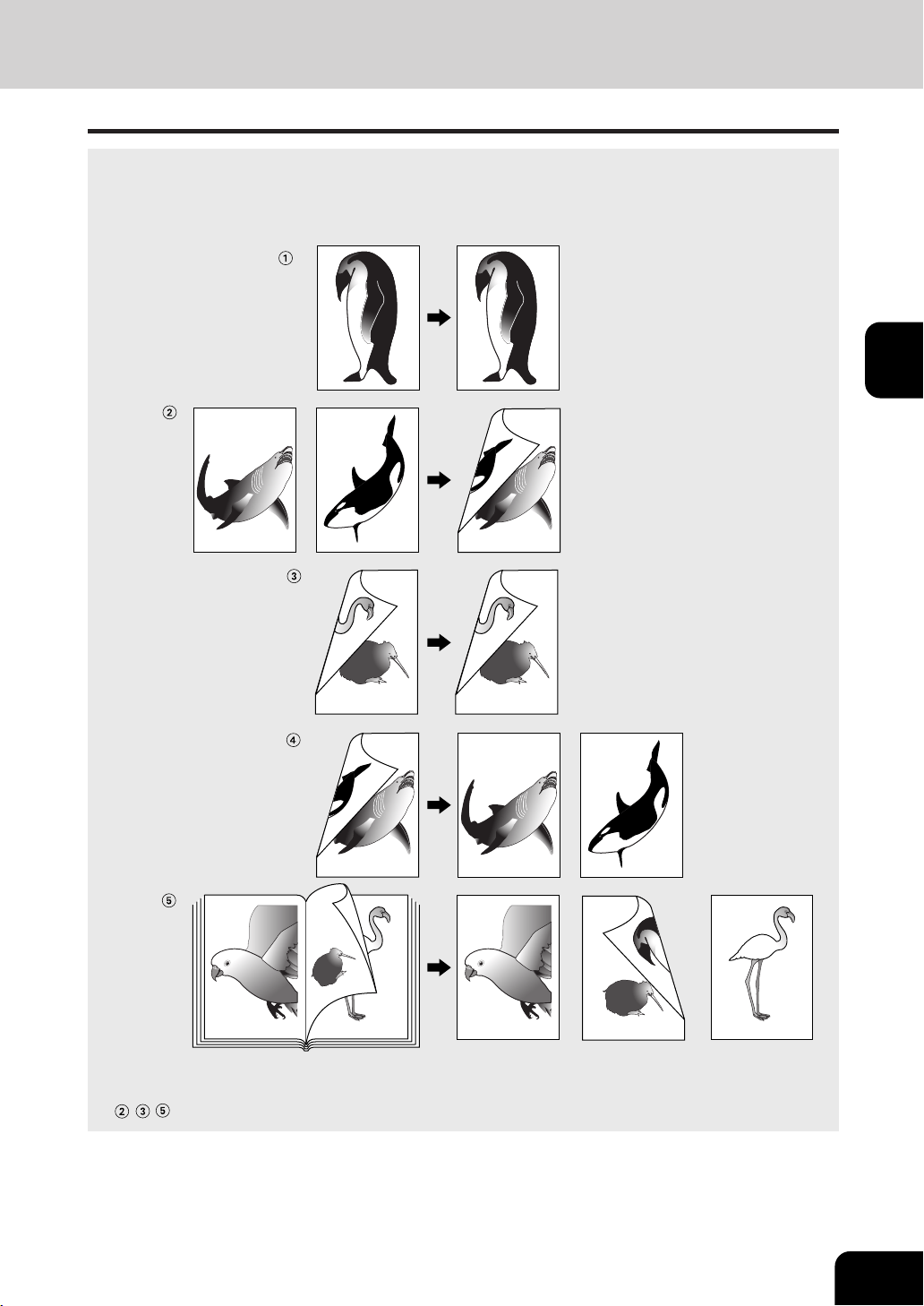
1
2
3
4
5
6
7
8
9
10
11
12
3-7
-12-
-13-
-15- -12- -13- -15-
-13-
-13-
3. DUPLEX COPYING (1-SIDED, 2-SIDED, BOOK-TYPE)
This function allows you to set the type of originals (1-sided, 2-sided or book-type) and the desired type
of copying (1-sided or 2-sided).
Original Copy
* can not be used by OHP film.
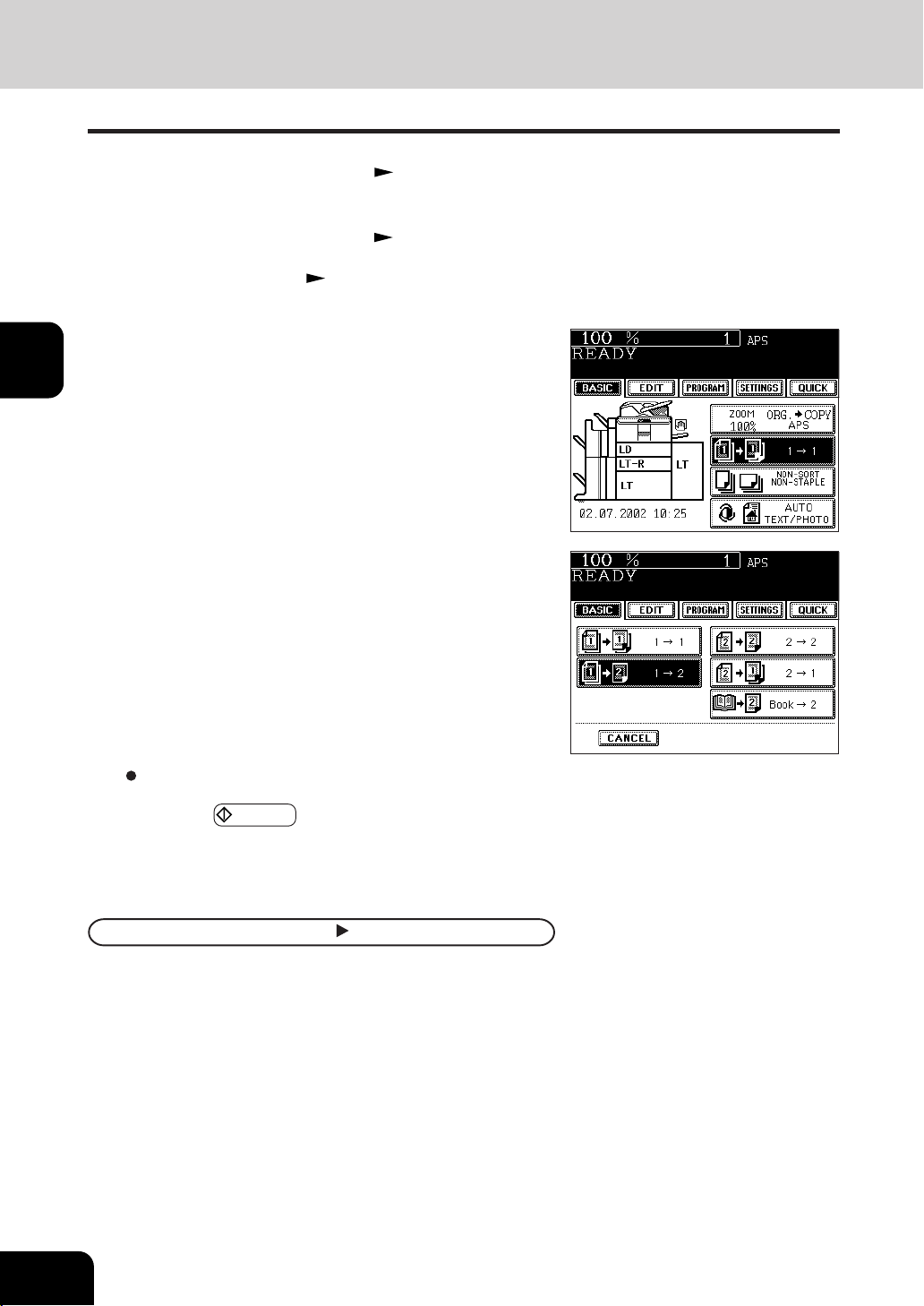
1
2
3
4
5
6
7
8
9
10
11
12
3-8
SETTING OF BASIC COPY MODES
3. DUPLEX COPYING (1-SIDED, 2-SIDED, BOOK-TYPE) (Cont.)
3
Press the key (shaded) on the right basic screen.
- The default setting is 1-Sided Originals to 1-Sided Copies.
Book-Type Originals 2-Sided Copies
1
Follow the same procedure 1 to 3 as shown above.
1
Place paper in the drawer(s). Page 2-4
- When using the mode of 1-Sided Originals to 2-Sided Copies
and 2-Sided Originals to 2-Sided Copies in bypass copying,
be sure to specify the paper size. Page 5-10,5-11
Select other copy modes as required.
5
Press the START key.
- When placing originals on the glass, perform from steps 5
on page 2-2 to step 6 on page 2-3 continuously.
4
Press the key as required.
- When using the mode of Book-Type Originals to 2-Sided
Copies, follow the procedure below.
2
Place the original(s). Page 2-9
*The acceptable paper sizes for this function are LT only.
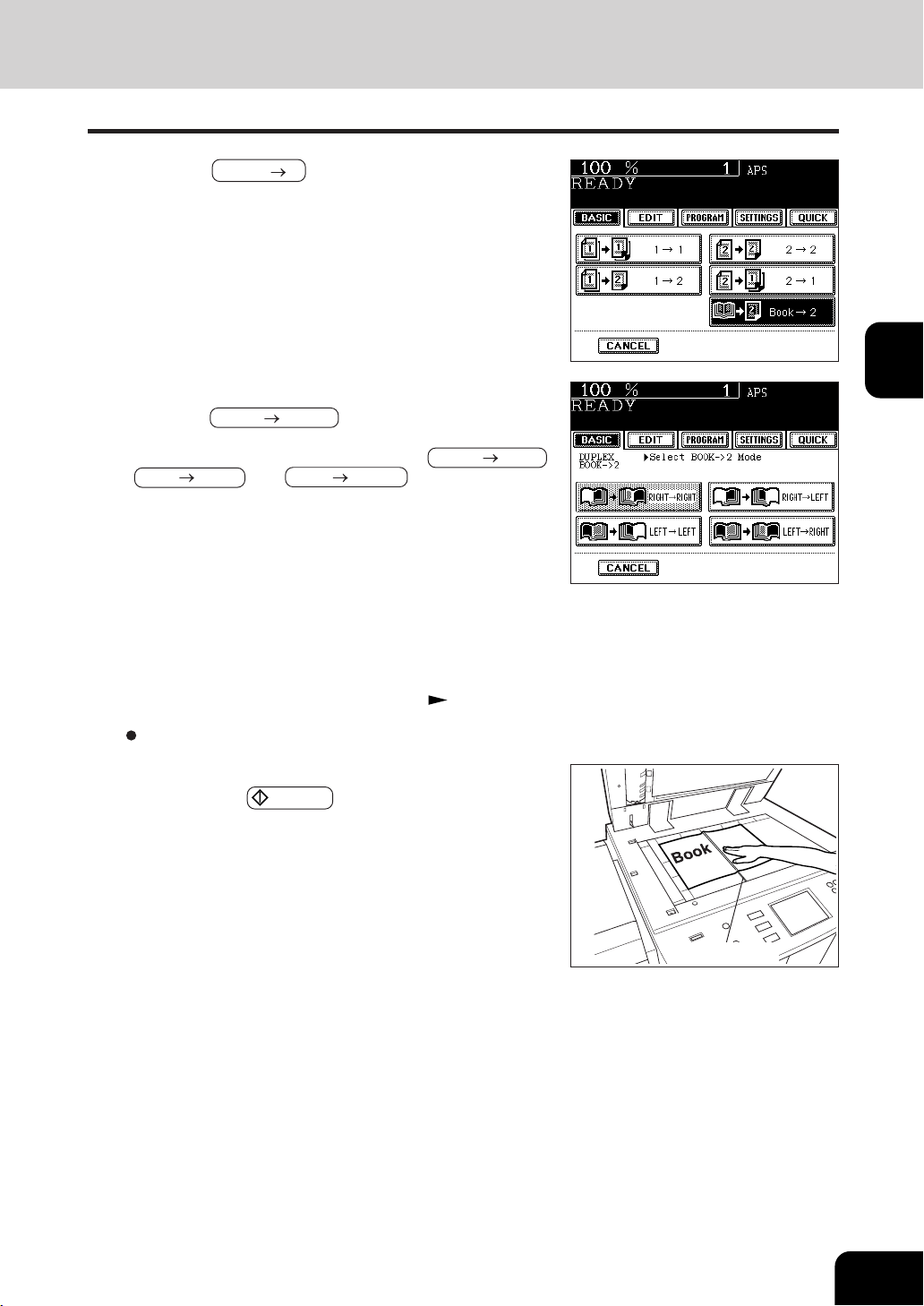
1
2
3
4
5
6
7
8
9
10
11
12
3-9
3
Select the book copying type.
- Press the RIGHT RIGHT key if copying should start at a
right-hand page and end at a right-hand page. By the same
token, you can choose from among the RIGHT LEFT ,
LEFT
LEFT and LEFT RIGHT keys.
2
Press the BOOK 2 key.
6
Place the first page(s) to be copied on the glass,
and press the START key.
- If you do not copy your originals from the first page, the copies will
not be arranged in the same order as the original.
- Center the book on the yellow indicator line with its bottom
toward you.
4
Select LT copy size.
5
If you need a binding space, select the book margin
mode from the Image Shift function ( Page 4-2).
Select other copy modes as required.
Indicator line
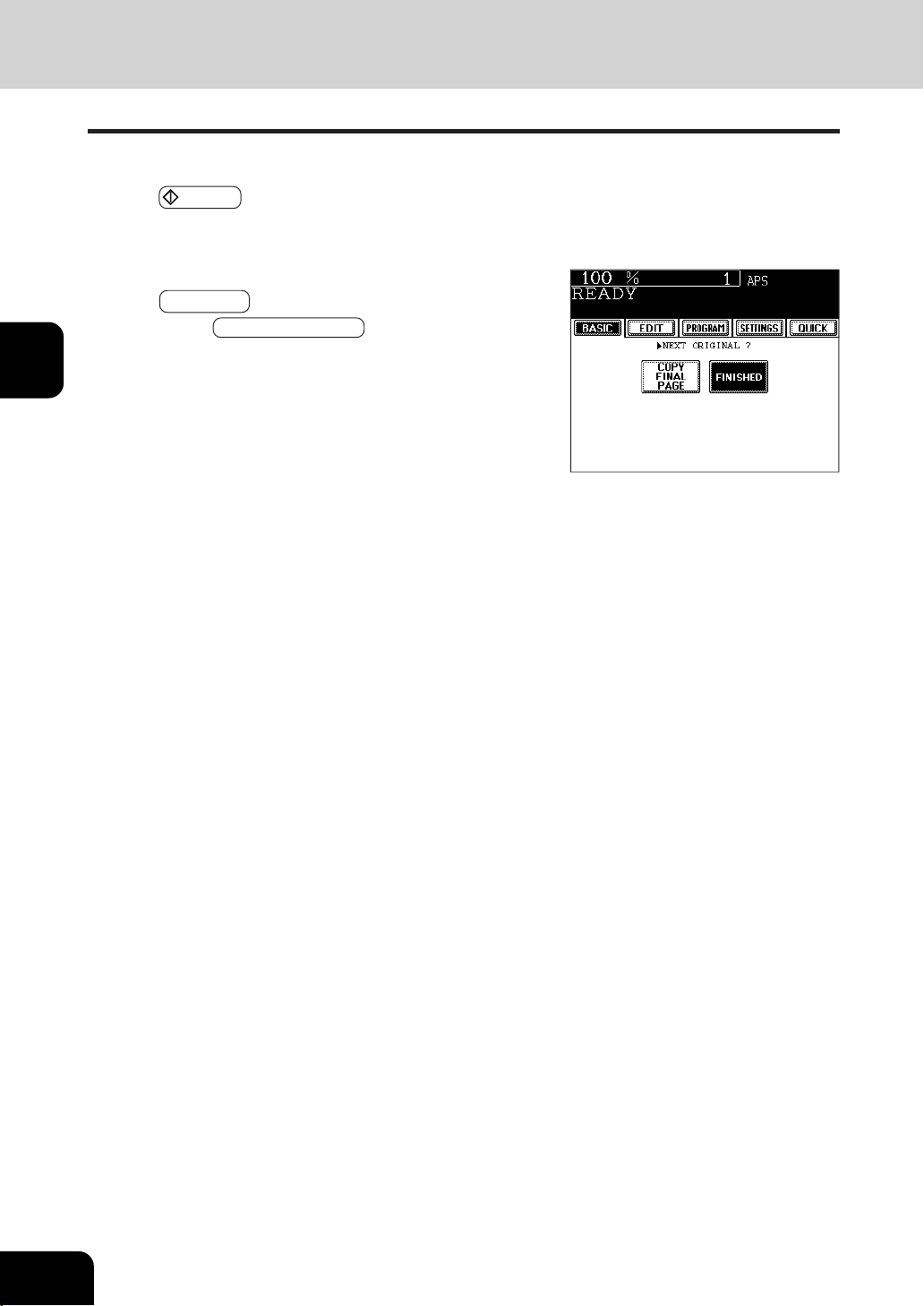
1
2
3
4
5
6
7
8
9
10
11
12
3-10
SETTING OF BASIC COPY MODES
7
Turn to the next page, set the book again and press
the
START key.
- Repeat the procedure above until all your originals have
been scanned.
8
After all your originals have been scanned, press
the FINISHED key.
- Press the COPY FINAL PAGE key if the last original has
only one page.
3. DUPLEX COPYING (1-SIDED, 2-SIDED, BOOK-TYPE) (Cont.)
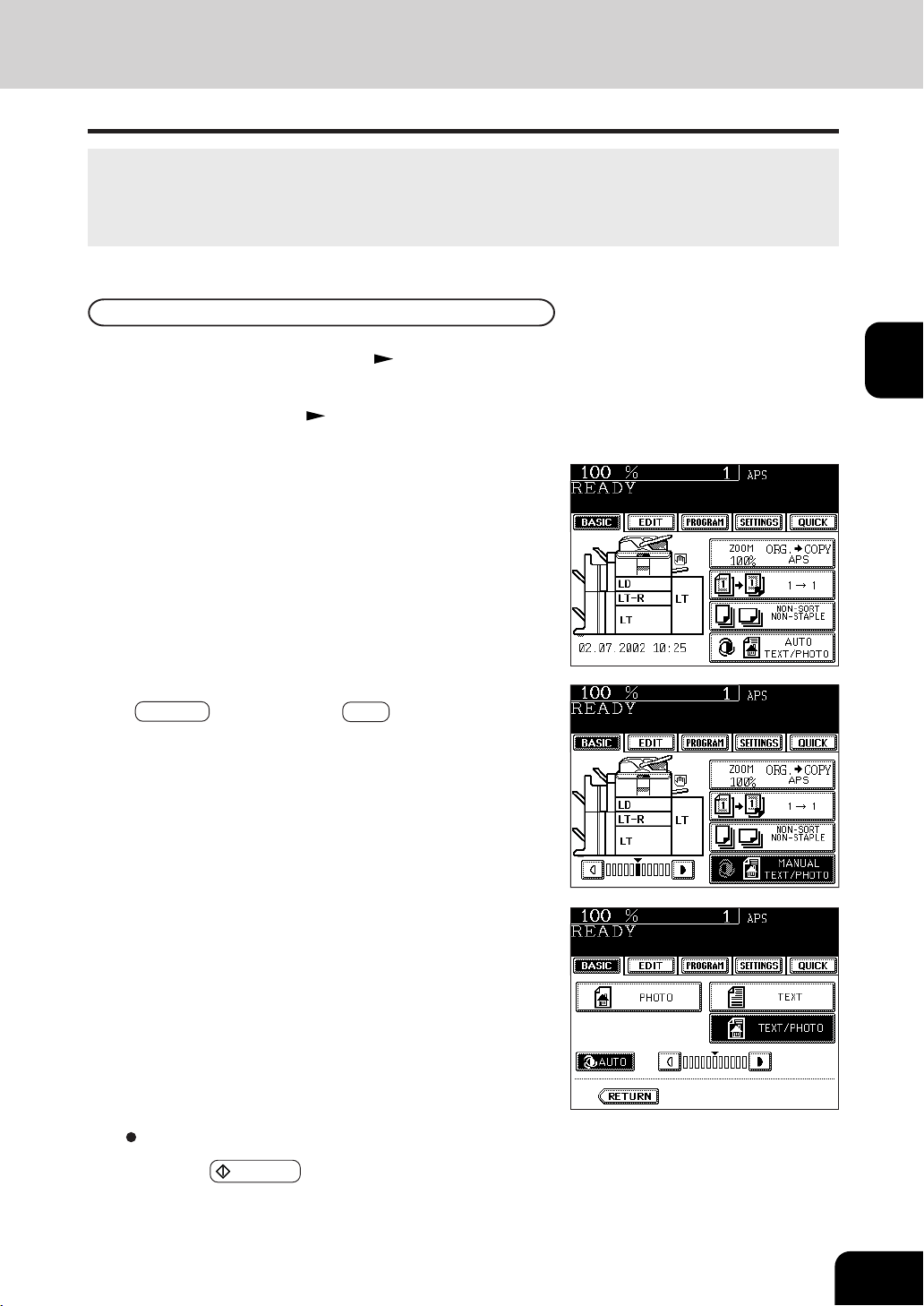
1
2
3
4
5
6
7
8
9
10
11
12
3-11
4
Press the START key.
- If the automatic density mode is not selected, press the
MANUAL key, then press the AUTO key on the next screen.
4. COPY DENSITY ADJUSTMENT
There are two types of image density adjustments: automatic mode (default setting) and manual mode.
In the automatic mode, the sensors automatically detect the density of each original and select the
optimum image density. In the manual mode, you can select the desired level of image density. It is
recommended that lighter-density original be coped in the manual copy density mode.
3
Confirm that “AUTO” is displayed on the basic
screen.
1
Place paper in the drawer(s). Page 2-4
Automatic Copy Density Mode
2
Place the original(s). Page 2-9
Select other copy modes as required.
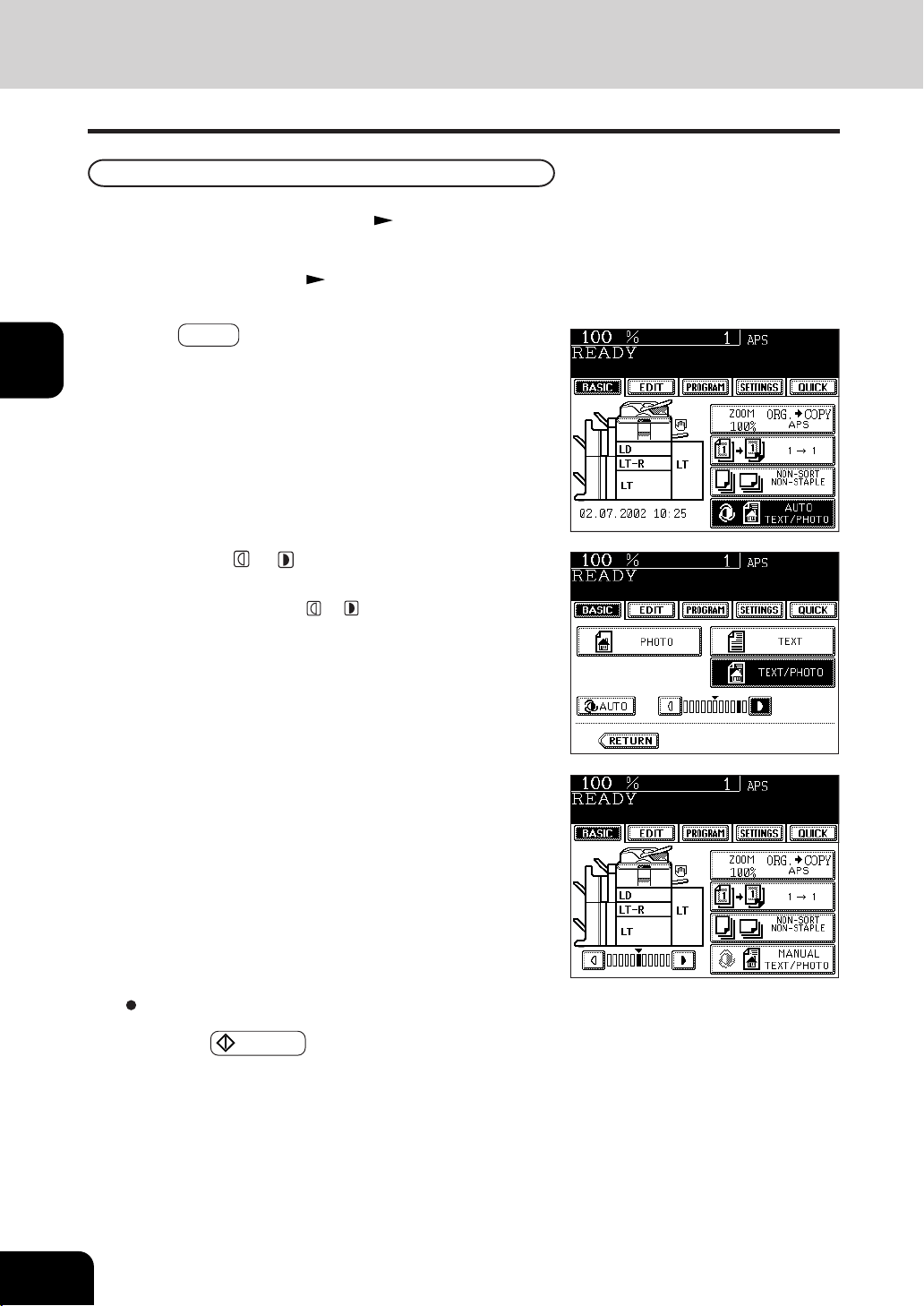
1
2
3
4
5
6
7
8
9
10
11
12
3-12
SETTING OF BASIC COPY MODES
4. COPY DENSITY ADJUSTMENT (Cont.)
- When the DENSITY LEVEL key is shown on the lower left
of the screen, you can adjust the density manually on the
basic screen.
4
Press either or key to adjust the copy density
to the desired level.
- Each time you press the or key, your copies will become
lighter or darker, respectively.
3
Press AUTO on the basic screen.
5
Press the START key.
Manual Copy Density Mode
1
Place paper in the drawer(s). Page2-4
2
Place the original(s). Page 2-9
Select other copy modes as required.
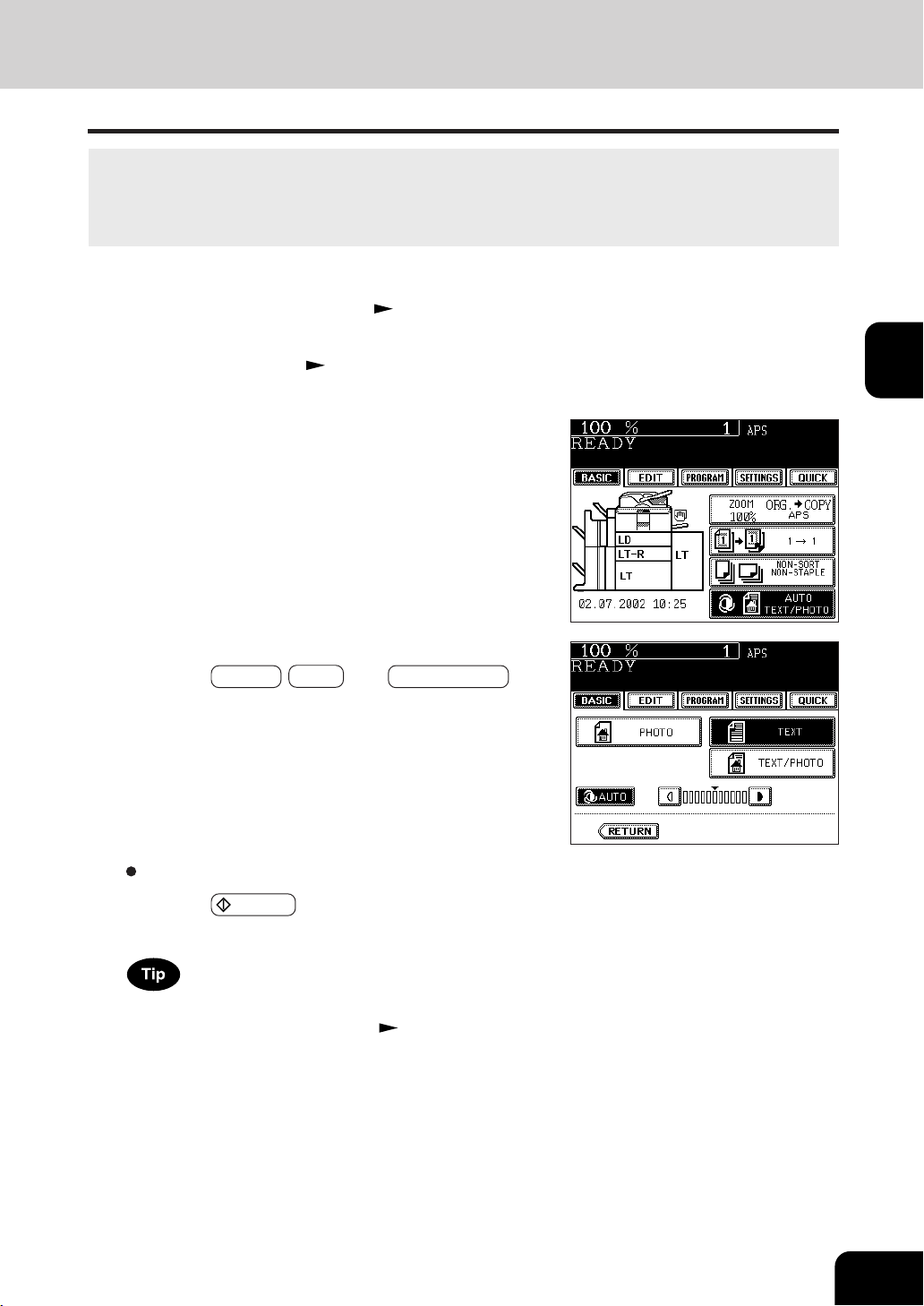
1
2
3
4
5
6
7
8
9
10
11
12
3-13
5. SELECTING ORIGINAL MODE
According to the type of your originals, you can choose among the three image types: Photo, Text or Text/
Photo (default setting). The Photo mode is suitable for copying photo originals whereas the Text mode is
preferable for copying originals containing text only (or text and line artwork only). The Text/Photo mode
is to be selected for originals containing photo and text mixed together.
Select other copy modes as required.
5
Press the START key.
The amount of toner consumed varies depending on
the selected image of toner mode.
Page 7-8
-The amount of toner consumed by copying the same
original is in the following order:
‘PHOTO’ < ‘TEXT/PHOTO’ < ‘TEXT’
(Lest to most consumed toner)
1
Place paper in the drawer(s). Page2-4
2
Place the original(s). Page2-9
3
Press the key (shaded) on the right basic screen.
4
Choose the desired image type mode by pressing
one of the PHOTO , TEXT , and TEXT/PHOTO keys.
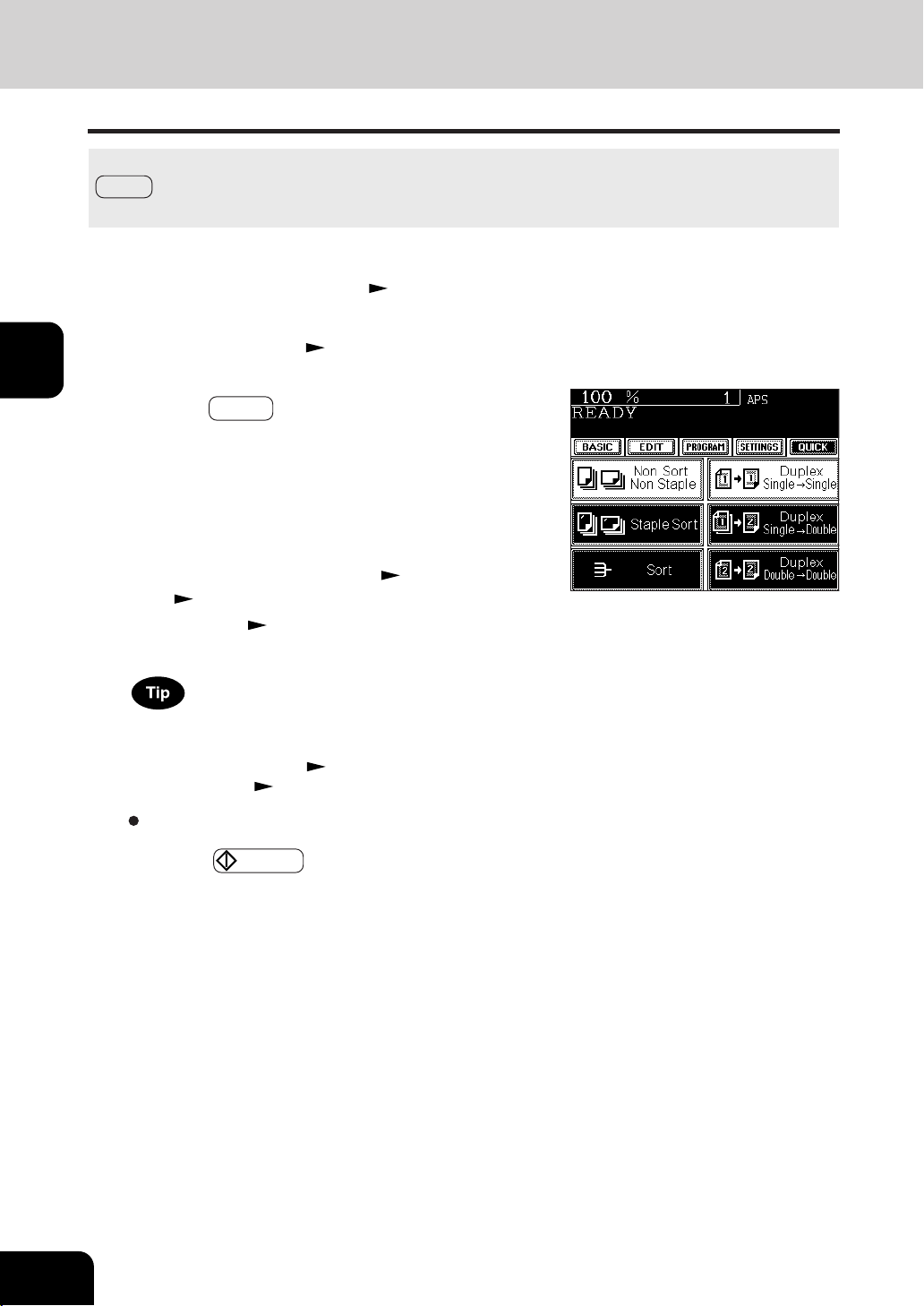
1
2
3
4
5
6
7
8
9
10
11
12
3-14
SETTING OF BASIC COPY MODES
6. QUICK ACCESS MENU
Finishing copy and duplex modes can be performed at the same time on one display by pressing the
QUICK button. The character and button sizes are enlarged, and the white characters are displayed on
the black background in order that you can easily operate the copier.
Set up other copying modes as required.
4
Press the START key.
For the functions of the finishing and duplex modes, which
are not shown on the display, set them on the basic screen.
- Finishing mode setting
Page 6-2
- Duplex copying
Page 3-7
3
Press the QUICK button to display the menu shown
on the right, then press a button to perform one of
the functions.
- The right menu shows “Non-sort and non-staple” and “one
side of the original is copied on one side of a sheet of paper.”
- For the details of the functions, refer to the pages below.
[Finishing Mode]
Staple sort (staple at one corner)
Page 6-4
Sort
Page 6-3
[Duplex Mode]
Page3-7
1
Place paper in the drawer(s). Page2-4
2
Place the original(s). Page2-9

1
2
3
4
5
6
7
8
9
10
11
12
4-1
4. USING THE EDITING
FUNCTIONS
1. Image shift................................................................................ 4-2
2. Edge erase ............................................................................... 4-4
3. Dual-page................................................................................. 4-5
4. X-Y zoom ................................................................................. 4-7
5. Image editing............................................................................ 4-8
- Trimming/Masking ...................................................................................... 4-8
- Mirror image ............................................................................................. 4-10
- Negative/Positive reversal ........................................................................ 4-11
6. 2 IN 1 / 4 IN 1 .......................................................................... 4-12
7. Copying with annotation ..........................................................4-14
8. Page numbering copying......................................................... 4-15
9. Magazine sort (from the editing menu) .................................... 4-16
10. Cover copying ......................................................................... 4-18
11. Sheet insertion copying ..........................................................4-20
12. Tab paper mode ...................................................................... 4-22
13. Document storage .................................................................. 4-28
14. Overlay ...................................................................................4-30
15. Sharpness adjustment ............................................................ 4-33
16. Direction of duplex copy images (Rotation) ............................4-34
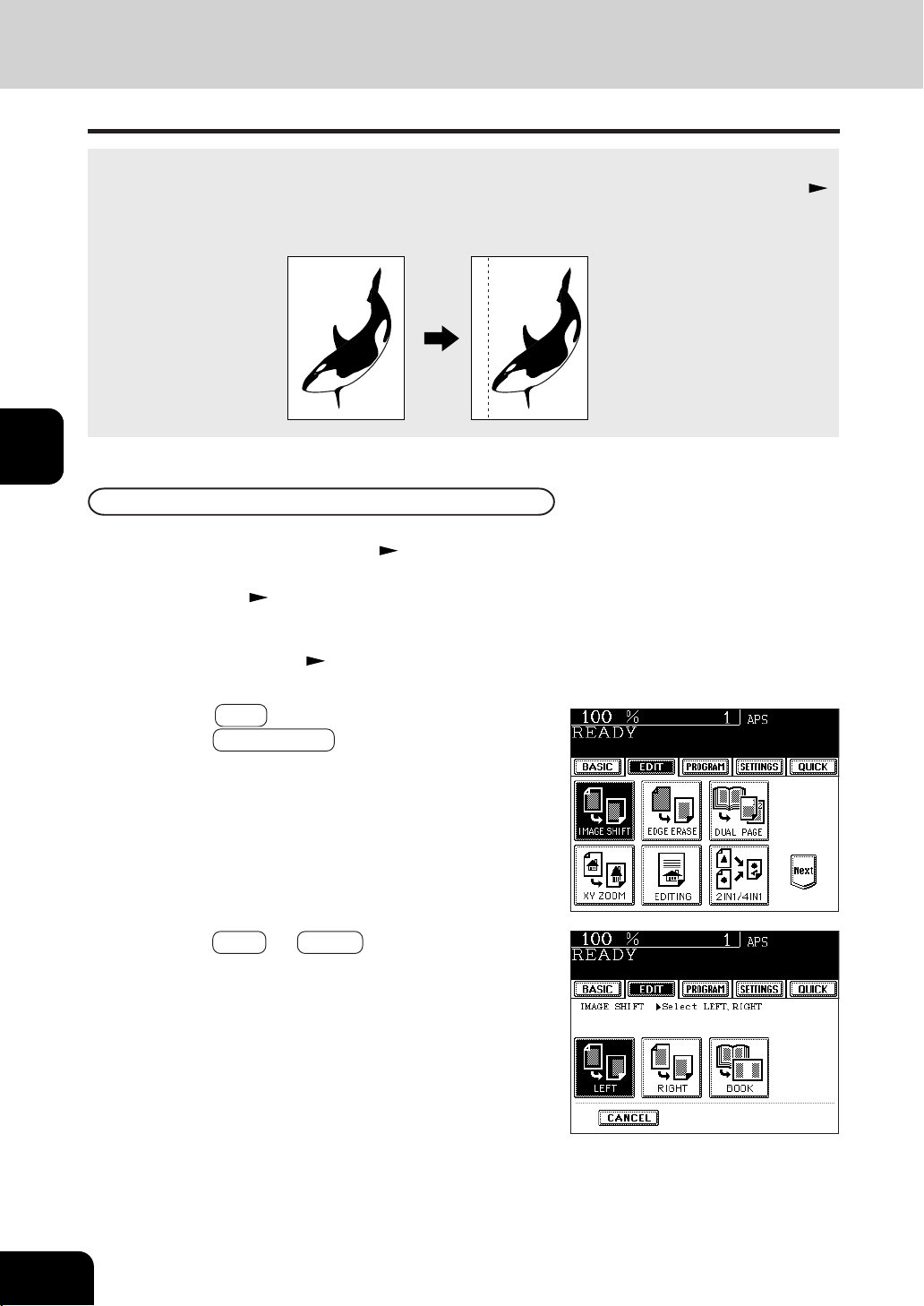
1
2
3
4
5
6
7
8
9
10
11
12
4-2
USING THE EDITING FUNCTIONS
1. IMAGE SHIFT
1
Place paper in the drawer(s). Page 2-4
- When using this mode in bypass copying, be sure to specify
the paper size.
Page 5 -10, 5 -11
A margin for binding is created by shifting the original image to either the right or left side. You can also
create binding margins in the center (inner margin) when using Book-Type Originals to 2-sided copies(
Page 3-8).
4
Press the LEFT or RIGHT key according to your
desired binding side.
Providing Right or Left Margin
3
Press the EDIT key to enter the edit menu, and
press the IMAGE SHIFT key.
2
Place the original(s). Page 2-9

1
2
3
4
5
6
7
8
9
10
11
12
4-3
1
Press the EDIT key to enter the edit menu, and
press the IMAGE SHIFT key.
3
Adjust the width of the margin, then press the SET
key.
- The default width of the margin is 14mm (0.551").
- To adjust the width, press the
2mm or 30mm key to
select the desired number, then press the SET key.
2
Press the BOOK key.
6
Press the START key.
5
Adjust the width of the binding margin, then press
the SET key.
- The default width of the margin is 7mm (0.276").
- To adjust the width, press the 0mm or 30mm key to
select the desired number, then press the SET key.
- In duplex copying, margins on the back are created on the
other side of those in the front. Duplex copying
Page 3-7
When Book Margin is selected, use it in conjunction with Book-Type Originals to 2-Sided Copies. Page
3-8
Providing a Bookbinding Margin
Select other copy modes as required.
*25.4mm = 1"
*25.4mm = 1"
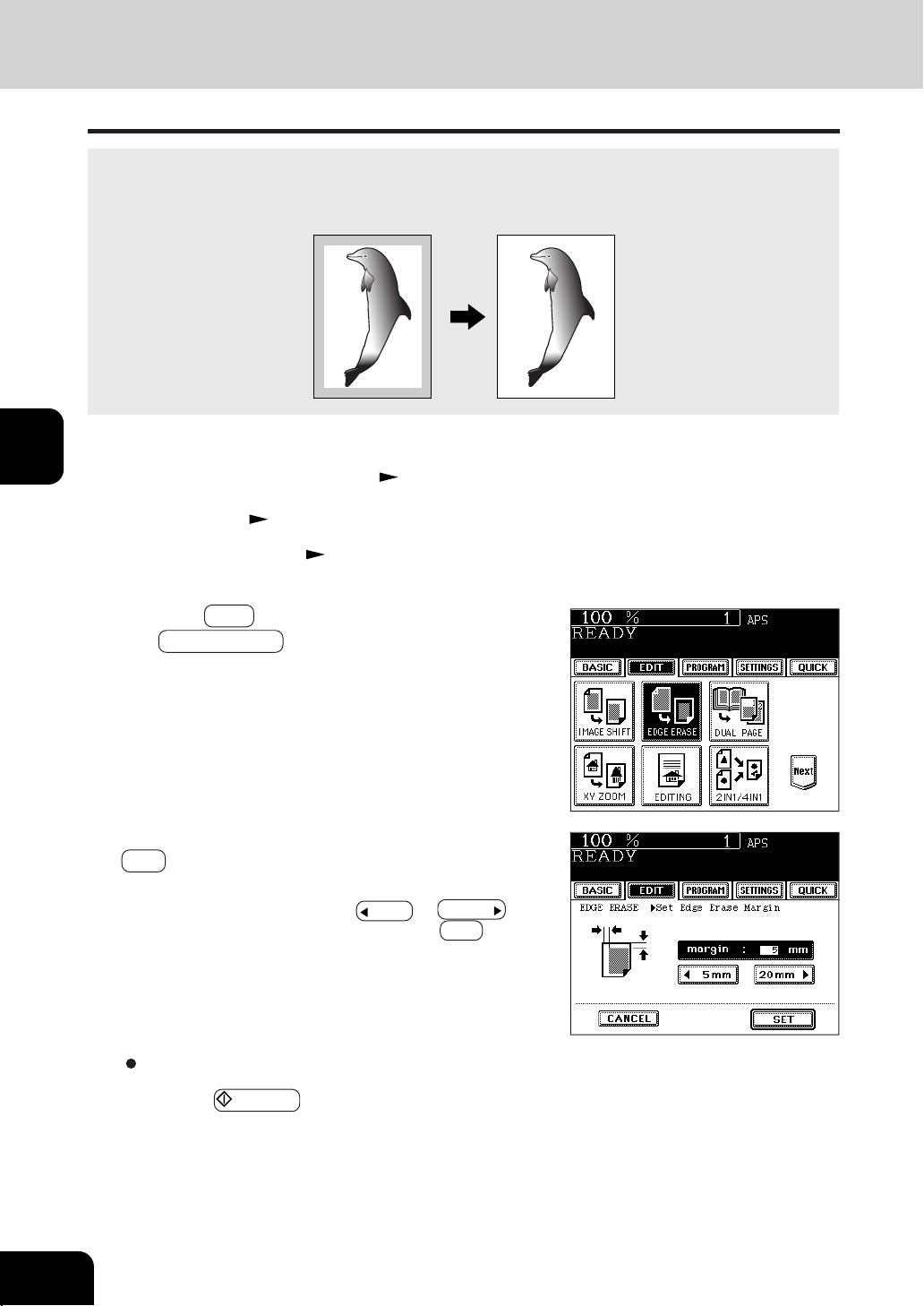
1
2
3
4
5
6
7
8
9
10
11
12
4-4
USING THE EDITING FUNCTIONS
3
Press the EDIT key to enter the edit menu, and press
the EDGE ERASE key.
Select other copy modes as required.
5
Press the START key.
4
Adjust the width of the white border, then press the
SET key.
- The default width of the white border is 5 mm (0.197").
- To adjust the width, press the 5mm or 20mm key to
select the desired number, then press the SET key.
2. EDGE ERASE
If your original has a dirty or torn edge, it may be reproduced as a black mark on the copy. In that case, use
Edge Erase Copying. A white border is created along the edges of the copy, eliminating those black marks.
* This function is available in only case of the standard-size original.
1
Place paper in the drawer(s). Page 2-4
- When using this mode in bypass copying, be sure to specify
the paper size.
Page 5 -10, 5 -11
2
Place the original(s). Page 2-9
*25.4mm = 1"
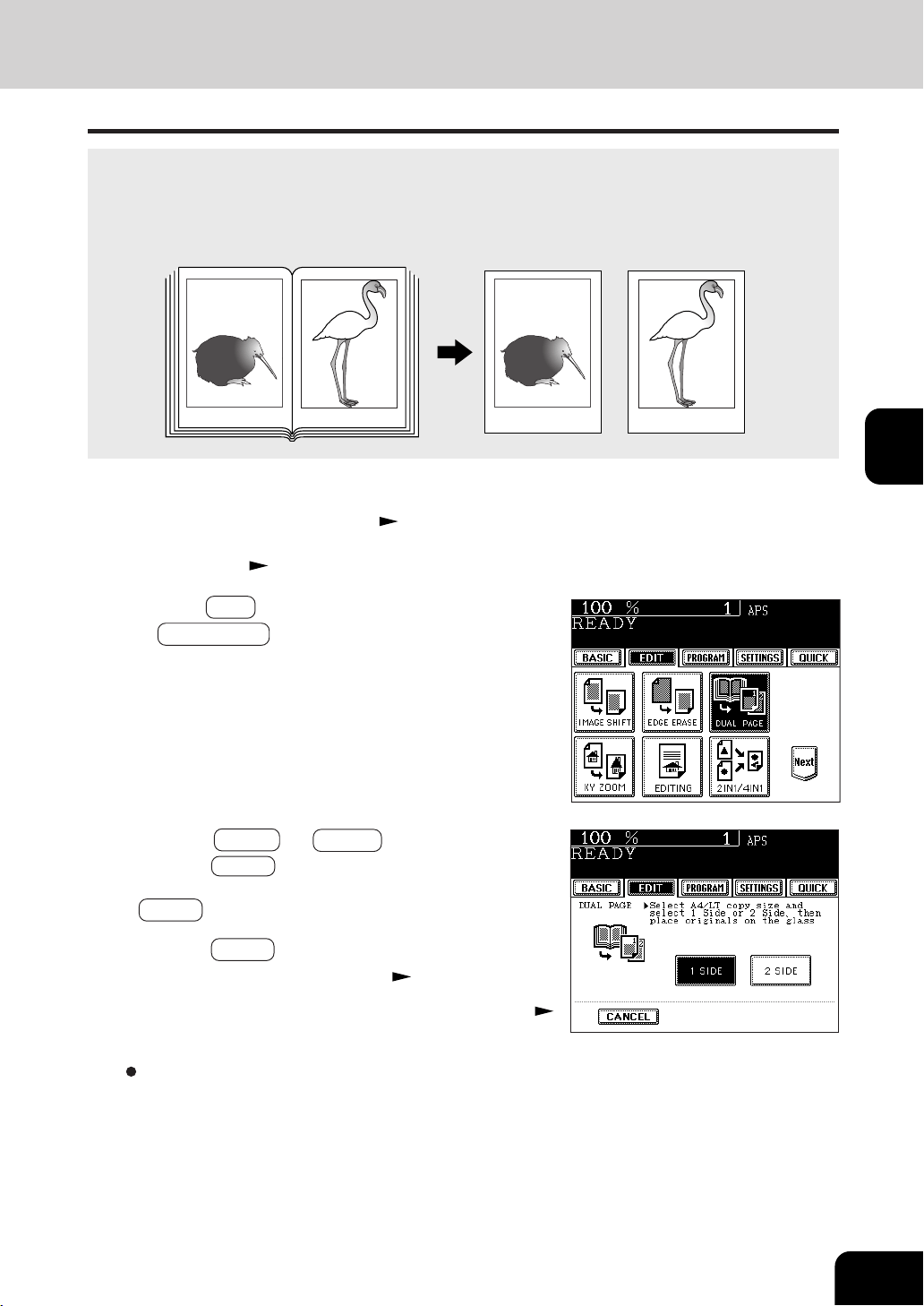
1
2
3
4
5
6
7
8
9
10
11
12
4-5
2
Press the EDIT key to enter the edit menu, and press
the DUAL PAGE key.
5
If you need a binding margin, set the left margin.
Page 4-2
Select other copy modes as required.
4
Press the BASIC key to enter the basic menu, then
select LT (or A4, B5) copy size. Page 3-2
1
Place paper in the drawer(s). Page 2-4
- When using this mode in bypass copying, be sure to specify
the paper size. Page 5 -10, 5 -11
Utilizing this feature allows the facing pages of a book or magazine to be copied page by page onto two
separate sheets of paper or duplex-copied on one sheet. There is no need to move the original on the glass.
You can also place a pair of LT (or A4, B5) sized originals side by side and copy them on separate
sheets of paper.
* Only LT, A4 or B5 sized sheets of paper can be used in this mode.
3
Press the 1 SIDE (or 2 SIDE ) key.
- Select the 1 SIDE key to make copies of the facing pages
on two separate sheets of paper page by page. Select the
2 SIDE key to make duplex copies of them on one sheet.
-12- -13- -12-
-13-
3. DUAL-PAGE
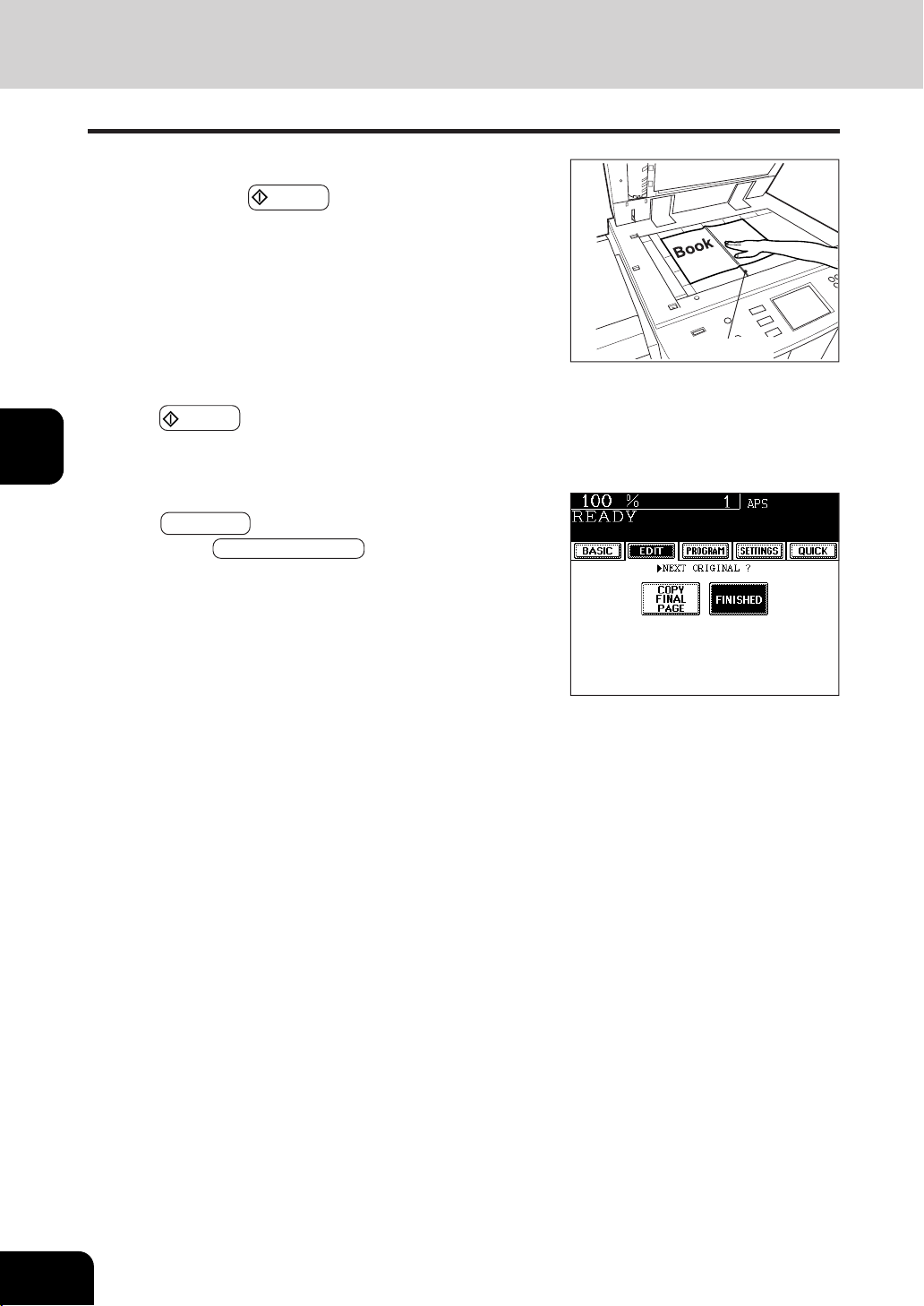
1
2
3
4
5
6
7
8
9
10
11
12
4-6
USING THE EDITING FUNCTIONS
7
Turn to the next page, set the book again and press
the START key.
- Repeat the above procedure until all your originals have
been scanned.
8
After all your originals have been scanned, press
the FINISHED key.
- Press the COPY FINAL PAGE key if the last original has
only one page.
6
Place the first page(s) to be copied on the glass,
and press the START key.
- If you do not copy your originals from the first page, the cop-
ies will not be arranged in the same order as the original.
- Center the book on the yellow indicator line with the bottom
toward you.
Indicator line
3. DUAL PAGE (Cont.)
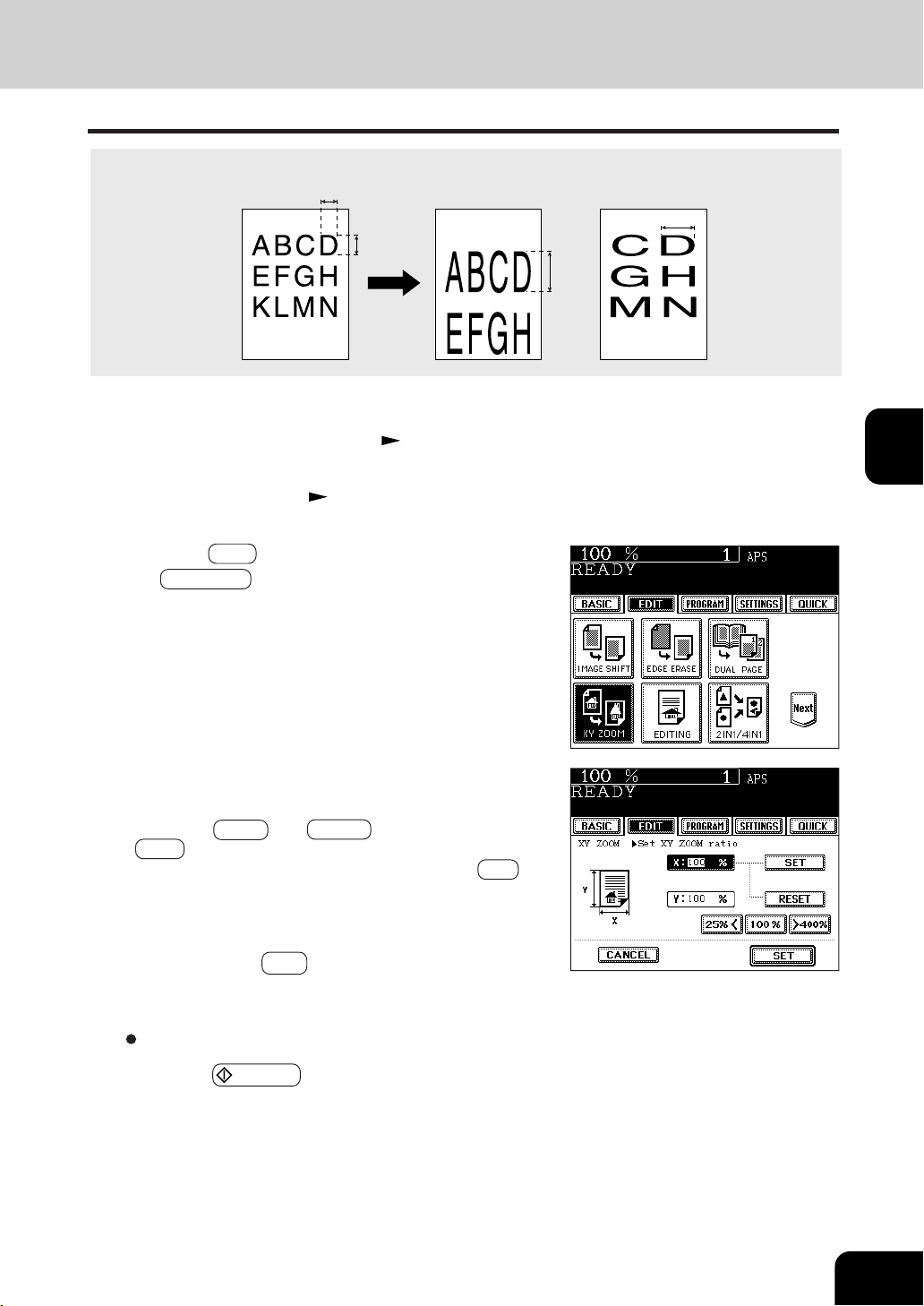
1
2
3
4
5
6
7
8
9
10
11
12
4-7
5
Press the lower SET key.
4
Set the reproduction ratios for the X (horizontal) and
Y (vertical) directions, respectively.
- Using the 25%< and >400% keys on the screen (Use
100% key if you want the same size as original.), set the
reproduction ratio for X and press the upper SET key.
Similarly, set the reproduction ratio for Y.
- When placing the original on the reversing automatic docu-
ment feeder, set the reproduction ratios from 25 to 200%.
2
Place the original(s). Page 2-9
3
Press the EDIT key to enter the edit menu, and press
the XY ZOOM key.
1
Place paper in the drawer(s). Page 2-4
You can make copies with different reproduction ratios set for the X (horizontal) and Y (vertical) directions,
respectively.
4. X-Y ZOOM
100%
200%
100%
200%
Select other copy modes as required.
6
Press the START key.

1
2
3
4
5
6
7
8
9
10
11
12
4-8
USING THE EDITING FUNCTIONS
3
Press the TRIM (or MASK ) key.
2
Press the EDIT key to enter the edit menu, and
press the EDITING key.
5. IMAGE EDITING
You can select an area on an original and copy it with the area trimmed (only the inside of the area copied)
or masked (only the outside of the area copied). Four rectangular areas can be specified on an original.
* Image editing is only possible with standard sized originals.
* If the settings of the original and copy sizes are not made appropriately, the image may not be copied
completely.
1
Place paper in the drawer(s). Page 2-4
- When using this mode in bypass copying, be sure to specify
the paper size.
Page 5- 10, 5 -11
Trimming Masking
Trimming/Masking
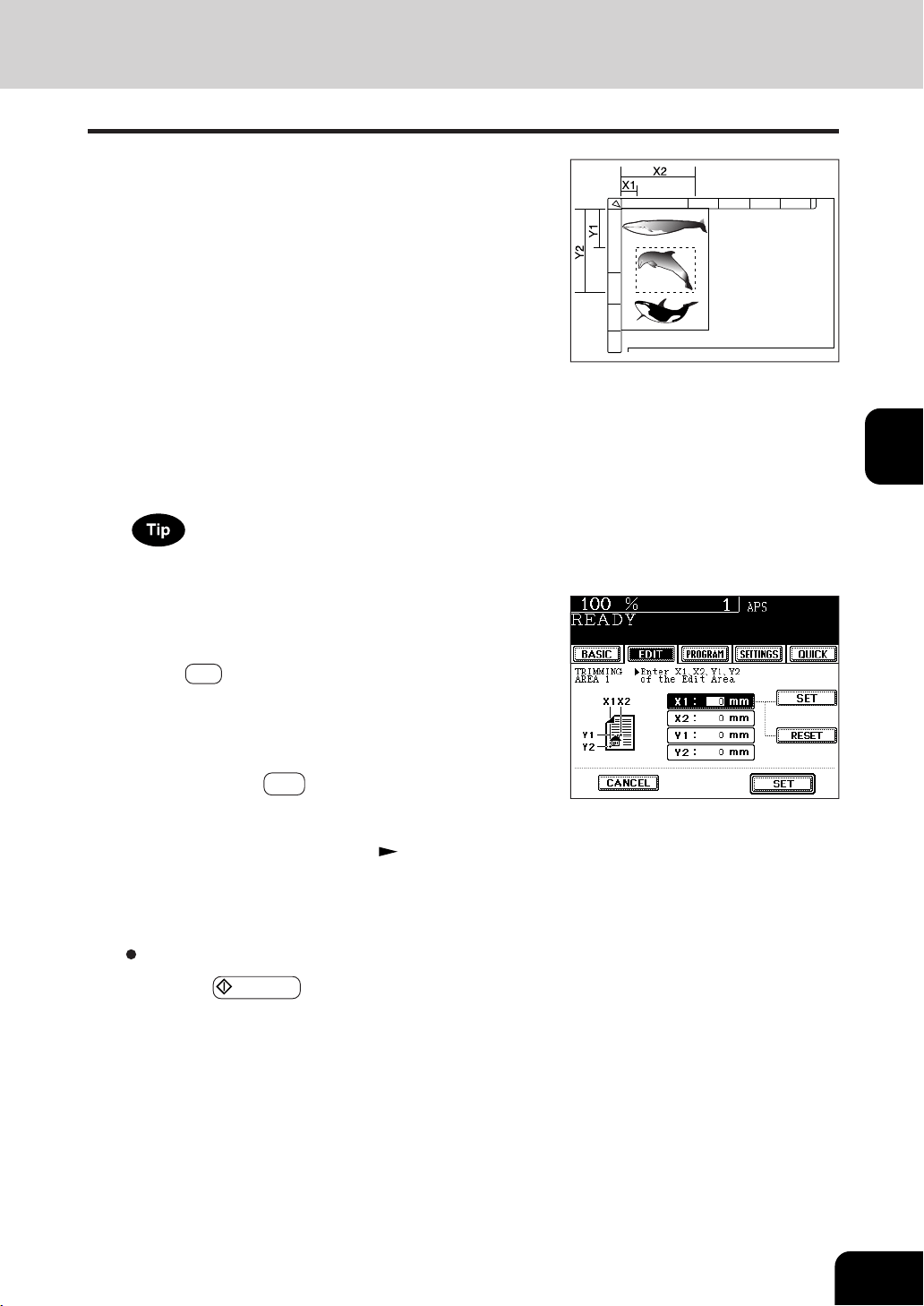
1
2
3
4
5
6
7
8
9
10
11
12
4-9
6
Enter the distance values read in step 5 for the
specified area.
- Key in the value for X1 with the digital keys and press the
upper SET key.
- Similarly, set the values for X2, Y1 and Y2.
- When setting X1,X2,Y1 and Y2, the original scale automatically
changes to the next original scale. Set the next original scale
as same procedure.
4
Place an original on the glass to specify the area.
- Set the original face up with the bottom toward you, fit its
top left corner against the top left corner of the glass, and
align it with the original scale.
5
Using the original scale on the left and the inner
(top) scale, read the position of the desired area as
follows:
- X1 Distance from the top left to the left edge of the specified
area.
- X2 Distance from the top left to the right edge of the specified
area.
- Y1 Distance from the top left to the upper edge of the specified
area.
- Y2 Distance from the top left to the lower edge of the specified
area.
Four rectangular areas can be specified on an original.
7
Press the lower SET key.
9
Press the START key.
Select other copy modes as required.
8
Place the orginal. (Sheet original Page 2-10)
- place the original(s) on the glass with the face down, with
its bottom toward you, with its top left aligned against the
original scale on the left side.
*25.4mm = 1"
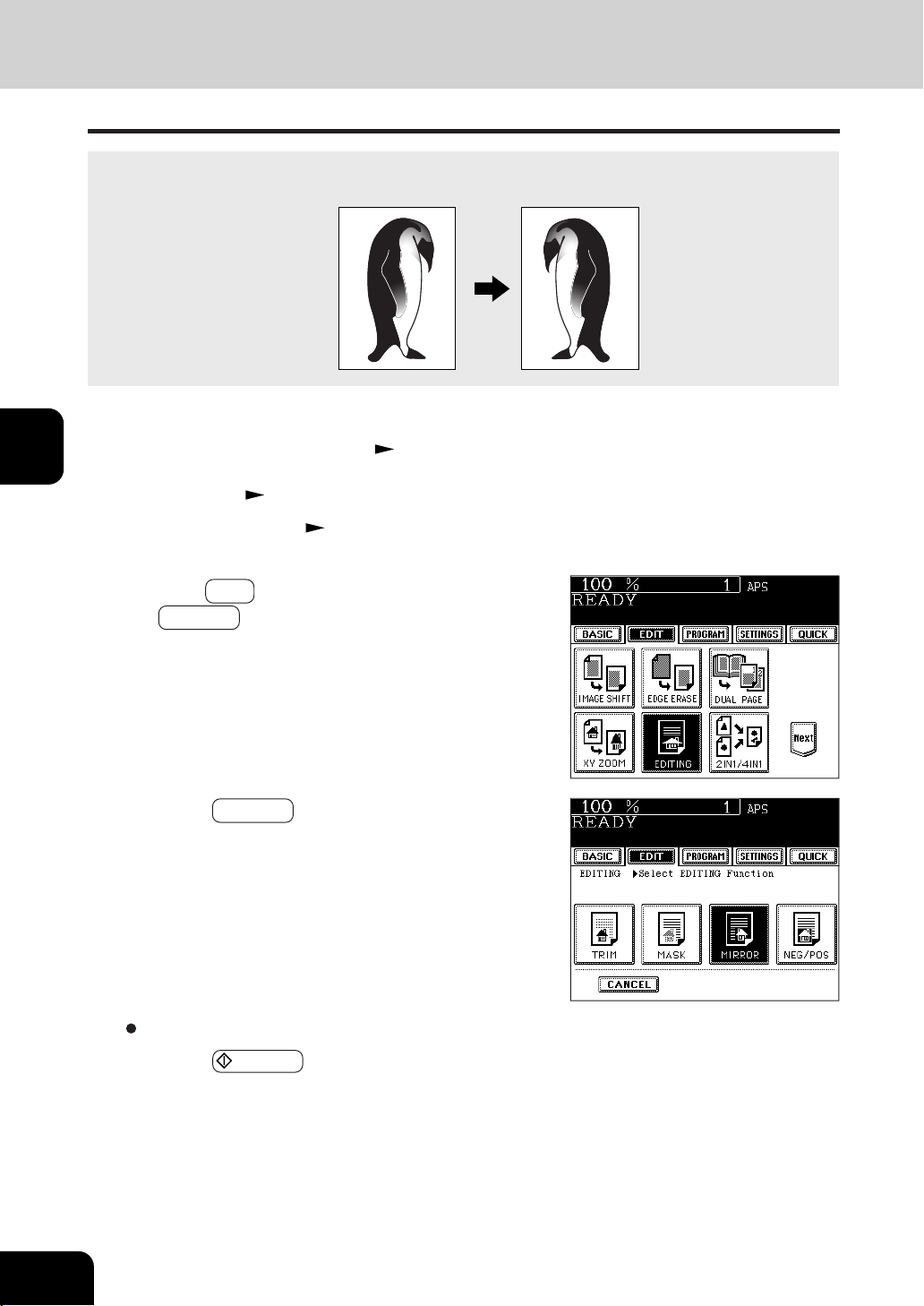
1
2
3
4
5
6
7
8
9
10
11
12
4-10
USING THE EDITING FUNCTIONS
Select other copy modes as required.
5
Press the START key.
3
Press the EDIT key to enter the edit menu, and press
the EDITING key.
Copies are made with images completely reversed in terms of right and left.
4
Press the MIRROR key.
Mirror Image
2
Place the original(s). Page 2-9
1
Place paper in the drawer(s). Page 2-4
- When using this mode in bypass copying , be sure to specify
the paper size. Page 5-10, 5-11
5. IMAGE EDITING (Cont.)

1
2
3
4
5
6
7
8
9
10
11
12
4-11
Select other copy modes as required.
5
Press the START key.
2
Place the original(s). Page 2-9
3
Press the EDIT key to enter the edit menu, and press
the EDITING key.
Negative/Positive Reversal
1
Place paper in the drawer(s). Page 2-4
The white area of originals copying black, and the black area of originals copying white.
4
Press the NEG/POS key.
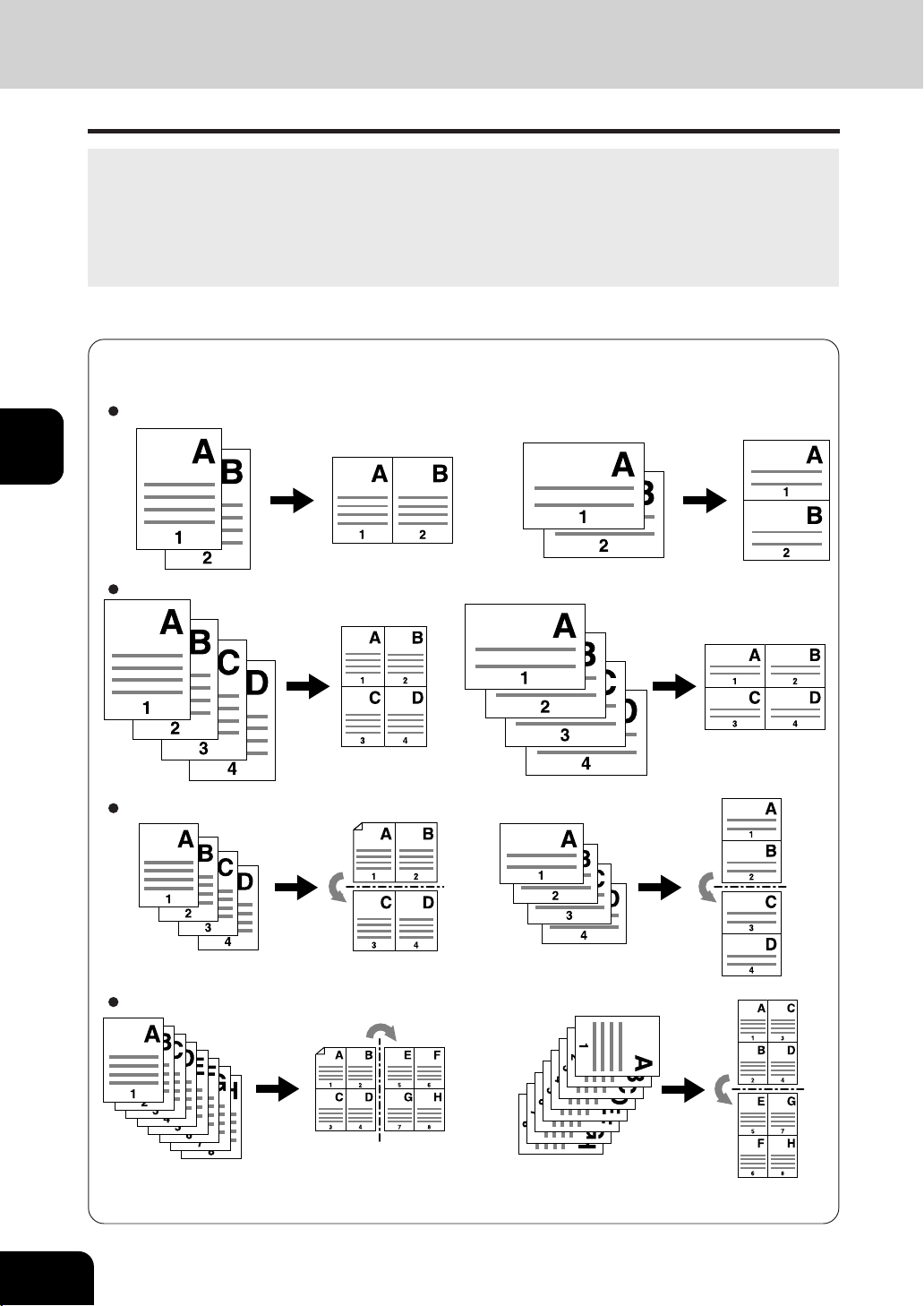
1
2
3
4
5
6
7
8
9
10
11
12
4-12
USING THE EDITING FUNCTIONS
When a copy is turned with the line —·—·— as a pivot, originals are printed on side 2 (back face) as shown.
6. 2 IN 1 / 4 IN 1
This feature allows multiple originals to be reduced and copied onto a single sheet which size is the
same size as the original. There are two modes: 2 IN 1 copying, where two originals are reduced and
copied onto a single sheet, and 4 IN 1 copying, where four originals are reduced and copied onto a
single sheet. In addition, duplex 2 IN 1 / 4 IN 1 modes are available, where four/eight originals can be
copied to two sides of a single sheet of paper.
* 2 IN 1/4 IN 1 duplex copying mode requires the optional automatic duplexer to be installed.
The combination of page arrangement differs depending on the direction of originals set on the reversing
automatic document feeder.
2IN1
Copy
Originals
4IN1
2IN1 DUPLEX
SIDE 1
SIDE 2
4IN1 DUPLEX
SIDE 1 SIDE 2
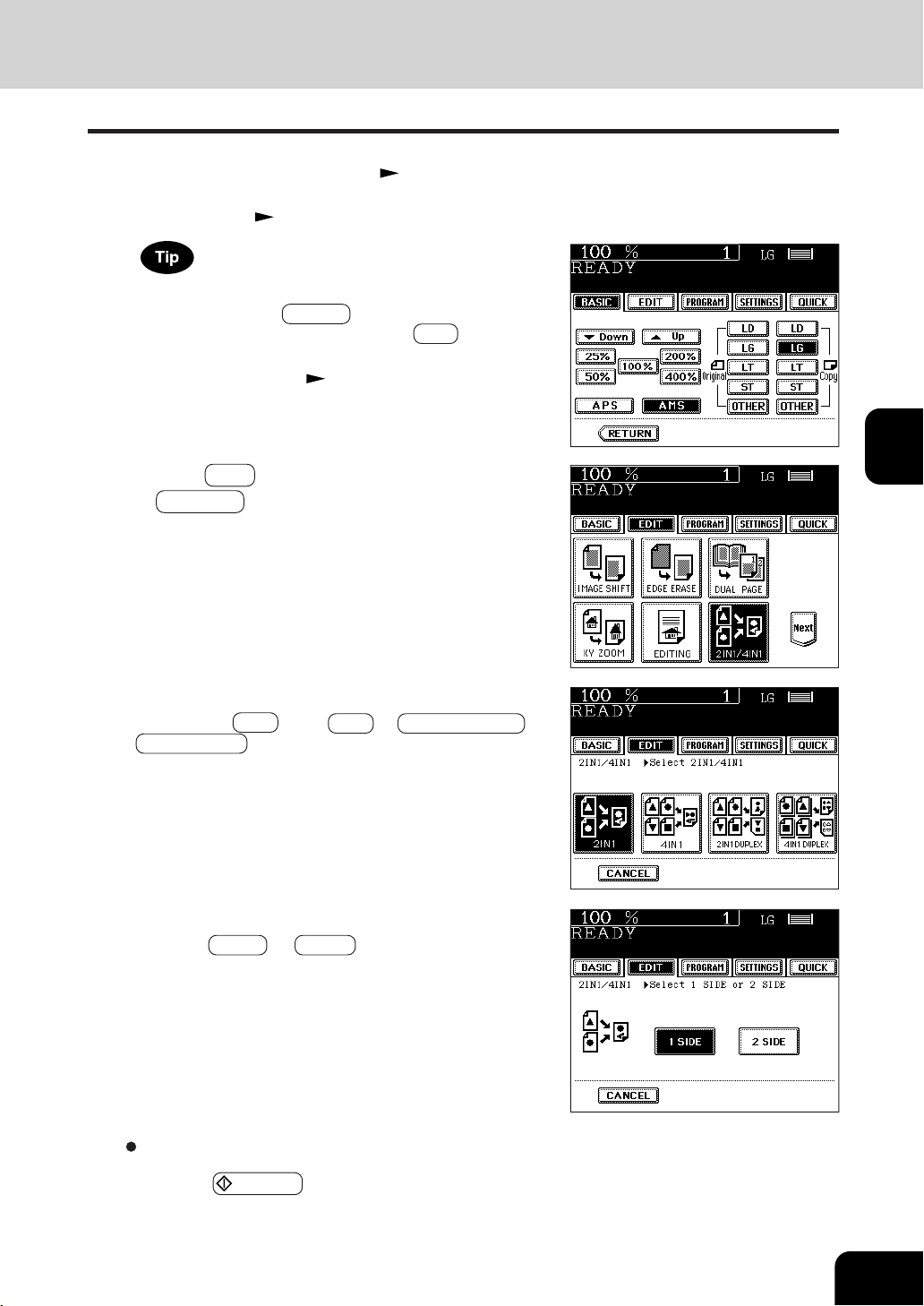
1
2
3
4
5
6
7
8
9
10
11
12
4-13
Select other copy modes as required.
6
Press the START key.
- When placing an original on the glass, perform steps 5 and
6 on page 2-3 as needed.
4
Select the type of image combination.
- Press the 2IN1 (or 4IN1 , 2IN1 DUPLEX or
4IN1 DUPLEX ) key.
5
Select the type of the original.
- Press the 1 SIDE (or 2 SIDE ) key.
3
Press the EDIT key to enter the edit menu, and press
the 2IN1/4IN1 key.
1
Place paper in the drawer(s). Page 2-4
- When using this mode in bypass copying, be sure to specify
the paper size.
Page 5-10, 5-11
To make copies onto paper which is not the same size as
originals, press the ZOOM... key to enter the right menu,
and press the size you desire and the AMS key.
2
Place the original(s). Page 2-9
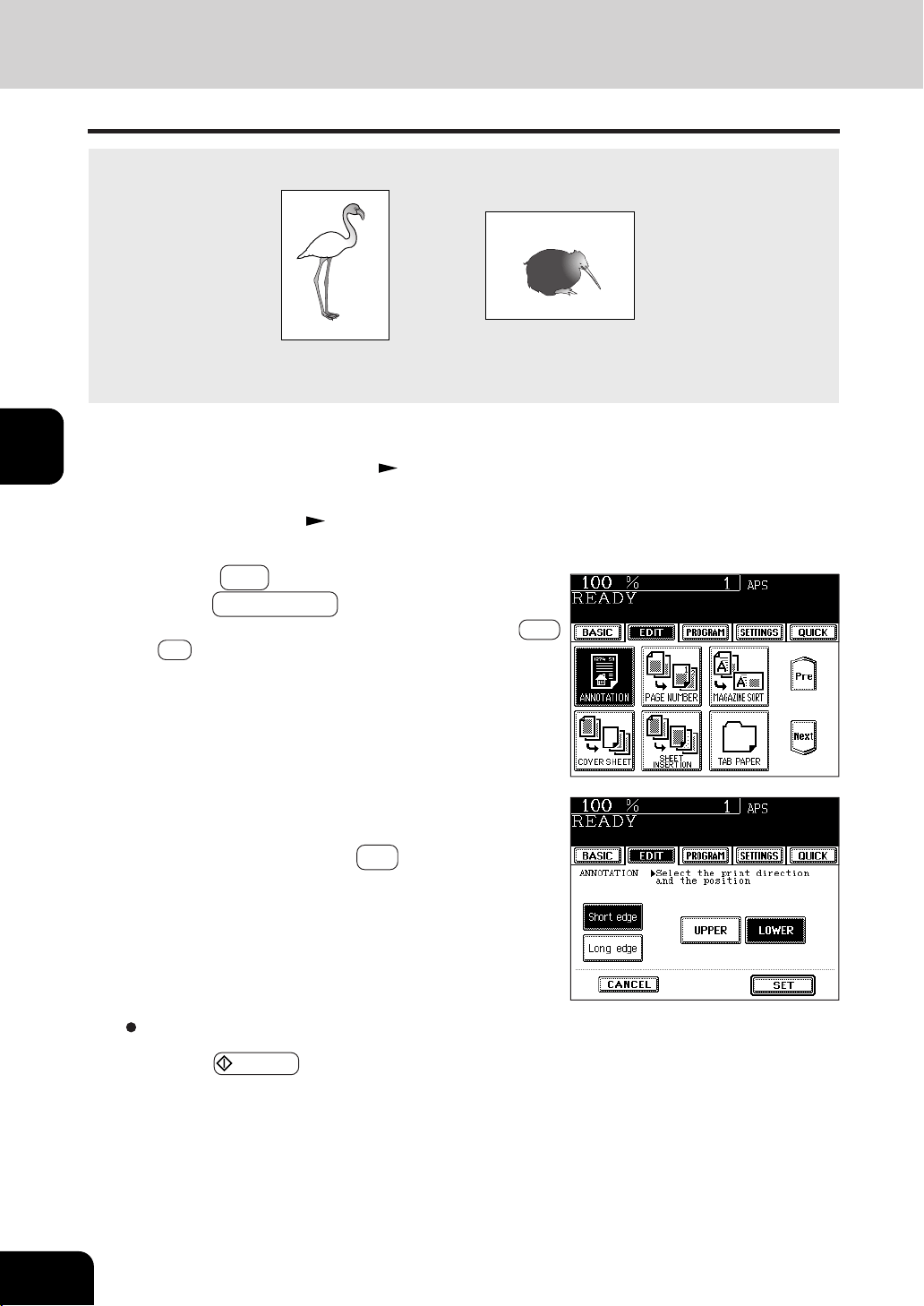
1
2
3
4
5
6
7
8
9
10
11
12
4-14
USING THE EDITING FUNCTIONS
Copies are made with the current date and time, at which they are made, printed on the copy.
Date and time printed at the
bottom of the portrait copy
Date and time printed at the top
of the landscape copy
2
Place the original(s). Page 2-9
3
Press the EDIT key to enter the edit menu, and
press the ANNOTATION key.
- If the desired function keys are not displayed, press the Next
or Pre key to change the menu screen.
4
Select the orientation (Short edge or Long edge) and
position (UPPER or LOWER) of the date and time to
be printed. Then, press the SET key.
7. COPYING WITH ANNOTATION
1
Place paper in the drawer(s). Page 2-4
Select other copy modes as required.
5
Press the START key.
11.15. 2002 14:54
11.15. 2002 14:54
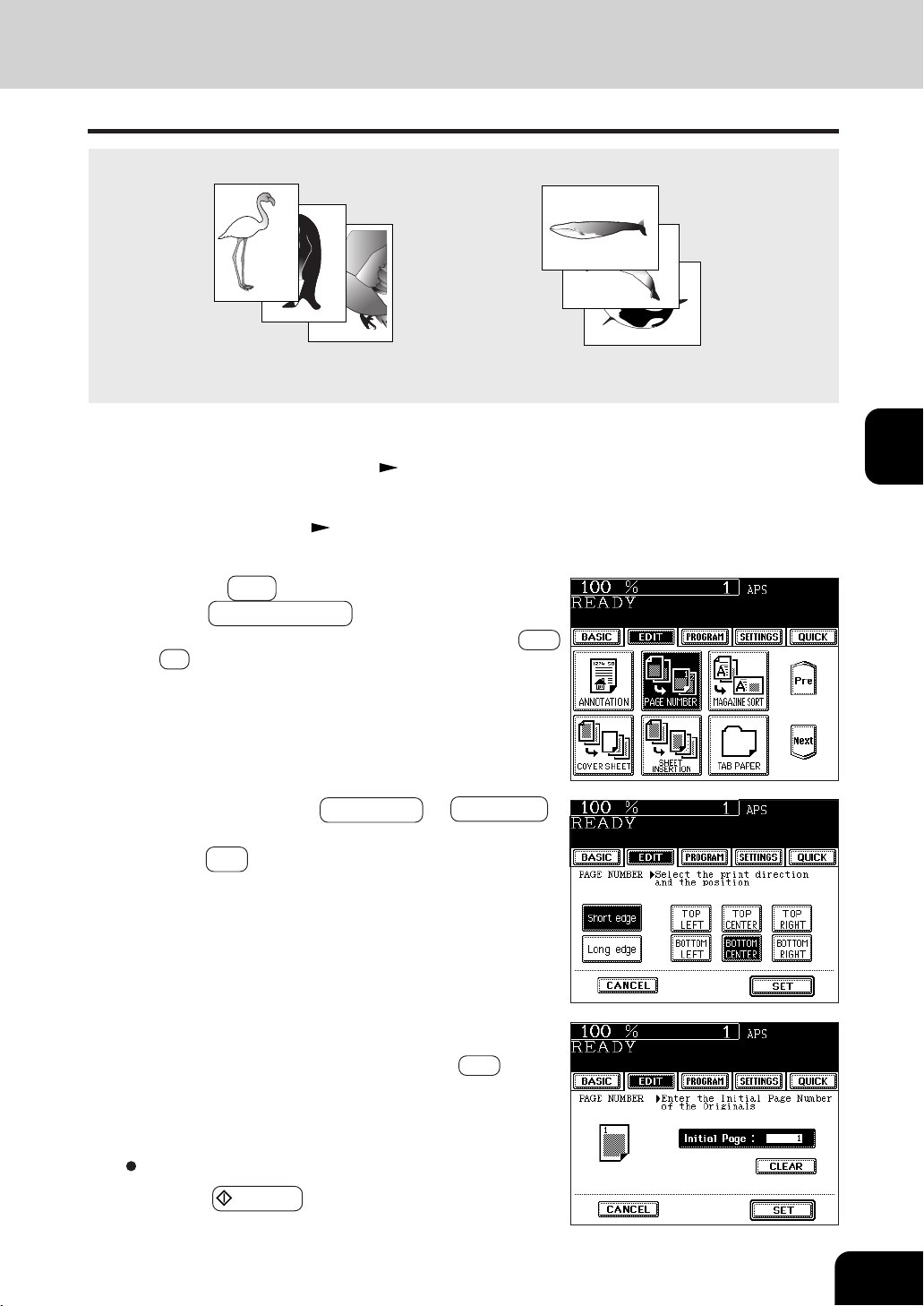
1
2
3
4
5
6
7
8
9
10
11
12
4-15
This feature allows numbers to be added at specified position to copies.
Page number printed at the
bottom center on the portrait copy.
Page number printed at the
top right on the landscape copy.
8. PAGE NUMBERING COPYING
3
2
1
3
Presse the EDIT key to enter the edit menu, and
press the PAGE NUMBER key.
- If the desired function keys are not displayed, press the Next
or Pre key to change the menu screen.
4
Select the orientation ( Short edge or Long edge )
and position of the page number to be printed. Then,
press the SET key.
5
Key in the starting page number.
- If the start page number is “1”, just press the SET key.
Select other copy modes as required.
6
Press the START key.
1
Place paper in the drawer(s). Page 2-4
2
Place the original(s). Page 2-9
3
2
1
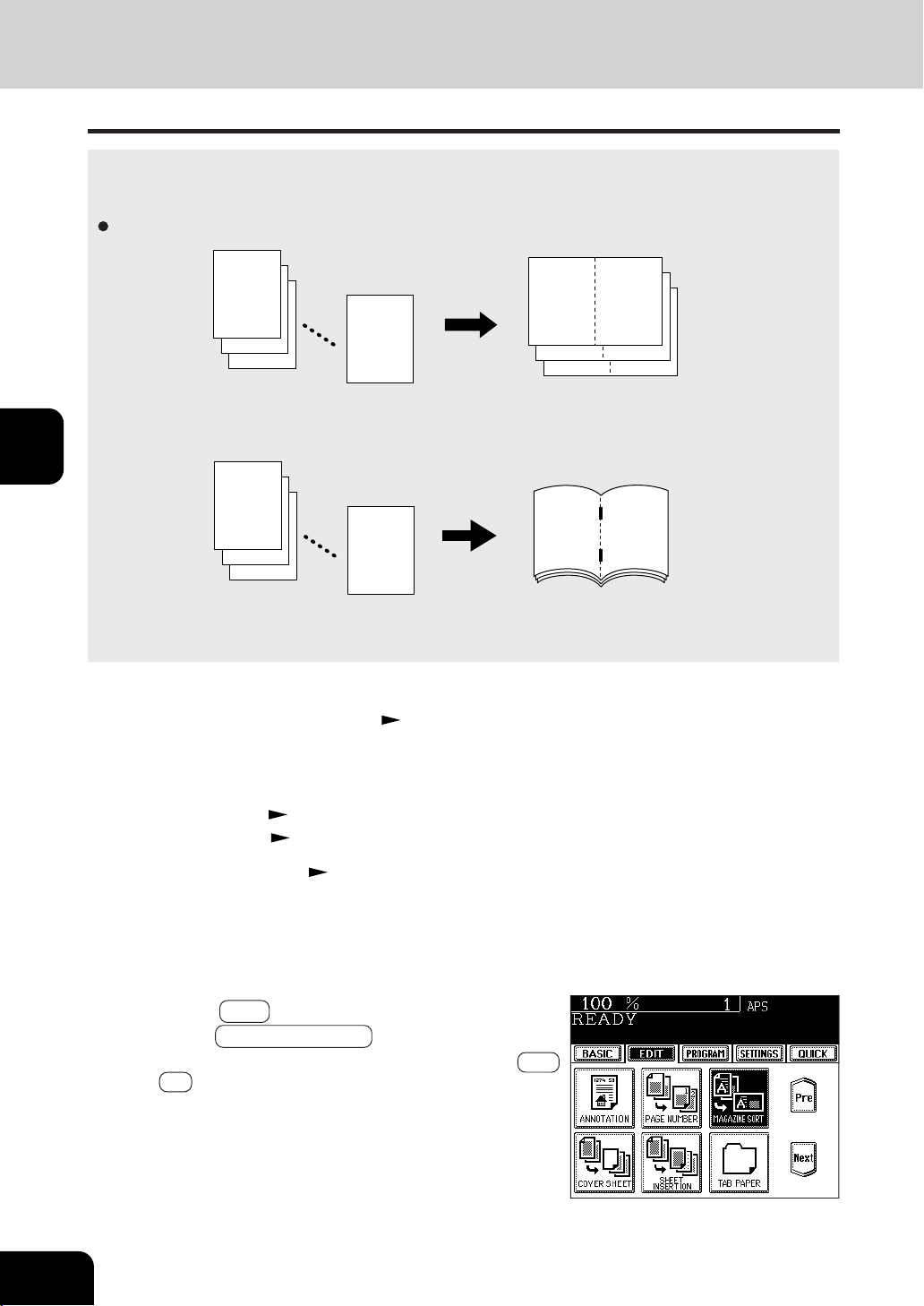
1
2
3
4
5
6
7
8
9
10
11
12
4-16
USING THE EDITING FUNCTIONS
The magazine sort mode allows 1-sided originals to be copied and sorted so that they can be folded and
bound along a center line like typical magazines or booklets.
Example of copying a 12-page document
• If used in combination with the optional saddle stitch finisher (AR-F12), copies can be automatically
folded in half and stapled along their center line. LD, LT-R, A3, A4-R, B4 are available.
* Magazine Sort can be accessed from two locations. For the mode operated from the BASIC menu
when the finisher (optional) is installed, see page 6-6.
9. MAGAZINE SORT (FROM THE EDITING MENU)
1
Place paper in the drawer(s). Page 2-4
2
Select the paper type.
For drawer feeding Page 3-2 (step 3)
For bypass feeding Page 5-9 (step 4)
3
Place the original(s). Page 2-9
- When placing them in the reversing automatic document
feeder, set them by referring to the order of pages in the
illustrations above.
- When placing them on the glass, place the first page of the
originals first.
4
Press the EDIT key to enter the edit menu, and
press the MAGAZINE SORT key.
- If the desired function keys are not displayed, press the Next
or Pre key to change the menu screen.
12
3
2
1
112
94
76
76
12
3
2
1
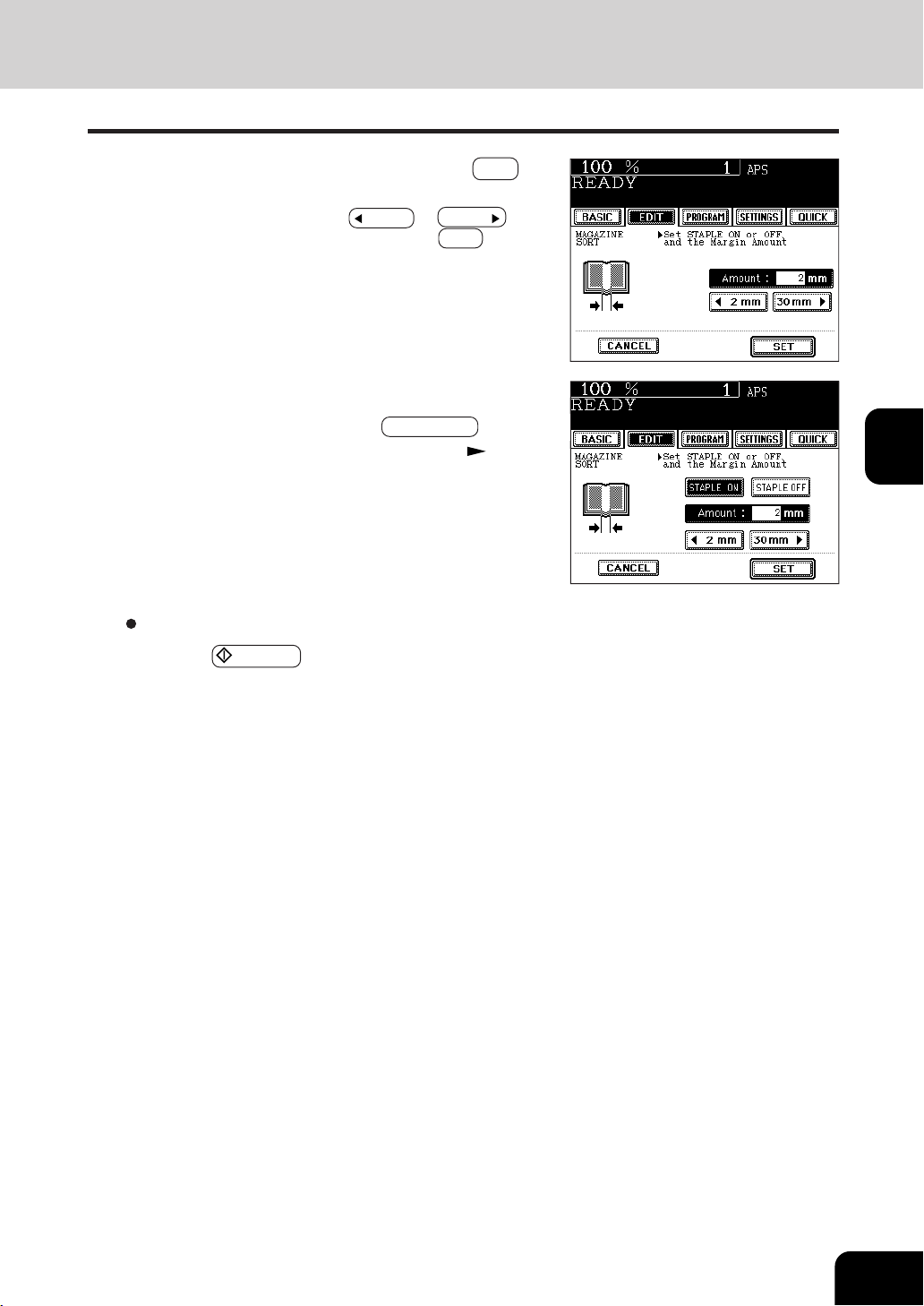
1
2
3
4
5
6
7
8
9
10
11
12
4-17
- If the optional saddle stitch finisher (AR-F12) is installed,
copies can be automatically stapled along their center line.
To have copies stapled, press the STAPLE ON key.
- Maximum number of sheets that can be stapled
Page 6-7
Select other copy modes as required.
6
Press the START key.
- When placing an original on the glass, perform steps 5 and
6 on page 2-3 as needed.
5
Adjust the binding margin and press the SET key.
- The default width of the margin is 2 mm (0.08").
- To adjust the width, press the
2mm or 30mm key to
select the desired number, then press the SET key.
*25.4mm = 1"
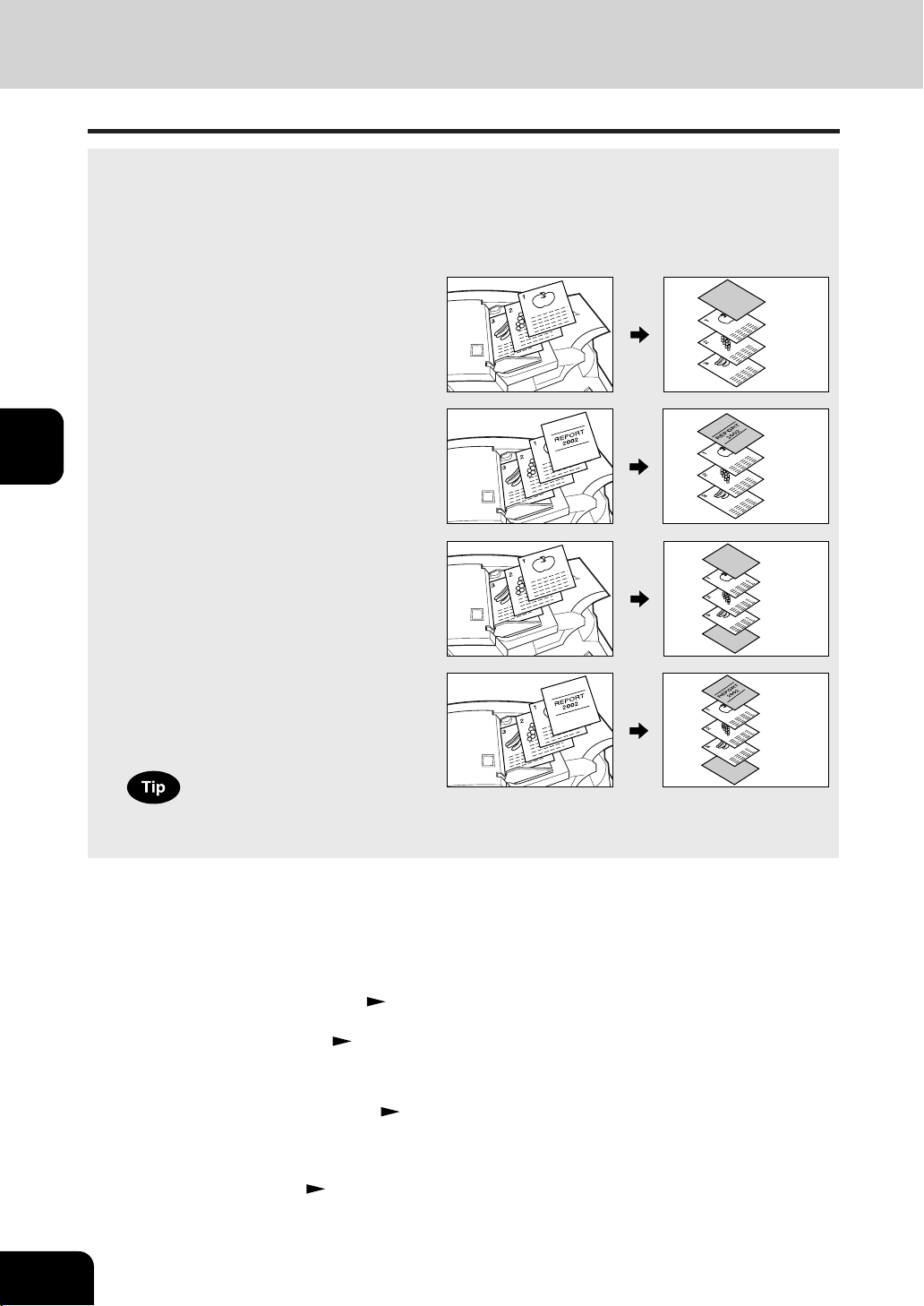
1
2
3
4
5
6
7
8
9
10
11
12
4-18
USING THE EDITING FUNCTIONS
A top cover and/or back cover (special sheets, e.g. colored paper) can be added to each set of copies.
- Adding a blank cover
- Adding a copied cover
- Adding a blank cover and a blank back cover
- Adding a copied cover and blank back cover
10. COVER COPYING
1
Place the cover sheet in the drawer for cover sheet
or on the bypass guide.
- When placing it in the drawer for the cover sheet, it is necessary
to set the paper type (cover sheet), size and weight. Set-
ting the drawer for special uses. Page 2-7
- When placing it on the bypass guide, it is necessary to set
the paper size and weight.
Page 5-10
2
Place, or confirm that if there is, paper (other than
cover paper) in the drawer(s). Page 2-4
- Place the paper of the same size and the same direction as
that of cover.
Example of adding a blank cover
Example of adding a copied cover
Example of adding a blank cover and a blank
back cover
Example of adding a copied top and blank
back cover
When using the cover feature, make certain all paper sources are of the same orientation and the
size. This includes specified drawer, bypass and inserter (optional).
3
Place the original(s). Page 2-9
- When placing an original on the glass, place the first page
of your originals first.
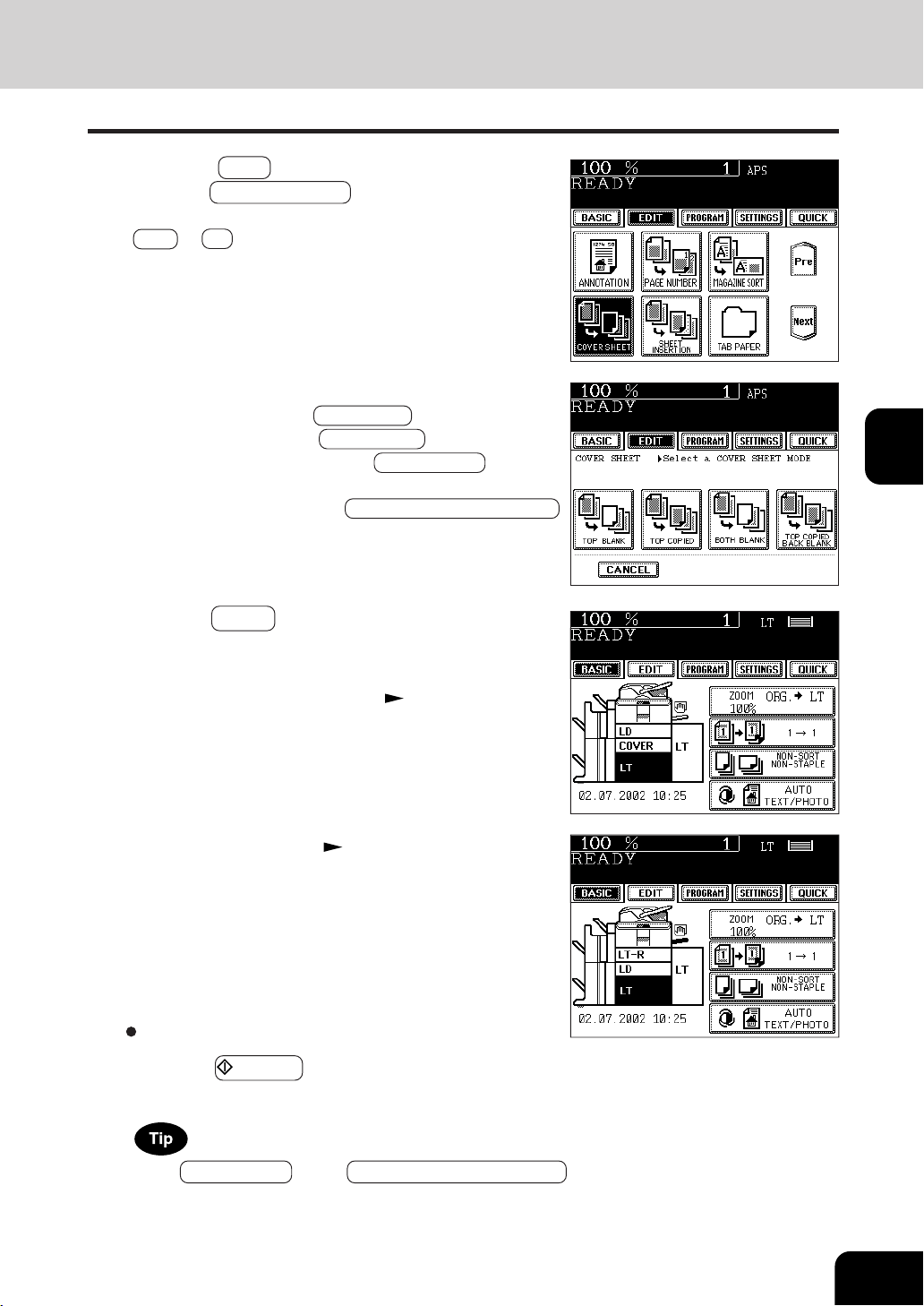
1
2
3
4
5
6
7
8
9
10
11
12
4-19
When TOP COPIED key or TOP COPIED BACK BLANK
key is selected, the cover sheet can be copied only on the
top face (single-side) though 1-Sided Original
to
2-Sided Copy
is used.
5
Select the desired cover sheet key:
To add a blank top cover: TOP BLANK
To add a copied top cover: TOP COPIED
To add blank top and back covers: BOTH BLANK
To add copied top and blank back covers:
TOP COPIED BACK BLANK
6
Press the BASIC key to enter the basic menu, and
select the paper source of the same size and direction
as the cover sheet paper.
- Setting the drawer for cover sheet Page 2-6
Select other copy modes as required.
7
Press the START key.
4
Press the EDIT key to enter the edit menu, and
press the COVER SHEET key.
- If the desired function keys are not displayed, press the
Next or Pre key to change the menu screen.
- Setting the bypass guide Page 5-8

1
2
3
4
5
6
7
8
9
10
11
12
4-20
USING THE EDITING FUNCTIONS
Special sheets of paper (such as colored paper) are inserted into a set of copies at specified pages.
There are two sheet Insertion modes available:
- Inserting blank sheets before specified pages
- Inserting copied sheets at specified pages
Example of inserting a blank before the
specified page
Example of inserting a copied sheet
before the specified page
1
Place sheets of paper in the drawer for the sheet
insertion. Page 2-6
4
Press the EDIT key to enter the edit menu, and
press the SHEET INSERTION key.
- If the desired function keys are not displayed, press the Next
or Pre key to change the menu screen.
11. SHEET INSERTION COPYING
2
Place plain paper in the drawer(s). ( The same size
and direction on Step 1)
3
Place the original(s). Page 2-9
You can have 2 Insertion Sheet paper sources. To make Sheet Insertion copies, you have to set the
Insertion Sheet paper source(s) and the plain paper source to the same paper size and direction.
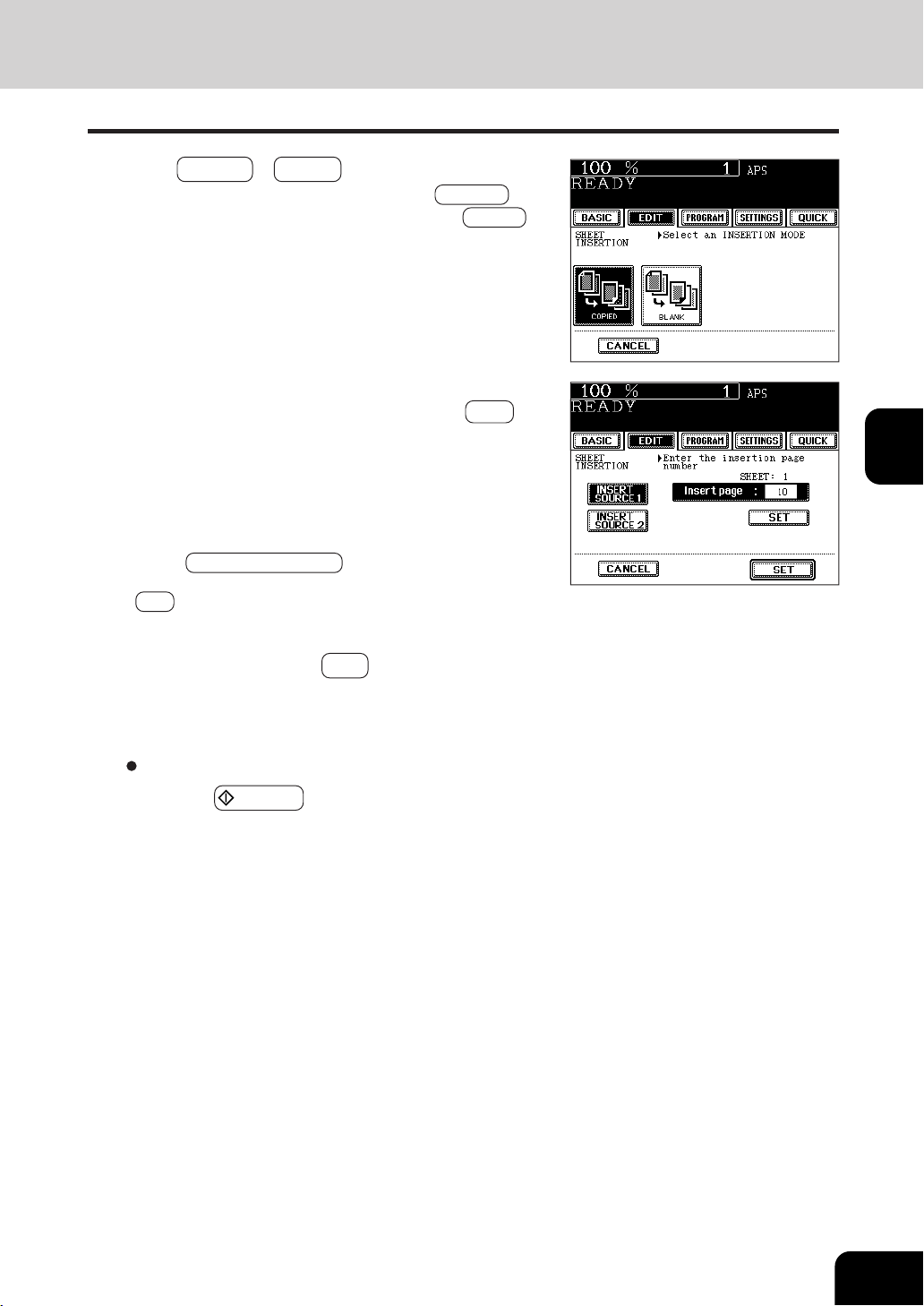
1
2
3
4
5
6
7
8
9
10
11
12
4-21
6
Key in the desired page number (no more than 3
digits) for insertion and press the upper SET key.
- On the display, the page where the first sheet will be in-
serted is shown. The example on the right shows the first
sheet inserted at (or before) page 10.
- To specify the next and subsequent pages, repeat step 6.
Up to 15 pages can be specified.
- To have different sheets inserted than Insert source 1 ,
select INSERT SOURCE 2 and similarly key in the pages
where you want the sheets inserted, then press the upper
SET key.
5
Press COPIED or BLANK key.
To insert copied sheets at specified pages: COPIED
To insert blank sheets before specified papers: BLANK
7
After you have finished specifying the insertion
pages, press the lower SET key.
8
Select the number of copies (or sets).
Select other copy modes as required.
9
Press the START key.
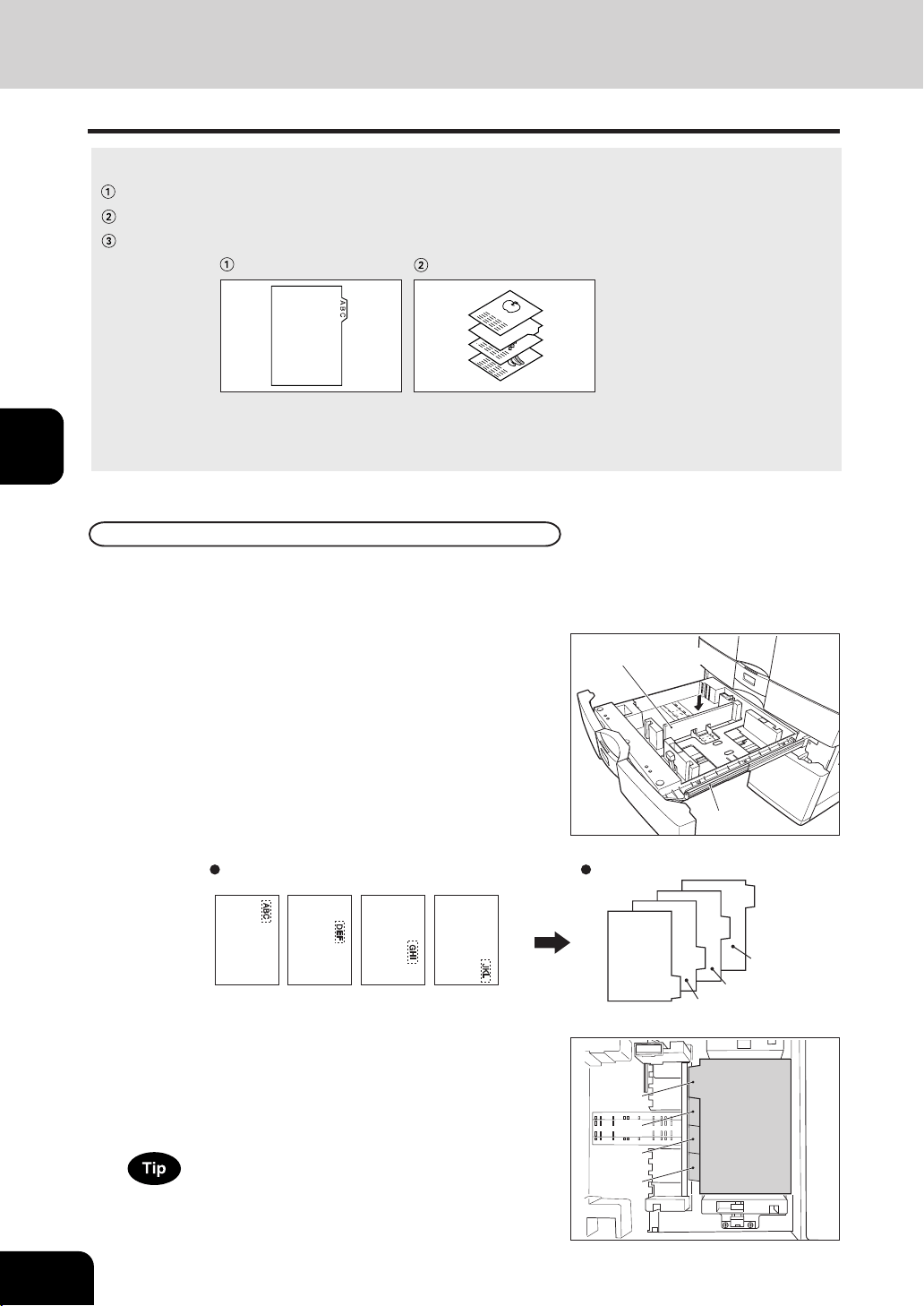
1
2
3
4
5
6
7
8
9
10
11
12
4-22
USING THE EDITING FUNCTIONS
Tab paper back guide
Slide rail
12. TAB PAPER MODE
Tab paper copy and insertion are available.
Tab Paper Copy: Copying on tab paper
Tab Paper Insertion: Inserting blank tab paper prior to a selected page
Tab Paper Insertion and Copy: Combination of copying on tab paper and inserting tab paper
- To copy on tab paper, adjust the tab width.
* Place tab paper in the second drawer or the bypass guide.
* Only LT and A4 can be used in this mode.
Setting Tab Paper in the Drawer
1
Pull the second drawer out.
-Do not touch the slide rail of the drawer.
2
Insert the back guide exclusively use for the tab
paper into the slit hole of LT-TAB (or A4-TAB).
3
Align the tab paper with the original.
4
Place the tab paper face down in the drawer.
Originals Sheets of tab paper
1st 2nd 3rd 4th
1st
2nd
3rd
4th
1st
2nd
3rd
4th
back side
5
Return the drawer into the copier.
Be careful not to let your fingers be caught when closing
the drawer.
front
side
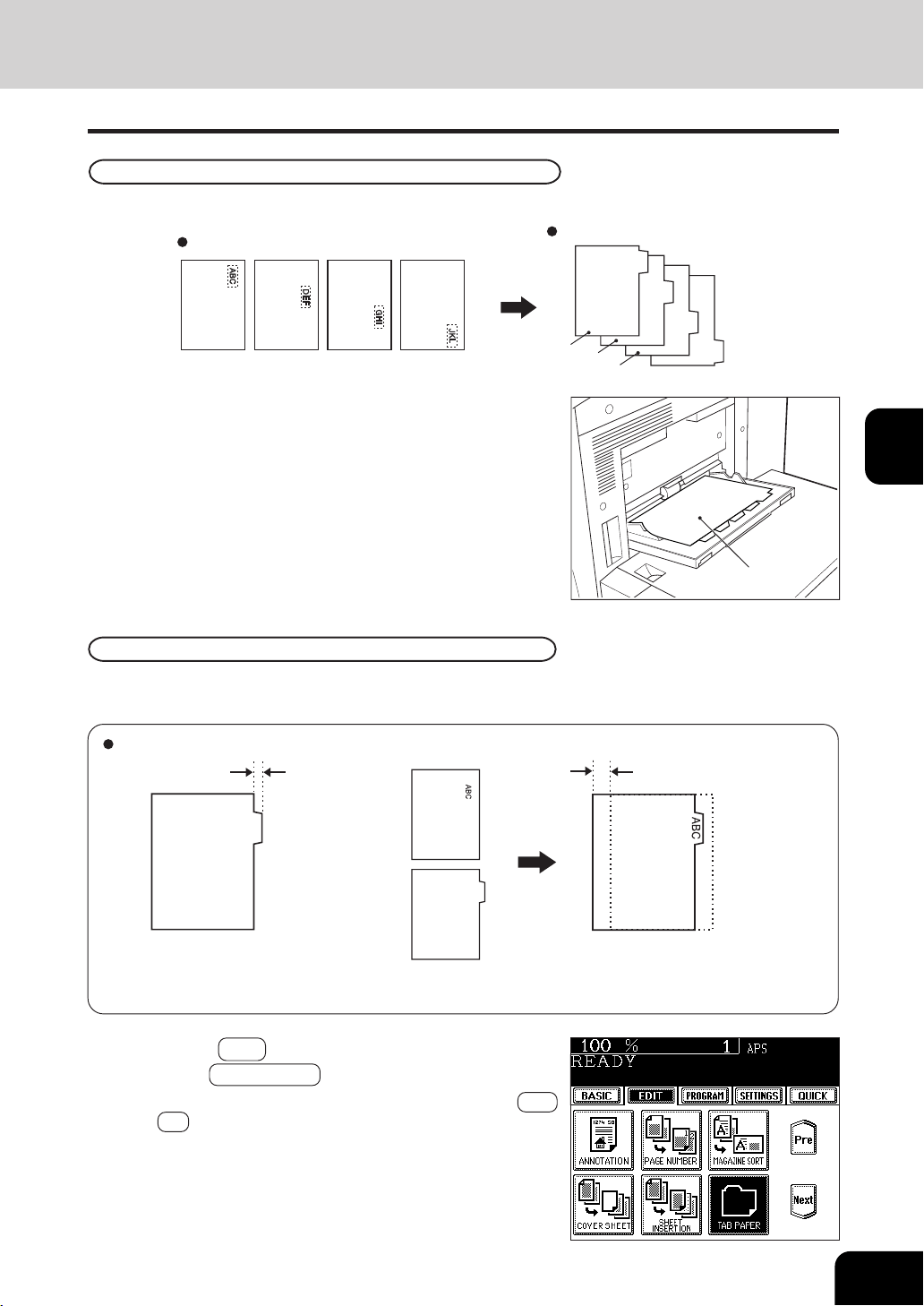
1
2
3
4
5
6
7
8
9
10
11
12
4-23
To copy on tab paper, adjust both the tab width and the shift width for the drawer and the bypass guide
respectively.
Tab Width Adjustment
Setting Tab Paper in the Bypass Guide
1
Align the tab paper with the original.
2
Place the tab paper with face up on the bypass
guide.
* The shift width means the distance
the image should be shifted when
copied on the tab paper.
Shift width*
Tab width
Original
Tab paper
The range of the tab width/the shift width
Originals
Sheets of tab paper
1st 2nd 3rd 4th
1st
2nd
3rd
4th
1
Press the EDIT key to enter the edit menu, and
press the TAB PAPER key.
- If the desired function keys are not displayed, press the Next
or Pre key to change the menu screen.
front side
front
side
3
Perform step 3 and 4 on page 5-9.
-Be sure to select ‘Tab Paper’ for the paper type.
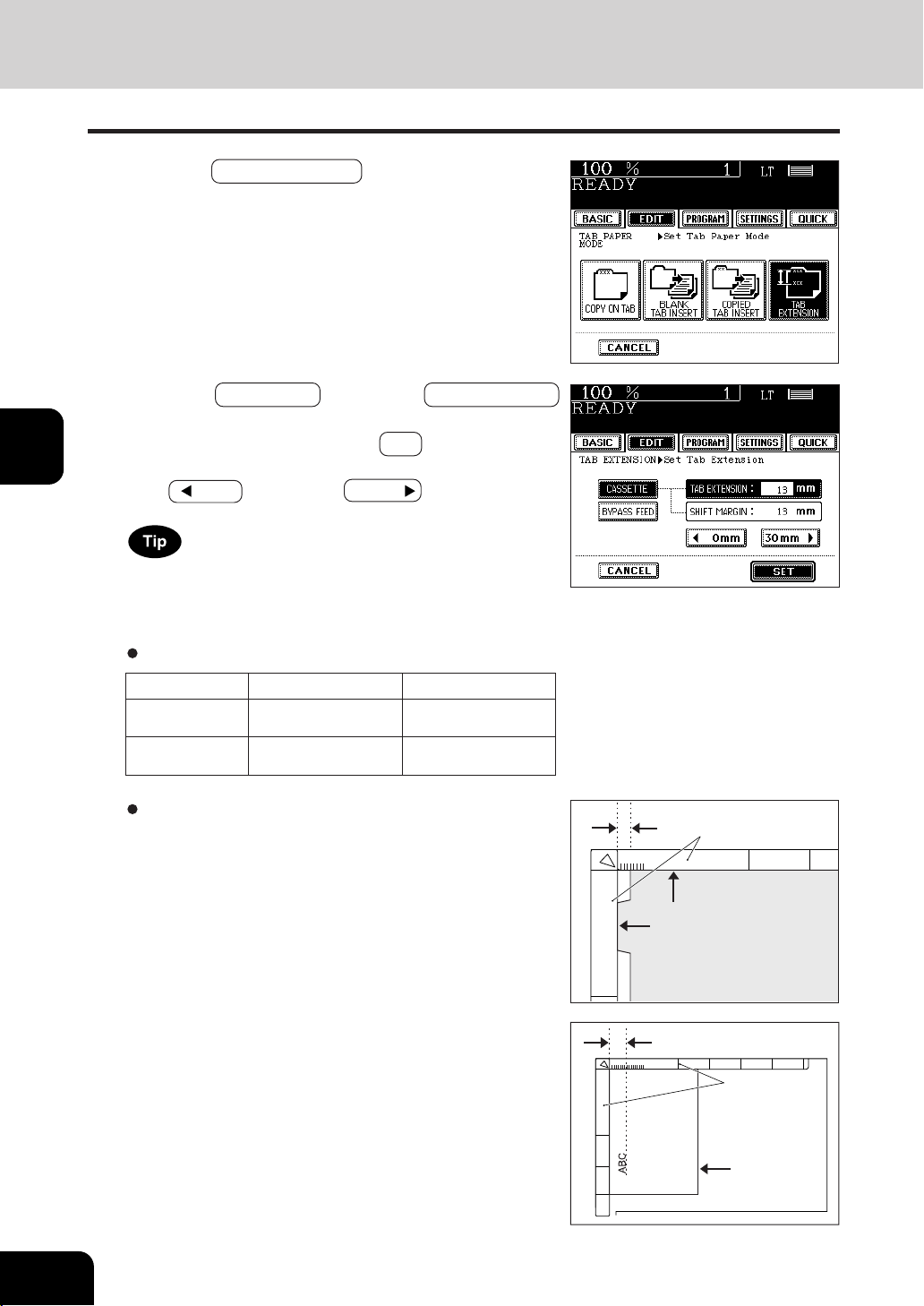
1
2
3
4
5
6
7
8
9
10
11
12
4-24
USING THE EDITING FUNCTIONS
Tab width
Align the tab paper with
the original scale
Original scale
Shift width
Align the original with
the original scale
Original scale
12. TAB PAPER MODE(Cont.)
2
Press the TAB EXTENSION key.
3
Press the CASSETTE key (or the BYPASS FEED
key), then adjust the tab extension (tab width) and
the shift width then press the SET key.
- Adjust the tab width and the shift width by means of
the
0mm key and the
30mm key.
Unless the tab width has refreshed, the previous value is valid.
The initial settings are set to 13mm (0.51") for the tab width
and the shift width.
The range of the tab width/the shift width
Tab width
Shift width
Drawer
Bypass
12 to 17mm
(0.4" to 0.6")
10 to 20mm
(0.4" to 0.7")
0 to 30mm
(0 to 1.1")
0 to 30mm
(0 to 1.1")
Measuring the tab width / the shift width
The tab width and the shift width can be measured on the original
glass. Place tab paper for measuring the tab width and place
original for measuring the shift width on the original glass as
indicated on the right. The marks of the original scale have a
2mm pitch.
- Measuring the tab width (Place tab paper)
- Measuring the shift width (Place original)
*25.4mm = 1"
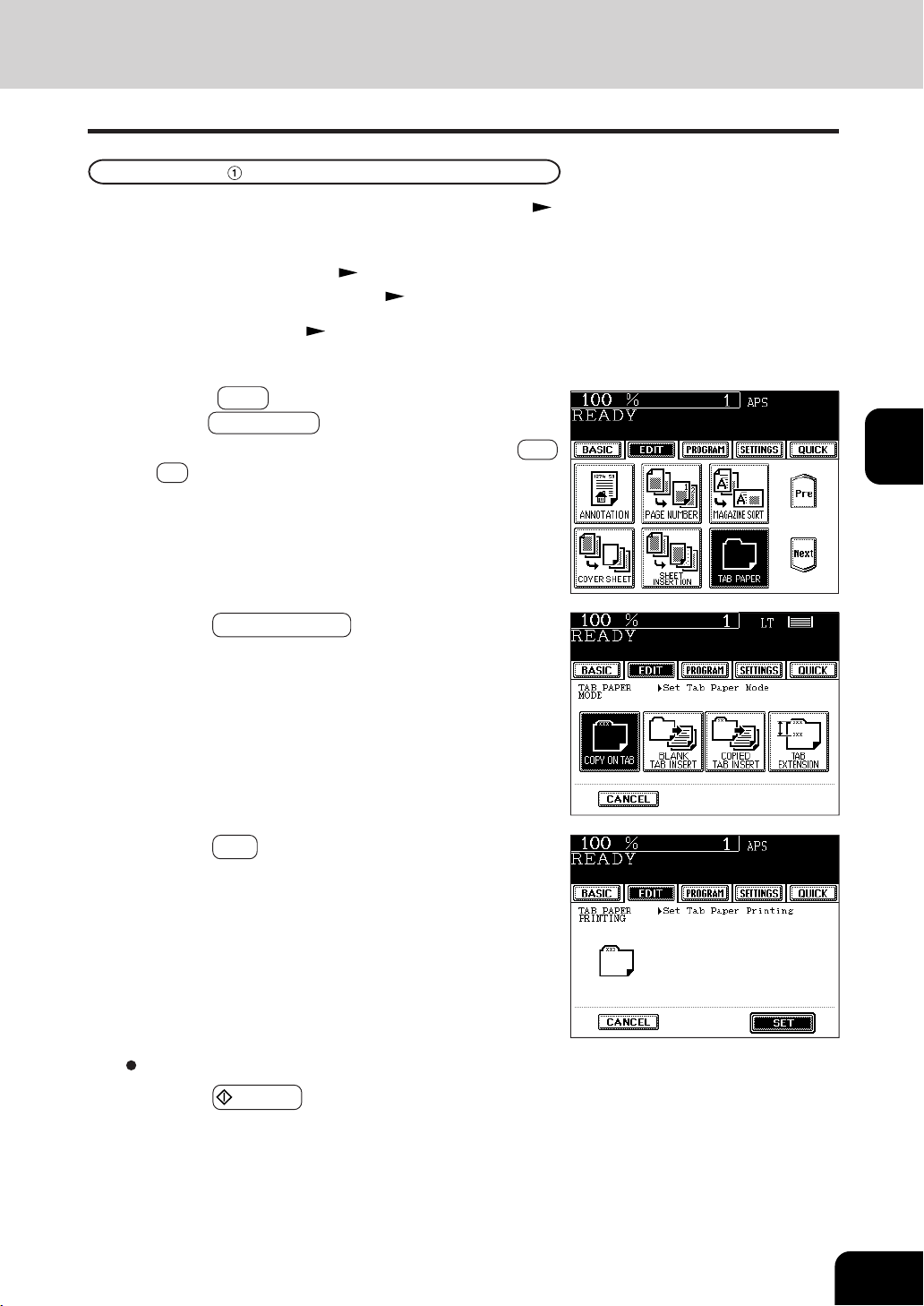
1
2
3
4
5
6
7
8
9
10
11
12
4-25
1
Place tab paper in the drawer or the bypass guide.
- For placing it in the drawer Page 4-22
- For placing it in the bypass guide
Page 4-23
Copyng on tab paper at the value in the tab width set mode (
Page 4-23).
2
Place the original(s). Page 2-9
Tab Paper Copying
3
Press the EDIT key to enter the edit menu, and
press the TAB PAPER key.
- If the desired function keys are not displayed, press the Next
or Pre key to change the menu screen.
4
Press the COPY ON TAB key.
5
Press the SET key.
Select other copy modes as required.
6
Press the START key.
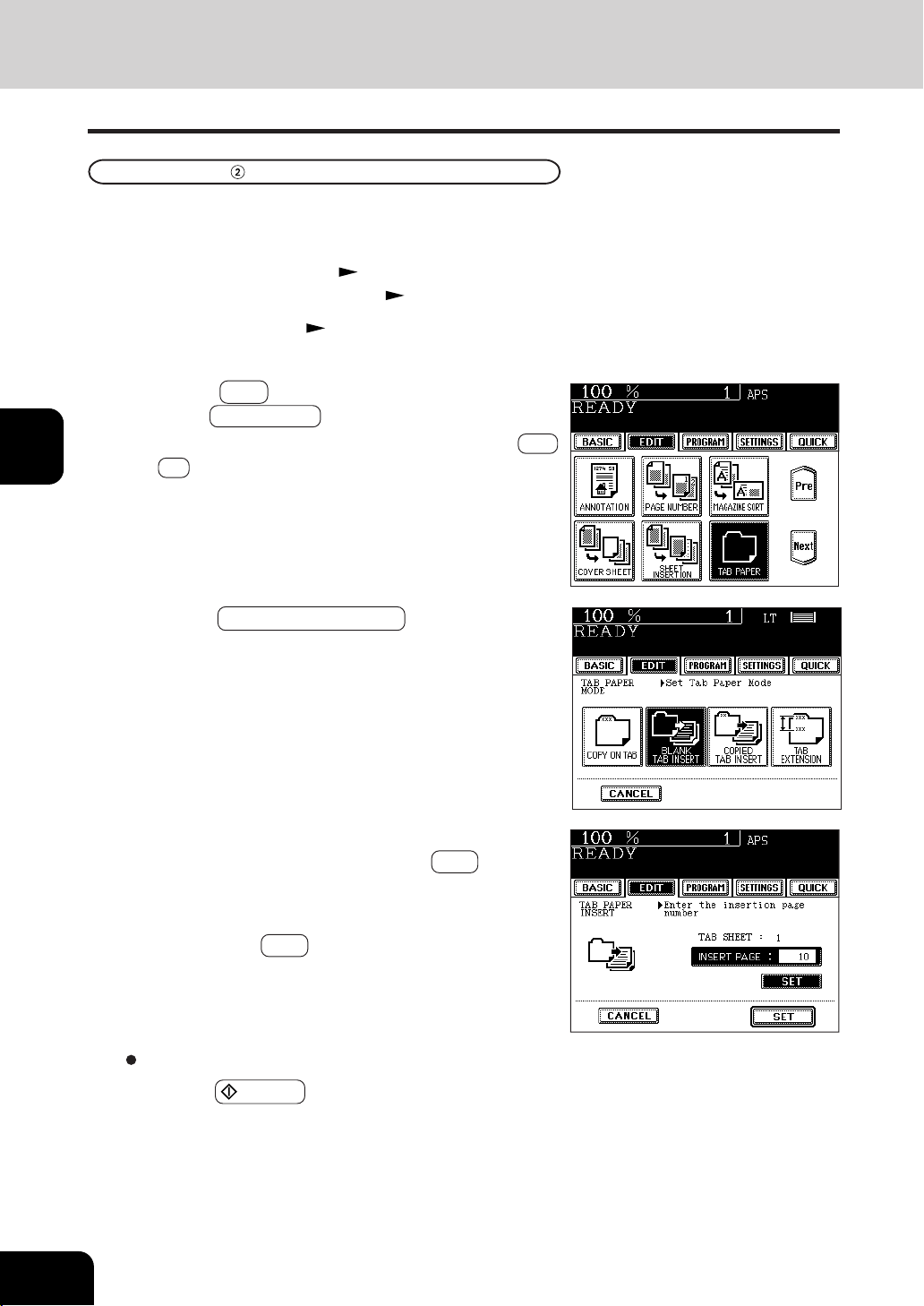
1
2
3
4
5
6
7
8
9
10
11
12
4-26
USING THE EDITING FUNCTIONS
5
Key in the page number you selected for the insertion of
the tab paper , then press the upper SET key.
- When two sheets of paper or more are inserted, repeat this
operation. Up to 15 sheets of paper can be inserted.
6
Press the lower SET key.
Select other copy modes as required.
7
Press the START key.
12. TAB PAPER MODE(Cont.)
4
Press the BLANK TAB INSERT key.
3
Press the EDIT key to enter the edit menu, and
press the TAB PAPER key.
- If the desired function keys are not displayed, press the Next
or Pre key to change the menu screen.
Tab paper (blank) is inserted prior to selected pages. Up to 15 sheets of tab paper can be inserted.
Tab Paper Insertion
2
Place the original(s). Page 2-9
1
Place tab paper in the drawer or the bypass guide.
- For placing it in the drawer Page 4-22
- For placing it in the bypass guide
Page 4-23
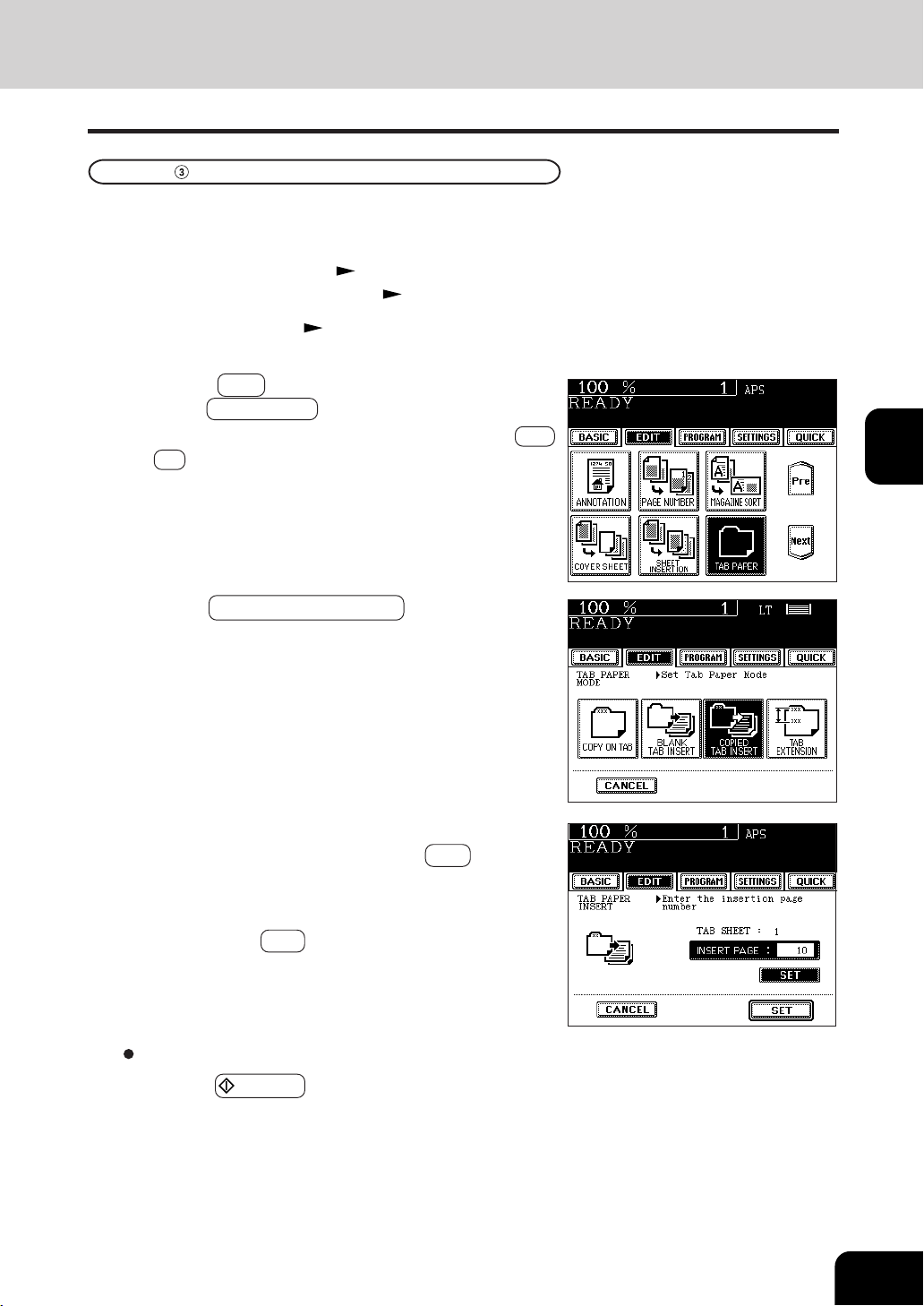
1
2
3
4
5
6
7
8
9
10
11
12
4-27
5
Key in the page number you selected for the insertion of
the tab paper, then press the upper SET key.
- When two sheets of paper or more are inserted, repeat this
operation. Up to 15 sheets of paper can be inserted.
6
Press the lower SET key.
Select other copy modes as required.
7
Press the START key.
4
Press the COPIED TAB INSERT key.
3
Press the EDIT key to enter the edit menu, and
press the TAB PAPER key.
- If the desired function keys are not displayed, press the Next
or Pre key to change the menu screen.
Tab Paper Insertion and Copying
2
Place the original(s). Page 2-9
1
Place tab paper in the drawer or the bypass guide.
- For placing it in the drawer Page 4-22
- For placing it in the bypass guide Page 4-23
- Copied tab paper is inserted prior to the selected pages. Up to 15 sheets of tab paper can be inserted.
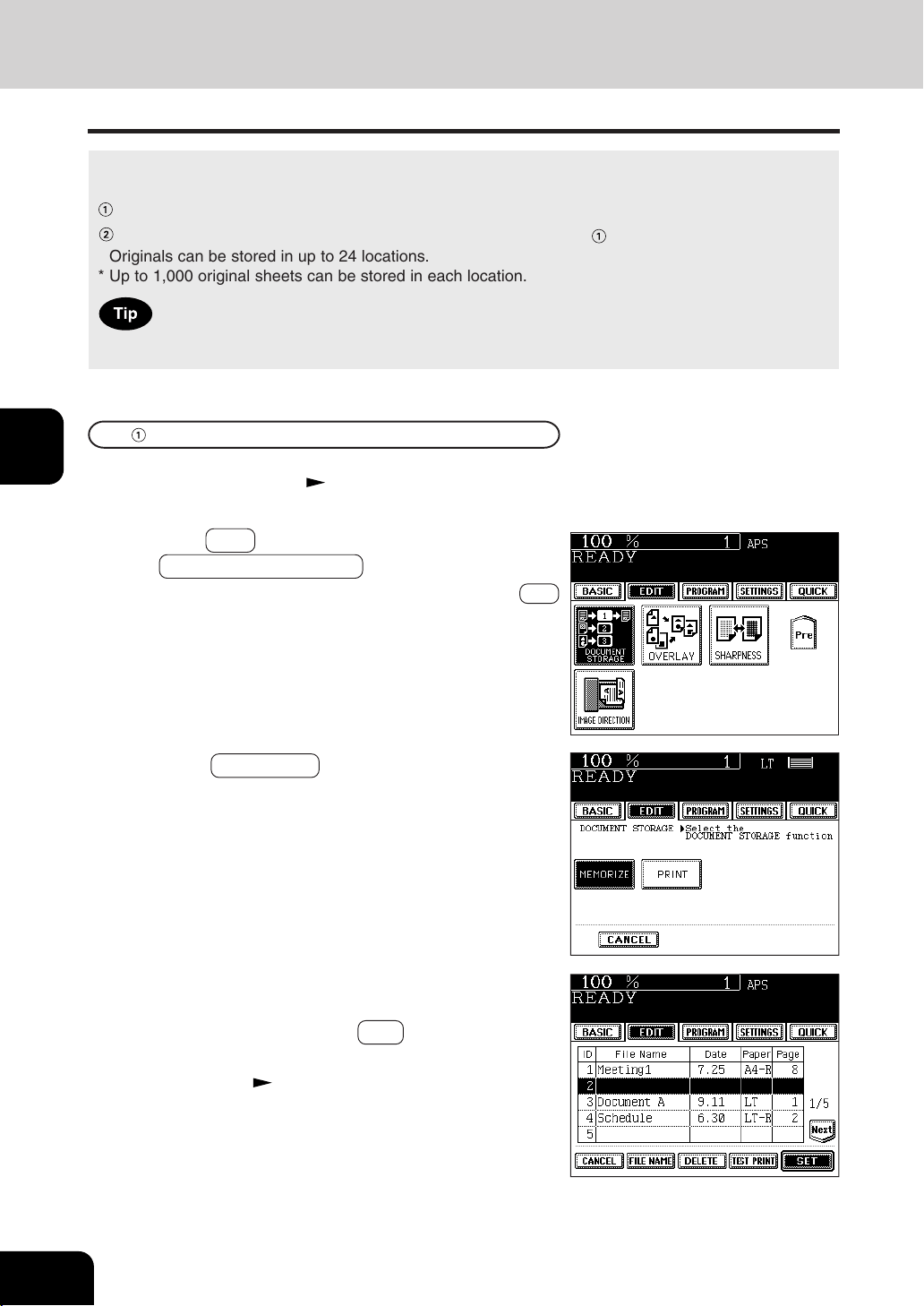
1
2
3
4
5
6
7
8
9
10
11
12
4-28
USING THE EDITING FUNCTIONS
13. DOCUMENT STORAGE
This feature allows images of the originals to be stored on the hard disk of the copier, and copies can be
made from the hard disk later. This copying method consists of the following two modes:
MEMORIZE mode: Stores original images at the specified location of the hard disk.
PRINT mode: Prints the originals stored in the Memorize Mode in .
* Originals can be stored in up to 24 locations.
* Up to 1,000 original sheets can be stored in each location.
Total Document Storage capacity is determined by the size of the documents.
2
Press the EDIT key to enter the edit menu, and press
the DOCUMENT STORAGE key.
- If the desired function keys are not displayed, press the Next
key to change the menu screen.
3
Press the MEMORIZE key.
4
Press the file name column of the location number
(ID) where you want your document stored, key in
the file name and press the SET key.
- Select any ID where no data has been stored.
- Entering letters
Page 5-28
Storing Documents in the MEMORIZE Mode
1
Place the original(s). Page 2-9
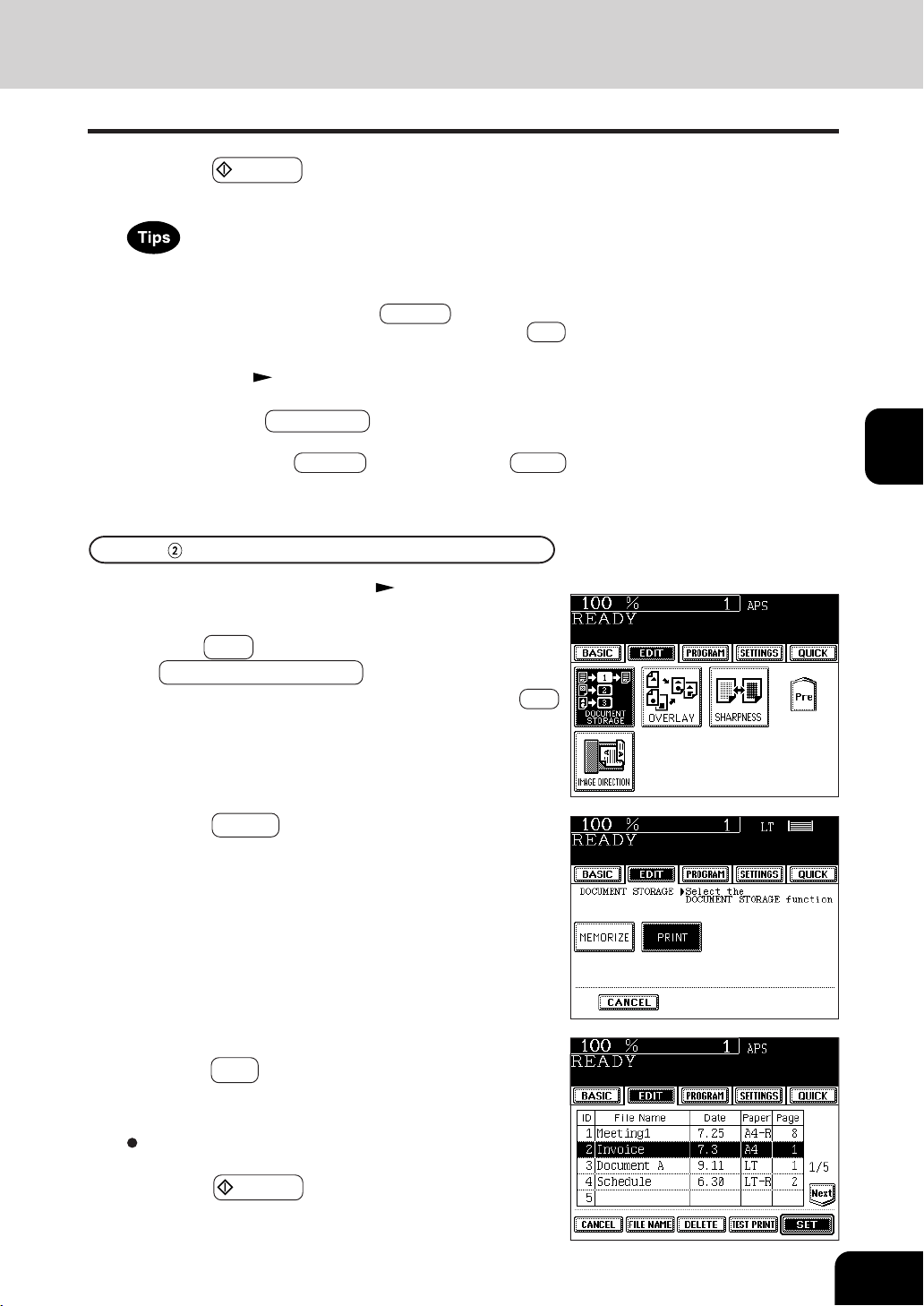
1
2
3
4
5
6
7
8
9
10
11
12
4-29
5
Press the START key.
- The memorization process starts automatically.
- To change the file name, select the ID you want to change in
the list on the display, press the file name column, delete the
file name already entered with the B Space key in the letter
entry screen, then enter a new file name, and press the SET
key.
- Entering letters
Page 5-28
- To confirm a memorized job, select the ID from the list on the
display and press TEST PRINT .
- To delete a memorized job, select the ID from the list on the
display and press the DELETE key. Then, press the Delete
key on the next screen.
2
Press the EDIT key to enter the edit menu, and press
the DOCUMENT STORAGE key.
- If the desired function keys are not displayed, press the Next
key to change the menu screen.
3
Press the PRINT key.
4
Select the ID of the job you want to print out, and
press the SET key.
- The memorized functions are recalled.
Select other copy modes as required.
5
Press the START key.
1
Place paper in the drawer(s). Page 2-4
Making Copies in the PRINT Mode
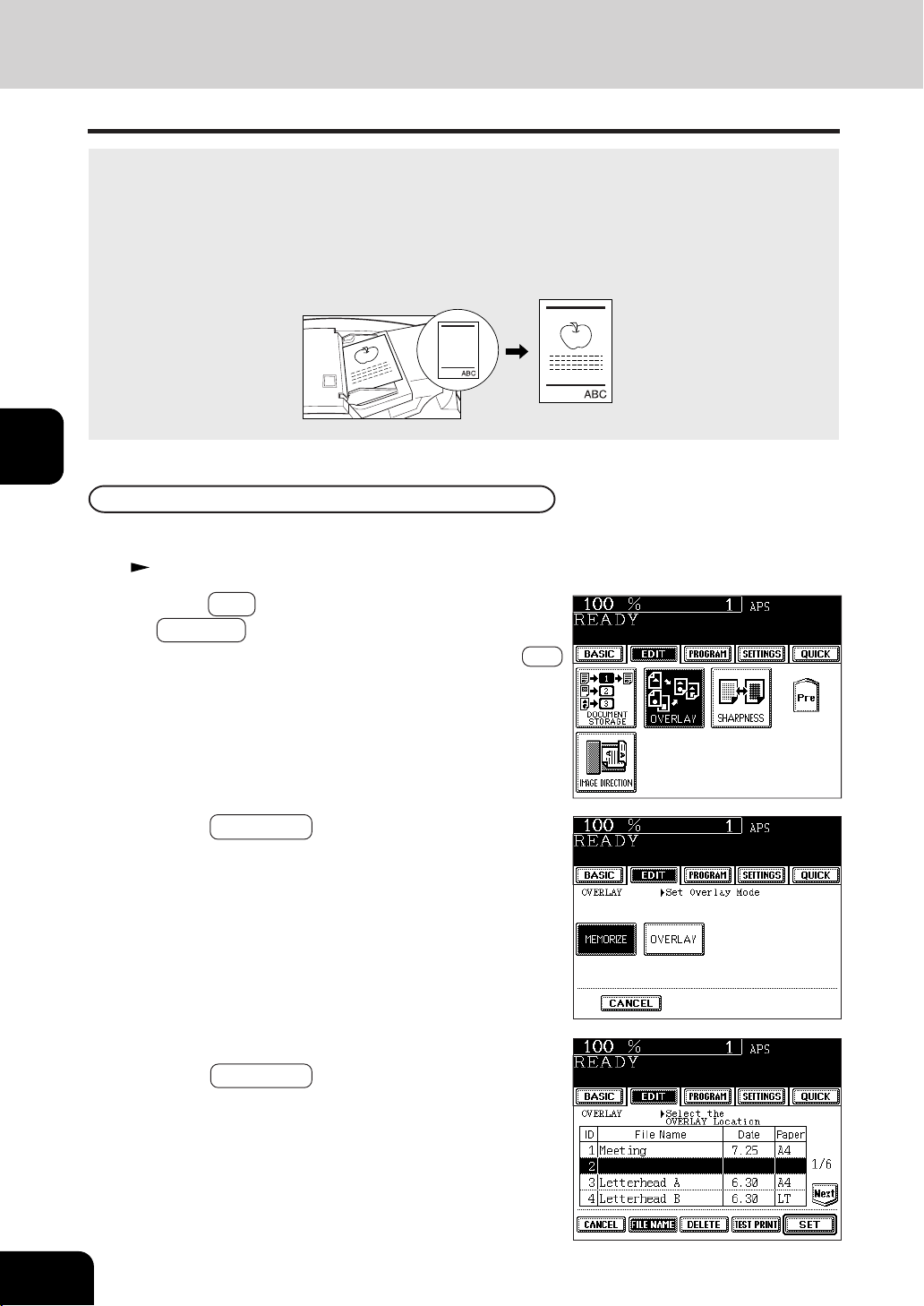
1
2
3
4
5
6
7
8
9
10
11
12
4-30
USING THE EDITING FUNCTIONS
14. OVERLAY
This function stores the images that you frequently use and makes copies by overlaying onto the copied
originals.
- 24 different images can be stored.
* The original can be overlaid with the stored image of the same size and in the same orientation.
(It cannot be adjusted with reduction and enlargement.)
4
Press the row of the file name list you desire, then
press the FILE NAME key.
3
Press the MEMORIZE key.
1
Place the original you want to have memorzied.
Page 2-9
2
Press the EDIT key to enter the edit menu, and press
the OVERLAY key.
- If the desired function keys are not displayed, press the Next
key to change the menu screen.
Storing Image
Overlay
Storing image
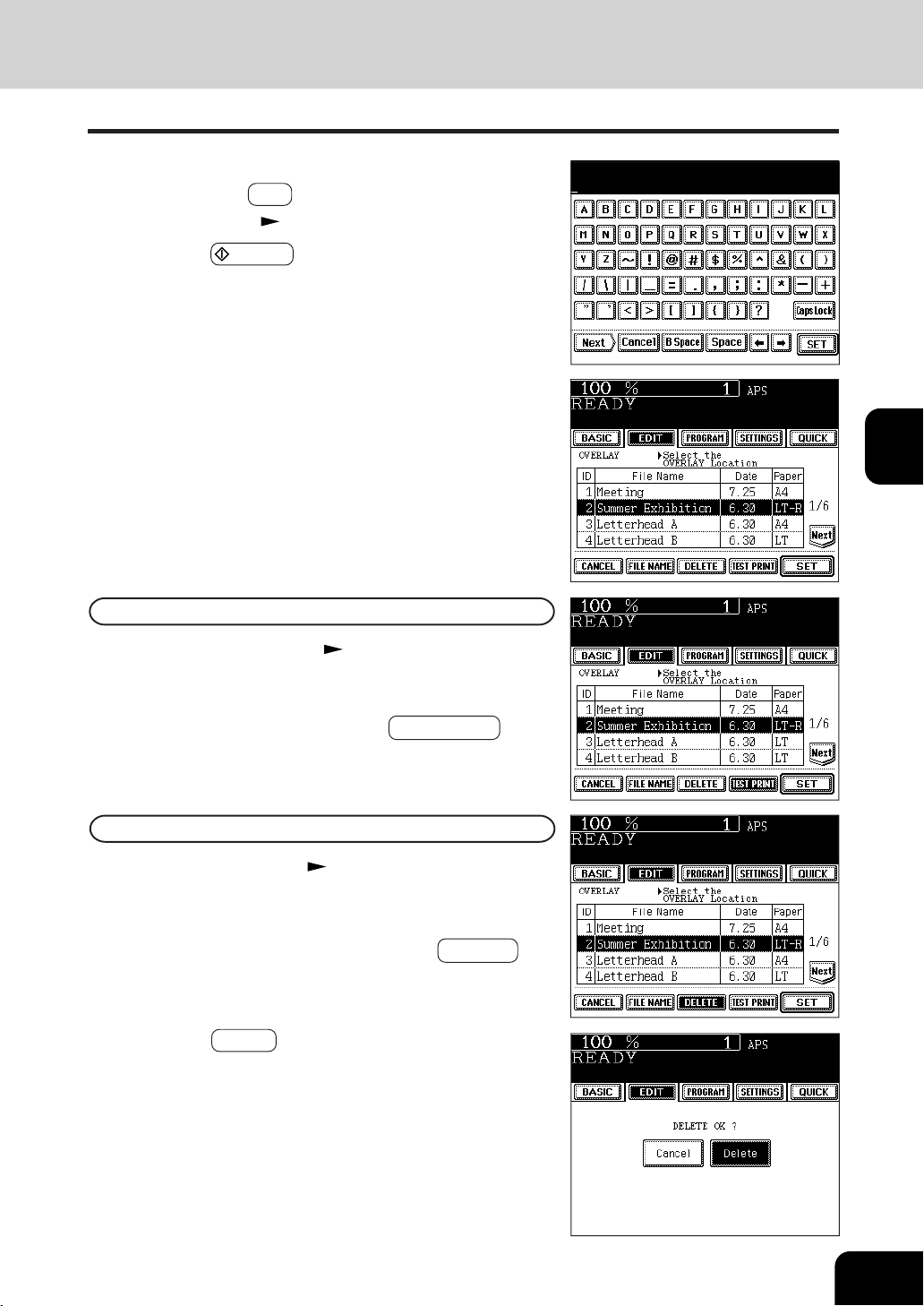
1
2
3
4
5
6
7
8
9
10
11
12
4-31
Confirming Stored Image (Test Print)
1
Perform steps 2 and 3. Page 4-29
2
Press the file name you desire (the selected file name
will be shaded), then press the TEST PRINT key.
- The stored image starts printing out.
Deleting Image
1
Perform steps 2 to 3. Page 4-29
2
Press the file name you desire ( the selected file
name will be shaded), then press the DELETE key.
7
The form will be stored as shown on the right.
5
Input the file name with the screen for entering letters
and press the SET key.
- Entering letters. Page 5-28
6
Press the START key.
-The original starts scanning to memorize the image.
3
Press the Delete key.
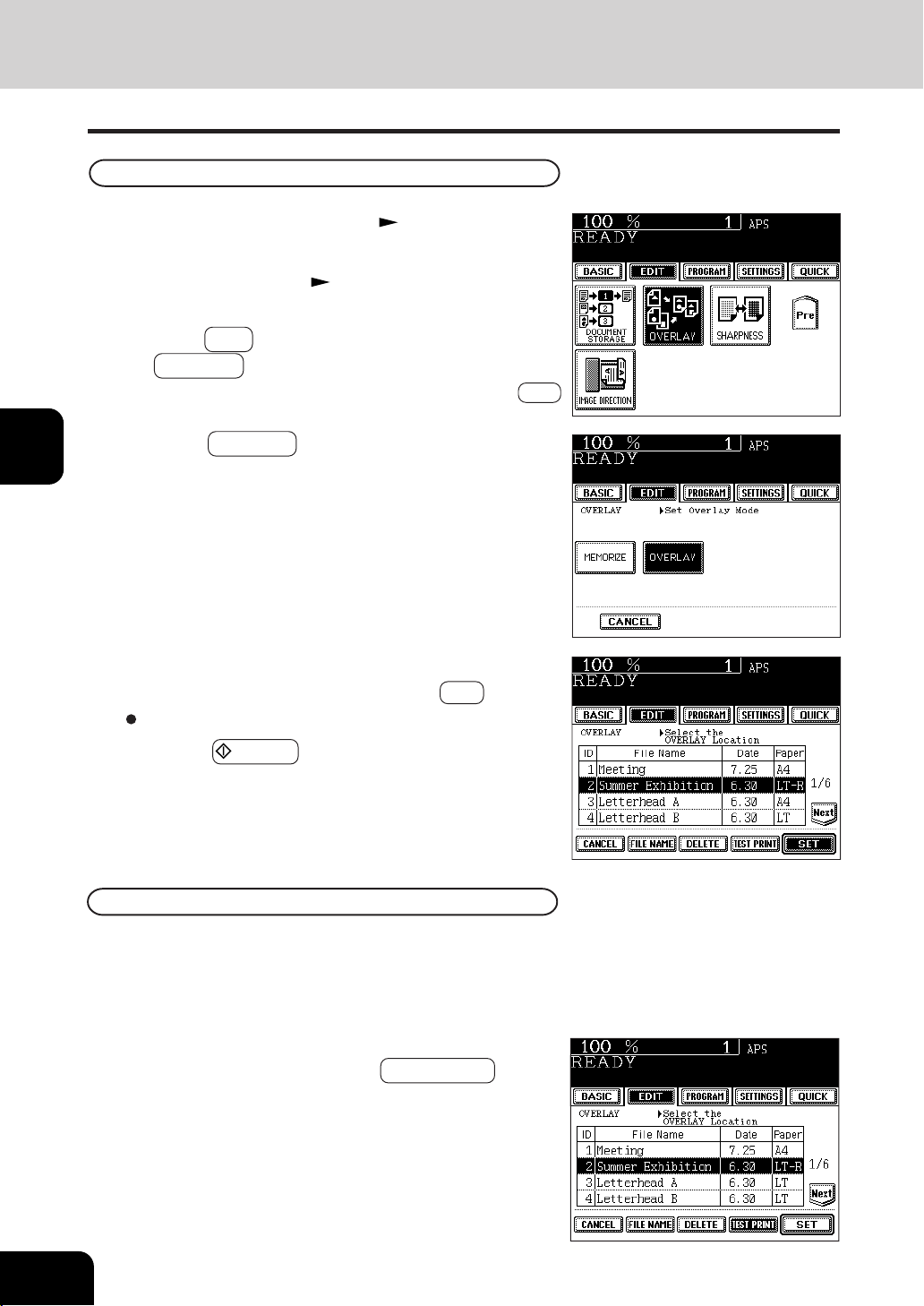
1
2
3
4
5
6
7
8
9
10
11
12
4-32
USING THE EDITING FUNCTIONS
14. OVERLAY (Cont.)
Overlaying Originals with Stored Image
4
Press the OVERLAY key.
5
Press the file name you desire ( the selected file
name will be shaded), and press the SET key.
3
Press the EDIT key to enter the edit menu, and press
the OVERLAY key.
- If the desired function keys are not displayed, press the Next
key to change the menu screen.
1
Place paper in the drawer(s). Page 2-4
2
Place the original(s). Page 2-9
6
Press the START key.
Select other copy modes as required.
Confirming Overlay (Test Print)
When overlaying more than one original with the stored image, the first original is overlaid with the
stored image and printed out.
1
Perform the above step 1 to step 4.
2
Press the file name you desire (the selected file name
will be shaded), and press the TEST PRINT key.

1
2
3
4
5
6
7
8
9
10
11
12
4-33
15. SHARPNESS ADJUSTMENT
5
Press the SET key.
Select other copy modes as required.
2
Place the original(s). Page 2-9
3
Press the EDIT key to enter the edit menu, and press
the SHARPNESS key.
- If the desired function keys are not displayed, press the Next
key to change the menu screen.
This function allows you to emphasize the letters and edges of images.
1
Place paper in the drawer(s). Page 2-4
4
Press the SOFT ( or SHARP ) key.
- Pressing the SOFT key suppresses the moire fringe
while pressing the SHARP
key emphasizes the letters
and sharpens the fine lines.
6
Press the START key.
Cancelling the Sharpness Adjustment
Press the DEFAULT key, then the SET key.
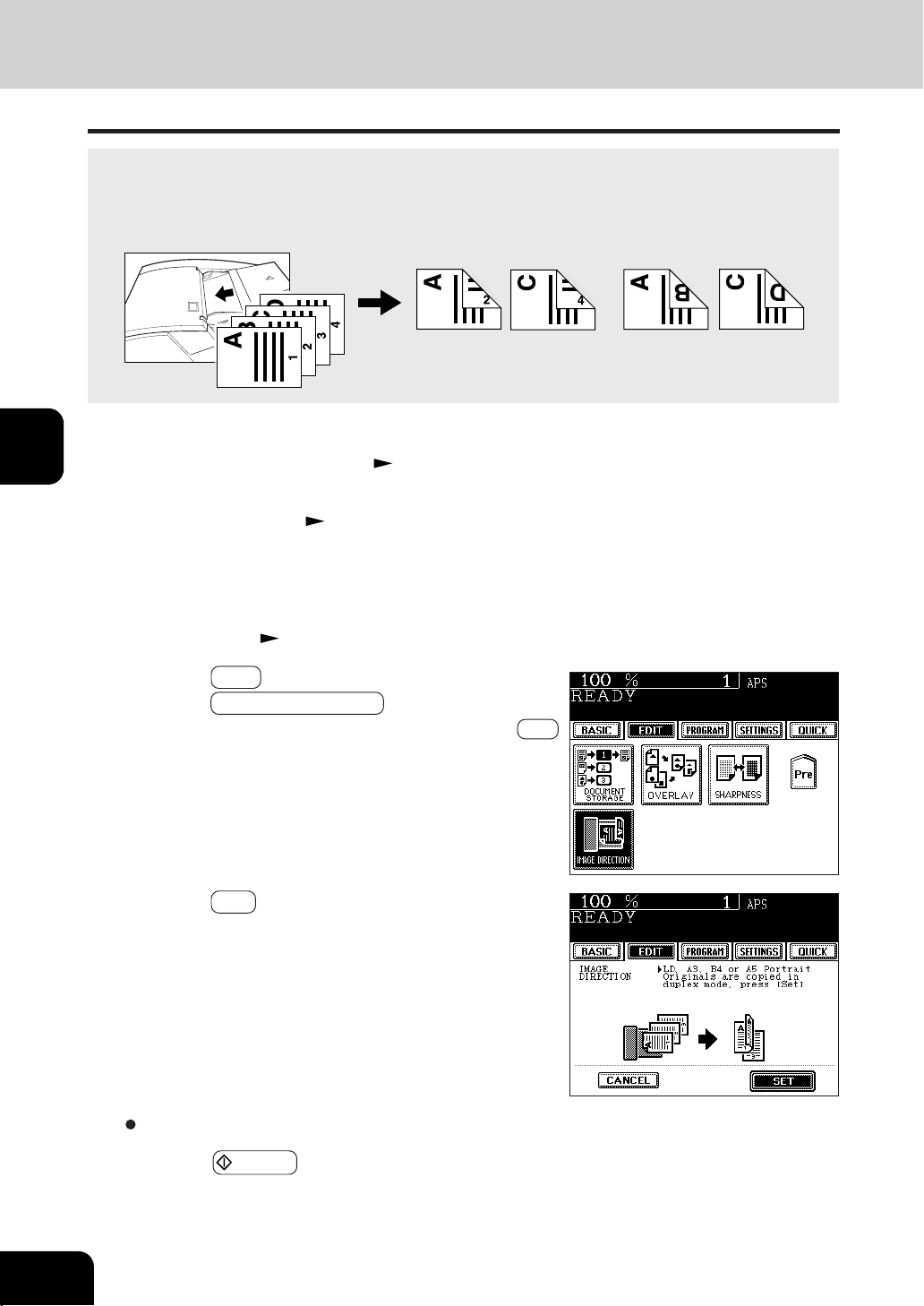
1
2
3
4
5
6
7
8
9
10
11
12
4-34
USING THE EDITING FUNCTIONS
16. DIRECTION OF DUPLEX COPY IMAGES (Rotation)
When lengthwise LD, A3, A5 or B4 paper is copied under the mode of 1-Sided Originals to 2-Sided
Copies, 2-Sided Originals to 1-Sided Copies, this function allows you to adjust the direction for
‘side-by-side’ opening.
* This function is not necessary for copying in the direction of ‘vertical’ opening.
set
non set
5
Press the SET key.
1
Place paper in the drawer(s). Page 2-4
6
Press the START key.
Select other copy modes as required.
2
Place the original(s). Page 2-9
3
Select 1-Sided Originals to 2-Sided Copies (or 2-Sided
Originals to 1-Sided Copies).
- Duplex copying Page 3-8
4
Press the EDIT key to enter the editing menu, and
press the IMAGE DIRECTION key.
- If the desired function keys are not displayed, press the Next
key to change the menu screen.

1
2
3
4
5
6
7
8
9
10
11
12
5-1
5. USING THE SPECIAL
FUNCTIONS
1. Continuous original feeding / Single original feeding ............... 5-2
2. Mixed-sized originals ................................................................ 5-4
3. Job memory ............................................................................. 5-5
4. Bypass copying ........................................................................ 5-8
- Bypass copying on standard size paper ................................................... 5-10
- Bypass copying on non-standard size paper ............................................5-11
5. Weekly timer............................................................................ 5-13
6. Setting the “OTHER” size key .................................................. 5-14
7. Setting the date and time ........................................................5-15
8. Setting the automatic energy save mode ................................5-16
9. Setting the automatic off-mode ...............................................5-17
10.Switching languages ............................................................... 5-18
11.Account Numbers .................................................................... 5-19
12.Entering letters ........................................................................5-28
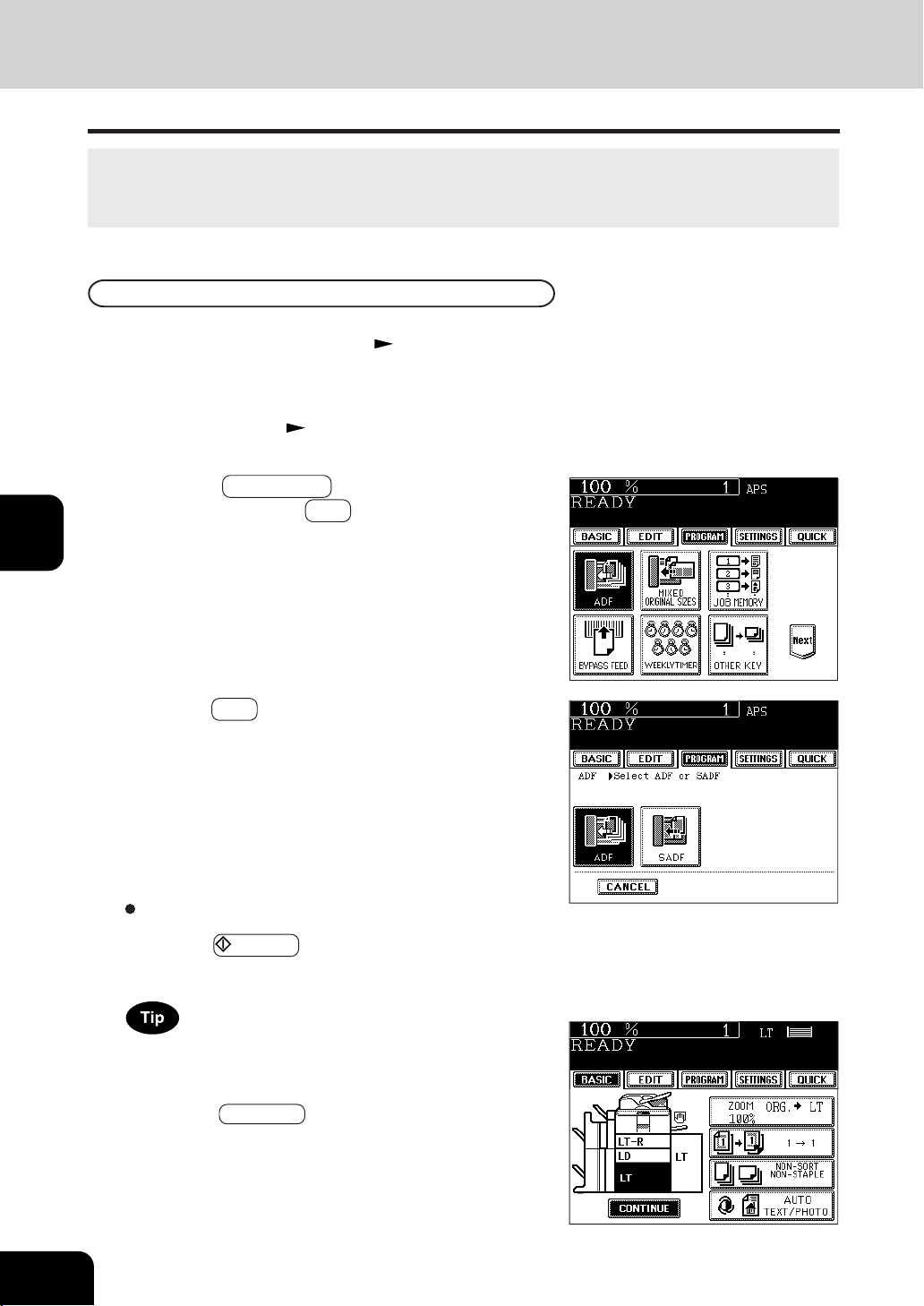
1
2
3
4
5
6
7
8
9
10
11
12
5-2
USING THE SPECIAL FUNCTIONS
Select other copy modes as required.
5
Press the START key.
3
Press the PROGRAM key to enter the program
menu, and press the ADF key.
1. CONTINUOUS ORIGINAL FEEDING / SINGLE ORIGINAL FEEDING
When using the reversing automatic document feeder, you can select the continuous feed mode (default
setting) where multiple (or single) originals are continuously fed in one by one, or the single-feed mode
where if you insert an original, it is automatically pulled in and starts being copied.
1
Place paper in the drawer(s). Page 2-4
4
Press the ADF key.
When the number of originals is too large to be set at one time,
you can divide the originals into two to ten sets and set them
one after another. To do so, place the first set of originals first,
and press the CONTINUE key while the scanning is in progress.
After they have been scanned, place the previous set of originals.
Continuous Feed Mode
2
Place the original(s) on the revesing automatic
document feeder. Page 2-11
- Originals can be set maximum 100 sheets at a time.
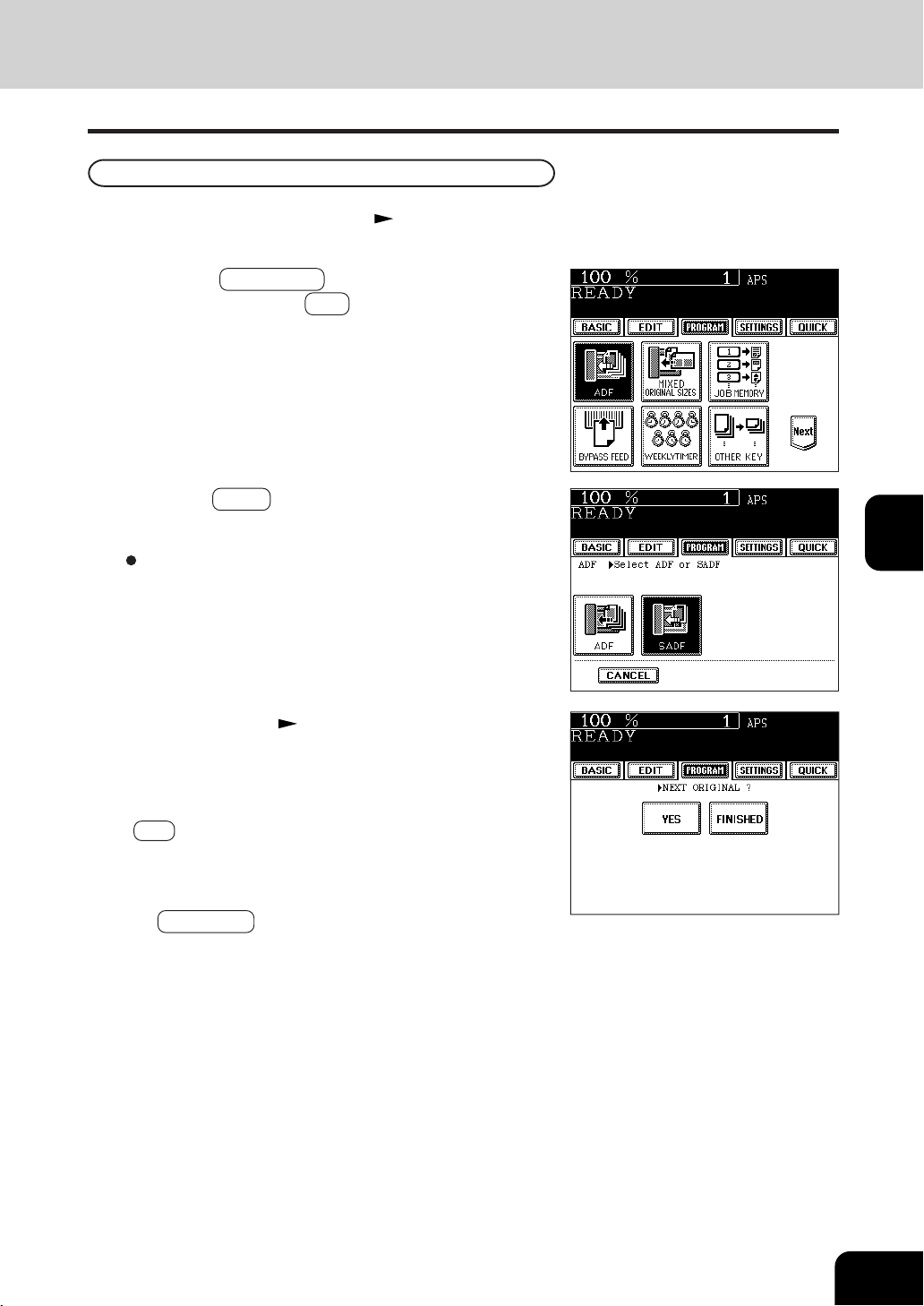
1
2
3
4
5
6
7
8
9
10
11
12
5-3
2
Press the PROGRAM key to enter the program
menu, and press the ADF key.
Single-feed Mode
3
Press the SADF key.
Select other copy modes as required.
4
Place an original. Page 2-9
- The original is automatically pulled in and the screen
changes as shown on the right.
- If there are more originals, set them in the same way. (The
same operation is carried out whether or not you press the
YES key.)
5
After all originals have been fed through the
reversing automatic document feeder, press
the FINISHED key.
- Copying begins.
1
Place paper in the drawer(s). Page 2-4
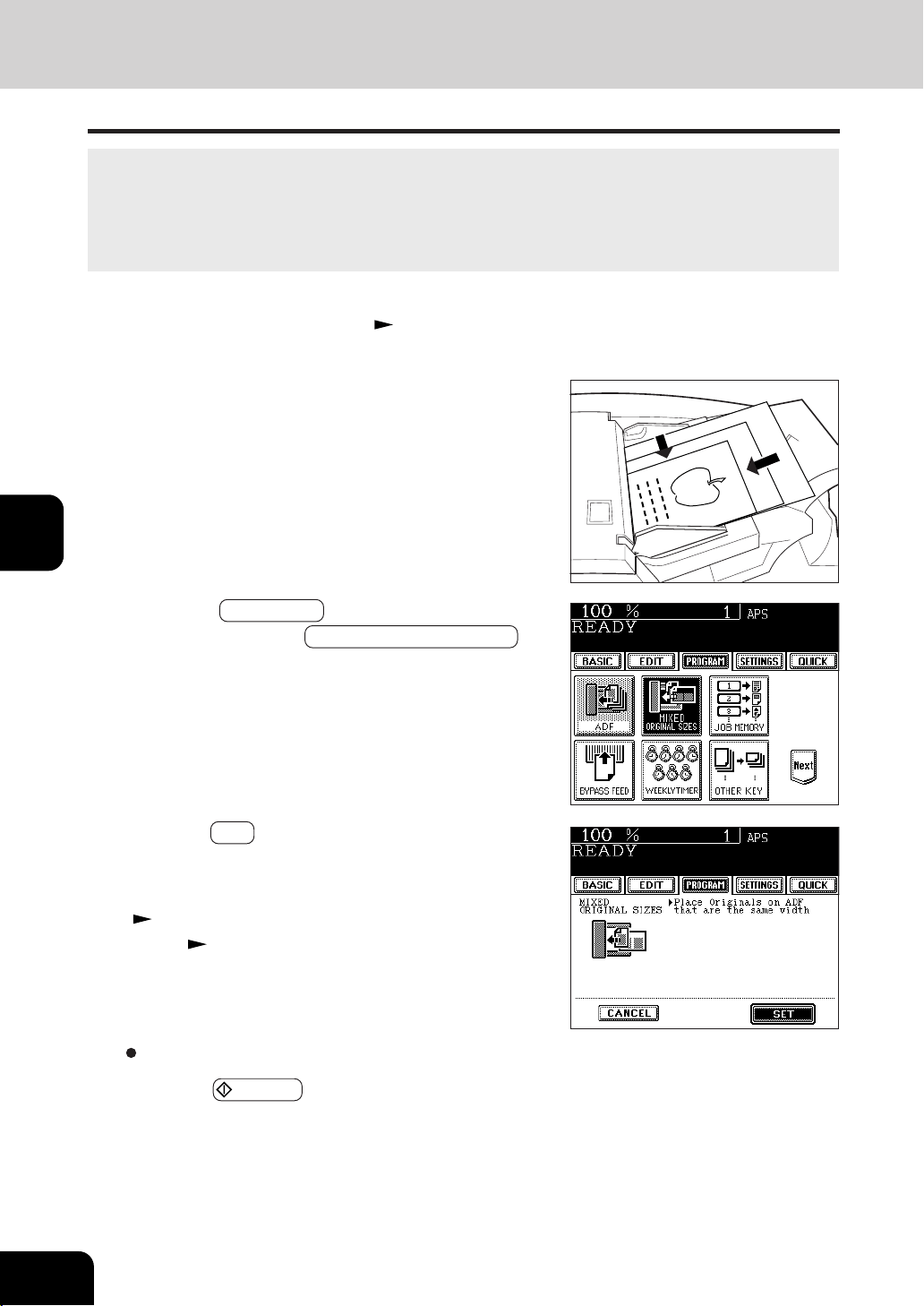
1
2
3
4
5
6
7
8
9
10
11
12
5-4
USING THE SPECIAL FUNCTIONS
2. MIXED-SIZED ORIGINALS
Select other copy modes as required.
6
Press the START key.
2
Adjust the slide to the widest paper size, and align
the originals against the left front side.
- Place the originals face up.
1
Place paper in the drawer(s). Page 2-4
- Bypass copying is not possible.
When placing the different-sized originals in the reversing automatic document feeder, you can make
copies by setting MIXED-SIZED ORIGINALS.
The available combination of mixed-sized originals are as follows:
4
Press the SET key.
5
Select either the Automatic Paper Selection
( Page 3-2) or Automatic Magnification Selection
mode ( Page 3-4).
- To make duplexed copies, select the automatic magnification
mode.
- LD, LG, LT, LT-R - A3, A4, A4-R, B4, B5
* The image may be copied out of position depending on the combination.
3
Press the PROGRAM key to enter the program
menu, and press the MIXED ORIGINAL SIZES key.
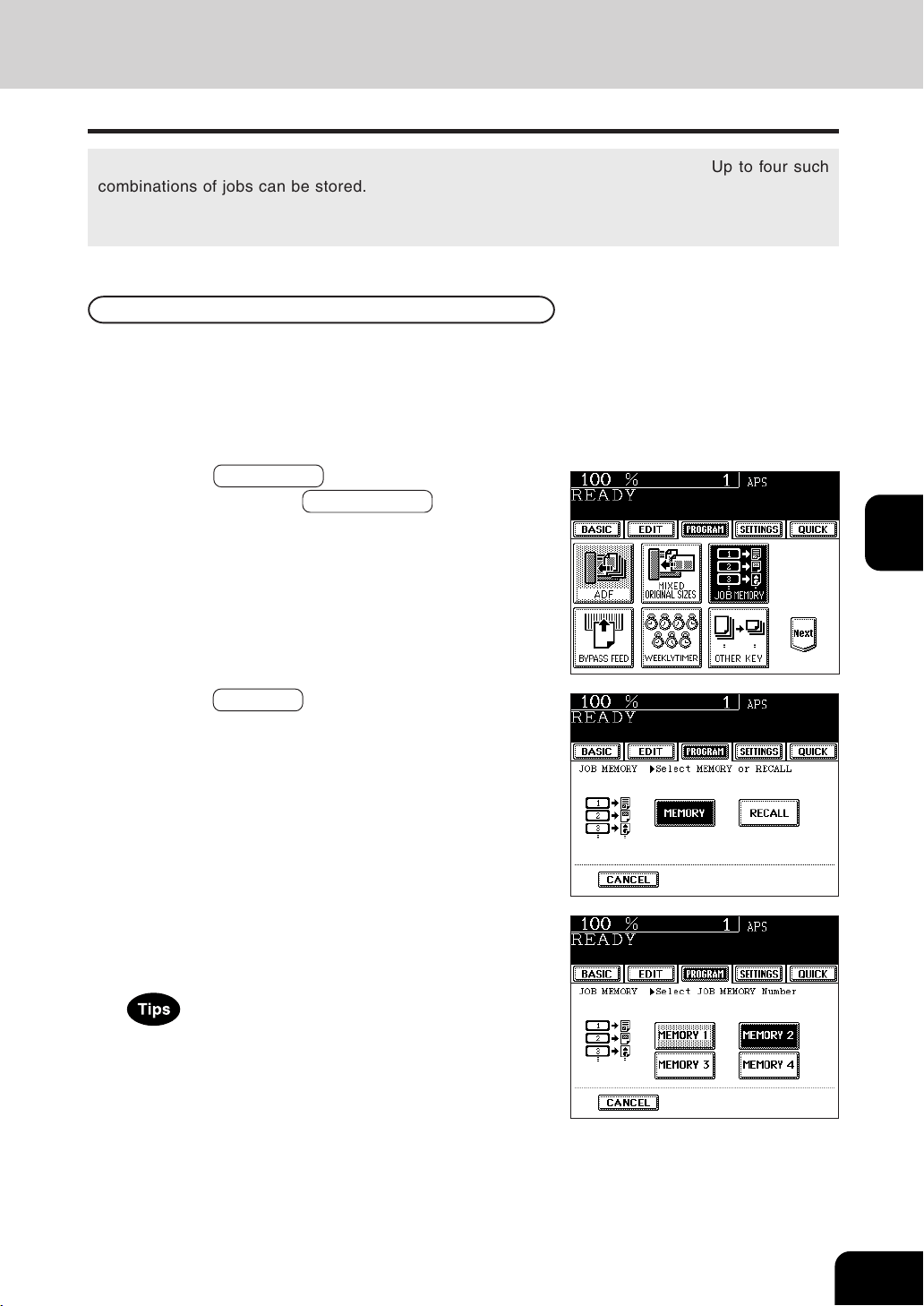
1
2
3
4
5
6
7
8
9
10
11
12
5-5
2
Press the PROGRAM key to enter the program
menu, and press the JOB MEMORY key.
3. JOB MEMORY
Storing a Combination of Copy Job Settings
You can store and recall a combination of frequently used copy jobs at anytime. Up to four such
combinations of jobs can be stored.
* You cannot delete the copy modes that have already been stored in the memory, but you can rewrite
new jobs on the memory key in which some copy modes have already been stored.
3
Press the MEMORY key.
1
Select the desired copy modes.
Example :
Reproduction ratio.......................................................... 85%
Copy quantity ........................................................ 10 copies
Paper size ...................................................................... LT-R
4
Press the desired Memory Number key.
- The copy job settings are stored in the selected Memory
Number key.
- Memory Number keys where copy jobs have been already
stored are shown in a half-tone shaded pattern.
- The stored copy jobs remain unchanged until different copy
jobs are entered. (They are retained even after the power
switch is turned off.)
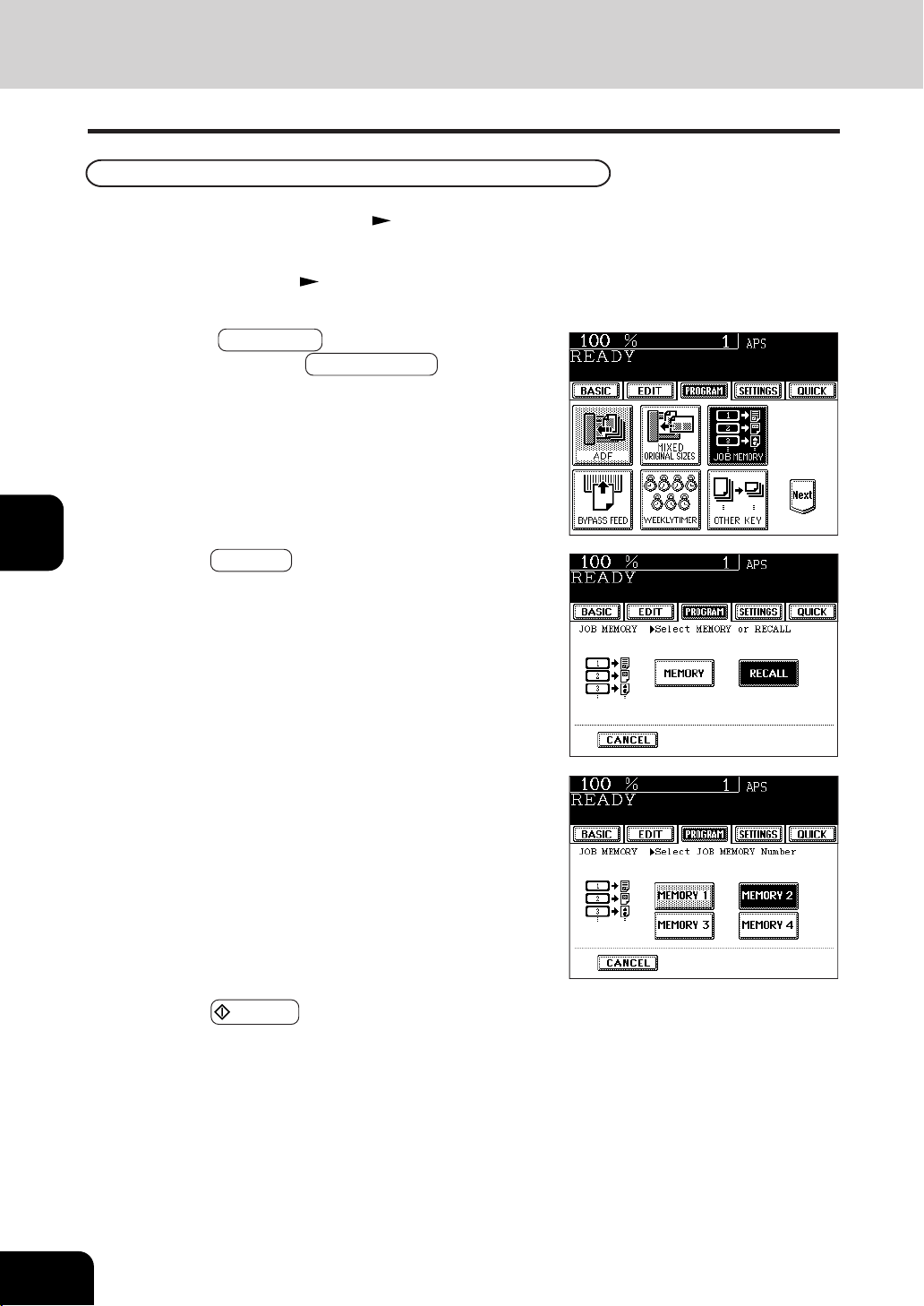
1
2
3
4
5
6
7
8
9
10
11
12
5-6
USING THE SPECIAL FUNCTIONS
4
Press the RECALL key.
3. JOB MEMORY (Cont.)
2
Place the original(s). Page2-9
Recalling a Stored Combination of Copy Job Settings to Make Copies
1
Place paper in the drawer(s). Page 2-4
5
Press the Memory Number key where the desired
combination of copy job settings are stored.
- Memory Number keys where copy jobs have been already
stored are shown in a half-tone shaded pattern.
3
Press the PROGRAM key to enter the program
menu, and press the JOB MEMORY key.
6
Press the START key.
- Copies will be made in the recalled copy jobs.
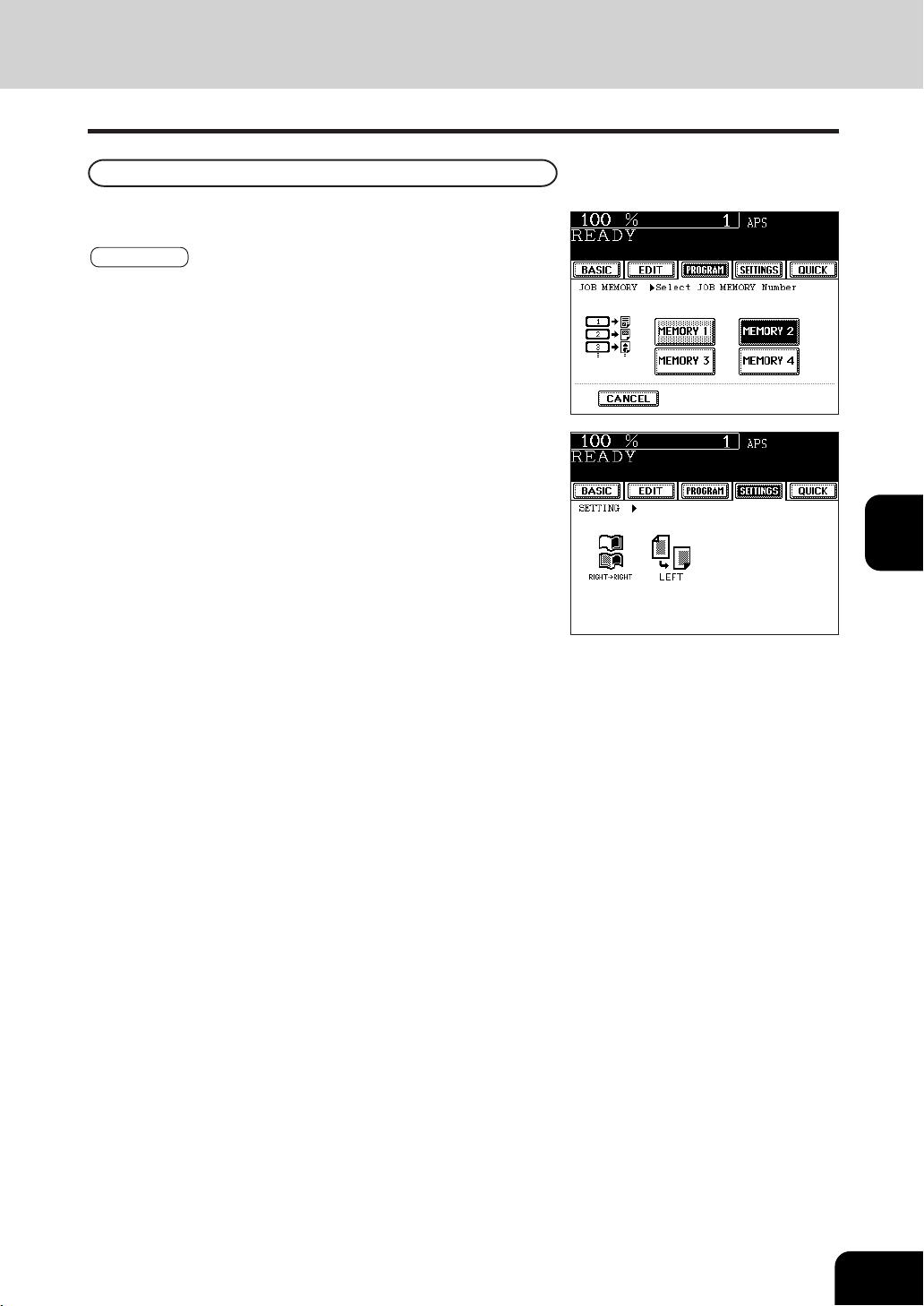
1
2
3
4
5
6
7
8
9
10
11
12
5-7
To confirm the copy modes stored in the Memory Number key,
perform steps 3 to 5 on the previous page, then press the
SETTINGS key.
Confirming Stored Copy Jobs
- The screen on the right is an example of jobs that have been
stored in “MEMORY 2”.
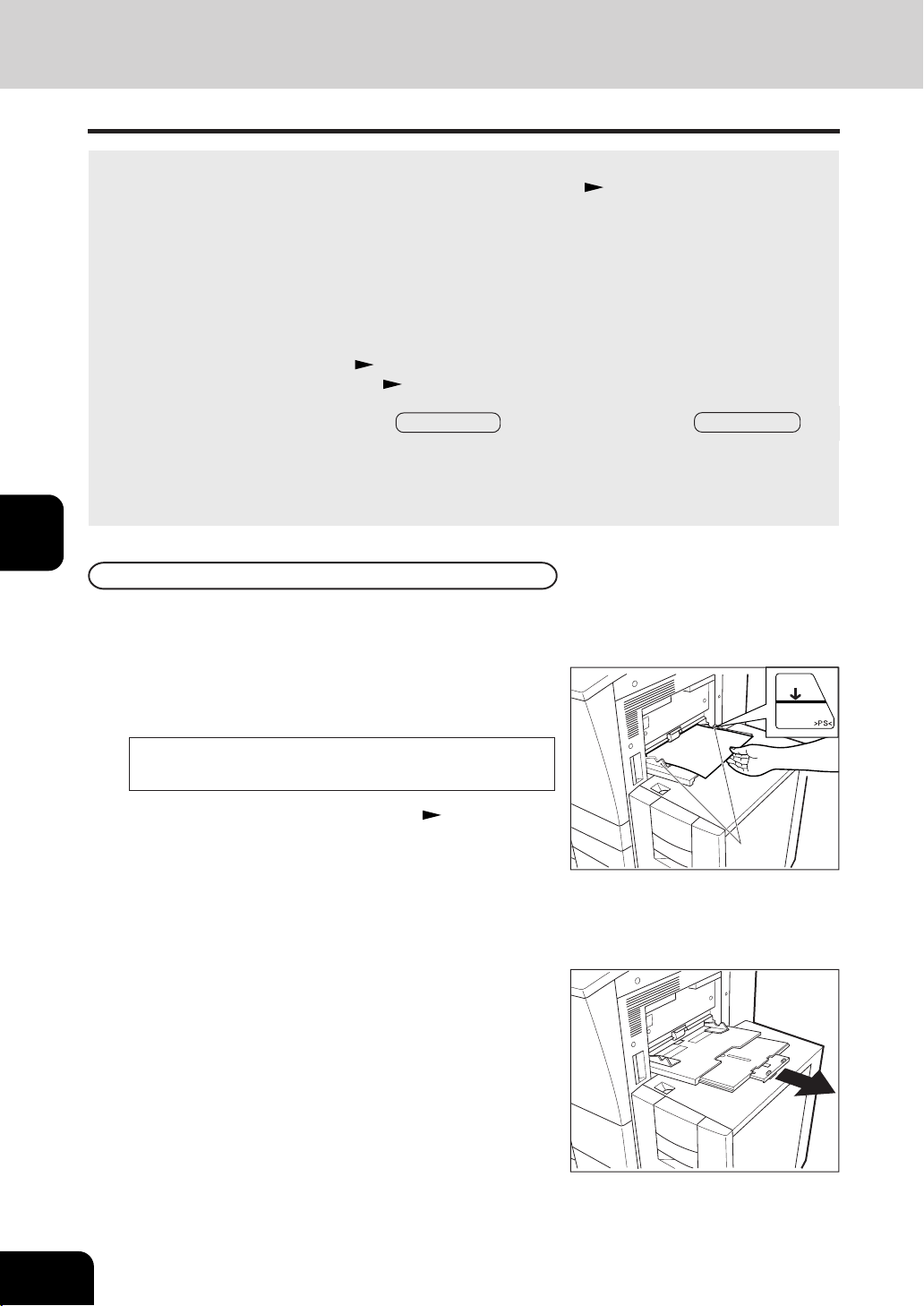
1
2
3
4
5
6
7
8
9
10
11
12
5-8
USING THE SPECIAL FUNCTIONS
MAX
4. BYPASS COPYING
When you want to make copies on thick paper, OHP film, tab paper, tracing paper, sticker labels, use the
sheet bypass. (Only thick and tab papers can be set in the drawer.
Page 2-7)
If the desired size of paper (standard size) is not set in any of the drawers, or if you want to make copies
on non-standard size, make bypass copies.
The modes below are available even in bypass copying if the paper size is specified:
- automatic magnification selection - duplex - binding margin - edge erase
- dual-page - 2 IN 1 / 4 IN 1 - trimming/masking - mirror image
- staple sort - magazine sort - saddle stitch - hole punch
In there cases, the setting procedures of the following two sizes of paper are different.
- Bypass copying on standard size
Page 5-10
- Bypass copying on non-standard size
Page5-11
* When copying is finished, the lamp of the //CLEAR ALL key lights. Either press the //CLEAR ALL key
or wait 45 seconds before the bypass copying mode automatically returns to the default mode.
* The copier stops its operation when the paper set on the bypass guide has run out even if there is
the same size of copy paper in the drawer. The copier starts again when adding the paper on
the bypass guide before the automatic clear all mode works.
Bypass copying
The general procedure for making bypass copies (the paper size is not specified) is described below.
* In this case, the paper exits with its copied side up.
1
Set sheets of paper on the bypass guide and align
the slides with the size of the paper.
Ready for bypass feeding
- This message appears:
- Acceptable paper type for bypass copy Page 2-4
- Place the paper with the side to be copied facing up.
- If you put several sheets on the bypass guide at a time, fan
the papers well before placing it.
- Place the paper so as not to exceed the line indicated on
the slide.
- Do not push the paper forcibly into the entrance of bypass
feeding. It may cause paper jam.
- Draw the triple paper holder depending on the paper size.
Slide
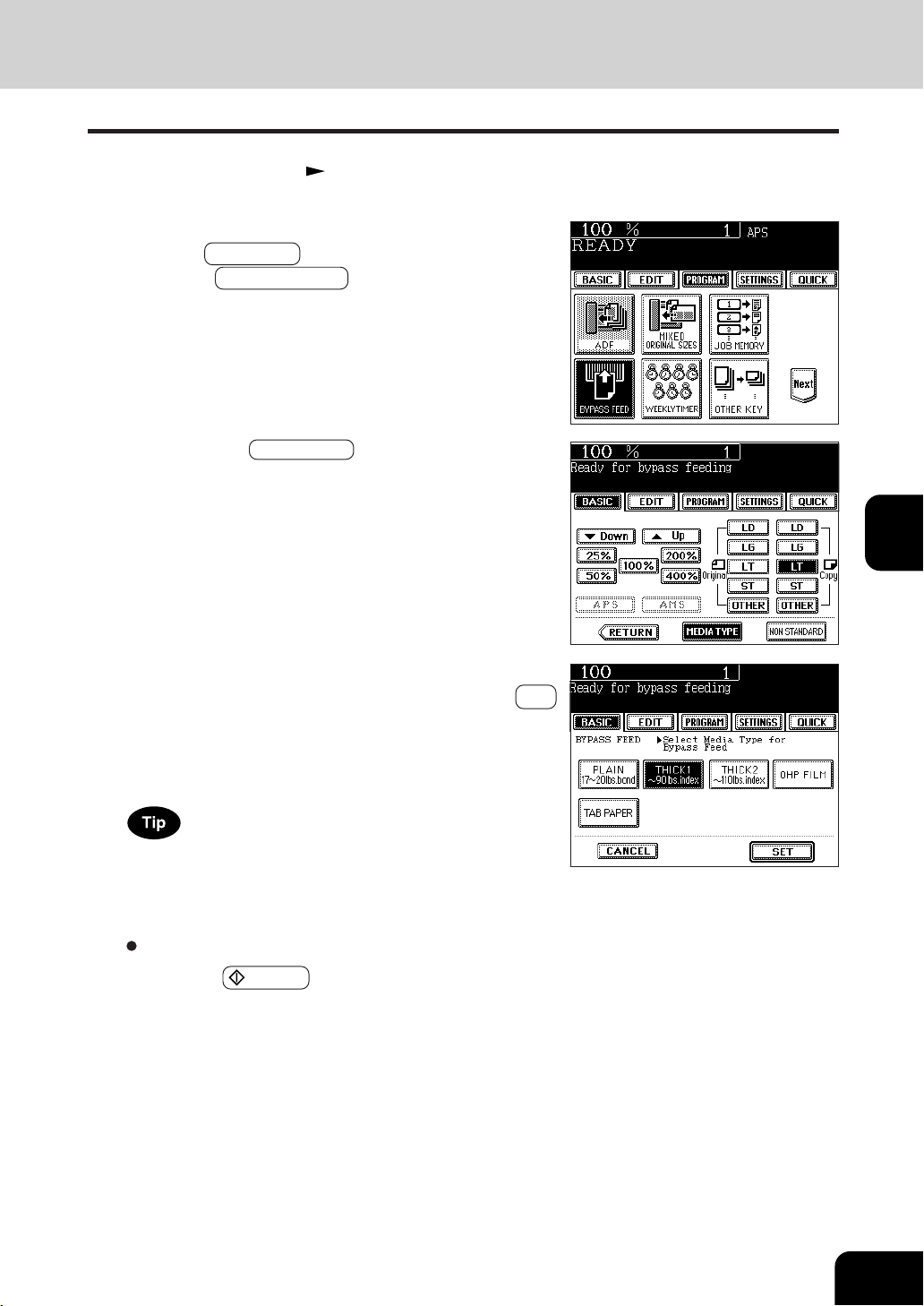
1
2
3
4
5
6
7
8
9
10
11
12
5-9
4
After selecting the paper type corresponding to the
type of the paper that has been set, press the SET
key.
- When selecting OHP film, the hole punch mode and the
staple mode cannot be used.
3
If the paper other than standard type has been set,
press the PROGRAM key to enter the program menu,
and press BYPASS FEED key.
- If the standard size paper has been set, you do not have to
perform steps 3 to 4.
2
Place the original(s). Page 2-9
If you select the paper type not corresponding to the type of
the paper that has been set, it may cause a problem such as
a paper jam, significant image deterioration, etc.
Select other copy modes as required.
- If you press the MEDIA TYPE key on the right menu, which
is displayed when placing paper on the bypass guide, the
menu of step 4 is also displayed.
5
Press the START key.
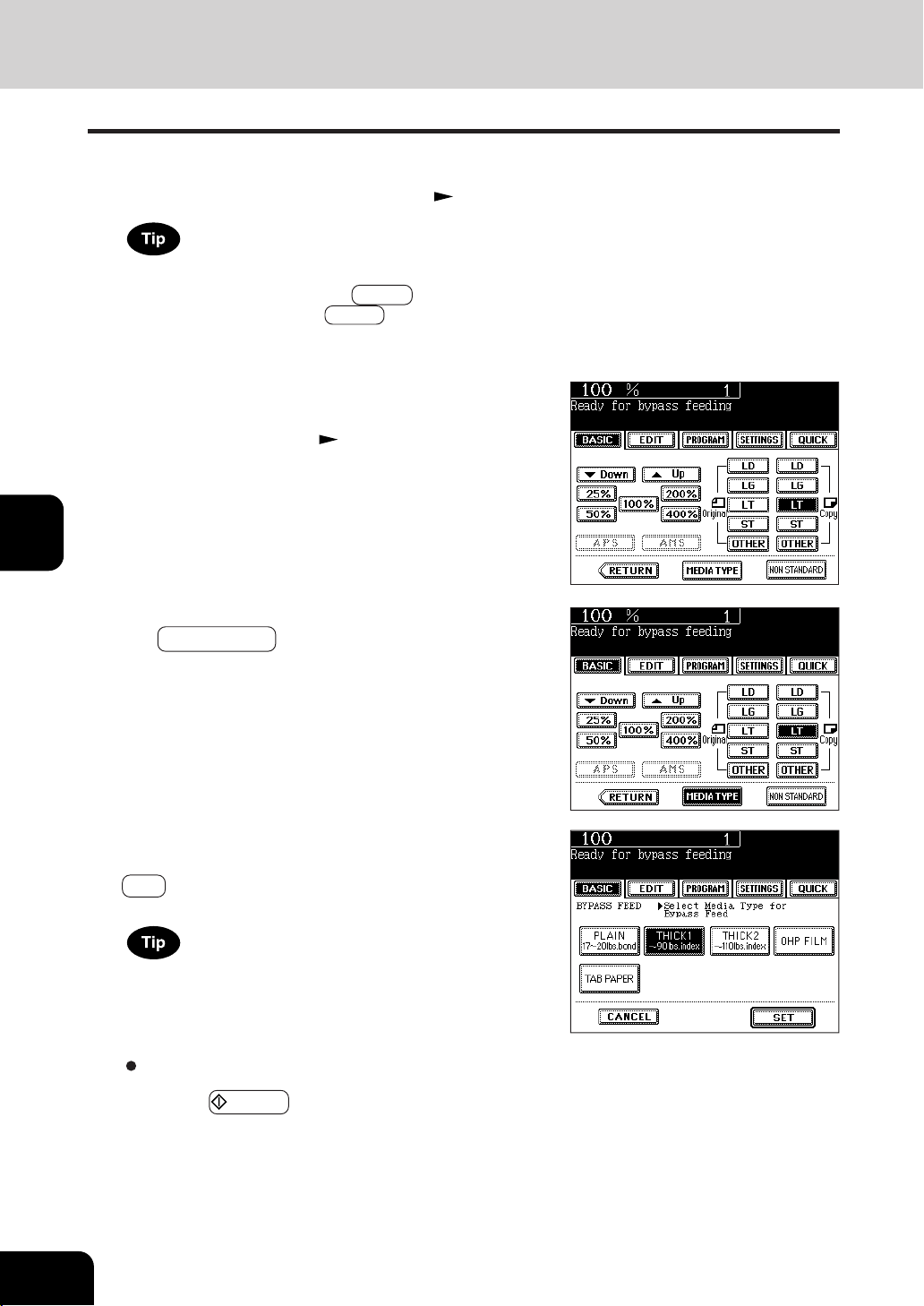
1
2
3
4
5
6
7
8
9
10
11
12
5-10
USING THE SPECIAL FUNCTIONS
4. BYPASS COPYING(cont.)
Bypass Copying on Standard Size Paper
1
perform steps 1 to 2 on pages 5-8, 5-9.
-Set the "OTHER" size key as necessary. Page 5-14
2
Press the key of the same type as the paper that has
been set.
-Non-standard size paper Page 5-12
If the paper that has been set is a standard size other than LD,
LG, LT or ST, you will select the OTHER key in step 2. In this
case, you need to make the OTHER key recognize the same
size as the paper that has been set.
3
If you set the paper other than plain paper, press
the MEDIA TYPE key.
4
After selecting the media type key corresponding
to the type of the paper that has been set, press the
SET key.
If you select the media type key not corresponding to the type
of the paper that has been set, it may cause a problem such
as a paper jam, significant image deterioration and etc.
Select other copy jobs as required.
5
Press the START key.
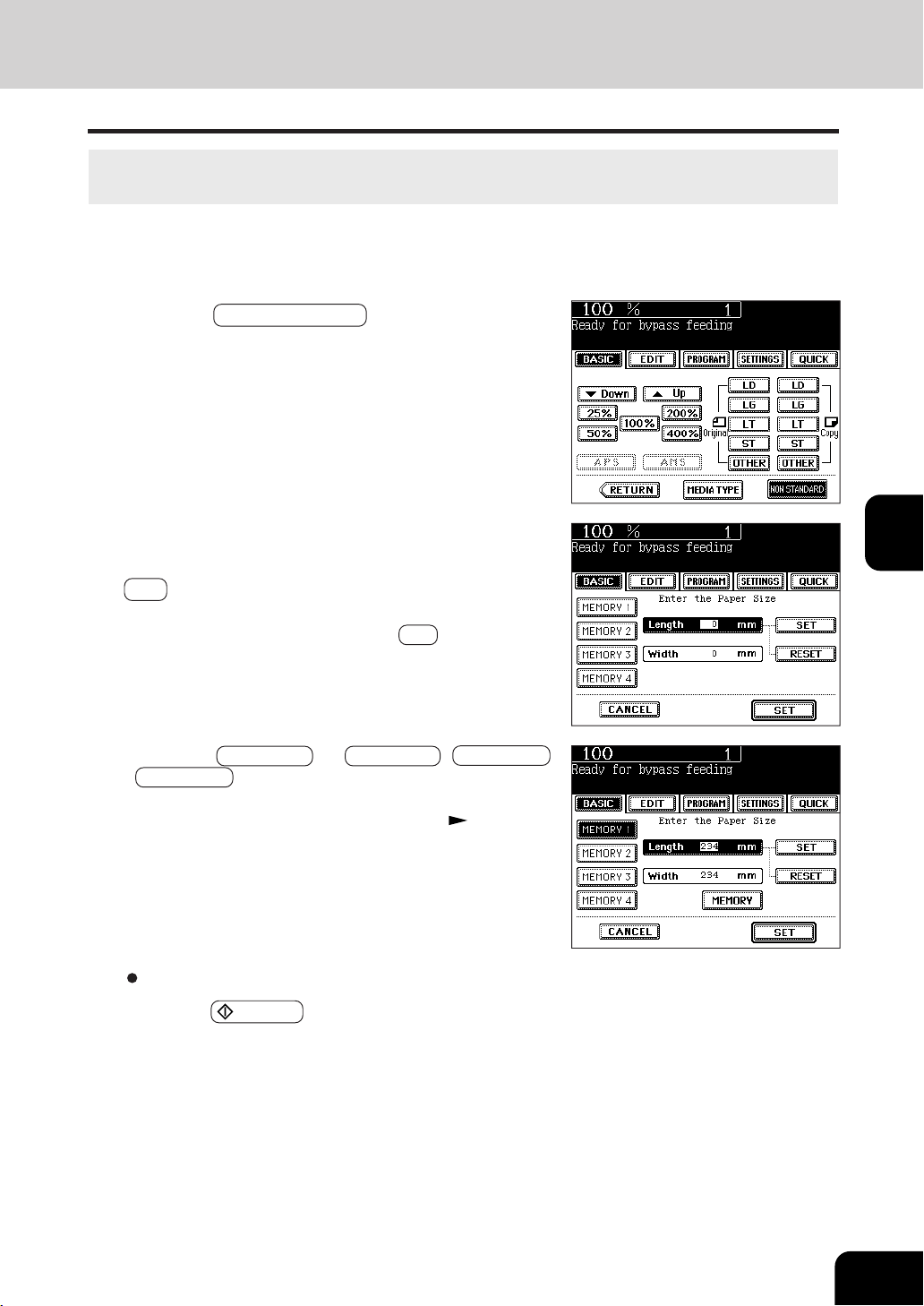
1
2
3
4
5
6
7
8
9
10
11
12
5-11
2
Press the NON-STANDARD key.
1
Perform steps 1 to 3 on page 5-10.
The size of non-standard paper is within the following ranges:
Length: 100 - 297mm (3.94" - 11.69") Width: 148 - 432mm (5.83" - 17.01")
3
Key in each dimension (length and width), or recall
the data stored in the MEMORY. Then press the lower
SET key.
- When using the digital keys to key in the size:
Key in the length and press the upper SET key. Simlarly, set
the value for the width.
- Press the MEMORY 1 (or MEMORY 2 , MEMORY 3 ,
MEMORY 4 ) key and the paper size memorized in the
MEMORY 1 appears.
- Storing a non-standard size in the memory
Page 5-12
Select other copy jobs as required.
4
Press the START key.
Bypass Copying on Non-Standard Size Paper
* 25.4mm = 1"
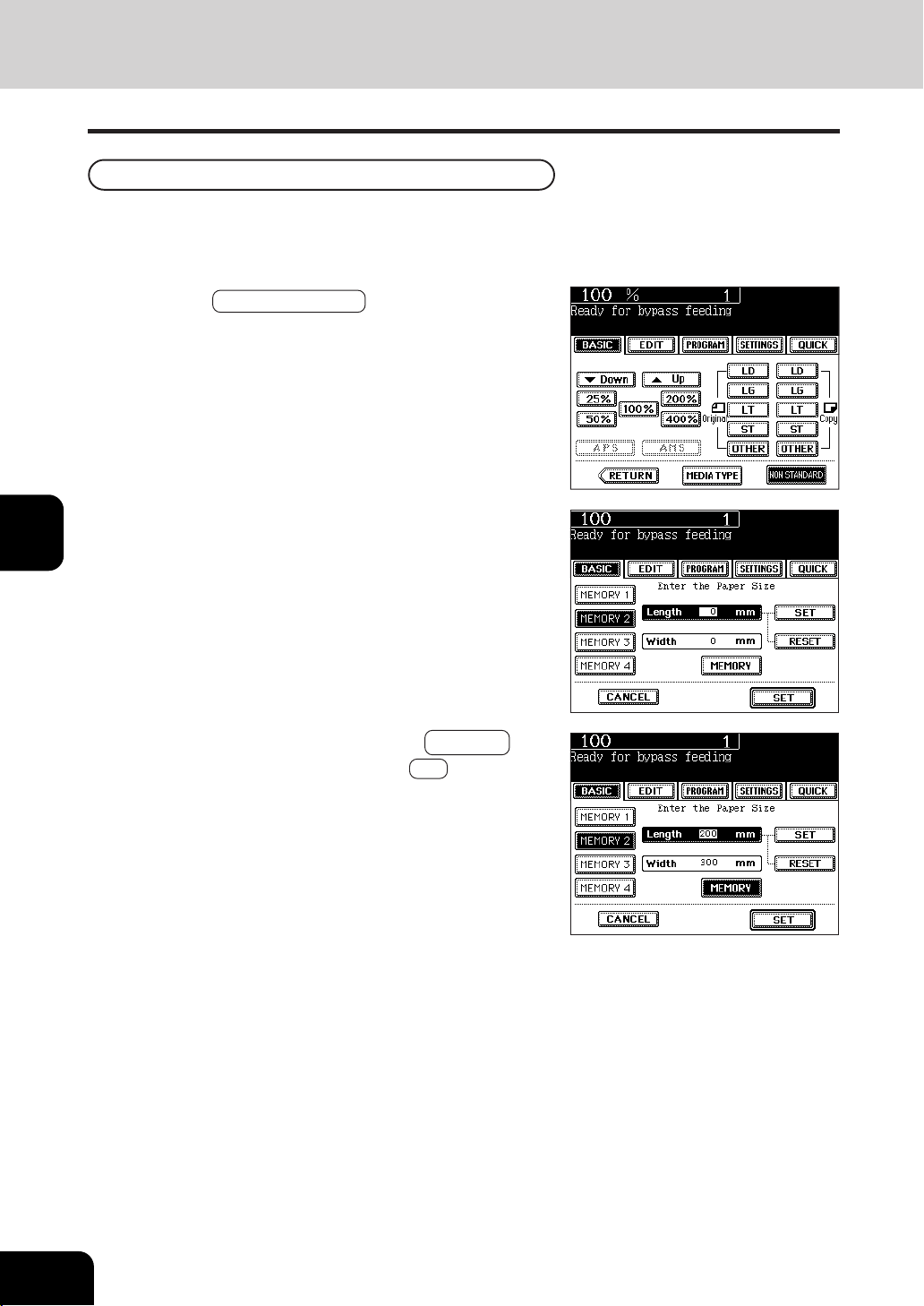
1
2
3
4
5
6
7
8
9
10
11
12
5-12
USING THE SPECIAL FUNCTIONS
3
Press the desired Memory Number key.
- When the paper size is ‘0mm’, the selected Memory Number
key is vacant.
- When the paper size is displayed, a non-standard size is
already stored in the selected Memory Number key. To
delete the settings, perform step 4. New settings will be
rewritten and stored on that Memory Number key.
Storing a Non-Standard Size in the MEMORY
4
Key in each dimension, then press the MEMORY key.
- Key in the length and press the upper SET key. Similarly,
set the value for the width.
- The paper size is stored in the shaded Memory Number key.
It is convenient if a frequently used non-standard size of paper is stored in the memory.
Bypass Copying on Non-Standard Size Paper(cont.)
4. BYPASS COPYING(cont.)
2
Press the NON-STANDARD key.
1
Perform steps 1 to 3 on page 5-10.
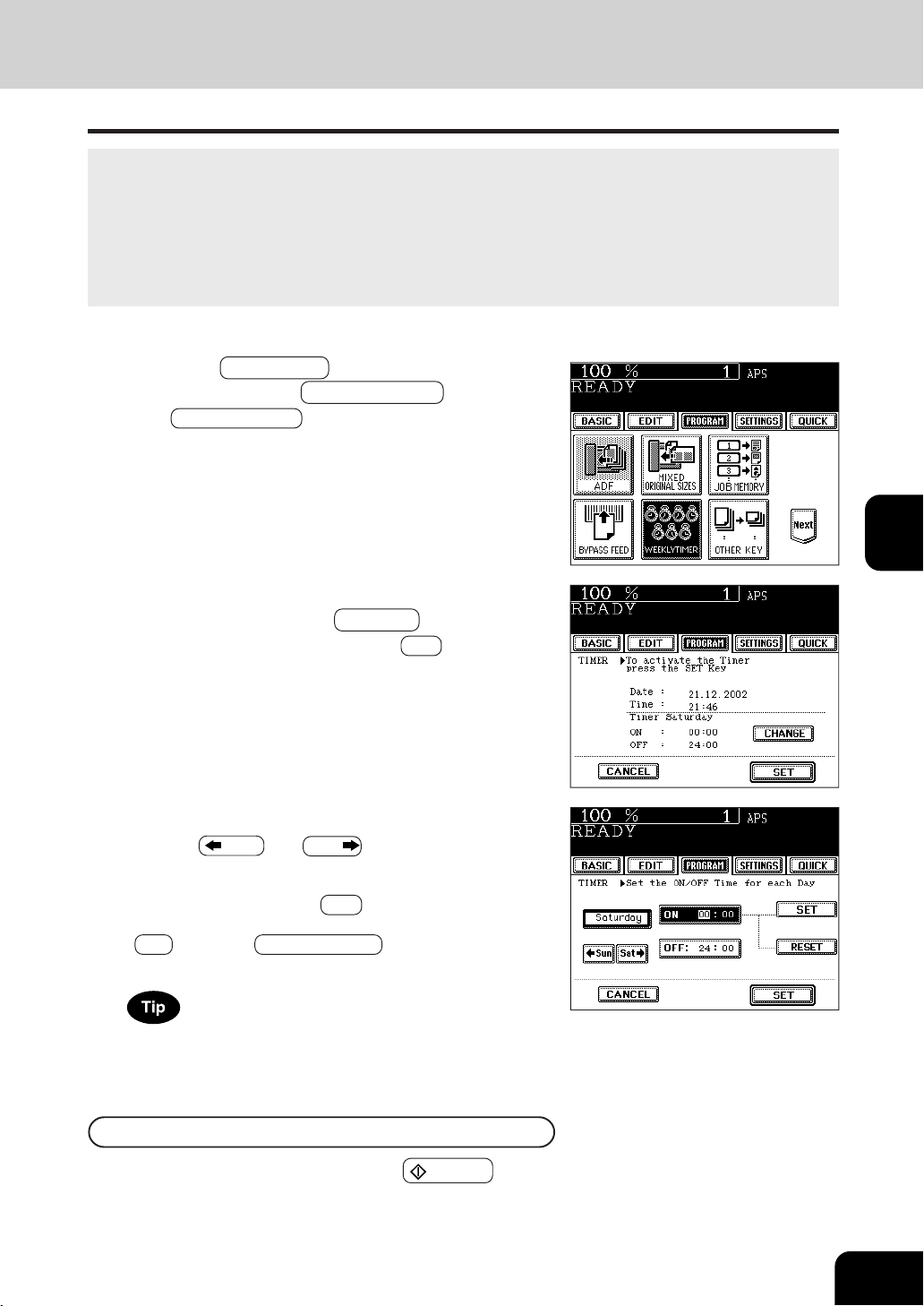
1
2
3
4
5
6
7
8
9
10
11
12
5-13
5. WEEKLY TIMER
Using the built-in weekly timer, you can have the copier automatically turned ON and OFF at specified
times. For instance, you can set the timer for the starting time and closing time of your office so that the
copier will automatically turn itself ON and OFF at those specified times.
- The ON/OFF times of the weekly timer are retained until they are changed. When the weekly timer is
resumed, the previous settings will again become effective.
- When the weekly timer is in use, the timer lamp on the control panel lights.
* When the power switch is turned off, the weekly timer does not work.
1
Press the PROGRAM key to enter the program
menu, and press the WEEKLY TIMER key.
- The WEEKLY TIMER key is half-tone shaded when the
weekly timer has already been set.
2
Check the settings on the display, and if corrections
are necessary, press the CHANGE key.
- If no correction is needed, press the SET key.
3
Set the ON/OFF times for each day of the week.
- Use the SUN and SAT keys to switch the days of
the week.
- Key in numbers using the digital keys. After entering each
number, press the upper SET key.
- After setting the times for all the days of week, press the lower
SET key. The WEEKLY TIMER key becomes half-tone
shaded.
Copying when the power is off
The copier can be used if you press START key.
- If you leave the copier for a while after the copy is finished, it will
automatically return to OFF-mode by the weekly timer.
For holidays when the copier is not turned on, key in the same
times for both ON and OFF, eg. ON:00:00 and OFF:00:00.
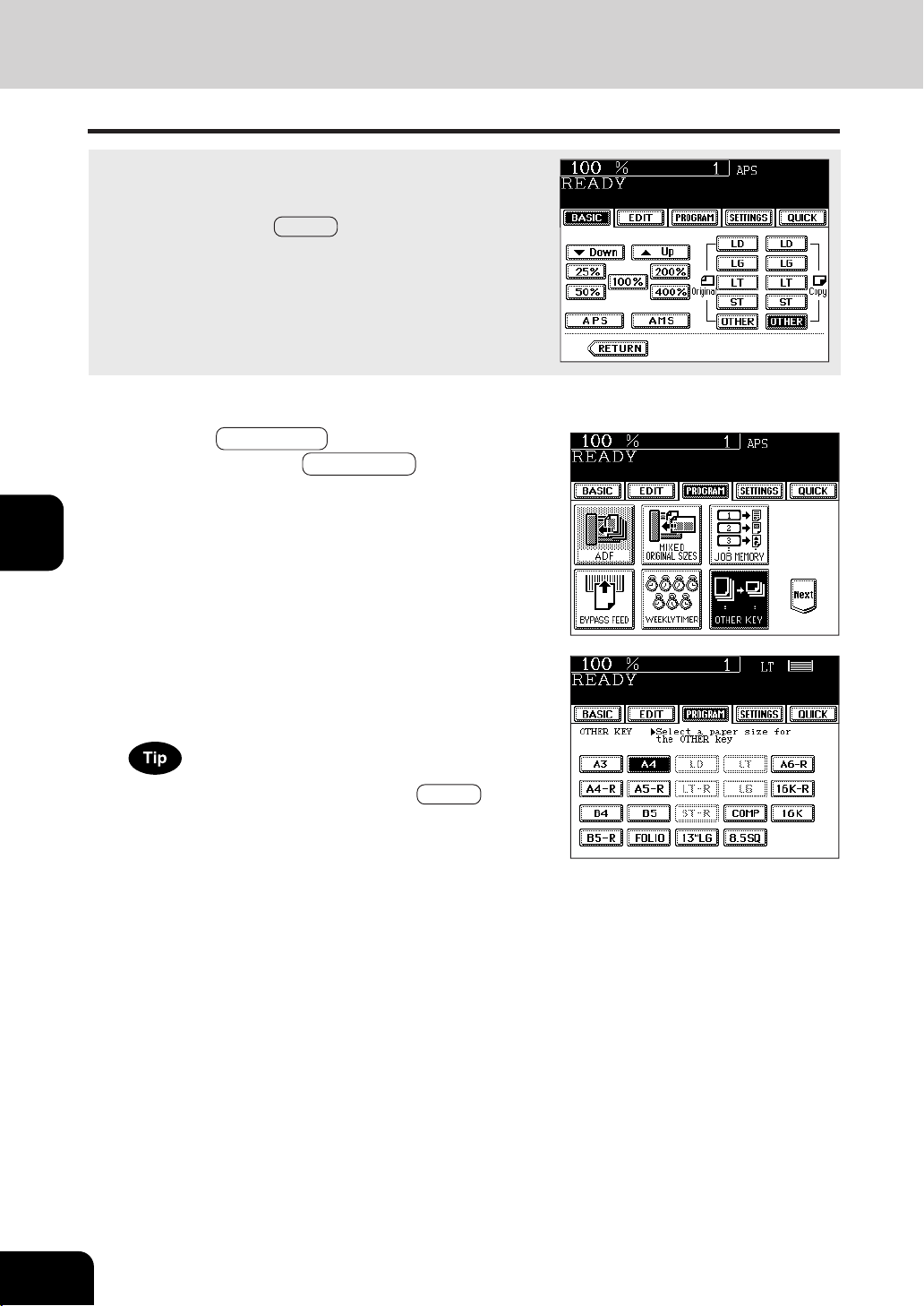
1
2
3
4
5
6
7
8
9
10
11
12
5-14
USING THE SPECIAL FUNCTIONS
When original or paper size is required to be specified and you
need to specify it to ‘OTHER’ size (except for non-standard size),
this function should be used.
- This function allows the OTHER key on the screen on the right
to recognize the size that will be used. The initial setting for this
key is COMP.
6. SETTING THE “OTHER” SIZE KEY
1
Press the PROGRAM key to enter the program
menu, and press the OTHER KEY key.
2
Press the PAPER SIZE key of the paper corresponding
to the size that will be used.
- Setting has been completed.
If you select ‘A4’ in step 2 for instance, the OTHER keys (both
ORIGINAL and PAPER SIZE keys) are recognized as A4 size.
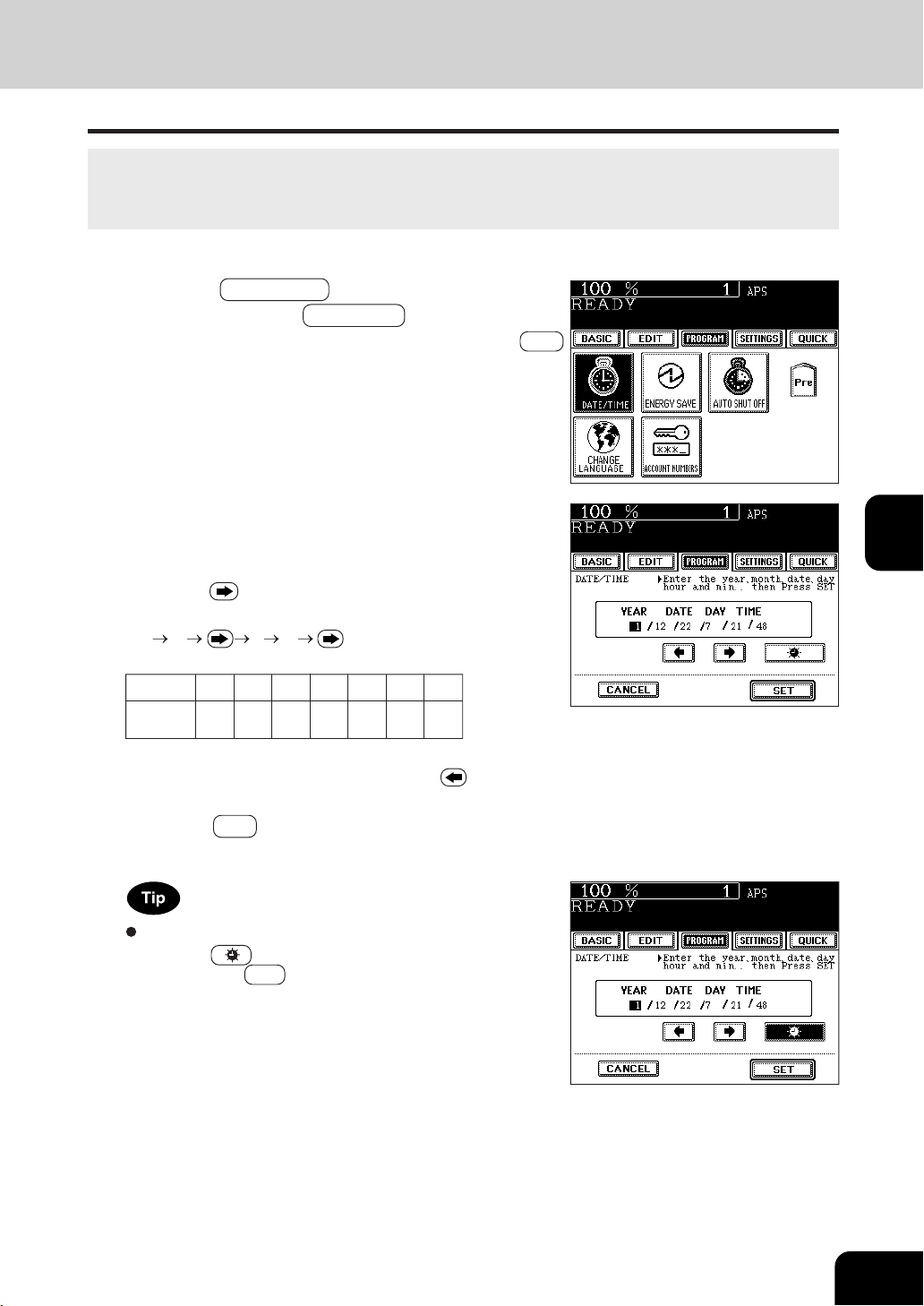
1
2
3
4
5
6
7
8
9
10
11
12
5-15
2
Key in the year (last two digits only), month, date,
day of the week, time (24-hour format) and minutes,
in this order from the left-hand column.
- Press the key to move to the next entry column.
Example: To enter 2002 / November ....,
0
2 1 1 ....
* Numbers corresponding to the days of week:
Number 1 234567
Sun. Mon. Tue. Wed. Thu. Fri. Sat.
3
Check that the settings are all correct.
- If any of the settings are incorrect, press the key to return
and correct it.
4
Press the SET key.
Setting the Clock fore Daylight Saving Time
- Press the key to shade it on the first day of summer,
then press the SET key.
- If the time was 13:40 before setting the daylight saving time
system, for example, it becomes 14:40 when the icon is
shaded.
7. SETTING THE DATE AND TIME
The clock built in to the copier can be set by entering the date, day of the week and time using the digital
keys. Also, you can easily change the clock to and from the daylight saving time system at the touch of
a key.
1
Press the PROGRAM key to enter the program
menu, and press the DATE/TIME key.
- If the desired function keys are not displayed, press the Next
key to change the menu screen.
Day of
week
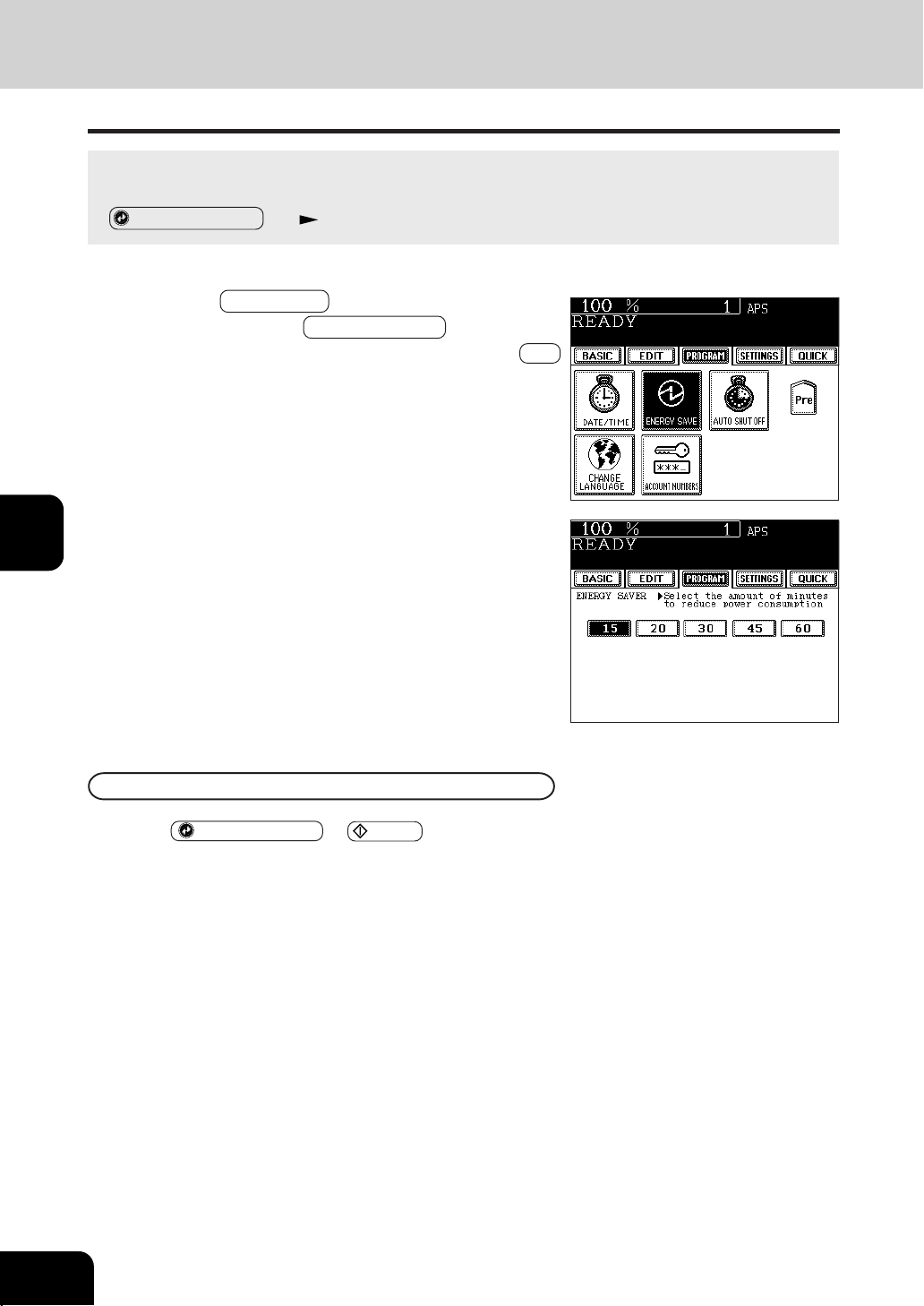
1
2
3
4
5
6
7
8
9
10
11
12
5-16
USING THE SPECIAL FUNCTIONS
Press the ENERGY SAVER or START key on the control panel. The copier starts to warm itself
up.
8.
SETTING THE AUTOMATIC ENERGY SAVE MODE
This function allows the copier automatically to go into the energy saving mode (unnecessary electricity
is cut off at standby) if it is left inactive for a certain period of time.
-
ENERGY SAVER key Page 1-5
2
Select the period of time (in minutes) on the display
allowed before the Automatic Energy Saving mode is
activated.
- The setting procedure finishes and the display returns to
the program menu screen.
- The default setting is ‘15 minutes’.
1
Press the PROGRAM key to enter the program
menu, and press the ENERGY SAVE key.
- If the desired function keys are not displayed, press the Next
key to change the menu screen.
Clearing the Automatic Energy Saving Mode
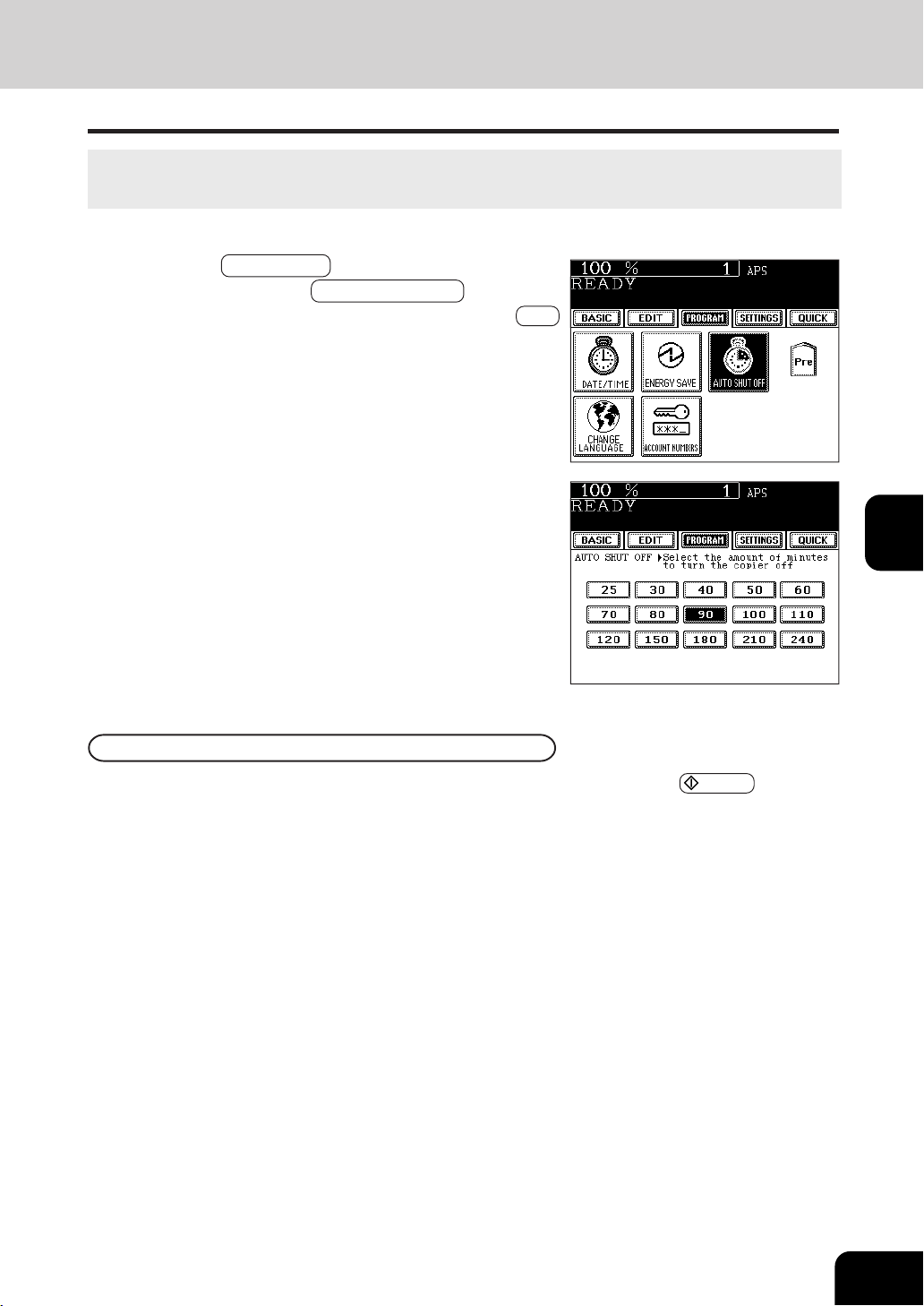
1
2
3
4
5
6
7
8
9
10
11
12
5-17
Turn ON the power switch once again when the copier is in the off-mode. Press the START key during
the sleep mode. The copier starts to warm itself up.
Clearing the Off-Mode/Sleep Mode
1
Press the PROGRAM key to enter the program
menu, and press the AUTO SHUT OFF key.
- If the desired function keys are not displyed, press the Next
key to change the menu screen.
When the power of the optional printer controller is ON, the copier goes into the sleep mode which
stands by with the minimun power consumption.
2
Select the period of time (in minutes) on the display
allowed before the Off-mode (the Sleep mode if the
power is being supplied to the optional printer con-
troller) is activated.
- The setting procedure finishes and the display returns to
the program menu screen.
- The default setting is ‘90 minutes’.
9. SETTING THE AUTOMATIC OFF-MODE
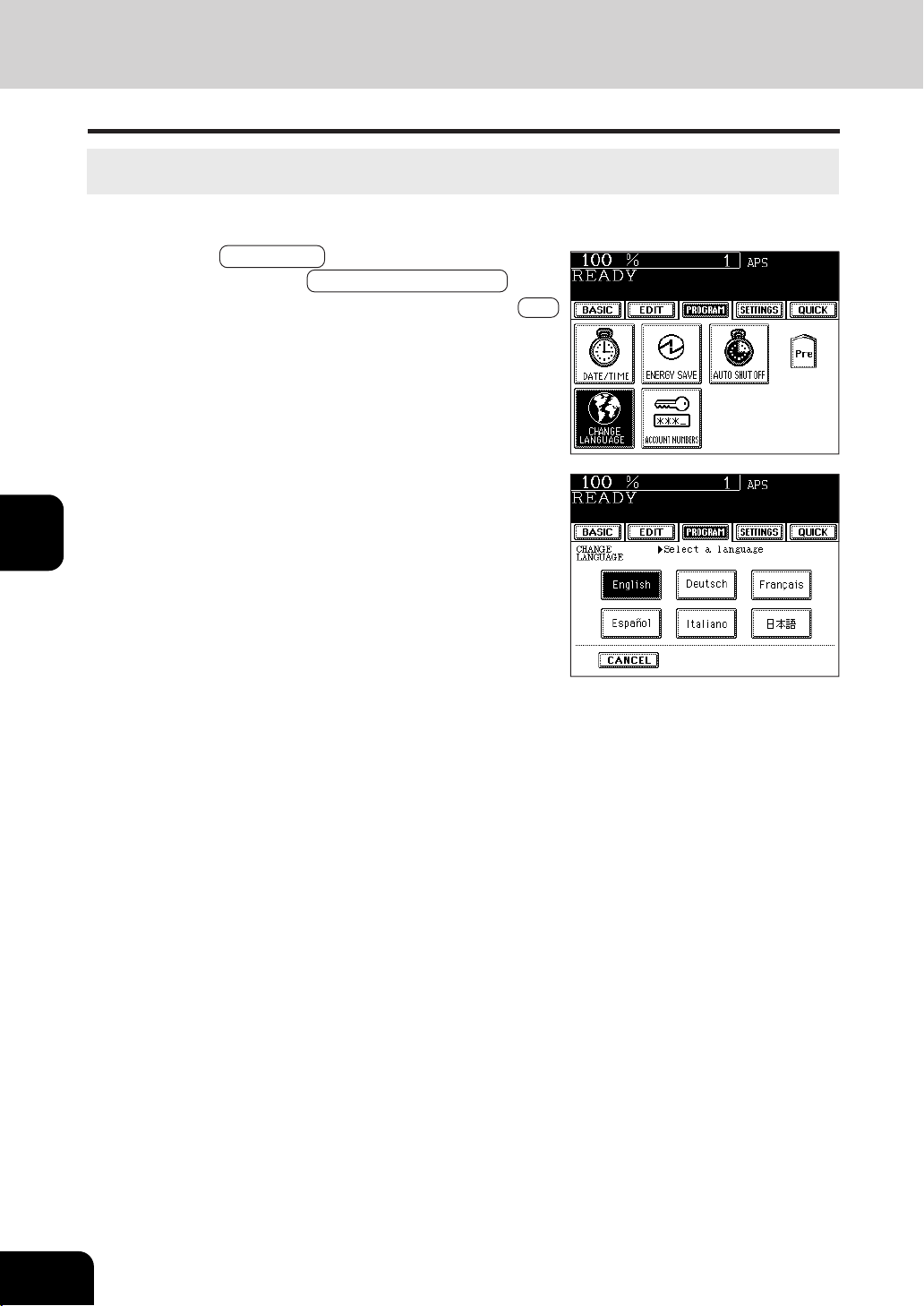
1
2
3
4
5
6
7
8
9
10
11
12
5-18
USING THE SPECIAL FUNCTIONS
1
Press the PROGRAM key to enter the program
menu, and press the CHANGE LANGUAGES key.
- If the desired function keys are not displayed, press the Next
key to change the menu screen.
10. SWITCHING LANGUAGES
The language used on the touch panel can be changed to a different one.
2
Press the key of the desired language.
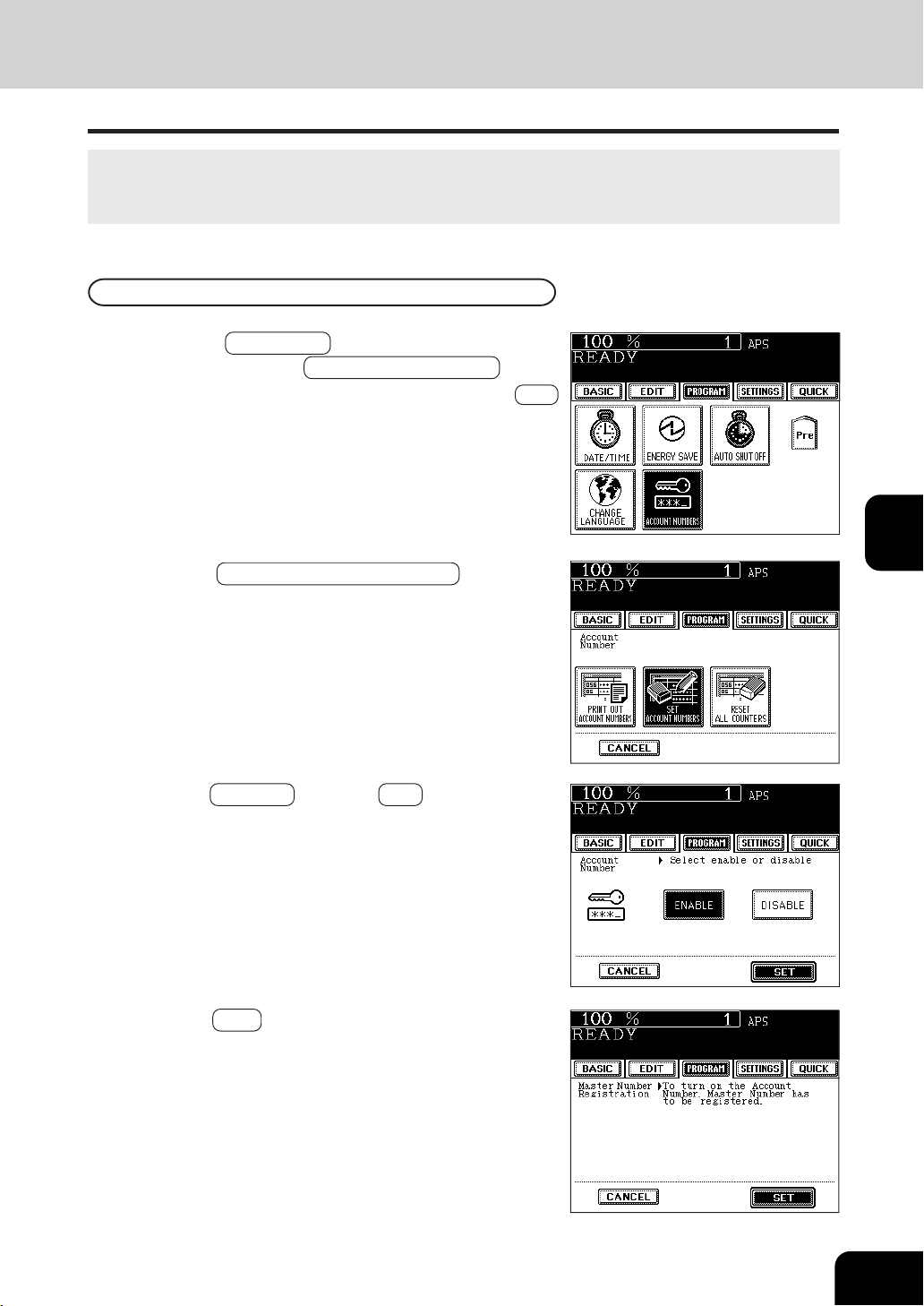
1
2
3
4
5
6
7
8
9
10
11
12
5-19
11. ACCOUNT NUMBERS
You can administer the copy quantity of each group by setting a account number for each purpose
(copier and printer ). Up to 150 numbers can be set.
*You need a master number to be registered when you use this function for the first time.
1
Press the PROGRAM key to enter the program
menu, and press the ACCOUNT NUMBERS key.
- If the desired function keys are not displayed, press the Next
key to change the menu screen.
Master number registration
2
Press the SET ACCOUNT NUMBERS key in the
account number menu.
3
Press the ENABLE key, then SET key.
4
Press the SET key.
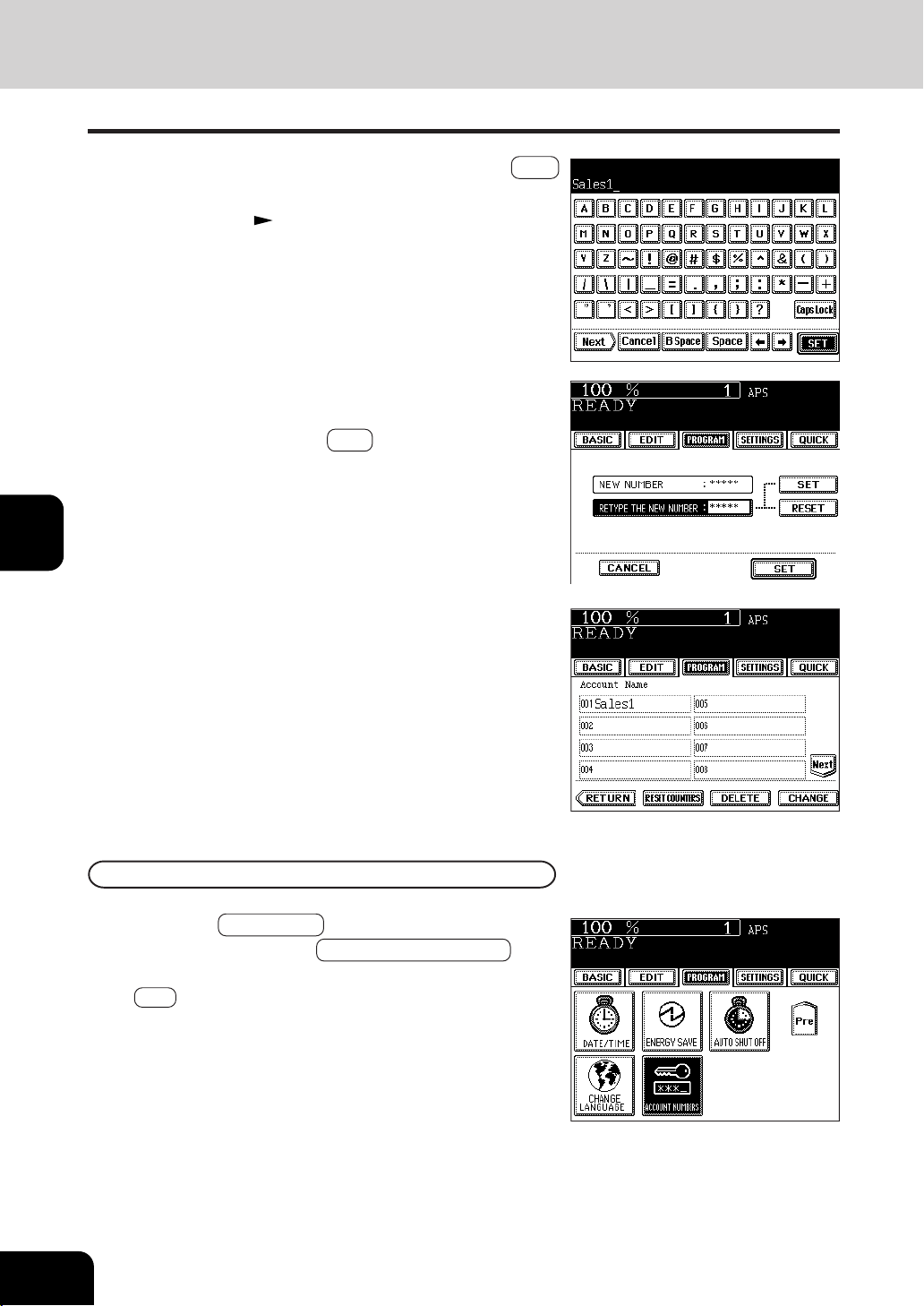
1
2
3
4
5
6
7
8
9
10
11
12
5-20
USING THE SPECIAL FUNCTIONS
11. ACCOUNT NUMBERS (Cont.)
5
Input the master number name, and press the SET
key.
- Entering letters Page 5-28
6
Key in the desired master number (the same number)
both for “NEW NUMBER” and for “RETYPE THE NEW
NUMBER” , and press the SET key.
- The master number is 5 digits (“00000” is invalid).
7
Master number name is displayed in the account
“001”.
- Master number registration is completed.
Procedure to display the account number menu
1
Press the PROGRAM key to enter the program
menu. Then, press the ACCOUNT NUMBERS key.
- If the desired function keys are not displayed, press the
Next key to change the menu screen.

1
2
3
4
5
6
7
8
9
10
11
12
5-21
2
Key in the master number or the account number (5
digits), then press SET key.
- Registration of Account Number As shown below
Input the master number for using “SET ACCOUNT NUMBERS”
and “RESET ALL COUNTERS”.
3
The account number menu is displayed.
- The screen when the master number is entered
- The screen when the account number is entered
Registration / Change / Deletion of Account Number
*Available only when the master number is entered.
Registering a New Account Number
1
Press the SET ACCOUNT NUMBERS key in the
account number menu.
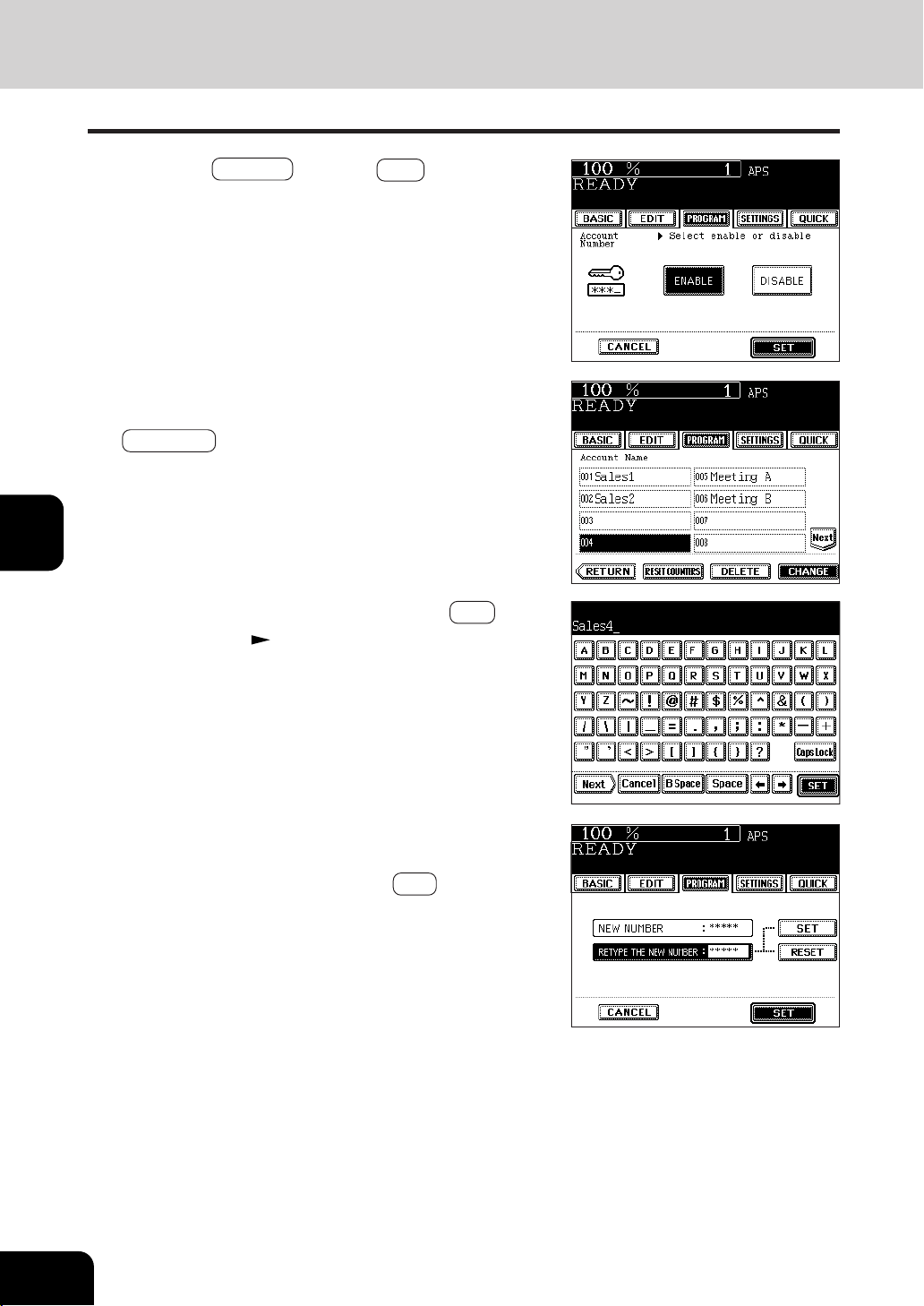
1
2
3
4
5
6
7
8
9
10
11
12
5-22
USING THE SPECIAL FUNCTIONS
11. ACCOUNT NUMBERS (Cont.)
2
Press the ENABLE key, then SET key.
3
Press the account number where you want to
register the account number, and press the
CHANGE key.
4
Input the account name and press the SET key.
- Entering letters Page 5-28
5
Key in the desired account number (the same number)
both for “NEW NUMBER” and for “RETYPE THE NEW
NUMBER”, and press the lower SET key.
- The account number is 5 digits (“00000” is invalid).
- Registering of the account number is completed.
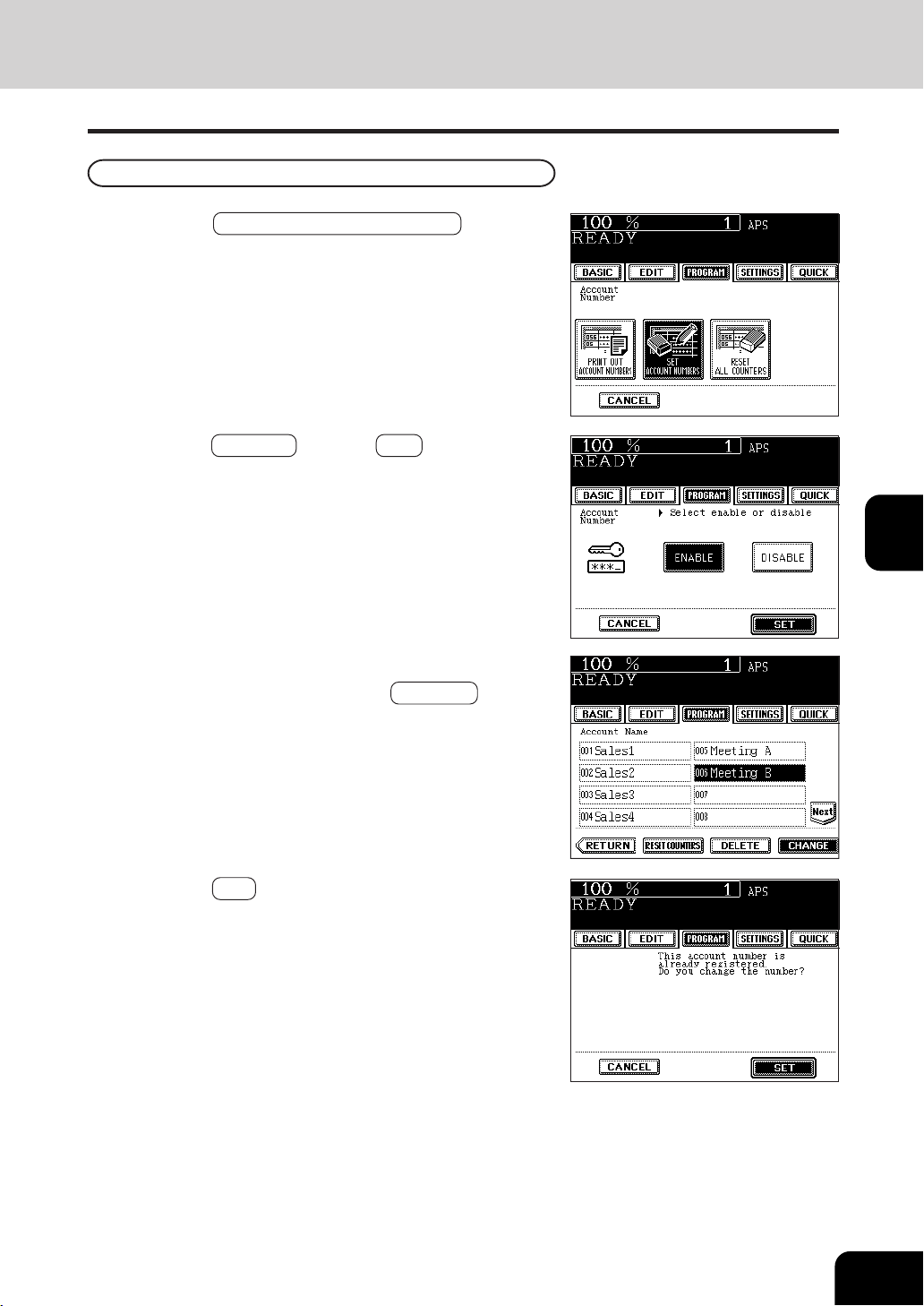
1
2
3
4
5
6
7
8
9
10
11
12
5-23
Changing a Specific Account Number
1
Press the SET ACCOUNT NUMBERS key in the
account menu.
2
Press the ENABLE key, then SET key.
3
Press the account number where you want to change
the account number, and press CHANGE key.
4
Press the SET key.
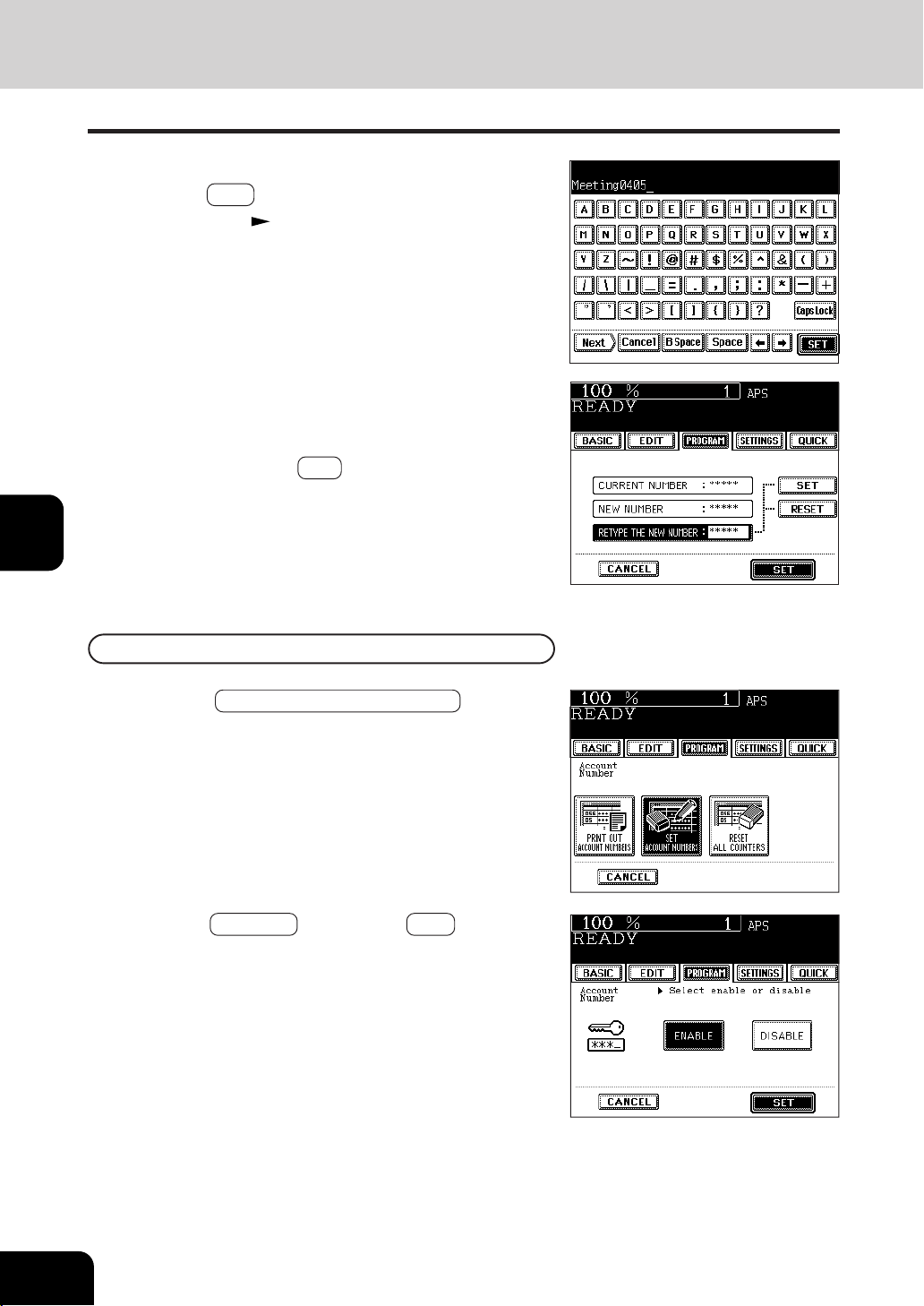
1
2
3
4
5
6
7
8
9
10
11
12
5-24
USING THE SPECIAL FUNCTIONS
11. ACCOUNT NUMBERS (Cont.)
5
Input the account name you want to register, and
press the SET key.
- Entering letters Page 5-28
6
Key in the former account number for “CURRENT
NUMBER” and the new account number both for
“NEW NUMBER” and “RETYPE THE NEW NUMBER”,
and press the lower SET key.
- The master number is 5 digits ( “00000” is invalid).
- Changing of the account number is completed.
Deleting a Specific Account Number
1
Press the SET ACCOUNT NUMBERS key in the
account menu.
2
Press the ENABLE key, then the SET key.
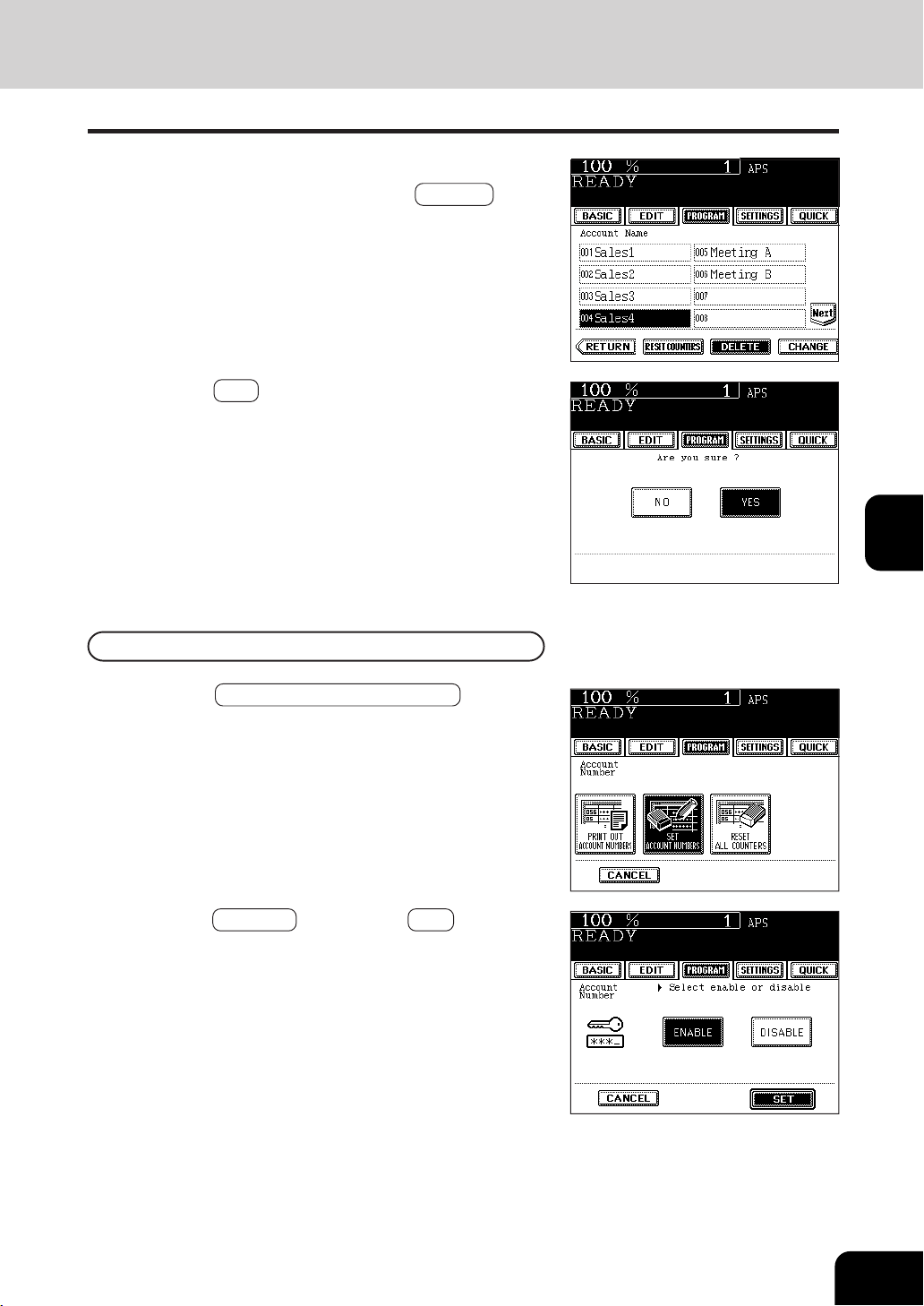
1
2
3
4
5
6
7
8
9
10
11
12
5-25
3
Press the account number where you want to delete
the account number, and press the DELETE key.
4
Press the YES key.
- Deleting of the selected account number is completed.
Clearing a Specific Account Counter
1
Press the SET ACCOUNT NUMBERS key in the
account number menu.
2
Press the ENABLE key, then the SET key.
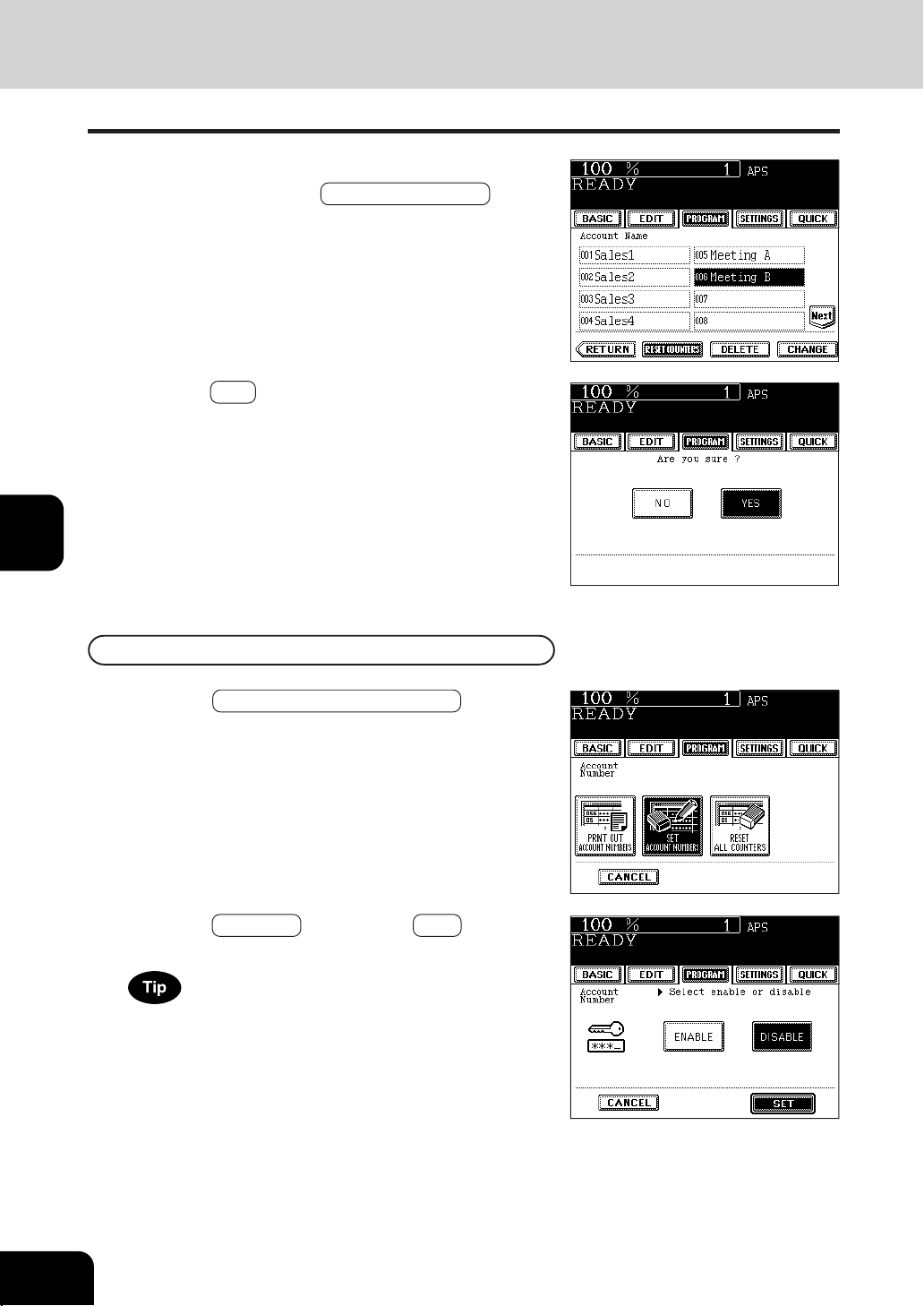
1
2
3
4
5
6
7
8
9
10
11
12
5-26
USING THE SPECIAL FUNCTIONS
11. ACCOUNT NUMBERS (Cont.)
3
Press the account number you want to clear the
counter, and press the RESET COUNTERS key.
1
Press the SET ACCOUNT NUMBERS key in the
account number menu.
2
Press the DISABLE key, then the SET key.
- Disabling set is completed.
4
Press the YES key.
- The counter reset is completed.
Disabling a Account Number
If you want to enable the account number function, you have
to input the master number again.

1
2
3
4
5
6
7
8
9
10
11
12
5-27
Print out account number
*This function prints out the number of copies output for each account.
1
Press the PRINT OUT ACCOUNT NUMBERS key in
the account number menu.
- Printing starts.
Clearing All Counters
This function clears all counters to “000000”.
*Available only when the master number is entered.
*The total counter ( Page 1-4) cannot be reset.
1
Press the RESET ALL COUNTERS key in the
account number menu.
2
Press the YES key.
- The counter is reset to “000000”.
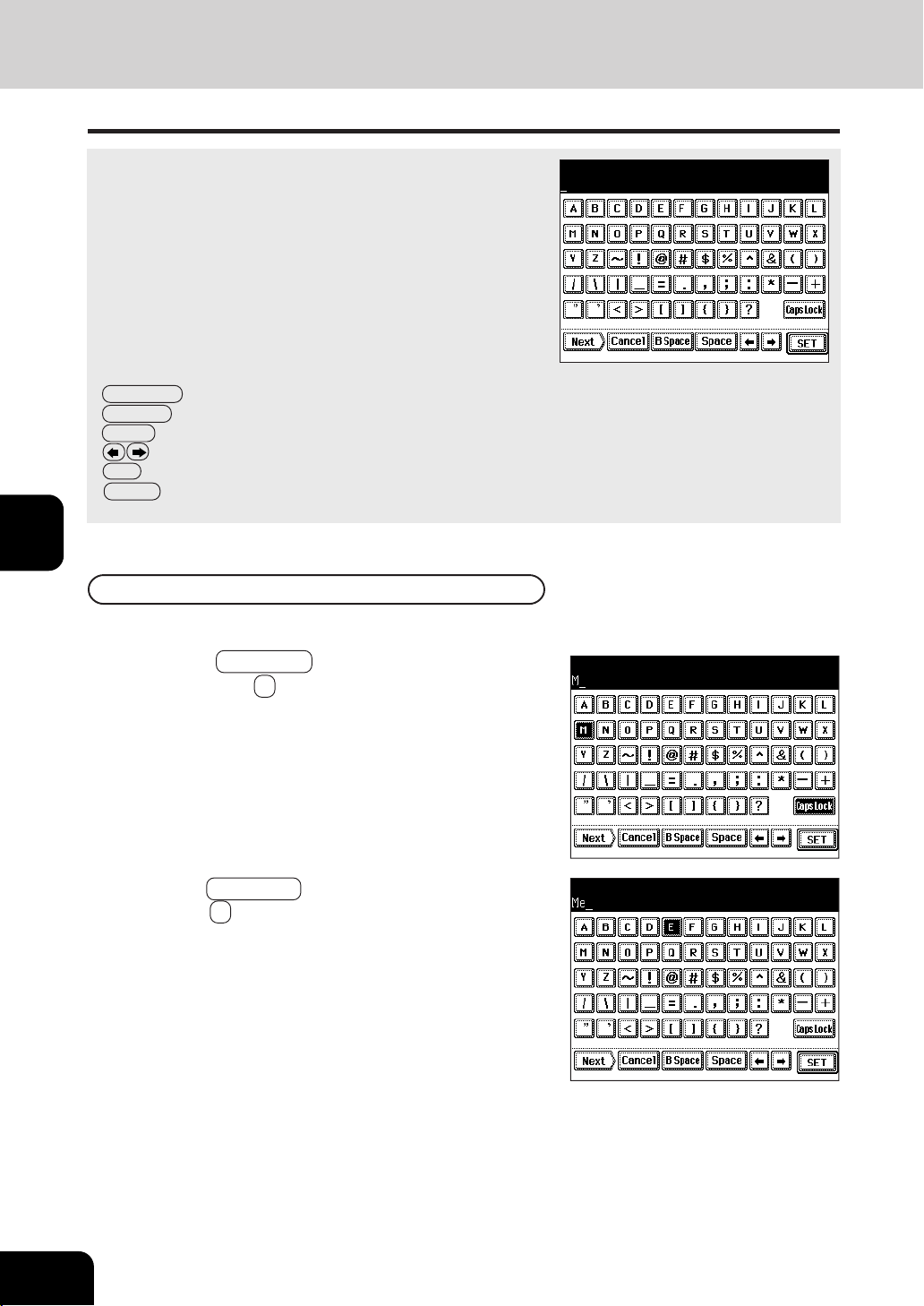
1
2
3
4
5
6
7
8
9
10
11
12
5-28
USING THE SPECIAL FUNCTIONS
The following screen is provided for entering letters.
* To enter numbers, use the digital keys on the control panel.
The following keys are used to enter letters.
- CapsLock ............... Press this key to switch capital letters and small letters.
- B Space ................. Press this key to delete the letter before the cursor.
- Space .................... Press this key to enter a space.
-
...................... Press these keys to move the cursor.
- SET ........................ Press this key to fix all entered letters.
- Cancel ................... Press this key to cancel entry of letters.
2
Press the CapsLock key to enter small letters, then
press the E key.
Example: Enter “Meeting”
12. ENTERING LETTERS
Entering Letters
1
Press the CapsLock key to enter capital letters,
then press the M key in the Letter Entry Screen.
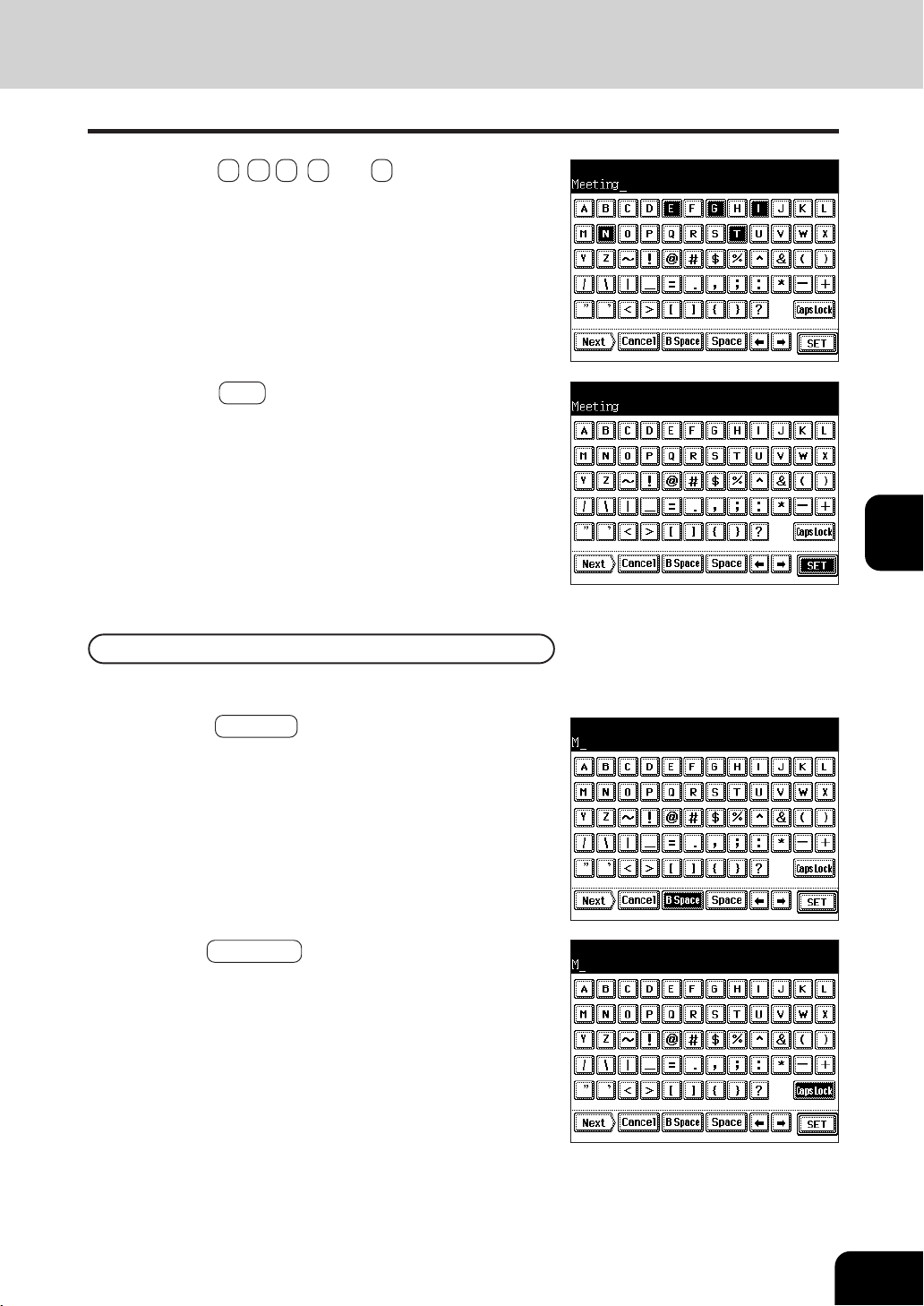
1
2
3
4
5
6
7
8
9
10
11
12
5-29
1
Press the B Space key to delete “eeting”.
2
Press the CapsLock key to enter the capital letters.
Example: Correct “Meeting” to “MEETING”.
3
Press the E , T , I , N and G keys.
4
Press the SET key to fix the entered letters.
Correcting Entered Letters
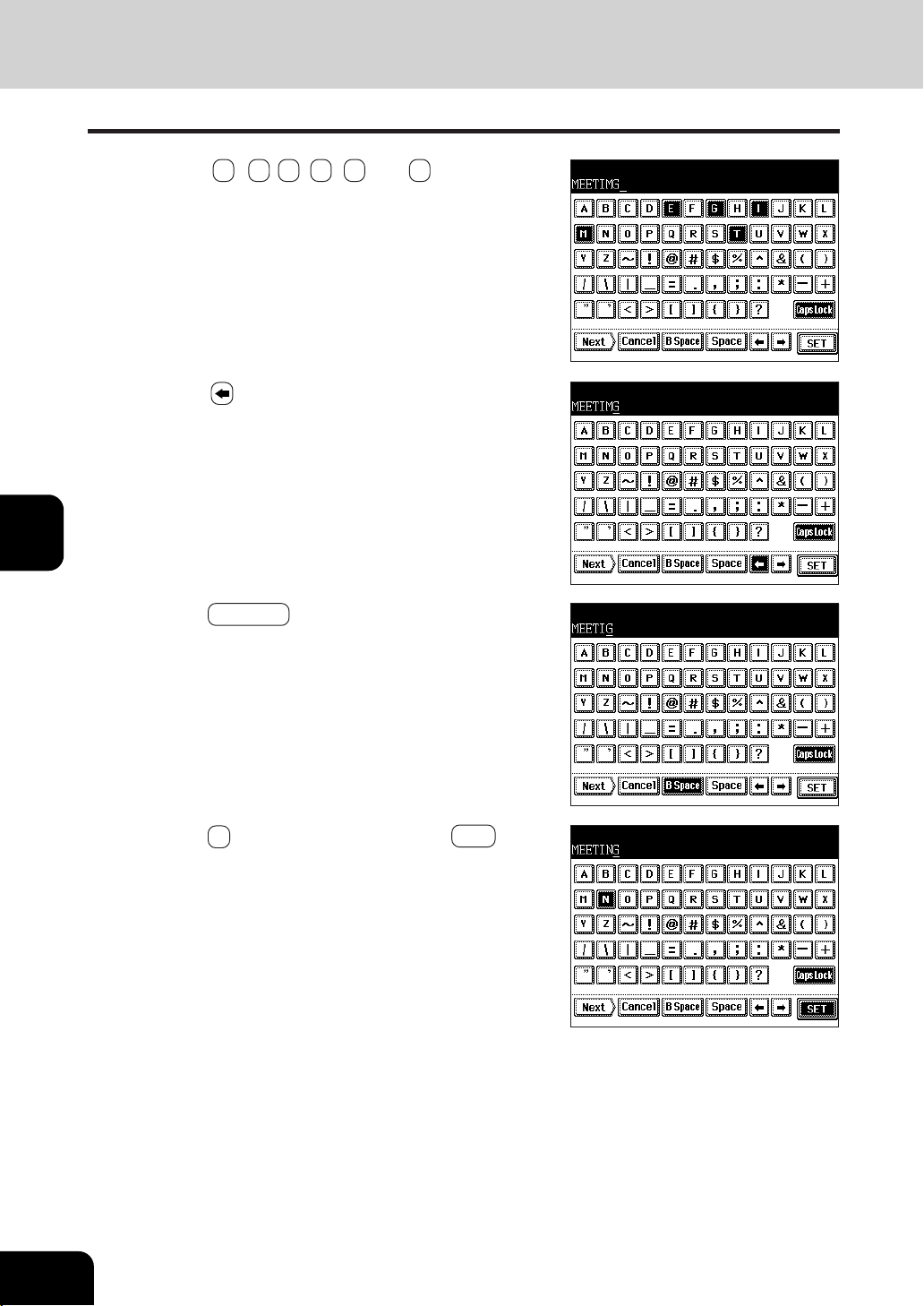
1
2
3
4
5
6
7
8
9
10
11
12
5-30
USING THE SPECIAL FUNCTIONS
5
Press the B Space key to delete “M”.
6
Press the N key to enter “N”, then the SET key to
fix the entered characters.
4
Press the key to move the cursor to (under) “G”.
12. ENTERING LETTERS (Cont.)
3
Press the E , E , T , I , M and G keys.

1
2
3
4
5
6
7
8
9
10
11
12
6-1
6. SELECTING FINISHING MODES
(USING THE OPTIONAL FINISHERS AND INSERTER)
1. Finishing modes and finishers (optional) ................................... 6-2
2. Sort/group copying .................................................................... 6-3
3. Staple sorting (optional) ............................................................ 6-4
4.
Magazine sort & saddle stitch mode (booklet mode) (optional) .
6-6
5. Hole punch mode (optional) ...................................................... 6-8
6. Inserter mode (optional) ............................................................ 6-9
- Setting the inserter ..................................................................................... 6-10
- Using only staple and hole punch ..............................................................6-13

1
2
3
4
5
6
7
8
9
10
11
12
6-2
SELECTING FINISHING MODES
1. FINISHING MODES AND FINISHERS (OPTIONAL)
There are 2 types of optional finishers ( AR-F11 and AR-F12 ).
Functions available differ depending on whether a finisher is installed
and which type of finisher it is.
- Press the key on the basic screen on the right (shaded), and confirm
the finishing modes on the panel.
* The touch panel used in this chapter appears when the optional
saddle stitch finisher (AR-F12, with hole punch unit) and inserter
are installed with your copier.
Names of the Main Components
When the finisher trays reach their maximum loading capacity
( Page 9-4), the following message appears:
Remove paper from the finisher
Remove the copies from the trays and the copier automatically
resumes making copies.
Hole punch unit
(sold separately)
Upper cover
Trays
Front cover
Saddle stitch tray (AR-F12 only)
Lower cover
Inserter
(sold separately)
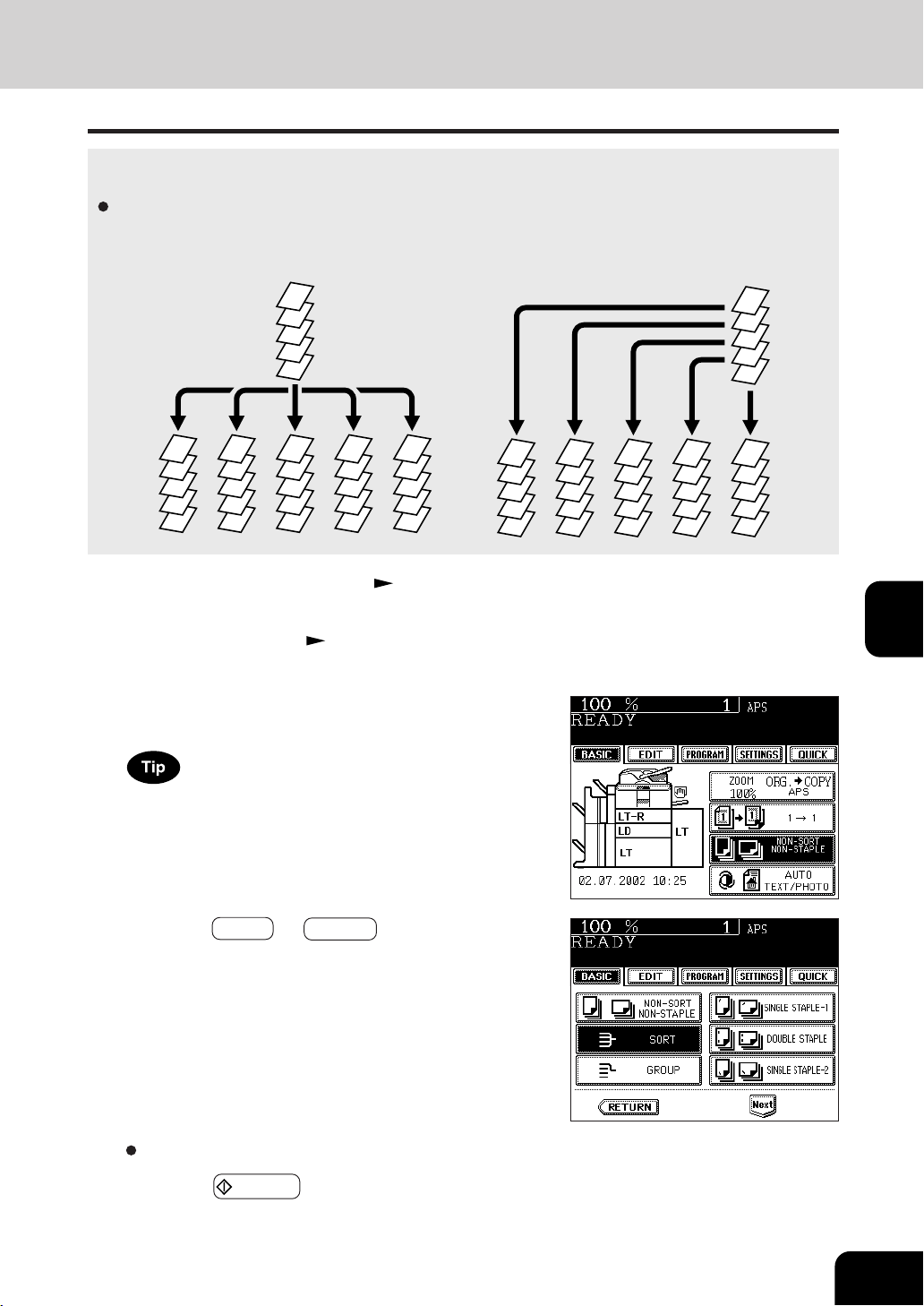
1
2
3
4
5
6
7
8
9
10
11
12
6-3
Select other copy modes as required.
5
Press the START key.
2. SORT/GROUP COPYING
To make multiple copies, you can select the sort mode or group mode as necessary.
The paper sizes available for sort/group copying are LD,LG,LT,LT-R,COMP,A3,A4,A4-R,B4,B5 and FOLIO.
Example of making 5 sets of copies from 5-page originals
- Sort copying
- Group copying
1
Place paper in the drawer(s). Page 2-4
4
Press the SORT (or GROUP ) key.
2
Place the original(s). Page 2-9
5
4
3
2
1
5
4
3
2
1
5
4
3
2
1
5
4
3
2
1
5
4
3
2
1
5
4
3
2
1
4
4
4
4
4
3
3
3
3
3
5
5
5
5
5
5
4
3
2
1
2
2
2
2
2
1
1
1
1
1
3
Press the key on the basic screen as shown on the
right (shaded).
When originals are placed in the reversing automatic document
feeder, the sort mode is automatically selected.
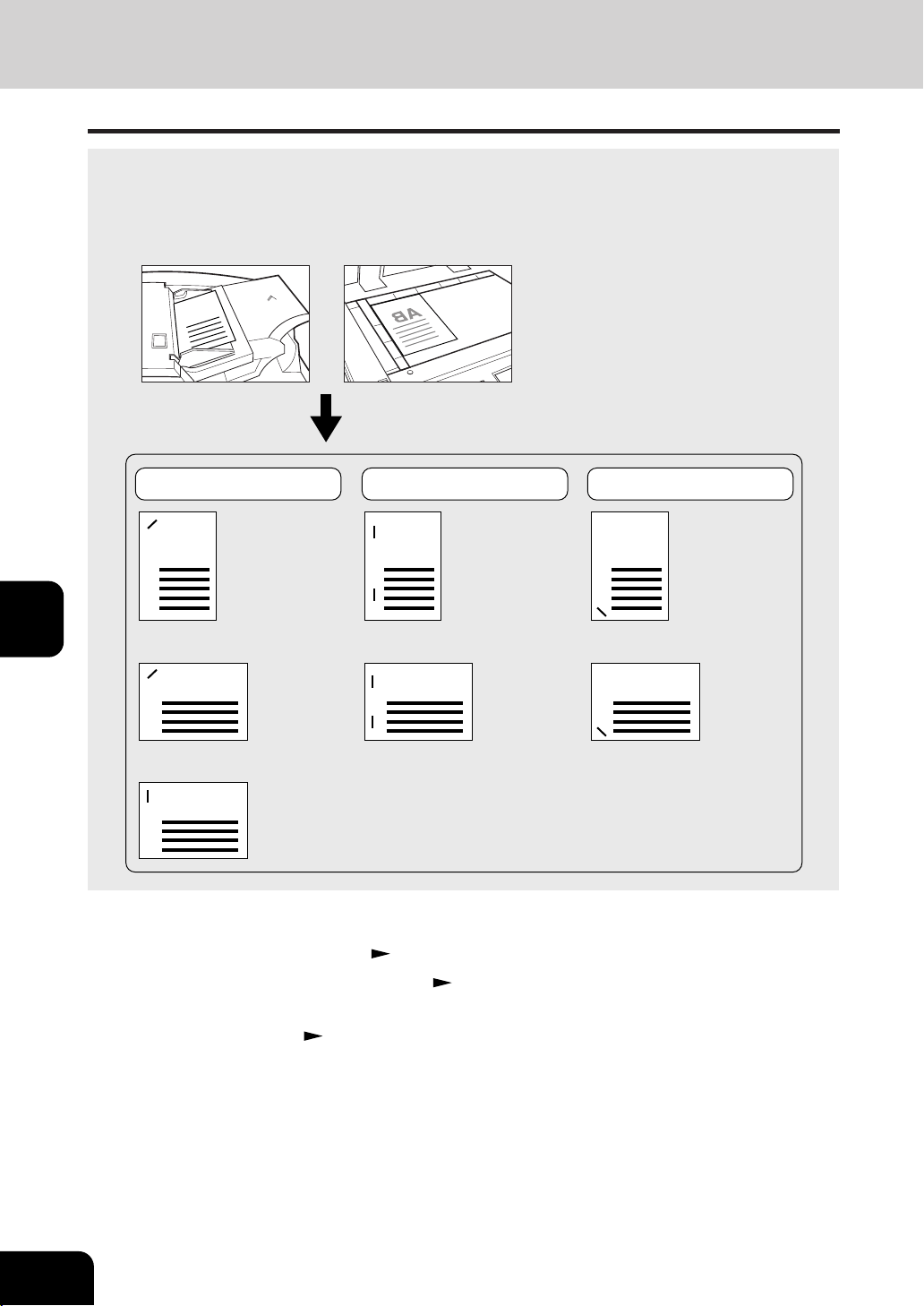
1
2
3
4
5
6
7
8
9
10
11
12
6-4
SELECTING FINISHING MODES
2
Place the original(s). Page 2-9
3. STAPLE SORTING (OPTIONAL)
1
Place paper in the drawer(s). Page 2-4
- When using this mode in bypass copying (
Page 5-8), be
sure to specify the paper size.
When the optional finisher is installed, you can use the function that performs automatic stapling at one
of the following three positions.
* The paper weight should be in the range of 16lb. Bond - 28lb. Bond. Special paper such as OHP films
or labels is excluded.
* Stapling cannot be worked when the papers with different width are mixed.
AB
AB
AB
DOUBLE STAPLESINGLE STAPLE - 1
AB
AB
LT, A4, B5 LT, A4, B5
LD, A3, B4,
COMP
LG, LT-R,
A4-R, FOLIO
LD, LG, LT-R, COMP,
A3, A4-R, B4, FOLIO
AB
AB
LT, A4, B5
LD, LG, LT-R, COMP,
A3, A4-R, B4, FOLIO
SINGLE STAPLE - 2
AB
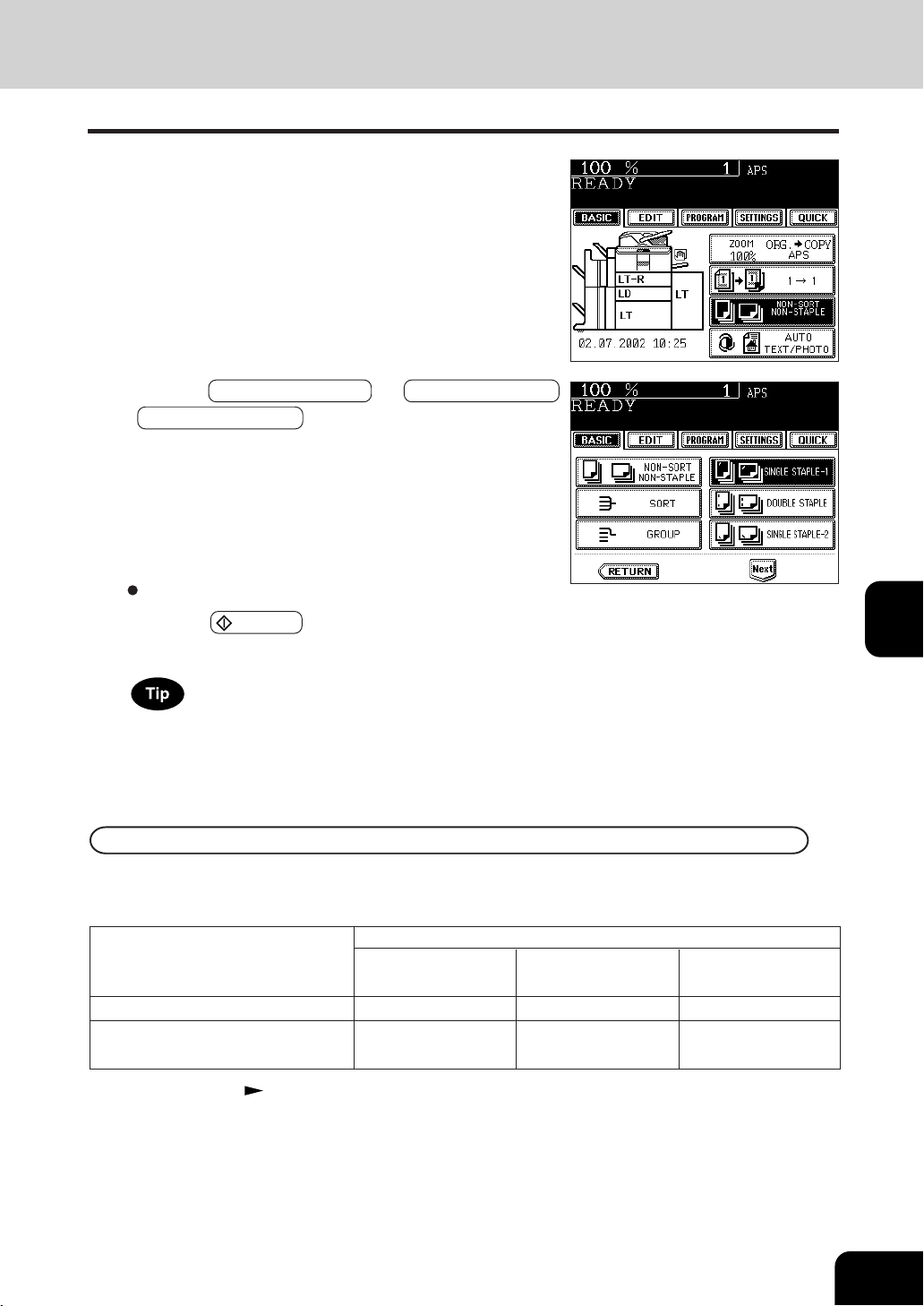
1
2
3
4
5
6
7
8
9
10
11
12
6-5
4
Press the SINGLE STAPLE-1 (or DOUBLE STAPLE
, SINGLE STAPLE-2 ) key.
3
Press the key on the basic screen as shown on the
right (shaded).
- If the paper quantity exceeds the maximum number of sheets
that can be stapled, the finisher automatically enters the
sort mode.
Maximum Number of Sheets that can be Stapled
When paper of different weights is loaded, the maximum number of sheets that can be stapled will be
that of the paper with the highest weight.
Paper size
Paper weight
20 lb. Bond 24 lb. Bond 28 lb. Bond
(Plain paper) (Thick 1) (Thick 1)
LT, A4, B5 50 sheets 30 sheets 30 sheets
LD, LG, LT-R, COMP,
30 sheets 15 sheets 15 sheets
A3, A4-R, B4, FOLIO
* Tray load capacity Page 9-4
Select other copy modes as required.
5
Press the START key.
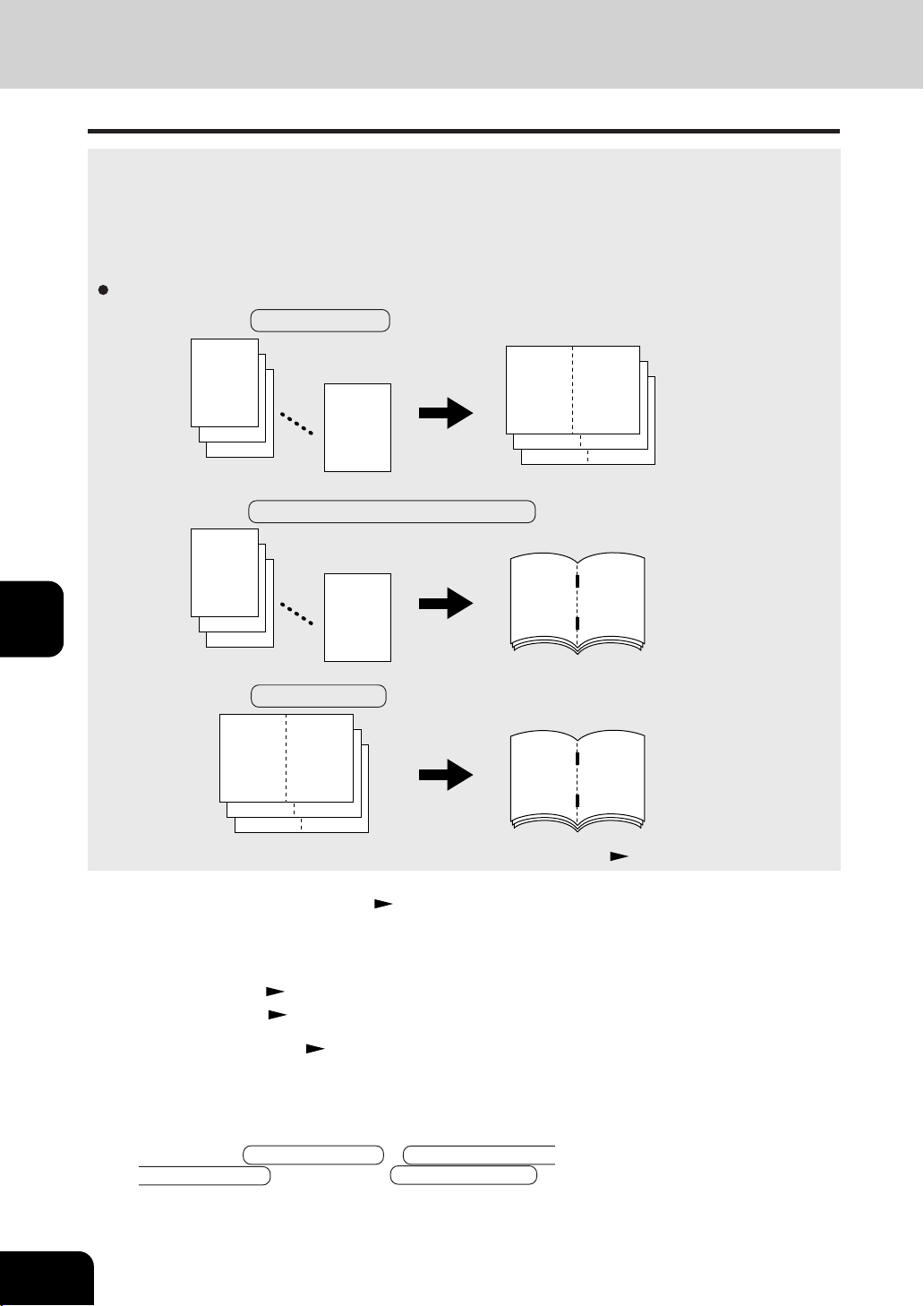
1
2
3
4
5
6
7
8
9
10
11
12
6-6
SELECTING FINISHING MODES
12
3
2
1
112
94
76
58
310
112
76
76
12
3
2
1
3
Place the original(s). Page 2-9
- When placing them in the reversing automatic document
feeder, set them by referring to the order of pages in the
illustrations above.
- When placing them on the glass, place the first page of the
originals first if MAGAZINE SORT or MAGAZINE SORT &
SADDLE STITCH is selected. If SADDLE STITCH is
selected, set them in the order of pages 12-1, (2-11), 10-3,
(4-9), then 8-5, (6-7) by referring to the illustration above
as an example.
4. MAGAZINE SORT & SADDLE STITCH MODE (BOOKLET MODE)
When the Magazine Sort mode is selected, 1-sided originals can be copied and bound like magazines
or booklets. When a finisher with a saddle stitch (optional, AR-F12) is installed, you can select the saddle
stitch mode which will automatically staple in the center of the document. LD, LT-R, A3, A4-R, B4 are
available.
* Special paper such as OHP films or labels is excluded.
* Available paper weight for saddle stitch should be in the range of 16 lb. Bond -28 lb. Bond.
1
Place paper in the drawer(s). Page 2-4
- When MAGAZINE SORT & SADDLE STITCH is selected
- When SADDLE STITCH is selected
*You can also select the Magazine Sort mode from the editing menu. Page 4-16
Example of copying a 12-page document
- When MAGAZINE SORT is selected
2
Set the paper size.
For drawer feeding Page 3-3, step 3
For bypass feeding Page 5-10, step 4
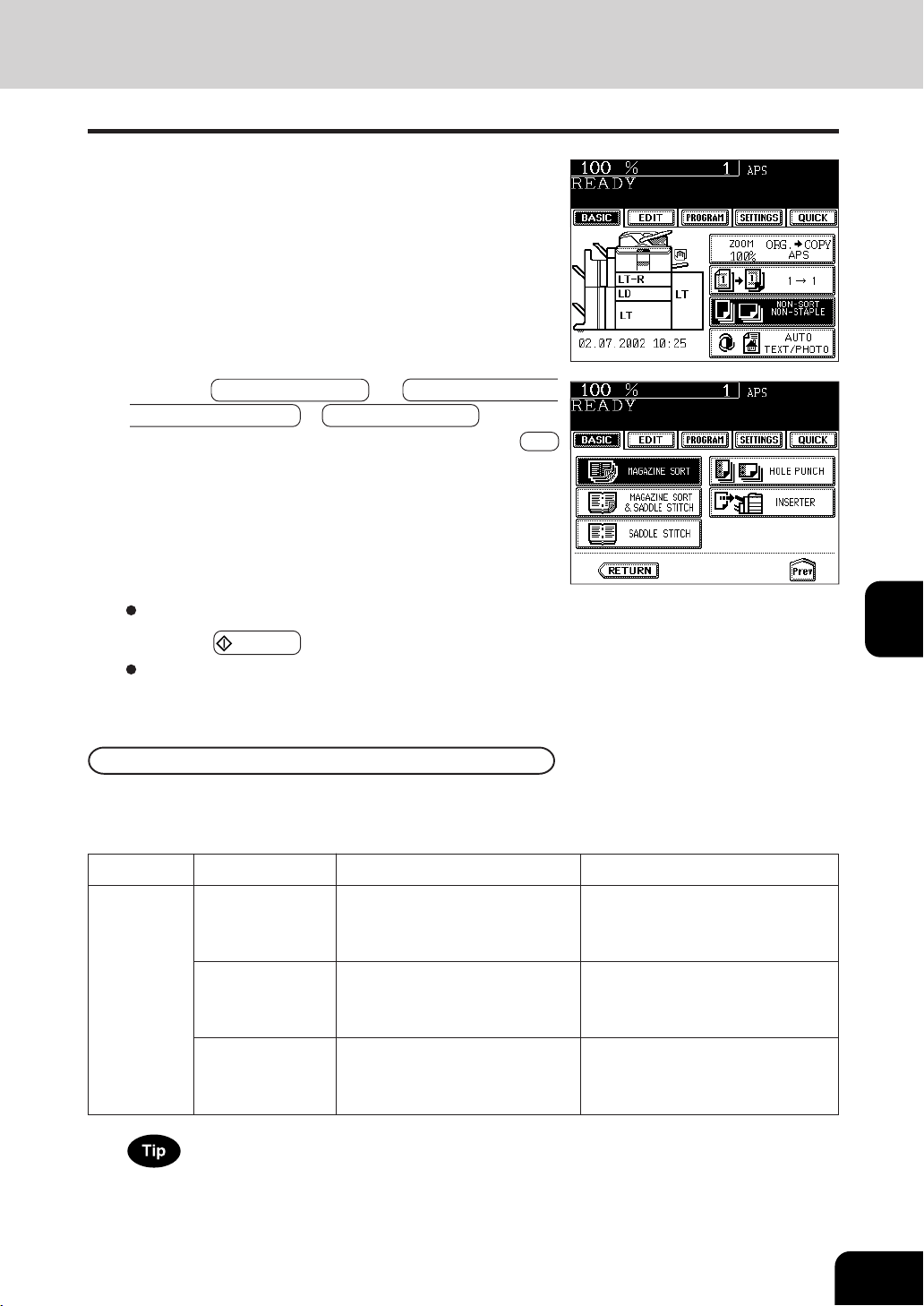
1
2
3
4
5
6
7
8
9
10
11
12
6-7
5
Press the MAGAZINE SORT ( or MAGAZINE SORT
& SADDLE STITCH or SADDLE STITCH ) key.
- If the desired function keys are not displayed, press the Next
key to change the menu screen.
4
Press the key on the basic screen as shown on the
right (shaded).
Availabe Conditions for Saddle Stitch
Select other copy modes as required.
6
Press the START key.
When placing original(s) on the glass, perform steps 5 to 6
on page 2-2 to 2-3.
When paper of different weights is loaded, the maximum number of sheets that can be stapled will be
that of the paper with the highest weight.
Paper size
Paper weight
Maximum capacity for saddle stitch
When the tray load capacity is exceeded, automatically switching to magazine sort mode.
Tray load capacity
Copying of 11-15 sheets: 10 copies
Copying of 6 -10 sheets: 20 copies
Copying of 5 sheets or less: 25 copies
Copying of 6 - 8 sheets: 15 copies
Copying of 5 sheets or less: 25 copies
Copying of 11-15 sheets: 10 copies
Copying of 6 -10 sheets: 20 copies
Copying of 5 sheets or less: 25 copies
LD
LT-R
A3
A4-R
B4
20 lb. Bond
(Plain paper)
24 lb. Bond
(Thick 1)
28 lb. Bond
(Thick 1)
10 sheets
10 sheets
10 sheets
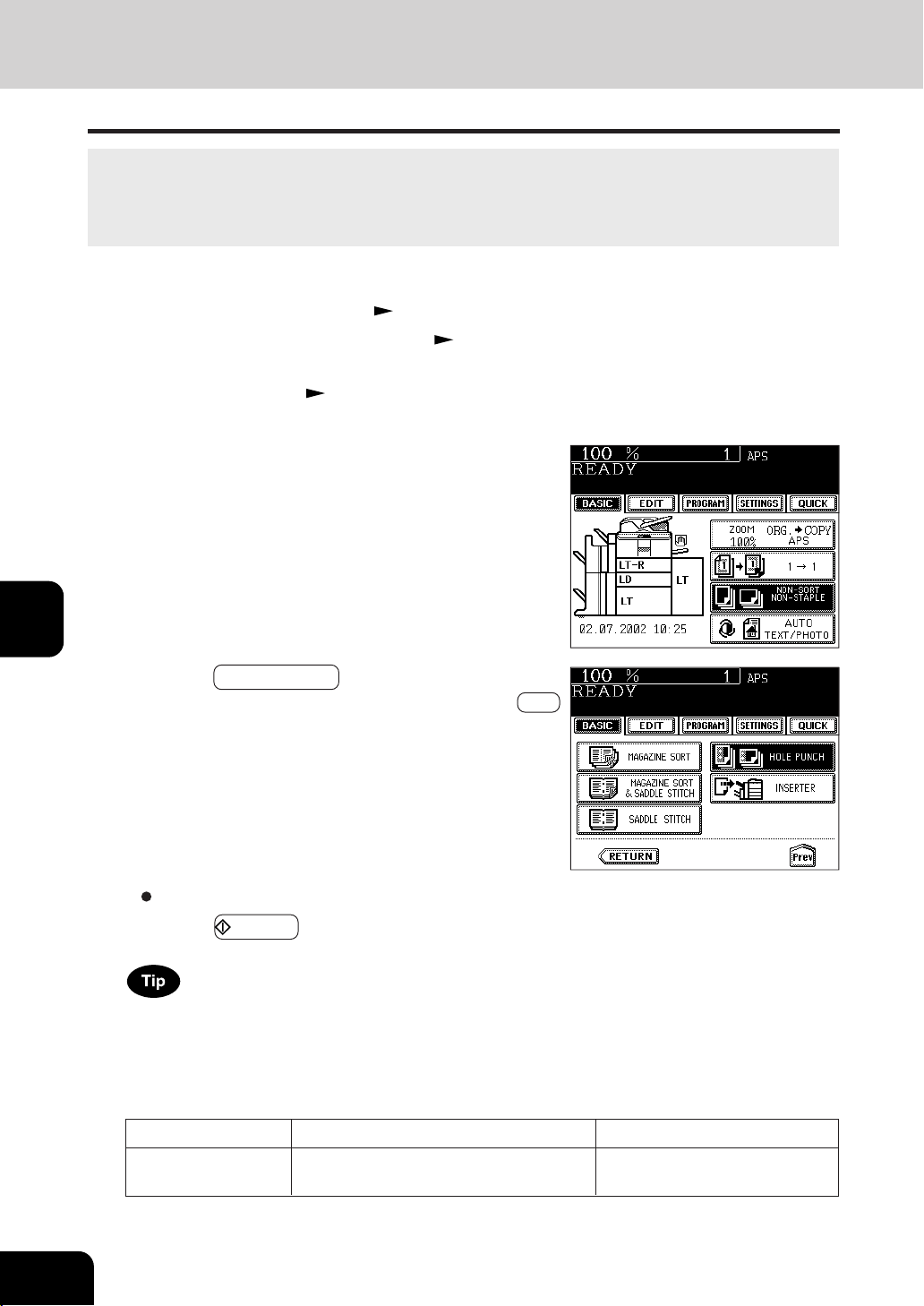
1
2
3
4
5
6
7
8
9
10
11
12
6-8
SELECTING FINISHING MODES
2
Place the original(s). Page 2-9
3
Press the key on the basic screen as shown on the
right (shaded).
Number of punch holes and available paper sizes:
Since the number of punch holes and the distance between
the holes vary depending on the country, purchase a hole punch
unit that meets your requirements. (For details, consult your
service technician.)
4
Press the HOLE PUNCH key.
- If the desired function keys are not displayed, press the Next
key to change the menu screen.
5. HOLE PUNCH MODE (OPTIONAL)
1
Place paper in the drawer(s). Page 2-4
- When using this mode in bypass copying (
Page 5-8), be
sure to specify the paper size.
With the optional hole punch unit attached to the optional finisher (AR-F11, AR-F12), you can have your
copies punched with holes.
* The paper weight should be in the range of 17 lb. Bond - 140 lb.Index. Special paper such as OHP
films or labels is excluded.
North America
(AR-PN3B)
Number of punch holes and hole diameter
2/3 holes switchable
(0.315" dia.)
Available paper sizes
2 holes: LG, LT-R
3 holes: LD, LT, A3, A4
Select other copy modes as required.
5
Press the START key.
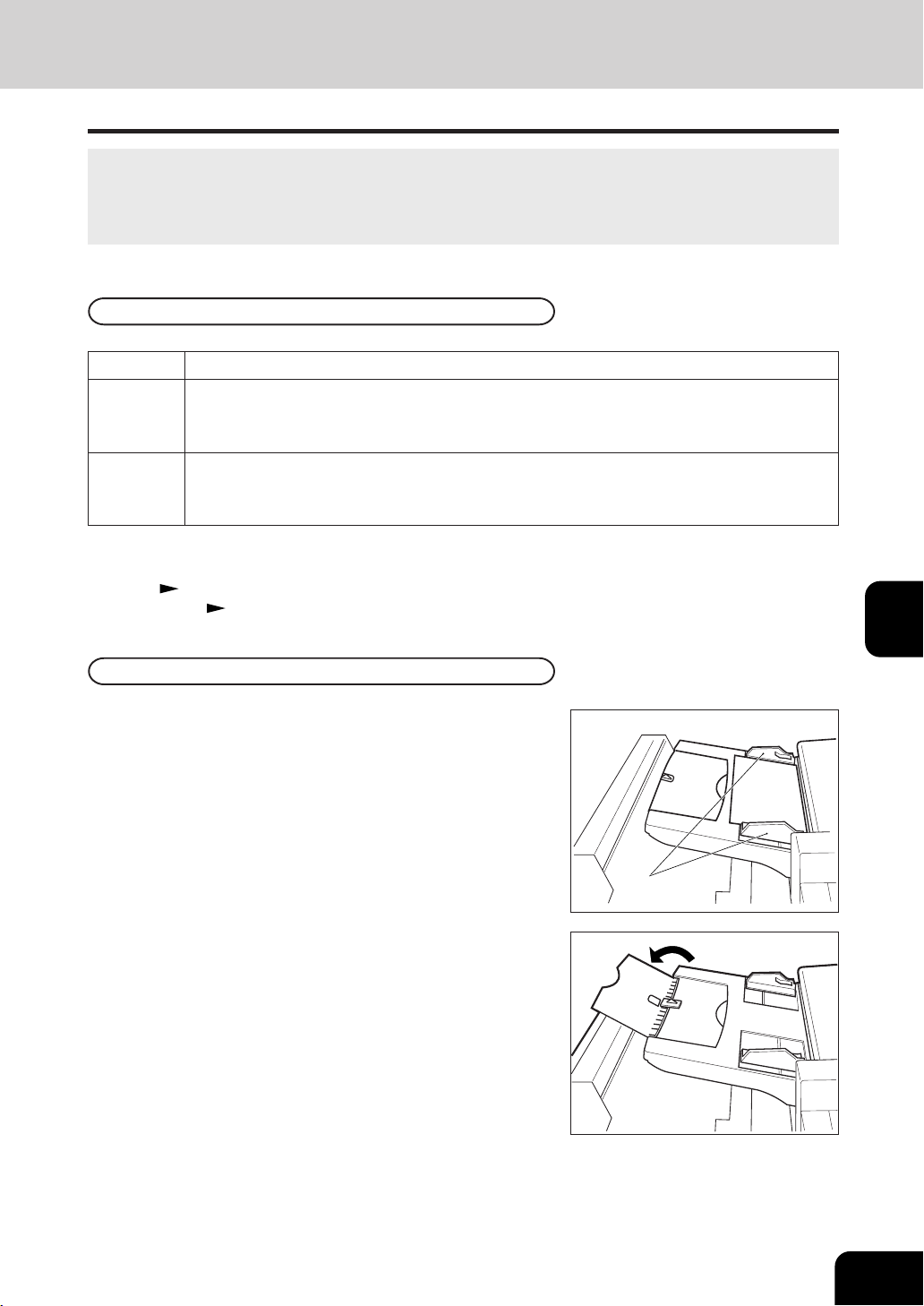
1
2
3
4
5
6
7
8
9
10
11
12
6-9
Slide
1
Place the paper in the inserter (optional) and align
the slides to its size.
- Place paper in face up.
- For paper with a different top and bottom, place it in the
same direction as that of original.
- Place the papers so that it does not extend beyond the line
of indication shown on the slides.
6. INSERTER MODE (OPTIONAL)
When you want to insert papers or use the staple or the hole punch functions without making copies,
place the paper of the same size and direction in the optional inserter.
- If the sheets of paper are fed from more than one paper source ( Drawer, External LCF, Bypass
guide, Inserter), set them all in the same size and direction.
Paper Acceptable to Set in the Inseter
LD, LG, LT, LT-R, COMP, A3, A4, A4-R, B4, B5, FOLIO
Paper size
Plain paper (16 lb. Bond - 20 lb. Bond), Thick paper (more than 20 lb. Bond- 140 lb. Index),
Recycled paper, Special paper (OHP film, Color paper, Hole punch paper, etc.)
(Ask your authorized Sharp dealer for the details of acceptable special papers.)
Paper type
Maximum
capacity
16 lb. Bond - 20 lb. Bond : 100 sheets
more than 20 lb.Bond - 140 lb. Index : Loading height 0.63" or less
(Special paper 0.275" or less)
* The above paper may not be acceptable due to paper quality, etc.
* When the paper set in the inserter is used for the staple or the saddle stitch, it is specified respectively.
- Staple Page 6-4
- Saddle stitch
Page 6-7
Setting Paper
- When placing large paper, extend the tray as shown on the
right.
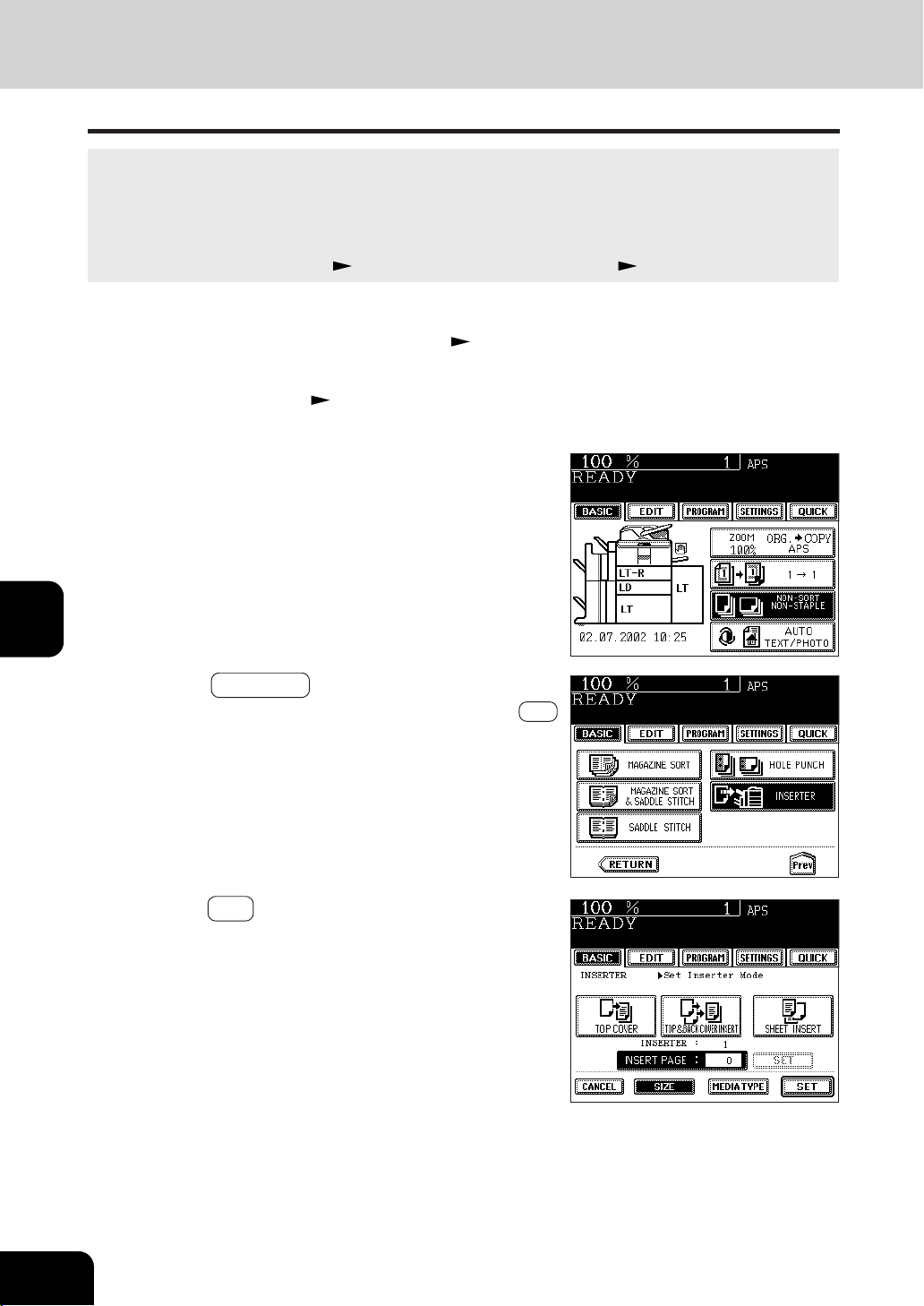
1
2
3
4
5
6
7
8
9
10
11
12
6-10
SELECTING FINISHING MODES
6. INSERTER MODE (OPTIONAL)(Cont.)
Blank paper placed in the optional inserter can be inserted into the pages you desire (including the front
and back cover).
- When placing the paper for the initial (default) setting (LD and plain paper for the initial setting of the
copier at the time of installation), the procedures from step 5 to 8 are not necessary.
- When you want to insert papers with making copies, place the paper in the drawer or on the bypass guide
and select the cover sheet mode (
Page 4-18) or the sheet insertion mode ( Page 4-20) in the edit screen.
5
Press the SIZE key.
- For LD paper, skip step 5 and step 6 because these
procedures are not necessary.
Setting the Inserter
1
Place paper in the inserter (optional). Page 6-9
2
Place the original (s). Page 2-9
3
Press the key (reversed in the right illustration) in
the basic screen.
4
Press the INSERTER key.
- If the desired function keys are not displayed, press the Next
key to change the menu screen.
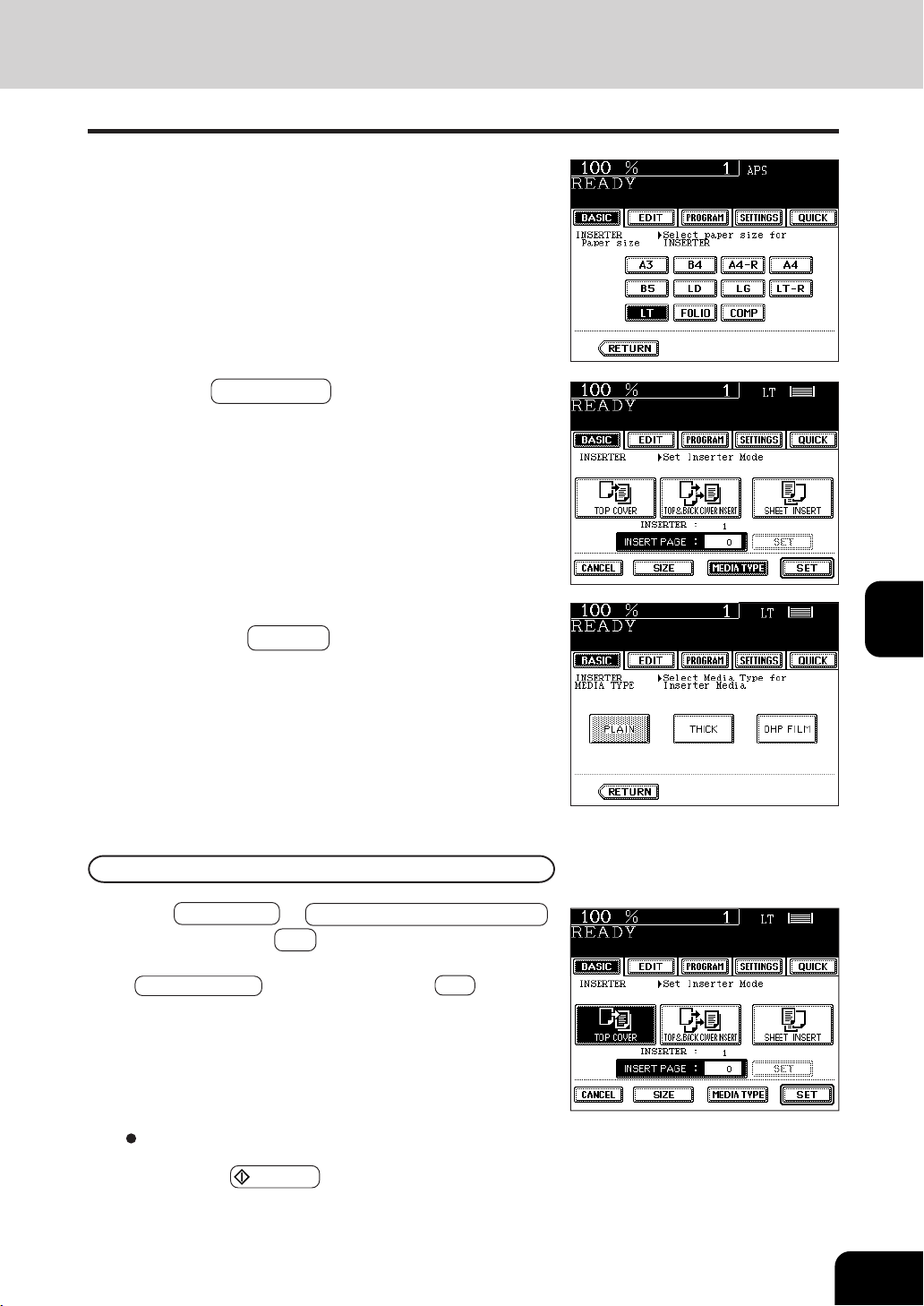
1
2
3
4
5
6
7
8
9
10
11
12
6-11
9
Press TOP COVER (or TOP & BACK COVER INSERT )
key, then press the SET key.
- For combining with the sheet insertion mode, press the
SHEET INSERT key before pressing the SET key.
6
Press the key of the paper size placed in the inserter.
7
Press the MEDIA TYPE key.
- For plain paper, skip step 7 and step 8 because these proce-
dures are not necessary.
8
Press the key of the paper size placed in the inserter,
then press the RETURN key.
10
Press the START key.
Top Cover / Top & Back Cover Insert
Select other copy modes as required.
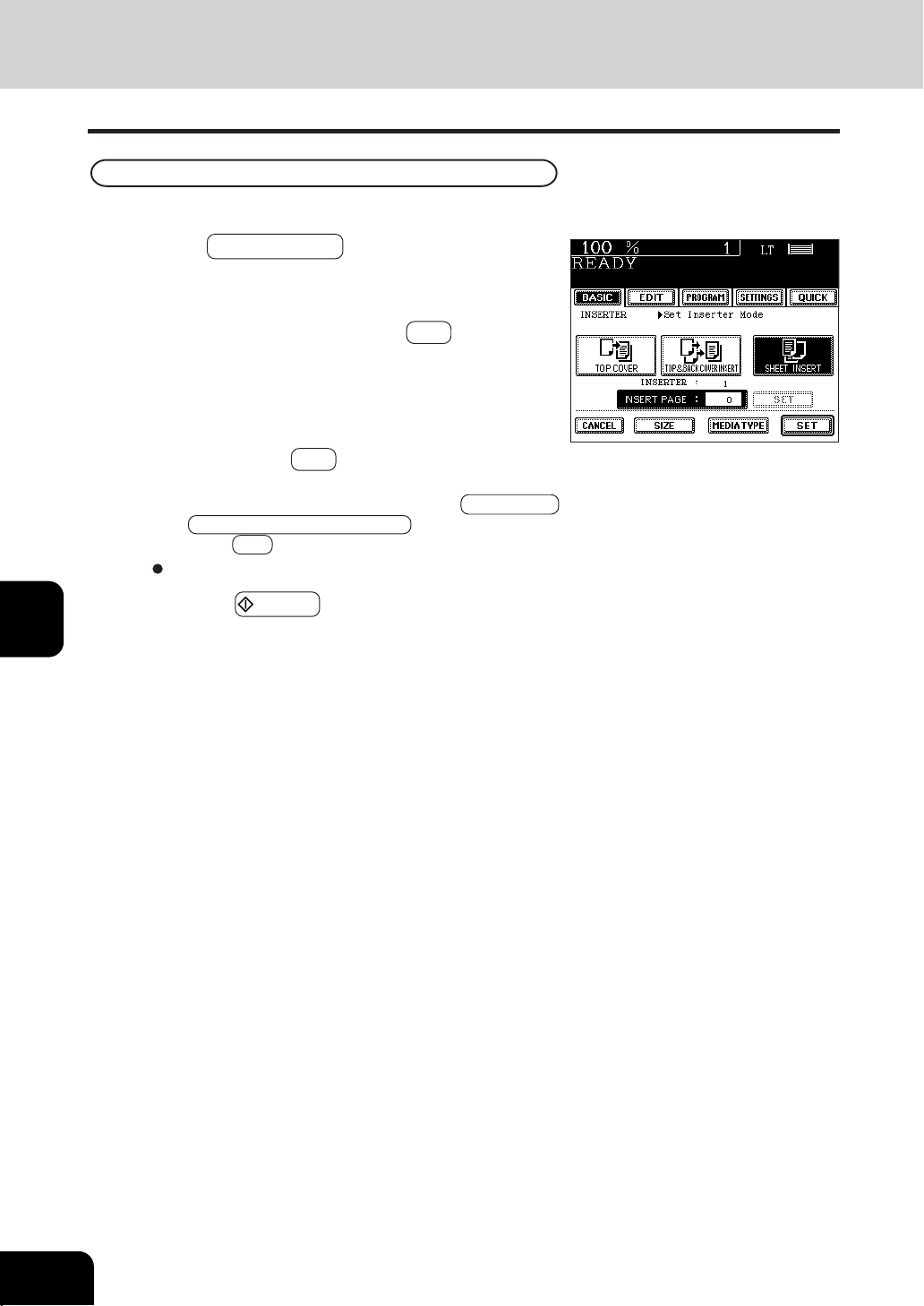
1
2
3
4
5
6
7
8
9
10
11
12
6-12
SELECTING FINISHING MODES
Setting the Inserter (Cont.)
6. INSERTER MODE (OPTIONAL)(Cont.)
Sheet Insertion
10
Key in the page number where you wish to insert
the sheet, and press the upper SET key.
- When two or more sheets are inserted, repeat this proce-
dure. Up to 15 insert locations can be specified in a single
copy job.
9
Press the SHEET INSERT key.
11
When specifying the page number is completed,
press the lower SET key.
- For combining it with the cover sheet insertion of top
cover (or top & back cover insert), press the TOP COVER
(or TOP & BACK COVER INSERT ) key before pressing
the lower SET key.
12
Press the START key.
Select other copy modes as required.
Insertion of a blank sheet prior to the selected page
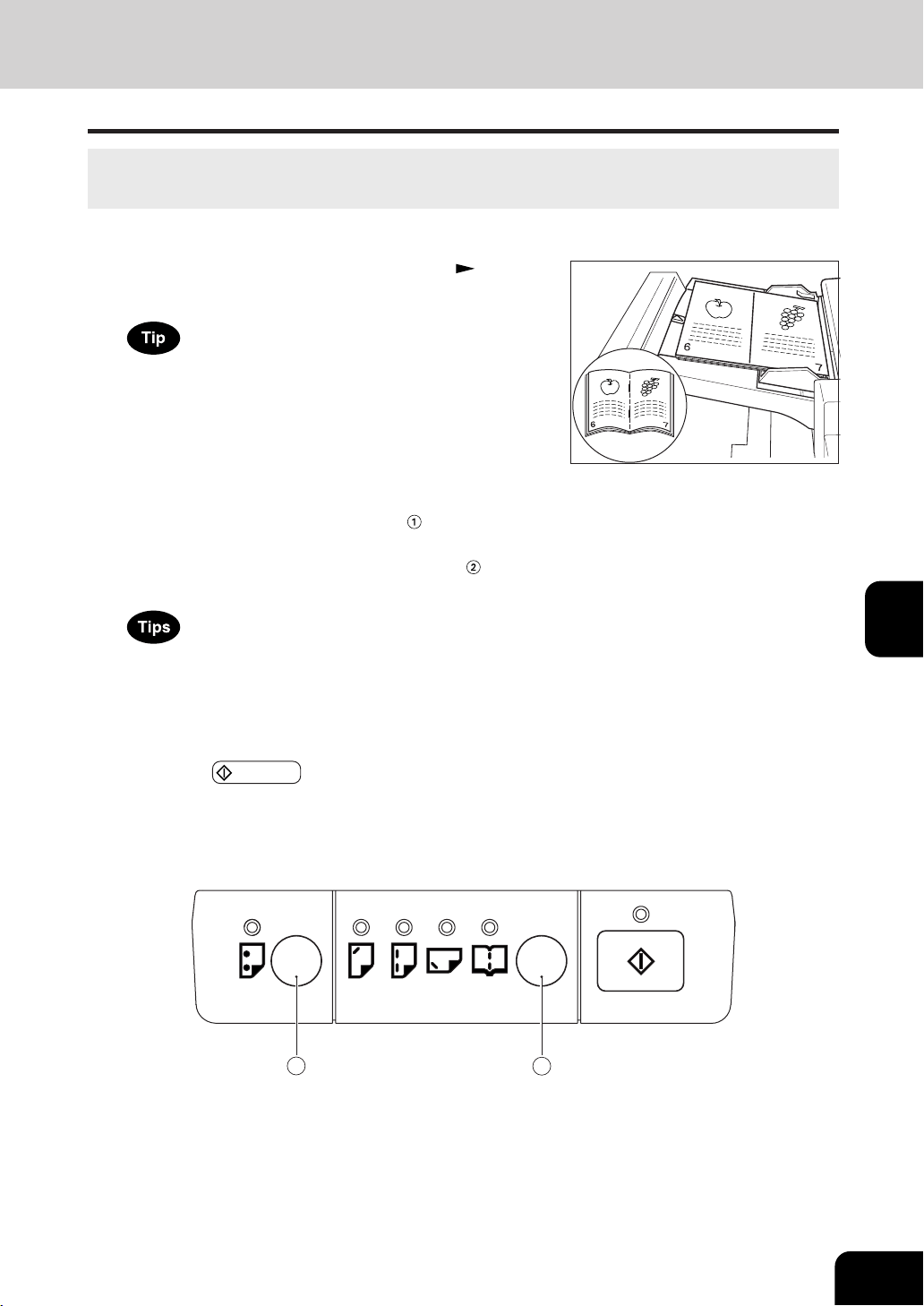
1
2
3
4
5
6
7
8
9
10
11
12
6-13
1 2
Using only Staple and Hole Punch
When installing the optional inserter, you can use only the finishing mode (staple and hole punch). In
that case, set it with the control panel on the inserter side.
1
Place paper in the inserter (optional) . Page 6-9
- In this condition, the start lamp lights in green.
When saddle stitch is selected, place the paper with the pages
facing up as shown on the right.
2
Set with the control panel of the inserter.
- If you desire hole punch, press the
key on the panel
below. The lamp of the hole punch lights.
- If you desire staple or saddle stitch, press the
key. (The
lamp of the selected mode lights.)
- Saddle stitch can be used only when the saddle stitch
finisher is installed (with the AR-F12).
- You can use a combination of hole punch and staple,
except saddle stitch.
3
Press the START key.
- At the beginning of the operation the start lamp flashes in green.
After the end of the operation all the lamps which have lit
up, go off.


1
2
3
4
5
6
7
8
9
10
11
12
7-1
7. WHEN THE GRAPHIC SYMBOLS
FLASH ON THE TOUCH PANEL
1. Description of the flashing graphic symbols ............................. 7-2
2. Add paper symbol .................................................................... 7-3
- Adding paper to the drawers....................................................................... 7-3
- Adding paper to the Tandem LCF (Large Capacity Feeder) ........................ 7-4
- Adding paper to the External LCF (Large Capacity Feeder)(optional) ........ 7-5
3. Replace toner cartridge symbol................................................. 7-6
4. Clear paper symbol ................................................................... 7-9
Reversing automatic document feeder ................................................... 7-10
Inside of the copier ................................................................................. 7-12
Paper misfeed on the bypass guide ........................................................ 7-15
External LCF (optional) .......................................................................... 7-15
Inserter (optional) ................................................................................... 7-16
Hole punch unit (optional) ....................................................................... 7-17
Finisher (optional) ................................................................................... 7-18
Saddle stitch unit (optional)..................................................................... 7-19
5. Adding staples (optional)......................................................... 7-21
6. Removing jammed staples (optional) ......................................7-24
7. Disposing of accumulated punched paper bits (optional)........ 7-27
8. Call service symbol / Periodic maintenance message ............7-28
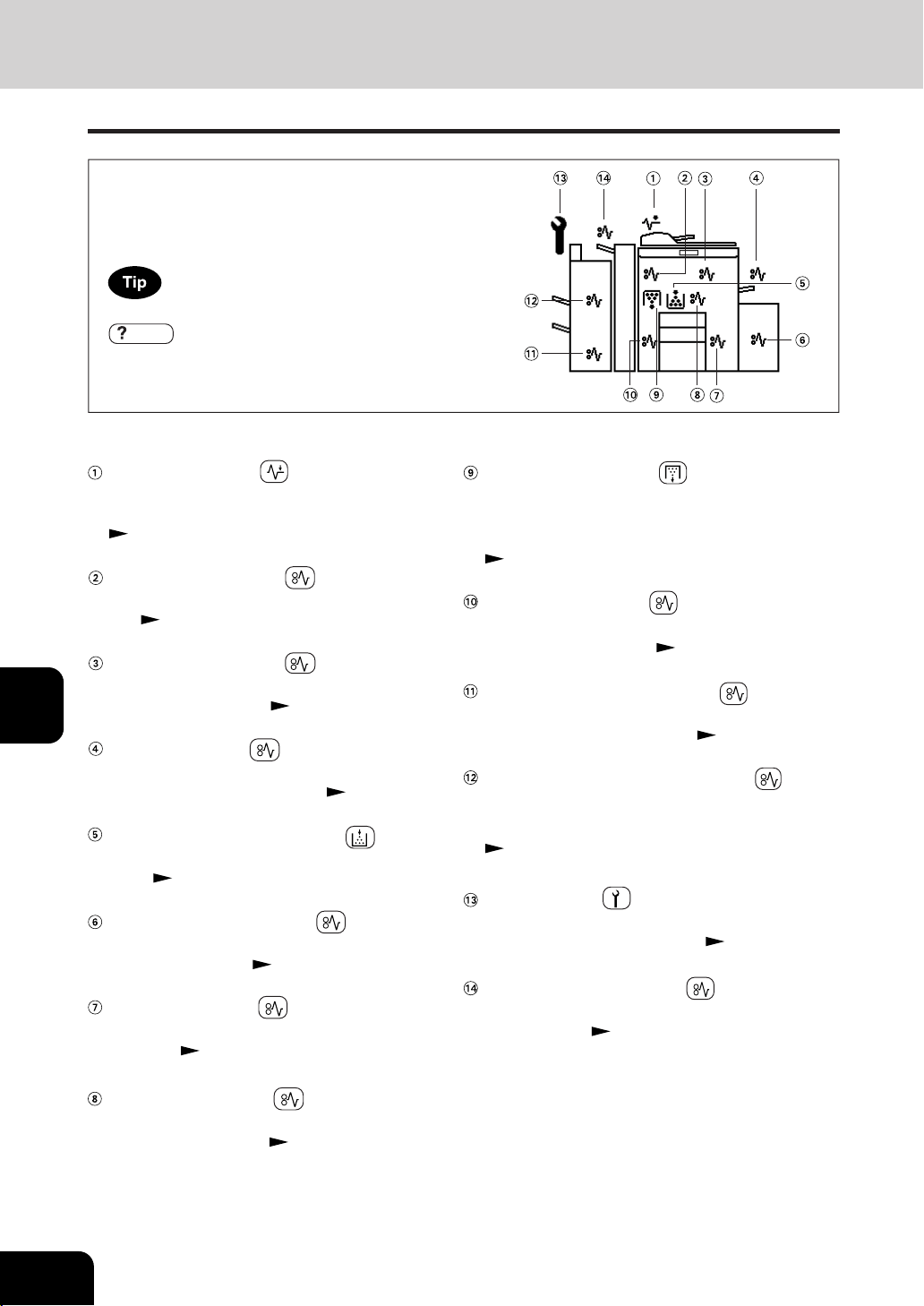
1
2
3
4
5
6
7
8
9
10
11
12
7-2
WHEN THE GRAPHIC SYMBOLS FLASH ON THE TOUCH PANEL
REPLACE TONER BAG symbol
Flashes when the toner bag becomes full of used
toner. Please call your service technician to ask to
have the used toner bag replaced with a new one.
Page 7-8
INVERTER MISFEED symbol
Flashes if a paper misfeed occurs in the inverter
during duplex copying.
Page 7-12
SADDLE STITCH UNIT MISFEED symbol
Flashes if a paper misfeed occurs inside the saddle
stitch of the finisher (option). Page 7-19
FINISHER/HOLE PUNCH UNIT MISFEED
s
ymbol
Flashes if a paper misfeed occurs inside the fin-
isher (optional) or the hole punch unit (optional).
Page 7-17, 7-18
CALL SERVICE symbol
Flashes if inspection and maintenance by your service
technician become necessary.
Page 7-28
INSERTER UNIT MISFEED symbol
Flashes if a paper misfeed occurs in the inserter
unit (optional).
Page 7-16
CHECK ORIGINALS symbol
Flashes if an original misfeed occurs inside the
reversing automatic document feeder.
Page 7-10
PAPER EXIT MISFEED symbol
Flashes if a paper misfeed occurs at the paper
exit.
Page 7-12
PAPER PATH MISFEED symbol
Flashes if a paper misfeed occurs on the paper
path inside the copier.
Page 7-12
BYPASS MISFEED symbol
Flashes if a sheet of paper fails to be fed into the
copier during bypass copying. Page 7-15
REPLACE TONER CARTRIDGE symbol
Flashes when the toner cartridge runs out of
toner.
Page 7-6
EXTERNAL LCF MISFEED symbol
Flashes if paper fed from the External LCF
(optional) is misfed.
Page 7-15
DRAWER MISFEED symbol
Flashes when paper fed from one of the drawers
is misfed.
Page 7-12
DUPLEXER MISFEED symbol
Flashes if a paper misfeed occurs inside the
automatic duplexer.
Page 7-12
1.
DESCRIPTION OF THE FLASHING GRAPHIC SYMBOLS
The graphic display on the touch panel shows the status
of the copier. When one of the graphic symbols flashes,
take the appropriate action referring to the page shown.
When one of the graphic symbols flashes, press the
HELP key to display the guidance.
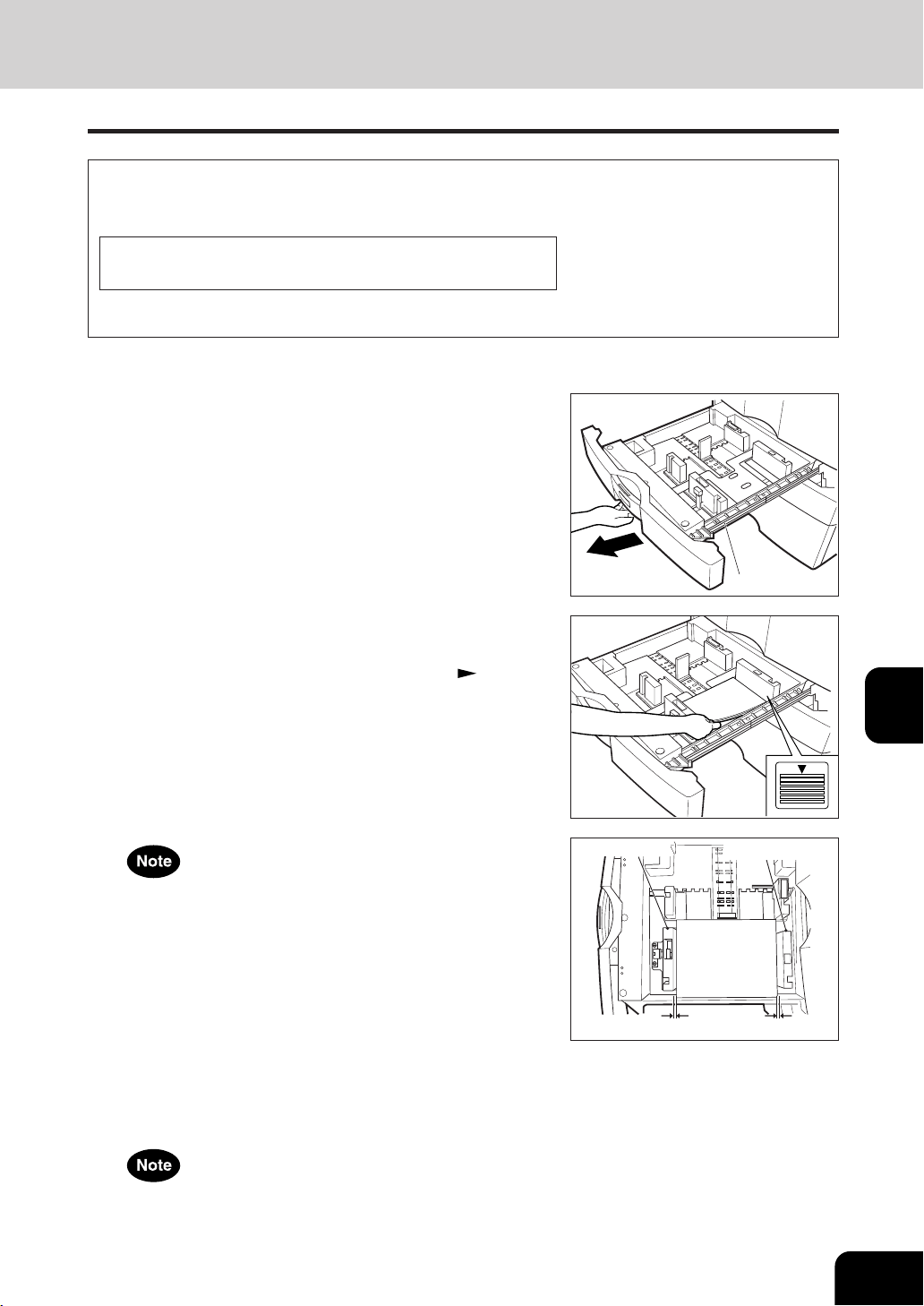
1
2
3
4
5
6
7
8
9
10
11
12
7-3
Side guide
Approx. 0.5mm Approx. 0.5mm
Side guide
Slide rail
Adding Paper to the Drawers
1
Pull the drawer out carefully until it comes to a stop.
- Be careful not to touch the drawer slide rail.
2
Place the paper in the drawer.
- Place the paper face down.
- Maximum number of sheets that can be set. Page 2-4
- Fan the paper well before placing it in the drawer.
- Do not add paper above the line indicated on the guide.
- Do not use creased, folded, wrinkled or damp sheets of
paper.
Make sure that a gap of approx. 0.5 mm (less than 1 mm in
total) is left between the paper and the side guide. If there is
no gap, this may cause paper misfeeding.
3
Push the drawer straight into the copier until it
comes to a stop.
- Be sure to push the drawer carefullly and fully in.
When the paper supply in the selected drawer or Tandem LCF (Large Capacity Feeder) runs out, the
drawer or External LCF (Large Capacity Feeder)(optional) shown on the display flashes, and the fol-
lowing message appears:
Add paper
Add paper as follows.
Be careful not to let your fingers be caught when closing the
drawer.
2. ADD PAPER SYMBOL
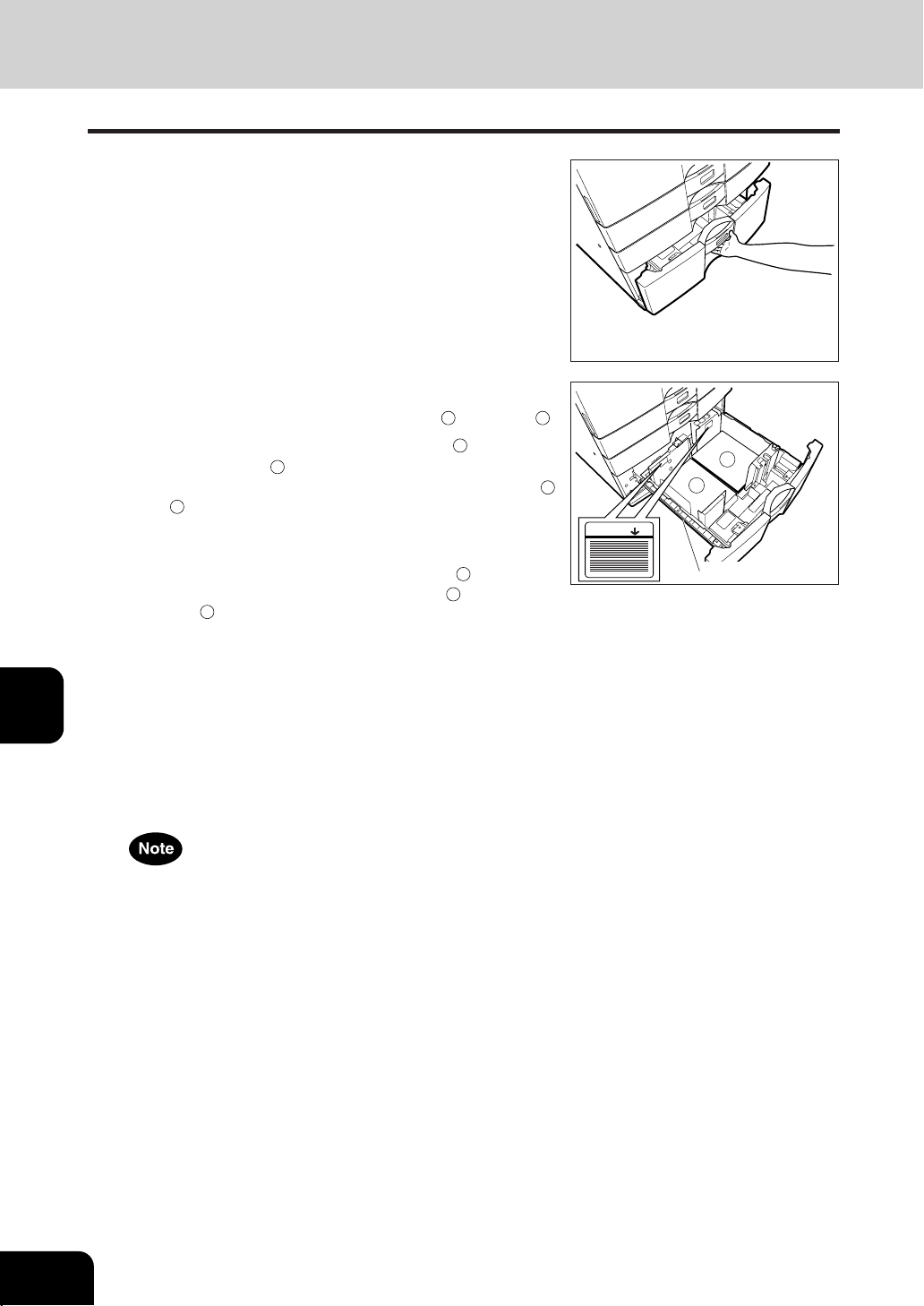
1
2
3
4
5
6
7
8
9
10
11
12
7-4
WHEN THE GRAPHIC SYMBOLS FLASH ON THE TOUCH PANEL
MAX
Slide rail
A
B
1
Pull the tandem LCF out carefully until it comes to a
stop.
- Be careful not to touch the drawer slide rail.
2
Open some packages of paper, take out entire reams
of paper and set them aligned in tray
A
and tray
B
.
- When setting the paper, set the paper for
A
to the right
side, and set it for
B
to the left side. (The paper can be set
neatly if you pile it up gradually and alternately in trays
A
and
B
.) Be sure that the center lever is not open ( refer to
the labels attached in the tandem LCF ).
- Up to 2500 sheets of paper (20 lb.Bond) can be set.
- Paper starts being fed from the elevator tray
A
at first, and
when it runs out of paper, the paper on tray
B
moves to the
position
A
.
- Set the paper so that it does not protrude beyond the line of
indication shown on the rear guide plate.
- Do not use creased, folded, wrinkled or damp sheets of
paper.
- Be careful not to touch the drawer slide rail.
3
Close the cover of the tandem LCF.
- Close the drawer completely. The elevator tray automatically
moves up to the paper feeding position.
2. ADD PAPER SYMBOL (Cont.)
Be careful not to let your fingers be caught when closing
the drawer.
Adding Paper to the Tandem LCF (Large Capacity Feeder)
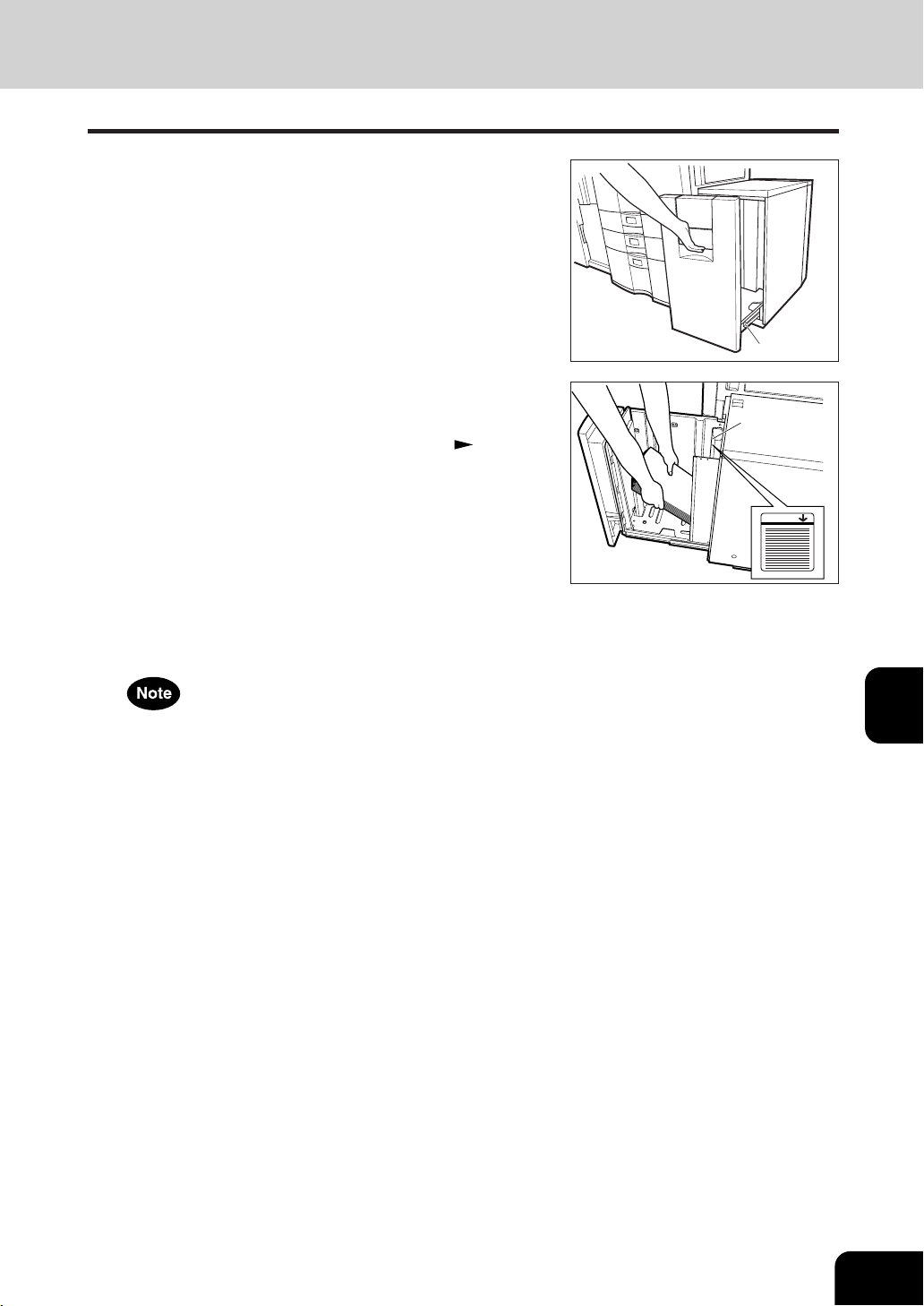
1
2
3
4
5
6
7
8
9
10
11
12
7-5
Slide rail
Adding Paper to the External LCF (Large Capacity Feeder)(optional)
1
Pull the external LCF out carefully until it comes to
a stop.
- Be careful not to touch the drawer slide rail.
2
Place the paper on the elevator tray.
- Place the paper face up.
- Maximum number of sheets that can be set Page 2-4
- Fan the paper well, then place it on the elevator tray, align-
ing it on the rear guide tray.
- Set the paper so that it does not protrude beyond the line of
indication shown on the rear guide plate.
- Do not use creased, folded, wrinkled or damp sheets of
paper.
3
Close the cover of the external LCF.
- Close the cover completely. The elevator tray automatically
moves up to the paper feeding position.
MAX
Be careful not to let your fingers be caught when closing
the drawer.
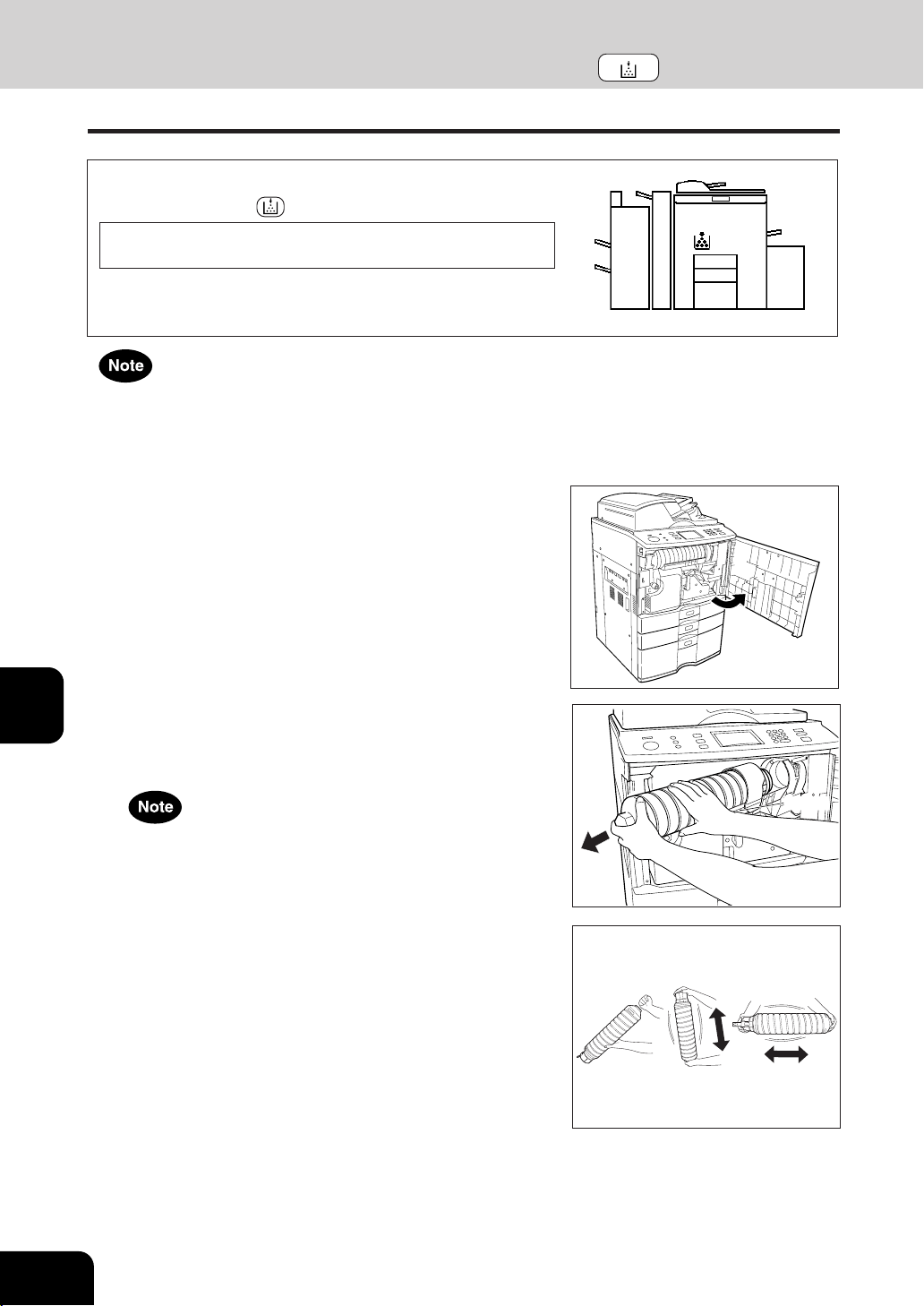
1
2
3
4
5
6
7
8
9
10
11
12
7-6
WHEN THE GRAPHIC SYMBOLS FLASH ON THE TOUCH PANEL
Holder
When the toner cartridge runs out of toner, the REPLACE
TONER CARTRIDGE
symbol flashes,
Add toner
1
Open the front cover.
This message will appear on the sceen.
2
Rotate the left end of the holder, then pull out the
empty toner cartridge with both hands as shown
on the right.
3
Shake the new toner cartridge well to loosen the
toner inside.
Return used toner cartridges to your service technician.
3. REPLACE TONER CARTRIDGE SYMBOL
Use only toner cartridges made or designated by Sharp in order to optimize copy quality.
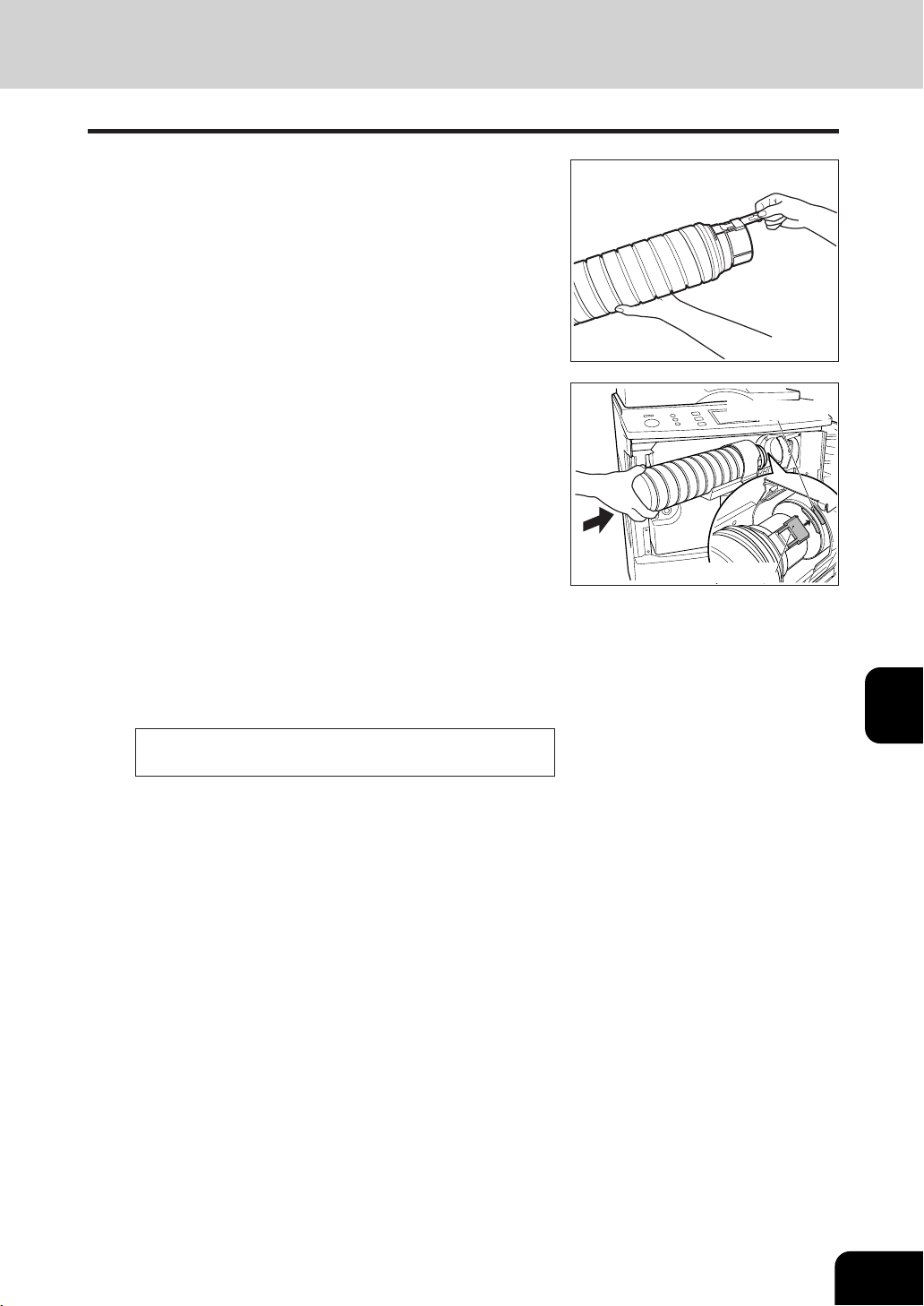
1
2
3
4
5
6
7
8
9
10
11
12
7-7
Label (orange)
Shutter (orange)
4
Holding the new toner cartridge as shown on the
right, pull out the seal in the direction of the arrow.
5
Match the label(orange) on the copier with the
shutter(orange) on the toner cartridge, then insert
the toner cartridge to the end.
- If you cannot insert the toner cartridge completely, rotate it
slightly to check the position and insert it again.
- If the toner scatters, wipe it off completely.
6
Return the toner cartridge holder back to its original
position.
7
Close the front cover.
- The following message appears:
Wait adding toner
The copier automatically starts supplying toner.
- When toner has finished being supplied, the touch panel
returns to the basic menu and the current job automatically
resumes.
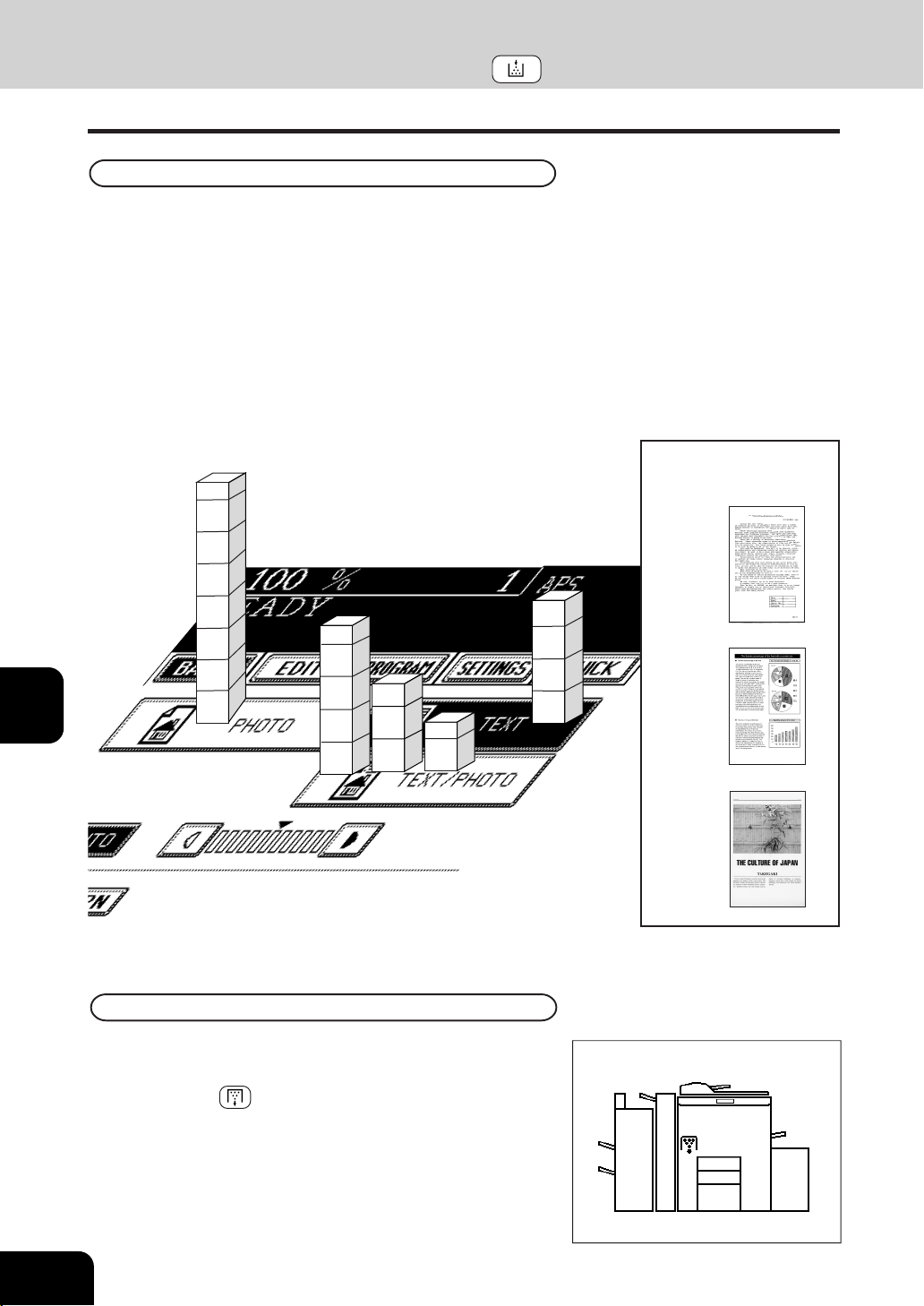
1
2
3
4
5
6
7
8
9
10
11
12
7-8
WHEN THE GRAPHIC SYMBOLS FLASH ON THE TOUCH PANEL
Type of originals
A.
B.
C.
A
20,000
30,000
40,000
50,000
60,000
70,000
74,000
A
20,000
30,000
40,000
46,000
B
20,000
27,000
15,000
C
A
20,000
30,000
38,000
The life of the toner cartridge (number of copies) varies depending on the following conditions.
Coverage of originals (printing ration of copies) varies depending on the following conditions :
1. Size and density of originals
2. The existence of solid black when making copies (when a book is copied and the original cover is partially
open )
3. Temperature and humidity in the room when making copies
4. Copy density and image quality mode
As indicated in the figure below, the life of the toner cartridge varies depending on the copy mode and
the coverage of the originals
Additional Explanation
Replace Toner Bag
- When the toner bag becomes full of used toner, the REPLACE
TONER BAG symbol flashes. Please call your service
technician to ask to have the used toner bag replaced with a
new one.
Dispose of Used Toner
3. REPLACE TONER CARTRIDGE SYMBOL (Cont.)
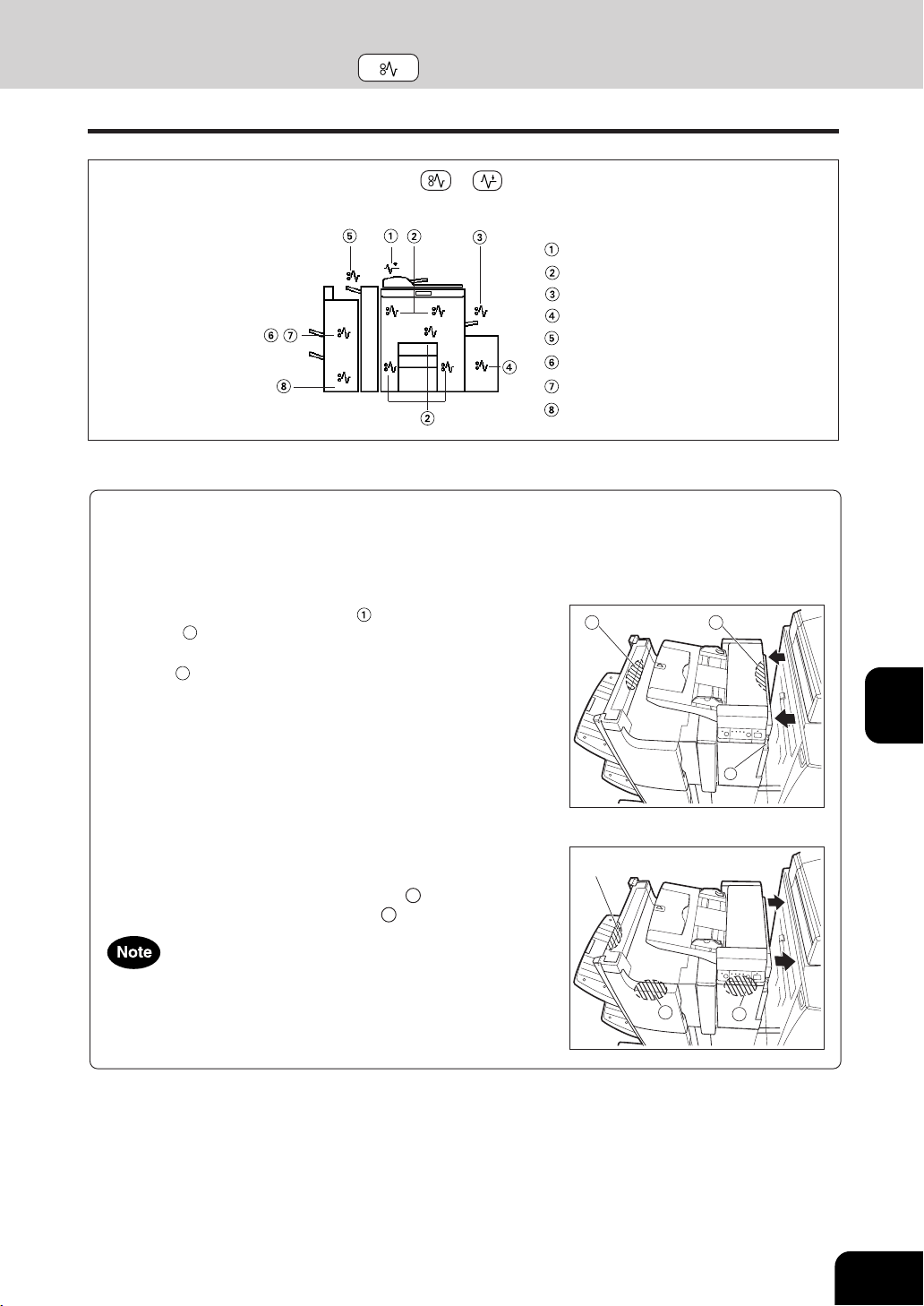
1
2
3
4
5
6
7
8
9
10
11
12
7-9
4. CLEAR PAPER SYMBOL
Reversing Automatic Document Feeder
Inside of the Copier
Bypass Guide
External LCF (optional)
Inserter (optional)
Hole Punch Unit (optional)
Finisher (optional)
Saddle Stitch Unit (optional)
When a paper misfeed occurs in the copier,the or symbol flashes in the positions where the paper
is misfed. In that case, remove the misfed paper using the following procedure referring to the illustration
below.
- Moving the finisher (optional)
Depending on where a paper jam has occurred, it may be necessary to move the optional finisher.
( including the inserter and the hole punch unit.)
- Separating it from the copier
While pressing the release lever
, gently move the finisher
(position
A
) (including the hole punch unit) away from the
copier. If an inserter has been installed, place your hands in
position
B
instead.
* Move the options parallel to the copier.
- Connecting with the copier
Placing your left hand in the position shown in the figure on the
right, gently connect the finisher(including the hole punch unit)
with the copier placing your right hand on
C . If an inserter is to
be installed, place your right hand on
D instead.
When installing the options, be careful not to let your fingers be
caught between them and the copier.
1
BA
D
C
Left hand’s position
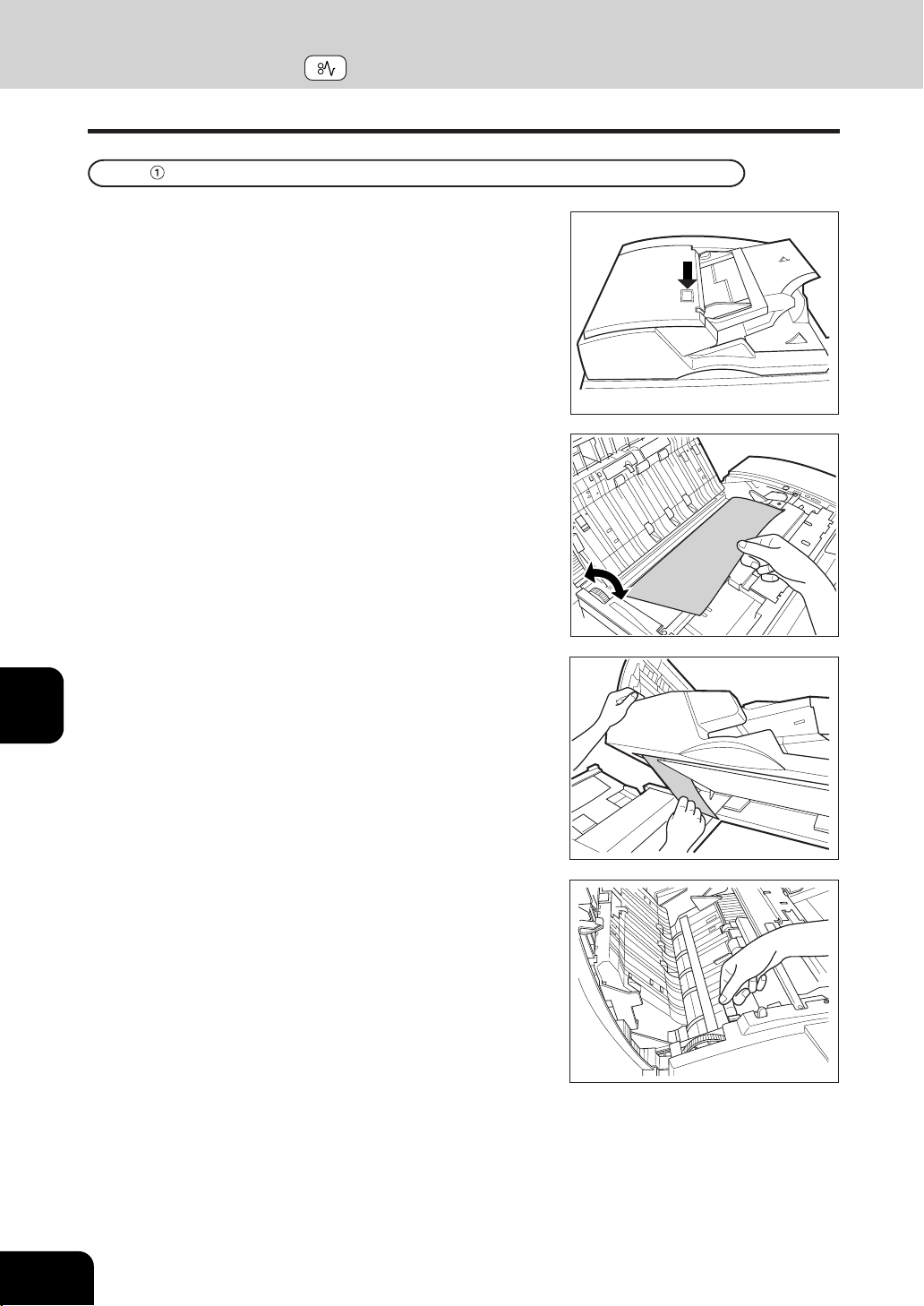
1
2
3
4
5
6
7
8
9
10
11
12
7-10
WHEN THE GRAPHIC SYMBOLS FLASH ON THE TOUCH PANEL
4. CLEAR PAPER SYMBOL (Cont.)
Paper Misfeed in the Reversing Automatic Document Feeder
2
Rotate the blue knob to remove any misfed originals.
1
Push the button on the reversing automatic document
feeder to open the cover.
3
Lift the blue handle (first) as shown on the right.
- If there are any misfed originals, remove them.
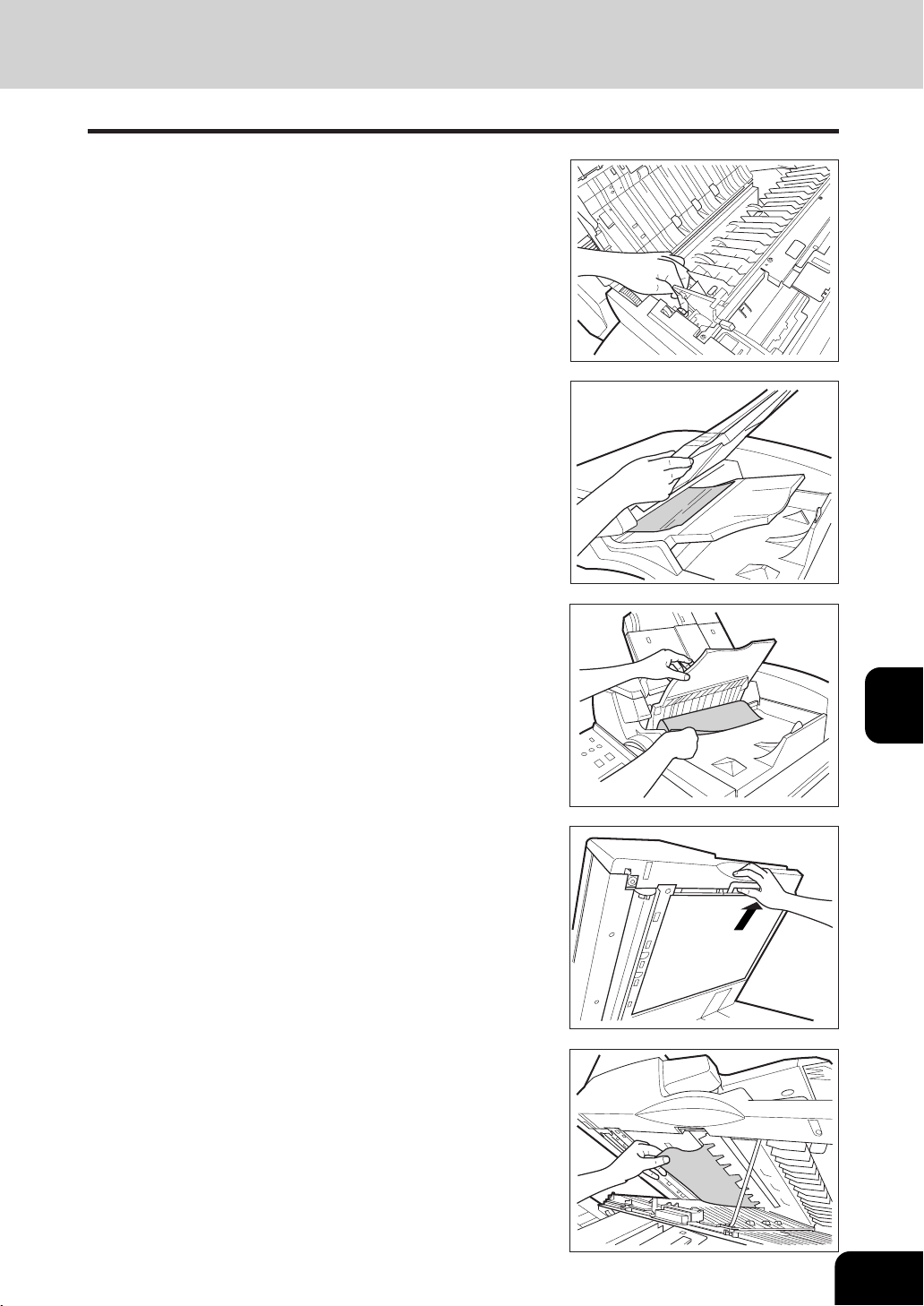
1
2
3
4
5
6
7
8
9
10
11
12
7-11
7
Lifting the handle in the direction of the arrow, pull
it toward you.
6
Open the original exit tray and remove any misfed
originals.
8
Remove any misfed originals.
5
Lift the original feeding tray and remove any misfed
originals.
4
Lift the blue handle (second) as shown on the right.
- If there are any misfed originals, remove them.

1
2
3
4
5
6
7
8
9
10
11
12
7-12
WHEN THE GRAPHIC SYMBOLS FLASH ON THE TOUCH PANEL
Paper Misfeed inside of the Copier
1
Open the paper feed cover.
- When installing the external LCF (optional), open the paper
cover after doing step 1 of page 7-15.
3
Open the bypass cover.
2
Remove any misfed paper.
4
Remove any misfed paper.
4. CLEAR PAPER SYMBOL (Cont.)
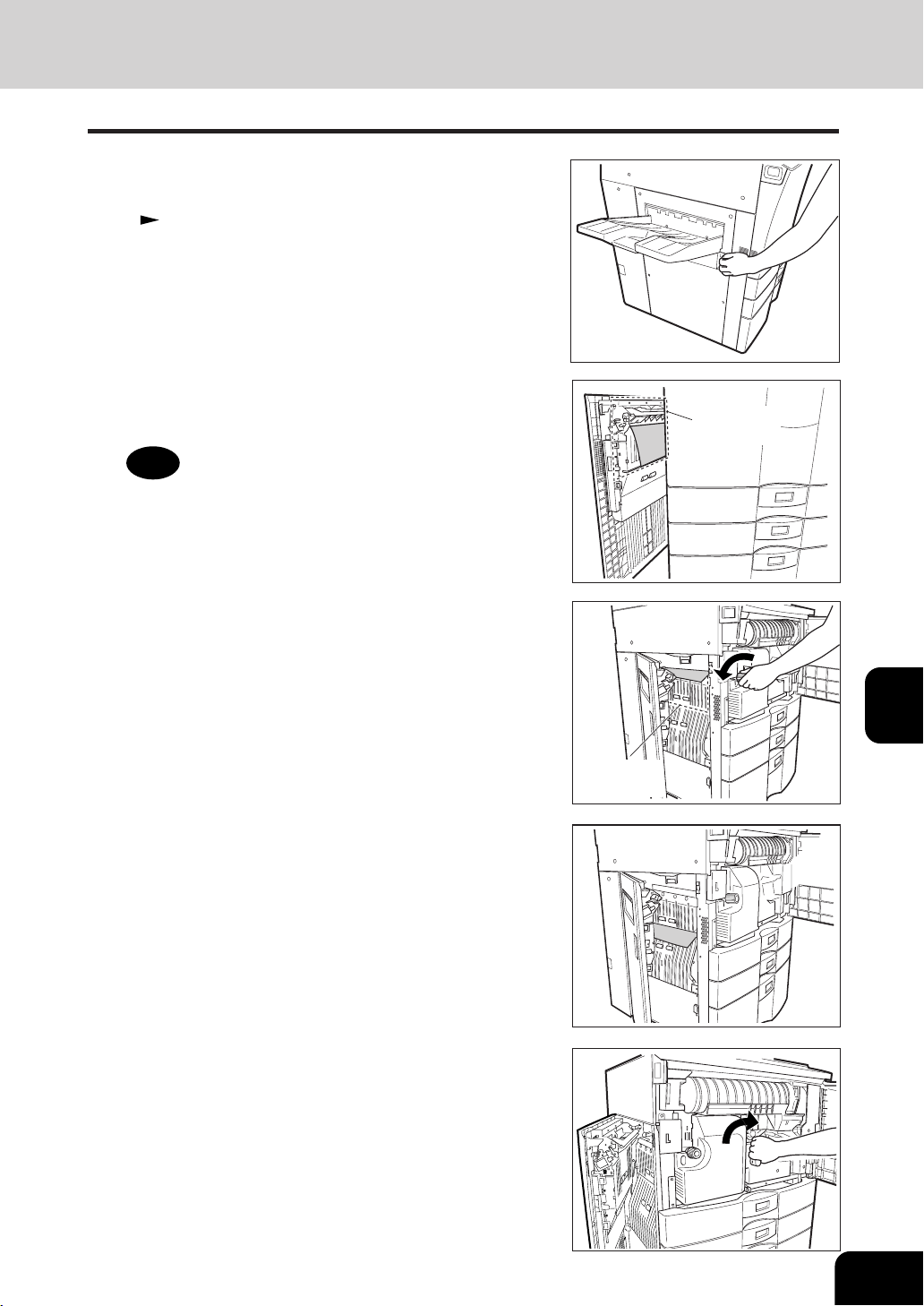
1
2
3
4
5
6
7
8
9
10
11
12
7-13
6
Remove any misfed paper.
- If any paper is misfed in the cover, pull it out.
- If any paper is misfed in the copier, open the front cover and
remove any misfed paper by turning the knob in the direc-
tion of the arrow.
Metal area of
guide plate
Metal area of
guide plate
Caution
Do not touch the metal area of guide plate in the automatic
duplexer. You might burn yourself.
5
Open the exit cover.
- For how to connect or separate the optional finisher.
Page 7-9
7
Turn the handle in the direction of the arrow.
- If any paper is misfed in the position on the right, pull it out.
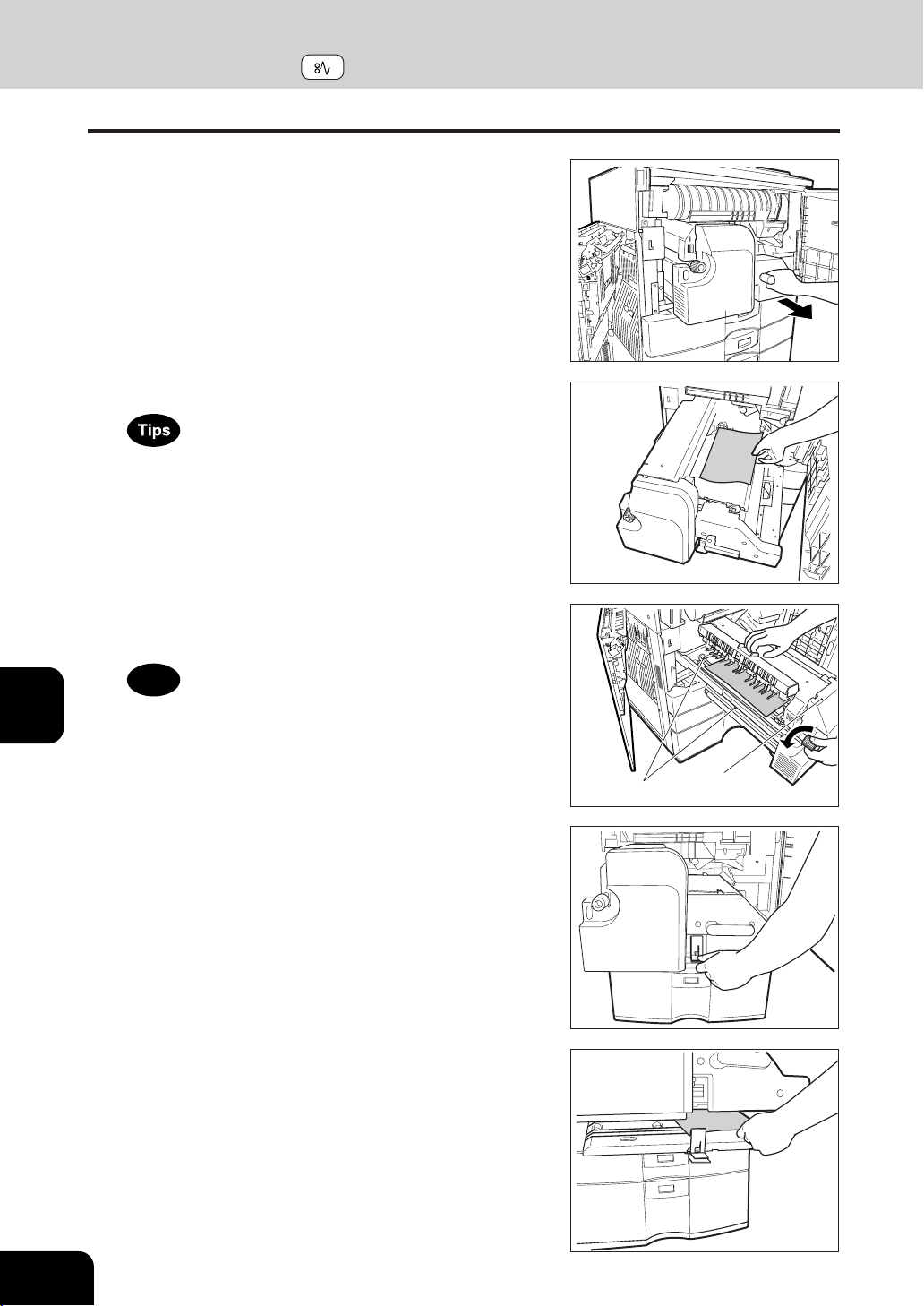
1
2
3
4
5
6
7
8
9
10
11
12
7-14
WHEN THE GRAPHIC SYMBOLS FLASH ON THE TOUCH PANEL
Metal area
Fuser unit
4. CLEAR PAPER SYMBOL (Cont.)
- If a sheet of paper is misfed on the transfer belt, remove it.
10
Pick the lever of the transfer unit as shown on the
right and open the bottom (automatic duplexer).
8
Pull the transfer unit out until it comes to a stop.
9
Lift the grip, then turn the knob in the direction of
the arrow to remove any misfed paper.
Caution
Do not touch the fuser unit and around the metal area. You
may be burned or be injured if you come into contact with the
inner area in the fuser due to high temperature.
11
Remove any misfed paper.
- Do not put some objects on the transfer belt or do not touch it.
- When a sheet of paper is caught in fuser unit, do not pull
out directly but remove based on step 9.
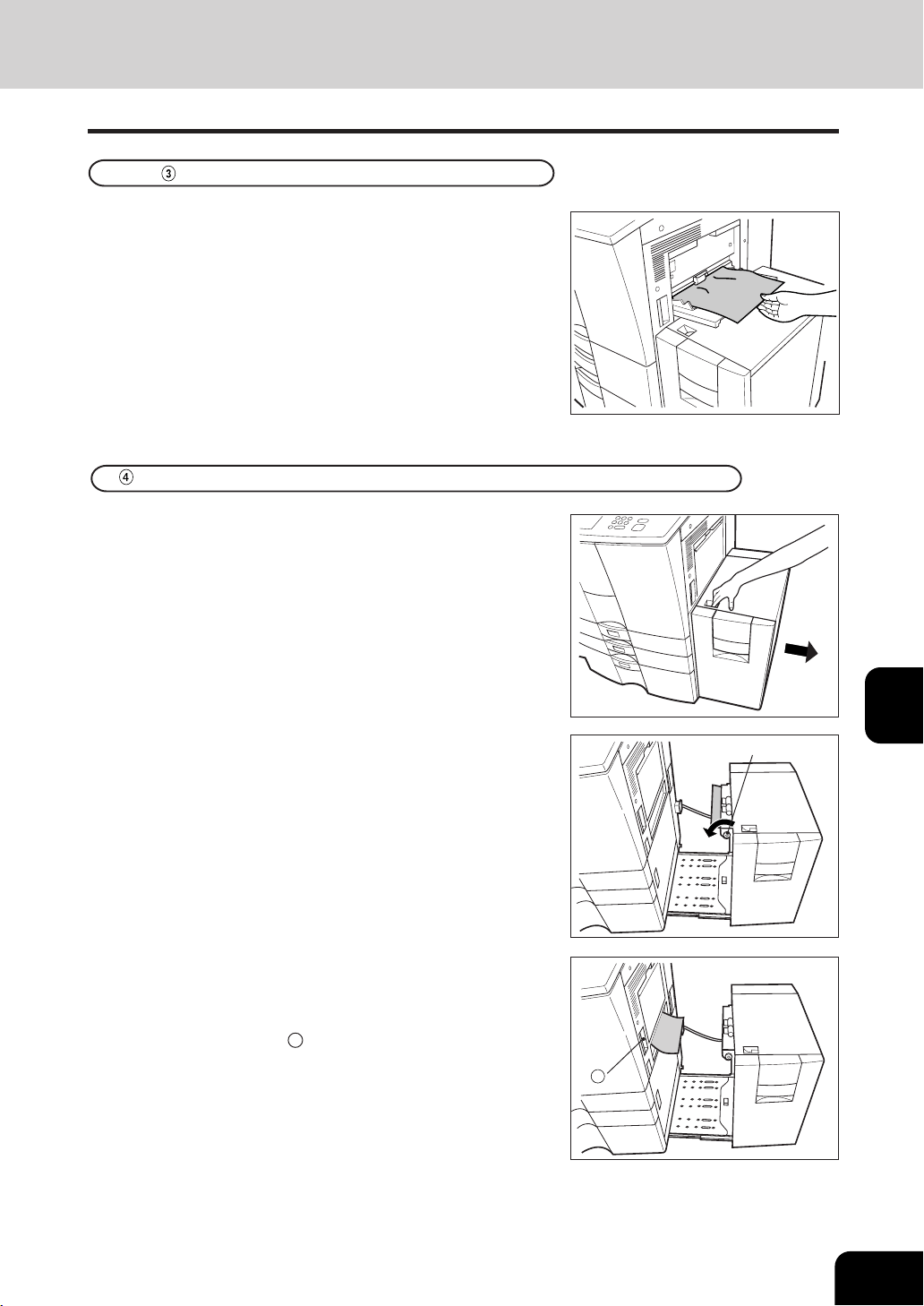
1
2
3
4
5
6
7
8
9
10
11
12
7-15
1
Pull up the misfed paper slowly on the bypass guide.
Paper Misfeed on the Bypass Guide
Paper Misfeed in the External LCF (Large Capacity Feeder) (optional)
2
Remove any misfed paper by turning the blue knob
in the direction of the arrow.
1
Pull the external LCF away from the copier slowly
while pressing the release lever.
3
When paper misfeeds inside of the copier, pull up
and out the misfed paper.
- If unable to easily pull out the misfed paper, open the bypass
guide cover and pull
A , then remove the misfed paper.
Blue knob
A
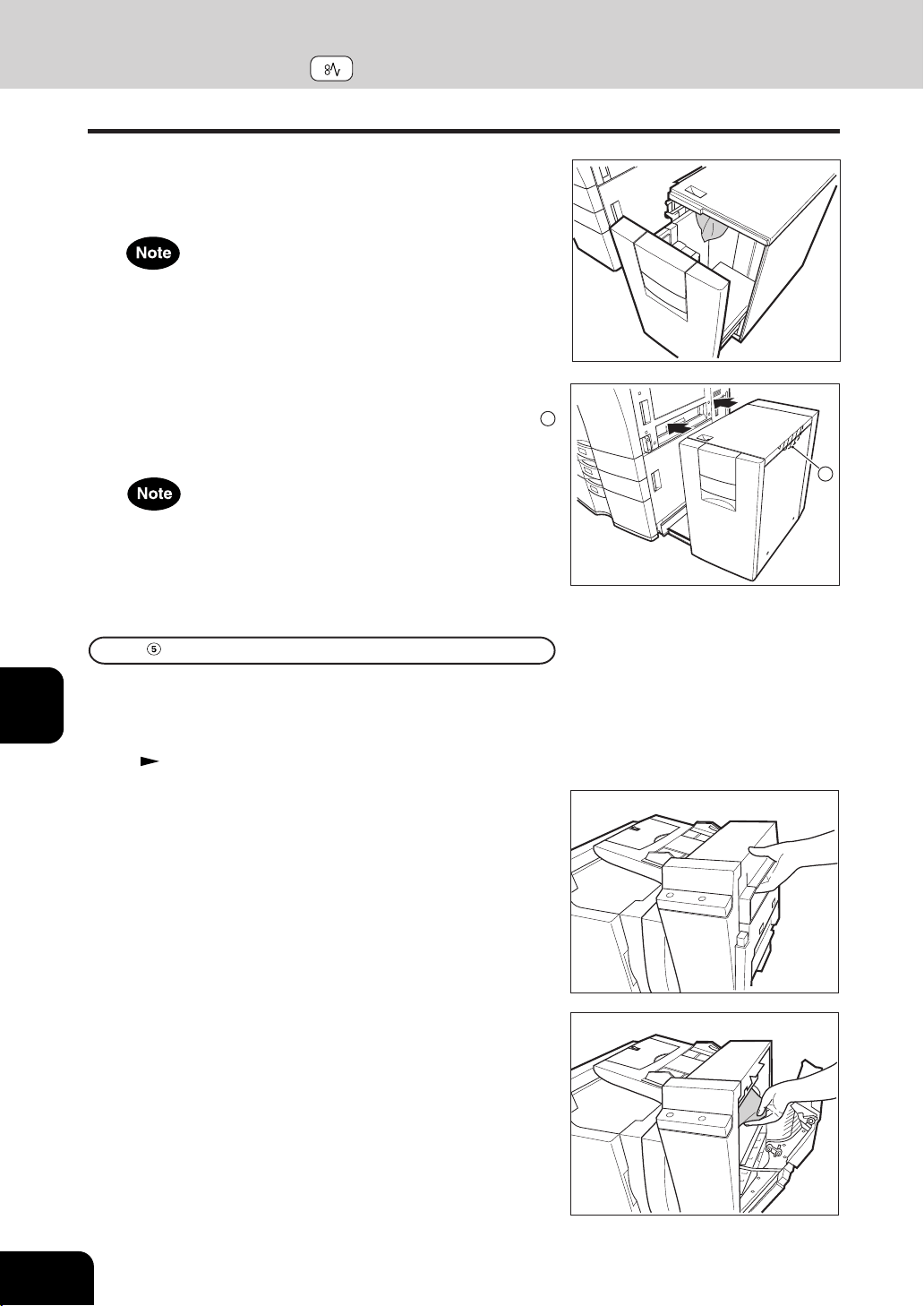
1
2
3
4
5
6
7
8
9
10
11
12
7-16
WHEN THE GRAPHIC SYMBOLS FLASH ON THE TOUCH PANEL
Paper Misfeed in the Inserter (optional)
1
Pull the inserter (optional) away from the copier
slowly.
- For the method of separating the finisher from the copier.
Page 7-9
4. CLEAR PAPER SYMBOL (Cont.)
4
Open the cover of the external LCF and remove any
misfed paper.
- Be careful not to touch the drawer slide rail.
Be careful not to let your fingers be caught when closing the
drawer.
5
Return the external LCF to its original position.
- As shown in the figure on the right, place your hands on B
to enable you to slowly reconnect it to the copier while
maintaining both machines parallel to one another.
When installing the external LCF, be careful not to let your
fingers be caught between it and the copier.
2
Open the cover while lifting the grip.
3
Remove any misfed paper.
B
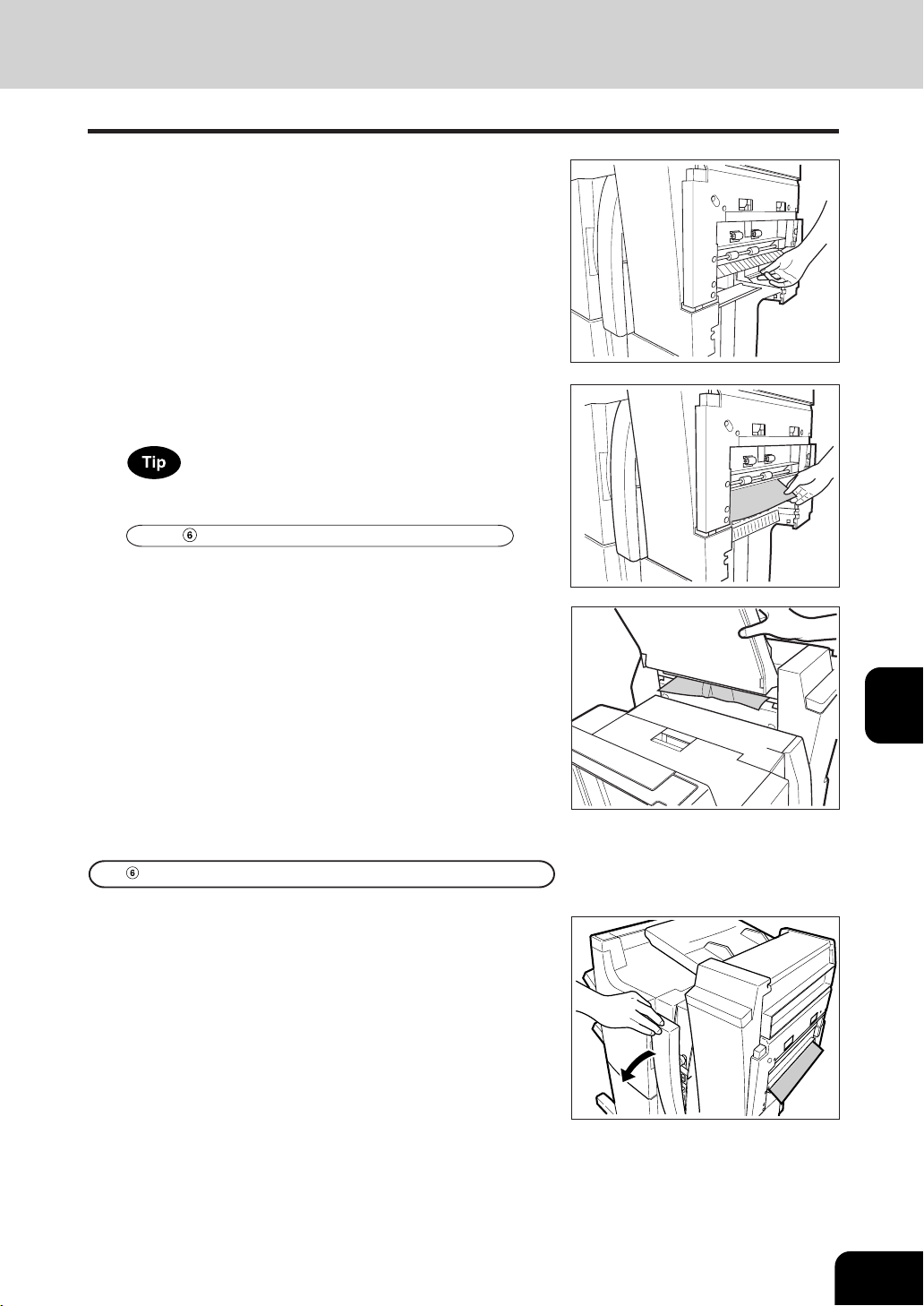
1
2
3
4
5
6
7
8
9
10
11
12
7-17
4
Pull down the grip.
5
Remove any misfed paper.
Jammed paper might not be able to be removed while the hole
punch unit is used. In this case, perform the steps in
Paper Misfeed in the Hole Punch Unit .
6
Open the tray of the inserter to remove any misfed
paper.
Paper Misfeed in the Hole Punch Unit (optional)
1
Open the cover of the hole punch unit.
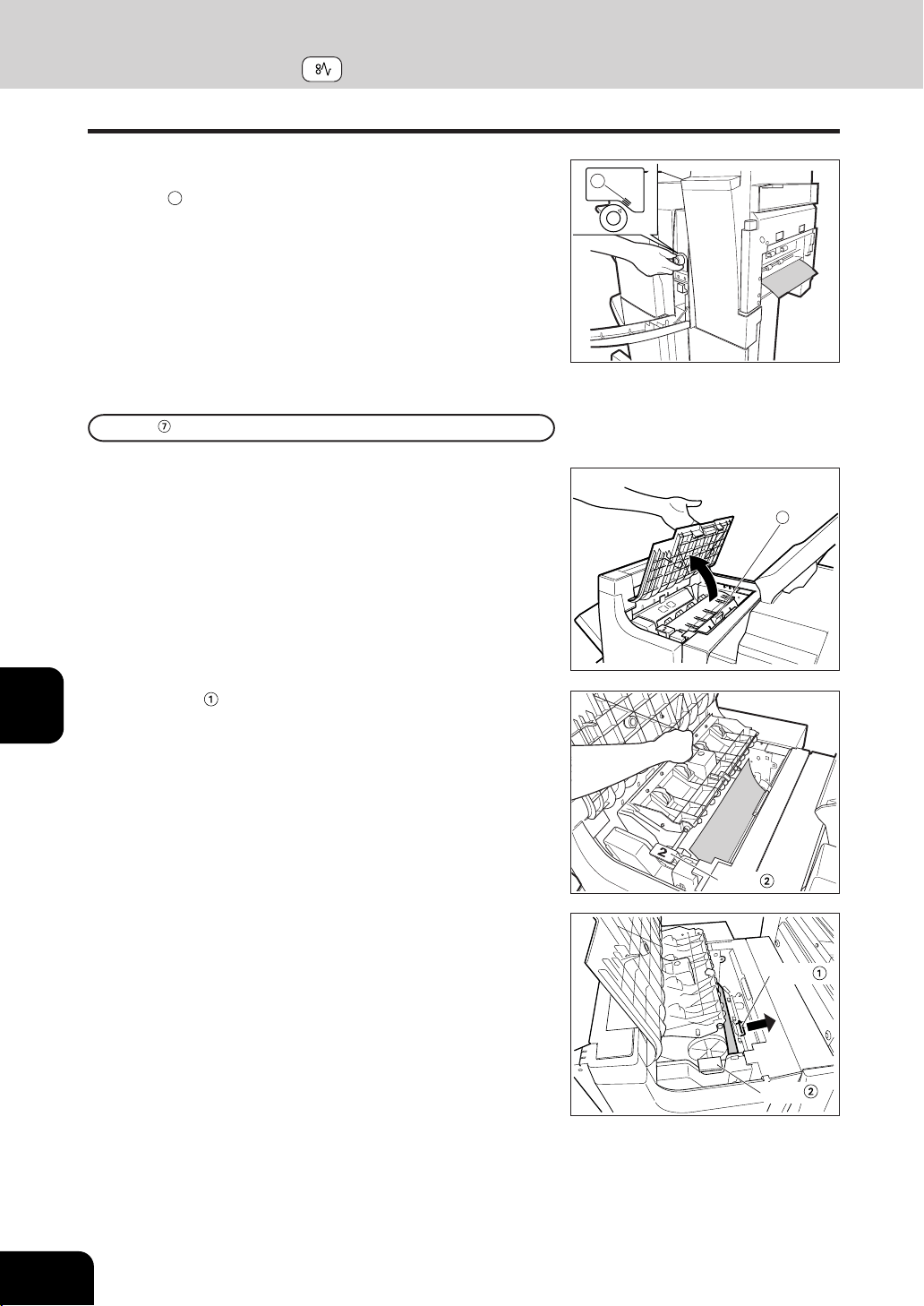
1
2
3
4
5
6
7
8
9
10
11
12
7-18
WHEN THE GRAPHIC SYMBOLS FLASH ON THE TOUCH PANEL
2
A
Paper Misfeed in the Finisher (optional)
4. CLEAR PAPER SYMBOL (Cont.)
2
Rotate the blue knob to locate the arrow within the
area
A
on the label.
- Under this condition, the punchers are up, allowing the pa-
per shown in the figure to be removed.
1
Open the upper cover of the finisher.
1
2
Lift knob (See the upper right figure), then remove
any misfed paper.
- For the paper misfed in the position shown on the right, pull
the knob in the direction of the arrow, then remove it.
Knob
Knob
Knob
Knob
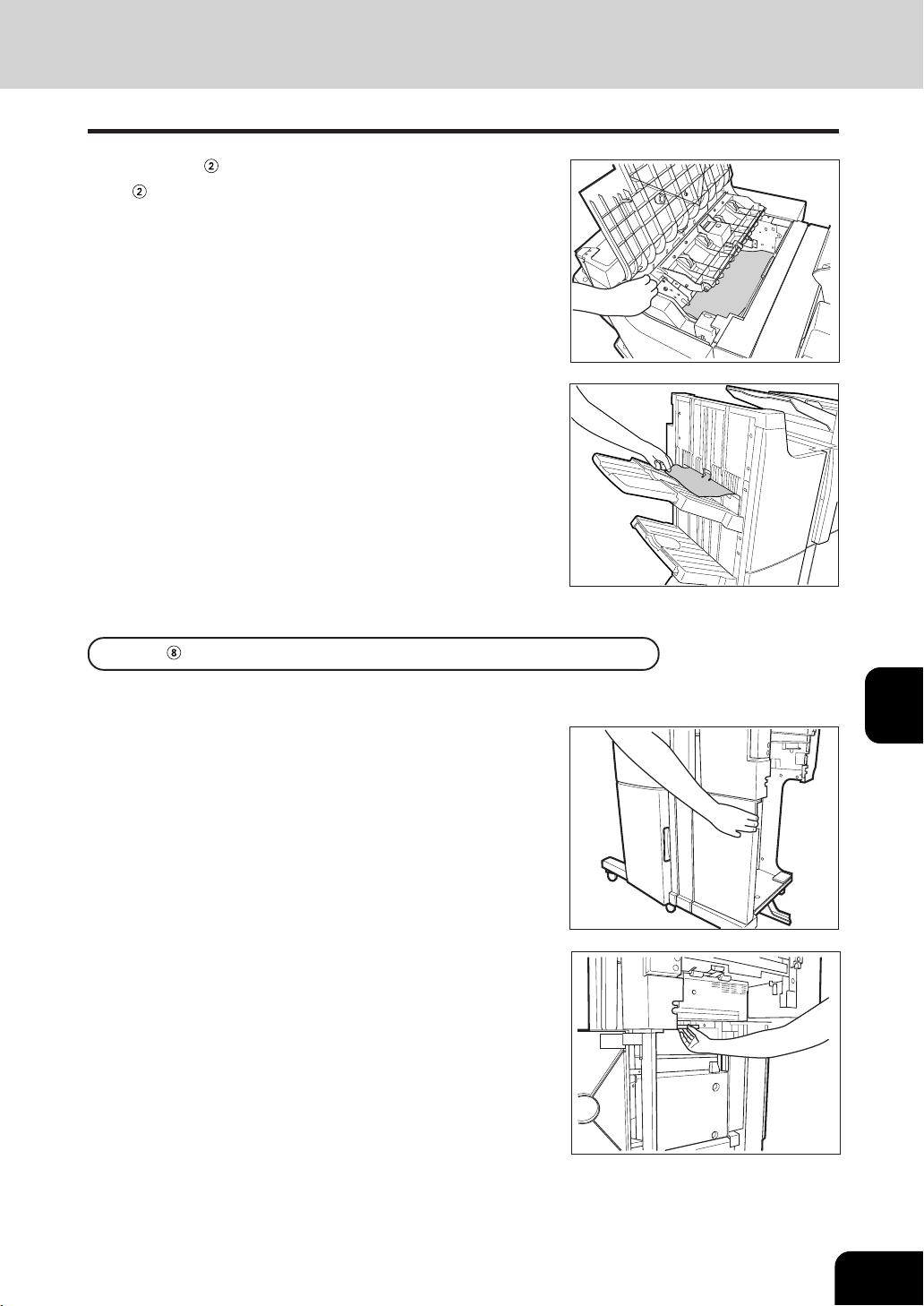
1
2
3
4
5
6
7
8
9
10
11
12
7-19
3
Lift knob and then remove any misfed paper.
( is indicated in the illustration of step 2 on page 7-18.)
Paper Misfeed in the Saddle Stitch Unit (optional)
4
Remove any misfed paper from the paper exit area.
2
Open the entrance cover of the saddle stitch unit.
1
When installing the optional inserter, open the lower
cover of the inserter.
* Only when the saddle stitch finisher (AR-F12) is installed.
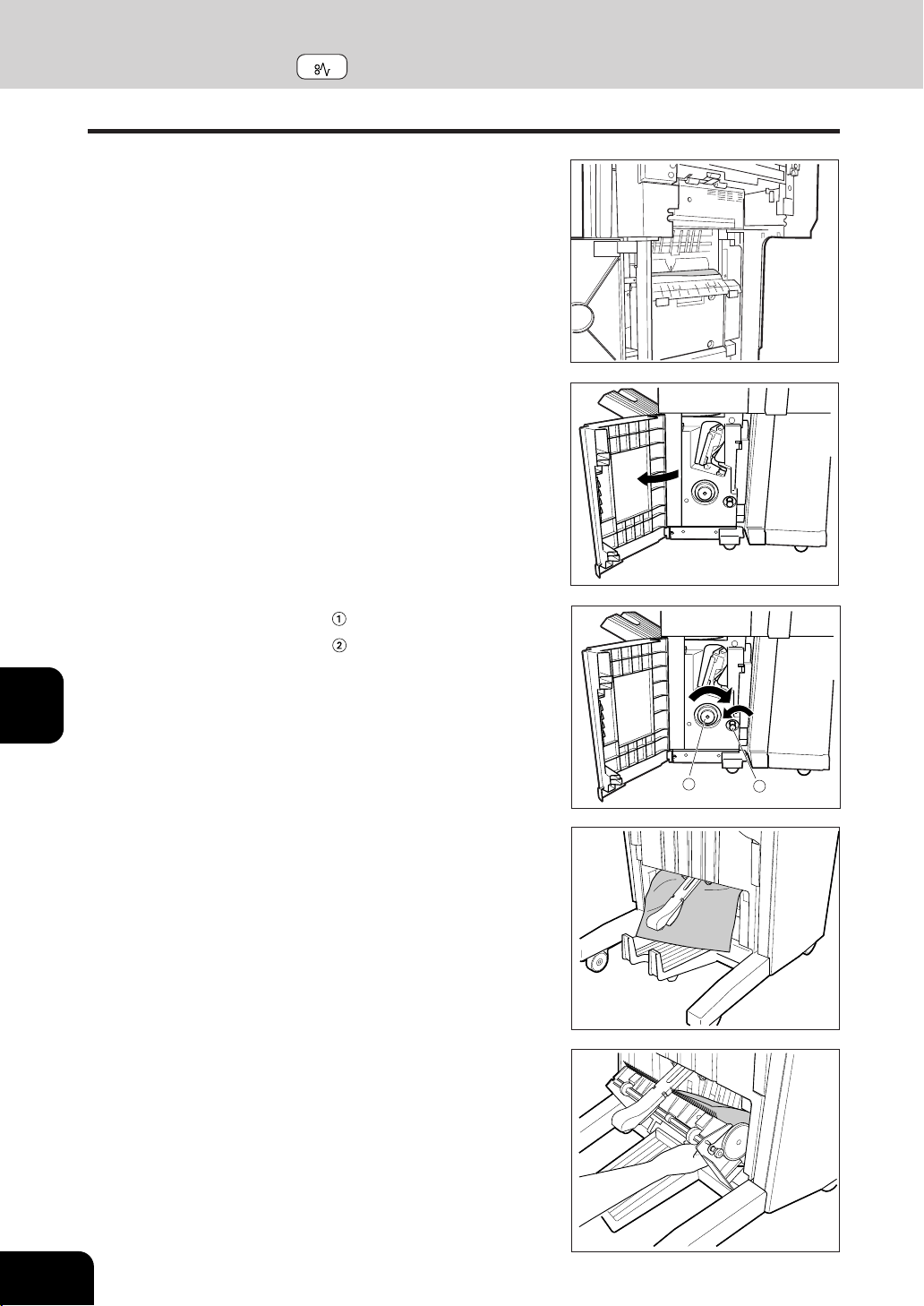
1
2
3
4
5
6
7
8
9
10
11
12
7-20
WHEN THE GRAPHIC SYMBOLS FLASH ON THE TOUCH PANEL
1
2
6
Remove any paper misfed on the exit side of the
saddle stitch unit.
7
Open the exit cover of the saddle stitch unit and remove
any misfed paper.
4. CLEAR PAPER SYMBOL (Cont.)
4
Open the lower cover of the finisher.
5
Turn the right-hand knob counter clockwise. Then,
push the left-hand knob and turn it clockwise.
3
Remove any misfed paper.
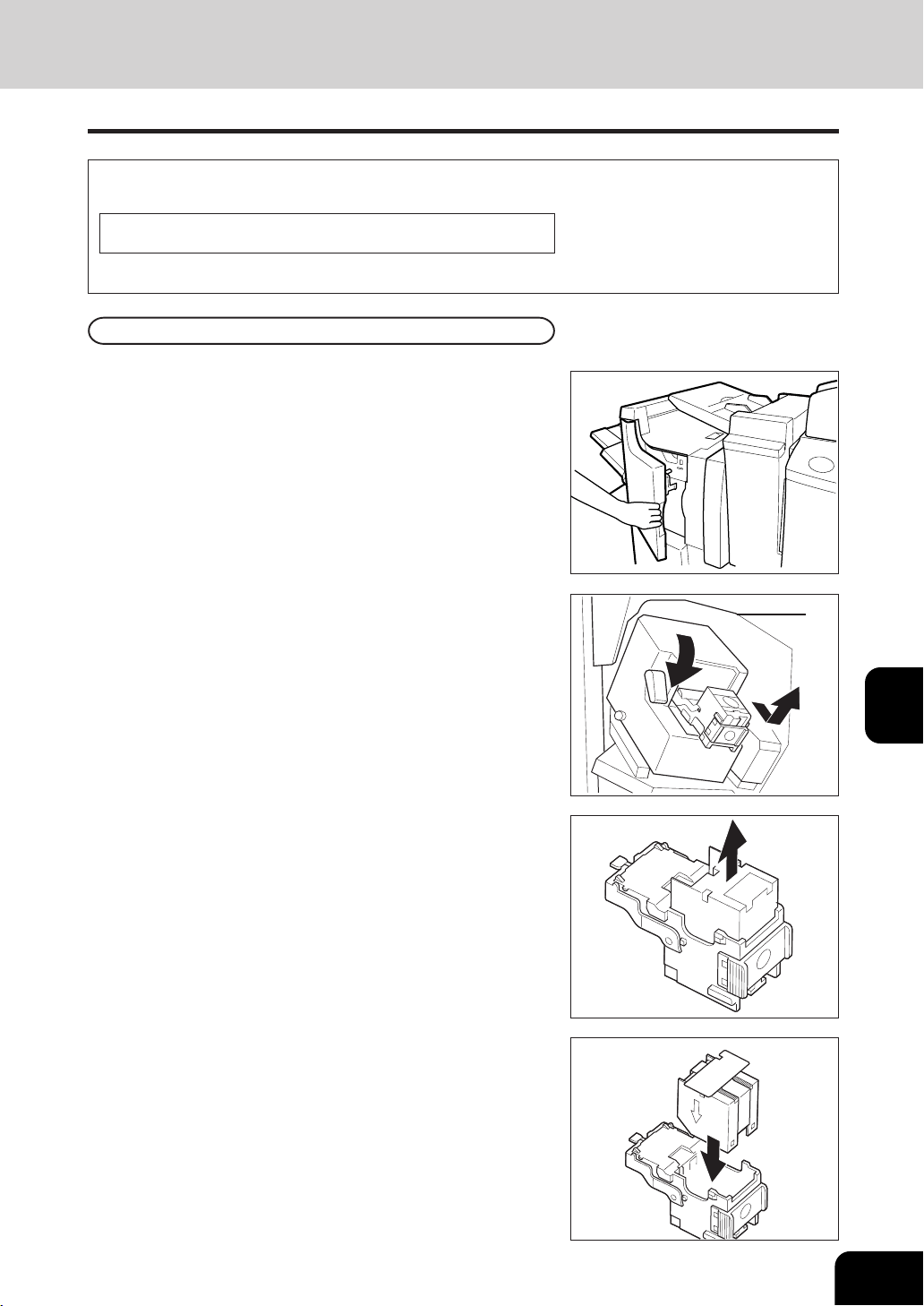
1
2
3
4
5
6
7
8
9
10
11
12
7-21
5. ADDING STAPLES (OPTIONAL)
When the staple cartridge runs out of staples, if the optional finisher is installed, the following message
appears:
Set staple cartridge
Add staples to the cartridge according to the procedure below.
2
Lower the blue lever in the stapler and slide out the
staple cartridge.
- The stapler unit has moved to its specified position.
- Do not move the stapler unit while performing the above proce-
dure, or it will be broken.
3
Remove the empty staple case upward from the
staple cartridge.
4
Push in a new staple case into the staple cartridge
completely inside until a click is heard.
- Do not remove the seal holding the staples until the staple
case is set in the cartridge.
Finisher
1
Open the front cover of the finisher.
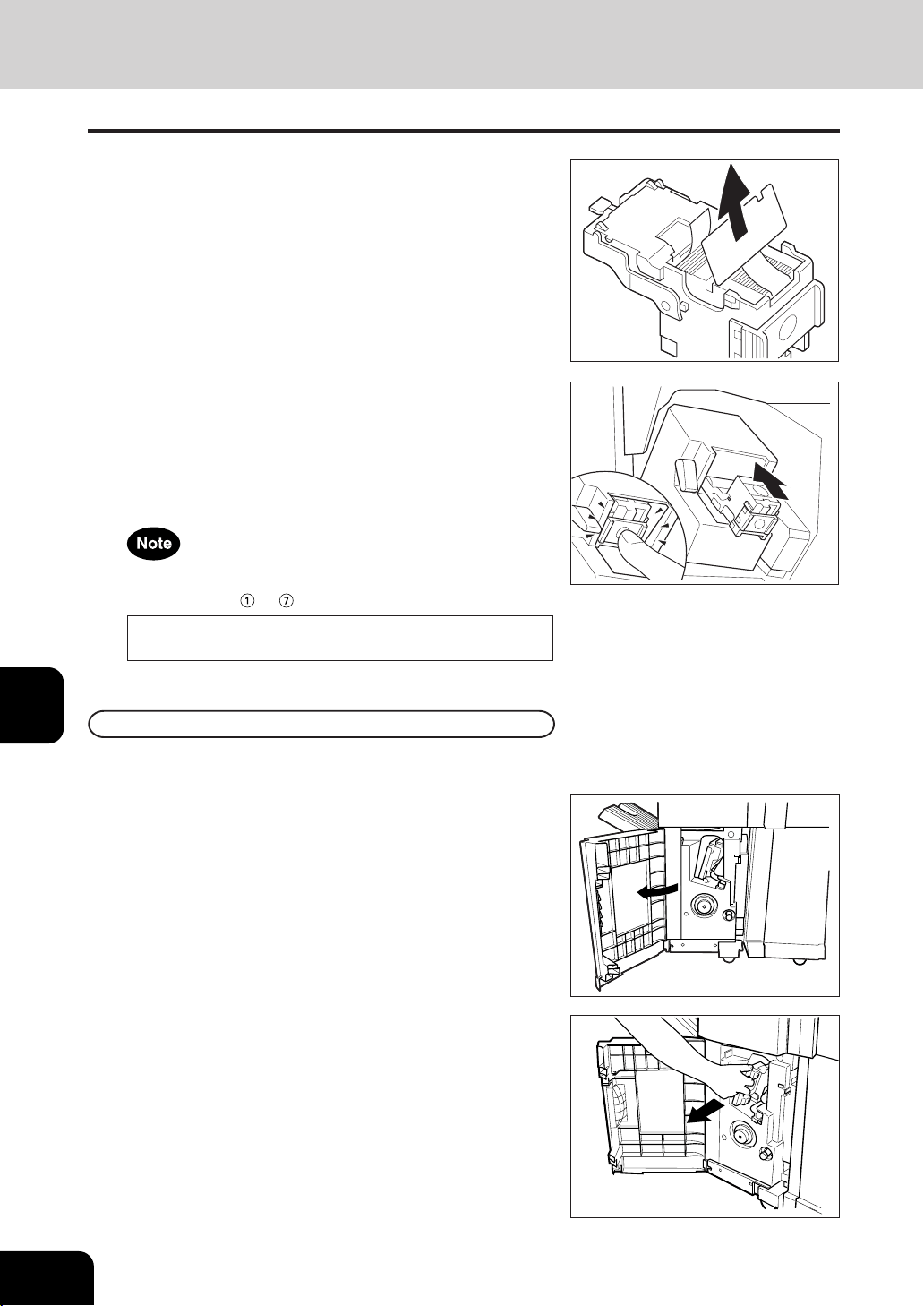
1
2
3
4
5
6
7
8
9
10
11
12
7-22
WHEN THE GRAPHIC SYMBOLS FLASH ON THE TOUCH PANEL
5. ADDING STAPLES (OPTIONAL) (Cont.)
6
Return the staple cartridge to its original position.
- Insert the cartridge until it is caught by the claw and fixed
with a click sound.
2
Slide out the saddle stitch unit carefully toward the
front.
7
Close the front cover of the finisher.
5
Pull out the seal holding the staples straight upward.
Saddle Stitch Unit
* Only when the saddle stitch finisher (AR-F12) is installed.
1
Open the lower cover of the saddle stitch finisher.
If the following message remains displayed, repeat the above
procedure from
to .
Set staple cartridge

1
2
3
4
5
6
7
8
9
10
11
12
7-23
3
Pull out the grip of the saddle staple holder toward
you and turn it
90
o
clockwise in the direction of the
arrow.
4
Remove the empty staple case and set a new one.
- Replace both staple cases with new ones.
- Do not remove the seal holding the staples before the staple
case is set in the cartridge.
If test stapling fails to be performed and the following mes-
sage remains displayed, repeat the above procedure from
steps 1 to 7.
Set staple cartridge
6
Make sure that the finisher is attached to the copier
firmly and that LD, LT-R size paper is set in the copier.
- If one of the above paper sizes is not set, test stapling cannot
be performed.
7
Close the lower cover of the finisher. Test stapling
is then automatically performed on a blank sheet.
- This operation is carried out to avoid blank stitching.
5
Return the saddle stitch holder and the saddle stitch
unit to their respective original positions.
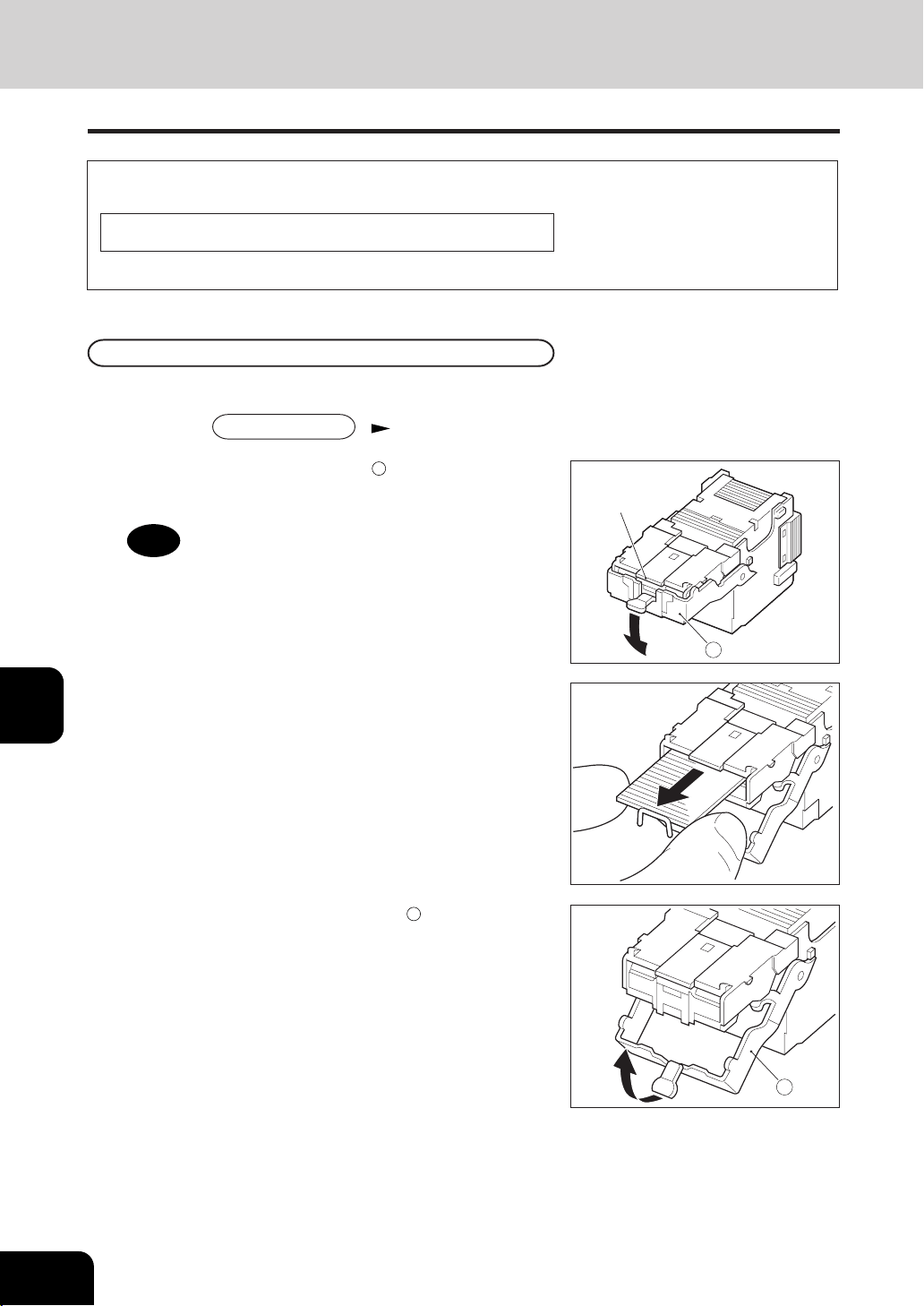
1
2
3
4
5
6
7
8
9
10
11
12
7-24
WHEN THE GRAPHIC SYMBOLS FLASH ON THE TOUCH PANEL
1
Perform steps 1 to 2 of the procedure for “5. ADDING
STAPLES Finisher ”( Page 7-21).
When copies have not been stapled in the staple mode, the following message may be shown on the
display:
Examine stapler
This means that staples have become jammed. Remove them as described below.
Finisher
6. REMOVING JAMMED STAPLES (OPTIONAL)
2
Holding the knob, lower part
A
.
3
Remove any jammed staples using your fingertip
or something sharp.
4
Holding the knob, return part
A
to its original
position.
A
A
Stapling area
Caution
Do not touch the stapling area.
The stapler could injure you.
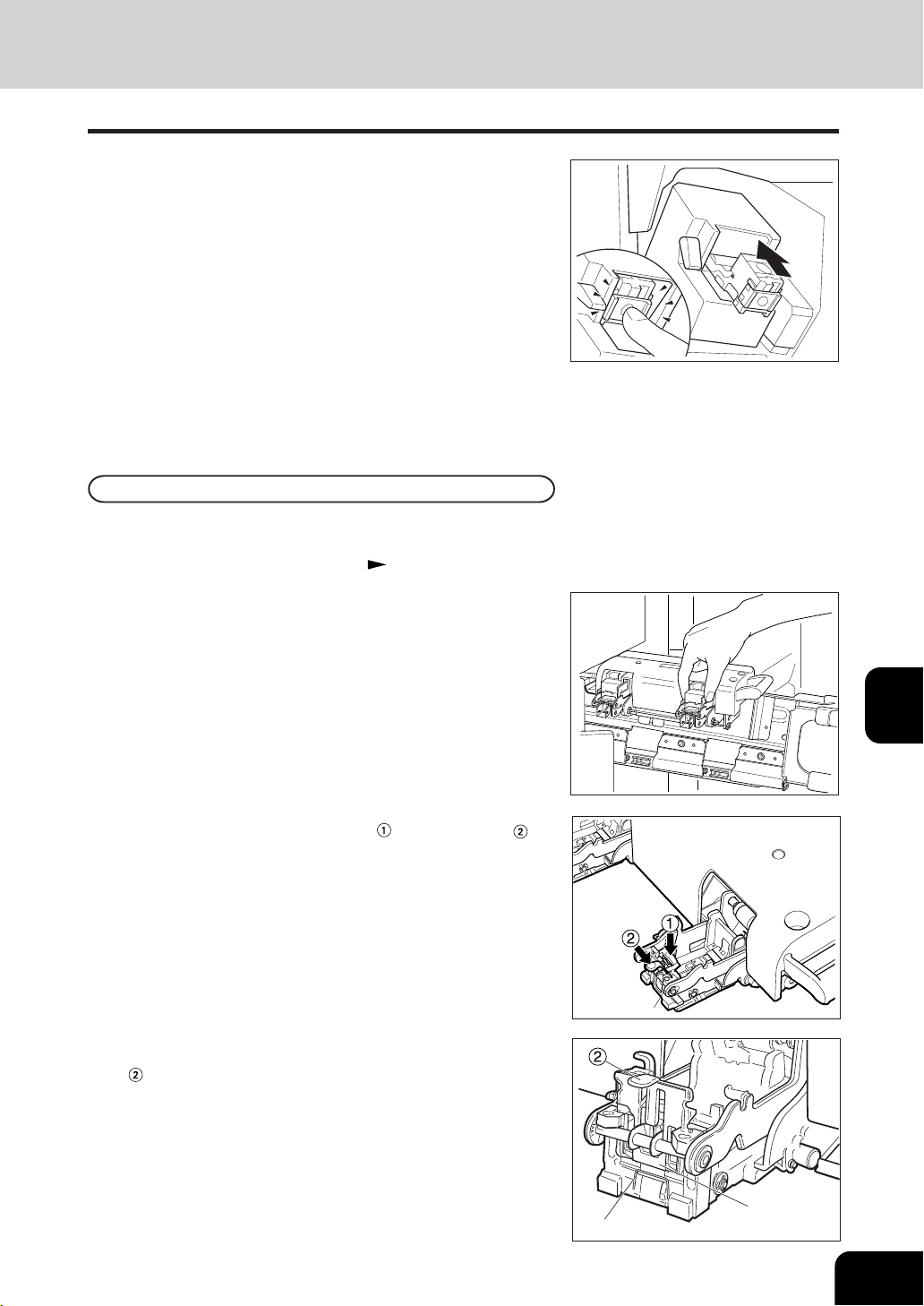
1
2
3
4
5
6
7
8
9
10
11
12
7-25
Jammed staples
Stapler
5
Return the staple case to its original position.
- Insert the cartridge until it is caught by the claw and fixed
with a click sound.
Saddle Stitch Unit
6
Close the front cover of the finisher.
4
Remove any jammed staples, and then return knob
to its original position.
2
Remove the empty staple case.
3
While pushing down on level
, pull up knob
.
1
Perform steps 1 to 3 of the procedure for “ 5. ADDING
STAPLES Saddle Stitch Unit ”( Page 7-22, 7-23).

1
2
3
4
5
6
7
8
9
10
11
12
7-26
WHEN THE GRAPHIC SYMBOLS FLASH ON THE TOUCH PANEL
5
Return the staple case to its original position.
6. REMOVING JAMMED STAPLES (OPTIONAL) (cont.)

1
2
3
4
5
6
7
8
9
10
11
12
7-27
7. DISPOSING OF ACCUMULATED PUNCHED PAPER BITS (OPTIONAL)
When paper bits punched from copies have accumulated to a certain level, the following message appears.
Please Dispose of Hole Punch Dust
Dispose of the paper bits as described below.
1
Open the cover of the hole punch unit.
2
Holding the black handle, slide out the case containing
the paper bits, and dispose of them properly.
3
Return the waste case to its original position.
4
Close the cover of the hole punch unit.
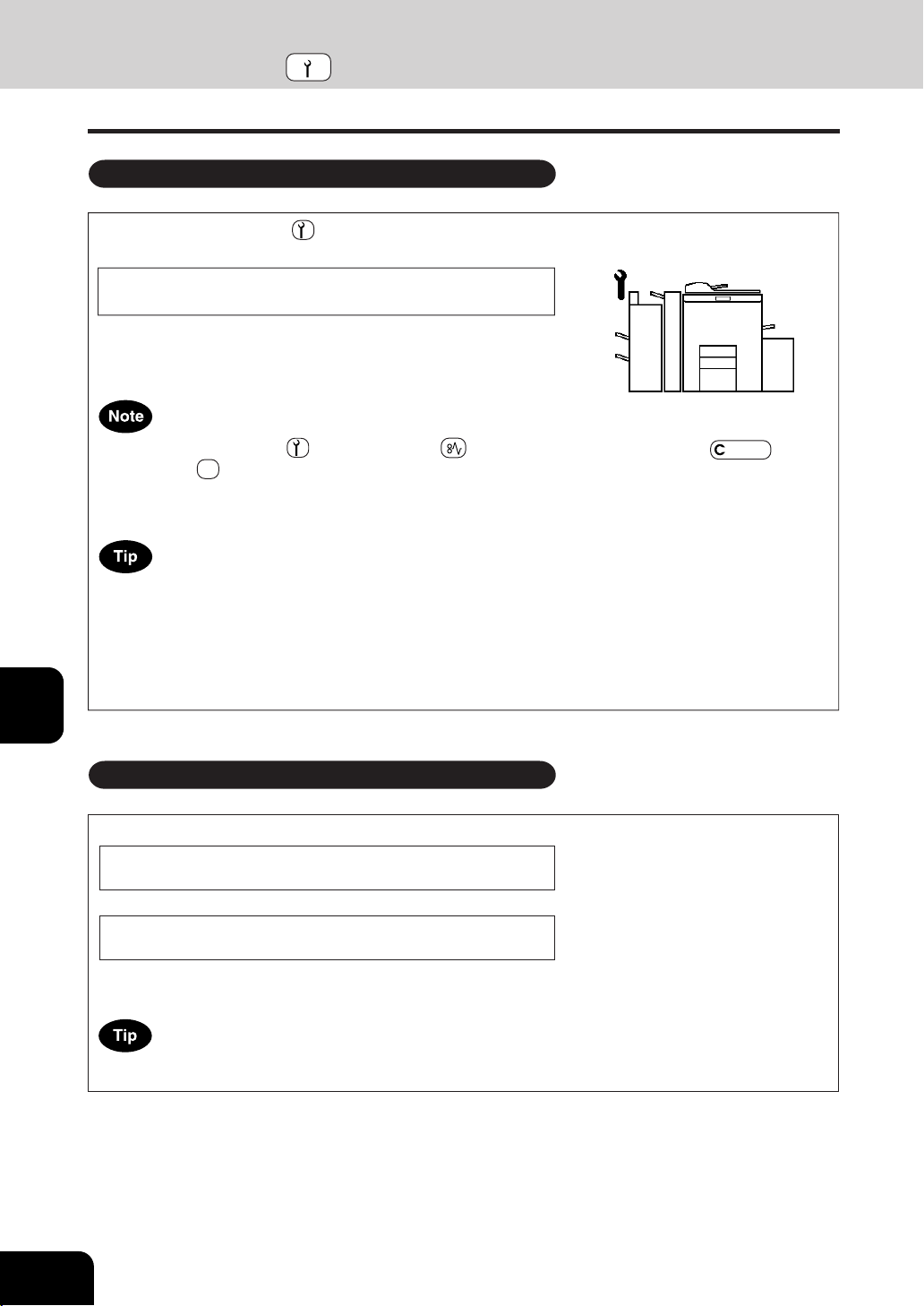
1
2
3
4
5
6
7
8
9
10
11
12
7-28
WHEN THE GRAPHIC SYMBOLS FLASH ON THE TOUCH PANEL
Since heaters are used to fix toner images to the copy paper, a safety circuit is incorporated in this
copier. After you turn on the power switch, if a certain temperature is not attained within a specified
period of time, the safety circuit assumes that something abnormal has happened, causing the copier to
stop its operation. This can possibly occur when the temperature is low even if the copier is not malfunc-
tioning. If this occurs, turn the power switch off and then on again. Repeat this procedure twice, and if the
problem still persists, turn off the power switch and call for service.
When the CALL SERVICE
symbol flashes, the following message appears and copying is no longer
possible. Call your service technician.
Call for service
When the CALL SERVICE or CLEAR PAPER symbol is flashing, if you press the Clear key and
the digital key 8 together before you turn off the power, the corresponding error code will appear on the
copy quantity display only while both keys are held down. Please give the error code in addition when you
are asking for service.
8.
CALL SERVICE SYMBOL / PERIODIC MAINTENANCE MESSAGE
The following message may appear on the display panel:
Time for periodic maintenance
CALL SERVICE SYMBOL
PERIODIC MAINTENANCE MESSAGE
or
Time for periodic maintenance
(Fuser cleaning web)
This indicates that assistance from a qualified service technician is required. Call your service technician for
assistance.
Using the copier continuously without replacing the fuser cleaning web causes dirty image.

1
2
3
4
5
6
7
8
9
10
11
12
8-1
8. MAINTENANCE
1. Daily inspection ......................................................................... 8-2
2. Simple troubleshooting .............................................................. 8-3
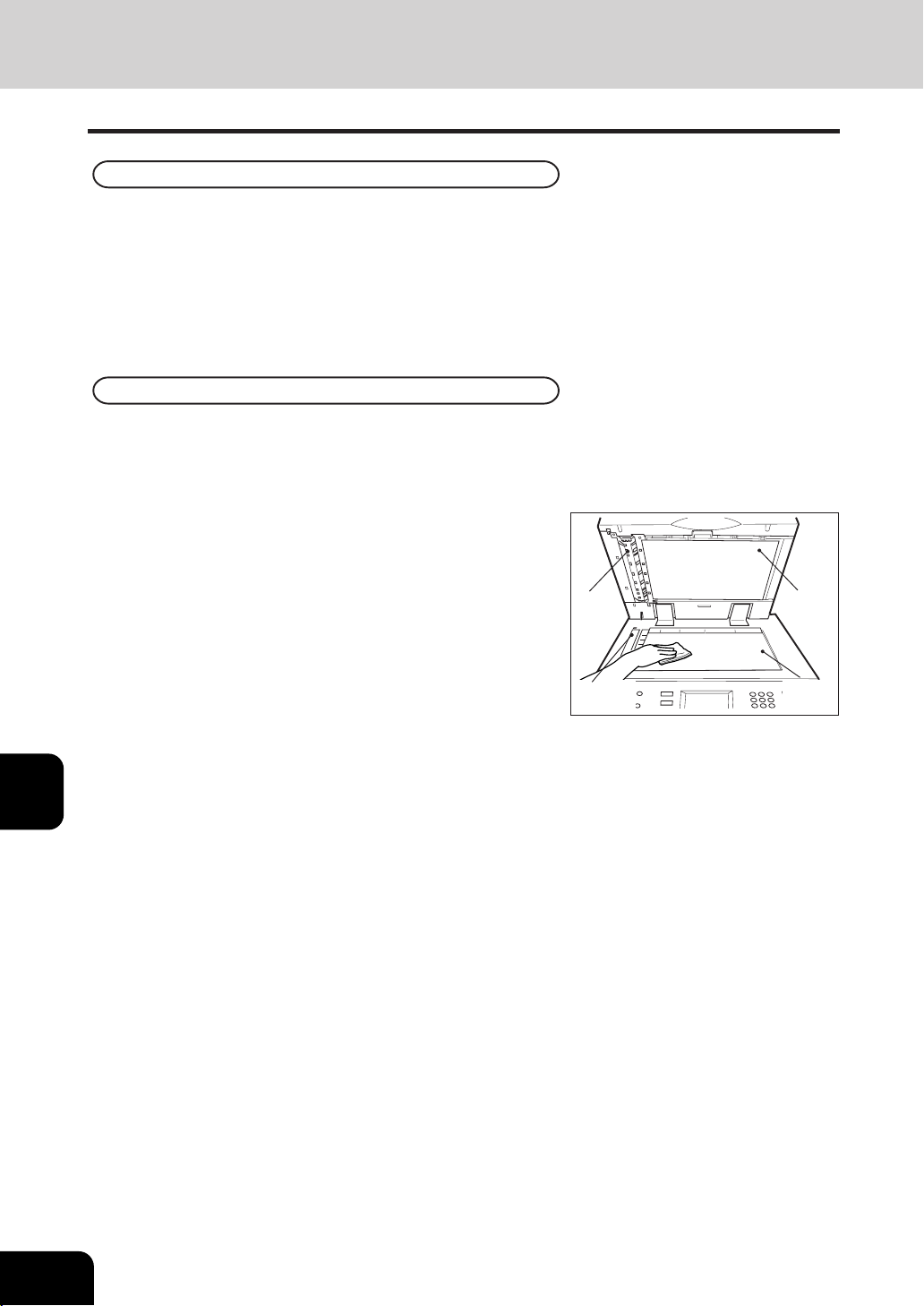
1
2
3
4
5
6
7
8
9
10
11
12
8-2
MAINTENANCE
Original
glass
Scanning
area
1. DAILY INSPECTION
Items for Daily Check
Power switch ON/OFF status
We recommend turning the power switch ON at the startup everyday so that copies can be made whenever
you want. Also, be sure to turn the power switch OFF when you leave the office. In the following cases,
do not turn the power switch OFF.
- when the off-mode (or sleep mode) is set;
- when the weekly timer is in use;
Weekly Maintenance
Cleaning the original glass, the original cover, the scanning area and the guide area.
To maintain copy quality, the following items are recommended to be cleaned preferably once a week.
- Clean the original glass with a cloth moistened with
a small amount of water or cleaning liquid, then wipe
a dry cloth over the glass.
- Be careful not to scratch the parts that you are cleaning.
Guide
Original
cover
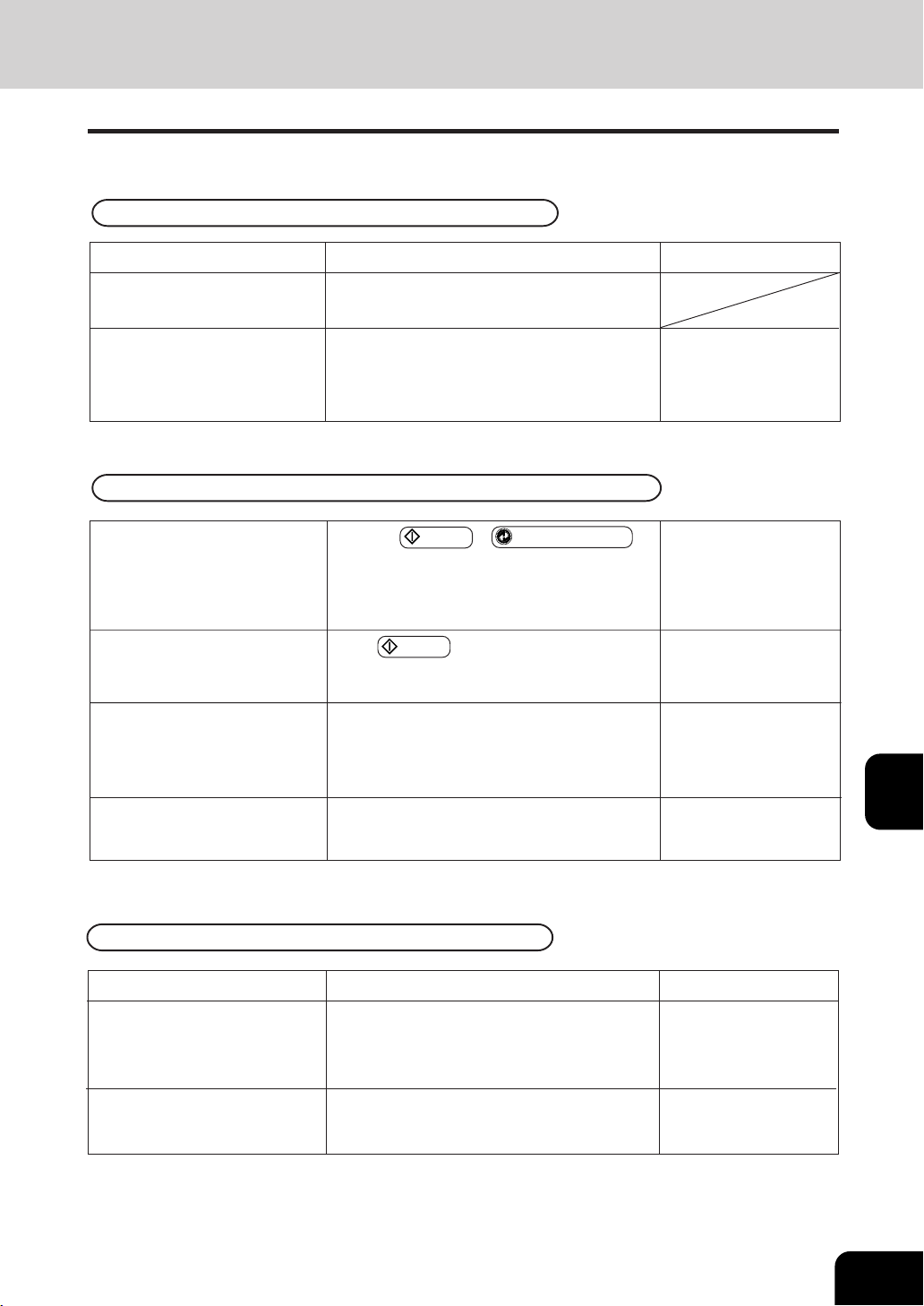
1
2
3
4
5
6
7
8
9
10
11
12
8-3
Press the START or
ENERGY SAVER
key
on the control panel to clear the automatic en-
ergy saving mode. (It takes a while for the copier
to become ready.)
Press
START key to return the power ‘ON’ .
Key in the correct account number.
* If the account number is not clear, ask your
copier manager.
Wait until the copier becomes ready.
Is the copier in the automatic
energy saving mode?
Is the power ‘OFF’ because the
weekly timer is functioned?
Is the account number keyed in?
Is the account number correct?
Is the “Warming up” message
displayed?
Reference page
Page 1-2
Items to be checked
Is the power cord plug firmly
inserted in the outlet?
Is the front cover, the side cover
and the large capacity feeder
(optional) firmly closed?
2. SIMPLE TROUBLESHOOTING
Check the following items, and if the problem still occurs, call service for assistance.
Copier does not start
Countermeasure
Insert the power cord plug firmly.
Close the covers properly.
Display does not change when keys or icons are pressed
Page 1-5, 5-16
Page 5-13
Page 5-19
Page 1-8
Items to be checked
Has the message “Add toner”
appeared on the screen?
Is the copy density adjustment
set lighter than is standard?
Countermeasure
Replace the toner cartridge.
Use the manual density keys to set the copy
density properly.
Copy density is too low
Reference page
Page 7-6
Page 3-11
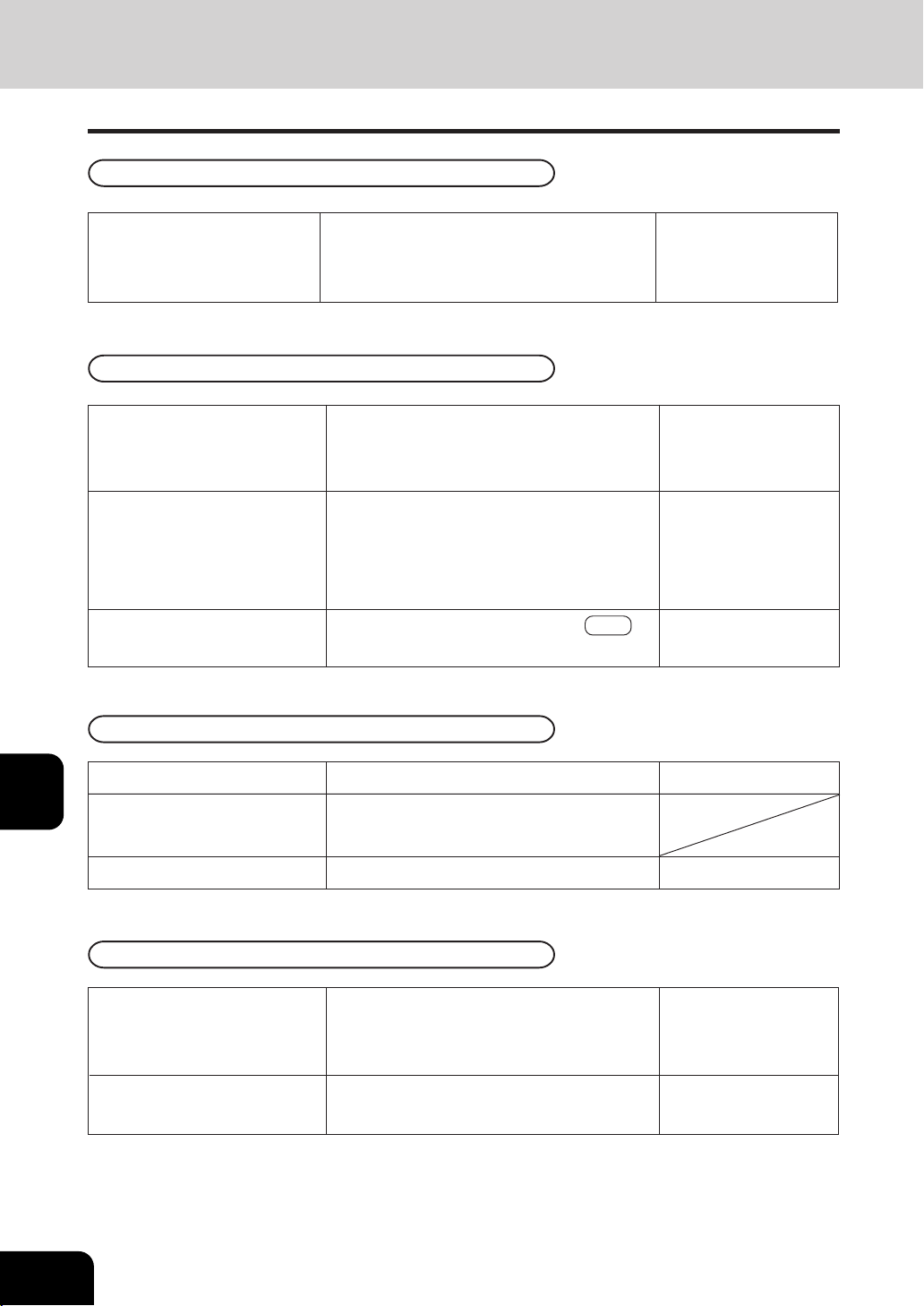
1
2
3
4
5
6
7
8
9
10
11
12
8-4
MAINTENANCE
Is the reversing automatic docu-
ment feeder firmly closed?
Is the original cover or the trans-
port belt of the reversing auto-
matic document feeder dirty?
Is the scanning area dirty?
Is the copy density set properly?
Reference page
Select the same size of copy paper as the original,
or set the reproduction ratio suitable for the pa-
per size.
Set a smaller image shift value.
Are the original size and direction,
as well as the reproduction ratio,
suitable for the paper size?
Is the margin on the copy set
properly?
Countermeasure
Place the original firmly on the glass and close
the reversing automatic document feeder.
Replace with new paper.
Items to be checked
Does the entire original lie prop-
erly on the surface of the glass?
Is the copy paper moist?
Copy images are blurred
Images are partially missing
Page 3-2, 3-4
Page 4-2
2. SIMPLE TROUBLESHOOTING (Cont.)
Page 7-3
Copies are stained
Close the reversing automatic document feeder
firmly to shut out any outer light.
Clean the original cover or the transport belt.
Set the copy density properly with the AUTO key
or manual density keys.
Page 2-10
Page 8-2
Page 3-11
Is the copy density adjustment
set darker than is standard?
Copy density is too high
Use the manual density keys to set the copy
density properly.
Page 3-11

1
2
3
4
5
6
7
8
9
10
11
12
9-1
9. SPECIFICATIONS &
OPTIONS
1. Specifications ............................................................................ 9-2
2. Specifications of options ............................................................ 9-4
3. Packing list ................................................................................ 9-6
4. Index .......................................................................................... 9-7

1
2
3
4
5
6
7
8
9
10
11
12
9-2
SPECIFICATIONS & OPTIONS
1. SPECIFICATIONS
Power Requirements 115V, 50/60Hz, 20A
Dimensions 27.48
"
(W) x 30.59
"
(D) x 47.76
"
(H) (copier only)
79.49
"
(W) x 30.59
"
(D) x 47.76
"
(H) (full options)
Weight Approx. 463 lb. (copier only), Approx. 743 lb. (full options)
Power Consumption AR-651/810: 2.0kw
Warm-up Time Approx. 160 seconds
Acceptable Paper Weight 17
-
110 lb. Index (Drawer and Bypass feeding)
Acceptable Copy Paper Size
Bypass feeding: Paper size within 3.94"
-
11.69
"
(Length), 5.83"
-
17.01
"
(Width)
Acceptable Original Size LD, LG, LT, LT-R, ST-R, COMP,
*1 A3, A4, A4-R, A5-R, B4, B5, B5-R, FOLIO
First Copy Time (LT) Approx. 3.2 seconds
Model Name AR-651/810
Space Occupied 55.16
"
(W) x 30.59
"
(D)
Storage Capacity Max. 1000 images (1 job)
Multiple Copying Up to 9999 copies (digital key entry)
Type Console type
Original Glass Fixed (original referenced to top left, referenced to center when using
reversing automatic document feeder)
Copying System Indirect electrophotographic method
Developing System 2-component magnetic brush developing
Fixing method Heat roller (Induction heating)
Photoconductor Type OPC
Original Scanning System Linear CCD sensor
Resolution 600dpi x 2400dpi with smoothing
Acceptable Originals Sheets, books and three-dimensional objects
Acceptable Original
Paper Weight *1
1-Sided Original: 13
-
34 lb. Bond
2-Sided Original: 13
-
28 lb. Bond
Exposure Control Automatic plus manual selection from 11 exposure step
Light Source Xenon lamp
Paper Supply Drawer: 500 sheets
Tandem LCF: 2500 sheets (20lb. Bond)
Sheets bypass: 100 sheets (20lb. Bond)
Toner Density Adjustment Magnetic auto-toner system
*1 When using the reversing automatic document feeder.
Reproduction Ratio Actual size: 100
+
0.5%
Zoom: 25
-
400% (increments)
For the reversing document feeder: 25
-
200% ( in 1% increments)
–
Drawer: LD, LG, LT, LT-R, ST-R, COMP, 13" LG, 8.5" SQ,
A3, A4, A4-R, A5-R, B4, B5, B5-R, FOLIO, 8K, 16K, 16K-R
(Tandem LCF: LT only)
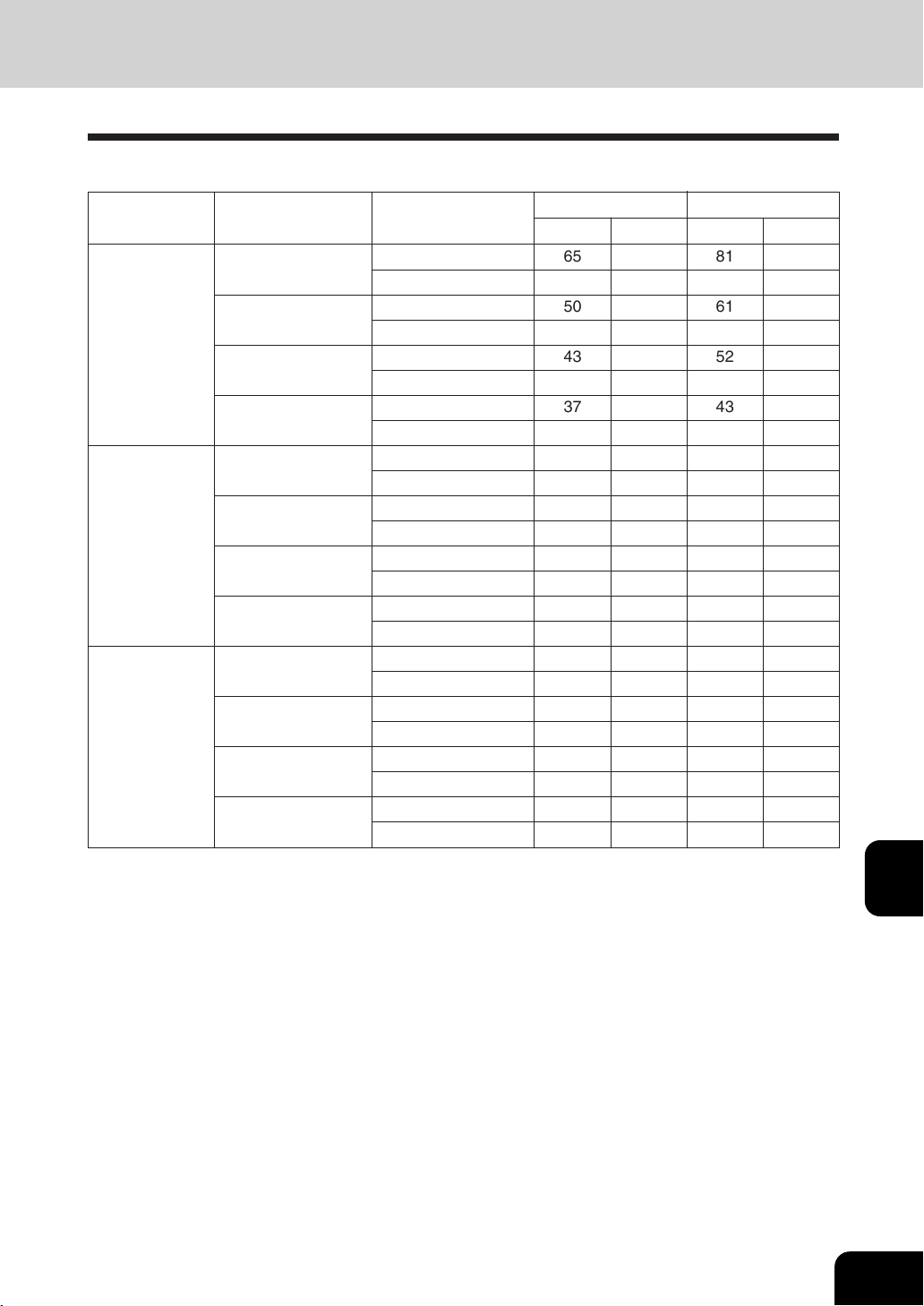
1
2
3
4
5
6
7
8
9
10
11
12
9-3
Continuous Copying Speed
sheets/min.
* The values above are measured when originals are set on the original glass, 1-Sided, 100% and non
sort multicopies are made.
*
‘Face up’ and ‘Face down’ in the table mean the paper exit faces.
* The bypass copying speed is as listed above when specifying the paper size, however when the paper
size is not specified, the copy speed of all sizes is on ‘ *2’.
* This specification varies depending on copying condition and environment.
Plain Paper
(17-20 lb. Bond)
Thick 1
( - 90 lb. Index)
Thick 2
( - 110 lb.Index)
Face down
AR-810
65 65 81 81
48 48 50 50
50 48 61 56
42 42 44 44
43 40 52 45
37 37 39 39
37 34 43 37
33 33 34 34
65 65 81 81
48 48 50 50
50 48 61 56
42 42 44 44
43 40 52 45
37 37 39 39
37 34 43 37
33 33 34 34
65 65 65 65
48 48 50 50
50 48 50 48
42 42 44 44
43 40 43 40
37 37 39 39
37 34 37 34
33 33 34 34
Drawer/Tandem LCF
Bypass
Drawer/Tandem LCF
Bypass
Drawer/Tandem LCF
Bypass
Drawer/Tandem LCF
Bypass *2
Drawer/Tandem LCF
Bypass
Drawer/Tandem LCF
Bypass
Drawer/Tandem LCF
Bypass
Drawer/Tandem LCF
Bypass *2
Drawer/Tandem LCF
Bypass
Drawer/Tandem LCF
Bypass
Drawer/Tandem LCF
Bypass
Drawer/Tandem LCF
Bypass *2
LT, ST-R, 8.5" SQ,
A4, A5-R, B5
LT-R, A4-R, B5-R
LG,COMP,
13"LG,B4, FOLIO
LD, A3
LT, ST-R, 8.5" SQ,
A4, A5-R, B5
LT-R, A4-R, B5-R
LG, COMP, 13"LG,
B4, FOLIO
LD, A3
LT, ST-R, 8.5" SQ,
A4, A5-R, B5
LT-R, A4-R, B5-R
LG, COMP, 13"LG,
B4, FOLIO
LD, A3
Face up
Face down
Face up
AR-651
FeederPaper SizePaper Type
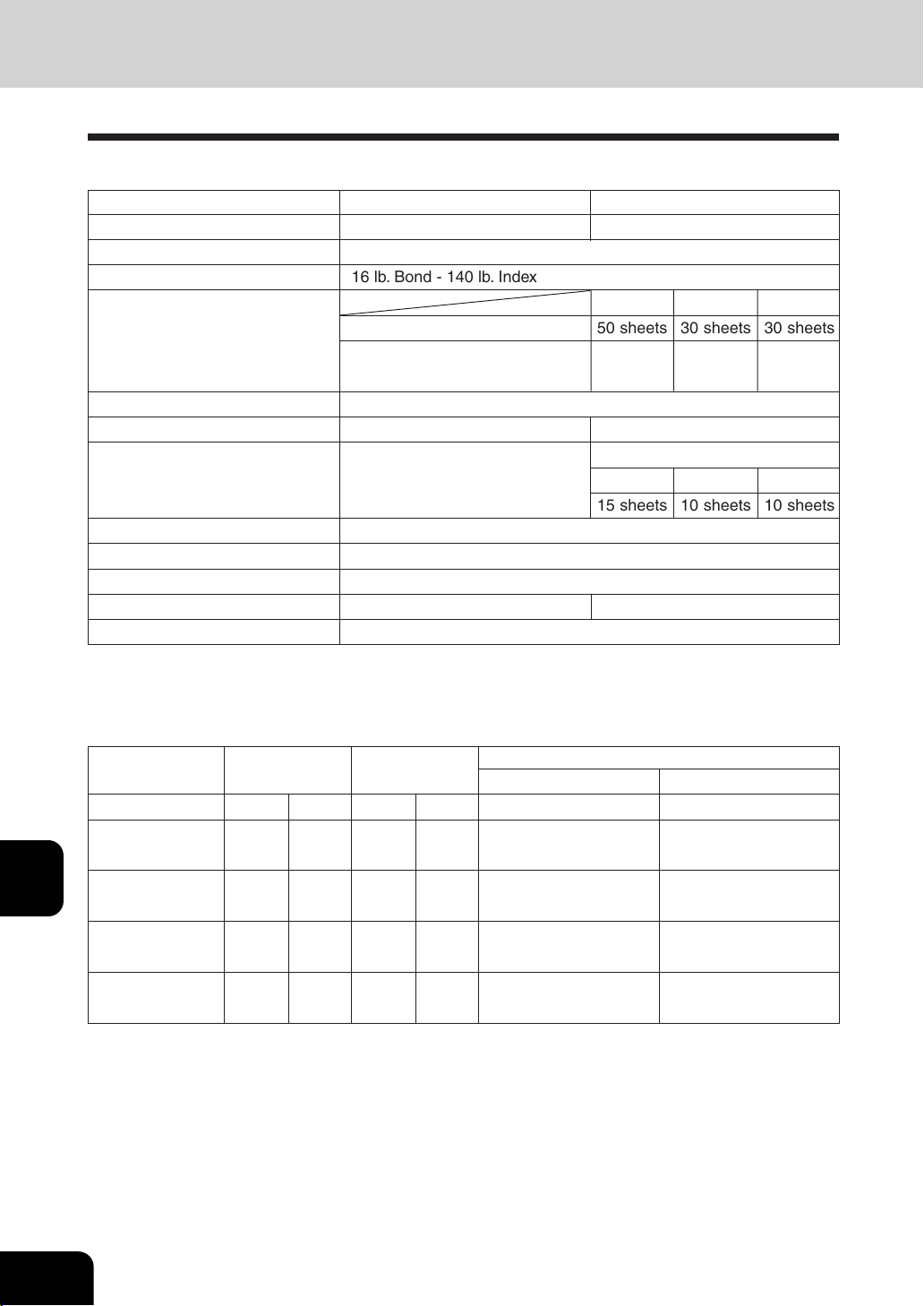
1
2
3
4
5
6
7
8
9
10
11
12
9-4
SPECIFICATIONS & OPTIONS
2. SPECIFICATONS OF OPTIONS
Weight Approx. 92.59 lb. Approx. 136.7 lb.
Saddle Stitch Unit No Yes
Stitching Capacity
Stapling Position Rear, Front, Front diagonal, Double
Finishers
* The values inside in parentheses are measured when the subtray is pulled out.
Model Name AR-F11 AR-F12
Type Floor type Floor type
Acceptable Paper Size LD, LG, LT, LT-R, COMP, A3, A4, A4-R, B4, B5, FOLIO
Acceptable Paper Weight 16 lb. Bond - 140 lb. Index
Number of Copies
Stapled at a Time LT, A4, B5
(AR-F11, AR-F12) LD, LG, LT-R, COMP,
A3, A4-R, B4, FOLIO
20 lb.Bond
50 sheets 30 sheets 30 sheets
30 sheets 15 sheets 15 sheets
LD, LT-R, A3, A4-R, B4
15 sheets 10 sheets 10 sheets
Hole Punch Unit Optional
Power Source Supplied from the copier
Dimensions 24.2
"
(29.1
"
*) (W) x 24.8
"
(D) x 40.28
"
(H)
Power Consumption 170 W max.
Mode
Tray Loading Capacity
Non-Sort Sort/Group
Staples loaded
Mixed paper loadedMixed paper not loaded
Tray N o.
ST-R, A5-R
B5-R
LT, A4, B5
LD, LG, LT-R, COMP,
A3, A4-R, B4, FOLIO
1212 1, 2
2.9
(500)
2.9
(500)
xx x x
9.8
(2000)
9.8
(2000)
9.8
(2000)
9.8
(2000)
Whichever of 4.3",
750 sheets or 50 copies
is reached first
Whichever of 2.9",
500 sheets or 50 copies
is reached first
5.5
(1000)
5.5
(1000)
5.5
(1000)
5.5
(1000)
Whichever of 2.9",
500 sheets or 50 copies
is reached first
Whichever of 2.9",
500 sheets or 50 copies
is reached first
2.9
(500)
2.9
(500)
xx x x
1, 2
–
Units of inch
+
0.276inch
Values in parentheses = the number of 20lb. Bond sheets
24 lb.Bond 28 lb.Bond
20 lb.Bond 24 lb.Bond 28 lb.Bond
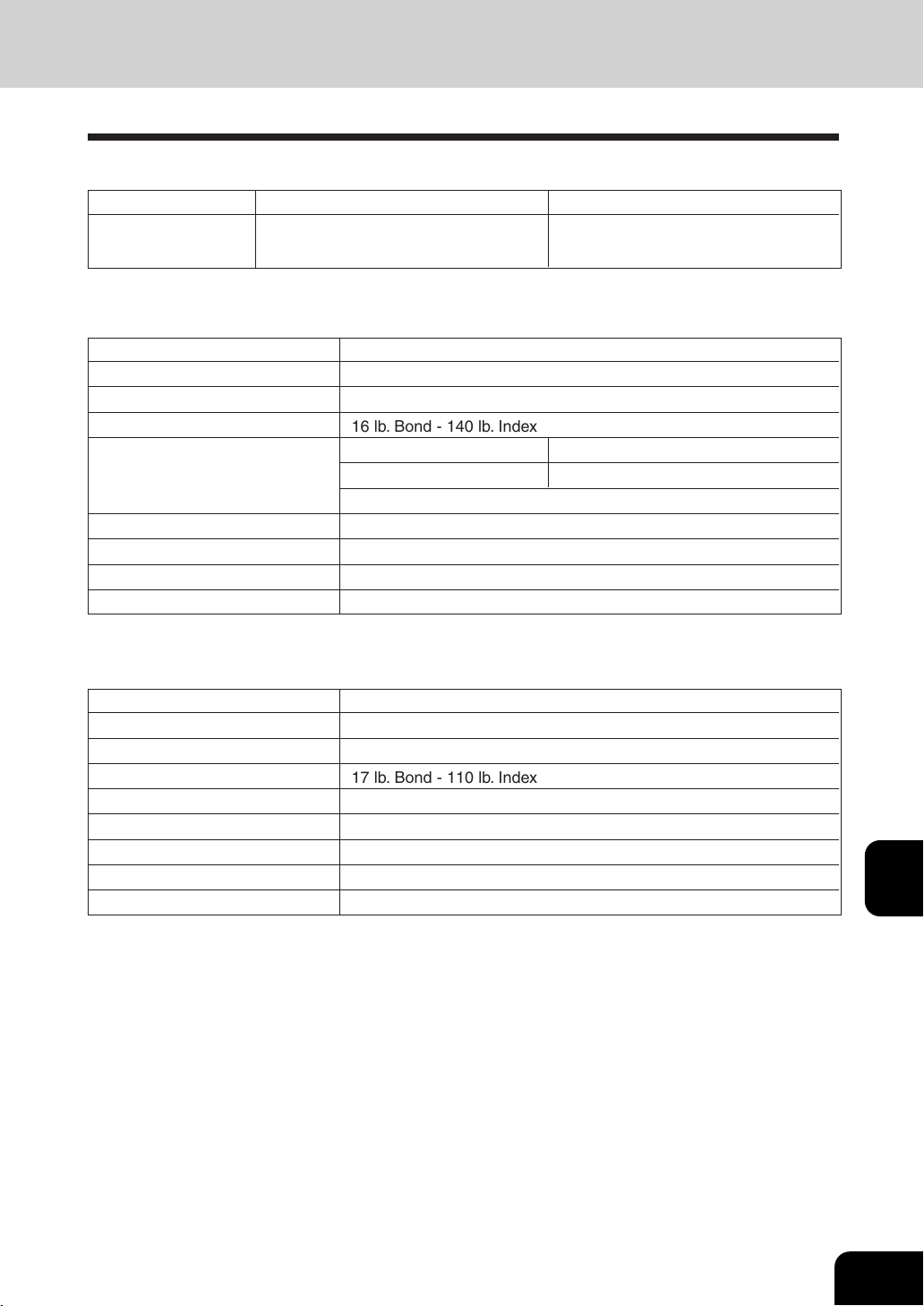
1
2
3
4
5
6
7
8
9
10
11
12
9-5
North America 2 / 3 holes switchable 2 holes: LG, LT-R
(AR-PN3B) (0.315
"
dia. ) 3 holes: LD, LT, A3, A4
Weight Approx. 88.2 lb.
Power Source Supplied from the copie
Maximum Capacity 16 lb. Bond - 20lb. Bond
- 140 lb. Index
Weight Approx. 6.2lb.
* The paper mentioned above is Sharp-recommended paper. Specifications and appearance are
subject to change without notice in the interest of product improvement.
Hole Punch Unit
Number of punching holes and hole diameter
Available paper sizes
Inserter
Model Name AR-CF1
Type Floor Type
Acceptable Paper Size LD, LG, LT, LT-R, COMP, A3, A4, A4-R, B4, B5, FOLIO
Acceptable Paper Weight 16 lb. Bond - 140 lb. Index
Dimensions 21.0
"
(W) x 24.1
"
(D) x 42.2
"
(H)
100 sheets
Height: approx. 0.63
"
* Special paper: 60% less than above
Power Consumption 171W max.
Maximum Capacity 4000 sheets
(20lb. Bond)
External LCF (Large Capacity Feeder)
Model Name AR-LC4
Type Floor Type
Acceptable paper size LT
Acceptable paper weight 17 lb. Bond - 110 lb. Index
Dimensions 12.8
"
(W) x 23.6"(D) x 24.3
"
(H)
Power Consumption 1.5kW max. (with the copier)
Power Source Supplied from the copier
Paper Weight : 16 lb. Bond - 140 lb. Index
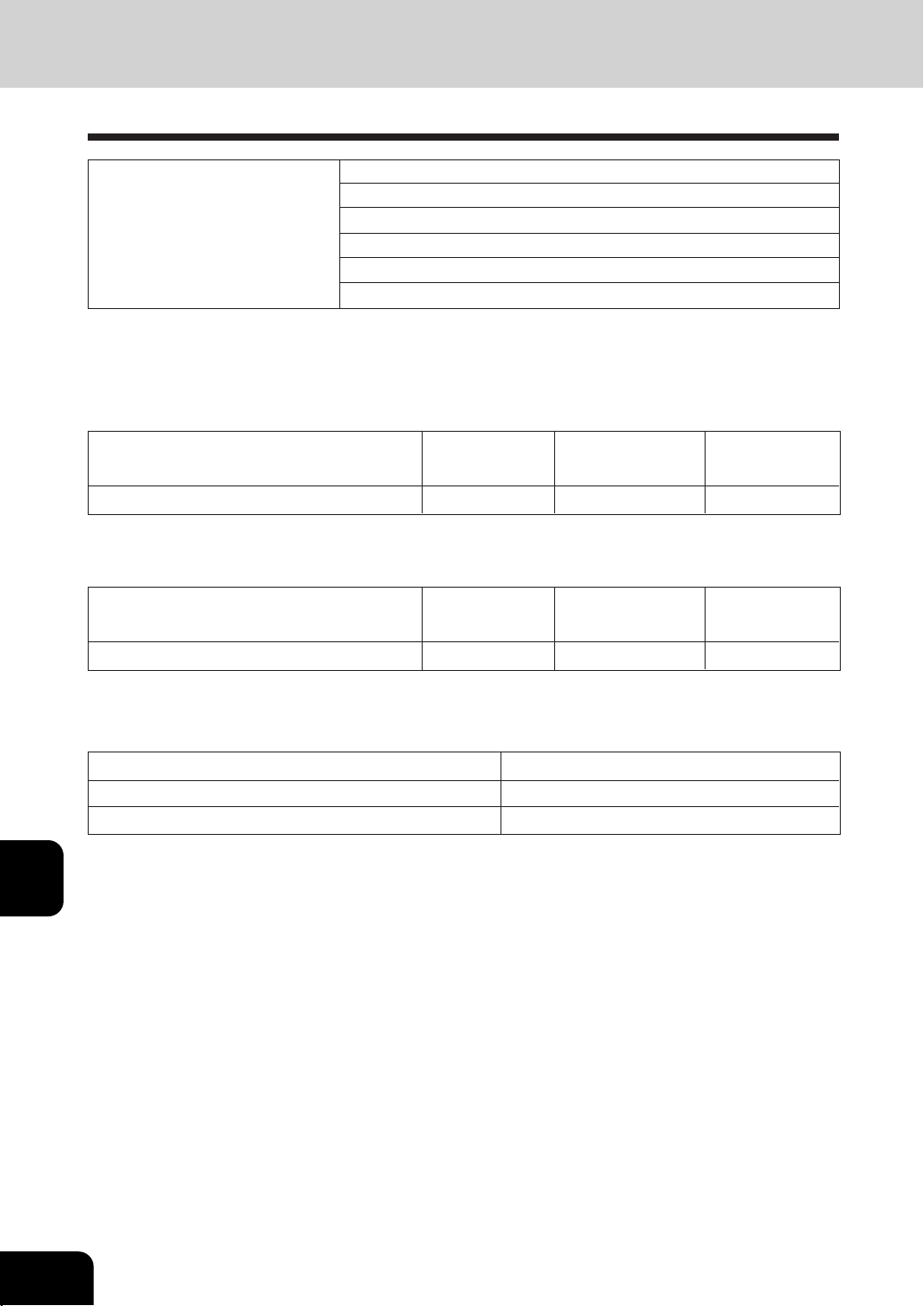
1
2
3
4
5
6
7
8
9
10
11
12
9-6
SPECIFICATIONS & OPTIONS
3. PACKING LIST
Photoconductive Drum
Photoconductive Drum Cover
Operator’s manual Pocket
Packing List Operator’s manual
Back guide for tab paper
Tray Spacer of Reversing Automatic Document Feeder
* Specifications and appearance are subject to change without notice in the interest of product
improvement.
Printing mode Standby mode
Sound power level L
WA
X.X B X.X B X.X B
Acoustic Noise Emission (measurement according to ISO7779)
AR-651
Ozone less than 0.02 mg/m
3
Dust less than 0.075 mg/m
3
Styrene less than 0.07 mg/m
3
Emission Concentration (measurement according to RAL UZ62)
Printing mode
with accessory*
Printing mode Standby mode
Sound power level L
WA
X.X B X.X B X.X B
Printing mode
with accessory*
AR-810
* Accessory included in basic model
* Accessory included in basic model

1
2
3
4
5
6
7
8
9
10
11
12
9-7
4. INDEX
Numbers
2 IN 1 ............................................................. 4-12
2 IN 1 DUPLEX .............................................. 4-12
2 IN 1/4 IN 1 ................................................... 4-12
4 IN 1 ............................................................. 4-12
4 IN 1 DUPLEX .............................................. 4-12
A
Acceptable Copy Paper Types and Sizes ........ 2-4
Acceptable Original Types and Size ................ 2-9
Account Numbers .......................................... 5-19
Add Paper Symbol ........................................... 7-3
Adding Paper to the Drawers ........................... 7-3
Adding Paper to the External LCF ................... 7-5
Adding Paper to the Tandem LCF .................... 7-4
Adding Staples ............................................... 7-21
Additional Explanation ..................................... 7-8
After Copying is Finished ................................. 1-9
Auto Job Start (Job Preset) .................... 1-8, 2-13
Automatic CLEAR ALL ..................................... 1-5
Automatic Copy Density Mode ....................... 3-11
Automatic Magnification Selection (AMS)........ 3-4
Automatic Paper Selection (APS) .................... 3-2
Available Conditions for Saddle Stitch ............. 6-7
B
Book-type Originals ....................................... 2-10
Book-type Originals to 2-Sided Copies ............ 3-8
Bypass Copying ............................................... 5-8
Bypass Copying on Non-Standard Size Paper ... 5-11
Bypass Copying on Standard Size Paper ...... 5-10
Bypass guide ................................................... 1-2
C
Call Service Symbol ....................................... 7-28
Canceling the Sharpness Adjustment ........... 4-33
Changing a Specific Account Number ........... 5-23
Changing the Paper Size of the Drawer .......... 2-6
Changing the Printing Order .......................... 2-17
CLEAR key ....................................................... 1-4
CLEAR ALL key ............................................... 1-5
Clear Paper Symbol ......................................... 7-9
Clearing a Specific Account Number ............. 5-25
Clearing All Counters ..................................... 5-27
Clearing the Automatic Energy Saving Mode 5-16
Clearing the Drawer for Special Uses .............. 2-8
Clearing the Functions Selected ...................... 1-7
Clearing the Off-Mode/Sleep Mode ............... 5-17
Clip tray ............................................................ 1-5
Confirming and Canceling Auto Job Start ..... 2-13
Confirming Stored Copy Modes ....................... 5-7
Confirming Stored Image (Test Print) ............ 4-31
Continuous Copying Speed (Specification) ..... 9-3
Continuous Feed Mode .................................... 5-2
Continuous Original Feeding/Single Original
Feeding ............................................................ 5-2
Control Panel ................................................... 1-4
Controlling the Use of the Copier with Account
Numbers .......................................................... 1-9
Copier does not start ....................................... 8-3
Copies are stained ........................................... 8-4
Copy Density Adjustment ............................... 3-11
Copy density is too high ................................... 8-4
Copy density is too low .................................... 8-3
Copy images are blurred .................................. 8-4
COPY key ........................................................ 1-4
Copying Procedure .......................................... 2-2
Copying when the power is off ....................... 5-13
Copying with Annotation ................................ 4-14
Correcting Entered Letters ............................. 5-29
Cover Copying ............................................... 4-18
Cover Sheet Insertion of Top Blank/Both Blank 6-11
D
Daily Inspection ............................................... 8-2
Deleting a Specific Account Number ............. 5-24
Deleting Image ............................................... 4-31
Deleting or Changing Order of Pending Jobs 2-16
Deleting the Job ............................................. 2-16
Description of the Digital Copier and the Optional
Equipment ........................................................ 1-2
Description of the Flashing Graphic Symbols.. 7-2
Digital keys ....................................................... 1-4
Direction of Duplex Copy Images .................. 4-34
Disabling a Account Number ......................... 5-26
Disclaimer Notice ................................................. 6
Display does not change when keys or icons are
pressed ............................................................ 8-3
Dispose of Used Toner ..................................... 7-8
Disposing of Accumulated Punched Paper Bits .. 7-27
Document Storage ......................................... 4-28
Drawers ............................................................ 1-2
Dual Page ........................................................ 4-5

1
2
3
4
5
6
7
8
9
10
11
12
9-8
SPECIFICATIONS & OPTIONS
4. INDEX (Cont.)
Duplex Copying ................................................ 3-7
E
Edge Erase ...................................................... 4-4
ENERGY SAVER key ...................................... 1-5
Entering Letters ............................................. 5-28
Exit cover ......................................................... 1-2
Exiting Copy Papers ........................................ 2-3
Exiting Originals ............................................. 2-11
External LCF .................................................... 9-5
F
Feed side cover ................................................ 1-2
Finisher .......................................... 1-3, 7-21, 7-24
Finisher (Specification) .................................... 9-4
Finishing Mode and Finishers .......................... 6-2
Fixing the adjusters (stoppers) .......................... 10
Front cover ....................................................... 1-2
Function setting area ....................................... 1-6
G
General Copying Procedures .......................... 2-2
General Precautions ............................................ 8
H
Handing and Storing Paper ............................. 2-5
HELP key ......................................................... 1-4
Hole Punch Mode ............................................ 6-8
Hole punch unit ................................................ 1-3
Hole Punch Unit (Specification) ....................... 9-5
I
Image Editing ................................................... 4-8
Image Shift ....................................................... 4-2
Images are partially missing ............................ 8-4
In the Continuous Feed Mode........................ 2-12
In the Single-feed Mode ................................. 2-12
Index keys ........................................................ 1-6
Inserter ............................................................. 1-3
Inserter (Specification) ..................................... 9-5
Inserter Mode ................................................... 6-9
Installation (Precautions) ..................................... 7
Interrupt Copying ........................................... 2-14
INTERRUPT key .............................................. 1-5
Items for Daily Check ....................................... 8-2
J
Job Memory ..................................................... 5-5
JOB STATUS key ............................................. 1-4
L
Large Capacity Feeder .................................... 1-3
Large Capacity Feeder (Specification) ............ 9-5
M
Magazine Sort ................................................ 4-16
MAGAZINE SORT & SADDLE STITCH key .... 6-6
Magazine Sort & Saddle Stitch Mode .............. 6-6
MAGAZINE SORT key ..................................... 6-6
Main Components ............................................ 1-2
Making Copies in the PRINT Mode ............... 4-29
Manual Copy Density Mode ........................... 3-12
Manual Paper Selection ................................... 3-3
Master number registration ............................ 5-19
Maximum Number of Sheets that can be Stapled . 6-5
Mirror Image ................................................... 4-10
Mixed-Sized Originals ...................................... 5-4
N
Names of the Main Components ..................... 6-2
Negative/Positive Reversal ............................ 4-11
O
Operator's manual pocket ................................ 1-2
Optional Equipment ......................................... 1-3
Original glass ................................................... 1-2
Original scale ................................................... 1-2
Overlay ........................................................... 4-30
Overlaying Originals with Stored Image ........ 4-32
P
Packing List ...................................................... 9-6
Page Numbering Copying .............................. 4-15
Paper Selection ................................................ 3-2
Paper size indicator ......................................... 1-2
Paper Misfeed inside of the Copier ................ 7-12
Paper Misfeed in the External LCF ................ 7-15
Paper Misfeed in the Finisher ........................ 7-18
Paper Misfeed in the Hole Punch Unit ........... 7-17
Paper Misfeed in the Inserter .......................... 7-16
Paper Misfeed in the Reversing Automatic Document
Feeder ............................................................ 7-10

1
2
3
4
5
6
7
8
9
10
11
12
9-9
Paper Misfeed in the Saddle Stitch Unit AR-F12 .....
7-19
Paper Misfeed on the Bypass Guide ............. 7-15
Papers Acceptable to Set in the Inserter ......... 6-9
Periodic Maintenance Message ..................... 7-28
Power switch .................................................... 1-2
Precautions .......................................................... 7
Precautions for Using the Reversing Automatic
Document Feeder .......................................... 2-11
Print out account number ............................... 5-27
PRINTER/NETWORK key ............................... 1-4
Procedure to display the account number menu ....
5-20
Providing a Bookbinding Margin ...................... 4-3
Providing Right or Left Margin ......................... 4-2
Q
Quick Access Menu ....................................... 3-14
R
Recalling a Stored Combination of Copy Jobs to
Make Copies .................................................... 5-6
Reduction and Enlargement Copying .............. 3-4
Registering a New Account Number .............. 5-21
Remaining paper level ..................................... 1-6
Removing Jammed Staples ........................... 7-24
Replace Toner Bag .......................................... 7-8
Replace Toner Cartridge Symbol ..................... 7-6
Reversing automatic document feeder ............ 1-2
S
SADDLE STITCH key ...................................... 6-6
Saddle Stitch Mode (Booklet mode) ................ 6-6
Saddle Stitch Unit ................................. 7-22, 7-25
Selecting Original Mode ................................. 3-13
Set functions confirmation key ......................... 1-7
Setting Copy Paper .......................................... 2-4
Setting Originals .............................................. 2-9
Setting Paper ................................................... 6-9
Setting Tab Paper in the Bypass Guide ......... 4-23
Setting Tab Paper in the Drawer .................... 4-22
Setting the "Other" Size Key .......................... 5-14
Setting the Automatic Energy save mode ...... 5-16
Setting the Automatic Off-Mode ..................... 5-17
Setting the Drawer for Special Uses ................ 2-7
Setting the Clock to the Daylight Saving Time 5-15
Setting the Date and Time ............................. 5-15
Setting the Inserter ........................................ 6-10
Sharpness Adjustment ................................... 4-33
Sheet Insertion ............................................... 6-12
Sheet Insertion Copying ................................ 4-20
Sheet Originals .............................................. 2-10
Simple Troubleshooting .................................... 8-3
Single-feed Mode ............................................. 5-3
Sort/Group Copying ......................................... 6-3
Specifications ................................................... 9-2
Specifications of Options ................................. 9-4
Specifying both Original Size and Copy Size .. 3-5
Staple Sorting .................................................. 6-4
START key ....................................................... 1-5
STOP key ......................................................... 1-5
Stopping the Copy Operation......................... 2-15
Stopping the Multicopying Operation ............. 2-15
Stopping the Scanning of the Original ........... 2-15
Storing a Combination of Copy Jobs Settings . 5-5
Storing a Non-Standard Size in the Memory . 5-12
Storing Documents in the MEMORIZE Mode 4-28
Storing Image ................................................. 4-30
Switching Languages ..................................... 5-18
T
Tab Paper Copying ......................................... 4-25
Tab Paper Insertion ........................................ 4-26
Tab Paper Insertion and Copying .................. 4-27
Tab Paper Mode ............................................. 4-22
Tab Width Adjustment .................................... 4-23
TIMER lamp ..................................................... 1-5
Toner cartridge ................................................. 1-2
Touch Panel .............................................. 1-4, 1-6
Transfer unit ..................................................... 1-2
Tray Loading Capacity (Specification) ............. 9-4
Trimming/Masking ............................................ 4-8
Transfer unit lever ............................................. 1-2
Turning ON the Power Switch .......................... 1-8
U
Using only Stapling and Hole Punch ............. 6-13
Using the Reduction/Enlargement Zoom Keys or
One-touch Zoom Keys ..................................... 3-6
W
Weekly Maintenance........................................ 8-2
Weekly Timer ................................................. 5-13

1
2
3
4
5
6
7
8
9
10
11
12
9-10
SPECIFICATIONS & OPTIONS
4. INDEX (Cont.)
When Coming Across the Situations below ..... 2-3
When Placing an Original on the Glass ......... 2-10
When this message appears: "Wait" ................ 2-3
When Using the Reversing Automatic Document
Feeder ............................................................ 2-11
X
X-Y Zoom ......................................................... 4-7

❧❧❧❧❧❧❧❧❧❧❧❧❧❧❧❧❧❧❧❧❧❧❧❧❧❧❧❧❧❧❧❧❧❧❧❧❧❧❧❧❧❧❧❧❧❧❧
❧
❧❧❧❧❧❧❧❧❧❧❧❧❧❧❧❧❧
❧
❧❧❧❧❧❧❧❧❧❧❧❧❧❧❧ ❧❧❧❧❧❧❧❧❧❧❧❧❧❧❧❧❧❧❧❧❧❧❧❧❧❧❧❧❧❧❧❧
❧
❧❧❧❧❧❧❧❧❧❧❧❧❧❧❧❧❧
❧
➢➣➢➣➢➣➢➣➢➣➢➣➢➣➢➣➢➣➢➣➢➣➢➣➢➣➢➣➢➣➢➣
➢
➣➢➣➢➣➢➣➢➣➢➣➢➣➢➣➢➣➢➣
➢
➣➢➣➢➣➢➣➢➣➢➣➢➣➢➣➢➣➢➣➢➣➢➣➢➣➢➣➢➣➢➣➢➣
➢
➣➢➣➢➣➢➣➢➣➢➣➢➣➢➣➢➣➢➣
➢
➣
The power switch positions are marked “ ” to indicate power “ON” and
“
” to indicate stand-by.
In the stand-by position, power is being supplied to a drying heater within
the optical system of the copier.
Caution:
For complete electrical disconnection, pull out the main plug.
The socket-outlet shall be installed near the equipment and shall be
easily accessible.
FOR YOUR RECORDS ...
To protect against loss or theft, record and retain for reference the
copier’s serial number located on the left hand side at the rear corner of
the copier.
Model Number
Serial Number
Date of Purchase
Place of Purchase
Authorized Sharp Copier
Service Department Number
NOTICE
BE SURE TO ASK YOUR AUTHORIZED SHARP DEALER ABOUT THE WAR-
RANTY THAT YOUR SELLING DEALER EXTENDS TO YOU. In order to assure
you, the end-user, of warranty protection, Sharp extends a limited warranty to
each of its authorized dealers and, in turn, requires each of its authorized dealers
to extend its own warranty to you on terms that are no less favorable than those
given to the dealer by Sharp. You should be aware, however, that Sharp does not
itself extend any warranties, either express or implied, directly to you, the end-user
and no one is authorized to make any representations or warranties on behalf of
Sharp. Specifically, SHARP DOES NOT EXTEND TO YOU, THE END-USER, ANY
EXPRESS WARRANTY OR ANY IMPLIED WARRANTY OF MERCHANTABILITY,
FITNESS FOR USE OR FITNESS FOR ANY PARTICULAR PURPOSE IN CON-
NECTION WITH THE HARDWARE, SOFTWARE OR FIRMWARE EMBODIED
IN, OR USED IN CONJUNCTION WITH THIS PRODUCT. Sharp is not responsi-
ble for any damages or loss, either direct, incidental or consequential, which you,
the end-user, may experience as a result of your purchase or use of the hardware,
software or firmware embodied in or used in conjunction with this Product. Your
sole remedy, in the event that you encounter any difficulties with this Product, is
against the authorized dealer from which you purchased the Product.
In the event that this authorized dealer does not honor its warranty commitments,
please contact the General Manager , Business Products Group, Sharp Electronics
Corporation, Sharp Plaza, Mahwah, NJ 07430-2135, so that Sharp can try to help
assure complete satisfaction of all the warranty rights to which you are entitled
from the authorized dealer
.

DIGITAL COPYING MACHINE
OPERATION MANUAL
MODEL
AR-651
AR-810
PRINTED IN JAPAN
XXXXXXXXXXXX
AR-651/AR-810
SHARP ELECTRONICS CORPORATION
Sharp Plaza, Mahwah, New Jersey 07430-2135.
SHARP ELECTRONICS OF CANADA LTD.
335 Britannia Road East, Mississauga, Ontario, L4Z 1W9
SHARP CORPORATION
www.sharp-usa.com
DIGITAL COPYING MACHINE
AR-651/AR-810