www.philips.com/support
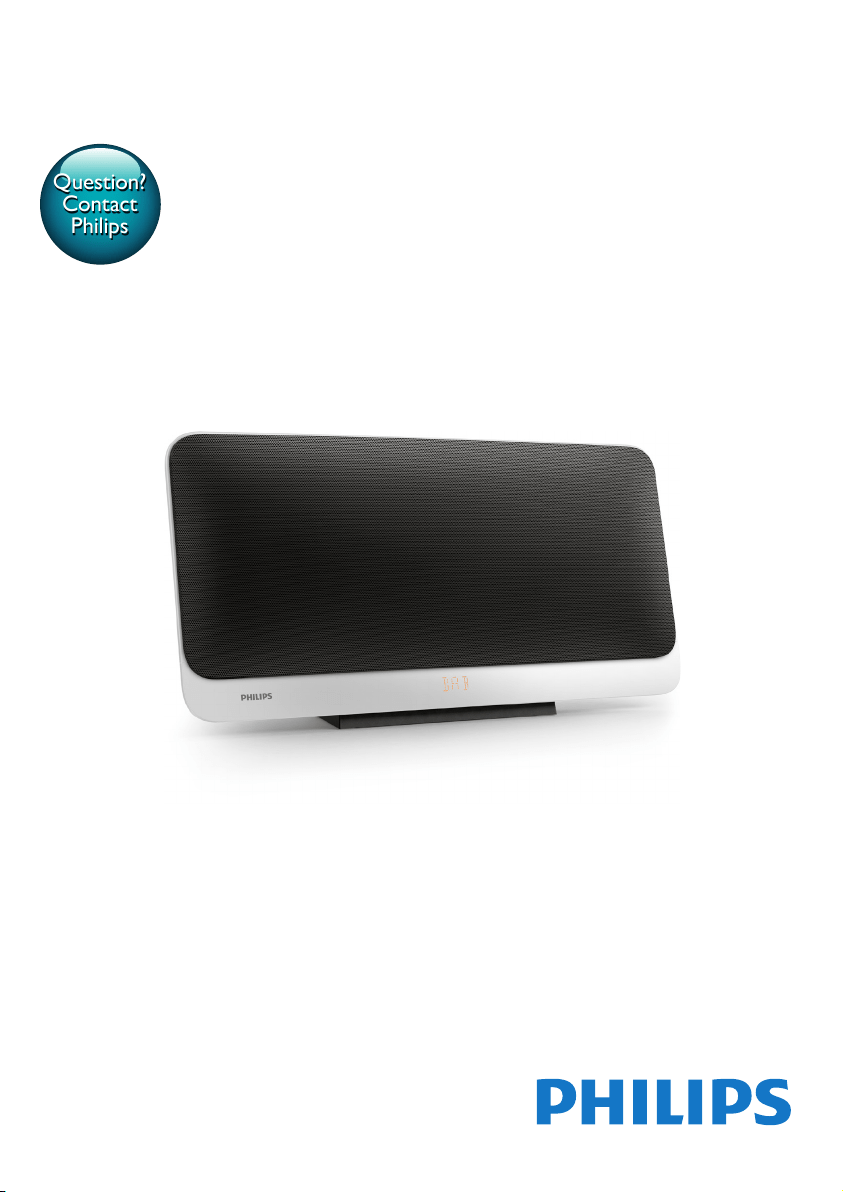
User manual
Always there to help you
Register your product and get support at
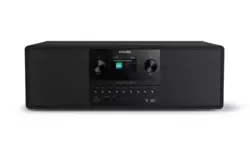
BTB2465
Question?
Contact
Philips


1EN
Contents
1 Important 2
Safety 2
2 Your micro system 3
Introduction 3
What's in the box 3
Overview of the main unit 4
Overview of the remote control 5
3 Get started 7
Connect FM antenna 7
Connect power 7
Prepare the remote control 7
Set clock 8
Turn on 8
4 Play 9
Play from disc 9
Play from USB 9
Control play 9
Skip to a track 10
Program tracks 10
Play from Bluetooth-enabled devices 10
5 Listen to the radio 12
Listen to DAB radio 12
Listen to FM radio 13
6 Adjust sound 15
Select a preset sound effect 15
Adjust volume level 15
Mute sound 15
7 Other features 16
Set the alarm timer 16
Set the sleep timer 16
Listen from an external device 16
Listen through a headphone 17
8 Product information 18
Specications 18
USB playability information 19
Supported MP3 disc formats 19
RDS program types 19
9 Troubleshooting 20
10 Notice 22
Declaration of conformity 22
Important notes for users in the U.K. 22
2 EN
1 Important
Safety
• Make sure that there is enough free space
around the product for ventilation.
• Only use attachments or accessories
speciedbythemanufacturer.
• Battery usage CAUTION – To prevent
battery leakage which may result in bodily
injury, property damage, or damage to the
product:
• Install the battery correctly, + and - as
marked on the product.
• Remove the battery when the product
is not used for a long time.
• The battery shall not be exposed to
excessiveheatsuchassunshine,reor
the like.
• Use only power supplies listed in the user
manual.
• The product shall not be exposed to
dripping or splashing.
• Do not place any sources of danger on the
product(e.g.liquidlledobjects,lighted
candles).
• Where the mains plug or an appliance
coupler is used as the disconnect device,
the disconnect device shall remain readily
operable.
Warning
• Never remove the casing of this device.
• Never lubricate any part of this device.
• Never place this device on other electrical equipment.
• Keep this device away from direct sunlight, naked
amesorheat.
• Never look into the laser beam inside this device.
• Ensure that you always have easy access to the power
cord, plug, or adaptor to disconnect this device from
the power.
Hearing safety
Listen at a moderate volume.
• Using headphones at a high volume can
impair your hearing. This product can
produce sounds in decibel ranges that may
cause hearing loss for a normal person,
even for exposure less than a minute. The
higher decibel ranges are offered for those
that may have already experienced some
hearing loss.
• Sound can be deceiving. Over time your
hearing 'comfort level' adapts to higher
volumes of sound. So after prolonged
listening, what sounds 'normal' can actually
be loud and harmful to your hearing. To
guard against this, set your volume to a safe
level before your hearing adapts and leave
it there.
To establish a safe volume level:
• Set your volume control at a low setting.
• Slowly increase the sound until you can
hear it comfortably and clearly, without
distortion.
Listen for reasonable periods of time:
• Prolonged exposure to sound, even
at normally 'safe' levels, can also cause
hearing loss.
• Be sure to use your equipment reasonably
and take appropriate breaks.
Be sure to observe the following guidelines
when using your headphones.
• Listen at reasonable volumes for
reasonable periods of time.
• Be careful not to adjust the volume as your
hearing adapts.
• Do not turn up the volume so high that
you can't hear what's around you.
• You should use caution or temporarily
discontinue use in potentially hazardous
situations.

3EN
2 Your micro
system
Congratulations on your purchase, and
welcometoPhilips!Tofullybenetfromthe
support that Philips offers, register your product
at www.philips.com/welcome.
Introduction
With this unit, you can:
• enjoy audio from discs, Bluetooth-enabled
devices, USB storage devices, or other
external devices;
• listen to Digital Audio Broadcasting (DAB)
or FM radio stations.
You can select one of the following sound
effects:
• Balanced, Warm, Bright, Clear, and
Powerful
The unit supports these media formats:
What's in the box
Check and identify the contents of your
package:
• Main unit
• 1 x FM wire antenna
• Remote control (with one AAA battery)
• Short User Manual
• Wall mounting sheet
• Wall mounting kit
• Stand
• Warranty card
4 EN
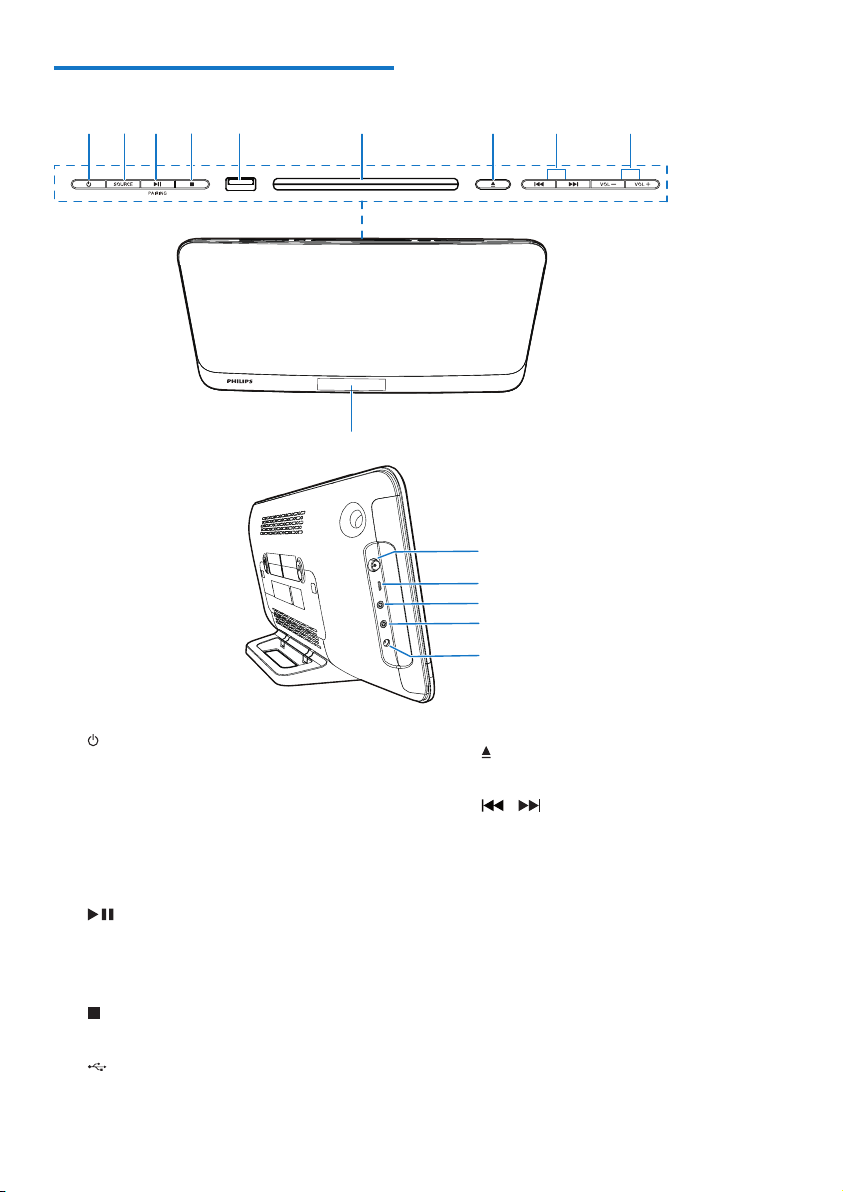
Overview of the main unit
a
• Turn the unit on or off.
• Switch to standby mode or Eco
standby mode.
b SOURCE
• Press to select a source: DISC, USB,
DAB, TUNER, BT, AUDIO IN.
c /PAIRING
• Start, pause, or resume play.
• In Bluetooth mode, press and hold for
3 seconds to enter pairing mode.
d
• Stop play or erase a program.
e
• USB socket.
g
h
i
j
k
a
b
c
d
e
l
m
n
o
f
f Disc compartment
g
• Open/close the disc compartment.
h /
• Skip to the previous/next track.
• Search within a track/disc/USB.
• Tune to a radio station.
• Adjust time.
i VOL+/VOL-
• Adjust volume.
j Display panel
k FM ANT
• FM antenna socket.
5EN
l MICRO USB
• For DAB upgrade only.
m
• Headphone socket.
n AUDIO IN
• Audio input socket(3.5mm) for an
external audio device.
o DC IN 12V 2.5A
• Power socket.
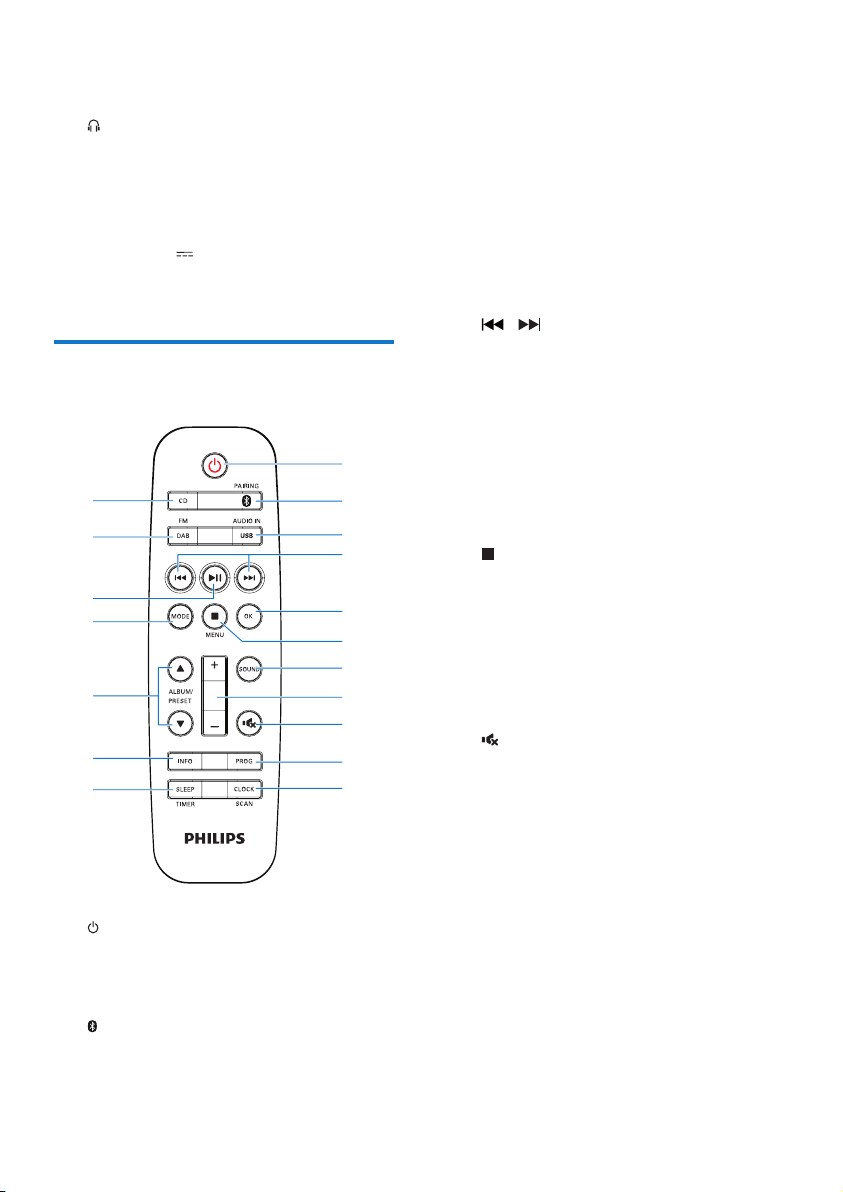
Overview of the remote
control
a
• Turn the unit on or off.
• Switch to standby mode or Eco power
standby mode.
b /PAIRING
• Press to select the BT (Bluetooth)
source.
a
b
c
d
e
f
g
h
i
j
kl
m
n
o
p
q
r
• In Bluetooth mode with one device
connected, press and hold for 3
seconds to enter pairing mode.
• In Bluetooth mode with two devices
connected, press and hold for 3
secondstodisconnecttherstdevice
or the device without music playback
and enter pairing mode.
c USB/AUDIO IN
• Press repeatedly to select the USB or
AUDIO IN source.
d /
• Skip to the previous/next track.
• Search within a track/disc/USB.
• Tune to a radio station.
• Adjust time.
e OK
• Conrmtheselection.
• Switch between FM stereo and mono
broadcast.
f /MENU
• Stop play or erase a program.
• Access the DAB or FM menu.
g SOUND
• Select a preset sound effect.
h +/-
• Adjust volume.
i
• Mute or restore volume.
j PROG
• Program tracks.
• Program radio stations.
k CLOCK/SCAN
• Set the clock.
• View clock information.
• Scan FM or DAB radio stations.
l SLEEP/TIMER
• Set sleep timer.
• Set alarm timer.

6 EN
m INFO
• Display the current status or disc
information.
• For selected FM radio stations, display
RDS information (if available).
n ALBUM/PRESET /
• Select a preset radio station.
• Skip to the previous/next album.
o MODE
• Selectrepeatorshufeplaymode.
• Adjust LCD brightness
p
• Start, pause, or resume play.
q DAB/FM
• Press repeatedly to select the DAB or
FM source.
r CD
• Select the DISC source.
7EN
3 Get started
Caution
• Use of controls or adjustments or performance of
procedures other than herein may result in hazardous
laser exposure or other unsafe operation.
Always follow the instructions in this chapter in
sequence.
If you contact Philips, you will be asked for the
model and serial number of this apparatus. The
model number and serial number are on the
back of the apparatus. Write the numbers here:
Model No. __________________________
Serial No. ___________________________
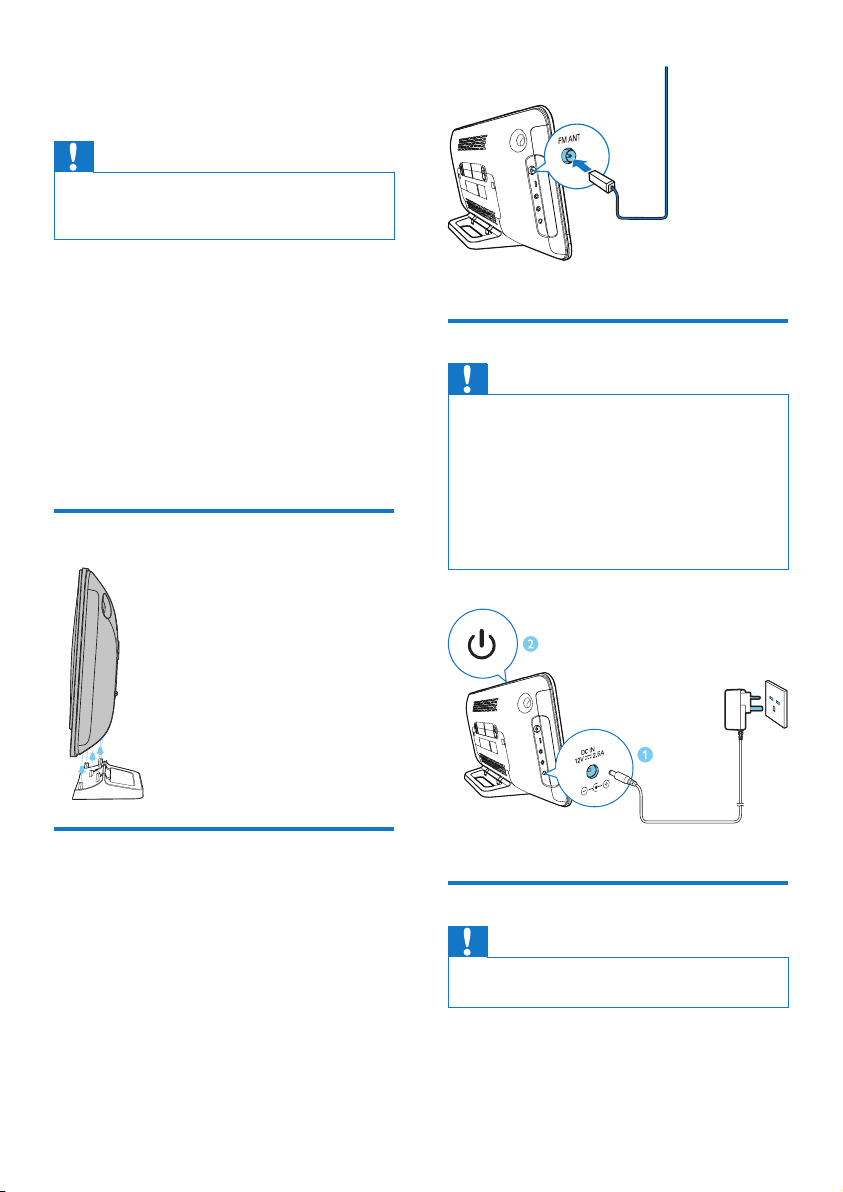
Install table stand
Connect FM antenna
• Connect the supplied antenna to this
device before listening to the radio.
Connect power
Caution
• Risk of product damage! Make sure that the power
supply voltage matches the voltage printed on the back
of the main unit.
• Risk of electric shock! Before you plug the AC power
adaptor, make sure that the adaptor plug converter is
xedsecurely.WhenyouunplugtheACpoweradaptor,
always pull the plug, never the cord.
• Before you connect the AC power adaptor, make sure
that you have completed all the other connections.
Prepare the remote control
Caution
• Risk of product damage! When the remote control is
not used for long periods, remove the battery.
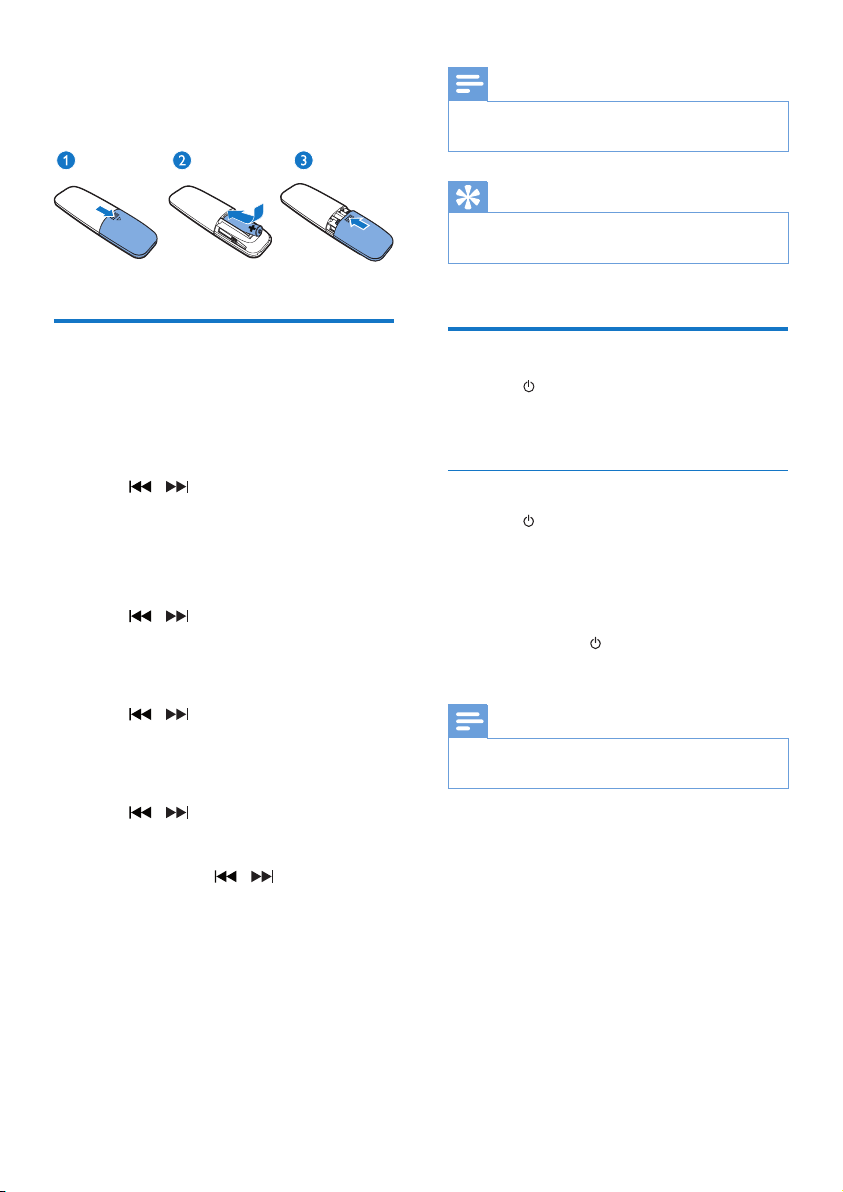
To insert the remote control battery:
1 Open the battery compartment.
8 EN
2 Insert the supplied AAA battery with
correct polarity (+/-) as indicated.
3 Close the battery compartment.
Set clock
1 In standby mode, press and hold CLOCK
on the remote control for 3 seconds.
» The [24H] or [12H] hour format is
displayed.
2 Press / to select the [24H] or
[12H] hour format.
3 Press CLOCKtoconrm.
» The hour digits are displayed and begin
to blink.
4 Press / to select hour and press
CLOCKtoconrm.
» The minute digits are displayed and
begin to blink.
5 Press / to select minute and press
CLOCKtoconrm.
» [SYNC ON] is displayed on the LCD
screen.
6 Press / to select [SYNC ON] or
[SYNC OFF].
• If [SYNC ON] is selected, [DAB] or [RDS]
is displayed. Press / to select one
option, then press CLOCKtoconrm.
• If [SYNC OFF] is selected, the system
will not synchronize clock with RDS radio
station or DAB stations that transmit
signals.
Note
• If no button is pressed in 10 seconds, the system exits
clock setting mode automatically.
Tip
• You can press CLOCK to view clock information in
power-on mode.
Turn on
• Press .
» The unit switches to the last selected
source.
Switch to standby mode
• Press again to switch the unit to standby
mode.
» The clock (if set) is displayed on the
panel.
Switch to ECO standby mode:
• Press and hold for more than 3 seconds.
» The display panel is dimmed.
Note
• The unit switches to Eco Power Standby mode after 15
minutes in standby mode.
9EN
4 Play
Play from disc
Note
• Make sure that the disc contains playable audio content.
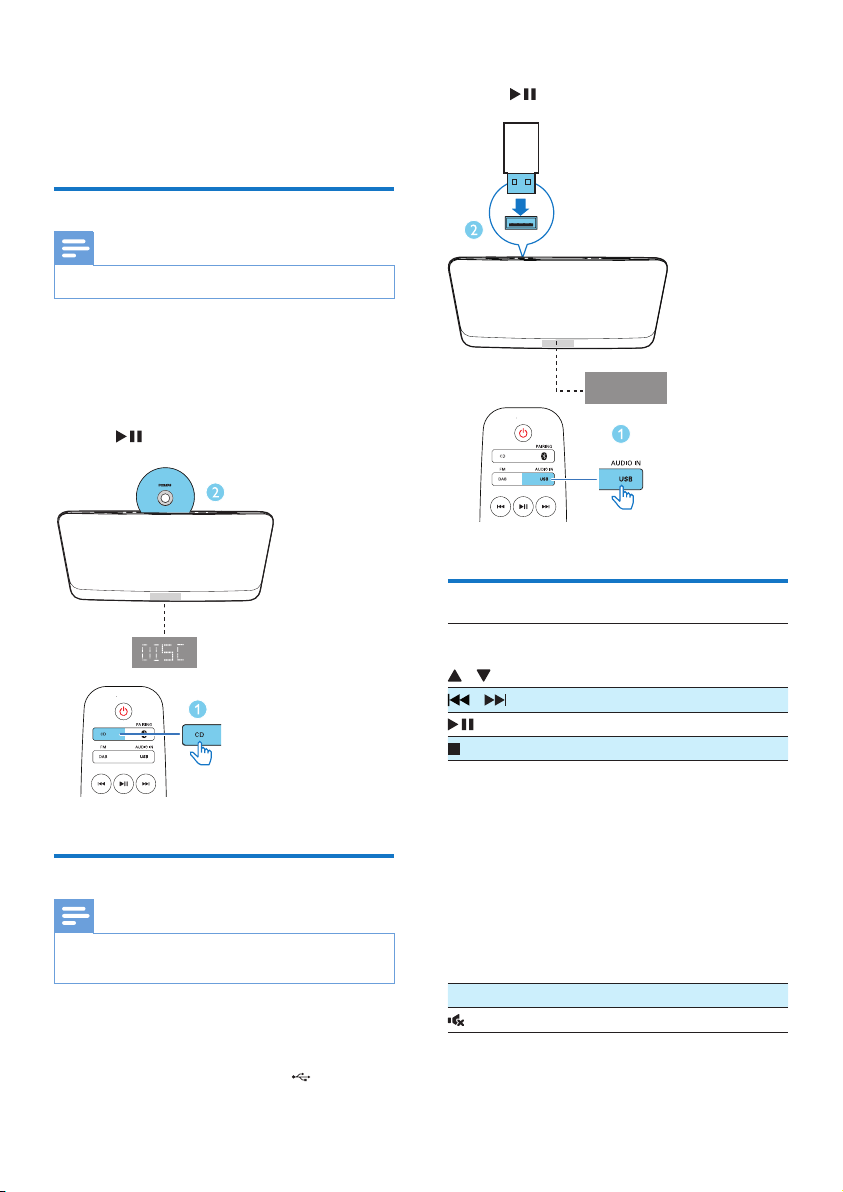
1 Press CD to select the DISC source.
2 Insert a disc into the disc compartment
with the printed side facing you.
» Play starts automatically. If not, press
.
Play from USB
Note
• Make sure that the USB device contains playable audio
content (see 'Product information' on page 18).
1 Press USB/AUDIO IN repeatedly to select
the USB source.
2 Insert a USB device into the socket.
» Play starts automatically. If not, press
.
Control play
ALBUM/
PRESET
/
Select a folder.
/ Selectanaudiole.
Pause or resume play.
/MENU Stop play.
MODE Select an available play mode.
• [REP ONE] (repeat one):
repeat the current track
• [REP ALB] (repeat album): re-
peat tracks in the current album
• [REP ALL] (repeat all): repeat
all tracks
• [SHUF ON](shufeon):play
tracks randomly
• (off): play tracks in sequence
+/- Increase or decrease volume.
Mute or restore sound.
USB
10 EN
Skip to a track
For CD:
Press / to select another track.
For MP3 disc and USB:
1 Press ALBUM/PRESET / to select an
album or a folder.
2 Press / toselectatrackorale.
Program tracks
You can program a maximum of 20 tracks.
1 Stop play, and then press PROG to activate
programming mode.
2 For MP3 tracks, press ALBUM/PRESET /
to select an album.
3 Press / to select a track, and then
press PROGtoconrm.
4 Repeat steps 2-3 to program more tracks.
5 Press to play the programmed tracks.
• To erase the program, stop play, and
then press /MENU.
Play from Bluetooth-enabled
devices
Note
• Before pairing a device with this unit , read its user
manual for Bluetooth compatibility.
• Compatibility with all Bluetooth devices is not
guaranteed.
• Any obstacle between the unit and the device can
reduce the operational range.
• The effective operation range between this unit and
your Bluetooth enabled device is approximately 10
meters (30 feet).
• The unit can memorize up to 8 previously connected
Bluetooth devices.
To enjoy music through the speaker wirelessly,
you need to pair your Bluetooth enabled device
with the unit.
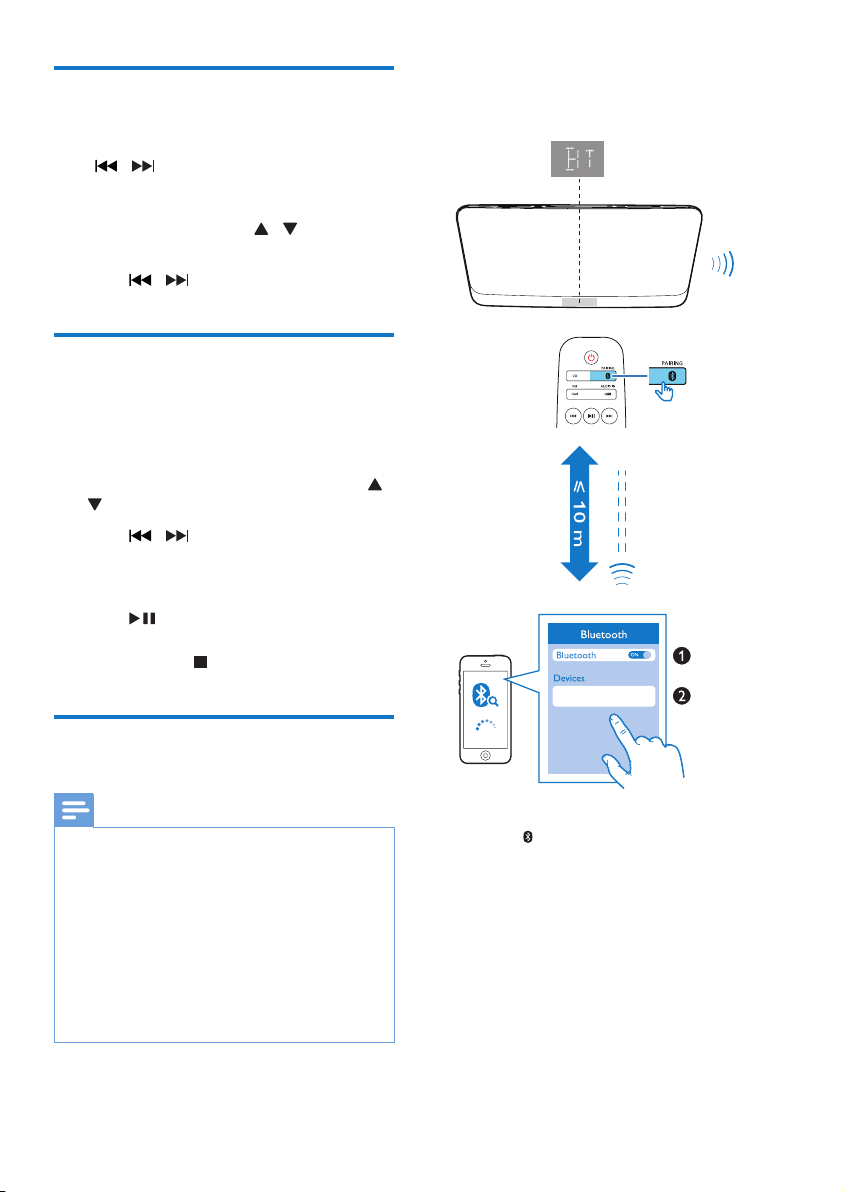
1 Press /PAIRING to select the Bluetooth
source.
» [BT] (Bluetooth) is displayed.
» TheBluetoothindicatorashesblue
quickly.
2 On your device that supports Advanced
AudioDistributionProle(A2DP),enable
Bluetooth and search for Bluetooth devices
that can be paired (refer to the user
manual of the device).
Philips BTB2465

11EN
3 Select 'Philips BTB2465' on your
Bluetooth enabled device and if necessary
input '0000' as the pairing password.
» After successful pairing and connection,
the Bluetooth indicator turns solid
blue, and the unit beeps twice.
» 'BT' is displayed.
4 Play music on the connected device.
» Music streams from your Bluetooth
enabled device to this product.
• If you fail to search for 'Philips
BTB2465' or cannot pair with this
product, press and hold /PAIRING
for three seconds to enter pairing
mode.
To disconnect the current Bluetooth-enabled
device:
• Deactivate Bluetooth on your device;
Pair and connect a second device
You can pair and connect a maximum of two
Bluetooth-enabled devices to this product
actively at the same time.
To connect and play from the second
Bluetooth-enabled device
• Press and hold /PAIRING for 3 seconds
to enter pairing mode.
» TheBluetoothindicatorashesblue
quickly.
» The product beeps once.
• To play from the other connected
device, stop music streaming from the
current device, and then play music
from the other device.
To connect and play from a third Bluetooth-
enabled device
• Press and hold /PAIRING for 3 seconds
to enter pairing mode.
» Therstconnecteddeviceorthe
device with no music playback is
disconnected.
» The product beeps once.
12 EN
5 Listen to the
radio
Tip
• Position the antenna as far as possible from TV or other
radiation sources.
• Make sure that you have connected the supplied FM
antenna.
• For optimal reception, fully extend and adjust the
position of the antenna.
Listen to DAB radio
Digital Audio Broadcasting (DAB) is a way
of broadcasting radio digitally through a
network of transmitters. It provides you with
more choice, better sound quality, and more
information.
Note
• The name DAB appear in this user manual refers to
both DAB and DAB+.
Tune to DAB radio stations
Note
• Make sure that the antenna is fully extended.
1 Press DAB/FM repeatedly to select the
DAB source.
» [FULL SCAN] (full scan) is displayed.
2 Press OK to start full scan.
» The unit stores all DAB radio stations
automaticallyandbroadcaststherst
available station.
» The station list is memorized in the
unit. Next time when you turn on the
unit, the station scan does not take
place.
Note
• If no DAB radio station is found, [NO DAB] (no DAB)
is displayed, then [FULL SCAN] (full scan) is displayed
again.
To tune to a station from the available station
list:
In DAB mode, press / repeatedly to
navigate through the available DAB stations.
Store DAB radio stations
automatically
Note
• New stations and services will be added in DAB
broadcast from time to time. To make new DAB
stations and services available, perform full scan
regularly.
1 In DAB mode, press and hold
CLOCK/SCAN for more than 3 seconds.
» The unit scans and stores all the
available DAB radio stations, and
broadcaststherstavailablestation.
2 Press / to select an automatically
stored station.
Store DAB radio stations manually
Note
• You can store a maximum of 20 preset DAB radio
stations.
1 Tune to a DAB radio station.
2 Press PROG to activate the storing mode.
3 Press ALBUM/PRESET / to select a
preset number.
4 Press PROGtoconrm.
» The name of the preset station is
displayed.
13EN
5 Repeat the above steps to store more
DAB stations.
6 Press ALBUM/PRESET / to select a
manually stored station, and then press OK
toconrm.
Note
• To remove a pre-stored DAB radio station, store
another station in its place.
Show DAB information
• While listening to DAB radio, press INFO
repeatedly to scroll through the following
information (if available):
• Station Name
• Dynamic Label Segment
• Program Type
• Ensemble Name
• Frequency
• Signal error rate
• Bit rate
• Audio status (DAB, DAB)
• Time
• Date
Use DAB menu
1 In DAB mode, press /MENU to access
DAB menu.
2 Press / to scroll the menu options:
• [FULL SCAN] (full scan): scan and
store all the available DAB radio
stations.
• [MANUAL] (manual): tune to a DAB
station manually.
• [PRUNE] (prune): remove all the
invalid stations from the station list.
• [SYSTEM] (system): adjust system
settings.
3 To select an option, press OK.
4 If a sub-option is available, repeat steps
2- 3.
[SYSTEM] (system)
• [RESET] (reset): reset all settings to
factory default.
• [UPGRADE] (upgrade): upgrade
software if available.
• [SW VER] (software version): show the
software version of this unit.
Listen to FM radio
Tune to a radio station
1 Press DAB/FM repeatedly to select the
tuner source.
2 Press and hold / for 3 seconds.
» The radio tunes to a station with
strong reception automatically.
3 Repeat step 2 to tune to more stations.
To tune to a weak station:
• Press / repeatedlyuntilyound
optimal reception.
Store FM radio stations automatically
Note
• You can store a maximum of 20 preset radio stations
(FM).
1 In tuner mode, press /MENU to access
the FM tuner menu.
» [SCAN] is displayed.
2 Press OK, and then press / to scroll
the menu options:
• [STRONG] (strong stations): scan
stations with strong signals only.
• [ALL] (all stations): scan all available FM
radio stations.
14 EN
3 Press OK to select an option, and then
press /MENU to exit the menu.
4 In FM tuner mode, press and hold
CLOCK/SCAN.
» The stations scanned are based on the
selection in step 2.
» Theunitbroadcaststherstscanned
FM radio stations.
Store FM radio stations manually
1 Tune to an FM radio station.
2 Press PROG to activate programming
mode.
» [PROG] (program) blinks.
3 Press ALBUM/PRESET / repeatedly
to select a radio frequency.
4 Press PROGagaintoconrm.
» The frequency of the preset station is
displayed.
5 Repeat the above steps to store more FM
stations.
Note
• To remove a pre-stored station, store another station
in its place.
Select a preset radio station
• In FM mode, press ALBUM/PRESET /
to select a stored radio frequency, and
then press OKtoconrm.
Show RDS information
Radio Data System (RDS) is a service
that allows FM stations to show additional
information.
1 Tune to an RDS station.
2 Press INFO repeatedly to scroll through
the following information (if available).
• Radio text message
• Program type
• Frequency
• Stereo/Mono
• Time
Select stereo/mono broadcast
Note
• Stereo broadcast is the default setting for tuner mode.
• For stations with weak signals: to improve the reception,
change to monaural sound.
• In FM tuner mode, press OK to switch
between mono and stereo broadcast.
» [ST] (Stereo) is displayed when the
radio station is stereo broadcast.

15EN
6 Adjust sound
The following operations are applicable to all
supported media.
Select a preset sound effect
• Press SOUND repeatedly to select a
preset sound effect.
• Balanced(Balanced), Warm(Warm),
Bright(Bright), Clear(Clear), and
Powerful(Powerful).
Adjust volume level
• On the remote control, press +/-
repeatedly.
• On the main unit, press VOL+/VOL-
repeatedly.
Mute sound
• Press to mute or restore the sound.
16 EN
7 Other features
Adjust LCD brightness
1 Press and hold MODE for over 3 seconds,
the current DIM setting is displayed.
» By default, it’s DIM 2 (the weakest
brightness).
2 Press MODE repeatedly to change LCD
brightness:
» DIM2(theweakest)→DIM1→
DIM off (the brightest)
Set the alarm timer
This unit can be used as an alarm clock. You can
select DISC, USB, DAB, or TUNER as the alarm
source.
Note
• Make sure that you have set the clock correctly.
1 In standby mode, press and hold SLEEP/
TIMER for three seconds.
2 Press / repeatedly to select
an alarm source (DISC, USB, DAB, or
TUNER)
3 Press SLEEP/TIMERtoconrm.
» The hour digits begin to blink.
4 Repeat steps 2-3 to set the hour, minute,
and volume of the alarm.
Note
• If no button is pressed in 90 seconds, the system exits
timer setting mode automatically.
To activate or deactivate the alarm timer:
• Press SLEEP/TIMER repeatedly to view
the alarm information and activate or
deactivate the alarm.
» If the timer is activated,
[TIMER](Timer) is displayed.
» If the timer is deactivated, [TIMER
OFF] (timer off) is displayed and
[TIMER](Timer) disappears.
Tip
• If the DISC/USB source is selected, but no disc is placed
or no USB connected, the system switches to the tuner
source automatically.
Set the sleep timer
• To set the sleep timer, when the unit
is switched on, press SLEEP/TIMER
repeatedly to select a set period of time
(in minutes).
• [SLP 120]
• [SLP 90]
• [SLP 60]
• [SLP 45]
• [SLP 30]
• [SLP 15]
• [SLP OFF]
» When the sleep timer is activated,
[SLEEP] (sleep)is displayed. Otherwise,
[SLEEP] (sleep) disappears.
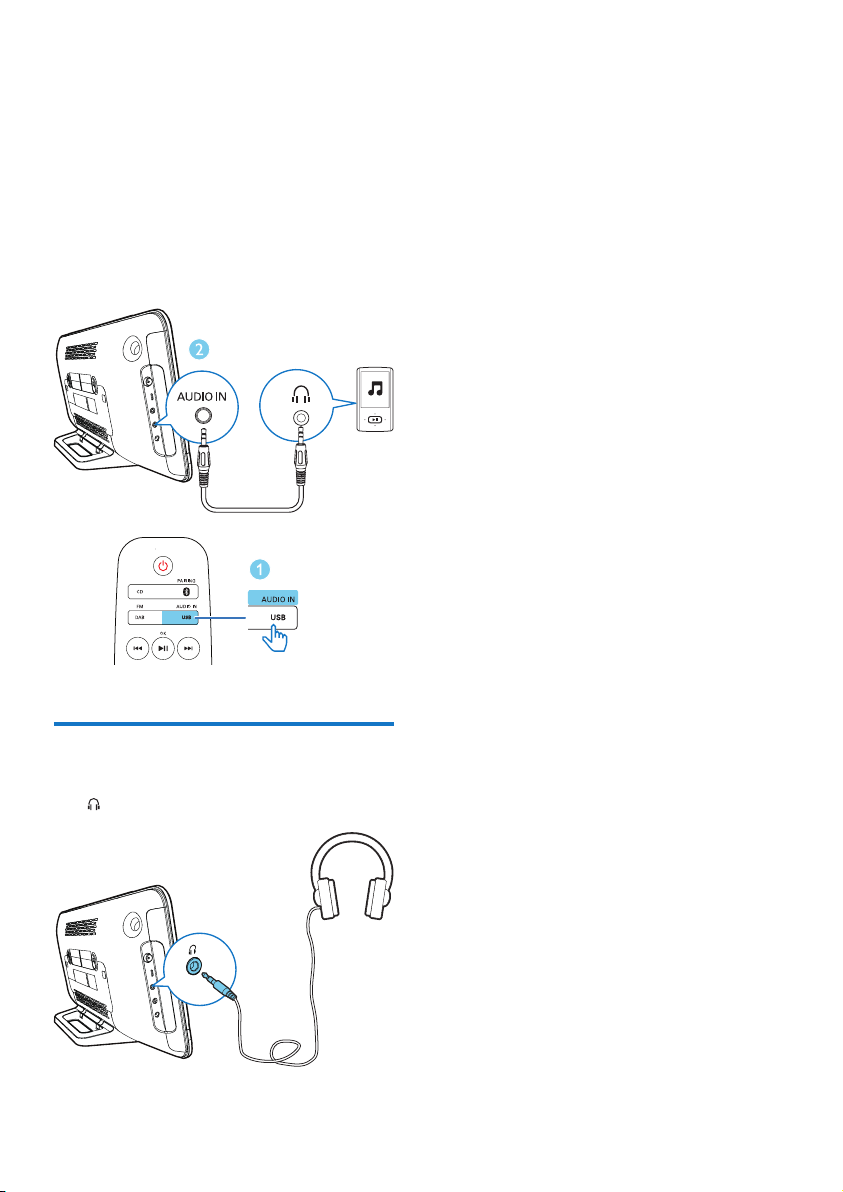
Listen from an external
device
You can listen to an external device through this
unit with an audio cable.
17EN
1 Press USB/AUDIO IN repeatedly to select
the AUDIO IN source.
2 Connect an audio cable (not supplied)
between:
• the AUDIO IN socket (3.5 mm) on
the unit;
• and the headphone socket on an
external device.
3 Start to play music on the connected
device (see the device user manual).
Listen through a headphone
• Plug a headphone (not supplied) into the
socket.
18 EN
8 Product
information
Note
• Product information is subject to change without prior
notice.
Specications
Amplier
Total output power 15W <10% THD
Frequency Response 63 -20KHz, ±3dB
Total Harmonic Distortion <1%(1 KHz)
Signal to Noise Ratio
(A-weighted)
>72dBA
AUDIO IN 650mV RMS
22kohm
Disc
Laser Type Semiconductor
Disc Diameter 12 cm
Support Disc CD-DA, CD-R, CD-
RW, MP3-CD
Audio DAC 24 Bits/44.1 kHz
Total Harmonic
Distortion
<1% (1 kHz)
Frequency Response 63Hz - 20kHz, ±3dB
S/N Ratio >72dBA
Bluetooth
Bluetooth version V3.0 +EDR
Bluetooth frequency
band
2.4GHz ~ 2.48GHz
ISM Band
BT distance 10 m
USB
USB Direct Version 2.0 full speed
Tuner (FM)
Tuning Range 87.5-108
MHz
Tuning grid 50 KHz
Sensitivity
- Mono, 26 dB S/N Ratio
- Stereo, 46 dB S/N Ratio
<22 dBf
<43 dBf
Search Selectivity <28dBf
Total Harmonic Distortion <3%
Signal to Noise Ratio >55dBA
Speakers
Speaker Impedance 6ohm
Speaker Driver 2.75 inch
DAB/DAB+
DAB Range 174.928MHz - 239.200MHz
General information
AC power Model: GT-
WAHU12000250-002/
AS360-120-AI250
Input: 100-240V~, 50-60
Hz
Output: DC 12V, 2500
mA
Operation Power
Consumption
15W
Eco Standby Power
Consumption
0.5W
Dimensions
- Main Unit
(W x H x D) 465 x 233 x 107 mm
Weight
- Main Unit please change to 2.35kg

19EN
USB playability information
Compatible USB devices:
• USBashmemory(USB2.0or
USB1.1)
• USBashplayers(USB2.0orUSB1.1)
• memory cards (requires an additional
card reader to work with this unit)
Supported USB formats:
• USBormemoryleformat:FAT12,
FAT16, FAT32 (sector size: 512 bytes)
• MP3 bit rate (data rate): 32-320 Kbps
and variable bit rate
• Directory nesting up to a maximum of
8 levels
• Number of albums/ folders: maximum
99
• Number of tracks/titles: maximum 999
• ID3 tag v2.0 or later
• File name in Unicode UTF8 (maximum
length: 32 bytes)
Unsupported USB formats:
• Empty albums: an empty album is an
albumthatdoesnotcontainMP3les,
and will not be shown in the display.
• Unsupportedleformatsareskipped.
For example, word documents (.doc)
orMP3leswithextension.dlfare
ignored and not played.
Supported MP3 disc formats
• ISO9660, Joliet
• Maximum title number: 128 (depending on
lenamelength)
• Maximum album number: 99
• Supported sampling frequencies: 32 kHz,
44.1 kHz, 48 kHz
• Supported Bit-rates: 32~256 (kbps),
variable bit rates
RDS program types
NO TYPE No RDS programme type
NEWS News services
AFFAIRS Politics and current affairs
INFO Special information programs
SPORT Sports
EDUCATE Education and advanced
training
DRAMA Radio plays and literature
CULTURE Culture, religion and society
SCIENCE Science
VARIED Entertainment programs
POP M Pop music
ROCK M Rock music
MOR M Light music
LIGHT M Light classical music
CLASSICS Classical music
OTHER M Special music programs
WEATHER Weather
FINANCE Finance
CHILDREN Children’s programs
SOCIAL Social Affairs
RELIGION Religion
PHONE IN Phone In
TRAVEL Tr avel
LEISURE Leisure
JAZZ Jazz Music
COUNTRY Country Music
NATION M National Music
OLDIES Oldies Music
FOLK M Folk Music
DOCUMENT Documentary
TES Alarm Test
ALARM Alarm

20 EN
9 Troubleshooting
Warning
• Never remove the casing of this unit.
To keep the warranty valid, never try to repair
the unit yourself.
If you encounter problems when using this
device, check the following points before
requesting service. If the problem remains
unsolved, go to the Philips Web page (www.
philips.com/support). When you contact Philips,
make sure that the device is nearby and the
model number and serial number are available.
No power
• Make sure that the AC power cord of the
device is connected properly.
• Make sure that there is power at the AC
outlet.
• As a power-saving feature, the system
switches off automatically 15 minutes after
track play reaches the end and no control
is operated.
No sound or poor sound
• Adjust the volume.
No response from the unit
• Disconnect and reconnect the AC power
plug, then turn on the unit again.
Remote control does not work
• Beforeyoupressanyfunctionbutton,rst
select the correct source with the remote
control instead of the main unit.
• Reduce the distance between the remote
control and the unit.
• Insert the battery with its polarities (+/–
signs) aligned as indicated.
• Replace the battery.
• Aim the remote control directly at the
sensor on the front of the unit.
No disc detected
• Insert a disc.
• Make sure that the disc is inserted with the
printed side facing front side.
• Wait until the moisture condensation at
the lens has cleared.
• Replace or clean the disc.
• Use a correct format disc.
Cannot display some les in USB device
• ThenumberoffoldersorlesintheUSB
device has exceeded a certain limit. This
phenomenon is not a malfunction.
• Theformatsoftheselesarenot
supported.
USB device not supported
• The USB device is incompatible with the
unit. Try another one.
Poor radio reception
• Increase the distance between the unit and
your TV or other radiation sources.
• Connect and fully extend the supplied
antenna.
Music playback is unavailable on this unit even
after successful Bluetooth connection.
• The device cannot be used to play music
through this unit wirelessly.
The audio quality is poor after connection
with a Bluetooth-enabled device.
• The Bluetooth reception is poor. Move the
device closer to this unit or remove any
obstacle between them.
Bluetooth cannot be connected with this unit.
• Thedevicedoesnotsupporttheproles
required for this unit.
• The Bluetooth function of the device is
not enabled. Refer to the user manual of
thedevicetondouthowtoenablethe
function.
• This unit is not in pairing mode.
• The unit has connected to two Bluetooth-
enabled devices. Disconnect one of those
two devices and try again.

21EN
The paired mobile device connects and
disconnects constantly.
• The Bluetooth reception is poor. Move the
device closer to this unit or remove any
obstacle between them.
• Some mobile phones may connect and
disconnect constantly when you make
or end calls. This does not indicate any
malfunction of this unit.
• For some devices, the Bluetooth
connection may be deactivated
automatically as a power-saving feature.
This does not indicate any malfunction of
this unit.
Timer does not work
• Set the clock correctly.
• Switch on the timer.
Clock/timer setting erased
• Power has been interrupted or the power
cord has been disconnected. Reset the
clock/timer.
22 EN
10 Notice
Anychangesormodicationsmadetothis
device that are not expressly approved by
Gibson Innovations may void the user’s
authority to operate the equipment.
Declaration of conformity
Hereby, Gibson Innovations declares that this
product is in compliance with the essential
requirements and other relevant provisions
ofDirective1999/5/EC.Youcanndthe
Declaration of Conformity on www.p4c.philips.
com.
Disposal of your old product and battery
Your product is designed and manufactured
with high quality materials and components,
which can be recycled and reused.
This symbol on a product means that the
product is covered by European Directive
2012/19/EU.
This symbol means that the product contains
batteries covered by European Directive
2013/56/EU which cannot be disposed of with
normal household waste.
Inform yourself about the local separate
collection system for electrical and electronic
products and batteries. Follow local rules and
never dispose of the product and batteries
with normal household waste. Correct disposal
of old products and batteries helps prevent
negative consequences for the environment and
human health.
Removing the disposable batteries
To remove the disposable batteries, see battery
installation section.
Environmental information
All unnecessary packaging has been omitted.
We have tried to make the packaging easy to
separate into three materials: cardboard (box),
polystyrene foam (buffer) and polyethylene
(bags, protective foam sheet.)
Your system consists of materials which can
be recycled and reused if disassembled by
a specialized company. Please observe the
local regulations regarding the disposal of
packaging materials, exhausted batteries and old
equipment.
The Bluetooth® word mark and logos are
registered trademarks owned by Bluetooth
SIG, Inc. and any use of such marks by Gibson
Innovations Limited is under license. Other
trademarks and trade names are those of their
respective owners.
This apparatus includes this label:
Note
• The type plate is located on the back of the device.

23EN

This product has been manufactured by, and is sold under the
responsibility of Gibson Innovations Ltd., and Gibson Innovations Ltd.
is the warrantor in relation to this product.
Philips and the Philips Shield Emblem are registered trademarks of
Koninklijke Philips N.V. and are used under license.
BTB2465_05_UM_V1.0