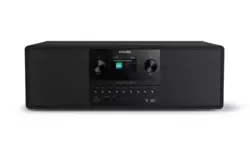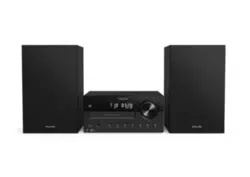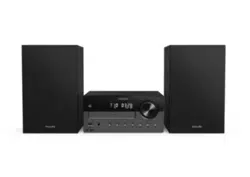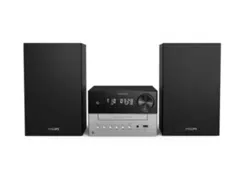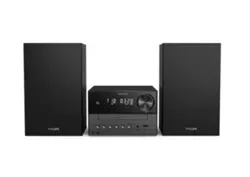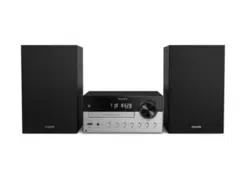
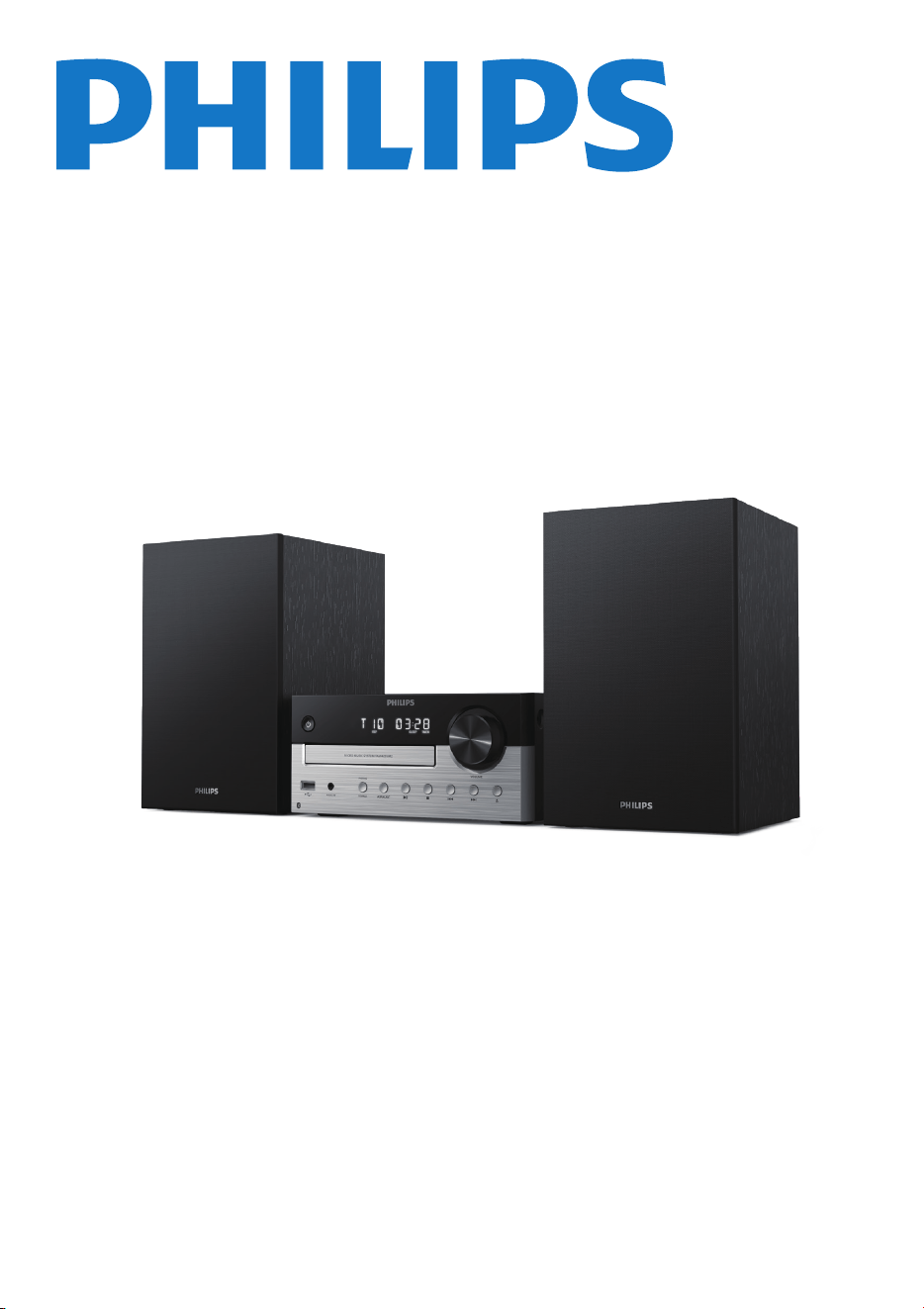
Micro Music System
TAM4205M2
User manual
Register your product and get support at:
www.philips.com/support

EN 1
Contents
1 Important
Safety
Notice
Trademarks
2
2
3
4
2 Your Micro Music System
What's in the box
Overview of the main unit
Overview of the remote control
4
4
6
7
9
9
9
10
10
10
3 Get started
Connect speakers
Connect power
Prepare the remote control
Power on
Set the clock
4
5
7
Play
Play from disc
Play from USB
Control play
Skip tracks
Program tracks
Play from Bluetooth-enabled
devices
11
11
11
11
12
12
Play from Auracast
13
12
Auracast operation
Auracast receiver
Auracast broadcast
Disconnect Auracast broadcast
Adjust sound
Select a preset sound effect
Adjust volume level
Mute sound
13
13
14
14
6 Listen to FM radio
Tune to a radio station
Store radio stations automatically
Store radio stations manually
Select a preset radio station
15
15
15
15
15
16
16
16
16
10
8
11
Other features
Set the alarm timer
Set the sleep timer
Listen to an external device
Factory reset
16
16
17
18
17
Product information
Specifcations
USB playability information
Supported MP3 disc formats
27
27
27
28
Troubleshooting
28
17
App download
9
Philips Entertainment App
Choose your sound
Select source
18
19
19
User guide 25
Clock setting
22
Select Auracast broadcast
24
Remote control
25
Firmware upgrade 26
1
Important
Safety
Read and understand all instructions
before you use this micro music system.
If damage is caused by failure to follow
the instructions, the warranty does not
apply.
CAUTION
RISK OF ELECTRIC SHOCK
DO NOT OPEN
CAUTION: TO REDUCE THE RISK OF ELECTRIC SHOCK, DO NOT
REMOVE COVER (OR BACK).NO USER-SERVICEABLE PARTS
INSIDE. REFER SERVICING TO OUALIFIED SERVICE PERSONNEL.
This 'bolt of lightning' indicates
uninsulated material within the device
may cause an electrical shock. For the
safety of everyone in your household,
please do not remove the covering.
The 'exclamation mark' calls attention to
features for which you should read the
enclosed literature closely to prevent
operating and maintenance problems.
WARNING: To reduce the risk of �re or
electric shock, the device should not be
exposed to rain or moisture and objects
�led with liquids, such as vases, should
not be placed on the device.
CAUTION: To prevent electric shock,
fully insert the plug. (For regions with
polarized plugs: To prevent electric
shock, match wide blade to wide slot.)
Warning
Never remove the casing of this apparatus.
Never lubricate any part of this apparatus.
Never look into the laser beam inside this
apparatus.
Never place this apparatus on other electrical
equipment.
Keep this apparatus away from direct sunlight,
naked �ames or heat.
Ensure that you always have easy access to the
power cord, plug or adaptor to disconnect the
apparatus from the power.
Make sure that there is enough
free space around the product for
ventilation.
Only use attachments/accessories
specifed by the manufacturer.
Battery usage CAUTION -to
prevent battery leakage which may
result in bodily injury, property
damage, or damage to the product:
Install the battery correctly, +
and - as marked on the product.
The battery (packed or installed)
shall not be exposed to
excessive heat such as sunshine,
�re or the like.
Remove the battery when the
product is not used for a long
time.
The product shall not exposed to
dripping or splashing.
Do no place any source of danger
on the product (e.g. liquid �lled
objects. lit candles).
Where the MAlNS plug or an
appliance coupler is used as the
disconnect device, the disconnect
device shall remain readily
operable.
2 EN
Please use the product safely in an
environment with temperature
between 0°C and 45°C.
Notice
Any changes or modifcations made to
this device that are not expressly
approved by MMD Hong Kong Holding
Limited may void the user's authority
to operate the equipment.
Hereby, TP Vision Europe B.V. declares
that this product is in compliance with
the essential requirements and other
relevant provisions of RED Directive
2014/53/ EU and UK Radio Equipment
Regulations Sl 2017 No 1206. You can
�nd the Declaration of Conformity on
www.philips.com/support.
Compliance
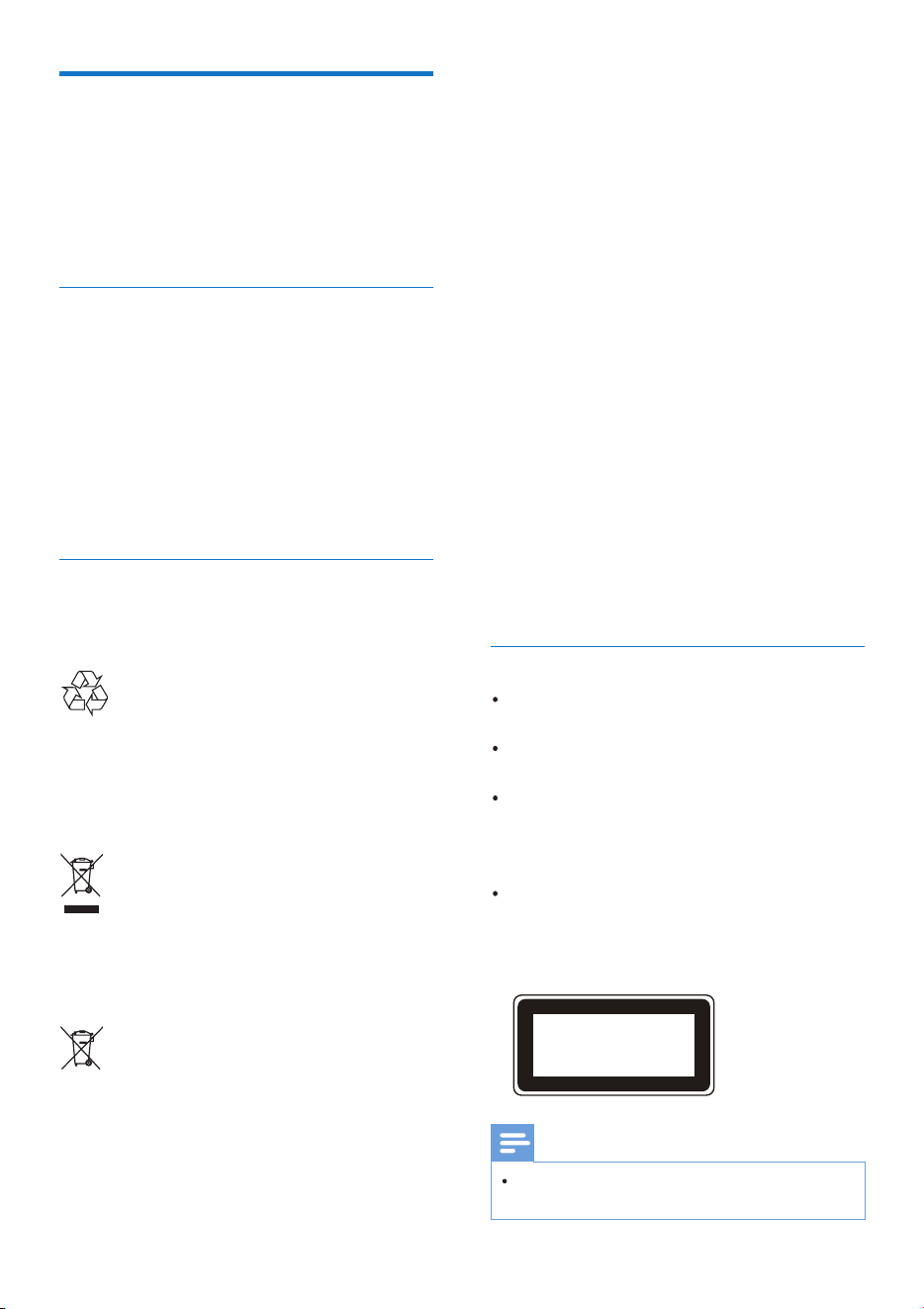
Care of the environment
Disposal of your old product and
battery
Your product is designed and
manufactured with high quality
materials and components, which can
be recycled and reused.
This symbol on a product means that
the product is covered by European
Directive 2012/19/EU.
This symbol means that the product
contains batteries covered by European
Regulation (EU) 2023/1542 which cannot
be disposed of with normal household
waste.
Inform yourself about the local separate
collection system for electrical and
electronic products and batteries.
Follow local rules and never dispose of
the product and batteries with normal
household waste. Correct disposal of old
products and batteries helps prevent
negative consequences for the
environment and human health.
Removing the disposable batteries
To remove the disposable batteries, see
battery installation section.
Environmental information
All unnecessary packaging has been
omitted.
Your system consists of materials
which can be recycled and reused if
disassembled by a specialized company.
Please observe the local regulations
regarding the disposal of packaging
materials, exhausted batteries and old
equipment.
EN 3
Care for your product
Do not insert any objects other than
discs into the disc compartment.
Do not insert warped or cracked
discs into the disc compartment.
Remove the discs from the disc
compartment if you are not using
the product for an extended period
of time.
Only use micro�ber cloth to clean
the product.
This apparatus includes this label:
Note
The type plate is located on the back of the
product.
CLASS 1
LASER PRODUCT
4 EN
Trademarks
The Bluetooth word mark and logos
are registered trademarks owned by
Bluetooth SlG, Inc. and any use of such
marks by MMD Hong Kong Holding
Limited is under license.
The Auracast™ word mark and logos are
trademarks owned by Bluetooth SIG, Inc.
and any use of such marks by MMD Hong
Kong Holding Limited is under license.
Other trademarks and trade names are
those of their respective owners.
The making of unauthorized copies
of copy-protected material, including
computer programs, �ies, broadcasts
and sound recordings, may be an
infringement of copyrights and
constitute a criminal offence. This
equipment should not be used for such
purposes.
Quick start guide / Warranty card /
Safety sheet
EN 5
Images, illustrations and drawings
shown on this user manual are for
reference only, actual product may
vary in appearance.
CD Soundmachine
2
Your Micro
Music System
Congratulations on your purchase,
and welcome to Philips! To fully
beneft from the support that Philips
offers, register your product at
www.philips.com/support.
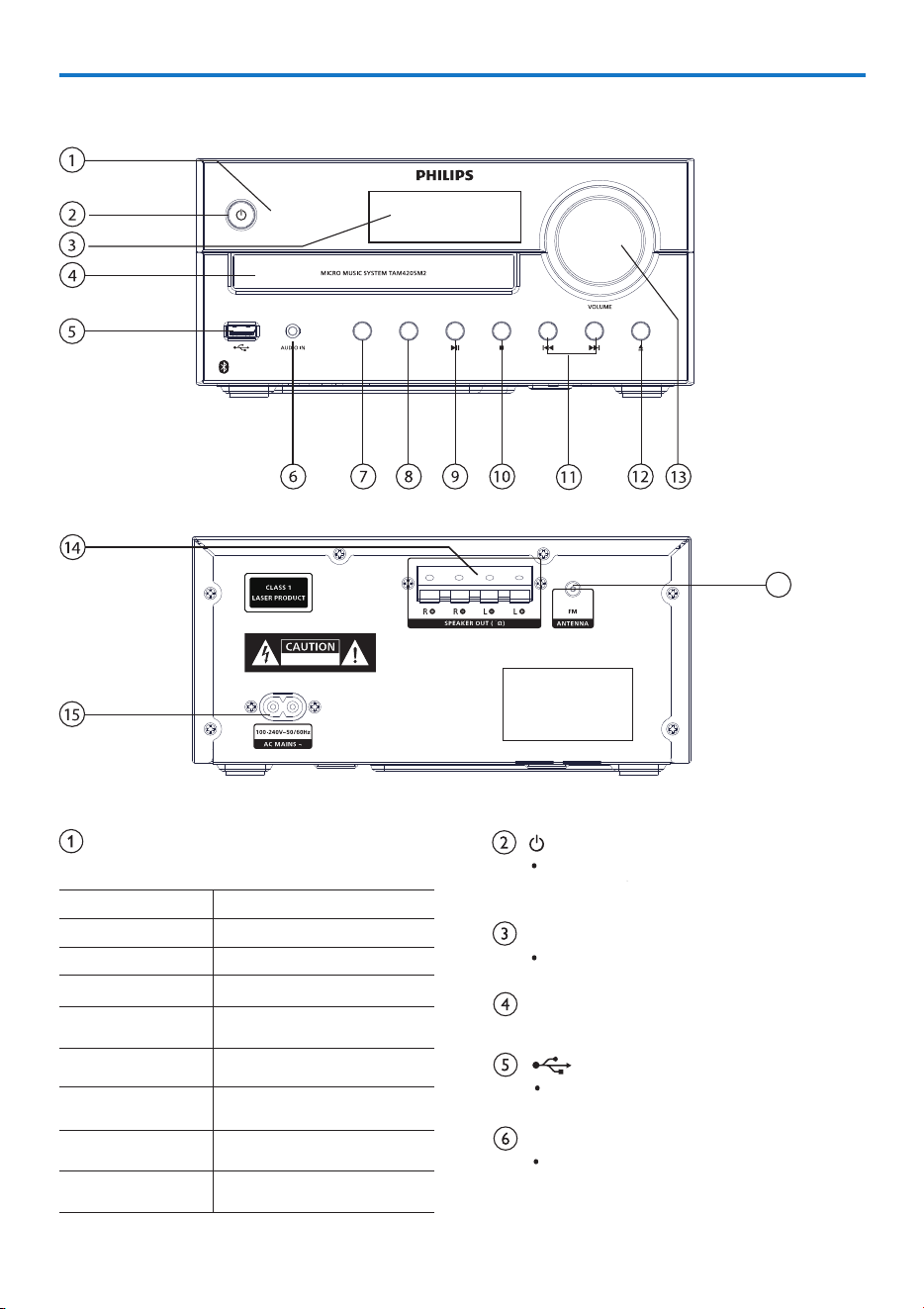
What's in the box
Check and identify the contents of your
package:
Main unit
Speaker boxes (×2)
Remote control (with one AAA battery)
Power cord (Power cord quantity and
plug type vary by regions)
Overview of the main unit
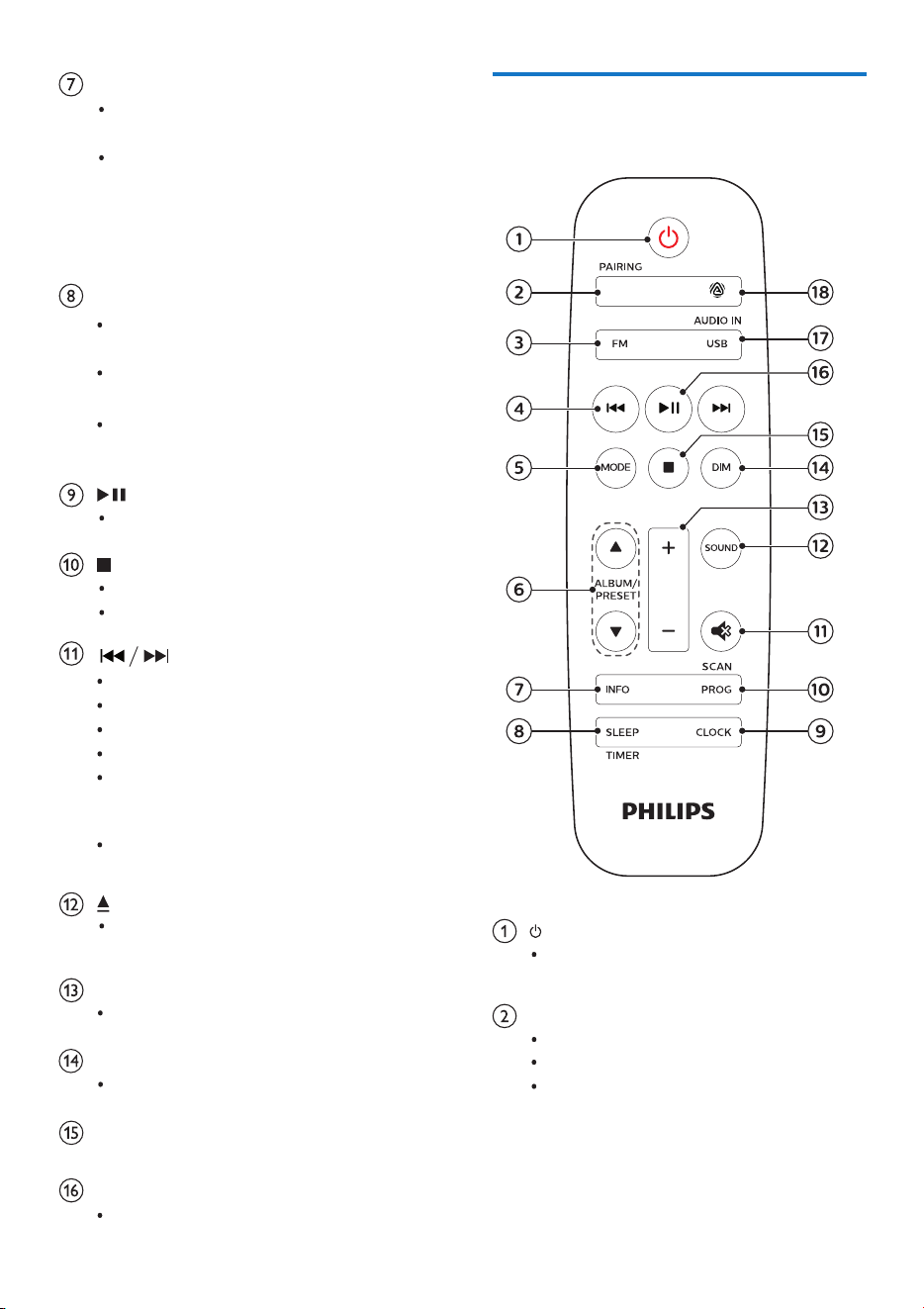
LED indicator
Function status (see below table ):
Switch this product on or to
standby.
Show current status.
Display panel
Disc compartment
6 EN
AURACAST
PAIRING
SOURCE
RISK OF ELECTRIC SHOCK
DO NOT OPEN
4
16
Connect USB storage devices.
AUDIO IN
Connect external audio devices.
LED Status
Solid Red Standby
Blink Cyan (slow)
Soild Cyan
Blink Cyan
(very slow)
Soild Amber
Blink Amber
two times (slow)
Soild Purple
Blink Purple
two times (slow)
Auracast receiver scanning
Auracast receiver connected
Auracast receiver idle
Encrypted Auracast
broadcast
Deactivated encrypted
Auracast broadcast
Deactivated unencrypted
Auracast broadcast
Unencrypted Auracast
broadcast
CD/BT
AC MAINS ~
Overview of the remote
control
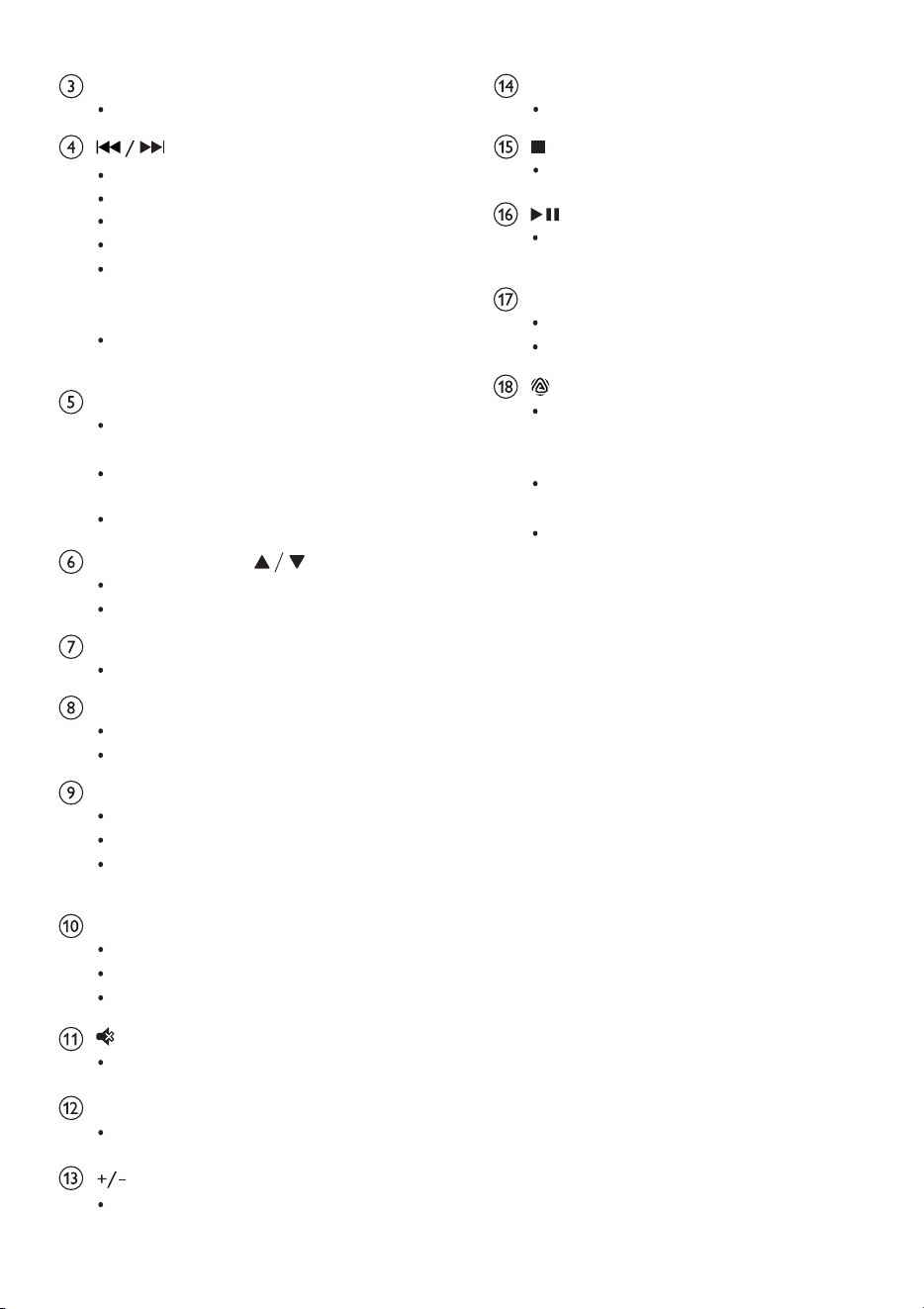
Switch this product on or to
standby.
CD/BT PAIRING
Select CD source.
Skip to previous/next track.
Search within a track/disc.
Tune to a radio station.
Adjust time.
In Auracast mode, switch to the
previous/next unencrypted
broadcast.
Press and hold to fast forward
or backward.
EN 7
Select Bluetooth source.
In Bluetooth mode, press and
hold for more than 2 seconds
to enter pairing mode or
disconnect the current
connected device.
Open or close the disc
compartment.
Start or pause play.
Stop play.
Erase a program.
AURACAST
Short press: Enter Auracast
receiving mode.
Long press: Enter Auracast
broadcast mode.
Double click: Delete encrypted
broadcast information.
VOLUME knob
Adjust volume.
SPEAKER OUT socket
Connect with the speakers.
FM antenna
Improve FM radio reception.
SOURCE/PAIRING
Press to select a source: DISC, BT,
AURACAST, FM, USB, AUDIO IN.
In Bluetooth mode, press and
hold for more than 2 seconds
to disconnect the currently
connected device and enter
pairing mode.
Tune to a radio station.
Adjust time.
In Auracast mode, switch to the
previous/next unencrypted
broadcast.
Press and hold to fast forward or
backward.
MODE
Select shuffle mode to play
tracks randomly.
Select repeat mode to play a
track or all tracks repeatedly.
Select Stereo and Mono sound.
ALBUM/PRESET
Select a preset radio station.
Skip to previous/next album.
INFO
Display playback information.
SLEEP/TIMER
Set sleep timer.
Set alarm timer.
CLOCK
Set the clock.
View clock information.
In standby, press and hold to
toggle clock display on or off.
PROG/SCAN
Program tracks.
Program radio stations.
Auto store radio stations.
Mute or restore volume.
Select a preset sound effect.
SOUND
(volume)
Adjust volume.
DIM
Adjust display brightness.
Stop play or erase a program.
Press to start, pause, or resume
play.
USB/AUDIO IN
Select USB source.
Select AUDlO IN source.
In Auracast receiver mode, press
to rescan Auracast broadcast
channel.
Press to switch to Auracast receiver
mode.
Press and hold for more than 3
seconds to activate / deactivate
Auracast broadcast mode.
8 EN
Select FM source.
Skip to the previous/next track.
Search within a track/disc.
FM
3 Get started
Caution
Use of controls or adjustments or
performance of procedures other than
herein may result in hazardous radiation
exposure or other unsafe operation
Always follow the instructions in this
chapter in sequence.
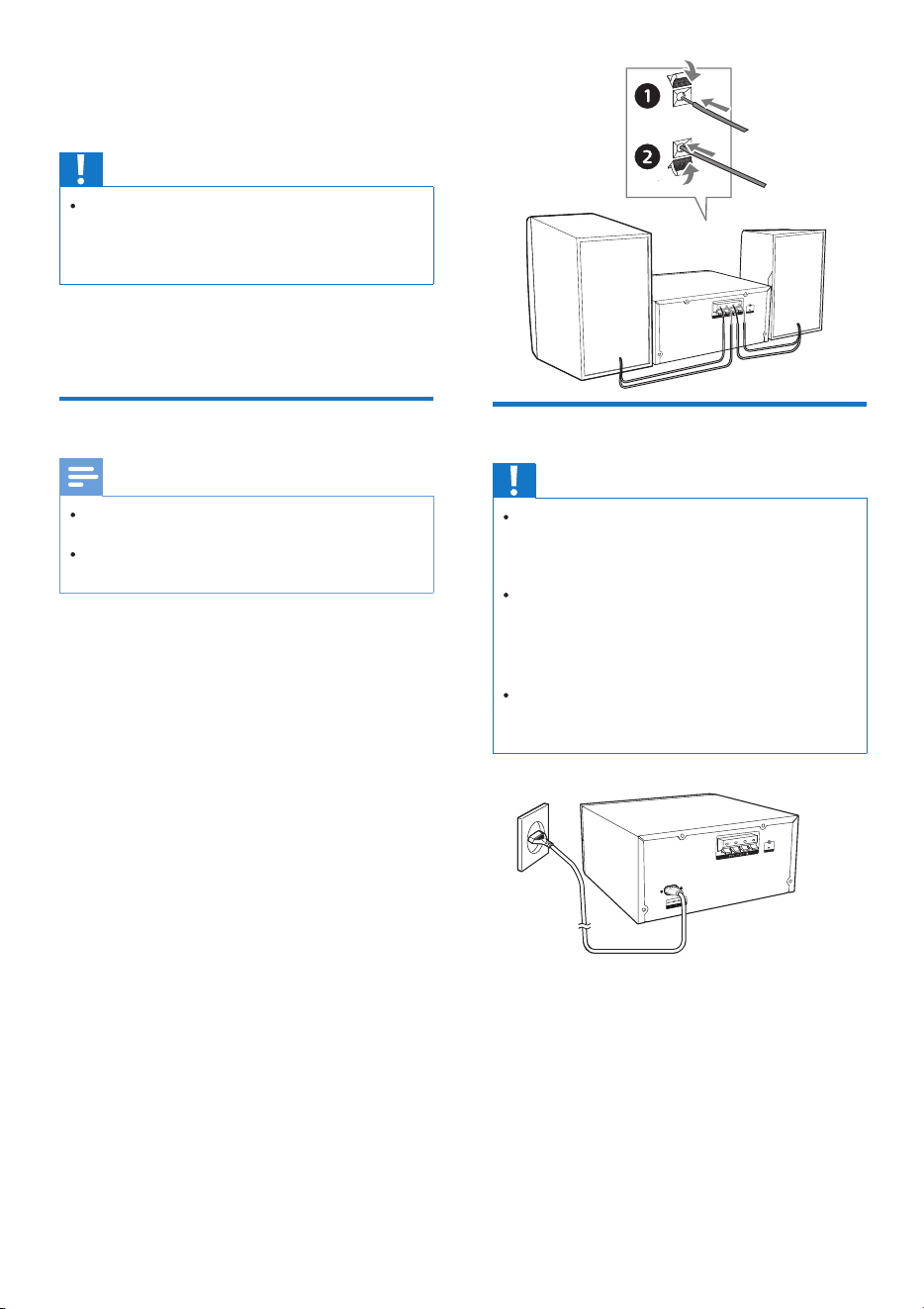
Connect speakers
Note
Insert the stripped portion of each speaker
Wire into the socket completely.
For better sound quality, use the supplied
speakers only
1
2
3
4
1
2
3
Connecting one speaker, �nd the
sockets on the back of the main unit
marked "R".
Insert the red wire into the red (+)
socket, and the black wire into the
black (-) socket.
Connecting another speaker, �nd the
sockets on the main unit marked "L".
Repeat step 2 to insert the left
speaker wire.
To insert each speaker wire:
Hold down the socket �ap.
Insert the speaker wire fully.
Release the socket �ap.
Connect power
Caution
Risk of product damage! Ensure that the
power supply voltage corresponds to the
voltage printed on the back or the
underside of the unit.
Risk of electric shock! Before you plug the
AC power cord, make sure that the plug is
�xed securely, when you unplug the AC
power cord, always pull the plug, never pull
the cord.
Before you connect the Ac power cord,
make sure that you have completed all the
other connections.
Connect the power cable to the wall
socket.
EN 9
Prepare the remote
control
Caution
Risk of product damage! When the remote
control is not used for long periods, remove
the batteries.
Batteries contain chemical substances, so
they should be disposed of properly.
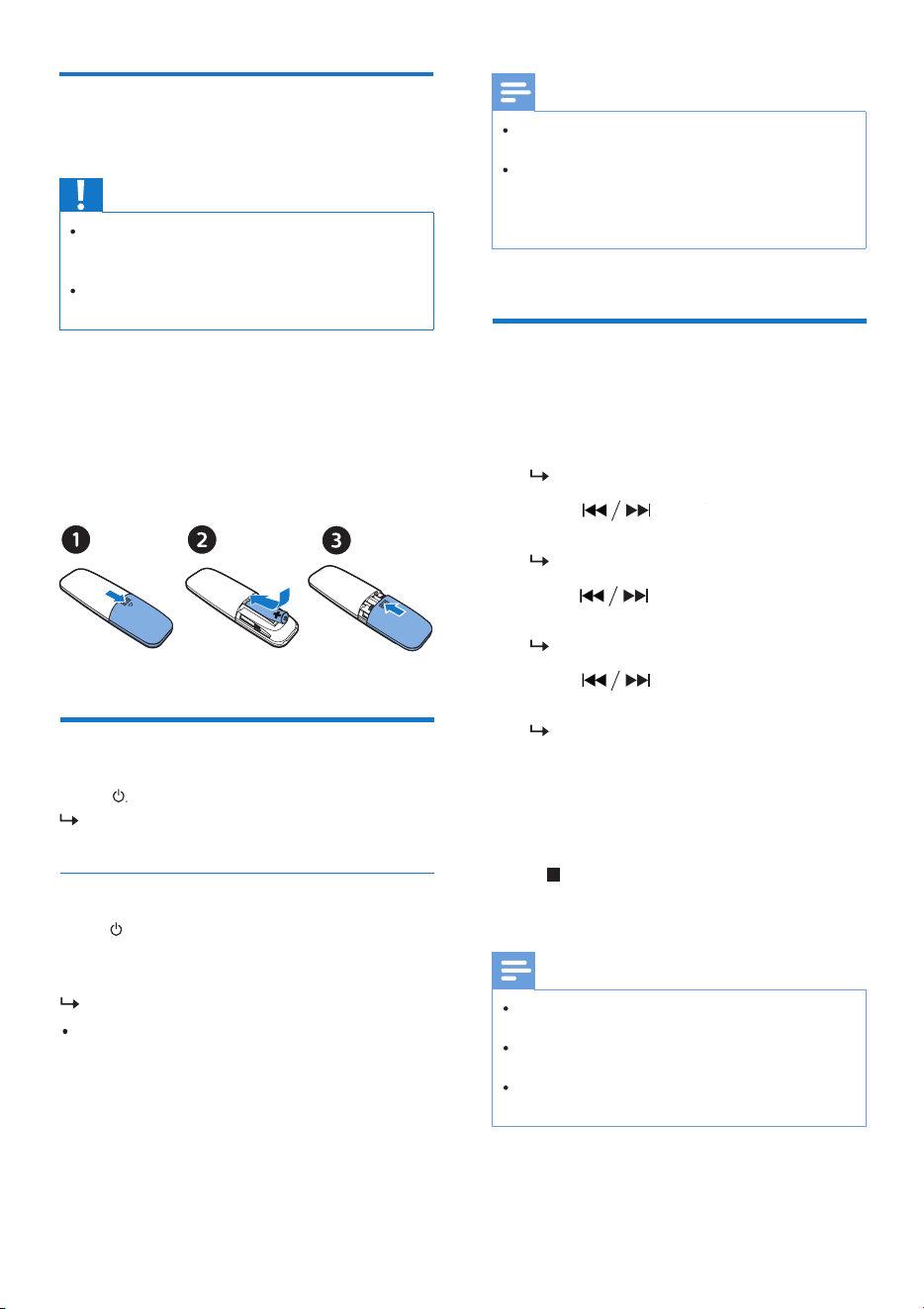
To insert the remote control battery:
1
2
3
Open the battery compartment.
Insert the supplied AAA battery with
correct polarity (+/-) as indicated.
Close the battery compartment.
10 EN
Power on
Press
The product switches to the last
selected source.
Press again to switch the product to
standby with no clock display, or to
standby with clock display.
Switch to standby mode
The red standby indicator lights up.
In standby, you may press and hold
CLOCK to toggle clock display on
or off.
Note
The product switches to standby mode
after 15 minutes inactive.
To achieve the effcient energy saving
performance, unplug any external
electronic device from the USB port when
the device is not in use.
Set the clock
In power on mode, press and hold
CLOCK for more than 2 seconds to
enter the clock setting mode.
[24H] or [12H] is displayed.
Press to select 24H or 12H
hour format, and then press CLOCK.
The hour digits begin to blink.
Press to set the hour, and
then press CLOCK.
The minute digits begin to blink.
Press to set the minute, and
then press CLOCK.
The clock is set.
1
2
3
4
To view clock in power on mode, press
brie�y CLOCK.
In standby, you may press and hold CLOCK
to toggle clock display on or off.
If clock display is turned on in standby
power consumption increases.
Note
To cancel time setting without saving
Press or no button pressed for 30
seconds.
4
Play
Play from disc
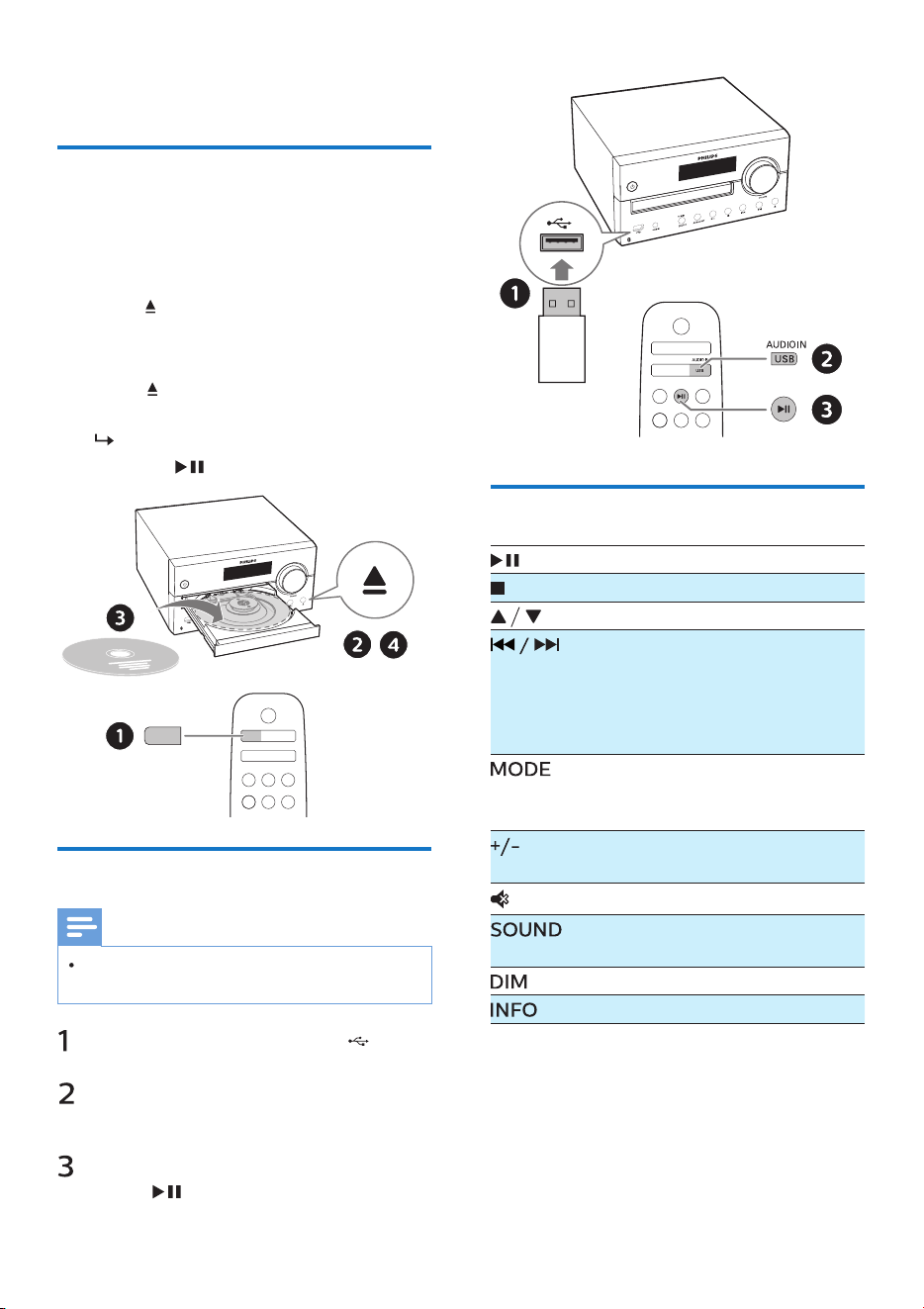
Press CD/BT to select CD source, or
press source button on main unit to
switch to DISC source.
Press to open the disc
compartment.
Insert a disc with the label side up.
Press to close the disc
compartment.
Play starts automatically. lf not,
press .
1
2
3
4
Play from USB
Note
Make sure that the USB device contains
playable audio content.
Insert a USB device into the
socket.
Press USB to select the USB source,
or press source button on main unit
to switch to USB source.
Play starts automatically. lf not,
press .
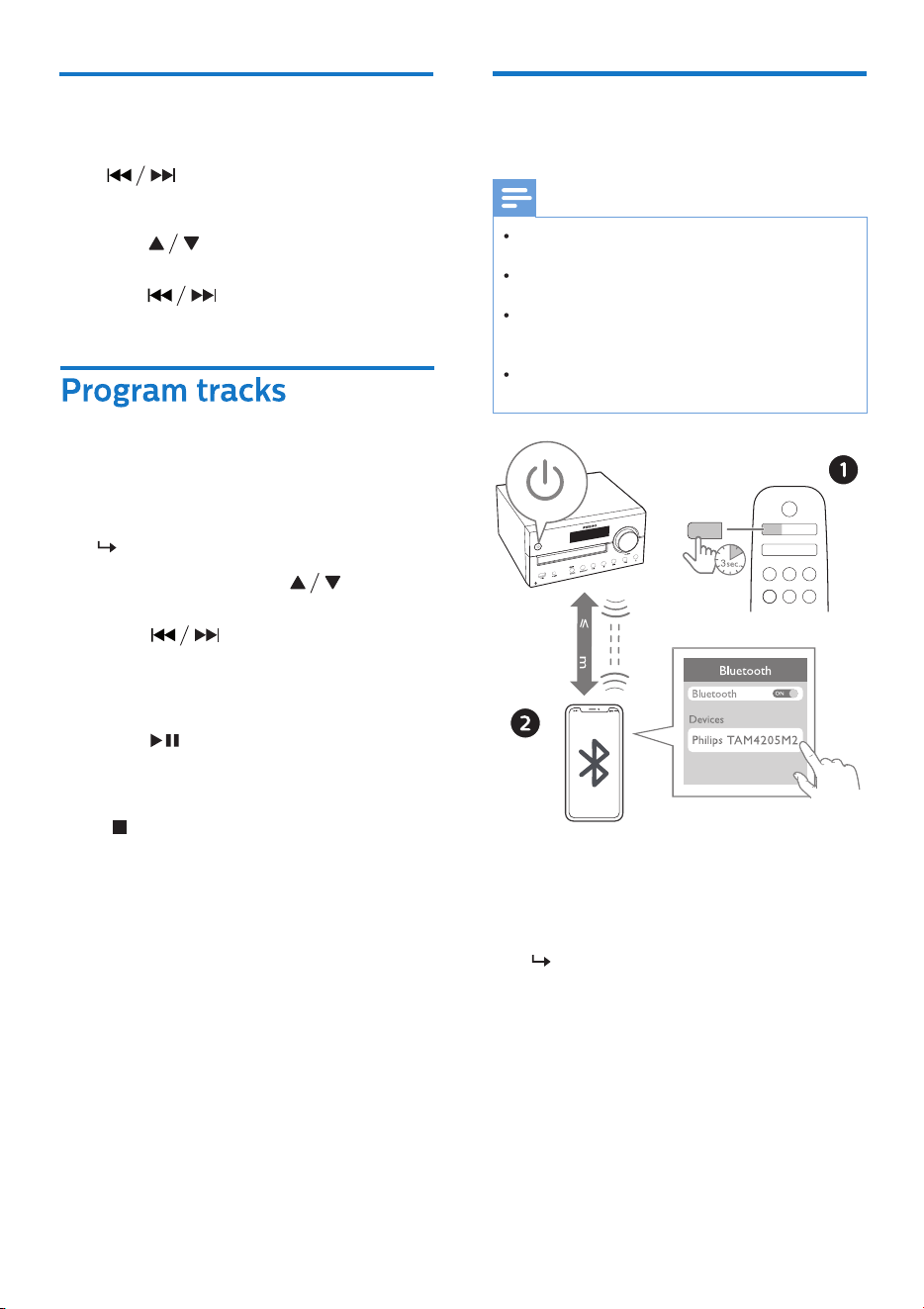
Control play
Start, pause, or resume play.
Stop play.
Select an album or a folder.
Press to skip to the previous
or next track.
Press and hold to search
backward/forward within a
track.
Play a track or all tracks
repeatedly.
Play tracks randomly.
Increase or decrease the
volume.
Mute or unmute sound.
Select a preset sound
eaualizer.
Adjust display brightness.
Show playback information.
EN 11
CD/BT
CD/BT
PAIRING
PAIRING
Press CD/BT to select the Bluetooth
source, or press source button on
main unit to switch to BT source.
For MP3 disc and USB:
Press to select an album or a
folder.
Press to select a track or a
�le.
This function allows you to program
20 tracks in the desired sequence.
In stop mode, press PROG/SCAN to
activate the program mode.
[P01] is displayed.
1
2
Play from Bluetooth
enabled devices
For MP3 tracks, press to select
an album.
Press twice.
Press to select a track, and
then press PROG/SCAN to con�rm.
Press to play the programmed
tracks.
[BT] (Bluetooth) is displayed.
To erase the program
Repeat steps 2 to 3 to program
more tracks.
Note
Compatibility with all Bluetooth devices is
not guaranteed.
Any obstacle between the unit and the
device can reduce the operational range.
The effective operation range between this
unit and your Bluetooth enabled device is
approximately 30 meters.
The unit can memorize up to 8 previously
connected Bluetooth devices.
On your device that supports
Advanced Audio Distribution Pro�le
(A2DP), enable Bluetooth and
search for Bluetooth devices that
can be paired (refer to the user
manual of the device).
1
2
3
4
5
1
2
12 EN
Skip tracks
For CD:
Press to select tracks.
CD/BT
CD/BT
PAIRING
PAIRING
30
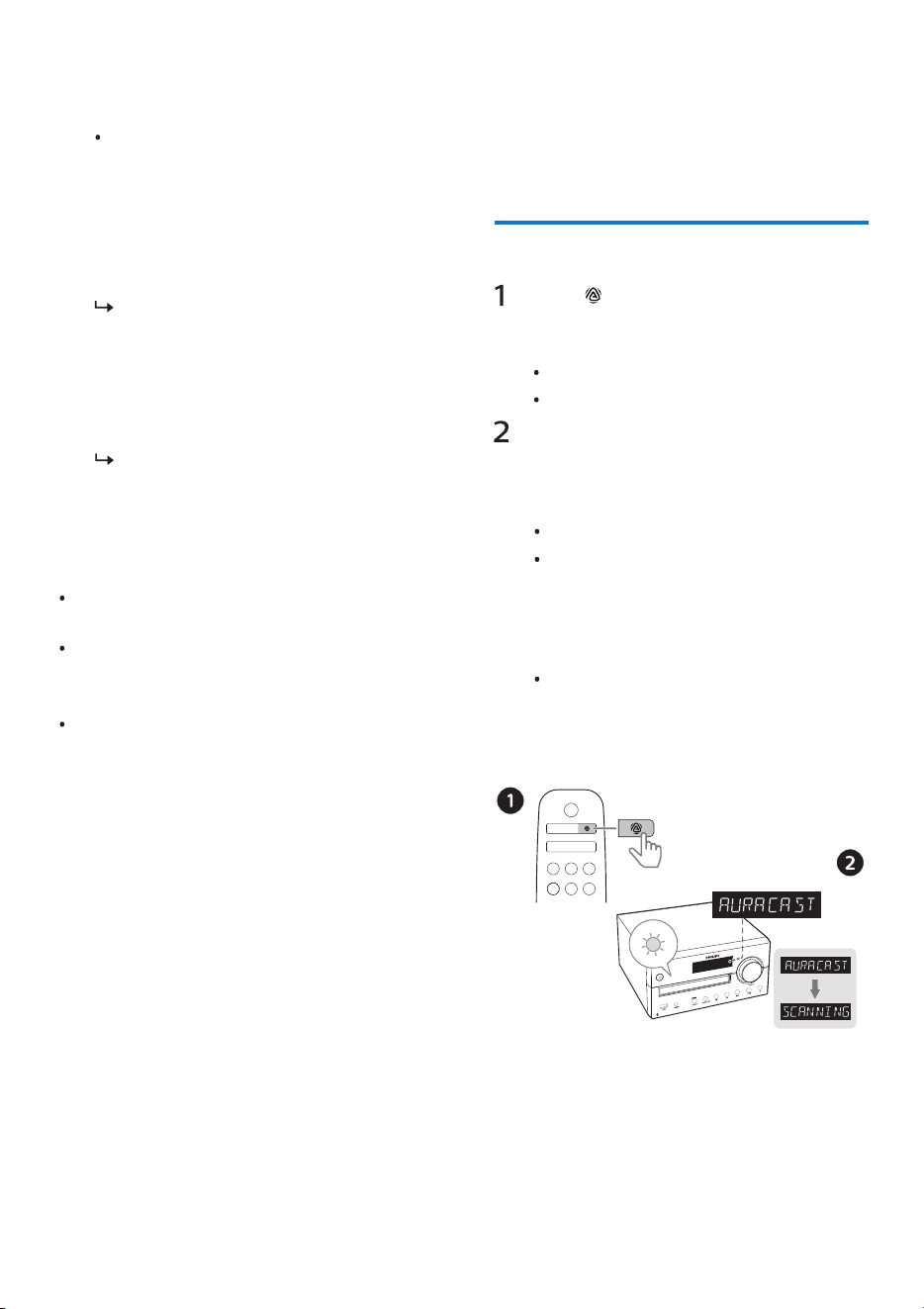
Play audio on the connected
device.
Audio streams from your
Bluetooth enabled device to this
product.
4
To disconnect the Bluetooth-enabled
device:
Deactivate Bluetooth on your
device.
Press and hold PAlRING on the
product or remote control for 2
seconds to enter pairing mode.
Press and hold PAlRING on the
remote control for 8 seconds to
clear memorized devices.
EN 13
You can broadcast your music to this
product or any other Auracast-compatible
products.
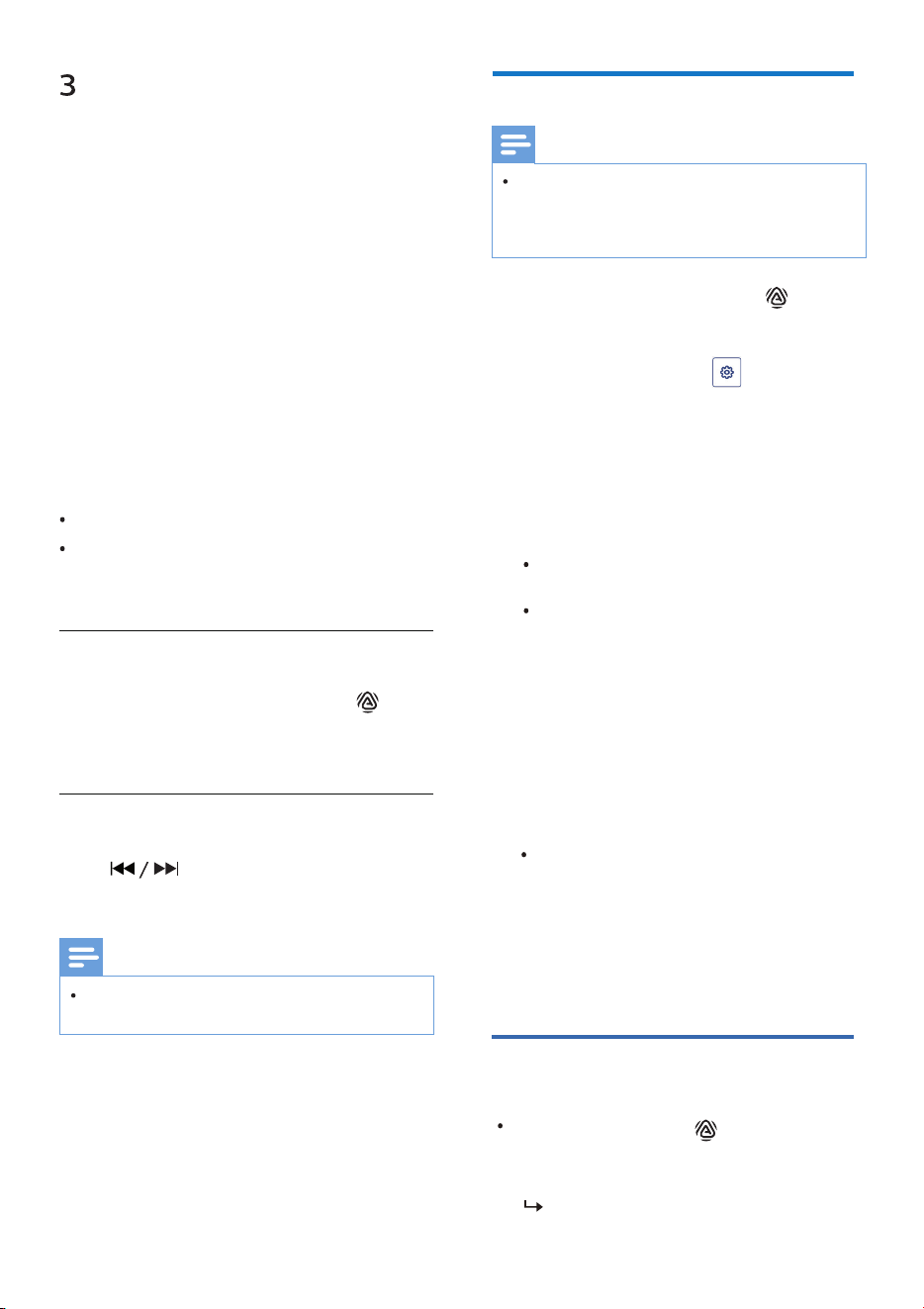
Press to select the Auracast source,
or press SOURCE button on main
unit to switch to Auracast source.
If you enter Auracast source for the
�rst time or if the station list is
empty, the product performs a full
scan automatically.
[AURACAST RECEIVER] is displayed.
The cyan indicator blinks.
[Scanning] is displayed.
The micro system will automatically
search for nearby Auracast
broadcasts and connect to the
unencrypted broadcast with the
strongest signal.
If Auracast broadcast is not found
within 20 seconds, it will enter idle
mode and the cyan light will blink
slowly.
Auracast receiver
5
Auracast operation
Select “Philips TAM4205M2” on your
Bluetooth enabled device.
If you fail to �nd “Philips
TAM4205M2” or cannot pair
with this product, press and
hold PAlRING on the product
or remote control for more
than 2 seconds to enter pairing
mode.
After successful pairing and
connection, you will hear the
prompt sound from the unit.
3
To disconnect Auracast, you can:
Switch the product to another source.
Deactivate Auracast broadcast on
your mobile device or dongle.
On your mobile device or dongle
that supports Auracast, follow the
instruction to enable Auracast
broadcast.
4
After successful connection, the cyan
indicator turns solid.
Auracast source name is displayed.
Select and play audio from your
Auracast enabled mobile device or
dongle to this product.
Manually scan Auracast broadcast
Select Auracast broadcast
5
6
Follow the Auracast connection on
any additional Auracast-compatible
products you want to include.
7
In Auracast receiver mode, press to
rescan Auracast broadcast channel.
Press to select an Auracast
broadcast.
Note
Only unencrypted broadcast is selected and
encrypted broadcast is skipped.
1
3
2
4
In DISC/Bluetooth/FM/USB/Audio in
source, press and hold the /
AURACAST button for 3 seconds or
select Source Control on Philips
Entertainment App ( / Auracast
broadcast) to enter into Auracast
broadcast.
You can broadcast to any number
of Auracast enabled products,
follow the instruction to enable
Auracast connection.
The LED indicator of product will
turn cyan when Auracast receive
enabled.
When unencrypted broadcast
is selected, LED turns solid purple.
When encrypted broadcast is
selected, LED turns solid amber.
Auracast broadcast
On Philips Entertainment App,
enter General Settings, select
Public (unencrypted broadcast) or
Personal (encrypted broadcast)
from Auracast broadcaster.
If Auracast broadcast channel is
encrypted, Auracast recceiver
products are required to enter the
password in order to listen to it.
5
Press the SOURCE button to switch
between DISC/Bluetooth/FM/USB/
Audio in to play different audio
sources.
Disconnect Auracast
broadcast
LED blinks purple or amber 3 times.
Press and hold the button for 3
seconds. Exit Auracast broadcast from
your micro system.
14 EN
Note
Auracast receiver and Auracast broadcast
cannot be turned on simultaneously. If you
try to turn on Auracast broadcast in Auracast
receiver mode, you will not be able to switch
successfully. Vice versa.
Store radio stations
manually
1
2
3
4
Tune to an FM radio station.
Press PROG/SCAN to activate
program mode.
[P01] is displayed.
Press to allocate a number
from 1-20 to this radio station, and
then press PROG/SCAN to con�rm.
Repeat steps 1-3 to program more
stations.
To overwrite a programmed station, store
another station in its place.
Select a preset radio
station
In FM mode, press to select a
preset number.
Note
While listening to FM radio, you
may press MODE to toggle stereo
and mono sound.
RDS (Radio Data System) is a service
that allows FM stations to show
additional information.
Display RDS information
Tune to an FM radio station.
Press lNFO repeatedly to display
various RDS information (if available),
such as station name, program type,
time, etc.
1
2
6 Listen to FM
radio
Tune to a radio station
Tip
Press FM to select FM source.
Press and hold for more
than 2 seconds.
The radio tunes to a station with
strong reception automatically.
Repeat step 2 to tune to more
stations.
Press repeatedly until you �nd
optimal reception.
To tune to a weak station:
Store radio stations
automatically
Note
You can store a maximum of 20 FM radio
stations.
Press FM to select FM source.
Press and hold PROG/SCAN for
more than 2 seconds.
All available stations are
programmed in the order of
waveband reception strength.
The �rst programmed
radio station is broadcast
automatically.
Position the FM antenna as far as possible
from TV, or other radiation source.
For optimal reception, fully extend and
adjust the position of the FM antenna.
EN 15
8
Other features
Set the alarm timer
This product can be used as an alarm
clock. You can select the disc, radio, or
.mp3 �les on a USB storage device as
alarm source.
Note
Alarm timer is not available in AUDlO lN
mode.
If CD/USB source is selected, but no disc is
placed or no USB device is connected, the
radio source is selected automatically.
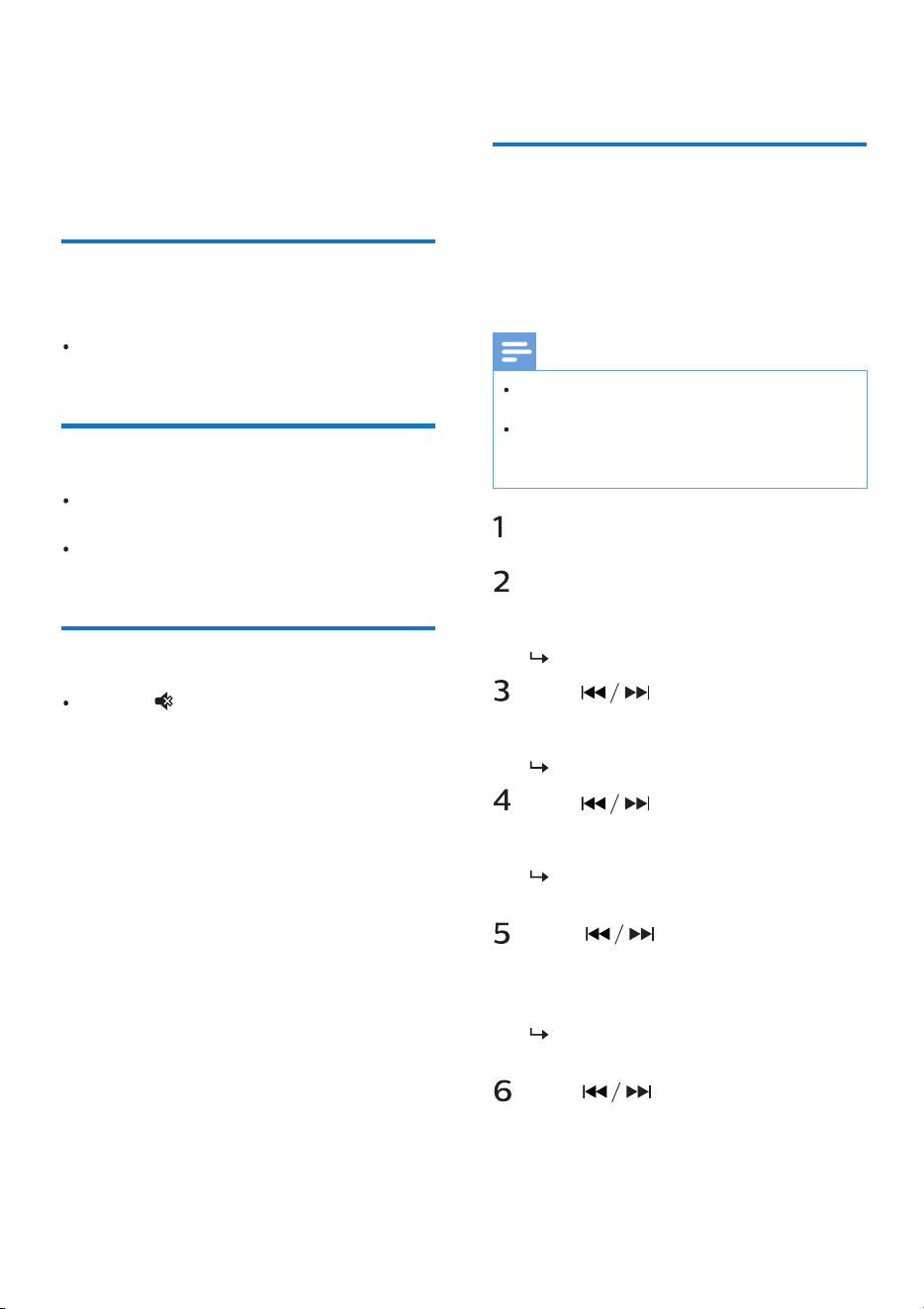
Make sure that you have set the
clock.
In standby mode, press and hold
SLEEP/TIMER for more than 2
seconds.
The hour digits blink.
Press repeatedly to set the
hour, and then press SLEEP/TIMER
to con�rm.
Press to set the minute,
and then press SLEEP/TIMER to
con�rm.
The minute digits blink.
The last selected alarm source
blinks.
Press to select an alarm
source (disc, USB or FM radio),
and then press SLEEP/TIMER to
con�rm.
Press to set the alarm
volume, and then press
SLEEP/TIMER to con�rm.
XX blinks (XX indicates the
volume level of alarm).
7
Adjust sound
The following operations are applicable
to all supported media.
Select a preset sound
effect
Press SOUND repeatedly to select a
preset sound effect.
Adjust volume level
Mute sound
On the remote control, press +/-
(volume) repeatedly.
On the main unit, rotate the volume
knob.
Press to mute or unmute the
sound.
16 EN
Activate/deactivate alarm timer
In standby mode, press SLEEP/TIMER
repeatedly to activate or deactivate
timer.
This music system can switch to
standby automatically after a set period
of time.
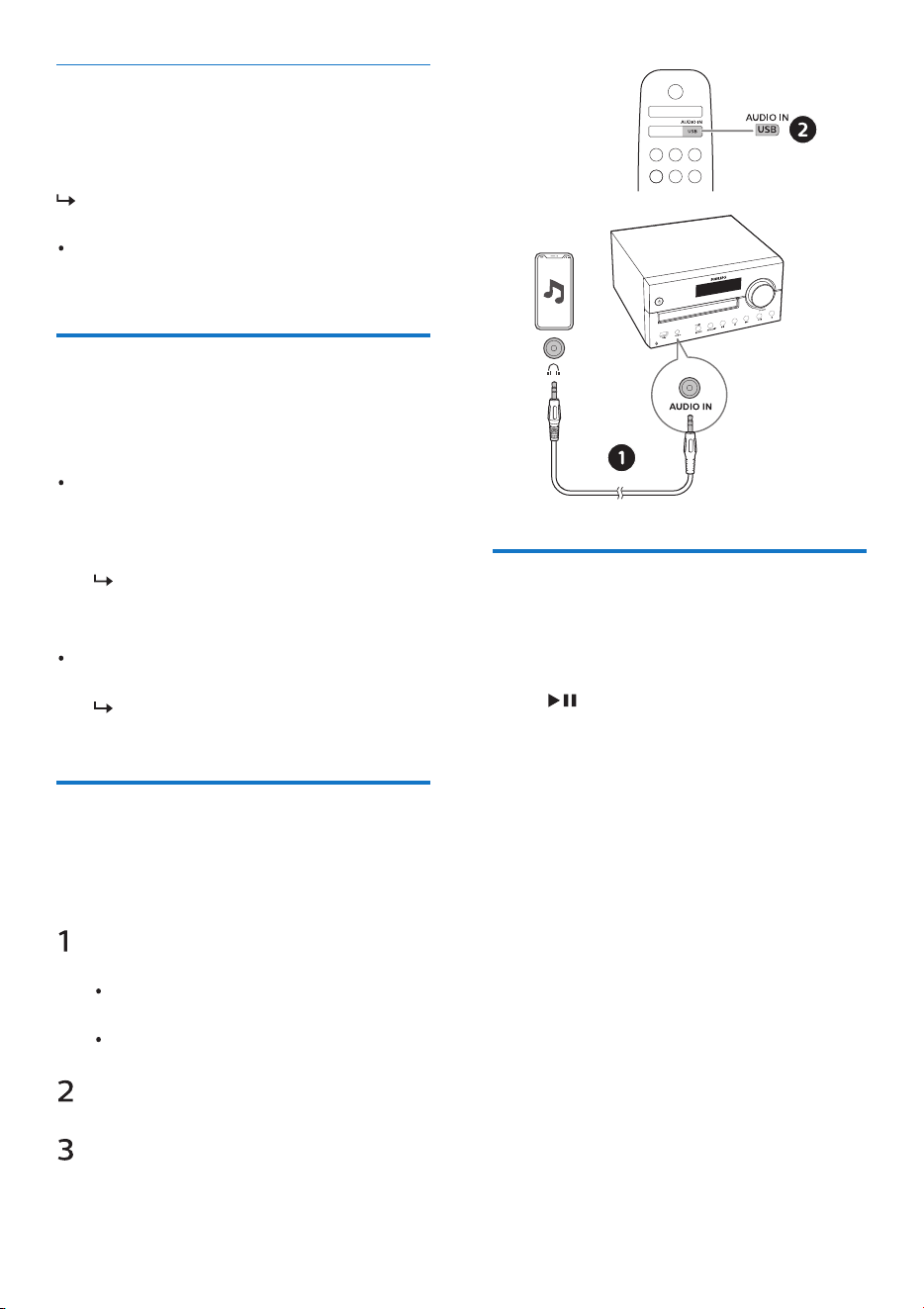
You can listen to an external device
through this unit with an MP3 link cable.
AUDlO IN jack (3.5 mm) on the
product.
And the headphone jack on an
external device.
When the music system is turned
on, press SLEEP/TIMER repeatedly
to select a set period of time (in
minutes).
When sleep timer is activated,
SLEEP is displayed.
Press SLEEP/TIMER repeatedly
until [OFF] (sleep off) is displayed.
When sleep timer is deactivated,
SLEEP disappears.
To deactivate sleep timer
If timer is activated, TIMER is
displayed.
In standby, you may press and hold
CLOCK to toggle clock display on or
off.
Set the sleep timer
Listen to an external
device
Connect an MP3 link cable (not
supplied) between:
Press AUDlO IN repeatedly to select
AUDIO IN Source.
Start to play the device (see the
device user manual).
Factory reset
Reset device to default setting.
When the device is power on, press and
hold buttons for 5 seconds in
AUDIO IN source at VOLUME 2.
The device is restore to factory defaults
and enters standby mode.
EN 17
9
Philips
Entertainment App
App download
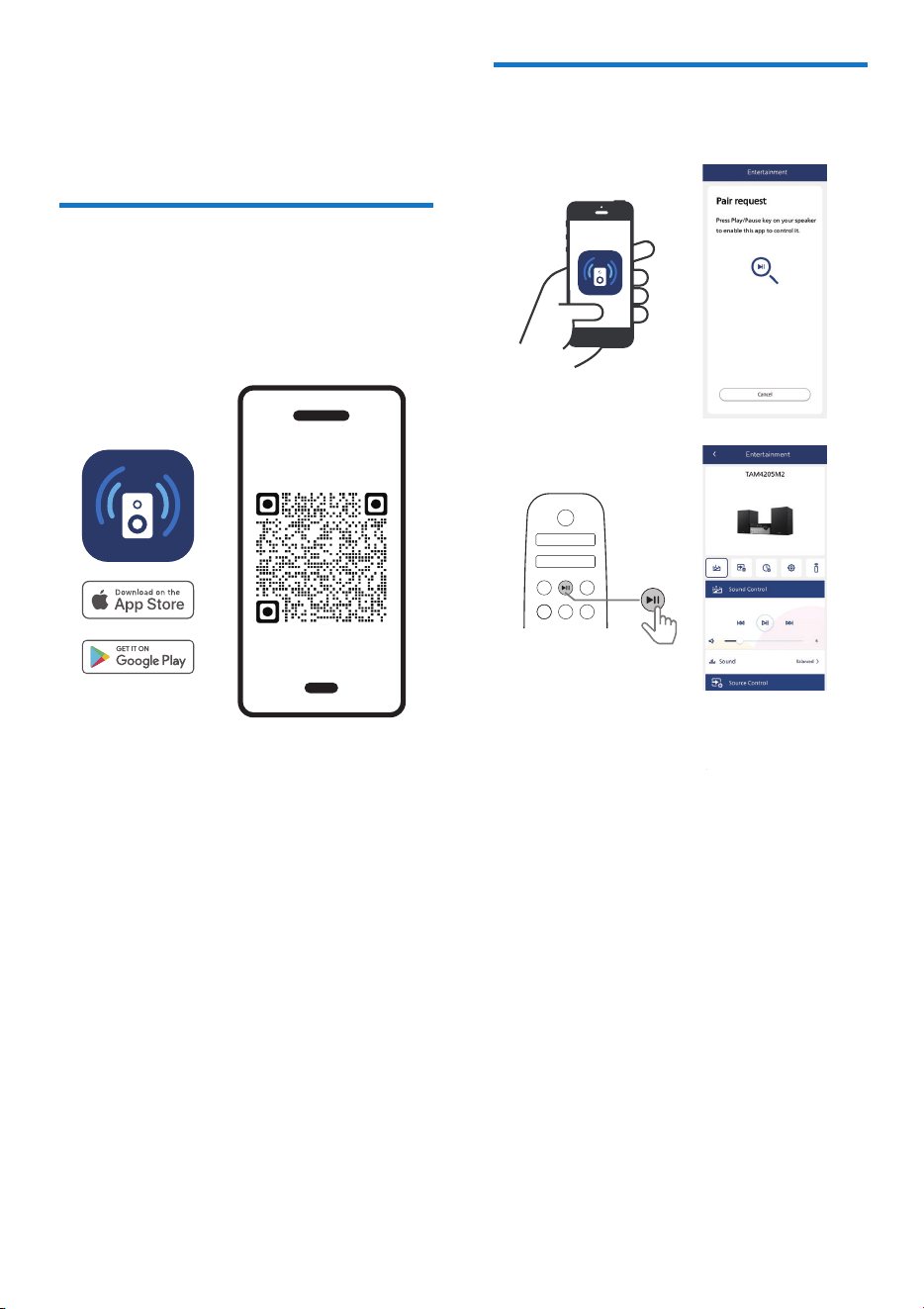
Scan the QR code and press “Download”
button, or search “Philips Entertainment”
in the Apple App Store or Google Play to
download the App.
The Philips Entertainment App puts you
in charge of the music you are listening
to. You can use your smart device to
easily choose the sound style you want,
switch between sources, and more.
philips.to/entapp
Launch the Philips Entertainment
App on your mobile device.
Make sure your mobile device is
enabled the Bluetooth setting.
If you connect the Philips
Entertainment App with your micro
system for the �rst time, you are
asked to pair the App with your
micro system.
Press Play/Pause key on your micro
system to enable the App to discover
and control it.
1
2
3
4
Pair the App with your
micro system
18 EN
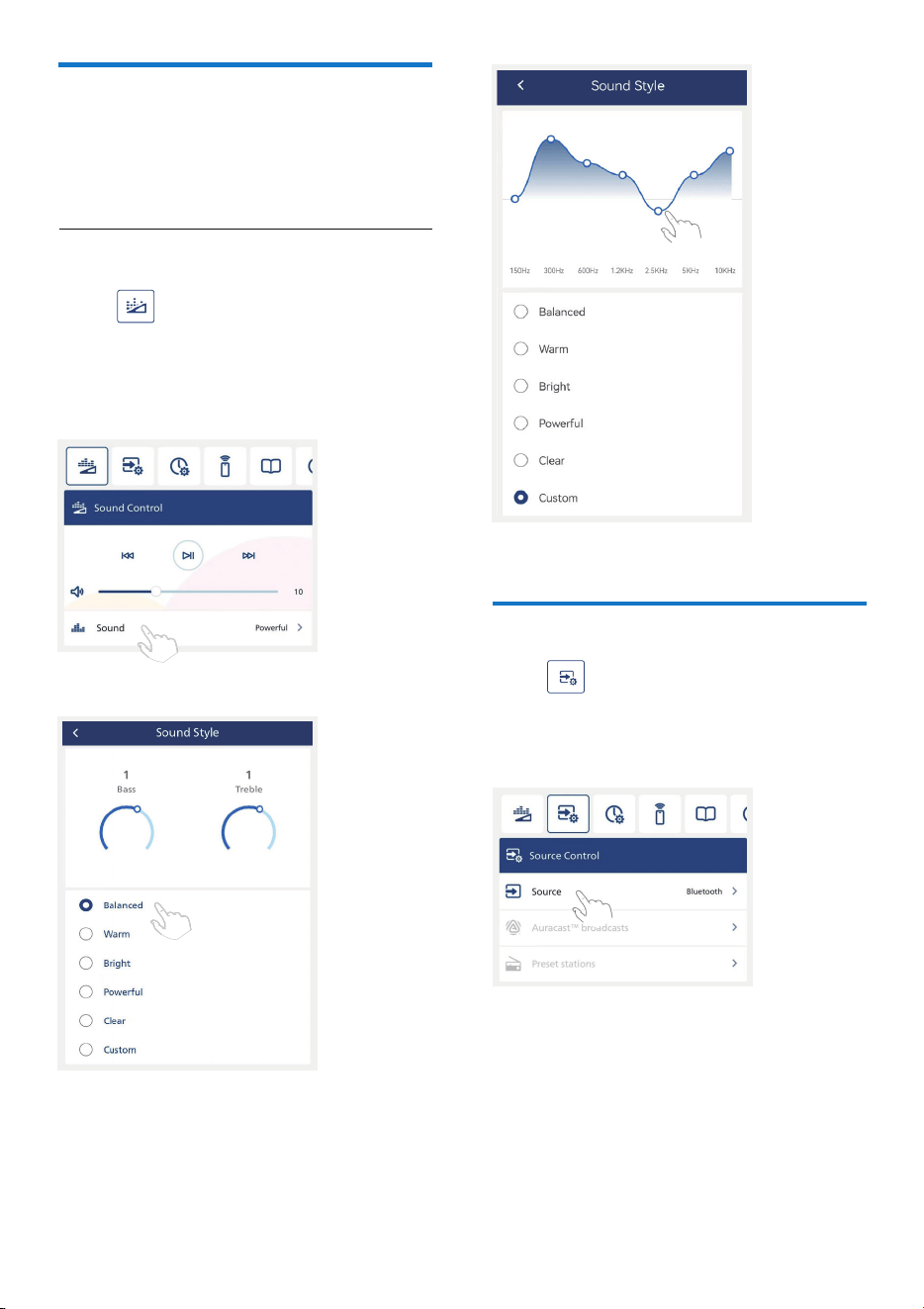
Press icon on the App to select
prede�ned sound modes to suit your
music: BALANCED/WARM/BRIGHT/
POWERFUL/CLEAR/CUSTOM.
Select Equalizer (EQ) Effect
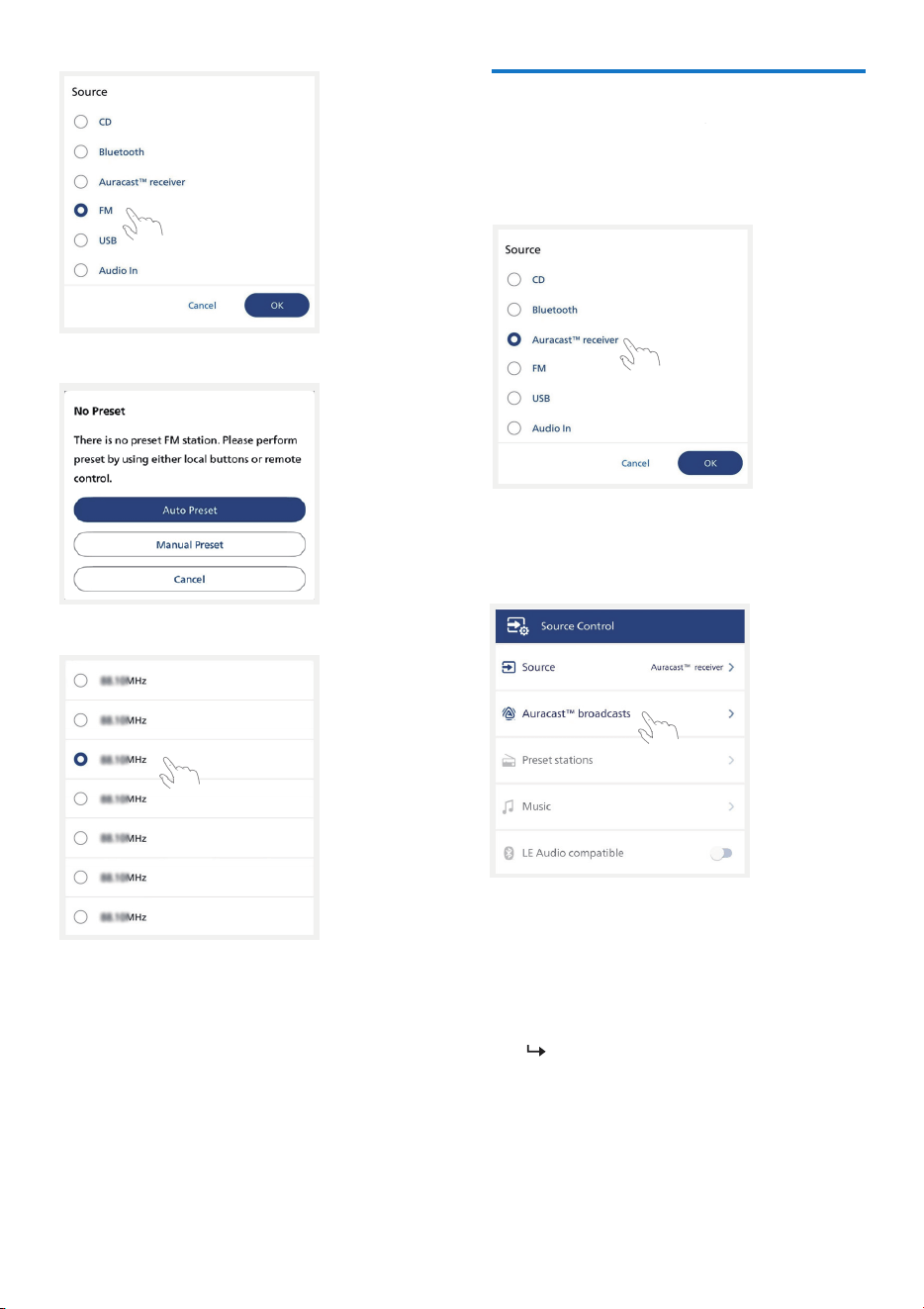
Select Source
Press icon on the App to select
CD/BLUETOOTH/AURACAST/FM/USB
/AUDIO IN.
Choose your Sound
You can choose the ideal sound for your
music.
EN 19
20 EN
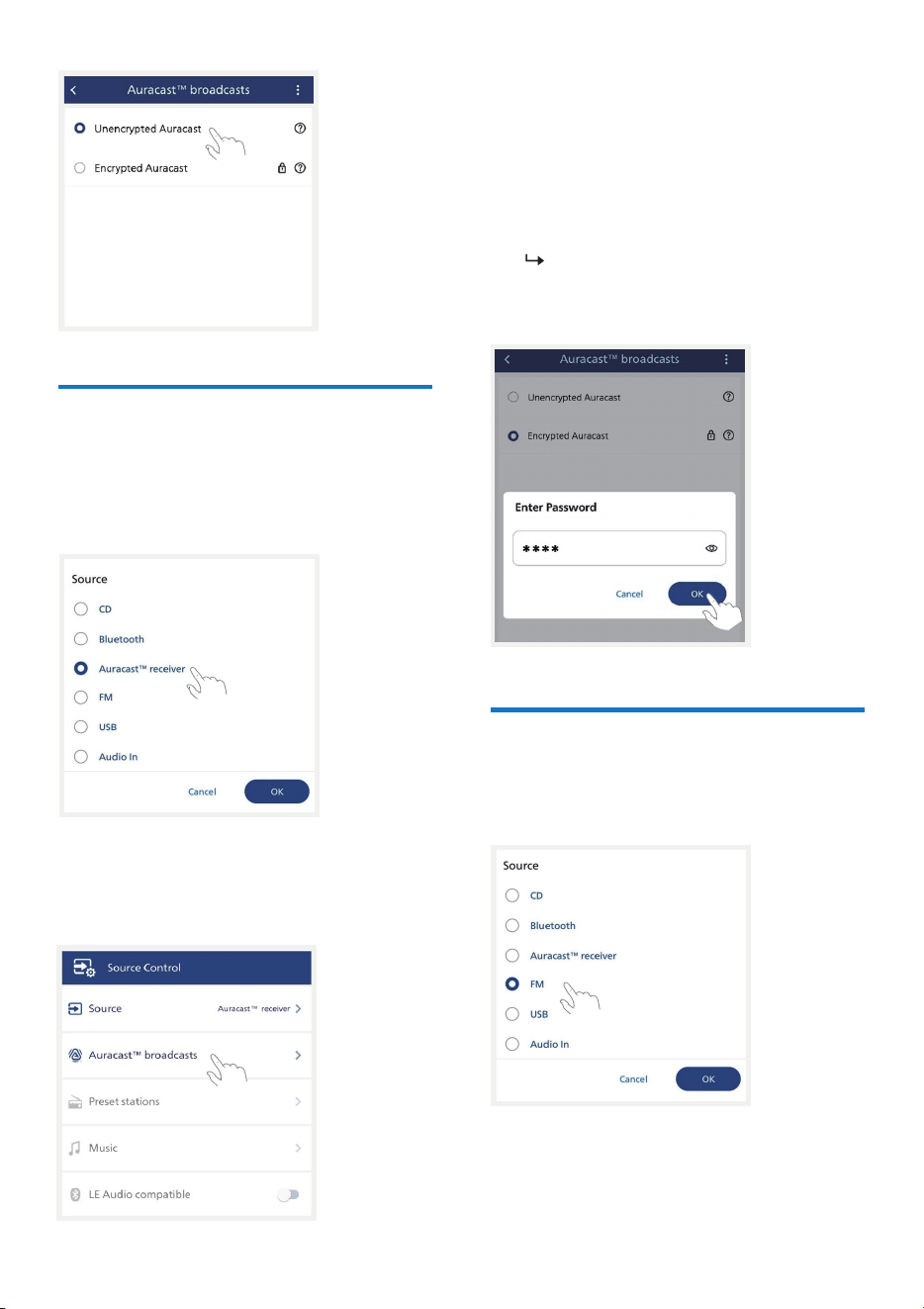
Receive unencrypted
Auracast broadcast
Select Auracast
TM
receiver source.
1
Press [Auracast
TM
broadcasts] to
enter Auracast
TM
broadcast list.
2
When an unencrypted playback
source from mobile phone or dongle
is selected, the micro system will
search and connect to it.
Make sure to activate Auracast
TM
broadcast on your mobile phone
or dongle.
3
Receive encrypted
Auracast broadcast
Select Auracast
TM
receiver source.
Press [Auracast
TM
broadcasts] to
enter Auracast
TM
broadcast list.
1
2
When an encrypted playback source
from mobile phone or dongle is
selected, you will be asked to input a
password. Entering the same password
that you input when setting up
Auracast
TM
broadcast from your mobile
phone or dongle.
Make sure to activate Auracast
TM
broadcast on your mobile phone
or dongle.
3
Select a preset radio statio
Select to enter [FM] source.
1
EN 21
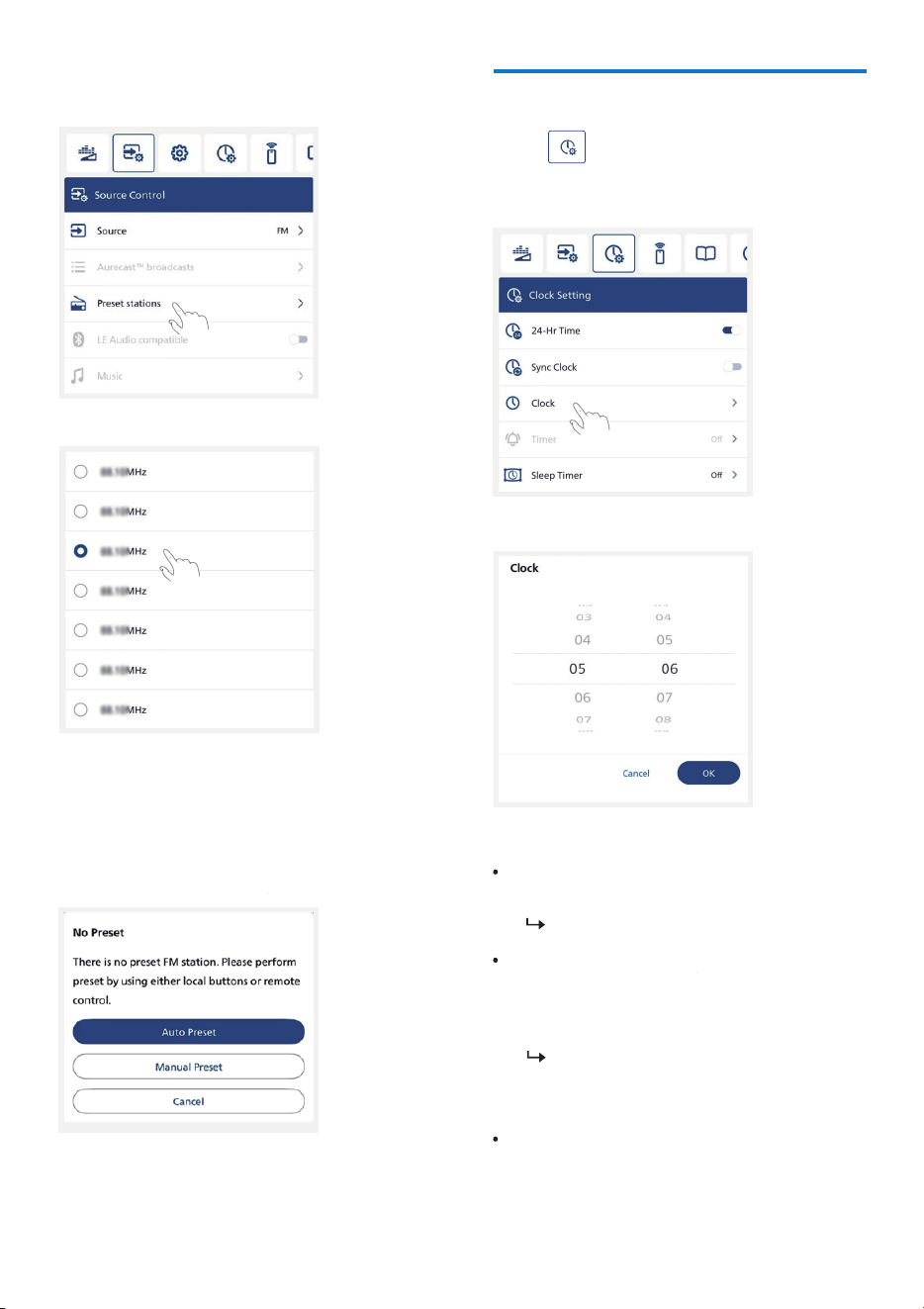
Press to select FM preset station.
2
When there is no preset station stored in
the micro system, the App will remind to
perform auto scanning or manual preset.
Clock Setting
Press icon on the App to enter
clock setting.
[24-Hr Time]: Set 12 or 24-hour time
mode.
[Sync Clock]:When Sync clock is
enable, the App will synchronize the
mobile clock to micro system upon
their connection.
[Clock] : option to swipe and select
the time on the clock page.
24Hr Time is set by default.
Turn off [Sync Clock] so that users
can customize the time for their
micro systems.
22 EN
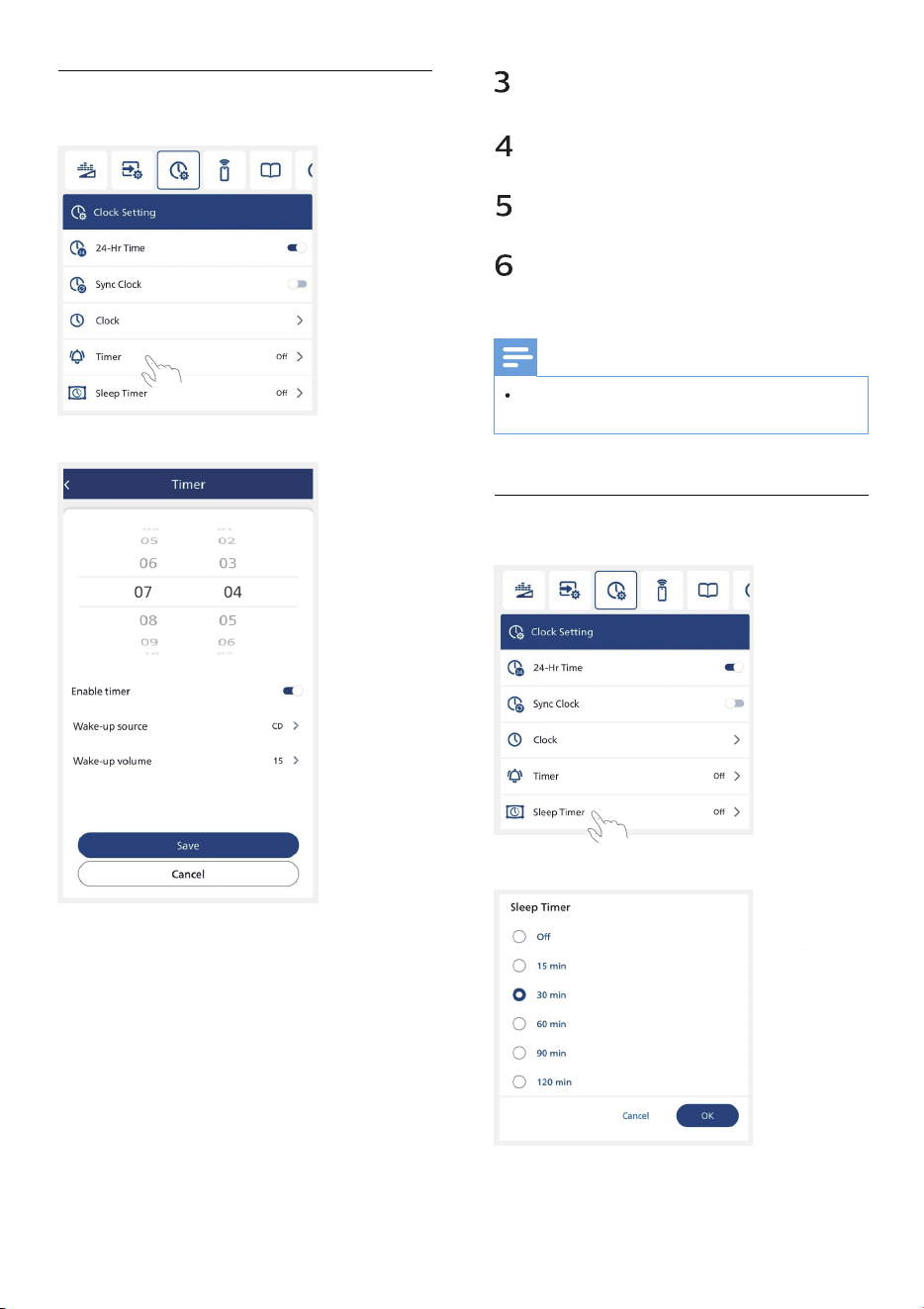
[Timer] : Press to enter the alarm
timer setting. Set the time to wake
up the micro system.
Select [Enable timer] : The micro
system will automatically turn on
and play after reaching the set time.
1
2
Set Alarm Timer
Select [Wake-up source] :
CD/FM/USB.
Select [Wake-up volume] : volume
level 0 to32.
Press [Save] to store the wake-up
timer setting.
The micro system will turn on at the
set time.
Note
When clock is not set, alarm timer cannot
be set.
Set Sleep Timer
EN 23
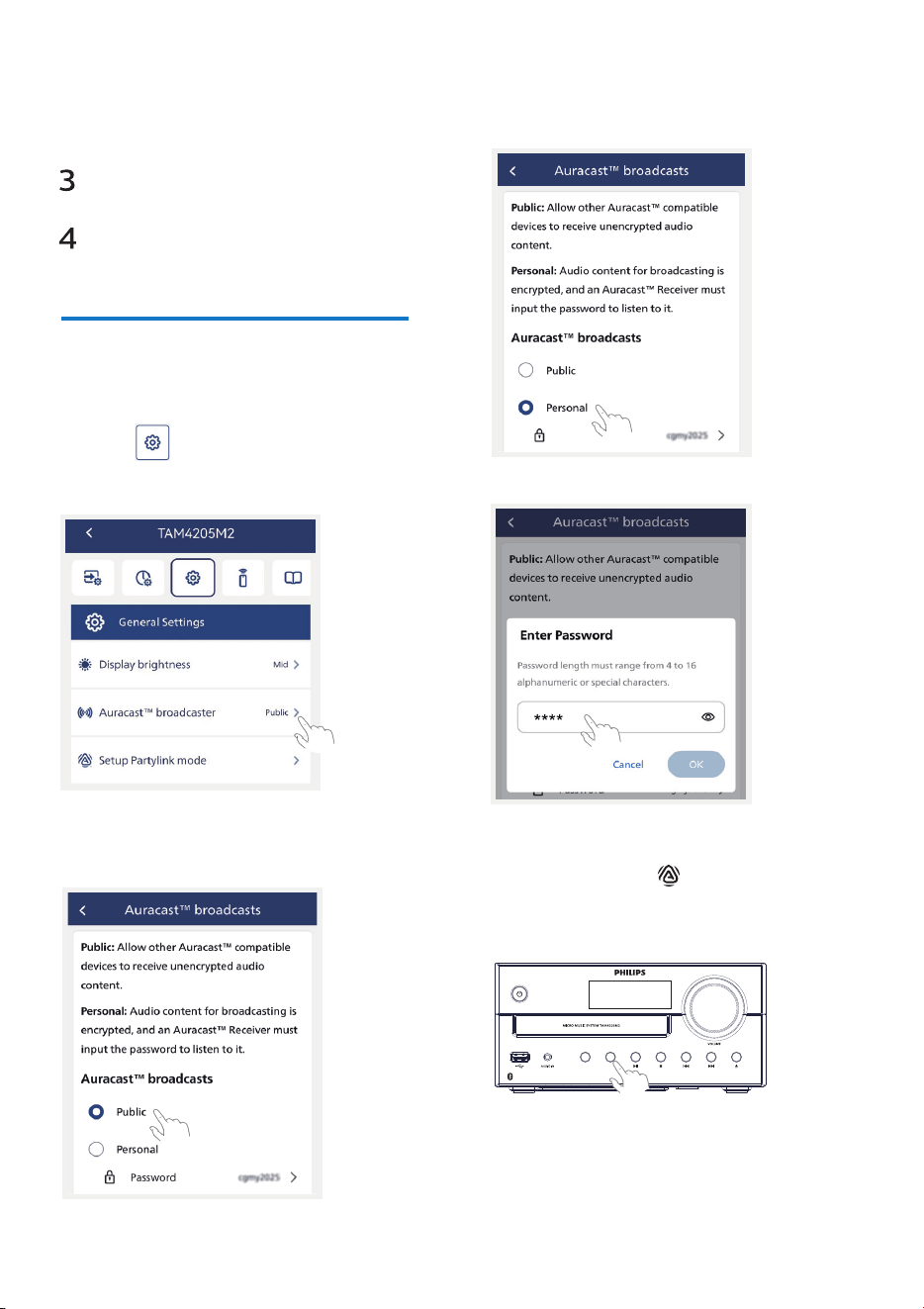
Press [Sleep Timer] to enter sleep
timer setting.
Select 15/30/60/90/120 min.
Press [OK] to store the sleep timer
setting.
The micro system will turn off after
the set time.
1
2
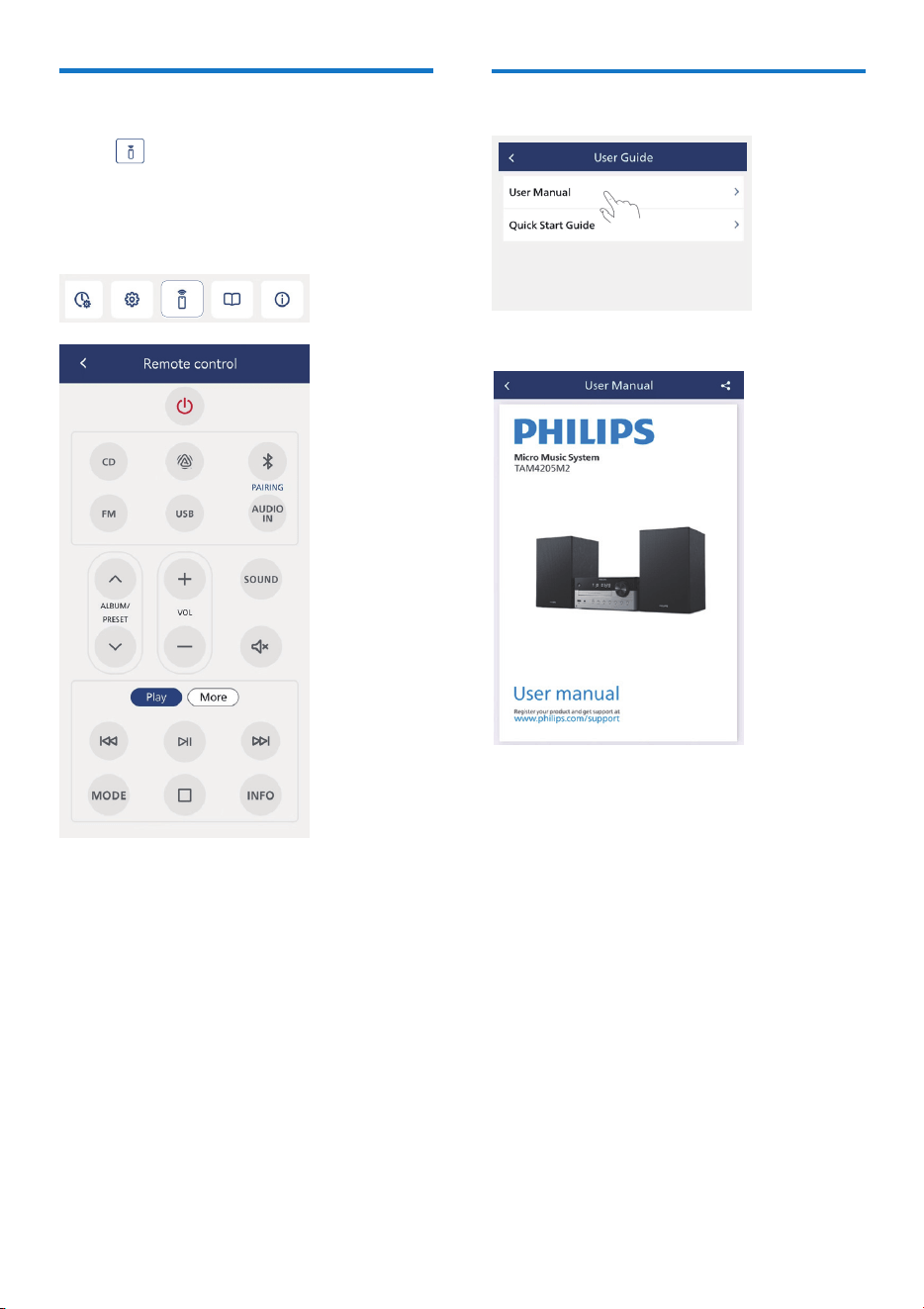
Select Auracast
broadcast
1
Press icon on the App to enter
General Settings list.
Select Public or Personal broadcasts.
2
Set a password when Personal
(encrypted broadcast) is selected.
3
4
AURACAST
PAIRING
SOURCE
24 EN
Press and hold button on the
device then it will enter Auracast
scanning mode.
User guide
Remote control
Press icon to enter and use your
mobile device via Philips Entertainment
App as a remote control to operate the
micro system.
EN 25
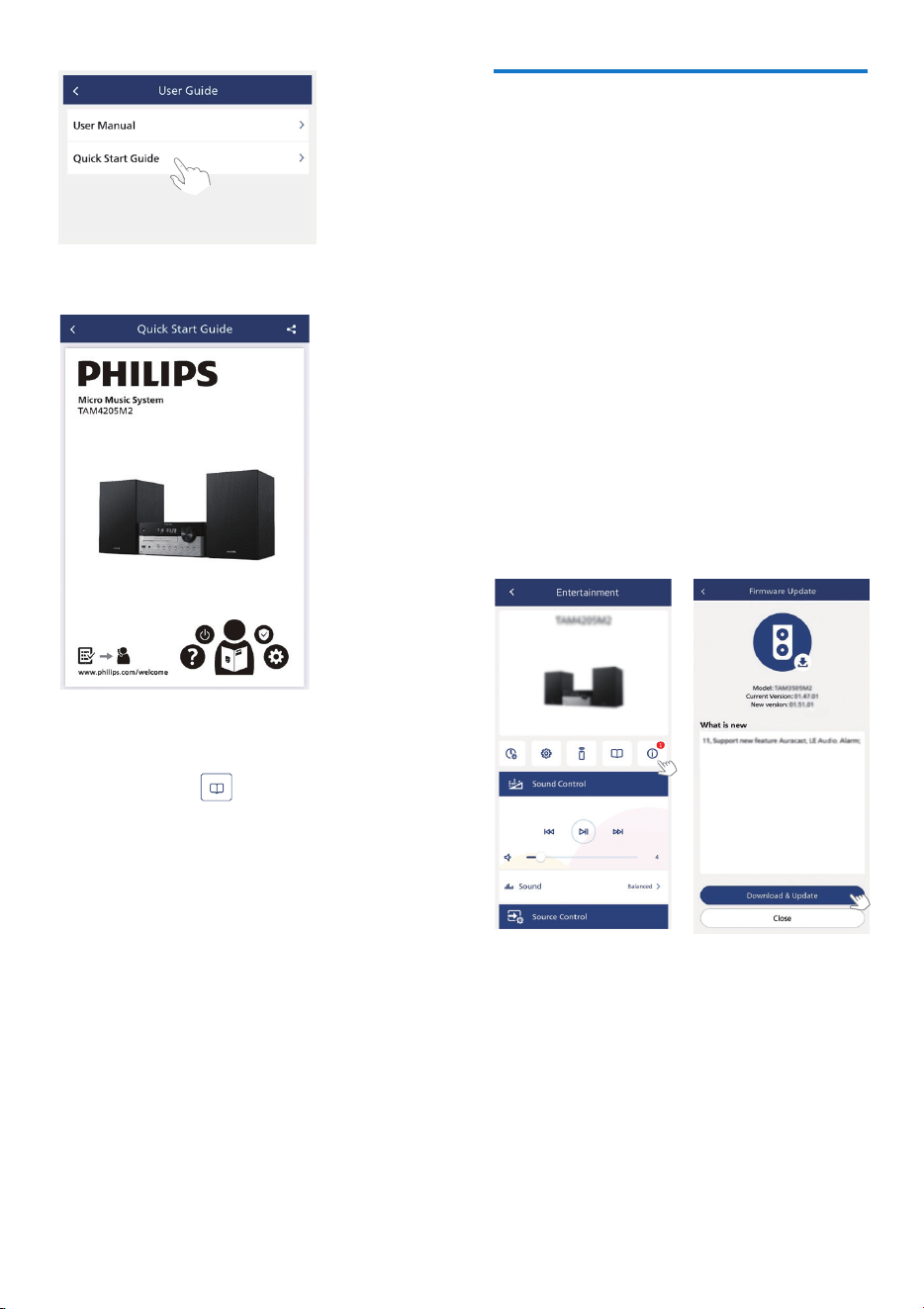
For more information about using this
product, press icon on the App you
can �nd [User Manual] and [Quick Start
Guide].
Firmware upgrade
To get the best features and support,
update your product with the latest
�rmware version.
The �rmware for MCU can be upgraded
to the latest version via Philips
Entertainment App.
Please go to Firmware Update and press
Download & Update. If the upgrade is
released, the Download & Upgrade icon
can be pressed to proceed automatically.
Once this product is connected to Philips
Entertainment App, it can receive
over-the-air �rmware update. Always
upgrade with the latest �rmware version to
improve the performance of this product.
26 EN
10
Product
information
Specifcations
Note
Product information is subject to change
without prior notice.
Rated output power :
Acoustic freguency response:
66Hz-20KHZ
Total 80W (RMS)
Speaker driver:
2 x 4” woofer 4Ω;
2 x 0.75” tweeter 4Ω ;
Bass enhancement: 2 x bass port
Support disc type: CD-DA, CD-R,
CD-RW, MP3-CD (8/12 cm)
Bluetooth version:
V5.4
Bluetooth supported pro�es:
A2DP V1.3, AVRCP V1.6
Bluetooth frequency band/Output
power: 2.402GHz~2.480GHz ISM
Band/≤ 9dBm
Type A, USB Direct 2.0,5V/500mA ,
MSC �e format, FAT 16/32, Support
USB up to 128G
USB playback:
Tuner frequency range:
FM 87.5-108MHz
AUDlO IN input level:
500mV
±100mV RMS
Preset stations: 20
Power: 100-240V~,50/60HZ
(AC Input)
Operation power consumption:
20W
Standby power consumption:
< 0.5W (clock display off)
Weight: 1.5 kg (Main unit);
2
x 1.9 kg (Speaker box)
USB �ash memory (USB2.0 or
USB11)
USB fash players (USB2.0 or USB1.1)
memory cards (requires an
additional card reader to work with
this unit)
Dimensions(WxHxD):
220 x 105 x 231mm (Main unit);
148 x 240 x 203mm (Speaker box)
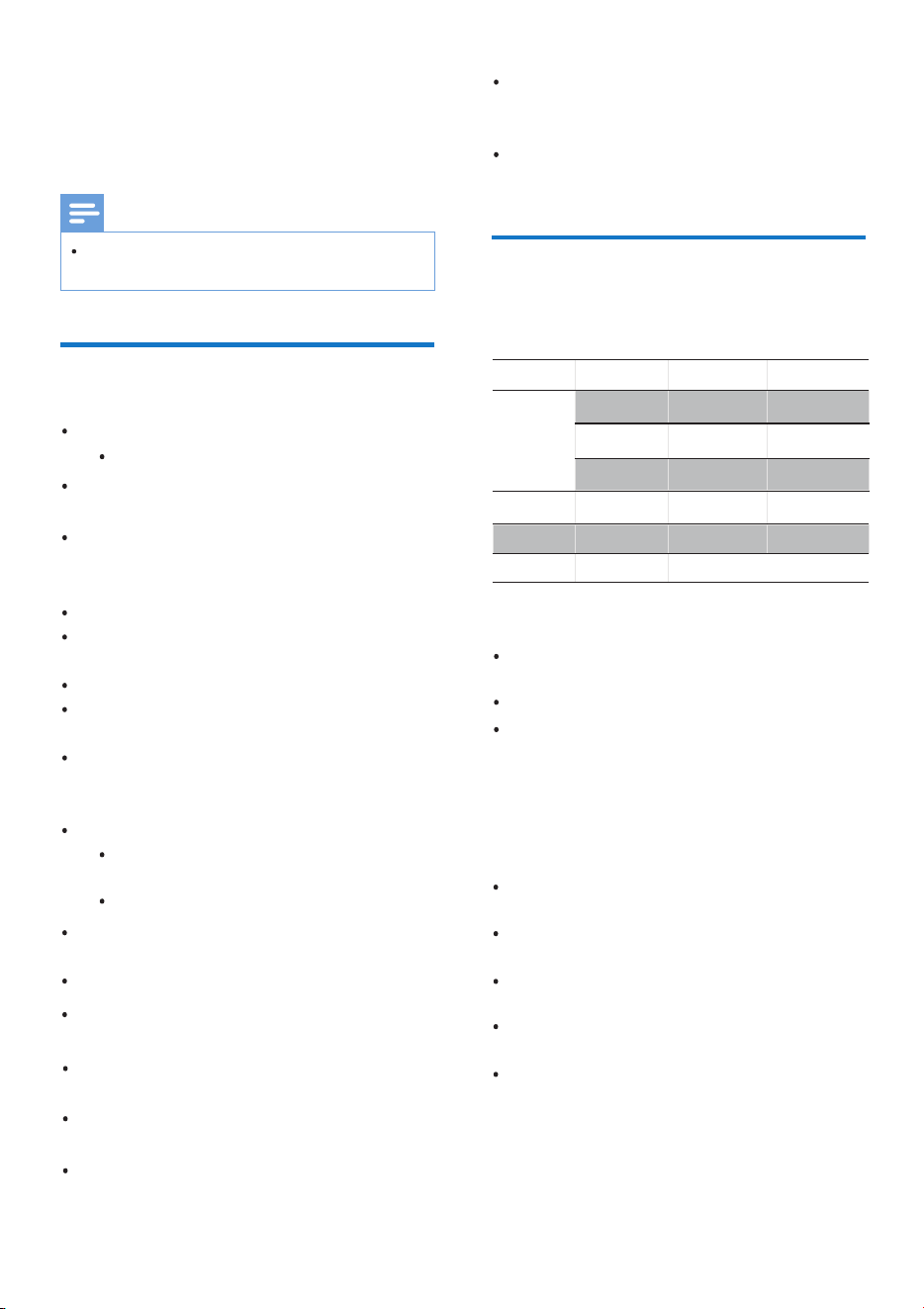
USB playability
information
Compatible USB devices:
.mp3
Extension
Codec
Sample Rate Bitrate
MPEG 1
Layer 1
MPEG 1
Layer 2
MPEG 1
Layer 3
.wma
.wav
.�ac
WMA
WAV
FLAC
32~48 kHz
32~48 kHz
32~48 kHz
8~48 kHz
8~48 kHz
Up to 48 kHz/16 bit
32~320 kbps
32~320 kbps
32~320 kbps
Up to 1536 kbps
48~192 kbps
USB or memory �le format: FAT12,
FAT16, FAT32 (sector size: 512 bytes)
MP3 bit rate (data rate): 32-
320 Kbps and variable bit rate
WMA bit rate (data rate) : 48~192
kbps
WAV bit rate (data rate) : Up to 1536
kbps
Directory nesting up to a maximum
of 8 levels
Supported USB formats:
EN 27

Empty album: An empty album is an
album that does not include
MP3/WMA/WAV graphics and will
not be displayed.
IS09660, Joliet
Maximum title number: 128
(depending on �e name length)
Maximum album number: 99
Supported sampling frequencies:
32 kHz, 44.1 kHz, 48 kHZ
Supported Bit-rates: 32~320(kbps),
variable bit rates
Number of albums/folders:
maximum 99
Number of tracks/titles: maximum
999
File name in Unicode UTF8
(maximum length: 32 bytes)
Supported MP3 disc
formats
Unsupported USB formats:
Unsupported �le formats will be
skipped. For example, Word �les
(. doc) or MP3 �les with the
extension dif will be ignored and will
not be played.
11
Troubleshooting
Warning
No power
No sound or poor sound
No response from the unit
Remote control does not work
Never remove the casing of this device.
To keep the warranty valid, never try to
repair the system yourself.
If you encounter problems when using
this device, check the following points
before requesting service. lf the problem
remains unsolved, go to the Philips Web
page (www.philips.com/support). When
you contact Philips, make sure that the
device is nearby and the model number
and serial number are available.
Make sure that the AC power cord
of the device is connected properly.
Make sure that there is power at the
AC outlet.
As a power-saving feature, the
system switches off automatically
15 minutes after track play reaches
the end and no control is operated.
Adjust the volume.
Check that the speakers are
connected correctly.
Check if the stripped speaker wires
are clamped.
Disconnect and reconnect the AC
power plug, then turn on the unit
again.
As a power-saving feature, the
system switches off automatically
15 minutes after track play reaches
the end and no control is operated.
Before you press any function
button, �rst select the correct
28 EN

No disc detected
Insert a disc.
Check if the disc is inserted upside
down.
Wait until the moisture
condensation at the lens has
cleared.
Replace or clean the disc.
Use a fnalized CD or correct format
disc.
source with the remote control
instead of the main unit.
Reduce the distance between the
remote control and the unit.
Insert the battery with its polarities
(+/- signs) aligned as indicated.
Replace the battery.
Aim the remote control directly at
the sensor on the front of the unit.
Cannot display some �les in USB
device
USB device not supported
The number of folders or �les in the
USB device has exceeded a certain
limit. This phenomenon is not a
malfunction.
The formats of these �les are not
supported.
The USB device is incompatible
with the unit. Try another one.
Poor radio reception
Increase the distance between the
unit and your TV or other radiation
sources.
Fully extend the radio antenna.
The device cannot be used to play
music through this unit wirelessly.
Music playback is unavailable on this
unit even after successful Bluetooth
connection.
The audio quality is poor after
connection with a Bluetooth-enabled
device.
The Bluetooth reception is poor.
Move the device closer to this unit
or remove any obstacle between
them.
The paired mobile device connects and
disconnects constantly.
The Bluetooth reception is poor.
Move the device closer to this unit
or remove any obstacle between
them.
Some mobile phones may connect
and disconnect constantly when
you make or end calls. This does
not indicate any malfunction of
this unit.
For some devices, the Bluetooth
connection may be deactivated
automatically as a power-saving
feature. This does not indicate any
malfunction of this unit.
Set the clock correctly.
Switch on the timer.
Power has been interrupted or the
power cord has been disconnected.
Reset the clock/timer.
Bluetooth cannot be connected with
this unit.
The device does not support the
pro�les required for this unit.
The Bluetooth function of the
device is not enabled. Refer to the
user manual of the device to �nd
out how to enable the function.
This unit is not in pairing mode.
This unit is already connected with
another Bluetooth-enabled device.
Disconnect that device and then try
again.
Timer does not work
Clock/timer setting erased
EN 29

In standby, press and hold CLOCK
to toggle clock display on or off.
How to keep clock display on or off in
standby?
30 EN
Speci�cations are subject to change without notice.
2025 Philips and the Philips Shield Emblem are registered trademarks of Koninklijke Philips N.V. and are used under
license. This product has been manufactured by and is sold under the responsibility of MMD Hong Kong Holding
Limited or one of its affiliates, and MMD Hong Kong Holding Limited is the warrantor in relation to this product.
TAM4205M2_12_UM_V1.0