
2
EN
Introduction . . . . . . . . . . . . . . . . . . . . . . . . . . . . . . . . . . . . . . . . . . . . . . . . . . . . . . . . . 3
System Requirements . . . . . . . . . . . . . . . . . . . . . . . . . . . . . . . . . . . . . . . . . . . . . . . . . 3
Product Features . . . . . . . . . . . . . . . . . . . . . . . . . . . . . . . . . . . . . . . . . . . . . . . . . . . . . 3
Controller Diagram . . . . . . . . . . . . . . . . . . . . . . . . . . . . . . . . . . . . . . . . . . . . . . . . . . . 4
Button Descriptions . . . . . . . . . . . . . . . . . . . . . . . . . . . . . . . . . . . . . . . . . . . . . . . . 4-5
Installation . . . . . . . . . . . . . . . . . . . . . . . . . . . . . . . . . . . . . . . . . . . . . . . . . . . . . . . 6-11
Properties . . . . . . . . . . . . . . . . . . . . . . . . . . . . . . . . . . . . . . . . . . . . . . . . . . . . . . 12-15
Prole Editor . . . . . . . . . . . . . . . . . . . . . . . . . . . . . . . . . . . . . . . . . . . . . . . . . . . . 16-23
Uninstall . . . . . . . . . . . . . . . . . . . . . . . . . . . . . . . . . . . . . . . . . . . . . . . . . . . . . . . . . . . 24
Vista 32 Addendum . . . . . . . . . . . . . . . . . . . . . . . . . . . . . . . . . . . . . . . . . . . . . . . 25-30
Troubleshooting . . . . . . . . . . . . . . . . . . . . . . . . . . . . . . . . . . . . . . . . . . . . . . . . . . . . . 31
Frequently Asked Questions (FAQ) . . . . . . . . . . . . . . . . . . . . . . . . . . . . . . . . . . 32-38
Technical Support . . . . . . . . . . . . . . . . . . . . . . . . . . . . . . . . . . . . . . . . . . . . . . . . . . . 39
FCC Warning . . . . . . . . . . . . . . . . . . . . . . . . . . . . . . . . . . . . . . . . . . . . . . . . . . . . . . . 39
Contents
Downloaded from www.ManualsFile.com manuals search engine

EN
3
EN
IMPORTANT: Before using this product please read your PC system instruction manual
for safety and other information.
Introduction
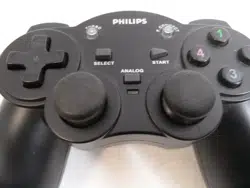
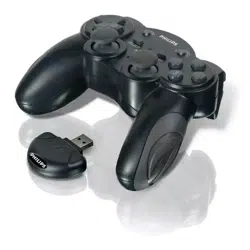
Thank you for purchasing the SGC2910 Wireless PC Controller for use with Personal Computers. You are now
ready for total enjoyment of all your favorite PC Games from up to 30 feet away. Included docking USB receiver
ensures convenience and high-level performance. The Controller is equipped with two built-in vibration motors,
which have unbalanced weights to provide vibration feedback in games that support this feature. In addition, for
the ultimate in control, an advanced mouse and key emulation prole editor software is included to enable added
functionality and programming options.
System Requirements
• IBM compatible personal computer with a Pentium 350 or higher processor
• Microsoft Windows Vista 32, 98SE,ME, 2000 or XP operating system
• 32 MB of RAM or higher
• 35 MB of available HDD space
• Double-speed CD-ROM drive or higher
• Super VGA monitor with display card supporting High Color
• USB port
Product Features
A) Advanced 2.4GHz RF Tech Wireless Technology
B) Auto Sleep and Wake function
C) Auto Scan
D) Two (2) analog control sticks-Left/Right
E) Four (4) digital re buttons (1,2,3,4)
F) Four (4) shoulder buttons (5,6,7,8)
G) Start & Select buttons (function as 9, and 10 button)
H) Analog Button
I) Analog LED Indicator
J) Built in Dual Vibration Feedback Motors with on/off switch
K) 8-Way directional control pad
L) Turbo re button
M) Force Connect button enables players to change their player position anytime (Advance Feature)
N) USB Docking Receiver
O) Superior Long Distance link Wireless technology UP to 30 feet
Introduction
Downloaded from www.ManualsFile.com manuals search engine
4
EN
Controller Diagram
Button Descriptions
• Directional Pad-Represents UP, DOWN, LEFT, RIGHT and four diagonals. Directional pad will function as POV
(Point of View) hat during analog mode.
• Buttons “1”, “2”, “3”, and “4” are default re buttons and are digital in nature.
• Left analog and right analog sticks - each contain two axes. Left analog stick controls the X and Y axis. Right
analog stick controls the Rz and Z axis. Also, there is a “hidden” button “11” and “12” under each stick that are
activated when the analog stick is depressed inward. The ‘hidden’ buttons function in both analog and digital
modes.
• Buttons “5”, “6”, “7”, and “8” are all digital shoulder buttons.
• Analog button - used to switch the controller from digital to analog mode (and vice versa). Digital mode is the
default mode. The red LED will illuminate when the controller is in analog mode and off in digital mode.
• Turbo Button - Use when desiring to engage the controller in a repeating mode (Auto Fire)
• Start / Select buttons-serve as digital buttons (9,10) See game manual for use of these buttons
• F. Connect Button - This button is found on the SGC2910 Wireless PC Controller and on the docking receiver
marked with PHILIPS logo. This button is used to force link a SGC2910 Wireless PC Controller and docking
receiver. An advanced feature of this function is as follows; Suppose player 2 wants to change to player 1, just
press the F.Connect button on his SGC2910 Wireless PC Controller, then press the F.Connect button on the
player 1 receiver, his controller will become player 1 controller.
Power Switch
The power switch is located on the back of the SGC2910 Wireless PC Controller. The switch can be set to three
settings as shown in the CONTROLLER DIAGRAM (photo 3) image. Off setting will turn the SGC2910 Wireless
PC Controller power off. On setting turns the SGC2910 Wireless PC Controller power on. Vibration off setting
turns the SGC2910 Wireless PC Controller power on, but the vibration feedback is powered off to conserve
battery and enable longer playing time.
Controller Diagram
Downloaded from www.ManualsFile.com manuals search engine

EN
5
EN
Analog Button
Use to switch between digital and analog. Digital mode is the default mode. In digital mode, the left analog stick
digital controls the X and Y axis. The right analog stick emulates the 1, 2, 3, and 4 action buttons. In the analog
mode, the Digital directional pad functions as a point of view hat while the left analog stick controls the X and
Y axis. The right analog stick controls the Rz and Z axis. The LED light nearest to the Analog button will be
illuminated when Analog mode is on.
Note: The D-pad functions as a point of view control for most software titles, but may operate differently
depending on the design of each individual game.
Turbo Button
The turbo feature of the SGC2910 Wireless PC Controller allows the user to set various keys as a turbo re
(Auto Fire) “repeating mode”. This means that user can then hold down the button of his/her choice and the
action will be repeated (without having to hit the button numerous times). This is especially useful in games that
require weapons to be red over and over again.
Programming Instructions:
Press and hold the desired re button then press the turbo button one time (LED Illuminates and Flash). You
now have turbo re. Repeat and you will remove turbo re. When turbo re is used, the LED within the turbo
button will ash. Turbo re can be assigned to buttons 1,2,3,4,5,6,7,8, 11,12, Select and Start.
Note: Turbo re will also work with your custom proles. In this instance the turbo re will repeat the
keyboard key that was programmed to the SGC2910 Wireless PC Controller button.
Force Connect Button
The F.Connect button is used to force link the SGC2910 controller and docking receiver. The F.Connect button
is found on the SGC2910 Wireless PC Controller and docking receiver marked with PHILIPS logo. By pressing
the F.Connect button on SGC2910 Wireless PC Controller and the docking receiver, you can force these two
devices to connect. This feature is used when multiple SGC2910 Wireless PC Controllers are used in the same
location.
Auto Sleep
The SGC2910 Wireless PC Controller will enter sleep mode after 1 minutes without any activity. This mode
will conserve battery life. Press the Select, Start, Button 11, or Button 12 to wake up the SGC2910 Wireless PC
Controller.
Vibration Feedback
The SGC2910 Wireless PC Controller has two internal motors. Their weights are unbalanced to provide
vibration when it is activated by game software.
Note: The vibration feedback will only function with software titles that support vibration. You must install
the SGC2910 Wireless PC Controller software. There are many different force feedback and rumble effects
available, however due to differences in software and hardware design, the SGC2910 Wireless PC Controller
may not support all effects. You will nd that the range of effects that the SGC2910 Wireless PC Controller
supports will vary from game to game.
Button Descriptions
Downloaded from www.ManualsFile.com manuals search engine

6
EN
Installation
Installation procedure for users of Windows
®
XP & 2000
To properly install your SGC2910 Wireless PC Controller, the controller must be connected to your USB
port rst. Once Windows XP and 2000 have properly loaded the HID (human interface device) drivers for the
SGC2910 you can begin software installation. Carefully follow the steps below.
Installation procedure for users of Windows
®
98SE & ME
Installation step for Windows 98SE and ME is the same as the Windows XP and 2000. However, you will need to install
the software rst and once nished, you can plug in the controller. Please perform the installation in this order to
ensure the SGC2910 and software is installed properly. Carefully follow the steps below in the correct order.
Note: If you are connecting a USB device for the rst time, Windows 98SE and ME may ask for the Windows
Setup CD-ROM during installation to install the required system les. You will need to place the Windows
Setup CD-ROM in your CD-ROM drive to nish the installation.
Controller Setup and Installation
1. Make sure the SGC2910 Wireless PC Controller on/off switch is in the off position. Remove the battery
cover and install three (3) AAA batteries into the SGC2910 Wireless PC Controller (not included). Plug the
USB docking receiver into an available USB port on the PC. (Plug directly to a USB port on your PC tower
or desktop.)
2. Windows 98SE, ME, 2000, and XP will automatically detect the SGC2910 Wireless PC Controller upon
connection. The Wireless PC Controller will be detected by Windows as “SGC2910 Wireless PC Controller”.
3. In Windows 98SE and ME, a Windows message will announce “NEW HARDWARE FOUND”. The ADD
NEW HARDWARE WIZARD will open announcing that Windows has detected a USB Human Interface
Device. Click ‘NEXT’ to continue. Windows will ask, “What do you want Windows to do?” Choose
the default option: “Search for the best driver for your device”. Then click ‘NEXT’. Follow the onscreen
instructions to allow Windows to install the recommended HID drivers for your device. (NOTE: If you
are connecting a USB device for the rst time, Windows may ask for the Windows Setup CD-ROM during
installation to install the required system les.)
4. In Windows XP and 2000, a Windows message will announce that “NEW HARDWARE FOUND”, followed
by another message announcing “Human Interface Device Found”. Windows will then automatically load the
correct HID drivers for the Wireless PC Controller.
5. Once installation has completed, Windows may prompt you to restart your PC. If this occurs please select ‘YES’.
Note: LED on the docking receiver ashes when scanning for the SGC2910 Wireless PC Controller and stays
illuminated when connection is complete. RF connect button on controller will stay illuminated continuously
while the SGC2910 Wireless PC Controller on/off switch is on.
Software Installation for Users of Windows
®
1. The SGC2910 Wireless PC Controller should be connected to your PC before beginning software
installation under Windows XP and 2000. In Windows 98SE and ME the software is installed rst.
2. Close down all programs that are currently running on your computer.
3. Place the SGC2910 software CD into your CD-ROM drive.
4. Click on the ‘START’ button in the Windows Task Bar and choose ‘RUN’. Click ‘BROWSE’ and choose your
CD-ROM drive. The ‘LOOK IN’ box should display your CD-ROM drive. NOTE: You may need to click on
the ‘My Computer’ icon in order to select your CD-ROM drive.
Installation
Downloaded from www.ManualsFile.com manuals search engine
8
EN
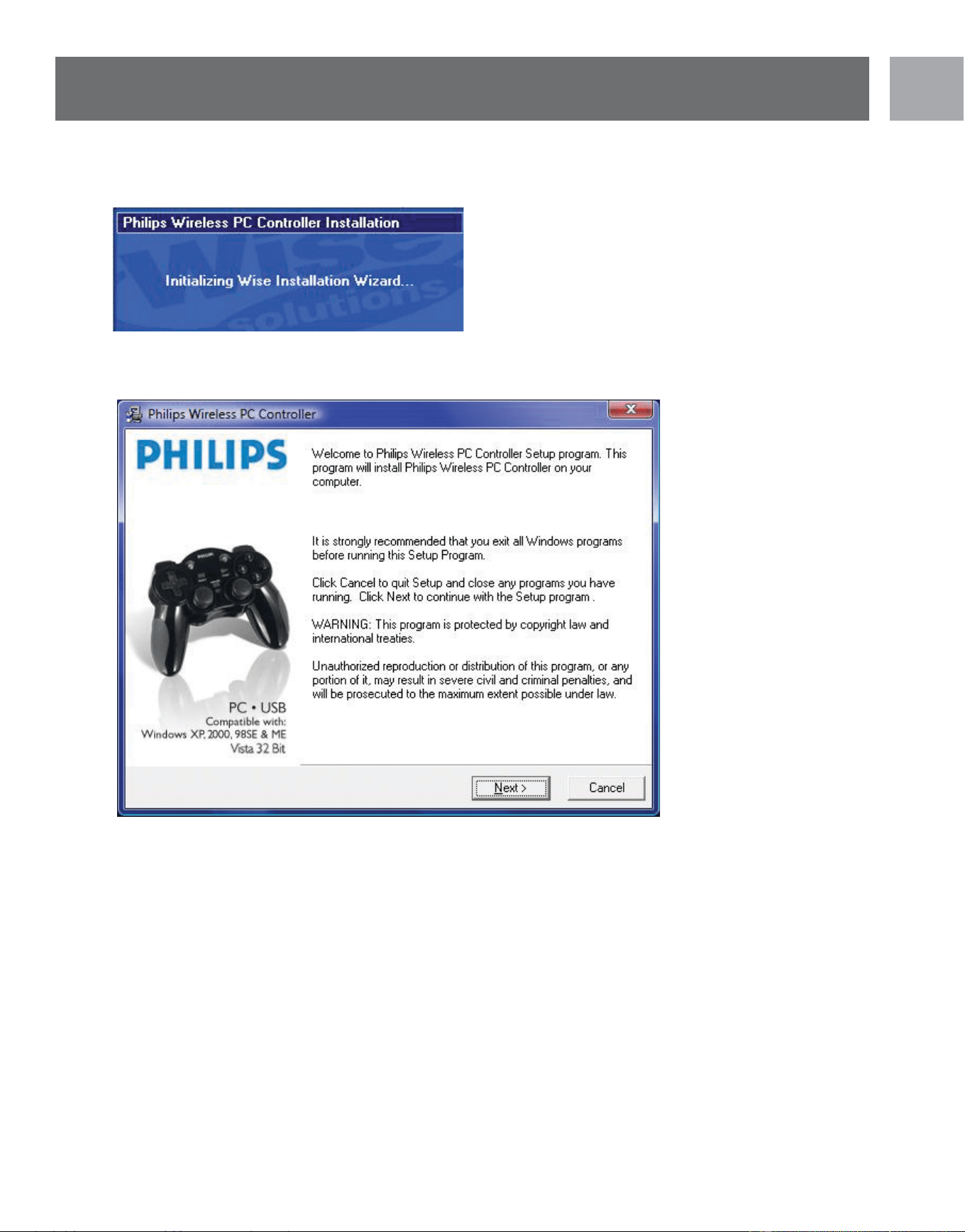
7. After reading the notice, press the ‘NEXT’ button to begin the software installation.
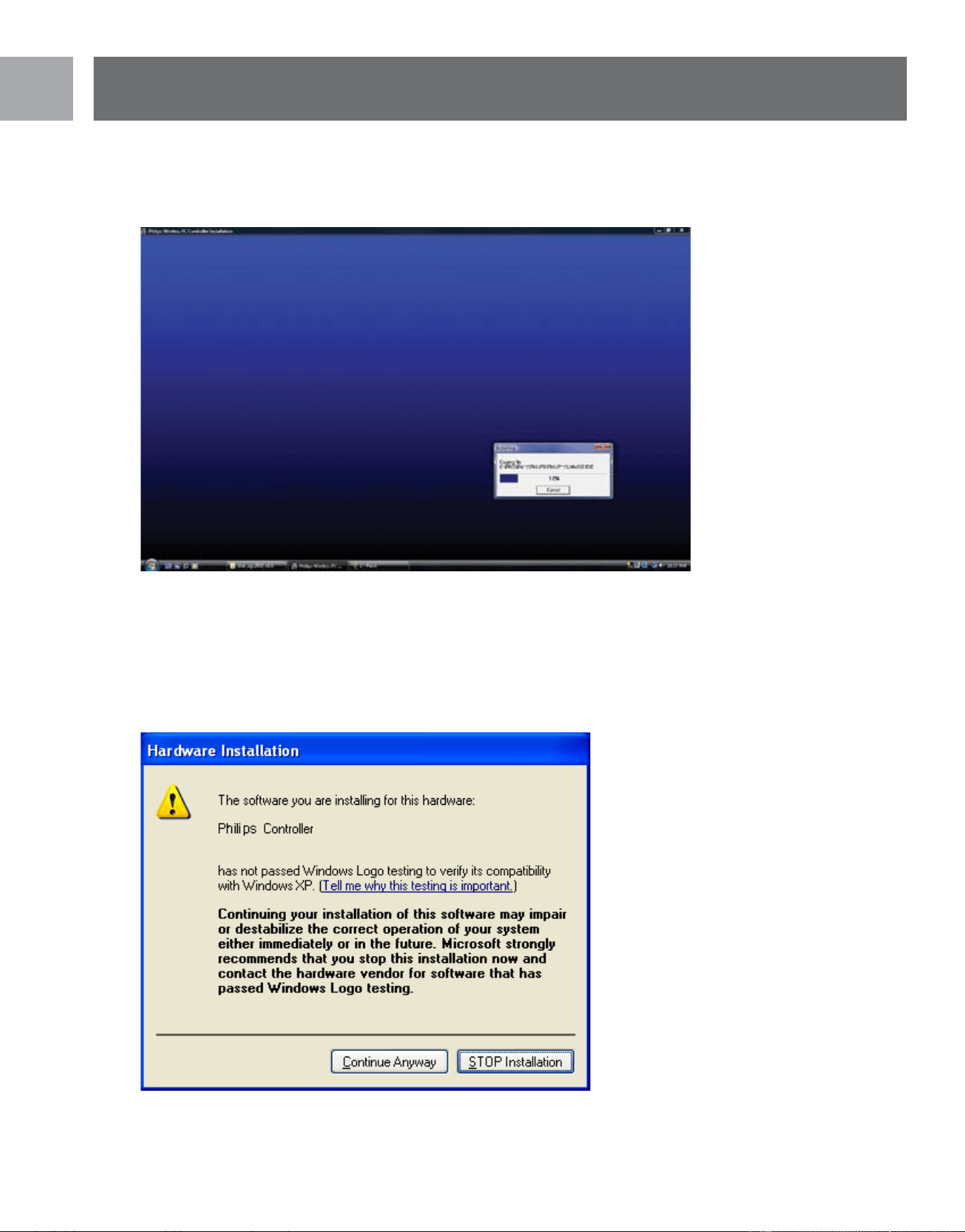
You should now see the following screen indicating that the software is being installed on your system.
Note: During installation on Windows XP and 2000 the following digital signature message may appear.
The message will read that the “Philips Controller has not passed Windows Logo testing”. Please click
“Continue Anyway” or “Yes” to continue with the installation.
Installation
Downloaded from www.ManualsFile.com manuals search engine
EN
9
EN
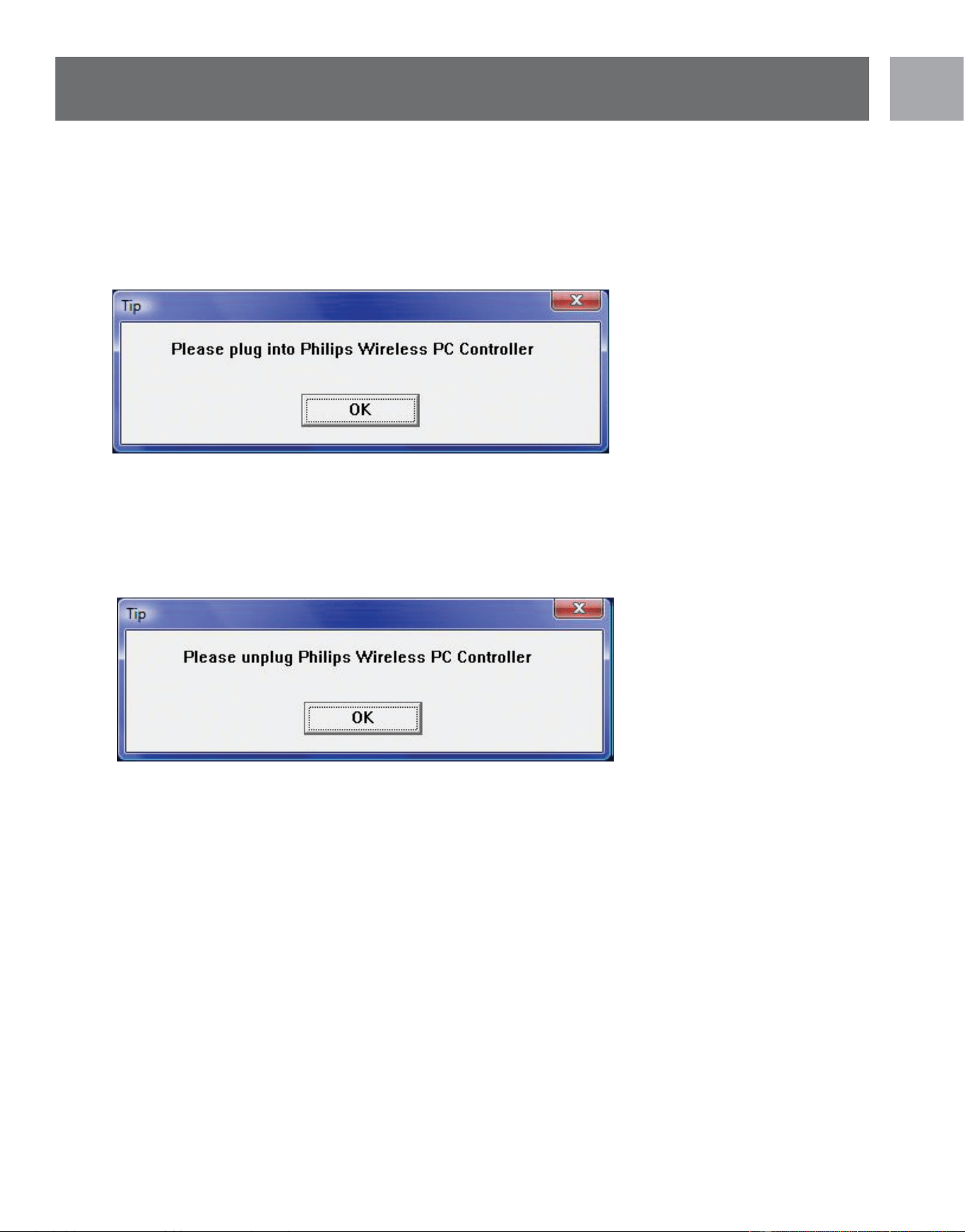
8. In Windows XP and Windows 2000, the SGC2910 Wireless PC Controller should be connected to your PC
before beginning software installation. If the SGC2910 is not connected to your PC, the following warning
message will appear. If this message appears, you must connect the SGC2910 Wireless PC Controller to the
computer. You may need to wait a few seconds for Windows to load the HID drivers. Once completed, you
can click the “OK” button.
9. When the PC detects the SGC2910 Wireless PC Controller, the following message will appear and ask you
to disconnect the controller. Once you have disconnected the SGC2910, you should click the ‘OK’ button.
If the message reappears you should wait several seconds and then click the ‘OK’ button. Some PCs require
several seconds to detect the SGC2910 as disconnected.
Installation
Downloaded from www.ManualsFile.com manuals search engine

10
EN
10. You can now click the ‘FINISH’ button at the following screen to complete the installation.
11. Once installation is complete you can reconnect the SGC2910 to your PC’s USB port. Windows may prompt
you to restart your PC. If this occurs please select ‘YES’.
Installation
Downloaded from www.ManualsFile.com manuals search engine
EN
11
EN
Installation Notes
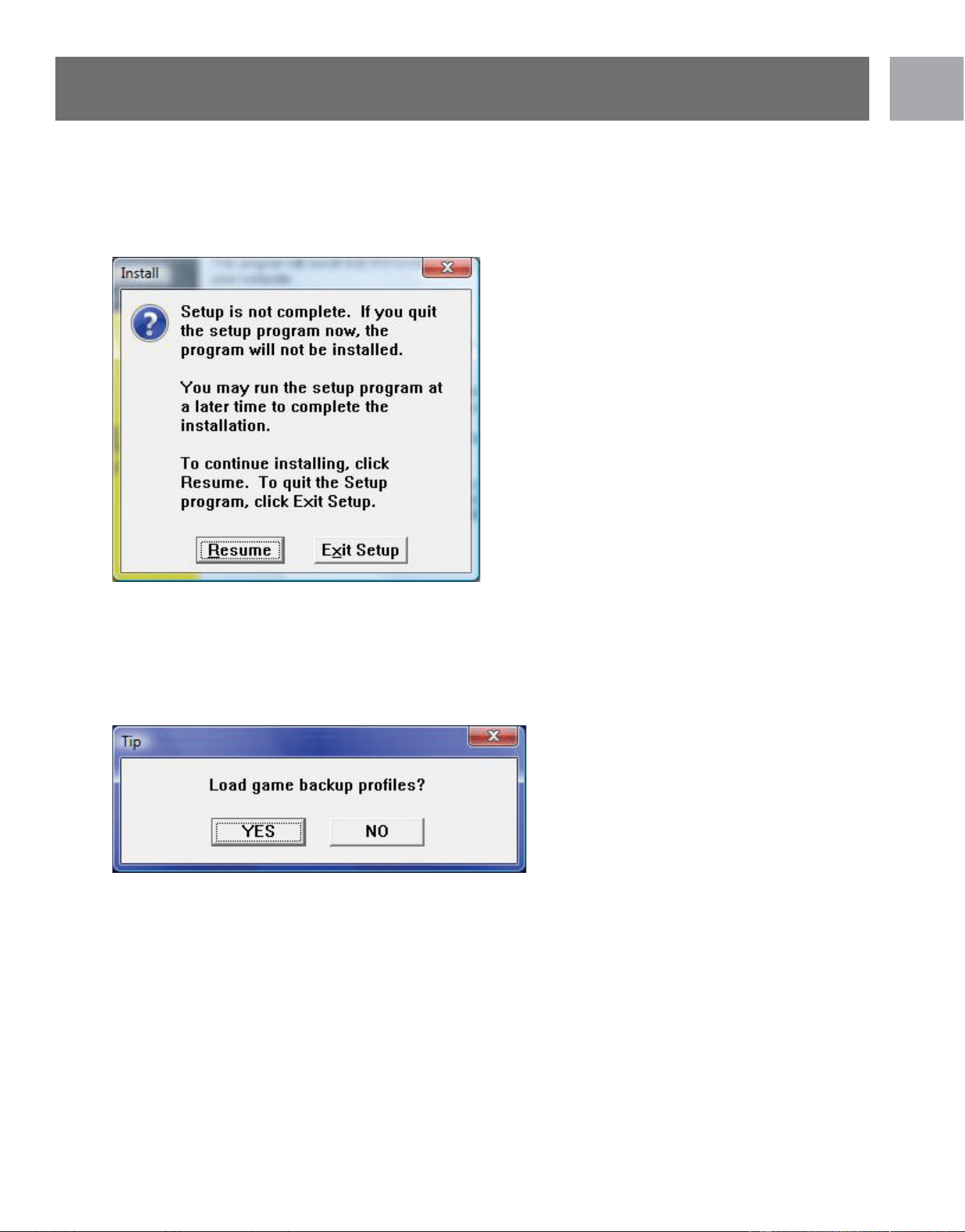
1. You can abort the software installation by clicking the ‘CANCEL’ button. The following screen would then
appear. Clicking ‘RESUME’ will resume the installation, while clicking ‘EXIT SETUP’ will quit the installation.
2. If you previously installed the SGC2910 software on your PC the following Windows prompt may appear.
This prompt will only appear if you selected to backup proles during a previous SGC2910 software
uninstall. If you click ‘Yes’ the backup proles will be automatically loaded. If you click ‘No’ the backup
proles will be deleted. This prompt will not appear during the rst installation of the SGC2910 software.
Installation
Downloaded from www.ManualsFile.com manuals search engine
12
EN
Properties
SGC2910 Wireless PC Controller Properties
Congratulations, you should have completed installing your SGC2910 Wireless PC Controller and its software.
The SGC2910 Wireless PC Controller is now ready for use. You should now test all the functions of your
SGC2910 Wireless PC Controller to ensure it is functioning properly. Verify that the SGC2910 Wireless PC
Controller is connected to your PC before continuing. Verify that your SGC2910 Wireless PC Controller is
turned on and not in sleep mode. You should press the ‘START’ button to verify it is not in sleep mode.
1. To test the SGC2910 you will need to open the Windows Control Panel and click on the Game Controllers
or Gaming Options icon.
2. In Windows 98SE, ME, and 2000 you must click on the ‘START’ button in the Windows Task Bar and select
‘SETTINGS’ and ‘CONTROL PANEL’. Now click on the Gaming Options Icon.
3. In Windows XP, you must click on the ‘START’ button in the Windows Task Bar and select ‘CONTROL
PANEL’. If Windows XP is running in Category View you select “PRINTERS and OTHER HARDWARE’ and
then ‘GAME CONTROLLERS. If running in Classic View you click on the ‘GAME CONTROLLERS’ icon.
4. Once Game Controllers/Gaming Options has opened the SGC2910 Wireless PC Controller should be listed
in the main Game Controllers/Gaming Options Window with a status of OK next to it.
5. Highlight “Philips Wireless PC Controller” by clicking on it. Then click on ‘PROPERTIES’ button to open the
SGC2910 Wireless PC Controller Properties Window.
6. The Wireless PC Controller Properties consists of four pages for testing all the functions of the Philips
Wireless PC Controller.
Properties
Downloaded from www.ManualsFile.com manuals search engine
EN
13
EN
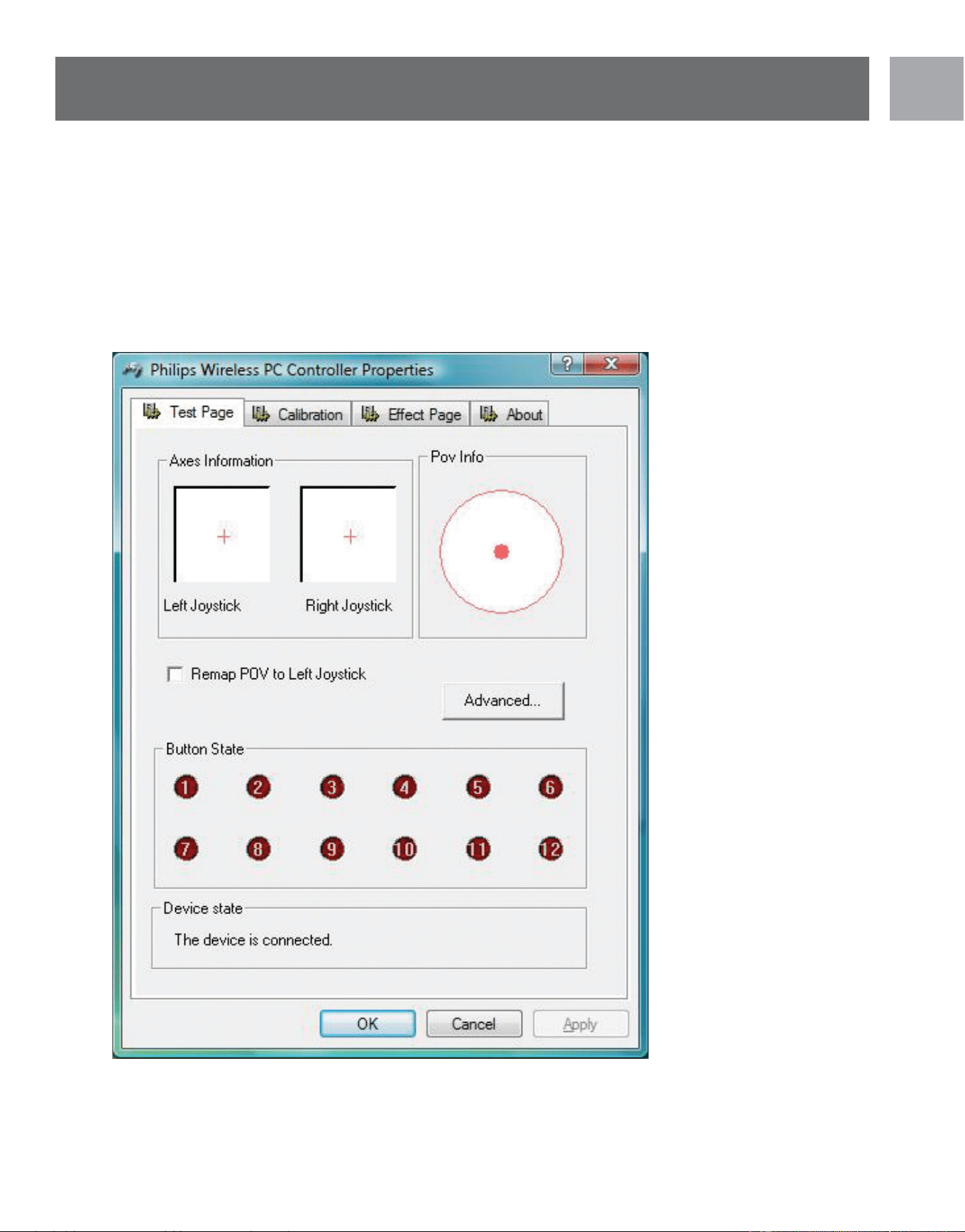
7. ‘TEST PAGE’ is used for verifying that all buttons and controls are functioning properly. Pressing a button
on the SGC2910 Wireless PC Controller will highlight that button on the ‘TEST PAGE’. Move the analog
sticks and d-pad of the Wireless PC Controller and see if they respond correctly. By default the d-pad will
function as a POV hat. Placing a check in the “Remap POV hat to Left Joystick” will set the d-pad to control
the X/Y axes. This will disable the d-pad’s default POV controls and the d-pad and left analog stick will have
the same directional movement controls. Clicking the ‘Advanced’ button will open the Prole Editor main
menu. You should take some time to familiarize yourself with how your SGC2910 controller functions. See
how the controls function in analog and digital mode.
Properties
Downloaded from www.ManualsFile.com manuals search engine
14
EN
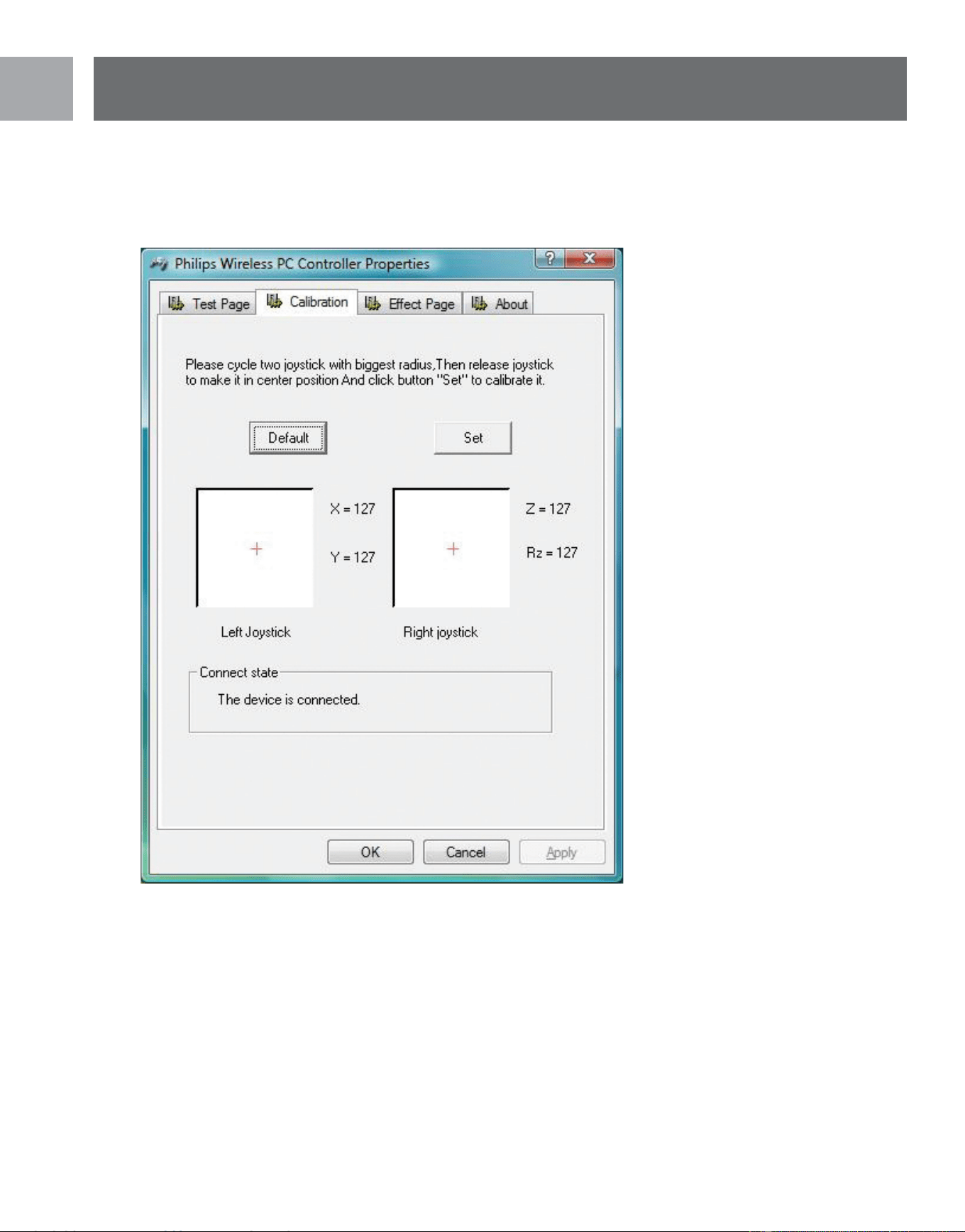
8. The ‘CALBRATION PAGE’ is used to calibrate the analog sticks. This page is only used if you experience
misaligned axes or erratic, shaky response of the analog sticks on the ‘TEST PAGE’. Click the ‘SET’ button
and follow the onscreen instructions.
Properties
Downloaded from www.ManualsFile.com manuals search engine
EN
15
EN
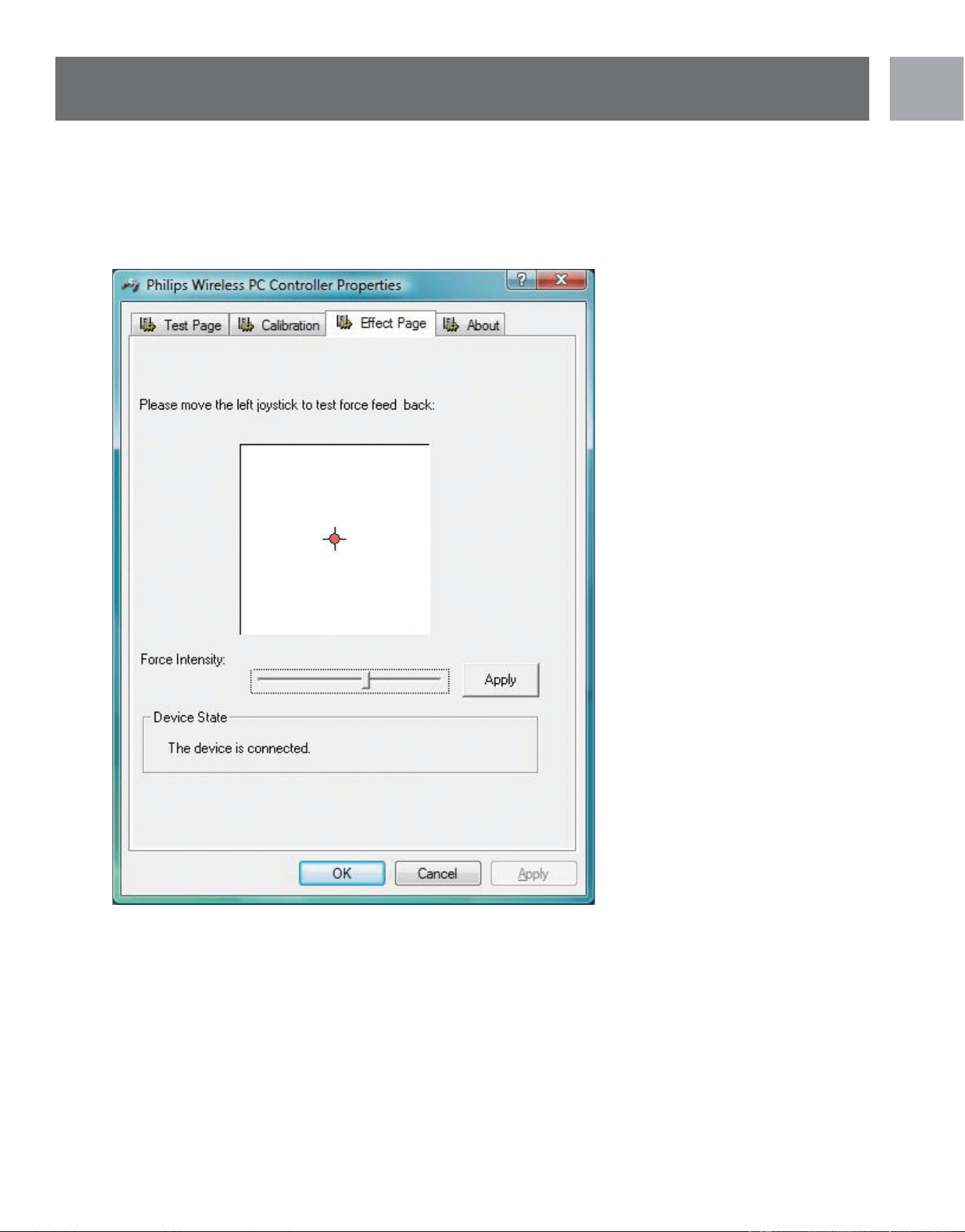
9. The ‘EFFECT PAGE’ is used to verify that the vibration motors are functioning properly. Move the left
analog stick to test the vibration of the left and right motor.
Note: The ‘ABOUT PAGE’ displays information regarding the Wireless PC Controller and the version
number of the installed driver.
10. Once all tests have been performed, you can click ‘OK’ to close SGC2910 Wireless PC Controller
properties. If your PC game supports USB game controllers you can now start playing your games. If you
have a PC game that only supports the keyboard and mouse you should look through the ‘Mouse and Key
Prole Editor Software’ section to learn how to program the SGC2910 for use with your game.
Congratulations, you have now completed familiarizing yourself with how your SGC2910 Wireless PC
Controller operates. At this time, if your PC game supports USB game controllers you can start playing your
games. If you have a PC game that only supports the keyboard and mouse you should look through the “Mouse
and Key Prole Editor Software: section to learn about this advance software tool that allows you to program
the SGC2910 Wireless PC Controller for use with these games.
Properties
Downloaded from www.ManualsFile.com manuals search engine

16
EN
Prole Editor
Mouse and Key Prole Editor Software
What is the Prole Editor Software?
The Prole Editor is a program that allows you to customize your SGC2910 Wireless PC Controller for PC
games that do not support USB game controllers. It can program keyboard keys and mouse movement to the
SGC2910, allowing you to use the controller with PC games that only support the mouse and keyboard. You can
create multiple proles for each PC game you own. This allows you to have a customized control layout for the
various PC games you play.
What is Prole?
A Prole is a set of programmed keyboard keys and control settings that determines how your SGC2910
functions in a PC game. Multiple Proles can be created and saved for use with multiple games.
Should I use the Prole Editor?
The use of the Prole Editor is optional. If a PC game supports USB game controllers then you should not use
the Prole Editor. Most PC games have an “Options/Setup” or “Controller Conguration” menu screen where
you can congure your controller’s buttons to perform commands in the game. It is recommended that you use
these menu screens if available. Users should congure the SGC2910 by using the game’s conguration screen.
The Prole Editor is for use with PC games that only support the mouse and keyboard as input devices. Typically,
game controllers could not be used with these PC games. The Prole Editor will allow you to use your SGC2910
with these PC games. You are able to assign keyboard keys, mouse buttons, and mouse movement to the
controller with the Prole Editor. This will allow you to use the SGC2910 with PC games that only support the
keyboard and mouse.
Note: Check if your PC game supports USB game controllers. If it does, then you should not use the Prole
Editor. To verify if a PC game will work with USB game controllers, you should check the recommended
specications on the game packaging, check the instruction manual, or look in the game’s “Options/Setup”
menu. You can also check the game publisher’s website or contact their technical support department.
How to program the SGC2910 with Prole Editor Software
The following section will show you how to create a prole for the SGC2910 Wireless PC Controller. Creating a
prole will allow you to use the SGC2910 with your mouse and keyboard games.
1. You can start the Prole Editor by double-clicking on the ‘SGC2910 Wireless PC Controller’ desktop
shortcut. An image of the desktop shortcut is shown below. You can also start the Prole Editor by clicking
on the “ADVANCED” button within the Test Page of the SGC2910 Wireless PC Controller Properties.
Prole Editor
Downloaded from www.ManualsFile.com manuals search engine
EN
17
EN
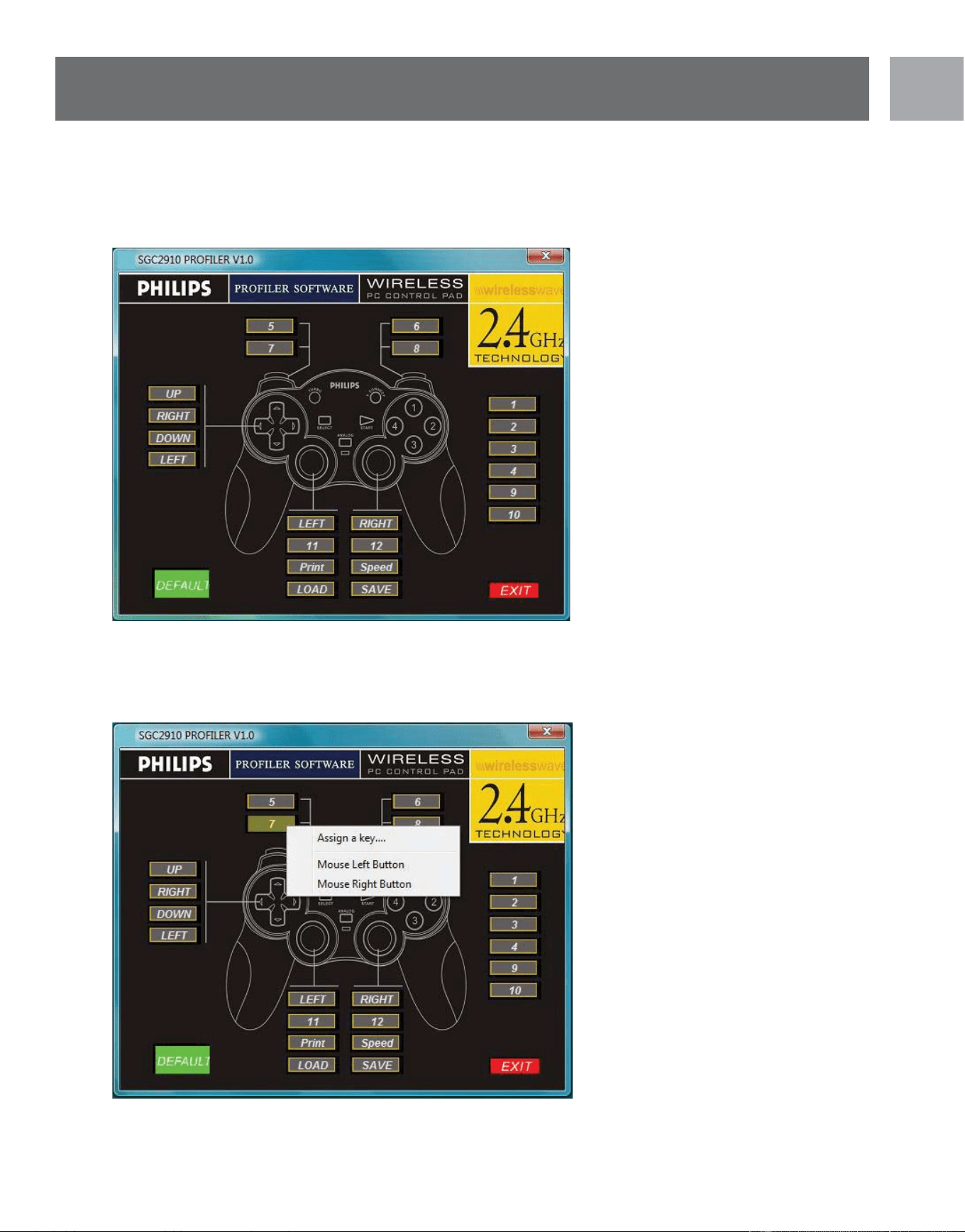
2. You should now see the main menu of the Prole Editor. In the main menu you can assign keyboard keys
and mouse movement to the SGC2910. You can assign a keyboard key to any of the SGC2910’s buttons and
d-pad directionals. You can assign mouse movement to the left or/and right analog stick.
3. To program a controller button you must click on the button label representing
the controller key. In the screen below we are programming button 7.
Prole Editor
Downloaded from www.ManualsFile.com manuals search engine
18
EN
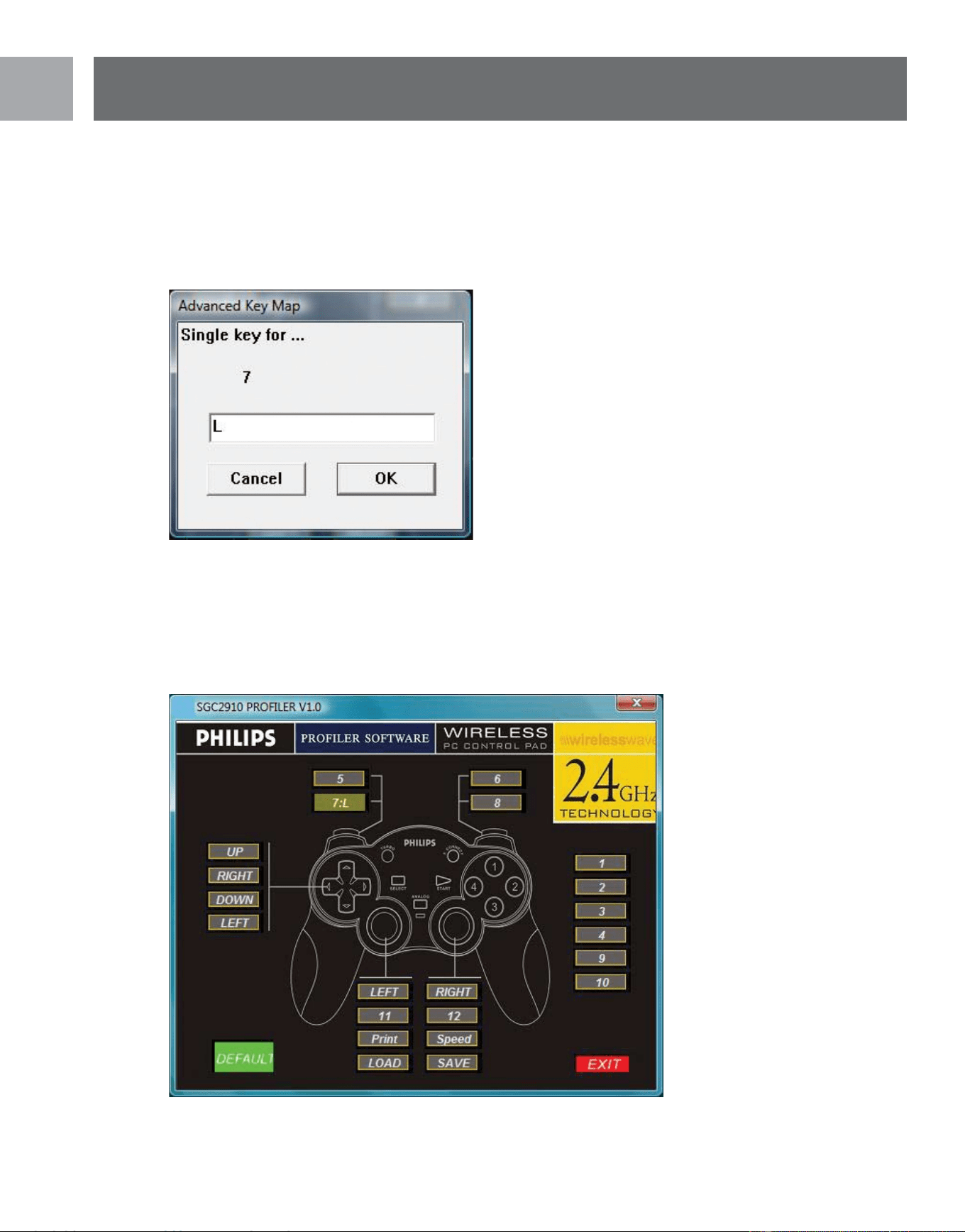
4. When you click on a button label a pop-up menu will appear with three available options; Assign a key, Mouse
Left Button, and Mouse Right Button. Each option will be described below. You select the desired option by
clicking on it.
a. Assign a key … - This option is used to assign any keyboard key to the highlighted controller button.
Once this option has been selected the Advanced Key Map window will appear.
b. Pressing any keyboard key will assign the pressed key to the selected controller button. In our example
above, the L key has been assigned to controller button 7. Pressing the ‘Cancel’ button will cancel the
programming and return you to the main menu. Clicking ‘OK’ will program the L key to controller’s button 7.
c. Once you click OK, you will be returned to the main menu. You will now see that button 7’s label has
changed to “7:L”. This indicates that pressing controller button 7 will produce the L key.
Prole Editor
Downloaded from www.ManualsFile.com manuals search engine
EN
19
EN
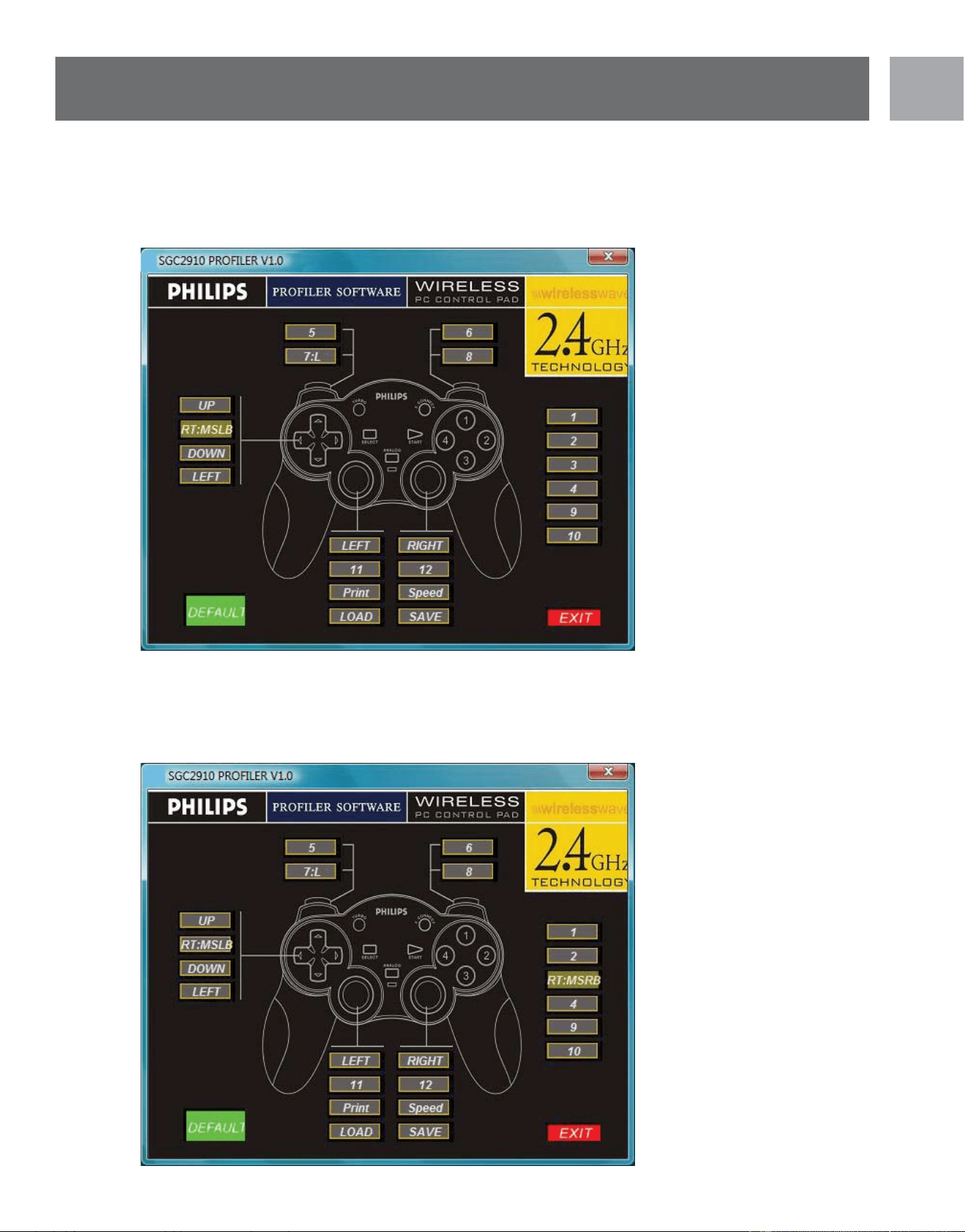
d. Mouse Left Button – This option allows you to assign the mouse’s left button to the highlighted button.
Once selected, the controller is automatically programmed. In our example below, the left mouse
button has been assigned to the d-pad right directional.
e. Mouse Right Button – This option allows you to assign the mouse’s right button to the highlighted
button. Once selected, the controller is automatically programmed. In our example below, the right
mouse button has been assigned to the controller’s button 3.
Prole Editor
Downloaded from www.ManualsFile.com manuals search engine
20
EN
f. You can repeat the steps described above to program all the buttons of the controller. Programming the
d-pad is the same as programming buttons.
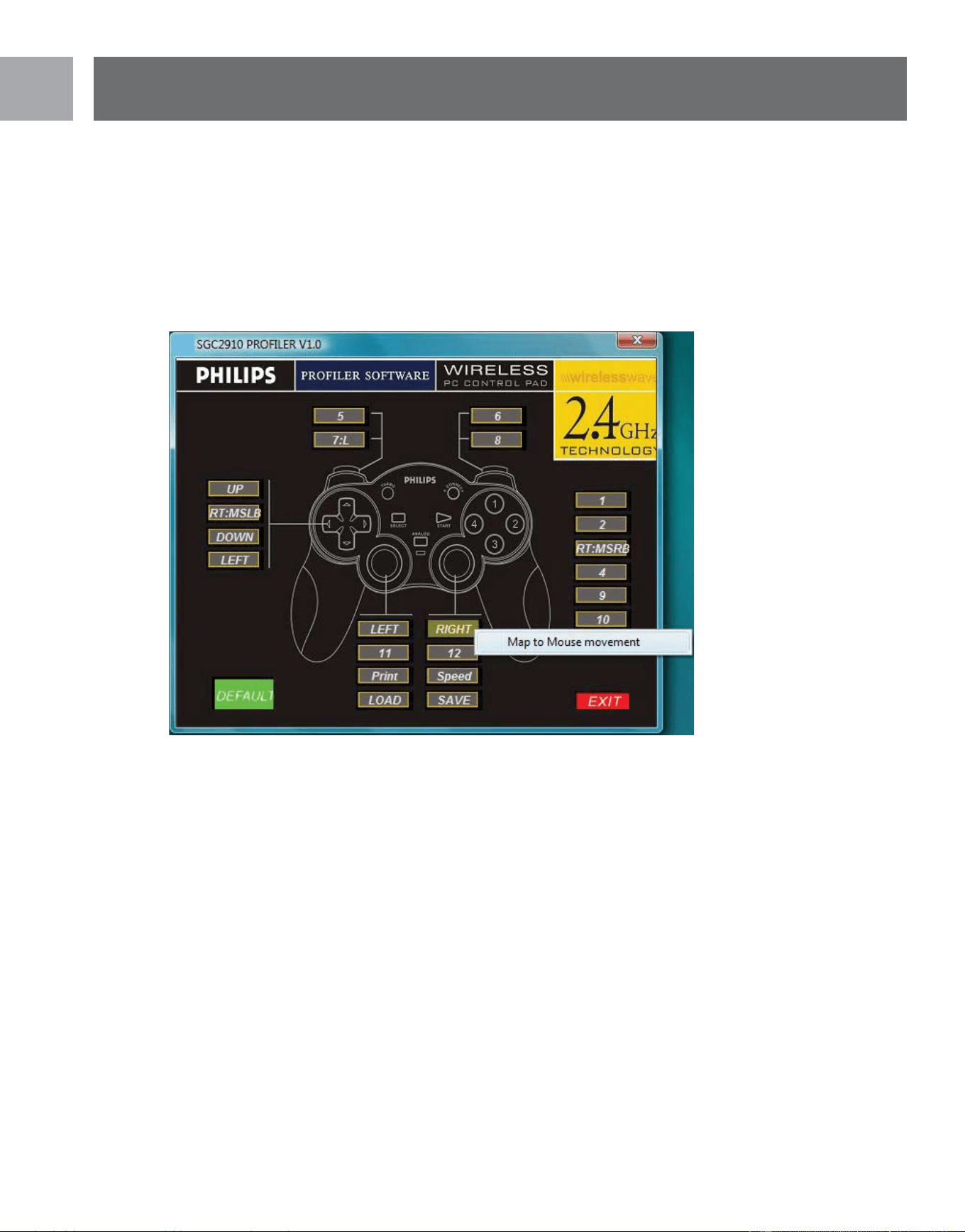
5. Mouse movement can be assigned to the Left or/and Right analog sticks. Mouse movement is the only option
that can be assigned to the analog sticks. Mouse movement can be assigned to one or both analog sticks.
a. Click on the label of the analog stick you wish to program. In our example, the right analog stick is
selected. You can then select the Map to Mouse Movement option to automatically assign mouse
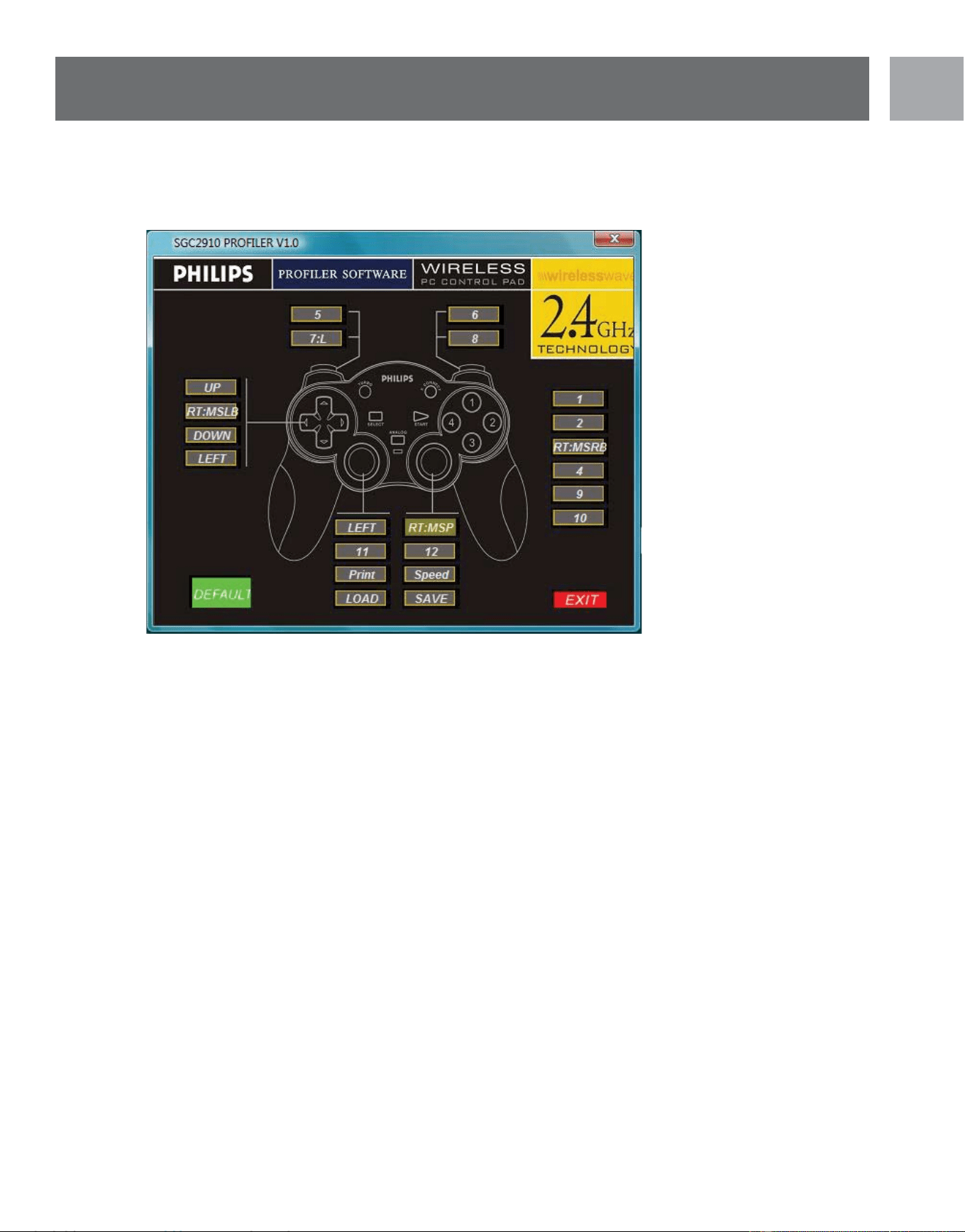
movement to the right analog stick.
Prole Editor
Downloaded from www.ManualsFile.com manuals search engine
22
EN
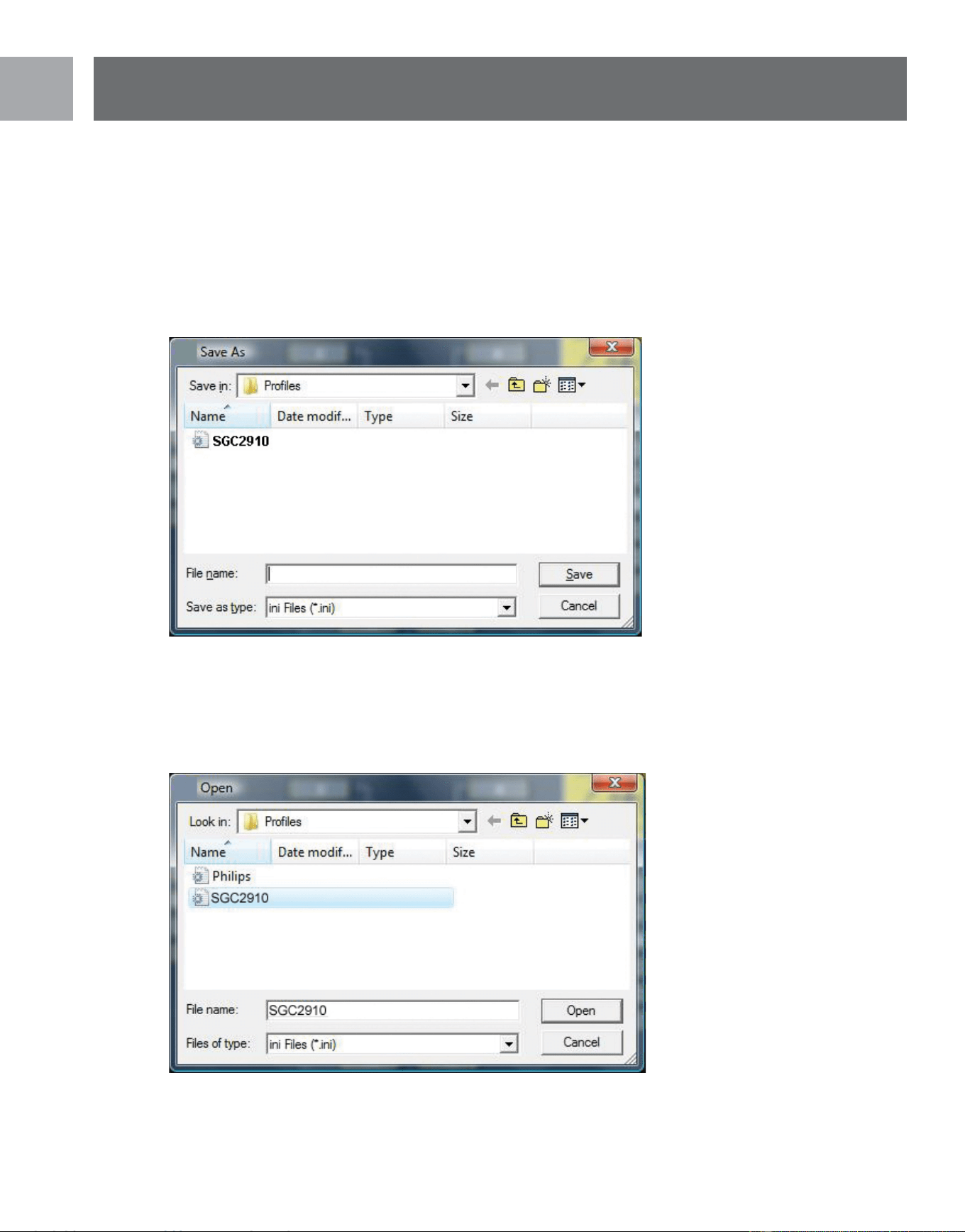
6. SAVE button – Once you have nished programming you should click the SAVE button to save your prole
for a use at a later date.
a. Clicking the SAVE button will bring up the following window. Type a prole name within the “File Name’
box and click the Save button. Note: It is recommended to save proles with the same name as the PC
game you desire to use the prole with. By default, Windows XP, 2000, ME & 98SE proles are saved to
the C:\Program Files\Philips\Wireless PC Controller\prole directory.Under Windows Vista proles are
saved to the C:\Users\Public\Public Documents\ Wireless PC Controller Proles\ Proles.
7. LOAD button – The LOAD button is used to load a previously saved prole.
a. Clicking the LOAD button will bring up the following window. Select the desired prole you wish to load
by clicking on it. Once the prole has been highlighted, you can click the open button.
Note: Before playing your game you will need to load the desired prole you created for that game. Please
verify that you have loaded the correct prole for the game you wish to play. It is always a good idea to
check the prole before you begin the PC game. This will ensure the SGC2910’s controls are congured
correctly for the game.
Prole Editor
Downloaded from www.ManualsFile.com manuals search engine
EN
23
EN
b. When you return to the main menu all the controls of the SGC2910 will be assigned according to the
loaded prole.
8. DEFAULT button – Clicking on the DEFAULT button will reset the SGC2910 controls to the default
setting. The default setting is recommended for use with PC games that support USB game controllers.
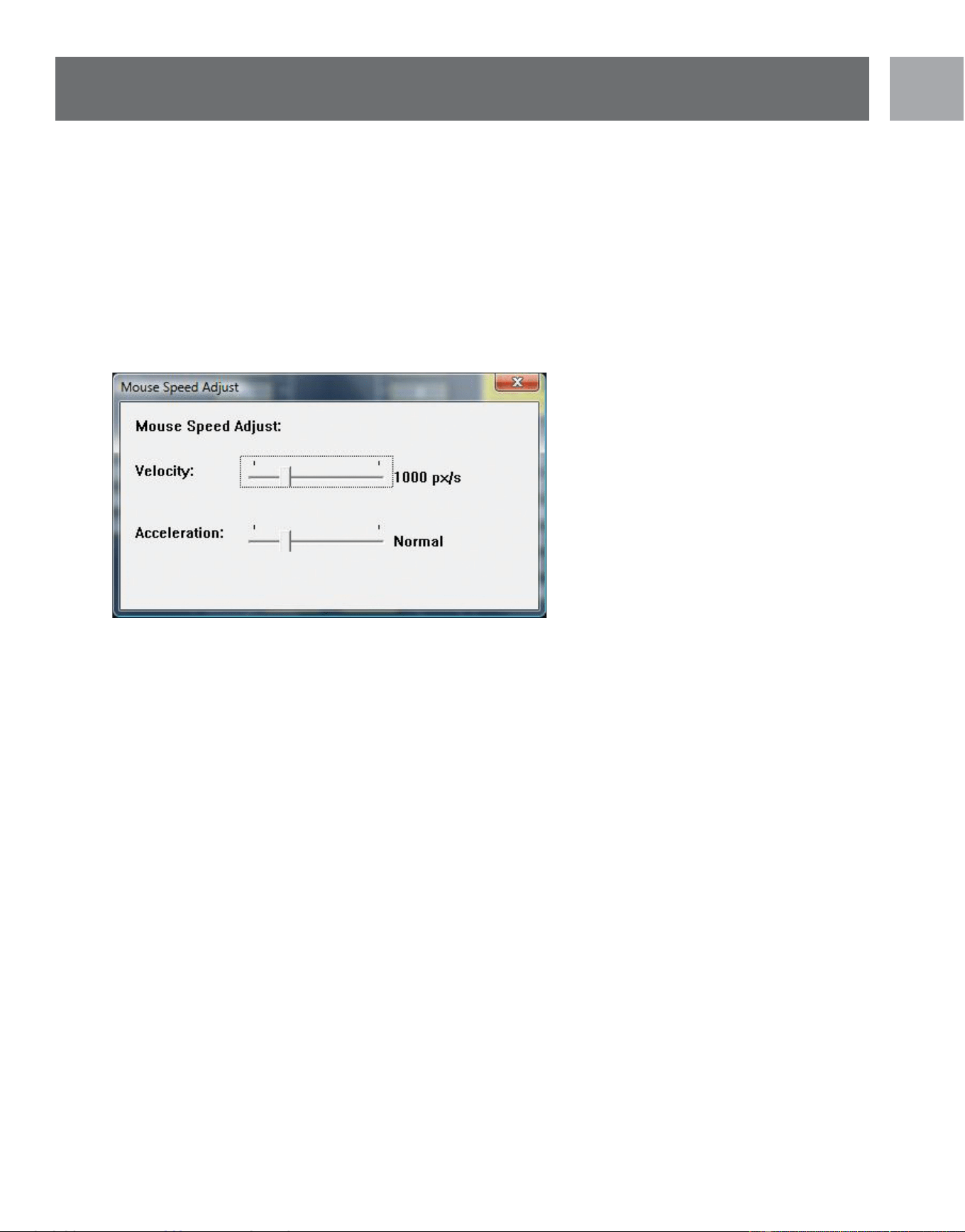
9. SPEED button – This button will open the Mouse Speed Adjust sub-menu as shown below. This sub-menu
is used to adjust the velocity and acceleration of the emulated mouse movement. These two options allow
you to improve the emulated mouse movement of the analog sticks. In some PC games, the emulated
mouse movement may move to rapidly or slowly. You may also nd precision to be poor. Adjusting these
two options will improve the emulated mouse movement and provide a better game play experience.
a. Velocity – You can adjust velocity by dragging the slider with your mouse’s left button. The velocity
setting adjusts how fast the mouse cursor will move when you use the SGC2910’s analog stick. This
setting adjusts the number of pixels the mouse cursor will move per second. The left of the slider will
cause the velocity to be slower, while the right side of the slider will increase the velocity.
b. Acceleration – You can adjust acceleration by dragging the slider with your mouse’s left button. The
acceleration setting adjusts the sensitivity of the SGC2910’s analog stick. The left of the slider will cause
the acceleration to be slower, while the right side of the slider will increase the acceleration.
Note: It is recommended that you adjust the velocity and acceleration to see what changes it causes to the
emulated mouse movement.
10. PRINT button – This button allows you to print the main menu of the Prole Editor for reference during
gameplay. A printout will provide you with a reference of the assigned keys.
Congratulations, you now know all the features and functions of the prole editor software. You are now ready
to create your own custom prole for your PC games. Assignments and programming are automatically loaded
as the changes are made. Once you have completed your prole you should save it for a later date. You can then
close the Prole Editor as the created prole is automatically loaded.
Note: If you want to test your prole it is recommended that you simply use your text editor or Microsoft
Word
®
. Pressing the controller’s buttons in these programs and PC games will output the assigned
keyboard keys. Give it a try. Move the analog stick that you assigned mouse movement to. Your mouse
cursor should automatically move.
Prole Editor
Downloaded from www.ManualsFile.com manuals search engine

24
EN
When the SGC2910 is in digital mode the d-pad will control mouse movement and lose any controller buttons
that are programmed to it. It is recommended that the SGC2910 be set to analog mode when you desire to use
the Prole Editor.
Uninstall
Software uninstall for users of Windows
®
98SE, ME, 2000, XP
PC Controller software can be uninstalled if desired. There are two procedures for uninstalling the Wireless
PC Controller driver software. Both procedures are listed below. Both procedures will remove the SGC2910
software from your system.
Uninstall through Add/Remove Programs
1. You can use the “Add/Remove Programs” application included in your Windows operating system to uninstall
the SGC2910 Wireless PC Controller software.
2. In Windows 98SE, ME, 2000, and XP you must click on the ‘START’ button in the Windows Task Bar and
select ‘SETTINGS’ and ‘CONTROL PANEL’. Now click on the Add/Remove Programs icon.
3. Once Add/Remove Programs has opened you should scroll down to ‘SGC2910 Wireless PC Controller’ and
highlight it by clicking on it. Now click on the ‘Remove’ button to open ‘SGC2910 Wireless PC Controller
Uninstall Program’.
4. Skip to step 6 in the UNINSTALL through WIRELESS PC CONTROLLER SOFTWARE section below.
Uninstall through Wireless PC Controller Software
1. During installation of the SGC2910 software a folder was created in your system’s program les directory. The
default location of the folder is “C:\Program Files\Philips\SGC2910 Wireless PC Controller”. A shortcut to the
Philips Wireless PC Controller folder was also added to your programs folder in the “Start Menu”.
2. To uninstall Wireless PC Controller’s software, Click on the ‘START’ button in the Windows Task Bar.
3. Select the “PROGRAMS” folder on the “START MENU”.
4. Scroll down to the “Philips” folder, then select the ‘SGC2910 Wireless PC Controller’ folder.
5. Select ‘uninstall’. The ‘SGC2910 Wireless PC Controller Uninstaller’ will start.
6. You have three selections available. Automatic will automatically uninstall the Wireless PC Controller
software. Custom will allow you to choose which modications to make during uninstall. Repair will allow
you to reinstall the software if original les are corrupted.
Note: Custom uninstall is not recommended for the novice user.
7. Select ‘Automatic’ and then click ‘NEXT’.
8. Click ‘FINISH’ to begin the uninstall. Follow the onscreen prompts to nish the uninstall. During the uninstall
process, you may be prompted to disconnect your controller. If this occurs, disconnect the controller and
press the ‘OK’ button. If the message reappears, you should wait several seconds and then click the ‘OK’
button. Some PCs require several seconds to detect the SGC2910 as disconnected.
9. During the uninstall process a Windows prompt will ask, “Leave game proles saved on your system?” If
you click the ‘Yes’ button the proles you created will be backed up in “C:\Program Files\Philips\SGC2910
Game Backup Proles” folder. If you click the ‘No’ button then all your created proles will be deleted. It is
recommended that you click the ‘Yes’ button if you wish to reinstall the SGC2910 software or are upgrading
the SGC2910 software to a newer version. This option will allow you to backup your created proles so they
can be loaded when the SGC2910 is reinstalled or upgraded.
10. Once uninstall has nished, the ‘SGC2910 Wireless PC Controller Uninstall Program’ will automatically close.
11. Once installation has completed, Windows may prompt you to restart your PC. If this occurs please select ‘YES’.
Uninstall
Downloaded from www.ManualsFile.com manuals search engine
Installation
Installation procedure for users of Windows Vista
To properly install your SGC2910 Wireless PC Controller, the controller must be connected to your USB port
rst. Once Windows Vista has properly loaded the HID (human interface device) driver for the SGC2910 you
can begin software installation. Carefully follow the steps below.
Controller installation for users of Vista
1. Pull the retracting extension cable to desired play length.
2. With your computer turned on and Vista running, connect the SGC2910 Wireless PC Controller’s USB
connector to one of the USB ports on your PC. The SGC2910 should be connected to a USB port directly
on the PC.
3. Vista will automatically detect the SGC2910 Wireless PC controller upon connection. It will be detected
as a pop up window on your system tray on the lower right of your screen. The window will say
INSTALLING DEVICE DRIVER SOFTWARE. Once install is complete, the following window appears “USB
HUMAN INTERFACE DEVICE. Device driver software installed successfully. The controller installation is
now complete and you can proceed to the Vista instruction section of your manual.
Software installation for users of Vista
Philips recommends installing the software under an administrator account for an easier installation procedure.
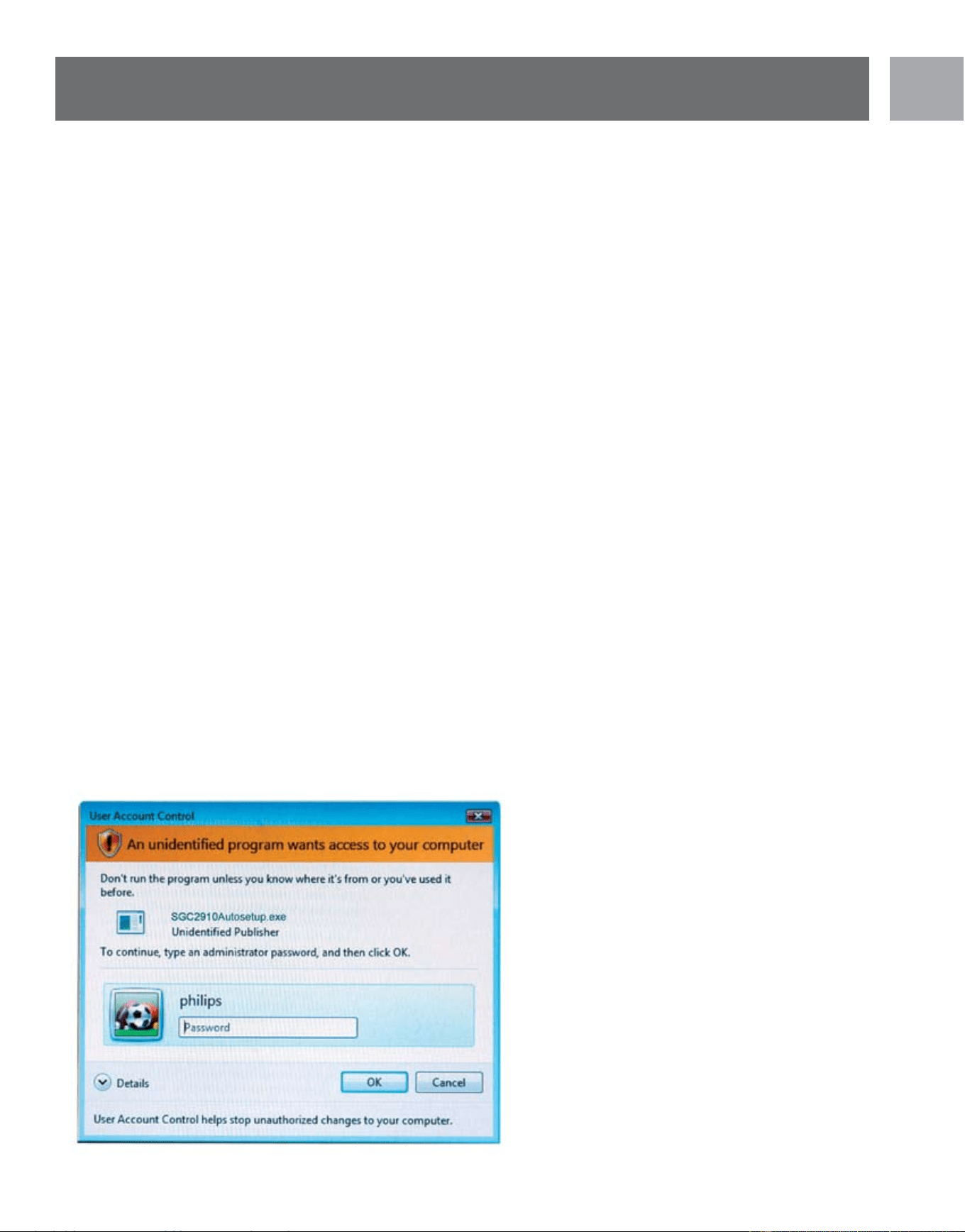
Note: If using a standard user account you will need to enter an administrator’s password in the text box of
the window below to install the controller software due to the limited privileges of your standard user account.
Once you enter the password click on the OK button and jump to step 5 of the Administrator user account
procedure and follow the remaining steps.
EN
Vista 32 Addendum
25
EN
Downloaded from www.ManualsFile.com manuals search engine
1. The SGC2910 Wireless PC Controller should be connected to your PC before beginning software
installation under Windows Vista.
2. Close down all programs that are currently running on your computer.
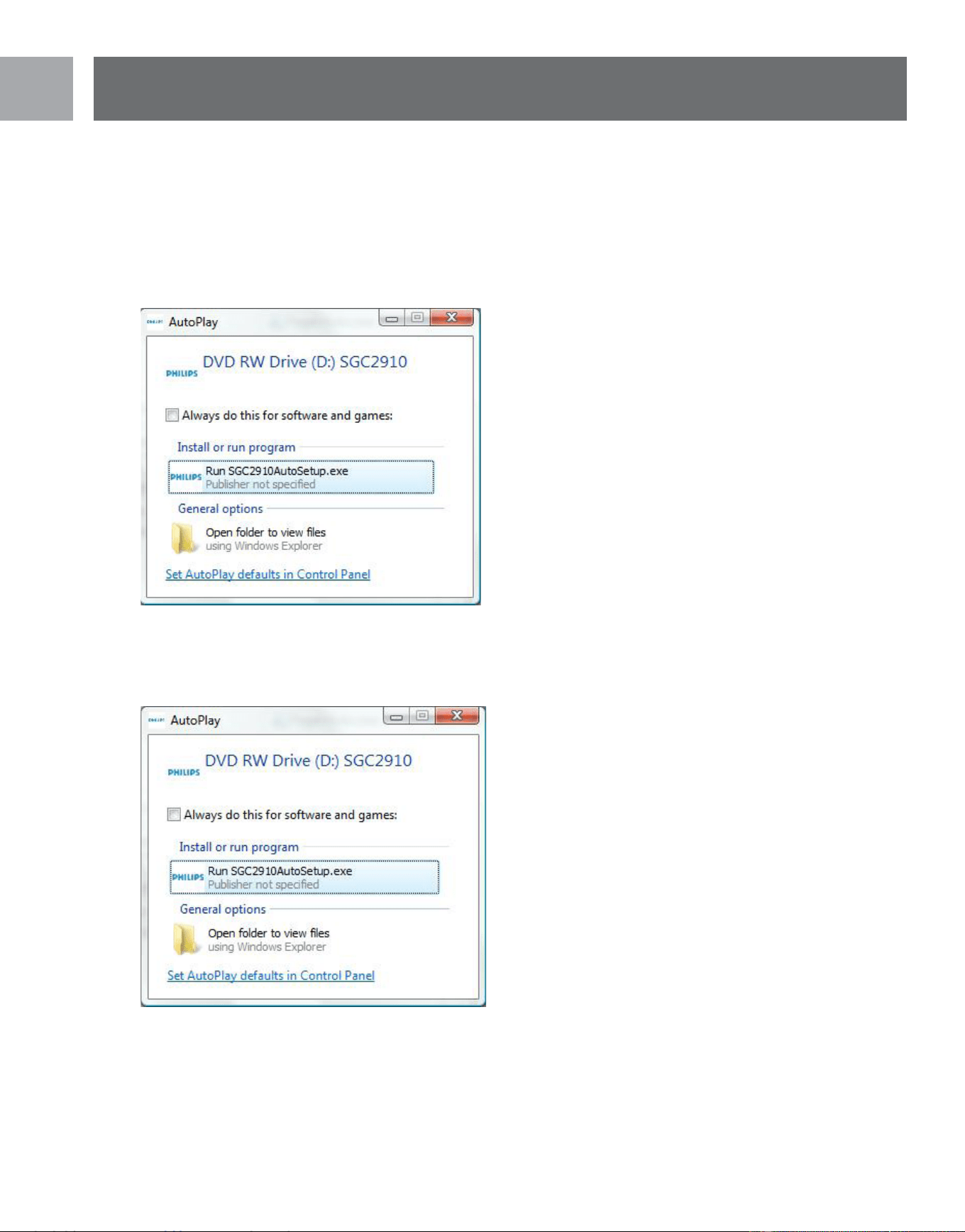
3. Place the SGC2910 software CD into your CD-ROM drive. If you have auto play enabled, the auto play
window will be displayed shortly after inserting the CD into your drive. You may double click on ‘Setup for
Philips Wireless PC Controller.exe’ to begin the software installation.
If auto play is not enabled, click on the Start button, select Computer. Double click on the CD drive where
the SGC2910 CD is located. This will launch the installer. Follow the on screen instructions.
26
EN
Vista 32 Addendum
Downloaded from www.ManualsFile.com manuals search engine
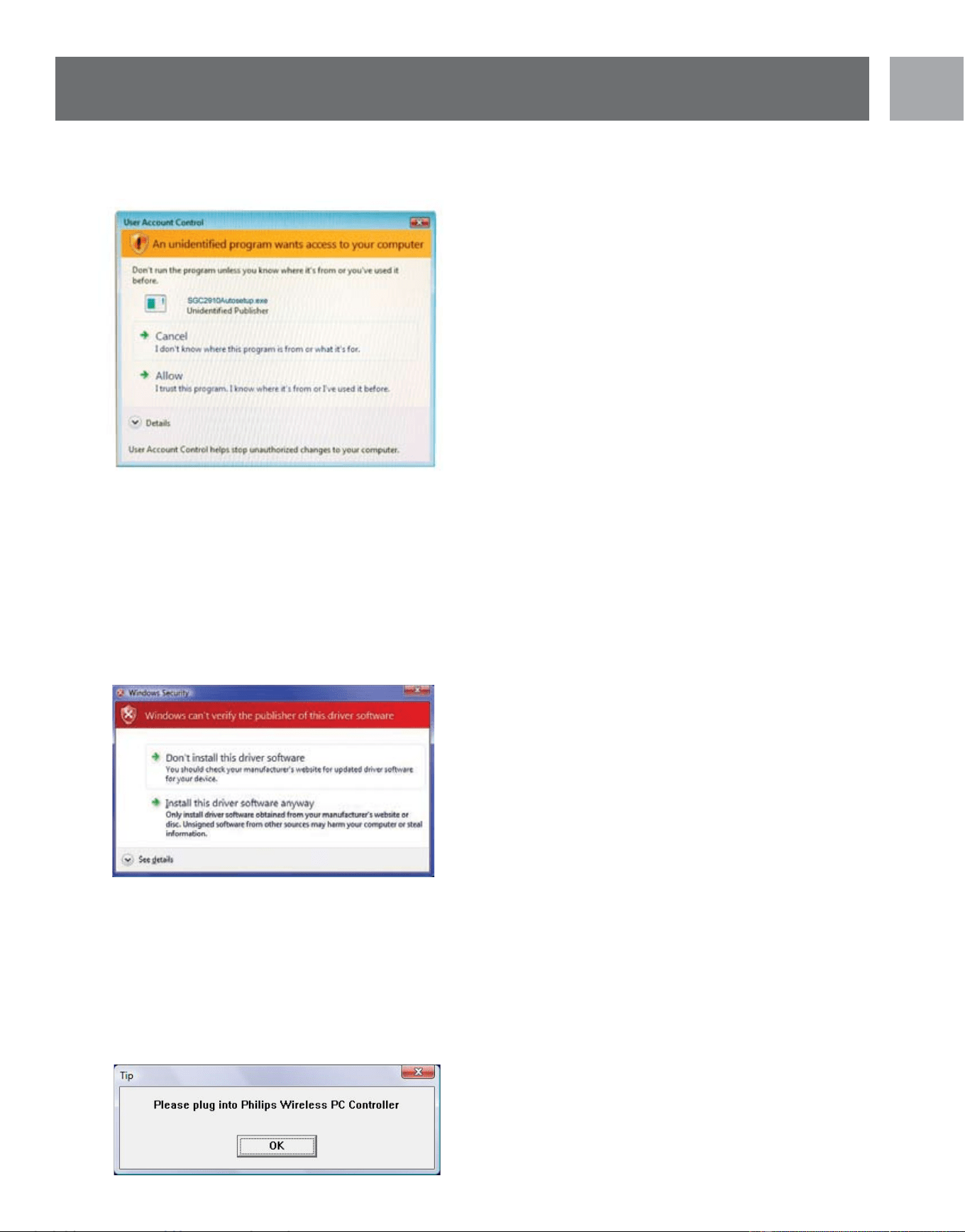
4. You will see the screen below. Click on Allow.
5. Once initialization has nished, the SGC2910 Wireless PC Controller’ Install Wizard screen will appear.
6. After reading the notice, press the ‘NEXT’ button to begin the software installation. You should now see
the screen indicating that the software is being installed on your system.
7. Note: During installation of Windows Vista the following Windows security message will appear:
“Windows can’t verify the publisher of this driver software”. Please click “Install this driver software
anyway”.
8. In Windows Vista the SGC2910 Wireless PC Controller should be connected to your Computer before
beginning software installation. If the SGC2910 is not connected to your PC, the following message will
appear “Please Plug into the Wireless PC Controller”. If this message appears, plug the controller in to your
computer. You may need to wait a few seconds for Windows to load the HID drivers. Once completed,
you can click the “OK” button.
EN
Vista 32 Addendum
27
EN
Downloaded from www.ManualsFile.com manuals search engine
28
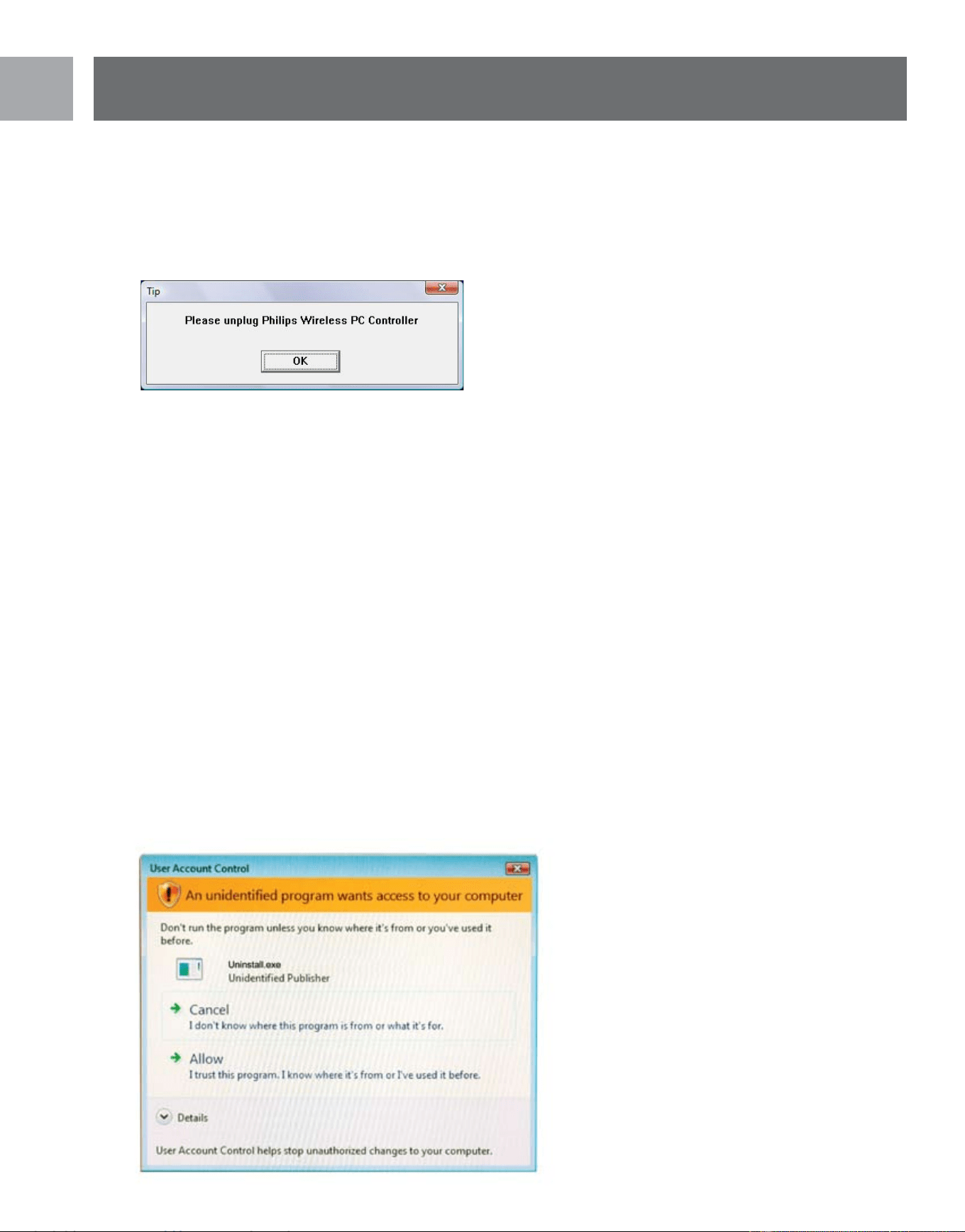
9. When the PC detects the SGC2910 Wireless PC Controller, the following message will appear and ask you
to disconnect the controller. Once you have disconnected the SGC2910, you should click the ‘OK’ button.
If the message reappears you should wait several seconds and then click the ‘OK’ button. Some PCs require
several seconds to detect the SGC2910 as disconnected. Screen will say “Please unplug Philips Wireless PC
Controller”.
10. You can now click the ‘FINISH’ button at the following screen to complete the installation.
11. Once installation is complete you can reconnect the SGC2910 to your PCs USB port.
Uninstall
Software uninstall for users of Windows Vista
Note: We recommend that you use un-install under an Administrator Account for the simplest process. There
are two procedures for uninstalling the the Wireless PC Controller driver software. Both procedures are listed
below. Both procedures will remove the SGC2910 software from your system.
Uninstall through or change a program panel.
1. Click the start button in the Windows task bar and select Control Panel. Click on uninstall a program. If
viewed in Classic View mode, click on the Programs and Features icon.
2. Click on Philips Wireless PC Controller to highlight it. Click on uninstall / change button and the following
window appears.
EN
Vista 32 Addendum
Downloaded from www.ManualsFile.com manuals search engine
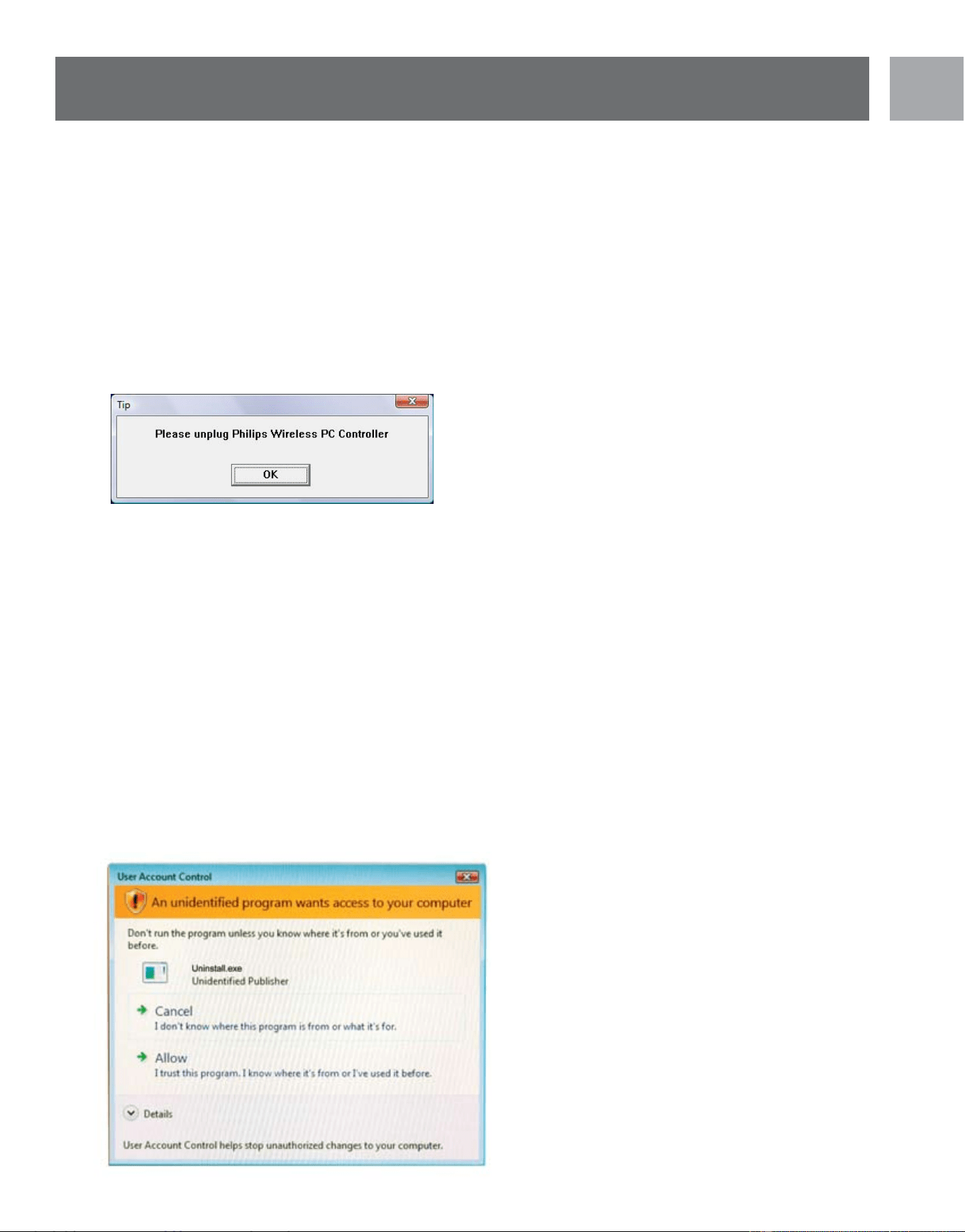
3. Click on allow button to launch the uninstaller.
4. You have three selections available. Automatic will automatically uninstall the the Wireless PC Controller
software. Custom will allow you to choose which modications to make during uninstall. Repair will allow
you to reinstall the software if original les are corrupted. Note: Custom uninstall is not recommended
for the novice user.
5. Select ‘Automatic” and then click ‘Next’.
6. Click ‘FINISH’ to begin the uninstall. Follow the onscreen prompts to nish the uninstall. During the
uninstall process, you may be prompted to disconnect your controller. If this occurs, disconnect the
controller and press the ‘OK’ button. If the message reappears, you should wait several seconds and then
click the ‘OK’ button. Some PCs require several seconds to detect the SGC2910 as disconnected.
7. During the uninstall process a Windows prompt will ask, “Leave game proles saved on your system?” If
you click the ‘Yes” button the proles you created will be backed up in “C:/Users/Public/Public Documents/
SGC2910 Proles/backup proles.” folder. If you click the ‘No” button then all your created proles will be
deleted. It is recommended that you click the ‘Yes” button if you wish to reinstall the SGC2910 software
or are upgrading the SGC2910 software to a newer version. This option will allow you to backup your
created proles so they can be loaded when the SGC2910 is reinstalled or upgraded.
8. Once uninstall has nished, the ‘SGC2910 Wireless PC Controller Uninstall Program’ will automatically
close.
Uninstall thru the SGC2910 Software
1. Click on Start button. Click on all Programs. Click on Philips folder, click on SGC2910 folder and select
Uninstall and the following screen appears.
EN
Vista 32 Addendum
29
EN
Downloaded from www.ManualsFile.com manuals search engine
30
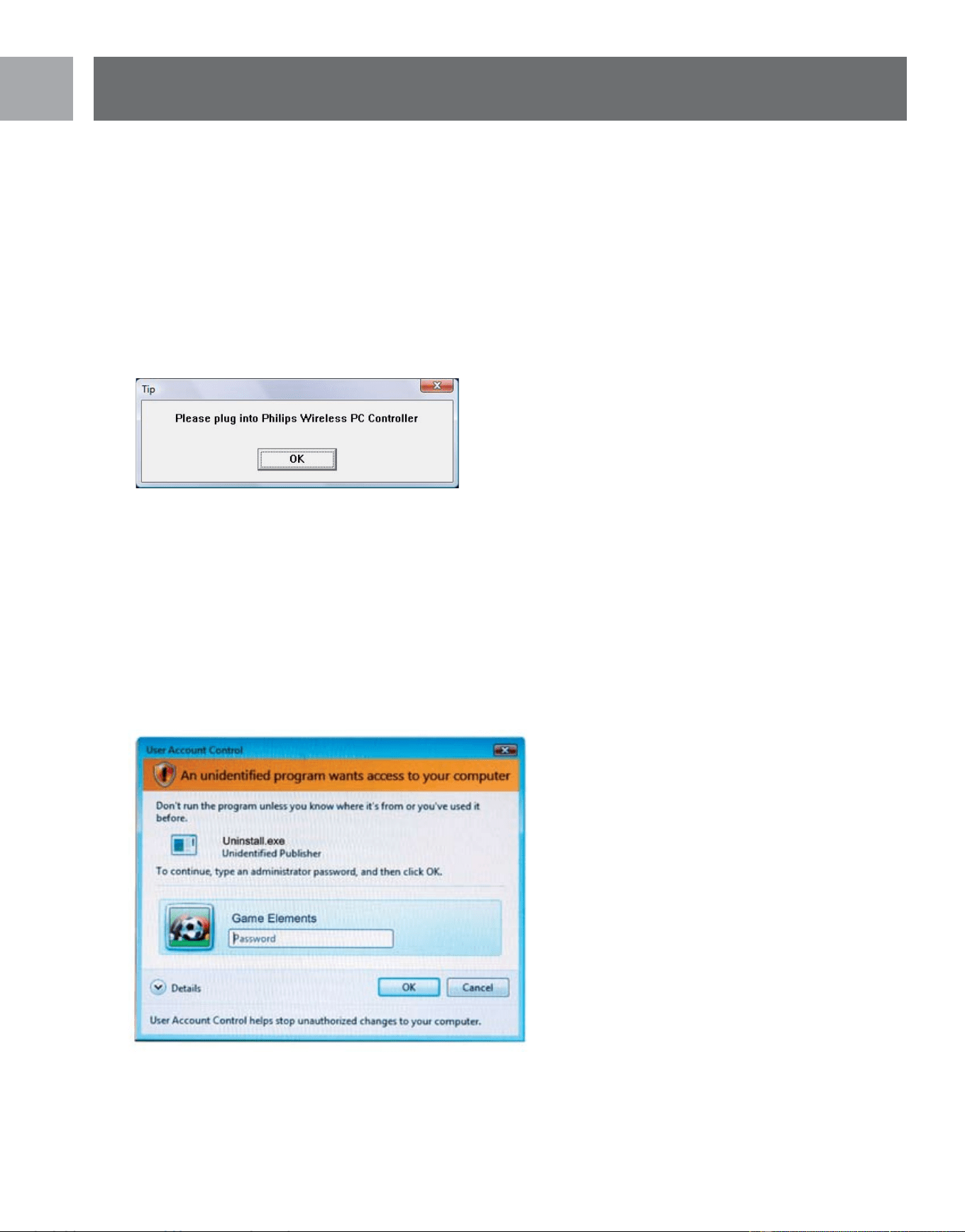
2. Click on Allow button. The SGC2910 Wireless PC Controller Uninstaller’ will start.
3. You have three selections available. Automatic will automatically uninstall the the Wireless PC Controller
software. Custom will allow you to choose which modications to make during uninstall. Repair will allow
you to reinstall the software if original les are corrupted. Note: Custom uninstall is not recommended for
the novice user.
4. Select ‘Automatic’ and then click ‘NEXT’.
5. Click ‘FINISH’ to begin the uninstall. Follow the onscreen prompts to nish the uninstall. During the
uninstall process, you may be prompted to disconnect your controller.
If this occurs, disconnect the controller and press the ‘OK’ button. If the message reappears, you should wait
several seconds and then click the ‘OK’ button. Some PCs require several seconds to detect the SGC2910
as disconnected. Note: For standard user accounts you can perform the uninstall process according to the
two previous procedures. You will be required to enter an administrators password in the text box of the
window below if it appears during the uninstall.
EN
Vista 32 Addendum
Downloaded from www.ManualsFile.com manuals search engine

EN
31
EN
Troubleshooting
Windows Troubleshooting
Below are our basic troubleshooting tips. A more detailed F.A.Q. is included on the SGC2910 Software’s main
directory. The F.A.Q. is in PDF format.
• Make sure the Wireless PC Controller is plugged rmly into your computer’s USB port. Try connecting the
Wireless PC Controller to a different USB port. Connect the Wireless PC Controller to a USB port on your
computer. Do not connect through external hubs.
• Make sure you have properly installed the Wireless PC Controller through your operating system. Open the
Gaming Options/Game Controllers applet to verify that the Wireless PC Controller is installed properly and
operating correctly. If the SGC2910 is not listed, try disconnecting the controller and plugging it into another
USB port. You should also try uninstalling the SGC2910 software and then reinstalling. You must follow the
steps correctly to ensure the software is installed properly.
• Make sure you have installed the Wireless PC Controller software. Vibration feedback and Prole Editor will
not work unless the SGC2910 software is installed on your PC.
• Make sure the Wireless connection cable is fully extended before connecting the SGC2910 to your PC.
• Do not extend/retract the connection cable while connected to a USB port as this can cause your software
title to lose connection with the Wireless PC Controller. If this occurs, wait several seconds and the Wireless
PC Controller should automatically reconnect. If this doesn’t work try unplugging the USB connector and
then reconnecting to the same USB port. If this doesn’t work, you will need to exit the PC game and restart
it. If this occurs while you are using the SGC2910 with a game prole, the loaded prole will be lost. You
would then need to exit the PC game, restart the SGC2910 Prole Editor and reload the prole. You can then
restart your PC game.
• If the software title stops responding to the Wireless PC Controller, this indicates that the connection may
have been lost due to extending or retracting the connection cable. Wait several seconds and the Wireless
PC Controller should automatically reconnect. If this doesn’t work try unplugging the USB connector and
then reconnecting to the same USB port.
• If your software title freezes or hangs up due to extending or retracting the cable, you will need to try the following:
a. Wait several seconds and the Wireless PC Controller should automatically reconnect. If this doesn’t
work try unplugging the USB connector and then reconnecting to the same USB port.
b. If the above tip does not work, then you will have to exit the software title. Press Ctrl and Alt keys
down at the same time and then press the Del key. Try closing down the software title. If this does not
work you will need to restart your PC.
• The Wireless PC Controller will only vibrate in software titles that support vibration. Contact the game
manufacturer to verify. You must have also loaded the SGC2910 software. There are many different force
feedback and rumble effects available. However, due to differences in software and hardware design, the
Wireless PC Controller may not support all effects. You will nd that the range of effects that the Wireless
PC Controller supports will vary from game to game.
• Check your software’s instruction manual to ensure it supports USB controllers. If the PC game supports
USB controllers then you do not need to use the Prole Editor. If it only supports the mouse and keyboard,
then you must use the SGC2910 Prole Editor.
Troubleshooting
Downloaded from www.ManualsFile.com manuals search engine

32
EN
Frequently Asked Questions (FAQ)
Installation Questions
------------------------------------------------------------------------------------------------------------
Question
The SGC2910 is not listed in Game Controllers/Gaming Options in the Windows Control Panel.
Answer 1
The SGC2910 is not connected to the PC.
Verify that the SGC2910 is plugged into a USB port directly on your PC. Do not connect
the SGC2910 through USB hubs. The SGC2910 should be connected directly to the PC’s USB ports.
Answer 2
Try a different USB port.
Try disconnecting the SGC2910 and plugging it into another USB port.
Always connect the SGC2910 to a USB port on the PC.
Answer 3
The SGC2910 was not properly installed.
The SGC2910 may not be properly installed. The installation steps will vary depending on your operating system.
Verify that you performed the following.
1. Windows ME and 98SE users must install the software rst and then plug the SGC2910 controller to a USB port.
2. Windows XP and 2000 users must plug the SGC2910 controller to a USB port and then they can install the
software.
Try uninstalling the SGC2910 software according to the Uninstall instructions included in the SGC2910
instruction manual. Please restart your PC once the software is uninstalled. Then reinstall the controller and
software. Please follow the steps according to your operating system.
FAQs
Downloaded from www.ManualsFile.com manuals search engine
EN
33
EN
Answer 4
Verify that the SGC2910 is properly installed.
You can conrm that the SGC2910 was properly installed by checking your device manager. Use the following
steps to access your device manager. Make sure the SGC2910 is connected to a USB port.
1. In Windows XP and 2000, right click on the “My Computer” icon on your desktop and then click on
“Properties”. You should now see the “System Properties” window. Click on the “Hardware” tab and then
click on the “Device Manager” button. In Windows ME and 98SE, right click on the “My Computer” icon on
your desktop and then click on “Properties”. You should now see the “System Properties” window. Click on
the “Device Manager” tab.
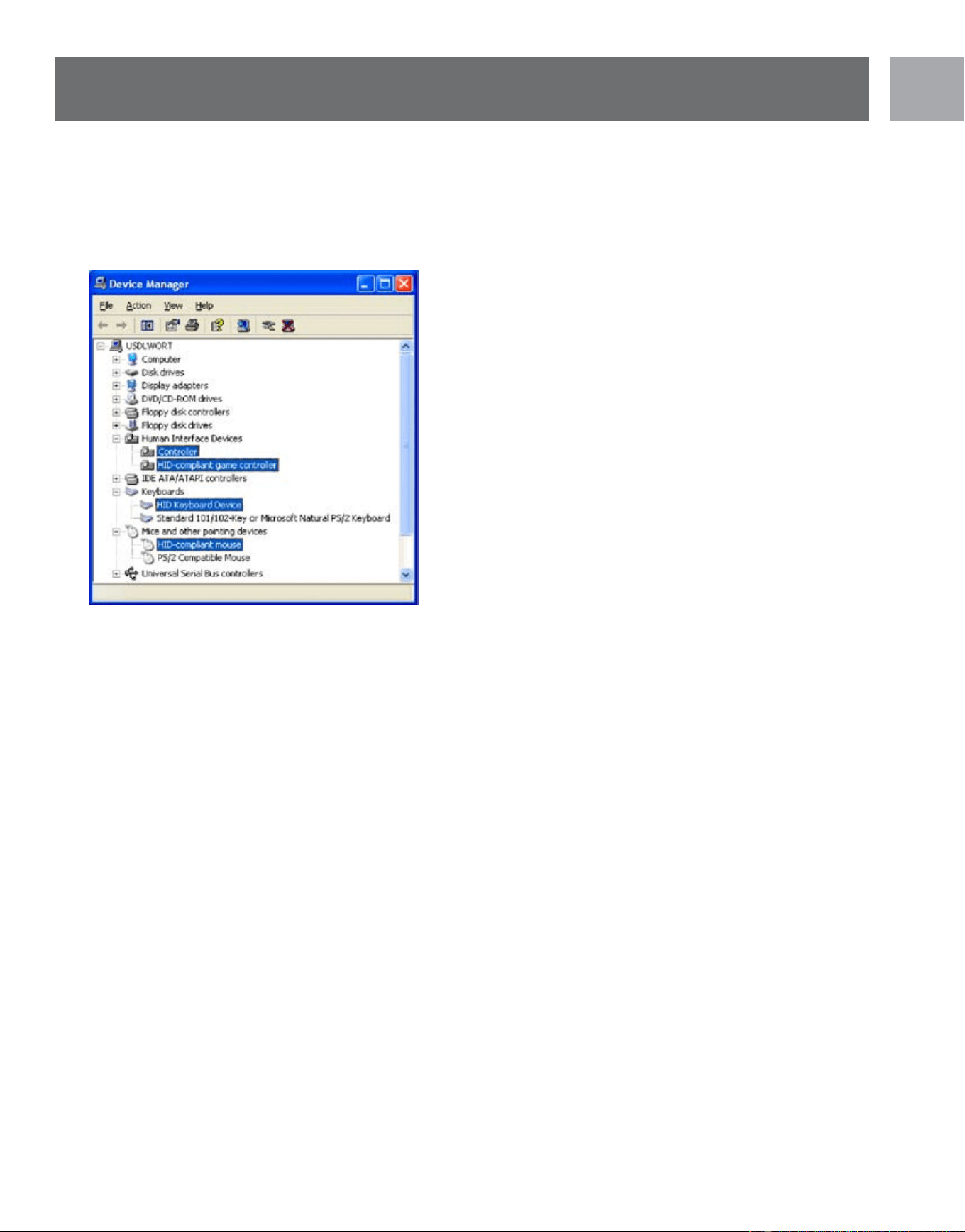
2. You should now see the device manager. Verify that the device manager has the following devices listed. (Note:
Attached is a screenshot of the entries that should be listed within your respective Windows operating system.)
a. In WinXP and Win2000, two new entries called “Philips Controller” and HID-compliant game
controller” will be listed under the Human Interface Device category. In WinME, one new entry called
“Philips Joypad Mouse” will be listed under the Human Interface Devices category. In Win98SE, one new
entry called “Philips Joypad Mouse” will be listed under the Human Input Devices (HID) category.
b. In all Windows operating systems, a new entry should be listed under the Keyboards category. The new
entry should be “HID Keyboard Device”.
c. In all Windows operating systems, a new entry should be listed under the Mouse category. The new
entry should be “HID-Compliant Mouse”
3. If all these entries are listed, then the SGC2910 has been properly installed. If not, then you will need to uninstall
the SGC2910 software by following the Uninstall instructions listed within the SGC2910 Instruction Manual.
Then reinstall the software and re-check the device manager to ensure the SGC2910 was properly installed.
4. If the reinstall doesn’t work, you should check and verify that the device manager doesn’t have any
Unknown Devices listed. Check the “Human Interface Device” and “Universal Serial Bus controllers”
categories. If you see any Unknown Devices you should uninstall them. You should right-click on the
“Unknown Device” to highlight it and click on “Uninstall” or “Remove”. The entry should now be removed
from the device manager. You should now try reinstalling the software according to the instructions for
your operating system.
FAQs
Downloaded from www.ManualsFile.com manuals search engine

34
EN
------------------------------------------------------------------------------------------------------------
Question
When I plug my SGC2910 in and Windows runs through the detection process it asks me for my Windows CD. I
do not have a Windows CD as it was not supplied with my computer so what do I do?
Answer 1
Check and verify that you have the Windows CD.
If you have the Windows CD, you should insert it into your CD-ROM drive. The actual les that Windows is
looking for when you are trying to install the SGC2910 are called Cab les and these are usually found in a
directory on your Windows CD (Win98 if you have Windows 98SE or Win9x if you have Windows ME). You will
need to select the appropriate CD-ROM directory when asked by Windows. The necessary les will then by
copied to your PC.
Answer 2
Win98SE and ME may require the Windows CD to complete the installation.
Some PC manufacturers do not provide a Windows CD with their computer when they ship it to the customer.
The actual les that Windows is looking for when you are trying to install the SGC2910 are called Cab les and
these are usually found in a directory on your Windows CD (Win98 if you have Windows 98 or Win9x if you
have Windows ME). However, if the manufacturer did not give you a CD then they may have made a backup of
these les somewhere on your hard drive.
The standard location to place these les is the C:\Windows\Options\Cabs directory or, sometimes, simply the
C:\Cabs directory. You can also try the C:\Windows\System32\Drivers directory for the location of the les. The
last possible location to place these les is C:\Win98 or C:\Win9x.
When the Windows installer for the SGC2910 asks you for your Windows CD simply click OK - it will come
back to you saying that it can not nd a particular le and at the bottom of the window that comes up it will tell
you where it is trying to Copy The Files From in a small window.
Click in this window and delete whatever is in there and try replacing it with one of the above locations. If
neither works then you should get in touch with the company who supplied your PC and ask them where your
Cab les are kept on your PC.
General Questions
------------------------------------------------------------------------------------------------------------
Question
How do I know if my PC game supports USB controllers?
Answer
Check the recommended system specications on the game’s packaging. Check in the game’s instruction manual
or readme le. As a last resort you can contact the game publisher for technical support or see if a F.A.Q. can be
found on the publisher’s website.
------------------------------------------------------------------------------------------------------------
Question
My SGC2910 does not work with my PC game.
Answer 1
The PC game doesn’t support USB controllers.
If the PC game doesn’t support USB game controllers you will need to use our Prole Editor software and
create a custom prole. Please consult the SGC2910 instruction manual.
FAQs
Downloaded from www.ManualsFile.com manuals search engine

EN
35
EN
Answer 2
The PC game supports USB controllers but the controller still doesn’t work.
The SGC2910 will not automatically work with PC games that support USB controllers. You will need to
congure the SGC2910 to the game. The procedure for doing this varies from game to game. You need to
consult the game’s instruction manual or contact the game publisher for instructions.
Usually, you will need to enter the PC game’s options or setup menu. Within this menu there should be a
“controller conguration” menu. You will need to change the input device to the connected game controller.
The default input device is usually the keyboard. Once this is completed you still need to congure/assign/map
the buttons and controls of the SGC2910 to the game. The “controller conguration” menu should display all
the gameplay functions of the PC game and the default keys that control these functions. For example, Jump =
Space key. Within this screen you should click on the gameplay function you wish to congure and then press
the desired button on the SGC2910. The exact procedure for conguring the gameplay functions will vary from
game to game. Consult the PC game’s instruction manual.
------------------------------------------------------------------------------------------------------------
Question
My SGC2910 does not vibrate with my PC game.
Answer 1
PC game doesn’t support vibration or force feedback.
You need to verify that the PC game in question supports vibration or force feedback. The majority of PC
games do not. The SGC2910 will only work in PC games that support vibration or force feedback.
You should check the game’s instruction manual and packaging. Also check the website of the game publisher
and developer. If you still can not nd any information you should try contacting the game publisher.
Most PC games that only support the mouse and keyboard as input devices do not support vibration feedback.
Please keep this in mind.
Answer 2
PC game supports vibration feedback but the SGC2910 still doesn’t vibrate.
Please make sure you have installed the SGC2910 software from the SGC2910 CD. Please test the controller’s
vibration in the “Gaming Options/Game Controllers” applet found in the Windows Control Panel. If the
SGC2910’s vibration feedback works when tested then the problem is with the PC game.
There are many different force feedback and rumble effects available. The supported effects will vary from game
to game. Unfortunately, due to differences in software and hardware design, the PC game controller may not
support all the effects of the PC game. You will nd that the range of effects that the Wireless PC Controller
supports will vary from game to game.
------------------------------------------------------------------------------------------------------------
Question
Can I use the SGC2910 as a standard USB game controller games without
the Prole Editor on PC games that support USB controller?
Answer
Yes you can.
This is actually recommended by us. You should not use the Prole Editor if your game supports USB game
controllers. Verify that you are using our default prole and then congure the SGC2910 within the PC game’s
“controller conguration” menu.
------------------------------------------------------------------------------------------------------------
FAQs
Downloaded from www.ManualsFile.com manuals search engine

36
EN
Question
My SGC2910 does not work in my MS-DOS based game.
Answer
USB Devices do not function in MS-DOS
USB devices do not function under the MS-DOS environment.
There is no way to get an MS-DOS game to recognize a USB device.
------------------------------------------------------------------------------------------------------------
Question
I extended the cable of my SGC2910 and now the SGC2910 stopped working in my PC Game or my PC game froze.
Answer
Do not extend or retract the connection cable of the SGC2910 while it is connected to a USB port.
The cable length should be adjusted before you connect the SGC2910 to your USB port. Adjusting the length
while the SGC2910 is connected to a USB port can cause your PC and game to lose connection with the
SGC2910. If this occurs, you can try the tips below.
• If the PC Game stops responding to the SGC2910 coil, this indicates that the connection may have been
lost due to extending or retracting the connection cable. Wait several seconds and the SGC2910 d should
automatically reconnect. If this doesn’t work, you will need to exist the PC game and restart it. If this occurs
while you are using the SGC2910 with a game prole, the loaded prole will be lost. You would then need to
exist the PC game, restart the SGC2910 Prole Editor and reload the prole. You then can restart your PC
game.
• If your software title freezes or hangs up due to extending or retracting the cable you will need to try the
following. Wait several seconds and the SGC2910 should automatically reconnect. If this doesn’t work try
unplugging the USB connector and then reconnecting to the same USB port. If the above tip does not work,
then you will have to exist the software title. Press Ctrl and Alt keys down at the same time and then press the
Del key. Try closing down the software title. If this does not work you will need to restart your PC.
Please do not extend or retract the SGC2910’s cable while it is connected to the USB port. If you need to adjust
the length you should exit the PC game. Unplug the SGC2910 from your USB port and adjust the cable to the
desired length. Plug the SGC2910 to your USB port and restart the PC game. If you were using a custom prole
you will need to restart the SGC2910 Prole Editor and reload the same prole.
------------------------------------------------------------------------------------------------------------
Question
The Enter and Esc buttons on my SGC2910 do not work. What do they do?
Answer
SGC2910 software must be installed.
You must install the SGC2910 software. If the software is not installed, these two buttons will not function. The
Enter and Esc buttons will provide the same function of the Enter and Esc keys on your keyboard. Enter and Esc
is usually used to navigate through the game menus.
FAQs
Downloaded from www.ManualsFile.com manuals search engine

EN
37
EN
Prole Editor Software Questions
------------------------------------------------------------------------------------------------------------
Question
I received a “Can’t connect to SGC2910 Wireless PC Controller Controller!” when I click on the SGC2910 icon.
Answer
The SGC2910 is not connected to your PC’s USB port.
Verify that the SGC2910 is directly connected to a USB port on your PC. The SGC2910 must be connected in
order to use the Prole Editor.
------------------------------------------------------------------------------------------------------------
Question
What does the prole editor do?
Answer
The Prole Editor allows the SGC2910 to emulate mouse and keyboard commands on the controller. This
makes the SGC2910 compatible with all computer games, even those that do not support controllers.
------------------------------------------------------------------------------------------------------------
Question
Why aren’t my controls working correctly in my PC game? The SGC2910 acts erratically when I use the Prole Editor.
Answer 1
The game may support USB game controllers.
Check to verify if your PC game supports USB game controllers. If it does, you should not use the Prole Editor
with the PC game. You should only use the default prole when your PC game supports USB game controllers.
When you assign a keyboard key to the controller’s button, pressing that button when now send the controller
button command and the keyboard key command. This isn’t a problem with PC games that only support the
mouse and keyboard. This PC game will only register the keyboard key. However, a game that supports USB
game controllers will register the controller button and keyboard key. So the game will assume you are pressing
a controller button and keyboard key at the same time.
If you desire to use a custom prole with these games, you can check if the PC game has a joystick/controller
enable option. If it does, try disabling it and then see if you can use the Prole Editor with the PC game.
Answer 2
You may have loaded the wrong prole for your controller.
Check and verify that you are using the correct prole for the game you desire to play. You should get into
the habit of checking the prole before you start your PC game. This will ensure the SGC2910 is correctly
congured for the game you desire to play.
When you start your PC or reboot you must start the Prole Editor and load the desired prole. Also, if the
PC loses connection with your SGC2910 you will need to start the Prole Editor and load the desired prole.
FAQs
Downloaded from www.ManualsFile.com manuals search engine

38
EN
------------------------------------------------------------------------------------------------------------
Question
The SGC2910’s analog sticks provide poor control when mouse movement is assigned to the analog sticks. The
mouse cursor moves too slow, too rapidly, or erratically.
Answer
Adjust the Velocity and Acceleration Sliders
Open the Prole Editor. Click the ‘Speed’ button the main menu to access the Mouse Speed Adjust sub-
menu. You try adjusting the Velocity and Acceleration sliders to improve the mouse movement of the analog
sticks. Once you make an adjustment try it out by turning the mouse movement mode on. Unfortunately, due
to differences in the design of the analog stick and mouse you may never be able to achieve prefect mouse
movement.
------------------------------------------------------------------------------------------------------------
Question
I want to use my SGC2910 in First Person Shooters games. I want my SGC2910 to perform similarly to my
Playstation2 controller. How can I congure the SGC2910 to do this?
Answer
Most First Person Shooter games (FPS) are designed to only support the mouse and keyboard. Most developers
consider the mouse and keyboard to provide the best control, so controller support is usually very basic or not
included.
Currently, our Prole Editor will not allow you to setup the SGC2910 so it emulates the Playstation2 control setup
in FPS game. Currently, only mouse movement can be assigned to the SGC2910 analog sticks. You can congure the
D-pad to the WASD keys and the right analog stick to mouse movement. This will allow you to use the SGC2910
d-pad to control character movement and the right analog stick to control the camera movement.
------------------------------------------------------------------------------------------------------------
Question
Can I assign a keyboard key to analog sticks of the SGC2910?
Answer
No you cannot.
You can only assign mouse movement to the analog sticks.
------------------------------------------------------------------------------------------------------------
Question
When I use the Prole Editor, my SGC2910 does not vibrate with my PC game.
Answer
Most keyboard and mouse only PC games do not support vibration feedback.
Unfortunately, most games that only support the mouse and keyboard due not support vibration feedback. If
you must use the Prole Editor with your PC game, it means the game most likely doesn’t support vibration
feedback. However, contact the game publisher for verication.
------------------------------------------------------------------------------------------------------------
FAQs
Downloaded from www.ManualsFile.com manuals search engine

EN
39
EN
If you require further assistance with your Wireless PC Controller,
please contact Tech Service department through either of the following means:
Technical Support
For Technical Support send an email with the model number
of the product and a detailed description of your problem to:
Email: accessor[email protected]
FCC Warning
This equipment has been tested and found to comply with the limits for a Class B digital devise pursuant
to Part 15 of the FCC Rules. These limits are designed to provide reasonable protection against harmful
interference in a residential installation. This equipment generate, uses and can radiate radio frequency energy
and, if not installed and used in accordance with the instructions, may cause harmful interference to radio
communications. However, there is no guarantee that interference to radio or television reception, which can
be determined by turning the equipment off and on, the user is encouraged to try to correct the interference
by one or more of the following measures:
• Reorient or relocate the receiving antenna.
• Increase the separation between the equipment and receiver.
• Connect the equipment into an outlet on a circuit different form that to which the receiver is connected
• Consult the dealer on an experienced radio/TV technician for help.
CAUTION: Any changes or modications not expressly approved by the grantee
of this device could void the users authority to operate the equipment.
Windows
®
is a registered trademark of Microsoft
®
.
This product is not sponsored or endorsed by the companies mentioned herein.
©2007 Philips Accessories and Computer Peripherals
All rights reserved. All trade names and registered trademarks are property of the respective manufacturers listed.
Warranty/Garantie/Záruka: www.philips.com/support
Techincal Support
Downloaded from www.ManualsFile.com manuals search engine